SAP Transportation Management (SAP TM)
Release 9.0
PUBLIC
Document Version: 3.0 – March 2013
(C) SAP AG 2
Copyright
© Copyright 2013 SAP AG. All rights reserved.
SAP Library document classification: PUBLIC
No part of this publication may be reproduced or transmitted in any form or for any purpose
without the express permission of SAP AG. The information contained herein may be changed
without prior notice.
Some software products marketed by SAP AG and its distributors contain proprietary software
components of other software vendors. National product specifications may vary.
These materials are provided by SAP AG and its affiliated companies (“SAP Group”) for
informational purposes only, without representation or warranty of any kind, and SAP Group
shall not be liable for errors or omissions with respect to the materials. The only warranties for
SAP Group products and services are those that are set forth in the express warranty statements
accompanying such products and services, if any. Nothing herein should be construed as
constituting an additional warranty.
SAP and other SAP products and services mentioned herein as well as their respective logos are
trademarks or registered trademarks of SAP AG in Germany and other countries.
Please see http://www.sap.com/corporate-en/legal/copyright/index.epx#trademark for
additional trademark information and notices.
(C) SAP AG 3
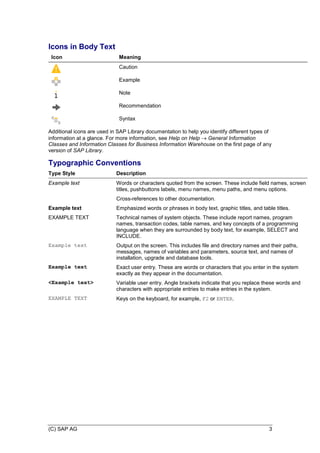
Icons in Body Text
Icon Meaning
Caution
Example
Note
Recommendation
Syntax
Additional icons are used in SAP Library documentation to help you identify different types of
information at a glance. For more information, see Help on Help  General Information
Classes and Information Classes for Business Information Warehouse on the first page of any
version of SAP Library.
Typographic Conventions
Type Style Description
Example text Words or characters quoted from the screen. These include field names, screen
titles, pushbuttons labels, menu names, menu paths, and menu options.
Cross-references to other documentation.
Example text Emphasized words or phrases in body text, graphic titles, and table titles.
EXAMPLE TEXT Technical names of system objects. These include report names, program
names, transaction codes, table names, and key concepts of a programming
language when they are surrounded by body text, for example, SELECT and
INCLUDE.
Example text Output on the screen. This includes file and directory names and their paths,
messages, names of variables and parameters, source text, and names of
installation, upgrade and database tools.
Example text Exact user entry. These are words or characters that you enter in the system
exactly as they appear in the documentation.
<Example text> Variable user entry. Angle brackets indicate that you replace these words and
characters with appropriate entries to make entries in the system.
EXAMPLE TEXT Keys on the keyboard, for example, F2 or ENTER.
(C) SAP AG 4
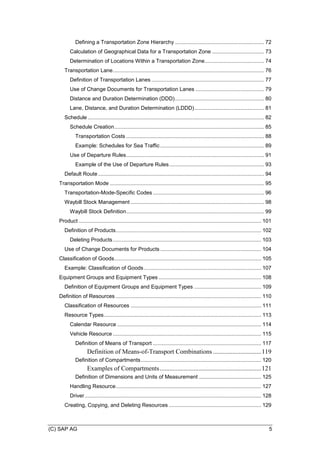
Table of Contents
SAP Transportation Management (SAP TM) .......................................................................... 16
Introductory Information ....................................................................................................... 19
Business Functions.............................................................................................................. 20
SAP TM-Specific Enhancements in SCM Basis .............................................................. 21
Master Data.......................................................................................................................... 24
Business Partner .............................................................................................................. 25
Definition of Business Partners..................................................................................... 27
Additional Texts ............................................................................................................ 29
Business Partner Blocking............................................................................................ 30
Business Partner Determination................................................................................... 32
Carrier Profile................................................................................................................ 35
Definition of Carrier Profiles ...................................................................................... 36
Organizational Management ............................................................................................ 38
Creation of Organizational Models ............................................................................... 39
Organizational Unit.................................................................................................... 40
Assigning Employees to Organizational Units ...................................................... 41
Changing of Organizational Models ............................................................................. 42
Workflow in SAP Transportation Management............................................................. 43
Approval Check......................................................................................................... 44
Transportation Network .................................................................................................... 46
Transportation Network Cockpit ................................................................................... 47
Path Finder ................................................................................................................... 49
Location ........................................................................................................................ 51
One-Time Location.................................................................................................... 53
Transshipment Location............................................................................................ 54
Define Transshipment Location Assignments....................................................... 55
Examples for the Transshipment Location............................................................ 56
Transshipment Location Chain.............................................................................. 59
Definition of Transshipment Location Chains.....................................60
Definition of Locations............................................................................................... 61
Operating Times.................................................................................................... 63
Deleting Locations..................................................................................................... 64
Application Logs for Locations .................................................................................. 66
Use of Change Documents for Locations ................................................................. 67
Definition of Alternative Location Identifiers.............................................................. 68
Transportation Zone ..................................................................................................... 69
Definition of Transportation Zones............................................................................ 70
Transportation Zone Hierarchy ................................................................................. 71
(C) SAP AG 5
Defining a Transportation Zone Hierarchy ............................................................ 72
Calculation of Geographical Data for a Transportation Zone ................................... 73
Determination of Locations Within a Transportation Zone........................................ 74
Transportation Lane...................................................................................................... 76
Definition of Transportation Lanes ............................................................................ 77
Use of Change Documents for Transportation Lanes .............................................. 79
Distance and Duration Determination (DDD)............................................................ 80
Lane, Distance, and Duration Determination (LDDD)............................................... 81
Schedule....................................................................................................................... 82
Schedule Creation..................................................................................................... 85
Transportation Costs ............................................................................................. 88
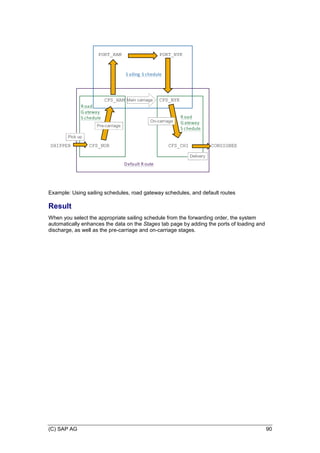
Example: Schedules for Sea Traffic...................................................................... 89
Use of Departure Rules............................................................................................. 91
Example of the Use of Departure Rules................................................................ 93
Default Route................................................................................................................ 94
Transportation Mode ........................................................................................................ 95
Transportation-Mode-Specific Codes ........................................................................... 96
Waybill Stock Management .......................................................................................... 98
Waybill Stock Definition............................................................................................. 99
Product ........................................................................................................................... 101
Definition of Products.................................................................................................. 102
Deleting Products.................................................................................................... 103
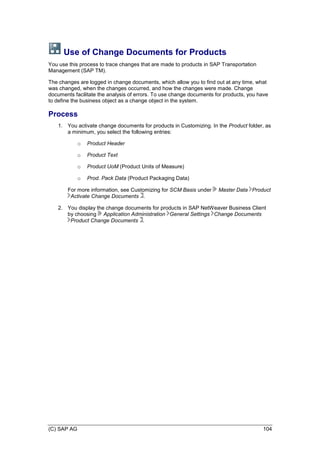
Use of Change Documents for Products .................................................................... 104
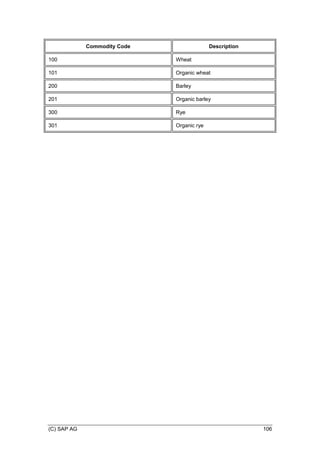
Classification of Goods................................................................................................... 105
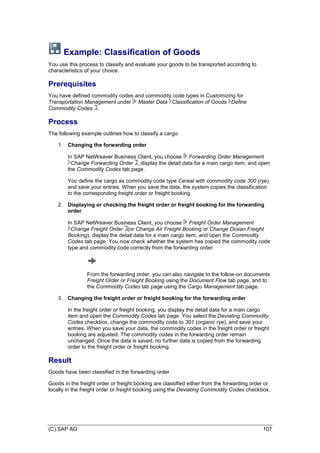
Example: Classification of Goods............................................................................... 107
Equipment Groups and Equipment Types ..................................................................... 108
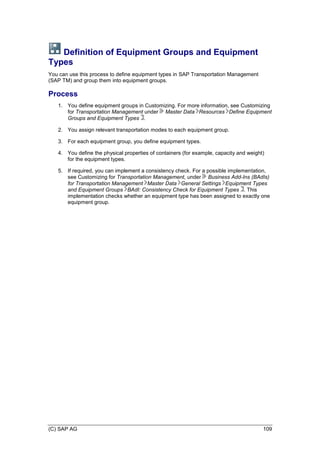
Definition of Equipment Groups and Equipment Types ............................................. 109
Definition of Resources .................................................................................................. 110
Classification of Resources ........................................................................................ 111
Resource Types.......................................................................................................... 113
Calendar Resource ................................................................................................. 114
Vehicle Resource .................................................................................................... 115
Definition of Means of Transport ......................................................................... 117
Definition of Means-of-Transport Combinations..............................119
Definition of Compartments................................................................................. 120
Examples of Compartments...............................................................121
Definition of Dimensions and Units of Measurement .......................................... 125
Handling Resource.................................................................................................. 127
Driver....................................................................................................................... 128
Creating, Copying, and Deleting Resources .............................................................. 129
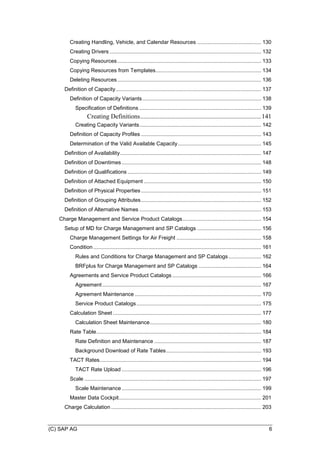
(C) SAP AG 6
Creating Handling, Vehicle, and Calendar Resources ........................................... 130
Creating Drivers ...................................................................................................... 132
Copying Resources................................................................................................. 133
Copying Resources from Templates....................................................................... 134
Deleting Resources................................................................................................. 136
Definition of Capacity.................................................................................................. 137
Definition of Capacity Variants................................................................................ 138
Specification of Definitions .................................................................................. 139
Creating Definitions...........................................................................141
Creating Capacity Variants.................................................................................. 142
Definition of Capacity Profiles ................................................................................. 143
Determination of the Valid Available Capacity........................................................ 145
Definition of Availability............................................................................................... 147
Definition of Downtimes.............................................................................................. 148
Definition of Qualifications .......................................................................................... 149
Definition of Attached Equipment ............................................................................... 150
Definition of Physical Properties................................................................................. 151
Definition of Grouping Attributes................................................................................. 152
Definition of Alternative Names .................................................................................. 153
Charge Management and Service Product Catalogs..................................................... 154
Setup of MD for Charge Management and SP Catalogs ........................................... 156
Charge Management Settings for Air Freight ......................................................... 158
Condition ................................................................................................................. 161
Rules and Conditions for Charge Management and SP Catalogs...................... 162
BRFplus for Charge Management and SP Catalogs .......................................... 164
Agreements and Service Product Catalogs............................................................ 166
Agreement ........................................................................................................... 167
Agreement Maintenance ..................................................................................... 170
Service Product Catalogs.................................................................................... 175
Calculation Sheet .................................................................................................... 177
Calculation Sheet Maintenance........................................................................... 180
Rate Table............................................................................................................... 184
Rate Definition and Maintenance ........................................................................ 187
Background Download of Rate Tables................................................................ 193
TACT Rates............................................................................................................. 194
TACT Rate Upload .............................................................................................. 196
Scale ....................................................................................................................... 197
Scale Maintenance.............................................................................................. 199
Master Data Cockpit................................................................................................ 201
Charge Calculation ..................................................................................................... 203
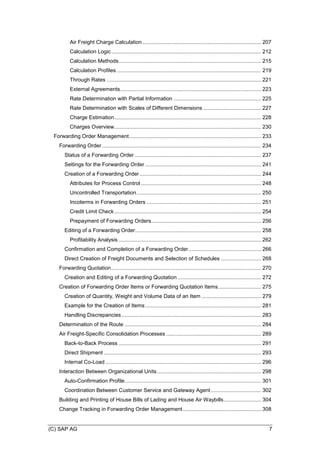
(C) SAP AG 7
Air Freight Charge Calculation................................................................................ 207
Calculation Logic..................................................................................................... 212
Calculation Methods................................................................................................ 215
Calculation Profiles ................................................................................................. 219
Through Rates ........................................................................................................ 221
External Agreements............................................................................................... 223
Rate Determination with Partial Information ........................................................... 225
Rate Determination with Scales of Different Dimensions ....................................... 227
Charge Estimation................................................................................................... 228
Charges Overview................................................................................................... 230
Forwarding Order Management......................................................................................... 233
Forwarding Order ........................................................................................................... 234
Status of a Forwarding Order ..................................................................................... 237
Settings for the Forwarding Order .............................................................................. 241
Creation of a Forwarding Order.................................................................................. 244
Attributes for Process Control ................................................................................. 248
Uncontrolled Transportation.................................................................................... 250
Incoterms in Forwarding Orders ............................................................................. 251
Credit Limit Check................................................................................................... 254
Prepayment of Forwarding Orders.......................................................................... 256
Editing of a Forwarding Order..................................................................................... 258
Profitability Analysis ................................................................................................ 262
Confirmation and Completion of a Forwarding Order................................................. 266
Direct Creation of Freight Documents and Selection of Schedules ........................... 268
Forwarding Quotation..................................................................................................... 270
Creation and Editing of a Forwarding Quotation ........................................................ 272
Creation of Forwarding Order Items or Forwarding Quotation Items............................. 275
Creation of Quantity, Weight and Volume Data of an Item ........................................ 279
Example for the Creation of Items .............................................................................. 281
Handling Discrepancies.............................................................................................. 283
Determination of the Route ............................................................................................ 284
Air Freight-Specific Consolidation Processes ................................................................ 289
Back-to-Back Process ................................................................................................ 291
Direct Shipment .......................................................................................................... 293
Internal Co-Load ......................................................................................................... 296
Interaction Between Organizational Units ...................................................................... 298
Auto-Confirmation Profile............................................................................................ 301
Coordination Between Customer Service and Gateway Agent.................................. 302
Building and Printing of House Bills of Lading and House Air Waybills......................... 304
Change Tracking in Forwarding Order Management..................................................... 308
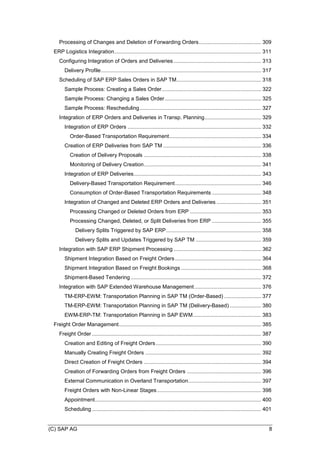
(C) SAP AG 8
Processing of Changes and Deletion of Forwarding Orders.......................................... 309
ERP Logistics Integration................................................................................................... 311
Configuring Integration of Orders and Deliveries........................................................... 313
Delivery Profile............................................................................................................ 317
Scheduling of SAP ERP Sales Orders in SAP TM......................................................... 318
Sample Process: Creating a Sales Order................................................................... 322
Sample Process: Changing a Sales Order................................................................. 325
Sample Process: Rescheduling.................................................................................. 327
Integration of ERP Orders and Deliveries in Transp. Planning...................................... 329
Integration of ERP Orders .......................................................................................... 332
Order-Based Transportation Requirement.............................................................. 334
Creation of ERP Deliveries from SAP TM .................................................................. 336
Creation of Delivery Proposals ............................................................................... 338
Monitoring of Delivery Creation............................................................................... 341
Integration of ERP Deliveries...................................................................................... 343
Delivery-Based Transportation Requirement.......................................................... 346
Consumption of Order-Based Transportation Requirements ................................. 348
Integration of Changed and Deleted ERP Orders and Deliveries .............................. 351
Processing Changed or Deleted Orders from ERP ................................................ 353
Processing Changed, Deleted, or Split Deliveries from ERP ................................. 355
Delivery Splits Triggered by SAP ERP................................................................ 358
Delivery Splits and Updates Triggered by SAP TM ............................................ 359
Integration with SAP ERP Shipment Processing ........................................................... 362
Shipment Integration Based on Freight Orders.......................................................... 364
Shipment Integration Based on Freight Bookings ...................................................... 368
Shipment-Based Tendering........................................................................................ 372
Integration with SAP Extended Warehouse Management............................................. 376
TM-ERP-EWM: Transportation Planning in SAP TM (Order-Based) ......................... 377
TM-ERP-EWM: Transportation Planning in SAP TM (Delivery-Based) ..................... 380
EWM-ERP-TM: Transportation Planning in SAP EWM.............................................. 383
Freight Order Management................................................................................................ 385
Freight Order .................................................................................................................. 387
Creation and Editing of Freight Orders....................................................................... 390
Manually Creating Freight Orders .............................................................................. 392
Direct Creation of Freight Orders ............................................................................... 394
Creation of Forwarding Orders from Freight Orders .................................................. 396
External Communication in Overland Transportation................................................. 397
Freight Orders with Non-Linear Stages ...................................................................... 398
Appointment................................................................................................................ 400
Scheduling .................................................................................................................. 401
(C) SAP AG 9
Trailer Document ........................................................................................................ 402
Creating and Editing Trailer Documents ................................................................. 404
Example: Trailer Swap............................................................................................ 405
Freight Booking .............................................................................................................. 406
Creation and Editing of Freight Bookings ................................................................... 409
Manually Creating Freight Bookings........................................................................... 411
Pick-up and Delivery Freight Orders .......................................................................... 413
Freight Orders for Customer Self-Delivery and Pick-Up ............................................ 415
Buyer's Consolidation ................................................................................................. 417
External Communication in Sea Traffic and Air Traffic............................................... 419
Management of Air Freight Bookings for Airlines ....................................................... 420
Air Cargo Security................................................................................................... 422
Configuration of Air Cargo Security..................................................................... 424
Air Cargo Security in Business Document Processing ....................................... 426
Freight Order Security Status.............................................................................. 428
Co-Load................................................................................................................... 430
Handling Codes....................................................................................................... 431
Publication of Air Freight Bookings ......................................................................... 432
LCL Freight Bookings ................................................................................................. 435
FCL Freight Bookings ................................................................................................. 436
Export/Import Processing ........................................................................................... 437
Export/Import Processing: Internal Communication ............................................... 439
Export/Import Processing: External Communication (Outbound) ........................... 443
Export/Import Processing: External Communication (Inbound).............................. 445
Manual Creation of Import Freight Bookings .......................................................... 447
Service Order ................................................................................................................. 448
Creation and Editing of Service Orders ...................................................................... 449
Manually Creating Service Orders.............................................................................. 450
Quantities and Capacities .............................................................................................. 452
Example of Quantity Totaling...................................................................................... 454
Discrepancies ............................................................................................................. 456
Quantity Discrepancies ........................................................................................... 457
Other Discrepancies................................................................................................ 458
Goods Information.......................................................................................................... 459
Freight Tendering ........................................................................................................... 460
Basic Settings for Tendering....................................................................................... 462
Tendering Profile..................................................................................................... 464
Communication Channels in Tendering.................................................................. 466
Transportation Lanes in Tendering ......................................................................... 467
Change Controller in Tendering.............................................................................. 468
(C) SAP AG 10
Calculation of Price Limits....................................................................................... 469
E-mail Processing for Tendering............................................................................. 470
Carrier Notification Process Management .............................................................. 472
Creation of a Tendering Plan...................................................................................... 474
Tendering Step........................................................................................................ 476
Broadcast Tendering............................................................................................... 477
Peer-to-Peer Tendering .......................................................................................... 478
Visibility Settings ..................................................................................................... 479
Freight Request for Quotation................................................................................. 480
Tendering.................................................................................................................... 481
Documents and Notifications .................................................................................. 483
Tendering Alerts...................................................................................................... 484
Change Handling .................................................................................................... 485
Acceptance or Rejection of a Freight Request for Quotation ..................................... 486
Evaluation of Freight Quotations ................................................................................ 488
Update of a Freight Order ....................................................................................... 489
Tendering Execution................................................................................................... 490
Use of Hierarchical Views in FOM ................................................................................. 491
Building and Printing of House Bills of Lading and House Air Waybills......................... 493
Carrier Categorization .................................................................................................... 497
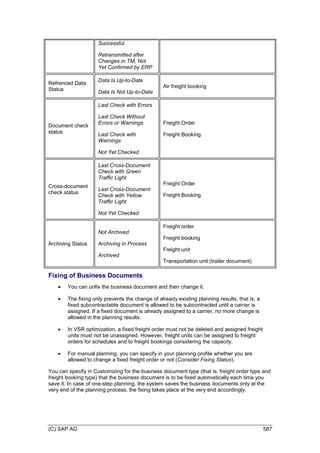
Statuses of Business Documents .................................................................................. 499
Explanation of Statuses of Business Documents....................................................... 504
Automatic Status Updates (Simple Scenario) ............................................................ 517
Automatic Status Updates (Multi-Pickup and Multi-Drop Scenario)........................... 520
Cargo Management........................................................................................................ 522
Mixed Unit Load Device.............................................................................................. 525
Use of Schedules ........................................................................................................... 526
Use of Seals ................................................................................................................... 528
Sending of Loading/Unloading Instructions and Receipt of Confirmations.................... 529
Location Changes .......................................................................................................... 531
Blocking Information....................................................................................................... 533
Change Tracking ............................................................................................................ 534
Planning ............................................................................................................................. 535
Profiles and Settings ...................................................................................................... 536
Selection Profile.......................................................................................................... 538
Demand Horizon ..................................................................................................... 540
Additional Selection Attributes ................................................................................ 542
Planning Profile........................................................................................................... 543
Planning Horizon..................................................................................................... 545
Planning Costs ........................................................................................................ 546
(C) SAP AG 11
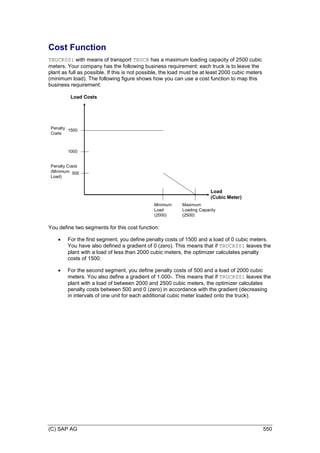
Cost Function .......................................................................................................... 550
Freight Order Building Rule..................................................................................... 551
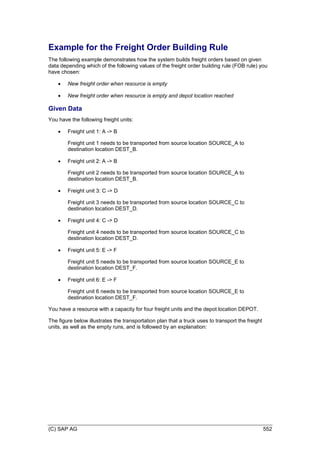
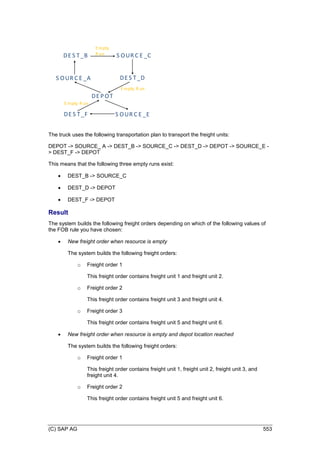
Example for the Freight Order Building Rule ...................................................... 552
Capacity Decrease ..................................................................................................... 554
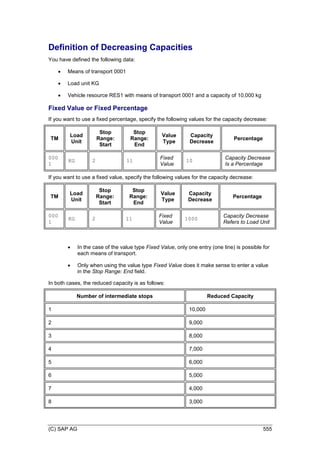
Definition of Decreasing Capacities ........................................................................ 555
Freight Unit Building Rule........................................................................................... 558
Determination of Freight Unit Building Rules .......................................................... 561
Definition of Dimensions and Units of Measurement.............................................. 562
Incompatibilities .......................................................................................................... 564
Definition of Incompatibilities................................................................................... 567
Creation and Editing of Freight Units ............................................................................. 568
Determination of Freight Unit Building Rules.............................................................. 571
Freight Unit Building Rule ....................................................................................... 572
Freight Unit.............................................................................................................. 575
Transportation Stages and Dates/Times in the Freight Unit ............................... 577
Interaction Between Organizational Units ........................................................... 578
Consideration of Equipment Data During FU Creation .............................................. 581
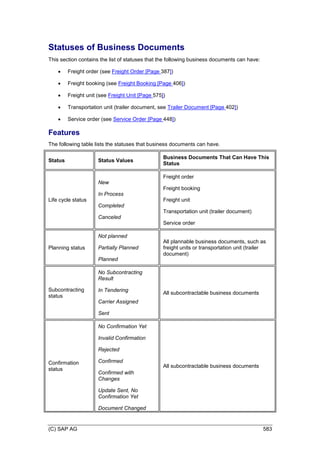
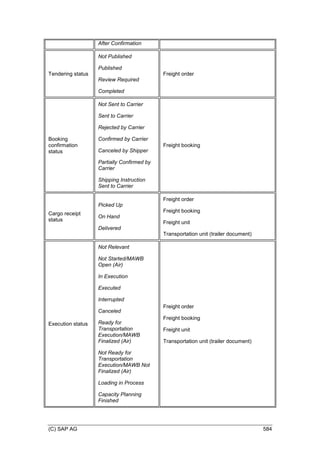
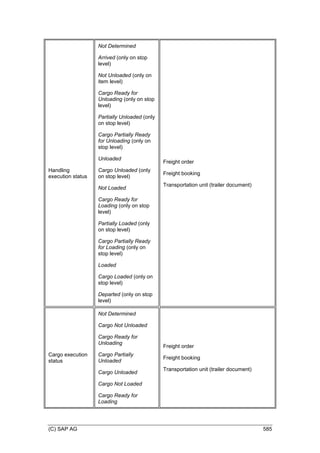
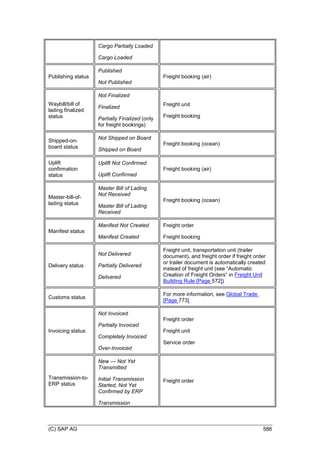
Statuses of Business Documents............................................................................... 583
Explanation of Statuses of Business Documents ................................................... 588
Blocking Information ................................................................................................... 601
Windows ..................................................................................................................... 602
Delivery Window ..................................................................................................... 604
Definition of Windows for Delivery .......................................................................... 606
Definition of a Condition for Windows ..................................................................... 613
Change Tracking ........................................................................................................ 614
Interactive Planning........................................................................................................ 615
Use of Profile and Layout Sets ................................................................................... 617
Selection Attributes for Transportation Cockpit .......................................................... 619
Use of Hierarchical Views........................................................................................... 620
Manual Planning ......................................................................................................... 621
Creation of Freight Documents from Freight Units ................................................. 623
Creation of Freight Documents from Resources..................................................... 624
Assignment of Freight Units to Existing Freight Documents................................... 626
Reassignment ......................................................................................................... 627
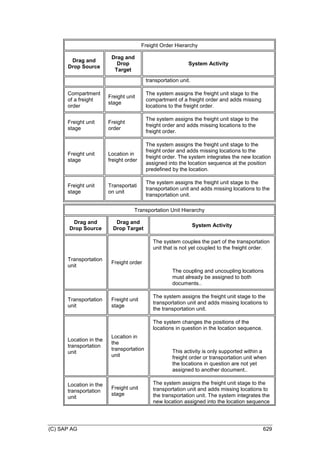
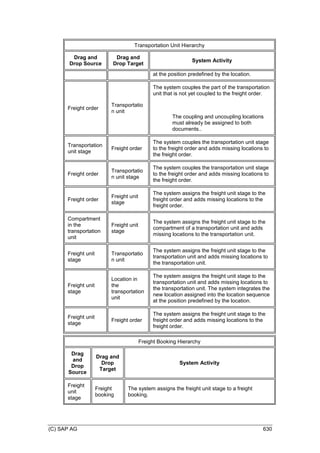
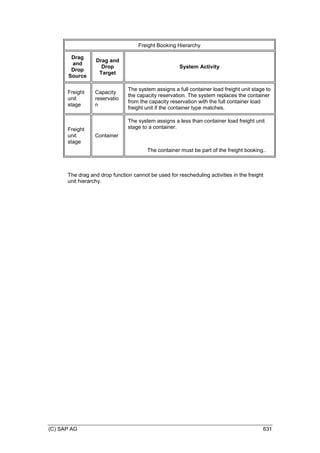
Reassignment Activities ...................................................................................... 628
Rough-Cut Planning................................................................................................ 632
Freight Order Overview........................................................................................... 633
Freight-Unit Stage Groups ...................................................................................... 634
VSR Optimization ....................................................................................................... 636
Optimization Data.................................................................................................... 638
(C) SAP AG 12
Total Costs .............................................................................................................. 639
Initial Solution.......................................................................................................... 640
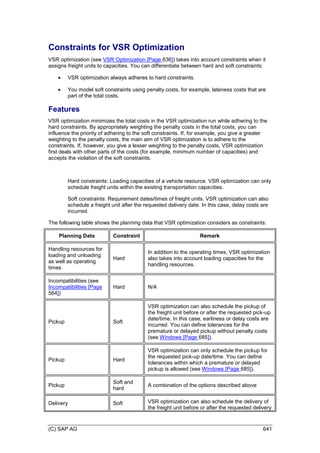
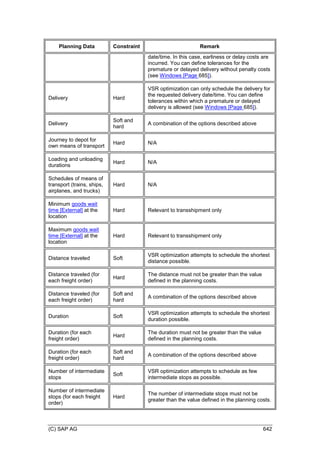
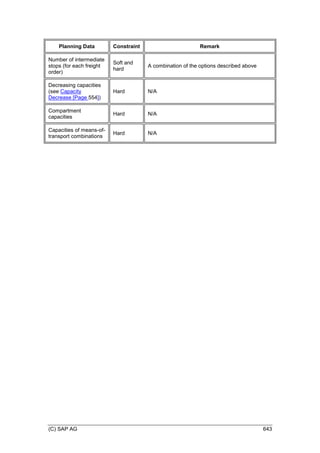
Constraints for VSR Optimization ........................................................................... 641
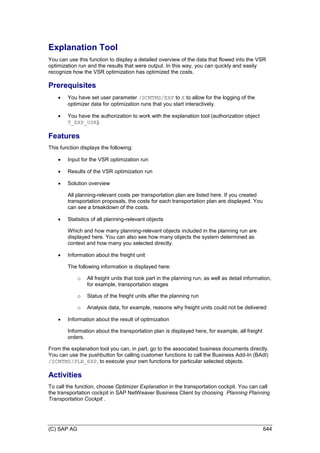
Explanation Tool ..................................................................................................... 644
Consideration of Scheduling Constraints................................................................ 646
Determination of Direct Shipment Options ................................................................. 649
Parallel Planning......................................................................................................... 652
Generation of Transportation Proposals..................................................................... 653
Carrier Selection ......................................................................................................... 655
Strategies ................................................................................................................ 658
Strategy Determination........................................................................................ 660
Continuous Move .................................................................................................... 661
Cost Calculation for Continuous Moves .............................................................. 663
Business Share ....................................................................................................... 664
Creation of Business Shares and Transportation Allocations ............................. 665
Check Against Transportation Allocations .............................................................. 668
Transportation Allocation..................................................................................... 670
Creation of Business Shares and Transportation Allocations............673
Use of Transportation Orientations ......................................................................... 676
Optimization as Part of Carrier Selection................................................................ 678
One-Step Planning ..................................................................................................... 679
Loading and Unloading Durations .............................................................................. 680
Use of Multiresources ................................................................................................. 681
Use of Trailers ............................................................................................................ 683
Windows ..................................................................................................................... 685
Delivery Window ..................................................................................................... 687
Definition of Windows for Delivery .......................................................................... 689
Definition of a Condition for Windows ..................................................................... 696
Context Determination ................................................................................................ 697
Full Map Display ......................................................................................................... 699
Customer-Specific Functions...................................................................................... 700
Effects of Date/Time Deviations During Execution..................................................... 701
Settlement.......................................................................................................................... 702
Forwarding Settlement ................................................................................................... 703
Forwarding Settlement Document .............................................................................. 704
Forwarding Settlement................................................................................................ 707
Freight Settlement .......................................................................................................... 711
Freight Settlement Document..................................................................................... 712
Freight Settlement ...................................................................................................... 715
Additional Agreement Parties ..................................................................................... 718
(C) SAP AG 13
Charge Correction Advice Management .................................................................... 719
Cost Distribution Management ................................................................................... 722
Cost Distribution for Shippers ................................................................................. 724
Cost Distribution for LSPs....................................................................................... 726
Credit Memos ................................................................................................................. 729
Credit Memos for Forwarding Orders ......................................................................... 731
Credit Memos for Freight Orders................................................................................ 733
Internal Settlement ......................................................................................................... 735
Internal Settlement Management ............................................................................... 737
Internal Settlement for Resources .............................................................................. 739
Split Criteria in Settlement Document Creation.............................................................. 741
Integration .......................................................................................................................... 743
Integration with SAP Event Management ...................................................................... 744
Tracking of Freight Units............................................................................................. 745
Tracking of Freight Orders and Freight Bookings....................................................... 746
Tracking of Instructions............................................................................................... 747
Integration with SAP Global Trade Services .................................................................. 749
Basic Functions.................................................................................................................. 750
Considering Dangerous Goods...................................................................................... 751
Configuration of Dangerous Goods Processing ......................................................... 752
Dangerous Goods Checks with ERP Logistics Integration ........................................ 754
Dangerous Goods Checks Without ERP Logistics Integration................................... 757
Document-Based Dangerous Goods Records ........................................................... 760
Definition of UI Profiles for Document-Based DG Data .......................................... 762
Creation and Editing of Document-Based Dangerous Goods Records.................. 765
Creation and Use of Dangerous Goods Templates................................................ 767
Loading Dangerous Goods Content ........................................................................... 768
Sustainability .................................................................................................................. 770
Defining Sustainability Factors ................................................................................... 771
Calculation of Sustainability Factors........................................................................... 772
Global Trade................................................................................................................... 773
Configuration of Customs Processing ........................................................................ 774
Customs Relevance Check..................................................................................... 776
Customs Groups ..................................................................................................... 778
Customs Statuses and Cumulated Customs Statuses ........................................... 780
Export Declarations by Shippers ................................................................................ 781
Export Declarations by LSPs (Manual Customs Handling) ........................................ 785
Export Declarations by LSPs (Automatic Customs Handling).................................... 787
Transit Procedure ....................................................................................................... 790
Transit Procedure for Freight Documents............................................................... 791
(C) SAP AG 14
Transit Procedure: Open Transit in Freight Documents...................................... 793
Transit Procedure: Close Transit in Freight Documents ..................................... 795
Transit Procedure for Freight Units......................................................................... 796
Trade Compliance Check ........................................................................................... 799
Management of Instructions........................................................................................... 802
Text Collection................................................................................................................ 804
Attachment Folder .......................................................................................................... 805
Settings for Time Zone and Distance............................................................................. 806
Condition ........................................................................................................................ 808
Definition of Conditions............................................................................................... 809
Definition of a Condition for Windows......................................................................... 811
Use of Data Crawler Input Values .............................................................................. 812
Change Controller .......................................................................................................... 814
Objects Delivered by SAP for the Change Controller................................................. 816
Settings for the Change Controller ............................................................................. 820
Process Controller Configuration ................................................................................... 822
Planning Strategies..................................................................................................... 824
External Strategies ..................................................................................................... 825
Map Display.................................................................................................................... 826
Map Functions ............................................................................................................ 827
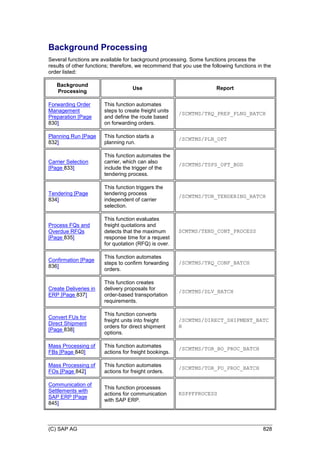
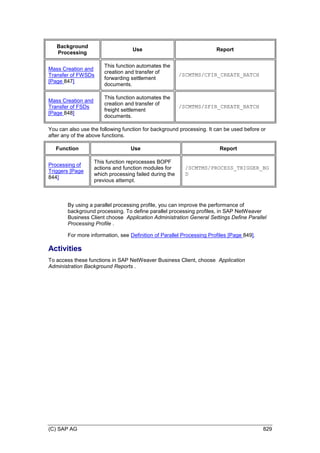
Background Processing ................................................................................................. 828
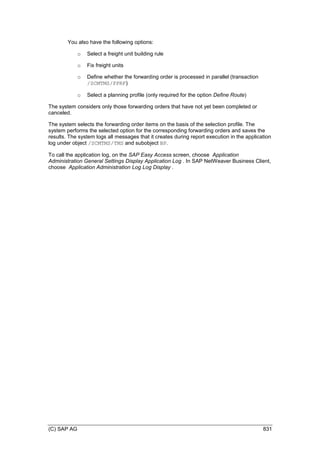
Background Processing: Forwarding Order Management Preparation ..................... 830
Background Processing: Planning Run ...................................................................... 832
Background Processing: Carrier Selection................................................................. 833
Background Processing: Tendering ........................................................................... 834
Background Processing: Process FQs and Overdue RFQs ...................................... 835
Background Processing: Confirmation ....................................................................... 836
Background Processing: Create Deliveries in ERP.................................................... 837
Background Processing: Convert FUs for Direct Shipment ....................................... 838
Background Processing: Mass Processing of Freight Bookings (FBs) ...................... 840
Background Processing: Mass Processing of Freight Orders (FOs).......................... 842
Background Processing: Processing of Triggers........................................................ 844
Background Processing: Communication of Settlements with SAP ERP .................. 845
Background Processing: Mass Creation and Transfer of FWSDs ............................. 847
Background Processing: Mass Creation and Transfer of FSDs................................. 848
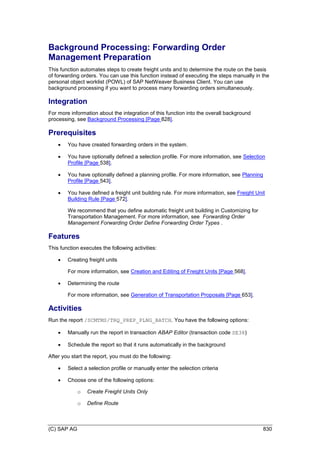
Definition of Parallel Processing Profiles ....................................................................... 849
Output Management....................................................................................................... 850
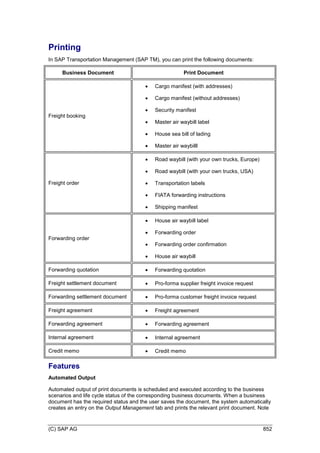
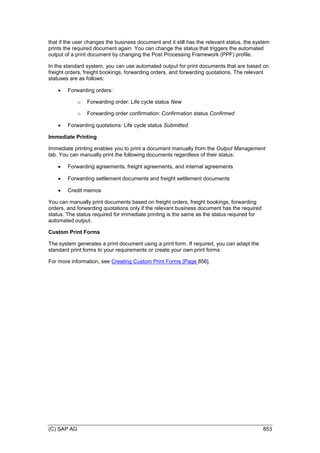
Printing........................................................................................................................ 852
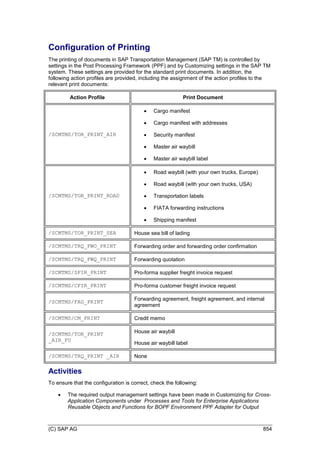
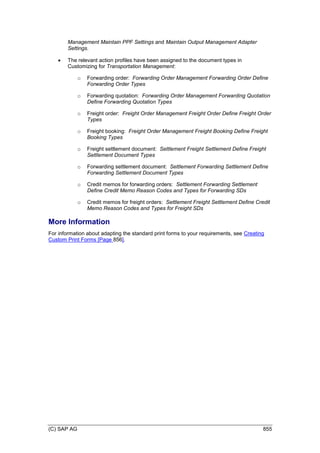
Configuration of Printing.......................................................................................... 854
Creating Custom Print Forms.................................................................................. 856
(C) SAP AG 15
Creation of an ABAP Class for a Print Form ....................................................... 857
Creation of an ABAP Class for the PPF Service................................................. 858
Authorizations................................................................................................................. 860
SAP Transportation Management Monitoring with CCMS............................................. 861
Archiving in SAP Transportation Management (SAP TM) ............................................. 863
Archiving Forwarding Settlement Documents (TM-FWS) .......................................... 864
Archiving Freight Settlement Documents (TM-FRS) .................................................. 865
Archiving Agreements (TM-MD-CM-AG).................................................................... 866
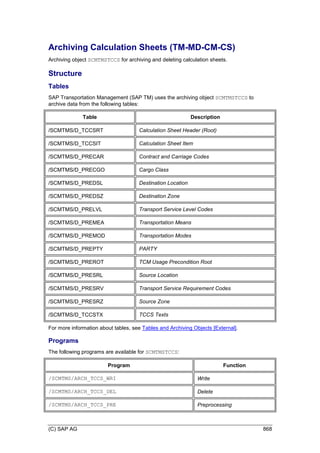
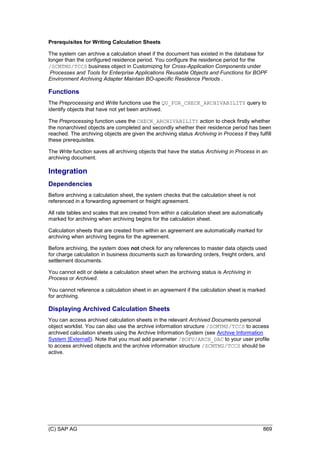
Archiving Calculation Sheets (TM-MD-CM-CS) ......................................................... 868
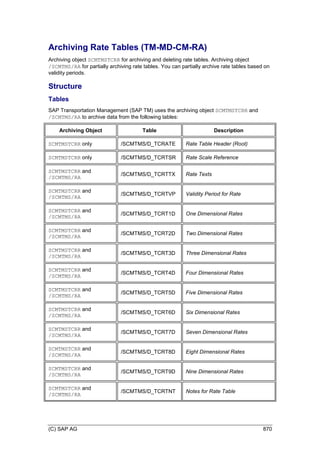
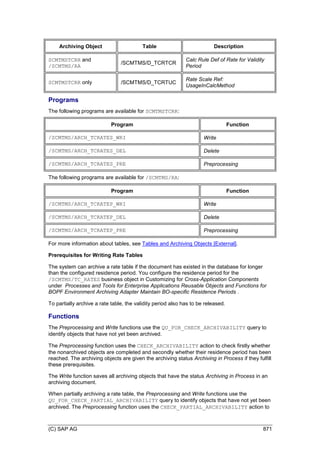
Archiving Rate Tables (TM-MD-CM-RA) .................................................................... 870
Archiving Scales (TM-MD-CM-SC)............................................................................. 873
Archiving Business Documents for Forwarding Order Management (TM-FWM)....... 875
Archiving Business Documents for Freight Order Management (TM-FRM) .............. 877
Archiving Transportation Allocations (TM-PLN) ......................................................... 879
Archiving Business Shares (TM-PLN)........................................................................ 880
Archiving Waybill Stocks (TM-MD-WB)...................................................................... 881
Message Settings........................................................................................................... 882
Message Store ............................................................................................................... 883
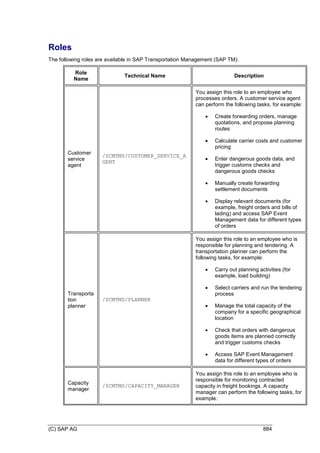
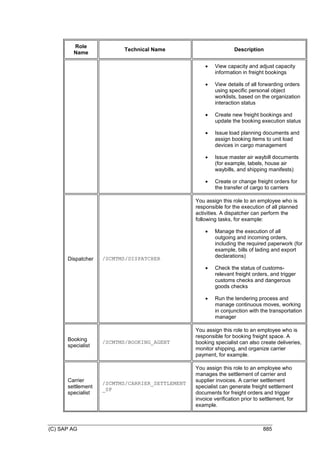
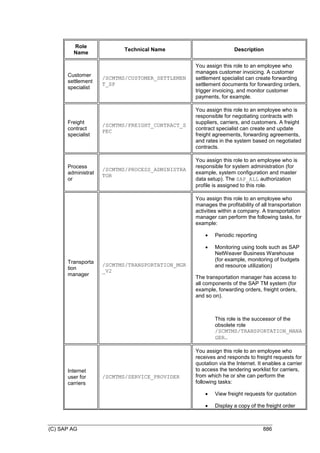
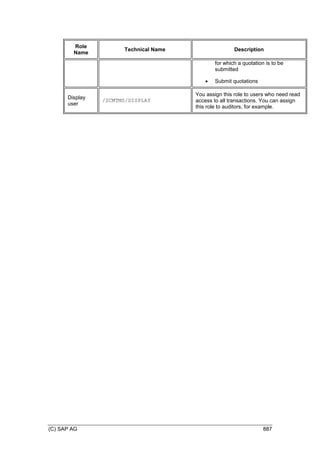
Roles .............................................................................................................................. 884
(C) SAP AG 16
SAP Transportation Management (SAP TM)
SAP Transportation Management (SAP TM) supports you in all activities connected with the
physical transportation of goods from one location to another. You can use SAP TM to
perform the following activities, for example:
 Create forwarding orders for your ordering parties
 Transfer orders and deliveries from an ERP system
 Create freight bookings
 Plan the transportation and select carriers
 Tender transportation services
 Dispatch and monitor the transportation
 Calculate the transportation charges for both the ordering party and the supplier side
 Consider foreign trade and dangerous goods regulations
You can use SAP TM to create and monitor an efficient transportation plan that fulfills the
relevant constraints (for example, service level, costs, and resource availability). You can
determine options to save costs and to optimize the use of available resources. You can react
to transportation events and find solutions to possible deviations from the original
transportation plan.
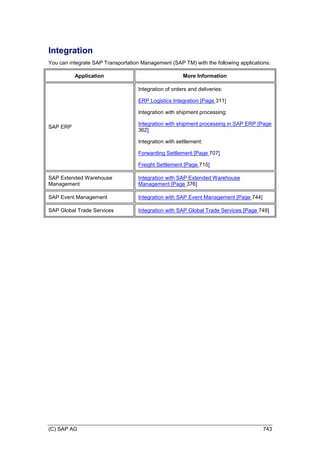
Integration
SAP TM is integrated with the following applications:
Application Integration Type
SAP ERP (or
another ERP
system)
In SAP TM, you can perform transportation planning and execution for
your ERP orders and deliveries; in ERP, you can also perform
invoicing and invoice verification for your TM settlement documents.
The data is transferred using enterprise services.
You can also integrate SAP TM with ERP shipment processing. In this
case, data is transferred using enterprise services and IDocs.
SAP Extended
Warehouse
Management (SAP
EWM)
You can integrate SAP TM with SAP EWM using SAP ERP.
Communication is based on outbound deliveries that are sent from
SAP ERP to SAP EWM and SAP TM. SAP TM planning results are
represented as shipments in SAP ERP and transferred from SAP ERP
to SAP EWM. These shipments generate transportation units in the
warehouse. In conjunction with the delivery information, these
shipments are used as the basis for warehouse planning and
execution. Confirmations of execution results (such as packaging of
deliveries and actual quantities and weights) are sent from SAP EWM
to SAP ERP and then from SAP ERP to SAP TM.
SAP Event
Management (SAP
EM)
You can use event tracking to monitor the execution status of your
transportation.
SAP Global Trade
You can perform customs processing for your SAP TM business
documents in a connected global trade services (GTS) system. For
(C) SAP AG 17
Application Integration Type
Services example, you can request export declarations for freight orders or
freight bookings. The data is transferred using enterprise services.
Note also the following:
 You use EH&S Services in SAP TM to ensure the safe transportation of dangerous
goods in accordance with legal regulations (see Considering Dangerous Goods
[Page 751]).
 You can integrate SAP TM with external systems by using enterprise services. For
example, you can automatically create and confirm forwarding orders based on data
received from your ordering parties.
Features
SAP TM covers the following subcomponents with the following functions, for example:
 Forwarding Order Management [Page 233]
You can use forwarding order management to create, edit, and confirm the
forwarding orders from your ordering parties. Furthermore, you can create forwarding
quotations and send them to your ordering parties. While the orders and quotations
are being created, you can also have the system determine the transportation route,
and you can check the transportation charges.
 ERP Logistics Integration [Page 311]
The ERP logistics integration supports the transfer of orders and deliveries from SAP
ERP to SAP TM as well as the planning and execution processes based on the ERP
data.
 Freight Order Management [Page 385]
You can use freight order management to create and edit freight orders and freight
bookings that then form the basis of transportation planning. You can then perform
carrier selection, and either subcontract the freight orders directly to a carrier or you
can perform tendering.
 Planning [Page 535]
In planning, a transportation plan is created on the basis of the orders that were either
entered in forwarding order management or transferred via an ERP system. You can
perform planning either manually or automatically. Here the system uses advanced
planning algorithms (optimization).
 Forwarding Settlement [Page 703] and Freight Settlement [Page 711]
From SAP TM, you can trigger invoicing and invoice verification that take place in the
ERP system.
 Master Data [Page 24] and Transportation Network [Page 46]
You can use these SAP TM components to create and administer all the master data
that you need for the activities in SAP TM, for example, business partners, locations,
and products.
 Considering Dangerous Goods [Page 751]
(C) SAP AG 18
You use EH&S Services in SAP TM to ensure the safe transportation of dangerous
goods in accordance with legal regulations.
 Business Context Viewer in SAP TM [External]
You can display content for SAP TM content in Business Context Viewer (BCV).
 Enterprise Services and ESR Content [External]
Enterprise services enable you to exchange data with SAP ERP and SAP Global
Trade Services, as well as with external systems that belong to your business
partners. Communication can be realized using either SAP NetWeaver Process
Integration or point-to-point communication (Web Services Reliable Messaging).
 Business Intelligence Content for SAP TM
The business intelligence content (BI Content) for SAP TM provides analytic tools
and BI queries for evaluating, analyzing, and interpreting business data. For more
information about BI Content for SAP TM, see Analytics [External] and SAP Help
Portal at http://help.sap.com SAP NetWeaver BI Content All Releases .
(C) SAP AG 19
Introductory Information
Before you start working with SAP Transportation Management (SAP TM), we recommend
that you familiarize yourself with the following important information.
Calling SAP TM
SAP TM harmonizes all transportation applications in one Web-based solution that is
integrated in a business client shell.
You call SAP TM using a SAP NetWeaver Business Client that is connected to an ABAP
client. For more information about SAP NetWeaver Business Client and the ABAP client, see
SAP NetWeaver Business Client [External].
FPM BOPF Integration (FBI) offers configurable and codeless integration of Floor Plan
Manager (FPM) technology and BOPF-based business objects (BOPF = Business Objects
Processing Framework). For more information, see Reusable Objects and Functions for the
BOPF Environment (CA-EPT-BRC) [External].
If you want to use applications from SAP NetWeaver Business Warehouse or SAP
Event Management in SAP NetWeaver Business Client, you need to set up a role in
role maintenance. To do so, on the SAP Easy Access screen, choose Tools
Administration User Maintenance Role Administration Roles .
On the Menu tab page of this new role, you need to create an additional object by
choosing Other. Choose Web address or file as the URL type and enter the fixed
URL of your application. Moreover, you need to add your user on the User tab page
of the new role.
If you change your role, you need to delete the cache in Internet Explorer by choosing
Tools Internet Options . On the General tab page, choose Delete... and then
delete the relevant cookies and files.
Using SCM Basis Functions
You must only use those SCM Basis functions that are relevant for SAP TM.
(C) SAP AG 20
Business Functions
(C) SAP AG 21
SAP TM-Specific Enhancements in SCM Basis
Technical Data
Technical Name of
Business Function
SCM_SAPTM_SCMB_FND
Type of Business
Function
Enterprise Business Function
Available From SAP Transportation Management 9.0
Technical Usage TM
Application
Component
Transportation Management Master Data (TM-MD)
Required Business
Functions
SAP TM system: FND, Business Context Viewer Main Application
(/BCV/MAIN)
SAP TM system: FND, Business Context Viewer Main Application
2 (/BCV/MAIN_1)
SAP TM system: Improvements for SOA Reuse Functions
(FND_SOA_REUSE_1)
SAP TM system: Visual Business (Reversible)
(FND_VISUAL_BUSINESS)
SAP ERP system: SCM, Customer and Vendor Master Data
Integration into BP (LOG_SCM_CUSTVEND_INT)
You can use this business function for the following extensions in SCM Basis:
 Foundation of SAP Transportation Management
 Transportation Network
 Dangerous Goods
 Resource Master
You must activate this business function to operate SAP TM.
Integration
In SAP ERP, the business function SCM, Customer and Vendor Master Data Integration into
BP (LOG_SCM_CUSTVEND_INT) is available to extend the outbound Core Interface (CIF) so
that you can transfer the customer and vendor data from the SAP ERP system to the SAP
SCM system.
Prerequisites
You have installed the following components as of the version mentioned:
(C) SAP AG 22
Type of
Component
Component
Required for the Following
Features Only
Software
Component
SCM_BASIS 702
SCMBPLUS 702
SAP_ABA 731
SAP_BASIS 731
PI_BASIS 731
SAP_BW 731
SAP_BS_FND 731
SAP NetWeaver
External Product
SAP NetWeaver 7.31
Any geographical information
systems.
Features
Foundation of SAP Transportation Management
 Business partner master for the following business partner roles: Carrier, Vendor,
Organizational Unit, Ship-To Party, and Sold-To Party.
For more information, see Business Partner [Page 25] and Definition of Business
Partners [Page 27].
 Core interface (CIF)
For more information, see Business Partner [Page 25] and Integration of International
Address Versions [External].
 Equipment groups and types
For more information, see Definition of Equipment Groups and Equipment Types
[Page 109].
 Organizational management
For more information, see Organizational Management [Page 38] and Creation of
Organizational Models [Page 39].
Transportation Network
 Geocoding
For more information, see Geocoding [External].
 Distance and duration determination
For more information, see Distance and Duration Determination [External].
 Location
For more information, see Location [Page 51].
(C) SAP AG 23
 Transportation lane
For more information, see Transportation Lane [Page 76].
Dangerous Goods
 Mixed loading checks
For more information, see Configuration of Dangerous Goods Processing [Page 752].
 Check framework for document-based dangerous goods data
For more information, see Configuration of Dangerous Goods Processing [Page 752].
Resource Master
 Driver
For more information, see Definition of Resources [Page 110].
 Resource Class
For more information, see Classification of Resources [Page 111].
(C) SAP AG 24
Master Data
You use this component to manage master data that is used in a variety of business
transactions in SAP Transportation Management (SAP TM). The following master data
objects are part of this component:
 Business partner (see Business Partner [Page 25])
 Organizational management (see Organizational Management [Page 38])
 Transportation network (see Transportation Network [Page 46])
 Transportation mode (see Transportation Mode [Page 95])
 Product (see Product [Page 101])
 Carrier profile (see Carrier Profile [Page 35])
 Equipment (see Equipment Groups and Equipment Types [Page 108])
 Resources (see Definition of Resources [Page 110])
 Transportation charges (see Setup of MD for Charge Management and SP Catalogs
[Page 156])
Before you define any master data objects, you must create an active model in
Customizing. For more information, see Customizing for Transportation Management
under Master Data Create Active Version and Model .
(C) SAP AG 25
Business Partner
A person, organization, group of persons, or group of organizations in which a company has a
business interest.
You use this business object for a variety of business transactions.
You create and manage your business partners (BPs) centrally along with the roles they
assume for your company. To do so, you define the general data of the business partner once
and you assign business partner roles [External] (BP roles) to the business partner. Specific
data is stored for each business partner role. In this way, you do not store redundant data
since the general data is independent of a business partner’s function or of application-
specific extensions.
When you first create a business partner in the system, the BP role General Business Partner
is automatically assigned to the business partner.
Structure
You identify each BP with a unique business partner number [External] (BP number).
You create and manage the specific data for a BP role once you have assigned a specific role
to the BP.
You create and manage the following general elements of a BP:
General Data
Here, you enter data (or the system displays data) that is valid for all business partner roles.
This data includes, for example, the name, address, communication data, identification
numbers, and business partner status.
TM-Specific Data
Depending on the business partner role, additional information or special tab pages for SAP
Transportation Management are displayed:
 Identification (BP roles Carrier and Organizational Unit)
You can enter and display data such as identification numbers, data regarding agents
(for example, regulated agent code), offsets, and calendars. For the Organizational
Unit role, the system displays the related organizational unit.
 Vendor Data (BP roles Carrier and Vendor)
Here, you can set blocks and define one-time accounts. For the role Carrier, you can
also enter standard carrier alpha codes (SCACs), airline codes, and service level
codes. For the role Vendor, you can enter information related to air cargo security (for
example, shipper security status and the date as of which you have known the
shipper).
 Vendor Company Org. Data (BP roles Carrier and Vendor)
Here, you configure settings for vendor company organizations. You can configure
settings for the central posting block and the terms of payment.
 Vendor Org. Data (BP roles Carrier and Vendor)
(C) SAP AG 26
Here, you can configure settings regarding purchasing organizations. You can, for
example, configure settings for the purchase group, specific profiles, blocks, or the
terms of payment.
 Vendor Partner Determination (BP roles Carrier and Vendor)
Here, you can maintain a related business partner for a party role and purchasing
organization.
 Customer Data (BP roles Ship-To Party and Sold-To Party)
The system displays the location instances to which a business partner is assigned,
along with all assigned locations and their descriptions. You can also configure
settings for central blocks and one-time accounts.
 Customer Company Org. Data (BP roles Ship-To Party and Sold-To Party)
Here, you configure settings for customer company organizations. You can, for
example, configure settings for the central posting block and the terms of payment.
 Customer Org. Data (BP roles Ship-To Party and Sold-To Party)
Here, you can configure settings for sales organizations. You can, for example, set
central blocks or configure settings regarding the payment.
 Customer Partner Determination (BP roles Ship-To Party and Sold-To Party)
Here, you can maintain a related business partner for a party role and sales
organization.
 Additional texts (BP role Business Partner (Gen.))
You can use additional texts as printing addresses or signatures on several printing
documents such as air waybills. You can select the number of lines, number of
columns, and language.
Integration
In an integrated system landscape with SAP ERP and SAP Transportation Management
(SAP TM), the ERP system is frequently the leading master data system. In this case, the
customer and supplier master data is maintained in the ERP system from where it is
transferred to SAP TM using the SAP Core Interface (CIF) as locations and business
partners. For more information, see Integration of Locations [External].
In business transaction documents, such as a forwarding order, the BP master data object
appears as a party that takes part in transportation processes. The party assumes party roles,
such as consignee, shipper, or ordering party.
You do not need to define special BP roles in Customizing for the party roles (see
Definition of Business Partners [Page 27]). You can assign any BP to the different
party roles.
More Information
For more information about SAP Business Partner, see SAP Library for SAP ERP Central
Component on SAP Help Portal at http://help.sap.com/erp. In SAP Library, choose SAP
ERP Cross-Application Functions Cross-Application Components .
(C) SAP AG 27
Definition of Business Partners
You use this process to define business partners (BPs) in SAP Transportation Management
(SAP TM).
Process
1. You define a BP in SAP NetWeaver Business Client by choosing Master Data
General Define Business Partner .
2. You assign additional BP roles to the BP.
SAP TM delivers the following BP roles for BPs of the type Organization:
o Carrier
You use this BP role to identify a BP who is a carrier. You can also define
business partners with the Carrier role further by assigning one of the
following categories:
 Subsidiary
 Carrier
 Agent
 Non-vessel operating common carrier
In this BP role, you can also define the standard carrier alpha codes (SCACs)
or airline codes by which a business partner is represented. You can also
define service level codes that you want available when buying transportation
services from the carrier. For more information about air-freight-specific
codes, see Transportation-Mode-Specific Codes [Page 96].
o Ship-To Party and Sold-To Party
You use this BP role to identify a BP who is a customer.
o Vendor
You use this BP role to identify a BP who is a supplier. For air cargo security,
you can enter information related to air cargo security (see Configuration of
Air Cargo Security [Page 424]).
o Organizational Unit
Business partners to which this BP role is assigned represent an
organizational unit of a company. For air cargo security, you can enter the
regulated agent code of the logistics service provider.
SAP TM delivers the following BP roles for BPs of the type Person:
o Employee
You use this BP role to identify a BP who can be assigned to an
organizational unit (see Workflow in SAP Transportation Management [Page
43]).
o Internet User
You use this BP role to identify a BP who takes part in the tendering process.
(C) SAP AG 28
o Contact Person
You use this BP role to identify a BP who takes part in the tendering process.
o Driver
You use this BP role to identify a BP who can be assigned to a freight order
as a human resource.
3. You create relationships between BPs.
The relationship category Has Contact Person is used in the tendering
process.
The relationship category Has Subsidiary / Agent is used to describe
subsidiaries and agents of a carrier organization.
(C) SAP AG 29
Additional Texts
You can define additional texts for the business partner master and use them as printing
addresses or signatures on different documents.
Prerequisites
You have defined additional text types in Customizing for SCM Basis under Master Data
Business Partner Define Text Types for Business Partner Master .
Features
You can enter additional texts for the business partner role Business Partner (Gen.) on the
Maintain Business Partner user interface (transaction BP) on the Additional Texts tab page.
Texts from this tab page (for example, addresses or signatures) are used by SAP
Transportation Management (SAP TM) as printing addresses or signatures on several printing
documents such as air waybills.
To ensure that the texts have the correct dimensions for the designated areas, you specify
text types with maximum numbers of characters and lines. To support printing in several
languages, you can define the language of the texts and enter additional texts for one text
type in different languages for one business partner instance.
You can also use additional texts to define formatted printing addresses or
paragraphs for the related business partner and edit them so that they are letter of
credit-compliant. To use this function, you must define the default text type for printing
addresses in Customizing for Transportation Management under Business Add-Ins
(BAdIs) for Transportation Management Forwarding Order Management User
Interface BAdI: Business Partner Printing Address Default Text Types .
(C) SAP AG 30
Business Partner Blocking
With this function, you can block the assignment of a business partner to a forwarding
quotation or to a forwarding order. Additionally, you can block the business partner, so that
within a forwarding order the system prevents forwarding settlement documents from being
created.
The blocking options are structured hierarchically in the business partner master record. You
can set the blocks at the following levels:
 Complete business partner
 Company organization
 Sales organization
Prerequisites
The business partner has the role of a ship-to-party or a sold-to-party.
Features
You can block the business partner manually.
If a business partner in SAP Transportation Management (SAP TM) was created from SAP
ERP customer master data via Core Interface (CIF), the block indicators from customer
master data are automatically transferred to the corresponding business partner in SAP TM.
You can set the blocks in SAP TM under Master Data Define Business Partner .
Block Description Tab Page
Central
Posting
Block
 Blocks the assignment of business
partners to a forwarding order document
or a forwarding quotation document.
 Blocks the creation of forwarding
settlement documents. Only relevant for
forwarding orders.
 Customer Data
 Customer
Company Org.
Data
Central
Sales
Block
Blocks the assignment of business partners to
forwarding order documents or forwarding
quotation documents.
 Customer Data
 Customer Org.
Data
Central
Order
Block
 Blocks the assignment of business
partners to forwarding order documents
or forwarding quotation documents.
 Blocks the creation of forwarding
settlement documents of the specific
sales organization. Only relevant for
forwarding orders.
Customer Org. Data
Central
Billing
Block
 Only relevant for forwarding orders.
 Blocks the creation of forwarding
settlement documents of the specific
Customer Org. Data
(C) SAP AG 31
Block Description Tab Page
sales organization.
Activities
On the corresponding tab page, select the check box with the block you want to set or, in
case of specific sales organizations, enter block reason codes.
Example
You would like to block the business partner Kulinarisch Weltweit, located in Cologne. To do
so, on the Customer Company Org Data tab page, you select the Central Posting Block check
box. From now on, the system blocks all sales organizations of the respective business
partner and you cannot assign the business partner to a forwarding order.
If a forwarding order document already exists in the system when you set the block, you
cannot create forwarding settlement documents. This applies to the following blocks:
 Central billing block
 Central order block
 Central posting block
(C) SAP AG 32
Business Partner Determination
You can enable the system to determine the business partners that you use in different
business document types. You can also enable the system to automatically determine
business partners for forwarding orders with specific Incoterms. This allows you easily and
efficiently enter business partners in a business document. It cuts down the chance of manual
errors and reduces the need to enter a business partner for each party role.
In the Define Partner Determination Profiles Customizing activity, you can create a partner
determination profile that the system uses to automatically determine the following features:
 The party roles available in a business document
You specify the list of party roles that the system makes available in a business
document.
 The level of control the user has in entering the party role
Depending on the settings you define in Customizing, you change or delete a party
role, or add a party role from a list of available party roles. You can also specify
settings so that you cannot change or delete specific party roles.
 How the system determines business partners for the party roles
The system uses one of the following relationships that you specify in Customizing, to
determine a business partner:
 Party role and source party role
In Customizing, you can specify a source party role for a particular party role. In the
application, when you enter a business partner in the field that you have specified as
the source party role, the system automatically copies the business partner to the
associated party role.
For example, in Customizing, you specify the party role as Invoicing Party, the
source type as Party Role, and the source role as Carrier. In the application,
you specify the carrier as CSI_CARR1. The system assigns CSI_CARR1 as the
business partner for the invoicing party.
 Party role and the source party role in business partner master data
The system uses the relationship you specify between organizations and business
partners in the Customer Partner Determination and Vendor Partner Determination
tab pages in the BP – Maintain Business Partner transaction to determine a business
partner in a business document.
For example, you are a logistics service provider (LSP), and you have a business
partner APP_1. In the BP – Maintain Business Partner transaction, you specify
APP_1 with the BP role of Sold-to Party. On the Customer Partner Determination
tab page of the BP transaction for APP_1, you create a relationship between sales
organization 561234 and the business partner APP_INV. APP_INV fulfills the role of
invoicing party for APP_1. In Customizing, you specify the party role as Invoicing
Party, the source type as BP Relationship, and the source role as Ordering
Party.
In a forwarding order, you specify the organization as 561234 on the General Data
tab page and the ordering party as APP_1 on the Business Partner tab page. The
system checks the business partner master data for APP_1. On the Customer
Partner Determination tab page, it finds that APP_1 uses APP_INV as the invoicing
(C) SAP AG 33
party for organization 561234. It assigns APP_INV as the business partner for the
invoicing party.
In Customizing, you can assign different profiles to different types of business documents. For
example, you can specify a profile that controls how the system determines business partners
in forwarding orders, and another profile for business partner determination in forwarding
settlement documents.
In Customizing, you can assign a profile to the following business document types:
 Forwarding orders
 Forwarding quotations
 Forwarding settlement documents
 Freight orders
 Freight bookings
 Freight settlement documents
When you use a particular forwarding order type to create a forwarding order and enter an
Incoterm, the system uses the information you specify in the Assign Partner Determination
Profiles Based on Incoterms Customizing activity to determine the business partner. It
overwrites the partner determination profile you have assigned to the forwarding order type in
the Define Forwarding Order Types Customizing activity.
Prerequisites
You have made the settings in Customizing to create a partner determination profile that the
system uses to automatically determine business partners. For more information, see
Customizing for Transportation Management under Master Data Business Partners
Define Partner Determination Profiles .
If you want to automatically determine business partners in a forwarding order with a specific
Incoterm, you have assigned the partner determination profile to forwarding order type and
Incoterm combination in Customizing. For more information, see Customizing for
Transportation Management under Master Data Business Partners Assign Partner
Determination Profiles Based on Incoterms .
You have created relationships between organizations and business partners in the
transaction BP – Maintain Business Partner under SAP Menu Transportation
Management Master Data .
If you want to assign a particular business partner to a particular party role in a business
document, you have performed the following actions:
 Entered Business Add-In in the Srce Type (Source Type) field in the Define
Partner Determination Profiles Customizing activity
 Implemented the Business Add-In BAdI: Specific Partner Assignment in Customizing
for Transportation Management under Business Add-Ins for Transportation
Management Master Data Business Partners
More Information
Settings for the Forwarding Order [Page 241]
Creation and Editing of a Forwarding Quotation [Page 272]
(C) SAP AG 34
Forwarding Settlement [Page 707]
Creation and Editing of Freight Orders [Page 390]
Creation and Editing of Freight Bookings [Page 409]
Freight Settlement [Page 715]
(C) SAP AG 35
Carrier Profile
A profile with which you characterize transportation capabilities of a carrier.
You use this object to store information that is used in a similar constellation for multiple
carriers. Carriers are business partners (BPs) to which you have assigned the business
partner role Carrier. You can only create one profile for each carrier.
Structure
You can store the following objects in a carrier profile:
 Freight code sets
 Transportation lane and carrier-specific parameters
 Product freight groups
 Transportation groups
 Equipment groups and equipment types
 Fixed transportation costs
 Dimension costs
Integration
You make use of the carrier profile when creating transportation proposals (see Generation of
Transportation Proposals [Page 653]) and when selecting a carrier.
(C) SAP AG 36
Definition of Carrier Profiles
You use this process to define a profile for a carrier.
Prerequisites
 You have assigned the business partner role Carrier to the business partner for which
you want to create a carrier profile (see Definition of Business Partners [Page 27]).
 You have defined transportation lanes in Customizing (see Definition of
Transportation Lanes [Page 77]).
 You have defined freight code sets in Customizing. For more information, see
Customizing for SCM Basis under Master Data Transportation Lane Carrier
Profile Define Freight Code Sets, Freight Codes, and Determination .
 You have defined product freight groups in Customizing. For more information, see
Customizing for SCM Basis under Master Data Transportation Lane Carrier
Profile Define Product Freight Groups .
 You have defined transportation groups in Customizing. For more information, see
Customizing for SCM Basis under Master Data Product Maintain Transportation
Group .
 You have defined equipment groups and equipment types in Customizing. For more
information, see Customizing for Transportation Management under Master Data
General Settings Define Equipment Groups and Equipment Types .
 You have defined means of transport in Customizing. For more information, see
Customizing for Transportation Management under Master Data Resources
Define Means of Transport .
Process
1. On the SAP Easy Access screen, choose Master Data General Define Carrier
Profile .
2. You choose the carrier for which you want to define a profile and save your entry.
You can set the following attributes:
o Performance
o Cont. Move (Continuous Move) checkbox
3. You make settings on the following tab pages:
o Transportation Lane
You can enter any attributes that are relevant for the carrier, such as the
business share or the priority.
o Freight Code Set
You must specify the country and the means of transport to which the freight
code set relates.
o Product Freight Group
o Transportation Group
(C) SAP AG 37
o Equipment
You can enter information about the location of the equipment or the means
of transport to which this equipment is restricted.
o Fixed Transportation Costs
You can define fixed transportation costs for the means of transport of the
carrier.
o Dimension Costs
You can define dimension costs for the means of transport of the carrier.
4. Save your entry.
Result
You have defined a profile for a carrier. You can search for settings that you have made in the
carrier profile and identify all carriers that have those settings.
(C) SAP AG 38
Organizational Management
A means for creating and managing the organizational and staffing structures in your
company that uses an organizational model [External] as its basis.
In SAP Transportation Management (SAP TM), the organizational structure can be based on
the structure of a connected SAP ERP system. To enable this, you can create the following
organizational units:
 Corporate organization
This organization unit is optional and serves as a single entry point into the
organizations structure in SAP TM.
 Company organization
This organization unit corresponds to the ERP company code containing the local
currency.
The company organization unit is used by transportation charge management
(TCM) for invoicing and charging.
 Sales organization, office, and group
 Purchase organization and group
 Planning and execution organization and group
More Information
For more information, see SAP Library for SAP ERP Central Component on SAP Help Portal
at http://help.sap.com/erp. In SAP Library, choose SAP ERP Central Component Human
Resources Personnel Management (PA) .
(C) SAP AG 39
Creation of Organizational Models
In SAP Transportation Management (SAP TM), you use this process to create organizational
models for the organizations that take part in transportation processes. You can create the
organizational models according to a predefined hierarchical structure. You can assign
employees who take part in workflow processes to the organizational units.
Process
1. You define an organizational model in SAP NetWeaver Business Client (NWBC) by
choosing Master Data Organization Create Organization and Staffing .
2. You define organizational units (see Organizational Unit [Page 40]) and assign an
appropriate organizational unit function [External] and organizational unit role
[External] to them.
3. You relate organizational units to other organizational units according to their
organizational unit role and depending on the organizational unit function.
The hierarchical relationship of organizational units is fixed.
For organizational units with a Sales unit function, you can define the unit
roles Organization, Office, and Group. Organizational units with unit role
Group can be assigned to organizational units with a unit role Office or
Organization, and organizational units with a unit role Office to organizational
units with a unit role Organization.
For organizational units with a Purchasing or Planning and Execution unit
function, you can only assign organizational units with a unit role Group to
organizational units with a unit role Organization.
4. You assign employees to organizational units, see Assigning Employees to
Organizational Units [Page 41].
You can also create an SAP TM organization structure. For more information, see
Customizing for SAP Transportation Management under Transportation
Management Master Data Organizational Management Organizational Model
Create and Merge Organizational Hierarchy .
Example
You want to re-create the structure of a purchasing organization or a planning and execution
organization. You proceed as follows:
1. You create an organizational unit with a Purchasing or Planning and Execution unit
function and an Organization unit role.
2. You create an organizational unit with a Purchasing or Planning and Execution unit
function and a Group unit role.
3. You assign the organizational unit with the Group unit role to the organizational unit
with the Organization unit role.
(C) SAP AG 40
Organizational Unit
An object that is used for mapping the organizational structure of a company in an
organizational model. Each organizational unit is defined in more detail by its unit function and
unit role.
You can use this object as the basis for an organizational model by arranging organizational
units hierarchically and therefore mirroring the structure of your company.
You may only use the Organization or Group organizational unit roles for
organizational units with the Purchasing or Planning and Execution organizational
unit functions.
Integration
You use organizational units with a Sales organizational unit function to create the following:
 Forwarding orders
 Forwarding quotations
 Forwarding settlements
You use organizational units with a Purchasing organizational unit function to create the
following:
 Freight orders
 Freight bookings
 Freight settlements
You use organizational units with an Execution organizational unit function to create the
following:
 Resources (see Definition of Resources [Page 110])
 Freight orders
(C) SAP AG 41
Assigning Employees to Organizational Units
You use this procedure to assign employees to organizational units in
SAP Transportation Management (SAP TM).
Prerequisites
 You have defined a business partner (BP) of the type Person (see Definition of
Business Partners [Page 27]).
 You have assigned the business partner role (BP role) Employee to the BP and
maintained any data relevant for this BP role.
As a minimum, you need to enter the country in which this business partner
resides.
Procedure
1. Access the organizational model in SAP NetWeaver Business Client by choosing
Master Data Organization Edit Organization and Staffing .
2. Select an organizational unit and choose the Create button.
3. Choose Incorporates Position and enter a name and a description in the Position
input field.
4. In the context menu of the employee symbol, choose Assign.
The Choose Relationship screen appears.
5. Choose Holder Central Person and enter the name of the business partner that you
want to assign to the position in the search dialog.
Result
You have assigned an employee to an organizational unit by assigning a business partner
with the role Employee to the organizational unit.
The system establishes a correlation between the master data objects Organizational Unit
and Business Partner.
(C) SAP AG 42
Changing of Organizational Models
You can use this process to change an organizational model in SAP Transportation
Management (SAP TM).
Process
1. You change an organizational model in SAP NetWeaver Business Client by choosing
Master Data Organization Edit Organization and Staffing .
2. You search for an existing organizational unit.
3. You change attributes of the organizational unit, such as:
o Organizational unit ID
o Reference organizational unit ID
o Organizational unit function
o Organizational unit role
o Local currency (company organizations only)
o Relationship with other organizational units
4. You save your entry.
The system automatically adds a technical business partner and sets the business
system group.
(C) SAP AG 43
Workflow in SAP Transportation Management
Sequence of steps processed either by people or by an SAP system.
SAP Transportation Management (SAP TM) uses SAP Business Workflow, which is a cross-
application tool that enables the integration of business tasks across whole application areas.
For more information, see SAP Library for SAP ERP Central Component on SAP Help Portal
at http://help.sap.com/erp. In SAP Library, choose SAP ERP Cross-Application Functions
Scenarios in Applications SAP Business Workflow .
An example of the use of the workflow capability in SAP TM is the approval check that you
can define. For more information, see Approval Check [Page 44].
You have to assign employees to organizational units to be able to use the workflow
capabilities. For more information, see Assigning Employees to Organizational Units
[Page 41].
(C) SAP AG 44
Approval Check
You use this function to do the following:
 Check whether a forwarding order or a forwarding quotation meets the value ranges
defined in a condition for specific attributes of the business document.
 Trigger the workflow to get approval for the processing of the business document.
When you save a business document, the system triggers the approval workflow.
Integration
You can use this workflow with forwarding orders and forwarding quotations.
Prerequisites
 You have customized the workflow engine. For more information, on the SAP Easy
Access screen, choose Tools Business Workflow Development Utilities
Automatic Workflow Customizing .
 You have enabled the approval workflow functionality in Customizing for SAP
Transportation Management under Transportation Management Forwarding Order
Management Forwarding Order Define Forwarding Order Types
and under Transportation Management Forwarding Quotation Management
Forwarding Quotation Define Forwarding Quotation Types .
 You have implemented the Business Add-In (BAdI) Specific Checks for Approval
Workflow in FWO Management (TRQ_APPR_CHECK_BO)in SAP Transportation
Management under Transportation Management Business Add-Ins (BAdIs) for
Transportation Management Forwarding Order Management if you want to be able
to override the approval check.
 You have created an organizational unit, assigned the position Customer Agent to it,
and assigned an employee to this position. For more information, see Creation of
Organizational Models [Page 39]. When creating the organizational unit, you must
have done the following:
o Marked the Customer Agent position as Head of own organizational unit.
o Assigned the Sales organizational unit function to the organizational unit for
forwarding orders and forwarding quotations.
 You have defined agents for the workflow in the Workflow Builder [External] and you
have defined the standard task as a general task in the workflow. For more
information, on the SAP Easy Access screen choose Tools Business Workflow
Development Definition tools Workflow Builder Workflow Builder .
 You have assigned conditions to the /SCMTMS/APPROV_TRQ condition type for your
business documents:
A condition assigned to this type specifies certain fields and the exact limits the
system must consider for starting the approval workflow. For example, a condition
says that the gross weight must be bigger than 5.000 kg. At 5.001 kg the approval
workflow starts.
For more information about defining conditions, see Definition of Conditions [Page
809].
(C) SAP AG 45
Features
 During approval check, the system does the following:
o The system sets the approval status of the business document to Not
Checked.
o When you first save the business document, the system checks the business
document against the value ranges defined in the conditions and does one of
the following:
 If the business document meets the value ranges defined in the
conditions, the system changes the approval status from Not
Checked to No Approval Needed. You can then process the
business documents further.
 If the business document does not meet the value ranges defined in
the conditions, the system changes the status of the business
document from Not Checked to Approval Needed. The system then
triggers the workflow and sends a message to the customer agent.
An action in the Post Processing Framework (PPF) triggers
the workflow. For more information about the PPF, see Post
Processing Framework (BC-SRV-GBT) [External].
o The customer agent can approve or reject the business document:
 If the agent approves the business document, the approval status
changes to Approved. You can then process the business document
further.
 If the agent rejects the business document, the approval status
changes to Not Approved. The system blocks the business document
for further processing and triggers the workflow.
The customer agent can choose to cancel the processing of
the workflow item. The workflow item then stays in the
personal inbox of the customer agent and the system cannot
process the business document further.
More Information
Definition of Conditions [Page 809]
Post Processing Framework (BC-SRV-GBT) [External]
Workflow in SAP Transportation Management [Page 43]
(C) SAP AG 46
Transportation Network
You use this component in SAP Transportation Management (SAP TM) to define the following
master data objects:
 Location [Page 51]
 Transportation Zone [Page 69]
 Transportation Lane [Page 76]
 Schedule [Page 82]
In conjunction with the means of transport, the transportation network (TN) defines the direct
reachability of transportation zones and locations for a particular vehicle resource.
(C) SAP AG 47
Transportation Network Cockpit
You can use this function to display the following master data of the transportation network on
a map:
 Locations
 Transshipment locations
 Transshipment location chains
 Transportation zones
 Transportation lanes
 Schedules
Features
General map functions
For more information, see Map Functions [Page 827].
Object Search
You can search for the following master data:
 Locations (including address search)
 Transportation zones
 Schedules
The system adds the master data that matches the search criteria to the map view. Master
data that has already been displayed remains in the display.
Legend
The legend is available in the toolbar and contains all objects that can be displayed on the
map.
Object Relationships
For the individual master data objects, you can determine other master data objects that have
a relationship to them. Select a master data object and then one of the search functions
available in the context menu. The system adds the master data objects determined to the
map view.
Display Options
You can use the display profile to select all the objects that are to be displayed on the map.
The display profile is available in the toolbar
You can set the display status for the individual master data objects. Select a master data
object and then one of the functions available for hiding objects in the context menu. The
system then removes the master data objects determined from the map view. You can hide
the master data object itself, all the other master data objects, and the master data objects
that do not have a relationship.
(C) SAP AG 48
Activities
To call up the transportation network cockpit, in SAP NetWeaver Business Client choose
Master Data Transportation Network Transportation Network Cockpit .
(C) SAP AG 49
Path Finder
You can use this function to search for legs in your transportation network and take the
following into account in the process:
 Locations
 Transshipment locations
 Transportation lanes
 Schedules
 Transportation zones
This enables you to easily determine whether a connection exists between two locations and,
therefore, whether you have correctly configured your master data.
The path finder does not take incompatibilities into account. For more information
about incompatibilities, see Incompatibilities [Page 564].
Integration
This function is available both in the transportation network cockpit and on the user interface
for transportation proposals. In both cases, the result of the path finder is displayed on the
geographical map.
Prerequisites
You have defined the following objects:
 Locations [mandatory] (see Definition of Locations [Page 61])
 Transshipment locations that are assigned to locations [optional] (see Transshipment
Location [Page 54])
 Connecting transportation lanes [optional] (see Definition of Transportation Lanes
[Page 77])
 Schedules [optional] (see Schedule Creation [Page 85])
Features
You can execute this function and check the result in either the transportation network cockpit
or on the transportation proposals user interface:
 Transportation Network Cockpit
When you open the context menu for a location in the transportation network cockpit,
you can choose: Find Path To Location... and enter a destination in the dialog
box displayed. The system then calculates all of the available connections in the
transportation network and displays them on the map. The color of the connections
indicates whether a valid transportation lane or schedule exists.
 Transportation Proposals
(C) SAP AG 50
When you call the user interface for transportation proposals, you can choose the
appropriate pushbutton to show or hide the available connections on the map. As in
the transportation network cockpit, the color of the connections indicates whether a
valid transportation lane or schedule exists.
 Explanation Tool
When you select one or more freight units, you can choose the Show Network Path
pushbutton to analyze the underlying transportation network that is taken into account
when planning the selected freight units.
More Information
Transportation Network Cockpit [Page 47]
Generation of Transportation Proposals [Page 653]
(C) SAP AG 51
Location
A logical or physical place in which products or resources are managed on a quantity basis.
You use this business object as the basis for transportation processes. In transportation
processes, you name a source location [External], a destination location [External], and any
transshipment locations necessary to complete the transportation process. For this purpose,
you define locations.
Structure
A location is identified by a name. To define a location, you have to specify its name and type.
SAP Transportation Management (SAP TM) provides standard location types such as the
following:
 Production plant (1001)
 Distribution center (1002)
 Shipping point (1003)
 Customer (1010)
 Vendor (1011)
 Terminal (1030)
 Port (1100)
 Airport (1110)
 Railway station (1120)
 Container freight station (1130)
 Hub (1140)
 Gateway (1150)
 Container yard (1160)
 Warehouse (1170)
 Carrier warehouse (1180)
In SAP TM, you use the location type as a means for categorizing locations. Location types
are not used for controlling business processes, they are only used as a means of reference.
Integration
This business object is used throughout SAP TM in almost every business process, including
the following:
 Definition of more complex master data objects that are part of the transportation
network, such as transportation zones, transportation lanes, or schedules.
 Definition of other master data objects, such as resources.
 Definition of incompatibilities. For example, a location may be marked as having a
restriction in regards to the delivery of goods by means of a specific vehicle resource.
(C) SAP AG 52
 Creation of forwarding orders, freight units, planned transportation activities, executed
transportation activities, and so on.
You can transfer locations from an Enterprise Resources Planning (ERP) system, such as
SAP ERP, to SAP TM. When connecting SAP ERP to SAP TM you can transfer the data via
the Core Interface.
More Information
Definition of Locations [Page 61]
Transshipment Location [Page 54]
(C) SAP AG 53
One-Time Location
A location [External] that is stored as a transient master data object in the system.
You use one-time locations in business processes that require the input of locations that have
not been defined as master data objects, such as the creation of forwarding orders. The
system creates one-time locations based on one-time address details that you can specify on
the user interface.
Structure
A one-time location is specified by the name of the organization, its address data, its
communication data, or a combination of these.
You can create a note for each one-time location. When you create a note, you can only
define one note per location and language.
Integration
 To find addresses for one-time locations using the input help (F4), complete the
Customizing activities for SAP NetWeaver under Application Server Basis
Services Address Management Regional Structure/City File .
 In Customizing, you can activate an address search that determines whether one-
time locations match locations that already exist. For more information, see
Customizing for Transportation Management under Basic Functions General
Settings Define General Settings for SAP TM .
 In the standard system, all user roles have been configured so that users can read
the details of one-time locations. If you reconfigure the roles to suite your business
needs, we recommend that you do the following:
o Configure all roles available in SAP Transportation Management so that
users assigned to them can read the details of one-time locations.
o Configure the roles that are used for creating or changing forwarding orders
(see Forwarding Order [Page 234]), such as the transportation booking
agent, so that they can create one-time locations.
For more information about roles, see Roles [Page 884].
More Information
You can activate the following BAdI implementations for one-time locations:
 A customer-specific address search for one-time locations. For a possible
implementation, see Customizing for SAP Transportation Management under
Transportation Management Business Add-Ins (BAdIs) for Transportation
Management Master Data General Settings One-Time Locations BAdI:
Customer-Specific Search Logic for Locations Based on Address Data .
 The adjustment of location data created for one-time locations. For a possible
implementation, see Customizing for SAP Transportation Management under
Transportation Management Business Add-Ins (BAdIs) for Transportation
Management Master Data General Settings One-Time Locations BAdI:
Adjustment of Location Data Created for One-Time Locations .
(C) SAP AG 54
Transshipment Location
A location [External] that is used for unloading goods from one vehicle resource and loading it
onto another vehicle resource during the transportation process.
You use transshipment locations when different means of transport or different carriers have
to be used in the transportation process. You can also use transshipment locations when
consolidating or de-consolidating goods to be transported.
Structure
A transshipment location is defined in the following ways:
 By assigning a location to either another location or to a transportation zone (see
Transportation Zone [Page 69])
When you assign a transshipment location to a transportation zone, it can be used as
a transshipment location by all locations that are part of that transportation zone.
 By assigning a location to a transshipment location chain (see Transshipment
Location Chain [Page 59])
You cannot define a transshipment location by assigning a location to itself.
For a better system performance, we recommend that you define only transshipment
locations that you use.
Integration
If you define a transshipment location and want to use it in your transportation processes, you
must define transportation lanes (see Transportation Lane [Page 76]) that take the
transshipment location into account.
You want to transport goods from location A to location C. You have to unload some
goods in location B and change your means of transport. Location B is therefore a
transshipment location.
For this transportation process to take place, you have to define the following:
1. A transshipment location B
2. A transportation lane from A to B and a transportation lane from B to C
For more information, see Examples for the Transshipment Location [Page 56].
(C) SAP AG 55
Define Transshipment Location Assignments
You, as a system administrator, can use this report to display, create, and delete
transshipment location assignments as follows:
 You can display transshipment location assignments for selected locations,
transportation zones, and transshipment locations. You can display all transshipment
location assignments in the system, by selecting the Display All Assignments
checkbox.
 You can assign locations and/or transportation zones to one or more transshipment
locations.
 You can delete transshipment location assignments for selected locations,
transportation zones, and transshipment locations. To simulate the deletion of
transshipment location assignments before deleting the assignments from the
system, you select the Simulate Deletion checkbox.
Activities
To define transshipment location assignments, on the SAP Easy Access screen choose
Master Data Transportation Network Locations Assign Transshipment Location .
(C) SAP AG 56
Examples for the Transshipment Location
Example 1
You want to transport goods from location A to location C. You have defined the
transshipment location B for the location A. This situation is depicted in the following figure
(the transshipment location is displayed with a blue background):
A
B
C
You have the following options for transporting goods from location A to location C (provided
you have defined the respective transportation lanes):
 A to C
You can transport the goods directly from location A to location C.
 A to B to C
You can transport the goods to location B first, and from location B to location C.
Example 2
You want to transport goods from location A to location D. You have defined the
transshipment location B for the location A, and the transshipment location C for the location
D. This situation is depicted in the following figure (the transshipment locations are displayed
with a blue background):
A
B C
D
You have the following options for transporting goods from location A to location D (provided
you have defined the respective transportation lanes):
 A to D
 A to B to D
 A to C to D
 A to B to C to D
(C) SAP AG 57
Example 3
You want to transport goods from location A to location D. You have defined the
transshipment location B for the location A, and the transshipment location C for the location
B. This situation is depicted in the following figure (the transshipment locations are displayed
with a blue background):
A
B C
D
You have the following options for transporting goods from location A to location D (provided
you have defined the respective transportation lanes):
 A to D
 A to B to D
 A to B to C to D
In this example, you cannot transport goods from A to C to D, since C is not a
transshipment location for the location A.
Example 4
You want to transport goods from location A to location D. You have defined the
transshipment location B for the location A and the location C. This situation is depicted in the
following figure (the transshipment location is displayed with a blue background):
A
B C
D
You have the following options for transporting goods from location A to location D (provided
you have defined the respective transportation lanes):
 A to D
 A to B to D
(C) SAP AG 58
In this example, you cannot transport goods from A to B to C to D, since C is not a
transshipment location for the location B.
Example 5
You want to transport goods from location A to location E. You have defined the
transshipment locations B, C, and D for the location A, and specified that B and C are mutual
transshipment locations. This situation is depicted in the following figure (the transshipment
locations are displayed with a blue background):
A
B
E
C
D
You have the following options for transporting goods from location A to location E (provided
you have defined the respective transportation lanes):
 A to E
 A to B to E
 A to C to E
 A to D to E
 A to B to C to E
 A to C to B to E
(C) SAP AG 59
Transshipment Location Chain
A sequence of transshipment locations that are used in the specified order to transport goods.
You use transshipment location chains (TLCs) to map standard itineraries. The VSR
Optimizer (see VSR Optimization [Page 636]) considers TLCs during determination of
possible itineraries between a start location and an end location.
By using TLCs, you can reduce the number of individual assignments of transshipment
locations (see Transshipment Location [Page 54]) to locations or transportation zones. This
way, you can optimize your transportation planning and improve system performance.
Structure
A TLC consists of several transshipment locations and the sequence in which these
transshipment locations are used for transporting goods.
 You can assign a transshipment location to more than one TLC.
 You cannot combine TLCs.
We recommend that you use TLCs rather than individual transshipment location
assignments.
Integration
If you want to use TLCs in your transportation processes, you must first define lanes for every
pair of consecutive transshipment locations assigned to a TLC.
(C) SAP AG 60
Definition of Transshipment Location Chains
You use this report to define transshipment location chains (TLCs).
Prerequisites
You have defined lanes for every pair of consecutive transshipment locations assigned to a
TLC. If you want goods to be transported in the reverse direction of the TLC as well, you must
also define lanes for every pair of consecutive transshipment locations in the reverse
direction.
Features
The report offers the following options:
 Creating TLCs
You can create TLCs and assign locations to them. The system uses these locations
as transshipment locations.
You can specify that goods can also be transported in the reverse direction of TLCs
by selecting the Bidirect. (Bidirectional) checkbox. This way, you do not have to
create a separate TLC for the reverse direction.
You can specify validity periods for TLCs.
 Changing TLCs
You can change existing TLCs by adding or removing transshipment locations, or by
altering their sequence, for example.
 Deleting TLCs
You have the following options for deleting TLCs:
o Delete TLCs
You can delete TLCs by choosing the Delete pushbutton.
o Mark TLCs for Deletion
You can mark TLCs for deletion by selecting the Delete checkbox. You can
delete TLCs that have been marked for deletion in the Delete Transshipment
Location Chains report. To access this report, on the SAP Easy Access
screen choose Transportation Management Master Data Transportation
Network Delete Transshipment Location Chains .
Activities
To access this report, on the SAP Easy Access screen choose Transportation
Management Master Data Transportation Network Define Transshipment Location Chains
, or in SAP NetWeaver Business Client choose Master Data Transportation Network
Define Transshipment Location Chains .
(C) SAP AG 61
Definition of Locations
You use this process to define locations in SAP Transportation Management.
Prerequisites
 In Customizing for SAP Transportation Management under SCM Basis Integration
Basic Settings for Creating the System Landscape , you have made all the
necessary settings in the following activities:
o Name Logical Systems
o Assign Logical Systems to a Client
o Maintain Business Systems Group
o Assign Logical System and Queue Type
 Optionally, you have configured geo-coding in Customizing for SAP NetWeaver under
General Settings Set Geocoding .
Process
1. In SAP NetWeaver Business Client, you choose Master Data Transportation
Network Locations Define Location .
2. You specify your location, choose the location type, and choose Create.
3. You describe your location and enter location-specific data on the following tab
pages:
o General
This tab page contains information about standard identification numbers for
the location, geographical data of the location, the business partner that owns
the location, and the priority of the location for business processes.
o Address
This tab page contains information about the contact details for the location,
such as street address, PO box address, and communication data.
If you enter data on the Address tab page, the system calculates the
geographical data for the location and enters the values in the
corresponding fields on the General tab page. For this process to
take place, as a minimum you must specify the country code of the
location.
The system can use a third-party geocoding program to calculate the
geographical data. For more information, see Geocoding [External].
Note that with SAP TM, we do not deliver a third-party geocoding
program.
o Alt. Identifiers
(C) SAP AG 62
This tab page contains information about the alternative location identifiers
defined for the location. For more information, see Definition of Alternative
Location Identifiers [Page 68]
o TM
This tab page contains information about the goods wait time of products for
the location. You can also enter information related to air cargo security (for
example, the shipper security status for the location). For more information,
see Configuration of Air Cargo Security [Page 424].
o Resources
This tab page contains information about restrictions that apply for this
location in regards to resources and operating times of resources for the
inbound and outbound processes.
o Addit. (Additional)
This tab page can contain distinctive information that you want to store with
locations. You configure the fields that the system displays on this tab page
in Customizing for SAP Transportation Management under Transportation
Management Master Data General Settings Maintain Freely-Definable
Attributes .
4. You save the location.
Result
You have created locations. You can change or display locations that you have defined in
SAP NetWeaver Business Client, by choosing Master Data Transportation Network
Define Location .
You can use the locations in transportation processes, such as the creation of forwarding
orders or the definition of resources.
(C) SAP AG 63
Operating Times
Time stream that describes the availability of a location.
You use this business object to specify at which times loading and unloading activities can
take place at a specific location [External], and at which times transportation activities can
start or end at this location.
You can consider a multiple-shift operation when specifying operating times for a location.
Integration
You specify operating times for a location by using a calendar resource (see Calendar
Resource [Page 114]). On the Resources tab page of the Change Location screen, you can
assign calendar resources for the inbound and outbound delivery to the location.
Several locations can refer to a single calendar resource.
(C) SAP AG 64
Deleting Locations
You can use this procedure to delete locations that have become obsolete in
SAP Transportation Management (SAP TM).
Prerequisites
1. You have checked if dependencies [External] exist by generating a Where-Used List.
For example, forwarding orders or resources may depend on locations.
To generate a Where-Used List, do the following:
1. In SAP NetWeaver Business Client choose Master Data Transportation
Network Define Location and in the Location field, enter or choose a
location.
2. In the menu, choose More Extras Where-Used List .
Alternatively, you can access the Where-Use Framework in SAP NetWeaver
Business Client, by choosing Master Data General Where-Used
Framework .
2. You have eliminated any dependencies involving the locations.
Do not remove the technical dependency on the default model.
Procedure
1. In SAP NetWeaver Business Client choose Master Data Transportation Network
Define Location and enter or choose the location you want to delete.
2. Select the Deletion Flag checkbox for the location by choosing More Location
Deletion Flag .
If you have selected the Deletion Flag checkbox for a location and you no
longer want to delete the location, you can deselect it at any time before
deletion by choosing More Location Deletion Flag.
3. If necessary, repeat steps number 1 and 2 to select the Deletion Flag checkbox for
other locations.
4. Delete all locations that have been flagged for deletion by choosing More Extras
Delete Locations.
The system administrator may have scheduled a background job that deletes
locations that have been flagged for deletion periodically. In this case, you do not
have to delete the locations manually as described in step number 4.
(C) SAP AG 65
More Information
Deleting One-Time Locations
The procedure described above is not valid for deleting one-time locations (see One-Time
Location [Page 53]).
The system can delete one-time locations as soon as all dependencies of the individual one-
time location to business processes have been eliminated.
The system starts the deletion process for one-time locations when you carry out step
number 4 as described above or when the system starts a scheduled background job.
The system deletes one-time locations of a forwarding order if you do not save the
forwarding order or if you delete the forwarding order.
(C) SAP AG 66
Application Logs for Locations
You use this function to collect messages, exceptions, and errors that have been stored in the
system for a specific object, such as a location. Logs can be displayed and deleted from the
database.
Features
The application log shows you messages issued by specific programs, such as the following:
 The deletion program for locations
The application log for this program provides you with an overview of where
references to the deleted location still exist. You can then remove these.
 All programs capable of running in the background
Activities
 You can display logs for locations in SAP NetWeaver Business Client by choosing
Application Administration General Settings Master Data Administration
Transportation Network Application Log Display Application Log .
 You can delete logs for locations in SAP NetWeaver Business Client by choosing
Application Administration General Settings Master Data Administration
Transportation Network Application Log Delete Application Log .
(C) SAP AG 67
Use of Change Documents for Locations
You use this process to trace changes that are made to locations in SAP Transportation
Management.
The changes are logged in change documents, which allow you to find out at any time, what
was changed, when the changes occurred, and how the changes were made. Change
documents facilitate the analysis of errors. To use change documents for locations, you have
to define the business object as a change object in the system.
Process
1. You activate change documents in Customizing. For more information, see
Customizing for SAP Transportation Management under Transportation
Management Master Data Transportation Network Location Activate Change
Documents .
2. You display the change documents for locations in SAP NetWeaver Business Client
by choosing one of the following navigation paths:
o Application Administration General Settings Master Data Administration
Transportation Network Edit Documents for Location .
o Application Administration General Settings Change Documents
Location Change Documents .
(C) SAP AG 68
Definition of Alternative Location Identifiers
You use this function to define alternative location identifiers (ALI) in SAP Transportation
Management.
Once defined, you can use an ALI in transportation processes such as the creation of
forwarding orders or the definition of resources.
Prerequisites
 You have defined at least one ALI type in Customizing for SAP Transportation
Management under Transportation Management Master Data Transportation
Network Location Configuration for Alternative Location Identifiers .
 If you want to use an ALI type with a strict code list, you must have defined a code list
and type in Customizing for SAP Transportation Management under Transportation
Management Master Data Transportation Network Location Configuration of
Alternative Location Identifiers .
 If you want to add an ALI to an existing location, this location must have been
previously defined.
For more information, see Definition of Locations [Page 61].
Activities
1. In SAP NetWeaver Business Client, you either navigate to an existing location where
you want to add an ALI, or you select the Alt. Identifiers tab while you are defining a
new location.
2. You specify the ALI Type and Alternate ID in the ALI table.
If you are using an ALI type with a defined code list, the value of the Alternate
ID table entry must be a member of the list.
3. You now repeat step 2 to add as many additional alternative location identifiers as
you require.
4. You save the location.
(C) SAP AG 69
Transportation Zone
An object that groups a number of locations.
You use this business object to group locations into transportation zones. The system can
partly transfer the properties that you assign to a transportation zone to all its locations. This
function reduces the volume of master data stored in the system.
A number of locations are supplied by the same warehouse. You group these in a
transportation zone.
Structure
A transportation zone is identified by a name. To define a transportation zone, you specify its
name and type. In SAP Transportation Management (SAP TM), the following types of
transportation zones exist:
 Direct zone
 Postal code zone
 Region zone
 Mixed zone
A mixed zone is a combination of any of the other zone types.
Integration
This business object is used in the definition of more complex master data objects that are
part of the transportation network such as transportation lanes (see Transportation Lane
[Page 76]).
(C) SAP AG 70
Definition of Transportation Zones
You use this process to define transportation zones in SAP Transportation Management (SAP
TM).
Prerequisites
 You have defined locations (see Definition of Locations [Page 61]).
Process
1. You define a transportation zone in SAP NetWeaver Business Client by choosing
Master Data Transportation Network Define Transportation Zone .
2. You create a transportation zone by entering its name and a description for the zone.
The system automatically sets the zone type to M (mixed). If you require a
different zone type, you can change the zone type using the input help (F4).
3. Depending on the type of transportation zone, you assign or exclude locations by
creating entries on one of the following tab pages:
o Zone – Location
To define a direct zone, you create entries on this tab page. You assign
locations to the transportation zone directly by entering the name of each
location. You exclude locations by selecting the Exclude checkbox.
o Zone – Postal Code
To define a postal code zone, you create entries on this tab page. You
assign locations to the transportation zone by specifying a postal code range
that is valid for a particular country.
o Zone – Region
To define a region zone, you create entries on this tab page. You assign
locations to the transportation zone by specifying a country and a region. If
you only enter a country, the system automatically chooses all regions of this
country.
If you want to define a mixed zone, you can create entries on more than one
tab page.
4. You save your entries.
If you have defined a direct zone, a postal code zone, or a region zone, and you enter
information on any other tab page, the system automatically changes the type of
transportation zone to a mixed zone. This change is irreversible.
(C) SAP AG 71
Transportation Zone Hierarchy
A hierarchy that can be defined for transportation zones.
You use this object to structure transportation zones hierarchically by assigning one
transportation zone to another. All locations included in a zone that is assigned to another
zone, are automatically also part of that other zone.
Transportation zones that are included in a transportation zone hierarchy inherit properties of
the superordinate zone.
The following conditions apply when you define a transportation zone hierarchy:
 You cannot assign a transportation zone to itself.
 You cannot assign a transportation zone to another zone if the former already
contains the other zone.
Structure
A transportation zone hierarchy is defined by its name and its hierarchy structure.
Integration
 The VSR optimizer takes the transportation zone hierarchy into account during the
optimization run.
 The lane determination function takes the transportation zone hierarchy into account
when determining a specific transportation lane (see Lane, Distance, and Duration
Determination (LDDD) [Page 81]).
 The transshipment location determination function takes the transportation zone
hierarchy into account when determining all valid transshipment locations for a
location.
(C) SAP AG 72
Defining a Transportation Zone Hierarchy
You use this procedure to define a transportation zone hierarchy in
SAP Transportation Management (SAP TM).
Prerequisites
 You have defined transportation zones (see Definition of Transportation Zones [Page
70]).
Procedure
1. You define a transportation zone hierarchy in SAP NetWeaver Business Client by
choosing Master Data Transportation Network Define Transportation Zone
Hierarchy .
2. Enter RELH_ZONE as the name of the transportation zone hierarchy.
3. Enter RELHS_ZONE as the name of the hierarchy structure.
SAP TM delivers the hierarchy structure as standard.
4. Choose Create.
5. Assign transportation zones to the transportation zone hierarchy by using the
Hierarchy Fast Entry screen area or by assigning them directly in the tree structure.
6. Save your entries.
(C) SAP AG 73
Calculation of Geographical Data for a
Transportation Zone
You use this process to calculate the geographical data of the geographical center of a
transportation zone. The calculation is based on the geographical data of all locations that are
part of the transportation zone. The system calculates the following geographical data:
 Latitude
 Longitude
 Time zone
 Precision (continent, country, region, and postal code)
In SAP Transportation Management the precision is calculated based on the
country and region of the locations.
The system uses the calculated data, for example, to increase the precision of a
transportation lane when calculating the distance between locations or zones.
Prerequisites
You have entered the address data of all locations (see Definition of Locations [Page 61]).
The system calculates the geographical data for the location on the basis of the address data.
Process
1. In SAP NetWeaver Business Client, you choose Application Administration
General Settings Master Data Administration Transportation Network Calculate
Transp. Zone Coordinates .
2. You select the transportation zone for which you want to calculate the coordinates
and choose Calculate Coordinates.
The system does not consider locations for which you have set the Deletion
Flag (see Deleting Locations [Page 64]) or locations that have initial
coordinates.
3. The system calculates the geographical data for the geographical center of the
selected transportation zone and stores the data in the background.
More Information
Transportation Lane [Page 76]
Transportation Zone [Page 69]
(C) SAP AG 74
Determination of Locations Within a
Transportation Zone
You can use this report to determine all locations contained within a transportation zone.
Prerequisites
Both locations (see Location [Page 51]) and transportation zones (see Transportation Zone
[Page 69]) exist.
Features
The report offers the following options:
 Determination of all locations that are directly contained in the transportation zone
In this case, the system determines all locations that are contained in this
transportation zone.
 Determination of all locations (that is, locations that are indirectly contained in the
transportation zone)
In this case, the system determines all locations that are contained in both this
transportation zone and in the transportation zones of the corresponding
transportation zone hierarchy.
The following applies when defining locations:
 A location is directly contained within a transportation zone if one of the following
criteria is met:
o It is assigned directly to the transportation zone (zone type D or M).
o It matches the transportation zone definition (zone type R or M) with regard to
the region and country from the location address.
o It matches the transportation zone definition (zone type P or M) with regard to
the postal code and country from the location address.
 A location is indirectly contained within a transportation zone if it is directly assigned
to at least one transportation zone that meets the following condition: It is a lower-
level transportation zone within the transportation zone hierarchy of the transportation
zone that you entered in this report.
You have defined three transportation zones:
 Transportation zone EU (Europe)
 Transportation zone DE (Germany)
 Transportation zone FR (France)
The transportation zones DE and FR are subordinate to the transportation zone EU.
If you run the report for transportation zone DE and specify that the system is to
determine all locations that are directly contained within this zone, the system
displays all locations of transportation zone DE only. This result is irrespective of
(C) SAP AG 75
whether you have manually assigned the locations to the transportation zone or
whether the system has assigned them using the address field.
If you specify that the system is to determine all locations, it displays the locations
from the transportation zones EU and FR as well.
Activities
To execute the report, on the SAP Easy Access screen, choose Transportation
Management Master Data Transportation Network Determine Locations Within a
Transportation Zone .
(C) SAP AG 76
Transportation Lane
A relationship between two locations, two transportation zones, or a combination of locations
and zones that expresses the direct reachability of the locations or of all locations within the
zones for a specific means of transport.
You use this business object when planning distribution and procurement between different
locations.
Structure
A transportation lane is defined by a source location or zone, a destination location or zone,
and a means of transport (MTr). You have the option of assigning carriers to the
transportation lane.
Integration
This business object is used by several processes in SAP Transportation Management (SAP
TM). For more information, see:
 Planning [Page 535]
 Creation of Business Shares and Transportation Allocations [Page 673]
 Carrier Selection [Page 655]
(C) SAP AG 77
Definition of Transportation Lanes
You use this process to define transportation lanes in SAP Transportation Management (SAP
TM).
Prerequisites
 You have defined means of transport (MTr) in Customizing for SAP Transportation
Management under Transportation Management Master Data Resources
Define Means of Transport .
 You have defined at least two locations or transportation zones. For more
information, see Definition of Locations [Page 61] or Definition of Transportation
Zones [Page 70].
 If you want to assign a carrier to a means of transport, you have assigned the
business partner role Carrier to the business partner that functions as the carrier. For
more information, see Definition of Business Partners [Page 27].
Process
1. You define a transportation lane in SAP NetWeaver Business Client by choosing
Master Data Transportation Network Define Transportation Lane .
2. You create a transportation lane by entering information on either of the following tab
page pages:
o Tr.Lane
You create the transportation lane by entering or choosing the source
location or zone and the destination location or zone.
o Intra-Zone Lane/Loc. Transp. Lane
You use this tab page to define an intrazone lane [External] or a location
transportation lane [External].
 You create an intrazone lane by entering or choosing a transportation
zone.
 You create a location transportation lane by entering or choosing a
location.
Defining a location transportation lane has no impact on the
reachability of locations. It can, however, be useful in specific
contexts such as the initialization of transportation allocations
(see Transportation Allocation) [Page 670].
For example, you might create a location transportation lane
for a location A, define a planning period for one or more
means of transport, assign one or more carriers to the
transportation lane, and define a maximum freight order
quantity for each carrier. This information can be evaluated
during the creation of transportation allocations, thereby
limiting the number of transportation activities from or to
location A that are assigned to a specific carrier within the
planning period.
(C) SAP AG 78
o Mass Maint. (Create)
You create multiple transportation lanes by copying an existing transportation
lane.
On all tab pages, when you choose a transportation zone via the input help
you can identify the transportation zones by the location type 1005. This
location type is used as a marker for transportation zones in the system. It
cannot be used to define transportation zones in the Define Location
transaction (see Definition of Locations [Page 61]). To define transportation
zones, see Definition of Transportation Zones [Page 70].
3. You assign a means of transport to the transportation lane.
Means of transport are used to move goods between the locations or zones of a
transportation lane. You specify attributes for the means of transport that apply to
transportation activities between the source and destination of the goods to be
transported, such as the transportation duration, the transportation distance, and the
transportation costs.
You can only create a transportation lane if you assign at least one means of
transport to it.
4. You have the option of assigning carriers to the transportation lane.
A carrier offers services along a transportation lane for a specific means of transport.
You, therefore, assign carriers to the transportation lane by assigning them to the
means of transport. Once you have assigned a carrier to the means of transport, you
can specify the attributes that are specific to this combination of carrier and MTr. For
example, the transportation costs, the priority, the share of business, or the capacity
for the transportation allocation.
If you want to use automatic carrier selection, you have to assign carriers to
means of transport.
Result
You have created transportation lanes. You can change or display transportation lanes that
you have defined in NetWeaver Business Client by choosing Master Data Transportation
Network Define Transportation Lane .
You can change or display multiple transportation lanes on the Mass Maint. (Display/Change)
tab page.
You can use transportation lanes in transportation processes such as dispatching or
subcontracting.
(C) SAP AG 79
Use of Change Documents for Transportation
Lanes
You use this process to trace changes that are made to transportation lanes in SAP
Transportation Management.
The changes are logged in change documents, which allow you to find out at any time, what
was changed, when the changes occurred, and how the changes were made. Change
documents facilitate the analysis of errors. To use change documents for transportation lanes,
you have to define the business object as a change object in the system.
Process
1. You activate change documents in Customizing. For more information, see
Customizing for SAP Transportation Management under Transportation
Management Master Data Transportation Network Transportation Lane Activate
Change Documents .
2. You display the change documents for transportation lanes in SAP NetWeaver
Business Client by choosing Application Administration General Settings Change
Documents Change Docs for Transportation Lanes .
(C) SAP AG 80
Distance and Duration Determination (DDD)
You can use this function in SAP Transportation Management (SAP TM) to determine the
distance of a transportation lane and the duration it takes the means of transport to travel that
distance. The system uses the distance and duration of the transportation lane in planning
processes. The VSR optimizer, for example, determines the most suitable means of transport
for the transportation processes on the basis of the distance and duration.
Activities
In SAP TM, you can implement a business add-in (BAdI) for distance and duration
determination that can manipulate the calculated values for the distance and duration. For
more information, see Customizing for SAP Transportation Management under
Transportation Management Business Add-Ins (BAdIs) for Transportation Management
Master Data Transportation Network Reuse Component Enhancement of Basic Distance
and Duration Determination BAdI: RC LDDD - Basic Distance and Duration Determination .
More Information
Distance and Duration Determination [External].
(C) SAP AG 81
Lane, Distance, and Duration Determination
(LDDD)
The system uses this function to determine the most specific transportation lane for your
transportation process. The lane, distance, and duration determination (LDDD) considers the
hierarchy of the means of transport and the hierarchy of the transportation zone at the source
and destination location. In addition to determining the transportation lane, the system
determines the distance of the lane and the duration it takes the means of transport to travel
that distance.
LDDD is used in planning processes in SAP Transportation Management (SAP TM). The
VSR optimizer, for example, determines the most specific transportation lane for
transportation processes on the basis of the lane, distance, and duration determination.
Prerequisites
 In Customizing, you have defined means of transport to which you have assigned
superordinate means of transport. For more information, see Customizing for SAP
Transportation Management under Transportation Management Master Data
Resources Define Means of Transport .
 You have defined hierarchies for the source location or zone and the destination
location or zone (see Defining a Transportation Zone Hierarchy [Page 72]).
 You have defined transportation lanes (see Definition of Transportation Lanes [Page
77]).
 You have defined the hierarchy priorities for lane determination in Customizing. For
more information, see Customizing for SAP Transportation Management under
Transportation Management Master Data Transportation Network General
Settings for Transportation Network Determination .
In the standard system, the hierarchy of the means of transport is considered
first during determination.
Activities
In SAP TM, you can implement a business add-in (BAdI) for lane, distance, and duration
determination that enables you to manipulate the values for the distance and duration and the
transportation lane calculated by the system. For more information, see Customizing for SAP
Transportation Management under Transportation Management Business Add-Ins (BAdIs)
for Transportation Management Master Data Transportation Network Reuse Component
Enhancement of Distance and Duration Determination BAdI: RC LDDD - Distance and
Duration Determination .
More Information
Distance and Duration Determination [External]
(C) SAP AG 82
Schedule
You use this function to define a sequence of stops such as ports, airports, or gateways that
is valid for a specific period of time. Ships, trucks, or airplanes can move goods at recurring
times along the whole sequence or any part of it. The movement of goods depends on the
transportation duration between each of the stops as well as the cut-off times and the length
of stay at each stop.
As part of the new schedule concept, you can use different carrier schedules and gateway
schedules to define information about your stop sequence and departure rules. For more
information about departure rules, see Use of Departure Rules [Page 91].
Features
There are up to three categories of schedules for each mode of transport available to you in
SAP Transportation Management (SAP TM).
 Direct and indirect gateway schedules
 Gateway schedules with reference
 Carrier schedules
Gateway Schedules
Gateway schedules are schedules whose start stops and destination stops are transportation
hubs (gateways) such as container freight stations (CFS) where freight is consolidated and
deconsolidated. When you create a gateway schedule, you can enter a reference to a carrier
schedule for each transportation stage and so transfer departure rules and voyages from the
carrier schedule to the gateway schedule. This function is based on the transportation mode
and is available for the sea and air modes only.
For more information, see Direct Creation of Freight Documents and Selection of Schedules
[Page 268].
You can enter only one source gateway and one target gateway for each gateway
schedule.
The following gateway schedules are supplied in the standard SAP delivery:
 Road Gateway Schedule
As a logistics service provider, you use a road gateway schedule to define a direct
connection between two gateways. Consequently this involves a direct gateway
schedule. Freight is transported between the two gateways in the road gateway
schedule by road.
 Sailing Schedule
You use sailing schedules to define a schedule for the customer in an ocean freight
scenario. Sailing schedules denote a connection between two gateways that are
designated as container freight stations in the sea transportation mode, and include
information about the port of loading and port of discharge. Unlike the road gateway
schedule, this involves an indirect gateway schedule for the sailing schedule.
However, they do not include information about any of the other stops in the
sequence.
(C) SAP AG 83
 Master Flight Schedule
As a logistics service provider, you use the master flight schedule to define a
connection between the gateways at two airports. As the master flight plan contains
further information about the airport of departure and the airport of destination, this
involves an indirect gateway schedule, similar to the sailing schedule.
You can reference from one master flight schedule to several carrier flight schedules,
and therefore map connecting flights in your schedule. You can define the individual
references for each transportation stage of the main carriage.
If you define a restriction to certain organizational units for a master flight schedule,
this restriction also applies to any air freight bookings that you generate from this
master flight schedule. This means that only transportation planners from the
specified organizational unit can plan the air freight bookings in question. For more
information, see Publication and Locking of Air Freight Bookings [Page 432].
Gateway Schedules with Reference
In the sea and air transportation modes, you can also reference one or more carrier
schedules from a gateway schedule and as a result map for instance connecting flights in
your schedule in air transportation mode. You can define the individual references for each
transportation stage of the main carriage.
If there are changes in one of the referenced carrier schedules, and you have already
entered these in the carrier schedule yourself, then the status of referenced data in
your gateway schedule is changed from Data Is Up-to-date to Data Is Not Up-to-date
. For each transportation stage, the system shows you whether the data in the
relevant referenced carrier schedule has changed.
You open your master flight schedule from Frankfurt to Los Angeles via New York.
You note that the status of the referenced data is Data Is Not Up-to-date. You now
check in the departure rules of your schedule which transportation stage is affected
by this change. The status of the referenced data for the transportation stage from
Frankfurt to New York is still Data Is Up-to-date. However, the status of the
referenced data for the transportation stage from New York to Los Angeles is Data Is
Not Up-to-date.
You assign the updated carrier flight schedule to the no longer up-to-date
transportation stage of the master flight schedule again. The system then changes
the status of the referenced data for both the transportation stage from New York to
Los Angeles and for the entire master flight schedule to Data Is Up-to-date.
If these changes involve a postponement of the departure dates and one of the two
flight schedules is assigned to an air freight booking, the system changes the status
of the referenced data in the air freight booking to Data Is Not Up-to-date. For
additional information about using schedules in freight documents, see Use of
Schedules [Page 526].
Once you have assigned a new or updated carrier schedule to the gateway schedule,
you have to regenerate the departures in the gateway schedule.
(C) SAP AG 84
Carrier Schedules
Carrier schedules define a sequence of stops for which the start stop and target stop are not
gateways. By specifying departure rules, you can generate departures automatically. The
system calculates the arrival and departure dates and times at each stop in the sequence,
taking into account the transit duration, cut-off times, and availability of the goods for each
stop. You can then modify each voyage individually.
In the sea and air transportation modes, you can also reference carrier schedules from a
gateway schedule. For more information, see Direct Creation of Freight Documents and
Selection of Schedules [Page 268].
The following carrier schedules are supplied in the standard SAP delivery:
 Ocean Carrier Schedule
You use the ocean carrier schedule to define a standard sequence of stops that are
served by a ship. By specifying departure rules, you can generate voyages
automatically.
 Carrier Flight Schedule
You use the carrier flight schedule to define a standard sequence of stops that are
typically served by one plane. Alternatively, you can also define carrier flight
schedules for connection flights with multiple transportation stages, for which various
carriers with different aircraft types and flight numbers execute each of the
transportation stages. If loading and unloading activities take place at one of these
stops, you can classify this as a service stop.
Finally, by specifying departure rules, you can generate flights automatically.
Moreover, you can specify that the carrier entered in the carrier flight schedule is the
operating (executing) carrier of the schedule. Consequently, you can map codeshare
flights in your schedule.
Airline XX offers a fight under their own flight number XX123. A different
airline, ZZ, by arrangement with airline XX sells the flight under flight number
ZZ456, even though the other airline does not operate the flight itself. Airline
XX is therefore the operating carrier, and airline ZZ is the marketing carrier.
 Road Schedule
You use the road schedule to define a standard sequence of stops that are served by
a truck.
Additional Functions
You can also create schedule-based freight documents by executing the report
/SCMTMS/MP_SCHED_CREATE_TOR. For more information, see the system documentation.
More Information
Schedule Creation [Page 85]
Use of Schedules [Page 526]
(C) SAP AG 85
Schedule Creation
You use this process to create various carrier schedules and gateway schedules that you
want to use as part of your transportation planning activities. To create schedules in SAP
NetWeaver Business Client, choose Master Data Transportation Network Schedule .
Alternatively, you can upload schedules in Microsoft Excel or CSV format to your SAP
Transportation Management (SAP TM) system by executing report /SCMTMS/SCH_UPLOAD.
For more information, see the system documentation.
Prerequisites
 You have defined locations (see Location [Page 51]).
 You have defined business partners and assigned them to the business partner role
Carrier. For more information, see Definition of Business Partners [Page 27].
 You have defined the modes of transportation in Customizing for Transportation
Management under Transportation Management Master Data Transportation
Network Transportation Lane Define Transportation Mode .
 You have defined number range intervals for schedules and departures in
Customizing for Transportation Management under Transportation Management
Master Data Transportation Network Schedule .
 You have defined a schedule type in Customizing for Transportation Management
under Transportation Management Master Data Transportation Network
Schedule Define Schedule Types .
Process
1. Entering the Schedule Type
To specify the type of schedule you want to create, you enter the schedule type that
you defined before in Customizing. SAP TM provides the following standard schedule
types:
o Ocean carrier schedule: 1000
o Carrier flight schedule: 1100
o Road schedule: 1200
o Sailing schedule: 2000
o Sailing schedule with reference to ocean carrier schedules: 2100
o Road gateway schedule: 2200
o Master flight schedule: 2500
o Master flight schedule with reference to carrier flight schedules: 2600
Depending on the schedule type you entered, the system dynamically generates a
user interface for creating schedules.
2. Entering the General Schedule Data
First you enter the general data, such as the carrier, transportation mode, and the
transportation group for your schedule.
(C) SAP AG 86
You can also specify a shipping type. If you specify a shipping type, the system takes
the schedule into account for forwarding orders with the same shipping type only
during automatic planning. For more information, see Customizing for Transportation
Management under Basic Functions Type Codes and Role Codes General Type
Codes and Role Codes Define Shipping Type .
If you create a sailing schedule with reference, you can reference to existing ocean
carrier schedules. If you create a master flight schedule with reference, you can
reference to carrier flight schedules.
If you create a master flight schedule, you can define an air cargo security status for
this schedule. For more information, see Air Cargo Security in Business Document
Processing [Page 426] and Air Freight-Specific Consolidation Processes [Page 289].
3. Entering Location Data
You enter the standard sequence of stops together with the transit duration, the cutoff
times, the length of stay, and so on. You can also enter a start location and end
location.
4. Creating Departure Rules
You enter departure rules to specify the frequency of voyages, departures, or flights
from a stop. You also define a time period during which the departure rule is valid.
For example, you can specify that a ship sails from the port of Newark every
Thursday at 3:00 pm between January 1 and June 30. For more information about
creating departure rules, see Example of the Use of Departure Rules [Page 93].
If you are working with a gateway schedule with reference and have referenced
carrier schedules, you can copy the departure rules from the relevant carrier
schedules at transportation stage level.
5. Creating Voyages, Departures, and Flights
After you have created your departure rules, generate voyages, departures, or flights
to calculate the actual departure dates/times automatically. The system displays the
actual departure dates/times on the appropriate tab.
6. Changing Departure Dates/Times
You select a departure date/time that the system created automatically, and adjust
the relevant data as needed. You can also add a departure date/time that is not
based on a departure rule.
You created an ocean carrier schedule, in which your ship sails from port A
via port B to port C and puts to sea every Thursday at 3:00 pm. You receive a
notification that port B will be closed next Thursday; therefore, for the trip next
week, you enter that your ship should sail directly from port A to port C.
If you have referenced one or more carrier schedules from a gateway schedule, you
cannot change the data copied from the carrier schedules. If you want to change this
data, you have to change it directly in the relevant carrier schedule. As an alternative,
you can assign a different carrier schedule to the gateway schedule, and create new
departures.
7. Deleting Schedules
You can delete entire schedules or departures, if they lie in the past, using report
/SCMTMS/SCH_DELETION. For more information, see the system documentation.
(C) SAP AG 87
More Information
Interaction Between Organizational Units [Page 578]
Schedule [Page 82]
Default Route [Page 94]
(C) SAP AG 88
Transportation Costs
You can define transportation costs in your schedules based on the quantity of goods that are
to be transported. These costs are then used by the optimizer to calculate the most cost-
effective route; they do not represent actual costs.
You can also define transportation costs based on other criteria such as distance or
duration in the planning profile. For more information, see Planning Costs [Page 546].
Prerequisites
In Customizing for Transportation Management, you have completed the activities under
Master Data Transportation Network Schedules .
Features
You can calculate transportation costs in gateway schedules [External] and carrier schedules
[External] based on the costs per quantity.
Gateway Schedules
When you enter quantity costs in a gateway schedule such as a sailing schedule or an LCL
overland schedule, the optimizer calculates the transportation costs by multiplying the costs
per quantity by the actual quantity to be transported. The system only considers the stage
between the port of loading and the port of discharge.
If you enter a quantity cost of 200 per ton and want to calculate the cost of
transporting 1.5 tons, the system multiplies 200 x 1.5 and returns a transportation
cost of 300.
Carrier Schedules
When you enter quantity costs in a carrier schedule such as an ocean carrier schedule, the
optimizer calculates the transportation costs based on the number of stages. It therefore
multiplies the costs per quantity by the actual quantity to be transported, and then multiplies
the result by the number of stages over which goods are transported.
If you enter a quantity cost of 200 per ton and want to calculate the cost of
transporting 1.5 tons over 5 stages, the system multiplies 200 x 1.5 x 5 and returns a
transportation cost of 1500.
Activities
To define quantity costs in schedules, in SAP NetWeaver Business Client choose Master
Data Transportation Network Schedule Create Schedule .
(C) SAP AG 89
Example: Schedules for Sea Traffic
As a logistics service provider (LSP), you receive an order to transport freight from your
container freight station (CFS) in Nuremberg, Germany (CFS_NUR) to a CFS in Chicago,
United States (CFS_CHI). You want to specify that all freight transported between Nuremberg
and Chicago is to be routed by default via the ports in Hamburg (PORT_HAM) and New York
(PORT_NYK) and their respective CFSs (CFS_HAM and CFS_NYK).
Process
1. You create a sailing schedule from the CFS in Hamburg (CFS_HAM) to the CFS in
New York (CFS_NYK), and specify the corresponding ports as Hamburg (PORT_HAM)
and New York (PORT_NYK).
You specify LCL (less than container load) as the shipping type.
2. You create a road gateway schedule with which goods are transported from the CFS
in Nuremberg (CFS_NUR) to the CFS in Hamburg (CFS_HAM), and a second road
gateway schedule with which goods are transported from the CFS in New York
(CFS_NYK) to the CFS in Chicago (CFS_CHI).
3. You create a default route with the following sequence of locations:
1. CFS in Nuremberg (CFS_NUR)
2. CFS in Hamburg (CFS_HAM)
3. CFS in New York (CFS_NYK)
4. CFS in Chicago (CFS_CHI)
4. On the Stages tab page of the forwarding order user interface under Actual Route,
you select the stage from Nuremberg to Chicago and choose Schedule Select .
The system lists a number of proposals.
Note that the system only takes into account schedules with shipping type
LCL or schedules that do not have a defined shipping type.
5. You select the transportation proposal that you require and choose Done.
The system automatically adds the pre-carriage and on-carriage stages along with
additional data such as the port of loading and port of discharge, voyage number, and
the name of the vessel.
This process is shown in the following graphic:
(C) SAP AG 90
SHIPPER CFS_NUR
CFS_HAM CFS_NYK
CFS_CHI CONSIGNEE
PORT_HAM PORT_NYK
S ailing S chedule
Default R oute
R oad
G ateway
S chedule
Pre-carriage
On-carriage
Delivery
Main carriage
R oad
G ateway
S chedule
Pick up
Example: Using sailing schedules, road gateway schedules, and default routes
Result
When you select the appropriate sailing schedule from the forwarding order, the system
automatically enhances the data on the Stages tab page by adding the ports of loading and
discharge, as well as the pre-carriage and on-carriage stages.
(C) SAP AG 91
Use of Departure Rules
By specifying departure rules, you can generate departures automatically. The system
calculates the arrival and departure dates and times at each stop in a stop sequence, taking
into account the following durations and times for each stop:
 Transit duration
 Length of stay
 Cargo cut-off time
 Availability time
You can generate concrete departures from your departure rules and adjust them individually
for each departure if required.
You can define departure rules at schedule or transportation stage level for carrier schedules
and gateway schedules.
You can also apply departure rules from a referenced carrier schedule to a gateway schedule.
Prerequisites
You have created the required locations in the master data (see Location [Page 51]).
Features
Creation of Departure Rules at Schedule Level
If your standard stop sequence has just one source location and one destination location,
your departure rule encompasses just one transportation stage. The departure rule that you
define therefore applies at schedule level.
Creation of Departure Rules at Transportation Stage Level
To be able to define departure rules at transportation stage level, your standard stop
sequence must contain more than two locations.
When you create departure rules at transportation stage level, you can define multiple
departure rules with diverging departure times and arrival times for the various days of the
week for which your schedule applies. This allows you to define different transit durations,
lengths of stay, cargo cut-off times, and availability times for each day of the week.
Referencing Schedules with Departure Rules
In the gateway schedule with reference, you can reference a departure rule for a
transportation stage from a carrier schedule for each transportation stage of the main
carriage. The referenced departure rules can come from different carrier schedules.
If times are changed in the referenced carrier schedule, the system changes the status of the
referenced data in the referencing gateway schedule from Data Is Up-to-date to Data Is Not
Up-to-date. In the departure rule of the gateway schedule with reference, the system enters
the status of the referenced data at transportation stage level. From here you can navigate via
a link to the relevant referenced carrier schedule, and there check exactly which times have
changed. If you transfer these changes to your gateway schedule with reference either by
assigning the same carrier schedule with the up-to-date data for the transportation stage
concerned again, or by assigning a different carrier schedule for the first time, the system
changes the status of the referenced data from Data Is Not Up-to-date back to Data Is Up-to-
date.
(C) SAP AG 92
Automatic Calculation of Times
If, in the Departure Rules screen area of your schedule, you select the Auto Fill Times
checkbox and specify particular times for various transportation stages, the system calculates
the missing times for the various transportation stages of the departure rule automatically,
taking the different times zones of each of the locations into account.
The system does not take the daylight saving time rules in the various time zones into
account. You must therefore check the departure times closely to ensure they are
valid.
In carrier schedules, for example, the system uses the arrival time at the destination location
of the first transportation stage and the length of stay at the destination location of the first
destination stage to calculate the departure time at the source location of the second
transportation stage.
In the gateway schedule, you can also define the following durations and times for the pre-
carriage and on-carriage as separate transportation stages in the departure rule:
 Transit duration
 Length of stay
 Cargo cut-off time
 Availability time
You can change the cargo cut-off times in the transportation stage for the pre-carriage only
and the availability time in the transportation stage for the on-carriage.
If you create a gateway schedule with reference in the transportation modes sea and air, you
can change the departure time from the source location of the first transportation stage and
the arrival time at the destination location of the last transportation stage in the gateway
schedule. If you want to change any other times in the departure rule from the carrier
schedule, you can only do so in the actual carrier schedule.
Activities
You first define in your schedule the locations of the standard stops for your schedule in the
Standard Stop Sequence screen area and specify the cut-off time and length of stay for each
location. Based on this standard stop sequence, you create the departure rules for the
different departure times on the various days of the week.
After you have created your departure rules, choose Create Trips to calculate the actual
departure times automatically. If you want to change the dates of the departures generated
automatically from the departure rule, select the trip in question and enter the deviating dates.
You can also add a trip that is not based on a departure rule. If you have assigned a new or
updated carrier schedule to a transportation stage of your departure rule, you have to
regenerate the departures with the changed data.
Example
Example of the Use of Departure Rules [Page 93]
(C) SAP AG 93
Example of the Use of Departure Rules
Example
You want to define several departure rules for your carrier flight schedule from Frankfurt
airport to John F. Kennedy airport in New York via London Heathrow with differing departure
times and transit durations on the various days of the week. One of these departure rules
applies every Monday.
In this departure rule, you specify the departure time from Frankfurt airport as 05:00 CET and
the transit duration for the flight to London Heathrow, which is one hour. The system
calculates the arrival time in London Heathrow as 05:00 GMT UK.
Based on your cut-off times and the length of stay, which you specified as three hours, the
system calculates the departure time for the flight to John F. Kennedy airport in New York.
The time determined is 08:00 GMT UK. Since you specified eight hours as the transit
duration, the system calculates the arrival time at John F. Kennedy airport in New York as
11:00 EST.
If the departure time from Frankfurt airport is moved back by two hours to 07:00 CET, the
system adjusts the departure times and arrival times in London and New York accordingly.
The new arrival time in New York is therefore 13:00 EST.
You can use this departure rule as a transportation stage in the departure rule for a master
flight schedule by first entering your airport of departure and your airport of destination in the
standard airport sequence of your master flight schedule, and assigning a corresponding
carrier flight schedule to it. If you then create departure rules for your master flight schedule,
you can select a suitable departure rule from the referenced carrier flight schedule. The
departure rule from the carrier flight schedule appears as the only transportation stage in the
departure rule for the master flight schedule.
The pre-carriage for this master flight schedule is from a gateway at Frankfurt airport to the
airport. In the on-carriage, the goods are transported from the John F. Kennedy airport in New
York to a gateway at the airport. The source location of the main carriage is Frankfurt airport
and the destination location is John F. Kennedy airport in New York. The departure time from
Frankfurt airport is 07:00 CET and the arrival time in New York is 13:00 EST.
In the gateway schedule, you can now define the transportation stages of the pre-carriage
and on-carriage as parts of the departure rule. The departure time from your gateway at
Frankfurt airport is 05:00:00 AM CET. The transit duration from the gateway to the airport
amounts to two hours. This means the goods arrive at Frankfurt airport on time for the
departure at 07:00.
You specify the length of stay at John F. Kennedy airport in New York as two hours. The
availability time at the gateway is therefore 15:00 EST. The customer can pick the goods up
here at 15:00 EST.
If, in the referenced carrier flight schedule, the departure time at Frankfurt airport is moved
from 5:00 EST to 7:00 CET so that the arrival time at John F. Kennedy airport in New York is
no longer 13:00 EST but 15:00 EST, the system changes the status of the referenced data in
the master flight schedule from Data Is Up-to-date to Data Is Not Up-to-date. In the departure
rule of the master flight schedule, you can navigate via a link to the referenced carrier flight
schedule, and there check exactly which times have changed. If you transfer the changed
departure time at Frankfurter airport and the changed arrival time at John F. Kennedy airport
in New York to your master flight schedule, the system changes the status of the referenced
data from Data Is Not Up-to-date back to Data Is Up-to-date.
(C) SAP AG 94
Default Route
You use this function to specify a sequence of transshipment locations that the system is to
use if there is no direct connection between your gateways. If there is a direct connection
between your gateways, you can specify a default route to predefine entries for the
organization interaction status, transportation mode, and so on.
In a less-than-container-load (LCL) ocean freight scenario, the default route identifies the
route for a forwarding order.
Prerequisites
 You have defined Locations [Page 51].
 You have configured the settings in the Customizing activity Define Default Route
Types under Transportation Management Master Data Transportation Network
.
Activities
To create a default route, in SAP NetWeaver Business Client choose Master Data
Transportation Network Default Route Create Default Route .
SAP Transportation Management is shipped with default route type 3000.
More Information
For more information about how default routes are used in conjunction with forwarding orders,
see Direct Creation of Freight Documents and Selection of Schedules [Page 268].
For an example of how default routes can be used together with schedules, see Example:
Schedules for Sea Traffic [Page 89].
(C) SAP AG 95
Transportation Mode
You can use these features to define master data that is specific to a particular transportation
mode, for example, air freight or ocean freight. You can specify the following settings:
 Air freight and ocean freight codes (see Transportation-Mode-Specific Codes [Page
96])
 Air waybill stock numbers (see Waybill Stock Definition [Page 99])
More Information
For more information about transportation modes, see Customizing for Transportation
Management under Master Data Transportation Network Transportation Lane Define
Transportation Mode .
(C) SAP AG 96
Transportation-Mode-Specific Codes
SAP Transportation Management allows you to define codes that are specific to various
transportation modes. These codes are explained in detail below.
Air-Freight-Specific Codes
 Location codes
You can define air-freight-specific locations such as airports or cities in the vicinity of
airports. When you create an air-freight-specific document such as an air forwarding
order or air freight booking, you can enter the airport of departure and the airport of
destination on the user interface. The system then automatically determines the
correct location code from the master data and displays it in read-only mode.
If you enter a one-time location (see One-Time Location [Page 53]) in your document,
you can specify the location code directly in the document.
The system also takes location codes into account when calculating charges.
You define locations codes in Customizing for Transportation Management under
Master Data Transportation Network Location Define IATA Location Codes .
 Aircraft type codes
You can define aircraft type codes and assign a category to them to specify, for
example, whether the aircraft is a freighter or passenger aircraft.
You define aircraft type codes in Customizing for Transportation Management under
Master Data Resouces Define IATA Aircraft Type Codes .
 Airline codes
You can define airline codes for each of your air-freight carriers and assign an air
waybill prefix to them. You can also specify whether the carrier is a member of the
International Air Transport Association (IATA).
When you then create an air-freight document such as an air forwarding order, you
can enter your airline code on the user interface. The system then automatically
identifies the associated air waybill prefix. If there is a one-to-one relationship
between the airline code and the associated carrier, the system can also determine
the relevant carrier when you enter the airline code.
You define airline codes in Customizing for Transportation Management under
Master Data Business Partners Define IATA Airline Codes .
 Handling codes
You can define handling codes to specify how certain types of freight are to be
transported. For example, you can specify that goods are perishable and must,
therefore, be transported in a refrigeration unit.
You define handling codes in Customizing for Transportation Management under
Basic Functions General Settings Define Handling Codes
 Traffic conference areas and region codes
You can define traffic conference areas, which designate a part of the world, and
assign them to regions. You can also assign a country to the different regions.
(C) SAP AG 97
You define traffic conference areas and region codes in Customizing for
Transportation Management under Master Data Transportation Network Define
IATA Traffic Conference Areas and Master Data Transportation Network Define
IATA Region Codes respectively. You can also assign countries to region codes by
choosing Master Data Transportation Network Assign Countries to IATA Regions
.
 Other charge codes and notes
You can define charge codes that are defined by the International Air Transport
Association (IATA) as Other Charges. You can also enter IATA notes, which the
system takes into account when calculating charges.
You define other charge codes and notes in Customizing for Transportation
Management under Basic Functions Charge Calculation Basic Settings for
Charge Calculation Maintain IATA Other Charge Codes and Basic Functions
Charge Calculation Maintain IATA Notes .
Ocean-Freight-Specific Codes
 Standard carrier alpha code (SCAC)
You define SCACs in Customizing and specify the period for which they are to be
valid. When you assign SCACs to carriers, the values that you have defined are
proposed in the SCAC input help. You can, therefore, enter a SCAC to find the
associated carrier and vice versa.
You define SCACs in Customizing for Transportation Management under Master
Data Business Partners Define Standard Carrier Alpha Codes .
 United Nations Code for Trade and Transport Locations (UN/LOCODE)
You define UN/LOCODEs in the location master data and assign them to a container
freight station (CFS) or a port, for example. When you enter a location in your ocean
forwarding order or ocean booking, the system automatically determines the correct
UN/LOCODE from the master data and displays it in the document in read-only
mode.
If you enter a one-time location in your document, you can specify the UN/LOCODE
directly in your document.
You define UN/LOCODEs in SAP NetWeaver Business Client by choosing Master
Data Transportation Network Define Location .
More Information
For more information about defining business partners (airlines), see Definition of Business
Partners [Page 27].
For more information about locations, see Location [Page 51].
For more information about SCACs and airline codes in Freight Order Management, see
Carrier Categorization [Page 497].
(C) SAP AG 98
Waybill Stock Management
You can use this feature to define waybill stocks for a particular transportation mode and an
organization type, for example, master air waybill (MAWB) stock for a transportation mode of
Air and a purchasing organization. For more information, see Waybill Stock Definition [Page
99].
(C) SAP AG 99
Waybill Stock Definition
You can define number stocks for waybills to uniquely identify and track transports. The
system enables you to use these stocks to allocate waybill numbers to business documents,
such as forwarding orders, freight bookings, and freight units.
You can create waybill stock number ranges in SAP NetWeaver Business Client under
Master Data General Manage Waybill Stock .
You use waybill stocks in a business document according to the transportation mode and
organization category.
For a business document with a sales organization, you can specify stock for a sales
organization or ordering party, or sales organization and ordering party combination. Note that
for house waybills, you can enter a separate prefix for each number range stock. The system
automatically adds this prefix to the number you draw in a business document.
For master bills of lading with a purchasing organization and a transportation mode of ocean
or land, you can specify stock for a purchasing organization and standard carrier alpha code
combination. You have the option to specify a local carrier or global carrier.
You use a master air waybill (MAWB) in a business document with a purchasing organization
and the transportation mode air. You specify MAWB stock for one of the following attributes:
 Purchasing organization, airline code, and prefix combination
 Purchasing organization, airline code, prefix, and local carrier or global carrier
combination
When you draw a waybill number in a business document, the system performs the following
steps:
1. Checks the attributes of the business document against the attributes of the waybill
stock from which you are drawing the number
2. If the attributes match, draws a number from the stock
For example, you have created a waybill stock with the transportation mode air, the
organization category Sales, a sales organization of 560011, and an ordering party of
SD_01. When you draw a waybill number in a house air waybill, the system verifies the
transportation mode, organization category, sales organization, and ordering party of the
business document with the transportation mode, organization category, sales organization,
and the ordering party of the stock. If the entities match, it draws a number.
Prerequisites
You have created number stock types in Customizing for Transportation Management under
Master Data Waybill Stock Define Waybill Number Stock Types . You have assigned
the number stock types to waybill stocks in SAP NetWeaver Business Client under Master
Data General Manage Waybill Stock .
If you want to define master air waybill stocks, you have defined airline codes for IATA
carriers or non-IATA carriers in Customizing for Transportation Management under Master
Data Business Partners Define IATA Airline Codes . You can also enter a prefix for the
carrier.
To specify a local carrier for a master waybill stock, you have performed the following steps:
1. Go to the Maintain Business Partner transaction (transaction BP).
(C) SAP AG 100
2. Enter the business partner for the local carrier.
3. Enter Carrier in the Display in BP role field.
4. On the Vendor Data tab page, assign the airline code in the Airline Codes screen
area.
5. Save your entries.
More Information
Management of Air Freight Bookings for Airlines [Page 420]
Settings for the Forwarding Order [Page 241]
(C) SAP AG 101
Product
A tangible or intangible good that is part of the business activities of a company. It can be
traded and it contributes directly or indirectly to the value chain.
You use this object to manage global product master data.
In SAP Transportation Management (SAP TM), you cannot create location-dependent
products, set the planning version and the model, or display the profile of a product.
Structure
The product master data is maintained on a number of tab pages.
Some of the tab pages contain data that is not relevant for SAP TM.
You identify each product with a unique product number, an appropriate description, and a
value for the base unit of measure.
On the tab pages, you define items for the products, such as the following:
 Transportation groups [External]
 Alternative product numbers [External] (APNs)
 Alternative units of measure
 European Article Numbers (EANs)
You define whether the product is a packaging material by choosing the packaging material
type and defining the capacities for the packaging material.
You assign the product to a product freight group [External].
More Information
In an integrated system landscape with SAP ERP and SAP TM, the ERP system is frequently
the leading master data system. In this case, the product master data is maintained in the
ERP system, where it is managed as materials and transferred to SAP TM via the SAP Core
Interface (CIF). For more information, see Integration of Products [External].
(C) SAP AG 102
Definition of Products
You use this process to define products that are transportable goods.
Prerequisites
In Customizing for SCM Basis, you have defined the following:
 You have defined transportation groups under SCM Basis Master Data Product
Maintain Transportation Group .
 You have defined alternative product numbers under SCM Basis Master Data
Product Maintain Type of Alternative Product Number .
 You have defined the packaging material types under SCM Basis Master Data
Product Define Packaging Material Types .
 You have defined product freight groups under SCM Basis Master Data
Transportation Lane Carrier Profile Define Product Freight Groups .
 You have defined freight codes and freight code sets under SCM Basis Master
Data Transportation Lane Carrier Profile Define Freight Code Sets, Freight
Codes, and Determination .
Process
1. You define a product in SAP NetWeaver Business Client by choosing Master Data
General Define Product .
2. You enter a name for the product, select the Global Data radio button, and choose
Create.
3. On the Create Product screen, you enter a description for the product and choose a
value for the base unit of measure.
4. On the Properties tab page, you choose a value for the transportation group.
5. On the Properties 2 tab page, you define alternative product numbers for the product.
6. On the Units of Meas. tab page, you define alternative units of measure for the
product, their conversion rules, and the European Article Number (EAN).
7. On the Pkg Data (Packaging Data) tab page, you choose the packaging material type
and define the capacities for the product, such as maximum weight or maximum
length.
8. On the Storage tab page, you choose the product freight group to which you want to
assign the product.
(C) SAP AG 103
Deleting Products
You can use this procedure to delete products that have become obsolete in
SAP Transportation Management (SAP TM).
Prerequisites
1. You have checked if dependencies [External] exist, by generating a Where-Used List.
To generate a Where-Used List, do the following:
1. In SAP NetWeaver Business Client choose Master Data General Define
Product and in the Product field, enter or choose a location.
2. In the menu, choose More Extras Where-Used List .
Alternatively, you can access the Where-Use Framework in SAP NetWeaver
Business Client by choosing Master Data General Where-Used
Framework .
2. You have eliminated any dependencies involving the products.
Procedure
1. In SAP NetWeaver Business Client choose Master Data General Define Product
and enter or choose the product you want to delete.
2. Set the Deletion Flag for the product by choosing More Product Flag for Deletion
.
When you confirm the setting you are asked whether you want to delete the product
immediately. You may do so or you may delete the product at a later stage together
with other products that have been flagged for deletion.
3. To delete all products that have been flagged for deletion, choose More Extras
Delete Products.
(C) SAP AG 104
Use of Change Documents for Products
You use this process to trace changes that are made to products in SAP Transportation
Management (SAP TM).
The changes are logged in change documents, which allow you to find out at any time, what
was changed, when the changes occurred, and how the changes were made. Change
documents facilitate the analysis of errors. To use change documents for products, you have
to define the business object as a change object in the system.
Process
1. You activate change documents for products in Customizing. In the Product folder, as
a minimum, you select the following entries:
o Product Header
o Product Text
o Product UoM (Product Units of Measure)
o Prod. Pack Data (Product Packaging Data)
For more information, see Customizing for SCM Basis under Master Data Product
Activate Change Documents .
2. You display the change documents for products in SAP NetWeaver Business Client
by choosing Application Administration General Settings Change Documents
Product Change Documents .
(C) SAP AG 105
Classification of Goods
You can classify and evaluate your goods to be transported (commodities) according to
characteristics of your choice. Each commodity has its own commodity code. You can group
commodity codes using a commodity code type. The classification schemas (commodity code
types) used for this purpose may depend on the transportation mode or country, for example.
When classifying goods, you can take into account transportation-relevant product
characteristics, such as weight, density, loading properties, and handling (of dangerous
goods, for example).
You can use this function in SAP Transportation Management (SAP TM) for the following
purposes:
 Charge calculation for incoming invoices
 Printing
Commodity codes can be used when printing business documents.
For more information, see Printing [Page 852].
Prerequisites
You have defined commodity codes and commodity code types in Customizing for
Transportation Management under Master Data Classification of Goods Define
Commodity Codes .
Features
Commodity codes classify goods (commodities) based on various classification schemas
(commodity code types). You can enter commodity codes that belong to various classification
schemas as value lists in Customizing.
You can make a selection on the following UIs:
 Forwarding Order
You can assign the commodity codes to cargo items when you create a forwarding
order.
 Freight Booking
The system copies the commodity codes from the forwarding order. You can adjust
the commodity codes in the freight booking as required. For more information, see
Freight Booking [Page 406] and Management of Air Freight Bookings for Airlines
[Page 420].
 Freight Order
The system copies the commodity codes from the forwarding order. You can adjust
the commodity codes in the freight order as required. For more information, see
Freight Order [Page 387].
Example
The commodity code type Cereal has the abbreviation CR and the following commodity
codes:
(C) SAP AG 106
Commodity Code Description
100 Wheat
101 Organic wheat
200 Barley
201 Organic barley
300 Rye
301 Organic rye
(C) SAP AG 107
Example: Classification of Goods
You use this process to classify and evaluate your goods to be transported according to
characteristics of your choice.
Prerequisites
You have defined commodity codes and commodity code types in Customizing for
Transportation Management under Master Data Classification of Goods Define
Commodity Codes .
Process
The following example outlines how to classify a cargo:
1. Changing the forwarding order
In SAP NetWeaver Business Client, you choose Forwarding Order Management
Change Forwarding Order , display the detail data for a main cargo item, and open
the Commodity Codes tab page.
You define the cargo as commodity code type Cereal with commodity code 300 (rye)
and save your entries. When you save the data, the system copies the classification
to the corresponding freight order or freight booking.
2. Displaying or checking the freight order or freight booking for the forwarding
order
In SAP NetWeaver Business Client, you choose Freight Order Management
Change Freight Order (or Change Air Freight Booking or Change Ocean Freight
Booking), display the detail data for a main cargo item, and open the Commodity
Codes tab page. You now check whether the system has copied the commodity code
type and commodity code correctly from the forwarding order.
From the forwarding order, you can also navigate to the follow-on documents
Freight Order or Freight Booking using the Document Flow tab page, and to
the Commodity Codes tab page using the Cargo Management tab page.
3. Changing the freight order or freight booking for the forwarding order
In the freight order or freight booking, you display the detail data for a main cargo
item and open the Commodity Codes tab page. You select the Deviating Commodity
Codes checkbox, change the commodity code to 301 (organic rye), and save your
entries. When you save your data, the commodity codes in the freight order or freight
booking are adjusted. The commodity codes in the forwarding order remain
unchanged. Once the data is saved, no further data is copied from the forwarding
order to the freight order or freight booking.
Result
Goods have been classified in the forwarding order.
Goods in the freight order or freight booking are classified either from the forwarding order or
locally in the freight order or freight booking using the Deviating Commodity Codes checkbox.
(C) SAP AG 108
Equipment Groups and Equipment Types
Equipment types can be used when creating freight units and creating forwarding order or
forwarding quotation items of the category Container. You use equipment groups to group
equipment types into categories.
Equipment types and equipment groups are transportation mode-specific.
Features
Equipment types can be used in the following contexts:
 Carrier profiles
When you define carrier profiles, you can use equipment types to describe the kind of
equipment that is owned by the carrier. For more information, see Definition of Carrier
Profiles [Page 36].
 Container
You can use equipment groups and types, for example, when creating forwarding
order or forwarding quotation items of the category Container. The physical property
data of the container is then available in the forwarding order and subsequent
business documents as information for the planner. In addition, after you have
entered the equipment group, the equipment type, and the number of containers in
the forwarding order, the system calculates the tare weight and the capacity of the
container in TEU based on the Customizing settings. For more information, see
Creation of Forwarding Order Items or Forwarding Quotation Items [Page 275].
 Freight Unit Building
When you create freight units, you can take into account equipment types and their
physical properties instead of the planning-relevant quantities. For more information,
see Consideration of Equipment Data During FU Creation [Page 581].
You group equipment types into equipment groups. You use these groups, for example, in
forwarding order management when creating items for a forwarding order or forwarding
quotation. If you have assigned an equipment group to the item type in Customizing, the
equipment group is entered automatically for an item with this item type, and equipment types
of this group are displayed for selection.
More Information
Definition of Equipment Groups and Equipment Types [Page 109]
(C) SAP AG 109
Definition of Equipment Groups and Equipment
Types
You can use this process to define equipment types in SAP Transportation Management
(SAP TM) and group them into equipment groups.
Process
1. You define equipment groups in Customizing. For more information, see Customizing
for Transportation Management under Master Data Resources Define Equipment
Groups and Equipment Types .
2. You assign relevant transportation modes to each equipment group.
3. For each equipment group, you define equipment types.
4. You define the physical properties of containers (for example, capacity and weight)
for the equipment types.
5. If required, you can implement a consistency check. For a possible implementation,
see Customizing for Transportation Management, under Business Add-Ins (BAdIs)
for Transportation Management Master Data General Settings Equipment Types
and Equipment Groups BAdI: Consistency Check for Equipment Types . This
implementation checks whether an equipment type has been assigned to exactly one
equipment group.
(C) SAP AG 110
Definition of Resources
Resources play a central role in planning and execution within SAP Transportation
Management. Resource data is relevant to the planning of order dates taking into account
working times and the available capacities of the resources. Resources, in conjunction with
booking, offer the capacity needed to perform transportation activities on freight units, such as
transportation, loading, and unloading activities.
Features
The following resource types exist:
 Calendar resource (see Calendar Resource [Page 114])
 Vehicle resource (see Vehicle Resource [Page 115])
 Handling resource (see Handling Resource [Page 127])
 Drivers (see Driver [Page 128])
Drivers are defined in SAP Transportation Management as business partners.
However, they are often handled in the same way as resources and are, therefore,
described here.
Activities
To create, change, or display resources, you have the following options:
 On the SAP Easy Access screen, choose Transportation Management Master
Data Resource Resource .
 In SAP NetWeaver Business Client, choose Master Data Resources Define
Resource .
For more information, see the following sections:
 Creating handling, vehicle, and calendar resources (see Creating Handling, Vehicle,
and Calendar Resources [Page 130])
 Creating drivers (see Creating Drivers [Page 132])
 Copying resources (see Copying Resources [Page 133])
 Copying resources from template (see Copying Resources from Templates [Page
134])
 Deleting resources (see Deleting Resources [Page 136])
(C) SAP AG 111
Classification of Resources
You can use resource classes to group resources that have the same characteristics or types
(for example, vehicle resources or handling resources). This enables you to see at a glance
exactly what kinds of resources are available for transportation planning.
You assign the resource class to a means of transport or an equipment group. The system
then automatically assigns the correct resource class to the resource when you specify the
means of transport or equipment group.
Prerequisites
 You have defined resource classes in Customizing for Transportation Management
under Master Data Resources Define Resource Class .
 You have defined means of transport in Customizing for Transportation Management
under Master Data Resources Define Means of Transport .
 You have defined equipment groups in Customizing for Transportation Management
under Master Data Resources Define Equipment Groups and Equipment Types
.
Features
Vehicle Resources
You can use resource classes to specify the kind of vehicle that is to be used for your
transportation activities. When you enter the means of transport in the resource master data,
the system automatically determines the resource class based on the means of transport.
For example, if you have assigned the resource class Trailer to means of transport MTR_1
and subsequently create a resource with means of transport MTR_1, the system automatically
determines that your resource is a trailer.
If you do not assign a resource class to the means of transport, the system determines the
resource class based on the transportation mode and whether the vehicle resource is
passive. The default values in this case are shown in the following table:
Transportation Mode Passive Default Resource Class
Road No Truck
Road Yes Trailer
Rail No Locomotive
Rail Yes Rail Car
Sea Not applicable Vessel
Air Not applicable Airplane
Handling Resources
You can use resource classes to specify the kind of equipment that is used to handle goods
at a specific location (for example, whether the piece of equipment is a dolly or a forklift truck).
When you enter the equipment group in the handling resource master data, the system
automatically determines the resource class based on the equipment group.
(C) SAP AG 112
For example, if you have assigned the resource class Forklift Truck to the handling resource
group (that is, the equipment group) EQ1, the system automatically determines that the
resource class is to be Forklift Truck when you enter EQ1 in the resource master data.
If you do not assign a resource class to the handling resource group, the resource class
defaults to Doors.
More Information
Definition of Means of Transport [Page 117]
Definition of Equipment Groups and Equipment Types [Page 109]
(C) SAP AG 113
Resource Types
In the following sections, you can find information about the resource types:
 Calendar resource (see Calendar Resource [Page 114])
 Vehicle resource (see Vehicle Resource [Page 115])
 Handling resource (see Handling Resource [Page 127])
 Driver (see Driver [Page 128])
(C) SAP AG 114
Calendar Resource
Resource that you can assign to a calendar and optionally to a shift. It is used particularly for
scheduling the goods receipt and goods issue processing time.
You use calendar resources to specify operating times for locations. For more information,
see Operating Times [Page 63].
You cannot define a capacity profile for calendar resources. For more information,
see Definition of Capacity Profiles [Page 143].
Structure
You can define, among others, the following parameters for calendar resources:
 Shifts
For more information about shifts, see Definition of Capacity Variants [Page 138].
 Downtimes (see Definition of Downtimes [Page 148])
(C) SAP AG 115
Vehicle Resource
An instance of a particular means of transport, or a group of identical instances of means of
transport that can provide transportation services.
You use this business object to map the capacity and availability of vehicles that you want to
use for transportation.
You can choose up to eight dimensions and units of measurement to describe the capacity.
Note that the mass and volume are predefined by default. Planning can only take the vehicle
capacity into account if these correspond to the dimensions and units of measurement that
you have defined in a freight unit building rule.
You cannot define the available capacity for this resource type dependent on time.
However, you can define a time-dependent availability using shift sequences. For
more information about defining shift sequences, see Specification of Definitions
[Page 139] and Creating Definitions [Page 141].
In the planning profile, you can specify whether the system can consider a manual overload of
the resource capacity.
Structure
You can define, among others, the following parameters for vehicle resources:
 Passive means of transport
In Customizing, you can define vehicle resources that cannot move by themselves,
by selecting the Passive Means of Transport checkbox for the means of transport
assigned to the vehicle resource.
For more information, see Definition of Means of Transport [Page 117].
 Vehicle combination
You can combine means of transport to create vehicle combinations.
For more information, see Definition of Means-of-Transport Combinations [Page 119].
 Compartment
You can divide the loading space of a vehicle resource into compartments.
For more information, see Definition of Compartments [Page 120].
 Capacity (see Definition of Capacity [Page 137])
 Availability (see Definition of Availability [Page 147])
 Minimum number of seals
You can specify the minimum number of seals of the vehicle resource. You can use
this information for the definition of incompatibilities.
 Resource template (see Copying Resources from Templates [Page 134])
 Physical properties (see Definition of Physical Properties [Page 151])
(C) SAP AG 116
 Downtimes (see Definition of Downtimes [Page 148])
 Qualifications (see Definition of Qualifications [Page 149])
 Attached equipment (see Definition of Attached Equipment [Page 150])
 Grouping attributes (see Definition of Grouping Attributes [Page 152])
 Alternative names (see Definition of Alternative Names [Page 153])
Integration
To define vehicle resources, you must have defined means of transport. For more
information, see Definition of Means of Transport [Page 117].
More Information
Freight Unit Building Rule [Page 572]
Definition of Dimensions and Units of Measurement [Page 562]
Planning Profile [Page 543]
Incompatibilities [Page 564]
(C) SAP AG 117
Definition of Means of Transport
You use means of transport to define groups of vehicle resources.
Features
Means of transport are groups of vehicle resources, for example, container ships or cargo
ships. You assign a means of transport to each vehicle resource.
Your Own Means of Transport
You can specify that the means of transport is part of your own fleet.
Passive Means of Transport (Trailers)
You can specify that a means of transport cannot move by itself and that it therefore needs to
be coupled to a vehicle that can move by itself. The incompatibilities (see Incompatibilities
[Page 564]) as well as the means-of-transport combinations that you have defined determine
whether or not a trailer can be coupled to a vehicle.
You can define a coupling duration and an uncoupling duration for a trailer.
The system schedules the uncoupling activity for a trailer when a different vehicle has to
move it in the next stage. If the system has assigned an empty trailer to a stage, it schedules
the coupling activity directly before the transportation activity and the uncoupling activity
directly after the transportation activity.
 You cannot couple trailers to schedules (see Schedule [Page 82]).
 Trailers must have capacity.
 You cannot define schedules for trailers.
Transportation Mode
The transportation mode specifies how the goods are transported, for example, as a sea
shipment.
The following figure represents the relationship between vehicle resources, means of
transport, and transportation modes:
(C) SAP AG 118
Vehicle Resource:
“Bounty”
Means of Transport:
Container Ship
Transportation Mode:
Sea
Transportation Mode:
Road
Means of Transport:
Cargo Ship
Vehicle Resource:
“Santa Maria”
Relationship Between Vehicle Resources, Means of Transport, and Transportation Modes
The vehicle resource is a particular means of transport, for example, the ship ―Santa Maria‖.
Superordinate Means of Transport
You can specify a means of transport that is superordinate to a means of transport.
A means of transport A that is superordinate to another superordinate means of transport B is
also superordinate to any subordinate means of transport of the means of transport B.
Activities
Creating Means of Transport
You create means of transport and define the following functions, among others, in
Customizing for SAP Transportation Management (SAP TM) under Transportation
Management Master Data Resources Define Means of Transport :
 Your own means of transport
 Passive means of transport
 Transportation mode
 Superordinate means of transport
Defining a Coupling and an Uncoupling Duration
You define a coupling and an uncoupling duration for passive means of transport in
Customizing for SAP TM under Transportation Management Master Data Resources
Define Coupling/Uncoupling Duration .
(C) SAP AG 119
Definition of Means-of-Transport Combinations
You use a means-of-transport combination (MTr combination) to model vehicle combinations.
An MTr combination consists of one means of transport that can move independently and can
move at least one passive means of transport (passive MTr).
Prerequisites
You have selected the Passive checkbox for the corresponding means of transport for each
passive MTr. For more information, see Customizing for SAP Transportation Management
(SAP TM) under Transportation Management Master Data Resources Define Means of
Transport .
Features
You can define a total capacity for MTr combinations. The total capacity is the maximum
loading capacity without the tare weight of the vehicle and passive MTr.
You can define incompatibilities for MTr combinations by using attributes (see
Incompatibilities [Page 564]).
Activities
You create MTr combinations in Customizing for SAP TM under Transportation
Management Master Data Resources Define Means-of-Transport Combination .
You define attributes for MTr combinations in Customizing for SAP TM under
Transportation Management Master Data Resources Define Attributes of MTr
Combination/Compartment .
Example
The following table shows the vehicle resources and means of transport you have defined,
and the assignments you have made:
Vehicle Resources MTr Combination
TRUCK1 MTRTRUCK
TRUCK2 MTRTRUCK
PASSIVEVEH1 MTRPASSIVE
PASSIVEVEH2 MTRPASSIVE
You can model the following MTr combinations:
 TRUCK1 + PASSIVEVEH1
 TRUCK1 + PASSIVEVEH2
 TRUCK2 + PASSIVEVEH1
 TRUCK2 + PASSIVEVEH2
(C) SAP AG 120
Definition of Compartments
You use compartments to map the loading space of a vehicle.
Features
You define compartments by using compartment types. For example, you use the
compartment type to define the capacity of the compartment, possible steps, and a
compartment profile. In the compartment profile, you specify the number and type of
compartments that a means of transport can have. You then assign this compartment profile
to the means of transport.
You can define a fixed number of compartments for each resource.
For each compartment, you can define a capacity for each dimension. The capacity
consumption within a compartment is linear. By defining steps, you can model a capacity
consumption on the basis of the step. This is recommended if the compartment has a door or
if you want to work with movable partitions.
The relationship between the total capacity of the vehicle resource and the total capacity of all
assigned compartments determines whether the individual compartments are fixed or flexible.
This is not an attribute of the compartment. A resource with fixed compartments means that
the total capacity of all assigned compartments is the same as the total capacity of the
resource. A resource with flexible compartments means that the total capacity of all assigned
compartments is greater than the total capacity of the resource. For more information, see
Examples of Compartments [Page 121].
You can define incompatibilities for compartments based on attributes.
Activities
You define compartment types in Customizing for SAP Transportation Management (SAP
TM) under Transportation Management Master Data Resources Define Compartment
Type .
Example
You use compartments for the following:
 You have to separate two freight units on a truck because they contain refrigerated
goods and fruit.
 You want to transport different types of gasoline in one tanker.
More Information
Definition of Dimensions and Units of Measurement [Page 562]
Incompatibilities [Page 564]
(C) SAP AG 121
Examples of Compartments
Fixed Compartments
Vehicle Capacity: 15 m3
1: CT X
Max. Cap.: 5 m3
Legend:
CT = Compartment Type
3: CT X
Max. Cap.: 5 m3
2: CT X
Max. Cap.: 5 m3
In this example, the vehicle resource comprises three compartments with the compartment
type X. Each compartment has a maximum capacity of 5 m
3
. The total capacity of the vehicle
resource is 15 m
3
.
Flexible Compartments (Without Steps)
Vehicle Capacity: 15 m3
1: CT X
Max. Cap.: 10 m3
Legend:
CT = Compartment Type
2: CT X
Max. Cap.: 10 m3
In this example, the vehicle resource comprises two compartments with the compartment type
X. Each compartment has a maximum capacity of 10 m
3
. The total capacity of the vehicle
resource is 15 m
3
, in other words, you are not allowed to load more than 15 m
3
onto the
vehicle resource.
Flexible Compartments (with Steps)
Vehicle Capacity: 15 m3
1: CT X
Max. Cap.: 15 m3
Step 1
Step Capacity Linear
1 5 m3 No
Settings for Compartment Type X
Legend:
CT= Compartment Type
Step 2 Step 3
2 10 m3 No
2 10 m3 No
3 15 m3 No
(C) SAP AG 122
In this example, the vehicle resource comprises one compartment with the compartment type
X. The compartment has a maximum capacity of 15 m
3
. The total capacity of the vehicle
resource is 15 m
3
. The compartment has three steps (5 m
3
, 10 m
3
, and 15 m
3
).
This means the following for the compartment:
Zero consumption is not possible for the compartment. That means if you do not load this
compartment, it still consumes a capacity of 5 m
3
.
Each load that is greater than or equal to 0 m
3
but less than or equal to 5 m
3
results in a
capacity consumption of 5 m
3
. That means if you load this compartment with 3 m
3
, for
example, it still consumes a capacity of 5 m
3
.
Each load that is greater than 5 m
3
but less than or equal to 10 m
3
results in a capacity
consumption of 10 m
3
.
Each load that is greater than 10 m
3
but less than or equal to 15 m
3
results in a capacity
consumption of 15 m
3
.
In a realistic scenario, you would define a second compartment, for example, a
flexible compartment without steps.
Flexible Compartments (Zero Consumption Is Not Possible)
Vehicle Capacity: 15 m3
1: CT X 2: CT Y
Max. Cap.: 10 m3 Max. Cap.: 10 m3
Step 1
Step Capacity Linear
1 5 m3 No
Settings for Compartment Type X
Legend:
CT = Compartment Type
In this example, the vehicle resource comprises two compartments. Compartment 1 has
compartment type X, compartment 2 has compartment type Y. Each compartment has a
maximum capacity of 10 m
3
. The total capacity of the vehicle resource is 15 m
3
. Compartment
1 has a door and a step (5 m
3
). Compartment 2 does not have any steps.
This means the following for the two compartments:
Compartment 1:
Zero consumption is not possible for the compartment. That means if you do not load this
compartment, it still consumes a capacity of 5 m
3
.
Each load that is greater than or equal to 0 m
3
but less than or equal to 5 m
3
results in a
capacity consumption of 5 m
3
.
Each load x that is greater than 5 m
3
but less than or equal to 10 m
3
results in a capacity
consumption of x m
3
.
Compartment 2:
Each load x m
3
results in a capacity consumption of x m
3
(linear capacity consumption).
(C) SAP AG 123
Flexible Compartments (Zero Consumption Is Possible)
Example 1
Vehicle Capacity: 15 m3
1: CT X 2: CT Y
Max. Cap.: 10 m3 Max. Cap.: 15 m3
Step 2
Step Capacity Linear
1 0 m3 No
2 5 m3 No
Settings for Compartment Type X
Legend:
CT = Compartment Type
Step 1
In this example, the vehicle resource comprises two compartments. Compartment 1 has
compartment type X and a maximum capacity of 10 m
3
. Compartment 2 has compartment
type Y and a maximum capacity of 15 m
3
. The total capacity of the vehicle resource is 15 m
3
.
Compartment 1 has two steps (0 m
3
and 5 m
3
). Compartment 2 does not have any steps.
This means the following for the two compartments:
Compartment 1:
Zero consumption is possible for the compartment. That means if you leave this
compartment empty, it does not consume any capacity.
Each load that is greater than 0 m
3
but less than or equal to 5 m
3
results in a capacity
consumption of 5 m
3
. This compartment might be a refrigerated part with a door, for
example. As soon as you load one frozen pizza, you have to turn on the refrigerated
part. The second compartment has to start behind the door.
Each load x that is greater than 5 m
3
but less than or equal to 10 m
3
results in a capacity
consumption of x m
3
(due to the maximum capacity).
Compartment 2:
Each load x m
3
results in a capacity consumption of x m
3
(linear capacity consumption).
(C) SAP AG 124
Example 2
Vehicle Capacity: 15 m3
1: CT X 2: CT Y
Max. Cap.: 10 m3 Max. Cap.: 15 m3
Step 2 (X) Step 3 (X) Step 4 (X)
Step 1 (Y)
Step 2 (Y)
Step 4 (Y) Step 3 (Y)
Step Capacity Linear
1 0 m3 No
2 5 m3 No
3 8 m3 Yes
4 10 m3 No
Settings for Compartment Type X Settings for Compartment Type Y
Legend:
CT = Compartment Type
Step 1 (X)
Step Capacity Linear
1 5 m3 Yes
2 7 m3 No
3 10 m3 Yes
4 15 m3 No
In this example, the vehicle resource comprises two compartments. Compartment 1 has
compartment type X and a maximum capacity of 10 m
3
. Compartment 2 has compartment
type Y and a maximum capacity of 15 m
3
. The total capacity of the vehicle resource is 15 m
3
.
Compartment 1 has four steps (0 m
3
, 5 m
3
, 8 m
3
, and 10 m
3
). Compartment 2 also has four
steps (5 m
3
, 7 m
3
, 10 m
3
, and 15 m
3
). There are two doors.
This means the following for the two compartments:
Compartment 1:
Zero consumption is possible for the compartment.
Each load that is greater than 0 m
3
but less than or equal to 5 m
3
results in a capacity
consumption of 5 m
3
.
Each load x that is greater than 5 m
3
but less than or equal to 8 m
3
results in a capacity
consumption of x m
3
(linear capacity consumption since you have set the Linear
indicator for this step).
Each load that is greater than 8 m
3
but less than or equal to 10 m
3
results in a capacity
consumption of 10 m
3
.
Compartment 2:
Each load x that is greater than 0 m
3
but less than or equal to 5 m
3
results in a capacity
consumption of x m
3
(linear capacity consumption since you have set the Linear
indicator for this step).
Each load that is greater than 5 m
3
but less than or equal to 7 m
3
results in a capacity
consumption of 7 m
3
.
Each load x that is greater than 7 m
3
but less than or equal to 10 m
3
results in a capacity
consumption of x m
3
(linear capacity consumption since you have set the Linear
indicator for this step).
Each load that is greater than 10 m
3
but less than or equal to 15 m
3
results in a capacity
consumption of 15 m
3
.
(C) SAP AG 125
Definition of Dimensions and Units of
Measurement
You use dimensions to group units of measurement. You need units of measurement to
display product quantities, for example, for freight unit building rule (FUB rules), and to
describe the capacity of vehicle resources (see Freight Unit Building Rule [Page 572] and
Vehicle Resource [Page 115]).
The system might display quantities with 14 decimal digits. If you want the system to
round quantities to a specific number of decimal digits, follow the instructions
described in SAP Note 1132219.
Prerequisites
 You have checked in Customizing for SAP NetWeaver under SAP NetWeaver
General Settings Check Units of Measurement that the dimensions delivered as a
standard and the associated units of measurement are complete.
 When using FUB rules, the system checks if the forwarding order contains the
relevant quantities based on the FUB rules. If the forwarding order does not contain
the relevant quantities, the system uses the product data. For this purpose, you have
defined the following in the product master data:
o Base unit of measure [External] (BUoM)
o Conversion factors
You need conversion factors to convert the base units of measure into the
required units of measurement. You define these in the product master on
the Units of Meas. tab page. For more information, see Definition of Products
[Page 102].
If you have not defined a conversion factor, the system cannot take split
quantities or rounding values into account when building freight units from
business documents (forwarding orders, for example). In this case, it sets the
quantities to zero.
Example
Examples for Dimensions and Units of Measurement
The following table provides you with examples of dimensions and of some units of
measurement you can assign to them.
Dimension Units of Measurement
Mass Kilogram; milligram
Volume Cubic centimeter; cubic decimeter
Example for the Conversion of Units of Measurement
The following units of measurement are predefined as a default:
 Kilogram (dimension mass)
(C) SAP AG 126
 Cubic decimeter (dimension volume)
You also define the following unit of measurement:
 Pallet (no dimension)
Your forwarding order contains product A and product B each of which have the quantity "1
piece". You have defined piece as BUoM for both products.
You have defined the following conversion factors for product A:
 1 piece = 2 kg
 1 piece = 3 dm³
You have defined the following conversion factor for product B:
 1 piece = 0.5 pal
In this case, product A is displayed with quantity 2 kg or 3 dm³. In the unit of measurement
pallet (pal), the quantity 0 is displayed because you have not defined a conversion factor.
Product B is displayed with the quantity 0.5 pal. Since you have not defined conversion
factors for kilogram or cubic decimeter, no conversion occurs. The system displays the value
0.
(C) SAP AG 127
Handling Resource
An installation or device that is used to handle the goods at one specific location. The
handling resource offers handling capacity that allows the goods to be loaded onto or
unloaded from vehicle resources.
You use this business object to handle goods.
You can specify the capacity of handling resources based on shifts using the capacity profile.
You have 50 doors for loading and unloading freight units. In the morning and in the
evening the full capacity is needed, in other words, all doors are open. During the
day, only 20 doors are needed, in other words, the capacity is reduced.
Structure
You can define, among others, the following parameters for handling resources:
 Resource template (see Copying Resources from Templates [Page 134])
 Capacity profile (see Definition of Capacity Profiles [Page 143])
 Availability (see Definition of Availability [Page 147])
 Downtimes (see Definition of Downtimes [Page 148])
 Qualifications (see Definition of Qualifications [Page 149])
 Attached equipments (see Definition of Attached Equipment [Page 150])
 Grouping attributes (see Definition of Grouping Attributes [Page 152])
 Alternative names (see Definition of Alternative Names [Page 153])
Example
 Forklift
 Door
More Information
Vehicle Resource [Page 115]
(C) SAP AG 128
Driver
A driver is any person who can operate vehicles and perform transportation-related tasks as a
result of certain qualifications.
You specify a driver as a party in SAP TM business documents.
Structure
You can define the following parameters for drivers:
 Availability (see Definition of Availability [Page 147])
 Absences (see Definition of Downtimes [Page 148])
 Qualifications (see Definition of Qualifications [Page 149])
 Supply Chain Unit
Represents the driver’s home location.
(C) SAP AG 129
Creating, Copying, and Deleting Resources
In the following sections you can find information about:
 Creating handling, vehicle, and calendar resources (see Creating Handling, Vehicle,
and Calendar Resources [Page 130])
 Creating drivers (see Creating Drivers [Page 132])
 Copying resources (see Copying Resources [Page 133])
 Creating resources based on resource templates (see Copying Resources from
Templates [Page 134])
 Deleting resources (see Deleting Resources [Page 136])
(C) SAP AG 130
Creating Handling, Vehicle, and Calendar
Resources
This procedure describes how to create the following resource types:
 Handling resource (see Handling Resource [Page 127])
 Vehicle resource (see Vehicle Resource [Page 115])
 Calendar resource (see Calendar Resource [Page 114])
Prerequisites
 You have specified a factory calendar in Customizing for SAP Transportation
Management (SAP TM) under SCM Basis Master Data Calendar Maintain
Factory Calendar .
 If you want to create a vehicle resource, you have to have specified a means of
transport in Customizing for SAP TM under Transportation Management Master
Data Resources Define Means of Transport .
Procedure
1. You have the following options:
o On the SAP Easy Access screen, choose Transportation Management
Master Data Resources Define Resource .
o In SAP NetWeaver Business Client, choose Master Data Resources
Define Resource .
2. Choose the Create Resources pushbutton.
3. Select the tab page for the resource type for which you want to create a new
resource.
You cannot change the resource type later.
4. For handling resources, specify the resource class, the time zone or location, and
the factory calendar.
For calendar resources, specify the time zone or location, and the factory calendar.
For vehicle resources, specify the resource class, the time zone or depot location,
the factory calendar, the means of transport, the dimension, and the capacity.
You can specify the depot location in the Location column.
For more information about resource classes, see Classification of Resources [Page
111].
5. In addition, you can define other resource-specific information, such as downtimes,
attached equipment, time-continuous capacity, or qualifications.
(C) SAP AG 131
More Information
Definition of Means of Transport [Page 117]
Definition of Dimensions and Units of Measurement [Page 562]
Definition of Capacity [Page 137]
Definition of Downtimes [Page 148]
Definition of Attached Equipment [Page 150]
Definition of Qualifications [Page 149]
(C) SAP AG 132
Creating Drivers
You use this procedure to create the driver business partner.
Prerequisites
 You have defined a factory calendar in Customizing for SCM Basis under Master
Data Calendar Maintain Factory Calendar .
 You have defined qualifications in Customizing for Transportation Management under
Master Data Resources Maintain Settings for Qualifications .
Procedure
1. In transaction BP, you create a new business partner of the type Person and specify
the BP role as Driver. The entry screen changes and a new Driver tab page is
displayed.
2. On the Driver tab page, you enter the attributes of the driver such as the labor factor
and the supply chain unit (the home location of the driver).
3. In the Qualifications screen area, you enter the qualifications that are held by the
driver. This enables you to specify, for example, the type of license that the driver has
or whether the driver has any experience of transporting dangerous goods. For more
information, see Definition of Qualifications [Page 149].
4. In the Availability screen area, you enter the availability of the driver by specifying the
valid from and valid to dates and times. You must also enter a factory calendar.
You can define a number of capacity variants and specify which of these variants is to
be used as the active variant. Note that SAP TM does not evaluate the type of
capacity (minimum, mean, or maximum capacity). For more information, see
Definition of Capacity Variants [Page 138].
You can also enter planned absences such as vacation periods and unplanned
absences such as sick leave in this area. For more information, see Definition of
Downtimes [Page 148].
More Information
For more information about business partners, see Definition of Business Partners [Page 27].
(C) SAP AG 133
Copying Resources
You use this procedure to create a copy of one or more resources of the following type:
 Handling resource (see Handling Resource [Page 127])
 Calendar resource (see Calendar Resource [Page 114])
Prerequisites
You have created a resource. For more information, see Creating Handling, Vehicle, and
Calendar Resources [Page 130].
Procedure
1. In the SAP Easy Access screen or in SAP NetWeaver Business Client, choose
Master Data Resources Define Resource . Enter the resource you want to copy
and choose the Change pushbutton. Select the resource you want to copy, and
choose the Copy Resources pushbutton.
2. Choose the Copy Resources pushbutton.
3. In the Copy Resources dialog box, you can create one or more copies of a resource.
o Single copy
Choose the copy mode Copy Resources and in the To field group maintain
the name of the copy, its location, and a short description.
o Multiple copies
Choose the copy mode Make Multiple Copies of Resources. Enter the
number with which you want the copied resources to begin and the number
of resources that you want to create. This number is added to the end of the
resource name as a value for counting.
Assume that the name of the resource that you want to copy is
Res_00. If you choose 1 as the start number and 10 as the number
of resources, the system creates the resource copies Res_001 to
Res_0010.
If you have selected more than one resource in the Change Resources: Header Data screen,
the system calls up the selected resources consecutively in the Copy Resources screen.
Result
You have created a copy of one or more resources. Each copy has its own name.
(C) SAP AG 134
Copying Resources from Templates
This procedure describes how to create a copy of one or more resources of the following type
from resource templates:
 Handling resource (see Handling Resource [Page 127])
 Vehicle resource (see Vehicle Resource [Page 115])
Prerequisites
 You have created a resource for which you have selected the Resource Template
checkbox on the Transportation tab page.
For more information about creating resources, see Creating Handling, Vehicle, and
Calendar Resources [Page 130].
 For handling resources that you want to mark as resource templates, you have
specified template types in Customizing for SAP Transportation Management (SAP
TM) under Transportation Management Master Data Resources Specify
Resource Template Types .
For vehicle resources, the template type is automatically Means of Transport.
Procedure
1. You have the following options:
o On the SAP Easy Access screen, choose Transportation Management
Master Data Resources Define Resource and choose the Resources
(Copy Resources from Template) pushbutton.
o On the SAP Easy Access screen, choose Transportation Management
Master Data Resources Copy Resource from Template .
o In SAP NetWeaver Business Client, choose Master Data Resources
Copy Resource from Template .
2. In the Name of New Resource group box, you specify the data for the new resource
that you want to create from the resource template.
3. In the Choose Resource Template group box, you specify whether the resource
template is one of the following:
o Vehicle Resource
By specifying a means of transport, the system displays a list with all vehicle
resources marked as resource templates that you have assigned this means
of transport to.
o Handling Resource
By specifying a template type, the system displays a list with all handling
resources marked as resource templates that you have assigned this
template type to.
(C) SAP AG 135
4. If you want to specify the name of the resource to be copied directly, select the From
other Resource checkbox, and specify the name in the Resource Name field.
By selecting this checkbox, you can copy resources that have not been
marked as templates or resources that cannot be marked as templates (for
example, calendar resources).
5. To copy the data from the existing resource to the new resource, choose the
Resource (Copy Resource) pushbutton.
(C) SAP AG 136
Deleting Resources
This procedure describes how to delete the following resource types:
 Vehicle resources (see Vehicle Resources [Page 115])
 Handling resources (see Handling Resources [Page 127])
 Calendar resources (see Calendar Resources [Page 114])
Prerequisites
You can only delete resources that are not planned or used in other master data. For this
reason, check for existing dependencies on the SAP Easy Access screen by choosing
SCM Basis Master Data General Master Data Functions Where-used List .
Procedure
1. In the SAP Easy Access screen or in SAP NetWeaver Business Client, choose
Master Data Resources Define Resource . Enter the resource you want to
delete and choose the Change pushbutton.
2. Select the resource you want to delete and choose Delete Resource.
If there are no dependencies, the system deletes the resource.
If the resource has dependencies, the system displays an error message. You must
remove all of these dependencies before you can delete the resource.
3. Choose Save to confirm deletion.
(C) SAP AG 137
Definition of Capacity
You use this function to specify the capacity that is available at specific points in time for a
resource.
Features
You can define the following capacity categories:
 Standard available capacity
You specify this capacity in the header data when creating a new resource. This
capacity does not take a multiple-shift operation into account, in other words, this
capacity is always the same.
The standard available capacity is limited only by the resource availability (see
Definition of Availability [Page 147]).
 Time-continuous capacity
The time-continuous capacity takes a multiple-shift operation into account. A capacity
variant is used to define this capacity based on different shift programs. For more
information, see Definition of Capacity Variants [Page 138].
You can define data for the time-continuous capacity for vehicle resources, drivers,
and calendar resources. For handling resources, you define a capacity profile.
 Capacity profile
The capacity profile corresponds to the time-continuous capacity, but is only available
for handling resources. For more information, see Definition of Capacity Profiles
[Page 143].
Moreover, the capacity profile provides you with an overview of the available capacity
based on the standard available capacity, and the capacity derived from capacity
variants.
In downtimes, only reduced capacity is available for handling resources, and no
capacity is available for all other resources. For more information, see Definition of
Downtimes [Page 148].
(C) SAP AG 138
Definition of Capacity Variants
If you work in a multiple-shift operation and want to plan using shifts, you can use capacity
variants to define different capacities for one or more resources.
Prerequisites
You have specified capacity variants in Customizing for SAP Transportation Management
(SAP TM) under Transportation Management Master Data Resources Specify Capacity
Variants . You can also specify these capacity variants on the Transportation Resource
Master screen by choosing Current Settings Capacity Variants .
Features
You can define shift sequences with shifts, breaks, and shift factors in a capacity variant. You
define these data based on definitions (see Specification of Definitions [Page 139]).
If you define a capacity variant as the active variant on the General Data tab page of a
resource, the system uses the capacity information from the capacity variant instead of the
standard available capacity.
The system considers the data of a capacity variant only if you have defined it as an
active variant.
You can use the capacity profile to gain an overview of the available capacity that is
determined from the active capacity variant for the validity period of the resource. For more
information, see Definition of Capacity Profiles [Page 143].
(C) SAP AG 139
Specification of Definitions
You use this function to specify resource-independent and date-independent templates for
defining the available capacities of the capacity variants.
Features
The definitions, their use, and their data are summarized in the following table.
Definition Use Data
Shift
sequence
In the shift sequence [External], you define
the daily shifts for any number of
consecutive days, for example, for a week.
For each shift, you define working and
break times, the utilization rate, and the
capacity (in the case of handling
resources).
You assign shift sequences to the time
intervals of a capacity variant. In each
interval, the shift sequence is repeated
periodically (for example, every seven
days). You also specify on which day of a
shift sequence an interval starts.
 Day numbers
 Zero to nine shifts per
day
 Processing of shifts that
start or end on non-
workdays
Shift You define shift data in a shift definition.
 Shift
 Start and end of the shift
 Break pattern
 Shift factors
Breaks
In a break [External] pattern, you define
the breaks for a shift.
 Break pattern
 Break number
 Start and end of the
breaks
 Relative start of the
break, in relation to the
start of the shift, and the
total break duration
Shift
factors
You define a shift factor to define the rate
of resource utilization and the capacity of a
shift.
 Shift factor definition
 Validity
 Rate of resource
utilization
 Capacity for handling
resources
(C) SAP AG 140
Activities
For more information about creating definitions, see Creating Definitions [Page 141].
To check whether a definition is used in resources, on the Display Definitions screen, choose
Resources (Resources Where-Used List).
Example
The following figure is an example of how you can use definitions to define the capacity of
capacity variants for a resource.
Shift sequences
Day 1
Sequence 1
Day 1 Day 6
Day 3 Day 5
Day 4
Day 2 Day 7
Sequence 2
Day 1 Day 2
Sequence 3
Shift definitions
24:00
16:00
95 %
21:00
20:00
16:00
08:00
98 %
13:00
12:00
93 %
05:00
04:00
00:00
08:00
Sequence 3
Sequence 1 Sequence 2
Time intervals of capacity variants
08/22/07
08/23/07
08/01/07
07/31/07
Break patterns
21:00
20:00
05:00
04:00
13:00
12:00
Shift factor definitions
93 %
95 %
98 %
Capacity
utilization rate
Day 6 of sequence 2
Time interval
(C) SAP AG 141
Creating Definitions
Prerequisites
You have created a resource. For more information, see Creating Handling, Vehicle, and
Calendar Resources [Page 130].
Procedure
1. On the SAP Easy Access screen, choose Transportation Management Master
Data Resources Define Resource or in SAP NetWeaver Business Client, choose
Master Data Resources Define Resource .
2. You have the following options:
o On the Resources screen, choose the Definitions pushbutton.
o Choose the Change pushbutton. On the Change Resources: Header Data
screen, choose the Definitions pushbutton.
3. Choose the Breaks tab page.
4. Create the new break pattern, for example, lunch, and assign a break number
(dependent on how many breaks you want to define for the day).
There are two ways to define breaks:
o You specify the start and end of the break.
o You specify the number of hours after which you want the break to take place
and enter the duration of the break. The reference point is always the
beginning of the shift.
If you want to define a recurrent break, for example, a break for every 2
hours, you must define a break for 2 hours, 4 hours, 6 hours, and so on after
the shift begins (taking into account the duration of any previous breaks).
5. Choose the Shifts tab page.
6. Enter a description for the shift, a validity end, and a start and end for the shift. Assign
your break pattern to this shift.
The system takes into account shift factors only for handling resources.
7. Choose the Shift Sequences tab page.
8. Enter a description, the day number, and the validity end. In the Non-Workdays field,
you can choose from the following options to define the start and end of the shift:
o Can Finish on a Non-Workday
o Can Start on a Non-Workday
o Can Only Start or Finish on a Workday
o Can Start or Finish on a Non-Workday
(C) SAP AG 142
Creating Capacity Variants
You can use this procedure to combine capacity-relevant data such as different shifts and
breaks in a capacity variant.
Prerequisites
 You have created definitions (see Creating Definitions [Page 141]).
 You have specified capacity variants in Customizing for SAP Transportation
Management (SAP TM) under Transportation Management Master Data
Resources Specify Capacity Variants .
Procedure
1. On the SAP Easy Access screen or in SAP NetWeaver Business Client, open the
resource for which you have created definitions.
2. On the Change Resources: Header Data screen, choose the Capacity Variants
pushbutton. To create a new variant, choose Interval.
3. Enter a capacity variant and a validity period. Assign the shift sequence to the
capacity variant. Select the first day so that the first day of the time interval is the first
day of the shift sequence.
You have defined a four-day shift sequence. If you enter2 as the first day, the
first day of the time interval has the shifts from the second day of the shift
sequence.
The following ways exist for defining workdays:
o Workdays according to the factory calendar
o No workdays (overwrites the factory calendar)
o Workdays (overwrites the factory calendar)
4. Save the interval and go back to the resource master data.
5. On the General Data tab page, assign the capacity variant to the resource by
specifying its name in the Act Var. (Active Variant) field.
(C) SAP AG 143
Definition of Capacity Profiles
The capacity profile provides you with an overview of the available capacity of a handling
resource per day from the current date to the end of the resource’s validity period for the
following capacities:
 Standard available capacity
 Capacity variants
Prerequisites
If you want the capacities from capacity variants to be displayed in the capacity profile, you
have to specify capacity variants for handling resources. For more information, see Creating
Capacity Variants [Page 142].
Features
You can manually change the standard available capacity for selected resources without
having to define a new shift or a new interval in the capacity variant if, for example, the
working time or the rate of resource utilization varies for individual days. The system saves
these changes to the database in a capacity profile for the standard available capacity or for
the selected capacity variant.
If, for example, you change the standard available capacity by changing the shift the system
adjusts all unchanged data in the capacity profile. All variants entered manually are retained.
As soon as a capacity profile for the standard capacity or for the capacity variant exists in the
database, the system takes the variants defined there into consideration - instead of the
corresponding capacity – when determining the valid capacity.
Depending on the validity period defined for the resource and the number of shifts,
the overview may contain a large number of entries.
Activities
Displaying the Capacity Profile
By choosing Capacity Profile on the Display Resources: Header Data screen, you can call an
overview of the standard available capacity, and the available capacity generated from the
capacity variants.
Changing the Available Capacity of a Shift
If you want to change the available capacity of a shift, proceed as follows:
1. In the capacity profile, choose the Shifts (Change Shifts) pushbutton.
A dialog box appears in which you can specify the period and shift for which you want
to change the available capacity.
You can also mark the period on the calendar. The system then automatically
marks the corresponding shifts in the overview. The marked period is also
shown in the dialog box.
(C) SAP AG 144
2. Enter the changed capacity in the Available Capacity group box.
(C) SAP AG 145
Determination of the Valid Available Capacity
This process describes how the system determines the valid available capacity of a resource.
For planning purposes, the system takes the following capacity categories into consideration
in a hierarchical sequence to determine the capacity that is available at a specific point in time
at a resource:
1. Standard available capacity (taking the factory calendar into account)
2. Capacity profile (for handling resources) or time-continuous capacity (for all other
resources)
Process
The system checks the resource at the current point in time in the following sequence. If the
result of the check is negative, the system moves on to the next step:
1. If you have defined a downtime for the resource for the current point in time, only
reduced capacity is available for handling resources and no capacity is available for
all other resources.
2. If you have specified an active capacity variant in the resource and different data is
defined in a capacity profile for the current date, the system uses the capacity
defined in the capacity profile.
3. If you have specified an active capacity variant for the resource, for which a
capacity profile does not exist, and an interval with a capacity that is valid at the
current time is defined in this variant, the system uses this capacity.
4. If you have also created a capacity profile for the standard available capacity, the
system uses the capacity defined in the capacity profile.
5. The system only uses the standard available capacity if it could not determine a
valid resource capacity for the current point in time during one of the previous checks.
6. If you have not defined any standard available capacity for the resource, the resource
does not have any capacity.
The following figure shows the process flow:
(C) SAP AG 146
Active
Cap.Var.
Defined ins
Resource?
Deviations from
Standard Capacity
Defined in
Capacity Profile?
Deviations from
Active Cap.Var.
Defined in Capacity
Profile?
Interval Defined
in
Valid Capacity?
Data from Transf.
Capacity Profile
Data from Transf.
Capacity Profile
Interval Resource
Standard Capacity
of Resource
No Yes
Yes No No
No Yes
Yes
(C) SAP AG 147
Definition of Availability
You use this function to specify general availability for the following resource types:
 Vehicle resources (see Vehicle Resources [Page 115])
 Handling resources (see Handling Resources [Page 127])
Features
The actual availability of a resource within the general availability depends on the factory
calendar, downtimes, and shift and break definitions.
Planning takes into account only available resources.
Activities
On the SAP Easy Access screen or in SAP NetWeaver Business Client, you can specify the
general availability for vehicle resources or handling resources. Choose Master Data
Resources Define Resource . Enter the resource you want to edit and choose Change.
Choose the Transportation tab page.
(C) SAP AG 148
Definition of Downtimes
You use this function to specify downtimes, that is time segments in which resources are not
available.
You can define downtimes for all resource types and for the Driver business partner.
Prerequisites
You have created a resource. For more information, see Creating Handling, Vehicle, and
Calendar Resources [Page 130].
Features
Downtimes override the availability of a resource. They exclude vehicle resources from
planning. In the case of handling resources, downtimes can reduce the available capacity (but
a remaining available capacity of 0 also excludes a handling resource from planning).
A differentiation is made between scheduled downtime (for example, for maintenance) and
non-scheduled, unexpected downtime (for example, due to a machine breakdown).
Downtimes differ from a regular, scheduled non-working time based on the factory calendar
or the shift sequence (for example, break or holiday).
Downtimes outside the validity period are not taken into consideration during
planning. It is not useful to define downtimes that are outside the validity period of the
resource, since a capacity has not been defined for the resource for these times.
Activities
You define a downtime for the resource that you have created on the Change Resources:
Header Data screen by specifying on the Downtimes tab page a start date/time and end
date/time as well as the downtime type (scheduled or non-scheduled downtime). In addition,
you can enter a language-dependent short text that describes the downtime in more detail.
For Driver business partners, you define downtimes in the Absence screen area of the
business partner master data.
Example
A handling resource has a capacity of 5. Due to a reduced load, you specify a downtime to
reduce the handling resource’s capacity for a specific period of time to 2.
(C) SAP AG 149
Definition of Qualifications
You use this function to specify qualifications, such as skills, capabilities, and permissions
needed to operate vehicle resources and handling resources.
Prerequisites
 You have created a resource. For more information, see Creating Handling, Vehicle,
and Calendar Resources [Page 130].
 You have defined qualification types and qualifications in Customizing for SAP
Transportation Management (SAP TM) under Transportation Management Master
Data Resources Maintain Settings for Qualifications .
Features
You can rate qualifications with an efficiency factor for each resource.
You can use the incompatibilities to check the consistency of required and offered
qualifications. For more information, see Incompatibilities [Page 564].
Activities
You assign qualification types and qualifications in the resource master on the SAP Easy
Access screen, or in SAP NetWeaver Business Client, on the Change Resources: Header
Data screen by choosing the Qualifications tab page.
Example
You have maintained the qualification type Driving License with qualification A (Heavy
Vehicle).
If you assign qualification A (Heavy Vehicle) of type Driving License to a vehicle resource, it
means that this resource can only be operated with such a driving license.
(C) SAP AG 150
Definition of Attached Equipment
You use this function to specify equipment that is attached (attached equipment [External]) to
the following resource types:
 Vehicle resource (see Vehicle Resource [Page 115])
 Handling resource (see Handling Resource [Page 127])
Prerequisites
 You have created a resource. For more information, see Creating Handling, Vehicle,
and Calendar Resources [Page 130].
 You have specified categories of attached equipment in Customizing for SAP
Transportation Management (SAP TM) under Transportation Management Master
Data Resources Maintain Settings for Attached Equipment .
Activities
On the SAP Easy Access screen or in SAP NetWeaver Business Client, you assign attached
equipment to the categories you have specified in Customizing on the Change Resources:
Header Data screen by choosing the Attached Equip. (Attached Equipment) tab page.
Example
You have specified the following categories of attached equipment in Customizing:
 FIREEXTINGUISHER
 ON_BOARD_UNIT
 NAVIGATIONSYSTEM
A truck has the following attached equipment:
 On-board unit (serial number 001-001-001)
 Fire extinguisher (serial number 001-001-0815)
 Portable navigation system (serial number 010-101-010)
In the resource master, you assign the attached equipment to the categories of attached
equipment:
 Attached equipment 001-001-001 to category FIREEXTINGUISHER
 Attached equipment 001-001-0815 to category ON_BOARD_UNIT
 Attached equipment 010-101-010 to category NAVIGATIONSYSTEM
(C) SAP AG 151
Definition of Physical Properties
You use this function to specify the capacity requirement of a vehicle resource during
transportation.
Prerequisites
 You have created a resource. For more information, see Creating Handling, Vehicle,
and Calendar Resources [Page 130].
 If you want to use packaging materials as a template for the dimensions Volume and
Weight, and for a dimensionless capacity, you have to have defined packaging
materials in the product master (see Product [Page 101]).
Features
You can specify the capacity requirement with a unit of measure for multiple dimensions. For
dimensionless capacities, you can specify multiple values.
You can use a packaging material as template for the dimensions Volume and Weight, and
for dimensionless capacity. If the packaging material specifies values for volume, weight, or
capacity the system automatically transfers these values into the physical properties of the
resource. Here, you can overwrite the values that have been transferred automatically.
Activities
You specify or change the physical properties on the SAP Easy Access screen or in SAP
NetWeaver Business Client by choosing on the Change Resources: Header Data screen the
Phys. Properties (Physical Properties) tab page.
Example
To define how much volume a container needs on a ship, you specify physical properties for
the dimension Volume.
(C) SAP AG 152
Definition of Grouping Attributes
You use this function to group the following resource types into categories of grouping
attributes:
 Vehicle resource (see Vehicle Resource [Page 115])
 Handling resource (see Handling Resource [Page 127])
Prerequisites
 You have created a resource. For more information, see Creating Handling, Vehicle,
and Calendar Resources [Page 130].
 You have specified categories of grouping attributes and grouping attributes in
Customizing for SAP Transportation Management (SAP TM) under Transportation
Management Master Data Resources Maintain Settings for Grouping Attributes .
Activities
On the SAP Easy Access screen or in SAP NetWeaver Business Client, you assign resources
to a grouping attribute category and one of its grouping attributes on the Change Resources:
Header Data screen by choosing the Grouping tab page.
Example
You have specified the following:
 Grouping attribute category Truck with the grouping attributes A, B, and C
 Grouping attribute category Container with the grouping attributes C, CC, and CCC
 Grouping attribute category Emissions Standard with the grouping attributes S1, S2,
S3, S4, and S5
Now you can group resources into trucks, containers, or resources with a specific emissions
standard.
(C) SAP AG 153
Definition of Alternative Names
You use this function to specify alternative names for the following resource types:
 Vehicle resource (see Vehicle Resource [Page 115])
 Handling resource (see Handling Resource [Page 127])
Alternative names only play a role for selecting and displaying resources.
Prerequisites
 You have created a resource. For more information, see Creating Handling, Vehicle,
and Calendar Resources [Page 130].
 You have specified categories of alternative names in Customizing for SAP
Transportation Management (SAP TM) under Transportation Management Master
Data Resources Specify Categories of Alternative Names .
Activities
On the SAP Easy Access screen or in SAP NetWeaver Business Client, you assign
categories of alternative names to resources and specify alternative names on the Change
Resources: Header Data screen by choosing the Alternative Names tab page. Note that an
alternative name has to be unique within an alternative name category.
Resource 001000815 is a vehicle resource. For this resource, you have specified the
alternative name TRUCK_007 for the category OURCUSTOMERS_RES_1. No other
resource can have this alternative name within this category.
(C) SAP AG 154
Charge Management and Service Product
Catalogs
You use Charge Management and Service Product Catalogs to set up the master data that
the system uses to calculate transportation charges, such as revenues, costs, and profits.
Once the system calculates the charges, you can trigger invoice creation and verification.
You can also include service products in forwarding agreements or service product catalogs.
This enables you to specify services, such as fumigation of a container and cargo insurance
in a forwarding order.
Integration
Charge Management and Service Product Catalogs is a component of SAP Transportation
Management (SAP TM). The following SAP TM components are integrated with Charge
Management and Service Product Catalogs because you can automatically calculate
transportation charges in these components on the basis of the data stored in Charge
Management and Service Product Catalogs:
 Forwarding Order Management [Page 233]
 Freight Order Management [Page 385]
 Forwarding Settlement [Page 703]
 Freight Settlement [Page 711]
Features
 The system calculates transportation charges based on the following master data in
Charge Management and Service Product Catalogs:
o Agreement [Page 167]
o Calculation sheet [Page 177]
o Rate [Page 184]
o Scale [Page 197]
Note that your SAP TM system can calculate transportation charges based on an
agreement maintained in an external system. For more information, see External
Agreements [Page 223].
 You can use the master data cockpit to access an overview of the charge
management master data per organizational unit, business partner, and charge type.
The system also shows the relationship between the different types of charge
management master data. For more information, see Master Data Cockpit [Page
201].
 When resolving the calculation sheet, the system also takes into account the
following:
o Relevant rates
o Additional charges
o Other surcharges
(C) SAP AG 155
o Discounts for the selling (debit) as well as the buying (credit) side for all
transportation modes such as trucking (land transport), rail, sea, air, and
inland vessel cargo (barge)
More Information
Setup of MD for Charge Management and SP Catalogs [Page 156]
Service Product Catalogs [Page 175]
(C) SAP AG 156
Setup of MD for Charge Management and SP
Catalogs
Charge Management and Service Product Catalogs uses master data to calculate
transportation charges for a forwarding order or freight order, and for transportation planning
(see Planning [Page 535]).
You can also include service products in forwarding agreements or service product catalogs.
This enables you to specify services, such as fumigation of a container and cargo insurance
in a forwarding order.
Prerequisites
 You have configured the prerequisites for the individual charge management master
data objects as mentioned in the prerequisites of the respective master data object.
 You have configured the prerequisites for service products.
For more information, see Service Product Catalogs [Page 175].
 If you use SAP Transportation Management (SAP TM) for air freight transportation,
you make certain air-freight-specific settings.
For more information, see Charge Management Settings for Air Freight [Page 158].
Process
1. Optionally, you define the following charge calculation rules on the Maintain Charge
Calculation Rules screen:
o Agreement Determination Rules - Standalone
o Agreement Determination Rules - Exclusion
o Calc. Sheet Determination Rules - Standalone
o Calc. Sheet and Calc. Sheet Item Precondition Rule
o Grouping Rules for Resolution Base
o Rules for Rate Table Determination
Standalone means that the standard determination is switched off and the condition
associated with the organizational unit is used for the charge calculation. If you select
the Std Determ. checkbox, the system uses the standard determination if the
standalone determination rule fails. Exclusion means that the standard determination
is active and that constraint and filter options are available. For more information, see
Rules and Conditions for Charge Management and SP Catalogs [Page 162].
2. Optionally, you define a condition with a condition type name starting with Charge
Calculation (see Condition [Page 808]).
3. You create an agreement (see Agreement [Page 167]).
You can include service products in forwarding agreements or service product
catalogs.
4. You create a calculation sheet (see Calculation Sheet [Page 177]).
(C) SAP AG 157
5. You create a rate table definition and maintain rate values for defined validity periods
(see Rate [Page 184]).
6. You create a scale (see Scale [Page 197]).
You can create an agreement, calculation sheet, rate table, and scale from one
consolidated user interface, starting with creating the agreement. Once you create
the agreement, you can create the following from within the agreement:
 A calculation sheet for each agreement item
 A rate table from the Calculation Sheet tab page for each charge line in the
calculation sheet
 A scale from the Rate tab page of the Calculation Sheet tab page
If you copy an agreement, the system copies the calculation sheets, rate tables, and
scales that you created from within the agreement. However, the system does not
copy the calculation sheets, rate tables, and scales that you referenced in the
agreement.
If you delete an agreement, the system deletes the calculation sheets, rate tables,
and scales that you created from within the agreement. However the system does
not delete the calculation sheets, rate tables, and scales that you referenced in the
agreement.
More Information
Charge Management and Service Product Catalogs [Page 154]
Charge Calculation [Page 203]
(C) SAP AG 158
Charge Management Settings for Air Freight
The following is an overview of the charge management master data settings you should
make if using SAP Transportation Management (SAP TM) for air freight transportation.
Prerequisites
You have configured the prerequisites for the individual charge management master data
objects as mentioned in the prerequisites of the respective master data object.
Customizing Settings
 You can maintain charges grouped as other charges by the International Air
Transport Association (IATA) in Customizing for Transportation Management under
Basic Functions Charge Calculation Basic Settings for Charge Calculation
Maintain IATA Other Charge Codes .
 You can define IATA locations and assigned them to IATA city codes in Customizing
for Transportation Management under Master Data Transportation Network
Location Define IATA Location Codes .
 You can define IATA airline codes in Customizing for Transportation Management
under Master Data Business Partner Define IATA Airline Codes .
 You can maintain IATA notes in Customizing for Transportation Management under
Basic Functions Charge Calculation Air Freight Settings Maintain IATA Notes .
 You can define unit load device (ULD) rate types in Customizing for Transportation
Management under Basic Functions Charge Calculation Air Freight Settings
Define ULD Rate Types .
 You can map ULD types to ULD rate types in Customizing for Transportation
Management under Basic Functions Charge Calculation Air Freight Settings
Map ULD Types to ULD Rate Types .
 You can define IATA commodity codes in Customizing for Transportation
Management under Master Data Classification of Goods Define Commodity
Codes .
 You can define air-freight-specific charge types with the following attributes in
Customizing for Transportation Management under Basic Functions Charge
Calculation Basic Settings for Charge Calculation Define Charge Types :
o Charge type classification
In air freight, the transportation charges are broadly classified as follows:
 Weight charges
 Other charges
 Commission
 Valuation charges
You can classify charge types to represent this classification in the system.
o IATA other charge code
o Transportation mode category of Air
(C) SAP AG 159
o IATA charge due of Due Agent or Due Carrier
If you classify the charge type as a Weight or Valuation charge, you specify
the IATA charge due as being Due Carrier. If you classify the charge type as
an Other charge, you can specify the IATA charge due as being Due Agent
or Due Carrier, as appropriate. For example, although the printing of the air
waybill is the responsibility of the carrier, it can be carried out by the logistics
service provider. To allow the system to charge the correct business partner
for the printing, you define a printing charge type, classify it as Other, and
then specify the IATA charge due as being Due Agent.
TACT Rate Upload
If you want to calculate air freight transportation charges based on TACT rates, you should
upload TACT rates to SAP TM (see TACT Rate Upload [Page 196]). Note that you can
calculate an air freight transportation charge based on TACT rates or contract rates, as
appropriate.
Calculation Sheet Settings
For each calculation sheet line item, you can specify whether the system should use contract
rates, which are available in standard rate tables, or TACT rates to calculate air freight
charges. If using a contract rate, you need to specify a rate table, a rate table determination
rule, or an amount. If using a TACT rate, the system automatically determines the relevant
TACT rate based on mandatory parameters (see TACT Rates [Page 194]).
You must specify an air-freight-specific charge type for each relevant calculation sheet line
item. The system automatically enters the charge type classification, charge due, and IATA
other charge code, depending on the charge type's Customizing settings. If these settings are
not specified in the charge type's Customizing settings, you can specify them directly in the
calculation sheet.
For more information about calculation sheets, see Calculation Sheet [Page 177].
Rate Table Settings
If you specify an air-freight-specific charge type for a rate table, you must specify the rate
category. Once you specify the rate category, you can define the rate table as follows:
 ULD
If you define a rate table as a ULD rate category, you must define a scale with a
weight-based calculation base. With ULD rate tables, you can maintain rates specific
to ULD rate types or across ULD rate types for a particular airport pair.
If you define a scale with the ULD Rate Type calculation base, the system applies
default values for the weight-based scale items based on the ULD rate type. For
example, the default rate values can be the minimum pivot weight (ULD charge code
/A or /B, indicating rate class U (ULD rate)) and the over pivot weight (ULD charge
code /C, indicating rate class E (extension rate)) for each ULD rate type and airport
pair combination. The scale item type for the minimum pivot weight can be a To Scale
and for the over pivot weight can be a Base Scale. You define the minimum pivot
weights (chargeable weights) for ULD rate types in Customizing for Transportation
Management under Basic Functions Charge Calculation Air Freight Settings
Define ULD Rate Types . You then map ULD types to ULD rate types in
Customizing for Transportation Management under Basic Functions Charge
Calculation Air Freight Settings Map ULD Types to ULD Rate Types .
If you do not define a scale with the ULD Rate Type calculation base, you can enter
the minimum pivot weight as a scale item. You specify the rate values for an airport
pair.
(C) SAP AG 160
When creating the scale items for weight-based scales in a ULD rate table, you can
create multiple pivot weights for the ULD rate types. You can then use different pivot
weights when required, for example, for different origin and destination location pairs,
days of the week, or flight codes. When creating multiple pivot weights for ULD rate
types, the system creates two weight scale items with ULD charge code /A or /B and
one with charge code /C. These represent the pivot and the over-pivot rates
respectively. The scale value of the first pair of weight scale items defaults to the
pivot weight defined for the ULD rate type in Customizing for Transportation
Management under Basic Functions Charge Calculation Air Freight Settings
Define ULD Rate Types . You must manually enter the scale value of subsequent
scale items.
You create multiple pivot weights using asterisk (*) for the ULD rate type if
there is no scale in the rate table with the ULD Rate Type calculation base.
 Specific commodity rate (SCR)
If you define a rate table as an SCR rate category, you must define a scale with the
COMMODITY_CODE calculation base and a commodity code type, and also a scale
with a weight-based calculation base. The rate class S is associated with the scale
items of an SCR rate table.
 General cargo rate (GCR) – M, N, & Q
If you define a rate table as a GCR – M, N, & Q rate category, you must define a
scale with a weight-based calculation base and ensure it is mandatory to maintain a
minimum value for the calculated rate.
For more information about rate tables, see Rate [Page 184].
Scale Settings
A scale created from within a rate table automatically has the same transportation mode
category as that of the charge type of the rate table. If the transportation mode category is Air,
then you can specify attributes for the scale items of a scale with the Weight scale base (for
example, ULD rate type, ULD charge code, and rate class).
In master data scale templates, the Items tab page displays the scale item attributes that are
relevant for air freight.
For more information about scales, see Scale [Page 197].
More Information
Setup of MD for Charge Management and SP Catalogs [Page 156]
(C) SAP AG 161
Condition
You use conditions to determine dependent values, for example, in the following areas:
 Filtering freight units
 Determining freight unit building rules (FUB rules) (see Determination of Freight Unit
Building Rules [Page 571])
 Incompatibilities (see Incompatibilities [Page 564])
 Determining the sales organization
 Determining rate tables and agreements with charge calculation rules (see Rules and
Conditions for Charge Management and SP Catalogs [Page 162])
 Change controller (see Change Controller [Page 814])
Features
You define input values for each condition. You can use the following to do so:
 Business object fields including user-specific fields
 Values determined in external determination classes
 Input values that you have defined in the data crawler (see Use of Data Crawler Input
Values [Page 812])
The input values that are available each time depend on the condition type that was chosen.
The condition type defines the area in which the system is to take the condition into account.
SAP delivers a number of condition types in the standard system.
The output values are determined by the condition type. For example, the FUB rule results
from FUB rule determination.
The system generates a BRFplus decision table (BRFplus = Business Rule Framework plus)
from input and output values. The system then processes this table from top to bottom during
determination. As soon as the system finds a row in the BRFplus decision table whose input
values match the current input values, it copies the corresponding output values and
processes them in the area that made the call. For more information about BRFplus, see
Business Rule Framework plus (BRFplus) [External].
Activities
You can define conditions in SAP NetWeaver Business Client by choosing Application
Administration General Settings Condition Create Condition .
You can use the Transport pushbutton to transport your conditions.
More Information
Definition of Conditions [Page 809]
Definition of a Condition for Windows [Page 811]
(C) SAP AG 162
Rules and Conditions for Charge Management and
SP Catalogs
You can use this function to define rules and conditions for the Charge Management and
Service Product Catalogs component, including agreement determination, with a single point
of entry. You do this in SAP NetWeaver Business Client by choosing Master Data Charge
Management and Service Product Catalogs Maintain Charge Calculation Rules .
You use these rules to distinguish between the following:
 Whether the system calls a related Business Add-In (BAdI) to obtain the decision
from enhanced coding
 Whether the system calls BRFplus (Business Rule Framework plus) with the
configured BRFplus function
Integration
Each of the available rules has either a corresponding BAdI method in which you can hard
code or delegate a decision or the link to BRFplus in which the business decision can be
executed.
Prerequisites
You have set up the BRFplus function in the system by setting up a condition. For information
about setting up conditions, see Definition of Conditions [Page 809].
Features
 You can define rules for agreement determination. You have the following options:
o Exclusion (standard determination): The system can check both the condition
and the BAdI option to see if an automatically determined agreement has to
be considered for the given business context. The system checks the list of
automatically determined agreements one by one to determine if they are still
applicable. If more than one agreement remains after the system has applied
the exclusion rule, the system considers the agreement priority.
o Standalone: You have switched off standard determination, and instead, the
system executes a condition that determines the agreement. If you select the
Std Determ. checkbox, the system uses the standard determination logic if
the condition execution fails or returns no result.
 You can define rules for calculation sheet determination.
Standalone: You have switched off standard determination, and instead, the system
executes a condition that determines the calculation sheet. If you select the Std
Determ. checkbox, the system uses the standard determination logic if the condition
execution fails or returns no result.
 You can define a precondition rule for the calculation sheet and calculation sheet
item.
You define a BRFplus condition or a BAdI to check if a certain calculation sheet or
calculation sheet item is to be processed in a certain business context. The result of
this rule is a true/false decision, that is, if the response from BRFplus or the BAdI is
true, the calculation sheet or calculation sheet item is considered for charge
calculation. For more information, see the Precondition tab page in the Items screen
area of the agreement or calculation sheet.
(C) SAP AG 163
 You can define grouping rules for resolution bases. You have the following options:
o Condition
The system can dynamically determine the attribute or field by which the data
source is to be grouped. Both options, the direct grouping and the dynamic
BRFplus-based attribute determination, work in the same way – the data
source currently being processed (for example, all shipment items) is sorted
by this specific attribute. The system then groups all items with the same
attribute value and later handles them as one item.
o Group By
If you know the calculation base by which the data source is to be grouped
and this value is static, you can enter the calculation base directly. The
system then groups all items with the same attribute value and later handles
them as one item when looking up the rate table. For more information about
grouping and collective rates, see Calculation Logic [Page 212].
The target structures, into which the data to be grouped is cumulated, are
limited in comparison to the original data source as only certain attributes can
be logically cumulated. Data that cannot be grouped is handled as a separate
record.
 You can define rate table determination rules.
You use this rule to flexibly determine which rate table is to be used for the current
charge item. This rule provides the following options:
o Condition
The flexible, rule-based determination of a specific rate table. To configure
this determination, the complete logistical data source is available. Only a
valid rate table is expected as the return parameter.
o Determin. By BAdI (Rate Table Determination Using BAdI)
The rate table determination is coded inside the BAdI.
 You can define rules for charge calculation by a formula.
The system calculates the charge item without the normal rate table access. That is,
either the BAdI or BRFplus directly returns the calculated amount for this charge item.
If you decide to calculate the charge item through BRFplus, you can use a
mathematical formula or any other BRFplus option. In this case, no
information is available in the Calculation Base area.
(C) SAP AG 164
BRFplus for Charge Management and SP Catalogs
You can use this function in Charge Management and Service Product Catalogs to do the
following:
 Define specific business rules for various decisions within an automatic charge
calculation process
 Determine agreements as follows:
o Automatically by exclusion
o Independently of built-in next level principle
 Influence if a certain calculation sheet or calculation sheet line item is calculated in a
certain business context or if the calculation is only applied for certain logistical data
 Flexibly determine a rate during charge calculation
 Use a formula to calculate transportation charges
Features
Linking of Charge Management and Service Product Catalogs and
BRFplus
Charge Management and Service Product Catalogs and BRFplus (Business Rule Framework
plus) are linked using rules. For information, see Rules and Conditions for Charge
Management [Page 162].
Any use of BRFplus in the Charge Management and Service Product Catalogs component is
encapsulated by rules. If you can choose to use BRFplus, you can also use a Business Add-
In (BAdI). With a BAdI, you can code a better-performing and simplified decision logic.
Data Source Supply for BRFplus
In SAP Transportation Management (SAP TM), the conditions maintenance manages the
data source binding by naming certain fields within a certain business object. In Charge
Management and Service Product Catalogs, you can either use the standard calculation
bases or any data element in the forwarding order (FWO) or freight order (FO) as the basis
for BRFplus conditions. You can use all available calculation bases for conditions. All
available calculation bases are also available as data access definitions for conditions. The
name is the same, with the suffix _TCMC. Charge management conditions can only use these
data access definitions; other data access definitions will fail. For example, to define a
condition based on source location you must use data access definition SOURCELOC_TCMC,
which is mapped to calculation base SOURCELOC.
The calculation bases are in the context of the current resolution base if available, or the
document header. The freight agreement and forwarding agreement determination rule and
the calculation sheet precondition rule are executed on the header level. All other rules are
executed on a specific resolution base, as specified in the calculation sheet. In contrast, the
system evaluates calculation sheet line item precondition rules against the resolution base of
the charge line. For example, a container type code would depend on the resolution base
container.
You can also use any data element in the FWO or FO as the data access definition if the data
element is mapped to a field in the communication structure. To do this, you create a BRFplus
condition with a new criterion, for example, executing carrier, and then assign the BRFplus
condition to a determination rule. You then assign the determination rule to a calculation
(C) SAP AG 165
profile of the business partner or the sales organization. During charge calculation, the
system uses the determination rule in the calculation profile to determine the appropriate
charge management master data.
For BRFplus data supply, you have to name all attributes that are necessary for the specific
business rule decision within the conditions maintenance.
More Information
Business Rule Framework plus (BRFplus) [External]
(C) SAP AG 166
Agreements and Service Product Catalogs
You can specify the following features:
 Agreements between business partners
 Service products that you can sell to business partners
You can specify a template of services that you want to offer to your customers in a service
product catalog. You can then create forwarding agreements for one or more customers from
the service product catalog. This enables you to easily specify services in an agreement, and
subsequently in an order, to fulfill your customer’s needs.
You can review the following information:
 Purpose and structure of an agreement (see Agreement) [Page 167]
 How to work with agreements (see Agreement Maintenance [Page 170])
 Purpose and features of a service product (see Service Product Catalogs [Page 175])
(C) SAP AG 167
Agreement
An agreement is a long-term contract between business partners that details their
commitment to conduct business with each other in an agreed manner.
An agreement can be legally binding. Available agreement types are, for example, freight
agreement [External], forwarding agreement [External], and internal agreement [External].
Agreement types can be mutual between the business partners.
Agreements are the basis for calculating transportation charges and can involve one or more
parties. You use FWAs to calculate transportation charges billable to your customer and FAs
to calculate transportation charges billable to you by your carrier. You use internal
agreements (IAs) to calculate transportation charges between organizations of the same
company code and between organizations of different company codes in the same company.
An agreement includes contractual data, such as the following:
 Organizational unit, for example, the sales or purchasing organization
 Involved parties, for example, the ordering party or carrier
 Terms of payment
 Validity dates
The system determines the agreement based on organization, business partner, validity
period, and preconditions. Agreement determination is based mainly on the partner
relationship. You define which partner roles are relevant to the agreement in Customizing for
Transportation Management under Basic Functions Charge Calculation Basic Settings
for Charge Calculation Define General Settings .
Structure
An agreement can contain the following tab pages and screen areas:
 General Data
The General Data tab page contains general information about the agreement, for
example, the organizational unit responsible for the forwarding order or freight order,
the validity period of the agreement, and business partner details. Note that in
agreements with multiple parties, you can specify business partners and business
partner hierarchy trees. In agreements with a single party, you can specify either a
business partner or business partner hierarchy tree.
You can also specify the calculation sheet template the system should use when
creating a calculation sheet from within the agreement.
If you do not specify either the ordering party or the business partner
hierarchy tree for a forwarding agreement, the system considers the
forwarding agreement to be a standard forwarding agreement. A standard
forwarding agreement is valid only if a forwarding agreement is not identified
during agreement determination for the ordering party specified in the
forwarding order. Standard freight agreements are not allowed so you must
specify either the carrier or the business partner hierarchy tree.
You can define a freight agreement or forwarding agreement type to apply to
multiple organizational units and multiple business partners in Customizing
(C) SAP AG 168
for Transportation Management under Master Data Agreements and
Service Products Define FWA and Service Product Catalog Types or
under Master Data Agreements and Service Products Define Freight
Agreement Types . You can also specify multiple organizational units and
business partners for mutual agreements.
On this tab page, you can add an agreement determination exclusion rule or a
BRFplus condition to exclude the agreement from agreement determination. During
agreement determination, if the system finds a condition that matches the condition in
the agreement determination exclusion rule, the system excludes the agreement. For
more information, see Rules and Conditions for Charge Management and SP
Catalogs [Page 162].
 Items
The Items screen area contains the details of the agreement items. You must define
at least one item for the agreement to be relevant for charge calculation. You can
assign preconditions to agreement items and each agreement item can represent any
combination of them, for example:
o Service level
o Stage category
o Transportation mode
o Shipping type
The system uses these preconditions and external strategies (see External Strategies
[Page 825]) to determine the pick-up frequency and transit duration. Service
preconditions define whether a service is valid for certain freight units.
You can assign service level, stage category, transportation mode, and
shipping type only to agreements with Editable entered for the display control
setting. You make this setting in Customizing for Transportation Management
under Master Data Agreements and Service Products .
This screen area can contain Calculation Sheet, Precondition, Payment Terms, and
Instructions tab pages. You must attach a calculation sheet to each agreement item
and you can also specify additional preconditions and payment terms for each
agreement item. For more information about the Calculation Sheet screen area, see
Calculation Sheet [Page 177].
You can choose an existing reference calculation sheet or create a
calculation sheet. If you enter the name of an existing reference calculation
sheet, the system attaches the reference calculation sheet to the agreement
item. If the calculation sheet does not already exist, the system prompts you
to create it. The calculation sheet that the system creates is based on the
calculation sheet template you specified on the General Data tab page. If you
did not specify a calculation sheet template, the system creates the
calculation sheet with one sum line at the top level. You should then add
additional lines to the calculation sheet. For more information, see
Calculation Sheet Maintenance [Page 180].
 Output Management
(C) SAP AG 169
On the Output Management tab page, you can print agreement details and generate
e-mails and faxes and send them directly to the intended recipient. You can also see
a record of the documents that were already printed or sent (by e-mail or fax, for
example). For more information, see Output Management [Page 850].
 Change Documents
You can view all changes made to an agreement on the Change Documents tab
page or screen area. The changes are listed by date and time. You view the details of
the changes at header level by selecting the relevant row in the Transactions screen
area and at field level by selecting the relevant row in the Record Level Changes
screen area. You must refresh the agreement to view recently saved changes.
You can activate the Change Documents tab page or screen area in
Customizing for Transportation Management under Master Data
Agreements and Service Products Define FWA and Service Product Types
or under Master Data Agreements and Service Products Define Freight
Agreement Types .
The Change Documents tab page or screen area is optional. You add it to
the agreement as either a tab page or a screen area using the
Personalization Editor, which you can access within an agreement.
Integration
All agreement types are integrated with calculation sheets, rate tables, and scales. For more
information, see Calculation Sheet [Page 177], Rate [Page 184], and Scale [Page 197].
More Information
Agreement Maintenance [Page 170]
Charge Calculation [Page 203]
Setup of MD for Charge Management and SP Catalogs [Page 156]
Management of Instructions [Page 802]
(C) SAP AG 170
Agreement Maintenance
You create and maintain freight agreements [External], forwarding agreements [External],
internal agreements [External], and mutual agreements [External] as a starting point for
enabling charge calculation.
If an agreement is a mutual agreement, the agreement usage is Customer and
Service Provider. The agreement usage of an agreement is visible in the relevant
agreement personal object worklist.
Integration
Agreement maintenance is a step in the process to set up master data in the Charge
Management and Service Product Catalogs component and is integrated with calculation
sheets, rate tables, and scales. You can create all charge management master data from
within an agreement. For more information, see Setup of MD for Charge Management and SP
Catalogs [Page 156].
You can use the master data cockpit to access an overview of the charge management
master data per organizational unit, business partner, and charge type. The system also
shows the relationship between the different types of charge management master data. For
more information, see Master Data Cockpit [Page 201].
Prerequisites
You have defined number ranges in Customizing for Transportation Management under
Basic Functions Charge Calculation Basic Settings for Charge Calculation Number
Range Intervals Assign No. Ranges to Calc. Sheets, Rate Tables, & Scales .
For freight agreements, forwarding agreements, and internal agreements, you have defined
agreement item types, agreement types, and a default agreement type in Customizing for
Transportation Management under Master Data Agreements and Service Products .
Features
 Calculation sheets, rate tables, and scales
You can create calculation sheets, rate tables, and scales from within an agreement
in the following ways:
o Create a calculation sheet for each agreement item in the Items screen area
o Create a rate table for each calculation sheet item on the Calculation Sheet
tab page of the Items screen area
o Create a scale for a rate by going to the rate table details in the Items screen
area
You can also copy and delete the calculation sheets, rate tables, and scales from
within an agreement. For more information, see Calculation Sheet [Page 177], Rate
[Page 184], and Scale [Page 197].
If you copy an agreement, the system copies the calculation sheets, rate
tables, and scales that you created from within the agreement or that you
referenced in the agreement.
(C) SAP AG 171
If you delete an agreement, the system deletes the calculation sheets, rate
tables, and scales that you created from within the agreement. However the
system does not delete the calculation sheets, rate tables, and scales that
you referenced in the agreement.
 Chargeable weight
You can assign a dimensional weight profile at agreement level and at agreement-
item level to calculate the chargeable weight of a product. By assigning a dimensional
weight profile at agreement-item level, you can have a different dimensional weight
profile for each stage of a freight order or forwarding order. During charge calculation,
you can change the dimensional weight profile at the charge-item level in a
forwarding order.
A dimensional weight profile at agreement-item level has priority over a
dimensional weight profile at agreement level. If you do not assign a
dimensional weight profile at agreement-item level, the system uses the
dimensional weight profile assigned at agreement level.
You can also assign a dimensional weight profile to the calculation profile of
the organizational unit. If you do not assign a dimensional weight profile at
the agreement-item and agreement header level, the system uses the
dimensional weight profile assigned to the calculation profile of the
organizational unit. You can assign dimensional weight profiles to calculation
profiles in Customizing for Transportation Management under Basic
Functions Charge Calculation Basic Settings for Charge Calculation
Define Calculation Profile .
You can define dimensional weight profiles in Customizing for Transportation
Management under Basic Functions Charge Calculation Data Source
Binding for Charge Calculation Define Dimensional Weight Profiles .
 Agreement determination
The system determines the agreement based on business partner and organizational
unit (sales organization for forwarding agreements and purchasing organization for
freight agreements). If there are multiple agreements for a carrier or customer when
the system tries to calculate transportation charges, the system determines which
agreement to use within the organizational hierarchy. As part of the agreement
determination, the system takes the leading charge type into account by skipping
agreements that use calculation sheets without a leading charge type. The system
then skips agreements if the leading charge type does not have a rate. If there are
multiple leading charge types in a calculation sheet, all the leading charge types must
have a rate defined for the system to consider the agreement and calculation sheet
for charge calculation. We recommend that you maintain a single leading charge type
in a calculation sheet.
The system also uses preconditions during agreement determination. For more
information, see Charge Calculation [Page 203].
 Uncontrolled transportation
You can specify whether an agreement is for controlled or uncontrolled
transportation, which impacts on whether the system can calculate the charges for
the main stage of an uncontrolled transportation. For more information, see
Uncontrolled Transportation [Page 250].
 Preconditions
(C) SAP AG 172
Depending on your Customizing settings and the agreement type (freight agreement,
forwarding agreement, or internal agreement), you can add preconditions at
agreement and agreement-item level, for example:
o Transportation mode
o Shipping type
o Traffic direction
o Stage category
o Service level
o Contract basis
o Consolidation type
Note that the availability of some preconditions is dependent on the transportation
mode of the agreement or agreement item. For example, you can enter the contract
basis and air waybill type only if the transportation mode is Air. Also, the
transportation mode in an agreement restricts the calculation method types available
in calculation sheets created from the agreement.
The system also uses preconditions during agreement determination. You can use
preconditions to search for agreements in the relevant agreement personal object
worklist in SAP NetWeaver Business Client.
You can add or remove these preconditions for freight agreements, forwarding
agreements, and internal agreements in Customizing for Transportation Management
under Master Data Agreements and Service Products .
 Header-level charges
The system can calculate charges for an agreement item at header level even when
calculating the rest of the charges at stage level. You can group the charges common
to all stages in a separate agreement. During charge calculation, the system
calculates the header-level charges independently of the stage charges. The system
calculates the stage charges as usual.
To enable header-level charges when calculating charges at stage level, you must
maintain a calculation profile with the calculation level as stage level. For more
information, see Customizing for Transportation Management under Basic
Functions Charge Calculation Basic Settings for Charge Calculation Define
Calculation Profile . For information about calculation profiles, see Calculation
Profiles [Page 219].
 Settlement basis
At the agreement item level in forwarding agreements, you can specify to bill your
business partners based on certain execution criteria, such as the number of trailers
used to fulfill the order. During settlement, the system creates a single forwarding
settlement document for all the forwarding orders that meet the specified execution
criterion. By default, the settlement basis is at forwarding order level. For more
information, see Forwarding Settlement [Page 707].
 External reference number
You can specify the reference number of a separate agreement in an external system
or the reference number your business partner uses in their internal system for your
same agreement in SAP Transportation Management (SAP TM).
(C) SAP AG 173
 Service levels
In forwarding agreements, the service levels you can choose for agreement items are
those that are defined for the agreement item’s transportation mode or service levels
that are defined independently of the transportation mode. You define service levels
in Customizing for Transportation Management under Forwarding Order
Management Define Transportation Service Level Codes .
In freight agreements, the service levels you can choose for agreement items are
those that are defined for the carrier. For more information, see Definition of Business
Partners [Page 27].
 Resource-based internal agreements
You can specify internal agreements as resource-based agreements to use when
charging only for the use of resources.
A shipper wants carrier A to transport goods on its behalf. Carrier A
outsources the transportation of the goods to carrier B. Carrier B uses carrier
A's vehicles to transport the goods. Carrier A uses a resource-based internal
agreement to charge carrier B for the use of its vehicles.
 Forwarding orders and forwarding quotations
In forwarding agreements, you can create forwarding orders and forwarding
quotations based on service products.
 Transportation allocations
In freight agreements with a single party, you can create and edit transportation
allocations for agreement items to allocate a certain volume of business to a carrier
on a specific trade lane. Note that the agreement item must have just one trade lane.
For more information, see Check Against Transportation Allocations [Page 668].
 Buyer's consolidation
For forwarding agreement items, you can consolidate goods from different suppliers
that are intended for one consignee. For more information, see Buyer’s Consolidation
[Page 417].
 Agreement search
In the relevant agreement POWL, you can search for agreements within a zone. You
do not need to specify an exact source or destination location. If you search a zone
and specify to include the location within the zone, the system also searches
agreements whose location is within the zone. You can also search for agreements
involving a specific carrier by using the carrier's standard carrier alpha code (SCAC).
 Printing, e-mailing, and faxing
You can print agreement details and generate e-mails and faxes and send them
directly to the intended recipient. For more information, see Customizing for Cross-
Application Components under Processes and Tools for Enterprise Applications
Reusable Objects and Functions for BOPF Environment PPF Adapter for Output
Management , as well as Printing [Page 852].
(C) SAP AG 174
Activities
To create or update freight agreements, in SAP NetWeaver Business Client choose Master
Data Charge Management and Service Product Catalogs Freight Agreements .
To create or update forwarding agreements, in SAP NetWeaver Business Client choose
Master Data Charge Management and Service Product Catalogs Forwarding
Agreements .
To create or update internal agreements, in SAP NetWeaver Business Client choose
Master Data Charge Management and Service Product Catalogs Internal Agreements .
More Information
Agreement [Page 167]
(C) SAP AG 175
Service Product Catalogs
You can use a service product catalog to capture the services that you make available to your
customer. A catalog acts as a template from which your customer can pick and choose,
according to their business needs.
You can specify one or more of each of the following features:
 Services in a service product
 Service products in a service product catalog
 Forwarding agreements created from one or more service products in a service
product catalog
 Forwarding orders or forwarding quotations created from forwarding agreements, or
from the items and service products in a forwarding agreement
In this way, individual services flow from the catalog to the agreement, and on to the order, to
fulfill your customer’s needs.
For example, you can create services in the system for each of cleaning, fumigation,
refrigeration, and cargo insurance. You can create one service product for cleaning and
fumigation, another for refrigeration, and another for cargo insurance.
You can then create a service product catalog for transporting perishable food that contains
the three service products. You can create an agreement directly from the service products in
the catalog, and in turn create a forwarding order from the agreement.
Prerequisites
If you want the system to automatically add services and service products when you create a
catalog, you make the following settings in Customizing:
1. Define service types in Customizing for Transportation Management under Basic
Functions General Settings Define Service Types .
2. Specify preconditions and assign service types to item types in Customizing for
Transportation Management under Master Data Agreements and Service
Products Define FWA and Service Product Item Types .
3. Specify preconditions and assign item types to catalog types in Customizing for
Transportation Management under Master Data Agreements and Service
Products Define FWA and Service Product Catalog Types .
You can also assign a calculation sheet template to a service product catalog type.
When you create a service product catalog, the system uses the template to create a
calculation sheet. For more information, see Agreement Maintenance [Page 170].
If you do not make these settings, the system uses the default catalog type that you specify in
the Define FWA and Service Product Catalog Types Customizing activity to create a catalog.
You have assigned charge types to service types in Customizing for Transportation
Management under Basic Functions Charge Calculation Basic Settings for Charge
Calculation Assign Charge Types to Service Types . The system uses these settings to
assign calculation sheets to service products or catalogs.
Features
You can edit and delete the service product information in the following business documents:
(C) SAP AG 176
 Service product catalog
 Forwarding agreement
 Forwarding order
You can create an agreement from one or more service products in a catalog. You can add
service products to a standard agreement that you have not created from a catalog. You can
add service products from a particular catalog to a different catalog.
If you deselect the Add Services checkbox in the Define FWA and Service Product Item
Types Customizing activity, the system creates a standard agreement line item. You cannot
add services to these service products in the application. However, you can add a service
type. In this case, the system treats the service product as a single-service product. For
example, you can use this feature to provide insurance for an order.
The system adds the instructions that are assigned to the service product type in the
Customizing activity Define Service Types. It displays instructions in the Instructions tab page,
on the forwarding agreement and forwarding order screens. You can create, edit, and delete
the instructions to suit your business needs.
More Information
Management of Instructions [Page 802]
Creation of Forwarding Order Items or Forwarding Quotation Items [Page 275]
(C) SAP AG 177
Calculation Sheet
A calculation sheet is a hierarchical table used to calculate transportation charges.
A calculation sheet combines the charge types permitted for a document and the sequence in
which the system takes these charge types into account during the calculation.
The system uses calculation sheets to specify which transportation charges to calculate and
how to calculate them. This helps to bill customers for transportation services and to pay
suppliers or carriers for subcontracted transportation services. Calculation sheets contain line
items and each line item can result in a calculated amount.
You can create calculation sheet templates on which to base calculation sheets. For more
information about master data templates, see Calculation Sheet Maintenance [Page 180]. For
more information about Customizing templates, see Customizing for Transportation
Management under Basic Functions Charge Calculation Basic Settings for Charge
Calculation Templates Define Calculation Sheet Templates .
Structure
A calculation sheet can contain the following tab pages and screen areas:
 General Data
The General Data tab page contains general information about the calculation sheet.
For example, the archiving status and whether you can use the calculation sheet to
calculate charges billable to your customer, charges to be billed to you by your
carrier, or both.
 Items
The Items screen area contains the details of the calculation sheet line items and you
can create rate tables for each line item. You can insert blank line items one at a time
or insert one or more line items with the charge type already specified.
The following columns are mandatory in the Items screen area:
o Instruction Type
If the instruction type is Line Item Selection, the Operation (Charge Item
Operation) column is mandatory.
If the instruction type is Standard, the following columns are mandatory:
 Currency
If the currency is % and the calculation base is not amount–based,
the Reference-From Line Number column is mandatory.
If the currency is % and the calculation base is Customs Value,
Goods Value, or Insurable Value, you can specify a rate table for the
line item. You do not need to specify a reference line item.
 Rate Amount, Rate Table Det. Rule (Rate Table Determination Rule)
or Rate Table
o Charge Type
(C) SAP AG 178
Each calculation sheet has an initial mandatory sum line, which you cannot
delete. You can only maintain the rounding rule for this line because you
cannot define a charge type [External].
Depending on the type of calculation sheet item you select, the Items screen area
contains some of the following tab pages:
o Rate
The Rate tab page contains details of the rate table for each standard charge
item. You can also create scales for each rate table. For more information
about the Rate tab page, see Rate [Page 184].
o Basic Data
The Basic Data tab page contains information on each line item (charge item
[External]), including information that determines how the system processes
and calculates the transportation charges for each line item. On the Basic
Data tab page, the following important information is available for each line
item:
 Dimensional weight profile
The dimensional weight profile the system uses to calculate the
transportation charges for the line item. The system uses the
dimensional weight factor in the dimensional weight profile to convert
a product's gross volume into dimensional weight. The system then
uses the dimensional weight to apply the correct rate. Note that a
dimensional weight profile at the line item level of a calculation sheet
has priority over a dimensional weight profile in an agreement. You
define dimensional weight profiles in Customizing for Transportation
Management under Basic Functions Charge Calculation Data
Source Binding for Charge Calculation Define Dimensional Weight
Profiles .
 Calculation resolution base
During charge calculation, the system determines the calculation
resolution base by the origin of the data upon which the charge
aspect is based. You can define the charge aspect in the resolution
base objects, for example, container, product, and stage.
 Resolution base grouping rule
The rule the system uses to group selected input data, for example,
destination location, weight, and volume. You use the grouping rule
together with the resolution base to group charge lines by the
calculation base specified in the Group By field of the grouping rule.
A calculation sheet line item contains Package as the
resolution base and has a grouping rule assigned to it. The
grouping rule is grouped by the Destination Location
calculation base. There is a freight order with 2 packages
with the same destination location. The system groups the
gross weight of the 2 packages and determines a rate for the
cumulative weight. This rate is lower than the rate that the
system would have determined for each package.
(C) SAP AG 179
 Calculation method
When accessing rates during charge calculation, the system applies
the specified calculation method to calculate the charges for the
charge type. You define customer-specific calculation methods in
Customizing for Transportation Management under Basic
Functions Charge Calculation Enhancements of Charge
Calculation Engine Define Calculation Methods .
o Classification
The Classification tab page contains details on each charge item, such as
whether the charge item is mandatory for charge calculation and its charge
category.
o Preconditions
The Preconditions tab page contains the precondition rule or BRFplus
condition for each charge item. The precondition rule determines if the
system processes the charge item before charge calculation. This tab page
also contains Trade Lanes, Service, and Partners tab pages.
o Incoterms
The Incoterms tab page contains the Incoterms for each charge item. If the
Incoterm that is specified for a charge item matches the Incoterm that is
specified in a forwarding order, the system adds the line item to the order.
You define the Incoterms in Customizing for Transportation Management
under Basic Functions Charge Calculation Basic Settings for Charge
Calculation Define Charge Types . You can change the Incoterms that you
specify in Customizing, on the Incoterms tab page.
 Change Documents
You can view all changes made to a calculation sheet on the Change Documents tab
page or screen area. The changes are listed by date and time. You view the details of
the changes at header level by selecting the relevant row in the Transactions screen
area and at field level by selecting the relevant row in the Record Level Changes
screen area. You must refresh the calculation sheet to view recently-saved changes.
The Change Documents tab page or screen area is optional. You add it to
the calculation sheet as either a tab page or a screen area using the
Personalization Editor, which you can access within a calculation sheet.
Integration
A calculation sheet is integrated with agreements, rate tables, and scales. For more
information, see Agreement [Page 167], Rate [Page 184], and Scale [Page 197].
More Information
Calculation Sheet Maintenance [Page 180]
Rules and Conditions for Charge Management and SP Catalogs [Page 162]
Charge Calculation [Page 203]
Setup of MD for Charge Management and SP Catalogs [Page 156]
(C) SAP AG 180
Calculation Sheet Maintenance
You create and maintain calculation sheets as a step in the process to set up master data for
charge calculation.
Integration
Calculation sheet maintenance is a step in the process to set up master data in the Charge
Management and Service Product Catalogs component and is integrated with agreements,
rate tables, and scales. For more information, see Setup of MD for Charge Management and
SP Catalogs [Page 156].
You can use the master data cockpit to access an overview of the charge management
master data per organizational unit, business partner, and charge type. The system also
shows the relationship between the different types of charge management master data. For
more information, see Master Data Cockpit [Page 201].
Prerequisites
You have defined number ranges in Customizing for Transportation Management under
Basic Functions Charge Calculation Basic Settings for Charge Calculation Number
Range Intervals Assign No. Ranges to Calc. Sheets, Rate Tables, & Scales .
Features
 Templates
You can use a template to create a calculation sheet and calculation sheet line items.
You can define master data templates in SAP NetWeaver Business Client. You can
define Customizing templates in Customizing for Transportation Management under
Basic Functions Charge Calculation Basic Settings for Charge Calculation
Templates Define Calculation Sheet Templates . You can view and update
master data calculation sheet templates in the Calculation Sheet Templates personal
object worklist.
 Rate tables and scales
You can create rate tables and scales from within a calculation sheet in the following
ways:
o Create a rate table for each calculation sheet line item in the Items screen
area.
You can assign a rate table to multiple line items if you allow multiple charge
types in the rate table. Note that you can assign a calculation rule to each
calculation sheet line item and so do not need to use a rate table. The
calculation rule is applicable for the amount and not for the rate table.
o Create a scale for a rate by going to the rate table details in the Items screen
area.
You can also copy and delete the rate tables and scales from within a calculation
sheet. For more information, see Rate [Page 184] and Scale [Page 197].
If you copy a calculation sheet, the system copies the rate tables and scales
that you created from within the calculation sheet or that you referenced in
the calculation sheet. If you delete a calculation sheet, the system deletes the
(C) SAP AG 181
rate tables and scales that you created from within the calculation sheet.
However the system does not delete the rate tables and scales that you
referenced in the calculation sheet.
 Air freight charges
You can specify attributes in a calculation sheet to facilitate the calculation of air
freight charges, for example:
o Rate type of Contract Rate or TACT Rate
o Rate category of ULD, SCR, or GCR - M, N, & Q
o Charge type classification
o IATA charge due of Due Agent or Due Carrier
o IATA other charge code
For more information, see Charge Management Settings for Air Freight [Page 158].
 Calculation rules
You can assign a calculation rule to a calculation sheet line item using the Amount
field, instead of assigning a rate table. You can only assign one calculation rule to
each calculation sheet line item and cannot assign both a calculation rule and a rate
table to a calculation sheet line item.
If the calculation base has an amount-based scale base, the line currency must be %
and you do not need a reference-from or reference-to line. During charge calculation,
the system applies the percentage amount to the amount values, such as goods
value and insurable value.
 Flat rates, relative rates, or percentages
You can specify a flat rate (amount) for a calculation sheet line item by entering an
amount and a valid currency. You can specify that a calculation sheet line item is a
percentage of another calculation sheet line item by entering a percentage value, % in
the Currency field, and a reference line number. You can also have a relative rate for
a calculation sheet line item by specifying a calculation rule in the calculation sheet
line item. However, you can specify only one calculation rule at the line-item level.
 Minimum and maximum amounts
You can specify a minimum amount and a maximum amount for each calculation
sheet line item with the Standard instruction type. Note that in order to specify
minimum and maximum amounts, you must maintain the calculation rule for the
calculation sheet line item. If the system calculates the charges to be lower than the
minimum amount or higher than the maximum amount, the system enters the
minimum amount or maximum amount as the charge. Note that the minimum amount
must be higher than zero and you cannot specify a minimum amount or maximum
amount if there is a rate table or rate determination rule attached to the calculation
sheet line item.
 Charge types
You can assign a charge type to calculation sheets and rate tables. A charge type
classifies a charge line, which plays an important role in how the system calculates
the transportation charges for the charge line. For example, a charge type can
classify the following for a charge line:
o Whether a charge line can be a positive or a negative value
(C) SAP AG 182
o Whether a charge line can be an absolute value or a percentage value
o Whether you can set the type of value each time you assign a charge type
o Whether the charge line has a default calculation base
o Whether a charge type is a leading charge type and so must have a value for
the system to be able to calculate the charges
o Whether you include an Incoterm in a forwarding order
The system can restrict the charge types in a calculation sheet to those with the same
transportation mode category as the associated agreement and to those with no
specified transportation mode category. You define charge types in Customizing for
Transportation Management under Basic Functions Charge Calculation Basic
Settings for Charge Calculation Define Charge Types .
 Leading charge types
You can specify one or more leading charge types in a calculation sheet. A leading
charge type must have a value for the system to consider the calculation sheet for
charge calculation.
If there are multiple calculation sheets available when calculating charges,
the system skips the calculation sheets without a leading charge type. The
system then skips calculation sheets if the leading charge type does not have
a rate.
If there are multiple leading charge types in a calculation sheet, all the
leading charge types must have a rate defined for the system to consider the
calculation sheet for charge calculation.
If there are no calculation sheets with a leading charge type with a rate, the
system chooses a calculation sheet randomly.
You can specify leading charge types in Customizing for Transportation Management
under Basic Functions Charge Calculation Basic Settings for Charge Calculation
Define Charge Types .
 Determination preconditions
The system uses preconditions during calculation sheet determination, for example,
shipping type, stage category, transportation mode, and service level.
 Validity period
You can set a validity period for each calculation sheet line item so that the charge
line is relevant only during that period.
Activities
To define a master data template, in SAP NetWeaver Business Client choose Master Data
Charge Management and Service Product Catalogs Calculation Sheet Templates .
To create a calculation sheet for an agreement item in an agreement, in SAP NetWeaver
Business Client choose Master Data Charge Management and Service Product Catalogs
Freight Agreements , Master Data Charge Management and Service Product Catalogs
Forwarding Agreements , or Master Data Charge Management and Service Product
Catalogs Internal Agreements .
(C) SAP AG 183
To change a calculation sheet for an agreement item in an agreement, in SAP NetWeaver
Business Client choose Master Data Charge Management and Service Product Catalogs
Freight Agreements , Master Data Charge Management and Service Product Catalogs
Forwarding Agreements , or Master Data Charge Management and Service Product
Catalogs Internal Agreements . Edit the calculation sheet on the Calculation Sheet tab
page of the Items screen area in the agreement.
To display a calculation sheet separately from the agreement it was created in, in SAP
NetWeaver Business Client choose Master Data Charge Management and Service
Product Catalogs Calculation Sheets Display Calculation Sheet .
To create or change a reference calculation sheet, in SAP NetWeaver Business Client
choose Master Data Charge Management and Service Product Catalogs Calculation
Sheets . A reference calculation sheet can be used in multiple agreements.
Adhere to the following guidelines when creating a calculation sheet:
 Line numbers must be greater than 10 because the system generates the
first sum line as 10.
 The sum line must have reference lines greater than itself.
 A subtotal line must have reference lines less than itself.
 A subtotal line inherits the resolution base from the sum parent line.
 If you require a nested sum line, decide on the reference line numbers
accordingly.
More Information
Calculation Sheet [Page 177]
(C) SAP AG 184
Rate Table
A rate table is a grouping of prices for transportation services. The prices (or rates) are listed
by validity period in the rate table. You can maintain up to nine dimensions in a rate table.
You can define the scales and validities of the rate table. Once you define the rate table, you
can maintain the rate values in the rate table. For more information, see Rate Definition and
Maintenance [Page 187].
You can define a rate table manually or automatically by using a rate table template with
predefined scales and validity dates. For more information about master data templates, see
Rate Definition and Maintenance [Page 187]. For more information about Customizing
templates, see Customizing for Transportation Management under Basic Functions
Charge Calculation Basic Settings for Charge Calculation Templates Define Rate Table
Templates .
You can use the standard, break-weight, or clipping [External] calculation method for a rate.
The break-weight calculation method compares and selects the lower rate from either the
actual rate range or the lower end of the next rate range. It assumes that one of the scales in
the rate is the weight. The clipping calculation method considers all scales, even if the value
lies outside of a scale. With clipping, the system works through the pricing scale level-by-
level. The calculation results from each scale level are then added up to produce the overall
result.
Structure
A rate table can contain the following tab pages and screen areas:
 General Data
The General Data tab page contains general information about the rate table, for
example, whether you can use the rate table to calculate charges billable to your
customer, charges to be billed to you by your carrier, or both. On this tab page, you
can also indicate how the system uses the rate table to calculate transportation
charges, and whether you can use an absolute value or a percentage value.
This tab page also displays scales. You can copy a reference scale into the rate table
to create dimensions local to the rate table. However you cannot directly reuse a
reference scale in the rate table. You can also create new scales for the rate table,
with or without a scale template. The following columns can be mandatory:
o Calculation Base (always mandatory)
If the calculation base is amount-based, then the Scale Currency column is
mandatory.
If the calculation base is not amount-based, then the Scale Unit of Measure
column is mandatory.
o Calculation Type (always mandatory)
o Scale Type (conditionally mandatory)
If the calculation type of the calculation base is Relative, then the Scale Type
column is mandatory.
o Scale Type and Scale Unit of Measure (conditionally mandatory)
If the scale base is numeric, then the Scale Type and Scale Unit of Measure
columns are mandatory.
(C) SAP AG 185
For more information, see Scale [Page 197].
The Details tab page contains the scale details.
 Dates and Values
The Dates and Values tab page contains general information about each rate, such
as its validity period and currency. The Valid From, Valid To, and Currency columns
are mandatory on this tab page.
On the Dates and Values tab page, you can display the information in different ways
and perform certain actions, depending on the details already in the rate table, for
example:
o You can generate incremental scale items if the rate table contains a numeric
scale that does not contain any scale items.
o You can choose which rates to display, that is, all rate combinations or only
rates that were maintained, if the rate table contains a scale item.
o You can select which scale to use as the dimension column if the rate table
contains a numeric scale and more than one scale.
o You can display the description of a rate, delete a rate, copy a rate, and
freeze the columns in the Rate table if the rate table contains a scale item.
You can also filter the rates that you want the system to display.
This tab page contains Rates, Calculation Rules, and Scale Items tab pages. On the
Scale Items tab page, you can add and maintain scale items and specify the actual
base or factor with which the system calculates the charges for the scale. On the
Calculation Rules tab page, you determine the values with which the single rate is to
be multiplied. If there is more than one calculation rule, the system multiplies the
determined rate with each of the given entries and totals the final amount during
charge calculation. If the scale items are relative, then the system applies the
calculation rules. On this tab page, you can also specify the level at which the system
applies the calculation rule in the rate table, for example, at rate-table or scale-item
level.
If you specify that the system applies the calculation rule at the Rate Table
level, the Price Unit column on the Calculation Rules tab page is mandatory.
You must specify the level as Scale Item if the price unit of one of the scale
items is not the same as the others. In this case, you must specify the price
unit on the Scale Items tab page for the corresponding scale. The system
applies the calculation rule only when the calculation type of the scale item
for the selected rate is relative.
Calculation rules and scale items are validity-dependent, meaning you can
have different calculation rules and scale items for each validity period listed
in the rate table.
 Excel Integration
On the Excel Integration tab page, you can upload and download Microsoft Excel
sheets to speed up the maintenance of large rate tables.
 Change Documents
You can view all changes made to a rate table on the Change Documents tab page
or screen area. The changes are listed by date and time. You view the details of the
(C) SAP AG 186
changes at header level by selecting the relevant row in the Transactions screen area
and at field level by selecting the relevant row in the Record Level Changes screen
area. You must refresh the rate table to view recently-saved changes.
The Change Documents tab page or screen area is optional. You add it to
the rate table as either a tab page or a screen area using the Personalization
Editor, which you can access within a rate table.
Integration
A rate table is integrated with agreements, calculation sheets, and scales. For more
information, see Agreement [Page 167], Calculation Sheet [Page 177], and Scale [Page 197].
More Information
Charge Calculation [Page 203]
Setup of MD for Charge Management and SP Catalogs [Page 156]
TACT Rates [Page 194]
(C) SAP AG 187
Rate Definition and Maintenance
You define rate tables and maintain rates as a prerequisite for charge calculation. If the rates
for each charge item are not fixed or are calculated using a Business Add-In (BAdI) or
BRFplus (Business Rule Framework plus), charge calculation requires rates for every
SAP Transportation Management (SAP TM) object, such as forwarding order or freight order.
For more information, see Rate [Page 184].
You can use this function to define and maintain rates directly in SAP TM or to upload and
download them from Microsoft Excel or a similar XML-enabled Application Programming
Interface (API). Once you define the rate table, you can then maintain the rate values in the
rate table.
You can use TACT rates for calculating air freight charges (see TACT Rates [Page
194]).
Integration
Rate maintenance is a step in the process to set up master data in the Charge Management
and Service Product Catalogs component and is integrated with agreements, calculation
sheets, and scales. For more information, see Setup of MD for Charge Management and SP
Catalogs [Page 156].
You can use the master data cockpit to access an overview of the charge management
master data per organizational unit, business partner, and charge type. The system also
shows the relationship between the different types of charge management master data. For
more information, see Master Data Cockpit [Page 201].
Prerequisites
You have made the following settings in Customizing for Transportation Management under
Basic Functions Charge Calculation :
 Data Source Binding for Charge Calculation Define Calculation Bases
 Data Source Binding for Charge Calculation Define Resolution Bases
 Basic Settings for Charge Calculation Number Range Intervals Assign No.
Ranges to Calc. Sheets, Rate Tables, & Scales
Features
 Templates
You can use a template to create a rate table with predefined scales, calculation
rules, and validity dates. You can define master data templates in SAP NetWeaver
Business Client. You can define Customizing templates in Customizing for
Transportation Management under Basic Functions Charge Calculation Basic
Settings for Charge Calculation Templates Define Rate Table Templates .
 Rate and scale maintenance in Microsoft Excel
You can maintain a large rate table, with or without scale items, using Microsoft
Excel. You can enter the rates and scales into a Microsoft Excel file and upload the
file to your SAP TM system. Alternatively, you can define an empty reference rate
table with validity periods in SAP TM and download it to Microsoft Excel. You can
(C) SAP AG 188
then maintain the rate table in the Microsoft Excel file and upload it to your SAP TM
system.
You can choose to download a rate table to Microsoft Excel in one of the following
ways:
o Rates for all validity periods in the rate table (scale ranges not included)
o Rates for one validity period and selected scale ranges
o Rates for multiple validity periods (scale ranges not included)
You can also choose to download the rate table in the background and be notified by
e-mail when the download to the application server path is complete (see Background
Download of Rate Tables [Page 193]).
You can view non-numeric scale items in the downloaded excel.
You can choose to upload all the rates and scale items of a rate table from Microsoft
Excel to SAP TM.
 Mass creation of rates tables using Microsoft Excel
You can create multiple rate tables in Microsoft Excel using rate table templates and
upload them to SAP TM. You use the Mass Creation of Rate Tables
(/SCMTMS/TCC_RATE_MASS_CREATE) report to download the Microsoft Excel
template in which you enter the new rate table details and to upload the new rate
table details to SAP TM. In the Microsoft Excel template, you can specify the
following for each row in the Microsoft Excel:
o The way you want the name of the rate tables to be generated, that is, by the
system, by using the rate table template name, or by using a rate table name
that you provide
The system adds a number to the end of the name of each rate table to avoid
any duplication. Note that if you specify that you want to provide a rate table
name, you must enter the rate table name in the Rate Table column.
o The rate table template on which to base the rate tables
You must specify the rate table template for the system to be able to create
the rate tables.
o The quantity of rate tables
The system creates 1 rate table if you do not enter a quantity.
The system provides you with a list of the created rate tables and also of those that
were not created successfully.
 Rate determination with partial information
The system can determine the correct rate even when relevant information is missing
from the forwarding order, freight order, or rate table. For more information, see Rate
Determination with Partial Information [Page 225].
 Rate determination with scales of different dimensions
The system can determine the correct rate even when you maintain a rate table with
scales that contain different dimensions. For more information, see Rate
Determination with Scales of Different Dimensions [Page 227].
 Charge types
(C) SAP AG 189
A charge type [External] classifies a calculation sheet line item to determine how the
system calculates the transportation charges for the calculation sheet line item. For
example, a charge type can classify the following for a calculation sheet line item:
o Whether a calculation sheet line item can be a positive or a negative value
o Whether a calculation sheet line item can be an absolute value or a
percentage value
o Whether you can set the type of value each time you assign a charge type to
a calculation sheet line item
o Whether the calculation sheet line item has a default calculation base
o Whether a calculation sheet line item is a leading charge and so must have a
value for the system to be able to calculate the charges
You can allow multiple charge types in a rate table if you want to avoid defining
numerous similar rate tables or if you want to use the rate table for multiple
calculation sheet line items. If you want to use a rate table for multiple calculation
sheet line items, the charge type of the dimension in the rate table and calculation
sheet line item must match. Note that if you allow multiple charge types, you cannot
specify a charge type at the header level of the rate table.
If you allow multiple charge types, you must adhere to the following
guidelines when defining the rate table:
o One dimension must have the Multiple Charge Type
(MULT_CHRG_TYP) calculation base.
o All charge types must have the same value type (absolute,
percentage, or decided when assigning the charge type).
You define charge types in Customizing for Transportation Management
under Basic Functions Charge Calculation Basic Settings for Charge
Calculation Define Charge Types .
 Rate categories
You can specify the rate category of a rate table to facilitate the calculation of air
freight charges. Once you specify the charge type for a rate table, you can specify the
rate category. The rate category affects the scale items you should have in the rate
table. The rate categories available are:
o Unit load device (ULD)
If you define a rate table as a ULD rate category, you must define a scale
with a weight-based calculation base. Once you define a weight-based scale
item, you can choose the Maintain Scale Items button to automatically create
/A or /B scale items of rate class E (extension rate) and U (ULD rate).
For weight-based scale items, you can choose a ULD charge code type of /A
or /B. For ULD charge code types of /A and /B, the system automatically
applies the following settings:
 Rate class U (ULD rate) for pivot weights
 Rate class E (extension rate) for over-pivot weights
 Rate class is E for all other scale items
(C) SAP AG 190
If you choose ULD charge code type /A, the system applies charge code /A
and /C for all scale items. If you choose charge code type /B, the system
applies charge code /B and /C for all scale items. If you choose a column rate
table view type, the system automatically defaults to a charge code type of
/A. If you choose a rate table view type of Column, you use the Maintain
Scale Items button to create scale items. If you choose the list view, the
system uses the ULD charge code types you specify in General Data
Charge Type Settings for all scale items.
When creating the scale items for weight-based scales in a ULD rate table,
you can create multiple pivot weights for the ULD rate types. You can then
use different pivot weights when required, for example, for different origin and
destination location pairs, days of the week, or flight codes.
Scale items with ULD charge code /A are rates per kg based on the
minimum pivot weight per the International Air Transport Association
(IATA) ULD rating type. ULD charge code /A represents a relative
rate against the scale item combination.
Scale items with ULD charge code /B are minimum flat charges per
the IATA ULD rating type with a chargeable weight up to the first
defined weight break. ULD charge code /B represents an absolute
amount against the scale item combination.
o Specific commodity rate (SCR)
If you define a rate table as an SCR rate category, you must define a scale
with the COMMODITY_CODE calculation base and a commodity code type, and
a scale with a weight-based calculation base. The rate class S is associated
with the scale items of an SCR rate table.
o General cargo rate (GCR) – M, N, & Q
If you define a rate table as a GCR – M, N, & Q rate category, you must
define a scale with a weight-based calculation base and ensure it is
mandatory to maintain a minimum value for the calculated rate. Once you
define a weight-based scale item, you can choose the Maintain Scale Items
button to automatically create multiple scale items of rate class N (normal
rate) and one scale item of rate class Q (quantity rate).
For more information, see Charge Management Settings for Air Freight [Page 158].
 Scales
You can create scales on the Scales tab page of a rate table, for example:
o You can enter a calculation base, scale type, and unit of measure.
o You can enter a scale template and calculation base.
The system creates the scale when you choose the Create Scale button. You can
also select existing reference scales (see Scale [Page 197]).
If you copy a rate table, the system copies the scales that you created from
within the rate table or that you referenced in the rate table. If you delete a
rate table, the system deletes the scales that you created from within the rate
(C) SAP AG 191
table. However the system does not delete the scales that you referenced in
the rate table.
You can also allow a scale item with no value to a scale. When calculating the
charges, the system uses the scale item with no value if no scale items match the
value of the scale item connected to the calculation base in the freight order or
forwarding order or if the calculation base has no value.
 Scale items
You can maintain scale items directly in a rate table, for example:
o In the Rates table, you can insert a scale item.
o In the Rates table, you can generate incremental scale items for a numeric
scale if it does not already contain any scale items.
o On the Scale Items tab page, you can add a scale item.
Scale items are validity-dependent, meaning you can have different scale items for
each validity period listed in the rate table. When you create a new validity period, the
system copies the scale items from the most recently-created validity period into the
newly-created validity period.
 Calculation rules
You can define a calculation rule and apply it to a rate or scale item. When defining
the calculation rule, you need to specify the calculation base, unit of measure, and
price unit. If you want the system to apply the calculation rule at rate-table level, you
must specify the price unit on the Calculation Rules tab page. If you indicate that you
want the system to apply the calculation rule at scale-item level, you must specify the
price unit on the Scale Items tab page. Note that you must specify the level as Scale
Item if the price unit of one of the scale items is not the same as the others. The
system applies the calculation rule only when the calculation type of the scale item for
the selected rate value is relative.
You can define calculation bases in Customizing for Transportation Management
under Basic Functions Charge Calculation Data Source Binding for Charge
Calculation Define Calculation Bases .
If you specify the validity period for a relative scale that has at least one scale
item that is also relative, the system creates a default calculation rule for the
scale items. The system applies the default calculation rule at the rate-table
level.
 Calculation types
You must specify a calculation type before creating a scale item for a scale, which
affects how the system calculates charges with the scale. The available calculation
types are absolute and relative. Note that you can specify a relative calculation type
for numeric scale bases only. If the calculation type is relative, you must apply the
calculation rule at scale-item level and specify a price unit for each scale item.
You can also specify a default calculation type for a scale type based on the
calculation base of the scale. The system then enters the default calculation type
when you enter the calculation base for the scale. You can overwrite the default
calculation type. You can specify the default calculation type in Customizing for
Transportation Management under Basic Functions Charge Calculation Data
Source Binding for Charge Calculation Define Calculation Bases .
(C) SAP AG 192
 Currencies
You can have different currencies for each rate in the rate table. You can also
indicate the scales that are relevant for the currency of the rate. The currency of the
rate is then the same as the scale currency.
 Through rates
When you trigger charge calculation, the system finds a rate from the source location
of the first stage to the destination location of the last stage. The system calculates
the charges based on this rate. To use a through rate, you should maintain a rate for
the location pair (source location and destination location). You can enable though
rates in Customizing for Transportation Management under Basic Functions
Charge Calculation Basic Settings for Charge Calculation Define Calculation
Profile .
Activities
To define a master data template, in SAP NetWeaver Business Client choose Master Data
Charge Management and Service Product Catalogs Rate Table Templates .
To define or maintain a rate table for an agreement or calculation sheet, in SAP NetWeaver
Business Client choose one of the following:
 Master Data Charge Management and Service Product Catalogs Agreements
 Master Data Charge Management and Service Product Catalogs Calculation
Sheets
To display a rate table separately from the agreement or calculation sheet it was created in, in
SAP NetWeaver Business Client choose Master Data Charge Management and Service
Product Catalogs Rate Tables Display Rate Table Definition .
To define a reference rate table, in SAP NetWeaver Business Client choose Master Data
Charge Management and Service Product Catalogs Rate Tables Create Rate Table
Definition . A reference rate table can be used in multiple agreements and calculation
sheets.
To maintain a reference rate table, in SAP NetWeaver Business Client choose Master Data
Charge Management and Service Product Catalogs Rate Tables Maintain Rate Table .
To generate incremental scale items, select the relevant row on the Dates and Values tab
page. If there is a numeric scale in the rate table that does not already contain any scale
items, you can choose the Generate Scale Items button. Select the scale and the system
generates the incremental scale items for that scale. You must enter the values you want the
scale items to start and end at, and the step value you want each scale item to increment by.
(C) SAP AG 193
Background Download of Rate Tables
When maintaining a large rate table using Microsoft Excel, you can download the rate table in
the background. SAP Transportation Management (SAP TM) can notify you by e-mail when
the download to the application server path is complete.
Process
1. You define a logical path for the logical file Rate Table Background Download
(/SCMTMS/RATE_DOWNLOAD_BKGRND) using transaction FILE and then assign a
physical file to the logical file.
2. You download the rate table to the application server path provided in the logical path
using the Rate Excel Integration (/SCMTMS/TCC_RATES_EXCEL_NEW) program.
3. You enter the rate table that you want to download in the background and specify the
download details.
4. You specify that you want to download the rate table in the background.
5. You specify whether you want SAP TM to notify you by e-mail when the download to
the application server path is complete.
Alternatively, you can use transaction SM37 to view the status of the download.
6. Once the download to the application server path is complete, you download the rate
table from the application server path to your local desktop.
You download the rate table to your local desktop using the program Rate Table
Download from Application Server (/SCMTMS/TCC_DOWNLOAD_FROM_AS) in
transaction SE38.
More Information
Rate Definition and Maintenance [Page 187]
(C) SAP AG 194
TACT Rates
You can calculate air freight transportation charges based on TACT rates, as well as using
the contract rates available in standard rate tables in SAP Transportation Management (SAP
TM). The International Air Transport Association (IATA) publishes TACT rates three times a
year, and most of the world's major carriers use TACT rates for air freight. IATA represents
more than 100 airlines comprising more than 70% of scheduled international air traffic. TACT
rates are published between city pairs and can be specific to carrier and to unit load device
(ULD) rate type.
The system automatically determines the relevant TACT rate based on the following
mandatory parameters:
 City of departure or destination
 Chargeable weight
 Rate class
You can specify more parameters before the system determines the relevant TACT rate.
Prerequisites
 You have uploaded TACT rates to SAP TM (see TACT Rate Upload [Page 196]).
 You have defined unit load device (ULD) rate types in Customizing for Transportation
Management under Basic Functions Charge Calculation Air Freight Settings
Define ULD Rate Types .
 You have mapped ULD types to ULD rate types in Customizing for Transportation
Management under Basic Functions Charge Calculation Air Freight Settings
Map ULD Types to ULD Rate Types .
 You have defined IATA airport codes and mapped them to IATA city codes in
Customizing for Transportation Management under Basic Functions Type Codes
and Role Codes General Type Codes and Role Codes IATA Codes Define IATA
Location Codes .
Features
 TACT Rates personal object worklist
You can view and search for specific TACT rates in the TACT Rates personal object
worklist.
 Contract rates
Generally, contract rates are lower than TACT rates for a specific city pair and weight
range. As a logistics service provider, you can agree a contract rate with a carrier but
charge a TACT rate to the customer. To enable this, you can specify a TACT rate for
printing the settlement document and a contract rate for pricing. You specify which
rate type to use for printing and which for settlement.
If you charge a TACT rate to the customer, the default calculation method is
air freight: standard rating. However, you can choose to use a different
calculation method.
(C) SAP AG 195
If you have a TACT rate in the air waybill (AWB) but charge a contract rate to
the customer, you should not use a break-weight calculation method.
However, if you use a break-weight calculation method, the system takes the
chargeable weight in the AWB into account for the settlement document.
Note that the system then may use a higher weight break than the one
determined by the break-weight calculation method. For more information,
see Calculation Methods [Page 215].
 TACT rate types
The following TACT rate types are available:
o ULD rate
o Specific commodity rate
o General cargo rate
More Information
Rate [Page 184]
Rate Definition and Maintenance [Page 187]
Setup of MD for Charge Management and SP Catalogs [Page 156]
Charge Calculation [Page 203]
(C) SAP AG 196
TACT Rate Upload
Uploading TACT rates to database tables in SAP Transportation Management (SAP TM)
allows SAP TM to use TACT rates when calculating air freight transportation charges. You
upload TACT rates each time the International Air Transport Association (IATA) publishes
them.
Process
1. You define a logical path for the /SCMTMS/TACT_UPLOAD logical file using
transaction FILE and then assign a physical file to the logical file.
2. You upload the TACT rate file to the application server using the TACT Rate Upload
(/SCMTMS/TACT_RATE_UPLOAD) report.
3. You trigger the system to process the TACT rates in database tables using the TACT
Rate Processing (/SCMTMS/TACT_RATE_PROCESS) report.
You can specify selection parameters to restrict the TACT rates you want the system
to process. The system processes the TACT rates in the background. You can view
the status using transaction SM37.
4. The system automatically maps IATA codes to SAP codes using the Mapping of IATA
Codes to SAP Codes (/SCMTMS/TACT_MAP_IATA_TO_SAP) report.
You can also run this report at a later point in time if, for example, more country
codes are added.
More Information
TACT Rates [Page 194]
(C) SAP AG 197
Scale
A scale is a dimension of a rate. A scale is used to define a parameter that then defines a
rate. For example, if a rate depends upon distance and weight, you must define a separate
scale for distance and for weight. The distance and weight scales are then used to define the
rate.
You can create a scale manually or automatically by using a scale template with predefined
scale bases and calculation type. For more information about master data templates, see
Scale Maintenance [Page 199]. For more information about Customizing templates, see
Customizing for Transportation Management under Basic Functions Charge Calculation
Basic Settings for Charge Calculation Templates Define Scale Templates .
Structure
A scale can contain the following tab pages and screen areas:
 General Data
The General Data tab page contains general information about the scale, for
example, the scale unit measure and the scale base, which defines how the system
interprets the scale values during calculation. Note that you can assign a default
calculation type to the calculation base in Customizing for Transportation
Management under Basic Functions Charge Calculation Data Source Binding for
Charge Calculation Define Calculation Bases .
 Items
The Items tab page contains the details of the scale items such as the calculation
type, which indicates how the system calculates charges with the scale item.
If you use a reference scale in a rate table and use the Add Scale Item button
on the Scales Items tab page of the Dates and Values tab page, the system
automatically enters the default calculation type for the calculation base of
the scale item. If you enter a calculation type for a scale item, the system
overwrites the default calculation type with the one you entered. You can also
manually change the calculation type for a scale item.
 Change Documents
You can view all changes made to a scale on the Change Documents tab page or
screen area. The changes are listed by date and time. You view the details of the
changes at header level by selecting the relevant row in the Transactions screen area
and at field level by selecting the relevant row in the Record Level Changes screen
area. You must refresh the scale to view recently-saved changes.
The Change Documents tab page or screen area is optional. You add it to
the scale as either a tab page or a screen area using the Personalization
Editor, which you can access within a scale.
(C) SAP AG 198
Integration
A scale is integrated with agreements, calculation sheets, and rate tables. A scale is used by
a rate table to define the rates. For more information, see Agreement [Page 167], Calculation
Sheet [Page 177], and Rate [Page 184].
More Information
Charge Calculation [Page 203]
Setup of MD for Charge Management and SP Catalogs [Page 156]
(C) SAP AG 199
Scale Maintenance
You create and maintain scales as a step in the process to set up master data for charge
calculation. For example, you can configure the items of a scale according to one of the
following:
 Quantities
 Volumes
 Weights
 Distances
 Points
You can generate incremental scale items for a scale when you are defining a rate
table. For more information, see Rate Definition and Maintenance [Page 187].
Integration
Scale maintenance is a step in the process to set up master data in the Charge Management
and Service Product Catalogs component and is integrated with agreements, calculation
sheets, and rate tables. For more information, see Setup of MD for Charge Management and
SP Catalogs [Page 156].
You can use the master data cockpit to access an overview of the charge management
master data per organizational unit, business partner, and charge type. The system also
shows the relationship between the different types of charge management master data. For
more information, see Master Data Cockpit [Page 201].
Prerequisites
 You have defined a valid scale base with a relevant unit of measure in Customizing
for Transportation Management under Basic Functions Charge Calculation Data
Source Binding for Charge Calculation Define Scale Bases .
 You have defined number ranges in Customizing for Transportation Management
under Basic Functions Charge Calculation Basic Settings for Charge Calculation
Number Range Intervals Assign No. Ranges to Calc. Sheets, Rate Tables, &
Scales .
Features
 Templates
You can use a template to create a scale and scale items with predefined scale
bases and calculation types. You can define master data templates in SAP
NetWeaver Business Client. You can define Customizing templates in Customizing
for Transportation Management under Basic Functions Charge Calculation Basic
Settings for Charge Calculation Templates Define Scale Templates .
 Calculation types
You can specify a calculation type for a scale base, which affects how the system
calculates charges with the scale. The available calculation types are absolute and
(C) SAP AG 200
relative. Note that you can specify a relative calculation type for numeric scale bases
only.
You can also specify a default calculation type for a scale type based on the
calculation base of the scale base. You can specify the default calculation type in
Customizing for Transportation Management under Basic Functions Charge
Calculation Data Source Binding for Charge Calculation Define Calculation Bases
.
Activities
To define a master data template, in SAP NetWeaver Business Client choose Master Data
Charge Management and Service Product Catalogs Scale Templates .
To create or update a scale for an agreement, calculation sheet, or rate table, in SAP
NetWeaver Business Client choose one of the following:
 Master Data Charge Management and Service Product Catalogs Agreements
 Master Data Charge Management and Service Product Catalogs Calculation
Sheets
 Master Data Charge Management and Service Product Catalogs Rate Tables
Maintain Rate Table
To display a scale separately from the agreement, calculation sheet, or rate table it was
created in, in SAP NetWeaver Business Client choose Master Data Charge Management
and Service Product Catalogs Scales Display Scale .
To create or update reference scales, in SAP NetWeaver Business Client choose Master
Data Charge Management and Service Product Catalogs Scales . A reference scale can
be used in multiple agreements, calculation sheets, and rate tables.
More Information
Scale [Page 197]
(C) SAP AG 201
Master Data Cockpit
The master data cockpit provides an overview of the charge management master data per
organizational unit, business partner, and charge type. It also provides links directly to the
main master data and shows the relationship between the different types of charge
management master data.
The master data cockpit lists the master data by freight agreement, forwarding agreement, or
internal agreement and by default, displays the agreements and rate tables that are valid on
the current date. You can expand the list to see the rates, calculation sheets, and related
information, such as currencies, scale bases, and scale items. You can use the master data
cockpit to get specific information, for example:
 The rates for a transport between your sales organization and a specific customer or
between your purchasing organization and a specific carrier
 All charges maintained for one item in an agreement that has many rate tables
 The agreements valid for a specific period
Note that the system always includes the agreements and rate tables that are valid
on the current date, as well as those that are valid for the specific period.
Integration
The master data cockpit is integrated with the charge management master data: agreements,
calculation sheets, rate tables, and scales. For more information, see Agreement [Page 167],
Calculation Sheet [Page 177], Rate [Page 184], and Scale [Page 197].
Features
You enter selection criteria, such as status, transportation mode, and source zone, to filter the
master data objects you want to list in the master data cockpit. For freight agreements, you
must enter the purchasing organization and carrier as selection criteria. For forwarding
agreements, you must enter the sales organization and ordering party as selection criteria.
For internal agreements, you must enter the organizational unit name and business partner
as selection criteria.
If an agreement item of an agreement or a calculation sheet item matches the
selection criteria but the agreement header does not, the agreement still appears in
the master data cockpit. It is sufficient for the selection criteria to match the
agreement item or calculation sheet item. The agreement header does not need to
match the selection criteria. However the business partner details specified in the
agreement header must be a subset of the business partner details specified by the
preconditions at the agreement item level.
You can also enter attributes in the selection criteria for the system to use when determining
which calculation sheets to list in the master data cockpit. The attributes for calculation sheet
and calculation sheet items are shipment type, stage type, and service level.
You can also enter preconditions in the selection criteria for the system to use when
determining which agreements to list in the master data cockpit. The preconditions for
agreement and agreement items can be, for example:
 Transportation mode
 Shipment type
(C) SAP AG 202
 Traffic direction
 Stage type
 Service level
 Air waybill type
If an agreement item of an agreement or a calculation sheet item matches the
preconditions or attributes but the agreement header does not, the agreement still
appears in the master data cockpit. It is sufficient for the preconditions or attributes to
match the agreement item or calculation sheet item. The agreement header does not
need to match the preconditions or attributes.
The system also considers the trade lane preconditions specified for an agreement item.
However, the system displays the calculation sheet item irrespective of the trade lane
preconditions specified for a calculation sheet item.
You can add and remove columns to the master data cockpit, and save the changes as a
personalized view. In the Master Data Cockpit for Forwarding Agreements, you can choose to
use a layout with the Agreement, Calculation Sheet, and Rate Table columns always visible.
Activities
To access the master data cockpit, in SAP NetWeaver Business Client choose Master Data
Overview Charge Management and Service Product Catalogs and one of the following, as
appropriate:
 Master Data Cockpit for Freight Agreements
 Master Data Cockpit for Forwarding Agreements
 Master Data Cockpit for Internal Agreements
Enter your selection criteria, including the mandatory criteria.
(C) SAP AG 203
Charge Calculation
This process describes how the system calculates transportation charges for the following:
 Forwarding quotations
 Forwarding orders
 Freight orders
 Freight bookings
 Service orders
 During carrier selection
 You can manually edit transportation charges.
 The system calculates the charges for air freight differently than the standard
way. For more information, see Air Freight Charge Calculation [Page 207].
Prerequisites
 In Customizing, you have carried out the activities for Transportation Management
under Basic Functions Charge Calculation .
 You have set up the master data for the Charge Management and Service Product
Catalogs component.
For more information, see Setup of Service Product Catalogs and Charge
Management MD [Page 156].
Process
1. You trigger charge calculation.
You can trigger charge calculation from the following SAP Transportation
Management (SAP TM) components:
o Forwarding Order Management [Page 233]
o Freight Order Management [Page 385]
o Forwarding Settlement [Page 703]
o Freight Settlement [Page 711]
You can also calculate transportation charges between organizations of the
same company code and between organizations of different company codes.
If the involved business units and gateway belong to different organizations
of the same company code, you perform intracompany settlement. If the
involved business units and gateway belong to the organizations of different
company codes, you perform intercompany settlement. You can also
calculate the internal charges in a freight order when a purchasing
(C) SAP AG 204
organization of the freight order subcontracts resources from another
organization.
Note that the system calculates the internal charges in a freight order based
on the resources. You use internal agreements to maintain the contract
between the different organizations that belong to the same company code or
different company. If the system does not find an agreement between the
business partner and sales group, it determines an agreement based on the
following hierarchy:
5. Business partner and sales group
6. Business partner and sales organization
For more information, see Internal Settlement Management [Page 737].
You can consolidate freight units from multiple forwarding orders into a trailer freight
unit and charge the customer based on a standard rate, the weight of the trailer, or
any other criteria. For more information, see Use of Trailers [Page 683].
The system also automatically triggers charge calculation when you create a
forwarding settlement document [External] (FWSD), freight settlement document
[External] (FSD), internal settlement document (ISD), or credit memo [External].
The system can calculate charges at header, item, or stage level, depending on your
Customizing settings in the calculation profile [External].
You can calculate the charges for multiple forwarding orders (FWOs) using
the Mass Charge Calculation for Forwarding Orders report. To access the
report, in SAP NetWeaver Business Client choose Forwarding Settlement
Background Reports Calculate Charges for Fwd. Orders .
You can calculate the charges for multiple freight orders (FOs) using the
Mass Charge Calculation for Freight Orders report. To access the report, in
SAP NetWeaver Business Client choose Freight Settlement Background
Reports Calculate Charges for Freight Orders .
2. The system determines the agreement within organizational hierarchies (such as
company organization or corporate organization) based on business partner,
organizational unit (sales organization for forwarding agreements and purchasing
organization for freight agreements), business partner hierarchy, and organizational
unit hierarchy.
If the system finds multiple agreements, it evaluates the calculation sheet and rate
tables for each agreement. The system evaluates the calculation sheets and rate
tables by checking whether they contain a leading charge type with a value for the
system to be able to calculate the charges. If the system still finds multiple
agreements, it selects the first suitable agreement.
The system calculates the charges based on the settlement basis you specify
in the forwarding agreement. If you specify the settlement basis as trailer-
based, the system sets the calculation level as stage level calculation in the
forwarding order. During settlement, the system creates a single forwarding
settlement document for all the forwarding orders that meet the specified
execution criterion and bills the business partners based on certain execution
criteria, such as the number of trailers used to fulfill the order. The system
also changes the invoicing status of the technical charge item in the Charges
(C) SAP AG 205
tab of the forwarding order accordingly. If you do not specify the settlement
basis, the system sets the settlement basis as forwarding order-based. The
system uses the calculation level specified in the calculation profile and
settles each of the six forwarding orders individually. For more information,
see Forwarding Settlement [Page 707].
You can also specify the calculation date type that the system uses as the basis for
the rate, exchange rate, and agreement validity, and ultimately the charge calculation.
You specify the calculation date type in the calculation profile.
If you are using an agreement stored in an external system, you can
establish a connection from SAP Transportation Management (SAP TM) to
the external system. For more information, see External Agreements [Page
223].
3. The system determines the calculation sheet, rates, and scales.
You can enable through rates in the calculation profile so that the system finds a rate
from the source location of the first stage to the destination location of the last stage
in the forwarding order when calculating charges.
In forwarding orders with Incoterms, the system determines the charges from the
calculation sheet item based on the Incoterm and the payer role you specify. For the
system to be able to determine the charges from the calculation sheet, the Incoterm
and the payer role specified in the forwarding order and calculation sheet item must
match. The system then adds a charge line to the forwarding order. For more
information, see Incoterms in Forwarding Orders [Page 251].
You can specify a leading charge type that must have a value for the system to
consider the calculation sheet for charge calculation. You specify leading charge
types in Customizing for Transportation Management under Basic Functions
Charge Calculation Basic Settings for Charge Calculation Define Charge Types .
For more information, see Calculation Sheet Maintenance [Page 180].
The system can determine the correct rate even when relevant information is missing
from the FWO, FO, or rate table. For more information, see Rate Determination with
Partial Information [Page 225].
The system can determine the correct rate even when you maintain a rate table with
scales that contain different dimensions. For more information, see Rate
Determination with Scales of Different Dimensions [Page 227].
The charge lines created from the calculation sheet item with the service resolution
base inherit the logistical data from the main item in the hierarchy. When you assign a
charge type to a service type, the system sets the resolution base as service
internally. You assign charge types to service types in Customizing for Transportation
Management under Basic Functions Charge Calculation Basic Settings for
Charge Calculation Assign Charge Types to Service Types . For more information,
see Service Product Catalogs [Page 175].
4. During calculation, the calculation sheet combines charge items while taking into
account the sequence in which the system takes these charge items.
5. The system rounds the charges for each charge line before calculating the total
charges or rounds the charges once it has calculated the total charge, depending on
your settings. You specify the level you want to round the charges at in Customizing
for Transportation Management under Basic Functions Charge Calculation Rules
and Conditions for Charge Calculation Assign Rounding Profiles to Document
Currencies .
(C) SAP AG 206
You can access the details and messages generated during charge calculation on the
Charges or Internal Charges tab page of the relevant business documents, such as a
forwarding quotation, forwarding order, and freight order. For more information, see
Charges Overview [Page 230].
Result
If you triggered charge calculation outside of the forwarding settlement or freight settlement
process, you can now proceed onto one of these processes, as relevant.
In forwarding settlement, the system calculates the transportation charges, which helps you to
calculate and analyze the profit associated with the transportation charges. For more
information, see Profitability Analysis [Page 262].
If you create a credit memo, the system recalculates the transportation charges for the FWO.
For more information, see Credit Memos [Page 729].
You can create invoices for partial amounts by manually entering the amounts in FWSDs.
In freight settlement, calculating the transportation charges helps you to verify an invoice is
accurate once you receive it from your supplier or carrier. For more information, see Freight
Settlement [Page 715].
You can distribute costs in FOs or FSDs at an ERP item level or FWO level. The system uses
the charges in the FSD as the basis of cost distribution. For more information, see Cost
Distribution Management [Page 722].
During tendering, the system calculates the transportation charges, which helps you to
calculate the absolute price limit. For more information, see Tendering [Page 481].
During carrier selection, the system calculates the transportation costs, which helps you to
determine the lowest total costs. For more information, see Strategies [Page 658].
When you create a service order for a freight booking or a freight booking item, you can
calculate the charges for the services. For more information, see Service Order [Page 448].
More Information
Calculation Profiles [Page 219]
Calculation Logic [Page 212]
(C) SAP AG 207
Air Freight Charge Calculation
You can use SAP Transportation Management (SAP TM) to calculate air freight charges
based on the following:
 TACT rates published by the International Air Transport Association (IATA)
Air freight transportation charges are calculated based on TACT rules and
regulations. For more information, see TACT Rates [Page 194].
 Contract rates available in standard rate tables in SAP TM
For more information, see Rate Table [Page 184].
Prerequisites
 You have defined a calculation profile with the calculation level at header level in
Customizing for Transportation Management under Basic Functions Charge
Calculation Basic Settings for Charge Calculation Define Calculation Profile .
 You have defined a settlement profile with the calculation option as Copy All Charges
in Customizing for Transportation Management under Settlement Define
Settlement Profile .
 You have assigned the calculation profile and settlement profile defined above to an
organizational unit in Customizing for Transportation Management under Basic
Functions Charge Calculation Basic Settings for Charge Calculation Define
General Settings .
 You have defined the transportation mode category as Air for the charge types you
want to use for air freight.
You define charge types in Customizing for Transportation Management under
Basic Functions Charge Calculation Basic Settings for Charge Calculation
Define Charge Types .
 You have made the master data settings for the Charge Management and Service
Product Catalogs component (see Charge Management Settings for Air Freight [Page
158]).
Process
1. You trigger charge calculation for the air freight booking from the Freight Order
Management component of SAP Transportation Management (SAP TM).
For more information, see Management of Air Freight Bookings for Airlines [Page
420].
The system determines the air waybill (AWB) printing and settlement based on TACT
rates or contract rates, depending on the calculation profile settings. If the system
does not determine the AWB printing and settlement, you can also manually enter the
values on the Charges tab page of the air freight booking. The system creates two
charge items, one for AWB printing and the other for the settlement with the carrier.
The system prints the charge calculation details, based on the settings that you
maintain on the Charges tab page of the air freight booking for printing freight
charges and other charges.
(C) SAP AG 208
Based on the calculation sheet settings, the system displays the IATA charge
code and the charge due for other charges.
The system displays the additional charges and commission only under the
settlement charge item. Since these charges are not printed on the AWB,
these charges do not appear in the AWB charge item.
You can enter a description for the nature of goods, which is printed in the AWB.
The system determines whether the payment is on the import side or export side
based on the charge type classification and the freight term.
2. The system either activates or deactivates the charges based on the traffic direction,
charge due, and payer, for example:
o Due agent charges are activated on the export freight booking irrespective of
the payer.
o Due carrier prepaid charges are active on the export freight booking and
inactive on the import freight booking.
o Due carrier collect charges are deactivated on the export freight booking and
activated on the import freight booking.
3. Depending on whether you are using TACT rates or contract rates, the process
continues as follows:
Rate
Type
Next Steps
TACT
1. The system chooses the unit load device (ULD) rate table, specific
commodity rate (SCR) table, or general cargo rate (GCR) table based on
the rate category you specify on the Charges tab page of the freight
order. The system determines the rate class based on the rate category
and chargeable weight. Note that the system determines the TACT rates
based on chargeable weights only.
If you specify the rate category as a class rate, you can specify either a
percentage reduction or a percentage surcharge to a reference rate class
depending on the type of goods.
2. If you do not specify a rate category, the system follows the access
sequence to determine the charges. Depending on the logistical item
type, the system determines the economical rate. For ULDs, the access
sequence is as follows:
1. ULD
2. SCR
3. GCR
For packages and loose cargo, the access sequence is as follows:
4. SCR
5. GCR
Note that the system follows the access sequence only if you maintain the
(C) SAP AG 209
Rate
Type
Next Steps
resolution base as Main_Item.
If the system chooses a GCR, the system compares the calculated
charge with the minimum charge. If the calculated charge is less than the
minimum charge, the system chooses the minimum charge.
Note that for the system to choose an SCR rate table, you must have
maintained the commodity item code on the Capacity and Cargo tab page
of the air freight booking.
Contract
3. You manually define the access sequence in the calculation sheet using
the Line Item Selection instruction type. For more information, see
Calculation Sheet [Page 177].
4. You cannot specify the rate category since the system determines the
rate category based on the charge calculation. As a result, rate class is
also an output of charge calculation.
5. You can specify a handling code in the air freight booking to represent the
special handling requirements of a shipment. For example, handling code
DGR specifies dangerous goods. You can then charge the customer for
such special handling requirements. The system can calculate the
charges for charge types based on specific handling codes. If there are
multiple handling codes and corresponding rates in the same air freight
booking, the system determines multiple rates. You can manually choose
the handling code with which you want to charge the customer.
You can manually insert a charge line. For a manually-inserted charge line,
you can enter the rate category, rate class, rates, calculation rule, and
chargeable weight. If you have specified the rate class as B rate or M rate,
the calculated amount is the same as the rate you have specified. The
system does not calculate the charges based on the chargeable weight.
4. You specify the calculation method as either Air Freight: Standard Rating or Air
Freight: Break-Weight Rating.
Based on the calculation method you specify, the system uses the break-weight or
standard rate determination process as appropriate. Note that for ULD rates, the
standard rate determination process supports break-weight calculation methods. For
more information, see Calculation Methods [Page 215].
If you selected to group the charge types, the system consolidates multiple
packages and ULDs, based on the following criteria.
The system consolidates multiple packages if the packages have the
following attributes in common:
o Commodity code (valid for SCR)
o Rate category (valid for TACT rates)
o Rate table (valid for contract rates)
(C) SAP AG 210
The system consolidates multiple ULDs if the ULDs have the following
attributes in common:
o Commodity code (valid for SCR and ULD rates)
o Rate category (valid for TACT rates)
o Rate table (valid for contract rates)
o ULD rate type
If the ULDs and packages have the rate category as GCR, the system
consolidates multiple packages and ULDs. Note that the system uses the
GCR rates for ULDs only when you do not maintain ULD rates. Also, for the
system to consolidate packages and ULDs, they must have the following
attributes in common:
o Rate category
o ULD rate type
o Commodity code (valid for SCR and ULD rates)
You can group charge types in Customizing for Transportation Management
under Basic Functions Charge Calculation Basic Settings for Charge
Calculation Define Charge Types . If you did not select this option, the
system determines the rates for individual packages and ULDs.
The system determines multiple rates when one or more attributes are missing in the
air freight booking. For example, if the note information is not maintained in the air
freight booking and you are maintaining rates for carrier-specific notes, the system
determines multiple carrier-specific rates from which you can select the appropriate
rate. Note that you cannot determine multiple rates for a B rate, a K rate, or a ULD
rate. For more information, see Rate Determination with Partial Information [Page
225].
During contract-based charge calculation, the system can determine the correct rate
even when you maintain a rate for a specific weight break that belongs to a
combination of same scale. Note that for a combination of same scale values, if you
maintain rates for more than one weight break, the system does not calculate the
correct charges.
You specify the following attributes in a rate table:
Source
Location
Destination
Location
ULD
Rate
Type
<=2
00
kg
>201
kg
<=3
00
kg
>301
Kg
<=4
00
kg
>401
Kg
A D 08
US
D
250
USD
1 per
kg
B D 08
US
D
650
USD
2 per
kg
C D 08 USD
125
USD
3 per
(C) SAP AG 211
Source
Location
Destination
Location
ULD
Rate
Type
<=2
00
kg
>201
kg
<=3
00
kg
>301
Kg
<=4
00
kg
>401
Kg
0 kg
In the FWO, you specify the ULD rate type as 08, source location as B, and
the destination location as D for a freight unit of 350 kg.
During charge calculation, the system determines the rate table item for ULD
rate type 08, source location B, and destination location D and calculates the
transportation charges as USD 700 (350 kg * USD 2). Note that the system
displays the charges for the pivot weight and the over-pivot weight in two
separate lines. You can view the air freight messages on the Charge Analysis
tab page.
5. Depending on the settings, the system calculates the chargeable weight either based
on the net weight or by comparing the gross weight with the dimensional weight.
The system chooses the highest weight as the chargeable weight.
You maintain the gross weight and gross volume on the Capacity and Cargo tab page
of the air freight booking. The system calculates the dimensional weight using the
gross volume and the dimensional weight factor maintained in the dimensional weight
profile. You maintain a dimensional weight profile either in the calculation sheet,
agreement, or calculation profile. You can also modify the chargeable weight
manually. If the chargeable quantity is less than the first weight break of 1 kg, the
system applies the rate for 1 kg and calculates the charges. Note that if you modify
the chargeable weight, the system recalculates the charges.
You define dimensional weight profiles in Customizing for Transportation
Management under Basic Functions Charge Calculation Data Source Binding for
Charge Calculation Define Dimensional Weight Profiles .
6. The system rounds the chargeable weight based on the rounding profile you
maintained in the rate table.
The system rounds the dimensional weight in each charge line before calculating the
total charges. Dimensional weight rounding is based on the rounding rule you specify
in the dimensional weight profile.
7. For direct shipments that are not consolidated and have to be forwarded as soon as
possible, you can charge the customer based on the AWB printing charges in the air
freight booking.
Using the air_cost calculation method, the system can copy the AWB printing
charges in the air freight booking as the settlement amount for the main carriage in
the forwarding order. The system deactivates the sub-charge lines in the forwarding
order and uses only the total charge for settlement. Note that you can determine the
AWB printing charges irrespective of whether the printing calculation is TACT-based
or contract-based.
More Information
Charge Calculation [Page 203]
Forwarding Order Management [Page 233]
(C) SAP AG 212
Calculation Logic
This function enables the system to use the following objects when calculating transportation
charges:
 Resolution base
 Calculation base
 Collective rate
Integration
This function is used in the charge calculation process, which is used in the following SAP
Transportation Management (SAP TM) components:
 Forwarding Order Management [Page 233]
 Freight Order Management [Page 385]
 Forwarding Settlement [Page 703]
 Freight Settlement [Page 711]
For more information about the charge calculation process, see Charge Calculation [Page
203].
Features
Resolution Base
With the resolution base, you assign the charge type to a certain data source level. The
charge type, for example, FB00, which is a single building block of the calculation sheet, is
calculated with regard to the resolution base. During charge calculation, the system resolves
the calculation sheet according to the given input data. At runtime, the calculation logic works
as follows:
1. As a result of the initial resolution step, the system creates a calculation table based
on the logistical data source. The system has not yet performed any calculations or
determined any rates.
2. The system processes the calculation table and determines a value for each row
given in the calculation sheet. If the system cannot determine any value for a certain
charge type, the system issues a warning or error and does not apply a charge for
that row in the calculation sheet. However the process is not interrupted.
Calculation Base
With the calculation base, you define the instruction to determine the data source. The
calculation base represents the configurable link to the data source with which a rate is
determined. The system uses the calculation base to automatically execute charge
calculation.
You have a two-dimensional rate table with the first dimension (scale) based on the
destination harbor and the second dimension (scale) based on the weight of the
cargo to be shipped. The rate that the system identifies after the two dimensions of
the price matrix have been evaluated, for example USD 39.60, is multiplied by the
(C) SAP AG 213
volume to be shipped. In this example, the logistical data source has to provide at
least three different pieces of information to calculate the correct charge. There is a
calculation base for each of these three entities, describing the path to the certain
data source.
You are shipping a container from Europe to various destinations in the United
States, such as New York and Los Angeles. You want to charge for the transportation
based on the source location (Europe), the destination location (New York and Los
Angeles), and the gross weight of the container. To enable this, you define a rate
table with three scales (dimension) – source location, destination location, and gross
weight. Each of these scales uses the corresponding calculation bases, which are
SOURCELOC, DESTLOC, and GROSS_WEIGHT.
The calculation base and the resolution base are coupled in a way that the same calculation
base leads to a different data source dependent on the currently processed resolution base.
You have the following master data maintained in a calculation sheet:
Calculation Base Resolution Base
Calculation
Rule
Gross Weight (maintained in rate table A
for charge type FB00)
Container (for charge
type FB00)
USD 10 per
100 kg
Gross Weight (maintained in rate table B
for charge type BASE)
Package (for charge
type BASE)
USD 25 per
100 kg
You have an FWO with 2 containers and 1 package with the following gross weights:
 Container 1 – 1000 kg
 Container 2 – 2000 kg
 Package 1 – 200 kg
In this situation, the system applies charge type FB00 for each container (resolution
base = container) and calculates the transportation charges as follows:
 Container 1: (1000/100)*10 = USD 100
 Container 2: (2000/100)*10 = USD 200
The system also applies charge type BASE for each package (resolution base =
package) and calculates the transportation charges as follows:
Package 1: (200/100)*25 = USD 50
Collective Rate
With a collective rate, you apply group discounts to charge types using a grouping rule. You
base the grouping rule on a calculation base, such as resource type or destination location.
The grouping calculation base is determined by a grouping rule either directly or dynamically
using a condition. When you group charge types, the combined quantity of the charge items is
used to calculate the rate.
(C) SAP AG 214
You use a weight scale to charge for transporting containers, and you create a
grouping rule to group containers by destination location. The system uses the
combined weight of all containers going to the same location to calculate the
collective rate, but each individual weight is applied to the grouping rule.
The standard rate for a container is USD 1 per kg. The collective rate is USD .7 per
kg if the combined weight is over 600 kg. Each container going to one warehouse
weighs 150 kg. However the combined weight for five containers is 750 kg, so the
system charges the collective rate of USD .7 per kg instead of USD 1 per kg.
Example
Resolution Base
You have an FWO with 3 stages and want to calculate the transportation charges for the
entire FWO, not for each stage. Therefore you specify the header as the calculation level.
You want the system to calculate charge type BAF once in this FWO. Therefore you specify
the resolution base as Root. This ensures there is only one resulting row for the calculated
calculation sheet in the Charges tab page of the FWO. For more information about the
Charges tab page, see Charges Overview [Page 230].
You want the system to calculate charge type THC for each container in the FWO. Therefore
you specify the resolution base as Container. If you ship three different containers, there are
three resulting rows for the calculated calculation sheet – one for each container.
The final sum adds the transportation charges in the four rows:
 Row 1 for the BAF with amount a.
 Sum of rows 2, 3, and 4 of THC with the following amounts:
o b: Charge for container 1
o b: Charge for container 2 (amount is the same as for container 1, because it
has the same attributes)
o c: Charge for container 3 (different than amount b because container 3 is
bigger)
(C) SAP AG 215
Calculation Methods
This function enables the system to calculate transportation charges according to a specific
logic, for example, by considering the break-weight or the deficit weight. You specify a
calculation method for each charge type [External] when defining a calculation sheet. The
system applies the calculation method when calculating the charges for the charge type.
Integration
You specify a calculation method for each charge type when defining a calculation sheet
[External].
This function is used in the charge calculation process (see Charge Calculation [Page 203]).
Prerequisites
You have defined calculation methods in Customizing for Transportation Management under
Basic Functions Charge Calculation Enhancements of Charge Calculation Engine
Define Calculation Methods .
Features
Calculation Method Types
You can choose the type of calculation method to use for each charge type. If you do not
choose the type of calculation method, the system uses the standard calculation method.
The following calculation method types are available in SAP Transportation Management
(SAP TM):
 Standard
The system calculates the transportation charges based on the specified rate,
calculation rule, and actual weight. For example, the rate is USD 10 and the
calculation rule specifies that the rate is for every 100 kg. The weight is 1800 kg, so
the system calculates the transportation charges as USD 180 (1800 kg/100 kg * USD
10).
 Break-Weight
The system calculates the transportation charges by comparing and selecting the
lower rate from either the actual rate range or the lower end of the next rate range.
Break-weight is the weight from which it is cheaper to calculate the rate as opposed
to the actual weight of the goods to be transported. One of the scales in the rate must
be weight.
You are shipping 490 kg and are using the following break-weights and rates:
Weight Scale Rate
>= 100 kg USD 10 per kg
>= 500 kg USD 8 per kg
>= 1000 kg USD 6 per kg
(C) SAP AG 216
Using the standard calculation method, the system calculates the
transportation charges as USD 4900 (490 kg * USD 10).
Using the break-weight calculation method, the system checks if it is cheaper
to use the rate for the original rate range (USD 10 per kg for >=100 kg) or the
next rate range (USD 8 per kg for >=500 kg). Since the next rate range is
cheaper, the system considers the 490 kg as being >= 500 kg and calculates
the transportation charges as USD 4000 (500 kg * USD 8).
 Clipping
The system calculates the transportation charges by working through all scales level-
by-level, even if the value lies outside the scale. The system then totals up the
calculation results from each scale level to produce the overall result. For clipping,
one scale item must have a relative calculation type.
The scale levels are defined with the following values:
o Up to 5 tons: USD 50 absolute
o Up to 7 tons: USD 14 per ton
o Up to 10 tons: USD 13 per ton
o Up to 15 tons: USD 12 per ton
Using the clipping calculation method for a load weighing 12 tons, the system
calculates the transportation charges as follows:
o 5 tons at USD 50 = USD 50 (first scale level)
o 2 tons at USD 14 per ton = USD 28 (up to the second scale level)
o 3 tons at USD 13 per ton = USD 39 (up to the third scale level)
o 2 tons at USD 12 per ton = USD 24 (remainder in the fourth scale
level)
This results in a charge of USD 141. If you do not use the clipping calculation
method, the 12 tons fall into the "up to 15 tons" scale level and the
transportation charge is USD 12 per ton, resulting in a charge of USD 144.
 Deficit weight rating
The system calculates the transportation charges for a weight greater than the actual
weight of the goods to be transported, if it results in a lower transportation charge.
The system calculates the difference between the actual weight and the next scale
level and adds this difference to the goods to be transported as a deficit weight. The
system then calculates the costs for the deficit weight using the cheaper rate. Deficit
weight rating (DWR) is primarily used in U.S. land transportation.
You are shipping two freight classes with different rates. For 500 kg of freight
class A, the rates are as follows:
Weight Scale Rate
< 1000 kg USD 1.50 per kg
(C) SAP AG 217
Weight Scale Rate
>= 1000 kg USD 1 per kg
For 400 kg of freight class B, the rates are as follows:
Weight Scale Rate
< 1000 kg USD 2.50 per kg
>= 1000 kg USD 2 per kg
Using the standard calculation method, the system calculates the
transportation charges as USD 750 for freight class A (500 kg * USD 1.50)
and USD 1000 for freight class B (400 kg * USD 2.50). The total charge is
USD 1750.
Using the DWR calculation method, the system adds 100 kg to the actual
weight to bring it to 1000 kg for both freight classes. The system then
calculates the transportation charges as USD 500 for freight class A (500 kg *
USD 1) and USD 800 for freight class B (400 kg * USD 2). The system
calculates the deficit weight using the lowest rate, resulting in a charge of
USD 100 (100 kg * USD 1). The total charge is USD 1400.
 External system
The system connects to an external system to determine the rates.
 Internal charge calculation
The system can calculate transportation charges between organizations of the same
company code and between organizations of different company codes. You can use
internal agreements for internal charge calculation between two different business
units and between business units and gateways. Using internal agreements between
business units and gateways, you can maintain the contract between the different
organizations that belong to the same company code or different company. You can
calculate the external freight charges for each stage or combination of stages in
freight orders or freight bookings. During internal charge calculation of a forwarding
order, the external freight charges for each stage or combination of stages that
belong to the same freight order and freight booking appear in the corresponding
forwarding orders. The system cannot consolidate charges for two or more stages of
the same forwarding order if these stages belong to different freight orders or freight
bookings. Note that you can create an internal settlement document only between a
business unit and a gateway.
If the involved business units and gateway belong to different organizations of the
same company code, you perform intracompany settlement. If the involved business
units and gateway belong to the organizations of different company codes, you
perform intercompany settlement.
For more information, see Internal Settlement Management [Page 737].
 Air freight: standard rating
Depending on the rate type, the system calculates the air freight transportation
charges based on TACT rates or contract rates. The system uses a combination of
the clipping and break-weight calculation methods to calculate the charges using unit
load device (ULD) rates. The system uses the standard rate determination process
for general cargo rates (GCRs) and specific commodity rates (SCRs).
(C) SAP AG 218
 Air freight: break-weight rating
Depending on the rate type, the system calculates the air freight transportation
charges based on TACT rates or contract rates. The system uses a combination of
the clipping and break-weight calculation methods to calculate the charges using ULD
rates. The system uses the break-weight determination process for GCRs and SCRs.
The break-weight calculation method for air freight compares the higher weight break
charges with the sum of lower weight break charges and the over-pivot charges and
chooses the minimum rate. The system compares the weight breaks for ULD rates,
GCRs, and SCRs using a greater-than scale.
Calculation Method Modeling
You can model your own calculation method types instead of choosing a calculation method
type supplied by SAP TM. Each calculation method type is realized as an implementation of
the interface Calculation Methods Interface (/SCMTMS/IF_TC_CALC_METHODS). You can
override the implementations of the calculation method types with customer-specific
implementations.
(C) SAP AG 219
Calculation Profiles
This function provides a central location to define the settings that you want the system to use
when calculating transportation charges.
Integration
This function is used in the charge calculation process. For more information, see Charge
Calculation [Page 203].
Features
The following are examples of settings you can define in a calculation profile:
 Specify the date type that the system uses as the basis for the rate, exchange rate,
and agreement validity, and ultimately the charge calculation.
For example, the order date, the invoice date, or the expected end date of the main
carriage [External].
 Specify the level at which the system calculates the charges, for example, at header
level, item level, or stage level.
The system can calculate charges for an agreement item at header level even when
calculating the rest of the charges at stage level. To enable header-level charges
when calculating charges at stage level, the calculation level must be stage level.
 Specify the determination rule that the system uses to determine the agreement and
the calculation sheet.
 Specify a single rate, known as a through rate, for multiple stages of a transportation
route.
 Specify the default dimensional weight profile for the organizational unit and the
condition that the system uses to determine the dimensional weight profile.
 Specify the source of the data that the system uses for charge calculation and
invoicing, for example, actual route, ordered route, or actual and ordered route.
If you use the actual route, the system uses actual route information. If you use the
ordered route, the system uses ordered route information from forwarding orders.
Once you have defined the settings, you can assign the calculation profile to an
organizational unit or a business partner role.
If you assign a calculation profile to an organizational unit and to a business partner
role, the system applies the calculation profile for the business partner role.
Activities
You can define calculation profiles in Customizing for Transportation Management under
Basic Functions Charge Calculation Basic Settings for Charge Calculation Define
Calculation Profile .
You can assign a calculation profile to an organizational unit in Customizing for
Transportation Management under Basic Functions Charge Calculation Basic Settings
for Charge Calculation Define General Settings . You can specify both a sales calculation
(C) SAP AG 220
profile and a purchasing calculation profile if the organizational unit is a forwarding house
[External]. You can also assign a calculation profile to a business partner with one of the
following roles:
 Sold-to party
 Ship-to party
 Carrier
 Vendor
To assign a calculation profile to business partner roles, in SAP NetWeaver Business Client
choose Master Data General Define Business Partner . You can assign a calculation
profile on the Customer Org. Data tab page of the business partner role. Here you can define
individual profiles for each organizational unit of the business partner.
(C) SAP AG 221
Through Rates
This function allows the system to use stage categories to calculate through rates in the
forwarding order. You can have a through rate for each stage category (for example, pre-
carriage, main carriage, or on-carriage), a combination of successive stage categories (for
example, pre-carriage and main carriage), or an overall through rate. An overall through rate
is a single rate that can be used from the source location of the first stage category to the
destination location of the last stage category.
You can also enable through rates for internal transfer pricing (ITP) while calculating internal
charges in a forwarding order. Depending on the agreement settings, you can calculate the
internal charges for each stage or combination of stages of a forwarding order in a freight
order or a freight booking.
Integration
This function is used in the charge calculation process. For more information, see Charge
Calculation [Page 203].
Prerequisites
 You have enabled the calculation of through rates in Customizing for Transportation
Management under Basic Functions Charge Calculation Basic Settings for
Charge Calculation Define Calculation Profile .
 You have entered a rate in the rate table for the location pair (source location and
destination location).
Alternatively, if the leading charge type has a rate specified and you assign a rate
directly to a calculation sheet line item without using a rate table, you must enter a
trade lane precondition for the calculation sheet line item.
 To enable internal charge calculation between the business unit and the gateway,
you have performed the following:
o You have maintained an internal agreement between the business unit and
the gateway.
o You have maintained a calculation sheet line item with the calculation method
type Internal Charge Calculation.
 To enable through rates for ITP, you have selected the Through Rate checkbox and
you have maintained the calculation level as Calculation at Stage Level in the
calculation profile for the gateway. You define calculation profiles in Customizing for
Transportation Management under Basic Functions Charge Calculation Basic
Settings for Charge Calculation Define Calculation Profile .
Features
While calculating through rates, the system evaluates through rates for a single stage
category or a combination of stage categories. The system also evaluates partial through
rates when a through rate is available for the main carriage but not for the pre-carriage and
on-carriage. The system does not consider through rates that split a stage category.
The use of stage categories simplifies and speeds up the calculation of through rates as the
system checks for rates for every location pair (source location and destination location).
(C) SAP AG 222
You can see in the application log how the system evaluated and determined the through
rates. You can use transaction SLG1 to access the log object /SCMTMS/TMS with sub-object
TCM. For the external ID, search with a wildcard and the user name.
Example
You want to calculate the charge of a carriage on a route with the following stage categories:
 Pre-carriage stage category with two stages: pick-up and pre-carriage 1
 Main carriage stage category with two stages: main carriage 1 and main carriage 2
 On-carriage stage category with two stages: on-carriage 1 and delivery
While calculating the through rates, the system evaluates the through rates for a single stage
category or a combination of stage categories, as follows:
 Pre-carriage, main carriage, and on-carriage together
 Pre-carriage and main carriage together
 Main carriage and on-carriage together
 Main carriage only
 Pre-carriage, main carriage, and on-carriage separately
The system does not consider through rates that split a stage category. For example, the
system does not consider a through rate for pre-carriage and main carriage 1. The system
does not split the main carriage stage category even if you maintain the rates in a split
manner. But you can have a partial through rate where the through rate is maintained for the
main carriage only but no through rate is available for the pre-carriage and on-carriage.
In the application log, you can see the through rates that the system used to calculate the
charges and how the system determined those through rates.
More Information
Charge Calculation [Page 203]
(C) SAP AG 223
External Agreements
This function allows SAP Transportation Management (SAP TM) to use agreements
[External] stored in an external system when calculating transportation charges. When
processing the calculation sheet [External] and checking the relevant rates [External], the
SAP TM system connects to the external system to determine the rates. SAP TM can obtain
accurate rates or estimated rates from the external system, depending on whether you
specify the reference number of the external system's agreement.
Integration
This function is used in the charge calculation process, which is used in the following SAP TM
components:
 Forwarding Order Management [Page 233]
 Freight Order Management [Page 385]
 Forwarding Settlement [Page 703]
 Freight Settlement [Page 711]
For more information about the charge calculation process, see Charge Calculation [Page
203].
Prerequisites
To use this function, you have established a connection from SAP TM to the external system
by configuring the following settings:
 You have integrated Web services into your SAP TM system.
 You have defined the bindings or logical ports for the Web service by using
transaction SOAMANAGER.
 You have defined your user access by using transaction SE38 and executing the
report Secure Store Logon for SMC3 (/SCMTMS/TCC_SEC_STORE_LOGON).
 You have created a product freight group in Customizing for SCM Basis under
Master Data Transportation Lane Transportation Service Provider Profile Define
Product Freight Groups .
 You have created a freight code set with freight codes and assigned the freight codes
to the product freight group in Customizing for SCM Basis under Master Data
Transportation Lane Transportation Service Provider Profile Define Freight Code
Sets, Freight Codes, and Determination .
 You have defined the connection parameters and charge types and mapped the
external system's parameters to the calculation bases in SAP TM by using
transaction SM34 and accessing the /SCMTMS/VC_SMC3 view cluster.
Activities
To use an agreement stored in an external system, enter External System in the Calculation
Method Type field of the agreement's calculation sheet.
To obtain accurate rates from the external system, in the agreement specify the reference
number of the external system's agreement.
(C) SAP AG 224
To obtain estimated rates from the external system, do not specify the reference number of
the external system's agreement.
More Information
Agreement [Page 167]
Calculation Sheet [Page 177]
(C) SAP AG 225
Rate Determination with Partial Information
The system can determine the correct rate even when relevant information is missing from
the forwarding order (FWO), freight order (FO), or rate table. When one or two attributes are
missing from the FWO or FO but the rates are present, the system determines multiple rates
and you select the applicable rate. Note that the system can determine multiple rates only if
the calculation base that is missing in the FWO or FO is not numeric. When a carrier is
assigned to a stage in the FWO or FO, but there is no rate for the carrier in the rate table, the
system determines a generic rate.
Integration
The system determines the rate during the charge calculation process. For more information,
see Charge Calculation [Page 203] and Air Freight Charge Calculation [Page 207].
Prerequisites
For the system to determine multiple rates, you have assigned a rate table with two or more
attributes to the calculation sheet. Depending on the attributes, you have also specified the
resolution base for the charge type.
For the system to determine a generic rate, you have a rate table containing a scale item with
no value. To allow a rate table to contain a scale item with no value, choose the carrier's
calculation base on the Scales tab page of the rate table and select the Item with No Value
Allowed checkbox. The system adds a scale item with no value to the scale.
Activities
When the system determines multiple rates, you select the applicable rate using the Multiple
Rates button. Note that you can choose to show or hide the description for the scale values
along with the scale values.
For the system to determine a generic rate when calculating the charges, the system uses the
scale item with no value if no scale items match the value of the calculation base in the FO or
FWO or if the calculation base has no value.
Example
You assign the following rate table to the calculation sheet:
Source
Location
Destination
Location
Transshipment
Location
Rate
HAM HOU CY_NUE
USD 100 per 10
kg
HAM HOU CY_NUE
USD 200 per 10
kg
The trans-shipment location is missing in the FWO or FO. The system determines multiple
rates from which you can select the applicable rate.
When entering the data for another rate table, you enter the following data:
Source Location Destination Location Carrier Rate
HAM HOU A USD 100 per 10 kg
(C) SAP AG 226
Source Location Destination Location Carrier Rate
HAM HOU * USD 200 per 10 kg
The system determines a generic rate as follows:
 If the carrier is A in the FWO or FO, the system applies USD 100.
 If the carrier is anything other than A in the FWO or FO, the system picks up the scale
item with no value and applies USD 200.
If no carrier is assigned to a stage in the FWO or FO, the system determines both rates and
you select the applicable one.
More Information
Rate Definition and Maintenance [Page 187]
Scale Maintenance [Page 199]
(C) SAP AG 227
Rate Determination with Scales of Different
Dimensions
When you maintain a rate table with scales of different dimensions, the system can determine
the correct rate based on the information in the forwarding order (FWO) or freight order (FO).
The system performs the following tasks to determine the correct rate:
1. Selects the rate table item in which different attributes of the same scale match the
attributes in the FWO or FO.
2. Uses this rate table item to determine the correct rate that matches the other
attributes in the FWO or FO.
Integration
The system determines the rate during the charge calculation process. For more information,
see Charge Calculation [Page 203] and Air Freight Charge Calculation [Page 207].
Activities
To define or change a rate table for an agreement or calculation sheet, in SAP NetWeaver
Business Client choose one of the following:
 Master Data Charge Management and Service Product Catalogs Agreements
 Master Data Charge Management and Service Product Catalogs Calculation
Sheets
Example
You specify the following attributes in a rate table:
Source Location Destination Location <=200 kg <=400 kg <=600 kg
A B USD 50 USD 90 USD 130
A C USD 75 USD 100
In the FWO, you specify the source location as A and the destination location as C for a
freight unit of 150 kg.
During charge calculation, the system determines the rate table item for source location A and
destination location C. The system then determines the less than 400 kg rate of USD 75 as
the correct rate from the rate table because you have not entered a rate for the less than 200
kg.
More Information
Rate Definition and Maintenance [Page 187]
(C) SAP AG 228
Charge Estimation
This function allows you to estimate freight charges, forwarding charges, and internal charges
for a single route based on minimum input. You can estimate charges for the entire route
(header-level calculation) or for individual stages of the route (stage-level calculation). Note
that the more data you enter, the more accurate the charge estimation.
Using this function, the system allows you to provide an immediate response to a query. This
is useful, for example, to allow a sales person to respond promptly to a query from a business
partner about the charge for a transport over a particular route.
The system does not save the data that you enter, or the charge estimation.
Integration
This function is available as part of the charge calculation process. For more information, see
Charge Calculation [Page 203] and Air Freight Charge Calculation [Page 207].
Prerequisites
 In Customizing, you have carried out the activities for Transportation Management
under Basic Functions Charge Calculation .
 You have set up the master data for the Charge Management and Service Product
Catalogs component (see Setup of Service Product Catalogs and Charge
Management MD [Page 156]).
 If you want to estimate freight and forwarding charges for air transportation, you must
make the charge management settings that are relevant for air freight (see Charge
Management Settings for Air Freight [Page 158]).
Features
You can estimate charges for existing or new business partners. You must enter the following
information:
 Sales organization
 Source location
 Destination location
For existing business partners, you must also enter the ordering party.
During the charge estimation of freight and forwarding charges for air transportation,
the system determines the air waybill type, printing, and settlement based on TACT
rates or contract rates as specified in the calculation profile settings. If the system
does not determine the air waybill type, printing, and settlement, you can also
manually enter these values.
When estimating the charges for existing business partners, the system uses the specific
agreement between the business partner and the sales organization. When estimating the
charges for new business partners, the system uses a generic agreement that is not specific
to any business partner.
(C) SAP AG 229
Note that if you do not enter the pick-up date, the system uses the system date as the pick-up
date.
Activities
To estimate freight charges, in SAP NetWeaver Business Client choose Freight Order
Management Estimate Freight Charges .
To estimate forwarding charges, in SAP NetWeaver Business Client choose Forwarding
Order Management Estimate Forwarding Charges .
(C) SAP AG 230
Charges Overview
This function displays the results of the charge calculation on a Charges or an Internal
Charges tab page for the following business documents:
 Forwarding Quotation [Page 270]
 Forwarding Order [Page 234]
 Forwarding Settlement Document [Page 704]
 Credit Memos [Page 729]
 Freight Order [Page 387]
 Freight Booking [Page 406]
 Service Order [Page 448]
 Freight Settlement Document [Page 712]
You can manually edit the charges on the Charges or the Internal Charges tab page.
Prerequisites
 In Customizing, you have carried out the activities for Transportation Management
under Basic Functions Charge Calculation .
 You have set up the master data for the Charge Management and Service Product
Catalogs component. For more information, see Setup of Service Product Catalogs
and Charge Management MD [Page 156].
 You have triggered charge calculation for the respective business document.
Features
This function displays the charge calculation results in a hierarchical table consisting of
charge items [External] and charge lines [External]. The charge items and charge lines
correspond to the level at which the system determined the agreement and calculation
sheets.
You can see the details of how the system calculated the charges on the Charge Analysis
Log tab page. The system re-creates these details each time you trigger charge calculation
for the business document. You can access all messages generated by the system during
charge calculation on the Charge Calculation Log tab page.
Exchange rates are available at sum, charge item, and charge line level. You can get an
overview of exchange rates on the Exchange Rates or Calculated Amounts and Exchange
Rates tab page. For example, you can see the currencies, the type of currency conversion,
and the exchange rate. If you enter different exchange rates, the system recalculates the
currency conversions. If you change the exchange rates at the sum level, the system
propagates the changes to all the charge items and charge lines under the sum level.
Grouped View
You can view charge lines with the Container resolution base, grouped into aggregated rows,
if the charge lines have the following attributes in common:
 Charge type
(C) SAP AG 231
 Equipment type
 Rate amount
 Rate currency
Similarly, you can view charge lines with the Package resolution base, grouped into
aggregated rows, if the charge lines have the following attributes in common:
 Charge type
 Package type
 Rate amount
 Rate currency
The system totals the final amount, calculated amount, and group count for all of the grouped
charge lines. You can expand the aggregated row to display the individual charge lines.
Note that if you change the rate amount or rate currency at the aggregated level, the system
changes the rate amount for all the charge lines in the group. For example, if you change the
rate amount and rate currency from USD 20 to EUR 25 at the aggregated level, the system
passes the change down to all the charge lines in this group.
If you change the exchange rate at the charge item level, the system automatically
updates all relevant charge lines. If you change the exchange rate at the charge line
level, the change only affects that charge line.
If you manually change an exchange rate for a charge item, the system no longer
automatically updates the exchange rate at the charge item level. If you manually
change an exchange rate for a charge line, the system no longer automatically
updates the charge line with changes made at the charge item level.
You can specify that you want the system to group the charge lines by default in the
Customizing activity for the respective business document. If you do not specify this in the
Customizing activity for the respective business document, the system checks if there is a
default view specified in Customizing for Transportation Management under Basic
Functions Charge Calculation Basic Settings for Charge Calculation Define General
Settings .
If you specify a default view in both the general settings and in the settings for a specific
business document type, the business document settings take precedence. However, if you
do not specify a default view, the system does not group the charge lines by default.
Charge Line Insertion
You can insert blank charge lines one at a time or insert one or more charge lines with the
charge type already specified. When inserting charge lines with specific charge types, you
can filter by the following attributes:
 Charge type
 Charge subcategory
 Charge category
 Positive/Negative
(C) SAP AG 232
 Value type
 Description
Inserted charge lines inherit the calculation resolution base and group type of the charge line
you inserted them from. If you insert charge lines from the charge item or the aggregated row
of a group, the inserted charge lines inherit the ROOT calculation resolution base and the
group type is blank. You can change the group type of inserted charge lines.
If you change the group type of an inserted charge line, the system does not group
this charge line into the same aggregated row as the charge line you inserted it from.
This is because the inserted charge line and the charge line you inserted it from no
longer have the same equipment-type attribute.
More Information
Charge Calculation [Page 203]
(C) SAP AG 233
Forwarding Order Management
You can use the Forwarding Order Management component in SAP Transportation
Management (SAP TM) to create, edit, and confirm forwarding orders from your ordering
parties. You can also already specify the route and have the transportation charges
calculated here. The orders then form the basis for transportation planning.
In addition to creating the forwarding order, you can also enter the data as a forwarding
quotation and send it to the ordering party. You can then create a forwarding order based on
the forwarding quotation.
Integration
The SAP TM component Forwarding Order Management is integrated with the following other
SAP TM components:
Component Integration Type
Freight Order
Management [Page 385]
You can create freight orders and freight bookings from
forwarding orders.
Planning [Page 535]
Forwarding orders form the basis for planning and executing the
transportation.
Forwarding Settlement
[Page 703]
Based on the forwarding order, you can create a forwarding
settlement to trigger the invoice creation process.
Master Data [Page 24]
As a prerequisite for creating forwarding orders, the necessary
master data must have been created.
Forwarding Order Management is also integrated with the dangerous goods management
and global trade processes. For more information, see Considering Dangerous Goods [Page
751] and Global Trade [Page 773].
Features
You can use the business documents from Forwarding Order Management to enter all the
information required for planning and executing the transportation of goods, such as pick-up
and delivery addresses, dates/times, and goods to be transported. You can enter the data
manually or transfer it automatically via PI interfaces.
After you have edited the data, you can send a confirmation to your ordering party. Moreover,
you can trigger transportation planning from the forwarding orders and generate the following
objects, for example, to further plan and execute the transportation:
 Freight units [Page 575]
 Freight orders [Page 387]
More Information
Creation of a Forwarding Order [Page 244]
Creation and Editing of a Forwarding Quotation [Page 272]
(C) SAP AG 234
Forwarding Order
An order from an ordering party to a carrier or logistics service provider with respect to the
transportation of goods from a shipper to a consignee according to the agreed-upon
conditions.
You can use the forwarding order business document in SAP Transportation Management
(SAP TM) to enter data for the transportation of goods that you have agreed upon with an
ordering party. You can enter the data manually (for example, after a telephone call) or you
can transfer it automatically (via PI interfaces, EDI). The forwarding order is the basis for
further transportation planning. It contains the most important data for planning and executing
the transportation, such as the pick-up and delivery address, dates/times, and the goods that
are to be transported. From the forwarding order, you can determine and define the
transportation route, and create freight units and a transportation plan. You can also have the
system calculate the transportation charges and start the invoicing.
Structure
The design of the user interface for the forwarding order is determined by the following
factors:
 Transportation mode (air, sea, or land)
 Forwarding order type that you define in Customizing (see Settings for the
Forwarding Order [Page 241])
 Individual screen settings in SAP NetWeaver Business Client
On the initial screen of the forwarding order, you can specify the forwarding order type and
the transportation mode (if you have not already predefined this in the forwarding order type).
The user interface for the forwarding order is automatically adjusted to the requirements of
the transportation-mode-specific business processes. The forwarding order type also
predefines which additional information or special tab pages are displayed for each business
process (such as displaying dangerous goods information for the order items).
You can also configure your settings in SAP NetWeaver Business Client to define whether a
tab page, assignment block, or specific fields in the forwarding order are displayed or hidden.
The forwarding order generally has the following basic structure:
 Areas for general data, business partners, locations, and dates/times
In these areas of the forwarding order, you enter data (or the system displays data)
that is valid for all items in the order. This data includes, for example, the sales
organization, Incoterms, and service level. In addition, the totaled quantity data and
weight data for the order items is displayed.
Furthermore, you can specify attributes for process control, such as the transportation
mode and shipping type.
 Stages
In this assignment block or on the tab, you can enter the route requested by the
ordering party and the actual route with the individual transportation stages.
 List of order items
In this table, you enter the item-specific data in the form of an item hierarchy.
 Document flow
(C) SAP AG 235
The system displays here which business documents have been entered into the
forwarding order and which business documents were created based on it. You can
also display the follow-on documents from here, and call a freight unit, for example.
 Output Management
Here the system displays which documents were already printed or sent (by e-mail or
fax, for example) for this forwarding order. Moreover, you can print documents such
as bills of lading from here.
 Status
Here the system displays the different statuses of the document, such as the life
cycle status and the blocking status. For more information, see Status of a
Forwarding Order [Page 237].
 HBL or HAWB
You can display data for house bills of lading (HBLs) or house air waybills (HAWBs)
in this assignment block or on the tab. In addition, you can make individual allocations
of waybill numbers to freight units or remove the allocations again.
 Specialist, process-dependent tab pages
In addition to those described above, the system also displays additional tab pages or
assignment blocks if you have activated the corresponding business process in the
docuemnt type, such as:
o Charge calculation and internal charge calculation
The system displays the data from an (internal) transportation charge
calculation that you have made for the forwarding order. Moreover, you can
enter the transportation charges manually as well.
o Air Cargo Security
You can enter the data required if you want to perform an air cargo security
check.
o Instructions
If you have defined instructions for executing services in Customizing (such
as an instruction for cleaning a container), the system displays these here.
You can also change or delete instructions or create new instructions on this
tab page.
In addition to the comprehensive view of the forwarding order user interface, you can also use
the Page function to access a view for fast order entry. This view contains all input fields that
are required to complete a forwarding order on a single screen (without tab pages). You can
also enter values more quickly by using the keyboard (with the exception of the list of order
items).
Integration
The business document for the forwarding order is integrated with further business
documents in SAP TM, such as the following:
 Forwarding Quotation [Page 270]
If you have sent a forwarding quotation to an ordering party and it was accepted by
the ordering party, you can create a forwarding order based on this forwarding
quotation.
(C) SAP AG 236
 Freight Unit [Page 575]
You can create freight units for this forwarding order from the order.
 Forwarding Settlement Document [Page 704]
You can create a forwarding settlement document for this forwarding order from the
order.
More Information
Creation of a Forwarding Order [Page 244]
(C) SAP AG 237
Status of a Forwarding Order
The following document describes important statuses of a forwarding order, which are mainly
displayed on the Status tab page.
Life Cycle Status
Status Description
New
A new forwarding order was created, and no freight units have been created
for this order yet.
In Planning
The forwarding order is in the planning process, and at least one freight unit
has been created for the order.
Planned
The forwarding order is in the planning process. All freight units assigned to it
have been planned.
In
Execution
The forwarding order is in the execution process. At least one follow-on
document (not necessarily a freight unit) is in execution. For more information
about the execution of a forwarding order, see the execution status of the
forwarding order or of the follow-on documents.
Executed
Execution of the forwarding order has been completed. Execution of all
planning documents assigned to the forwarding order has been completed.
Partially
Invoiced
The forwarding order is in the invoicing process. One or more forwarding
settlement documents were created, but the invoicing has not been carried
out completely yet.
Completed
Processing of the forwarding order has been completed. Execution has
finished, and the invoicing has taken place. This status is also set if the
execution is designated as not relevant and all follow-on documents are
closed.
Canceled The forwarding order was canceled.
Draft
The system sets this status if an import forwarding order is created or
updated. You can change the sales organization but the forwarding order is
locked for all other changes.
Planning Status
Status Description
Planning Not
Started
The planning process has not yet been started for the forwarding order.
In Planning
The forwarding order is in the planning process, and at least one freight
unit has been created for the order.
Planned
The forwarding order is in the planning process. All freight units assigned
to it have been planned.
Execution Status
(C) SAP AG 238
Status Description
Execution Not
Started
Execution of the forwarding order has not yet been started.
In Execution
The forwarding order is currently being executed. At least one of the
planning documents linked to the forwarding order is in the execution
process.
Executed
Execution of the forwarding order has been completed. Execution of all
planning documents assigned to the forwarding order has been completed.
Confirmation Status
Status Description
Not
Confirmed
No forwarding order confirmation has been created yet, or an existing
confirmation was reset because data in the forwarding order has changed.
Confirmed A forwarding order confirmation has been created.
Completeness Status
Status Description
Check Pending A completeness check for the forwarding order is still outstanding.
Incomplete The data in the forwarding order is incomplete.
Complete The data in the forwarding order is complete.
Approval Status
This status is only displayed if you have activated the approval workflow.
Status Description
Not Checked The approval limits were not yet checked for this forwarding order.
No Approval
Required
The approval check was conducted for this forwarding order. The defined
limits were not exceeded.
Approval
Required
The approval check was conducted for this forwarding order, and the
defined limits were exceeded. The forwarding order was blocked for further
processing.
Approved
The approval workflow was executed, and the forwarding order was
approved by the person responsible. The block of the forwarding order for
further processing was removed.
Not Approved
The approval workflow was executed, and the forwarding order was not
approved by the person responsible. The forwarding order remains blocked
for further processing.
Delivery Status
(C) SAP AG 239
The status shows at header level of the forwarding order whether the freight units assigned to
the forwarding order were actually delivered. This data originates from the associated freight
document. In addition to this status at header level, there is an additional status at order item
level that specifies whether the freight units for the order item were delivered (cargo receipt
status).
Status Description
Delivered
All freight units that are assigned to the forwarding order have been
delivered.
Partially
Delivered
At least one but not all freight units in the forwarding order requests were
delivered.
Not Delivered None of the freight units in the forwarding order requests were delivered.
Organization Interaction Status
This shows the status of the interaction between organizational units, for example, between a
sales organization and a planning and execution organization. It is available for a stage of the
route and also as an aggregated status.
For more information, see Interaction Between Organizational Units [Page 578].
HBL or HAWB Status
This status is displayed on the General Data and HBL or HAWB tabs of a forwarding order. It
supports, for example, communication between a customer service agent and a capacity
manager at the gateway. The status shows you whether the house bills of lading (HBLs) or
house air waybills (HAWBs) assigned to the forwarding order have been completed by the
customer service agent (finalized) and are available for subsequent processes.
You can set the status manually for the forwarding order using a menu option and reset it to
Not Finalized. If the HBL or HAWB number has not been assigned, this is done automatically
by setting the status.
If you set the status for a forwarding order with the forwarding order type Direct Shipment, it is
set for both the HAWB and the master air waybill (MAWB).
Status Description
Finalized All house air waybills in the forwarding order have been completed.
Partially
Finalized
At least one but not all house air waybills in the forwarding order requests
were completed.
Not Finalized No house air waybill in the forwarding order has been completed.
Status for Air Cargo Security and Compliance with Foreign Trade Regulations
This status is displayed on the Status tab if you have activated the corresponding processes
in Customizing for the forwarding order type. For more information, see Settings for the
Forwarding Order [Page 241], Air Cargo Security [Page 422], and Trade Compliance Check
[Page 799].
Blocking the Forwarding Order
In addition to the forwarding order statuses described above, the system displays the blocking
status for this order. You can set blocks manually or have the system set blocks automatically
for the following functions and processes:
(C) SAP AG 240
 Planning of the forwarding order, in other words, creation of freight units and creation
of freight orders
 Execution of the forwarding order and associated planning documents
 Confirmation of the forwarding order
 Creation of the forwarding settlement document
The system sets automatic blocks when executing the approval workflow or during the
dangerous goods check, for example. The reason for the block is also displayed for the block
status. If you set the block manually, you can use the value help to select the reason for the
block.
(C) SAP AG 241
Settings for the Forwarding Order
The following describes the general settings that you can or must make for a forwarding
order. Specific settings for individual functions or processes can be found in the individual
chapters.
Profiles
You have created the following profiles in Customizing. Creating these profiles is optional, but
you do need them for important follow-up actions such as planning or printing:
 Planning profile
You use the planning profile to determine how transportation planning proceeds
further, which you can trigger from the forwarding order, or on what basis the system
determines the routes. For more information, see Planning Profile [Page 543].
 Output profile
You can use the output profile to determine which outputs are possible for the
forwarding order (print documents and EDI messages). Standard profiles are
available, but you can also define your own profile.
For more information, see Customizing for Cross-Application Components under
Processes and Tools for Enterprise Applications Reusable Objects and Functions
for BOPF Environment PPF Adapter as well as Output Management [Page 850].
 Dangerous goods profile
If you transport dangerous goods with the forwarding order, you can use the
dangerous goods profile to make settings for the processing of the dangerous goods
items, such as for the output of error messages.
For more information, see Customizing for Transportation Management under
Basic Functions Dangerous Goods Define Dangerous Goods Profile as well as
under Considering Dangerous Goods [Page 751].
 Partner Determination Profile
You can use this profile to indicate that the system is to assign business partners to
your forwarding order automatically.
For more information, see Customizing for Transportation Management under
Master Data Business Partner Define Partner Determination Profiles and under
Business Partner Determination [Page 32].
Other Customizing Activities
 You have defined the forwarding order type. You use this document type to
determine a series of characteristics for the forwarding order. In this way, you can
assign the profiles described above and the freight unit building rule or condition to
the forwarding order type, and make certain default settings, such as the following:
o Transportation mode (air, sea, land)
o Define default shipping type, traffic direction and sales organization
o Automatic confirmation of the forwarding order
o Activate an approval workflow and a credit limit check
(C) SAP AG 242
o Activation and deactivation of charge calculation and internal charge
calculation
o Activation and deactivation of forwarding settlement and internal settlement
o Automatic charge calculation and internal charge calculation
o Define and activate process-specific parameters and functions, such as the
air waybill type (AWB type) and air cargo security check
In addition, you use the forwarding order type to determine the appearance of the
user interface. This means for instance that the input fields and menu options are
tailored to the transportation mode. The system only displays dangerous goods
information for the order items, for example, if you have assigned a dangerous goods
profile to the forwarding order type.
For more information, see Customizing for Transportation Management under
Forwarding Order Management Forwarding Order Define Forwarding Order
Types .
 You have defined a number range interval, within which the system creates the
identifiers (IDs) of the forwarding orders of a previously defined type. For more
information, see Customizing for Transportation Management under Forwarding
Order Management Define Number Range Intervals for Forwarding Order
Management .
 You have defined the transportation mode, such as sea, air, and road. For more
information, see Customizing for Transportation Management under Master Data
Transportation Network Transportation Lane Define Transportation Mode .
 If you want to use Forwarding Order Management to support an air or sea freight-
specific process, you have defined transportation mode-specific codes, such as
airline codes or standard carrier alpha codes (SCAC) in Customizing and assigned
them to your business partners as required. For more information, see
Transportation-Mode-Specific Codes [Page 96] and Business Partner [Page 25].
 You can specify that the transportation service levels available in a forwarding
order are assigned to the same transportation mode as that for the forwarding order,
or are not assigned to any specific transportation mode. If you do not make any
setting here, the selection of service levels in the forwarding order is not restricted.
For more information, see Customizing for Transportation Management under
Forwarding Order Management Define Transportation Service Level Codes .
 If you want to use your own shipping types, you have defined shipping types in
Customizing and assigned them transportation modes if required. You can then
select these shipping types in Customizing for forwarding order types and forwarding
quotation types using the input help on the user interface for the forwarding order and
forwarding quotation. For more information, see Customizing for Transportation
Management under Forwarding Order Management Define Shipping Types .
 If you want to define reasons for blocking a forwarding order, you have defined block
reasons in Customizing. For more information, see Customizing for Transportation
Management under Basic Functions General Settings Define Block Reason
Codes .
Master Data
 You have defined the business partners and locations as well as data such as
Incoterms or service level. For more information, see Master Data [Page 24].
(C) SAP AG 243
 If you want to have an approval workflow for your forwarding order, you have
activated this workflow in Customizing for the document type (see above) and have
made the required settings for the workflow. For more information, see Approval
Check [Page 44].
 If you want to support a process for which a house bill of lading (HBL) or house air
waybill (HAWB) is required, you have assigned number ranges for house bills of
lading or house air waybills to sales organizations and ordering parties in the
master data for Transportation Management. On the user interface of the forwarding
order, you can then assign these HBL or HAWB numbers to a forwarding order or
assign a number from the corresponding number range.
If for particular scenarios you want to exclude being able to assign an HBL or HAWB
number from a number range in the forwarding order document, you can deactivate
this function in Customizing for the forwarding order type.
For more information, see Waybill Stock Definition [Page 99].
Other Settings
 You have optionally defined a freight unit building rule (FUB rule) and determined a
condition for determining the FUB rule. For more information, see Freight Unit
Building Rule [Page 572].
 You have made the settings for defining stages of a route. For more information, see
Determination of the Route [Page 284].
 You have made the settings for creating order items. For more information, see
Creation of Forwarding Order Items or Forwarding Quotation Items [Page 275].
(C) SAP AG 244
Creation of a Forwarding Order
In SAP Transportation Management (SAP TM), you can create forwarding orders (see
Forwarding Order [Page 234]) both manually and automatically. You can create a forwarding
order in the following ways:
 On the basis of a quotation or a template
You first create a forwarding order as a template, or you create a forwarding
quotation and use the data entered there to create a forwarding order. A template can
contain the most important default data, such as sales organization or Incoterms, and
thus facilitates the creation of new orders.
 As copy of an existing forwarding order
The new order already contains a lot of the data that has been copied, including data
about the route. However, it does not contain any dates/times and no follow-on
documents, such as freight units or freight orders, are assigned to it. The life cycle
status is New.
 From the order management overview
You create a new forwarding order without reference to another object.
Instead of creating the forwarding order fully, you can also first enter the order in a
fast entry screen and save it there. This screen provides an overview of the most
important data. You can call up the screen again later on and add further data.
 From a forwarding agreement
You can create a forwarding order from a forwarding agreement or with reference to
the forwarding agreement. Service items in the forwarding agreement are then also
available in the forwarding order. In addition, further information from the forwarding
agreement is automatically transferred to the forwarding order, such as transportation
mode, shipping type, and sales organization.
 Using PI interfaces
You receive the data directly from the ordering party by means of an SAP NetWeaver
Process Integration (SAP NetWeaver PI) interface.
Note that the enterprise services of forwarding order management are only released
with restrictions. For more information, see Released with Restrictions [External].
The following describes how you create a new forwarding order manually. For more
information about creating forwarding quotations and their conversion to forwarding orders,
see Creation and Editing of a Forwarding Quotation [Page 272].
Prerequisites
You have made the settings required for the forwarding order. For more information, see
Settings for the Forwarding Order [Page 241].
Process
1. Entering the Data on the Initial Screen
On the initial screen of the forwarding order, you specify important data for the
forwarding order, such as the forwarding order type and the transportation mode. You
(C) SAP AG 245
can also specify whether you want to create the forwarding order with reference to
other documents, as a copy of other documents, or as a template. Note the following:
o You must enter the forwarding order type and transportation mode; entry of
all other parameters is optional.
o If you have already defined the transportation mode in the forwarding order
type, this is displayed and can no longer be changed. If you specify a
transportation mode first, the input help for the forwarding order type only
allows you to select order types that are valid for this transportation mode.
o You cannot change the forwarding order type or transportation mode
subsequently in the document itself. However, you can still change some of
the other parameters in the document, such as the sales organization. This
depends on whether you have predefined a value in Customizing that can still
be changed.
o If you copy an existing forwarding order, you can enter a new forwarding
order type for the new forwarding order you are creating. This can, however,
lead to inconsistencies with copied data, if, for example, the copied data has
been determined from the Customizing settings for the forwarding order type
(such as the transportation mode and the shipping type). If the data for the
new forwarding order type is unique, the system updates the data
automatically. Otherwise you have to change the inconsistent data manually.
The forwarding order that has the life cycle status New then appears.
2. Entering the General Forwarding Order Data
You first create the general data for the forwarding order such as data for the sales
organization, process control attributes and Incoterm data. Note the following:
o If you have defined this data in Customizing for the forwarding order type, the
system has already automatically determined the sales organization data.
o You can specify a series of attributes for process control, such as the
shipping type, movement type, and air waybill type. Depending on the
Customizing settings, these attributes are already automatically pre-defined.
For more information, see Attributes for Process Control [Page 248].
o The Incoterms data is considered during planning and invoicing. For more
information about processing Incoterms in SAP TM, see Incoterms in
Forwarding Orders [Page 251].
o If the carrier to whom the main carriage of the forwarding order is assigned
performs invoicing directly with the ordering party based on a special freight
agreement, you must specify this in the forwarding order. For more
information, see Uncontrolled Transportation [Page 250].
o If you want to consolidate goods from several vendors before the main
carriage and load them in one container, you can specify that this is to be
Buyer's Consolidation. For more information, see Buyer's Consolidation
[Page 417].
3. Enter Business Partner, Locations and Dates/Times
Enter data for your business partner, such as the shipper, consignee and ordering
party and define the location and dates for the entire forwarding order. Note the
following:
o If you have defined this data in Customizing, the system determines the
business partner automatically using the partner determination profile
(C) SAP AG 246
specified in the forwarding order type. For more information, see Business
Partner Determination [Page 32].
o If you specify a location and have activated this in movement type
Customizing, the system automatically determines the associated shipper or
consignee from the master data. If you specify a business partner, the
system determines the associated location data, as long as this data is
unique (in other words, only one location exists for which the business
partner has been specified in the master data).
o You can manually overwrite the address of the business partner that was
automatically determined. It is marked as a deviating address and copied to
the follow-up documents. You can also already define a business partner in
the master data as a one-time business partner without address data. The
address entered is then also a one-time address.
o You can enter additional print-specific (such as L/C-compliant) address
information for business partners. The system uses this address information
automatically in print forms.
o If you have specified this in Customizing for the forwarding order type, you
can make a credit limit check for a business partner (that is, for the ordering
party or other paying business partners). For more information, see Credit
Limit Check [Page 254].
o You can specify that a forwarding order can only be planned and executed in
the subsequent processes once you have received your business partner's
payment. For more information, see Prepayment of Forwarding Orders [Page
256].
o You can also define alternative business partners, locations and dates for
individual items in your forwarding order (see process step 6).
For more information about business partner master data, see Business Partner
[Page 25].
4. Enter and Change Business Process-Dependent Data
If you want to use the forwarding order in specialist business processes and have
activated these in the Customizing settings for the forwarding order type, you can
enter and change additional data, such as:
o Air Cargo Security
You can enter data for the air cargo security check. For more information,
see Air Cargo Security [Page 422].
o Instructions
You can display instructions that have been defined in Customizing. You can
also create, change and delete them. For more information, see Management
of Instructions [Page 802].
o Export/Import Processing
For export/import processing, you can predefine the traffic direction in
Customizing of the forwarding order type or you can specify it in the
forwarding order itself. You must also observe certain specifications when
defining business partners and sales organizations in your forwarding order.
For more information, see Export/Import Processing [Page 437].
o Handling codes
(C) SAP AG 247
Handling codes allow you to specify certain properties of your transportations
and goods to be transported (such as dangerous goods) that may also be
relevant for planning. For more information, see Handling Codes [Page 431].
5. Determining the Route
If you have already received information about the ordered route from the ordering
party, you can create the stages of the route. For more information, see
Determination of the Route [Page 284].
6. Creating the Order Items
You create the items of a forwarding order in an item hierarchy consisting of
container, packaging, and product, for example. Only the top level of this hierarchy is
relevant to planning. The quantities and weights of these levels are totaled and
copied to the header data.
For more information, see Creation of Forwarding Order Items or Forwarding
Quotation Items [Page 275].
7. Saving the Forwarding Order
You save the forwarding order. The system now assigns the document an ID from the
number range for this document type. In addition, the system checks the entered data
for completeness and consistency. The system displays the results of these checks in
the form of error messages and as a completeness status.
If you have defined this in Customizing, the system performs a series of automatic
functions, such as the following:
o Automatic creation of freight units
o Automatic confirmation of the forwarding order, with sending of the
confirmation to ordering party
o Automatic calculation of transportation charges
o Check whether the limits for triggering an approval workflow have been
exceeded and, if necessary, trigger the workflow.
o Check of the credit limit of the business partners
o Check whether the foreign trade regulations have been followed in the
forwarding order (see Trade Compliance Check [Page 799]).
More Information
Editing of a Forwarding Order [Page 258]
Confirmation and Completion of a Forwarding Order [Page 266]
(C) SAP AG 248
Attributes for Process Control
In SAP Transportation Management (SAP TM), you can already specify several attributes
when entering order data in the forwarding order or forwarding quotation. These attributes
then control the further process of order creation and execution. They are entered in the
header data of the business document in the General Data area and are valid for the whole
business document.
The following section briefly describes these attributes. For more information, see the
individual chapters in which the process is described.
Prerequisites
You have defined transportation modes and movement types in Customizing. For more
information, see Customizing for Transportation Management under the following
Customizing activities:
 Master Data Transportation Network Transportation Lane Define Transportation
Mode
 Forwarding Order Management General Settings for Forwarding Order
Management Define Movement Types
If required, you have already defined the transportation mode, the traffic direction and the
shipping type in Customizing for the forwarding order or forwarding quotation type. If you use
this option, the attributes are automatically entered in the business document and cannot be
changed there. For more information, see Customizing for Transportation Management under
the following Customizing activities:
 Forwarding Order Management Forwarding Order Define Forwarding Order
Types
 Forwarding Order Management Forwarding Quotation Define Forwarding
Quotation Types
If you want to use your own shipping types, you have defined shipping types in Customizing
and assigned them transportation modes if required. You can then select these shipping
types in Customizing for forwarding order types and forwarding quotation types using the
input help on the user interface for the forwarding order and forwarding quotation. For more
information, see Customizing for Transportation Management under Forwarding Order
Management Define Shipping Types .
If you want to create a forwarding order based on a forwarding quotation and
predefine the shipping type and the transportation mode in Customizing for the
forwarding quotation type, these settings must be the same as those in the forwarding
order type.
Features
Transportation Mode
This attribute determines how the freight is transported, that is, via sea, air, or road
transportation, or by train. It is valid for all items and main carriage stages of the business
document and is taken into account during manual planning as well as during the creation of
freight bookings and freight orders.
(C) SAP AG 249
Traffic Direction
This attribute determines whether the transport is an import or export from the point of view of
the sales organization entered in the header data of the forwarding order or forwarding
quotation. This information then determines, for example, the stage for which the sales
organization and the processor of the business document is responsible (for example, up to
the main carriage that starts in a different country).
Shipping Type
This attribute determines how the planning and execution of the transportation of the freight is
performed. In sea freight processes, the freight is either transported as a full container load
into which no other package or product may be loaded (Full Container Load, FCL), or as
individual packages and products (Less Than Container Load, LCL). In air fright processes,
you define whether the freight is transported in unit load devices (ULDs) or as loose freight
(Loose) .
The shipping type allows you to specify that when entering items, only the container (or ULD)
may be entered as a planning-relevant item (top level of the item hierarchy) or that no
container items may be created at all.
Movement Type
This attribute allows you to specify for which stages the logistics service provider is
responsible as well as which stage types are allowed for a forwarding order or a forwarding
quotation. You can, for example, define the following movement types:
 Door to Door: The logistics service provider is responsible for picking up the goods at
the shipper (source location) and delivering to the consignee (destination location).
 Port to Port: The logistics service provider is only responsible for the sea
transportation of the freight. The transportation of the freight from the shipper (source
location) to the port of loading and from the port of discharge to the consignee is
arranged by the ordering party.
Depending on your Customizing settings for the movement type, certain stages of the actual
route are displayed automatically. Additionally, the stage types that you can enter may be
restricted. For more information, see Determination of the Route [Page 284].
Air Waybill Type
You use this attribute to control the air freight-specific consolidation processes. You can also
restrict the consolidation options and define how many forwarding orders you can assign to a
freight booking or to a master air waybill. You cannot assign any additional forwarding orders
to a freight booking or a master air waybill if a forwarding order is marked as Back-to-Back.
You can predefine the attribute in Customizing for the forwarding order type or forwarding
quotation type; or you can define it directly in an air forwarding order or quotation. For more
information, see Air Freight-Specific Consolidation Processes [Page 289].
Effects on the Follow-On Processes
The attributes mentioned are obligatory for follow-on processes such as transportation
planning or the creation of freight orders and freight bookings. If you change the
transportation mode, shipping type, or the movement type, the freight units assigned will be
created again and the freight costs will be calculated again. If follow-on documents exist for
freight units that are assigned to the business document or if at least one not yet canceled
freight settlement document exists, the attributes cannot be changed.
The attributes (except for air waybill types) are not copied directly to the freight orders and
freight bookings, but rather the system determines them again based on the business
documents.
(C) SAP AG 250
Uncontrolled Transportation
You use this function to specify that the carrier assigned to the main carriage stage of a
forwarding order bills the ordering party directly based on a special freight agreement
between the carrier and the ordering party. In this case, you are still responsible for
organizing the transportation of the goods and for planning all stages including the main
carriage stage; however, you can calculate charges and create settlement documents only for
the pre-carriage and on-carriage stages.
Activities
To specify that transportation is uncontrolled, deselect the Controlled checkbox on the
General Data tab page of the forwarding order UI. You can then enter the ID of the external
freight agreement that exists between the ordering party and the carrier. Deselecting the
checkbox and entering the freight agreement ID has the following effect on further processing:
 When you assign freight units that belong to the forwarding order to a freight booking,
the system displays the Controlled checkbox and the External Freight Agreement
field on the Terms and Conditions tab page of the freight booking. Both fields are
read-only. They are visible in a freight booking only if the Controlled checkbox has
been deselected in the corresponding forwarding order.
Note the following:
o You can assign freight units from other forwarding orders to this freight
booking only if the forwarding orders contain the same external freight
agreement ID.
o You cannot consolidate forwarding orders in the case of a less than container
load (LCL) freight booking.
 The system determines a suitable forwarding agreement or forwarding agreement
item where you deselected the Controlled checkbox. For the system to be able to
calculate the charges for an uncontrolled transportation, you must specify a carrier for
the stage or an external freight agreement in the forwarding order or freight
agreement. Note that the system can determine the forwarding agreement or
forwarding agreement item even if you have not specified the external freight
agreement for the forwarding agreement or forwarding agreement item. The system
cannot calculate the charges for an uncontrolled transportation if the system cannot
determine a suitable forwarding agreement or forwarding agreement item.
 When you calculate charges and carry out forwarding settlement or freight settlement,
the system ignores the main carriage stage. You can calculate charges and create
settlement documents only for the pre-carriage and on-carriage stages.
(C) SAP AG 251
Incoterms in Forwarding Orders
This function enables you to identify who pays for the individual stages of a transport.
In SAP Transportation Management (SAP TM), you create a forwarding settlement document
[External] (FWSD) when you need to send an invoice to a customer. The settlement is based
on an associated forwarding order. To create a settlement, you must have a forwarding
agreement between the business partner and sales organization in a forwarding order. This
means you can have a forwarding order on the export side with a settlement to the shipper,
and another forwarding order on the import side with a settlement to the consignee.
The Incoterms function addresses the following business requirements:
 Settlement with shipper or consignee
The settlement is independent of the organizational unit that organizes the parts of
the transport.
In a full container load (FCL) transport with an Incoterm of FOB (Free On
Board), the shipper pays for the pre-carriage to the export organization. The
consignee pays the main carriage and on-carriage to the import organization.
This applies even if the export organization organizes the main carriage.
 Settlement between the export and import organizations
The settlement depends on the organizational unit that organizes the parts of the
transport.
In an FCL transport with FOB, the export organization that organized the
main carriage actually pays for the main carriage. It then invoices the import
organization to recover the main carriage costs from the consignee.
In this way, the Incoterm you specify in the forwarding order drives the overall settlement
process.
Prerequisites
You have specified the agreement party role for a stage type and Incoterm combination.
When you specify an Incoterm in a forwarding order, the system uses the agreement party
role to identify the default agreement party for a stage.
For more information, see Customizing for Transportation Management under Forwarding
Order Management Define Default Agreement Party Roles for Stages .
Features
Incoterms
You can use Incoterms to determine who pays for the stages of a transport. The following are
the main party roles for Incoterms:
 Prepaid agreement party [External]
 Collect agreement party [External]
(C) SAP AG 252
 Prepaid bill-to party [External]
 Collect bill-to party [External]
 Prepaid payer [External]
 Collect payer [External]
The prepaid party sends the goods; the collect party receives the goods. The party roles are
not necessarily the shipper or consignee, and can be internal organizational units.
An internal organization can be the collect agreement party in a settlement between
internal organizational units.
For an export forwarding order, the collect bill-to party and collect payer party can be
the import organization.
You can specify the party roles and business partners for Incoterms on the Business Partners
tab page. The system uses the parties you specify on this tab page to determine who pays for
a stage when you create a settlement.
You can only specify agreement party roles in the Stages tab page. The system uses the
information you specify on the Stages tab page to determine the agreement and therefore to
calculate charges.
The following table explains how you assign party roles to business partners in the Business
Partners tab page:
Business Partner Party Role
BP1 Prepaid agreement party
BP2 Collect agreement party
The following table explains how the system determines the agreement party when you
specify the agreement party role in the Stages tab page:
Stage Description Stage Type Agreement Party Role Agreement Party
Stage 1 Pre-carriage Prepaid agreement party BP1
Stage 2 Main carriage Collect agreement party BP2
Stage Status
The system uses the following logic to determine the stage status:
 The planning and execution organization for a stage belongs to a company
organization. A company organization is specified in the sales organization of the
forwarding order. If these company organizations match, the stage status is relevant
for planning and execution.
The system displays the appropriate status in the Stage Status field.
 If the company organizations do not match, the stage status is not relevant for
planning and execution.
The system displays a status of Not Relevant in the Stage Status field.
(C) SAP AG 253
When you manually create an FWSD, the system displays a dialog box in which you select
the relevant business partner. You can create the FWSD for one of the new party roles. The
party role that you select depends on the Incoterm specified in the forwarding order.
You have a forwarding order with an Incoterm of EXW (Ex Works) to which you have
assigned a collect agreement party. You can create a collect FWSD for the collect
agreement party.
You have a forwarding order with an Incoterm of DDP (Delivery Duty Paid) to which
you have assigned a prepaid agreement party. You can create a collect FWSD for the
prepaid agreement party.
You can create more than one settlement document for these forwarding orders.
More Information
For more information about forwarding orders, see Forwarding Order Management [Page
233].
For more information about forwarding settlement documents, see Forwarding Settlement
Document [Page 704].
(C) SAP AG 254
Credit Limit Check
You can use this function to determine the risk of losses on receivables from business
partners and to make timely and efficient credit decisions.
Integration
SAP Transportation Management (SAP TM) integrates with the SAP Credit Management
application to provide the credit limit check feature.
Features
SAP Credit Management Integration
SAP TM updates SAP Credit Management at the following points in the business transaction
flow:
 When you create, change, or cancel a forwarding order (FWO) with a credit limit
check status of successful, or when you manually approve a credit limit check failure
 When SAP ERP posts a billing document
 When SAP ERP makes FI postings from a billing document
 When you cancel a forwarding settlement document (FWSD) and the corresponding
FI and billing documents are cancelled in SAP ERP
When you save, change, or cancel an FWO, the credit limit amount is updated in the Credit
Exposure Tot. (Credit Exposure Totals) table in the SAP Credit Management application. The
application updates the amount in the Open Orders exposure category.
The SAP TM system automatically checks the credit limit when you change the amounts or
organizational entities in the FWO. For example, the system automatically checks the credit
limit when you change the following settings:
 Sales organization
 Calculated amount or credit limit check amount
 Business partner
 Logistics data that can influence the calculated amount, such as stages, weights, and
volumes
When you successfully create and transfer an FWSD to SAP ERP, the credit limit check
amount is updated in SAP Credit Management. The application reduces the exposure value
of the open order for the FWO by the amount of the FWSD and moves the new amount to the
Billing Document Value exposure category. The system also performs these updates when
you change and cancel an FWSD.
Check Enabling
In Customizing, you can specify that the credit limit check feature can be enabled by FWO
type. If you make this specification, the system automatically performs a credit limit check
when you save an FWO. You can review the credit limit check status for orders in the
Forwarding Orders worklist, and perform a manual check in an individual FWO.
For more information on enabling the credit limit check for an FWO type, see Customizing for
Transportation Management under Forwarding Order Management Forwarding Order
Define Forwarding Order Types .
(C) SAP AG 255
For more information on defining the credit segment IDs that the SAP TM system uses to
access the credit management functionality in the SAP Credit Management application, see
Customizing for Transportation Management under Basic Functions Credit Management
Integration Assign Credit Segments to Sales Orgs and Company Orgs .
Check Failures
If the credit limit check fails, the system uses the setting you specified in the Act. If CLC
Failed (Action if Credit Limit Check Failed) field of the Customizing for Define Forwarding
Order Types. You can choose to block the order or take no action.
You can review the results of a credit limit check failure, including details on the credit limit for
the business partner, and the exposure amount. You can approve or reject an order that has
failed. You must enter a reason for the approval or rejection.
When you approve the order, the system automatically removes the block, and you can
process the order as normal. When you reject the order, the system cancels the order.
More Information
The SAP TM system informs the SAP Credit Management application about the credit limit
check amount approved for a customer in a specific forwarding order using the Notify of
Credit Commitment (CreditCommitmentNotification_Out) service operation in the
Transportation Request Processing process component
The SAP TM system informs the SAP Credit Management application about the credit limit
check amount in billing documents that are related to an approved forwarding order using the
Notify of Credit Commitment (CreditCommitmentNotification_Out) service operation in the
Customer Freight Invoice Request Processing process component.
(C) SAP AG 256
Prepayment of Forwarding Orders
You can prevent forwarding orders from entering your planning and execution process until
you have received prepayment from a business partner. This is useful for orders in the
following circumstances:
 The transportation costs are high and you have a new business partner
 You have a business partner with a history of credit issues
 You have a business partner with whom you do not deal regularly
Prerequisites
You have specified a block reason code to block planning and execution in Customizing for
Transportation Management under Basic Functions General Settings Define Block
Reason Codes .
You have specified a term of payment in Customizing for SCM Basis under Master Data
Business Partner Define Terms of Payment . You have added the block reason code to
the term of payment.
You also have the option of adding the payment term to the relevant business partner in the
Customer Organization Data view and Customer Company Organization Data view of the
Maintain Business Partner transaction. You can access this transaction under SAP Menu
Transportation Management Master Data .
Features
Blocking the Forwarding Order
The system blocks the forwarding order after you create the associated freight unit. When you
receive payment, you manually update the payment received status in the order, and the
system removes the block.
For example, in a forwarding order with an Incoterm of FOB (Free On Board), you have a
prepaid agreement party who is not a regular business partner. You set the business partner
up with a term of payment that includes a block on planning and execution. When you create
a freight unit for a forwarding order, the system blocks the forwarding order for the prepaid
agreement party. You can update the receipt of payment in the Business Partner tab of the
forwarding order.
If there is more than one business partner in the order that needs to make a payment, but just
one of the parties is blocked according to the criteria in the terms of payment, the system
blocks the full order.
Checking the Credit Limit
The system does not perform a credit limit check on a business partner who has paid in
advance.
Changing the Terms of Payment
You can manually change or delete a term of payment on the Overview tab page for a charge
item. If you change the term of payment, the system uses the updated term, and if you delete
the term of payment, the system does not use any payment term for charge calculation. The
system also selects the Manually-Changed Payment Terms checkbox and disregards the
term of payment you have specified elsewhere. Note that for charge calculation, the system
sources the term of payment based on the following precedence:
(C) SAP AG 257
1. Business Partner tab page
2. Agreement item
3. Maintain Business Partner transaction
If you have a prepaid agreement party that is blocked until you receive payment in advance,
and you change the terms of payment for the prepaid payer in the business partner tab page,
the system also automatically changes the terms of payment for the prepaid agreement party.
The system automatically calculates charges on the terms you specify for the prepaid
agreement party, and the terms for both the prepaid payer and prepaid agreement party must
match.
For example, you change the terms of payment for the prepaid payer to 0002 in the
forwarding order. The system automatically changes the terms for the prepaid agreement
party in the forwarding order to 0002.
(C) SAP AG 258
Editing of a Forwarding Order
After you have created and saved a forwarding order, you can use this business document to
perform further actions, such as the following:
 Create freight units
 Determine route
 Start transportation planning
 Create freight documents
 Calculate transportation charges
 Create forwarding settlement document
Prerequisites
See Creation of a Forwarding Order [Page 244].
Process
The following describes an example of a process for editing the forwarding order and starting
the transportation planning:
1. Creation of Freight Units
If the freight units are not created automatically after you save the forwarding order,
you trigger the creation manually on the user interface for the forwarding order
(Follow-Up Actions menu). In this case, the system considers either the freight unit
building rule (FUB rule) or the condition for determining an FUB rule that you have
specified in Customizing. A prerequisite for the creation of freight units (automatically
or manually) is that all required data has been entered in the forwarding order.
You can have the system create the freight units per order item, for example, or
define that the system merges as many order items as possible into one freight unit.
For more information, see Creation and Editing of Freight Units [Page 568].
After the system has created the freight units, the life cycle status changes from New
to In Planning.
2. Transportation Planning
You call the transportation cockpit. You enter your planning profile and selection
profile and start the planning. The freight units created by the system are displayed in
the transportation cockpit.
You can now execute manual transportation planning by pulling the freight units to
the resources via drag and drop. The system then creates a freight document,
meaning a freight order or a freight booking. This document is displayed in the
document flow for the forwarding order. For more information about transportation
planning, see Planning [Page 535].
As an alternative to manual transportation planning, you can proceed as follows:
o Determination of a route
You can have the system determine a route. In doing so, the system
generates several alternative routes for each freight unit, one of which you
(C) SAP AG 259
can then accept. In Customizing for the forwarding order type, you can define
whether only the freight units (that is, only the route) are to be saved when
you accept the route or whether the freight documents (that is, the planning)
are to be saved as well. The system adjusts existing freight units.
If the freight documents are also saved, the life cycle status changes to
Planned after you accept the proposed route. The route is displayed in the
forwarding order in the form of stages. For more information, see
Determination of the Route [Page 284] and Generation of Transportation
Proposals [Page 653].
o Automatic planning
You can use the VSR optimizer to perform automatic planning from the
transportation cockpit. For more information, see VSR Optimization [Page
636].
o Direct creation of freight documents
Directly from the forwarding order, you can already create freight documents,
such as freight orders or freight bookings for the transportation stages
defined in the document. You can also select available freight documents.
For more information, see Direct Creation of Freight Documents and
Selection of Schedules [Page 268].
When all freight units of the forwarding order have been planned, the life cycle status
changes to planned.
3. Calculating Transportation Charges
You can either enter the transportation charges manually or have the system
calculate them automatically. The following options are available to you:
o If you have activated transportation charge calculation in Customizing for the
forwarding order type, and if the transportation charges are not calculated
automatically when you save the forwarding order, you can allow the
forwarding order to calculate these charges (internal and external charges).
Moreover, you can enter the charges manually in the forwarding order. The
system recalculates the transportation charges each time the forwarding
order is saved again. However, transportation charges that you entered
manually are fixed by the system and are kept during recalculation. For more
information, see Charge Calculation [Page 203].
o If you create a forwarding order based on a forwarding quotation and have
defined the required route in the calculation profile as the data source, all of
the cost information is transferred from the forwarding quotation to the
forwarding order. The charge items transferred from the forwarding quotation
are fixed by the system, and can no longer be changed or deleted in the
forwarding order. However, you can create new charge items in the
forwarding order and calculate the charges again. If you have defined the
actual route in the calculation profile as the data source, the system does not
transfer the cost information from the forwarding quotation to the forwarding
order.
o If you quickly want to estimate the transportation charges based on a
minimum of data, you can use the Estimate Forwarding Charges function to
do so. For more information, see Charge Estimation [Page 228].
o You can view a profitability analysis in the forwarding order (separate tab). In
the analysis, the system takes into account all costs and revenues associated
with the execution of a forwarding order. For more information, see
Profitability Analysis [Page 262].
(C) SAP AG 260
4. Creating a Forwarding Settlement Document
If you have activated this function in Customizing for the forwarding order type, you
can create a forwarding settlement document or an internal settlement document
from the forwarding order based on the transportation charge calculation (Follow-Up
Actions menu). For more information, see Forwarding Settlement [Page 707] and
Internal Settlement Management [Page 737].
5. Printing Documents
You can print the forwarding order directly or after previewing it. The default printout
contains information such as item descriptions and weights. If you have entered your
order items in an item hierarchy, information about the lower hierarchy levels are also
displayed.
The print history is displayed in the forwarding order under Output Management. This
history also contains information about all the documents you have faxed or sent by
e-mail or EDI.
For more information, see Output Management [Page 850].
6. Editing or Canceling the Forwarding Order
You can edit the data in the forwarding order, such dates and quantities, at any time.
The system adjusts the freight units to the changes accordingly. The life cycle status
can then change back to In Planning. In this case, you have to perform a new
planning.
You can also cancel a forwarding order. Depending on your Customizing settings,
you can enter a cancellation reason that is then displayed in the General Data area of
the forwarding order. For more information, see Customizing for Transportation
Management under Forwarding Order Management Define Cancellation Reason
Codes .
After the cancellation, the planning is invalid and the system deletes the freight units.
The life cycle status changes to Canceled.
The cancellation of a forwarding order cannot be changed. A forwarding
order cannot be canceled if it has been assigned a freight document.
For more information, see Processing of Changes and Deletion of Forwarding Orders
[Page 309].
7. Executing a Forwarding Order
You can use SAP Event Management to monitor the further execution of the
forwarding order. To do this, you need to have set the corresponding indicator in
Customizing for the document type. The forwarding order receives a tracking number
(tracking ID) upon creation. You can provide this number to your ordering party, who
can then use it to track the execution of the order on a special Web user interface.
The system later creates event handlers for the follow-up documents freight unit and
freight order or freight booking. For more information, see Integration with SAP Event
Management [Page 744].
Irrespective of SAP Event Management, the system displays the execution status in
the forwarding order. It reflects the execution status of the freight document (or rather,
the cumulated execution status if several freight documents exist for the forwarding
order).
(C) SAP AG 261
More Information
Confirmation and Completion of a Forwarding Order [Page 266]
Background Processing: Forwarding Order Management Preparation [Page 830]
(C) SAP AG 262
Profitability Analysis
You can view a profitability analysis in the forwarding order. The system takes into account all
the costs and revenues associated with the execution of a forwarding order in the analysis.
You cannot edit the analysis.
The system displays the revenues, costs, and profits for the planned profitability and
estimated profitability. You can navigate to business document level in the analysis hierarchy,
and you can open the individual business documents.
The sources of costs are freight orders, freight bookings, and freight settlement documents.
The sources of revenue are forwarding orders and the corresponding forwarding settlement
documents. Internal settlement documents are costs for the company receiving the settlement
and revenue for the company sending the settlement.
The system performs the following analysis:
 Planned profitability
The system calculates the revenue and cost charges from forwarding orders. It
retrieves the planned revenue from the charge calculation done in a forwarding order.
It retrieves the planned cost from the following sources:
o Cost distribution done in a freight order or freight booking
o Internal charge calculation done on a forwarding order. This is the planned
internal cost for a forwarding order.
 Expected profitability
The system calculates the revenue and cost charges from settlement documents. It
retrieves the expected revenue calculations from the charge calculation done in the
forwarding settlement documents that are associated with the relevant forwarding
order. It retrieves the expected cost from the cost distribution done on freight
settlement documents and internal settlement documents.
Prerequisites
You have made the following settings in customizing to enable a profitability analysis in a
forwarding order:
 Enabled the relevant freight order or freight booking type for cost distribution. This is
the freight order or freight booking that you use as a basis for determining the freight
cost source for the expected profitability. For more information, see Customizing for
Transportation Management under Freight Order Management Freight Order
Define Freight Order Types and Freight Order Management Freight Booking
Define Freight Booking Types .
 If you use an internal agreement to calculate the planned costs, you have enabled the
relevant forwarding order type for internal charge calculation. For more information,
see Customizing for Transportation Management under Forwarding Order
Management Forwarding Order Define Forwarding Order Types .
 Specified a cost distribution profile with distribution level of Forwarding Order for the
purchasing organization. To specify a distribution profile, see Customizing for
Transportation Management under Basic Functions Cost Distribution Define Cost
Distribution Profiles . To assign the distribution profiles to the purchasing
organization, see Customizing for Transportation Management under Basic
(C) SAP AG 263
Functions Charge Calculation Basic Settings for Charge Calculation Define
General Settings .
 Enabled the freight settlement document for cost distribution so the expected costs
are available for the profitability analysis in the forwarding order. For more
information, see Customizing for Transportation Management under Settlement
Freight Settlement Define Freight Settlement Document Types .
 The system only calculates the complete planned profitability after you have
performed charge calculation in the following business documents:
o Forwarding order
o Freight order or freight booking in which you have enabled cost
distribution at the level of Forwarding Order
 If you need to use an internal agreement to make the planned costs available to
the profitability analysis, you must perform an internal charge calculation in the
forwarding order.
 The system only calculates the complete expected profitability after you have
completed the following tasks:
o Generated all the necessary freight settlement documents for the freight
order or freight booking that execute the relevant forwarding order
o Enabled the freight settlement documents for cost distribution at
forwarding order level or created internal settlement documents
 In an export-import situation, you create two forwarding orders; one for each of
the export and import sides. The system restricts the profitability analysis to each
of the forwarding orders individually. For example, it does not include the revenue
and costs from the forwarding order on the import side in the profitability analysis
of the forwarding order on the export side.
Example
You are sales organization Nuremberg. You receive a forwarding order, with an Incoterm of
FOB (Free On Board), from a customer in Germany. The following table describes the
planning, execution, and payment responsibilities.
Sales
Organization
(Company
Code)
Stage From/To
Planning and
Execution
Organization
(Company
Code)
Billed By Billed To
Nuremberg
(0001)
Pre-
carriage
Nuremberg
to
Hamburg
Nuremberg
(0001)
Nuremberg Shipper
New York
(0003)
Main
carriage
Hamburg
to New
York
Hamburg
(0002)
Hamburg*
Nuremberg**
New York
(Consignee)
Nuremberg
New York
(Consignee)
(C) SAP AG 264
Sales
Organization
(Company
Code)
Stage From/To
Planning and
Execution
Organization
(Company
Code)
Billed By Billed To
New York
(0003)
On-
carriage
New York
to Chicago
New York
(0003)
New York Consignee
* These are internal calculations and settlements. The internal organization that incurs the
costs creates the settlements. In this case Hamburg sends an internal settlement to the
Nuremberg sales organization for the cost incurred in the main carriage.
** Nuremberg sends a forwarding settlement to New York to recover its costs, because New
York receives the payment from the customer, the consignee.
In the forwarding order, the planned revenue for the Nuremberg sales organization is as
follows:
 Charge in the forwarding order for the shipper for the execution of the pre-carriage.
This is driven by the FOB Incoterms that the Nuremberg sales organization has for
the shipper.
 Charge in the forwarding order for the destination organization, to recover the cost of
the main carriage and any other charges at the origin or destination due back to the
origin organization. The import organization recovers these charges from the
consignee (customer) because of the FOB Incoterms.
The planned costs for the Nuremberg sales organization are as follows:
 Cost of pre-carriage
 Cost of main carriage
The system retrieves the planned cost from the cost distribution of the charge calculation in
the freight orders and freight bookings that are in place to execute the pre-carriage and main
carriage. The following table describes the profitability calculation.
Source
Planned
Revenue
(EUR)
Planned
Cost (EUR)
Planned
Profitability
(EUR)
Charge for shipper in forwarding
order
500 None None
Charge for import organization in
forwarding order
1500 None None
Cost of pre-carriage (Charge in
freight order for pre-carriage)
None 400 None
Cost of main carriage (Charge in
freight booking for main carriage)
None 1200 None
Total 2000 1600 400
Some additional costs are incurred during execution, and these are included in the respective
settlements. For example, a demurrage cost of EUR 50 is incurred at the pick-up location and
is billed to the shipper.
(C) SAP AG 265
The system retrieves the expected profitability from the settlement documents. The following
table describes the expected profitability for the forwarding order.
Source
Expected
Revenue (EUR)
Expected
Cost (EUR)
Expected
Profitability (EUR)
Settlement for shipper 500 + 50 = 550 None None
Invoice for the main carriage
for the import organization
1500 None None
Freight settlement document
for freight order
None 400 + 50 = 450 None
Freight settlement document
for freight booking
None 1200 None
Total 2050 1650 400
(C) SAP AG 266
Confirmation and Completion of a Forwarding
Order
After you have created and edited a forwarding order in SAP Transportation Management
(SAP TM), you can confirm the data to the ordering party. You can execute the confirmation
based on the following data:
 Data communicated by the ordering party
 Data entered manually or edited
 Data planned by the system
Prerequisites
See Settings for the Forwarding Order [Page 241].
In particular, you have defined the default confirmation type in Customizing for the document
type, in other words, you have defined which data the confirmation to the customer is to be
based upon. You have also defined whether the confirmation is to occur automatically upon
saving. For more information, see Customizing for Transportation Management under
Forwarding Order Management Forwarding Order Define Forwarding Order Types .
Process
The following section contains a description of an example process for forwarding order
confirmation:
1. Manual Confirmation
If the confirmation was not already sent to the ordering party automatically upon
saving the forwarding order as according to the Customizing settings, you confirm the
order manually. You have the following options:
o If you have specified in Customizing that the confirmation is to occur based
on the ordering party data or the planning data, choose Confirm and have the
system enter the dates/times and quantities in the confirmation fields of the
forwarding order according to the Customizing settings. You can also enter
the dates manually and overwrite the Customizing settings.
o If you have specified in Customizing that the confirmation is to take place
based on the manually entered data, enter the dates/times and quantities in
the fields for confirmation of the forwarding order and choose Confirm.
If you have configured Customizing so that the confirmation occurs based on
the planning data, a confirmation is only possible if complete planning data is
available for the forwarding order. This means that the planning status of the
forwarding order must be Planned.
2. Sending and Printing the Confirmation
The system automatically sends the confirmation to the ordering party. The sending
type (for example, fax, e-mail) depends on your Customizing settings. You can also
print out the forwarding order confirmation as a document. In the output history, you
can display which confirmation documents were already printed or sent.
3. Changes After the Confirmation
(C) SAP AG 267
You can still make changes to the forwarding order even if you have already sent a
confirmation to the ordering party. The status of the order changes back to Not
Confirmed, and you have to repeat the confirmation.
For more information about the effects of changes to the forwarding order on
subsequent planning processes, see Processing of Changes and Deletion of
Forwarding Orders [Page 309].
4. Completing the Forwarding Order
The system only assigns the status Completed to the forwarding order if the
associated freight documents have been executed. If you have allowed the invoicing
of the forwarding order in Customizing, the invoicing must also have been completed.
5. Archiving the Forwarding Order
Once the forwarding order has been closed or canceled, you can archive this
business document. For more information, see Archiving Business Documents for
Forwarding Order Management (TM-FWM) [Page 875].
More Information
Background Processing: Confirmation [Page 836]
(C) SAP AG 268
Direct Creation of Freight Documents and
Selection of Schedules
When creating a forwarding order in SAP Transportation Management (SAP TM), you can
already create freight documents, such as freight orders or freight bookings, for the
transportation stages defined in this document. You can also select existing freight bookings
and schedules (departures).
You can only use these functions for stages of the actual route, that is, not for stages of the
ordered route.
Prerequisites
 You have defined default freight document types for stages in Customizing. This
means that you have specified which type of freight documents are to be created
when you create freight documents directly from the stage view of the forwarding
order.
In this Customizing activity, you can also restrict which activities are to be possible
from the user interface of the forwarding order (for example, selection of schedules).
For more information, see Customizing for Transportation Management under
Forwarding Order Management Forwarding Order Define Default Freight
Document Types for Stages .
 If you want default routes and schedules to be considered during the creation of
freight documents, you have specified this in advance. For more information, see
Schedule [Page 82].
Features
Creation and Selection of Freight Documents
On the Stages tab of a forwarding order, you can create freight orders or freight bookings for
the stages defined for the route, depending on the transportation mode. You can also select
and assign a freight booking that already exists.
If a default route already exists for a stage, a freight document cannot be created directly. In
this case, you can select schedules for the stages of the default route. You can then create
freight documents for the stages of the actual route that were created based on the default
route.
Once you have created the freight document, the document ID is displayed as a link. You can
then navigate to the document.
Creation of a Freight Document for Several Stages
You can also create a freight document for several consecutive stages. The system first
determines the freight document type from your Customizing settings. The system then
creates a freight order or a freight booking with this document type, depending on the
transportation mode. The following prerequisites apply:
 A freight document type must be defined for each stage selected.
 If you are creating freight orders, all selected stages must have the same freight order
type.
 If you are creating freight bookings, all selected main carriages must have the same
freight booking type and the same transportation mode.
(C) SAP AG 269
 The following relevant data for the stage must be the same (or may not be defined):
o Carrier
o Voyage
o Name of vessel
 The status of the stages must be Unplanned.
If you create a freight booking for several stages, you can change the freight document type
that has been determined and, for example, choose document types with corresponding
service levels at the port of loading and port of discharge.
Selection of a Schedule
You can select schedules that already exist for the stages of a forwarding order. If a default
route exists, only the schedules that are available for the stages of this route are displayed. If
fixed schedules are assigned to the default route, only the options for these schedules are
displayed.
Once you have selected a schedule option, the data of the schedule is copied to your actual
route. If the default route contains additional stages, they are also copied to the actual route.
Remove Assignment of a Freight Document
You can also remove a freight document that you have created for one or several stages or
assigned to the stage. In this case you unassign it. The link to the freight document is
removed from the stage view.
If so defined in Customizing for the freight order type or the freight booking type, the freight
document is canceled or deleted from the system once it has been unassigned.
Activities
 In SAP NetWeaver Business Client, choose the Stages tab of a forwarding order.
 Depending on the function you require, you select one or several stages and choose
Freight Document Create or Freight Document Select Freight Booking .
The system creates a freight document of the type that you specified in Customizing.
For example, if you have defined that a freight booking is created for a transportation
stage of the type main carriage with the transportation mode sea, the system takes
this into account.
If you want to select a schedule or remove the assignment, select the stage and
choose the corresponding pushbutton. You can also remove the assignment of
several stages to a freight document by selecting one or several of the assigned
stages and choosing Freight Document Unassign . If you have only selected one
of the stages, the system will ask if you want to remove the assignment of all stages.
Only this variant is possible.
More Information
Direct Creation of Freight Orders [Page 394] (detailed information specific to freight orders)
Determination of the Route [Page 284]
(C) SAP AG 270
Forwarding Quotation
Quotation from a carrier or logistics service provider to an ordering party with respect to the
transportation of goods, which contains information about the price and further conditions
regarding the transportation services.
In SAP Transportation Management (SAP TM), the business document of the forwarding
quotation serves to help the ordering party send the data of a potential forwarding order with
the quotation price. When the ordering party places the order, you can then create a
forwarding order in relation to the quotation.
Based on the forwarding quotation, you can have the system determine and define the route
and calculate the transportation charges.
Structure
The forwarding quotation has a similar structure as the forwarding order, since it is the basis
for the eventual forwarding order (see Forwarding Order [Page 234]). In addition, you can
enter the following data:
 Validity Scope for the Quotation
When creating the forwarding order based on this quotation, the system checks
whether the quotation is still valid.
 Quotation Price
Here you can enter a total price for the quotation, without specifying the
transportation charges in detail. If you specify transportation charges, the system
displays the total here in addition. You should note that the display of the quotation
price is determined according to the calculation level that you have defined in the
calculation profile. The quotation price is not displayed if you have defined a
calculation at stage level in the calculation profile.
Status of the Forwarding Quotation
The statuses of the forwarding quotation represent for the most part those of the forwarding
order (see Status of a Forwarding Order [Page 237]). Only the values of the life cycle status
that are described below differ from those of the forwarding order. Some statuses for the
forwarding quotation, which refer to planning and execution, have been removed.
Life Cycle Status
Status Name
New The forwarding quotation was newly created and not yet sent.
Not
Transferred
The forwarding quotation that was already sent to the ordering party was
changed. The changes were not yet sent.
Transferred The forwarding quotation was sent to the ordering party.
Canceled The forwarding quotation was canceled.
Locking the Forwarding Quotation
In addition to the forwarding order statuses described above, the system displays the locking
status for this quotation. You can set the lock manually or have the system set it
automatically. The system sets automatic locks when executing the approval workflow or
(C) SAP AG 271
during the dangerous goods check, for example. The reason for the lock is also displayed for
the lock status. If you set the lock manually, you can use the value help to select the reason
for the lock.
Integration
The business document for the forwarding quotation is integrated with the following business
document in SAP TM:
 Forwarding Order [Page 234]
You can convert a forwarding quotation that you had sent to an ordering party and
which was accepted by this ordering party into a forwarding order, in other words, you
create a forwarding order with reference to this quotation.
More Information
Creation and Editing of a Forwarding Quotation [Page 272]
(C) SAP AG 272
Creation and Editing of a Forwarding Quotation
You can use a forwarding quotation (see Forwarding Quotation [Page 270]) in SAP
Transportation Management (SAP TM) to send an offer to your ordering party. You can have
the system determine possible routes and calculate the transportation charges based on the
selected route. You can send the quotation containing the transportation charge information
to your ordering party via e-mail or fax, for example. After the ordering party has accepted the
quotation, you can create a forwarding order based on it.
You can create the forwarding quotation manually. If you receive a forwarding request for
quotation electronically (for example, within the tendering process), you can have the system
create the forwarding quotation automatically based on the request for quotation. For more
information about the tendering process, see Freight Tendering [Page 460].
Prerequisites
The same prerequisites apply for creating a forwarding quotation as for creating a forwarding
order, especially if you later want to create a forwarding order based on the forwarding
quotation. For more information, see Settings for the Forwarding Order [Page 241].
Alternatively or in addition to the forwarding order type, you must also define the forwarding
quotation type in Customizing. You use this document type to determine a series of
characteristics for the forwarding quotation and can make certain default settings. For
example, you can predefine the sales organization or determine how many forwarding orders
are allowed to be created based on a forwarding quotation of this type. Moreover, you can
specify whether the forwarding quotation of this type is based on a forwarding request for
quotation (quotation mode)
For more information, see Customizing for Transportation Management under Forwarding
Order Management Forwarding Quotation Define Forwarding Quotation Types .
If you later want to create a forwarding order based on a forwarding quotation and
predefine the shipping type and the transportation mode in Customizing for the
forwarding quotation type, these settings must be the same as those in the forwarding
order type.
If you want to specify reasons for the rejection or cancellation of a forwarding
quotation, you have defined them in Customizing. For more information, see
Customizing for Transportation Management under the following Customizing
activities:
o Basic Functions General Settings Define Rejection Reason Codes
o Forwarding Order Management Define Cancellation Reason Codes
Process
3. Entering the Data on the Initial Screen, the General Data, and the
Quotation Items
Since the forwarding quotation can be the basis for a forwarding order, the
data structure and user interface for creating the quotation data is similar to
that of the forwarding order. In addition, you can determine the validity scope
of the quotation.
(C) SAP AG 273
For more information, see Creation of a Forwarding Order [Page 244] and
Creation of Forwarding Order Items or Forwarding Quotation Items [Page
275].
If you have received a forwarding request for quotation from your ordering
party, the forwarding quotation is automatically created based on this request
and the data it contains. It is displayed in your personal object worklist
(POWL), from where you can access and edit it.
4. Saving the Forwarding Quotation
If the forwarding quotation was not created automatically, save it. The system
now assigns the document an ID from the number range for this document
type. In addition, the system checks the data that has been entered for
completeness and consistency. The system displays the results of these
checks in the form of error messages and as a completeness status.
If so defined in Customizing for the forwarding quotation type, the system
automatically determines the transportation charges after saving.
5. Determining the Route
If you have already received information about the ordered route from the
ordering party, you can create the stages of the route. For more information,
see Determination of the Route [Page 284].
6. Calculating Transportation Charges
If this has not occurred automatically after saving, you can have the system
calculate the transportation charges or you can enter them manually. The
sum of transportation charges is displayed as quotation price. Instead of
entering the transportation charges, you can also specify only the sum of the
charges as the quotation price. For more information, see Charge Calculation
[Page 203].
If you quickly want to estimate the transportation charges based on a
minimum of data, you can use the Estimate Forwarding Charges function to
do so. For more information, see Charge Estimation [Page 228].
7. Sending the Quotation to the Ordering Party and Printing the Document
You can send the forwarding quotation to your ordering party and print out
the document immediately or after previewing it. The sending type (for
example, fax, e-mail) depends on your Customizing settings. If you have
created the quotation based on a request from your ordering party, you can
dispense with this step.
The history of sending and printing quotation documents is displayed in the
forwarding quotation on the Output Management tab. For more information,
see Output Management [Page 850].
8. Accepting or Rejecting a Quotation
If your ordering party has already informed you whether he agrees with the
quotation, or if the quotation is based on a forwarding request for quotation
from your ordering party, you can can accept or reject the forwarding
quotation. If you reject it, you can also specify a rejection reason code. The
quotation is then automatically cancelled.
The corresponding response code and if necessary reason rejection code is
displayed in the General Data area of the forwarding quotation.
(C) SAP AG 274
9. Creating the Forwarding Order Based on the Quotation, or Canceling
the Quotation
Depending on whether your ordering party has accepted or rejected the
quotation, or whether you accept the conditions of your ordering party
contained in the forwarding request for quotation, you can proceed as
follows:
 You create a forwarding order based on the forwarding quotation, in
other words, you create a forwarding order based on the data in the
quotation. When you do so, the system also copies the route data
and the price calculation from the quotation. The system also checks
whether the quotation is still valid. For more information, see Creation
of a Forwarding Order [Page 244].
You can also receive a forwarding order based on a forwarding
quotation electronically (EDI).
 You cancel the quotation. The life cycle status changes to Canceled.
Depending on your Customizing settings, you can enter a
cancellation reason that is displayed in the General Data area of the
forwarding quotation.
Note that the cancellation is irreversible.
If you have specified in Customizing for the document type how many
forwarding orders are allowed to be created from this forwarding quotation,
the system checks this when you create a forwarding order.
10. Archiving the Forwarding Quotation
After the forwarding order has been canceled or if it is no longer valid, you
can archive the business document. For more information, see Archiving
Business Documents for Forwarding Order Management (TM-FWM) [Page
875].
(C) SAP AG 275
Creation of Forwarding Order Items or Forwarding
Quotation Items
When you create a forwarding order or a forwarding quotation in SAP Transportation
Management (SAP TM), you can enter the items of this business document in an item
hierarchy. The hierarchy can contain the following levels:
 Container
 Package
 Product
 Service
The planning always occurs on the highest level, for example, on the level of the container or
package. Information about the packages in a container or the products contained in a
package is additional information for the planner, and does not play an essential role in the
planning by the system. This information does, however, have an impact on a potential
transportation charge calculation. This is also valid for service items.
Prerequisites
 If you want to provide information about containers and packages when creating the
order items, you have defined equipment types and package types as well as
ventilation settings in Customizing. You can define transportation mode-specific
equipment groups and equipment types, for example, for sea freight containers and
unit load devices (ULDs).
This data serves as additional information for the planner and is not relevant for the
planning by the system. For more information, see Customizing for Transportation
Management under the following Customizing activities:
o Master Data Resources Define Equipment Groups and Equipment
Types
o Forwarding Order Management Define Package Type Codes
o General Settings for Order Management Define Ventilation Settings
 In Customizing, you have specified item types and assigned them to document
types. You can use the item type to predefine various parameters for an item, such as
the item category, equipment group and equipment type, as well as default units of
measure. Additionally, you can already assign a dangerous goods UI profile, with
which you can make settings for the display of dangerous goods information for
items.
Assigning item types to document types allows you to specify which item types are
allowed for a document type. You can also specify a default item type for items with a
certain item category that are created for a document with a certain document type.
The default item type is used when forwarding orders and forwarding quotations are
received electronically. If you create items manually and have only defined one
default item type for a combination of the item category and document type, the
system enters the item type automatically.
For more information, see Customizing for Transportation Management under the
following Customizing activities:
(C) SAP AG 276
o Forwarding Order Management Define Item Types
o Forwarding Order Management Forwarding Order Assign Forwarding
Order Types to Item Types
o Forwarding Order Management Forwarding Quotation Assign
Forwarding Quotation Types to Item Types
If you have defined the item type for the Service item category, and you want to
assign service types to the service items, you have defined service types in
Customizing. For more information, see Customizing for Transportation Management
under Basic Functions General Settings Define Service Types .
 If you want to use commodity codes to classify goods, you have defined commodity
codes and commodity code types in Customizing. For more information, see
Customizing for Transportation Management under Master Data Classification of
Goods Define Commodity Codes .
 If you want to define that you can specify locations and business partners for an
item that differ from the header data in the forwarding order, you have defined this
accordingly in Customizing for the forwarding order type or the forwarding quotation
type. The default setting is that you cannot specify locations and business partners
that differ from the header data. For more information, see the Customizing activities
mentioned above.
Features
You can create items in the forwarding order and forwarding quotation business documents
as follows:
 Item Hierarchy
You can create the items individually or as a hierarchy on container, package,
product, and service levels. The sequence of the levels is predefined, in other words,
you cannot define a product as highest level with a lower-level package.
 Item Type
You must enter an item type for each item. If you leave this field empty, a unique
default item type for the combination of the item type (for example, product) and the
document type must be defined in Customizing (see above under Prerequisites). In
this case, the system determines the default value from the Customizing settings.
Once you have specified an item type for an item, it cannot be changed.
 Service Items
You can define the services in a service product catalog and include the service
products in the forwarding agreements. The service items are then available in a
forwarding order or forwarding quotation that was created on the basis of the
forwarding agreement. If you have defined an item type for the Service item category
in Customizing, you can create service items in your forwarding order or forwarding
quotation.
In the detail data for the item, you can also specify a service type, for example,
cleaning and fumigating a container. For example, the service type can be assigned
to an instruction set that contains the step-by-step instructions for fumigating a
container.
Service items are used mainly for charge calculation and settlement. However, they
are not carried over to follow-up documents or included in scheduling. For more
(C) SAP AG 277
information, see Service Product Catalogs [Page 175] and Management of
Instructions [Page 802].
 Equipment Type
If you have made the corresponding settings in Customizing, you can assign
equipment types (for example, freezer containers and 20-foot containers) as well as
package types (for example, pallets) to the items. The following also applies:
o If you have assigned an equipment group to the item type in Customizing, it
is entered automatically for an item with this item type and equipment types
of this group are displayed for selection. You can, however, overwrite the
equipment group.
o If you have specified a default package type and a default equipment type in
Customizing for the item type, this is displayed automatically.
For containers, you can enter data in the detail data, for example, about temperature
control. If you have defined temperature data for this container type in Customizing
for the equipment type, the system checks your entries based on the Customizing
data. You can also select ventilation settings that you have predefined in
Customizing. This data is information for the planner.
Furthermore, you can already enter data about seals for the container. This data is
then automatically copied to the successor freight booking or the freight order. For
more information, see Use of Seals [Page 528].
 Commodity Codes
If you have defined these in Customizing, you can assign commodity codes to the
items of an air forwarding order or forwarding quotation. You use these codes to
classify and evaluate your goods to be transported (commodities) according to
characteristics of your choice. When classifying goods, you can take into account
transportation-relevant product characteristics, such as weight, density, loading
properties, and handling (of dangerous goods, for example). You can use this
information, which is also transferred to follow-on documents such as freight orders or
freight bookings, as an additional description or a basis for decisions about packaging
and so on.
For more information, see Classification of Goods [Page 105].
 Quantities, Weights, and Volumes
You can enter quantity, weight and volume data for the items you entered (except for
service items). These are partly aggregated across the different levels of an item
hierarchy automatically. In addition, any discrepancies between the required
quantities and actual quantities are displayed. For more information, see Creation of
Quantity, Weight and Volume Data of an Item [Page 279].
 Automatic Checks
In Customizing, you can specify that the system is to automatically check whether a
product entered exists, as well as whether a package exceeds certain dimensions. If
necessary, you can check the dimensions of the package manually. Additionally, a
container number that has been entered is check to see if it meets international
standards.
 Copy and Move
You can copy existing items and move items via drag and drop to another position in
the item hierarchy.
(C) SAP AG 278
If you create a forwarding order based on a forwarding quotation, the item types that
have been defined are copied to the forwarding order.
 Splitting Items
You can also split items into several items. The number of the split items depends on
the number of pieces contained in the item. A new item is created for each piece. The
quantities are also split.
An item can only be split if it meets the following prerequisites:
o It has not yet been planned.
o It contains more than one piece.
o It does not have any subitems.
o It is not a service item.
 Locations and Business Partners
If you have not specified otherwise in Customizing, you can define your own source
and target locations, pick-up and delivery dates as well as business partners in the
detail data of items or subitems in a forwarding order or forwarding quotation. The
following business scenarios can provide a reason for doing so:
o You want to pick up the goods for a forwarding order from different locations
or different shippers and transport them together in a main carriage.
o You want to deliver the goods from one forwarding order that you have
transport in a main carriage to different locations or recipients.
A combination of these two scenarios is also possible. Moreover, for business
partners, you can enter one-time locations and one-time addresses that differ from
those in the header data in a forwarding order or quotation.
o If you have specified different shippers or consignees for multiple
forwarding order items, an automatic settlement is performed only for
those shippers or consignees that you have specified in the header data
of the forwarding order (or for the corresponding prepaid agreement
parties and collect agreement parties from the header data).
o You can perform the settlement for the different business partners by
creating forwarding settlement documents manually.
More Information
Example for the Creation of Items [Page 281]
(C) SAP AG 279
Creation of Quantity, Weight and Volume Data of
an Item
When you create a forwarding order or forwarding quotation in SAP Transportation
Management (TM), you can create quantity, weight and volume data for the order items, and
have the system calculate the data automatically. The following is a description of the special
features that apply to this.
For more information, see Creation of Forwarding Order Items or Forwarding Quotation Items
[Page 275].
Prerequisites
 If required, you have assigned a default unit of measure for weight, volume, and
piece in Customizing for the business document type that you created for the
forwarding order or forwarding quotation. The system uses this unit of measure if the
following applies:
o You have not entered a unit of measure for the item on the user interface
o You have not defined a unit of measure in the item type
o The system calculates the total quantity of the planning-relevant order items
For more information, see Customizing for Transportation Management under the
following Customizing activities:
o Forwarding Order Management Forwarding Order Define Forwarding
Order Types
o Forwarding Order Management Forwarding Quotation Define
Forwarding Quotation Types
 If you want the system to automatically total the gross volume of an item from lower
item levels, you can define this in Customizing. For more information, see
Customizing for Transportation Management under Forwarding Order Management
Define Item Types for Forwarding Order Management .
Features
Aggregation of the Data and Automatic Calculations
 The quantities, weights and volumes of the planning-relevant items (in other words,
the items on the highest level of an item hierarchy) are totaled by the system and
displayed in the base unit of measure in the header data of the document. However,
the totaling is only possible if the units of the items can be converted to the required
unit. If this is not the case, the total stays empty. All other items are additional
information and can be included for instance on the print documents as well.
 The quantities and weights of the lower-level items in an item hierarchy are
aggregated by the system to the next-higher level of the hierarchy. In a three-level
hierarchy consisting of container, package, and product levels, the system
aggregates the data as follows:
1. If you specify the gross weight on the product level, the system aggregates
the data to the net weight of the next-higher levels, for example of the
package level. The net weight is no longer changeable.
(C) SAP AG 280
2. If you specify on package level the weight of the packaging (tare weight) in
addition to the net weight, the system adds the data to the gross weight of the
package.
3. The gross weight of the package is aggregated by the system to the net
weight (loading capacity) of the container and is then no longer changeable.
If you additionally specify the tare weight of the container, the system totals
the net weight (loading capacity) and the tare weight to the gross weight (total
weight) of the container. The total weight is likewise no longer changeable. It
is also displayed in the document header.
 If you have activated this in Customizing of the forwarding order type (see below), the
gross volume data of the lower-level items in an item hierarchy is aggregated by the
system to the next-higher level of the hierarchy. Once the value of an item from lower
item levels has been totaled, it can no longer be changed. You can only process the
value at higher items levels if the item does not have any subitems with volume data.
The value in the gross volume field of an item represents either the external volume
or the volume of the contents, depending on the item type. It can be interpreted as
follows:
o Container or ULD: Gross volume of the contents of a container or ULD
o Package: Gross volume of the package that, for example, is defined by the
external dimensions of the package (length, width and height)
o Product: Gross volume of the product
 After you have entered the equipment group, the equipment type and the number of
containers, the system calculates the tare weight and the capacity of the container in
TEU based on the Customizing settings.
 If you do not specify a unit of measure, the system determines the default unit of
measure from the item type or, if not available, from the document type (if defined in
Customizing).
 If you enter the length, height, and width of a package item, the system calculates the
gross volume automatically. However, this is only possible if no volume data from
lower item levels has been totaled. In addition, the gross volume field must either be
empty before the calculation, or the value entered in the field must correspond to the
product regarding length, height and width (meaning it has probably already been
calculated).
Actual Quantities and Discrepancies
 If the actual received quantities for an item have already been entered in the freight
document, the cargo receipt status of the freight document (for example, Delivered) is
displayed in the item table. The detailed data for the item then displays the quantities
requested by the ordering party as well as the confirmed actual quantities of the
freight document.
 If there are discrepancies between the requested and actual quantities, or other
discrepancies, this is displayed with a status in the item table as well as on a
separate tab in detail. You can then clarify the discrepancies and set them to solved
for subsequent planning. For more information, see Handling Discrepancies [Page
283].
(C) SAP AG 281
Example for the Creation of Items
The following describes an example of how you can create a hierarchy of items of a
forwarding order or forwarding quotation in SAP Transportation Management (SAP TM). For
more information, see Creation of Forwarding Order Items or Forwarding Quotation Items
[Page 275].
Example
Ite
m
Le
vel
1
Ite
m
Le
vel
2
Ite
m
Le
ve
l 3
Ite
m
Des
crip
tion
It
e
m
T
y
p
e
Pa
ck
ag
e
Ty
pe
Cont
ainer
Gr
os
s
W
ei
gh
t
U
o
M
Ne
t
W
ei
gh
t
U
o
M
Ta
re
W
ei
gh
t
U
o
M
Eq
uip
me
nt
Gro
up
Eq
uip
me
nt
Typ
e
Co
nta
ine
r
C
N
HJC
U457
2305
5,
90
0.
00
K
G
3,
90
0.
00
K
G
2,
00
0.
00
K
G
Con
tain
er
20-
Foo
t
Con
tain
er
Pa
ck
ag
e
P
K
G
Eur
op
alle
t
3,
90
0.
00
K
G
3,
65
0.
00
K
G
25
0.
00
K
G
Pr
od
uc
t
Spa
re
Part
P
R
D
3,
65
0.
00
K
G
Co
nta
ine
r
C
N
MWC
U605
9784
9,
80
0.
00
K
G
7,
80
0.
00
K
G
2,
00
0.
00
K
G
Con
tain
er
20-
Foo
t
Con
tain
er
Pa
ck
ag
e
P
K
G
Eur
op
alle
t
3,
90
0.
00
K
G
3,
65
0.
00
K
G
25
0.
00
K
G
Pr
od
uc
t
Spa
re
Part
P
R
D
3,
65
0.
00
K
G
Pa
ck
ag
e
P
K
G
Eur
op
alle
t
3,
90
0.
00
K
G
3,
65
0.
00
K
G
25
0.
00
K
G
(C) SAP AG 282
Ite
m
Le
vel
1
Ite
m
Le
vel
2
Ite
m
Le
ve
l 3
Ite
m
Des
crip
tion
It
e
m
T
y
p
e
Pa
ck
ag
e
Ty
pe
Cont
ainer
Gr
os
s
W
ei
gh
t
U
o
M
Ne
t
W
ei
gh
t
U
o
M
Ta
re
W
ei
gh
t
U
o
M
Eq
uip
me
nt
Gro
up
Eq
uip
me
nt
Typ
e
Pr
od
uc
t
Spa
re
Part
P
R
D
3,
65
0.
00
K
G
As the table shows, you create two items for containers on the highest hierarchy level. The
first container HJCU4572305 has a subitem on the second hierarchy level with a package of
package type Europallet and a subitem on the third hierarchy level with a product of the
description Spare Parts. The second container MWCU6059784 has two subitems on the
second level, each with a package of package type Europallet. Each package has one
additional subitem with a product of the description Spare Parts.
For the container MWCU6059784, the system aggregates the weight data as follows:
 The container has a gross weight of 9,800 KG. Each package has a gross weight of
3,900 KG. The products each have a gross weight of 3,650 KG.
 The gross weight of the package of 3,900 KG is the sum of the net weight of
3,650 KG aggregated from the product and the weight of the packaging (tare weight),
which is 250 KG. The gross weight of the container of 9,800 KG is the sum of the net
weight of 7,800 KG that was aggregated from the packages and the tare weight of
2,000 KG of the container.
Only the two container items that were defined on the first hierarchy level are relevant for
planning. Therefore, 15,700 KG is displayed in the header data of the forwarding order as the
total gross weight of the order (sum of the gross weight of 9,800 KG and 5,900 KG of both
containers). The subitems only serve as additional information, however, they can have an
effect on the calculation of transportation charges.
(C) SAP AG 283
Handling Discrepancies
In a forwarding order, you enter the quantities requested by the ordering party for the items to
be transported. When the actual quantities are reported, there can be discrepancies between
them and the requested quantities. You can enter these quantity discrepancies in the freight
document, just as you enter other discrepancies, such as packaging damage or missing
documents. These discrepancies are then also displayed in the forwarding order.
Using the displayed data, you can check discrepancies and, for example, clarify after
discussion with the ordering party whether the discrepancies are acceptable. Then, for further
planning, you can set discrepancies to resolved, or block stages of the forwarding order that
were not yet executed.
In addition, you can search for forwarding orders that contain discrepancies.
Process
The following example illustrates the process for handling quantity discrepancies and other
discrepancies.
1. The employee, who receives the goods, discovers a quantity discrepancy or other
discrepancy for an item. This person enters the discrepancy in the freight order or in
the freight booking. For more information see Discrepancies [Page 456].
2. In the forwarding order, the discrepancy is shown by a status in the table of order
items (Discrepancy Exists).
3. You display the detail data for the item. If there is a quantity discrepancy, you can
check the actual quantities against the requested quantities. The actual quantities are
for display only. They cannot be changed.
4. On the Discrepancies tab page of the detail data, you check the details of the various
discrepancies. It is possible that the type of discrepancy and other additional
information was entered in the freight document.
5. After consulting with the ordering party, you set the discrepancy to resolved, or set an
execution block for stages of the forwarding order that were not yet executed. If you
set the discrepancy to resolved, you indicate to the subsequent planning stages that
no further action is required (for example, if the discrepancy was accepted by the
ordering party). This does not mean that the discrepancy was corrected. Quantity
discrepancies can no longer be corrected after the actual quantities are reported.
After you have set the status Discrepancy Resolved, you can also enter a note for it.
6. The status Discrepancy Resolved that is set in the forwarding order and any
additional information you may enter are displayed in the freight document. The
reverse is also true - the forwarding order shows when a discrepancy was already set
to resolved in the freight document.
Search for Forwarding Orders with Discrepancies
If you want to directly process discrepancies in forwarding orders, you can search for
forwarding orders with discrepancies in your personal worklist as an additional process step.
That is, you define a query for forwarding orders that have the status Discrepancy Exists. A
forwarding order receives the overall status Discrepancy Exists, if there is a discrepancy for at
least one item of the order. A forwarding order does not receive the status Discrepancy
Resolved until all discrepancies that existed are resolved.
(C) SAP AG 284
Determination of the Route
When you create a forwarding order or a forwarding quotation in SAP Transportation
Management (SAP TM), you can already specify the route requested by the ordering party.
You can also define the route in more detail manually, as well as edit the requested route.
To do this, you can enter the individual stages of the route in the forwarding order or the
forwarding quotation. The system then considers the route during further transportation
planning and settlement. If necessary, you can also have the system determine the route and
then copy the result to your order or quotation. The result of transportation planning done at a
later time is also displayed in the forwarding order.
Prerequisites
Along with the general settings for a forwarding order or a forwarding quotation, you have
made the following settings in Customizing:
 You have defined stage types. In doing so, you define whether a stage is a pre-
carriage, main carriage, or on-carriage. This categorization is required for the
processes that follow, such as charge calculation, settlement, and the creation of
freight documents.
You can also define an instruction set in the stage type that contains work instructions
for a stage (see Management of Instructions [Page 802]).
 You may have additionally specified which transportation modes are permitted for
certain stage types. You can also define a default transportation mode for a stage
type.
 You have defined movement types. In doing so, you specify the stages for which the
logistics service provider is responsible as well as which stage types are permitted for
a forwarding order or a forwarding quotation.
 If required, you have defined how the system determines stages in forwarding
orders or forwarding quotations. You have the following options:
o Determination of stages based on a stage profile
In a stage profile, you define which stage types are permitted and which are
required in a forwarding order or a forwarding quotation, which sequence is to
apply to which stage types, and the properties of the stages. This allows you
to define a rule to determine the stages that are relevant for planning, for
example.
You can assign the stage profile directly to the forwarding order or forwarding
quotation type in Customizing. Alternatively, you can first create a condition
and then assign the stage profile to the condition (condition type Stage
Profile, /SCMTMS/TRQ_STG_PRF). With the condition, you can configure the
settings for determining the stages to allow a flexible combination of
movement type, transportation mode, and traffic direction.
o Determination of stages based on the movement type
You define which stage types are permitted and which are required for a
specific movement type. As in the stage profile, you also define the sequence
for the stage types and specific properties of the stages. However, in contrast
to the stage profile, the settings only apply to a specific movement type.
For more information, see Customizing for Transportation Management under Forwarding
Order Management and the following Customizing activities:
(C) SAP AG 285
 Define Stage Types
 Define Allowed Transportation Mode for Stage Types
 Define Movement Types
 Define Stage Type Sequence for Movement Types
 Define Stage Profiles
In Customizing you have also defined default agreement party types for a combination of
the stage type and Incoterm. The system uses this information to automatically determine
agreement parties for stages. For more information, see Customizing for Transportation
Management under Forwarding Order Management Define Default Agreement Party
Types for Stages .
If you want to work with Standard Carrier Alpha Codes (SCACs) or Airline Codes for
carriers and airlines, you have defined this in the business partner master data (see Definition
of Business Partners [Page 27]). You can also specify SCACs and airline codes in
Customizing for the display in the input help. For more information, see Customizing for
Transportation Management under Master Data Business Partners Define Standard
Carrier Alpha Codes and Define IATA Airline Codes.
Features
Ordered Route
On the tab or in the assignment block for stages of the forwarding order or forwarding
quotation, you can enter stages of the route requested by the ordering party under Ordered
Route. If you have already entered the source and destination locations on the Locations and
Dates/Times tab, this is displayed as a Complete Carriage. Otherwise you enter the source
and destination locations on the Complete Carriage line of your route. The system then
automatically transfers this data to the general data on the Locations and Dates/Times tab.
To create additional transportation stages for the ordered route, you have the following
options:
 As intermediate stages of the complete carriage
If the route only consists up to now of a source location and a destination location and
you would like to add an intermediate location, select the Complete Carriage line and
choose Insert. The system inserts two additional lines with stages in the table. The
system copies the data for the source location and the dates of the complete carriage
for the first transportation stage, and it leaves the destination location data empty. For
the second transportation stage, the system copies the data of the destination
location and leaves the source location data empty.
You can enter the new source location data and the destination location data in the
empty fields. If the complete carriage previously went from location A to location C,
you now have, for example, one transportation stage from A to B and another from B
to C.
 As additional stages for existing stages
You select the line of an existing stage and choose Insert. The system divides this
line into two lines and proceeds as described above.
You can also hide the ordered route on the user interface.
(C) SAP AG 286
Actual Route
Manual entry of the actual route
You can also enter the actual route separately from or in addition to the route requested by
the ordering party, . You can also have the system determine the actual route with Define
Route and have it copied to the table of the stages. If you copy only the route proposed by the
system, you can still make changes later. For you to create the actual route, it is not
necessary for the items and freight units to already exist in your forwarding order or
forwarding quotation.
Depending on your Customizing settings as well as the entries made in the header data of the
forwarding order or forwarding quotation, specific data for your stages is already displayed as
follows:
 Movement type, traffic direction, and stage profile
You enter the movement type and traffic direction in the header data for the whole
business document. You may also have defined a stage profile with the document
type. Depending on your settings for the movement type or in the stage profile,
certain stages of the actual route are determined automatically. Additionally, the
stage types that you can enter may be restricted. Along with the traffic direction
(export or import), the movement type also determines the transportation stages for
which you, as the logistics service provider or document processor, are responsible.
This is displayed with the Stage Status.
 Transportation mode
You enter the transportation mode in the header data for the whole business
document. However, it only refers to the main carriage (or the main carriage stages)
of the route. If you enter the transportation mode manually for a stage or if you have
defined it for the stage type in Customizing, the system considers the entries in the
following sequence:
1. Manual entry for the stage
2. Customizing settings for the stage type
3. Transportation mode in the header data
 Agreement party and agreement type
The system uses the stage type and the Incoterms entered in the header data to
automatically determine the agreement party and the agreement party type,
determining who is responsible for settlement.
 SCAC or airline code
If you enter an SCAC and no carrier, the carrier is determined in the subsequent
planning processes. If you enter a carrier directly, the system automatically
determines the related SCAC and enters the value in the corresponding field of the
stage. For more information, see Carrier Categorization [Page 497].
In Customizing and in the master data, you can define airline codes for air cargo
carriers, and you can specify whether the carrier is a member of the International Air
Transport Association (IATA). When you create an air forwarding order or quotation,
you can enter these codes. The system then automatically determines the related
prefix for the master air waybill (MAWB).
If the transportation stage is checked by the planning and execution organization, the system
determines the organization interaction status (for example, from the default route). For more
information, see Interaction Between Organizational Units [Page 578].
(C) SAP AG 287
You can also determine the detailed route data by selecting a schedule and copying it to your
actual route data. For more information, see Direct Creation of Freight Documents and
Selection of Schedules [Page 268].
Actual route resulting from transportation planning
If you have performed transportation planning based on the forwarding order (see Editing of a
Forwarding Order [Page 258]), the actual route is displayed under Actual Route and can no
longer be changed..
As an alternative to transportation planning, you can create freight orders and freight
bookings directly from the forwarding order for the stages of the route. The freight document
ID as well as other related data, such as information about ship connections, are displayed for
each stage. For more information, see Direct Creation of Freight Documents and Selection of
Schedules [Page 268].
Copying the actual route to the ordered route
The ordered route is not updated automatically by the data of the actual route. If you would
like this to happen because you want print documents are to be up-to-date, you can choose
Actual Route Copy Actual Route to copy the data to the route ordered by the ordering
party. However, note that the ordered route is no longer visible.
Detail Data
You can enter and display detail data, such as delivery dates and address data, for a specific
transportation stage. If the system has already determined the address data from the master
data of the location, you can overwrite this data for the complete carriage of the ordered
route.
In the Document field, a link to the subcontracting document related to the transportation
stage (for example, the freight order or freight booking) may be displayed. You can then
navigate to this document directly.
The pick-up date and delivery date entered in the stage table is more exactly defined in the
detail data. The following date details are displayed for the transportation stages and can be
entered there:
 Requested pick-up date and delivery date (valid for ordered route)
The pick-up date and delivery date requested by the ordering party and specified in
the ordered route.
 Planned pick-up date and delivery date (valid for actual route)
The pick-up date and delivery date entered manually in the actual route or by the
system after transportation planning. If planning has not yet been performed, the
planned pick-up date and delivery date correspond to the requested date.
If a freight document has not been created and transportation planning has not been
performed, you can still change the dates.
 Actual pick-up date and delivery date (valid for actual route)
The actual pick-up date and delivery date (including the time) entered manually in the
freight document or reported by SAP Event Management.
 Confirmed pick-up date and delivery date (valid for complete carriage of the ordered
route)
The pick-up date and delivery date confirmed to the ordering party.
(C) SAP AG 288
 Cut-off dates
Cut-off dates are read from the freight document and indicate the latest time by which
goods or specific documents must be available. The document cut-off date, for
example, indicates the date by which all freight-relevant documents must be made
available to ensure that transportation can be prepared and goods can be loaded on
time.
Stage View and Item View
For the stage table display, you can switch between the stage view and the item view. These
views have the following characteristics and advantages:
 Stage view
In this view, the stages are displayed at the top level of a hierarchy and the items
belonging to a stage are displayed below. This has the advantage that you can, for
example, easily perform the following for a stage:
o Create a new stage for several items
o Edit the data of a stage for several items
o Create or select freight documents for a stage, as well as select schedules
If not all of the freight units contain the same data, the sequence of the stages is
determined based on the following criteria:
4. The sequence specified for the movement type in Customizing
5. Item number
6. ID of the freight unit
 Item view
In this view, the items are displayed at the top level of the hierarchy and the related
stages are displayed below. If your forwarding order or forwarding quotation contains
several freight units, you can see a list of the items with the corresponding freight
units. The list contains an entry for each item that is assigned to a freight unit. You
can also make changes to an item that apply for all related stages.
For individual items, you can also define source and target locations that differ from
the locations in the header data and the complete carriage. For example, you can
define that the items that are transported together in the main carriage are picked up
from or delivered to different locations.
Copying the route data
If you copy a forwarding order or use a forwarding quotation as a template for creating a
forwarding order, the route data (both the requested route and the actual route) is also
copied. The following data is also copied:
 Source location and destination location
 Stage types
 Transportation mode
All other route data, for example, dates and information about ship connections, are not
copied, otherwise they would mean a restriction for later transportation planning. Therefore,
you are still able to replan.
(C) SAP AG 289
Air Freight-Specific Consolidation Processes
You can use Forwarding Order Management in SAP Transportation Management (SAP TM)
to consolidate goods from several forwarding orders or house air waybills (HAWBs) in a
single air freight booking or a master air waybill (MAWB). A capacity manager at the gateway
can for example combine several forwarding orders for an air freight booking (gateway
consolidation). You can also create multiple air freight booking for a forwarding order.
However, it can also be necessary to restrict the consolidation options, because for example
consolidation is not admissible in a country. Therefore, SAP TM also supports the following
air freight-specific processes in which goods cannot be consolidated in the main carriage:
 Back-to-Back Process
 Direct Shipment
 Internal Co-Load
Prerequisites
In Customizing for the forwarding order type or forwarding quotation type, you have optionally
defined the air waybill type (AWB type). For more information, see Customizing for
Transportation Management under the following Customizing activities:
 Forwarding Order Management Forwarding Order Define Forwarding Order Type
 Forwarding Order Management Forwarding Quotation Define Forwarding
Quotation Type
If you want to define which AWB types are allowed for particular countries, you have assigned
ABW types to individual countries in Customizing. For more information, see Customizing for
Transportation Management under Forwarding Order Management Define Allowed AWB
Types for Country .
Features
You control air freight-specific consolidation processes by assigning the AWB type attribute to
the forwarding order or forwarding quotation. You can predefine this attribute in Customizing
for the forwarding order type or forwarding quotation type; or you can define it directly in the
forwarding order or quotation.
This attribute for example controls how many forwarding orders or house bills of lading can be
assigned to an air freight booking or master air waybill. This means you can only assign a
forwarding order that is defined as Back-to-Back or a house bill of lading to an air freight
booking or a master air waybill.
The attribute also has the following features:
 You define the air waybill type in a forwarding order or a forwarding quotation. The
system transfers this to the air freight booking where it is read-only. This means you
cannot modify the AWB type in a booking.
 If you have predefined a value in Customizing, the system displays this value in the
business document but you cannot change it there. Otherwise, the field in the
business document is empty and you can enter a value.
 If the AWB type for a forwarding order or forwarding quotation is not predefined in
Customizing, you can also change this subsequently yourself, directly in the
(C) SAP AG 290
document. This changes the consolidation options accordingly. If for example you
change a forwarding order that is defined as Back-to-Back to a forwarding order with
Standard Consolidation, you can assign any number of additional forwarding orders
to the air freight booking associated with this forwarding order.
 If you define or change an AWB type in a forwarding order, or enter or change the
destination location of a main carriage, the system checks whether the AWB type is
allowed for the country in which the destination location is found.
 You can search for (air) forwarding orders, forwarding quotations and air freight
bookings with this attribute in your personal worklist (POWL).
More Information
Back-to-Back Process [Page 291]
Direct Shipment [Page 293]
Internal Co-Load [Page 296]
(C) SAP AG 291
Back-to-Back Process
You use a back-to-back process to negotiate with the ordering party that consolidation cannot
be performed for the main carriage of the route. This can have the following reasons:
 Legal reasons (consolidation is not admissible in some countries)
 Special features of the goods involved (such as for dangerous goods)
 Customer request
 Customs declaration
In this case, you can only assign a back-to-back house air waybill (HAWB) to a master air
waybill (MAWB). In SAP Transportation Management (SAP TM), you can specify accordingly
that an air freight booking can only be assigned to a forwarding order that is defined as a
back-to-back order.
Prerequisites
You have assigned number ranges for house air waybills to your sales organization and
ordering party involved in the SAP TM master data. For more information, see Waybill Stock
Definition [Page 99].
Process
To define and execute a back-to-back process, proceed as follows: This process description
only covers the special features of the back-to-back process. For more information about
creating forwarding orders and quotations, see Creation of a Forwarding Order [Page 244]
and Creation and Editing of a Forwarding Quotation [Page 272].
1. You create an (air) forwarding order and define the Back-to-Back air waybill type
(AWB type). If you have predefined the air waybill type in Customizing for the
forwarding order type, the system displays this as the default value.
If you first want to create a quotation for your ordering party, you can also create a
forwarding quotation with the AWB type Back-to-Back.
2. You assign a house air waybill number to the forwarding order or assign a number
from the corresponding number range.
3. Define the stages of the route and create an air freight booking for the main carriage
of your route. Alternatively, you can assign an existing air freight booking to the main
carriage.
4. The system transfers the data in the forwarding order to the booking. This includes
the AWB type Back-to-Back. The system also determines business partners in the
booking automatically on the basis of the business partner in the forwarding order.
5. You can then add to and change the data in the booking. However, the AWB type is
read-only in the booking and can no longer be changed. If you want to subsequently
change the AWB type, you should change this in the forwarding order.
Result
 You cannot assign an additional forwarding order to a booking to which a back-to-
back forwarding order has already been assigned.
(C) SAP AG 292
 You can print the house air waybill from the Output Management tab. The
transportation charges are also included. For more information, see Printing [Page
852].
(C) SAP AG 293
Direct Shipment
In a direct shipment process, the transportation process is performed by the shipper and the
carrier. Goods can for example be transported to the airport directly by the shipper. This
means that a house air waybill (HAWB) is not required and transportation activities are
performed on the basis of the master air waybill (MAWB) for the airline. Goods are not
consolidated in the main carriage.
In SAP Transportation Management (SAP TM), you can mark a forwarding order for the direct
shipment process using the air waybill type. When you create an air freight booking for this
forwarding order, the data in the order is transferred automatically to the booking and you
cannot assign any other forwarding orders to the booking. The system does not create a
house air waybill, but instead creates an air waybill (AWB) that is based on the master air
waybill.
There is also a special user interface for the direct shipment process. When you create a
forwarding order with the AWB type Direct Shipment, a corresponding air freight booking is
created automatically for the forwarding order. You can enter the data on a consolidated
screen for the forwarding order and freight booking, and start follow-on processes such as
calculation of costs for both documents. The following process description applies when you
create a forwarding order with the AWB type Direct Shipment for the direct shipment process.
Prerequisites
 In Customizing, you have defined a forwarding order type with the following settings:
o Same Locations and BPs checkbox is selected
o Automatic Freight Unit Building checkbox is selected
o Freight unit building rule (FUB rule) that does not permit freight units to be
split
The system supports just one freight unit per direct shipment.
o Transportation mode Air (optional)
o AWB type Direct Shipment (optional)
For more information, see Customizing for Transportation Management under
Forwarding Order Management Forwarding Order Define Forwarding Order
Types .
 You have specified in the stage profile or for the movement type that the forwarding
order must contain a main carriage stage. For more information, see Customizing for
Transportation Management under Forwarding Order Management Define Stage
Profiles or under Forwarding Order Management Define Stage Type Sequence
for Movement Types . You have then specified in the Customizing settings for the
forwarding order type how the stages are to be determined, that is, using the stage
profile or the movement type.
 You have defined a freight booking type in Customizing and indicated in the Service
Definition area that consolidation is not to take place for the source and destination
location of the main carriage. For more information, see Customizing for
Transportation Management under Freight Order Management Freight Booking
Define Freight Booking Types .
 In Customizing, you have defined the freight booking type that you created as the
default freight document type. You have defined this default freight document type for
the forwarding order type that you defined for the direct shipment. You have also
(C) SAP AG 294
selected Main Carriage at the stage type. For more information, see Customizing for
Transportation Management under Forwarding Order Management Forwarding
Order Define Default Freight Document Types for Stages .
Process
To define and execute a direct shipment process, proceed as follows: This process
description only covers the special features of the direct shipment process. For more
information about creating forwarding orders and quotations, see Creation of a Forwarding
Order [Page 244]:
1. On the initial screen for the forwarding order, use the input help to select a forwarding
order type that is suitable for the direct shipment process. If this has not already been
predefined in Customizing, choose the transportation mode Air and the AWB type
Direct Shipment.
2. When you have specified in the Customizing settings for the forwarding order type
that the stages are to be determined based on the movement type, you select the
relevant movement type using the input help.
3. The system creates an air forwarding order and the corresponding air freight booking.
The system determines the freight booking type based on your Customizing settings
for the default freight document type.
The forwarding order and freight booking data that you predefined in Customizing are
displayed on the user interface for the forwarding order with the AWB type Direct
Shipment. The freight booking is also displayed in the stage view of the forwarding
order for the main carriage stage.
4. You enter the airport data for the freight booking. You can then save the forwarding
order.
5. You specify additional data for the forwarding order and freight booking depending on
your requirements. Note the following:
o The general data as well as the business partner, stage, and item data relate
to the forwarding order.
o The location data for the transportation stages in the section view are
determined by the system based on the booking data. You can change this
data only on the tab page or in the assignment block Booking Data.
o The handling codes also relate to the forwarding order and are not copied to
the booking.
o If you copy an existing forwarding order with AWB type Direct Shipment, only
the forwarding order data is copied.
You can also copy a forwarding order with the AWB type Direct Shipment to
a forwarding order with AWB type Normal Consolidation or vice versa.
However, freight bookings assigned are not also copied.
6. You can draw an MAWB number from the waybill stock for the creation of an air
waybill. If there is a carrier change, you can return the number to stock and specify a
new carrier.
7. You can calculate the costs for the forwarding order and freight booking separately or
together for both documents. Both the forwarding charges and the freight costs are
displayed.
(C) SAP AG 295
8. If you want to use additional input and editing options, you can open the forwarding
order or the air freight booking separately from the user interface for the forwarding
order with the AWB type Direct Shipment.
Result
 You cannot assign any other forwarding orders to the air freight booking that is
indicated as Direct Shipment.
 If you cancel a forwarding order that is indicated as a Direct Shipment, the system
also automatically cancels the associated booking. The MAWB number is returned to
the waybill stock automatically.
 You can search for forwarding orders with the AWB type Direct Shipment in your
personal object worklist.
(C) SAP AG 296
Internal Co-Load
In this process, you can make cargo capacity that you have already booked available to
another organizational unit in your company. This business unit can also be a legally
independent unit.
As a consolidating business unit (consolidator), you are responsible for the freight booking
and the master air waybill (MAWB). You can calculate the internal freight costs and perform
an internal settlement with the other business unit (coloader). As a coloader, you conduct the
negotiations with the customer and are responsible for executing the forwarding order to the
customer and for the house air waybill (HAWB). You also perform the settlement with the
customer.
Prerequisites
 You have created a suitable organizational structure in Customizing. You must assign
your organizational unit to a company organization so that the system can, for
example, determine whether your sales and purchasing organizations belong to the
same company code.
For more information, see Customizing for Transportation Management under
Master Data Organizational Management Organizational Model Create
Organizational Model .
 You have configured the necessary settings for the external and internal charge
calculation and settlement. In particular, you have activated the internal charge
calculation in Customizing for the forwarding order type and the charge calculation in
Customizing for the freight booking type. For more information, see Customizing for
Transportation Management under Forwarding Order Management Forwarding
Order Define Forwarding Order Types and under Freight Order Management
Freight Booking Define Freight Booking Types . For further information, see also
Charge Management and Service Product Catalogs [Page 154].
 There is an internal agreement between the two organizational units between which
you want to perform the co-load process. There is also an external agreement with
the customer of the coloader. For more information, see Agreement [Page 167].
Process
1. As a consolidator, you create an air freight booking and therefore reserve capacity
for a particular flight. You define the consolidating business unit as a purchasing
organization. For more information, see Freight Booking [Page 406].
2. As a coloader, you create a forwarding order. You define the co-loading business
unit as a sales organization.
3. You define the stages of the route in the forwarding order. For the main carriage, you
specify the source and destination locations as well as the pick-up dates/times and
delivery dates/times according to the freight booking already created whose capacity
you want to use. You also define the consolidating business unit as a planning and
execution organization.
4. You assign the freight booking whose capacity you want to use to the main carriage
of the forwarding order.
5. From the forwarding order, you calculate the charges that the customer must pay to
the co-loading business unit based on the agreement reached between the two
parties. For more information, see Charge Calculation [Page 203].
(C) SAP AG 297
6. You calculate the internal charges that the co-loading business unit must pay to the
consolidating business unit.
7. You create a settlement document for the settlement between the co-loader and their
customer from the forwarding order. For more information, see Forwarding
Settlement [Page 707].
8. As a consolidator, you create an internal settlement document for the settlement
with the coloader from the overview of the settlement documents. For more
information, see Internal Settlement Management [Page 737].
(C) SAP AG 298
Interaction Between Organizational Units
You can use this function to model how organizational units interact with each other, for
example, how a sales organization interacts with a planning and execution organization. This
interaction is especially important if you have to transport certain goods in a specific
transportation stage, for example, dangerous goods.
Features
The sales organization is responsible for entering the order, for example, but is not allowed to
create freight bookings for specific transportation stages or send them to a carrier. It can
therefore propose how to transport the goods (by specifying a route and a schedule, and
assigning a freight order or a freight booking) and sets the organization interaction status to
transfer the affected stages to the planning and execution organization to be checked. The
planning and execution organization checks the proposal and the transportation stage details
in the transportation cockpit. It can then confirm the data exactly as proposed in the
forwarding order, change data such as the departure and then confirm the proposal, or reject
the proposal outright. The status for the stage in the forwarding order then changes to
Confirmed, Confirmed with Deviations, or Rejected respectively.
The functions for confirming or rejecting proposals are not displayed as standard, and
so the planning and execution organization must first select an appropriate layout set
in the transportation cockpit. For more information, see Use of Profile and Layout
Sets [Page 617].
The planning and execution organization can also create a freight booking or a freight order
for the transportation stage in the transportation cockpit, or assign the transportation stage to
a document that already exists. In this case, the system sets the organization interaction
status automatically from To Be Checked to Confirmed. The sales organization can then
confirm the transportation stages with the ordering party.
Furthermore, the planning and execution organization can select an existing freight booking in
addition to the route and schedule and confirm the details for the carrier.
Even if a stage has already been confirmed, the sales organization can still make changes to
the order. In this case, the system sets the status of the stage to Changed After Confirmation.
If the planning and execution organization rejects a stage, the sales organization can submit a
new proposal by changing the status of the stage back to To Be Checked.
If the planning and execution organization rejects unconfirmed stages that are
assigned to a freight booking via an auto-confirmation profile these unconfirmed
stages are automatically unplanned.
If the sales organization wants to cancel a stage, this must also be approved by the planning
and execution organization. The sales organization therefore sets the status of the relevant
stage in the forwarding order to Cancellation Requested. In the transportation cockpit, the
planning and execution organization chooses Confirm for the stage and the status in the
forwarding order subsequently changes to Cancellation Approved.
The sales organization can also remove the default route from a stage in the forwarding order
by selecting the stage and choosing Schedule Unassign .
(C) SAP AG 299
If the sales organization wants to delete the stages of the default route from the actual route,
it can do so by selecting one of the relevant stages and choosing Delete Stage. The system
then replaces the stages containing the default route by the original stages.
Automatically Setting the Organization Interaction Status
The sales organization can set the organization interaction status manually from Confirmed or
Rejected to To Be Checked, Not Yet Requested, or Cancellation Requested.
You define criteria for automatic confirmation in a profile, which the system determines based
on the freight booking type. These criteria can include, for example, the security status,
volume, or weight. If a transportation stage meets the criteria defined in the profile, the stage
can be confirmed automatically (for example, if the volume and weight defined in the profile
are less than the volume and weight defined in the transportation stage).
You can use the Business Add-In BAdI: Change Organization Interaction Status
(/SCMTMS/TOR_ORG_INT_STATUS) to control the following cases:
 A transportation stage can be confirmed automatically (that is, the organization
interaction status is set automatically from To Be Checked to Confirmed), such as
when the forwarding order does not contain any dangerous goods.
 A confirmed transportation stage must be rechecked (that is, the organization
interaction status is set automatically from Confirmed or Rejected to To Be Checked),
for example, when quantities are changed.
Aggregated Organization Interaction Status
The Statuses tab page of the forwarding order shows the aggregated organization interaction
status of the forwarding order. This is an overall status that is based on the statuses of the
individual stages.
If all of the stages have the same status, this status is shown as the aggregated organization
interaction status (unless all stages have the status Confirmed with Deviations, in which case
the aggregated organization interaction status is set to Confirmed). If all of the stages have a
status that is either To Be Checked or Changed After Confirmation, the aggregated
organization interaction status is set to Changed After Confirmation.
In cases where the status of one stage differs from all of the others, the system sets the
aggregated organization interaction status based on the following rules, which it applies in the
sequence specified:
Sequence Status of at Least One Stage Aggregated Status
1 Cancellation Approved Cancellation Partially Approved
2 Cancellation Requested Cancellation Partially Requested
3 Rejected Partially Rejected
4 Confirmed Partially Confirmed
5 Confirmed with Deviations Partially Confirmed
6 Changed After Confirmation Changed After Confirmation
7 To Be Checked To Be Checked
8 Not Yet Requested Not Yet Requested
(C) SAP AG 300
More Information
Auto-Confirmation Profile [Page 301]
Coordination Between Customer Service Agent and Gateway Agent [Page 302]
(C) SAP AG 301
Auto-Confirmation Profile
A user-specific grouping of parameters that are taken into account in the interaction between
organizational units (in particular, between customer service agents and gateway). The profile
is only relevant for freight units for which interaction between organizational units is
mandatory. You define whether interaction between organizational units is mandatory in the
default route or in Customizing under Transportation Management Freight Order
Management Define Freight Booking Types .
The settings that you configure in the auto-confirmation profile are checked by the system
when the freight booking is assigned to the freight unit stage. If all criteria are fulfilled, the
assignment of the freight booking is confirmed automatically.
You define auto-confirmation profiles in SAP NetWeaver Business Client by choosing
Application Administration General Settings Organization Interaction Auto-Confirmation
Profiles .
Structure
In the auto-confirmation profile, you define the following, for example:
 General data
Here, you specify a technical name and description for the profile that you want to
create. In addition, you can configure whether automatic confirmation for this profile is
to be activated and can choose a transportation mode. If automatic confirmation is
activated, the criteria for capacity and utilization limits and excluded security statuses
must be met so that the freight unit stages are confirmed automatically.
 Capacity limits
Here you define hard capacity limits that the system takes into account for automatic
confirmation. You can define a maximum gross weight and a maximum gross volume
for the freight unit. You can also define a maximum weight capacity and a maximum
volume capacity for the freight booking as percentage values. The utilization of the
freight booking after the freight units have been assigned must not exceed the limits
defined in the profile.
 Excluded security statuses
Freight units for which at least one of the excluded security statuses is specified are
not confirmed automatically. The security status is only relevant for the Air
transportation mode.
If all parameters are observed, the assignment of the freight unit stage to the freight booking
is confirmed automatically.
Administrative data is also displayed.
(C) SAP AG 302
Coordination Between Customer Service and
Gateway Agent
If you are a customer service agent and receive a forwarding order, you can assign it to a
freight booking. A gateway agent can then check this assignment (in other words, confirm or
reject it).
Prerequisites
 You have defined auto-confirmation profiles in SAP NetWeaver Business Client under
Application Administration General Settings Organization Interaction Auto-
Confirmation Profile .
 You have defined rejection reason codes. For more information, see Customizing for
Transportation Management under Basic Functions General Settings Define
Rejection Reason Codes .
 You have defined freight booking types. For more information, see Customizing for
Transportation Management under Freight Order Management Freight Booking
Define Freight Booking Types .
Process
1. Creating the forwarding order
As a customer service agent, you create a forwarding order and enter information
about the business partners and locations involved and the items to be transported.
2. Creating the transportation stages (optional)
You create the transportation stages and select a predefined schedule.
3. Defining the planning and execution organization
You define the planning and execution organizations that are responsible for the
transportation stages on the actual route. You also have the option of assigning a
transportation stage to a freight booking.
4. Starting the organization interaction process automatically
o If you have executed step 2, you proceed as follows: If the organization
interaction is activated for some stages on the actual route and you have
finished working on the stages, you change the organization interaction
status from Not Yet Requested to To Be Checked.
o If you have not executed step 2, you proceed as follows: If you have
assigned a stage to a booking for which the organization interaction is
activated, the system automatically sets the status to To Be Checked.
5. Starting the organization interaction process manually
You can also start the organization interaction by manually setting the status to To Be
Checked.
6. Changing the organization interaction status to Confirmed
If a booking is assigned to a stage for which an auto-confirmation profile exists, the
system checks the rules that are defined in this profile. If the rules defined in the
(C) SAP AG 303
profile have been fulfilled, the system automatically sets the organization interaction
status to Confirmed.
7. Gateway Agent Check
If the freight unit stages are not confirmed automatically, the gateway agent of the
planning and execution organization must do this. As a gateway agent, if you accept
the proposals provided by the customer service agent without changes, the system
sets the status to Confirmed. If you change the data, for example, dates/times or
quantities, the system sets the status to Confirmed with Deviations.
If the customer service agent has not made an assignment to a freight booking, you,
as the gateway agent, must do this.
If you reject the proposals provided by the customer service agent, the system sets
the status to Rejected. You can enter a reason for the rejection.
8. Monitoring of the organization interaction status by the customer service agent
As a customer service agent, you can check whether the gateway agent has
accepted or rejected your proposals and can clarify any necessary changes with your
customer.
More Information
Auto-Confirmation Profile [Page 301]
Interaction Between Organizational Units [Page 578]
(C) SAP AG 304
Building and Printing of House Bills of Lading and
House Air Waybills
You can use this function to create and print house bills of lading (HBLs) and house air
waybills HAWBs) for the following business documents:
Document Supported business documents
House bill of lading
Ocean and land forwarding orders
Freight orders
Ocean freight bookings
Freight units
House air waybill
Air forwarding orders
Air freight bookings
Freight units
Prerequisites
Building of House Bills of Lading and House Air Waybills
 In Customizing, you have specified a process controller strategy for your
forwarding order type, freight order type or freight booking type for the building of
house bills of lading and house air waybills. For more information, see Customizing
for Transportation Management under:
o Forwarding Order Management Forwarding Order Define Forwarding
Order Types
Freight Order Management Freight Order Define Freight Order Types .
o under Freight Order Management Freight Booking Define Freight
Booking Types
Which strategy is used depends on the business document from which you build the
house bill of lading or house air waybill. If you do not define a strategy in
Customizing, the system uses the relevant standard strategy for forwarding orders or
freight documents (see below).
 You have defined a waybill stock. For more information, see Waybill Stock Definition
[Page 99].
 You have activated the use of waybill stocks in forwarding order type Customizing
(see below). If you deactivate this function, you can only enter waybill numbers in the
forwarding order manually, and the system does not check waybill numbers entered
against the waybill stock.
Printing of House Bills of Lading and House Air Waybills
 You have made the general settings for printing documents. For more information,
see Output Management [Page 850] and Printing [Page 852].
 In Customizing for the freight unit type, which you use for freight unit building, you
have defined the output profile /SCMTMS/TOR_PRINT_AIR_FU. If you do not
(C) SAP AG 305
specify a freight unit building rule in Customizing of your forwarding order type, and
consequently do not define a special freight unit type, the system uses the standard
freight unit type. For more information, see Customizing for Transportation
Management under Planning Freight Unit Define Freight Unit Types .
 You have made the basic settings for the charge calculation that you need for your
business process. For more information, see Charge Management and Service
Product Catalogs [Page 154]. You have made the following particular settings for
printing the house bills of lading and house air waybills:
o In Customizing you have defined and appropriately classified charge types
for weight-dependent charges, for other charges and for evaluation charges.
This classification is necessary as the charge types appearing in the printing
of a house bill of lading or house air waybill are detailed separately. Note that
the charge types classified as other charges must contain the two digit code
for IATA other charges and also entries for the charge due (carrier or agent).
For more information, see Customizing for Transportation Management
under Basic Functions Charge Calculation Basic Settings for Charge
Calculation Define Charge Types , and also under Charge Calculation
[Page 203].
o You have created a calculation profile in Customizing. You should note in
this connection that the system for printing a house bill of lading or a house
air waybill supports both the calculation of charges at stage level and the
calculation at item level. If you use an Incoterm in the forwarding order, the
system switches to a calculation of charges at header level irrespective of the
setting in the calculation profile.
For more information, see Customizing for Transportation Management
under Basic Functions Charge Calculation Basic Settings for Charge
Calculation Define Calculation Profile , and also under Calculation Profiles
[Page 219].
o You have created a calculation sheet. To do this, in SAP NetWeaver
Business Client choose Master Data Charge Management Calculation
Sheets Create Calculation Sheet . If you want to print house bills of lading
or house air waybills, you must have entered one of the following values as
the calculation resolution base for weight-dependent charge items:
 PRODUCT (Product)
 MAIN_ITEM (Main item of the document)
 PACKAGE (Package)
 CONTAINER (Container)
The weight charges for products, packages or containers are listed
depending on the calculation resolution basis that you have defined. The
calculation resolution basis should be the same for all charge items, as
otherwise you may experience a mixture of package and product items, and
the totals formation is rendered incorrect.
For more information, see Calculation Sheet [Page 177].
Features
Building of House Bills of Lading and House Air Waybills
(C) SAP AG 306
The system automatically groups all items that do not already belong to a fixed house bill of
lading or house air waybill in accordance with the process controller strategy you chose.
SAP provides the following strategies as part of the standard delivery.
 Build House Bill of Lading or House Air Waybill by Shipper/Consignee (HBL_SHPCNS)
With this strategy, the system groups together all items that have the same shipper
and consignee.
This is the standard strategy that the system uses for freight documents if you do not
specify a strategy in Customizing of the freight order type or the freight booking type.
The system also uses this strategy if you build house bills of lading or house air
waybills for freight units.
 Build House Bill of Lading or House Air Waybill by Forwarding Order (HBL_TRQID)
With this strategy, the system groups together all items that belong to the same
forwarding order.
This is the standard strategy that the system uses for forwarding orders if you do not
specify a strategy in forwarding order type Customizing.
 Build House Bill of Lading or House Air Waybill by Shipper/Consignee/Container
(HBL_SCCONT)
With this strategy, the system groups together all items that have the same shipper
and consignee, and are to be transported in the same container.
 Build House Bill of Lading or House Air Waybill by Freight Documents (HBL_FDOC)
With this strategy, the system groups together all items that have the same freight
documents in the main carriage.
Printing of House Bills of Lading and House Air Waybills
You can print of dispatch the house bills of lading or house air waybills you have built from the
Output Management tab. For more information, see Output Management [Page 850].
The printout also contains information about the transport charges. You can define in an air
forwarding order on the Charges tab that the transportation charges as agreed or the other
charges and their totals are to be printed. If the transportation charges as agreed are printed,
then all weight-dependent charges, charges, evaluation charges and rates as agreed
between the business partners are printed (meaning not their currency amounts).
Activities
You create house bills of lading or house air waybills as follows:
 Forwarding orders
You can create house bills of lading or house air waybills by entering the waybill
number manually or with HFB Draw HFB Number or HAWB Draw HAWB
Number from the waybill stock. You can only draw a house bill of lading or house air
waybill number from the waybill stock if this involves an internal number range and
you have activated waybill stocks in Customizing (see under Prerequisites).
You can display data for bills of lading on the HFB or HAWB tab, and make individual
allocations of waybill numbers to freight units or remove the allocations again.
 Freight orders
(C) SAP AG 307
You create house bills of lading by choosing Follow-up Actions Build House Bill of
Lading . You display house bills of lading on the Cargo tab page by choosing Bill of
Lading as the hierarchy type.
 Ocean freight bookings
You create house bills of lading by choosing Follow-up Actions Build House Bill of
Lading . You display house bills of lading on the Cargo Management tab page by
choosing Bill of Lading as the hierarchy type.
 Air freight bookings
You create house air waybills by choosing Follow-up Actions Build House Bill of
Lading . You display house air waybills on the Capacity and Cargo tab page by
choosing Bill of Lading as the hierarchy type.
 Freight units
You create house bills of lading or house air waybills by choosing Follow-up
Actions Build HBL or HAWB . The information for the house bill of lading or house
air waybill is displayed at header level. A house bill of lading or house air waybill can
have one or more freight units.
For more information about hierarchy types, see Use of Hierarchical Views in FOM [Page
491].
More Information
Process Controller Configuration [Page 822]
(C) SAP AG 308
Change Tracking in Forwarding Order
Management
You can use this function to display which data was changed, how it was changed, when it
was changed, and from whom it was changed, for the following business documents in
forwarding order management:
 Forwarding order
 Forwarding quotation
Prerequisites
 In Customizing, you have activated change tracking for each of the business
document types. For more information, see Customizing for Transportation
Management under:
o Forwarding Order Management Forwarding Order Define Forwarding
Order Type
o Forwarding Order Management Forwarding Quotation Define
Forwarding Quotation Type
Features
The changes are displayed on the user interfaces of the business documents. The
assignment block for the change documents is not shown by default. However, you can
display it with the pushbutton for personalizing your user interface.
(C) SAP AG 309
Processing of Changes and Deletion of
Forwarding Orders
The forwarding order data received from your ordering party can change during the process.
The change controller in SAP Transportation Management (SAP TM) checks whether
forwarding orders or forwarding quotations have changed and propagates the changes to the
freight unit. You can define how the change controller executes the changes as follows:
 Synchronous
 Asynchronous
 Synchronous with fallback to asynchronous
Prerequisites
 You have defined the way the system propagates the changes to successor
documents in Customizing for SAP Transportation Management under
Transportation Management Forwarding Order Management Forwarding Order
Define Forwarding Order Types and under
Transportation Management Forwarding Order Management Forwarding
Quotation Define Forwarding Quotation Types
 You have implemented the batch report Background Job to Process Triggers
Periodically (/SCMTMS/PROCESS_TRIGGER_BGD), in case you process the changes
asynchronous.
 You have created the necessary change controller strategies and change controller
conditions in Customizing for SAP Transportation Management under SCM Basis
Process Controller Define Strategy .
 You have specified whether freight units can be deleted or canceled in Customizing
for SAP Transportation Management under Transportation Management Planning
Freight Unit Define Freight Unit Types .
Features
Changed Forwarding Order or Forwarding Quotation Data
You can change forwarding orders or forwarding quotations, for example, dates, locations or
weights. The system updates the freight units automatically when saving the data.
You can change and update forwarding order or forwarding quotation data and add and
delete items, even if the freight unit is already built and the planning is completed. The system
updates the freight units when saving the data.
If you perform the changes asynchronously, the system can change the freight unit even if
another process locks it. The system updates the freight unit as soon as the freight unit is
unlocked. The system processes the changes in the background using the Report
Background Job to Process Triggers Periodically (/SCMTMS/PROCESS_TRIGGER_BGD).
You can check in the application log if the system correctly propagated asynchronous
processed changes. Open the log in the SAP Easy Access Menu under Application
Administration General Settings Log .
If you perform the changes synchronously, the system informs you immediately about a
locked freight unit. You cannot propagate the changes.
(C) SAP AG 310
In case the forwarding order or forwarding quotation has the approval status Approval
Needed and with your change the approval becomes redundant, the system deletes the
workitem from the workflow.
Canceled Forwarding Orders or Forwarding Quotations
You can cancel forwarding orders and forwarding quotations. The system either deletes or
cancels the freight unit. If you have specified, that the system can only cancel freight units,
the freight unit remains with the status Canceled. Otherwise, the system deletes the freight
unit. If the execution has already started for an assigned freight order or freight booking, you
cannot cancel the forwarding order.
In case the forwarding order or the forwarding quotation has the approval status Approval
Needed, the system deletes the workitem from the workflow.
More Information
For more information about changes to freight order data, see Change Controller. [Page 814]
For more information about changes within the integrated ERP process, see Integration of
Changed and Deleted ERP Orders and Deliveries [Page 351].
(C) SAP AG 311
ERP Logistics Integration
You use integration of SAP ERP orders and deliveries to facilitate transportation planning and
execution in SAP Transportation Management (SAP TM) based on orders and deliveries that
are created in an SAP ERP system. The orders and deliveries are represented by
transportation requirements in SAP TM. The integration allows you to continuously react to
changes to orders and deliveries that occur in the SAP ERP system. In particular, integration
with SAP ERP enables you to:
 Collectively plan transportation for all orders, across order types.
 Perform transportation planning in SAP TM based on SAP ERP orders, prior to
delivery creation, thus enabling you to get an earlier forecast of future transportation
and resource demands.
 Perform tendering, subcontracting, and execution in SAP TM based on SAP ERP
orders prior to delivery creation.
 Propose and create deliveries based on dates and quantities according to
transportation planning results, taking into account transportation constraints such as
resource availability and transportation durations.
Integration
The SAP TM component ERP Logistics Integration is integrated with the following SAP TM
components:
Component Type of Integration
Planning [Page
535]
Transportation requirements can form the basis for transportation
planning and execution.
Master Data
[Page 24]
As a prerequisite for creating transportation requirements, the
necessary master data must have been created.
Features
Order Integration
Orders that are created in SAP ERP can be transferred to SAP TM, where they are stored as
order-based transportation requirements. The following types of order in SAP ERP are
supported by integration with SAP TM:
 Sales order
 Customer returns
 Purchase order
 Stock transport order
 Returns purchase order
 Returns stock transport order
(C) SAP AG 312
Delivery Proposals
SAP TM can generate a proposal for a delivery to be created in SAP ERP based on the
order-based transportation requirement. For more information, see Creation of ERP
Deliveries from SAP TM [Page 336].
Delivery Integration
Outbound deliveries and inbound deliveries that are created in SAP ERP can be transferred
to SAP TM, where they are stored as delivery-based transportation requirements. Deliveries
can be transferred to SAP TM regardless of whether the delivery creation was triggered by
SAP TM or not. Deliveries can also be transferred to SAP TM even if an order that relates to
the delivery has not been sent to SAP TM.
Order Scheduling
While creating sales orders in SAP ERP, transportation scheduling can be done
synchronously in SAP TM. For more information, see Scheduling of SAP ERP Sales Orders
in SAP TM [Page 318].
SAP ERP Shipment Integration
Outbound integration of ERP shipments enables you to carry out transportation execution in
SAP ERP for freight orders or freight bookings created in SAP TM. Inbound integration of
ERP shipments enables you to carry out tendering in SAP TM for shipments created in SAP
ERP. For more information, see Integration with SAP ERP Shipment Processing [Page 362].
SAP EWM Integration
SAP TM can be integrated with the SAP Extended Warehouse Management application via
SAP ERP. This enables you to integrate transportation planning in SAP TM with delivery and
shipment processing in SAP ERP and warehouse planning and execution in SAP EWM. For
more information, see Integration with SAP Extended Warehouse Management [Page 376].
Dangerous Goods
If a product contained in an order or delivery is classified as dangerous goods [External], SAP
TM considers this information to ensure a safe and compliant transportation of the product.
For more information, see Dangerous Goods Checks with ERP Logistics Integration [Page
754].
ERP-TM Communication
Order and delivery data can be transferred between SAP TM and SAP ERP using enterprise
services. This communication can be realized either via SAP NetWeaver Process Integration
or using point-to-point communication (Web Services Reliable Messaging).
(C) SAP AG 313
Configuring Integration of Orders and Deliveries
This section describes the additional settings that you need to make in SAP Transportation
Management (SAP TM) and in SAP ERP to integrate orders and deliveries.
The use of order and delivery integration in conjunction with inbound integration of
ERP shipments is not supported. The system allows you to transfer shipments and
their related deliveries from SAP ERP to SAP TM even if you have already
transferred these deliveries (and their related orders) using the order and delivery
integration functions. If you intend to use order and delivery integration in conjunction
with inbound integration of shipments in the same SAP ERP client, you must make
the required configuration and organizational settings that ensure that the SAP TM
system cannot create duplicate transportation requirements.
Prerequisites
 You have activated the ERP-TMS: Order Integration (LOG_TM_ORD_INT) business
function in SAP ERP (available as of SAP enhancement package 5 for SAP ERP
6.0). The SCM, Customer and Vendor Master Data Integration into BP
(LOG_SCM_CUSTVEND_INT) business function is also recommended (available as of
SAP enhancement package 4 for SAP ERP 6.0 support package 9).
The ERP-TMS: Order Integration (LOG_TM_ORD_INT) business function
provides sales order scheduling functions. If you do not use sales order
scheduling, you can activate the ERP-TMS: Basic Order Integration
(LOG_TM_ORD_INT_TRQ) business function instead (available as of SAP
enhancement package 4 for SAP ERP 6.0 support package 9). It provides
exactly the same functions, but without sales order scheduling.
 You have activated the Operations, Enterprise Services 2 (LOG_ESOA_OPS_2)
business function in SAP ERP, which enables you to transfer purchase orders and
stock transport orders to SAP TM (available as of SAP enhancement package 3 for
SAP ERP 6.0). The following business functions are also recommended:
o Advanced Returns Management (OPS_ADVRETURNS_1) for transferring
returns orders to SAP TM (available as of SAP ERP 6.0 enhancement
package 4)
o Logistics S&D Simplification (SD_01) or Operations, Enterprise Services
(ESOA_OPS01) for transferring sales orders to SAP TM (available as of SAP
enhancement package 2 for SAP ERP 6.0)
For more information, see SAP Note 1530240.
 You have set up connections between SAP ERP and SAP TM and configured SAP
ERP for order creation and delivery creation.
 You have created master data in SAP ERP and SAP TM.
For more information about master data in SAP TM, see Master Data [Page 24]. For
more information about using the Core Interface (CIF) to transfer master data from
SAP ERP to SAP TM, see Integration via Core Interface (CIF) [External].
(C) SAP AG 314
If you transfer master data from SAP ERP to SAP TM using CIF, and you
want SAP TM to create business partners for the locations automatically
when plants and shipping points are transferred, you must implement
business add-ins (BAdIs) as described in the following SAP Notes:
o SAP Note 1410353
This SAP Note contains information relevant when transferring plants
and shipping points.
o SAP Note 1355784
This SAP Note contains information relevant if the plant and the
shipping point in SAP ERP have the same name.
For more information, see also SAP Note 1353566.
Activities
Integration of ERP Orders and Deliveries
Settings in SAP TM
To set up integration of orders and deliveries in SAP TM, you must complete the following
activities:
 In Customizing for Transportation Management, choose Integration ERP Logistics
Integration Order-Based Transportation Requirement Define Order-Based
Transportation Requirement Types
In this activity the following fields are of particular relevance:
o Plan on Req/Cnf Qty
o Automatic Freight Unit Building
o Freight Unit Building Rule
o FU Building Rule Condition
 In Customizing for Transportation Management, choose Integration ERP Logistics
Integration Delivery-Based Transportation Requirement Define Delivery-Based
Transportation Requirement Types
 If you have specified a freight unit building rule in Customizing for an order-based
transportation requirement type, you must have defined this freight unit building rule
in SAP NetWeaver Business Client (NWBC) by choosing Application Administration
Planning General Settings Freight Unit Building Rule Create Freight Unit Building
Rule .
 Define conditions for determining the corresponding order-based transportation
requirement type to be used for orders. You do this by creating a condition of
type/SCMTMS/OTR_TYPE in SAP NetWeaver Business Client (NWBC) by choosing
Application Administration General Settings Conditions Create Condition .
 Define conditions for determining the corresponding delivery-based transportation
requirement type to be used for deliveries. You do this by creating a condition of type
/SCMTMS/DTR_TYPE in SAP NetWeaver Business Client (NWBC) by choosing
Application Administration General Settings Conditions Create Condition .
(C) SAP AG 315
For more information about conditions, see Condition [Page 808].
 Define a delivery profile for creating deliveries in SAP ERP. You do this in SAP
NetWeaver Business Client by choosing Application Administration Planning
General Settings Delivery Profile .
For more information, see Delivery Profile [Page 317].
You must make specific settings for the change controller to handle changed and deleted
orders and deliveries. For more information, see the prerequisites section in Integration of
Changed and Deleted ERP Orders and Deliveries [Page 351].
Settings in SAP ERP
In SAP ERP, you can display available control keys for document transfer, which you need to
use for the following Customizing activities in SAP ERP. For more information about the
control keys delivered by SAP, see Customizing for Integration with Other SAP Components,
under Transportation Management Order Integration Define Control Keys for Document
Transfer .
You must complete the activities in Customizing for Integration with Other SAP Components
under Transportation Management Order Integration as follows:
1. To integrate sales orders, customer returns, and their corresponding deliveries, in the
Activate Transfer of Sales Documents activity, assign a control key to your sales
order document types. The control key that you assign should have the SO to TM
checkbox and the Outbd Del. checkbox selected.
2. To integrate purchase orders, stock transport orders, return purchase orders, return
stock transport orders, and their corresponding deliveries, in the Activate Transfer of
Purchase Orders activity, assign a control key to your purchasing document types.
The control key that you assign should have the PO to TM checkbox and the Inbd
Del. checkbox selected.
For more information about the necessary message control settings in SAP ERP, see SAP
Help Portal at http://help.sap.com/erp under SAP Central Component. Select an SAP
enhancement package for SAP ERP 6.0. In SAP Library, choose SAP ERP Central
Component Logistics Logistics - General (LO) Integration of SAP ERP with SAP
Transportation Management Integration: Order and Delivery Processing - SAP TM
Prerequisites for Order and Delivery Integration .
Integration of ERP Orders Without Sending Deliveries to SAP TM
To configure this variant of integration, in your SAP ERP system, you make settings for orders
such that corresponding deliveries are not sent to SAP TM. You make these settings as
follows in the SAP ERP system:
In Customizing for Integration with Other SAP Components, under Transportation
Management Order Integration Activate Transfer of Sales Documents andActivate
Transfer of Purchase Orders, assign a control key to the sales document type and the
purchasing document type respectively. The control keys that you assign should not have the
delivery checkboxes selected.
Integration of ERP Deliveries Without Sending Orders to SAP TM
To configure this variant of integration, in your SAP ERP system, you make settings for
deliveries such that the preceding order documents are not sent to SAP TM. You make these
settings as follows in the SAP ERP system:
In Customizing for Integration with Other SAP Components, under Transportation
Management Order Integration Activate Transfer of Delivery Documents , assign your
(C) SAP AG 316
control key to the delivery types. The control keys that you assign should not have the SO to
TM checkbox or the PO to TM checkbox selected.
Integration of SAP ERP Sales Orders (Scheduling)
To configure this variant of integration, in your SAP ERP system, you make settings for orders
such that transportation scheduling is done in SAP TM. For more information about the
prerequisites, see Scheduling of SAP ERP Sales Orders in SAP TM [Page 318].
More Information
For information about the business functions mentioned above, see SAP Help Portal at
http://help.sap.com/erp under SAP Central Component. Select an SAP enhancement
package for SAP ERP 6.0. In SAP Library, choose Business Functions (<relevant
enhancement package>) Business Functions in SAP ERP Enterprise Business Functions
Logistics .
(C) SAP AG 317
Delivery Profile
A group of user-specific settings that the system takes into account during delivery creation.
Structure
A delivery profile enables you to make the following settings:
 You can define that during delivery creation the system fixes the planning results for
freight units, freight orders, or freight bookings that have already been planned.
 You can define how the system creates deliveries when a user triggers delivery
creation in ERP for freight units that have not been planned (for example, one
delivery per item in an order-based transportation requirement).
 You can specify incompatibility settings. In the incompatibility settings, you can define
attributes that prevent freight units from being combined into one delivery, for
example. For more information about incompatibilities, see Incompatibilities [Page
564].
For more information about these settings, see the corresponding field help.
You define delivery profiles in SAP NetWeaver Business Client by choosing
Application Administration Planning General Settings Delivery Profile .
(C) SAP AG 318
Scheduling of SAP ERP Sales Orders in SAP TM
You can use the scheduling service of SAP Transportation Management (SAP TM) while
creating, changing, or rescheduling sales orders in SAP ERP.
During order processing in SAP ERP, the transportation situation reflected in SAP TM is
taken into account for calculating feasible dates and quantities for order items. This ensures
that the sales order situation and the ATP situation are synchronized with the current situation
in transportation. The resulting dates and quantities are a sound basis for subsequent
activities, like material requirements planning (MRP).
The benefits of sales order scheduling are:
 Real-time (synchronous) integration of SAP TM constraints
You can make better and more profitable decisions. During order entry, you see
accurate dates and times in the schedule lines. You can negotiate with the customer
on the phone. Based on real knowledge, you can reduce time buffers and safety
buffers.
 In case of critical ATP situations, you are able to better use the resources, and you
need less buffer.
 You can serve more customers and increase delivery reliability.
Restrictions:
 SAP TM does not support integration with ATP in SAP Supply Chain Management
(including GATP (Global Available-to-Promise)).
 Scheduling for sales order items using product selection is not supported in SAP TM.
Prerequisites
The following settings in SAP TM are possible, which can be sales-order-scheduling-specific:
 Determination of transportation requirement type
There are two possibilities to determine the transportation requirement type:
o As default value specified in Customizing for Transportation Management
under Integration ERP Logistics Integration Order-Based Transportation
Requirement Define Order-Based Transportation Requirement Types
o By changing the /SCMTMS/OTR_TYPE condition in SAP NetWeaver Business
Client under Application Administration General Settings Conditions
Edit Condition .
 Determination of freight unit building rule
There are two possibilities to determine the freight unit building rule:
o You can specify the freight unit building rule in the transportation requirement
type.
o You can specify a condition in the transportation requirement type. You can
create this condition in SAP NetWeaver Business Client under Application
Administration General Settings Conditions Create Condition .
 Determination of planning profile
(C) SAP AG 319
There are two possibilities to determine the planning profile:
o You can specify the planning profile in the transportation requirement type.
o You can change the /SCMTMS/PLANNING_PROFILE_TRQ condition in SAP
NetWeaver Business Client under Application Administration General
Settings Conditions Edit Condition .
In the SAP ERP system, you have made the following settings:
 You have carried out all required steps for asynchronous integration of SAP TM order
integration. For more information, see Configuring Integration of Orders and
Deliveries [Page 313].
 You have activated the delivery and transport scheduling in Customizing for SAP
ERP under Sales and Distribution Basic Functions Delivery Scheduling and
Transportation Scheduling Define Scheduling by Sales Document Type .
 If you require an ATP check, you have maintained the standard ATP Customizing in
SAP ERP under Sales and Distribution Basic Functions Availability Check and
Transfer of Requirements .
 In Customizing for Integration with Other SAP Components, under Transportation
Management Order Integration Activate Transfer of Sales Documents , you have
done the following: For a combination of sales order type, shipping condition and
sales area, you have chosen an SAP TM control key where the Sales Order
Scheduling in SAP TM checkbox is selected.
Process
During sales order processing, sales order scheduling is triggered by choosing the
(Availability Check for Entire Document) pushbutton or the (Check Group Availability)
pushbutton, or by saving the document. In contrast to standard sales order processing, no
scheduling and no ATP check are triggered after choosing the Enter pushbutton. Schedule
lines that were generated by a previous ATP check are removed.
The SAP TM scheduling service either schedules the material availability date backwards
based on a given requested delivery date, or it schedules the delivery date forwards based on
a given material availability date.
The following figure shows the standard process for scheduling sales orders in SAP ERP with
transportation planning in SAP TM, and is followed by a description of the process. How this
scheduling process can be used in ERP-TM order integration is described in subsequent
sections.
(C) SAP AG 320
SAP ERP SAP TM
Perform ATP check
(optional)
Call SAP TM
scheduling service
Perform backward
scheduling
Perform forward
scheduling
(optional)
Write results back
to schedule lines
Check availability
control screen
(optional)
Perform forward
scheduling
(optional)
1. Call SAP TM scheduling service (SAP ERP)
SAP ERP sends the requested delivery dates and quantities to SAP TM.
2. Perform backward scheduling (SAP TM)
During backward scheduling, SAP TM performs transportation planning by
temporarily creating a transportation requirement and freight units to schedule
material availability dates.
The corresponding material availability dates are sent to SAP ERP, and the schedule
lines can be split due to a freight unit split, for example.
In the case of a changed sales order, the result from an already existing
transportation plan is read from the updated freight orders (if possible), or a new
transportation planning is triggered.
3. Perform ATP check (SAP ERP, optional)
If ATP check is enabled, SAP ERP performs the availability checks and calls the SAP
TM scheduling service again with new material availability dates and confirmed
quantities.
4. Perform forward scheduling (SAP TM, optional)
During forward scheduling, SAP TM performs transportation planning by temporarily
creating a transportation requirement and freight units to schedule delivery dates.
The corresponding delivery dates are sent to SAP ERP.
(C) SAP AG 321
In the case of a changed sales order, the result from an already existing
transportation plan is read from the updated freight orders (if possible), or a new
transportation planning is triggered.
5. Check availability control screen (SAP ERP, optional)
This screen is shown depending on the Customizing settings in SAP ERP and the
availability situation.
If you manually change delivery dates, SAP TM forward scheduling is called again.
6. Perform forward scheduling (SAP TM, optional)
This step is only performed if you made manual changes.
The procedure itself is the same as in step 4.
7. Write results back to schedule lines (SAP ERP)
In addition to the material availability date and delivery date, SAP TM also determines
the loading date, goods issue date, and transportation planning date.
More Information
For more information about sales order scheduling in SAP ERP, see SAP Help Portal at
http://help.sap.com/erp under SAP Central Component. Select an enhancement package for
SAP ERP 6.0. In SAP Library, choose SAP ERP Central Component Logistics Logistics
– General (LO) Integration of SAP ERP with SAP Transportation Management (SAP TM)
Integration: Order and Delivery Processing – SAP TM Scheduling of Sales Orders (LO-TM)
.
(C) SAP AG 322
Sample Process: Creating a Sales Order
This sample process is designed to illustrate the process of creating a sales order in more
detail.
If you create a sales order in SAP ERP and you are performing an availability check, the
system synchronously calls the scheduling service in SAP Transportation Management (SAP
TM).
If you want short response times in SAP ERP, you should do your planning with a restricted
number of resources and not use the capacity check in the optimizer. For more information
about planning, see VSR Optimization [Page 636].
Subsequent planning is done in a manner such that the result is not too different from the
dates determined in the synchronous sales order scheduling, for example, by using the same
planning profile.
When you use the ATP check, you have to ensure that the scheduled material staging date is
not earlier than the actual material availability date given by the ATP check in SAP ERP. You
can do this by selecting the settings for the pick-up and delivery window in the freight unit type
accordingly. You can also use the pick-up and delivery window settings to prevent a
calculated delivery date that is earlier than the requested delivery date. For more information
about freight unit creation, see Creation and Editing of Freight Units [Page 568].
The difference between the calculated and the requested delivery date and also between the
material staging date and the material availability date depends on the planning costs settings
of the planning profile you have selected. For more information about planning profiles, see
Planning Profile [Page 543].
Prerequisites
The same prerequisites apply as specified in Scheduling of SAP ERP Sales Orders in SAP
TM [Page 318].
Process
The following figure shows a sample process for creating a sales order:
(C) SAP AG 323
SAP ERP SAP TM
Create freight
units
Perform
transportation
planning
Save document
Create sales order
Perform SAP TM
scheduling
Create
transportation
requirements
Create sales order
items
Trigger SAP TM
scheduling
Update sales
order schedule
lines
1. Create sales order (SAP ERP)
2. Create sales order items (SAP ERP)
3. Trigger SAP TM scheduling (SAP ERP)
You can do this by choosing the (Availability Check for Entire Document)
pushbutton.
4. Perform SAP TM scheduling (SAP TM)
The system temporarily creates a transportation requirement and performs
transportation scheduling.
5. Update sales order schedule lines (SAP ERP)
The system updates the schedule lines in the sales order according to the planning
results.
6. Save document (SAP ERP)
After you have saved the document in SAP ERP, the document is transferred
asynchronously to SAP TM.
7. Create transportation requirements (SAP TM)
The system creates transportation requirements.
8. Create freight units (SAP TM)
(C) SAP AG 324
If selected in the Customizing of the transportation requirement type, SAP TM creates
freight units immediately after creating transportation requirements.
9. Perform transportation planning (SAP TM, optional)
You can perform subsequent process steps with the created freight units, for
example, you can perform transportation planning to create freight orders or freight
bookings.
(C) SAP AG 325
Sample Process: Changing a Sales Order
When a new scheduling in SAP Transportation Management (SAP TM) is triggered for the
sales order (either with or without changing transportation-relevant data), SAP TM checks
whether the existing transportation plan can still be used, or if it has to be invalidated.
After saving the sales order, the system adapts the freight units and the freight orders or
freight bookings, if possible. If necessary, transportation planning can be repeated for freight
units for which the transportation plan has been invalidated.
Prerequisites
The same prerequisites apply as specified in Scheduling of SAP ERP Sales Orders in SAP
TM [Page 318]
Process
The following figure shows a sample process for changing a sales order:
SAP ERP SAP TM
Adapt freight
units and freight
orders
Execute
transportation
planning
(if required)
Save document
Change sales order
Update freight
units and
freight orders
(if yes)
Change
transportation
requirement
Change sales
order items
Update sales
order schedule
lines
Change
transportation
requirement
Adapt freight units
and freight orders
(if possible)
Perform planning for
transp. requirement
items again (if no)
Trigger SAP TM
scheduling
1. Change sales order (SAP ERP)
2. Change sales order items (SAP ERP)
3. Trigger SAP TM scheduling (SAP ERP)
You can do this by choosing the (Availability Check for Entire Document)
pushbutton.
(C) SAP AG 326
4. Change transportation requirement (SAP TM)
The system temporarily changes the already existing transportation requirement.
5. Adapt freight units and freight orders or freight bookings (if possible) (SAP TM)
For more information, see Processing of Changes and Deletion of Forwarding Orders
[Page 309].
6. Update freight units and freight order or freight booking (if yes) (SAP TM)
7. Perform planning for transp. requirement items again (if no) (SAP TM)
If necessary, the system performs planning again. For example, when the system has
created new freight units, these are planned in the same way as described in the
Sample Process: Creating a Sales Order [Page 322].
8. Update sales order schedule lines (SAP ERP)
The system updates the schedule lines in the sales order according to the planning
results.
9. Save document (SAP ERP)
After you have saved the document in SAP ERP, the document is transferred
asynchronously to SAP TM.
10. Change transportation requirement (SAP TM)
The system changes the transportation requirement.
11. Adapt freight units and freight orders or freight bookings (SAP TM)
For more information, see Integration of Changed and Deleted ERP Orders and
Deliveries [Page 351].
12. Execute transportation planning (if required) (SAP TM)
(C) SAP AG 327
Sample Process: Rescheduling
During rescheduling, the system redistributes the available quantity according to the selection
in the entry screen (transaction V_V2). For each sales order that is relevant for SAP TM, the
system calls the SAP TM scheduling service within an ATP check.
Scheduling of SAP ERP stock transport orders is not supported in SAP TM.
Prerequisites
The same prerequisites apply as specified in Scheduling of SAP ERP Sales Orders in SAP
TM [Page 318].
Process
The following figure shows a sample process for rescheduling:
SAP ERP SAP TM
Change
transportation
requirements
Read data /
perform new
transportation
planning
Sales order 3:
Perform new ATP
check for items
Sales Order 1:
Perform new ATP
check for items
Read data from
freight order
(if yes)
Change
transportation
requirements
Update sales
order schedule
lines
Save sales order 1
Check if new ATP
situation fits to
transportation plan
Perform planning
for transportation
requirement again
(if no)
Sales order 2:
Perform new ATP
check for items
Update sales
order schedule
lines
Save sales order 2
Read data /
perform new
transportation
planning
1. Sales order 1: Perform new ATP check for items (SAP ERP)
If sales order 1 is relevant for SAP TM, the system calls the SAP TM scheduling
service for all sales order items. To ensure a meaningful scheduling, pay special
attention to the selection of sales order items and the sequence in which they are
processed. Sales order items of a sales order that are processed one after the other
in the rescheduling run are sent together in one call to SAP TM to do the
(C) SAP AG 328
rescheduling there. This ensures that transportation interdependencies can be
considered in scheduling in SAP TM.
2. Check if new ATP situation complies with transportation plan (SAP TM)
3. Read data from freight order or freight booking (if YES) (SAP TM)
For more information, see steps four to six of the process for changing a sales order
(see Sample Process: Changing a Sales Order [Page 325]).
4. Perform new planning for transportation requirement (if NO) (SAP TM)
If necessary, the system performs a new planning. For example, when the system
has created new freight units, these are planned in the same way as described in the
sample process for creating a sales order (see Sample Process: Creating a Sales
Order [Page 322]).
SAP TM Planning in sales order scheduling takes into account only those
sales order items that are currently being planned. It does not process other
objects in the optimization run, for example transportation requirements, that
are linked to other sales orders.
5. Update sales order schedule lines (SAP ERP)
The system updates the schedule lines in the sales order according to the planning
results.
6. Save sales order 1 (SAP ERP)
The system saves the sales order in SAP ERP and transfers it asynchronously to
SAP TM.
7. Change transportation requirements (SAP TM)
The system changes the transportation requirements.
8. The system repeats these steps for sales order 2, sales order 3, and so on.
(C) SAP AG 329
Integration of ERP Orders and Deliveries in
Transp. Planning
Process
The following graphic shows the standard process for integrating orders and deliveries from
SAP ERP with transportation planning in SAP Transportation Management (SAP TM), and is
followed by a description of the process. Variants of this process are possible, and are
described in subsequent sections.
SAP ERP SAP TM
Perform
Transportation
Planning
Create delivery
proposal
Create deliveries
Consume order-
based transp.
requirement
Log delivery
confirmation
Create delivery-
based transp.
requirement
Create order
Create order-based
transp. requirement
Create freight units
Adapt
transportation
planning
Execute
transportation
Message
ODBCR/
IDCR
Message
TRSR
Message
OBDC/
IDC
Message
TRSR
The following abbreviations are used for message types in the above figure:
 TRSR: TransportationRequestSUITERequest
 ODBCR: Outbound Delivery Bulk Create Request
 IDCR: InboundDeliveryCreateRequest
 ODBC: Outbound Delivery Bulk Confirmation
 IDC: InboundDeliveryConfirmation_V1
The process runs as follows:
1. Create order (SAP ERP)
(C) SAP AG 330
An order is created in SAP ERP containing items and schedule lines. When the order
has been created, SAP ERP sends the order to SAP TM. For more information, see
Integration of ERP Orders [Page 332].
2. Create order-based transportation requirement (SAP TM)
When SAP TM receives an order from SAP ERP, SAP TM creates an order-based
transportation requirement. For more information about order-based transportation
requirements, see Order-Based Transportation Requirement [Page 334].
3. Create freight units (SAP TM)
Before transportation planning can take place, SAP TM builds freight units (FUs)
based on the order-based transportation requirement. SAP TM considers items and
schedule line items when creating freight units. For more information about creating
freight units, see Creation and Editing of Freight Units [Page 568].
4. Perform transportation planning (SAP TM)
SAP TM performs transportation planning based on the freight units. The planning
results include pickup dates and delivery dates, resource assignments, and routes.
For more information about transportation planning, see Planning [Page 535].
5. Create delivery proposal (SAP TM)
SAP TM creates delivery proposals based on the transportation planning results. SAP
TM sends these proposals to SAP ERP to create a delivery. It is also possible to
create delivery proposals based on freight units, if transportation planning has not
been performed. For more information, see Creation of Delivery Proposals [Page
338].
6. Create deliveries (SAP ERP)
When SAP ERP receives the request to create a delivery, SAP ERP creates the
delivery. This can be an inbound delivery or an outbound delivery. For more
information about the process of creating deliveries in SAP ERP based on delivery
proposals from SAP TM, see Creation of ERP Deliveries from SAP TM [Page 336]. It
is also possible to create deliveries in SAP ERP without having sent a proposal from
SAP TM. For more information, see Integration of ERP Deliveries [Page 343].
7. Log delivery confirmation (SAP TM)
When SAP TM receives a confirmation of the deliveries that have been created in
SAP ERP, SAP TM writes this information to the application log. If errors occurred
during delivery creation an alert is generated in SAP TM.
For more information about monitoring the delivery creation process, see Monitoring
of Delivery Creation [Page 341].
8. Create delivery-based transportation requirement (SAP TM)
When SAP TM receives a delivery from SAP ERP, SAP TM creates a delivery-based
transportation requirement. For more information about delivery-based transportation
requirements, see Delivery-Based Transportation Requirement [Page 346].
9. Consume order-based transportation requirement
When SAP TM creates the delivery-based transportation requirement, the delivery-
based transportation requirement consumes the transportation demand of the
corresponding order-based transportation requirement or requirements. That is, SAP
TM determines the corresponding order-based transportation requirement items and
reassigns the freight units to the delivery-based transportation requirement.
(C) SAP AG 331
For more information, see Consumption of Order-Based Transportation
Requirements [Page 348].
10. Adapt transportation planning
If necessary, SAP TM can re-plan the transportation demands of the delivery-based
transportation requirement and its freight units.
11. Execute transportation
Transportation is executed based on the planning results.
The TM document flow for a specific ERP order or delivery can be displayed in the
SAP ERP system (available as of SAP enhancement package 6 for SAP ERP 6.0
support package 4). SAP TM provides SAP ERP with information about the
documents created for an order or delivery (for example, freight units, freight orders,
and freight settlement documents) and the status of the documents (for example, life
cycle status and execution status). This gives the user an overview of the entire ERP-
TM process for an individual ERP document and enables the user to track the status
of document processing in SAP TM from the SAP ERP system.
(C) SAP AG 332
Integration of ERP Orders
In this process, a customer bases their transportation processes on an order created in SAP
ERP.
Prerequisites
For information about setting up SAP ERP and SAP TM for order integration, see Configuring
Integration of Orders and Deliveries [Page 313].
Process
The following figure shows the process for transportation planning based on an SAP ERP
order, and is followed by a description of the process:
SAP ERP SAP TM
Perform
transportation
planning
Create order
Create order-
based transp.
requirement
Create freight units
Message
TRSR
In the above figure, the abbreviation TRSR means
TransportationRequestSUITERequest.
The process runs as follows:
1. Create order (SAP ERP)
An order is created in SAP ERP containing items and schedule lines. The item
contains information regarding the material and the requested quantity, for example.
The quantity of an item can be subdivided into multiple schedule lines, which, for
example, can have different delivery dates. When the order has been created, SAP
ERP sends the order to SAP TM.
2. Create order-based transportation requirement (SAP TM)
The order number and order item numbers from SAP ERP are stored as references
in the order-based transportation requirement (on header level or item level
respectively). In SAP TM, the schedule lines from the SAP ERP order are stored as
items of the type Schedule Line in the order-based transportation requirement
3. Create freight units (SAP TM)
SAP TM creates freight units containing items that correspond to the schedule line
items of order-based transportation requirements. Depending on your settings in
Customizing for the order-based transportation requirement type, SAP TM can build
(C) SAP AG 333
freight units automatically when the order-based transportation requirement is
created, or the user can trigger the creation manually. SAP TM can use either the
requested quantities or the confirmed quantities in an order-based transportation
requirement when creating freight units. Which quantity is used, depends on your
settings in Customizing for the order-based transportation requirement type.
SAP TM only creates freight units for transportation-relevant items. For example, if an
order-based transportation requirement contains an item for a bill of material, SAP
TM creates a freight unit (or units) for either the header item only or for the
component items only. This is dependent on the Customizing settings for the material
in SAP ERP that determine which items are relevant for goods movement.
SAP TM can consolidate the transportation demand of an order-based transportation
requirement with the demand of another order-based transportation requirement into
the same freight unit. However, particular attributes can prevent SAP TM from
consolidating order-based transportation requirements into the same freight unit, for
example if order combination is not allowed for an order-based transportation
requirement. If complete delivery is specified for an order, or items belong to the
same delivery group, SAP TM consolidates the demand into a single freight unit. For
more information about consolidation and incompatibilities that are considered when
creating freight units, see Freight Unit Building Rule [Page 572] and Incompatibilities
[Page 564].
4. Perform transportation planning (SAP TM)
SAP TM can consolidate FUs from multiple order-based transportation requirements,
even if the base documents in SAP ERP have different order types. For example, the
transportation demands of purchase orders and sales orders can be consolidated
during transportation planning. Furthermore, planning can be carried out either using
own resources or by tendering and subcontracting.
Result
After transportation planning, SAP TM can either execute transportation or trigger the creation
of deliveries in SAP ERP. For more information, see Creation of ERP Deliveries from SAP TM
[Page 336].
You can display individual overviews of order-based freight orders, order-based air freight
bookings, and order-based ocean freight bookings in SAP NetWeaver Business Client by
choosing ERP Logistics Integration Worklist Overview Freight Orders and Freight
Bookings .
(C) SAP AG 334
Order-Based Transportation Requirement
Represents a transportation demand based on an order that was created in an SAP ERP
system. The order-based transportation requirement can be used as a basis for transportation
planning.
The order-based transportation requirement corresponds to a single order in SAP ERP and
cannot be edited in SAP Transportation Management (SAP TM).
Structure
The transportation requirement has the following structure:
 Tabs for general data, terms and conditions, business partners, location and
dates/times, notes, and administrative data.
Contains information that is relevant for all items of an order-based transportation
requirement.
 Document flow
Shows a list of preceding and subsequent documents that are related to the order-
based transportation requirement.
 Items
This table provides a hierarchical view of the product items, schedule lines, service
items, and text items. In the order-based transportation requirement, the product
items correspond to items in the ERP order. For each item, you can display more
detailed information on a number of tab pages.
Statuses in the Order-Based Transportation Requirement
The following statuses are available in the order-based transportation requirement:
 Lifecycle Status
Status Description
New
The order-based transportation requirement has been created. No freight units
have been created for the order-based transportation requirement yet.
In
Planning
The order-based transportation requirement is in the planning process and at
least one freight unit has been created for the transportation requirement.
Planned
All the freight units that are assigned to the order-based transportation
requirement have been planned.
In
Execution
The order-based transportation requirement is in the execution process. At
least one follow-on document (not necessarily a freight unit) is in execution. For
more information about the execution of a transportation requirement, see the
execution status of the transportation requirement or of the follow-on
documents.
Completed
Processing of the order-based transportation requirement has been completed.
Execution has finished.
This status is also set when the freight units that were assigned to the order-
based transportation requirement have been consumed by a delivery-based
(C) SAP AG 335
Status Description
transportation requirement.
Canceled The order-based transportation requirement has been canceled.
 Execution Status
Status Description
Execution
Not Started
The execution of the order-based transportation requirement has not yet
started.
In Execution
The order-based transportation requirement is currently being executed. At
least one of the planning documents assigned to the order-based
transportation requirement is in the execution process.
Executed
The execution of the order-based transportation requirement has been
completed. The execution of all planning documents assigned to the order-
based transportation requirement has been completed.
 Consumption Status
Status Description
Not Consumed
No freight units have been consumed by a delivery-based transportation
requirement.
Consumed
Partially
Some of the freight units that were assigned to the order-based
transportation requirement have been consumed or partially consumed by
a delivery-based transportation requirement.
Consumed
Completely
All of the freight units that were assigned to the order-based transportation
requirement have been consumed by a delivery-based transportation
requirement.
Blocks
An order-based transportation requirement can contain the following blocks:
 Planning block
 Execution block
 Delivery block
Integration
The order-based transportation requirement is integrated with the following objects in SAP
TM:
 Freight unit
You can create freight units based on an order-based transportation requirement.
 Delivery-based transportation requirement
One or more delivery-based transportation requirements can consume the
transportation demand of one or more order-based transportation requirements.
(C) SAP AG 336
Creation of ERP Deliveries from SAP TM
You use this process if you want to create a delivery proposal in SAP Transportation
Management (SAP TM) and send the proposal to SAP ERP where the delivery is created.
The delivery proposal is based on the results of transportation planning such as consolidation
and dates, taking into account transportation-planning-relevant information such as resource
availability and transportation durations. SAP TM can also trigger the creation of deliveries
prior to transportation planning.
Process
The following figure shows the process for creating delivery proposals in SAP TM and the
subsequent creation of deliveries in SAP ERP and is followed by a description of the process:
SAP ERP SAP TM
Create delivery
proposals
Create deliveries
Consume order-
based transp.
requirements
Log delivery
confirmations
Create delivery-
based transp.
requirements
Select input
Message
ODBCR /
IDCR
Message
ODBC /
IDC
Message
TRSR
The following abbreviations are used for message types in the above figure:
 ODBCR: Outbound Delivery Bulk Create Request
 IDCR: InboundDeliveryCreateRequest
 ODBC: Outbound Delivery Bulk Confirmation
 IDC: InboundDeliveryConfirmation_V1
 TRSR: TransportationRequestSUITERequest
The process runs as follows:
1. Select input (SAP TM)
The user can start delivery creation by using a background report or interactively. For
more information, see Creation of Delivery Proposals [Page 338].
(C) SAP AG 337
SAP TM considers data for delivery creation from the order-based transportation
requirements and from the assigned freight units, freight orders, and freight bookings.
2. Generate delivery proposals (SAP TM)
Based on the chosen input, SAP TM creates delivery proposals. A proposal consists
of groups of freight units that can be delivered together. Depending on the input
method used, SAP TM either sends the proposals automatically to SAP ERP to
create deliveries, or the user can check the proposals and then send them to SAP
ERP.
If the user specified a delivery profile that requires the planning results to be fixed for
planned freight units, freight orders, or freight bookings, the system fixes the planning
results during delivery proposal creation. Otherwise, the system does not fix the
planning results.
After the delivery proposals have been created and sent to SAP ERP, the system
creates an entry in the application log. The application log entry includes the delivery
proposals that were sent to SAP ERP. Furthermore, the freight units for which a
delivery proposal is sent to SAP ERP are marked with a send timestamp.
3. Create deliveries (SAP ERP)
When SAP ERP receives the request to create deliveries, SAP ERP creates the
deliveries. These can be inbound or outbound deliveries. SAP ERP might split the
proposed deliveries further, for example, based on additional split criteria. However,
SAP ERP will not change the dates that were proposed by SAP TM nor consolidate
proposed deliveries. When SAP ERP creates the deliveries, SAP ERP sends a
confirmation of delivery creation to SAP TM, and a request to create a delivery-based
transportation requirement in SAP TM.
4. Log delivery confirmations (SAP TM)
SAP TM creates an entry in the application log. The application log entry includes the
system messages that were created in SAP ERP during delivery creation as well as
the number and document IDs of deliveries created in SAP ERP. If an error occurred
during delivery creation in SAP ERP, then SAP TM generates an alert.
When a confirmation is received, SAP TM sets a confirmation timestamp in the
relevant freight units. The timestamp is used to monitor whether SAP ERP has
responded. For more information about monitoring the delivery creation process, see
Monitoring of Delivery Creation [Page 341].
5. Create delivery-based transportation requirements (SAP TM)
For more information, see Integration of ERP Deliveries [Page 343].
6. Consume order-based transportation requirements (SAP TM)
For more information, see Consumption of Order-Based Transportation
Requirements [Page 348].
(C) SAP AG 338
Creation of Delivery Proposals
SAP Transportation Management (SAP TM) can propose inbound deliveries and outbound
deliveries and send these proposals to SAP ERP to trigger the creation of deliveries.
Prerequisites
 An order-based transportation requirement exists.
 Freight units exist for the order-based transportation requirement.
 The order-based transportation requirement is not blocked for delivery.
 A delivery is expected for the order in the ERP system. This can be determined, for
example, by the order type or shipping conditions.
 If you want to use a selection profile to select the relevant input for the delivery
proposal, you have defined a selection profile (see Selection Profile [Page 538]).
 If you want to use a delivery profile during delivery creation, you have defined a
delivery profile (see Delivery Profile [Page 317]).
 If you want to send delivery proposals to SAP ERP from the freight order UI, you
have assigned a delivery profile to the relevant freight order types. You do this in
Customizing for Transportation Management under Freight Order Management
Freight Order Define Freight Order Types .
When using the background report, a delivery proposal must not have already been made for
the freight units. This includes freight units for which a delivery failed to be created.
Features
Background Report
The user can create delivery proposals for order-based transportation requirements by using
a background report (report /SCMTMS/DLV_BATCH). The user can enter selection criteria or
use selection profiles. In both cases, the user can also enter a delivery profile. The system
selects the documents, creates the delivery proposals, and sends them automatically to SAP
ERP.
If a freight unit is used for a delivery proposal, but no delivery-based transportation
requirement was ultimately created, the user cannot use the report to create a new delivery
proposal for that freight unit. Instead, the user has to create the delivery proposal interactively
in SAP NetWeaver Business Client.
For more information about the background report, see Background Processing: Create
Deliveries in ERP [Page 837].
Interactive Delivery Creation
The user can create deliveries interactively as follows:
 From the delivery creation UI in SAP NetWeaver Business Client under ERP
Logistics Integration Delivery Creation Create Deliveries in ERP .
The user specifies one or more profiles according to which the system selects and
displays a list of business documents. The user then selects the relevant documents
in the list and triggers delivery proposal creation. The user can review the delivery
proposals before sending them to SAP ERP
(C) SAP AG 339
 From the following overviews:
o Overview of freight orders or freight bookings in SAP NetWeaver Business
Client under Freight Order Management.
o Overview of order-based transportation requirements or order-based freight
units in SAP NetWeaver Business Client under ERP Logistics Integration
Worklist Overview Transportation Requirements .
o Overview of order-based freight orders or order-based freight bookings in
SAP NetWeaver Business Client under ERP Logistics Integration Worklist
Overview Freight Orders and Freight Bookings .
The user selects the relevant business documents in the overview and chooses the
Create Deliveries in ERP pushbutton. The system displays a list of freight units
related to the selected business documents. The user selects the relevant freight
units and triggers delivery proposal creation. The user can review the delivery
proposals before sending them to SAP ERP
 From the Transportation Cockpit
The user triggers delivery proposal creation for specific business documents after
carrying out planning in the Transportation Cockpit. The user selects the business
documents in the Transportation Cockpit and chooses the Create Delivery Proposals
pushbutton. The system automatically creates and displays the delivery proposals.
The user can review the delivery proposals before sending them to SAP ERP.
The user can also trigger the creation and sending of delivery proposals for a specific freight
order by choosing Follow Up Send Delivery Proposals to ERP in the freight order UI. The
system automatically creates the delivery proposals and sends them to SAP ERP. In this
case, the user cannot review the delivery proposals before they are sent to SAP ERP. Note
that the system creates the delivery proposals according to the delivery profile assigned to the
freight order type.
Source of Data
SAP TM collects data from the relevant documents as follows:
 Dates
SAP TM uses dates from the freight order or freight booking. If the order-based
transportation requirement is not planned, that is no freight order or freight booking
exists, then SAP TM uses dates from the freight units.
 Quantities
SAP TM uses quantities from the freight units.
 ERP document references
SAP TM retrieves document references (such as order document number) from the
order-based transportation requirement.
Consolidation
If order-based transportation requirements have been planned, and freight orders or freight
bookings exist for the transportation requirements, SAP TM uses only one freight order or one
freight booking for each delivery proposal. That is, only freight units that belong to the same
freight order or freight booking can be consolidated into a single delivery proposal. In this
way, freight units from various order-based transportation requirements can be consolidated
into a single delivery proposal if they belong to the same freight order or freight booking. If,
however, freight units from a single order-based transportation requirement were distributed
(C) SAP AG 340
across multiple freight orders or freight bookings, then multiple deliveries are proposed for the
freight units of this one order-based transportation requirement.
If order combination is not allowed for an order-based transportation requirement, SAP TM
does not group freight units from this transportation requirement together with freight units
from other order-based transportation requirements. If freight units for such order-based
transportation requirements have been consolidated into the same freight order or freight
booking during planning, SAP TM does not include them in the same delivery proposal, but
instead creates multiple delivery proposals.
In addition, freight units can only be consolidated into the same delivery proposal if the
following data is the same:
 SAP ERP system from which the order was received
 Source location
 Destination location
 Incoterms
 Shipping conditions
 SAP ERP document type, such as purchase order or sales order
 Start stop (if planning has already been done)
 Destination stop (if planning has already been done)
If an order-based transportation requirement has not been planned in SAP TM, and no freight
order or freight booking exists, SAP TM can also create delivery proposals for the
corresponding freight units. In this case, SAP TM creates delivery proposals according to the
settings in the delivery profile. For more information about the delivery profile, see Delivery
Profile [Page 317].
Bill of Materials (BOMs)
Either a BOM header or BOM items can be goods-movement-relevant. If a BOM header is
goods-movement relevant, SAP TM can, if necessary, distribute the quantity across multiple
delivery proposals. If BOM items are delivery relevant, SAP TM expects a common delivery
group for all items and does not distribute the items or their quantities across multiple delivery
proposals.
Consumption of Schedule Lines in SAP ERP
The delivery proposal in SAP TM takes into account that SAP ERP consumes order schedule
lines in chronological order. Therefore, SAP TM does not propose a delivery for a schedule
line before another schedule line of the same order item that has an earlier delivery date has
been used for a delivery proposal. If freight unit selection results in this situation, SAP TM
excludes the affected freight units from the selection.
If an error occurs in SAP ERP when creating a delivery, then SAP ERP does not create
deliveries that correspond to later schedule lines of the same order item, or the delivery is
created but excludes the later schedule lines of that item.
More Information
For information about monitoring the delivery creation process, see Monitoring of Delivery
Creation [Page 341].
(C) SAP AG 341
Monitoring of Delivery Creation
When you send a delivery proposal to SAP ERP, the SAP TM system sets a send timestamp
in the freight units to which the delivery proposal relates. When SAP ERP sends a
confirmation of delivery creation, the SAP TM system sets a confirmation timestamp in these
freight units. If delivery creation is successful, SAP ERP also sends a request to create a
delivery-based transportation requirement (DTR), and the SAP TM system reassigns the
freight units from the order-based transportation requirement (OTR) to the DTR.
To monitor the delivery creation process, SAP TM checks whether freight units contain a
confirmation timestamp and whether they have been reassigned from an OTR to a DTR.
The above process also applies to directly created freight orders, which have similar
characteristics to freight units. For more information about directly created freight
orders, see Direct Creation of Freight Orders [Page 394].
Features
SAP TM provides the following worklists for monitoring the delivery creation process:
 Order-Based FUs with Incomplete Delivery Creation (for freight units) and Order-
Based FOs with Incomplete Delivery Creation (for directly created freight orders)
These worklists contain all freight units or directly created freight orders with the
following attributes:
o They contain a send timestamp.
o They do not contain a confirmation timestamp, that is, SAP ERP has not
responded yet.
o They are still related to an order-based transportation requirement.
Since SAP ERP has not responded yet, you cannot repeat the delivery proposal
process for these freight units or directly created freight orders.
In this case, the messages used to exchange information between SAP TM and SAP
ERP might still be in a message queue. You can use transaction SXMB_MONI to
check the status of the messages and, if necessary, retrigger them.
 Order-Based FUs with Failed Delivery Creation (for freight units) and Order-Based
FOs with Failed Delivery Creation (for directly created freight orders)
These worklists contain all freight units or directly created freight orders with the
following attributes:
o They contain a send timestamp.
o They contain a confirmation timestamp, that is, SAP ERP has already
responded.
o They are still related to an order-based transportation requirement, that is,
the system has not reassigned the freight units or directly created freight
orders from an OTR to a DTR.
In this case, SAP ERP was unable to create the deliveries and, as a result, did not
request the creation of a DTR.
(C) SAP AG 342
To find out why delivery creation failed, you can branch from the worklist to the
business application log entries for a freight unit or a directly created freight order. If
there were problems during delivery creation, SAP ERP sends a log item that
contains the reason why particular deliveries could not be created, for example. After
checking why delivery creation failed, you can repeat the delivery proposal process
directly from the worklist.
Activities
To call up the worklists in SAP NetWeaver Business Client, choose ERP Logistics
Integration Worklist Overview Transportation Requirements (Not Finalized) .
(C) SAP AG 343
Integration of ERP Deliveries
You use this process if a customer creates a delivery in SAP ERP and sends it to SAP
Transportation Management (SAP TM). In this process, a delivery-based transportation
requirement is created in SAP TM based on the delivery from SAP ERP. If the corresponding
order was also sent to SAP TM, the transportation demand of the order-based transportation
requirements is consumed.
Process
Integration of ERP Deliveries Without Sending ERP Order to SAP TM
The following figure shows the process flow for a delivery that is created in the SAP ERP
system and sent to SAP TM, where a corresponding order-based transportation requirement
has not been created in SAP TM:
SAP ERP SAP TM
Create deliveries
Create freight
units
Create delivery-
based transp.
requirements
Create order
Perform
transportation
planning
Execute
transportation
Message
TRSR
In the above figure, the abbreviation TRSR means
TransportationRequestSUITERequest.
The process runs as follows:
1. Create order (SAP ERP)
An order is created in SAP ERP, but is not sent to SAP TM.
2. Create deliveries (SAP ERP)
Deliveries for the order are created in SAP ERP. SAP ERP sends the deliveries to
SAP TM.
3. Create delivery-based transportation requirements (SAP TM)
When SAP TM receives the deliveries, SAP TM creates delivery-based transportation
requirements for these deliveries.
4. Create freight units (SAP TM)
Since no corresponding order-based transportation requirements exist for the
delivery-based transportation requirement, SAP TM creates new freight units for the
(C) SAP AG 344
delivery-based transportation requirement, according to the freight unit building rule
specified.
5. Perform transportation planning (SAP TM)
6. Execute transportation (SAP TM)
Integration of ERP Deliveries With Order Integration
The following figure shows the process flow for a delivery that is created in the SAP ERP
system and sent to SAP TM where a corresponding order-based transportation requirement
exists in SAP TM. There are two alternative processes that can precede this process:
 An order has been sent to SAP TM and SAP TM has sent a delivery proposal to SAP
ERP (see Creation of ERP Deliveries from SAP TM [Page 336]).
 An order has been sent to SAP TM, but SAP TM has not sent a delivery proposal to
SAP ERP.
SAP ERP SAP TM
Create deliveries
Consume order-
based transp.
requirements
Create delivery-
based transp.
requirements
Adapt
transportation
planning
Execute
transportation
Message
TRSR
In the above figure, the abbreviation TRSR means
TransportationRequestSUITERequest.
The process runs as follows:
1. Create deliveries (SAP ERP)
Deliveries are created in SAP ERP. SAP ERP sends the deliveries to SAP TM.
2. Create delivery-based transportation requirements (SAP TM)
When SAP TM receives the deliveries, SAP TM creates delivery-based transportation
requirements for these deliveries.
3. Consume order-based transportation requirements (SAP TM)
Since one or more corresponding order-based transportation requirements exist in
SAP TM, the delivery-based transportation requirements consume the transportation
demand of the order-based transportation requirement.
(C) SAP AG 345
For more information, see Consumption of Order-Based Transportation
Requirements [Page 348].
4. Adapt transportation planning (SAP TM)
Depending on change controller setting, SAP TM can adjust the transportation
planning that had previously been performed for the order-based transportation
requirement. For more information about the change controller, see Change
Controller [Page 814].
5. Execute transportation planning (SAP TM)
You can display individual overviews of delivery-based freight orders,
delivery-based air freight bookings, and delivery-based ocean freight
bookings in SAP NetWeaver Business Client by choosing ERP Logistics
Integration Worklist Overview Freight Orders and Freight Bookings .
(C) SAP AG 346
Delivery-Based Transportation Requirement
Represents a transportation demand based on a delivery that was created in SAP ERP. The
delivery-based transportation requirement in SAP Transportation Management (SAP TM)
corresponds to a single delivery in SAP ERP.
Structure
The delivery-based transportation requirement has the following structure:
 Tabs for general data, terms and conditions, business partners, location and
dates/times, notes, and administrative data.
Contains information that is relevant for all items of a delivery-based transportation
requirement.
 Document flow
Shows a list of preceding and subsequent documents that are related to the delivery-
based transportation requirement.
 Items
This table shows the product items, service items, text items, and handling units. In
the delivery-based transportation requirement, handling units can contain product
items and other handling units. For each item, you can display more detailed
information on a number of tab pages.
Statuses in the Delivery-Based Transportation Requirement
The following statuses are available in the delivery-based transportation requirement:
 Lifecycle Status
Status Description
New
The delivery-based transportation requirement has been created. No freight
units have been assigned to the delivery-based transportation requirement yet.
In
Planning
The delivery-based transportation requirement is in the planning process and at
least one freight unit has been created for the transportation requirement.
Planned
All the freight units that are assigned to the delivery-based transportation
requirement have been planned.
In
Execution
The delivery-based transportation requirement is in the execution process. At
least one follow-on document (not necessarily a freight unit) is in execution. For
more information about the execution of a transportation requirement, see the
execution status of the transportation requirement or of the follow-on
documents.
Completed
Processing of the delivery-based transportation requirement has been
completed. Execution has finished.
Canceled The delivery-based transportation requirement has been canceled.
 Execution Status
(C) SAP AG 347
Status Description
Execution
Not Started
The execution of the delivery-based transportation requirement has not yet
started.
In Execution
The delivery-based transportation requirement is currently being executed.
At least one of the planning documents assigned to the order-based
transportation requirement is in the execution process.
Executed
The execution of the delivery-based transportation requirement has been
completed. The execution of all planning documents assigned to the
delivery-based transportation requirement has been completed.
Blocks
A delivery-based transportation requirement can contain the following blocks:
 Planning block
 Execution block
Integration
The delivery-based transportation requirement is integrated with the following objects in SAP
TM:
 Freight units
SAP TM can create freight units based on a delivery-based transportation
requirement, or consume existing freight units.
 Order-based transportation requirement
One or more delivery-based transportation requirements consume the transportation
demand of one or more order-based transportation requirements.
(C) SAP AG 348
Consumption of Order-Based Transportation
Requirements
When a delivery-based transportation requirement (DTR) is created in SAP Transportation
Management (SAP TM) based on a delivery that was created in SAP ERP, the DTR
consumes the freight units assigned to the relevant order-based transportation requirements
(OTR) if the corresponding orders were sent to SAP TM.
Features
Determination of Freight Units
SAP TM uses the ERP order (base document) item number that is referenced in the DTR
item to find the corresponding OTR items (the base document number and item number is
also referenced in the OTR items). In this way, the system can determine the relevant freight
units, which are assigned to these OTR items.
Reassigning Freight Units to the Delivery-Based Transportation
Requirement
SAP TM reassigns the freight units from the OTRs to the DTRs. If multiple freight unit items
are determined, SAP TM assigns the freight unit items to the items of the DTR in
chronological order (according the dates of the schedule lines that the freight unit items
reference). Once a freight unit is assigned to a DTR, the freight unit cannot be assigned to
another DTR.
If SAP TM does not determine any freight units, SAP TM can build new freight units for the
DTR, if automatic freight unit building is allowed for the DTR type. This situation might occur
for example, if deliveries are created in the ERP system without a preceding delivery proposal
being sent from SAP TM.
Splitting Freight Units
If a freight unit is to be reassigned, but not all freight unit items or quantities are relevant for
the DTR, SAP TM splits the freight unit. One of the resulting freight units contains only the
relevant freight unit items and is assigned to the DTR. The other resulting freight unit contains
the non-relevant freight unit items and is assigned to the OTR.
Furthermore, if the quantity in the DTR item is less than the quantity in the freight unit, SAP
TM also splits the relevant freight unit.
If there are other differences between the freight unit or item and the DTR, SAP TM adapts
the freight units accordingly so that the information in the freight unit corresponds to the
transportation requirement.
Updating the Open Quantity of the Order-Based Transportation
Requirement
The open quantity in an OTR represents the quantity that has not been assigned to a DTR.
When freight units are reassigned to a DTR, the open quantity of the OTR is reduced
accordingly.
Updating the Status of the Order-Based Transportation Requirement
Initially the OTR has the consumption status Not Consumed. If at least one OTR item or a
part of an item has been consumed by a DTR item, the consumption status of the OTR will
change to Consumed Partially. If all items in an OTR have been consumed, the system
changes the consumption status to Consumed Completely. Once the consumption status is
Consumed Completely, the system changes the lifecycle status to Completed.
(C) SAP AG 349
Handling Units
The item structure of the DTR may differ from the structure in the OTR due to the handling
unit information in the delivery received from SAP ERP. If a handling unit has been created, a
handling unit is added to the DTR. This handling unit item is transportation relevant and
includes the complete quantity of both the packaging and goods that are to be transported.
The handling unit item can contain one or more product items or packaging items. The freight
units (or parts thereof) that are determined for the items of this handling unit item are
consolidated into one single freight unit item, which is assigned to the handling unit item.
Example
The following figure shows a simple example of how an OTR might be consumed by a DTR
and is followed by an explanation:
1. Determine freight units
The relevant freight units are determined based on the order item references that are
contained in the DTR items and the OTR items.
2. Reassign freight unit (FU 1)
The first DTR item fully consumes the freight unit (FU 1) assigned to OTR item 1.
The open quantity of OTR item 1 is reduced to 0
3. Split freight unit (FU 2)
The quantity in FU 2 is greater than the quantity in item 2 of the DTR. The DTR item
consumes the necessary quantity of the FU. Therefore, the freight unit (FU 2) is split.
4. Assign freight unit to DTR
The freight unit containing only one item with the correct quantity, is assigned to the
DTR item
5. Assign freight unit to OTR
(C) SAP AG 350
The freight unit containing the remaining quantity is assigned to OTR item 2. The
open quantity of OTR item 2 is reduced to 25.
(C) SAP AG 351
Integration of Changed and Deleted ERP Orders
and Deliveries
Logistics integration with SAP ERP supports changes to and deletion of orders in SAP ERP,
and changes to, deletion, and splitting of deliveries in SAP ERP. If SAP Transportation
Management receives an updated order or delivery, the change controller propagates the
changes to the freight units of the corresponding transportation requirement. Once freight
units have been adapted, the change controller can process subsequent documents further
depending on strategies. For more information, see Change Controller [Page 814].
A user cannot change the data in an order-based transportation requirement or
delivery-based transportation requirement nor cancel or delete these documents in
SAP Transportation Management (SAP TM). Changes can only be made in the SAP
ERP system and sent to SAP TM.
Prerequisites
You can define whether the change controller is to execute the changes to freight units
synchronously or asynchronously in Customizing for the order-based transportation
requirement type and for the delivery-based transportation requirement type.
If SAP TM is to process the changes asynchronously, you have implemented the Background
Job to Process Triggers Periodically report (/SCMTMS/PROCESS_TRIGGER_BGD).
You have made settings for the change controller in Customizing for SCM Basis under
Process Controller.
You have specified whether SAP TM deletes or cancels empty freight units. You make this
setting in Customizing for Transportation Management under Planning Freight Unit
Define Freight Unit Types .
Features
For more information about how the change controller handles freight units assigned to
changed or deleted transportation requirements, see the following sections:
 Processing Changed or Deleted Orders from ERP [Page 353]
 Processing Changed, Deleted, or Split Deliveries from ERP [Page 355]
Synchronous and Asynchronous Processing
When a changed order or delivery is received, the system updates the freight units of the
corresponding transportation requirement automatically. If changes are asynchronous, a
change is also possible if the freight unit is locked in another process. The freight unit remains
unaffected while it is locked and is updated as soon as it is unlocked. The system processes
the changes in the background using the Background Job to Process Triggers Periodically
report (/SCMTMS/PROCESS_TRIGGER_BGD).
You can check in the application log, whether asynchronously-processed changes
have been propagated correctly. To do this, open the log in SAP NetWeaver
Business Client (NWBC) by choosing Application Administration General Settings
Display Application Log .
(C) SAP AG 352
If the system performs changes synchronously, but a freight unit is locked, the system does
not update the transportation requirement nor adapt the freight units. The user can process
this error using forward error handling. For more information, see Error and Conflict Handler
(CA-FS-ECH) [External].
Deleting and Canceling Freight Units
If, based on a changed or deleted transportation requirement, a freight unit becomes empty,
the system either deletes or cancels the freight unit. Whether the freight unit is deleted or
canceled, depends on your settings for the freight unit type.
(C) SAP AG 353
Processing Changed or Deleted Orders from ERP
If a user changes the data in an order in SAP ERP (for example, quantities, dates and
locations can be changed), SAP ERP sends these changes to SAP Transportation
Management (SAP TM) and the corresponding order-based transportation requirement is
updated.
If an order is deleted in SAP ERP, the corresponding order-based transportation requirement
is canceled in SAP TM.
Process
Update of an Order
The following figure shows the process flow when an order is changed in SAP ERP, and is
followed by a description:
SAP ERP SAP TM
Change order
Adapt freight units
Update order-
based transp.
requirement
Message
TRSR
Determine and
apply strategies
In the above figure, the abbreviation TRSR means
TransportationRequestSUITERequest.
The process runs as follows:
1. Change order (SAP ERP)
If changes are made to an order in SAP ERP, an update is sent to SAP TM
2. Update order–based transportation requirement (SAP TM)
In SAP TM, the corresponding order-based transportation requirement is updated. If
the quantity has changed, the open quantity (and, if affected by this, the consumption
status) is adjusted accordingly.
3. Adapt freight units (SAP TM)
SAP TM updates the freight units according to the assigned freight unit building rule.
If a delivery has already been created (and thus, the freight units have already been
reassigned to the delivery-based transportation requirement), SAP TM creates new
freight units in case of a quantity increase to cover the resulting open quantity of the
order-based transportation requirement. Note that the delivery-based transportation
requirement and its freight units are not affected by the updated order.
4. Determine and apply strategies (SAP TM)
The change controller uses strategies to adapt subsequent documents.
(C) SAP AG 354
Deletion of an Order
The following figure shows the process flow when an order is deleted in SAP ERP, and is
followed by a description:
SAP ERP SAP TM
Delete order
Delete or cancel
freight units
Cancel order-
based transp.
requirement
Message
TRSCR
Determine and
apply strategies
Adapt freight units
In the above figure, the abbreviation TRSCR means
TransportationRequestSUITECancellationRequest.
The process runs as follows:
1. Delete order (SAP ERP)
SAP ERP sends a request to cancel the order-based transportation requirement in
SAP TM. Note that if a delivery has already been created in SAP ERP, the order
cannot be deleted in SAP ERP
2. Cancel order-based transportation requirement (SAP TM)
In SAP TM, the corresponding order-based transportation requirement is canceled.
3. Adapt freight units
If the freight unit was only relevant for the canceled order-based transportation
requirement, the freight unit becomes empty. If the freight unit was assigned to
multiple order-based transportation requirements, the quantity in the freight unit is
reduced according to the canceled order-based transportation requirement.
4. Delete or cancel freight units (SAP TM)
If the freight unit is empty, SAP TM either deletes or cancels the freight unit according
to your settings for the freight unit type.
5. Determine and apply strategies (SAP TM)
(C) SAP AG 355
Processing Changed, Deleted, or Split Deliveries
from ERP
If a delivery is changed, split, or deleted in SAP ERP, this information is sent to SAP
Transportation Management (SAP TM). SAP TM adjusts the corresponding delivery-based
transportation requirement based on this information.
Note that changes or splits can originate in SAP ERP or in the SAP Extended Warehouse
Management (SAP EWM) application. Changes or splits in SAP EWM are always transferred
to SAP TM via SAP ERP.
The following sections describe how SAP TM handles these changes.
Process
Update of a Delivery
The following figure shows the process for updating a delivery in SAP ERP after delivery
creation and is followed by a description.
SAP ERP SAP TM
Update
delivery
Message
TRSR
Adapt
freight units
Update delivery-based
transp. requirement
Determine and apply
strategies
In the above figure, the abbreviation TRSR means
TransportationRequestSUITERequest.
The process runs as follows:
1. Update delivery (SAP ERP)
ERP sends a changed delivery to SAP TM.
2. Update delivery-based transportation requirement (SAP TM)
In SAP TM, the corresponding delivery-based transportation requirement is updated.
3. Adapt freight units (SAP TM)
The change controller adjusts the freight units according to the changes in the
delivery-based transportation requirement.
If the quantity of the delivery-based transportation requirement has changed and the
delivery-based transportation requirement is assigned to freight units that were
consumed from an order-based transportation requirement, the change controller
processes the freight units as follows:
o If the quantity of the delivery-based transportation requirement has
decreased, the open quantity of the corresponding order-based
transportation requirements is increased accordingly; and the freight units of
(C) SAP AG 356
the delivery-based transportation requirement are split. Freight units are
retained by the delivery-based transportation requirement to cover the
reduced quantity of the delivery-based transportation requirement, and the
remaining freight units are assigned to the corresponding order-based
transportation requirement.
o If the quantity of the delivery-based transportation requirement has
increased, and there are still open quantities in the corresponding order-
based transportation requirement, the system reassigns the freight units from
the order-based transportation requirement to cover this increased delivery
quantity. The system then reduces the open quantity of the order-based
transportation requirements.
4. Determine and apply strategies (SAP TM)
Deletion of a Delivery
The following figure shows the process for deleting a delivery in SAP ERP after delivery
creation and is followed by a description:
SAP ERP SAP TM
Delete delivery
Reassign freight units
to order-based transp.
requiremment
Message
TRSCR
Adapt freight units
Cancel or delete
freight units
Cancel delivery-based
transp. requirement
With Order
Integration
Without Order
Integration
Determine and apply
strategies
In the above figure, the abbreviation TRSCR means
TransportationRequestSUITECancellationRequest.
The process runs as follows:
1. Delete delivery (SAP ERP)
ERP sends a request to cancel the delivery-based transportation requirement.
2. Cancel delivery-based transportation requirement (SAP TM)
In SAP TM, the corresponding delivery-based transportation requirement is canceled.
3. Reassign freight units to order-based transportation requirement (SAP TM)
If a corresponding order-based transportation requirement exists, the freight units are
reassigned to this order-based transportation requirement.
If the process runs without order integration (that is, no order-based
transportation requirement exists), the freight units are adapted and, if
(C) SAP AG 357
necessary, are canceled or deleted depending on your settings for the freight
unit type.
4. Determine and apply strategies (SAP TM)
Split of a Delivery
For more information, see the following:
 Delivery Splits Triggered by SAP ERP [Page 358]
 Delivery Splits and Updates Triggered by SAP TM [Page 359]
(C) SAP AG 358
Delivery Splits Triggered by SAP ERP
You can split an outbound delivery or inbound delivery in SAP ERP or in the SAP Extended
Warehouse Management (SAP EWM) application and trigger the required changes in SAP
TM. If SAP EWM triggers the split, the delivery split is processed in SAP ERP first and then
transferred to SAP TM.
Prerequisites
 You have created a delivery-based transportation requirement (DTR) in SAP TM
based on an SAP ERP delivery.
 If required, you have defined a delivery split/update type in Customizing for
Transportation Management under Integration ERP Logistics Integration
Delivery-Based Transportation Requirement Define Delivery Split/Update Types .
In the delivery/split update type, you define how the system updates freight unit
planning after the delivery split has been performed in SAP TM. Note, however, that
the system checks this setting only if the planning changes cannot be determined
based on other criteria (for example, the application that triggered the split). For more
information about the criteria and the sequence in which they are checked, see the
field help for the Handle Planning Results field in the Customizing activity Define
Delivery Split/Update Types.
 You have assigned the delivery split/update type to the delivery-based transportation
requirement type in Customizing for Transportation Management under Integration
ERP Logistics Integration Delivery-Based Transportation Requirement Define
Delivery-Based Transportation Requirement Types .
Process
1. Split delivery (SAP ERP)
SAP ERP splits a delivery that has already been sent to SAP TM. SAP ERP sends
the following information in separate messages:
o The new delivery that has been created for the items split from the original
delivery. The data sent includes a reference to the original delivery and the
triggering application SAP ERP or SAP EWM.
o The changed original delivery. The data sent includes a reference to the new
delivery.
2. Create new DTR and update original DTR (SAP TM)
SAP TM creates the new DTR first by reassigning the freight units from the original
DTR to the new DTR. It then updates the original DTR.
SAP TM receives a new or updated delivery using the Maintain Transportation
Request (IntracompanyTransportationRequestRequest_In) enterprise
service in the Transportation Request Processing process component.
3. Update freight unit planning (SAP TM)
The system determines the required changes to freight unit planning for the freight
units assigned to the new DTR and the original DTR. For example, the system
discards the planning of the freight units assigned to the new DTR and keeps the
planning of the freight units assigned to the original DTR.
(C) SAP AG 359
Delivery Splits and Updates Triggered by SAP TM
You can split an outbound delivery in SAP ERP based on planning changes in SAP TM. You
can also update the goods issue date, loading date, transportation start date, and delivery
date in the outbound delivery based on changed dates in SAP TM.
When SAP ERP receives a request for a split or update, it makes the necessary changes in
outbound delivery processing and sends the delivery data back to SAP TM. SAP TM can then
make the required changes to the delivery-based transportation requirements (DTRs).
Note that SAP TM can trigger the split or update of outbound deliveries only. It cannot trigger
the split or update of inbound deliveries.
Prerequisites
 You have created a delivery-based transportation requirement (DTR) in SAP TM
based on an SAP ERP outbound delivery.
 The outbound delivery in SAP ERP does not have one of the following statuses:
o Distribution status: Distributed
o Goods movement status: Partially Completed or Completed
If the delivery has one of the above statuses, SAP TM does not request the split or
update. In the delivery split/update type, you can define whether the system is to
display an error or warning message if relevant changes are made when the delivery
has one of the above statuses.
 You have defined a delivery split/update type in Customizing for Transportation
Management under Integration ERP Logistics Integration Delivery-Based
Transportation Requirement Define Delivery Split/Update Types .
You define the following in the split/update type:
o You define whether SAP TM sends a delivery split or update to SAP ERP if
relevant changes have been made in SAP TM.
o You define whether a system message is to be displayed if a delivery split or
update is required in SAP ERP, but the SAP ERP delivery can no longer be
changed because it has one of the statuses mentioned above. If no message
or a warning message is displayed, SAP TM saves the planning changes
even though they are not sent to SAP ERP. If an error message is displayed,
SAP TM does not save the planning changes.
o You can enter a delivery split reason that enables SAP ERP to determine the
required split profile.
For more information, see the documentation of the Customizing activity.
 You have assigned the delivery split/update type to the delivery-based transportation
requirement type in Customizing for Transportation Management under Integration
ERP Logistics Integration Delivery-Based Transportation Requirement Define
Delivery-Based Transportation Requirement Types .
Process
Outbound Delivery Split
1. Perform transportation planning (SAP TM)
(C) SAP AG 360
You perform planning or change the existing planning of freight units that belong to a
DTR that is based on an outbound delivery. When you save the planning results, the
system determines that a delivery split is required. For example, freight units that
belong to the DTR have been assigned to different freight orders, or only some of the
FUs that belong to a DTR have been assigned to freight orders and the other FUs
have not been assigned. Note that the split is required only if the first stage or the last
stage of the transportation chain is affected.
SAP TM determines whether the SAP ERP delivery can still be changed by checking
the delivery status. If the delivery can be changed, SAP TM sends the required
delivery split to SAP ERP. SAP TM sends the details of the items that are to be split
from the original delivery (that is, IDs of the items in the original delivery, split
quantity, unit of measure, and the required dates for the new delivery).
SAP TM sends the split request using the Request Outbound Delivery Split V1
(OutboundDeliveryERPSplitRequest_Out_V1) enterprise service in the
Transportation Request Processing process component. Note that if a delivery is to
be split into several deliveries, each delivery is sent to SAP ERP in a separate
message.
2. Split outbound delivery (SAP ERP)
Based on a split request received from SAP TM, SAP ERP creates a new outbound
delivery and changes the original outbound delivery (that is, it removes the relevant
items from the original delivery and creates a new delivery for these items). If you
specified a split reason in the delivery split/update type, SAP ERP splits the delivery
according to the settings in the corresponding split profile.
SAP ERP informs SAP TM about whether the delivery split was successful. The
confirmation is received in SAP TM by the Change Transportation Request Based on
Outbound Delivery Split Confirmation V1
(OutboundDeliveryERPSplitConfirmation_In_V1) enterprise service in the
Transportation Request Processing process component.
SAP ERP sends the following information in separate messages:
o The new delivery that has been created for the items split from the original
delivery. The data sent includes a reference to the original delivery and the
triggering application SAP TM.
o The changed original delivery. The data sent includes a reference to the new
delivery.
3. Create new DTR and update original DTR (SAP TM)
SAP TM creates the new DTR first by reassigning the freight units from the original
DTR to the new DTR. It then updates the original DTR.
SAP TM receives a new or updated delivery using the Maintain Transportation
Request (IntracompanyTransportationRequestRequest_In) enterprise
service in the Transportation Request Processing process component.
Outbound Delivery Update
1. Perform transportation planning (SAP TM)
You perform planning or change the existing planning of freight units that belong to a
DTR that is based on an outbound delivery. Dates are changed during planning.
Alternatively, you change the dates of the relevant freight order. When you save the
planning results or the changed freight order, SAP TM determines that the dates in
the freight order no longer match the dates in the DTR and the original SAP ERP
delivery.
(C) SAP AG 361
SAP TM determines whether the SAP ERP delivery can still be changed by checking
the delivery status. If the delivery can be changed, SAP TM sends the changed dates
to SAP ERP and requests the update of the outbound delivery.
SAP TM sends the update request using the Request Outbound Delivery Update
(OutboundDeliveryUpdateRequest_Out) enterprise service in the
Transportation Request Processing process component.
2. Update outbound delivery (SAP ERP)
Based on the request received from SAP TM, SAP ERP updates the relevant dates.
SAP ERP informs SAP TM about whether the delivery update was successful. The
confirmation is received in SAP TM by the Change Transportation Request Based on
Outbound Delivery Update Confirmation
(OutboundDeliveryConfirmation_In_V1) enterprise service in the
Transportation Request Processing process component.
SAP ERP sends the updated outbound delivery to SAP TM. In SAP TM, the delivery
is received by the Maintain Transportation Request
(IntracompanyTransportationRequestRequest_In) enterprise service in the
Transportation Request Processing process component.
3. Update DTR (SAP TM)
Result
The planning data in SAP TM and the SAP ERP delivery data is aligned.
Note the following:
 The triggering application is included in the message sent by SAP ERP. This enables
SAP TM to distinguish between a split that is triggered by SAP TM (planning is
correct) and a split triggered by SAP ERP or SAP EWM (planning is no longer correct
and must be updated).
 If SAP TM triggers a delivery split and a delivery update for the same delivery at the
same time, the split and update is sent in the same message using the Request
Outbound Delivery Split V1 (OutboundDeliveryERPSplitRequest_Out_V1)
enterprise service.
You can use a worklist to monitor DTRs for which a delivery split or update has not been
completed yet. In SAP NetWeaver Business Client choose ERP Logistics Integration
Worklist Overview Transportation Requirements (Not Finalized) DTRs with Incomplete
Delivery Splits/Updates .
(C) SAP AG 362
Integration with SAP ERP Shipment Processing
The integration of SAP Transportation Management (SAP TM) with SAP ERP shipment
processing enables you to do the following:
 Carry out transportation planning and booking activities in SAP TM for deliveries
created in SAP ERP. SAP TM creates delivery-based transportation requirements
(DTRs) for the deliveries received from SAP ERP and uses the DTRs for planning
and booking purposes.
For more information about delivery integration, see ERP Logistics Integration [Page
311].
 Carry out transportation execution in SAP ERP for freight documents [External] in
SAP TM. SAP ERP creates shipments based on freight documents received from
SAP TM. If you integrate SAP TM with the SAP Extended Warehouse Management
(SAP EWM) application via SAP ERP, you can perform warehouse planning and
execution for the shipments in SAP EWM.
Note that the freight documents must be derived from delivery-based transportation
requirements.
 Carry out tendering in SAP TM for shipments created in SAP ERP. SAP TM creates
freight orders based on shipments received from SAP ERP. After you have carried
out tendering for a shipment-based freight order, SAP TM returns the tendering result
to SAP ERP. SAP ERP then updates the original shipment.
 Create freight orders in SAP TM for shipments received from SAP ERP as part of the
integration with SAP EWM.
Integration
You can integrate SAP Transportation Management (SAP TM) with SAP ERP by using
intermediate documents [External] (IDocs) in SAP ERP and enterprise services in SAP TM.
IDoc-based integration guarantees downward compatibility with SAP R/3 software. SAP
NetWeaver® Process Integration (PI) interfaces are used to map the IDocs in SAP ERP to
the enterprise services in SAP TM.
Features
You can use the following outbound integration scenarios:
 Transportation planning in SAP TM using deliveries created in SAP ERP and
transferred to SAP TM, with the option of transferring freight orders to SAP ERP for
transportation execution (see Shipment Integration Based on Freight Orders [Page
364]).
 Transportation booking in SAP TM using deliveries created in SAP ERP and
transferred to SAP TM, with the option of transferring freight bookings to SAP ERP for
transportation execution (see Shipment Integration Based on Freight Bookings [Page
368]).
The shipments created in SAP ERP based on the freight documents can be transferred to
SAP EWM for warehouse execution and planning. For more information, see TM-ERP-EWM:
Transportation Planning in SAP TM (Order-Based) [Page 377] and TM-ERP-EWM:
Transportation Planning in SAP TM (Delivery-Based) [Page 380].
You can use the following inbound integration scenarios:
(C) SAP AG 363
 Tendering in SAP TM using shipments created in SAP ERP and transferred to SAP
TM (see Shipment-Based Tendering [Page 372]).
 Freight order creation in SAP TM for SAP ERP shipments that are based on
warehouse execution data received from SAP EWM (see EWM-ERP-TM:
Transportation Planning in SAP EWM [Page 383]).
More Information
For more information about the integration scenarios and mappings for outbound and inbound
integration of ERP shipments, see Enterprise Services and ESR Content [External].
(C) SAP AG 364
Shipment Integration Based on Freight Orders
You use this process to carry out transportation planning in SAP Transportation Management
(SAP TM) for transportation activities that are based on deliveries received from SAP ERP.
You can then carry out transportation execution in SAP ERP for the freight orders that were
created during transportation planning. If you have integrated SAP ERP with the SAP
Extended Warehouse Management (SAP EWM) application, you can also carry out
warehouse planning and execution in SAP EWM. For more information, Integration with SAP
Extended Warehouse Management [Page 376].
Note the following:
 SAP TM creates a delivery-based transportation requirement (DTR) for each delivery
received from SAP ERP. There is always a one-to-one relationship between an ERP
delivery and a DTR.
 SAP ERP creates an ERP shipment for each freight order received from SAP TM.
There is an n-to-one relationship between DTRs and a freight order; and, therefore,
between the ERP deliveries that were originally sent to SAP TM and the ERP
shipment that SAP ERP creates based on a freight order.
Prerequisites
 You have set up a configuration scenario for the TM_ERPShipmentIntegration_Out
outbound integration scenario in SAP NetWeaver Process Integration (SAP
NetWeaver PI).
 You have created deliveries in SAP ERP and transferred them to SAP TM. SAP TM
has created one DTR for each delivery. Each DTR contains all items from the
corresponding delivery.
 You have made sure that the relationships between the relevant business documents
meet the following requirements:
o The freight order (FO) is related only to DTRs (for example, SAP TM cannot
send the FO to SAP ERP if it is related to an order-based transportation
requirement (OTR), or to an OTR and a DTR).
o The FO contains all freight units (FUs) from each related DTR (that is, the
FO, and therefore the ERP shipment, must contain complete deliveries). This
is because we do not perform a subsequent delivery split in SAP ERP.
o The FO must contain FUs that are derived from either exclusively inbound
deliveries or exclusively outbound deliveries. The creation of combined
inbound and outbound shipments from ERP deliveries is not supported.
o The FO contains FUs that are related to deliveries from the same ERP
system. SAP TM cannot send the FO to SAP ERP if the FO contains
deliveries from different ERP systems.
 You have made the following settings in the relevant FO types in Customizing for
Transportation Management under Freight Order Management Freight Order
Define Freight Order Types :
o You have assigned an output profile to the FO types.
o You have defined that the FO types are relevant for shipment creation by
selecting the required value in the Shipment Creation Relevance field.
(C) SAP AG 365
If you want the shipments in SAP ERP to contain packaging information in
the form of handling units, you must specify that packaging information is to
be sent to SAP ERP along with the other freight order data. You do this by
selecting the relevant option in the Shipment Creation Relevance field. You
can send packaging information for the vehicle resource or containers at the
highest level of the item hierarchy, or for both of these. Based on this
information, SAP ERP creates handling units using container as the
packaging material. You can send information only for the top level of the
item hierarchy, and you cannot send information about the assignment of the
delivery items to the containers or vehicles.
Note that packaging information is required if you want to send the shipments
from SAP ERP to SAP EWM to carry out warehouse planning and execution.
 You have made sure that the FO is in process and does not have one of the following
statuses:
o Blocked for execution
o Blocked for planning
o Marked for deletion
Process
1. You send ERP deliveries to SAP TM, and the SAP TM system creates delivery-based
transportation requirements (DTRs) for the deliveries.
For more information, see ERP Logistics Integration [Page 311].
2. You plan your transportation process in SAP TM based on the DTRs. During
planning, you create freight orders.
For more information, see Planning [Page 535].
Note that if the ERP deliveries were originally derived from order-based transportation
requirements, the system reassigns the freight units from the OTRs to the DTRs
without carrying out planning again.
3. You carry out tendering for the freight orders in SAP TM (optional).
For more information, see Freight Tendering [Page 460].
4. You send the freight orders to SAP ERP to carry out transportation execution.
To send a freight order to ERP, choose Follow-Up Create/Update ERP Shipment
on the freight order UI.
You also have the following options:
o You can send a freight order to SAP ERP from the overview of freight orders
that are relevant for ERP shipment creation. In SAP NetWeaver Business
Client, choose ERP Logistics Integration Worklist Overview Freight
Orders and Freight Bookings Freight Orders Relevant for ERP Shipment
Creation . This worklist shows all FOs that have already been sent to SAP
ERP, and all FOs that are relevant for shipment creation in SAP ERP but
have not been sent yet. In the worklist, select the freight order and choose
the Create/Update ERP Shipment pushbutton.
o You can use background report /SCMTMS/TOR_FO_PROC_BATCH. For more
information, see Background Processing: Mass Processing of Freight Orders
(FOs) [Page 842].
(C) SAP AG 366
After you have initially sent a freight order to SAP ERP, you can send an update that
contains information about a proposed carrier. For example, if you send a freight
order to SAP ERP before you have performed tendering in SAP TM, you can send an
update at a later stage; or if SAP ERP rejects the proposed carrier, you can perform
tendering again in SAP TM and send an update with a new proposal.
SAP TM sends a new or updated freight order to SAP ERP using the enterprise
service Request Transportation Order Execution
(TransportationOrderSCMExecutionRequest_Out). Note that this enterprise
service and all SAP TM enterprise services mentioned below are in the
Transportation Order Processing process component.
5. SAP ERP creates a shipment for each freight order.
The freight order ID and the TM system ID are displayed in the shipment header. In
the standard system, if the execution status of the freight order is Not Started, the
overall transportation status of the corresponding shipment is set to Planned. After
setting this status, SAP ERP sends a status update to SAP TM. The execution status
of the corresponding freight order is then changed to In Execution. As soon as this
status is set, no further changes are allowed to the freight order in SAP TM.
If you sent packaging information to SAP ERP, SAP ERP creates the required
handling units using container as the packaging material.
SAP ERP creates a shipment using IDoc SHPMNT05. It uses the same IDoc to send a
confirmation of shipment creation and to send the status update. SAP TM receives
the confirmation using the enterprise service Change Transportation Order based on
Transportation Order Execution Confirmation
(TransportationOrderSCMExecutionConfirmation_In). SAP TM receives
the status update using the enterprise service Change Transportation Order based on
Transportation Order Execution Status Notification
(TransportationOrderSCMExecutionStatusNotification_In).
6. You carry out transportation execution in SAP ERP for the shipments.
If a delivery is subsequently removed from or assigned to a shipment in SAP ERP,
the corresponding delivery-based transportation requirements (DTRs) and related
freight units are reassigned in SAP TM, as follows:
o If a delivery is removed from a shipment, the corresponding DTRs and
related freight units are removed from the freight order. The life cycle status
of the DTRs and freight units changes from Planned back to In Planning.
o If a delivery is assigned to a shipment, the corresponding DTRs and related
freight units are assigned to the freight order. The life cycle status of the
DTRs and freight units changes from In Planning to Planned.
If SAP ERP created handling units (HUs) based on packaging information received
from SAP TM, SAP ERP sends an update to SAP TM as soon as container IDs and
items have been assigned to the HUs. SAP TM can then update the freight order data
accordingly by assigning the container IDs and the package items to the containers.
Note the following:
o SAP TM can receive updates only for packaging information that has already
been sent to SAP ERP. For example, if SAP ERP sends an additional
container to SAP TM, SAP TM cannot create a new container in the freight
order.
o If you add additional packaging to the shipment, SAP TM cannot replicate
this in the freight order. For example, instead of assigning boxes that contain
delivery items directly to a container, you assign the boxes to a pallet first and
(C) SAP AG 367
then assign the pallet to the container. SAP TM can process additional
packaging only if it is entered directly in the delivery.
SAP ERP sends information about changed delivery assignments and updated
packaging information using IDoc SHPMNT05. In SAP TM, the delivery assignment
information is received by the enterprise service Change Transportation Order Based
on Transportation Order Execution Delivery Assignment Changed Notification
(TransportationOrderSCMExecutionDeliveryAssignmentChangedNotifi
cation_In). The packaging information is received by the enterprise service
Change Transportation Order Based on Transportation Order Execution Packaging
Assignment Changed Notification
(TransportationOrderSCMExecutionItmPckgAssgnmtChangedNotificati
on_In).
Result
If you cancel a freight order that has already been sent to SAP ERP, SAP TM sends a
cancellation request using the enterprise service Request Transportation Order Execution
Cancellation (TransportationOrderSCMExecutionCancellationRequest_Out). The
cancellation request is received by IDoc TPSSHT01 in SAP ERP.
If you cancel an ERP shipment that was created from a freight order, SAP ERP sends a
cancellation request using IDoc TPSSHT01. SAP TM receives the cancellation using the
enterprise service Cancel Transportation Order
(TransportationOrderSCMCancellationRequest_In).
(C) SAP AG 368
Shipment Integration Based on Freight Bookings
You use this process to book transportation activities in SAP Transportation Management
(SAP TM) that are based on deliveries received from SAP ERP. You can then carry out
transportation execution in SAP ERP for the freight bookings. If you have integrated SAP
ERP with the SAP Extended Warehouse Management (SAP EWM) application, you can also
carry out warehouse planning and execution in SAP EWM. For more information, see
Integration with SAP Extended Warehouse Management [Page 376].
This process is similar to delivery-based planning (see Shipment Integration Based on Freight
Orders [Page 364]), but it takes into consideration the booking of transportation activities, for
example, with a shipping company or an airline.
Note the following:
 SAP TM creates a delivery-based transportation requirement (DTR) for each delivery
received from SAP ERP. There is always a one-to-one relationship between an ERP
delivery and a DTR.
 SAP ERP creates an ERP shipment for each freight booking received from SAP TM.
There is an n-to-one relationship between DTRs and a freight booking; and,
therefore, between the ERP deliveries that were originally sent to SAP TM and the
ERP shipment that SAP ERP creates based on a freight booking.
Prerequisites
 You have set up a configuration scenario for the TM_ERPShipmentIntegration_Out
outbound integration scenario in SAP NetWeaver Process Integration (SAP
NetWeaver PI).
 You have created deliveries in SAP ERP and transferred them to SAP TM. SAP TM
has created one DTR for each delivery. Each DTR contains all items from the
corresponding delivery.
 You have made sure that the relationships between the relevant business documents
meet the following requirements:
o The freight booking (FB) is related only to DTRs (for example, SAP TM
cannot send the FB to SAP ERP if it is related to an order-based
transportation requirement (OTR), or to an OTR and a DTR).
o The FB contains all freight units (FUs) from each related DTR (that is, the FB,
and therefore the ERP shipment, must contain complete deliveries). This is
because we do not perform a subsequent delivery split in SAP ERP.
o The FB must contain FUs that are derived from either exclusively inbound
deliveries or exclusively outbound deliveries. The creation of combined
inbound and outbound shipments from ERP deliveries is not supported.
o The FB contains FUs that are related to deliveries from the same ERP
system. SAP TM cannot send the FB to SAP ERP if the FB contains
deliveries from different ERP systems.
 You have made the following settings in the relevant FB types in Customizing for
Transportation Management under Freight Order Management Freight Booking
Define Freight Booking Types :
o You have assigned an output profile to the FB types.
(C) SAP AG 369
o You have defined that the FB types are relevant for shipment creation by
selecting the required value in the Shipment Creation Relevance field.
If you want the shipments in SAP ERP to contain packaging information in
the form of handling units, you must specify that packaging information is to
be sent to SAP ERP along with the other freight booking data. You do this by
selecting the relevant option in the Shipment Creation Relevance field. You
can send packaging information for the vehicle resource or containers at the
highest level of the item hierarchy, or for both of these. Based on this
information, SAP ERP creates handling units using container as the
packaging material. You can send information only for the top level of the
item hierarchy, and you cannot send information about the assignment of the
delivery items to the containers or vehicles.
Note that packaging information is required if you want to send the shipments
from SAP ERP to SAP EWM to carry out warehouse planning and execution.
 You have made sure that the FB is in process and does not have one of the following
statuses:
o Blocked for execution
o Blocked for planning
o Marked for deletion
Process
1. You send ERP deliveries to SAP TM, and the SAP TM system creates delivery-based
transportation requirements (DTRs) for the deliveries.
For more information, see ERP Logistics Integration [Page 311].
2. You plan your transportation process in SAP TM based on the DTRs.
For more information, see Planning [Page 535].
Note that if the ERP deliveries were originally derived from order-based transportation
requirements, the system reassigns the freight units from the OTRs to the DTRs
without carrying out planning again.
3. You create a freight booking manually in SAP TM and assign the DTRs to the freight
booking.
For more information, see Creation and Editing of Freight Bookings [Page 409].
4. You send the freight booking to the carrier, for example, a shipping company or an
airline, and the carrier confirms the freight booking.
5. You send the freight booking to SAP ERP to carry out transportation execution.
To send a freight booking to ERP, choose Follow-Up Create/Update ERP
Shipment on the freight booking UI.
You also have the following options:
o You can send a freight booking to SAP ERP from the overview of freight
bookings that are relevant for ERP shipment creation. In SAP NetWeaver
Business Client, choose ERP Logistics Integration Worklist Overview
Freight Orders and Freight Bookings and then either Ocean Bookings
Relevant for ERP Shipment Creation or Air Bookings Relevant for ERP
Shipment Creation. These worklists show all FBs that have already been sent
(C) SAP AG 370
to SAP ERP, and all FBs that are relevant for shipment creation in SAP ERP
but have not been sent yet. In the worklist, select the freight booking and
choose the Create/Update ERP Shipment pushbutton.
o You can use background report /SCMTMS/TOR_FO_PROC_BATCH. For more
information, see Background Processing: Mass Processing of Freight
Bookings (FBs) [Page 840].
Note that after you have initially sent a freight booking to SAP ERP, you can send an
update that contains information about a proposed carrier. For example, if you send a
freight booking to SAP ERP without a carrier, you can send an update at a later
stage; or if SAP ERP rejects the proposed carrier, you can perform tendering again in
SAP TM and send an update with a new proposal.
SAP TM sends a new or updated freight booking to SAP ERP using the enterprise
service Request Transportation Order Execution
(TransportationOrderSCMExecutionRequest_Out). Note that this enterprise
service and all SAP TM enterprise services mentioned below are in the
Transportation Order Processing process component.
6. SAP ERP creates a shipment for each freight booking.
The freight booking ID and the TM system ID are displayed in the shipment header.
In the standard system, if the execution status of the freight booking is Not Started,
the overall transportation status of the corresponding shipment is set to Planned.
After setting this status, SAP ERP sends a status update to SAP TM. The execution
status of the corresponding freight booking is then changed to In Execution. As soon
as this status is set, no further changes are allowed to the freight booking in SAP TM.
If you sent packaging information to SAP ERP, SAP ERP creates the required
handling units using container as the packaging material.
SAP ERP creates a shipment using IDoc SHPMNT05. It uses the same IDoc to send a
confirmation of shipment creation and to send the status update. SAP TM receives
the confirmation using the enterprise service Change Transportation Order based on
Transportation Order Execution Confirmation
(TransportationOrderSCMExecutionConfirmation_In). SAP TM receives
the status update using the enterprise service Change Transportation Order based on
Transportation Order Execution Status Notification
(TransportationOrderSCMExecutionStatusNotification_In).
7. You carry out transportation execution in SAP ERP for the shipments.
If a delivery is subsequently removed from or assigned to a shipment in SAP ERP,
the corresponding delivery-based transportation requirements (DTRs) and related
freight units are reassigned in SAP TM, as follows:
o If a delivery is removed from a shipment, the corresponding DTRs and
related freight units are removed from the freight booking. The life cycle
status of the DTRs and freight units changes from Planned back to In
Planning.
o If a delivery is assigned to a shipment, the corresponding DTRs and related
freight units are assigned to the freight booking. The life cycle status of the
DTRs and freight units changes from In Planning to Planned.
If SAP ERP created handling units (HUs) based on packaging information received
from SAP TM, SAP ERP sends an update to SAP TM as soon as container IDs and
items have been assigned to the HUs. SAP TM can then update the freight booking
data accordingly by assigning the container IDs and the package items to the
containers.
(C) SAP AG 371
Note the following:
o SAP TM can receive updates only for packaging information that has already
been sent to SAP ERP. For example, if SAP ERP sends an additional
container to SAP TM, SAP TM cannot create a new container in the freight
booking.
o If you add additional packaging to the shipment, SAP TM cannot replicate
this in the freight booking. For example, instead of assigning boxes that
contain delivery items directly to a container, you assign the boxes to a pallet
first and then assign the pallet to the container. SAP TM can process
additional packaging only if it is entered directly in the delivery.
SAP ERP sends information about changed delivery assignments and updated
packaging information using IDoc SHPMNT05. In SAP TM, the delivery assignment
information is received by the enterprise service Change Transportation Order Based
on Transportation Order Execution Delivery Assignment Changed Notification
(TransportationOrderSCMExecutionDeliveryAssignmentChangedNotifi
cation_In). The packaging information is received by the enterprise service
Change Transportation Order Based on Transportation Order Execution Packaging
Assignment Changed Notification
(TransportationOrderSCMExecutionItmPckgAssgnmtChangedNotificati
on_In).
Result
If you cancel a freight booking that has already been sent to SAP ERP, SAP TM sends a
cancellation request using the enterprise service Request Transportation Order Execution
Cancellation (TransportationOrderSCMExecutionCancellationRequest_Out). The
cancellation request is received by IDoc TPSSHT01 in SAP ERP.
If you cancel an ERP shipment that was created from a freight booking, SAP ERP sends a
cancellation request using IDoc TPSSHT01. SAP TM receives the cancellation using the
enterprise service Cancel Transportation Order
(TransportationOrderSCMCancellationRequest_In).
(C) SAP AG 372
Shipment-Based Tendering
You use this process to tender transportation activities in SAP Transportation Management
(SAP TM) that are based on shipments transferred from SAP ERP. SAP TM creates freight
orders based on the shipments.
Note that the inbound integration of shipments is also used to create freight orders based on
SAP ERP shipments as part of the integration with the SAP Extended Warehouse
Management (SAP EWM) application. For more information, see EWM-ERP-TM:
Transportation Planning in SAP EWM [Page 383].
The settings below apply to shipment-based tendering and EWM-ERP-TM integration, unless
otherwise stated.
Prerequisites
 To connect the SAP ERP system to the SAP TM system, you have set up a
configuration scenario for the TM_ERPShipmentIntegration_In inbound integration
scenario in SAP NetWeaver Process Integration (SAP NetWeaver PI).
 In the SAP TM system, you have defined which freight order types the system uses to
create freight orders based on ERP shipments. You have the following options:
o You can assign freight order types to ERP shipment types in Customizing for
Transportation Management under Integration ERP Logistics Integration
Shipment Integration Assign Freight Order Types to ERP Shipment Types
.
o You can define a condition of the type Determine FO Type for ERP Shipment
(/SCMTMS/FRO_TYPE_SHP). For more information about conditions, see
Condition [Page 808].
o You can specify a default freight order type by selecting the Default Type for
ERP Shipment Integration checkbox in the relevant freight order type in
Customizing for Transportation Management under Freight Order
Management Freight Order Define Freight Order Types .
To determine the required type, the system checks the settings in the above
sequence.
 You have made the following settings for the relevant freight order type in the
Customizing activity Define Freight Order Types:
o You have assigned a suitable output profile to the freight order type. Note
that this setting is only relevant for shipment-based tendering.
o You have specified that the freight order type is relevant for subcontracting.
Note that this setting is only relevant for shipment-based tendering.
o If you want the freight order to have the same ID as the ERP shipment, you
have assigned an external number range interval to the freight order type.
You define number range intervals in Customizing for Transportation
Management under Freight Order Management Define Number Range
Intervals for Freight Order Management . To ensure that the ERP shipment
ID has not already been used in SAP TM for a different freight order, the
external number range interval from SAP ERP must not fall within the internal
number range interval in SAP TM.
(C) SAP AG 373
 If you want to display texts from an ERP shipment in the corresponding freight order
in SAP TM, you have assigned the relevant ERP text types to TM text types in
Customizing for Transportation Management under Integration ERP Logistics
Integration Shipment Integration Assign ERP Text Types to TM Text Types for
Freight Orders . The texts are displayed on the Notes tab page in the freight order.
 In the SAP TM system, you have enabled PPF output agent
/SCMTMS/TOR_TENDERING, which is used to send the tendering result to SAP ERP.
You do this in Customizing for Cross-Application Components under Processes
and Tools for Enterprise Applications Reusable Objects and Functions for BOPF
Environment PPF Adapter for Output Management Maintain Output Management
Adapter Settings . You have to enable the following entry:
o Output Agent: /SCMTMS/TOR_TENDERING
o Business Object: /SCMTMS/TOR
o Node: TENDERING
o Agent Class for BO Node:/SCMTMS/CL_PPF_SERV_TOR_TEND
Note that this setting is only relevant for shipment-based tendering.
 In the SAP ERP system, you have done the following:
o Set up message control for shipments and made the settings for inbound and
outbound processing using IDocs
o Made the settings and implementations in SAP ERP that are described in
SAP Note 1527545
o Created shipments that contain stages and assigned deliveries to the
shipments
o Assigned all deliveries to stages
The following restrictions apply to the inbound integration of ERP shipments:
 SAP TM can create only one freight order based on an ERP shipment. SAP
does not support scenarios in which more than one freight order has to be
created in SAP TM to reflect an ERP shipment. As a result, when you create
stages in SAP ERP, you can only use those methods that enable stages to
be mapped to one freight order in SAP TM.
SAP Note 1527545 contains checks that prevent the creation of shipments
that cannot be accepted by SAP TM.
 SAP does not support the use of order and delivery integration in conjunction
with inbound integration of ERP shipments. The system allows you to transfer
shipments and their related deliveries from SAP ERP to SAP TM even if you
have already transferred these deliveries (and their related orders) using the
order and delivery integration functions.
If you intend to use order and delivery integration in conjunction with inbound
integration of shipments in the same SAP ERP client, you must make the
required configuration and organizational settings that ensure that the SAP
TM system cannot create duplicate transportation requirements.
(C) SAP AG 374
 The inbound integration scenario does not support the processing of delivery
item hierarchies in ERP shipments (ERP shipments can contain item
hierarchies such as bills of material or item substitution). When SAP TM
creates a freight order based on an ERP shipment that contains item
hierarchies, the freight order does not reflect the item hierarchies.
 Deliveries can contain items that are not relevant for transportation, but that
have quantities and weights (main items or subitems in item hierarchies and
also other item types). As a result, SAP TM cannot always determine which
items are relevant for transportation, and the freight order may contain items
that are not necessarily required. You may therefore need to carry out
additional filtering of the inbound message received from SAP ERP.
 In the inbound integration scenario, SAP ERP does not transfer text items to
SAP TM.
Process
1. You initiate tendering for a shipment in SAP ERP by setting the tendering status to
New Offer from Shipper (for example, using transaction VT02N).
The SAP ERP system automatically sends the shipment to SAP TM using IDoc
SHPMNT05.
2. The SAP TM system creates a freight order based on the shipment data received
from SAP ERP.
The inbound enterprise service Maintain Transportation Order
(TransportationOrderSCMRequest_In) in SAP TM creates the freight order
based on the data sent by IDoc SHPMNT05. Note that this enterprise service and all
SAP TM enterprise services mentioned below are in the Transportation Order
Processing process component.
3. You initiate a tendering step in SAP TM for the shipment-based freight order.
For more information about tendering in SAP TM, see Freight Tendering [Page 460].
4. When the tendering step has been completed, you transfer the tendering result to
SAP ERP.
The outbound enterprise service Notify of Transportation Order Tendering Result
(TransportationOrderSCMTenderingResultNotification_Out) in SAP TM
sends the tendering result to SAP ERP.
If you have found and accepted a carrier, the enterprise service sends the following
data:
o Carrier
o Price
o Confirmed dates and times
o Tendering status
If you have not found a carrier, the enterprise service sends the corresponding
tendering status.
5. SAP ERP receives the tendering result using IDoc SHPMNT05 and updates the
shipment accordingly.
You can carry out further steps in SAP ERP.
(C) SAP AG 375
Result
In SAP NetWeaver Business Client, you can display an overview of shipment-based freight
orders by choosing ERP Logistics Integration Worklist Overview Freight Orders and
Freight Bookings All Freight Orders Created from ERP Shipments . From the overview, you
can branch to the freight order and the ERP shipment.
If you subsequently change delivery quantities, SAP ERP automatically sends the updated
quantities to SAP TM using IDoc SHPMNT05. The inbound enterprise service Maintain
Transportation Order (TransportationOrderSCMRequest_In) in SAP TM receives the
information and updates the relevant freight order.
Freight orders are canceled based on requests from SAP ERP as follows:
 If you delete the ERP shipment, SAP ERP uses IDoc TPSSHT01 to request the
cancellation of the corresponding freight order in SAP TM. To do this, you must
implement SAP Note 1527545.
 If you cancel tendering in SAP ERP but you do not delete the ERP shipment, SAP
ERP uses IDoc SHPMNT05 to request the cancellation of the freight order in SAP TM.
In both cases, the inbound enterprise service Cancel Transportation Order
(TransportationOrderSCMCancellationRequest_In) in SAP TM receives the
cancellation request and cancels the freight order. Depending on how you have set up the
freight order type, the system either deletes the freight order or changes the freight order
status to Canceled.
(C) SAP AG 376
Integration with SAP Extended Warehouse
Management
The integration of SAP Transportation Management (SAP TM) with the SAP Extended
Warehouse Management (SAP EWM) application enables you to integrate SAP TM
transportation planning with SAP ERP delivery and shipment processing and SAP EWM
warehouse planning and execution. Note that SAP TM is integrated with SAP EWM via SAP
ERP. Data is not sent directly between SAP TM and SAP EWM.
More Information
TM-ERP-EWM: Transportation Planning in SAP TM (Order-Based) [Page 377]
TM-ERP-EWM: Transportation Planning in SAP TM (Delivery-Based) [Page 380]
EWM-ERP-TM: Transportation Planning in SAP EWM [Page 383]
(C) SAP AG 377
TM-ERP-EWM: Transportation Planning in SAP TM
(Order-Based)
This process is based on SAP ERP sales orders and outbound deliveries. It involves ERP-TM
order integration, delivery integration, and shipment integration, as well as ERP-EWM delivery
and shipment integration. Transportation is planned in SAP TM. Warehouse activities are
planned and executed in SAP EWM.
The following is an example of how you can integrate SAP TM, SAP ERP, and SAP EWM.
Variants of this process are possible.
Prerequisites
You have made the required settings for the following:
 Integrating SAP ERP orders and deliveries with SAP TM. For more information, see
Configuring Integration of Orders and Deliveries [Page 313].
 Integrating SAP ERP shipment processing with SAP TM. For more information, see
Shipment Integration Based on Freight Orders [Page 364] and Shipment Integration
Based on Freight Bookings [Page 368].
 Integrating SAP ERP with SAP EWM. For more information, see SAP Library for SAP
EWM on SAP Help Portal at http://help.sap.com/ewm. In SAP Library, choose SAP
Extended Warehouse Management (SAP EWM) Shipping and Receiving Shipping
and Receiving in Inbound and Outbound Processes Outbound Processing:
Transportation Planning in TM-ERP-EWM .
Process
The figure below shows the integration of SAP ERP sales orders and outbound deliveries with
SAP TM transportation planning and SAP EWM warehouse planning and execution. The
figure is followed by a description of the process:
(C) SAP AG 378
SAP ERP SAP TM
Perform
transportation
planning
Create DTRs
Create sales
orders
Create OTRs and
freight units
Perform charge
calculation and
freight settlement
SAP EWM
Create outbound
delivery requests
and outbound
delivery orders
Adapt
transportation
planning (freight
documents)
Post goods issue
Update deliveries
and shipments
Create shipments
Create outbound
deliveries
Create delivery
proposals
Update freight
documents
Create
transportation
units and perform
warehouse
planning and
execution
Perform picking
and packing
1. Create sales orders (SAP ERP)
SAP ERP sends sales orders to SAP TM for transportation planning (see Integration
of ERP Orders [Page 332]).
2. Create order-based transportation requirements and freight units (SAP TM)
SAP TM creates order-based transportation requirements (OTRs) and freight units
based on the sales orders. During transportation planning, the freight units are
assigned to freight documents [External].
3. Create delivery proposals (SAP TM)
SAP TM sends delivery proposals to SAP ERP (see Creation of ERP Deliveries from
SAP TM [Page 336]).
4. Create outbound deliveries (SAP ERP)
SAP ERP creates outbound deliveries based on the proposals. SAP ERP sends the
outbound deliveries to SAP EWM for warehouse planning and execution and to SAP
TM to adapt transportation planning (see Integration of ERP Deliveries [Page 343]).
5. Create outbound delivery requests and outbound delivery orders (SAP EWM)
SAP EWM creates outbound delivery requests and outbound delivery orders based
on the SAP ERP outbound deliveries. Outbound delivery orders form the basis of
warehouse activities in SAP EWM.
6. Create delivery-based transportation requirements (SAP TM)
(C) SAP AG 379
SAP TM creates delivery-based transportation requirements (DTRs) based on the
SAP ERP outbound deliveries. The freight units assigned to the OTRs are consumed
by the DTRs (see Consumption of Order-Based Transportation Requirements [Page
348]). SAP TM adapts transportation planning and sends the corresponding freight
documents to SAP ERP to create shipments (see Shipment Integration Based on
Freight Orders [Page 364] and Shipment Integration Based on Freight Bookings
[Page 368]).
7. Create shipments (SAP ERP)
SAP ERP assigns the outbound deliveries to the shipments and transfers the
shipments to SAP EWM.
8. Create transportation units and perform warehouse planning and execution (SAP
EWM)
SAP EWM creates transportation units based on the SAP ERP shipments and
assigns the outbound delivery orders to the transportation units. The required
warehouse activities can now be planned and executed (for example, picking,
packing, staging, and loading).
If transportation is canceled during or after picking and staging in SAP EWM, the
following occurs:
1. The transportation unit is canceled manually in SAP EWM.
2. The corresponding shipment is deleted automatically in SAP ERP.
3. The corresponding freight document is canceled automatically in SAP TM.
9. Post goods issue (SAP EWM)
When the goods issue is posted, SAP EWM sends confirmed execution results to
SAP ERP (for example, packaging of deliveries, and actual quantities and weights).
10. Update deliveries and shipments (SAP ERP)
SAP ERP updates the corresponding deliveries and shipments. For example, SAP
ERP sets the goods movement status to completed in the outbound delivery, and
updates the shipment completion date and start date in the shipment. SAP ERP
transfers the information to SAP TM.
11. Update freight documents (SAP TM)
SAP TM updates the freight documents (for example, the execution status).
12. Perform charge calculation and freight settlement (SAP TM)
When the transportation activities have been completed, charge calculation and
freight settlement can be performed in SAP TM. Freight settlement forms the basis of
invoice verification and settlement in SAP ERP. For more information, see Charge
Calculation [Page 203] andFreight Settlement [Page 711].
(C) SAP AG 380
TM-ERP-EWM: Transportation Planning in SAP TM
(Delivery-Based)
This process is based on SAP ERP outbound deliveries and involves ERP-TM delivery
integration and shipment integration, as well as ERP-EWM delivery and shipment integration.
The following is an example of how you can integrate SAP TM, SAP ERP, and SAP EWM.
Variants of this process are possible.
Prerequisites
You have made the required settings for the following:
 Integrating SAP ERP deliveries with SAP TM. For more information, see Configuring
Integration of Orders and Deliveries [Page 313].
 Integrating SAP ERP shipment processing with SAP TM. For more information, see
Shipment Integration Based on Freight Orders [Page 364] and Shipment Integration
Based on Freight Bookings [Page 368].
 Integrating SAP ERP with SAP EWM. For more information, see SAP Library for SAP
EWM on SAP Help Portal at http://help.sap.com/ewm. In SAP Library, choose SAP
Extended Warehouse Management (SAP EWM) Shipping and Receiving Shipping
and Receiving in Inbound and Outbound Processes Outbound Processing:
Transportation Planning in TM-ERP-EWM .
Process
The figure below shows the integration of SAP ERP outbound deliveries with SAP TM
transportation planning and SAP EWM warehouse planning and execution. The figure is
followed by a description of the process:
(C) SAP AG 381
SAP ERP SAP TM
Create shipments
Update freight
documents
Create outbound
deliveries for
sales orders
Create delivery-
based
transportation
requirements and
freight units
Perform
transportation
planning (create
freight documents)
Perform charge
calculation and
freight settlement
SAP EWM
Post goods issue
Update deliveries
and shipments
Create
transportation
units and perform
warehouse
planning and
execution
Create outbound
delivery requests
and outbound
delivery orders
Perform picking
and packing
1. Create outbound deliveries for sales orders (SAP ERP)
SAP ERP sends outbound deliveries to SAP EWM for warehouse planning and
execution and to SAP TM for transportation planning. The outbound deliveries are
based on SAP ERP sales orders and have been created without ERP-TM order and
delivery integration.
2. Create outbound delivery requests and outbound delivery orders (SAP EWM)
SAP EWM creates outbound delivery requests and outbound delivery orders based
on the SAP ERP outbound deliveries. Outbound delivery orders form the basis of
warehouse activities in SAP EWM.
3. Create delivery-based transportation requirements and freight units (SAP TM)
SAP TM creates delivery-based transportation requirements (DTRs) and freight units
based on the outbound deliveries (see Integration of ERP Deliveries [Page 343]).
During transportation planning, the freight units are assigned to freight documents
[External]. SAP TM sends the freight documents to SAP ERP to create shipments
(see Shipment Integration Based on Freight Orders [Page 364] and Shipment
Integration Based on Freight Bookings [Page 368]).
4. Create shipments (SAP ERP)
SAP ERP assigns the outbound deliveries to the shipments and transfers the
shipments to SAP EWM.
5. Create transportation units and perform warehouse planning and execution (SAP
EWM)
(C) SAP AG 382
SAP EWM creates transportation units based on the SAP ERP shipments and
assigns the outbound delivery orders to the transportation units. The required
warehouse activities can now be planned and executed (for example, picking,
packing, staging, and loading).
If transportation is canceled during or after picking and staging in SAP EWM, the
following occurs:
1. The transportation unit is canceled manually in SAP EWM.
2. The corresponding shipment is deleted automatically in SAP ERP.
3. The corresponding freight document is canceled automatically in SAP TM.
6. Post goods issue (SAP EWM)
When the goods issue is posted, SAP EWM sends confirmed execution results to
SAP ERP (for example, packaging of deliveries, and actual quantities and weights).
7. Update deliveries and shipments (SAP ERP)
SAP ERP updates the corresponding deliveries and shipments. For example, SAP
ERP sets the goods movement status to completed in the outbound delivery, and
updates the shipment completion date and start date in the shipment. SAP ERP
transfers this information to SAP TM.
8. Update freight documents (SAP TM)
SAP TM updates the freight documents (for example, execution status).
9. Perform charge calculation and freight settlement (SAP TM)
When the transportation activities have been completed, charge calculation and
freight settlement can be performed in SAP TM. Freight settlement forms the basis of
invoice verification and settlement in SAP ERP. For more information, see Charge
Calculation [Page 203] andFreight Settlement [Page 711].
(C) SAP AG 383
EWM-ERP-TM: Transportation Planning in SAP
EWM
This process is based on SAP ERP sales orders and outbound deliveries. It involves
transportation planning in SAP EWM followed by ERP-TM shipment integration. Shipments
are transferred to SAP TM to perform charge calculation and freight settlement.
The following is an example of how you can integrate SAP TM, SAP ERP, and SAP EWM.
Variants of this process are possible.
Prerequisites
You have made the required settings for the following:
 Integrating SAP ERP with SAP EWM. For more information, see SAP Library for SAP
EWM on SAP Help Portal at http://help.sap.com/ewm. In SAP Library, choose SAP
Extended Warehouse Management (SAP EWM) Shipping and Receiving Shipping
and Receiving in Inbound and Outbound Processes Outbound Processing:
Transportation Planning in EWM-ERP-TM .
 Integrating SAP ERP shipment processing with SAP TM. For more information, see
the relevant settings in Shipment-Based Tendering [Page 372].
Process
The figure below shows the integration of SAP ERP outbound deliveries with SAP EWM
transportation planning and SAP TM charge calculation and freight settlement. The figure is
followed by a description of the process:
SAP ERP SAP TM
Create outbound
deliveries for
sales orders
Perform charge
calculation and
freight settlement
SAP EWM
Create outbound
delivery requests
and outbound
delivery orders
Create
transportation units
Create shipments
Post goods issue
Create
freight orders
Perform picking
and packing
Perform
transportation
planning and
warehouse
planning and
execution
1. Create outbound deliveries for sales orders (SAP ERP)
(C) SAP AG 384
SAP ERP sends outbound deliveries to SAP EWM. The outbound deliveries are
based on SAP ERP sales orders and have been created without ERP-TM order and
delivery integration.
2. Create outbound delivery requests and outbound delivery orders (SAP EWM)
SAP EWM creates outbound delivery requests and outbound delivery orders based
on the SAP ERP outbound deliveries. Outbound delivery orders form the basis of
warehouse activities in SAP EWM.
3. Create transportation units (SAP EWM)
SAP EWM creates transportation units and assigns the outbound delivery orders to
the transportation units.
4. Perform transportation planning and warehouse planning and execution (SAP EWM)
SAP EWM plans the transportation of the goods, and plans and executes the
required warehouse activities (for example, picking, packing, staging, and loading).
5. Post goods issue (SAP EWM)
When the goods issue is posted, SAP EWM sends confirmed execution results to
SAP ERP (for example, packaging of deliveries, and actual quantities and weights).
6. Create shipments (SAP ERP)
Based on the warehouse execution data, SAP ERP updates the outbound deliveries
and creates the required shipments. SAP ERP assigns the outbound deliveries to the
shipments and transfers the shipments to SAP TM.
7. Create freight orders (SAP TM)
SAP TM automatically creates freight orders based on the shipments.
8. Perform charge calculation and freight settlement (SAP TM)
When the transportation activities have been completed, charge calculation and
freight settlement can be performed in SAP TM. Freight settlement forms the basis of
invoice verification and settlement in SAP ERP. For more information, see Charge
Calculation [Page 203] and Freight Settlement [Page 711].
(C) SAP AG 385
Freight Order Management
You can use the Freight Order Management component in SAP Transportation Management
(SAP TM) to create and edit freight orders and freight bookings.
You use freight orders above all for land transportation and you use freight bookings for sea
and air transportation.
Integration
The SAP TM component Freight Order Management is integrated with the following other
SAP TM components:
Component Integration Type
Master Data [Page 24]
As a prerequisite for creating freight orders and freight bookings,
you must have created the necessary master data.
Forwarding Order
Management [Page
233]
The system either copies the values from the forwarding orders
directly or from the freight units in the freight orders.
Planning [Page 535]
Freight orders are the result of transportation planning and serve
as the basis for carrier selection. Freight bookings serve as the
basis for transportation planning.
Freight Settlement
[Page 711]
You can have the system calculate the transportation charges
from your freight orders and freight bookings.
Dangerous Goods
[Page 751]
You can perform a dangerous goods check for freight orders and
freight bookings.
Global Trade [Page
749]
Freight orders and freight bookings form the basis for the
integration with global trade.
Basic Functions [Page
750]
In output management you define the possible outputs for your
business documents, for example, print documents.
Features
You can use the business documents in freight order management to enter all the information
required for transportation planning and execution, such as source and destination locations,
dates/times, product information, and resources used.
You can create freight orders directly or in transportation planning. For example, you can
assign freight units to the freight orders and have the system calculate the transportation
charges. You can then perform carrier selection (see Carrier Selection [Page 655]), assign
the freight orders directly to a carrier as a suborder (see External Communication in Overland
Transportation [Page 397]) or perform tendering (see Freight Tendering [Page 460]).
You can use freight bookings to book freight space in advance, for example, with a shipping
company. You can then perform the execution on the same documents.
You can have a shipment created in SAP ERP based on your freight orders and freight
bookings (see Integration with SAP ERP Shipment Processing [Page 362]).
(C) SAP AG 386
You can have deliveries created in SAP ERP for order-based transportation requirements
contained in a freight order or a freight booking (see Creation of Delivery Proposals [Page
338]).
Freight orders and freight bookings also form the basis for tracking with SAP Event
Management and Reporting (see Integration with SAP Event Management [Page 744]).
In addition, you can estimate the freight charges (see Charge Estimation [Page 228]).
(C) SAP AG 387
Freight Order
Order for which execution is planned by a carrier or the shipper. The freight order contains the
following:
 Plan for the logistical processing, for example when and onto which vehicle, freight
units are to be loaded
 Planned departure times for the vehicle
 Execution data
You use freight orders above all for land transportation.
You define the most important settings for the freight order in the freight order type. For more
information, see Customizing for Transportation Management under Freight Order
Management Freight Order Define Freight Order Types .
You can create freight orders in various ways (see Creation and Editing of Freight Orders
[Page 390]).
You can perform carrier selection for freight orders (see Carrier Selection [Page 655]). You
can then either subcontract freight orders directly to a carrier or you can first perform
tendering (see External Communication in Overland Transportation [Page 397] and Freight
Tendering [Page 460]).
You can use the change controller to define how the system is to react to changes (see
Change Controller [Page 814]).
Structure
Freight orders contain the following information:
 Planning information, for example, planned means of transport and stages
(transportation stops [External])
This comprises information about what is to be transported with the freight order as
well as hierarchical dependencies (packaging information). For more information, see
Freight Order Overview [Page 633].
You can also define appointments. For more information, see Appointment [Page
400].
 Business partner
 Locations and dates/times
At stage level you can enter one-time locations and additional addresses (one-time
addresses). The system stores these new locations and addresses and adjusts
stages in the document. It also adjusts the locations or addresses in the assigned
requirements (freight units).
However, you should continue to make changes to existing locations in the
master data.
 Document dependencies as well as predecessor and successor documents
(document flow)
(C) SAP AG 388
 Transportation charges (see Charge Calculation [Page 203]) and cost distribution
(see Cost Distribution Management [Page 722])
 Transportation dependencies, in other words, logistical dependencies
 Cargo
The following information is displayed here:
o Quantities and weights (see Quantities and Capacities [Page 452])
o Goods information (see Goods Information [Page 459])
o Corresponding freight orders (see Pick-up and Delivery Freight Orders [Page
413])
o Dangerous goods information (see Considering Dangerous Goods [Page
751]).
o Seal information (see Use of Seals [Page 528])
o Information about foreign trade (see Integration with SAP Global Trade
Services [Page 749])
o House bill of lading (see Building of House Bills of Lading and House Air
Waybills [Page 493])
For more information, see Cargo Management [Page 522].
 Execution information, for example, actual departure times
Furthermore, you can directly report events.
 Output management, for example, print documents
As a prerequisite, you have configured the settings for output management in the
freight order type (for example, output profile). For more information, see Printing
[Page 852].
 Customs-relevant information (see Integration with SAP Global Trade Services [Page
749])
 Status information and blocking information (see Statuses of Business Documents
[Page 583] and Blocking Information [Page 601])
 Information about transportation stages, for example, durations and distances
 Subcontracting information, for example, carriers and their prices as well as tendering
information
 Other information
o Attachments
o Notes
o Document references (in other words, additional external references)
o Administration information
o Change documents (see Change Tracking [Page 614])
(C) SAP AG 389
More Information
Use of Seals [Page 528]
Freight Orders with Non-Linear Stages [Page 398]
Creation of Forwarding Orders from Freight Orders [Page 396]
Classification of Goods [Page 105]
Scheduling [Page 401]
(C) SAP AG 390
Creation and Editing of Freight Orders
You can use this function to create, edit, and display freight orders.
Prerequisites
You have defined freight order types in Customizing. You define the most important settings
for the freight order in the freight order type. For more information, see Customizing for
Transportation Management under Freight Order Management Freight Order Define
Freight Order Types .
Features
Creation of Freight Orders
You have the following options:
 Manual Creation
For more information, see Manually Creating Freight Orders [Page 392].
 Creation from Transportation Planning
In interactive planning (manual planning and VSR optimization) and in planning in the
background, freight orders are created as a result of transportation planning.
For more information, see Planning [Page 535] and Background Processing:
Planning Run [Page 832].
Alternatively, you can choose New in the transportation cockpit to create a freight
order directly. You can also create, for example, a freight order for a trailer in this
way. For more information about creating freight orders for trailers, see Use of
Trailers [Page 683].
 Direct Creation from a Business Document in Forwarding Order Management (FWM
Business Documents)
For more information, see Direct Creation of Freight Orders [Page 394] and Direct
Creation of Freight Documents and Selection of Schedules [Page 268].
 Creation by Copying
You can create a freight order by copying an existing one (reference document). The
system copies the header data and the logistical data. However, it does not copy
references to freight units and execution information.
Editing and Displaying Freight Orders
If the system removes the assignment of all of the freight units assigned to a freight order or
you remove this assignment yourself, the freight order is retained in the system. This means
the system does not delete the freight order, neither does it cancel it or carry out any other
action. If you want to cancel the freight order, for example, you are recommended to use the
change controller strategy CANCELCAPA (Cancel Business Documents Without FU
Assignment) or else to create your own strategy based on this strategy.
Activities
You can edit and display freight orders on the following user interfaces:
 Freight Order Table
(C) SAP AG 391
In SAP NetWeaver Business Client, choose Freight Order Management Land
Overview Freight Orders or Planning Worklist Overview Planning .
 User Interfaces for Editing and Displaying
In SAP NetWeaver Business Client, choose Freight Order Management Land
Edit Freight Order or Display Freight Order.
 Transportation Cockpit
To do so, in SAP NetWeaver Business Client, choose Planning Planning
Transportation Cockpit .
Freight orders are only displayed in the transportation cockpit if they match the
criteria of the selection profile for freight orders and freight bookings (see Use of
Profile and Layout Sets [Page 617]).
(C) SAP AG 392
Manually Creating Freight Orders
The following is a description of an example process for manually creating a freight order. In
this example, it is assumed that you already know the most important transportation data,
such as source location, destination location, and business partner, because you regularly
transport goods for a certain customer using a certain carrier.
You can manually create a freight order in SAP NetWeaver Business Client by
choosing Freight Order Management Land Create Freight Order .
Process
1. Entering the general data
You first enter the general data for your freight order, for example:
o Transportation data, such as shipper, consignee, carrier
o Used resources
o Locations and dates/times
o Schedules
For more information, see Use of Schedules [Page 526].
o Terms of payment
o Notes
2. Defining additional intermediate stops
You can optionally define additional intermediate stops. You do so on the Overview
tab page by choosing the Insert pushbutton and then Location.
3. Defining the items
You have the following options:
o You add freight units to your freight order. You do so on the Overview tab
page by choosing the Insert pushbutton and then Freight Unit.
o You directly enter items to be transported that are not based on a forwarding
order, for example, when transporting empties. You can do so by choosing
the Insert pushbutton under Freight.
4. Calculating transportation charges
Optionally, you can have the system calculate the expected transportation charges
for your freight order. For more information, see Charge Calculation [Page 203].
You use the report Mass Cost Calculation Report for Freight Orders to
calculate transportation cost for multiple freight orders. To access the report,
in the SAP NetWeaver Business Client, choose Freight Settlement
Background Reports Calculate Costs for Freight Orders
(C) SAP AG 393
5. Checking and saving
Once you have entered all the important data, you can check the consistency of the
data. You then save your freight order. In addition to the consistency check, you can
also perform a capacity check and a dangerous goods check. For more information
about the dangerous goods check, see Considering Dangerous Goods [Page 751].
6. Sending the freight order
You send the freight order to your carrier. You do so by choosing Subcontracting and
then Send to Carrier. For more information, see External Communication in Overland
Transportation [Page 397].
7. Confirming or rejecting the freight order
You confirm the freight order in the name of the carrier, or you reject it. It is also
possible to confirm or reject the freight order using a message.
8. Sending loading and unloading instructions
You send loading and unloading instructions to the warehouse. For more information,
see Sending of Loading/ Unloading Instructions and Receiving of Confirmations
[Page 529].
9. Printing
Optionally, you can print the corresponding print documents. For more information,
see Printing [Page 852].
10. Fixing the freight order
You can fix your freight order to protect it from undesirable changes arising from
background processing (planning runs or carrier selection).
11. Creating a freight settlement document
After the execution, you create a freight settlement document (see Freight Settlement
Document [Page 712]). This serves as the basis for checking the invoice or issuing a
voucher. If you have created additional business partners with the role Additional
Agreement Party in your freight order, the system automatically creates freight
settlement documents for this partner.
A possible variant of this process is that you simply enter the general data. You then
call the transportation cockpit and assign freight units to your freight order. You
subsequently perform all additional planning steps in the transportation cockpit, for
example, you have the system calculate the transportation charges and you perform
carrier selection or tendering.
(C) SAP AG 394
Direct Creation of Freight Orders
You can use this function to create freight orders directly from a business document in
forwarding order management (FWM business documents). The following describes the
aspects that are specific to freight orders. For more information about the aspects that are
specific to forwarding orders, see Direct Creation of Freight Documents and Selection of
Schedules [Page 268].
Features
The system creates a freight order directly when you save an FWM business document
(forwarding order, order-based or delivery-based transportation requirement) if the following
requirements have been met:
 The FWM business document is subcontracted and not consolidated with other FWM
business documents.
 The FWM business document can be delivered in one freight order, meaning there is
no pre-carriage or on-carriage.
 The FWM business document only has one source location and one destination
location.
The following options exist:
 FWM business document type determines the freight order creation
A freight order is to be created directly for FWM business documents of a certain
FWM business document type (for example, a certain business document type for
forwarding orders that are subcontracted directly or for delivery-based transportation
requirements that are always delivered directly).
This is the case if a freight unit building rule is found in which you have assigned a
freight order type to your FWM business documents (for example, forwarding order
type).
 FWM business document attributes determine the freight order creation
Depending on the FWM business document attributes, for example, ERP document
type, the system decides whether a freight order can or cannot be created.
This is the case if the condition for determining the freight order type finds a freight
unit building rule in which you have defined a freight order type as a business
document type. You have assigned this condition to your FWM business document
type, for example, forwarding order type, for cases in which the FWM business
documents, such as a forwarding order, are to be directly converted to a freight order.
 Quantity determines freight order creation
An FWM business document, for example, a forwarding order, can have a total
quantity that exceeds the truck size. As a result, the system creates several freight
units where the split quantity determines the number of freight units in the freight unit
building rule. This can also include cases in which a freight unit is created in truck
size and a freight unit is to be consolidated.
This is the case if a freight unit building rule is found in which you have assigned a
condition for determining the freight order type or freight unit type to the business
document type. This condition is then called for the freight units created. Based on
the condition, the system decides whether to create a freight order or a freight unit. If
(C) SAP AG 395
the condition finds a freight unit type dependent on the size of the freight unit, for
example, the system converts the freight unit to a freight order.
You cannot add further freight units to such directly created freight orders.
(C) SAP AG 396
Creation of Forwarding Orders from Freight
Orders
You can use this function to create freight orders without reference to existing forwarding
orders. You then create forwarding orders at a later stage on the basis of these freight orders.
This is recommended in the following scenarios:
 Customer Self-Delivery
A customer truck enters the yard. It is not until the truck is unloaded, that you can
identify what goods it contains. In this scenario, you do not create the freight order
and enter the items until after the truck has arrived.
 Collective Goods Traffic
Your own truck travels a specific route daily and collects goods. It is not until the truck
is unloaded, that you can identify what goods it contains. In this scenario, you can
create the freight order with the main information before the truck arrives. However,
you cannot create the items until the truck arrives.
Prerequisites
 You need to have defined a shipper and a consignee for the freight order item.
 You have assigned item types to your forwarding order type. For more information,
see Customizing for Transportation Management under Forwarding Order
Management Forwarding Order Assign Item Types to Forwarding Order Types .
Features
You create a freight order and select the required items. You then create a forwarding order
from the freight order for the selected items. Here the following applies:
 The shipping type specified in the forwarding order type must correspond to the
selected items. If you have specified the shipping type LCL, you cannot select any
container items in the freight order.
 The movement type must match the scenario. In the case of customer self-delivery,
for example, the first stage type that you specify in the stage type sequence for the
movement type has to be Customer Self-Delivery. In collective goods traffic, the
stage type has to be Pre-Carriage.
The system creates the forwarding order as well as the freight units and the transportations
stages. Moreover, the system connects the first transportation stage of the freight unit with the
freight order.
Activities
To create a freight order, in SAP NetWeaver Business Client, choose Freight Order
Management Land Create Freight Order .
To create a forwarding order from the freight order, in the freight order, choose the Create
Forwarding Order on the Cargo Management tab page.
(C) SAP AG 397
External Communication in Overland
Transportation
You can use this process to send freight orders directly to a subcontractor without first having
performed tendering. The following section contains a description of an example process:
Prerequisites
 You have configured your sending system, for example, SAP Transportation
Management (SAP TM).
 You have configured your receiving system, for example, SAP TM.
 You have configured your XI system, for example, SAP NetWeaver Process
Integration (SAP NetWeaver PI).
 Freight orders exist.
Process
1. If, on the user interface for freight orders, you choose Subcontract and then Send to
Forwarding Agent, the sending system, for example, SAP TM, sends the freight
orders with the message TransportationOrderRequest_Out to your
subcontractors.
2. The receiving system, for example, SAP TM, receives the freight orders as forwarding
orders via the message TransportationRequestRequest_In.
3. The receiving system confirms the freight orders via the message
TransportationRequestConfirmation_Out. By means of the confirmation, the
subcontractor either accepts the freight order (possibly with changes) or rejects the
freight order.
4. The sending system receives the confirmation via the message
TransportationOrderConfirmation_In.
5. The sending system can cancel the freight order via the message
TransportationOrderCancellation_Out.
 The messages named above can also be used for direct tendering.
 You can then also send freight orders to your subcontractors directly in direct
tendering. Or the system sends your freight orders resulting from a freight
request-based tendering automatically to your subcontractors.
(C) SAP AG 398
Freight Orders with Non-Linear Stages
This function allows you to describe, for example, the following scenarios:
 A less than truck load (LTL) consolidation scenario, in which the deliveries are
consolidated into one container at the transshipment location (such as the port of
loading). In such an LTL consolidation scenario, you can create a freight order for
disconnected transportation stages in order to perform freight settlement.
 An LTL deconsolidation scenario in which the goods are deconsolidated at the
transshipment location (such as the port of discharge). This transshipment location is
supplies all successor stops (that is, the delivery locations) with goods.
Prerequisites
 You have defined a stop sequence type for your freight order type in Customizing.
For more information, see Customizing for Transportation Management under
Freight Order Management Freight Order Define Freight Order Types .
 You have selected the Stage Split checkbox in your freight settlement profile in
Customizing. For more information, see Customizing for Transportation Management
under Settlement Define Settlement Profile .
 In Customizing, you have also selected the Calculation at Stage Level option in the
Calculation Level field of your calculation profile. For more information, see
Customizing for Transportation Management under Basic Functions Charge
Calculation Basic Settings for Charge Calculation Define Calculation Profile .
Features
You can only create freight orders with non-linear stages using customer-specific functions or
ERP shipments. This results in the following limitations:
 You cannot create this type of freight order from a forwarding order.
 You cannot create freight units from such ERP shipments.
 You cannot carry out any planning activities.
You can create freight settlement documents for individual stages.
ERP shipments can be transferred from SAP ERP to SAP Transportation
Management (SAP TM), for example, for tendering. You can use the interfaces for
shipment-based tendering for a scenario that, instead of consisting of tendering,
consists of calculating transportation charges based on non-linear stages, as
described above. For more information on these interfaces, see Shipment-Based
Tendering [Page 372].
Example
For an LTL deconsolidation scenario, you have defined three locations:
 Source location A
 Destination location B
 Destination location C
(C) SAP AG 399
The stages look as follows:
Stage Source location Destination location
10 A B
20 A C
(C) SAP AG 400
Appointment
You can also define your own appointments in the freight order. These are time windows that
you use to define when the delivery or pick-up at the customer is to take place. You can
define acceptable dates/times and requested dates/times.
If the carrier makes an appointment with a customer on your behalf and includes this in his or
her tendering response, it is also displayed in the freight order.
The appointment is a hard constraint for scheduling, since the system uses it to plan freight
units and in doing so makes a distinction between planned times and acceptable times. If the
planned delivery date for a freight unit is not the same as the appointment, and is also not
found within the acceptable time, the system generates an error message.
When evaluating whether a planned delivery time is acceptable, the start time for loading and
the end time for unloading is key. If these are found within the appointment, the delivery can
take place as planned. If this is not the case, the system generates an error message.
Activities
You define appointments in the freight order on the Overview tab page. To do this, double-
click a transportation stop. In this case, a tab page for dates/times is displayed in the lower
section where you can define your appointments.
Example
Example of an Appointment
For day 1, you have negotiated an acceptable start time for the loading of a freight order (FO)
between 10:00 and 13:30 with your customers. For day 2, you have negotiated a time
between 11:00 and 14:00 to unload the same freight order.
The loading start for freight unit 1 (FU1) is earlier than the acceptable start time of the freight
order, which triggers an error message. The loading end for freight unit 1 is also not found
within the acceptable end time for the freight order, which also triggers an error message.
The loading start and loading end for freight unit 2 (FU2) are found within the acceptable start
and end time for the freight order.
(C) SAP AG 401
Scheduling
For scheduling, the system calculates the planned dates for your freight orders, for example,
arrival and departure dates. You can enter the scheduling direction either yourself, or have
the system determine it based on the planning profile.
Features
You have the following options:
 Scheduling based on the planning profile
With this option, the system determines the scheduling direction based on the
planning profile (see Planning Profile [Page 543]). If you have not defined a planning
profile, the system uses forward scheduling by default.
 Forward scheduling
With this option, the system uses forward scheduling irrespective of the planning
profile. If you have specified a departure date/time, the system then fixes this and
carries out forward scheduling starting from this date. In doing so, the system always
refers to the current transportation stop.
 Backward scheduling
With this option, the system uses backward scheduling irrespective of the planning
profile. If you have specified an arrival date/time, the system then fixes this and
carries out backward scheduling starting from this date. In doing so, it always relates
to the last transportation stop in the transportation chain, meaning the destination
location.
(C) SAP AG 402
Trailer Document
Trailer documents make up the logistic processing of transports with trailers.
You need a trailer document if a trailer is moved by more than one tractor.
You make the most important settings for the trailer document in the transportation unit type.
For more information, see Freight Order Management Transportation Unit Define
Transportation Unit Types .
You cannot perform subcontracting for trailer documents.
Structure
Trailer documents contain the following information:
 General data such as locations and dates
You can enter one-time locations at stage level. The system stores these new
locations and adjusts stages in the document. It also adjusts the locations in the
assigned execution documents.
However, you should continue to make changes to existing locations in the
master data.
 Transportation stages
On the Stages tab, you see the following information:
o Assignment of the trailer to one or more tractors
o Route the trailer will take
o Transportation stage types
You can also apply a standard route (see Standard Route [Page 94]) and perform a
simple scheduling.
 Freight
On the Freight tab page, the following information is displayed:
o Quantities and weights (see Quantities and Capacities [Page 452])
o Goods information (see Goods Information [Page 459])
o Dangerous goods information (see Considering Dangerous Goods [Page
751]).
o Seal information (see Use of Seals [Page 528])
o Information about foreign trade (see Integration with SAP Global Trade
Services [Page 749])
For more information, see Cargo Management [Page 522].
 Overview
(C) SAP AG 403
The Overview tab is an integrated view of the Stages and Freight tabs. It contains the
following information:
o Assignment of the trailer to one or more tractors
o Route the trailer will take
o The maximum utilization as well as planned departure and arrival times
 Execution information, for example, actual departure times
Furthermore, you can directly report events.
 Document dependencies as well as predecessor and successor documents
(document flow)
 Status information and blocking information (see Statuses of Business Documents
[Page 583] and Blocking Information [Page 601])
More Information
Creating and Editing Trailer Documents [Page 404]
Example: Trailer Swap [Page 405]
Internal Settlement for Resources [Page 739]
(C) SAP AG 404
Creating and Editing Trailer Documents
You can use this function to create, edit, and display trailer documents.
Prerequisites
You have defined the transportation unit types in Customizing. You make the most important
settings for the trailer document in the transportation unit type. For more information, see
Customizing for Transportation Management under Freight Order Management
Transportation Unit Define Transportation Unit Types .
Features
Creating Trailer Documents
You have the following options:
 Manual creation in the transportation cockpit
You create a trailer document by assigning existing transportation stages, meaning
freight units, to a trailer. For more information, see Use of Trailers [Page 683].
 Manual creation on the user interface for creating trailer documents
You create the new trailer document and enter the items. You do this in SAP
NetWeaver Business Client under Freight Order Management Land Trailer
Document Create Trailer Document .
If necessary, create a forwarding order and freight units from the the trailer document.
For more information, see Creation of Forwarding Orders from Freight Orders [Page
396].
 Automatic creation from a forwarding order
If, instead of creating freight units, you want to create trailer documents automatically
from your forwarding order, enter a transportation unit type in the freight unit building
rule. This function is also available for order-based and delivery-based transportation
requirements. For more information, see Creation and Editing of Freight Units [Page
568].
Defining Logistical Processing
After you have created the trailer document, define the following:
 Route
You can either enter a route manually or apply a standard route (see Default Route
[Page 94]).
 Assignment to a tractor
You define at which locations coupling or uncoupling takes place. You also define to
or from which tractor the trailer is coupled or uncoupled. You make these
assignments in the transportation cockpit. For more information, see Use of Trailers
[Page 683].
More Information
Example: Trailer Swap [Page 405]
(C) SAP AG 405
Example: Trailer Swap
The following example describes a simple trailer swap.
First, you create the following trailer documents and specify the sequence of locations, that is,
the route:
Document
Location
sequence
Creation type
Trailer document 40
(TRL40)
A-B-C Creation in the transportation cockpit
Trailer document 41
(TRL41)
C-B-A
Creation from the user interface for creating
trailer documents
In this example, truck 01 drives from A to B with trailer X. There it meets truck 02, which has
driven trailer Y from C to B. The trailers are switched in B. Truck 01 then drives trailer Y from
B back to A. Truck 2 drives trailer X from B back to C.
The documents and assignments look like this:
Document Location sequence Assigned trailer documents
Freight order 20 (FO20) C-B-C
TRL41 (C-B)
TRL40 (B-C)
Freight order 21 (FO21) A-B-A
TRL40 (A-B)
TRL41 (B-A)
The following figure shows this type of trailer swap:
Trail swap illustrated in an example with two trucks with trailers
(C) SAP AG 406
Freight Booking
Order for which execution is planned by a carrier, for example, a shipowner. The freight
booking contains the plan for the logistical processing, for example, fixed departure times of
the ship.
You use a freight booking to reserve freight space on a ship or in an airplane. The freight
booking is also the document for the actual execution.
You define the most important settings for the freight booking in the freight booking type.
Furthermore, you specify the transportation mode, for example, air, for which a freight
booking is to be used. For more information, see Customizing for Transportation Management
under Freight Order Management Freight Booking Define Freight Booking Types .
For more information about creating freight bookings, see Creation and Editing of Freight
Bookings [Page 409].
If you have entered geography and times in your sea freight booking, you can perform carrier
selection (see Carrier Selection [Page 655]). In this case, the system looks for the most
suitable carriers, taking into account transportation allocations.
You can use SAP Event Management to track and monitor freight booking events (see
Tracking of Freight Orders and Freight Bookings [Page 746]).
You can use the change controller to define how the system is to react to changes (see
Change Controller [Page 814]).
Separate user interfaces are available for both sea freight bookings and air freight
bookings. The following special user interfaces are also available:
 User interfaces for management of air freight bookings for airlines (see
Management of Air Freight Bookings for Airlines [Page 420])
 User interface for management of loose cargo (only for ocean freight
bookings; see Creation and Editing of Freight Bookings [Page 409])
Structure
Freight bookings contain the following information:
 General data
 Business partner
 Locations and dates/times
At stage level you can enter one-time locations and additional addresses (one-time
addresses). The system stores these new locations and addresses and adjusts
stages in the document. It also adjusts the locations or addresses in the assigned
requirements (freight units).
However, you should continue to make changes to existing locations in the
master data.
 Transportation stages
(C) SAP AG 407
Here the system displays times, locations and their sequence, as well as transit
countries, among other things. You can add transportation stages, for example, in
order to add another port between New York and Amsterdam.
In addition, you can add transportation stages between the pick-up location and the
port of loading or between the port of discharge and the delivery location. This means
that there can be several pre-carriage transportation stages and several on-carriage
transportation stages. However, you cannot use these additional transportation
stages to model a multiple pick-up scenario. Instead, you can only model locations, at
which additional activities (such as weighing) are to be executed. The freight unit
transportation stage remains unchanged. Another option is to add locations on the
Overview tab.
The Stages tab is only available for ocean freight bookings. You can find
information about air freight bookings under Carrier Routing.
 Document dependencies as well as predecessor and successor documents
(document flow)
 Information about transportation charges (see Charge Calculation [Page 203])
 Cargo Management (see Cargo Management [Page 522])
The following information is displayed here:
o Quantities and weights (see Quantities and Capacities [Page 452])
o Goods information (see Goods Information [Page 459])
o Corresponding freight orders (see Pick-up and Delivery Freight Orders [Page
413])
o Service Orders (see Service Order [Page 448])
o Dangerous goods information (see Considering Dangerous Goods [Page
751]).
o Seal information (see Use of Seals [Page 528])
o Information about foreign trade (see Integration with SAP Global Trade
Services [Page 749])
o House Bill of Lading (Ocean Freight) or Air Waybill (Air Freight)
For more information, see Building of House Bills of Lading and House Air
Waybills [Page 493].
 Capacity Requirements
 Information about output management (for example, print documents)
As a prerequisite, you have configured the settings for output management in the
freight booking type (for example, output profile) For more information, see Printing
[Page 852].
 Transportation dependencies, in other words, logistical dependencies such as related
freight orders (sea freight bookings only)
 Information about the carrier ranking (sea freight bookings only)
(C) SAP AG 408
 Status information and blocking information (see Statuses of Business Documents
[Page 583] and Blocking Information [Page 601])
 Other information
o Attachments
o Notes
o Document references (in other words, additional external references)
o Change documents (see Change Tracking [Page 614])
More Information
Consideration of Equipment Data During FU Creation [Page 581]
Buyer's Consolidation [Page 417]
LCL Freight Bookings [Page 435]
FCL Freight Bookings [Page 436]
Export/Import Processing [Page 437]
Classification of Goods [Page 105]
Transportation-Mode-Specific Codes [Page 96]
Interaction Between Organizational Units [Page 578]
(C) SAP AG 409
Creation and Editing of Freight Bookings
You can use this function to create, edit, and display freight bookings.
Prerequisites
You have defined freight booking types in Customizing. You define the most important
settings for the freight booking in the freight booking type. For more information, see
Customizing for Transportation Management under Freight Order Management Freight
Booking Define Freight Booking Types .
If you want to create ocean freight bookings for loose cargo, you have made the following
settings in your freight booking type:
 You have specified /SCMTMS/FRE_BOOK_OCEAN_LOOSE as the the Web Dynpro
application configuration.
 In the Container Item Source field, you have chosen the Container Item is Taken from
Predecessor Documents option.
When you create ocean freight bookings with this freight booking type, you can enter a
capacity on the related user interface instead of the container data, meaning a certain weight
or volume (or both), and calculate the utilization.
Features
Creation of Freight Bookings
You have the following options:
 Manual Creation
For more information, see Manually Creating Freight Bookings [Page 411].
 Creation from a Forwarding Order
You can create freight bookings directly when creating forwarding orders. For more
information, see Direct Creation of Freight Documents and Selection of Schedules
[Page 268].
The further steps, for example, sending the freight booking to the shipping company
or the airline, are done in manual creation.
 Creation from the Transportation Cockpit
You can create a freight booking manually in the transportation cockpit. To do this,
choose New and then the required option, depending on whether you want to create
a freight booking for sea or air transportation. Enter the required data (based on the
creation from a forwarding order).
For more information about the transportation cockpit, see Interactive Planning [Page
615].
 Creation by Copying
You can create a freight order by copying an existing one (reference document). The
system copies the header data and the logistical data. However, it does not copy
references to freight units and the confirmed capacity.
(C) SAP AG 410
Editing and Displaying of Freight Bookings
You can edit and display freight bookings on the following user interfaces:
 Freight Booking Table
To do so, in SAP NetWeaver Business Client choose, for example, for air
transportation Freight Order Management Air Overview Air Freight Bookings or
Planning Worklist Overview Planning .
 User Interfaces for Editing and Displaying
In SAP NetWeaver Business Client choose, for example, for air transportation
Freight Order Management Air Edit Air Freight Booking or Display Air Freight
Booking.
You can display various task-specific views of the air freight booking using
the Page function.
 Transportation Cockpit
You can assign freight units in the transportation cockpit of a freight booking, which
you have already created manually or created from a forwarding order. You can
assign the freight units either manually or automatically. In the second case, select
the freight booking, the resource, and the freight units and then start VSR
optimization for the selected objects.
To do so, in SAP NetWeaver Business Client, choose Planning Planning
Transportation Cockpit .
Freight bookings are only displayed in the transportation cockpit if they match the
criteria of the selection profile for freight orders and freight bookings (see Use of
Profile and Layout Sets [Page 617]).
(C) SAP AG 411
Manually Creating Freight Bookings
The following is a description of an example process for manually creating a sea freight
booking. In this example, it is assumed that you use a certain ship every week to transport
goods from a certain source location to a certain destination location.
You can manually create a sea freight booking in SAP NetWeaver Business Client by
choosing Freight Order Management Sea Create Sea Freight Booking .
Prerequisites
You have defined freight booking types in Customizing. You define the most important
settings for the freight booking in the freight booking type. For more information, see
Customizing for Transportation Management under Freight Order Management Freight
Booking Define Freight Booking Types .
Process
1. Entering the general data
You first enter the general data for your sea freight booking, for example:
o Shipper, consignee, and carrier
o Locations, for example, port of loading and port of discharge
o Dates and times, for example, departure date and expected arrival date
o Number of containers
The containers are displayed in the item overview. You can add freight units
manually by specifying a forwarding order, for example.
If you specify several different types of containers, the total number
of containers is displayed in the upper section. The system creates
the items for the individual containers in the lower section. If you
receive a confirmation in which not all items are confirmed, the
system deletes the non-confirmed items.
o Schedule
For more information, see Use of Schedules [Page 526].
o Freight terms
You can control how the system creates a statement in an international
transport. If you enter prepaid, the system creates a statement for export
freight booking. If you enter collect, the system creates a statement for import
freight booking.
2. Calculating transportation charges
Optionally, you can have the system calculate the expected transportation charges
for your sea freight booking. For more information, see Charge Calculation [Page
203].
(C) SAP AG 412
3. Checking and saving
Once you have finished entering all the important data, you optionally check the
consistency of your data and then you save your sea freight booking.
4. Sending the sea freight booking
You send your sea freight booking to a shipping company. For more information, see
External Communication in Sea Traffic and Air Traffic [Page 419].
5. Confirming or rejecting the sea freight booking
You confirm the sea freight booking in the name of the shipping company, or you
reject it. It is also possible to confirm or reject the freight booking using a message.
6. Changing the sea freight booking (optional)
You optionally change the details of your sea freight booking, for example, the
number of containers. You then repeat steps 4 and 5.
7. Sending loading and unloading instructions
You send loading and unloading instructions to the warehouse. For more information,
see Sending of Loading/ Unloading Instructions and Receiving of Confirmations
[Page 529].
8. Sending the shipping instruction
You enter additional data, for example, the amount to be insured, and then you send
the shipping instruction.
9. Creating a freight settlement document
After the execution, you create a freight settlement document (see Freight Settlement
Document [Page 712]). This serves as the basis for checking the invoice or issuing a
voucher. If you have created additional business partners with the role Additional
Agreement Party in your sea freight booking, the system automatically creates freight
settlement documents for this partner.
10. Printing
Optionally, you can print the corresponding print documents. For more information,
see Printing [Page 852].
11. Canceling the sea freight booking (optional)
You can cancel your sea freight booking. For more information, see External
Communication in Sea Traffic and Air Traffic [Page 419].
(C) SAP AG 413
Pick-up and Delivery Freight Orders
In sea transportation, you use freight orders for pick-up to transport containers from the
container freight station to the loading port. You use freight orders for deliveries to transport
containers from the unloading port to the container freight station.
In air transportation, you use freight orders for pick-up to transport unit load devices or loose
goods from the source gateway to the airline's delivery address. You use freight orders for
delivery to transport unit load devices or loose goods from the pick-up address of the airline to
the target gateway.
Prerequisites
 You have created and saved sea freight bookings.
 You have defined a standard order type for your freight orders for pick-ups and
deliveries in Customizing. For more information, see Customizing for Transportation
Management under Freight Order Management Freight Booking Define Freight
Booking Types .
Features
You create freight orders for pick-up and delivery of one or more containers or ULDs or for
loose goods (air cargo only) from your freight bookings. A container, a ULD, or loose goods
can be assigned to one freight order only.
You can create several freight orders for a sea freight booking. Moreover, you can create a
freight order for multiple air freight bookings. This is also possible if you use a mixed ULD for
air cargo the goods of which are from different air freight bookings but for the same flight (see
Mixed Unit Load Device [Page 525]). You can also assign additional air freight bookings or
individual air freight booking items to the freight orders retroactively. Multi-pickup and multi-
delivery scenarios are supported. This means that the source gateways and delivery
addresses can be different for a freight order for pick-up. Similarly, the pick-up addresses and
destination gateways can be different for a freight order for delivery.
The corresponding documents are displayed in the document flow of the freight order and the
corresponding sea freight booking.
The corresponding freight order is also displayed in the container or unit load device details
(Cargo Management tab page).
The system copies the seal information from the sea freight booking to the corresponding
freight order. You can enter more seals in the freight order.
The system automatically copies the following changes to the sea freight bookings to the
corresponding freight order:
 Item changes
 Location changes
The system copies the following changes to the corresponding freight order for the
pick-up:
o Pick-up location
o Port of loading or airport of departure
o Delivery address at port of loading (ocean freight) or delivery address of
carrier (air freight)
(C) SAP AG 414
The system copies the following changes to the corresponding freight order for the
delivery:
o Delivery location
o Port of discharge or airport of destination
o Pick-up address at port of discharge (ocean freight) or pick-up address of
carrier (air freight)
 Changes to dates/times
The system copies changes to the pick-up date and cargo cut-off date/time to the
corresponding freight order for pick-up. The system copies changes to the delivery
date and port pick-up date/time (ocean freight) or availability date/time (air freight) to
the corresponding freight order for delivery.
 Changes to the seals
If you change the handling execution status of your sea freight booking, the system also
adjusts this status automatically in the corresponding freight order. Conversely, it adjusts the
status of the corresponding transportation stop in the sea freight booking if you change this
status in the freight order.
The system automatically copies the following changes to a freight order to the related freight
booking:
 Change of the cargo receipt status
 Entering or solving discrepancies
In the air freight booking, you can display in the related freight or when the freight for the
delivery is ready for unloading.
Activities
You create freight orders for the pick-up and delivery from the sea freight booking (Cargo
Management tab page). In addition, you can create freight orders for pick-up and delivery for
your freight bookings from your personal worklist. In the freight order for the pick-up or
delivery, you can add additional freight booking retroactively.
(C) SAP AG 415
Freight Orders for Customer Self-Delivery and
Pick-Up
If your customers want to organize their own delivery or pick-up, you as a logistics service
provider can create the following freight orders for the related transportation stages:
 Customer order for customer self-delivery, for example, from the customer to the
container freight station (CFS)
 Customer order for customer pick-up, for example, from CFS to the the customer
Prerequisites
 In Customizing, you have defined your own freight order type using the Web Dynpro
application configuration /SCMTMS/FRE_ORDER_SDCP. For more information, see
Customizing for Transportation Management under Freight Order Management
Freight Order Define Freight Order Types .
The following prerequisites are valid only if you create the freight orders from forwarding
orders or from your personal worklist.
 You have defined the stage types with the stage category Customer Self-Delivery and
Customer Pick-Up. For more information, see Customizing for Transportation
Management under Forwarding Order Management General Settings for
Forwarding Order Management Define Stage Types .
 You have defined movement types. For more information, see Customizing for
Transportation Management under Forwarding Order Management General
Settings for Forwarding Order Management Movement Types .
 You have defined the stage type sequence for the movement types that you created.
For more information, see Customizing for Transportation Management under
Forwarding Order Management General Settings for Forwarding Order
Management Define Stage Type Sequence for Movement Types .
 You have defined a default freight document type for stages and activated the
creation of freight documents. For more information, see Customizing for
Transportation Management under Forwarding Order Management Forwarding
Order Define Default Freight Document Type for Stages .
 In the freight order type, you specified that you want to use customer pick-up or self-
delivery. For more information, see Customizing for Transportation Management
under Freight Order Management Freight Order Define Freight Order Type .
Features
You have the following options for creating freight orders for customer self-delivery and pick-
up:
 Creation on the user interface for creation of freight orders
 Creation from a forwarding order for sea or air transportation
 Creation from your personal worklist for forwarding orders for sea or air transportation
The system automatically includes changes to the forwarding order in the freight orders.
Subcontracting und charge calculation are not supported for these freight orders.
(C) SAP AG 416
As the customer schedules and executes the freight orders, they are not relevant for
scheduling by logistics service providers.
Activities
To create a freight order directly in SAP NetWeaver Business Client, choose Freight Order
Management Land Create Freight Order .
If you want to create freight orders from a forwarding order, in your sea or air forwarding
order, on the Stages tab page, select a transportation stage with the Customer Self-Delivery
stage type or Customer Pick-Up and choose Freight Document Create .
To create freight orders from your personal worklist, in your worklist, select one or more sea
or air forwarding orders with the relevant movement type and then choose Follow-Up
Actions Create Freight Order for Customer Pick-Up or Follow-Up Actions Freight Order
for Customer Self-Delivery .
(C) SAP AG 417
Buyer's Consolidation
As a carrier, you can use this function if your customers regularly buy goods in a particular
country or region. You can then consolidate goods from different suppliers that are intended
for one consignee before the main carriage and load them into one container. The goods are
not deconsolidated after the main carriage, they remain together in the container in the on-
carriage stage also. This keeps the transport costs cheaper than with the LCL scenario for
example (LCL = Less Than Container Load).
You can define rates for consolidated transportation in a separate calculation sheet.
Features
You create a container in your ocean freight booking, in other words, the container does not
exist in the corresponding forwarding order. You specify that you want to use the container for
Buyer's Consolidation in the container details. You then create a freight order for the
container for the consolidated on-carriage from the ocean freight booking. The system
automatically assigns the affected freight units to this freight order and copies seal
information, quantities, and references from the ocean freight booking to the freight order.
If you try to plan the on-carriage stage in the transportation cockpit before creating
the freight order, the system issues an error message.
If no ocean freight booking exists for your forwarding order, you can specify directly in the
forwarding order that it should be Buyer's Consolidation (Tab General Data). If you create an
ocean freight booking for this forwarding order later on, the system copies this information to
the ocean freight booking. If an ocean freight booking exists for your forwarding order, the
corresponding checkbox in the forwarding order is not ready for input.
Forwarding Settlement Documents
You can create a forwarding settlement document (FWSD) for a buyer’s consolidation in your
ocean freight booking. The system uses the Consolidation Container field for an individual line
item in the Cargo Management Container Details , tab pages to identify buyer’s
consolidation cargo in the ocean freight booking. You can also create an FWSD for an
unplanned party in an ocean freight booking. This enables you to invoice for any unplanned
charges or services that are associated with the ocean freight booking.
To calculate the charges for the cargo items on stages that are consolidated as a buyer’s
consolidation in the ocean freight booking, the system uses an agreement item with the
consolidation type Buyer’s Consolidation. If you have not defined an agreement item with the
consolidation type Buyer’s Consolidation, the system uses a standard calculation sheet
defined for full truck load (FTL) road transportation or full container load (FCL) sea
transportation. If you have not defined a calculation sheet for FCL or FTL transportation, the
system chooses an agreement with no shipping type. The system does not consider the
calculation sheet for LCL or less than truck load (LTL) transportation.
The following restrictions apply to the use of the sales organization in all the forwarding orders
that are linked to a cargo line item in a buyer’s consolidation:
 If the sales organizations in all the forwarding orders are the same, then the system
uses this sales organization in the FWSD.
 If the sales organizations are different, the system tries to use the purchasing
organization in the ocean freight booking. The purchasing organization has the
organizational unit function that you have defined as a forwarding house
(C) SAP AG 418
(organizational unit function – 89) in the organization set up. The system uses this
organization as the sales organization for the FWSD.
If none of these options apply, the system displays an error when it attempts to create the
FWSD in the ocean freight booking.
Example
As a carrier, you want to transport three different products for your customer from three
different manufacturers from Asia to Germany. You organize the consolidation of the goods in
Shanghai port. This means that the pallets are loaded into a container in Shanghai. The
container is then transported by sea to Hamburg. In Hamburg the container is loaded onto a
truck. The truck then drives with the container to the distribution center in Hanover. This is
where the container is deconsolidated.
The customer is invoiced at consolidated rates if you have defined an agreement item with
the consolidation type Buyer’s Consolidation. If you have not defined an agreement item with
the consolidation type Buyer’s Consolidation, the system uses the FCL rates for the stages by
sea from Shanghai to Hamburg and for the onward journey from Hamburg to Hanover. You
can create these FWSDs from the ocean freight booking.
(C) SAP AG 419
External Communication in Sea Traffic and Air
Traffic
In this process, you can use a freight booking to book freight space, for example, with a
shipping company or an airline. The following section contains a description of an example
process:
Prerequisites
 You have configured your sending system, for example, SAP Transportation
Management (SAP TM).
 Your receiving system, for example, SAP TM, can receive confirmation messages.
 You have configured your XI system, for example, SAP NetWeaver Process
Integration (SAP NetWeaver PI).
 Freight bookings exist.
Process
1. The sending system, for example, SAP TM, sends freight bookings to the shipping
company or airline via the message
TransportationOrderBookingRequest_Out.
2. The sending system receives the confirmation via the message
TransportationOrderBookingConfirmation_In.
3. If you cancel freight bookings, the sending system cancels them via the message
TransportationOrderBookingCancellation_Out.
(C) SAP AG 420
Management of Air Freight Bookings for Airlines
You as a logistics service provider use this function to book capacity directly with an airline
and then to manage the air freight bookings. Due to the different task-specific views for air
freight bookings, the function will be explained here.
Prerequisites
If you want to print a security manifest, you need to have made the country-specific settings in
Customizing for Transportation Management. For more information, see Freight Order
Management Freight Booking Define Country-Specific Settings for Security Manifest .
Features
Capacity Management
This includes the following functions:
 Use of air freight-specific codes, for example, location codes and handling codes
For more information, see Transportation-Mode-Specific Codes [Page 96] and
Handling Codes [Page 431].
 Entering Capacities
You can define the mass or volume of the required capacity and display the whole
utilization. In addition, you can define the ULD type of your unit load devices as well
as the pivot weight. For more information, see Rate Definition and Maintenance
[Page 187].
 Drawing MAWB Numbers
You can draw master air waybill numbers from a stock. Depending on the process,
you either draw these numbers manually or the system draws them automatically:
o If you create the air freight booking by using report Creating Schedule-Based
Freight Documents (/SCMTMS/MP_SCHED_CREATE_TOR) , the MAWB
number is drawn automatically. For more information, see Schedule [Page
82].
o If you create an air freight booking directly, you can draw the MAWB number
manually (under Follow-Up Actions)
You can also enter MAWB numbers manually. The system checks whether the
number is valid.
If the number has been drawn from a stock, you can no longer change the following
data:
o MAWB prefix
o Local carrier
o Purchasing organization
If you want to change this data, you must first return the MAWB number to the stock.
If you are dealing with a number that does not come from stock, or if you do not have
any stock, the system displays a checkbox in order to permit the entry of this number.
For more information about MAWB stocks, see Waybill Stock Definition [Page 99].
(C) SAP AG 421
 Use of carrier categories, for example, airline codes (see Carrier Categorization
[Page 497])
 Classifying goods, for example, with commodity item numbers (see Classification of
Goods [Page 105])
 Printing a master air waybill or security manifest
For more information, see Printing [Page 852].
Operations/Operations Outbound
This includes the following functions:
 Assigning documents to unit load devices
You can assign your carrier orders and freight units to your unit load devices.
Furthermore, you can also show mixed unit load devices (see Mixed Unit Load
Device [Page 525]).
 Communicating with the warehouse
After you have received confirmation from the warehouse, you can set the
appropriate status.
For more information about the air freight-specific status, see Statuses of Business
Documents [Page 583].
 Entering discrepancies (see Discrepancies [Page 456])
 Entering actual quantities (see Quantities and Capacities [Page 452])
 Creating freight orders for pick-up and delivery (see Pick-up and Delivery Freight
Orders [Page 413])
In addition, the following functions are available for both levels:
 Functions in the area of air cargo security (see Air Cargo Security [Page 422])
 The system derives the IATA agent code, the agent's CASS account, and the
regulated agent from the issuing carrier. For more information, see Business Partner
[Page 25] and Definition of Business Partners [Page 27].
The complete overview of the booking contains all of these functions. The following functions
are also available:
 Charge Correction Advice Management [Page 719]
More Information
Air Freight-Specific Consolidation Processes [Page 289]
Co-Load [Page 430]
Publication and Locking of Air Freight Bookings [Page 432]
(C) SAP AG 422
Air Cargo Security
The air cargo security function in SAP Transportation Management (SAP TM) helps you to
ensure that official security requirements for air cargo have been met prior to transportation.
Features
Air Cargo Security Check and Statuses
If you enable the air cargo security check, the air cargo security status and the country-
specific security status must be specified in the relevant business documents (that is,
forwarding order, freight units, and air freight booking). You also activate automatic checks
that prevent further processing if data is missing or inconsistent. You enable the air cargo
security check for your business document types in Customizing for Transportation
Management. In addition, you define the required country-specific security statuses and you
assign an air cargo security status to each of them. The following air cargo security statuses
are available:
 Secure for Passenger Aircraft (SPX)
 Secure for Cargo Aircraft (SCO)
 Not Secure (NSC)
In Customizing for Transportation Management, you can specify that planning and execution
are to be blocked if a freight unit has a specific air cargo security status. In addition, planning
is automatically blocked if the air cargo security status has not been set in the freight units or
the air freight booking. During planning, the system checks if the air cargo security status of
the freight units and the air freight booking are compatible. If the statuses are incompatible,
the system blocks planning in the case of automatic planning, or issues error or warning
messages depending on the user’s authorizations in the case of manual planning.
Cargo Handover Party
Information about the cargo handover party [External] is specified in the forwarding order on
the Air Cargo Security tab page. This data comprises the security status of the cargo
handover party (for example, known shipper [External] or regulated agent [External]); the
official code used to identify the cargo handover party (for example, known shipper code or
regulated agent code); and the expiry date of the security status.
You can store this data in the master data for the pick-up location or the business partner and
have the system copy the data to the forwarding order. The regulations in the countries to
which you transport cargo determine whether you choose the location or business partner
master data. For example, in the United States, the authorities are interested in the security
status of the cargo handover party for a specific pick-up location. In other countries, the
authorities are interested in the overall security status of the cargo handover party, regardless
of the pick-up location.
Shipper Known Long Enough
The system can calculate automatically whether you have known a shipper long enough in
order to accept cargo from the shipper as secure. For example, the relevant authority in the
United States has defined that if cargo is to be transported to the United States, a logistics
service provider (LSP) must have known a shipper for a minimum of 180 days on the date the
cargo is picked up. If the LSP has not known the shipper long enough, the LSP must treat the
cargo as non-secure, even if the shipper is registered as a known shipper in the United
States.
(C) SAP AG 423
If you have made the required settings in Customizing for Transportation Management,
information about whether you have known a shipper long enough is automatically displayed
in the forwarding order on the Air Cargo Security tab page. The system also checks if you
have known a shipper long enough during planning, and after planning if relevant changes
are made. Note that the system checks if an LSP has known a shipper long enough only if a
country-specific offset has been entered for the country of the destination location, transit
location, or intermediate stop.
Change the Country-Specific Air Cargo Security Status for Multiple
Freight Units
Previously, the system allowed you to change the Country-Specific Air Cargo Security Status
of individual freight units only — it was not possible to simultaneously change this status for
multiple freight units. It is now possible to set the Country-Specific Air Cargo Security Status
of two or more freight units in a single action.
More Information
Configuration of Air Cargo Security [Page 424]
Air Cargo Security in Business Document Processing [Page 426]
(C) SAP AG 424
Configuration of Air Cargo Security
The following settings enable you to use the air cargo security function for your business
documents.
Air Cargo Security Check
You have selected the Enable Air Cargo Security Check checkbox in Customizing for the
forwarding order type and air freight booking type. You define the business document types in
Customizing for Transportation Management as follows:
 Forwarding Order Management Forwarding Order Define Forwarding Order
Types
 Freight Order Management Freight Booking Define Freight Booking Types
 Freight Order Management Freight Order Define Freight Order Types
Note that if you do not enable the check, the air cargo security fields are not available in the
business documents.
Air Cargo Security Statuses
You have defined country-specific security statuses and assigned an air cargo security status
to each of them in Customizing for Transportation Management under Basic Functions
Security Define Air Cargo Security Statuses .
For each combination of country-specific security status and air cargo security status, you can
define that planning and execution are to be blocked for the relevant freight units. You can
also define that the cargo has been screened by the logistics service provider (LSP). If you
select this checkbox, the system does not check if you have known the shipper long enough
during and after planning.
Note that the system checks if an LSP has known a shipper long enough only if a country-
specific offset has been entered for the country of the destination location, transit location, or
intermediate stop.
Air Cargo Security Status in Schedules
If you create air freight bookings from master flight schedules, you have specified a default air
cargo security status in the master flight schedule. Note that if you change the air cargo
security status in the schedule after the system has created an air freight booking, the
booking is not automatically updated.
You create master flight schedules in SAP NetWeaver Business Client under Master Data
Transportation Network Schedule Create Schedule .
For more information about schedules, see Schedule Creation [Page 85].
Regulated Agent Code of LSP
If you are a regulated agent [External] and you want the system to enter your regulated agent
code automatically when you create a forwarding order, you have entered the code in the
business partner master data for the sales organization.
You define business partners in SAP NetWeaver Business Client under Master Data
General Define Business Partner . Using the business partner role Organizational Unit,
you enter the regulated agent code on the Identification tab page.
(C) SAP AG 425
When you create a forwarding order, the system copies the code to the General Data tab
page under Organizational Data. If required, you can change this value in the forwarding
order.
Cargo Handover Party
If you want the system to enter the details of the cargo handover party [External]
automatically when you create a forwarding order, you have entered the data in the master
data for the pick-up location or the business partner (shipper) as follows:
 You define locations in SAP NetWeaver Business Client under Master Data
Transportation Network Locations Define Location . You enter the data on the
TM tab page.
 You define business partners in SAP NetWeaver Business Client under Master
Data General Define Business Partner . Using the business partner role Vendor,
you enter the data on the Vendor Data tab page.
In addition, you have defined that the air cargo security master data for the pick-up location or
the business partner is to be copied to the forwarding order. You do this by selecting the Copy
Air Cargo Security Data checkbox in Customizing for the forwarding order type.
In the business partner master data for the shipper, you can also specify the date as of which
you have known the shipper. This enables the system to calculate whether you have known
the shipper long enough.
Shipper Known Long Enough
To enable the system to calculate whether you have known a shipper long enough in order to
accept cargo from the shipper as secure, you have made the following settings:
 In the business partner master data for the shipper, you have specified the date as of
which you have known the shipper.
 In Customizing for Transportation Management under Basic Functions Security
Define Offsets for Calculating Known Shipper Status , you have defined country-
specific offsets.
The system checks if an LSP has known a shipper long enough only if a country-specific
offset has been entered for the country of the destination location, transit location, or
intermediate stop.
Note that these settings relate to shippers that are classified as known shippers [External] by
the relevant authority.
(C) SAP AG 426
Air Cargo Security in Business Document
Processing
If you enable the air cargo security check, the system checks that the required air cargo
security data is entered during business document processing and that the air cargo security
statuses of the relevant business documents are compatible.
Prerequisites
You have enabled the air cargo security check and made the required settings. For more
information, see Configuration of Air Cargo Security [Page 424].
Process
1. You create a forwarding order with one or more freight units.
You use a forwarding order type for which the air cargo security (ACS) check is
enabled and for which the master data for the pick-up location or business partner is
to be copied to the forwarding order.
The system does the following in the forwarding order:
o Enters the regulated agent code for the sales organization on the General
Data tab page under Organizational Data. If required, you can change this
value.
o Enters the master data for the pick-up location or business partner on the Air
Cargo Security tab page under Cargo Handover Party. If required, you can
change these values.
o Shows whether you have known a shipper long enough in order to accept
cargo from the shipper as secure. The system checks if an LSP has known a
shipper long enough only if a country-specific offset has been entered for the
country of the destination location, transit location, or intermediate stop.
On the Air Cargo Security tab page under Known Shipper Details, the system
displays the date as of which you have known the shipper. If you have known
the shipper long enough based on this date and the relevant country-specific
offset defined in Customizing for Transportation Management, the system
selects the Known Long Enough checkbox. If you have not known the
shipper long enough or if you have not specified a country-specific offset, it
does not select the checkbox.
2. You select the country-specific security status and the system determines the
required air cargo security status.
You select the country-specific security status as follows:
o If the forwarding order contains only one freight unit, you select the country-
specific security status in the forwarding order on the Air Cargo Security tab
page. The freight unit inherits the country-specific security status and the air
cargo security status from the forwarding order.
o If the forwarding order contains more than one freight unit, you select the
country-specific security status in each individual freight unit. The forwarding
order inherits the country-specific security status and the air cargo security
status from the freight units. If the freight units have different country-specific
security statuses, the system displays the value Multiple as the country-
specific security status in the forwarding order. If the freight units have
(C) SAP AG 427
different air cargo security statuses, the system displays the least secure air
cargo security status in the forwarding order.
In the forwarding order, the air cargo security status is displayed on the Air Cargo
Security tab page and on the Statuses tab page. In the freight unit, the country-
specific security status is displayed on the General Data tab page, and the air cargo
security status is displayed on the Statuses tab page. Note that prior to determining
the air cargo security status, the system displays the status Not Checked.
If you have specified in Customizing that planning and execution are to be blocked for
a specific air cargo security status, the system blocks planning and execution as soon
as the relevant status is set in the freight unit.
3. You create an air freight booking.
You select the air cargo security status in the air freight booking on the Booking tab
page. If you have created an air freight booking from a master flight schedule and you
have specified an air cargo security status in the schedule, the system automatically
enters this default status. You then select the corresponding country-specific security
status on the Booking tab page.
The air cargo security status and the country-specific security status are displayed on
the Statuses tab page in the air freight booking.
4. You carry out planning for the freight units.
Automatic planning can be performed only if the air cargo security statuses of the
freight units and the air freight booking are compatible. For example, the freight unit
has the status Secure for Passenger Aircraft (SPX) and the air freight booking has the
status Secure for Cargo Aircraft (SCO).
If you carry out manual planning and the statuses are not compatible, the system
issues either warning messages or error messages depending on your user
authorizations. If you are assigned to the execution organization that is specified in
the air freight booking, the system issues warnings. Otherwise, the system issues
errors and planning is blocked.
Note that planning is not possible if the freight unit or the air freight booking has the
air cargo security status Not Checked.
If you have specified a country-specific offset for the country of the destination
location, transit location, or intermediate stop, the system checks if you have known a
shipper long enough during planning, and also after planning if you change the route
or if you change the air cargo security status or country-specific security status of a
business document. If you have not known the shipper long enough, the system
issues an error message. The system skips this check if you have specified in
Customizing for the relevant air cargo security status that the cargo has been
screened by the logistics service provider.
(C) SAP AG 428
Freight Order Security Status
This function determines whether the security status of all of the freight units assigned to a
freight order is secure or not secure.
A freight order, when created, has the security status ―Initial‖. A user must set the freight order
security status to either Secure or Not secure. Once a user sets the freight order security
status the system records the identity of the user and the date and time at which the user
made the assignment.
The Regulated Agent Code (RAC) of the carrier can determine the security status of a freight
order. A freight order identifies the carrier and, where that carrier uses a subcontractor, the
executing carrier. Depending on the laws in your country, the RAC of a carrier, executing
carrier, or carrier who has signed a valid haulier agreement can be an indicator that the freight
order is secure. If an executing carrier is defined for a freight order, the system determines
the RAC value for that executing carrier from Master Data. Otherwise, the system uses the
RAC of the carrier.
A carrier with a valid regulated agent code, is permitted to transport cargo under secure
conditions and hence keep the security status of the individual cargo intact. However this has
to be verified upon delivery, for example, an employee must inspect any seal change and
verify that it is appropriately documented. If there are any irregularities, all cargo is considered
as not secure and the business user must record this in the system.
Prerequisites
You have defined freight order types in Customizing for Transportation Management under
Freight Order Management Freight Order Define Freight Order Types .
Activities
Once you have created a freight order, you can either first set the freight order’s air cargo
security status to Not Secure and then set its Manifest Status to Created, or alternatively, first
set its Manifest Status to Created, and then set its air cargo security status to Not Secure. At
all times the last user to change the Cargo Security Status is recorded.
First set the Security Status to not Secure and then set the Manifest
Status to Created
1. You set the Security Status of the freight order to Not Secure.
2. The system records the assignment and records you as the user responsible for
changing the freight order security status.
3. You set the Manifest Status of the freight order to Created.
4. The system asks you to confirm that you want to change the Air Cargo Security
Status of assigned freight units to Not Secure. If you confirm:
1. The system sets the Air Cargo Security Status of all assigned freight units to
Not Secure.
2. The system deletes the Country-Specific Security Status for all assigned
freight units.
3. The system records you as the user responsible for changing the air cargo
security status of all assigned freight units.
4. If the affected freight units are assigned to air bookings, these air bookings
are blocked for execution as the freight units are now not secure.
(C) SAP AG 429
5. Otherwise: The Manifest Status remains unchanged.
First set Manifest Status to Created and then set Security Status to Not
Secure
1. You set the Manifest Status of the freight order to Created.
2. You set the Security Status of the freight order to Not Secure.
3. The system asks you to confirm that you want to change the Air Cargo Security
Status of assigned freight units to Not Secure. If you confirm:
1. The system records the assignment and records you as the user responsible
for changing the security status of the freight order.
2. The system sets the Air Cargo Security Status of all assigned freight units to
Not Secure.
3. The system deletes the Country-Specific Security Status for all assigned
freight units.
4. The system records you as the user responsible for changing the air cargo
security status of all assigned freight units.
5. If the affected freight units are assigned to air bookings, these air bookings
are blocked for execution as the freight units are now not secure.
4. Otherwise: The security status of the freight order remains unchanged.
(C) SAP AG 430
Co-Load
In this process, you as the logistics service provider can use the air waybill stock and contract
of another logistics service provider who is carrying out a consolidation or making a direct
shipment (consolidator). This means that you want to transport goods with a specific flight,
however, you don't book directly with the carrier but instead with the consolidator.
The following restrictions apply to this process:
 You may not send the air freight booking yourself. The consolidator does this on your
behalf.
 You may not draw the MAWB numbers from the stock yourself or return them to the
stock.
 This process does not support any schedules.
Prerequisites
 In Customizing for the freight booking type, you have specified that this is a co-load.
For more information, see Customizing for Transportation Management Freight
Order Management Freight Booking Define Freight Booking Types .
 You have defined a business partner with the Carrier role. You have also specified
the IATA agent code, the regulated agent, and the agent's CASS account for the
business partner. For more information, see Definition of Business Partners [Page 27]
and Business Partner [Page 25].
Process
1. Creating the air freight booking
Create an air freight booking manually. Here you specify the following:
o Consolidator
o MAWB number
You get this number from the consolidator. The system checks the MAWB
number for validity.
o Issuing carrier's agent
Enter the consolidator. In this scenario the the issuing carrier's agent is the
consolidator. The system automatically draws the IATA agent code, the the
regulated agent, and the agent's CASS account.
The airline (issuing carrier) is displayed as the communication party because the
message is to be sent to the airline.
2. Scheduling the air freight booking
You schedule the air freight booking. This means that you assign freight unit stages
(that is house air waybills) to the air freight booking and then distribute these to the
unit load devices if necessary.
3. Sending the message
You send the message to the airline.
(C) SAP AG 431
Handling Codes
You can use handling codes to model certain properties of your freight, such as whether unit
load devices can only be loaded on the lower deck. Handling codes are supported for air
freight bookings and freight orders only.
The relevant tab page is not displayed on the user interface for freight orders until you
have personalized your user interface accordingly.
Prerequisites
 You have defined handling codes in Customizing for Transportation Management.
For more information, see Customizing under Basic Functions General Settings
Define Handling Codes . You can also specify here whether handling codes are to
be used internally only or also externally. Only external handling codes are
transferred when air freight bookings are sent.
 You have optionally defined a handling code constraint profile in Customizing for
Transportation Management. For more information, see Customizing under Basic
Functions General Settings Define Handling Code Constraint Profiles .
Features
If your forwarding order contains handling codes, the system copies these to the
corresponding freight units automatically. If you assign this forwarding order to a freight order
or an air freight booking, the system checks the handling codes for the freight units based on
the handling code constraints in the freight order or air freight booking. For more information,
see Creation of a Forwarding Order [Page 244].
You can restrict the handling codes permitted for freight orders and air freight bookings by
defining constraints. You enter handling codes and constraints either manually or copy them:
 Manual entry
You can enter handling codes and constraints manually in the freight order or air
freight booking.
 Copying from the schedule (air freight booking only)
If you create an air freight booking by assigning freight units to a departure, the
system copies the handling codes and constraints automatically from the flight
schedule-based allocation. For more information about transportation allocations, see
Transportation Allocation [Page 670].
 Copying from the handling code constraint profile (freight order only)
If you have defined a handling code constraint profile and assigned it to a means of
transport in Customizing, the system applies the handling codes and constraints from
this profile when you specify this means of transport in your freight order. If you
subsequently change these handling codes, the system treats the handling codes as
though they were entered manually.
(C) SAP AG 432
Publication of Air Freight Bookings
You can make air freight bookings for particular organizational units and business partners
visible, or restrict the visibility.
Prerequisites
 You have made the following settings in the freight booking type:
o You have specified the creation strategy PUBL_CREA (only for automatic
publication). This creation strategy is part of the standard system. For more
information about this creation strategy, see SAP Note 1803372.
o To be able to fix air freight bookings, you have selected the Fix Document if
Capacity Planning Closed option in the Fix Booking field.
You have not chosen the option Initial Status "Unpublished" (Planning Block)
in the Immediate Processing field, as otherwise the air freight booking cannot
be published due to the planning block.
For more information, see Customizing for Transportation Management under
Freight Order Management Freight Booking Define Freight Booking Types .
 The air freight booking must cover the following data so that you (or the system) can
to publish it:
o Capacity (weight and volume)
o Origin organization
o Flight number and date
o IATA location code
o Local carrier
o Loading type
o Contract basis
o Service level
For automatic publication, this data originates either from the forwarding order or the
master flight schedule.
In addition, you must have defined a waybill stock so that the system can
automatically draw master air waybill numbers (see Waybill Stock Definition [Page
99]).
 You have defined the required forwarding house both as organizational unit and
business partner, and assigned them to each other. You have also selected the
Consider Organization Unit of User field in the freight booking type. These two
prerequisites are only required for automatic publication with restriction. For more
information, see Customizing for Transportation Management under Master Data
Organizational Management Organizational Model Create Organizational Model
.
(C) SAP AG 433
 If you want to use automatic publication with report
/SCMTMS/MP_SCHED_CREATE_TOR, you must have specified a document type in
your schedule type that allows publication.
Features
Manual Publication
Whether an air freight booking has already been published or not, you can see in the Set
Status field which publishing options are available.
If the air freight booking has not yet been published, the system sets a planning block for the
air freight booking, meaning other organizational units and business partners can no longer
use it as they cannot assign freight units. It also prevents you from selecting it in a forwarding
order.
If you select either the option Set to Published or Set to Published with Restriction for a non-
published air freight booking, the system checks whether the fields mentioned under
prerequisites contain valid data. If all checks are successful, the system removes the planning
block. The air freight booking is now either visible for all organizational units and business
partners, or for only particular organizational units and business partners:
 Unrestricted visibility
If you have not made an entry on the Restriction to Organizational Units tab, the air
freight booking is visible without restriction.
 Restricted visibility
If you have made at least one entry on the Restriction to Organizational Units tab, the
air freight booking is visible for only particular organizational units and business
partners. You can enter the forwarding houses from the forwarding order. If you have
specified an origin organization in the air freight booking, the system automatically
copies this to the air freight booking.
If you want to reset the publication, choose Set to Not Published.
Once capacity planning has been completed, you can choose the Set to Capacity Planning
Finished option. The system fixes your air freight booking. This means it is no longer available
for other organizational units and business partners and you can no longer use it in planning.
Automatic Publication
You have the following options:
 Automatic publication when creating the air freight booking from the forwarding order
You create an air freight posting for the main carriage. The system publishes it
automatically. However, the visibility is restricted to the forwarding house that the
system has copied from the forwarding order.
 Automatic publication when creating the air freight booking using report
/SCMTMS/MP_SCHED_CREATE_TOR
You execute the report to create air freight bookings based on a particular master
flight schedule. In doing so, you specify that master air waybill numbers are to be
drawn. The system creates the air freight bookings based on your master flight
schedule, and draws the master air waybill numbers. It automatically publishes the air
freight bookings. However, the visibility is restricted to the forwarding house drawn.
For more information about this report, see Schedule [Page 82].
(C) SAP AG 434
More Information
Interaction Between Organizational Units [Page 578]
For more information, see also SAP Note 1806463.
(C) SAP AG 435
LCL Freight Bookings
If the quantities contained in your LCL forwarding orders (LCL = Less Than Container Load)
for a destination location are insufficient for processing as an FCL freight booking (FCL = Full
Container Load), you can give them to another carrier. In this case you create an LCL freight
booking to be able to specify or display all relevant data, for example:
 Port of loading and discharge
 Freight terms
 Port of entry and exit
The scenario described here relates to sea traffic.
Features
In this case, the subcontracted carrier consolidates the goods into one container. You receive
the container ID and the name of the carrier electronically. Alternatively, you can enter this
data manually in the LCL freight booking. This way you can recognize which container
contains your goods and who is responsible for them.
If you set the status Ready for Transportation Execution manually or the system sets it
automatically, the system performs a check. If the freight booking contains containers, an
error message is issued.
Buyer's Consolidation is not supported for LCL freight bookings. Cargo management is not
advisable for LCL freight bookings.
You can convert an LCL freight booking into a FCL freight booking by changing the shipping
type of the freight booking.
(C) SAP AG 436
FCL Freight Bookings
You can create FCL freight bookings in the following ways:
 Creating them from an FCL forwarding order (FCL = Full Container Load)
 Creating them for the consolidation of LCL forwarding orders (LCL = Less Than
Container Load)
The scenario described here relates to sea traffic.
Features
Creation from an FCL Forwarding Order
In this scenario, the customer has already requested FCL, that is, the forwarding order is an
FCL forwarding order that has the shipping type FCL. You create the FCL freight booking
directly from the FCL forwarding order by creating a new freight booking for the main carriage
transportation stage or by choosing an existing freight booking. The carrier confirms the FCL
freight booking and may already communicate certain details, such as the container ID. In
addition, the carrier informs you about changed container categories, for example. Container
categories are defined by linking equipment types (such as CN) and equipment groups (such
as 20G0). If you now change this data in the FCL freight booking, the system automatically
adopts the data in the freight units belonging to the freight booking and in all relevant
documents. The changed data is displayed in the FCL forwarding order along with the original
data. If you then change the original data in the FCL forwarding order, it is no longer adopted
in the follow-on documents (freight booking, freight unit, and freight order).
Creation for Consolidation of LCL Forwarding Orders
In this scenario, you consolidate multiple LCL forwarding orders (forwarding orders that have
shipping type LCL) into one FCL freight booking. You create the FCL freight booking in one of
the following ways:
 In the transportation cockpit; you also assign freight units there.
 On the user interface for creating freight bookings; you assign freight units on the
Cargo Management tab.
Another option is to assign freight units on the Stages tab in the LCL forwarding order
by choosing Select Freight Booking.
Depending on the movement type of the FCL freight booking, you can create freight orders for
pick-up and delivery (see Pick-up and Delivery Freight Orders [Page 413]).
If you have created the container, you can create a freight order from the sea freight booking
for this container for the consolidated on-carriage (see Buyer's Consolidation [Page 417]).
(C) SAP AG 437
Export/Import Processing
Logistics service providers (LSPs) who transport freight across customs borders on behalf of
an ordering party have to handle the relevant export and import processes for the freight. In
many cases, separate organizational units are responsible for each process, that is, there is a
separate export organization and import organization. Usually, the export organization is
responsible for the pre-carriage and main carriage stages, and the import organization is
responsible for the on-carriage stages.
You can use export/import processing to ensure that the export organization and the import
organization have the required data and business documents. The business documents
created by the export organization (that is, one or more forwarding orders and a freight
booking) form the basis of the business documents that are used by the import organization.
Features
Supported Scenarios
You can use export/import processing in the following scenarios:
 Full container load: The number of business documents on the export side is
matched on the import side. For example, one export forwarding order (FWO) and
one export freight booking (FB) results in one import FWO and one import FB.
 Less than container load: The number of business documents on the export side is
matched on the import side. For example, two export FWOs and one export FB
results in two import FWOs and one import FB.
 Buyer’s consolidation (n shippers and one consignee/destination): Several export
FWOs are consolidated into one export FB for the main carriage stage. On the import
side, there is only one import FB and one import FWO.
You can also use export/import processing for forwarding orders in which different import
organizations are assigned at item level. For example, if you have one shipper with several
consignees and a different import organization is responsible for each consignee. In this case,
there is one export FWO and one export FB. On the import side, there is one import FB, and
one import FWO per import organization. The system creates the required import FWOs with
the corresponding import organization entered as the sales organization at header level. If the
import organization is not entered at item level or if the same import organization is entered
for each item, the system creates one import FWO.
The relationship between the business partner and the organizational unit is defined
in the organizational model. The assignment of different import organizations at item
level in the export FWO can be used for shipper’s consolidation, for example.
Internal Communication
If the export organization and the import organization both use SAP Transportation
Management (SAP TM), the export organization creates export forwarding orders, export
freight bookings, and export freight units, and triggers the creation of the import business
documents. The system creates the import freight bookings first. It then creates the import
forwarding orders and freight units based on the import freight bookings. The import
organization can then process the import business documents.
For more information, see Export/Import Processing: Internal Communication [Page 439].
(C) SAP AG 438
The import business documents contain only the relevant execution information and
are therefore not an exact copy of the export business documents. In addition, you
can use different freight unit building rules and stages for the export business
documents and import business documents.
External Communication
If either the export organization or the import organization uses an external transportation
management application, enterprise services are used to transfer the required data between
the external application and SAP TM as follows:
 If the import organization uses an external application, the export organization
creates the export business documents in SAP TM and triggers the creation of the
import business documents. SAP TM sends the export business documents to the
external application. For more information, see Export/Import Processing: External
Communication (Outbound) [Page 443].
 If the export organization uses an external application, SAP TM creates the import
freight bookings based on data received from the external application. It then creates
the required import forwarding orders and freight units based on the import freight
bookings. For more information, see Export/Import Processing: External
Communication (Inbound) [Page 445].
Export FWOs Created by Other Organizational Units
In some cases, users who do not belong to the export organization have to create export
forwarding orders. For example, users in the import organization or users in a central
organization who are responsible for entering orders from specific customers. For this
purpose, you can restrict user authorizations so that a user can create export forwarding
orders with the status Draft, but cannot trigger any follow-on processes such as freight unit
building or charge calculation. The relevant function is Set to In Process (DO) in authorization
objects Functions for Forwarding Order (ext. Org.ID) (T_TR_FWOF2) and Functions for
Forwarding Order (T_TRQ_FWOF).
In addition, a user can create an export forwarding order with reference to a cross-trade
forwarding order [External]. The ID of the cross-trade forwarding order is entered on the
General Data tab page in the export forwarding order. This feature can be used, for example,
by users in a central organization who are responsible for entering orders from specific
customers.
Note that you can define whether planning and execution are to be blocked in a forwarding
order by restricting follow-on processing in the forwarding order type. This setting can be used
for cross-trade forwarding orders, for example. For more information, see Customizing for
Transportation Management under Forwarding Order Management Forwarding Order
Define Forwarding Order Types .
Manual Creation of Import Freight Bookings
You can also create import freight bookings manually. For more information, see Manual
Creation of Import Freight Bookings [Page 447].
Customs Processing
The export organization and the import organization are responsible for the respective
customs processes (for example, export, import, or transit). For more information about
customs processing in SAP TM, see Global Trade [Page 773]. In addition, SAP Note 1757454
provides information about the required settings for the transit process in the context of
export/import processing.
(C) SAP AG 439
Export/Import Processing: Internal
Communication
If the export organization and the import organization both use SAP TM, the export
organization creates export forwarding orders, export freight bookings, and export freight
units, and triggers the creation of the import business documents. The system creates the
import freight bookings first. It then creates the import forwarding orders and freight units
based on the import freight bookings. The import organization can then process the import
business documents.
Prerequisites
 If required, you have specified the business document type that the system uses to
create import business documents. You have the following options:
o You can define conditions. For the freight booking type, you use condition
type /SCMTMS/FRB_TYPE_IMP. For the forwarding order type, you use
condition type /SCMTMS/FWO_TYPE.
o You can specify the required business document type in Customizing for
Transportation Management:
 In the forwarding order (FWO) type that you use for export FWOs,
you specify the relevant import FWO type in the Import FWO Type
field. You define FWO types in Customizing for Transportation
Management under Forwarding Order Management Forwarding
Order Define Forwarding Order Types .
 In the freight booking (FB) type that you use for export FBs, you
specify the relevant import FB type in the Import Booking Type field.
You define FB types in Customizing for Transportation Management
under Freight Order Management Freight Booking Define
Freight Booking Types .
If you do not specify the import business document types or define conditions, the
system uses standard logic to determine the required business document types.
 You have made the standard settings for forwarding orders (see Forwarding Order
[Page 234]) and freight bookings (see Freight Booking [Page 406]).
You can use a stage profile to define different stages for the export business
documents and import business documents (see Determination of the Route
[Page 284]). In addition, you can use different freight unit building rules for
the export business documents and import business documents (see Freight
Unit Building Rule [Page 572]).
If you want to transfer service items from the export forwarding order to the
import forwarding order, you must implement the Business Add-In (BAdI)
BAdI: Service Item Processing for Import Forwarding Orders
(/SCMTMS/BADI_EXIM_SRV_PROC). For more information, see Customizing
for Transportation Management under Business Add-Ins (BAdIs) for
Transportation Management Basic Functions Export/Import Processing
BAdI: Service Item Processing for Import Forwarding Orders .
 You have made the standard settings for the relevant customs processes. For more
information, see Global Trade [Page 773]. For information about the required settings
(C) SAP AG 440
for the transit process in the context of export/import processing, see SAP Note
1757454.
 You have deactivated external communication for export freight bookings.
In the standard system, both internal communication and external communication are
active. Communication is controlled using the following standard PPF actions in
output management:
o Internal communication: Copy Export Freight Booking to Import Freight
Booking (/SCMTMS/COPY_EXP_BOK_IMP_BOK)
o External communication: Send Export Freight Booking (Export/Import
Scenario) (/SCMTMS/TOR_BKWBIL_NTF_EXT)
If you use internal communication, you must deactivate the PPF action for external
communication in the business partner master data for the import organization on the
Output Management tab page.
Process
1. The export organization creates one or more export forwarding orders using the
standard functions for creating forwarding orders.
You can make the following optional settings:
o You set the traffic direction of the forwarding order to Export. This can be
specified in Customizing for the forwarding order type or directly in the
forwarding order.
o You assign an import organization to the export forwarding order on the
Business Partner tab page.
In the export forwarding order, the export organization is the sales
organization on the General Data tab page. In the corresponding import
forwarding order, the import organization is the sales organization on the
General Data tab page, and the export organization is automatically entered
on the Business Partner tab page.
Note that the relationship between the business partner and the
organizational unit is defined in the organizational model.
You can assign a different import organization to each item in the export
forwarding order, if required.
2. The export organization creates a freight booking using the standard functions for
creating freight bookings.
The following settings are required:
o You must set the traffic direction of the freight booking to Export. This can be
specified in Customizing for the freight booking type or directly in the freight
booking.
o You must assign an import organization to the export freight booking on the
Business Partner tab page.
In the corresponding import freight booking, the import organization is the purchasing
organization on the General Data tab page, and the export organization is
automatically entered on the Business Partner tab page.
(C) SAP AG 441
Note that the relationship between the business partner and the organizational unit is
defined in the organizational model.
The export organization performs the required customs processes for the exported
goods. For more information about customs processing in SAP TM, see Global Trade
[Page 773].
3. The export organization triggers the creation of the import business documents by
setting the status of the export freight booking to Shipped on Board (ocean freight
booking) or Uplift Confirmed (air freight booking).
Output management is used to create the import business documents. Information
about created or updated import business documents is displayed on the Output
Management tab page in the export freight booking.
4. The system creates the import freight booking and then the import forwarding orders
based on the import freight booking.
The system sets the life cycle status of the import business documents to Draft. In
business documents with this status, you can change the purchasing organization
and sales organization, but all other changes are blocked until the status is changed.
The relevant block reason is displayed on the Statuses tab page in the business
document.
The import business documents contain only the relevant execution information and
are therefore not an exact copy of the export business documents. The import
business documents differ from the export business documents as follows:
o The traffic direction is Import instead of Export.
o The document type is defined according to the relevant condition, the setting
in Customizing for the business document type, or standard logic.
o The import business document contains only the shipper, consignee, and
carrier. It does not contain any additional business partners from the export
business document.
o The purchasing organization specified in the export freight booking is
displayed on the Business Partner tab page as the export organization. The
import organization specified in the export freight booking on the Business
Partner tab page or at item level is displayed as the purchasing organization
in the import freight booking.
o The sales organization specified in the export forwarding order is displayed
as the export organization on the Business Partner tab page in the import
forwarding order. The import organization specified in the export forwarding
order on the Business Partner tab page or at item level is displayed as the
sales organization in the import forwarding order.
The relevant scenario determines whether there is a 1:1 relationship between the
export forwarding order and the import forwarding order. For example, in the buyer’s
consolidation scenario, the export forwarding orders are consolidated into one import
forwarding order.
5. The system creates the import freight units.
The system creates the import freight units based on the import forwarding orders
and assigns the freight units to the relevant import freight bookings.
6. The import organization processes the import forwarding orders and import freight
bookings.
(C) SAP AG 442
To process the business documents, you must remove the Draft status as follows:
o By choosing Set Status Set to In Process in the import freight booking.
The system sets the life cycle status of the freight booking to In Process.
o By choosing the Set to In Process pushbutton in the import forwarding order.
The system sets the life cycle status of the forwarding order according to the
status of the related business documents (for example, import freight
booking).
The import organization performs the required customs processes for the imported
goods. For more information about customs processing in SAP TM, see Global Trade
[Page 773].
Result
If the export organization changes the export forwarding order, the export freight booking is
automatically updated. The export freight booking can also be updated manually. When an
updated export freight booking is saved, the system automatically updates the corresponding
import freight booking provided the export freight booking still meets the prerequisites
mentioned above (for example, the required status and traffic direction) and provided the
import freight booking has the life cycle status Draft.
You can use the Business Add-In (BAdI) BAdI: Update Mode for Import Business Documents
(/SCMTMS/BADI_EXIM_UPDATE_MODE) to adapt the update of import freight bookings to
your own requirements. For example, you can define that the system does not update any
import freight bookings even if their life cycle status is Draft; or you can define that the system
updates certain parts of the import freight bookings regardless of their life cycle status. For
more information, see Customizing for Transportation Management under Business Add-
Ins (BAdIs) for Transportation Management Basic Functions Export/Import Processing
BAdI: Update Mode for Import Business Documents .
(C) SAP AG 443
Export/Import Processing: External
Communication (Outbound)
If the import organization uses an external application, the export organization creates the
export business documents in SAP TM and triggers the creation of the import business
documents. SAP TM sends the export business documents to the external application.
Prerequisites
 You have connected your SAP TM system to the external application and
implemented the required enterprise services.
 You have made the standard settings for forwarding orders (see Forwarding Order
[Page 234]) and freight bookings (see Freight Booking [Page 406]).
If you want to transfer service items from the export forwarding order to the import
forwarding order, you must implement the Business Add-In (BAdI) BAdI: Service Item
Processing for Import Forwarding Orders (/SCMTMS/BADI_EXIM_SRV_PROC). For
more information, see Customizing for Transportation Management under Business
Add-Ins (BAdIs) for Transportation Management Basic Functions Export/Import
Processing BAdI: Service Item Processing for Import Forwarding Orders .
 You have made the standard settings for the relevant customs processes. For more
information, see Global Trade [Page 773].
 You have deactivated internal communication for export freight bookings.
In the standard system, both internal communication and external communication are
active. Communication is controlled using the following standard PPF actions in
output management:
o Internal communication: Copy Export Freight Booking to Import Freight
Booking (/SCMTMS/COPY_EXP_BOK_IMP_BOK)
o External communication: Send Export Freight Booking (Export/Import
Scenario) (/SCMTMS/TOR_BKWBIL_NTF_EXT)
If you use external communication, you must deactivate the PPF action for internal
communication in the business partner master data for the import organization on the
Output Management tab page.
Process
1. The export organization creates one or more export forwarding orders using the
standard functions for creating forwarding orders.
You can make the following optional settings:
o You set the traffic direction of the forwarding order to Export. This can be
specified in Customizing for the forwarding order type or directly in the
forwarding order.
o You assign an import organization to the export forwarding order on the
Business Partner tab page.
In the export forwarding order, the export organization is the sales
organization on the General Data tab page.
(C) SAP AG 444
You can assign a different import organization to each item in the export
forwarding order, if required.
2. The export organization creates a freight booking using the standard functions for
creating freight bookings.
The following settings are required:
o You must set the traffic direction of the freight booking to Export. This can be
specified in Customizing for the freight booking type or directly in the freight
booking.
o You must assign an import organization to the export freight booking on the
Business Partner tab page.
The export organization performs the required customs processes for the exported
goods. For more information about customs processing in SAP TM, see Global Trade
[Page 773].
3. The export organization triggers the creation of the import business documents by
setting the status of the export freight booking to Shipped on Board (ocean freight
booking) or Uplift Confirmed (air freight booking).
SAP TM sends the export freight booking to the external application using the Notify
of Transportation Order Booking Waybill
(TransportationOrderBookingWaybillNotification_Out) outbound
enterprise service in the Transportation Order Processing process component. The
service is triggered by the corresponding PPF action in output management.
Information about created or updated import business documents is displayed on the
Output Management tab page in the export freight booking.
4. The external application creates the import business documents.
The import organization processes the import business documents.
Result
If the export organization changes the export forwarding order, the export freight booking is
automatically updated. The export freight booking can also be updated manually. When an
updated export freight booking is saved, the system automatically sends an update to the
external application, provided the export freight booking still meets the prerequisites
mentioned above (for example, the required status and traffic direction).
(C) SAP AG 445
Export/Import Processing: External
Communication (Inbound)
If the export organization uses an external application, SAP TM creates the import freight
bookings based on data received from the external application. It then creates the required
import forwarding orders and freight units based on the import freight bookings.
Prerequisites
 You have connected your SAP TM system to the external application and
implemented the required enterprise services.
 You have made the standard settings for forwarding orders (see Forwarding Order
[Page 234]) and freight bookings (see Freight Booking [Page 406]).
 You have made the standard settings for the relevant customs processes. For more
information, see Global Trade [Page 773]. For information about the required settings
for the transit process in the context of export/import processing, see SAP Note
1757454.
 If required, you have defined conditions to enable the system to determine the
required business document types for the import business documents. For the freight
booking type, you use condition type /SCMTMS/FRB_TYPE_IMP. For the forwarding
order type, you use condition type /SCMTMS/FWO_TYPE.
If you do not define conditions, the system uses standard logic to determine the
required business document types.
Process
1. SAP TM creates an import freight booking based on data received from an external
application.
SAP TM receives the data and creates the import booking using the Maintain
Transportation Order Based On Transportation Order Booking Waybill Notification
(TransportationOrderBookingWaybillNotification_In) inbound
enterprise service.
2. SAP TM creates the required import forwarding orders based on the import freight
booking.
The system sets the life cycle status of the import freight booking and import
forwarding orders to Draft. In business documents with this status, you can change
the purchasing organization and sales organization, but all other changes are blocked
until the status is changed. The relevant block reason is displayed on the Statuses
tab page in the business document.
The import business documents contain only the relevant execution information and
are therefore not an exact copy of the export business documents. The import
business documents differ from the export business documents as follows:
o The traffic direction is Import.
o The document type is defined according to the relevant condition or standard
logic.
o The import business document contains only the shipper, consignee, and
carrier. It does not contain any additional business partners from the export
business document.
(C) SAP AG 446
o The purchasing organization is displayed as the export organization on the
Business Partner tab page in the import freight booking. The import
organization is displayed as the purchasing organization in the import freight
booking.
o The sales organization is displayed as the export organization on the
Business Partner tab page in the import forwarding order. The import
organization is displayed as the sales organization in the import forwarding
order.
The relevant scenario determines whether there is a 1:1 relationship between the
export forwarding order and the import forwarding order. For example, in the buyer’s
consolidation scenario, the export forwarding orders are consolidated into one import
forwarding order.
3. The system creates the import freight units.
The system creates the import freight units based on the import forwarding orders
and assigns the freight units to the relevant import freight bookings.
4. The import organization processes the import forwarding orders and import freight
bookings.
To process the business documents, you must remove the Draft status as follows:
o By choosing Set Status Set to In Process in the import freight booking.
The system sets the life cycle status of the freight booking to In Process.
o By choosing the Set to In Process pushbutton in the import forwarding order.
The system sets the life cycle status of the forwarding order according to the
status of the related business documents (for example, import freight
booking).
The import organization performs the required customs processes for the imported
goods. For more information about customs processing in SAP TM, see Global Trade
[Page 773].
Result
If the export organization sends an updated export freight booking, the import business
documents are updated accordingly. Note, however, that an import freight booking can be
updated only if it has the life cycle status Draft.
You can use the Business Add-In (BAdI) BAdI: Update Mode for Import Business Documents
(/SCMTMS/BADI_EXIM_UPDATE_MODE) to adapt the update of import freight bookings to
your own requirements. For example, you can define that the system does not update any
import freight bookings even if their life cycle status is Draft; or you can define that the system
updates certain parts of the import freight bookings regardless of their life cycle status. For
more information, see Customizing for Transportation Management under Business Add-
Ins (BAdIs) for Transportation Management Basic Functions Export/Import Processing
BAdI: Update Mode for Import Business Documents .
(C) SAP AG 447
Manual Creation of Import Freight Bookings
If there is no export freight booking in your system and you have received the relevant data by
fax, for example, you can create the corresponding import freight booking manually.
Prerequisites
In Customizing for Transportation Management, you have created a freight booking type with
the transport direction Import. For more information, see Customizing under Freight Order
Management Freight Booking Define Freight Booking Types .
Features
An import freight booking that you create manually is the same as an import freight booking
that is created automatically. Unlike with import freight bookings created automatically, all
fields are ready for input. You can also enter a free-of-charge storage period.
You can create one or more forwarding orders directly from the import freight booking created
manually. This is assigned to the import freight booking automatically.
The following constraints apply to import freight bookings that are created manually:
 You cannot perform subcontracting.
 Import freight bookings are not relevant for planning.
 Schedules are not supported.
 You cannot draw master air waybill numbers from stock or return them to stock. You
can enter MAWB numbers manually, however. The system checks the accuracy of
these numbers.
 You cannot create freight orders for pick-up and can only create freight orders for
delivery.
 The booking confirmation status and uplift confirmation status are not supported.
More Information
Export/Import Processing [Page 437]
(C) SAP AG 448
Service Order
An order that provides details of tasks that are to be carried out for individual items in a
business document (for example, cleaning and fumigating containers) or for the entire
business document (for example, customs clearance for a freight booking).
A service order enables you to do the following:
 Enter information about services that are to be carried out for a freight booking or
items in a freight booking
 Calculate charges for the services
 Create settlement documents for the services after they have been executed
Note that you can create service orders only for freight bookings or freight booking items.
You make the required settings for service orders in Customizing for Transportation
Management under Freight Order Management Service Order and under Basic
Functions General Settings Define Service Types .
You can use the change controller to define how the system reacts to changes (see Change
Controller [Page 814]).
Structure
A service order contains the following information:
 General data including the service provider, service order type, and status of the
service order (see Statuses of Business Documents [Page 583])
 Item overview that contains the following information:
o Link to the freight booking for which the service order was created
o IDs of the original freight booking items for which services are to be carried
out (for example, containers or products)
o Services that are assigned to the items or freight booking
o Location and time at which the services are to be executed
 Transportation charges (see Charge Calculation [Page 203])
 Document dependencies as well as predecessor and successor documents
(document flow)
 Other information such as the following:
o Notes
o Attachments
o Change documents (see Change Tracking [Page 614])
o Administrative data
o Output management information
(C) SAP AG 449
Creation and Editing of Service Orders
You can use this function to create, edit, and display service orders.
Prerequisites
You have defined service types (for example, customs clearance, container cleaning, or
checking container seals) in Customizing for Transportation Management under Basic
Functions General Settings Define Service Types .
You have made the following settings in Customizing for Transportation Management under
Freight Order Management Service Order :
 You have defined service order types and specified a default type that the system
uses for all service orders.
Note that you can also assign a default type to a freight booking type in Customizing
for Transportation Management under Freight Order Management Freight
Booking Define Freight Booking Types .
 You have defined which services can be carried out for a freight booking and for
individual freight booking items such as containers or products.
Features
Creation of Service Orders
You create a service order from the freight booking user interface.
For more information, see Manually Creating Service Orders [Page 450].
Editing and Displaying of Service Orders
On the Service Orders tab page in the freight booking, you can display an overview of service
orders created for the freight booking and for all freight booking items. A Service Orders tab
page is also available in the Details area of the Cargo Management tab page. This provides
an overview of all service orders created for a specific item that you have selected on the
Cargo Management tab page.
You can also edit and display service orders in SAP NetWeaver Business Client as follows:
 Freight Order Management Service Order Overview Service Orders
 Freight Order Management Service Order Edit Service Order
 Freight Order Management Service Order Display Service Order
(C) SAP AG 450
Manually Creating Service Orders
The following is an example process for manually creating a service order.
Prerequisites
 You have made the required Customizing settings.
For more information, see Creation and Editing of Service Orders [Page 449].
 You have created a freight booking.
For more information, see Freight Booking [Page 406].
Process
1. You create a service order from a freight booking.
To create a service order for the entire freight booking, choose the Create Service
Order pushbutton at the top of the freight booking UI. To create a service order for
individual items in the freight booking, select the items on the Cargo Management tab
page and choose the Create Service Order pushbutton on this tab page. Note that
you cannot create a combined service order for a freight booking and items in a
freight booking.
The system displays the service order creation screen. The system automatically
enters the following data, according to your Customizing settings:
o Service order type
o Purchasing organization and type
o Service order number
In the Services screen area, the system automatically creates an empty service item
for the freight booking or for each freight booking item.
2. You enter the service provider and the services.
You can assign one or more services to the freight booking or to each freight booking
item. The available services depend on which service types you have assigned to the
freight booking or item categories in Customizing for service orders.
You also enter the location and time at which each service is to be carried out. If
required, you can enter a service item description.
3. You calculate the charges.
For more information, see Charge Calculation [Page 203].
4. You check the service order and save it.
5. You inform the service provider about the required services.
You can use the generic output management framework to communicate with the
service provider.
6. You create a freight settlement document.
(C) SAP AG 451
When the service provider has executed the services, you can create a freight
settlement document (see Freight Settlement Document [Page 712]). This serves as
the basis for checking the invoice received from the service provider.
7. You cancel the service order (optional).
Note that if you cancel a freight booking, the system automatically cancels all related
service orders.
(C) SAP AG 452
Quantities and Capacities
The following describes how quantities and capacities are used in freight orders and freight
bookings. Quantities include weights.
Features
Quantities
The system copies planned quantities from the predecessor document, forwarding order for
example, to your freight orders and freight bookings.
You can enter actual quantities manually in your freight orders and freight bookings.
Confirmed quantities that are confirmed after execution are also displayed in freight orders
and freight bookings.
The table below illustrates how the system totals the quantities:
Level Gross Weight
Gross
Volume
Net Weight
Number of
Pieces
Tare
Weight
Booking
(Header)
N/A N/A
Weight of all
containers,
products and
packages
Total
number of
containers
N/A
Container
Weight of all
packages and
products in this
container plus the
weight of the
container
Volume of
container
Weight of all
packages and
products in this
container
Number of
containers
Weight of
container
Package
Weight of all
packages and
products in this
package plus the
weight of the
package
Volume of
package
Weight of all
products and
packages in
this package
N/A
Weight of
package
Product Weight of product
Volume of
product
N/A
Number of
products
N/A
The gross weight is made up of the net weight and the tare weight. The net weight
corresponds to the gross weight of the underlying item.
For air freight bookings, the system does not take into account the tare weight when
calculatiing the gross weight.
The total number of TEUs is displayed in the header level of the posting.
The totaling takes place from item level to header level. For more information about totaling,
see Example of Quantity Totaling [Page 454].
You can enter discrepancies (see Discrepancies [Page 456]).
(C) SAP AG 453
You can enter shipper's load and count [External] (SLAC) for freight bookings. For freight
bookings with reference to a forwarding order, the system copies SLAC from the forwarding
order. SLAC denotes the total number of pieces of the smallest packaging unit in a container.
The system also displays SLAC at container level. The system automatically calculates the
total number of pieces of the largest packaging unit in a container (packages contained).
A forwarding order comprises 3 pallets, each with 25 boxes. Each box contains 12
plates.
Packages contained: 3 (pallets)
SLAC: 75 (3 x 25 boxes)
Capacities
For freight orders, the system copies over the capacities from the vehicle resource that you
enter in the freight order (also applies to passive vehicle resources).
You have the following options for freight postings:
 You enter the equipment group and the equipment type. The system uses the
corresponding capacities that you defined in Customizing (see Consideration of
Equipment Data During FU Creation [Page 581]).
 You specify the number of TEUs.
Utilization
To calculate the utilization of a freight order, the system compares the planned quantities and
actual quantities. The relevant utilization is displayed at stage level. The maximum utilization
of the most critical quantity of the most critical stage is displayed at header level. If confirmed
quantities exist for an item, the system uses these to calculate the utilization.
On header level, the system displays the utilization of all loaded forwarding orders
(that is, freight units) with regards to the total booked capacity for air freight bookings.
The utilization of a freight posting refers to the number of containers used. A container is
classed as used in the following cases:
 You have loaded it with goods. It does not matter if the container is full or not.
 It is a FCL container (FCL = Full Container Load). This means the customer has
already included the container as a FCL container in the forwarding order.
A freight posting is made up of five containers. You load three containers with goods.
This means the utilization of the freight posting is 60%.
(C) SAP AG 454
Example of Quantity Totaling
The following figure shows an example of the totaling of quantities in freight orders and sea
freight bookings.
Quantity totaling
The net weight of the freight booking (380 kg) corresponds with the gross weight of the
container (380 kg).
The gross weight of the container (380 kg) is made up of the gross weight of the pallet
(180 kg) and the tare weight of the container (200 kg).
The net weight of the pallet (160 kg) is made up of the gross weight of box A (55 kg) and box
B (105 kg).
The net weight of box A (50 kg) is the gross weight of product A (50 kg). Accordingly, the net
weight of box B (100 kg) is the gross weight of product B (100 kg).
The following table gives an overview of the different values:
Level
Gross
Weight
Gross
Volume
Net
Weight
Number of
Pieces
Tare
Weight
Booking
(Header)
N/A N/A 380 kg N/A N/A
Container 380 kg N/A 180 kg 1 EA 200 kg
Pallet 180 kg N/A 160 kg N/A 20 kg
Box A 55 kg 2 m3 50 kg N/A 5 kg
(C) SAP AG 455
Level
Gross
Weight
Gross
Volume
Net
Weight
Number of
Pieces
Tare
Weight
Box B 105 kg 2 m3 100 kg N/A 5 kg
Product A 50 kg 1 m3 N/A 34 EA N/A
Product B 100 kg 0.5 m3 N/A 17 EA N/A
The total of the packages (pallets) in the container is 1. Shipper's Load and Count [External]
(SLAC) is for both the container and pallet 2.
For air freight bookings, the system does not take into account the tare weight of the
unit load device when totaling the quantities. If, for example, a unit load device has a
tare weight of 100 kg, and you have loaded it with 1 ton, only one ton is taken into
account for totaling the quantities.
(C) SAP AG 456
Discrepancies
You can enter the following discrepancies in your freight orders and freight bookings:
 Quantity discrepancies (see Quantity Discrepancies [Page 457])
 Other discrepancies (see Other Discrepancies [Page 458])
Prerequisites
You have defined discrepancy types in Customizing for Transportation Management. For
more information, see Customizing under Freight Order Management Define Discrepancy
Types .
Features
When you enter discrepancies for a transportation stage, the system automatically adjusts the
actual quantities in the documents of following transportation stages. However, the cargo
receipt status for these transportation stages is not displayed, because they are still not in
execution. In addition, the system adjusts the related freight units and displays information
about discrepancies in these freight units.
If there are unresolved discrepancies, the system automatically sets a planning and execution
block for the following transportation stages. In Customizing (Define Discrepancy Types), as
well as in freight booking or in the freight order, you select a checkbox to prevent the setting a
block:
 Execution blocks or invoicing block for the freight order or the freight booking
 Planning and execution block for freight units
You can search for forwarding orders that have discrepancies.
If there are any unsolved discrepancies in a document, you cannot set the freight execution
status to Freight Ready for Loading If there is a block on an unsolved discrepancy, no goods
receipt may take place, this means that you cannot set the cargo receipt status.
If you remove a freight unit with a discrepancy from a freight booking or freight order, in other
words, if you remove the assignment, the discrepancy and the block still remain in the freight
unit. However, the discrepancy and the block are removed in the freight booking or the freight
orders.
More Information
Handling Discrepancies [Page 283]
(C) SAP AG 457
Quantity Discrepancies
You can enter quantity discrepancies in your freight orders and freight bookings.
Prerequisites
If you want to work with tolerances, you have defined a tolerance range in Customizing. For
more information, see Customizing for Transportation Management under Freight Order
Management Define Discrepancy Types .
Features
If you have received the quantity of a freight order or freight booking as planned, you set the
freight order item or freight booking item to Quantity Received as Planned. The system
automatically changes the cargo receipt status to On Hand.
If there is a quantity discrepancy, however, you enter the actual quantity for the freight order
item or freight booking item. The system automatically performs the following steps:
 It automatically changes the cargo receipt status to On Hand.
 It adjusts the actual quantities in the related freight units.
You can deselect this checkbox if the discrepancy has been resolved.
You can also observe tolerances in your quantity discrepancies. If the quantity discrepancy
entered is found within the tolerance range defined in Customizing, the system does not set a
lock for this quantity discrepancy.
Activities
You enter quantity discrepancies on the Quantities tab page of the individual freight order
item or freight booking item.
(C) SAP AG 458
Other Discrepancies
You can enter discrepancies in the following situations, for example:
 Documents are missing for an item.
 There is a dangerous goods item you have not designated as such.
 Packaging of an item is damaged.
Features
You enter a discrepancy by making entries including the following:
 Discrepancy type
 Discrepancy date
 Notes and attachments (optional)
Or you can enter a discrepancy by selecting the item and choosing Report Discrepancies.
The system creates a discrepancy with the standard discrepancy type that you specified in
Customizing.
You can enter more than one discrepancy for an item. The discrepancies are displayed in the
discrepancy log of the item.
If the same discrepancy occurs for several items, you can enter this discrepancy for all of the
items at the same time. Select the items and choose Report Discrepancies. The system
creates the discrepancies with the standard discrepancy type that you specified in
Customizing.
When you have resolved the discrepancy, select the item and choose Set Discrepancies to
―Resolved‖. The item is displayed as resolved in the discrepancy log, but it remains visible for
follow-up purposes. Once you have set all discrepancies for an item to Resolved, the system
automatically sets the item to Resolved.
If you have entered a discrepancy by mistake, choose Reset Discrepancies.
Activities
You enter discrepancies on the Discrepancies tab of the individual freight order item or freight
booking item.
(C) SAP AG 459
Goods Information
Goods information includes the following:
 Goods value
 Insurable value
 Goods value for customs
The system copies goods information to the freight booking or freight order from the
predecessor document, for example, the forwarding order. You cannot change goods
information in the freight booking or in the freight order.
Prerequisites
 You have defined goods information in the predecessor document.
 If the system is to convert currencies, you have defined exchange rates in charge
management.
Features
The system totals goods information from item level to header level, just as it does for
quantities (see Quantities and Capacities [Page 452]).
If the checkbox for high-value goods is set for an item, this information is also displayed for
the item above it and at header level.
For different currencies, the system proceeds as follows:
 If there is a document currency from charge management, the system converts other
currencies to the document currency.
 If there is no document currency, the system converts the other currencies to one of
the currencies used in the document.
(C) SAP AG 460
Freight Tendering
You can use this component to tender a freight order (FO) to one or more carriers. You can
use a tendering process based on a freight request for quotation (freight RFQ), or a direct
tendering process.
You can execute a freight RFQ-based process manually or automatically. In this process, the
tendering manager sends out a freight RFQ to one or more carriers to tender an FO. The
carrier either accepts or rejects the freight RFQ. If the carrier accepts, he or she sends back a
freight quotation (FQ). You can either award or reject the FQ in the evaluation process. If you
award the FQ, the system sends the updated FO to the awarded carrier.
You can use the direct tendering process to send a freight order (FO) directly to a specified
carrier without creating a freight RFQ. Carriers can confirm or reject the FOs. Unlike the
freight RFQ process, the system generally awards a carrier if he or she does not reject the FO
within a given time limit.
The tendering process described above is depicted in the following figure:
Ordering Party
Tendering Manager
Carrier I
Carrier 1
Carrier II
Carrier n
Freight Quotation (FQ)
Freight Order (FO)
Freight Request for Quotation (Freight RFQ)
Features
The freight tendering component has the following features:
 Multi-step tendering in a tendering plan
 Mix tendering types
For example, you can first use peer-to-peer tendering, and if this is unsuccessful you
can use broadcast tendering.
 Web user interface (UI), e-mail, short message service (SMS), and business-to-
business (B2B) communication channels for carriers
 Tendering to one or more carriers
 Manual and automatic tendering with carrier selection
 Background execution of tendering
 Direct sending of FOs to preferred carriers
This can reduce messages between ordering parties and carriers.
 Flexible use of freight agreements (FA) to calculate price limits
 Automatic reaction to changes in the FO
For example, you can stop tendering when changes are made to the FO.
(C) SAP AG 461
To create freight RFQs, you must define the following master data:
 Business partner to which the Carrier role is assigned
 Business partner in which the Contact Person role is assigned to a carrier
 Transportation lane to which a carrier is assigned
 Charge Management to calculate price limits
For more information, see Charge Management and Service Product Catalogs [Page
154].
 Carrier selection settings
 Freight agreements
For more information, see Agreement [Page 167].
(C) SAP AG 462
Basic Settings for Tendering
Before you can start tendering, you must have specified the following items:
 Customizing settings for tendering
 A tendering plan
Prerequisites
You have defined the freight order types that are relevant for subcontracting.
For more information, see Customizing for Transportation Management under Freight Order
Management Freight Order Define Freight Order Types. .
Process
You specify the following Customizing settings:
 Visibility settings
 Rejection reason codes
 Notification e-mail settings
 Process settings
 Communication settings
 Carrier-specific communication settings
 Default settings
For more information about tendering settings, see Customizing for Transportation
Management under Freight Order Management Tendering Define General Settings for
Tendering .
You can also specify freight order type settings for tendering. You must have specified the
process settings and communication settings for tendering before you can specify the freight
order type settings.
If you want the system to use the default settings to determine the Customizing settings,
select the Use Default checkbox.
If you want the system to use conditions to determine the Customizing settings, select the
Use Condition for Sett. Determ. checkbox.
If you want the system to use the freight order type to determine the Customizing settings,
select the Use Type-Specific Settings checkbox. You must create a condition definition for the
/SCMTMS/TEND condition type. This definition includes the following details:
 The condition definition itself
 The following details in the condition table:
o The value of the attribute you have defined with the data access definition
o The two result columns for tendering process settings and communication
settings, which contain the names of the settings you have created in
Customizing for tendering.
(C) SAP AG 463
The system determines the tendering settings according to the type of freight order.
If you want to use tendering in the background, separately from carrier selection, you can use
the /SCMTMS/TOR_TENDERING_BATCH report. For more information, see Background
Processing: Tendering [Page 834].
(C) SAP AG 464
Tendering Profile
Can be used to define a tendering plan. It contains basic tendering data and is a prerequisite
for automatic tendering. You can use a tendering profile when you manually create a
tendering plan.
You can use an existing tendering plan to create a new tendering profile. You can also create
a new tendering profile without reference to an existing tendering plan.
To use an existing plan to create a new profile, in SAP NetWeaver Business Client (NWBC),
on the Tendering Overview screen, open the required freight order (FO). On the Tendering
Execution area of the Edit screen, choose the existing tendering plan. On the Tendering Plan
area of the Edit screen, choose the Tendering Profile pushbutton, and select Save as
Tendering Profile.
To create a new tendering profile without reference to an existing plan, in the administration of
the tendering profile, choose Application Administration Tendering Tendering Template
Create Tendering Profile .
You can manually load a tendering profile to a tendering plan, or you can enable to system to
load a profile automatically. The system loads a profile according to the freight order type you
have defined, or the settings you have defined in Customizing for tendering.
To manually load a profile, in NWBC, choose Load. To enable the system to load a profile,
choose Load and Determine.
Structure
The following are the main parts of a tendering profile:
 Tendering step
You can specify one or more tendering steps.
 Tendering type
The following are the tendering types:
o Peer-to-Peer Tendering — Response Required
o Peer-to-Peer Tendering — No Response Required
o Broadcast Tendering — Best Offer
o Broadcast Tendering — First Acceptable Offer
 Tendering process mode
The following are the tendering process modes:
o Freight RFQ Based, Award Manually
o Freight RFQ Based, Award Automatically
o Direct Tendering, Send Freight Order Directly
 Carrier
The assignment of a carrier is optional in a tendering profile. When you use a profile
to create a new tendering plan, the system can retrieve a carrier according to the
carrier assignment strategy.
(C) SAP AG 465
The following are the standard carrier assignment strategies:
o Get Carriers from Ranking List
o Get Carriers from the Transportation Lane Master Data
o Get Assigned Carrier from Freight Order
o Assign Carriers Manually
 Relative price limit
You can set a relative price limit for each tendering step.
 Maximum response duration
This is the longest period of time within which a carrier must respond.
 Manual evaluation
This requires the tendering manager to manually evaluate each freight quotation
(FQ).
 Carrier-specific freight agreement (FA)
For more information, see Agreement Maintenance [Page 170].
 Visibility settings
For more information, see Visibility Settings [Page 479].
(C) SAP AG 466
Communication Channels in Tendering
This function enables you to use the following communication channels in your tendering
process:
 Communication using Web user interface (Web UI)
If a carrier does not have an SAP Transportation Management (SAP TM) system, he
or she can log on to the SAP TM system of the ordering party.
The carrier can view his or her freight request for quotations (freight RFQs), and
submit freight quotations (FQs) through a Web UI.
 Communication using e-mail
The system supports e-mail communication. You must define the following criteria:
o Assign a contact person to the business partner that you have defined with
the role Carrier
o Enter a valid e-mail address for the contact person
For more information about creating and managing business partners, see Business
Partner [Page 25].
For more information about using e-mails in tendering, see Customizing for
Transportation Management under Freight Order Management Tendering Define
General Settings for Tendering. .
 Communication using B2B messages
The SAP TM system of a carrier receives a freight RFQ as a forwarding quotation
(FWQ). The carrier sends the FWQ back to the ordering party. The SAP TM system
of the ordering party receives the FWQ as an FQ.
(C) SAP AG 467
Transportation Lanes in Tendering
You can use this function to enable the system to automatically assign carriers to tendering
steps.
Prerequisites
You have specified the following master data settings in NetWeaver Business Client (NWBC):
 Means of transport
 Carriers
You specify business partners with the Carrier role.
 Locations
 At least one transportation lane with carrier assignment
 Carrier selection settings
Features
You can enable the system to automatically assign carriers to peer-to-peer tendering steps
and broadcast tendering steps. You can use a Business Add-In (BAdI) to specify priorities.
More Information
For more information about BAdIs, see Customizing for Transportation Management under
Business Add-Ins (BAdIs) for Transportation Management Freight Order Management
Tendering .
(C) SAP AG 468
Change Controller in Tendering
The change controller is a tool in SAP Transportation Management (SAP TM) that reacts
dynamically to changes in your documents.
You can use this feature to manage your tendering process if you need to make changes to
freight orders (FOs). The following are the change controller strategies available for the freight
order type in Customizing:
 Stop tendering and cancel the freight order
 Stop tendering and reset the planning
 Restart current tendering
 Stop current tendering
For more information about the features of the change controller, see Change Controller
[Page 814].
For more information about change controller strategies, see Customizing for Transportation
Management under Freight Order Management Freight Order Define Freight Order Types .
(C) SAP AG 469
Calculation of Price Limits
This function enables the system to propose price limits for your tendering process. The
system uses the features of transportation charge management (TCM) to propose the price
limit.
The system estimates price limits for a freight request for quotation (freight RFQ) according to
the following criteria:
 An individual freight agreement with a particular carrier
 The default freight agreement
To determine the default freight agreement, the system uses the purchasing organization
assigned to the freight order. In the tendering plan, you can decide whether to use individual
freight agreements or default freight agreements.
Prerequisites
You have defined the TCM features. For more information, see Charge Management and
Service Product Catalogs [Page 154].
Activities
For an automatic tendering process, the system always proposes the price limit.
For a manual tendering process, to enable the system to automatically propose a price limit,
in NetWeaver Business Client (NWBC) choose Propose Price Limit. .
To set the price manually, in the tendering plan, enter a price in the Absolute Price field.
(C) SAP AG 470
E-mail Processing for Tendering
This function allows you to manage the communication between a tendering manager and a
carrier in a freight request for quotation (freight RFQ) tendering process, exclusively by e-
mail. This means that the system sends a freight RFQ to a carrier by e-mail. The carrier
responds to the e-mail using a regular e-mail client. The system treats the response to a
freight RFQ e-mail as a freight quotation (FQ).
The system does not support freight RFQ e-mails in a direct tendering process.
When tendering by e-mail, a carrier can perform the following tasks:
 Accept or reject a freight RFQ
 Enter a rejection reason if he or she rejects a freight RFQ
 Propose a price, if allowed by the visibility settings of the tendering process
A carrier must follow certain rules when responding to a freight RFQ by e-mail. He or she
must use predefined keywords in the response that are used by the SAP Transportation
Management (SAP TM) system.
Freight RFQ e-mails are different from notification e-mails. A carrier can respond to a
freight RFQ e-mail, but cannot respond to a notification e-mail. For more information,
see Carrier Notification Process Management [Page 472].
Prerequisites
You have enabled your system to send and receive e-mails. You have enabled SAPconnect
to facilitate this.
You have specified the following requirements:
 Text content for e-mails
You can specify these texts as general text documents in transaction SE61.
 Keywords to enable the system to process FQs received by e-mail
For more information, see Customizing for Transportation Management under
Freight Order Management Tendering Define Settings for Tendering by E-mail .
You have specified the following settings in Customizing for Transportation Management
under Freight Order Management Tendering Define General Settings for Tendering :
 Text documents that the system uses to e-mail carriers at particular events in the
tendering process
 Additional default settings for communication under 03 – E-mail and SMS Content
 Communication settings for your tendering process, so that the system creates e-
mails for freight RFQs, under 05 – Communication Settings
 Business Workplace inbox for a system user to receive FQ e-mails from carriers
You can specify the e-mail address of the system user under 03 – E-mail and SMS
Content.
(C) SAP AG 471
Features
The system sends a freight RFQ e-mail to a carrier when it publishes the associated freight
RFQ. If the carrier responds to the freight RFQ e-mail, he or she sends the response back to
the SAP TM system. The system uses the Process Tendering Inbound E-mails background
report to convert the e-mail into an FQ. The system can then use the Process Freight
Quotations and Overdue Freight RFQs background report.
If your system supports sending secure e-mails, you can apply encryption or digital signatures
to all freight RFQ e-mails. You can do this by selecting the Encrypt E-Mails and Sign E-mails
checkboxes in Customizing for Transportation Management under Freight Order
Management Tendering Define General Settings for Tendering .
These flags only add tags to the subject fields of the relevant e-mails. The encryption
or digital signatures are applied by an external secure e-mail proxy, if one is
connected to your system.
More Information
Communication Channels in Tendering [Page 466]
Carrier Notification Process Management [Page 472]
For more information about using e-mail exchange between the SAP system and any SMTP
mail server, see SAP NetWeaver Library SAP NetWeaver by Key Capability Application
Platform by Key Capability Platform-Wide Services Connectivity Communication Interfaces for
Mail and Telephony SAPconnect (BC-SRV-COM) SMTP Configuration Guide .
For more information about secure e-mail proxies, see SAP NetWeaver Library SAP
NetWeaver by Key Capability Application Platform by Key Capability Platform-Wide Services
Connectivity Communication Interfaces for Mail and Telephony SAPconnect (BC-SRV-COM)
Administration Secure E-Mail .
(C) SAP AG 472
Carrier Notification Process Management
You can use this function to manage the process of notifying a carrier about particular events
in the tendering process. The system notifies a carrier by e-mail or short message service
(SMS) message. Notification events include publishing freight requests for quotation (freight
RFQs), cancelling a tendering process, and awarding or rejecting a freight quotation (FQ).
Prerequisites
You have enabled your system to send and receive e-mails. You have enabled SAPconnect
to facilitate this.
You have specified the text content for e-mails as general text documents in transaction
SE61.
You have specified the following prerequisites in Customizing for Transportation Management
under Freight Order Management Tendering Define General Settings for Tendering :
 Text documents that the system uses to e-mail carriers at particular events in the
tendering process
 Additional default settings for communication under 03 – E-mail and SMS Content
 Communication settings for your tendering process under 05 – Communication
Settings
This enables the system to create notification e-mails and SMS messages when
particular events occur.
Features
When a notification event occurs, the system creates a notification e-mail or SMS message.
You can specify the notification events in Customizing for Transportation Management under
Freight Order Management Tendering Define General Settings for Tendering 05 –
Communication Settings .
If you select the No Bundling of E-Mails checkbox in the Customizing settings for 03 - E-Mail
and SMS Content, the system sends an e-mail immediately after a specified notification event
occurs. Similarly, if you select the No Bundling of SMS checkbox, the system sends an SMS
message immediately. If you do not make a selection, the system processes the e-mail or
SMS message when it runs the Tendering E-mail and SMS Message Processing report. The
system collects the triggers for the same event for each recipient and creates one summary
e-mail or SMS message. For example, this enables you to send a summary e-mail that
contains information on a number of freight RFQs to a carrier.
If your system supports sending secure e-mails, you can apply encryption or digital signatures
to all freight RFQ e-mails. You can do this by selecting the Encrypt E-Mails and Sign E-mails
checkboxes in Customizing for Transportation Management under Freight Order
Management Tendering Define General Settings for Tendering .
These flags only add tags to the subject fields of the relevant e-mails. The encryption
or digital signatures are applied by an external secure e-mail proxy, if one is
connected to your system.
More Information
Communication Channels in Tendering [Page 466]
(C) SAP AG 473
For more information about using e-mail exchange between the SAP system and any SMTP
mail server, see SAP NetWeaver Library SAP NetWeaver by Key Capability Application
Platform by Key Capability Platform-Wide Services Connectivity Communication Interfaces for
Mail and Telephony SAPconnect (BC-SRV-COM) SMTP Configuration Guide .
For more information about secure e-mail proxies, see SAP NetWeaver Library SAP
NetWeaver by Key Capability Application Platform by Key Capability Platform-Wide Services
Connectivity Communication Interfaces for Mail and Telephony SAPconnect (BC-SRV-COM)
Administration Secure E-Mail .
(C) SAP AG 474
Creation of a Tendering Plan
This process enables you to create a tendering plan, so that you can send out freight
requests for quotation (freight RFQs) to carriers. You can create a plan manually, or enable
the system to create a plan automatically.
You can run automatic tendering in the background. After you start an automatic tendering
process, the system determines a tendering profile automatically. Depending on your settings,
the system can propose the price limit and a carrier.
You can also create the tendering plan manually. You can use the steps and carriers of a
previously used tendering profile in the plan.
Prerequisites
To determine a profile automatically, you have defined one of the following Customizing
activities:
 Process settings in the Customizing activity Define General Settings for Tendering.
The system uses these as the default settings.
 Freight order type settings in the Customizing activity Define Freight Order Types.
These settings use the process settings to determine the profile for a freight order
type.
Process
To manually create a tendering plan in NetWeaver Business Client (NWBC), you need a
freight order for which you have started tendering but which you have not yet published. Use
the following steps:
1. Choose Tendering Overview.
2. Set the Tendering Process Mode.
3. Create a tendering plan by defining the individual tendering steps.
If you select a profile, you can define the steps and carriers that the system
automatically copies from the profile.
4. Specify the attributes of each tendering step.
For example, when you add a carrier, define carrier attributes such as maximum
response duration and price limit.
For automatic tendering, the system loads a defined tendering profile, carriers, and price
limits when you start the tendering process.
Result
You have set up a tendering plan. When you publish the tendering plan, the system sends the
first freight RFQs. You can save the tendering plan as a new tendering profile.
More Information
For more information about tendering settings, see Customizing for Transportation
Management under Freight Order Management Tendering Define General Settings for
Tendering .
(C) SAP AG 475
For more information about freight order settings, see Customizing for Transportation
Management under Freight Order Management Freight Order Define Freight Order Types .
For more information about master data in SAP Transportation Management (SAP TM), see
Master Data [Page 24].
(C) SAP AG 476
Tendering Step
You can use this function to structure a tendering plan. A tendering plan can contain one or
more tendering steps. The system executes the steps in sequence. However, it only starts a
new step if the previous step has not led to an acceptable freight quotation (FQ). A tendering
step is always related to a specific tendering type.
Example
The tendering manager enters a freight order (FO) with two tendering steps. He or she
specifies the following structure:
1. In the first step, he or she specifies a peer-to-peer tendering type and adds the 3 best
carriers.
2. In the second step, he or she defines a broadcast tendering type and assigns 5
carriers.
The first acceptable quotation is awarded the FO.
(C) SAP AG 477
Broadcast Tendering
Simultaneous tendering to preselected carriers.
Carriers must respond to the freight request for quotation (freight RFQ) within the maximum
response time defined by the tendering manager.
Depending on the tendering type, the system performs one of the following tasks:
 Use one of the freight RFQs to award the first acceptable freight quotation (FQ).
 Evaluate the acceptable FQs and select the carrier that has submitted the lowest
price, after the maximum response time has elapsed
If a tendering step ends with no acceptable FQ, the system continues with the next tendering
step that you have configured.
(C) SAP AG 478
Peer-to-Peer Tendering
Sequential tendering to preselected carriers.
Peer-to-peer tendering involves the sequential sending of freight requests for quotation
(freight RFQs) to each proposed carrier. The system waits until the carrier sends a freight
quotation (FQ) or until the maximum response time has passed.
The system evaluates the FQs according to the criteria you have defined in your tendering
plan. The evaluation leads to one of the following outcomes:
 If you selected the tendering type Peer-to-Peer Tendering - Response Required and
if you do not receive an acceptable FQ, the tendering process continues and the
system sends out of a new freight RFQ.
 If you selected the tendering type Peer-to-Peer Tendering - No Response Required
and if you receive an unacceptable FQ or a rejected freight RFQ within the maximum
response time, the tendering process continues and the system sends out a new
freight RFQ.
 If the evaluation returns a Quotation Review Required result, you review the FQ. The
tendering process continues.
 If there is at least one FQ with a Quotation Acceptable evaluation result, the system
preselects the FQ of the awarded carrier. The tendering process ends successfully.
(C) SAP AG 479
Visibility Settings
The settings that control the information from a freight request for quotation (freight RFQ) that
is visible to a carrier, and that can be edited by a carrier.
By default, carriers can view the price limit, and can submit a new price, and earliest and
latest stop date times.
The tendering manager can use the following visibility settings, to match his or her
business needs:
 Disclose the price limit to carriers A and B.
 Do not disclose the price limit to carrier C.
 Do not allow any carrier to quote a different price.
(C) SAP AG 480
Freight Request for Quotation
A request containing information that is sent to a specific carrier to quote the quantities of a
freight order he or she can transport and the delivery dates to which he or she is capable of
adhering. In addition, it can be used to request pricing information from the carrier.
Depending on whether you choose broadcast or peer-to-peer tendering, you can send out
one or multiple freight requests for quotation (freight RFQs) at the same time.
To send multiple freight RFQs that relate to different freight orders (FOs), open the tendering
overview worklist in NetWeaver Business Client, and select multiple FOs. You can then start
the tendering process.
(C) SAP AG 481
Tendering
You can use this process to send out freight requests for quotation (freight RFQs) to one or
more carriers, according to a tendering plan.
You can use a freight RFQ tendering process to send out one or more freight RFQs. You can
send the freight RFQs manually, or enable the system to send them out automatically.
You can also use a direct tendering process to send a freight order (FO) directly to a specified
carrier without creating a freight RFQ. Carriers can confirm or reject the FOs. Unlike the
freight RFQ process, the system generally awards a carrier if he or she does not reject the FO
within a given time limit.
Direct tendering can be created and started manually by the user, or automatically by the
system.
The related subcontracting process must not be in In Tendering status.
For more information on statuses, see Statuses of Business Documents [Page 583].
Prerequisites
 You have defined the specific settings for freight order type and tendering in the
Customizing for SAP Transportation Management (SAP TM).
 You have set up a consistent tendering plan.
Process
1. To plan and publish a new automatic tendering process, in SAP NetWeaver Business
Client (NWBC), on the Edit screen of an FO, choose the Subcontracting pushbutton,
and select Automatic Tendering.
When you start the tendering process, the subcontracting process is at In
Tendering status.
2. If you want to start the process manually, you must perform the following tasks:
1. Identify the FO that you want to tender.
2. Enter the name of the tendering manager.
3. If you select a tendering profile on the popup screen, the system uses it
directly in the tendering plan.
3. Set up one or more tendering steps in the tendering plan. You can define attributes in
each tendering step, including the following attributes:
o Tendering type
o You want the carrier to formally respond
o Response time
o Absolute price limit
o Visibility settings
(C) SAP AG 482
o One or more carriers
4. You can enable the system to propose suitable carriers, a price limit, and visibility
settings. For more information, see Creation of a Tendering Plan [Page 474].
5. You can save the tendering plan as a tendering profile that you can use for tendering
processes in the future.
6. Publish the first freight RFQ or all freight RFQs, depending on the tendering type you
have selected for your tendering step.
7. The tendering process runs automatically if you have performed the following tasks:
o Set up the system and Customizing settings for automatic processing
The system determines a tendering profile automatically, according to your
Customizing settings.
o Scheduled the /SCMTMS/TEND_CONT_PROCESS report to run regularly
(C) SAP AG 483
Documents and Notifications
This function enables you to send out documents or notifications to communicate with your
business partners.
Features
The table explains how you can use the following communication channels:
Tendering Activity Communication Channel
Tendering manager publishes a freight
request for quotation (freight RFQ)
 Freight RFQ by e-mail
 Notification e-mail
 Notification short message service
(SMS) message
 Freight RFQ by business-to-business
(B2B) message
Tendering manager stops a tendering
process
 Notification e-mail
 Notification SMS message
 Freight RFQ cancellation by B2B
message
Tendering manager awards a carrier
 Notification e-mail
 Notification SMS message
 Freight order (FO) by B2B message
Carrier accepts or rejects a freight quotation
(FQ)
 Web user interface (UI)
 FQ by e-mail
 FQ by B2B message
(C) SAP AG 484
Tendering Alerts
You can use this function to subscribe to Alerts for Tendering Managers using transaction
ALRTCATDEF.
In the communication settings in Customizing, you can enable the system to send alerts to
the relevant tendering managers, even if the managers do not subscribe to the alert
categories.
For more information, see Customizing for Transportation Management under Freight Order
Management Tendering Define General Settings for Tendering .
(C) SAP AG 485
Change Handling
You can use this process to make changes to a freight order or tendering plan, while you are
running a tendering process.
Prerequisites
You have defined conditions in the application administration planning data in NetWeaver
Business Client (NWBC).
Process
You change a freight order. This triggers the change controller to take a particular course of
action. For example, it can stop the tendering process.
1. If you change some information in a freight order while you are running a tendering
process, the system chooses follow-on processes according to the strategy you have
selected for the change controller.
The Trans company accepts changes of 1% to the quantity in a freight order,
without impacting the tendering process. However, if the quantity in a freight
order changes by more than 2%, the system stops the tendering process. A
new process must be set up.
For more information on change controller settings, see Customizing for
Transportation Management under Freight Order Management Freight Order Define
Freight Order Types. .
2. If you need to change your tendering process, take the following steps:
1. Stop the tendering process by choosing the Stop Tendering pushbutton.
2. Start the tendering process again and make the changes.
(C) SAP AG 486
Acceptance or Rejection of a Freight Request for
Quotation
A carrier must respond to the ordering party within the time limit given in the freight request
for quotation (freight RFQ). The carrier must accept or reject the freight RFQ before the
response time ends.
Depending on the visibility settings defined in Customizing for tendering, the carrier can
propose a different price or change stop dates. The carrier can select one of the defined
rejection reason codes to document a reason for rejecting a freight RFQ.
Prerequisites
You have performed the following tasks:
 Created business partners in transaction BP with the roles of Contact Person and
Carrier. You have assigned internet users and e-mail addresses to these business
partners. This enables your carrier to log on to your SAP Transportation Management
(SAP TM) system over the Internet, and enables you to communicate with your
carrier by e-mail.
 Defined the visibility settings in Customizing for tendering to allow a carrier make
changes to attributes such as price or stop dates.
 Defined rejection reason codes in Customizing for tendering.
Features
The carrier can access the worklist containing the relevant freight RFQs in the following ways:
 Use their own installation of SAP TM
 Use the link to the worklist supplied in the notification e-mail
The carrier can also perform the following tasks:
 Accept or reject freight RFQs
 Review previously submitted freight quotations (FQs)
A carrier can create more than one FQ for the same freight RFQ. The system
considers only the last FQ that the carrier submits within the given time limit.
If the carrier accepts a freight RFQ, the system creates and submits an FQ. The system
automatically copies attributes such as stop dates and price to the FQ.
If the carrier wants to make a change, for example to the stop dates, and accept the freight
RFQ, he or she must follow the following procedure:
 Open the FQ.
 Create a new FQ with different stop dates.
 Send the FQ.
If the carrier rejects the freight RFQ, the system creates a new FQ. The FQ contains one of
the reason codes that have been defined in Customizing. The system includes the reason
code with the new FQ.
(C) SAP AG 487
More Information
For more information about visibility settings and rejection reason codes, see Customizing for
Transportation Management under Freight Order Management Freight Order Tendering
Define General Settings for Tendering.
(C) SAP AG 488
Evaluation of Freight Quotations
You can use this process to enable the system to preselect freight quotations (FQs) according
to the evaluation criteria you have defined. The process ends when you award a carrier with a
freight order (FO).You have the following options:
 You can evaluate freight quotations immediately after they have been submitted.
 You can use the /SCMTMS/TEND_CONT_PROCESS report to evaluate FQs and to
detect that the maximum response time for a freight request for quotation (freight
RFQ) is over. Moreover, you can evaluate freight quotations that could not be
evaluated immediately due to a lock or other technical issues. For more information,
see Background Processing: Process FQs and Overdue RFQs [Page 835]
You can use the following as evaluation criteria:
 Lowest price
 Carrier who commits to stop date
 Fastest carrier
Prerequisites
To evaluate freight quotations immediately, the system administrator must have entered a
system user name in the Quotation Evaluation User field in Customizing. For more
information, see Customizing for Transportation Management under Freight Order
Management Tendering Define General Settings for Tendering 07 - Default Settings . Make
sure that the quote evaluation user has sufficient authorizations. In addition to the
authorizations that are specific to SAP Transportation Management, the quote evaluation user
needs the following authorizations:
Authorization Object Authorization Value
S_BTCH_JOB Release
S_BTCH_NAM Quote evaluation user name
Process
1. The system evaluates the FQs according to the criteria you have defined.
2. The system preselects the most suitable carrier.
3. You either accept the preselected carrier or you award a different carrier with the FO.
If you set up the tendering process mode as Freight RFQ Based, Award
Manually or Direct Tendering, Send Freight Order Directly, the system
performs this step automatically.
(C) SAP AG 489
Update of a Freight Order
This function updates a freight order (FO) immediately after you award a freight quotation
(FQ).
The system copies the new information from the awarded FQ to the FO, including updates to
the following information:
 Selected carrier
 Submitted price
 Confirmed stop dates and times
(C) SAP AG 490
Tendering Execution
The tendering manager can view all freight requests for quotation (freight RFQs) and freight
quotations (FQs) that were sent to, or received by, a carrier. He or she can use queries to
search for and open freight RFQs and FQs.
You can tender a freight order (FO) more than once. This means that you can execute more
than one tendering process in sequence for a freight order.
You may need to tender an FO more than once in the following circumstances:
 If a tendering process did not determine a suitable carrier
 If changes are made to an FO when a tendering process is running
Process
In SAP NetWeaver Business Client, navigate to the tendering overview worklist in freight
order management, and perform the necessary tasks.
(C) SAP AG 491
Use of Hierarchical Views in FOM
Creating hierarchical views for freight order management (FOM) allows you to organize the
view for freight orders, freight bookings, and trailer documents.
Prerequisites
You have configured the relevant Customizing settings to allow you to use hierarchies in the
individual documents. The following hierarchy types are predefined by default:
 CRGAB for air waybills (air freight)
 CRGAC for cargo management (air freight)
 CRGAU for cargo management with non-confirmed items (air freight)
 CRGLA for cargo management (all locations) (land)
 CRGLC for cargo management (current locations only) (land)
 CRGOC for cargo management (ocean freight)
You can also define hierarchies with separate hierarchy types and groupings. For more
information, see Customizing for Transportation Management under Freight Order
Management Define Hierarchical Views for Freight Documents .
View switches are not relevant for freight order management.
Features
You can select the required hierarchy type in the individual documents. This allows you to
specify how the items are to be displayed. This includes which hierarchy levels are displayed
and according to which attributes items are to be grouped.
The following items and assigned documents are displayed for the hierarchy type CRGAU, for
example:
 Unit load device items
 Forwarding orders
 Freight units
 Cargo items
The forwarding orders are grouped according to organization interaction status and house air
waybill status.
Activities
You can change the hierarchy type by choosing Change Hierarchy on the following user
interfaces:
 Freight order and trailer document: Cargo tab page
 Ocean freight booking: Cargo Management tab page
 Air freight booking: Capacity and Cargo tab page
(C) SAP AG 492
More Information
Hierarchical views are also used in planning (transportation cockpit). For more information,
see Use of Hierarchical Views [Page 620].
(C) SAP AG 493
Building and Printing of House Bills of Lading and
House Air Waybills
You can use this function to create and print house bills of lading (HBLs) and house air
waybills HAWBs) for the following business documents:
Document Supported business documents
House bill of lading
Ocean and land forwarding orders
Freight orders
Ocean freight bookings
Freight units
House air waybill
Air forwarding orders
Air freight bookings
Freight units
Prerequisites
Building of House Bills of Lading and House Air Waybills
 In Customizing, you have specified a process controller strategy for your
forwarding order type, freight order type or freight booking type for the building of
house bills of lading and house air waybills. For more information, see Customizing
for Transportation Management under:
o Forwarding Order Management Forwarding Order Define Forwarding Order
Types
Freight Order Management Freight Order Define Freight Order Types .
o under Freight Order Management Freight Booking Define Freight Booking
Types
Which strategy is used depends on the business document from which you build the
house bill of lading or house air waybill. If you do not define a strategy in
Customizing, the system uses the relevant standard strategy for forwarding orders or
freight documents (see below).
 You have defined a waybill stock. For more information, see Waybill Stock Definition
[Page 99].
 You have activated the use of waybill stocks in forwarding order type Customizing
(see below). If you deactivate this function, you can only enter waybill numbers in the
forwarding order manually, and the system does not check waybill numbers entered
against the waybill stock.
Printing of House Bills of Lading and House Air Waybills
 You have made the general settings for printing documents. For more information,
see Output Management [Page 850] and Printing [Page 852].
 In Customizing for the freight unit type, which you use for freight unit building, you
have defined the output profile /SCMTMS/TOR_PRINT_AIR_FU. If you do not
specify a freight unit building rule in Customizing of your forwarding order type, and
(C) SAP AG 494
consequently do not define a special freight unit type, the system uses the standard
freight unit type. For more information, see Customizing for Transportation
Management under Planning Freight Unit Define Freight Unit Types .
 You have made the basic settings for the charge calculation that you need for your
business process. For more information, see Charge Management and Service
Product Catalogs [Page 154]. You have made the following particular settings for
printing the house bills of lading and house air waybills:
o In Customizing you have defined and appropriately classified charge types
for weight-dependent charges, for other charges and for evaluation charges.
This classification is necessary as the charge types appearing in the printing
of a house bill of lading or house air waybill are detailed separately. Note that
the charge types classified as other charges must contain the two digit code
for IATA other charges and also entries for the charge due (carrier or agent).
For more information, see Customizing for Transportation Management
under Basic Functions Charge Calculation Basic Settings for Charge
Calculation Define Charge Types , and also under Charge Calculation [Page
203].
o You have created a calculation profile in Customizing. You should note in
this connection that the system for printing a house bill of lading or a house
air waybill supports both the calculation of charges at stage level and the
calculation at item level. If you use an Incoterm in the forwarding order, the
system switches to a calculation of charges at header level irrespective of the
setting in the calculation profile.
For more information, see Customizing for Transportation Management
under Basic Functions Charge Calculation Basic Settings for Charge
Calculation Define Calculation Profile , and also under Calculation Profiles
[Page 219].
o You have created a calculation sheet. To do this, in SAP NetWeaver
Business Client choose Master Data Charge Management Calculation
Sheets Create Calculation Sheet . If you want to print house bills of lading or
house air waybills, you must have entered one of the following values as the
calculation resolution base for weight-dependent charge items:
 PRODUCT (Product)
 MAIN_ITEM (Main item of the document)
 PACKAGE (Package)
 CONTAINER (Container)
The weight charges for products, packages or containers are listed
depending on the calculation resolution basis that you have defined. The
calculation resolution basis should be the same for all charge items, as
otherwise you may experience a mixture of package and product items, and
the totals formation is rendered incorrect.
For more information, see Calculation Sheet [Page 177].
Features
Building of House Bills of Lading and House Air Waybills
The system automatically groups all items that do not already belong to a fixed house bill of
lading or house air waybill in accordance with the process controller strategy you chose.
(C) SAP AG 495
SAP provides the following strategies as part of the standard delivery.
 Build House Bill of Lading or House Air Waybill by Shipper/Consignee (HBL_SHPCNS)
With this strategy, the system groups together all items that have the same shipper
and consignee.
This is the standard strategy that the system uses for freight documents if you do not
specify a strategy in Customizing of the freight order type or the freight booking type.
The system also uses this strategy if you build house bills of lading or house air
waybills for freight units.
 Build House Bill of Lading or House Air Waybill by Forwarding Order (HBL_TRQID)
With this strategy, the system groups together all items that belong to the same
forwarding order.
This is the standard strategy that the system uses for forwarding orders if you do not
specify a strategy in forwarding order type Customizing.
 Build House Bill of Lading or House Air Waybill by Shipper/Consignee/Container
(HBL_SCCONT)
With this strategy, the system groups together all items that have the same shipper
and consignee, and are to be transported in the same container.
 Build House Bill of Lading or House Air Waybill by Freight Documents (HBL_FDOC)
With this strategy, the system groups together all items that have the same freight
documents in the main carriage.
Printing of House Bills of Lading and House Air Waybills
You can print of dispatch the house bills of lading or house air waybills you have built from the
Output Management tab. For more information, see Output Management [Page 850].
The printout also contains information about the transport charges. You can define in an air
forwarding order on the Charges tab that the transportation charges as agreed or the other
charges and their totals are to be printed. If the transportation charges as agreed are printed,
then all weight-dependent charges, charges, evaluation charges and rates as agreed
between the business partners are printed (meaning not their currency amounts).
Activities
You create house bills of lading or house air waybills as follows:
 Forwarding orders
You can create house bills of lading or house air waybills by entering the waybill
number manually or with HFB Draw HFB Number or HAWB Draw HAWB Number
from the waybill stock. You can only draw a house bill of lading or house air waybill
number from the waybill stock if this involves an internal number range and you have
activated waybill stocks in Customizing (see under Prerequisites).
You can display data for bills of lading on the HFB or HAWB tab, and make individual
allocations of waybill numbers to freight units or remove the allocations again.
 Freight orders
You create house bills of lading by choosing Follow-up Actions Build House Bill of
Lading . You display house bills of lading on the Cargo tab page by choosing Bill of
Lading as the hierarchy type.
(C) SAP AG 496
 Ocean freight bookings
You create house bills of lading by choosing Follow-up Actions Build House Bill of
Lading . You display house bills of lading on the Cargo Management tab page by
choosing Bill of Lading as the hierarchy type.
 Air freight bookings
You create house air waybills by choosing Follow-up Actions Build House Bill of
Lading . You display house air waybills on the Capacity and Cargo tab page by
choosing Bill of Lading as the hierarchy type.
 Freight units
You create house bills of lading or house air waybills by choosing Follow-up Actions
Build HBL or HAWB . The information for the house bill of lading or house air waybill
is displayed at header level. A house bill of lading or house air waybill can have one
or more freight units.
For more information about hierarchy types, see Use of Hierarchical Views in FOM [Page
491].
More Information
Process Controller Configuration [Page 822]
(C) SAP AG 497
Carrier Categorization
Using this function, you can differentiate between carrier categories and business partners in
freight order management.
Prerequisites
 You have defined the following for your business partner:
o Relationships
o Standard Carrier Alpha Codes (SCACs) (for freight orders and sea freight
bookings only)
o Airline codes and MAWB prefixes (for air freight bookings only)
You can do so in SAP NetWeaver Business Client by choosing Master Data General
Define Business Partners .
For more information, see Definition of Business Partners [Page 27].
 In Customizing, you have defined airline codes and assigned MAWB prefixes. For
more information, see Customizing for Transportation Management under Master
Data Business Partners Define IATA Airline Codes .
Features
The following functions are available:
 SCAC (for freight orders and sea freight bookings only)
If you enter an SCAC in your freight order or your sea freight booking, the system
automatically determines the related carrier and vice versa. You can assign an SCAC
to several carriers that are related to each other.
Carrier A (carrier category Carrier) has two subsidiaries (carrier category
Subsidiary):
o A_US
o A_EU
Moreover, carrier A has an agent AG (carrier category Agent). Carrier A,
subsidiaries A_US and A_EU, and agent AG are related via the following
relationships:
o Has Subsidiaries/Agents
o Is Subsidiary/Agent Of
Due to these assignments, the two subsidiaries and the agent have the same
SCAC as carrier A. Agent AG is also assigned to carrier B. Due to this
assignment, agent AG has two SCACs, that is, the SCAC of carrier A and the
SCAC of carrier B.
For more information about using the SCAC in forwarding order management, see
Determination of the Route [Page 284].
 Airline code (for air freight bookings only)
(C) SAP AG 498
If you enter an airline code in your air freight booking, the system automatically
determines the related carrier and vice versa. You can assign an airline code to
multiple carriers that are related to each other (see the example under SCAC).
The MAWB prefix is a result of the airline code.
 Communication Party
If you enter a communication party in your freight order or freight booking and choose
Send to Carrier (freight order) or Send Booking (freight booking), the system sends
messages to this communication party instead of to the carrier. In tendering, if you
have assigned a communication party to a carrier in the business partner master
data, the system sends messages (for example, B2B messages, e-mails, or text
messages) to the contact person of the communication party and not the contact
person of the carrier.
 Executing carrier (for freight orders and sea freight bookings only)
You can enter an executing carrier in your freight order or sea freight booking for
information purposes. For example, you can let your NVOCC (non-vessel operating
common carrier) know that you want the goods to be transported by a special carrier.
 First carrier (for air freight bookings only)
You can enter a first carrier in your air freight booking for information purposes. The
first carrier is the carrier who carries out the first stage of the main carriage. In the
case of an import freight booking, you can enter the last carrier, that is, the carrier
responsible for the last stage of the main carriage. For more information, see Manual
Creation of Import Freight Bookings [Page 447].
You use Business Add-In (BAdI) /SCMTMS/TOR_ASSIGN_SCAC to bypass or
enhance the standard logic for the determination of carriers from the SCACs, airline
codes, and MAWB prefix.
By using a block, you can prevent the system from assigning a business partner to a
freight booking or to a freight order as the carrier. You can do so in SAP NetWeaver
Business Client by choosing Master Data General Define Business Partners .
Display the business partner in the Carrier role and then select the Central Posting
Block checkbox on the Vendor Company Org. Data tab.
(C) SAP AG 499
Statuses of Business Documents
This section contains the list of statuses that the following business documents can have:
 Freight order (see Freight Order [Page 387])
 Freight booking (see Freight Booking [Page 406])
 Freight unit (see Freight Unit [Page 575])
 Transportation unit (trailer document, see Trailer Document [Page 402])
 Service order (see Service Order [Page 448])
Features
The following table lists the statuses that business documents can have.
Status Status Values
Business Documents That Can Have This
Status
Life cycle status
New
In Process
Completed
Canceled
Freight order
Freight booking
Freight unit
Transportation unit (trailer document)
Service order
Planning status
Not planned
Partially Planned
Planned
All plannable business documents, such as
freight units or transportation unit (trailer
document)
Subcontracting
status
No Subcontracting
Result
In Tendering
Carrier Assigned
Sent
All subcontractable business documents
Confirmation
status
No Confirmation Yet
Invalid Confirmation
Rejected
Confirmed
Confirmed with
Changes
Update Sent, No
Confirmation Yet
Document Changed
All subcontractable business documents
(C) SAP AG 500
After Confirmation
Tendering status
Not Published
Published
Review Required
Completed
Freight order
Booking
confirmation
status
Not Sent to Carrier
Sent to Carrier
Rejected by Carrier
Confirmed by Carrier
Canceled by Shipper
Partially Confirmed by
Carrier
Shipping Instruction
Sent to Carrier
Freight booking
Cargo receipt
status
Picked Up
On Hand
Delivered
Freight order
Freight booking
Freight unit
Transportation unit (trailer document)
Execution status
Not Relevant
Not Started/MAWB
Open (Air)
In Execution
Executed
Interrupted
Canceled
Ready for
Transportation
Execution/MAWB
Finalized (Air)
Not Ready for
Transportation
Execution/MAWB Not
Finalized (Air)
Loading in Process
Capacity Planning
Finished
Freight order
Freight booking
Freight unit
Transportation unit (trailer document)
(C) SAP AG 501
Handling
execution status
Not Determined
Arrived (only on stop
level)
Not Unloaded (only on
item level)
Cargo Ready for
Unloading (only on stop
level)
Partially Unloaded (only
on stop level)
Cargo Partially Ready
for Unloading (only on
stop level)
Unloaded
Cargo Unloaded (only
on stop level)
Not Loaded
Cargo Ready for
Loading (only on stop
level)
Partially Loaded (only
on stop level)
Cargo Partially Ready
for Loading (only on
stop level)
Loaded
Cargo Loaded (only on
stop level)
Departed (only on stop
level)
Freight order
Freight booking
Transportation unit (trailer document)
Cargo execution
status
Not Determined
Cargo Not Unloaded
Cargo Ready for
Unloading
Cargo Partially
Unloaded
Cargo Unloaded
Cargo Not Loaded
Cargo Ready for
Loading
Freight order
Freight booking
Transportation unit (trailer document)
(C) SAP AG 502
Cargo Partially Loaded
Cargo Loaded
Publishing status
Published
Not Published
Freight booking (air)
Waybill/bill of
lading finalized
status
Not Finalized
Finalized
Partially Finalized (only
for freight bookings)
Freight unit
Freight booking
Shipped-on-
board status
Not Shipped on Board
Shipped on Board
Freight booking (ocean)
Uplift
confirmation
status
Uplift Not Confirmed
Uplift Confirmed
Freight booking (air)
Master-bill-of-
lading status
Master Bill of Lading
Not Received
Master Bill of Lading
Received
Freight booking (ocean)
Manifest status
Manifest Not Created
Manifest Created
Freight order
Freight booking
Delivery status
Not Delivered
Partially Delivered
Delivered
Freight unit, transportation unit (trailer
document), and freight order if freight order
or trailer document is automatically created
instead of freight unit (see ―Automatic
Creation of Freight Orders‖ in Freight Unit
Building Rule [Page 572])
Customs status
For more information, see Global Trade.
[Page 773]
Invoicing status
Not Invoiced
Partially Invoiced
Completely Invoiced
Over-Invoiced
Freight order
Freight unit
Service order
Transmission-to-
ERP status
New — Not Yet
Transmitted
Initial Transmission
Started, Not Yet
Confirmed by ERP
Transmission
Freight order
(C) SAP AG 503
Successful
Retransmitted after
Changes in TM, Not
Yet Confirmed by ERP
Refrenced Data
Status
Data Is Up-to-Date
Data Is Not Up-to-Date
Air freight booking
Document check
status
Last Check with Errors
Last Check Without
Errors or Warnings
Last Check with
Warnings
Not Yet Checked
Freight Order
Freight Booking
Cross-document
check status
Last Cross-Document
Check with Green
Traffic Light
Last Cross-Document
Check with Yellow
Traffic Light
Not Yet Checked
Freight Order
Freight Booking
Archiving Status
Not Archived
Archiving in Process
Archived
Freight order
Freight booking
Freight unit
Transportation unit (trailer document)
Fixing of Business Documents
 You can unfix the business document and then change it.
 The fixing only prevents the change of already existing planning results, that is, a
fixed subcontractable document is allowed to be subcontracted until a carrier is
assigned. If a fixed document is already assigned to a carrier, no more change is
allowed in the planning results.
 In VSR optimization, a fixed freight order must not be deleted and assigned freight
units must not be unassigned. However, freight units can be assigned to freight
orders for schedules and to freight bookings considering the capacity.
 For manual planning, you can specify in your planning profile whether you are
allowed to change a fixed freight order or not (Consider Fixing Status).
You can specify in Customizing for the business document type (that is, freight order type and
freight booking type) that the business document is to be fixed automatically each time you
save it. In case of one-step planning, the system saves the business documents only at the
very end of the planning process, the fixing takes place at the very end accordingly.
(C) SAP AG 504
Explanation of Statuses of Business Documents
This section contains an explanation about how the various statuses of business documents
are set and what effects these statuses have.
Features
Life Cycle Status
This status has the following values:
 New
The business document has been created, but has not been considered in planning
and execution yet.
 In Process
Planning, execution, subcontracting, or invoicing was started.
You can specify in Customizing for the business document type that the life cycle
status is to be set to In Process immediately after creation of the business document
(that is, even if none of the mentioned processes were started yet). This setting is
required for business documents resulting from a planning process.
 Complete
The transportation execution is finished and the invoicing status is set to Completely
Invoiced (or no invoice is expected). This status is set automatically by the system.
You can set this status manually if the business document has the life cycle status In
Process.
 Canceled
Planning and execution of transportation is canceled. You can set this status
manually at any time in the planning process by selecting the Cancel Document
pushbutton.
Planning Status
This status relates to the different planning states of the individual transportation stages. The
planning status is set automatically by the system and is determined based on the planning
status of the individual stages.
The status has the following values:
 Not Planned
No transportation stage is planned.
 Partially Planned
At least one transportation stage is planned.
 Planned
All transportation stages are planned.
The planning status can relate to an individual transportation stage (not only to a business
document). In this case, the planning status can have the following values:
(C) SAP AG 505
 Unplanned
The transportation stage has not been planned yet.
 Planned
The transportation stage has been planned.
 Planned, Conflict Between FU and Freight Order/Booking Times
The transportation stage has been planned, but there exist conflicts with time
constraints regarding the predecessor or the successor transportation stage.
 Not Ready for Planning
The transportation stage is not ready for planning because a location is missing. The
system automatically sets a planning block.
Subcontracting Status
This status is set automatically by the system and is relevant for subcontractable business
documents. You define the subcontracting relevance in Customizing for the business
document type.
The status has the following values:
 No Subcontracting Result
The carrier has not been determined for the business document.
 In Tendering
Carrier has not been determined, but a tendering process is already in process.
 Carrier Assigned
Carrier was assigned.
 Sent
The business document was sent to the assigned carrier.
The value Carrier Assigned is a prerequisite for this value.
Confirmation Status
This status is either set automatically by the system or manually by the user and is relevant
for subcontractable business documents. You define the subcontracting relevance in
Customizing for the business document type.
The prerequisite for this status is that the subcontracting status has the value Sent.
The status has the following values:
 No Confirmation Yet
The carrier has not sent a confirmation yet.
 Invalid Confirmation Received
The confirmation sent by the carrier cannot be interpreted.
 Rejected
(C) SAP AG 506
The carrier rejected the business document.
 Confirmed
The carrier confirmed the business document.
 Confirmed with Changes
The carrier confirmed the business document with some changes.
 Document Changed After Confirmation
The business document was changed after having been sent to and confirmed by the
carrier.
Tendering Status
This status is set automatically by the system and is relevant for subcontractable business
documents that are tendered, that is, the subcontracting status has the value In Tendering.
You define the tendering relevance in Customizing for the business document type.
The status has the following values:
 Not Published
The user or the system has started tendering for a freight order, but no requests for
quotation to carriers have been published yet.
 Published
The user or the system has started tendering for a freight order, and has published
one or several requests for quotation to carriers.
 Review Required
Review is required by tendering manager.
 Completed
Tendering is completed.
There are also the following statuses:
 Freight Request for Quotation: Life Cycle Status
o Not Sent
The freight request for quotation has been created in the tendering plan, but it
has not been published yet.
o Open
The freight request for quotation has been published and sent to a carrier.
Freight quotations can be submitted for this freight request for quotation.
o Closed
The freight request for quotation has been published and sent to a carrier, but
no more freight quotations can be submitted for it.
o Omitted
(C) SAP AG 507
The tendering process was completed before the freight request for quotation
was sent. In other words, an omitted freight request for quotation has never
been published.
 Freight Quotation: Life Cycle Status
o Draft
The freight quotation has been created in the tendering worklist for carriers,
but it has not been submitted. It is not considered in the corresponding
tendering process.
o Sent
The freight quotation has been created and submitted for a freight request for
quotation. It is considered in the corresponding tendering process and the
evaluation of submitted freight quotations.
 Tendering Step: Life Cycle Status
o Not Started
The tendering step has been created in a tendering plan, but not started yet.
All freight requests for quotations assigned to this step are in status Not Sent.
o In Process
At least one freight request for quotation assigned to this step has been
published and is in status Open.
o Completed
At least one freight request for quotation assigned to this step had been sent
to a carrier. No more freight quotations can be submitted to the assigned
freight requests for quotations.
o Omitted
The tendering process was completed before the tendering step started.
Booking Confirmation Status
This status is either set automatically by the system or manually by the user.
The status has the following values:
 Not Sent to Carrier
The freight booking has not been sent to the carrier.
 Sent to Carrier
The freight booking has been sent to the carrier.
 Rejected by Carrier
The freight booking has been rejected by the carrier.
 Confirmed by Carrier
The freight booking has been confirmed by the carrier.
 Canceled by Shipper
(C) SAP AG 508
The freight booking has been canceled by the shipper.
 Partially Confirmed by Carrier
The freight booking has been confirmed by the carrier with quantity changes.
 Shipping Instruction Sent to Carrier
A shipping instruction has been sent to the carrier for the freight booking.
Cargo Receipt Status
This status is set automatically by the system or manually by the user.
The status has the following values:
 Picked Up
The cargo has been picked-up and is now in transit.
 On Hand
The cargo has been received. After this status has been set, only the actual
quantities in the freight order or freight booking are taken into account. You can
change these quantities in the freight order or freight booking. If changes are
subsequently made in the forwarding order, they are not copied to the freight order,
freight booking, or freight unit.
 Delivered
The cargo has been delivered. If you have set the status manually, you can enter
additional information (the recipient, for example) and the delivery date.
Execution Status
This status is set automatically by the system for business documents that are subject to
tracking. You can specify the tracking relevance in Customizing for the business document
type.
In SAP NetWeaver Business Client, you can also set this status manually.
The status has the following values:
 Not Started/MAWB Open (Air)
Execution has not started yet.
 Capacity Planning Finished
Capacity planning was finished.
 Loading in Process
Loading was started.
 Ready for Transportation Execution/MAWB Finalized (Air)
Transportation execution can be started, that is, loading was finished or a carrier
accepted an order.
(C) SAP AG 509
A business document with status MAWB Finalized can no longer be planned
manually or automatically.
 Not Ready for Transportation Execution/MAWB Not Finalized (Air)
Transportation execution cannot be started yet because either the check for
readiness of execution failed or you set the status manually to this value.
 In Execution
Execution was started.
You can specify in Customizing for the business document type that the business
document is set immediately to In Execution after creation.
 Executed
Execution has finished.
If execution is tracked with SAP Event Management, a last expected event can be
specified. If this event is reported, the execution status is set automatically to
Executed.
 Interrupted
Execution has been interrupted.
 Canceled
Execution was canceled.
 Not Relevant
You can specify in Customizing for the business document type that the business
document is not relevant for execution tracking. The system automatically sets this
status. The status does not change anymore.
Handling Execution Status
This status is either set automatically by the system or manually by the user.
You can set the handling execution status on the following levels:
 On item level for cargo items at the current stop
A cargo item can be a product, a package, or a container.
For example, this status can indicate that a package has been loaded into a
container.
 On stop level
On this level, this status indicates the progress of the execution activities at a stop. It
refers to a container (capacity item or cargo item) or a cargo item.
The handling execution status is related to the cargo execution status. If all cargo items have
been loaded into the container, for example, the system automatically sets the cargo
execution status of the container to Cargo Loaded. Moreover, the handling execution status
on item level and the handling execution status on stop level are related to each other.
(C) SAP AG 510
For air freight bookings, the handling execution status is also displayed on the Operations tab
page and indicates the logistical execution status. It contains the following:
 Location ID (location code)
 Status at last location at which freight units were picked up or delivered
 Date/time when the status was set
For ocean freight bookings and freight orders, this information is displayed on the Statuses
tab page.
For example, if a freight order for pick-up is assigned to the air freight booking and you
change the status of this freight order from Arrived to Unloaded, the logistical execution status
of the air freight booking will indicate Unloaded.
The handling execution status on item level has the following values:
 Not Determined
The system sets this initial status value after you have created the business
document. It indicates that no execution activities are to be performed for the cargo
item at the current stop.
 Not Unloaded
The cargo item has not been unloaded at the current stop.
 Unloaded
The cargo item has been unloaded at the current stop.
 Not Loaded
The cargo item has not been loaded at the current stop.
 Loaded
The cargo item has been loaded at the current stop.
The handling execution status on stop level has the following values:
 Not Determined
The system sets this initial status value after you have created the business
document. It indicates that no execution activities have been performed for the
containers at a stop.
Moreover, the system sets this status value, if you change the status Arrived by
selecting Set to Not Arrived.
 Departed
This status value indicates that the containers have departed.
If you set the source stop of the main carriage to Departed, the vessel is loaded and
has departed (Shipped on Board).
If execution is tracked with SAP Event Management, the Departure event is sent
automatically to all assigned freight units and the business document. Similarly, if you
report a Departure event, the system automatically sets the handling execution status
on stop level to Departed.
(C) SAP AG 511
 Arrived
The goods have arrived.
If execution is tracked with SAP Event Management, the Arrival at Destination event
is sent automatically to all assigned freight units and the business document.
 Cargo Ready for Unloading
The containers are ready for unloading.
 Partially Unloaded
The cargo items have been partially unloaded.
 Cargo Partially Ready for Unloading
Some of the containers are ready for unloading, but some are not.
 Unloaded
The cargo items have been unloaded.
 Not Loaded
The cargo items have not been loaded.
 Cargo Unloaded
All goods have been unloaded from the containers.
 Cargo Ready for Loading
The containers are ready for loading.
 Partially Loaded
The cargo items have been partially loaded.
 Cargo Partially Ready for Loading
Some of the containers are ready for loading, but some are not.
 Loaded
The cargo items have been loaded.
 Cargo Loaded
All goods have been loaded into the containers.
Cargo Execution Status
This status is either set automatically by the system or manually by the user. It indicates the
execution status of a container (capacity item or cargo item) at the current stop, for example a
container has been fully loaded at the source stop of the main carriage.
The status has the following values:
 Not Determined
(C) SAP AG 512
The system sets this initial status value after you have created the business
document. It indicates that no execution activities are to be performed for the
container at the current stop.
 Cargo Not Unloaded
The container has not been unloaded at the current stop.
 Cargo Ready for Unloading
The container is ready for unloading.
 Cargo Partially Unloaded
The container has been partially unloaded at the current stop.
 Cargo Unloaded
The container has been unloaded at the current stop.
 Cargo Not Loaded
The container has not been loaded at the current stop.
 Cargo Ready for Loading
The container is ready for loading.
 Cargo Partially Loaded
The container has been partially loaded at the current stop.
 Cargo Loaded
The container has been loaded at the current stop.
Publishing Status
This status controls whether a business document can be used by other users, for example,
other organizational units.
The status has the following values:
 Not Published
The business document has not yet been published and cannot be used by other
users.
 Published
The business document has been published and can be used by other users.
Waybill/Bill of Lading Finalized Status
You set this status for freight units via your air forwarding orders.
This status has the following values:
 Not Finalized
The waybill or bill of lading has not yet been finalized.
 Finalized
(C) SAP AG 513
The waybill or bill of lading has been finalized.
 Partially Finalized (only for freight bookings)
This status is set for a freight booking if its freight units have different waybill or billl of
lading statuses, for example, if one freight unit is finalized and another freight unit is
not finalized.
Shipped-on-Board Status
You set this status manually after the vessel has departed the source stop of the main
carriage. The shipped-on-board date must not lie in the future.
As a prerequisite, the execution status is to be set to Ready for Transportation Execution.
The status has the following values:
 Not Shipped on Board
The vessel has not departed yet.
 Shipped on Board
The vessel has departed.
The system automatically sets the handling execution status of the source stop of the
main carriage and all previous outbound stops to Departed.
Uplift Confirmation Status
You set this status manually after the aircraft has departed the source stop of the main
carriage. The uplift date must not be in the future.
As a prerequisite, the execution status is to be set to MAWB Closed.
The status has the following values:
 Uplift Not Confirmed
The aircraft has not departed yet.
 Uplift Confirmed
The aircraft has departed.
The system automatically sets the handling execution status of the source stop of the
main carriage and all previous outbound stops to Departed.
Master-Bill-of-Lading Status
You set this status manually after a master bill of lading has been created for an ocean freight
booking. If you want to change the master bill of lading number after having set this status,
you first have to reset this status.
The status has the following values:
 Master Bill of Lading Not Received
No master bill of lading has been received yet.
 Master Bill of Lading Received
A master bill of lading has been received.
(C) SAP AG 514
Manifest Status
You set this status manually after loading has been finished.
The status has the following values:
 Manifest Not Created
No manifest has been created yet.
 Manifest Created
A manifest has been created.
Delivery Status
This status is set automatically by the system. It is derived from the cargo receipt status on
item level:
 If you set the first item to Delivered, the system automatically sets the delivery status
of the freight unit to Partially Delivered.
 If you set the last item to Delivered, the system automatically sets the delivery status
of the freight unit to Delivered.
The status is also automatically set to Delivered, if the Proof of Delivery event is reported.
The status has the following values:
 Not Delivered
The freight unit has not been delivered.
 Partially Delivered
The freight unit has been partially delivered.
 Delivered
The freight unit has been delivered.
Transmission-to-ERP Status
This status is only relevant if you use transportation data from an ERP system and if you want
to create ERP shipments based on the planned freight order.
The transmission-to-ERP status is set automatically by the system when the data exchange is
processed.
As a prerequisite, you have set the shipment creation relevance in Customizing to Shipment
Creation in SAP ERP for the business document type (freight order type and freight booking
type).
The status has the following values:
 New - Not Yet Transmitted
Business document is new, and no data was transmitted to the ERP system yet.
 Initial Transmission Started, Not Yet Confirmed by ERP
Initial transmission of business document information to the ERP system has been
started, but no confirmation has been received yet from the ERP system.
(C) SAP AG 515
 Transmission Successful
Business document information was successfully transmitted to the ERP system.
 Retransmitted after Changes in TM, Not Yet Confirmed by ERP
Retransmission of business document information to the ERP system has been
started after business document has been changed. New confirmation has not been
received yet from the ERP system.
Invoicing Status
This status is only relevant if an invoice is expected from the carrier for a subcontractable
business document.
The status is set automatically by the system once a cost calculation has been performed.
The status has the following values:
 Not Invoiced
No invoicing request was created.
 Partially Invoiced
Partial invoicing request was created.
 Completely Invoiced
Invoicing request was created for the total costs.
 Over-Invoiced
Invoicing request was created for additional costs.
Once a freight settlement document is created either manually or in background processing,
the invoicing status can change to Partially Invoiced, Completely Invoiced, or Over-Invoiced.
The system determines the invoicing status based on the calculated costs in the order and
the invoiced values in the freight settlement document. An invoice is completed if the invoiced
values equal the calculated costs. An order is partially invoiced if the invoiced values are less
than the calculated costs. An invoice is over-invoiced if the invoiced values are more than the
calculated costs.
Referenced Data Status
This status is set automatically if a referenced schedule has been changed. This function is
only supported for air freight bookings. For more information, see Use of Schedules [Page
526].
The status has the following values:
 Data Is Up-to-Date
The referenced data is up-to-date.
 Data Is Not Up-to-Date
A referenced schedule has been changed and the referenced data is not up-to-date.
Document Check Status
This status is set automatically, If you start the check manually and save the business
document. The status has the following values:
(C) SAP AG 516
 Last Check with Errors
The last check was performed with errors.
 Last Check Without Errors or Warnings
The last check was performed without errors or warnings.
 Last Check with Warnings
The last check was performed with warnings.
 Not Yet Checked
The check has not been performed yet.
Cross-Document Check Status
The system checks if there are time conflicts between a business document and its
predecessor or successor business documents. This check is performed automatically and
the status set automatically when you save a business document. You can also start the
check manually. In this case, the status is also set automatically.
Examples:
 A freight booking arrives too late for the subsequent freight order.
 Availability times are violated.
The status has the following values:
 Last Cross-Document Check with Green Traffic Light
The check was performed without errors.
 Last Cross-Document Check with Yellow Traffic Light
The check was performed with warnings.
 Not Yet Checked
The check has not been performed yet.
Archiving Status
The status has the following values:
 Not Archived
The business document has not yet been archived.
 Archiving in Process
The business document has been selected for archiving and processed by the
archiving pre-processing.
 Archived
The business document has been written to the archive. It can still be accessed in
display mode.
For more information about archiving, see Archiving in SAP Transportation Management
(SAP TM) [Page 863]
(C) SAP AG 517
Automatic Status Updates (Simple Scenario)
When you set a status for a freight document with two transportation stops, the system
automatically updates related statuses based on the status that you set. The sections below
explain how the various statuses are updated.
Features
Handling Execution Status and Cargo Receipt Status
 When you set the handling execution status of the outbound stop to Departed, the
system automatically sets the cargo receipt status of the items assigned to this stop
to Picked Up.
 When you set the cargo receipt status of the items assigned to the outbound stop to
Picked Up, the system automatically sets the handling execution status of the
corresponding items to Loaded and vice versa.
 When you set the items assigned to the inbound stop to Delivered or On Hand or you
select Set to Quantity Received as Planned, the system automatically sets the
handling execution status of the corresponding items to Unloaded.
 When you set at least one cargo item to Delivered or On Hand or you select Set to
Quantity Received as Planned for the first (outbound) stop, the system automatically
considers the current stop to be the destination (inbound) stop of the item and sets
the handling execution status of the previous stops to Departed.
 When you set all items assigned to the inbound stop to Delivered or On Hand or you
select Set to Quantity Received as Planned, the system automatically sets the
handling execution status of the inbound stop to Unloaded.
 When you set the handling execution status of the inbound stop to Unloaded, the
system automatically sets the cargo receipt status of the items assigned to the stop to
Delivered.
 When you reset the handling execution status of the outbound stop to Not Loaded,
the system automatically resets the cargo receipt status as well.
 When you reset the handling execution status of the inbound stop to Not Unloaded,
the system automatically resets the cargo receipt status to Picked Up.
Handling Execution Status on Stop Level and Item Level
 When you set the handling execution status on item level to Loaded, the system
automatically sets the handling execution status on stop level to one of the following
values:
o Loaded
This status value is set if all items are loaded.
o Partially Loaded
This status value is set if only some items are loaded.
 When you set the handling execution status on item level to Unloaded, the system
automatically sets the handling execution status on stop level to one of the following
values:
o Unloaded
(C) SAP AG 518
This status value is set if all items are unloaded.
o Partially Unloaded
This status value is set if only some items are unloaded.
 When you set the handling execution status on stop level to Loaded, the system
automatically sets the handling execution status on item level to Loaded for all items.
 When you set the handling execution status on stop level to Unloaded, the system
automatically sets the handling execution status on item level to Unloaded for all
items.
Cargo Execution Status on Item Level and Handling Execution Status on
Item Level
 When you set the handling execution status on item level to Loaded, the system
automatically sets the cargo execution status on item level to one of the following
values:
o Cargo Loaded
This status value is set if all items of the container are loaded.
o Cargo Partially Loaded
This status value is set if only some items of the container are loaded.
 When you set the handling execution status on item level to Unloaded, the system
automatically sets the cargo execution status on item level to one of the following
values:
o Cargo Unloaded
This status value is set if all items of the container are unloaded.
o Cargo Partially Unloaded
This status value is set if only some items of the container are unloaded.
 When you set the cargo execution status on container level to Cargo Loaded, the
system automatically sets the handling execution status on item level to Loaded for
all items of the container.
 When you set the handling execution status on container level to Cargo Unloaded,
the system automatically sets the handling execution status on item level to Unloaded
for all items of the container.
Cargo Execution Status on Item Level and Handling Execution Status on
Stop Level
 When you set the cargo execution status to Cargo Ready for Loading, the system
automatically sets the handling execution status on stop level to one of the following
values:
o Cargo Ready for Loading
This status value is set if all containers are ready for loading.
o Cargo Partially Ready for Loading
This status value is set if only some containers are ready for loading.
(C) SAP AG 519
 When you set the cargo execution status to Cargo Ready for Unloading, the system
automatically sets the handling execution status on stop level to one of the following
values:
o Cargo Ready for Unloading
This status value is set if all containers are ready for unloading.
o Cargo Partially Ready for Unloading
This status value is set if only some containers are ready for unloading.
 When you set the handling execution status on stop level to Cargo Ready for
Loading, the system automatically sets the cargo execution status on container level
to Cargo Ready for Loading for all items.
 When you set the handling execution status on stop level to Cargo Ready for
Unloading, the system automatically sets the cargo execution status on container
level to Cargo Ready for Unloading for all items.
Handling Execution Status on Stop Level and Execution Status on
Document Header Level
 When the system sets the handling execution status on stop level to Loaded or
Partially Loaded, the execution status on header level is automatically set to Loading
in Process.
 When you set the handling execution status on stop level to Departed, the system
automatically sets the execution status on header level to In Execution.
(C) SAP AG 520
Automatic Status Updates (Multi-Pickup and Multi-
Drop Scenario)
When you set a status for a freight order with more than two transportation stops, the system
automatically updates related statuses based on the status that you set.
The system provides additional logic compared to that described for the simple scenario (see
Automatic Status Updates (Simple Scenario) [Page 517]). This logic is described below by
using the following example.
You have three full container load (FCL) freight units with two transportation stages, which are
all planned on one freight order:
 Freight unit 1 contains two stages: A -> BB' -> C
 Freight unit 2 contains one stage: B' -> C
 Freight unit 3 contains one stage: A -> B
 The freight order contains two stages: A -> BB' -> C
In this example, B is the inbound stop at which unloading takes place, whereas B' is
the outbound stop at which loading takes place.
Features
Handling Execution Status and Cargo Receipt Status
 When you set the handling execution status of the outbound stop to Departed, the
system automatically sets the cargo receipt status of the items to Picked Up if it has
not been set already.
In the example, when you set the handling execution status of outbound stop A to
Departed, the system automatically sets the cargo receipt status of the items of
freight unit 1 and freight unit 3 to Picked Up.
 When you set the handling execution status of any outbound stop to Departed, the
system automatically sets the handling execution status of the previous outbound
stops to Departed if any previous stops exist. If there are items for which the
destination stops match the previous stops, the cargo receipt status for these items is
automatically set to Delivered. If there are items for which the source stop matches
the previous stops, the cargo receipt status is automatically set to Picked Up.
In the example, when you set the handling execution status of outbound stop B' to
Departed, the system automatically sets the handling execution status and the cargo
receipt status of the items of freight unit 2 to Picked Up and all items assigned to
freight unit 3 to Delivered. The handling execution status of outbound stop A is
automatically set to Departed.
 When you set all items to Picked Up on document header level, the system
automatically considers the current stop to be the outbound stop corresponding to the
last location at which freight units are picked up (in this example, the outbound stop
B').
 When you set all items to Delivered or On Hand or you select Set to Quantity
Received as Planned on document header level, the system automatically considers
the current stop to be the inbound stop corresponding to the last location at which
freight units are delivered (in this example the inbound stop C). The handling
(C) SAP AG 521
execution status of the items assigned to the current inbound stop is automatically set
to Unloaded and the handling execution status of the stop is automatically set to
Unloaded. All previous outbound stops are automatically set to Departed and the
corresponding items (in this example, the items assigned to freight unit 3) are
automatically set to Delivered.
(C) SAP AG 522
Cargo Management
This function enables the following features:
 Distributing Freight Units
You can distribute a freight unit that is to be transported with the same freight order or
the same freight booking over several containers (sea freight booking), unit load
devices (air freight booking), or compartments (freight order). This means that you
can use this function to distribute a business document (for example, a forwarding
order) over two containers of the same freight booking. Here is a description of the
function for containers; the same also applies for compartments and unit load
devices.
 Splitting Partial Quantities
You can split partial quantities of freight units that are to be transported with the same
freight booking and distribute them over multiple unit load devices (ULDs). In other
words, you can use this function to distribute partial quantities of items in a business
document (for example, a forwarding order) over multiple ULDs of the same freight
booking.
This function is available only for air freight bookings.
 Deleting Items
You can delete items from freight orders and freight bookings.
Features
Distributing Freight Units
To distribute a freight unit over two containers for example, you move the items you want from
one container to the other by using drag and drop in the sea freight booking. A symbol shows
that the forwarding order is distributed across several containers or sea freight bookings. This
function is available for packages, product and container items, however not for container
items that already exist in the forwarding order.
You can use this function if you get a message from the warehouse saying that a freight unit
was loaded into two containers. However, this is advisable only for LCL orders (LCL = Less
Than Container Load) with FCL freight bookings, that is when you have defined your
containers in your sea freight booking. If the system has copied the container from the
preceding document, such as a forwarding order, it is not advisable to use this function. This
is the case when the shipper has made a fixed order for a container in an FCL scenario (FCL
= Full Container Load).
If you add a new package or product item to a forwarding order, the system assigns these
automatically to the main container in the sea freight booking. The main container is the
container to which the freight unit was originally assigned. If you move the entire content of
the main container to a different container in the sea freight booking, then this automatically
becomes the main container. If a container comprises a package item at top-level and a
lower-level product item, you can only move the package item. If the container only comprises
a product item at top level, you can move this.
Splitting Partial Quantities
If you get a message from the warehouse saying that a freight unit did not fit into a unit load
device during loading and a partial quantity was loaded to another ULD, you can enter this
information into the air freight booking manually. To do so, change the amount of the relevant
item and then move the item to the desired ULD using Drag&Drop. A symbol shows that the
(C) SAP AG 523
item is distributed across multiple unit load devices. The system does not copy amounts and
weights automatically. You need to adjust them manually.
When you enter the actual amounts in a freight order or freight posting, the system updates
the actual amounts in the item of the related freight unit only when you have entered all items
in the freight order or freight booking.
After a split, the system does not copy changes to the business document (for example, the
forwarding order) to the related air freight bookings.
You can undo the split by moving the split item back to its original position by using
Drag&Drop. In this case, the changes to the business document are copied back to the air
freight booking automatically.
You cannot delete a split item. In this case, the system splits the related freight unit. The
freight unit for the split quantity automatically receives the status Unplanned.
Delete Items
If one or more items (container, package or product item) cannot be transported with a freight
order or freight booking, you can delete these items from the freight order or freight booking.
This makes sense when a pallet remains in the container freight station because the
container is full. Here the following situations can arise:
 Items do not belong to a freight unit
In this case, the system deletes the item, all lower-level items and the requirement.
 Items belong to a freight unit
If you delete the highest item, the system deletes the corresponding stage that is
assigned to the freight order or the freight booking.
 Delete individual items of a freight unit
If you do not want to delete all items of a freight unit, the system splits off the items to
be deleted and consolidates them in a new freight unit. The system creates this new
freight unit as a copy of the existing freight unit. This means you must reschedule the
new freight unit except for the stage that is assigned to the previous freight order or
previous freight booking.
Constraints:
 You are only allowed to delete items of freight units from the top level. If you try to
delete a lower-level item, the system issues an error message.
 You can only delete items from freight units that are assigned directly to a freight
order or a freight booking. If you plan a truck with a trailer, you cannot delete any
items from the freight order of the truck if these belong to one freight unit that will be
transported on the trailer.
If you delete a container that you have created directly in the freight booking, in other words,
the container is not an item in the corresponding forwarding orders, the system moves the
items in the container up a level into the freight booking. To be able to execute the freight
booking, you must reassign these items to a container.
The corresponding forwarding order is displayed at item level.
Activities
A tab for cargo management is available in the freight booking and in the transportation
cockpit. In the air freight booking, the freight management functions are integrated with
(C) SAP AG 524
several task-specific views on the Capacity and Freight tab page. The Freight tab page is
available in the freight order.
More Information
Mixed Unit Load Device [Page 525]
(C) SAP AG 525
Mixed Unit Load Device
In certain situations, it may be necessary to load goods from various air freight bookings for
the same flight in a unit load device. You can use this function to represent this in the air
freight booking.
Features
In the air freight booking, you can define a unit load device as a mixed unti device on the
Freight Management tab. On the lower-level tab page Mixed Unit Load Device, the system
displays all air freight bookings that belong to this mixed unit load device. You can for
example check which quantities from the other air freight bookings were loaded to this unit
load device.
During capacity planning, you can also directly specify that a unit load device is to be used as
a mixed unit load device (tab pageCapacity Requirements).
If you enter the weight of a unit load device for an associated air freight booking, the system
also displays this weight in the other associated air freight bookings.
You can also create a freight order for pick-up and delivery for all associated air freight
bookings (see Pick-up and Delivery Freight Orders [Page 413]). In this freight order, the
checkbox field Mixed Usage indicates that this type of scenario is involved.
(C) SAP AG 526
Use of Schedules
You can assign schedules to your freight orders and freight bookings (see Schedule [Page
82]).
Prerequisites
 You have defined schedules and schedule types. For more information, see Schedule
Creation [Page 85].
 You have assigned the same transportation mode to the schedule and the freight
booking or freight order.
Features
They system copies the relevant data (for example, locations and times/dates as well as the
carrier) to the freight booking or the freight order. If you have defined capacities in the
schedule, these are also copied automatically to the freight booking or freight posting.
If you have not created the schedule as a template and you change data in the schedule, the
system does not automatically update the freight booking or the freight order. In the air freight
booking, the system displays if a schedule assigned or a departure has been changed (status
of referenced data). For more information, see Schedule [Page 82]. As there is a connection
between the schedule and your freight booking or freight order, you cannot change the
relevant data in the freight booking or freight order.
If you require an automatic update, you can create your own strategy and then
specify this in your schedule type (CC strategy).
If you have created the schedule as a template, the system does not update the freight
booking or freight order. In this case, there is no connection to a schedule so you can change
the relevant data in the freight booking or in the freight order.
Assignment of schedules at transportation stage level
You can assign a carrier flight schedule to one or more transportation stages of an air freight
booking. The system transfers all of the carrier information and also the planned dates to the
air freight booking. If the air freight booking covers several transportation stages, you only
need to select the first and the last transportation stage. Depending on which carrier flight
schedule you assign, the system automatically adjusts the transportation stages of the air
freight booking. This function is only supported for schedules without gateways. For more
information, see Schedule [Page 82].
Activities
You assign schedules on the following user interfaces:
 User interfaces for creating freight orders and freight postings
To do so, choose one of the following paths in SAP NetWeaver Business Client:
o Freight Order Management Land Create Freight Order .
o Freight Order Management Air Create Air Freight Booking .
o Freight Order Management Ocean Create Ocean Freight Booking .
 Transportation Cockpit
(C) SAP AG 527
For more information, see Creation of Freight Documents from Resources [Page
624].
(C) SAP AG 528
Use of Seals
You use seals to protect your container in sea transportation or your unit load device in air
transportation from being tampered with by unauthorized persons during transportation. The
number of seals used depends on the type of container. A container with three doors, for
example, has three seals. They also depend on the partners used, as the seals can be put on
by different partners.
 Shipper
 Carrier
 Customs
Which partner puts on which seal depends on the scenario. In sea transportation, the
following partners are for example involved:
 In the case of FCL (full container load), the shipper puts on the seal. The carrier only
puts on another seal if the first seal is damaged.
 In the case of LCL (less than container load), the carrier consolidates the goods in the
container freight station and puts on a seal. Customs also puts on a seal if the goods
are relevant for customs.
Features
For example, you can enter the following seal information for freight bookings and freight
orders:
 Seal numbers
The seal numbers are displayed on the corresponding house bills of lading, master
bills of lading and export declarations.
 Date, time and time zone of the sealing and unsealing
 The partner who seals and unseals
You can enter more than one seal per container or unit load device.
If your forwarding order already contains seals, these are automatically copied to the
corresponding freight booking or freight order.
Activities
Select a container item or unit load device item from your freight booking or freight order and
enter the seal information.
(C) SAP AG 529
Sending of Loading/Unloading Instructions and
Receipt of Confirmations
You use this process to send loading and unloading instructions to an external system and to
receive confirmations from an external system. The following section contains a description of
an example process:
Prerequisites
 You have configured your sending system, for example, SAP Transportation
Management (SAP TM).
 Your receiving system, for example, an external warehouse management system,
can receive messages.
 You have configured your XI system, for example, SAP NetWeaver Process
Integration (SAP NetWeaver PI).
 Freight bookings or freight orders exist.
Process
1. You send loading instructions to the warehouse by choosing Follow-Up Actions Send
Loading and Unloading Instructions . SAP TM sends the
TransportationOrderLoadingAppointment_Out message to the receiving
system, for example, an external warehouse management system. This message
contains the following information:
o All relevant containers or unit load devices
o All assigned freight orders including the items
o If necessary, the assignment of individual items to containers or unit load
devices, if these exist
2. The warehouse loads the containers or unit load devices. This means the warehouse
assigns the individual items or, if necessary, changes the specified assignment. The
warehouse then returns this information to you. SAP TM receives the confirmations
with the TransportationOrderLoadingAppointmentNotification_In
message. In SAP TM, the status of the items that, according to the message, were
loaded, is automatically set to Loaded.
3. After the containers or unit load devices have arrived at the receiving warehouse, you
send the unloading instructions to the warehouse. You do this by choosing Follow-
Up Actions Send Loading and Unloading Instructions in the freight order or in the
freight booking. SAP TM sends the
TransportationOrderLoadingAppointment_Out message to the receiving
warehouse management system. This message contains the actual contents of the
freight order or freight booking.
4. The warehouse unloads the containers or unit load devices and confirms this to you.
SAP TM receives the confirmations with the
TransportationOrderLoadingAppointmentNotification_In message. In
SAP TM, the status of the items that, according to the message, were unloaded, is
automatically set to Unloaded.
The TransportationOrderLoadingAppointmentNotification_In message
also contains the following information:
(C) SAP AG 530
o Discrepancies
o Assignment of forwarding orders that were not originally assigned to the
freight booking or the freight order and that were assigned to the warehouse
retroactively
o Assignment of items from other freight orders or freight bookings
o Items that were split between multiple containers or unit load devices
o References to business transaction documents
(C) SAP AG 531
Location Changes
You can change the location of a transportation stage that has already been scheduled. This
can be necessary in the following cases:
 You have accidentally created the forwarding order with the incorrect location data.
You discovered this mistake during scheduling and want to correct it.
 The actual route has been scheduled correctly, however, a discrepancy arises during
execution, for example, the truck does not drive to the scheduled pre-carriage
location. It goes to another location instead. You want to change this in the related
execution document.
 After you have created the forwarding order and scheduled the transportation stages,
you realize that the goods need to be transported to another location. You want to
adapt this in the actual route of the forwarding order.
Features
You can change locations in the freight unit or in the related execution document, in other
words, in the freight order, the trailer document, or the freight booking. If you change a
location, the system checks automatically whether the it can transfer the changes to all
related documents and then executes one of the following actions:
 The system adapts the locations in the documents.
 It adds new locations.
 If the system cannot adapt the locations, it deletes the existing assignments.
Moreover, the system adapts the following data automatically:
 It automatically recalculates the durations and distances.
 If you have changed the location in a freight booking, the system adapts pick-up and
delivery in the related freight documents.
If you change the locations in a freight unit and the related execution document is locked, the
system automatically undoes the change.
Example
Example 1:
Example 1
A freight order with one freight unit goes from A to C via B.
(C) SAP AG 532
The truck now goes to X instead of B. In the freight order, you replace location B by X. The
system checks whether it can replace B with X in the freight order. As the freight order
consists of only one freight unit, the freight unit can be adapted accordingly.
Example 2:
Example 2
Freight order 1 for pre-carriage goes from A to B; follow-on freight booking 1 for the main
carriage goes from B to C. Freight unit 1 goes from A to C.
During scheduling, you realize that freight booking 1 should not go from B to C. Instead it
should go from X to C. Therefore, in freight booking 1, you replace location B with X. The
system checks whether it can also replace B with X in the freight unit. It adds an in-between
transportation stage from B to X, so that freight unit 1 goes from A to C via B and X.
Example 3:
Example 3
A freight order goes from A to C via B. Two freight units are loaded.
 Freight unit 1 goes from A to C via B
 Freight unit 2 goes from A to B
During planning you realize that freight unit 1 is to be delivered via X instead of via B. Adapt
freight unit 1 accordingly. The system then tries to adapt the freight order. This is not possible
due to freight unit 2. For this reason, the system automatically removes the scheduling for
freight unit 1. Freight unit 2 is still assigned to the original freight order.
(C) SAP AG 533
Blocking Information
Features
You can set a planning block, an execution block, and an invoicing block for the business
document.
The planning block and execution block can be set as follows:
 Automatically by the system, for example, if a dangerous goods check discovers an
error
 Manually
 Is copied by the system from a predecessor document, that is, from the forwarding
order
For freight orders and freight bookings, only the execution block is copied from the freight
unit.
The invoicing block is set automatically or manually. It cannot be copied from a predecessor
document.
(C) SAP AG 534
Change Tracking
You can use this function to display which data was changed, how it was changed, when it
was changed, and who changed it, for the following business documents:
 Freight unit
 Freight order
 Freight booking
 Service order
Prerequisites
 In Customizing, you have activated change tracking for each of the business
document types. For more information, see Customizing for Transportation
Management under:
o Freight Order Management Freight Order Define Freight Order Types .
o Freight Order Management Freight Booking Define Freight Booking Types .
o Freight Order Management Service Order Define Service Order Types .
o Planning Freight Unit Define Freight Unit Types .
Features
The changes are displayed on the user interfaces of the business documents. The
assignment block for the change documents is not shown by default. However, you can
display it with the pushbutton for personalizing your user interface.
(C) SAP AG 535
Planning
In planning, freight orders are created on the basis of business documents, for example,
forwarding orders. To do this, first freight units are created from the inbound business
documents. Capacities are then assigned to these freight units. Various constraints are taken
into account, for example, requested delivery dates. Freight orders are the result of the
planning.
You can perform planning either manually or automatically.
Integration
The SAP TM component Planning is integrated with the following other SAP TM components:
Component Integration Type
Forwarding Order
Management [Page 233]
The system creates freight units, which form the basis for
planning, from forwarding orders.
Freight Order Management
[Page 385]
Freight orders are the result of the planning. You can
generate freight bookings in the transportation cockpit.
Freight Settlement [Page
711]
You can have the system calculate the transportation charges
for your freight orders and freight bookings.
Master Data [Page 24]
You must create the required master data as a prerequisite
for planning.
Features
You have the following options:
 Manual planning (see Manual Planning [Page 621])
You use manual planning to plan freight units manually.
 VSR optimization (see VSR Optimization [Page 636])
You can use VSR optimization to generate optimized freight orders. This generation
is based, on the one hand, on the minimization of the defined costs (for example,
vehicle costs, distance-dependent vehicle costs). It also considers the selected
constraints (for example, windows for delivery, incompatibilities). You can start VSR
optimization from interactive planning (see Interactive Planning [Page 615]) or
schedule it in the background. You can continue to process optimization results in
manual planning.
 Generating transportation proposals (see Generation of Transportation Proposals
[Page 653])
Furthermore, you can have the system generate multiple alternative transportation
proposals for each freight unit and you can then choose to use one of them.
You can subsequently perform carrier selection (see Carrier Selection [Page 655]) for
example, and freight tendering (see Freight Tendering [Page 460]) or send your freight orders
directly to a carrier (see External Communication in Overland Transportation [Page 397]).
(C) SAP AG 536
Profiles and Settings
A number of profiles and settings are available with which you can perform transportation
planning. You can use them to group planning-relevant settings, for example, capacities and
planning costs. The use of profiles and settings makes it easier for you to start interactive
planning and is a prerequisite for VSR optimization in the background (see VSR Optimization
[Page 636]).
Features
The following is a list of the profiles and settings that are available to you:
 Profiles
Two profiles are available to which you can assign attributes and settings. These
attributes and settings represent a type of subprofile with its own ID that you define
once and can then assign to multiple profiles.
o Selection profile (see Selection Profile [Page 538])
 Time-related selection attributes
 Geographical selection attributes
 Additional selection attributes
o Planning profile (see Planning Profile [Page 543])
 Optimizer settings
 Capacity selection
 Planning costs (including cost functions)
 Settings for carrier selection
 Settings for incompatibilities
 Decreasing capacities (see Capacity Decrease [Page 554])
 Freight unit building rules (see Freight Unit Building Rule [Page 572])
 Incompatibilities and settings for incompatibilities (see Incompatibilities [Page 564])
 Note that the profiles and settings involve Customizing that you can transport into
the production system.
 You transport your profiles and settings by choosing the appropriate pushbutton
and entering a transportation order. If your administrator has activated the
change recording (transaction SCC4), a dialog box will automatically appear if you
make changes to your profiles and settings. Here you can select a transportation
order. The change recording ensures that all changes to profiles and settings are
assigned to a transportation order. We recommend activating the change
recording, otherwise it will be difficult for you to ensure consistency between the
different profiles and settings.
If profiles and settings are only to be changeable in the Customizing system and
not in the production system, you must control this via the corresponding roles
(see Roles [Page 884]).
(C) SAP AG 537
The following authorization objects are relevant in this case:
o T_PRF_CR for the creation of profiles and settings
o T_PRFOPPID for the planning profile
o T_PRFSELID for the selection profile
o T_PRFINCID for incompatibility settings
o T_FUBRID for freight unit creation rules
o T_COND for conditions
(C) SAP AG 538
Selection Profile
A user-specific grouping of business documents (that is, forwarding orders, freight units, and
freight orders) that is taken into account during transportation planning.
The system takes into account the settings that you make in the selection profile during
interactive planning, during VSR optimization in the background (see VSR Optimization [Page
636]), and during carrier selection.
You can define an authorization check for the change and usage requirements of
each selection profile. You can configure the relevant settings using authorization
object T_PRFSELID.
Structure
In the selection profile and in the assigned selection attributes, you define which business
documents the system is to take into account as well as the maximum number of documents.
You can assign the following selection attributes to a selection profile:
 Time-related selection attributes
Here you define the demand horizon, for example (see Demand Horizon [Page 540]).
 Geographical selection attributes
Here you define source and destination locations, for example.
 Additional selection attributes
Here you define additional attributes for database queries (see Additional Selection
Attributes [Page 542]).
You can use conditions to further restrict or filter this selection (see Additional Selection
Attributes [Page 542]).
You can use your selection profile as follows:
 As a selection profile for freight units
The system uses the profile to select freight units.
 As a selection for freight orders and freight bookings
The system uses the profile to select existing freight orders and freight bookings that
are to be taken into account in planning.
This means that the selection of business documents made by the system depends on where
and how you use your selection profile. For example, if, when calling the transportation
cockpit, you specify your selection profile as a selection profile for freight units in your profile
and layout set (see Use of Profile and Layout Sets [Page 617]), the system selects freight
units. However, if you specify your selection profile as a selection profile for freight orders and
freight bookings, the system selects freight orders and freight bookings.
You can define selection profiles in SAP NetWeaver Business Client by choosing
Application Administration Planning Selection Profile Create Selection Profile .
(C) SAP AG 539
Note that the selection criteria in the geographical and additional selection attributes
have an effect on performance.
(C) SAP AG 540
Demand Horizon
Period containing all demands that are to be taken into account in planning.
You define the demand horizon in the time-related selection attributes that you assign to your
selection profile (see Selection Profile [Page 538]). You can define a demand horizon for
pickup and a demand horizon for delivery. The system chooses all freight units and freight
orders whose pick-up date/time or delivery date/time lies within the relevant demand horizon.
Structure
You can define the demand horizon as absolute or relative:
 Absolute
You define the demand horizon precisely by defining a start and end date and a start
and end time.
 Relative
You do not define the demand horizon with precise dates and times, but specify
instead a duration starting from the current date. The system then automatically
determines the start and end date and the start and end time. If the demand horizon
is not to start on the current date, but instead at a later time, you can define an offset.
According to this, the relative demand horizon is defined as follows:
o Start of demand horizon = current date + defined offset
Here, the offset is made up of the offset in days and the additional offset (in
hours and minutes).
o End of demand horizon = start of demand horizon + defined duration of
demand horizon
Here, the duration of the demand horizon is made up of the duration in days
and the additional duration (in hours and minutes).
If you specify a factory calendar, the system takes into account non-working days
when calculating the start of the horizon. In this case, the planning horizon always
begins on a working day.
The following figure shows how the demand horizon is defined:
(C) SAP AG 541
End of
Demand Horizon
Freight Units
x
x = Pick-Up Date
= Delivery Date
Demand Horizon
for Pickup
Current Date
Offset
Start of
Demand Horizon
Demand Horizon
x
x
x
End of
Demand Horizon
Current Date
Offset
Start of
Demand Horizon
Demand Horizon
x
x
x
Demand Horizon for
Delivery
x
x
x
x
(C) SAP AG 542
Additional Selection Attributes
To restrict the selection of requirements data in a more specific way, you have the following
options:
 Definition of additional attributes for database queries
 Filtering on the basis of conditions
Features
Definition of Additional Attributes for Database Queries
Here you define an additional filter for certain business documents:
 Business documents in forwarding order management (forwarding orders, forwarding
quotations, order-based transportation requirements and delivery-based
transportation requirements)
 Business documents in freight order management (freight orders, freight bookings,
freight units)
Filtering on the Basis of Conditions
You can use either predefined conditions or your own conditions. If you want to use your own
conditions, you must define them beforehand. You can do so in SAP NetWeaver Business
Client by choosing Application Administration General Settings Condition Create Condition .
For more information, see Condition [Page 808].
Filtering on the basis of conditions enables you to define any number of links,
however, it is slower. We therefore recommend that you use filtering on the basis of
conditions only for cases that you cannot map by defining additional attributes.
Activities
To define additional selection attributes, in SAP NetWeaver Business Client choose
Application Administration Planning Selection Profile Attributes Additional Selection Attributes
Create Additional Selection Attributes .
To assign your additional selection attributes to a selection profile, in SAP NetWeaver
Business Client choose Application Administration Planning Selection Profile Edit Selection
Profile and then the selection profile.
(C) SAP AG 543
Planning Profile
A user-specific grouping of parameters that are taken into account during transportation
planning.
The system takes into account the settings that you make in the planning profile during
manual planning and during VSR optimization (interactive and in the background, see VSR
Optimization [Page 636]).
To define planning profiles in SAP NetWeaver Business Client, choose Application
Administration Planning Planning Profile Create Planning Profile .
You can define an authorization check for the change and usage requirements of
each planning profile. You can configure the relevant settings using authorization
object T_PRFOPPID.
Structure
In the planning profile, you define the following, for example:
 Planning horizon (see Planning Horizon [Page 545])
 Profile assignments
Here, you specify a selection profile with which you can select freight orders or freight
bookings.
 Parallel processing profiles
The system takes these profiles into account when reading input data and
transportation network data (for example, transportation lanes, distances, and
durations).
 Business document type
Here you can specify a standard business document type or a condition with which
the business document type is to be determined.
 Planning strategies (see Process Controller Configuration [Page 822])
You can either specify the standard strategy or use your own strategy. You can add
additional methods to the standard strategy.
o Manual planning (standard strategy VSRI_DEF)
o Scheduling (standard strategy VSS_DEF)
o Checks (standard strategy VSR_CHECK)
The system checks capacities, incompatibilities, and multiresources, and it
performs a dangerous goods check.
o Optimization (standard strategies VSR_DEF and VSR_1STEP)
You define this strategy in the optimizer settings.
o Generating transportation proposals (standard strategies VSR_DEF and
VSR_1STEP)
(C) SAP AG 544
You define this strategy in the optimizer settings.
 Loading and unloading durations
You can also assign the following settings and profiles to a planning profile:
 Capacity selection settings
Here, you choose the required capacities such as resources.
 Optimizer settings
Here, you can define the optimizer runtime, the maximum number of transshipment
locations and processes, and the freight order building rule (see Freight Order
Building Rule [Page 551]), for example. You also specify whether you require rough
or detailed information for your planning activities (see Rough-Cut Planning [Page
632]), define the required process controller strategy, and configure the settings for
generating transportation proposals (see Generation of Transportation Proposals
[Page 653]).
In the advanced settings, you can also specify whether the main aim in your
transportation proposals is to ensure the lowest transportation costs possible or the
shortest transportation duration possible based on the planned delivery date/time.
You can also define preferences in relation to your relative weighting of the variance
of carriers, routes, and departure dates, or activate or deactivate capacity constraints
at transportation mode level.
 Planning costs settings (including cost functions)
Here you define costs related to freight units and means of transport. In most cases,
these costs are not actual costs. They simply offer a means of controlling the result of
the optimization run (for example, earliness costs and lateness costs). For more
information, see Planning Costs [Page 546].
Furthermore, you can define piecewise linear cost functions for a combination of
means of transport and load in a certain unit of measurement (load unit). You can use
cost functions to model load costs, for example. Load costs are penalty costs that you
define for each means of transport and load. In most cases, these costs are also not
the actual costs. They simply offer a means of controlling the result of the
optimization run (for example, earliness costs and lateness costs). For more
information, see Cost Function [Page 550].
 Incompatibility settings
Here you define settings for your incompatibilities (see Incompatibilities [Page 564]).
 Carrier selection settings
Here you specify whether the system is to use transportation allocations or business
shares, for example.
(C) SAP AG 545
Planning Horizon
Planning period in which transportation activities are to be executed.
You define the planning horizon in the planning profile (see Planning Profile [Page 543]). The
planning horizon defines the possible period of time in which the system can schedule
transportation activities (for example, loading and unloading, transport).
Structure
You do not define the planning horizon with precise dates and times, but enter instead a
duration starting from the current date. The system then automatically determines the start
and end date and the start and end time. If the planning horizon is not to start on the current
date, but instead at a later time, you can define an offset. Here you can specify whether the
system is to round the planning horizon to complete days. The planning horizon must not lie
in the past. For the planning horizon, you can specify the time zone in which the system is to
calculate the horizon.
According to this, the planning horizon is defined as follows:
 Start of planning horizon = current date + defined offset
Here, the offset is made up of the offset in days and the additional offset (in hours
and minutes).
 End of planning horizon = start of planning horizon + defined duration of planning
horizon
Here, the duration of the planning horizon is made up of the duration in days and the
additional duration (in hours and minutes).
If you specify a factory calendar, the system takes into account non-working days when
calculating the start of the horizon. In this case, the planning horizon always begins on a
working day.
The following figure shows how the planning horizon is defined:
Offset
Current Date
Start of
Planning Horizon
(Current Date + Offset)
End of
Planning Horizon
(Start of Planning Horizon +
Duration)
Planning Horizon
Transportation Activity
(C) SAP AG 546
Planning Costs
You can define freight-unit-dependent and means-of-transport-dependent costs. In most
cases, these costs are not actual costs. They simply offer a means of controlling the result of
the VSR optimization run (see VSR Optimization [Page 636]) (for example, earliness costs
and lateness costs).
Features
Freight-Unit-Dependent Costs
Non-Delivery Costs, Earliness Costs, and Lateness Costs
You define non-delivery costs by either entering them directly or by specifying a condition
(see Condition [Page 808]) with the condition type Optimizer Penalty Costs for Freight Unit.
Means-of-Transport-Dependent Costs
Fixed Costs
These are costs that the system calculates once for each capacity (for example, vehicle
resource and schedule) used in the VSR optimization run.
For schedules, the fixed costs are incurred per departure.
Dimension-Relevant Costs
These are variable transportation costs per unit for the following dimensions:
 Time (duration)
 Distance
 Transported quantity per distance
 Intermediate stop
These costs refer to the use of the dimensions of a capacity (including empty runs) during the
VSR optimization run.
These costs are described in detail in the following sections:
 Costs per duration
You define the costs per duration for each VSR optimization run. You can also define
a maximum value and a unit. The unit refers to both the costs and the maximum
value. If you do not specify a unit, the system uses the unit Second.
 Costs per distance
You define the costs per distance for each VSR optimization run. You can choose
from various cost bases. You specify whether the system is to use the costs per
distance from the planning costs in the planning profile (that is, from the Costs per
Distance Unit field) or from the transportation lane. Alternatively, you can specify that
the system takes into account the total of both values.
If the system is to take into account the distance costs from the planning profile or
from the planning profile and the transportation lane, you can define a maximum
(C) SAP AG 547
value and unit. The unit refers to both the costs and the maximum value. If you do not
specify a unit, the system uses the unit Kilometer.
You want to model a case where means of transport MT1 is to be used
everywhere and with constant costs per distance. Means of transport MT2 is
to be used primarily in region A, and it is to be used in region B for bottleneck
situations.
You therefore choose Yes in the Dist. Costs from Planning Costs Settings
field (calculation basis: planning costs) for MT1, and define costs per
distance unit. You choose No in the Dist. Costs from Transportation Lane
field.
For MT2, you choose No in the Dist. Costs from Planning Costs Settings field
(calculation basis: planning costs), and Yes in the Dist. Costs from
Transportation Lane field.
In this case, the system adds the costs from the planning costs and the costs
from the transportation lane.
If the system is to take into account the distance costs from the transportation lane
only, you can choose between two types of distance costs, each of which applies a
different geographical basis in its calculation logic:
o Route-based distance costs
Route-based distance costs are determined using a calculation logic that
adds up the costs for the transportation of the goods from the source location
to the destination location via a number of transshipment locations based on
the costs for each stage.
o Destination-based distance costs
Destination-based distance costs are determined using a calculation logic
that adds up the distances between the source and target locations, including
all distances between transshipment locations, and multiplies the result by a
cost factor. This cost factor is part of the direct transportation lane between
the source location and target location and is based on the geographical
location of the destination. The probability that the destination location of a
transportation is the source location of the next transportation determines the
value of the cost factor.
You must have defined a direct transportation lane between the
source location and the target location before the system can take
this calculation logic for distance costs into account in the VSR
optimization run.
You want to transport goods from New York City to Minneapolis via
Chicago. The distance between New York and Chicago is 800 and
the distance between Chicago and Minneapolis is 400. The total
distance that the system is to take into account in the VSR
optimization run, for both the route-based distance costs and the
destination-based distance costs, is therefore 1200 (800 + 400).
In the case of the route-based distance costs, the cost factor for the
transportation of the goods from New York to Chicago is 3. The cost
(C) SAP AG 548
factor for the transportation of the goods from Chicago to
Minneapolis is 4.
In the case of the destination-based distance costs, the cost factor
for the transportation of the goods from New York to Minneapolis is 2.
If you select route-based distance costs for your VSR optimization
run, the system calculates the transportation charges as follows:
800*3 + 400*4 = 4000.
If you select destination-based distance costs for your VSR
optimization run, the system calculates the transportation charges as
follows: (800 + 400)*2 = 2400.
 Costs per quantity
You define the costs per quantity for each VSR optimization run. You must also
define a unit. You cannot define a maximum value for the costs per quantity.
However, you can specify the cost basis, in other words, whether the system is to use
the costs per quantity from the transportation lane or from the schedule, or from the
planning costs of the planning profile (that is, from the Costs per Quantity field).
In the case of costs per quantity from the transportation lane or the schedule, you can
specify whether the system is to calculate the costs in a distance-independent way or
whether it is to multiply them by the distance.
For nonscheduled means of transport, you take the costs per quantity from the
transportation lane. For a means of transport of a schedule, you take the costs per
quantity from the schedule.
In the case of costs per quantity from the planning costs, you can specify whether the
system is to calculate the costs in a distance-independent way or whether it is to
multiply them by the distance.
The following example shows how the system calculates the costs in the
case of costs per quantity from the planning costs (in a distance-independent
way per transportation lane):
You want to transport a freight unit (FU) with a weight of 10 kg from A to B.
You have defined costs of 5 per KG. In this case, the system calculates costs
per quantity to the amount of 50.
If you transport the FU from A via C to B, the system calculates costs per
quantity to the amount of 100, in other words, 50 per stage.
 Costs per intermediate stop
You can define the maximum number of intermediate stops and the costs per
additional stop.
Cost Factors for Penalty Costs
You can use these cost factors to weight the earliness and lateness costs that you have
defined for each freight unit on the basis of the means of transport. The VSR optimization
multiplies these cost factors by the earliness costs or lateness costs of each freight unit. The
following cost factors are available:
 Cost factor for premature pickup
 Cost factor for delayed pickup
(C) SAP AG 549
 Cost factor for premature delivery
 Cost factor for delayed delivery
You define earliness costs and lateness costs by either entering them directly or by
specifying a condition with the condition type Optimizer Penalty Costs for Freight Unit.
You specify this condition when you define windows for the pickup and delivery. You
must then assign these windows to a planning profile. For more information, see
Windows [Page 685].
Activities
To define planning costs, in the SAP NetWeaver Business Client, choose Application
Administration Planning Planning Profile Settings Planning Costs Settings Create Planning
Costs Settings .
To assign your planning costs to a planning profile, in SAP NetWeaver Business Client,
choose Application Administration Planning Planning Profiles Edit Planning Profile and then
the planning profile.
(C) SAP AG 550
Cost Function
TRUCK001 with means of transport TRUCK has a maximum loading capacity of 2500 cubic
meters. Your company has the following business requirement: each truck is to leave the
plant as full as possible. If this is not possible, the load must be at least 2000 cubic meters
(minimum load). The following figure shows how you can use a cost function to map this
business requirement:
Penalty
Costs
Penalty Costs
(Minimum
Load)
Load Costs
Load
(Cubic Meter)
Minimum
Load
(2000)
Maximum
Loading Capacity
(2500)
500
1500
1000
You define two segments for this cost function:
 For the first segment, you define penalty costs of 1500 and a load of 0 cubic meters.
You have also defined a gradient of 0 (zero). This means that if TRUCK001 leaves the
plant with a load of less than 2000 cubic meters, the optimizer calculates penalty
costs of 1500.
 For the second segment, you define penalty costs of 500 and a load of 2000 cubic
meters. You also define a gradient of 1.000-. This means that if TRUCK001 leaves the
plant with a load of between 2000 and 2500 cubic meters, the optimizer calculates
penalty costs between 500 and 0 (zero) in accordance with the gradient (decreasing
in intervals of one unit for each additional cubic meter loaded onto the truck).
(C) SAP AG 551
Freight Order Building Rule
The system takes into account freight order building rules (FOB rules) when creating and
changing more than one freight order on one resource during VSR optimization (VSR =
Vehicle Scheduling and Routing).
You use freight order building rules to control how the system assigns activities on one
resource to different freight orders.
Features
VSR optimization can build freight orders according to the following rules:
 New freight order when resource is empty
VSR optimization creates a new freight order if the resource is empty, that is, no
freight units and no trailers are assigned to the resource.
 New freight order when resource is empty and depot location reached
VSR optimization creates a new freight order when the following prerequisites are
met:
o The resource is empty, that is, no freight units and no trailers are assigned to
the resource.
o The resource has reached the depot location.
An exception to these rules is schedule vehicles. The system creates a freight order for every
departure of a schedule vehicle. Empty runs within the route of the schedule are part of the
freight order as well.
Activities
You can define FOB rules in SAP NetWeaver Business Client in the Optimizer Settings
screen area of a planning profile (see Planning Profile [Page 543]).
Example
For an example of how the system builds freight orders depending on the FOB rule, see
Example for the Freight Order Building Rule [Page 552].
More Information
VSR Optimization [Page 636]
(C) SAP AG 552
Example for the Freight Order Building Rule
The following example demonstrates how the system builds freight orders based on given
data depending which of the following values of the freight order building rule (FOB rule) you
have chosen:
 New freight order when resource is empty
 New freight order when resource is empty and depot location reached
Given Data
You have the following freight units:
 Freight unit 1: A -> B
Freight unit 1 needs to be transported from source location SOURCE_A to
destination location DEST_B.
 Freight unit 2: A -> B
Freight unit 2 needs to be transported from source location SOURCE_A to
destination location DEST_B.
 Freight unit 3: C -> D
Freight unit 3 needs to be transported from source location SOURCE_C to
destination location DEST_D.
 Freight unit 4: C -> D
Freight unit 4 needs to be transported from source location SOURCE_C to
destination location DEST_D.
 Freight unit 5: E -> F
Freight unit 5 needs to be transported from source location SOURCE_E to
destination location DEST_F.
 Freight unit 6: E -> F
Freight unit 6 needs to be transported from source location SOURCE_E to
destination location DEST_F.
You have a resource with a capacity for four freight units and the depot location DEPOT.
The figure below illustrates the transportation plan that a truck uses to transport the freight
units, as well as the empty runs, and is followed by an explanation:
(C) SAP AG 553
DE POT
DE S T_F S OUR C E _E
S OUR C E _A
S OUR C E _C
DE S T_D
DE S T_B
Empty R un
Empty R un
Empty
R un
The truck uses the following transportation plan to transport the freight units:
DEPOT -> SOURCE_ A -> DEST_B -> SOURCE_C -> DEST_D -> DEPOT -> SOURCE_E -
> DEST_F -> DEPOT
This means that the following three empty runs exist:
 DEST_B -> SOURCE_C
 DEST_D -> DEPOT
 DEST_F -> DEPOT
Result
The system builds the following freight orders depending on which of the following values of
the FOB rule you have chosen:
 New freight order when resource is empty
The system builds the following freight orders:
o Freight order 1
This freight order contains freight unit 1 and freight unit 2.
o Freight order 2
This freight order contains freight unit 3 and freight unit 4.
o Freight order 3
This freight order contains freight unit 5 and freight unit 6.
 New freight order when resource is empty and depot location reached
The system builds the following freight orders:
o Freight order 1
This freight order contains freight unit 1, freight unit 2, freight unit 3, and
freight unit 4.
o Freight order 2
This freight order contains freight unit 5 and freight unit 6.
(C) SAP AG 554
Capacity Decrease
When you transport goods for multiple customers on a vehicle resource (including passive
vehicle resources), in other words, the vehicle resource stops at multiple interim stops on the
way from the source location to the destination location, you can use partitions to separate
the goods. However, this results in a reduction of the total capacity of the vehicle resource
since each partition consumes capacity itself. You can use this function to define how the
capacity is to decrease.
 This function refers only to the capacity of the vehicle resource. It is independent
of compartments (see Compartment [External]) that you have defined for the
vehicle resource.
 You define decreasing capacities once for your system. You do not assign them
to a profile.
 You cannot define decreasing capacities for schedule vehicles.
Features
Fixed Value
You can define a fixed value or a percentage by which the capacity is to decrease for each
additional intermediate stop. The system continues to reduce the capacity for the VSR
optimization (see VSR Optimization [Page 636]) until one of the following conditions is met:
 The total capacity is consumed, in other words, it is zero.
 The maximum number of intermediate stops defined for the means of transport has
been reached (user interface for the definition of planning costs).
 The maximum number of intermediate stops defined for the capacity decrease (end
of intermediate stop area) has been reached.
Single Values
You can define a value by which the capacity is to decrease for a specific number of
intermediate stops. If you do not define a value for a certain number of intermediate stops, the
capacity remains the same.
Note that in both cases the capacity decrease refers to the capacity that the vehicle
resource has before the transportation start, in other words, the capacity with which
you can load the vehicle resource at the source location.
Activities
To define capacity decrease, in SAP NetWeaver Business Client, choose Application
Administration Planning General Settings Decreasing Capacity Settings Create Decreasing
Capacity Settings .
More Information
Definition of Decreasing Capacities [Page 555]
(C) SAP AG 555
Definition of Decreasing Capacities
You have defined the following data:
 Means of transport 0001
 Load unit KG
 Vehicle resource RES1 with means of transport 0001 and a capacity of 10,000 kg
Fixed Value or Fixed Percentage
If you want to use a fixed percentage, specify the following values for the capacity decrease:
TM
Load
Unit
Stop
Range:
Start
Stop
Range:
End
Value
Type
Capacity
Decrease
Percentage
000
1
KG 2 11
Fixed
Value
10
Capacity Decrease
Is a Percentage
If you want to use a fixed value, specify the following values for the capacity decrease:
TM
Load
Unit
Stop
Range:
Start
Stop
Range:
End
Value
Type
Capacity
Decrease
Percentage
000
1
KG 2 11
Fixed
Value
1000
Capacity Decrease
Refers to Load Unit
 In the case of the value type Fixed Value, only one entry (one line) is possible for
each means of transport.
 Only when using the value type Fixed Value does it make sense to enter a value
in the Stop Range: End field.
In both cases, the reduced capacity is as follows:
Number of intermediate stops Reduced Capacity
1 10,000
2 9,000
3 8,000
4 7,000
5 6,000
6 5,000
7 4,000
8 3,000
(C) SAP AG 556
Number of intermediate stops Reduced Capacity
9 2,000
10 1,000
11 0
If the means of transport stops at two intermediate stops on the way from the source location
to the destination location, you can load it with a capacity of 9,000 kg at the destination
location. However, if the means of transport stops at 10 intermediate stops, the available
capacity is only 1,000 kg. If the number of intermediate stops is greater than 11, the capacity
remains at zero.
Single Values
If you want to define single values, specify the following values for the capacity decrease:
Stop Range:
Start
Value
Type
Capacity
Decrease
Percentage
2
Single
Value
1000
Capacity Decrease Refers to Load
Unit
4
Single
Value
500
Capacity Decrease Refers to Load
Unit
5
Single
Value
500
Capacity Decrease Refers to Load
Unit
6
Single
Value
700
Capacity Decrease Refers to Load
Unit
8
Single
Value
2000
Capacity Decrease Refers to Load
Unit
9
Single
Value
2300
Capacity Decrease Refers to Load
Unit
10
Single
Value
1000
Capacity Decrease Refers to Load
Unit
In the case of single values, it does not make sense to use the option Capacity
Decrease Is a Percentage in the Percentage field.
In this case, the reduced capacity is as follows:
Number of intermediate stops Reduced Capacity
1 10,000
2 9,000
3 9,000
(C) SAP AG 557
Number of intermediate stops Reduced Capacity
4 8,500
5 8,000
6 7,300
7 7,300
8 5,300
9 3,000
10 2,000
11 2,000
If the means of transport stops at two intermediate stops on the way from the source location
to the destination location, you can load it with a capacity of 9,000 kg at the destination
location. However, if the means of transport stops at 10 intermediate stops, the available
capacity is only 2,000 kg. Note that the value by which the capacity is reduced each time
always refers to the value in the previous line and not to the original capacity. Only the first
entry refers to the original capacity.
If the number of intermediate stops is greater than 11, the capacity remains at 2,000 kg.
(C) SAP AG 558
Freight Unit Building Rule
The system takes into account freight unit building rules (FUB rules) when creating and
editing freight units (see Creation and Editing of Freight Units [Page 568]).
Features
Consolidation
In the FUB rule, you define how the system is to consolidate freight units. To do this, you can
use various freight unit building strategies (FUB strategies):
 Consolidate as much as possible
In this case, the items come from different business documents, for example,
forwarding orders. The system groups the items in freight units.
In addition to forwarding orders, other possible business documents are
forwarding quotations, order-based transportation requirements, and delivery-
based transportation requirements.
 Consolidate per item
In this case, the system generates one freight unit per business document item.
 Consolidate per request (compatible parts)
In this case, the system groups all items of a business document to form a freight
unit.
If you have selected the checkbox for item split, the system takes into account the split
quantity.
For all three FUB strategies, the system takes into account hard constraints and
incompatibilities (see Incompatibilities [Page 564]).
Planning and Split Quantities
The system copies the units of measure that you define in the planning quantities to the
freight units that it creates. They also form the basis for checking the capacity of resources.
You define the maximum capacity of a freight unit using the split quantity.
You want to transport 5 tons of cement, but you can only transport it in batches of 500
kg. In this case, you define a split quantity of 500 kg. The system generates 10 freight
units.
If the system cannot find the planning unit in the business document, it converts the unit using
the values that you have defined in the product master.
You want to transport 5 tons of cement, but you can only transport it in batches of
0.5 m
3
. In the product master, you have defined that 0.8 m
3
of cement is equivalent to
1 ton of cement. The system then converts 5 tons of cement into 4 m
3
and generates
8 freight units.
(C) SAP AG 559
In addition to the split quantity, you can also specify a rounding value. In this case, the system
calculates the freight unit quantity as a multiple of the rounding value.
You define the following values:
Product 1 computer = 1 piece = 0.06 m
3
Split quantity 1 m
3
Rounding value 1 piece
Since 1 m
3
divided by 0.06 m
3
makes 16.67 m
3
, with this split quantity, the freight unit
can contain a maximum of 16 computers.
If you enter 3 pieces as the rounding value, for example, because you can only pack
three computers in a box, the freight unit can contain a maximum of 15 computers,
since 15 is a multiple of 3 and is less than 16.67.
Document Type
You can control which document type is to result from the generation of freight units (freight
unit type or freight order type). You can either enter a document type directly or enter a
condition for determining the document type in the enhanced settings. You define freight unit
types and freight order types in Customizing. For more information, see Customizing for
Transportation Management under:
 Planning Freight Unit Define Freight Unit Types
 Freight Order Management Freight Order Define Freight Order Types
If the system determines a freight order type as the document type when generating freight
units, it automatically generates freight orders.
Automatic Creation of Freight Orders
If you want a freight order to be created automatically instead of a freight unit, enter a freight
order type as the document type or a condition for determining this freight order type.
You specify in a condition that if the quantity exceeds 20 tons, freight order type 1 is
to be used, otherwise freight unit type 1 is to be used.
This function is suitable, for example, for the following cases:
 In general you want to send small orders that are below one of the upper
limits you have defined with an express delivery company.
 You always have to transport orders as a full load due to their size.
Process Controller Strategies
You can use strategies to define the way in which freight units are created in accordance with
your own requirements. SAP delivers the standard strategy FUB_AUTO for freight unit
building. For more information, see Process Controller Configuration [Page 822].
(C) SAP AG 560
Activities
You can define FUB rules in SAP NetWeaver Business Client by choosing Application
Administration Planning General Planning Settings Freight Unit Building Rule Create Freight
Unit Building Rule .
More Information
Determination of Freight Unit Building Rules [Page 571]
Definition of Dimensions and Units of Measurement [Page 562]
(C) SAP AG 561
Determination of Freight Unit Building Rules
When creating freight units, the system determines which freight unit building rule (FUB rule)
it is to take into account for a business document item. Possible business documents are:
 Forwarding order
 Order-based transportation requirement
 Delivery-based transportation requirement
Prerequisites
 Optionally, you have defined FUB rules. For more information, see Freight Unit
Building Rule [Page 572].
 You have defined conditions with the condition type Freight Unit Building Rule
Determination. For more information, see Condition [Page 808].
Features
To determine FUB rules, the system proceeds as follows:
1. The system checks whether you have specified a condition in the business document
type, for example, forwarding order type. There can be only one condition per
business document type.
2. If the system does not find a condition or if this condition does not return a result, the
system checks whether you have specified a standard FUB rule in the business
document type.
3. If you have not specified one, the system uses standard settings.
You can see which FUB rule the system has used in the freight unit.
(C) SAP AG 562
Definition of Dimensions and Units of Measurement
You use dimensions to group units of measurement. You need units of measurement to
display product quantities, for example, for freight unit building rule (FUB rules), and to
describe the capacity of vehicle resources (see Freight Unit Building Rule [Page 572] and
Vehicle Resource [Page 115]).
The system might display quantities with 14 decimal digits. If you want the system to
round quantities to a specific number of decimal digits, follow the instructions
described in SAP Note 1132219.
Prerequisites
 You have checked in Customizing for SAP NetWeaver under SAP NetWeaver
General Settings Check Units of Measurement that the dimensions delivered as a
standard and the associated units of measurement are complete.
 When using FUB rules, the system checks if the forwarding order contains the
relevant quantities based on the FUB rules. If the forwarding order does not contain
the relevant quantities, the system uses the product data. For this purpose, you have
defined the following in the product master data:
o Base unit of measure [External] (BUoM)
o Conversion factors
You need conversion factors to convert the base units of measure into the
required units of measurement. You define these in the product master on
the Units of Meas. tab page. For more information, see Definition of Products
[Page 102].
If you have not defined a conversion factor, the system cannot take split
quantities or rounding values into account when building freight units from
business documents (forwarding orders, for example). In this case, it sets the
quantities to zero.
Example
Examples for Dimensions and Units of Measurement
The following table provides you with examples of dimensions and of some units of
measurement you can assign to them.
Dimension Units of Measurement
Mass Kilogram; milligram
Volume Cubic centimeter; cubic decimeter
Example for the Conversion of Units of Measurement
The following units of measurement are predefined as a default:
 Kilogram (dimension mass)
 Cubic decimeter (dimension volume)
You also define the following unit of measurement:
(C) SAP AG 563
 Pallet (no dimension)
Your forwarding order contains product A and product B each of which have the quantity "1
piece". You have defined piece as BUoM for both products.
You have defined the following conversion factors for product A:
 1 piece = 2 kg
 1 piece = 3 dm³
You have defined the following conversion factor for product B:
 1 piece = 0.5 pal
In this case, product A is displayed with quantity 2 kg or 3 dm³. In the unit of measurement
pallet (pal), the quantity 0 is displayed because you have not defined a conversion factor.
Product B is displayed with the quantity 0.5 pal. Since you have not defined conversion
factors for kilogram or cubic decimeter, no conversion occurs. The system displays the value
0.
(C) SAP AG 564
Incompatibilities
You use incompatibilities to define the compatibility of planning data that the system is to take
into account during transportation planning, for example:
 Freight units with different Incoterms must not be transported together.
 Refrigerated goods must only be transported in appropriate means of transport
(refrigerated trucks).
 A certain means of transport cannot be unloaded at a location since the location does
not have a suitable loading ramp.
In this way, you can control how freight units are assigned to vehicle resources in manual
planning, for example.
For consistency reasons, you can define incompatibilities only. To define a
compatibility, you have to define an incompatibility with all other attribute values.
Features
You can define incompatibilities in different ways.
On the one hand, you can define incompatibilities between any two attributes of two business
object nodes. To do so, you define two conditions and specify the relevant results. Two
business object instances are then incompatible if the result of the condition matches these
relevant results.
On the other hand, you can enter only one condition and select the Ident. Values Only
(Identical Values Only) checkbox. In this way, you can define an incompatibility between two
instances of the same business object (BO), for example, two freight units. The two BO
instances are then only incompatible if their values differ. If a planning run comprises many
business objects and the attribute can have many values, performance might be reduced. In
this case, we do not recommend that you use this option.
Alternatively, you can use customer-specific logic to determine the pairs of incompatible
objects. To do so, choose the option External Determination Strategy in the Determination
Method field and specify the required strategy in the External Determination Strategy field.
For more information, see External Strategies [Page 825]. If you define incompatibilities with
conditions and a freight unit has several products, the system only determines the first
product, and it does this randomly. You can avoid this restriction by using example strategy
TM_INCOMP. In this case, you specify two products that are incompatible in your
incompatibility. The example strategy then checks whether the freight units contain these
products. TM_INCOMP serves as an example strategy for incompatibilities, the class assigned
describes the interface and serves as reference implementation for customer-specific classes.
The unit tests serve documentation purposes.
The example strategy shows that condition-based incompatibilities are not always suitable.
However, if a freight unit has only a single product item (package items or container items
can, however, also exist), a filter on the item type Product in the condition is sufficient.
You use the incompatibility area to define the area in which the system is to take into account
an incompatibility:
 Manual planning, VSR optimization, and generating transportation proposals
 Creating freight units
 Carrier selection (including continuous move)
(C) SAP AG 565
 Creating delivery proposals
VSR optimization considers incompatibilities as hard constraints.
You use the incompatibility type to define the BOs between which an incompatibility is to be
valid. For example, you can use the incompatibility type FU – Compartment to ensure that a
freight unit is not transported in a certain compartment. You can also use the incompatibility
type to define the incompatibility level.
You can define incompatibilities between freight units on three incompatibility levels:
 Vehicle level (this means that the two freight units must not be transported in
the same vehicle or in the same compartment)
 Compartment level (this means that the two freight units must not be
transported in the same compartment)
 Means-of-transport combination level (this means that the two freight units
must not be transported in the same vehicle, in the same compartment, or in
the same means-of-transport combination)
 Compartments and means-of-transport combinations are nodes of the BO vehicle
resource. In this case, you have to use the node COMPARTMENTITEM or
MEANS_TRANSP_COMB from the BO vehicle resource.
 A condition type exists for each BO node that the system uses in an
incompatibility type.
Furthermore, when defining your incompatibility, you can specify whether the system is
allowed to violate incompatibilities during manual planning, VSR optimization, or background
processing. You can override this setting in the incompatibility settings.
In the incompatibility settings, you specify which incompatibilities the system is to consider in
a certain incompatibility area. You can assign them to your planning profile, your carrier
selection settings, and your freight unit building rule. Moreover, you can define default
incompatibility settings, for example, for a certain incompatibility area. This system considers
these if you have not assigned any incompatibility settings to the specified profiles.
When you access the transportation cockpit, the system checks for incompatibility
settings in the following order: in the profile and layout sets, in the planning profile,
and in the default incompatibility settings.
If you then create a freight order or a freight booking directly in the transportation
cockpit, the incompatibility settings that were identified when you accessed the
cockpit are assigned to the business document. When you open the freight order or
freight booking document directly, these settings are then used for the incompatibility
check.
After you have defined an incompatibility, you can perform a simulation.
If you want to simulate an incompatibility with the incompatibility type Freight Unit –
Freight Unit (Vehicle Level), for example, you specify two freight units. In this case,
the system checks whether an incompatibility exists between the two freight units.
(C) SAP AG 566
Activities
You can define incompatibilities in SAP NetWeaver Business Client by choosing Application
Administration Planning General Settings Incompatibility Definitions Create Incompatibility .
You can define incompatibility settings in SAP NetWeaver Business Client by choosing
Application Administration Planning General Settings Incompatibility Settings Create
Incompatibility Settings .
More Information
Condition [Page 808]
Definition of Incompatibilities [Page 567]
(C) SAP AG 567
Definition of Incompatibilities
Incompatibility Between Two Freight Units with Different Transportation
Groups
You want to prevent freight units with the transportation group Liquid and Solid from being
delivered together. In this case, you define a condition (see Condition [Page 808]) with the
condition type for freight unit incompatibilities. Here the output value is the transportation
group for the item.
You then define an incompatibility with the incompatibility type FU-FU (Vehicle Level), which
specifies that freight units with these two transportation groups must not be delivered at the
same time on one truck. You choose the incompatibility area for manual planning, VSR
optimization, and for generating transportation proposals.
You then specify the condition that you defined before twice. You specify Liquid as the
relevant result of the first condition. You specify Solid as the relevant result of the second
condition.
Incompatibility Between Certain Freight Units and a Certain Means of
Transport
All freight units with the transportation group Non-Liquid are to be incompatible with the
means of transport Tanker. In this case, you define two conditions: one for the freight unit
(with the condition type for freight unit incompatibilities) and one for the capacity, in this case,
the vehicle resource, for example (with the condition type for vehicle resource
incompatibilities).
You then define an incompatibility with the incompatibility type FU-Vehicle Resource. You
specify Non-Liquid as the relevant result for the condition for the freight unit. You specify
Tanker as the relevant result for the condition for the vehicle resource.
Alternatively, you can specify Liquid as the relevant result for the condition for the
freight unit and Not a Tanker as the relevant result for the condition for the vehicle
resource.
Incompatibility Between Freight Units with Different Transportation
Groups
You want to prevent freight units with different transportation groups from being delivered
together.
In this case, you define an incompatibility and specify only one condition in which the system
determines the transportation group for the freight unit. You also select the Ident. Values Only
(Identical Values Only) checkbox. Freight units with different transportation groups are then
incompatible.
(C) SAP AG 568
Creation and Editing of Freight Units
The system automatically creates freight units from the following business documents:
 Forwarding orders
 Order-based transportation requirements
 Delivery-based transportation requirements
It considers, for example, freight unit creation rules during this process. You can then split or
merge the freight units created.
Prerequisites
 Business documents exist.
 If you would like the system to automatically create freight units when forwarding
orders are saved, you have selected the checkbox for automatic freight unit building
in Customizing for the forwarding order type. For more information, see Customizing
for Transportation Management under Forwarding Order Management Forwarding
Order Define Forwarding Order Types .
 You have defined freight unit types in Customizing. For more information, see
Customizing for Transportation Management under Planning Freight Unit Define
Freight Unit Types .
 You have defined freight unit building rules (FUB rules) and assigned freight unit
types to them (see Freight Unit Building Rule [Page 572]).
 Optionally, you have defined incompatibilities (see Incompatibilities [Page 564]).
Features
Automatic Creation of Freight Units
First, the system groups all business document items under consideration of the following
parameters:
 Hard constraints (source location and destination location as well as pick-up and
delivery dates)
 Business document attributes and packaging information
 Incompatibilities
 FUB rules
Here the system takes into account freight units that already exist for these business
documents.
The system then creates one or more freight units from these groups. If you have defined a
split quantity and have selected the checkbox for the item split, the system takes these entries
into account when creating multiple freight units.
In the case of automatically creating freight units, you can specify an FUB rule. If you do not
specify an FUB rule, the system automatically determines the FUB rule. For more information,
see Determination of Freight Unit Building Rules [Page 571]. In the FUB rule, you can enter,
for example, that freight orders or trailer documents are created automatically instead of
freight units (see Trailer Document [Page 402]). For more information, see Freight Unit
Building Rule [Page 572] and Direct Creation of Freight Orders [Page 394].
(C) SAP AG 569
You can also create freight units in the background (see Background Processing: Forwarding
Order Management Preparation [Page 830]). However, we recommend that you use
automatic creation.
You can use strategies to create freight units in accordance with your own requirements. SAP
delivers the standard strategy FUB_AUTO for freight unit building. For more information, see
Process Controller Configuration [Page 822].
The system automatically creates, for example, freight units when you save your forwarding
order. For more information, see Editing of a Forwarding Order [Page 258].
Manual Splitting and Merging of Freight Units
You can manually split or merge the freight units that the system has created automatically.
You can use drag and drop to merge the freight units.
 When splitting freight units, the target freight unit is the freight unit that takes on
the product items (or partial quantities of these items) that are split off and that is
created during the split.
 When merging freight units, the target freight unit is the existing freight unit that
takes on the product items (or partial quantities of these items) that are split off.
In the case of product items, you can split off or merge partial quantities. When doing so, you
must specify the required quantity. You can split or merge package items and container items
if they do not have any subitems, for example, products.
 If empty freight units are created during splitting, the system does not
immediately delete them. You can fill them again. If they are still empty when you
save, the system deletes them.
 You can split a freight unit several times. If your freight unit contains, for example,
100 tons, you can enter 10 tons as the split quantity and 5 as the number of item
splits. The system splits the freight unit into 5 freight units, each containing 10
tons. The original freight unit then still contains 50 tons.
For manual splitting and merging, the system checks the following parameters:
 Source location, destination location, and Incoterms
The system can only split or merge freight units if these parameters match the source
freight unit and target freight unit.
 Incompatibilities for which you have specified in the Manual Violation field that the
incompatibility must not be violated during manual planning
 Partial quantities
You are not allowed to split off or merge partial quantities for package items or
container items.
These hard checks are mandatory.
The function for splitting and merging is available on the following user interfaces:
 Transportation cockpit
 User interface for displaying freight units
(C) SAP AG 570
 Freight unit table in the planning overview
More Information
Consideration of Equipment Data During FU Creation [Page 581]
(C) SAP AG 571
Determination of Freight Unit Building Rules
When creating freight units, the system determines which freight unit building rule (FUB rule)
it is to take into account for a business document item. Possible business documents are:
 Forwarding order
 Order-based transportation requirement
 Delivery-based transportation requirement
Prerequisites
 Optionally, you have defined FUB rules. For more information, see Freight Unit
Building Rule [Page 572].
 You have defined conditions with the condition type Freight Unit Building Rule
Determination. For more information, see Condition [Page 808].
Features
To determine FUB rules, the system proceeds as follows:
1. The system checks whether you have specified a condition in the business document
type, for example, forwarding order type. There can be only one condition per
business document type.
2. If the system does not find a condition or if this condition does not return a result, the
system checks whether you have specified a standard FUB rule in the business
document type.
3. If you have not specified one, the system uses standard settings.
You can see which FUB rule the system has used in the freight unit.
(C) SAP AG 572
Freight Unit Building Rule
The system takes into account freight unit building rules (FUB rules) when creating and
editing freight units (see Creation and Editing of Freight Units [Page 568]).
Features
Consolidation
In the FUB rule, you define how the system is to consolidate freight units. To do this, you can
use various freight unit building strategies (FUB strategies):
 Consolidate as much as possible
In this case, the items come from different business documents, for example,
forwarding orders. The system groups the items in freight units.
In addition to forwarding orders, other possible business documents are
forwarding quotations, order-based transportation requirements, and delivery-
based transportation requirements.
 Consolidate per item
In this case, the system generates one freight unit per business document item.
 Consolidate per request (compatible parts)
In this case, the system groups all items of a business document to form a freight
unit.
If you have selected the checkbox for item split, the system takes into account the split
quantity.
For all three FUB strategies, the system takes into account hard constraints and
incompatibilities (see Incompatibilities [Page 564]).
Planning and Split Quantities
The system copies the units of measure that you define in the planning quantities to the
freight units that it creates. They also form the basis for checking the capacity of resources.
You define the maximum capacity of a freight unit using the split quantity.
You want to transport 5 tons of cement, but you can only transport it in batches of 500
kg. In this case, you define a split quantity of 500 kg. The system generates 10 freight
units.
If the system cannot find the planning unit in the business document, it converts the unit using
the values that you have defined in the product master.
You want to transport 5 tons of cement, but you can only transport it in batches of
0.5 m
3
. In the product master, you have defined that 0.8 m
3
of cement is equivalent to
1 ton of cement. The system then converts 5 tons of cement into 4 m
3
and generates
8 freight units.
(C) SAP AG 573
In addition to the split quantity, you can also specify a rounding value. In this case, the system
calculates the freight unit quantity as a multiple of the rounding value.
You define the following values:
Product 1 computer = 1 piece = 0.06 m
3
Split quantity 1 m
3
Rounding value 1 piece
Since 1 m
3
divided by 0.06 m
3
makes 16.67 m
3
, with this split quantity, the freight unit
can contain a maximum of 16 computers.
If you enter 3 pieces as the rounding value, for example, because you can only pack
three computers in a box, the freight unit can contain a maximum of 15 computers,
since 15 is a multiple of 3 and is less than 16.67.
Document Type
You can control which document type is to result from the generation of freight units (freight
unit type or freight order type). You can either enter a document type directly or enter a
condition for determining the document type in the enhanced settings. You define freight unit
types and freight order types in Customizing. For more information, see Customizing for
Transportation Management under:
 Planning Freight Unit Define Freight Unit Types
 Freight Order Management Freight Order Define Freight Order Types
If the system determines a freight order type as the document type when generating freight
units, it automatically generates freight orders.
Automatic Creation of Freight Orders
If you want a freight order to be created automatically instead of a freight unit, enter a freight
order type as the document type or a condition for determining this freight order type.
You specify in a condition that if the quantity exceeds 20 tons, freight order type 1 is
to be used, otherwise freight unit type 1 is to be used.
This function is suitable, for example, for the following cases:
 In general you want to send small orders that are below one of the upper
limits you have defined with an express delivery company.
 You always have to transport orders as a full load due to their size.
Process Controller Strategies
You can use strategies to define the way in which freight units are created in accordance with
your own requirements. SAP delivers the standard strategy FUB_AUTO for freight unit
building. For more information, see Process Controller Configuration [Page 822].
(C) SAP AG 574
Activities
You can define FUB rules in SAP NetWeaver Business Client by choosing Application
Administration Planning General Planning Settings Freight Unit Building Rule Create Freight
Unit Building Rule .
More Information
Determination of Freight Unit Building Rules [Page 571]
Definition of Dimensions and Units of Measurement [Page 562]
(C) SAP AG 575
Freight Unit
A set of goods that are transported together across the entire transportation chain. A freight
unit can include transportation constraints for transportation planning.
The freight unit is used to merge items in the following business documents that are to be
transported together:
 Forwarding order
 Order-based transportation requirement
 Delivery-based transportation requirement
The freight unit is the smallest unit that can be transported. The business document data and
the freight unit building rules form the basis for building freight units.
You define the most important settings for the freight unit in the freight unit type. For more
information, see Customizing for Transportation Management under Planning Freight Unit
Define Freight Unit Types .
After the freight units have been created automatically, you can display them on the user
interface for the freight unit. You can also split and merge freight units there (see Creation
and Editing of Freight Units [Page 568]). Furthermore, you can also split or merge freight unit
stages on this user interface and in the transportation cockpit. When splitting a stage, you
manually insert a transshipment location. When merging stages, transshipment locations are
deleted automatically.
You can create a house bill of lading or a house air waybill for a freight unit (see Building of
House Bills of Lading and House Air Waybills [Page 493]).
You can use SAP Event Management to track and monitor freight unit events (see Tracking of
Freight Units [Page 745]).
You can use the change controller (see Change Controller [Page 814]) to check whether
freight units were changed and how the system reacts to these changes.
Structure
The freight unit data is taken automatically from the business document. However, you can
still change some of the data. You can access the following data from the freight unit, for
example:
 Items
The freight unit items can stem from different business documents, such as
forwarding orders, but a freight unit item is assigned to only one business document
item, such as a forwarding order item.
 Locations
You can enter one-time locations at stage level. The system stores these new
locations and adjusts stages in the document. It also adjusts the locations in the
assigned execution documents.
However, you should continue to make changes to existing locations in the
master data.
 Transportation stages
(C) SAP AG 576
The system displays loading and unloading times, transshipment locations, and
means of transport, for example.
 Quantities and deviations
You can display actual quantities and deviations, for example.
 Transportation constraints
The system copies this data about the transportation stages from the business
document or from the transportation stages that were created manually or by the
system during planning. Depending on how the stage was created, you can make
changes to them. For more information, see Transportation Stages and Dates in the
Freight Unit [Page 577].
 Document flow
The system displays the corresponding business documents with the relevant status
information.
 Dangerous goods information (see Considering Dangerous Goods [Page 751]).
 Status information and blocking information (see Statuses of Business Documents
[Page 583] and Blocking Information [Page 601])
 Instructions (see Management of Instructions [Page 802])
More Information
Freight Unit Building Rule [Page 572]
Determination of Direct Shipment Options [Page 649]
Interaction Between Organizational Units [Page 578]
(C) SAP AG 577
Transportation Stages and Dates/Times in the Freight
Unit
Transportation stages and dates/times are copied from the forwarding order to the freight unit.
Only the dates/times are copied from order-based and delivery-based transportation
requirements.
The following section describes special features related to transportation stages and
dates/times in the freight unit.
Features
Transportation Stages
If a freight unit contains transportation stages because they were predefined in the business
document, transshipment must take place. In this case, you cannot delete the related
transportation stops at a later point in time.
If transportation stages result from manual planning or VSR optimization for a freight unit,
these transportation stages reflect the transshipment. In this case, you can change the related
transportation stops at a later time, for example, delete or add further transportation stops.
You can only delete if the transportation stage has not been planned (that is, you have to
cancel the assignment to a freight order or a freight booking for the transportation stage).
For a forwarding order, goods must be transported from A to Z. The freight unit
generated from the forwarding order also goes from A to Z. In planning you refine
this, since it is to be a multimodal transport. This results in the freight unit being
transported from A to Z via B. These transportation stages are mapped to the freight
unit accordingly. This applies for manual planning and for VSR optimization.
Dates/Times
After the freight units are generated, the dates/times of the business document are available
in the freight unit (in the transportation stages). Windows for pickup and delivery are also
copied to the freight unit from the business document.
You can overwrite windows for pickup and delivery. To do this, you must define a condition
(see Condition [Page 808]) and enter it in the freight unit type in Customizing or enter a
corresponding rule in the freight unit type. The system then calculates the window when
generating the freight unit and displays it in the freight unit.
You cannot change dates/times that are copied from the business document. These
dates/times can only be changed using the condition you defined for your window.
(C) SAP AG 578
Interaction Between Organizational Units
You can use this function to model how organizational units interact with each other, for
example, how a sales organization interacts with a planning and execution organization. This
interaction is especially important if you have to transport certain goods in a specific
transportation stage, for example, dangerous goods.
Features
The sales organization is responsible for entering the order, for example, but is not allowed to
create freight bookings for specific transportation stages or send them to a carrier. It can
therefore propose how to transport the goods (by specifying a route and a schedule, and
assigning a freight order or a freight booking) and sets the organization interaction status to
transfer the affected stages to the planning and execution organization to be checked. The
planning and execution organization checks the proposal and the transportation stage details
in the transportation cockpit. It can then confirm the data exactly as proposed in the
forwarding order, ch
SAP_Transportation_Management_90_GA_(English)E.PDF

SAP_Transportation_Management_90_GA_(English)E.PDF

  • 1.
    SAP Transportation Management(SAP TM) Release 9.0 PUBLIC Document Version: 3.0 – March 2013
  • 2.
    (C) SAP AG2 Copyright © Copyright 2013 SAP AG. All rights reserved. SAP Library document classification: PUBLIC No part of this publication may be reproduced or transmitted in any form or for any purpose without the express permission of SAP AG. The information contained herein may be changed without prior notice. Some software products marketed by SAP AG and its distributors contain proprietary software components of other software vendors. National product specifications may vary. These materials are provided by SAP AG and its affiliated companies (“SAP Group”) for informational purposes only, without representation or warranty of any kind, and SAP Group shall not be liable for errors or omissions with respect to the materials. The only warranties for SAP Group products and services are those that are set forth in the express warranty statements accompanying such products and services, if any. Nothing herein should be construed as constituting an additional warranty. SAP and other SAP products and services mentioned herein as well as their respective logos are trademarks or registered trademarks of SAP AG in Germany and other countries. Please see http://www.sap.com/corporate-en/legal/copyright/index.epx#trademark for additional trademark information and notices.
  • 3.
    (C) SAP AG3 Icons in Body Text Icon Meaning Caution Example Note Recommendation Syntax Additional icons are used in SAP Library documentation to help you identify different types of information at a glance. For more information, see Help on Help  General Information Classes and Information Classes for Business Information Warehouse on the first page of any version of SAP Library. Typographic Conventions Type Style Description Example text Words or characters quoted from the screen. These include field names, screen titles, pushbuttons labels, menu names, menu paths, and menu options. Cross-references to other documentation. Example text Emphasized words or phrases in body text, graphic titles, and table titles. EXAMPLE TEXT Technical names of system objects. These include report names, program names, transaction codes, table names, and key concepts of a programming language when they are surrounded by body text, for example, SELECT and INCLUDE. Example text Output on the screen. This includes file and directory names and their paths, messages, names of variables and parameters, source text, and names of installation, upgrade and database tools. Example text Exact user entry. These are words or characters that you enter in the system exactly as they appear in the documentation. <Example text> Variable user entry. Angle brackets indicate that you replace these words and characters with appropriate entries to make entries in the system. EXAMPLE TEXT Keys on the keyboard, for example, F2 or ENTER.
  • 4.
    (C) SAP AG4 Table of Contents SAP Transportation Management (SAP TM) .......................................................................... 16 Introductory Information ....................................................................................................... 19 Business Functions.............................................................................................................. 20 SAP TM-Specific Enhancements in SCM Basis .............................................................. 21 Master Data.......................................................................................................................... 24 Business Partner .............................................................................................................. 25 Definition of Business Partners..................................................................................... 27 Additional Texts ............................................................................................................ 29 Business Partner Blocking............................................................................................ 30 Business Partner Determination................................................................................... 32 Carrier Profile................................................................................................................ 35 Definition of Carrier Profiles ...................................................................................... 36 Organizational Management ............................................................................................ 38 Creation of Organizational Models ............................................................................... 39 Organizational Unit.................................................................................................... 40 Assigning Employees to Organizational Units ...................................................... 41 Changing of Organizational Models ............................................................................. 42 Workflow in SAP Transportation Management............................................................. 43 Approval Check......................................................................................................... 44 Transportation Network .................................................................................................... 46 Transportation Network Cockpit ................................................................................... 47 Path Finder ................................................................................................................... 49 Location ........................................................................................................................ 51 One-Time Location.................................................................................................... 53 Transshipment Location............................................................................................ 54 Define Transshipment Location Assignments....................................................... 55 Examples for the Transshipment Location............................................................ 56 Transshipment Location Chain.............................................................................. 59 Definition of Transshipment Location Chains.....................................60 Definition of Locations............................................................................................... 61 Operating Times.................................................................................................... 63 Deleting Locations..................................................................................................... 64 Application Logs for Locations .................................................................................. 66 Use of Change Documents for Locations ................................................................. 67 Definition of Alternative Location Identifiers.............................................................. 68 Transportation Zone ..................................................................................................... 69 Definition of Transportation Zones............................................................................ 70 Transportation Zone Hierarchy ................................................................................. 71
  • 5.
    (C) SAP AG5 Defining a Transportation Zone Hierarchy ............................................................ 72 Calculation of Geographical Data for a Transportation Zone ................................... 73 Determination of Locations Within a Transportation Zone........................................ 74 Transportation Lane...................................................................................................... 76 Definition of Transportation Lanes ............................................................................ 77 Use of Change Documents for Transportation Lanes .............................................. 79 Distance and Duration Determination (DDD)............................................................ 80 Lane, Distance, and Duration Determination (LDDD)............................................... 81 Schedule....................................................................................................................... 82 Schedule Creation..................................................................................................... 85 Transportation Costs ............................................................................................. 88 Example: Schedules for Sea Traffic...................................................................... 89 Use of Departure Rules............................................................................................. 91 Example of the Use of Departure Rules................................................................ 93 Default Route................................................................................................................ 94 Transportation Mode ........................................................................................................ 95 Transportation-Mode-Specific Codes ........................................................................... 96 Waybill Stock Management .......................................................................................... 98 Waybill Stock Definition............................................................................................. 99 Product ........................................................................................................................... 101 Definition of Products.................................................................................................. 102 Deleting Products.................................................................................................... 103 Use of Change Documents for Products .................................................................... 104 Classification of Goods................................................................................................... 105 Example: Classification of Goods............................................................................... 107 Equipment Groups and Equipment Types ..................................................................... 108 Definition of Equipment Groups and Equipment Types ............................................. 109 Definition of Resources .................................................................................................. 110 Classification of Resources ........................................................................................ 111 Resource Types.......................................................................................................... 113 Calendar Resource ................................................................................................. 114 Vehicle Resource .................................................................................................... 115 Definition of Means of Transport ......................................................................... 117 Definition of Means-of-Transport Combinations..............................119 Definition of Compartments................................................................................. 120 Examples of Compartments...............................................................121 Definition of Dimensions and Units of Measurement .......................................... 125 Handling Resource.................................................................................................. 127 Driver....................................................................................................................... 128 Creating, Copying, and Deleting Resources .............................................................. 129
  • 6.
    (C) SAP AG6 Creating Handling, Vehicle, and Calendar Resources ........................................... 130 Creating Drivers ...................................................................................................... 132 Copying Resources................................................................................................. 133 Copying Resources from Templates....................................................................... 134 Deleting Resources................................................................................................. 136 Definition of Capacity.................................................................................................. 137 Definition of Capacity Variants................................................................................ 138 Specification of Definitions .................................................................................. 139 Creating Definitions...........................................................................141 Creating Capacity Variants.................................................................................. 142 Definition of Capacity Profiles ................................................................................. 143 Determination of the Valid Available Capacity........................................................ 145 Definition of Availability............................................................................................... 147 Definition of Downtimes.............................................................................................. 148 Definition of Qualifications .......................................................................................... 149 Definition of Attached Equipment ............................................................................... 150 Definition of Physical Properties................................................................................. 151 Definition of Grouping Attributes................................................................................. 152 Definition of Alternative Names .................................................................................. 153 Charge Management and Service Product Catalogs..................................................... 154 Setup of MD for Charge Management and SP Catalogs ........................................... 156 Charge Management Settings for Air Freight ......................................................... 158 Condition ................................................................................................................. 161 Rules and Conditions for Charge Management and SP Catalogs...................... 162 BRFplus for Charge Management and SP Catalogs .......................................... 164 Agreements and Service Product Catalogs............................................................ 166 Agreement ........................................................................................................... 167 Agreement Maintenance ..................................................................................... 170 Service Product Catalogs.................................................................................... 175 Calculation Sheet .................................................................................................... 177 Calculation Sheet Maintenance........................................................................... 180 Rate Table............................................................................................................... 184 Rate Definition and Maintenance ........................................................................ 187 Background Download of Rate Tables................................................................ 193 TACT Rates............................................................................................................. 194 TACT Rate Upload .............................................................................................. 196 Scale ....................................................................................................................... 197 Scale Maintenance.............................................................................................. 199 Master Data Cockpit................................................................................................ 201 Charge Calculation ..................................................................................................... 203
  • 7.
    (C) SAP AG7 Air Freight Charge Calculation................................................................................ 207 Calculation Logic..................................................................................................... 212 Calculation Methods................................................................................................ 215 Calculation Profiles ................................................................................................. 219 Through Rates ........................................................................................................ 221 External Agreements............................................................................................... 223 Rate Determination with Partial Information ........................................................... 225 Rate Determination with Scales of Different Dimensions ....................................... 227 Charge Estimation................................................................................................... 228 Charges Overview................................................................................................... 230 Forwarding Order Management......................................................................................... 233 Forwarding Order ........................................................................................................... 234 Status of a Forwarding Order ..................................................................................... 237 Settings for the Forwarding Order .............................................................................. 241 Creation of a Forwarding Order.................................................................................. 244 Attributes for Process Control ................................................................................. 248 Uncontrolled Transportation.................................................................................... 250 Incoterms in Forwarding Orders ............................................................................. 251 Credit Limit Check................................................................................................... 254 Prepayment of Forwarding Orders.......................................................................... 256 Editing of a Forwarding Order..................................................................................... 258 Profitability Analysis ................................................................................................ 262 Confirmation and Completion of a Forwarding Order................................................. 266 Direct Creation of Freight Documents and Selection of Schedules ........................... 268 Forwarding Quotation..................................................................................................... 270 Creation and Editing of a Forwarding Quotation ........................................................ 272 Creation of Forwarding Order Items or Forwarding Quotation Items............................. 275 Creation of Quantity, Weight and Volume Data of an Item ........................................ 279 Example for the Creation of Items .............................................................................. 281 Handling Discrepancies.............................................................................................. 283 Determination of the Route ............................................................................................ 284 Air Freight-Specific Consolidation Processes ................................................................ 289 Back-to-Back Process ................................................................................................ 291 Direct Shipment .......................................................................................................... 293 Internal Co-Load ......................................................................................................... 296 Interaction Between Organizational Units ...................................................................... 298 Auto-Confirmation Profile............................................................................................ 301 Coordination Between Customer Service and Gateway Agent.................................. 302 Building and Printing of House Bills of Lading and House Air Waybills......................... 304 Change Tracking in Forwarding Order Management..................................................... 308
  • 8.
    (C) SAP AG8 Processing of Changes and Deletion of Forwarding Orders.......................................... 309 ERP Logistics Integration................................................................................................... 311 Configuring Integration of Orders and Deliveries........................................................... 313 Delivery Profile............................................................................................................ 317 Scheduling of SAP ERP Sales Orders in SAP TM......................................................... 318 Sample Process: Creating a Sales Order................................................................... 322 Sample Process: Changing a Sales Order................................................................. 325 Sample Process: Rescheduling.................................................................................. 327 Integration of ERP Orders and Deliveries in Transp. Planning...................................... 329 Integration of ERP Orders .......................................................................................... 332 Order-Based Transportation Requirement.............................................................. 334 Creation of ERP Deliveries from SAP TM .................................................................. 336 Creation of Delivery Proposals ............................................................................... 338 Monitoring of Delivery Creation............................................................................... 341 Integration of ERP Deliveries...................................................................................... 343 Delivery-Based Transportation Requirement.......................................................... 346 Consumption of Order-Based Transportation Requirements ................................. 348 Integration of Changed and Deleted ERP Orders and Deliveries .............................. 351 Processing Changed or Deleted Orders from ERP ................................................ 353 Processing Changed, Deleted, or Split Deliveries from ERP ................................. 355 Delivery Splits Triggered by SAP ERP................................................................ 358 Delivery Splits and Updates Triggered by SAP TM ............................................ 359 Integration with SAP ERP Shipment Processing ........................................................... 362 Shipment Integration Based on Freight Orders.......................................................... 364 Shipment Integration Based on Freight Bookings ...................................................... 368 Shipment-Based Tendering........................................................................................ 372 Integration with SAP Extended Warehouse Management............................................. 376 TM-ERP-EWM: Transportation Planning in SAP TM (Order-Based) ......................... 377 TM-ERP-EWM: Transportation Planning in SAP TM (Delivery-Based) ..................... 380 EWM-ERP-TM: Transportation Planning in SAP EWM.............................................. 383 Freight Order Management................................................................................................ 385 Freight Order .................................................................................................................. 387 Creation and Editing of Freight Orders....................................................................... 390 Manually Creating Freight Orders .............................................................................. 392 Direct Creation of Freight Orders ............................................................................... 394 Creation of Forwarding Orders from Freight Orders .................................................. 396 External Communication in Overland Transportation................................................. 397 Freight Orders with Non-Linear Stages ...................................................................... 398 Appointment................................................................................................................ 400 Scheduling .................................................................................................................. 401
  • 9.
    (C) SAP AG9 Trailer Document ........................................................................................................ 402 Creating and Editing Trailer Documents ................................................................. 404 Example: Trailer Swap............................................................................................ 405 Freight Booking .............................................................................................................. 406 Creation and Editing of Freight Bookings ................................................................... 409 Manually Creating Freight Bookings........................................................................... 411 Pick-up and Delivery Freight Orders .......................................................................... 413 Freight Orders for Customer Self-Delivery and Pick-Up ............................................ 415 Buyer's Consolidation ................................................................................................. 417 External Communication in Sea Traffic and Air Traffic............................................... 419 Management of Air Freight Bookings for Airlines ....................................................... 420 Air Cargo Security................................................................................................... 422 Configuration of Air Cargo Security..................................................................... 424 Air Cargo Security in Business Document Processing ....................................... 426 Freight Order Security Status.............................................................................. 428 Co-Load................................................................................................................... 430 Handling Codes....................................................................................................... 431 Publication of Air Freight Bookings ......................................................................... 432 LCL Freight Bookings ................................................................................................. 435 FCL Freight Bookings ................................................................................................. 436 Export/Import Processing ........................................................................................... 437 Export/Import Processing: Internal Communication ............................................... 439 Export/Import Processing: External Communication (Outbound) ........................... 443 Export/Import Processing: External Communication (Inbound).............................. 445 Manual Creation of Import Freight Bookings .......................................................... 447 Service Order ................................................................................................................. 448 Creation and Editing of Service Orders ...................................................................... 449 Manually Creating Service Orders.............................................................................. 450 Quantities and Capacities .............................................................................................. 452 Example of Quantity Totaling...................................................................................... 454 Discrepancies ............................................................................................................. 456 Quantity Discrepancies ........................................................................................... 457 Other Discrepancies................................................................................................ 458 Goods Information.......................................................................................................... 459 Freight Tendering ........................................................................................................... 460 Basic Settings for Tendering....................................................................................... 462 Tendering Profile..................................................................................................... 464 Communication Channels in Tendering.................................................................. 466 Transportation Lanes in Tendering ......................................................................... 467 Change Controller in Tendering.............................................................................. 468
  • 10.
    (C) SAP AG10 Calculation of Price Limits....................................................................................... 469 E-mail Processing for Tendering............................................................................. 470 Carrier Notification Process Management .............................................................. 472 Creation of a Tendering Plan...................................................................................... 474 Tendering Step........................................................................................................ 476 Broadcast Tendering............................................................................................... 477 Peer-to-Peer Tendering .......................................................................................... 478 Visibility Settings ..................................................................................................... 479 Freight Request for Quotation................................................................................. 480 Tendering.................................................................................................................... 481 Documents and Notifications .................................................................................. 483 Tendering Alerts...................................................................................................... 484 Change Handling .................................................................................................... 485 Acceptance or Rejection of a Freight Request for Quotation ..................................... 486 Evaluation of Freight Quotations ................................................................................ 488 Update of a Freight Order ....................................................................................... 489 Tendering Execution................................................................................................... 490 Use of Hierarchical Views in FOM ................................................................................. 491 Building and Printing of House Bills of Lading and House Air Waybills......................... 493 Carrier Categorization .................................................................................................... 497 Statuses of Business Documents .................................................................................. 499 Explanation of Statuses of Business Documents....................................................... 504 Automatic Status Updates (Simple Scenario) ............................................................ 517 Automatic Status Updates (Multi-Pickup and Multi-Drop Scenario)........................... 520 Cargo Management........................................................................................................ 522 Mixed Unit Load Device.............................................................................................. 525 Use of Schedules ........................................................................................................... 526 Use of Seals ................................................................................................................... 528 Sending of Loading/Unloading Instructions and Receipt of Confirmations.................... 529 Location Changes .......................................................................................................... 531 Blocking Information....................................................................................................... 533 Change Tracking ............................................................................................................ 534 Planning ............................................................................................................................. 535 Profiles and Settings ...................................................................................................... 536 Selection Profile.......................................................................................................... 538 Demand Horizon ..................................................................................................... 540 Additional Selection Attributes ................................................................................ 542 Planning Profile........................................................................................................... 543 Planning Horizon..................................................................................................... 545 Planning Costs ........................................................................................................ 546
  • 11.
    (C) SAP AG11 Cost Function .......................................................................................................... 550 Freight Order Building Rule..................................................................................... 551 Example for the Freight Order Building Rule ...................................................... 552 Capacity Decrease ..................................................................................................... 554 Definition of Decreasing Capacities ........................................................................ 555 Freight Unit Building Rule........................................................................................... 558 Determination of Freight Unit Building Rules .......................................................... 561 Definition of Dimensions and Units of Measurement.............................................. 562 Incompatibilities .......................................................................................................... 564 Definition of Incompatibilities................................................................................... 567 Creation and Editing of Freight Units ............................................................................. 568 Determination of Freight Unit Building Rules.............................................................. 571 Freight Unit Building Rule ....................................................................................... 572 Freight Unit.............................................................................................................. 575 Transportation Stages and Dates/Times in the Freight Unit ............................... 577 Interaction Between Organizational Units ........................................................... 578 Consideration of Equipment Data During FU Creation .............................................. 581 Statuses of Business Documents............................................................................... 583 Explanation of Statuses of Business Documents ................................................... 588 Blocking Information ................................................................................................... 601 Windows ..................................................................................................................... 602 Delivery Window ..................................................................................................... 604 Definition of Windows for Delivery .......................................................................... 606 Definition of a Condition for Windows ..................................................................... 613 Change Tracking ........................................................................................................ 614 Interactive Planning........................................................................................................ 615 Use of Profile and Layout Sets ................................................................................... 617 Selection Attributes for Transportation Cockpit .......................................................... 619 Use of Hierarchical Views........................................................................................... 620 Manual Planning ......................................................................................................... 621 Creation of Freight Documents from Freight Units ................................................. 623 Creation of Freight Documents from Resources..................................................... 624 Assignment of Freight Units to Existing Freight Documents................................... 626 Reassignment ......................................................................................................... 627 Reassignment Activities ...................................................................................... 628 Rough-Cut Planning................................................................................................ 632 Freight Order Overview........................................................................................... 633 Freight-Unit Stage Groups ...................................................................................... 634 VSR Optimization ....................................................................................................... 636 Optimization Data.................................................................................................... 638
  • 12.
    (C) SAP AG12 Total Costs .............................................................................................................. 639 Initial Solution.......................................................................................................... 640 Constraints for VSR Optimization ........................................................................... 641 Explanation Tool ..................................................................................................... 644 Consideration of Scheduling Constraints................................................................ 646 Determination of Direct Shipment Options ................................................................. 649 Parallel Planning......................................................................................................... 652 Generation of Transportation Proposals..................................................................... 653 Carrier Selection ......................................................................................................... 655 Strategies ................................................................................................................ 658 Strategy Determination........................................................................................ 660 Continuous Move .................................................................................................... 661 Cost Calculation for Continuous Moves .............................................................. 663 Business Share ....................................................................................................... 664 Creation of Business Shares and Transportation Allocations ............................. 665 Check Against Transportation Allocations .............................................................. 668 Transportation Allocation..................................................................................... 670 Creation of Business Shares and Transportation Allocations............673 Use of Transportation Orientations ......................................................................... 676 Optimization as Part of Carrier Selection................................................................ 678 One-Step Planning ..................................................................................................... 679 Loading and Unloading Durations .............................................................................. 680 Use of Multiresources ................................................................................................. 681 Use of Trailers ............................................................................................................ 683 Windows ..................................................................................................................... 685 Delivery Window ..................................................................................................... 687 Definition of Windows for Delivery .......................................................................... 689 Definition of a Condition for Windows ..................................................................... 696 Context Determination ................................................................................................ 697 Full Map Display ......................................................................................................... 699 Customer-Specific Functions...................................................................................... 700 Effects of Date/Time Deviations During Execution..................................................... 701 Settlement.......................................................................................................................... 702 Forwarding Settlement ................................................................................................... 703 Forwarding Settlement Document .............................................................................. 704 Forwarding Settlement................................................................................................ 707 Freight Settlement .......................................................................................................... 711 Freight Settlement Document..................................................................................... 712 Freight Settlement ...................................................................................................... 715 Additional Agreement Parties ..................................................................................... 718
  • 13.
    (C) SAP AG13 Charge Correction Advice Management .................................................................... 719 Cost Distribution Management ................................................................................... 722 Cost Distribution for Shippers ................................................................................. 724 Cost Distribution for LSPs....................................................................................... 726 Credit Memos ................................................................................................................. 729 Credit Memos for Forwarding Orders ......................................................................... 731 Credit Memos for Freight Orders................................................................................ 733 Internal Settlement ......................................................................................................... 735 Internal Settlement Management ............................................................................... 737 Internal Settlement for Resources .............................................................................. 739 Split Criteria in Settlement Document Creation.............................................................. 741 Integration .......................................................................................................................... 743 Integration with SAP Event Management ...................................................................... 744 Tracking of Freight Units............................................................................................. 745 Tracking of Freight Orders and Freight Bookings....................................................... 746 Tracking of Instructions............................................................................................... 747 Integration with SAP Global Trade Services .................................................................. 749 Basic Functions.................................................................................................................. 750 Considering Dangerous Goods...................................................................................... 751 Configuration of Dangerous Goods Processing ......................................................... 752 Dangerous Goods Checks with ERP Logistics Integration ........................................ 754 Dangerous Goods Checks Without ERP Logistics Integration................................... 757 Document-Based Dangerous Goods Records ........................................................... 760 Definition of UI Profiles for Document-Based DG Data .......................................... 762 Creation and Editing of Document-Based Dangerous Goods Records.................. 765 Creation and Use of Dangerous Goods Templates................................................ 767 Loading Dangerous Goods Content ........................................................................... 768 Sustainability .................................................................................................................. 770 Defining Sustainability Factors ................................................................................... 771 Calculation of Sustainability Factors........................................................................... 772 Global Trade................................................................................................................... 773 Configuration of Customs Processing ........................................................................ 774 Customs Relevance Check..................................................................................... 776 Customs Groups ..................................................................................................... 778 Customs Statuses and Cumulated Customs Statuses ........................................... 780 Export Declarations by Shippers ................................................................................ 781 Export Declarations by LSPs (Manual Customs Handling) ........................................ 785 Export Declarations by LSPs (Automatic Customs Handling).................................... 787 Transit Procedure ....................................................................................................... 790 Transit Procedure for Freight Documents............................................................... 791
  • 14.
    (C) SAP AG14 Transit Procedure: Open Transit in Freight Documents...................................... 793 Transit Procedure: Close Transit in Freight Documents ..................................... 795 Transit Procedure for Freight Units......................................................................... 796 Trade Compliance Check ........................................................................................... 799 Management of Instructions........................................................................................... 802 Text Collection................................................................................................................ 804 Attachment Folder .......................................................................................................... 805 Settings for Time Zone and Distance............................................................................. 806 Condition ........................................................................................................................ 808 Definition of Conditions............................................................................................... 809 Definition of a Condition for Windows......................................................................... 811 Use of Data Crawler Input Values .............................................................................. 812 Change Controller .......................................................................................................... 814 Objects Delivered by SAP for the Change Controller................................................. 816 Settings for the Change Controller ............................................................................. 820 Process Controller Configuration ................................................................................... 822 Planning Strategies..................................................................................................... 824 External Strategies ..................................................................................................... 825 Map Display.................................................................................................................... 826 Map Functions ............................................................................................................ 827 Background Processing ................................................................................................. 828 Background Processing: Forwarding Order Management Preparation ..................... 830 Background Processing: Planning Run ...................................................................... 832 Background Processing: Carrier Selection................................................................. 833 Background Processing: Tendering ........................................................................... 834 Background Processing: Process FQs and Overdue RFQs ...................................... 835 Background Processing: Confirmation ....................................................................... 836 Background Processing: Create Deliveries in ERP.................................................... 837 Background Processing: Convert FUs for Direct Shipment ....................................... 838 Background Processing: Mass Processing of Freight Bookings (FBs) ...................... 840 Background Processing: Mass Processing of Freight Orders (FOs).......................... 842 Background Processing: Processing of Triggers........................................................ 844 Background Processing: Communication of Settlements with SAP ERP .................. 845 Background Processing: Mass Creation and Transfer of FWSDs ............................. 847 Background Processing: Mass Creation and Transfer of FSDs................................. 848 Definition of Parallel Processing Profiles ....................................................................... 849 Output Management....................................................................................................... 850 Printing........................................................................................................................ 852 Configuration of Printing.......................................................................................... 854 Creating Custom Print Forms.................................................................................. 856
  • 15.
    (C) SAP AG15 Creation of an ABAP Class for a Print Form ....................................................... 857 Creation of an ABAP Class for the PPF Service................................................. 858 Authorizations................................................................................................................. 860 SAP Transportation Management Monitoring with CCMS............................................. 861 Archiving in SAP Transportation Management (SAP TM) ............................................. 863 Archiving Forwarding Settlement Documents (TM-FWS) .......................................... 864 Archiving Freight Settlement Documents (TM-FRS) .................................................. 865 Archiving Agreements (TM-MD-CM-AG).................................................................... 866 Archiving Calculation Sheets (TM-MD-CM-CS) ......................................................... 868 Archiving Rate Tables (TM-MD-CM-RA) .................................................................... 870 Archiving Scales (TM-MD-CM-SC)............................................................................. 873 Archiving Business Documents for Forwarding Order Management (TM-FWM)....... 875 Archiving Business Documents for Freight Order Management (TM-FRM) .............. 877 Archiving Transportation Allocations (TM-PLN) ......................................................... 879 Archiving Business Shares (TM-PLN)........................................................................ 880 Archiving Waybill Stocks (TM-MD-WB)...................................................................... 881 Message Settings........................................................................................................... 882 Message Store ............................................................................................................... 883 Roles .............................................................................................................................. 884
  • 16.
    (C) SAP AG16 SAP Transportation Management (SAP TM) SAP Transportation Management (SAP TM) supports you in all activities connected with the physical transportation of goods from one location to another. You can use SAP TM to perform the following activities, for example:  Create forwarding orders for your ordering parties  Transfer orders and deliveries from an ERP system  Create freight bookings  Plan the transportation and select carriers  Tender transportation services  Dispatch and monitor the transportation  Calculate the transportation charges for both the ordering party and the supplier side  Consider foreign trade and dangerous goods regulations You can use SAP TM to create and monitor an efficient transportation plan that fulfills the relevant constraints (for example, service level, costs, and resource availability). You can determine options to save costs and to optimize the use of available resources. You can react to transportation events and find solutions to possible deviations from the original transportation plan. Integration SAP TM is integrated with the following applications: Application Integration Type SAP ERP (or another ERP system) In SAP TM, you can perform transportation planning and execution for your ERP orders and deliveries; in ERP, you can also perform invoicing and invoice verification for your TM settlement documents. The data is transferred using enterprise services. You can also integrate SAP TM with ERP shipment processing. In this case, data is transferred using enterprise services and IDocs. SAP Extended Warehouse Management (SAP EWM) You can integrate SAP TM with SAP EWM using SAP ERP. Communication is based on outbound deliveries that are sent from SAP ERP to SAP EWM and SAP TM. SAP TM planning results are represented as shipments in SAP ERP and transferred from SAP ERP to SAP EWM. These shipments generate transportation units in the warehouse. In conjunction with the delivery information, these shipments are used as the basis for warehouse planning and execution. Confirmations of execution results (such as packaging of deliveries and actual quantities and weights) are sent from SAP EWM to SAP ERP and then from SAP ERP to SAP TM. SAP Event Management (SAP EM) You can use event tracking to monitor the execution status of your transportation. SAP Global Trade You can perform customs processing for your SAP TM business documents in a connected global trade services (GTS) system. For
  • 17.
    (C) SAP AG17 Application Integration Type Services example, you can request export declarations for freight orders or freight bookings. The data is transferred using enterprise services. Note also the following:  You use EH&S Services in SAP TM to ensure the safe transportation of dangerous goods in accordance with legal regulations (see Considering Dangerous Goods [Page 751]).  You can integrate SAP TM with external systems by using enterprise services. For example, you can automatically create and confirm forwarding orders based on data received from your ordering parties. Features SAP TM covers the following subcomponents with the following functions, for example:  Forwarding Order Management [Page 233] You can use forwarding order management to create, edit, and confirm the forwarding orders from your ordering parties. Furthermore, you can create forwarding quotations and send them to your ordering parties. While the orders and quotations are being created, you can also have the system determine the transportation route, and you can check the transportation charges.  ERP Logistics Integration [Page 311] The ERP logistics integration supports the transfer of orders and deliveries from SAP ERP to SAP TM as well as the planning and execution processes based on the ERP data.  Freight Order Management [Page 385] You can use freight order management to create and edit freight orders and freight bookings that then form the basis of transportation planning. You can then perform carrier selection, and either subcontract the freight orders directly to a carrier or you can perform tendering.  Planning [Page 535] In planning, a transportation plan is created on the basis of the orders that were either entered in forwarding order management or transferred via an ERP system. You can perform planning either manually or automatically. Here the system uses advanced planning algorithms (optimization).  Forwarding Settlement [Page 703] and Freight Settlement [Page 711] From SAP TM, you can trigger invoicing and invoice verification that take place in the ERP system.  Master Data [Page 24] and Transportation Network [Page 46] You can use these SAP TM components to create and administer all the master data that you need for the activities in SAP TM, for example, business partners, locations, and products.  Considering Dangerous Goods [Page 751]
  • 18.
    (C) SAP AG18 You use EH&S Services in SAP TM to ensure the safe transportation of dangerous goods in accordance with legal regulations.  Business Context Viewer in SAP TM [External] You can display content for SAP TM content in Business Context Viewer (BCV).  Enterprise Services and ESR Content [External] Enterprise services enable you to exchange data with SAP ERP and SAP Global Trade Services, as well as with external systems that belong to your business partners. Communication can be realized using either SAP NetWeaver Process Integration or point-to-point communication (Web Services Reliable Messaging).  Business Intelligence Content for SAP TM The business intelligence content (BI Content) for SAP TM provides analytic tools and BI queries for evaluating, analyzing, and interpreting business data. For more information about BI Content for SAP TM, see Analytics [External] and SAP Help Portal at http://help.sap.com SAP NetWeaver BI Content All Releases .
  • 19.
    (C) SAP AG19 Introductory Information Before you start working with SAP Transportation Management (SAP TM), we recommend that you familiarize yourself with the following important information. Calling SAP TM SAP TM harmonizes all transportation applications in one Web-based solution that is integrated in a business client shell. You call SAP TM using a SAP NetWeaver Business Client that is connected to an ABAP client. For more information about SAP NetWeaver Business Client and the ABAP client, see SAP NetWeaver Business Client [External]. FPM BOPF Integration (FBI) offers configurable and codeless integration of Floor Plan Manager (FPM) technology and BOPF-based business objects (BOPF = Business Objects Processing Framework). For more information, see Reusable Objects and Functions for the BOPF Environment (CA-EPT-BRC) [External]. If you want to use applications from SAP NetWeaver Business Warehouse or SAP Event Management in SAP NetWeaver Business Client, you need to set up a role in role maintenance. To do so, on the SAP Easy Access screen, choose Tools Administration User Maintenance Role Administration Roles . On the Menu tab page of this new role, you need to create an additional object by choosing Other. Choose Web address or file as the URL type and enter the fixed URL of your application. Moreover, you need to add your user on the User tab page of the new role. If you change your role, you need to delete the cache in Internet Explorer by choosing Tools Internet Options . On the General tab page, choose Delete... and then delete the relevant cookies and files. Using SCM Basis Functions You must only use those SCM Basis functions that are relevant for SAP TM.
  • 20.
    (C) SAP AG20 Business Functions
  • 21.
    (C) SAP AG21 SAP TM-Specific Enhancements in SCM Basis Technical Data Technical Name of Business Function SCM_SAPTM_SCMB_FND Type of Business Function Enterprise Business Function Available From SAP Transportation Management 9.0 Technical Usage TM Application Component Transportation Management Master Data (TM-MD) Required Business Functions SAP TM system: FND, Business Context Viewer Main Application (/BCV/MAIN) SAP TM system: FND, Business Context Viewer Main Application 2 (/BCV/MAIN_1) SAP TM system: Improvements for SOA Reuse Functions (FND_SOA_REUSE_1) SAP TM system: Visual Business (Reversible) (FND_VISUAL_BUSINESS) SAP ERP system: SCM, Customer and Vendor Master Data Integration into BP (LOG_SCM_CUSTVEND_INT) You can use this business function for the following extensions in SCM Basis:  Foundation of SAP Transportation Management  Transportation Network  Dangerous Goods  Resource Master You must activate this business function to operate SAP TM. Integration In SAP ERP, the business function SCM, Customer and Vendor Master Data Integration into BP (LOG_SCM_CUSTVEND_INT) is available to extend the outbound Core Interface (CIF) so that you can transfer the customer and vendor data from the SAP ERP system to the SAP SCM system. Prerequisites You have installed the following components as of the version mentioned:
  • 22.
    (C) SAP AG22 Type of Component Component Required for the Following Features Only Software Component SCM_BASIS 702 SCMBPLUS 702 SAP_ABA 731 SAP_BASIS 731 PI_BASIS 731 SAP_BW 731 SAP_BS_FND 731 SAP NetWeaver External Product SAP NetWeaver 7.31 Any geographical information systems. Features Foundation of SAP Transportation Management  Business partner master for the following business partner roles: Carrier, Vendor, Organizational Unit, Ship-To Party, and Sold-To Party. For more information, see Business Partner [Page 25] and Definition of Business Partners [Page 27].  Core interface (CIF) For more information, see Business Partner [Page 25] and Integration of International Address Versions [External].  Equipment groups and types For more information, see Definition of Equipment Groups and Equipment Types [Page 109].  Organizational management For more information, see Organizational Management [Page 38] and Creation of Organizational Models [Page 39]. Transportation Network  Geocoding For more information, see Geocoding [External].  Distance and duration determination For more information, see Distance and Duration Determination [External].  Location For more information, see Location [Page 51].
  • 23.
    (C) SAP AG23  Transportation lane For more information, see Transportation Lane [Page 76]. Dangerous Goods  Mixed loading checks For more information, see Configuration of Dangerous Goods Processing [Page 752].  Check framework for document-based dangerous goods data For more information, see Configuration of Dangerous Goods Processing [Page 752]. Resource Master  Driver For more information, see Definition of Resources [Page 110].  Resource Class For more information, see Classification of Resources [Page 111].
  • 24.
    (C) SAP AG24 Master Data You use this component to manage master data that is used in a variety of business transactions in SAP Transportation Management (SAP TM). The following master data objects are part of this component:  Business partner (see Business Partner [Page 25])  Organizational management (see Organizational Management [Page 38])  Transportation network (see Transportation Network [Page 46])  Transportation mode (see Transportation Mode [Page 95])  Product (see Product [Page 101])  Carrier profile (see Carrier Profile [Page 35])  Equipment (see Equipment Groups and Equipment Types [Page 108])  Resources (see Definition of Resources [Page 110])  Transportation charges (see Setup of MD for Charge Management and SP Catalogs [Page 156]) Before you define any master data objects, you must create an active model in Customizing. For more information, see Customizing for Transportation Management under Master Data Create Active Version and Model .
  • 25.
    (C) SAP AG25 Business Partner A person, organization, group of persons, or group of organizations in which a company has a business interest. You use this business object for a variety of business transactions. You create and manage your business partners (BPs) centrally along with the roles they assume for your company. To do so, you define the general data of the business partner once and you assign business partner roles [External] (BP roles) to the business partner. Specific data is stored for each business partner role. In this way, you do not store redundant data since the general data is independent of a business partner’s function or of application- specific extensions. When you first create a business partner in the system, the BP role General Business Partner is automatically assigned to the business partner. Structure You identify each BP with a unique business partner number [External] (BP number). You create and manage the specific data for a BP role once you have assigned a specific role to the BP. You create and manage the following general elements of a BP: General Data Here, you enter data (or the system displays data) that is valid for all business partner roles. This data includes, for example, the name, address, communication data, identification numbers, and business partner status. TM-Specific Data Depending on the business partner role, additional information or special tab pages for SAP Transportation Management are displayed:  Identification (BP roles Carrier and Organizational Unit) You can enter and display data such as identification numbers, data regarding agents (for example, regulated agent code), offsets, and calendars. For the Organizational Unit role, the system displays the related organizational unit.  Vendor Data (BP roles Carrier and Vendor) Here, you can set blocks and define one-time accounts. For the role Carrier, you can also enter standard carrier alpha codes (SCACs), airline codes, and service level codes. For the role Vendor, you can enter information related to air cargo security (for example, shipper security status and the date as of which you have known the shipper).  Vendor Company Org. Data (BP roles Carrier and Vendor) Here, you configure settings for vendor company organizations. You can configure settings for the central posting block and the terms of payment.  Vendor Org. Data (BP roles Carrier and Vendor)
  • 26.
    (C) SAP AG26 Here, you can configure settings regarding purchasing organizations. You can, for example, configure settings for the purchase group, specific profiles, blocks, or the terms of payment.  Vendor Partner Determination (BP roles Carrier and Vendor) Here, you can maintain a related business partner for a party role and purchasing organization.  Customer Data (BP roles Ship-To Party and Sold-To Party) The system displays the location instances to which a business partner is assigned, along with all assigned locations and their descriptions. You can also configure settings for central blocks and one-time accounts.  Customer Company Org. Data (BP roles Ship-To Party and Sold-To Party) Here, you configure settings for customer company organizations. You can, for example, configure settings for the central posting block and the terms of payment.  Customer Org. Data (BP roles Ship-To Party and Sold-To Party) Here, you can configure settings for sales organizations. You can, for example, set central blocks or configure settings regarding the payment.  Customer Partner Determination (BP roles Ship-To Party and Sold-To Party) Here, you can maintain a related business partner for a party role and sales organization.  Additional texts (BP role Business Partner (Gen.)) You can use additional texts as printing addresses or signatures on several printing documents such as air waybills. You can select the number of lines, number of columns, and language. Integration In an integrated system landscape with SAP ERP and SAP Transportation Management (SAP TM), the ERP system is frequently the leading master data system. In this case, the customer and supplier master data is maintained in the ERP system from where it is transferred to SAP TM using the SAP Core Interface (CIF) as locations and business partners. For more information, see Integration of Locations [External]. In business transaction documents, such as a forwarding order, the BP master data object appears as a party that takes part in transportation processes. The party assumes party roles, such as consignee, shipper, or ordering party. You do not need to define special BP roles in Customizing for the party roles (see Definition of Business Partners [Page 27]). You can assign any BP to the different party roles. More Information For more information about SAP Business Partner, see SAP Library for SAP ERP Central Component on SAP Help Portal at http://help.sap.com/erp. In SAP Library, choose SAP ERP Cross-Application Functions Cross-Application Components .
  • 27.
    (C) SAP AG27 Definition of Business Partners You use this process to define business partners (BPs) in SAP Transportation Management (SAP TM). Process 1. You define a BP in SAP NetWeaver Business Client by choosing Master Data General Define Business Partner . 2. You assign additional BP roles to the BP. SAP TM delivers the following BP roles for BPs of the type Organization: o Carrier You use this BP role to identify a BP who is a carrier. You can also define business partners with the Carrier role further by assigning one of the following categories:  Subsidiary  Carrier  Agent  Non-vessel operating common carrier In this BP role, you can also define the standard carrier alpha codes (SCACs) or airline codes by which a business partner is represented. You can also define service level codes that you want available when buying transportation services from the carrier. For more information about air-freight-specific codes, see Transportation-Mode-Specific Codes [Page 96]. o Ship-To Party and Sold-To Party You use this BP role to identify a BP who is a customer. o Vendor You use this BP role to identify a BP who is a supplier. For air cargo security, you can enter information related to air cargo security (see Configuration of Air Cargo Security [Page 424]). o Organizational Unit Business partners to which this BP role is assigned represent an organizational unit of a company. For air cargo security, you can enter the regulated agent code of the logistics service provider. SAP TM delivers the following BP roles for BPs of the type Person: o Employee You use this BP role to identify a BP who can be assigned to an organizational unit (see Workflow in SAP Transportation Management [Page 43]). o Internet User You use this BP role to identify a BP who takes part in the tendering process.
  • 28.
    (C) SAP AG28 o Contact Person You use this BP role to identify a BP who takes part in the tendering process. o Driver You use this BP role to identify a BP who can be assigned to a freight order as a human resource. 3. You create relationships between BPs. The relationship category Has Contact Person is used in the tendering process. The relationship category Has Subsidiary / Agent is used to describe subsidiaries and agents of a carrier organization.
  • 29.
    (C) SAP AG29 Additional Texts You can define additional texts for the business partner master and use them as printing addresses or signatures on different documents. Prerequisites You have defined additional text types in Customizing for SCM Basis under Master Data Business Partner Define Text Types for Business Partner Master . Features You can enter additional texts for the business partner role Business Partner (Gen.) on the Maintain Business Partner user interface (transaction BP) on the Additional Texts tab page. Texts from this tab page (for example, addresses or signatures) are used by SAP Transportation Management (SAP TM) as printing addresses or signatures on several printing documents such as air waybills. To ensure that the texts have the correct dimensions for the designated areas, you specify text types with maximum numbers of characters and lines. To support printing in several languages, you can define the language of the texts and enter additional texts for one text type in different languages for one business partner instance. You can also use additional texts to define formatted printing addresses or paragraphs for the related business partner and edit them so that they are letter of credit-compliant. To use this function, you must define the default text type for printing addresses in Customizing for Transportation Management under Business Add-Ins (BAdIs) for Transportation Management Forwarding Order Management User Interface BAdI: Business Partner Printing Address Default Text Types .
  • 30.
    (C) SAP AG30 Business Partner Blocking With this function, you can block the assignment of a business partner to a forwarding quotation or to a forwarding order. Additionally, you can block the business partner, so that within a forwarding order the system prevents forwarding settlement documents from being created. The blocking options are structured hierarchically in the business partner master record. You can set the blocks at the following levels:  Complete business partner  Company organization  Sales organization Prerequisites The business partner has the role of a ship-to-party or a sold-to-party. Features You can block the business partner manually. If a business partner in SAP Transportation Management (SAP TM) was created from SAP ERP customer master data via Core Interface (CIF), the block indicators from customer master data are automatically transferred to the corresponding business partner in SAP TM. You can set the blocks in SAP TM under Master Data Define Business Partner . Block Description Tab Page Central Posting Block  Blocks the assignment of business partners to a forwarding order document or a forwarding quotation document.  Blocks the creation of forwarding settlement documents. Only relevant for forwarding orders.  Customer Data  Customer Company Org. Data Central Sales Block Blocks the assignment of business partners to forwarding order documents or forwarding quotation documents.  Customer Data  Customer Org. Data Central Order Block  Blocks the assignment of business partners to forwarding order documents or forwarding quotation documents.  Blocks the creation of forwarding settlement documents of the specific sales organization. Only relevant for forwarding orders. Customer Org. Data Central Billing Block  Only relevant for forwarding orders.  Blocks the creation of forwarding settlement documents of the specific Customer Org. Data
  • 31.
    (C) SAP AG31 Block Description Tab Page sales organization. Activities On the corresponding tab page, select the check box with the block you want to set or, in case of specific sales organizations, enter block reason codes. Example You would like to block the business partner Kulinarisch Weltweit, located in Cologne. To do so, on the Customer Company Org Data tab page, you select the Central Posting Block check box. From now on, the system blocks all sales organizations of the respective business partner and you cannot assign the business partner to a forwarding order. If a forwarding order document already exists in the system when you set the block, you cannot create forwarding settlement documents. This applies to the following blocks:  Central billing block  Central order block  Central posting block
  • 32.
    (C) SAP AG32 Business Partner Determination You can enable the system to determine the business partners that you use in different business document types. You can also enable the system to automatically determine business partners for forwarding orders with specific Incoterms. This allows you easily and efficiently enter business partners in a business document. It cuts down the chance of manual errors and reduces the need to enter a business partner for each party role. In the Define Partner Determination Profiles Customizing activity, you can create a partner determination profile that the system uses to automatically determine the following features:  The party roles available in a business document You specify the list of party roles that the system makes available in a business document.  The level of control the user has in entering the party role Depending on the settings you define in Customizing, you change or delete a party role, or add a party role from a list of available party roles. You can also specify settings so that you cannot change or delete specific party roles.  How the system determines business partners for the party roles The system uses one of the following relationships that you specify in Customizing, to determine a business partner:  Party role and source party role In Customizing, you can specify a source party role for a particular party role. In the application, when you enter a business partner in the field that you have specified as the source party role, the system automatically copies the business partner to the associated party role. For example, in Customizing, you specify the party role as Invoicing Party, the source type as Party Role, and the source role as Carrier. In the application, you specify the carrier as CSI_CARR1. The system assigns CSI_CARR1 as the business partner for the invoicing party.  Party role and the source party role in business partner master data The system uses the relationship you specify between organizations and business partners in the Customer Partner Determination and Vendor Partner Determination tab pages in the BP – Maintain Business Partner transaction to determine a business partner in a business document. For example, you are a logistics service provider (LSP), and you have a business partner APP_1. In the BP – Maintain Business Partner transaction, you specify APP_1 with the BP role of Sold-to Party. On the Customer Partner Determination tab page of the BP transaction for APP_1, you create a relationship between sales organization 561234 and the business partner APP_INV. APP_INV fulfills the role of invoicing party for APP_1. In Customizing, you specify the party role as Invoicing Party, the source type as BP Relationship, and the source role as Ordering Party. In a forwarding order, you specify the organization as 561234 on the General Data tab page and the ordering party as APP_1 on the Business Partner tab page. The system checks the business partner master data for APP_1. On the Customer Partner Determination tab page, it finds that APP_1 uses APP_INV as the invoicing
  • 33.
    (C) SAP AG33 party for organization 561234. It assigns APP_INV as the business partner for the invoicing party. In Customizing, you can assign different profiles to different types of business documents. For example, you can specify a profile that controls how the system determines business partners in forwarding orders, and another profile for business partner determination in forwarding settlement documents. In Customizing, you can assign a profile to the following business document types:  Forwarding orders  Forwarding quotations  Forwarding settlement documents  Freight orders  Freight bookings  Freight settlement documents When you use a particular forwarding order type to create a forwarding order and enter an Incoterm, the system uses the information you specify in the Assign Partner Determination Profiles Based on Incoterms Customizing activity to determine the business partner. It overwrites the partner determination profile you have assigned to the forwarding order type in the Define Forwarding Order Types Customizing activity. Prerequisites You have made the settings in Customizing to create a partner determination profile that the system uses to automatically determine business partners. For more information, see Customizing for Transportation Management under Master Data Business Partners Define Partner Determination Profiles . If you want to automatically determine business partners in a forwarding order with a specific Incoterm, you have assigned the partner determination profile to forwarding order type and Incoterm combination in Customizing. For more information, see Customizing for Transportation Management under Master Data Business Partners Assign Partner Determination Profiles Based on Incoterms . You have created relationships between organizations and business partners in the transaction BP – Maintain Business Partner under SAP Menu Transportation Management Master Data . If you want to assign a particular business partner to a particular party role in a business document, you have performed the following actions:  Entered Business Add-In in the Srce Type (Source Type) field in the Define Partner Determination Profiles Customizing activity  Implemented the Business Add-In BAdI: Specific Partner Assignment in Customizing for Transportation Management under Business Add-Ins for Transportation Management Master Data Business Partners More Information Settings for the Forwarding Order [Page 241] Creation and Editing of a Forwarding Quotation [Page 272]
  • 34.
    (C) SAP AG34 Forwarding Settlement [Page 707] Creation and Editing of Freight Orders [Page 390] Creation and Editing of Freight Bookings [Page 409] Freight Settlement [Page 715]
  • 35.
    (C) SAP AG35 Carrier Profile A profile with which you characterize transportation capabilities of a carrier. You use this object to store information that is used in a similar constellation for multiple carriers. Carriers are business partners (BPs) to which you have assigned the business partner role Carrier. You can only create one profile for each carrier. Structure You can store the following objects in a carrier profile:  Freight code sets  Transportation lane and carrier-specific parameters  Product freight groups  Transportation groups  Equipment groups and equipment types  Fixed transportation costs  Dimension costs Integration You make use of the carrier profile when creating transportation proposals (see Generation of Transportation Proposals [Page 653]) and when selecting a carrier.
  • 36.
    (C) SAP AG36 Definition of Carrier Profiles You use this process to define a profile for a carrier. Prerequisites  You have assigned the business partner role Carrier to the business partner for which you want to create a carrier profile (see Definition of Business Partners [Page 27]).  You have defined transportation lanes in Customizing (see Definition of Transportation Lanes [Page 77]).  You have defined freight code sets in Customizing. For more information, see Customizing for SCM Basis under Master Data Transportation Lane Carrier Profile Define Freight Code Sets, Freight Codes, and Determination .  You have defined product freight groups in Customizing. For more information, see Customizing for SCM Basis under Master Data Transportation Lane Carrier Profile Define Product Freight Groups .  You have defined transportation groups in Customizing. For more information, see Customizing for SCM Basis under Master Data Product Maintain Transportation Group .  You have defined equipment groups and equipment types in Customizing. For more information, see Customizing for Transportation Management under Master Data General Settings Define Equipment Groups and Equipment Types .  You have defined means of transport in Customizing. For more information, see Customizing for Transportation Management under Master Data Resources Define Means of Transport . Process 1. On the SAP Easy Access screen, choose Master Data General Define Carrier Profile . 2. You choose the carrier for which you want to define a profile and save your entry. You can set the following attributes: o Performance o Cont. Move (Continuous Move) checkbox 3. You make settings on the following tab pages: o Transportation Lane You can enter any attributes that are relevant for the carrier, such as the business share or the priority. o Freight Code Set You must specify the country and the means of transport to which the freight code set relates. o Product Freight Group o Transportation Group
  • 37.
    (C) SAP AG37 o Equipment You can enter information about the location of the equipment or the means of transport to which this equipment is restricted. o Fixed Transportation Costs You can define fixed transportation costs for the means of transport of the carrier. o Dimension Costs You can define dimension costs for the means of transport of the carrier. 4. Save your entry. Result You have defined a profile for a carrier. You can search for settings that you have made in the carrier profile and identify all carriers that have those settings.
  • 38.
    (C) SAP AG38 Organizational Management A means for creating and managing the organizational and staffing structures in your company that uses an organizational model [External] as its basis. In SAP Transportation Management (SAP TM), the organizational structure can be based on the structure of a connected SAP ERP system. To enable this, you can create the following organizational units:  Corporate organization This organization unit is optional and serves as a single entry point into the organizations structure in SAP TM.  Company organization This organization unit corresponds to the ERP company code containing the local currency. The company organization unit is used by transportation charge management (TCM) for invoicing and charging.  Sales organization, office, and group  Purchase organization and group  Planning and execution organization and group More Information For more information, see SAP Library for SAP ERP Central Component on SAP Help Portal at http://help.sap.com/erp. In SAP Library, choose SAP ERP Central Component Human Resources Personnel Management (PA) .
  • 39.
    (C) SAP AG39 Creation of Organizational Models In SAP Transportation Management (SAP TM), you use this process to create organizational models for the organizations that take part in transportation processes. You can create the organizational models according to a predefined hierarchical structure. You can assign employees who take part in workflow processes to the organizational units. Process 1. You define an organizational model in SAP NetWeaver Business Client (NWBC) by choosing Master Data Organization Create Organization and Staffing . 2. You define organizational units (see Organizational Unit [Page 40]) and assign an appropriate organizational unit function [External] and organizational unit role [External] to them. 3. You relate organizational units to other organizational units according to their organizational unit role and depending on the organizational unit function. The hierarchical relationship of organizational units is fixed. For organizational units with a Sales unit function, you can define the unit roles Organization, Office, and Group. Organizational units with unit role Group can be assigned to organizational units with a unit role Office or Organization, and organizational units with a unit role Office to organizational units with a unit role Organization. For organizational units with a Purchasing or Planning and Execution unit function, you can only assign organizational units with a unit role Group to organizational units with a unit role Organization. 4. You assign employees to organizational units, see Assigning Employees to Organizational Units [Page 41]. You can also create an SAP TM organization structure. For more information, see Customizing for SAP Transportation Management under Transportation Management Master Data Organizational Management Organizational Model Create and Merge Organizational Hierarchy . Example You want to re-create the structure of a purchasing organization or a planning and execution organization. You proceed as follows: 1. You create an organizational unit with a Purchasing or Planning and Execution unit function and an Organization unit role. 2. You create an organizational unit with a Purchasing or Planning and Execution unit function and a Group unit role. 3. You assign the organizational unit with the Group unit role to the organizational unit with the Organization unit role.
  • 40.
    (C) SAP AG40 Organizational Unit An object that is used for mapping the organizational structure of a company in an organizational model. Each organizational unit is defined in more detail by its unit function and unit role. You can use this object as the basis for an organizational model by arranging organizational units hierarchically and therefore mirroring the structure of your company. You may only use the Organization or Group organizational unit roles for organizational units with the Purchasing or Planning and Execution organizational unit functions. Integration You use organizational units with a Sales organizational unit function to create the following:  Forwarding orders  Forwarding quotations  Forwarding settlements You use organizational units with a Purchasing organizational unit function to create the following:  Freight orders  Freight bookings  Freight settlements You use organizational units with an Execution organizational unit function to create the following:  Resources (see Definition of Resources [Page 110])  Freight orders
  • 41.
    (C) SAP AG41 Assigning Employees to Organizational Units You use this procedure to assign employees to organizational units in SAP Transportation Management (SAP TM). Prerequisites  You have defined a business partner (BP) of the type Person (see Definition of Business Partners [Page 27]).  You have assigned the business partner role (BP role) Employee to the BP and maintained any data relevant for this BP role. As a minimum, you need to enter the country in which this business partner resides. Procedure 1. Access the organizational model in SAP NetWeaver Business Client by choosing Master Data Organization Edit Organization and Staffing . 2. Select an organizational unit and choose the Create button. 3. Choose Incorporates Position and enter a name and a description in the Position input field. 4. In the context menu of the employee symbol, choose Assign. The Choose Relationship screen appears. 5. Choose Holder Central Person and enter the name of the business partner that you want to assign to the position in the search dialog. Result You have assigned an employee to an organizational unit by assigning a business partner with the role Employee to the organizational unit. The system establishes a correlation between the master data objects Organizational Unit and Business Partner.
  • 42.
    (C) SAP AG42 Changing of Organizational Models You can use this process to change an organizational model in SAP Transportation Management (SAP TM). Process 1. You change an organizational model in SAP NetWeaver Business Client by choosing Master Data Organization Edit Organization and Staffing . 2. You search for an existing organizational unit. 3. You change attributes of the organizational unit, such as: o Organizational unit ID o Reference organizational unit ID o Organizational unit function o Organizational unit role o Local currency (company organizations only) o Relationship with other organizational units 4. You save your entry. The system automatically adds a technical business partner and sets the business system group.
  • 43.
    (C) SAP AG43 Workflow in SAP Transportation Management Sequence of steps processed either by people or by an SAP system. SAP Transportation Management (SAP TM) uses SAP Business Workflow, which is a cross- application tool that enables the integration of business tasks across whole application areas. For more information, see SAP Library for SAP ERP Central Component on SAP Help Portal at http://help.sap.com/erp. In SAP Library, choose SAP ERP Cross-Application Functions Scenarios in Applications SAP Business Workflow . An example of the use of the workflow capability in SAP TM is the approval check that you can define. For more information, see Approval Check [Page 44]. You have to assign employees to organizational units to be able to use the workflow capabilities. For more information, see Assigning Employees to Organizational Units [Page 41].
  • 44.
    (C) SAP AG44 Approval Check You use this function to do the following:  Check whether a forwarding order or a forwarding quotation meets the value ranges defined in a condition for specific attributes of the business document.  Trigger the workflow to get approval for the processing of the business document. When you save a business document, the system triggers the approval workflow. Integration You can use this workflow with forwarding orders and forwarding quotations. Prerequisites  You have customized the workflow engine. For more information, on the SAP Easy Access screen, choose Tools Business Workflow Development Utilities Automatic Workflow Customizing .  You have enabled the approval workflow functionality in Customizing for SAP Transportation Management under Transportation Management Forwarding Order Management Forwarding Order Define Forwarding Order Types and under Transportation Management Forwarding Quotation Management Forwarding Quotation Define Forwarding Quotation Types .  You have implemented the Business Add-In (BAdI) Specific Checks for Approval Workflow in FWO Management (TRQ_APPR_CHECK_BO)in SAP Transportation Management under Transportation Management Business Add-Ins (BAdIs) for Transportation Management Forwarding Order Management if you want to be able to override the approval check.  You have created an organizational unit, assigned the position Customer Agent to it, and assigned an employee to this position. For more information, see Creation of Organizational Models [Page 39]. When creating the organizational unit, you must have done the following: o Marked the Customer Agent position as Head of own organizational unit. o Assigned the Sales organizational unit function to the organizational unit for forwarding orders and forwarding quotations.  You have defined agents for the workflow in the Workflow Builder [External] and you have defined the standard task as a general task in the workflow. For more information, on the SAP Easy Access screen choose Tools Business Workflow Development Definition tools Workflow Builder Workflow Builder .  You have assigned conditions to the /SCMTMS/APPROV_TRQ condition type for your business documents: A condition assigned to this type specifies certain fields and the exact limits the system must consider for starting the approval workflow. For example, a condition says that the gross weight must be bigger than 5.000 kg. At 5.001 kg the approval workflow starts. For more information about defining conditions, see Definition of Conditions [Page 809].
  • 45.
    (C) SAP AG45 Features  During approval check, the system does the following: o The system sets the approval status of the business document to Not Checked. o When you first save the business document, the system checks the business document against the value ranges defined in the conditions and does one of the following:  If the business document meets the value ranges defined in the conditions, the system changes the approval status from Not Checked to No Approval Needed. You can then process the business documents further.  If the business document does not meet the value ranges defined in the conditions, the system changes the status of the business document from Not Checked to Approval Needed. The system then triggers the workflow and sends a message to the customer agent. An action in the Post Processing Framework (PPF) triggers the workflow. For more information about the PPF, see Post Processing Framework (BC-SRV-GBT) [External]. o The customer agent can approve or reject the business document:  If the agent approves the business document, the approval status changes to Approved. You can then process the business document further.  If the agent rejects the business document, the approval status changes to Not Approved. The system blocks the business document for further processing and triggers the workflow. The customer agent can choose to cancel the processing of the workflow item. The workflow item then stays in the personal inbox of the customer agent and the system cannot process the business document further. More Information Definition of Conditions [Page 809] Post Processing Framework (BC-SRV-GBT) [External] Workflow in SAP Transportation Management [Page 43]
  • 46.
    (C) SAP AG46 Transportation Network You use this component in SAP Transportation Management (SAP TM) to define the following master data objects:  Location [Page 51]  Transportation Zone [Page 69]  Transportation Lane [Page 76]  Schedule [Page 82] In conjunction with the means of transport, the transportation network (TN) defines the direct reachability of transportation zones and locations for a particular vehicle resource.
  • 47.
    (C) SAP AG47 Transportation Network Cockpit You can use this function to display the following master data of the transportation network on a map:  Locations  Transshipment locations  Transshipment location chains  Transportation zones  Transportation lanes  Schedules Features General map functions For more information, see Map Functions [Page 827]. Object Search You can search for the following master data:  Locations (including address search)  Transportation zones  Schedules The system adds the master data that matches the search criteria to the map view. Master data that has already been displayed remains in the display. Legend The legend is available in the toolbar and contains all objects that can be displayed on the map. Object Relationships For the individual master data objects, you can determine other master data objects that have a relationship to them. Select a master data object and then one of the search functions available in the context menu. The system adds the master data objects determined to the map view. Display Options You can use the display profile to select all the objects that are to be displayed on the map. The display profile is available in the toolbar You can set the display status for the individual master data objects. Select a master data object and then one of the functions available for hiding objects in the context menu. The system then removes the master data objects determined from the map view. You can hide the master data object itself, all the other master data objects, and the master data objects that do not have a relationship.
  • 48.
    (C) SAP AG48 Activities To call up the transportation network cockpit, in SAP NetWeaver Business Client choose Master Data Transportation Network Transportation Network Cockpit .
  • 49.
    (C) SAP AG49 Path Finder You can use this function to search for legs in your transportation network and take the following into account in the process:  Locations  Transshipment locations  Transportation lanes  Schedules  Transportation zones This enables you to easily determine whether a connection exists between two locations and, therefore, whether you have correctly configured your master data. The path finder does not take incompatibilities into account. For more information about incompatibilities, see Incompatibilities [Page 564]. Integration This function is available both in the transportation network cockpit and on the user interface for transportation proposals. In both cases, the result of the path finder is displayed on the geographical map. Prerequisites You have defined the following objects:  Locations [mandatory] (see Definition of Locations [Page 61])  Transshipment locations that are assigned to locations [optional] (see Transshipment Location [Page 54])  Connecting transportation lanes [optional] (see Definition of Transportation Lanes [Page 77])  Schedules [optional] (see Schedule Creation [Page 85]) Features You can execute this function and check the result in either the transportation network cockpit or on the transportation proposals user interface:  Transportation Network Cockpit When you open the context menu for a location in the transportation network cockpit, you can choose: Find Path To Location... and enter a destination in the dialog box displayed. The system then calculates all of the available connections in the transportation network and displays them on the map. The color of the connections indicates whether a valid transportation lane or schedule exists.  Transportation Proposals
  • 50.
    (C) SAP AG50 When you call the user interface for transportation proposals, you can choose the appropriate pushbutton to show or hide the available connections on the map. As in the transportation network cockpit, the color of the connections indicates whether a valid transportation lane or schedule exists.  Explanation Tool When you select one or more freight units, you can choose the Show Network Path pushbutton to analyze the underlying transportation network that is taken into account when planning the selected freight units. More Information Transportation Network Cockpit [Page 47] Generation of Transportation Proposals [Page 653]
  • 51.
    (C) SAP AG51 Location A logical or physical place in which products or resources are managed on a quantity basis. You use this business object as the basis for transportation processes. In transportation processes, you name a source location [External], a destination location [External], and any transshipment locations necessary to complete the transportation process. For this purpose, you define locations. Structure A location is identified by a name. To define a location, you have to specify its name and type. SAP Transportation Management (SAP TM) provides standard location types such as the following:  Production plant (1001)  Distribution center (1002)  Shipping point (1003)  Customer (1010)  Vendor (1011)  Terminal (1030)  Port (1100)  Airport (1110)  Railway station (1120)  Container freight station (1130)  Hub (1140)  Gateway (1150)  Container yard (1160)  Warehouse (1170)  Carrier warehouse (1180) In SAP TM, you use the location type as a means for categorizing locations. Location types are not used for controlling business processes, they are only used as a means of reference. Integration This business object is used throughout SAP TM in almost every business process, including the following:  Definition of more complex master data objects that are part of the transportation network, such as transportation zones, transportation lanes, or schedules.  Definition of other master data objects, such as resources.  Definition of incompatibilities. For example, a location may be marked as having a restriction in regards to the delivery of goods by means of a specific vehicle resource.
  • 52.
    (C) SAP AG52  Creation of forwarding orders, freight units, planned transportation activities, executed transportation activities, and so on. You can transfer locations from an Enterprise Resources Planning (ERP) system, such as SAP ERP, to SAP TM. When connecting SAP ERP to SAP TM you can transfer the data via the Core Interface. More Information Definition of Locations [Page 61] Transshipment Location [Page 54]
  • 53.
    (C) SAP AG53 One-Time Location A location [External] that is stored as a transient master data object in the system. You use one-time locations in business processes that require the input of locations that have not been defined as master data objects, such as the creation of forwarding orders. The system creates one-time locations based on one-time address details that you can specify on the user interface. Structure A one-time location is specified by the name of the organization, its address data, its communication data, or a combination of these. You can create a note for each one-time location. When you create a note, you can only define one note per location and language. Integration  To find addresses for one-time locations using the input help (F4), complete the Customizing activities for SAP NetWeaver under Application Server Basis Services Address Management Regional Structure/City File .  In Customizing, you can activate an address search that determines whether one- time locations match locations that already exist. For more information, see Customizing for Transportation Management under Basic Functions General Settings Define General Settings for SAP TM .  In the standard system, all user roles have been configured so that users can read the details of one-time locations. If you reconfigure the roles to suite your business needs, we recommend that you do the following: o Configure all roles available in SAP Transportation Management so that users assigned to them can read the details of one-time locations. o Configure the roles that are used for creating or changing forwarding orders (see Forwarding Order [Page 234]), such as the transportation booking agent, so that they can create one-time locations. For more information about roles, see Roles [Page 884]. More Information You can activate the following BAdI implementations for one-time locations:  A customer-specific address search for one-time locations. For a possible implementation, see Customizing for SAP Transportation Management under Transportation Management Business Add-Ins (BAdIs) for Transportation Management Master Data General Settings One-Time Locations BAdI: Customer-Specific Search Logic for Locations Based on Address Data .  The adjustment of location data created for one-time locations. For a possible implementation, see Customizing for SAP Transportation Management under Transportation Management Business Add-Ins (BAdIs) for Transportation Management Master Data General Settings One-Time Locations BAdI: Adjustment of Location Data Created for One-Time Locations .
  • 54.
    (C) SAP AG54 Transshipment Location A location [External] that is used for unloading goods from one vehicle resource and loading it onto another vehicle resource during the transportation process. You use transshipment locations when different means of transport or different carriers have to be used in the transportation process. You can also use transshipment locations when consolidating or de-consolidating goods to be transported. Structure A transshipment location is defined in the following ways:  By assigning a location to either another location or to a transportation zone (see Transportation Zone [Page 69]) When you assign a transshipment location to a transportation zone, it can be used as a transshipment location by all locations that are part of that transportation zone.  By assigning a location to a transshipment location chain (see Transshipment Location Chain [Page 59]) You cannot define a transshipment location by assigning a location to itself. For a better system performance, we recommend that you define only transshipment locations that you use. Integration If you define a transshipment location and want to use it in your transportation processes, you must define transportation lanes (see Transportation Lane [Page 76]) that take the transshipment location into account. You want to transport goods from location A to location C. You have to unload some goods in location B and change your means of transport. Location B is therefore a transshipment location. For this transportation process to take place, you have to define the following: 1. A transshipment location B 2. A transportation lane from A to B and a transportation lane from B to C For more information, see Examples for the Transshipment Location [Page 56].
  • 55.
    (C) SAP AG55 Define Transshipment Location Assignments You, as a system administrator, can use this report to display, create, and delete transshipment location assignments as follows:  You can display transshipment location assignments for selected locations, transportation zones, and transshipment locations. You can display all transshipment location assignments in the system, by selecting the Display All Assignments checkbox.  You can assign locations and/or transportation zones to one or more transshipment locations.  You can delete transshipment location assignments for selected locations, transportation zones, and transshipment locations. To simulate the deletion of transshipment location assignments before deleting the assignments from the system, you select the Simulate Deletion checkbox. Activities To define transshipment location assignments, on the SAP Easy Access screen choose Master Data Transportation Network Locations Assign Transshipment Location .
  • 56.
    (C) SAP AG56 Examples for the Transshipment Location Example 1 You want to transport goods from location A to location C. You have defined the transshipment location B for the location A. This situation is depicted in the following figure (the transshipment location is displayed with a blue background): A B C You have the following options for transporting goods from location A to location C (provided you have defined the respective transportation lanes):  A to C You can transport the goods directly from location A to location C.  A to B to C You can transport the goods to location B first, and from location B to location C. Example 2 You want to transport goods from location A to location D. You have defined the transshipment location B for the location A, and the transshipment location C for the location D. This situation is depicted in the following figure (the transshipment locations are displayed with a blue background): A B C D You have the following options for transporting goods from location A to location D (provided you have defined the respective transportation lanes):  A to D  A to B to D  A to C to D  A to B to C to D
  • 57.
    (C) SAP AG57 Example 3 You want to transport goods from location A to location D. You have defined the transshipment location B for the location A, and the transshipment location C for the location B. This situation is depicted in the following figure (the transshipment locations are displayed with a blue background): A B C D You have the following options for transporting goods from location A to location D (provided you have defined the respective transportation lanes):  A to D  A to B to D  A to B to C to D In this example, you cannot transport goods from A to C to D, since C is not a transshipment location for the location A. Example 4 You want to transport goods from location A to location D. You have defined the transshipment location B for the location A and the location C. This situation is depicted in the following figure (the transshipment location is displayed with a blue background): A B C D You have the following options for transporting goods from location A to location D (provided you have defined the respective transportation lanes):  A to D  A to B to D
  • 58.
    (C) SAP AG58 In this example, you cannot transport goods from A to B to C to D, since C is not a transshipment location for the location B. Example 5 You want to transport goods from location A to location E. You have defined the transshipment locations B, C, and D for the location A, and specified that B and C are mutual transshipment locations. This situation is depicted in the following figure (the transshipment locations are displayed with a blue background): A B E C D You have the following options for transporting goods from location A to location E (provided you have defined the respective transportation lanes):  A to E  A to B to E  A to C to E  A to D to E  A to B to C to E  A to C to B to E
  • 59.
    (C) SAP AG59 Transshipment Location Chain A sequence of transshipment locations that are used in the specified order to transport goods. You use transshipment location chains (TLCs) to map standard itineraries. The VSR Optimizer (see VSR Optimization [Page 636]) considers TLCs during determination of possible itineraries between a start location and an end location. By using TLCs, you can reduce the number of individual assignments of transshipment locations (see Transshipment Location [Page 54]) to locations or transportation zones. This way, you can optimize your transportation planning and improve system performance. Structure A TLC consists of several transshipment locations and the sequence in which these transshipment locations are used for transporting goods.  You can assign a transshipment location to more than one TLC.  You cannot combine TLCs. We recommend that you use TLCs rather than individual transshipment location assignments. Integration If you want to use TLCs in your transportation processes, you must first define lanes for every pair of consecutive transshipment locations assigned to a TLC.
  • 60.
    (C) SAP AG60 Definition of Transshipment Location Chains You use this report to define transshipment location chains (TLCs). Prerequisites You have defined lanes for every pair of consecutive transshipment locations assigned to a TLC. If you want goods to be transported in the reverse direction of the TLC as well, you must also define lanes for every pair of consecutive transshipment locations in the reverse direction. Features The report offers the following options:  Creating TLCs You can create TLCs and assign locations to them. The system uses these locations as transshipment locations. You can specify that goods can also be transported in the reverse direction of TLCs by selecting the Bidirect. (Bidirectional) checkbox. This way, you do not have to create a separate TLC for the reverse direction. You can specify validity periods for TLCs.  Changing TLCs You can change existing TLCs by adding or removing transshipment locations, or by altering their sequence, for example.  Deleting TLCs You have the following options for deleting TLCs: o Delete TLCs You can delete TLCs by choosing the Delete pushbutton. o Mark TLCs for Deletion You can mark TLCs for deletion by selecting the Delete checkbox. You can delete TLCs that have been marked for deletion in the Delete Transshipment Location Chains report. To access this report, on the SAP Easy Access screen choose Transportation Management Master Data Transportation Network Delete Transshipment Location Chains . Activities To access this report, on the SAP Easy Access screen choose Transportation Management Master Data Transportation Network Define Transshipment Location Chains , or in SAP NetWeaver Business Client choose Master Data Transportation Network Define Transshipment Location Chains .
  • 61.
    (C) SAP AG61 Definition of Locations You use this process to define locations in SAP Transportation Management. Prerequisites  In Customizing for SAP Transportation Management under SCM Basis Integration Basic Settings for Creating the System Landscape , you have made all the necessary settings in the following activities: o Name Logical Systems o Assign Logical Systems to a Client o Maintain Business Systems Group o Assign Logical System and Queue Type  Optionally, you have configured geo-coding in Customizing for SAP NetWeaver under General Settings Set Geocoding . Process 1. In SAP NetWeaver Business Client, you choose Master Data Transportation Network Locations Define Location . 2. You specify your location, choose the location type, and choose Create. 3. You describe your location and enter location-specific data on the following tab pages: o General This tab page contains information about standard identification numbers for the location, geographical data of the location, the business partner that owns the location, and the priority of the location for business processes. o Address This tab page contains information about the contact details for the location, such as street address, PO box address, and communication data. If you enter data on the Address tab page, the system calculates the geographical data for the location and enters the values in the corresponding fields on the General tab page. For this process to take place, as a minimum you must specify the country code of the location. The system can use a third-party geocoding program to calculate the geographical data. For more information, see Geocoding [External]. Note that with SAP TM, we do not deliver a third-party geocoding program. o Alt. Identifiers
  • 62.
    (C) SAP AG62 This tab page contains information about the alternative location identifiers defined for the location. For more information, see Definition of Alternative Location Identifiers [Page 68] o TM This tab page contains information about the goods wait time of products for the location. You can also enter information related to air cargo security (for example, the shipper security status for the location). For more information, see Configuration of Air Cargo Security [Page 424]. o Resources This tab page contains information about restrictions that apply for this location in regards to resources and operating times of resources for the inbound and outbound processes. o Addit. (Additional) This tab page can contain distinctive information that you want to store with locations. You configure the fields that the system displays on this tab page in Customizing for SAP Transportation Management under Transportation Management Master Data General Settings Maintain Freely-Definable Attributes . 4. You save the location. Result You have created locations. You can change or display locations that you have defined in SAP NetWeaver Business Client, by choosing Master Data Transportation Network Define Location . You can use the locations in transportation processes, such as the creation of forwarding orders or the definition of resources.
  • 63.
    (C) SAP AG63 Operating Times Time stream that describes the availability of a location. You use this business object to specify at which times loading and unloading activities can take place at a specific location [External], and at which times transportation activities can start or end at this location. You can consider a multiple-shift operation when specifying operating times for a location. Integration You specify operating times for a location by using a calendar resource (see Calendar Resource [Page 114]). On the Resources tab page of the Change Location screen, you can assign calendar resources for the inbound and outbound delivery to the location. Several locations can refer to a single calendar resource.
  • 64.
    (C) SAP AG64 Deleting Locations You can use this procedure to delete locations that have become obsolete in SAP Transportation Management (SAP TM). Prerequisites 1. You have checked if dependencies [External] exist by generating a Where-Used List. For example, forwarding orders or resources may depend on locations. To generate a Where-Used List, do the following: 1. In SAP NetWeaver Business Client choose Master Data Transportation Network Define Location and in the Location field, enter or choose a location. 2. In the menu, choose More Extras Where-Used List . Alternatively, you can access the Where-Use Framework in SAP NetWeaver Business Client, by choosing Master Data General Where-Used Framework . 2. You have eliminated any dependencies involving the locations. Do not remove the technical dependency on the default model. Procedure 1. In SAP NetWeaver Business Client choose Master Data Transportation Network Define Location and enter or choose the location you want to delete. 2. Select the Deletion Flag checkbox for the location by choosing More Location Deletion Flag . If you have selected the Deletion Flag checkbox for a location and you no longer want to delete the location, you can deselect it at any time before deletion by choosing More Location Deletion Flag. 3. If necessary, repeat steps number 1 and 2 to select the Deletion Flag checkbox for other locations. 4. Delete all locations that have been flagged for deletion by choosing More Extras Delete Locations. The system administrator may have scheduled a background job that deletes locations that have been flagged for deletion periodically. In this case, you do not have to delete the locations manually as described in step number 4.
  • 65.
    (C) SAP AG65 More Information Deleting One-Time Locations The procedure described above is not valid for deleting one-time locations (see One-Time Location [Page 53]). The system can delete one-time locations as soon as all dependencies of the individual one- time location to business processes have been eliminated. The system starts the deletion process for one-time locations when you carry out step number 4 as described above or when the system starts a scheduled background job. The system deletes one-time locations of a forwarding order if you do not save the forwarding order or if you delete the forwarding order.
  • 66.
    (C) SAP AG66 Application Logs for Locations You use this function to collect messages, exceptions, and errors that have been stored in the system for a specific object, such as a location. Logs can be displayed and deleted from the database. Features The application log shows you messages issued by specific programs, such as the following:  The deletion program for locations The application log for this program provides you with an overview of where references to the deleted location still exist. You can then remove these.  All programs capable of running in the background Activities  You can display logs for locations in SAP NetWeaver Business Client by choosing Application Administration General Settings Master Data Administration Transportation Network Application Log Display Application Log .  You can delete logs for locations in SAP NetWeaver Business Client by choosing Application Administration General Settings Master Data Administration Transportation Network Application Log Delete Application Log .
  • 67.
    (C) SAP AG67 Use of Change Documents for Locations You use this process to trace changes that are made to locations in SAP Transportation Management. The changes are logged in change documents, which allow you to find out at any time, what was changed, when the changes occurred, and how the changes were made. Change documents facilitate the analysis of errors. To use change documents for locations, you have to define the business object as a change object in the system. Process 1. You activate change documents in Customizing. For more information, see Customizing for SAP Transportation Management under Transportation Management Master Data Transportation Network Location Activate Change Documents . 2. You display the change documents for locations in SAP NetWeaver Business Client by choosing one of the following navigation paths: o Application Administration General Settings Master Data Administration Transportation Network Edit Documents for Location . o Application Administration General Settings Change Documents Location Change Documents .
  • 68.
    (C) SAP AG68 Definition of Alternative Location Identifiers You use this function to define alternative location identifiers (ALI) in SAP Transportation Management. Once defined, you can use an ALI in transportation processes such as the creation of forwarding orders or the definition of resources. Prerequisites  You have defined at least one ALI type in Customizing for SAP Transportation Management under Transportation Management Master Data Transportation Network Location Configuration for Alternative Location Identifiers .  If you want to use an ALI type with a strict code list, you must have defined a code list and type in Customizing for SAP Transportation Management under Transportation Management Master Data Transportation Network Location Configuration of Alternative Location Identifiers .  If you want to add an ALI to an existing location, this location must have been previously defined. For more information, see Definition of Locations [Page 61]. Activities 1. In SAP NetWeaver Business Client, you either navigate to an existing location where you want to add an ALI, or you select the Alt. Identifiers tab while you are defining a new location. 2. You specify the ALI Type and Alternate ID in the ALI table. If you are using an ALI type with a defined code list, the value of the Alternate ID table entry must be a member of the list. 3. You now repeat step 2 to add as many additional alternative location identifiers as you require. 4. You save the location.
  • 69.
    (C) SAP AG69 Transportation Zone An object that groups a number of locations. You use this business object to group locations into transportation zones. The system can partly transfer the properties that you assign to a transportation zone to all its locations. This function reduces the volume of master data stored in the system. A number of locations are supplied by the same warehouse. You group these in a transportation zone. Structure A transportation zone is identified by a name. To define a transportation zone, you specify its name and type. In SAP Transportation Management (SAP TM), the following types of transportation zones exist:  Direct zone  Postal code zone  Region zone  Mixed zone A mixed zone is a combination of any of the other zone types. Integration This business object is used in the definition of more complex master data objects that are part of the transportation network such as transportation lanes (see Transportation Lane [Page 76]).
  • 70.
    (C) SAP AG70 Definition of Transportation Zones You use this process to define transportation zones in SAP Transportation Management (SAP TM). Prerequisites  You have defined locations (see Definition of Locations [Page 61]). Process 1. You define a transportation zone in SAP NetWeaver Business Client by choosing Master Data Transportation Network Define Transportation Zone . 2. You create a transportation zone by entering its name and a description for the zone. The system automatically sets the zone type to M (mixed). If you require a different zone type, you can change the zone type using the input help (F4). 3. Depending on the type of transportation zone, you assign or exclude locations by creating entries on one of the following tab pages: o Zone – Location To define a direct zone, you create entries on this tab page. You assign locations to the transportation zone directly by entering the name of each location. You exclude locations by selecting the Exclude checkbox. o Zone – Postal Code To define a postal code zone, you create entries on this tab page. You assign locations to the transportation zone by specifying a postal code range that is valid for a particular country. o Zone – Region To define a region zone, you create entries on this tab page. You assign locations to the transportation zone by specifying a country and a region. If you only enter a country, the system automatically chooses all regions of this country. If you want to define a mixed zone, you can create entries on more than one tab page. 4. You save your entries. If you have defined a direct zone, a postal code zone, or a region zone, and you enter information on any other tab page, the system automatically changes the type of transportation zone to a mixed zone. This change is irreversible.
  • 71.
    (C) SAP AG71 Transportation Zone Hierarchy A hierarchy that can be defined for transportation zones. You use this object to structure transportation zones hierarchically by assigning one transportation zone to another. All locations included in a zone that is assigned to another zone, are automatically also part of that other zone. Transportation zones that are included in a transportation zone hierarchy inherit properties of the superordinate zone. The following conditions apply when you define a transportation zone hierarchy:  You cannot assign a transportation zone to itself.  You cannot assign a transportation zone to another zone if the former already contains the other zone. Structure A transportation zone hierarchy is defined by its name and its hierarchy structure. Integration  The VSR optimizer takes the transportation zone hierarchy into account during the optimization run.  The lane determination function takes the transportation zone hierarchy into account when determining a specific transportation lane (see Lane, Distance, and Duration Determination (LDDD) [Page 81]).  The transshipment location determination function takes the transportation zone hierarchy into account when determining all valid transshipment locations for a location.
  • 72.
    (C) SAP AG72 Defining a Transportation Zone Hierarchy You use this procedure to define a transportation zone hierarchy in SAP Transportation Management (SAP TM). Prerequisites  You have defined transportation zones (see Definition of Transportation Zones [Page 70]). Procedure 1. You define a transportation zone hierarchy in SAP NetWeaver Business Client by choosing Master Data Transportation Network Define Transportation Zone Hierarchy . 2. Enter RELH_ZONE as the name of the transportation zone hierarchy. 3. Enter RELHS_ZONE as the name of the hierarchy structure. SAP TM delivers the hierarchy structure as standard. 4. Choose Create. 5. Assign transportation zones to the transportation zone hierarchy by using the Hierarchy Fast Entry screen area or by assigning them directly in the tree structure. 6. Save your entries.
  • 73.
    (C) SAP AG73 Calculation of Geographical Data for a Transportation Zone You use this process to calculate the geographical data of the geographical center of a transportation zone. The calculation is based on the geographical data of all locations that are part of the transportation zone. The system calculates the following geographical data:  Latitude  Longitude  Time zone  Precision (continent, country, region, and postal code) In SAP Transportation Management the precision is calculated based on the country and region of the locations. The system uses the calculated data, for example, to increase the precision of a transportation lane when calculating the distance between locations or zones. Prerequisites You have entered the address data of all locations (see Definition of Locations [Page 61]). The system calculates the geographical data for the location on the basis of the address data. Process 1. In SAP NetWeaver Business Client, you choose Application Administration General Settings Master Data Administration Transportation Network Calculate Transp. Zone Coordinates . 2. You select the transportation zone for which you want to calculate the coordinates and choose Calculate Coordinates. The system does not consider locations for which you have set the Deletion Flag (see Deleting Locations [Page 64]) or locations that have initial coordinates. 3. The system calculates the geographical data for the geographical center of the selected transportation zone and stores the data in the background. More Information Transportation Lane [Page 76] Transportation Zone [Page 69]
  • 74.
    (C) SAP AG74 Determination of Locations Within a Transportation Zone You can use this report to determine all locations contained within a transportation zone. Prerequisites Both locations (see Location [Page 51]) and transportation zones (see Transportation Zone [Page 69]) exist. Features The report offers the following options:  Determination of all locations that are directly contained in the transportation zone In this case, the system determines all locations that are contained in this transportation zone.  Determination of all locations (that is, locations that are indirectly contained in the transportation zone) In this case, the system determines all locations that are contained in both this transportation zone and in the transportation zones of the corresponding transportation zone hierarchy. The following applies when defining locations:  A location is directly contained within a transportation zone if one of the following criteria is met: o It is assigned directly to the transportation zone (zone type D or M). o It matches the transportation zone definition (zone type R or M) with regard to the region and country from the location address. o It matches the transportation zone definition (zone type P or M) with regard to the postal code and country from the location address.  A location is indirectly contained within a transportation zone if it is directly assigned to at least one transportation zone that meets the following condition: It is a lower- level transportation zone within the transportation zone hierarchy of the transportation zone that you entered in this report. You have defined three transportation zones:  Transportation zone EU (Europe)  Transportation zone DE (Germany)  Transportation zone FR (France) The transportation zones DE and FR are subordinate to the transportation zone EU. If you run the report for transportation zone DE and specify that the system is to determine all locations that are directly contained within this zone, the system displays all locations of transportation zone DE only. This result is irrespective of
  • 75.
    (C) SAP AG75 whether you have manually assigned the locations to the transportation zone or whether the system has assigned them using the address field. If you specify that the system is to determine all locations, it displays the locations from the transportation zones EU and FR as well. Activities To execute the report, on the SAP Easy Access screen, choose Transportation Management Master Data Transportation Network Determine Locations Within a Transportation Zone .
  • 76.
    (C) SAP AG76 Transportation Lane A relationship between two locations, two transportation zones, or a combination of locations and zones that expresses the direct reachability of the locations or of all locations within the zones for a specific means of transport. You use this business object when planning distribution and procurement between different locations. Structure A transportation lane is defined by a source location or zone, a destination location or zone, and a means of transport (MTr). You have the option of assigning carriers to the transportation lane. Integration This business object is used by several processes in SAP Transportation Management (SAP TM). For more information, see:  Planning [Page 535]  Creation of Business Shares and Transportation Allocations [Page 673]  Carrier Selection [Page 655]
  • 77.
    (C) SAP AG77 Definition of Transportation Lanes You use this process to define transportation lanes in SAP Transportation Management (SAP TM). Prerequisites  You have defined means of transport (MTr) in Customizing for SAP Transportation Management under Transportation Management Master Data Resources Define Means of Transport .  You have defined at least two locations or transportation zones. For more information, see Definition of Locations [Page 61] or Definition of Transportation Zones [Page 70].  If you want to assign a carrier to a means of transport, you have assigned the business partner role Carrier to the business partner that functions as the carrier. For more information, see Definition of Business Partners [Page 27]. Process 1. You define a transportation lane in SAP NetWeaver Business Client by choosing Master Data Transportation Network Define Transportation Lane . 2. You create a transportation lane by entering information on either of the following tab page pages: o Tr.Lane You create the transportation lane by entering or choosing the source location or zone and the destination location or zone. o Intra-Zone Lane/Loc. Transp. Lane You use this tab page to define an intrazone lane [External] or a location transportation lane [External].  You create an intrazone lane by entering or choosing a transportation zone.  You create a location transportation lane by entering or choosing a location. Defining a location transportation lane has no impact on the reachability of locations. It can, however, be useful in specific contexts such as the initialization of transportation allocations (see Transportation Allocation) [Page 670]. For example, you might create a location transportation lane for a location A, define a planning period for one or more means of transport, assign one or more carriers to the transportation lane, and define a maximum freight order quantity for each carrier. This information can be evaluated during the creation of transportation allocations, thereby limiting the number of transportation activities from or to location A that are assigned to a specific carrier within the planning period.
  • 78.
    (C) SAP AG78 o Mass Maint. (Create) You create multiple transportation lanes by copying an existing transportation lane. On all tab pages, when you choose a transportation zone via the input help you can identify the transportation zones by the location type 1005. This location type is used as a marker for transportation zones in the system. It cannot be used to define transportation zones in the Define Location transaction (see Definition of Locations [Page 61]). To define transportation zones, see Definition of Transportation Zones [Page 70]. 3. You assign a means of transport to the transportation lane. Means of transport are used to move goods between the locations or zones of a transportation lane. You specify attributes for the means of transport that apply to transportation activities between the source and destination of the goods to be transported, such as the transportation duration, the transportation distance, and the transportation costs. You can only create a transportation lane if you assign at least one means of transport to it. 4. You have the option of assigning carriers to the transportation lane. A carrier offers services along a transportation lane for a specific means of transport. You, therefore, assign carriers to the transportation lane by assigning them to the means of transport. Once you have assigned a carrier to the means of transport, you can specify the attributes that are specific to this combination of carrier and MTr. For example, the transportation costs, the priority, the share of business, or the capacity for the transportation allocation. If you want to use automatic carrier selection, you have to assign carriers to means of transport. Result You have created transportation lanes. You can change or display transportation lanes that you have defined in NetWeaver Business Client by choosing Master Data Transportation Network Define Transportation Lane . You can change or display multiple transportation lanes on the Mass Maint. (Display/Change) tab page. You can use transportation lanes in transportation processes such as dispatching or subcontracting.
  • 79.
    (C) SAP AG79 Use of Change Documents for Transportation Lanes You use this process to trace changes that are made to transportation lanes in SAP Transportation Management. The changes are logged in change documents, which allow you to find out at any time, what was changed, when the changes occurred, and how the changes were made. Change documents facilitate the analysis of errors. To use change documents for transportation lanes, you have to define the business object as a change object in the system. Process 1. You activate change documents in Customizing. For more information, see Customizing for SAP Transportation Management under Transportation Management Master Data Transportation Network Transportation Lane Activate Change Documents . 2. You display the change documents for transportation lanes in SAP NetWeaver Business Client by choosing Application Administration General Settings Change Documents Change Docs for Transportation Lanes .
  • 80.
    (C) SAP AG80 Distance and Duration Determination (DDD) You can use this function in SAP Transportation Management (SAP TM) to determine the distance of a transportation lane and the duration it takes the means of transport to travel that distance. The system uses the distance and duration of the transportation lane in planning processes. The VSR optimizer, for example, determines the most suitable means of transport for the transportation processes on the basis of the distance and duration. Activities In SAP TM, you can implement a business add-in (BAdI) for distance and duration determination that can manipulate the calculated values for the distance and duration. For more information, see Customizing for SAP Transportation Management under Transportation Management Business Add-Ins (BAdIs) for Transportation Management Master Data Transportation Network Reuse Component Enhancement of Basic Distance and Duration Determination BAdI: RC LDDD - Basic Distance and Duration Determination . More Information Distance and Duration Determination [External].
  • 81.
    (C) SAP AG81 Lane, Distance, and Duration Determination (LDDD) The system uses this function to determine the most specific transportation lane for your transportation process. The lane, distance, and duration determination (LDDD) considers the hierarchy of the means of transport and the hierarchy of the transportation zone at the source and destination location. In addition to determining the transportation lane, the system determines the distance of the lane and the duration it takes the means of transport to travel that distance. LDDD is used in planning processes in SAP Transportation Management (SAP TM). The VSR optimizer, for example, determines the most specific transportation lane for transportation processes on the basis of the lane, distance, and duration determination. Prerequisites  In Customizing, you have defined means of transport to which you have assigned superordinate means of transport. For more information, see Customizing for SAP Transportation Management under Transportation Management Master Data Resources Define Means of Transport .  You have defined hierarchies for the source location or zone and the destination location or zone (see Defining a Transportation Zone Hierarchy [Page 72]).  You have defined transportation lanes (see Definition of Transportation Lanes [Page 77]).  You have defined the hierarchy priorities for lane determination in Customizing. For more information, see Customizing for SAP Transportation Management under Transportation Management Master Data Transportation Network General Settings for Transportation Network Determination . In the standard system, the hierarchy of the means of transport is considered first during determination. Activities In SAP TM, you can implement a business add-in (BAdI) for lane, distance, and duration determination that enables you to manipulate the values for the distance and duration and the transportation lane calculated by the system. For more information, see Customizing for SAP Transportation Management under Transportation Management Business Add-Ins (BAdIs) for Transportation Management Master Data Transportation Network Reuse Component Enhancement of Distance and Duration Determination BAdI: RC LDDD - Distance and Duration Determination . More Information Distance and Duration Determination [External]
  • 82.
    (C) SAP AG82 Schedule You use this function to define a sequence of stops such as ports, airports, or gateways that is valid for a specific period of time. Ships, trucks, or airplanes can move goods at recurring times along the whole sequence or any part of it. The movement of goods depends on the transportation duration between each of the stops as well as the cut-off times and the length of stay at each stop. As part of the new schedule concept, you can use different carrier schedules and gateway schedules to define information about your stop sequence and departure rules. For more information about departure rules, see Use of Departure Rules [Page 91]. Features There are up to three categories of schedules for each mode of transport available to you in SAP Transportation Management (SAP TM).  Direct and indirect gateway schedules  Gateway schedules with reference  Carrier schedules Gateway Schedules Gateway schedules are schedules whose start stops and destination stops are transportation hubs (gateways) such as container freight stations (CFS) where freight is consolidated and deconsolidated. When you create a gateway schedule, you can enter a reference to a carrier schedule for each transportation stage and so transfer departure rules and voyages from the carrier schedule to the gateway schedule. This function is based on the transportation mode and is available for the sea and air modes only. For more information, see Direct Creation of Freight Documents and Selection of Schedules [Page 268]. You can enter only one source gateway and one target gateway for each gateway schedule. The following gateway schedules are supplied in the standard SAP delivery:  Road Gateway Schedule As a logistics service provider, you use a road gateway schedule to define a direct connection between two gateways. Consequently this involves a direct gateway schedule. Freight is transported between the two gateways in the road gateway schedule by road.  Sailing Schedule You use sailing schedules to define a schedule for the customer in an ocean freight scenario. Sailing schedules denote a connection between two gateways that are designated as container freight stations in the sea transportation mode, and include information about the port of loading and port of discharge. Unlike the road gateway schedule, this involves an indirect gateway schedule for the sailing schedule. However, they do not include information about any of the other stops in the sequence.
  • 83.
    (C) SAP AG83  Master Flight Schedule As a logistics service provider, you use the master flight schedule to define a connection between the gateways at two airports. As the master flight plan contains further information about the airport of departure and the airport of destination, this involves an indirect gateway schedule, similar to the sailing schedule. You can reference from one master flight schedule to several carrier flight schedules, and therefore map connecting flights in your schedule. You can define the individual references for each transportation stage of the main carriage. If you define a restriction to certain organizational units for a master flight schedule, this restriction also applies to any air freight bookings that you generate from this master flight schedule. This means that only transportation planners from the specified organizational unit can plan the air freight bookings in question. For more information, see Publication and Locking of Air Freight Bookings [Page 432]. Gateway Schedules with Reference In the sea and air transportation modes, you can also reference one or more carrier schedules from a gateway schedule and as a result map for instance connecting flights in your schedule in air transportation mode. You can define the individual references for each transportation stage of the main carriage. If there are changes in one of the referenced carrier schedules, and you have already entered these in the carrier schedule yourself, then the status of referenced data in your gateway schedule is changed from Data Is Up-to-date to Data Is Not Up-to-date . For each transportation stage, the system shows you whether the data in the relevant referenced carrier schedule has changed. You open your master flight schedule from Frankfurt to Los Angeles via New York. You note that the status of the referenced data is Data Is Not Up-to-date. You now check in the departure rules of your schedule which transportation stage is affected by this change. The status of the referenced data for the transportation stage from Frankfurt to New York is still Data Is Up-to-date. However, the status of the referenced data for the transportation stage from New York to Los Angeles is Data Is Not Up-to-date. You assign the updated carrier flight schedule to the no longer up-to-date transportation stage of the master flight schedule again. The system then changes the status of the referenced data for both the transportation stage from New York to Los Angeles and for the entire master flight schedule to Data Is Up-to-date. If these changes involve a postponement of the departure dates and one of the two flight schedules is assigned to an air freight booking, the system changes the status of the referenced data in the air freight booking to Data Is Not Up-to-date. For additional information about using schedules in freight documents, see Use of Schedules [Page 526]. Once you have assigned a new or updated carrier schedule to the gateway schedule, you have to regenerate the departures in the gateway schedule.
  • 84.
    (C) SAP AG84 Carrier Schedules Carrier schedules define a sequence of stops for which the start stop and target stop are not gateways. By specifying departure rules, you can generate departures automatically. The system calculates the arrival and departure dates and times at each stop in the sequence, taking into account the transit duration, cut-off times, and availability of the goods for each stop. You can then modify each voyage individually. In the sea and air transportation modes, you can also reference carrier schedules from a gateway schedule. For more information, see Direct Creation of Freight Documents and Selection of Schedules [Page 268]. The following carrier schedules are supplied in the standard SAP delivery:  Ocean Carrier Schedule You use the ocean carrier schedule to define a standard sequence of stops that are served by a ship. By specifying departure rules, you can generate voyages automatically.  Carrier Flight Schedule You use the carrier flight schedule to define a standard sequence of stops that are typically served by one plane. Alternatively, you can also define carrier flight schedules for connection flights with multiple transportation stages, for which various carriers with different aircraft types and flight numbers execute each of the transportation stages. If loading and unloading activities take place at one of these stops, you can classify this as a service stop. Finally, by specifying departure rules, you can generate flights automatically. Moreover, you can specify that the carrier entered in the carrier flight schedule is the operating (executing) carrier of the schedule. Consequently, you can map codeshare flights in your schedule. Airline XX offers a fight under their own flight number XX123. A different airline, ZZ, by arrangement with airline XX sells the flight under flight number ZZ456, even though the other airline does not operate the flight itself. Airline XX is therefore the operating carrier, and airline ZZ is the marketing carrier.  Road Schedule You use the road schedule to define a standard sequence of stops that are served by a truck. Additional Functions You can also create schedule-based freight documents by executing the report /SCMTMS/MP_SCHED_CREATE_TOR. For more information, see the system documentation. More Information Schedule Creation [Page 85] Use of Schedules [Page 526]
  • 85.
    (C) SAP AG85 Schedule Creation You use this process to create various carrier schedules and gateway schedules that you want to use as part of your transportation planning activities. To create schedules in SAP NetWeaver Business Client, choose Master Data Transportation Network Schedule . Alternatively, you can upload schedules in Microsoft Excel or CSV format to your SAP Transportation Management (SAP TM) system by executing report /SCMTMS/SCH_UPLOAD. For more information, see the system documentation. Prerequisites  You have defined locations (see Location [Page 51]).  You have defined business partners and assigned them to the business partner role Carrier. For more information, see Definition of Business Partners [Page 27].  You have defined the modes of transportation in Customizing for Transportation Management under Transportation Management Master Data Transportation Network Transportation Lane Define Transportation Mode .  You have defined number range intervals for schedules and departures in Customizing for Transportation Management under Transportation Management Master Data Transportation Network Schedule .  You have defined a schedule type in Customizing for Transportation Management under Transportation Management Master Data Transportation Network Schedule Define Schedule Types . Process 1. Entering the Schedule Type To specify the type of schedule you want to create, you enter the schedule type that you defined before in Customizing. SAP TM provides the following standard schedule types: o Ocean carrier schedule: 1000 o Carrier flight schedule: 1100 o Road schedule: 1200 o Sailing schedule: 2000 o Sailing schedule with reference to ocean carrier schedules: 2100 o Road gateway schedule: 2200 o Master flight schedule: 2500 o Master flight schedule with reference to carrier flight schedules: 2600 Depending on the schedule type you entered, the system dynamically generates a user interface for creating schedules. 2. Entering the General Schedule Data First you enter the general data, such as the carrier, transportation mode, and the transportation group for your schedule.
  • 86.
    (C) SAP AG86 You can also specify a shipping type. If you specify a shipping type, the system takes the schedule into account for forwarding orders with the same shipping type only during automatic planning. For more information, see Customizing for Transportation Management under Basic Functions Type Codes and Role Codes General Type Codes and Role Codes Define Shipping Type . If you create a sailing schedule with reference, you can reference to existing ocean carrier schedules. If you create a master flight schedule with reference, you can reference to carrier flight schedules. If you create a master flight schedule, you can define an air cargo security status for this schedule. For more information, see Air Cargo Security in Business Document Processing [Page 426] and Air Freight-Specific Consolidation Processes [Page 289]. 3. Entering Location Data You enter the standard sequence of stops together with the transit duration, the cutoff times, the length of stay, and so on. You can also enter a start location and end location. 4. Creating Departure Rules You enter departure rules to specify the frequency of voyages, departures, or flights from a stop. You also define a time period during which the departure rule is valid. For example, you can specify that a ship sails from the port of Newark every Thursday at 3:00 pm between January 1 and June 30. For more information about creating departure rules, see Example of the Use of Departure Rules [Page 93]. If you are working with a gateway schedule with reference and have referenced carrier schedules, you can copy the departure rules from the relevant carrier schedules at transportation stage level. 5. Creating Voyages, Departures, and Flights After you have created your departure rules, generate voyages, departures, or flights to calculate the actual departure dates/times automatically. The system displays the actual departure dates/times on the appropriate tab. 6. Changing Departure Dates/Times You select a departure date/time that the system created automatically, and adjust the relevant data as needed. You can also add a departure date/time that is not based on a departure rule. You created an ocean carrier schedule, in which your ship sails from port A via port B to port C and puts to sea every Thursday at 3:00 pm. You receive a notification that port B will be closed next Thursday; therefore, for the trip next week, you enter that your ship should sail directly from port A to port C. If you have referenced one or more carrier schedules from a gateway schedule, you cannot change the data copied from the carrier schedules. If you want to change this data, you have to change it directly in the relevant carrier schedule. As an alternative, you can assign a different carrier schedule to the gateway schedule, and create new departures. 7. Deleting Schedules You can delete entire schedules or departures, if they lie in the past, using report /SCMTMS/SCH_DELETION. For more information, see the system documentation.
  • 87.
    (C) SAP AG87 More Information Interaction Between Organizational Units [Page 578] Schedule [Page 82] Default Route [Page 94]
  • 88.
    (C) SAP AG88 Transportation Costs You can define transportation costs in your schedules based on the quantity of goods that are to be transported. These costs are then used by the optimizer to calculate the most cost- effective route; they do not represent actual costs. You can also define transportation costs based on other criteria such as distance or duration in the planning profile. For more information, see Planning Costs [Page 546]. Prerequisites In Customizing for Transportation Management, you have completed the activities under Master Data Transportation Network Schedules . Features You can calculate transportation costs in gateway schedules [External] and carrier schedules [External] based on the costs per quantity. Gateway Schedules When you enter quantity costs in a gateway schedule such as a sailing schedule or an LCL overland schedule, the optimizer calculates the transportation costs by multiplying the costs per quantity by the actual quantity to be transported. The system only considers the stage between the port of loading and the port of discharge. If you enter a quantity cost of 200 per ton and want to calculate the cost of transporting 1.5 tons, the system multiplies 200 x 1.5 and returns a transportation cost of 300. Carrier Schedules When you enter quantity costs in a carrier schedule such as an ocean carrier schedule, the optimizer calculates the transportation costs based on the number of stages. It therefore multiplies the costs per quantity by the actual quantity to be transported, and then multiplies the result by the number of stages over which goods are transported. If you enter a quantity cost of 200 per ton and want to calculate the cost of transporting 1.5 tons over 5 stages, the system multiplies 200 x 1.5 x 5 and returns a transportation cost of 1500. Activities To define quantity costs in schedules, in SAP NetWeaver Business Client choose Master Data Transportation Network Schedule Create Schedule .
  • 89.
    (C) SAP AG89 Example: Schedules for Sea Traffic As a logistics service provider (LSP), you receive an order to transport freight from your container freight station (CFS) in Nuremberg, Germany (CFS_NUR) to a CFS in Chicago, United States (CFS_CHI). You want to specify that all freight transported between Nuremberg and Chicago is to be routed by default via the ports in Hamburg (PORT_HAM) and New York (PORT_NYK) and their respective CFSs (CFS_HAM and CFS_NYK). Process 1. You create a sailing schedule from the CFS in Hamburg (CFS_HAM) to the CFS in New York (CFS_NYK), and specify the corresponding ports as Hamburg (PORT_HAM) and New York (PORT_NYK). You specify LCL (less than container load) as the shipping type. 2. You create a road gateway schedule with which goods are transported from the CFS in Nuremberg (CFS_NUR) to the CFS in Hamburg (CFS_HAM), and a second road gateway schedule with which goods are transported from the CFS in New York (CFS_NYK) to the CFS in Chicago (CFS_CHI). 3. You create a default route with the following sequence of locations: 1. CFS in Nuremberg (CFS_NUR) 2. CFS in Hamburg (CFS_HAM) 3. CFS in New York (CFS_NYK) 4. CFS in Chicago (CFS_CHI) 4. On the Stages tab page of the forwarding order user interface under Actual Route, you select the stage from Nuremberg to Chicago and choose Schedule Select . The system lists a number of proposals. Note that the system only takes into account schedules with shipping type LCL or schedules that do not have a defined shipping type. 5. You select the transportation proposal that you require and choose Done. The system automatically adds the pre-carriage and on-carriage stages along with additional data such as the port of loading and port of discharge, voyage number, and the name of the vessel. This process is shown in the following graphic:
  • 90.
    (C) SAP AG90 SHIPPER CFS_NUR CFS_HAM CFS_NYK CFS_CHI CONSIGNEE PORT_HAM PORT_NYK S ailing S chedule Default R oute R oad G ateway S chedule Pre-carriage On-carriage Delivery Main carriage R oad G ateway S chedule Pick up Example: Using sailing schedules, road gateway schedules, and default routes Result When you select the appropriate sailing schedule from the forwarding order, the system automatically enhances the data on the Stages tab page by adding the ports of loading and discharge, as well as the pre-carriage and on-carriage stages.
  • 91.
    (C) SAP AG91 Use of Departure Rules By specifying departure rules, you can generate departures automatically. The system calculates the arrival and departure dates and times at each stop in a stop sequence, taking into account the following durations and times for each stop:  Transit duration  Length of stay  Cargo cut-off time  Availability time You can generate concrete departures from your departure rules and adjust them individually for each departure if required. You can define departure rules at schedule or transportation stage level for carrier schedules and gateway schedules. You can also apply departure rules from a referenced carrier schedule to a gateway schedule. Prerequisites You have created the required locations in the master data (see Location [Page 51]). Features Creation of Departure Rules at Schedule Level If your standard stop sequence has just one source location and one destination location, your departure rule encompasses just one transportation stage. The departure rule that you define therefore applies at schedule level. Creation of Departure Rules at Transportation Stage Level To be able to define departure rules at transportation stage level, your standard stop sequence must contain more than two locations. When you create departure rules at transportation stage level, you can define multiple departure rules with diverging departure times and arrival times for the various days of the week for which your schedule applies. This allows you to define different transit durations, lengths of stay, cargo cut-off times, and availability times for each day of the week. Referencing Schedules with Departure Rules In the gateway schedule with reference, you can reference a departure rule for a transportation stage from a carrier schedule for each transportation stage of the main carriage. The referenced departure rules can come from different carrier schedules. If times are changed in the referenced carrier schedule, the system changes the status of the referenced data in the referencing gateway schedule from Data Is Up-to-date to Data Is Not Up-to-date. In the departure rule of the gateway schedule with reference, the system enters the status of the referenced data at transportation stage level. From here you can navigate via a link to the relevant referenced carrier schedule, and there check exactly which times have changed. If you transfer these changes to your gateway schedule with reference either by assigning the same carrier schedule with the up-to-date data for the transportation stage concerned again, or by assigning a different carrier schedule for the first time, the system changes the status of the referenced data from Data Is Not Up-to-date back to Data Is Up-to- date.
  • 92.
    (C) SAP AG92 Automatic Calculation of Times If, in the Departure Rules screen area of your schedule, you select the Auto Fill Times checkbox and specify particular times for various transportation stages, the system calculates the missing times for the various transportation stages of the departure rule automatically, taking the different times zones of each of the locations into account. The system does not take the daylight saving time rules in the various time zones into account. You must therefore check the departure times closely to ensure they are valid. In carrier schedules, for example, the system uses the arrival time at the destination location of the first transportation stage and the length of stay at the destination location of the first destination stage to calculate the departure time at the source location of the second transportation stage. In the gateway schedule, you can also define the following durations and times for the pre- carriage and on-carriage as separate transportation stages in the departure rule:  Transit duration  Length of stay  Cargo cut-off time  Availability time You can change the cargo cut-off times in the transportation stage for the pre-carriage only and the availability time in the transportation stage for the on-carriage. If you create a gateway schedule with reference in the transportation modes sea and air, you can change the departure time from the source location of the first transportation stage and the arrival time at the destination location of the last transportation stage in the gateway schedule. If you want to change any other times in the departure rule from the carrier schedule, you can only do so in the actual carrier schedule. Activities You first define in your schedule the locations of the standard stops for your schedule in the Standard Stop Sequence screen area and specify the cut-off time and length of stay for each location. Based on this standard stop sequence, you create the departure rules for the different departure times on the various days of the week. After you have created your departure rules, choose Create Trips to calculate the actual departure times automatically. If you want to change the dates of the departures generated automatically from the departure rule, select the trip in question and enter the deviating dates. You can also add a trip that is not based on a departure rule. If you have assigned a new or updated carrier schedule to a transportation stage of your departure rule, you have to regenerate the departures with the changed data. Example Example of the Use of Departure Rules [Page 93]
  • 93.
    (C) SAP AG93 Example of the Use of Departure Rules Example You want to define several departure rules for your carrier flight schedule from Frankfurt airport to John F. Kennedy airport in New York via London Heathrow with differing departure times and transit durations on the various days of the week. One of these departure rules applies every Monday. In this departure rule, you specify the departure time from Frankfurt airport as 05:00 CET and the transit duration for the flight to London Heathrow, which is one hour. The system calculates the arrival time in London Heathrow as 05:00 GMT UK. Based on your cut-off times and the length of stay, which you specified as three hours, the system calculates the departure time for the flight to John F. Kennedy airport in New York. The time determined is 08:00 GMT UK. Since you specified eight hours as the transit duration, the system calculates the arrival time at John F. Kennedy airport in New York as 11:00 EST. If the departure time from Frankfurt airport is moved back by two hours to 07:00 CET, the system adjusts the departure times and arrival times in London and New York accordingly. The new arrival time in New York is therefore 13:00 EST. You can use this departure rule as a transportation stage in the departure rule for a master flight schedule by first entering your airport of departure and your airport of destination in the standard airport sequence of your master flight schedule, and assigning a corresponding carrier flight schedule to it. If you then create departure rules for your master flight schedule, you can select a suitable departure rule from the referenced carrier flight schedule. The departure rule from the carrier flight schedule appears as the only transportation stage in the departure rule for the master flight schedule. The pre-carriage for this master flight schedule is from a gateway at Frankfurt airport to the airport. In the on-carriage, the goods are transported from the John F. Kennedy airport in New York to a gateway at the airport. The source location of the main carriage is Frankfurt airport and the destination location is John F. Kennedy airport in New York. The departure time from Frankfurt airport is 07:00 CET and the arrival time in New York is 13:00 EST. In the gateway schedule, you can now define the transportation stages of the pre-carriage and on-carriage as parts of the departure rule. The departure time from your gateway at Frankfurt airport is 05:00:00 AM CET. The transit duration from the gateway to the airport amounts to two hours. This means the goods arrive at Frankfurt airport on time for the departure at 07:00. You specify the length of stay at John F. Kennedy airport in New York as two hours. The availability time at the gateway is therefore 15:00 EST. The customer can pick the goods up here at 15:00 EST. If, in the referenced carrier flight schedule, the departure time at Frankfurt airport is moved from 5:00 EST to 7:00 CET so that the arrival time at John F. Kennedy airport in New York is no longer 13:00 EST but 15:00 EST, the system changes the status of the referenced data in the master flight schedule from Data Is Up-to-date to Data Is Not Up-to-date. In the departure rule of the master flight schedule, you can navigate via a link to the referenced carrier flight schedule, and there check exactly which times have changed. If you transfer the changed departure time at Frankfurter airport and the changed arrival time at John F. Kennedy airport in New York to your master flight schedule, the system changes the status of the referenced data from Data Is Not Up-to-date back to Data Is Up-to-date.
  • 94.
    (C) SAP AG94 Default Route You use this function to specify a sequence of transshipment locations that the system is to use if there is no direct connection between your gateways. If there is a direct connection between your gateways, you can specify a default route to predefine entries for the organization interaction status, transportation mode, and so on. In a less-than-container-load (LCL) ocean freight scenario, the default route identifies the route for a forwarding order. Prerequisites  You have defined Locations [Page 51].  You have configured the settings in the Customizing activity Define Default Route Types under Transportation Management Master Data Transportation Network . Activities To create a default route, in SAP NetWeaver Business Client choose Master Data Transportation Network Default Route Create Default Route . SAP Transportation Management is shipped with default route type 3000. More Information For more information about how default routes are used in conjunction with forwarding orders, see Direct Creation of Freight Documents and Selection of Schedules [Page 268]. For an example of how default routes can be used together with schedules, see Example: Schedules for Sea Traffic [Page 89].
  • 95.
    (C) SAP AG95 Transportation Mode You can use these features to define master data that is specific to a particular transportation mode, for example, air freight or ocean freight. You can specify the following settings:  Air freight and ocean freight codes (see Transportation-Mode-Specific Codes [Page 96])  Air waybill stock numbers (see Waybill Stock Definition [Page 99]) More Information For more information about transportation modes, see Customizing for Transportation Management under Master Data Transportation Network Transportation Lane Define Transportation Mode .
  • 96.
    (C) SAP AG96 Transportation-Mode-Specific Codes SAP Transportation Management allows you to define codes that are specific to various transportation modes. These codes are explained in detail below. Air-Freight-Specific Codes  Location codes You can define air-freight-specific locations such as airports or cities in the vicinity of airports. When you create an air-freight-specific document such as an air forwarding order or air freight booking, you can enter the airport of departure and the airport of destination on the user interface. The system then automatically determines the correct location code from the master data and displays it in read-only mode. If you enter a one-time location (see One-Time Location [Page 53]) in your document, you can specify the location code directly in the document. The system also takes location codes into account when calculating charges. You define locations codes in Customizing for Transportation Management under Master Data Transportation Network Location Define IATA Location Codes .  Aircraft type codes You can define aircraft type codes and assign a category to them to specify, for example, whether the aircraft is a freighter or passenger aircraft. You define aircraft type codes in Customizing for Transportation Management under Master Data Resouces Define IATA Aircraft Type Codes .  Airline codes You can define airline codes for each of your air-freight carriers and assign an air waybill prefix to them. You can also specify whether the carrier is a member of the International Air Transport Association (IATA). When you then create an air-freight document such as an air forwarding order, you can enter your airline code on the user interface. The system then automatically identifies the associated air waybill prefix. If there is a one-to-one relationship between the airline code and the associated carrier, the system can also determine the relevant carrier when you enter the airline code. You define airline codes in Customizing for Transportation Management under Master Data Business Partners Define IATA Airline Codes .  Handling codes You can define handling codes to specify how certain types of freight are to be transported. For example, you can specify that goods are perishable and must, therefore, be transported in a refrigeration unit. You define handling codes in Customizing for Transportation Management under Basic Functions General Settings Define Handling Codes  Traffic conference areas and region codes You can define traffic conference areas, which designate a part of the world, and assign them to regions. You can also assign a country to the different regions.
  • 97.
    (C) SAP AG97 You define traffic conference areas and region codes in Customizing for Transportation Management under Master Data Transportation Network Define IATA Traffic Conference Areas and Master Data Transportation Network Define IATA Region Codes respectively. You can also assign countries to region codes by choosing Master Data Transportation Network Assign Countries to IATA Regions .  Other charge codes and notes You can define charge codes that are defined by the International Air Transport Association (IATA) as Other Charges. You can also enter IATA notes, which the system takes into account when calculating charges. You define other charge codes and notes in Customizing for Transportation Management under Basic Functions Charge Calculation Basic Settings for Charge Calculation Maintain IATA Other Charge Codes and Basic Functions Charge Calculation Maintain IATA Notes . Ocean-Freight-Specific Codes  Standard carrier alpha code (SCAC) You define SCACs in Customizing and specify the period for which they are to be valid. When you assign SCACs to carriers, the values that you have defined are proposed in the SCAC input help. You can, therefore, enter a SCAC to find the associated carrier and vice versa. You define SCACs in Customizing for Transportation Management under Master Data Business Partners Define Standard Carrier Alpha Codes .  United Nations Code for Trade and Transport Locations (UN/LOCODE) You define UN/LOCODEs in the location master data and assign them to a container freight station (CFS) or a port, for example. When you enter a location in your ocean forwarding order or ocean booking, the system automatically determines the correct UN/LOCODE from the master data and displays it in the document in read-only mode. If you enter a one-time location in your document, you can specify the UN/LOCODE directly in your document. You define UN/LOCODEs in SAP NetWeaver Business Client by choosing Master Data Transportation Network Define Location . More Information For more information about defining business partners (airlines), see Definition of Business Partners [Page 27]. For more information about locations, see Location [Page 51]. For more information about SCACs and airline codes in Freight Order Management, see Carrier Categorization [Page 497].
  • 98.
    (C) SAP AG98 Waybill Stock Management You can use this feature to define waybill stocks for a particular transportation mode and an organization type, for example, master air waybill (MAWB) stock for a transportation mode of Air and a purchasing organization. For more information, see Waybill Stock Definition [Page 99].
  • 99.
    (C) SAP AG99 Waybill Stock Definition You can define number stocks for waybills to uniquely identify and track transports. The system enables you to use these stocks to allocate waybill numbers to business documents, such as forwarding orders, freight bookings, and freight units. You can create waybill stock number ranges in SAP NetWeaver Business Client under Master Data General Manage Waybill Stock . You use waybill stocks in a business document according to the transportation mode and organization category. For a business document with a sales organization, you can specify stock for a sales organization or ordering party, or sales organization and ordering party combination. Note that for house waybills, you can enter a separate prefix for each number range stock. The system automatically adds this prefix to the number you draw in a business document. For master bills of lading with a purchasing organization and a transportation mode of ocean or land, you can specify stock for a purchasing organization and standard carrier alpha code combination. You have the option to specify a local carrier or global carrier. You use a master air waybill (MAWB) in a business document with a purchasing organization and the transportation mode air. You specify MAWB stock for one of the following attributes:  Purchasing organization, airline code, and prefix combination  Purchasing organization, airline code, prefix, and local carrier or global carrier combination When you draw a waybill number in a business document, the system performs the following steps: 1. Checks the attributes of the business document against the attributes of the waybill stock from which you are drawing the number 2. If the attributes match, draws a number from the stock For example, you have created a waybill stock with the transportation mode air, the organization category Sales, a sales organization of 560011, and an ordering party of SD_01. When you draw a waybill number in a house air waybill, the system verifies the transportation mode, organization category, sales organization, and ordering party of the business document with the transportation mode, organization category, sales organization, and the ordering party of the stock. If the entities match, it draws a number. Prerequisites You have created number stock types in Customizing for Transportation Management under Master Data Waybill Stock Define Waybill Number Stock Types . You have assigned the number stock types to waybill stocks in SAP NetWeaver Business Client under Master Data General Manage Waybill Stock . If you want to define master air waybill stocks, you have defined airline codes for IATA carriers or non-IATA carriers in Customizing for Transportation Management under Master Data Business Partners Define IATA Airline Codes . You can also enter a prefix for the carrier. To specify a local carrier for a master waybill stock, you have performed the following steps: 1. Go to the Maintain Business Partner transaction (transaction BP).
  • 100.
    (C) SAP AG100 2. Enter the business partner for the local carrier. 3. Enter Carrier in the Display in BP role field. 4. On the Vendor Data tab page, assign the airline code in the Airline Codes screen area. 5. Save your entries. More Information Management of Air Freight Bookings for Airlines [Page 420] Settings for the Forwarding Order [Page 241]
  • 101.
    (C) SAP AG101 Product A tangible or intangible good that is part of the business activities of a company. It can be traded and it contributes directly or indirectly to the value chain. You use this object to manage global product master data. In SAP Transportation Management (SAP TM), you cannot create location-dependent products, set the planning version and the model, or display the profile of a product. Structure The product master data is maintained on a number of tab pages. Some of the tab pages contain data that is not relevant for SAP TM. You identify each product with a unique product number, an appropriate description, and a value for the base unit of measure. On the tab pages, you define items for the products, such as the following:  Transportation groups [External]  Alternative product numbers [External] (APNs)  Alternative units of measure  European Article Numbers (EANs) You define whether the product is a packaging material by choosing the packaging material type and defining the capacities for the packaging material. You assign the product to a product freight group [External]. More Information In an integrated system landscape with SAP ERP and SAP TM, the ERP system is frequently the leading master data system. In this case, the product master data is maintained in the ERP system, where it is managed as materials and transferred to SAP TM via the SAP Core Interface (CIF). For more information, see Integration of Products [External].
  • 102.
    (C) SAP AG102 Definition of Products You use this process to define products that are transportable goods. Prerequisites In Customizing for SCM Basis, you have defined the following:  You have defined transportation groups under SCM Basis Master Data Product Maintain Transportation Group .  You have defined alternative product numbers under SCM Basis Master Data Product Maintain Type of Alternative Product Number .  You have defined the packaging material types under SCM Basis Master Data Product Define Packaging Material Types .  You have defined product freight groups under SCM Basis Master Data Transportation Lane Carrier Profile Define Product Freight Groups .  You have defined freight codes and freight code sets under SCM Basis Master Data Transportation Lane Carrier Profile Define Freight Code Sets, Freight Codes, and Determination . Process 1. You define a product in SAP NetWeaver Business Client by choosing Master Data General Define Product . 2. You enter a name for the product, select the Global Data radio button, and choose Create. 3. On the Create Product screen, you enter a description for the product and choose a value for the base unit of measure. 4. On the Properties tab page, you choose a value for the transportation group. 5. On the Properties 2 tab page, you define alternative product numbers for the product. 6. On the Units of Meas. tab page, you define alternative units of measure for the product, their conversion rules, and the European Article Number (EAN). 7. On the Pkg Data (Packaging Data) tab page, you choose the packaging material type and define the capacities for the product, such as maximum weight or maximum length. 8. On the Storage tab page, you choose the product freight group to which you want to assign the product.
  • 103.
    (C) SAP AG103 Deleting Products You can use this procedure to delete products that have become obsolete in SAP Transportation Management (SAP TM). Prerequisites 1. You have checked if dependencies [External] exist, by generating a Where-Used List. To generate a Where-Used List, do the following: 1. In SAP NetWeaver Business Client choose Master Data General Define Product and in the Product field, enter or choose a location. 2. In the menu, choose More Extras Where-Used List . Alternatively, you can access the Where-Use Framework in SAP NetWeaver Business Client by choosing Master Data General Where-Used Framework . 2. You have eliminated any dependencies involving the products. Procedure 1. In SAP NetWeaver Business Client choose Master Data General Define Product and enter or choose the product you want to delete. 2. Set the Deletion Flag for the product by choosing More Product Flag for Deletion . When you confirm the setting you are asked whether you want to delete the product immediately. You may do so or you may delete the product at a later stage together with other products that have been flagged for deletion. 3. To delete all products that have been flagged for deletion, choose More Extras Delete Products.
  • 104.
    (C) SAP AG104 Use of Change Documents for Products You use this process to trace changes that are made to products in SAP Transportation Management (SAP TM). The changes are logged in change documents, which allow you to find out at any time, what was changed, when the changes occurred, and how the changes were made. Change documents facilitate the analysis of errors. To use change documents for products, you have to define the business object as a change object in the system. Process 1. You activate change documents for products in Customizing. In the Product folder, as a minimum, you select the following entries: o Product Header o Product Text o Product UoM (Product Units of Measure) o Prod. Pack Data (Product Packaging Data) For more information, see Customizing for SCM Basis under Master Data Product Activate Change Documents . 2. You display the change documents for products in SAP NetWeaver Business Client by choosing Application Administration General Settings Change Documents Product Change Documents .
  • 105.
    (C) SAP AG105 Classification of Goods You can classify and evaluate your goods to be transported (commodities) according to characteristics of your choice. Each commodity has its own commodity code. You can group commodity codes using a commodity code type. The classification schemas (commodity code types) used for this purpose may depend on the transportation mode or country, for example. When classifying goods, you can take into account transportation-relevant product characteristics, such as weight, density, loading properties, and handling (of dangerous goods, for example). You can use this function in SAP Transportation Management (SAP TM) for the following purposes:  Charge calculation for incoming invoices  Printing Commodity codes can be used when printing business documents. For more information, see Printing [Page 852]. Prerequisites You have defined commodity codes and commodity code types in Customizing for Transportation Management under Master Data Classification of Goods Define Commodity Codes . Features Commodity codes classify goods (commodities) based on various classification schemas (commodity code types). You can enter commodity codes that belong to various classification schemas as value lists in Customizing. You can make a selection on the following UIs:  Forwarding Order You can assign the commodity codes to cargo items when you create a forwarding order.  Freight Booking The system copies the commodity codes from the forwarding order. You can adjust the commodity codes in the freight booking as required. For more information, see Freight Booking [Page 406] and Management of Air Freight Bookings for Airlines [Page 420].  Freight Order The system copies the commodity codes from the forwarding order. You can adjust the commodity codes in the freight order as required. For more information, see Freight Order [Page 387]. Example The commodity code type Cereal has the abbreviation CR and the following commodity codes:
  • 106.
    (C) SAP AG106 Commodity Code Description 100 Wheat 101 Organic wheat 200 Barley 201 Organic barley 300 Rye 301 Organic rye
  • 107.
    (C) SAP AG107 Example: Classification of Goods You use this process to classify and evaluate your goods to be transported according to characteristics of your choice. Prerequisites You have defined commodity codes and commodity code types in Customizing for Transportation Management under Master Data Classification of Goods Define Commodity Codes . Process The following example outlines how to classify a cargo: 1. Changing the forwarding order In SAP NetWeaver Business Client, you choose Forwarding Order Management Change Forwarding Order , display the detail data for a main cargo item, and open the Commodity Codes tab page. You define the cargo as commodity code type Cereal with commodity code 300 (rye) and save your entries. When you save the data, the system copies the classification to the corresponding freight order or freight booking. 2. Displaying or checking the freight order or freight booking for the forwarding order In SAP NetWeaver Business Client, you choose Freight Order Management Change Freight Order (or Change Air Freight Booking or Change Ocean Freight Booking), display the detail data for a main cargo item, and open the Commodity Codes tab page. You now check whether the system has copied the commodity code type and commodity code correctly from the forwarding order. From the forwarding order, you can also navigate to the follow-on documents Freight Order or Freight Booking using the Document Flow tab page, and to the Commodity Codes tab page using the Cargo Management tab page. 3. Changing the freight order or freight booking for the forwarding order In the freight order or freight booking, you display the detail data for a main cargo item and open the Commodity Codes tab page. You select the Deviating Commodity Codes checkbox, change the commodity code to 301 (organic rye), and save your entries. When you save your data, the commodity codes in the freight order or freight booking are adjusted. The commodity codes in the forwarding order remain unchanged. Once the data is saved, no further data is copied from the forwarding order to the freight order or freight booking. Result Goods have been classified in the forwarding order. Goods in the freight order or freight booking are classified either from the forwarding order or locally in the freight order or freight booking using the Deviating Commodity Codes checkbox.
  • 108.
    (C) SAP AG108 Equipment Groups and Equipment Types Equipment types can be used when creating freight units and creating forwarding order or forwarding quotation items of the category Container. You use equipment groups to group equipment types into categories. Equipment types and equipment groups are transportation mode-specific. Features Equipment types can be used in the following contexts:  Carrier profiles When you define carrier profiles, you can use equipment types to describe the kind of equipment that is owned by the carrier. For more information, see Definition of Carrier Profiles [Page 36].  Container You can use equipment groups and types, for example, when creating forwarding order or forwarding quotation items of the category Container. The physical property data of the container is then available in the forwarding order and subsequent business documents as information for the planner. In addition, after you have entered the equipment group, the equipment type, and the number of containers in the forwarding order, the system calculates the tare weight and the capacity of the container in TEU based on the Customizing settings. For more information, see Creation of Forwarding Order Items or Forwarding Quotation Items [Page 275].  Freight Unit Building When you create freight units, you can take into account equipment types and their physical properties instead of the planning-relevant quantities. For more information, see Consideration of Equipment Data During FU Creation [Page 581]. You group equipment types into equipment groups. You use these groups, for example, in forwarding order management when creating items for a forwarding order or forwarding quotation. If you have assigned an equipment group to the item type in Customizing, the equipment group is entered automatically for an item with this item type, and equipment types of this group are displayed for selection. More Information Definition of Equipment Groups and Equipment Types [Page 109]
  • 109.
    (C) SAP AG109 Definition of Equipment Groups and Equipment Types You can use this process to define equipment types in SAP Transportation Management (SAP TM) and group them into equipment groups. Process 1. You define equipment groups in Customizing. For more information, see Customizing for Transportation Management under Master Data Resources Define Equipment Groups and Equipment Types . 2. You assign relevant transportation modes to each equipment group. 3. For each equipment group, you define equipment types. 4. You define the physical properties of containers (for example, capacity and weight) for the equipment types. 5. If required, you can implement a consistency check. For a possible implementation, see Customizing for Transportation Management, under Business Add-Ins (BAdIs) for Transportation Management Master Data General Settings Equipment Types and Equipment Groups BAdI: Consistency Check for Equipment Types . This implementation checks whether an equipment type has been assigned to exactly one equipment group.
  • 110.
    (C) SAP AG110 Definition of Resources Resources play a central role in planning and execution within SAP Transportation Management. Resource data is relevant to the planning of order dates taking into account working times and the available capacities of the resources. Resources, in conjunction with booking, offer the capacity needed to perform transportation activities on freight units, such as transportation, loading, and unloading activities. Features The following resource types exist:  Calendar resource (see Calendar Resource [Page 114])  Vehicle resource (see Vehicle Resource [Page 115])  Handling resource (see Handling Resource [Page 127])  Drivers (see Driver [Page 128]) Drivers are defined in SAP Transportation Management as business partners. However, they are often handled in the same way as resources and are, therefore, described here. Activities To create, change, or display resources, you have the following options:  On the SAP Easy Access screen, choose Transportation Management Master Data Resource Resource .  In SAP NetWeaver Business Client, choose Master Data Resources Define Resource . For more information, see the following sections:  Creating handling, vehicle, and calendar resources (see Creating Handling, Vehicle, and Calendar Resources [Page 130])  Creating drivers (see Creating Drivers [Page 132])  Copying resources (see Copying Resources [Page 133])  Copying resources from template (see Copying Resources from Templates [Page 134])  Deleting resources (see Deleting Resources [Page 136])
  • 111.
    (C) SAP AG111 Classification of Resources You can use resource classes to group resources that have the same characteristics or types (for example, vehicle resources or handling resources). This enables you to see at a glance exactly what kinds of resources are available for transportation planning. You assign the resource class to a means of transport or an equipment group. The system then automatically assigns the correct resource class to the resource when you specify the means of transport or equipment group. Prerequisites  You have defined resource classes in Customizing for Transportation Management under Master Data Resources Define Resource Class .  You have defined means of transport in Customizing for Transportation Management under Master Data Resources Define Means of Transport .  You have defined equipment groups in Customizing for Transportation Management under Master Data Resources Define Equipment Groups and Equipment Types . Features Vehicle Resources You can use resource classes to specify the kind of vehicle that is to be used for your transportation activities. When you enter the means of transport in the resource master data, the system automatically determines the resource class based on the means of transport. For example, if you have assigned the resource class Trailer to means of transport MTR_1 and subsequently create a resource with means of transport MTR_1, the system automatically determines that your resource is a trailer. If you do not assign a resource class to the means of transport, the system determines the resource class based on the transportation mode and whether the vehicle resource is passive. The default values in this case are shown in the following table: Transportation Mode Passive Default Resource Class Road No Truck Road Yes Trailer Rail No Locomotive Rail Yes Rail Car Sea Not applicable Vessel Air Not applicable Airplane Handling Resources You can use resource classes to specify the kind of equipment that is used to handle goods at a specific location (for example, whether the piece of equipment is a dolly or a forklift truck). When you enter the equipment group in the handling resource master data, the system automatically determines the resource class based on the equipment group.
  • 112.
    (C) SAP AG112 For example, if you have assigned the resource class Forklift Truck to the handling resource group (that is, the equipment group) EQ1, the system automatically determines that the resource class is to be Forklift Truck when you enter EQ1 in the resource master data. If you do not assign a resource class to the handling resource group, the resource class defaults to Doors. More Information Definition of Means of Transport [Page 117] Definition of Equipment Groups and Equipment Types [Page 109]
  • 113.
    (C) SAP AG113 Resource Types In the following sections, you can find information about the resource types:  Calendar resource (see Calendar Resource [Page 114])  Vehicle resource (see Vehicle Resource [Page 115])  Handling resource (see Handling Resource [Page 127])  Driver (see Driver [Page 128])
  • 114.
    (C) SAP AG114 Calendar Resource Resource that you can assign to a calendar and optionally to a shift. It is used particularly for scheduling the goods receipt and goods issue processing time. You use calendar resources to specify operating times for locations. For more information, see Operating Times [Page 63]. You cannot define a capacity profile for calendar resources. For more information, see Definition of Capacity Profiles [Page 143]. Structure You can define, among others, the following parameters for calendar resources:  Shifts For more information about shifts, see Definition of Capacity Variants [Page 138].  Downtimes (see Definition of Downtimes [Page 148])
  • 115.
    (C) SAP AG115 Vehicle Resource An instance of a particular means of transport, or a group of identical instances of means of transport that can provide transportation services. You use this business object to map the capacity and availability of vehicles that you want to use for transportation. You can choose up to eight dimensions and units of measurement to describe the capacity. Note that the mass and volume are predefined by default. Planning can only take the vehicle capacity into account if these correspond to the dimensions and units of measurement that you have defined in a freight unit building rule. You cannot define the available capacity for this resource type dependent on time. However, you can define a time-dependent availability using shift sequences. For more information about defining shift sequences, see Specification of Definitions [Page 139] and Creating Definitions [Page 141]. In the planning profile, you can specify whether the system can consider a manual overload of the resource capacity. Structure You can define, among others, the following parameters for vehicle resources:  Passive means of transport In Customizing, you can define vehicle resources that cannot move by themselves, by selecting the Passive Means of Transport checkbox for the means of transport assigned to the vehicle resource. For more information, see Definition of Means of Transport [Page 117].  Vehicle combination You can combine means of transport to create vehicle combinations. For more information, see Definition of Means-of-Transport Combinations [Page 119].  Compartment You can divide the loading space of a vehicle resource into compartments. For more information, see Definition of Compartments [Page 120].  Capacity (see Definition of Capacity [Page 137])  Availability (see Definition of Availability [Page 147])  Minimum number of seals You can specify the minimum number of seals of the vehicle resource. You can use this information for the definition of incompatibilities.  Resource template (see Copying Resources from Templates [Page 134])  Physical properties (see Definition of Physical Properties [Page 151])
  • 116.
    (C) SAP AG116  Downtimes (see Definition of Downtimes [Page 148])  Qualifications (see Definition of Qualifications [Page 149])  Attached equipment (see Definition of Attached Equipment [Page 150])  Grouping attributes (see Definition of Grouping Attributes [Page 152])  Alternative names (see Definition of Alternative Names [Page 153]) Integration To define vehicle resources, you must have defined means of transport. For more information, see Definition of Means of Transport [Page 117]. More Information Freight Unit Building Rule [Page 572] Definition of Dimensions and Units of Measurement [Page 562] Planning Profile [Page 543] Incompatibilities [Page 564]
  • 117.
    (C) SAP AG117 Definition of Means of Transport You use means of transport to define groups of vehicle resources. Features Means of transport are groups of vehicle resources, for example, container ships or cargo ships. You assign a means of transport to each vehicle resource. Your Own Means of Transport You can specify that the means of transport is part of your own fleet. Passive Means of Transport (Trailers) You can specify that a means of transport cannot move by itself and that it therefore needs to be coupled to a vehicle that can move by itself. The incompatibilities (see Incompatibilities [Page 564]) as well as the means-of-transport combinations that you have defined determine whether or not a trailer can be coupled to a vehicle. You can define a coupling duration and an uncoupling duration for a trailer. The system schedules the uncoupling activity for a trailer when a different vehicle has to move it in the next stage. If the system has assigned an empty trailer to a stage, it schedules the coupling activity directly before the transportation activity and the uncoupling activity directly after the transportation activity.  You cannot couple trailers to schedules (see Schedule [Page 82]).  Trailers must have capacity.  You cannot define schedules for trailers. Transportation Mode The transportation mode specifies how the goods are transported, for example, as a sea shipment. The following figure represents the relationship between vehicle resources, means of transport, and transportation modes:
  • 118.
    (C) SAP AG118 Vehicle Resource: “Bounty” Means of Transport: Container Ship Transportation Mode: Sea Transportation Mode: Road Means of Transport: Cargo Ship Vehicle Resource: “Santa Maria” Relationship Between Vehicle Resources, Means of Transport, and Transportation Modes The vehicle resource is a particular means of transport, for example, the ship ―Santa Maria‖. Superordinate Means of Transport You can specify a means of transport that is superordinate to a means of transport. A means of transport A that is superordinate to another superordinate means of transport B is also superordinate to any subordinate means of transport of the means of transport B. Activities Creating Means of Transport You create means of transport and define the following functions, among others, in Customizing for SAP Transportation Management (SAP TM) under Transportation Management Master Data Resources Define Means of Transport :  Your own means of transport  Passive means of transport  Transportation mode  Superordinate means of transport Defining a Coupling and an Uncoupling Duration You define a coupling and an uncoupling duration for passive means of transport in Customizing for SAP TM under Transportation Management Master Data Resources Define Coupling/Uncoupling Duration .
  • 119.
    (C) SAP AG119 Definition of Means-of-Transport Combinations You use a means-of-transport combination (MTr combination) to model vehicle combinations. An MTr combination consists of one means of transport that can move independently and can move at least one passive means of transport (passive MTr). Prerequisites You have selected the Passive checkbox for the corresponding means of transport for each passive MTr. For more information, see Customizing for SAP Transportation Management (SAP TM) under Transportation Management Master Data Resources Define Means of Transport . Features You can define a total capacity for MTr combinations. The total capacity is the maximum loading capacity without the tare weight of the vehicle and passive MTr. You can define incompatibilities for MTr combinations by using attributes (see Incompatibilities [Page 564]). Activities You create MTr combinations in Customizing for SAP TM under Transportation Management Master Data Resources Define Means-of-Transport Combination . You define attributes for MTr combinations in Customizing for SAP TM under Transportation Management Master Data Resources Define Attributes of MTr Combination/Compartment . Example The following table shows the vehicle resources and means of transport you have defined, and the assignments you have made: Vehicle Resources MTr Combination TRUCK1 MTRTRUCK TRUCK2 MTRTRUCK PASSIVEVEH1 MTRPASSIVE PASSIVEVEH2 MTRPASSIVE You can model the following MTr combinations:  TRUCK1 + PASSIVEVEH1  TRUCK1 + PASSIVEVEH2  TRUCK2 + PASSIVEVEH1  TRUCK2 + PASSIVEVEH2
  • 120.
    (C) SAP AG120 Definition of Compartments You use compartments to map the loading space of a vehicle. Features You define compartments by using compartment types. For example, you use the compartment type to define the capacity of the compartment, possible steps, and a compartment profile. In the compartment profile, you specify the number and type of compartments that a means of transport can have. You then assign this compartment profile to the means of transport. You can define a fixed number of compartments for each resource. For each compartment, you can define a capacity for each dimension. The capacity consumption within a compartment is linear. By defining steps, you can model a capacity consumption on the basis of the step. This is recommended if the compartment has a door or if you want to work with movable partitions. The relationship between the total capacity of the vehicle resource and the total capacity of all assigned compartments determines whether the individual compartments are fixed or flexible. This is not an attribute of the compartment. A resource with fixed compartments means that the total capacity of all assigned compartments is the same as the total capacity of the resource. A resource with flexible compartments means that the total capacity of all assigned compartments is greater than the total capacity of the resource. For more information, see Examples of Compartments [Page 121]. You can define incompatibilities for compartments based on attributes. Activities You define compartment types in Customizing for SAP Transportation Management (SAP TM) under Transportation Management Master Data Resources Define Compartment Type . Example You use compartments for the following:  You have to separate two freight units on a truck because they contain refrigerated goods and fruit.  You want to transport different types of gasoline in one tanker. More Information Definition of Dimensions and Units of Measurement [Page 562] Incompatibilities [Page 564]
  • 121.
    (C) SAP AG121 Examples of Compartments Fixed Compartments Vehicle Capacity: 15 m3 1: CT X Max. Cap.: 5 m3 Legend: CT = Compartment Type 3: CT X Max. Cap.: 5 m3 2: CT X Max. Cap.: 5 m3 In this example, the vehicle resource comprises three compartments with the compartment type X. Each compartment has a maximum capacity of 5 m 3 . The total capacity of the vehicle resource is 15 m 3 . Flexible Compartments (Without Steps) Vehicle Capacity: 15 m3 1: CT X Max. Cap.: 10 m3 Legend: CT = Compartment Type 2: CT X Max. Cap.: 10 m3 In this example, the vehicle resource comprises two compartments with the compartment type X. Each compartment has a maximum capacity of 10 m 3 . The total capacity of the vehicle resource is 15 m 3 , in other words, you are not allowed to load more than 15 m 3 onto the vehicle resource. Flexible Compartments (with Steps) Vehicle Capacity: 15 m3 1: CT X Max. Cap.: 15 m3 Step 1 Step Capacity Linear 1 5 m3 No Settings for Compartment Type X Legend: CT= Compartment Type Step 2 Step 3 2 10 m3 No 2 10 m3 No 3 15 m3 No
  • 122.
    (C) SAP AG122 In this example, the vehicle resource comprises one compartment with the compartment type X. The compartment has a maximum capacity of 15 m 3 . The total capacity of the vehicle resource is 15 m 3 . The compartment has three steps (5 m 3 , 10 m 3 , and 15 m 3 ). This means the following for the compartment: Zero consumption is not possible for the compartment. That means if you do not load this compartment, it still consumes a capacity of 5 m 3 . Each load that is greater than or equal to 0 m 3 but less than or equal to 5 m 3 results in a capacity consumption of 5 m 3 . That means if you load this compartment with 3 m 3 , for example, it still consumes a capacity of 5 m 3 . Each load that is greater than 5 m 3 but less than or equal to 10 m 3 results in a capacity consumption of 10 m 3 . Each load that is greater than 10 m 3 but less than or equal to 15 m 3 results in a capacity consumption of 15 m 3 . In a realistic scenario, you would define a second compartment, for example, a flexible compartment without steps. Flexible Compartments (Zero Consumption Is Not Possible) Vehicle Capacity: 15 m3 1: CT X 2: CT Y Max. Cap.: 10 m3 Max. Cap.: 10 m3 Step 1 Step Capacity Linear 1 5 m3 No Settings for Compartment Type X Legend: CT = Compartment Type In this example, the vehicle resource comprises two compartments. Compartment 1 has compartment type X, compartment 2 has compartment type Y. Each compartment has a maximum capacity of 10 m 3 . The total capacity of the vehicle resource is 15 m 3 . Compartment 1 has a door and a step (5 m 3 ). Compartment 2 does not have any steps. This means the following for the two compartments: Compartment 1: Zero consumption is not possible for the compartment. That means if you do not load this compartment, it still consumes a capacity of 5 m 3 . Each load that is greater than or equal to 0 m 3 but less than or equal to 5 m 3 results in a capacity consumption of 5 m 3 . Each load x that is greater than 5 m 3 but less than or equal to 10 m 3 results in a capacity consumption of x m 3 . Compartment 2: Each load x m 3 results in a capacity consumption of x m 3 (linear capacity consumption).
  • 123.
    (C) SAP AG123 Flexible Compartments (Zero Consumption Is Possible) Example 1 Vehicle Capacity: 15 m3 1: CT X 2: CT Y Max. Cap.: 10 m3 Max. Cap.: 15 m3 Step 2 Step Capacity Linear 1 0 m3 No 2 5 m3 No Settings for Compartment Type X Legend: CT = Compartment Type Step 1 In this example, the vehicle resource comprises two compartments. Compartment 1 has compartment type X and a maximum capacity of 10 m 3 . Compartment 2 has compartment type Y and a maximum capacity of 15 m 3 . The total capacity of the vehicle resource is 15 m 3 . Compartment 1 has two steps (0 m 3 and 5 m 3 ). Compartment 2 does not have any steps. This means the following for the two compartments: Compartment 1: Zero consumption is possible for the compartment. That means if you leave this compartment empty, it does not consume any capacity. Each load that is greater than 0 m 3 but less than or equal to 5 m 3 results in a capacity consumption of 5 m 3 . This compartment might be a refrigerated part with a door, for example. As soon as you load one frozen pizza, you have to turn on the refrigerated part. The second compartment has to start behind the door. Each load x that is greater than 5 m 3 but less than or equal to 10 m 3 results in a capacity consumption of x m 3 (due to the maximum capacity). Compartment 2: Each load x m 3 results in a capacity consumption of x m 3 (linear capacity consumption).
  • 124.
    (C) SAP AG124 Example 2 Vehicle Capacity: 15 m3 1: CT X 2: CT Y Max. Cap.: 10 m3 Max. Cap.: 15 m3 Step 2 (X) Step 3 (X) Step 4 (X) Step 1 (Y) Step 2 (Y) Step 4 (Y) Step 3 (Y) Step Capacity Linear 1 0 m3 No 2 5 m3 No 3 8 m3 Yes 4 10 m3 No Settings for Compartment Type X Settings for Compartment Type Y Legend: CT = Compartment Type Step 1 (X) Step Capacity Linear 1 5 m3 Yes 2 7 m3 No 3 10 m3 Yes 4 15 m3 No In this example, the vehicle resource comprises two compartments. Compartment 1 has compartment type X and a maximum capacity of 10 m 3 . Compartment 2 has compartment type Y and a maximum capacity of 15 m 3 . The total capacity of the vehicle resource is 15 m 3 . Compartment 1 has four steps (0 m 3 , 5 m 3 , 8 m 3 , and 10 m 3 ). Compartment 2 also has four steps (5 m 3 , 7 m 3 , 10 m 3 , and 15 m 3 ). There are two doors. This means the following for the two compartments: Compartment 1: Zero consumption is possible for the compartment. Each load that is greater than 0 m 3 but less than or equal to 5 m 3 results in a capacity consumption of 5 m 3 . Each load x that is greater than 5 m 3 but less than or equal to 8 m 3 results in a capacity consumption of x m 3 (linear capacity consumption since you have set the Linear indicator for this step). Each load that is greater than 8 m 3 but less than or equal to 10 m 3 results in a capacity consumption of 10 m 3 . Compartment 2: Each load x that is greater than 0 m 3 but less than or equal to 5 m 3 results in a capacity consumption of x m 3 (linear capacity consumption since you have set the Linear indicator for this step). Each load that is greater than 5 m 3 but less than or equal to 7 m 3 results in a capacity consumption of 7 m 3 . Each load x that is greater than 7 m 3 but less than or equal to 10 m 3 results in a capacity consumption of x m 3 (linear capacity consumption since you have set the Linear indicator for this step). Each load that is greater than 10 m 3 but less than or equal to 15 m 3 results in a capacity consumption of 15 m 3 .
  • 125.
    (C) SAP AG125 Definition of Dimensions and Units of Measurement You use dimensions to group units of measurement. You need units of measurement to display product quantities, for example, for freight unit building rule (FUB rules), and to describe the capacity of vehicle resources (see Freight Unit Building Rule [Page 572] and Vehicle Resource [Page 115]). The system might display quantities with 14 decimal digits. If you want the system to round quantities to a specific number of decimal digits, follow the instructions described in SAP Note 1132219. Prerequisites  You have checked in Customizing for SAP NetWeaver under SAP NetWeaver General Settings Check Units of Measurement that the dimensions delivered as a standard and the associated units of measurement are complete.  When using FUB rules, the system checks if the forwarding order contains the relevant quantities based on the FUB rules. If the forwarding order does not contain the relevant quantities, the system uses the product data. For this purpose, you have defined the following in the product master data: o Base unit of measure [External] (BUoM) o Conversion factors You need conversion factors to convert the base units of measure into the required units of measurement. You define these in the product master on the Units of Meas. tab page. For more information, see Definition of Products [Page 102]. If you have not defined a conversion factor, the system cannot take split quantities or rounding values into account when building freight units from business documents (forwarding orders, for example). In this case, it sets the quantities to zero. Example Examples for Dimensions and Units of Measurement The following table provides you with examples of dimensions and of some units of measurement you can assign to them. Dimension Units of Measurement Mass Kilogram; milligram Volume Cubic centimeter; cubic decimeter Example for the Conversion of Units of Measurement The following units of measurement are predefined as a default:  Kilogram (dimension mass)
  • 126.
    (C) SAP AG126  Cubic decimeter (dimension volume) You also define the following unit of measurement:  Pallet (no dimension) Your forwarding order contains product A and product B each of which have the quantity "1 piece". You have defined piece as BUoM for both products. You have defined the following conversion factors for product A:  1 piece = 2 kg  1 piece = 3 dm³ You have defined the following conversion factor for product B:  1 piece = 0.5 pal In this case, product A is displayed with quantity 2 kg or 3 dm³. In the unit of measurement pallet (pal), the quantity 0 is displayed because you have not defined a conversion factor. Product B is displayed with the quantity 0.5 pal. Since you have not defined conversion factors for kilogram or cubic decimeter, no conversion occurs. The system displays the value 0.
  • 127.
    (C) SAP AG127 Handling Resource An installation or device that is used to handle the goods at one specific location. The handling resource offers handling capacity that allows the goods to be loaded onto or unloaded from vehicle resources. You use this business object to handle goods. You can specify the capacity of handling resources based on shifts using the capacity profile. You have 50 doors for loading and unloading freight units. In the morning and in the evening the full capacity is needed, in other words, all doors are open. During the day, only 20 doors are needed, in other words, the capacity is reduced. Structure You can define, among others, the following parameters for handling resources:  Resource template (see Copying Resources from Templates [Page 134])  Capacity profile (see Definition of Capacity Profiles [Page 143])  Availability (see Definition of Availability [Page 147])  Downtimes (see Definition of Downtimes [Page 148])  Qualifications (see Definition of Qualifications [Page 149])  Attached equipments (see Definition of Attached Equipment [Page 150])  Grouping attributes (see Definition of Grouping Attributes [Page 152])  Alternative names (see Definition of Alternative Names [Page 153]) Example  Forklift  Door More Information Vehicle Resource [Page 115]
  • 128.
    (C) SAP AG128 Driver A driver is any person who can operate vehicles and perform transportation-related tasks as a result of certain qualifications. You specify a driver as a party in SAP TM business documents. Structure You can define the following parameters for drivers:  Availability (see Definition of Availability [Page 147])  Absences (see Definition of Downtimes [Page 148])  Qualifications (see Definition of Qualifications [Page 149])  Supply Chain Unit Represents the driver’s home location.
  • 129.
    (C) SAP AG129 Creating, Copying, and Deleting Resources In the following sections you can find information about:  Creating handling, vehicle, and calendar resources (see Creating Handling, Vehicle, and Calendar Resources [Page 130])  Creating drivers (see Creating Drivers [Page 132])  Copying resources (see Copying Resources [Page 133])  Creating resources based on resource templates (see Copying Resources from Templates [Page 134])  Deleting resources (see Deleting Resources [Page 136])
  • 130.
    (C) SAP AG130 Creating Handling, Vehicle, and Calendar Resources This procedure describes how to create the following resource types:  Handling resource (see Handling Resource [Page 127])  Vehicle resource (see Vehicle Resource [Page 115])  Calendar resource (see Calendar Resource [Page 114]) Prerequisites  You have specified a factory calendar in Customizing for SAP Transportation Management (SAP TM) under SCM Basis Master Data Calendar Maintain Factory Calendar .  If you want to create a vehicle resource, you have to have specified a means of transport in Customizing for SAP TM under Transportation Management Master Data Resources Define Means of Transport . Procedure 1. You have the following options: o On the SAP Easy Access screen, choose Transportation Management Master Data Resources Define Resource . o In SAP NetWeaver Business Client, choose Master Data Resources Define Resource . 2. Choose the Create Resources pushbutton. 3. Select the tab page for the resource type for which you want to create a new resource. You cannot change the resource type later. 4. For handling resources, specify the resource class, the time zone or location, and the factory calendar. For calendar resources, specify the time zone or location, and the factory calendar. For vehicle resources, specify the resource class, the time zone or depot location, the factory calendar, the means of transport, the dimension, and the capacity. You can specify the depot location in the Location column. For more information about resource classes, see Classification of Resources [Page 111]. 5. In addition, you can define other resource-specific information, such as downtimes, attached equipment, time-continuous capacity, or qualifications.
  • 131.
    (C) SAP AG131 More Information Definition of Means of Transport [Page 117] Definition of Dimensions and Units of Measurement [Page 562] Definition of Capacity [Page 137] Definition of Downtimes [Page 148] Definition of Attached Equipment [Page 150] Definition of Qualifications [Page 149]
  • 132.
    (C) SAP AG132 Creating Drivers You use this procedure to create the driver business partner. Prerequisites  You have defined a factory calendar in Customizing for SCM Basis under Master Data Calendar Maintain Factory Calendar .  You have defined qualifications in Customizing for Transportation Management under Master Data Resources Maintain Settings for Qualifications . Procedure 1. In transaction BP, you create a new business partner of the type Person and specify the BP role as Driver. The entry screen changes and a new Driver tab page is displayed. 2. On the Driver tab page, you enter the attributes of the driver such as the labor factor and the supply chain unit (the home location of the driver). 3. In the Qualifications screen area, you enter the qualifications that are held by the driver. This enables you to specify, for example, the type of license that the driver has or whether the driver has any experience of transporting dangerous goods. For more information, see Definition of Qualifications [Page 149]. 4. In the Availability screen area, you enter the availability of the driver by specifying the valid from and valid to dates and times. You must also enter a factory calendar. You can define a number of capacity variants and specify which of these variants is to be used as the active variant. Note that SAP TM does not evaluate the type of capacity (minimum, mean, or maximum capacity). For more information, see Definition of Capacity Variants [Page 138]. You can also enter planned absences such as vacation periods and unplanned absences such as sick leave in this area. For more information, see Definition of Downtimes [Page 148]. More Information For more information about business partners, see Definition of Business Partners [Page 27].
  • 133.
    (C) SAP AG133 Copying Resources You use this procedure to create a copy of one or more resources of the following type:  Handling resource (see Handling Resource [Page 127])  Calendar resource (see Calendar Resource [Page 114]) Prerequisites You have created a resource. For more information, see Creating Handling, Vehicle, and Calendar Resources [Page 130]. Procedure 1. In the SAP Easy Access screen or in SAP NetWeaver Business Client, choose Master Data Resources Define Resource . Enter the resource you want to copy and choose the Change pushbutton. Select the resource you want to copy, and choose the Copy Resources pushbutton. 2. Choose the Copy Resources pushbutton. 3. In the Copy Resources dialog box, you can create one or more copies of a resource. o Single copy Choose the copy mode Copy Resources and in the To field group maintain the name of the copy, its location, and a short description. o Multiple copies Choose the copy mode Make Multiple Copies of Resources. Enter the number with which you want the copied resources to begin and the number of resources that you want to create. This number is added to the end of the resource name as a value for counting. Assume that the name of the resource that you want to copy is Res_00. If you choose 1 as the start number and 10 as the number of resources, the system creates the resource copies Res_001 to Res_0010. If you have selected more than one resource in the Change Resources: Header Data screen, the system calls up the selected resources consecutively in the Copy Resources screen. Result You have created a copy of one or more resources. Each copy has its own name.
  • 134.
    (C) SAP AG134 Copying Resources from Templates This procedure describes how to create a copy of one or more resources of the following type from resource templates:  Handling resource (see Handling Resource [Page 127])  Vehicle resource (see Vehicle Resource [Page 115]) Prerequisites  You have created a resource for which you have selected the Resource Template checkbox on the Transportation tab page. For more information about creating resources, see Creating Handling, Vehicle, and Calendar Resources [Page 130].  For handling resources that you want to mark as resource templates, you have specified template types in Customizing for SAP Transportation Management (SAP TM) under Transportation Management Master Data Resources Specify Resource Template Types . For vehicle resources, the template type is automatically Means of Transport. Procedure 1. You have the following options: o On the SAP Easy Access screen, choose Transportation Management Master Data Resources Define Resource and choose the Resources (Copy Resources from Template) pushbutton. o On the SAP Easy Access screen, choose Transportation Management Master Data Resources Copy Resource from Template . o In SAP NetWeaver Business Client, choose Master Data Resources Copy Resource from Template . 2. In the Name of New Resource group box, you specify the data for the new resource that you want to create from the resource template. 3. In the Choose Resource Template group box, you specify whether the resource template is one of the following: o Vehicle Resource By specifying a means of transport, the system displays a list with all vehicle resources marked as resource templates that you have assigned this means of transport to. o Handling Resource By specifying a template type, the system displays a list with all handling resources marked as resource templates that you have assigned this template type to.
  • 135.
    (C) SAP AG135 4. If you want to specify the name of the resource to be copied directly, select the From other Resource checkbox, and specify the name in the Resource Name field. By selecting this checkbox, you can copy resources that have not been marked as templates or resources that cannot be marked as templates (for example, calendar resources). 5. To copy the data from the existing resource to the new resource, choose the Resource (Copy Resource) pushbutton.
  • 136.
    (C) SAP AG136 Deleting Resources This procedure describes how to delete the following resource types:  Vehicle resources (see Vehicle Resources [Page 115])  Handling resources (see Handling Resources [Page 127])  Calendar resources (see Calendar Resources [Page 114]) Prerequisites You can only delete resources that are not planned or used in other master data. For this reason, check for existing dependencies on the SAP Easy Access screen by choosing SCM Basis Master Data General Master Data Functions Where-used List . Procedure 1. In the SAP Easy Access screen or in SAP NetWeaver Business Client, choose Master Data Resources Define Resource . Enter the resource you want to delete and choose the Change pushbutton. 2. Select the resource you want to delete and choose Delete Resource. If there are no dependencies, the system deletes the resource. If the resource has dependencies, the system displays an error message. You must remove all of these dependencies before you can delete the resource. 3. Choose Save to confirm deletion.
  • 137.
    (C) SAP AG137 Definition of Capacity You use this function to specify the capacity that is available at specific points in time for a resource. Features You can define the following capacity categories:  Standard available capacity You specify this capacity in the header data when creating a new resource. This capacity does not take a multiple-shift operation into account, in other words, this capacity is always the same. The standard available capacity is limited only by the resource availability (see Definition of Availability [Page 147]).  Time-continuous capacity The time-continuous capacity takes a multiple-shift operation into account. A capacity variant is used to define this capacity based on different shift programs. For more information, see Definition of Capacity Variants [Page 138]. You can define data for the time-continuous capacity for vehicle resources, drivers, and calendar resources. For handling resources, you define a capacity profile.  Capacity profile The capacity profile corresponds to the time-continuous capacity, but is only available for handling resources. For more information, see Definition of Capacity Profiles [Page 143]. Moreover, the capacity profile provides you with an overview of the available capacity based on the standard available capacity, and the capacity derived from capacity variants. In downtimes, only reduced capacity is available for handling resources, and no capacity is available for all other resources. For more information, see Definition of Downtimes [Page 148].
  • 138.
    (C) SAP AG138 Definition of Capacity Variants If you work in a multiple-shift operation and want to plan using shifts, you can use capacity variants to define different capacities for one or more resources. Prerequisites You have specified capacity variants in Customizing for SAP Transportation Management (SAP TM) under Transportation Management Master Data Resources Specify Capacity Variants . You can also specify these capacity variants on the Transportation Resource Master screen by choosing Current Settings Capacity Variants . Features You can define shift sequences with shifts, breaks, and shift factors in a capacity variant. You define these data based on definitions (see Specification of Definitions [Page 139]). If you define a capacity variant as the active variant on the General Data tab page of a resource, the system uses the capacity information from the capacity variant instead of the standard available capacity. The system considers the data of a capacity variant only if you have defined it as an active variant. You can use the capacity profile to gain an overview of the available capacity that is determined from the active capacity variant for the validity period of the resource. For more information, see Definition of Capacity Profiles [Page 143].
  • 139.
    (C) SAP AG139 Specification of Definitions You use this function to specify resource-independent and date-independent templates for defining the available capacities of the capacity variants. Features The definitions, their use, and their data are summarized in the following table. Definition Use Data Shift sequence In the shift sequence [External], you define the daily shifts for any number of consecutive days, for example, for a week. For each shift, you define working and break times, the utilization rate, and the capacity (in the case of handling resources). You assign shift sequences to the time intervals of a capacity variant. In each interval, the shift sequence is repeated periodically (for example, every seven days). You also specify on which day of a shift sequence an interval starts.  Day numbers  Zero to nine shifts per day  Processing of shifts that start or end on non- workdays Shift You define shift data in a shift definition.  Shift  Start and end of the shift  Break pattern  Shift factors Breaks In a break [External] pattern, you define the breaks for a shift.  Break pattern  Break number  Start and end of the breaks  Relative start of the break, in relation to the start of the shift, and the total break duration Shift factors You define a shift factor to define the rate of resource utilization and the capacity of a shift.  Shift factor definition  Validity  Rate of resource utilization  Capacity for handling resources
  • 140.
    (C) SAP AG140 Activities For more information about creating definitions, see Creating Definitions [Page 141]. To check whether a definition is used in resources, on the Display Definitions screen, choose Resources (Resources Where-Used List). Example The following figure is an example of how you can use definitions to define the capacity of capacity variants for a resource. Shift sequences Day 1 Sequence 1 Day 1 Day 6 Day 3 Day 5 Day 4 Day 2 Day 7 Sequence 2 Day 1 Day 2 Sequence 3 Shift definitions 24:00 16:00 95 % 21:00 20:00 16:00 08:00 98 % 13:00 12:00 93 % 05:00 04:00 00:00 08:00 Sequence 3 Sequence 1 Sequence 2 Time intervals of capacity variants 08/22/07 08/23/07 08/01/07 07/31/07 Break patterns 21:00 20:00 05:00 04:00 13:00 12:00 Shift factor definitions 93 % 95 % 98 % Capacity utilization rate Day 6 of sequence 2 Time interval
  • 141.
    (C) SAP AG141 Creating Definitions Prerequisites You have created a resource. For more information, see Creating Handling, Vehicle, and Calendar Resources [Page 130]. Procedure 1. On the SAP Easy Access screen, choose Transportation Management Master Data Resources Define Resource or in SAP NetWeaver Business Client, choose Master Data Resources Define Resource . 2. You have the following options: o On the Resources screen, choose the Definitions pushbutton. o Choose the Change pushbutton. On the Change Resources: Header Data screen, choose the Definitions pushbutton. 3. Choose the Breaks tab page. 4. Create the new break pattern, for example, lunch, and assign a break number (dependent on how many breaks you want to define for the day). There are two ways to define breaks: o You specify the start and end of the break. o You specify the number of hours after which you want the break to take place and enter the duration of the break. The reference point is always the beginning of the shift. If you want to define a recurrent break, for example, a break for every 2 hours, you must define a break for 2 hours, 4 hours, 6 hours, and so on after the shift begins (taking into account the duration of any previous breaks). 5. Choose the Shifts tab page. 6. Enter a description for the shift, a validity end, and a start and end for the shift. Assign your break pattern to this shift. The system takes into account shift factors only for handling resources. 7. Choose the Shift Sequences tab page. 8. Enter a description, the day number, and the validity end. In the Non-Workdays field, you can choose from the following options to define the start and end of the shift: o Can Finish on a Non-Workday o Can Start on a Non-Workday o Can Only Start or Finish on a Workday o Can Start or Finish on a Non-Workday
  • 142.
    (C) SAP AG142 Creating Capacity Variants You can use this procedure to combine capacity-relevant data such as different shifts and breaks in a capacity variant. Prerequisites  You have created definitions (see Creating Definitions [Page 141]).  You have specified capacity variants in Customizing for SAP Transportation Management (SAP TM) under Transportation Management Master Data Resources Specify Capacity Variants . Procedure 1. On the SAP Easy Access screen or in SAP NetWeaver Business Client, open the resource for which you have created definitions. 2. On the Change Resources: Header Data screen, choose the Capacity Variants pushbutton. To create a new variant, choose Interval. 3. Enter a capacity variant and a validity period. Assign the shift sequence to the capacity variant. Select the first day so that the first day of the time interval is the first day of the shift sequence. You have defined a four-day shift sequence. If you enter2 as the first day, the first day of the time interval has the shifts from the second day of the shift sequence. The following ways exist for defining workdays: o Workdays according to the factory calendar o No workdays (overwrites the factory calendar) o Workdays (overwrites the factory calendar) 4. Save the interval and go back to the resource master data. 5. On the General Data tab page, assign the capacity variant to the resource by specifying its name in the Act Var. (Active Variant) field.
  • 143.
    (C) SAP AG143 Definition of Capacity Profiles The capacity profile provides you with an overview of the available capacity of a handling resource per day from the current date to the end of the resource’s validity period for the following capacities:  Standard available capacity  Capacity variants Prerequisites If you want the capacities from capacity variants to be displayed in the capacity profile, you have to specify capacity variants for handling resources. For more information, see Creating Capacity Variants [Page 142]. Features You can manually change the standard available capacity for selected resources without having to define a new shift or a new interval in the capacity variant if, for example, the working time or the rate of resource utilization varies for individual days. The system saves these changes to the database in a capacity profile for the standard available capacity or for the selected capacity variant. If, for example, you change the standard available capacity by changing the shift the system adjusts all unchanged data in the capacity profile. All variants entered manually are retained. As soon as a capacity profile for the standard capacity or for the capacity variant exists in the database, the system takes the variants defined there into consideration - instead of the corresponding capacity – when determining the valid capacity. Depending on the validity period defined for the resource and the number of shifts, the overview may contain a large number of entries. Activities Displaying the Capacity Profile By choosing Capacity Profile on the Display Resources: Header Data screen, you can call an overview of the standard available capacity, and the available capacity generated from the capacity variants. Changing the Available Capacity of a Shift If you want to change the available capacity of a shift, proceed as follows: 1. In the capacity profile, choose the Shifts (Change Shifts) pushbutton. A dialog box appears in which you can specify the period and shift for which you want to change the available capacity. You can also mark the period on the calendar. The system then automatically marks the corresponding shifts in the overview. The marked period is also shown in the dialog box.
  • 144.
    (C) SAP AG144 2. Enter the changed capacity in the Available Capacity group box.
  • 145.
    (C) SAP AG145 Determination of the Valid Available Capacity This process describes how the system determines the valid available capacity of a resource. For planning purposes, the system takes the following capacity categories into consideration in a hierarchical sequence to determine the capacity that is available at a specific point in time at a resource: 1. Standard available capacity (taking the factory calendar into account) 2. Capacity profile (for handling resources) or time-continuous capacity (for all other resources) Process The system checks the resource at the current point in time in the following sequence. If the result of the check is negative, the system moves on to the next step: 1. If you have defined a downtime for the resource for the current point in time, only reduced capacity is available for handling resources and no capacity is available for all other resources. 2. If you have specified an active capacity variant in the resource and different data is defined in a capacity profile for the current date, the system uses the capacity defined in the capacity profile. 3. If you have specified an active capacity variant for the resource, for which a capacity profile does not exist, and an interval with a capacity that is valid at the current time is defined in this variant, the system uses this capacity. 4. If you have also created a capacity profile for the standard available capacity, the system uses the capacity defined in the capacity profile. 5. The system only uses the standard available capacity if it could not determine a valid resource capacity for the current point in time during one of the previous checks. 6. If you have not defined any standard available capacity for the resource, the resource does not have any capacity. The following figure shows the process flow:
  • 146.
    (C) SAP AG146 Active Cap.Var. Defined ins Resource? Deviations from Standard Capacity Defined in Capacity Profile? Deviations from Active Cap.Var. Defined in Capacity Profile? Interval Defined in Valid Capacity? Data from Transf. Capacity Profile Data from Transf. Capacity Profile Interval Resource Standard Capacity of Resource No Yes Yes No No No Yes Yes
  • 147.
    (C) SAP AG147 Definition of Availability You use this function to specify general availability for the following resource types:  Vehicle resources (see Vehicle Resources [Page 115])  Handling resources (see Handling Resources [Page 127]) Features The actual availability of a resource within the general availability depends on the factory calendar, downtimes, and shift and break definitions. Planning takes into account only available resources. Activities On the SAP Easy Access screen or in SAP NetWeaver Business Client, you can specify the general availability for vehicle resources or handling resources. Choose Master Data Resources Define Resource . Enter the resource you want to edit and choose Change. Choose the Transportation tab page.
  • 148.
    (C) SAP AG148 Definition of Downtimes You use this function to specify downtimes, that is time segments in which resources are not available. You can define downtimes for all resource types and for the Driver business partner. Prerequisites You have created a resource. For more information, see Creating Handling, Vehicle, and Calendar Resources [Page 130]. Features Downtimes override the availability of a resource. They exclude vehicle resources from planning. In the case of handling resources, downtimes can reduce the available capacity (but a remaining available capacity of 0 also excludes a handling resource from planning). A differentiation is made between scheduled downtime (for example, for maintenance) and non-scheduled, unexpected downtime (for example, due to a machine breakdown). Downtimes differ from a regular, scheduled non-working time based on the factory calendar or the shift sequence (for example, break or holiday). Downtimes outside the validity period are not taken into consideration during planning. It is not useful to define downtimes that are outside the validity period of the resource, since a capacity has not been defined for the resource for these times. Activities You define a downtime for the resource that you have created on the Change Resources: Header Data screen by specifying on the Downtimes tab page a start date/time and end date/time as well as the downtime type (scheduled or non-scheduled downtime). In addition, you can enter a language-dependent short text that describes the downtime in more detail. For Driver business partners, you define downtimes in the Absence screen area of the business partner master data. Example A handling resource has a capacity of 5. Due to a reduced load, you specify a downtime to reduce the handling resource’s capacity for a specific period of time to 2.
  • 149.
    (C) SAP AG149 Definition of Qualifications You use this function to specify qualifications, such as skills, capabilities, and permissions needed to operate vehicle resources and handling resources. Prerequisites  You have created a resource. For more information, see Creating Handling, Vehicle, and Calendar Resources [Page 130].  You have defined qualification types and qualifications in Customizing for SAP Transportation Management (SAP TM) under Transportation Management Master Data Resources Maintain Settings for Qualifications . Features You can rate qualifications with an efficiency factor for each resource. You can use the incompatibilities to check the consistency of required and offered qualifications. For more information, see Incompatibilities [Page 564]. Activities You assign qualification types and qualifications in the resource master on the SAP Easy Access screen, or in SAP NetWeaver Business Client, on the Change Resources: Header Data screen by choosing the Qualifications tab page. Example You have maintained the qualification type Driving License with qualification A (Heavy Vehicle). If you assign qualification A (Heavy Vehicle) of type Driving License to a vehicle resource, it means that this resource can only be operated with such a driving license.
  • 150.
    (C) SAP AG150 Definition of Attached Equipment You use this function to specify equipment that is attached (attached equipment [External]) to the following resource types:  Vehicle resource (see Vehicle Resource [Page 115])  Handling resource (see Handling Resource [Page 127]) Prerequisites  You have created a resource. For more information, see Creating Handling, Vehicle, and Calendar Resources [Page 130].  You have specified categories of attached equipment in Customizing for SAP Transportation Management (SAP TM) under Transportation Management Master Data Resources Maintain Settings for Attached Equipment . Activities On the SAP Easy Access screen or in SAP NetWeaver Business Client, you assign attached equipment to the categories you have specified in Customizing on the Change Resources: Header Data screen by choosing the Attached Equip. (Attached Equipment) tab page. Example You have specified the following categories of attached equipment in Customizing:  FIREEXTINGUISHER  ON_BOARD_UNIT  NAVIGATIONSYSTEM A truck has the following attached equipment:  On-board unit (serial number 001-001-001)  Fire extinguisher (serial number 001-001-0815)  Portable navigation system (serial number 010-101-010) In the resource master, you assign the attached equipment to the categories of attached equipment:  Attached equipment 001-001-001 to category FIREEXTINGUISHER  Attached equipment 001-001-0815 to category ON_BOARD_UNIT  Attached equipment 010-101-010 to category NAVIGATIONSYSTEM
  • 151.
    (C) SAP AG151 Definition of Physical Properties You use this function to specify the capacity requirement of a vehicle resource during transportation. Prerequisites  You have created a resource. For more information, see Creating Handling, Vehicle, and Calendar Resources [Page 130].  If you want to use packaging materials as a template for the dimensions Volume and Weight, and for a dimensionless capacity, you have to have defined packaging materials in the product master (see Product [Page 101]). Features You can specify the capacity requirement with a unit of measure for multiple dimensions. For dimensionless capacities, you can specify multiple values. You can use a packaging material as template for the dimensions Volume and Weight, and for dimensionless capacity. If the packaging material specifies values for volume, weight, or capacity the system automatically transfers these values into the physical properties of the resource. Here, you can overwrite the values that have been transferred automatically. Activities You specify or change the physical properties on the SAP Easy Access screen or in SAP NetWeaver Business Client by choosing on the Change Resources: Header Data screen the Phys. Properties (Physical Properties) tab page. Example To define how much volume a container needs on a ship, you specify physical properties for the dimension Volume.
  • 152.
    (C) SAP AG152 Definition of Grouping Attributes You use this function to group the following resource types into categories of grouping attributes:  Vehicle resource (see Vehicle Resource [Page 115])  Handling resource (see Handling Resource [Page 127]) Prerequisites  You have created a resource. For more information, see Creating Handling, Vehicle, and Calendar Resources [Page 130].  You have specified categories of grouping attributes and grouping attributes in Customizing for SAP Transportation Management (SAP TM) under Transportation Management Master Data Resources Maintain Settings for Grouping Attributes . Activities On the SAP Easy Access screen or in SAP NetWeaver Business Client, you assign resources to a grouping attribute category and one of its grouping attributes on the Change Resources: Header Data screen by choosing the Grouping tab page. Example You have specified the following:  Grouping attribute category Truck with the grouping attributes A, B, and C  Grouping attribute category Container with the grouping attributes C, CC, and CCC  Grouping attribute category Emissions Standard with the grouping attributes S1, S2, S3, S4, and S5 Now you can group resources into trucks, containers, or resources with a specific emissions standard.
  • 153.
    (C) SAP AG153 Definition of Alternative Names You use this function to specify alternative names for the following resource types:  Vehicle resource (see Vehicle Resource [Page 115])  Handling resource (see Handling Resource [Page 127]) Alternative names only play a role for selecting and displaying resources. Prerequisites  You have created a resource. For more information, see Creating Handling, Vehicle, and Calendar Resources [Page 130].  You have specified categories of alternative names in Customizing for SAP Transportation Management (SAP TM) under Transportation Management Master Data Resources Specify Categories of Alternative Names . Activities On the SAP Easy Access screen or in SAP NetWeaver Business Client, you assign categories of alternative names to resources and specify alternative names on the Change Resources: Header Data screen by choosing the Alternative Names tab page. Note that an alternative name has to be unique within an alternative name category. Resource 001000815 is a vehicle resource. For this resource, you have specified the alternative name TRUCK_007 for the category OURCUSTOMERS_RES_1. No other resource can have this alternative name within this category.
  • 154.
    (C) SAP AG154 Charge Management and Service Product Catalogs You use Charge Management and Service Product Catalogs to set up the master data that the system uses to calculate transportation charges, such as revenues, costs, and profits. Once the system calculates the charges, you can trigger invoice creation and verification. You can also include service products in forwarding agreements or service product catalogs. This enables you to specify services, such as fumigation of a container and cargo insurance in a forwarding order. Integration Charge Management and Service Product Catalogs is a component of SAP Transportation Management (SAP TM). The following SAP TM components are integrated with Charge Management and Service Product Catalogs because you can automatically calculate transportation charges in these components on the basis of the data stored in Charge Management and Service Product Catalogs:  Forwarding Order Management [Page 233]  Freight Order Management [Page 385]  Forwarding Settlement [Page 703]  Freight Settlement [Page 711] Features  The system calculates transportation charges based on the following master data in Charge Management and Service Product Catalogs: o Agreement [Page 167] o Calculation sheet [Page 177] o Rate [Page 184] o Scale [Page 197] Note that your SAP TM system can calculate transportation charges based on an agreement maintained in an external system. For more information, see External Agreements [Page 223].  You can use the master data cockpit to access an overview of the charge management master data per organizational unit, business partner, and charge type. The system also shows the relationship between the different types of charge management master data. For more information, see Master Data Cockpit [Page 201].  When resolving the calculation sheet, the system also takes into account the following: o Relevant rates o Additional charges o Other surcharges
  • 155.
    (C) SAP AG155 o Discounts for the selling (debit) as well as the buying (credit) side for all transportation modes such as trucking (land transport), rail, sea, air, and inland vessel cargo (barge) More Information Setup of MD for Charge Management and SP Catalogs [Page 156] Service Product Catalogs [Page 175]
  • 156.
    (C) SAP AG156 Setup of MD for Charge Management and SP Catalogs Charge Management and Service Product Catalogs uses master data to calculate transportation charges for a forwarding order or freight order, and for transportation planning (see Planning [Page 535]). You can also include service products in forwarding agreements or service product catalogs. This enables you to specify services, such as fumigation of a container and cargo insurance in a forwarding order. Prerequisites  You have configured the prerequisites for the individual charge management master data objects as mentioned in the prerequisites of the respective master data object.  You have configured the prerequisites for service products. For more information, see Service Product Catalogs [Page 175].  If you use SAP Transportation Management (SAP TM) for air freight transportation, you make certain air-freight-specific settings. For more information, see Charge Management Settings for Air Freight [Page 158]. Process 1. Optionally, you define the following charge calculation rules on the Maintain Charge Calculation Rules screen: o Agreement Determination Rules - Standalone o Agreement Determination Rules - Exclusion o Calc. Sheet Determination Rules - Standalone o Calc. Sheet and Calc. Sheet Item Precondition Rule o Grouping Rules for Resolution Base o Rules for Rate Table Determination Standalone means that the standard determination is switched off and the condition associated with the organizational unit is used for the charge calculation. If you select the Std Determ. checkbox, the system uses the standard determination if the standalone determination rule fails. Exclusion means that the standard determination is active and that constraint and filter options are available. For more information, see Rules and Conditions for Charge Management and SP Catalogs [Page 162]. 2. Optionally, you define a condition with a condition type name starting with Charge Calculation (see Condition [Page 808]). 3. You create an agreement (see Agreement [Page 167]). You can include service products in forwarding agreements or service product catalogs. 4. You create a calculation sheet (see Calculation Sheet [Page 177]).
  • 157.
    (C) SAP AG157 5. You create a rate table definition and maintain rate values for defined validity periods (see Rate [Page 184]). 6. You create a scale (see Scale [Page 197]). You can create an agreement, calculation sheet, rate table, and scale from one consolidated user interface, starting with creating the agreement. Once you create the agreement, you can create the following from within the agreement:  A calculation sheet for each agreement item  A rate table from the Calculation Sheet tab page for each charge line in the calculation sheet  A scale from the Rate tab page of the Calculation Sheet tab page If you copy an agreement, the system copies the calculation sheets, rate tables, and scales that you created from within the agreement. However, the system does not copy the calculation sheets, rate tables, and scales that you referenced in the agreement. If you delete an agreement, the system deletes the calculation sheets, rate tables, and scales that you created from within the agreement. However the system does not delete the calculation sheets, rate tables, and scales that you referenced in the agreement. More Information Charge Management and Service Product Catalogs [Page 154] Charge Calculation [Page 203]
  • 158.
    (C) SAP AG158 Charge Management Settings for Air Freight The following is an overview of the charge management master data settings you should make if using SAP Transportation Management (SAP TM) for air freight transportation. Prerequisites You have configured the prerequisites for the individual charge management master data objects as mentioned in the prerequisites of the respective master data object. Customizing Settings  You can maintain charges grouped as other charges by the International Air Transport Association (IATA) in Customizing for Transportation Management under Basic Functions Charge Calculation Basic Settings for Charge Calculation Maintain IATA Other Charge Codes .  You can define IATA locations and assigned them to IATA city codes in Customizing for Transportation Management under Master Data Transportation Network Location Define IATA Location Codes .  You can define IATA airline codes in Customizing for Transportation Management under Master Data Business Partner Define IATA Airline Codes .  You can maintain IATA notes in Customizing for Transportation Management under Basic Functions Charge Calculation Air Freight Settings Maintain IATA Notes .  You can define unit load device (ULD) rate types in Customizing for Transportation Management under Basic Functions Charge Calculation Air Freight Settings Define ULD Rate Types .  You can map ULD types to ULD rate types in Customizing for Transportation Management under Basic Functions Charge Calculation Air Freight Settings Map ULD Types to ULD Rate Types .  You can define IATA commodity codes in Customizing for Transportation Management under Master Data Classification of Goods Define Commodity Codes .  You can define air-freight-specific charge types with the following attributes in Customizing for Transportation Management under Basic Functions Charge Calculation Basic Settings for Charge Calculation Define Charge Types : o Charge type classification In air freight, the transportation charges are broadly classified as follows:  Weight charges  Other charges  Commission  Valuation charges You can classify charge types to represent this classification in the system. o IATA other charge code o Transportation mode category of Air
  • 159.
    (C) SAP AG159 o IATA charge due of Due Agent or Due Carrier If you classify the charge type as a Weight or Valuation charge, you specify the IATA charge due as being Due Carrier. If you classify the charge type as an Other charge, you can specify the IATA charge due as being Due Agent or Due Carrier, as appropriate. For example, although the printing of the air waybill is the responsibility of the carrier, it can be carried out by the logistics service provider. To allow the system to charge the correct business partner for the printing, you define a printing charge type, classify it as Other, and then specify the IATA charge due as being Due Agent. TACT Rate Upload If you want to calculate air freight transportation charges based on TACT rates, you should upload TACT rates to SAP TM (see TACT Rate Upload [Page 196]). Note that you can calculate an air freight transportation charge based on TACT rates or contract rates, as appropriate. Calculation Sheet Settings For each calculation sheet line item, you can specify whether the system should use contract rates, which are available in standard rate tables, or TACT rates to calculate air freight charges. If using a contract rate, you need to specify a rate table, a rate table determination rule, or an amount. If using a TACT rate, the system automatically determines the relevant TACT rate based on mandatory parameters (see TACT Rates [Page 194]). You must specify an air-freight-specific charge type for each relevant calculation sheet line item. The system automatically enters the charge type classification, charge due, and IATA other charge code, depending on the charge type's Customizing settings. If these settings are not specified in the charge type's Customizing settings, you can specify them directly in the calculation sheet. For more information about calculation sheets, see Calculation Sheet [Page 177]. Rate Table Settings If you specify an air-freight-specific charge type for a rate table, you must specify the rate category. Once you specify the rate category, you can define the rate table as follows:  ULD If you define a rate table as a ULD rate category, you must define a scale with a weight-based calculation base. With ULD rate tables, you can maintain rates specific to ULD rate types or across ULD rate types for a particular airport pair. If you define a scale with the ULD Rate Type calculation base, the system applies default values for the weight-based scale items based on the ULD rate type. For example, the default rate values can be the minimum pivot weight (ULD charge code /A or /B, indicating rate class U (ULD rate)) and the over pivot weight (ULD charge code /C, indicating rate class E (extension rate)) for each ULD rate type and airport pair combination. The scale item type for the minimum pivot weight can be a To Scale and for the over pivot weight can be a Base Scale. You define the minimum pivot weights (chargeable weights) for ULD rate types in Customizing for Transportation Management under Basic Functions Charge Calculation Air Freight Settings Define ULD Rate Types . You then map ULD types to ULD rate types in Customizing for Transportation Management under Basic Functions Charge Calculation Air Freight Settings Map ULD Types to ULD Rate Types . If you do not define a scale with the ULD Rate Type calculation base, you can enter the minimum pivot weight as a scale item. You specify the rate values for an airport pair.
  • 160.
    (C) SAP AG160 When creating the scale items for weight-based scales in a ULD rate table, you can create multiple pivot weights for the ULD rate types. You can then use different pivot weights when required, for example, for different origin and destination location pairs, days of the week, or flight codes. When creating multiple pivot weights for ULD rate types, the system creates two weight scale items with ULD charge code /A or /B and one with charge code /C. These represent the pivot and the over-pivot rates respectively. The scale value of the first pair of weight scale items defaults to the pivot weight defined for the ULD rate type in Customizing for Transportation Management under Basic Functions Charge Calculation Air Freight Settings Define ULD Rate Types . You must manually enter the scale value of subsequent scale items. You create multiple pivot weights using asterisk (*) for the ULD rate type if there is no scale in the rate table with the ULD Rate Type calculation base.  Specific commodity rate (SCR) If you define a rate table as an SCR rate category, you must define a scale with the COMMODITY_CODE calculation base and a commodity code type, and also a scale with a weight-based calculation base. The rate class S is associated with the scale items of an SCR rate table.  General cargo rate (GCR) – M, N, & Q If you define a rate table as a GCR – M, N, & Q rate category, you must define a scale with a weight-based calculation base and ensure it is mandatory to maintain a minimum value for the calculated rate. For more information about rate tables, see Rate [Page 184]. Scale Settings A scale created from within a rate table automatically has the same transportation mode category as that of the charge type of the rate table. If the transportation mode category is Air, then you can specify attributes for the scale items of a scale with the Weight scale base (for example, ULD rate type, ULD charge code, and rate class). In master data scale templates, the Items tab page displays the scale item attributes that are relevant for air freight. For more information about scales, see Scale [Page 197]. More Information Setup of MD for Charge Management and SP Catalogs [Page 156]
  • 161.
    (C) SAP AG161 Condition You use conditions to determine dependent values, for example, in the following areas:  Filtering freight units  Determining freight unit building rules (FUB rules) (see Determination of Freight Unit Building Rules [Page 571])  Incompatibilities (see Incompatibilities [Page 564])  Determining the sales organization  Determining rate tables and agreements with charge calculation rules (see Rules and Conditions for Charge Management and SP Catalogs [Page 162])  Change controller (see Change Controller [Page 814]) Features You define input values for each condition. You can use the following to do so:  Business object fields including user-specific fields  Values determined in external determination classes  Input values that you have defined in the data crawler (see Use of Data Crawler Input Values [Page 812]) The input values that are available each time depend on the condition type that was chosen. The condition type defines the area in which the system is to take the condition into account. SAP delivers a number of condition types in the standard system. The output values are determined by the condition type. For example, the FUB rule results from FUB rule determination. The system generates a BRFplus decision table (BRFplus = Business Rule Framework plus) from input and output values. The system then processes this table from top to bottom during determination. As soon as the system finds a row in the BRFplus decision table whose input values match the current input values, it copies the corresponding output values and processes them in the area that made the call. For more information about BRFplus, see Business Rule Framework plus (BRFplus) [External]. Activities You can define conditions in SAP NetWeaver Business Client by choosing Application Administration General Settings Condition Create Condition . You can use the Transport pushbutton to transport your conditions. More Information Definition of Conditions [Page 809] Definition of a Condition for Windows [Page 811]
  • 162.
    (C) SAP AG162 Rules and Conditions for Charge Management and SP Catalogs You can use this function to define rules and conditions for the Charge Management and Service Product Catalogs component, including agreement determination, with a single point of entry. You do this in SAP NetWeaver Business Client by choosing Master Data Charge Management and Service Product Catalogs Maintain Charge Calculation Rules . You use these rules to distinguish between the following:  Whether the system calls a related Business Add-In (BAdI) to obtain the decision from enhanced coding  Whether the system calls BRFplus (Business Rule Framework plus) with the configured BRFplus function Integration Each of the available rules has either a corresponding BAdI method in which you can hard code or delegate a decision or the link to BRFplus in which the business decision can be executed. Prerequisites You have set up the BRFplus function in the system by setting up a condition. For information about setting up conditions, see Definition of Conditions [Page 809]. Features  You can define rules for agreement determination. You have the following options: o Exclusion (standard determination): The system can check both the condition and the BAdI option to see if an automatically determined agreement has to be considered for the given business context. The system checks the list of automatically determined agreements one by one to determine if they are still applicable. If more than one agreement remains after the system has applied the exclusion rule, the system considers the agreement priority. o Standalone: You have switched off standard determination, and instead, the system executes a condition that determines the agreement. If you select the Std Determ. checkbox, the system uses the standard determination logic if the condition execution fails or returns no result.  You can define rules for calculation sheet determination. Standalone: You have switched off standard determination, and instead, the system executes a condition that determines the calculation sheet. If you select the Std Determ. checkbox, the system uses the standard determination logic if the condition execution fails or returns no result.  You can define a precondition rule for the calculation sheet and calculation sheet item. You define a BRFplus condition or a BAdI to check if a certain calculation sheet or calculation sheet item is to be processed in a certain business context. The result of this rule is a true/false decision, that is, if the response from BRFplus or the BAdI is true, the calculation sheet or calculation sheet item is considered for charge calculation. For more information, see the Precondition tab page in the Items screen area of the agreement or calculation sheet.
  • 163.
    (C) SAP AG163  You can define grouping rules for resolution bases. You have the following options: o Condition The system can dynamically determine the attribute or field by which the data source is to be grouped. Both options, the direct grouping and the dynamic BRFplus-based attribute determination, work in the same way – the data source currently being processed (for example, all shipment items) is sorted by this specific attribute. The system then groups all items with the same attribute value and later handles them as one item. o Group By If you know the calculation base by which the data source is to be grouped and this value is static, you can enter the calculation base directly. The system then groups all items with the same attribute value and later handles them as one item when looking up the rate table. For more information about grouping and collective rates, see Calculation Logic [Page 212]. The target structures, into which the data to be grouped is cumulated, are limited in comparison to the original data source as only certain attributes can be logically cumulated. Data that cannot be grouped is handled as a separate record.  You can define rate table determination rules. You use this rule to flexibly determine which rate table is to be used for the current charge item. This rule provides the following options: o Condition The flexible, rule-based determination of a specific rate table. To configure this determination, the complete logistical data source is available. Only a valid rate table is expected as the return parameter. o Determin. By BAdI (Rate Table Determination Using BAdI) The rate table determination is coded inside the BAdI.  You can define rules for charge calculation by a formula. The system calculates the charge item without the normal rate table access. That is, either the BAdI or BRFplus directly returns the calculated amount for this charge item. If you decide to calculate the charge item through BRFplus, you can use a mathematical formula or any other BRFplus option. In this case, no information is available in the Calculation Base area.
  • 164.
    (C) SAP AG164 BRFplus for Charge Management and SP Catalogs You can use this function in Charge Management and Service Product Catalogs to do the following:  Define specific business rules for various decisions within an automatic charge calculation process  Determine agreements as follows: o Automatically by exclusion o Independently of built-in next level principle  Influence if a certain calculation sheet or calculation sheet line item is calculated in a certain business context or if the calculation is only applied for certain logistical data  Flexibly determine a rate during charge calculation  Use a formula to calculate transportation charges Features Linking of Charge Management and Service Product Catalogs and BRFplus Charge Management and Service Product Catalogs and BRFplus (Business Rule Framework plus) are linked using rules. For information, see Rules and Conditions for Charge Management [Page 162]. Any use of BRFplus in the Charge Management and Service Product Catalogs component is encapsulated by rules. If you can choose to use BRFplus, you can also use a Business Add- In (BAdI). With a BAdI, you can code a better-performing and simplified decision logic. Data Source Supply for BRFplus In SAP Transportation Management (SAP TM), the conditions maintenance manages the data source binding by naming certain fields within a certain business object. In Charge Management and Service Product Catalogs, you can either use the standard calculation bases or any data element in the forwarding order (FWO) or freight order (FO) as the basis for BRFplus conditions. You can use all available calculation bases for conditions. All available calculation bases are also available as data access definitions for conditions. The name is the same, with the suffix _TCMC. Charge management conditions can only use these data access definitions; other data access definitions will fail. For example, to define a condition based on source location you must use data access definition SOURCELOC_TCMC, which is mapped to calculation base SOURCELOC. The calculation bases are in the context of the current resolution base if available, or the document header. The freight agreement and forwarding agreement determination rule and the calculation sheet precondition rule are executed on the header level. All other rules are executed on a specific resolution base, as specified in the calculation sheet. In contrast, the system evaluates calculation sheet line item precondition rules against the resolution base of the charge line. For example, a container type code would depend on the resolution base container. You can also use any data element in the FWO or FO as the data access definition if the data element is mapped to a field in the communication structure. To do this, you create a BRFplus condition with a new criterion, for example, executing carrier, and then assign the BRFplus condition to a determination rule. You then assign the determination rule to a calculation
  • 165.
    (C) SAP AG165 profile of the business partner or the sales organization. During charge calculation, the system uses the determination rule in the calculation profile to determine the appropriate charge management master data. For BRFplus data supply, you have to name all attributes that are necessary for the specific business rule decision within the conditions maintenance. More Information Business Rule Framework plus (BRFplus) [External]
  • 166.
    (C) SAP AG166 Agreements and Service Product Catalogs You can specify the following features:  Agreements between business partners  Service products that you can sell to business partners You can specify a template of services that you want to offer to your customers in a service product catalog. You can then create forwarding agreements for one or more customers from the service product catalog. This enables you to easily specify services in an agreement, and subsequently in an order, to fulfill your customer’s needs. You can review the following information:  Purpose and structure of an agreement (see Agreement) [Page 167]  How to work with agreements (see Agreement Maintenance [Page 170])  Purpose and features of a service product (see Service Product Catalogs [Page 175])
  • 167.
    (C) SAP AG167 Agreement An agreement is a long-term contract between business partners that details their commitment to conduct business with each other in an agreed manner. An agreement can be legally binding. Available agreement types are, for example, freight agreement [External], forwarding agreement [External], and internal agreement [External]. Agreement types can be mutual between the business partners. Agreements are the basis for calculating transportation charges and can involve one or more parties. You use FWAs to calculate transportation charges billable to your customer and FAs to calculate transportation charges billable to you by your carrier. You use internal agreements (IAs) to calculate transportation charges between organizations of the same company code and between organizations of different company codes in the same company. An agreement includes contractual data, such as the following:  Organizational unit, for example, the sales or purchasing organization  Involved parties, for example, the ordering party or carrier  Terms of payment  Validity dates The system determines the agreement based on organization, business partner, validity period, and preconditions. Agreement determination is based mainly on the partner relationship. You define which partner roles are relevant to the agreement in Customizing for Transportation Management under Basic Functions Charge Calculation Basic Settings for Charge Calculation Define General Settings . Structure An agreement can contain the following tab pages and screen areas:  General Data The General Data tab page contains general information about the agreement, for example, the organizational unit responsible for the forwarding order or freight order, the validity period of the agreement, and business partner details. Note that in agreements with multiple parties, you can specify business partners and business partner hierarchy trees. In agreements with a single party, you can specify either a business partner or business partner hierarchy tree. You can also specify the calculation sheet template the system should use when creating a calculation sheet from within the agreement. If you do not specify either the ordering party or the business partner hierarchy tree for a forwarding agreement, the system considers the forwarding agreement to be a standard forwarding agreement. A standard forwarding agreement is valid only if a forwarding agreement is not identified during agreement determination for the ordering party specified in the forwarding order. Standard freight agreements are not allowed so you must specify either the carrier or the business partner hierarchy tree. You can define a freight agreement or forwarding agreement type to apply to multiple organizational units and multiple business partners in Customizing
  • 168.
    (C) SAP AG168 for Transportation Management under Master Data Agreements and Service Products Define FWA and Service Product Catalog Types or under Master Data Agreements and Service Products Define Freight Agreement Types . You can also specify multiple organizational units and business partners for mutual agreements. On this tab page, you can add an agreement determination exclusion rule or a BRFplus condition to exclude the agreement from agreement determination. During agreement determination, if the system finds a condition that matches the condition in the agreement determination exclusion rule, the system excludes the agreement. For more information, see Rules and Conditions for Charge Management and SP Catalogs [Page 162].  Items The Items screen area contains the details of the agreement items. You must define at least one item for the agreement to be relevant for charge calculation. You can assign preconditions to agreement items and each agreement item can represent any combination of them, for example: o Service level o Stage category o Transportation mode o Shipping type The system uses these preconditions and external strategies (see External Strategies [Page 825]) to determine the pick-up frequency and transit duration. Service preconditions define whether a service is valid for certain freight units. You can assign service level, stage category, transportation mode, and shipping type only to agreements with Editable entered for the display control setting. You make this setting in Customizing for Transportation Management under Master Data Agreements and Service Products . This screen area can contain Calculation Sheet, Precondition, Payment Terms, and Instructions tab pages. You must attach a calculation sheet to each agreement item and you can also specify additional preconditions and payment terms for each agreement item. For more information about the Calculation Sheet screen area, see Calculation Sheet [Page 177]. You can choose an existing reference calculation sheet or create a calculation sheet. If you enter the name of an existing reference calculation sheet, the system attaches the reference calculation sheet to the agreement item. If the calculation sheet does not already exist, the system prompts you to create it. The calculation sheet that the system creates is based on the calculation sheet template you specified on the General Data tab page. If you did not specify a calculation sheet template, the system creates the calculation sheet with one sum line at the top level. You should then add additional lines to the calculation sheet. For more information, see Calculation Sheet Maintenance [Page 180].  Output Management
  • 169.
    (C) SAP AG169 On the Output Management tab page, you can print agreement details and generate e-mails and faxes and send them directly to the intended recipient. You can also see a record of the documents that were already printed or sent (by e-mail or fax, for example). For more information, see Output Management [Page 850].  Change Documents You can view all changes made to an agreement on the Change Documents tab page or screen area. The changes are listed by date and time. You view the details of the changes at header level by selecting the relevant row in the Transactions screen area and at field level by selecting the relevant row in the Record Level Changes screen area. You must refresh the agreement to view recently saved changes. You can activate the Change Documents tab page or screen area in Customizing for Transportation Management under Master Data Agreements and Service Products Define FWA and Service Product Types or under Master Data Agreements and Service Products Define Freight Agreement Types . The Change Documents tab page or screen area is optional. You add it to the agreement as either a tab page or a screen area using the Personalization Editor, which you can access within an agreement. Integration All agreement types are integrated with calculation sheets, rate tables, and scales. For more information, see Calculation Sheet [Page 177], Rate [Page 184], and Scale [Page 197]. More Information Agreement Maintenance [Page 170] Charge Calculation [Page 203] Setup of MD for Charge Management and SP Catalogs [Page 156] Management of Instructions [Page 802]
  • 170.
    (C) SAP AG170 Agreement Maintenance You create and maintain freight agreements [External], forwarding agreements [External], internal agreements [External], and mutual agreements [External] as a starting point for enabling charge calculation. If an agreement is a mutual agreement, the agreement usage is Customer and Service Provider. The agreement usage of an agreement is visible in the relevant agreement personal object worklist. Integration Agreement maintenance is a step in the process to set up master data in the Charge Management and Service Product Catalogs component and is integrated with calculation sheets, rate tables, and scales. You can create all charge management master data from within an agreement. For more information, see Setup of MD for Charge Management and SP Catalogs [Page 156]. You can use the master data cockpit to access an overview of the charge management master data per organizational unit, business partner, and charge type. The system also shows the relationship between the different types of charge management master data. For more information, see Master Data Cockpit [Page 201]. Prerequisites You have defined number ranges in Customizing for Transportation Management under Basic Functions Charge Calculation Basic Settings for Charge Calculation Number Range Intervals Assign No. Ranges to Calc. Sheets, Rate Tables, & Scales . For freight agreements, forwarding agreements, and internal agreements, you have defined agreement item types, agreement types, and a default agreement type in Customizing for Transportation Management under Master Data Agreements and Service Products . Features  Calculation sheets, rate tables, and scales You can create calculation sheets, rate tables, and scales from within an agreement in the following ways: o Create a calculation sheet for each agreement item in the Items screen area o Create a rate table for each calculation sheet item on the Calculation Sheet tab page of the Items screen area o Create a scale for a rate by going to the rate table details in the Items screen area You can also copy and delete the calculation sheets, rate tables, and scales from within an agreement. For more information, see Calculation Sheet [Page 177], Rate [Page 184], and Scale [Page 197]. If you copy an agreement, the system copies the calculation sheets, rate tables, and scales that you created from within the agreement or that you referenced in the agreement.
  • 171.
    (C) SAP AG171 If you delete an agreement, the system deletes the calculation sheets, rate tables, and scales that you created from within the agreement. However the system does not delete the calculation sheets, rate tables, and scales that you referenced in the agreement.  Chargeable weight You can assign a dimensional weight profile at agreement level and at agreement- item level to calculate the chargeable weight of a product. By assigning a dimensional weight profile at agreement-item level, you can have a different dimensional weight profile for each stage of a freight order or forwarding order. During charge calculation, you can change the dimensional weight profile at the charge-item level in a forwarding order. A dimensional weight profile at agreement-item level has priority over a dimensional weight profile at agreement level. If you do not assign a dimensional weight profile at agreement-item level, the system uses the dimensional weight profile assigned at agreement level. You can also assign a dimensional weight profile to the calculation profile of the organizational unit. If you do not assign a dimensional weight profile at the agreement-item and agreement header level, the system uses the dimensional weight profile assigned to the calculation profile of the organizational unit. You can assign dimensional weight profiles to calculation profiles in Customizing for Transportation Management under Basic Functions Charge Calculation Basic Settings for Charge Calculation Define Calculation Profile . You can define dimensional weight profiles in Customizing for Transportation Management under Basic Functions Charge Calculation Data Source Binding for Charge Calculation Define Dimensional Weight Profiles .  Agreement determination The system determines the agreement based on business partner and organizational unit (sales organization for forwarding agreements and purchasing organization for freight agreements). If there are multiple agreements for a carrier or customer when the system tries to calculate transportation charges, the system determines which agreement to use within the organizational hierarchy. As part of the agreement determination, the system takes the leading charge type into account by skipping agreements that use calculation sheets without a leading charge type. The system then skips agreements if the leading charge type does not have a rate. If there are multiple leading charge types in a calculation sheet, all the leading charge types must have a rate defined for the system to consider the agreement and calculation sheet for charge calculation. We recommend that you maintain a single leading charge type in a calculation sheet. The system also uses preconditions during agreement determination. For more information, see Charge Calculation [Page 203].  Uncontrolled transportation You can specify whether an agreement is for controlled or uncontrolled transportation, which impacts on whether the system can calculate the charges for the main stage of an uncontrolled transportation. For more information, see Uncontrolled Transportation [Page 250].  Preconditions
  • 172.
    (C) SAP AG172 Depending on your Customizing settings and the agreement type (freight agreement, forwarding agreement, or internal agreement), you can add preconditions at agreement and agreement-item level, for example: o Transportation mode o Shipping type o Traffic direction o Stage category o Service level o Contract basis o Consolidation type Note that the availability of some preconditions is dependent on the transportation mode of the agreement or agreement item. For example, you can enter the contract basis and air waybill type only if the transportation mode is Air. Also, the transportation mode in an agreement restricts the calculation method types available in calculation sheets created from the agreement. The system also uses preconditions during agreement determination. You can use preconditions to search for agreements in the relevant agreement personal object worklist in SAP NetWeaver Business Client. You can add or remove these preconditions for freight agreements, forwarding agreements, and internal agreements in Customizing for Transportation Management under Master Data Agreements and Service Products .  Header-level charges The system can calculate charges for an agreement item at header level even when calculating the rest of the charges at stage level. You can group the charges common to all stages in a separate agreement. During charge calculation, the system calculates the header-level charges independently of the stage charges. The system calculates the stage charges as usual. To enable header-level charges when calculating charges at stage level, you must maintain a calculation profile with the calculation level as stage level. For more information, see Customizing for Transportation Management under Basic Functions Charge Calculation Basic Settings for Charge Calculation Define Calculation Profile . For information about calculation profiles, see Calculation Profiles [Page 219].  Settlement basis At the agreement item level in forwarding agreements, you can specify to bill your business partners based on certain execution criteria, such as the number of trailers used to fulfill the order. During settlement, the system creates a single forwarding settlement document for all the forwarding orders that meet the specified execution criterion. By default, the settlement basis is at forwarding order level. For more information, see Forwarding Settlement [Page 707].  External reference number You can specify the reference number of a separate agreement in an external system or the reference number your business partner uses in their internal system for your same agreement in SAP Transportation Management (SAP TM).
  • 173.
    (C) SAP AG173  Service levels In forwarding agreements, the service levels you can choose for agreement items are those that are defined for the agreement item’s transportation mode or service levels that are defined independently of the transportation mode. You define service levels in Customizing for Transportation Management under Forwarding Order Management Define Transportation Service Level Codes . In freight agreements, the service levels you can choose for agreement items are those that are defined for the carrier. For more information, see Definition of Business Partners [Page 27].  Resource-based internal agreements You can specify internal agreements as resource-based agreements to use when charging only for the use of resources. A shipper wants carrier A to transport goods on its behalf. Carrier A outsources the transportation of the goods to carrier B. Carrier B uses carrier A's vehicles to transport the goods. Carrier A uses a resource-based internal agreement to charge carrier B for the use of its vehicles.  Forwarding orders and forwarding quotations In forwarding agreements, you can create forwarding orders and forwarding quotations based on service products.  Transportation allocations In freight agreements with a single party, you can create and edit transportation allocations for agreement items to allocate a certain volume of business to a carrier on a specific trade lane. Note that the agreement item must have just one trade lane. For more information, see Check Against Transportation Allocations [Page 668].  Buyer's consolidation For forwarding agreement items, you can consolidate goods from different suppliers that are intended for one consignee. For more information, see Buyer’s Consolidation [Page 417].  Agreement search In the relevant agreement POWL, you can search for agreements within a zone. You do not need to specify an exact source or destination location. If you search a zone and specify to include the location within the zone, the system also searches agreements whose location is within the zone. You can also search for agreements involving a specific carrier by using the carrier's standard carrier alpha code (SCAC).  Printing, e-mailing, and faxing You can print agreement details and generate e-mails and faxes and send them directly to the intended recipient. For more information, see Customizing for Cross- Application Components under Processes and Tools for Enterprise Applications Reusable Objects and Functions for BOPF Environment PPF Adapter for Output Management , as well as Printing [Page 852].
  • 174.
    (C) SAP AG174 Activities To create or update freight agreements, in SAP NetWeaver Business Client choose Master Data Charge Management and Service Product Catalogs Freight Agreements . To create or update forwarding agreements, in SAP NetWeaver Business Client choose Master Data Charge Management and Service Product Catalogs Forwarding Agreements . To create or update internal agreements, in SAP NetWeaver Business Client choose Master Data Charge Management and Service Product Catalogs Internal Agreements . More Information Agreement [Page 167]
  • 175.
    (C) SAP AG175 Service Product Catalogs You can use a service product catalog to capture the services that you make available to your customer. A catalog acts as a template from which your customer can pick and choose, according to their business needs. You can specify one or more of each of the following features:  Services in a service product  Service products in a service product catalog  Forwarding agreements created from one or more service products in a service product catalog  Forwarding orders or forwarding quotations created from forwarding agreements, or from the items and service products in a forwarding agreement In this way, individual services flow from the catalog to the agreement, and on to the order, to fulfill your customer’s needs. For example, you can create services in the system for each of cleaning, fumigation, refrigeration, and cargo insurance. You can create one service product for cleaning and fumigation, another for refrigeration, and another for cargo insurance. You can then create a service product catalog for transporting perishable food that contains the three service products. You can create an agreement directly from the service products in the catalog, and in turn create a forwarding order from the agreement. Prerequisites If you want the system to automatically add services and service products when you create a catalog, you make the following settings in Customizing: 1. Define service types in Customizing for Transportation Management under Basic Functions General Settings Define Service Types . 2. Specify preconditions and assign service types to item types in Customizing for Transportation Management under Master Data Agreements and Service Products Define FWA and Service Product Item Types . 3. Specify preconditions and assign item types to catalog types in Customizing for Transportation Management under Master Data Agreements and Service Products Define FWA and Service Product Catalog Types . You can also assign a calculation sheet template to a service product catalog type. When you create a service product catalog, the system uses the template to create a calculation sheet. For more information, see Agreement Maintenance [Page 170]. If you do not make these settings, the system uses the default catalog type that you specify in the Define FWA and Service Product Catalog Types Customizing activity to create a catalog. You have assigned charge types to service types in Customizing for Transportation Management under Basic Functions Charge Calculation Basic Settings for Charge Calculation Assign Charge Types to Service Types . The system uses these settings to assign calculation sheets to service products or catalogs. Features You can edit and delete the service product information in the following business documents:
  • 176.
    (C) SAP AG176  Service product catalog  Forwarding agreement  Forwarding order You can create an agreement from one or more service products in a catalog. You can add service products to a standard agreement that you have not created from a catalog. You can add service products from a particular catalog to a different catalog. If you deselect the Add Services checkbox in the Define FWA and Service Product Item Types Customizing activity, the system creates a standard agreement line item. You cannot add services to these service products in the application. However, you can add a service type. In this case, the system treats the service product as a single-service product. For example, you can use this feature to provide insurance for an order. The system adds the instructions that are assigned to the service product type in the Customizing activity Define Service Types. It displays instructions in the Instructions tab page, on the forwarding agreement and forwarding order screens. You can create, edit, and delete the instructions to suit your business needs. More Information Management of Instructions [Page 802] Creation of Forwarding Order Items or Forwarding Quotation Items [Page 275]
  • 177.
    (C) SAP AG177 Calculation Sheet A calculation sheet is a hierarchical table used to calculate transportation charges. A calculation sheet combines the charge types permitted for a document and the sequence in which the system takes these charge types into account during the calculation. The system uses calculation sheets to specify which transportation charges to calculate and how to calculate them. This helps to bill customers for transportation services and to pay suppliers or carriers for subcontracted transportation services. Calculation sheets contain line items and each line item can result in a calculated amount. You can create calculation sheet templates on which to base calculation sheets. For more information about master data templates, see Calculation Sheet Maintenance [Page 180]. For more information about Customizing templates, see Customizing for Transportation Management under Basic Functions Charge Calculation Basic Settings for Charge Calculation Templates Define Calculation Sheet Templates . Structure A calculation sheet can contain the following tab pages and screen areas:  General Data The General Data tab page contains general information about the calculation sheet. For example, the archiving status and whether you can use the calculation sheet to calculate charges billable to your customer, charges to be billed to you by your carrier, or both.  Items The Items screen area contains the details of the calculation sheet line items and you can create rate tables for each line item. You can insert blank line items one at a time or insert one or more line items with the charge type already specified. The following columns are mandatory in the Items screen area: o Instruction Type If the instruction type is Line Item Selection, the Operation (Charge Item Operation) column is mandatory. If the instruction type is Standard, the following columns are mandatory:  Currency If the currency is % and the calculation base is not amount–based, the Reference-From Line Number column is mandatory. If the currency is % and the calculation base is Customs Value, Goods Value, or Insurable Value, you can specify a rate table for the line item. You do not need to specify a reference line item.  Rate Amount, Rate Table Det. Rule (Rate Table Determination Rule) or Rate Table o Charge Type
  • 178.
    (C) SAP AG178 Each calculation sheet has an initial mandatory sum line, which you cannot delete. You can only maintain the rounding rule for this line because you cannot define a charge type [External]. Depending on the type of calculation sheet item you select, the Items screen area contains some of the following tab pages: o Rate The Rate tab page contains details of the rate table for each standard charge item. You can also create scales for each rate table. For more information about the Rate tab page, see Rate [Page 184]. o Basic Data The Basic Data tab page contains information on each line item (charge item [External]), including information that determines how the system processes and calculates the transportation charges for each line item. On the Basic Data tab page, the following important information is available for each line item:  Dimensional weight profile The dimensional weight profile the system uses to calculate the transportation charges for the line item. The system uses the dimensional weight factor in the dimensional weight profile to convert a product's gross volume into dimensional weight. The system then uses the dimensional weight to apply the correct rate. Note that a dimensional weight profile at the line item level of a calculation sheet has priority over a dimensional weight profile in an agreement. You define dimensional weight profiles in Customizing for Transportation Management under Basic Functions Charge Calculation Data Source Binding for Charge Calculation Define Dimensional Weight Profiles .  Calculation resolution base During charge calculation, the system determines the calculation resolution base by the origin of the data upon which the charge aspect is based. You can define the charge aspect in the resolution base objects, for example, container, product, and stage.  Resolution base grouping rule The rule the system uses to group selected input data, for example, destination location, weight, and volume. You use the grouping rule together with the resolution base to group charge lines by the calculation base specified in the Group By field of the grouping rule. A calculation sheet line item contains Package as the resolution base and has a grouping rule assigned to it. The grouping rule is grouped by the Destination Location calculation base. There is a freight order with 2 packages with the same destination location. The system groups the gross weight of the 2 packages and determines a rate for the cumulative weight. This rate is lower than the rate that the system would have determined for each package.
  • 179.
    (C) SAP AG179  Calculation method When accessing rates during charge calculation, the system applies the specified calculation method to calculate the charges for the charge type. You define customer-specific calculation methods in Customizing for Transportation Management under Basic Functions Charge Calculation Enhancements of Charge Calculation Engine Define Calculation Methods . o Classification The Classification tab page contains details on each charge item, such as whether the charge item is mandatory for charge calculation and its charge category. o Preconditions The Preconditions tab page contains the precondition rule or BRFplus condition for each charge item. The precondition rule determines if the system processes the charge item before charge calculation. This tab page also contains Trade Lanes, Service, and Partners tab pages. o Incoterms The Incoterms tab page contains the Incoterms for each charge item. If the Incoterm that is specified for a charge item matches the Incoterm that is specified in a forwarding order, the system adds the line item to the order. You define the Incoterms in Customizing for Transportation Management under Basic Functions Charge Calculation Basic Settings for Charge Calculation Define Charge Types . You can change the Incoterms that you specify in Customizing, on the Incoterms tab page.  Change Documents You can view all changes made to a calculation sheet on the Change Documents tab page or screen area. The changes are listed by date and time. You view the details of the changes at header level by selecting the relevant row in the Transactions screen area and at field level by selecting the relevant row in the Record Level Changes screen area. You must refresh the calculation sheet to view recently-saved changes. The Change Documents tab page or screen area is optional. You add it to the calculation sheet as either a tab page or a screen area using the Personalization Editor, which you can access within a calculation sheet. Integration A calculation sheet is integrated with agreements, rate tables, and scales. For more information, see Agreement [Page 167], Rate [Page 184], and Scale [Page 197]. More Information Calculation Sheet Maintenance [Page 180] Rules and Conditions for Charge Management and SP Catalogs [Page 162] Charge Calculation [Page 203] Setup of MD for Charge Management and SP Catalogs [Page 156]
  • 180.
    (C) SAP AG180 Calculation Sheet Maintenance You create and maintain calculation sheets as a step in the process to set up master data for charge calculation. Integration Calculation sheet maintenance is a step in the process to set up master data in the Charge Management and Service Product Catalogs component and is integrated with agreements, rate tables, and scales. For more information, see Setup of MD for Charge Management and SP Catalogs [Page 156]. You can use the master data cockpit to access an overview of the charge management master data per organizational unit, business partner, and charge type. The system also shows the relationship between the different types of charge management master data. For more information, see Master Data Cockpit [Page 201]. Prerequisites You have defined number ranges in Customizing for Transportation Management under Basic Functions Charge Calculation Basic Settings for Charge Calculation Number Range Intervals Assign No. Ranges to Calc. Sheets, Rate Tables, & Scales . Features  Templates You can use a template to create a calculation sheet and calculation sheet line items. You can define master data templates in SAP NetWeaver Business Client. You can define Customizing templates in Customizing for Transportation Management under Basic Functions Charge Calculation Basic Settings for Charge Calculation Templates Define Calculation Sheet Templates . You can view and update master data calculation sheet templates in the Calculation Sheet Templates personal object worklist.  Rate tables and scales You can create rate tables and scales from within a calculation sheet in the following ways: o Create a rate table for each calculation sheet line item in the Items screen area. You can assign a rate table to multiple line items if you allow multiple charge types in the rate table. Note that you can assign a calculation rule to each calculation sheet line item and so do not need to use a rate table. The calculation rule is applicable for the amount and not for the rate table. o Create a scale for a rate by going to the rate table details in the Items screen area. You can also copy and delete the rate tables and scales from within a calculation sheet. For more information, see Rate [Page 184] and Scale [Page 197]. If you copy a calculation sheet, the system copies the rate tables and scales that you created from within the calculation sheet or that you referenced in the calculation sheet. If you delete a calculation sheet, the system deletes the
  • 181.
    (C) SAP AG181 rate tables and scales that you created from within the calculation sheet. However the system does not delete the rate tables and scales that you referenced in the calculation sheet.  Air freight charges You can specify attributes in a calculation sheet to facilitate the calculation of air freight charges, for example: o Rate type of Contract Rate or TACT Rate o Rate category of ULD, SCR, or GCR - M, N, & Q o Charge type classification o IATA charge due of Due Agent or Due Carrier o IATA other charge code For more information, see Charge Management Settings for Air Freight [Page 158].  Calculation rules You can assign a calculation rule to a calculation sheet line item using the Amount field, instead of assigning a rate table. You can only assign one calculation rule to each calculation sheet line item and cannot assign both a calculation rule and a rate table to a calculation sheet line item. If the calculation base has an amount-based scale base, the line currency must be % and you do not need a reference-from or reference-to line. During charge calculation, the system applies the percentage amount to the amount values, such as goods value and insurable value.  Flat rates, relative rates, or percentages You can specify a flat rate (amount) for a calculation sheet line item by entering an amount and a valid currency. You can specify that a calculation sheet line item is a percentage of another calculation sheet line item by entering a percentage value, % in the Currency field, and a reference line number. You can also have a relative rate for a calculation sheet line item by specifying a calculation rule in the calculation sheet line item. However, you can specify only one calculation rule at the line-item level.  Minimum and maximum amounts You can specify a minimum amount and a maximum amount for each calculation sheet line item with the Standard instruction type. Note that in order to specify minimum and maximum amounts, you must maintain the calculation rule for the calculation sheet line item. If the system calculates the charges to be lower than the minimum amount or higher than the maximum amount, the system enters the minimum amount or maximum amount as the charge. Note that the minimum amount must be higher than zero and you cannot specify a minimum amount or maximum amount if there is a rate table or rate determination rule attached to the calculation sheet line item.  Charge types You can assign a charge type to calculation sheets and rate tables. A charge type classifies a charge line, which plays an important role in how the system calculates the transportation charges for the charge line. For example, a charge type can classify the following for a charge line: o Whether a charge line can be a positive or a negative value
  • 182.
    (C) SAP AG182 o Whether a charge line can be an absolute value or a percentage value o Whether you can set the type of value each time you assign a charge type o Whether the charge line has a default calculation base o Whether a charge type is a leading charge type and so must have a value for the system to be able to calculate the charges o Whether you include an Incoterm in a forwarding order The system can restrict the charge types in a calculation sheet to those with the same transportation mode category as the associated agreement and to those with no specified transportation mode category. You define charge types in Customizing for Transportation Management under Basic Functions Charge Calculation Basic Settings for Charge Calculation Define Charge Types .  Leading charge types You can specify one or more leading charge types in a calculation sheet. A leading charge type must have a value for the system to consider the calculation sheet for charge calculation. If there are multiple calculation sheets available when calculating charges, the system skips the calculation sheets without a leading charge type. The system then skips calculation sheets if the leading charge type does not have a rate. If there are multiple leading charge types in a calculation sheet, all the leading charge types must have a rate defined for the system to consider the calculation sheet for charge calculation. If there are no calculation sheets with a leading charge type with a rate, the system chooses a calculation sheet randomly. You can specify leading charge types in Customizing for Transportation Management under Basic Functions Charge Calculation Basic Settings for Charge Calculation Define Charge Types .  Determination preconditions The system uses preconditions during calculation sheet determination, for example, shipping type, stage category, transportation mode, and service level.  Validity period You can set a validity period for each calculation sheet line item so that the charge line is relevant only during that period. Activities To define a master data template, in SAP NetWeaver Business Client choose Master Data Charge Management and Service Product Catalogs Calculation Sheet Templates . To create a calculation sheet for an agreement item in an agreement, in SAP NetWeaver Business Client choose Master Data Charge Management and Service Product Catalogs Freight Agreements , Master Data Charge Management and Service Product Catalogs Forwarding Agreements , or Master Data Charge Management and Service Product Catalogs Internal Agreements .
  • 183.
    (C) SAP AG183 To change a calculation sheet for an agreement item in an agreement, in SAP NetWeaver Business Client choose Master Data Charge Management and Service Product Catalogs Freight Agreements , Master Data Charge Management and Service Product Catalogs Forwarding Agreements , or Master Data Charge Management and Service Product Catalogs Internal Agreements . Edit the calculation sheet on the Calculation Sheet tab page of the Items screen area in the agreement. To display a calculation sheet separately from the agreement it was created in, in SAP NetWeaver Business Client choose Master Data Charge Management and Service Product Catalogs Calculation Sheets Display Calculation Sheet . To create or change a reference calculation sheet, in SAP NetWeaver Business Client choose Master Data Charge Management and Service Product Catalogs Calculation Sheets . A reference calculation sheet can be used in multiple agreements. Adhere to the following guidelines when creating a calculation sheet:  Line numbers must be greater than 10 because the system generates the first sum line as 10.  The sum line must have reference lines greater than itself.  A subtotal line must have reference lines less than itself.  A subtotal line inherits the resolution base from the sum parent line.  If you require a nested sum line, decide on the reference line numbers accordingly. More Information Calculation Sheet [Page 177]
  • 184.
    (C) SAP AG184 Rate Table A rate table is a grouping of prices for transportation services. The prices (or rates) are listed by validity period in the rate table. You can maintain up to nine dimensions in a rate table. You can define the scales and validities of the rate table. Once you define the rate table, you can maintain the rate values in the rate table. For more information, see Rate Definition and Maintenance [Page 187]. You can define a rate table manually or automatically by using a rate table template with predefined scales and validity dates. For more information about master data templates, see Rate Definition and Maintenance [Page 187]. For more information about Customizing templates, see Customizing for Transportation Management under Basic Functions Charge Calculation Basic Settings for Charge Calculation Templates Define Rate Table Templates . You can use the standard, break-weight, or clipping [External] calculation method for a rate. The break-weight calculation method compares and selects the lower rate from either the actual rate range or the lower end of the next rate range. It assumes that one of the scales in the rate is the weight. The clipping calculation method considers all scales, even if the value lies outside of a scale. With clipping, the system works through the pricing scale level-by- level. The calculation results from each scale level are then added up to produce the overall result. Structure A rate table can contain the following tab pages and screen areas:  General Data The General Data tab page contains general information about the rate table, for example, whether you can use the rate table to calculate charges billable to your customer, charges to be billed to you by your carrier, or both. On this tab page, you can also indicate how the system uses the rate table to calculate transportation charges, and whether you can use an absolute value or a percentage value. This tab page also displays scales. You can copy a reference scale into the rate table to create dimensions local to the rate table. However you cannot directly reuse a reference scale in the rate table. You can also create new scales for the rate table, with or without a scale template. The following columns can be mandatory: o Calculation Base (always mandatory) If the calculation base is amount-based, then the Scale Currency column is mandatory. If the calculation base is not amount-based, then the Scale Unit of Measure column is mandatory. o Calculation Type (always mandatory) o Scale Type (conditionally mandatory) If the calculation type of the calculation base is Relative, then the Scale Type column is mandatory. o Scale Type and Scale Unit of Measure (conditionally mandatory) If the scale base is numeric, then the Scale Type and Scale Unit of Measure columns are mandatory.
  • 185.
    (C) SAP AG185 For more information, see Scale [Page 197]. The Details tab page contains the scale details.  Dates and Values The Dates and Values tab page contains general information about each rate, such as its validity period and currency. The Valid From, Valid To, and Currency columns are mandatory on this tab page. On the Dates and Values tab page, you can display the information in different ways and perform certain actions, depending on the details already in the rate table, for example: o You can generate incremental scale items if the rate table contains a numeric scale that does not contain any scale items. o You can choose which rates to display, that is, all rate combinations or only rates that were maintained, if the rate table contains a scale item. o You can select which scale to use as the dimension column if the rate table contains a numeric scale and more than one scale. o You can display the description of a rate, delete a rate, copy a rate, and freeze the columns in the Rate table if the rate table contains a scale item. You can also filter the rates that you want the system to display. This tab page contains Rates, Calculation Rules, and Scale Items tab pages. On the Scale Items tab page, you can add and maintain scale items and specify the actual base or factor with which the system calculates the charges for the scale. On the Calculation Rules tab page, you determine the values with which the single rate is to be multiplied. If there is more than one calculation rule, the system multiplies the determined rate with each of the given entries and totals the final amount during charge calculation. If the scale items are relative, then the system applies the calculation rules. On this tab page, you can also specify the level at which the system applies the calculation rule in the rate table, for example, at rate-table or scale-item level. If you specify that the system applies the calculation rule at the Rate Table level, the Price Unit column on the Calculation Rules tab page is mandatory. You must specify the level as Scale Item if the price unit of one of the scale items is not the same as the others. In this case, you must specify the price unit on the Scale Items tab page for the corresponding scale. The system applies the calculation rule only when the calculation type of the scale item for the selected rate is relative. Calculation rules and scale items are validity-dependent, meaning you can have different calculation rules and scale items for each validity period listed in the rate table.  Excel Integration On the Excel Integration tab page, you can upload and download Microsoft Excel sheets to speed up the maintenance of large rate tables.  Change Documents You can view all changes made to a rate table on the Change Documents tab page or screen area. The changes are listed by date and time. You view the details of the
  • 186.
    (C) SAP AG186 changes at header level by selecting the relevant row in the Transactions screen area and at field level by selecting the relevant row in the Record Level Changes screen area. You must refresh the rate table to view recently-saved changes. The Change Documents tab page or screen area is optional. You add it to the rate table as either a tab page or a screen area using the Personalization Editor, which you can access within a rate table. Integration A rate table is integrated with agreements, calculation sheets, and scales. For more information, see Agreement [Page 167], Calculation Sheet [Page 177], and Scale [Page 197]. More Information Charge Calculation [Page 203] Setup of MD for Charge Management and SP Catalogs [Page 156] TACT Rates [Page 194]
  • 187.
    (C) SAP AG187 Rate Definition and Maintenance You define rate tables and maintain rates as a prerequisite for charge calculation. If the rates for each charge item are not fixed or are calculated using a Business Add-In (BAdI) or BRFplus (Business Rule Framework plus), charge calculation requires rates for every SAP Transportation Management (SAP TM) object, such as forwarding order or freight order. For more information, see Rate [Page 184]. You can use this function to define and maintain rates directly in SAP TM or to upload and download them from Microsoft Excel or a similar XML-enabled Application Programming Interface (API). Once you define the rate table, you can then maintain the rate values in the rate table. You can use TACT rates for calculating air freight charges (see TACT Rates [Page 194]). Integration Rate maintenance is a step in the process to set up master data in the Charge Management and Service Product Catalogs component and is integrated with agreements, calculation sheets, and scales. For more information, see Setup of MD for Charge Management and SP Catalogs [Page 156]. You can use the master data cockpit to access an overview of the charge management master data per organizational unit, business partner, and charge type. The system also shows the relationship between the different types of charge management master data. For more information, see Master Data Cockpit [Page 201]. Prerequisites You have made the following settings in Customizing for Transportation Management under Basic Functions Charge Calculation :  Data Source Binding for Charge Calculation Define Calculation Bases  Data Source Binding for Charge Calculation Define Resolution Bases  Basic Settings for Charge Calculation Number Range Intervals Assign No. Ranges to Calc. Sheets, Rate Tables, & Scales Features  Templates You can use a template to create a rate table with predefined scales, calculation rules, and validity dates. You can define master data templates in SAP NetWeaver Business Client. You can define Customizing templates in Customizing for Transportation Management under Basic Functions Charge Calculation Basic Settings for Charge Calculation Templates Define Rate Table Templates .  Rate and scale maintenance in Microsoft Excel You can maintain a large rate table, with or without scale items, using Microsoft Excel. You can enter the rates and scales into a Microsoft Excel file and upload the file to your SAP TM system. Alternatively, you can define an empty reference rate table with validity periods in SAP TM and download it to Microsoft Excel. You can
  • 188.
    (C) SAP AG188 then maintain the rate table in the Microsoft Excel file and upload it to your SAP TM system. You can choose to download a rate table to Microsoft Excel in one of the following ways: o Rates for all validity periods in the rate table (scale ranges not included) o Rates for one validity period and selected scale ranges o Rates for multiple validity periods (scale ranges not included) You can also choose to download the rate table in the background and be notified by e-mail when the download to the application server path is complete (see Background Download of Rate Tables [Page 193]). You can view non-numeric scale items in the downloaded excel. You can choose to upload all the rates and scale items of a rate table from Microsoft Excel to SAP TM.  Mass creation of rates tables using Microsoft Excel You can create multiple rate tables in Microsoft Excel using rate table templates and upload them to SAP TM. You use the Mass Creation of Rate Tables (/SCMTMS/TCC_RATE_MASS_CREATE) report to download the Microsoft Excel template in which you enter the new rate table details and to upload the new rate table details to SAP TM. In the Microsoft Excel template, you can specify the following for each row in the Microsoft Excel: o The way you want the name of the rate tables to be generated, that is, by the system, by using the rate table template name, or by using a rate table name that you provide The system adds a number to the end of the name of each rate table to avoid any duplication. Note that if you specify that you want to provide a rate table name, you must enter the rate table name in the Rate Table column. o The rate table template on which to base the rate tables You must specify the rate table template for the system to be able to create the rate tables. o The quantity of rate tables The system creates 1 rate table if you do not enter a quantity. The system provides you with a list of the created rate tables and also of those that were not created successfully.  Rate determination with partial information The system can determine the correct rate even when relevant information is missing from the forwarding order, freight order, or rate table. For more information, see Rate Determination with Partial Information [Page 225].  Rate determination with scales of different dimensions The system can determine the correct rate even when you maintain a rate table with scales that contain different dimensions. For more information, see Rate Determination with Scales of Different Dimensions [Page 227].  Charge types
  • 189.
    (C) SAP AG189 A charge type [External] classifies a calculation sheet line item to determine how the system calculates the transportation charges for the calculation sheet line item. For example, a charge type can classify the following for a calculation sheet line item: o Whether a calculation sheet line item can be a positive or a negative value o Whether a calculation sheet line item can be an absolute value or a percentage value o Whether you can set the type of value each time you assign a charge type to a calculation sheet line item o Whether the calculation sheet line item has a default calculation base o Whether a calculation sheet line item is a leading charge and so must have a value for the system to be able to calculate the charges You can allow multiple charge types in a rate table if you want to avoid defining numerous similar rate tables or if you want to use the rate table for multiple calculation sheet line items. If you want to use a rate table for multiple calculation sheet line items, the charge type of the dimension in the rate table and calculation sheet line item must match. Note that if you allow multiple charge types, you cannot specify a charge type at the header level of the rate table. If you allow multiple charge types, you must adhere to the following guidelines when defining the rate table: o One dimension must have the Multiple Charge Type (MULT_CHRG_TYP) calculation base. o All charge types must have the same value type (absolute, percentage, or decided when assigning the charge type). You define charge types in Customizing for Transportation Management under Basic Functions Charge Calculation Basic Settings for Charge Calculation Define Charge Types .  Rate categories You can specify the rate category of a rate table to facilitate the calculation of air freight charges. Once you specify the charge type for a rate table, you can specify the rate category. The rate category affects the scale items you should have in the rate table. The rate categories available are: o Unit load device (ULD) If you define a rate table as a ULD rate category, you must define a scale with a weight-based calculation base. Once you define a weight-based scale item, you can choose the Maintain Scale Items button to automatically create /A or /B scale items of rate class E (extension rate) and U (ULD rate). For weight-based scale items, you can choose a ULD charge code type of /A or /B. For ULD charge code types of /A and /B, the system automatically applies the following settings:  Rate class U (ULD rate) for pivot weights  Rate class E (extension rate) for over-pivot weights  Rate class is E for all other scale items
  • 190.
    (C) SAP AG190 If you choose ULD charge code type /A, the system applies charge code /A and /C for all scale items. If you choose charge code type /B, the system applies charge code /B and /C for all scale items. If you choose a column rate table view type, the system automatically defaults to a charge code type of /A. If you choose a rate table view type of Column, you use the Maintain Scale Items button to create scale items. If you choose the list view, the system uses the ULD charge code types you specify in General Data Charge Type Settings for all scale items. When creating the scale items for weight-based scales in a ULD rate table, you can create multiple pivot weights for the ULD rate types. You can then use different pivot weights when required, for example, for different origin and destination location pairs, days of the week, or flight codes. Scale items with ULD charge code /A are rates per kg based on the minimum pivot weight per the International Air Transport Association (IATA) ULD rating type. ULD charge code /A represents a relative rate against the scale item combination. Scale items with ULD charge code /B are minimum flat charges per the IATA ULD rating type with a chargeable weight up to the first defined weight break. ULD charge code /B represents an absolute amount against the scale item combination. o Specific commodity rate (SCR) If you define a rate table as an SCR rate category, you must define a scale with the COMMODITY_CODE calculation base and a commodity code type, and a scale with a weight-based calculation base. The rate class S is associated with the scale items of an SCR rate table. o General cargo rate (GCR) – M, N, & Q If you define a rate table as a GCR – M, N, & Q rate category, you must define a scale with a weight-based calculation base and ensure it is mandatory to maintain a minimum value for the calculated rate. Once you define a weight-based scale item, you can choose the Maintain Scale Items button to automatically create multiple scale items of rate class N (normal rate) and one scale item of rate class Q (quantity rate). For more information, see Charge Management Settings for Air Freight [Page 158].  Scales You can create scales on the Scales tab page of a rate table, for example: o You can enter a calculation base, scale type, and unit of measure. o You can enter a scale template and calculation base. The system creates the scale when you choose the Create Scale button. You can also select existing reference scales (see Scale [Page 197]). If you copy a rate table, the system copies the scales that you created from within the rate table or that you referenced in the rate table. If you delete a rate table, the system deletes the scales that you created from within the rate
  • 191.
    (C) SAP AG191 table. However the system does not delete the scales that you referenced in the rate table. You can also allow a scale item with no value to a scale. When calculating the charges, the system uses the scale item with no value if no scale items match the value of the scale item connected to the calculation base in the freight order or forwarding order or if the calculation base has no value.  Scale items You can maintain scale items directly in a rate table, for example: o In the Rates table, you can insert a scale item. o In the Rates table, you can generate incremental scale items for a numeric scale if it does not already contain any scale items. o On the Scale Items tab page, you can add a scale item. Scale items are validity-dependent, meaning you can have different scale items for each validity period listed in the rate table. When you create a new validity period, the system copies the scale items from the most recently-created validity period into the newly-created validity period.  Calculation rules You can define a calculation rule and apply it to a rate or scale item. When defining the calculation rule, you need to specify the calculation base, unit of measure, and price unit. If you want the system to apply the calculation rule at rate-table level, you must specify the price unit on the Calculation Rules tab page. If you indicate that you want the system to apply the calculation rule at scale-item level, you must specify the price unit on the Scale Items tab page. Note that you must specify the level as Scale Item if the price unit of one of the scale items is not the same as the others. The system applies the calculation rule only when the calculation type of the scale item for the selected rate value is relative. You can define calculation bases in Customizing for Transportation Management under Basic Functions Charge Calculation Data Source Binding for Charge Calculation Define Calculation Bases . If you specify the validity period for a relative scale that has at least one scale item that is also relative, the system creates a default calculation rule for the scale items. The system applies the default calculation rule at the rate-table level.  Calculation types You must specify a calculation type before creating a scale item for a scale, which affects how the system calculates charges with the scale. The available calculation types are absolute and relative. Note that you can specify a relative calculation type for numeric scale bases only. If the calculation type is relative, you must apply the calculation rule at scale-item level and specify a price unit for each scale item. You can also specify a default calculation type for a scale type based on the calculation base of the scale. The system then enters the default calculation type when you enter the calculation base for the scale. You can overwrite the default calculation type. You can specify the default calculation type in Customizing for Transportation Management under Basic Functions Charge Calculation Data Source Binding for Charge Calculation Define Calculation Bases .
  • 192.
    (C) SAP AG192  Currencies You can have different currencies for each rate in the rate table. You can also indicate the scales that are relevant for the currency of the rate. The currency of the rate is then the same as the scale currency.  Through rates When you trigger charge calculation, the system finds a rate from the source location of the first stage to the destination location of the last stage. The system calculates the charges based on this rate. To use a through rate, you should maintain a rate for the location pair (source location and destination location). You can enable though rates in Customizing for Transportation Management under Basic Functions Charge Calculation Basic Settings for Charge Calculation Define Calculation Profile . Activities To define a master data template, in SAP NetWeaver Business Client choose Master Data Charge Management and Service Product Catalogs Rate Table Templates . To define or maintain a rate table for an agreement or calculation sheet, in SAP NetWeaver Business Client choose one of the following:  Master Data Charge Management and Service Product Catalogs Agreements  Master Data Charge Management and Service Product Catalogs Calculation Sheets To display a rate table separately from the agreement or calculation sheet it was created in, in SAP NetWeaver Business Client choose Master Data Charge Management and Service Product Catalogs Rate Tables Display Rate Table Definition . To define a reference rate table, in SAP NetWeaver Business Client choose Master Data Charge Management and Service Product Catalogs Rate Tables Create Rate Table Definition . A reference rate table can be used in multiple agreements and calculation sheets. To maintain a reference rate table, in SAP NetWeaver Business Client choose Master Data Charge Management and Service Product Catalogs Rate Tables Maintain Rate Table . To generate incremental scale items, select the relevant row on the Dates and Values tab page. If there is a numeric scale in the rate table that does not already contain any scale items, you can choose the Generate Scale Items button. Select the scale and the system generates the incremental scale items for that scale. You must enter the values you want the scale items to start and end at, and the step value you want each scale item to increment by.
  • 193.
    (C) SAP AG193 Background Download of Rate Tables When maintaining a large rate table using Microsoft Excel, you can download the rate table in the background. SAP Transportation Management (SAP TM) can notify you by e-mail when the download to the application server path is complete. Process 1. You define a logical path for the logical file Rate Table Background Download (/SCMTMS/RATE_DOWNLOAD_BKGRND) using transaction FILE and then assign a physical file to the logical file. 2. You download the rate table to the application server path provided in the logical path using the Rate Excel Integration (/SCMTMS/TCC_RATES_EXCEL_NEW) program. 3. You enter the rate table that you want to download in the background and specify the download details. 4. You specify that you want to download the rate table in the background. 5. You specify whether you want SAP TM to notify you by e-mail when the download to the application server path is complete. Alternatively, you can use transaction SM37 to view the status of the download. 6. Once the download to the application server path is complete, you download the rate table from the application server path to your local desktop. You download the rate table to your local desktop using the program Rate Table Download from Application Server (/SCMTMS/TCC_DOWNLOAD_FROM_AS) in transaction SE38. More Information Rate Definition and Maintenance [Page 187]
  • 194.
    (C) SAP AG194 TACT Rates You can calculate air freight transportation charges based on TACT rates, as well as using the contract rates available in standard rate tables in SAP Transportation Management (SAP TM). The International Air Transport Association (IATA) publishes TACT rates three times a year, and most of the world's major carriers use TACT rates for air freight. IATA represents more than 100 airlines comprising more than 70% of scheduled international air traffic. TACT rates are published between city pairs and can be specific to carrier and to unit load device (ULD) rate type. The system automatically determines the relevant TACT rate based on the following mandatory parameters:  City of departure or destination  Chargeable weight  Rate class You can specify more parameters before the system determines the relevant TACT rate. Prerequisites  You have uploaded TACT rates to SAP TM (see TACT Rate Upload [Page 196]).  You have defined unit load device (ULD) rate types in Customizing for Transportation Management under Basic Functions Charge Calculation Air Freight Settings Define ULD Rate Types .  You have mapped ULD types to ULD rate types in Customizing for Transportation Management under Basic Functions Charge Calculation Air Freight Settings Map ULD Types to ULD Rate Types .  You have defined IATA airport codes and mapped them to IATA city codes in Customizing for Transportation Management under Basic Functions Type Codes and Role Codes General Type Codes and Role Codes IATA Codes Define IATA Location Codes . Features  TACT Rates personal object worklist You can view and search for specific TACT rates in the TACT Rates personal object worklist.  Contract rates Generally, contract rates are lower than TACT rates for a specific city pair and weight range. As a logistics service provider, you can agree a contract rate with a carrier but charge a TACT rate to the customer. To enable this, you can specify a TACT rate for printing the settlement document and a contract rate for pricing. You specify which rate type to use for printing and which for settlement. If you charge a TACT rate to the customer, the default calculation method is air freight: standard rating. However, you can choose to use a different calculation method.
  • 195.
    (C) SAP AG195 If you have a TACT rate in the air waybill (AWB) but charge a contract rate to the customer, you should not use a break-weight calculation method. However, if you use a break-weight calculation method, the system takes the chargeable weight in the AWB into account for the settlement document. Note that the system then may use a higher weight break than the one determined by the break-weight calculation method. For more information, see Calculation Methods [Page 215].  TACT rate types The following TACT rate types are available: o ULD rate o Specific commodity rate o General cargo rate More Information Rate [Page 184] Rate Definition and Maintenance [Page 187] Setup of MD for Charge Management and SP Catalogs [Page 156] Charge Calculation [Page 203]
  • 196.
    (C) SAP AG196 TACT Rate Upload Uploading TACT rates to database tables in SAP Transportation Management (SAP TM) allows SAP TM to use TACT rates when calculating air freight transportation charges. You upload TACT rates each time the International Air Transport Association (IATA) publishes them. Process 1. You define a logical path for the /SCMTMS/TACT_UPLOAD logical file using transaction FILE and then assign a physical file to the logical file. 2. You upload the TACT rate file to the application server using the TACT Rate Upload (/SCMTMS/TACT_RATE_UPLOAD) report. 3. You trigger the system to process the TACT rates in database tables using the TACT Rate Processing (/SCMTMS/TACT_RATE_PROCESS) report. You can specify selection parameters to restrict the TACT rates you want the system to process. The system processes the TACT rates in the background. You can view the status using transaction SM37. 4. The system automatically maps IATA codes to SAP codes using the Mapping of IATA Codes to SAP Codes (/SCMTMS/TACT_MAP_IATA_TO_SAP) report. You can also run this report at a later point in time if, for example, more country codes are added. More Information TACT Rates [Page 194]
  • 197.
    (C) SAP AG197 Scale A scale is a dimension of a rate. A scale is used to define a parameter that then defines a rate. For example, if a rate depends upon distance and weight, you must define a separate scale for distance and for weight. The distance and weight scales are then used to define the rate. You can create a scale manually or automatically by using a scale template with predefined scale bases and calculation type. For more information about master data templates, see Scale Maintenance [Page 199]. For more information about Customizing templates, see Customizing for Transportation Management under Basic Functions Charge Calculation Basic Settings for Charge Calculation Templates Define Scale Templates . Structure A scale can contain the following tab pages and screen areas:  General Data The General Data tab page contains general information about the scale, for example, the scale unit measure and the scale base, which defines how the system interprets the scale values during calculation. Note that you can assign a default calculation type to the calculation base in Customizing for Transportation Management under Basic Functions Charge Calculation Data Source Binding for Charge Calculation Define Calculation Bases .  Items The Items tab page contains the details of the scale items such as the calculation type, which indicates how the system calculates charges with the scale item. If you use a reference scale in a rate table and use the Add Scale Item button on the Scales Items tab page of the Dates and Values tab page, the system automatically enters the default calculation type for the calculation base of the scale item. If you enter a calculation type for a scale item, the system overwrites the default calculation type with the one you entered. You can also manually change the calculation type for a scale item.  Change Documents You can view all changes made to a scale on the Change Documents tab page or screen area. The changes are listed by date and time. You view the details of the changes at header level by selecting the relevant row in the Transactions screen area and at field level by selecting the relevant row in the Record Level Changes screen area. You must refresh the scale to view recently-saved changes. The Change Documents tab page or screen area is optional. You add it to the scale as either a tab page or a screen area using the Personalization Editor, which you can access within a scale.
  • 198.
    (C) SAP AG198 Integration A scale is integrated with agreements, calculation sheets, and rate tables. A scale is used by a rate table to define the rates. For more information, see Agreement [Page 167], Calculation Sheet [Page 177], and Rate [Page 184]. More Information Charge Calculation [Page 203] Setup of MD for Charge Management and SP Catalogs [Page 156]
  • 199.
    (C) SAP AG199 Scale Maintenance You create and maintain scales as a step in the process to set up master data for charge calculation. For example, you can configure the items of a scale according to one of the following:  Quantities  Volumes  Weights  Distances  Points You can generate incremental scale items for a scale when you are defining a rate table. For more information, see Rate Definition and Maintenance [Page 187]. Integration Scale maintenance is a step in the process to set up master data in the Charge Management and Service Product Catalogs component and is integrated with agreements, calculation sheets, and rate tables. For more information, see Setup of MD for Charge Management and SP Catalogs [Page 156]. You can use the master data cockpit to access an overview of the charge management master data per organizational unit, business partner, and charge type. The system also shows the relationship between the different types of charge management master data. For more information, see Master Data Cockpit [Page 201]. Prerequisites  You have defined a valid scale base with a relevant unit of measure in Customizing for Transportation Management under Basic Functions Charge Calculation Data Source Binding for Charge Calculation Define Scale Bases .  You have defined number ranges in Customizing for Transportation Management under Basic Functions Charge Calculation Basic Settings for Charge Calculation Number Range Intervals Assign No. Ranges to Calc. Sheets, Rate Tables, & Scales . Features  Templates You can use a template to create a scale and scale items with predefined scale bases and calculation types. You can define master data templates in SAP NetWeaver Business Client. You can define Customizing templates in Customizing for Transportation Management under Basic Functions Charge Calculation Basic Settings for Charge Calculation Templates Define Scale Templates .  Calculation types You can specify a calculation type for a scale base, which affects how the system calculates charges with the scale. The available calculation types are absolute and
  • 200.
    (C) SAP AG200 relative. Note that you can specify a relative calculation type for numeric scale bases only. You can also specify a default calculation type for a scale type based on the calculation base of the scale base. You can specify the default calculation type in Customizing for Transportation Management under Basic Functions Charge Calculation Data Source Binding for Charge Calculation Define Calculation Bases . Activities To define a master data template, in SAP NetWeaver Business Client choose Master Data Charge Management and Service Product Catalogs Scale Templates . To create or update a scale for an agreement, calculation sheet, or rate table, in SAP NetWeaver Business Client choose one of the following:  Master Data Charge Management and Service Product Catalogs Agreements  Master Data Charge Management and Service Product Catalogs Calculation Sheets  Master Data Charge Management and Service Product Catalogs Rate Tables Maintain Rate Table To display a scale separately from the agreement, calculation sheet, or rate table it was created in, in SAP NetWeaver Business Client choose Master Data Charge Management and Service Product Catalogs Scales Display Scale . To create or update reference scales, in SAP NetWeaver Business Client choose Master Data Charge Management and Service Product Catalogs Scales . A reference scale can be used in multiple agreements, calculation sheets, and rate tables. More Information Scale [Page 197]
  • 201.
    (C) SAP AG201 Master Data Cockpit The master data cockpit provides an overview of the charge management master data per organizational unit, business partner, and charge type. It also provides links directly to the main master data and shows the relationship between the different types of charge management master data. The master data cockpit lists the master data by freight agreement, forwarding agreement, or internal agreement and by default, displays the agreements and rate tables that are valid on the current date. You can expand the list to see the rates, calculation sheets, and related information, such as currencies, scale bases, and scale items. You can use the master data cockpit to get specific information, for example:  The rates for a transport between your sales organization and a specific customer or between your purchasing organization and a specific carrier  All charges maintained for one item in an agreement that has many rate tables  The agreements valid for a specific period Note that the system always includes the agreements and rate tables that are valid on the current date, as well as those that are valid for the specific period. Integration The master data cockpit is integrated with the charge management master data: agreements, calculation sheets, rate tables, and scales. For more information, see Agreement [Page 167], Calculation Sheet [Page 177], Rate [Page 184], and Scale [Page 197]. Features You enter selection criteria, such as status, transportation mode, and source zone, to filter the master data objects you want to list in the master data cockpit. For freight agreements, you must enter the purchasing organization and carrier as selection criteria. For forwarding agreements, you must enter the sales organization and ordering party as selection criteria. For internal agreements, you must enter the organizational unit name and business partner as selection criteria. If an agreement item of an agreement or a calculation sheet item matches the selection criteria but the agreement header does not, the agreement still appears in the master data cockpit. It is sufficient for the selection criteria to match the agreement item or calculation sheet item. The agreement header does not need to match the selection criteria. However the business partner details specified in the agreement header must be a subset of the business partner details specified by the preconditions at the agreement item level. You can also enter attributes in the selection criteria for the system to use when determining which calculation sheets to list in the master data cockpit. The attributes for calculation sheet and calculation sheet items are shipment type, stage type, and service level. You can also enter preconditions in the selection criteria for the system to use when determining which agreements to list in the master data cockpit. The preconditions for agreement and agreement items can be, for example:  Transportation mode  Shipment type
  • 202.
    (C) SAP AG202  Traffic direction  Stage type  Service level  Air waybill type If an agreement item of an agreement or a calculation sheet item matches the preconditions or attributes but the agreement header does not, the agreement still appears in the master data cockpit. It is sufficient for the preconditions or attributes to match the agreement item or calculation sheet item. The agreement header does not need to match the preconditions or attributes. The system also considers the trade lane preconditions specified for an agreement item. However, the system displays the calculation sheet item irrespective of the trade lane preconditions specified for a calculation sheet item. You can add and remove columns to the master data cockpit, and save the changes as a personalized view. In the Master Data Cockpit for Forwarding Agreements, you can choose to use a layout with the Agreement, Calculation Sheet, and Rate Table columns always visible. Activities To access the master data cockpit, in SAP NetWeaver Business Client choose Master Data Overview Charge Management and Service Product Catalogs and one of the following, as appropriate:  Master Data Cockpit for Freight Agreements  Master Data Cockpit for Forwarding Agreements  Master Data Cockpit for Internal Agreements Enter your selection criteria, including the mandatory criteria.
  • 203.
    (C) SAP AG203 Charge Calculation This process describes how the system calculates transportation charges for the following:  Forwarding quotations  Forwarding orders  Freight orders  Freight bookings  Service orders  During carrier selection  You can manually edit transportation charges.  The system calculates the charges for air freight differently than the standard way. For more information, see Air Freight Charge Calculation [Page 207]. Prerequisites  In Customizing, you have carried out the activities for Transportation Management under Basic Functions Charge Calculation .  You have set up the master data for the Charge Management and Service Product Catalogs component. For more information, see Setup of Service Product Catalogs and Charge Management MD [Page 156]. Process 1. You trigger charge calculation. You can trigger charge calculation from the following SAP Transportation Management (SAP TM) components: o Forwarding Order Management [Page 233] o Freight Order Management [Page 385] o Forwarding Settlement [Page 703] o Freight Settlement [Page 711] You can also calculate transportation charges between organizations of the same company code and between organizations of different company codes. If the involved business units and gateway belong to different organizations of the same company code, you perform intracompany settlement. If the involved business units and gateway belong to the organizations of different company codes, you perform intercompany settlement. You can also calculate the internal charges in a freight order when a purchasing
  • 204.
    (C) SAP AG204 organization of the freight order subcontracts resources from another organization. Note that the system calculates the internal charges in a freight order based on the resources. You use internal agreements to maintain the contract between the different organizations that belong to the same company code or different company. If the system does not find an agreement between the business partner and sales group, it determines an agreement based on the following hierarchy: 5. Business partner and sales group 6. Business partner and sales organization For more information, see Internal Settlement Management [Page 737]. You can consolidate freight units from multiple forwarding orders into a trailer freight unit and charge the customer based on a standard rate, the weight of the trailer, or any other criteria. For more information, see Use of Trailers [Page 683]. The system also automatically triggers charge calculation when you create a forwarding settlement document [External] (FWSD), freight settlement document [External] (FSD), internal settlement document (ISD), or credit memo [External]. The system can calculate charges at header, item, or stage level, depending on your Customizing settings in the calculation profile [External]. You can calculate the charges for multiple forwarding orders (FWOs) using the Mass Charge Calculation for Forwarding Orders report. To access the report, in SAP NetWeaver Business Client choose Forwarding Settlement Background Reports Calculate Charges for Fwd. Orders . You can calculate the charges for multiple freight orders (FOs) using the Mass Charge Calculation for Freight Orders report. To access the report, in SAP NetWeaver Business Client choose Freight Settlement Background Reports Calculate Charges for Freight Orders . 2. The system determines the agreement within organizational hierarchies (such as company organization or corporate organization) based on business partner, organizational unit (sales organization for forwarding agreements and purchasing organization for freight agreements), business partner hierarchy, and organizational unit hierarchy. If the system finds multiple agreements, it evaluates the calculation sheet and rate tables for each agreement. The system evaluates the calculation sheets and rate tables by checking whether they contain a leading charge type with a value for the system to be able to calculate the charges. If the system still finds multiple agreements, it selects the first suitable agreement. The system calculates the charges based on the settlement basis you specify in the forwarding agreement. If you specify the settlement basis as trailer- based, the system sets the calculation level as stage level calculation in the forwarding order. During settlement, the system creates a single forwarding settlement document for all the forwarding orders that meet the specified execution criterion and bills the business partners based on certain execution criteria, such as the number of trailers used to fulfill the order. The system also changes the invoicing status of the technical charge item in the Charges
  • 205.
    (C) SAP AG205 tab of the forwarding order accordingly. If you do not specify the settlement basis, the system sets the settlement basis as forwarding order-based. The system uses the calculation level specified in the calculation profile and settles each of the six forwarding orders individually. For more information, see Forwarding Settlement [Page 707]. You can also specify the calculation date type that the system uses as the basis for the rate, exchange rate, and agreement validity, and ultimately the charge calculation. You specify the calculation date type in the calculation profile. If you are using an agreement stored in an external system, you can establish a connection from SAP Transportation Management (SAP TM) to the external system. For more information, see External Agreements [Page 223]. 3. The system determines the calculation sheet, rates, and scales. You can enable through rates in the calculation profile so that the system finds a rate from the source location of the first stage to the destination location of the last stage in the forwarding order when calculating charges. In forwarding orders with Incoterms, the system determines the charges from the calculation sheet item based on the Incoterm and the payer role you specify. For the system to be able to determine the charges from the calculation sheet, the Incoterm and the payer role specified in the forwarding order and calculation sheet item must match. The system then adds a charge line to the forwarding order. For more information, see Incoterms in Forwarding Orders [Page 251]. You can specify a leading charge type that must have a value for the system to consider the calculation sheet for charge calculation. You specify leading charge types in Customizing for Transportation Management under Basic Functions Charge Calculation Basic Settings for Charge Calculation Define Charge Types . For more information, see Calculation Sheet Maintenance [Page 180]. The system can determine the correct rate even when relevant information is missing from the FWO, FO, or rate table. For more information, see Rate Determination with Partial Information [Page 225]. The system can determine the correct rate even when you maintain a rate table with scales that contain different dimensions. For more information, see Rate Determination with Scales of Different Dimensions [Page 227]. The charge lines created from the calculation sheet item with the service resolution base inherit the logistical data from the main item in the hierarchy. When you assign a charge type to a service type, the system sets the resolution base as service internally. You assign charge types to service types in Customizing for Transportation Management under Basic Functions Charge Calculation Basic Settings for Charge Calculation Assign Charge Types to Service Types . For more information, see Service Product Catalogs [Page 175]. 4. During calculation, the calculation sheet combines charge items while taking into account the sequence in which the system takes these charge items. 5. The system rounds the charges for each charge line before calculating the total charges or rounds the charges once it has calculated the total charge, depending on your settings. You specify the level you want to round the charges at in Customizing for Transportation Management under Basic Functions Charge Calculation Rules and Conditions for Charge Calculation Assign Rounding Profiles to Document Currencies .
  • 206.
    (C) SAP AG206 You can access the details and messages generated during charge calculation on the Charges or Internal Charges tab page of the relevant business documents, such as a forwarding quotation, forwarding order, and freight order. For more information, see Charges Overview [Page 230]. Result If you triggered charge calculation outside of the forwarding settlement or freight settlement process, you can now proceed onto one of these processes, as relevant. In forwarding settlement, the system calculates the transportation charges, which helps you to calculate and analyze the profit associated with the transportation charges. For more information, see Profitability Analysis [Page 262]. If you create a credit memo, the system recalculates the transportation charges for the FWO. For more information, see Credit Memos [Page 729]. You can create invoices for partial amounts by manually entering the amounts in FWSDs. In freight settlement, calculating the transportation charges helps you to verify an invoice is accurate once you receive it from your supplier or carrier. For more information, see Freight Settlement [Page 715]. You can distribute costs in FOs or FSDs at an ERP item level or FWO level. The system uses the charges in the FSD as the basis of cost distribution. For more information, see Cost Distribution Management [Page 722]. During tendering, the system calculates the transportation charges, which helps you to calculate the absolute price limit. For more information, see Tendering [Page 481]. During carrier selection, the system calculates the transportation costs, which helps you to determine the lowest total costs. For more information, see Strategies [Page 658]. When you create a service order for a freight booking or a freight booking item, you can calculate the charges for the services. For more information, see Service Order [Page 448]. More Information Calculation Profiles [Page 219] Calculation Logic [Page 212]
  • 207.
    (C) SAP AG207 Air Freight Charge Calculation You can use SAP Transportation Management (SAP TM) to calculate air freight charges based on the following:  TACT rates published by the International Air Transport Association (IATA) Air freight transportation charges are calculated based on TACT rules and regulations. For more information, see TACT Rates [Page 194].  Contract rates available in standard rate tables in SAP TM For more information, see Rate Table [Page 184]. Prerequisites  You have defined a calculation profile with the calculation level at header level in Customizing for Transportation Management under Basic Functions Charge Calculation Basic Settings for Charge Calculation Define Calculation Profile .  You have defined a settlement profile with the calculation option as Copy All Charges in Customizing for Transportation Management under Settlement Define Settlement Profile .  You have assigned the calculation profile and settlement profile defined above to an organizational unit in Customizing for Transportation Management under Basic Functions Charge Calculation Basic Settings for Charge Calculation Define General Settings .  You have defined the transportation mode category as Air for the charge types you want to use for air freight. You define charge types in Customizing for Transportation Management under Basic Functions Charge Calculation Basic Settings for Charge Calculation Define Charge Types .  You have made the master data settings for the Charge Management and Service Product Catalogs component (see Charge Management Settings for Air Freight [Page 158]). Process 1. You trigger charge calculation for the air freight booking from the Freight Order Management component of SAP Transportation Management (SAP TM). For more information, see Management of Air Freight Bookings for Airlines [Page 420]. The system determines the air waybill (AWB) printing and settlement based on TACT rates or contract rates, depending on the calculation profile settings. If the system does not determine the AWB printing and settlement, you can also manually enter the values on the Charges tab page of the air freight booking. The system creates two charge items, one for AWB printing and the other for the settlement with the carrier. The system prints the charge calculation details, based on the settings that you maintain on the Charges tab page of the air freight booking for printing freight charges and other charges.
  • 208.
    (C) SAP AG208 Based on the calculation sheet settings, the system displays the IATA charge code and the charge due for other charges. The system displays the additional charges and commission only under the settlement charge item. Since these charges are not printed on the AWB, these charges do not appear in the AWB charge item. You can enter a description for the nature of goods, which is printed in the AWB. The system determines whether the payment is on the import side or export side based on the charge type classification and the freight term. 2. The system either activates or deactivates the charges based on the traffic direction, charge due, and payer, for example: o Due agent charges are activated on the export freight booking irrespective of the payer. o Due carrier prepaid charges are active on the export freight booking and inactive on the import freight booking. o Due carrier collect charges are deactivated on the export freight booking and activated on the import freight booking. 3. Depending on whether you are using TACT rates or contract rates, the process continues as follows: Rate Type Next Steps TACT 1. The system chooses the unit load device (ULD) rate table, specific commodity rate (SCR) table, or general cargo rate (GCR) table based on the rate category you specify on the Charges tab page of the freight order. The system determines the rate class based on the rate category and chargeable weight. Note that the system determines the TACT rates based on chargeable weights only. If you specify the rate category as a class rate, you can specify either a percentage reduction or a percentage surcharge to a reference rate class depending on the type of goods. 2. If you do not specify a rate category, the system follows the access sequence to determine the charges. Depending on the logistical item type, the system determines the economical rate. For ULDs, the access sequence is as follows: 1. ULD 2. SCR 3. GCR For packages and loose cargo, the access sequence is as follows: 4. SCR 5. GCR Note that the system follows the access sequence only if you maintain the
  • 209.
    (C) SAP AG209 Rate Type Next Steps resolution base as Main_Item. If the system chooses a GCR, the system compares the calculated charge with the minimum charge. If the calculated charge is less than the minimum charge, the system chooses the minimum charge. Note that for the system to choose an SCR rate table, you must have maintained the commodity item code on the Capacity and Cargo tab page of the air freight booking. Contract 3. You manually define the access sequence in the calculation sheet using the Line Item Selection instruction type. For more information, see Calculation Sheet [Page 177]. 4. You cannot specify the rate category since the system determines the rate category based on the charge calculation. As a result, rate class is also an output of charge calculation. 5. You can specify a handling code in the air freight booking to represent the special handling requirements of a shipment. For example, handling code DGR specifies dangerous goods. You can then charge the customer for such special handling requirements. The system can calculate the charges for charge types based on specific handling codes. If there are multiple handling codes and corresponding rates in the same air freight booking, the system determines multiple rates. You can manually choose the handling code with which you want to charge the customer. You can manually insert a charge line. For a manually-inserted charge line, you can enter the rate category, rate class, rates, calculation rule, and chargeable weight. If you have specified the rate class as B rate or M rate, the calculated amount is the same as the rate you have specified. The system does not calculate the charges based on the chargeable weight. 4. You specify the calculation method as either Air Freight: Standard Rating or Air Freight: Break-Weight Rating. Based on the calculation method you specify, the system uses the break-weight or standard rate determination process as appropriate. Note that for ULD rates, the standard rate determination process supports break-weight calculation methods. For more information, see Calculation Methods [Page 215]. If you selected to group the charge types, the system consolidates multiple packages and ULDs, based on the following criteria. The system consolidates multiple packages if the packages have the following attributes in common: o Commodity code (valid for SCR) o Rate category (valid for TACT rates) o Rate table (valid for contract rates)
  • 210.
    (C) SAP AG210 The system consolidates multiple ULDs if the ULDs have the following attributes in common: o Commodity code (valid for SCR and ULD rates) o Rate category (valid for TACT rates) o Rate table (valid for contract rates) o ULD rate type If the ULDs and packages have the rate category as GCR, the system consolidates multiple packages and ULDs. Note that the system uses the GCR rates for ULDs only when you do not maintain ULD rates. Also, for the system to consolidate packages and ULDs, they must have the following attributes in common: o Rate category o ULD rate type o Commodity code (valid for SCR and ULD rates) You can group charge types in Customizing for Transportation Management under Basic Functions Charge Calculation Basic Settings for Charge Calculation Define Charge Types . If you did not select this option, the system determines the rates for individual packages and ULDs. The system determines multiple rates when one or more attributes are missing in the air freight booking. For example, if the note information is not maintained in the air freight booking and you are maintaining rates for carrier-specific notes, the system determines multiple carrier-specific rates from which you can select the appropriate rate. Note that you cannot determine multiple rates for a B rate, a K rate, or a ULD rate. For more information, see Rate Determination with Partial Information [Page 225]. During contract-based charge calculation, the system can determine the correct rate even when you maintain a rate for a specific weight break that belongs to a combination of same scale. Note that for a combination of same scale values, if you maintain rates for more than one weight break, the system does not calculate the correct charges. You specify the following attributes in a rate table: Source Location Destination Location ULD Rate Type <=2 00 kg >201 kg <=3 00 kg >301 Kg <=4 00 kg >401 Kg A D 08 US D 250 USD 1 per kg B D 08 US D 650 USD 2 per kg C D 08 USD 125 USD 3 per
  • 211.
    (C) SAP AG211 Source Location Destination Location ULD Rate Type <=2 00 kg >201 kg <=3 00 kg >301 Kg <=4 00 kg >401 Kg 0 kg In the FWO, you specify the ULD rate type as 08, source location as B, and the destination location as D for a freight unit of 350 kg. During charge calculation, the system determines the rate table item for ULD rate type 08, source location B, and destination location D and calculates the transportation charges as USD 700 (350 kg * USD 2). Note that the system displays the charges for the pivot weight and the over-pivot weight in two separate lines. You can view the air freight messages on the Charge Analysis tab page. 5. Depending on the settings, the system calculates the chargeable weight either based on the net weight or by comparing the gross weight with the dimensional weight. The system chooses the highest weight as the chargeable weight. You maintain the gross weight and gross volume on the Capacity and Cargo tab page of the air freight booking. The system calculates the dimensional weight using the gross volume and the dimensional weight factor maintained in the dimensional weight profile. You maintain a dimensional weight profile either in the calculation sheet, agreement, or calculation profile. You can also modify the chargeable weight manually. If the chargeable quantity is less than the first weight break of 1 kg, the system applies the rate for 1 kg and calculates the charges. Note that if you modify the chargeable weight, the system recalculates the charges. You define dimensional weight profiles in Customizing for Transportation Management under Basic Functions Charge Calculation Data Source Binding for Charge Calculation Define Dimensional Weight Profiles . 6. The system rounds the chargeable weight based on the rounding profile you maintained in the rate table. The system rounds the dimensional weight in each charge line before calculating the total charges. Dimensional weight rounding is based on the rounding rule you specify in the dimensional weight profile. 7. For direct shipments that are not consolidated and have to be forwarded as soon as possible, you can charge the customer based on the AWB printing charges in the air freight booking. Using the air_cost calculation method, the system can copy the AWB printing charges in the air freight booking as the settlement amount for the main carriage in the forwarding order. The system deactivates the sub-charge lines in the forwarding order and uses only the total charge for settlement. Note that you can determine the AWB printing charges irrespective of whether the printing calculation is TACT-based or contract-based. More Information Charge Calculation [Page 203] Forwarding Order Management [Page 233]
  • 212.
    (C) SAP AG212 Calculation Logic This function enables the system to use the following objects when calculating transportation charges:  Resolution base  Calculation base  Collective rate Integration This function is used in the charge calculation process, which is used in the following SAP Transportation Management (SAP TM) components:  Forwarding Order Management [Page 233]  Freight Order Management [Page 385]  Forwarding Settlement [Page 703]  Freight Settlement [Page 711] For more information about the charge calculation process, see Charge Calculation [Page 203]. Features Resolution Base With the resolution base, you assign the charge type to a certain data source level. The charge type, for example, FB00, which is a single building block of the calculation sheet, is calculated with regard to the resolution base. During charge calculation, the system resolves the calculation sheet according to the given input data. At runtime, the calculation logic works as follows: 1. As a result of the initial resolution step, the system creates a calculation table based on the logistical data source. The system has not yet performed any calculations or determined any rates. 2. The system processes the calculation table and determines a value for each row given in the calculation sheet. If the system cannot determine any value for a certain charge type, the system issues a warning or error and does not apply a charge for that row in the calculation sheet. However the process is not interrupted. Calculation Base With the calculation base, you define the instruction to determine the data source. The calculation base represents the configurable link to the data source with which a rate is determined. The system uses the calculation base to automatically execute charge calculation. You have a two-dimensional rate table with the first dimension (scale) based on the destination harbor and the second dimension (scale) based on the weight of the cargo to be shipped. The rate that the system identifies after the two dimensions of the price matrix have been evaluated, for example USD 39.60, is multiplied by the
  • 213.
    (C) SAP AG213 volume to be shipped. In this example, the logistical data source has to provide at least three different pieces of information to calculate the correct charge. There is a calculation base for each of these three entities, describing the path to the certain data source. You are shipping a container from Europe to various destinations in the United States, such as New York and Los Angeles. You want to charge for the transportation based on the source location (Europe), the destination location (New York and Los Angeles), and the gross weight of the container. To enable this, you define a rate table with three scales (dimension) – source location, destination location, and gross weight. Each of these scales uses the corresponding calculation bases, which are SOURCELOC, DESTLOC, and GROSS_WEIGHT. The calculation base and the resolution base are coupled in a way that the same calculation base leads to a different data source dependent on the currently processed resolution base. You have the following master data maintained in a calculation sheet: Calculation Base Resolution Base Calculation Rule Gross Weight (maintained in rate table A for charge type FB00) Container (for charge type FB00) USD 10 per 100 kg Gross Weight (maintained in rate table B for charge type BASE) Package (for charge type BASE) USD 25 per 100 kg You have an FWO with 2 containers and 1 package with the following gross weights:  Container 1 – 1000 kg  Container 2 – 2000 kg  Package 1 – 200 kg In this situation, the system applies charge type FB00 for each container (resolution base = container) and calculates the transportation charges as follows:  Container 1: (1000/100)*10 = USD 100  Container 2: (2000/100)*10 = USD 200 The system also applies charge type BASE for each package (resolution base = package) and calculates the transportation charges as follows: Package 1: (200/100)*25 = USD 50 Collective Rate With a collective rate, you apply group discounts to charge types using a grouping rule. You base the grouping rule on a calculation base, such as resource type or destination location. The grouping calculation base is determined by a grouping rule either directly or dynamically using a condition. When you group charge types, the combined quantity of the charge items is used to calculate the rate.
  • 214.
    (C) SAP AG214 You use a weight scale to charge for transporting containers, and you create a grouping rule to group containers by destination location. The system uses the combined weight of all containers going to the same location to calculate the collective rate, but each individual weight is applied to the grouping rule. The standard rate for a container is USD 1 per kg. The collective rate is USD .7 per kg if the combined weight is over 600 kg. Each container going to one warehouse weighs 150 kg. However the combined weight for five containers is 750 kg, so the system charges the collective rate of USD .7 per kg instead of USD 1 per kg. Example Resolution Base You have an FWO with 3 stages and want to calculate the transportation charges for the entire FWO, not for each stage. Therefore you specify the header as the calculation level. You want the system to calculate charge type BAF once in this FWO. Therefore you specify the resolution base as Root. This ensures there is only one resulting row for the calculated calculation sheet in the Charges tab page of the FWO. For more information about the Charges tab page, see Charges Overview [Page 230]. You want the system to calculate charge type THC for each container in the FWO. Therefore you specify the resolution base as Container. If you ship three different containers, there are three resulting rows for the calculated calculation sheet – one for each container. The final sum adds the transportation charges in the four rows:  Row 1 for the BAF with amount a.  Sum of rows 2, 3, and 4 of THC with the following amounts: o b: Charge for container 1 o b: Charge for container 2 (amount is the same as for container 1, because it has the same attributes) o c: Charge for container 3 (different than amount b because container 3 is bigger)
  • 215.
    (C) SAP AG215 Calculation Methods This function enables the system to calculate transportation charges according to a specific logic, for example, by considering the break-weight or the deficit weight. You specify a calculation method for each charge type [External] when defining a calculation sheet. The system applies the calculation method when calculating the charges for the charge type. Integration You specify a calculation method for each charge type when defining a calculation sheet [External]. This function is used in the charge calculation process (see Charge Calculation [Page 203]). Prerequisites You have defined calculation methods in Customizing for Transportation Management under Basic Functions Charge Calculation Enhancements of Charge Calculation Engine Define Calculation Methods . Features Calculation Method Types You can choose the type of calculation method to use for each charge type. If you do not choose the type of calculation method, the system uses the standard calculation method. The following calculation method types are available in SAP Transportation Management (SAP TM):  Standard The system calculates the transportation charges based on the specified rate, calculation rule, and actual weight. For example, the rate is USD 10 and the calculation rule specifies that the rate is for every 100 kg. The weight is 1800 kg, so the system calculates the transportation charges as USD 180 (1800 kg/100 kg * USD 10).  Break-Weight The system calculates the transportation charges by comparing and selecting the lower rate from either the actual rate range or the lower end of the next rate range. Break-weight is the weight from which it is cheaper to calculate the rate as opposed to the actual weight of the goods to be transported. One of the scales in the rate must be weight. You are shipping 490 kg and are using the following break-weights and rates: Weight Scale Rate >= 100 kg USD 10 per kg >= 500 kg USD 8 per kg >= 1000 kg USD 6 per kg
  • 216.
    (C) SAP AG216 Using the standard calculation method, the system calculates the transportation charges as USD 4900 (490 kg * USD 10). Using the break-weight calculation method, the system checks if it is cheaper to use the rate for the original rate range (USD 10 per kg for >=100 kg) or the next rate range (USD 8 per kg for >=500 kg). Since the next rate range is cheaper, the system considers the 490 kg as being >= 500 kg and calculates the transportation charges as USD 4000 (500 kg * USD 8).  Clipping The system calculates the transportation charges by working through all scales level- by-level, even if the value lies outside the scale. The system then totals up the calculation results from each scale level to produce the overall result. For clipping, one scale item must have a relative calculation type. The scale levels are defined with the following values: o Up to 5 tons: USD 50 absolute o Up to 7 tons: USD 14 per ton o Up to 10 tons: USD 13 per ton o Up to 15 tons: USD 12 per ton Using the clipping calculation method for a load weighing 12 tons, the system calculates the transportation charges as follows: o 5 tons at USD 50 = USD 50 (first scale level) o 2 tons at USD 14 per ton = USD 28 (up to the second scale level) o 3 tons at USD 13 per ton = USD 39 (up to the third scale level) o 2 tons at USD 12 per ton = USD 24 (remainder in the fourth scale level) This results in a charge of USD 141. If you do not use the clipping calculation method, the 12 tons fall into the "up to 15 tons" scale level and the transportation charge is USD 12 per ton, resulting in a charge of USD 144.  Deficit weight rating The system calculates the transportation charges for a weight greater than the actual weight of the goods to be transported, if it results in a lower transportation charge. The system calculates the difference between the actual weight and the next scale level and adds this difference to the goods to be transported as a deficit weight. The system then calculates the costs for the deficit weight using the cheaper rate. Deficit weight rating (DWR) is primarily used in U.S. land transportation. You are shipping two freight classes with different rates. For 500 kg of freight class A, the rates are as follows: Weight Scale Rate < 1000 kg USD 1.50 per kg
  • 217.
    (C) SAP AG217 Weight Scale Rate >= 1000 kg USD 1 per kg For 400 kg of freight class B, the rates are as follows: Weight Scale Rate < 1000 kg USD 2.50 per kg >= 1000 kg USD 2 per kg Using the standard calculation method, the system calculates the transportation charges as USD 750 for freight class A (500 kg * USD 1.50) and USD 1000 for freight class B (400 kg * USD 2.50). The total charge is USD 1750. Using the DWR calculation method, the system adds 100 kg to the actual weight to bring it to 1000 kg for both freight classes. The system then calculates the transportation charges as USD 500 for freight class A (500 kg * USD 1) and USD 800 for freight class B (400 kg * USD 2). The system calculates the deficit weight using the lowest rate, resulting in a charge of USD 100 (100 kg * USD 1). The total charge is USD 1400.  External system The system connects to an external system to determine the rates.  Internal charge calculation The system can calculate transportation charges between organizations of the same company code and between organizations of different company codes. You can use internal agreements for internal charge calculation between two different business units and between business units and gateways. Using internal agreements between business units and gateways, you can maintain the contract between the different organizations that belong to the same company code or different company. You can calculate the external freight charges for each stage or combination of stages in freight orders or freight bookings. During internal charge calculation of a forwarding order, the external freight charges for each stage or combination of stages that belong to the same freight order and freight booking appear in the corresponding forwarding orders. The system cannot consolidate charges for two or more stages of the same forwarding order if these stages belong to different freight orders or freight bookings. Note that you can create an internal settlement document only between a business unit and a gateway. If the involved business units and gateway belong to different organizations of the same company code, you perform intracompany settlement. If the involved business units and gateway belong to the organizations of different company codes, you perform intercompany settlement. For more information, see Internal Settlement Management [Page 737].  Air freight: standard rating Depending on the rate type, the system calculates the air freight transportation charges based on TACT rates or contract rates. The system uses a combination of the clipping and break-weight calculation methods to calculate the charges using unit load device (ULD) rates. The system uses the standard rate determination process for general cargo rates (GCRs) and specific commodity rates (SCRs).
  • 218.
    (C) SAP AG218  Air freight: break-weight rating Depending on the rate type, the system calculates the air freight transportation charges based on TACT rates or contract rates. The system uses a combination of the clipping and break-weight calculation methods to calculate the charges using ULD rates. The system uses the break-weight determination process for GCRs and SCRs. The break-weight calculation method for air freight compares the higher weight break charges with the sum of lower weight break charges and the over-pivot charges and chooses the minimum rate. The system compares the weight breaks for ULD rates, GCRs, and SCRs using a greater-than scale. Calculation Method Modeling You can model your own calculation method types instead of choosing a calculation method type supplied by SAP TM. Each calculation method type is realized as an implementation of the interface Calculation Methods Interface (/SCMTMS/IF_TC_CALC_METHODS). You can override the implementations of the calculation method types with customer-specific implementations.
  • 219.
    (C) SAP AG219 Calculation Profiles This function provides a central location to define the settings that you want the system to use when calculating transportation charges. Integration This function is used in the charge calculation process. For more information, see Charge Calculation [Page 203]. Features The following are examples of settings you can define in a calculation profile:  Specify the date type that the system uses as the basis for the rate, exchange rate, and agreement validity, and ultimately the charge calculation. For example, the order date, the invoice date, or the expected end date of the main carriage [External].  Specify the level at which the system calculates the charges, for example, at header level, item level, or stage level. The system can calculate charges for an agreement item at header level even when calculating the rest of the charges at stage level. To enable header-level charges when calculating charges at stage level, the calculation level must be stage level.  Specify the determination rule that the system uses to determine the agreement and the calculation sheet.  Specify a single rate, known as a through rate, for multiple stages of a transportation route.  Specify the default dimensional weight profile for the organizational unit and the condition that the system uses to determine the dimensional weight profile.  Specify the source of the data that the system uses for charge calculation and invoicing, for example, actual route, ordered route, or actual and ordered route. If you use the actual route, the system uses actual route information. If you use the ordered route, the system uses ordered route information from forwarding orders. Once you have defined the settings, you can assign the calculation profile to an organizational unit or a business partner role. If you assign a calculation profile to an organizational unit and to a business partner role, the system applies the calculation profile for the business partner role. Activities You can define calculation profiles in Customizing for Transportation Management under Basic Functions Charge Calculation Basic Settings for Charge Calculation Define Calculation Profile . You can assign a calculation profile to an organizational unit in Customizing for Transportation Management under Basic Functions Charge Calculation Basic Settings for Charge Calculation Define General Settings . You can specify both a sales calculation
  • 220.
    (C) SAP AG220 profile and a purchasing calculation profile if the organizational unit is a forwarding house [External]. You can also assign a calculation profile to a business partner with one of the following roles:  Sold-to party  Ship-to party  Carrier  Vendor To assign a calculation profile to business partner roles, in SAP NetWeaver Business Client choose Master Data General Define Business Partner . You can assign a calculation profile on the Customer Org. Data tab page of the business partner role. Here you can define individual profiles for each organizational unit of the business partner.
  • 221.
    (C) SAP AG221 Through Rates This function allows the system to use stage categories to calculate through rates in the forwarding order. You can have a through rate for each stage category (for example, pre- carriage, main carriage, or on-carriage), a combination of successive stage categories (for example, pre-carriage and main carriage), or an overall through rate. An overall through rate is a single rate that can be used from the source location of the first stage category to the destination location of the last stage category. You can also enable through rates for internal transfer pricing (ITP) while calculating internal charges in a forwarding order. Depending on the agreement settings, you can calculate the internal charges for each stage or combination of stages of a forwarding order in a freight order or a freight booking. Integration This function is used in the charge calculation process. For more information, see Charge Calculation [Page 203]. Prerequisites  You have enabled the calculation of through rates in Customizing for Transportation Management under Basic Functions Charge Calculation Basic Settings for Charge Calculation Define Calculation Profile .  You have entered a rate in the rate table for the location pair (source location and destination location). Alternatively, if the leading charge type has a rate specified and you assign a rate directly to a calculation sheet line item without using a rate table, you must enter a trade lane precondition for the calculation sheet line item.  To enable internal charge calculation between the business unit and the gateway, you have performed the following: o You have maintained an internal agreement between the business unit and the gateway. o You have maintained a calculation sheet line item with the calculation method type Internal Charge Calculation.  To enable through rates for ITP, you have selected the Through Rate checkbox and you have maintained the calculation level as Calculation at Stage Level in the calculation profile for the gateway. You define calculation profiles in Customizing for Transportation Management under Basic Functions Charge Calculation Basic Settings for Charge Calculation Define Calculation Profile . Features While calculating through rates, the system evaluates through rates for a single stage category or a combination of stage categories. The system also evaluates partial through rates when a through rate is available for the main carriage but not for the pre-carriage and on-carriage. The system does not consider through rates that split a stage category. The use of stage categories simplifies and speeds up the calculation of through rates as the system checks for rates for every location pair (source location and destination location).
  • 222.
    (C) SAP AG222 You can see in the application log how the system evaluated and determined the through rates. You can use transaction SLG1 to access the log object /SCMTMS/TMS with sub-object TCM. For the external ID, search with a wildcard and the user name. Example You want to calculate the charge of a carriage on a route with the following stage categories:  Pre-carriage stage category with two stages: pick-up and pre-carriage 1  Main carriage stage category with two stages: main carriage 1 and main carriage 2  On-carriage stage category with two stages: on-carriage 1 and delivery While calculating the through rates, the system evaluates the through rates for a single stage category or a combination of stage categories, as follows:  Pre-carriage, main carriage, and on-carriage together  Pre-carriage and main carriage together  Main carriage and on-carriage together  Main carriage only  Pre-carriage, main carriage, and on-carriage separately The system does not consider through rates that split a stage category. For example, the system does not consider a through rate for pre-carriage and main carriage 1. The system does not split the main carriage stage category even if you maintain the rates in a split manner. But you can have a partial through rate where the through rate is maintained for the main carriage only but no through rate is available for the pre-carriage and on-carriage. In the application log, you can see the through rates that the system used to calculate the charges and how the system determined those through rates. More Information Charge Calculation [Page 203]
  • 223.
    (C) SAP AG223 External Agreements This function allows SAP Transportation Management (SAP TM) to use agreements [External] stored in an external system when calculating transportation charges. When processing the calculation sheet [External] and checking the relevant rates [External], the SAP TM system connects to the external system to determine the rates. SAP TM can obtain accurate rates or estimated rates from the external system, depending on whether you specify the reference number of the external system's agreement. Integration This function is used in the charge calculation process, which is used in the following SAP TM components:  Forwarding Order Management [Page 233]  Freight Order Management [Page 385]  Forwarding Settlement [Page 703]  Freight Settlement [Page 711] For more information about the charge calculation process, see Charge Calculation [Page 203]. Prerequisites To use this function, you have established a connection from SAP TM to the external system by configuring the following settings:  You have integrated Web services into your SAP TM system.  You have defined the bindings or logical ports for the Web service by using transaction SOAMANAGER.  You have defined your user access by using transaction SE38 and executing the report Secure Store Logon for SMC3 (/SCMTMS/TCC_SEC_STORE_LOGON).  You have created a product freight group in Customizing for SCM Basis under Master Data Transportation Lane Transportation Service Provider Profile Define Product Freight Groups .  You have created a freight code set with freight codes and assigned the freight codes to the product freight group in Customizing for SCM Basis under Master Data Transportation Lane Transportation Service Provider Profile Define Freight Code Sets, Freight Codes, and Determination .  You have defined the connection parameters and charge types and mapped the external system's parameters to the calculation bases in SAP TM by using transaction SM34 and accessing the /SCMTMS/VC_SMC3 view cluster. Activities To use an agreement stored in an external system, enter External System in the Calculation Method Type field of the agreement's calculation sheet. To obtain accurate rates from the external system, in the agreement specify the reference number of the external system's agreement.
  • 224.
    (C) SAP AG224 To obtain estimated rates from the external system, do not specify the reference number of the external system's agreement. More Information Agreement [Page 167] Calculation Sheet [Page 177]
  • 225.
    (C) SAP AG225 Rate Determination with Partial Information The system can determine the correct rate even when relevant information is missing from the forwarding order (FWO), freight order (FO), or rate table. When one or two attributes are missing from the FWO or FO but the rates are present, the system determines multiple rates and you select the applicable rate. Note that the system can determine multiple rates only if the calculation base that is missing in the FWO or FO is not numeric. When a carrier is assigned to a stage in the FWO or FO, but there is no rate for the carrier in the rate table, the system determines a generic rate. Integration The system determines the rate during the charge calculation process. For more information, see Charge Calculation [Page 203] and Air Freight Charge Calculation [Page 207]. Prerequisites For the system to determine multiple rates, you have assigned a rate table with two or more attributes to the calculation sheet. Depending on the attributes, you have also specified the resolution base for the charge type. For the system to determine a generic rate, you have a rate table containing a scale item with no value. To allow a rate table to contain a scale item with no value, choose the carrier's calculation base on the Scales tab page of the rate table and select the Item with No Value Allowed checkbox. The system adds a scale item with no value to the scale. Activities When the system determines multiple rates, you select the applicable rate using the Multiple Rates button. Note that you can choose to show or hide the description for the scale values along with the scale values. For the system to determine a generic rate when calculating the charges, the system uses the scale item with no value if no scale items match the value of the calculation base in the FO or FWO or if the calculation base has no value. Example You assign the following rate table to the calculation sheet: Source Location Destination Location Transshipment Location Rate HAM HOU CY_NUE USD 100 per 10 kg HAM HOU CY_NUE USD 200 per 10 kg The trans-shipment location is missing in the FWO or FO. The system determines multiple rates from which you can select the applicable rate. When entering the data for another rate table, you enter the following data: Source Location Destination Location Carrier Rate HAM HOU A USD 100 per 10 kg
  • 226.
    (C) SAP AG226 Source Location Destination Location Carrier Rate HAM HOU * USD 200 per 10 kg The system determines a generic rate as follows:  If the carrier is A in the FWO or FO, the system applies USD 100.  If the carrier is anything other than A in the FWO or FO, the system picks up the scale item with no value and applies USD 200. If no carrier is assigned to a stage in the FWO or FO, the system determines both rates and you select the applicable one. More Information Rate Definition and Maintenance [Page 187] Scale Maintenance [Page 199]
  • 227.
    (C) SAP AG227 Rate Determination with Scales of Different Dimensions When you maintain a rate table with scales of different dimensions, the system can determine the correct rate based on the information in the forwarding order (FWO) or freight order (FO). The system performs the following tasks to determine the correct rate: 1. Selects the rate table item in which different attributes of the same scale match the attributes in the FWO or FO. 2. Uses this rate table item to determine the correct rate that matches the other attributes in the FWO or FO. Integration The system determines the rate during the charge calculation process. For more information, see Charge Calculation [Page 203] and Air Freight Charge Calculation [Page 207]. Activities To define or change a rate table for an agreement or calculation sheet, in SAP NetWeaver Business Client choose one of the following:  Master Data Charge Management and Service Product Catalogs Agreements  Master Data Charge Management and Service Product Catalogs Calculation Sheets Example You specify the following attributes in a rate table: Source Location Destination Location <=200 kg <=400 kg <=600 kg A B USD 50 USD 90 USD 130 A C USD 75 USD 100 In the FWO, you specify the source location as A and the destination location as C for a freight unit of 150 kg. During charge calculation, the system determines the rate table item for source location A and destination location C. The system then determines the less than 400 kg rate of USD 75 as the correct rate from the rate table because you have not entered a rate for the less than 200 kg. More Information Rate Definition and Maintenance [Page 187]
  • 228.
    (C) SAP AG228 Charge Estimation This function allows you to estimate freight charges, forwarding charges, and internal charges for a single route based on minimum input. You can estimate charges for the entire route (header-level calculation) or for individual stages of the route (stage-level calculation). Note that the more data you enter, the more accurate the charge estimation. Using this function, the system allows you to provide an immediate response to a query. This is useful, for example, to allow a sales person to respond promptly to a query from a business partner about the charge for a transport over a particular route. The system does not save the data that you enter, or the charge estimation. Integration This function is available as part of the charge calculation process. For more information, see Charge Calculation [Page 203] and Air Freight Charge Calculation [Page 207]. Prerequisites  In Customizing, you have carried out the activities for Transportation Management under Basic Functions Charge Calculation .  You have set up the master data for the Charge Management and Service Product Catalogs component (see Setup of Service Product Catalogs and Charge Management MD [Page 156]).  If you want to estimate freight and forwarding charges for air transportation, you must make the charge management settings that are relevant for air freight (see Charge Management Settings for Air Freight [Page 158]). Features You can estimate charges for existing or new business partners. You must enter the following information:  Sales organization  Source location  Destination location For existing business partners, you must also enter the ordering party. During the charge estimation of freight and forwarding charges for air transportation, the system determines the air waybill type, printing, and settlement based on TACT rates or contract rates as specified in the calculation profile settings. If the system does not determine the air waybill type, printing, and settlement, you can also manually enter these values. When estimating the charges for existing business partners, the system uses the specific agreement between the business partner and the sales organization. When estimating the charges for new business partners, the system uses a generic agreement that is not specific to any business partner.
  • 229.
    (C) SAP AG229 Note that if you do not enter the pick-up date, the system uses the system date as the pick-up date. Activities To estimate freight charges, in SAP NetWeaver Business Client choose Freight Order Management Estimate Freight Charges . To estimate forwarding charges, in SAP NetWeaver Business Client choose Forwarding Order Management Estimate Forwarding Charges .
  • 230.
    (C) SAP AG230 Charges Overview This function displays the results of the charge calculation on a Charges or an Internal Charges tab page for the following business documents:  Forwarding Quotation [Page 270]  Forwarding Order [Page 234]  Forwarding Settlement Document [Page 704]  Credit Memos [Page 729]  Freight Order [Page 387]  Freight Booking [Page 406]  Service Order [Page 448]  Freight Settlement Document [Page 712] You can manually edit the charges on the Charges or the Internal Charges tab page. Prerequisites  In Customizing, you have carried out the activities for Transportation Management under Basic Functions Charge Calculation .  You have set up the master data for the Charge Management and Service Product Catalogs component. For more information, see Setup of Service Product Catalogs and Charge Management MD [Page 156].  You have triggered charge calculation for the respective business document. Features This function displays the charge calculation results in a hierarchical table consisting of charge items [External] and charge lines [External]. The charge items and charge lines correspond to the level at which the system determined the agreement and calculation sheets. You can see the details of how the system calculated the charges on the Charge Analysis Log tab page. The system re-creates these details each time you trigger charge calculation for the business document. You can access all messages generated by the system during charge calculation on the Charge Calculation Log tab page. Exchange rates are available at sum, charge item, and charge line level. You can get an overview of exchange rates on the Exchange Rates or Calculated Amounts and Exchange Rates tab page. For example, you can see the currencies, the type of currency conversion, and the exchange rate. If you enter different exchange rates, the system recalculates the currency conversions. If you change the exchange rates at the sum level, the system propagates the changes to all the charge items and charge lines under the sum level. Grouped View You can view charge lines with the Container resolution base, grouped into aggregated rows, if the charge lines have the following attributes in common:  Charge type
  • 231.
    (C) SAP AG231  Equipment type  Rate amount  Rate currency Similarly, you can view charge lines with the Package resolution base, grouped into aggregated rows, if the charge lines have the following attributes in common:  Charge type  Package type  Rate amount  Rate currency The system totals the final amount, calculated amount, and group count for all of the grouped charge lines. You can expand the aggregated row to display the individual charge lines. Note that if you change the rate amount or rate currency at the aggregated level, the system changes the rate amount for all the charge lines in the group. For example, if you change the rate amount and rate currency from USD 20 to EUR 25 at the aggregated level, the system passes the change down to all the charge lines in this group. If you change the exchange rate at the charge item level, the system automatically updates all relevant charge lines. If you change the exchange rate at the charge line level, the change only affects that charge line. If you manually change an exchange rate for a charge item, the system no longer automatically updates the exchange rate at the charge item level. If you manually change an exchange rate for a charge line, the system no longer automatically updates the charge line with changes made at the charge item level. You can specify that you want the system to group the charge lines by default in the Customizing activity for the respective business document. If you do not specify this in the Customizing activity for the respective business document, the system checks if there is a default view specified in Customizing for Transportation Management under Basic Functions Charge Calculation Basic Settings for Charge Calculation Define General Settings . If you specify a default view in both the general settings and in the settings for a specific business document type, the business document settings take precedence. However, if you do not specify a default view, the system does not group the charge lines by default. Charge Line Insertion You can insert blank charge lines one at a time or insert one or more charge lines with the charge type already specified. When inserting charge lines with specific charge types, you can filter by the following attributes:  Charge type  Charge subcategory  Charge category  Positive/Negative
  • 232.
    (C) SAP AG232  Value type  Description Inserted charge lines inherit the calculation resolution base and group type of the charge line you inserted them from. If you insert charge lines from the charge item or the aggregated row of a group, the inserted charge lines inherit the ROOT calculation resolution base and the group type is blank. You can change the group type of inserted charge lines. If you change the group type of an inserted charge line, the system does not group this charge line into the same aggregated row as the charge line you inserted it from. This is because the inserted charge line and the charge line you inserted it from no longer have the same equipment-type attribute. More Information Charge Calculation [Page 203]
  • 233.
    (C) SAP AG233 Forwarding Order Management You can use the Forwarding Order Management component in SAP Transportation Management (SAP TM) to create, edit, and confirm forwarding orders from your ordering parties. You can also already specify the route and have the transportation charges calculated here. The orders then form the basis for transportation planning. In addition to creating the forwarding order, you can also enter the data as a forwarding quotation and send it to the ordering party. You can then create a forwarding order based on the forwarding quotation. Integration The SAP TM component Forwarding Order Management is integrated with the following other SAP TM components: Component Integration Type Freight Order Management [Page 385] You can create freight orders and freight bookings from forwarding orders. Planning [Page 535] Forwarding orders form the basis for planning and executing the transportation. Forwarding Settlement [Page 703] Based on the forwarding order, you can create a forwarding settlement to trigger the invoice creation process. Master Data [Page 24] As a prerequisite for creating forwarding orders, the necessary master data must have been created. Forwarding Order Management is also integrated with the dangerous goods management and global trade processes. For more information, see Considering Dangerous Goods [Page 751] and Global Trade [Page 773]. Features You can use the business documents from Forwarding Order Management to enter all the information required for planning and executing the transportation of goods, such as pick-up and delivery addresses, dates/times, and goods to be transported. You can enter the data manually or transfer it automatically via PI interfaces. After you have edited the data, you can send a confirmation to your ordering party. Moreover, you can trigger transportation planning from the forwarding orders and generate the following objects, for example, to further plan and execute the transportation:  Freight units [Page 575]  Freight orders [Page 387] More Information Creation of a Forwarding Order [Page 244] Creation and Editing of a Forwarding Quotation [Page 272]
  • 234.
    (C) SAP AG234 Forwarding Order An order from an ordering party to a carrier or logistics service provider with respect to the transportation of goods from a shipper to a consignee according to the agreed-upon conditions. You can use the forwarding order business document in SAP Transportation Management (SAP TM) to enter data for the transportation of goods that you have agreed upon with an ordering party. You can enter the data manually (for example, after a telephone call) or you can transfer it automatically (via PI interfaces, EDI). The forwarding order is the basis for further transportation planning. It contains the most important data for planning and executing the transportation, such as the pick-up and delivery address, dates/times, and the goods that are to be transported. From the forwarding order, you can determine and define the transportation route, and create freight units and a transportation plan. You can also have the system calculate the transportation charges and start the invoicing. Structure The design of the user interface for the forwarding order is determined by the following factors:  Transportation mode (air, sea, or land)  Forwarding order type that you define in Customizing (see Settings for the Forwarding Order [Page 241])  Individual screen settings in SAP NetWeaver Business Client On the initial screen of the forwarding order, you can specify the forwarding order type and the transportation mode (if you have not already predefined this in the forwarding order type). The user interface for the forwarding order is automatically adjusted to the requirements of the transportation-mode-specific business processes. The forwarding order type also predefines which additional information or special tab pages are displayed for each business process (such as displaying dangerous goods information for the order items). You can also configure your settings in SAP NetWeaver Business Client to define whether a tab page, assignment block, or specific fields in the forwarding order are displayed or hidden. The forwarding order generally has the following basic structure:  Areas for general data, business partners, locations, and dates/times In these areas of the forwarding order, you enter data (or the system displays data) that is valid for all items in the order. This data includes, for example, the sales organization, Incoterms, and service level. In addition, the totaled quantity data and weight data for the order items is displayed. Furthermore, you can specify attributes for process control, such as the transportation mode and shipping type.  Stages In this assignment block or on the tab, you can enter the route requested by the ordering party and the actual route with the individual transportation stages.  List of order items In this table, you enter the item-specific data in the form of an item hierarchy.  Document flow
  • 235.
    (C) SAP AG235 The system displays here which business documents have been entered into the forwarding order and which business documents were created based on it. You can also display the follow-on documents from here, and call a freight unit, for example.  Output Management Here the system displays which documents were already printed or sent (by e-mail or fax, for example) for this forwarding order. Moreover, you can print documents such as bills of lading from here.  Status Here the system displays the different statuses of the document, such as the life cycle status and the blocking status. For more information, see Status of a Forwarding Order [Page 237].  HBL or HAWB You can display data for house bills of lading (HBLs) or house air waybills (HAWBs) in this assignment block or on the tab. In addition, you can make individual allocations of waybill numbers to freight units or remove the allocations again.  Specialist, process-dependent tab pages In addition to those described above, the system also displays additional tab pages or assignment blocks if you have activated the corresponding business process in the docuemnt type, such as: o Charge calculation and internal charge calculation The system displays the data from an (internal) transportation charge calculation that you have made for the forwarding order. Moreover, you can enter the transportation charges manually as well. o Air Cargo Security You can enter the data required if you want to perform an air cargo security check. o Instructions If you have defined instructions for executing services in Customizing (such as an instruction for cleaning a container), the system displays these here. You can also change or delete instructions or create new instructions on this tab page. In addition to the comprehensive view of the forwarding order user interface, you can also use the Page function to access a view for fast order entry. This view contains all input fields that are required to complete a forwarding order on a single screen (without tab pages). You can also enter values more quickly by using the keyboard (with the exception of the list of order items). Integration The business document for the forwarding order is integrated with further business documents in SAP TM, such as the following:  Forwarding Quotation [Page 270] If you have sent a forwarding quotation to an ordering party and it was accepted by the ordering party, you can create a forwarding order based on this forwarding quotation.
  • 236.
    (C) SAP AG236  Freight Unit [Page 575] You can create freight units for this forwarding order from the order.  Forwarding Settlement Document [Page 704] You can create a forwarding settlement document for this forwarding order from the order. More Information Creation of a Forwarding Order [Page 244]
  • 237.
    (C) SAP AG237 Status of a Forwarding Order The following document describes important statuses of a forwarding order, which are mainly displayed on the Status tab page. Life Cycle Status Status Description New A new forwarding order was created, and no freight units have been created for this order yet. In Planning The forwarding order is in the planning process, and at least one freight unit has been created for the order. Planned The forwarding order is in the planning process. All freight units assigned to it have been planned. In Execution The forwarding order is in the execution process. At least one follow-on document (not necessarily a freight unit) is in execution. For more information about the execution of a forwarding order, see the execution status of the forwarding order or of the follow-on documents. Executed Execution of the forwarding order has been completed. Execution of all planning documents assigned to the forwarding order has been completed. Partially Invoiced The forwarding order is in the invoicing process. One or more forwarding settlement documents were created, but the invoicing has not been carried out completely yet. Completed Processing of the forwarding order has been completed. Execution has finished, and the invoicing has taken place. This status is also set if the execution is designated as not relevant and all follow-on documents are closed. Canceled The forwarding order was canceled. Draft The system sets this status if an import forwarding order is created or updated. You can change the sales organization but the forwarding order is locked for all other changes. Planning Status Status Description Planning Not Started The planning process has not yet been started for the forwarding order. In Planning The forwarding order is in the planning process, and at least one freight unit has been created for the order. Planned The forwarding order is in the planning process. All freight units assigned to it have been planned. Execution Status
  • 238.
    (C) SAP AG238 Status Description Execution Not Started Execution of the forwarding order has not yet been started. In Execution The forwarding order is currently being executed. At least one of the planning documents linked to the forwarding order is in the execution process. Executed Execution of the forwarding order has been completed. Execution of all planning documents assigned to the forwarding order has been completed. Confirmation Status Status Description Not Confirmed No forwarding order confirmation has been created yet, or an existing confirmation was reset because data in the forwarding order has changed. Confirmed A forwarding order confirmation has been created. Completeness Status Status Description Check Pending A completeness check for the forwarding order is still outstanding. Incomplete The data in the forwarding order is incomplete. Complete The data in the forwarding order is complete. Approval Status This status is only displayed if you have activated the approval workflow. Status Description Not Checked The approval limits were not yet checked for this forwarding order. No Approval Required The approval check was conducted for this forwarding order. The defined limits were not exceeded. Approval Required The approval check was conducted for this forwarding order, and the defined limits were exceeded. The forwarding order was blocked for further processing. Approved The approval workflow was executed, and the forwarding order was approved by the person responsible. The block of the forwarding order for further processing was removed. Not Approved The approval workflow was executed, and the forwarding order was not approved by the person responsible. The forwarding order remains blocked for further processing. Delivery Status
  • 239.
    (C) SAP AG239 The status shows at header level of the forwarding order whether the freight units assigned to the forwarding order were actually delivered. This data originates from the associated freight document. In addition to this status at header level, there is an additional status at order item level that specifies whether the freight units for the order item were delivered (cargo receipt status). Status Description Delivered All freight units that are assigned to the forwarding order have been delivered. Partially Delivered At least one but not all freight units in the forwarding order requests were delivered. Not Delivered None of the freight units in the forwarding order requests were delivered. Organization Interaction Status This shows the status of the interaction between organizational units, for example, between a sales organization and a planning and execution organization. It is available for a stage of the route and also as an aggregated status. For more information, see Interaction Between Organizational Units [Page 578]. HBL or HAWB Status This status is displayed on the General Data and HBL or HAWB tabs of a forwarding order. It supports, for example, communication between a customer service agent and a capacity manager at the gateway. The status shows you whether the house bills of lading (HBLs) or house air waybills (HAWBs) assigned to the forwarding order have been completed by the customer service agent (finalized) and are available for subsequent processes. You can set the status manually for the forwarding order using a menu option and reset it to Not Finalized. If the HBL or HAWB number has not been assigned, this is done automatically by setting the status. If you set the status for a forwarding order with the forwarding order type Direct Shipment, it is set for both the HAWB and the master air waybill (MAWB). Status Description Finalized All house air waybills in the forwarding order have been completed. Partially Finalized At least one but not all house air waybills in the forwarding order requests were completed. Not Finalized No house air waybill in the forwarding order has been completed. Status for Air Cargo Security and Compliance with Foreign Trade Regulations This status is displayed on the Status tab if you have activated the corresponding processes in Customizing for the forwarding order type. For more information, see Settings for the Forwarding Order [Page 241], Air Cargo Security [Page 422], and Trade Compliance Check [Page 799]. Blocking the Forwarding Order In addition to the forwarding order statuses described above, the system displays the blocking status for this order. You can set blocks manually or have the system set blocks automatically for the following functions and processes:
  • 240.
    (C) SAP AG240  Planning of the forwarding order, in other words, creation of freight units and creation of freight orders  Execution of the forwarding order and associated planning documents  Confirmation of the forwarding order  Creation of the forwarding settlement document The system sets automatic blocks when executing the approval workflow or during the dangerous goods check, for example. The reason for the block is also displayed for the block status. If you set the block manually, you can use the value help to select the reason for the block.
  • 241.
    (C) SAP AG241 Settings for the Forwarding Order The following describes the general settings that you can or must make for a forwarding order. Specific settings for individual functions or processes can be found in the individual chapters. Profiles You have created the following profiles in Customizing. Creating these profiles is optional, but you do need them for important follow-up actions such as planning or printing:  Planning profile You use the planning profile to determine how transportation planning proceeds further, which you can trigger from the forwarding order, or on what basis the system determines the routes. For more information, see Planning Profile [Page 543].  Output profile You can use the output profile to determine which outputs are possible for the forwarding order (print documents and EDI messages). Standard profiles are available, but you can also define your own profile. For more information, see Customizing for Cross-Application Components under Processes and Tools for Enterprise Applications Reusable Objects and Functions for BOPF Environment PPF Adapter as well as Output Management [Page 850].  Dangerous goods profile If you transport dangerous goods with the forwarding order, you can use the dangerous goods profile to make settings for the processing of the dangerous goods items, such as for the output of error messages. For more information, see Customizing for Transportation Management under Basic Functions Dangerous Goods Define Dangerous Goods Profile as well as under Considering Dangerous Goods [Page 751].  Partner Determination Profile You can use this profile to indicate that the system is to assign business partners to your forwarding order automatically. For more information, see Customizing for Transportation Management under Master Data Business Partner Define Partner Determination Profiles and under Business Partner Determination [Page 32]. Other Customizing Activities  You have defined the forwarding order type. You use this document type to determine a series of characteristics for the forwarding order. In this way, you can assign the profiles described above and the freight unit building rule or condition to the forwarding order type, and make certain default settings, such as the following: o Transportation mode (air, sea, land) o Define default shipping type, traffic direction and sales organization o Automatic confirmation of the forwarding order o Activate an approval workflow and a credit limit check
  • 242.
    (C) SAP AG242 o Activation and deactivation of charge calculation and internal charge calculation o Activation and deactivation of forwarding settlement and internal settlement o Automatic charge calculation and internal charge calculation o Define and activate process-specific parameters and functions, such as the air waybill type (AWB type) and air cargo security check In addition, you use the forwarding order type to determine the appearance of the user interface. This means for instance that the input fields and menu options are tailored to the transportation mode. The system only displays dangerous goods information for the order items, for example, if you have assigned a dangerous goods profile to the forwarding order type. For more information, see Customizing for Transportation Management under Forwarding Order Management Forwarding Order Define Forwarding Order Types .  You have defined a number range interval, within which the system creates the identifiers (IDs) of the forwarding orders of a previously defined type. For more information, see Customizing for Transportation Management under Forwarding Order Management Define Number Range Intervals for Forwarding Order Management .  You have defined the transportation mode, such as sea, air, and road. For more information, see Customizing for Transportation Management under Master Data Transportation Network Transportation Lane Define Transportation Mode .  If you want to use Forwarding Order Management to support an air or sea freight- specific process, you have defined transportation mode-specific codes, such as airline codes or standard carrier alpha codes (SCAC) in Customizing and assigned them to your business partners as required. For more information, see Transportation-Mode-Specific Codes [Page 96] and Business Partner [Page 25].  You can specify that the transportation service levels available in a forwarding order are assigned to the same transportation mode as that for the forwarding order, or are not assigned to any specific transportation mode. If you do not make any setting here, the selection of service levels in the forwarding order is not restricted. For more information, see Customizing for Transportation Management under Forwarding Order Management Define Transportation Service Level Codes .  If you want to use your own shipping types, you have defined shipping types in Customizing and assigned them transportation modes if required. You can then select these shipping types in Customizing for forwarding order types and forwarding quotation types using the input help on the user interface for the forwarding order and forwarding quotation. For more information, see Customizing for Transportation Management under Forwarding Order Management Define Shipping Types .  If you want to define reasons for blocking a forwarding order, you have defined block reasons in Customizing. For more information, see Customizing for Transportation Management under Basic Functions General Settings Define Block Reason Codes . Master Data  You have defined the business partners and locations as well as data such as Incoterms or service level. For more information, see Master Data [Page 24].
  • 243.
    (C) SAP AG243  If you want to have an approval workflow for your forwarding order, you have activated this workflow in Customizing for the document type (see above) and have made the required settings for the workflow. For more information, see Approval Check [Page 44].  If you want to support a process for which a house bill of lading (HBL) or house air waybill (HAWB) is required, you have assigned number ranges for house bills of lading or house air waybills to sales organizations and ordering parties in the master data for Transportation Management. On the user interface of the forwarding order, you can then assign these HBL or HAWB numbers to a forwarding order or assign a number from the corresponding number range. If for particular scenarios you want to exclude being able to assign an HBL or HAWB number from a number range in the forwarding order document, you can deactivate this function in Customizing for the forwarding order type. For more information, see Waybill Stock Definition [Page 99]. Other Settings  You have optionally defined a freight unit building rule (FUB rule) and determined a condition for determining the FUB rule. For more information, see Freight Unit Building Rule [Page 572].  You have made the settings for defining stages of a route. For more information, see Determination of the Route [Page 284].  You have made the settings for creating order items. For more information, see Creation of Forwarding Order Items or Forwarding Quotation Items [Page 275].
  • 244.
    (C) SAP AG244 Creation of a Forwarding Order In SAP Transportation Management (SAP TM), you can create forwarding orders (see Forwarding Order [Page 234]) both manually and automatically. You can create a forwarding order in the following ways:  On the basis of a quotation or a template You first create a forwarding order as a template, or you create a forwarding quotation and use the data entered there to create a forwarding order. A template can contain the most important default data, such as sales organization or Incoterms, and thus facilitates the creation of new orders.  As copy of an existing forwarding order The new order already contains a lot of the data that has been copied, including data about the route. However, it does not contain any dates/times and no follow-on documents, such as freight units or freight orders, are assigned to it. The life cycle status is New.  From the order management overview You create a new forwarding order without reference to another object. Instead of creating the forwarding order fully, you can also first enter the order in a fast entry screen and save it there. This screen provides an overview of the most important data. You can call up the screen again later on and add further data.  From a forwarding agreement You can create a forwarding order from a forwarding agreement or with reference to the forwarding agreement. Service items in the forwarding agreement are then also available in the forwarding order. In addition, further information from the forwarding agreement is automatically transferred to the forwarding order, such as transportation mode, shipping type, and sales organization.  Using PI interfaces You receive the data directly from the ordering party by means of an SAP NetWeaver Process Integration (SAP NetWeaver PI) interface. Note that the enterprise services of forwarding order management are only released with restrictions. For more information, see Released with Restrictions [External]. The following describes how you create a new forwarding order manually. For more information about creating forwarding quotations and their conversion to forwarding orders, see Creation and Editing of a Forwarding Quotation [Page 272]. Prerequisites You have made the settings required for the forwarding order. For more information, see Settings for the Forwarding Order [Page 241]. Process 1. Entering the Data on the Initial Screen On the initial screen of the forwarding order, you specify important data for the forwarding order, such as the forwarding order type and the transportation mode. You
  • 245.
    (C) SAP AG245 can also specify whether you want to create the forwarding order with reference to other documents, as a copy of other documents, or as a template. Note the following: o You must enter the forwarding order type and transportation mode; entry of all other parameters is optional. o If you have already defined the transportation mode in the forwarding order type, this is displayed and can no longer be changed. If you specify a transportation mode first, the input help for the forwarding order type only allows you to select order types that are valid for this transportation mode. o You cannot change the forwarding order type or transportation mode subsequently in the document itself. However, you can still change some of the other parameters in the document, such as the sales organization. This depends on whether you have predefined a value in Customizing that can still be changed. o If you copy an existing forwarding order, you can enter a new forwarding order type for the new forwarding order you are creating. This can, however, lead to inconsistencies with copied data, if, for example, the copied data has been determined from the Customizing settings for the forwarding order type (such as the transportation mode and the shipping type). If the data for the new forwarding order type is unique, the system updates the data automatically. Otherwise you have to change the inconsistent data manually. The forwarding order that has the life cycle status New then appears. 2. Entering the General Forwarding Order Data You first create the general data for the forwarding order such as data for the sales organization, process control attributes and Incoterm data. Note the following: o If you have defined this data in Customizing for the forwarding order type, the system has already automatically determined the sales organization data. o You can specify a series of attributes for process control, such as the shipping type, movement type, and air waybill type. Depending on the Customizing settings, these attributes are already automatically pre-defined. For more information, see Attributes for Process Control [Page 248]. o The Incoterms data is considered during planning and invoicing. For more information about processing Incoterms in SAP TM, see Incoterms in Forwarding Orders [Page 251]. o If the carrier to whom the main carriage of the forwarding order is assigned performs invoicing directly with the ordering party based on a special freight agreement, you must specify this in the forwarding order. For more information, see Uncontrolled Transportation [Page 250]. o If you want to consolidate goods from several vendors before the main carriage and load them in one container, you can specify that this is to be Buyer's Consolidation. For more information, see Buyer's Consolidation [Page 417]. 3. Enter Business Partner, Locations and Dates/Times Enter data for your business partner, such as the shipper, consignee and ordering party and define the location and dates for the entire forwarding order. Note the following: o If you have defined this data in Customizing, the system determines the business partner automatically using the partner determination profile
  • 246.
    (C) SAP AG246 specified in the forwarding order type. For more information, see Business Partner Determination [Page 32]. o If you specify a location and have activated this in movement type Customizing, the system automatically determines the associated shipper or consignee from the master data. If you specify a business partner, the system determines the associated location data, as long as this data is unique (in other words, only one location exists for which the business partner has been specified in the master data). o You can manually overwrite the address of the business partner that was automatically determined. It is marked as a deviating address and copied to the follow-up documents. You can also already define a business partner in the master data as a one-time business partner without address data. The address entered is then also a one-time address. o You can enter additional print-specific (such as L/C-compliant) address information for business partners. The system uses this address information automatically in print forms. o If you have specified this in Customizing for the forwarding order type, you can make a credit limit check for a business partner (that is, for the ordering party or other paying business partners). For more information, see Credit Limit Check [Page 254]. o You can specify that a forwarding order can only be planned and executed in the subsequent processes once you have received your business partner's payment. For more information, see Prepayment of Forwarding Orders [Page 256]. o You can also define alternative business partners, locations and dates for individual items in your forwarding order (see process step 6). For more information about business partner master data, see Business Partner [Page 25]. 4. Enter and Change Business Process-Dependent Data If you want to use the forwarding order in specialist business processes and have activated these in the Customizing settings for the forwarding order type, you can enter and change additional data, such as: o Air Cargo Security You can enter data for the air cargo security check. For more information, see Air Cargo Security [Page 422]. o Instructions You can display instructions that have been defined in Customizing. You can also create, change and delete them. For more information, see Management of Instructions [Page 802]. o Export/Import Processing For export/import processing, you can predefine the traffic direction in Customizing of the forwarding order type or you can specify it in the forwarding order itself. You must also observe certain specifications when defining business partners and sales organizations in your forwarding order. For more information, see Export/Import Processing [Page 437]. o Handling codes
  • 247.
    (C) SAP AG247 Handling codes allow you to specify certain properties of your transportations and goods to be transported (such as dangerous goods) that may also be relevant for planning. For more information, see Handling Codes [Page 431]. 5. Determining the Route If you have already received information about the ordered route from the ordering party, you can create the stages of the route. For more information, see Determination of the Route [Page 284]. 6. Creating the Order Items You create the items of a forwarding order in an item hierarchy consisting of container, packaging, and product, for example. Only the top level of this hierarchy is relevant to planning. The quantities and weights of these levels are totaled and copied to the header data. For more information, see Creation of Forwarding Order Items or Forwarding Quotation Items [Page 275]. 7. Saving the Forwarding Order You save the forwarding order. The system now assigns the document an ID from the number range for this document type. In addition, the system checks the entered data for completeness and consistency. The system displays the results of these checks in the form of error messages and as a completeness status. If you have defined this in Customizing, the system performs a series of automatic functions, such as the following: o Automatic creation of freight units o Automatic confirmation of the forwarding order, with sending of the confirmation to ordering party o Automatic calculation of transportation charges o Check whether the limits for triggering an approval workflow have been exceeded and, if necessary, trigger the workflow. o Check of the credit limit of the business partners o Check whether the foreign trade regulations have been followed in the forwarding order (see Trade Compliance Check [Page 799]). More Information Editing of a Forwarding Order [Page 258] Confirmation and Completion of a Forwarding Order [Page 266]
  • 248.
    (C) SAP AG248 Attributes for Process Control In SAP Transportation Management (SAP TM), you can already specify several attributes when entering order data in the forwarding order or forwarding quotation. These attributes then control the further process of order creation and execution. They are entered in the header data of the business document in the General Data area and are valid for the whole business document. The following section briefly describes these attributes. For more information, see the individual chapters in which the process is described. Prerequisites You have defined transportation modes and movement types in Customizing. For more information, see Customizing for Transportation Management under the following Customizing activities:  Master Data Transportation Network Transportation Lane Define Transportation Mode  Forwarding Order Management General Settings for Forwarding Order Management Define Movement Types If required, you have already defined the transportation mode, the traffic direction and the shipping type in Customizing for the forwarding order or forwarding quotation type. If you use this option, the attributes are automatically entered in the business document and cannot be changed there. For more information, see Customizing for Transportation Management under the following Customizing activities:  Forwarding Order Management Forwarding Order Define Forwarding Order Types  Forwarding Order Management Forwarding Quotation Define Forwarding Quotation Types If you want to use your own shipping types, you have defined shipping types in Customizing and assigned them transportation modes if required. You can then select these shipping types in Customizing for forwarding order types and forwarding quotation types using the input help on the user interface for the forwarding order and forwarding quotation. For more information, see Customizing for Transportation Management under Forwarding Order Management Define Shipping Types . If you want to create a forwarding order based on a forwarding quotation and predefine the shipping type and the transportation mode in Customizing for the forwarding quotation type, these settings must be the same as those in the forwarding order type. Features Transportation Mode This attribute determines how the freight is transported, that is, via sea, air, or road transportation, or by train. It is valid for all items and main carriage stages of the business document and is taken into account during manual planning as well as during the creation of freight bookings and freight orders.
  • 249.
    (C) SAP AG249 Traffic Direction This attribute determines whether the transport is an import or export from the point of view of the sales organization entered in the header data of the forwarding order or forwarding quotation. This information then determines, for example, the stage for which the sales organization and the processor of the business document is responsible (for example, up to the main carriage that starts in a different country). Shipping Type This attribute determines how the planning and execution of the transportation of the freight is performed. In sea freight processes, the freight is either transported as a full container load into which no other package or product may be loaded (Full Container Load, FCL), or as individual packages and products (Less Than Container Load, LCL). In air fright processes, you define whether the freight is transported in unit load devices (ULDs) or as loose freight (Loose) . The shipping type allows you to specify that when entering items, only the container (or ULD) may be entered as a planning-relevant item (top level of the item hierarchy) or that no container items may be created at all. Movement Type This attribute allows you to specify for which stages the logistics service provider is responsible as well as which stage types are allowed for a forwarding order or a forwarding quotation. You can, for example, define the following movement types:  Door to Door: The logistics service provider is responsible for picking up the goods at the shipper (source location) and delivering to the consignee (destination location).  Port to Port: The logistics service provider is only responsible for the sea transportation of the freight. The transportation of the freight from the shipper (source location) to the port of loading and from the port of discharge to the consignee is arranged by the ordering party. Depending on your Customizing settings for the movement type, certain stages of the actual route are displayed automatically. Additionally, the stage types that you can enter may be restricted. For more information, see Determination of the Route [Page 284]. Air Waybill Type You use this attribute to control the air freight-specific consolidation processes. You can also restrict the consolidation options and define how many forwarding orders you can assign to a freight booking or to a master air waybill. You cannot assign any additional forwarding orders to a freight booking or a master air waybill if a forwarding order is marked as Back-to-Back. You can predefine the attribute in Customizing for the forwarding order type or forwarding quotation type; or you can define it directly in an air forwarding order or quotation. For more information, see Air Freight-Specific Consolidation Processes [Page 289]. Effects on the Follow-On Processes The attributes mentioned are obligatory for follow-on processes such as transportation planning or the creation of freight orders and freight bookings. If you change the transportation mode, shipping type, or the movement type, the freight units assigned will be created again and the freight costs will be calculated again. If follow-on documents exist for freight units that are assigned to the business document or if at least one not yet canceled freight settlement document exists, the attributes cannot be changed. The attributes (except for air waybill types) are not copied directly to the freight orders and freight bookings, but rather the system determines them again based on the business documents.
  • 250.
    (C) SAP AG250 Uncontrolled Transportation You use this function to specify that the carrier assigned to the main carriage stage of a forwarding order bills the ordering party directly based on a special freight agreement between the carrier and the ordering party. In this case, you are still responsible for organizing the transportation of the goods and for planning all stages including the main carriage stage; however, you can calculate charges and create settlement documents only for the pre-carriage and on-carriage stages. Activities To specify that transportation is uncontrolled, deselect the Controlled checkbox on the General Data tab page of the forwarding order UI. You can then enter the ID of the external freight agreement that exists between the ordering party and the carrier. Deselecting the checkbox and entering the freight agreement ID has the following effect on further processing:  When you assign freight units that belong to the forwarding order to a freight booking, the system displays the Controlled checkbox and the External Freight Agreement field on the Terms and Conditions tab page of the freight booking. Both fields are read-only. They are visible in a freight booking only if the Controlled checkbox has been deselected in the corresponding forwarding order. Note the following: o You can assign freight units from other forwarding orders to this freight booking only if the forwarding orders contain the same external freight agreement ID. o You cannot consolidate forwarding orders in the case of a less than container load (LCL) freight booking.  The system determines a suitable forwarding agreement or forwarding agreement item where you deselected the Controlled checkbox. For the system to be able to calculate the charges for an uncontrolled transportation, you must specify a carrier for the stage or an external freight agreement in the forwarding order or freight agreement. Note that the system can determine the forwarding agreement or forwarding agreement item even if you have not specified the external freight agreement for the forwarding agreement or forwarding agreement item. The system cannot calculate the charges for an uncontrolled transportation if the system cannot determine a suitable forwarding agreement or forwarding agreement item.  When you calculate charges and carry out forwarding settlement or freight settlement, the system ignores the main carriage stage. You can calculate charges and create settlement documents only for the pre-carriage and on-carriage stages.
  • 251.
    (C) SAP AG251 Incoterms in Forwarding Orders This function enables you to identify who pays for the individual stages of a transport. In SAP Transportation Management (SAP TM), you create a forwarding settlement document [External] (FWSD) when you need to send an invoice to a customer. The settlement is based on an associated forwarding order. To create a settlement, you must have a forwarding agreement between the business partner and sales organization in a forwarding order. This means you can have a forwarding order on the export side with a settlement to the shipper, and another forwarding order on the import side with a settlement to the consignee. The Incoterms function addresses the following business requirements:  Settlement with shipper or consignee The settlement is independent of the organizational unit that organizes the parts of the transport. In a full container load (FCL) transport with an Incoterm of FOB (Free On Board), the shipper pays for the pre-carriage to the export organization. The consignee pays the main carriage and on-carriage to the import organization. This applies even if the export organization organizes the main carriage.  Settlement between the export and import organizations The settlement depends on the organizational unit that organizes the parts of the transport. In an FCL transport with FOB, the export organization that organized the main carriage actually pays for the main carriage. It then invoices the import organization to recover the main carriage costs from the consignee. In this way, the Incoterm you specify in the forwarding order drives the overall settlement process. Prerequisites You have specified the agreement party role for a stage type and Incoterm combination. When you specify an Incoterm in a forwarding order, the system uses the agreement party role to identify the default agreement party for a stage. For more information, see Customizing for Transportation Management under Forwarding Order Management Define Default Agreement Party Roles for Stages . Features Incoterms You can use Incoterms to determine who pays for the stages of a transport. The following are the main party roles for Incoterms:  Prepaid agreement party [External]  Collect agreement party [External]
  • 252.
    (C) SAP AG252  Prepaid bill-to party [External]  Collect bill-to party [External]  Prepaid payer [External]  Collect payer [External] The prepaid party sends the goods; the collect party receives the goods. The party roles are not necessarily the shipper or consignee, and can be internal organizational units. An internal organization can be the collect agreement party in a settlement between internal organizational units. For an export forwarding order, the collect bill-to party and collect payer party can be the import organization. You can specify the party roles and business partners for Incoterms on the Business Partners tab page. The system uses the parties you specify on this tab page to determine who pays for a stage when you create a settlement. You can only specify agreement party roles in the Stages tab page. The system uses the information you specify on the Stages tab page to determine the agreement and therefore to calculate charges. The following table explains how you assign party roles to business partners in the Business Partners tab page: Business Partner Party Role BP1 Prepaid agreement party BP2 Collect agreement party The following table explains how the system determines the agreement party when you specify the agreement party role in the Stages tab page: Stage Description Stage Type Agreement Party Role Agreement Party Stage 1 Pre-carriage Prepaid agreement party BP1 Stage 2 Main carriage Collect agreement party BP2 Stage Status The system uses the following logic to determine the stage status:  The planning and execution organization for a stage belongs to a company organization. A company organization is specified in the sales organization of the forwarding order. If these company organizations match, the stage status is relevant for planning and execution. The system displays the appropriate status in the Stage Status field.  If the company organizations do not match, the stage status is not relevant for planning and execution. The system displays a status of Not Relevant in the Stage Status field.
  • 253.
    (C) SAP AG253 When you manually create an FWSD, the system displays a dialog box in which you select the relevant business partner. You can create the FWSD for one of the new party roles. The party role that you select depends on the Incoterm specified in the forwarding order. You have a forwarding order with an Incoterm of EXW (Ex Works) to which you have assigned a collect agreement party. You can create a collect FWSD for the collect agreement party. You have a forwarding order with an Incoterm of DDP (Delivery Duty Paid) to which you have assigned a prepaid agreement party. You can create a collect FWSD for the prepaid agreement party. You can create more than one settlement document for these forwarding orders. More Information For more information about forwarding orders, see Forwarding Order Management [Page 233]. For more information about forwarding settlement documents, see Forwarding Settlement Document [Page 704].
  • 254.
    (C) SAP AG254 Credit Limit Check You can use this function to determine the risk of losses on receivables from business partners and to make timely and efficient credit decisions. Integration SAP Transportation Management (SAP TM) integrates with the SAP Credit Management application to provide the credit limit check feature. Features SAP Credit Management Integration SAP TM updates SAP Credit Management at the following points in the business transaction flow:  When you create, change, or cancel a forwarding order (FWO) with a credit limit check status of successful, or when you manually approve a credit limit check failure  When SAP ERP posts a billing document  When SAP ERP makes FI postings from a billing document  When you cancel a forwarding settlement document (FWSD) and the corresponding FI and billing documents are cancelled in SAP ERP When you save, change, or cancel an FWO, the credit limit amount is updated in the Credit Exposure Tot. (Credit Exposure Totals) table in the SAP Credit Management application. The application updates the amount in the Open Orders exposure category. The SAP TM system automatically checks the credit limit when you change the amounts or organizational entities in the FWO. For example, the system automatically checks the credit limit when you change the following settings:  Sales organization  Calculated amount or credit limit check amount  Business partner  Logistics data that can influence the calculated amount, such as stages, weights, and volumes When you successfully create and transfer an FWSD to SAP ERP, the credit limit check amount is updated in SAP Credit Management. The application reduces the exposure value of the open order for the FWO by the amount of the FWSD and moves the new amount to the Billing Document Value exposure category. The system also performs these updates when you change and cancel an FWSD. Check Enabling In Customizing, you can specify that the credit limit check feature can be enabled by FWO type. If you make this specification, the system automatically performs a credit limit check when you save an FWO. You can review the credit limit check status for orders in the Forwarding Orders worklist, and perform a manual check in an individual FWO. For more information on enabling the credit limit check for an FWO type, see Customizing for Transportation Management under Forwarding Order Management Forwarding Order Define Forwarding Order Types .
  • 255.
    (C) SAP AG255 For more information on defining the credit segment IDs that the SAP TM system uses to access the credit management functionality in the SAP Credit Management application, see Customizing for Transportation Management under Basic Functions Credit Management Integration Assign Credit Segments to Sales Orgs and Company Orgs . Check Failures If the credit limit check fails, the system uses the setting you specified in the Act. If CLC Failed (Action if Credit Limit Check Failed) field of the Customizing for Define Forwarding Order Types. You can choose to block the order or take no action. You can review the results of a credit limit check failure, including details on the credit limit for the business partner, and the exposure amount. You can approve or reject an order that has failed. You must enter a reason for the approval or rejection. When you approve the order, the system automatically removes the block, and you can process the order as normal. When you reject the order, the system cancels the order. More Information The SAP TM system informs the SAP Credit Management application about the credit limit check amount approved for a customer in a specific forwarding order using the Notify of Credit Commitment (CreditCommitmentNotification_Out) service operation in the Transportation Request Processing process component The SAP TM system informs the SAP Credit Management application about the credit limit check amount in billing documents that are related to an approved forwarding order using the Notify of Credit Commitment (CreditCommitmentNotification_Out) service operation in the Customer Freight Invoice Request Processing process component.
  • 256.
    (C) SAP AG256 Prepayment of Forwarding Orders You can prevent forwarding orders from entering your planning and execution process until you have received prepayment from a business partner. This is useful for orders in the following circumstances:  The transportation costs are high and you have a new business partner  You have a business partner with a history of credit issues  You have a business partner with whom you do not deal regularly Prerequisites You have specified a block reason code to block planning and execution in Customizing for Transportation Management under Basic Functions General Settings Define Block Reason Codes . You have specified a term of payment in Customizing for SCM Basis under Master Data Business Partner Define Terms of Payment . You have added the block reason code to the term of payment. You also have the option of adding the payment term to the relevant business partner in the Customer Organization Data view and Customer Company Organization Data view of the Maintain Business Partner transaction. You can access this transaction under SAP Menu Transportation Management Master Data . Features Blocking the Forwarding Order The system blocks the forwarding order after you create the associated freight unit. When you receive payment, you manually update the payment received status in the order, and the system removes the block. For example, in a forwarding order with an Incoterm of FOB (Free On Board), you have a prepaid agreement party who is not a regular business partner. You set the business partner up with a term of payment that includes a block on planning and execution. When you create a freight unit for a forwarding order, the system blocks the forwarding order for the prepaid agreement party. You can update the receipt of payment in the Business Partner tab of the forwarding order. If there is more than one business partner in the order that needs to make a payment, but just one of the parties is blocked according to the criteria in the terms of payment, the system blocks the full order. Checking the Credit Limit The system does not perform a credit limit check on a business partner who has paid in advance. Changing the Terms of Payment You can manually change or delete a term of payment on the Overview tab page for a charge item. If you change the term of payment, the system uses the updated term, and if you delete the term of payment, the system does not use any payment term for charge calculation. The system also selects the Manually-Changed Payment Terms checkbox and disregards the term of payment you have specified elsewhere. Note that for charge calculation, the system sources the term of payment based on the following precedence:
  • 257.
    (C) SAP AG257 1. Business Partner tab page 2. Agreement item 3. Maintain Business Partner transaction If you have a prepaid agreement party that is blocked until you receive payment in advance, and you change the terms of payment for the prepaid payer in the business partner tab page, the system also automatically changes the terms of payment for the prepaid agreement party. The system automatically calculates charges on the terms you specify for the prepaid agreement party, and the terms for both the prepaid payer and prepaid agreement party must match. For example, you change the terms of payment for the prepaid payer to 0002 in the forwarding order. The system automatically changes the terms for the prepaid agreement party in the forwarding order to 0002.
  • 258.
    (C) SAP AG258 Editing of a Forwarding Order After you have created and saved a forwarding order, you can use this business document to perform further actions, such as the following:  Create freight units  Determine route  Start transportation planning  Create freight documents  Calculate transportation charges  Create forwarding settlement document Prerequisites See Creation of a Forwarding Order [Page 244]. Process The following describes an example of a process for editing the forwarding order and starting the transportation planning: 1. Creation of Freight Units If the freight units are not created automatically after you save the forwarding order, you trigger the creation manually on the user interface for the forwarding order (Follow-Up Actions menu). In this case, the system considers either the freight unit building rule (FUB rule) or the condition for determining an FUB rule that you have specified in Customizing. A prerequisite for the creation of freight units (automatically or manually) is that all required data has been entered in the forwarding order. You can have the system create the freight units per order item, for example, or define that the system merges as many order items as possible into one freight unit. For more information, see Creation and Editing of Freight Units [Page 568]. After the system has created the freight units, the life cycle status changes from New to In Planning. 2. Transportation Planning You call the transportation cockpit. You enter your planning profile and selection profile and start the planning. The freight units created by the system are displayed in the transportation cockpit. You can now execute manual transportation planning by pulling the freight units to the resources via drag and drop. The system then creates a freight document, meaning a freight order or a freight booking. This document is displayed in the document flow for the forwarding order. For more information about transportation planning, see Planning [Page 535]. As an alternative to manual transportation planning, you can proceed as follows: o Determination of a route You can have the system determine a route. In doing so, the system generates several alternative routes for each freight unit, one of which you
  • 259.
    (C) SAP AG259 can then accept. In Customizing for the forwarding order type, you can define whether only the freight units (that is, only the route) are to be saved when you accept the route or whether the freight documents (that is, the planning) are to be saved as well. The system adjusts existing freight units. If the freight documents are also saved, the life cycle status changes to Planned after you accept the proposed route. The route is displayed in the forwarding order in the form of stages. For more information, see Determination of the Route [Page 284] and Generation of Transportation Proposals [Page 653]. o Automatic planning You can use the VSR optimizer to perform automatic planning from the transportation cockpit. For more information, see VSR Optimization [Page 636]. o Direct creation of freight documents Directly from the forwarding order, you can already create freight documents, such as freight orders or freight bookings for the transportation stages defined in the document. You can also select available freight documents. For more information, see Direct Creation of Freight Documents and Selection of Schedules [Page 268]. When all freight units of the forwarding order have been planned, the life cycle status changes to planned. 3. Calculating Transportation Charges You can either enter the transportation charges manually or have the system calculate them automatically. The following options are available to you: o If you have activated transportation charge calculation in Customizing for the forwarding order type, and if the transportation charges are not calculated automatically when you save the forwarding order, you can allow the forwarding order to calculate these charges (internal and external charges). Moreover, you can enter the charges manually in the forwarding order. The system recalculates the transportation charges each time the forwarding order is saved again. However, transportation charges that you entered manually are fixed by the system and are kept during recalculation. For more information, see Charge Calculation [Page 203]. o If you create a forwarding order based on a forwarding quotation and have defined the required route in the calculation profile as the data source, all of the cost information is transferred from the forwarding quotation to the forwarding order. The charge items transferred from the forwarding quotation are fixed by the system, and can no longer be changed or deleted in the forwarding order. However, you can create new charge items in the forwarding order and calculate the charges again. If you have defined the actual route in the calculation profile as the data source, the system does not transfer the cost information from the forwarding quotation to the forwarding order. o If you quickly want to estimate the transportation charges based on a minimum of data, you can use the Estimate Forwarding Charges function to do so. For more information, see Charge Estimation [Page 228]. o You can view a profitability analysis in the forwarding order (separate tab). In the analysis, the system takes into account all costs and revenues associated with the execution of a forwarding order. For more information, see Profitability Analysis [Page 262].
  • 260.
    (C) SAP AG260 4. Creating a Forwarding Settlement Document If you have activated this function in Customizing for the forwarding order type, you can create a forwarding settlement document or an internal settlement document from the forwarding order based on the transportation charge calculation (Follow-Up Actions menu). For more information, see Forwarding Settlement [Page 707] and Internal Settlement Management [Page 737]. 5. Printing Documents You can print the forwarding order directly or after previewing it. The default printout contains information such as item descriptions and weights. If you have entered your order items in an item hierarchy, information about the lower hierarchy levels are also displayed. The print history is displayed in the forwarding order under Output Management. This history also contains information about all the documents you have faxed or sent by e-mail or EDI. For more information, see Output Management [Page 850]. 6. Editing or Canceling the Forwarding Order You can edit the data in the forwarding order, such dates and quantities, at any time. The system adjusts the freight units to the changes accordingly. The life cycle status can then change back to In Planning. In this case, you have to perform a new planning. You can also cancel a forwarding order. Depending on your Customizing settings, you can enter a cancellation reason that is then displayed in the General Data area of the forwarding order. For more information, see Customizing for Transportation Management under Forwarding Order Management Define Cancellation Reason Codes . After the cancellation, the planning is invalid and the system deletes the freight units. The life cycle status changes to Canceled. The cancellation of a forwarding order cannot be changed. A forwarding order cannot be canceled if it has been assigned a freight document. For more information, see Processing of Changes and Deletion of Forwarding Orders [Page 309]. 7. Executing a Forwarding Order You can use SAP Event Management to monitor the further execution of the forwarding order. To do this, you need to have set the corresponding indicator in Customizing for the document type. The forwarding order receives a tracking number (tracking ID) upon creation. You can provide this number to your ordering party, who can then use it to track the execution of the order on a special Web user interface. The system later creates event handlers for the follow-up documents freight unit and freight order or freight booking. For more information, see Integration with SAP Event Management [Page 744]. Irrespective of SAP Event Management, the system displays the execution status in the forwarding order. It reflects the execution status of the freight document (or rather, the cumulated execution status if several freight documents exist for the forwarding order).
  • 261.
    (C) SAP AG261 More Information Confirmation and Completion of a Forwarding Order [Page 266] Background Processing: Forwarding Order Management Preparation [Page 830]
  • 262.
    (C) SAP AG262 Profitability Analysis You can view a profitability analysis in the forwarding order. The system takes into account all the costs and revenues associated with the execution of a forwarding order in the analysis. You cannot edit the analysis. The system displays the revenues, costs, and profits for the planned profitability and estimated profitability. You can navigate to business document level in the analysis hierarchy, and you can open the individual business documents. The sources of costs are freight orders, freight bookings, and freight settlement documents. The sources of revenue are forwarding orders and the corresponding forwarding settlement documents. Internal settlement documents are costs for the company receiving the settlement and revenue for the company sending the settlement. The system performs the following analysis:  Planned profitability The system calculates the revenue and cost charges from forwarding orders. It retrieves the planned revenue from the charge calculation done in a forwarding order. It retrieves the planned cost from the following sources: o Cost distribution done in a freight order or freight booking o Internal charge calculation done on a forwarding order. This is the planned internal cost for a forwarding order.  Expected profitability The system calculates the revenue and cost charges from settlement documents. It retrieves the expected revenue calculations from the charge calculation done in the forwarding settlement documents that are associated with the relevant forwarding order. It retrieves the expected cost from the cost distribution done on freight settlement documents and internal settlement documents. Prerequisites You have made the following settings in customizing to enable a profitability analysis in a forwarding order:  Enabled the relevant freight order or freight booking type for cost distribution. This is the freight order or freight booking that you use as a basis for determining the freight cost source for the expected profitability. For more information, see Customizing for Transportation Management under Freight Order Management Freight Order Define Freight Order Types and Freight Order Management Freight Booking Define Freight Booking Types .  If you use an internal agreement to calculate the planned costs, you have enabled the relevant forwarding order type for internal charge calculation. For more information, see Customizing for Transportation Management under Forwarding Order Management Forwarding Order Define Forwarding Order Types .  Specified a cost distribution profile with distribution level of Forwarding Order for the purchasing organization. To specify a distribution profile, see Customizing for Transportation Management under Basic Functions Cost Distribution Define Cost Distribution Profiles . To assign the distribution profiles to the purchasing organization, see Customizing for Transportation Management under Basic
  • 263.
    (C) SAP AG263 Functions Charge Calculation Basic Settings for Charge Calculation Define General Settings .  Enabled the freight settlement document for cost distribution so the expected costs are available for the profitability analysis in the forwarding order. For more information, see Customizing for Transportation Management under Settlement Freight Settlement Define Freight Settlement Document Types .  The system only calculates the complete planned profitability after you have performed charge calculation in the following business documents: o Forwarding order o Freight order or freight booking in which you have enabled cost distribution at the level of Forwarding Order  If you need to use an internal agreement to make the planned costs available to the profitability analysis, you must perform an internal charge calculation in the forwarding order.  The system only calculates the complete expected profitability after you have completed the following tasks: o Generated all the necessary freight settlement documents for the freight order or freight booking that execute the relevant forwarding order o Enabled the freight settlement documents for cost distribution at forwarding order level or created internal settlement documents  In an export-import situation, you create two forwarding orders; one for each of the export and import sides. The system restricts the profitability analysis to each of the forwarding orders individually. For example, it does not include the revenue and costs from the forwarding order on the import side in the profitability analysis of the forwarding order on the export side. Example You are sales organization Nuremberg. You receive a forwarding order, with an Incoterm of FOB (Free On Board), from a customer in Germany. The following table describes the planning, execution, and payment responsibilities. Sales Organization (Company Code) Stage From/To Planning and Execution Organization (Company Code) Billed By Billed To Nuremberg (0001) Pre- carriage Nuremberg to Hamburg Nuremberg (0001) Nuremberg Shipper New York (0003) Main carriage Hamburg to New York Hamburg (0002) Hamburg* Nuremberg** New York (Consignee) Nuremberg New York (Consignee)
  • 264.
    (C) SAP AG264 Sales Organization (Company Code) Stage From/To Planning and Execution Organization (Company Code) Billed By Billed To New York (0003) On- carriage New York to Chicago New York (0003) New York Consignee * These are internal calculations and settlements. The internal organization that incurs the costs creates the settlements. In this case Hamburg sends an internal settlement to the Nuremberg sales organization for the cost incurred in the main carriage. ** Nuremberg sends a forwarding settlement to New York to recover its costs, because New York receives the payment from the customer, the consignee. In the forwarding order, the planned revenue for the Nuremberg sales organization is as follows:  Charge in the forwarding order for the shipper for the execution of the pre-carriage. This is driven by the FOB Incoterms that the Nuremberg sales organization has for the shipper.  Charge in the forwarding order for the destination organization, to recover the cost of the main carriage and any other charges at the origin or destination due back to the origin organization. The import organization recovers these charges from the consignee (customer) because of the FOB Incoterms. The planned costs for the Nuremberg sales organization are as follows:  Cost of pre-carriage  Cost of main carriage The system retrieves the planned cost from the cost distribution of the charge calculation in the freight orders and freight bookings that are in place to execute the pre-carriage and main carriage. The following table describes the profitability calculation. Source Planned Revenue (EUR) Planned Cost (EUR) Planned Profitability (EUR) Charge for shipper in forwarding order 500 None None Charge for import organization in forwarding order 1500 None None Cost of pre-carriage (Charge in freight order for pre-carriage) None 400 None Cost of main carriage (Charge in freight booking for main carriage) None 1200 None Total 2000 1600 400 Some additional costs are incurred during execution, and these are included in the respective settlements. For example, a demurrage cost of EUR 50 is incurred at the pick-up location and is billed to the shipper.
  • 265.
    (C) SAP AG265 The system retrieves the expected profitability from the settlement documents. The following table describes the expected profitability for the forwarding order. Source Expected Revenue (EUR) Expected Cost (EUR) Expected Profitability (EUR) Settlement for shipper 500 + 50 = 550 None None Invoice for the main carriage for the import organization 1500 None None Freight settlement document for freight order None 400 + 50 = 450 None Freight settlement document for freight booking None 1200 None Total 2050 1650 400
  • 266.
    (C) SAP AG266 Confirmation and Completion of a Forwarding Order After you have created and edited a forwarding order in SAP Transportation Management (SAP TM), you can confirm the data to the ordering party. You can execute the confirmation based on the following data:  Data communicated by the ordering party  Data entered manually or edited  Data planned by the system Prerequisites See Settings for the Forwarding Order [Page 241]. In particular, you have defined the default confirmation type in Customizing for the document type, in other words, you have defined which data the confirmation to the customer is to be based upon. You have also defined whether the confirmation is to occur automatically upon saving. For more information, see Customizing for Transportation Management under Forwarding Order Management Forwarding Order Define Forwarding Order Types . Process The following section contains a description of an example process for forwarding order confirmation: 1. Manual Confirmation If the confirmation was not already sent to the ordering party automatically upon saving the forwarding order as according to the Customizing settings, you confirm the order manually. You have the following options: o If you have specified in Customizing that the confirmation is to occur based on the ordering party data or the planning data, choose Confirm and have the system enter the dates/times and quantities in the confirmation fields of the forwarding order according to the Customizing settings. You can also enter the dates manually and overwrite the Customizing settings. o If you have specified in Customizing that the confirmation is to take place based on the manually entered data, enter the dates/times and quantities in the fields for confirmation of the forwarding order and choose Confirm. If you have configured Customizing so that the confirmation occurs based on the planning data, a confirmation is only possible if complete planning data is available for the forwarding order. This means that the planning status of the forwarding order must be Planned. 2. Sending and Printing the Confirmation The system automatically sends the confirmation to the ordering party. The sending type (for example, fax, e-mail) depends on your Customizing settings. You can also print out the forwarding order confirmation as a document. In the output history, you can display which confirmation documents were already printed or sent. 3. Changes After the Confirmation
  • 267.
    (C) SAP AG267 You can still make changes to the forwarding order even if you have already sent a confirmation to the ordering party. The status of the order changes back to Not Confirmed, and you have to repeat the confirmation. For more information about the effects of changes to the forwarding order on subsequent planning processes, see Processing of Changes and Deletion of Forwarding Orders [Page 309]. 4. Completing the Forwarding Order The system only assigns the status Completed to the forwarding order if the associated freight documents have been executed. If you have allowed the invoicing of the forwarding order in Customizing, the invoicing must also have been completed. 5. Archiving the Forwarding Order Once the forwarding order has been closed or canceled, you can archive this business document. For more information, see Archiving Business Documents for Forwarding Order Management (TM-FWM) [Page 875]. More Information Background Processing: Confirmation [Page 836]
  • 268.
    (C) SAP AG268 Direct Creation of Freight Documents and Selection of Schedules When creating a forwarding order in SAP Transportation Management (SAP TM), you can already create freight documents, such as freight orders or freight bookings, for the transportation stages defined in this document. You can also select existing freight bookings and schedules (departures). You can only use these functions for stages of the actual route, that is, not for stages of the ordered route. Prerequisites  You have defined default freight document types for stages in Customizing. This means that you have specified which type of freight documents are to be created when you create freight documents directly from the stage view of the forwarding order. In this Customizing activity, you can also restrict which activities are to be possible from the user interface of the forwarding order (for example, selection of schedules). For more information, see Customizing for Transportation Management under Forwarding Order Management Forwarding Order Define Default Freight Document Types for Stages .  If you want default routes and schedules to be considered during the creation of freight documents, you have specified this in advance. For more information, see Schedule [Page 82]. Features Creation and Selection of Freight Documents On the Stages tab of a forwarding order, you can create freight orders or freight bookings for the stages defined for the route, depending on the transportation mode. You can also select and assign a freight booking that already exists. If a default route already exists for a stage, a freight document cannot be created directly. In this case, you can select schedules for the stages of the default route. You can then create freight documents for the stages of the actual route that were created based on the default route. Once you have created the freight document, the document ID is displayed as a link. You can then navigate to the document. Creation of a Freight Document for Several Stages You can also create a freight document for several consecutive stages. The system first determines the freight document type from your Customizing settings. The system then creates a freight order or a freight booking with this document type, depending on the transportation mode. The following prerequisites apply:  A freight document type must be defined for each stage selected.  If you are creating freight orders, all selected stages must have the same freight order type.  If you are creating freight bookings, all selected main carriages must have the same freight booking type and the same transportation mode.
  • 269.
    (C) SAP AG269  The following relevant data for the stage must be the same (or may not be defined): o Carrier o Voyage o Name of vessel  The status of the stages must be Unplanned. If you create a freight booking for several stages, you can change the freight document type that has been determined and, for example, choose document types with corresponding service levels at the port of loading and port of discharge. Selection of a Schedule You can select schedules that already exist for the stages of a forwarding order. If a default route exists, only the schedules that are available for the stages of this route are displayed. If fixed schedules are assigned to the default route, only the options for these schedules are displayed. Once you have selected a schedule option, the data of the schedule is copied to your actual route. If the default route contains additional stages, they are also copied to the actual route. Remove Assignment of a Freight Document You can also remove a freight document that you have created for one or several stages or assigned to the stage. In this case you unassign it. The link to the freight document is removed from the stage view. If so defined in Customizing for the freight order type or the freight booking type, the freight document is canceled or deleted from the system once it has been unassigned. Activities  In SAP NetWeaver Business Client, choose the Stages tab of a forwarding order.  Depending on the function you require, you select one or several stages and choose Freight Document Create or Freight Document Select Freight Booking . The system creates a freight document of the type that you specified in Customizing. For example, if you have defined that a freight booking is created for a transportation stage of the type main carriage with the transportation mode sea, the system takes this into account. If you want to select a schedule or remove the assignment, select the stage and choose the corresponding pushbutton. You can also remove the assignment of several stages to a freight document by selecting one or several of the assigned stages and choosing Freight Document Unassign . If you have only selected one of the stages, the system will ask if you want to remove the assignment of all stages. Only this variant is possible. More Information Direct Creation of Freight Orders [Page 394] (detailed information specific to freight orders) Determination of the Route [Page 284]
  • 270.
    (C) SAP AG270 Forwarding Quotation Quotation from a carrier or logistics service provider to an ordering party with respect to the transportation of goods, which contains information about the price and further conditions regarding the transportation services. In SAP Transportation Management (SAP TM), the business document of the forwarding quotation serves to help the ordering party send the data of a potential forwarding order with the quotation price. When the ordering party places the order, you can then create a forwarding order in relation to the quotation. Based on the forwarding quotation, you can have the system determine and define the route and calculate the transportation charges. Structure The forwarding quotation has a similar structure as the forwarding order, since it is the basis for the eventual forwarding order (see Forwarding Order [Page 234]). In addition, you can enter the following data:  Validity Scope for the Quotation When creating the forwarding order based on this quotation, the system checks whether the quotation is still valid.  Quotation Price Here you can enter a total price for the quotation, without specifying the transportation charges in detail. If you specify transportation charges, the system displays the total here in addition. You should note that the display of the quotation price is determined according to the calculation level that you have defined in the calculation profile. The quotation price is not displayed if you have defined a calculation at stage level in the calculation profile. Status of the Forwarding Quotation The statuses of the forwarding quotation represent for the most part those of the forwarding order (see Status of a Forwarding Order [Page 237]). Only the values of the life cycle status that are described below differ from those of the forwarding order. Some statuses for the forwarding quotation, which refer to planning and execution, have been removed. Life Cycle Status Status Name New The forwarding quotation was newly created and not yet sent. Not Transferred The forwarding quotation that was already sent to the ordering party was changed. The changes were not yet sent. Transferred The forwarding quotation was sent to the ordering party. Canceled The forwarding quotation was canceled. Locking the Forwarding Quotation In addition to the forwarding order statuses described above, the system displays the locking status for this quotation. You can set the lock manually or have the system set it automatically. The system sets automatic locks when executing the approval workflow or
  • 271.
    (C) SAP AG271 during the dangerous goods check, for example. The reason for the lock is also displayed for the lock status. If you set the lock manually, you can use the value help to select the reason for the lock. Integration The business document for the forwarding quotation is integrated with the following business document in SAP TM:  Forwarding Order [Page 234] You can convert a forwarding quotation that you had sent to an ordering party and which was accepted by this ordering party into a forwarding order, in other words, you create a forwarding order with reference to this quotation. More Information Creation and Editing of a Forwarding Quotation [Page 272]
  • 272.
    (C) SAP AG272 Creation and Editing of a Forwarding Quotation You can use a forwarding quotation (see Forwarding Quotation [Page 270]) in SAP Transportation Management (SAP TM) to send an offer to your ordering party. You can have the system determine possible routes and calculate the transportation charges based on the selected route. You can send the quotation containing the transportation charge information to your ordering party via e-mail or fax, for example. After the ordering party has accepted the quotation, you can create a forwarding order based on it. You can create the forwarding quotation manually. If you receive a forwarding request for quotation electronically (for example, within the tendering process), you can have the system create the forwarding quotation automatically based on the request for quotation. For more information about the tendering process, see Freight Tendering [Page 460]. Prerequisites The same prerequisites apply for creating a forwarding quotation as for creating a forwarding order, especially if you later want to create a forwarding order based on the forwarding quotation. For more information, see Settings for the Forwarding Order [Page 241]. Alternatively or in addition to the forwarding order type, you must also define the forwarding quotation type in Customizing. You use this document type to determine a series of characteristics for the forwarding quotation and can make certain default settings. For example, you can predefine the sales organization or determine how many forwarding orders are allowed to be created based on a forwarding quotation of this type. Moreover, you can specify whether the forwarding quotation of this type is based on a forwarding request for quotation (quotation mode) For more information, see Customizing for Transportation Management under Forwarding Order Management Forwarding Quotation Define Forwarding Quotation Types . If you later want to create a forwarding order based on a forwarding quotation and predefine the shipping type and the transportation mode in Customizing for the forwarding quotation type, these settings must be the same as those in the forwarding order type. If you want to specify reasons for the rejection or cancellation of a forwarding quotation, you have defined them in Customizing. For more information, see Customizing for Transportation Management under the following Customizing activities: o Basic Functions General Settings Define Rejection Reason Codes o Forwarding Order Management Define Cancellation Reason Codes Process 3. Entering the Data on the Initial Screen, the General Data, and the Quotation Items Since the forwarding quotation can be the basis for a forwarding order, the data structure and user interface for creating the quotation data is similar to that of the forwarding order. In addition, you can determine the validity scope of the quotation.
  • 273.
    (C) SAP AG273 For more information, see Creation of a Forwarding Order [Page 244] and Creation of Forwarding Order Items or Forwarding Quotation Items [Page 275]. If you have received a forwarding request for quotation from your ordering party, the forwarding quotation is automatically created based on this request and the data it contains. It is displayed in your personal object worklist (POWL), from where you can access and edit it. 4. Saving the Forwarding Quotation If the forwarding quotation was not created automatically, save it. The system now assigns the document an ID from the number range for this document type. In addition, the system checks the data that has been entered for completeness and consistency. The system displays the results of these checks in the form of error messages and as a completeness status. If so defined in Customizing for the forwarding quotation type, the system automatically determines the transportation charges after saving. 5. Determining the Route If you have already received information about the ordered route from the ordering party, you can create the stages of the route. For more information, see Determination of the Route [Page 284]. 6. Calculating Transportation Charges If this has not occurred automatically after saving, you can have the system calculate the transportation charges or you can enter them manually. The sum of transportation charges is displayed as quotation price. Instead of entering the transportation charges, you can also specify only the sum of the charges as the quotation price. For more information, see Charge Calculation [Page 203]. If you quickly want to estimate the transportation charges based on a minimum of data, you can use the Estimate Forwarding Charges function to do so. For more information, see Charge Estimation [Page 228]. 7. Sending the Quotation to the Ordering Party and Printing the Document You can send the forwarding quotation to your ordering party and print out the document immediately or after previewing it. The sending type (for example, fax, e-mail) depends on your Customizing settings. If you have created the quotation based on a request from your ordering party, you can dispense with this step. The history of sending and printing quotation documents is displayed in the forwarding quotation on the Output Management tab. For more information, see Output Management [Page 850]. 8. Accepting or Rejecting a Quotation If your ordering party has already informed you whether he agrees with the quotation, or if the quotation is based on a forwarding request for quotation from your ordering party, you can can accept or reject the forwarding quotation. If you reject it, you can also specify a rejection reason code. The quotation is then automatically cancelled. The corresponding response code and if necessary reason rejection code is displayed in the General Data area of the forwarding quotation.
  • 274.
    (C) SAP AG274 9. Creating the Forwarding Order Based on the Quotation, or Canceling the Quotation Depending on whether your ordering party has accepted or rejected the quotation, or whether you accept the conditions of your ordering party contained in the forwarding request for quotation, you can proceed as follows:  You create a forwarding order based on the forwarding quotation, in other words, you create a forwarding order based on the data in the quotation. When you do so, the system also copies the route data and the price calculation from the quotation. The system also checks whether the quotation is still valid. For more information, see Creation of a Forwarding Order [Page 244]. You can also receive a forwarding order based on a forwarding quotation electronically (EDI).  You cancel the quotation. The life cycle status changes to Canceled. Depending on your Customizing settings, you can enter a cancellation reason that is displayed in the General Data area of the forwarding quotation. Note that the cancellation is irreversible. If you have specified in Customizing for the document type how many forwarding orders are allowed to be created from this forwarding quotation, the system checks this when you create a forwarding order. 10. Archiving the Forwarding Quotation After the forwarding order has been canceled or if it is no longer valid, you can archive the business document. For more information, see Archiving Business Documents for Forwarding Order Management (TM-FWM) [Page 875].
  • 275.
    (C) SAP AG275 Creation of Forwarding Order Items or Forwarding Quotation Items When you create a forwarding order or a forwarding quotation in SAP Transportation Management (SAP TM), you can enter the items of this business document in an item hierarchy. The hierarchy can contain the following levels:  Container  Package  Product  Service The planning always occurs on the highest level, for example, on the level of the container or package. Information about the packages in a container or the products contained in a package is additional information for the planner, and does not play an essential role in the planning by the system. This information does, however, have an impact on a potential transportation charge calculation. This is also valid for service items. Prerequisites  If you want to provide information about containers and packages when creating the order items, you have defined equipment types and package types as well as ventilation settings in Customizing. You can define transportation mode-specific equipment groups and equipment types, for example, for sea freight containers and unit load devices (ULDs). This data serves as additional information for the planner and is not relevant for the planning by the system. For more information, see Customizing for Transportation Management under the following Customizing activities: o Master Data Resources Define Equipment Groups and Equipment Types o Forwarding Order Management Define Package Type Codes o General Settings for Order Management Define Ventilation Settings  In Customizing, you have specified item types and assigned them to document types. You can use the item type to predefine various parameters for an item, such as the item category, equipment group and equipment type, as well as default units of measure. Additionally, you can already assign a dangerous goods UI profile, with which you can make settings for the display of dangerous goods information for items. Assigning item types to document types allows you to specify which item types are allowed for a document type. You can also specify a default item type for items with a certain item category that are created for a document with a certain document type. The default item type is used when forwarding orders and forwarding quotations are received electronically. If you create items manually and have only defined one default item type for a combination of the item category and document type, the system enters the item type automatically. For more information, see Customizing for Transportation Management under the following Customizing activities:
  • 276.
    (C) SAP AG276 o Forwarding Order Management Define Item Types o Forwarding Order Management Forwarding Order Assign Forwarding Order Types to Item Types o Forwarding Order Management Forwarding Quotation Assign Forwarding Quotation Types to Item Types If you have defined the item type for the Service item category, and you want to assign service types to the service items, you have defined service types in Customizing. For more information, see Customizing for Transportation Management under Basic Functions General Settings Define Service Types .  If you want to use commodity codes to classify goods, you have defined commodity codes and commodity code types in Customizing. For more information, see Customizing for Transportation Management under Master Data Classification of Goods Define Commodity Codes .  If you want to define that you can specify locations and business partners for an item that differ from the header data in the forwarding order, you have defined this accordingly in Customizing for the forwarding order type or the forwarding quotation type. The default setting is that you cannot specify locations and business partners that differ from the header data. For more information, see the Customizing activities mentioned above. Features You can create items in the forwarding order and forwarding quotation business documents as follows:  Item Hierarchy You can create the items individually or as a hierarchy on container, package, product, and service levels. The sequence of the levels is predefined, in other words, you cannot define a product as highest level with a lower-level package.  Item Type You must enter an item type for each item. If you leave this field empty, a unique default item type for the combination of the item type (for example, product) and the document type must be defined in Customizing (see above under Prerequisites). In this case, the system determines the default value from the Customizing settings. Once you have specified an item type for an item, it cannot be changed.  Service Items You can define the services in a service product catalog and include the service products in the forwarding agreements. The service items are then available in a forwarding order or forwarding quotation that was created on the basis of the forwarding agreement. If you have defined an item type for the Service item category in Customizing, you can create service items in your forwarding order or forwarding quotation. In the detail data for the item, you can also specify a service type, for example, cleaning and fumigating a container. For example, the service type can be assigned to an instruction set that contains the step-by-step instructions for fumigating a container. Service items are used mainly for charge calculation and settlement. However, they are not carried over to follow-up documents or included in scheduling. For more
  • 277.
    (C) SAP AG277 information, see Service Product Catalogs [Page 175] and Management of Instructions [Page 802].  Equipment Type If you have made the corresponding settings in Customizing, you can assign equipment types (for example, freezer containers and 20-foot containers) as well as package types (for example, pallets) to the items. The following also applies: o If you have assigned an equipment group to the item type in Customizing, it is entered automatically for an item with this item type and equipment types of this group are displayed for selection. You can, however, overwrite the equipment group. o If you have specified a default package type and a default equipment type in Customizing for the item type, this is displayed automatically. For containers, you can enter data in the detail data, for example, about temperature control. If you have defined temperature data for this container type in Customizing for the equipment type, the system checks your entries based on the Customizing data. You can also select ventilation settings that you have predefined in Customizing. This data is information for the planner. Furthermore, you can already enter data about seals for the container. This data is then automatically copied to the successor freight booking or the freight order. For more information, see Use of Seals [Page 528].  Commodity Codes If you have defined these in Customizing, you can assign commodity codes to the items of an air forwarding order or forwarding quotation. You use these codes to classify and evaluate your goods to be transported (commodities) according to characteristics of your choice. When classifying goods, you can take into account transportation-relevant product characteristics, such as weight, density, loading properties, and handling (of dangerous goods, for example). You can use this information, which is also transferred to follow-on documents such as freight orders or freight bookings, as an additional description or a basis for decisions about packaging and so on. For more information, see Classification of Goods [Page 105].  Quantities, Weights, and Volumes You can enter quantity, weight and volume data for the items you entered (except for service items). These are partly aggregated across the different levels of an item hierarchy automatically. In addition, any discrepancies between the required quantities and actual quantities are displayed. For more information, see Creation of Quantity, Weight and Volume Data of an Item [Page 279].  Automatic Checks In Customizing, you can specify that the system is to automatically check whether a product entered exists, as well as whether a package exceeds certain dimensions. If necessary, you can check the dimensions of the package manually. Additionally, a container number that has been entered is check to see if it meets international standards.  Copy and Move You can copy existing items and move items via drag and drop to another position in the item hierarchy.
  • 278.
    (C) SAP AG278 If you create a forwarding order based on a forwarding quotation, the item types that have been defined are copied to the forwarding order.  Splitting Items You can also split items into several items. The number of the split items depends on the number of pieces contained in the item. A new item is created for each piece. The quantities are also split. An item can only be split if it meets the following prerequisites: o It has not yet been planned. o It contains more than one piece. o It does not have any subitems. o It is not a service item.  Locations and Business Partners If you have not specified otherwise in Customizing, you can define your own source and target locations, pick-up and delivery dates as well as business partners in the detail data of items or subitems in a forwarding order or forwarding quotation. The following business scenarios can provide a reason for doing so: o You want to pick up the goods for a forwarding order from different locations or different shippers and transport them together in a main carriage. o You want to deliver the goods from one forwarding order that you have transport in a main carriage to different locations or recipients. A combination of these two scenarios is also possible. Moreover, for business partners, you can enter one-time locations and one-time addresses that differ from those in the header data in a forwarding order or quotation. o If you have specified different shippers or consignees for multiple forwarding order items, an automatic settlement is performed only for those shippers or consignees that you have specified in the header data of the forwarding order (or for the corresponding prepaid agreement parties and collect agreement parties from the header data). o You can perform the settlement for the different business partners by creating forwarding settlement documents manually. More Information Example for the Creation of Items [Page 281]
  • 279.
    (C) SAP AG279 Creation of Quantity, Weight and Volume Data of an Item When you create a forwarding order or forwarding quotation in SAP Transportation Management (TM), you can create quantity, weight and volume data for the order items, and have the system calculate the data automatically. The following is a description of the special features that apply to this. For more information, see Creation of Forwarding Order Items or Forwarding Quotation Items [Page 275]. Prerequisites  If required, you have assigned a default unit of measure for weight, volume, and piece in Customizing for the business document type that you created for the forwarding order or forwarding quotation. The system uses this unit of measure if the following applies: o You have not entered a unit of measure for the item on the user interface o You have not defined a unit of measure in the item type o The system calculates the total quantity of the planning-relevant order items For more information, see Customizing for Transportation Management under the following Customizing activities: o Forwarding Order Management Forwarding Order Define Forwarding Order Types o Forwarding Order Management Forwarding Quotation Define Forwarding Quotation Types  If you want the system to automatically total the gross volume of an item from lower item levels, you can define this in Customizing. For more information, see Customizing for Transportation Management under Forwarding Order Management Define Item Types for Forwarding Order Management . Features Aggregation of the Data and Automatic Calculations  The quantities, weights and volumes of the planning-relevant items (in other words, the items on the highest level of an item hierarchy) are totaled by the system and displayed in the base unit of measure in the header data of the document. However, the totaling is only possible if the units of the items can be converted to the required unit. If this is not the case, the total stays empty. All other items are additional information and can be included for instance on the print documents as well.  The quantities and weights of the lower-level items in an item hierarchy are aggregated by the system to the next-higher level of the hierarchy. In a three-level hierarchy consisting of container, package, and product levels, the system aggregates the data as follows: 1. If you specify the gross weight on the product level, the system aggregates the data to the net weight of the next-higher levels, for example of the package level. The net weight is no longer changeable.
  • 280.
    (C) SAP AG280 2. If you specify on package level the weight of the packaging (tare weight) in addition to the net weight, the system adds the data to the gross weight of the package. 3. The gross weight of the package is aggregated by the system to the net weight (loading capacity) of the container and is then no longer changeable. If you additionally specify the tare weight of the container, the system totals the net weight (loading capacity) and the tare weight to the gross weight (total weight) of the container. The total weight is likewise no longer changeable. It is also displayed in the document header.  If you have activated this in Customizing of the forwarding order type (see below), the gross volume data of the lower-level items in an item hierarchy is aggregated by the system to the next-higher level of the hierarchy. Once the value of an item from lower item levels has been totaled, it can no longer be changed. You can only process the value at higher items levels if the item does not have any subitems with volume data. The value in the gross volume field of an item represents either the external volume or the volume of the contents, depending on the item type. It can be interpreted as follows: o Container or ULD: Gross volume of the contents of a container or ULD o Package: Gross volume of the package that, for example, is defined by the external dimensions of the package (length, width and height) o Product: Gross volume of the product  After you have entered the equipment group, the equipment type and the number of containers, the system calculates the tare weight and the capacity of the container in TEU based on the Customizing settings.  If you do not specify a unit of measure, the system determines the default unit of measure from the item type or, if not available, from the document type (if defined in Customizing).  If you enter the length, height, and width of a package item, the system calculates the gross volume automatically. However, this is only possible if no volume data from lower item levels has been totaled. In addition, the gross volume field must either be empty before the calculation, or the value entered in the field must correspond to the product regarding length, height and width (meaning it has probably already been calculated). Actual Quantities and Discrepancies  If the actual received quantities for an item have already been entered in the freight document, the cargo receipt status of the freight document (for example, Delivered) is displayed in the item table. The detailed data for the item then displays the quantities requested by the ordering party as well as the confirmed actual quantities of the freight document.  If there are discrepancies between the requested and actual quantities, or other discrepancies, this is displayed with a status in the item table as well as on a separate tab in detail. You can then clarify the discrepancies and set them to solved for subsequent planning. For more information, see Handling Discrepancies [Page 283].
  • 281.
    (C) SAP AG281 Example for the Creation of Items The following describes an example of how you can create a hierarchy of items of a forwarding order or forwarding quotation in SAP Transportation Management (SAP TM). For more information, see Creation of Forwarding Order Items or Forwarding Quotation Items [Page 275]. Example Ite m Le vel 1 Ite m Le vel 2 Ite m Le ve l 3 Ite m Des crip tion It e m T y p e Pa ck ag e Ty pe Cont ainer Gr os s W ei gh t U o M Ne t W ei gh t U o M Ta re W ei gh t U o M Eq uip me nt Gro up Eq uip me nt Typ e Co nta ine r C N HJC U457 2305 5, 90 0. 00 K G 3, 90 0. 00 K G 2, 00 0. 00 K G Con tain er 20- Foo t Con tain er Pa ck ag e P K G Eur op alle t 3, 90 0. 00 K G 3, 65 0. 00 K G 25 0. 00 K G Pr od uc t Spa re Part P R D 3, 65 0. 00 K G Co nta ine r C N MWC U605 9784 9, 80 0. 00 K G 7, 80 0. 00 K G 2, 00 0. 00 K G Con tain er 20- Foo t Con tain er Pa ck ag e P K G Eur op alle t 3, 90 0. 00 K G 3, 65 0. 00 K G 25 0. 00 K G Pr od uc t Spa re Part P R D 3, 65 0. 00 K G Pa ck ag e P K G Eur op alle t 3, 90 0. 00 K G 3, 65 0. 00 K G 25 0. 00 K G
  • 282.
    (C) SAP AG282 Ite m Le vel 1 Ite m Le vel 2 Ite m Le ve l 3 Ite m Des crip tion It e m T y p e Pa ck ag e Ty pe Cont ainer Gr os s W ei gh t U o M Ne t W ei gh t U o M Ta re W ei gh t U o M Eq uip me nt Gro up Eq uip me nt Typ e Pr od uc t Spa re Part P R D 3, 65 0. 00 K G As the table shows, you create two items for containers on the highest hierarchy level. The first container HJCU4572305 has a subitem on the second hierarchy level with a package of package type Europallet and a subitem on the third hierarchy level with a product of the description Spare Parts. The second container MWCU6059784 has two subitems on the second level, each with a package of package type Europallet. Each package has one additional subitem with a product of the description Spare Parts. For the container MWCU6059784, the system aggregates the weight data as follows:  The container has a gross weight of 9,800 KG. Each package has a gross weight of 3,900 KG. The products each have a gross weight of 3,650 KG.  The gross weight of the package of 3,900 KG is the sum of the net weight of 3,650 KG aggregated from the product and the weight of the packaging (tare weight), which is 250 KG. The gross weight of the container of 9,800 KG is the sum of the net weight of 7,800 KG that was aggregated from the packages and the tare weight of 2,000 KG of the container. Only the two container items that were defined on the first hierarchy level are relevant for planning. Therefore, 15,700 KG is displayed in the header data of the forwarding order as the total gross weight of the order (sum of the gross weight of 9,800 KG and 5,900 KG of both containers). The subitems only serve as additional information, however, they can have an effect on the calculation of transportation charges.
  • 283.
    (C) SAP AG283 Handling Discrepancies In a forwarding order, you enter the quantities requested by the ordering party for the items to be transported. When the actual quantities are reported, there can be discrepancies between them and the requested quantities. You can enter these quantity discrepancies in the freight document, just as you enter other discrepancies, such as packaging damage or missing documents. These discrepancies are then also displayed in the forwarding order. Using the displayed data, you can check discrepancies and, for example, clarify after discussion with the ordering party whether the discrepancies are acceptable. Then, for further planning, you can set discrepancies to resolved, or block stages of the forwarding order that were not yet executed. In addition, you can search for forwarding orders that contain discrepancies. Process The following example illustrates the process for handling quantity discrepancies and other discrepancies. 1. The employee, who receives the goods, discovers a quantity discrepancy or other discrepancy for an item. This person enters the discrepancy in the freight order or in the freight booking. For more information see Discrepancies [Page 456]. 2. In the forwarding order, the discrepancy is shown by a status in the table of order items (Discrepancy Exists). 3. You display the detail data for the item. If there is a quantity discrepancy, you can check the actual quantities against the requested quantities. The actual quantities are for display only. They cannot be changed. 4. On the Discrepancies tab page of the detail data, you check the details of the various discrepancies. It is possible that the type of discrepancy and other additional information was entered in the freight document. 5. After consulting with the ordering party, you set the discrepancy to resolved, or set an execution block for stages of the forwarding order that were not yet executed. If you set the discrepancy to resolved, you indicate to the subsequent planning stages that no further action is required (for example, if the discrepancy was accepted by the ordering party). This does not mean that the discrepancy was corrected. Quantity discrepancies can no longer be corrected after the actual quantities are reported. After you have set the status Discrepancy Resolved, you can also enter a note for it. 6. The status Discrepancy Resolved that is set in the forwarding order and any additional information you may enter are displayed in the freight document. The reverse is also true - the forwarding order shows when a discrepancy was already set to resolved in the freight document. Search for Forwarding Orders with Discrepancies If you want to directly process discrepancies in forwarding orders, you can search for forwarding orders with discrepancies in your personal worklist as an additional process step. That is, you define a query for forwarding orders that have the status Discrepancy Exists. A forwarding order receives the overall status Discrepancy Exists, if there is a discrepancy for at least one item of the order. A forwarding order does not receive the status Discrepancy Resolved until all discrepancies that existed are resolved.
  • 284.
    (C) SAP AG284 Determination of the Route When you create a forwarding order or a forwarding quotation in SAP Transportation Management (SAP TM), you can already specify the route requested by the ordering party. You can also define the route in more detail manually, as well as edit the requested route. To do this, you can enter the individual stages of the route in the forwarding order or the forwarding quotation. The system then considers the route during further transportation planning and settlement. If necessary, you can also have the system determine the route and then copy the result to your order or quotation. The result of transportation planning done at a later time is also displayed in the forwarding order. Prerequisites Along with the general settings for a forwarding order or a forwarding quotation, you have made the following settings in Customizing:  You have defined stage types. In doing so, you define whether a stage is a pre- carriage, main carriage, or on-carriage. This categorization is required for the processes that follow, such as charge calculation, settlement, and the creation of freight documents. You can also define an instruction set in the stage type that contains work instructions for a stage (see Management of Instructions [Page 802]).  You may have additionally specified which transportation modes are permitted for certain stage types. You can also define a default transportation mode for a stage type.  You have defined movement types. In doing so, you specify the stages for which the logistics service provider is responsible as well as which stage types are permitted for a forwarding order or a forwarding quotation.  If required, you have defined how the system determines stages in forwarding orders or forwarding quotations. You have the following options: o Determination of stages based on a stage profile In a stage profile, you define which stage types are permitted and which are required in a forwarding order or a forwarding quotation, which sequence is to apply to which stage types, and the properties of the stages. This allows you to define a rule to determine the stages that are relevant for planning, for example. You can assign the stage profile directly to the forwarding order or forwarding quotation type in Customizing. Alternatively, you can first create a condition and then assign the stage profile to the condition (condition type Stage Profile, /SCMTMS/TRQ_STG_PRF). With the condition, you can configure the settings for determining the stages to allow a flexible combination of movement type, transportation mode, and traffic direction. o Determination of stages based on the movement type You define which stage types are permitted and which are required for a specific movement type. As in the stage profile, you also define the sequence for the stage types and specific properties of the stages. However, in contrast to the stage profile, the settings only apply to a specific movement type. For more information, see Customizing for Transportation Management under Forwarding Order Management and the following Customizing activities:
  • 285.
    (C) SAP AG285  Define Stage Types  Define Allowed Transportation Mode for Stage Types  Define Movement Types  Define Stage Type Sequence for Movement Types  Define Stage Profiles In Customizing you have also defined default agreement party types for a combination of the stage type and Incoterm. The system uses this information to automatically determine agreement parties for stages. For more information, see Customizing for Transportation Management under Forwarding Order Management Define Default Agreement Party Types for Stages . If you want to work with Standard Carrier Alpha Codes (SCACs) or Airline Codes for carriers and airlines, you have defined this in the business partner master data (see Definition of Business Partners [Page 27]). You can also specify SCACs and airline codes in Customizing for the display in the input help. For more information, see Customizing for Transportation Management under Master Data Business Partners Define Standard Carrier Alpha Codes and Define IATA Airline Codes. Features Ordered Route On the tab or in the assignment block for stages of the forwarding order or forwarding quotation, you can enter stages of the route requested by the ordering party under Ordered Route. If you have already entered the source and destination locations on the Locations and Dates/Times tab, this is displayed as a Complete Carriage. Otherwise you enter the source and destination locations on the Complete Carriage line of your route. The system then automatically transfers this data to the general data on the Locations and Dates/Times tab. To create additional transportation stages for the ordered route, you have the following options:  As intermediate stages of the complete carriage If the route only consists up to now of a source location and a destination location and you would like to add an intermediate location, select the Complete Carriage line and choose Insert. The system inserts two additional lines with stages in the table. The system copies the data for the source location and the dates of the complete carriage for the first transportation stage, and it leaves the destination location data empty. For the second transportation stage, the system copies the data of the destination location and leaves the source location data empty. You can enter the new source location data and the destination location data in the empty fields. If the complete carriage previously went from location A to location C, you now have, for example, one transportation stage from A to B and another from B to C.  As additional stages for existing stages You select the line of an existing stage and choose Insert. The system divides this line into two lines and proceeds as described above. You can also hide the ordered route on the user interface.
  • 286.
    (C) SAP AG286 Actual Route Manual entry of the actual route You can also enter the actual route separately from or in addition to the route requested by the ordering party, . You can also have the system determine the actual route with Define Route and have it copied to the table of the stages. If you copy only the route proposed by the system, you can still make changes later. For you to create the actual route, it is not necessary for the items and freight units to already exist in your forwarding order or forwarding quotation. Depending on your Customizing settings as well as the entries made in the header data of the forwarding order or forwarding quotation, specific data for your stages is already displayed as follows:  Movement type, traffic direction, and stage profile You enter the movement type and traffic direction in the header data for the whole business document. You may also have defined a stage profile with the document type. Depending on your settings for the movement type or in the stage profile, certain stages of the actual route are determined automatically. Additionally, the stage types that you can enter may be restricted. Along with the traffic direction (export or import), the movement type also determines the transportation stages for which you, as the logistics service provider or document processor, are responsible. This is displayed with the Stage Status.  Transportation mode You enter the transportation mode in the header data for the whole business document. However, it only refers to the main carriage (or the main carriage stages) of the route. If you enter the transportation mode manually for a stage or if you have defined it for the stage type in Customizing, the system considers the entries in the following sequence: 1. Manual entry for the stage 2. Customizing settings for the stage type 3. Transportation mode in the header data  Agreement party and agreement type The system uses the stage type and the Incoterms entered in the header data to automatically determine the agreement party and the agreement party type, determining who is responsible for settlement.  SCAC or airline code If you enter an SCAC and no carrier, the carrier is determined in the subsequent planning processes. If you enter a carrier directly, the system automatically determines the related SCAC and enters the value in the corresponding field of the stage. For more information, see Carrier Categorization [Page 497]. In Customizing and in the master data, you can define airline codes for air cargo carriers, and you can specify whether the carrier is a member of the International Air Transport Association (IATA). When you create an air forwarding order or quotation, you can enter these codes. The system then automatically determines the related prefix for the master air waybill (MAWB). If the transportation stage is checked by the planning and execution organization, the system determines the organization interaction status (for example, from the default route). For more information, see Interaction Between Organizational Units [Page 578].
  • 287.
    (C) SAP AG287 You can also determine the detailed route data by selecting a schedule and copying it to your actual route data. For more information, see Direct Creation of Freight Documents and Selection of Schedules [Page 268]. Actual route resulting from transportation planning If you have performed transportation planning based on the forwarding order (see Editing of a Forwarding Order [Page 258]), the actual route is displayed under Actual Route and can no longer be changed.. As an alternative to transportation planning, you can create freight orders and freight bookings directly from the forwarding order for the stages of the route. The freight document ID as well as other related data, such as information about ship connections, are displayed for each stage. For more information, see Direct Creation of Freight Documents and Selection of Schedules [Page 268]. Copying the actual route to the ordered route The ordered route is not updated automatically by the data of the actual route. If you would like this to happen because you want print documents are to be up-to-date, you can choose Actual Route Copy Actual Route to copy the data to the route ordered by the ordering party. However, note that the ordered route is no longer visible. Detail Data You can enter and display detail data, such as delivery dates and address data, for a specific transportation stage. If the system has already determined the address data from the master data of the location, you can overwrite this data for the complete carriage of the ordered route. In the Document field, a link to the subcontracting document related to the transportation stage (for example, the freight order or freight booking) may be displayed. You can then navigate to this document directly. The pick-up date and delivery date entered in the stage table is more exactly defined in the detail data. The following date details are displayed for the transportation stages and can be entered there:  Requested pick-up date and delivery date (valid for ordered route) The pick-up date and delivery date requested by the ordering party and specified in the ordered route.  Planned pick-up date and delivery date (valid for actual route) The pick-up date and delivery date entered manually in the actual route or by the system after transportation planning. If planning has not yet been performed, the planned pick-up date and delivery date correspond to the requested date. If a freight document has not been created and transportation planning has not been performed, you can still change the dates.  Actual pick-up date and delivery date (valid for actual route) The actual pick-up date and delivery date (including the time) entered manually in the freight document or reported by SAP Event Management.  Confirmed pick-up date and delivery date (valid for complete carriage of the ordered route) The pick-up date and delivery date confirmed to the ordering party.
  • 288.
    (C) SAP AG288  Cut-off dates Cut-off dates are read from the freight document and indicate the latest time by which goods or specific documents must be available. The document cut-off date, for example, indicates the date by which all freight-relevant documents must be made available to ensure that transportation can be prepared and goods can be loaded on time. Stage View and Item View For the stage table display, you can switch between the stage view and the item view. These views have the following characteristics and advantages:  Stage view In this view, the stages are displayed at the top level of a hierarchy and the items belonging to a stage are displayed below. This has the advantage that you can, for example, easily perform the following for a stage: o Create a new stage for several items o Edit the data of a stage for several items o Create or select freight documents for a stage, as well as select schedules If not all of the freight units contain the same data, the sequence of the stages is determined based on the following criteria: 4. The sequence specified for the movement type in Customizing 5. Item number 6. ID of the freight unit  Item view In this view, the items are displayed at the top level of the hierarchy and the related stages are displayed below. If your forwarding order or forwarding quotation contains several freight units, you can see a list of the items with the corresponding freight units. The list contains an entry for each item that is assigned to a freight unit. You can also make changes to an item that apply for all related stages. For individual items, you can also define source and target locations that differ from the locations in the header data and the complete carriage. For example, you can define that the items that are transported together in the main carriage are picked up from or delivered to different locations. Copying the route data If you copy a forwarding order or use a forwarding quotation as a template for creating a forwarding order, the route data (both the requested route and the actual route) is also copied. The following data is also copied:  Source location and destination location  Stage types  Transportation mode All other route data, for example, dates and information about ship connections, are not copied, otherwise they would mean a restriction for later transportation planning. Therefore, you are still able to replan.
  • 289.
    (C) SAP AG289 Air Freight-Specific Consolidation Processes You can use Forwarding Order Management in SAP Transportation Management (SAP TM) to consolidate goods from several forwarding orders or house air waybills (HAWBs) in a single air freight booking or a master air waybill (MAWB). A capacity manager at the gateway can for example combine several forwarding orders for an air freight booking (gateway consolidation). You can also create multiple air freight booking for a forwarding order. However, it can also be necessary to restrict the consolidation options, because for example consolidation is not admissible in a country. Therefore, SAP TM also supports the following air freight-specific processes in which goods cannot be consolidated in the main carriage:  Back-to-Back Process  Direct Shipment  Internal Co-Load Prerequisites In Customizing for the forwarding order type or forwarding quotation type, you have optionally defined the air waybill type (AWB type). For more information, see Customizing for Transportation Management under the following Customizing activities:  Forwarding Order Management Forwarding Order Define Forwarding Order Type  Forwarding Order Management Forwarding Quotation Define Forwarding Quotation Type If you want to define which AWB types are allowed for particular countries, you have assigned ABW types to individual countries in Customizing. For more information, see Customizing for Transportation Management under Forwarding Order Management Define Allowed AWB Types for Country . Features You control air freight-specific consolidation processes by assigning the AWB type attribute to the forwarding order or forwarding quotation. You can predefine this attribute in Customizing for the forwarding order type or forwarding quotation type; or you can define it directly in the forwarding order or quotation. This attribute for example controls how many forwarding orders or house bills of lading can be assigned to an air freight booking or master air waybill. This means you can only assign a forwarding order that is defined as Back-to-Back or a house bill of lading to an air freight booking or a master air waybill. The attribute also has the following features:  You define the air waybill type in a forwarding order or a forwarding quotation. The system transfers this to the air freight booking where it is read-only. This means you cannot modify the AWB type in a booking.  If you have predefined a value in Customizing, the system displays this value in the business document but you cannot change it there. Otherwise, the field in the business document is empty and you can enter a value.  If the AWB type for a forwarding order or forwarding quotation is not predefined in Customizing, you can also change this subsequently yourself, directly in the
  • 290.
    (C) SAP AG290 document. This changes the consolidation options accordingly. If for example you change a forwarding order that is defined as Back-to-Back to a forwarding order with Standard Consolidation, you can assign any number of additional forwarding orders to the air freight booking associated with this forwarding order.  If you define or change an AWB type in a forwarding order, or enter or change the destination location of a main carriage, the system checks whether the AWB type is allowed for the country in which the destination location is found.  You can search for (air) forwarding orders, forwarding quotations and air freight bookings with this attribute in your personal worklist (POWL). More Information Back-to-Back Process [Page 291] Direct Shipment [Page 293] Internal Co-Load [Page 296]
  • 291.
    (C) SAP AG291 Back-to-Back Process You use a back-to-back process to negotiate with the ordering party that consolidation cannot be performed for the main carriage of the route. This can have the following reasons:  Legal reasons (consolidation is not admissible in some countries)  Special features of the goods involved (such as for dangerous goods)  Customer request  Customs declaration In this case, you can only assign a back-to-back house air waybill (HAWB) to a master air waybill (MAWB). In SAP Transportation Management (SAP TM), you can specify accordingly that an air freight booking can only be assigned to a forwarding order that is defined as a back-to-back order. Prerequisites You have assigned number ranges for house air waybills to your sales organization and ordering party involved in the SAP TM master data. For more information, see Waybill Stock Definition [Page 99]. Process To define and execute a back-to-back process, proceed as follows: This process description only covers the special features of the back-to-back process. For more information about creating forwarding orders and quotations, see Creation of a Forwarding Order [Page 244] and Creation and Editing of a Forwarding Quotation [Page 272]. 1. You create an (air) forwarding order and define the Back-to-Back air waybill type (AWB type). If you have predefined the air waybill type in Customizing for the forwarding order type, the system displays this as the default value. If you first want to create a quotation for your ordering party, you can also create a forwarding quotation with the AWB type Back-to-Back. 2. You assign a house air waybill number to the forwarding order or assign a number from the corresponding number range. 3. Define the stages of the route and create an air freight booking for the main carriage of your route. Alternatively, you can assign an existing air freight booking to the main carriage. 4. The system transfers the data in the forwarding order to the booking. This includes the AWB type Back-to-Back. The system also determines business partners in the booking automatically on the basis of the business partner in the forwarding order. 5. You can then add to and change the data in the booking. However, the AWB type is read-only in the booking and can no longer be changed. If you want to subsequently change the AWB type, you should change this in the forwarding order. Result  You cannot assign an additional forwarding order to a booking to which a back-to- back forwarding order has already been assigned.
  • 292.
    (C) SAP AG292  You can print the house air waybill from the Output Management tab. The transportation charges are also included. For more information, see Printing [Page 852].
  • 293.
    (C) SAP AG293 Direct Shipment In a direct shipment process, the transportation process is performed by the shipper and the carrier. Goods can for example be transported to the airport directly by the shipper. This means that a house air waybill (HAWB) is not required and transportation activities are performed on the basis of the master air waybill (MAWB) for the airline. Goods are not consolidated in the main carriage. In SAP Transportation Management (SAP TM), you can mark a forwarding order for the direct shipment process using the air waybill type. When you create an air freight booking for this forwarding order, the data in the order is transferred automatically to the booking and you cannot assign any other forwarding orders to the booking. The system does not create a house air waybill, but instead creates an air waybill (AWB) that is based on the master air waybill. There is also a special user interface for the direct shipment process. When you create a forwarding order with the AWB type Direct Shipment, a corresponding air freight booking is created automatically for the forwarding order. You can enter the data on a consolidated screen for the forwarding order and freight booking, and start follow-on processes such as calculation of costs for both documents. The following process description applies when you create a forwarding order with the AWB type Direct Shipment for the direct shipment process. Prerequisites  In Customizing, you have defined a forwarding order type with the following settings: o Same Locations and BPs checkbox is selected o Automatic Freight Unit Building checkbox is selected o Freight unit building rule (FUB rule) that does not permit freight units to be split The system supports just one freight unit per direct shipment. o Transportation mode Air (optional) o AWB type Direct Shipment (optional) For more information, see Customizing for Transportation Management under Forwarding Order Management Forwarding Order Define Forwarding Order Types .  You have specified in the stage profile or for the movement type that the forwarding order must contain a main carriage stage. For more information, see Customizing for Transportation Management under Forwarding Order Management Define Stage Profiles or under Forwarding Order Management Define Stage Type Sequence for Movement Types . You have then specified in the Customizing settings for the forwarding order type how the stages are to be determined, that is, using the stage profile or the movement type.  You have defined a freight booking type in Customizing and indicated in the Service Definition area that consolidation is not to take place for the source and destination location of the main carriage. For more information, see Customizing for Transportation Management under Freight Order Management Freight Booking Define Freight Booking Types .  In Customizing, you have defined the freight booking type that you created as the default freight document type. You have defined this default freight document type for the forwarding order type that you defined for the direct shipment. You have also
  • 294.
    (C) SAP AG294 selected Main Carriage at the stage type. For more information, see Customizing for Transportation Management under Forwarding Order Management Forwarding Order Define Default Freight Document Types for Stages . Process To define and execute a direct shipment process, proceed as follows: This process description only covers the special features of the direct shipment process. For more information about creating forwarding orders and quotations, see Creation of a Forwarding Order [Page 244]: 1. On the initial screen for the forwarding order, use the input help to select a forwarding order type that is suitable for the direct shipment process. If this has not already been predefined in Customizing, choose the transportation mode Air and the AWB type Direct Shipment. 2. When you have specified in the Customizing settings for the forwarding order type that the stages are to be determined based on the movement type, you select the relevant movement type using the input help. 3. The system creates an air forwarding order and the corresponding air freight booking. The system determines the freight booking type based on your Customizing settings for the default freight document type. The forwarding order and freight booking data that you predefined in Customizing are displayed on the user interface for the forwarding order with the AWB type Direct Shipment. The freight booking is also displayed in the stage view of the forwarding order for the main carriage stage. 4. You enter the airport data for the freight booking. You can then save the forwarding order. 5. You specify additional data for the forwarding order and freight booking depending on your requirements. Note the following: o The general data as well as the business partner, stage, and item data relate to the forwarding order. o The location data for the transportation stages in the section view are determined by the system based on the booking data. You can change this data only on the tab page or in the assignment block Booking Data. o The handling codes also relate to the forwarding order and are not copied to the booking. o If you copy an existing forwarding order with AWB type Direct Shipment, only the forwarding order data is copied. You can also copy a forwarding order with the AWB type Direct Shipment to a forwarding order with AWB type Normal Consolidation or vice versa. However, freight bookings assigned are not also copied. 6. You can draw an MAWB number from the waybill stock for the creation of an air waybill. If there is a carrier change, you can return the number to stock and specify a new carrier. 7. You can calculate the costs for the forwarding order and freight booking separately or together for both documents. Both the forwarding charges and the freight costs are displayed.
  • 295.
    (C) SAP AG295 8. If you want to use additional input and editing options, you can open the forwarding order or the air freight booking separately from the user interface for the forwarding order with the AWB type Direct Shipment. Result  You cannot assign any other forwarding orders to the air freight booking that is indicated as Direct Shipment.  If you cancel a forwarding order that is indicated as a Direct Shipment, the system also automatically cancels the associated booking. The MAWB number is returned to the waybill stock automatically.  You can search for forwarding orders with the AWB type Direct Shipment in your personal object worklist.
  • 296.
    (C) SAP AG296 Internal Co-Load In this process, you can make cargo capacity that you have already booked available to another organizational unit in your company. This business unit can also be a legally independent unit. As a consolidating business unit (consolidator), you are responsible for the freight booking and the master air waybill (MAWB). You can calculate the internal freight costs and perform an internal settlement with the other business unit (coloader). As a coloader, you conduct the negotiations with the customer and are responsible for executing the forwarding order to the customer and for the house air waybill (HAWB). You also perform the settlement with the customer. Prerequisites  You have created a suitable organizational structure in Customizing. You must assign your organizational unit to a company organization so that the system can, for example, determine whether your sales and purchasing organizations belong to the same company code. For more information, see Customizing for Transportation Management under Master Data Organizational Management Organizational Model Create Organizational Model .  You have configured the necessary settings for the external and internal charge calculation and settlement. In particular, you have activated the internal charge calculation in Customizing for the forwarding order type and the charge calculation in Customizing for the freight booking type. For more information, see Customizing for Transportation Management under Forwarding Order Management Forwarding Order Define Forwarding Order Types and under Freight Order Management Freight Booking Define Freight Booking Types . For further information, see also Charge Management and Service Product Catalogs [Page 154].  There is an internal agreement between the two organizational units between which you want to perform the co-load process. There is also an external agreement with the customer of the coloader. For more information, see Agreement [Page 167]. Process 1. As a consolidator, you create an air freight booking and therefore reserve capacity for a particular flight. You define the consolidating business unit as a purchasing organization. For more information, see Freight Booking [Page 406]. 2. As a coloader, you create a forwarding order. You define the co-loading business unit as a sales organization. 3. You define the stages of the route in the forwarding order. For the main carriage, you specify the source and destination locations as well as the pick-up dates/times and delivery dates/times according to the freight booking already created whose capacity you want to use. You also define the consolidating business unit as a planning and execution organization. 4. You assign the freight booking whose capacity you want to use to the main carriage of the forwarding order. 5. From the forwarding order, you calculate the charges that the customer must pay to the co-loading business unit based on the agreement reached between the two parties. For more information, see Charge Calculation [Page 203].
  • 297.
    (C) SAP AG297 6. You calculate the internal charges that the co-loading business unit must pay to the consolidating business unit. 7. You create a settlement document for the settlement between the co-loader and their customer from the forwarding order. For more information, see Forwarding Settlement [Page 707]. 8. As a consolidator, you create an internal settlement document for the settlement with the coloader from the overview of the settlement documents. For more information, see Internal Settlement Management [Page 737].
  • 298.
    (C) SAP AG298 Interaction Between Organizational Units You can use this function to model how organizational units interact with each other, for example, how a sales organization interacts with a planning and execution organization. This interaction is especially important if you have to transport certain goods in a specific transportation stage, for example, dangerous goods. Features The sales organization is responsible for entering the order, for example, but is not allowed to create freight bookings for specific transportation stages or send them to a carrier. It can therefore propose how to transport the goods (by specifying a route and a schedule, and assigning a freight order or a freight booking) and sets the organization interaction status to transfer the affected stages to the planning and execution organization to be checked. The planning and execution organization checks the proposal and the transportation stage details in the transportation cockpit. It can then confirm the data exactly as proposed in the forwarding order, change data such as the departure and then confirm the proposal, or reject the proposal outright. The status for the stage in the forwarding order then changes to Confirmed, Confirmed with Deviations, or Rejected respectively. The functions for confirming or rejecting proposals are not displayed as standard, and so the planning and execution organization must first select an appropriate layout set in the transportation cockpit. For more information, see Use of Profile and Layout Sets [Page 617]. The planning and execution organization can also create a freight booking or a freight order for the transportation stage in the transportation cockpit, or assign the transportation stage to a document that already exists. In this case, the system sets the organization interaction status automatically from To Be Checked to Confirmed. The sales organization can then confirm the transportation stages with the ordering party. Furthermore, the planning and execution organization can select an existing freight booking in addition to the route and schedule and confirm the details for the carrier. Even if a stage has already been confirmed, the sales organization can still make changes to the order. In this case, the system sets the status of the stage to Changed After Confirmation. If the planning and execution organization rejects a stage, the sales organization can submit a new proposal by changing the status of the stage back to To Be Checked. If the planning and execution organization rejects unconfirmed stages that are assigned to a freight booking via an auto-confirmation profile these unconfirmed stages are automatically unplanned. If the sales organization wants to cancel a stage, this must also be approved by the planning and execution organization. The sales organization therefore sets the status of the relevant stage in the forwarding order to Cancellation Requested. In the transportation cockpit, the planning and execution organization chooses Confirm for the stage and the status in the forwarding order subsequently changes to Cancellation Approved. The sales organization can also remove the default route from a stage in the forwarding order by selecting the stage and choosing Schedule Unassign .
  • 299.
    (C) SAP AG299 If the sales organization wants to delete the stages of the default route from the actual route, it can do so by selecting one of the relevant stages and choosing Delete Stage. The system then replaces the stages containing the default route by the original stages. Automatically Setting the Organization Interaction Status The sales organization can set the organization interaction status manually from Confirmed or Rejected to To Be Checked, Not Yet Requested, or Cancellation Requested. You define criteria for automatic confirmation in a profile, which the system determines based on the freight booking type. These criteria can include, for example, the security status, volume, or weight. If a transportation stage meets the criteria defined in the profile, the stage can be confirmed automatically (for example, if the volume and weight defined in the profile are less than the volume and weight defined in the transportation stage). You can use the Business Add-In BAdI: Change Organization Interaction Status (/SCMTMS/TOR_ORG_INT_STATUS) to control the following cases:  A transportation stage can be confirmed automatically (that is, the organization interaction status is set automatically from To Be Checked to Confirmed), such as when the forwarding order does not contain any dangerous goods.  A confirmed transportation stage must be rechecked (that is, the organization interaction status is set automatically from Confirmed or Rejected to To Be Checked), for example, when quantities are changed. Aggregated Organization Interaction Status The Statuses tab page of the forwarding order shows the aggregated organization interaction status of the forwarding order. This is an overall status that is based on the statuses of the individual stages. If all of the stages have the same status, this status is shown as the aggregated organization interaction status (unless all stages have the status Confirmed with Deviations, in which case the aggregated organization interaction status is set to Confirmed). If all of the stages have a status that is either To Be Checked or Changed After Confirmation, the aggregated organization interaction status is set to Changed After Confirmation. In cases where the status of one stage differs from all of the others, the system sets the aggregated organization interaction status based on the following rules, which it applies in the sequence specified: Sequence Status of at Least One Stage Aggregated Status 1 Cancellation Approved Cancellation Partially Approved 2 Cancellation Requested Cancellation Partially Requested 3 Rejected Partially Rejected 4 Confirmed Partially Confirmed 5 Confirmed with Deviations Partially Confirmed 6 Changed After Confirmation Changed After Confirmation 7 To Be Checked To Be Checked 8 Not Yet Requested Not Yet Requested
  • 300.
    (C) SAP AG300 More Information Auto-Confirmation Profile [Page 301] Coordination Between Customer Service Agent and Gateway Agent [Page 302]
  • 301.
    (C) SAP AG301 Auto-Confirmation Profile A user-specific grouping of parameters that are taken into account in the interaction between organizational units (in particular, between customer service agents and gateway). The profile is only relevant for freight units for which interaction between organizational units is mandatory. You define whether interaction between organizational units is mandatory in the default route or in Customizing under Transportation Management Freight Order Management Define Freight Booking Types . The settings that you configure in the auto-confirmation profile are checked by the system when the freight booking is assigned to the freight unit stage. If all criteria are fulfilled, the assignment of the freight booking is confirmed automatically. You define auto-confirmation profiles in SAP NetWeaver Business Client by choosing Application Administration General Settings Organization Interaction Auto-Confirmation Profiles . Structure In the auto-confirmation profile, you define the following, for example:  General data Here, you specify a technical name and description for the profile that you want to create. In addition, you can configure whether automatic confirmation for this profile is to be activated and can choose a transportation mode. If automatic confirmation is activated, the criteria for capacity and utilization limits and excluded security statuses must be met so that the freight unit stages are confirmed automatically.  Capacity limits Here you define hard capacity limits that the system takes into account for automatic confirmation. You can define a maximum gross weight and a maximum gross volume for the freight unit. You can also define a maximum weight capacity and a maximum volume capacity for the freight booking as percentage values. The utilization of the freight booking after the freight units have been assigned must not exceed the limits defined in the profile.  Excluded security statuses Freight units for which at least one of the excluded security statuses is specified are not confirmed automatically. The security status is only relevant for the Air transportation mode. If all parameters are observed, the assignment of the freight unit stage to the freight booking is confirmed automatically. Administrative data is also displayed.
  • 302.
    (C) SAP AG302 Coordination Between Customer Service and Gateway Agent If you are a customer service agent and receive a forwarding order, you can assign it to a freight booking. A gateway agent can then check this assignment (in other words, confirm or reject it). Prerequisites  You have defined auto-confirmation profiles in SAP NetWeaver Business Client under Application Administration General Settings Organization Interaction Auto- Confirmation Profile .  You have defined rejection reason codes. For more information, see Customizing for Transportation Management under Basic Functions General Settings Define Rejection Reason Codes .  You have defined freight booking types. For more information, see Customizing for Transportation Management under Freight Order Management Freight Booking Define Freight Booking Types . Process 1. Creating the forwarding order As a customer service agent, you create a forwarding order and enter information about the business partners and locations involved and the items to be transported. 2. Creating the transportation stages (optional) You create the transportation stages and select a predefined schedule. 3. Defining the planning and execution organization You define the planning and execution organizations that are responsible for the transportation stages on the actual route. You also have the option of assigning a transportation stage to a freight booking. 4. Starting the organization interaction process automatically o If you have executed step 2, you proceed as follows: If the organization interaction is activated for some stages on the actual route and you have finished working on the stages, you change the organization interaction status from Not Yet Requested to To Be Checked. o If you have not executed step 2, you proceed as follows: If you have assigned a stage to a booking for which the organization interaction is activated, the system automatically sets the status to To Be Checked. 5. Starting the organization interaction process manually You can also start the organization interaction by manually setting the status to To Be Checked. 6. Changing the organization interaction status to Confirmed If a booking is assigned to a stage for which an auto-confirmation profile exists, the system checks the rules that are defined in this profile. If the rules defined in the
  • 303.
    (C) SAP AG303 profile have been fulfilled, the system automatically sets the organization interaction status to Confirmed. 7. Gateway Agent Check If the freight unit stages are not confirmed automatically, the gateway agent of the planning and execution organization must do this. As a gateway agent, if you accept the proposals provided by the customer service agent without changes, the system sets the status to Confirmed. If you change the data, for example, dates/times or quantities, the system sets the status to Confirmed with Deviations. If the customer service agent has not made an assignment to a freight booking, you, as the gateway agent, must do this. If you reject the proposals provided by the customer service agent, the system sets the status to Rejected. You can enter a reason for the rejection. 8. Monitoring of the organization interaction status by the customer service agent As a customer service agent, you can check whether the gateway agent has accepted or rejected your proposals and can clarify any necessary changes with your customer. More Information Auto-Confirmation Profile [Page 301] Interaction Between Organizational Units [Page 578]
  • 304.
    (C) SAP AG304 Building and Printing of House Bills of Lading and House Air Waybills You can use this function to create and print house bills of lading (HBLs) and house air waybills HAWBs) for the following business documents: Document Supported business documents House bill of lading Ocean and land forwarding orders Freight orders Ocean freight bookings Freight units House air waybill Air forwarding orders Air freight bookings Freight units Prerequisites Building of House Bills of Lading and House Air Waybills  In Customizing, you have specified a process controller strategy for your forwarding order type, freight order type or freight booking type for the building of house bills of lading and house air waybills. For more information, see Customizing for Transportation Management under: o Forwarding Order Management Forwarding Order Define Forwarding Order Types Freight Order Management Freight Order Define Freight Order Types . o under Freight Order Management Freight Booking Define Freight Booking Types Which strategy is used depends on the business document from which you build the house bill of lading or house air waybill. If you do not define a strategy in Customizing, the system uses the relevant standard strategy for forwarding orders or freight documents (see below).  You have defined a waybill stock. For more information, see Waybill Stock Definition [Page 99].  You have activated the use of waybill stocks in forwarding order type Customizing (see below). If you deactivate this function, you can only enter waybill numbers in the forwarding order manually, and the system does not check waybill numbers entered against the waybill stock. Printing of House Bills of Lading and House Air Waybills  You have made the general settings for printing documents. For more information, see Output Management [Page 850] and Printing [Page 852].  In Customizing for the freight unit type, which you use for freight unit building, you have defined the output profile /SCMTMS/TOR_PRINT_AIR_FU. If you do not
  • 305.
    (C) SAP AG305 specify a freight unit building rule in Customizing of your forwarding order type, and consequently do not define a special freight unit type, the system uses the standard freight unit type. For more information, see Customizing for Transportation Management under Planning Freight Unit Define Freight Unit Types .  You have made the basic settings for the charge calculation that you need for your business process. For more information, see Charge Management and Service Product Catalogs [Page 154]. You have made the following particular settings for printing the house bills of lading and house air waybills: o In Customizing you have defined and appropriately classified charge types for weight-dependent charges, for other charges and for evaluation charges. This classification is necessary as the charge types appearing in the printing of a house bill of lading or house air waybill are detailed separately. Note that the charge types classified as other charges must contain the two digit code for IATA other charges and also entries for the charge due (carrier or agent). For more information, see Customizing for Transportation Management under Basic Functions Charge Calculation Basic Settings for Charge Calculation Define Charge Types , and also under Charge Calculation [Page 203]. o You have created a calculation profile in Customizing. You should note in this connection that the system for printing a house bill of lading or a house air waybill supports both the calculation of charges at stage level and the calculation at item level. If you use an Incoterm in the forwarding order, the system switches to a calculation of charges at header level irrespective of the setting in the calculation profile. For more information, see Customizing for Transportation Management under Basic Functions Charge Calculation Basic Settings for Charge Calculation Define Calculation Profile , and also under Calculation Profiles [Page 219]. o You have created a calculation sheet. To do this, in SAP NetWeaver Business Client choose Master Data Charge Management Calculation Sheets Create Calculation Sheet . If you want to print house bills of lading or house air waybills, you must have entered one of the following values as the calculation resolution base for weight-dependent charge items:  PRODUCT (Product)  MAIN_ITEM (Main item of the document)  PACKAGE (Package)  CONTAINER (Container) The weight charges for products, packages or containers are listed depending on the calculation resolution basis that you have defined. The calculation resolution basis should be the same for all charge items, as otherwise you may experience a mixture of package and product items, and the totals formation is rendered incorrect. For more information, see Calculation Sheet [Page 177]. Features Building of House Bills of Lading and House Air Waybills
  • 306.
    (C) SAP AG306 The system automatically groups all items that do not already belong to a fixed house bill of lading or house air waybill in accordance with the process controller strategy you chose. SAP provides the following strategies as part of the standard delivery.  Build House Bill of Lading or House Air Waybill by Shipper/Consignee (HBL_SHPCNS) With this strategy, the system groups together all items that have the same shipper and consignee. This is the standard strategy that the system uses for freight documents if you do not specify a strategy in Customizing of the freight order type or the freight booking type. The system also uses this strategy if you build house bills of lading or house air waybills for freight units.  Build House Bill of Lading or House Air Waybill by Forwarding Order (HBL_TRQID) With this strategy, the system groups together all items that belong to the same forwarding order. This is the standard strategy that the system uses for forwarding orders if you do not specify a strategy in forwarding order type Customizing.  Build House Bill of Lading or House Air Waybill by Shipper/Consignee/Container (HBL_SCCONT) With this strategy, the system groups together all items that have the same shipper and consignee, and are to be transported in the same container.  Build House Bill of Lading or House Air Waybill by Freight Documents (HBL_FDOC) With this strategy, the system groups together all items that have the same freight documents in the main carriage. Printing of House Bills of Lading and House Air Waybills You can print of dispatch the house bills of lading or house air waybills you have built from the Output Management tab. For more information, see Output Management [Page 850]. The printout also contains information about the transport charges. You can define in an air forwarding order on the Charges tab that the transportation charges as agreed or the other charges and their totals are to be printed. If the transportation charges as agreed are printed, then all weight-dependent charges, charges, evaluation charges and rates as agreed between the business partners are printed (meaning not their currency amounts). Activities You create house bills of lading or house air waybills as follows:  Forwarding orders You can create house bills of lading or house air waybills by entering the waybill number manually or with HFB Draw HFB Number or HAWB Draw HAWB Number from the waybill stock. You can only draw a house bill of lading or house air waybill number from the waybill stock if this involves an internal number range and you have activated waybill stocks in Customizing (see under Prerequisites). You can display data for bills of lading on the HFB or HAWB tab, and make individual allocations of waybill numbers to freight units or remove the allocations again.  Freight orders
  • 307.
    (C) SAP AG307 You create house bills of lading by choosing Follow-up Actions Build House Bill of Lading . You display house bills of lading on the Cargo tab page by choosing Bill of Lading as the hierarchy type.  Ocean freight bookings You create house bills of lading by choosing Follow-up Actions Build House Bill of Lading . You display house bills of lading on the Cargo Management tab page by choosing Bill of Lading as the hierarchy type.  Air freight bookings You create house air waybills by choosing Follow-up Actions Build House Bill of Lading . You display house air waybills on the Capacity and Cargo tab page by choosing Bill of Lading as the hierarchy type.  Freight units You create house bills of lading or house air waybills by choosing Follow-up Actions Build HBL or HAWB . The information for the house bill of lading or house air waybill is displayed at header level. A house bill of lading or house air waybill can have one or more freight units. For more information about hierarchy types, see Use of Hierarchical Views in FOM [Page 491]. More Information Process Controller Configuration [Page 822]
  • 308.
    (C) SAP AG308 Change Tracking in Forwarding Order Management You can use this function to display which data was changed, how it was changed, when it was changed, and from whom it was changed, for the following business documents in forwarding order management:  Forwarding order  Forwarding quotation Prerequisites  In Customizing, you have activated change tracking for each of the business document types. For more information, see Customizing for Transportation Management under: o Forwarding Order Management Forwarding Order Define Forwarding Order Type o Forwarding Order Management Forwarding Quotation Define Forwarding Quotation Type Features The changes are displayed on the user interfaces of the business documents. The assignment block for the change documents is not shown by default. However, you can display it with the pushbutton for personalizing your user interface.
  • 309.
    (C) SAP AG309 Processing of Changes and Deletion of Forwarding Orders The forwarding order data received from your ordering party can change during the process. The change controller in SAP Transportation Management (SAP TM) checks whether forwarding orders or forwarding quotations have changed and propagates the changes to the freight unit. You can define how the change controller executes the changes as follows:  Synchronous  Asynchronous  Synchronous with fallback to asynchronous Prerequisites  You have defined the way the system propagates the changes to successor documents in Customizing for SAP Transportation Management under Transportation Management Forwarding Order Management Forwarding Order Define Forwarding Order Types and under Transportation Management Forwarding Order Management Forwarding Quotation Define Forwarding Quotation Types  You have implemented the batch report Background Job to Process Triggers Periodically (/SCMTMS/PROCESS_TRIGGER_BGD), in case you process the changes asynchronous.  You have created the necessary change controller strategies and change controller conditions in Customizing for SAP Transportation Management under SCM Basis Process Controller Define Strategy .  You have specified whether freight units can be deleted or canceled in Customizing for SAP Transportation Management under Transportation Management Planning Freight Unit Define Freight Unit Types . Features Changed Forwarding Order or Forwarding Quotation Data You can change forwarding orders or forwarding quotations, for example, dates, locations or weights. The system updates the freight units automatically when saving the data. You can change and update forwarding order or forwarding quotation data and add and delete items, even if the freight unit is already built and the planning is completed. The system updates the freight units when saving the data. If you perform the changes asynchronously, the system can change the freight unit even if another process locks it. The system updates the freight unit as soon as the freight unit is unlocked. The system processes the changes in the background using the Report Background Job to Process Triggers Periodically (/SCMTMS/PROCESS_TRIGGER_BGD). You can check in the application log if the system correctly propagated asynchronous processed changes. Open the log in the SAP Easy Access Menu under Application Administration General Settings Log . If you perform the changes synchronously, the system informs you immediately about a locked freight unit. You cannot propagate the changes.
  • 310.
    (C) SAP AG310 In case the forwarding order or forwarding quotation has the approval status Approval Needed and with your change the approval becomes redundant, the system deletes the workitem from the workflow. Canceled Forwarding Orders or Forwarding Quotations You can cancel forwarding orders and forwarding quotations. The system either deletes or cancels the freight unit. If you have specified, that the system can only cancel freight units, the freight unit remains with the status Canceled. Otherwise, the system deletes the freight unit. If the execution has already started for an assigned freight order or freight booking, you cannot cancel the forwarding order. In case the forwarding order or the forwarding quotation has the approval status Approval Needed, the system deletes the workitem from the workflow. More Information For more information about changes to freight order data, see Change Controller. [Page 814] For more information about changes within the integrated ERP process, see Integration of Changed and Deleted ERP Orders and Deliveries [Page 351].
  • 311.
    (C) SAP AG311 ERP Logistics Integration You use integration of SAP ERP orders and deliveries to facilitate transportation planning and execution in SAP Transportation Management (SAP TM) based on orders and deliveries that are created in an SAP ERP system. The orders and deliveries are represented by transportation requirements in SAP TM. The integration allows you to continuously react to changes to orders and deliveries that occur in the SAP ERP system. In particular, integration with SAP ERP enables you to:  Collectively plan transportation for all orders, across order types.  Perform transportation planning in SAP TM based on SAP ERP orders, prior to delivery creation, thus enabling you to get an earlier forecast of future transportation and resource demands.  Perform tendering, subcontracting, and execution in SAP TM based on SAP ERP orders prior to delivery creation.  Propose and create deliveries based on dates and quantities according to transportation planning results, taking into account transportation constraints such as resource availability and transportation durations. Integration The SAP TM component ERP Logistics Integration is integrated with the following SAP TM components: Component Type of Integration Planning [Page 535] Transportation requirements can form the basis for transportation planning and execution. Master Data [Page 24] As a prerequisite for creating transportation requirements, the necessary master data must have been created. Features Order Integration Orders that are created in SAP ERP can be transferred to SAP TM, where they are stored as order-based transportation requirements. The following types of order in SAP ERP are supported by integration with SAP TM:  Sales order  Customer returns  Purchase order  Stock transport order  Returns purchase order  Returns stock transport order
  • 312.
    (C) SAP AG312 Delivery Proposals SAP TM can generate a proposal for a delivery to be created in SAP ERP based on the order-based transportation requirement. For more information, see Creation of ERP Deliveries from SAP TM [Page 336]. Delivery Integration Outbound deliveries and inbound deliveries that are created in SAP ERP can be transferred to SAP TM, where they are stored as delivery-based transportation requirements. Deliveries can be transferred to SAP TM regardless of whether the delivery creation was triggered by SAP TM or not. Deliveries can also be transferred to SAP TM even if an order that relates to the delivery has not been sent to SAP TM. Order Scheduling While creating sales orders in SAP ERP, transportation scheduling can be done synchronously in SAP TM. For more information, see Scheduling of SAP ERP Sales Orders in SAP TM [Page 318]. SAP ERP Shipment Integration Outbound integration of ERP shipments enables you to carry out transportation execution in SAP ERP for freight orders or freight bookings created in SAP TM. Inbound integration of ERP shipments enables you to carry out tendering in SAP TM for shipments created in SAP ERP. For more information, see Integration with SAP ERP Shipment Processing [Page 362]. SAP EWM Integration SAP TM can be integrated with the SAP Extended Warehouse Management application via SAP ERP. This enables you to integrate transportation planning in SAP TM with delivery and shipment processing in SAP ERP and warehouse planning and execution in SAP EWM. For more information, see Integration with SAP Extended Warehouse Management [Page 376]. Dangerous Goods If a product contained in an order or delivery is classified as dangerous goods [External], SAP TM considers this information to ensure a safe and compliant transportation of the product. For more information, see Dangerous Goods Checks with ERP Logistics Integration [Page 754]. ERP-TM Communication Order and delivery data can be transferred between SAP TM and SAP ERP using enterprise services. This communication can be realized either via SAP NetWeaver Process Integration or using point-to-point communication (Web Services Reliable Messaging).
  • 313.
    (C) SAP AG313 Configuring Integration of Orders and Deliveries This section describes the additional settings that you need to make in SAP Transportation Management (SAP TM) and in SAP ERP to integrate orders and deliveries. The use of order and delivery integration in conjunction with inbound integration of ERP shipments is not supported. The system allows you to transfer shipments and their related deliveries from SAP ERP to SAP TM even if you have already transferred these deliveries (and their related orders) using the order and delivery integration functions. If you intend to use order and delivery integration in conjunction with inbound integration of shipments in the same SAP ERP client, you must make the required configuration and organizational settings that ensure that the SAP TM system cannot create duplicate transportation requirements. Prerequisites  You have activated the ERP-TMS: Order Integration (LOG_TM_ORD_INT) business function in SAP ERP (available as of SAP enhancement package 5 for SAP ERP 6.0). The SCM, Customer and Vendor Master Data Integration into BP (LOG_SCM_CUSTVEND_INT) business function is also recommended (available as of SAP enhancement package 4 for SAP ERP 6.0 support package 9). The ERP-TMS: Order Integration (LOG_TM_ORD_INT) business function provides sales order scheduling functions. If you do not use sales order scheduling, you can activate the ERP-TMS: Basic Order Integration (LOG_TM_ORD_INT_TRQ) business function instead (available as of SAP enhancement package 4 for SAP ERP 6.0 support package 9). It provides exactly the same functions, but without sales order scheduling.  You have activated the Operations, Enterprise Services 2 (LOG_ESOA_OPS_2) business function in SAP ERP, which enables you to transfer purchase orders and stock transport orders to SAP TM (available as of SAP enhancement package 3 for SAP ERP 6.0). The following business functions are also recommended: o Advanced Returns Management (OPS_ADVRETURNS_1) for transferring returns orders to SAP TM (available as of SAP ERP 6.0 enhancement package 4) o Logistics S&D Simplification (SD_01) or Operations, Enterprise Services (ESOA_OPS01) for transferring sales orders to SAP TM (available as of SAP enhancement package 2 for SAP ERP 6.0) For more information, see SAP Note 1530240.  You have set up connections between SAP ERP and SAP TM and configured SAP ERP for order creation and delivery creation.  You have created master data in SAP ERP and SAP TM. For more information about master data in SAP TM, see Master Data [Page 24]. For more information about using the Core Interface (CIF) to transfer master data from SAP ERP to SAP TM, see Integration via Core Interface (CIF) [External].
  • 314.
    (C) SAP AG314 If you transfer master data from SAP ERP to SAP TM using CIF, and you want SAP TM to create business partners for the locations automatically when plants and shipping points are transferred, you must implement business add-ins (BAdIs) as described in the following SAP Notes: o SAP Note 1410353 This SAP Note contains information relevant when transferring plants and shipping points. o SAP Note 1355784 This SAP Note contains information relevant if the plant and the shipping point in SAP ERP have the same name. For more information, see also SAP Note 1353566. Activities Integration of ERP Orders and Deliveries Settings in SAP TM To set up integration of orders and deliveries in SAP TM, you must complete the following activities:  In Customizing for Transportation Management, choose Integration ERP Logistics Integration Order-Based Transportation Requirement Define Order-Based Transportation Requirement Types In this activity the following fields are of particular relevance: o Plan on Req/Cnf Qty o Automatic Freight Unit Building o Freight Unit Building Rule o FU Building Rule Condition  In Customizing for Transportation Management, choose Integration ERP Logistics Integration Delivery-Based Transportation Requirement Define Delivery-Based Transportation Requirement Types  If you have specified a freight unit building rule in Customizing for an order-based transportation requirement type, you must have defined this freight unit building rule in SAP NetWeaver Business Client (NWBC) by choosing Application Administration Planning General Settings Freight Unit Building Rule Create Freight Unit Building Rule .  Define conditions for determining the corresponding order-based transportation requirement type to be used for orders. You do this by creating a condition of type/SCMTMS/OTR_TYPE in SAP NetWeaver Business Client (NWBC) by choosing Application Administration General Settings Conditions Create Condition .  Define conditions for determining the corresponding delivery-based transportation requirement type to be used for deliveries. You do this by creating a condition of type /SCMTMS/DTR_TYPE in SAP NetWeaver Business Client (NWBC) by choosing Application Administration General Settings Conditions Create Condition .
  • 315.
    (C) SAP AG315 For more information about conditions, see Condition [Page 808].  Define a delivery profile for creating deliveries in SAP ERP. You do this in SAP NetWeaver Business Client by choosing Application Administration Planning General Settings Delivery Profile . For more information, see Delivery Profile [Page 317]. You must make specific settings for the change controller to handle changed and deleted orders and deliveries. For more information, see the prerequisites section in Integration of Changed and Deleted ERP Orders and Deliveries [Page 351]. Settings in SAP ERP In SAP ERP, you can display available control keys for document transfer, which you need to use for the following Customizing activities in SAP ERP. For more information about the control keys delivered by SAP, see Customizing for Integration with Other SAP Components, under Transportation Management Order Integration Define Control Keys for Document Transfer . You must complete the activities in Customizing for Integration with Other SAP Components under Transportation Management Order Integration as follows: 1. To integrate sales orders, customer returns, and their corresponding deliveries, in the Activate Transfer of Sales Documents activity, assign a control key to your sales order document types. The control key that you assign should have the SO to TM checkbox and the Outbd Del. checkbox selected. 2. To integrate purchase orders, stock transport orders, return purchase orders, return stock transport orders, and their corresponding deliveries, in the Activate Transfer of Purchase Orders activity, assign a control key to your purchasing document types. The control key that you assign should have the PO to TM checkbox and the Inbd Del. checkbox selected. For more information about the necessary message control settings in SAP ERP, see SAP Help Portal at http://help.sap.com/erp under SAP Central Component. Select an SAP enhancement package for SAP ERP 6.0. In SAP Library, choose SAP ERP Central Component Logistics Logistics - General (LO) Integration of SAP ERP with SAP Transportation Management Integration: Order and Delivery Processing - SAP TM Prerequisites for Order and Delivery Integration . Integration of ERP Orders Without Sending Deliveries to SAP TM To configure this variant of integration, in your SAP ERP system, you make settings for orders such that corresponding deliveries are not sent to SAP TM. You make these settings as follows in the SAP ERP system: In Customizing for Integration with Other SAP Components, under Transportation Management Order Integration Activate Transfer of Sales Documents andActivate Transfer of Purchase Orders, assign a control key to the sales document type and the purchasing document type respectively. The control keys that you assign should not have the delivery checkboxes selected. Integration of ERP Deliveries Without Sending Orders to SAP TM To configure this variant of integration, in your SAP ERP system, you make settings for deliveries such that the preceding order documents are not sent to SAP TM. You make these settings as follows in the SAP ERP system: In Customizing for Integration with Other SAP Components, under Transportation Management Order Integration Activate Transfer of Delivery Documents , assign your
  • 316.
    (C) SAP AG316 control key to the delivery types. The control keys that you assign should not have the SO to TM checkbox or the PO to TM checkbox selected. Integration of SAP ERP Sales Orders (Scheduling) To configure this variant of integration, in your SAP ERP system, you make settings for orders such that transportation scheduling is done in SAP TM. For more information about the prerequisites, see Scheduling of SAP ERP Sales Orders in SAP TM [Page 318]. More Information For information about the business functions mentioned above, see SAP Help Portal at http://help.sap.com/erp under SAP Central Component. Select an SAP enhancement package for SAP ERP 6.0. In SAP Library, choose Business Functions (<relevant enhancement package>) Business Functions in SAP ERP Enterprise Business Functions Logistics .
  • 317.
    (C) SAP AG317 Delivery Profile A group of user-specific settings that the system takes into account during delivery creation. Structure A delivery profile enables you to make the following settings:  You can define that during delivery creation the system fixes the planning results for freight units, freight orders, or freight bookings that have already been planned.  You can define how the system creates deliveries when a user triggers delivery creation in ERP for freight units that have not been planned (for example, one delivery per item in an order-based transportation requirement).  You can specify incompatibility settings. In the incompatibility settings, you can define attributes that prevent freight units from being combined into one delivery, for example. For more information about incompatibilities, see Incompatibilities [Page 564]. For more information about these settings, see the corresponding field help. You define delivery profiles in SAP NetWeaver Business Client by choosing Application Administration Planning General Settings Delivery Profile .
  • 318.
    (C) SAP AG318 Scheduling of SAP ERP Sales Orders in SAP TM You can use the scheduling service of SAP Transportation Management (SAP TM) while creating, changing, or rescheduling sales orders in SAP ERP. During order processing in SAP ERP, the transportation situation reflected in SAP TM is taken into account for calculating feasible dates and quantities for order items. This ensures that the sales order situation and the ATP situation are synchronized with the current situation in transportation. The resulting dates and quantities are a sound basis for subsequent activities, like material requirements planning (MRP). The benefits of sales order scheduling are:  Real-time (synchronous) integration of SAP TM constraints You can make better and more profitable decisions. During order entry, you see accurate dates and times in the schedule lines. You can negotiate with the customer on the phone. Based on real knowledge, you can reduce time buffers and safety buffers.  In case of critical ATP situations, you are able to better use the resources, and you need less buffer.  You can serve more customers and increase delivery reliability. Restrictions:  SAP TM does not support integration with ATP in SAP Supply Chain Management (including GATP (Global Available-to-Promise)).  Scheduling for sales order items using product selection is not supported in SAP TM. Prerequisites The following settings in SAP TM are possible, which can be sales-order-scheduling-specific:  Determination of transportation requirement type There are two possibilities to determine the transportation requirement type: o As default value specified in Customizing for Transportation Management under Integration ERP Logistics Integration Order-Based Transportation Requirement Define Order-Based Transportation Requirement Types o By changing the /SCMTMS/OTR_TYPE condition in SAP NetWeaver Business Client under Application Administration General Settings Conditions Edit Condition .  Determination of freight unit building rule There are two possibilities to determine the freight unit building rule: o You can specify the freight unit building rule in the transportation requirement type. o You can specify a condition in the transportation requirement type. You can create this condition in SAP NetWeaver Business Client under Application Administration General Settings Conditions Create Condition .  Determination of planning profile
  • 319.
    (C) SAP AG319 There are two possibilities to determine the planning profile: o You can specify the planning profile in the transportation requirement type. o You can change the /SCMTMS/PLANNING_PROFILE_TRQ condition in SAP NetWeaver Business Client under Application Administration General Settings Conditions Edit Condition . In the SAP ERP system, you have made the following settings:  You have carried out all required steps for asynchronous integration of SAP TM order integration. For more information, see Configuring Integration of Orders and Deliveries [Page 313].  You have activated the delivery and transport scheduling in Customizing for SAP ERP under Sales and Distribution Basic Functions Delivery Scheduling and Transportation Scheduling Define Scheduling by Sales Document Type .  If you require an ATP check, you have maintained the standard ATP Customizing in SAP ERP under Sales and Distribution Basic Functions Availability Check and Transfer of Requirements .  In Customizing for Integration with Other SAP Components, under Transportation Management Order Integration Activate Transfer of Sales Documents , you have done the following: For a combination of sales order type, shipping condition and sales area, you have chosen an SAP TM control key where the Sales Order Scheduling in SAP TM checkbox is selected. Process During sales order processing, sales order scheduling is triggered by choosing the (Availability Check for Entire Document) pushbutton or the (Check Group Availability) pushbutton, or by saving the document. In contrast to standard sales order processing, no scheduling and no ATP check are triggered after choosing the Enter pushbutton. Schedule lines that were generated by a previous ATP check are removed. The SAP TM scheduling service either schedules the material availability date backwards based on a given requested delivery date, or it schedules the delivery date forwards based on a given material availability date. The following figure shows the standard process for scheduling sales orders in SAP ERP with transportation planning in SAP TM, and is followed by a description of the process. How this scheduling process can be used in ERP-TM order integration is described in subsequent sections.
  • 320.
    (C) SAP AG320 SAP ERP SAP TM Perform ATP check (optional) Call SAP TM scheduling service Perform backward scheduling Perform forward scheduling (optional) Write results back to schedule lines Check availability control screen (optional) Perform forward scheduling (optional) 1. Call SAP TM scheduling service (SAP ERP) SAP ERP sends the requested delivery dates and quantities to SAP TM. 2. Perform backward scheduling (SAP TM) During backward scheduling, SAP TM performs transportation planning by temporarily creating a transportation requirement and freight units to schedule material availability dates. The corresponding material availability dates are sent to SAP ERP, and the schedule lines can be split due to a freight unit split, for example. In the case of a changed sales order, the result from an already existing transportation plan is read from the updated freight orders (if possible), or a new transportation planning is triggered. 3. Perform ATP check (SAP ERP, optional) If ATP check is enabled, SAP ERP performs the availability checks and calls the SAP TM scheduling service again with new material availability dates and confirmed quantities. 4. Perform forward scheduling (SAP TM, optional) During forward scheduling, SAP TM performs transportation planning by temporarily creating a transportation requirement and freight units to schedule delivery dates. The corresponding delivery dates are sent to SAP ERP.
  • 321.
    (C) SAP AG321 In the case of a changed sales order, the result from an already existing transportation plan is read from the updated freight orders (if possible), or a new transportation planning is triggered. 5. Check availability control screen (SAP ERP, optional) This screen is shown depending on the Customizing settings in SAP ERP and the availability situation. If you manually change delivery dates, SAP TM forward scheduling is called again. 6. Perform forward scheduling (SAP TM, optional) This step is only performed if you made manual changes. The procedure itself is the same as in step 4. 7. Write results back to schedule lines (SAP ERP) In addition to the material availability date and delivery date, SAP TM also determines the loading date, goods issue date, and transportation planning date. More Information For more information about sales order scheduling in SAP ERP, see SAP Help Portal at http://help.sap.com/erp under SAP Central Component. Select an enhancement package for SAP ERP 6.0. In SAP Library, choose SAP ERP Central Component Logistics Logistics – General (LO) Integration of SAP ERP with SAP Transportation Management (SAP TM) Integration: Order and Delivery Processing – SAP TM Scheduling of Sales Orders (LO-TM) .
  • 322.
    (C) SAP AG322 Sample Process: Creating a Sales Order This sample process is designed to illustrate the process of creating a sales order in more detail. If you create a sales order in SAP ERP and you are performing an availability check, the system synchronously calls the scheduling service in SAP Transportation Management (SAP TM). If you want short response times in SAP ERP, you should do your planning with a restricted number of resources and not use the capacity check in the optimizer. For more information about planning, see VSR Optimization [Page 636]. Subsequent planning is done in a manner such that the result is not too different from the dates determined in the synchronous sales order scheduling, for example, by using the same planning profile. When you use the ATP check, you have to ensure that the scheduled material staging date is not earlier than the actual material availability date given by the ATP check in SAP ERP. You can do this by selecting the settings for the pick-up and delivery window in the freight unit type accordingly. You can also use the pick-up and delivery window settings to prevent a calculated delivery date that is earlier than the requested delivery date. For more information about freight unit creation, see Creation and Editing of Freight Units [Page 568]. The difference between the calculated and the requested delivery date and also between the material staging date and the material availability date depends on the planning costs settings of the planning profile you have selected. For more information about planning profiles, see Planning Profile [Page 543]. Prerequisites The same prerequisites apply as specified in Scheduling of SAP ERP Sales Orders in SAP TM [Page 318]. Process The following figure shows a sample process for creating a sales order:
  • 323.
    (C) SAP AG323 SAP ERP SAP TM Create freight units Perform transportation planning Save document Create sales order Perform SAP TM scheduling Create transportation requirements Create sales order items Trigger SAP TM scheduling Update sales order schedule lines 1. Create sales order (SAP ERP) 2. Create sales order items (SAP ERP) 3. Trigger SAP TM scheduling (SAP ERP) You can do this by choosing the (Availability Check for Entire Document) pushbutton. 4. Perform SAP TM scheduling (SAP TM) The system temporarily creates a transportation requirement and performs transportation scheduling. 5. Update sales order schedule lines (SAP ERP) The system updates the schedule lines in the sales order according to the planning results. 6. Save document (SAP ERP) After you have saved the document in SAP ERP, the document is transferred asynchronously to SAP TM. 7. Create transportation requirements (SAP TM) The system creates transportation requirements. 8. Create freight units (SAP TM)
  • 324.
    (C) SAP AG324 If selected in the Customizing of the transportation requirement type, SAP TM creates freight units immediately after creating transportation requirements. 9. Perform transportation planning (SAP TM, optional) You can perform subsequent process steps with the created freight units, for example, you can perform transportation planning to create freight orders or freight bookings.
  • 325.
    (C) SAP AG325 Sample Process: Changing a Sales Order When a new scheduling in SAP Transportation Management (SAP TM) is triggered for the sales order (either with or without changing transportation-relevant data), SAP TM checks whether the existing transportation plan can still be used, or if it has to be invalidated. After saving the sales order, the system adapts the freight units and the freight orders or freight bookings, if possible. If necessary, transportation planning can be repeated for freight units for which the transportation plan has been invalidated. Prerequisites The same prerequisites apply as specified in Scheduling of SAP ERP Sales Orders in SAP TM [Page 318] Process The following figure shows a sample process for changing a sales order: SAP ERP SAP TM Adapt freight units and freight orders Execute transportation planning (if required) Save document Change sales order Update freight units and freight orders (if yes) Change transportation requirement Change sales order items Update sales order schedule lines Change transportation requirement Adapt freight units and freight orders (if possible) Perform planning for transp. requirement items again (if no) Trigger SAP TM scheduling 1. Change sales order (SAP ERP) 2. Change sales order items (SAP ERP) 3. Trigger SAP TM scheduling (SAP ERP) You can do this by choosing the (Availability Check for Entire Document) pushbutton.
  • 326.
    (C) SAP AG326 4. Change transportation requirement (SAP TM) The system temporarily changes the already existing transportation requirement. 5. Adapt freight units and freight orders or freight bookings (if possible) (SAP TM) For more information, see Processing of Changes and Deletion of Forwarding Orders [Page 309]. 6. Update freight units and freight order or freight booking (if yes) (SAP TM) 7. Perform planning for transp. requirement items again (if no) (SAP TM) If necessary, the system performs planning again. For example, when the system has created new freight units, these are planned in the same way as described in the Sample Process: Creating a Sales Order [Page 322]. 8. Update sales order schedule lines (SAP ERP) The system updates the schedule lines in the sales order according to the planning results. 9. Save document (SAP ERP) After you have saved the document in SAP ERP, the document is transferred asynchronously to SAP TM. 10. Change transportation requirement (SAP TM) The system changes the transportation requirement. 11. Adapt freight units and freight orders or freight bookings (SAP TM) For more information, see Integration of Changed and Deleted ERP Orders and Deliveries [Page 351]. 12. Execute transportation planning (if required) (SAP TM)
  • 327.
    (C) SAP AG327 Sample Process: Rescheduling During rescheduling, the system redistributes the available quantity according to the selection in the entry screen (transaction V_V2). For each sales order that is relevant for SAP TM, the system calls the SAP TM scheduling service within an ATP check. Scheduling of SAP ERP stock transport orders is not supported in SAP TM. Prerequisites The same prerequisites apply as specified in Scheduling of SAP ERP Sales Orders in SAP TM [Page 318]. Process The following figure shows a sample process for rescheduling: SAP ERP SAP TM Change transportation requirements Read data / perform new transportation planning Sales order 3: Perform new ATP check for items Sales Order 1: Perform new ATP check for items Read data from freight order (if yes) Change transportation requirements Update sales order schedule lines Save sales order 1 Check if new ATP situation fits to transportation plan Perform planning for transportation requirement again (if no) Sales order 2: Perform new ATP check for items Update sales order schedule lines Save sales order 2 Read data / perform new transportation planning 1. Sales order 1: Perform new ATP check for items (SAP ERP) If sales order 1 is relevant for SAP TM, the system calls the SAP TM scheduling service for all sales order items. To ensure a meaningful scheduling, pay special attention to the selection of sales order items and the sequence in which they are processed. Sales order items of a sales order that are processed one after the other in the rescheduling run are sent together in one call to SAP TM to do the
  • 328.
    (C) SAP AG328 rescheduling there. This ensures that transportation interdependencies can be considered in scheduling in SAP TM. 2. Check if new ATP situation complies with transportation plan (SAP TM) 3. Read data from freight order or freight booking (if YES) (SAP TM) For more information, see steps four to six of the process for changing a sales order (see Sample Process: Changing a Sales Order [Page 325]). 4. Perform new planning for transportation requirement (if NO) (SAP TM) If necessary, the system performs a new planning. For example, when the system has created new freight units, these are planned in the same way as described in the sample process for creating a sales order (see Sample Process: Creating a Sales Order [Page 322]). SAP TM Planning in sales order scheduling takes into account only those sales order items that are currently being planned. It does not process other objects in the optimization run, for example transportation requirements, that are linked to other sales orders. 5. Update sales order schedule lines (SAP ERP) The system updates the schedule lines in the sales order according to the planning results. 6. Save sales order 1 (SAP ERP) The system saves the sales order in SAP ERP and transfers it asynchronously to SAP TM. 7. Change transportation requirements (SAP TM) The system changes the transportation requirements. 8. The system repeats these steps for sales order 2, sales order 3, and so on.
  • 329.
    (C) SAP AG329 Integration of ERP Orders and Deliveries in Transp. Planning Process The following graphic shows the standard process for integrating orders and deliveries from SAP ERP with transportation planning in SAP Transportation Management (SAP TM), and is followed by a description of the process. Variants of this process are possible, and are described in subsequent sections. SAP ERP SAP TM Perform Transportation Planning Create delivery proposal Create deliveries Consume order- based transp. requirement Log delivery confirmation Create delivery- based transp. requirement Create order Create order-based transp. requirement Create freight units Adapt transportation planning Execute transportation Message ODBCR/ IDCR Message TRSR Message OBDC/ IDC Message TRSR The following abbreviations are used for message types in the above figure:  TRSR: TransportationRequestSUITERequest  ODBCR: Outbound Delivery Bulk Create Request  IDCR: InboundDeliveryCreateRequest  ODBC: Outbound Delivery Bulk Confirmation  IDC: InboundDeliveryConfirmation_V1 The process runs as follows: 1. Create order (SAP ERP)
  • 330.
    (C) SAP AG330 An order is created in SAP ERP containing items and schedule lines. When the order has been created, SAP ERP sends the order to SAP TM. For more information, see Integration of ERP Orders [Page 332]. 2. Create order-based transportation requirement (SAP TM) When SAP TM receives an order from SAP ERP, SAP TM creates an order-based transportation requirement. For more information about order-based transportation requirements, see Order-Based Transportation Requirement [Page 334]. 3. Create freight units (SAP TM) Before transportation planning can take place, SAP TM builds freight units (FUs) based on the order-based transportation requirement. SAP TM considers items and schedule line items when creating freight units. For more information about creating freight units, see Creation and Editing of Freight Units [Page 568]. 4. Perform transportation planning (SAP TM) SAP TM performs transportation planning based on the freight units. The planning results include pickup dates and delivery dates, resource assignments, and routes. For more information about transportation planning, see Planning [Page 535]. 5. Create delivery proposal (SAP TM) SAP TM creates delivery proposals based on the transportation planning results. SAP TM sends these proposals to SAP ERP to create a delivery. It is also possible to create delivery proposals based on freight units, if transportation planning has not been performed. For more information, see Creation of Delivery Proposals [Page 338]. 6. Create deliveries (SAP ERP) When SAP ERP receives the request to create a delivery, SAP ERP creates the delivery. This can be an inbound delivery or an outbound delivery. For more information about the process of creating deliveries in SAP ERP based on delivery proposals from SAP TM, see Creation of ERP Deliveries from SAP TM [Page 336]. It is also possible to create deliveries in SAP ERP without having sent a proposal from SAP TM. For more information, see Integration of ERP Deliveries [Page 343]. 7. Log delivery confirmation (SAP TM) When SAP TM receives a confirmation of the deliveries that have been created in SAP ERP, SAP TM writes this information to the application log. If errors occurred during delivery creation an alert is generated in SAP TM. For more information about monitoring the delivery creation process, see Monitoring of Delivery Creation [Page 341]. 8. Create delivery-based transportation requirement (SAP TM) When SAP TM receives a delivery from SAP ERP, SAP TM creates a delivery-based transportation requirement. For more information about delivery-based transportation requirements, see Delivery-Based Transportation Requirement [Page 346]. 9. Consume order-based transportation requirement When SAP TM creates the delivery-based transportation requirement, the delivery- based transportation requirement consumes the transportation demand of the corresponding order-based transportation requirement or requirements. That is, SAP TM determines the corresponding order-based transportation requirement items and reassigns the freight units to the delivery-based transportation requirement.
  • 331.
    (C) SAP AG331 For more information, see Consumption of Order-Based Transportation Requirements [Page 348]. 10. Adapt transportation planning If necessary, SAP TM can re-plan the transportation demands of the delivery-based transportation requirement and its freight units. 11. Execute transportation Transportation is executed based on the planning results. The TM document flow for a specific ERP order or delivery can be displayed in the SAP ERP system (available as of SAP enhancement package 6 for SAP ERP 6.0 support package 4). SAP TM provides SAP ERP with information about the documents created for an order or delivery (for example, freight units, freight orders, and freight settlement documents) and the status of the documents (for example, life cycle status and execution status). This gives the user an overview of the entire ERP- TM process for an individual ERP document and enables the user to track the status of document processing in SAP TM from the SAP ERP system.
  • 332.
    (C) SAP AG332 Integration of ERP Orders In this process, a customer bases their transportation processes on an order created in SAP ERP. Prerequisites For information about setting up SAP ERP and SAP TM for order integration, see Configuring Integration of Orders and Deliveries [Page 313]. Process The following figure shows the process for transportation planning based on an SAP ERP order, and is followed by a description of the process: SAP ERP SAP TM Perform transportation planning Create order Create order- based transp. requirement Create freight units Message TRSR In the above figure, the abbreviation TRSR means TransportationRequestSUITERequest. The process runs as follows: 1. Create order (SAP ERP) An order is created in SAP ERP containing items and schedule lines. The item contains information regarding the material and the requested quantity, for example. The quantity of an item can be subdivided into multiple schedule lines, which, for example, can have different delivery dates. When the order has been created, SAP ERP sends the order to SAP TM. 2. Create order-based transportation requirement (SAP TM) The order number and order item numbers from SAP ERP are stored as references in the order-based transportation requirement (on header level or item level respectively). In SAP TM, the schedule lines from the SAP ERP order are stored as items of the type Schedule Line in the order-based transportation requirement 3. Create freight units (SAP TM) SAP TM creates freight units containing items that correspond to the schedule line items of order-based transportation requirements. Depending on your settings in Customizing for the order-based transportation requirement type, SAP TM can build
  • 333.
    (C) SAP AG333 freight units automatically when the order-based transportation requirement is created, or the user can trigger the creation manually. SAP TM can use either the requested quantities or the confirmed quantities in an order-based transportation requirement when creating freight units. Which quantity is used, depends on your settings in Customizing for the order-based transportation requirement type. SAP TM only creates freight units for transportation-relevant items. For example, if an order-based transportation requirement contains an item for a bill of material, SAP TM creates a freight unit (or units) for either the header item only or for the component items only. This is dependent on the Customizing settings for the material in SAP ERP that determine which items are relevant for goods movement. SAP TM can consolidate the transportation demand of an order-based transportation requirement with the demand of another order-based transportation requirement into the same freight unit. However, particular attributes can prevent SAP TM from consolidating order-based transportation requirements into the same freight unit, for example if order combination is not allowed for an order-based transportation requirement. If complete delivery is specified for an order, or items belong to the same delivery group, SAP TM consolidates the demand into a single freight unit. For more information about consolidation and incompatibilities that are considered when creating freight units, see Freight Unit Building Rule [Page 572] and Incompatibilities [Page 564]. 4. Perform transportation planning (SAP TM) SAP TM can consolidate FUs from multiple order-based transportation requirements, even if the base documents in SAP ERP have different order types. For example, the transportation demands of purchase orders and sales orders can be consolidated during transportation planning. Furthermore, planning can be carried out either using own resources or by tendering and subcontracting. Result After transportation planning, SAP TM can either execute transportation or trigger the creation of deliveries in SAP ERP. For more information, see Creation of ERP Deliveries from SAP TM [Page 336]. You can display individual overviews of order-based freight orders, order-based air freight bookings, and order-based ocean freight bookings in SAP NetWeaver Business Client by choosing ERP Logistics Integration Worklist Overview Freight Orders and Freight Bookings .
  • 334.
    (C) SAP AG334 Order-Based Transportation Requirement Represents a transportation demand based on an order that was created in an SAP ERP system. The order-based transportation requirement can be used as a basis for transportation planning. The order-based transportation requirement corresponds to a single order in SAP ERP and cannot be edited in SAP Transportation Management (SAP TM). Structure The transportation requirement has the following structure:  Tabs for general data, terms and conditions, business partners, location and dates/times, notes, and administrative data. Contains information that is relevant for all items of an order-based transportation requirement.  Document flow Shows a list of preceding and subsequent documents that are related to the order- based transportation requirement.  Items This table provides a hierarchical view of the product items, schedule lines, service items, and text items. In the order-based transportation requirement, the product items correspond to items in the ERP order. For each item, you can display more detailed information on a number of tab pages. Statuses in the Order-Based Transportation Requirement The following statuses are available in the order-based transportation requirement:  Lifecycle Status Status Description New The order-based transportation requirement has been created. No freight units have been created for the order-based transportation requirement yet. In Planning The order-based transportation requirement is in the planning process and at least one freight unit has been created for the transportation requirement. Planned All the freight units that are assigned to the order-based transportation requirement have been planned. In Execution The order-based transportation requirement is in the execution process. At least one follow-on document (not necessarily a freight unit) is in execution. For more information about the execution of a transportation requirement, see the execution status of the transportation requirement or of the follow-on documents. Completed Processing of the order-based transportation requirement has been completed. Execution has finished. This status is also set when the freight units that were assigned to the order- based transportation requirement have been consumed by a delivery-based
  • 335.
    (C) SAP AG335 Status Description transportation requirement. Canceled The order-based transportation requirement has been canceled.  Execution Status Status Description Execution Not Started The execution of the order-based transportation requirement has not yet started. In Execution The order-based transportation requirement is currently being executed. At least one of the planning documents assigned to the order-based transportation requirement is in the execution process. Executed The execution of the order-based transportation requirement has been completed. The execution of all planning documents assigned to the order- based transportation requirement has been completed.  Consumption Status Status Description Not Consumed No freight units have been consumed by a delivery-based transportation requirement. Consumed Partially Some of the freight units that were assigned to the order-based transportation requirement have been consumed or partially consumed by a delivery-based transportation requirement. Consumed Completely All of the freight units that were assigned to the order-based transportation requirement have been consumed by a delivery-based transportation requirement. Blocks An order-based transportation requirement can contain the following blocks:  Planning block  Execution block  Delivery block Integration The order-based transportation requirement is integrated with the following objects in SAP TM:  Freight unit You can create freight units based on an order-based transportation requirement.  Delivery-based transportation requirement One or more delivery-based transportation requirements can consume the transportation demand of one or more order-based transportation requirements.
  • 336.
    (C) SAP AG336 Creation of ERP Deliveries from SAP TM You use this process if you want to create a delivery proposal in SAP Transportation Management (SAP TM) and send the proposal to SAP ERP where the delivery is created. The delivery proposal is based on the results of transportation planning such as consolidation and dates, taking into account transportation-planning-relevant information such as resource availability and transportation durations. SAP TM can also trigger the creation of deliveries prior to transportation planning. Process The following figure shows the process for creating delivery proposals in SAP TM and the subsequent creation of deliveries in SAP ERP and is followed by a description of the process: SAP ERP SAP TM Create delivery proposals Create deliveries Consume order- based transp. requirements Log delivery confirmations Create delivery- based transp. requirements Select input Message ODBCR / IDCR Message ODBC / IDC Message TRSR The following abbreviations are used for message types in the above figure:  ODBCR: Outbound Delivery Bulk Create Request  IDCR: InboundDeliveryCreateRequest  ODBC: Outbound Delivery Bulk Confirmation  IDC: InboundDeliveryConfirmation_V1  TRSR: TransportationRequestSUITERequest The process runs as follows: 1. Select input (SAP TM) The user can start delivery creation by using a background report or interactively. For more information, see Creation of Delivery Proposals [Page 338].
  • 337.
    (C) SAP AG337 SAP TM considers data for delivery creation from the order-based transportation requirements and from the assigned freight units, freight orders, and freight bookings. 2. Generate delivery proposals (SAP TM) Based on the chosen input, SAP TM creates delivery proposals. A proposal consists of groups of freight units that can be delivered together. Depending on the input method used, SAP TM either sends the proposals automatically to SAP ERP to create deliveries, or the user can check the proposals and then send them to SAP ERP. If the user specified a delivery profile that requires the planning results to be fixed for planned freight units, freight orders, or freight bookings, the system fixes the planning results during delivery proposal creation. Otherwise, the system does not fix the planning results. After the delivery proposals have been created and sent to SAP ERP, the system creates an entry in the application log. The application log entry includes the delivery proposals that were sent to SAP ERP. Furthermore, the freight units for which a delivery proposal is sent to SAP ERP are marked with a send timestamp. 3. Create deliveries (SAP ERP) When SAP ERP receives the request to create deliveries, SAP ERP creates the deliveries. These can be inbound or outbound deliveries. SAP ERP might split the proposed deliveries further, for example, based on additional split criteria. However, SAP ERP will not change the dates that were proposed by SAP TM nor consolidate proposed deliveries. When SAP ERP creates the deliveries, SAP ERP sends a confirmation of delivery creation to SAP TM, and a request to create a delivery-based transportation requirement in SAP TM. 4. Log delivery confirmations (SAP TM) SAP TM creates an entry in the application log. The application log entry includes the system messages that were created in SAP ERP during delivery creation as well as the number and document IDs of deliveries created in SAP ERP. If an error occurred during delivery creation in SAP ERP, then SAP TM generates an alert. When a confirmation is received, SAP TM sets a confirmation timestamp in the relevant freight units. The timestamp is used to monitor whether SAP ERP has responded. For more information about monitoring the delivery creation process, see Monitoring of Delivery Creation [Page 341]. 5. Create delivery-based transportation requirements (SAP TM) For more information, see Integration of ERP Deliveries [Page 343]. 6. Consume order-based transportation requirements (SAP TM) For more information, see Consumption of Order-Based Transportation Requirements [Page 348].
  • 338.
    (C) SAP AG338 Creation of Delivery Proposals SAP Transportation Management (SAP TM) can propose inbound deliveries and outbound deliveries and send these proposals to SAP ERP to trigger the creation of deliveries. Prerequisites  An order-based transportation requirement exists.  Freight units exist for the order-based transportation requirement.  The order-based transportation requirement is not blocked for delivery.  A delivery is expected for the order in the ERP system. This can be determined, for example, by the order type or shipping conditions.  If you want to use a selection profile to select the relevant input for the delivery proposal, you have defined a selection profile (see Selection Profile [Page 538]).  If you want to use a delivery profile during delivery creation, you have defined a delivery profile (see Delivery Profile [Page 317]).  If you want to send delivery proposals to SAP ERP from the freight order UI, you have assigned a delivery profile to the relevant freight order types. You do this in Customizing for Transportation Management under Freight Order Management Freight Order Define Freight Order Types . When using the background report, a delivery proposal must not have already been made for the freight units. This includes freight units for which a delivery failed to be created. Features Background Report The user can create delivery proposals for order-based transportation requirements by using a background report (report /SCMTMS/DLV_BATCH). The user can enter selection criteria or use selection profiles. In both cases, the user can also enter a delivery profile. The system selects the documents, creates the delivery proposals, and sends them automatically to SAP ERP. If a freight unit is used for a delivery proposal, but no delivery-based transportation requirement was ultimately created, the user cannot use the report to create a new delivery proposal for that freight unit. Instead, the user has to create the delivery proposal interactively in SAP NetWeaver Business Client. For more information about the background report, see Background Processing: Create Deliveries in ERP [Page 837]. Interactive Delivery Creation The user can create deliveries interactively as follows:  From the delivery creation UI in SAP NetWeaver Business Client under ERP Logistics Integration Delivery Creation Create Deliveries in ERP . The user specifies one or more profiles according to which the system selects and displays a list of business documents. The user then selects the relevant documents in the list and triggers delivery proposal creation. The user can review the delivery proposals before sending them to SAP ERP
  • 339.
    (C) SAP AG339  From the following overviews: o Overview of freight orders or freight bookings in SAP NetWeaver Business Client under Freight Order Management. o Overview of order-based transportation requirements or order-based freight units in SAP NetWeaver Business Client under ERP Logistics Integration Worklist Overview Transportation Requirements . o Overview of order-based freight orders or order-based freight bookings in SAP NetWeaver Business Client under ERP Logistics Integration Worklist Overview Freight Orders and Freight Bookings . The user selects the relevant business documents in the overview and chooses the Create Deliveries in ERP pushbutton. The system displays a list of freight units related to the selected business documents. The user selects the relevant freight units and triggers delivery proposal creation. The user can review the delivery proposals before sending them to SAP ERP  From the Transportation Cockpit The user triggers delivery proposal creation for specific business documents after carrying out planning in the Transportation Cockpit. The user selects the business documents in the Transportation Cockpit and chooses the Create Delivery Proposals pushbutton. The system automatically creates and displays the delivery proposals. The user can review the delivery proposals before sending them to SAP ERP. The user can also trigger the creation and sending of delivery proposals for a specific freight order by choosing Follow Up Send Delivery Proposals to ERP in the freight order UI. The system automatically creates the delivery proposals and sends them to SAP ERP. In this case, the user cannot review the delivery proposals before they are sent to SAP ERP. Note that the system creates the delivery proposals according to the delivery profile assigned to the freight order type. Source of Data SAP TM collects data from the relevant documents as follows:  Dates SAP TM uses dates from the freight order or freight booking. If the order-based transportation requirement is not planned, that is no freight order or freight booking exists, then SAP TM uses dates from the freight units.  Quantities SAP TM uses quantities from the freight units.  ERP document references SAP TM retrieves document references (such as order document number) from the order-based transportation requirement. Consolidation If order-based transportation requirements have been planned, and freight orders or freight bookings exist for the transportation requirements, SAP TM uses only one freight order or one freight booking for each delivery proposal. That is, only freight units that belong to the same freight order or freight booking can be consolidated into a single delivery proposal. In this way, freight units from various order-based transportation requirements can be consolidated into a single delivery proposal if they belong to the same freight order or freight booking. If, however, freight units from a single order-based transportation requirement were distributed
  • 340.
    (C) SAP AG340 across multiple freight orders or freight bookings, then multiple deliveries are proposed for the freight units of this one order-based transportation requirement. If order combination is not allowed for an order-based transportation requirement, SAP TM does not group freight units from this transportation requirement together with freight units from other order-based transportation requirements. If freight units for such order-based transportation requirements have been consolidated into the same freight order or freight booking during planning, SAP TM does not include them in the same delivery proposal, but instead creates multiple delivery proposals. In addition, freight units can only be consolidated into the same delivery proposal if the following data is the same:  SAP ERP system from which the order was received  Source location  Destination location  Incoterms  Shipping conditions  SAP ERP document type, such as purchase order or sales order  Start stop (if planning has already been done)  Destination stop (if planning has already been done) If an order-based transportation requirement has not been planned in SAP TM, and no freight order or freight booking exists, SAP TM can also create delivery proposals for the corresponding freight units. In this case, SAP TM creates delivery proposals according to the settings in the delivery profile. For more information about the delivery profile, see Delivery Profile [Page 317]. Bill of Materials (BOMs) Either a BOM header or BOM items can be goods-movement-relevant. If a BOM header is goods-movement relevant, SAP TM can, if necessary, distribute the quantity across multiple delivery proposals. If BOM items are delivery relevant, SAP TM expects a common delivery group for all items and does not distribute the items or their quantities across multiple delivery proposals. Consumption of Schedule Lines in SAP ERP The delivery proposal in SAP TM takes into account that SAP ERP consumes order schedule lines in chronological order. Therefore, SAP TM does not propose a delivery for a schedule line before another schedule line of the same order item that has an earlier delivery date has been used for a delivery proposal. If freight unit selection results in this situation, SAP TM excludes the affected freight units from the selection. If an error occurs in SAP ERP when creating a delivery, then SAP ERP does not create deliveries that correspond to later schedule lines of the same order item, or the delivery is created but excludes the later schedule lines of that item. More Information For information about monitoring the delivery creation process, see Monitoring of Delivery Creation [Page 341].
  • 341.
    (C) SAP AG341 Monitoring of Delivery Creation When you send a delivery proposal to SAP ERP, the SAP TM system sets a send timestamp in the freight units to which the delivery proposal relates. When SAP ERP sends a confirmation of delivery creation, the SAP TM system sets a confirmation timestamp in these freight units. If delivery creation is successful, SAP ERP also sends a request to create a delivery-based transportation requirement (DTR), and the SAP TM system reassigns the freight units from the order-based transportation requirement (OTR) to the DTR. To monitor the delivery creation process, SAP TM checks whether freight units contain a confirmation timestamp and whether they have been reassigned from an OTR to a DTR. The above process also applies to directly created freight orders, which have similar characteristics to freight units. For more information about directly created freight orders, see Direct Creation of Freight Orders [Page 394]. Features SAP TM provides the following worklists for monitoring the delivery creation process:  Order-Based FUs with Incomplete Delivery Creation (for freight units) and Order- Based FOs with Incomplete Delivery Creation (for directly created freight orders) These worklists contain all freight units or directly created freight orders with the following attributes: o They contain a send timestamp. o They do not contain a confirmation timestamp, that is, SAP ERP has not responded yet. o They are still related to an order-based transportation requirement. Since SAP ERP has not responded yet, you cannot repeat the delivery proposal process for these freight units or directly created freight orders. In this case, the messages used to exchange information between SAP TM and SAP ERP might still be in a message queue. You can use transaction SXMB_MONI to check the status of the messages and, if necessary, retrigger them.  Order-Based FUs with Failed Delivery Creation (for freight units) and Order-Based FOs with Failed Delivery Creation (for directly created freight orders) These worklists contain all freight units or directly created freight orders with the following attributes: o They contain a send timestamp. o They contain a confirmation timestamp, that is, SAP ERP has already responded. o They are still related to an order-based transportation requirement, that is, the system has not reassigned the freight units or directly created freight orders from an OTR to a DTR. In this case, SAP ERP was unable to create the deliveries and, as a result, did not request the creation of a DTR.
  • 342.
    (C) SAP AG342 To find out why delivery creation failed, you can branch from the worklist to the business application log entries for a freight unit or a directly created freight order. If there were problems during delivery creation, SAP ERP sends a log item that contains the reason why particular deliveries could not be created, for example. After checking why delivery creation failed, you can repeat the delivery proposal process directly from the worklist. Activities To call up the worklists in SAP NetWeaver Business Client, choose ERP Logistics Integration Worklist Overview Transportation Requirements (Not Finalized) .
  • 343.
    (C) SAP AG343 Integration of ERP Deliveries You use this process if a customer creates a delivery in SAP ERP and sends it to SAP Transportation Management (SAP TM). In this process, a delivery-based transportation requirement is created in SAP TM based on the delivery from SAP ERP. If the corresponding order was also sent to SAP TM, the transportation demand of the order-based transportation requirements is consumed. Process Integration of ERP Deliveries Without Sending ERP Order to SAP TM The following figure shows the process flow for a delivery that is created in the SAP ERP system and sent to SAP TM, where a corresponding order-based transportation requirement has not been created in SAP TM: SAP ERP SAP TM Create deliveries Create freight units Create delivery- based transp. requirements Create order Perform transportation planning Execute transportation Message TRSR In the above figure, the abbreviation TRSR means TransportationRequestSUITERequest. The process runs as follows: 1. Create order (SAP ERP) An order is created in SAP ERP, but is not sent to SAP TM. 2. Create deliveries (SAP ERP) Deliveries for the order are created in SAP ERP. SAP ERP sends the deliveries to SAP TM. 3. Create delivery-based transportation requirements (SAP TM) When SAP TM receives the deliveries, SAP TM creates delivery-based transportation requirements for these deliveries. 4. Create freight units (SAP TM) Since no corresponding order-based transportation requirements exist for the delivery-based transportation requirement, SAP TM creates new freight units for the
  • 344.
    (C) SAP AG344 delivery-based transportation requirement, according to the freight unit building rule specified. 5. Perform transportation planning (SAP TM) 6. Execute transportation (SAP TM) Integration of ERP Deliveries With Order Integration The following figure shows the process flow for a delivery that is created in the SAP ERP system and sent to SAP TM where a corresponding order-based transportation requirement exists in SAP TM. There are two alternative processes that can precede this process:  An order has been sent to SAP TM and SAP TM has sent a delivery proposal to SAP ERP (see Creation of ERP Deliveries from SAP TM [Page 336]).  An order has been sent to SAP TM, but SAP TM has not sent a delivery proposal to SAP ERP. SAP ERP SAP TM Create deliveries Consume order- based transp. requirements Create delivery- based transp. requirements Adapt transportation planning Execute transportation Message TRSR In the above figure, the abbreviation TRSR means TransportationRequestSUITERequest. The process runs as follows: 1. Create deliveries (SAP ERP) Deliveries are created in SAP ERP. SAP ERP sends the deliveries to SAP TM. 2. Create delivery-based transportation requirements (SAP TM) When SAP TM receives the deliveries, SAP TM creates delivery-based transportation requirements for these deliveries. 3. Consume order-based transportation requirements (SAP TM) Since one or more corresponding order-based transportation requirements exist in SAP TM, the delivery-based transportation requirements consume the transportation demand of the order-based transportation requirement.
  • 345.
    (C) SAP AG345 For more information, see Consumption of Order-Based Transportation Requirements [Page 348]. 4. Adapt transportation planning (SAP TM) Depending on change controller setting, SAP TM can adjust the transportation planning that had previously been performed for the order-based transportation requirement. For more information about the change controller, see Change Controller [Page 814]. 5. Execute transportation planning (SAP TM) You can display individual overviews of delivery-based freight orders, delivery-based air freight bookings, and delivery-based ocean freight bookings in SAP NetWeaver Business Client by choosing ERP Logistics Integration Worklist Overview Freight Orders and Freight Bookings .
  • 346.
    (C) SAP AG346 Delivery-Based Transportation Requirement Represents a transportation demand based on a delivery that was created in SAP ERP. The delivery-based transportation requirement in SAP Transportation Management (SAP TM) corresponds to a single delivery in SAP ERP. Structure The delivery-based transportation requirement has the following structure:  Tabs for general data, terms and conditions, business partners, location and dates/times, notes, and administrative data. Contains information that is relevant for all items of a delivery-based transportation requirement.  Document flow Shows a list of preceding and subsequent documents that are related to the delivery- based transportation requirement.  Items This table shows the product items, service items, text items, and handling units. In the delivery-based transportation requirement, handling units can contain product items and other handling units. For each item, you can display more detailed information on a number of tab pages. Statuses in the Delivery-Based Transportation Requirement The following statuses are available in the delivery-based transportation requirement:  Lifecycle Status Status Description New The delivery-based transportation requirement has been created. No freight units have been assigned to the delivery-based transportation requirement yet. In Planning The delivery-based transportation requirement is in the planning process and at least one freight unit has been created for the transportation requirement. Planned All the freight units that are assigned to the delivery-based transportation requirement have been planned. In Execution The delivery-based transportation requirement is in the execution process. At least one follow-on document (not necessarily a freight unit) is in execution. For more information about the execution of a transportation requirement, see the execution status of the transportation requirement or of the follow-on documents. Completed Processing of the delivery-based transportation requirement has been completed. Execution has finished. Canceled The delivery-based transportation requirement has been canceled.  Execution Status
  • 347.
    (C) SAP AG347 Status Description Execution Not Started The execution of the delivery-based transportation requirement has not yet started. In Execution The delivery-based transportation requirement is currently being executed. At least one of the planning documents assigned to the order-based transportation requirement is in the execution process. Executed The execution of the delivery-based transportation requirement has been completed. The execution of all planning documents assigned to the delivery-based transportation requirement has been completed. Blocks A delivery-based transportation requirement can contain the following blocks:  Planning block  Execution block Integration The delivery-based transportation requirement is integrated with the following objects in SAP TM:  Freight units SAP TM can create freight units based on a delivery-based transportation requirement, or consume existing freight units.  Order-based transportation requirement One or more delivery-based transportation requirements consume the transportation demand of one or more order-based transportation requirements.
  • 348.
    (C) SAP AG348 Consumption of Order-Based Transportation Requirements When a delivery-based transportation requirement (DTR) is created in SAP Transportation Management (SAP TM) based on a delivery that was created in SAP ERP, the DTR consumes the freight units assigned to the relevant order-based transportation requirements (OTR) if the corresponding orders were sent to SAP TM. Features Determination of Freight Units SAP TM uses the ERP order (base document) item number that is referenced in the DTR item to find the corresponding OTR items (the base document number and item number is also referenced in the OTR items). In this way, the system can determine the relevant freight units, which are assigned to these OTR items. Reassigning Freight Units to the Delivery-Based Transportation Requirement SAP TM reassigns the freight units from the OTRs to the DTRs. If multiple freight unit items are determined, SAP TM assigns the freight unit items to the items of the DTR in chronological order (according the dates of the schedule lines that the freight unit items reference). Once a freight unit is assigned to a DTR, the freight unit cannot be assigned to another DTR. If SAP TM does not determine any freight units, SAP TM can build new freight units for the DTR, if automatic freight unit building is allowed for the DTR type. This situation might occur for example, if deliveries are created in the ERP system without a preceding delivery proposal being sent from SAP TM. Splitting Freight Units If a freight unit is to be reassigned, but not all freight unit items or quantities are relevant for the DTR, SAP TM splits the freight unit. One of the resulting freight units contains only the relevant freight unit items and is assigned to the DTR. The other resulting freight unit contains the non-relevant freight unit items and is assigned to the OTR. Furthermore, if the quantity in the DTR item is less than the quantity in the freight unit, SAP TM also splits the relevant freight unit. If there are other differences between the freight unit or item and the DTR, SAP TM adapts the freight units accordingly so that the information in the freight unit corresponds to the transportation requirement. Updating the Open Quantity of the Order-Based Transportation Requirement The open quantity in an OTR represents the quantity that has not been assigned to a DTR. When freight units are reassigned to a DTR, the open quantity of the OTR is reduced accordingly. Updating the Status of the Order-Based Transportation Requirement Initially the OTR has the consumption status Not Consumed. If at least one OTR item or a part of an item has been consumed by a DTR item, the consumption status of the OTR will change to Consumed Partially. If all items in an OTR have been consumed, the system changes the consumption status to Consumed Completely. Once the consumption status is Consumed Completely, the system changes the lifecycle status to Completed.
  • 349.
    (C) SAP AG349 Handling Units The item structure of the DTR may differ from the structure in the OTR due to the handling unit information in the delivery received from SAP ERP. If a handling unit has been created, a handling unit is added to the DTR. This handling unit item is transportation relevant and includes the complete quantity of both the packaging and goods that are to be transported. The handling unit item can contain one or more product items or packaging items. The freight units (or parts thereof) that are determined for the items of this handling unit item are consolidated into one single freight unit item, which is assigned to the handling unit item. Example The following figure shows a simple example of how an OTR might be consumed by a DTR and is followed by an explanation: 1. Determine freight units The relevant freight units are determined based on the order item references that are contained in the DTR items and the OTR items. 2. Reassign freight unit (FU 1) The first DTR item fully consumes the freight unit (FU 1) assigned to OTR item 1. The open quantity of OTR item 1 is reduced to 0 3. Split freight unit (FU 2) The quantity in FU 2 is greater than the quantity in item 2 of the DTR. The DTR item consumes the necessary quantity of the FU. Therefore, the freight unit (FU 2) is split. 4. Assign freight unit to DTR The freight unit containing only one item with the correct quantity, is assigned to the DTR item 5. Assign freight unit to OTR
  • 350.
    (C) SAP AG350 The freight unit containing the remaining quantity is assigned to OTR item 2. The open quantity of OTR item 2 is reduced to 25.
  • 351.
    (C) SAP AG351 Integration of Changed and Deleted ERP Orders and Deliveries Logistics integration with SAP ERP supports changes to and deletion of orders in SAP ERP, and changes to, deletion, and splitting of deliveries in SAP ERP. If SAP Transportation Management receives an updated order or delivery, the change controller propagates the changes to the freight units of the corresponding transportation requirement. Once freight units have been adapted, the change controller can process subsequent documents further depending on strategies. For more information, see Change Controller [Page 814]. A user cannot change the data in an order-based transportation requirement or delivery-based transportation requirement nor cancel or delete these documents in SAP Transportation Management (SAP TM). Changes can only be made in the SAP ERP system and sent to SAP TM. Prerequisites You can define whether the change controller is to execute the changes to freight units synchronously or asynchronously in Customizing for the order-based transportation requirement type and for the delivery-based transportation requirement type. If SAP TM is to process the changes asynchronously, you have implemented the Background Job to Process Triggers Periodically report (/SCMTMS/PROCESS_TRIGGER_BGD). You have made settings for the change controller in Customizing for SCM Basis under Process Controller. You have specified whether SAP TM deletes or cancels empty freight units. You make this setting in Customizing for Transportation Management under Planning Freight Unit Define Freight Unit Types . Features For more information about how the change controller handles freight units assigned to changed or deleted transportation requirements, see the following sections:  Processing Changed or Deleted Orders from ERP [Page 353]  Processing Changed, Deleted, or Split Deliveries from ERP [Page 355] Synchronous and Asynchronous Processing When a changed order or delivery is received, the system updates the freight units of the corresponding transportation requirement automatically. If changes are asynchronous, a change is also possible if the freight unit is locked in another process. The freight unit remains unaffected while it is locked and is updated as soon as it is unlocked. The system processes the changes in the background using the Background Job to Process Triggers Periodically report (/SCMTMS/PROCESS_TRIGGER_BGD). You can check in the application log, whether asynchronously-processed changes have been propagated correctly. To do this, open the log in SAP NetWeaver Business Client (NWBC) by choosing Application Administration General Settings Display Application Log .
  • 352.
    (C) SAP AG352 If the system performs changes synchronously, but a freight unit is locked, the system does not update the transportation requirement nor adapt the freight units. The user can process this error using forward error handling. For more information, see Error and Conflict Handler (CA-FS-ECH) [External]. Deleting and Canceling Freight Units If, based on a changed or deleted transportation requirement, a freight unit becomes empty, the system either deletes or cancels the freight unit. Whether the freight unit is deleted or canceled, depends on your settings for the freight unit type.
  • 353.
    (C) SAP AG353 Processing Changed or Deleted Orders from ERP If a user changes the data in an order in SAP ERP (for example, quantities, dates and locations can be changed), SAP ERP sends these changes to SAP Transportation Management (SAP TM) and the corresponding order-based transportation requirement is updated. If an order is deleted in SAP ERP, the corresponding order-based transportation requirement is canceled in SAP TM. Process Update of an Order The following figure shows the process flow when an order is changed in SAP ERP, and is followed by a description: SAP ERP SAP TM Change order Adapt freight units Update order- based transp. requirement Message TRSR Determine and apply strategies In the above figure, the abbreviation TRSR means TransportationRequestSUITERequest. The process runs as follows: 1. Change order (SAP ERP) If changes are made to an order in SAP ERP, an update is sent to SAP TM 2. Update order–based transportation requirement (SAP TM) In SAP TM, the corresponding order-based transportation requirement is updated. If the quantity has changed, the open quantity (and, if affected by this, the consumption status) is adjusted accordingly. 3. Adapt freight units (SAP TM) SAP TM updates the freight units according to the assigned freight unit building rule. If a delivery has already been created (and thus, the freight units have already been reassigned to the delivery-based transportation requirement), SAP TM creates new freight units in case of a quantity increase to cover the resulting open quantity of the order-based transportation requirement. Note that the delivery-based transportation requirement and its freight units are not affected by the updated order. 4. Determine and apply strategies (SAP TM) The change controller uses strategies to adapt subsequent documents.
  • 354.
    (C) SAP AG354 Deletion of an Order The following figure shows the process flow when an order is deleted in SAP ERP, and is followed by a description: SAP ERP SAP TM Delete order Delete or cancel freight units Cancel order- based transp. requirement Message TRSCR Determine and apply strategies Adapt freight units In the above figure, the abbreviation TRSCR means TransportationRequestSUITECancellationRequest. The process runs as follows: 1. Delete order (SAP ERP) SAP ERP sends a request to cancel the order-based transportation requirement in SAP TM. Note that if a delivery has already been created in SAP ERP, the order cannot be deleted in SAP ERP 2. Cancel order-based transportation requirement (SAP TM) In SAP TM, the corresponding order-based transportation requirement is canceled. 3. Adapt freight units If the freight unit was only relevant for the canceled order-based transportation requirement, the freight unit becomes empty. If the freight unit was assigned to multiple order-based transportation requirements, the quantity in the freight unit is reduced according to the canceled order-based transportation requirement. 4. Delete or cancel freight units (SAP TM) If the freight unit is empty, SAP TM either deletes or cancels the freight unit according to your settings for the freight unit type. 5. Determine and apply strategies (SAP TM)
  • 355.
    (C) SAP AG355 Processing Changed, Deleted, or Split Deliveries from ERP If a delivery is changed, split, or deleted in SAP ERP, this information is sent to SAP Transportation Management (SAP TM). SAP TM adjusts the corresponding delivery-based transportation requirement based on this information. Note that changes or splits can originate in SAP ERP or in the SAP Extended Warehouse Management (SAP EWM) application. Changes or splits in SAP EWM are always transferred to SAP TM via SAP ERP. The following sections describe how SAP TM handles these changes. Process Update of a Delivery The following figure shows the process for updating a delivery in SAP ERP after delivery creation and is followed by a description. SAP ERP SAP TM Update delivery Message TRSR Adapt freight units Update delivery-based transp. requirement Determine and apply strategies In the above figure, the abbreviation TRSR means TransportationRequestSUITERequest. The process runs as follows: 1. Update delivery (SAP ERP) ERP sends a changed delivery to SAP TM. 2. Update delivery-based transportation requirement (SAP TM) In SAP TM, the corresponding delivery-based transportation requirement is updated. 3. Adapt freight units (SAP TM) The change controller adjusts the freight units according to the changes in the delivery-based transportation requirement. If the quantity of the delivery-based transportation requirement has changed and the delivery-based transportation requirement is assigned to freight units that were consumed from an order-based transportation requirement, the change controller processes the freight units as follows: o If the quantity of the delivery-based transportation requirement has decreased, the open quantity of the corresponding order-based transportation requirements is increased accordingly; and the freight units of
  • 356.
    (C) SAP AG356 the delivery-based transportation requirement are split. Freight units are retained by the delivery-based transportation requirement to cover the reduced quantity of the delivery-based transportation requirement, and the remaining freight units are assigned to the corresponding order-based transportation requirement. o If the quantity of the delivery-based transportation requirement has increased, and there are still open quantities in the corresponding order- based transportation requirement, the system reassigns the freight units from the order-based transportation requirement to cover this increased delivery quantity. The system then reduces the open quantity of the order-based transportation requirements. 4. Determine and apply strategies (SAP TM) Deletion of a Delivery The following figure shows the process for deleting a delivery in SAP ERP after delivery creation and is followed by a description: SAP ERP SAP TM Delete delivery Reassign freight units to order-based transp. requiremment Message TRSCR Adapt freight units Cancel or delete freight units Cancel delivery-based transp. requirement With Order Integration Without Order Integration Determine and apply strategies In the above figure, the abbreviation TRSCR means TransportationRequestSUITECancellationRequest. The process runs as follows: 1. Delete delivery (SAP ERP) ERP sends a request to cancel the delivery-based transportation requirement. 2. Cancel delivery-based transportation requirement (SAP TM) In SAP TM, the corresponding delivery-based transportation requirement is canceled. 3. Reassign freight units to order-based transportation requirement (SAP TM) If a corresponding order-based transportation requirement exists, the freight units are reassigned to this order-based transportation requirement. If the process runs without order integration (that is, no order-based transportation requirement exists), the freight units are adapted and, if
  • 357.
    (C) SAP AG357 necessary, are canceled or deleted depending on your settings for the freight unit type. 4. Determine and apply strategies (SAP TM) Split of a Delivery For more information, see the following:  Delivery Splits Triggered by SAP ERP [Page 358]  Delivery Splits and Updates Triggered by SAP TM [Page 359]
  • 358.
    (C) SAP AG358 Delivery Splits Triggered by SAP ERP You can split an outbound delivery or inbound delivery in SAP ERP or in the SAP Extended Warehouse Management (SAP EWM) application and trigger the required changes in SAP TM. If SAP EWM triggers the split, the delivery split is processed in SAP ERP first and then transferred to SAP TM. Prerequisites  You have created a delivery-based transportation requirement (DTR) in SAP TM based on an SAP ERP delivery.  If required, you have defined a delivery split/update type in Customizing for Transportation Management under Integration ERP Logistics Integration Delivery-Based Transportation Requirement Define Delivery Split/Update Types . In the delivery/split update type, you define how the system updates freight unit planning after the delivery split has been performed in SAP TM. Note, however, that the system checks this setting only if the planning changes cannot be determined based on other criteria (for example, the application that triggered the split). For more information about the criteria and the sequence in which they are checked, see the field help for the Handle Planning Results field in the Customizing activity Define Delivery Split/Update Types.  You have assigned the delivery split/update type to the delivery-based transportation requirement type in Customizing for Transportation Management under Integration ERP Logistics Integration Delivery-Based Transportation Requirement Define Delivery-Based Transportation Requirement Types . Process 1. Split delivery (SAP ERP) SAP ERP splits a delivery that has already been sent to SAP TM. SAP ERP sends the following information in separate messages: o The new delivery that has been created for the items split from the original delivery. The data sent includes a reference to the original delivery and the triggering application SAP ERP or SAP EWM. o The changed original delivery. The data sent includes a reference to the new delivery. 2. Create new DTR and update original DTR (SAP TM) SAP TM creates the new DTR first by reassigning the freight units from the original DTR to the new DTR. It then updates the original DTR. SAP TM receives a new or updated delivery using the Maintain Transportation Request (IntracompanyTransportationRequestRequest_In) enterprise service in the Transportation Request Processing process component. 3. Update freight unit planning (SAP TM) The system determines the required changes to freight unit planning for the freight units assigned to the new DTR and the original DTR. For example, the system discards the planning of the freight units assigned to the new DTR and keeps the planning of the freight units assigned to the original DTR.
  • 359.
    (C) SAP AG359 Delivery Splits and Updates Triggered by SAP TM You can split an outbound delivery in SAP ERP based on planning changes in SAP TM. You can also update the goods issue date, loading date, transportation start date, and delivery date in the outbound delivery based on changed dates in SAP TM. When SAP ERP receives a request for a split or update, it makes the necessary changes in outbound delivery processing and sends the delivery data back to SAP TM. SAP TM can then make the required changes to the delivery-based transportation requirements (DTRs). Note that SAP TM can trigger the split or update of outbound deliveries only. It cannot trigger the split or update of inbound deliveries. Prerequisites  You have created a delivery-based transportation requirement (DTR) in SAP TM based on an SAP ERP outbound delivery.  The outbound delivery in SAP ERP does not have one of the following statuses: o Distribution status: Distributed o Goods movement status: Partially Completed or Completed If the delivery has one of the above statuses, SAP TM does not request the split or update. In the delivery split/update type, you can define whether the system is to display an error or warning message if relevant changes are made when the delivery has one of the above statuses.  You have defined a delivery split/update type in Customizing for Transportation Management under Integration ERP Logistics Integration Delivery-Based Transportation Requirement Define Delivery Split/Update Types . You define the following in the split/update type: o You define whether SAP TM sends a delivery split or update to SAP ERP if relevant changes have been made in SAP TM. o You define whether a system message is to be displayed if a delivery split or update is required in SAP ERP, but the SAP ERP delivery can no longer be changed because it has one of the statuses mentioned above. If no message or a warning message is displayed, SAP TM saves the planning changes even though they are not sent to SAP ERP. If an error message is displayed, SAP TM does not save the planning changes. o You can enter a delivery split reason that enables SAP ERP to determine the required split profile. For more information, see the documentation of the Customizing activity.  You have assigned the delivery split/update type to the delivery-based transportation requirement type in Customizing for Transportation Management under Integration ERP Logistics Integration Delivery-Based Transportation Requirement Define Delivery-Based Transportation Requirement Types . Process Outbound Delivery Split 1. Perform transportation planning (SAP TM)
  • 360.
    (C) SAP AG360 You perform planning or change the existing planning of freight units that belong to a DTR that is based on an outbound delivery. When you save the planning results, the system determines that a delivery split is required. For example, freight units that belong to the DTR have been assigned to different freight orders, or only some of the FUs that belong to a DTR have been assigned to freight orders and the other FUs have not been assigned. Note that the split is required only if the first stage or the last stage of the transportation chain is affected. SAP TM determines whether the SAP ERP delivery can still be changed by checking the delivery status. If the delivery can be changed, SAP TM sends the required delivery split to SAP ERP. SAP TM sends the details of the items that are to be split from the original delivery (that is, IDs of the items in the original delivery, split quantity, unit of measure, and the required dates for the new delivery). SAP TM sends the split request using the Request Outbound Delivery Split V1 (OutboundDeliveryERPSplitRequest_Out_V1) enterprise service in the Transportation Request Processing process component. Note that if a delivery is to be split into several deliveries, each delivery is sent to SAP ERP in a separate message. 2. Split outbound delivery (SAP ERP) Based on a split request received from SAP TM, SAP ERP creates a new outbound delivery and changes the original outbound delivery (that is, it removes the relevant items from the original delivery and creates a new delivery for these items). If you specified a split reason in the delivery split/update type, SAP ERP splits the delivery according to the settings in the corresponding split profile. SAP ERP informs SAP TM about whether the delivery split was successful. The confirmation is received in SAP TM by the Change Transportation Request Based on Outbound Delivery Split Confirmation V1 (OutboundDeliveryERPSplitConfirmation_In_V1) enterprise service in the Transportation Request Processing process component. SAP ERP sends the following information in separate messages: o The new delivery that has been created for the items split from the original delivery. The data sent includes a reference to the original delivery and the triggering application SAP TM. o The changed original delivery. The data sent includes a reference to the new delivery. 3. Create new DTR and update original DTR (SAP TM) SAP TM creates the new DTR first by reassigning the freight units from the original DTR to the new DTR. It then updates the original DTR. SAP TM receives a new or updated delivery using the Maintain Transportation Request (IntracompanyTransportationRequestRequest_In) enterprise service in the Transportation Request Processing process component. Outbound Delivery Update 1. Perform transportation planning (SAP TM) You perform planning or change the existing planning of freight units that belong to a DTR that is based on an outbound delivery. Dates are changed during planning. Alternatively, you change the dates of the relevant freight order. When you save the planning results or the changed freight order, SAP TM determines that the dates in the freight order no longer match the dates in the DTR and the original SAP ERP delivery.
  • 361.
    (C) SAP AG361 SAP TM determines whether the SAP ERP delivery can still be changed by checking the delivery status. If the delivery can be changed, SAP TM sends the changed dates to SAP ERP and requests the update of the outbound delivery. SAP TM sends the update request using the Request Outbound Delivery Update (OutboundDeliveryUpdateRequest_Out) enterprise service in the Transportation Request Processing process component. 2. Update outbound delivery (SAP ERP) Based on the request received from SAP TM, SAP ERP updates the relevant dates. SAP ERP informs SAP TM about whether the delivery update was successful. The confirmation is received in SAP TM by the Change Transportation Request Based on Outbound Delivery Update Confirmation (OutboundDeliveryConfirmation_In_V1) enterprise service in the Transportation Request Processing process component. SAP ERP sends the updated outbound delivery to SAP TM. In SAP TM, the delivery is received by the Maintain Transportation Request (IntracompanyTransportationRequestRequest_In) enterprise service in the Transportation Request Processing process component. 3. Update DTR (SAP TM) Result The planning data in SAP TM and the SAP ERP delivery data is aligned. Note the following:  The triggering application is included in the message sent by SAP ERP. This enables SAP TM to distinguish between a split that is triggered by SAP TM (planning is correct) and a split triggered by SAP ERP or SAP EWM (planning is no longer correct and must be updated).  If SAP TM triggers a delivery split and a delivery update for the same delivery at the same time, the split and update is sent in the same message using the Request Outbound Delivery Split V1 (OutboundDeliveryERPSplitRequest_Out_V1) enterprise service. You can use a worklist to monitor DTRs for which a delivery split or update has not been completed yet. In SAP NetWeaver Business Client choose ERP Logistics Integration Worklist Overview Transportation Requirements (Not Finalized) DTRs with Incomplete Delivery Splits/Updates .
  • 362.
    (C) SAP AG362 Integration with SAP ERP Shipment Processing The integration of SAP Transportation Management (SAP TM) with SAP ERP shipment processing enables you to do the following:  Carry out transportation planning and booking activities in SAP TM for deliveries created in SAP ERP. SAP TM creates delivery-based transportation requirements (DTRs) for the deliveries received from SAP ERP and uses the DTRs for planning and booking purposes. For more information about delivery integration, see ERP Logistics Integration [Page 311].  Carry out transportation execution in SAP ERP for freight documents [External] in SAP TM. SAP ERP creates shipments based on freight documents received from SAP TM. If you integrate SAP TM with the SAP Extended Warehouse Management (SAP EWM) application via SAP ERP, you can perform warehouse planning and execution for the shipments in SAP EWM. Note that the freight documents must be derived from delivery-based transportation requirements.  Carry out tendering in SAP TM for shipments created in SAP ERP. SAP TM creates freight orders based on shipments received from SAP ERP. After you have carried out tendering for a shipment-based freight order, SAP TM returns the tendering result to SAP ERP. SAP ERP then updates the original shipment.  Create freight orders in SAP TM for shipments received from SAP ERP as part of the integration with SAP EWM. Integration You can integrate SAP Transportation Management (SAP TM) with SAP ERP by using intermediate documents [External] (IDocs) in SAP ERP and enterprise services in SAP TM. IDoc-based integration guarantees downward compatibility with SAP R/3 software. SAP NetWeaver® Process Integration (PI) interfaces are used to map the IDocs in SAP ERP to the enterprise services in SAP TM. Features You can use the following outbound integration scenarios:  Transportation planning in SAP TM using deliveries created in SAP ERP and transferred to SAP TM, with the option of transferring freight orders to SAP ERP for transportation execution (see Shipment Integration Based on Freight Orders [Page 364]).  Transportation booking in SAP TM using deliveries created in SAP ERP and transferred to SAP TM, with the option of transferring freight bookings to SAP ERP for transportation execution (see Shipment Integration Based on Freight Bookings [Page 368]). The shipments created in SAP ERP based on the freight documents can be transferred to SAP EWM for warehouse execution and planning. For more information, see TM-ERP-EWM: Transportation Planning in SAP TM (Order-Based) [Page 377] and TM-ERP-EWM: Transportation Planning in SAP TM (Delivery-Based) [Page 380]. You can use the following inbound integration scenarios:
  • 363.
    (C) SAP AG363  Tendering in SAP TM using shipments created in SAP ERP and transferred to SAP TM (see Shipment-Based Tendering [Page 372]).  Freight order creation in SAP TM for SAP ERP shipments that are based on warehouse execution data received from SAP EWM (see EWM-ERP-TM: Transportation Planning in SAP EWM [Page 383]). More Information For more information about the integration scenarios and mappings for outbound and inbound integration of ERP shipments, see Enterprise Services and ESR Content [External].
  • 364.
    (C) SAP AG364 Shipment Integration Based on Freight Orders You use this process to carry out transportation planning in SAP Transportation Management (SAP TM) for transportation activities that are based on deliveries received from SAP ERP. You can then carry out transportation execution in SAP ERP for the freight orders that were created during transportation planning. If you have integrated SAP ERP with the SAP Extended Warehouse Management (SAP EWM) application, you can also carry out warehouse planning and execution in SAP EWM. For more information, Integration with SAP Extended Warehouse Management [Page 376]. Note the following:  SAP TM creates a delivery-based transportation requirement (DTR) for each delivery received from SAP ERP. There is always a one-to-one relationship between an ERP delivery and a DTR.  SAP ERP creates an ERP shipment for each freight order received from SAP TM. There is an n-to-one relationship between DTRs and a freight order; and, therefore, between the ERP deliveries that were originally sent to SAP TM and the ERP shipment that SAP ERP creates based on a freight order. Prerequisites  You have set up a configuration scenario for the TM_ERPShipmentIntegration_Out outbound integration scenario in SAP NetWeaver Process Integration (SAP NetWeaver PI).  You have created deliveries in SAP ERP and transferred them to SAP TM. SAP TM has created one DTR for each delivery. Each DTR contains all items from the corresponding delivery.  You have made sure that the relationships between the relevant business documents meet the following requirements: o The freight order (FO) is related only to DTRs (for example, SAP TM cannot send the FO to SAP ERP if it is related to an order-based transportation requirement (OTR), or to an OTR and a DTR). o The FO contains all freight units (FUs) from each related DTR (that is, the FO, and therefore the ERP shipment, must contain complete deliveries). This is because we do not perform a subsequent delivery split in SAP ERP. o The FO must contain FUs that are derived from either exclusively inbound deliveries or exclusively outbound deliveries. The creation of combined inbound and outbound shipments from ERP deliveries is not supported. o The FO contains FUs that are related to deliveries from the same ERP system. SAP TM cannot send the FO to SAP ERP if the FO contains deliveries from different ERP systems.  You have made the following settings in the relevant FO types in Customizing for Transportation Management under Freight Order Management Freight Order Define Freight Order Types : o You have assigned an output profile to the FO types. o You have defined that the FO types are relevant for shipment creation by selecting the required value in the Shipment Creation Relevance field.
  • 365.
    (C) SAP AG365 If you want the shipments in SAP ERP to contain packaging information in the form of handling units, you must specify that packaging information is to be sent to SAP ERP along with the other freight order data. You do this by selecting the relevant option in the Shipment Creation Relevance field. You can send packaging information for the vehicle resource or containers at the highest level of the item hierarchy, or for both of these. Based on this information, SAP ERP creates handling units using container as the packaging material. You can send information only for the top level of the item hierarchy, and you cannot send information about the assignment of the delivery items to the containers or vehicles. Note that packaging information is required if you want to send the shipments from SAP ERP to SAP EWM to carry out warehouse planning and execution.  You have made sure that the FO is in process and does not have one of the following statuses: o Blocked for execution o Blocked for planning o Marked for deletion Process 1. You send ERP deliveries to SAP TM, and the SAP TM system creates delivery-based transportation requirements (DTRs) for the deliveries. For more information, see ERP Logistics Integration [Page 311]. 2. You plan your transportation process in SAP TM based on the DTRs. During planning, you create freight orders. For more information, see Planning [Page 535]. Note that if the ERP deliveries were originally derived from order-based transportation requirements, the system reassigns the freight units from the OTRs to the DTRs without carrying out planning again. 3. You carry out tendering for the freight orders in SAP TM (optional). For more information, see Freight Tendering [Page 460]. 4. You send the freight orders to SAP ERP to carry out transportation execution. To send a freight order to ERP, choose Follow-Up Create/Update ERP Shipment on the freight order UI. You also have the following options: o You can send a freight order to SAP ERP from the overview of freight orders that are relevant for ERP shipment creation. In SAP NetWeaver Business Client, choose ERP Logistics Integration Worklist Overview Freight Orders and Freight Bookings Freight Orders Relevant for ERP Shipment Creation . This worklist shows all FOs that have already been sent to SAP ERP, and all FOs that are relevant for shipment creation in SAP ERP but have not been sent yet. In the worklist, select the freight order and choose the Create/Update ERP Shipment pushbutton. o You can use background report /SCMTMS/TOR_FO_PROC_BATCH. For more information, see Background Processing: Mass Processing of Freight Orders (FOs) [Page 842].
  • 366.
    (C) SAP AG366 After you have initially sent a freight order to SAP ERP, you can send an update that contains information about a proposed carrier. For example, if you send a freight order to SAP ERP before you have performed tendering in SAP TM, you can send an update at a later stage; or if SAP ERP rejects the proposed carrier, you can perform tendering again in SAP TM and send an update with a new proposal. SAP TM sends a new or updated freight order to SAP ERP using the enterprise service Request Transportation Order Execution (TransportationOrderSCMExecutionRequest_Out). Note that this enterprise service and all SAP TM enterprise services mentioned below are in the Transportation Order Processing process component. 5. SAP ERP creates a shipment for each freight order. The freight order ID and the TM system ID are displayed in the shipment header. In the standard system, if the execution status of the freight order is Not Started, the overall transportation status of the corresponding shipment is set to Planned. After setting this status, SAP ERP sends a status update to SAP TM. The execution status of the corresponding freight order is then changed to In Execution. As soon as this status is set, no further changes are allowed to the freight order in SAP TM. If you sent packaging information to SAP ERP, SAP ERP creates the required handling units using container as the packaging material. SAP ERP creates a shipment using IDoc SHPMNT05. It uses the same IDoc to send a confirmation of shipment creation and to send the status update. SAP TM receives the confirmation using the enterprise service Change Transportation Order based on Transportation Order Execution Confirmation (TransportationOrderSCMExecutionConfirmation_In). SAP TM receives the status update using the enterprise service Change Transportation Order based on Transportation Order Execution Status Notification (TransportationOrderSCMExecutionStatusNotification_In). 6. You carry out transportation execution in SAP ERP for the shipments. If a delivery is subsequently removed from or assigned to a shipment in SAP ERP, the corresponding delivery-based transportation requirements (DTRs) and related freight units are reassigned in SAP TM, as follows: o If a delivery is removed from a shipment, the corresponding DTRs and related freight units are removed from the freight order. The life cycle status of the DTRs and freight units changes from Planned back to In Planning. o If a delivery is assigned to a shipment, the corresponding DTRs and related freight units are assigned to the freight order. The life cycle status of the DTRs and freight units changes from In Planning to Planned. If SAP ERP created handling units (HUs) based on packaging information received from SAP TM, SAP ERP sends an update to SAP TM as soon as container IDs and items have been assigned to the HUs. SAP TM can then update the freight order data accordingly by assigning the container IDs and the package items to the containers. Note the following: o SAP TM can receive updates only for packaging information that has already been sent to SAP ERP. For example, if SAP ERP sends an additional container to SAP TM, SAP TM cannot create a new container in the freight order. o If you add additional packaging to the shipment, SAP TM cannot replicate this in the freight order. For example, instead of assigning boxes that contain delivery items directly to a container, you assign the boxes to a pallet first and
  • 367.
    (C) SAP AG367 then assign the pallet to the container. SAP TM can process additional packaging only if it is entered directly in the delivery. SAP ERP sends information about changed delivery assignments and updated packaging information using IDoc SHPMNT05. In SAP TM, the delivery assignment information is received by the enterprise service Change Transportation Order Based on Transportation Order Execution Delivery Assignment Changed Notification (TransportationOrderSCMExecutionDeliveryAssignmentChangedNotifi cation_In). The packaging information is received by the enterprise service Change Transportation Order Based on Transportation Order Execution Packaging Assignment Changed Notification (TransportationOrderSCMExecutionItmPckgAssgnmtChangedNotificati on_In). Result If you cancel a freight order that has already been sent to SAP ERP, SAP TM sends a cancellation request using the enterprise service Request Transportation Order Execution Cancellation (TransportationOrderSCMExecutionCancellationRequest_Out). The cancellation request is received by IDoc TPSSHT01 in SAP ERP. If you cancel an ERP shipment that was created from a freight order, SAP ERP sends a cancellation request using IDoc TPSSHT01. SAP TM receives the cancellation using the enterprise service Cancel Transportation Order (TransportationOrderSCMCancellationRequest_In).
  • 368.
    (C) SAP AG368 Shipment Integration Based on Freight Bookings You use this process to book transportation activities in SAP Transportation Management (SAP TM) that are based on deliveries received from SAP ERP. You can then carry out transportation execution in SAP ERP for the freight bookings. If you have integrated SAP ERP with the SAP Extended Warehouse Management (SAP EWM) application, you can also carry out warehouse planning and execution in SAP EWM. For more information, see Integration with SAP Extended Warehouse Management [Page 376]. This process is similar to delivery-based planning (see Shipment Integration Based on Freight Orders [Page 364]), but it takes into consideration the booking of transportation activities, for example, with a shipping company or an airline. Note the following:  SAP TM creates a delivery-based transportation requirement (DTR) for each delivery received from SAP ERP. There is always a one-to-one relationship between an ERP delivery and a DTR.  SAP ERP creates an ERP shipment for each freight booking received from SAP TM. There is an n-to-one relationship between DTRs and a freight booking; and, therefore, between the ERP deliveries that were originally sent to SAP TM and the ERP shipment that SAP ERP creates based on a freight booking. Prerequisites  You have set up a configuration scenario for the TM_ERPShipmentIntegration_Out outbound integration scenario in SAP NetWeaver Process Integration (SAP NetWeaver PI).  You have created deliveries in SAP ERP and transferred them to SAP TM. SAP TM has created one DTR for each delivery. Each DTR contains all items from the corresponding delivery.  You have made sure that the relationships between the relevant business documents meet the following requirements: o The freight booking (FB) is related only to DTRs (for example, SAP TM cannot send the FB to SAP ERP if it is related to an order-based transportation requirement (OTR), or to an OTR and a DTR). o The FB contains all freight units (FUs) from each related DTR (that is, the FB, and therefore the ERP shipment, must contain complete deliveries). This is because we do not perform a subsequent delivery split in SAP ERP. o The FB must contain FUs that are derived from either exclusively inbound deliveries or exclusively outbound deliveries. The creation of combined inbound and outbound shipments from ERP deliveries is not supported. o The FB contains FUs that are related to deliveries from the same ERP system. SAP TM cannot send the FB to SAP ERP if the FB contains deliveries from different ERP systems.  You have made the following settings in the relevant FB types in Customizing for Transportation Management under Freight Order Management Freight Booking Define Freight Booking Types : o You have assigned an output profile to the FB types.
  • 369.
    (C) SAP AG369 o You have defined that the FB types are relevant for shipment creation by selecting the required value in the Shipment Creation Relevance field. If you want the shipments in SAP ERP to contain packaging information in the form of handling units, you must specify that packaging information is to be sent to SAP ERP along with the other freight booking data. You do this by selecting the relevant option in the Shipment Creation Relevance field. You can send packaging information for the vehicle resource or containers at the highest level of the item hierarchy, or for both of these. Based on this information, SAP ERP creates handling units using container as the packaging material. You can send information only for the top level of the item hierarchy, and you cannot send information about the assignment of the delivery items to the containers or vehicles. Note that packaging information is required if you want to send the shipments from SAP ERP to SAP EWM to carry out warehouse planning and execution.  You have made sure that the FB is in process and does not have one of the following statuses: o Blocked for execution o Blocked for planning o Marked for deletion Process 1. You send ERP deliveries to SAP TM, and the SAP TM system creates delivery-based transportation requirements (DTRs) for the deliveries. For more information, see ERP Logistics Integration [Page 311]. 2. You plan your transportation process in SAP TM based on the DTRs. For more information, see Planning [Page 535]. Note that if the ERP deliveries were originally derived from order-based transportation requirements, the system reassigns the freight units from the OTRs to the DTRs without carrying out planning again. 3. You create a freight booking manually in SAP TM and assign the DTRs to the freight booking. For more information, see Creation and Editing of Freight Bookings [Page 409]. 4. You send the freight booking to the carrier, for example, a shipping company or an airline, and the carrier confirms the freight booking. 5. You send the freight booking to SAP ERP to carry out transportation execution. To send a freight booking to ERP, choose Follow-Up Create/Update ERP Shipment on the freight booking UI. You also have the following options: o You can send a freight booking to SAP ERP from the overview of freight bookings that are relevant for ERP shipment creation. In SAP NetWeaver Business Client, choose ERP Logistics Integration Worklist Overview Freight Orders and Freight Bookings and then either Ocean Bookings Relevant for ERP Shipment Creation or Air Bookings Relevant for ERP Shipment Creation. These worklists show all FBs that have already been sent
  • 370.
    (C) SAP AG370 to SAP ERP, and all FBs that are relevant for shipment creation in SAP ERP but have not been sent yet. In the worklist, select the freight booking and choose the Create/Update ERP Shipment pushbutton. o You can use background report /SCMTMS/TOR_FO_PROC_BATCH. For more information, see Background Processing: Mass Processing of Freight Bookings (FBs) [Page 840]. Note that after you have initially sent a freight booking to SAP ERP, you can send an update that contains information about a proposed carrier. For example, if you send a freight booking to SAP ERP without a carrier, you can send an update at a later stage; or if SAP ERP rejects the proposed carrier, you can perform tendering again in SAP TM and send an update with a new proposal. SAP TM sends a new or updated freight booking to SAP ERP using the enterprise service Request Transportation Order Execution (TransportationOrderSCMExecutionRequest_Out). Note that this enterprise service and all SAP TM enterprise services mentioned below are in the Transportation Order Processing process component. 6. SAP ERP creates a shipment for each freight booking. The freight booking ID and the TM system ID are displayed in the shipment header. In the standard system, if the execution status of the freight booking is Not Started, the overall transportation status of the corresponding shipment is set to Planned. After setting this status, SAP ERP sends a status update to SAP TM. The execution status of the corresponding freight booking is then changed to In Execution. As soon as this status is set, no further changes are allowed to the freight booking in SAP TM. If you sent packaging information to SAP ERP, SAP ERP creates the required handling units using container as the packaging material. SAP ERP creates a shipment using IDoc SHPMNT05. It uses the same IDoc to send a confirmation of shipment creation and to send the status update. SAP TM receives the confirmation using the enterprise service Change Transportation Order based on Transportation Order Execution Confirmation (TransportationOrderSCMExecutionConfirmation_In). SAP TM receives the status update using the enterprise service Change Transportation Order based on Transportation Order Execution Status Notification (TransportationOrderSCMExecutionStatusNotification_In). 7. You carry out transportation execution in SAP ERP for the shipments. If a delivery is subsequently removed from or assigned to a shipment in SAP ERP, the corresponding delivery-based transportation requirements (DTRs) and related freight units are reassigned in SAP TM, as follows: o If a delivery is removed from a shipment, the corresponding DTRs and related freight units are removed from the freight booking. The life cycle status of the DTRs and freight units changes from Planned back to In Planning. o If a delivery is assigned to a shipment, the corresponding DTRs and related freight units are assigned to the freight booking. The life cycle status of the DTRs and freight units changes from In Planning to Planned. If SAP ERP created handling units (HUs) based on packaging information received from SAP TM, SAP ERP sends an update to SAP TM as soon as container IDs and items have been assigned to the HUs. SAP TM can then update the freight booking data accordingly by assigning the container IDs and the package items to the containers.
  • 371.
    (C) SAP AG371 Note the following: o SAP TM can receive updates only for packaging information that has already been sent to SAP ERP. For example, if SAP ERP sends an additional container to SAP TM, SAP TM cannot create a new container in the freight booking. o If you add additional packaging to the shipment, SAP TM cannot replicate this in the freight booking. For example, instead of assigning boxes that contain delivery items directly to a container, you assign the boxes to a pallet first and then assign the pallet to the container. SAP TM can process additional packaging only if it is entered directly in the delivery. SAP ERP sends information about changed delivery assignments and updated packaging information using IDoc SHPMNT05. In SAP TM, the delivery assignment information is received by the enterprise service Change Transportation Order Based on Transportation Order Execution Delivery Assignment Changed Notification (TransportationOrderSCMExecutionDeliveryAssignmentChangedNotifi cation_In). The packaging information is received by the enterprise service Change Transportation Order Based on Transportation Order Execution Packaging Assignment Changed Notification (TransportationOrderSCMExecutionItmPckgAssgnmtChangedNotificati on_In). Result If you cancel a freight booking that has already been sent to SAP ERP, SAP TM sends a cancellation request using the enterprise service Request Transportation Order Execution Cancellation (TransportationOrderSCMExecutionCancellationRequest_Out). The cancellation request is received by IDoc TPSSHT01 in SAP ERP. If you cancel an ERP shipment that was created from a freight booking, SAP ERP sends a cancellation request using IDoc TPSSHT01. SAP TM receives the cancellation using the enterprise service Cancel Transportation Order (TransportationOrderSCMCancellationRequest_In).
  • 372.
    (C) SAP AG372 Shipment-Based Tendering You use this process to tender transportation activities in SAP Transportation Management (SAP TM) that are based on shipments transferred from SAP ERP. SAP TM creates freight orders based on the shipments. Note that the inbound integration of shipments is also used to create freight orders based on SAP ERP shipments as part of the integration with the SAP Extended Warehouse Management (SAP EWM) application. For more information, see EWM-ERP-TM: Transportation Planning in SAP EWM [Page 383]. The settings below apply to shipment-based tendering and EWM-ERP-TM integration, unless otherwise stated. Prerequisites  To connect the SAP ERP system to the SAP TM system, you have set up a configuration scenario for the TM_ERPShipmentIntegration_In inbound integration scenario in SAP NetWeaver Process Integration (SAP NetWeaver PI).  In the SAP TM system, you have defined which freight order types the system uses to create freight orders based on ERP shipments. You have the following options: o You can assign freight order types to ERP shipment types in Customizing for Transportation Management under Integration ERP Logistics Integration Shipment Integration Assign Freight Order Types to ERP Shipment Types . o You can define a condition of the type Determine FO Type for ERP Shipment (/SCMTMS/FRO_TYPE_SHP). For more information about conditions, see Condition [Page 808]. o You can specify a default freight order type by selecting the Default Type for ERP Shipment Integration checkbox in the relevant freight order type in Customizing for Transportation Management under Freight Order Management Freight Order Define Freight Order Types . To determine the required type, the system checks the settings in the above sequence.  You have made the following settings for the relevant freight order type in the Customizing activity Define Freight Order Types: o You have assigned a suitable output profile to the freight order type. Note that this setting is only relevant for shipment-based tendering. o You have specified that the freight order type is relevant for subcontracting. Note that this setting is only relevant for shipment-based tendering. o If you want the freight order to have the same ID as the ERP shipment, you have assigned an external number range interval to the freight order type. You define number range intervals in Customizing for Transportation Management under Freight Order Management Define Number Range Intervals for Freight Order Management . To ensure that the ERP shipment ID has not already been used in SAP TM for a different freight order, the external number range interval from SAP ERP must not fall within the internal number range interval in SAP TM.
  • 373.
    (C) SAP AG373  If you want to display texts from an ERP shipment in the corresponding freight order in SAP TM, you have assigned the relevant ERP text types to TM text types in Customizing for Transportation Management under Integration ERP Logistics Integration Shipment Integration Assign ERP Text Types to TM Text Types for Freight Orders . The texts are displayed on the Notes tab page in the freight order.  In the SAP TM system, you have enabled PPF output agent /SCMTMS/TOR_TENDERING, which is used to send the tendering result to SAP ERP. You do this in Customizing for Cross-Application Components under Processes and Tools for Enterprise Applications Reusable Objects and Functions for BOPF Environment PPF Adapter for Output Management Maintain Output Management Adapter Settings . You have to enable the following entry: o Output Agent: /SCMTMS/TOR_TENDERING o Business Object: /SCMTMS/TOR o Node: TENDERING o Agent Class for BO Node:/SCMTMS/CL_PPF_SERV_TOR_TEND Note that this setting is only relevant for shipment-based tendering.  In the SAP ERP system, you have done the following: o Set up message control for shipments and made the settings for inbound and outbound processing using IDocs o Made the settings and implementations in SAP ERP that are described in SAP Note 1527545 o Created shipments that contain stages and assigned deliveries to the shipments o Assigned all deliveries to stages The following restrictions apply to the inbound integration of ERP shipments:  SAP TM can create only one freight order based on an ERP shipment. SAP does not support scenarios in which more than one freight order has to be created in SAP TM to reflect an ERP shipment. As a result, when you create stages in SAP ERP, you can only use those methods that enable stages to be mapped to one freight order in SAP TM. SAP Note 1527545 contains checks that prevent the creation of shipments that cannot be accepted by SAP TM.  SAP does not support the use of order and delivery integration in conjunction with inbound integration of ERP shipments. The system allows you to transfer shipments and their related deliveries from SAP ERP to SAP TM even if you have already transferred these deliveries (and their related orders) using the order and delivery integration functions. If you intend to use order and delivery integration in conjunction with inbound integration of shipments in the same SAP ERP client, you must make the required configuration and organizational settings that ensure that the SAP TM system cannot create duplicate transportation requirements.
  • 374.
    (C) SAP AG374  The inbound integration scenario does not support the processing of delivery item hierarchies in ERP shipments (ERP shipments can contain item hierarchies such as bills of material or item substitution). When SAP TM creates a freight order based on an ERP shipment that contains item hierarchies, the freight order does not reflect the item hierarchies.  Deliveries can contain items that are not relevant for transportation, but that have quantities and weights (main items or subitems in item hierarchies and also other item types). As a result, SAP TM cannot always determine which items are relevant for transportation, and the freight order may contain items that are not necessarily required. You may therefore need to carry out additional filtering of the inbound message received from SAP ERP.  In the inbound integration scenario, SAP ERP does not transfer text items to SAP TM. Process 1. You initiate tendering for a shipment in SAP ERP by setting the tendering status to New Offer from Shipper (for example, using transaction VT02N). The SAP ERP system automatically sends the shipment to SAP TM using IDoc SHPMNT05. 2. The SAP TM system creates a freight order based on the shipment data received from SAP ERP. The inbound enterprise service Maintain Transportation Order (TransportationOrderSCMRequest_In) in SAP TM creates the freight order based on the data sent by IDoc SHPMNT05. Note that this enterprise service and all SAP TM enterprise services mentioned below are in the Transportation Order Processing process component. 3. You initiate a tendering step in SAP TM for the shipment-based freight order. For more information about tendering in SAP TM, see Freight Tendering [Page 460]. 4. When the tendering step has been completed, you transfer the tendering result to SAP ERP. The outbound enterprise service Notify of Transportation Order Tendering Result (TransportationOrderSCMTenderingResultNotification_Out) in SAP TM sends the tendering result to SAP ERP. If you have found and accepted a carrier, the enterprise service sends the following data: o Carrier o Price o Confirmed dates and times o Tendering status If you have not found a carrier, the enterprise service sends the corresponding tendering status. 5. SAP ERP receives the tendering result using IDoc SHPMNT05 and updates the shipment accordingly. You can carry out further steps in SAP ERP.
  • 375.
    (C) SAP AG375 Result In SAP NetWeaver Business Client, you can display an overview of shipment-based freight orders by choosing ERP Logistics Integration Worklist Overview Freight Orders and Freight Bookings All Freight Orders Created from ERP Shipments . From the overview, you can branch to the freight order and the ERP shipment. If you subsequently change delivery quantities, SAP ERP automatically sends the updated quantities to SAP TM using IDoc SHPMNT05. The inbound enterprise service Maintain Transportation Order (TransportationOrderSCMRequest_In) in SAP TM receives the information and updates the relevant freight order. Freight orders are canceled based on requests from SAP ERP as follows:  If you delete the ERP shipment, SAP ERP uses IDoc TPSSHT01 to request the cancellation of the corresponding freight order in SAP TM. To do this, you must implement SAP Note 1527545.  If you cancel tendering in SAP ERP but you do not delete the ERP shipment, SAP ERP uses IDoc SHPMNT05 to request the cancellation of the freight order in SAP TM. In both cases, the inbound enterprise service Cancel Transportation Order (TransportationOrderSCMCancellationRequest_In) in SAP TM receives the cancellation request and cancels the freight order. Depending on how you have set up the freight order type, the system either deletes the freight order or changes the freight order status to Canceled.
  • 376.
    (C) SAP AG376 Integration with SAP Extended Warehouse Management The integration of SAP Transportation Management (SAP TM) with the SAP Extended Warehouse Management (SAP EWM) application enables you to integrate SAP TM transportation planning with SAP ERP delivery and shipment processing and SAP EWM warehouse planning and execution. Note that SAP TM is integrated with SAP EWM via SAP ERP. Data is not sent directly between SAP TM and SAP EWM. More Information TM-ERP-EWM: Transportation Planning in SAP TM (Order-Based) [Page 377] TM-ERP-EWM: Transportation Planning in SAP TM (Delivery-Based) [Page 380] EWM-ERP-TM: Transportation Planning in SAP EWM [Page 383]
  • 377.
    (C) SAP AG377 TM-ERP-EWM: Transportation Planning in SAP TM (Order-Based) This process is based on SAP ERP sales orders and outbound deliveries. It involves ERP-TM order integration, delivery integration, and shipment integration, as well as ERP-EWM delivery and shipment integration. Transportation is planned in SAP TM. Warehouse activities are planned and executed in SAP EWM. The following is an example of how you can integrate SAP TM, SAP ERP, and SAP EWM. Variants of this process are possible. Prerequisites You have made the required settings for the following:  Integrating SAP ERP orders and deliveries with SAP TM. For more information, see Configuring Integration of Orders and Deliveries [Page 313].  Integrating SAP ERP shipment processing with SAP TM. For more information, see Shipment Integration Based on Freight Orders [Page 364] and Shipment Integration Based on Freight Bookings [Page 368].  Integrating SAP ERP with SAP EWM. For more information, see SAP Library for SAP EWM on SAP Help Portal at http://help.sap.com/ewm. In SAP Library, choose SAP Extended Warehouse Management (SAP EWM) Shipping and Receiving Shipping and Receiving in Inbound and Outbound Processes Outbound Processing: Transportation Planning in TM-ERP-EWM . Process The figure below shows the integration of SAP ERP sales orders and outbound deliveries with SAP TM transportation planning and SAP EWM warehouse planning and execution. The figure is followed by a description of the process:
  • 378.
    (C) SAP AG378 SAP ERP SAP TM Perform transportation planning Create DTRs Create sales orders Create OTRs and freight units Perform charge calculation and freight settlement SAP EWM Create outbound delivery requests and outbound delivery orders Adapt transportation planning (freight documents) Post goods issue Update deliveries and shipments Create shipments Create outbound deliveries Create delivery proposals Update freight documents Create transportation units and perform warehouse planning and execution Perform picking and packing 1. Create sales orders (SAP ERP) SAP ERP sends sales orders to SAP TM for transportation planning (see Integration of ERP Orders [Page 332]). 2. Create order-based transportation requirements and freight units (SAP TM) SAP TM creates order-based transportation requirements (OTRs) and freight units based on the sales orders. During transportation planning, the freight units are assigned to freight documents [External]. 3. Create delivery proposals (SAP TM) SAP TM sends delivery proposals to SAP ERP (see Creation of ERP Deliveries from SAP TM [Page 336]). 4. Create outbound deliveries (SAP ERP) SAP ERP creates outbound deliveries based on the proposals. SAP ERP sends the outbound deliveries to SAP EWM for warehouse planning and execution and to SAP TM to adapt transportation planning (see Integration of ERP Deliveries [Page 343]). 5. Create outbound delivery requests and outbound delivery orders (SAP EWM) SAP EWM creates outbound delivery requests and outbound delivery orders based on the SAP ERP outbound deliveries. Outbound delivery orders form the basis of warehouse activities in SAP EWM. 6. Create delivery-based transportation requirements (SAP TM)
  • 379.
    (C) SAP AG379 SAP TM creates delivery-based transportation requirements (DTRs) based on the SAP ERP outbound deliveries. The freight units assigned to the OTRs are consumed by the DTRs (see Consumption of Order-Based Transportation Requirements [Page 348]). SAP TM adapts transportation planning and sends the corresponding freight documents to SAP ERP to create shipments (see Shipment Integration Based on Freight Orders [Page 364] and Shipment Integration Based on Freight Bookings [Page 368]). 7. Create shipments (SAP ERP) SAP ERP assigns the outbound deliveries to the shipments and transfers the shipments to SAP EWM. 8. Create transportation units and perform warehouse planning and execution (SAP EWM) SAP EWM creates transportation units based on the SAP ERP shipments and assigns the outbound delivery orders to the transportation units. The required warehouse activities can now be planned and executed (for example, picking, packing, staging, and loading). If transportation is canceled during or after picking and staging in SAP EWM, the following occurs: 1. The transportation unit is canceled manually in SAP EWM. 2. The corresponding shipment is deleted automatically in SAP ERP. 3. The corresponding freight document is canceled automatically in SAP TM. 9. Post goods issue (SAP EWM) When the goods issue is posted, SAP EWM sends confirmed execution results to SAP ERP (for example, packaging of deliveries, and actual quantities and weights). 10. Update deliveries and shipments (SAP ERP) SAP ERP updates the corresponding deliveries and shipments. For example, SAP ERP sets the goods movement status to completed in the outbound delivery, and updates the shipment completion date and start date in the shipment. SAP ERP transfers the information to SAP TM. 11. Update freight documents (SAP TM) SAP TM updates the freight documents (for example, the execution status). 12. Perform charge calculation and freight settlement (SAP TM) When the transportation activities have been completed, charge calculation and freight settlement can be performed in SAP TM. Freight settlement forms the basis of invoice verification and settlement in SAP ERP. For more information, see Charge Calculation [Page 203] andFreight Settlement [Page 711].
  • 380.
    (C) SAP AG380 TM-ERP-EWM: Transportation Planning in SAP TM (Delivery-Based) This process is based on SAP ERP outbound deliveries and involves ERP-TM delivery integration and shipment integration, as well as ERP-EWM delivery and shipment integration. The following is an example of how you can integrate SAP TM, SAP ERP, and SAP EWM. Variants of this process are possible. Prerequisites You have made the required settings for the following:  Integrating SAP ERP deliveries with SAP TM. For more information, see Configuring Integration of Orders and Deliveries [Page 313].  Integrating SAP ERP shipment processing with SAP TM. For more information, see Shipment Integration Based on Freight Orders [Page 364] and Shipment Integration Based on Freight Bookings [Page 368].  Integrating SAP ERP with SAP EWM. For more information, see SAP Library for SAP EWM on SAP Help Portal at http://help.sap.com/ewm. In SAP Library, choose SAP Extended Warehouse Management (SAP EWM) Shipping and Receiving Shipping and Receiving in Inbound and Outbound Processes Outbound Processing: Transportation Planning in TM-ERP-EWM . Process The figure below shows the integration of SAP ERP outbound deliveries with SAP TM transportation planning and SAP EWM warehouse planning and execution. The figure is followed by a description of the process:
  • 381.
    (C) SAP AG381 SAP ERP SAP TM Create shipments Update freight documents Create outbound deliveries for sales orders Create delivery- based transportation requirements and freight units Perform transportation planning (create freight documents) Perform charge calculation and freight settlement SAP EWM Post goods issue Update deliveries and shipments Create transportation units and perform warehouse planning and execution Create outbound delivery requests and outbound delivery orders Perform picking and packing 1. Create outbound deliveries for sales orders (SAP ERP) SAP ERP sends outbound deliveries to SAP EWM for warehouse planning and execution and to SAP TM for transportation planning. The outbound deliveries are based on SAP ERP sales orders and have been created without ERP-TM order and delivery integration. 2. Create outbound delivery requests and outbound delivery orders (SAP EWM) SAP EWM creates outbound delivery requests and outbound delivery orders based on the SAP ERP outbound deliveries. Outbound delivery orders form the basis of warehouse activities in SAP EWM. 3. Create delivery-based transportation requirements and freight units (SAP TM) SAP TM creates delivery-based transportation requirements (DTRs) and freight units based on the outbound deliveries (see Integration of ERP Deliveries [Page 343]). During transportation planning, the freight units are assigned to freight documents [External]. SAP TM sends the freight documents to SAP ERP to create shipments (see Shipment Integration Based on Freight Orders [Page 364] and Shipment Integration Based on Freight Bookings [Page 368]). 4. Create shipments (SAP ERP) SAP ERP assigns the outbound deliveries to the shipments and transfers the shipments to SAP EWM. 5. Create transportation units and perform warehouse planning and execution (SAP EWM)
  • 382.
    (C) SAP AG382 SAP EWM creates transportation units based on the SAP ERP shipments and assigns the outbound delivery orders to the transportation units. The required warehouse activities can now be planned and executed (for example, picking, packing, staging, and loading). If transportation is canceled during or after picking and staging in SAP EWM, the following occurs: 1. The transportation unit is canceled manually in SAP EWM. 2. The corresponding shipment is deleted automatically in SAP ERP. 3. The corresponding freight document is canceled automatically in SAP TM. 6. Post goods issue (SAP EWM) When the goods issue is posted, SAP EWM sends confirmed execution results to SAP ERP (for example, packaging of deliveries, and actual quantities and weights). 7. Update deliveries and shipments (SAP ERP) SAP ERP updates the corresponding deliveries and shipments. For example, SAP ERP sets the goods movement status to completed in the outbound delivery, and updates the shipment completion date and start date in the shipment. SAP ERP transfers this information to SAP TM. 8. Update freight documents (SAP TM) SAP TM updates the freight documents (for example, execution status). 9. Perform charge calculation and freight settlement (SAP TM) When the transportation activities have been completed, charge calculation and freight settlement can be performed in SAP TM. Freight settlement forms the basis of invoice verification and settlement in SAP ERP. For more information, see Charge Calculation [Page 203] andFreight Settlement [Page 711].
  • 383.
    (C) SAP AG383 EWM-ERP-TM: Transportation Planning in SAP EWM This process is based on SAP ERP sales orders and outbound deliveries. It involves transportation planning in SAP EWM followed by ERP-TM shipment integration. Shipments are transferred to SAP TM to perform charge calculation and freight settlement. The following is an example of how you can integrate SAP TM, SAP ERP, and SAP EWM. Variants of this process are possible. Prerequisites You have made the required settings for the following:  Integrating SAP ERP with SAP EWM. For more information, see SAP Library for SAP EWM on SAP Help Portal at http://help.sap.com/ewm. In SAP Library, choose SAP Extended Warehouse Management (SAP EWM) Shipping and Receiving Shipping and Receiving in Inbound and Outbound Processes Outbound Processing: Transportation Planning in EWM-ERP-TM .  Integrating SAP ERP shipment processing with SAP TM. For more information, see the relevant settings in Shipment-Based Tendering [Page 372]. Process The figure below shows the integration of SAP ERP outbound deliveries with SAP EWM transportation planning and SAP TM charge calculation and freight settlement. The figure is followed by a description of the process: SAP ERP SAP TM Create outbound deliveries for sales orders Perform charge calculation and freight settlement SAP EWM Create outbound delivery requests and outbound delivery orders Create transportation units Create shipments Post goods issue Create freight orders Perform picking and packing Perform transportation planning and warehouse planning and execution 1. Create outbound deliveries for sales orders (SAP ERP)
  • 384.
    (C) SAP AG384 SAP ERP sends outbound deliveries to SAP EWM. The outbound deliveries are based on SAP ERP sales orders and have been created without ERP-TM order and delivery integration. 2. Create outbound delivery requests and outbound delivery orders (SAP EWM) SAP EWM creates outbound delivery requests and outbound delivery orders based on the SAP ERP outbound deliveries. Outbound delivery orders form the basis of warehouse activities in SAP EWM. 3. Create transportation units (SAP EWM) SAP EWM creates transportation units and assigns the outbound delivery orders to the transportation units. 4. Perform transportation planning and warehouse planning and execution (SAP EWM) SAP EWM plans the transportation of the goods, and plans and executes the required warehouse activities (for example, picking, packing, staging, and loading). 5. Post goods issue (SAP EWM) When the goods issue is posted, SAP EWM sends confirmed execution results to SAP ERP (for example, packaging of deliveries, and actual quantities and weights). 6. Create shipments (SAP ERP) Based on the warehouse execution data, SAP ERP updates the outbound deliveries and creates the required shipments. SAP ERP assigns the outbound deliveries to the shipments and transfers the shipments to SAP TM. 7. Create freight orders (SAP TM) SAP TM automatically creates freight orders based on the shipments. 8. Perform charge calculation and freight settlement (SAP TM) When the transportation activities have been completed, charge calculation and freight settlement can be performed in SAP TM. Freight settlement forms the basis of invoice verification and settlement in SAP ERP. For more information, see Charge Calculation [Page 203] and Freight Settlement [Page 711].
  • 385.
    (C) SAP AG385 Freight Order Management You can use the Freight Order Management component in SAP Transportation Management (SAP TM) to create and edit freight orders and freight bookings. You use freight orders above all for land transportation and you use freight bookings for sea and air transportation. Integration The SAP TM component Freight Order Management is integrated with the following other SAP TM components: Component Integration Type Master Data [Page 24] As a prerequisite for creating freight orders and freight bookings, you must have created the necessary master data. Forwarding Order Management [Page 233] The system either copies the values from the forwarding orders directly or from the freight units in the freight orders. Planning [Page 535] Freight orders are the result of transportation planning and serve as the basis for carrier selection. Freight bookings serve as the basis for transportation planning. Freight Settlement [Page 711] You can have the system calculate the transportation charges from your freight orders and freight bookings. Dangerous Goods [Page 751] You can perform a dangerous goods check for freight orders and freight bookings. Global Trade [Page 749] Freight orders and freight bookings form the basis for the integration with global trade. Basic Functions [Page 750] In output management you define the possible outputs for your business documents, for example, print documents. Features You can use the business documents in freight order management to enter all the information required for transportation planning and execution, such as source and destination locations, dates/times, product information, and resources used. You can create freight orders directly or in transportation planning. For example, you can assign freight units to the freight orders and have the system calculate the transportation charges. You can then perform carrier selection (see Carrier Selection [Page 655]), assign the freight orders directly to a carrier as a suborder (see External Communication in Overland Transportation [Page 397]) or perform tendering (see Freight Tendering [Page 460]). You can use freight bookings to book freight space in advance, for example, with a shipping company. You can then perform the execution on the same documents. You can have a shipment created in SAP ERP based on your freight orders and freight bookings (see Integration with SAP ERP Shipment Processing [Page 362]).
  • 386.
    (C) SAP AG386 You can have deliveries created in SAP ERP for order-based transportation requirements contained in a freight order or a freight booking (see Creation of Delivery Proposals [Page 338]). Freight orders and freight bookings also form the basis for tracking with SAP Event Management and Reporting (see Integration with SAP Event Management [Page 744]). In addition, you can estimate the freight charges (see Charge Estimation [Page 228]).
  • 387.
    (C) SAP AG387 Freight Order Order for which execution is planned by a carrier or the shipper. The freight order contains the following:  Plan for the logistical processing, for example when and onto which vehicle, freight units are to be loaded  Planned departure times for the vehicle  Execution data You use freight orders above all for land transportation. You define the most important settings for the freight order in the freight order type. For more information, see Customizing for Transportation Management under Freight Order Management Freight Order Define Freight Order Types . You can create freight orders in various ways (see Creation and Editing of Freight Orders [Page 390]). You can perform carrier selection for freight orders (see Carrier Selection [Page 655]). You can then either subcontract freight orders directly to a carrier or you can first perform tendering (see External Communication in Overland Transportation [Page 397] and Freight Tendering [Page 460]). You can use the change controller to define how the system is to react to changes (see Change Controller [Page 814]). Structure Freight orders contain the following information:  Planning information, for example, planned means of transport and stages (transportation stops [External]) This comprises information about what is to be transported with the freight order as well as hierarchical dependencies (packaging information). For more information, see Freight Order Overview [Page 633]. You can also define appointments. For more information, see Appointment [Page 400].  Business partner  Locations and dates/times At stage level you can enter one-time locations and additional addresses (one-time addresses). The system stores these new locations and addresses and adjusts stages in the document. It also adjusts the locations or addresses in the assigned requirements (freight units). However, you should continue to make changes to existing locations in the master data.  Document dependencies as well as predecessor and successor documents (document flow)
  • 388.
    (C) SAP AG388  Transportation charges (see Charge Calculation [Page 203]) and cost distribution (see Cost Distribution Management [Page 722])  Transportation dependencies, in other words, logistical dependencies  Cargo The following information is displayed here: o Quantities and weights (see Quantities and Capacities [Page 452]) o Goods information (see Goods Information [Page 459]) o Corresponding freight orders (see Pick-up and Delivery Freight Orders [Page 413]) o Dangerous goods information (see Considering Dangerous Goods [Page 751]). o Seal information (see Use of Seals [Page 528]) o Information about foreign trade (see Integration with SAP Global Trade Services [Page 749]) o House bill of lading (see Building of House Bills of Lading and House Air Waybills [Page 493]) For more information, see Cargo Management [Page 522].  Execution information, for example, actual departure times Furthermore, you can directly report events.  Output management, for example, print documents As a prerequisite, you have configured the settings for output management in the freight order type (for example, output profile). For more information, see Printing [Page 852].  Customs-relevant information (see Integration with SAP Global Trade Services [Page 749])  Status information and blocking information (see Statuses of Business Documents [Page 583] and Blocking Information [Page 601])  Information about transportation stages, for example, durations and distances  Subcontracting information, for example, carriers and their prices as well as tendering information  Other information o Attachments o Notes o Document references (in other words, additional external references) o Administration information o Change documents (see Change Tracking [Page 614])
  • 389.
    (C) SAP AG389 More Information Use of Seals [Page 528] Freight Orders with Non-Linear Stages [Page 398] Creation of Forwarding Orders from Freight Orders [Page 396] Classification of Goods [Page 105] Scheduling [Page 401]
  • 390.
    (C) SAP AG390 Creation and Editing of Freight Orders You can use this function to create, edit, and display freight orders. Prerequisites You have defined freight order types in Customizing. You define the most important settings for the freight order in the freight order type. For more information, see Customizing for Transportation Management under Freight Order Management Freight Order Define Freight Order Types . Features Creation of Freight Orders You have the following options:  Manual Creation For more information, see Manually Creating Freight Orders [Page 392].  Creation from Transportation Planning In interactive planning (manual planning and VSR optimization) and in planning in the background, freight orders are created as a result of transportation planning. For more information, see Planning [Page 535] and Background Processing: Planning Run [Page 832]. Alternatively, you can choose New in the transportation cockpit to create a freight order directly. You can also create, for example, a freight order for a trailer in this way. For more information about creating freight orders for trailers, see Use of Trailers [Page 683].  Direct Creation from a Business Document in Forwarding Order Management (FWM Business Documents) For more information, see Direct Creation of Freight Orders [Page 394] and Direct Creation of Freight Documents and Selection of Schedules [Page 268].  Creation by Copying You can create a freight order by copying an existing one (reference document). The system copies the header data and the logistical data. However, it does not copy references to freight units and execution information. Editing and Displaying Freight Orders If the system removes the assignment of all of the freight units assigned to a freight order or you remove this assignment yourself, the freight order is retained in the system. This means the system does not delete the freight order, neither does it cancel it or carry out any other action. If you want to cancel the freight order, for example, you are recommended to use the change controller strategy CANCELCAPA (Cancel Business Documents Without FU Assignment) or else to create your own strategy based on this strategy. Activities You can edit and display freight orders on the following user interfaces:  Freight Order Table
  • 391.
    (C) SAP AG391 In SAP NetWeaver Business Client, choose Freight Order Management Land Overview Freight Orders or Planning Worklist Overview Planning .  User Interfaces for Editing and Displaying In SAP NetWeaver Business Client, choose Freight Order Management Land Edit Freight Order or Display Freight Order.  Transportation Cockpit To do so, in SAP NetWeaver Business Client, choose Planning Planning Transportation Cockpit . Freight orders are only displayed in the transportation cockpit if they match the criteria of the selection profile for freight orders and freight bookings (see Use of Profile and Layout Sets [Page 617]).
  • 392.
    (C) SAP AG392 Manually Creating Freight Orders The following is a description of an example process for manually creating a freight order. In this example, it is assumed that you already know the most important transportation data, such as source location, destination location, and business partner, because you regularly transport goods for a certain customer using a certain carrier. You can manually create a freight order in SAP NetWeaver Business Client by choosing Freight Order Management Land Create Freight Order . Process 1. Entering the general data You first enter the general data for your freight order, for example: o Transportation data, such as shipper, consignee, carrier o Used resources o Locations and dates/times o Schedules For more information, see Use of Schedules [Page 526]. o Terms of payment o Notes 2. Defining additional intermediate stops You can optionally define additional intermediate stops. You do so on the Overview tab page by choosing the Insert pushbutton and then Location. 3. Defining the items You have the following options: o You add freight units to your freight order. You do so on the Overview tab page by choosing the Insert pushbutton and then Freight Unit. o You directly enter items to be transported that are not based on a forwarding order, for example, when transporting empties. You can do so by choosing the Insert pushbutton under Freight. 4. Calculating transportation charges Optionally, you can have the system calculate the expected transportation charges for your freight order. For more information, see Charge Calculation [Page 203]. You use the report Mass Cost Calculation Report for Freight Orders to calculate transportation cost for multiple freight orders. To access the report, in the SAP NetWeaver Business Client, choose Freight Settlement Background Reports Calculate Costs for Freight Orders
  • 393.
    (C) SAP AG393 5. Checking and saving Once you have entered all the important data, you can check the consistency of the data. You then save your freight order. In addition to the consistency check, you can also perform a capacity check and a dangerous goods check. For more information about the dangerous goods check, see Considering Dangerous Goods [Page 751]. 6. Sending the freight order You send the freight order to your carrier. You do so by choosing Subcontracting and then Send to Carrier. For more information, see External Communication in Overland Transportation [Page 397]. 7. Confirming or rejecting the freight order You confirm the freight order in the name of the carrier, or you reject it. It is also possible to confirm or reject the freight order using a message. 8. Sending loading and unloading instructions You send loading and unloading instructions to the warehouse. For more information, see Sending of Loading/ Unloading Instructions and Receiving of Confirmations [Page 529]. 9. Printing Optionally, you can print the corresponding print documents. For more information, see Printing [Page 852]. 10. Fixing the freight order You can fix your freight order to protect it from undesirable changes arising from background processing (planning runs or carrier selection). 11. Creating a freight settlement document After the execution, you create a freight settlement document (see Freight Settlement Document [Page 712]). This serves as the basis for checking the invoice or issuing a voucher. If you have created additional business partners with the role Additional Agreement Party in your freight order, the system automatically creates freight settlement documents for this partner. A possible variant of this process is that you simply enter the general data. You then call the transportation cockpit and assign freight units to your freight order. You subsequently perform all additional planning steps in the transportation cockpit, for example, you have the system calculate the transportation charges and you perform carrier selection or tendering.
  • 394.
    (C) SAP AG394 Direct Creation of Freight Orders You can use this function to create freight orders directly from a business document in forwarding order management (FWM business documents). The following describes the aspects that are specific to freight orders. For more information about the aspects that are specific to forwarding orders, see Direct Creation of Freight Documents and Selection of Schedules [Page 268]. Features The system creates a freight order directly when you save an FWM business document (forwarding order, order-based or delivery-based transportation requirement) if the following requirements have been met:  The FWM business document is subcontracted and not consolidated with other FWM business documents.  The FWM business document can be delivered in one freight order, meaning there is no pre-carriage or on-carriage.  The FWM business document only has one source location and one destination location. The following options exist:  FWM business document type determines the freight order creation A freight order is to be created directly for FWM business documents of a certain FWM business document type (for example, a certain business document type for forwarding orders that are subcontracted directly or for delivery-based transportation requirements that are always delivered directly). This is the case if a freight unit building rule is found in which you have assigned a freight order type to your FWM business documents (for example, forwarding order type).  FWM business document attributes determine the freight order creation Depending on the FWM business document attributes, for example, ERP document type, the system decides whether a freight order can or cannot be created. This is the case if the condition for determining the freight order type finds a freight unit building rule in which you have defined a freight order type as a business document type. You have assigned this condition to your FWM business document type, for example, forwarding order type, for cases in which the FWM business documents, such as a forwarding order, are to be directly converted to a freight order.  Quantity determines freight order creation An FWM business document, for example, a forwarding order, can have a total quantity that exceeds the truck size. As a result, the system creates several freight units where the split quantity determines the number of freight units in the freight unit building rule. This can also include cases in which a freight unit is created in truck size and a freight unit is to be consolidated. This is the case if a freight unit building rule is found in which you have assigned a condition for determining the freight order type or freight unit type to the business document type. This condition is then called for the freight units created. Based on the condition, the system decides whether to create a freight order or a freight unit. If
  • 395.
    (C) SAP AG395 the condition finds a freight unit type dependent on the size of the freight unit, for example, the system converts the freight unit to a freight order. You cannot add further freight units to such directly created freight orders.
  • 396.
    (C) SAP AG396 Creation of Forwarding Orders from Freight Orders You can use this function to create freight orders without reference to existing forwarding orders. You then create forwarding orders at a later stage on the basis of these freight orders. This is recommended in the following scenarios:  Customer Self-Delivery A customer truck enters the yard. It is not until the truck is unloaded, that you can identify what goods it contains. In this scenario, you do not create the freight order and enter the items until after the truck has arrived.  Collective Goods Traffic Your own truck travels a specific route daily and collects goods. It is not until the truck is unloaded, that you can identify what goods it contains. In this scenario, you can create the freight order with the main information before the truck arrives. However, you cannot create the items until the truck arrives. Prerequisites  You need to have defined a shipper and a consignee for the freight order item.  You have assigned item types to your forwarding order type. For more information, see Customizing for Transportation Management under Forwarding Order Management Forwarding Order Assign Item Types to Forwarding Order Types . Features You create a freight order and select the required items. You then create a forwarding order from the freight order for the selected items. Here the following applies:  The shipping type specified in the forwarding order type must correspond to the selected items. If you have specified the shipping type LCL, you cannot select any container items in the freight order.  The movement type must match the scenario. In the case of customer self-delivery, for example, the first stage type that you specify in the stage type sequence for the movement type has to be Customer Self-Delivery. In collective goods traffic, the stage type has to be Pre-Carriage. The system creates the forwarding order as well as the freight units and the transportations stages. Moreover, the system connects the first transportation stage of the freight unit with the freight order. Activities To create a freight order, in SAP NetWeaver Business Client, choose Freight Order Management Land Create Freight Order . To create a forwarding order from the freight order, in the freight order, choose the Create Forwarding Order on the Cargo Management tab page.
  • 397.
    (C) SAP AG397 External Communication in Overland Transportation You can use this process to send freight orders directly to a subcontractor without first having performed tendering. The following section contains a description of an example process: Prerequisites  You have configured your sending system, for example, SAP Transportation Management (SAP TM).  You have configured your receiving system, for example, SAP TM.  You have configured your XI system, for example, SAP NetWeaver Process Integration (SAP NetWeaver PI).  Freight orders exist. Process 1. If, on the user interface for freight orders, you choose Subcontract and then Send to Forwarding Agent, the sending system, for example, SAP TM, sends the freight orders with the message TransportationOrderRequest_Out to your subcontractors. 2. The receiving system, for example, SAP TM, receives the freight orders as forwarding orders via the message TransportationRequestRequest_In. 3. The receiving system confirms the freight orders via the message TransportationRequestConfirmation_Out. By means of the confirmation, the subcontractor either accepts the freight order (possibly with changes) or rejects the freight order. 4. The sending system receives the confirmation via the message TransportationOrderConfirmation_In. 5. The sending system can cancel the freight order via the message TransportationOrderCancellation_Out.  The messages named above can also be used for direct tendering.  You can then also send freight orders to your subcontractors directly in direct tendering. Or the system sends your freight orders resulting from a freight request-based tendering automatically to your subcontractors.
  • 398.
    (C) SAP AG398 Freight Orders with Non-Linear Stages This function allows you to describe, for example, the following scenarios:  A less than truck load (LTL) consolidation scenario, in which the deliveries are consolidated into one container at the transshipment location (such as the port of loading). In such an LTL consolidation scenario, you can create a freight order for disconnected transportation stages in order to perform freight settlement.  An LTL deconsolidation scenario in which the goods are deconsolidated at the transshipment location (such as the port of discharge). This transshipment location is supplies all successor stops (that is, the delivery locations) with goods. Prerequisites  You have defined a stop sequence type for your freight order type in Customizing. For more information, see Customizing for Transportation Management under Freight Order Management Freight Order Define Freight Order Types .  You have selected the Stage Split checkbox in your freight settlement profile in Customizing. For more information, see Customizing for Transportation Management under Settlement Define Settlement Profile .  In Customizing, you have also selected the Calculation at Stage Level option in the Calculation Level field of your calculation profile. For more information, see Customizing for Transportation Management under Basic Functions Charge Calculation Basic Settings for Charge Calculation Define Calculation Profile . Features You can only create freight orders with non-linear stages using customer-specific functions or ERP shipments. This results in the following limitations:  You cannot create this type of freight order from a forwarding order.  You cannot create freight units from such ERP shipments.  You cannot carry out any planning activities. You can create freight settlement documents for individual stages. ERP shipments can be transferred from SAP ERP to SAP Transportation Management (SAP TM), for example, for tendering. You can use the interfaces for shipment-based tendering for a scenario that, instead of consisting of tendering, consists of calculating transportation charges based on non-linear stages, as described above. For more information on these interfaces, see Shipment-Based Tendering [Page 372]. Example For an LTL deconsolidation scenario, you have defined three locations:  Source location A  Destination location B  Destination location C
  • 399.
    (C) SAP AG399 The stages look as follows: Stage Source location Destination location 10 A B 20 A C
  • 400.
    (C) SAP AG400 Appointment You can also define your own appointments in the freight order. These are time windows that you use to define when the delivery or pick-up at the customer is to take place. You can define acceptable dates/times and requested dates/times. If the carrier makes an appointment with a customer on your behalf and includes this in his or her tendering response, it is also displayed in the freight order. The appointment is a hard constraint for scheduling, since the system uses it to plan freight units and in doing so makes a distinction between planned times and acceptable times. If the planned delivery date for a freight unit is not the same as the appointment, and is also not found within the acceptable time, the system generates an error message. When evaluating whether a planned delivery time is acceptable, the start time for loading and the end time for unloading is key. If these are found within the appointment, the delivery can take place as planned. If this is not the case, the system generates an error message. Activities You define appointments in the freight order on the Overview tab page. To do this, double- click a transportation stop. In this case, a tab page for dates/times is displayed in the lower section where you can define your appointments. Example Example of an Appointment For day 1, you have negotiated an acceptable start time for the loading of a freight order (FO) between 10:00 and 13:30 with your customers. For day 2, you have negotiated a time between 11:00 and 14:00 to unload the same freight order. The loading start for freight unit 1 (FU1) is earlier than the acceptable start time of the freight order, which triggers an error message. The loading end for freight unit 1 is also not found within the acceptable end time for the freight order, which also triggers an error message. The loading start and loading end for freight unit 2 (FU2) are found within the acceptable start and end time for the freight order.
  • 401.
    (C) SAP AG401 Scheduling For scheduling, the system calculates the planned dates for your freight orders, for example, arrival and departure dates. You can enter the scheduling direction either yourself, or have the system determine it based on the planning profile. Features You have the following options:  Scheduling based on the planning profile With this option, the system determines the scheduling direction based on the planning profile (see Planning Profile [Page 543]). If you have not defined a planning profile, the system uses forward scheduling by default.  Forward scheduling With this option, the system uses forward scheduling irrespective of the planning profile. If you have specified a departure date/time, the system then fixes this and carries out forward scheduling starting from this date. In doing so, the system always refers to the current transportation stop.  Backward scheduling With this option, the system uses backward scheduling irrespective of the planning profile. If you have specified an arrival date/time, the system then fixes this and carries out backward scheduling starting from this date. In doing so, it always relates to the last transportation stop in the transportation chain, meaning the destination location.
  • 402.
    (C) SAP AG402 Trailer Document Trailer documents make up the logistic processing of transports with trailers. You need a trailer document if a trailer is moved by more than one tractor. You make the most important settings for the trailer document in the transportation unit type. For more information, see Freight Order Management Transportation Unit Define Transportation Unit Types . You cannot perform subcontracting for trailer documents. Structure Trailer documents contain the following information:  General data such as locations and dates You can enter one-time locations at stage level. The system stores these new locations and adjusts stages in the document. It also adjusts the locations in the assigned execution documents. However, you should continue to make changes to existing locations in the master data.  Transportation stages On the Stages tab, you see the following information: o Assignment of the trailer to one or more tractors o Route the trailer will take o Transportation stage types You can also apply a standard route (see Standard Route [Page 94]) and perform a simple scheduling.  Freight On the Freight tab page, the following information is displayed: o Quantities and weights (see Quantities and Capacities [Page 452]) o Goods information (see Goods Information [Page 459]) o Dangerous goods information (see Considering Dangerous Goods [Page 751]). o Seal information (see Use of Seals [Page 528]) o Information about foreign trade (see Integration with SAP Global Trade Services [Page 749]) For more information, see Cargo Management [Page 522].  Overview
  • 403.
    (C) SAP AG403 The Overview tab is an integrated view of the Stages and Freight tabs. It contains the following information: o Assignment of the trailer to one or more tractors o Route the trailer will take o The maximum utilization as well as planned departure and arrival times  Execution information, for example, actual departure times Furthermore, you can directly report events.  Document dependencies as well as predecessor and successor documents (document flow)  Status information and blocking information (see Statuses of Business Documents [Page 583] and Blocking Information [Page 601]) More Information Creating and Editing Trailer Documents [Page 404] Example: Trailer Swap [Page 405] Internal Settlement for Resources [Page 739]
  • 404.
    (C) SAP AG404 Creating and Editing Trailer Documents You can use this function to create, edit, and display trailer documents. Prerequisites You have defined the transportation unit types in Customizing. You make the most important settings for the trailer document in the transportation unit type. For more information, see Customizing for Transportation Management under Freight Order Management Transportation Unit Define Transportation Unit Types . Features Creating Trailer Documents You have the following options:  Manual creation in the transportation cockpit You create a trailer document by assigning existing transportation stages, meaning freight units, to a trailer. For more information, see Use of Trailers [Page 683].  Manual creation on the user interface for creating trailer documents You create the new trailer document and enter the items. You do this in SAP NetWeaver Business Client under Freight Order Management Land Trailer Document Create Trailer Document . If necessary, create a forwarding order and freight units from the the trailer document. For more information, see Creation of Forwarding Orders from Freight Orders [Page 396].  Automatic creation from a forwarding order If, instead of creating freight units, you want to create trailer documents automatically from your forwarding order, enter a transportation unit type in the freight unit building rule. This function is also available for order-based and delivery-based transportation requirements. For more information, see Creation and Editing of Freight Units [Page 568]. Defining Logistical Processing After you have created the trailer document, define the following:  Route You can either enter a route manually or apply a standard route (see Default Route [Page 94]).  Assignment to a tractor You define at which locations coupling or uncoupling takes place. You also define to or from which tractor the trailer is coupled or uncoupled. You make these assignments in the transportation cockpit. For more information, see Use of Trailers [Page 683]. More Information Example: Trailer Swap [Page 405]
  • 405.
    (C) SAP AG405 Example: Trailer Swap The following example describes a simple trailer swap. First, you create the following trailer documents and specify the sequence of locations, that is, the route: Document Location sequence Creation type Trailer document 40 (TRL40) A-B-C Creation in the transportation cockpit Trailer document 41 (TRL41) C-B-A Creation from the user interface for creating trailer documents In this example, truck 01 drives from A to B with trailer X. There it meets truck 02, which has driven trailer Y from C to B. The trailers are switched in B. Truck 01 then drives trailer Y from B back to A. Truck 2 drives trailer X from B back to C. The documents and assignments look like this: Document Location sequence Assigned trailer documents Freight order 20 (FO20) C-B-C TRL41 (C-B) TRL40 (B-C) Freight order 21 (FO21) A-B-A TRL40 (A-B) TRL41 (B-A) The following figure shows this type of trailer swap: Trail swap illustrated in an example with two trucks with trailers
  • 406.
    (C) SAP AG406 Freight Booking Order for which execution is planned by a carrier, for example, a shipowner. The freight booking contains the plan for the logistical processing, for example, fixed departure times of the ship. You use a freight booking to reserve freight space on a ship or in an airplane. The freight booking is also the document for the actual execution. You define the most important settings for the freight booking in the freight booking type. Furthermore, you specify the transportation mode, for example, air, for which a freight booking is to be used. For more information, see Customizing for Transportation Management under Freight Order Management Freight Booking Define Freight Booking Types . For more information about creating freight bookings, see Creation and Editing of Freight Bookings [Page 409]. If you have entered geography and times in your sea freight booking, you can perform carrier selection (see Carrier Selection [Page 655]). In this case, the system looks for the most suitable carriers, taking into account transportation allocations. You can use SAP Event Management to track and monitor freight booking events (see Tracking of Freight Orders and Freight Bookings [Page 746]). You can use the change controller to define how the system is to react to changes (see Change Controller [Page 814]). Separate user interfaces are available for both sea freight bookings and air freight bookings. The following special user interfaces are also available:  User interfaces for management of air freight bookings for airlines (see Management of Air Freight Bookings for Airlines [Page 420])  User interface for management of loose cargo (only for ocean freight bookings; see Creation and Editing of Freight Bookings [Page 409]) Structure Freight bookings contain the following information:  General data  Business partner  Locations and dates/times At stage level you can enter one-time locations and additional addresses (one-time addresses). The system stores these new locations and addresses and adjusts stages in the document. It also adjusts the locations or addresses in the assigned requirements (freight units). However, you should continue to make changes to existing locations in the master data.  Transportation stages
  • 407.
    (C) SAP AG407 Here the system displays times, locations and their sequence, as well as transit countries, among other things. You can add transportation stages, for example, in order to add another port between New York and Amsterdam. In addition, you can add transportation stages between the pick-up location and the port of loading or between the port of discharge and the delivery location. This means that there can be several pre-carriage transportation stages and several on-carriage transportation stages. However, you cannot use these additional transportation stages to model a multiple pick-up scenario. Instead, you can only model locations, at which additional activities (such as weighing) are to be executed. The freight unit transportation stage remains unchanged. Another option is to add locations on the Overview tab. The Stages tab is only available for ocean freight bookings. You can find information about air freight bookings under Carrier Routing.  Document dependencies as well as predecessor and successor documents (document flow)  Information about transportation charges (see Charge Calculation [Page 203])  Cargo Management (see Cargo Management [Page 522]) The following information is displayed here: o Quantities and weights (see Quantities and Capacities [Page 452]) o Goods information (see Goods Information [Page 459]) o Corresponding freight orders (see Pick-up and Delivery Freight Orders [Page 413]) o Service Orders (see Service Order [Page 448]) o Dangerous goods information (see Considering Dangerous Goods [Page 751]). o Seal information (see Use of Seals [Page 528]) o Information about foreign trade (see Integration with SAP Global Trade Services [Page 749]) o House Bill of Lading (Ocean Freight) or Air Waybill (Air Freight) For more information, see Building of House Bills of Lading and House Air Waybills [Page 493].  Capacity Requirements  Information about output management (for example, print documents) As a prerequisite, you have configured the settings for output management in the freight booking type (for example, output profile) For more information, see Printing [Page 852].  Transportation dependencies, in other words, logistical dependencies such as related freight orders (sea freight bookings only)  Information about the carrier ranking (sea freight bookings only)
  • 408.
    (C) SAP AG408  Status information and blocking information (see Statuses of Business Documents [Page 583] and Blocking Information [Page 601])  Other information o Attachments o Notes o Document references (in other words, additional external references) o Change documents (see Change Tracking [Page 614]) More Information Consideration of Equipment Data During FU Creation [Page 581] Buyer's Consolidation [Page 417] LCL Freight Bookings [Page 435] FCL Freight Bookings [Page 436] Export/Import Processing [Page 437] Classification of Goods [Page 105] Transportation-Mode-Specific Codes [Page 96] Interaction Between Organizational Units [Page 578]
  • 409.
    (C) SAP AG409 Creation and Editing of Freight Bookings You can use this function to create, edit, and display freight bookings. Prerequisites You have defined freight booking types in Customizing. You define the most important settings for the freight booking in the freight booking type. For more information, see Customizing for Transportation Management under Freight Order Management Freight Booking Define Freight Booking Types . If you want to create ocean freight bookings for loose cargo, you have made the following settings in your freight booking type:  You have specified /SCMTMS/FRE_BOOK_OCEAN_LOOSE as the the Web Dynpro application configuration.  In the Container Item Source field, you have chosen the Container Item is Taken from Predecessor Documents option. When you create ocean freight bookings with this freight booking type, you can enter a capacity on the related user interface instead of the container data, meaning a certain weight or volume (or both), and calculate the utilization. Features Creation of Freight Bookings You have the following options:  Manual Creation For more information, see Manually Creating Freight Bookings [Page 411].  Creation from a Forwarding Order You can create freight bookings directly when creating forwarding orders. For more information, see Direct Creation of Freight Documents and Selection of Schedules [Page 268]. The further steps, for example, sending the freight booking to the shipping company or the airline, are done in manual creation.  Creation from the Transportation Cockpit You can create a freight booking manually in the transportation cockpit. To do this, choose New and then the required option, depending on whether you want to create a freight booking for sea or air transportation. Enter the required data (based on the creation from a forwarding order). For more information about the transportation cockpit, see Interactive Planning [Page 615].  Creation by Copying You can create a freight order by copying an existing one (reference document). The system copies the header data and the logistical data. However, it does not copy references to freight units and the confirmed capacity.
  • 410.
    (C) SAP AG410 Editing and Displaying of Freight Bookings You can edit and display freight bookings on the following user interfaces:  Freight Booking Table To do so, in SAP NetWeaver Business Client choose, for example, for air transportation Freight Order Management Air Overview Air Freight Bookings or Planning Worklist Overview Planning .  User Interfaces for Editing and Displaying In SAP NetWeaver Business Client choose, for example, for air transportation Freight Order Management Air Edit Air Freight Booking or Display Air Freight Booking. You can display various task-specific views of the air freight booking using the Page function.  Transportation Cockpit You can assign freight units in the transportation cockpit of a freight booking, which you have already created manually or created from a forwarding order. You can assign the freight units either manually or automatically. In the second case, select the freight booking, the resource, and the freight units and then start VSR optimization for the selected objects. To do so, in SAP NetWeaver Business Client, choose Planning Planning Transportation Cockpit . Freight bookings are only displayed in the transportation cockpit if they match the criteria of the selection profile for freight orders and freight bookings (see Use of Profile and Layout Sets [Page 617]).
  • 411.
    (C) SAP AG411 Manually Creating Freight Bookings The following is a description of an example process for manually creating a sea freight booking. In this example, it is assumed that you use a certain ship every week to transport goods from a certain source location to a certain destination location. You can manually create a sea freight booking in SAP NetWeaver Business Client by choosing Freight Order Management Sea Create Sea Freight Booking . Prerequisites You have defined freight booking types in Customizing. You define the most important settings for the freight booking in the freight booking type. For more information, see Customizing for Transportation Management under Freight Order Management Freight Booking Define Freight Booking Types . Process 1. Entering the general data You first enter the general data for your sea freight booking, for example: o Shipper, consignee, and carrier o Locations, for example, port of loading and port of discharge o Dates and times, for example, departure date and expected arrival date o Number of containers The containers are displayed in the item overview. You can add freight units manually by specifying a forwarding order, for example. If you specify several different types of containers, the total number of containers is displayed in the upper section. The system creates the items for the individual containers in the lower section. If you receive a confirmation in which not all items are confirmed, the system deletes the non-confirmed items. o Schedule For more information, see Use of Schedules [Page 526]. o Freight terms You can control how the system creates a statement in an international transport. If you enter prepaid, the system creates a statement for export freight booking. If you enter collect, the system creates a statement for import freight booking. 2. Calculating transportation charges Optionally, you can have the system calculate the expected transportation charges for your sea freight booking. For more information, see Charge Calculation [Page 203].
  • 412.
    (C) SAP AG412 3. Checking and saving Once you have finished entering all the important data, you optionally check the consistency of your data and then you save your sea freight booking. 4. Sending the sea freight booking You send your sea freight booking to a shipping company. For more information, see External Communication in Sea Traffic and Air Traffic [Page 419]. 5. Confirming or rejecting the sea freight booking You confirm the sea freight booking in the name of the shipping company, or you reject it. It is also possible to confirm or reject the freight booking using a message. 6. Changing the sea freight booking (optional) You optionally change the details of your sea freight booking, for example, the number of containers. You then repeat steps 4 and 5. 7. Sending loading and unloading instructions You send loading and unloading instructions to the warehouse. For more information, see Sending of Loading/ Unloading Instructions and Receiving of Confirmations [Page 529]. 8. Sending the shipping instruction You enter additional data, for example, the amount to be insured, and then you send the shipping instruction. 9. Creating a freight settlement document After the execution, you create a freight settlement document (see Freight Settlement Document [Page 712]). This serves as the basis for checking the invoice or issuing a voucher. If you have created additional business partners with the role Additional Agreement Party in your sea freight booking, the system automatically creates freight settlement documents for this partner. 10. Printing Optionally, you can print the corresponding print documents. For more information, see Printing [Page 852]. 11. Canceling the sea freight booking (optional) You can cancel your sea freight booking. For more information, see External Communication in Sea Traffic and Air Traffic [Page 419].
  • 413.
    (C) SAP AG413 Pick-up and Delivery Freight Orders In sea transportation, you use freight orders for pick-up to transport containers from the container freight station to the loading port. You use freight orders for deliveries to transport containers from the unloading port to the container freight station. In air transportation, you use freight orders for pick-up to transport unit load devices or loose goods from the source gateway to the airline's delivery address. You use freight orders for delivery to transport unit load devices or loose goods from the pick-up address of the airline to the target gateway. Prerequisites  You have created and saved sea freight bookings.  You have defined a standard order type for your freight orders for pick-ups and deliveries in Customizing. For more information, see Customizing for Transportation Management under Freight Order Management Freight Booking Define Freight Booking Types . Features You create freight orders for pick-up and delivery of one or more containers or ULDs or for loose goods (air cargo only) from your freight bookings. A container, a ULD, or loose goods can be assigned to one freight order only. You can create several freight orders for a sea freight booking. Moreover, you can create a freight order for multiple air freight bookings. This is also possible if you use a mixed ULD for air cargo the goods of which are from different air freight bookings but for the same flight (see Mixed Unit Load Device [Page 525]). You can also assign additional air freight bookings or individual air freight booking items to the freight orders retroactively. Multi-pickup and multi- delivery scenarios are supported. This means that the source gateways and delivery addresses can be different for a freight order for pick-up. Similarly, the pick-up addresses and destination gateways can be different for a freight order for delivery. The corresponding documents are displayed in the document flow of the freight order and the corresponding sea freight booking. The corresponding freight order is also displayed in the container or unit load device details (Cargo Management tab page). The system copies the seal information from the sea freight booking to the corresponding freight order. You can enter more seals in the freight order. The system automatically copies the following changes to the sea freight bookings to the corresponding freight order:  Item changes  Location changes The system copies the following changes to the corresponding freight order for the pick-up: o Pick-up location o Port of loading or airport of departure o Delivery address at port of loading (ocean freight) or delivery address of carrier (air freight)
  • 414.
    (C) SAP AG414 The system copies the following changes to the corresponding freight order for the delivery: o Delivery location o Port of discharge or airport of destination o Pick-up address at port of discharge (ocean freight) or pick-up address of carrier (air freight)  Changes to dates/times The system copies changes to the pick-up date and cargo cut-off date/time to the corresponding freight order for pick-up. The system copies changes to the delivery date and port pick-up date/time (ocean freight) or availability date/time (air freight) to the corresponding freight order for delivery.  Changes to the seals If you change the handling execution status of your sea freight booking, the system also adjusts this status automatically in the corresponding freight order. Conversely, it adjusts the status of the corresponding transportation stop in the sea freight booking if you change this status in the freight order. The system automatically copies the following changes to a freight order to the related freight booking:  Change of the cargo receipt status  Entering or solving discrepancies In the air freight booking, you can display in the related freight or when the freight for the delivery is ready for unloading. Activities You create freight orders for the pick-up and delivery from the sea freight booking (Cargo Management tab page). In addition, you can create freight orders for pick-up and delivery for your freight bookings from your personal worklist. In the freight order for the pick-up or delivery, you can add additional freight booking retroactively.
  • 415.
    (C) SAP AG415 Freight Orders for Customer Self-Delivery and Pick-Up If your customers want to organize their own delivery or pick-up, you as a logistics service provider can create the following freight orders for the related transportation stages:  Customer order for customer self-delivery, for example, from the customer to the container freight station (CFS)  Customer order for customer pick-up, for example, from CFS to the the customer Prerequisites  In Customizing, you have defined your own freight order type using the Web Dynpro application configuration /SCMTMS/FRE_ORDER_SDCP. For more information, see Customizing for Transportation Management under Freight Order Management Freight Order Define Freight Order Types . The following prerequisites are valid only if you create the freight orders from forwarding orders or from your personal worklist.  You have defined the stage types with the stage category Customer Self-Delivery and Customer Pick-Up. For more information, see Customizing for Transportation Management under Forwarding Order Management General Settings for Forwarding Order Management Define Stage Types .  You have defined movement types. For more information, see Customizing for Transportation Management under Forwarding Order Management General Settings for Forwarding Order Management Movement Types .  You have defined the stage type sequence for the movement types that you created. For more information, see Customizing for Transportation Management under Forwarding Order Management General Settings for Forwarding Order Management Define Stage Type Sequence for Movement Types .  You have defined a default freight document type for stages and activated the creation of freight documents. For more information, see Customizing for Transportation Management under Forwarding Order Management Forwarding Order Define Default Freight Document Type for Stages .  In the freight order type, you specified that you want to use customer pick-up or self- delivery. For more information, see Customizing for Transportation Management under Freight Order Management Freight Order Define Freight Order Type . Features You have the following options for creating freight orders for customer self-delivery and pick- up:  Creation on the user interface for creation of freight orders  Creation from a forwarding order for sea or air transportation  Creation from your personal worklist for forwarding orders for sea or air transportation The system automatically includes changes to the forwarding order in the freight orders. Subcontracting und charge calculation are not supported for these freight orders.
  • 416.
    (C) SAP AG416 As the customer schedules and executes the freight orders, they are not relevant for scheduling by logistics service providers. Activities To create a freight order directly in SAP NetWeaver Business Client, choose Freight Order Management Land Create Freight Order . If you want to create freight orders from a forwarding order, in your sea or air forwarding order, on the Stages tab page, select a transportation stage with the Customer Self-Delivery stage type or Customer Pick-Up and choose Freight Document Create . To create freight orders from your personal worklist, in your worklist, select one or more sea or air forwarding orders with the relevant movement type and then choose Follow-Up Actions Create Freight Order for Customer Pick-Up or Follow-Up Actions Freight Order for Customer Self-Delivery .
  • 417.
    (C) SAP AG417 Buyer's Consolidation As a carrier, you can use this function if your customers regularly buy goods in a particular country or region. You can then consolidate goods from different suppliers that are intended for one consignee before the main carriage and load them into one container. The goods are not deconsolidated after the main carriage, they remain together in the container in the on- carriage stage also. This keeps the transport costs cheaper than with the LCL scenario for example (LCL = Less Than Container Load). You can define rates for consolidated transportation in a separate calculation sheet. Features You create a container in your ocean freight booking, in other words, the container does not exist in the corresponding forwarding order. You specify that you want to use the container for Buyer's Consolidation in the container details. You then create a freight order for the container for the consolidated on-carriage from the ocean freight booking. The system automatically assigns the affected freight units to this freight order and copies seal information, quantities, and references from the ocean freight booking to the freight order. If you try to plan the on-carriage stage in the transportation cockpit before creating the freight order, the system issues an error message. If no ocean freight booking exists for your forwarding order, you can specify directly in the forwarding order that it should be Buyer's Consolidation (Tab General Data). If you create an ocean freight booking for this forwarding order later on, the system copies this information to the ocean freight booking. If an ocean freight booking exists for your forwarding order, the corresponding checkbox in the forwarding order is not ready for input. Forwarding Settlement Documents You can create a forwarding settlement document (FWSD) for a buyer’s consolidation in your ocean freight booking. The system uses the Consolidation Container field for an individual line item in the Cargo Management Container Details , tab pages to identify buyer’s consolidation cargo in the ocean freight booking. You can also create an FWSD for an unplanned party in an ocean freight booking. This enables you to invoice for any unplanned charges or services that are associated with the ocean freight booking. To calculate the charges for the cargo items on stages that are consolidated as a buyer’s consolidation in the ocean freight booking, the system uses an agreement item with the consolidation type Buyer’s Consolidation. If you have not defined an agreement item with the consolidation type Buyer’s Consolidation, the system uses a standard calculation sheet defined for full truck load (FTL) road transportation or full container load (FCL) sea transportation. If you have not defined a calculation sheet for FCL or FTL transportation, the system chooses an agreement with no shipping type. The system does not consider the calculation sheet for LCL or less than truck load (LTL) transportation. The following restrictions apply to the use of the sales organization in all the forwarding orders that are linked to a cargo line item in a buyer’s consolidation:  If the sales organizations in all the forwarding orders are the same, then the system uses this sales organization in the FWSD.  If the sales organizations are different, the system tries to use the purchasing organization in the ocean freight booking. The purchasing organization has the organizational unit function that you have defined as a forwarding house
  • 418.
    (C) SAP AG418 (organizational unit function – 89) in the organization set up. The system uses this organization as the sales organization for the FWSD. If none of these options apply, the system displays an error when it attempts to create the FWSD in the ocean freight booking. Example As a carrier, you want to transport three different products for your customer from three different manufacturers from Asia to Germany. You organize the consolidation of the goods in Shanghai port. This means that the pallets are loaded into a container in Shanghai. The container is then transported by sea to Hamburg. In Hamburg the container is loaded onto a truck. The truck then drives with the container to the distribution center in Hanover. This is where the container is deconsolidated. The customer is invoiced at consolidated rates if you have defined an agreement item with the consolidation type Buyer’s Consolidation. If you have not defined an agreement item with the consolidation type Buyer’s Consolidation, the system uses the FCL rates for the stages by sea from Shanghai to Hamburg and for the onward journey from Hamburg to Hanover. You can create these FWSDs from the ocean freight booking.
  • 419.
    (C) SAP AG419 External Communication in Sea Traffic and Air Traffic In this process, you can use a freight booking to book freight space, for example, with a shipping company or an airline. The following section contains a description of an example process: Prerequisites  You have configured your sending system, for example, SAP Transportation Management (SAP TM).  Your receiving system, for example, SAP TM, can receive confirmation messages.  You have configured your XI system, for example, SAP NetWeaver Process Integration (SAP NetWeaver PI).  Freight bookings exist. Process 1. The sending system, for example, SAP TM, sends freight bookings to the shipping company or airline via the message TransportationOrderBookingRequest_Out. 2. The sending system receives the confirmation via the message TransportationOrderBookingConfirmation_In. 3. If you cancel freight bookings, the sending system cancels them via the message TransportationOrderBookingCancellation_Out.
  • 420.
    (C) SAP AG420 Management of Air Freight Bookings for Airlines You as a logistics service provider use this function to book capacity directly with an airline and then to manage the air freight bookings. Due to the different task-specific views for air freight bookings, the function will be explained here. Prerequisites If you want to print a security manifest, you need to have made the country-specific settings in Customizing for Transportation Management. For more information, see Freight Order Management Freight Booking Define Country-Specific Settings for Security Manifest . Features Capacity Management This includes the following functions:  Use of air freight-specific codes, for example, location codes and handling codes For more information, see Transportation-Mode-Specific Codes [Page 96] and Handling Codes [Page 431].  Entering Capacities You can define the mass or volume of the required capacity and display the whole utilization. In addition, you can define the ULD type of your unit load devices as well as the pivot weight. For more information, see Rate Definition and Maintenance [Page 187].  Drawing MAWB Numbers You can draw master air waybill numbers from a stock. Depending on the process, you either draw these numbers manually or the system draws them automatically: o If you create the air freight booking by using report Creating Schedule-Based Freight Documents (/SCMTMS/MP_SCHED_CREATE_TOR) , the MAWB number is drawn automatically. For more information, see Schedule [Page 82]. o If you create an air freight booking directly, you can draw the MAWB number manually (under Follow-Up Actions) You can also enter MAWB numbers manually. The system checks whether the number is valid. If the number has been drawn from a stock, you can no longer change the following data: o MAWB prefix o Local carrier o Purchasing organization If you want to change this data, you must first return the MAWB number to the stock. If you are dealing with a number that does not come from stock, or if you do not have any stock, the system displays a checkbox in order to permit the entry of this number. For more information about MAWB stocks, see Waybill Stock Definition [Page 99].
  • 421.
    (C) SAP AG421  Use of carrier categories, for example, airline codes (see Carrier Categorization [Page 497])  Classifying goods, for example, with commodity item numbers (see Classification of Goods [Page 105])  Printing a master air waybill or security manifest For more information, see Printing [Page 852]. Operations/Operations Outbound This includes the following functions:  Assigning documents to unit load devices You can assign your carrier orders and freight units to your unit load devices. Furthermore, you can also show mixed unit load devices (see Mixed Unit Load Device [Page 525]).  Communicating with the warehouse After you have received confirmation from the warehouse, you can set the appropriate status. For more information about the air freight-specific status, see Statuses of Business Documents [Page 583].  Entering discrepancies (see Discrepancies [Page 456])  Entering actual quantities (see Quantities and Capacities [Page 452])  Creating freight orders for pick-up and delivery (see Pick-up and Delivery Freight Orders [Page 413]) In addition, the following functions are available for both levels:  Functions in the area of air cargo security (see Air Cargo Security [Page 422])  The system derives the IATA agent code, the agent's CASS account, and the regulated agent from the issuing carrier. For more information, see Business Partner [Page 25] and Definition of Business Partners [Page 27]. The complete overview of the booking contains all of these functions. The following functions are also available:  Charge Correction Advice Management [Page 719] More Information Air Freight-Specific Consolidation Processes [Page 289] Co-Load [Page 430] Publication and Locking of Air Freight Bookings [Page 432]
  • 422.
    (C) SAP AG422 Air Cargo Security The air cargo security function in SAP Transportation Management (SAP TM) helps you to ensure that official security requirements for air cargo have been met prior to transportation. Features Air Cargo Security Check and Statuses If you enable the air cargo security check, the air cargo security status and the country- specific security status must be specified in the relevant business documents (that is, forwarding order, freight units, and air freight booking). You also activate automatic checks that prevent further processing if data is missing or inconsistent. You enable the air cargo security check for your business document types in Customizing for Transportation Management. In addition, you define the required country-specific security statuses and you assign an air cargo security status to each of them. The following air cargo security statuses are available:  Secure for Passenger Aircraft (SPX)  Secure for Cargo Aircraft (SCO)  Not Secure (NSC) In Customizing for Transportation Management, you can specify that planning and execution are to be blocked if a freight unit has a specific air cargo security status. In addition, planning is automatically blocked if the air cargo security status has not been set in the freight units or the air freight booking. During planning, the system checks if the air cargo security status of the freight units and the air freight booking are compatible. If the statuses are incompatible, the system blocks planning in the case of automatic planning, or issues error or warning messages depending on the user’s authorizations in the case of manual planning. Cargo Handover Party Information about the cargo handover party [External] is specified in the forwarding order on the Air Cargo Security tab page. This data comprises the security status of the cargo handover party (for example, known shipper [External] or regulated agent [External]); the official code used to identify the cargo handover party (for example, known shipper code or regulated agent code); and the expiry date of the security status. You can store this data in the master data for the pick-up location or the business partner and have the system copy the data to the forwarding order. The regulations in the countries to which you transport cargo determine whether you choose the location or business partner master data. For example, in the United States, the authorities are interested in the security status of the cargo handover party for a specific pick-up location. In other countries, the authorities are interested in the overall security status of the cargo handover party, regardless of the pick-up location. Shipper Known Long Enough The system can calculate automatically whether you have known a shipper long enough in order to accept cargo from the shipper as secure. For example, the relevant authority in the United States has defined that if cargo is to be transported to the United States, a logistics service provider (LSP) must have known a shipper for a minimum of 180 days on the date the cargo is picked up. If the LSP has not known the shipper long enough, the LSP must treat the cargo as non-secure, even if the shipper is registered as a known shipper in the United States.
  • 423.
    (C) SAP AG423 If you have made the required settings in Customizing for Transportation Management, information about whether you have known a shipper long enough is automatically displayed in the forwarding order on the Air Cargo Security tab page. The system also checks if you have known a shipper long enough during planning, and after planning if relevant changes are made. Note that the system checks if an LSP has known a shipper long enough only if a country-specific offset has been entered for the country of the destination location, transit location, or intermediate stop. Change the Country-Specific Air Cargo Security Status for Multiple Freight Units Previously, the system allowed you to change the Country-Specific Air Cargo Security Status of individual freight units only — it was not possible to simultaneously change this status for multiple freight units. It is now possible to set the Country-Specific Air Cargo Security Status of two or more freight units in a single action. More Information Configuration of Air Cargo Security [Page 424] Air Cargo Security in Business Document Processing [Page 426]
  • 424.
    (C) SAP AG424 Configuration of Air Cargo Security The following settings enable you to use the air cargo security function for your business documents. Air Cargo Security Check You have selected the Enable Air Cargo Security Check checkbox in Customizing for the forwarding order type and air freight booking type. You define the business document types in Customizing for Transportation Management as follows:  Forwarding Order Management Forwarding Order Define Forwarding Order Types  Freight Order Management Freight Booking Define Freight Booking Types  Freight Order Management Freight Order Define Freight Order Types Note that if you do not enable the check, the air cargo security fields are not available in the business documents. Air Cargo Security Statuses You have defined country-specific security statuses and assigned an air cargo security status to each of them in Customizing for Transportation Management under Basic Functions Security Define Air Cargo Security Statuses . For each combination of country-specific security status and air cargo security status, you can define that planning and execution are to be blocked for the relevant freight units. You can also define that the cargo has been screened by the logistics service provider (LSP). If you select this checkbox, the system does not check if you have known the shipper long enough during and after planning. Note that the system checks if an LSP has known a shipper long enough only if a country- specific offset has been entered for the country of the destination location, transit location, or intermediate stop. Air Cargo Security Status in Schedules If you create air freight bookings from master flight schedules, you have specified a default air cargo security status in the master flight schedule. Note that if you change the air cargo security status in the schedule after the system has created an air freight booking, the booking is not automatically updated. You create master flight schedules in SAP NetWeaver Business Client under Master Data Transportation Network Schedule Create Schedule . For more information about schedules, see Schedule Creation [Page 85]. Regulated Agent Code of LSP If you are a regulated agent [External] and you want the system to enter your regulated agent code automatically when you create a forwarding order, you have entered the code in the business partner master data for the sales organization. You define business partners in SAP NetWeaver Business Client under Master Data General Define Business Partner . Using the business partner role Organizational Unit, you enter the regulated agent code on the Identification tab page.
  • 425.
    (C) SAP AG425 When you create a forwarding order, the system copies the code to the General Data tab page under Organizational Data. If required, you can change this value in the forwarding order. Cargo Handover Party If you want the system to enter the details of the cargo handover party [External] automatically when you create a forwarding order, you have entered the data in the master data for the pick-up location or the business partner (shipper) as follows:  You define locations in SAP NetWeaver Business Client under Master Data Transportation Network Locations Define Location . You enter the data on the TM tab page.  You define business partners in SAP NetWeaver Business Client under Master Data General Define Business Partner . Using the business partner role Vendor, you enter the data on the Vendor Data tab page. In addition, you have defined that the air cargo security master data for the pick-up location or the business partner is to be copied to the forwarding order. You do this by selecting the Copy Air Cargo Security Data checkbox in Customizing for the forwarding order type. In the business partner master data for the shipper, you can also specify the date as of which you have known the shipper. This enables the system to calculate whether you have known the shipper long enough. Shipper Known Long Enough To enable the system to calculate whether you have known a shipper long enough in order to accept cargo from the shipper as secure, you have made the following settings:  In the business partner master data for the shipper, you have specified the date as of which you have known the shipper.  In Customizing for Transportation Management under Basic Functions Security Define Offsets for Calculating Known Shipper Status , you have defined country- specific offsets. The system checks if an LSP has known a shipper long enough only if a country-specific offset has been entered for the country of the destination location, transit location, or intermediate stop. Note that these settings relate to shippers that are classified as known shippers [External] by the relevant authority.
  • 426.
    (C) SAP AG426 Air Cargo Security in Business Document Processing If you enable the air cargo security check, the system checks that the required air cargo security data is entered during business document processing and that the air cargo security statuses of the relevant business documents are compatible. Prerequisites You have enabled the air cargo security check and made the required settings. For more information, see Configuration of Air Cargo Security [Page 424]. Process 1. You create a forwarding order with one or more freight units. You use a forwarding order type for which the air cargo security (ACS) check is enabled and for which the master data for the pick-up location or business partner is to be copied to the forwarding order. The system does the following in the forwarding order: o Enters the regulated agent code for the sales organization on the General Data tab page under Organizational Data. If required, you can change this value. o Enters the master data for the pick-up location or business partner on the Air Cargo Security tab page under Cargo Handover Party. If required, you can change these values. o Shows whether you have known a shipper long enough in order to accept cargo from the shipper as secure. The system checks if an LSP has known a shipper long enough only if a country-specific offset has been entered for the country of the destination location, transit location, or intermediate stop. On the Air Cargo Security tab page under Known Shipper Details, the system displays the date as of which you have known the shipper. If you have known the shipper long enough based on this date and the relevant country-specific offset defined in Customizing for Transportation Management, the system selects the Known Long Enough checkbox. If you have not known the shipper long enough or if you have not specified a country-specific offset, it does not select the checkbox. 2. You select the country-specific security status and the system determines the required air cargo security status. You select the country-specific security status as follows: o If the forwarding order contains only one freight unit, you select the country- specific security status in the forwarding order on the Air Cargo Security tab page. The freight unit inherits the country-specific security status and the air cargo security status from the forwarding order. o If the forwarding order contains more than one freight unit, you select the country-specific security status in each individual freight unit. The forwarding order inherits the country-specific security status and the air cargo security status from the freight units. If the freight units have different country-specific security statuses, the system displays the value Multiple as the country- specific security status in the forwarding order. If the freight units have
  • 427.
    (C) SAP AG427 different air cargo security statuses, the system displays the least secure air cargo security status in the forwarding order. In the forwarding order, the air cargo security status is displayed on the Air Cargo Security tab page and on the Statuses tab page. In the freight unit, the country- specific security status is displayed on the General Data tab page, and the air cargo security status is displayed on the Statuses tab page. Note that prior to determining the air cargo security status, the system displays the status Not Checked. If you have specified in Customizing that planning and execution are to be blocked for a specific air cargo security status, the system blocks planning and execution as soon as the relevant status is set in the freight unit. 3. You create an air freight booking. You select the air cargo security status in the air freight booking on the Booking tab page. If you have created an air freight booking from a master flight schedule and you have specified an air cargo security status in the schedule, the system automatically enters this default status. You then select the corresponding country-specific security status on the Booking tab page. The air cargo security status and the country-specific security status are displayed on the Statuses tab page in the air freight booking. 4. You carry out planning for the freight units. Automatic planning can be performed only if the air cargo security statuses of the freight units and the air freight booking are compatible. For example, the freight unit has the status Secure for Passenger Aircraft (SPX) and the air freight booking has the status Secure for Cargo Aircraft (SCO). If you carry out manual planning and the statuses are not compatible, the system issues either warning messages or error messages depending on your user authorizations. If you are assigned to the execution organization that is specified in the air freight booking, the system issues warnings. Otherwise, the system issues errors and planning is blocked. Note that planning is not possible if the freight unit or the air freight booking has the air cargo security status Not Checked. If you have specified a country-specific offset for the country of the destination location, transit location, or intermediate stop, the system checks if you have known a shipper long enough during planning, and also after planning if you change the route or if you change the air cargo security status or country-specific security status of a business document. If you have not known the shipper long enough, the system issues an error message. The system skips this check if you have specified in Customizing for the relevant air cargo security status that the cargo has been screened by the logistics service provider.
  • 428.
    (C) SAP AG428 Freight Order Security Status This function determines whether the security status of all of the freight units assigned to a freight order is secure or not secure. A freight order, when created, has the security status ―Initial‖. A user must set the freight order security status to either Secure or Not secure. Once a user sets the freight order security status the system records the identity of the user and the date and time at which the user made the assignment. The Regulated Agent Code (RAC) of the carrier can determine the security status of a freight order. A freight order identifies the carrier and, where that carrier uses a subcontractor, the executing carrier. Depending on the laws in your country, the RAC of a carrier, executing carrier, or carrier who has signed a valid haulier agreement can be an indicator that the freight order is secure. If an executing carrier is defined for a freight order, the system determines the RAC value for that executing carrier from Master Data. Otherwise, the system uses the RAC of the carrier. A carrier with a valid regulated agent code, is permitted to transport cargo under secure conditions and hence keep the security status of the individual cargo intact. However this has to be verified upon delivery, for example, an employee must inspect any seal change and verify that it is appropriately documented. If there are any irregularities, all cargo is considered as not secure and the business user must record this in the system. Prerequisites You have defined freight order types in Customizing for Transportation Management under Freight Order Management Freight Order Define Freight Order Types . Activities Once you have created a freight order, you can either first set the freight order’s air cargo security status to Not Secure and then set its Manifest Status to Created, or alternatively, first set its Manifest Status to Created, and then set its air cargo security status to Not Secure. At all times the last user to change the Cargo Security Status is recorded. First set the Security Status to not Secure and then set the Manifest Status to Created 1. You set the Security Status of the freight order to Not Secure. 2. The system records the assignment and records you as the user responsible for changing the freight order security status. 3. You set the Manifest Status of the freight order to Created. 4. The system asks you to confirm that you want to change the Air Cargo Security Status of assigned freight units to Not Secure. If you confirm: 1. The system sets the Air Cargo Security Status of all assigned freight units to Not Secure. 2. The system deletes the Country-Specific Security Status for all assigned freight units. 3. The system records you as the user responsible for changing the air cargo security status of all assigned freight units. 4. If the affected freight units are assigned to air bookings, these air bookings are blocked for execution as the freight units are now not secure.
  • 429.
    (C) SAP AG429 5. Otherwise: The Manifest Status remains unchanged. First set Manifest Status to Created and then set Security Status to Not Secure 1. You set the Manifest Status of the freight order to Created. 2. You set the Security Status of the freight order to Not Secure. 3. The system asks you to confirm that you want to change the Air Cargo Security Status of assigned freight units to Not Secure. If you confirm: 1. The system records the assignment and records you as the user responsible for changing the security status of the freight order. 2. The system sets the Air Cargo Security Status of all assigned freight units to Not Secure. 3. The system deletes the Country-Specific Security Status for all assigned freight units. 4. The system records you as the user responsible for changing the air cargo security status of all assigned freight units. 5. If the affected freight units are assigned to air bookings, these air bookings are blocked for execution as the freight units are now not secure. 4. Otherwise: The security status of the freight order remains unchanged.
  • 430.
    (C) SAP AG430 Co-Load In this process, you as the logistics service provider can use the air waybill stock and contract of another logistics service provider who is carrying out a consolidation or making a direct shipment (consolidator). This means that you want to transport goods with a specific flight, however, you don't book directly with the carrier but instead with the consolidator. The following restrictions apply to this process:  You may not send the air freight booking yourself. The consolidator does this on your behalf.  You may not draw the MAWB numbers from the stock yourself or return them to the stock.  This process does not support any schedules. Prerequisites  In Customizing for the freight booking type, you have specified that this is a co-load. For more information, see Customizing for Transportation Management Freight Order Management Freight Booking Define Freight Booking Types .  You have defined a business partner with the Carrier role. You have also specified the IATA agent code, the regulated agent, and the agent's CASS account for the business partner. For more information, see Definition of Business Partners [Page 27] and Business Partner [Page 25]. Process 1. Creating the air freight booking Create an air freight booking manually. Here you specify the following: o Consolidator o MAWB number You get this number from the consolidator. The system checks the MAWB number for validity. o Issuing carrier's agent Enter the consolidator. In this scenario the the issuing carrier's agent is the consolidator. The system automatically draws the IATA agent code, the the regulated agent, and the agent's CASS account. The airline (issuing carrier) is displayed as the communication party because the message is to be sent to the airline. 2. Scheduling the air freight booking You schedule the air freight booking. This means that you assign freight unit stages (that is house air waybills) to the air freight booking and then distribute these to the unit load devices if necessary. 3. Sending the message You send the message to the airline.
  • 431.
    (C) SAP AG431 Handling Codes You can use handling codes to model certain properties of your freight, such as whether unit load devices can only be loaded on the lower deck. Handling codes are supported for air freight bookings and freight orders only. The relevant tab page is not displayed on the user interface for freight orders until you have personalized your user interface accordingly. Prerequisites  You have defined handling codes in Customizing for Transportation Management. For more information, see Customizing under Basic Functions General Settings Define Handling Codes . You can also specify here whether handling codes are to be used internally only or also externally. Only external handling codes are transferred when air freight bookings are sent.  You have optionally defined a handling code constraint profile in Customizing for Transportation Management. For more information, see Customizing under Basic Functions General Settings Define Handling Code Constraint Profiles . Features If your forwarding order contains handling codes, the system copies these to the corresponding freight units automatically. If you assign this forwarding order to a freight order or an air freight booking, the system checks the handling codes for the freight units based on the handling code constraints in the freight order or air freight booking. For more information, see Creation of a Forwarding Order [Page 244]. You can restrict the handling codes permitted for freight orders and air freight bookings by defining constraints. You enter handling codes and constraints either manually or copy them:  Manual entry You can enter handling codes and constraints manually in the freight order or air freight booking.  Copying from the schedule (air freight booking only) If you create an air freight booking by assigning freight units to a departure, the system copies the handling codes and constraints automatically from the flight schedule-based allocation. For more information about transportation allocations, see Transportation Allocation [Page 670].  Copying from the handling code constraint profile (freight order only) If you have defined a handling code constraint profile and assigned it to a means of transport in Customizing, the system applies the handling codes and constraints from this profile when you specify this means of transport in your freight order. If you subsequently change these handling codes, the system treats the handling codes as though they were entered manually.
  • 432.
    (C) SAP AG432 Publication of Air Freight Bookings You can make air freight bookings for particular organizational units and business partners visible, or restrict the visibility. Prerequisites  You have made the following settings in the freight booking type: o You have specified the creation strategy PUBL_CREA (only for automatic publication). This creation strategy is part of the standard system. For more information about this creation strategy, see SAP Note 1803372. o To be able to fix air freight bookings, you have selected the Fix Document if Capacity Planning Closed option in the Fix Booking field. You have not chosen the option Initial Status "Unpublished" (Planning Block) in the Immediate Processing field, as otherwise the air freight booking cannot be published due to the planning block. For more information, see Customizing for Transportation Management under Freight Order Management Freight Booking Define Freight Booking Types .  The air freight booking must cover the following data so that you (or the system) can to publish it: o Capacity (weight and volume) o Origin organization o Flight number and date o IATA location code o Local carrier o Loading type o Contract basis o Service level For automatic publication, this data originates either from the forwarding order or the master flight schedule. In addition, you must have defined a waybill stock so that the system can automatically draw master air waybill numbers (see Waybill Stock Definition [Page 99]).  You have defined the required forwarding house both as organizational unit and business partner, and assigned them to each other. You have also selected the Consider Organization Unit of User field in the freight booking type. These two prerequisites are only required for automatic publication with restriction. For more information, see Customizing for Transportation Management under Master Data Organizational Management Organizational Model Create Organizational Model .
  • 433.
    (C) SAP AG433  If you want to use automatic publication with report /SCMTMS/MP_SCHED_CREATE_TOR, you must have specified a document type in your schedule type that allows publication. Features Manual Publication Whether an air freight booking has already been published or not, you can see in the Set Status field which publishing options are available. If the air freight booking has not yet been published, the system sets a planning block for the air freight booking, meaning other organizational units and business partners can no longer use it as they cannot assign freight units. It also prevents you from selecting it in a forwarding order. If you select either the option Set to Published or Set to Published with Restriction for a non- published air freight booking, the system checks whether the fields mentioned under prerequisites contain valid data. If all checks are successful, the system removes the planning block. The air freight booking is now either visible for all organizational units and business partners, or for only particular organizational units and business partners:  Unrestricted visibility If you have not made an entry on the Restriction to Organizational Units tab, the air freight booking is visible without restriction.  Restricted visibility If you have made at least one entry on the Restriction to Organizational Units tab, the air freight booking is visible for only particular organizational units and business partners. You can enter the forwarding houses from the forwarding order. If you have specified an origin organization in the air freight booking, the system automatically copies this to the air freight booking. If you want to reset the publication, choose Set to Not Published. Once capacity planning has been completed, you can choose the Set to Capacity Planning Finished option. The system fixes your air freight booking. This means it is no longer available for other organizational units and business partners and you can no longer use it in planning. Automatic Publication You have the following options:  Automatic publication when creating the air freight booking from the forwarding order You create an air freight posting for the main carriage. The system publishes it automatically. However, the visibility is restricted to the forwarding house that the system has copied from the forwarding order.  Automatic publication when creating the air freight booking using report /SCMTMS/MP_SCHED_CREATE_TOR You execute the report to create air freight bookings based on a particular master flight schedule. In doing so, you specify that master air waybill numbers are to be drawn. The system creates the air freight bookings based on your master flight schedule, and draws the master air waybill numbers. It automatically publishes the air freight bookings. However, the visibility is restricted to the forwarding house drawn. For more information about this report, see Schedule [Page 82].
  • 434.
    (C) SAP AG434 More Information Interaction Between Organizational Units [Page 578] For more information, see also SAP Note 1806463.
  • 435.
    (C) SAP AG435 LCL Freight Bookings If the quantities contained in your LCL forwarding orders (LCL = Less Than Container Load) for a destination location are insufficient for processing as an FCL freight booking (FCL = Full Container Load), you can give them to another carrier. In this case you create an LCL freight booking to be able to specify or display all relevant data, for example:  Port of loading and discharge  Freight terms  Port of entry and exit The scenario described here relates to sea traffic. Features In this case, the subcontracted carrier consolidates the goods into one container. You receive the container ID and the name of the carrier electronically. Alternatively, you can enter this data manually in the LCL freight booking. This way you can recognize which container contains your goods and who is responsible for them. If you set the status Ready for Transportation Execution manually or the system sets it automatically, the system performs a check. If the freight booking contains containers, an error message is issued. Buyer's Consolidation is not supported for LCL freight bookings. Cargo management is not advisable for LCL freight bookings. You can convert an LCL freight booking into a FCL freight booking by changing the shipping type of the freight booking.
  • 436.
    (C) SAP AG436 FCL Freight Bookings You can create FCL freight bookings in the following ways:  Creating them from an FCL forwarding order (FCL = Full Container Load)  Creating them for the consolidation of LCL forwarding orders (LCL = Less Than Container Load) The scenario described here relates to sea traffic. Features Creation from an FCL Forwarding Order In this scenario, the customer has already requested FCL, that is, the forwarding order is an FCL forwarding order that has the shipping type FCL. You create the FCL freight booking directly from the FCL forwarding order by creating a new freight booking for the main carriage transportation stage or by choosing an existing freight booking. The carrier confirms the FCL freight booking and may already communicate certain details, such as the container ID. In addition, the carrier informs you about changed container categories, for example. Container categories are defined by linking equipment types (such as CN) and equipment groups (such as 20G0). If you now change this data in the FCL freight booking, the system automatically adopts the data in the freight units belonging to the freight booking and in all relevant documents. The changed data is displayed in the FCL forwarding order along with the original data. If you then change the original data in the FCL forwarding order, it is no longer adopted in the follow-on documents (freight booking, freight unit, and freight order). Creation for Consolidation of LCL Forwarding Orders In this scenario, you consolidate multiple LCL forwarding orders (forwarding orders that have shipping type LCL) into one FCL freight booking. You create the FCL freight booking in one of the following ways:  In the transportation cockpit; you also assign freight units there.  On the user interface for creating freight bookings; you assign freight units on the Cargo Management tab. Another option is to assign freight units on the Stages tab in the LCL forwarding order by choosing Select Freight Booking. Depending on the movement type of the FCL freight booking, you can create freight orders for pick-up and delivery (see Pick-up and Delivery Freight Orders [Page 413]). If you have created the container, you can create a freight order from the sea freight booking for this container for the consolidated on-carriage (see Buyer's Consolidation [Page 417]).
  • 437.
    (C) SAP AG437 Export/Import Processing Logistics service providers (LSPs) who transport freight across customs borders on behalf of an ordering party have to handle the relevant export and import processes for the freight. In many cases, separate organizational units are responsible for each process, that is, there is a separate export organization and import organization. Usually, the export organization is responsible for the pre-carriage and main carriage stages, and the import organization is responsible for the on-carriage stages. You can use export/import processing to ensure that the export organization and the import organization have the required data and business documents. The business documents created by the export organization (that is, one or more forwarding orders and a freight booking) form the basis of the business documents that are used by the import organization. Features Supported Scenarios You can use export/import processing in the following scenarios:  Full container load: The number of business documents on the export side is matched on the import side. For example, one export forwarding order (FWO) and one export freight booking (FB) results in one import FWO and one import FB.  Less than container load: The number of business documents on the export side is matched on the import side. For example, two export FWOs and one export FB results in two import FWOs and one import FB.  Buyer’s consolidation (n shippers and one consignee/destination): Several export FWOs are consolidated into one export FB for the main carriage stage. On the import side, there is only one import FB and one import FWO. You can also use export/import processing for forwarding orders in which different import organizations are assigned at item level. For example, if you have one shipper with several consignees and a different import organization is responsible for each consignee. In this case, there is one export FWO and one export FB. On the import side, there is one import FB, and one import FWO per import organization. The system creates the required import FWOs with the corresponding import organization entered as the sales organization at header level. If the import organization is not entered at item level or if the same import organization is entered for each item, the system creates one import FWO. The relationship between the business partner and the organizational unit is defined in the organizational model. The assignment of different import organizations at item level in the export FWO can be used for shipper’s consolidation, for example. Internal Communication If the export organization and the import organization both use SAP Transportation Management (SAP TM), the export organization creates export forwarding orders, export freight bookings, and export freight units, and triggers the creation of the import business documents. The system creates the import freight bookings first. It then creates the import forwarding orders and freight units based on the import freight bookings. The import organization can then process the import business documents. For more information, see Export/Import Processing: Internal Communication [Page 439].
  • 438.
    (C) SAP AG438 The import business documents contain only the relevant execution information and are therefore not an exact copy of the export business documents. In addition, you can use different freight unit building rules and stages for the export business documents and import business documents. External Communication If either the export organization or the import organization uses an external transportation management application, enterprise services are used to transfer the required data between the external application and SAP TM as follows:  If the import organization uses an external application, the export organization creates the export business documents in SAP TM and triggers the creation of the import business documents. SAP TM sends the export business documents to the external application. For more information, see Export/Import Processing: External Communication (Outbound) [Page 443].  If the export organization uses an external application, SAP TM creates the import freight bookings based on data received from the external application. It then creates the required import forwarding orders and freight units based on the import freight bookings. For more information, see Export/Import Processing: External Communication (Inbound) [Page 445]. Export FWOs Created by Other Organizational Units In some cases, users who do not belong to the export organization have to create export forwarding orders. For example, users in the import organization or users in a central organization who are responsible for entering orders from specific customers. For this purpose, you can restrict user authorizations so that a user can create export forwarding orders with the status Draft, but cannot trigger any follow-on processes such as freight unit building or charge calculation. The relevant function is Set to In Process (DO) in authorization objects Functions for Forwarding Order (ext. Org.ID) (T_TR_FWOF2) and Functions for Forwarding Order (T_TRQ_FWOF). In addition, a user can create an export forwarding order with reference to a cross-trade forwarding order [External]. The ID of the cross-trade forwarding order is entered on the General Data tab page in the export forwarding order. This feature can be used, for example, by users in a central organization who are responsible for entering orders from specific customers. Note that you can define whether planning and execution are to be blocked in a forwarding order by restricting follow-on processing in the forwarding order type. This setting can be used for cross-trade forwarding orders, for example. For more information, see Customizing for Transportation Management under Forwarding Order Management Forwarding Order Define Forwarding Order Types . Manual Creation of Import Freight Bookings You can also create import freight bookings manually. For more information, see Manual Creation of Import Freight Bookings [Page 447]. Customs Processing The export organization and the import organization are responsible for the respective customs processes (for example, export, import, or transit). For more information about customs processing in SAP TM, see Global Trade [Page 773]. In addition, SAP Note 1757454 provides information about the required settings for the transit process in the context of export/import processing.
  • 439.
    (C) SAP AG439 Export/Import Processing: Internal Communication If the export organization and the import organization both use SAP TM, the export organization creates export forwarding orders, export freight bookings, and export freight units, and triggers the creation of the import business documents. The system creates the import freight bookings first. It then creates the import forwarding orders and freight units based on the import freight bookings. The import organization can then process the import business documents. Prerequisites  If required, you have specified the business document type that the system uses to create import business documents. You have the following options: o You can define conditions. For the freight booking type, you use condition type /SCMTMS/FRB_TYPE_IMP. For the forwarding order type, you use condition type /SCMTMS/FWO_TYPE. o You can specify the required business document type in Customizing for Transportation Management:  In the forwarding order (FWO) type that you use for export FWOs, you specify the relevant import FWO type in the Import FWO Type field. You define FWO types in Customizing for Transportation Management under Forwarding Order Management Forwarding Order Define Forwarding Order Types .  In the freight booking (FB) type that you use for export FBs, you specify the relevant import FB type in the Import Booking Type field. You define FB types in Customizing for Transportation Management under Freight Order Management Freight Booking Define Freight Booking Types . If you do not specify the import business document types or define conditions, the system uses standard logic to determine the required business document types.  You have made the standard settings for forwarding orders (see Forwarding Order [Page 234]) and freight bookings (see Freight Booking [Page 406]). You can use a stage profile to define different stages for the export business documents and import business documents (see Determination of the Route [Page 284]). In addition, you can use different freight unit building rules for the export business documents and import business documents (see Freight Unit Building Rule [Page 572]). If you want to transfer service items from the export forwarding order to the import forwarding order, you must implement the Business Add-In (BAdI) BAdI: Service Item Processing for Import Forwarding Orders (/SCMTMS/BADI_EXIM_SRV_PROC). For more information, see Customizing for Transportation Management under Business Add-Ins (BAdIs) for Transportation Management Basic Functions Export/Import Processing BAdI: Service Item Processing for Import Forwarding Orders .  You have made the standard settings for the relevant customs processes. For more information, see Global Trade [Page 773]. For information about the required settings
  • 440.
    (C) SAP AG440 for the transit process in the context of export/import processing, see SAP Note 1757454.  You have deactivated external communication for export freight bookings. In the standard system, both internal communication and external communication are active. Communication is controlled using the following standard PPF actions in output management: o Internal communication: Copy Export Freight Booking to Import Freight Booking (/SCMTMS/COPY_EXP_BOK_IMP_BOK) o External communication: Send Export Freight Booking (Export/Import Scenario) (/SCMTMS/TOR_BKWBIL_NTF_EXT) If you use internal communication, you must deactivate the PPF action for external communication in the business partner master data for the import organization on the Output Management tab page. Process 1. The export organization creates one or more export forwarding orders using the standard functions for creating forwarding orders. You can make the following optional settings: o You set the traffic direction of the forwarding order to Export. This can be specified in Customizing for the forwarding order type or directly in the forwarding order. o You assign an import organization to the export forwarding order on the Business Partner tab page. In the export forwarding order, the export organization is the sales organization on the General Data tab page. In the corresponding import forwarding order, the import organization is the sales organization on the General Data tab page, and the export organization is automatically entered on the Business Partner tab page. Note that the relationship between the business partner and the organizational unit is defined in the organizational model. You can assign a different import organization to each item in the export forwarding order, if required. 2. The export organization creates a freight booking using the standard functions for creating freight bookings. The following settings are required: o You must set the traffic direction of the freight booking to Export. This can be specified in Customizing for the freight booking type or directly in the freight booking. o You must assign an import organization to the export freight booking on the Business Partner tab page. In the corresponding import freight booking, the import organization is the purchasing organization on the General Data tab page, and the export organization is automatically entered on the Business Partner tab page.
  • 441.
    (C) SAP AG441 Note that the relationship between the business partner and the organizational unit is defined in the organizational model. The export organization performs the required customs processes for the exported goods. For more information about customs processing in SAP TM, see Global Trade [Page 773]. 3. The export organization triggers the creation of the import business documents by setting the status of the export freight booking to Shipped on Board (ocean freight booking) or Uplift Confirmed (air freight booking). Output management is used to create the import business documents. Information about created or updated import business documents is displayed on the Output Management tab page in the export freight booking. 4. The system creates the import freight booking and then the import forwarding orders based on the import freight booking. The system sets the life cycle status of the import business documents to Draft. In business documents with this status, you can change the purchasing organization and sales organization, but all other changes are blocked until the status is changed. The relevant block reason is displayed on the Statuses tab page in the business document. The import business documents contain only the relevant execution information and are therefore not an exact copy of the export business documents. The import business documents differ from the export business documents as follows: o The traffic direction is Import instead of Export. o The document type is defined according to the relevant condition, the setting in Customizing for the business document type, or standard logic. o The import business document contains only the shipper, consignee, and carrier. It does not contain any additional business partners from the export business document. o The purchasing organization specified in the export freight booking is displayed on the Business Partner tab page as the export organization. The import organization specified in the export freight booking on the Business Partner tab page or at item level is displayed as the purchasing organization in the import freight booking. o The sales organization specified in the export forwarding order is displayed as the export organization on the Business Partner tab page in the import forwarding order. The import organization specified in the export forwarding order on the Business Partner tab page or at item level is displayed as the sales organization in the import forwarding order. The relevant scenario determines whether there is a 1:1 relationship between the export forwarding order and the import forwarding order. For example, in the buyer’s consolidation scenario, the export forwarding orders are consolidated into one import forwarding order. 5. The system creates the import freight units. The system creates the import freight units based on the import forwarding orders and assigns the freight units to the relevant import freight bookings. 6. The import organization processes the import forwarding orders and import freight bookings.
  • 442.
    (C) SAP AG442 To process the business documents, you must remove the Draft status as follows: o By choosing Set Status Set to In Process in the import freight booking. The system sets the life cycle status of the freight booking to In Process. o By choosing the Set to In Process pushbutton in the import forwarding order. The system sets the life cycle status of the forwarding order according to the status of the related business documents (for example, import freight booking). The import organization performs the required customs processes for the imported goods. For more information about customs processing in SAP TM, see Global Trade [Page 773]. Result If the export organization changes the export forwarding order, the export freight booking is automatically updated. The export freight booking can also be updated manually. When an updated export freight booking is saved, the system automatically updates the corresponding import freight booking provided the export freight booking still meets the prerequisites mentioned above (for example, the required status and traffic direction) and provided the import freight booking has the life cycle status Draft. You can use the Business Add-In (BAdI) BAdI: Update Mode for Import Business Documents (/SCMTMS/BADI_EXIM_UPDATE_MODE) to adapt the update of import freight bookings to your own requirements. For example, you can define that the system does not update any import freight bookings even if their life cycle status is Draft; or you can define that the system updates certain parts of the import freight bookings regardless of their life cycle status. For more information, see Customizing for Transportation Management under Business Add- Ins (BAdIs) for Transportation Management Basic Functions Export/Import Processing BAdI: Update Mode for Import Business Documents .
  • 443.
    (C) SAP AG443 Export/Import Processing: External Communication (Outbound) If the import organization uses an external application, the export organization creates the export business documents in SAP TM and triggers the creation of the import business documents. SAP TM sends the export business documents to the external application. Prerequisites  You have connected your SAP TM system to the external application and implemented the required enterprise services.  You have made the standard settings for forwarding orders (see Forwarding Order [Page 234]) and freight bookings (see Freight Booking [Page 406]). If you want to transfer service items from the export forwarding order to the import forwarding order, you must implement the Business Add-In (BAdI) BAdI: Service Item Processing for Import Forwarding Orders (/SCMTMS/BADI_EXIM_SRV_PROC). For more information, see Customizing for Transportation Management under Business Add-Ins (BAdIs) for Transportation Management Basic Functions Export/Import Processing BAdI: Service Item Processing for Import Forwarding Orders .  You have made the standard settings for the relevant customs processes. For more information, see Global Trade [Page 773].  You have deactivated internal communication for export freight bookings. In the standard system, both internal communication and external communication are active. Communication is controlled using the following standard PPF actions in output management: o Internal communication: Copy Export Freight Booking to Import Freight Booking (/SCMTMS/COPY_EXP_BOK_IMP_BOK) o External communication: Send Export Freight Booking (Export/Import Scenario) (/SCMTMS/TOR_BKWBIL_NTF_EXT) If you use external communication, you must deactivate the PPF action for internal communication in the business partner master data for the import organization on the Output Management tab page. Process 1. The export organization creates one or more export forwarding orders using the standard functions for creating forwarding orders. You can make the following optional settings: o You set the traffic direction of the forwarding order to Export. This can be specified in Customizing for the forwarding order type or directly in the forwarding order. o You assign an import organization to the export forwarding order on the Business Partner tab page. In the export forwarding order, the export organization is the sales organization on the General Data tab page.
  • 444.
    (C) SAP AG444 You can assign a different import organization to each item in the export forwarding order, if required. 2. The export organization creates a freight booking using the standard functions for creating freight bookings. The following settings are required: o You must set the traffic direction of the freight booking to Export. This can be specified in Customizing for the freight booking type or directly in the freight booking. o You must assign an import organization to the export freight booking on the Business Partner tab page. The export organization performs the required customs processes for the exported goods. For more information about customs processing in SAP TM, see Global Trade [Page 773]. 3. The export organization triggers the creation of the import business documents by setting the status of the export freight booking to Shipped on Board (ocean freight booking) or Uplift Confirmed (air freight booking). SAP TM sends the export freight booking to the external application using the Notify of Transportation Order Booking Waybill (TransportationOrderBookingWaybillNotification_Out) outbound enterprise service in the Transportation Order Processing process component. The service is triggered by the corresponding PPF action in output management. Information about created or updated import business documents is displayed on the Output Management tab page in the export freight booking. 4. The external application creates the import business documents. The import organization processes the import business documents. Result If the export organization changes the export forwarding order, the export freight booking is automatically updated. The export freight booking can also be updated manually. When an updated export freight booking is saved, the system automatically sends an update to the external application, provided the export freight booking still meets the prerequisites mentioned above (for example, the required status and traffic direction).
  • 445.
    (C) SAP AG445 Export/Import Processing: External Communication (Inbound) If the export organization uses an external application, SAP TM creates the import freight bookings based on data received from the external application. It then creates the required import forwarding orders and freight units based on the import freight bookings. Prerequisites  You have connected your SAP TM system to the external application and implemented the required enterprise services.  You have made the standard settings for forwarding orders (see Forwarding Order [Page 234]) and freight bookings (see Freight Booking [Page 406]).  You have made the standard settings for the relevant customs processes. For more information, see Global Trade [Page 773]. For information about the required settings for the transit process in the context of export/import processing, see SAP Note 1757454.  If required, you have defined conditions to enable the system to determine the required business document types for the import business documents. For the freight booking type, you use condition type /SCMTMS/FRB_TYPE_IMP. For the forwarding order type, you use condition type /SCMTMS/FWO_TYPE. If you do not define conditions, the system uses standard logic to determine the required business document types. Process 1. SAP TM creates an import freight booking based on data received from an external application. SAP TM receives the data and creates the import booking using the Maintain Transportation Order Based On Transportation Order Booking Waybill Notification (TransportationOrderBookingWaybillNotification_In) inbound enterprise service. 2. SAP TM creates the required import forwarding orders based on the import freight booking. The system sets the life cycle status of the import freight booking and import forwarding orders to Draft. In business documents with this status, you can change the purchasing organization and sales organization, but all other changes are blocked until the status is changed. The relevant block reason is displayed on the Statuses tab page in the business document. The import business documents contain only the relevant execution information and are therefore not an exact copy of the export business documents. The import business documents differ from the export business documents as follows: o The traffic direction is Import. o The document type is defined according to the relevant condition or standard logic. o The import business document contains only the shipper, consignee, and carrier. It does not contain any additional business partners from the export business document.
  • 446.
    (C) SAP AG446 o The purchasing organization is displayed as the export organization on the Business Partner tab page in the import freight booking. The import organization is displayed as the purchasing organization in the import freight booking. o The sales organization is displayed as the export organization on the Business Partner tab page in the import forwarding order. The import organization is displayed as the sales organization in the import forwarding order. The relevant scenario determines whether there is a 1:1 relationship between the export forwarding order and the import forwarding order. For example, in the buyer’s consolidation scenario, the export forwarding orders are consolidated into one import forwarding order. 3. The system creates the import freight units. The system creates the import freight units based on the import forwarding orders and assigns the freight units to the relevant import freight bookings. 4. The import organization processes the import forwarding orders and import freight bookings. To process the business documents, you must remove the Draft status as follows: o By choosing Set Status Set to In Process in the import freight booking. The system sets the life cycle status of the freight booking to In Process. o By choosing the Set to In Process pushbutton in the import forwarding order. The system sets the life cycle status of the forwarding order according to the status of the related business documents (for example, import freight booking). The import organization performs the required customs processes for the imported goods. For more information about customs processing in SAP TM, see Global Trade [Page 773]. Result If the export organization sends an updated export freight booking, the import business documents are updated accordingly. Note, however, that an import freight booking can be updated only if it has the life cycle status Draft. You can use the Business Add-In (BAdI) BAdI: Update Mode for Import Business Documents (/SCMTMS/BADI_EXIM_UPDATE_MODE) to adapt the update of import freight bookings to your own requirements. For example, you can define that the system does not update any import freight bookings even if their life cycle status is Draft; or you can define that the system updates certain parts of the import freight bookings regardless of their life cycle status. For more information, see Customizing for Transportation Management under Business Add- Ins (BAdIs) for Transportation Management Basic Functions Export/Import Processing BAdI: Update Mode for Import Business Documents .
  • 447.
    (C) SAP AG447 Manual Creation of Import Freight Bookings If there is no export freight booking in your system and you have received the relevant data by fax, for example, you can create the corresponding import freight booking manually. Prerequisites In Customizing for Transportation Management, you have created a freight booking type with the transport direction Import. For more information, see Customizing under Freight Order Management Freight Booking Define Freight Booking Types . Features An import freight booking that you create manually is the same as an import freight booking that is created automatically. Unlike with import freight bookings created automatically, all fields are ready for input. You can also enter a free-of-charge storage period. You can create one or more forwarding orders directly from the import freight booking created manually. This is assigned to the import freight booking automatically. The following constraints apply to import freight bookings that are created manually:  You cannot perform subcontracting.  Import freight bookings are not relevant for planning.  Schedules are not supported.  You cannot draw master air waybill numbers from stock or return them to stock. You can enter MAWB numbers manually, however. The system checks the accuracy of these numbers.  You cannot create freight orders for pick-up and can only create freight orders for delivery.  The booking confirmation status and uplift confirmation status are not supported. More Information Export/Import Processing [Page 437]
  • 448.
    (C) SAP AG448 Service Order An order that provides details of tasks that are to be carried out for individual items in a business document (for example, cleaning and fumigating containers) or for the entire business document (for example, customs clearance for a freight booking). A service order enables you to do the following:  Enter information about services that are to be carried out for a freight booking or items in a freight booking  Calculate charges for the services  Create settlement documents for the services after they have been executed Note that you can create service orders only for freight bookings or freight booking items. You make the required settings for service orders in Customizing for Transportation Management under Freight Order Management Service Order and under Basic Functions General Settings Define Service Types . You can use the change controller to define how the system reacts to changes (see Change Controller [Page 814]). Structure A service order contains the following information:  General data including the service provider, service order type, and status of the service order (see Statuses of Business Documents [Page 583])  Item overview that contains the following information: o Link to the freight booking for which the service order was created o IDs of the original freight booking items for which services are to be carried out (for example, containers or products) o Services that are assigned to the items or freight booking o Location and time at which the services are to be executed  Transportation charges (see Charge Calculation [Page 203])  Document dependencies as well as predecessor and successor documents (document flow)  Other information such as the following: o Notes o Attachments o Change documents (see Change Tracking [Page 614]) o Administrative data o Output management information
  • 449.
    (C) SAP AG449 Creation and Editing of Service Orders You can use this function to create, edit, and display service orders. Prerequisites You have defined service types (for example, customs clearance, container cleaning, or checking container seals) in Customizing for Transportation Management under Basic Functions General Settings Define Service Types . You have made the following settings in Customizing for Transportation Management under Freight Order Management Service Order :  You have defined service order types and specified a default type that the system uses for all service orders. Note that you can also assign a default type to a freight booking type in Customizing for Transportation Management under Freight Order Management Freight Booking Define Freight Booking Types .  You have defined which services can be carried out for a freight booking and for individual freight booking items such as containers or products. Features Creation of Service Orders You create a service order from the freight booking user interface. For more information, see Manually Creating Service Orders [Page 450]. Editing and Displaying of Service Orders On the Service Orders tab page in the freight booking, you can display an overview of service orders created for the freight booking and for all freight booking items. A Service Orders tab page is also available in the Details area of the Cargo Management tab page. This provides an overview of all service orders created for a specific item that you have selected on the Cargo Management tab page. You can also edit and display service orders in SAP NetWeaver Business Client as follows:  Freight Order Management Service Order Overview Service Orders  Freight Order Management Service Order Edit Service Order  Freight Order Management Service Order Display Service Order
  • 450.
    (C) SAP AG450 Manually Creating Service Orders The following is an example process for manually creating a service order. Prerequisites  You have made the required Customizing settings. For more information, see Creation and Editing of Service Orders [Page 449].  You have created a freight booking. For more information, see Freight Booking [Page 406]. Process 1. You create a service order from a freight booking. To create a service order for the entire freight booking, choose the Create Service Order pushbutton at the top of the freight booking UI. To create a service order for individual items in the freight booking, select the items on the Cargo Management tab page and choose the Create Service Order pushbutton on this tab page. Note that you cannot create a combined service order for a freight booking and items in a freight booking. The system displays the service order creation screen. The system automatically enters the following data, according to your Customizing settings: o Service order type o Purchasing organization and type o Service order number In the Services screen area, the system automatically creates an empty service item for the freight booking or for each freight booking item. 2. You enter the service provider and the services. You can assign one or more services to the freight booking or to each freight booking item. The available services depend on which service types you have assigned to the freight booking or item categories in Customizing for service orders. You also enter the location and time at which each service is to be carried out. If required, you can enter a service item description. 3. You calculate the charges. For more information, see Charge Calculation [Page 203]. 4. You check the service order and save it. 5. You inform the service provider about the required services. You can use the generic output management framework to communicate with the service provider. 6. You create a freight settlement document.
  • 451.
    (C) SAP AG451 When the service provider has executed the services, you can create a freight settlement document (see Freight Settlement Document [Page 712]). This serves as the basis for checking the invoice received from the service provider. 7. You cancel the service order (optional). Note that if you cancel a freight booking, the system automatically cancels all related service orders.
  • 452.
    (C) SAP AG452 Quantities and Capacities The following describes how quantities and capacities are used in freight orders and freight bookings. Quantities include weights. Features Quantities The system copies planned quantities from the predecessor document, forwarding order for example, to your freight orders and freight bookings. You can enter actual quantities manually in your freight orders and freight bookings. Confirmed quantities that are confirmed after execution are also displayed in freight orders and freight bookings. The table below illustrates how the system totals the quantities: Level Gross Weight Gross Volume Net Weight Number of Pieces Tare Weight Booking (Header) N/A N/A Weight of all containers, products and packages Total number of containers N/A Container Weight of all packages and products in this container plus the weight of the container Volume of container Weight of all packages and products in this container Number of containers Weight of container Package Weight of all packages and products in this package plus the weight of the package Volume of package Weight of all products and packages in this package N/A Weight of package Product Weight of product Volume of product N/A Number of products N/A The gross weight is made up of the net weight and the tare weight. The net weight corresponds to the gross weight of the underlying item. For air freight bookings, the system does not take into account the tare weight when calculatiing the gross weight. The total number of TEUs is displayed in the header level of the posting. The totaling takes place from item level to header level. For more information about totaling, see Example of Quantity Totaling [Page 454]. You can enter discrepancies (see Discrepancies [Page 456]).
  • 453.
    (C) SAP AG453 You can enter shipper's load and count [External] (SLAC) for freight bookings. For freight bookings with reference to a forwarding order, the system copies SLAC from the forwarding order. SLAC denotes the total number of pieces of the smallest packaging unit in a container. The system also displays SLAC at container level. The system automatically calculates the total number of pieces of the largest packaging unit in a container (packages contained). A forwarding order comprises 3 pallets, each with 25 boxes. Each box contains 12 plates. Packages contained: 3 (pallets) SLAC: 75 (3 x 25 boxes) Capacities For freight orders, the system copies over the capacities from the vehicle resource that you enter in the freight order (also applies to passive vehicle resources). You have the following options for freight postings:  You enter the equipment group and the equipment type. The system uses the corresponding capacities that you defined in Customizing (see Consideration of Equipment Data During FU Creation [Page 581]).  You specify the number of TEUs. Utilization To calculate the utilization of a freight order, the system compares the planned quantities and actual quantities. The relevant utilization is displayed at stage level. The maximum utilization of the most critical quantity of the most critical stage is displayed at header level. If confirmed quantities exist for an item, the system uses these to calculate the utilization. On header level, the system displays the utilization of all loaded forwarding orders (that is, freight units) with regards to the total booked capacity for air freight bookings. The utilization of a freight posting refers to the number of containers used. A container is classed as used in the following cases:  You have loaded it with goods. It does not matter if the container is full or not.  It is a FCL container (FCL = Full Container Load). This means the customer has already included the container as a FCL container in the forwarding order. A freight posting is made up of five containers. You load three containers with goods. This means the utilization of the freight posting is 60%.
  • 454.
    (C) SAP AG454 Example of Quantity Totaling The following figure shows an example of the totaling of quantities in freight orders and sea freight bookings. Quantity totaling The net weight of the freight booking (380 kg) corresponds with the gross weight of the container (380 kg). The gross weight of the container (380 kg) is made up of the gross weight of the pallet (180 kg) and the tare weight of the container (200 kg). The net weight of the pallet (160 kg) is made up of the gross weight of box A (55 kg) and box B (105 kg). The net weight of box A (50 kg) is the gross weight of product A (50 kg). Accordingly, the net weight of box B (100 kg) is the gross weight of product B (100 kg). The following table gives an overview of the different values: Level Gross Weight Gross Volume Net Weight Number of Pieces Tare Weight Booking (Header) N/A N/A 380 kg N/A N/A Container 380 kg N/A 180 kg 1 EA 200 kg Pallet 180 kg N/A 160 kg N/A 20 kg Box A 55 kg 2 m3 50 kg N/A 5 kg
  • 455.
    (C) SAP AG455 Level Gross Weight Gross Volume Net Weight Number of Pieces Tare Weight Box B 105 kg 2 m3 100 kg N/A 5 kg Product A 50 kg 1 m3 N/A 34 EA N/A Product B 100 kg 0.5 m3 N/A 17 EA N/A The total of the packages (pallets) in the container is 1. Shipper's Load and Count [External] (SLAC) is for both the container and pallet 2. For air freight bookings, the system does not take into account the tare weight of the unit load device when totaling the quantities. If, for example, a unit load device has a tare weight of 100 kg, and you have loaded it with 1 ton, only one ton is taken into account for totaling the quantities.
  • 456.
    (C) SAP AG456 Discrepancies You can enter the following discrepancies in your freight orders and freight bookings:  Quantity discrepancies (see Quantity Discrepancies [Page 457])  Other discrepancies (see Other Discrepancies [Page 458]) Prerequisites You have defined discrepancy types in Customizing for Transportation Management. For more information, see Customizing under Freight Order Management Define Discrepancy Types . Features When you enter discrepancies for a transportation stage, the system automatically adjusts the actual quantities in the documents of following transportation stages. However, the cargo receipt status for these transportation stages is not displayed, because they are still not in execution. In addition, the system adjusts the related freight units and displays information about discrepancies in these freight units. If there are unresolved discrepancies, the system automatically sets a planning and execution block for the following transportation stages. In Customizing (Define Discrepancy Types), as well as in freight booking or in the freight order, you select a checkbox to prevent the setting a block:  Execution blocks or invoicing block for the freight order or the freight booking  Planning and execution block for freight units You can search for forwarding orders that have discrepancies. If there are any unsolved discrepancies in a document, you cannot set the freight execution status to Freight Ready for Loading If there is a block on an unsolved discrepancy, no goods receipt may take place, this means that you cannot set the cargo receipt status. If you remove a freight unit with a discrepancy from a freight booking or freight order, in other words, if you remove the assignment, the discrepancy and the block still remain in the freight unit. However, the discrepancy and the block are removed in the freight booking or the freight orders. More Information Handling Discrepancies [Page 283]
  • 457.
    (C) SAP AG457 Quantity Discrepancies You can enter quantity discrepancies in your freight orders and freight bookings. Prerequisites If you want to work with tolerances, you have defined a tolerance range in Customizing. For more information, see Customizing for Transportation Management under Freight Order Management Define Discrepancy Types . Features If you have received the quantity of a freight order or freight booking as planned, you set the freight order item or freight booking item to Quantity Received as Planned. The system automatically changes the cargo receipt status to On Hand. If there is a quantity discrepancy, however, you enter the actual quantity for the freight order item or freight booking item. The system automatically performs the following steps:  It automatically changes the cargo receipt status to On Hand.  It adjusts the actual quantities in the related freight units. You can deselect this checkbox if the discrepancy has been resolved. You can also observe tolerances in your quantity discrepancies. If the quantity discrepancy entered is found within the tolerance range defined in Customizing, the system does not set a lock for this quantity discrepancy. Activities You enter quantity discrepancies on the Quantities tab page of the individual freight order item or freight booking item.
  • 458.
    (C) SAP AG458 Other Discrepancies You can enter discrepancies in the following situations, for example:  Documents are missing for an item.  There is a dangerous goods item you have not designated as such.  Packaging of an item is damaged. Features You enter a discrepancy by making entries including the following:  Discrepancy type  Discrepancy date  Notes and attachments (optional) Or you can enter a discrepancy by selecting the item and choosing Report Discrepancies. The system creates a discrepancy with the standard discrepancy type that you specified in Customizing. You can enter more than one discrepancy for an item. The discrepancies are displayed in the discrepancy log of the item. If the same discrepancy occurs for several items, you can enter this discrepancy for all of the items at the same time. Select the items and choose Report Discrepancies. The system creates the discrepancies with the standard discrepancy type that you specified in Customizing. When you have resolved the discrepancy, select the item and choose Set Discrepancies to ―Resolved‖. The item is displayed as resolved in the discrepancy log, but it remains visible for follow-up purposes. Once you have set all discrepancies for an item to Resolved, the system automatically sets the item to Resolved. If you have entered a discrepancy by mistake, choose Reset Discrepancies. Activities You enter discrepancies on the Discrepancies tab of the individual freight order item or freight booking item.
  • 459.
    (C) SAP AG459 Goods Information Goods information includes the following:  Goods value  Insurable value  Goods value for customs The system copies goods information to the freight booking or freight order from the predecessor document, for example, the forwarding order. You cannot change goods information in the freight booking or in the freight order. Prerequisites  You have defined goods information in the predecessor document.  If the system is to convert currencies, you have defined exchange rates in charge management. Features The system totals goods information from item level to header level, just as it does for quantities (see Quantities and Capacities [Page 452]). If the checkbox for high-value goods is set for an item, this information is also displayed for the item above it and at header level. For different currencies, the system proceeds as follows:  If there is a document currency from charge management, the system converts other currencies to the document currency.  If there is no document currency, the system converts the other currencies to one of the currencies used in the document.
  • 460.
    (C) SAP AG460 Freight Tendering You can use this component to tender a freight order (FO) to one or more carriers. You can use a tendering process based on a freight request for quotation (freight RFQ), or a direct tendering process. You can execute a freight RFQ-based process manually or automatically. In this process, the tendering manager sends out a freight RFQ to one or more carriers to tender an FO. The carrier either accepts or rejects the freight RFQ. If the carrier accepts, he or she sends back a freight quotation (FQ). You can either award or reject the FQ in the evaluation process. If you award the FQ, the system sends the updated FO to the awarded carrier. You can use the direct tendering process to send a freight order (FO) directly to a specified carrier without creating a freight RFQ. Carriers can confirm or reject the FOs. Unlike the freight RFQ process, the system generally awards a carrier if he or she does not reject the FO within a given time limit. The tendering process described above is depicted in the following figure: Ordering Party Tendering Manager Carrier I Carrier 1 Carrier II Carrier n Freight Quotation (FQ) Freight Order (FO) Freight Request for Quotation (Freight RFQ) Features The freight tendering component has the following features:  Multi-step tendering in a tendering plan  Mix tendering types For example, you can first use peer-to-peer tendering, and if this is unsuccessful you can use broadcast tendering.  Web user interface (UI), e-mail, short message service (SMS), and business-to- business (B2B) communication channels for carriers  Tendering to one or more carriers  Manual and automatic tendering with carrier selection  Background execution of tendering  Direct sending of FOs to preferred carriers This can reduce messages between ordering parties and carriers.  Flexible use of freight agreements (FA) to calculate price limits  Automatic reaction to changes in the FO For example, you can stop tendering when changes are made to the FO.
  • 461.
    (C) SAP AG461 To create freight RFQs, you must define the following master data:  Business partner to which the Carrier role is assigned  Business partner in which the Contact Person role is assigned to a carrier  Transportation lane to which a carrier is assigned  Charge Management to calculate price limits For more information, see Charge Management and Service Product Catalogs [Page 154].  Carrier selection settings  Freight agreements For more information, see Agreement [Page 167].
  • 462.
    (C) SAP AG462 Basic Settings for Tendering Before you can start tendering, you must have specified the following items:  Customizing settings for tendering  A tendering plan Prerequisites You have defined the freight order types that are relevant for subcontracting. For more information, see Customizing for Transportation Management under Freight Order Management Freight Order Define Freight Order Types. . Process You specify the following Customizing settings:  Visibility settings  Rejection reason codes  Notification e-mail settings  Process settings  Communication settings  Carrier-specific communication settings  Default settings For more information about tendering settings, see Customizing for Transportation Management under Freight Order Management Tendering Define General Settings for Tendering . You can also specify freight order type settings for tendering. You must have specified the process settings and communication settings for tendering before you can specify the freight order type settings. If you want the system to use the default settings to determine the Customizing settings, select the Use Default checkbox. If you want the system to use conditions to determine the Customizing settings, select the Use Condition for Sett. Determ. checkbox. If you want the system to use the freight order type to determine the Customizing settings, select the Use Type-Specific Settings checkbox. You must create a condition definition for the /SCMTMS/TEND condition type. This definition includes the following details:  The condition definition itself  The following details in the condition table: o The value of the attribute you have defined with the data access definition o The two result columns for tendering process settings and communication settings, which contain the names of the settings you have created in Customizing for tendering.
  • 463.
    (C) SAP AG463 The system determines the tendering settings according to the type of freight order. If you want to use tendering in the background, separately from carrier selection, you can use the /SCMTMS/TOR_TENDERING_BATCH report. For more information, see Background Processing: Tendering [Page 834].
  • 464.
    (C) SAP AG464 Tendering Profile Can be used to define a tendering plan. It contains basic tendering data and is a prerequisite for automatic tendering. You can use a tendering profile when you manually create a tendering plan. You can use an existing tendering plan to create a new tendering profile. You can also create a new tendering profile without reference to an existing tendering plan. To use an existing plan to create a new profile, in SAP NetWeaver Business Client (NWBC), on the Tendering Overview screen, open the required freight order (FO). On the Tendering Execution area of the Edit screen, choose the existing tendering plan. On the Tendering Plan area of the Edit screen, choose the Tendering Profile pushbutton, and select Save as Tendering Profile. To create a new tendering profile without reference to an existing plan, in the administration of the tendering profile, choose Application Administration Tendering Tendering Template Create Tendering Profile . You can manually load a tendering profile to a tendering plan, or you can enable to system to load a profile automatically. The system loads a profile according to the freight order type you have defined, or the settings you have defined in Customizing for tendering. To manually load a profile, in NWBC, choose Load. To enable the system to load a profile, choose Load and Determine. Structure The following are the main parts of a tendering profile:  Tendering step You can specify one or more tendering steps.  Tendering type The following are the tendering types: o Peer-to-Peer Tendering — Response Required o Peer-to-Peer Tendering — No Response Required o Broadcast Tendering — Best Offer o Broadcast Tendering — First Acceptable Offer  Tendering process mode The following are the tendering process modes: o Freight RFQ Based, Award Manually o Freight RFQ Based, Award Automatically o Direct Tendering, Send Freight Order Directly  Carrier The assignment of a carrier is optional in a tendering profile. When you use a profile to create a new tendering plan, the system can retrieve a carrier according to the carrier assignment strategy.
  • 465.
    (C) SAP AG465 The following are the standard carrier assignment strategies: o Get Carriers from Ranking List o Get Carriers from the Transportation Lane Master Data o Get Assigned Carrier from Freight Order o Assign Carriers Manually  Relative price limit You can set a relative price limit for each tendering step.  Maximum response duration This is the longest period of time within which a carrier must respond.  Manual evaluation This requires the tendering manager to manually evaluate each freight quotation (FQ).  Carrier-specific freight agreement (FA) For more information, see Agreement Maintenance [Page 170].  Visibility settings For more information, see Visibility Settings [Page 479].
  • 466.
    (C) SAP AG466 Communication Channels in Tendering This function enables you to use the following communication channels in your tendering process:  Communication using Web user interface (Web UI) If a carrier does not have an SAP Transportation Management (SAP TM) system, he or she can log on to the SAP TM system of the ordering party. The carrier can view his or her freight request for quotations (freight RFQs), and submit freight quotations (FQs) through a Web UI.  Communication using e-mail The system supports e-mail communication. You must define the following criteria: o Assign a contact person to the business partner that you have defined with the role Carrier o Enter a valid e-mail address for the contact person For more information about creating and managing business partners, see Business Partner [Page 25]. For more information about using e-mails in tendering, see Customizing for Transportation Management under Freight Order Management Tendering Define General Settings for Tendering. .  Communication using B2B messages The SAP TM system of a carrier receives a freight RFQ as a forwarding quotation (FWQ). The carrier sends the FWQ back to the ordering party. The SAP TM system of the ordering party receives the FWQ as an FQ.
  • 467.
    (C) SAP AG467 Transportation Lanes in Tendering You can use this function to enable the system to automatically assign carriers to tendering steps. Prerequisites You have specified the following master data settings in NetWeaver Business Client (NWBC):  Means of transport  Carriers You specify business partners with the Carrier role.  Locations  At least one transportation lane with carrier assignment  Carrier selection settings Features You can enable the system to automatically assign carriers to peer-to-peer tendering steps and broadcast tendering steps. You can use a Business Add-In (BAdI) to specify priorities. More Information For more information about BAdIs, see Customizing for Transportation Management under Business Add-Ins (BAdIs) for Transportation Management Freight Order Management Tendering .
  • 468.
    (C) SAP AG468 Change Controller in Tendering The change controller is a tool in SAP Transportation Management (SAP TM) that reacts dynamically to changes in your documents. You can use this feature to manage your tendering process if you need to make changes to freight orders (FOs). The following are the change controller strategies available for the freight order type in Customizing:  Stop tendering and cancel the freight order  Stop tendering and reset the planning  Restart current tendering  Stop current tendering For more information about the features of the change controller, see Change Controller [Page 814]. For more information about change controller strategies, see Customizing for Transportation Management under Freight Order Management Freight Order Define Freight Order Types .
  • 469.
    (C) SAP AG469 Calculation of Price Limits This function enables the system to propose price limits for your tendering process. The system uses the features of transportation charge management (TCM) to propose the price limit. The system estimates price limits for a freight request for quotation (freight RFQ) according to the following criteria:  An individual freight agreement with a particular carrier  The default freight agreement To determine the default freight agreement, the system uses the purchasing organization assigned to the freight order. In the tendering plan, you can decide whether to use individual freight agreements or default freight agreements. Prerequisites You have defined the TCM features. For more information, see Charge Management and Service Product Catalogs [Page 154]. Activities For an automatic tendering process, the system always proposes the price limit. For a manual tendering process, to enable the system to automatically propose a price limit, in NetWeaver Business Client (NWBC) choose Propose Price Limit. . To set the price manually, in the tendering plan, enter a price in the Absolute Price field.
  • 470.
    (C) SAP AG470 E-mail Processing for Tendering This function allows you to manage the communication between a tendering manager and a carrier in a freight request for quotation (freight RFQ) tendering process, exclusively by e- mail. This means that the system sends a freight RFQ to a carrier by e-mail. The carrier responds to the e-mail using a regular e-mail client. The system treats the response to a freight RFQ e-mail as a freight quotation (FQ). The system does not support freight RFQ e-mails in a direct tendering process. When tendering by e-mail, a carrier can perform the following tasks:  Accept or reject a freight RFQ  Enter a rejection reason if he or she rejects a freight RFQ  Propose a price, if allowed by the visibility settings of the tendering process A carrier must follow certain rules when responding to a freight RFQ by e-mail. He or she must use predefined keywords in the response that are used by the SAP Transportation Management (SAP TM) system. Freight RFQ e-mails are different from notification e-mails. A carrier can respond to a freight RFQ e-mail, but cannot respond to a notification e-mail. For more information, see Carrier Notification Process Management [Page 472]. Prerequisites You have enabled your system to send and receive e-mails. You have enabled SAPconnect to facilitate this. You have specified the following requirements:  Text content for e-mails You can specify these texts as general text documents in transaction SE61.  Keywords to enable the system to process FQs received by e-mail For more information, see Customizing for Transportation Management under Freight Order Management Tendering Define Settings for Tendering by E-mail . You have specified the following settings in Customizing for Transportation Management under Freight Order Management Tendering Define General Settings for Tendering :  Text documents that the system uses to e-mail carriers at particular events in the tendering process  Additional default settings for communication under 03 – E-mail and SMS Content  Communication settings for your tendering process, so that the system creates e- mails for freight RFQs, under 05 – Communication Settings  Business Workplace inbox for a system user to receive FQ e-mails from carriers You can specify the e-mail address of the system user under 03 – E-mail and SMS Content.
  • 471.
    (C) SAP AG471 Features The system sends a freight RFQ e-mail to a carrier when it publishes the associated freight RFQ. If the carrier responds to the freight RFQ e-mail, he or she sends the response back to the SAP TM system. The system uses the Process Tendering Inbound E-mails background report to convert the e-mail into an FQ. The system can then use the Process Freight Quotations and Overdue Freight RFQs background report. If your system supports sending secure e-mails, you can apply encryption or digital signatures to all freight RFQ e-mails. You can do this by selecting the Encrypt E-Mails and Sign E-mails checkboxes in Customizing for Transportation Management under Freight Order Management Tendering Define General Settings for Tendering . These flags only add tags to the subject fields of the relevant e-mails. The encryption or digital signatures are applied by an external secure e-mail proxy, if one is connected to your system. More Information Communication Channels in Tendering [Page 466] Carrier Notification Process Management [Page 472] For more information about using e-mail exchange between the SAP system and any SMTP mail server, see SAP NetWeaver Library SAP NetWeaver by Key Capability Application Platform by Key Capability Platform-Wide Services Connectivity Communication Interfaces for Mail and Telephony SAPconnect (BC-SRV-COM) SMTP Configuration Guide . For more information about secure e-mail proxies, see SAP NetWeaver Library SAP NetWeaver by Key Capability Application Platform by Key Capability Platform-Wide Services Connectivity Communication Interfaces for Mail and Telephony SAPconnect (BC-SRV-COM) Administration Secure E-Mail .
  • 472.
    (C) SAP AG472 Carrier Notification Process Management You can use this function to manage the process of notifying a carrier about particular events in the tendering process. The system notifies a carrier by e-mail or short message service (SMS) message. Notification events include publishing freight requests for quotation (freight RFQs), cancelling a tendering process, and awarding or rejecting a freight quotation (FQ). Prerequisites You have enabled your system to send and receive e-mails. You have enabled SAPconnect to facilitate this. You have specified the text content for e-mails as general text documents in transaction SE61. You have specified the following prerequisites in Customizing for Transportation Management under Freight Order Management Tendering Define General Settings for Tendering :  Text documents that the system uses to e-mail carriers at particular events in the tendering process  Additional default settings for communication under 03 – E-mail and SMS Content  Communication settings for your tendering process under 05 – Communication Settings This enables the system to create notification e-mails and SMS messages when particular events occur. Features When a notification event occurs, the system creates a notification e-mail or SMS message. You can specify the notification events in Customizing for Transportation Management under Freight Order Management Tendering Define General Settings for Tendering 05 – Communication Settings . If you select the No Bundling of E-Mails checkbox in the Customizing settings for 03 - E-Mail and SMS Content, the system sends an e-mail immediately after a specified notification event occurs. Similarly, if you select the No Bundling of SMS checkbox, the system sends an SMS message immediately. If you do not make a selection, the system processes the e-mail or SMS message when it runs the Tendering E-mail and SMS Message Processing report. The system collects the triggers for the same event for each recipient and creates one summary e-mail or SMS message. For example, this enables you to send a summary e-mail that contains information on a number of freight RFQs to a carrier. If your system supports sending secure e-mails, you can apply encryption or digital signatures to all freight RFQ e-mails. You can do this by selecting the Encrypt E-Mails and Sign E-mails checkboxes in Customizing for Transportation Management under Freight Order Management Tendering Define General Settings for Tendering . These flags only add tags to the subject fields of the relevant e-mails. The encryption or digital signatures are applied by an external secure e-mail proxy, if one is connected to your system. More Information Communication Channels in Tendering [Page 466]
  • 473.
    (C) SAP AG473 For more information about using e-mail exchange between the SAP system and any SMTP mail server, see SAP NetWeaver Library SAP NetWeaver by Key Capability Application Platform by Key Capability Platform-Wide Services Connectivity Communication Interfaces for Mail and Telephony SAPconnect (BC-SRV-COM) SMTP Configuration Guide . For more information about secure e-mail proxies, see SAP NetWeaver Library SAP NetWeaver by Key Capability Application Platform by Key Capability Platform-Wide Services Connectivity Communication Interfaces for Mail and Telephony SAPconnect (BC-SRV-COM) Administration Secure E-Mail .
  • 474.
    (C) SAP AG474 Creation of a Tendering Plan This process enables you to create a tendering plan, so that you can send out freight requests for quotation (freight RFQs) to carriers. You can create a plan manually, or enable the system to create a plan automatically. You can run automatic tendering in the background. After you start an automatic tendering process, the system determines a tendering profile automatically. Depending on your settings, the system can propose the price limit and a carrier. You can also create the tendering plan manually. You can use the steps and carriers of a previously used tendering profile in the plan. Prerequisites To determine a profile automatically, you have defined one of the following Customizing activities:  Process settings in the Customizing activity Define General Settings for Tendering. The system uses these as the default settings.  Freight order type settings in the Customizing activity Define Freight Order Types. These settings use the process settings to determine the profile for a freight order type. Process To manually create a tendering plan in NetWeaver Business Client (NWBC), you need a freight order for which you have started tendering but which you have not yet published. Use the following steps: 1. Choose Tendering Overview. 2. Set the Tendering Process Mode. 3. Create a tendering plan by defining the individual tendering steps. If you select a profile, you can define the steps and carriers that the system automatically copies from the profile. 4. Specify the attributes of each tendering step. For example, when you add a carrier, define carrier attributes such as maximum response duration and price limit. For automatic tendering, the system loads a defined tendering profile, carriers, and price limits when you start the tendering process. Result You have set up a tendering plan. When you publish the tendering plan, the system sends the first freight RFQs. You can save the tendering plan as a new tendering profile. More Information For more information about tendering settings, see Customizing for Transportation Management under Freight Order Management Tendering Define General Settings for Tendering .
  • 475.
    (C) SAP AG475 For more information about freight order settings, see Customizing for Transportation Management under Freight Order Management Freight Order Define Freight Order Types . For more information about master data in SAP Transportation Management (SAP TM), see Master Data [Page 24].
  • 476.
    (C) SAP AG476 Tendering Step You can use this function to structure a tendering plan. A tendering plan can contain one or more tendering steps. The system executes the steps in sequence. However, it only starts a new step if the previous step has not led to an acceptable freight quotation (FQ). A tendering step is always related to a specific tendering type. Example The tendering manager enters a freight order (FO) with two tendering steps. He or she specifies the following structure: 1. In the first step, he or she specifies a peer-to-peer tendering type and adds the 3 best carriers. 2. In the second step, he or she defines a broadcast tendering type and assigns 5 carriers. The first acceptable quotation is awarded the FO.
  • 477.
    (C) SAP AG477 Broadcast Tendering Simultaneous tendering to preselected carriers. Carriers must respond to the freight request for quotation (freight RFQ) within the maximum response time defined by the tendering manager. Depending on the tendering type, the system performs one of the following tasks:  Use one of the freight RFQs to award the first acceptable freight quotation (FQ).  Evaluate the acceptable FQs and select the carrier that has submitted the lowest price, after the maximum response time has elapsed If a tendering step ends with no acceptable FQ, the system continues with the next tendering step that you have configured.
  • 478.
    (C) SAP AG478 Peer-to-Peer Tendering Sequential tendering to preselected carriers. Peer-to-peer tendering involves the sequential sending of freight requests for quotation (freight RFQs) to each proposed carrier. The system waits until the carrier sends a freight quotation (FQ) or until the maximum response time has passed. The system evaluates the FQs according to the criteria you have defined in your tendering plan. The evaluation leads to one of the following outcomes:  If you selected the tendering type Peer-to-Peer Tendering - Response Required and if you do not receive an acceptable FQ, the tendering process continues and the system sends out of a new freight RFQ.  If you selected the tendering type Peer-to-Peer Tendering - No Response Required and if you receive an unacceptable FQ or a rejected freight RFQ within the maximum response time, the tendering process continues and the system sends out a new freight RFQ.  If the evaluation returns a Quotation Review Required result, you review the FQ. The tendering process continues.  If there is at least one FQ with a Quotation Acceptable evaluation result, the system preselects the FQ of the awarded carrier. The tendering process ends successfully.
  • 479.
    (C) SAP AG479 Visibility Settings The settings that control the information from a freight request for quotation (freight RFQ) that is visible to a carrier, and that can be edited by a carrier. By default, carriers can view the price limit, and can submit a new price, and earliest and latest stop date times. The tendering manager can use the following visibility settings, to match his or her business needs:  Disclose the price limit to carriers A and B.  Do not disclose the price limit to carrier C.  Do not allow any carrier to quote a different price.
  • 480.
    (C) SAP AG480 Freight Request for Quotation A request containing information that is sent to a specific carrier to quote the quantities of a freight order he or she can transport and the delivery dates to which he or she is capable of adhering. In addition, it can be used to request pricing information from the carrier. Depending on whether you choose broadcast or peer-to-peer tendering, you can send out one or multiple freight requests for quotation (freight RFQs) at the same time. To send multiple freight RFQs that relate to different freight orders (FOs), open the tendering overview worklist in NetWeaver Business Client, and select multiple FOs. You can then start the tendering process.
  • 481.
    (C) SAP AG481 Tendering You can use this process to send out freight requests for quotation (freight RFQs) to one or more carriers, according to a tendering plan. You can use a freight RFQ tendering process to send out one or more freight RFQs. You can send the freight RFQs manually, or enable the system to send them out automatically. You can also use a direct tendering process to send a freight order (FO) directly to a specified carrier without creating a freight RFQ. Carriers can confirm or reject the FOs. Unlike the freight RFQ process, the system generally awards a carrier if he or she does not reject the FO within a given time limit. Direct tendering can be created and started manually by the user, or automatically by the system. The related subcontracting process must not be in In Tendering status. For more information on statuses, see Statuses of Business Documents [Page 583]. Prerequisites  You have defined the specific settings for freight order type and tendering in the Customizing for SAP Transportation Management (SAP TM).  You have set up a consistent tendering plan. Process 1. To plan and publish a new automatic tendering process, in SAP NetWeaver Business Client (NWBC), on the Edit screen of an FO, choose the Subcontracting pushbutton, and select Automatic Tendering. When you start the tendering process, the subcontracting process is at In Tendering status. 2. If you want to start the process manually, you must perform the following tasks: 1. Identify the FO that you want to tender. 2. Enter the name of the tendering manager. 3. If you select a tendering profile on the popup screen, the system uses it directly in the tendering plan. 3. Set up one or more tendering steps in the tendering plan. You can define attributes in each tendering step, including the following attributes: o Tendering type o You want the carrier to formally respond o Response time o Absolute price limit o Visibility settings
  • 482.
    (C) SAP AG482 o One or more carriers 4. You can enable the system to propose suitable carriers, a price limit, and visibility settings. For more information, see Creation of a Tendering Plan [Page 474]. 5. You can save the tendering plan as a tendering profile that you can use for tendering processes in the future. 6. Publish the first freight RFQ or all freight RFQs, depending on the tendering type you have selected for your tendering step. 7. The tendering process runs automatically if you have performed the following tasks: o Set up the system and Customizing settings for automatic processing The system determines a tendering profile automatically, according to your Customizing settings. o Scheduled the /SCMTMS/TEND_CONT_PROCESS report to run regularly
  • 483.
    (C) SAP AG483 Documents and Notifications This function enables you to send out documents or notifications to communicate with your business partners. Features The table explains how you can use the following communication channels: Tendering Activity Communication Channel Tendering manager publishes a freight request for quotation (freight RFQ)  Freight RFQ by e-mail  Notification e-mail  Notification short message service (SMS) message  Freight RFQ by business-to-business (B2B) message Tendering manager stops a tendering process  Notification e-mail  Notification SMS message  Freight RFQ cancellation by B2B message Tendering manager awards a carrier  Notification e-mail  Notification SMS message  Freight order (FO) by B2B message Carrier accepts or rejects a freight quotation (FQ)  Web user interface (UI)  FQ by e-mail  FQ by B2B message
  • 484.
    (C) SAP AG484 Tendering Alerts You can use this function to subscribe to Alerts for Tendering Managers using transaction ALRTCATDEF. In the communication settings in Customizing, you can enable the system to send alerts to the relevant tendering managers, even if the managers do not subscribe to the alert categories. For more information, see Customizing for Transportation Management under Freight Order Management Tendering Define General Settings for Tendering .
  • 485.
    (C) SAP AG485 Change Handling You can use this process to make changes to a freight order or tendering plan, while you are running a tendering process. Prerequisites You have defined conditions in the application administration planning data in NetWeaver Business Client (NWBC). Process You change a freight order. This triggers the change controller to take a particular course of action. For example, it can stop the tendering process. 1. If you change some information in a freight order while you are running a tendering process, the system chooses follow-on processes according to the strategy you have selected for the change controller. The Trans company accepts changes of 1% to the quantity in a freight order, without impacting the tendering process. However, if the quantity in a freight order changes by more than 2%, the system stops the tendering process. A new process must be set up. For more information on change controller settings, see Customizing for Transportation Management under Freight Order Management Freight Order Define Freight Order Types. . 2. If you need to change your tendering process, take the following steps: 1. Stop the tendering process by choosing the Stop Tendering pushbutton. 2. Start the tendering process again and make the changes.
  • 486.
    (C) SAP AG486 Acceptance or Rejection of a Freight Request for Quotation A carrier must respond to the ordering party within the time limit given in the freight request for quotation (freight RFQ). The carrier must accept or reject the freight RFQ before the response time ends. Depending on the visibility settings defined in Customizing for tendering, the carrier can propose a different price or change stop dates. The carrier can select one of the defined rejection reason codes to document a reason for rejecting a freight RFQ. Prerequisites You have performed the following tasks:  Created business partners in transaction BP with the roles of Contact Person and Carrier. You have assigned internet users and e-mail addresses to these business partners. This enables your carrier to log on to your SAP Transportation Management (SAP TM) system over the Internet, and enables you to communicate with your carrier by e-mail.  Defined the visibility settings in Customizing for tendering to allow a carrier make changes to attributes such as price or stop dates.  Defined rejection reason codes in Customizing for tendering. Features The carrier can access the worklist containing the relevant freight RFQs in the following ways:  Use their own installation of SAP TM  Use the link to the worklist supplied in the notification e-mail The carrier can also perform the following tasks:  Accept or reject freight RFQs  Review previously submitted freight quotations (FQs) A carrier can create more than one FQ for the same freight RFQ. The system considers only the last FQ that the carrier submits within the given time limit. If the carrier accepts a freight RFQ, the system creates and submits an FQ. The system automatically copies attributes such as stop dates and price to the FQ. If the carrier wants to make a change, for example to the stop dates, and accept the freight RFQ, he or she must follow the following procedure:  Open the FQ.  Create a new FQ with different stop dates.  Send the FQ. If the carrier rejects the freight RFQ, the system creates a new FQ. The FQ contains one of the reason codes that have been defined in Customizing. The system includes the reason code with the new FQ.
  • 487.
    (C) SAP AG487 More Information For more information about visibility settings and rejection reason codes, see Customizing for Transportation Management under Freight Order Management Freight Order Tendering Define General Settings for Tendering.
  • 488.
    (C) SAP AG488 Evaluation of Freight Quotations You can use this process to enable the system to preselect freight quotations (FQs) according to the evaluation criteria you have defined. The process ends when you award a carrier with a freight order (FO).You have the following options:  You can evaluate freight quotations immediately after they have been submitted.  You can use the /SCMTMS/TEND_CONT_PROCESS report to evaluate FQs and to detect that the maximum response time for a freight request for quotation (freight RFQ) is over. Moreover, you can evaluate freight quotations that could not be evaluated immediately due to a lock or other technical issues. For more information, see Background Processing: Process FQs and Overdue RFQs [Page 835] You can use the following as evaluation criteria:  Lowest price  Carrier who commits to stop date  Fastest carrier Prerequisites To evaluate freight quotations immediately, the system administrator must have entered a system user name in the Quotation Evaluation User field in Customizing. For more information, see Customizing for Transportation Management under Freight Order Management Tendering Define General Settings for Tendering 07 - Default Settings . Make sure that the quote evaluation user has sufficient authorizations. In addition to the authorizations that are specific to SAP Transportation Management, the quote evaluation user needs the following authorizations: Authorization Object Authorization Value S_BTCH_JOB Release S_BTCH_NAM Quote evaluation user name Process 1. The system evaluates the FQs according to the criteria you have defined. 2. The system preselects the most suitable carrier. 3. You either accept the preselected carrier or you award a different carrier with the FO. If you set up the tendering process mode as Freight RFQ Based, Award Manually or Direct Tendering, Send Freight Order Directly, the system performs this step automatically.
  • 489.
    (C) SAP AG489 Update of a Freight Order This function updates a freight order (FO) immediately after you award a freight quotation (FQ). The system copies the new information from the awarded FQ to the FO, including updates to the following information:  Selected carrier  Submitted price  Confirmed stop dates and times
  • 490.
    (C) SAP AG490 Tendering Execution The tendering manager can view all freight requests for quotation (freight RFQs) and freight quotations (FQs) that were sent to, or received by, a carrier. He or she can use queries to search for and open freight RFQs and FQs. You can tender a freight order (FO) more than once. This means that you can execute more than one tendering process in sequence for a freight order. You may need to tender an FO more than once in the following circumstances:  If a tendering process did not determine a suitable carrier  If changes are made to an FO when a tendering process is running Process In SAP NetWeaver Business Client, navigate to the tendering overview worklist in freight order management, and perform the necessary tasks.
  • 491.
    (C) SAP AG491 Use of Hierarchical Views in FOM Creating hierarchical views for freight order management (FOM) allows you to organize the view for freight orders, freight bookings, and trailer documents. Prerequisites You have configured the relevant Customizing settings to allow you to use hierarchies in the individual documents. The following hierarchy types are predefined by default:  CRGAB for air waybills (air freight)  CRGAC for cargo management (air freight)  CRGAU for cargo management with non-confirmed items (air freight)  CRGLA for cargo management (all locations) (land)  CRGLC for cargo management (current locations only) (land)  CRGOC for cargo management (ocean freight) You can also define hierarchies with separate hierarchy types and groupings. For more information, see Customizing for Transportation Management under Freight Order Management Define Hierarchical Views for Freight Documents . View switches are not relevant for freight order management. Features You can select the required hierarchy type in the individual documents. This allows you to specify how the items are to be displayed. This includes which hierarchy levels are displayed and according to which attributes items are to be grouped. The following items and assigned documents are displayed for the hierarchy type CRGAU, for example:  Unit load device items  Forwarding orders  Freight units  Cargo items The forwarding orders are grouped according to organization interaction status and house air waybill status. Activities You can change the hierarchy type by choosing Change Hierarchy on the following user interfaces:  Freight order and trailer document: Cargo tab page  Ocean freight booking: Cargo Management tab page  Air freight booking: Capacity and Cargo tab page
  • 492.
    (C) SAP AG492 More Information Hierarchical views are also used in planning (transportation cockpit). For more information, see Use of Hierarchical Views [Page 620].
  • 493.
    (C) SAP AG493 Building and Printing of House Bills of Lading and House Air Waybills You can use this function to create and print house bills of lading (HBLs) and house air waybills HAWBs) for the following business documents: Document Supported business documents House bill of lading Ocean and land forwarding orders Freight orders Ocean freight bookings Freight units House air waybill Air forwarding orders Air freight bookings Freight units Prerequisites Building of House Bills of Lading and House Air Waybills  In Customizing, you have specified a process controller strategy for your forwarding order type, freight order type or freight booking type for the building of house bills of lading and house air waybills. For more information, see Customizing for Transportation Management under: o Forwarding Order Management Forwarding Order Define Forwarding Order Types Freight Order Management Freight Order Define Freight Order Types . o under Freight Order Management Freight Booking Define Freight Booking Types Which strategy is used depends on the business document from which you build the house bill of lading or house air waybill. If you do not define a strategy in Customizing, the system uses the relevant standard strategy for forwarding orders or freight documents (see below).  You have defined a waybill stock. For more information, see Waybill Stock Definition [Page 99].  You have activated the use of waybill stocks in forwarding order type Customizing (see below). If you deactivate this function, you can only enter waybill numbers in the forwarding order manually, and the system does not check waybill numbers entered against the waybill stock. Printing of House Bills of Lading and House Air Waybills  You have made the general settings for printing documents. For more information, see Output Management [Page 850] and Printing [Page 852].  In Customizing for the freight unit type, which you use for freight unit building, you have defined the output profile /SCMTMS/TOR_PRINT_AIR_FU. If you do not specify a freight unit building rule in Customizing of your forwarding order type, and
  • 494.
    (C) SAP AG494 consequently do not define a special freight unit type, the system uses the standard freight unit type. For more information, see Customizing for Transportation Management under Planning Freight Unit Define Freight Unit Types .  You have made the basic settings for the charge calculation that you need for your business process. For more information, see Charge Management and Service Product Catalogs [Page 154]. You have made the following particular settings for printing the house bills of lading and house air waybills: o In Customizing you have defined and appropriately classified charge types for weight-dependent charges, for other charges and for evaluation charges. This classification is necessary as the charge types appearing in the printing of a house bill of lading or house air waybill are detailed separately. Note that the charge types classified as other charges must contain the two digit code for IATA other charges and also entries for the charge due (carrier or agent). For more information, see Customizing for Transportation Management under Basic Functions Charge Calculation Basic Settings for Charge Calculation Define Charge Types , and also under Charge Calculation [Page 203]. o You have created a calculation profile in Customizing. You should note in this connection that the system for printing a house bill of lading or a house air waybill supports both the calculation of charges at stage level and the calculation at item level. If you use an Incoterm in the forwarding order, the system switches to a calculation of charges at header level irrespective of the setting in the calculation profile. For more information, see Customizing for Transportation Management under Basic Functions Charge Calculation Basic Settings for Charge Calculation Define Calculation Profile , and also under Calculation Profiles [Page 219]. o You have created a calculation sheet. To do this, in SAP NetWeaver Business Client choose Master Data Charge Management Calculation Sheets Create Calculation Sheet . If you want to print house bills of lading or house air waybills, you must have entered one of the following values as the calculation resolution base for weight-dependent charge items:  PRODUCT (Product)  MAIN_ITEM (Main item of the document)  PACKAGE (Package)  CONTAINER (Container) The weight charges for products, packages or containers are listed depending on the calculation resolution basis that you have defined. The calculation resolution basis should be the same for all charge items, as otherwise you may experience a mixture of package and product items, and the totals formation is rendered incorrect. For more information, see Calculation Sheet [Page 177]. Features Building of House Bills of Lading and House Air Waybills The system automatically groups all items that do not already belong to a fixed house bill of lading or house air waybill in accordance with the process controller strategy you chose.
  • 495.
    (C) SAP AG495 SAP provides the following strategies as part of the standard delivery.  Build House Bill of Lading or House Air Waybill by Shipper/Consignee (HBL_SHPCNS) With this strategy, the system groups together all items that have the same shipper and consignee. This is the standard strategy that the system uses for freight documents if you do not specify a strategy in Customizing of the freight order type or the freight booking type. The system also uses this strategy if you build house bills of lading or house air waybills for freight units.  Build House Bill of Lading or House Air Waybill by Forwarding Order (HBL_TRQID) With this strategy, the system groups together all items that belong to the same forwarding order. This is the standard strategy that the system uses for forwarding orders if you do not specify a strategy in forwarding order type Customizing.  Build House Bill of Lading or House Air Waybill by Shipper/Consignee/Container (HBL_SCCONT) With this strategy, the system groups together all items that have the same shipper and consignee, and are to be transported in the same container.  Build House Bill of Lading or House Air Waybill by Freight Documents (HBL_FDOC) With this strategy, the system groups together all items that have the same freight documents in the main carriage. Printing of House Bills of Lading and House Air Waybills You can print of dispatch the house bills of lading or house air waybills you have built from the Output Management tab. For more information, see Output Management [Page 850]. The printout also contains information about the transport charges. You can define in an air forwarding order on the Charges tab that the transportation charges as agreed or the other charges and their totals are to be printed. If the transportation charges as agreed are printed, then all weight-dependent charges, charges, evaluation charges and rates as agreed between the business partners are printed (meaning not their currency amounts). Activities You create house bills of lading or house air waybills as follows:  Forwarding orders You can create house bills of lading or house air waybills by entering the waybill number manually or with HFB Draw HFB Number or HAWB Draw HAWB Number from the waybill stock. You can only draw a house bill of lading or house air waybill number from the waybill stock if this involves an internal number range and you have activated waybill stocks in Customizing (see under Prerequisites). You can display data for bills of lading on the HFB or HAWB tab, and make individual allocations of waybill numbers to freight units or remove the allocations again.  Freight orders You create house bills of lading by choosing Follow-up Actions Build House Bill of Lading . You display house bills of lading on the Cargo tab page by choosing Bill of Lading as the hierarchy type.
  • 496.
    (C) SAP AG496  Ocean freight bookings You create house bills of lading by choosing Follow-up Actions Build House Bill of Lading . You display house bills of lading on the Cargo Management tab page by choosing Bill of Lading as the hierarchy type.  Air freight bookings You create house air waybills by choosing Follow-up Actions Build House Bill of Lading . You display house air waybills on the Capacity and Cargo tab page by choosing Bill of Lading as the hierarchy type.  Freight units You create house bills of lading or house air waybills by choosing Follow-up Actions Build HBL or HAWB . The information for the house bill of lading or house air waybill is displayed at header level. A house bill of lading or house air waybill can have one or more freight units. For more information about hierarchy types, see Use of Hierarchical Views in FOM [Page 491]. More Information Process Controller Configuration [Page 822]
  • 497.
    (C) SAP AG497 Carrier Categorization Using this function, you can differentiate between carrier categories and business partners in freight order management. Prerequisites  You have defined the following for your business partner: o Relationships o Standard Carrier Alpha Codes (SCACs) (for freight orders and sea freight bookings only) o Airline codes and MAWB prefixes (for air freight bookings only) You can do so in SAP NetWeaver Business Client by choosing Master Data General Define Business Partners . For more information, see Definition of Business Partners [Page 27].  In Customizing, you have defined airline codes and assigned MAWB prefixes. For more information, see Customizing for Transportation Management under Master Data Business Partners Define IATA Airline Codes . Features The following functions are available:  SCAC (for freight orders and sea freight bookings only) If you enter an SCAC in your freight order or your sea freight booking, the system automatically determines the related carrier and vice versa. You can assign an SCAC to several carriers that are related to each other. Carrier A (carrier category Carrier) has two subsidiaries (carrier category Subsidiary): o A_US o A_EU Moreover, carrier A has an agent AG (carrier category Agent). Carrier A, subsidiaries A_US and A_EU, and agent AG are related via the following relationships: o Has Subsidiaries/Agents o Is Subsidiary/Agent Of Due to these assignments, the two subsidiaries and the agent have the same SCAC as carrier A. Agent AG is also assigned to carrier B. Due to this assignment, agent AG has two SCACs, that is, the SCAC of carrier A and the SCAC of carrier B. For more information about using the SCAC in forwarding order management, see Determination of the Route [Page 284].  Airline code (for air freight bookings only)
  • 498.
    (C) SAP AG498 If you enter an airline code in your air freight booking, the system automatically determines the related carrier and vice versa. You can assign an airline code to multiple carriers that are related to each other (see the example under SCAC). The MAWB prefix is a result of the airline code.  Communication Party If you enter a communication party in your freight order or freight booking and choose Send to Carrier (freight order) or Send Booking (freight booking), the system sends messages to this communication party instead of to the carrier. In tendering, if you have assigned a communication party to a carrier in the business partner master data, the system sends messages (for example, B2B messages, e-mails, or text messages) to the contact person of the communication party and not the contact person of the carrier.  Executing carrier (for freight orders and sea freight bookings only) You can enter an executing carrier in your freight order or sea freight booking for information purposes. For example, you can let your NVOCC (non-vessel operating common carrier) know that you want the goods to be transported by a special carrier.  First carrier (for air freight bookings only) You can enter a first carrier in your air freight booking for information purposes. The first carrier is the carrier who carries out the first stage of the main carriage. In the case of an import freight booking, you can enter the last carrier, that is, the carrier responsible for the last stage of the main carriage. For more information, see Manual Creation of Import Freight Bookings [Page 447]. You use Business Add-In (BAdI) /SCMTMS/TOR_ASSIGN_SCAC to bypass or enhance the standard logic for the determination of carriers from the SCACs, airline codes, and MAWB prefix. By using a block, you can prevent the system from assigning a business partner to a freight booking or to a freight order as the carrier. You can do so in SAP NetWeaver Business Client by choosing Master Data General Define Business Partners . Display the business partner in the Carrier role and then select the Central Posting Block checkbox on the Vendor Company Org. Data tab.
  • 499.
    (C) SAP AG499 Statuses of Business Documents This section contains the list of statuses that the following business documents can have:  Freight order (see Freight Order [Page 387])  Freight booking (see Freight Booking [Page 406])  Freight unit (see Freight Unit [Page 575])  Transportation unit (trailer document, see Trailer Document [Page 402])  Service order (see Service Order [Page 448]) Features The following table lists the statuses that business documents can have. Status Status Values Business Documents That Can Have This Status Life cycle status New In Process Completed Canceled Freight order Freight booking Freight unit Transportation unit (trailer document) Service order Planning status Not planned Partially Planned Planned All plannable business documents, such as freight units or transportation unit (trailer document) Subcontracting status No Subcontracting Result In Tendering Carrier Assigned Sent All subcontractable business documents Confirmation status No Confirmation Yet Invalid Confirmation Rejected Confirmed Confirmed with Changes Update Sent, No Confirmation Yet Document Changed All subcontractable business documents
  • 500.
    (C) SAP AG500 After Confirmation Tendering status Not Published Published Review Required Completed Freight order Booking confirmation status Not Sent to Carrier Sent to Carrier Rejected by Carrier Confirmed by Carrier Canceled by Shipper Partially Confirmed by Carrier Shipping Instruction Sent to Carrier Freight booking Cargo receipt status Picked Up On Hand Delivered Freight order Freight booking Freight unit Transportation unit (trailer document) Execution status Not Relevant Not Started/MAWB Open (Air) In Execution Executed Interrupted Canceled Ready for Transportation Execution/MAWB Finalized (Air) Not Ready for Transportation Execution/MAWB Not Finalized (Air) Loading in Process Capacity Planning Finished Freight order Freight booking Freight unit Transportation unit (trailer document)
  • 501.
    (C) SAP AG501 Handling execution status Not Determined Arrived (only on stop level) Not Unloaded (only on item level) Cargo Ready for Unloading (only on stop level) Partially Unloaded (only on stop level) Cargo Partially Ready for Unloading (only on stop level) Unloaded Cargo Unloaded (only on stop level) Not Loaded Cargo Ready for Loading (only on stop level) Partially Loaded (only on stop level) Cargo Partially Ready for Loading (only on stop level) Loaded Cargo Loaded (only on stop level) Departed (only on stop level) Freight order Freight booking Transportation unit (trailer document) Cargo execution status Not Determined Cargo Not Unloaded Cargo Ready for Unloading Cargo Partially Unloaded Cargo Unloaded Cargo Not Loaded Cargo Ready for Loading Freight order Freight booking Transportation unit (trailer document)
  • 502.
    (C) SAP AG502 Cargo Partially Loaded Cargo Loaded Publishing status Published Not Published Freight booking (air) Waybill/bill of lading finalized status Not Finalized Finalized Partially Finalized (only for freight bookings) Freight unit Freight booking Shipped-on- board status Not Shipped on Board Shipped on Board Freight booking (ocean) Uplift confirmation status Uplift Not Confirmed Uplift Confirmed Freight booking (air) Master-bill-of- lading status Master Bill of Lading Not Received Master Bill of Lading Received Freight booking (ocean) Manifest status Manifest Not Created Manifest Created Freight order Freight booking Delivery status Not Delivered Partially Delivered Delivered Freight unit, transportation unit (trailer document), and freight order if freight order or trailer document is automatically created instead of freight unit (see ―Automatic Creation of Freight Orders‖ in Freight Unit Building Rule [Page 572]) Customs status For more information, see Global Trade. [Page 773] Invoicing status Not Invoiced Partially Invoiced Completely Invoiced Over-Invoiced Freight order Freight unit Service order Transmission-to- ERP status New — Not Yet Transmitted Initial Transmission Started, Not Yet Confirmed by ERP Transmission Freight order
  • 503.
    (C) SAP AG503 Successful Retransmitted after Changes in TM, Not Yet Confirmed by ERP Refrenced Data Status Data Is Up-to-Date Data Is Not Up-to-Date Air freight booking Document check status Last Check with Errors Last Check Without Errors or Warnings Last Check with Warnings Not Yet Checked Freight Order Freight Booking Cross-document check status Last Cross-Document Check with Green Traffic Light Last Cross-Document Check with Yellow Traffic Light Not Yet Checked Freight Order Freight Booking Archiving Status Not Archived Archiving in Process Archived Freight order Freight booking Freight unit Transportation unit (trailer document) Fixing of Business Documents  You can unfix the business document and then change it.  The fixing only prevents the change of already existing planning results, that is, a fixed subcontractable document is allowed to be subcontracted until a carrier is assigned. If a fixed document is already assigned to a carrier, no more change is allowed in the planning results.  In VSR optimization, a fixed freight order must not be deleted and assigned freight units must not be unassigned. However, freight units can be assigned to freight orders for schedules and to freight bookings considering the capacity.  For manual planning, you can specify in your planning profile whether you are allowed to change a fixed freight order or not (Consider Fixing Status). You can specify in Customizing for the business document type (that is, freight order type and freight booking type) that the business document is to be fixed automatically each time you save it. In case of one-step planning, the system saves the business documents only at the very end of the planning process, the fixing takes place at the very end accordingly.
  • 504.
    (C) SAP AG504 Explanation of Statuses of Business Documents This section contains an explanation about how the various statuses of business documents are set and what effects these statuses have. Features Life Cycle Status This status has the following values:  New The business document has been created, but has not been considered in planning and execution yet.  In Process Planning, execution, subcontracting, or invoicing was started. You can specify in Customizing for the business document type that the life cycle status is to be set to In Process immediately after creation of the business document (that is, even if none of the mentioned processes were started yet). This setting is required for business documents resulting from a planning process.  Complete The transportation execution is finished and the invoicing status is set to Completely Invoiced (or no invoice is expected). This status is set automatically by the system. You can set this status manually if the business document has the life cycle status In Process.  Canceled Planning and execution of transportation is canceled. You can set this status manually at any time in the planning process by selecting the Cancel Document pushbutton. Planning Status This status relates to the different planning states of the individual transportation stages. The planning status is set automatically by the system and is determined based on the planning status of the individual stages. The status has the following values:  Not Planned No transportation stage is planned.  Partially Planned At least one transportation stage is planned.  Planned All transportation stages are planned. The planning status can relate to an individual transportation stage (not only to a business document). In this case, the planning status can have the following values:
  • 505.
    (C) SAP AG505  Unplanned The transportation stage has not been planned yet.  Planned The transportation stage has been planned.  Planned, Conflict Between FU and Freight Order/Booking Times The transportation stage has been planned, but there exist conflicts with time constraints regarding the predecessor or the successor transportation stage.  Not Ready for Planning The transportation stage is not ready for planning because a location is missing. The system automatically sets a planning block. Subcontracting Status This status is set automatically by the system and is relevant for subcontractable business documents. You define the subcontracting relevance in Customizing for the business document type. The status has the following values:  No Subcontracting Result The carrier has not been determined for the business document.  In Tendering Carrier has not been determined, but a tendering process is already in process.  Carrier Assigned Carrier was assigned.  Sent The business document was sent to the assigned carrier. The value Carrier Assigned is a prerequisite for this value. Confirmation Status This status is either set automatically by the system or manually by the user and is relevant for subcontractable business documents. You define the subcontracting relevance in Customizing for the business document type. The prerequisite for this status is that the subcontracting status has the value Sent. The status has the following values:  No Confirmation Yet The carrier has not sent a confirmation yet.  Invalid Confirmation Received The confirmation sent by the carrier cannot be interpreted.  Rejected
  • 506.
    (C) SAP AG506 The carrier rejected the business document.  Confirmed The carrier confirmed the business document.  Confirmed with Changes The carrier confirmed the business document with some changes.  Document Changed After Confirmation The business document was changed after having been sent to and confirmed by the carrier. Tendering Status This status is set automatically by the system and is relevant for subcontractable business documents that are tendered, that is, the subcontracting status has the value In Tendering. You define the tendering relevance in Customizing for the business document type. The status has the following values:  Not Published The user or the system has started tendering for a freight order, but no requests for quotation to carriers have been published yet.  Published The user or the system has started tendering for a freight order, and has published one or several requests for quotation to carriers.  Review Required Review is required by tendering manager.  Completed Tendering is completed. There are also the following statuses:  Freight Request for Quotation: Life Cycle Status o Not Sent The freight request for quotation has been created in the tendering plan, but it has not been published yet. o Open The freight request for quotation has been published and sent to a carrier. Freight quotations can be submitted for this freight request for quotation. o Closed The freight request for quotation has been published and sent to a carrier, but no more freight quotations can be submitted for it. o Omitted
  • 507.
    (C) SAP AG507 The tendering process was completed before the freight request for quotation was sent. In other words, an omitted freight request for quotation has never been published.  Freight Quotation: Life Cycle Status o Draft The freight quotation has been created in the tendering worklist for carriers, but it has not been submitted. It is not considered in the corresponding tendering process. o Sent The freight quotation has been created and submitted for a freight request for quotation. It is considered in the corresponding tendering process and the evaluation of submitted freight quotations.  Tendering Step: Life Cycle Status o Not Started The tendering step has been created in a tendering plan, but not started yet. All freight requests for quotations assigned to this step are in status Not Sent. o In Process At least one freight request for quotation assigned to this step has been published and is in status Open. o Completed At least one freight request for quotation assigned to this step had been sent to a carrier. No more freight quotations can be submitted to the assigned freight requests for quotations. o Omitted The tendering process was completed before the tendering step started. Booking Confirmation Status This status is either set automatically by the system or manually by the user. The status has the following values:  Not Sent to Carrier The freight booking has not been sent to the carrier.  Sent to Carrier The freight booking has been sent to the carrier.  Rejected by Carrier The freight booking has been rejected by the carrier.  Confirmed by Carrier The freight booking has been confirmed by the carrier.  Canceled by Shipper
  • 508.
    (C) SAP AG508 The freight booking has been canceled by the shipper.  Partially Confirmed by Carrier The freight booking has been confirmed by the carrier with quantity changes.  Shipping Instruction Sent to Carrier A shipping instruction has been sent to the carrier for the freight booking. Cargo Receipt Status This status is set automatically by the system or manually by the user. The status has the following values:  Picked Up The cargo has been picked-up and is now in transit.  On Hand The cargo has been received. After this status has been set, only the actual quantities in the freight order or freight booking are taken into account. You can change these quantities in the freight order or freight booking. If changes are subsequently made in the forwarding order, they are not copied to the freight order, freight booking, or freight unit.  Delivered The cargo has been delivered. If you have set the status manually, you can enter additional information (the recipient, for example) and the delivery date. Execution Status This status is set automatically by the system for business documents that are subject to tracking. You can specify the tracking relevance in Customizing for the business document type. In SAP NetWeaver Business Client, you can also set this status manually. The status has the following values:  Not Started/MAWB Open (Air) Execution has not started yet.  Capacity Planning Finished Capacity planning was finished.  Loading in Process Loading was started.  Ready for Transportation Execution/MAWB Finalized (Air) Transportation execution can be started, that is, loading was finished or a carrier accepted an order.
  • 509.
    (C) SAP AG509 A business document with status MAWB Finalized can no longer be planned manually or automatically.  Not Ready for Transportation Execution/MAWB Not Finalized (Air) Transportation execution cannot be started yet because either the check for readiness of execution failed or you set the status manually to this value.  In Execution Execution was started. You can specify in Customizing for the business document type that the business document is set immediately to In Execution after creation.  Executed Execution has finished. If execution is tracked with SAP Event Management, a last expected event can be specified. If this event is reported, the execution status is set automatically to Executed.  Interrupted Execution has been interrupted.  Canceled Execution was canceled.  Not Relevant You can specify in Customizing for the business document type that the business document is not relevant for execution tracking. The system automatically sets this status. The status does not change anymore. Handling Execution Status This status is either set automatically by the system or manually by the user. You can set the handling execution status on the following levels:  On item level for cargo items at the current stop A cargo item can be a product, a package, or a container. For example, this status can indicate that a package has been loaded into a container.  On stop level On this level, this status indicates the progress of the execution activities at a stop. It refers to a container (capacity item or cargo item) or a cargo item. The handling execution status is related to the cargo execution status. If all cargo items have been loaded into the container, for example, the system automatically sets the cargo execution status of the container to Cargo Loaded. Moreover, the handling execution status on item level and the handling execution status on stop level are related to each other.
  • 510.
    (C) SAP AG510 For air freight bookings, the handling execution status is also displayed on the Operations tab page and indicates the logistical execution status. It contains the following:  Location ID (location code)  Status at last location at which freight units were picked up or delivered  Date/time when the status was set For ocean freight bookings and freight orders, this information is displayed on the Statuses tab page. For example, if a freight order for pick-up is assigned to the air freight booking and you change the status of this freight order from Arrived to Unloaded, the logistical execution status of the air freight booking will indicate Unloaded. The handling execution status on item level has the following values:  Not Determined The system sets this initial status value after you have created the business document. It indicates that no execution activities are to be performed for the cargo item at the current stop.  Not Unloaded The cargo item has not been unloaded at the current stop.  Unloaded The cargo item has been unloaded at the current stop.  Not Loaded The cargo item has not been loaded at the current stop.  Loaded The cargo item has been loaded at the current stop. The handling execution status on stop level has the following values:  Not Determined The system sets this initial status value after you have created the business document. It indicates that no execution activities have been performed for the containers at a stop. Moreover, the system sets this status value, if you change the status Arrived by selecting Set to Not Arrived.  Departed This status value indicates that the containers have departed. If you set the source stop of the main carriage to Departed, the vessel is loaded and has departed (Shipped on Board). If execution is tracked with SAP Event Management, the Departure event is sent automatically to all assigned freight units and the business document. Similarly, if you report a Departure event, the system automatically sets the handling execution status on stop level to Departed.
  • 511.
    (C) SAP AG511  Arrived The goods have arrived. If execution is tracked with SAP Event Management, the Arrival at Destination event is sent automatically to all assigned freight units and the business document.  Cargo Ready for Unloading The containers are ready for unloading.  Partially Unloaded The cargo items have been partially unloaded.  Cargo Partially Ready for Unloading Some of the containers are ready for unloading, but some are not.  Unloaded The cargo items have been unloaded.  Not Loaded The cargo items have not been loaded.  Cargo Unloaded All goods have been unloaded from the containers.  Cargo Ready for Loading The containers are ready for loading.  Partially Loaded The cargo items have been partially loaded.  Cargo Partially Ready for Loading Some of the containers are ready for loading, but some are not.  Loaded The cargo items have been loaded.  Cargo Loaded All goods have been loaded into the containers. Cargo Execution Status This status is either set automatically by the system or manually by the user. It indicates the execution status of a container (capacity item or cargo item) at the current stop, for example a container has been fully loaded at the source stop of the main carriage. The status has the following values:  Not Determined
  • 512.
    (C) SAP AG512 The system sets this initial status value after you have created the business document. It indicates that no execution activities are to be performed for the container at the current stop.  Cargo Not Unloaded The container has not been unloaded at the current stop.  Cargo Ready for Unloading The container is ready for unloading.  Cargo Partially Unloaded The container has been partially unloaded at the current stop.  Cargo Unloaded The container has been unloaded at the current stop.  Cargo Not Loaded The container has not been loaded at the current stop.  Cargo Ready for Loading The container is ready for loading.  Cargo Partially Loaded The container has been partially loaded at the current stop.  Cargo Loaded The container has been loaded at the current stop. Publishing Status This status controls whether a business document can be used by other users, for example, other organizational units. The status has the following values:  Not Published The business document has not yet been published and cannot be used by other users.  Published The business document has been published and can be used by other users. Waybill/Bill of Lading Finalized Status You set this status for freight units via your air forwarding orders. This status has the following values:  Not Finalized The waybill or bill of lading has not yet been finalized.  Finalized
  • 513.
    (C) SAP AG513 The waybill or bill of lading has been finalized.  Partially Finalized (only for freight bookings) This status is set for a freight booking if its freight units have different waybill or billl of lading statuses, for example, if one freight unit is finalized and another freight unit is not finalized. Shipped-on-Board Status You set this status manually after the vessel has departed the source stop of the main carriage. The shipped-on-board date must not lie in the future. As a prerequisite, the execution status is to be set to Ready for Transportation Execution. The status has the following values:  Not Shipped on Board The vessel has not departed yet.  Shipped on Board The vessel has departed. The system automatically sets the handling execution status of the source stop of the main carriage and all previous outbound stops to Departed. Uplift Confirmation Status You set this status manually after the aircraft has departed the source stop of the main carriage. The uplift date must not be in the future. As a prerequisite, the execution status is to be set to MAWB Closed. The status has the following values:  Uplift Not Confirmed The aircraft has not departed yet.  Uplift Confirmed The aircraft has departed. The system automatically sets the handling execution status of the source stop of the main carriage and all previous outbound stops to Departed. Master-Bill-of-Lading Status You set this status manually after a master bill of lading has been created for an ocean freight booking. If you want to change the master bill of lading number after having set this status, you first have to reset this status. The status has the following values:  Master Bill of Lading Not Received No master bill of lading has been received yet.  Master Bill of Lading Received A master bill of lading has been received.
  • 514.
    (C) SAP AG514 Manifest Status You set this status manually after loading has been finished. The status has the following values:  Manifest Not Created No manifest has been created yet.  Manifest Created A manifest has been created. Delivery Status This status is set automatically by the system. It is derived from the cargo receipt status on item level:  If you set the first item to Delivered, the system automatically sets the delivery status of the freight unit to Partially Delivered.  If you set the last item to Delivered, the system automatically sets the delivery status of the freight unit to Delivered. The status is also automatically set to Delivered, if the Proof of Delivery event is reported. The status has the following values:  Not Delivered The freight unit has not been delivered.  Partially Delivered The freight unit has been partially delivered.  Delivered The freight unit has been delivered. Transmission-to-ERP Status This status is only relevant if you use transportation data from an ERP system and if you want to create ERP shipments based on the planned freight order. The transmission-to-ERP status is set automatically by the system when the data exchange is processed. As a prerequisite, you have set the shipment creation relevance in Customizing to Shipment Creation in SAP ERP for the business document type (freight order type and freight booking type). The status has the following values:  New - Not Yet Transmitted Business document is new, and no data was transmitted to the ERP system yet.  Initial Transmission Started, Not Yet Confirmed by ERP Initial transmission of business document information to the ERP system has been started, but no confirmation has been received yet from the ERP system.
  • 515.
    (C) SAP AG515  Transmission Successful Business document information was successfully transmitted to the ERP system.  Retransmitted after Changes in TM, Not Yet Confirmed by ERP Retransmission of business document information to the ERP system has been started after business document has been changed. New confirmation has not been received yet from the ERP system. Invoicing Status This status is only relevant if an invoice is expected from the carrier for a subcontractable business document. The status is set automatically by the system once a cost calculation has been performed. The status has the following values:  Not Invoiced No invoicing request was created.  Partially Invoiced Partial invoicing request was created.  Completely Invoiced Invoicing request was created for the total costs.  Over-Invoiced Invoicing request was created for additional costs. Once a freight settlement document is created either manually or in background processing, the invoicing status can change to Partially Invoiced, Completely Invoiced, or Over-Invoiced. The system determines the invoicing status based on the calculated costs in the order and the invoiced values in the freight settlement document. An invoice is completed if the invoiced values equal the calculated costs. An order is partially invoiced if the invoiced values are less than the calculated costs. An invoice is over-invoiced if the invoiced values are more than the calculated costs. Referenced Data Status This status is set automatically if a referenced schedule has been changed. This function is only supported for air freight bookings. For more information, see Use of Schedules [Page 526]. The status has the following values:  Data Is Up-to-Date The referenced data is up-to-date.  Data Is Not Up-to-Date A referenced schedule has been changed and the referenced data is not up-to-date. Document Check Status This status is set automatically, If you start the check manually and save the business document. The status has the following values:
  • 516.
    (C) SAP AG516  Last Check with Errors The last check was performed with errors.  Last Check Without Errors or Warnings The last check was performed without errors or warnings.  Last Check with Warnings The last check was performed with warnings.  Not Yet Checked The check has not been performed yet. Cross-Document Check Status The system checks if there are time conflicts between a business document and its predecessor or successor business documents. This check is performed automatically and the status set automatically when you save a business document. You can also start the check manually. In this case, the status is also set automatically. Examples:  A freight booking arrives too late for the subsequent freight order.  Availability times are violated. The status has the following values:  Last Cross-Document Check with Green Traffic Light The check was performed without errors.  Last Cross-Document Check with Yellow Traffic Light The check was performed with warnings.  Not Yet Checked The check has not been performed yet. Archiving Status The status has the following values:  Not Archived The business document has not yet been archived.  Archiving in Process The business document has been selected for archiving and processed by the archiving pre-processing.  Archived The business document has been written to the archive. It can still be accessed in display mode. For more information about archiving, see Archiving in SAP Transportation Management (SAP TM) [Page 863]
  • 517.
    (C) SAP AG517 Automatic Status Updates (Simple Scenario) When you set a status for a freight document with two transportation stops, the system automatically updates related statuses based on the status that you set. The sections below explain how the various statuses are updated. Features Handling Execution Status and Cargo Receipt Status  When you set the handling execution status of the outbound stop to Departed, the system automatically sets the cargo receipt status of the items assigned to this stop to Picked Up.  When you set the cargo receipt status of the items assigned to the outbound stop to Picked Up, the system automatically sets the handling execution status of the corresponding items to Loaded and vice versa.  When you set the items assigned to the inbound stop to Delivered or On Hand or you select Set to Quantity Received as Planned, the system automatically sets the handling execution status of the corresponding items to Unloaded.  When you set at least one cargo item to Delivered or On Hand or you select Set to Quantity Received as Planned for the first (outbound) stop, the system automatically considers the current stop to be the destination (inbound) stop of the item and sets the handling execution status of the previous stops to Departed.  When you set all items assigned to the inbound stop to Delivered or On Hand or you select Set to Quantity Received as Planned, the system automatically sets the handling execution status of the inbound stop to Unloaded.  When you set the handling execution status of the inbound stop to Unloaded, the system automatically sets the cargo receipt status of the items assigned to the stop to Delivered.  When you reset the handling execution status of the outbound stop to Not Loaded, the system automatically resets the cargo receipt status as well.  When you reset the handling execution status of the inbound stop to Not Unloaded, the system automatically resets the cargo receipt status to Picked Up. Handling Execution Status on Stop Level and Item Level  When you set the handling execution status on item level to Loaded, the system automatically sets the handling execution status on stop level to one of the following values: o Loaded This status value is set if all items are loaded. o Partially Loaded This status value is set if only some items are loaded.  When you set the handling execution status on item level to Unloaded, the system automatically sets the handling execution status on stop level to one of the following values: o Unloaded
  • 518.
    (C) SAP AG518 This status value is set if all items are unloaded. o Partially Unloaded This status value is set if only some items are unloaded.  When you set the handling execution status on stop level to Loaded, the system automatically sets the handling execution status on item level to Loaded for all items.  When you set the handling execution status on stop level to Unloaded, the system automatically sets the handling execution status on item level to Unloaded for all items. Cargo Execution Status on Item Level and Handling Execution Status on Item Level  When you set the handling execution status on item level to Loaded, the system automatically sets the cargo execution status on item level to one of the following values: o Cargo Loaded This status value is set if all items of the container are loaded. o Cargo Partially Loaded This status value is set if only some items of the container are loaded.  When you set the handling execution status on item level to Unloaded, the system automatically sets the cargo execution status on item level to one of the following values: o Cargo Unloaded This status value is set if all items of the container are unloaded. o Cargo Partially Unloaded This status value is set if only some items of the container are unloaded.  When you set the cargo execution status on container level to Cargo Loaded, the system automatically sets the handling execution status on item level to Loaded for all items of the container.  When you set the handling execution status on container level to Cargo Unloaded, the system automatically sets the handling execution status on item level to Unloaded for all items of the container. Cargo Execution Status on Item Level and Handling Execution Status on Stop Level  When you set the cargo execution status to Cargo Ready for Loading, the system automatically sets the handling execution status on stop level to one of the following values: o Cargo Ready for Loading This status value is set if all containers are ready for loading. o Cargo Partially Ready for Loading This status value is set if only some containers are ready for loading.
  • 519.
    (C) SAP AG519  When you set the cargo execution status to Cargo Ready for Unloading, the system automatically sets the handling execution status on stop level to one of the following values: o Cargo Ready for Unloading This status value is set if all containers are ready for unloading. o Cargo Partially Ready for Unloading This status value is set if only some containers are ready for unloading.  When you set the handling execution status on stop level to Cargo Ready for Loading, the system automatically sets the cargo execution status on container level to Cargo Ready for Loading for all items.  When you set the handling execution status on stop level to Cargo Ready for Unloading, the system automatically sets the cargo execution status on container level to Cargo Ready for Unloading for all items. Handling Execution Status on Stop Level and Execution Status on Document Header Level  When the system sets the handling execution status on stop level to Loaded or Partially Loaded, the execution status on header level is automatically set to Loading in Process.  When you set the handling execution status on stop level to Departed, the system automatically sets the execution status on header level to In Execution.
  • 520.
    (C) SAP AG520 Automatic Status Updates (Multi-Pickup and Multi- Drop Scenario) When you set a status for a freight order with more than two transportation stops, the system automatically updates related statuses based on the status that you set. The system provides additional logic compared to that described for the simple scenario (see Automatic Status Updates (Simple Scenario) [Page 517]). This logic is described below by using the following example. You have three full container load (FCL) freight units with two transportation stages, which are all planned on one freight order:  Freight unit 1 contains two stages: A -> BB' -> C  Freight unit 2 contains one stage: B' -> C  Freight unit 3 contains one stage: A -> B  The freight order contains two stages: A -> BB' -> C In this example, B is the inbound stop at which unloading takes place, whereas B' is the outbound stop at which loading takes place. Features Handling Execution Status and Cargo Receipt Status  When you set the handling execution status of the outbound stop to Departed, the system automatically sets the cargo receipt status of the items to Picked Up if it has not been set already. In the example, when you set the handling execution status of outbound stop A to Departed, the system automatically sets the cargo receipt status of the items of freight unit 1 and freight unit 3 to Picked Up.  When you set the handling execution status of any outbound stop to Departed, the system automatically sets the handling execution status of the previous outbound stops to Departed if any previous stops exist. If there are items for which the destination stops match the previous stops, the cargo receipt status for these items is automatically set to Delivered. If there are items for which the source stop matches the previous stops, the cargo receipt status is automatically set to Picked Up. In the example, when you set the handling execution status of outbound stop B' to Departed, the system automatically sets the handling execution status and the cargo receipt status of the items of freight unit 2 to Picked Up and all items assigned to freight unit 3 to Delivered. The handling execution status of outbound stop A is automatically set to Departed.  When you set all items to Picked Up on document header level, the system automatically considers the current stop to be the outbound stop corresponding to the last location at which freight units are picked up (in this example, the outbound stop B').  When you set all items to Delivered or On Hand or you select Set to Quantity Received as Planned on document header level, the system automatically considers the current stop to be the inbound stop corresponding to the last location at which freight units are delivered (in this example the inbound stop C). The handling
  • 521.
    (C) SAP AG521 execution status of the items assigned to the current inbound stop is automatically set to Unloaded and the handling execution status of the stop is automatically set to Unloaded. All previous outbound stops are automatically set to Departed and the corresponding items (in this example, the items assigned to freight unit 3) are automatically set to Delivered.
  • 522.
    (C) SAP AG522 Cargo Management This function enables the following features:  Distributing Freight Units You can distribute a freight unit that is to be transported with the same freight order or the same freight booking over several containers (sea freight booking), unit load devices (air freight booking), or compartments (freight order). This means that you can use this function to distribute a business document (for example, a forwarding order) over two containers of the same freight booking. Here is a description of the function for containers; the same also applies for compartments and unit load devices.  Splitting Partial Quantities You can split partial quantities of freight units that are to be transported with the same freight booking and distribute them over multiple unit load devices (ULDs). In other words, you can use this function to distribute partial quantities of items in a business document (for example, a forwarding order) over multiple ULDs of the same freight booking. This function is available only for air freight bookings.  Deleting Items You can delete items from freight orders and freight bookings. Features Distributing Freight Units To distribute a freight unit over two containers for example, you move the items you want from one container to the other by using drag and drop in the sea freight booking. A symbol shows that the forwarding order is distributed across several containers or sea freight bookings. This function is available for packages, product and container items, however not for container items that already exist in the forwarding order. You can use this function if you get a message from the warehouse saying that a freight unit was loaded into two containers. However, this is advisable only for LCL orders (LCL = Less Than Container Load) with FCL freight bookings, that is when you have defined your containers in your sea freight booking. If the system has copied the container from the preceding document, such as a forwarding order, it is not advisable to use this function. This is the case when the shipper has made a fixed order for a container in an FCL scenario (FCL = Full Container Load). If you add a new package or product item to a forwarding order, the system assigns these automatically to the main container in the sea freight booking. The main container is the container to which the freight unit was originally assigned. If you move the entire content of the main container to a different container in the sea freight booking, then this automatically becomes the main container. If a container comprises a package item at top-level and a lower-level product item, you can only move the package item. If the container only comprises a product item at top level, you can move this. Splitting Partial Quantities If you get a message from the warehouse saying that a freight unit did not fit into a unit load device during loading and a partial quantity was loaded to another ULD, you can enter this information into the air freight booking manually. To do so, change the amount of the relevant item and then move the item to the desired ULD using Drag&Drop. A symbol shows that the
  • 523.
    (C) SAP AG523 item is distributed across multiple unit load devices. The system does not copy amounts and weights automatically. You need to adjust them manually. When you enter the actual amounts in a freight order or freight posting, the system updates the actual amounts in the item of the related freight unit only when you have entered all items in the freight order or freight booking. After a split, the system does not copy changes to the business document (for example, the forwarding order) to the related air freight bookings. You can undo the split by moving the split item back to its original position by using Drag&Drop. In this case, the changes to the business document are copied back to the air freight booking automatically. You cannot delete a split item. In this case, the system splits the related freight unit. The freight unit for the split quantity automatically receives the status Unplanned. Delete Items If one or more items (container, package or product item) cannot be transported with a freight order or freight booking, you can delete these items from the freight order or freight booking. This makes sense when a pallet remains in the container freight station because the container is full. Here the following situations can arise:  Items do not belong to a freight unit In this case, the system deletes the item, all lower-level items and the requirement.  Items belong to a freight unit If you delete the highest item, the system deletes the corresponding stage that is assigned to the freight order or the freight booking.  Delete individual items of a freight unit If you do not want to delete all items of a freight unit, the system splits off the items to be deleted and consolidates them in a new freight unit. The system creates this new freight unit as a copy of the existing freight unit. This means you must reschedule the new freight unit except for the stage that is assigned to the previous freight order or previous freight booking. Constraints:  You are only allowed to delete items of freight units from the top level. If you try to delete a lower-level item, the system issues an error message.  You can only delete items from freight units that are assigned directly to a freight order or a freight booking. If you plan a truck with a trailer, you cannot delete any items from the freight order of the truck if these belong to one freight unit that will be transported on the trailer. If you delete a container that you have created directly in the freight booking, in other words, the container is not an item in the corresponding forwarding orders, the system moves the items in the container up a level into the freight booking. To be able to execute the freight booking, you must reassign these items to a container. The corresponding forwarding order is displayed at item level. Activities A tab for cargo management is available in the freight booking and in the transportation cockpit. In the air freight booking, the freight management functions are integrated with
  • 524.
    (C) SAP AG524 several task-specific views on the Capacity and Freight tab page. The Freight tab page is available in the freight order. More Information Mixed Unit Load Device [Page 525]
  • 525.
    (C) SAP AG525 Mixed Unit Load Device In certain situations, it may be necessary to load goods from various air freight bookings for the same flight in a unit load device. You can use this function to represent this in the air freight booking. Features In the air freight booking, you can define a unit load device as a mixed unti device on the Freight Management tab. On the lower-level tab page Mixed Unit Load Device, the system displays all air freight bookings that belong to this mixed unit load device. You can for example check which quantities from the other air freight bookings were loaded to this unit load device. During capacity planning, you can also directly specify that a unit load device is to be used as a mixed unit load device (tab pageCapacity Requirements). If you enter the weight of a unit load device for an associated air freight booking, the system also displays this weight in the other associated air freight bookings. You can also create a freight order for pick-up and delivery for all associated air freight bookings (see Pick-up and Delivery Freight Orders [Page 413]). In this freight order, the checkbox field Mixed Usage indicates that this type of scenario is involved.
  • 526.
    (C) SAP AG526 Use of Schedules You can assign schedules to your freight orders and freight bookings (see Schedule [Page 82]). Prerequisites  You have defined schedules and schedule types. For more information, see Schedule Creation [Page 85].  You have assigned the same transportation mode to the schedule and the freight booking or freight order. Features They system copies the relevant data (for example, locations and times/dates as well as the carrier) to the freight booking or the freight order. If you have defined capacities in the schedule, these are also copied automatically to the freight booking or freight posting. If you have not created the schedule as a template and you change data in the schedule, the system does not automatically update the freight booking or the freight order. In the air freight booking, the system displays if a schedule assigned or a departure has been changed (status of referenced data). For more information, see Schedule [Page 82]. As there is a connection between the schedule and your freight booking or freight order, you cannot change the relevant data in the freight booking or freight order. If you require an automatic update, you can create your own strategy and then specify this in your schedule type (CC strategy). If you have created the schedule as a template, the system does not update the freight booking or freight order. In this case, there is no connection to a schedule so you can change the relevant data in the freight booking or in the freight order. Assignment of schedules at transportation stage level You can assign a carrier flight schedule to one or more transportation stages of an air freight booking. The system transfers all of the carrier information and also the planned dates to the air freight booking. If the air freight booking covers several transportation stages, you only need to select the first and the last transportation stage. Depending on which carrier flight schedule you assign, the system automatically adjusts the transportation stages of the air freight booking. This function is only supported for schedules without gateways. For more information, see Schedule [Page 82]. Activities You assign schedules on the following user interfaces:  User interfaces for creating freight orders and freight postings To do so, choose one of the following paths in SAP NetWeaver Business Client: o Freight Order Management Land Create Freight Order . o Freight Order Management Air Create Air Freight Booking . o Freight Order Management Ocean Create Ocean Freight Booking .  Transportation Cockpit
  • 527.
    (C) SAP AG527 For more information, see Creation of Freight Documents from Resources [Page 624].
  • 528.
    (C) SAP AG528 Use of Seals You use seals to protect your container in sea transportation or your unit load device in air transportation from being tampered with by unauthorized persons during transportation. The number of seals used depends on the type of container. A container with three doors, for example, has three seals. They also depend on the partners used, as the seals can be put on by different partners.  Shipper  Carrier  Customs Which partner puts on which seal depends on the scenario. In sea transportation, the following partners are for example involved:  In the case of FCL (full container load), the shipper puts on the seal. The carrier only puts on another seal if the first seal is damaged.  In the case of LCL (less than container load), the carrier consolidates the goods in the container freight station and puts on a seal. Customs also puts on a seal if the goods are relevant for customs. Features For example, you can enter the following seal information for freight bookings and freight orders:  Seal numbers The seal numbers are displayed on the corresponding house bills of lading, master bills of lading and export declarations.  Date, time and time zone of the sealing and unsealing  The partner who seals and unseals You can enter more than one seal per container or unit load device. If your forwarding order already contains seals, these are automatically copied to the corresponding freight booking or freight order. Activities Select a container item or unit load device item from your freight booking or freight order and enter the seal information.
  • 529.
    (C) SAP AG529 Sending of Loading/Unloading Instructions and Receipt of Confirmations You use this process to send loading and unloading instructions to an external system and to receive confirmations from an external system. The following section contains a description of an example process: Prerequisites  You have configured your sending system, for example, SAP Transportation Management (SAP TM).  Your receiving system, for example, an external warehouse management system, can receive messages.  You have configured your XI system, for example, SAP NetWeaver Process Integration (SAP NetWeaver PI).  Freight bookings or freight orders exist. Process 1. You send loading instructions to the warehouse by choosing Follow-Up Actions Send Loading and Unloading Instructions . SAP TM sends the TransportationOrderLoadingAppointment_Out message to the receiving system, for example, an external warehouse management system. This message contains the following information: o All relevant containers or unit load devices o All assigned freight orders including the items o If necessary, the assignment of individual items to containers or unit load devices, if these exist 2. The warehouse loads the containers or unit load devices. This means the warehouse assigns the individual items or, if necessary, changes the specified assignment. The warehouse then returns this information to you. SAP TM receives the confirmations with the TransportationOrderLoadingAppointmentNotification_In message. In SAP TM, the status of the items that, according to the message, were loaded, is automatically set to Loaded. 3. After the containers or unit load devices have arrived at the receiving warehouse, you send the unloading instructions to the warehouse. You do this by choosing Follow- Up Actions Send Loading and Unloading Instructions in the freight order or in the freight booking. SAP TM sends the TransportationOrderLoadingAppointment_Out message to the receiving warehouse management system. This message contains the actual contents of the freight order or freight booking. 4. The warehouse unloads the containers or unit load devices and confirms this to you. SAP TM receives the confirmations with the TransportationOrderLoadingAppointmentNotification_In message. In SAP TM, the status of the items that, according to the message, were unloaded, is automatically set to Unloaded. The TransportationOrderLoadingAppointmentNotification_In message also contains the following information:
  • 530.
    (C) SAP AG530 o Discrepancies o Assignment of forwarding orders that were not originally assigned to the freight booking or the freight order and that were assigned to the warehouse retroactively o Assignment of items from other freight orders or freight bookings o Items that were split between multiple containers or unit load devices o References to business transaction documents
  • 531.
    (C) SAP AG531 Location Changes You can change the location of a transportation stage that has already been scheduled. This can be necessary in the following cases:  You have accidentally created the forwarding order with the incorrect location data. You discovered this mistake during scheduling and want to correct it.  The actual route has been scheduled correctly, however, a discrepancy arises during execution, for example, the truck does not drive to the scheduled pre-carriage location. It goes to another location instead. You want to change this in the related execution document.  After you have created the forwarding order and scheduled the transportation stages, you realize that the goods need to be transported to another location. You want to adapt this in the actual route of the forwarding order. Features You can change locations in the freight unit or in the related execution document, in other words, in the freight order, the trailer document, or the freight booking. If you change a location, the system checks automatically whether the it can transfer the changes to all related documents and then executes one of the following actions:  The system adapts the locations in the documents.  It adds new locations.  If the system cannot adapt the locations, it deletes the existing assignments. Moreover, the system adapts the following data automatically:  It automatically recalculates the durations and distances.  If you have changed the location in a freight booking, the system adapts pick-up and delivery in the related freight documents. If you change the locations in a freight unit and the related execution document is locked, the system automatically undoes the change. Example Example 1: Example 1 A freight order with one freight unit goes from A to C via B.
  • 532.
    (C) SAP AG532 The truck now goes to X instead of B. In the freight order, you replace location B by X. The system checks whether it can replace B with X in the freight order. As the freight order consists of only one freight unit, the freight unit can be adapted accordingly. Example 2: Example 2 Freight order 1 for pre-carriage goes from A to B; follow-on freight booking 1 for the main carriage goes from B to C. Freight unit 1 goes from A to C. During scheduling, you realize that freight booking 1 should not go from B to C. Instead it should go from X to C. Therefore, in freight booking 1, you replace location B with X. The system checks whether it can also replace B with X in the freight unit. It adds an in-between transportation stage from B to X, so that freight unit 1 goes from A to C via B and X. Example 3: Example 3 A freight order goes from A to C via B. Two freight units are loaded.  Freight unit 1 goes from A to C via B  Freight unit 2 goes from A to B During planning you realize that freight unit 1 is to be delivered via X instead of via B. Adapt freight unit 1 accordingly. The system then tries to adapt the freight order. This is not possible due to freight unit 2. For this reason, the system automatically removes the scheduling for freight unit 1. Freight unit 2 is still assigned to the original freight order.
  • 533.
    (C) SAP AG533 Blocking Information Features You can set a planning block, an execution block, and an invoicing block for the business document. The planning block and execution block can be set as follows:  Automatically by the system, for example, if a dangerous goods check discovers an error  Manually  Is copied by the system from a predecessor document, that is, from the forwarding order For freight orders and freight bookings, only the execution block is copied from the freight unit. The invoicing block is set automatically or manually. It cannot be copied from a predecessor document.
  • 534.
    (C) SAP AG534 Change Tracking You can use this function to display which data was changed, how it was changed, when it was changed, and who changed it, for the following business documents:  Freight unit  Freight order  Freight booking  Service order Prerequisites  In Customizing, you have activated change tracking for each of the business document types. For more information, see Customizing for Transportation Management under: o Freight Order Management Freight Order Define Freight Order Types . o Freight Order Management Freight Booking Define Freight Booking Types . o Freight Order Management Service Order Define Service Order Types . o Planning Freight Unit Define Freight Unit Types . Features The changes are displayed on the user interfaces of the business documents. The assignment block for the change documents is not shown by default. However, you can display it with the pushbutton for personalizing your user interface.
  • 535.
    (C) SAP AG535 Planning In planning, freight orders are created on the basis of business documents, for example, forwarding orders. To do this, first freight units are created from the inbound business documents. Capacities are then assigned to these freight units. Various constraints are taken into account, for example, requested delivery dates. Freight orders are the result of the planning. You can perform planning either manually or automatically. Integration The SAP TM component Planning is integrated with the following other SAP TM components: Component Integration Type Forwarding Order Management [Page 233] The system creates freight units, which form the basis for planning, from forwarding orders. Freight Order Management [Page 385] Freight orders are the result of the planning. You can generate freight bookings in the transportation cockpit. Freight Settlement [Page 711] You can have the system calculate the transportation charges for your freight orders and freight bookings. Master Data [Page 24] You must create the required master data as a prerequisite for planning. Features You have the following options:  Manual planning (see Manual Planning [Page 621]) You use manual planning to plan freight units manually.  VSR optimization (see VSR Optimization [Page 636]) You can use VSR optimization to generate optimized freight orders. This generation is based, on the one hand, on the minimization of the defined costs (for example, vehicle costs, distance-dependent vehicle costs). It also considers the selected constraints (for example, windows for delivery, incompatibilities). You can start VSR optimization from interactive planning (see Interactive Planning [Page 615]) or schedule it in the background. You can continue to process optimization results in manual planning.  Generating transportation proposals (see Generation of Transportation Proposals [Page 653]) Furthermore, you can have the system generate multiple alternative transportation proposals for each freight unit and you can then choose to use one of them. You can subsequently perform carrier selection (see Carrier Selection [Page 655]) for example, and freight tendering (see Freight Tendering [Page 460]) or send your freight orders directly to a carrier (see External Communication in Overland Transportation [Page 397]).
  • 536.
    (C) SAP AG536 Profiles and Settings A number of profiles and settings are available with which you can perform transportation planning. You can use them to group planning-relevant settings, for example, capacities and planning costs. The use of profiles and settings makes it easier for you to start interactive planning and is a prerequisite for VSR optimization in the background (see VSR Optimization [Page 636]). Features The following is a list of the profiles and settings that are available to you:  Profiles Two profiles are available to which you can assign attributes and settings. These attributes and settings represent a type of subprofile with its own ID that you define once and can then assign to multiple profiles. o Selection profile (see Selection Profile [Page 538])  Time-related selection attributes  Geographical selection attributes  Additional selection attributes o Planning profile (see Planning Profile [Page 543])  Optimizer settings  Capacity selection  Planning costs (including cost functions)  Settings for carrier selection  Settings for incompatibilities  Decreasing capacities (see Capacity Decrease [Page 554])  Freight unit building rules (see Freight Unit Building Rule [Page 572])  Incompatibilities and settings for incompatibilities (see Incompatibilities [Page 564])  Note that the profiles and settings involve Customizing that you can transport into the production system.  You transport your profiles and settings by choosing the appropriate pushbutton and entering a transportation order. If your administrator has activated the change recording (transaction SCC4), a dialog box will automatically appear if you make changes to your profiles and settings. Here you can select a transportation order. The change recording ensures that all changes to profiles and settings are assigned to a transportation order. We recommend activating the change recording, otherwise it will be difficult for you to ensure consistency between the different profiles and settings. If profiles and settings are only to be changeable in the Customizing system and not in the production system, you must control this via the corresponding roles (see Roles [Page 884]).
  • 537.
    (C) SAP AG537 The following authorization objects are relevant in this case: o T_PRF_CR for the creation of profiles and settings o T_PRFOPPID for the planning profile o T_PRFSELID for the selection profile o T_PRFINCID for incompatibility settings o T_FUBRID for freight unit creation rules o T_COND for conditions
  • 538.
    (C) SAP AG538 Selection Profile A user-specific grouping of business documents (that is, forwarding orders, freight units, and freight orders) that is taken into account during transportation planning. The system takes into account the settings that you make in the selection profile during interactive planning, during VSR optimization in the background (see VSR Optimization [Page 636]), and during carrier selection. You can define an authorization check for the change and usage requirements of each selection profile. You can configure the relevant settings using authorization object T_PRFSELID. Structure In the selection profile and in the assigned selection attributes, you define which business documents the system is to take into account as well as the maximum number of documents. You can assign the following selection attributes to a selection profile:  Time-related selection attributes Here you define the demand horizon, for example (see Demand Horizon [Page 540]).  Geographical selection attributes Here you define source and destination locations, for example.  Additional selection attributes Here you define additional attributes for database queries (see Additional Selection Attributes [Page 542]). You can use conditions to further restrict or filter this selection (see Additional Selection Attributes [Page 542]). You can use your selection profile as follows:  As a selection profile for freight units The system uses the profile to select freight units.  As a selection for freight orders and freight bookings The system uses the profile to select existing freight orders and freight bookings that are to be taken into account in planning. This means that the selection of business documents made by the system depends on where and how you use your selection profile. For example, if, when calling the transportation cockpit, you specify your selection profile as a selection profile for freight units in your profile and layout set (see Use of Profile and Layout Sets [Page 617]), the system selects freight units. However, if you specify your selection profile as a selection profile for freight orders and freight bookings, the system selects freight orders and freight bookings. You can define selection profiles in SAP NetWeaver Business Client by choosing Application Administration Planning Selection Profile Create Selection Profile .
  • 539.
    (C) SAP AG539 Note that the selection criteria in the geographical and additional selection attributes have an effect on performance.
  • 540.
    (C) SAP AG540 Demand Horizon Period containing all demands that are to be taken into account in planning. You define the demand horizon in the time-related selection attributes that you assign to your selection profile (see Selection Profile [Page 538]). You can define a demand horizon for pickup and a demand horizon for delivery. The system chooses all freight units and freight orders whose pick-up date/time or delivery date/time lies within the relevant demand horizon. Structure You can define the demand horizon as absolute or relative:  Absolute You define the demand horizon precisely by defining a start and end date and a start and end time.  Relative You do not define the demand horizon with precise dates and times, but specify instead a duration starting from the current date. The system then automatically determines the start and end date and the start and end time. If the demand horizon is not to start on the current date, but instead at a later time, you can define an offset. According to this, the relative demand horizon is defined as follows: o Start of demand horizon = current date + defined offset Here, the offset is made up of the offset in days and the additional offset (in hours and minutes). o End of demand horizon = start of demand horizon + defined duration of demand horizon Here, the duration of the demand horizon is made up of the duration in days and the additional duration (in hours and minutes). If you specify a factory calendar, the system takes into account non-working days when calculating the start of the horizon. In this case, the planning horizon always begins on a working day. The following figure shows how the demand horizon is defined:
  • 541.
    (C) SAP AG541 End of Demand Horizon Freight Units x x = Pick-Up Date = Delivery Date Demand Horizon for Pickup Current Date Offset Start of Demand Horizon Demand Horizon x x x End of Demand Horizon Current Date Offset Start of Demand Horizon Demand Horizon x x x Demand Horizon for Delivery x x x x
  • 542.
    (C) SAP AG542 Additional Selection Attributes To restrict the selection of requirements data in a more specific way, you have the following options:  Definition of additional attributes for database queries  Filtering on the basis of conditions Features Definition of Additional Attributes for Database Queries Here you define an additional filter for certain business documents:  Business documents in forwarding order management (forwarding orders, forwarding quotations, order-based transportation requirements and delivery-based transportation requirements)  Business documents in freight order management (freight orders, freight bookings, freight units) Filtering on the Basis of Conditions You can use either predefined conditions or your own conditions. If you want to use your own conditions, you must define them beforehand. You can do so in SAP NetWeaver Business Client by choosing Application Administration General Settings Condition Create Condition . For more information, see Condition [Page 808]. Filtering on the basis of conditions enables you to define any number of links, however, it is slower. We therefore recommend that you use filtering on the basis of conditions only for cases that you cannot map by defining additional attributes. Activities To define additional selection attributes, in SAP NetWeaver Business Client choose Application Administration Planning Selection Profile Attributes Additional Selection Attributes Create Additional Selection Attributes . To assign your additional selection attributes to a selection profile, in SAP NetWeaver Business Client choose Application Administration Planning Selection Profile Edit Selection Profile and then the selection profile.
  • 543.
    (C) SAP AG543 Planning Profile A user-specific grouping of parameters that are taken into account during transportation planning. The system takes into account the settings that you make in the planning profile during manual planning and during VSR optimization (interactive and in the background, see VSR Optimization [Page 636]). To define planning profiles in SAP NetWeaver Business Client, choose Application Administration Planning Planning Profile Create Planning Profile . You can define an authorization check for the change and usage requirements of each planning profile. You can configure the relevant settings using authorization object T_PRFOPPID. Structure In the planning profile, you define the following, for example:  Planning horizon (see Planning Horizon [Page 545])  Profile assignments Here, you specify a selection profile with which you can select freight orders or freight bookings.  Parallel processing profiles The system takes these profiles into account when reading input data and transportation network data (for example, transportation lanes, distances, and durations).  Business document type Here you can specify a standard business document type or a condition with which the business document type is to be determined.  Planning strategies (see Process Controller Configuration [Page 822]) You can either specify the standard strategy or use your own strategy. You can add additional methods to the standard strategy. o Manual planning (standard strategy VSRI_DEF) o Scheduling (standard strategy VSS_DEF) o Checks (standard strategy VSR_CHECK) The system checks capacities, incompatibilities, and multiresources, and it performs a dangerous goods check. o Optimization (standard strategies VSR_DEF and VSR_1STEP) You define this strategy in the optimizer settings. o Generating transportation proposals (standard strategies VSR_DEF and VSR_1STEP)
  • 544.
    (C) SAP AG544 You define this strategy in the optimizer settings.  Loading and unloading durations You can also assign the following settings and profiles to a planning profile:  Capacity selection settings Here, you choose the required capacities such as resources.  Optimizer settings Here, you can define the optimizer runtime, the maximum number of transshipment locations and processes, and the freight order building rule (see Freight Order Building Rule [Page 551]), for example. You also specify whether you require rough or detailed information for your planning activities (see Rough-Cut Planning [Page 632]), define the required process controller strategy, and configure the settings for generating transportation proposals (see Generation of Transportation Proposals [Page 653]). In the advanced settings, you can also specify whether the main aim in your transportation proposals is to ensure the lowest transportation costs possible or the shortest transportation duration possible based on the planned delivery date/time. You can also define preferences in relation to your relative weighting of the variance of carriers, routes, and departure dates, or activate or deactivate capacity constraints at transportation mode level.  Planning costs settings (including cost functions) Here you define costs related to freight units and means of transport. In most cases, these costs are not actual costs. They simply offer a means of controlling the result of the optimization run (for example, earliness costs and lateness costs). For more information, see Planning Costs [Page 546]. Furthermore, you can define piecewise linear cost functions for a combination of means of transport and load in a certain unit of measurement (load unit). You can use cost functions to model load costs, for example. Load costs are penalty costs that you define for each means of transport and load. In most cases, these costs are also not the actual costs. They simply offer a means of controlling the result of the optimization run (for example, earliness costs and lateness costs). For more information, see Cost Function [Page 550].  Incompatibility settings Here you define settings for your incompatibilities (see Incompatibilities [Page 564]).  Carrier selection settings Here you specify whether the system is to use transportation allocations or business shares, for example.
  • 545.
    (C) SAP AG545 Planning Horizon Planning period in which transportation activities are to be executed. You define the planning horizon in the planning profile (see Planning Profile [Page 543]). The planning horizon defines the possible period of time in which the system can schedule transportation activities (for example, loading and unloading, transport). Structure You do not define the planning horizon with precise dates and times, but enter instead a duration starting from the current date. The system then automatically determines the start and end date and the start and end time. If the planning horizon is not to start on the current date, but instead at a later time, you can define an offset. Here you can specify whether the system is to round the planning horizon to complete days. The planning horizon must not lie in the past. For the planning horizon, you can specify the time zone in which the system is to calculate the horizon. According to this, the planning horizon is defined as follows:  Start of planning horizon = current date + defined offset Here, the offset is made up of the offset in days and the additional offset (in hours and minutes).  End of planning horizon = start of planning horizon + defined duration of planning horizon Here, the duration of the planning horizon is made up of the duration in days and the additional duration (in hours and minutes). If you specify a factory calendar, the system takes into account non-working days when calculating the start of the horizon. In this case, the planning horizon always begins on a working day. The following figure shows how the planning horizon is defined: Offset Current Date Start of Planning Horizon (Current Date + Offset) End of Planning Horizon (Start of Planning Horizon + Duration) Planning Horizon Transportation Activity
  • 546.
    (C) SAP AG546 Planning Costs You can define freight-unit-dependent and means-of-transport-dependent costs. In most cases, these costs are not actual costs. They simply offer a means of controlling the result of the VSR optimization run (see VSR Optimization [Page 636]) (for example, earliness costs and lateness costs). Features Freight-Unit-Dependent Costs Non-Delivery Costs, Earliness Costs, and Lateness Costs You define non-delivery costs by either entering them directly or by specifying a condition (see Condition [Page 808]) with the condition type Optimizer Penalty Costs for Freight Unit. Means-of-Transport-Dependent Costs Fixed Costs These are costs that the system calculates once for each capacity (for example, vehicle resource and schedule) used in the VSR optimization run. For schedules, the fixed costs are incurred per departure. Dimension-Relevant Costs These are variable transportation costs per unit for the following dimensions:  Time (duration)  Distance  Transported quantity per distance  Intermediate stop These costs refer to the use of the dimensions of a capacity (including empty runs) during the VSR optimization run. These costs are described in detail in the following sections:  Costs per duration You define the costs per duration for each VSR optimization run. You can also define a maximum value and a unit. The unit refers to both the costs and the maximum value. If you do not specify a unit, the system uses the unit Second.  Costs per distance You define the costs per distance for each VSR optimization run. You can choose from various cost bases. You specify whether the system is to use the costs per distance from the planning costs in the planning profile (that is, from the Costs per Distance Unit field) or from the transportation lane. Alternatively, you can specify that the system takes into account the total of both values. If the system is to take into account the distance costs from the planning profile or from the planning profile and the transportation lane, you can define a maximum
  • 547.
    (C) SAP AG547 value and unit. The unit refers to both the costs and the maximum value. If you do not specify a unit, the system uses the unit Kilometer. You want to model a case where means of transport MT1 is to be used everywhere and with constant costs per distance. Means of transport MT2 is to be used primarily in region A, and it is to be used in region B for bottleneck situations. You therefore choose Yes in the Dist. Costs from Planning Costs Settings field (calculation basis: planning costs) for MT1, and define costs per distance unit. You choose No in the Dist. Costs from Transportation Lane field. For MT2, you choose No in the Dist. Costs from Planning Costs Settings field (calculation basis: planning costs), and Yes in the Dist. Costs from Transportation Lane field. In this case, the system adds the costs from the planning costs and the costs from the transportation lane. If the system is to take into account the distance costs from the transportation lane only, you can choose between two types of distance costs, each of which applies a different geographical basis in its calculation logic: o Route-based distance costs Route-based distance costs are determined using a calculation logic that adds up the costs for the transportation of the goods from the source location to the destination location via a number of transshipment locations based on the costs for each stage. o Destination-based distance costs Destination-based distance costs are determined using a calculation logic that adds up the distances between the source and target locations, including all distances between transshipment locations, and multiplies the result by a cost factor. This cost factor is part of the direct transportation lane between the source location and target location and is based on the geographical location of the destination. The probability that the destination location of a transportation is the source location of the next transportation determines the value of the cost factor. You must have defined a direct transportation lane between the source location and the target location before the system can take this calculation logic for distance costs into account in the VSR optimization run. You want to transport goods from New York City to Minneapolis via Chicago. The distance between New York and Chicago is 800 and the distance between Chicago and Minneapolis is 400. The total distance that the system is to take into account in the VSR optimization run, for both the route-based distance costs and the destination-based distance costs, is therefore 1200 (800 + 400). In the case of the route-based distance costs, the cost factor for the transportation of the goods from New York to Chicago is 3. The cost
  • 548.
    (C) SAP AG548 factor for the transportation of the goods from Chicago to Minneapolis is 4. In the case of the destination-based distance costs, the cost factor for the transportation of the goods from New York to Minneapolis is 2. If you select route-based distance costs for your VSR optimization run, the system calculates the transportation charges as follows: 800*3 + 400*4 = 4000. If you select destination-based distance costs for your VSR optimization run, the system calculates the transportation charges as follows: (800 + 400)*2 = 2400.  Costs per quantity You define the costs per quantity for each VSR optimization run. You must also define a unit. You cannot define a maximum value for the costs per quantity. However, you can specify the cost basis, in other words, whether the system is to use the costs per quantity from the transportation lane or from the schedule, or from the planning costs of the planning profile (that is, from the Costs per Quantity field). In the case of costs per quantity from the transportation lane or the schedule, you can specify whether the system is to calculate the costs in a distance-independent way or whether it is to multiply them by the distance. For nonscheduled means of transport, you take the costs per quantity from the transportation lane. For a means of transport of a schedule, you take the costs per quantity from the schedule. In the case of costs per quantity from the planning costs, you can specify whether the system is to calculate the costs in a distance-independent way or whether it is to multiply them by the distance. The following example shows how the system calculates the costs in the case of costs per quantity from the planning costs (in a distance-independent way per transportation lane): You want to transport a freight unit (FU) with a weight of 10 kg from A to B. You have defined costs of 5 per KG. In this case, the system calculates costs per quantity to the amount of 50. If you transport the FU from A via C to B, the system calculates costs per quantity to the amount of 100, in other words, 50 per stage.  Costs per intermediate stop You can define the maximum number of intermediate stops and the costs per additional stop. Cost Factors for Penalty Costs You can use these cost factors to weight the earliness and lateness costs that you have defined for each freight unit on the basis of the means of transport. The VSR optimization multiplies these cost factors by the earliness costs or lateness costs of each freight unit. The following cost factors are available:  Cost factor for premature pickup  Cost factor for delayed pickup
  • 549.
    (C) SAP AG549  Cost factor for premature delivery  Cost factor for delayed delivery You define earliness costs and lateness costs by either entering them directly or by specifying a condition with the condition type Optimizer Penalty Costs for Freight Unit. You specify this condition when you define windows for the pickup and delivery. You must then assign these windows to a planning profile. For more information, see Windows [Page 685]. Activities To define planning costs, in the SAP NetWeaver Business Client, choose Application Administration Planning Planning Profile Settings Planning Costs Settings Create Planning Costs Settings . To assign your planning costs to a planning profile, in SAP NetWeaver Business Client, choose Application Administration Planning Planning Profiles Edit Planning Profile and then the planning profile.
  • 550.
    (C) SAP AG550 Cost Function TRUCK001 with means of transport TRUCK has a maximum loading capacity of 2500 cubic meters. Your company has the following business requirement: each truck is to leave the plant as full as possible. If this is not possible, the load must be at least 2000 cubic meters (minimum load). The following figure shows how you can use a cost function to map this business requirement: Penalty Costs Penalty Costs (Minimum Load) Load Costs Load (Cubic Meter) Minimum Load (2000) Maximum Loading Capacity (2500) 500 1500 1000 You define two segments for this cost function:  For the first segment, you define penalty costs of 1500 and a load of 0 cubic meters. You have also defined a gradient of 0 (zero). This means that if TRUCK001 leaves the plant with a load of less than 2000 cubic meters, the optimizer calculates penalty costs of 1500.  For the second segment, you define penalty costs of 500 and a load of 2000 cubic meters. You also define a gradient of 1.000-. This means that if TRUCK001 leaves the plant with a load of between 2000 and 2500 cubic meters, the optimizer calculates penalty costs between 500 and 0 (zero) in accordance with the gradient (decreasing in intervals of one unit for each additional cubic meter loaded onto the truck).
  • 551.
    (C) SAP AG551 Freight Order Building Rule The system takes into account freight order building rules (FOB rules) when creating and changing more than one freight order on one resource during VSR optimization (VSR = Vehicle Scheduling and Routing). You use freight order building rules to control how the system assigns activities on one resource to different freight orders. Features VSR optimization can build freight orders according to the following rules:  New freight order when resource is empty VSR optimization creates a new freight order if the resource is empty, that is, no freight units and no trailers are assigned to the resource.  New freight order when resource is empty and depot location reached VSR optimization creates a new freight order when the following prerequisites are met: o The resource is empty, that is, no freight units and no trailers are assigned to the resource. o The resource has reached the depot location. An exception to these rules is schedule vehicles. The system creates a freight order for every departure of a schedule vehicle. Empty runs within the route of the schedule are part of the freight order as well. Activities You can define FOB rules in SAP NetWeaver Business Client in the Optimizer Settings screen area of a planning profile (see Planning Profile [Page 543]). Example For an example of how the system builds freight orders depending on the FOB rule, see Example for the Freight Order Building Rule [Page 552]. More Information VSR Optimization [Page 636]
  • 552.
    (C) SAP AG552 Example for the Freight Order Building Rule The following example demonstrates how the system builds freight orders based on given data depending which of the following values of the freight order building rule (FOB rule) you have chosen:  New freight order when resource is empty  New freight order when resource is empty and depot location reached Given Data You have the following freight units:  Freight unit 1: A -> B Freight unit 1 needs to be transported from source location SOURCE_A to destination location DEST_B.  Freight unit 2: A -> B Freight unit 2 needs to be transported from source location SOURCE_A to destination location DEST_B.  Freight unit 3: C -> D Freight unit 3 needs to be transported from source location SOURCE_C to destination location DEST_D.  Freight unit 4: C -> D Freight unit 4 needs to be transported from source location SOURCE_C to destination location DEST_D.  Freight unit 5: E -> F Freight unit 5 needs to be transported from source location SOURCE_E to destination location DEST_F.  Freight unit 6: E -> F Freight unit 6 needs to be transported from source location SOURCE_E to destination location DEST_F. You have a resource with a capacity for four freight units and the depot location DEPOT. The figure below illustrates the transportation plan that a truck uses to transport the freight units, as well as the empty runs, and is followed by an explanation:
  • 553.
    (C) SAP AG553 DE POT DE S T_F S OUR C E _E S OUR C E _A S OUR C E _C DE S T_D DE S T_B Empty R un Empty R un Empty R un The truck uses the following transportation plan to transport the freight units: DEPOT -> SOURCE_ A -> DEST_B -> SOURCE_C -> DEST_D -> DEPOT -> SOURCE_E - > DEST_F -> DEPOT This means that the following three empty runs exist:  DEST_B -> SOURCE_C  DEST_D -> DEPOT  DEST_F -> DEPOT Result The system builds the following freight orders depending on which of the following values of the FOB rule you have chosen:  New freight order when resource is empty The system builds the following freight orders: o Freight order 1 This freight order contains freight unit 1 and freight unit 2. o Freight order 2 This freight order contains freight unit 3 and freight unit 4. o Freight order 3 This freight order contains freight unit 5 and freight unit 6.  New freight order when resource is empty and depot location reached The system builds the following freight orders: o Freight order 1 This freight order contains freight unit 1, freight unit 2, freight unit 3, and freight unit 4. o Freight order 2 This freight order contains freight unit 5 and freight unit 6.
  • 554.
    (C) SAP AG554 Capacity Decrease When you transport goods for multiple customers on a vehicle resource (including passive vehicle resources), in other words, the vehicle resource stops at multiple interim stops on the way from the source location to the destination location, you can use partitions to separate the goods. However, this results in a reduction of the total capacity of the vehicle resource since each partition consumes capacity itself. You can use this function to define how the capacity is to decrease.  This function refers only to the capacity of the vehicle resource. It is independent of compartments (see Compartment [External]) that you have defined for the vehicle resource.  You define decreasing capacities once for your system. You do not assign them to a profile.  You cannot define decreasing capacities for schedule vehicles. Features Fixed Value You can define a fixed value or a percentage by which the capacity is to decrease for each additional intermediate stop. The system continues to reduce the capacity for the VSR optimization (see VSR Optimization [Page 636]) until one of the following conditions is met:  The total capacity is consumed, in other words, it is zero.  The maximum number of intermediate stops defined for the means of transport has been reached (user interface for the definition of planning costs).  The maximum number of intermediate stops defined for the capacity decrease (end of intermediate stop area) has been reached. Single Values You can define a value by which the capacity is to decrease for a specific number of intermediate stops. If you do not define a value for a certain number of intermediate stops, the capacity remains the same. Note that in both cases the capacity decrease refers to the capacity that the vehicle resource has before the transportation start, in other words, the capacity with which you can load the vehicle resource at the source location. Activities To define capacity decrease, in SAP NetWeaver Business Client, choose Application Administration Planning General Settings Decreasing Capacity Settings Create Decreasing Capacity Settings . More Information Definition of Decreasing Capacities [Page 555]
  • 555.
    (C) SAP AG555 Definition of Decreasing Capacities You have defined the following data:  Means of transport 0001  Load unit KG  Vehicle resource RES1 with means of transport 0001 and a capacity of 10,000 kg Fixed Value or Fixed Percentage If you want to use a fixed percentage, specify the following values for the capacity decrease: TM Load Unit Stop Range: Start Stop Range: End Value Type Capacity Decrease Percentage 000 1 KG 2 11 Fixed Value 10 Capacity Decrease Is a Percentage If you want to use a fixed value, specify the following values for the capacity decrease: TM Load Unit Stop Range: Start Stop Range: End Value Type Capacity Decrease Percentage 000 1 KG 2 11 Fixed Value 1000 Capacity Decrease Refers to Load Unit  In the case of the value type Fixed Value, only one entry (one line) is possible for each means of transport.  Only when using the value type Fixed Value does it make sense to enter a value in the Stop Range: End field. In both cases, the reduced capacity is as follows: Number of intermediate stops Reduced Capacity 1 10,000 2 9,000 3 8,000 4 7,000 5 6,000 6 5,000 7 4,000 8 3,000
  • 556.
    (C) SAP AG556 Number of intermediate stops Reduced Capacity 9 2,000 10 1,000 11 0 If the means of transport stops at two intermediate stops on the way from the source location to the destination location, you can load it with a capacity of 9,000 kg at the destination location. However, if the means of transport stops at 10 intermediate stops, the available capacity is only 1,000 kg. If the number of intermediate stops is greater than 11, the capacity remains at zero. Single Values If you want to define single values, specify the following values for the capacity decrease: Stop Range: Start Value Type Capacity Decrease Percentage 2 Single Value 1000 Capacity Decrease Refers to Load Unit 4 Single Value 500 Capacity Decrease Refers to Load Unit 5 Single Value 500 Capacity Decrease Refers to Load Unit 6 Single Value 700 Capacity Decrease Refers to Load Unit 8 Single Value 2000 Capacity Decrease Refers to Load Unit 9 Single Value 2300 Capacity Decrease Refers to Load Unit 10 Single Value 1000 Capacity Decrease Refers to Load Unit In the case of single values, it does not make sense to use the option Capacity Decrease Is a Percentage in the Percentage field. In this case, the reduced capacity is as follows: Number of intermediate stops Reduced Capacity 1 10,000 2 9,000 3 9,000
  • 557.
    (C) SAP AG557 Number of intermediate stops Reduced Capacity 4 8,500 5 8,000 6 7,300 7 7,300 8 5,300 9 3,000 10 2,000 11 2,000 If the means of transport stops at two intermediate stops on the way from the source location to the destination location, you can load it with a capacity of 9,000 kg at the destination location. However, if the means of transport stops at 10 intermediate stops, the available capacity is only 2,000 kg. Note that the value by which the capacity is reduced each time always refers to the value in the previous line and not to the original capacity. Only the first entry refers to the original capacity. If the number of intermediate stops is greater than 11, the capacity remains at 2,000 kg.
  • 558.
    (C) SAP AG558 Freight Unit Building Rule The system takes into account freight unit building rules (FUB rules) when creating and editing freight units (see Creation and Editing of Freight Units [Page 568]). Features Consolidation In the FUB rule, you define how the system is to consolidate freight units. To do this, you can use various freight unit building strategies (FUB strategies):  Consolidate as much as possible In this case, the items come from different business documents, for example, forwarding orders. The system groups the items in freight units. In addition to forwarding orders, other possible business documents are forwarding quotations, order-based transportation requirements, and delivery- based transportation requirements.  Consolidate per item In this case, the system generates one freight unit per business document item.  Consolidate per request (compatible parts) In this case, the system groups all items of a business document to form a freight unit. If you have selected the checkbox for item split, the system takes into account the split quantity. For all three FUB strategies, the system takes into account hard constraints and incompatibilities (see Incompatibilities [Page 564]). Planning and Split Quantities The system copies the units of measure that you define in the planning quantities to the freight units that it creates. They also form the basis for checking the capacity of resources. You define the maximum capacity of a freight unit using the split quantity. You want to transport 5 tons of cement, but you can only transport it in batches of 500 kg. In this case, you define a split quantity of 500 kg. The system generates 10 freight units. If the system cannot find the planning unit in the business document, it converts the unit using the values that you have defined in the product master. You want to transport 5 tons of cement, but you can only transport it in batches of 0.5 m 3 . In the product master, you have defined that 0.8 m 3 of cement is equivalent to 1 ton of cement. The system then converts 5 tons of cement into 4 m 3 and generates 8 freight units.
  • 559.
    (C) SAP AG559 In addition to the split quantity, you can also specify a rounding value. In this case, the system calculates the freight unit quantity as a multiple of the rounding value. You define the following values: Product 1 computer = 1 piece = 0.06 m 3 Split quantity 1 m 3 Rounding value 1 piece Since 1 m 3 divided by 0.06 m 3 makes 16.67 m 3 , with this split quantity, the freight unit can contain a maximum of 16 computers. If you enter 3 pieces as the rounding value, for example, because you can only pack three computers in a box, the freight unit can contain a maximum of 15 computers, since 15 is a multiple of 3 and is less than 16.67. Document Type You can control which document type is to result from the generation of freight units (freight unit type or freight order type). You can either enter a document type directly or enter a condition for determining the document type in the enhanced settings. You define freight unit types and freight order types in Customizing. For more information, see Customizing for Transportation Management under:  Planning Freight Unit Define Freight Unit Types  Freight Order Management Freight Order Define Freight Order Types If the system determines a freight order type as the document type when generating freight units, it automatically generates freight orders. Automatic Creation of Freight Orders If you want a freight order to be created automatically instead of a freight unit, enter a freight order type as the document type or a condition for determining this freight order type. You specify in a condition that if the quantity exceeds 20 tons, freight order type 1 is to be used, otherwise freight unit type 1 is to be used. This function is suitable, for example, for the following cases:  In general you want to send small orders that are below one of the upper limits you have defined with an express delivery company.  You always have to transport orders as a full load due to their size. Process Controller Strategies You can use strategies to define the way in which freight units are created in accordance with your own requirements. SAP delivers the standard strategy FUB_AUTO for freight unit building. For more information, see Process Controller Configuration [Page 822].
  • 560.
    (C) SAP AG560 Activities You can define FUB rules in SAP NetWeaver Business Client by choosing Application Administration Planning General Planning Settings Freight Unit Building Rule Create Freight Unit Building Rule . More Information Determination of Freight Unit Building Rules [Page 571] Definition of Dimensions and Units of Measurement [Page 562]
  • 561.
    (C) SAP AG561 Determination of Freight Unit Building Rules When creating freight units, the system determines which freight unit building rule (FUB rule) it is to take into account for a business document item. Possible business documents are:  Forwarding order  Order-based transportation requirement  Delivery-based transportation requirement Prerequisites  Optionally, you have defined FUB rules. For more information, see Freight Unit Building Rule [Page 572].  You have defined conditions with the condition type Freight Unit Building Rule Determination. For more information, see Condition [Page 808]. Features To determine FUB rules, the system proceeds as follows: 1. The system checks whether you have specified a condition in the business document type, for example, forwarding order type. There can be only one condition per business document type. 2. If the system does not find a condition or if this condition does not return a result, the system checks whether you have specified a standard FUB rule in the business document type. 3. If you have not specified one, the system uses standard settings. You can see which FUB rule the system has used in the freight unit.
  • 562.
    (C) SAP AG562 Definition of Dimensions and Units of Measurement You use dimensions to group units of measurement. You need units of measurement to display product quantities, for example, for freight unit building rule (FUB rules), and to describe the capacity of vehicle resources (see Freight Unit Building Rule [Page 572] and Vehicle Resource [Page 115]). The system might display quantities with 14 decimal digits. If you want the system to round quantities to a specific number of decimal digits, follow the instructions described in SAP Note 1132219. Prerequisites  You have checked in Customizing for SAP NetWeaver under SAP NetWeaver General Settings Check Units of Measurement that the dimensions delivered as a standard and the associated units of measurement are complete.  When using FUB rules, the system checks if the forwarding order contains the relevant quantities based on the FUB rules. If the forwarding order does not contain the relevant quantities, the system uses the product data. For this purpose, you have defined the following in the product master data: o Base unit of measure [External] (BUoM) o Conversion factors You need conversion factors to convert the base units of measure into the required units of measurement. You define these in the product master on the Units of Meas. tab page. For more information, see Definition of Products [Page 102]. If you have not defined a conversion factor, the system cannot take split quantities or rounding values into account when building freight units from business documents (forwarding orders, for example). In this case, it sets the quantities to zero. Example Examples for Dimensions and Units of Measurement The following table provides you with examples of dimensions and of some units of measurement you can assign to them. Dimension Units of Measurement Mass Kilogram; milligram Volume Cubic centimeter; cubic decimeter Example for the Conversion of Units of Measurement The following units of measurement are predefined as a default:  Kilogram (dimension mass)  Cubic decimeter (dimension volume) You also define the following unit of measurement:
  • 563.
    (C) SAP AG563  Pallet (no dimension) Your forwarding order contains product A and product B each of which have the quantity "1 piece". You have defined piece as BUoM for both products. You have defined the following conversion factors for product A:  1 piece = 2 kg  1 piece = 3 dm³ You have defined the following conversion factor for product B:  1 piece = 0.5 pal In this case, product A is displayed with quantity 2 kg or 3 dm³. In the unit of measurement pallet (pal), the quantity 0 is displayed because you have not defined a conversion factor. Product B is displayed with the quantity 0.5 pal. Since you have not defined conversion factors for kilogram or cubic decimeter, no conversion occurs. The system displays the value 0.
  • 564.
    (C) SAP AG564 Incompatibilities You use incompatibilities to define the compatibility of planning data that the system is to take into account during transportation planning, for example:  Freight units with different Incoterms must not be transported together.  Refrigerated goods must only be transported in appropriate means of transport (refrigerated trucks).  A certain means of transport cannot be unloaded at a location since the location does not have a suitable loading ramp. In this way, you can control how freight units are assigned to vehicle resources in manual planning, for example. For consistency reasons, you can define incompatibilities only. To define a compatibility, you have to define an incompatibility with all other attribute values. Features You can define incompatibilities in different ways. On the one hand, you can define incompatibilities between any two attributes of two business object nodes. To do so, you define two conditions and specify the relevant results. Two business object instances are then incompatible if the result of the condition matches these relevant results. On the other hand, you can enter only one condition and select the Ident. Values Only (Identical Values Only) checkbox. In this way, you can define an incompatibility between two instances of the same business object (BO), for example, two freight units. The two BO instances are then only incompatible if their values differ. If a planning run comprises many business objects and the attribute can have many values, performance might be reduced. In this case, we do not recommend that you use this option. Alternatively, you can use customer-specific logic to determine the pairs of incompatible objects. To do so, choose the option External Determination Strategy in the Determination Method field and specify the required strategy in the External Determination Strategy field. For more information, see External Strategies [Page 825]. If you define incompatibilities with conditions and a freight unit has several products, the system only determines the first product, and it does this randomly. You can avoid this restriction by using example strategy TM_INCOMP. In this case, you specify two products that are incompatible in your incompatibility. The example strategy then checks whether the freight units contain these products. TM_INCOMP serves as an example strategy for incompatibilities, the class assigned describes the interface and serves as reference implementation for customer-specific classes. The unit tests serve documentation purposes. The example strategy shows that condition-based incompatibilities are not always suitable. However, if a freight unit has only a single product item (package items or container items can, however, also exist), a filter on the item type Product in the condition is sufficient. You use the incompatibility area to define the area in which the system is to take into account an incompatibility:  Manual planning, VSR optimization, and generating transportation proposals  Creating freight units  Carrier selection (including continuous move)
  • 565.
    (C) SAP AG565  Creating delivery proposals VSR optimization considers incompatibilities as hard constraints. You use the incompatibility type to define the BOs between which an incompatibility is to be valid. For example, you can use the incompatibility type FU – Compartment to ensure that a freight unit is not transported in a certain compartment. You can also use the incompatibility type to define the incompatibility level. You can define incompatibilities between freight units on three incompatibility levels:  Vehicle level (this means that the two freight units must not be transported in the same vehicle or in the same compartment)  Compartment level (this means that the two freight units must not be transported in the same compartment)  Means-of-transport combination level (this means that the two freight units must not be transported in the same vehicle, in the same compartment, or in the same means-of-transport combination)  Compartments and means-of-transport combinations are nodes of the BO vehicle resource. In this case, you have to use the node COMPARTMENTITEM or MEANS_TRANSP_COMB from the BO vehicle resource.  A condition type exists for each BO node that the system uses in an incompatibility type. Furthermore, when defining your incompatibility, you can specify whether the system is allowed to violate incompatibilities during manual planning, VSR optimization, or background processing. You can override this setting in the incompatibility settings. In the incompatibility settings, you specify which incompatibilities the system is to consider in a certain incompatibility area. You can assign them to your planning profile, your carrier selection settings, and your freight unit building rule. Moreover, you can define default incompatibility settings, for example, for a certain incompatibility area. This system considers these if you have not assigned any incompatibility settings to the specified profiles. When you access the transportation cockpit, the system checks for incompatibility settings in the following order: in the profile and layout sets, in the planning profile, and in the default incompatibility settings. If you then create a freight order or a freight booking directly in the transportation cockpit, the incompatibility settings that were identified when you accessed the cockpit are assigned to the business document. When you open the freight order or freight booking document directly, these settings are then used for the incompatibility check. After you have defined an incompatibility, you can perform a simulation. If you want to simulate an incompatibility with the incompatibility type Freight Unit – Freight Unit (Vehicle Level), for example, you specify two freight units. In this case, the system checks whether an incompatibility exists between the two freight units.
  • 566.
    (C) SAP AG566 Activities You can define incompatibilities in SAP NetWeaver Business Client by choosing Application Administration Planning General Settings Incompatibility Definitions Create Incompatibility . You can define incompatibility settings in SAP NetWeaver Business Client by choosing Application Administration Planning General Settings Incompatibility Settings Create Incompatibility Settings . More Information Condition [Page 808] Definition of Incompatibilities [Page 567]
  • 567.
    (C) SAP AG567 Definition of Incompatibilities Incompatibility Between Two Freight Units with Different Transportation Groups You want to prevent freight units with the transportation group Liquid and Solid from being delivered together. In this case, you define a condition (see Condition [Page 808]) with the condition type for freight unit incompatibilities. Here the output value is the transportation group for the item. You then define an incompatibility with the incompatibility type FU-FU (Vehicle Level), which specifies that freight units with these two transportation groups must not be delivered at the same time on one truck. You choose the incompatibility area for manual planning, VSR optimization, and for generating transportation proposals. You then specify the condition that you defined before twice. You specify Liquid as the relevant result of the first condition. You specify Solid as the relevant result of the second condition. Incompatibility Between Certain Freight Units and a Certain Means of Transport All freight units with the transportation group Non-Liquid are to be incompatible with the means of transport Tanker. In this case, you define two conditions: one for the freight unit (with the condition type for freight unit incompatibilities) and one for the capacity, in this case, the vehicle resource, for example (with the condition type for vehicle resource incompatibilities). You then define an incompatibility with the incompatibility type FU-Vehicle Resource. You specify Non-Liquid as the relevant result for the condition for the freight unit. You specify Tanker as the relevant result for the condition for the vehicle resource. Alternatively, you can specify Liquid as the relevant result for the condition for the freight unit and Not a Tanker as the relevant result for the condition for the vehicle resource. Incompatibility Between Freight Units with Different Transportation Groups You want to prevent freight units with different transportation groups from being delivered together. In this case, you define an incompatibility and specify only one condition in which the system determines the transportation group for the freight unit. You also select the Ident. Values Only (Identical Values Only) checkbox. Freight units with different transportation groups are then incompatible.
  • 568.
    (C) SAP AG568 Creation and Editing of Freight Units The system automatically creates freight units from the following business documents:  Forwarding orders  Order-based transportation requirements  Delivery-based transportation requirements It considers, for example, freight unit creation rules during this process. You can then split or merge the freight units created. Prerequisites  Business documents exist.  If you would like the system to automatically create freight units when forwarding orders are saved, you have selected the checkbox for automatic freight unit building in Customizing for the forwarding order type. For more information, see Customizing for Transportation Management under Forwarding Order Management Forwarding Order Define Forwarding Order Types .  You have defined freight unit types in Customizing. For more information, see Customizing for Transportation Management under Planning Freight Unit Define Freight Unit Types .  You have defined freight unit building rules (FUB rules) and assigned freight unit types to them (see Freight Unit Building Rule [Page 572]).  Optionally, you have defined incompatibilities (see Incompatibilities [Page 564]). Features Automatic Creation of Freight Units First, the system groups all business document items under consideration of the following parameters:  Hard constraints (source location and destination location as well as pick-up and delivery dates)  Business document attributes and packaging information  Incompatibilities  FUB rules Here the system takes into account freight units that already exist for these business documents. The system then creates one or more freight units from these groups. If you have defined a split quantity and have selected the checkbox for the item split, the system takes these entries into account when creating multiple freight units. In the case of automatically creating freight units, you can specify an FUB rule. If you do not specify an FUB rule, the system automatically determines the FUB rule. For more information, see Determination of Freight Unit Building Rules [Page 571]. In the FUB rule, you can enter, for example, that freight orders or trailer documents are created automatically instead of freight units (see Trailer Document [Page 402]). For more information, see Freight Unit Building Rule [Page 572] and Direct Creation of Freight Orders [Page 394].
  • 569.
    (C) SAP AG569 You can also create freight units in the background (see Background Processing: Forwarding Order Management Preparation [Page 830]). However, we recommend that you use automatic creation. You can use strategies to create freight units in accordance with your own requirements. SAP delivers the standard strategy FUB_AUTO for freight unit building. For more information, see Process Controller Configuration [Page 822]. The system automatically creates, for example, freight units when you save your forwarding order. For more information, see Editing of a Forwarding Order [Page 258]. Manual Splitting and Merging of Freight Units You can manually split or merge the freight units that the system has created automatically. You can use drag and drop to merge the freight units.  When splitting freight units, the target freight unit is the freight unit that takes on the product items (or partial quantities of these items) that are split off and that is created during the split.  When merging freight units, the target freight unit is the existing freight unit that takes on the product items (or partial quantities of these items) that are split off. In the case of product items, you can split off or merge partial quantities. When doing so, you must specify the required quantity. You can split or merge package items and container items if they do not have any subitems, for example, products.  If empty freight units are created during splitting, the system does not immediately delete them. You can fill them again. If they are still empty when you save, the system deletes them.  You can split a freight unit several times. If your freight unit contains, for example, 100 tons, you can enter 10 tons as the split quantity and 5 as the number of item splits. The system splits the freight unit into 5 freight units, each containing 10 tons. The original freight unit then still contains 50 tons. For manual splitting and merging, the system checks the following parameters:  Source location, destination location, and Incoterms The system can only split or merge freight units if these parameters match the source freight unit and target freight unit.  Incompatibilities for which you have specified in the Manual Violation field that the incompatibility must not be violated during manual planning  Partial quantities You are not allowed to split off or merge partial quantities for package items or container items. These hard checks are mandatory. The function for splitting and merging is available on the following user interfaces:  Transportation cockpit  User interface for displaying freight units
  • 570.
    (C) SAP AG570  Freight unit table in the planning overview More Information Consideration of Equipment Data During FU Creation [Page 581]
  • 571.
    (C) SAP AG571 Determination of Freight Unit Building Rules When creating freight units, the system determines which freight unit building rule (FUB rule) it is to take into account for a business document item. Possible business documents are:  Forwarding order  Order-based transportation requirement  Delivery-based transportation requirement Prerequisites  Optionally, you have defined FUB rules. For more information, see Freight Unit Building Rule [Page 572].  You have defined conditions with the condition type Freight Unit Building Rule Determination. For more information, see Condition [Page 808]. Features To determine FUB rules, the system proceeds as follows: 1. The system checks whether you have specified a condition in the business document type, for example, forwarding order type. There can be only one condition per business document type. 2. If the system does not find a condition or if this condition does not return a result, the system checks whether you have specified a standard FUB rule in the business document type. 3. If you have not specified one, the system uses standard settings. You can see which FUB rule the system has used in the freight unit.
  • 572.
    (C) SAP AG572 Freight Unit Building Rule The system takes into account freight unit building rules (FUB rules) when creating and editing freight units (see Creation and Editing of Freight Units [Page 568]). Features Consolidation In the FUB rule, you define how the system is to consolidate freight units. To do this, you can use various freight unit building strategies (FUB strategies):  Consolidate as much as possible In this case, the items come from different business documents, for example, forwarding orders. The system groups the items in freight units. In addition to forwarding orders, other possible business documents are forwarding quotations, order-based transportation requirements, and delivery- based transportation requirements.  Consolidate per item In this case, the system generates one freight unit per business document item.  Consolidate per request (compatible parts) In this case, the system groups all items of a business document to form a freight unit. If you have selected the checkbox for item split, the system takes into account the split quantity. For all three FUB strategies, the system takes into account hard constraints and incompatibilities (see Incompatibilities [Page 564]). Planning and Split Quantities The system copies the units of measure that you define in the planning quantities to the freight units that it creates. They also form the basis for checking the capacity of resources. You define the maximum capacity of a freight unit using the split quantity. You want to transport 5 tons of cement, but you can only transport it in batches of 500 kg. In this case, you define a split quantity of 500 kg. The system generates 10 freight units. If the system cannot find the planning unit in the business document, it converts the unit using the values that you have defined in the product master. You want to transport 5 tons of cement, but you can only transport it in batches of 0.5 m 3 . In the product master, you have defined that 0.8 m 3 of cement is equivalent to 1 ton of cement. The system then converts 5 tons of cement into 4 m 3 and generates 8 freight units.
  • 573.
    (C) SAP AG573 In addition to the split quantity, you can also specify a rounding value. In this case, the system calculates the freight unit quantity as a multiple of the rounding value. You define the following values: Product 1 computer = 1 piece = 0.06 m 3 Split quantity 1 m 3 Rounding value 1 piece Since 1 m 3 divided by 0.06 m 3 makes 16.67 m 3 , with this split quantity, the freight unit can contain a maximum of 16 computers. If you enter 3 pieces as the rounding value, for example, because you can only pack three computers in a box, the freight unit can contain a maximum of 15 computers, since 15 is a multiple of 3 and is less than 16.67. Document Type You can control which document type is to result from the generation of freight units (freight unit type or freight order type). You can either enter a document type directly or enter a condition for determining the document type in the enhanced settings. You define freight unit types and freight order types in Customizing. For more information, see Customizing for Transportation Management under:  Planning Freight Unit Define Freight Unit Types  Freight Order Management Freight Order Define Freight Order Types If the system determines a freight order type as the document type when generating freight units, it automatically generates freight orders. Automatic Creation of Freight Orders If you want a freight order to be created automatically instead of a freight unit, enter a freight order type as the document type or a condition for determining this freight order type. You specify in a condition that if the quantity exceeds 20 tons, freight order type 1 is to be used, otherwise freight unit type 1 is to be used. This function is suitable, for example, for the following cases:  In general you want to send small orders that are below one of the upper limits you have defined with an express delivery company.  You always have to transport orders as a full load due to their size. Process Controller Strategies You can use strategies to define the way in which freight units are created in accordance with your own requirements. SAP delivers the standard strategy FUB_AUTO for freight unit building. For more information, see Process Controller Configuration [Page 822].
  • 574.
    (C) SAP AG574 Activities You can define FUB rules in SAP NetWeaver Business Client by choosing Application Administration Planning General Planning Settings Freight Unit Building Rule Create Freight Unit Building Rule . More Information Determination of Freight Unit Building Rules [Page 571] Definition of Dimensions and Units of Measurement [Page 562]
  • 575.
    (C) SAP AG575 Freight Unit A set of goods that are transported together across the entire transportation chain. A freight unit can include transportation constraints for transportation planning. The freight unit is used to merge items in the following business documents that are to be transported together:  Forwarding order  Order-based transportation requirement  Delivery-based transportation requirement The freight unit is the smallest unit that can be transported. The business document data and the freight unit building rules form the basis for building freight units. You define the most important settings for the freight unit in the freight unit type. For more information, see Customizing for Transportation Management under Planning Freight Unit Define Freight Unit Types . After the freight units have been created automatically, you can display them on the user interface for the freight unit. You can also split and merge freight units there (see Creation and Editing of Freight Units [Page 568]). Furthermore, you can also split or merge freight unit stages on this user interface and in the transportation cockpit. When splitting a stage, you manually insert a transshipment location. When merging stages, transshipment locations are deleted automatically. You can create a house bill of lading or a house air waybill for a freight unit (see Building of House Bills of Lading and House Air Waybills [Page 493]). You can use SAP Event Management to track and monitor freight unit events (see Tracking of Freight Units [Page 745]). You can use the change controller (see Change Controller [Page 814]) to check whether freight units were changed and how the system reacts to these changes. Structure The freight unit data is taken automatically from the business document. However, you can still change some of the data. You can access the following data from the freight unit, for example:  Items The freight unit items can stem from different business documents, such as forwarding orders, but a freight unit item is assigned to only one business document item, such as a forwarding order item.  Locations You can enter one-time locations at stage level. The system stores these new locations and adjusts stages in the document. It also adjusts the locations in the assigned execution documents. However, you should continue to make changes to existing locations in the master data.  Transportation stages
  • 576.
    (C) SAP AG576 The system displays loading and unloading times, transshipment locations, and means of transport, for example.  Quantities and deviations You can display actual quantities and deviations, for example.  Transportation constraints The system copies this data about the transportation stages from the business document or from the transportation stages that were created manually or by the system during planning. Depending on how the stage was created, you can make changes to them. For more information, see Transportation Stages and Dates in the Freight Unit [Page 577].  Document flow The system displays the corresponding business documents with the relevant status information.  Dangerous goods information (see Considering Dangerous Goods [Page 751]).  Status information and blocking information (see Statuses of Business Documents [Page 583] and Blocking Information [Page 601])  Instructions (see Management of Instructions [Page 802]) More Information Freight Unit Building Rule [Page 572] Determination of Direct Shipment Options [Page 649] Interaction Between Organizational Units [Page 578]
  • 577.
    (C) SAP AG577 Transportation Stages and Dates/Times in the Freight Unit Transportation stages and dates/times are copied from the forwarding order to the freight unit. Only the dates/times are copied from order-based and delivery-based transportation requirements. The following section describes special features related to transportation stages and dates/times in the freight unit. Features Transportation Stages If a freight unit contains transportation stages because they were predefined in the business document, transshipment must take place. In this case, you cannot delete the related transportation stops at a later point in time. If transportation stages result from manual planning or VSR optimization for a freight unit, these transportation stages reflect the transshipment. In this case, you can change the related transportation stops at a later time, for example, delete or add further transportation stops. You can only delete if the transportation stage has not been planned (that is, you have to cancel the assignment to a freight order or a freight booking for the transportation stage). For a forwarding order, goods must be transported from A to Z. The freight unit generated from the forwarding order also goes from A to Z. In planning you refine this, since it is to be a multimodal transport. This results in the freight unit being transported from A to Z via B. These transportation stages are mapped to the freight unit accordingly. This applies for manual planning and for VSR optimization. Dates/Times After the freight units are generated, the dates/times of the business document are available in the freight unit (in the transportation stages). Windows for pickup and delivery are also copied to the freight unit from the business document. You can overwrite windows for pickup and delivery. To do this, you must define a condition (see Condition [Page 808]) and enter it in the freight unit type in Customizing or enter a corresponding rule in the freight unit type. The system then calculates the window when generating the freight unit and displays it in the freight unit. You cannot change dates/times that are copied from the business document. These dates/times can only be changed using the condition you defined for your window.
  • 578.
    (C) SAP AG578 Interaction Between Organizational Units You can use this function to model how organizational units interact with each other, for example, how a sales organization interacts with a planning and execution organization. This interaction is especially important if you have to transport certain goods in a specific transportation stage, for example, dangerous goods. Features The sales organization is responsible for entering the order, for example, but is not allowed to create freight bookings for specific transportation stages or send them to a carrier. It can therefore propose how to transport the goods (by specifying a route and a schedule, and assigning a freight order or a freight booking) and sets the organization interaction status to transfer the affected stages to the planning and execution organization to be checked. The planning and execution organization checks the proposal and the transportation stage details in the transportation cockpit. It can then confirm the data exactly as proposed in the forwarding order, ch