[Subject]

Install VMware Workstation 9
on Windows
This process shows basic steps
on how to install VMware
Workstation 9 on Windows
computer.
Muhammad Muzammul
BS<Information Technology>
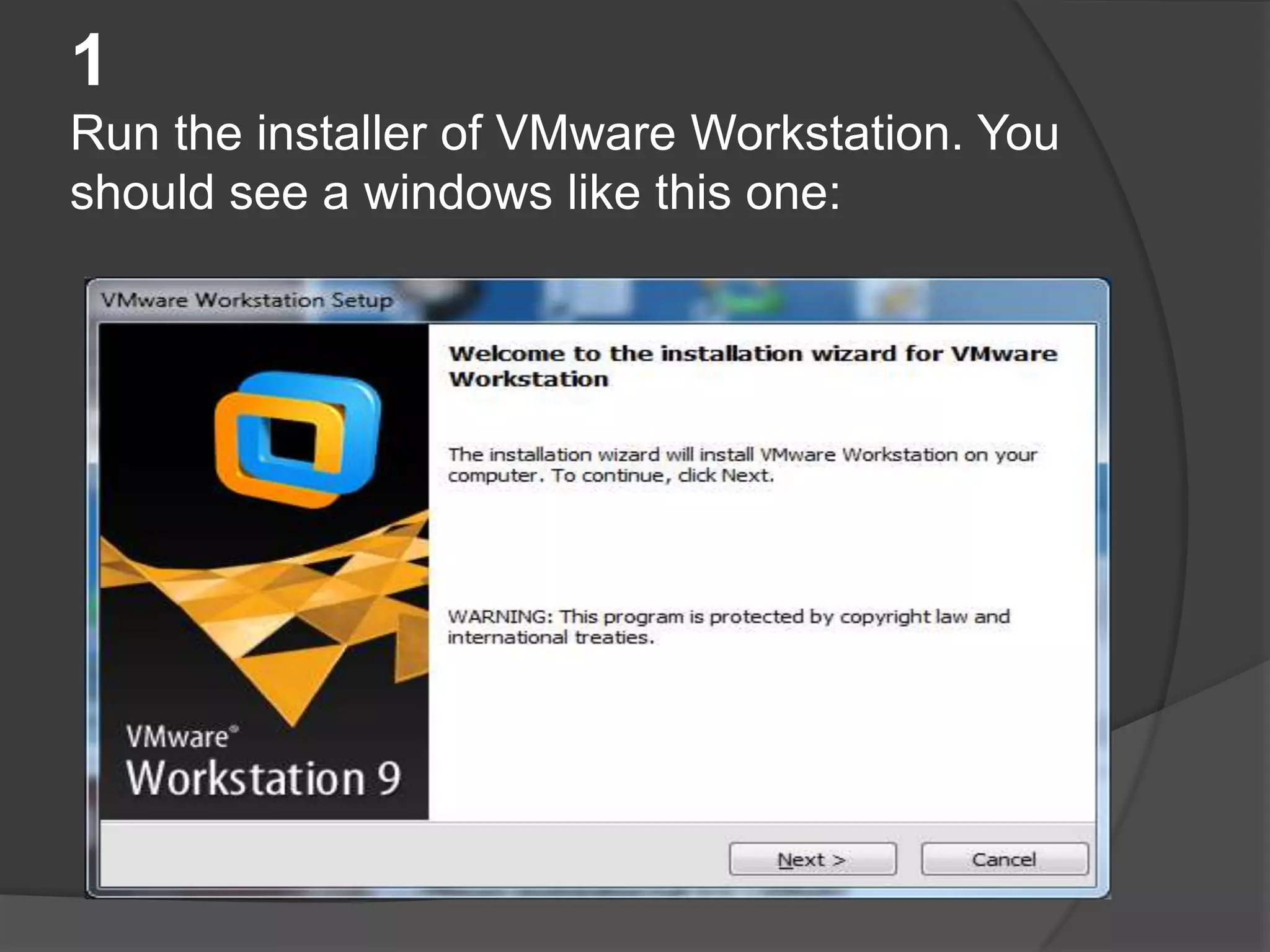
1
Run the installer of VMware Workstation. You
should see a windows like this one:
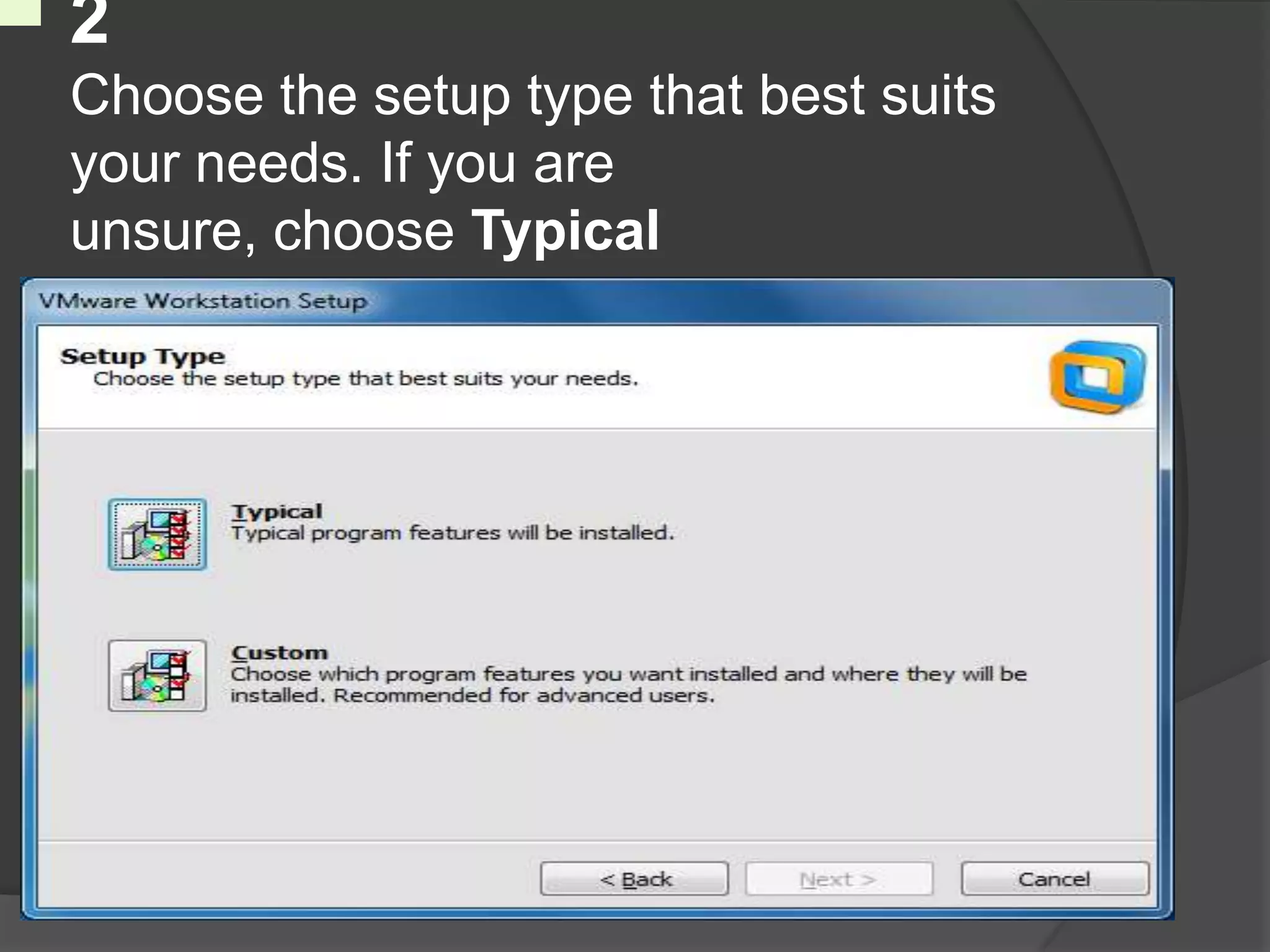
2
Choose the setup type that best suits
your needs. If you are
unsure, choose Typical
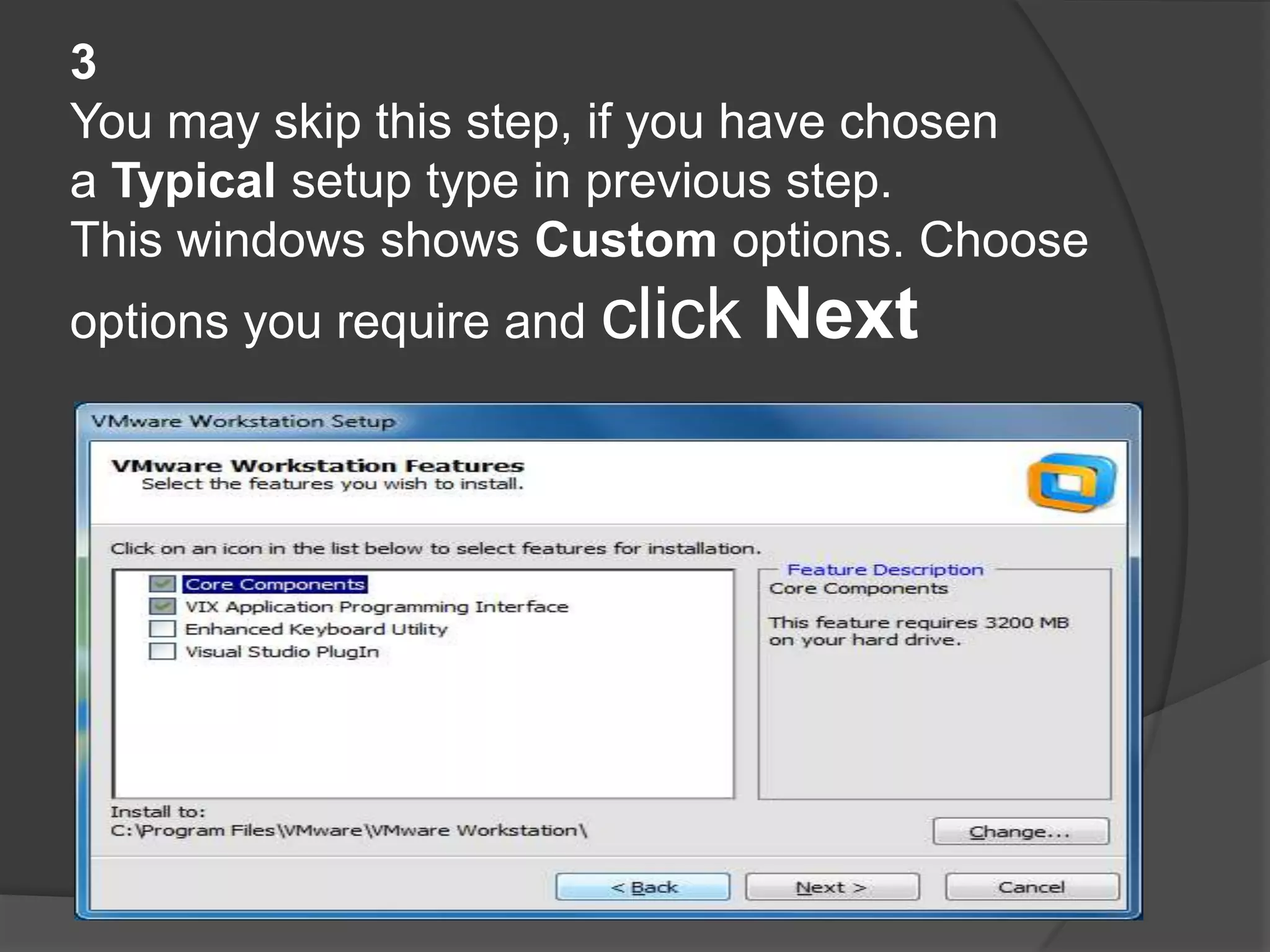
3
You may skip this step, if you have chosen
a Typical setup type in previous step.
This windows shows Custom options. Choose
options you require and click   Next
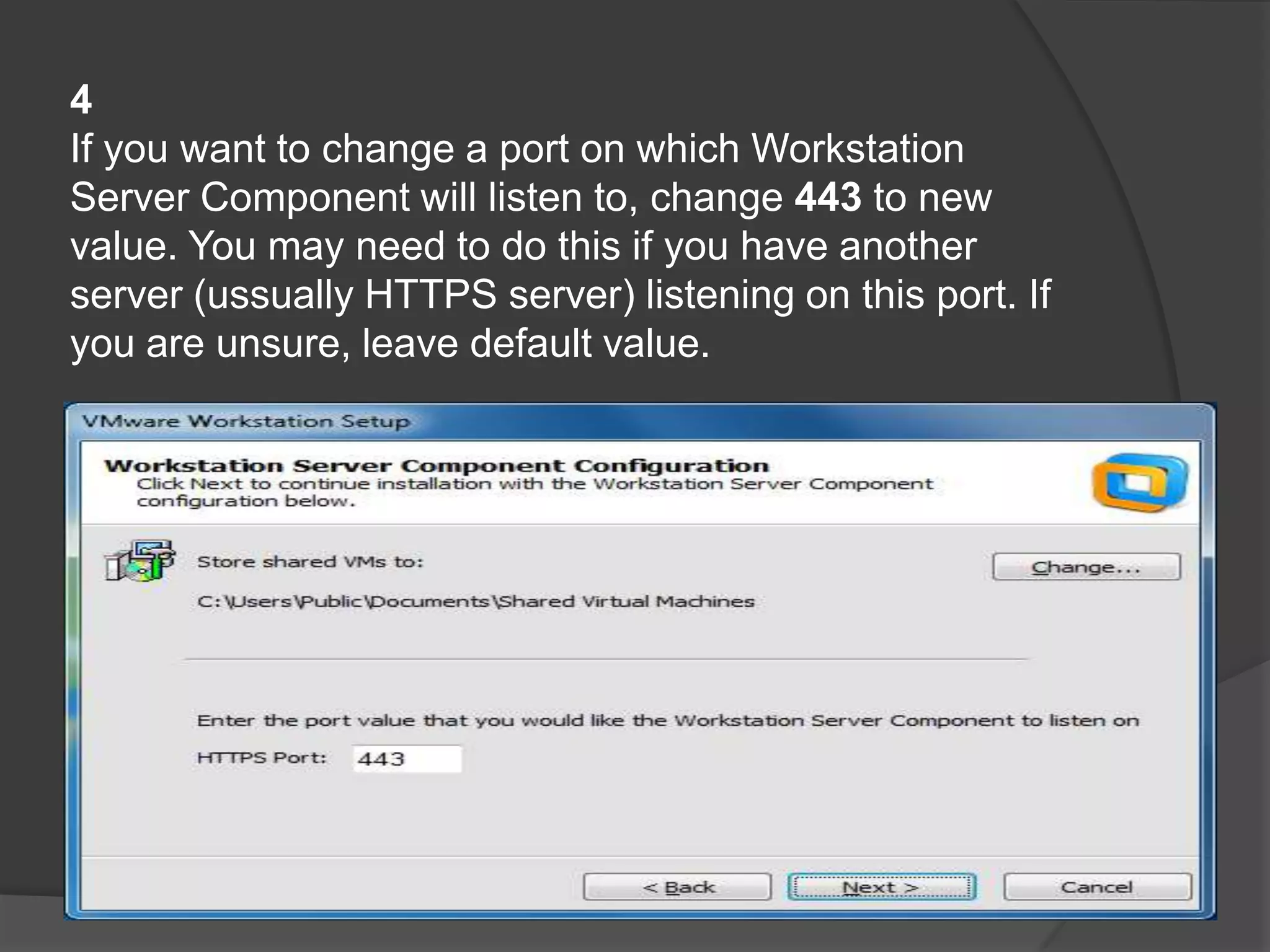
4
If you want to change a port on which Workstation
Server Component will listen to, change 443 to new
value. You may need to do this if you have another
server (ussually HTTPS server) listening on this port. If
you are unsure, leave default value.
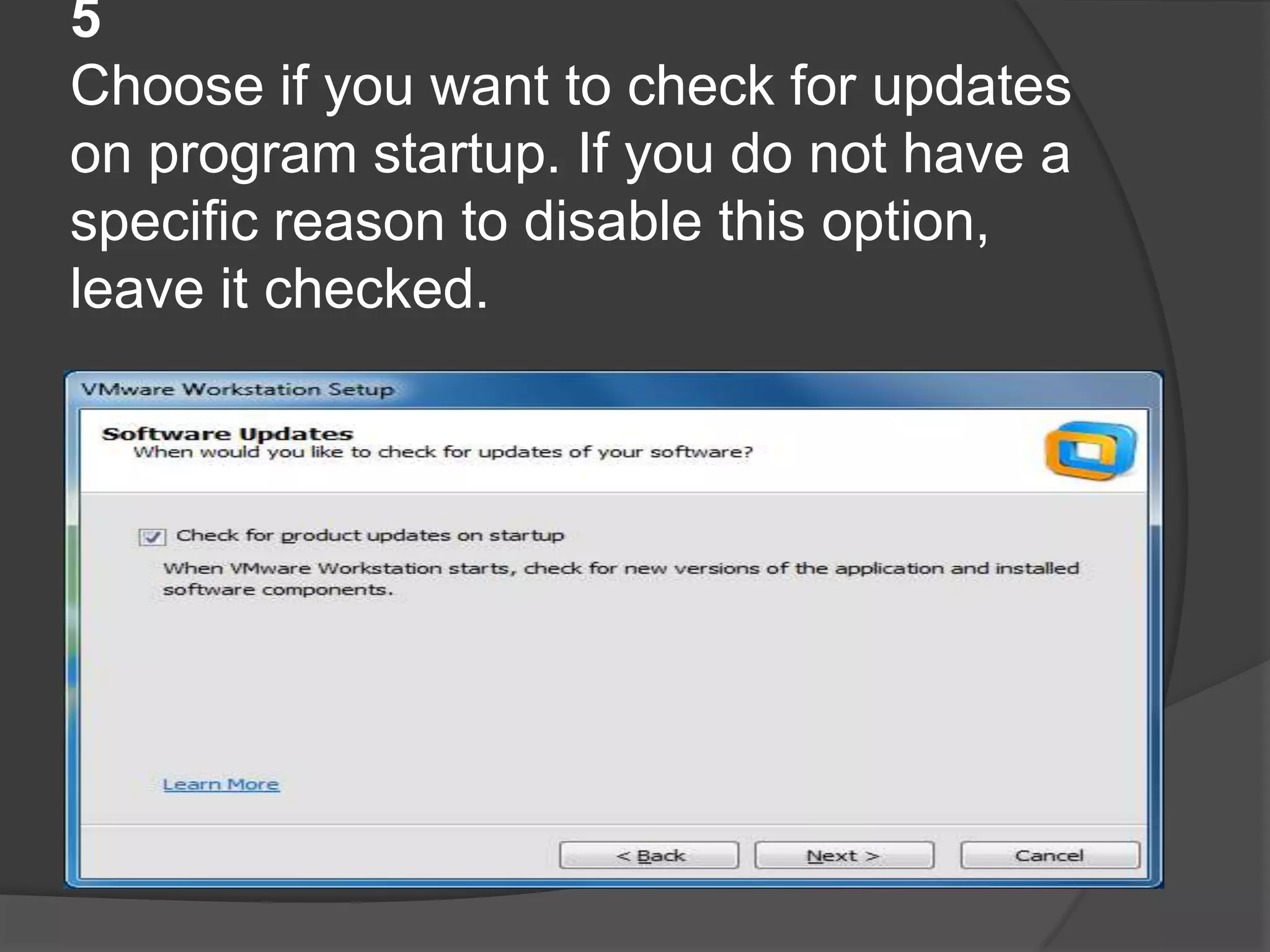
5
Choose if you want to check for updates
on program startup. If you do not have a
specific reason to disable this option,
leave it checked.
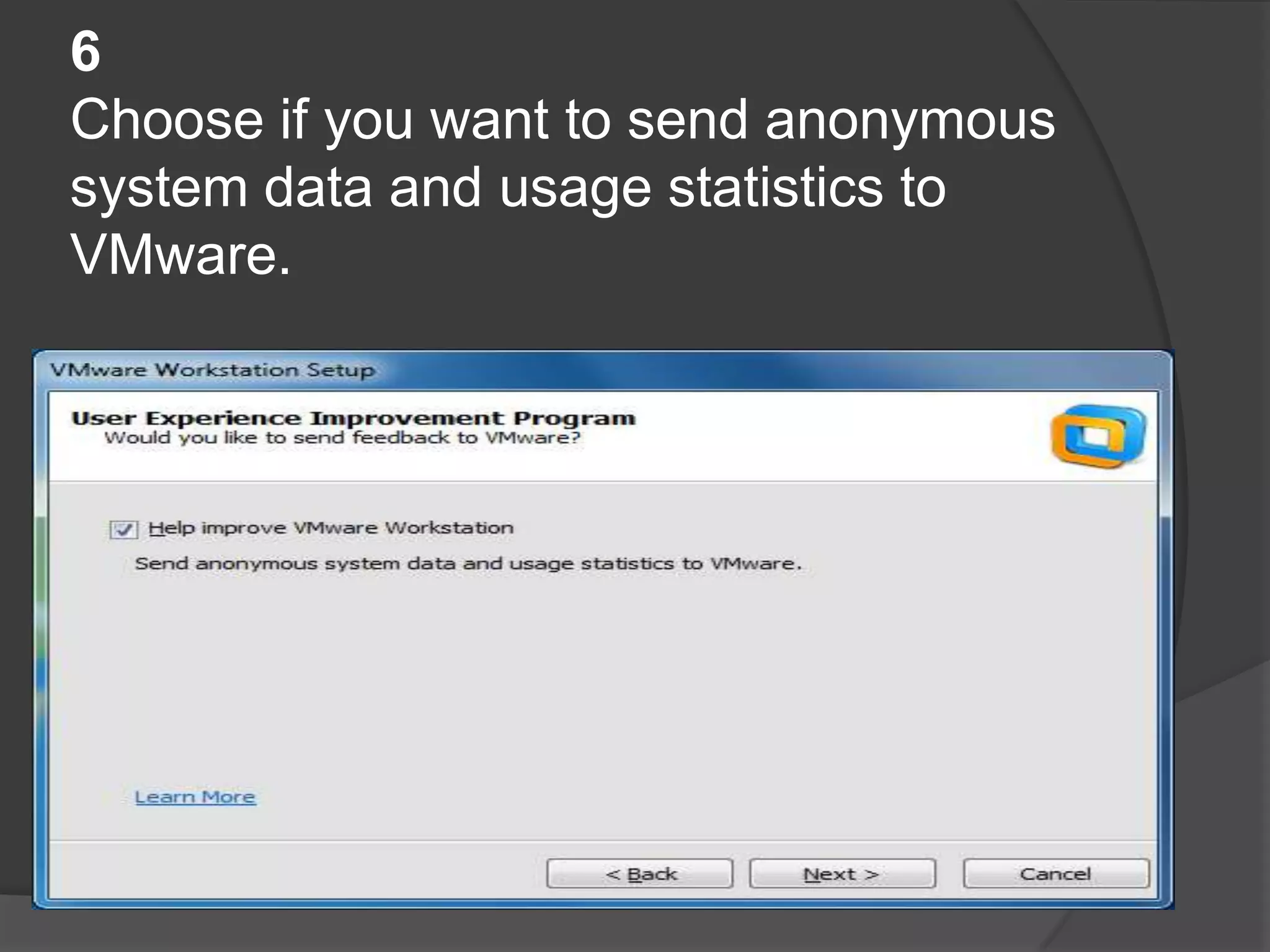
6
Choose if you want to send anonymous
system data and usage statistics to
VMware.
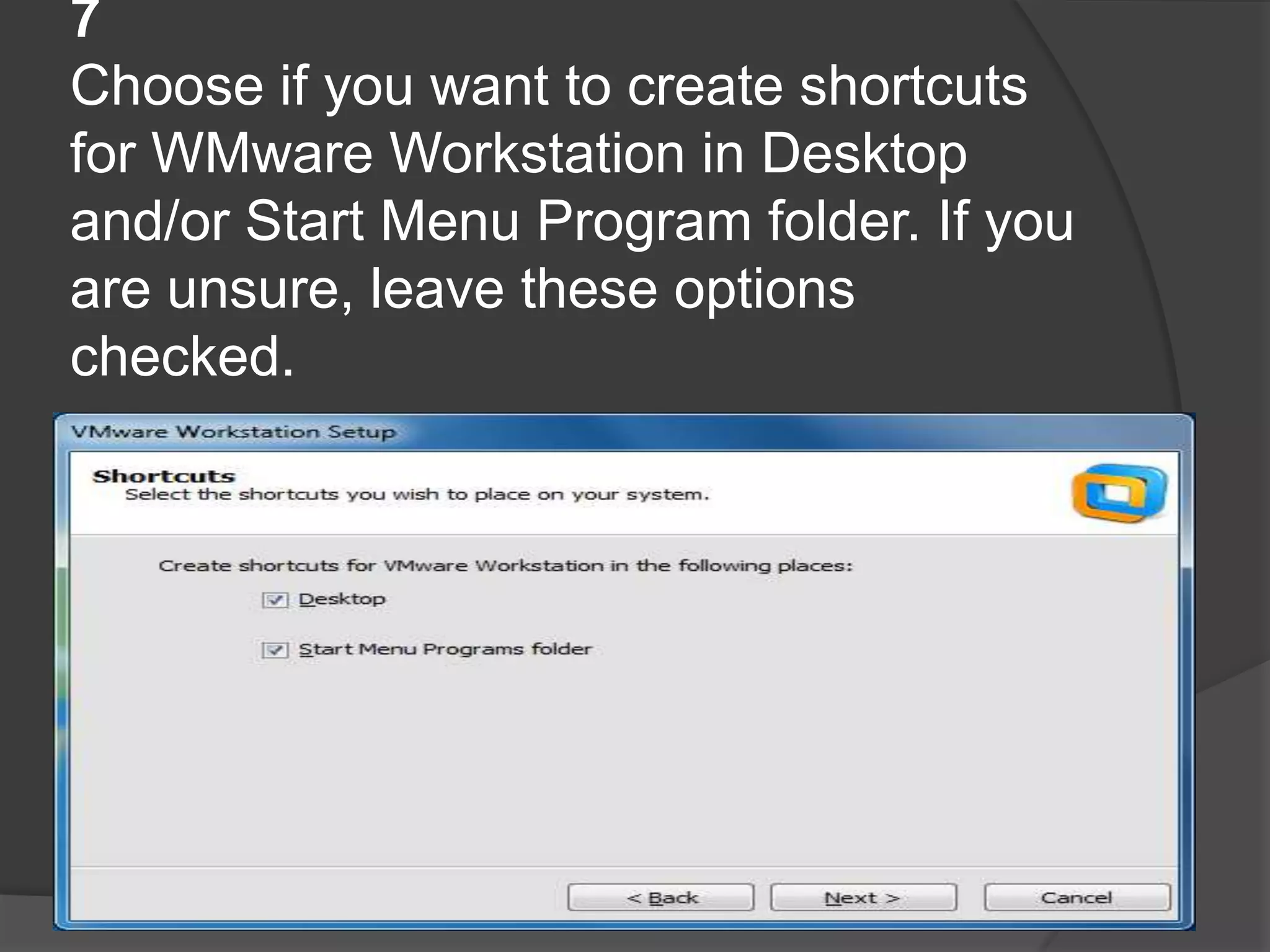
7
Choose if you want to create shortcuts
for WMware Workstation in Desktop
and/or Start Menu Program folder. If you
are unsure, leave these options
checked.
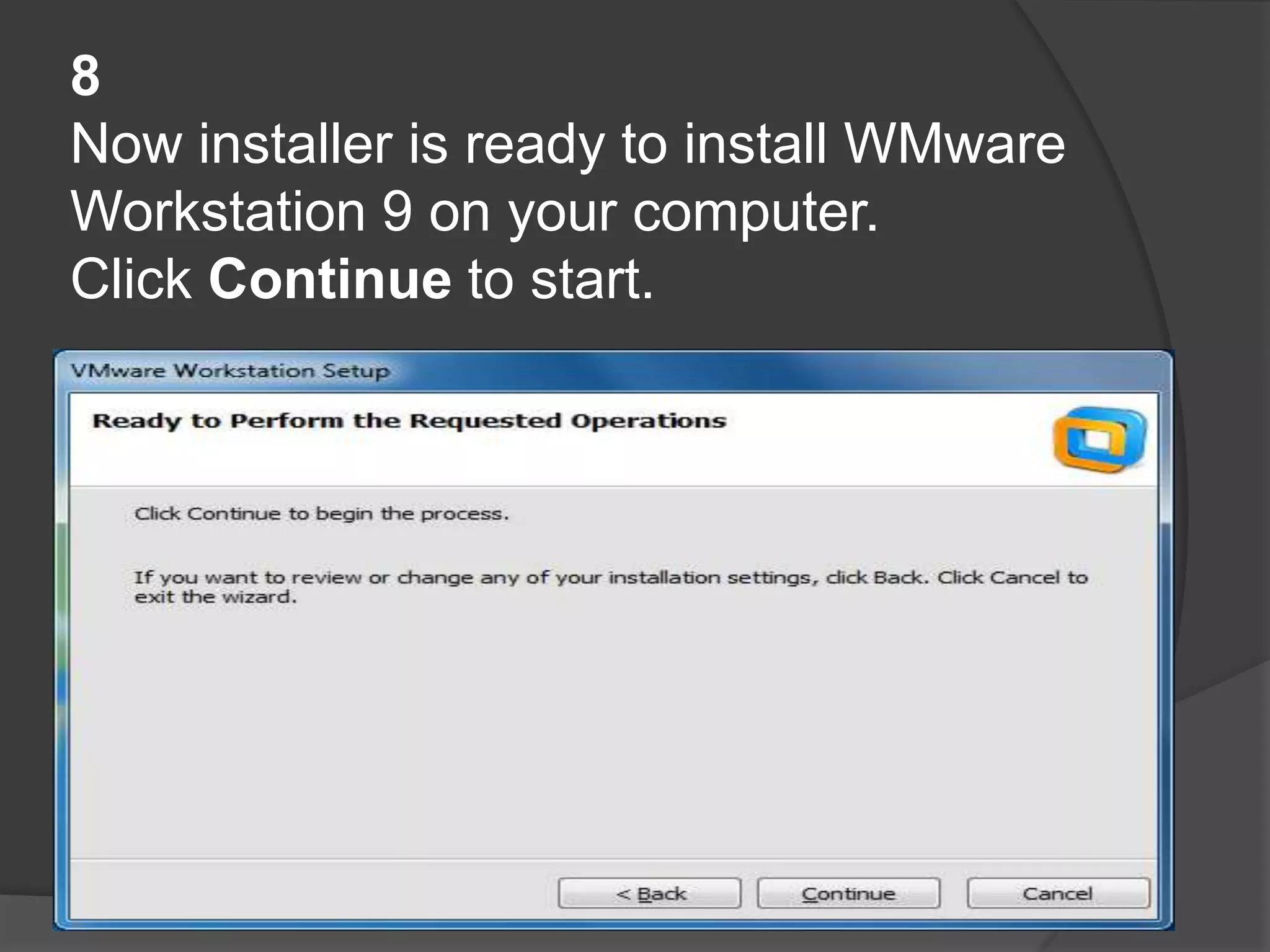
8
Now installer is ready to install WMware
Workstation 9 on your computer.
Click Continue to start.
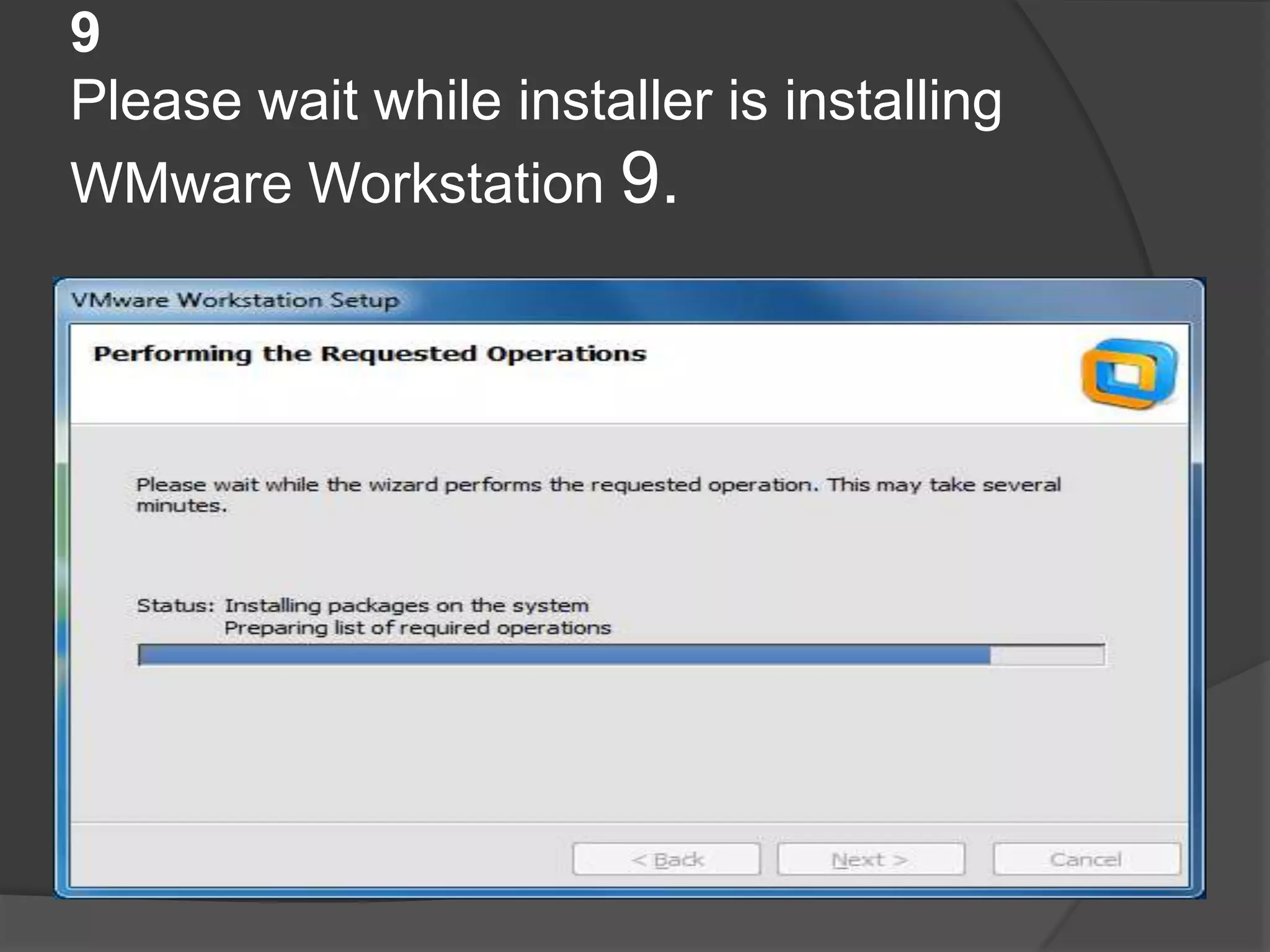
9
Please wait while installer is installing
WMware Workstation 9.
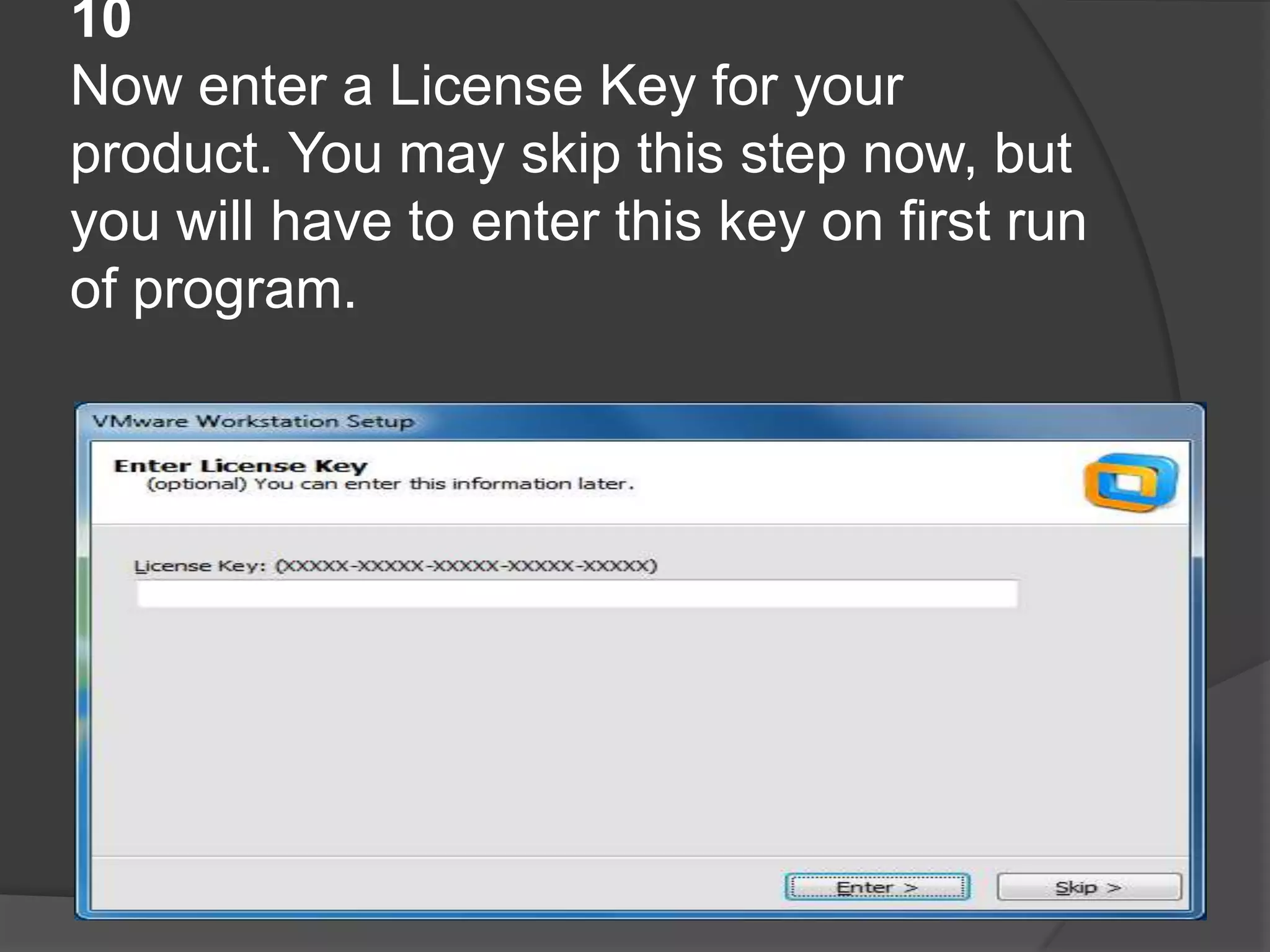
10
Now enter a License Key for your
product. You may skip this step now, but
you will have to enter this key on first run
of program.
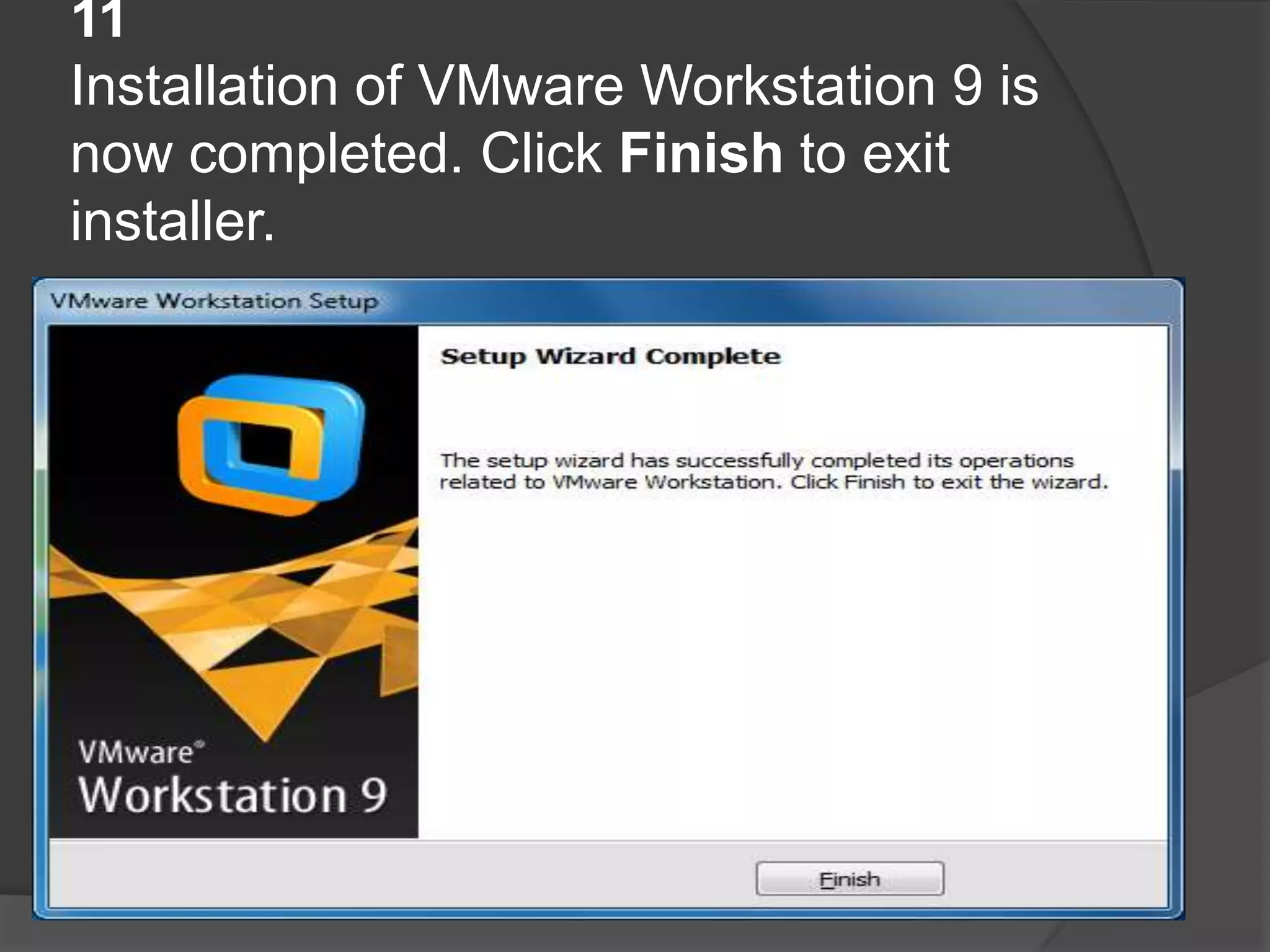
11
Installation of VMware Workstation 9 is
now completed. Click Finish to exit
installer.
Thanks

Presentation at VMware Workstation Instalation

  • 1.
    [Subject] Install VMware Workstation9 on Windows This process shows basic steps on how to install VMware Workstation 9 on Windows computer.
  • 2.
  • 3.
    1 Run the installerof VMware Workstation. You should see a windows like this one:
  • 4.
    2 Choose the setuptype that best suits your needs. If you are unsure, choose Typical
  • 5.
    3 You may skipthis step, if you have chosen a Typical setup type in previous step. This windows shows Custom options. Choose options you require and click Next
  • 6.
    4 If you wantto change a port on which Workstation Server Component will listen to, change 443 to new value. You may need to do this if you have another server (ussually HTTPS server) listening on this port. If you are unsure, leave default value.
  • 7.
    5 Choose if youwant to check for updates on program startup. If you do not have a specific reason to disable this option, leave it checked.
  • 8.
    6 Choose if youwant to send anonymous system data and usage statistics to VMware.
  • 9.
    7 Choose if youwant to create shortcuts for WMware Workstation in Desktop and/or Start Menu Program folder. If you are unsure, leave these options checked.
  • 10.
    8 Now installer isready to install WMware Workstation 9 on your computer. Click Continue to start.
  • 11.
    9 Please wait whileinstaller is installing WMware Workstation 9.
  • 12.
    10 Now enter aLicense Key for your product. You may skip this step now, but you will have to enter this key on first run of program.
  • 13.
    11 Installation of VMwareWorkstation 9 is now completed. Click Finish to exit installer.
  • 14.