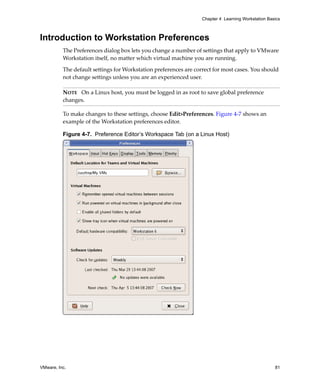
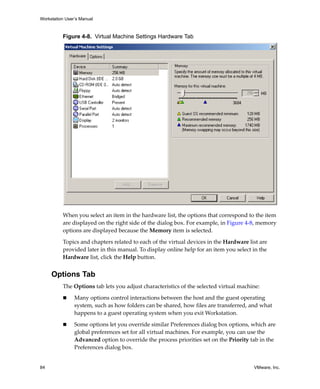
Workstation User’s Manual
                  Workstation 6.0
Workstation User’s Manual


Workstation User’s Manual
Revision: 20070920
Item: WS6-ENG-Q207-296


You can find the most up-to-date technical documentation on our Web site at

     http://www.vmware.com/support/

The VMware Web site also provides the latest product updates.
If you have comments about this documentation, submit your feedback to:

     docfeedback@vmware.com 


Š 1998-2007 VMware, Inc. All rights reserved. Protected by one or more of U.S. Patent Nos. 6,397,242,
6,496,847, 6,704,925, 6,711,672, 6,725,289, 6,735,601, 6,785,886, 6,789,156, 6,795,966, 6,880,022,
6,944,699, 6,961,806, 6,961,941, 7,069,413, 7,082,598, 7,089,377, 7,111,086, 7,111,145, 7,117,481,
7,149,843, 7,155,558, and 7,222,221; patents pending.
VMware, the VMware “boxes” logo and design, Virtual SMP and VMotion are registered trademarks or
trademarks of VMware, Inc. in the United States and/or other jurisdictions. All other marks and names
mentioned herein may be trademarks of their respective companies.


VMware, Inc.
3401 Hillview Ave.
Palo Alto, CA 94304
www.vmware.com
2                                                                                         VMware, Inc.
Contents


          Preface     15

     1 Introduction and System Requirements 20
               Product Benefits 20
               Overview of This Manual 21
               About the Host and Guest Computers 22
               What’s New in Version 6 22
                  Upgrade Path to Workstation ACE Edition 22
                  Integrated Virtual Debuggers 23
                  VMware Player 2.0 23
                  Automation Through Expanded VIX 1.1 API 24
                  Record/Replay of Virtual Machine Activity (Experimental) 24
                  Physical‐to‐Virtual Conversion and Enhanced Import Functionality (Windows 
                       Hosts Only) 24
                  Easy Upgrade or Downgrade of VMware Virtual Machines 25
                  Running Virtual Machines in the Background 25
                  Support for Multiple‐Monitor Displays 25
                  Increase in Number of Ethernet Adapters Supported 25
                  New 64‐Bit Sound Driver 25
                  Support for High‐Speed USB 2.0 Devices 26
                  Ability for a Virtual Machine to Act as a VNC Server 26
                  Increased RAM Support and Ability to Run on Server‐Class Systems 26
                  New Host Operating System Support 26
                  New Guest Operating System Support 28
                  Improved 64‐Bit Guest Support 29
                  Appliance View for Virtual Appliances 29
                  Monitor the Status of a Battery from the Guest Operating System 29
                  Enhanced Ability to Gather Debugging Information 30
                  Support for Paravirtualized Linux Kernels 30
                  User Interface for Mapping a Virtual Disk to a Drive Letter 30
                  Automatic Update to the Latest Version of VMware Tools 30
                  Enhanced Ability to Restrict Shared Folders 31
                  Enhanced File Sharing and Copy and Paste Functionality 31


VMware, Inc.                                                                               3
Workstation User’s Manual


               Host System Requirements 32
                   PC Hardware 32
                   Memory 33
                   Display 33
                   Disk Drives 33
                   Local Area Networking (Optional) 34
                   Host Operating System 34
               Virtual Machine Specifications 38
                   Processor 38
                   Chip Set 38
                   BIOS 38
                   Memory 39
                   Graphics 39
                   IDE Drives 39
                   SCSI Devices 39
                   Floppy Drives 39
                   Serial (COM) Ports 40
                   Parallel (LPT) Ports 40
                   USB ports 40
                   Keyboard 40
                   Mouse and Drawing Tablets 40
                   Ethernet Card 40
                   Sound 41
                   Virtual Networking 41
               Supported Guest Operating Systems  41
                   Microsoft Windows 32‐Bit 42
                   Microsoft Windows 64‐Bit 42
                   Microsoft MS‐DOS 42
                   Linux 32‐Bit 43
                   Linux 64‐Bit 43
                   Novell NetWare 32‐Bit 44
                   Novell Open Enterprise Server 32‐Bit 44
                   FreeBSD 32‐Bit 44
                   FreeBSD 64‐Bit 44
                   Sun Solaris 32‐Bit 44
                   Sun Solaris 64‐Bit 44
                   Support for 64‐Bit Guest Operating Systems 45


     2 Installing VMware Workstation 47
               Installation Prerequisites 47
               Sharing a Workstation Host with Other VMware Products 48


4                                                                         VMware, Inc.
Contents


               Installing Workstation on a Windows Host 48
                   Installing Workstation Silently 51
                   Uninstalling Workstation on a Windows Host 52
               Installing Workstation on a Linux Host 53
                   Configuring Workstation with vmware‐config.pl 54
                   Uninstalling Workstation on a Linux Host 56
               Where to Go Next 56


     3 Upgrading VMware Workstation 57
               Preparing for the Upgrade 57
                  Removing Snapshots and Shutting Down Suspended Virtual Machines 57
                  Backing Up Virtual Machines 58
                  Removing Workstation 2 or 3 to Install Workstation 6 58
               Upgrading on a Windows Host 59
                  Upgrading to a Windows Vista Host 59
               Upgrading on a Linux Host 60
               Using Workstation 4 or 5 Virtual Machines in Workstation 6 61
                  Using an Older‐Version Virtual Machine Without Upgrading 61
                  Changing the Version of the Virtual Machine 61


     4 Learning Workstation Basics 65
               Starting Workstation 66
               Overview of the Workstation Window 66
                   Home Page and Views 68
                   Toolbar Buttons 71
                   Sidebar 75
               Checking for Product Updates 78
               Introduction to Creating a Virtual Machine 79
               Introduction to Workstation Preferences 81
               Introduction to Virtual Machine Settings  83
                   Hardware Tab 83
                   Options Tab 84
               Closing Virtual Machines and Exiting Workstation 86
               Keyboard Shortcuts  87


     5 Creating a New Virtual Machine 89
               Setting Up a New Virtual Machine 89
                   Before You Begin 89
                   Using the New Virtual Machine Wizard 94


VMware, Inc.                                                                           5
Workstation User’s Manual


               Installing a Guest Operating System 97
                   Example: Installing Windows XP as a Guest Operating System 99
                   Upgrading a Guest Operating System 99
                   Configuring the Guest Operating System 100
               Importing Virtual Machines from Other Formats (Windows Hosts Only) 100
                   Summary of the Conversion Process 101
                   VMware Converter Versus the Importer Wizard in Workstation 102
                   Converter Import Wizard: Overview and Supported Source Machines 102
                   Supported Destinations 105
                   How Converting Affects Settings 107
                   Opening and Importing a Virtual Machine or System Image 108
               Files That Make Up a Virtual Machine 110


     6 Installing and Using VMware Tools 113
               About VMware Tools 113
               Installing and Upgrading VMware Tools 115
                   Upgrading VMware Tools 116
                   Installing VMware Tools on a Windows Guest 118
                   Installing VMware Tools on a Linux Guest 125
                   Installing VMware Tools in a Solaris Guest 129
                   Installing VMware Tools in a FreeBSD Guest 130
                   Installing VMware Tools in a NetWare Virtual Machine 132
                   Starting VMware Tools If You Do Not Use a Session Manager 133
               Uninstalling VMware Tools or Changing Which Modules Are Installed 134
               VMware Tools Configuration Options 134
                   Using the VMware Tools Control Panel to Configure Tools 135
                   Using the System Console to Configure VMware Tools in a NetWare Guest 
                        Operating System 139
               Customizations to VMware Tools 141
                   Using Custom Scripts When the Power State Changes 141
                   Executing Commands After You Power Off or Reset a Virtual Machine 143
                   Passing a String from the Host to the Guest  143
                   Passing Information Between the Guest and Another Program 146
               Using the VMware Tools Command‐Line Interface 146
                   Options for the VMware Tools ‐‐cmd Command 147


     7 Running a Virtual Machine 149
               Starting a Virtual Machine 150
                   Virtual Machine Location 152
               Running VMware Tools 152


6                                                                                VMware, Inc.
Contents


               Shutting Down a Virtual Machine 154
                   Powering Off Versus Shutting Down and Resetting Versus Restarting 154
               Deleting a Virtual Machine 156
               Controlling the Display 156
                   Simplifying the Screen Display 157
                   Using Full Screen Mode 158
                   Using Quick Switch Mode 159
                   Reporting Battery Information in the Guest Operating System 160
                   Using Exclusive Mode 160
                   Using Multiple Monitors 162
                   Fitting the Workstation Console to the Virtual Machine Display 165
                   Working with Nonstandard Resolutions 167
               Installing New Software 168
                   Disabling Acceleration If a Program Won’t Run 168
               Running Virtual Machines from Within an IDE 169
               Displaying the Virtual Machine as an Appliance 170
               Transferring Files and Text Between the Host and Guest 171
                   Using Drag and Drop 171
                   Using Copy and Paste 172
                   Using Shared Folders 173
                   Using a Mapped Drive (Windows Only) 180
               Using Devices in a Virtual Machine 181
                   Adding, Configuring, and Removing Devices in a Virtual Machine 181
                   Connecting and Disconnecting Removable Devices 182
               Creating a Screen Shot of a Virtual Machine 183
               Creating a Movie of a Virtual Machine 183
               Using a VNC Client for Remote Connections to a Virtual Machine 184
                   About VNC Port Numbers 185
                   Ensuring Proper Display on the Client 185


     8 Moving and Sharing Virtual Machines 187
               Virtual Machine Identifier: UUID 187
                   UUID Options When You Move a Virtual Machine 188
                   Specifying a UUID for a Virtual Machine 189
               Moving a Virtual Machine 190
                   Hosts with Different Hardware 190
                   Moving a Virtual Machine to a New Host or on the Same Host   191
               Moving an Older Virtual Machine 193
               Moving Linked Clones 193
               Sharing Virtual Machines with Other Users 193


VMware, Inc.                                                                                7
Workstation User’s Manual


               Sharing Virtual Machines with VMware Player 194
                  Running VMware Player 194
                  Setting Up Virtual Machines for Use with VMware Player 195


     9 Using Disks 197
               Overview of Disk Storage in a Virtual Machine 197
                  Virtual Disks 198
                  Physical Disks 200
               Maintenance Tasks for Virtual Disks 201
                  Defragmenting Virtual Disks 201
                  Shrinking Virtual Disks 202
               Adding Virtual and Physical Disks to a Virtual Machine 204
                  Adding a New Virtual Disk to a Virtual Machine 204
                  Adding an Existing Virtual Disk to a Virtual Machine 206
                  Removing a Virtual Disk from a Virtual Machine 206
                  Using Physical Disks in a Virtual Machine 207
               Adding DVD/CD‐ROM and Floppy Drives to a Virtual Machine 212
                  Adding DVD or CD Drives to a Virtual Machine 213
                  Adding Floppy Drives to a Virtual Machine 214
                  Connecting a CD‐ROM/DVD or Floppy Drive to an Image File 215
               Using VMware Virtual Disk Manager 216
                  Running the VMware Virtual Disk Manager Utility 217
                  Shrinking Virtual Disks with Virtual Disk Manager (Windows Only)     219
                  Examples Using the VMware Virtual Disk Manager 220
               Using Dual‐Boot Computers with Virtual Machines 222
               Legacy Virtual Disks 222


    10 Preserving the State of a Virtual Machine 225
               Using the Suspend and Resume Features 225
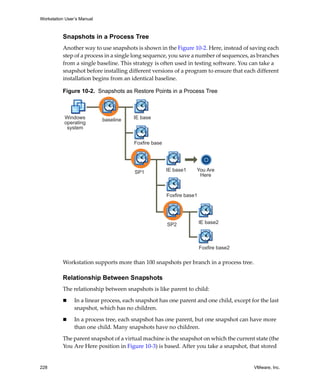
               Using Snapshots 227
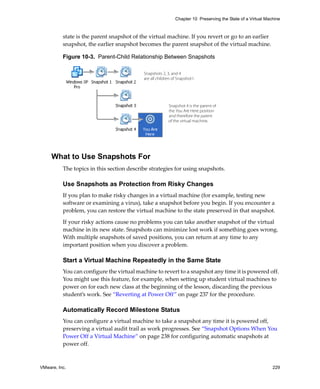
                  Snapshot Processes: Linear Versus Process Tree 227
                  What to Use Snapshots For 229
                  What Is Captured by a Snapshot 230
                  When to Take Snapshots 230
                  Enabling Snapshot Actions as a Background Activity 231
                  Excluding Virtual Disks from Snapshots 232
                  Working with Snapshots in the Snapshot Manager 233
                  Taking a Snapshot 235
                  Restoring a Snapshot 236
                  Disabling Snapshots 237
                  Snapshot Options When You Power Off a Virtual Machine    238
                  Snapshots and Workstation 4 Virtual Machines 239
8                                                                                    VMware, Inc.
Contents


               Recording Activity of a Virtual Machine (Experimental) 239
                  Hardware and Virtual Hardware Requirements 240
                  Recording and Playing Back Virtual Machine Activity 242


   11 Cloning a Virtual Machine 247
               Understanding Clones  247
                  Why Make a Clone? 248
                  Full and Linked Clones 248
                  Full Clones and Snapshots of the Parent 249
               Creating Clones 249
               Working with Clones 251
                  Making a Linked Clone of a Linked Clone 251
                  Making a Full Clone of a Linked Clone 251
                  Network Identity for a Clone 251
                  Linked Clone Snapshot 252
                  Linked Clones and Access to the Parent Virtual Machine 252


   12 Configuring Teams 255
               Benefits of Using Teams 255
               Creating a Team 257
               Opening and Closing a Team 258
               Changing the Name of a Team 259
               Deleting a Team 259
               Viewing Teams and Their Virtual Machines 260
               Adding and Removing Team Virtual Machines 262
               Setting the Startup Sequence for a Team 263
               Starting and Stopping Teams 264
                   Powering a Team On and Off 264
                   Suspending and Resuming a Team 265
                   Power Operations for Individual Members of a Team 266
               Working with Team Networks 266
                   LAN Segment Requirements 266
                   Creating a Team LAN Segment 267
                   Adding and Removing Ethernet Adapters 268
                   Configuring Connections for a LAN Segment 269
                   Configuring LAN Segments 269
                   Deleting a LAN Segment 270
               Cloning and Taking Snapshots of Team Members 271


VMware, Inc.                                                                         9
Workstation User’s Manual


     13 Configuring a Virtual Network 273
               Network Basics 274
               Components of the Virtual Network 275
                  Virtual Switch 275
                  DHCP Server 275
                  Network Adapter 276
               Common Networking Configurations 276
                  Bridged Networking 276
                  Network Address Translation (NAT) 278
                  Host‐Only Networking 279
               Example of a Custom Networking Configuration 280
               Changing a Networking Configuration 284
                  Adding and Modifying Virtual Network Adapters 284
                  Configuring Bridged Networking Options on a Windows Host 285
                  Enabling, Disabling, Adding, and Removing Host Virtual Adapters 289
               Advanced Networking Topics 291
                  Selecting IP Addresses on a Host‐Only Network or NAT Configuration 291
                  Avoiding IP Packet Leakage in a Host‐Only Network 293
                  Maintaining and Changing the MAC Address of a Virtual Machine  296
                  Controlling Routing Information for a Host‐Only Network on Linux 297
                  Potential Issues with Host‐Only Networking on Linux 298
                  Setting Up a Second Bridged Network Interface on a Linux Host 299
                  Setting Up Two Separate Host‐Only Networks 300
                  Routing Between Two Host‐Only Networks 304
                  Using Virtual Ethernet Adapters in Promiscuous Mode on a Linux Host 305
               Using NAT  306
                  How the NAT Device Uses the VMnet8 Virtual Switch 306
                  The Host Computer and the NAT Network 307
                  DHCP on the NAT Network 307
                  DNS on the NAT Network 307
                  External Access from the NAT Network 308
                  Advanced NAT Configuration 309
                  Considerations for Using NAT 314
                  Using NAT with NetLogon 314
                  Sample Linux vmnetnat.conf File 317
               Using Samba with Workstation 318
                  Using a Samba Server for Bridged and Host‐Only Networks 319
                  Using Samba Without Network Access 319


10                                                                              VMware, Inc.
Contents


   14 Configuring Video and Sound 321
               Setting Screen Color Depth 321
                   Changing Screen Color Depth on the Host 322
                   Changing Screen Color Depth in the Virtual Machine 322
               Experimental Support for Direct3D 322
                   Audience for Direct3D Experimental Support 323
                   Accelerated 3‐D Limitations 323
                   Enabling Accelerated 3‐D 323
                   Known Issues 326
                   Helping VMware with Experimental Support 326
               Configuring Sound  327
                   Installing Sound Drivers in Windows 9x and NT Guests 327


   15 Connecting Devices 329
               Using Parallel Ports 329
                  Installation in Guest Operating Systems 329
                  Configuring a Parallel Port on a Linux Host 330
                  Special Notes for the Iomega Zip Drive 334
               Using Serial Ports 335
                  Using a Serial Port or a File on the Host Computer 335
                  Connecting an Application on the Host to a Virtual Machine 336
                  Connecting Two Virtual Machines 337
                  Configuration Options for Advanced Users 340
                  Examples: Debugging over a Virtual Serial Port 341
               Configuring Keyboard Features 343
                  Enhanced Virtual Keyboard for Windows Hosts 343
                  Hot Keys 344
                  Specifying a Language Keymap for VNC Clients 345
                  Keyboard Mapping on a Linux Host 346
               Using USB Devices in a Virtual Machine 353
                  Enabling and Disabling the USB 2.0 Controller 354
                  Connecting USB Devices 355
                  Using USB with a Windows Host 356
                  Replacing USB 2.0 Drivers on a Windows 2000 Host 356
                  Using USB with a Linux Host 357
                  How Device Control Is Shared Between Host and Guest 357
                  Disconnecting USB Devices from a Virtual Machine 358
                  Human Interface Devices 359
               Connecting to a Generic SCSI Device 359
                  Generic SCSI on a Windows Host Operating System 359
                  Generic SCSI on a Linux Host Operating System 365

VMware, Inc.                                                                            11
Workstation User’s Manual


               Using Two‐Way Virtual Symmetric Multiprocessing (Experimental) 367
                  Moving SMP Virtual Machines Between Workstation and ESX Server 368


     16 Performance Tuning 369
               Configuring and Maintaining the Host Computer 369
                  CPU 369
                  Memory 369
                  Disks 371
                  Networking 372
               Configuring VMware Workstation and Virtual Machines 372
                  CPU 373
                  Memory 374
                  Disks 377
                  Networking 379
                  Additional Suggestions for Improving Performance 379
               Configuring Guest Operating Systems 381
                  CPU 381
                  Disks 382
                  Networking 385
                  Visual Effects (Windows Only) 385
                  Enhanced Performance with Paravirtualized Kernels in Linux Guests 386
               Using the Microsoft Performance Console to Monitor Virtual Machine 
                   Performance 388


     17 Special‐Purpose Configuration Options for Windows Hosts 391
               Locking Out Interface Features (Windows Hosts Only) 391
                  Removing a Forgotten Password 392
               Restricting the User Interface 392
                  Automatically Returning to a Snapshot with a Restricted User Interface   393
               Using Full Screen Switch Mode (Windows Hosts Only) 395
                  Creating a Virtual Machine for Use in Full Screen Switch Mode 395
                  Moving a Virtual Machine to the User’s Computer 396
                  Configuring Full Screen Switch Mode 396
                  Starting and Stopping Virtual Machines on the User’s Computer 402
               Guest ACPI S1 Sleep  405


     A Workstation Command‐Line Reference 407
               Startup Options for Workstation and Virtual Machines 407
                   Using Startup Options in a Windows Shortcut 409
               Command‐Line Application for Operating Virtual Machines      409
                   Examples for vmrun 412

12                                                                                   VMware, Inc.
Contents


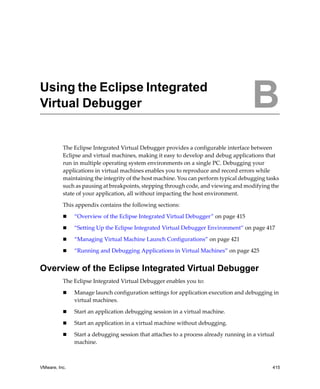
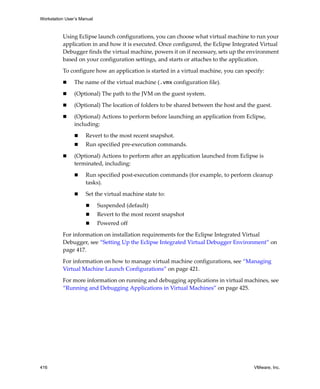
     B Using the Eclipse Integrated Virtual Debugger 415
               Overview of the Eclipse Integrated Virtual Debugger 415
               Setting Up the Eclipse Integrated Virtual Debugger Environment 417
                   Host System Requirements 417
                   Eclipse Requirements 419
                   Virtual Machine Requirements 419
               Managing Virtual Machine Launch Configurations 421
                   Using Application Configurations to Start Applications in a Virtual 
                        Machine 422
                   Using Application Configurations to Attach to Applications Running in a 
                        Virtual Machine 424
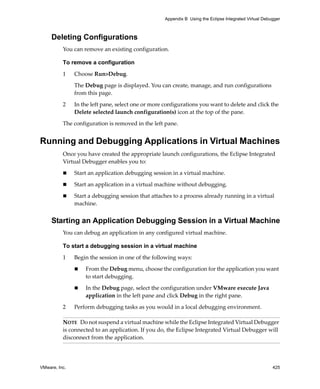
                   Deleting Configurations 425
               Running and Debugging Applications in Virtual Machines 425
                   Starting an Application Debugging Session in a Virtual Machine 425
                   Starting an Application in a Virtual Machine Without Debugging 426
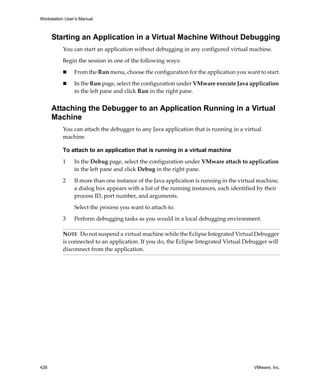
                   Attaching the Debugger to an Application Running in a Virtual Machine 426


    C Using the Visual Studio Integrated Virtual Debugger 427
               Overview of the Visual Studio Integrated Virtual Debugger 427
                   Configuration Options When Starting an Application in a Virtual Machine 428
                   Configuration Options When Attaching to a Process Running in a Virtual 
                        Machine 429
               Setting Up the Visual Studio Integrated Virtual Debugger Environment 430
                   Microsoft Visual Studio Requirements and Recommendations 431
                   Host System Requirements 432
                   Virtual Machine Requirements and Recommendations 432
                   Troubleshooting Tips 436
               Managing Virtual Machine Configurations 437
                   Creating Configurations 437
                   Renaming Configurations 438
                   Removing Configurations 438
                   Setting Configuration Properties 439
               Running and Debugging Applications in Virtual Machines 442
                   Starting a Debugging Session in a Virtual Machine 442
                   Starting a Session Without Debugging in a Virtual Machine 442
                   Attaching the Debugger to a Process Running in a Virtual Machine 443

          Glossary      445

          Index 453


VMware, Inc.                                                                                13
Workstation User’s Manual


14                          VMware, Inc.
Preface


          This preface provides information about the Workstation User’s Manual and links to 
          VMwareŽ technical support and educational resources.

          This preface contains the following topics:

               “About This Book” on page 15

               “Technical Support and Education Resources” on page 16


About This Book
          This manual, the Workstation User’s Manual, provides information about installing and 
          using VMware Workstation 6.

          To view the most current version of the manual, see the VMware Web site:

          http://www.vmware.com/support/pubs/ws_pubs.html


     Intended Audience
          This book is intended for anyone who needs to install, upgrade, or use VMware 
          Workstation. Workstation users typically include people who do software development 
          and testing or work with multiple operating systems or computing environments: 
          software developers, QA engineers, trainers, salespeople who run demos, and anyone 
          who wants to create virtual machines.


VMware, Inc.                                                                                    15
Workstation User’s Manual


     Document Feedback
          If you have comments about this documentation, submit your feedback to:

          docfeedback@vmware.com


     Conventions
          The following typographic conventions are used in this manual.

          Table P-1. Conventions Used in This Manual
          Style                         Elements

          Blue boldface (online only)   Cross‐references and links

          Black boldface                User interface elements such as button names and menu items

          Monospace                     Commands, filenames, directories, and paths

          Monospace bold                User input

          Italic                        Document titles, glossary terms, and occasional emphasis

          < Name >                      Variable and parameter names


Technical Support and Education Resources
          The following sections describe the technical support resources available to you.


     Self-Service Support
          Use the VMware Technology Network (VMTN) for self‐help tools and technical 
          information:

                   Product information – http://www.vmware.com/products/

                   Technology information – http://www.vmware.com/communities/content/

                   Documentation – http://www.vmware.com/support/pubs

                   VMTN Knowledge Base – http://kb.vmware.com

                   Discussion forums – http://www.vmware.com/community

                   User groups – http://www.vmware.com/communities/content/vmug/

          For more information about the VMware Technology Network, go to 
          http://www.vmware.com/community/index.jspa.


16                                                                                         VMware, Inc.
Preface


     Online and Telephone Support
          Use online support to submit technical support requests, view your product and 
          contract information, and register your products. Go to 
          http://www.vmware.com/support.

          Customers with appropriate support contracts should use telephone support for the 
          fastest response on priority 1 issues. Go to 
          http://www.vmware.com/support/phone_support.html.


     Support Offerings
          Find out how VMware support offerings can help meet your business needs. Go to 
          http://www.vmware.com/support/services.


     Reporting Problems
          If you have problems while running VMware Workstation, please report them to the 
          VMware support team. First, be sure to register your serial number. From the 
          Workstation menu bar, choose Help>VMware on the Web>Register Now! You can 
          then report your problems by submitting a support request at 
          www.vmware.com/requestsupport.

          The VMware support team might ask you to run a support script in order to gather the 
          information needed to diagnose the problem. For example, if a virtual machine exits 
          abnormally or crashes, run the support script to collect the appropriate log files and 
          system information.

          As of Workstation version 6.0.1, you can run the support script by clicking a button in 
          the Help>About VMware Workstation box. You can also, as in previous releases, run 
          the script from the command line. 

          To run the support script from the Workstation user interface

          1    Start VMware Workstation.

               For instructions, see “Starting Workstation” on page 66.

          2    Choose Help>About.

          3    In the About VMware Workstation dialog box that appears, click Collect Support 
               Data.


VMware, Inc.                                                                                    17
Workstation User’s Manual


          4     In the confirmation box that appears, confirm that you want to collect support data.

                On Windows hosts, after the script finishes running, it creates a .zip file and 
                displays the path to the file.

                On Linux hosts, the script creates a compressed .tgz file in the user’s home 
                directory. Because the script is not run as root, the script displays messages 
                indicating that it cannot collect some information. This is normal. If the VMware 
                support team needs that information, a support representative will ask you to run 
                the script from the command line as root. For instructions, see “To run the support 
                script on a Linux host” on page 19.

          5     Submit a support request to the VMware support team and include the data file. 

                The URL is www.vmware.com/requestsupport.

          To run the support script on a Windows host

          1     Open a command prompt.

          2     Change to the VMware Workstation program directory:
                C:
                cd Program FilesVMwareVMware Workstation

                If you did not install the program in the default directory, use the appropriate drive 
                letter and path in the cd command above.

          3     Run the support script:
                cscript vm-support.vbs

                After the script runs, it displays the name of the directory where it has stored its 
                output. 

          4     Use a file compression utility such as WinZip or PKZIP to zip the script output 
                directory, and include the zip file with your support request.

                If you are reporting a problem you encountered while installing VMware 
                Workstation, you should also include your installation log file. 

                On a Windows host, the file is VMInst.log. It is saved in your Temp folder. On a 
                Windows 2000, Windows XP, or Windows Server 2003 host, the default location is 
                C:Documents and Settings<username>Local SettingsTemp.

                You can use the command cd %temp% to locate the Local Settings folder, which 
                is hidden by default. To see its contents, open My Computer, go to Tools>Folder 
                Options, click the View tab and select Show Hidden Files and Folders.


18                                                                                         VMware, Inc.
Preface


          To run the support script on a Linux host

          1    Open a terminal window.

          2    Run the support script as the user who is running the virtual machine:
               vm-support

               If you are not running the script as root, the script displays messages indicating 
               that it cannot collect some information. This is normal. If the VMware support 
               team needs that information, a support representative will ask you to run the script 
               again as root.

               The script creates a compressed .tgz file in the user’s home directory. 

          3    Include that output file with your support request.

               If you are reporting a problem you encountered while installing VMware 
               Workstation, you should also include your installation log file. 


     VMware Education Services
          VMware courses offer extensive hands‐on labs, case study examples, and course 
          materials designed to be used as on‐the‐job reference tools. For more information about 
          VMware Education Services, go to http://mylearn1.vmware.com/mgrreg/index.cfm.


VMware, Inc.                                                                                     19
1


Introduction and System
Requirements                                                                             1
          This chapter provides an introduction to Workstation and describes the system 
          requirements for operating Workstation. This chapter contains the following topics:

               “Product Benefits” on page 20
               “Overview of This Manual” on page 21
               “About the Host and Guest Computers” on page 22
               “What’s New in Version 6” on page 22
               “Host System Requirements” on page 32
               “Virtual Machine Specifications” on page 38
               “Supported Guest Operating Systems” on page 41


Product Benefits
          Workstation is desktop software that allows you to run multiple x86‐compatible 
          desktop and server operating systems simultaneously on a single PC, in fully 
          networked, portable virtual machines—with no rebooting or hard drive partitioning 
          required. 

          With Workstation, you spend less time procuring and configuring, and more time 
          testing, deploying, teaching, or running demos. Over three million software 
          development, quality assurance, training, sales, and IT professionals worldwide find 
          Workstation an indispensable tool.

          To streamline software development and testing:

               Develop and test multiple operating systems and applications on a single PC.
               Connect virtual machines to simulate and test multitier configurations.


VMware, Inc.                                                                                    20
Chapter 1 Introduction and System Requirements


               Use multiple snapshots and debugging support to facilitate testing.
               Archive test environments on file servers where they can be easily restored or 
               shared.

          To enhance productivity of IT professionals:

               Configure and test desktops and servers as virtual machines before deploying 
               them to production.

               Test new multitier applications, application updates, and OS patches on a single 
               PC.

               Host legacy applications within virtual machines, facilitating OS migrations and 
               eliminating the need to port legacy applications.

               Create a virtual library of end‐user configurations on a shared drive.

          To facilitate computer‐based training and software demos:

               Package and deploy classroom material in virtual machines.

               Allow students to experiment with multiple operating systems, applications, and 
               tools in secure, isolated virtual machines.

               Configure virtual machines to undo all changes at shutdown.

               Demo complex or multitier configurations on a single laptop.


Overview of This Manual
          If you’re a veteran user of VMware products, see “What’s New in Version 6” on page 22 
          and see Chapter 3, “Upgrading VMware Workstation,” on page 57.

          If you’re new to VMware Workstation, the first chapters of this manual—through 
          Chapter 7, “Running a Virtual Machine,” on page 149—introduce you to some of the 
          things you can do with VMware Workstation and guide you through the key steps for 
          installing the software and putting it to work. 

          Later chapters provide in‐depth reference material for getting the most out of the 
          sophisticated features of Workstation.


VMware, Inc.                                                                                         21
Workstation User’s Manual


About the Host and Guest Computers
          The terms host and guest describe your physical and virtual machines:

                The physical computer on which you install the VMware Workstation software is 
                called the host computer, and its operating system is called the host operating system.

                The operating system running inside a virtual machine is called a guest operating 
                system.

          For definitions of these and other special terms, see “Glossary” on page 445.


What’s New in Version 6
          The sections that follow describe the features that have been added to the 
          Workstation 6.0 release.


     Upgrade Path to Workstation ACE Edition
          VMware ACE 2.0 is a solution for deploying assured computing environments and 
          securing remote desktops. VMware ACE Virtual Rights Management (VRM) 
          centralizes management of security policies and access rights applied to virtual 
          machines. ACE is used primarily to ensure more secure guest worker, partner, and 
          remote PC access. 

          Adding ACE capabilities into Workstation ACE Edition means that ACE 
          administrators can now take multiple snapshots, create linked and full clones, and so 
          on. These Workstation features will allow desktop security administrators to easily test 
          patches and new applications before deploying virtual machines to end‐user PCs.

          The VRM capabilities of ACE, such as expiration and encryption, are important for 
          Workstation users who want to create virtual appliances. Expiration capabilities enable 
          ISVs to easily distribute evaluation copies of virtual appliances.

          If you purchase a license for the ACE functionality, you will see, in addition to 
          Workstation window elements, ACE‐specific menu items, toolbar buttons, and other 
          interface elements. These elements enable you to write security policies that control 
          encryption, authentication, expiration, copy protection, network access, and device 
          access for the virtual machine. You can then create MSI‐compliant deployment 
          packages that include these policies along with the virtual machine. 

          Documentation for the ACE functionality is provided in the VMware ACE 
          Administrator’s Manual, available from the VMware web site at:

                http://www.vmware.com/support/pubs/ace_pubs.html


22                                                                                          VMware, Inc.
Chapter 1 Introduction and System Requirements


     Integrated Virtual Debuggers
          With the new Workstation IDE (integrated development environment) plug‐ins, 
          software developers are provided with a configurable interface between their virtual 
          machines and Visual Studio (Windows only) or Eclipse (Windows or Linux) that lets 
          them easily test, run, and debug programs in virtual machines. 

          You can specify settings such as the location of the virtual machine, which setup or 
          clean‐up scripts to execute, the location of shared folders, and (in Visual Studio) 
          directories to be copied between the host and guest.

          When configured, the integrated virtual debugger finds the virtual machine, powers it 
          on if necessary, sets up the environment based on your configuration settings, and 
          launches or attaches to the application. All breakpoints, watch points, and so on that 
          you set in your IDE will function as if you were running your application on the host 
          computer.

          Depending on the configuration setting you specify, when the application finishes 
          running, the virtual machine is powered off, suspended, reverted to a snapshot, or left 
          in its current state.

          For information about using the Workstation IDE plug‐ins, see Appendix B, “Using the 
          Eclipse Integrated Virtual Debugger,” on page 415 and Appendix C, “Using the Visual 
          Studio Integrated Virtual Debugger,” on page 427.


     VMware Player 2.0
          When you install Workstation, VMware Player 2.0 is also installed. This new version of 
          Player provides a user‐friendly Welcome page that gives you the option of browsing to 
          a virtual machine file, downloading a virtual appliance from the VMTN (VMware 
          Technology Network) web site, or opening a recently used virtual machine. If you 
          download an appliance, you can then use Player’s new appliance view when running 
          a virtual appliance. 

          Player 2.0 also enables you to share folders between the host and guest operating 
          systems.

          For more information about the “built‐in” VMware Player, see “Sharing Virtual 
          Machines with VMware Player” on page 194.


VMware, Inc.                                                                                         23
Workstation User’s Manual


     Automation Through Expanded VIX 1.1 API
          The VIX API (formerly known as the Programming API) allows you to write scripts and 
          programs to automate virtual machine operations. The API is high‐level, easy to use, 
          and practical for both script writers and application programmers.

          This release of the API is available in the C language. API functions allow you to 
          register, power on or off virtual machines, and run programs in the guest operating 
          systems. There are additional language bindings for Perl, COM, and shell scripts 
          (vmrun). For more information, see the VMware VIX API 1.1 Release Notes.


     Record/Replay of Virtual Machine Activity (Experimental)
          This feature lets you record all of a Workstation 5 or 6 virtual machine’s activity over a 
          period of time. Unlike Workstation’s movie‐capture feature, the record/replay feature 
          lets you exactly duplicate the operations and state of the virtual machine throughout 
          the time of the recording. See “Recording Activity of a Virtual Machine (Experimental)” 
          on page 239.


     Physical-to-Virtual Conversion and Enhanced Import
     Functionality (Windows Hosts Only)
          Workstation 6.0 incorporates the Importer wizard from the VMware Converter 
          product. Using the Converter Import wizard enables you to convert a physical 
          Windows machine into a virtual machine and convert a virtual machine from one 
          VMware virtual machine format to another. You can also convert virtual machines or 
          system images from the following third‐party vendors into a VMware virtual machine:

                StorageCraft images (.spf files)

                Microsoft Virtual PC 7.x and higher (.vmc files)

                Any version of Microsoft Virtual Server (.vmc files)

                Symantec Backup Exec System Recovery—formerly LiveState Recovery 
                (.sv2i files)

                Norton Ghost images 9.x and higher (.sv2i files)

          For more information, see “Importing Virtual Machines from Other Formats (Windows 
          Hosts Only)” on page 100.


24                                                                                       VMware, Inc.
Chapter 1 Introduction and System Requirements


     Easy Upgrade or Downgrade of VMware Virtual Machines
          A new Change Version wizard steps you through the process of upgrading or 
          downgrading virtual machines between Workstation versions 4, 5, and 6.

          The wizard helps you determine which virtual hardware version to use for various 
          VMware products. You have the choice of either changing the version of the original 
          virtual machine or creating a full clone. For more information, see “Changing the 
          Version of the Virtual Machine” on page 61.


     Running Virtual Machines in the Background
          You no longer need to power off virtual machines when you exit Workstation. You can 
          leave virtual machines running in the background, even when Workstation is not 
          running. On the host, an icon in the notification area of the taskbar indicates how many 
          virtual machines are running in the background. Click the icon to display a list of the 
          powered‐on virtual machines. See “Closing Virtual Machines and Exiting Workstation” 
          on page 86.

          You can then interact with virtual machines outside of Workstation by using a VNC 
          (virtual network computing) connection. See “Using a VNC Client for Remote 
          Connections to a Virtual Machine” on page 184. 

          You can also launch a virtual machine in the background by using the VMware 
          Programming API (known as “VIX”), and later connect to the powered‐on virtual 
          machine with Workstation.


     Support for Multiple-Monitor Displays
          You can specify how many monitors a virtual machine can detect, regardless of how 
          many monitors are attached to the host. This feature is especially useful if you plan to 
          deploy the virtual machine to a different host after you create it. 

          You can also specify which screen resolution to use. For more information, see “Using 
          Multiple Monitors” on page 162.


     Increase in Number of Ethernet Adapters Supported
          You can now have a total of 10 Ethernet adapters for a virtual machine.


     New 64-Bit Sound Driver
          VMware Tools installs a sound driver in 64‐bit Windows guest operating systems. 
          Newly created 64‐bit Windows virtual machines are now configured with audio 
          hardware by default. See “Sound” on page 41. 


VMware, Inc.                                                                                         25
Workstation User’s Manual


     Support for High-Speed USB 2.0 Devices
          If the guest operating system has appropriate USB 2.0 device drivers, you can use 
          peripherals that require high‐speed performance, such as speakers, webcams, 
          next‐generation printers and scanners, fast storage devices, MP3 players, DVD‐RW 
          drives, and high‐capacity CD‐ROM jukeboxes. You can connect to six USB 2.0 devices. 
          See “Using USB Devices in a Virtual Machine” on page 353.

          For USB 1.1 devices, a virtual USB hub has been added so that you can connect to more 
          than two USB 1.1 devices. 


     Ability for a Virtual Machine to Act as a VNC Server
          VNC (Virtual Network Computing) software makes it possible to view and interact 
          with a computer from any remote computer or mobile device connected to the Internet. 
          You can set a virtual machine to act as a VNC server without installing any third‐party 
          VNC software in the guest. Users on remote computers can install a VNC client (also 
          called a VNC viewer) to connect to the virtual machine and interact with it. See “Using 
          a VNC Client for Remote Connections to a Virtual Machine” on page 184.


     Increased RAM Support and Ability to Run on Server-Class
     Systems
          The previous limit of 4GB total RAM that could be used for all virtual machines 
          combined has been removed. As of this release, the amount of memory used by all 
          virtual machines combined is limited only by the amount of the host computer’s RAM. 
          The maximum amount of memory that can be allocated per virtual machine has been 
          raised from 4GB to 8GB.

          You can also install Workstation on server‐class hardware and host operating systems.


     New Host Operating System Support
          Support for the following 32‐bit hosts has been added:

                Windows Vista Enterprise

                Windows Vista Business

                Windows Vista Home Basic and Premium

                Windows Vista Ultimate

                Windows Server 2008

                Red Hat Enterprise Linux 4.5 (formerly called 4.0 Update 5)


26                                                                                     VMware, Inc.
Chapter 1 Introduction and System Requirements


               Red Hat Enterprise Linux 5.0

               SUSE Linux Enterprise Server 9 SP4

               SUSE Linux Enterprise Server 10 SP1

               openSUSE 10.2 (formerly known as SUSE Linux 10.2)

               openSUSE 10.3

               Ubuntu Linux 6.10 

               Ubuntu Linux 7.04 

               Mandriva Linux 2007 

               Mandriva Corporate Desktop 4.0

          Support for the following 64‐bit hosts has been added:

               Windows Vista Enterprise

               Windows Vista Business

               Windows Vista Home Basic and Premium

               Windows Vista Ultimate

               Windows Server 2008

               Red Hat Enterprise Linux 4.5 (formerly called 4.0 Update 5)

               Red Hat Enterprise Linux 5.0 

               SUSE Linux Enterprise Server 9 SP4

               SUSE Linux Enterprise Server 10 SP1

               openSUSE 10.2 (formerly known as SUSE Linux 10.2)

               openSUSE 10.3

               Ubuntu Linux 6.10 

               Ubuntu Linux 7.04 

               Mandriva Linux 2007

               Mandriva Corporate Desktop 4.0


VMware, Inc.                                                                                        27
Workstation User’s Manual


     New Guest Operating System Support
          Support for the following 32‐bit guests has been added:

                Windows Vista Enterprise (3‐D effects not yet supported)

                Windows Vista Business (3‐D effects not yet supported)

                Windows Vista Home Basic and Premium (3‐D effects not yet supported)

                Windows Vista Ultimate (3‐D effects not yet supported)

                Windows Server 2008

                Red Hat Enterprise Linux 4.5

                Red Hat Enterprise Linux 5.0

                SUSE Linux Enterprise Server 9 SP4

                SUSE Linux Enterprise Server 10 SP1

                openSUSE 10.2 (formerly known as SUSE Linux 10.2)

                openSUSE 10.3

                Turbolinux 10 Server

                Solaris 10 Update 3

                Novell Netware 6.5 SP5

                Ubuntu Linux 6.10 

                Ubuntu Linux 7.04

                Mandriva Linux 2007

                Mandriva Corporate Desktop 4.0

                FreeBSD 6.2

          Support for the following 64‐bit guests has been added:

                Windows Vista Enterprise (3‐D effects not yet supported)

                Windows Vista Business (3‐D effects not yet supported)

                Windows Vista Home Basic and Premium (3‐D effects not yet supported)

                Windows Vista Ultimate (3‐D effects not yet supported)

                Windows Server 2008

                Red Hat Enterprise Linux 4.5


28                                                                                VMware, Inc.
Chapter 1 Introduction and System Requirements


               Red Hat Enterprise Linux 5.0

               SUSE Linux Enterprise Server 9 SP4

               SUSE Linux Enterprise Server 10 SP1

               openSUSE 10.2 (formerly known as SUSE Linux 10.2)

               openSUSE 10.3

               Turbolinux 10 Server

               Solaris x86 10 Update 3

               Ubuntu Linux 6.10 

               Ubuntu Linux 7.04

               Mandriva Linux 2007

               Mandriva Corporate Desktop 4.0

               FreeBSD 6.2


     Improved 64-Bit Guest Support
          In addition to other 64‐bit guest operating systems supported on Intel and AMD 
          systems, 64‐bit guest operating systems that run on Intel EM64T VT‐capable processors 
          are fully supported.


     Appliance View for Virtual Appliances
          If you set up a virtual machine to act as an “appliance,” such as a Web server with a 
          browser‐based interface, specify the default view as the new appliance view, rather 
          than the operating system console. The appliance view gives you a brief description of 
          the type of server or appliance and provides a link that opens a browser on the host 
          system and connects to appliance’s management console. The appliance view is 
          available for Workstation 6 virtual machines. See “Displaying the Virtual Machine as an 
          Appliance” on page 170.


     Monitor the Status of a Battery from the Guest Operating
     System
          If you are running a virtual machine on a laptop, you can configure the virtual machine 
          to monitor the state of the host’s physical battery. If your guest operating system is 
          configured to respond to low‐battery situations, it can do so effectively. See “Reporting 
          Battery Information in the Guest Operating System” on page 160.


VMware, Inc.                                                                                          29
Workstation User’s Manual


     Enhanced Ability to Gather Debugging Information
          You no longer need to power off or suspend a virtual machine before setting it to 
          generate debugging information. In addition, a new mode has been added that allows 
          extensive statistics to be gathered about the virtual machine. These statistics are often 
          valuable in determining why a virtual machine runs slowly under some workloads. See 
          “Turning Off Debugging Mode” on page 380.


     Support for Paravirtualized Linux Kernels
          If you have a VMware VMI (Virtual Machine Interface) 3.0 enabled kernel in a Linux 
          guest operating system, you can enable paravirtual support in the virtual machine. This 
          support results in improved performance. See “Enhanced Performance with 
          Paravirtualized Kernels in Linux Guests” on page 386.


     User Interface for Mapping a Virtual Disk to a Drive Letter
          Workstation menu commands are available to enable you to use a mapped drive to 
          connect to a virtual disk without having to go into a virtual machine. Previously, this 
          functionality was available only by using a command‐line utility. Alternatively, you can 
          map a drive by right‐clicking a virtual disk (.vmdk) file in Windows Explorer. This 
          feature gives you another way of transferring files between host and guests. See “Using 
          a Mapped Drive (Windows Only)” on page 180.


     Automatic Update to the Latest Version of VMware Tools
          Every time you power on a virtual machine, the guest operating system compares its 
          version of VMware Tools against the version that is currently installed on the host. If an 
          update is available, you see a message in the status bar of the window. To upgrade to 
          the new version, you previously needed to use a menu item to install the new version. 

          With Workstation 6, on Windows and Linux guests, you have the option of setting 
          VMware Tools to automatically upgrade itself when the virtual machine is powered on. 
          On Windows hosts, if you don’t choose to automatically upgrade, you can alternatively 
          right‐click the Tools icon in the notification area of the guest’s taskbar to open the 
          VMware Tools Control Panel and click the Upgrade button. See “Upgrading VMware 
          Tools” on page 116.


30                                                                                        VMware, Inc.
Chapter 1 Introduction and System Requirements


     Enhanced Ability to Restrict Shared Folders
          As a security precaution, a feature has been added that disables shared folders for 
          virtual machines that you download or copy from another location. This change 
          protects you from powering on a malicious virtual machine that might use shared 
          folders to gain access to data on your host machine. You can, however, change this 
          default behavior.

          If you have a previous version of Workstation and you used shared folders, you will 
          find, after upgrading to Workstation 6.0, that you will need to re‐enable folder sharing. 
          You have various levels of security when sharing folders:

               Enable some or all shared folders for a particular virtual machine.

               Set shared folders to be disabled at the next power‐on.

               Set a default to enable all shared folders that might be present in virtual machines 
               that you did not create yourself. 

          See “Using Shared Folders” on page 173.

          VMware Player 2.0 now allows you to use shared folders. See “Sharing Virtual 
          Machines with VMware Player” on page 194.


     Enhanced File Sharing and Copy and Paste Functionality
          Following is a list of enhancements for the Workstation 6.0 release:

               Use shared folders on a Solaris guest. (Previously, shared folders were available 
               only for Linux and Windows guests.) See “Using Shared Folders” on page 173.

               Drag and drop files between a Linux or Windows host and a Linux, Windows, or 
               Solaris guest. (Linux hosts and Linux and Solaris guests must be running X 
               Windows.) See “Using Drag and Drop” on page 171. 

               Copy and paste text between a Windows or Linux host and a Windows, Linux, or 
               Solaris guest. See “Using Copy and Paste” on page 172.

               Copy and paste files, not just text, between a Windows or Linux host and a 
               Windows, Linux, or Solaris guest. See “Using Copy and Paste” on page 172.

               On Linux hosts and guests, many improvements have been made to performance, 
               permissions handling, and share mounting, as described in “Shared Folders on 
               Linux Guests: Permissions and Folder Mounting” on page 178.


VMware, Inc.                                                                                          31
Workstation User’s Manual


Host System Requirements
          Like physical computers, the virtual machines running under Workstation perform 
          better if they have faster processors and more memory. 


     PC Hardware
                Standard x86‐compatible or x86‐64‐compatible personal computer

                733MHz or faster CPU minimum

                Compatible processors include:

                     Intel: Celeron, Pentium II, Pentium III, Pentium 4, Pentium M (including 
                     computers with Centrino mobile technology), Xeon (including “Prestonia”), 
                     and Core 2 processors

                     AMD: Athlon, Athlon MP, Athlon XP, Athlon 64, Duron, Opteron, Turion 64

                     AMD Sempron

                For additional information, including notes on processors that are not compatible, 
                see the VMware knowledge base at
                www.vmware.com/support/kb/enduser/std_adp.php?p_faqid=967.

                Multiprocessor systems supported

                64‐bit systems supported: AMD Opteron, AMD Athlon 64, AMD Turion 64, AMD 
                Sempron, Intel EM64T. Support for 64‐bit guest operating systems is available only 
                on the following versions of these processors:

                     AMD Athlon 64, revision D or later

                     AMD Opteron, revision E or later

                     AMD Turion 64, revision E or later

                     AMD Sempron, 64‐bit‐capable revision D or later

                     Intel Pentium 4 and Core 2 processors with EM64T and Intel Virtualization 
                     Technology


32                                                                                      VMware, Inc.
Chapter 1 Introduction and System Requirements


     Memory
          512MB minimum (2GB is recommended).

          You must have enough memory to run the host operating system, plus the memory 
          required for each guest operating system and for applications on the host and guest. See 
          your guest operating system and application documentation for their memory 
          requirements.

          As of version 6.0 of Workstation, the total amount of memory you can assign to all 
          virtual machines running on a single host is unlimited. The maximum amount of 
          memory per virtual machine is 8GB.


     Display
          16‐bit or 32‐bit display adapter is recommended.


     Disk Drives
          Guest operating systems can reside on physical disk partitions or in virtual disk files. 

          Hard Disk
               IDE and SCSI hard drives supported.

               At least 1GB free disk space recommended for each guest operating system and the 
               application software used with it. If you use a default setup, the actual disk space 
               needs are approximately the same as those for installing and running the guest 
               operating system and applications on a physical computer.

               For installation – 200MB (Linux) or 900MB (Windows) free disk space required for 
               basic installation. You can delete the installer afterwards to reclaim disk space.

          Optical CD-ROM/DVD-ROM Drive
               IDE and SCSI optical drives supported.

               CD‐ROM and DVD‐ROM drives supported.

               ISO disk image files supported.

          Floppy Drives
          Virtual machines can connect to the host’s floppy drives. Floppy disk image files are 
          also supported.


VMware, Inc.                                                                                          33
Workstation User’s Manual


     Local Area Networking (Optional)
                Any Ethernet controller supported by the host operating system.

                Non‐Ethernet networks supported using built‐in network address translation 
                (NAT) or using a combination of host‐only networking plus routing software on 
                the host operating system.


     Host Operating System
          VMware Workstation is available for both Windows and Linux host operating systems.

          Windows Host Operating Systems (32-Bit)
          Workstation supports the following Windows 32‐bit host operating systems: 

                Windows Vista Enterprise Edition
                Windows Vista Business Edition
                Windows Vista Home Basic and Premium Editions
                Windows Vista Ultimate Edition

                Windows Server 2008, SP1

                Windows Server 2003 Standard Edition, SP1, SP2
                Windows Server 2003 Web Edition, SP1
                Windows Server 2003 Small Business Edition, SP1, SP2
                Windows Server 2003 Enterprise Edition, SP1, SP2
                Windows Server 2003 R2
                (Listed versions are also supported with no service pack.)

                Windows XP Home Edition, SP1, SP2
                Windows XP Professional, SP1, SP2

                Windows 2000 Server SP3, SP4
                Windows 2000 Professional, SP3, SP4 
                Windows 2000 Advanced Server, SP3, SP4


34                                                                                   VMware, Inc.
Chapter 1 Introduction and System Requirements


          Windows Host Operating Systems (64-Bit)
               Windows Vista Enterprise Edition
               Windows Vista Business Edition
               Windows Vista Home Basic and Premium Editions
               Windows Vista Ultimate Edition

               Windows Server 2008 x64 Edition SP1

               Windows Server 2003 x64 Edition SP1
               Windows Server 2003 x64 Edition R2

               Windows XP Professional x64 Edition

          A Web browser is required for the Help system.

          Linux Host Operating Systems (32-Bit)
          Supported distributions and kernels are listed below. Workstation might not run on 
          systems that do not meet these requirements. 

          NOTE   As newer Linux kernels and distributions are released, VMware modifies and 
          tests its products for stability and reliability on those host platforms. VMware makes 
          every effort to add support for new kernels and distributions in a timely manner, but 
          until a kernel or distribution is added to the list below, its use with VMware products 
          is not supported. Look for newer prebuilt modules in the download area of the 
          VMware Web site. Go to www.vmware.com/download/. 

               Mandriva Linux 2006 and 2007 
               Mandriva Corporate Desktop 4.0
               Mandriva Corporate Server 4.0
               Mandrake Linux 10.1
               Mandrake Linux 9.0 — stock 2.4.19

               Red Hat Enterprise Linux 5.0 

               Red Hat Enterprise Linux WS 4.5 (formerly called 4.0 Update 5)
               Red Hat Enterprise Linux AS 4.0, updates 1, 2, 3, 4
               Red Hat Enterprise Linux ES 4.0, updates 1, 2, 3, 4
               Red Hat Enterprise Linux WS 4.0, updates 1, 2, 3, 4

               Red Hat Enterprise Linux AS 3.0, updates 1, 2, 3, 4, 5, 6, 7, 8
               Red Hat Enterprise Linux ES 3.0, updates 1, 2, 3, 4, 5, 6, 7, 8
               Red Hat Enterprise Linux WS 3.0, updates 1, 2, 3, 4, 5, 6, 7, 8


VMware, Inc.                                                                                          35
Workstation User’s Manual


                Red Hat Enterprise Linux 2.1 — stock 2.4.9‐e3

                Red Hat Linux 9.0 — stock 2.4.20‐8, upgrade 2.4.20‐20.9
                Red Hat Linux 8.0 — stock 2.4.18
                Red Hat Linux 7.3 — stock 2.4.18
                Red Hat Linux 7.2 — stock 2.4.7‐10, upgrade 2.4.9‐7, upgrade 2.4.9‐13, upgrade 
                2.4.9‐21, upgrade 2.4.9‐31
                Red Hat Linux 7.1 — stock 2.4.2‐2, upgrade 2.4.3‐12
                Red Hat Linux 7.0 — stock 2.2.16‐22, upgrade 2.2.17‐14

                SUSE Linux Enterprise Server 10 SP1
                SUSE Linux Enterprise Server 9 SP4
                SUSE Linux Enterprise Server 9, 9 SP1, 9 SP2, 9 SP3
                (Listed versions are also supported with no service pack.)
                SUSE Linux Enterprise Server 8, stock 2.4.19

                openSUSE 10.3
                openSUSE 10.2 (formerly known as SUSE Linux 10.2)
                SUSE Linux 10.1
                SUSE Linux 10 
                SUSE Linux 9.3
                SUSE Linux 9.2, SP1)
                SUSE Linux 9.1 — stock 2.6.4‐52
                SUSE Linux 9.0 — stock 2.4.21‐99
                SUSE Linux 8.2 — stock 2.4.20

                Ubuntu Linux 7.04
                Ubuntu Linux 6.10 
                Ubuntu Linux 6.06
                Ubuntu Linux 5.10
                Ubuntu Linux 5.04

          A Web browser is required for the Help system.


36                                                                                     VMware, Inc.
Chapter 1 Introduction and System Requirements


          Linux Host Operating Systems (64-Bit)
          Supported distributions and kernels are listed below. Workstation might not run on 
          systems that do not meet these requirements. 

          NOTE   As newer Linux kernels and distributions are released, VMware modifies and 
          tests its products for stability and reliability on those host platforms. VMware makes 
          every effort to add support for new kernels and distributions in a timely manner, but 
          until a kernel or distribution is added to the list below, its use with VMware products 
          is not supported. Look for newer prebuilt modules in the download area of the 
          VMware Web site. Go to www.vmware.com/download/.

               Mandriva Linux 2006 and 2007
               Mandriva Corporate Desktop 4.0
               Mandriva Corporate Server 4.0


               Important: On 64‐bit Mandriva hosts, some 32‐bit compatibility libraries are 
               required. Specifically, 32‐bit glibc, X11, and libXtst.so are required. 

               Red Hat Enterprise Linux 5.0

               Red Hat Enterprise Linux 4.5 (formerly called 4.0 Update 5)
               Red Hat Enterprise Linux AS 4.0, updates 3, 4
               Red Hat Enterprise Linux ES 4.0, updates 3, 4
               Red Hat Enterprise Linux WS 4.0, updates 3, 4

               Red Hat Enterprise Linux AS 3.0, stock 2.4.21, updates 2.4.21‐15, 6, 7, 8
               Red Hat Enterprise Linux ES 3.0, stock 2.4.21, updates 2.4.21‐15, 6, 7, 8
               Red Hat Enterprise Linux WS 3.0, stock 2.4.21, updates 2.4.21‐15, 6, 7, 8

               SUSE Linux Enterprise Server 10 SP1
               SUSE Linux Enterprise Server 9 SP4
               SUSE Linux Enterprise Server 9, SP1, SP2, SP3
               (Listed versions are also supported with no service pack.)

               openSUSE 10.3
               openSUSE 10.2 (formerly known as SUSE Linux 10.2)
               SUSE Linux 10.1
               SUSE Linux 10
               SUSE Linux 9.3 
               SUSE Linux 9.2, SP1
               SUSE Linux 9.1 — stock 2.6.4‐52


VMware, Inc.                                                                                         37
Workstation User’s Manual


                Ubuntu Linux 7.04
                Ubuntu Linux 6.10
                Ubuntu Linux 6.06
                Ubuntu Linux 5.10
                Ubuntu Linux 5.04

                Important: On 64‐bit Ubuntu 6.x hosts, some 32‐bit compatibility libraries are 
                required. Specifically, 32‐bit glibc and X11 are required. 

          See the VMware Guest Operating System Installation Guide for version details about these 
          operating systems. A Web browser is required for the Help system.


Virtual Machine Specifications
          The following sections describe the devices supported by Workstation virtual 
          machines. 


     Processor
                Same processor as that on host computer.

                One virtual processor on a host with one or more logical processors.

                Two virtual processors (two‐way virtual symmetric multiprocessing, or 
                Virtual SMP™) on a host with at least two logical processors. 

                The following are all considered to have two logical processors:

                     A multiprocessor host with two or more physical CPUs

                     A single‐processor host with a multicore CPU

                     A single‐processor host with hyperthreading enabled

                See “Using Two‐Way Virtual Symmetric Multiprocessing (Experimental)” on 
                page 367.


     Chip Set
                Intel 440BX‐based motherboard 

                NS338 SIO

                82093AA IOAPIC


     BIOS
          PhoenixBIOS 4.0 Release 6 with VESA BIOS 


38                                                                                      VMware, Inc.
Chapter 1 Introduction and System Requirements


     Memory
          Up to 8GB, depending on host memory.

          No maximum limit for the total available for all virtual machines.


     Graphics
          VGA and SVGA support 


     IDE Drives
               Up to four devices—disks, CD‐ROM or DVD‐ROM (DVD drives can be used to 
               read data DVD‐ROM discs; DVD video is not supported).

               Hard disks can be virtual disks or physical disks.

               IDE virtual disks up to 950GB.

               CD‐ROM can be a physical device or an ISO image file.


     SCSI Devices
               Up to 60 devices.

               SCSI virtual disks up to 950GB.

               Hard disks can be virtual disks or physical disks.

               Generic SCSI support allows devices to be used without need for drivers in the 
               host operating system. Works with scanners, CD‐ROM, DVD‐ROM, tape drives 
               and other SCSI devices.

               LSI Logic LSI53C10xx Ultra320 SCSI I/O controller.

               Mylex (BusLogic) BT‐958 compatible host bus adapter (requires add‐on driver 
               from VMware for Windows XP and Windows Server 2003).


     Floppy Drives
               Up to two 1.44MB floppy devices.

               Physical drives or floppy image files.


VMware, Inc.                                                                                         39
Workstation User’s Manual


     Serial (COM) Ports
                Up to four serial (COM) ports.

                Output to serial ports, Windows or Linux files, or named pipes.


     Parallel (LPT) Ports
                Up to three bidirectional parallel (LPT) ports.

                Output to parallel ports or host operating system files.


     USB ports
                USB 1.1 UHCI controller, with a (transparent) virtual hub so that more than two 
                devices can be connected.

                USB 2.0 EHCI controller that supports up to six devices. (You need use the virtual 
                machine settings editor to enable USB 2.0 support. See “Enabling and Disabling the 
                USB 2.0 Controller” on page 354.)

                Supports most devices, including USB printers, scanners, PDAs, hard disk drives, 
                memory card readers and digital cameras, as well as streaming devices such as 
                webcams, speakers, and microphones.


     Keyboard
          104‐key Windows 95/98 enhanced 


     Mouse and Drawing Tablets
                PS/2 mouse 

                Serial tablets supported 


     Ethernet Card
                Up to 10 virtual Ethernet cards. 

                AMD PCnet‐PCI II compatible.

                For 64‐bit guests: Intel Pro/1000 MT Server Adapter compatible.


40                                                                                      VMware, Inc.
Chapter 1 Introduction and System Requirements


     Sound
               Sound output and input.

               Emulates Creative Labs Sound Blaster AudioPCI. (MIDI input, game controllers 
               and joysticks are not supported, except for USB devices.) 


     Virtual Networking
               Support for 10 virtual Ethernet switches on Microsoft Windows host operating 
               systems. Support for 100 virtual Ethernet switches on Linux hosts. Three switches 
               are configured by default for bridged, host‐only, and NAT networking.

               Support for most Ethernet‐based protocols, including TCP/IP, NetBEUI, Microsoft 
               Networking, Samba, Novell Netware, and Network File System.

               Built‐in NAT supports client software using TCP/IP, FTP, DNS, HTTP, and Telnet, 
               including VPN support for PPTP over NAT.


Supported Guest Operating Systems
          This section provides a simplified list of guest operating systems supported for virtual 
          machines running in VMware Workstation. For the most recent list of supported guest 
          operating systems, including detailed information about the specific operating system 
          versions, service packs, and updates supported, see the VMware Guest Operating System 
          Installation Guide, at http://pubs.vmware.com/guestnotes/. This guide also provides 
          notes on installing the most common guest operating systems.

          Operating systems that are not listed are not supported for use in a Workstation virtual 
          machine. 


VMware, Inc.                                                                                         41
Workstation User’s Manual


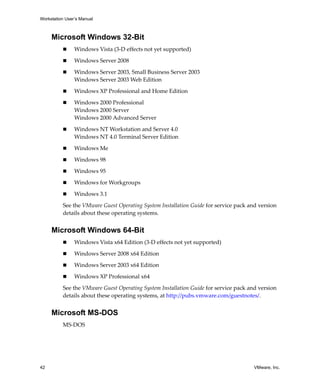
     Microsoft Windows 32-Bit
                Windows Vista (3‐D effects not yet supported)

                Windows Server 2008

                Windows Server 2003, Small Business Server 2003
                Windows Server 2003 Web Edition

                Windows XP Professional and Home Edition

                Windows 2000 Professional 
                Windows 2000 Server 
                Windows 2000 Advanced Server 

                Windows NT Workstation and Server 4.0
                Windows NT 4.0 Terminal Server Edition

                Windows Me

                Windows 98 

                Windows 95

                Windows for Workgroups

                Windows 3.1 

          See the VMware Guest Operating System Installation Guide for service pack and version 
          details about these operating systems. 


     Microsoft Windows 64-Bit
                Windows Vista x64 Edition (3‐D effects not yet supported)

                Windows Server 2008 x64 Edition

                Windows Server 2003 x64 Edition 

                Windows XP Professional x64 

          See the VMware Guest Operating System Installation Guide for service pack and version 
          details about these operating systems, at http://pubs.vmware.com/guestnotes/. 


     Microsoft MS-DOS
          MS‐DOS 


42                                                                                    VMware, Inc.
Chapter 1 Introduction and System Requirements


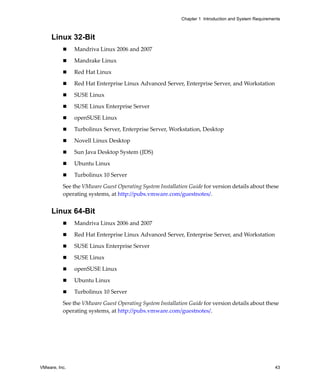
     Linux 32-Bit
               Mandriva Linux 2006 and 2007

               Mandrake Linux

               Red Hat Linux

               Red Hat Enterprise Linux Advanced Server, Enterprise Server, and Workstation

               SUSE Linux

               SUSE Linux Enterprise Server 

               openSUSE Linux

               Turbolinux Server, Enterprise Server, Workstation, Desktop

               Novell Linux Desktop

               Sun Java Desktop System (JDS)

               Ubuntu Linux

               Turbolinux 10 Server

          See the VMware Guest Operating System Installation Guide for version details about these 
          operating systems, at http://pubs.vmware.com/guestnotes/. 


     Linux 64-Bit
               Mandriva Linux 2006 and 2007

               Red Hat Enterprise Linux Advanced Server, Enterprise Server, and Workstation

               SUSE Linux Enterprise Server 

               SUSE Linux

               openSUSE Linux

               Ubuntu Linux 

               Turbolinux 10 Server

          See the VMware Guest Operating System Installation Guide for version details about these 
          operating systems, at http://pubs.vmware.com/guestnotes/. 


VMware, Inc.                                                                                         43
Workstation User’s Manual


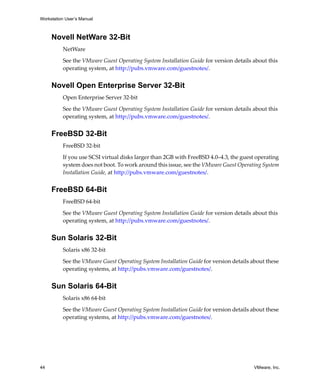
     Novell NetWare 32-Bit
          NetWare 

          See the VMware Guest Operating System Installation Guide for version details about this 
          operating system, at http://pubs.vmware.com/guestnotes/. 


     Novell Open Enterprise Server 32-Bit
          Open Enterprise Server 32‐bit

          See the VMware Guest Operating System Installation Guide for version details about this 
          operating system, at http://pubs.vmware.com/guestnotes/. 


     FreeBSD 32-Bit
          FreeBSD 32‐bit

          If you use SCSI virtual disks larger than 2GB with FreeBSD 4.0–4.3, the guest operating 
          system does not boot. To work around this issue, see the VMware Guest Operating System 
          Installation Guide, at http://pubs.vmware.com/guestnotes/. 


     FreeBSD 64-Bit
          FreeBSD 64‐bit

          See the VMware Guest Operating System Installation Guide for version details about this 
          operating system, at http://pubs.vmware.com/guestnotes/. 


     Sun Solaris 32-Bit
          Solaris x86 32‐bit

          See the VMware Guest Operating System Installation Guide for version details about these 
          operating systems, at http://pubs.vmware.com/guestnotes/. 


     Sun Solaris 64-Bit
          Solaris x86 64‐bit

          See the VMware Guest Operating System Installation Guide for version details about these 
          operating systems, at http://pubs.vmware.com/guestnotes/. 


44                                                                                      VMware, Inc.
Chapter 1 Introduction and System Requirements


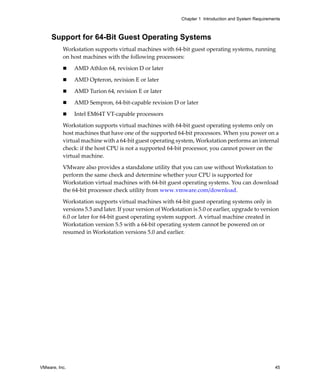
     Support for 64-Bit Guest Operating Systems
          Workstation supports virtual machines with 64‐bit guest operating systems, running 
          on host machines with the following processors:

               AMD Athlon 64, revision D or later

               AMD Opteron, revision E or later

               AMD Turion 64, revision E or later

               AMD Sempron, 64‐bit‐capable revision D or later

               Intel EM64T VT‐capable processors

          Workstation supports virtual machines with 64‐bit guest operating systems only on 
          host machines that have one of the supported 64‐bit processors. When you power on a 
          virtual machine with a 64‐bit guest operating system, Workstation performs an internal 
          check: if the host CPU is not a supported 64‐bit processor, you cannot power on the 
          virtual machine. 

          VMware also provides a standalone utility that you can use without Workstation to 
          perform the same check and determine whether your CPU is supported for 
          Workstation virtual machines with 64‐bit guest operating systems. You can download 
          the 64‐bit processor check utility from www.vmware.com/download. 

          Workstation supports virtual machines with 64‐bit guest operating systems only in 
          versions 5.5 and later. If your version of Workstation is 5.0 or earlier, upgrade to version 
          6.0 or later for 64‐bit guest operating system support. A virtual machine created in 
          Workstation version 5.5 with a 64‐bit operating system cannot be powered on or 
          resumed in Workstation versions 5.0 and earlier.


VMware, Inc.                                                                                           45
Workstation User’s Manual


46                          VMware, Inc.
2


Installing VMware
Workstation                                                                                2
          This chapter discusses how to install Workstation on your Linux or Windows host 
          system. This chapter contains the following topics:

               “Installation Prerequisites” on page 47
               “Installing Workstation on a Windows Host” on page 48
               “Installing Workstation on a Linux Host” on page 53
               “Where to Go Next” on page 56

          If you are upgrading rather than performing a fresh installation, see Chapter 3, 
          “Upgrading VMware Workstation,” on page 57.


Installation Prerequisites
          Installing VMware Workstation is usually a simple process of running a standard 
          installation wizard. This section outlines the tasks you need to perform before starting 
          an installation, and it contains an important note about the compatibility of having 
          multiple VMware products installed on the same computer as Workstation.

          Before you begin installation, be sure you have:

               Compatible host – Verify that the computer and host operating system meet the 
               system requirements for running Workstation, as described in “Host System 
               Requirements” on page 32.

               Workstation installation software – If you bought the packaged distribution of 
               Workstation, the installation software is on the CD in your package. If you bought 
               the electronic distribution, the installation software is in the file you downloaded.

               VMware Workstation is available for both Windows and Linux host computers. 
               The installation files for both host platforms are included on the same CD‐ROM.


VMware, Inc.                                                                                     47
Workstation User’s Manual


                Workstation serial number – Your serial number is on the registration card in your 
                package. If you purchased Workstation online, the serial number is sent by email.

                Your serial number allows you to use Workstation only on the host operating 
                system for which you licensed the software. For example, if you have a serial 
                number for a Windows host, you cannot run the software on a Linux host. Make 
                sure you enter the serial number for the correct operating system.

                To use Workstation on a different host operating system, purchase a license on the 
                VMware Web site. You can also get an evaluation license at no charge for a 30‐day 
                evaluation of the software. For more information, go to 
                www.vmware.com/download/. 

                A guest operating system – After Workstation is installed, you will need the 
                operating system installation CDs or OS images to set up your guest.


Sharing a Workstation Host with Other VMware Products
          You cannot have VMware Workstation installed on the same host machine with another 
          VMware product, such as VMware Server or the VMware Virtual Machine Console. 
          The only VMware products that can share a host machine with Workstation are the 
          VMware VirtualCenter client software and the VMware Converter. If you plan to install 
          VMware Workstation on a host machine that already contains another VMware 
          product, you must uninstall that product first.

          After you have completed the prerequisites and determined which computer you want 
          to use for hosting Workstation, see the appropriate installation section:

                “Installing Workstation on a Windows Host” on page 48
                “Installing Workstation on a Linux Host” on page 53


Installing Workstation on a Windows Host
          Before you perform the installation procedure, make sure you have the Workstation 6 
          serial number ready. Although you can enter the number after installation, it is 
          recommended at you enter it at installation time.

          The following procedure describes how to run the Workstation installation wizard. If 
          instead of running the wizard, you want to use the command‐line interface to perform 
          a silent installation on many computers, see “Installing Workstation Silently” on 
          page 51.


48                                                                                      VMware, Inc.
Chapter 2 Installing VMware Workstation


          To install Workstation on a Windows host

          1    Log in to your Microsoft Windows host as the Administrator user or as a user who 
               is a member of the Windows Administrators group. 

               Log in as local administrator (that is, do not log on to the domain, unless your 
               domain account is also a local administrator).

               Although an administrator must install Workstation, a normal user—without 
               administrative privileges—can run the program after it is installed. 

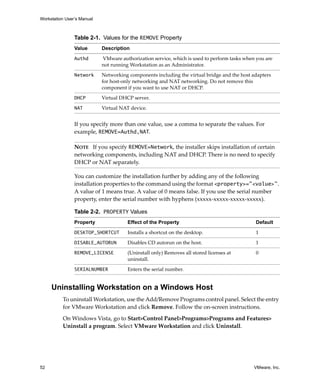
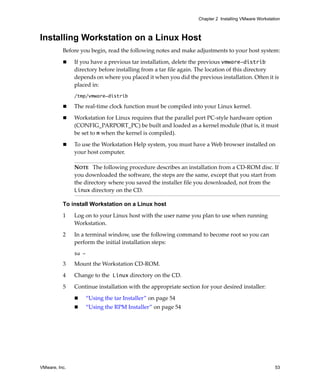
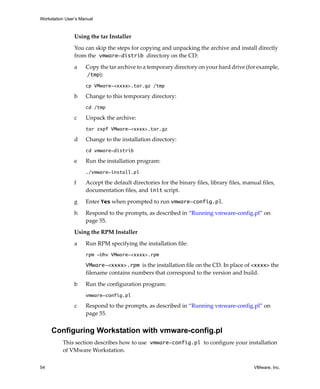
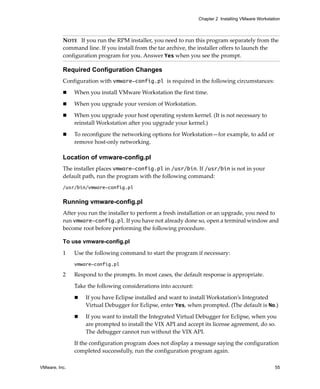
               NOTE   You need one license for each user.

          2    From the Start menu, choose Run, and specify the path to either the CD‐ROM 
               drive or the downloaded installer file:

                   If you are installing from a CD, enter D:setup.exe, where D: is the drive 
                   letter for your CD‐ROM drive.

                   If you are installing from a downloaded file, browse to the directory where 
                   you saved the downloaded installer file, and run the installer. (The filename is 
                   similar to VMware-workstation-<xxxx-xxxx>.exe, where <xxxx-xxxx> is 
                   a series of numbers representing the version and build numbers.)

               On Windows Vista, when the User Account Control dialog box appears, 
               prompting you for permission to run the installer, click Continue.

               NOTE   If you have an earlier version of Workstation installed on your system, the 
               installer removes that version before installing the new version. After the 
               uninstallation is complete, you might be prompted to restart your computer before 
               the installer can install the new version.

          3    When the wizard opens and finishes computing space requirements, click Next to 
               dismiss the Welcome page.

          4    On the Setup Type page, select Typical unless you do not want to install the 
               applicable Workstation IDE plug‐ins, or if you have Eclipse installed in a 
               non‐standard location:

                   If you have Visual Studio 2005 or Eclipse installed, the installer installs an 
                   integrated virtual debugger (IDE plug‐in). If you don’t want a plug‐in 
                   installed, select the Custom setup, and select not to install that component.

                   If you have Eclipse installed in a different directory than C:Eclipse or 
                   C:Program FilesEclipse and you want to install the integrated virtual 
                   debugger for it, select the Custom setup, and select to install that component.


VMware, Inc.                                                                                          49
Workstation User’s Manual


                NOTE   If you do not have Eclipse or Visual Studio installed, the plug‐ins will not 
                be installed. If you install one or both of these programs after you install 
                Workstation, run the Workstation installer again and select the Modify option to 
                install the plug‐ins at that time.

                Also, do not attempt to install the Eclipse Virtual Debugger on 64‐bit Windows 
                hosts.

                If you select Custom, you can use the Space button to find out how much disk 
                space is required for each component of the installation. Click the Help button for 
                a description of what each type of icon in the list means.

          5     On the Destination Folder page (for typical setups) or the Custom Setup page (for 
                custom setups), if you do not want Workstation installed in the directory that is 
                shown, click Change and specify the directory you want. 

                If you specify a directory that does not exist, the installer creates it for you. 

                CAUTION   Do not install VMware Workstation on a network drive.


          6     Click Next.

                Windows and the Microsoft Installer limit the length of a path to a folder on a local 
                drive to 255 characters. For a path to a folder on a mapped or shared drive, the limit 
                is 240 characters. If the path exceeds this limit, an error message appears. You must 
                select or enter a shorter path.

          7     On the Configure Shortcuts page, deselect any shortcuts you do not want the 
                installer to create.

          8     On the Ready to Install the Program page, either click Install or click Back to make 
                changes.

          9     (Optional) After you click Install, on the Registration Information page, enter your 
                name, company name, and serial number and click Next. 

                Your serial number is either on the registration card in your package or in an email 
                from VMware if you purchased Workstation online. The user and company 
                information you enter here is then made available in the About box (Help>About 
                VMware Workstation). 

                If you skip this step, you must enter your serial number later, before you can power 
                on a virtual machine.

          10    When the wizard displays the Installation Wizard Completed page, click Finish. 


50                                                                                           VMware, Inc.
Chapter 2 Installing VMware Workstation


          Some installations might require that you reboot your computer. When you restart, you 
          don’t need to log in as a user with Administrator privileges.


     Installing Workstation Silently
          If you are installing Workstation on several Windows host computers, you might want 
          to use the silent installation feature of the Microsoft Windows Installer. This feature is 
          convenient, for example, in a large enterprise.

          Before installing Workstation silently, ensure that the host computer has version 2.0 or 
          higher of the MSI runtime engine. This version of the installer is available in versions of 
          Windows beginning with Windows XP and is available separately from Microsoft. For 
          additional details on using the Microsoft Windows Installer, see the Microsoft Web site.

          To install Workstation silently

          1    Silently extract the administrative installation image from the VMware 
               Workstation installer:
               setup.exe /a /s /v"/qn TARGETDIR=<InstallTempPath>"

               setup.exe is the name of the installer on the CD distribution. If you are using a 
               downloaded installer, the filename is similar to 
               VMwareWorkstation-<xxxx>.exe, where <xxxx> is a series of numbers 
               representing the version and build numbers.

               <InstallTempPath> is the full path to the folder where you want to store the 
               administrative installation image.
          2    Run a silent installation using msiexec and the administrative installation image 
               you extracted in the previous step:
               msiexec -i "<InstallTempPath>VMware Workstation.msi"
                              [INSTALLDIR="<PathToProgramDirectory>"] ADDLOCAL=ALL
                              [REMOVE=<featurename,featurename>] /qn

               Enter the command on one line. To install Workstation in a location other than the 
               default, change the path that follows INSTALLDIR= to specify the location.

               Use the optional REMOVE=<property> to skip installation of certain features. The 
               REMOVE=<property> setting can take one or more of the values listed in Table 2‐1.


VMware, Inc.                                                                                           51
Workstation User’s Manual


                Table 2-1. Values for the REMOVE Property
                Value       Description

                Authd        VMware authorization service, which is used to perform tasks when you are 
                            not running Workstation as an Administrator.

                Network     Networking components including the virtual bridge and the host adapters 
                            for host‐only networking and NAT networking. Do not remove this 
                            component if you want to use NAT or DHCP.

                DHCP        Virtual DHCP server.

                NAT         Virtual NAT device.


                If you specify more than one value, use a comma to separate the values. For 
                example, REMOVE=Authd,NAT.

                NOTE   If you specify REMOVE=Network, the installer skips installation of certain 
                networking components, including NAT and DHCP. There is no need to specify 
                DHCP or NAT separately.

                You can customize the installation further by adding any of the following 
                installation properties to the command using the format <property>="<value>". 
                A value of 1 means true. A value of 0 means false. If you use the serial number 
                property, enter the serial number with hyphens (xxxxx‐xxxxx‐xxxxx‐xxxxx).

                Table 2-2. PROPERTY Values


                Property               Effect of the Property                                  Default

                DESKTOP_SHORTCUT       Installs a shortcut on the desktop.                     1

                DISABLE_AUTORUN        Disables CD autorun on the host.                        1

                REMOVE_LICENSE         (Uninstall only) Removes all stored licenses at         0
                                       uninstall.

                SERIALNUMBER           Enters the serial number.


     Uninstalling Workstation on a Windows Host
          To uninstall Workstation, use the Add/Remove Programs control panel. Select the entry 
          for VMware Workstation and click Remove. Follow the on‐screen instructions.

          On Windows Vista, go to Start>Control Panel>Programs>Programs and Features> 
          Uninstall a program. Select VMware Workstation and click Uninstall.


52                                                                                            VMware, Inc.
Chapter 2 Installing VMware Workstation


Installing Workstation on a Linux Host
          Before you begin, read the following notes and make adjustments to your host system:

               If you have a previous tar installation, delete the previous vmware-distrib 
               directory before installing from a tar file again. The location of this directory 
               depends on where you placed it when you did the previous installation. Often it is 
               placed in:
               /tmp/vmware-distrib

               The real‐time clock function must be compiled into your Linux kernel. 

               Workstation for Linux requires that the parallel port PC‐style hardware option 
               (CONFIG_PARPORT_PC) be built and loaded as a kernel module (that is, it must 
               be set to m when the kernel is compiled). 

               To use the Workstation Help system, you must have a Web browser installed on 
               your host computer.

               NOTE   The following procedure describes an installation from a CD‐ROM disc. If 
               you downloaded the software, the steps are the same, except that you start from 
               the directory where you saved the installer file you downloaded, not from the 
               Linux directory on the CD.

          To install Workstation on a Linux host

          1    Log on to your Linux host with the user name you plan to use when running 
               Workstation. 

          2    In a terminal window, use the following command to become root so you can 
               perform the initial installation steps: 
               su -

          3    Mount the Workstation CD‐ROM.

          4    Change to the Linux directory on the CD.

          5    Continue installation with the appropriate section for your desired installer:

                      “Using the tar Installer” on page 54
                      “Using the RPM Installer” on page 54


VMware, Inc.                                                                                         53
Workstation User’s Manual


                Using the tar Installer

                You can skip the steps for copying and unpacking the archive and install directly 
                from the vmware-distrib directory on the CD:

                a    Copy the tar archive to a temporary directory on your hard drive (for example, 
                     /tmp):
                     cp VMware-<xxxx>.tar.gz /tmp

                b    Change to this temporary directory:
                     cd /tmp

                c    Unpack the archive:
                     tar zxpf VMware-<xxxx>.tar.gz

                d    Change to the installation directory:
                     cd vmware-distrib

                e    Run the installation program:
                     ./vmware-install.pl

                f    Accept the default directories for the binary files, library files, manual files, 
                     documentation files, and init script. 

                g    Enter Yes when prompted to run vmware-config.pl.

                h    Respond to the prompts, as described in “Running vmware‐config.pl” on 
                     page 55.

                Using the RPM Installer

                a    Run RPM specifying the installation file:
                     rpm -Uhv VMware-<xxxx>.rpm

                     VMware-<xxxx>.rpm is the installation file on the CD. In place of <xxxx> the 
                     filename contains numbers that correspond to the version and build.

                b    Run the configuration program:
                     vmware-config.pl

                c    Respond to the prompts, as described in “Running vmware‐config.pl” on 
                     page 55.


     Configuring Workstation with vmware-config.pl
          This section describes how to use vmware-config.pl to configure your installation 
          of VMware Workstation. 

54                                                                                           VMware, Inc.
Chapter 2 Installing VMware Workstation


          NOTE   If you run the RPM installer, you need to run this program separately from the 
          command line. If you install from the tar archive, the installer offers to launch the 
          configuration program for you. Answer Yes when you see the prompt.

          Required Configuration Changes
          Configuration with vmware-config.pl is required in the following circumstances:

               When you install VMware Workstation the first time.

               When you upgrade your version of Workstation.

               When you upgrade your host operating system kernel. (It is not necessary to 
               reinstall Workstation after you upgrade your kernel.)

               To reconfigure the networking options for Workstation—for example, to add or 
               remove host‐only networking.

          Location of vmware-config.pl
          The installer places vmware-config.pl in /usr/bin. If /usr/bin is not in your 
          default path, run the program with the following command:
          /usr/bin/vmware-config.pl

          Running vmware-config.pl
          After you run the installer to perform a fresh installation or an upgrade, you need to 
          run vmware-config.pl. If you have not already done so, open a terminal window and 
          become root before performing the following procedure.

          To use vmware-config.pl

          1    Use the following command to start the program if necessary:
               vmware-config.pl

          2    Respond to the prompts. In most cases, the default response is appropriate. 

               Take the following considerations into account:

                   If you have Eclipse installed and want to install Workstation’s Integrated 
                   Virtual Debugger for Eclipse, enter Yes, when prompted. (The default is No.)

                   If you want to install the Integrated Virtual Debugger for Eclipse, when you 
                   are prompted to install the VIX API and accept its license agreement, do so. 
                   The debugger cannot run without the VIX API.

               If the configuration program does not display a message saying the configuration 
               completed successfully, run the configuration program again.

VMware, Inc.                                                                                         55
Workstation User’s Manual


          3     When done, exit from the root account:
                exit

          The first time you attempt to power on a virtual machine, you are prompted to enter 
          the Workstation 6 serial number. 


     Uninstalling Workstation on a Linux Host
          This section describes uninstalling an RPM installation and a tar installation.

          Uninstalling an RPM Installation of Workstation
          If you used the RPM installer to install Workstation, remove the software from your 
          system by using the following command:
          rpm -e VMwareWorkstation<xxxx>

          Where <xxxx> is a series of numbers representing the version and build. If you have 
          Workstation properly installed, you can find the Workstation build number by running:
          rpm -qa | grep VM

          Uninstalling a tar Installation of Workstation
          If you used the tar installer to install Workstation, remove the software from your 
          system by using the following command:
          vmware-uninstall.pl


Where to Go Next
          After Workstation is installed, you will:

          1     Create a virtual machine. 

                See Chapter 5, “Creating a New Virtual Machine,” on page 89.

          2     Install a guest operating system in the new virtual machine. 

                See “Installing a Guest Operating System” on page 97 or the VMware Guest 
                Operating System Installation Guide, available from the Help menu.

          3     Install the VMware Tools package in the virtual machine. 

                See Chapter 6, “Installing and Using VMware Tools,” on page 113.

          4     Start using the virtual machine. 

                See Chapter 4, “Learning Workstation Basics,” on page 65 and Chapter 7, 
                “Running a Virtual Machine,” on page 149.

56                                                                                      VMware, Inc.
3


Upgrading VMware
Workstation                                                                              3
          This chapter discusses how to upgrade VMware Workstation 4 or 5 on your Linux or 
          Windows host system, and how to use existing virtual machines under Workstation 6. 
          This chapter contains the following topics:

               “Preparing for the Upgrade” on page 57
               “Upgrading on a Windows Host” on page 59
               “Upgrading on a Linux Host” on page 60
               “Using Workstation 4 or 5 Virtual Machines in Workstation 6” on page 61

          Direct upgrades from a Workstation 3 virtual machine are not supported in 
          Workstation 6.


Preparing for the Upgrade
          This section lists the tasks you need to perform to ensure the best possible upgrade 
          experience. 


     Removing Snapshots and Shutting Down Suspended Virtual
     Machines
          To use virtual machines created in an earlier version of Workstation, you can upgrade 
          the virtual machine after you upgrade to the new release of Workstation. If the virtual 
          machine was created with a version of Workstation earlier than Workstation 5.5 and it 
          has a snapshot, remove the snapshot before upgrading, as described in “Working with 
          Snapshots in the Snapshot Manager” on page 233. 


VMware, Inc.                                                                                      57
Workstation User’s Manual


          Shut down virtual machines completely before you remove the version of Workstation 
          that you used to create them. If a virtual machine is suspended, resume it, shut down 
          the guest operating system, and power off the virtual machine. 

          NOTE   If you attempt to resume a virtual machine that was suspended under a different 
          VMware product or a different version of Workstation, a dialog box gives you the 
          choice of discarding or keeping the file that stores the suspended state. To recover the 
          suspended state, click Keep, and resume the virtual machine under the correct VMware 
          product or version. If you click Discard, you can power on normally, but the suspended 
          state is lost.


     Backing Up Virtual Machines
          Back up all the files in your virtual machine directories for any existing Workstation 4 
          or 5 virtual machines you plan to migrate to Workstation 6. This includes .vmdk or 
          .dsk, .vmx or .cfg, and .nvram files. Depending on your upgrade path, you might 
          not be able to run your virtual machines under both Workstation 6 and your previous 
          version of Workstation. 

          Direct upgrades from a Workstation 2 or 3 virtual machine are not supported in 
          Workstation 6.


     Removing Workstation 2 or 3 to Install Workstation 6
          To install Workstation 6 on a computer where Workstation 2 or 3 is already installed, 
          uninstall the old version before installing the new one. 

          On a Windows host, the uninstaller might ask to remove licenses from your registry. If 
          there is any possibility that you might want to reinstall the old version, do not allow the 
          uninstaller to remove the licenses. You can safely keep licenses for multiple VMware 
          products on the computer at the same time.

          On a Linux host, the license remains in place. You can safely leave the license where it is. 

          When the old version has been uninstalled, you can install Workstation 6, as described 
          in the following sections:

                “Installing Workstation on a Windows Host” on page 48
                “Installing Workstation on a Linux Host” on page 53

          NOTE   If you have Workstation version 2 or 3 virtual machines that you want to use 
          with Workstation 6, upgrade the virtual machines to at least Workstation version 4 
          before you install Workstation 6.


58                                                                                         VMware, Inc.
Chapter 3 Upgrading VMware Workstation


Upgrading on a Windows Host
          You can upgrade from Workstation version 4 or 5 to version 6 by running the VMware 
          Workstation 6 installation program, as described in this section. Make sure that you 
          have a Workstation 6 serial number before you start. Upgrades from earlier versions of 
          Workstation are not supported. For more information, see “Removing Workstation 2 or 
          3 to Install Workstation 6” on page 58.

          To upgrade from Workstation version 4 or 5

          1     Log in to your Microsoft Windows host as the Administrator user or as a user who 
                is a member of the Windows Administrators group. 

          2     Launch the Workstation 6 installer from your download directory or CD‐ROM.

                Workstation automatically uninstalls the previous version.

          3     Reboot your computer if you are prompted to do so, and log in again as the 
                Administrator user or as a user who is a member of the Windows Administrators 
                group. 

          4     Complete the installation wizard. 

                For detailed instructions on running the installer, see “Installing Workstation on a 
                Windows Host” on page 48.

          5     Reboot your computer if you are prompted to do so. 

                You can now log in as you normally do. You do not need to log in as an 
                Administrator now that Workstation is installed.


     Upgrading to a Windows Vista Host
          This section provides instructions for various upgrade scenarios that involve Windows 
          Vista. In sections that instruct you to uninstall Workstation 5, you need only uninstall 
          the VMware Workstation application, not the virtual machines that you have created. 
          After you uninstall Workstation 5 and then install Workstation 6, you can power on the 
          virtual machines and upgrade them if you want to. This procedure is described in 
          “Changing the Version of the Virtual Machine” on page 61.

          During the upgrade from Windows XP to Windows Vista, the location of virtual 
          machines might get changed. The Windows Vista upgrade uses the registry to map the 
          previous location of any virtual machines stored in:
          C:Documents and Settings<user>My Virtual Machines

          to 
          C:Users<user>DocumentsMy Virtual Machines


VMware, Inc.                                                                                         59
Workstation User’s Manual


          After the upgrade is complete, the Favorites list in Workstation should work correctly. 

          Workstation 5 on Windows XP to Workstation 6 on Windows Vista
          If you have Workstation 5 installed on a Windows XP host, first, uninstall 
          Workstation 5. Use the Control Panel’s Add/Remove Programs item to uninstall 
          Workstation. Next, upgrade the operating system to Windows Vista. Finally, install 
          Workstation 6, as described in “Installing Workstation on a Windows Host” on page 48.

          Workstation 5 on Windows Vista to Workstation 6 on Windows Vista
          If you have Workstation 5 installed on a Windows Vista host, first, uninstall 
          Workstation 5. Go to Start>Control 
          Panel>Programs>Programs and Features>Uninstall a program. Select VMware 
          Workstation and click Uninstall. Next, install Workstation 6, as described in “Installing 
          Workstation on a Windows Host” on page 48. Workstation 5 was only experimentally 
          supported on Windows Vista.

          Workstation 6 on Windows XP to Workstation 6 on Windows Vista
          The instructions in this section assume that you have Windows XP with Service Pack 2.

          To upgrade Workstation 6 from Windows XP to Windows Vista

          1     Log in as the Administrator user or as a user who is a member of the Windows 
                Administrators group. 

          2     Make sure that Workstation is not running and that no virtual machines are 
                running in the background.

          3     Upgrade the host operating system to Windows Vista, as described in the 
                Microsoft documentation.

          4     Start Workstation and power on a virtual machine.


Upgrading on a Linux Host
          You can upgrade from Workstation version 4 or 5 to version 6 by running the VMware 
          Workstation 6 installation program, as described in Chapter 2, “Installing VMware 
          Workstation,” on page 47. Make sure that you have a Workstation 6 serial number 
          before you start. You will be prompted to enter the serial number after installation is 
          complete, when you first attempt to start Workstation 6.

          NOTE   Starting with Workstation 5, Samba is no longer automatically configured when 
          you run vmware-config.pl.


60                                                                                       VMware, Inc.
Chapter 3 Upgrading VMware Workstation


          If you used the tar installer to install Workstation version 4 or 5 and you plan to use the 
          tar installer for version 6, you do not need to uninstall the older version. 

          Similarly, if you used the RMP installer to install version 4 or 5 and you plan to use the 
          RMP installer for version 6, you do not need to uninstall the older version. 

          If you used a tar installer to install version 4 or 5, and you want to use the RPM installer 
          for version 6, or the reverse, you do not need to uninstall the older version. 


Using Workstation 4 or 5 Virtual Machines in
Workstation 6
          Use either of these approaches:

               “Using an Older‐Version Virtual Machine Without Upgrading” on page 61
               “Changing the Version of the Virtual Machine” on page 61


     Using an Older-Version Virtual Machine Without Upgrading
          You might not want to upgrade a virtual machine because you want it to remain 
          compatible with other VMware products you are using. Following is a brief summary 
          of VMware product version compatibility:

               A virtual machine created in Workstation 4.x is compatible with GSX Server 3.x, 
               ESX Server 2.x, and ACE 1.0. 

               A virtual machine created in Workstation 5.x is compatible with VMware Server 
               1.x, ESX Server 3.x, and VMware Player 1.x.

          You can run these virtual machines in Workstation 6, but you will not have the benefits 
          of the new features of Workstation 6. 

          For more information about compatibility between VMware products, refer to the 
          VMware Virtual Machine Mobility Planning Guide. 

          If you decide not to upgrade a virtual machine, you still need to upgrade VMware Tools 
          to the new version. Follow the instructions for your guest operating system in 
          “Installing and Upgrading VMware Tools” on page 115. Do not remove the older 
          version of VMware Tools before installing the new version.


     Changing the Version of the Virtual Machine
          If you created virtual machines with an earlier version of Workstation, you will 
          probably want to upgrade to the latest version so that you can enjoy the benefits of the 
          newest features. For more information about new features, see “What’s New in 
          Version 6” on page 22.

VMware, Inc.                                                                                         61
Workstation User’s Manual


          If, however, you created Workstation 6 virtual machines but you now want to deploy 
          those virtual machines to run on a different VMware product, you might need to 
          downgrade to a version that is compatible with that product.
          The Change Version wizard enables you to do either of these tasks. 

          Using Workstation 6, you have the following upgrade and downgrade choices:

                Upgrade a Workstation 4 virtual machine to either version 5 or version 6.

                Upgrade a Workstation 5 virtual machine to version 6 or downgrade it to version 4.

                Downgrade a Workstation 6 virtual machine to either version 4 or version 5.

          The Change Version wizard also helps you determine which virtual hardware version 
          to use.

          Consider the following when changing the virtual hardware version of a virtual 
          machine:

                The wizard lets you either change the version of the original virtual machine or 
                create a full clone, so that the original remains unaltered.

                If you upgrade a Workstation 4 or 5 virtual machine that is compatible with ESX 
                Server to Workstation 6, you will not be able to later downgrade it again to an 
                ESX‐compatible virtual machine by using the Change Version wizard. 

                On Windows hosts, you can, however use the Converter Import wizard 
                (File>Import) to perform such a downgrade.

                If you are upgrading a virtual machine that runs from a physical disk, you might 
                see the following error message while Workstation is upgrading the virtual 
                machine: “Unable to upgrade <drivename>. One of the supplied parameters is 
                invalid.” Click OK to continue the upgrade process.

                When you upgrade a Windows XP, Windows Server 2003, or Windows Vista 
                virtual machine, the Microsoft product activation feature might require you to 
                reactivate the guest operating system.

                Make backup copies of your virtual disks before starting the upgrade or 
                downgrade.


62                                                                                      VMware, Inc.
Chapter 3 Upgrading VMware Workstation


          To change the virtual hardware version of a virtual machine

          1    In the guest operating system, make a note of the NIC settings.

               Specifically, if you have specified a static IP address for this virtual machine, after 
               the upgrade, that setting could get changed to automatic assignment by DHCP.

               To check the NIC settings, use the method appropriate for your operating system. 
               For example, on Windows XP, you can use the Control Panel’s Network 
               Connections item to find information about the TCP/IP address for the virtual 
               machine.

          2    Shut down the guest operating system and power off the virtual machine.

          3    Select the virtual machine and, from the Workstation menu bar, choose 
               VM>Upgrade or Change Version.

          4    Complete the pages of the Change Version wizard.

               When you select a hardware compatibility version, you see a list of the VMware 
               products that are compatible with that version. If you select Workstation 4 or 5, you 
               also see a list of Workstation 6 features that are not supported for that version.

          5    Power on the virtual machine.

          6    In the guest operating system, check the NIC settings and adjust them if they 
               changed, as described in Step 1.

          7    If the virtual machine does not have the latest version of VMware Tools installed, 
               upgrade VMware Tools.

               Even if, for example, you upgraded a version 4 virtual machine to version 5 rather 
               than version 6, you should still upgrade VMware Tools to the version of Tools 
               included with Workstation 6. Refer to “Installing and Upgrading VMware Tools” 
               on page 115. Do not remove the older version of VMware Tools before installing 
               the new version.

               NOTE   If you are upgrading a virtual machine that runs from a physical disk, you 
               can safely ignore the message: “Unable to upgrade <drivename>. One of the 
               supplied parameters is invalid.” Click OK to continue the upgrade.


VMware, Inc.                                                                                         63
Workstation User’s Manual


64                          VMware, Inc.
4


Learning Workstation
Basics                                                                               4
          This chapter discusses launching the Workstation program and introduces the VMware 
          Workstation window. This chapter contains the following topics:

               “Starting Workstation” on page 66
               “Overview of the Workstation Window” on page 66
               “Checking for Product Updates” on page 78
               “Introduction to Creating a Virtual Machine” on page 79
               “Introduction to Workstation Preferences” on page 81
               “Introduction to Virtual Machine Settings” on page 83
               “Closing Virtual Machines and Exiting Workstation” on page 86
               “Keyboard Shortcuts” on page 87

          The illustrations in these sections show a Windows XP guest operating system.


VMware, Inc.                                                                              65
Workstation User’s Manual


Starting Workstation
          The method of starting the Workstation application depends on your host operating 
          system.

          To start Workstation on a Windows host

          1     From the Start menu, choose Start>Programs>VMware>VMware Workstation, or 
                double‐click the shortcut on your desktop.


          2     If this is the first time you have launched Workstation, read and accept the end user 
                license agreement (EULA). 

                The VMware Workstation window opens.

          To start Workstation on a Linux host

          1     Open a terminal window.

          2     Type vmware & and press Enter.

                By default, the installer places the file in /usr/bin. If /usr/bin is not in your 
                default path, run the program with the following command:
                /usr/bin/vmware &

                NOTE   On Linux hosts, the Workstation installer adds an entry to the Start menu 
                for VMware Workstation. This menu entry is located in different submenus, 
                depending on your Linux distribution. For example:

                SUSE Linux 9.1: Start>System>More Programs>VMware Workstation

                Red Hat Enterprise Linux AS/WS Release 3: Start>System Tools>More System 
                Tools>VMware Workstation

          3     Read and accept the end user license agreement (EULA). 

                The Workstation window opens.


Overview of the Workstation Window
          A Workstation virtual machine is like a separate computer that runs in a window on 
          your physical computer. However, Workstation displays more than the screen of 
          another computer. From the Workstation window, you can access and run your virtual 


66                                                                                         VMware, Inc.
Chapter 4 Learning Workstation Basics


          machines and teams of virtual machines. You can also switch easily from one to 
          another.

          This section shows you how to navigate and use the VMware Workstation window, and 
          how to set up a list of favorites. Favorites are virtual machines and teams that you use 
          often and want to access quickly.

          Figure 4-1. VMware Workstation Window

           menus
           toolbar
                                                                                         tabs
                                                                              ,
           sidebar                                                                       home page,
                                                                                         summary, or
                                                                                         console
                                                                                         view


                                                                                         message
           status                                                                        log
           bar

          The VMware Workstation window contains the following sections: 
               Home page, summary, console, or appliance view – This main part of the window 
               shows your virtual machines.

               Tabs – Each open virtual machine has its own tab. Click a tab to make that virtual 
               machine active. Click the X to close the tab. Depending on how you configure 
               Workstation, the virtual machine is then either powered off or continues to run in 
               the background.

               Sidebar – Bookmark your favorite virtual machines and teams of virtual machines 
               for quick access. You can also see which virtual machines are powered on. 
               Right‐click context menus enable you to perform many operations on a selected 
               virtual machine.

               If you have Workstation ACE Edition, an additional section of the sidebar displays 
               ACE Management Servers. For a description of this product, see “Upgrade Path to 
               Workstation ACE Edition” on page 22.


VMware, Inc.                                                                                        67
Workstation User’s Manual


                Status bar – This area displays Workstation messages and an icon for each 
                removable device. You can right‐click an icon to disconnect it or edit its 
                configuration.

                Message log— A note icon that indicates whether any unread messages are 
                present in the message log for the selected virtual machine. If the icon is dimmed, 
                all messages have been read. To open the message log, either double‐click the icon 
                or right‐click it and choose Open Message Log. Alternatively, from the menu bar, 
                choose VM>Message Log.

                Messages include warning information about the virtual machine, such as “Could 
                not connect to the floppy drive” or “No bootable device was detected.” Select an 
                item in the message log to see a longer description of the message. 


     Home Page and Views
          Workstation displays one of four views in the main part of the window: the home page, 
          the summary view, the console view, or the appliance view.

          Home Page
          Click the Home tab to display the Workstation home page. Use the icons on the home 
          page to start creating a new virtual machine or open an existing virtual machine.

          To close the home page, click the X to the right of the tabs on a Windows host or the X 
          on the tab on a Linux host. To display the home page again, choose View>Go to Home 
          Tab.

          Summary View
          When you select a tab for a powered‐off virtual machine or team of machines, 
          Workstation displays a summary of the configuration information about that item. 
          Workstation also displays a summary for a suspended virtual machine or team. Click 
          the Summary toolbar button at any time to examine settings in the summary view.

          NOTE   Summary tabs appear only for virtual machines that are currently open. To open 
          a virtual machine that is not displayed, choose File>Open>Virtual Machine, navigate 
          to the virtual machine’s .vmx file, and select Open. The summary or console tab 
          remains visible as long as the virtual machine remains open.


68                                                                                       VMware, Inc.
Chapter 4 Learning Workstation Basics


          Figure 4‐2 shows an example of the summary view for Workstation. The summary 
          view for Workstation ACE Edition includes additional sections for policies, package 
          settings and history, and other ACE‐specific functionality. For more information, see 
          the VMware ACE Administrator’s Manual. 

          Figure 4-2. Summary View for a Virtual Machine (Windows Host)
                                        Summary View button


VMware, Inc.                                                                                        69
Workstation User’s Manual


          Console View
          The console view for an active virtual machine is like the monitor display of a physical 
          computer. 

          Figure 4-3. Console View (Windows Host)
                                                            Console View button


          When a virtual machine is active, the name of the virtual machine or team of virtual 
          machines is displayed in a tab at the top of the console. To switch from the active virtual 
          machine or team, click the tab of another virtual machine or team. You can use the 
          console tabs in the windowed mode and also in the quick switch mode.

          Appliance View
          If you set up the virtual machine to act as an “appliance,” such as a Web server with a 
          browser‐based console, you can specify that the default view should be an appliance 
          view. The appliance view gives you a brief description of the type of server or appliance 
          and provides a link that opens the browser on the host system and connects to the 
          appliance’s management console.


70                                                                                        VMware, Inc.
Chapter 4 Learning Workstation Basics


          Figure 4-4. Appliance View (Windows Host)
                                                   Appliance View button


          Appliance view is available only for virtual machines that you designate as appliances, 
          as described in “Displaying the Virtual Machine as an Appliance” on page 170. 

          Displaying Multiple Virtual Machines at the Same Time
          To simultaneously view more than one virtual machine when they are not all on the 
          same team, open multiple Workstation windows and launch one or more virtual 
          machines in each Workstation window. Alternately, use a team to coordinate and use 
          multiple virtual machines within a single console window. See “Viewing Teams and 
          Their Virtual Machines” on page 260 for a complete description of the console view for 
          teams.


     Toolbar Buttons
          The toolbar area at the top of the VMware Workstation window contains buttons you 
          can click to power your virtual machines on and off, change the Workstation display, 
          manage snapshots, and record virtual machine activity. 

          Figure 4-5. Workstation Toolbar


               Power toolbar    Snapshot toolbar      View toolbar                  Replay toolbar


VMware, Inc.                                                                                        71
Workstation User’s Manual


          The following list describes the toolbar buttons. To customize the toolbar display, see 
          “Customizing the Toolbar” on page 74.

          CAUTION   When a team is active, clicking the Power On, Power Off, Suspend, Resume, 
          or Reset button affects all the virtual machines in that team.

                Power toolbar:

                     Power Off – Turns off the active virtual machine or team like the power button 
                     on a hardware PC. You can configure Workstation for a soft power off (called 
                     shut down) or a hard power off (called power off). See “Shutting Down a 
                     Virtual Machine” on page 154 or “Starting and Stopping Teams” on page 264.

                     Suspend – Stops a virtual machine or team in a manner that allows you to 
                     resume your work later. See “Using the Suspend and Resume Features” on 
                     page 225.

                     Power On or Resume – Powers on a selected virtual machine or team that is 
                     powered off, or resumes a virtual machine or team that is suspended.

                            Power On – See “Starting a Virtual Machine” on page 150, or “Starting 
                            and Stopping Teams” on page 264.

                            Resume – See “Using the Suspend and Resume Features” on page 225.

                     Reset – Resets a virtual machine or team like the reset button on a physical PC. 
                     See “Powering Off Versus Shutting Down and Resetting Versus Restarting” on 
                     page 154.

                Snapshot toolbar:

                     Take Snapshot – Allows you to save the state of a virtual machine in the same 
                     manner you might save a word‐processing document. You can come back to 
                     that state if you make a mistake by using the Revert button. See “Using 
                     Snapshots” on page 227.

                     Revert – Allows you to return a virtual machine to the parent state, a state 
                     previously preserved by taking a snapshot. See “Using Snapshots” on 
                     page 227.

                     Manage Snapshots – Opens the snapshot manager, where you can view the 
                     virtual machine’s existing snapshots, revert to a snapshot, take a new 
                     snapshot, and make a clone from a snapshot. See “Working with Snapshots in 
                     the Snapshot Manager” on page 233.


72                                                                                         VMware, Inc.
Chapter 4 Learning Workstation Basics


               View toolbar:

                   Show or Hide Sidebar – Toggles between showing and hiding the sidebar. See 
                   “Sidebar” on page 75.

                   Quick Switch – Enlarges the Workstation console to cover the entire host 
                   monitor. Console tabs are visible, allowing you to switch between your virtual 
                   machines and teams with a single click. See “Using Quick Switch Mode” on 
                   page 159.

                   Full Screen – Enlarges the virtual machine display to cover the entire host 
                   monitor. The virtual machine no longer appears in a window. See “Using Full 
                   Screen Mode” on page 158.

                   NOTE   Workstation menus and toolbar are not visible in full screen mode. 
                   Move your cursor to the top of the screen to show the full screen toolbar. Press 
                   Ctrl+Alt+Enter to restore the Workstation window.

                   If you cannot enter full screen mode when the guest’s display mode is smaller 
                   than the host’s display mode, try adding the following line to the virtual 
                   machine’s configuration (.vmx) file:
                   mks.maxRefreshRate=1000

                   See “Files That Make Up a Virtual Machine” on page 110 for a description of 
                   this file.

                   Summary View – Displays the summary view. See “Summary View” on 
                   page 68.

                   Appliance View – Displays the appliance view. See “Appliance View” on 
                   page 70.

                   Console View – Displays the console view. See “Console View” on page 70.

               Replay toolbar:

                   Replay Last Recording – Plays the last recording made for this virtual 
                   machine. 

                   Record – Begins recording the activity of this virtual machine.

                   Stop – Stops recording the activity of this virtual machine.

               For information about the experimental record/replay feature, see “Recording and 
               Playing Back Virtual Machine Activity” on page 242.


VMware, Inc.                                                                                         73
Workstation User’s Manual


          Customizing the Toolbar
          You can customize the Workstation toolbar by adding, removing, and rearranging 
          toolbar buttons. On a Windows host, the toolbar buttons are arranged in separate 
          toolbars for power buttons, snapshot buttons, view buttons, and record/replay buttons. 
          On a Linux host, all the buttons are contained in a single toolbar.

          To customize the toolbar display on a Linux host

          1     Right‐click the far‐right side of the toolbar to display a Toolbar menu. 


          2     Choose Power, Snapshot, View, or Replay to add or remove the corresponding 
                toolbar buttons. 

                When a choice is checked, the corresponding buttons are displayed.

          3     In the lower part of the menu, choose the display style for toolbar buttons.

          To customize the toolbar display on a Windows host

          1     Right‐click any part of the toolbar to display a Toolbar menu. 


          2     Click Power, Snapshot, View, or Replay to add or remove that toolbar. 

                When a toolbar is checked, it is displayed.
                To change which buttons appear in a toolbar or the order in which they appear, 
                display that toolbar and continue with the following steps.


74                                                                                          VMware, Inc.
Chapter 4 Learning Workstation Basics


          3    Right‐click the Power, Snapshot, View, or Replay toolbar to open the Customize 
               Toolbar window.

               The Customize Toolbar window for that toolbar appears. Buttons listed under 
               Current Toolbar Buttons are displayed in the toolbar, in the order shown in the 
               Customize Toolbars window. 

          4    Make any of the following changes:

                   To add or remove a button from the toolbar, select the button and click Add or 
                   Remove. Add a separator to display a vertical line between the buttons.

                   To change the order of the buttons, select any button under Current Toolbar 
                   Buttons and click Move Up or Move Down to rearrange the buttons. 

                   You can also change the order of the currently displayed buttons without 
                   opening the Customize Toolbar window: Hold down the Shift key while you 
                   drag and drop a button to a different location in the toolbar.

                   To restore the default setup, with all buttons displayed, click Reset.

          5    Click Close.


     Sidebar
          The sidebar contains a list of favorites and shows which virtual machines or teams of 
          virtual machines are currently powered on. If you have Workstation ACE Edition, an 
          additional section of the sidebar displays ACE Management Servers. (For a description 
          of this product, see “Upgrade Path to Workstation ACE Edition” on page 22.) 

          To toggle the display of the Sidebar list on or off

          Choose View>Sidebar.

          If the sidebar was visible, it becomes hidden. If it was hidden, it is displayed.

          The Favorites List
          The Favorites list lets you organize and access frequently used items. 


VMware, Inc.                                                                                          75
Workstation User’s Manual


                Figure 4-6. Favorites List in the Sidebar


                right-click menu


                Suspended icon


                Powered On icon


                Workstation 4
                virtual machine


          The Favorites list provides the following benefits:
                Fast access – Quickly access frequently used items. With your virtual machines 
                and teams on the Favorites list, you can open them without browsing the host file 
                system. Also like browser bookmarks, Favorites list icons can be organized in 
                folders, added, rearranged, or deleted.

                Status – Different icons indicate the status of virtual machines and teams. A 
                Favorites list icon indicates whether the team or virtual machine is powered off, 
                powered on, or suspended. A brown (rather than blue) virtual machine icon 
                indicates that the virtual machine is a Workstation 4 virtual machine.

                Right‐click commands – Right‐click on a Favorites icon to display a menu of 
                commands you can use for that virtual machine or team. You can click elsewhere 
                in the Favorites list (that is, not on a virtual machine or team) to display a context 
                menu from which you can choose to create a new virtual machine, team, or folder. 
                You can also open an existing virtual machine, team, Microsoft Virtual PC or 
                Virtual Server virtual machine, StorageCraft, or Symantec Backup Exec System 
                Recovery system image. 


76                                                                                         VMware, Inc.
Chapter 4 Learning Workstation Basics


          To create folders for organizing favorites

          1    Right‐click Favorites (or any item in the Favorites list), and choose New Folder.

          2    Complete the New Folder dialog box that appears.

               You can also drag and drop folders to place one inside another.

          3    Drag and drop Favorites items in the desired folder.

          To add a virtual machine or team entry to the Favorites list

          1    Launch Workstation. For instructions, see “Starting Workstation” on page 66.
          2    Choose File>Open and browse to the location of the virtual machine (.vmx file) or 
               team (.vmtm file) that you want to add as a favorite.

          3    Choose File>Add to Favorites.

               The virtual machine or team name appears in the Favorites list.

          To add a powered on virtual machine or team to the Favorites list

          1    In the sidebar, right‐click the virtual machine or team in the Powered On list.

          2    From the context menu that appears, choose Add to Favorites.

               The virtual machine name appears in the Favorites list.

          To remove a name from the Favorites list

          1    Click a name in the Favorites list to select it.

          2    Choose File>Remove from Favorites.

               The virtual machine name is removed from the Favorites list.

          You can remove the name of a virtual machine from the Favorites list at any time. 
          Removing the name does not affect the virtual machine’s files or operation. You can add 
          the virtual machine to the list again at any time.

          To remove the currently open virtual machine from the Favorites list

          Choose File>Remove from Favorites.

          The virtual machine is removed from the Favorites list.


VMware, Inc.                                                                                          77
Workstation User’s Manual


          To rename a Favorite list entry for a virtual machine or a team

          1     Right‐click the Favorites item you want to rename.

          2     Choose Rename from the context menu.

          3     Type the new name for the item and press Enter.

                Another way to change the name of a virtual machine or team is to choose 
                VM>Settings>Options>General (for a virtual machine), or 
                Team>Settings>Options (for a team), and type the new name into the Name field. 

                NOTE   Changing the name is for display only and does not rename the virtual 
                machine files on the host.

          Powered On List
          This list enables you to find out which virtual machines or teams are currently powered 
          on. Right‐click items in the Powered On list to display a menu of commands you can 
          use for that virtual machine or team.

          Alternatively, you can see the same information about which machines are powered on 
          by right‐clicking the virtual machine status icon in the notification area of your host’s 
          taskbar.


Checking for Product Updates
          Workstation automatically checks for product updates. By default, it checks once a 
          week, at the time you launch Workstation. You can change the interval for the automatic 
          checks by using the following procedure.

          To have VMware Workstation check for updates

          1     Choose Edit>Preferences>Workspace. 

          2     On the Check for Software Updates drop‐down menu, set the interval.

          The Software updates section of the Workspace tab shows the time and result of the 
          most recent automatic check for updates and the time of the next scheduled check. 

          You can check for updates manually by choosing Help>Check for Updates on the 
          Web. Alternatively, on Linux, click Check Now on the Workspace tab of the 
          preferences editor (from the Workstation menu bar, choose Edit>Preferences).

          NOTE   Checking for product updates works only if the host computer is connected to 
          the Internet.


78                                                                                       VMware, Inc.
Chapter 4 Learning Workstation Basics


Introduction to Creating a Virtual Machine
          The instructions in this section get you started quickly with creating a virtual machine. 
          Once you create a virtual machine, you will find the information in the rest of this 
          chapter easier to understand.

          The instructions in this section tell you to accept the default settings so that you can 
          complete the New Virtual Machine wizard quickly. Completing the procedure is like 
          completing a tutorial. Later, when you want to create virtual machines that you actually 
          use in your work or in a production environment, you will want gain a deeper 
          understanding of all the options available. This detailed information is provided in 
          Chapter 5, “Creating a New Virtual Machine,” on page 89.

          If you have an installation CD for a particular operating system, use the following 
          procedure. For simplicity, it’s recommended that you use a Windows installation CD. 
          Most Windows operating systems fit on one CD‐ROM, whereas Linux requires 
          multiple CDs. 

          To create a virtual machine and install the guest operating system

          1    Start VMware Workstation. 

               For instructions, see “Starting Workstation” on page 66.

          2    Choose File>New>Virtual Machine, to start the New Virtual Machine wizard and 
               click Next.

          3    In the Select the Appropriate Configuration page, select Typical and click Next.

          4    On the Select a Guest Operating System page, select the operating system 
               (including the version) that you intend to install in the new virtual machine and 
               click Next. 

          5    Complete the rest of the wizard pages as follows:

                   Name the Virtual Machine page – Click Next to accept the default.

                   Network Type page – Select NAT and click Next. For Windows guests, it is 
                   recommended that you use NAT until you install security software, such as 
                   antivirus software.

                   Specify Disk Capacity page – Click Finish.

                   Virtual machine created successfully – Click Close.

               The virtual machine is created and its name is added to the Favorites list.

          6    Insert the installation disc for the operating system in the host computer’s 
               CD‐ROM drive.


VMware, Inc.                                                                                         79
Workstation User’s Manual


          7     In the Workstation window, on the tab for the newly created virtual machine, in the 
                Commands section, click Start this virtual machine. 

                On Linux hosts, the command is called Power on this virtual machine.

                The console view for the virtual machine appears. Soon the boot device (the 
                CD‐ROM) is detected and you are prompted to begin installation of the operating 
                system.

          8     Follow the installation instructions provided by the operating system vendor.

                After you finish installing the guest operating system, you can install VMware 
                Tools, as described in the next step. Make sure the guest operating system is 
                running and, if necessary, you are logged in.

          9     From the Workstation menu bar, choose VM>Install VMware Tools, and 
                complete the installation wizard that appears in the guest operating system.

                Accept the default settings provided in the wizard.

                It is assumed that you are using a Windows guest operating system. Installing 
                VMware Tools in a Windows system is a simple matter of clicking Next to 
                complete the wizard. Installing VMware Tools in Linux and Solaris systems 
                requires you to use a command‐line program, as described in “Installing and 
                Upgrading VMware Tools” on page 115.

          Now that you have created a virtual machine and installed a guest operating system, 
          you can refer to it as you read the rest of the sections in this chapter. 

          If you did not enter the Workstation serial number when you installed the product (an 
          option available on a Windows host), you are prompted to enter it the first time you 
          attempt to power on a virtual machine. The serial number is on the registration card in 
          your package or in the email message confirming your electronic distribution order. 
          Enter your serial number and click OK.

          The serial number you enter is saved and Workstation does not ask you for it again. For 
          your convenience, Workstation sends the serial number to the VMware Web site when 
          you use certain Web links built into the product (for example, Help>VMware on the 
          Web>Register Now! and Help>VMware on the Web>Request Support). This allows 
          VMware to direct you to the correct Web page to register and get support for your 
          product.


80                                                                                       VMware, Inc.
Chapter 4 Learning Workstation Basics


Introduction to Workstation Preferences
          The Preferences dialog box lets you change a number of settings that apply to VMware 
          Workstation itself, no matter which virtual machine you are running. 

          The default settings for Workstation preferences are correct for most cases. You should 
          not change settings unless you are an experienced user.

          NOTE   On a Linux host, you must be logged in as root to save global preference 
          changes.

          To make changes to these settings, choose Edit>Preferences. Figure 4‐7 shows an 
          example of the Workstation preferences editor.

          Figure 4-7. Preference Editor’s Workspace Tab (on a Linux Host)


VMware, Inc.                                                                                        81
Workstation User’s Manual


          Following is a list of the tabs in the Preferences dialog box, along with cross‐references 
          to the sections of this manual that pertain to each tab:

                Workspace tab – Lets you configure the following settings:

                     Location section – Lets you change the directory in which newly created 
                     virtual machines are stored. See “Virtual Machine Location” on page 152 and 
                     “Files That Make Up a Virtual Machine” on page 110.

                     Virtual Machines section – Several of these options have to do with exiting 
                     Workstation while leaving some virtual machines powered on. See “Closing 
                     Virtual Machines and Exiting Workstation” on page 86. For information about 
                     enabling shared folders, see “Using Shared Folders” on page 173. 

                     Software Updates section – See “Checking for Product Updates” on page 78.

                Input tab – Lets you adjust the way the virtual machine captures control of 
                keyboard and mouse. For example, by default the virtual machine grabs keyboard 
                and mouse input when you click inside the virtual machine.

                Hot Keys tab – Lets you specify the key combination that is used with hot‐key 
                sequences for all your virtual machines. Use hot‐key sequences to enter and leave 
                full screen mode, ungrab mouse and keyboard input, and so on.

                Display tab – Lets you adjust the manner in which the console and the host display 
                accommodate a different guest operating system display resolution.

                Also see “Fitting the Workstation Console to the Virtual Machine Display” on 
                page 165 and “Using Full Screen Mode” on page 158.

                Memory tab – For details on adjusting memory settings in VMware Workstation, 
                see “Memory” on page 374. On Linux, you must be running Workstation as root in 
                order to change the settings on the Memory tab of the preferences editor.

                Priority tab – For information about the snapshot settings on this tab, see 
                “Enabling Snapshot Actions as a Background Activity” on page 231. On Linux, 
                you must be running Workstation as root in order to change this setting.

                For information about the process priority settings available on Windows hosts, 
                see “Configuring Process Scheduling on Windows Hosts” on page 373.

                Lockout tab – (Windows hosts only) Lets you restrict who can create new virtual 
                machines, edit virtual machine configurations, and change networking settings. 
                For details, see “Locking Out Interface Features (Windows Hosts Only)” on 
                page 391.


82                                                                                        VMware, Inc.
Chapter 4 Learning Workstation Basics


               Tools tab – Lets you specify whether you want to automatically upgrade VMware 
               Tools on Windows and Linux guest systems when a new version becomes 
               available. On Linux hosts, you must be running Workstation as root in order to 
               change the settings on the Tools tab of the preferences editor.

               VMware Tools is a suite of utilities that enhances the performance of the virtual 
               machine’s guest operating system and improves management of the virtual 
               machine by Workstation. See Chapter 6, “Installing and Using VMware Tools,” on 
               page 113.

               Devices tab – (Windows hosts only) By default, the autorun feature mentioned on 
               this tab is disabled by default. Therefore, you need to manually connect to the 
               CD‐ROM drive by using the VM>Removable Devices menu, as described in 
               “Connecting and Disconnecting Removable Devices” on page 182. 

          In addition to the cross‐references mentioned in this list, more information about the 
          settings on each tab is available in the Workstation online help. Click the Help button 
          in the Preferences dialog box.

          The settings on the following tabs apply only to the user currently logged on to the host 
          computer: Workspace tab, Input tab, Hot Keys tab, Priority tab, and Tools tab.

          The settings on the following tabs apply no matter which virtual machine is running or 
          which user is logged on to the host computer: Display tab, Memory tab, Lockout tab, 
          and Devices tab.


Introduction to Virtual Machine Settings
          Workstation configures a new virtual machine based on the guest operating system you 
          select in the New Virtual Machine wizard. After the virtual machine is created, you can 
          use the virtual machine settings editor (VM>Settings) to change any configuration 
          options set by the wizard.


     Hardware Tab
          Use the Hardware tab to add, remove, and configure virtual devices for the selected 
          virtual machine. To add and remove hardware, and to change many of the 
          configuration settings, you need to power off (but not close) the virtual machine before 
          displaying this dialog box.


VMware, Inc.                                                                                         83
Workstation User’s Manual


          Figure 4-8. Virtual Machine Settings Hardware Tab


          When you select an item in the hardware list, the options that correspond to the item 
          are displayed on the right side of the dialog box. For example, in Figure 4‐8, memory 
          options are displayed because the Memory item is selected.

          Topics and chapters related to each of the virtual devices in the Hardware list are 
          provided later in this manual. To display online help for an item you select in the 
          Hardware list, click the Help button.


     Options Tab
          The Options tab lets you adjust characteristics of the selected virtual machine:

                Many options control interactions between the host and the guest operating 
                system, such as how folders can be shared, how files are transferred, and what 
                happens to a guest operating system when you exit Workstation. 

                Some options let you override similar Preferences dialog box options, which are 
                global preferences set for all virtual machines. For example, you can use the 
                Advanced option to override the process priorities set on the Priority tab in the 
                Preferences dialog box.


84                                                                                      VMware, Inc.
Chapter 4 Learning Workstation Basics


               Some options let you change settings you might initially make when running the 
               New Virtual Machine wizard to create a virtual machine. For example, you can use 
               the General options to change the name of the virtual machine.

          Figure 4-9. Virtual Machine Settings Options Tab


          The settings for the virtual machine Options tab are discussed later in this manual, in 
          the task‐specific topics and procedures where you would use them. To display online 
          help for an item you select in the Options list, click the Help button. 


VMware, Inc.                                                                                        85
Workstation User’s Manual


Closing Virtual Machines and Exiting Workstation
          When you close a virtual machine or team, and when you exit Workstation, if any 
          virtual machines are still powered on, you are prompted to specify one of the following 
          actions to take:

                Continue running the virtual machine in the background. If a virtual machine 
                continues running after you exit Workstation, you can still interact with it through 
                VNC or some other service. 

                Suspend the virtual machine. The suspend operation saves the state of the virtual 
                machine. For more information, see “Using the Suspend and Resume Features” on 
                page 225. 

                Power the virtual machine off. If you have configured the power operation to do a 
                “soft” power‐off, a VMware Tools script runs in order to cleanly shut down the 
                guest operating system before powering off. For more information, see “Powering 
                Off Versus Shutting Down and Resetting Versus Restarting” on page 154.

          If you don’t want to receive a prompt every time you exit Workstation or close a virtual 
          machine or team, you can set a preference to specify that you want virtual machines to 
          always run in the background when you exit. 

          To set virtual machines to run in the background

          Do one of the following:

                Respond to the prompt when you close the virtual machine or exit Workstation, as 
                follows: Click Run in Background.

                Set a Workstation preference:

                a    From the VMware Workstation menu bar, choose Edit>Preferences.

                b    On the Workspace tab, select Run powered on virtual machines in 
                     background after close and click OK.

                Virtual machines will run in the background when you close a tab or exit 
                Workstation. You will no longer be prompted.
          By default, when virtual machines run in the background, a status icon is displayed in 
          the notification area of the taskbar. Place your mouse pointer over the icon to display a 
          a tooltip that shows the number of virtual machines and teams that are running in the 
          background. These are the virtual machines and teams that belong to the logged in user.


86                                                                                        VMware, Inc.
Chapter 4 Learning Workstation Basics


Keyboard Shortcuts
          If you prefer to work from the keyboard, use the keyboard shortcuts shown in Table 4‐1. 
          If you changed the Preferences setting for the hot‐key combination, substitute your new 
          setting for Ctrl+Alt as needed in the shortcuts listed in Table 4‐1.

          Table 4-1. Keyboard Shortcuts


          Shortcut            Action

          Ctrl+B              Power on.
          Ctrl+E              Power off.

          Ctrl+R              Reset the power.

          Ctrl+Z              Suspend.
          Ctrl+N              Create a new virtual machine.

          Ctrl+O              Open a virtual machine.

          Ctrl+F4             Close the summary/console view for the selected virtual machine. 
                              A confirmation dialog appears only if the virtual machine is powered on.

          Ctrl+D              Edit the virtual machine’s configuration.

          F9                  Toggle between displaying and hiding the sidebar.

          Ctrl+G              Grab input from keyboard and mouse.

          Ctrl+P              Edit preferences.
          Ctrl+Alt+Enter      Toggle between full screen mode and windowed mode.

          Ctrl+Alt            Release the mouse cursor. If the virtual machine is in the type of full screen 
                              mode called exclusive mode, pressing Ctrl+Alt brings the virtual machine 
                              out of exclusive mode and into full screen mode.

          Ctrl+Alt+Tab        Switch among open virtual machines while mouse and keyboard input 
                              are grabbed.

          Ctrl+Tab            Switch among open virtual machines while mouse and keyboard input 
                              are not grabbed. VMware Workstation must be the active application.

          Ctrl+Shift+Tab      Switch among open virtual machines while mouse and keyboard input 
                              are not grabbed. VMware Workstation must be the active application.

          Ctrl+Shift+right    In full screen mode, switch to the next powered‐on virtual machine.
          arrow

          Ctrl+Shift+left     In full screen mode, switch to the previous powered‐on virtual machine.
          arrow


VMware, Inc.                                                                                                    87
Workstation User’s Manual


88                          VMware, Inc.
5


Creating a New Virtual
Machine                                                                                   5
          This chapter discusses how to create a new virtual machine and install a guest 
          operating system. This chapter contains the following topics:

               “Setting Up a New Virtual Machine” on page 89
               “Installing a Guest Operating System” on page 97
               “Importing Virtual Machines from Other Formats (Windows Hosts Only)” on 
               page 100
               “Files That Make Up a Virtual Machine” on page 110


Setting Up a New Virtual Machine
          This section describes how to create a new virtual machine from scratch. If instead, you 
          would like to create a virtual machine from a system image or from a virtual machine 
          from a third party, see “Importing Virtual Machines from Other Formats (Windows 
          Hosts Only)” on page 100.


     Before You Begin
          As you complete the New Virtual Machine wizard, you are prompted to make 
          decisions about many aspects of the virtual machine. This section provides information 
          about the issues involved so that you can determine which choices you want to make 
          before running the wizard.


VMware, Inc.                                                                                    89
Workstation User’s Manual


          Typical Versus Custom Configurations
          As with many types of installation wizards, the New Virtual Machine wizard prompts 
          you to choose between doing a typical or custom installation. If you select Typical, the 
          wizard prompts you to specify or accept defaults for the following choices:

                The guest operating system. For information, see “Guest Operating System 
                Selection” on page 91.
                The virtual machine name and the location of the virtual machine’s files. For 
                information, see “Virtual Machine Location” on page 91.
                The network connection type. For information, see “Network Connection Type” on 
                page 92.
                Whether to allocate all the space for a virtual disk at the time you create it. For 
                information, see “Disk Capacity” on page 94.
                Whether to split a virtual disk into 2GB files. For information, see “Disk Capacity” 
                on page 94.

          You are not prompted to specify the virtual machine version. The virtual machine 
          version (Workstation 4, 5, or 6) is assumed to be the one specified in the preferences 
          editor (from the Workstation menu bar, choose Edit>Preferences, and see the setting 
          for Default hardware compatibility).

          Many circumstances can cause you to select a custom installation. Select Custom if you 
          want to:

                Make a different version of virtual machine than what is specified in the 
                preferences editor (from the Workstation menu bar, choose Edit>Preferences, and 
                see the setting for Default hardware compatibility).

                Specify whether you want to create an IDE or a SCSI virtual disk, regardless of the 
                default that is usually used for the guest operating system.

                In order to find out what type of virtual disk would be created by default for a 
                particular operating system, select the Custom option and click Next through the 
                wizard pages, select the desired guest operating system, and then continue 
                through the wizard until you get to the page called Select a Disk Type. The default 
                is already selected.

                Use a physical disk rather than a virtual disk (for expert users). This topic is 
                discussed in “Virtual Disks and Physical Disks” on page 94.

                Use an existing virtual disk rather than create a new virtual disk. This topic is 
                discussed in “Virtual Disks and Physical Disks” on page 94.

                Set memory options that are different from the defaults.


90                                                                                          VMware, Inc.
Chapter 5 Creating a New Virtual Machine


               Assign more than one virtual processor to the virtual machine. This topic is 
               discussed in “Number of Processors” on page 92.

               Create a virtual machine for end users. This topic is discussed in “Using Full 
               Screen Switch Mode (Windows Hosts Only)” on page 395.

          Guest Operating System Selection
          The wizard prompts you to specify which type of operating system you plan to install 
          in the guest. Examples include Windows 2000 Professional, Red Hat Linux 4, and 
          Ubuntu 64‐bit. Workstation uses this information to:

               Select appropriate default values, such as the amount of memory needed
               Name files associated with the virtual machine
               Adjust settings for optimal performance
               Work around special behaviors and bugs within a guest operating system

          Do not attempt to install a 64‐bit operating system after selecting a 32‐bit guest 
          operating system type here.

          If the operating system you plan to use is not listed, select Other for both guest 
          operating system and version. 

          NOTE   Workstation supports 64‐bit guest operating systems only in Workstation 
          versions 5.5 and later, and only on host machines with supported processors. For the 
          list of processors Workstation supports for 64‐bit guest operating systems, see the 
          VMware Guest Operating System Installation Guide, available from the Help menu.

          Virtual Machine Location
          The following examples show the default locations suggested for virtual machines.

               Windows hosts: On Windows 2000, Windows XP, and Windows Server 2003, the 
               default folder for a Windows XP Professional virtual machine is:
               C:Documents and Settings<username>My DocumentsMy Virtual
               MachinesWindows XP Professional

               On Windows Vista, the default folder is:
               C:Users<username>DocumentsVirtual MachinesWindows XP Professional

               Linux hosts: The default location for a Windows XP Professional virtual machine 
               is <homedir>/vmware/Windows XP Professional, where <homedir> is the 
               home directory of the user who is currently logged on. 

          Virtual machine performance might be slower if your virtual hard disk is on a network 
          drive. For best performance, be sure the virtual machine’s folder is on a local drive. 


VMware, Inc.                                                                                          91
Workstation User’s Manual


          However, if other users need to access this virtual machine, you should consider 
          placing the virtual machine files in a location that is accessible to them. For more 
          information, see “Sharing Virtual Machines with Other Users” on page 193.

          Number of Processors
          This option is available for custom configurations only. Setting the virtual machine to 
          have two processors is supported only for host machines with at least two logical 
          processors. (If you are creating a version 4 virtual machine, you will not see this panel.)

          The following are all considered to have two logical processors:

                A single‐processor host with hyperthreading enabled

                A single‐processor host with a dual‐core CPU

                A multiprocessor host with two CPUs, regardless of whether they are dual‐core or 
                have hyperthreading enabled

          For more about Workstation support for virtual Symmetric Multiprocessing (SMP), see 
          “Using Two‐Way Virtual Symmetric Multiprocessing (Experimental)” on page 367.

          Network Connection Type
          You have several options:

                Bridged networking – If your host computer is on a network and you have a 
                separate IP address for your virtual machine (or can get one automatically from a 
                DHCP server), select Use bridged networking. Other computers on the network 
                can then communicate directly with the virtual machine. 

                NAT – If you do not have a separate IP address for your virtual machine but you 
                want to be able to connect to the Internet, select Use network address translation 
                (NAT). The virtual machine and the host share a single network identity that is not 
                visible outside the network. 

                Host‐only – Host‐only networking provides a network connection between the 
                virtual machine and the host computer, using a virtual Ethernet adapter that is 
                visible to the host operating system. With host‐only networking, the virtual 
                machine can communicate only with the host and other virtual machines in the 
                host‐only network. This approach can be useful if you need to set up an isolated 
                virtual network.

                No connection – You can always set up a connection after you finish creating the 
                virtual machine.

                For more details about Workstation networking options, see “Configuring a 
                Virtual Network” on page 273.


92                                                                                        VMware, Inc.
Chapter 5 Creating a New Virtual Machine


          SCSI Adapter Types
          This option is available for custom configurations only. An IDE and a SCSI adapter are 
          installed in the virtual machine. The IDE adapter is always ATAPI. For the SCSI 
          adapter, you can choose BusLogic or LSI Logic. The default for your guest operating 
          system is already selected. All guests except for Windows Vista, Windows Server 2003, 
          Red Hat Enterprise Linux 3, and NetWare default to the BusLogic adapter. For 
          Windows Vista guests, your only choice is LSI Logic. 

          NOTE   The LSI Logic adapter has improved performance and works better with generic 
          SCSI devices. The LSI Logic adapter is also supported by ESX Server 2.0 and higher. 
          Keep this in mind if you plan to migrate the virtual machine to another VMware 
          product.

          Your choice of SCSI adapter does not affect your decision to make your virtual disk an 
          IDE or SCSI disk. However, some guest operating systems, such as 32‐bit Windows XP, 
          do not include a driver for the Buslogic or LSI Logic adapter. You must download the 
          driver from the LSI Logic Web site. 

          NOTE   Drivers for a Mylex (BusLogic) compatible host bus adapter are not obvious on 
          the LSI Logic Web site. Search the support area for the numeric string in the model 
          number. For example, search for “958” for BT/KT‐958 drivers.

          See the VMware Guest Operating System Installation Guide for details about the driver and 
          the guest operating system you plan to install in this virtual machine.

          Disk Modes: Normal or Independent
          This option is available on Linux hosts for custom configurations only. The default, 
          normal mode is to include disks in any snapshots you take. You can change this 
          behavior, however. If you do not want data on the disk to be recorded when you take a 
          snapshot of the virtual machine, you can configure the disk to be independent. For 
          more information, see “Using Snapshots” on page 227.

          If you configure the disk to be independent, you can further specify whether changes 
          you make to the disk should persist or be discarded when you power off the virtual 
          machine or restore it to a snapshot.

          On Linux hosts, you can specify these settings in the New Virtual Machine wizard, on 
          the Select a Disk Type page, in the Mode section. On Windows hosts, you can use the 
          virtual machine settings editor. After you create the virtual machine, select it and from 
          the Workstation menu bar, choose VM>Settings>Hardware>Hard Disk>Advanced.


VMware, Inc.                                                                                          93
Workstation User’s Manual


          Virtual Disks and Physical Disks
          This option is available for custom configurations only. If you use a typical 
          configuration, a new virtual disk is created and used for the virtual machine. Virtual 
          disks are the best choice for most virtual machines. They are quick and easy to set up 
          and can be moved to new locations on the same host computer or to different host 
          computers. 

          Even for custom configurations, you usually choose the option Create a New Virtual 
          Disk, though in some cases you might want to choose Use an Existing Virtual Disk, to 
          use a virtual disk you have created previously. In this case, the wizard displays a page 
          for you to enter the path or browse to the existing virtual disk (.vmdk) file.

          To use a physical hard disk (a “raw” disk) or IDE disk partition, see“Using Physical 
          Disks in a Virtual Machine” on page 207. VMware recommends that you do not use a 
          physical disk configuration unless you are an expert user.

          Disk Capacity
          The wizard prompts you to set a size between 0.1GB and 950GB for a SCSI virtual disk. 
          You then choose whether to allocate all the disk space now or allow the virtual machine 
          to grow as you use it. It is recommended that you allow the disk to grow.

          The option Allocate all disk space now gives somewhat better performance for your 
          virtual machine. If you allocate all the disk now, you will not be able to use the shrink 
          disk feature later.

          NOTE   Allocating all disk space now is a time‐consuming operation that cannot be 
          canceled, and requires as much physical disk space as you specify for the virtual disk.

          You are also given the option Split disk into 2GB files. Select this option if your virtual 
          disk is stored on a file system that does not support files larger than 2GB.


     Using the New Virtual Machine Wizard
          The New Virtual Machine wizard guides you through the key steps for setting up a new 
          virtual machine, helping you set various options and parameters. You can then use the 
          virtual machine settings editor (from the menu bar, choose VM>Settings) if you need 
          to make any changes to your virtual machine’s setup.

          This section includes the following procedures:

                “To create a virtual machine by using the typical setup” on page 95

                “To create a virtual machine by using the custom setup” on page 95


94                                                                                        VMware, Inc.
Chapter 5 Creating a New Virtual Machine


          If you need assistance in determining which type of setup to use, see “Typical Versus 
          Custom Configurations” on page 90.

          To create a virtual machine by using the typical setup
          1    Start VMware Workstation. 

               For instructions, see “Starting Workstation” on page 66.

          2    Choose File>New>Virtual Machine, to start the New Virtual Machine wizard and 
               click Next.

          3    In the Select the Appropriate Configuration page, select Typical and click Next.

          4    On the Select a Guest Operating System page, select the operating system 
               (including the version) that you intend to install in the new virtual machine and 
               click Next. 

               For more information, see “Guest Operating System Selection” on page 91.

          5    On the Name the Virtual Machine page, select a name and folder for the virtual 
               machine and click Next.

               The name you enter here is used if you add this virtual machine to the VMware 
               Workstation Favorites list. This name is also used as the name of the folder where 
               all the files associated with this virtual machine are stored. 

               Each virtual machine should have its own folder. For more information, see 
               “Virtual Machine Location” on page 91.
          6    On the Network Type page, configure the networking capabilities of the virtual 
               machine and click Next.
               For more information, see “Network Connection Type” on page 92.

          7    On the Specify Disk Capacity page, enter the size of the virtual disk, specify the 
               way you want the disk space allocated, and click Finish.

               For more information, see “Disk Capacity” on page 94.

          Now that the virtual machine is created, continue on with “Installing a Guest Operating 
          System” on page 97.

          To create a virtual machine by using the custom setup

          1    Start VMware Workstation. 

               For instructions, see “Starting Workstation” on page 66.

          2    Choose File>New>Virtual Machine, to start the New Virtual Machine wizard and 
               click Next.


VMware, Inc.                                                                                          95
Workstation User’s Manual


          3     In the Select the Appropriate Configuration page, select Custom and click Next.

          4     On the Choose the Virtual Machine Hardware Compatibility page, specify 
                whether you want to create a Workstation 4, 5, or 6 virtual machine and click Next.

                When you make a selection from the Hardware Compatibility list, you will see a 
                list of other VMware products and versions that are compatible with your 
                selection. You will also see a list of features that will not be available for that 
                version.

          5     On the Select a Guest Operating System page, select the operating system 
                (including the version) that you intend to install in the new virtual machine and 
                click Next. 

                For more information, see “Guest Operating System Selection” on page 91.

          6     On the Name the Virtual Machine page, select a name and folder for the virtual 
                machine and click Next.

                The name you enter here is used if you add this virtual machine to the VMware 
                Workstation Favorites list. This name is also used as the name of the folder where 
                all the files associated with this virtual machine are stored. 

                Each virtual machine should have its own folder. For more information, see 
                “Virtual Machine Location” on page 91.

          7     If you are creating a Workstation 5 or 6 virtual machine, on the Processor 
                Configuration page, select the number of processors for the virtual machine and 
                click Next. 

                For more information, see “Number of Processors” on page 92.

          8     On the Memory for the Virtual Machine page, either adjust the memory settings or 
                accept the default setting and click Next.

                In most cases, it is best to keep the default memory setting. If you plan to use the 
                virtual machine to run many applications or applications that need large amounts 
                of memory, you might want to use a higher memory setting. For more information, 
                see “Setting the Memory Size of a Virtual Machine” on page 374.

                NOTE   You cannot allocate more than 2GB of memory to a virtual machine if the 
                virtual machine’s files are stored on a file system such as Windows 9.x and ME with 
                FAT16 that does not support files greater than 2GB.

          9     On the Network Type page, configure the networking capabilities of the virtual 
                machine and click Next.

                For more information, see “Network Connection Type” on page 92.


96                                                                                        VMware, Inc.
Chapter 5 Creating a New Virtual Machine


          10   On the Select I/O Adapter Types page, select the type of SCSI adapter you want to 
               use with the virtual machine and click Next.

               For more information, see “SCSI Adapter Types” on page 93.

          11   On the Select a Disk page, select whether to create an IDE or SCSI disk and click 
               Next. 

               For more information, see “Virtual Disks and Physical Disks” on page 94.

          12   On the Select a Disk Type page, select whether to create an IDE or SCSI disk and 
               click Next. 

               The wizard recommends the best choice based on the guest operating system you 
               selected. All Linux distributions you can select in the wizard use SCSI virtual disks 
               by default, as do several newer Windows operating systems and 64‐bit operating 
               systems. 

          13   (Linux hosts only) Also on the Select a Disk Type page, if you want to exclude disks 
               from snapshots, in the Mode section, select Independent for the mode and choose 
               one of the following options:

                   Persistent – Changes are immediately and permanently written to the disk.

                   Nonpersistent – Changes to the disk are discarded when you power off or 
                   revert to a snapshot.

               For more information, see “Using Snapshots” on page 227.

          14   On the Specify Disk Capacity page, enter the size of the virtual disk, specify the 
               way you want the disk space allocated, and click Next.
               For more information, see “Disk Capacity” on page 94.

          15   On the Specify Disk File page, enter the location of the virtual disk’s files and click 
               Finish. 

               The wizard sets up the files needed for your virtual machine.

          Now that the virtual machine is created, continue on with “Installing a Guest Operating 
          System” on page 97.


Installing a Guest Operating System
          A new virtual machine is like a physical computer with a blank hard disk. Before you 
          can use it, you need to partition and format the virtual disk and install an operating 
          system. The operating system’s installation program might handle the partitioning and 
          formatting steps for you.


VMware, Inc.                                                                                           97
Workstation User’s Manual


          Installing a guest operating system inside your VMware Workstation virtual machine 
          is essentially the same as installing it on a physical computer. 

          To install a guest operating system
          1     Start VMware Workstation. 

          2     Insert the installation CD‐ROM or floppy disk for your guest operating system.

                In some host configurations, the virtual machine cannot boot from the installation 
                CD‐ROM. You can work around that problem by creating an ISO image file from 
                the installation CD‐ROM. Use the virtual machine settings editor (choose 
                VM>Settings) to connect the virtual machine’s CD drive to the ISO image file, and 
                power on the virtual machine. 

          3     If the operating system spans several CDs, when you are prompted to insert the 
                second CD:

                a    Disconnect from the current image by choosing VM>Removable 
                     Devices>CD‐ROM>Disconnect.

                b    Edit the CD settings by choosing VM>Removable Devices>CD‐ROM>Edit.

                c    For Use ISO image file, click Browse, and select the ISO image for the second 
                     CD. 

                d    In the Device Status area, select the Connected check box and click OK.

                e    In the guest operating system, click OK or otherwise respond to the prompt 
                     so that installation can continue. Repeat this process for additional CDs.
          4     Click the Power On button to power on your virtual machine.

          5     Follow the instructions provided by the operating system vendor.

          The next section provides notes on installing a Windows XP guest operating system. 
          The steps are the same on a Linux host.

          For information on installing other guest operating systems, see the VMware Guest 
          Operating System Installation Guide, available from the VMware Web site or from the 
          Help menu.

          NOTE   Workstation supports 64‐bit guest operating systems only in Workstation 
          versions 5.5 and later, and only on host machines with supported processors. For the 
          list of processors Workstation supports for 64‐bit guest operating systems, see the 
          VMware Guest Operating System Installation Guide. 


98                                                                                      VMware, Inc.
Chapter 5 Creating a New Virtual Machine


     Example: Installing Windows XP as a Guest Operating System
          You can install Windows XP Home Edition or Windows XP Professional in a virtual 
          machine using the full installation CD.

          Before installing the operating system, make sure that you have already created a new 
          virtual machine and configured it using the New Virtual Machine wizard. See “Setting 
          Up a New Virtual Machine” on page 89.

          NOTE   To use SCSI disks in a 32‐bit Windows XP virtual machine, you need a special 
          SCSI driver available from the download section of the VMware Web site. Follow the 
          instructions on the Web site to use the driver with a fresh installation of Windows XP. 

          To install Windows XP as a guest operating system

          1    Do one of the following to access the installation media for the guest operating 
               system:

                   Configure the virtual machine to use the host’s CD‐ROM drive, and insert the 
                   Windows XP CD in the CD‐ROM drive. See “Adding DVD or CD Drives to a 
                   Virtual Machine” on page 213.

                   Connect to an ISO image of an installation disk. See “Connecting a 
                   CD‐ROM/DVD or Floppy Drive to an Image File” on page 215.

               NOTE   If you plan to use a PXE server to install the guest operating system over a 
               network connection, you do not need the operating system installation media. 
               When you power on the virtual machine in the next step, the virtual machine 
               detects the PXE server.

          2    Power on the virtual machine to start installing Windows XP.

          3    Follow the Windows XP installation steps as you would for a physical computer.

          4    When the installer is finished, you have a virtual machine running Windows XP.

          5    Install VMware Tools, as described in “Installing and Upgrading VMware Tools” 
               on page 115.


     Upgrading a Guest Operating System
          When you use the New Virtual Machine wizard to create a virtual machine, one of the 
          settings you specify is the guest operating system type and version. Workstation 
          chooses configuration defaults based on the guest type and version you choose.

          If you upgrade a guest operating system to a newer version, also update the guest 
          operating system version for the virtual machine.

VMware, Inc.                                                                                         99
Workstation User’s Manual


          To upgrade a guest operating system

          1     Start Workstation and select the virtual machine. 

                Make sure the virtual machine is powered off. 

          2     From the Workstation menu bar, choose VM>Settings. 

                The virtual machine settings editor opens. 

          3     Click Options. 

                The General option is selected by default.

          4     From the Version field, select the version that you plan to upgrade to and click OK.

                The setting you specify here is written to the virtual machine’s configuration file. 
                This setting does not actually change the guest operating system itself. 

          5     Power on the virtual machine.

          6     Follow the upgrade instructions provided by the operating system vendor.


      Configuring the Guest Operating System
          After the guest operating system is installed, you can use the standard tools within the 
          operating system to configure its settings. 


Importing Virtual Machines from Other Formats
(Windows Hosts Only)
          Workstation 6 incorporates the Converter Import wizard from the VMware Converter 
          product. Using the Converter Import wizard to perform a conversion to VMware 
          virtual machines enables you to:

                Avoid reinstalling operating systems and applications for system configurations 
                you use often.

                Overcome legacy migration barriers. Certain legacy systems might be impossible 
                to recreate through reinstallation.

                Convert a physical machine into a virtual machine.

                Use virtual machines or system images created with products from other 
                companies such as Norton, Symantec, and StorageCraft.


100                                                                                       VMware, Inc.
Chapter 5 Creating a New Virtual Machine


     Summary of the Conversion Process
          Workstation provides two ways to convert a virtual machine or system image:

               Use the File>Open to convert and open a virtual machine or system image quickly. 
               Workstation uses default settings to make the conversion automatically, with no 
               input required from you. The original Microsoft Virtual PC, Symantec Backup 
               Exec System Recovery, or StorageCraft configuration (.vmc, .spf, or .sv2i) file is 
               unchanged. The File>Open command creates a linked clone when it opens the file.

               If you attempt to open a virtual machine or system image that is 
               password‐protected, you will be prompted to use the Converter Import wizard.

               Use the File>Import command to specify a number of options for the converted 
               virtual machine: the converted virtual machine’s location, whether or not the 
               converted virtual machine shares virtual disks with the original virtual machine or 
               system image, and whether the converted virtual machine is to be compatible with 
               Workstation 4.x, 5.x, or 6.x; ESX 2.x or 3.x; GSX Server 3.x; or VMware ACE 1.x or 2.

          Detailed procedures are provided in “Opening and Importing a Virtual Machine or 
          System Image” on page 108.

          The wizard outputs a completely new VMware virtual machine based on the input 
          virtual machine or system image. The newly migrated VMware virtual machine retains 
          the configuration of the original virtual machine or image. 

          The migration process is non‐destructive, so you can continue to use the original virtual 
          machine with Microsoft Virtual PC, or the original system image with Symantec 
          Backup Exec System Recovery. However, if you plan to run a new VMware virtual 
          machine on the same network as the original Virtual PC virtual machine, you must 
          modify the network name and IP address on one of the virtual machines, so the original 
          and new virtual machines can coexist.

          This section includes the following topics:

               “VMware Converter Versus the Importer Wizard in Workstation” on page 102

               “Converter Import Wizard: Overview and Supported Source Machines” on 
               page 102

               “Supported Destinations” on page 105

               “How Converting Affects Settings” on page 107

               “Opening and Importing a Virtual Machine or System Image” on page 108


VMware, Inc.                                                                                         101
Workstation User’s Manual


      VMware Converter Versus the Importer Wizard in Workstation
          As was mentioned previously, Workstation 6 incorporates the Converter Import wizard 
          from the VMware Converter product. VMware Converter is a separate downloadable 
          application for Windows hosts that provides an easy‐to‐use, scalable solution for 
          migrations of machines, both physical to virtual and virtual to virtual. In addition to the 
          Converter Import wizard, VMware Converter provides a task manager, which lets you 
          schedule migrations of many machines. 

          The Converter Import wizard included with Workstation enables you to create 
          VMware virtual machines from a local or remote physical machine or from virtual 
          machines and system images that were originally created by using other products than 
          VMware products. You can also use the wizard to change a virtual machine using one 
          VMware format to that using another. For example, you can copy a VMware Server 
          virtual machine and use it to create an ESX virtual machine.

          This Converter Import wizard functionality is included with Workstation, but to use 
          other features of VMware Converter, such as its task manager, or the ability to import 
          more than one virtual machine at a time, you need to download the VMware Converter. 


      Converter Import Wizard: Overview and Supported Source
      Machines
          The VMware Converter Import wizard in Workstation allows you to import the 
          following types of physical and virtual machines:

                Physical machines:

                     Windows NT SP6+ (with Internet Explorer 5 or higher)
                     Windows 2000
                     Windows 2003 32‐bit and 64‐bit
                     Windows XP Professional 32‐bit and 64‐bit

                NOTE   The VMware Converter Import wizard included with Workstation does not 
                convert Windows Vista physical machines to virtual machines. It also does not 
                support converting Windows Vista images. 


102                                                                                       VMware, Inc.
Chapter 5 Creating a New Virtual Machine


               VMware virtual machines (.vmx and .vmtn files):

                   Workstation 4.x, 5.x, and 6.x
                   VMware Player 1.x and 2.x
                   ESX Server 3.x
                   ESX Server 2.5.x (if the virtual machine is managed with VirtualCenter 2.x)
                   GSX Server 3.x
                   VMware Server 1.x
                   VirtualCenter 2.x

               Virtual machines must be powered off before you attempt the migration process. 
               Suspended virtual machines cannot be migrated.

               Other virtual machines and system images:

                   StorageCraft images (.spf files)
                   Microsoft Virtual PC 7.x and higher (.vmc files)
                   Any version of Microsoft Virtual Server (.vmc files)
                   Symantec Backup Exec System Recovery—formerly LiveState Recovery 
                   (.sv2i files)
                   Norton Ghost images 9.x and higher (.sv2i files)

               The operating system on the source Microsoft Virtual PC or Virtual Server virtual 
               machine must be a Windows guest operating system—but not Windows 
               9x—supported by the intended VMware platform (for example, Workstation 4, 5, 
               or 6). See the VMware Web site for a list of supported operating systems:
               www.vmware.com/support/guestnotes/doc/index.html.

          NOTE   Virtual machines from Macintosh versions of Virtual PC are not supported.

          Required Information When Importing from Various Source Types
          This section details some considerations you need to take into account, and decisions 
          you need to make, before you use the Converter Import wizard. 

          When the Source Is a Physical Machine
          To import a remote machine, you are prompted to supply the computer name or IP 
          address and the user name and password for logging on to the machine with 
          administrative privileges. The user name needs to be in the form <DOMAIN><user
          name>.

          NOTE   Remote physical machines cannot be imported into an ESX‐compatible format 
          at this time unless you also have a VMware Converter Enterprise license installed.


VMware, Inc.                                                                                       103
Workstation User’s Manual


          When the Source Is an NT Virtual Machine
          If the source virtual machine is Windows NT SMP, the wizard might require files from 
          service packs or hot fixes. The wizard shows which files it requires. You will need to 
          browse to the required files. They can be on a disk, your local system, or the network.

          On Windows NT machines, during the import process, a snapshot driver is 
          downloaded to the machine. This driver handles the copying and moving of files and 
          registry settings. The driver requires a reboot to complete its tasks. When it is finished, 
          the driver is uninstalled.

          When the Source Is an ESX Virtual Machine
          You will need to supply the name of the ESX server and the user name and password 
          for logging in. 

          Password-Protected Virtual Machines
          If the virtual machine you want to import is password‐protected, you will need to 
          supply the password.

          About Page Files and Hibernation Files
          You have the option of importing all the disks for the physical or virtual machine, or to 
          save space, you can select some of the volumes and leave out others. If you select 
          specific volumes, you can also ignore the page and hibernation files. These files are 
          large and, for volume‐based cloning, do not provide information that you need to copy.

          Types of Volumes Supported
          Some types of source volumes are unsupported and are skipped during cloning. 
          Virtual machine importing supports basic volumes and all types of dynamic volumes 
          except RAID. It doesn’t support Windows NT 4 fault‐tolerant volumes. Only Master 
          Boot Record (MBR) disks are supported. GUID Partition Table (GPT) disks are not 
          supported.

          Disk Space Allocation
          As is the case when you use the New Virtual Machine wizard, you need to specify 
          whether to allocate all the space at creation time or allow the files to grow. Allocating 
          space at creation time gives better performance but is a time‐consuming process. It is 
          recommended that you allow the disk to grow.

          Select the option Split disk into 2GB files if your virtual disk is stored on a file system 
          that does not support files larger than 2GB.


104                                                                                       VMware, Inc.
Chapter 5 Creating a New Virtual Machine


          Full Versus Linked Clones
          If the source is a virtual machine, you can create a full or linked clone. Creating a full 
          clone implies that you want to use all volumes. Therefore you need to select Import all 
          disks and maintain size to create a full clone.

          Linked clones can be created from VMware virtual machines, Symantec Backup Exec 
          System Recovery virtual machines(.sv2i files), Microsoft Virtual PC and Virtual 
          Server virtual machines, and StorageCraft files (.spf files). For VMware virtual 
          machines, to create a linked clone, the virtual hardware version of the destination 
          machine cannot be higher than the hardware version of the source.

          WARNING   For linked clones, the virtual machine created by the importer will become 
          corrupted if the source is modified after the import. This is true for linked clones 
          imported from Virtual PC and Virtual Server machines and from Symantec backup 
          images. In the case of Virtual PC and Virtual Server source virtual machines, simply 
          powering them on in Virtual PC or Virtual Server modifies them.


     Supported Destinations
          The Converter Import wizard can output virtual machines that are compatible with:

               Workstation 4.x, 5.x, and 6.x

               VMware Player 1.x and 2.x

               ESX Server 3.x (This destination is not supported if you are importing a remote 
               physical machine unless you also have a VMware Converter Enterprise license 
               installed on the host.)

               ESX Server 2.5.x (This destination is supported only by importing through a 
               VirtualCenter 2.x server that manages the 2.5.x ESX Server.) 

               GSX Server 3.x

               VMware Server 1.x

               VirtualCenter 2.x

          NOTE   Workstation 4 virtual machines are compatible with VMware GSX Server 3.0, 
          ESX Server 2.x, and ACE 1.x.


VMware, Inc.                                                                                         105
Workstation User’s Manual


          Required Information When Designating a Destination for the Virtual
          Machine
          This section details some considerations you need to take into account, and decisions 
          you need to make, before you use the Converter Import wizard to specify the 
          destination for the newly created virtual machine. 

          When the Destination Is an ESX Virtual Machine
          You will need to supply the name of the ESX server and the user name and password 
          for logging in. 

          When the Destination Is a VirtualCenter Virtual Machine
          You will need to provide the following information:

                Name of the VirtualCenter server and the user name and password for logging in. 

                Name of the folder in the VirtualCenter inventory where you want to store the 
                virtual machine.

                Name of the host, cluster, or resource pool within a host or cluster from which to 
                run the virtual machine. If you select a cluster in manual mode, you will also need 
                to choose a specific host.

                Name of the datastore for the virtual machine’s configuration files and disks. Use 
                the advanced setting if you want to distribute the virtual machine’s disks over 
                multiple datastores.

          Network Adapters
          You are prompted to choose from the available networks at the destination location. If 
          you are creating a virtual machine to use with Workstation rather than ESX or Virtual 
          Center, you can find more information about Workstation networking choices in 
          Chapter 13, “Configuring a Virtual Network,” on page 273.

          Customizations to the Guest Operating System (Optional)
          The wizard also lets you make changes to the identity of the virtual machine (such as 
          computer name and security ID), networking information, and so on. For virtual 
          machines that are converted to ESX virtual machines, you can also select to have the 
          wizard install VMware Tools. 

          Following is a list of the customizations you can make:

                Computer information

                     Computer name – Alphanumeric name of up to 63 characters. Hyphens and 
                     underscores are allowed.


106                                                                                      VMware, Inc.
Chapter 5 Creating a New Virtual Machine


                   Security ID (SID) – Optionally, generate a new security ID.

                   Location of Sysprep files – If the wizard can detect the location, the wizard 
                   page displays it. Otherwise, you need to supply the location. 

               Windows licensing information

                   Product ID – Leave this blank if you like.

                   Windows Server license information – For Microsoft Windows 2000 Server 
                   and 2003 Server only.

               Time zone

               Network information

                   Network adapter (interfaces) – You can make changes here. Or, if more than 
                   one network adapter has been modified, reset them to the default.

                   DHCP – Choose between using DHCP to obtain IP addresses or entering them 
                   manually. You can also use DHCP to obtain a DNS server address or enter it 
                   manually.

                   DNS – Enter DNS suffixes and customize their order to specify the order in 
                   which a virtual machine should use them to make connections.

                   WINS – Specify primary and secondary WINS addresses.

                   Workgroup or domain – For workgroups, specify the workgroup name (up to 
                   15 characters). For domains, specify the Windows Server domain, along with 
                   the appropriate user name and password.


     How Converting Affects Settings
          The VMware virtual machine created by the Converter Import wizard contains an exact 
          copy of the disk state from your source virtual machine or system image, with the 
          exception of some hardware‐dependent drivers and, sometimes, the mapped drive 
          letters. 

          Settings from the source computer that remain identical include:

               Operating system configuration (computer name, security ID, user accounts, 
               profiles and preferences, and so forth).

               Applications and data files.

               Each disk partition’s volume serial number.

          Because the target and the source virtual machines or system images have the same 
          identities (name, SID, and so on), running both on the same network can result in 


VMware, Inc.                                                                                        107
Workstation User’s Manual


          conflicts. If you are planning to redeploy the source virtual machine or system image, 
          be aware of this issue and do not run both the source and target images or virtual 
          machines on the same network at the same time.
          Alternatively, you can resolve the duplicate ID problem by using additional tools, such 
          as the Windows 2000 System Preparation Tool (Sysprep). For example, if you use the 
          Converter Import to test the viability of running a Virtual PC virtual machine as a 
          VMware virtual machine without first decommissioning the original Virtual PC 
          machine, you need to resolve the duplicate ID problem.

          Possible Migration Issues Caused by Hardware Changes
          Most migrated applications should function correctly in the VMware virtual machine 
          because their configuration and data files have the same location as the source virtual 
          machine. However, applications might not work if they depend on specific 
          characteristics of the underlying hardware such as the serial number or the device 
          manufacturer.

          When troubleshooting after virtual machine migration, consider the following 
          potential hardware changes:

                The CPU model and serial numbers (if activated) can be different after the 
                migration. They correspond to the physical computer hosting the VMware virtual 
                machine. 

                The Ethernet adapter can be different (AMD PCNet or VMXnet) with a different 
                MAC address. Each interface’s IP address must be individually reconfigured.

                The graphics card can be different (VMware SVGA card).

                The numbers of disks and partitions are the same, but each disk device can have a 
                different model and different manufacturer strings.

                The primary disk controllers can be different from the source machine’s 
                controllers.

                Applications might not work if they depend on devices that are not available from 
                within a virtual machine.


      Opening and Importing a Virtual Machine or System Image
          The previous sections described the settings you need to specify for the conversion and 
          also described the limitations of the two strategies for converting virtual machines. This 
          section provides detailed instructions for using both the File>Open command and the 
          File>Import command.


108                                                                                      VMware, Inc.
Chapter 5 Creating a New Virtual Machine


          To convert a virtual machine or system image using the Open command

          1    From the Workstation menu bar, choose File>Open.

          2    In the File name field, browse to and open the configuration (.vmx, .vmc, .spf, or 
               .sv2i) file for the virtual machine or system image to convert. 

               You can use the field Files of type to filter the files displayed by file extension. 

          3    Click Open. 

               Workstation creates a VMware virtual machine, with a VMware configuration file 
               (.vmx) for the converted virtual machine or system image. The converted virtual 
               machine links to the virtual disks of the original virtual machine or system image. 
               The original Virtual PC, Symantec Backup Exec System Recovery, or StorageCraft 
               configuration (.vmc, .spf, or .sv2i) file is unchanged. 

               If you attempt to open a virtual machine or system image that is 
               password‐protected, you will be prompted to use the Converter Import wizard.

          To convert a virtual machine or system image using the Import command

          1    Gather the information you need to complete the Converter Import wizard:

                   For a list of the information you will need when you select a source, see 
                   “Required Information When Importing from Various Source Types” on 
                   page 103.

                   For a list of the information you will need when you specify a destination, see 
                   “Required Information When Designating a Destination for the Virtual 
                   Machine” on page 106.

          2    If you are importing a virtual machine, make sure the virtual machine is powered 
               off. 

          3    From the Workstation menu bar, choose File>Import to launch the VMware 
               Converter Import wizard. 

          4    Complete the wizard pages. 

               As you proceed through the wizard, the navigation pane, which is on the left side 
               of the wizard, helps you keep track of where you are in the process.
               Whenever you get to a new phase or step, a list expands to display the names of 
               the wizard pages included in that step. When you complete an entire step, the next 
               step expands.

               If you want to go back to a previous page, you can click its name in the navigation 
               pane. 


VMware, Inc.                                                                                          109
Workstation User’s Manual


Files That Make Up a Virtual Machine
          You might never need to know the filenames or locations for your virtual machine files. 
          Virtual machine file management is performed by VMware Workstation. You can 
          therefore skip this section.

          A virtual machine typically is stored on the host computer in a set of files, usually in a 
          directory created by Workstation for that specific virtual machine.

          The key files are listed in Table 5‐1 by extension. In these examples, <vmname> is the 
          name of your virtual machine.

Table 5-1. Virtual Machine Files
Extension      File Name                         Description

.log           <vmname>.log                      Keeps a log of key VMware Workstation activity. 
               or                                This file is useful in troubleshooting. This file is 
                                                 stored in the directory that holds the configuration 
               vmware.log
                                                 (.vmx) file of the virtual machine.

.nvram         <vmname>.nvram                    Stores the state of the virtual machine’s BIOS.
               or
               nvram
.vmdk          <vmname>.vmdk                     Virtual disk file, which stores the contents of the 
                                                 virtual machine’s hard disk drive. 
                                                 A virtual disk is made up of one or more .vmdk files. 
                                                 The virtual machine settings editor shows the name 
                                                 of the first file in the set—the one that contains 
                                                 pointers to the other files in the set. 
                                                 (If you specify that all space should be allocated 
                                                 when you create the disk, these files start at the 
                                                 maximum size and do not grow.) Almost all of a 
                                                 .vmdk file’s content is the virtual machine’s data, 
                                                 with a small portion allotted to virtual machine 
                                                 overhead. 
                                                 If the virtual machine is connected directly to a 
                                                 physical disk, the .vmdk file stores information about 
                                                 the partitions the virtual machine is allowed to 
                                                 access.
                                                 Earlier VMware products used the extension .dsk 
                                                 for virtual disk files.


110                                                                                            VMware, Inc.
Chapter 5 Creating a New Virtual Machine


Table 5-1. Virtual Machine Files (Continued)
Extension      File Name                       Description

.vmdk          <vmname>-s<###>.vmdk            If you specified that the files can grow, the file names 
Continued                                      have an s in the file number (for example, Windows
                                               XP Professional-s001.vmdk.)
                                               If you specified that the virtual disk should be split 
                                               into 2GB chunks, the number of .vmdk files depends 
                                               on the size of the virtual disk. As data is added to a 
                                               virtual disk, the .vmdk files grow, to a maximum of 
                                               2GB each.
               <vmname>-f<###>.vmdk            If the disk space is allocated in advance, the names 
                                               are similar, except that they include an f instead of 
                                               an s (for example, Windows XP
                                               Professional-f001.vmdk).

               <diskname>-<###>.vmdk           A redo‐log file, created when a virtual machine has 
                                               one or more snapshots. This file stores changes made 
                                               to a virtual disk while the virtual machine is running. 
                                               There might be more than one such file. The ### 
                                               indicates a unique suffix added by VMware 
                                               Workstation to avoid duplicate file names.
.vmem          <uuid>.vmem                     The virtual machine’s paging file, which backs up the 
                                               guest main memory on the host file system. This file 
                                               exists only when the virtual machine is running or if 
                                               the virtual machine has crashed.

               <snapshot_name_number>.vmem     Each snapshot of a virtual machine that is powered 
                                               on has an associated .vmem file, which contains the 
                                               guest’s main memory, saved as part of the snapshot.

.vmsd          <vmname>.vmsd                   A centralized file for storing information and 
                                               metadata about snapshots.
.vmsn          <vmname>-Snapshot.vmsn          The snapshot state file, which stores the running 
                                               state of a virtual machine at the time you take that 
                                               snapshot.
               <vmname>-Snapshot<###>.vmsn     The file that stores the state of a snapshot.

.vmss          <vmname>.vmss                   The suspended state file, which stores the state of a 
                                               suspended virtual machine.
                                               Some earlier VMware products used the extension 
                                               .std for suspended state files.

.vmtm          <vmname>.vmtm                   The configuration file containing team data.


VMware, Inc.                                                                                            111
Workstation User’s Manual


Table 5-1. Virtual Machine Files (Continued)
Extension      File Name                        Description

.vmx           <vmname>.vmx                     The primary configuration file, which stores settings 
                                                chosen in the New Virtual Machine wizard or virtual 
                                                machine settings editor. If you created the virtual 
                                                machine under an earlier version of VMware 
                                                Workstation on a Linux host, this file might have a 
                                                .cfg extension.

.vmxf          <vmname>.vmxf                    A supplemental configuration file for virtual 
                                                machines that are in a team. Note that the .vmxf file 
                                                remains if a virtual machine is removed from the 
                                                team.


          There can be other files in the directory, some of which are present only while a virtual 
          machine is running. For example, see “Lock Files” on page 198.


112                                                                                         VMware, Inc.
6


Installing and Using
VMware Tools                                                                          6
          This chapter discusses how to install, upgrade, and run VMware Tools. This chapter 
          contains the following sections:

               “About VMware Tools” on page 113

               “Installing and Upgrading VMware Tools” on page 115

               “Uninstalling VMware Tools or Changing Which Modules Are Installed” on 
               page 134

               “VMware Tools Configuration Options” on page 134

               “Customizations to VMware Tools” on page 141


About VMware Tools
          VMware Tools is a suite of utilities that enhances the performance of the virtual 
          machine’s guest operating system and improves management of the virtual machine. 
          Installing VMware Tools in the guest operating system is vital. Although the guest 
          operating system can run without VMware Tools, you lose important functionality and 
          convenience.


VMware, Inc.                                                                               113
Workstation User’s Manual


          When you install VMware Tools, you install:

                VMware Tools service. The program file is called VMwareService.exe on 
                Windows guests and vmware-guestd on Linux, FreeBSD, and Solaris guests.

                This service performs various duties within the guest operating system:

                     Passes messages from the host operating system to the guest operating 
                     system.

                     Executes commands in the operating system to cleanly shut down or restart a 
                     Linux, FreeBSD, or Solaris system when you select power operations in 
                     Workstation.

                     Sends a heartbeat to a VMware Server, if you use the virtual machine with 
                     VMware Server.

                     On Windows guests, grabs and releases the mouse cursor.

                     On Windows guests, fits the guest’s screen resolution to the host’s and vice 
                     versa.

                     Synchronizes the time in the guest operating system with the time in the host 
                     operating system.

                     Runs scripts that help automate guest operating system operations. The 
                     scripts run when the virtual machine’s power state changes.

                The service starts when the guest operating system boots. 

                NOTE   The VMware Tools service is not installed on NetWare operating systems. 
                Instead, the vmwtool program is installed. It synchronizes time and allows you to 
                turn the CPU idler on or off. See “Using the System Console to Configure VMware 
                Tools in a NetWare Guest Operating System” on page 139.

                A set of VMware device drivers. These drivers include:

                     SVGA display driver that provides high display resolution and significantly 
                     faster overall graphics performance.

                     The vmxnet networking driver for some guest operating systems.
                     BusLogic SCSI driver for some guest operating systems.
                     VMware mouse driver.

                     A kernel module for handling shared folders, called hgfs.sys on Windows 
                     and vmhgfs on Linux and Solaris.


114                                                                                      VMware, Inc.
Chapter 6 Installing and Using VMware Tools


               VMware user process. The program file is called VMwareUser.exe on Windows 
               guests and vmware-user on Linux and Solaris guests.

               This service performs the following tasks within the guest operating system:

                   Enables you to copy and paste text between the guest and host operating 
                   systems, and copy and paste files between the host operating systems and 
                   Windows, Linux, and Solaris guest operating systems.
                   Enables you to drag and drop files between the host operating systems and 
                   Windows, Linux, and Solaris guest operating systems.
                   On Linux and Solaris guests, grabs and releases the mouse cursor when the 
                   SVGA driver is not installed.

                   On Linux and Solaris guests, fits the guest’s screen resolution to the host’s.

               NOTE   The VMware Tools user process is not installed on NetWare operating 
               systems. Instead, the vmwtool program is installed. It controls the grabbing and 
               releasing of the mouse cursor. It also allows you copy and paste text. You cannot 
               drag and drop or copy and paste files between hosts and NetWare guest operating 
               systems.
               VMware Tools control panel. The Tools control panel lets you modify settings, 
               shrink virtual disks, and connect and disconnect virtual devices.


Installing and Upgrading VMware Tools
          This section describes how to install or upgrade VMware Tools in the guest operating 
          system. 

          The installers for VMware Tools for Windows, Linux, FreeBSD, Solaris, and NetWare 
          guest operating systems are installed with VMware Workstation as ISO image files. 
          When you choose VM>Install VMware Tools from the VMware Workstation menu 
          bar, Workstation temporarily connects the virtual machine’s first virtual CD‐ROM drive 
          to the correct ISO image file for the guest operating system. You are ready to begin the 
          installation process. 

          You can use this menu command to either install or upgrade VMware Tools. On 
          Windows and Linux guests, you can also set VMware Tools to perform automatic 
          updates, as described in the next section, “Upgrading VMware Tools” on page 116.

          NOTE   On Linux, Solaris, and FreeBSD guests, you need to have a Web browser 
          installed in order to display the online help for the VMware Tools control panel.


VMware, Inc.                                                                                         115
Workstation User’s Manual


          For information about installing VMware Tools, see the appropriate section:

                “Installing VMware Tools on a Windows Guest” on page 118
                “Installing VMware Tools on a Linux Guest” on page 125
                “Installing VMware Tools in a Solaris Guest” on page 129
                “Installing VMware Tools in a FreeBSD Guest” on page 130
                “Installing VMware Tools in a NetWare Virtual Machine” on page 132


      Upgrading VMware Tools
          Because VMware Tools installers (ISO images) are installed with VMware Workstation, 
          when you update to a new version of Workstation, a check is performed to find out 
          whether a new version of VMware Tools is available. Although you can set Workstation 
          to check regularly for Workstation updates, the guest operating system checks for 
          VMware Tools updates only when you power on a virtual machine. It compares its 
          version of VMware Tools against the version that is installed on the host.

          With regards to VMware Tools updates, you have the following options:

                On Windows and Linux guest systems, you can set VMware Tools to update itself 
                when the virtual machine is powered on. In this case, the status bar displays the 
                message, “Installing VMware Tools . . .” when an upgrade is in progress. After the 
                upgrade is complete, if you are logged in to a Windows guest, a restart prompt 
                appears for 30 seconds. If you are not logged in, the operating system restarts 
                without prompting. 

                Automatic upgrades work for versions of VMware Tools included in Workstation 
                5.5 and above (build 29772 and above). Automatic upgrades do not work for 
                versions of VMware Tools included in virtual machines created with VMware 
                Server 1.x.

                NOTE   An auto‐upgrade check is performed as part of the boot sequence when you 
                power on a virtual machine. If the virtual machine was suspended and you resume 
                it or restore it to a snapshot during the boot sequence before this check occurs, the 
                automatic upgrade will occur as planned.

                If, however, you resume the virtual machine or restore it to a snapshot after the 
                auto‐upgrade check occurs, the automatic upgrade will not occur.


116                                                                                        VMware, Inc.
Chapter 6 Installing and Using VMware Tools


               You can specify that no automatic update should occur. In this case, the status bar 
               displays a message when a new version is available. To install the update, use the 
               same procedure that you used for installing VMware Tools the first time. For the 
               platform‐specific installation procedure, see “Installing VMware Tools on a 
               Windows Guest” on page 118 or “Installing VMware Tools on a Linux Guest” on 
               page 125.

               NOTE   On Windows, you can alternatively open the VMware Tools control panel 
               (double‐click the VMware Tools icon in the notification area of the taskbar), and 
               on the Options tab, click Upgrade.

          The default policy is to not perform the upgrade automatically. The following 
          procedures describe how to set autoupgrade options on a per‐virtual‐machine basis 
          and an a global basis, for all virtual machines configured to use the global setting.

          To use global settings for upgrading VMware Tools automatically

          1    Start Workstation. If you use a UNIX host, become root (su -) and then start 
               Workstation.

               On UNIX systems, non‐root users are not allowed to modify the preference setting 
               for VMware Tools upgrades.

          2    From the VMware Workstation menu bar, choose Edit>Preferences and click the 
               Tools tab.

          3    Specify which update policy you want to use and click OK. 

               If you need more information about the options, click Help to display the online 
               help for this dialog box.

               NOTE   The automatic upgrade feature is available only for Windows and Linux 
               guest operating systems.
          4    For each of your virtual machines, do the following:

               a   Select the virtual machine. 

                   The virtual machine can be either powered on or powered off.

               b   Choose VM>Settings. 

                   The virtual machine settings editor opens. 

               c   Click the Options tab, and select Tools. 

               d   Select Use global settings from Edit>Preferences>Tools and click OK.


VMware, Inc.                                                                                          117
Workstation User’s Manual


          To set autoupgrade options for VMware Tools on a per-virtual-machine basis

          1     Select the virtual machine. 

                The virtual machine can be either powered on or powered off.

          2     Choose VM>Settings. 

                The virtual machine settings editor opens. 

          3     Click the Options tab, and select Tools. 

          4     Select the update option you want to use and click OK.

                For more information about the options, click Help to display the online help.


      Installing VMware Tools on a Windows Guest
          VMware Tools is supported on all Windows guest operating systems.
          The detailed steps for installing VMware Tools depend on the version of Windows you 
          are running. The steps that follow show how to install VMware Tools in a Windows XP 
          guest. Some steps that are automated in newer versions of Windows must be 
          performed manually in Windows 9x and Windows NT, as described in “Additional 
          Steps When Migrating from Old Versions of Windows” on page 119.

          If you are running Workstation on a Windows host and your virtual machine has only 
          one CD‐ROM drive, the CD‐ROM drive must be configured as an IDE or SCSI CD‐ROM 
          drive. It cannot be configured as a generic SCSI device. 

          To add an IDE or SCSI CD‐ROM drive, see “Adding, Configuring, and Removing 
          Devices in a Virtual Machine” on page 181. For information about generic SCSI, see 
          “Connecting to a Generic SCSI Device” on page 359.

          NOTE   If, when you installed the operating system, you connected the virtual machine’s 
          CD drive to the ISO image file, you will need to change the connection from the ISO 
          image to auto‐detect a physical drive. (With the virtual machine powered off, choose 
          VM>Settings>CD‐ROM>Use physical Drive, Auto Detect.)

          Alternatively, you can automate the installation of VMware Tools in a Windows guest 
          operating system. For information, see “Automating the Installation of VMware Tools 
          in a Windows Guest” on page 122.


118                                                                                    VMware, Inc.
Chapter 6 Installing and Using VMware Tools


          To install VMware Tools in a Windows guest operating system

          1    Power on the virtual machine.

          2    When the guest operating system starts, choose VM>Install VMware Tools. 

               The remaining steps take place inside the virtual machine.

          3    Log in to a Windows NT, Windows 2000, Windows XP, Windows Server 2003, or 
               Windows Vista guest operating system as an administrator to install VMware 
               Tools. 

               Any user can install VMware Tools in a Windows 95, Windows 98, or Windows Me 
               guest operating system.

               If you have autorun enabled in your guest operating system (the default setting for 
               Windows operating systems), a dialog box appears after a few seconds. It asks if 
               you want to install VMware Tools.

               If autorun is not enabled, the dialog box does not appear automatically. If it doesn’t 
               appear, run the VMware Tools installer. Click Start>Run and enter 
               D:setupsetup.exe where D: is your first virtual CD‐ROM drive.

          4    Click Yes to launch the InstallShield wizard.

          5    Follow the on‐screen instructions: 

                   On Windows Server 2003, Windows Me, Windows 98 SE, and Windows 98 
                   guests, the SVGA driver is installed, and the guest operating system uses it 
                   after it reboots. 

                   With Windows 2000 and Windows XP guests, you do not have to reboot to use 
                   the new driver.

          6    Start the VMware Tools control panel and configure VMware Tools, as described 
               in “VMware Tools Configuration Options” on page 134.

               You can access VMware Tools through the Windows Control Panel (choose 
               Start>Settings>Control Panel>VMware Tools) or by double‐clicking or 
               right‐clicking the VMware Tools icon, which appears by default in the notification 
               area of the taskbar. 

          Additional Steps When Migrating from Old Versions of Windows
          If you are migrating from VMware GSX Server to Workstation and your guest 
          operating system is Windows NT, Windows Me, Windows 98, or Windows 95, you 
          might need to configure the video driver manually. Instructions appear in Notepad at 
          the end of the installation process. If the Notepad window is hidden, click the Notepad 
          button on the Windows taskbar.


VMware, Inc.                                                                                          119
Workstation User’s Manual


          See the following steps that correspond to your guest operating system.

          To migrate from Windows NT guest operating systems

          1     After installing VMware Tools, click Finish. 

                The Display Properties dialog box appears. 

          2     Click the Display Type button. 

                The Display Type dialog box appears.

          3     Click the Change button. 

                The Change Display dialog box appears. 

          4     Select VMware, Inc. from the Manufacturer list.

          5     Select VMware SVGA as the display adapter and click OK.

          6     Click Yes in response to the on‐screen question about third‐party drivers to install 
                the driver and click OK to confirm the drivers were installed.

          7     Click Close from the Display Type dialog box and click Close from the Display 
                Properties dialog box.

          8     Click Yes to restart Windows NT and start using the new video driver.

          9     The VMware Tools background application is launched when you reboot your 
                virtual machine.

          To migrate from Windows Me guest operating systems

          1     After installing VMware Tools, click Finish. 

                The Display Settings dialog box appears. 

          2     Click the Advanced button.

          3     Click the Adapter tab.

          4     Click the Change button, and after the Update Device Driver wizard starts, click 
                Next.

          5     Choose the option Specify the location of the driver and click Next.

          6     Check the Specify a location check box and enter the following path:
                D:videowin9x

                D: is the drive letter for the first virtual CD‐ROM drive in your virtual machine.

          7     Click OK. Windows Me locates your driver.


120                                                                                       VMware, Inc.
Chapter 6 Installing and Using VMware Tools


          8    Select the VMware SVGA II display adapter and click Next.

          9    Click Next to install the driver. 

               If you are upgrading a virtual machine created under VMware GSX Server 2, you 
               might see a dialog box that warns, “The driver you are installing is not specifically 
               designed for the hardware you have.… Do you wish to continue?” Click Yes.

          10 After the driver is installed, click Finish.

          11   Click Yes to restart Windows Me and start using the new video driver.

               The VMware Tools background application starts when you reboot your virtual 
               machine.

          To migrate from Windows 98 guest operating systems

          1    After installing VMware Tools, click Finish. 

               The Display Settings dialog box appears. 

          2    Click the Advanced button. 

               The Standard Display Adapter (VGA) Properties dialog box appears. 

               If you are upgrading from a previous version of the VMware drivers, this dialog 
               box is titled VMware SVGA Properties.

          3    Click the Adapter tab.

          4    Click the Change button, and after the Update Device Driver wizard starts, click 
               Next.

          5    Choose the option Display a list of all drivers in a specific location and click Next.

          6    Select Have Disk. 

               The Install From Disk dialog box appears.

          7    Enter the following path:
               D:videowin9x

               D: is the drive letter for the first virtual CD‐ROM drive in your virtual machine. 

          8    Click OK.

          9    Select VMware SVGA display adapter and click OK.

          10   Answer Yes to the on‐screen question and click Next to install the driver. 

          11 After the driver is installed, click Finish.


VMware, Inc.                                                                                          121
Workstation User’s Manual


          12    Click Close in the SVGA Properties dialog box and click Close in the Display 
                Settings dialog box.

          13    Click Yes to restart Windows 98 and start using the new video driver.

                The VMware Tools background application starts when you reboot your virtual 
                machine.

          To migrate from Windows 95 guest operating systems

          1     After installing VMware Tools, click Finish. 

                The Display Settings dialog box appears. 

          2     Click the Advanced Properties button. 

                The Advanced Display Properties dialog box appears.

          3     Click the Change button. 

                The Select Device dialog box appears. 

          4     Select Have Disk.

          5     Enter the following path and click OK:
                D:videowin9x

                D: is the drive letter for the first virtual CD‐ROM drive in your virtual machine. 

          6     Click OK again to install the driver.

          7     Click Close from the Advanced Display Properties dialog box and click Close from 
                the Display Setting dialog box.

          8     Click Yes to restart Windows 95 and start using the new video driver.

          The VMware Tools background application starts when you reboot your virtual 
          machine.

          Automating the Installation of VMware Tools in a Windows Guest
          You can automate the installation of VMware Tools in a Windows guest operating 
          system by using the Microsoft Windows Installer runtime engine to install the software 
          silently (in quiet mode). If you are installing VMware Tools in a number of Windows 
          virtual machines, you might want to use the silent install features.


122                                                                                      VMware, Inc.
Chapter 6 Installing and Using VMware Tools


          To install VMware Tools in silent mode

          1    Make sure the guest operating system in which you are installing VMware Tools 
               has the Microsoft Windows Installer runtime engine version 2.0 or higher installed. 

               Version 2.0 or higher is included with newer versions of Windows. If you are 
               installing VMware Tools in older Windows guest operating systems, check the 
               version of this file:
               %WINDIR%system32msiexec.exe

          2    If you need to upgrade the engine, run instmsiw.exe (instmsia.exe for 
               Windows 95 or Windows 98 guests), which is included with the VMware Tools 
               installer.

               For more information on using the Microsoft Windows Installer: 
               msdn.microsoft.com/library/default.asp?url=/library/en‐us/msi/setup/about_win
               dows_installer.asp.

          3    Make sure the virtual machine’s CD‐ROM drive is configured to connect to the 
               VMware Tools ISO image when you power on the virtual machine:

               a   Select the virtual machine and choose VM>Settings>Hardware>CD‐ROM.

               b   In the Device status section, select the Connect at Power On check box.

               c   In the Connection section, select Use ISO image and browse to the 
                   windows.iso file, located in the directory where you installed Workstation.

               d   Click OK.

          4    In the guest operating system, if necessary, suppress prompts about installing 
               unsigned drivers.

               The drivers installed by VMware Tools are not signed by Microsoft. When you 
               install VMware Tools, you are asked to confirm the installation of these drivers. 

               For all Windows systems except Windows Vista:

               a   On the virtual machine’s desktop or Start menu, right‐click My Computer, 
                   and choose Properties.

               b   Click the Hardware tab and click Driver Signing. The Driver Signing dialog 
                   box appears.

               c   Click Ignore and click OK twice.


VMware, Inc.                                                                                         123
Workstation User’s Manual


                For Windows Vista:

                a    On the Start menu, right‐click Computer, and choose Properties.

                b    Click Advanced system settings>Hardware>Windows Update driver 
                     settings.

                c    Click Never check for drivers when I connect a new device and click OK 
                     twice.

          5     Run the silent installation on the extracted installation packages.

                At the command prompt, if you want to install all the VMware Tools components 
                type:
                msiexec -i "D:VMware Tools.msi" ADDLOCAL=ALL /qn

                You can customize the installation command by using standard Microsoft 
                Windows Installer installation options. If you do not want to install all the VMware 
                Tools components, use the following list to determine which components to install:

                     Toolbox – VMware Tools control panel and its utilities. Excluding this feature 
                     prevents you from using VMware Tools in the guest operating system, and is 
                     not recommended.

                     Drivers – Includes the SVGA, mouse, BusLogic, and vmxnet drivers.

                            SVGA – VMware SVGA driver. Excluding this feature limits the display 
                            capabilities of your virtual machine.

                            Mouse – VMware mouse driver. Excluding this feature decreases mouse 
                            performance in your virtual machine.

                            Buslogic – VMware BusLogic driver. If your virtual machine is 
                            configured to use the LSI Logic driver, you might want to remove this 
                            feature.

                            VMXNet – VMware vmxnet networking driver. 

                     MemCtl – VMware memory control driver. Recommended if you plan to use 
                     this virtual machine with VMware ESX Server. Excluding this feature hinders 
                     the memory management capabilities of the virtual machine running on an 
                     VMware ESX Server system.

                     Hgfs – VMware shared folders driver. Recommended if you plan to use this 
                     virtual machine with VMware Workstation. Excluding this feature prevents 
                     you from sharing a folder between your virtual machine and the Workstation 
                     host.

                To include a feature, use it with the ADDLOCAL option.


124                                                                                       VMware, Inc.
Chapter 6 Installing and Using VMware Tools


               To exclude a feature, use it with the REMOVE option.

               For example, to install everything but the shared folders driver, type the following 
               on the command line:
               msiexec -i "D:VMware Tools.msi" ADDLOCAL=ALL REMOVE=Hgfs /qn

               The SVGA, Mouse, BusLogic, vmxnet, and MemCtl features are children of the 
               Drivers feature. Thus, on the command line, if you type:
               msiexec -i "D:VMware Tools.msi" ADDLOCAL=ALL REMOVE=Drivers /qn

               you also skip installation of the SVGA, Mouse, BusLogic, vmxnet, and MemCtl 
               drivers.


     Installing VMware Tools on a Linux Guest
          On a Linux guest, you can install VMware Tools within X or from the command line:

               “Installing VMware Tools Within X” on page 125

               “Installing VMware Tools from the Command Line with the Tar or RPM Installer” 
               on page 127

          Installing VMware Tools Within X
          As an alternative to the following procedure, you can install VMware Tools within X 
          using the .tar installer in a terminal window, as described in “Installing VMware Tools 
          from the Command Line with the Tar or RPM Installer” on page 127.

          To install VMware Tools from X with the RPM installer

          1    Power on the virtual machine, and after the guest system has started, choose 
               VM>Install VMware Tools.

               The guest operating system mounts the VMware Tools installation virtual CD. A 
               window manager might appear, displaying two files, one for the RPM installer and 
               one for the tar installer. Alternatively, a VMware Tools CD icon might appear on 
               the desktop.

          2    Do one of the following:

                   If you see a VMware Tools CD icon on the desktop, double‐click it, and after 
                   it opens, double‐click the RPM installer in the root of the CD‐ROM.

                   If you see a file manager window, double‐click the RPM installer file.

               In some Linux distributions, the VMware Tools CD icon might fail to appear. In 
               this case, continue installing VMware Tools as described in “Installing VMware 
               Tools from the Command Line with the Tar or RPM Installer” on page 127.

VMware, Inc.                                                                                         125
Workstation User’s Manual


          3     When prompted, enter the root password and click OK.

                The installer prepares the packages. 

          4     Click Continue when the installer presents a dialog box that shows Completed 
                System Preparation.

                A dialog box appears with a progress bar. When the installer is done, VMware 
                Tools is installed. There is no confirmation or finish button.

          5     In an X terminal, as root (su -), run the following file to configure VMware Tools:
                vmware-config-tools.pl

                Respond to the questions the installer displays on the screen. Press Enter to accept 
                the default value.

          6     When done, exit from the root account:
                exit

          7     In an X terminal, launch the VMware Tools control panel:
                vmware-toolbox &

                For information about using this control panel to configure VMware Tools, see 
                “VMware Tools Configuration Options” on page 134.

                NOTE   You can run VMware Tools as root or as a normal user. To shrink virtual 
                disks or to change any VMware Tools scripts, you must run VMware Tools as root 
                (su -).


126                                                                                       VMware, Inc.
Chapter 6 Installing and Using VMware Tools


          Installing VMware Tools from the Command Line with the Tar or RPM
          Installer
          The first step is performed on the host, within Workstation menus, and the remaining 
          steps are performed inside the virtual machine.

          To install VMware Tools with the tar installer or RPM installer

          1    Power on the virtual machine, and after the guest system has started, choose 
               VM>Install VMware Tools.

               The remaining steps take place inside the virtual machine. 

          2    As root (su -), mount the VMware Tools virtual CD‐ROM image and change to a 
               working directory (for example, /tmp), as follows.

               NOTE   Some Linux distributions automatically mount CD‐ROMs. If your 
               distribution uses automounting, do not use the mount and umount commands 
               described in this procedure. You still must untar the VMware Tools installer to 
               /tmp.

               Some Linux distributions use different device names or organize the /dev 
               directory differently. If your CD‐ROM drive is not /dev/cdrom or if the mount 
               point for a CD‐ROM is not /mnt/cdrom, you must modify the following 
               commands to reflect the conventions used by your distribution:
               mount /dev/cdrom /mnt/cdrom
               cd /tmp

               NOTE   If you have a previous installation, delete the previous 
               vmware-tools-distrib directory before installing. The location of this directory 
               depends on where you placed it when you did the previous installation. Often it is 
               placed in:
               /tmp/vmware-tools-distrib


VMware, Inc.                                                                                        127
Workstation User’s Manual


          3     Uncompress the installer and unmount the CD‐ROM image.

                Depending on whether you are using the tar installer or the RPM installer, do one 
                of the following:

                       For the tar installer, at the command prompt, enter:
                       tar zxpf /mnt/cdrom/VMwareTools-5.0.0-<xxxx>.tar.gz
                       umount /dev/cdrom

                       Where <xxxx> is the build/revision number of the Workstation release.

                       For the RPM installer, at the command prompt, enter:
                       rpm -Uhv /mnt/cdrom/VMwareTools-5.0.0-<xxxx>.i386.rpm
                       umount /dev/cdrom

                       Where <xxxx> is the build/revision number of the Workstation release.

                NOTE   If you attempt to install an rpm installation over a tar installation—or the 
                reverse—the installer detects the previous installation and must convert the 
                installer database format before continuing.

          4     Depending on whether you are using the tar installer or the RPM installer, do one 
                of the following:

                       For the tar installer, run the VMware Tools tar installer:
                       cd vmware-tools-distrib
                       ./vmware-install.pl

                       Respond to the configuration questions on the screen. Press Enter to accept the 
                       default value. 

                       For the RPM installer, configure VMware Tools:
                       vmware-config-tools.pl

                       Respond to the questions the installer displays on the screen. Press Enter to 
                       accept the default value.

          5     Log off the root account.
                exit

          6     Start X and your graphical environment.


128                                                                                         VMware, Inc.
Chapter 6 Installing and Using VMware Tools


          7    In an X terminal, launch the VMware Tools control panel:
               vmware-toolbox &

               For information about using this control panel to configure VMware Tools, see 
               “VMware Tools Configuration Options” on page 134.

               NOTE   You can run VMware Tools as root or as a normal user. To shrink virtual 
               disks or to change any VMware Tools scripts, you must run VMware Tools as root 
               (su -).


     Installing VMware Tools in a Solaris Guest
          The first step is performed on the host, within Workstation menus, and the remaining 
          steps are performed inside the virtual machine.

          To install VMware Tools in a Solaris guest

          1    Power on the virtual machine, and after the guest system has started, choose 
               VM>Install VMware Tools.

               The remaining steps take place inside the virtual machine. 

          2    Log in as root (su -) and, if necessary, mount the VMware Tools virtual CD‐ROM 
               image, as follows.

               Usually, the Solaris volume manager—vold—mounts the CD‐ROM under 
               /cdrom/vmwaretools. If the CD‐ROM is not mounted, restart the volume 
               manager using the following commands:
               /etc/init.d/volmgt stop
               /etc/init.d/volmgt start

          3    After the CD‐ROM is mounted, change to a working directory (for example, /tmp) 
               and extract VMware Tools, as follows:
               cd /tmp
               gunzip -c /cdrom/vmwaretools/vmware-solaris-tools.tar.gz | tar xf -

          4    Run the VMware Tools tar installer:
               cd vmware-tools-distrib
               ./vmware-install.pl

               Respond to the configuration questions on the screen. Press Enter to accept the 
               default value. 


VMware, Inc.                                                                                        129
Workstation User’s Manual


          5     Log off of the root account.
                exit

          6     Start X and your graphical environment.

          7     In an X terminal, launch the VMware Tools control panel:
                vmware-toolbox &

                For information about using this control panel to configure VMware Tools, see 
                “VMware Tools Configuration Options” on page 134.

                NOTE   You can run VMware Tools as root or as a normal user. To shrink virtual 
                disks or change VMware Tools scripts, you must run VMware Tools as root (su -).


      Installing VMware Tools in a FreeBSD Guest
          The first step is performed on the host, within Workstation menus, and the remaining 
          steps are performed inside the virtual machine.

          To install VMware Tools in a FreeBSD virtual machine

          1     Power on the virtual machine, and after the guest system has started, choose 
                VM>Install VMware Tools.

                The remaining steps take place inside the virtual machine. 

          2     Be sure the guest operating system is running in text mode. 

                You cannot install VMware Tools while X is running.

          3     As root (su -), mount the VMware Tools virtual CD‐ROM image, change to a 
                working directory (for example, /tmp), uncompress the installer, and unmount the 
                CD‐ROM image.
                Some FreeBSD distributions automatically mount CD‐ROMs. If your distribution 
                uses automounting, do not use the mount and umount commands below. You still 
                must untar the VMware Tools installer to /tmp.
                mount /cdrom
                cd /tmp

          4     Untar the VMware Tools tar file:
                tar zxpf /cdrom/vmware-freebsd-tools.tar.gz
                umount /cdrom


130                                                                                    VMware, Inc.
Chapter 6 Installing and Using VMware Tools


          5    Run the VMware Tools installer:
               cd vmware-tools-distrib
               ./vmware-install.pl

          6    Log out of the root account.
               exit

          7    Start X and your graphical environment

          8    In an X terminal, launch the VMware Tools control panel:
               vmware-toolbox &

               For information about using this control panel to configure VMware Tools, see 
               “VMware Tools Configuration Options” on page 134.

               NOTE   You can run VMware Tools as root or as a normal user. To shrink virtual 
               disks or change VMware Tools scripts, you must run VMware Tools as root (su -).

          In a FreeBSD 4.5 guest operating system, sometimes VMware Tools does not start after 
          you install VMware Tools. In this case, reboot the guest operating system or start 
          VMware Tools on the command line in the guest. An error message appears: 
          Shared object 'libc.so.3' not found.

          The required library was not installed. This does not happen with full installations of 
          FreeBSD 4.5, but does occur for minimal installations. To fix the problem of the missing 
          library:

          1    Insert and mount the FreeBSD 4.5 installation CD or access the ISO image file.

          2    Change directories and run the installation script.
               cd /cdrom/compat3x
               ./install.sh


VMware, Inc.                                                                                         131
Workstation User’s Manual


      Installing VMware Tools in a NetWare Virtual Machine
          The first step is performed on the host, within Workstation menus, and the remaining 
          steps are performed inside the virtual machine.

          To install VMware Tools in a NetWare virtual machine

          1     Power on the virtual machine, and after the guest system has started, choose 
                VM>Install VMware Tools.

                The remaining steps take place inside the virtual machine. 

          2     Load the CD‐ROM driver so the CD‐ROM device mounts the ISO image as a 
                volume. 

                Do one of the following:

                     In the system console for a NetWare 6.5 virtual machine, enter:
                     LOAD CDDVD

                     In the system console for a NetWare 6.0 or NetWare 5.1 virtual machine, enter:
                     LOAD CD9660.NSS

                     In the system console for a NetWare 4.2 virtual machine, enter:
                     load cdrom

                     Then mount the VMware Tools CD‐ROM image by entering:
                     cd mount vmwtools

                When the driver finishes loading, you can begin installing VMware Tools, as 
                described in the next step.

          3     In the system console, enter one of the following:

                     For NetWare 5.1, 6.0, or 6.5:
                     vmwtools:setup.ncf

                     For NetWare 4.2:
                     vmwtools:setup

                When the installation finishes, the message VMware Tools for NetWare are now
                running appears in the Logger Screen (NetWare 6.5 and NetWare 6.0 guests) or the 
                Console Screen (NetWare 4.2 and 5.1 guests). 


132                                                                                     VMware, Inc.
Chapter 6 Installing and Using VMware Tools


          4    For NetWare 4.2 only, bring the guest operating system down. 

               In the system console, enter:
               down

          5    To restart the guest operating system, in the system console, enter:
               restart server

          After you install VMware Tools, make sure the VMware Tools virtual CD‐ROM image 
          (netware.iso) is not attached to the virtual machine. If it is, disconnect it. Right‐click 
          the CD‐ROM icon in the status bar of the console window and choose Disconnect.


     Starting VMware Tools If You Do Not Use a Session Manager
          One of the executables used by VMware Tools in UNIX guests is vmware-user. This 
          program implements the fit‐guest‐to‐window feature, among other features. 

          Normally, on Linux, the VMware Tools service (vmware-guestd) starts and stops 
          vmware-user. On Solaris, vmware-user is started automatically once you configure 
          VMware Tools and then log out of the desktop environment and log back in.

          However, if you run an X session without a session manager (for example, by using 
          startx and getting a desktop and not using xdm, kdm, or gdm), then vmware-guestd 
          won’t start and stop vmware-user, and you must do it manually. 

          To start vmware-user manually

          Use either of the following strategies:

               Add an X application name to the /etc/vmware-tools/xautostart.conf file. 

               The vmware-guestd program looks in the xautostart.conf file, and if any 
               application listed there is running, vmware-guestd tries to run vmware-user. If 
               none of the applications listed in the file is running in X, find an application on 
               your system that runs only when you are logged in to your X session and add it to 
               the list. 

               Add vmware-user to the appropriate X startup script.

               The vmware-user program is located in the directory where you selected to install 
               binary programs, which defaults to /usr/bin. Which startup script you need to 
               modify depends on your particular system. 

               If you find that some features, such as copy and paste or drag and drop do not 
               work, use the other strategy of adding an X application name to the 
               /etc/vmware-tools/xautostart.conf file. 


VMware, Inc.                                                                                          133
Workstation User’s Manual


Uninstalling VMware Tools or Changing Which Modules
Are Installed
          This section includes procedures for removing VMware Tools from UNIX and 
          Windows guests.

          To uninstall VMware Tools

                On a Windows guest, use the guest operating system’s Add/Remove Programs 
                item to remove VMware Tools.

                On a UNIX guest, log on as root (su -) and enter the appropriate command:

                     From a tar install, use the following command:
                     vmware-uninstall-tools.pl

                     Alternatively, on Linux from an RPM install, use the following command:
                     rpm -e VMwareTools

          To repair or modify VMware Tools on a Windows guest

          1     In Workstation, select the virtual machine and choose VM>Install VMware Tools.

          2     Click Change to repair or modify which components of VMware Tools are 
                installed. 

                You might need to use this button if, after a VMware Tools upgrade, certain 
                features such as enhanced file sharing do not seem to be working. In this case, use 
                the Modify option to make sure that the components you want are installed.

          3     Complete the rest of the pages of the wizard.


VMware Tools Configuration Options
          This section discusses VMware Tools configuration options in the following topics:

                “Using the VMware Tools Control Panel to Configure Tools” on page 135

                “Using the System Console to Configure VMware Tools in a NetWare Guest 
                Operating System” on page 139


134                                                                                      VMware, Inc.
Chapter 6 Installing and Using VMware Tools


     Using the VMware Tools Control Panel to Configure Tools
          This section shows the options available in a Windows XP guest operating system. 
          Similar configuration options are available in VMware Tools for other guest operating 
          systems.
          To open the VMware Tools control panel

               On Windows guests, double‐click VMware Tools icon in the guest operating 
               system’s notification area. 

               On Windows Vista guests, you need to be logged in as an Administrator user to 
               open the VMware Tools control panel.

               If the VMware Tools icon does not appear in the notification area of the taskbar, 
               go to Start>Control Panel. Locate the VMware Tools icon and double‐click it to 
               display the VMware Tools Properties dialog box.

               On the Options tab of the VMware Tools control panel, select Show VMware 
               Tools in the taskbar and click Apply.

               On Linux, FreeBSD, and Solaris guests, open a terminal window and enter the 
               command:
               /usr/bin/vmware-toolbox &

               On NetWare, do one of the following:

                   In a NetWare 5.1 or higher guest, choose Novell>Settings>VMware Tools for 
                   NetWare. 

                   In a NetWare 4.2 guest, use VMware Tools commands in the system console. 
                   The VMware Tools program is called vmwtool. Its options are described in 
                   “Using the System Console to Configure VMware Tools in a NetWare Guest 
                   Operating System” on page 139.

          Tabs in the VMware Tools control panel are described in the following sections:

               “Options Tab” on page 136
               “Devices Tab” on page 137
               “Scripts Tab” on page 137
               “Shared Folders Tab (Windows Guests Only)” on page 139
               “Shrink Tab” on page 139
               “About Tab” on page 139


VMware, Inc.                                                                                        135
Workstation User’s Manual


          Options Tab
          In the Options tab, you can set the following options:

                Time synchronization between the virtual machine and the host operating 
                system – You can synchronize the time in the guest operating system with the time 
                on the host operating system only when you set the clock in the guest operating 
                system to a time earlier than the time set on the host. For information about 
                sychronizing time when the guest is set to a later time than the host, see “Using the 
                VMware Tools Command‐Line Interface” on page 146.

                Under some circumstances, the virtual machine might synchronize time with the 
                host even though this item is not selected. If you want to disable time 
                synchronization completely, power off the virtual machine, open the virtual 
                machine’s configuration file (.vmx) in a text editor, and set the following options to 
                FALSE.

                Table 6-1. Time Synchronization Options
                Option name                         Relates to time sychronization when
                tools.syncTime                      Powering on a virtual machine.

                time.synchronize.restore            Reverting to a snapshot.

                time.synchronize.resume.disk        Resuming a suspended virtual machine.
                time.synchronize.continue           Taking a snapshot.

                time.synchronize.shrink             Shrinking a virtual disk.


                You can also use the VMware Tools command‐line interface to set these and other 
                time synchronization options. If you use this command‐line interface, you do not 
                need to power off the virtual machine. For more information, see “Using the 
                VMware Tools Command‐Line Interface” on page 146.

                Show VMware Tools in the taskbar – (Windows guests only) Select this option to 
                display the VMware Tools icon in the taskbar.

                Notify if upgrade is available – (Windows guests only) Select this option if you 
                want the VMware Tools icon to include a yellow caution icon when an upgrade is 
                available.

                Upgrade button – (Windows guests only) This button becomes enabled when an 
                upgrade is available. Clicking this button has the same effect as choosing 
                VM>Install VMware Tools from the Workstation menu bar.


136                                                                                         VMware, Inc.
Chapter 6 Installing and Using VMware Tools


          Devices Tab
          In the Devices tab, you can enable or disable the following removable devices by 
          selecting or deselecting the corresponding check boxes. Removable devices include 
          floppy drives, CD‐ROM drives, and USB devices, among others. You can also enable or 
          disable removable devices in by choosing VM>Removable Devices from the 
          Workstation menu bar.

          Scripts Tab
          If VMware Tools is installed in the guest operating system, and if you configure a 
          virtual machine’s power controls to use the “guest” options, one or more default scripts 
          run on the guest whenever you change the power state of the virtual machine. 

          For example, if you use the virtual machine settings editor (choose 
          VM>Settings>Options>Power) and set the Power Off control to use Shutdown Guest, 
          then the poweroff-vm-default script runs when you click the Power Off button in 
          the Workstation toolbar. This script causes the guest operating system to shut down 
          gracefully. A description of each script is provided later in this section, in Table 6‐2.

          In Windows guests, the default scripts are located in the Program
          FilesVMwareVMware Tools folder. On UNIX, the default scripts are located in the 
          /etc/vmware-tools directory.

          You can use the Scripts tab to disable these scripts or to point to custom scripts for the 
          Suspend, Resume, Power On, Power Off, and Reset buttons:

               To disable a script, select a script event, and clear the Use Script check box. Default 
               scripts for suspending and resuming are written to work together. If you disable 
               the script of one of these actions, disable the script for the other action as well.

               To use a script that you create, select a script event, select the Use Script check box, 
               select Custom script, and use the Browse button to point to the script you want to 
               use. 

               You can also use the Edit button to edit a custom script. For information about 
               creating the script, see “Using Custom Scripts When the Power State Changes” on 
               page 141. 

               NOTE   On UNIX guests, to edit scripts from the Scripts tab, xterm and vi must be 
               installed in the guest operating system and must be in your PATH. You must be a 
               root user to edit the script. You can also edit scripts manually using any text editor.


VMware, Inc.                                                                                            137
Workstation User’s Manual


                To run a script immediately, select the script event you want and click Run Now.

                You might notice that you can successfully run a script by clicking the Run Now 
                button in the VMware Tools control panel but that this same script fails when run 
                as part of a Workstation power operation. This is because scripts run by clicking 
                Run Now are run as the logged in user and have a different working directory than 
                when scripts are run by vmware-guestd.

          Table 6-2. VMware Tools Scripts
          Script Name              Description

          poweroff-vm-default      If you configured the power‐off operation to shut down the guest, 
                                   this script runs when the virtual machine is being powered off.
                                   If you configured the reset operation to restart the guest, this script 
                                   runs when the virtual machine is being reset.
                                   This script has no effect on networking for the virtual machine.

          poweron-vm-default       If you configured the power‐on operation to start up the guest, this 
                                   script runs when the virtual machine is being powered on rather 
                                   than resumed. 
                                   If you configured the reset operation to restart the guest, this script 
                                   runs after virtual machine restarts.
                                   This script has no effect on networking for the virtual machine.

          resume-vm-default        If you configured the power‐on operation to start up the guest, or 
                                   the reset operation to restart the guest, this script runs when the 
                                   virtual machine is resumed after it was suspended.
                                   On Windows guests, if the virtual machine is configured to use 
                                   DHCP, this script renews the IP address of the virtual machine.
                                   On Linux, FreeBSD, and Solaris guests, this script starts networking 
                                   for the virtual machine.
          suspend-vm-default       If you configured the suspend operation to suspend the guest, this 
                                   script runs when the virtual machine is being suspended.
                                   On Windows guests, if the virtual machine is configured to use 
                                   DHCP, this script releases the IP address of the virtual machine.
                                   On Linux, FreeBSD, and Solaris guests, this script stops networking 
                                   for the virtual machine.


          NOTE   Scripts in Windows NT and Windows Me guest operating systems do not 
          release and renew the IP address. Scripts cannot be run in Windows 95, NetWare, and 
          FreeBSD guest operating systems.


138                                                                                              VMware, Inc.
Chapter 6 Installing and Using VMware Tools


          Shared Folders Tab (Windows Guests Only)
          On Windows guests, a Shared Folders tab provides information on how to access your 
          shared folders on the host, so you can share files between the host and guest. For more 
          information, see “Viewing Shared Folders in a Windows Guest” on page 177.

          Although the Shared Folders tab does not appear in Linux or Solaris guests, you can 
          share folders with Linux and Solaris guests. See “Viewing Shared Folders in a Linux or 
          Solaris 10 Guest” on page 177.

          Shrink Tab
          In the Shrink tab, you can reclaim unused space in a virtual disk. However, some 
          configurations do not allow you to shrink a virtual disk. For more information, see 
          “Shrinking Virtual Disks” on page 202.

          On UNIX guests, to shrink virtual disks, run VMware Tools as the root user (su -). If 
          you shrink the virtual disk as a non‐root user, you cannot prepare to shrink the parts of 
          the virtual disk that require root‐level permissions.

          About Tab
          The About tab displays version (build number) and copyright information. In 
          Windows guests, this tab also shows the status of the VMware Tools Service.


     Using the System Console to Configure VMware Tools in a
     NetWare Guest Operating System
          In a NetWare virtual machine, using the system console, you can configure certain 
          virtual machine options such as time synchronization, CPU idling, and device 
          configuration with VMware Tools. The VMware Tools command‐line program is called 
          vmwtool. To see the options associated with this command, at the system console, enter:
          vmwtool help

          To enter vmwtool commands in the system console, use the following format:
          vmwtool <command>

          where <command> is one of the commands listed in Table 6‐3.


VMware, Inc.                                                                                         139
Workstation User’s Manual


          Table 6-3. VMware Tools Commands for Netware Guests
          vmwtool Command                Definition

          help                           Displays a summary of VMware Tools commands and 
                                         options in a NetWare guest.

          partitonlist                   Displays a list of all disk partitions in the virtual disk 
                                         and whether or not a partition can be shrunk. 

          shrink [<partition>]           Shrinks the listed partitions. If no partitions are 
                                         specified, all partitions in the virtual disk are shrunk.
                                         The status of the shrink process appears at the bottom of 
                                         the system console.

          devicelist                     Lists each removable device in the virtual machine, its 
                                         device ID, and whether the device is enabled or 
                                         disabled. Removable devices include the virtual 
                                         network adapter, CD‐ROM, and floppy drives.

          disabledevice [<device         Disables the specified device or devices in the virtual 
          name>]                         machine. If no device is specified, all removable devices 
                                         in the virtual machine are disabled.

          enabledevice [<device name>]   Enables the specified device or devices in the virtual 
                                         machine. If no device is specified, all removable devices 
                                         in the virtual machine are enabled.

          synctime [on|off]              Lets you turn on or off synchronization of time in the 
                                         guest operating system with time on the host operating 
                                         system. By default, time synchronization is turned off. 
                                         Use this command without any options to view the 
                                         current time synchronization status.

          idle [on|off]                  Lets you turn the CPU idler on or off. By default, the 
                                         idler is turned on. The CPU idler program is included in 
                                         VMware Tools for NetWare guests.
                                         The idler program is needed because NetWare servers 
                                         do not idle the CPU when the operating system is idle. 
                                         As a result, a virtual machine takes CPU time from the 
                                         host regardless of whether the NetWare server software 
                                         is idle or busy. 


140                                                                                         VMware, Inc.
Chapter 6 Installing and Using VMware Tools


Customizations to VMware Tools
          This section contains the following topics:

               “Using Custom Scripts When the Power State Changes” on page 141

               “Executing Commands After You Power Off or Reset a Virtual Machine” on 
               page 143

               “Passing a String from the Host to the Guest” on page 143

               “Passing Information Between the Guest and Another Program” on page 146


     Using Custom Scripts When the Power State Changes
          When VMware Tools is installed, if you configure a virtual machine’s power controls to 
          use the “guest,” or “soft” power options, one or more default scripts run on the guest 
          whenever you change the power state of the virtual machine. You change the power 
          state either by using menu commands or by clicking the Suspend, Resume, Power On, 
          and Power Off buttons.

          What the default scripts do depends in part on the guest operating system:

               On Microsoft Windows guests, the default script executed when you suspend a 
               virtual machine releases the IP address of the virtual machine. The default script 
               executed when you resume a virtual machine renews the IP address of the virtual 
               machine (this affects only virtual machines configured to use DHCP). 

               In Windows guests, the default scripts are located in the Program
               FilesVMwareVMware Tools folder. 

               On UNIX guests, the default script executed when you suspend a virtual machine 
               stops networking for the virtual machine, while the default script executed when 
               you resume a virtual machine starts networking for the virtual machine.

               On UNIX, the default scripts are located in the /etc/vmware-tools directory.

          You can, however, create your own scripts and use them instead of the default scripts.

          Scripts are run by the VMware Tools daemon (VMwareService.exe on Windows, and 
          vmware-guestd on UNIX and Windows Vista). 

          Because vmware-guestd is run as root on UNIX and as System on Windows Vista, the 
          scripts are run in a separate session from the logged‐in user’s session. The 
          vmware-guestd program therefore has no knowledge of desktop sessions, which 
          means that it cannot display graphical applications.


VMware, Inc.                                                                                        141
Workstation User’s Manual


          NOTE   You might notice that you can successfully run a script by clicking the Run Now 
          button in the VMware Tools control panel but that this same script fails when run as 
          part of a Workstation power operation. This is because scripts run by clicking Run Now 
          are run as the logged in user and have a different working directory than when scripts 
          are run by vmware-guestd.

          To use custom scripts

          1     Study the default scripts to determine if you want to create your custom script by 
                making changes to the default script and saving it to a new location.

                In Windows guests, the default scripts are located in the Program
                FilesVMwareVMware Tools folder. 

                On UNIX, the default scripts are located in the /etc/vmware-tools directory.

          2     Either modify the default script and save it with a different name, or write a 
                completely different script.

                If you write a new script, for Windows, create the script as a batch file. For UNIX, 
                create the script in any executable format (such as shell or Perl scripts). 

          3     Associate each custom script with its particular power operation. 

                For more information, see “Scripts Tab” on page 137.

          4     Make sure that the following conditions are met in the guest operating system:

                     The virtual machine is using the latest version of VMware Tools.
                     The VMware Tools service is running in the virtual machine. 

                     Depending on the operation the script performs, the virtual machine must 
                     have a virtual network adapter connected, or the power operation fails.

          WARNING   When you reinstall VMware Tools after you upgrade the Workstation 
          software, any changes you made to the default scripts are overwritten. Any custom 
          scripts you created remain untouched, but do not benefit from any underlying changes 
          that enhance the default scripts.


142                                                                                       VMware, Inc.
Chapter 6 Installing and Using VMware Tools


     Executing Commands After You Power Off or Reset a Virtual
     Machine
          In a Linux, Solaris, or FreeBSD guest, you can have the VMware Tools service execute 
          specific commands when you shut down or restart the guest operating system. This is 
          in addition to any script that you might have specified to run when you shut down the 
          guest operating system. 

          To execute these commands, you need to modify /etc/vmware-tools/tools.conf. 

          The commands are:
          halt-command = <command>

          where <command> is the command to execute when you shut down the guest operating 
          system.
          reboot-command = <command>

          where <command> is the command to execute when you restart the guest operating 
          system.


     Passing a String from the Host to the Guest
          This section describes how to pass a string from your virtual machine’s configuration 
          file in the host operating system to the guest operating system when you power on a 
          virtual machine.

          Use this feature only if you have a good understanding of a scripting language (for 
          example, Perl or NetShell) and know how to modify system startup scripts. 

          How to Pass a String
          There are two ways of passing strings to a virtual machineʚs guest operating system:

               Place a string in the virtual machine’s configuration file by setting the string to the 
               machine.id parameter. For example, you can set this string: 
               machine.id = "Hello World."

               Pass the string to the guest operating system from the command line when you 
               power on the virtual machine. For an example, see the procedure included at the 
               end of this section.


VMware, Inc.                                                                                           143
Workstation User’s Manual


          What Can Be Used in Strings
          You can pass items like the Windows system ID (SID), a machine name, or an IP 
          address. Inside the guest operating system startup script, you can then have the service 
          retrieve this string. The string can then be used in another script to set your virtual 
          machine’s system ID, machine name, or IP address. 

          When to Pass a String
          Use this strategy, for example, to make copies of the same configuration file, add a 
          different string to each (either in the configuration file itself or at the command line), 
          and use these variations of the same configuration file to launch the same virtual disk 
          in nonpersistent mode multiple times in a training or testing environment. 

          Following is an example of what portions of two configuration files that point to the 
          same virtual disk might look like. Each configuration file contains its own unique string 
          set for the machine.id parameter. 

          <config_file_1>.vmx contains: 
          ide0:0.present = TRUE
          ide0:0.fileName = "my_common_virtual_hard_drive.vmdk"
          machine.id = "the_string_for_my_first_vm"

          <config_file_2>.vmx contains: 
          ide0:0.present = TRUE
          ide0:0.fileName = "my_common_virtual_hard_drive.vmdk"
          machine.id = "the_string_for_my_second_vm"

          Passing a string is also useful when you want to deploy virtual machines on a network 
          using a common configuration file, while providing each machine with its own unique 
          identity. In this case, you specify the string at the command line. Launch each virtual 
          machine with the vmware -s command. For an example, see the procedure “To retrieve 
          a string and use it in a startup script” on page 145.

          Each virtual machine disk file must be copied into its own directory if it shares its file 
          name with another virtual machine disk file. 

          The following example uses a Windows host and guest to illustrate how you can use 
          the service to retrieve a string containing what will become the virtual machine’s 
          machine name and IP address. In this example, W2K‐VM is the machine name and 
          148.30.16.24 is the IP address. 


144                                                                                       VMware, Inc.
Chapter 6 Installing and Using VMware Tools


          To retrieve a string and use it in a startup script

          1    Define the string by using one of the following methods: 

                   Add the following line to your virtual machine’s configuration file: 
                   machine.id = "W2K-VM 148.30.16.24"

                   Open virtual machine using this configuration file. 

                   Open the virtual machine from the command line by entering the following 
                   on one line: 
                   “C:Program FilesVMwareVMware Workstationvmware -s
                                  'machine.id=W2K-VM 148.30.16.24' C:Virtual
                                  Machineswin2000win2000.vmx”

               On a Linux host, the machine ID passed on the command line takes precedence 
               and is passed to the guest operating system if the following conditions are met:

                   A virtual machine ID is specified in a configuration file.
                   You use that file to open the virtual machine.
                   You also specify a machine ID on the command line.

          2    Retrieve the string in the virtual machine:

                   In a Windows guest, the command to retrieve the string is:
                   VMwareService --cmd machine.id.get

                   In a Linux guest operating system’s startup script, add the following 
                   command before the network startup section. For example:
                   /usr/sbin/vmware-guestd --cmd 'machine.id.get'

                   The location of vmware-guestd depends on the directory you specify at the 
                   time of installation.

          3    Further customize this startup script so that it uses the string the service retrieved 
               during startup to set the virtual machine’s network name to W2K‐VM and its IP 
               address to 148.30.16.24.

               Place this string in the script before the command to start the network services. If 
               you’re using a Windows 2000 guest operating system, for example, you can call the 
               NetShell utility (netsh) and pass it the contents of the string, which then uses the 
               string accordingly. That is, it can set a new IP address for the virtual machine, if 
               that is what was passed in the string originally. 


VMware, Inc.                                                                                           145
Workstation User’s Manual


          NOTE   To prevent a string from being passed from the host to the guest through the 
          service. Set the following line in your virtual machine’s configuration file:
          isolation.tools.getMachineID.disable = "TRUE"


      Passing Information Between the Guest and Another Program
          The VMware Tools service allows you to use VMware programmatic interfaces to 
          manage virtual machines from your own independent programs and from existing 
          frameworks developed by partners and third parties.

          For more information about the VMware Infrastructure SDK, go to 
          www.vmware.com/support/developer. 


Using the VMware Tools Command-Line Interface
          The VMware Tools command‐line interface enables you to:

                Configure time synchronization in your Linux guest operating system without 
                having to run X.

                Use some special time synchronization options without having to first power off 
                the virtual machine and edit its configuration (.vmx) file.

                Configure VMware Tools options from the command line rather than from the 
                VMware Toolbox graphical user interface.

          A description of each option is provided in “Options for the VMware Tools ‐‐cmd 
          Command” on page 147. 

          To use the VMware Tools command-line interface

          1     On the guest operating system, change directories to the directory that contains the 
                VMware Tools daemon:

                     On Microsoft Windows systems, the daemon is called VMwareService.exe.

                     The location is C:Program FilesVMwareVMware
                     ToolsVMwareService.exe.

                     On UNIX systems, the daemon is called vmware-guestd.

                     The location of vmware-guestd depends on the directory you specify at the 
                     time of installation. The default is /usr/sbin/vmware-guestd.


146                                                                                       VMware, Inc.
Chapter 6 Installing and Using VMware Tools


          2    Use the vmx.set_option command to set the desired option. 

               The syntax is:
               <daemon> --cmd "vmx.set_option <option> <old-val> <new-val>"

               where:

               <daemon> is vmware-guestd on UNIX systems or VMwareService.exe on 
               Windows systems.

               <option> is one of the options described in “Options for the VMware Tools ‐‐cmd 
               Command” on page 147.

               <old-val> and <new-val> are the old and new values, respectively. Use 0 to mean 
               FALSE and 1 to mean TRUE.

               Following is an example of setting time sychronization to TRUE on a Linux guest:
               ./vmware-guestd --cmd "vmx.set_option synctime 0 1"

          When you use command‐line options, the new settings are written into the virtual 
          machine’s configuration (.vmx) file. 

          NOTE   For information about available commands other than the --cmd command, use 
          the --help command‐line command.


     Options for the VMware Tools --cmd Command
          Following are the options you can use as arguments to the vmx.set_option 
          command‐line command.

          synctime 

               (Default is 0, which means FALSE) Controls whether the VMware Tools daemon 
               periodically (every second) checks whether the guest operating system’s time is 
               lagging behind the host’s. If so, the guest’s clock is moved forward to match the 
               host’s clock. This option, by itself, can sync time in a forward fashion only. Use it in 
               conjunction with time.synchronize.tools.enable to sync time backward.

               Using the synctime command‐line option is equivalent to using the time 
               synchronization option on the Options tab of the VMware Toolbox, which sets a 
               property called tools.syncTime in the virtual machine’s configuration (.vmx) 
               file.


VMware, Inc.                                                                                            147
Workstation User’s Manual


          time.synchronize.tools.enable

                (Default is 0, which means FALSE) Controls whether toggling the synctime
                option to 1 causes an immediate, one‐time synchronization to occur. Unlike the 
                normal periodic time sync, which can move the guest clock only forward, this 
                special time synchronization can move the guest clock either forward or backward. 
                Disable this option if your guests must absolutely never sync backward in time. 

          time.synchronize.tools.startup 

                (Default is 0, which means FALSE) Controls whether the VMware Tools daemon 
                will do a one‐shot time synchronization when it starts up. This special time sync 
                can be either forward or backward in time. Because the setting controls daemon’s 
                startup behavior, the daemon must be restarted for this option to have any effect. 
                Make sure this option is set to 0 if your guests must absolutely never sync 
                backward in time.

          time.sychronize.restore 

                (Default is 1, which means TRUE) Controls whether time is synchronized between 
                the host and guest when the guest reverts to a snapshot.

          time.sychronize.resume.disk 

                (Default is 1, which means TRUE) Controls whether time is synchronized between 
                the host and guest when you resume a suspended virtual machine.

          time.sychronize.continue 

                (Default is 1, which means TRUE) Controls whether time is synchronized between 
                the host and guest when you take a snapshot of a virtual machine.

          time.sychronize.shrink 

                (Default is 1, which means TRUE) Controls whether time is synchronized between 
                the host and guest when you shrink a virtual disk.

          autohide 

                (Default is 1, which means TRUE) Makes the guest’s cursor disappear when you 
                move it off the edge of the guest’s screen. To make the guest’s cursor remain on the 
                edge of the screen when you move it off the window, set this option to FALSE. 

          enableDnD 

                (Default is 1, which means TRUE) Enables drag and drop functionality so that you 
                can drag and drop files and folders from a Windows or Linux host to a Windows, 
                Linux, or Solaris guest. For more information about this feature, see “Using Drag 
                and Drop” on page 171. 


148                                                                                       VMware, Inc.
7


Running a Virtual Machine                                                               7
          This chapter includes the following topics:

               “Starting a Virtual Machine” on page 150
               “Running VMware Tools” on page 152
               “Shutting Down a Virtual Machine” on page 154
               “Deleting a Virtual Machine” on page 156
               “Controlling the Display” on page 156
               “Installing New Software” on page 168
               “Running Virtual Machines from Within an IDE” on page 169
               “Displaying the Virtual Machine as an Appliance” on page 170
               “Transferring Files and Text Between the Host and Guest” on page 171
               “Using Devices in a Virtual Machine” on page 181
               “Creating a Screen Shot of a Virtual Machine” on page 183
               “Creating a Movie of a Virtual Machine” on page 183
               “Using a VNC Client for Remote Connections to a Virtual Machine” on page 184

          The illustrations in these sections show a Windows XP guest operating system. Some 
          commands used in the illustrations are different from those used in other guest 
          operating systems. 
          The following Workstation tasks are discussed in separate chapters:

               Using snapshots – See Chapter 10, “Preserving the State of a Virtual Machine,” on 
               page 225.

               Recording a virtual machine (experimental) – See Chapter 10, “Preserving the 
               State of a Virtual Machine,” on page 225.


VMware, Inc.                                                                                   149
Workstation User’s Manual


                Cloning a virtual machine – See Chapter 11, “Cloning a Virtual Machine,” on 
                page 247.

                Working with virtual machine teams – See Chapter 12, “Configuring Teams,” on 
                page 255.


Starting a Virtual Machine
          This section describes the ways you can launch a virtual machine:

                You can launch a virtual machine when Workstation is either running or not 
                running, as described in:

                     “To start a virtual machine from the Workstation user interface” on page 150

                     “To open the console for a virtual machine that is running in the background” 
                     on page 151

                You can also start a virtual machine from the command line. See “To start a virtual 
                machine from the command line” on page 151.

          To start a virtual machine from the Workstation user interface

          1     Start Workstation. 

                For instructions, see “Starting Workstation” on page 66.

          2     Choose File>Open and browse to the configuration (.vmx) file for the virtual 
                machine you want to use.

                Refer to “Virtual Machine Location” on page 152 for help finding virtual machines 
                on your host operating system.

                If you add the name of the virtual machine to the Favorites list, you will not need 
                to browse for the file when you want to open the virtual machine. See “The 
                Favorites List” on page 75.

          3     Click the Power On button to start the virtual machine.


150                                                                                      VMware, Inc.
Chapter 7 Running a Virtual Machine


          4    Click anywhere inside the virtual machine console to give the virtual machine 
               control of your mouse and keyboard.

          5    If you need to log on to the operating system in the virtual machine, type your 
               name and password just as you would on a physical computer. 

               NOTE   On Windows hosts, if your Windows guest operating system prompts you 
               to press Ctrl+Alt+Del before logging in, you might need to press Ctrl+Alt+Ins 
               instead. You need to use Ctrl+Alt+Ins if the virtual machine is not using the 
               enhanced virtual keyboard. See “Enhanced Virtual Keyboard for Windows Hosts” 
               on page 343.

          To start a virtual machine from the command line

          1    Use the appropriate platform‐specific instructions for starting the virtual machine:

                    “Startup Options for Workstation and Virtual Machines” on page 407

                    “Using Startup Options in a Windows Shortcut” on page 409

          2    To operate the virtual machine by using a command‐line program, use the 
               instructions in “Command‐Line Application for Operating Virtual Machines” on 
               page 409.

          To open the console for a virtual machine that is running in the background

          1    Click the power status icon in the notification area of the host’s taskbar.

          2    Click the tooltip that appears to display a list of the virtual machines.

               List of powered on virtual
               machines


                                                                Power status icon

               This list contains the virtual machines and teams that belong to the logged in user.

               NOTE   If you do not see a “powered‐on” icon in the system tray, make sure that 
               you have set the preference to show it. From the Workstation menu bar, choose 
               Edit>Preferences>Workspace, and select the check box for showing the tray icon.

          3    Click the machine you want to open. 

               Workstation starts and displays the console view of the virtual machine.


VMware, Inc.                                                                                         151
Workstation User’s Manual


      Virtual Machine Location
          By default, virtual machine files are stored in the virtual machine’s working directory:

                On Windows hosts VMware Workstation stores virtual machines in the 
                My Documents folder of the user who is logged on at the time the virtual machine 
                is created. 

                On Windows Server 2003, Windows XP and Windows 2000, the default folder is 
                C:Documents and Settings<username>My DocumentsMy Virtual
                Machines<guestOSname>. 

                On Windows Vista, the default folder is C:Users<username>Virtual
                Machines<guestOSname>. 

                On Linux hosts VMware Workstation stores virtual machines in 
                <homedir>/vmware/<guestOSname>, where <homedir> is the home directory of 
                the user who is logged on at the time the virtual machine is created. 

          The working directory is also where Workstation stores suspended state (.vmss), 
          snapshot (.vmsn), and redo log files. You can find the path to the working directory by 
          displaying the virtual machine settings editor (select the virtual machine and choose 
          VM>Settings>Options>General). For more information about the working directory, 
          click the Help button on the Options>General tab.


Running VMware Tools
          For best performance, make sure VMware Tools is installed and running in your virtual 
          machine. 

          After you install VMware Tools in a Windows virtual machine, the VMware Tools 
          services will start when you start the guest operating system. The VMware Tools icon 
          appears in the guest’s notification area unless you disable the icon.

                            VMware Tools icon


          On Windows guests, if the VMware Tools icon includes a yellow caution icon, it means 
          that an update is available. To perform the update, double‐click the icon, and on the 
          Options tab that appears, click the Upgrade button.

          If the VMware Tools icon appears with a red circle and slash over it, this means that 
          the VMware Tools service is not running. To start the service, choose Run from the 


152                                                                                    VMware, Inc.
Chapter 7 Running a Virtual Machine


          Windows Start menu, and enter services.msc. In the window that appears, start the 
          service called VMware Tools Service.

          If the VMware Tools icon does not appear in the notification area of the Windows 
          guest’s taskbar, use the VMware Tools control panel in the guest operating system to 
          display it, as described in the following procedure. 

          To change property settings for VMware Tools on Windows systems

          1    In the guest system, click Start>Settings>Control Panel or Start>Control Panel, 
               depending on the version of Windows you are using.

               On Windows Vista guests, you need to be logged in as an Administrator user to 
               open the VMware Tools control panel.

          2    In the Control Panel, locate the VMware Tools icon and double‐click it.

          3    In the VMware Tools Properties dialog box that appears, on the Options tab, select 
               Show VMware Tools in the taskbar.

               This setting reactivates the icon in the notification area of the taskbar. 

          4    To change any other VMware Tools properties, use the tabs in this dialog box. 

               For more information about the properties, click the Help button.

          To change property settings for VMware Tools on a Linux, Solaris, or FreeBSD
          system

          1    Boot the guest operating system, start X, and launch your graphical environment. 

          2    Launch the VMware Tools background application with this command:
               vmware-toolbox &

               You can run VMware Tools as root or as a normal user. To shrink virtual disks or 
               to change any VMware Tools scripts, you must run VMware Tools as root (su -).

          3    To change any other VMware Tools properties, use the tabs in this dialog box. 

               For more information about the properties, click the Help button.


VMware, Inc.                                                                                          153
Workstation User’s Manual


Shutting Down a Virtual Machine
          As with physical computers, you can shut down your guest operating system before 
          you power off your virtual machine or team. 

          To shut down a Windows guest operating system

          1     In the guest system, shut down the operating system as you would if you were 
                using a physical machine rather than a virtual machine. 

                For example, in Windows XP, click Start>Shut Down. In the dialog box that 
                appears, choose Shut Down and click OK.

          2     After the guest operating system shuts down, click Power Off to turn off the 
                virtual machine. 

          NOTE   Alternatively, you can configure the Power Off button to shut down the guest 
          operating system before powering off the virtual machine. See “Powering Off Versus 
          Shutting Down and Resetting Versus Restarting” on page 154.

          You are not required to shut down the guest before exiting Workstation. If you want to 
          exit Workstation but leave the virtual machine running in the background rather than 
          shutting it down, see “Closing Virtual Machines and Exiting Workstation” on page 86.


      Powering Off Versus Shutting Down and Resetting Versus
      Restarting
          You can configure the Power Off button to turn off a virtual machine or team in either 
          of two ways:

                Set the Power Off button to work the same way a power switch works on a power 
                supply. The virtual machine is abruptly powered off, with no consideration for 
                work in progress. 

          WARNING   If a virtual machine is writing to disk when it receives a Power Off 
          command, data corruption might occur.

                Set the Power Off button to send a shut down signal to the guest operating system. 
                An operating system that recognizes this signal shuts down gracefully. 

                To use this Shutdown Guest option, make sure VMware Tools is installed in the 
                guest operating system. The VMware Tools service then issues a shutdown 
                command and runs a script to shut down cleanly.


154                                                                                     VMware, Inc.
Chapter 7 Running a Virtual Machine


          Similarly, you can configure the Reset button to work the same way as a reset switch, 
          so that it resets the virtual machine abruptly, with no consideration for work in 
          progress. Or you can set the Reset button to have the VMware Tools service send a 
          restart signal to the guest operating system. It then shuts down gracefully and restarts.

          NOTE   Not all guest operating systems respond to a shut down signal from the Power 
          Off button, or to a restart signal from the Reset. If your operating system does not 
          respond to the signal, shut down or restart from within the operating system, as you 
          would with a physical machine.

          To configure the Power options for a virtual machine

          1    Start Workstation and select the virtual machine. 

               The virtual machine can be powered on or off.

          2    Choose VM>Settings. 

               The virtual machine settings editor opens. 

          3    Click the Options tab, and select Power.

          4    In the Power Controls area of the dialog box, specify whether you want the Power 
               Off button to shut down the guest gracefully or to abruptly power the virtual 
               machine off. 

               The selection you make is reflected in the tooltip you see when you place your 
               mouse pointer over the Power Off button.

          5    Similarly, specify how you want the Reset button to work. 

               It can either act as a reset switch and abruptly reset the guest operating system, or 
               it can send a restart signal to the guest operating system so that it shuts down 
               gracefully and restarts. 

               To use the Restart Guest option, make sure VMware Tools is installed in the guest 
               operating system.

          6    If you want to change any of the other settings and need more information, click 
               Help to display the online help.

               For UNIX guests, if you want to pass X toolkit options when you power on a virtual 
               machine, see Appendix A, “Workstation Command‐Line Reference,” on page 407.


VMware, Inc.                                                                                         155
Workstation User’s Manual


Deleting a Virtual Machine
          Workstation includes commands to remove a virtual machine from the Favorites list or 
          completely delete the virtual machine. You do not need to manipulate files in the host 
          file system to delete a virtual machine.

          To remove a virtual machine from the Favorites list

          In the Favorites list, right‐click the name of the virtual machine and choose Remove 
          from Favorites.

          This choice does not affect the virtual machine itself. All virtual machine and team files 
          remain intact on the host computer file system.

          To delete a virtual machine from the system

          In the Favorites list, right‐click the name of the virtual machine and choose Delete from 
          Disk.

          Alternatively, select the virtual machine and, from the Workstation menu bar, choose 
          VM>Delete from Disk.

          To remove a virtual machine from a team

          Open the team, as described in “Opening and Closing a Team” on page 258. In the 
          summary view for the team, in the Virtual Machines and LAN Segments section, 
          right‐click the name of the virtual machine, and choose Remove from Team.

          Alternatively, select the team in the Favorites list and, from the Workstation menu bar, 
          choose Team>Remove><name_of_virtual_machine>.


Controlling the Display
          You can control the VMware Workstation display to suit the way you prefer to work 
          with your virtual machines. This section includes the following topics:

                “Simplifying the Screen Display” on page 157
                “Using Full Screen Mode” on page 158
                “Using Quick Switch Mode” on page 159
                “Reporting Battery Information in the Guest Operating System” on page 160
                “Using Exclusive Mode” on page 160
                “Using Multiple Monitors” on page 162
                “Fitting the Workstation Console to the Virtual Machine Display” on page 165
                “Working with Nonstandard Resolutions” on page 167


156                                                                                       VMware, Inc.
Chapter 7 Running a Virtual Machine


     Simplifying the Screen Display
          You can turn off the display of many of the controls visible in the VMware Workstation 
          window.

          Use the View menu to toggle the following controls on or off:

               Sidebar
               Toolbar
               Status bar
               Virtual machine tabs

          On a Windows host, you can also hide the menu bar, the toolbar, the status bar, and the 
          sidebar. Click the title bar icon, and choose Hide Controls.

          Figure 7-1. Hide Controls Command on a Windows Host


          For the simplest VMware Workstation window on a Windows host, first choose 
          View>Tabs to turn off the tabs. Then, from the title bar icon shortcut menu, choose 
          Hide Controls. This window is very similar to full screen mode except that the task bars 
          for both the host and the guest are displayed.


VMware, Inc.                                                                                       157
Workstation User’s Manual


      Using Full Screen Mode
          In full screen mode, the virtual machine display fills the screen, so you no longer see 
          the borders of the VMware Workstation window.

          Figure 7-2. Full Screen Toolbar on a Windows Host
                                                                            Cycle multiple monitors button
                                                                                 Next button
                                                                                    Selector arrow


          NOTE   If you plan to run the virtual machine in full screen mode on a laptop computer, 
          also see “Reporting Battery Information in the Guest Operating System” on page 160.

          To use full screen mode

          1     Start Workstation and make sure one or more virtual machines are powered on. 

          2     If you have multiple monitors, move the Workstation window into the monitor 
                you want to use for displaying this virtual machine in full screen mode.

                NOTE   For best performance, make sure the guest operating system has VMware 
                Tools installed. See “Installing and Upgrading VMware Tools” on page 115.

          3     To enter full screen mode, select a powered‐on virtual machine and do one of the 
                following:

                     From the menu bar, choose View>Full Screen.

                     Click the Full Screen button on the toolbar.

                     Press Ctrl+Alt+Enter.

          4     To switch from full screen mode back to windowed mode, which shows your 
                virtual machine inside a Workstation window again, do one of the following:

                     Click the Restore button on the full screen toolbar.

                     Press Ctrl+Alt+Enter.


158                                                                                            VMware, Inc.
Chapter 7 Running a Virtual Machine


          5    To hide the full screen toolbar and menus while you are using full screen mode, 
               click the push pin icon and move your mouse pointer off of the toolbar. 

               This action will “unpin the toolbar.” The toolbar slides up to the top of the monitor 
               and disappears. 

          6    To display the toolbar again, move the mouse pointer to the top of the screen until 
               the toolbar appears. 

               If you want the toolbar to remain on the screen, click the push pin icon again. 

          7    To switch from one powered‐on virtual machine to another while in full screen 
               mode, do one of the following:

                   Click the Next button on the toolbar, as shown in Figure 7‐2.

                   Click the virtual machine arrow, as shown in Figure 7‐2.

                   The virtual machine selector arrow enables you to choose a specific 
                   powered‐on virtual machine.

                   Press Ctrl+Alt+right arrow to go to the next virtual machine, or press 
                   Ctrl+Alt+left arrow to go to the previous virtual machine.

          8    Use the VM menu on the toolbar to access any of the commands that you normally 
               see in the Workstation VM menu.

          NOTE   To display the virtual machine across two or more monitors in full screen mode, 
          see “Using Multiple Monitors” on page 162.


     Using Quick Switch Mode
          Quick switch mode is similar to full screen mode with the addition of tabs at the top of 
          the screen for switching from one virtual machine to another. The other difference is 
          that you can use quick switch mode with virtual machines that are powered on or off, 
          whereas full screen mode is available only for virtual machines that are powered on. 

          In quick switch mode, the virtual machine’s screen is resized to fill the screen 
          completely, except for the space occupied by the tabs.

          To enter quick switch mode, choose View>Quick Switch.

          To view the Workstation menu and toolbar while you are using quick switch mode, 
          move the mouse pointer to the top of the screen. 


VMware, Inc.                                                                                         159
Workstation User’s Manual


          To resize a guest operating system’s display so it fills as much of the screen as possible 
          in quick switch mode, choose View>Fit Guest Now. The Fit Guest Now option works 
          only if you have the current version of VMware Tools installed in the guest operating 
          system.

          To get out of quick switch mode, move the mouse pointer to the top of the screen to 
          activate the menu and choose View>Quick Switch.


      Reporting Battery Information in the Guest Operating System
          To run a virtual machine on a laptop in full‐screen mode, use the following procedure 
          to ensure that battery information is reported in the guest. This way, you can determine 
          when the battery is running low.

          To report the status of the battery in the guest

          1     Start Workstation and select the virtual machine. 

                Make sure the virtual machine is powered off. 

          2     Choose VM>Settings. 

                The virtual machine settings editor opens. 

          3     On the Options tab, select Power.

          4     Select the Report battery information to guest check box and click OK.


      Using Exclusive Mode
          You might want to use exclusive mode if you want to run graphics‐intensive 
          applications, such as games, in full screen mode. Like full screen mode, exclusive mode 
          causes the Workstation virtual machine display to fill the screen.

          Drawbacks to using exclusive mode include:

                The full screen toolbar is not available in exclusive mode. To configure any virtual 
                machine settings, you need to leave exclusive mode (by pressing Ctrl+Alt).

                Exclusive mode does not use more than one monitor.

                Exclusive mode causes the host resolution to resize, which can cause items on the 
                host desktop to be moved.

          For best performance, make sure the guest operating system has VMware Tools 
          installed. See “Installing and Upgrading VMware Tools” on page 115.


160                                                                                       VMware, Inc.
Chapter 7 Running a Virtual Machine


          To use exclusive mode

          1    Start Workstation and make sure one or more virtual machines are powered on. 

          2    If you have multiple monitors, move the Workstation window into the monitor 
               you want to use for displaying this virtual machine in exclusive mode.

          3    Press Ctrl+Alt+Enter to enter full screen mode.

          4    On the full screen toolbar, do one of the following:

                   On Windows hosts, click the Workstation icon to display the system menu 
                   and choose Exclusive Mode.

                     System menu


                   On Linux hosts, click the View menu on the full screen toolbar and choose 
                   Exclusive Mode.


          5    To exit full screen mode and return to windowed mode, press Ctrl+Alt.

               In exclusive mode, you cannot display the full screen toolbar.


VMware, Inc.                                                                                         161
Workstation User’s Manual


      Using Multiple Monitors
          If your host has a multiple‐monitor display, you can run a different virtual machine on 
          each monitor. You can also have one virtual machine use two or more monitors.

          Before you attempt to use multiple monitors for displaying one virtual machine, make 
          sure the virtual machine meets these requirements:

                The virtual machine is a Workstation 6 or higher virtual machine. 

                VMware Tools is installed and running in the virtual machine’s guest operating 
                system. The version of VMware Tools must be the version included in Workstation 
                6 or higher. For instructions, see “Installing and Upgrading VMware Tools” on 
                page 115.

                The guest operating system in the virtual machine is Windows XP, Windows Vista, 
                or Linux.

                On the host, the display settings for monitors must be set in a compatible topology. 
                For example, the left‐most monitor cannot not below any other monitor. It does not 
                matter if the monitors have different resolutions or orientations. When entering 
                full screen mode, the monitor containing the Workstation window cannot be below 
                another monitor.

                Put another way: When you use the Windows display properties controls, if you 
                select a monitor icon and begin to drag it to a new location, a pop‐up displays the 
                coordinates. If a coordinate shown for the new location of the icon is a negative 
                number, that location will not work.

          This section includes the following procedures:

                “To use multiple monitors to display one virtual machine” on page 162
                “To display multiple virtual machines in multiple monitors” on page 164

          To use multiple monitors to display one virtual machine

          1     Start Workstation and choose Edit>Preferences. 

                The preferences editor opens.

          2     In the Preferences dialog box, click the Display tab, and in the Full Screen section, 
                select Autofit guest and click OK. 
          3     Select the Workstation 6 virtual machine. 

                Make sure the virtual machine is powered off. 

          4     Choose VM>Settings. 

                The virtual machine settings editor opens. 


162                                                                                        VMware, Inc.
Chapter 7 Running a Virtual Machine


          5    Click the Hardware tab, and select Display.

               If Display does not appear in the list on the Hardware tab, it probably means that 
               the virtual machine is a Workstation 4 or 5 virtual machine. Only Workstation 6 
               virtual machines have this feature.

          6    On the Display tab, under most circumstances, select Use host setting for 
               monitors. 

               This option means that if the virtual machine is run on a host that is using one 
               monitor, the virtual machine will see only one monitor. But if the same virtual 
               machine is moved to a different host that is using two monitors, the virtual 
               machine will see two monitors. 

               Here, the number of monitors depends on the number of monitors the host 
               recognizes when it starts up. For example, if you power on a laptop that is 
               undocked, the host setting is one monitor, even if you later place the running 
               laptop in a docking station that uses two monitors. 

               Similarly, if the host has one monitor and you suspend the virtual machine and 
               then change your host to have two monitors, when you resume, the virtual 
               machine will still be configured to use one monitor. You will need to restart the 
               virtual machine to detect the new settings.

          7    If you set a specific number of monitors, also specify a sufficient maximum 
               resolution.

               The resolution of a host monitor that you use to display the virtual machine must 
               not exceed the Maximum resolution setting you specify here.

          8    Power on the virtual machine and choose View>Full Screen from the Workstation 
               menu bar.

               For more information about full screen mode, see “Using Full Screen Mode” on 
               page 158.

               NOTE   Make sure the virtual machine is completely powered on. If when you 
               power on the virtual machine it is set to be restored from a snapshot and if 
               background snapshots are enabled, powering on might take longer. In this case, 
               displaying the virtual machine to two monitors might not work correctly at first. If 
               you see this issue, go to Edit>Preferences>Priority deselect the check box called 
               Take and restore snapshots in the background.


VMware, Inc.                                                                                        163
Workstation User’s Manual


          9     On the full screen toolbar, click the Cycle Multiple Monitors button.

                The Cycle Multiple Monitors button is available only if the host has more than one 
                monitor. This button is shown in Figure 7‐2, “Full Screen Toolbar on a Windows 
                Host,” on page 158.

                If the virtual machine does not display correctly, use the system menu (on 
                Windows hosts) or the View menu (on Linux hosts) and make sure Autofit Guest 
                is selected.

                NOTE   Clicking the Cycle Multiple Monitors button causes the guest operating 
                system’s desktop to extend to the additional monitor or monitors. On Windows 
                guests, you do not need to, and should not, use the Windows display properties 
                settings to configure multiple monitors.

          10    If you have more than two monitors, and you want the virtual machine to stretch 
                across a different two monitors, click the Cycle Multiple Monitors button again.

                The ordering of the monitors depends on the order in which the monitors were 
                added to the host operating system.

          11    To return to using only one monitor, click the Cycle Multiple Monitors button 
                until the display returns to one monitor.

          To display multiple virtual machines in multiple monitors

          1     If you have two or more monitors, do one of the following:

                     Open multiple Workstation windows.

                     You can either repeat the procedure you used to start Workstation the first 
                     time or you can choose File>New>Window from the Workstation menu bar.

                     Although you have two Workstation windows, both windows operate in a 
                     single Workstation process, which saves memory and allows preferences and 
                     Favorites list items to be shared.

                     (Linux only) Start multiple instances of Workstation. 

                     On Linux hosts, if you want to run separate Workstation processes in different 
                     X servers, start the second instance of Workstation with the -W flag. In a 
                     terminal window, enter:
                     vmware -W &

          2     Start one or more virtual machines in each VMware Workstation window.


164                                                                                      VMware, Inc.
Chapter 7 Running a Virtual Machine


          3    Drag each Workstation window to the monitor on which you want to use it. 

               For the largest possible screen display, switch each of the windows to full screen 
               mode (choose View>Full Screen). For more information, see “Using Full Screen 
               Mode” on page 158.

          4    To switch mouse and keyboard input from the virtual machine on the first screen 
               to the virtual machine on the second screen, move the mouse pointer from one to 
               the other. 

               You do not need to take any special steps if VMware Tools is running in both guest 
               operating systems and if you are using the default settings for grabbing input. 

               If you changed the defaults, you might need to press Ctrl+Alt to release the mouse 
               pointer from the first virtual machine, move it to the second virtual machine, and 
               click in the second virtual machine so it will grab control of mouse and keyboard 
               input.


     Fitting the Workstation Console to the Virtual Machine Display
          The View menu’s Autofit and Fit commands allow you to match the Workstation 
          console with the guest operating system display size.

          With both Autofit commands toggled off, Workstation does not automatically match 
          window sizes as you work. Scroll bars appear in the console when the Workstation 
          console is smaller than the guest operating system display. A black border appears in 
          the console when the console is larger than the guest operating system display.

          The Autofit and Fit commands are described Table 7‐1.

          Table 7-1. Autofit and Fit Commands
          View Menu
          Command               Description
                           1
          Autofit Window        Causes the Workstation console to maintain the size of the virtual 
                                machine’s display resolution. If the guest operating system changes its 
                                resolution, the Workstation console resizes to match the new resolution.

          Autofit Guest1        Causes the virtual machine to resize the guest display resolution to 
                                match the size of the Workstation console.

          1. An Autofit command is toggled on or off each time you select it. If both Autofit commands 
             are toggled on, you can manually resize the Workstation console, but the guest operating 
             system can also resize the Workstation console.
          2. This command is redundant when one of the Autofit options is active because the console 
             and the guest operating system display are the same size.


VMware, Inc.                                                                                            165
Workstation User’s Manual


          Table 7-1. Autofit and Fit Commands (Continued)
          View Menu
          Command               Description

          Fit Window Now2       Causes the Workstation console to match the current display size of the 
                                guest operating system. 

          Fit Guest Now2        Causes the guest operating system display size to match the current 
                                Workstation console.

          1. An Autofit command is toggled on or off each time you select it. If both Autofit commands 
             are toggled on, you can manually resize the Workstation console, but the guest operating 
             system can also resize the Workstation console.
          2. This command is redundant when one of the Autofit options is active because the console 
             and the guest operating system display are the same size.


          Considerations for Display Resizing in Linux Guests
          For Linux guests, the following considerations apply to display resizing:

                If you have virtual machines that were suspended under a version of VMware 
                Tools before version 5.5, display resizing will not work until the virtual machines 
                are completely powered off and powered on again. (Rebooting the virtual machine 
                is not sufficient.) 

                Update VMware Tools to the latest version in the guest for the display resizing 
                options to work.

                Before you can use the Autofit Guest and Fit Guest Now options, VMware Tools 
                must be running.

                All the restrictions on resizing that the X11 Windows system imposes on physical 
                hosts apply to guests:

                     You cannot resize to a mode that is not defined. The VMware Tools 
                     configuration script will add a large number of mode lines, but you will not 
                     get 1‐pixel granularity as in Windows. VMware Tools adds modelines in 
                     100‐pixel increments. This means you cannot resize a guest larger than the 
                     largest mode defined in your X11 configuration file. If you attempt to resize 
                     larger, a black border will appear and the guest will stop growing.

                     The X server always starts up in the largest resolution that is defined. This 
                     cannot be avoided. The XDM/KDM/GDM login screen will always appear at 
                     the largest size. But both Gnome and KDE allow you to specify your preferred 
                     resolution, so you can reduce the guest display size after you log in.


166                                                                                            VMware, Inc.
Chapter 7 Running a Virtual Machine


          Considerations for Display Resizing in Solaris Guests
          For Solaris 10 guests, the following considerations apply to display resizing:

               Update VMware Tools to version 6.0 or higher in the guest for the display resizing 
               options to work.

               Before you can use the Autofit Guest and Fit Guest Now options, VMware Tools 
               must be running.

               Solaris 10 guests must be running an Xorg X server and JDS/Gnome.


     Working with Nonstandard Resolutions
          A guest operating system—and its applications—might react unexpectedly when the 
          Workstation console size is not a standard VESA resolution (640×480, 800×600, 
          1024×768, and so on). 

          For example, the Autofit Guest and Fit Guest Now commands allow your guest 
          operating system screen resolution to be set smaller than 640×480, but some installers 
          do not run at resolutions smaller than 640×480. Programs might refuse to run. Error 
          messages might include such phrases as “VGA Required To Install” or “You must have 
          VGA to install.”

          There are two ways to work around this problem with nonstandard resolutions:

               If your host computer’s screen resolution is high enough, you can enlarge the 
               window, and choose Fit Guest Now.

               If your host computer’s screen resolution does not allow you to enlarge the 
               Workstation console sufficiently, you can manually set the guest operating 
               system’s screen resolution to 640×480 or larger.


VMware, Inc.                                                                                       167
Workstation User’s Manual


Installing New Software
          Installing new software in a Workstation virtual machine is like installing it on a 
          physical computer. The only additional steps you need to take are:

                Make sure that Workstation can access the media you want to use for installing the 
                software. From the Workstation menu, choose VM>Removable Devices and 
                verify that the virtual machine has access to the CD‐ROM drive, ISO image file, or 
                floppy drive, as needed. 

                For more information, see “Adding DVD/CD‐ROM and Floppy Drives to a Virtual 
                Machine” on page 212.

                Set the final memory size for your virtual machine and install VMware Tools 
                before you activate the software.

                Some applications use a product activation feature that creates a key based on the 
                virtual hardware in the virtual machine where it is installed. Changes in the 
                configuration of the virtual machine might require you to reactivate the software. 
                To minimize the number of significant changes, set the memory size and install 
                VMware Tools.


      Disabling Acceleration If a Program Won’t Run
          In rare instances, you might find that when you install or run software inside a virtual 
          machine, Workstation appears to hang. Generally, the problem occurs early in the 
          program’s execution. In many cases, you can get past the problem by temporarily 
          disabling acceleration in the virtual machine.

          To disable acceleration

          1     Start Workstation and select the virtual machine. 

                The virtual machine can be either powered off or powered on. 

          2     Choose VM>Settings. 

                The virtual machine settings editor opens. 

          3     Click Options, and select Advanced.

          4     In the Settings section, select Disable acceleration and click OK.

          This setting slows down virtual machine performance, so it is recommended only for 
          getting past the problem with running the program. After you pass the point where the 
          program was encountering problems, try returning to the virtual machine settings 
          editor and removing the check beside Disable acceleration.


168                                                                                      VMware, Inc.
Chapter 7 Running a Virtual Machine


Running Virtual Machines from Within an IDE
          If you want to use virtual machines for testing code as part of your development 
          process, you will be interested in the Workstation IDE (integrated development 
          environment) plug‐ins. Workstation plug‐ins enable you to easily test, run, and debug 
          programs in virtual machines.

          The plug‐ins allow you to perform these actions from within Visual Studio (Windows 
          only) or Eclipse (Windows or Linux). When a plug‐in is installed, additional user 
          interface items are added to the IDE. For example, in Visual Studio, you will see a 
          toolbar button called Configure the Virtual Debugger for this project. 

          Clicking this button in Visual Studio enables you to specify settings such as the location 
          of the virtual machine, which setup or clean‐up scripts to execute, the location of shared 
          folders, and directories to be copied between the host and guest.

          In Eclipse, the plug‐in adds new launch configuration types, which let you configure 
          many of these same things.

          Depending on the configuration setting you specify, when the application finishes 
          running, the virtual machine is powered off, suspended, reverted to a snapshot, or left 
          in its current state.

          To install the Eclipse Integrated Virtual Debugger or the Visual Studio Integrated 
          Virtual Debugger, you have the following options:

               If you have already installed Visual Studio or Eclipse, you can install either or both 
               of these IDE plug‐ins when you install Workstation, as follows:

                   On Windows hosts, when you complete the Workstation Installation wizard, 
                   if you have Visual Studio or Eclipse already installed, the virtual debuggers 
                   are installed by default. If you do not want to install them, you need to choose 
                   the Custom setup and deselect them.

                   On Linux hosts, during installation, you are prompted to specify whether you 
                   want the debugger installed. 

               If you already have Workstation installed, run the Workstation installer again:

                   On Windows hosts, choose Modify to install the virtual debuggers.

                   On Linux hosts, when prompted, specify that you do want the debugger 
                   installed.

          For information about installing and using the Workstation IDE plug‐ins, see 
          Appendix B, “Using the Eclipse Integrated Virtual Debugger,” on page 415 and 
          Appendix C, “Using the Visual Studio Integrated Virtual Debugger,” on page 427.


VMware, Inc.                                                                                         169
Workstation User’s Manual


Displaying the Virtual Machine as an Appliance
          If you want a virtual machine to function as an appliance, such as a Web server with a 
          browser‐based interface, set the virtual machine to display its appliance view when 
          starting up, rather than the operating system console. 

          The appliance view displays a brief description of the type of server or appliance and 
          provides a link that opens the browser on the host system and connects to the 
          appliance’s management console. The following procedure describes the settings you 
          need in order to create this presentation.

          NOTE   The appliance view cannot be displayed for virtual machines that are part of a 
          team, just as the summary view is not displayed for individual members of a team.

          To set up appliance view for a virtual machine

          1     Verify that the virtual machine is a Workstation 6 virtual machine.

                For instructions on upgrading, see “Changing the Version of the Virtual Machine” 
                on page 61.

          2     Select the virtual machine. 

                The virtual machine can be either powered on or off.

          3     Choose VM>Settings. 

                The virtual machine settings editor opens. 

          4     Click the Options tab, and select Appliance View. 
          5     Make sure the Enable appliance view check box is selected.

          6     Complete the fields on this panel to create the text and images that users will see 
                when the virtual machine starts up:

                     Only the Name field is required.

                     Specify the TCP/IP port number that the appliance will use to serve HTTP 
                     content.

                     If you include an image file, it must be a PNG or BMP file. The maximum size 
                     is 256 x 256 pixels.

                     If you do not select Switch to appliance view at power on, the console view 
                     will be displayed. Often this view shows only a simple display of the virtual 
                     machine’s IP address and tells the user to open a browser.


170                                                                                      VMware, Inc.
Chapter 7 Running a Virtual Machine


          7    Click OK to close the virtual machine settings editor.

          When a user starts up this virtual machine, the newly created appliance view is 
          displayed. It first displays a “powering on” message and then provides a link to click 
          in order to access the appliance’s management console.


Transferring Files and Text Between the Host and Guest
          Workstation gives you several mechanisms for transferring files between the host and 
          guest. You can transfer files:

               “Using Drag and Drop” on page 171
               “Using Copy and Paste” on page 172
               “Using Shared Folders” on page 173
               “Using a Mapped Drive (Windows Only)” on page 180


     Using Drag and Drop
          To use the drag‐and‐drop feature, make sure you have VMware Tools installed on the 
          virtual machine. With this feature, you can move files and directories easily between 
          Linux and Windows hosts and Linux, Windows, and Solaris 10 guests, but not between 
          Windows 95 and Windows 98 guests. 

          Linux hosts and guests must be running X Windows. Solaris 10 guests must be running 
          an Xorg X server and JDS/Gnome.

          You can drag and drop files or folders from a file manager, such as Windows Explorer, 
          on the host to a file manager in the virtual machine and vice versa. You can also drag 
          files from a file manager to an application that supports drag and drop, or from 
          applications such as zip file managers that support drag‐and‐drop extraction of 
          individual files. You can also drag and drop files from one virtual machine to another. 

          When you drag a file or folder from host to virtual machine or from virtual machine to 
          host, Workstation copies the file or folder to the location where you drop it. This means, 
          for example, that if you drop a file on the desktop icon of a word processor, the word 
          processor opens with a copy of the original file. The original file does not reflect any 
          changes you make to the copy.

          Initially, the application opens using a copy of the file that is stored in your temp 
          directory. On Windows, this is the file specified in the %TEMP% environment variable, 
          and on Linux and Solaris, it is the /tmp/VMwareDnD directory. To protect any changes 
          you make, choose File>Save As from the application’s menu and save the file in a 
          different directory. Otherwise, it can be overwritten or deleted by mistake.


VMware, Inc.                                                                                        171
Workstation User’s Manual


          To prevent files from accidentally being transferred between the virtual machine and 
          the host, turn off this feature, as described in the following procedure.

          To enable or disable drag and drop for a virtual machine
          1     Make sure VMware Tools is installed on the virtual machine.

          2     Start Workstation and select the virtual machine. 

                The virtual machine can be either powered on or powered off. 

          3     Choose VM>Settings. 

                The virtual machine settings editor opens. 

          4     Click the Options tab, and select Guest Isolation. 

          5     To enable or disable the setting, use the check box called Enable drag and drop to 
                and from this virtual machine and click OK.


      Using Copy and Paste
          To use the copy and paste feature, make sure you have VMware Tools installed on the 
          virtual machine. Copying and pasting text and files works with Linux and Windows 
          hosts and Linux, Windows, and Solaris 10 guests. You can also copy and paste text and 
          files from one virtual machine to another.

          Linux hosts and guests must be running X Windows. Solaris 10 guests must be running 
          an Xorg X server and JDS/Gnome. Copying and pasting files does not work on 
          Windows 95, 98, and NT guests. 

          You can cut (or copy) and paste text between applications in the virtual machine and 
          the host computer or between two virtual machines. Use the normal hot keys or menu 
          choices to cut, copy, and paste.

          To prevent accidental copying and pasting from one environment to another, turn off 
          this feature, as described in the following procedure.

          To enable or disable copying and pasting

          1     Select the virtual machine. 

                Make sure the virtual machine is powered off.

          2     Choose VM>Settings. 

                The virtual machine settings editor opens. 


172                                                                                     VMware, Inc.
Chapter 7 Running a Virtual Machine


          3    Click the Options tab, and select Guest Isolation. 

          4    To enable or disable the setting, use the check box called Enable copy and paste to 
               and from virtual machine and click OK.


     Using Shared Folders
          With shared folders you can easily share files among virtual machines and the host 
          computer. You choose a directory on the host or on a network directory that is 
          accessible to the host, and you give it the name you want to use on the guest.

          To use shared folders, you must have the current version of VMware Tools installed in 
          the guest operating system and you must configure your virtual machine settings to 
          specify which directories are to be shared. 

          You can use shared folders with virtual machines running the following guest 
          operating systems and on all supported host systems:

               Windows Server 2003
               Windows XP
               Windows 2000
               Windows NT 4.0
               Windows Vista
               Linux with a kernel version of 2.4 or higher
               Solaris x86 10
               Solaris x86 10 Update 1
               Solaris x86 10 Update 2
               Solaris x86 10 Update 3

          The shared folders can be in the host computer’s file system or they can be network 
          directories accessible from the host computer.

          To set up shared folders for a virtual machine

          1    Start Workstation and select the virtual machine. 

               The virtual machine can be either powered on or powered off. 
          2    Choose VM>Settings. 

               The virtual machine settings editor opens. 

          3    Click the Options tab, and select Shared Folders.


VMware, Inc.                                                                                        173
Workstation User’s Manual


          4     Click Add.

                On Windows, clicking Add starts the Add Shared Folder wizard. On Linux, it 
                opens the Shared Folder Properties dialog box.

          5     Use the following information to help you complete the wizard or Properties 
                dialog box:

                     Name – Name that appears inside the virtual machine.

                     Host folder – Path on the host to the directory that you want to share.

                     Enabled or Enable this share – You might want to add a folder to the list 
                     without enabling it immediately. In this case, deselect this option to disable the 
                     shared folder without deleting it from the virtual machine configuration. 

                     You can then enable the folder at any time by selecting the check box next to 
                     its name in the list. You can alternatively select its name in the list, click 
                     Properties, and enable the folder in the Properties dialog box.

                     Read‐only – Select this option to prevent the virtual machine from changing 
                     the contents of the shared folder in the host file system. Access to files in the 
                     shared folder is also governed by permission settings on the host computer. 

                To change these properties, use the Properties dialog box. On Windows, after you 
                select Shared Folders on the Options tab, click Properties.

          6     After the shared folder is created, on the Shared Folders settings panel, use one of 
                the check boxes in the Folder Sharing section to enable shared folders for this 
                virtual machine.

                Select Enabled until next power off or suspend if you want to enable folder 
                sharing temporarily, until you shut down, suspend, or restart the virtual machine. 
                You need to select either this option or Always enabled if you want to enable or 
                disable specific folders in the Folders section.

          7     Access the enabled shared folder on the guest operating system:

                     On a Windows guest operating system, map a network drive to the Shared
                     Folders directory, as described in “Viewing a Shared Folder” on page 177. 

                     On Linux, shared folders appear under /mnt/hgfs. On Solaris, shared folders 
                     appear under /hgfs.


174                                                                                         VMware, Inc.
Chapter 7 Running a Virtual Machine


          Enabling and Disabling Shared Folders
          This section includes the following procedures:

               “To enable shared folders for virtual machines created by other users” on page 175

               As a security precaution, by default, a shared folder is disabled if it was not created 
               by the user that powers on the virtual machine. This procedure describes how to 
               change the default behavior. 

               You might want to enable folder sharing if you created virtual machines with 
               Workstation 4 or 5. Folder sharing for Workstation 4 and 5 virtual machines is also 
               disabled by default.

               “To enable or disable shared folders for specific virtual machines” on page 176

               This procedure describes how to enable folder sharing for a specific virtual 
               machine and also how to enable specific folders.

          To enable shared folders for virtual machines created by other users

          1    From the Workstation menu bar, choose Edit>Preferences.

          2    On the Workspace tab, in the Virtual Machines section, select Enable all shared 
               folders by default.

               This setting applies to shared folders on all virtual machines that are created by 
               other users, such as appliance developers.

               CAUTION   Enabling all shared folders might pose a security risk because a shared 
               folder could enable existing programs inside the virtual machine to access the host 
               file system without your knowledge.


VMware, Inc.                                                                                          175
Workstation User’s Manual


          To enable or disable shared folders for specific virtual machines

          1     For a particular virtual machine, to enable or disable folder sharing:

                a    Select the virtual machine. 

                     The virtual machine can be powered off or powered on.

                b    Choose VM>Settings. 

                     The virtual machine settings editor opens. 

                c    Click the Options tab, and select Shared Folders. 

                d    Use the check boxes in the Folder Sharing section to specify whether you want 
                     to enable or disable shared folders, and click OK. 

                     Select Enabled until next power off or suspend if you want to enable folder 
                     sharing temporarily, until you shut down, suspend, or restart the virtual 
                     machine. You need to select either this option or Always enabled if you want 
                     to enable or disable specific folders in the Folders section.

                On Windows, if you disable shared folders, after you power on this virtual 
                machine and attempt to select a mapped drive to the shared folder, you will receive 
                a message that the connection cannot be made.

                After you enable folder sharing for a virtual machine, you will still not be able to 
                share particular folders unless the specific folders are also enabled, as described in 
                the next step.

          2     To enable specific shared folders for a virtual machine:

                a    Select the virtual machine. 

                     The virtual machine can be either powered on or powered off.

                b    Choose VM>Settings>Options>Shared Folders. 

                c    In the Folders list for the virtual machine, select the check box next to the name 
                     of the shared folder that you want to enable.

                     Alternatively, select the shared folder and click Properties. To make the folder 
                     read‐only, use the Properties button. In the dialog box that appears, select the 
                     check box for sharing the folder and click OK. 


176                                                                                         VMware, Inc.
Chapter 7 Running a Virtual Machine


          Viewing a Shared Folder
          Shared folders appear differently, depending on the guest operating system. The 
          following sections describe viewing shared folders in Windows, Solaris, and Linux 
          guests. You can use shared folders to share any type of file.

          WARNING   Do not open a file in a shared folder from more than one application at a 
          time. For example, do not open the same file using an application on the host operating 
          system and another application in the guest operating system. If one of the applications 
          writes to the file, some data corruption could occur.

          Viewing Shared Folders in a Windows Guest
          In a Windows guest operating system, you can view shared folders using desktop 
          icons. Look in My Network Places>Entire Network (Network Neighborhood for a 
          Windows NT guest, or Network for Windows Vista) under VMware Shared Folders.

          If you have trouble finding a shared folder when using the desktop icon, open 
          Windows Explorer and look in My Network Places (or Network Neighborhood).

          For example, if you specify the name Test files for one of your shared folders, you 
          can navigate to it on the guest system by opening My Network Places>Entire 
          Network>VMware Shared Folders>.host>Shared Folders>Test files. 

          You can also go directly to the folder using the UNC path 
          .hostShared FoldersTest files. 

          On the guest system, you can map a shared folder to a drive letter just as you would 
          with a network share. In Windows Explorer, choose Tools>Map Network Drive, and 
          browse to the location of the shared folder. The shared folder is located at 
          .hostShared Folders. 

          NOTE   If your guest operating system has VMware Tools from Workstation 4.0, shared 
          folders appear as folders on a designated drive letter.

          Viewing Shared Folders in a Linux or Solaris 10 Guest
          On a Linux virtual machine, shared folders appear under /mnt/hgfs. On a Solaris 
          virtual machine, shared folders appear under /hgfs. 

          Viewing Shared Folders on the Host
          From the Workstation menu bar, choose VM>Settings>Options>Shared Folders to see 
          a list of the shared folders and the directory paths to them.


VMware, Inc.                                                                                       177
Workstation User’s Manual


          Shared Folders on Linux Guests: Permissions and Folder Mounting
          The version of VMware Tools included in Workstation 6 contains many improvements 
          for Linux guests:

                Performance improvements, as described in “Performance Improvements” on 
                page 178.

                Support for symbolic links if you use a Linux host.

                A new mechanism for mounting shared folders, as described in “Folder 
                Mounting” on page 178. This mechanism allows you to mount one or more 
                directories or subdirectories to any location in your file system.

                Permissions enhancements, as described in “Improved Handling of Permissions” 
                on page 179.

          Performance Improvements
          Among other performance improvements, host‐guest file sharing is integrated with the 
          guest page cache. Files in shared folders are cached for reading and can be written to 
          asynchronously. (You won’t see read caching benefits on files that are being actively 
          written to from the guest, however.) 

          To speed performance, you can also use the ttl (time to live) option to the mount 
          command. Use this option to specify the interval used by the hgfs (host‐guest file 
          system) driver for validating file attributes. For example, if you use the following 
          command, attributes are validated every 3 seconds instead of every 1 second, which is 
          the default:
          mount -o ttl=3 -t vmhgfs .host:/<share> <mountpoint>

          Be aware, however, that lengthening the interval involves some risk. If something in the 
          host modifies a file’s attributes, the guest might not get the modifications as quickly, 
          and it is possible that the file could become corrupted.

          Folder Mounting
          You can now mount shared folders to other locations besides the default location of 
          /mnt/hgfs. You can use the mount program to mount all shares, one share, or a 
          subdirectory within a share to any location in your file system. For example:
          mount -t vmhgfs .host:/ /home/user1/shares

          mounts all shares to /home/user1/shares.
          mount -t vmhgfs .host:/foo /tmp/foo

          mounts the share named foo to /tmp/foo.


178                                                                                     VMware, Inc.
Chapter 7 Running a Virtual Machine


          mount -t vmhgfs .host:/foo/bar /var/lib/bar

          mounts the subdirectory bar within the share foo to /var/lib/bar.

          When you use the mount program, the VMware host‐guest file system allows you to use 
          VMware‐specific options in addition to the standard mount syntax. To see usage 
          information host‐guest file system options, enter:
          /sbin/mount.vmhgfs -h

          NOTE   When you install VMware Tools, an entry is made to etc/fstab to specify the 
          location of shared folders. You can edit this file to change or add entries.

          In previous versions of VMware Tools, when a Linux guest attempted to mount a 
          shared folder, the vmware-guestd program attempted to perform the mount. If it 
          failed, the only evidence of the failure was an empty folder.

          With the new version of VMware Tools, the Tools services script loads a driver that 
          performs the mount. If the mount fails, you will see a message regarding “Mounting 
          HGFS shares” (HGFS means host‐guest file system). 

          The mount might fail if shared folders are disabled or if the share doesn’t exist. In this 
          case, receiving the failure message is to be expected. You will no longer be prompted to 
          re‐run the VMware Tools configurator (the vmware-config-tools.pl file). 

          Improved Handling of Permissions
          Many refinements have been made for Linux guests on both Linux and Windows hosts:

               If you use a Linux host and create files that you want to share with a Linux guest, 
               the file permissions shown on the guest are exactly the same as those on the host.

               Use fmask and dmask to mask out permissions bits for files and directories.

               If you use a Windows host and create files that you want to share with a Linux 
               guest, read‐only files are displayed as having read and execute permission for 
               everyone, and other files are shown as fully writable by everyone.

               If you use a Linux guest to create files that you want to restrict permissions on, use 
               the mount program with the following options in the guest: uid, gid, fmask, 
               dmask, ro (read‐only), and rw (read‐write). Note that rw is the default.

               Also note that if you are using a Windows host or a Linux host created with a 
               previous release of Workstation, you can change only the owner permissions. (This 
               behavior is the same as in previous releases.)


VMware, Inc.                                                                                         179
Workstation User’s Manual


      Using a Mapped Drive (Windows Only)
          You might map a virtual disk to a host as an alternative to using shared folders or 
          copying data between a Windows guest and host. In this case, you can mount a virtual 
          disk in a Windows host file system as a separate mapped drive. Using a mapped drive 
          enables you to connect to the virtual disk without having to go into a virtual machine.

          After you map a drive to the virtual disk, you will not be able to power on any virtual 
          machine that uses that disk until you disconnect it from the host. Map only disks for 
          Windows guests. (If you map a disk from a Linux guest, when you attempt to access the 
          disk from your host computer, you will be prompted to format the disk.)

          You use Workstation to map the disk to a drive on the host, and to disconnect the drive. 
          If you attempt to use the host’s My Computer>Tools>Disconnect Network Drive 
          command, you will not see the mapped drive letter in the list of network drives.

          NOTE   You can mount volumes (partitions) formatted with FAT (12/16/32) or NTFS 
          only. You cannot mount a virtual disk if any of its .vmdk files are compressed or have 
          read‐only permissions.

          To map or disconnect a virtual disk to a drive on the host

          1     To map a disk:

                a    Make sure that all virtual machines that use the disk are powered off.

                b    Choose File>Map or Disconnect Virtual Disks. 

                c    In the Map or Disconnect Virtual Drives dialog box, click Map.

                d    In the dialog box that appears, click Browse, navigate to the desired disk file 
                     (.vmdk file), and select it. Click Open.

                     You are returned to the Map a Virtual Disk dialog box.

                e    Select the volume you want to map, and select a drive letter that is not yet 
                     being used on your host. 

                     CAUTION   It is strongly recommended that you leave the check box called 
                     Open file in read‐only mode selected. This setting prevents you from 
                     accidentally writing data to a virtual disk that might be the parent of a 
                     snapshot or linked clone. Writing to such a disk could make the snapshot or 
                     clone unusable.

                f    Click OK.

                     The drive now appears in Windows Explorer on your host.


180                                                                                       VMware, Inc.
Chapter 7 Running a Virtual Machine


          2    From the host, read from or write to files on the mapped virtual disk, as desired. 

               When you are finished and want to access this disk from a virtual machine again, 
               proceed to the next step.

          3    To disconnect the host from the disk:

               a   Choose File>Map or Disconnect Virtual Disks. 

               b   In the Map or Disconnect Virtual Drives dialog box, select the volume that you 
                   want to disconnect and click Disconnect.

               c   If you receive an error message asking whether you want to forcibly 
                   disconnect, click Yes.

               d   Click OK.

                   You can now power on any virtual machine that uses this disk.

          NOTE   As an alternative to using the File>Map or Disconnect Virtual Disks command, 
          you can select a powered off virtual machine and choose VM>Settings>Hardware tab. 
          Select a hard disk and click Utilities>Map. The Map Virtual Disk dialog box appears 
          with the corresponding .vmdk file already selected. To disconnect, choose 
          VM>Settings>Hardware, select the hard disk and click Utilities>Disconnect.


Using Devices in a Virtual Machine
          Follow the guidelines in this section to add, remove, configure, connect, and disconnect 
          your virtual machine’s devices.


     Adding, Configuring, and Removing Devices in a Virtual
     Machine
          This section provides general instructions for using the virtual machine settings editor 
          to add and remove devices for a virtual machine and to change device settings. For 
          information about configuring specific types of devices, see Chapter 15, “Connecting 
          Devices,” on page 329.


VMware, Inc.                                                                                       181
Workstation User’s Manual


          To add, modify, and remove devices in a virtual machine

          1     Select the virtual machine. Make sure the virtual machine is powered off.

          2     From the Workstation menu bar, choose VM>Settings. 

                The virtual machine settings editor opens. 

          3     Do one of the following:

                     To add a new device to a virtual machine, on the Hardware tab, click Add and 
                     follow the instructions in the New Hardware wizard. 

                     To change settings for a device, select the device in the left pane and make 
                     your changes in the settings panel on the right. Click OK to save your changes 
                     and close the virtual machine settings editor.

                     To remove a device, click the name of the device and click Remove. Click OK 
                     to close the virtual machine settings editor.


      Connecting and Disconnecting Removable Devices
          You can configure a number of removable devices for use in a virtual machine, 
          including floppy drives, DVD/CD‐ROM drives, USB devices, and Ethernet adapters.

          For information about how to configure specific devices, see Chapter 15, “Connecting 
          Devices,” on page 329 and Chapter 9, “Using Disks,” on page 197.

          To connect to and disconnect from a removable device

          1     Select the virtual machine. 

                Make sure the virtual machine is powered on.

          2     Do one of the following:

                     From the Workstation menu bar, choose VM>Removable 
                     Devices><Device_Name> and then Connect or Disconnect.

                     If you choose Edit, a dialog box appears. Make the desired changes and click 
                     OK. If you need assistance, click the Help button to display online help.

                     From the Workstation menu bar, choose VM>Settings, and select the device 
                     in the left pane. In the settings panel on the right, in the Device status section, 
                     click Connected, and click OK.

                     Right‐click the device icon in the notification area of the window and choose 
                     Connect or Disconnect.


182                                                                                          VMware, Inc.
Chapter 7 Running a Virtual Machine


Creating a Screen Shot of a Virtual Machine
          You can capture a screen shot of a virtual machine. From the Workstation menu bar, 
          choose VM>Capture Screen. You can save this image as a bitmap (.bmp) file on a 
          Windows host or as a portable network graphics (.png) file on a Linux host.


Creating a Movie of a Virtual Machine
          You can capture a movie of your activity within a virtual machine. Workstation saves 
          this image as an .avi file on the host.

          NOTE   If instead of creating a movie you want to actually record the activity of the 
          virtual machine, see “Recording Activity of a Virtual Machine (Experimental)” on 
          page 239. You might want to record a virtual machine for debugging purposes or to 
          exactly reproduce the steps that cause a certain behavior.

          To capture a movie of virtual machine activity

          1    From the Workstation menu bar, choose VM>Capture Movie.

               A Save File dialog box appears.

          2    Enter information for your movie and click Save. 

               Use the following guidelines:

                   The Quality setting determines the compression and therefore the file size of 
                   the resulting movie.

                   If you select Omit frames in which nothing occurs, the movie will include 
                   only those periods of time when something is actually happening in the 
                   virtual machine. This reduces the file size and length of the movie.

               While movie capture is active, a red circle (a virtual LED) appears in the 
               notification area of the window.


          3    In the virtual machine, perform the actions you want to have appear in the movie.

          4    To stop the movie, do one of the following:

                   Choose VM>Stop Movie Capture.
                   Right‐click the movie capture icon in the notification area and choose Stop 
                   Movie Capture. The red circle disappears from the status bar, and your movie 
                   is saved.


VMware, Inc.                                                                                        183
Workstation User’s Manual


          To play the movie back

          1     On Windows machines, make sure VMware CODEC (coder‐decoder) is installed.

                This CODEC is automatically installed on with Workstation on Windows hosts. A 
                separately downloadable installer is also available for playback of movies on 
                Windows machines without Workstation. Go to 
                http://www.vmware.com/download/ws/drivers_tools.html.

                Although you can capture a movie on Linux, you need to play it back on a 
                Windows machine.

          2     Play back your movie in any compatible media player.


Using a VNC Client for Remote Connections to a Virtual
Machine
          VNC (Virtual Network Computing) software makes it possible to view and interact 
          with one computer from any other computer or mobile device anywhere on the 
          Internet. VNC software is cross‐platform, allowing remote control between different 
          types of computers. For example, you can use VNC to view a Linux machine on your 
          Windows PC. Open‐source versions of VNC are freely and publicly available. 

          You can use Workstation to set a virtual machine to act as a VNC server, and users on 
          other computers can install a VNC client (also called a VNC viewer) to connect to the 
          virtual machine. After you set up a virtual machine as a VNC server, you can see a list 
          of users who are remotely connected to the virtual machine and find out how long they 
          have been connected. To see this list, you can either choose VM>Connected Users from 
          the Workstation menu bar, or you can right‐click the VNC icon in the status bar.

          Workstation does not need to be running when VNC connections are made. Only the 
          virtual machine needs to be running, and it can be running in the background. This 
          section provides instructions for configuring the virtual machine to act as a VNC server. 
          You do not need to install any specialized VNC software in the guest. 


184                                                                                      VMware, Inc.
Chapter 7 Running a Virtual Machine


     About VNC Port Numbers
          When configuring VNC, as described later in this section, if you want to connect to 
          more than one virtual machine on the same host with a VNC client, you must specify a 
          unique port number for each virtual machine. VMware suggests you use a port number 
          in the range from 5901 to 6001. 

          You can use any port number, but keep in mind that certain port numbers are used by 
          other applications, and some port numbers are privileged (meaning only the root or 
          Administrator user can listen). For example, the VMware Management Interface uses 
          ports 8333 and 8222; on Linux, only root can listen to ports up to port number 1024. 
          Conflicts can occur if you specify a port in use by another application.


     Ensuring Proper Display on the Client
          For the VNC client, be sure to specify the following settings before you connect to a 
          virtual machine. Make sure the client is set for hextile encoding, and make sure the 
          client is set to use all colors. For example, if you use RealVNC Viewer, under the 
          Preferred Encoding option, select Hextile, and under the Colour Level option, select 
          Full (all available colours).

          The following issues are known to occur when you connect to virtual machines with a 
          VNC client:

               You cannot take or revert to snapshots.

               You cannot change the power state of the virtual machine; that is, you cannot 
               power on, power off, suspend, or resume. You can shut down the guest operating 
               system, however, which might power off the virtual machine.

               You cannot copy and paste text between the host and guest operating system. 

               You cannot configure the virtual machine with the virtual machine settings editor, 
               and neither can you upgrade VMware Tools.

               Remote display does not work well if you are also using the 3D feature. This 
               feature is described in “Experimental Support for Direct3D” on page 322.

          To set up VNC connections to a virtual machine

          1    Make sure the guest operating system has VMware tools installed.
          2    Start Workstation and select the virtual machine. 

               The virtual machine can be either powered on or powered off.

          3    Choose VM>Settings. 

               The virtual machine settings editor opens. 

VMware, Inc.                                                                                       185
Workstation User’s Manual


          4     Click the Options tab, and select Remote Display.

          5     Click Enable remote display, specify a port number, and if desired, set a password 
                for connecting to the virtual machine from a VNC client. 

                The password can be up to 8 characters long. Because it is not encrypted when it is 
                sent by the VNC client, do not use a password that you use for other systems.

                NOTE   After remote display is enabled and users connect to the virtual machine 
                with a VNC client, you can use the View Connected Users button on this tab to see 
                a list of the connected users.

          6     Click OK.

          7     To make sure the virtual machine is configured properly, try connecting to it with 
                a VNC client:

                a    On a local or remote computer, start a VNC client.

                     You can use any VNC client, but not a Java viewer in a browser. If you need to 
                     download and install a VNC client, one of the many Web sites where you can 
                     buy or get one for free is http://www.realvnc.com/download.html.

                b    When prompted for the VNC server name, enter the name or IP address of the 
                     host computer and the port number you specified in Step 5. 

                     Use the format:
                     <machine_name>:<port_number>

                c    If a password is required, enter one when prompted. 

                     This is the same password you set in Step 5.

          For information about mapping the keyboard to various languages, see “Specifying a 
          Language Keymap for VNC Clients” on page 345.


186                                                                                      VMware, Inc.
8


Moving and Sharing Virtual
Machines                                                                                 8
          This chapter provides information on how to move your virtual machines from one 
          host to another, or elsewhere on the same host, plus recommendations on how to share 
          virtual machines with other users. This chapter includes the following topics:

               “Virtual Machine Identifier: UUID” on page 187
               “Moving a Virtual Machine” on page 190
               “Moving an Older Virtual Machine” on page 193
               “Sharing Virtual Machines with Other Users” on page 193
               “Moving Linked Clones” on page 193
               “Sharing Virtual Machines with VMware Player” on page 194

          NOTE   When you move a virtual machine to a new host computer or to a different 
          directory on the same host computer—or when you rename a directory in the path to 
          the virtual machine’s configuration file—Workstation generates a different MAC 
          address for the virtual Ethernet adapter. For additional information, see “Maintaining 
          and Changing the MAC Address of a Virtual Machine” on page 296.


Virtual Machine Identifier: UUID
          To ensure all virtual machines are identified properly, each virtual machine is 
          automatically assigned a universal unique identifier (UUID). 

          Use the UUID of a virtual machine for system management in the same way you use 
          the UUID of a physical computer. The UUID is stored in the SMBIOS system 
          information descriptor. It can be accessed by standard SMBIOS scanning software, such 
          as SiSoftware Sandra or the IBM utility smbios2. 


VMware, Inc.                                                                                  187
Workstation User’s Manual


          This UUID is generated when you initially power on the virtual machine. As long as 
          you do not move or copy the virtual machine to another location, the UUID remains 
          constant. To set a specific UUID, see “Specifying a UUID for a Virtual Machine” on 
          page 189.


      UUID Options When You Move a Virtual Machine
          When you power on a virtual machine that was moved or copied to a new location, the 
          following message appears: 
          The virtual machine’s configuration file has changed its location since its
          last power-on. Do you want to create a new unique identifier (UUID) for the
          virtual machine, or keep the old one?

          You have four options: Create, Keep, Always Create, Always Keep. The proper 
          selection depends on the cause for the changed UUID:

                Keep – If the virtual machine was moved rather than copied, you can choose to 
                keep the UUID. 

                Create – If the virtual machine was copied to a new location, you should create a 
                new UUID so that the copy will have its own UUID and not conflict with that of 
                the original virtual machine. If you are not sure which option to choose, the safest 
                option is Create.

                Always Create – If the original virtual machine is being used as a master copy for 
                more virtual machines, you can create a new UUID the first time you power on 
                each copy. After you configure the virtual machine and are ready to make it a 
                master copy, move it to a new location and power it on. When the message appears 
                after you power on, select Always Create. The virtual machine is set up to create a 
                new UUID every time it is moved. Power off the virtual machine and begin using 
                it as a master copy by copying the virtual machine files to other locations. 

                NOTE   You can avoid having to use this process of creating a master copy that 
                always creates a new UUID if you simply clone the virtual machine rather than 
                copy it.

                Always Keep – If you intend to move the virtual machine numerous times and 
                want to keep the same UUID each time the virtual machine moves, select Always 
                Keep. 


188                                                                                       VMware, Inc.
Chapter 8 Moving and Sharing Virtual Machines


               NOTE   To change the Always Keep or Always Create setting, power off the virtual 
               machine and edit its configuration file (.vmx). Delete the line that contains:
               uuid.action = "create"

               or 
               uuid.action = "keep"

               Or, conversely, if you want to specify to always keep or always create the UUID 
               and not prompt the user to choose a setting when first powering on the virtual 
               machine, edit the configuration file and add the appropriate line for uuid.action.

          Suspending and resuming a virtual machine does not trigger the process that generates 
          a UUID. Thus, the UUID in use at the time the virtual machine was suspended remains 
          in use when the virtual machine is resumed, even if it has been copied or moved. 
          However, the next time the virtual machine is rebooted, the message appears, so you 
          can choose to create a new UUID or keep the existing one.


     Specifying a UUID for a Virtual Machine
          The UUID is a 128‐bit integer. The 16 bytes of this value are separated by spaces, except 
          for a dash between the eighth and ninth hexadecimal pairs. An example UUID looks 
          like this:
          00 11 22 33 44 55 66 77-88 99 aa bb cc dd ee ff

          You might want to assign a specific UUID to the virtual machine. To do this, you need 
          to override the generated UUID value. Power off the virtual machine and edit its 
          configuration file (.vmx) to set the value of the UUID parameter. Use a text editor to edit 
          the configuration file. The format for the line is: 
          uuid.bios = <uuidvalue>

          The UUID value must be surrounded by quotation marks. A sample configuration line 
          looks like: 
          uuid.bios = "00 11 22 33 44 55 66 77-88 99 aa bb cc dd ee ff"

          After adding this line to the configuration file, power on the virtual machine. The new 
          UUID is used when the virtual machine boots. 


VMware, Inc.                                                                                          189
Workstation User’s Manual


Moving a Virtual Machine
          You can take a virtual machine that was created by using Workstation and move it to a 
          different computer or to a different location on the same computer. You can even move 
          your virtual machine to a host with a different operating system. For example, you can 
          move a virtual machine from a Windows host to a Linux or VMware ESX Server host. 

          In general, moving a virtual machine means moving the files that make up the virtual 
          machine. The path names for all files associated with a Workstation virtual machine are 
          relative, meaning the path to each file is relative to the virtual machine directory. For 
          example, if you are in the virtual machine directory, the relative path to the virtual disk 
          file is <machine name>.vmdk. 

          CAUTION   Always make backup copies of all the files in your virtual machine’s 
          directory before you start a process like this. 


      Hosts with Different Hardware
          The guest operating system might not work correctly if you move a virtual machine to 
          a host with significant hardware differences, such as from a 64‐bit host to a 32‐bit host 
          or from a multiprocessor host to a uniprocessor host. This section provides details.

          Moving Between 64-Bit and 32-Bit Hosts
          You can move a virtual machine from a 32‐bit host to a 64‐bit host but not from a 64‐bit 
          host to a 32‐bit host.

          NOTE   Workstation supports 64‐bit guest operating systems only in Workstation 
          versions 5.5 and later, and only on host machines with supported processors. When you 
          power on a virtual machine with a 64‐bit guest operating system, Workstation performs 
          an internal check: If the host CPU is not a supported 64‐bit processor, you cannot power 
          on the virtual machine. For the list of processors Workstation supports for 64‐bit guest 
          operating systems, see the VMware Guest Operating System Installation Guide, available 
          from the Help menu. 

          Moving Between Multiprocessor and Uniprocessor Hosts
          For all supported configurations of 32‐bit and 64‐bit host and guest operating systems 
          running on multiprocessor host machines, versions 5.5 and later of Workstation 
          support two‐way virtual symmetric multiprocessing (SMP). This enables you to assign 
          two virtual processors to a virtual machine. This is supported only for host machines 
          with at least two logical processors. For more information, see “Using Two‐Way Virtual 
          Symmetric Multiprocessing (Experimental)” on page 367.


190                                                                                       VMware, Inc.
Chapter 8 Moving and Sharing Virtual Machines


          NOTE   If the host is a uniprocessor machine, assigning two processors is neither 
          supported nor recommended. A warning message will appear. You can disregard this 
          message and assign two processors to the virtual machine, but when you finish creating 
          the virtual machine, you will not be able to power it on unless you move it to a host 
          machine with at least two logical processors. 

          Opening a Virtual Machine Created in ESX Server That Has More Than
          Two Processors
          You can use Workstation 5.5 or higher, running on a multiprocessor host machine, to 
          open a virtual machine created in VMware ESX Server that has one or more virtual 
          processors. However, in Workstation you cannot power on or resume a virtual machine 
          that has more than two virtual processors assigned, even if more processors were 
          assigned when the virtual machine was created in ESX Server. 

          You can see this setting in the virtual machine’s summary view or by using the virtual 
          machine settings editor.

          To open an ESX virtual machine that has more than two processors

          1    From the Workstation menu bar, choose VM>Settings>Hardware>Processors, and 
               note that Number of Processors is set to Other (x), where x is the number of 
               processors originally assigned in ESX Server. 

               Workstation preserves this original configuration setting for the number of 
               processors, even though two is the maximum number of processors supported. 

          2    Change this setting to two processors so that you can power on the virtual machine 
               in Workstation. 

               Note that once you commit a change to this setting, the original setting for number 
               of processors is discarded, and no longer appears as an option in the virtual 
               machine settings editor.


     Moving a Virtual Machine to a New Host or on the Same Host
          Use the procedure in this section either to move the virtual machine to a different 
          location on the same host or to move it to a new host. This section applies to virtual 
          machines created with all these VMware products:

               Workstation 4.x, 5.x, 6.x
               GSX Server 3.x
               VMware Server 1.x
               ESX Server 2.x or 3.x
               VMware ACE 1.x, 2.x


VMware, Inc.                                                                                         191
Workstation User’s Manual


          See “Legacy Virtual Disks” on page 222 for more information on virtual machine 
          formats from older VMware products.

          To move a virtual machine
          1     Make sure that all the virtual machine files are stored in the virtual machine 
                directory.

                For example, if you configured the working directory to be located in a different 
                location on the host, move it into the virtual machine directory and use the virtual 
                machine settings editor (VM>Settings>Options>General) to point to this location.

                If the virtual machine you want to move is a linked clone, see “Moving Linked 
                Clones” on page 193.

          2     Shut down the guest operating system and power off the virtual machine.

                If the virtual machine is suspended, resume it and then shut it down. 

          3     Copy all the files in the virtual machine directory to the new location. 

                To move the virtual machine’s files to another host, if you don’t have a network 
                connection to the new host, use a shared network directory, burn the files onto a 
                DVD, or use some other storage media that has enough disk space. 

                NOTE   For a description of the files that you are moving, see “Files That Make Up 
                a Virtual Machine” on page 110.

          4     Start Workstation and open the virtual machine in its new location, as follows: 
                Choose File>Open, and browse to the virtual machine’s configuration (.vmx) file.

                If the virtual machine is an ESX Server virtual machine with more than two 
                processors, see “Moving SMP Virtual Machines Between Workstation and ESX 
                Server” on page 368.

                NOTE   If you are moving the virtual machine to a different location on the same 
                host, remove the virtual machine from the Favorites list and add it back using the 
                new location.

          5     When you are certain that the virtual machine in the new location works correctly, 
                you can delete the virtual machine files from the old location, if desired.

                If the virtual machine in the new location is not working correctly, examine the 
                virtual machine in the original location to find out whether you missed copying 
                some files, perhaps because they were outside of the virtual machine directory. 


192                                                                                         VMware, Inc.
Chapter 8 Moving and Sharing Virtual Machines


               Use the virtual machine settings editor (VM>Settings>Hardware) to select devices 
               and find out whether any associated files point to locations that cannot be accessed 
               from the new virtual machine.


Moving an Older Virtual Machine
          If you created a virtual machine by using Workstation 2.x or 3.x, you must upgrade it 
          to at least version 4. Workstation 6 does not support Workstation 2 or 3 virtual 
          machines. 


Moving Linked Clones
          You can move a linked clone as you would an ordinary Workstation virtual machine. 
          However, if you move a linked clone (or if you move its parent virtual machine), make 
          sure the clone can access the parent virtual machine, for example, by using a shared 
          directory or networked file server.

          CAUTION   You cannot power on a linked clone if Workstation cannot locate the original 
          virtual machine.


Sharing Virtual Machines with Other Users
          If you want other users to be able to access your virtual machines, consider the 
          following points:

               Only one user can run a virtual machine at a time. Other users can also share a 
               virtual machine by making a linked clone of it. A linked clone is a copy that uses 
               the same virtual disks as the parent virtual machine it was copied from. See 
               “Cloning a Virtual Machine” on page 247.

               On Windows hosts, relocate the virtual machine files to a directory that is 
               accessible to all appropriate users. The default location for a Windows host is not 
               typically accessible to other users:

                   On Windows XP: C:Documents and Settings<user name>My
                   DocumentsMy Virtual Machines

                   On Windows Vista: C:Users<user name>DocumentsVirtual
                   Machines

               When you configure the virtual machine in the New Virtual Machine wizard, you 
               can specify a location for the virtual machine elsewhere on your system or on a 
               network volume.


VMware, Inc.                                                                                         193
Workstation User’s Manual


                On Linux hosts, permissions for the virtual machine files should be set for other 
                users according to how you want them to use the virtual machine.

                Permissions settings are especially important for the configuration file (.vmx) and 
                virtual disks (.vmdk). For example, if you want users to run a virtual machine but 
                not be able to modify its configuration, do not make the configuration file writable.


Sharing Virtual Machines with VMware Player
          VMware Player is a free application that opens and plays virtual machines created with 
          other VMware products. On Windows hosts, Player also opens and plays Microsoft 
          Virtual PC and Virtual Server virtual machines and Symantec LiveState Recovery and 
          system images. 

          VMware Player is included with Workstation versions 5.5 and later. “Standalone” 
          Player is also freely available for download at:

          http://www.vmware.com/products/player/

          VMware Player makes your VMware virtual machines accessible to colleagues, 
          partners, customers, and clients who do not own other VMware products. 

          NOTE   Use of VMware Player is subject to the VMware Player End User License terms, 
          and no support (including Support and Subscription) will be provided by VMware for 
          VMware Player. For self‐help resources, see the VMware Player FAQ at 
          www.vmware.com/products/player/faqs.html. 

          Also check the VMware Player Discussion Forum on the VMware VMTN Web site, at 
          www.vmware.com/community/forum.jspa?forumID=123. The forum is a site where 
          VMTN members exchange information, questions, and comments with each other 
          regarding VMware products, services, and product support issues. 


      Running VMware Player
          VMware Player is included in the Workstation distribution. When you install 
          Workstation, the application file, vmplayer.exe (Windows) or vmplayer (Linux), is 
          stored with the rest of your Workstation program files. 

          For instructions on using and configuring VMware Player, see the online help provided 
          in VMware Player (from the VMware Player menu bar, choose VMware Player>Help).


194                                                                                       VMware, Inc.
Chapter 8 Moving and Sharing Virtual Machines


          To run VMware Player

          1    Open VMware Player, either from the graphical user interface (GUI) or from the 
               command line:

                   From the GUI, on Windows, select VMware Player from the 
                   Start>Programs>VMware menu. In a Linux X session, select VMware Player 
                   from the corresponding program menu, such as the System Tools menu.

                   From the command line, open a command prompt, and enter one of the 
                   following commands: 

                        On Windows: <path>vmplayer.exe

                        where <path> is the appropriate path on your system to the application 
                        file.

                        On Linux: vmplayer &

          2    Open a virtual machine. 

               When you launch the player, it displays a Welcome page that gives you the option 
               of browsing to a virtual machine file, opening a recently used virtual machine, or 
               downloading a virtual appliance from the VMTN (VMware Technology Network) 
               Web site. 

          To close VMware Player

          Do one of the following:

               Shut down the guest operating system in the virtual machine. The player closes 
               after the guest operating system shuts down.

               In VMware Player, choose VMware Player>Exit (Windows) or Player>Quit 
               (Linux). Player will either suspend or power off the virtual machine, depending on 
               the preference you set for exit behavior in Player>Preferences.


     Setting Up Virtual Machines for Use with VMware Player
          Take care when you create virtual machines that you intend to be distributed and 
          played by VMware Player. Configure the virtual machine for maximum compatibility 
          with all expected host machines and systems. Because the Player’s configuration 
          options are limited, users are limited in their ability to make changes in a virtual 
          machine so that it is compatible with their host systems.


VMware, Inc.                                                                                        195
Workstation User’s Manual


          Following are recommendations to help you configure virtual machines for maximum 
          compatibility with VMware Player and with the widest range of host machines:

                Determine which virtual devices are actually required, and don’t include any that 
                are not needed or useful for the software you are distributing with the virtual 
                machine and VMware Player. For example, generic SCSI devices are extremely 
                unlikely to be appropriate.

                To connect a physical device to a virtual device, use the Auto detect options when 
                configuring the virtual machine. The Auto detect options allow the virtual 
                machine to adapt to the user’s system, and they work whether the host operating 
                system is Windows or Linux. Users who have no physical device at all will receive 
                a warning message.

                To connect a CD‐ROM or floppy to an image file that you ship with the virtual 
                machine, make sure the image file is in the same directory as the virtual machine. 
                This way, a relative path, rather than an absolute path, is used.

                For both a physical CD‐ROM and an image, provide two virtual CD‐ROM devices 
                in the virtual machine. VMware Player does not provide a way in the user interface 
                to switch a single CD‐ROM device between a physical CD‐ROM and an image. 
                This also means that if you want to ship multiple images, the user will not be able 
                to switch between them. 

                Choose a reasonable amount of memory to allocate to the virtual machine. If the 
                user’s host machine does not have enough physical memory to support the 
                memory allocation, the player cannot power on the virtual machine.

                Install VMware Tools in the virtual machine. VMware Tools significantly improves 
                the user’s experience working with the virtual machine.

                Choose a reasonable screen resolution for the guest. A user is likely to find it easier 
                to increase the resolution manually than to deal with a display that exceeds the 
                user’s physical screen size.

                Some host operating systems do not support CD‐ROMs in non‐legacy mode. To 
                ensure that CD‐ROMs work properly in virtual machines that you intend to be 
                distributed and played on VMware Player, configure CD‐ROM devices in legacy 
                mode. For more information, see “Legacy Emulation for DVD and CD Drives” on 
                page 214.

                Make an appropriate setting in VM>Settings>Options>Snapshots>When 
                powering off. Set this option to Just power off or Revert to snapshot. VMware 
                Player does not allow taking snapshots. 

                The option Revert to snapshot is useful if you want to distribute a demo that resets 
                itself to a clean state when powered off.


196                                                                                         VMware, Inc.
9


Using Disks                                                                               9
          This chapter provides information on configuring your virtual machine’s hard disk 
          storage so it best meets your needs. This chapter includes the following topics:

               “Overview of Disk Storage in a Virtual Machine” on page 197
               “Maintenance Tasks for Virtual Disks” on page 201
               “Adding Virtual and Physical Disks to a Virtual Machine” on page 204
               “Using VMware Virtual Disk Manager” on page 216
               “Using Dual‐Boot Computers with Virtual Machines” on page 222
               “Legacy Virtual Disks” on page 222

          To map an existing virtual disk drive to a Windows host machine, rather than adding 
          it to a virtual machine, see “Using a Mapped Drive (Windows Only)” on page 180.


Overview of Disk Storage in a Virtual Machine
          Like a physical computer, a VMware Workstation virtual machine stores its operating 
          system, programs, and data files on one or more hard disks. Unlike a physical 
          computer, Workstation gives you options for undoing changes to the virtual machine’s 
          hard disk.

          The New Virtual Machine wizard creates a virtual machine with one disk drive. Use the 
          virtual machine settings editor (by choosing VM>Settings from the Workstation menu 
          bar) to add more disk drives to your virtual machine, to remove disk drives from your 
          virtual machine, and to change certain settings for the existing disk drives.

          This section describes the choices you can make in setting up hard disk storage for your 
          virtual machine. 


VMware, Inc.                                                                                   197
Workstation User’s Manual


      Virtual Disks
          In most cases, it is best to configure virtual machines to use virtual hard disks rather 
          than physical hard disks. A virtual disk is a file or set of files that appears as a physical 
          disk drive to a guest operating system. The files can be on the host machine or on a 
          remote computer. When you configure a virtual machine with a virtual disk, you can 
          install a new operating system onto the virtual disk without repartitioning a physical 
          disk or rebooting the host.

          Portability
          A key advantage of virtual disks is their portability. Because the virtual disks are stored 
          as files on the host machine or a remote computer, you can move them easily to a new 
          location on the same computer or to a different computer. You can also use Workstation 
          on a Windows host to create virtual disks, and then move them to a Linux computer 
          and use them under Workstation for Linux, and the reverse. For more information, see 
          “Moving and Sharing Virtual Machines” on page 187.

          Disk Size and Files
          Virtual disks can be as large as 950GB (IDE or SCSI). Depending on the size of the 
          virtual disk and the host operating system, Workstation creates one or more files to 
          hold each virtual disk. These files include information that gets written to a virtual 
          machine’s hard disk, such as the operating system, the program files, and the data files. 
          The virtual disk files have a .vmdk extension. 

          By default, the actual files used by the virtual disk start out small and grow to their 
          maximum size as needed. The main advantage of this approach is the smaller file size. 
          Smaller files require less storage space and are easier to move if you want to move the 
          virtual machine to a new location. However, it takes longer to write data to a disk 
          configured in this way.

          You can also configure virtual disks so all the disk space is allocated at the time the 
          virtual disk is created. This approach provides enhanced performance and is useful if 
          you are running performance‐sensitive applications in the virtual machine. 

          Regardless of whether you allocate all disk space in advance, you can configure the 
          virtual disk to use a set of files limited to 2GB per file. Use this option if you plan to 
          move the virtual disk to a file system that does not support files larger than 2GB. 

          Lock Files
          A running virtual machine creates lock files to prevent consistency problems on virtual 
          disks. If the virtual machine did not use locks, multiple virtual machines might read 
          and write to the disk, causing data corruption.


198                                                                                         VMware, Inc.
Chapter 9 Using Disks


          Lock files are used to protect a virtual machine and are created in sub‐directories with 
          a .lck suffix. The locking sub‐directories reside in the same directory as the virtual 
          machine’s .vmdk files. A locking sub‐directory and lock file are created for .vmdk files, 
          .vmx files, and .vmem files.

          As of the Workstation 6 release, a unified locking method is used on all host operating 
          systems, so files shared between them are fully protected. For example, if one user on 
          a Linux host tries to power on a virtual machine that is already powered on by another 
          user with a Windows host, the lock files will prevent the second user from powering on 
          the virtual machine.

          When a virtual machine powers off, it removes the locking sub‐directories and their 
          lock files. If it cannot remove these locking controls, one or more stale lock files might 
          be left. For example, if the host machine crashes before the virtual machine has a chance 
          to remove its locking controls, stale lock files remain.

          When the virtual machine starts again, it scans any locking sub‐directories for stale lock 
          files and, when possible, removes them. A lock file is considered stale if both of the 
          following conditions are true:

               The lock file was created on the same host that is now running the virtual machine.

               The process that created the lock is no longer running.

          If those two conditions are true, the virtual machine can safely remove the stale lock or 
          locks. If either of those conditions is not true, a dialog box appears, warning you that 
          the virtual machine cannot be powered on. If you are sure it is safe to do so, you can 
          delete the locking directories and their lock files manually. 
          Physical disk partitions are also protected by locks. However, the host operating system 
          is not aware of this locking convention and thus does not respect it. For this reason, 
          VMware strongly recommends that the physical disk for a virtual machine not be 
          installed on the same physical disk as the host operating system.

          Disk Type: IDE Versus SCSI
          Virtual disks can be set up as IDE disks for any guest operating system. They can be set 
          up as SCSI disks for any guest operating system that has a driver for the LSI Logic or 
          BusLogic SCSI adapter available in a Workstation virtual machine. You determine 
          which SCSI adapter to use at the time you create the virtual machine.

          NOTE   To use SCSI disks in a 32‐bit Windows XP virtual machine, you need a special 
          SCSI driver available from the download section of the VMware Web site at 
          www.vmware.com/download. Follow the instructions on the Web site to use the driver 
          with a fresh installation of Windows XP. 


VMware, Inc.                                                                                      199
Workstation User’s Manual


          A virtual disk of either type can be stored on either type of physical hard disk. That is, 
          the files that make up an IDE virtual disk can be stored on either an IDE hard disk or a 
          SCSI hard disk. So can the files that make up a SCSI virtual disk. They can also be stored 
          on other types of fast‐access storage media.


      Physical Disks
          In some circumstances, you might need to give your virtual machine direct access to a 
          physical hard drive on your host computer. A physical disk directly accesses an existing 
          local disk or partition. You can use physical disks if you want Workstation to run one 
          or more guest operating systems from existing disk partitions. 

          NOTE   Only expert users should attempt physical disk configurations.

          Although virtual disks are limited to 950GB, physical disks can be set up on both IDE 
          and SCSI devices of up to 2TB capacity. Booting from an operating system already set 
          up on an existing SCSI disk or partition is currently not supported.

          Also, on Windows Vista hosts, you cannot use the system partition, or the physical disk 
          that contains it, in a virtual machine.

          CAUTION   If you run an operating system natively on the host computer, and switch to 
          running it inside a virtual machine, the change is like pulling the hard drive out of one 
          computer and installing it in a second computer with a different motherboard and other 
          hardware. The steps you take depend on the operating system you want to use inside 
          the virtual machine. For details, see the VMware technical note Dual‐Boot Computers and 
          Virtual Machines. 

          You can also create a new virtual machine that uses a physical disk. For details, see 
          “Using Physical Disks in a Virtual Machine” on page 207. In most cases, however, it is 
          better to use a virtual disk. If you use physical disk, the .vmdk file stores information 
          about the physical disk or partition used by the virtual machine.

          After you configure a virtual machine to use one or more partitions on a physical disk, 
          don’t modify the partition tables by running fdisk or a similar utility in the guest 
          operating system.


200                                                                                       VMware, Inc.
Chapter 9 Using Disks


          If you use fdisk or a similar utility on the host operating system to modify the partition 
          table of the physical disk, you must re‐create the virtual machine’s physical disk. All 
          files that were on the physical disk are lost when you modify the partition table.

          WARNING   Do not use a physical disk to share files between host and guest operating 
          systems. It is not safe to make the same partition visible to both host and guest. You can 
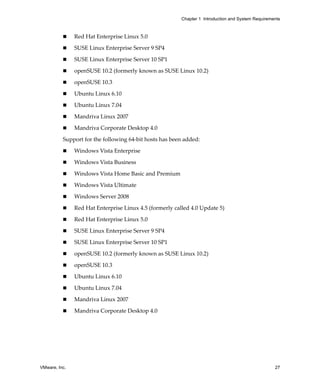
          cause data corruption if you do this. To share files between host and guest operating 
          systems, use shared folders. For details, see “Using Shared Folders” on page 173.


Maintenance Tasks for Virtual Disks
          This section contains the following topics:

               “Defragmenting Virtual Disks” on page 201
               “Shrinking Virtual Disks” on page 202


     Defragmenting Virtual Disks
          Like physical disk drives, virtual disks can become fragmented. Defragmenting disks 
          rearranges files, programs, and unused space on the virtual disk so that programs run 
          faster and files open more quickly. Defragmenting does not reclaim unused space on a 
          virtual disk. To reclaim unused space, shrink the disk. 

          NOTE   The defragmentation process requires free working space on the host 
          computer’s disk. If your virtual disk is contained in a single file, for example, you need 
          free space equal to the size of the virtual disk file. Other virtual disk configurations 
          require less free space.

          To defragment a virtual disk

          1    Run a disk defragmentation utility inside the guest operating system.

               For example, in a virtual machine with a Windows XP guest operating system, use 
               the Windows XP Disk Defragmenter tool from within the virtual machine.

          2    Defragment the virtual disk by using the Workstation defragmentation tool:

               a   Select the virtual machine. 

                   Make sure the virtual machine is powered off.

               b   Choose VM>Settings. 

                   The virtual machine settings editor opens. 


VMware, Inc.                                                                                      201
Workstation User’s Manual


                c    Select Hard Disk, and do one of the following:

                            On Linux hosts, click Defragment.

                            On Windows hosts, click the Utilities button, and choose Defragment.

                d    When the process is finished, click OK to close the dialog box.

                NOTE   This capability works only with “growable” virtual disks, not physical 
                disks or virtual disks whose disk space was preallocated. 

          3     Run a disk defragmentation utility on the host computer.

                Defragmenting disks can take considerable time.


      Shrinking Virtual Disks
          If you have a virtual disk that grows as data is added, you can shrink it as described in 
          this section. If you allocated all the space for your virtual disk at the time you created 
          it, you cannot shrink it.

          Shrinking a virtual disk reclaims unused space in the virtual disk. If there is empty 
          space in the disk, this process reduces the amount of space the virtual disk occupies on 
          the host drive. 

          Restrictions and Requirements
          Shrinking a disk requires free disk space on the host equal to the size of the virtual disk 
          you are shrinking. 
          Shrinking applies only to virtual disks. You cannot shrink physical disks or CD‐ROMs.

          In some configurations, it is not possible to shrink virtual disks. If your virtual machine 
          uses such a configuration, the Shrink tab in the VMware Tools control panel displays 
          information explaining why you cannot shrink your virtual disks. 

          For example, you cannot shrink a virtual disk if:

                You preallocated disk space when you created the disk. 

                The virtual machine has any snapshots. To delete a snapshot, choose 
                VM>Snapshot>Snapshot Manager. Select the snapshot and click the Delete 
                button (on Windows) or icon (on the snapshot toolbar on Linux).

                The virtual disk is a linked clone or is the parent of a linked clone. 

                The virtual machine contains physical disks. 


202                                                                                       VMware, Inc.
Chapter 9 Using Disks


               The virtual disk is stored on a CD‐ROM. 

               The virtual disk is an independent disk in non‐persistent mode. 

               You can change the mode of a virtual disk before the virtual machine is powered 
               on. See “Excluding Virtual Disks from Snapshots” on page 232 for a discussion of 
               independent disks.

          The Shrinking Process
          Shrinking a disk is a two‐step process:

          1    Wiping – Takes place in the guest operating system. VMware Tools reclaims all 
               unused portions of disk partitions (such as deleted files) and prepares them for 
               shrinking. During this phase, you can still interact with the virtual machine.

          2    Shrinking – Takes place on the host. Workstation reduces the size of the disk’s files 
               by the amount of disk space reclaimed in the wipe process. During this phase, the 
               virtual machine is stopped, and you cannot interact with it.

          To shrink a virtual disk

          1    Launch the VMware Tools control panel, as appropriate for your operating system:

                   For a Windows guest, click the VMware Tools icon in the notification area of 
                   the taskbar, or choose Start>Settings>Control Panel, then double‐click 
                   VMware Tools. 

                   For a Linux, Solaris, or FreeBSD guest, become root and run vmware-toolbox. 

                   If you shrink disks as a nonroot user you cannot wipe the parts of the virtual 
                   disk that require root‐level permissions. 

          2    Click the Shrink tab.

          3    Select the virtual disks you want to shrink and click Prepare to Shrink. 

               A dialog box tracks the progress of the wiping process. 

               NOTE   If you deselect some partitions, the whole disk still shrinks. However, those 
               partitions are not wiped for shrinking, and the shrink process does not reduce the 
               size of the virtual disk as much as it would with all partitions selected. 


VMware, Inc.                                                                                      203
Workstation User’s Manual


          4     When VMware Tools finishes wiping the selected disk partitions, and you are 
                prompted to shrink disks now, click Yes. 

                A dialog box tracks the progress of the shrinking process. Shrinking disks can take 
                considerable time. 

          5     Click OK to finish.


Adding Virtual and Physical Disks to a Virtual Machine
          Workstation 6 virtual machines can use up to 4 IDE devices and up to 60 SCSI devices. 
          Any of these devices can be a virtual or physical hard disk or DVD or CD‐ROM drive. 

          This section provides instructions for the following procedures:

                “Adding a New Virtual Disk to a Virtual Machine” on page 204
                “Adding an Existing Virtual Disk to a Virtual Machine” on page 206
                “Removing a Virtual Disk from a Virtual Machine” on page 206
                “Using Physical Disks in a Virtual Machine” on page 207

          Many other SCSI devices can be connected to a virtual machine by using the host 
          operating system’s generic SCSI driver. See “Connecting to a Generic SCSI Device” on 
          page 359.

          To map an existing virtual disk drive to a Windows host machine, rather than adding 
          it to a virtual machine, see “Using a Mapped Drive (Windows Only)” on page 180.


      Adding a New Virtual Disk to a Virtual Machine
          Virtual disks are stored as files on the host computer or on a network file server. It does 
          not matter whether the physical disk that holds the files is IDE or SCSI. A virtual IDE 
          drive or a virtual SCSI drive can be stored on an IDE drive or on a SCSI drive.

          Use the virtual machine settings editor to add a new virtual disk to your virtual 
          machine, as described in the procedure that follows. To add an existing virtual disk to 
          the virtual machine, see “Adding an Existing Virtual Disk to a Virtual Machine” on 
          page 206. 

          NOTE   If you have a Windows NT 4.0 guest with a SCSI virtual disk, you cannot add 
          both an additional SCSI disk and an IDE disk to the configuration.


204                                                                                       VMware, Inc.
Chapter 9 Using Disks


          To add a new virtual disk to a virtual machine

          1    Select the virtual machine. 

               Make sure the virtual machine is powered off.

          2    Choose VM>Settings. 

               The virtual machine settings editor opens. 

          3    On the Hardware tab, click Add to start the Add Hardware wizard.

          4    On the Hardware Type page, select Hard Disk and click Next.

          5    On the Select a Disk page, select Create a new virtual disk and click Next.

          6    On the Select a Disk Type page, choose whether you want the virtual disk to be an 
               IDE disk or a SCSI disk.

               Information about the requirements of creating a SCSI disk appears in “Disk Type: 
               IDE Versus SCSI” on page 199.

          7    Also on the Select a Disk Type page, if you want to exclude disks from snapshots, 
               in the Mode section, select Independent for the mode and choose one of the 
               following options:

                   Persistent – Changes are immediately and permanently written to the disk.

                   Nonpersistent – Changes to the disk are discarded when you power off or 
                   revert to a snapshot.

               For more information, see “Using Snapshots” on page 227.
          8    On the Specify Disk Capacity page, set the capacity for the new virtual disk. 

               You can set a size between 0.1GB and 950GB for a virtual disk. For more 
               information about the choices, see “Disk Size and Files” on page 198.

          9    On the Specify Disk File page, accept the default filename and location or browse 
               to a different location. 

          10   Click Finish.

               The wizard creates the new virtual disk. It appears to your guest operating system 
               as a new, blank hard disk. 

          11   Use the guest operating system’s tools to partition and format the new drive for 
               use.


VMware, Inc.                                                                                    205
Workstation User’s Manual


      Adding an Existing Virtual Disk to a Virtual Machine
          You can reconnect an existing virtual disk that has been removed from a virtual 
          machine. 

          To add an existing virtual disk to a virtual machine

          1     Select the virtual machine. 

                Make sure the virtual machine is powered off.

          2     Choose VM>Settings. 

                The virtual machine settings editor opens. 

          3     On the Hardware tab, click Add to start the Add Hardware wizard.

          4     On the Hardware Type page, select Hard Disk and click Next.

          5     On the Select a Disk page, select Use an existing virtual disk and click Next.

          6     On the Select an Existing Disk page, enter the path name and filename for the 
                existing disk file, or browse to the file and click OK.

          If you want to map an existing virtual disk drive to a Windows host machine, see 
          “Using a Mapped Drive (Windows Only)” on page 180.


      Removing a Virtual Disk from a Virtual Machine
          Use the virtual machine settings editor to disconnect a virtual disk from a virtual 
          machine. The Remove command described in the following procedure does not delete 
          files from the host file system. 

          You need to disconnect a virtual disk if you want to map the disk to a Windows host 
          machine. You might want to map the disk to a host as an alternative to copying the data 
          back and forth between guest and host. In this case, you remove the disk from the 
          virtual machine, as described in this section, map it to the host, as described in “Using 
          a Mapped Drive (Windows Only)” on page 180, and add it back to the virtual machine 
          when you are finished.

          To delete virtual disk files, you need to delete them manually. You might, however, 
          want to retain the virtual disk files so that you can reconnect the virtual disk to the 
          virtual machine, as described in “Adding an Existing Virtual Disk to a Virtual Machine” 
          on page 206.


206                                                                                      VMware, Inc.
Chapter 9 Using Disks


          To remove a virtual disk from a virtual machine

          1    Select the virtual machine. 

               Make sure the virtual machine is powered off.

          2    Choose VM>Settings. 

               The virtual machine settings editor opens. 

          3    Select the virtual disk you want to remove and click Remove. 

               The virtual disk is disconnected from virtual machine.


     Using Physical Disks in a Virtual Machine
          In some situations, you might want to install a guest operating system directly on a 
          physical disk or partition even if you do not need to boot that disk on the host, outside 
          of the virtual machine. 

          It is possible to use either an unused partition or a completely unused disk on the host 
          as a disk in the virtual machine. However, it is important to be aware that an operating 
          system installed in this setting probably cannot boot outside of the virtual machine, 
          even though the data is available to the host. (For information about using an operating 
          system that can also boot outside of the virtual machine, see the VMware technical note 
          called Dual‐Boot Computers and Virtual Machines.)

          Physical disks are an advanced feature and should be configured only by expert users. 
          To use a physical disk in a virtual machine, you can either use the virtual machine 
          settings editor to add the physical disk, or you can create a new virtual machine and 
          specify at creation time which physical disk the virtual machine should use. 

          Regardless of which strategy you use, make sure the physical disk meets the 
          requirements listed in the next section.

          Prerequisites for Using a Physical Disk
          Before you run the New Virtual Machine wizard or use the virtual machine settings 
          editor to add a physical (raw) disk, perform the following tasks:

               Because the virtual machine and guest operating system access a physical disk 
               partition while the host continues to run its operating system, verify that the 
               partition is not mounted by the host or in use by another virtual machine.

               Corruption is possible if you allow the virtual machine to modify a partition that 
               is simultaneously mounted under the host’s operating system.


VMware, Inc.                                                                                      207
Workstation User’s Manual


                Check the guest operating system documentation regarding the type of partition 
                on which the operating system can be installed. For example, on Windows Vista 
                hosts, you cannot use the system partition, or the physical disk that contains it, in 
                a virtual machine. 

                DOS, Windows 95, and Windows 98 operating systems must be installed on the 
                first primary partition, whereas other operating systems, such as Linux, can be 
                installed on a primary or an extended partition on any part of the drive. 

                Make sure the physical partition or disk does not have data you will need in the 
                future. If it does, back up the data. 

                (Windows only) If you use a Windows host’s IDE disk in a physical disk 
                configuration, make sure it is not configured as the slave on the secondary IDE 
                channel if the master on that channel is a CD‐ROM drive.

                (Windows only) If your host is running Windows 2000, Windows XP, or Windows 
                Server 2003, do not use a dynamic disk as a physical disk inside a virtual machine. 
                You can use the disk management tool to check the type of disk used and, if it is a 
                dynamic disk, change it to a basic disk (which destroys all data), as follows:

                a    Open the disk management tool by choosing Start>Settings>Control 
                     Panel>Administrative Tools>Computer Management>Disk Management.

                b    Delete all logical volumes on the disk. This destroys all data on the disk. 

                c    Right‐click the disk icon and select Revert to Basic Disk. 

                d    Create the partitions you want on the disk. 

                (Windows only) Make sure the partition you want to use is unmapped in the host, 
                as follows:

                     Windows NT host: Use the Disk Administrator 
                     (Start>Programs>Administrative Tools). Highlight the partition on which 
                     you plan to install the guest operating system, and choose Tools>Assign 
                     Drive Letter. In the dialog box, choose Do not assign a drive letter for the 
                     partition and click OK. The unmapping happens immediately. 

                     Windows Server 2003, Windows XP, or Windows 2000 host: Use Disk 
                     Management (Start>Settings>Control Panel>Administrative 
                     Tools>Computer Management>Storage>Disk Management). Select the 
                     partition you want to unmap, and choose Action>All Tasks>Change Drive 
                     Letter and Paths. Click Remove. 

                     Windows Vista host: Use Disk Management (Start>Control Panel (Classic 
                     View)>Administrative Tools>Computer Management>Storage>Disk 


208                                                                                        VMware, Inc.
Chapter 9 Using Disks


                   Management). Right‐click the partition you want to unmap, and choose 
                   Change Drive Letter and Paths. Click Remove. 

               (Linux only) Set the device group membership or device ownership, as follows:

               a   Make sure the master physical disk device or devices are readable and 
                   writable by the user who runs VMware Workstation. On most distributions, 
                   the physical devices, such as /dev/hda (IDE physical disk) and /dev/sdb 
                   (SCSI physical disk) belong to group‐id disk. If this is the case, you can add 
                   VMware Workstation users to the disk group. 

                   Another option is to change the owner of the device. Consider all the security 
                   issues involved in this option. 

               b   Grant VMware Workstation users access to all /dev/hd[abcd] physical 
                   devices that contain operating systems or boot managers. 

               You can then rely on the physical disk configuration files in VMware Workstation 
               to guard access. This provides boot managers access to configuration files and 
               other files they might need to boot the operating systems. For example, LILO needs 
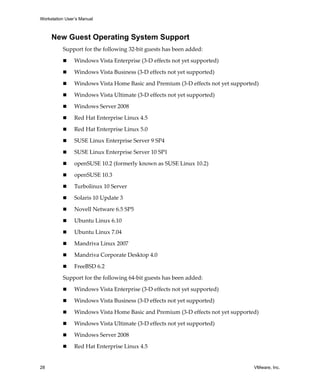
               to read /boot on a Linux partition to boot a non‐Linux operating system that 
               might be on another drive. 

          After you are finished preparing the physical disk, use either of the following strategies 
          to use the physical disk in a virtual machine:

               “Creating a New Virtual Machine That Uses a Physical Disk” on page 209

               “Using the Virtual Machine Settings Editor to Add a Physical Disk” on page 211

          For general information about using physical disks with Workstation, see “Physical 
          Disks” on page 200. 

          Creating a New Virtual Machine That Uses a Physical Disk
          Use the New Virtual Machine wizard if you want to create a new virtual machine that 
          uses a physical disk rather than simply add a physical disk to an existing virtual 
          machine. 


VMware, Inc.                                                                                      209
Workstation User’s Manual


          To create a virtual machine that uses a physical disk

          1     Make sure you have completed the tasks described in “Prerequisites for Using a 
                Physical Disk” on page 207.

          2     Because the process is similar for creating any type of virtual machine, follow the 
                instructions in “Setting Up a New Virtual Machine” on page 89, but be sure to use 
                the following options when completing the wizard:

                     When prompted to specify the type of virtual machine configuration, select 
                     Custom.

                     On the Select a Disk page, select Use a physical disk, and specify whether you 
                     want to use individual partitions or the entire disk.

                     If you use individual partitions, only the partitions you select will be 
                     accessible to the virtual machine. The other partitions might be “visible” to the 
                     guest operating system, but it is not possible to mount, access, or format them.

          3     After you finish creating the virtual machine, if you want to specify a device node 
                for your virtual disk, or if you want to exclude disks from snapshots, use the virtual 
                machine settings editor, as follows:

                a    Select the virtual machine, and choose VM>Settings. 

                     The virtual machine settings editor opens. 

                b    On the Hardware tab, select the physical disk and click Advanced.

                c    If you want to exclude disks from snapshots, select Independent for the mode 
                     and choose one of the following options:

                            Persistent – Changes are immediately and permanently written to the 
                            disk.

                            Nonpersistent – Changes to the disk are discarded when you power off 
                            or revert to a snapshot.

                     For more information on the snapshot feature, see “Using Snapshots” on 
                     page 227.

          4     Install the guest operating system on the physical disk. 
                Be sure to use the VMware Guest Operating System Installation Guide, which contains 
                instructions specific to each type of supported operating system. This guide is 
                available from the Workstation Help menu.
          For more information about using physical disks, see “Physical Disks” on page 200. 


210                                                                                        VMware, Inc.
Chapter 9 Using Disks


          Using the Virtual Machine Settings Editor to Add a Physical Disk
          Use the virtual machine settings editor to add a new physical disk to your virtual 
          machine, as described in the following procedure.

          To add a physical disk to a virtual machine

          1    Select the virtual machine. 

               Make sure the virtual machine is powered off.

          2    Choose VM>Settings. 

               The virtual machine settings editor opens. 

          3    On the Hardware tab, click Add to start the Add Hardware wizard.

          4    On the Hardware Type page, select Hard Disk and click Next.

          5    On the Select a Disk page, select Use a physical disk and click Next. 

          6    When the warning appears, click OK.

          7    Complete the Select a Physical Disk page and click Next.

                   Choose the physical hard disk to use from the drop‐down list. Workstation 
                   supports physical disks up to 2TB. 

                   Select whether you want to use the entire disk or only individual partitions on 
                   the disk. If you select Use entire disk, continue with Step 9.

          8    If the Select Partitions page appears, select the partitions you want to use in the 
               virtual machine and click Next.

               This page appears if you selected Use individual partitions in Step 7.

               Only the partitions you select will be accessible to the virtual machine. The other 
               partitions might be “visible” to the guest operating system, but it is not possible to 
               mount, access, or format them.

          9    On the Specify Disk File page, accept the default filename and location or browse 
               to a different location. 


VMware, Inc.                                                                                       211
Workstation User’s Manual


          10    To specify a device node for your virtual disk, or to exclude disks from snapshots, 
                click Advanced.

                To exclude disks from snapshots, select Independent for the mode and choose one 
                of the following options:

                     Persistent – Changes are immediately and permanently written to the disk.

                     Nonpersistent – Changes to the disk are discarded when you power off or 
                     revert to a snapshot.

                For more information on the snapshot feature, see “Using Snapshots” on page 227.

          11    Click Finish.

                The wizard configures the new physical disk. 

          12    If the partitions used on the physical disk are not formatted for your guest 
                operating system, use the guest operating system’s tools to format them.

                CAUTION   Regarding the use of fdisk or a similar utility:

                     After you add a virtual machine disk by using one or more partitions on a 
                     physical disk, never modify the partition tables by running fdisk or a similar 
                     utility in the guest operating system.

                     If you use fdisk or a similar utility on the host operating system to modify 
                     the partition table of the physical disk, you must re‐create the virtual 
                     machine’s physical disk. 


Adding DVD/CD-ROM and Floppy Drives to a Virtual
Machine
          Workstation 6 virtual machines can use up to 4 IDE devices and up to 60 SCSI devices. 
          Any of these devices can be a virtual or physical hard disk or DVD or CD‐ROM drive. 

          A virtual machine can read data from a DVD disc. Workstation does not support 
          playing DVD movies in a virtual machine. (You might be able to play a movie if you use 
          a DVD player application that does not require video overlay support in the video 
          card.)
          This section provides instructions for adding the following devices:

                “Adding DVD or CD Drives to a Virtual Machine” on page 213
                “Adding Floppy Drives to a Virtual Machine” on page 214
                “Connecting a CD‐ROM/DVD or Floppy Drive to an Image File” on page 215


212                                                                                      VMware, Inc.
Chapter 9 Using Disks


     Adding DVD or CD Drives to a Virtual Machine
          You can add one or more DVD or CD drives to your virtual machine. You can connect 
          the virtual machine’s drive to a physical drive on the host machine or to an ISO image 
          file. 

          You can configure the virtual DVD or CD drive as either IDE or SCSI, no matter what 
          kind of physical drive you connect it to. In other words, if your host computer has an 
          IDE CD drive, you can set up the virtual machine’s drive as either SCSI or IDE and 
          connect it to the host’s drive. The same is true if the host’s physical drive is a SCSI drive.

          To add a DVD or CD drive to a virtual machine

          1    Select the virtual machine. 

               Make sure the virtual machine is powered off.

          2    Choose VM>Settings. 

               The virtual machine settings editor opens. 

          3    On the Hardware tab, click Add to start the Add Hardware wizard.

          4    On the Hardware Type page, select DVD/CD‐ROM Drive and click Next.

          5    Make a selection on the Select a Drive Connection page and click Next.

          6    Do one of the following:

               If you selected Use physical drive:

               a   Choose a drive from the drop‐down list or choose Auto detect.

               b   If you do not want the CD drive connected when the virtual machine starts, 
                   deselect Connect at power on. 

               c   To specify which device node the drive should use in the virtual machine, click 
                   Advanced.

                   Select Legacy emulation only if you have had problems using normal mode. 
                   For details, see “Legacy Emulation for DVD and CD Drives” on page 214.
               d   After you have made any desired changes in these settings, click Finish.

               If you selected Use ISO image:

               a   Enter the path and filename for the image file or browse to the file.

               b   If you do not want the CD drive connected when the virtual machine starts, 
                   deselect Connect at power on. 


VMware, Inc.                                                                                         213
Workstation User’s Manual


                c    If you want to specify which device node the drive should use in the virtual 
                     machine, click Advanced.

                d    After you have made any desired changes in these settings, click Finish.

                The drive is set up initially so it appears to the guest operating system as an IDE 
                drive. 

          7     If you want the drive to appear to the guest operating system as a SCSI drive, click 
                the drive’s entry in the virtual machine settings editor and make that change in the 
                settings panel on the right.

          Legacy Emulation for DVD and CD Drives
          In normal mode (that is, not legacy emulation mode), the guest operating system 
          communicates directly with the CD or DVD drive. This direct communication enables 
          you to read multisession CDs, perform digital audio extraction, view videos, and use 
          CD and DVD writers to burn discs.

          In contrast, legacy emulation mode enables you to read only from data discs in the DVD 
          or CD drive. It does not provide the other capabilities of normal mode. Using legacy 
          emulation mode is a way to work around problems that arise when a guest operating 
          system has difficulty communicating directly with a DVD or CD drive.

          Use the virtual machine settings editor (VM>Settings) to set the Legacy emulation 
          option for DVD and CD drives attached to the virtual machine:

                On Windows hosts, this option is deselected by default.

                On Linux hosts with IDE drives, the default setting depends on whether the 
                ide-scsi module is loaded in your kernel. The ide-scsi module must be loaded, 
                or you must be using a physical SCSI drive, to connect directly to the DVD or CD 
                drive. 

          If you run more than one virtual machine at a time, and if their CD drives are in legacy 
          emulation mode, start the virtual machines with their CD drives disconnected. This 
          ensures that you do not have multiple virtual machines connected to the CD drive at 
          the same time.


      Adding Floppy Drives to a Virtual Machine
          You can add floppy drives to your virtual machine, to a total of two floppy drives. A 
          virtual floppy drive can connect to a physical floppy drive on the host computer, to an 
          existing floppy image file, or to a blank floppy image file.


214                                                                                       VMware, Inc.
Chapter 9 Using Disks


          To add a floppy drive to a virtual machine

          1    Select the virtual machine. 

               Make sure the virtual machine is powered off.

          2    Choose VM>Settings. 

               The virtual machine settings editor opens. 

          3    On the Hardware tab, click Add to start the Add Hardware wizard.

          4    On the Hardware Type page, select Floppy Drive and click Next.

          5    Complete the rest of the wizard by using the instructions provided in the wizard 
               pages.

          6    If you are adding a second floppy drive to the virtual machine, enable this second 
               floppy drive in the virtual machine’s BIOS, as follows:

               a   Boot the virtual machine, and as it boots, click inside the virtual machine 
                   window and press F2, to enter the BIOS setup utility. 

               b   On the main screen, choose Legacy Diskette B: and use the plus (+) and minus 
                   (‐) keys on the numerical keypad to select the type of floppy drive you want 
                   to use. Press F10 to save the settings.


     Connecting a CD-ROM/DVD or Floppy Drive to an Image File
          You can use the virtual machine settings editor (VM>Settings) to connect an existing 
          virtual CD‐ROM or floppy drive to an image file (ISO file), as described in the following 
          procedure.

          An ISO image file looks like a CD‐ROM to your guest operating system and even 
          appears as a CD‐ROM in Windows Explorer. 

          To connect a CD-ROM or floppy drive to an image file

          1    Select the virtual machine. 

               Make sure the virtual machine is powered off.

          2    Choose VM>Settings. 

               The virtual machine settings editor opens. 

          3    Select the DVD/CD‐ROM drive or floppy drive you want to connect to the image 
               file.


VMware, Inc.                                                                                      215
Workstation User’s Manual


          4     Do one of the following:

                     For a DVD or CD‐ROM, select Use ISO Image and enter the path name and 
                     filename or browse to the file.

                     For a floppy drive:

                            If the file already exists, select Use floppy Image and enter the path name 
                            and filename or browse to the file.

                            If you want to create a new image file, click Create. Browse to the 
                            directory where you want to store the floppy image file, supply a 
                            filename, and click Save (on Windows hosts) or Open (on Linux hosts).

                     If you want to make the file read‐only, select the Read Only check box.

          5     Click OK. 


Using VMware Virtual Disk Manager
          VMware Virtual Disk Manager is a Workstation utility that allows you to create, 
          manage, and modify virtual disk files from the command line or within scripts. 

          One key feature is the ability to enlarge a virtual disk so its maximum capacity is larger 
          than it was when you created it. If you need more disk space in a given virtual machine, 
          but do not want to add another virtual disk or use ghosting software to transfer the data 
          on a virtual disk to a larger virtual disk, you can instead change the maximum size of 
          the virtual disk. You cannot do this with physical hard drives.

          NOTE   To expand the size of a virtual disk, purchase additional software from another 
          vendor so that you can make the changes required for your virtual machine to access 
          the additional disk space.

          Virtual Disk Manager can enlarge the disk but does not modify its contents, so the 
          partition information stays the same. You need third‐party software, such as Partition 
          Magic, that can modify the partition information on the virtual disk to utilize the 
          additional virtual disk space you created with Virtual Disk Manager.

          Another feature allows you to change disk types. When you create a virtual machine, 
          you specify how disk space is allocated. There are two options:

                All space for the virtual disk is allocated in advance. This corresponds to what the 
                Virtual Disk Manager calls the preallocated disk type.

                Space allocated for the virtual disk begins small and grows as needed. This 
                corresponds to what the Virtual Disk Manager calls the growable disk type.


216                                                                                          VMware, Inc.
Chapter 9 Using Disks


          With Virtual Disk Manager you can change whether the virtual disk type is 
          preallocated or growable and whether the virtual disk is stored in a single file or split 
          into 2GB files. For example, you might allocate all the disk space for a virtual disk, but 
          later find that you need to reclaim some hard disk space on the host. You can convert 
          the preallocated virtual disk into a growable disk, and then remove the original virtual 
          disk file. The new virtual disk is large enough to contain all the data in the original 
          virtual disk. The virtual disk grows as you add data to it.

          These features and the ability to use scripting to automate management of virtual disks 
          were added to Workstation in version 5.0.

          You can use the Virtual Disk Manager to:

               Automate the management of virtual disks with scripts.

               Create virtual disks that are not associated with a particular virtual machine, for 
               example, to be used as templates.

               Switch the virtual disk type from preallocated to growable, or from growable to 
               preallocated. When you change the disk type to growable, you reclaim some disk 
               space. You can shrink the virtual disk to reclaim even more disk space.

               Expand the size of a virtual disk so it is larger than the size specified when you 
               created it.

               Defragment virtual disks.

               Prepare and shrink virtual disks without powering on the virtual machine 
               (Windows hosts only).
          You can use the Virtual Disk Manager with virtual disks created under VMware Server 
          and VMware Workstation. 

          NOTE   You cannot use the Virtual Disk Manager to create physical disks or shrink them.


     Running the VMware Virtual Disk Manager Utility
          To run the VMware Virtual Disk Manager utility, open a command prompt or terminal 
          on the host operating system. On a Windows host, change to the directory where you 
          installed your Workstation software. By default, this directory is:
          C:Program FilesVMwareVMware Workstation

          The command syntax is:
          vmware-vdiskmanager [options]


VMware, Inc.                                                                                      217
Workstation User’s Manual


          Table 9‐1 lists the options you can use with vmware-vdiskmanager. For examples of 
          how you use these options to perform various tasks, see “Examples Using the VMware 
          Virtual Disk Manager” on page 220.

Table 9-1. VMware Virtual Disk Manager Utility Commands
Options and
Parameters                  Description

<diskname>                  Name of the virtual disk file. The virtual disk file must have a .vmdk extension.
                            Specify a path to the folder where you want to store the disk files. If you mapped 
                            a network share on your host operating system, you can create the virtual disk on 
                            that share by providing the correct path information with the disk filename.

-c                          Creates the virtual disk. Use the -a, -s, and -t options, and specify the name of 
                            the virtual disk (<diskname>).

-r                          Converts the specified virtual disk, creating a new virtual disk as a result. Use the 
<sourcediskname>            -t option to specify the disk type to which the virtual disk is converted, and 
                            specify the name of the target virtual disk (<targetdiskname>). 
                            After the conversion is completed and you have tested the converted virtual disk 
                            to make sure it works as expected, delete the original virtual disk file.
                            For the virtual machine to recognize the converted virtual disk, use the virtual 
                            machine settings editor to remove the existing virtual disk from the virtual 
                            machine, and then add the converted disk to the virtual machine. See “Adding 
                            Virtual and Physical Disks to a Virtual Machine” on page 204.

-x <n>[GB|MB]               Expands the virtual disk to the specified capacity. Specify the new, larger size of 
<diskname>                  the virtual disk in gigabytes or megabytes. You cannot change the size of a 
                            physical disk.
                            Caution: Before running the Virtual Disk Manager utility, back up your virtual 
                            disk files.

-d <diskname>               Defragments the specified virtual disk. You can defragment only growable 
                            virtual disks. You cannot defragment preallocated virtual disks.

-p <mountpoint>             (Windows only) Prepares a virtual disk for shrinking. For more information, see 
                            “Shrinking Virtual Disks with Virtual Disk Manager (Windows Only)” on 
                            page 219.

-k <diskname>               (Windows only) Shrinks the specified virtual disk. For more information, see 
                            “Shrinking Virtual Disks with Virtual Disk Manager (Windows Only)” on 
                            page 219.

-a [ide|buslogic|           Specifies the disk adapter type. Specify an adapter type when creating a new 
lsilogic]                   virtual disk. Choose one of the following types:
                                ide – For an IDE adapter.
                                buslogic – For a BusLogic SCSI adapter.
                                lsilogic – For an LSI Logic SCSI adapter.


218                                                                                                     VMware, Inc.
Chapter 9 Using Disks


Table 9-1. VMware Virtual Disk Manager Utility Commands (Continued)
Options and
Parameters             Description

-s <n>[GB|MB]          Specifies the size of the virtual disk. Specify whether the size <n> is in gigabytes 
                       or megabytes. Specify the size of a virtual disk when you create it. 
                       Even though you must specify the size of a virtual disk when you expand it, do 
                       not use the -s option.

-t [0|1|2|3]           Specify the type of virtual disk when you create a new one or reconfigure an 
                       existing one. Specify one of the following disk types:
                       0 – To create a growable virtual disk contained in a single virtual disk file.
                       1 – To create a growable virtual disk split into 2GB files.
                       2 – To create a preallocated virtual disk contained in a single virtual disk file.
                       3 – To create a preallocated virtual disk split into 2GB files.

-q                     Disables Virtual Disk Manager logging.
                       If you keep logging enabled, messages generated by the Virtual Disk Manager 
                       are stored in a log file. The name and location of the log file appear in the 
                       command prompt or terminal window after the Virtual Disk Manager command 
                       is run.


     Shrinking Virtual Disks with Virtual Disk Manager
     (Windows Only)
          On a Windows host, you can use the Virtual Disk Manager to prepare and shrink 
          growable virtual disks (not physical disks) without powering on the virtual machine. 
          Shrinking a virtual disk does not reduce the maximum capacity of the virtual disk itself. 
          For more information, see “Shrinking Virtual Disks” on page 202.

          CAUTION   You cannot shrink a virtual disk if the virtual machine has snapshots. To keep 
          the virtual disk in its current state, use the snapshot manager to delete all snapshots. To 
          discard changes made since you took a snapshot, revert to the snapshot.

          To shrink a virtual disk

          1    Mount each volume of the virtual disk.

               If the virtual disk is partitioned into volumes, each volume of the virtual disk 
               (drive C: or D:, for example) must be must be mounted and prepared separately.
               To mount a volume, see “Using a Mapped Drive (Windows Only)” on page 180. Or 
               use the VMware DiskMount Utility, available as a free download from the VMware 
               Web site. Go to www.vmware.com/download/diskmount.html. The VMware 
               DiskMount user’s manual is available from the VMware Web site at 


VMware, Inc.                                                                                                219
Workstation User’s Manual


                www.vmware.com/pdf/VMwareDiskMount.pdf. It contains instructions on 
                mounting and unmounting virtual disk volumes with DiskMount.

          2     Use the Virtual Disk Manager to prepare the volume for shrinking, as described in 
                the example in “Preparing a Virtual Disk for Shrinking” on page 221. 

          3     Disconnect (unmount) the volume, either by using the procedure described in 
                “Using a Mapped Drive (Windows Only)” on page 180 or by using VMware 
                DiskMount.

          4     Repeat the mounting, preparing, and unmounting process for each volume of the 
                virtual disk. 

          5     Use the Virtual Disk Manager to shrink the virtual disk, as described in the 
                example in “Shrinking a Virtual Disk” on page 222.


      Examples Using the VMware Virtual Disk Manager
          The following examples illustrate how to use the command‐line version of:

                “Creating a Virtual Disk” on page 220
                “Converting a Virtual Disk” on page 220
                “Increasing the Size of an Existing Virtual Disk” on page 221
                “Renaming a Virtual Disk” on page 221
                “Defragmenting a Virtual Disk” on page 221
                “Preparing a Virtual Disk for Shrinking” on page 221
                “Shrinking a Virtual Disk” on page 222

          Creating a Virtual Disk
          To create a new virtual disk, use a command like the following:
          vmware-vdiskmanager -c -t 0 -s 40GB -a ide myDisk.vmdk

          This creates a 40GB IDE virtual disk named myDisk.vmdk. The virtual disk is contained 
          in a single .vmdk file. The disk space is not preallocated.

          Converting a Virtual Disk
          To convert the virtual disk type from preallocated to growable, use a command like the 
          following:
          vmware-vdiskmanager -r sourceDisk.vmdk -t 0 targetDisk.vmdk

          This converts the disk from its original preallocated type to a growable virtual disk that 
          consists of a single virtual disk file. The virtual disk space is no longer preallocated, and 


220                                                                                         VMware, Inc.
Chapter 9 Using Disks


          the Virtual Disk Manager reclaims some disk space in the virtual disk so it is only as 
          large as the data contained within it.

          Increasing the Size of an Existing Virtual Disk
          To expand a virtual disk, use a command like the following:
          vmware-vdiskmanager -x 40GB myDisk.vmdk

          This increases the maximum capacity of the virtual disk to 40GB.

          Renaming a Virtual Disk
          To rename a virtual disk, first remove it from any virtual machine that contains the disk 
          (choose VM>Settings><virtual_disk>, and click Remove). Next, use a command like 
          one of the following (the file paths assume a Windows host):

               To rename the disk and keep it in the same location, use: 
               vmware-vdiskmanager -n myDisk.vmdk myNewDisk.vmdk
               To rename the disk and locate it in a different directory, use: 
               vmware-vdiskmanager -n myDisk.vmdk ..<new-path>myNewDisk.vmdk
               To locate the disk in a different directory and keep the same name, use: 
               vmware-vdiskmanager -n myDisk.vmdk ..<new-path>myDisk.vmdk

          After you rename or relocate the virtual disk, add it back to any virtual machines that 
          use it. For instructions, see “Adding an Existing Virtual Disk to a Virtual Machine” on 
          page 206.

          Defragmenting a Virtual Disk
          To defragment a virtual disk, use a command like the following:
          vmware-vdiskmanager -d myDisk.vmdk

          You cannot defragment a virtual disk if you allocated all the disk space when you 
          created the virtual disk. You cannot use this command to defragment a physical disk.

          See “Defragmenting Disk Drives” on page 384 for a discussion of the performance 
          impact of defragmenting drives.

          Preparing a Virtual Disk for Shrinking
          Before you can shrink a virtual disk, you must prepare each volume on the disk (C: or 
          D:, for example) for shrinking. The following example assumes that the volume is 
          mounted as the M: drive. (Information about mounting volumes appears in the 


VMware, Inc.                                                                                       221
Workstation User’s Manual


          procedure “To shrink a virtual disk” on page 219.) To prepare a volume of the virtual 
          disk for shrinking, use the following command:
          vmware-vdiskmanager -p M:

          After the preparations are complete, unmount the volume. Repeat this process for each 
          volume of the virtual disk. After you prepare all the volumes for shrinking, you can 
          shrink the virtual disk.

          Shrinking a Virtual Disk
          To shrink a virtual disk, it must be located on a Windows host. Before you can shrink 
          the virtual disk, prepare all the volumes of the virtual disk for shrinking. Then use a 
          command like the following:
          vmware-vdiskmanager -k myDisk.vmdk

          You cannot shrink a virtual disk if you allocated all the disk space when you created the 
          virtual disk. You cannot shrink a physical disk.

          If the virtual disk has any snapshots, you cannot shrink the virtual disk. Delete all 
          snapshots before you shrink the virtual disk.


Using Dual-Boot Computers with Virtual Machines
          Many users install Workstation on a dual‐boot or multiple‐boot computer so they can 
          run one or more of the existing operating systems in a virtual machine. For more 
          information about using dual‐boot computers with Workstation, see the VMware 
          technical note called Dual‐Boot Computers and Virtual Machines.


Legacy Virtual Disks
          This section discusses your options for using Workstation 6 in a mixed environment 
          with virtual machines that were created with earlier versions of Workstation or created 
          with other VMware products.


222                                                                                      VMware, Inc.
Chapter 9 Using Disks


          Following is a brief summary of feature compatibility between various virtual 
          hardware versions of VMware Workstation:

               A Workstation 6 virtual machine supports all Workstation 6 features but is not 
               compatible with other VMware products. 

               A Workstation 5 virtual machine is compatible with VMware Server 1.x, ESX 
               Server 3.x, and VMware Player 1.x.

               Workstation versions 5.5 and later support 64‐bit guest operating systems. 
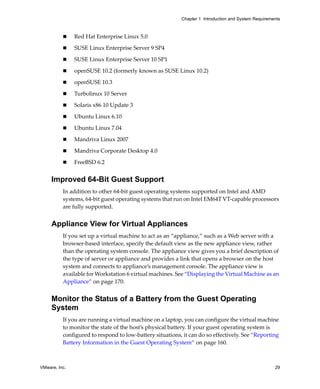
               A Workstation 4 virtual machine is compatible with VMware GSX Server 3.x, ESX 
               Server 2.x, and ACE 1.0. 

          You can use Workstation 6 to power on virtual machines created with any of the 
          product versions in this list. However, many new features of Workstation are not 
          available in older virtual machines. To upgrade your virtual machines to version 6, see 
          “Changing the Version of the Virtual Machine” on page 61.

          If you decide not to upgrade a virtual machine to Workstation 6, VMware recommends 
          that you upgrade VMware Tools to the latest version. Follow the instructions for your 
          guest operating system in “Installing and Upgrading VMware Tools” on page 115. Do 
          not remove the older version of VMware Tools before installing the new version.

          You can also use Workstation 6 to create a version 4 or 5 virtual machines. For 
          instructions, see “Setting Up a New Virtual Machine” on page 89.

          For more information about compatibility between VMware products, refer to the 
          VMware Virtual Machine Mobility Planning Guide. 

          NOTE   If you have Workstation 2 or 3 virtual machines that you want to use with 
          Workstation 6, upgrade the virtual machines to at least Workstation version 4 before 
          you attempt to power them on with Workstation 6.


VMware, Inc.                                                                                    223
Workstation User’s Manual


224                         VMware, Inc.
10


Preserving the State of a
Virtual Machine                                                                  10
          Workstation provides two ways to preserve the state of a virtual machine: you can 
          suspend the virtual machine or take a snapshot of it. This chapter describes the suspend 
          and snapshot features and helps you understand when to use them.

          Because the experimental record/replay feature uses elements from the snapshot 
          manager, instructions for recording and replaying virtual machine activity are also 
          included.

          This chapter includes the following topics:

               “Using the Suspend and Resume Features” on page 225
               “Using Snapshots” on page 227
               “Recording Activity of a Virtual Machine (Experimental)” on page 239


Using the Suspend and Resume Features
          The suspend and resume feature is useful when you want to save the current state of 
          your virtual machine, and continue work later from the same state. When you resume, 
          any applications you were running at the time you suspended the virtual machine are 
          resumed in their running state, and the content is the same as it was when you 
          suspended the virtual machine.

          When you resume and do additional work in the virtual machine, you cannot return to 
          the state the virtual machine was in at the time you suspended. To preserve the state of 
          the virtual machine so you can return to the same state repeatedly, take a snapshot, as 
          described in “Using Snapshots” on page 227.


VMware, Inc.                                                                                   225
Workstation User’s Manual


          The speed of the suspend and resume operations depends on how much data has 
          changed during the time that the virtual machine was running. In general, the first 
          suspend operation takes longer than later suspend operations. 
          When you suspend a virtual machine, a file with a .vmss extension is created. This file 
          contains the entire state of the virtual machine. When you resume the virtual machine, 
          its state is restored from the .vmss file.

          To prepare a virtual machine for using suspend and resume

          1     Make sure VMware Tools is installed in the guest operating system.

                For instructions, see “Installing and Upgrading VMware Tools” on page 115.

          2     Configure the Suspend button to do either a “hard” suspend or a “soft” suspend 
                operation, as follows:

                a    Select the virtual machine and choose VM>Settings from the Workstation 
                     menu bar. 

                     The virtual machine settings editor opens.

                b    Click the Options tab, and select Power.

                c    In the Power controls section, specify whether you want to use a hard suspend 
                     operation (Suspend) or a soft suspend (Suspend Guest).

                     If you select Suspend Guest, a script runs that either releases the IP address 
                     (on Windows guests using DHCP) or stops networking for the virtual 
                     machine (on Linux, FreeBSD, and Solaris guests).

                d    Click OK to close the virtual machine settings editor.

          To suspend a virtual machine

          1     If your virtual machine is running in full screen mode, return to windowed mode 
                by pressing the Ctrl+Alt+Enter key combination.

          2     Click the Suspend button on the Workstation toolbar.

          To resume a virtual machine that you have suspended

          1     Start Workstation and choose a virtual machine you have suspended. 
          2     Click Resume on the Workstation toolbar.


226                                                                                      VMware, Inc.
Chapter 10 Preserving the State of a Virtual Machine


Using Snapshots
          Workstation snapshots allow you to preserve the state of the virtual machine so you can 
          return to the same state repeatedly. For example, you might use snapshots to develop 
          training courses. You can take a snapshot of the machine for each lesson or lab in the 
          course. Similarly, if you test software, you can take a snapshot before installing different 
          versions of a program to ensure each installation begins from an identical baseline.


     Snapshot Processes: Linear Versus Process Tree
          Taking a snapshot saves the current state of the virtual machine, so you can return to it 
          at any time. Snapshots are useful when you need to revert a virtual machine repeatedly 
          to the same state, but you don’t want to create multiple virtual machines. 

          To save the current state of your virtual machine temporarily, see “Using the Suspend 
          and Resume Features” on page 225.

          You can take multiple snapshots of a virtual machine, to save any state you want to 
          return to. To take snapshots of multiple virtual machines, you must take a separate 
          snapshot for each virtual machine. You might want to do this, for example, if you need 
          to take snapshots for all virtual machines in a team.

          NOTE   Workstation operates more efficiently with snapshots disabled. If you do not 
          need snapshot functionality, disable it for better performance. See “Disabling 
          Snapshots” on page 237.

          Snapshots in a Linear Process
          One common use of snapshots is in a development process, as a way to save each step 
          in a linear process. That way, as you add new, untested code to a project, you can always 
          revert to a prior known working state of the project when newly added code does not 
          work as expected.

          Another example of using snapshots in a linear process is a computerized training 
          course. You can take snapshots of each lesson starting point, so you can instantly revert 
          to the appropriate place for each student, skipping lengthy computer preparation time. 

          Figure 10-1. Snapshots as Restore Points in a Linear Process


              Windows         lesson 1    lesson 2       lesson 3         lesson 4         lesson 5
           operating system


          Workstation supports more than 100 snapshots per linear process.


VMware, Inc.                                                                                              227
Workstation User’s Manual


          Snapshots in a Process Tree
          Another way to use snapshots is shown in the Figure 10‐2. Here, instead of saving each 
          step of a process in a single long sequence, you save a number of sequences, as branches 
          from a single baseline. This strategy is often used in testing software. You can take a 
          snapshot before installing different versions of a program to ensure that each different 
          installation begins from an identical baseline. 

          Figure 10-2. Snapshots as Restore Points in a Process Tree


           Windows          baseline    IE base
           operating
            system


                                        Foxfire base


                                        SP1            IE base1    You Are
                                                                    Here


                                                       Foxfire base1


                                                       SP2             IE base2


                                                                       Foxfire base2

          Workstation supports more than 100 snapshots per branch in a process tree.

          Relationship Between Snapshots
          The relationship between snapshots is like parent to child:

                In a linear process, each snapshot has one parent and one child, except for the last 
                snapshot, which has no children.

                In a process tree, each snapshot has one parent, but one snapshot can have more 
                than one child. Many snapshots have no children.

          The parent snapshot of a virtual machine is the snapshot on which the current state (the 
          You Are Here position in Figure 10‐3) is based. After you take a snapshot, that stored 


228                                                                                       VMware, Inc.
Chapter 10 Preserving the State of a Virtual Machine


          state is the parent snapshot of the virtual machine. If you revert or go to an earlier 
          snapshot, the earlier snapshot becomes the parent snapshot of the virtual machine.

          Figure 10-3. Parent-Child Relationship Between Snapshots

                                           Snapshots 2, 3, and 4
                                           are all children of Snapshot1.


                                                         Snapshot 4 is the parent of
                                                         the You Are Here position
                                                         and therefore the parent
                                                         of the virtual machine.


     What to Use Snapshots For
          The topics in this section describe strategies for using snapshots.

          Use Snapshots as Protection from Risky Changes
          If you plan to make risky changes in a virtual machine (for example, testing new 
          software or examining a virus), take a snapshot before you begin. If you encounter a 
          problem, you can restore the virtual machine to the state preserved in that snapshot.

          If your risky actions cause no problems you can take another snapshot of the virtual 
          machine in its new state. Snapshots can minimize lost work if something goes wrong. 
          With multiple snapshots of saved positions, you can return at any time to any 
          important position when you discover a problem.

          Start a Virtual Machine Repeatedly in the Same State
          You can configure the virtual machine to revert to a snapshot any time it is powered off. 
          You might use this feature, for example, when setting up student virtual machines to 
          power on for each new class at the beginning of the lesson, discarding the previous 
          student’s work. See “Reverting at Power Off” on page 237 for the procedure.

          Automatically Record Milestone Status
          You can configure a virtual machine to take a snapshot any time it is powered off, 
          preserving a virtual audit trail as work progresses. See “Snapshot Options When You 
          Power Off a Virtual Machine” on page 238 for configuring automatic snapshots at 
          power off.


VMware, Inc.                                                                                                 229
Workstation User’s Manual


      What Is Captured by a Snapshot
          A snapshot captures the entire state of the virtual machine at the time you take the 
          snapshot. This includes:

                Memory state – Contents of the virtual machine’s memory.
                Settings state – Virtual machine settings.
                Disk state – State of all the virtual machine’s virtual disks.

          Snapshots operate on individual virtual machines. If you select a team of virtual 
          machines and take a snapshot, only the active virtual machine’s state is preserved. See 
          “Viewing Teams and Their Virtual Machines” on page 260.

          When you revert to a snapshot, you return the virtual machine’s memory, settings, and 
          virtual disks to the state they were in when you took the snapshot. If you want the 
          virtual machine to be suspended, powered on, or powered off when you launch it, be 
          sure it is in the state you want when you take the snapshot.

          NOTE   The state of a physical disk or independent disk is not preserved when you take 
          a snapshot.


      When to Take Snapshots
          This section lists some limitations regarding snapshots.

          Activities That Conflict with Snapshots
          When you take a snapshot, be aware of other activity going on in the virtual machine 
          and the likely impact of reverting to that snapshot. In general, it is best to take a 
          snapshot when no applications in the virtual machine are communicating with other 
          computers. The potential for problems is greatest if the virtual machine is 
          communicating with another computer, especially in a production environment.

          Consider a case in which you take a snapshot while the virtual machine is downloading 
          a file from a server on the network. After you take the snapshot, the virtual machine 
          continues downloading the file, communicating its progress to the server. If you revert 
          to the snapshot, communications between the virtual machine and the server are 
          confused and the file transfer fails.
          Or consider a case in which you take a snapshot while an application in the virtual 
          machine is sending a transaction to a database on a separate machine. If you revert to 
          that snapshot after the transaction starts but before it has been committed, the database 
          is likely to be confused.


230                                                                                      VMware, Inc.
Chapter 10 Preserving the State of a Virtual Machine


          Considerations for Workstation 4 Virtual Machines
          For virtual machines that were created with Workstation 4 and that have multiple disks 
          in different modes, the following exceptions apply:

               Snapshots and older virtual machines – You must upgrade a Workstation 4 
               virtual machine before taking a snapshot. See “Changing the Version of the Virtual 
               Machine” on page 61. For more information about using Workstation 6 with 
               virtual machines and snapshots created under Workstation version 4 see 
               “Snapshots and Workstation 4 Virtual Machines” on page 239.

               Snapshots and multiple disks in different modes – You must power off the 
               virtual machine before taking a snapshot if the virtual machine has multiple disks 
               in different disk modes. For example, if you have a special purpose configuration 
               that requires you to use an independent disk, you must power off the virtual 
               machine before taking a snapshot. 


     Enabling Snapshot Actions as a Background Activity
          Taking a snapshot is not instantaneous. By default, a preference setting enables you to 
          take snapshots as a background process. This way, you can continue working while 
          Workstation preserves the snapshot in the background.

          If you take another snapshot or revert to one before Workstation completes a pending 
          snapshot operation, a progress dialog box appears. When this occurs, you must wait for 
          the pending snapshot operation to finish before the next snapshot or resume operation 
          begins.

          Enabling background snapshots for a host with slow hard disks can adversely affect 
          performance. If you experience significant performance problems when taking or 
          restoring snapshots, turn off this option, as described in the following procedure.

          To enable or disable background snapshots

          1    From the Workstation menu bar, choose Edit>Preferences.

          2    Click the Priority tab, and do one of the following:

                   To enable background snapshots, make sure the check box in the Snapshots 
                   area is selected.

                   To disable background snapshots, deselect the check box.

          3    Click OK, and restart the virtual machine.


VMware, Inc.                                                                                            231
Workstation User’s Manual


      Excluding Virtual Disks from Snapshots
          In certain configurations, you might want to revert some disks to a snapshot while 
          other disks retain all changes. For example, you might want a snapshot to preserve a 
          disk with your operating system and applications, while always keeping the changes 
          to a disk with your documents. 

          You can exclude virtual disks from a snapshot by changing the disk mode. Before you 
          attempt to change the disk mode, power off the virtual machine and delete any existing 
          snapshots.

          To exclude a virtual disk from all snapshots

          1     Start Workstation and select the virtual machine. 

                Make sure the virtual machine is powered off.

          2     Choose VM>Settings. 

                The virtual machine settings editor opens. 

          3     On the Hardware tab, select the drive you want to exclude and click Advanced. 

          4     In the Advanced dialog box, select Independent and select one of the following 
                options:

                     Persistent – Changes are immediately and permanently written to the disk. 
                     All changes to an independent disk in persistent mode remain, even when you 
                     revert to a snapshot.

                     Nonpersistent – Current changes to the disk are discarded when you power 
                     off or revert to a snapshot.


232                                                                                   VMware, Inc.
Chapter 10 Preserving the State of a Virtual Machine


     Working with Snapshots in the Snapshot Manager
          In the snapshot manager, you can review all snapshots for the active virtual machine 
          and act on them directly. Figure 10‐4 illustrates the components of the snapshot 
          manager.

          Figure 10-4. Snapshot Manager: Windows Host


                                                                                          snapshot of a
          snapshot                                                                        recording
          tree
                                                                                          ordinary
                                                                                          snapshot
                                                                                          snapshot of a
                                                                                          linked clone


                                                                                          thumbnail of
                                                                                          selected
                                                                                          snapshot’s
          details                                                                         display


                                                                                          command
                                                                                          buttons


          The snapshot tree shows all snapshots for the virtual machine, arranged to show the 
          relationship between snapshots. The You Are Here icon is not a snapshot; it shows the 
          current state of the virtual machine. See “Relationship Between Snapshots” on 
          page 228.

          NOTE   Move the mouse pointer over a snapshot (without clicking) to display the 
          complete name of that snapshot. This is useful when a long name is truncated in the 
          snapshot tree display.

          The snapshot manager has a slightly different appearance on Linux hosts, as shown in 
          Figure 10‐5.


VMware, Inc.                                                                                          233
Workstation User’s Manual


          Figure 10-5. Snapshot Manager: Linux Host


          On Linux hosts, right‐click the toolbar at the top of the window to change the icon style. 
          You can display icons and text, icons only, text only, and so on.

          Following is a description of the snapshot actions you can perform by using the 
          snapshot manager:

                Take Snapshot – With the You Are Here icon selected, takes a snapshot. You can 
                take a snapshot while a virtual machine is powered on, powered off, or suspended. 
                For more information, see “Taking a Snapshot” on page 235.

                Go To/Replay – The button is labeled Go To if you select a snapshot. It is labeled 
                Replay if you select a recording:

                     Go To restores the virtual machine to the state it was in when the selected 
                     snapshot was taken. Double‐clicking a snapshot is the same as selecting that 
                     snapshot and clicking Go To.

                     Replay places the virtual machine in the state it was in when the recording 
                     was begun. The virtual machine then goes through the same activities it did 
                     throughout the time the recording was made. Double‐clicking a recording is 
                     the same as selecting it and clicking Replay. For more information about this 
                     feature, see “Recording Activity of a Virtual Machine (Experimental)” on 
                     page 239.


234                                                                                       VMware, Inc.
Chapter 10 Preserving the State of a Virtual Machine


               Clone – Creates a standalone virtual machine called a clone. Power off the virtual 
               machine before making a clone from a snapshot. For more about clones, see 
               “Cloning a Virtual Machine” on page 247.

               CAUTION   If a snapshot has been cloned, it becomes locked. If you delete a locked 
               snapshot, the clones created from that snapshot no longer operate. 

               Delete – Deletes the selected snapshots or recordings. To delete a snapshot or 
               recording and all its children, right‐click it and choose Delete Snapshot/Recording 
               and Children. Deleting a snapshot or recording does not affect other snapshots or 
               recordings or the current state of the virtual machine. 

               To select all snapshots and recordings, right‐click a snapshot or recording and 
               choose Select All.

               NOTE   You cannot delete the snapshot if the associated virtual machine is 
               designated as a template for cloning. See “Linked Clones and Access to the Parent 
               Virtual Machine” on page 252 for a description of template settings for linked 
               clones.

          To use the snapshot manager

          1    Open the snapshot manager by doing one of the following:

                   From the Workstation menu bar, choose VM>Snapshot>Snapshot Manager.

                   On the Workstation toolbar, click the Manage Snapshots for Virtual Machine 
                   icon.

          2    Do one of the following:

                   Select a snapshot or recording and click the button for the desired action. To 
                   select more than one, Ctrl+click the desired snapshots and recordings. 

                   Right‐click a snapshot or recording and choose the desired action from the 
                   context menu that appears. 

               These actions were described in the text preceding this procedure. 


     Taking a Snapshot
          You can take a snapshot while a virtual machine is powered on, powered off, or 
          suspended. If you are suspending a virtual machine, wait until the suspend operation 
          has finished before taking a snapshot. As described in “Activities That Conflict with 
          Snapshots” on page 230, do not take a snapshot when the virtual machine is 
          communicating with another computer. 


VMware, Inc.                                                                                            235
Workstation User’s Manual


          NOTE   If your use of virtual machines is strongly performance oriented, consider 
          defragmenting the guest operating system’s drives before taking a snapshot. Use the 
          tools in the guest operating system to run a defragmentation utility.
          For more information, see “Performance Impact of Defragmenting Snapshots and 
          Linked Clones” on page 385. 

          To take a snapshot

          1     Do one of the following:

                     In the Workstation toolbar, click the Take Snapshot of Virtual Machine icon.

                     From the Workstation menu bar, choose VM>Snapshot>Take Snapshot.

                     From within the snapshot manager, with the You Are Here icon selected, click 
                     Take Snapshot. (To open the snapshot manager, choose 
                     VM>Snapshot>Snapshot Manager.)

          2     Enter a unique name and description for your snapshot. 

                A description is not required but is useful for recording your notes about the 
                virtual machine state captured in the snapshot. You can change the name and 
                description at any time.

          3     Click OK.


      Restoring a Snapshot
          You can restore a snapshot in Workstation by using the Revert and Go to commands. 
          The following sections explain how these commands work.

          Revert to Snapshot
          Revert is a shortcut for Go to the parent snapshot of the virtual machine. That is, go to the 
          parent snapshot of the You Are Here position. See “Relationship Between Snapshots” 
          on page 228. Revert immediately activates the parent snapshot of the current state of 
          the virtual machine. The current disk and memory states are discarded, and the virtual 
          machine reverts to the disk and memory states of the parent snapshot. 

          To revert to the parent snapshot, from the Workstation menu bar, choose 
          VM>Snapshot>Revert to Snapshot, or click the Revert button on the Workstation 
          toolbar.


236                                                                                         VMware, Inc.
Chapter 10 Preserving the State of a Virtual Machine


          Go to Snapshot
          This command activates the specified snapshot. Unlike Revert, the Go to command is 
          not limited to the parent snapshot of the current state. You can choose any snapshot. 

          To go to a snapshot, from the Workstation menu bar, choose VM>Snapshot and select 
          the snapshot by name. Or, in the snapshot manager, select a snapshot and click Go To. 
          (To open the snapshot manager, choose VM>Snapshot>Snapshot Manager.)

          Reverting at Power Off
          This setting causes the virtual machine to revert to the parent snapshot any time it is 
          powered off. The parent snapshot of a virtual machine is the snapshot on which the 
          current state (the You Are Here position) is based. See “Relationship Between 
          Snapshots” on page 228.

          To set a virtual machine to revert to a snapshot at power off

          1    Start Workstation and select the virtual machine. 

               The virtual machine can be either powered on or powered off. 

          2    Choose VM>Settings. 

               The virtual machine settings editor opens. 

          3    Click the Options tab, and select Snapshot/Replay. 

          4    In the section When powering off, select Revert to snapshot.

          You can also set the virtual machine to take a snapshot when you power off. For this 
          and other power‐off options, see “Snapshot Options When You Power Off a Virtual 
          Machine” on page 238.


     Disabling Snapshots
          Workstation speed and response times are improved when snapshots are disabled, but 
          without a snapshot, all changes made to a virtual machine are permanent and you 
          cannot restore an earlier state.

          Also, if you disable snapshots, you will not be able to use the experimental 
          record/replay feature. For more information, see “Recording Activity of a Virtual 
          Machine (Experimental)” on page 239.

          If you want to disable snapshots, make sure that the virtual machine does not currently 
          have any snapshots. If it has snapshots, delete them, as described in “Working with 
          Snapshots in the Snapshot Manager” on page 233. You can then perform the following 
          procedure.


VMware, Inc.                                                                                            237
Workstation User’s Manual


          To disable snapshots

          1     Start Workstation and select the virtual machine. 

                The virtual machine can be either powered on or powered off. 

          2     Choose VM>Settings. 

                The virtual machine settings editor opens.

          3     Click the Options tab, and select Snapshot/Replay.

          4     In the General section select Disable Snapshots and click OK.

                If this check box is unavailable, it means that snapshots have already been created 
                and need to be deleted, as described in “Working with Snapshots in the Snapshot 
                Manager” on page 233.


      Snapshot Options When You Power Off a Virtual Machine
          You can set a virtual machine to automatically revert to a snapshot, or to take a new 
          snapshot, whenever you power off the virtual machine. 

          Options when powering off include: 

                Just power off – Powers off without making any changes to snapshots. 

                Revert to snapshot – Reverts to the parent snapshot of the virtual machine’s 
                current state (that is, the parent snapshot of the You Are Here position in the 
                Snapshot Manager window) so the virtual machine always starts in the state it was 
                in when the parent snapshot was taken. 

                Reverting to the snapshot discards changes. For example, an instructor might need 
                to discard student answers for a computer lesson when a virtual machine is 
                powered off at the end of class.

                Take a new snapshot – Takes a new snapshot of the virtual machine state after it is 
                powered off. This is useful to preserve milestones automatically. The snapshot 
                appears in the snapshot manager. The name of this snapshot is the date and time 
                the virtual machine was powered off. The description is “Automatic snapshot 
                created when powering off.”

                Ask me – Prompts you, every time you power off a virtual machine, to specify 
                whether you want to power off, revert, or take a snapshot. 


238                                                                                      VMware, Inc.
Chapter 10 Preserving the State of a Virtual Machine


          To set a snapshot option that occurs when powering off

          1    Start Workstation and select the virtual machine. 

               The virtual machine can be either powered on or powered off. 

          2    Choose VM>Settings. 

               The virtual machine settings editor opens. 

          3    Click the Options tab, and select Snapshot/Replay. 

          4    Select an option in the section When powering off. 

               These options are described at the beginning of this topic and in the online help.

          5    Click OK.


     Snapshots and Workstation 4 Virtual Machines
          Workstation 4 virtual machines do not support multiple snapshots. For full 
          Workstation 6 functionality, you must upgrade. 

          If you want to upgrade but the Workstation 4 virtual machine has snapshots, you must 
          first remove the snapshots. Use your earlier, Workstation 4.x application to remove the 
          snapshot, and then upgrade to Workstation 6. You can then upgrade the virtual 
          machine, as described in “Changing the Version of the Virtual Machine” on page 61.

          If you choose not to upgrade, you preserve the ability to use the virtual machine in 
          Workstation 4, but no multiple‐snapshot functionality is allowed.


Recording Activity of a Virtual Machine (Experimental)
          This experimental feature should be of interest to software developers and QA 
          engineers. The record/replay feature lets you record all of a Workstation 5 or 
          Workstation 6 virtual machine’s activity over a period of time. Unlike Workstation’s 
          movie‐capture feature, the record/replay feature lets you exactly duplicate the 
          operations and state of the virtual machine throughout the time of the recording.

          WARNING   Features with experimental support are not intended to be enabled on 
          production systems. Enabling the record/replay feature might cause the host to crash, 
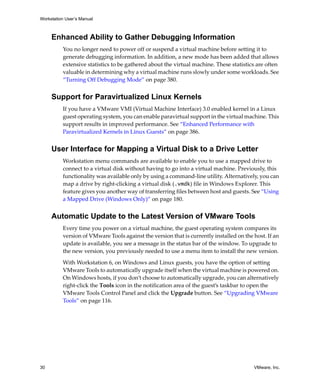
          causing you to lose data.

          After you enable the record/replay feature for a virtual machine, start recording by 
          simply clicking the Record button. Click the Stop button to end the recording and “go 
          live.” You can make multiple recordings and use the snapshot manager to name them, 


VMware, Inc.                                                                                            239
Workstation User’s Manual


          delete them, and play them. You can also make an execution trace file of a recording to 
          record events that occur during the recording.

          Playing a recording is in some respects similar to going to a snapshot. When you play 
          a recording, you discard the current state of the virtual machine and go to the 
          recording. At any time when the recording is playing, you can click the Stop button and 
          resume interacting with the guest operating system at the state the virtual machine is 
          in when you click Stop.

          The sections that follow provide details about how to enable this feature and use it:

                “Hardware and Virtual Hardware Requirements” on page 240
                “Recording and Playing Back Virtual Machine Activity” on page 242


      Hardware and Virtual Hardware Requirements
          Following is a list of requirements for and limitations of this feature:

                Host CPUs – For optimum performance, use a computer with an Intel P4 processor 
                when using this feature. Other processors might operate more slowly during 
                recording and replaying. 

                If you use the record/replay feature on a host computer that does not have an Intel 
                P4 processor, when you enable the record/replay feature and power on the virtual 
                machine, a message appears, informing you that hardware acceleration will be 
                disabled.

                Virtual machine version – Only Workstation 5 and 6 virtual machines can be 
                recorded.

                Supported operating systems – You can use the record/replay feature only on 
                32‐bit versions of the following guest operating systems:

                     Windows 2000
                     Windows XP
                     Windows 2003
                     Windows Vista
                     Red Hat Enterprise Linux 3 and 4
                     SUSE Linux 9.3 and 10.x

                SMP operating systems are not supported. If you attempt to enable the 
                record/replay feature on an unsupported operating system, the virtual machine 
                will not power on until you disable record/replay.


240                                                                                      VMware, Inc.
Chapter 10 Preserving the State of a Virtual Machine


               Unsupported virtual devices – Before you enable the record/replay feature, use the 
               virtual machine settings editor to remove the following devices from the virtual 
               machine:

                   Floppy drives
                   CD‐ROM drives

                   NOTE   Before you remove the CD‐ROM drive from a virtual machine, make 
                   sure that VMware Tools is installed in the guest operating system. During 
                   VMware Tools installation, Workstation temporarily connects the virtual 
                   machine’s first virtual CD‐ROM drive to the correct ISO image file for the 
                   guest operating system.

                   USB controllers
                   Sound adapters
                   Generic SCSI devices
                   LSI Logic adapters

               In addition, avoid connecting the virtual machine to a network or disconnecting it 
               during a recording session.

               Disk space – How much disk space a recording uses depends on the type of activity 
               that occurs on the virtual machine during the recording session. Assume that you 
               will need a substantial amount of disk space.

               Disk mode – You cannot use the record/replay feature if the virtual machine’s 
               virtual hard disk is set to independent mode. This is because recording virtual 
               machine activity requires writing data about the disk to a “continual snapshot.” To 
               change the disk mode, use the virtual machine settings editor 
               (VM>Settings>Hardware>Hard Disk>Advanced).


VMware, Inc.                                                                                            241
Workstation User’s Manual


      Recording and Playing Back Virtual Machine Activity
          This section provides instructions for enabling the record/replay feature, making a 
          recording, making an execution trace file of the recording, playing back the recording, 
          and managing recordings.

          NOTE   Before you enable this feature, make sure that VMware Tools is installed in the 
          guest operating system. Installing VMware Tools requires having a virtual CD‐ROM 
          drive in the virtual machine.

          This section includes the following procedures:

                “To enable record/replay for a virtual machine” on page 242
                “To display the Replay toolbar” on page 243
                “To play back a recording” on page 244
                “To adjust the speed of playback” on page 245
                “To create an execution trace file of a recording” on page 246
                “To delete a recording” on page 246

          To enable record/replay for a virtual machine

          1     Make sure that the virtual machine meets the requirements listed in “Hardware 
                and Virtual Hardware Requirements” on page 240.

          2     Make sure the virtual machine is powered off.

          3     Select the virtual machine and choose VM>Settings. 

                The virtual machine settings editor appears.

          4     Click the Options tab, and select Snapshot/Replay.

          5     On the Snapshot/Replay settings panel, use the following settings:

                     Make sure the Disable snapshots check box is deselected.

                     Select the Enable execution record and replay check box.

          6     Click OK.

          NOTE   When you enable the record/replay feature, the debugging mode automatically 
          gets set to Full. If you later disable record/replay, you need to manually set debugging 
          mode back to Normal. See “Turning Off Debugging Mode” on page 380.


242                                                                                     VMware, Inc.
Chapter 10 Preserving the State of a Virtual Machine


          To display the Replay toolbar

          Choose View>Toolbars>Replay. 

          The Replay toolbar appears to the right of the other toolbars you have displayed. It 
          contains the following buttons:

               Replay Last Recording – Plays the last recording you made for the selected virtual 
               machine. If the virtual machine is powered off, it is resumed, as if it had been 
               suspended.

               To play an earlier recording, use the snapshot manager. Choose 
               VM>Snapshot>Snapshot Manager.

               Record – Takes a snapshot of the virtual machine and begins recording.

               Stop – Stops the recording or replay that is in progress. 

          To make a recording

          1    Power on the virtual machine.

          2    When you want to begin recording, click the Record button in the toolbar, or 
               choose VM>Replay>Record.

               A snapshot is taken, and an icon appears in the status bar to indicate that recording 
               is in progress.

               If the Record command is unavailable, the feature might not be enabled or the hard 
               disk might be set to independent mode. See “To enable record/replay for a virtual 
               machine” on page 242.

          3    Complete the Take Recording dialog box that appears and click OK.

               CAUTION   While a recording is in progress, avoid exiting Workstation and 
               allowing the virtual machine to run in the background. Doing so might cause the 
               virtual machine to crash. Always stop recording before sending a virtual machine 
               to run in the background.

          4    When you want to stop recording, click the Stop button in the toolbar, or choose 
               VM>Replay>Stop.

          5    To change the name of the recording, add or change the description, or delete the 
               recording, choose VM>Snapshot>Snapshot Manager.


VMware, Inc.                                                                                             243
Workstation User’s Manual


          To play back a recording

          1     Select the virtual machine.

          2     If it is powered on and you don’t want to lose the current state of the virtual 
                machine, take a snapshot of it.

                For instructions, see “To take a snapshot” on page 236.

          3     Do one of the following:

                To play the latest recording of the virtual machine, click the Replay Last Recording 
                button in the toolbar, or choose VM>Replay>Replay Last Recording.

                To play an earlier recording, use the snapshot manager, as follows:

                a    Choose VM>Snapshot>Snapshot Manager.

                b    Select the recording snapshot you want to play and click Replay.

                     A snapshot of a recording is shown in Figure 10‐4, “Snapshot Manager: 
                     Windows Host,” on page 233.

          4     In the dialog box that appears, confirm that you want to start replaying the 
                recording.

          5     (Optional) To slow down playback of the recording, see “To adjust the speed of 
                playback” on page 245.

          6     (Optional) To make a trace file of events that occurred during recording, see “To 
                create an execution trace file of a recording” on page 246.

          7     (Optional) To stop replaying the recording before it finishes playing, do one of the 
                following:

                     Choose VM>Replay>Stop.

                     Click the Stop button in the Replay toolbar.

                     Click inside the virtual machine, so that keyboard events are grabbed by the 
                     virtual machine, and press the L key (“go live” key).

                You can then resume interacting with the virtual machine.

          You cannot pause the recording or reverse it. If you stop the recording before it is 
          finished replaying and then click the Replay Last Recording button again, the 
          recording starts from its beginning, not from the point where you clicked Stop.


244                                                                                       VMware, Inc.
Chapter 10 Preserving the State of a Virtual Machine


          To adjust the speed of playback

          1    To set all recordings for a virtual machine to begin playback in slow motion:

               a   Make sure the virtual machine is powered off.

               b   Add the following line to the configuration (.vmx) file for the virtual machine:
                   replay.halt_delay = "<microseconds>"

                   where <microseconds> is the number of microseconds that the virtual 
                   processor should halt when replaying. This setting controls halt emulation 
                   behavior. The default is 0, which means the recording plays in real time. The 
                   maximum value is 10000.

               c   Save and close the file.

                   During playback, if you want to speed up playback or slow it down even 
                   further, use the keyboard shortcuts described in Step 3.

               NOTE   This step is not a prerequisite to using keyboard shortcuts to speed up or 
               slow down a recording. This step is useful if you want to slow recordings down by 
               large increments, such as 10,000 rather than 100 or 200 microseconds.

          2    Replay a recording, as described in “To play back a recording” on page 244.

          3    To use keyboard shortcuts to slow down or speed up a recording:

               a   Click inside the virtual machine, so that keyboard events are grabbed by the 
                   virtual machine.

               b   Press one or more of the following keys to control the speed of replay:

                        Down arrow – Slows down replay by 10 microseconds. 

                        Left arrow – Slows down replay by 100 microseconds. 

                        Up arrow – Accelerates replay by 10 microseconds, if it was previously 
                        slowed down.

                        Right arrow – Accelerates replay by 100 microseconds, if it was 
                        previously slowed down.

                   Press the key repeatedly to slow down or speed up replay even further in 10‐ 
                   or 100‐microsecond increments, depending on the key.

               NOTE   Keep in mind that the fastest speed for replay is real time. If you press the 
               right‐arrow key when the recording is slowed down by only 10 microseconds, then 
               it will speed up by only 10 microseconds.


VMware, Inc.                                                                                            245
Workstation User’s Manual


          To create an execution trace file of a recording

          1     Start playback of a recording, as described in “To play back a recording” on 
                page 244.

          2     To make an execution trace file of the recording, which records the events that 
                occurred during recording, click inside the virtual machine, so that keyboard 
                events are grabbed by the virtual machine, and press the T key (“trace” key).

                A trace file is created in the directory where this virtual machine’s configuration 
                (.vmx) file is stored. The filename is ReplayTrace-<timestamp>.gz, where 
                <timestamp> is the time at which you pressed the T key.

                NOTE   The speed at which the recording plays slows considerably while the trace 
                file is being made.

          3     To end the trace file, either press the T key again or click the Stop button in the 
                Replay toolbar.

                Otherwise, the trace file ends when the recording finishes playing.

                If you press the T key to end the trace file before the recording ends and then press 
                T again, another trace file is created.

          To delete a recording

          1     Select the virtual machine.

          2     Choose VM>Snapshot>Snapshot Manager.

          3     In the Snapshot Manager window, select the recording and click Delete.

                Recordings can consume large amounts of disk space, depending on the activities 
                of the virtual machine and the length of the recording. Delete recordings you don’t 
                need to retain.


246                                                                                        VMware, Inc.
11


Cloning a Virtual Machine                                                            11
          This chapter provides instructions for creating and configuring clones of virtual 
          machines. This chapter includes the following topics:

               “Understanding Clones” on page 247
               “Creating Clones” on page 249
               “Working with Clones” on page 251


Understanding Clones
          A clone is a copy of an existing virtual machine. The existing virtual machine is called 
          the parent of the clone. When the cloning operation is complete, the clone is a separate 
          virtual machine:

               Changes made to a clone do not affect the parent virtual machine. Changes made 
               to the parent virtual machine do not appear in a clone. 

               A clone’s MAC address and UUID are different from those of the parent virtual 
               machine.

          To save the current state of the virtual machine, so that you can revert to that state, take 
          a snapshot. To make a copy of a virtual machine for separate use, create a clone. 

          Although a clone is a separate virtual machine, if the clone is a linked clone, it shares 
          virtual disks with the parent virtual machine. A more detailed explanation of linked 
          clones appears in “Full and Linked Clones” on page 248.


VMware, Inc.                                                                                       247
Workstation User’s Manual


      Why Make a Clone?
          Installing a guest operating system and applications can be time consuming. With 
          clones, you can make many copies of a virtual machine from a single installation and 
          configuration process.

          Clones are useful when you must deploy many identical virtual machines to a group. 
          For example:

                An MIS department can clone a virtual machine for each employee, with a suite of 
                preconfigured office applications.

                A virtual machine can be configured with a complete development environment 
                and then cloned repeatedly as a baseline configuration for software testing.

                A teacher can clone a virtual machine for each student, with all the lessons and labs 
                required for the term.

          With clones you can make complete copies of a virtual machine, without browsing a 
          host file system or worrying if you have located all the configuration files.


      Full and Linked Clones
          There are two types of clones: full clones and linked clones.

          Full Clones
          A full clone is an independent copy of a virtual machine that shares nothing with the 
          parent virtual machine after the cloning operation. Ongoing operation of a full clone is 
          entirely separate from the parent virtual machine.

          Because a full clone does not share virtual disks with the parent virtual machine, full 
          clones generally perform better than linked clones. However, full clones take longer to 
          create than linked clones. Creating a full clone can take several minutes if the files 
          involved are large. 

          Linked Clones
          A linked clone is a copy of a virtual machine that shares virtual disks with the parent 
          virtual machine in an ongoing manner. A linked clone is made from a snapshot of the 
          parent. (See “Snapshot Processes: Linear Versus Process Tree” on page 227.) This 
          conserves disk space and allows multiple virtual machines to use the same software 
          installation. 


248                                                                                        VMware, Inc.
Chapter 11 Cloning a Virtual Machine


          All files available on the parent at the moment of the snapshot continue to remain 
          available to the linked clone. Ongoing changes to the virtual disk of the parent do not 
          affect the linked clone, and changes to the disk of the linked clone do not affect the 
          parent.

          A linked clone must have access to the parent. Without access to the parent, you cannot 
          use a linked clone at all. See “Linked Clones and Access to the Parent Virtual Machine” 
          on page 252.

          Linked clones are created swiftly, so you can easily create a unique virtual machine for 
          each task you have. You can also easily share a virtual machine with other users by 
          storing the virtual machine on your local network, where other users can quickly make 
          a linked clone. This facilitates collaboration: for example, a support team can reproduce 
          a bug in a virtual machine, and an engineer can quickly make a linked clone of that 
          virtual machine to work on the bug.


     Full Clones and Snapshots of the Parent
          A full clone is a complete and independent copy of a virtual machine. However, the full 
          clone duplicates only the state of the virtual machine at the instant of the cloning 
          operation. Thus the full clone does not have access to any snapshots that might exist of 
          the parent virtual machine.


Creating Clones
          The Clone Virtual Machine wizard guides you through the process of making a clone. 
          You do not need to locate and manually copy the parent virtual machine files. The 
          Clone Virtual Machine wizard automatically creates a new MAC address and other 
          unique identifiers for the clone.

          NOTE   Workstation 4 virtual machines, and virtual machines created with other 
          VMware products that are compatible with version 4, must be upgraded to at least 
          Workstation version 5 virtual machines before you can clone them. See “Changing the 
          Version of the Virtual Machine” on page 61.


VMware, Inc.                                                                                         249
Workstation User’s Manual


          To create a clone using the Clone Virtual Machine wizard

          1     If you want to make a linked clone, defragment the guest operating system’s drives 
                before creating the linked clone. 

                Use the tools in the guest operating system to run a defragmentation utility.

                For more information, see “Performance Impact of Defragmenting Snapshots and 
                Linked Clones” on page 385. 

          2     Power off the virtual machine that you want to clone.

                You cannot create a clone from a virtual machine that is powered on or suspended. 

          3     Click the name of a virtual machine you want to clone in the Favorites list or click 
                the tab of a virtual machine in the summary window.

          4     From the Workstation menu bar, choose VM>Clone to open the Clone Virtual 
                Machine wizard. 

          5     On the Welcome page, click Next.

          6     On the Clone Source page, select the state of the parent from which you want to 
                create a clone and click Next. 

                You can choose to create a clone from:

                     The parent’s current state. Workstation creates a snapshot of the virtual 
                     machine before cloning it.

                     Any snapshot of the parent. Select the snapshot name from a drop‐down 
                     menu of existing snapshots.

          7     On the Clone Type page, specify whether you want to create a linked clone or a full 
                clone and click Next. 

                See “Full and Linked Clones” on page 248 for a description of the differences.

          8     On the Name of the New Virtual Machine page, enter a name and a path for the 
                cloned virtual machine and click Finish. 

                The default name and path are based on the original virtual machine name and 
                location. You can type a new entry for name and path, or browse to a directory for 
                the clone files. 

                The Clone Virtual Machine wizard displays a status page. A full clone can take 
                many minutes to create, depending on the size of the virtual disk that is being 
                duplicated.

          9     Click Done to exit the Clone Virtual Machine wizard.


250                                                                                       VMware, Inc.
Chapter 11 Cloning a Virtual Machine


Working with Clones
          This section discusses the following topics:

               “Making a Linked Clone of a Linked Clone” on page 251
               “Making a Full Clone of a Linked Clone” on page 251
               “Network Identity for a Clone” on page 251
               “Linked Clone Snapshot” on page 252
               “Linked Clones and Access to the Parent Virtual Machine” on page 252


     Making a Linked Clone of a Linked Clone
          It is possible to make a linked clone from a linked clone, using the Clone Virtual 
          Machine wizard. Keep these cautions in mind:

               Performance degrades when you do this. When possible, make a linked clone of 
               the parent virtual machine.

               To power on and work with a linked clone of a linked clone, Workstation must be 
               able to locate all ancestors in the chain. See “Linked Clones and Access to the 
               Parent Virtual Machine” on page 252.


     Making a Full Clone of a Linked Clone
          It is possible to make a full clone from a linked clone, using the Clone Virtual Machine 
          wizard. The linked clone can be used as before. The full clone created with this action 
          is an independent virtual machine that does not require access to the linked clone or its 
          ancestors. 

          To make a full clone from a linked clone, Workstation must have access to the linked 
          clone and all ancestors at the time you run the Clone Virtual Machine wizard. Refer to 
          “Linked Clones and Access to the Parent Virtual Machine” on page 252.


     Network Identity for a Clone
          The Clone Virtual Machine wizard creates a new MAC address for the cloned virtual 
          machine. Other configuration information is identical to that of the parent virtual 
          machine. For example, a machine’s name and static IP address configuration are not 
          altered by the Clone Virtual Machine wizard. 

          To prevent conflict with static IP addressing, change the clone‘s static IP address before 
          the clone connects to the network. See “Selecting IP Addresses on a Host‐Only Network 
          or NAT Configuration” on page 291.


VMware, Inc.                                                                                         251
Workstation User’s Manual


      Linked Clone Snapshot
          When you create a linked clone, Workstation creates a snapshot of the parent virtual 
          machine. This snapshot preserves the exact state of the virtual machine when you 
          create the clone. 

          WARNING   You cannot delete the linked clone snapshot without destroying the linked 
          clone. It is safe to delete this snapshot only if you have deleted the clone depending on 
          it.

          The snapshot manager allows you to rename any snapshot. If you rename a snapshot 
          for a cloned virtual machine, use the Description field to aid you in future 
          identification. See “Working with Snapshots in the Snapshot Manager” on page 233 for 
          more information on renaming snapshots.


      Linked Clones and Access to the Parent Virtual Machine
          You cannot power on or resume a linked clone if Workstation fails to locate the parent 
          virtual machine. This section discusses the issues related to accessing the necessary 
          files.

          Moving a Linked Clone
          You can move a linked clone or its parent within a file system or network, but you must 
          ensure that Workstation can continue to access the clone and the parent virtual 
          machine. 

          Place the parent in a shared directory or on a network file server so Workstation can use 
          the linked clone from any host computer with network access. See “Moving and 
          Sharing Virtual Machines” on page 187.

          For example, if you put a linked clone on a laptop, and the parent remains on another 
          machine, you can use the clone only when the laptop connects to the network or drive 
          where the parent is stored. To use a cloned virtual machine on a disconnected laptop, 
          you must use a full clone or you must move the parent virtual machine to the laptop.

          Protecting the Parent of Linked Clones
          To prevent anyone from deleting the parent virtual machine for a linked clone, 
          designate the parent as a template. The two parts of the process are discussed in the 
          following sections:

                “To enable template mode using the virtual machine settings editor” on page 253
                “To create a linked clone from a template” on page 253


252                                                                                      VMware, Inc.
Chapter 11 Cloning a Virtual Machine


          To enable template mode using the virtual machine settings editor

          1    Start Workstation and select the virtual machine. 

               The virtual machine can be either powered on or powered off. 

          2    Choose VM>Settings. 

               The virtual machine settings editor opens. 

          3    Click the Options tab, and select Advanced.

          4    In the Settings section, click Enable Template mode (to be used for cloning) and 
               click OK.

          With template mode enabled, a virtual machine cannot be deleted or added to a team, 
          and the virtual machine’s snapshots cannot be deleted.

          To create a linked clone from a template

          1    Select the virtual machine to use as a parent of your linked clone.

          2    Verify that the parent has at least one snapshot. 

               Open the snapshot manager and create a snapshot if none exists.

          3    Verify that template mode has been enabled.

               See “To enable template mode using the virtual machine settings editor” on 
               page 253.

          4    With the virtual machine still selected, launch the Clone Virtual Machine wizard 
               by choosing VM>Clone from the Workstation menu bar.
          5    Click Next to display the Clone Source page.

          6    Select a snapshot from the drop‐down menu and click Next.

               The wizard does not allow you to clone from the current state when the virtual 
               machine has template mode enabled.

          7    Name the linked clone and click Finish.

               Workstation creates the linked clone and displays a status page.

          8    Click Done to exit the wizard.


VMware, Inc.                                                                                        253
Workstation User’s Manual


254                         VMware, Inc.
12


Configuring Teams                                                              12
          This chapter describes what virtual machine teams are used for, how to create them, 
          and how to configure them. This chapter includes the following topics:

               “Benefits of Using Teams” on page 255
               “Creating a Team” on page 257
               “Opening and Closing a Team” on page 258
               “Changing the Name of a Team” on page 259
               “Deleting a Team” on page 259
               “Viewing Teams and Their Virtual Machines” on page 260
               “Adding and Removing Team Virtual Machines” on page 262
               “Setting the Startup Sequence for a Team” on page 263
               “Starting and Stopping Teams” on page 264
               “Working with Team Networks” on page 266
               “Cloning and Taking Snapshots of Team Members” on page 271


Benefits of Using Teams
          Workstation teams allow you to set up a virtual computer lab on one host computer. 
          Teams enable you to power on multiple associated virtual machines with a single click. 

          Team settings control the startup order and timing for team virtual machines. You can 
          set up specific delays between booting virtual machines so the host CPU load is spread 
          out. Teams automatically launch virtual machines in the right order, with delays that 
          you specify to ensure that each virtual machine stabilizes before the next virtual 
          machine boots.


VMware, Inc.                                                                                 255
Workstation User’s Manual


          Team virtual machines can use networking just as other virtual machines can. In 
          addition, team members can communicate in private networks called LAN segments. 
          LAN segments are completely independent of, and invisible to, the host computer’s 
          network.

          You can use teams to:

                Virtualize multitier environments – Start separate client, server, and database 
                virtual machines with one click. Configure startup delay times so clients don’t 
                submit queries before the server is ready.

                Virtualize multiple‐machine testing environments – Set up a software package 
                for QA on a virtual machine, and configure automation on other virtual machines 
                to test the first.

                Virtualize network performance and security – LAN segments offer enhanced 
                performance and security. A team LAN segment is fully contained. It is 
                undetectable and inaccessible from any other network, inside or outside the team. 
                Team networking lets you:

                     Isolate a team completely from the host network.

                     Create a virtual DMZ or proxy server to securely bridge the team members to 
                     the outside network.

                     Allow specific network bandwidth and packet loss to each virtual machine on 
                     the team.

                     Connect all team members fully to host resources.

                You control all traffic allowed between the host network and team virtual 
                machines.

                Monitor multiple virtual machines – Use thumbnail views of the virtual machine 
                displays to review activity on team virtual machines simultaneously.


256                                                                                     VMware, Inc.
Chapter 12 Configuring Teams


Creating a Team
          Use the New Team wizard to create a team and add virtual machines.

          To create a team

          1    To add virtual machines to the team while completing the New Team wizard:

                   Power off any virtual machines that you want to add to the team. 

                   Power off any virtual machines that you want to clone if you intend to create 
                   a clone and add it to the team.

               You can instead add virtual machines later, after you create the team, by using the 
               Team menu.

          2    From the Workstation menu bar, open the New Team wizard by choosing 
               File>New>Team.

          3    Complete the New Team wizard that appears. 

               Completing the wizard involves specifying the following things:

                   The name of the team and location of the virtual team files. By default, the 
                   team files are stored in the same directory as virtual machines, as described in 
                   “Virtual Machine Location” on page 152.

                   Whether you want to add virtual machines to the team now or later. If you 
                   want to add them now, you have the following options:

                        New Virtual Machine – Launches the New Virtual Machine wizard. See 
                        “Setting Up a New Virtual Machine” on page 89.

                        Existing Virtual Machine – Opens a file browser from which you can 
                        navigate the host file system to locate an existing .vmx file.

                        When you add a virtual machine to a team it can no longer be accessed 
                        outside the team. For more information, see “Adding and Removing 
                        Team Virtual Machines” on page 262.

                        New Clone of Virtual Machine – Opens a file browser from which you 
                        can navigate the host file system to locate an existing .vmx file. After you 
                        select a virtual machine, Workstation launches the Clone Virtual Machine 
                        wizard. See “Creating Clones” on page 249.

                   NOTE   Workstation version 4 virtual machines cannot be added to teams.


VMware, Inc.                                                                                       257
Workstation User’s Manual


                     Whether you want to add one or more LAN segments. If you add LAN 
                     segments while creating the team, you change default names and bandwidth 
                     later, as described in “Configuring LAN Segments” on page 269.
                     You can instead add LAN segments later, after you create the team, by using 
                     the Team menu. For information about LAN segments, see “Working with 
                     Team Networks” on page 266.

          After the team is created, you can add it to the Favorites list. Use the Team menu to 
          configure the team further, or to add and remove virtual machines.


Opening and Closing a Team
          Opening a team displays its summary window but does not power on the virtual 
          machines included in the team. 

          Closing a team removes its summary window. Depending on how you set Workstation 
          preferences, closing a team might require powering off the team. For information about 
          this preference, see “Closing Virtual Machines and Exiting Workstation” on page 86. To 
          delete a team permanently, see “Deleting a Team” on page 259.

          To open a team

          1     From the Workstation menu bar, choose File>Open.

          2     Browse to the location of the .vmtm file for the team you want.

          3     Select the file and click Open.

                The selected team appears as a tabbed item in the summary window.

          4     To add the team to the Favorites list, choose File>Add to Favorites.

                After a team is added to the Favorites list, open it by clicking it in the Favorites list.

          To close a team

          1     Power off the team, as described in “Powering a Team On and Off” on page 264.

          2     Select the team to close.

                Click the summary/console tab for the desired team, or select the team name in the 
                Favorites list.


258                                                                                           VMware, Inc.
Chapter 12 Configuring Teams


          3    Choose File>Close.

          4    If any of the team’s virtual machines are still powered on and you are prompted 
               about whether you want to power them off or let them run in the background, click 
               the button you want. 

               For more information, see “Closing Virtual Machines and Exiting Workstation” on 
               page 86.

          The closed team is removed from the summary window. To remove the team from the 
          Favorites list, see “To remove a name from the Favorites list” on page 77.


Changing the Name of a Team
          When you create a team, the name of the directory where the team (.vmtm) file is stored 
          is based on the name you originally give the team. Although you can change the name 
          of the team, the name of this file does not change.

          To change the name of a team

          Do one of the following:

               If the team is in the Favorites list, right‐click it and choose Rename. Type the new 
               name and press Enter.

               Open the team or select the team in the Favorites list and choose 
               Team>Settings>Options. Type a new name in the Team name field and click OK.


Deleting a Team
          When you delete a team, you can choose to delete:

               Only the team (retaining the virtual machines in the team)

               The team and the virtual machines in the team

          WARNING   Deleting a team permanently removes the team files from the host file 
          system and removes associated LAN segments from all virtual machines. Deleting the 
          team’s virtual machines along with the team removes the virtual machine files 
          permanently.

          To remove a team from the Workstation window without deleting the team, see 
          “Opening and Closing a Team” on page 258.


VMware, Inc.                                                                                      259
Workstation User’s Manual


          To delete a team

          1     Make sure the team is powered off.

          2     Open the team or select the team in the Favorites list, and from the Workstation 
                menu bar, choose Team>Delete from Disk.

          3     Do one of the following:

                     To delete the team without deleting the virtual machines in it, choose Delete. 

                     To delete the team and the virtual machines in it, choose Delete Team and 
                     VMs.

                When you delete a team, you also delete all team LAN segments. The virtual 
                Ethernet adapters associated with deleted LAN segments become disconnected. 
                Bridged, host‐only, NAT, and custom configurations remain unchanged.

          4     Click OK.

                The team is removed permanently from Workstation and the host file system. If 
                you chose Delete Team and VMs, the virtual machines in the team are also 
                removed permanently from Workstation and the host file system.


Viewing Teams and Their Virtual Machines
          Workstation displays teams in a summary view or console view:

                The summary view is available at any time. See “Summary View” on page 68.

                The console view is available only when a team is powered on. A grab bar allows 
                you to resize the areas.


260                                                                                      VMware, Inc.
Chapter 12 Configuring Teams


               Figure 12-1. Console Window for a Team (Windows Host)


                                                                                thumbnail views of
                                                                                virtual machines in the
                                                                                team, in the order of
                                                                                the startup sequence
                                                                                (left to right)


                                                                                active virtual machine


          You might need to scroll the thumbnails to view all your virtual machines on a large 
          team. The thumbnails are displayed in the same order as the team’s startup sequence, 
          starting on the left with the first virtual machine in the sequence.

          Workstation updates thumbnails in real time, to display the actual content of the virtual 
          machine screens. The active virtual machine is the one that appears in the lower pane 
          of the console. Its thumbnail is represented by the VMware icon.

          Workstation menus and commands directly affect only the active virtual machine, and 
          you can use the mouse and keyboard to interact directly with the active virtual 
          machine.

          Click a thumbnail of a virtual machine or use the Team>Switch To menu and then 
          select the virtual machine that you want to make active. The virtual machine you select 
          appears in the lower pane of the console, and its thumbnail becomes the VMware icon. 

          In full screen mode, Workstation displays only the active virtual machine. See “Using 
          Full Screen Mode” on page 158.


VMware, Inc.                                                                                       261
Workstation User’s Manual


Adding and Removing Team Virtual Machines
          This section provides instructions for adding virtual machines to teams and removing 
          them from teams.

          Consider these issues when you add a virtual machine to a team:

                A virtual machine is not powered on when you add it to a running team. You must 
                power on the added virtual machine manually to use it during the current session. 
                The added virtual machine is thereafter powered on or off with the rest of the team.

                When you add a virtual machine to a team, you can no longer operate the virtual 
                machine outside the team. Adding a virtual machine to a team therefore removes 
                it from the Favorites list.

          NOTE   Workstation version 4 virtual machines cannot be added to teams.

          To add a virtual machine to a team

          1     Make sure that any existing virtual machines that you want to add or clone are 
                powered off.

          2     Open the team or select the team in the Favorites list.

          3     From the Workstation menu bar, choose Team>Add and select one of the following 
                options:

                     New Virtual Machine – Launches the New Virtual Machine wizard. See 
                     “Setting Up a New Virtual Machine” on page 89.

                     Existing Virtual Machine – Opens a file browser from which you can navigate 
                     the host file system to locate an existing .vmx file.

                     When you add a virtual machine to a team it can no longer be accessed outside 
                     the team.

                     New Clone of Virtual Machine – Opens a file browser from which you can 
                     navigate the host file system to locate an existing .vmx file. After you select a 
                     virtual machine, Workstation launches the Clone Virtual Machine wizard. See 
                     “Creating Clones” on page 249.


262                                                                                        VMware, Inc.
Chapter 12 Configuring Teams


          To remove a virtual machine from a team

          1    Make sure that any virtual machines that you want to remove are powered off.

          2    Open the team or select the team in the Favorites list.

          3    From the Workstation menu bar, choose Team>Remove><virtual machine name>.

               The selected virtual machine is removed from the team. You can now use it 
               independently.

          NOTE   When you remove a virtual machine from a team, you also remove it from team 
          LAN segments. Virtual network adapters associated with LAN segments become 
          disconnected. Bridged, host‐only, NAT, and custom configurations remain unchanged.

          To completely delete a virtual machine and erase its files from the host file system, see 
          “Deleting a Virtual Machine” on page 156.

          When you add a virtual machine to a team, it is removed from the Favorites list. A 
          virtual machine is not automatically added to the Favorites list when you remove it 
          from a team. You must manually add it, as described in “To add a virtual machine or 
          team entry to the Favorites list” on page 77.


Setting the Startup Sequence for a Team
          In the startup sequence, you can specify:

               The order in which virtual machines start and stop – Team virtual machines start 
               one at a time, in the order you set in the startup sequence. Setting the startup 
               sequence is useful, for example, if you have a virtual machine that runs an 
               application to be tested and you want it to start before the virtual machines 
               running an automated testing script.

               The delay between team members in the sequence – Set the time that Workstation 
               delays after starting or stopping a virtual machine, before starting or stopping the 
               next virtual machine in the sequence. This delay avoids overloading the CPU when 
               multiple virtual machines start and allows applications on a virtual machine to 
               launch before another team virtual machine attempts to connect. 

               You might also use this delay to ensure that a virtual machine functioning as a 
               server completes its startup before client virtual machines start. If your virtual 
               machine team depends on precise startup timing, experiment to determine how 
               much time your host and guest operating environments and applications need to 
               launch.


VMware, Inc.                                                                                      263
Workstation User’s Manual


          The startup sequence applies to power on, power off, suspend, and resume operations. 

                Power on and resume operations for virtual machines occur in the order of the 
                sequence shown in the team settings list. 

                Power off and suspend operations for virtual machines occur in the reverse of the 
                order shown in the team settings list.

          To set the startup sequence for members of a team

          1     Open the team or select the team in the Favorites list.

          2     From the Workstation menu bar, choose Team>Settings and click the Virtual 
                Machines tab.

          3     Use the up and down arrow buttons to arrange the virtual machines in the list. The 
                virtual machine at the top of the list is the first in the startup sequence.

          4     Select each virtual machine and specify how many seconds you want it to wait 
                before starting the next virtual machine. 

                NOTE   This “startup” delay is applied to power on, power off, suspend, and 
                resume operations. 

          5     Click OK to save your changes.


Starting and Stopping Teams
          Power operations for teams are much the same as those for an individual virtual 
          machine. However, for a team, you can also configure the sequence in which the 
          members of a team power on and off. See “Setting the Startup Sequence for a Team” on 
          page 263.

          You can also use Workstation’s command‐line application for team power operations. 
          See Appendix A, “Workstation Command‐Line Reference,” on page 407.


      Powering a Team On and Off
          When you power a team on or off, the virtual machines in the team power on or off in 
          the startup sequence specified in the team settings editor (from the Workstation menu 
          bar, choose Team>Settings>Virtual Machines). See “Setting the Startup Sequence for a 
          Team” on page 263.


264                                                                                     VMware, Inc.
Chapter 12 Configuring Teams


          To power a team on or off

          1    Select the team either from the Favorites list or by clicking the summary tab for the 
               team.

          2    Do one of the following:

                   In the Workstation toolbar, click the Power On button or the Power Off 
                   button, as appropriate.

                   From the Workstation menu bar, choose one of the Team>Power options.

          When you power off a team, the default settings for a virtual machine can cause the 
          guest operating system to terminate abruptly. For information about configuring your 
          virtual machine to recognize the shut down guest command when you power off a 
          team, see “Shutting Down a Virtual Machine” on page 154.


     Suspending and Resuming a Team
          When you suspend a team, all team virtual machines start suspending simultaneously. 
          The startup sequence determines the order in which virtual machines are resumed, and 
          the time Workstation delays after each team member is resumed, before resuming the 
          next team member. See “Setting the Startup Sequence for a Team” on page 263.

          If you attempt to close Workstation while a team suspend or resume operation is still in 
          progress, a warning dialog box appears.

          To suspend or resume a team

          1    Select the team either from the Favorites list or by clicking the summary tab for the 
               team.

          2    Do one of the following:

                   In the Workstation toolbar, click the Suspend button or the Resume button, as 
                   appropriate.

                   From the Workstation menu bar, choose one of the Team>Power options.

          All team virtual machines start suspending simultaneously. A progress indicator 
          appears for each team member. To see the progress of a particular team member, choose 
          Team>Switch To><virtual machine name>.
          The time to complete the operation varies with the size of the virtual machines.


VMware, Inc.                                                                                       265
Workstation User’s Manual


      Power Operations for Individual Members of a Team
          Performing a power operation for one member of a team is similar to performing the 
          operation for a virtual machine that is not part of the team, except that instead of 
          selecting the machine from the Favorites list, you select it from the team’s console.

          To perform power operations for a single virtual machine in a team

          1     Select the virtual machine from the team’s console.

          2     Do one of the following:

                     Choose the appropriate command from the VM>Power menu. 

                     From the Workstation menu bar, choose one of the Team>Power options.

          For more information see:

                “Starting a Virtual Machine” on page 150
                “Shutting Down a Virtual Machine” on page 154
                “Using the Suspend and Resume Features” on page 225
                “Powering Off Versus Shutting Down and Resetting Versus Restarting” on 
                page 154


Working with Team Networks
          One of the advantages of teams is the ability to isolate virtual machines in private 
          virtual networks, called LAN segments. This can be useful with multitier testing, 
          network performance analysis, and situations where isolation and packet loss are 
          important. 

          This section focuses on LAN segments. For information about other aspects of 
          networking, see Chapter 13, “Configuring a Virtual Network,” on page 273.


      LAN Segment Requirements
          The following sections describe the requirements for virtual machines connecting to a 
          LAN segment.

          Network Adapter
          A physical PC must have a network adapter for each physical network connection. 
          Similarly, a virtual machine must be configured with a virtual network adapter for each 
          LAN segment it interacts with. To connect a virtual machine to multiple LAN segments 
          simultaneously, you must configure that virtual machine with multiple network 
          adapters. See “Adding and Removing Ethernet Adapters” on page 268.


266                                                                                     VMware, Inc.
Chapter 12 Configuring Teams


          LAN Segment IP Addresses
          Each network client must have an IP address for TCP/IP networking. Unlike host‐only 
          and NAT networking, LAN segments have no DHCP server provided automatically by 
          Workstation. Therefore you must manually configure IP addressing for team virtual 
          machines on a LAN segment. There are two choices:

               DHCP – Configure a DHCP server on your LAN segment to allocate IP addresses 
               to your virtual machines. 

               Static IP – Configure a fixed IP address for each virtual machine on the LAN 
               segment. 

          When you add an existing virtual machine to a team, the virtual machine might be 
          configured to expect an IP address from a DHCP server. A DHCP server is not 
          automatically provided for a virtual LAN segment. You must provide a DHCP server 
          on the LAN segment, or reconfigure the virtual machine to use a static IP address. See 
          “Configuring a Virtual Network” on page 273.


     Creating a Team LAN Segment
          The first step to creating a virtual network for a team is to add and name a LAN 
          segment. You can then configure connections to this segment.

          To create a virtual network for a team

          1    Open the team or select the team in the Favorites list. 

          2    From the Workstation menu bar, choose Team>Add>LAN Segment.

          3    Enter a name for the private network and click OK. 

               You can configure the other settings in this dialog box later, as described in 
               “Configuring LAN Segments” on page 269.

               The LAN segment is added to the team. 

          Now that the LAN segment is created, you can create a network adapter to connect to 
          it, as described in “Adding and Removing Ethernet Adapters” on page 268.


VMware, Inc.                                                                                      267
Workstation User’s Manual


      Adding and Removing Ethernet Adapters
          Use the following procedure to create an adapter to connect to a LAN segment. 

          To add or remove an Ethernet adapter

          1     Power off the virtual machine that you want to add an adapter to or remove an 
                adapter from.

          2     Select the team either from the Favorites list or by clicking the summary tab for the 
                team.

          3     From the Workstation menu bar, choose Team>Settings and click the Connections 
                tab. 

          4     To add an adapter, select the virtual machine and click Add Adapter. 

                The added adapter is displayed in the Adapters column. 

          5     To use the adapter to connect to a LAN segment, select the check box that 
                corresponds to the LAN segment. 

                If you need to first create a LAN segment, see “Creating a Team LAN Segment” on 
                page 267.

          6     To remove an adapter, select the adapter you want to remove and click Remove 
                Adapter. 

          7     Click OK.

          Now that you have added a network adapter, you can use it to configure connections, 
          as described in “Configuring Connections for a LAN Segment” on page 269.


268                                                                                        VMware, Inc.
Chapter 12 Configuring Teams


     Configuring Connections for a LAN Segment
          This section describes how to configure connections for virtual Ethernet adapters.

          To connect a virtual machine to a LAN segment

          1    If you have not yet created a LAN segment, do so, as described in “Creating a Team 
               LAN Segment” on page 267.

          2    Open the team or select the team in the Favorites list.

          3    From the Workstation menu bar, choose Team>Settings and click the Connections 
               tab. 

               Each virtual Ethernet adapter is displayed in a separate row. 

               If no Ethernet adapters appear on this tab, add one, as described in “Adding and 
               Removing Ethernet Adapters” on page 268.

          4    For each virtual Ethernet adapter, select the check box that corresponds to the LAN 
               segment and click OK.

          The virtual machine is now connected to the selected LAN segment. Continue on to 
          “Configuring LAN Segments” on page 269.


     Configuring LAN Segments
          You can configure network transmission properties for a LAN segment, including 
          bandwidth settings such as connection type and speed, as well as percentage of packet 
          loss allowed.

          To configure LAN segments for a team

          1    Select the team either from the Favorites list or by clicking the summary tab for the 
               team.

          2    From the Workstation menu bar, choose Team>Settings.

          3    Click the LAN Segments tab, and complete the fields.

               From this tab you can add, remove, and rename the LAN segments configured for 
               the team. 

               The list in the left pane displays LAN segments associated with the team. 


VMware, Inc.                                                                                       269
Workstation User’s Manual


          4     Click a name to select the LAN segment you want to configure.

                The right pane displays parameters for the physical properties of the emulated 
                LAN segment link:

                     Name – Name of the LAN segment. To change the name, type a new name in 
                     the Name field.

                     Bandwidth – Drop‐down menu of bandwidths for typical network links. To 
                     change the bandwidth, choose another connection type from the drop‐down 
                     menu.

                     Kbps – Set a custom bandwidth. Changes here are overwritten when you 
                     make a selection from the Bandwidth menu. To change the bandwidth, type 
                     a number into the field.

                     Packet Loss – A specification of the efficiency or faultiness of the link, 
                     measured in the percentage of packets lost from the total number of packets 
                     transmitted. To change the packet loss setting, type a number into the field.

          5     Click OK to save your changes. 

          NOTE   LAN settings changes are ignored by virtual machines that are currently 
          running. Changes to LAN settings become active for a given virtual machine only after 
          that virtual machine is powered on, reset, or resumed.


      Deleting a LAN Segment
          Deleting a LAN segment disconnects all virtual Ethernet adapters that are configured 
          for that LAN segment. When you remove a virtual machine from a team, you must 
          manually configure its disconnected virtual Ethernet adapter if you want to reconnect 
          the virtual machine to a network.

          To delete a LAN segment from a team

          1     Select the team either from the Favorites list or by clicking the summary tab for the 
                team.

          2     From the Workstation menu bar, choose Team>Settings and click the LAN 
                Segments tab.
          3     Select the LAN segment you want to delete.

          4     Click Remove.

                The LAN segment is removed. 


270                                                                                        VMware, Inc.
Chapter 12 Configuring Teams


Cloning and Taking Snapshots of Team Members
          You can clone a virtual machine in a team in the same way you clone any other virtual 
          machine. See “Creating Clones” on page 249. When you clone a virtual machine in a 
          team:

               The resulting clone is not part of the team.

               The clone appears on the Favorites list as well as in a summary window.

               If the parent virtual machine is configured for a LAN segment, the virtual Ethernet 
               adapter for that LAN segment on the clone is disconnected. To connect to a 
               network, you must reconfigure the virtual Ethernet adapter manually.

          Snapshots operate on virtual machines, not on the whole team. When a team is active, 
          the Snapshot button on the toolbar takes a snapshot of only the active virtual machine.

          To preserve the state of all virtual machines on a team, power off the team, and take a 
          snapshot of each virtual machine before you power on the team again.


VMware, Inc.                                                                                     271
Workstation User’s Manual


272                         VMware, Inc.
13


Configuring a Virtual
Network                                                                       13
          The first topics in this chapter preview the virtual networking components that 
          VMware Workstation provides and show how you can use them with your virtual 
          machine. The rest of the chapter provides more detail on networking capabilities and 
          specialized configurations.

          This chapter includes the following topics:

               “Network Basics” on page 274
               “Components of the Virtual Network” on page 275
               “Common Networking Configurations” on page 276
               “Example of a Custom Networking Configuration” on page 280
               “Changing a Networking Configuration” on page 284
               “Advanced Networking Topics” on page 291
               “Using NAT” on page 306
               “Using Samba with Workstation” on page 318


VMware, Inc.                                                                                273
Workstation User’s Manual


Network Basics
          VMware Workstation provides several ways you can configure a virtual machine for 
          virtual networking:

                Bridged networking – Configures your virtual machine as a unique identity on the 
                network, separate from and unrelated to its host. Other computers on the network 
                can then communicate directly with the virtual machine. Bridged networking 
                works with Ethernet, DSL, cable, wireless, and legacy phone modems. See 
                “Bridged Networking” on page 276.

                Network address translation (NAT) – Configures your virtual machine to share 
                the IP and MAC addresses of the host. The virtual machine and the host share a 
                single network identity that is not visible outside the network. NAT can be useful 
                when you are allowed a single IP address or MAC address by your network 
                administrator. You might also use NAT to configure separate virtual machines for 
                handling HTTP and FTP requests, with both virtual machines running off the same 
                IP address or domain. 

                NAT works with Ethernet, DSL, and legacy phone modems. See “Network 
                Address Translation (NAT)” on page 278.

                Host‐only networking – Configures your virtual machine to allow network access 
                only to the host. With host‐only networking, the virtual machine can communicate 
                only with the host and other virtual machines in the host‐only network. This can 
                be useful when you want a secure virtual machine that is connected to the host 
                network, but available only through the host machine. In this configuration, the 
                virtual machine cannot connect to the Internet. See “Host‐Only Networking” on 
                page 279.

                Custom networking – Lets you configure your virtual machine’s network 
                connection manually. On Windows hosts, you can use the virtual network editor 
                to access multiple network cards in your host and create multiple virtual networks. 
                See “Example of a Custom Networking Configuration” on page 280.

          If you select the Typical setup path in the New Virtual Machine wizard, the wizard sets 
          up bridged networking for the virtual machine. Select the Custom setup path to choose 
          any of the other common configurations: bridged networking, network address 
          translation (NAT), and host‐only networking. The wizard connects the virtual machine 
          to the appropriate virtual network. 

          You can set up more specialized configurations by choosing the appropriate settings in 
          the virtual machine settings editor, in the virtual network editor (on Windows hosts), 
          and on your host computer.


274                                                                                      VMware, Inc.
Chapter 13 Configuring a Virtual Network


          On a Windows host, the software needed for all networking configurations is installed 
          when you install Workstation. On a Linux host, when you install and configure 
          Workstation, you can choose whether to have bridged, host‐only, and NAT networking 
          available to your virtual machines: You must choose all options during configuration to 
          make all networking configurations available for your virtual machines.


Components of the Virtual Network
          The following sections describe the devices that make up a virtual network.


     Virtual Switch
          Like a physical switch, a virtual switch lets you connect other networking components 
          together. Virtual switches are created as needed by Workstation, up to a total of 10 
          virtual switches on Windows and 256 on Linux. You can connect one or more virtual 
          machines to a switch.

          By default, a few of the switches and the networks associated with them are used for 
          special named configurations:

               The bridged network uses VMnet0, as described in “Bridged Networking” on 
               page 276.

               The host‐only network uses VMnet1, as described in “Host‐Only Networking” on 
               page 279.

               The NAT network uses VMnet8, as described in “Network Address Translation 
               (NAT)” on page 278.

          The other available networks are named VMnet2, VMnet3, VMnet4, and so on.

          To find out which type of network a virtual machine is using, select the virtual machine, 
          and from the Workstation menu bar, choose VM>Settings>Hardware, and select the 
          Ethernet adapter. The Network Connection section displays the details. You can 
          change the setting. To add another adapter, see “Adding and Modifying Virtual 
          Network Adapters” on page 284.


     DHCP Server
          The DHCP (dynamic host configuration protocol) server provides IP network 
          addresses to virtual machines in configurations that are not bridged to an external 
          network. For example, host‐only and NAT configurations use the DHCP server.


VMware, Inc.                                                                                         275
Workstation User’s Manual


      Network Adapter
          One virtual network adapter is set up for your virtual machine when you create it with 
          the New Virtual Machine wizard using any type of networking. It appears to the guest 
          operating system as an AMD PCNET PCI adapter or as an Intel Pro/1000 MT Server 
          Adapter. On Windows Vista guests, it is an Intel Pro/1000 MT Server Adapter.

          You can create and configure up to 10 virtual network adapters in each Workstation 6 
          virtual machine by using the virtual machine settings editor. The limit is 3 adapters for 
          Workstation 4 or 5 virtual machines. For more information, see “Adding and Modifying 
          Virtual Network Adapters” on page 284.


Common Networking Configurations
          The following sections illustrate the networking configurations that are set up for you 
          automatically when you choose the standard networking options in the New Virtual 
          Machine wizard or the virtual machine settings editor. 

          Only one virtual machine is shown in each example, but multiple virtual machines can 
          be connected to the same virtual Ethernet switch. On a Windows host, you can connect 
          an unlimited number of virtual network devices to a virtual switch. On a Linux host, 
          you can connect up to 32 devices.


      Bridged Networking
          Bridged networking connects a virtual machine to a network by using the host 
          computer’s Ethernet adapter. If your host computer is on an Ethernet network, this is 
          often the easiest way to give your virtual machine access to that network. The virtual 
          Ethernet adapter in the virtual machine connects to the physical Ethernet adapter in 
          your host computer, allowing it to connect to the LAN used by the host computer. 

          Bridged networking makes the virtual machine visible to other computers on the 
          network, and they can communicate directly with the virtual machine. Bridged 
          networking works with Ethernet, DSL, and legacy phone modems.


276                                                                                      VMware, Inc.
Chapter 13 Configuring a Virtual Network


          Figure 13-1. Bridged Networking Setup
                      Virtual
                    Ethernet
                     adapter


          Virtual machine
                                                   Virtual Ethernet switch
                                                                 (VMnet0)
                                                                                           Host
                                  Virtual bridge                                       Ethernet
                                                                                        adapter


          How to Set Up Bridged Networking
          Bridged networking is set up automatically if you select Use bridged networking in the 
          New Virtual Machine wizard or if you select the Typical setup path. This selection is 
          available on a Linux host only if you enable the bridged networking option when you 
          install Workstation. You can set up additional virtual bridges for custom configurations 
          that require connections to more than one physical Ethernet adapter on the host 
          computer. Linux and Windows hosts can use bridged networking to connect to both 
          wired and wireless networks.

          Requirements for IP Addresses
          If you use bridged networking, your virtual machine must have its own identity on the 
          network. For example, on a TCP/IP network, the virtual machine needs its own IP 
          address. Your network administrator can tell you whether IP addresses are available for 
          your virtual machine and which networking settings you should use in the guest 
          operating system. Generally, your guest operating system can acquire an IP address 
          and other network details automatically from a DHCP server, or you might need to set 
          the IP address and other details manually in the guest operating system.

          If you use bridged networking, the virtual machine is a full participant in the network. 
          It has access to other machines on the network and can be contacted by other machines 
          on the network as if it were a physical computer on the network.

          Be aware that if the host computer is set up to boot multiple operating systems and you 
          run one or more of them in virtual machines, you need to configure each operating 
          system with a unique network address. People who boot multiple operating systems 
          often assign all systems the same address, since they assume only one operating system 
          will be running at a time. If you use one or more of the operating systems in a virtual 
          machine, this assumption is no longer true.


VMware, Inc.                                                                                                 277
Workstation User’s Manual


          How to Edit the Setting Later
          If you make another selection in the New Virtual Machine wizard and later decide you 
          want to use bridged networking, make that change in the virtual machine settings 
          editor (from the Workstation menu bar, choose VM>Settings>Hardware>Ethernet). 
          See “Changing a Networking Configuration” on page 284.


      Network Address Translation (NAT)
          NAT gives a virtual machine access to network resources by using the host computer’s 
          IP address. If you are not able to give your virtual machine an IP address on the external 
          network, you might find that NAT is the easiest way to give your virtual machine access 
          to the Internet or other TCP/IP network. NAT uses the host computer’s dial‐up 
          networking or broadband connection.

          Figure 13-2. Network Address Translation Setup
                       Virtual
                     Ethernet
                      adapter


           Virtual machine                                                       DHCP server
                                                  Virtual Ethernet switch
                                                                (VMnet8)


                                                                       Network
                                    NAT device


          If you select NAT, the virtual machine can use many standard TCP/IP protocols to 
          connect to other machines on the external network. For example, you can use HTTP to 
          browse Web sites, FTP to transfer files, and Telnet to log on to other computers. NAT 
          also allows you to connect to a TCP/IP network using a Token Ring adapter on the host 
          computer. 

          In the default configuration, computers on the external network cannot initiate 
          connections to the virtual machine. That means, for example, that the default 
          configuration does not let you use the virtual machine as a Web server to send Web 
          pages to computers on the external network. This configuration has the advantage of 
          protecting the guest operating system from being compromised before you have a 
          chance to install security software. For example, it is often recommended that for 
          Windows guest operating systems, you use NAT until you install antivirus software.


278                                                                                            VMware, Inc.
Chapter 13 Configuring a Virtual Network


          How to Set Up NAT
          A NAT connection is set up automatically if you select the Custom setup in the New 
          Virtual Machine wizard and select Use network address translation. On a Linux host, 
          you must choose to make NAT available to your virtual machines when you install 
          Workstation.

          Requirements for IP Addresses
          If you use NAT, your virtual machine does not have its own IP address on the external 
          network. Instead, a separate private network is set up on the host computer. Your 
          virtual machine gets an address on that network from the VMware virtual DHCP 
          server. The VMware NAT device passes network data between one or more virtual 
          machines and the external network. It identifies incoming data packets intended for 
          each virtual machine and sends them to the correct destination.

          How to Edit the Setting Later
          If you make some other selection in the New Virtual Machine wizard and later decide 
          you want to use NAT, you can make that change in the virtual machine settings editor 
          (from the Workstation menu bar, choose VM>Settings>Hardware>Ethernet). See 
          “Changing a Networking Configuration” on page 284.


     Host-Only Networking
          Host‐only networking creates a network that is completely contained within the host 
          computer. Host‐only networking provides a network connection between the virtual 
          machine and the host computer, using a virtual Ethernet adapter that is visible to the 
          host operating system. This approach can be useful if you need to set up an isolated 
          virtual network.

          Figure 13-3. Host-Only Networking Setup
                      Virtual
                    Ethernet
                     adapter


          Virtual machine                                                         DHCP server
                                                  Virtual Ethernet switch
                                                                (VMnet1)
                                Host virtual
                                   adapter


VMware, Inc.                                                                                              279
Workstation User’s Manual


          How to Set Up Host-Only Networking
          A host‐only network is set up automatically if you select the Custom setup in the New 
          Virtual Machine wizard and select Use host‐only networking. On Linux hosts, this 
          selection is available only if you enabled the host‐only networking option when you 
          installed Workstation.

          Requirements for IP Addresses
          If you use host‐only networking, your virtual machine and the host virtual adapter are 
          connected to a private Ethernet network. Addresses on this network are provided by 
          the VMware DHCP server.

          How to Edit the Setting Later
          If you make another selection in the New Virtual Machine wizard and later want to use 
          host‐only networking, you can make that change in the virtual machine settings editor 
          (from the Workstation menu bar, choose VM>Settings>Hardware>Ethernet). See 
          “Changing a Networking Configuration” on page 284.

          Routing and Connection Sharing
          If you install the proper routing or proxy software on your host computer, you can 
          establish a connection between the host virtual Ethernet adapter and a physical 
          network adapter on the host computer. This allows you, for example, to connect the 
          virtual machine to a Token Ring or other non‐Ethernet network.

          On a Windows 2000, Windows XP, or Windows Server 2003 host computer, you can use 
          host‐only networking in combination with the Internet connection sharing feature in 
          Windows to allow a virtual machine to use the host’s dial‐up networking adapter or 
          other connection to the Internet. See your Windows documentation for details on 
          configuring Internet connection sharing.


Example of a Custom Networking Configuration
          The virtual networking components provided by Workstation make it possible for you 
          to create sophisticated virtual networks. The virtual networks can be connected to one 
          or more external networks, or they can run entirely on the host computer. 
          Setting up networking components for your custom virtual network is a 
          straightforward process. Before attempting to set up complex virtual networks, you 
          should have a good understanding of how to configure network devices in your host 
          and guest operating systems.


280                                                                                   VMware, Inc.
Chapter 13 Configuring a Virtual Network


          The example described in this section illustrates many of the ways you can combine 
          devices on a virtual network. Other custom configurations are described in “Advanced 
          Networking Topics” on page 291 and “Using NAT” on page 306.
          In this configuration, a Web server connects through a firewall to an external network. 
          An administrator’s computer connects to the Web server through a second firewall.

          Figure 13-4. Custom Configuration That Uses Two Firewalls
                  Host's
                Ethernet                                      Virtual
                 adapter                             Ethernet switch
                                                           (VMnet0)
                              Virtual bridge
                                  Bridge
                                                                          Virtual        Virtual
                                                                        Ethernet       Ethernet
                                                                         adapter        adapter
                              Virtual
                            Ethernet
                             adapter


                                                                            Virtual machine 1
                                                              Virtual
                                                     Ethernet switch             Firewall
          Virtual machine 2                                (VMnet2)
             Web server


                 Virtual           Virtual
               Ethernet          Ethernet
                adapter           adapter
                                                                                            Virtual
                                                                                          Ethernet
                                                              Virtual                      adapter
                                                     Ethernet switch
                                                           (VMnet3)


                  Virtual machine 3
                       Firewall                                               Virtual machine 4
                                                                                “Internal” PC          

          To set up this configuration, create four virtual machines and use the virtual machine 
          settings editor to adjust the settings for their virtual Ethernet adapters. You also need 
          to install the appropriate guest operating systems and application software in each 
          virtual machine and make the appropriate networking settings in each virtual machine. 

          To set up a virtual network that connects to an external network

          1       Set up four virtual machines using the New Virtual Machine wizard:

                  a        To open this wizard, choose File>New>Virtual Machine.

                  b        Create the first virtual machine with bridged networking so it can connect to 
                           an external network by using the host computer’s Ethernet adapter.

                  c        Create the other three virtual machines without networking. 

                           You will set up their virtual Ethernet adapters in later steps.

                  You will not install the operating systems until Step 7.


VMware, Inc.                                                                                                      281
Workstation User’s Manual


          2     Configure network settings for the first virtual machine:

                a    Open virtual machine 1, but do not power it on.

                b    Use the virtual machine settings editor to add a second virtual network 
                     adapter. 

                     See “Adding and Modifying Virtual Network Adapters” on page 284. 

                c    Connect the second adapter to Custom (VMnet2).

          3     Configure network settings for the second virtual machine, as follows:

                a    Open virtual machine 2, but do not power it on.

                b    Use the virtual machine settings editor to add a virtual network adapter.

                     See “Adding and Modifying Virtual Network Adapters” on page 284. 

                c    Connect the second adapter to Custom (VMnet2).

          4     Configure network settings for the third virtual machine, as follows:

                a    Open virtual machine 3, but do not power it on.

                b    Use the virtual machine settings editor to add a virtual network adapter.

                     See “Adding and Modifying Virtual Network Adapters” on page 284. 

                c    Connect the second adapter to Custom (VMnet2).

                d    Use the virtual machine settings editor to add a second virtual network 
                     adapter. 
                e    Connect the adapter to Custom (VMnet3).

          5     Configure network settings for the fourth virtual machine, as follows:

                a    Open virtual machine 4, but do not power it on.

                b    Use the virtual machine settings editor to add a virtual network adapter.

                     See “Adding and Modifying Virtual Network Adapters” on page 284. 

                c    Connect the second adapter to Custom (VMnet3).


282                                                                                      VMware, Inc.
Chapter 13 Configuring a Virtual Network


          6    Determine the network addresses used for VMnet2 and VMnet3:

                   On Windows hosts, open a command prompt and run:
                   ipconfig /all

                   Note the network addresses used by each virtual adapter.

                   On Linux hosts, open a terminal and run:
                   ifconfig

                   Note the network addresses used by each virtual switch.

          7    Power on each virtual machine in turn and install the appropriate guest operating 
               system.

               NOTE   On a Windows host, for Step 8, you are not required to configure network 
               addresses manually. You can instead use Workstation’s DHCP server. From the 
               Workstation menu bar, choose Edit>Virtual Network Settings>DHCP and add 
               VMnet2 and VMnet3 to the list of virtual networks served by the virtual DHCP 
               server. 

          8    Configure the networking in each guest operating system:

                   Machine 1 – For the bridged Ethernet adapter in virtual machine 1, use the 
                   networking settings needed for a connection to the external network. If the 
                   virtual machine gets its IP address from a DHCP server on the external 
                   network, the default settings should work.

                   For the second Ethernet adapter in virtual machine 1, manually assign an IP 
                   address in the range you are using with VMnet2.

                   Machine 2 – Assign an IP address in the range you are using with VMnet2.

                   Machine3 – Network adapters are connected to VMnet2 and VMnet3. Assign 
                   each adapter an IP address in the range you are using with the virtual network 
                   to which it is connected.

                   Machine 4 – Assign an IP address in the range you are using with VMnet3.

          9    Install the necessary application software in each virtual machine.


VMware, Inc.                                                                                        283
Workstation User’s Manual


Changing a Networking Configuration
          This section describes how you can use the virtual machine settings editor to add 
          virtual Ethernet adapters to your virtual machine and change the configuration of 
          existing adapters. 


      Adding and Modifying Virtual Network Adapters
          This section includes instructions for adding and modifying virtual Ethernet adapters.

          To add a new virtual Ethernet adapter

          1     Power off the virtual machine to which you want to add the adapter.

          2     Choose VM>Settings. 

                The virtual machine settings editor opens. 

          3     On the Hardware tab, click Add. 

                The Add Hardware wizard starts.

          4     Select Ethernet Adapter and click Next.

          5     Select the network type you want to use. If you select Custom, choose the VMnet 
                network you want to use from the drop‐down list.

                NOTE   Although VMnet0, VMnet1, and VMnet8 are technically available in this 
                list, they are normally used for bridged, host‐only, and NAT configurations, 
                respectively. Special steps are required to make them available for use in custom 
                configurations. You should choose one of the other switches.

          6     Click Finish. The new adapter is added.

          7     Click OK to save your configuration and close the virtual machine settings editor.

          To change the configuration of an existing virtual network adapter

          1     Select the virtual machine. 

                The virtual machine can be either powered on or powered off.

          2     From the Workstation menu bar, choose VM>Settings.

          3     On the Hardware tab, select the adapter you want to modify.

          4     Select the network type you want to use. 

                If you select Custom, choose the VMnet virtual network you want to use for the 
                network from the drop‐down list.


284                                                                                     VMware, Inc.
Chapter 13 Configuring a Virtual Network


          5    Click OK to save your changes and close the virtual machine settings editor.

          6    Be sure the guest operating system is configured to use an appropriate IP address 
               on the new network.

               If the guest is using DHCP, release and renew the lease. If the IP address is set 
               statically, be sure the guest has an address on the correct virtual network.


     Configuring Bridged Networking Options on a Windows Host
          On a Windows host, use the virtual network editor to configure bridged networking. 
          (The virtual network editor is not available on a Linux host.) You can:

               View and change the settings for bridged networking on your host. See “To 
               configure VMnet0 bridged networking” on page 285.

               Determine which network adapters on your host to use for bridged networking, as 
               described in “To designate a physical Ethernet adapter to bridge to custom virtual 
               switches” on page 286 and “To add or remove a host Ethernet adapter from the list 
               of excluded adapters” on page 286.

               Map specific network adapters to specific virtual networks, called VMnets, as 
               described in “To make changes to the subnet or the DHCP settings for a virtual 
               network” on page 287.

          The changes you make to bridged networking affect all virtual machines using bridged 
          networking on the host.

          To configure VMnet0 bridged networking

          1    From the Workstation menu bar, choose Edit>Virtual Network Settings. 

               The virtual network editor appears, with the Summary tab active.

               By default, the VMnet0 virtual network is set up in bridged mode and bridges to 
               one of the active Ethernet adapters on the host computer. 

          2    Click the Automatic Bridging tab, and select the check box for Automatically 
               choose an available physical adapter.

               On host systems with more than one physical Ethernet adapter installed, the choice 
               of which adapter Workstation uses is arbitrary. If you want to place restrictions on 
               the choice, see the procedure following this one, which is called “To add or remove 
               a host Ethernet adapter from the list of excluded adapters.”

          3    Click OK to save your changes and close the virtual network editor.

          The following procedure enables you to exclude a host Ethernet adapter from the list of 
          adapters Workstation uses for automatic bridged networking on VMnet0. 


VMware, Inc.                                                                                          285
Workstation User’s Manual


          To add or remove a host Ethernet adapter from the list of excluded adapters

          1     From the Workstation menu bar, choose Edit>Virtual Network Settings. 

          2     Click the Automatic Bridging tab.

          3     In the Excluded adapters section, do one of the following, as appropriate:

                     To remove an adapter, select the adapter and click Remove.

                     To add an adapter, click Add. In the Add Excluded Adapters dialog box, select 
                     the listing for the adapter you want to add and click OK.

          4     Click OK to save your changes and close the virtual network editor.

          To designate a physical Ethernet adapter to bridge to custom virtual switches

          1     From the Workstation menu bar, choose Edit>Virtual Network Settings. 

          2     Click the Host Virtual Network Mapping tab. 

          3     Choose an adapter from the drop‐down list beside the name of the virtual switch 
                you want to use.

                You can create a custom bridged network on virtual switches VMnet2 to VMnet7. 
                On Windows, you can also use VMnet9. On Linux, you can also use VMnet10 
                through VMnet255.

                CAUTION   Be careful when you change the bridged adapter mappings. If you 
                reassign a physical Ethernet adapter to a different virtual network, any virtual 
                machine using the original network loses its network connectivity through that 
                network. You must then change the setting for each affected virtual machine’s 
                network adapter individually. 

                This can be especially troublesome if your host has only one physical Ethernet 
                adapter and you reassign it to a VMnet other than VMnet0. In this case, even 
                though the VMnet still appears to be bridged to an automatically chosen adapter, 
                the only adapter it can use has been assigned to another VMnet.

          4     Click OK to save your changes and close the virtual network editor.


286                                                                                     VMware, Inc.
Chapter 13 Configuring a Virtual Network


          To make changes to the subnet or the DHCP settings for a virtual network

          1    From the Workstation menu bar, choose Edit>Virtual Network Settings. 

          2    Click the Host Virtual Network Mapping tab. 

          3    Click the button on the right that corresponds to the virtual network you want to 
               configure.


          4    Choose Subnet or DHCP:

                   In the Subnet dialog box, you can change the subnet’s IP address and the 
                   subnet mask.


                   The address should specify a valid network address that is suitable for use 
                   with the subnet mask. 
                   The default subnet mask is 255.255.255.0 (a class‐C network). Typically, this 
                   means you should modify only the third number in the IP address—for 
                   example, x in 192.168.x.0 or 172.16.x.0. In general, you should not change the 


VMware, Inc.                                                                                        287
Workstation User’s Manual


                     subnet mask. Certain virtual network services might not work as well with a 
                     customized subnet mask.

                     When you modify the network address or subnet mask, Workstation 
                     automatically updates the IP address settings for other components such as 
                     DHCP, NAT, and host virtual adapter if the default settings have never been 
                     changed. The specific settings that are automatically updated include DHCP 
                     lease range, DHCP server address, NAT gateway address, and host virtual 
                     adapter IP address. 

                     However, if you have changed any of these settings from its default value, 
                     Workstation does not update that setting automatically. Workstation 
                     presumes that custom settings are not to be modified. This is the case even if 
                     you later changed the setting back to the default.

                     In the DHCP settings dialog box, you can change the range of IP addresses 
                     provided by the Workstation DHCP server on a particular virtual network. 


                     You can also use this dialog box to set the duration of DHCP leases provided 
                     to clients on the virtual network.

          5     Click OK to save your changes and close the virtual network editor.


288                                                                                      VMware, Inc.
Chapter 13 Configuring a Virtual Network


     Enabling, Disabling, Adding, and Removing Host Virtual
     Adapters
          When you install Workstation, two network adapters are added to the configuration of 
          your host operating system. One allows the host to connect to the host‐only network, 
          and one allows the host to connect to the NAT network. 

          If you are not using a virtual network adapter, you can remove it. On a Windows host, 
          you can also disable an adapter.

          The presence of virtual network adapters has a slight performance cost, because 
          broadcast packets must go to the extra adapters. On Windows networks, browsing your 
          network might be slower than usual. And in some cases, these adapters interact with 
          the host computer’s networking configuration in undesirable ways.

          To enable or disable a host virtual adapter on a Windows host

          1    From the Workstation menu bar, choose Edit>Virtual Network Settings. 

          2    Click the Host Virtual Adapters tab.

          3    Select the adapter you want to enable or disable.

          4    Click Disable or Enable, as appropriate.

          5    Click OK to save your changes and close the virtual network editor.

          To add or remove a host virtual adapter on a Windows host

          1    From the Workstation menu bar, choose Edit>Virtual Network Settings. 

          2    Click the Host Virtual Adapters tab.

          3    To add an adapter, do the following:

               a   Click Add.

               b   In the Add Network Adapter dialog box, choose the virtual network on which 
                   you want to use the adapter and click OK.

          4    To remove an adapter, select the adapter you want to remove and click Remove.

          5    Click OK to save your changes and close the virtual network editor.


VMware, Inc.                                                                                           289
Workstation User’s Manual


          To remove a host virtual adapter from a Linux host

          1     In a terminal window, become root (su -) and run the Workstation configuration 
                program.
                vmware-config.pl

          2     Respond to the following question:
                Do you want networking for your Virtual Machines? (yes/no/help) [yes]

                Enter yes if you still want to use any networking in your virtual machines, and 
                continue to the next question.

                Otherwise, enter no to remove all networking.

          3     If you enter yes, when you receive the following prompt, enter editor. 

                This is the only way to delete virtual network adapters without removing all of 
                them. 
                Would you prefer to modify your existing networking configuration using
                the wizard or the editor? (wizard/editor/help) [wizard] editor

                After you enter editor, you will see a list of virtual networks that have been 
                configured. 

          4     Select the network corresponding to the adapter you want to disable.
                The following virtual networks have been defined:
                . vmnet0 is bridged to eth0
                . vmnet1 is a host-only network on subnet 172.16.155.0.
                . vmnet8 is NAT network on a private subnet 172.16.107.0.
                Which virtual network do you wish to configure? (0-99) 1

          5     If you receive the a prompt similar to the following, enter yes:
                The network vmnet1 has been reserved for a host-only network. You may
                change it, but it is highly recommended that you use it as a host-only
                network. Are you sure you want to modify it? (yes/no) [no] yes

          6     When you receive the a prompt similar to the following, enter none, and the virtual 
                network will be removed.
                What type of virtual network do you wish to set vmnet1?
                (bridged,hostonly,nat,none) [hostonly] none


290                                                                                      VMware, Inc.
Chapter 13 Configuring a Virtual Network


Advanced Networking Topics
          This section includes the following networking topics:

               “Selecting IP Addresses on a Host‐Only Network or NAT Configuration” on 
               page 291
               “Avoiding IP Packet Leakage in a Host‐Only Network” on page 293
               “Maintaining and Changing the MAC Address of a Virtual Machine” on page 296
               “Controlling Routing Information for a Host‐Only Network on Linux” on page 297
               “Potential Issues with Host‐Only Networking on Linux” on page 298
               “Setting Up a Second Bridged Network Interface on a Linux Host” on page 299
               “Setting Up Two Separate Host‐Only Networks” on page 300
               “Routing Between Two Host‐Only Networks” on page 304
               “Using Virtual Ethernet Adapters in Promiscuous Mode on a Linux Host” on 
               page 305


     Selecting IP Addresses on a Host-Only Network or NAT
     Configuration
          The host and all virtual machines configured for host‐only networking are connected 
          to the network through a virtual switch. Typically, all the parties on this network use 
          the TCP/IP protocol suite, although other communication protocols can be used. 

          A network address translation (NAT) configuration also sets up a kind of private 
          network, which must be a TCP/IP network. The virtual machines configured for NAT 
          are connected to that network through a virtual switch. The host computer is also 
          connected to the private network used for NAT by a host virtual adapter.

          Each virtual machine and the host must be assigned addresses on the private network. 
          This is typically done using the DHCP server that comes with Workstation. This server 
          does not service virtual (or physical) machines residing on bridged networks. 

          Addresses can also be assigned statically from a pool of addresses that are not assigned 
          by the DHCP server.

          How the Subnet Number Is Assigned
          When host‐only networking is enabled at the time Workstation is installed, the network 
          number to use for the virtual network is automatically selected as an unused private IP 
          network number. A NAT configuration also uses an unused private network 
          automatically selected when you install Workstation. 


VMware, Inc.                                                                                         291
Workstation User’s Manual


          To find out which network is used on a Windows host, from the Workstation menu bar, 
          choose Edit>Virtual Network Settings and check the subnet number associated with 
          the virtual network (on the Summary tab). On a Linux host, run ifconfig in a 
          terminal.

          Determining Whether to Use DHCP or Statically Assign Addresses
          Using DHCP to assign IP addresses is simpler and more automatic than statically 
          assigning them. Most Windows operating systems, for example, come preconfigured to 
          use DHCP at boot time, so Windows virtual machines can connect to the network the 
          first time they are booted, without additional configuration. If you want your virtual 
          machines to communicate with each other using names instead of IP addresses, 
          however, you must set up a naming convention, a name server on the private network, 
          or both. In that case it might be simpler to use static IP addresses.

          In general, if you have virtual machines you intend to use frequently or for extended 
          periods of time, it is probably most convenient to assign them static IP addresses or 
          configure the VMware DHCP server to always assign the same IP address to each of 
          these virtual machines. 

          Configuring the DHCP Server on a Linux Host
          On a Linux host, you configure the host‐only DHCP server by editing the DHCP 
          configuration file for VMnet1 (/etc/vmware/vmnet1/dhcp/dhcp.conf). To configure 
          the DHCP server for the NAT network, edit the configuration file for VMnet8 
          (/etc/vmware/vmnet8/dhcp/dhcp.conf). Be aware, however, that when you 
          configure Workstation by running the vmware-config.pl file, all edits made to the 
          *.dhcp.conf files are lost.

          Editing the DHCP server configuration file requires information that is best obtained 
          directly from the DHCP server documentation. Consult the manual pages dhcpd(8) 
          and dhcpd.conf(8). 

          Configuring the DHCP Server on a Windows Host
          On a Windows host, use the virtual network editor to configure the DHCP server.

          To configure a DHCP server on Windows

          1     From the Workstation menu bar, choose Edit>Virtual Network Settings. 
          2     Click the DHCP tab.

          3     Select the virtual network for which you want to change settings and click 
                Properties.

          4     In the DHCP Settings dialog box that appears, make changes and click OK.

292                                                                                    VMware, Inc.
Chapter 13 Configuring a Virtual Network


          DHCP Conventions for Assigning IP Addresses
          For virtual machines that you do not expect to keep for long, use DHCP and let it 
          allocate an IP address. 

          For each host‐only or NAT network, the available IP addresses are split up using the 
          conventions shown in Table 13‐1 and Table 13‐2, where <net> is the network number 
          assigned to your host‐only or NAT network. Workstation always uses a Class C address 
          for host‐only and NAT networks.

          Table 13-1. Address Use on a Host-Only Network
           Range                  Address Use         Example

           <net>.1                Host machine        192.168.0.1 

           <net>.2–<net>.127      Static addresses    192.168.0.2–192.168.0.127 

           <net>.128–<net>.253    DHCP‐assigned       192.168.0.128–192.168.0.253 

           <net>.254              DHCP server         192.168.0.254 

           <net>.255              Broadcasting        192.168.0.255 


          Table 13-2. Address Use on a NAT Network
           Range                  Address Use         Example

           <net>.1                Host machine        192.168.0.1 

          <net>.2                 NAT device          192.168.0.2

           <net>.3–<net>.127      Static addresses    192.168.0.3–192.168.0.127 

           <net>.128–<net>.253    DHCP‐assigned       192.168.0.128–192.168.0.253

           <net>.254              DHCP server         192.168.0.254 
           <net>.255              Broadcasting        192.168.0.255 


     Avoiding IP Packet Leakage in a Host-Only Network
          By design, each host‐only network should be confined to the host machine on which it 
          is set up. That is, no packets sent by virtual machines on this network should leak out 
          to a physical network attached to the host. Packet leakage can occur only if a machine 
          actively forwards packets. It is possible for the host machine or any virtual machine 
          running on the host‐only network to be configured in a way that permits packet 
          leakage.


VMware, Inc.                                                                                               293
Workstation User’s Manual


          Windows Hosts
          Systems using server versions of Windows operating systems are capable of 
          forwarding IP packets that are not addressed to them. By default, however, these 
          systems and Windows Vista systems come with IP packet forwarding disabled. IP 
          forwarding is not an issue on Windows 2000 Professional, Windows XP Professional, 
          or Windows XP Home Edition hosts.

          If you find packets leaking out of a host‐only network on a Windows host computer, 
          check to see if forwarding has been enabled on the host machine. If it is enabled, disable 
          it. 

          To determine whether packet forwarding is enabled and to turn it off

          Do one of the following:

                Stop the Routing and Remote Access service, as follows:

                a    Choose Start>Run, and then enter services.msc in the Run dialog box.

                b    In the Services window that appears, disable the Routing and Remote Access 
                     service.

                Use Windows Administrative Tools to disable routing and remote access, as 
                follows:

                a    On a Windows 2000 or Windows 2003 Server host, choose 
                     Start>Programs>Administrative Tools>Routing and Remote Access. 

                     An icon on the left is labeled with the host name. If a green dot appears over 
                     the icon, IP forwarding is turned on. 

                b    To turn off IP forwarding, right‐click the icon and disable Routing and 
                     Remote Access. 

                     A red dot appears, indicating that IP forwarding is disabled. 

          Windows 2000 Professional Users: The Windows 2000 Administrative Tools are not 
          installed on a Windows 2000 Professional system. However, you can install these tools 
          from a Windows 2000 Server or Windows 2000 Advanced Server CD‐ROM. 


294                                                                                       VMware, Inc.
Chapter 13 Configuring a Virtual Network


          To install Windows 2000 Administrative Tools on a local computer

          1    Open the i386 folder on the applicable Windows 2000 Server disc.

          2    Double‐click the adminpak.msi file, and follow the instructions that appear in the 
               Windows 2000 Administrative Tools Setup wizard. 

          3    After Windows 2000 Administrative Tools are installed, you can access most of the 
               server administrative tools by choosing Start>Programs>Administrative Tools. 

          Linux Hosts
          If you find packets leaking out of a host‐only network on a Linux host computer, see 
          whether forwarding has mistakenly been enabled on the host machine. If it is enabled, 
          disable it. 

          To determine whether packet forwarding is enabled

          Depending on which type of Linux system you have, use one of the following methods:

               Disable forwarding by writing a 0 (zero) to the special file 
               /proc/sys/net/ipv4/ip_forward. As root (su-), enter this command:
               echo "0" > /proc/sys/net/ipv4/ip_forward

               Use a configuration option that is appropriate for your Linux distribution. For 
               example, you might use a control panel, specify a setting at the time you compile 
               your kernel, or possibly enter a specification when you boot your system. Consult 
               your operating system documentation for details on the method to use with your 
               particular distribution. 

          Using Filtering
          If the host computer has multiple network adapters, it might be intentionally 
          configured to do IP forwarding. If that is the case, you do not want to disable 
          forwarding. To avoid packet leakage, you must enable a packet filtering facility and 
          specify that packets from the host‐only network should not be sent outside the host 
          computer. Consult your operating system documentation for details on how to 
          configure packet filtering. 

          Leaks from a Virtual Machine
          Virtual machines might leak packets, as well. For example, if you use dial‐up 
          networking support in a virtual machine and packet forwarding is enabled, host‐only 
          network traffic might leak out through the dial‐up connection.

          To prevent the leakage, be sure packet forwarding is disabled in your guest operating 
          system.


VMware, Inc.                                                                                        295
Workstation User’s Manual


      Maintaining and Changing the MAC Address of a Virtual
      Machine
          When a virtual machine is powered on, Workstation assigns each of its virtual network 
          adapters an Ethernet MAC (media access control) address. A MAC address is the 
          unique address assigned to each Ethernet network device. 

          The software guarantees that virtual machines are assigned unique MAC addresses 
          within a given host system. The virtual machine is assigned the same MAC address 
          every time it is powered on if both of the following conditions are true:

                The virtual machine is not moved. That is, the path name and filename for the 
                virtual machine’s configuration file remain the same.

                No changes are made to certain settings in the configuration file.

          In addition, Workstation does its best, but cannot guarantee, to automatically assign 
          unique MAC addresses for virtual machines that run on multiple host systems. 
          Avoiding MAC Changes
          To avoid changes in the MAC address automatically assigned to a virtual machine, do 
          not move the virtual machine’s configuration file. Moving it to a different host 
          computer or even moving it to a different location on the same host computer changes 
          the MAC address.

          Also do not change certain settings in the virtual machine’s configuration (.vmx) file. If 
          you never edit the configuration file by hand and do not remove the virtual Ethernet 
          adapter, these settings remain unchanged. If you do edit the configuration file by hand, 
          do not remove or change the following options:
          ethernet[n].generatedAddress
          ethernet[n].addressType
          ethernet[n].generatedAddressOffset
          uuid.location
          uuid.bios
          ethernet[n].present

          In these options, [n] is the number of the virtual Ethernet adapter, for example 0.

          NOTE   To preserve a virtual Ethernet adapter’s MAC address, you also must be careful 
          not to remove the adapter. If you remove the adapter but later re‐create it, the adapter 
          might receive a different MAC address.


296                                                                                       VMware, Inc.
Chapter 13 Configuring a Virtual Network


          Manually Assigning a MAC Address
          To guarantee that the same MAC address is assigned to a given virtual machine every 
          time you power it on, even if the virtual machine is moved, or if you want to guarantee 
          a unique MAC address for each virtual machine within a networked environment, you 
          can assign the address manually instead of allowing Workstation to assign it. 

          To assign the same unique MAC address to any virtual machine manually, use a text 
          editor to remove three lines from the configuration file and add one line. The 
          configuration file has a.vmx extension at the end of the filename. On a Linux host, a 
          virtual machine created with an earlier VMware product might have a configuration 
          file with a .cfg extension.

          Remove the three lines that begin with the following from the configuration file:
          ethernet[n].generatedAddress
          ethernet[n].addressType
          ethernet[n].generatedAddressOffset

          In these options, [n] is the number of the virtual Ethernet adapter, for example, 
          ethernet0.

          Add the following line to the configuration file:
          ethernet[n].address = 00:50:56:XX:YY:ZZ

          In this line, the fourth pair of numbers, XX, must be a valid hexadecimal number 
          between 00h and 3Fh, and YY and ZZ must be valid hexadecimal numbers between 00h 
          and FFh. Because Workstation virtual machines do not support arbitrary MAC 
          addresses, you must use the above format. Place this line above the UUID lines in the 
          file.

          If you choose a value for XX:YY:ZZ that is unique among your hard‐coded addresses, 
          conflicts between the automatically assigned MAC addresses and the manually 
          assigned addresses should never occur. 


     Controlling Routing Information for a Host-Only Network on
     Linux
          A host‐only network is a full‐fledged network. It has a network interface associated 
          with it (VMnet1) that is marked “up” at the time the host operating system is booted. 
          Consequently, routing server processes that operate on the host operating system, such 
          as routed and gated, automatically discover it and propagate information on how to 
          reach it unless you explicitly configure them not to do so. 


VMware, Inc.                                                                                         297
Workstation User’s Manual


          If either of these programs is being run only to receive routing information, the easiest 
          solution is to run it with a -q option so that it does not supply routing information but 
          only receives it. 
          If, however, routing services are running because they are to supply routing 
          information, you need to configure them so they do not advertise routes to the 
          host‐only network.

          The version of routed that comes with many distributions of Linux has no support for 
          specifying that an interface should not be advertised. Consult the routed(8) manual 
          page for your system in case you have a more contemporary version of the software. 

          For gated, configuration is involved. You need to explicitly exclude the VMnet1 
          interface from any protocol activity. If you need to run virtual machines on a host‐only 
          network on a multihomed system where gated is used and have problems doing so, 
          please contact VMware technical support by submitting a support request at 
          www.vmware.com/requestsupport.


      Potential Issues with Host-Only Networking on Linux
          The following are common issues you might encounter when you are configuring a 
          host‐only network.

          DHCPD on the Linux Host Does Not Work After Installing Workstation
          If you were running the DHCP server program dhcpd on your machine before 
          installing Workstation, it probably was configured to respond to DHCP requests from 
          clients on any network interface present on the machine. When host‐only networking 
          is configured, an additional network interface, VMnet1, is marked “up” and available 
          for use, and dhcpd might notice this. 

          In such cases, some dhcpd implementations abort if their configuration files do not 
          include a subnet specification for the interface—even if dhcpd is not supposed to 
          respond to messages that arrive through the interface. 

          The best solution is to add a line in the following format to the dhcpd configuration file:
          subnet <net>.0 netmask 255.255.255.0 {}

          <net> is the network number assigned to your host‐only network—for example, 
          192.168.0. This line in the configuration file informs dhcpd about the host‐only network 
          and tells it explicitly not to respond to any DHCP requests it sees coming from it. 


298                                                                                       VMware, Inc.
Chapter 13 Configuring a Virtual Network


          An alternative solution is to explicitly state the set of network interfaces that you want 
          dhcpd to listen to each time you start the program. For example, if your machine has 
          one Ethernet interface, eth0, each time you start dhcpd, list it on the command line:
          dhcpd eth0

          This keeps dhcpd from probing for all available network interfaces. 

          If these solutions do not work for your DHCP server program, it is probably an old 
          DHCP server. You can try upgrading to a more current version such as the DHCP 
          software available from the ISC (www.isc.org). 

          DHCP and Dynamic Domain Name Service (DDNS)
          Use DHCP to supply IP addresses as well as other information, such as the identity of 
          a host running a name server and the nearest router or gateway. The DHCP server in 
          Workstation does not provide a means to dynamically establish a relationship between 
          the IP address it assigns and a client’s name (that is, to update a DNS server using 
          DDNS).

          To use names to communicate with other virtual machines you must either edit the 
          DHCP configuration file for VMnet1 (/etc/vmware/vmnet1/dhcpd/dhcpd.conf) or 
          use IP addresses that are statically bound to a host name. Editing the DHCP server 
          configuration file requires information that is best obtained directly from the DHCP 
          server documentation. Consult the manual pages dhcpd(8) and dhcpd.conf(8). Also 
          be aware that edits to this file are lost the next time you configure Workstation by 
          running the vmware-config.pl file.


     Setting Up a Second Bridged Network Interface on a Linux Host
          If you have two Ethernet adapters installed on your host computer, connected to two 
          different networks, you might want your virtual machines on that host computer to 
          bridge to both Ethernet adapters so the virtual machines can access either or both 
          physical networks. 

          When you install Workstation on a host computer with multiple Ethernet adapters, you 
          can configure more than one bridged network. You can also configure additional 
          bridged networks at any time by rerunning vmware-config.pl.


VMware, Inc.                                                                                          299
Workstation User’s Manual


          To bridge networks by running vmware-config.pl

          1     On the host computer, become root (su -) and run the Workstation configuration 
                program:
                vmware-config.pl

          2     If you have more than one physical Ethernet adapter, enter yes at the following 
                prompt:
                The following bridged networks have been defined:
                . vmnet0 is bridged to eth0
                Do you wish to configure another bridged network? (yes/no) [no]

                If you have additional physical Ethernet adapters not yet connected to a bridged 
                network, the prompt is repeated, showing information about all currently 
                configured bridged networks.

          3     When you have set up all the bridged networks you want, enter no.


      Setting Up Two Separate Host-Only Networks
          For some configurations, you might need to set up more than one host‐only network on 
          the same host computer. You might, for example, want to have two virtual machines 
          connected to one host‐only network, and at the same time have other virtual machines 
          connected to another host‐only network so the network traffic on each network is 
          isolated.

          Or you might want to test routing between two virtual networks. Or you might want to 
          test a virtual machine with multiple network interface cards, without using any 
          physical Ethernet adapters. 

          On Windows hosts, the first host‐only network is set up automatically when you install 
          Workstation. 

          On Linux hosts, the first host‐only network is set up when you run the 
          vmware-config.pl program after you install Workstation, provided you agree to 
          install host‐only networking. If you did not agree to use host‐only networking, you 
          need to run the program again to set up host‐only networking. For instructions, see 
          “Configuring Workstation with vmware‐config.pl” on page 54.


300                                                                                    VMware, Inc.
Chapter 13 Configuring a Virtual Network


          Adding a Second Host-Only Network
          To set up the second host‐only network, use one of the following procedures.

          To set up the second host-only interface on a Windows host

          1    From the Workstation menu bar, choose Edit>Virtual Network Settings.

          2    On the Host Virtual Adapters tab, click Add.

          3    Choose the virtual network on which you want to use the adapter and click OK.

          4    Click OK to close the virtual network editor.

          To set up the second host-only interface on a Linux host

          1    As root (su ‐), run the Workstation configuration program:
               /usr/bin/vmware-config.pl

          2    When you see the following prompt, enter yes:
               Do you want to be able to use host-only networking in your virtual
               machines?

               The wizard reports on host‐only networks that you have already set up on the host 
               or, if none is present, configures the first host‐only network.

          3    When you see the following prompt, enter yes:
               Do you wish to configure another host-only network?

               Repeat this step until you have as many host‐only networks as you want, and then 
               enter no.

          4    Complete the remaining steps in the wizard. When it is finished, it restarts all 
               services used by Workstation.

          5    Run ifconfig. 

               At least four network interfaces appear: eth0, lo, vmnet1, and vmnet2. If the VMnet 
               interfaces do not show up immediately, wait for a minute, and run the command 
               again. These four interfaces should have different IP addresses on separate 
               subnets. 


VMware, Inc.                                                                                         301
Workstation User’s Manual


          Configuring the Virtual Machines
          Now you have two host‐only interfaces (VMnet1 and VMnet2). You are ready to set up 
          your virtual machines for one of the following configurations:

                Configuration 1 – The virtual machine is configured with one virtual Ethernet 
                adapter, and that virtual adapter is connected to the default host‐only interface 
                (VMnet 1). To use this configuration, see “To use configuration 1 or 2” on page 302.

                Configuration 2 – The virtual machine is configured with one virtual Ethernet 
                adapter, and that virtual adapter is connected to the newly created host‐only 
                interface (VMnet2). To use this configuration, see “To use configuration 1 or 2” on 
                page 302.

                Configuration 3 – The virtual machine is configured with two virtual Ethernet 
                adapters. One virtual adapter is connected to the default host‐only interface 
                (VMnet1) and the other virtual adapter is connected to the newly created host‐only 
                interface (VMnet2). To use this configuration, see “To use configuration 3 – connect 
                to two host‐only interfaces” on page 303.

          To use configuration 1 or 2

          1     Select the virtual machine. 

                It can be either powered off or powered on.

          2     From the Workstation menu bar, choose VM>Settings. 

                The virtual machine settings editor opens. 

          3     On the Hardware tab, select Ethernet.

          4     In the Network Connection section, do one of the following:

                     To connect to the default host‐only interface (VMnet1), select Host‐only.

                     To connect to the newly created host‐only interface, select Custom, and choose 
                     VMnet2 (Host‐only) from the drop‐down list on the right. 

                If no network adapter is shown in the list of devices, add one, as described in 
                “Adding and Modifying Virtual Network Adapters” on page 284.


302                                                                                       VMware, Inc.
Chapter 13 Configuring a Virtual Network


          To use configuration 3 – connect to two host-only interfaces

          1    Select the virtual machine. 

               Make sure the virtual machine is powered off.

          2    From the Workstation menu bar, choose VM>Settings. 

               The virtual machine settings editor opens. 

          3    On the Hardware tab, select Ethernet.

          4    Connect the two adapters, as follows:

               a   Select the first network adapter in the list of devices, and in the Network 
                   Connection section, select Host‐only. 

                   This adapter is connected to the default host‐only interface (VMnet1), 

               b   Select the second network adapter in the list, and in the Network Connection 
                   section, select Custom and choose VMnet2 (Host‐only) from the drop‐down 
                   list. 

               If no network adapter is shown in the list of devices, add one, as described in 
               “Adding and Modifying Virtual Network Adapters” on page 284.

          To finish configuring the adapters

          1    Power on the virtual machine and install your guest operating system. 

               In configurations 1 and 2, you see one Ethernet adapter. In configuration 3, you see 
               two Ethernet adapters within the guest. 

          2    Configure the Ethernet adapters as you would physical adapters on a physical 
               computer, giving each an IP address on the appropriate VMnet subnet. 

               To see what IP address a host‐only network is using:

                   On Windows hosts, open a command prompt and run:
                   ipconfig /all

                   On Linux hosts, open a terminal and run:
                   ifconfig


VMware, Inc.                                                                                          303
Workstation User’s Manual


      Routing Between Two Host-Only Networks
          If you are setting up a complex test network that uses virtual machines, you might want 
          to have two independent host‐only networks with a router between them.

          There are two basic approaches. In one, the router software runs on the host computer. 
          In the other, the router software runs in its own virtual machine. In both cases, you need 
          two host‐only interfaces.

          The examples described here outline the simplest case, with one virtual machine on 
          each of the host‐only networks. For more complex configurations, you can add more 
          virtual machines and host‐only networks, as appropriate.

          To set up routing between two host-only networks

          1     Set up the connection to the first (default) host‐only interface, as described in “To 
                use configuration 1 or 2” on page 302.

          2     Set up the connection to the second (VMnet2) host‐only interface, as described in 
                “To use configuration 1 or 2” on page 302.

          3     If you plan to run the router software on a virtual machine, set up a third virtual 
                machine with connections to the two host only interfaces, as described in “To use 
                configuration 3 – connect to two host‐only interfaces” on page 303.

                To run the router software on your host computer, skip this step.

                The rest of the steps in this procedure describe how to configure the virtual 
                machines to use static IP addresses.
          4     Stop the VMnet DHCP server service:

                     On a Windows host, from the Workstation menu bar, choose Edit>Virtual 
                     Network Settings>DHCP, select the service and click Stop.

                     On a Linux host, open a terminal and use the following command to stop the 
                     vmnet-dhcpd service:
                     killall -TERM vmnet-dhcpd

          5     Install guest operating systems in each of the virtual machines.

          6     Install the router software, either on the host computer or in the third virtual 
                machine, depending on the approach you are using.


304                                                                                        VMware, Inc.
Chapter 13 Configuring a Virtual Network


          7    Configure networking in the first two virtual machines to use addresses on the 
               appropriate host‐only network:

                   On Windows hosts, open a command prompt and run ipconfig /all to see 
                   which IP addresses each host‐only network is using. 

                   On Linux hosts, open a terminal and run ifconfig to see which IP addresses 
                   each host‐only network is using. 

          8    Assign IP addresses by doing one of the following:

                   If you are running the router on the host computer, assign default router 
                   addresses based on the addresses of the host‐only adapters on the host 
                   computer. 

                   In the first virtual machine’s networking configuration, the default router 
                   address should be the IP address for the host‐only adapter connected to 
                   VMnet1. In the second virtual machine’s networking configuration, the 
                   default router address should be the IP address for the host‐only adapter 
                   connected to VMnet2. 

                   If you are running the router software in a third virtual machine, set the 
                   default router addresses in the first two virtual machines based on those used 
                   by the third virtual machine. 

                   In the first virtual machine’s networking configuration, the default router 
                   address should be the IP address for the third virtual machine’s Ethernet 
                   adapter connected to VMnet1. In the second virtual machine’s networking 
                   configuration, the default router address should be the IP address for the third 
                   virtual machine’s Ethernet adapter connected to VMnet2. 

          At this point you should be able to ping the router machine from virtual machines 1 and 
          2. If the router software is set up correctly, you should be able to communicate between 
          the first and second virtual machines.


     Using Virtual Ethernet Adapters in Promiscuous Mode on a
     Linux Host
          Workstation does not allow the virtual Ethernet adapter to go into promiscuous mode 
          unless the user running Workstation has permission to make that setting. This follows 
          the standard Linux practice that only root can put a network interface into promiscuous 
          mode.

          When you install and configure Workstation, you must run the installation as root. 
          Workstation creates the VMnet devices with root ownership and root group ownership, 
          which means that only root has read and write permissions to the devices.


VMware, Inc.                                                                                         305
Workstation User’s Manual


          To set the virtual machine’s Ethernet adapter to promiscuous mode, you must launch 
          Workstation as root because you must have read and write access to the VMnet device. 
          For example, if you are using bridged networking, you must have access to 
          /dev/vmnet0.

          To grant selected other users read and write access to the VMnet device, you can create 
          a new group, add the appropriate users to the group and grant that group read and 
          write access to the appropriate device. You must make these changes on the host 
          operating system as root (su -). For example, you can enter the following commands:
          chgrp <newgroup> /dev/vmnet0
          chmod g+rw /dev/vmnet0

          <newgroup> is the group that should have the ability to set vmnet0 to promiscuous 
          mode.

          For all users to be able to set the virtual Ethernet adapter (/dev/vmnet0 in the example) 
          to promiscuous mode, run the following command on the host operating system as 
          root:
          chmod a+rw /dev/vmnet0


Using NAT
          Network address translation (NAT) provides a way for virtual machines to use most 
          client applications over almost any type of network connection available to the host. 
          The only requirement is that the network connection must support TCP/IP. 

          NAT is useful when you have a limited supply of IP addresses or are connected to the 
          network through a non‐Ethernet network adapter. NAT works by translating addresses 
          of virtual machines in a private VMnet network to that of the host machine. When a 
          virtual machine sends a request to access a network resource, it appears to the network 
          resource as if the request is coming from the host machine.


      How the NAT Device Uses the VMnet8 Virtual Switch
          The NAT device is connected to the VMnet8 virtual switch. Virtual machines connected 
          to the NAT network also use the VMnet8 virtual switch. 

          The NAT device waits for packets coming from virtual machines on the VMnet8 virtual 
          network. When a packet arrives, the NAT device translates the address of the virtual 
          machine to that of the host before forwarding the packet to the external network. When 
          data arrives from the external network for the virtual machine on the private network, 
          the NAT device receives the data, replaces the network address with that of the virtual 


306                                                                                      VMware, Inc.
Chapter 13 Configuring a Virtual Network


          machine and forwards the data to the virtual machine on the virtual network. This 
          translation occurs automatically and requires minimal configuration on the guest and 
          the host.


     The Host Computer and the NAT Network
          The host computer has a host virtual adapter on the NAT network (identical to the host 
          virtual adapter on the host‐only network). This adapter allows the host and the virtual 
          machines to communicate with each other for such purposes as file sharing. The NAT 
          device never forwards traffic from the host virtual adapter.


     DHCP on the NAT Network
          To make networking configuration easy, a DHCP server is installed when you install 
          Workstation. Virtual machines running on the network with the NAT device can 
          dynamically obtain their IP addresses by sending out DHCP requests. 

          The DHCP server on the NAT network, which is also used in host‐only networking 
          configurations, dynamically allocates IP addresses in the range of <net>.128 through 
          <net>.254, where <net> is the network number assigned to your NAT network. 
          Workstation always uses a Class C address for NAT networks. IP addresses <net>.3 
          through <net>.127 can be used for static IP addresses. IP address <net>.1 is reserved for 
          the host adapter; <net>.2 is reserved for the NAT device. For more information, see 
          “DHCP Conventions for Assigning IP Addresses” on page 293.

          In addition to the IP address, the DHCP server on the NAT network sends out 
          configuration information that enables the virtual machine to operate. This information 
          includes the default gateway and the DNS server. In the DHCP response, the NAT 
          device instructs the virtual machine to use the IP address <net>.2 as the default gateway 
          and DNS server. This causes all IP packets destined for the external network and DNS 
          requests to be forwarded to the NAT device.


     DNS on the NAT Network
          The NAT device acts as a DNS server for the virtual machines on the NAT network. 
          Actually, the NAT device is a DNS proxy and merely forwards DNS requests from the 
          virtual machines to a DNS server that is known by the host. Responses come back to the 
          NAT device, which then forwards them to the virtual machines.

          If they get their configuration information from DHCP, the virtual machines on the 
          NAT network automatically use the NAT device as the DNS server. However, the 
          virtual machines can be statically configured to use another DNS server.


VMware, Inc.                                                                                         307
Workstation User’s Manual


          The virtual machines in the private NAT network are not, themselves, accessible 
          through DNS. If you want the virtual machines running on the NAT network to access 
          each other by DNS names, you must set up a private DNS server connected to the NAT 
          network.


      External Access from the NAT Network
          In general, any protocol using TCP or UDP can be used automatically by a virtual 
          machine on the NAT network as long as the virtual machine initiates the network 
          connection. This is true for most client applications such as Web browsing, Telnet, 
          passive‐mode FTP, and downloading streaming video. Additional protocol support has 
          been built into the NAT device to allow FTP and ICMP echo (ping) to work 
          transparently through the NAT.

          On the external network to which the host is connected, any virtual machine on the 
          NAT network appears to be the host itself, because its network traffic uses the host’s IP 
          address. It is able to send and receive data using TCP/IP to any machine that is 
          accessible from the host. 

          Before any communication can occur, the NAT device must set up a mapping between 
          the virtual machine’s address on the private NAT network and the host’s network 
          address on the external network. 

          When a virtual machine initiates a network connection with another network resource, 
          this mapping is created automatically. The operation is transparent to the user of the 
          virtual machine on the NAT network. No additional work needs to be done.

          The same cannot be said for network connections that are initiated from the external 
          network to a virtual machine on the NAT network. When a machine on the external 
          network attempts to initiate a connection with a virtual machine on the NAT network, 
          it cannot reach the virtual machine because the NAT device does not forward the 
          request. Network connections that are initiated from outside the NAT network are not 
          transparent. 

          However, it is possible to configure port forwarding manually on the NAT device so 
          network traffic destined for a certain port can still be forwarded automatically to a 
          virtual machine on the NAT network. See “Advanced NAT Configuration” on page 309.

          File sharing of the type used by Windows operating systems and Samba is possible 
          among computers on the NAT network, including virtual machines and the host 
          computer. If you are using WINS servers on your network, a virtual machine using 
          NAT networking can access shared files and folders on the host that are known by the 
          WINS server so long as those shared files and folders are in the same workgroup or 
          domain.


308                                                                                      VMware, Inc.
Chapter 13 Configuring a Virtual Network


     Advanced NAT Configuration
          This section includes the following sections:

               “On a Windows Host” on page 309
               “On a Linux Host” on page 311

          On a Windows Host
          Use the virtual network settings editor to configure NAT, as described in the following 
          procedure. To edit the NAT configuration file, see “Custom NAT and DHCP 
          Configuration on a Windows Host” on page 310.

          To configure NAT on a Windows host

          1    From the Workstation menu bar, choose Edit>Virtual Network Settings.

          2    Use the controls on the NAT tab to configure NAT:

                   Stop and start the virtual NAT device by clicking the appropriate buttons.

                   To edit NAT settings for a virtual network, choose the VMnet network from 
                   the drop‐down menu and click Edit. The NAT Settings dialog box appears.


VMware, Inc.                                                                                        309
Workstation User’s Manual


          3     Click the appropriate button to set up or change port forwarding or to specify DNS 
                servers the virtual NAT device should use.

          4     Click OK to close the virtual network editor.

          Custom NAT and DHCP Configuration on a Windows Host
          If you are an advanced user on a Windows host computer, you can make custom 
          configuration settings by editing the NAT and DHCP configuration files. If your host 
          operating system is installed on the C drive, the configuration files for NAT and DHCP 
          are in the following locations:

                NAT: C:Documents and SettingsAll UsersApplication
                DataVMwarevmnetnat.conf

                For more information about this file, see “Contents of the NAT Configuration File” 
                on page 311.

                DHCP: C:Documents and SettingsAll UsersApplication
                DataVMwarevmnetdhcp.conf 

          NOTE   You can change many key NAT and DCHP settings using the virtual network 
          settings editor (Edit>Virtual Network Settings). However, if you make manual 
          changes to the configuration files, those changes might be lost when you use the virtual 
          network settings editor. If you make manual changes, make backup copies of the files 
          before changing any settings in the virtual network settings editor. You can then copy 
          your manual changes back into the appropriate configuration files. 

          Specifying Connections from Ports Below 1024
          When a client machine makes a TCP or UDP connection to a server, the connection 
          comes from a particular port on the client (the source port) and connects to a particular 
          port on the server (the destination port). For security reasons, some servers accept 
          connections only from source ports below 1024. You might see this configuration on 
          machines used as NFS file servers, for example.

          If a virtual machine using NAT attempts to connect to a server that requires the client 
          to use a source port below 1024, it is important that the NAT device forward the request 
          from a port below 1024. You can specify this behavior in the vmnetnat.conf file.

          This behavior is controlled by entries in sections headed [privilegedUDP] and 
          [privilegedTCP]. You might need to add settings to or modify settings in either or 
          both of these sections, depending on the kind of connection you need to make.

          You can set two parameters, each of which appears on a separate line.
          autodetect = <n>


310                                                                                      VMware, Inc.
Chapter 13 Configuring a Virtual Network


          The autodetect setting determines whether the VMware NAT device automatically 
          attempts to map virtual machine source ports below 1024 to NAT source ports below 
          1024. A setting of 1 means true. A setting of 0 means false. On a Windows host, the 
          default is 1 (true). On a Linux host, the default is 0 (false).
          port = <n>

          The port setting specifies a destination port (where <n> is the port on the server that 
          accepts the connection from the client). Whenever a virtual machine connects to the 
          specified port on any server, the NAT device attempts to make the connection from a 
          source port below 1024. You can include one or more port settings in the 
          [privilegedUDP] or [privilegedTCP] section or in both sections, as required for the 
          connections you need to make. Enter each port setting on a separate line.

          On a Linux Host
          Use the NAT configuration file on the host to configure the NAT device. This file is 
          located in /etc/vmware/vmnet8/nat/nat.conf.

          The configuration file is divided into sections. Each section configures a part of the NAT 
          device. Text surrounded by square brackets—such as [host]—marks the beginning of 
          a section. In each section is a configuration parameter that can be set. The configuration 
          parameters take the form ip = 192.168.27.2/24.

          For an example of a NAT configuration file, see “Sample Linux vmnetnat.conf File” on 
          page 317. The configuration file variables are described in “Contents of the NAT 
          Configuration File” on page 311.

          Contents of the NAT Configuration File
          The NAT configuration file is located in:

               On a Windows host:
               C:Documents and SettingsAll UsersApplication DataVMwarevmnetnat.conf

               If you edit this file and then use the virtual network settings editor (Edit>Virtual 
               Network Settings), your edits might be lost.

               On a Linux host:
               /etc/vmware/vmnet8/nat/nat.conf

          The NAT configuration file contains the following sections.


VMware, Inc.                                                                                          311
Workstation User’s Manual


          The [host] Section
          ip

                The IP address that the NAT device should use. It can optionally be followed by a 
                slash and the number of bits in the subnet.
          netmask

                The subnet mask to use for the NAT network. DHCP addresses are allocated from 
                this range of addresses.
          configport

                A port that can be used to access status information about the NAT device.
          device

                The VMnet device to use. Windows devices are of the form VMnet<x> where <x> 
                is the number of the VMnet. Linux devices are of the form /dev/vmnet<x>.
          activeFTP

                Flag to indicate if active FTP is to be allowed. Active FTP allows incoming 
                connections to be opened by the remote FTP server. Turning this off means that 
                only passive mode FTP works. Set this flag to 0 to turn it off.

          The [udp] Section
          timeout

                Number of seconds to keep the UDP mapping for the NAT network.

          The [dns] Section
          This section is for Windows hosts only. Linux does not use this section.
          policy

                Policy to use for DNS forwarding. Accepted values include:

                     order – Send one DNS request at a time in order of the name servers.

                     rotate – Send one DNS request at a time and rotate through the DNS servers.

                     burst – Send to three servers and wait for the first one to respond.
          timeout

                Time in seconds before retrying a DNS request.
          retries

                Number of retries before the NAT device gives up on a DNS request.


312                                                                                         VMware, Inc.
Chapter 13 Configuring a Virtual Network


          autodetect

               Flag to indicate whether the NAT device should detect the DNS servers available 
               to the host.
          nameserver1

               IP address of a DNS server to use.
          nameserver2

               IP address of a DNS server to use.
          nameserver3

               IP address of a DNS server to use.

               If autodetect is on and some name servers are specified, the DNS servers specified 
               in nameserver1, nameserver2 and nameserver3 are added before the list of 
               detected DNS servers.

          The [netbios] Section
          This section applies to Windows hosts only. Linux does not use this section.
          nbnsTimeout = 2

               Timeout, in seconds, for NBNS queries.
          nbnsRetries = 3

               Number of retries for each NBNS query.
          nbdsTimeout = 3

               Timeout, in seconds, for NBDS queries.

          The [incomingtcp] Section
          Use this section to configure TCP port forwarding for NAT. In this section, you can 
          assign a port number to an IP address and port number on a virtual machine. 

          The following line shows the format used in this section:
          8887 = 192.168.27.128:21

          This example creates a mapping from port 8887 on the host to the IP address 
          192.168.27.128 and port 21. When this mapping is set and an external machine connects 
          to the host at port 8887, the network packets are forwarded to port 21 (the standard port 
          for FTP) on the virtual machine with IP address 192.168.27.128.


VMware, Inc.                                                                                         313
Workstation User’s Manual


          The [incomingudp] Section
          Use this section to configure UDP port forwarding for NAT. In this section, you can 
          assign a port number to an IP address and port number on a virtual machine. 

          The following line shows the format used in this section. It illustrates a way to forward 
          X server traffic from the host port 6000 to the virtual machine’s port 6001:
          6000 = 192.168.27.128:6001

          This example creates a mapping from port 6000 on the host to the IP address 
          192.168.27.128 and port 6001. When this mapping is set and an external machine 
          connects to the host at port 6000, the network packets are forwarded to port 6001 on the 
          virtual machine with IP address 192.168.27.128.


      Considerations for Using NAT
          Following are the considerations to take into account when you use NAT:

                NAT causes some performance loss.

                Because NAT requires that every packet sent to and received from a virtual 
                machine must be in the NAT network, there is an unavoidable performance 
                penalty. 

                NAT is not perfectly transparent.

                It does not normally allow connections to be initiated from outside the network, 
                although you can set up server connections by manually configuring the NAT 
                device. The practical result is that some TCP and UDP protocols that require a 
                connection be initiated from the server machine—some peer to peer applications, 
                for example—do not work automatically, and some might not work at all.

                NAT provides some firewall protection.

                A standard NAT configuration provides basic‐level firewall protection because the 
                NAT device can initiate connections from the private NAT network, but devices on 
                the external network cannot normally initiate connections to the private NAT 
                network.


      Using NAT with NetLogon
          When using NAT networking in a virtual machine with a Windows guest operating 
          system running on a Windows host, you can use NetLogon to log on to a Windows 
          domain from the virtual machine. You can then access file shares known by the WINS 
          server in the domain. 


314                                                                                      VMware, Inc.
Chapter 13 Configuring a Virtual Network


          To use NetLogon, you need to know how WINS servers and Windows domain 
          controllers work. This section explains how to set up the virtual machine to use 
          NetLogon. The setup process is similar to the way you set up a physical computer on 
          one LAN that is using a domain controller on another LAN. 

          To log on to a Windows domain outside the virtual NAT network, the virtual machine 
          needs access to a WINS server for that domain. You can connect the virtual machine to 
          a WINS server in two ways:

               Connect to the WINS server provided by the DHCP server used on the NAT 
               network, if the WINS server is already set up on the host. 

               To connect from the virtual machine to a WINS server not set up on the host, you 
               can manually enter the IP address of the WINS server.

          This section provides instructions for both strategies.

          Using NAT to Connect to an Existing WINS Server Set Up on the Host
          In order to use this method, a WINS server in the same workgroup or domain must be 
          set up on the host. These steps use Windows 2000, Windows XP, or Windows 2003 
          Server as a guide. The process is similar for Windows NT, Windows Me, and Windows 
          9x guests. For Windows Vista, the first couple of steps are different, as noted in the 
          specific steps below. 

          To use NAT to connect to a WINS server on the host

          1    In the virtual machine, right‐click My Network Places and choose Properties.

               For Windows Vista, open the Network and Sharing Center, and click the View 
               Status link for the connection that uses the desired virtual network adapter.

          2    In the Network Connections window, right‐click the virtual network adapter and 
               choose Properties.

               For Windows Vista, in the Connection Status window, click Properties and click 
               Continue when prompted for permission.
          3    In the Properties dialog box, select Internet Protocol (TCP/IP) and click Properties. 

          4    In the TCP/IP Properties dialog box, click Advanced.

          5    On the WINS tab, under NetBIOS setting, select Use NetBIOS setting from 
               DHCP Server. 
          6    Click OK twice and click Close.


VMware, Inc.                                                                                            315
Workstation User’s Manual


          Manually Entering the IP Address of a WINS Server
          Use this method to connect to a WINS server in the same workgroup or domain that is 
          not already set up on the host.

          To manually enter the IP address of a WINS server

          1     In the virtual machine, right‐click My Network Places and choose Properties.

                For Windows Vista, open the Network and Sharing Center, and click the View 
                Status link for the connection that uses the virtual network adapter.

          2     In the Network Connections window, right‐click the virtual network adapter and 
                choose Properties.

                For Windows Vista, in the Connection Status window, click Properties and click 
                Continue when prompted for permission.

          3     In the Properties dialog box, select Internet Protocol (TCP/IP) and click Properties. 

          4     In the TCP/IP Properties dialog box, click Advanced.

          5     On the WINS tab, click Add. 

          6     In the TCP/IP WINS Server dialog box, enter the IP address for the WINS server in 
                the WINS server field and click OK. 

                The IP address of the WINS server appears in the WINS addresses list on the WINS 
                tab.

          7     Repeat Step 5 and Step 6 for each WINS server to which you want to connect from 
                this virtual machine.

          8     Click OK twice and click Close.

          Now that the virtual machine has an IP address for a WINS server, you use NetLogon 
          in the virtual machine to log on to a domain and access shares in that domain.

          For example, if the WINS server covers a domain with a domain controller, it is possible 
          to access that domain controller from the virtual machine and add the virtual machine 
          to the domain. You need to know the user ID and password of the Administrator user 
          on the domain controller.

          NOTE   Your access is limited to shares of virtual machines that are on the same NAT 
          network or are bridged on the same domain.


316                                                                                        VMware, Inc.
Chapter 13 Configuring a Virtual Network


     Sample Linux vmnetnat.conf File
          # Linux NAT configuration file

          [host]

          # NAT gateway address
          ip = 192.168.237.2/24
          hostMAC = 00:50:56:C0:00:08

          # enable configuration; disabled by default for security reasons
          #configport = 33445

          # VMnet device if not specified on command line
          device = VMnet8

          # Allow PORT/EPRT FTP commands (they need incoming TCP stream...)
          activeFTP = 1

          # Allows the source to have any OUI. Turn this one if you change the OUI
          # in the MAC address of your virtual machines.
          #allowAnyOUI = 1

          [udp]
          # Timeout in seconds, 0 = no timeout, default = 60; real value might
          # be up to 100% longer
          timeout = 30

          [dns]
          # This section applies only to Windows.
          #
          # Policy to use for DNS forwarding. Accepted values include order,
          # rotate, burst.
          #
          # order: send one DNS request at a time in order of the name servers
          # rotate: send one DNS request at a time, rotate through the DNS servers
          # burst: send to three servers and wait for the first one to respond
          policy = order;

          # Timeout in seconds before retrying DNS request.
          timeout = 2

          # Retries before giving up on DNS request
          retries = 3

          # Automatically detect the DNS servers (not supported in Windows NT)
          autodetect = 1

          # List of DNS servers to use. Up to three may be specified
          #nameserver1 = 208.23.14.2


VMware, Inc.                                                                                    317
Workstation User’s Manual


          #nameserver2 = 63.93.12.3
          #nameserver3 = 208.23.14.4

          [netbios]
          # This section applies only to Windows.

          # Timeout for NBNS queries.
          nbnsTimeout = 2

          # Number of retries for each NBNS query.
          nbnsRetries = 3

          # Timeout for NBDS queries.
          nbdsTimeout = 3

          [incomingtcp]
          # Use these with care - anyone can enter into your virtual machine through
          # these...

          # FTP (both active and passive FTP is always enabled)
          #   ftp localhost 8887
          #8887 = 192.168.27.128:21

          # WEB (make sure that if you are using named webhosting, names point to
          #   your host, not to guest... And if you are forwarding port other
          #   than 80 make sure that your server copes with mismatched port
          #   number in Host: header)
          #   lynx http://localhost:8888
          #8888 = 192.168.27.128:80

          # SSH
          #   ssh -p 8889 root@localhost
          #8889 = 192.168.27.128:22

          [incomingudp]
          # UDP port forwarding example
              #6000 = 192.168.27.128:6001


Using Samba with Workstation
          If you have Samba running on your Linux host, you can configure Samba so that it 
          works with Workstation, as described in this section.

          Modify your Samba configuration so that it includes the IP subnet used by the 
          Workstation virtual Ethernet adapter, VMnet1.

          To determine which subnet is being used by VMnet1, run:
          /sbin/ifconfig vmnet1


318                                                                                  VMware, Inc.
Chapter 13 Configuring a Virtual Network


          Make sure the Samba password file includes entries for all users of the virtual machine 
          who will access the host’s file system. The user names and passwords in the Samba 
          password file must match those used for logging on to the guest operating system.
          You can add user names and passwords to the Samba password file at any time from a 
          terminal window on your Linux host computer. 

          To add users to the Samba password file

          1    Log on to the root account:
               su

          2    Run the Samba password command:
               smbpasswd -a <username>

               <username> is the user name to add. 

          3    Follow the instructions on the screen. 

          4    Log out of the root account:
               exit


     Using a Samba Server for Bridged and Host-Only Networks
          To use your Samba server for both host‐only and bridged networking, you must modify 
          one parameter in the smb.conf file. You can define the interface parameter so your 
          Samba server serves multiple interfaces. An example of this is:
          interface = eth0 vmnet1

          This example tells the Samba server to listen to and use both the eth0 and vmnet1 
          interfaces, which are the interfaces used by bridged and host‐only networking, 
          respectively.


     Using Samba Without Network Access
          To make Samba inaccessible from your physical Ethernet interface, add this line:
          interfaces = vmnet*

          to /etc/samba/smb.conf and restart Samba.


VMware, Inc.                                                                                        319
Workstation User’s Manual


320                         VMware, Inc.
14


Configuring Video and
Sound                                                                              14
          The following sections provide information on configuring the video display and 
          sound for VMware Workstation. This chapter includes the following topics:

               “Setting Screen Color Depth” on page 321
               “Experimental Support for Direct3D” on page 322
               “Configuring Sound” on page 327


Setting Screen Color Depth
          The number of screen colors available in the guest operating system depends on the 
          screen color setting of the host operating system. 

          Virtual machines support:

               16‐color (VGA) mode
               8‐bit pseudocolor 
               16 bits per pixel (16 significant bits per pixel)
               32 bits per pixel (24 significant bits per pixel)

          If the host is in 15‐bit color mode, the guest operating system’s color setting controls 
          offer 15‐bit mode in place of 16‐bit mode.

          If the host is in 24‐bit color mode, the guest operating system’s color setting controls 
          offer 24‐bit mode in place of 32‐bit mode.

          If you run a guest operating system set for a greater number of colors than your host 
          operating system is using, you can encounter various problems. In some cases, for 
          example, the colors in the guest are not correct. In others, the guest operating system is 
          not able to use a graphical interface. 


VMware, Inc.                                                                                     321
Workstation User’s Manual


          You can try either of the following solutions:

                Increase the number of colors available on the host, as described in “Changing 
                Screen Color Depth on the Host” on page 322.

                Decrease the number of colors used in the guest, as described in “Changing Screen 
                Color Depth in the Virtual Machine” on page 322. 

          For best performance, use the same number of colors in the guest and on the host.


      Changing Screen Color Depth on the Host
          If you choose to change the color settings on your host operating system, shut down all 
          guest operating systems, power off the virtual machines, and close Workstation.

          Follow standard procedures for changing the color settings on your host operating 
          system, and then restart Workstation and the virtual machines.


      Changing Screen Color Depth in the Virtual Machine
          If you choose to change the color settings in the guest operating system, the approach 
          you take depends on the guest operating system.

          Follow the normal process for changing screen colors in your guest operating system:

                In a Windows guest, the Display Properties control panel offers only those settings 
                that are supported.

                In a Linux or FreeBSD guest, you must change the color depth before you start the 
                X server or restart the X server after making the changes.


Experimental Support for Direct3D
          Workstation includes experimental support for Direct3D video acceleration. This 
          feature is not fully functional.

          CAUTION   Features with experimental support are not intended to be enabled on 
          production systems. Enabling 3‐D acceleration might cause the host or guest to crash, 
          causing you to lose data, even if 3‐D applications are not active.

          To take advantage of the experimental 3‐D capabilities of Workstation, the virtual 
          machine must be running the version of VMware Tools that corresponds to the version 
          of Workstation you are using to run it. For example, a virtual machine running on 
          Workstation 6.0 must be running the version of VMware Tools provided with 
          Workstation 6.0. If you move the virtual machine and want to use the 3‐D capabilities, 
          be sure you have the correct version of VMware Tools installed.

322                                                                                      VMware, Inc.
Chapter 14 Configuring Video and Sound


     Audience for Direct3D Experimental Support
          Workstation provides this feature for advanced customers who want to explore an 
          in‐progress implementation of 3‐D acceleration.

          Technical support for accelerated 3‐D is not yet provided for Workstation. However, 
          you are encouraged to file a support request so VMware can evaluate problems you 
          experience with accelerated 3‐D. Review “Helping VMware with Experimental 
          Support” on page 326 before you file a support request.


     Accelerated 3-D Limitations
          Experimental support for Direct3D applies only to Windows 2000 and Windows XP 
          guests, on hosts running Windows 2000, Windows XP, Windows Vista, or Linux.

          Experimental support has the following limitations:

               Workstation accelerates DirectX 8 applications and DirectX 9 applications that use 
               only the subset of DirectX 8. 

               Support for 3‐D applications is not optimized for performance.

               OpenGL applications run in software emulation mode.

          Not all aspects of 3‐D acceleration are enabled. The following 3‐D features are not 
          accelerated:

               Pixel and vertex shaders

               Multiple vertex streams

               Hardware bump‐mapping, environment mapping

               Projected textures

               Textures with one, three, or four dimensions


     Enabling Accelerated 3-D
          By default, Direct3D technology is disabled. You must prepare the host first, the virtual 
          machine second, and the guest operating system last.

          CAUTION   Features with experimental support are not intended for production 
          systems.


VMware, Inc.                                                                                       323
Workstation User’s Manual


          To enable a host for accelerated 3-D

          1     With regards to hardware, use a host video card with support for accelerated 
                OpenGL, such as NVIDIA TNT, GeForce and Quadro cards, or ATI FireGL and 
                Radeon 8500 (or higher) video cards. 

                If you are unsure, check with your hardware manufacturer.

          2     With regards to software, upgrade the host’s video drivers to the latest version 
                available:

                     ATI drivers are available at:

                     ati.amd.com/support/driver.html

                     NVIDIA drivers are available at:

                     www.nvidia.com/content/drivers/drivers.asp 

          3     If you are using a Windows 2000 or Windows XP host, make sure hardware 
                acceleration is turned up in the display properties:

                a    Right‐click the desktop and choose 
                     Properties>Settings>Advanced>Troubleshoot.

                b    Move the Hardware Acceleration slider all the way to the Full position.

          4     If you are using Linux, test your Linux host for compatibility:

                a    To verify that direct rendering is enabled, run:
                     glxinfo | grep direct

                b    To ensure that 3‐D applications work on your host, run:
                     glxgears

          After your host is configured, configure a virtual machine for accelerated 3‐D.

          To enable a virtual machine for accelerated 3-D

          1     Choose a virtual machine with Windows 2000 or XP guest operating system.

                Do not enable Direct3D on a virtual machine that is powered on or suspended.

          2     If the virtual machine is set to use more than one monitor, use the virtual machine 
                settings editor to set it back to using only one monitor.

                Make sure the virtual machine is powered off, and then select it, choose 
                VM>Settings>Hardware>Display, and specify one monitor.


324                                                                                      VMware, Inc.
Chapter 14 Configuring Video and Sound


          3    Add the following to the configuration (.vmx) file for the virtual machine:
               mks.enable3d = "TRUE"

               This line enables accelerated 3‐D on the host. It is required to support accelerated 
               3‐D in the guest and also enables the host to accelerate 2‐D portions of the guest 
               display.

          4    Also add one or both of the following optional lines:
               svga.vramSize = "67108864"

               This line increases the amount of VRAM on the virtual display card to 64MB. 
               Adding more VRAM helps to reduce thrashing in the guest. The maximum value 
               is 128MB.
               vmmouse.present = "FALSE"

               This line disables the absolute pointing device in the guest. Applications that 
               require DirectInput relative mode require that you turn off the absolute pointing 
               device in the guest. In practice, this is only required for a certain class of full screen 
               3‐D applications (for example, real‐time games like first‐person shooters). 

          5    If you set the vmmouse.present option, also turn off the preference for motion 
               ungrabbing in the Workstation preferences, as follows:

               a    From the Workstation menu bar, choose Edit>Preferences. 

               b    Click the Input tab.

               c    Deselect Ungrab when cursor leaves window.

          To enable the guest operating system for accelerated 3-D
          1    Power on the virtual machine.

          2    Install VMware Tools. 

               For instructions, see “Installing and Upgrading VMware Tools” on page 115.

          3    Install DirectX 9.0c End User Runtime.

               This download is available from Microsoft at:

               www.microsoft.com/downloads/search.aspx?displaylang=en&categoryid=2 

          4    Install and run your 3‐D applications.


VMware, Inc.                                                                                           325
Workstation User’s Manual


      Known Issues
          Common problems for Direct3‐D experimental support include the following:

                Switching tabs in the VMware Workstation console does not work while 3‐D 
                applications are running. 

                Switching between full screen and windowed mode does not work while 3‐D 
                applications are running. 

                Running multiple 3‐D applications simultaneously might crash the Workstation 
                application.

                When a 3‐D application is running, you cannot suspend or resume the virtual 
                machine, and you cannot take snapshots.

                Graphical corruption occurs, such as:

                     Screen shot or movie capture displays graphical corruption for the 3‐D area of 
                     the screen.

                     The guest cursor occasionally has a halo of corruption (usually white) when 
                     mousing over 3‐D regions in the guest operating system.


      Helping VMware with Experimental Support
          VMware offers only experimental support for Direct3D acceleration. VMware might 
          not respond personally to all support requests regarding Direct3D acceleration.

          VMware is interested in the following types of issues:

                Catastrophic failures such as blue‐screening the guest, or 3‐D applications that 
                crash Workstation.

                Testing reports about ATI 8500 (and later) video cards (whether or not they work).

                Testing reports about Linux host operating systems (whether or not they work).

                Testing reports about specific DirectX8 and DX9 applications you are using 
                (whether or not they work).

                Specific problems you are having when running 3‐D.

                Specific directions in which you want to see VMware 3‐D technology evolve.

          Specific and detailed reports can help speed this feature from experimental support to 
          full functionality. Include as many details about your configuration, 3‐D applications, 
          and hardware as you can.


326                                                                                      VMware, Inc.
Chapter 14 Configuring Video and Sound


Configuring Sound
          Workstation provides a sound device compatible with the Sound Blaster AudioPCI and 
          supports sound in Windows 95, Windows 98, Windows Me, Windows NT, Windows 
          2000, Windows XP, Windows Server 2003, and Linux guest operating systems. The 
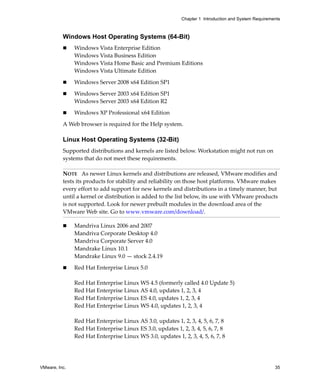
          Workstation sound device is enabled by default.

          Sound support includes PCM (pulse code modulation) output and input. For example, 
          you can play .wav files, MP3 audio, and Real Media audio. MIDI output from Windows 
          guests is supported through the Windows software synthesizer. MIDI input is not 
          supported, and no MIDI support is available for Linux guests.

          Windows 2000, Windows XP, and most recent Linux distributions automatically detect 
          the sound device and install appropriate drivers for it.

          For Windows Vista, when you install VMware Tools in a 64‐bit Windows Vista guest 
          operating system, a sound driver is installed. For 32‐bit Windows Vista guests and 
          Windows 2003 Server guests, you need to use Windows Update to install a 32‐bit driver. 


     Installing Sound Drivers in Windows 9x and NT Guests
          Windows 95, Windows 98, Windows 98SE, and Windows NT 4.0 do not have drivers 
          for the Sound Blaster AudioPCI adapter. To use sound in these guest operating systems, 
          download the driver from the Creative Labs Web site (www.creative.com) and install 
          it in the guest operating system.

          Creative Labs has a number of Web sites serving various regions of the world. The 
          adapter name varies, depending on the region, but usually includes PCI 128. 


VMware, Inc.                                                                                     327
Workstation User’s Manual


328                         VMware, Inc.
15


Connecting Devices                                                                 15
          This chapter describes how to use various devices with a virtual machine. This chapter 
          includes the following topics:

               “Using Parallel Ports” on page 329
               “Using Serial Ports” on page 335
               “Configuring Keyboard Features” on page 343
               “Using USB Devices in a Virtual Machine” on page 353
               “Connecting to a Generic SCSI Device” on page 359
               “Using Two‐Way Virtual Symmetric Multiprocessing (Experimental)” on page 367


Using Parallel Ports
          Parallel ports are used by a variety of devices, including printers, scanners, dongles, 
          and disk drives.

          Currently, Workstation provides only partial emulation of PS/2 hardware. Interrupts 
          requested by a device connected to the physical port are not passed to the virtual 
          machine. Also, the guest operating system cannot use DMA (direct memory access) to 
          move data to or from the port. For this reason, not all devices that attach to the parallel 
          port are guaranteed to work correctly. 


     Installation in Guest Operating Systems
          If the virtual machine is configured with a parallel port, most guest operating systems 
          detect it at installation time and install the required drivers. Some operating systems, 
          including Linux, Windows NT, and Windows 2000, automatically detect the ports at 
          boot time. Others, like Windows 95 and Windows 98, do not. 


VMware, Inc.                                                                                      329
Workstation User’s Manual


          To add a parallel port to the virtual machine’s configuration

          1     Start Workstation and select the virtual machine. 

                Make sure the virtual machine is powered off. 

          2     Choose VM>Settings. 

                The virtual machine settings editor opens. 

          3     Click Add to start the New Hardware wizard.

          4     Select Parallel Port and click Next.

          5     Make the appropriate selection to use a physical parallel port or connect the virtual 
                parallel port to a file. 

          6     Specify which option you want to use for the parallel port:

                     If you select Use physical parallel port, click Next and choose the port from 
                     the drop‐down list.

                     If you select Output file, click Next and enter the path and filename or browse 
                     to the location of the file.

          7     Under Device status, if you do not want the parallel port to connect at power on 
                clear the check box.

          8     Click Finish.

          In a Windows 95 or Windows 98 guest, after you add the port, run the guest operating 
          system’s Add New Hardware wizard (Start>Settings>Control Panel>Add New 
          Hardware) and let Windows detect the new device. 


      Configuring a Parallel Port on a Linux Host
          For the parallel port to work properly in a guest, it must first be configured properly on 
          the host. Most issues involving parallel port functionality are a result of the host 
          configuration. This section provides instructions for checking the following areas of 
          concern: the version of your Linux kernel, your device access permissions, and the 
          required modules. This section includes the following topics:

                “Parallel Ports and Linux 2.2.x Kernels” on page 331
                “Parallel Ports and Linux 2.4.x Kernels” on page 332
                “Parallel Ports and Linux 2.6.x Kernels” on page 333
                “Device Permissions” on page 334


330                                                                                        VMware, Inc.
Chapter 15 Connecting Devices


          Parallel Ports and Linux 2.2.x Kernels
          The 2.2.x kernels that support parallel ports use the parport, parport_pc, and 
          vmppuser modules. Be sure that PC Style Hardware (CONFIG_PARPORT_PC) is 
          loaded as a module. On Linux hosts, Workstation requires that the parallel port 
          “PC‐style hardware” option (CONFIG_PARPORT_PC) be built and loaded as a kernel 
          module (that is, it must be set to “m”). Workstation is unable to use parallel port devices 
          if CONFIG_PARPORT_PC is built directly (compiled) into the kernel. This limitation 
          exists because CONFIG_PARPORT_PC does not correctly export its symbols. 

          The vmppuser module is supplied by Workstation to give virtual machines user‐level 
          access to the parallel port. 

          To check the configuration

          1    Determine whether the parport, parport_pc, and vmppuser modules are 
               installed and running on your system by running the lsmod command as the root 
               user. 

               These three modules should be included in the listing of running modules. You can 
               also look at the /proc/modules file for the same list.

          2    To load the proper modules, run this command:
               insmod <modulename>

          3    If none of the listed parallel port modules is loaded, use this command:
               insmod parport_pc

               This command inserts the three modules needed for a parallel port.

               If you continue to see problems, it is possible that the lp module is running. If it is, 
               the virtual machine cannot use the parallel port correctly. 

          4    If the lp module is loaded, run this command as the root user to remove it:
               rmmod lp

          5    Verify that the line referring to the lp module in the /etc/modules.conf or 
               /etc/conf.modules file is removed or commented out by inserting a hash 
               character (#) at the beginning of the line.

               The name of the configuration file depends on the Linux distribution you are 
               using. When you reboot the host after removing this line, the configuration file no 
               longer starts the lp module.
          6    To ensure that the proper modules for the parallel port are loaded at boot time, add 
               this line to the /etc/modules.conf or /etc/conf.modules file:
               alias parport_lowlevel parport_pc


VMware, Inc.                                                                                         331
Workstation User’s Manual


          Parallel Ports and Linux 2.4.x Kernels
          Be sure that PC Style Hardware (CONFIG_PARPORT_PC) is loaded as a module (that 
          is, it must be set to “m”). If you are using a 2.4.x kernel, the modules that provide 
          parallel port functionality are parport, parport_pc, and ppdev. 

          Also be sure to enable support for user‐space parallel device drivers 
          (CONFIG_PPDEV).

          To check the configuration

          1     Determine whether the parport, parport_pc, and ppdev modules are installed 
                and loaded on your system by running the lsmod command as the root user. 

                These three modules should be included in the listing of loaded modules. You can 
                also look at the /proc/modules file for the same list.

          2     To load the proper modules, run this command:
                insmod <modulename>

          3     If none of the listed parallel port modules is loaded, use this command:
                insmod parport_pc

                This command inserts the parport and parport_pcmodules needed for a 
                parallel port.

          4     Use this command to load the ppdev module:
                insmod ppdev

                If you continue to see problems, it is possible that the lp module is loaded. If it is, 
                the virtual machine cannot use the parallel port correctly. 

          5     If the lp module is loaded, run this command as the root user to remove it:
                rmmod lp

          6     Verify that the line referring to the lp module in the /etc/modules.conf or 
                /etc/conf.modules file is removed or commented out by inserting a hash 
                character (#) at the beginning of the line.

                The name of the configuration file depends on the Linux distribution you are 
                using. When you reboot the host after removing this line, the configuration file no 
                longer starts the lp module.

          7     To ensure that the proper modules for the parallel port are loaded at boot time, add 
                this line to the /etc/modules.conf or /etc/conf.modules file:
                alias parport_lowlevel parport_pc


332                                                                                         VMware, Inc.
Chapter 15 Connecting Devices


          Linux kernels in the 2.4.x series also use a special arbitrator that allows access to the 
          parallel port hardware. If the parallel port is in use by the host, the guest cannot use it. 
          If a virtual machine is using the parallel port, the host and any users accessing the host 
          are not given access to the device. Workstation puts a lock on the device, and this lock 
          restricts access so that only the virtual machine can use the port. 

          From the VMware Workstation menu bar, you can choose VM>Removable Devices to 
          disconnect the parallel port from the virtual machine and reconnect it.

          Parallel Ports and Linux 2.6.x Kernels
          Be sure that PC Style Hardware (CONFIG_PARPORT_PC) is loaded as a module (that 
          is, it must be set to “m”). If you are using a 2.6.x kernel, the modules that provide 
          parallel port functionality are modprobe <modulename> and modprobe parport_pc.

          To check the configuration

          1    Determine whether the modprobe <modulename> and modprobe parport_pc 
               modules are installed and loaded on your system by running the lsmod command 
               as the root user. 

               You can also look at the /proc/modules file for the same list. 

               With 2.6.x, loading parport_pc does not load all modules. 

          2    If none of the listed parallel port modules is loaded, use this command:
               modprobe parport_pc && modprobe ppdev

               This command inserts the modules needed for a parallel port. 

               If you continue to see problems, it is possible that the lp module is loaded. If it is, 
               the virtual machine cannot use the parallel port correctly. 

          3    If the lp module is loaded, run this command as the root user to remove it:
               rmmod lp

          4    Verify that the line referring to the lp module in the /etc/modules.conf or 
               /etc/conf.modules file is removed or commented out by inserting a hash 
               character (#) at the beginning of the line. 

               The name of the configuration file depends on the Linux distribution you are 
               using. When you reboot the host after removing this line, the configuration file no 
               longer starts the lp module.

          5    To ensure that the proper modules for the parallel port are loaded at boot time, add 
               this line to the /etc/modules.conf or /etc/conf.modules file:
               alias parport_lowlevel parport_pc


VMware, Inc.                                                                                        333
Workstation User’s Manual


          Linux kernels in the 2.6.x series also use a special arbitrator that allows access to the 
          parallel port hardware. If the parallel port is in use by the host, the guest cannot use it. 
          If a virtual machine is using the parallel port, the host and any users accessing the host 
          are not given access to the device. Workstation puts a lock on the device, and this lock 
          restricts access so that only the virtual machine can use the port. 

          You can choose VM>Removable Devices to disconnect the parallel port from the 
          virtual machine and reconnect it.

          Device Permissions
          Some Linux distributions by default do not grant the virtual machine access to the lp 
          and parport devices. In most of these cases, the owner of the device is root and the 
          associated group is lp. To allow the VMware user to access the device, add the user to 
          the associated group. To view the owner and group of the device, run this command:
          ls –la /dev/parport0

          The third and fourth columns of the output show the owner and group, respectively.

          To add the user to the device group, edit the /etc/group file. On the line starting with 
          lp, which defines the lp group, add the Workstation user’s user name. You must make 
          this change as the root user. The following line provides an example for a user whose 
          user name is userj.
          lp::7:daemon,lp,userj

          The next time the user logs on to the host, the changes take effect.


      Special Notes for the Iomega Zip Drive
          On Windows 95 or Windows 98, use of older drivers for the Iomega Zip drive might 
          cause the guest operating system to lock up intermittently at boot time or during 
          installation of the guest operating system. The newest Iomega drivers work reliably in 
          VMware tests. They are available from the Iomega web site. Go to www.iomega.com 
          and click on Support & Downloads. 


334                                                                                        VMware, Inc.
Chapter 15 Connecting Devices


Using Serial Ports
          A Workstation virtual machine can use up to four virtual serial ports. The virtual serial 
          ports can be configured in several ways:

               Connect a virtual serial port to a physical serial port on the host computer.

               Connect a virtual serial port to a file on the host computer.

               Make a direct connection between two virtual machines or between a virtual 
               machine and an application running on the host computer.

          This section provides instructions for all these options. You can also select whether to 
          connect the virtual serial port when you power on the virtual machine.


     Using a Serial Port or a File on the Host Computer
          You can set up the virtual serial port in a virtual machine to use a physical serial port 
          on the host computer. This is useful, for example, if you want to use an external modem 
          or a hand‐held device in your virtual machine.

          Alternatively, you can set up the virtual serial port in a virtual machine to send its 
          output to a file on the host computer. This is useful, for example, if you want to capture 
          the data a program running in the virtual machine sends to the virtual serial port or if 
          you need a quick way to transfer a file from the guest to the host.

          To install a virtual serial port that connects to a physical serial port or a file

          1    Start Workstation and select the virtual machine. 
               Make sure the virtual machine is powered off. 

          2    Choose VM>Settings. 

               The virtual machine settings editor opens. 

          3    Click Add to start the Add Hardware wizard and click Next.

          4    Select Serial Port and click Next.

          5    On the Serial Port Type page, select either Use physical serial port on the host or 
               Output to file and click Next.


VMware, Inc.                                                                                       335
Workstation User’s Manual


          6     Depending on whether you want to use a physical serial port or a file, do one of the 
                following:

                     For a physical serial port, on the Select a Physical Serial Port page, choose the 
                     port on the host computer that you want to use for this serial connection. 

                     For a file, on the Choose Serial Port Output File page, browse to the file on the 
                     host computer that you want to use to store the output of the virtual serial 
                     port. 

          7     Make sure the Connect at power on check box is selected if desired.

          8     Click Finish to return to the Hardware tab of the virtual machine settings editor.

          9     (Windows hosts only) On the Hardware tab, to configure this serial port to use 
                polled mode, select Yield CPU on poll. 

                This option is of interest to developers who are using debugging tools that 
                communicate over a serial connection. For more information, see “Configuration 
                Options for Advanced Users” on page 340.

          10    Power on the virtual machine.


      Connecting an Application on the Host to a Virtual Machine
          You can set up the virtual serial port in a virtual machine to connect to an application 
          on the host computer. This is useful, for example, if you want to use an application on 
          the host to capture debugging information sent from the virtual machine’s serial port.

          To install a direct serial connection between an application on the host and a virtual 
          machine, use the following procedure.

          To connect a host application to a virtual machine

          1     Start Workstation and select the virtual machine. 

                Make sure the virtual machine is powered off. 

          2     Choose VM>Settings. 
                The virtual machine settings editor opens. 

          3     Click Add to start the Add Hardware wizard and click Next.

          4     Select Serial Port and click Next.

          5     On the Serial Port Type page, select Output to Named Pipe and click Next. 


336                                                                                         VMware, Inc.
Chapter 15 Connecting Devices


          6    Depending on whether you are using a Linux host or a Windows host, do one of 
               the following:

                   For a Windows host: On the Specify Named Pipe page, accept the default pipe 
                   name or enter another pipe name. The pipe name must follow the form 
                   .pipe<namedpipe>—that is, it must begin with .pipe.

                   For a Linux host: In the Path field, enter /tmp/<socket> or another UNIX 
                   socket name of your choice. 

          7    Select This end is the server or This end is the client. 

               Select This end is the server if you plan to start this end of the connection first.

          8    Select The other end is an application. 

          9    Make sure the Connect at power on check box is selected if desired.

          10   Click Finish to return to the Hardware tab of the virtual machine settings editor.

          11   (Windows hosts only) On the Hardware tab, to configure this serial port to use 
               polled mode, select Yield CPU on poll. 

               This option is of interest to developers who are using debugging tools that 
               communicate over a serial connection. For more information, see “Configuration 
               Options for Advanced Users” on page 340.

          12   On your host computer, configure the application that communicates with the 
               virtual machine to use the same pipe name (for a Windows host) or the same UNIX 
               socket name (for a Linux host). 
          13   Power on the virtual machine. 


     Connecting Two Virtual Machines
          You can set up the virtual serial ports in two virtual machines to connect to each other. 
          This is useful, for example, if you want to use an application in one virtual machine (the 
          client) to capture debugging information sent from the other (the server) virtual 
          machine’s serial port.

          The following procedures describe how to set up the server and the client for 
          connecting to each other by two virtual serial ports.


VMware, Inc.                                                                                        337
Workstation User’s Manual


          To set up the server side of the connection

          1     Start Workstation and select the virtual machine. 

                Make sure the virtual machine is powered off. 

          2     Choose VM>Settings. 

                The virtual machine settings editor opens. 

          3     Click Add to start the Add Hardware wizard and click Next.

          4     Select Serial Port and click Next.

          5     On the Serial Port Type page, select Output to Named Pipe and click Next.

          6     Depending on whether you are using a Linux host or a Windows host, do one of 
                the following:

                     For a Windows host: On the Specify Named Pipe page, accept the default pipe 
                     name or enter another pipe name. The pipe name must follow the form 
                     .pipe<namedpipe>—that is, it must begin with .pipe.

                     For a Linux host: In the Path field, enter /tmp/<socket> or another UNIX 
                     socket name of your choice. 

          7     Select This end is the server. 

          8     Select The other end is a virtual machine. 

          9     Make sure the Connect at power on check box is selected if desired.
          10    Click Finish to return to the Hardware tab of the virtual machine settings editor.

          11    (Windows hosts only) On the Hardware tab, to configure this serial port to use 
                polled mode, select Yield CPU on poll. 

                This option is of interest to developers who are using debugging tools that 
                communicate over a serial connection. For more information, see “Configuration 
                Options for Advanced Users” on page 340.

          12    Power on the virtual machine.


338                                                                                     VMware, Inc.
Chapter 15 Connecting Devices


          To set up the client side of the connection

          1    Start Workstation and select the virtual machine. 

               Make sure the virtual machine is powered off. 

          2    Choose VM>Settings. 

               The virtual machine settings editor opens. 

          3    Click Add to start the Add Hardware wizard and click Next.

          4    Select Serial Port and click Next.

          5    On the Serial Port Type page, select Output to Named Pipe and click Next.

          6    Depending on whether you are using a Linux host or a Windows host, do one of 
               the following:

                   For a Windows host: On the Specify Named Pipe page, accept the default pipe 
                   name or enter another pipe name. The pipe name must follow the form 
                   .pipe<namedpipe>—that is, it must begin with .pipe.

                   For a Linux host: In the Path field, enter /tmp/<socket> or another UNIX 
                   socket name of your choice. The pipe name must be the same on both server 
                   and client.

          7    Select This end is the client.

          8    Select The other end is a virtual machine. 

          9    Make sure the Connect at power on check box is selected if desired.

          10   Click Finish to return to the Hardware tab of the virtual machine settings editor.

          11   (Windows hosts only) On the Hardware tab, to configure this serial port to use 
               polled mode, select Yield CPU on poll. 

               This option is of interest to developers who are using debugging tools that 
               communicate over a serial connection. For more information, see “Configuration 
               Options for Advanced Users” on page 340.

          12   Power on the virtual machine.


VMware, Inc.                                                                                     339
Workstation User’s Manual


      Configuration Options for Advanced Users
          Two special configuration options are available for serial connections between a virtual 
          machine and the host or between two virtual machines:

                “Yielding CPU on Poll to Improve Performance When Debugging (Windows Hosts 
                Only)” on page 340
                “Changing the Input Speed of the Serial Connection” on page 340

          These options are of interest primarily to developers who are using debugging tools 
          that communicate over a serial connection. 

          Yielding CPU on Poll to Improve Performance When Debugging
          (Windows Hosts Only)
          This option is useful when the serial port is being used by the guest operating system 
          in polled mode as opposed to interrupt mode. Polled mode causes the virtual machine 
          to consume a disproportionate share of CPU time, which can cause the host and other 
          guests run sluggishly.

          The following procedure describes how to set an option to force the affected virtual 
          machine to yield processor time if the only task it is trying to do is poll the virtual serial 
          port.

          To improve the performance of applications on the Windows host

          1     Start Workstation and select the virtual machine. 

                The virtual machine can be either powered off or powered on. 

          2     Choose VM>Settings. 

                The virtual machine settings editor opens. 

          3     On the Hardware tab, select Serial Port.

          4     (Windows hosts only) In the I/O mode section, select Yield CPU on poll and click 
                OK.

          Changing the Input Speed of the Serial Connection
          This option increases the speed of your serial connection over a pipe to the virtual 
          machine. In principle, there is no limit on the output speed, which is the speed at which 
          the virtual machine sends data through the virtual serial port. In practice, the output 
          speed depends on how fast the application at the other end of the pipe reads data 
          inbound to it.


340                                                                                          VMware, Inc.
Chapter 15 Connecting Devices


          To change the input speed of the serial connection

          1    Use the guest operating system to configure the serial port for the highest setting 
               supported by the application you are running in the virtual machine.

          2    Power off the virtual machine and close the Workstation window.

          3    Use a text editor to add the following line to your virtual machine’s configuration 
               (.vmx) file:
               serial<n>.pipe.charTimePercent = "<x>"

               <n> is the number of the serial port, starting from 0. So the first serial port is 
               serial0. 

               <x> is a positive integer that specifies the time taken to transmit a character, 
               expressed as a percentage of the default speed set for the serial port in the guest 
               operating system. For example, a setting of 200 forces the port to take twice as long 
               per character, or send data at half the default speed. A setting of 50 forces the port 
               to take only half as long per character, or send data at twice the default speed.

               Assuming that the serial port speed is set appropriately in the guest operating 
               system, experiment with this setting. Start with a value of 100 and gradually 
               decrease it until you find the highest speed at which your connection works 
               reliably.


     Examples: Debugging over a Virtual Serial Port
          You can use Debugging Tools for Windows (WinDbg) or Kernel Debugger (KD) to debug 
          kernel code in a virtual machine over a virtual serial port. Download Debugging Tools 
          for Windows from the Windows DDK Web site at 
          www.microsoft.com/whdc/devtools/debugging/default.mspx.

          The following two examples illustrate how to use a virtual serial port to debug kernel 
          code in a virtual machine:

               With the debugging application on the Workstation host (Windows hosts only)

               With the debugging application in another virtual machine on the same 
               Workstation host (useful on a Linux host and can also be done on a Windows host)

          Using either of these methods lets you debug kernel code on one system, without the 
          need for two physical computers, a modem, or a serial cable. 

          Debugging an Application in a Virtual Machine from the Windows Host
          In this example, you have kernel code to debug in a virtual machine (called the target 
          virtual machine) and are running WinDbg or KD on your Windows host.


VMware, Inc.                                                                                         341
Workstation User’s Manual


          To debug an application from a Windows host

          1     Prepare the target virtual machine, as described in “Connecting an Application on 
                the Host to a Virtual Machine” on page 336. 

                Make sure you configure the virtual machine’s virtual serial port as follows:

                a    Select This end is the server.

                b    Under I/O Mode, select the Yield CPU on poll check box, because the kernel 
                     in the target virtual machine uses the virtual serial port in polled mode, not 
                     interrupt mode.

          2     Prepare the host: Make sure you have a recent version of Debugging Tools for 
                Windows—one that supports debugging over a pipe. 

                You need version 5.0.18.0 or higher.

          3     Power on the virtual machine.

          4     Make sure the serial port is connected, as follows: From the Workstation menu bar, 
                choose VM>Removable Devices. 

                On that menu, Serial<n> should be reported as .pipe<namedpipe> (on 
                Windows hosts) or /tmp/<socket> (on Linux hosts). If the serial port is not 
                connected, choose the virtual serial port and click Connect.

          5     On the host, open a command prompt window and do one of the following:

                     If you are using WinDbg, type the following:
                     windbg -k com:port=.pipe<namedpipe>,pipe

                     If you are using KD, type the following:
                     kd -k com:port=.pipe<namedpipe>,pipe

          6     Press Enter to start debugging.

          Debugging an Application in a Virtual Machine from Another Virtual
          Machine
          In this situation, you have kernel code to debug in a virtual machine (called the target 
          virtual machine) and are running Debugging Tools for Windows (WinDbg) or Kernel 
          Debugger (KD) in another virtual machine (called the debugger virtual machine) on the 
          same host. 

          This is useful if you are running Workstation on a Linux host. The debugger virtual 
          machine must be running Debugging Tools for Windows (WinDbg) or Kernel Debugger 
          (KD) in a Windows guest operating system.


342                                                                                      VMware, Inc.
Chapter 15 Connecting Devices


          To debug an application from another virtual machine

          1    Prepare the target virtual machine: Use the appropriate platform‐specific 
               procedure for the server virtual machine described in “Connecting Two Virtual 
               Machines” on page 337. 

               On Windows hosts, make sure when you configure the target virtual machine’s 
               virtual serial port that you select the Yield CPU on poll check box, because the 
               kernel in the target virtual machine uses the virtual serial port in polled mode, not 
               interrupt mode.

          2    For the debugger virtual machine, make sure you have downloaded Debugging 
               Tools for Windows. 

          3    Follow the steps for the client virtual machine in “Connecting Two Virtual 
               Machines” on page 337. 

          4    Power on both virtual machines.

          5    Make sure the serial port is connected: Choose choose VM>Removable Devices. 

               If the serial port is not connected, choose the virtual serial port and click Connect.

          6    In the debugger virtual machine, start debugging with WinDbg or KD normally. 


Configuring Keyboard Features
          This section includes the following topics:

               “Enhanced Virtual Keyboard for Windows Hosts” on page 343
               “Hot Keys” on page 344
               “Specifying a Language Keymap for VNC Clients” on page 345
               “Keyboard Mapping on a Linux Host” on page 346


     Enhanced Virtual Keyboard for Windows Hosts
          This feature provides better handling of international keyboards and keyboards with 
          extra keys. It also offers security improvements, as it processes raw keyboard input as 
          soon as possible, bypassing Windows keystroke processing and any malware that’s not 
          already at a lower layer. This feature is currently available for all 32‐bit Windows guests 
          except Windows Vista guests. 

          If you use this feature, when you press Ctrl+Alt+Delete, the guest system only, rather 
          than both guest and host, will act on the command.


VMware, Inc.                                                                                       343
Workstation User’s Manual


          To use the enhanced virtual keyboard on Windows hosts

          1     Start Workstation on the Windows host and select the virtual machine. 

                Make sure the virtual machine is powered off. 

          2     Choose VM>Settings. 

                The virtual machine settings editor opens. 

          3     Click the Options tab, and select General. 

          4     To enable or disable the setting, use the check box called Use enhanced virtual 
                keyboard and click OK.

                If you have just installed Workstation or upgraded to Workstation 6, you might 
                need to restart the host computer before turning on this setting.


      Hot Keys
          Hot keys let you specify the key combination that is used with hot‐key sequences for all 
          your virtual machines. For example, you can require that all hot‐key sequences use 
          Ctrl+Shift+Alt. This is useful if you want to prevent certain key combinations (such as 
          Ctrl+Alt+Del) from being intercepted by Workstation instead of being sent to the guest 
          operating system.

          Use hot‐key sequences to:

                Switch between virtual machines 
                Enter and leave full screen mode 
                Ungrab input 
                Send Ctrl+Alt+Del to the virtual machine only (not to the host machine) 
                Send commands to the virtual machine only (not to the host machine) 

          Because Ctrl+Alt tells Workstation to release (ungrab) mouse and keyboard input, 
          combinations that include Ctrl+Alt are not passed to the guest operating system. If you 
          need to use such a combination—for example, use Ctrl+Alt+<Fkey> to switch between 
          Linux workspaces in a virtual machine—press Ctrl+Alt+Space, release Space without 
          releasing Ctrl and Alt, and press the third key of the key combination you want to send 
          to the guest. 
          Use Workstation’s preferences editor to specify which hot sequences you want to use. 
          From the menu bar, choose Edit>Preferences>Hot Keys.


344                                                                                      VMware, Inc.
Chapter 15 Connecting Devices


     Specifying a Language Keymap for VNC Clients
          If you set a virtual machine to act as a VNC server, you can specify which language you 
          want to use for the keyboard that VNC clients use. By default, the US101 keyboard map 
          (U.S. English) is used.

          To specify which keymap to use for VNC clients

          1    Set the virtual machine to act as a VNC server, as described in “Using a VNC Client 
               for Remote Connections to a Virtual Machine” on page 184.

          2    Use a text editor to open the configuration file (.vmx file) for the virtual machine 
               and add the following lines:

                   RemoteDisplay.vnc.keyMap = "<xx>"

                   where <xx> is the code for the language you want to use, such as jp for 
                   Japanese. This setting tells the virtual machine which keyboard map file to 
                   use. It assumes that the keyboard map files are located in the Workstation 
                   installation directory: /usr/lib/vmware/vnckeymap on Linux and in 
                   C:Documents and SettingsAll UsersApplication
                   DataVMwarevnckeymap on Windows. Following is a list of language codes:

                   de: German

                   de-ch: German (Switzerland)

                   es: Spanish 

                   fi: Finnish

                   fr: French

                   fr-be: French (Belgium)

                   fr-ch: French (Switzerland)

                   is: Icelandic

                   it: Italian

                   jp: Japanses

                   nl-be: Dutch (Belgium)

                   no: Norwegian

                   pt: Polish

                   uk: UK English

                   us: US English


VMware, Inc.                                                                                       345
Workstation User’s Manual


                     If the keyboard map file you want to use is in some other location, you can set 
                     the property RemoteDisplay.vnc.keyMapFile instead of 
                     RemoteDisplay.vnc.keyMap. Set RemoteDisplay.vnc.keyMapFile to an 
                     absolute file path.

                     RemoteDisplay.vnc.enabled = "TRUE"

                     RemoteDisplay.vnc.port = "<port number>"

                     where <port number> is the port number you want to use.

          3     Start the virtual machine and connect to it from a VNC client.


      Keyboard Mapping on a Linux Host
          This section addresses the following issues and provides additional details on 
          keyboard mapping in Linux:

                Some language‐specific keyboards do not appear to be supported by Workstation. 

                Some of the keys on the keyboard don’t work correctly in the virtual machine. 

                The keyboard works fine when you run a virtual machine locally, but not when 
                you run the same virtual machine with a remote X server. 

          If your keyboard works correctly with a local X server, and you just want the same 
          behavior with a remote X server (which is also an XFree86 server running on a PC), first, 
          power off the virtual machine and close the VMware Workstation window. Add the 
          following line to the virtual machine configuration file or to ~/.vmware/config:
          xkeymap.usekeycodeMapIfXFree86 = "TRUE"

          Make this change on the host machine, where you run the virtual machine, not on the 
          machine with the remote X server. 

          If you are using an XFree86‐based server that Workstation does not recognize as an 
          XFree86 server, use this line instead: 
          xkeymap.usekeycodeMap = "TRUE"

          If you are using an XFree86 server running locally, and the keyboard does not work 
          correctly, report the problem to VMware technical support.

          X Key Codes Versus Keysyms
          Pressing a key on the PC keyboard generates a scan code based roughly on the position 
          of the key. For example, the Z key on a German keyboard generates the same code as 
          the Y key on an English keyboard, because they are in the same position on the 


346                                                                                       VMware, Inc.
Chapter 15 Connecting Devices


          keyboard. Most keys have one‐byte scan codes, but some keys have two‐byte scan 
          codes with prefix 0xe0.

          Internally, Workstation uses a simplified version of the PC scan code that is a single 
          nine‐bit numeric value, called a v‐scan code. A v‐scan code is written as a three‐digit 
          hexadecimal number. The first digit is 0 or 1. For example, the left‐hand Ctrl key has a 
          one‐byte scan code (0x1d); its v‐scan code is 0x01d. The right‐hand Ctrl key scan code 
          is two bytes (0xe0, 0x1d); its v‐scan code is 0x11d. 

          An X server uses a two‐level encoding of keys. An X key code is a one‐byte value. The 
          assignment of key codes to keys depends on the X server implementation and the 
          physical keyboard. As a result, an X application normally cannot use key codes directly. 
          Instead, the key codes are mapped into keysyms that have names like space, escape, x 
          and 2. The mapping can be controlled by an X application by using the function 
          XChangeKeyboardMapping() or by the program xmodmap. To explore keyboard 
          mappings, you can use xev, which shows the key codes and keysyms for keys typed 
          into its window. 

          A key code corresponds roughly to a physical key, while a keysym corresponds to the 
          symbol on the key top. For example, with an XFree86 server running on a PC, the Z key 
          on the German keyboard has the same key code as the Y key on an English keyboard. 
          The German Z keysym, however, is the same as the English Z keysym, and different 
          from the English Y keysym.

          For an XFree86 server on a PC, there is a one‐to‐one mapping from X key codes to PC 
          scan codes (or v‐scan codes, which is what Workstation really uses). Workstation takes 
          advantage of this fact. When it is using an XFree86 server on the local host, it uses the 
          built‐in mapping from X key codes to v‐scan codes. This mapping is keyboard 
          independent and should be correct for most, if not all, languages. In other cases (not an 
          XFree86 server or not a local server), Workstation must map keysyms to v‐scan codes 
          by using a set of keyboard‐specific tables.

          Configuring How Key Codes Are Mapped
          Key code mapping is simple, automatic, and foolproof. (Keysym mapping is more 
          complex and is described later.) However, because the program cannot tell whether a 
          remote server is running on a PC or on some other kind of computer, it uses key code 
          mapping only with local X servers. This approach might have undesirable effects. This 
          and other behavior related to key code mapping can be controlled by powering off the 
          virtual machine, closing the VMware Workstation window, and using a text editor to 


VMware, Inc.                                                                                      347
Workstation User’s Manual


          add configuration settings to the virtual machine’s configuration (.vmx) file. Following 
          are some configuration settings you might want to use:

                xkeymap.usekeycodeMapIfXFree86 = "TRUE"

                Use key code mapping if you are using an XFree86 server, even if it is remote. 

                xkeymap.usekeycodeMap = "TRUE"

                Always use key code mapping regardless of server type. 

                xkeymap.nokeycodeMap = "TRUE"

                Never use key code mapping. 

                xkeymap.keycode.<code> = "<v-scan code>"

                If you are using key code mapping, map key code <code> to <v-scan code>. In 
                this example, <code> must be a decimal number and <v-scan code> should be a 
                C‐syntax hexadecimal number (for example, 0x001). 

          The easiest way to find the X key code for a key is to run xev or xmodmap -pk. Most of 
          the v‐scan codes are covered in “V‐Scan Code Table” on page 349. The keysym 
          mapping tables described in this section are also helpful. 

          Use this feature to make small modifications to the mapping. For example, to swap left 
          Ctrl and Caps Lock, use the following lines:
          xkeymap.keycode.64 = "0x01d # X Caps_Lock -> VM left ctrl"
          xkeymap.keycode.37 = "0x03a # X Control_L -> VM caps lock"

          These configuration lines can be added to your personal Workstation configuration 
          (~/.vmware/config), or even to the host‐wide (/etc/vmware/config) or 
          installation‐wide (usually /usr/lib/vmware/config) configuration. 

          Configuring How Keysyms Are Mapped
          When key code mapping cannot be used (or is disabled), Workstation maps keysyms 
          to v‐scan codes. It does this using one of the tables in the xkeymap directory in the 
          Workstation installation (usually /usr//lib/vmware).

          Which table you should use depends on the keyboard layout. The normal distribution 
          includes tables for PC keyboards for the United States and a number of European 
          countries and languages. And for most of these, there are both the 101‐key (or 102‐key) 
          and the 104‐key (or 105‐key) variants. 
          Workstation automatically determines which table to use by examining the current X 
          keymap. However, its decision‐making process can sometimes fail. In addition, each 
          mapping is fixed and might not be completely correct for any given keyboard and X key 
          code‐to‐keysym mapping. For example, a user might have swapped Ctrl and Caps 

348                                                                                     VMware, Inc.
Chapter 15 Connecting Devices


          Lock using xmodmap. This means the keys are swapped in the virtual machine when 
          using a remote server (keysym mapping) but are unswapped when using a local server 
          (key code mapping). 
          Therefore, keysym mapping is necessarily imperfect. To make up for this defect, you 
          can change most of the behavior by using configuration settings: 

               xkeymap.language = "<keyboard-type>"

               Use this setting if Workstation has a table in xkeymap for your keyboard but can’t 
               detect it. <keyboard-type> must be one of the tables in the xkeymap directory. 
               (See above for location.) However, the failure to detect the keyboard probably 
               means the table isn’t completely correct for you. 

               xkeymap.keysym.<sym> = "<v-scan code>"

               If you use keysym mapping, map keysym <sym> to <v-scan code>. When you do, 
               <sym> must be an X keysym name and <v-scan code> should be a C‐syntax 
               hexadecimal number (for example, 0x001). 

               The easiest way to find the keysym name for a key is to run xev or xmodmap -pk. 

               The X header file /usr/include/X11/keysymdef.h has a complete list of 
               keysyms. (The name of a keysym is the same as its C constant without the XK_ 
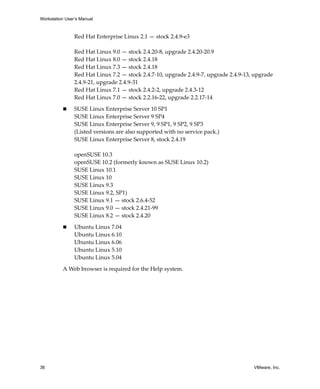
               prefix.) Most v‐scan codes are in “V‐Scan Code Table” on page 349.

               The xkeymap tables themselves are also helpful. Use them to fix small errors in an 
               existing mapping. 

               xkeymap.fileName = "<file-path>"

               Use the keysym mapping table in <file-path>. A table is a sequence of 
               configuration lines of the following form:
               <sym> = "<v-scan code>"

               where <sym> is an X keysym name, and <v-scan code> is a C‐syntax hexadecimal 
               number (for example, 0x001). (See the explanation of xkeymap.keysym above for 
               tips on finding the keysyms and v‐scan codes for your keyboard.) 

               Compiling a complete keysym mapping is difficult. It is best to start with an 
               existing table and make small changes.
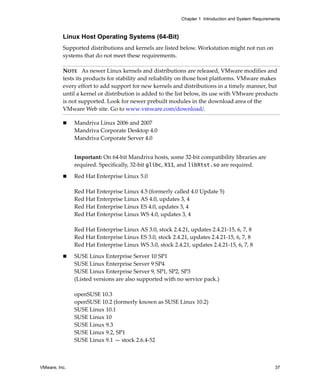
          V-Scan Code Table
          Table 15‐1 shows the v‐scan codes for the 104‐key U.S. keyboard.
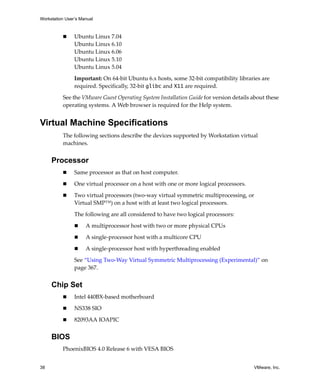


VMware, Inc.                                                                                     349
Workstation User’s Manual


          Table 15-1. V-Scan Codes for the 104-Key U.S. Keyboard
          Symbol            Shifted Symbol   Location       V-Scan Code

          Esc                                               0x001

          1                 !                               0x002

          2                 @                               0x003

          3                 #                               0x004

          4                 $                               0x005

          5                 %                               0x006

          6                 ^                               0x007

          7                 &                               0x008
          8                 *                               0x009

          9                 (                               0x00a

          0                 )                               0x00b

          ‐                 _                               0x00c
          =                 +                               0x00d

          Backspace                                         0x00e

          Tab                                               0x00f

          Q                                                 0x010

          W                                                 0x011

          E                                                 0x012
          R                                                 0x013

          T                                                 0x014

          Y                                                 0x015

          U                                                 0x016

          I                                                 0x017

          O                                                 0x018

          P                                                 0x019

          [                 {                               0x01a

          ]                 }                               0x01b

          Enter                                             0x01c

          Ctrl                               left           0x01d


350                                                                       VMware, Inc.
Chapter 15 Connecting Devices


          Table 15-1. V-Scan Codes for the 104-Key U.S. Keyboard (Continued)
          Symbol           Shifted Symbol   Location         V-Scan Code

          A                                                  0x01e
          S                                                  0x01f

          D                                                  0x020

          F                                                  0x021
          G                                                  0x022

          H                                                  0x023

          J                                                  0x024
          K                                                  0x025

          L                                                  0x026

          ;                                                  0x027

          Ęš                                                  0x028
          `                                                  0x029

          Shift                             left             0x02a

                          |                                 0x02b
          Z                                                  0x02c

          X                                                  0x02d

          C                                                  0x02e
          V                                                  0x02f

          B                                                  0x030

          N                                                  0x031

          M                                                  0x032

          ,                <                                 0x033

          .                >                                 0x034
          /                ?                                 0x035

          Shift                             right            0x036

          *                                 numeric pad      0x037

          Alt                               left             0x038

          Space bar                                          0x039

          Caps Lock                                          0x03a


VMware, Inc.                                                                                  351
Workstation User’s Manual


          Table 15-1. V-Scan Codes for the 104-Key U.S. Keyboard (Continued)
          Symbol            Shifted Symbol   Location        V-Scan Code

          F1                                                 0x03b
          F2                                                 0x03c

          F3                                                 0x03d

          F4                                                 0x03e
          F5                                                 0x03f

          F6                                                 0x040

          F7                                                 0x041
          F8                                                 0x042

          F9                                                 0x043

          F10                                                0x044

          Num Lock                           numeric pad     0x045
          Scroll Lock                                        0x046

          Home              7                numeric pad     0x047

          Up arrow          8                numeric pad     0x048
          PgUp              9                numeric pad     0x049

          ‐                                  numeric pad     0x04a

          Left arrow        4                numeric pad     0x04b
          5                                  numeric pad     0x04c

          Right arrow       6                numeric pad     0x04d

          +                                  numeric pad     0x04e

          End               1                numeric pad     0x04f

          Down arrow        2                numeric pad     0x050

          PgDn              3                numeric pad     0x051
          Ins               0                numeric pad     0x052

          Del                                numeric pad     0x053

          F11                                                0x057

          F12                                                0x058

          Break             Pause                            0x100

          Enter                              numeric pad     0x11c


352                                                                            VMware, Inc.
Chapter 15 Connecting Devices


          Table 15-1. V-Scan Codes for the 104-Key U.S. Keyboard (Continued)
          Symbol               Shifted Symbol     Location           V-Scan Code

          Ctrl                                    right              0x11d
          /                                       numeric pad        0x135

          SysRq                Print Scrn                            0x137

          Alt                                     right              0x138
          Home                                    function pad       0x147

          Up arrow                                function pad       0x148

          Page Up                                 function pad       0x149
          Left arrow                              function pad       0x14b

          Right arrow                             function pad       0x14d

          End                                     function pad       0x14f

          Down arrow                              function pad       0x150
          Page Down                               function pad       0x151

          Insert                                  function pad       0x152

          Delete                                  function pad       0x153
          Windows                                 left               0x15b

          Windows                                 right              0x15c

          Menu                                                       0x15d


          The 84‐key keyboard has a Sys Req key on the numeric pad. Its v‐scan code is 0x054.

          Keyboards outside the U.S. usually have an extra key (often < > or < > | ) next to the left 
          shift key. The v‐scan code for this key is 0x056.


Using USB Devices in a Virtual Machine
          Workstation provides two USB controllers, so that you can connect to both USB 1.1 and 
          USB 2.0 devices:

                 For USB 1.1, a UHCI controller with a virtual hub enables you to connect to more 
                 than two USB 1.1 devices.

                 For USB 2.0, an EHCI controller enables you to connect to up to six USB 2.0 devices. 
                 For USB 2.0 support, your host machine must support USB 2.0, and you must 
                 enable USB 2.0 support in Workstation, as described in this section.


VMware, Inc.                                                                                          353
Workstation User’s Manual


                USB 2.0 support is available only for Workstation 6 virtual machines.

          On the host system, when a USB 2.0 device connects to a port, the device connects to 
          the EHCI controller and operates in USB 2.0 mode. A USB 1.1 device is automatically 
          connected to a UHCI controller and operates in USB 1.1 mode. In Workstation 6 virtual 
          machines, this same behavior is simulated if you select the check box called Enable 
          high‐speed support for USB 2.0 devices on the VM>Settings>Hardware>USB 
          Controller tab. Select this check box to connect high‐speed or isochronous USB devices 
          such as webcams, speakers, and microphones.

          Although your host operating system must support USB, you do not need to install 
          device‐specific drivers for your USB devices in the host operating system to use those 
          devices only in the virtual machine.

          NOTE   Windows NT and Linux kernels older than 2.2.17 do not support USB. 

          On Windows XP guests, be sure to install the latest service pack if you want to use USB 
          2.0. If you use Windows XP with no service packs, the driver for the EHCI controller 
          cannot be loaded.

          On a Windows 2000 host computer with USB 2.0 support, use the Microsoft USB 2.0 
          driver for the USB controller. Third‐party USB 2.0 drivers, such as those provided by 
          some motherboard manufacturers, are not supported. For notes on replacing the 
          third‐party drivers, see “Replacing USB 2.0 Drivers on a Windows 2000 Host” on 
          page 356.

          VMware has tested a variety of USB devices with this release. If the guest operating 
          system has appropriate drivers, you should be able to use PDAs, printers, storage (disk) 
          devices, scanners, MP3 players, digital cameras, and memory card readers.

          Modems and certain streaming data devices, such as speakers and webcams, do not 
          work properly unless you enable USB 2.0 support, as described earlier in this section.


      Enabling and Disabling the USB 2.0 Controller
          The virtual machine’s USB ports are enabled by default, although support for 
          high‐speed USB 2.0 devices is not supported by default. If you will not be using USB 
          devices in a virtual machine, you can disable (or enable) its USB controller using the 
          virtual machine settings editor (from the menu bar, choose 
          VM>Settings>Hardware>USB Controller). 

          USB 2.0 support is available only for Workstation 6 virtual machines. To use USB 2.0 
          devices in a Workstation 5 virtual machine, you must upgrade the hardware 
          compatibility level to Workstation 6.


354                                                                                     VMware, Inc.
Chapter 15 Connecting Devices


     Connecting USB Devices
          The topics in this section describe automatic and manual connection of USB devices.

          Automatic Connection of USB Devices
          When a virtual machine is running, its window is the active window, and if you plug a 
          USB device into the host computer, the device connects to the guest instead of the host. 
          You can disable this autoconnect feature in the USB Controller panel of the virtual 
          machine settings editor (from the menu bar, choose VM>Settings>Hardware>USB 
          Controller). 

          Connecting USB Devices Manually
          Use the following procedure to manually connect specific USB devices to a virtual 
          machine. Use this procedure if the device does not automatically connect to the virtual 
          machine.

          To connect a USB device manually

          1    Select the virtual machine. 

               Make sure the virtual machine is powered on.

          2    From the Workstation menu bar, choose VM>Removable Devices>USB Devices> 
               <Device Name>. 

               Here <Device Name> specifies the USB device that is plugged into your host 
               computer. A check mark appears next to the device’s name, indicating that it is 
               connected.

               If the physical USB devices are connected to the host computer through a hub, the 
               virtual machine sees only the USB devices, not the hub.

          If you physically plug a new device into the host computer and the autoconnect feature 
          does not connect it to a virtual machine, this means the device is instead connected to 
          the host. Its name is also added to the VM>Removable Devices menu so you can 
          connect it to the virtual machine manually.

          Automatic Reconnection of USB Devices
          When you manually connect a USB device (by choosing VM>Removable Devices), 
          Workstation retains the virtual machine’s connection to the affected port on the host 
          machine. You can suspend or power off the virtual machine, or unplug the device. 
          When you plug the device back in or resume the virtual machine, Workstation 
          reconnects the device. Workstation retains the connection by writing an autoconnect 
          entry to the virtual machine’s configuration (.vmx) file. 


VMware, Inc.                                                                                     355
Workstation User’s Manual


          If Workstation is unable to reconnect to the device (for example, because the device has 
          been disconnected), the device is removed, and a message is displayed, indicating that 
          Workstation is unable to connect to the device. You can connect manually to the device, 
          if it is still available. 


      Using USB with a Windows Host
          When a particular USB device is connected to a virtual machine for the first time, the 
          host detects it as a new device named VMware USB Device and installs the appropriate 
          VMware driver. 

          On Windows XP and Windows Server 2003 hosts, confirmation is required in the 
          Found New Hardware wizard. Select the default action, Install the software 
          automatically. After the software is installed, the guest operating system detects the 
          USB device and searches for a suitable driver.

          When you are synchronizing a PDA, such as a Palm handheld or Handspring Visor, to 
          a virtual machine for the first time, the total time required to load the VMware USB 
          device driver in the host and the PDA driver in the guest might exceed the device’s 
          connection timeout value. This causes the device to disconnect itself from the computer 
          before the guest can synchronize with it. If this occurs, let the guest finish installing the 
          PDA driver, dismiss any connection error warnings, and try synchronizing the PDA 
          again. The second attempt should succeed.


      Replacing USB 2.0 Drivers on a Windows 2000 Host
          To use VMware Workstation on a Windows 2000 host that has USB 2.0 ports, you must 
          use the Microsoft USB 2.0 drivers for the USB controller in the host operating system. If 
          your host operating system is using a third‐party driver—a driver supplied by your 
          motherboard vendor, for example—you must replace it.

          To check the provider of your driver

          1     Open the Device Manager, as follows:

                a    Right‐click My Computer and choose Properties.

                b    Click the Hardware tab and click Device Manager.

          2     Expand the listing for Universal Serial Bus controllers.

          3     Right‐click the listing for the controller and choose Properties.

          4     Click the Driver tab. 

                If the driver provider shown on that page is Microsoft, you have the correct driver 
                already.


356                                                                                         VMware, Inc.
Chapter 15 Connecting Devices


          If the driver provider is not Microsoft, download the latest USB driver for your host 
          operating system from the Microsoft Web site and follow the Microsoft instructions to 
          install it. Details are available in Microsoft knowledge base article 319973.


     Using USB with a Linux Host
          On Linux hosts, VMware Workstation uses the USB device file system to connect to 
          USB devices. In most Linux systems that support USB, the USB device file system is at
          /proc/bus/usb. 

          If your host operating system uses a different path to the USB device file system, run 
          the following command as root to mount the file system to the expected location:
          mount -t usbfs none /proc/bus/usb

          If you attach a USB drive to a Linux machine, use the above‐mentioned procedure to 
          access it. Do not attempt to add a USB drive’s device node (for example, /dev/sda) 
          directory to the virtual machine as a hard disk. That is, to add a USB drive, use the Add 
          Hardware wizard to add a USB Controller, not a hard disk.  


     How Device Control Is Shared Between Host and Guest
          Only the host or the guest can have control of a USB device at any one time. Device 
          control operates differently, depending on whether the host is a Linux or a Windows 
          computer.

          Device Control on a Windows Host
          When you connect a device to a virtual machine, it is “unplugged” from the host or 
          from the virtual machine that previously had control of the device. When you 
          disconnect a device from a virtual machine, it is “plugged in” to the host.

          CAUTION   On Windows 2000, Windows XP, and Windows Server 2003 hosts, you need 
          to take a special step to disconnect USB network and storage devices from the host 
          before connecting them to a virtual machine. Use the appropriate system tray icon to 
          disconnect the device from the host. On Windows 2000, the icon is called Eject 
          Hardware, and on Windows XP and Windows Server 2003, it is called Safely Remove 
          Hardware.

          On Windows 2000, Windows XP, and Windows Server 2003 hosts, when you connect a 
          USB network or storage device to a virtual machine, you might see a message on your 
          host that says the device can be removed safely. This is normal behavior, and you can 
          dismiss the dialog box. However, do not remove the device from your physical 
          computer. 


VMware, Inc.                                                                                      357
Workstation User’s Manual


          Under some circumstances, if a USB storage device is in use on the host (for example, 
          one or more files stored on the device are open on the host), an error appears in the 
          virtual machine when you try to connect to the device. You must let the host complete 
          its operation or close any application connected to the device on the host, and then 
          connect to the device in the virtual machine again.

          Device Control on a Linux Host
          On Linux hosts, guest operating systems can use devices that are not already in use by 
          the host—that is, devices that are not claimed by a host operating system driver.

          If your device is in use by the host and you try to connect it to the guest by using the 
          VM>Removable Devices menu, a dialog box appears, asking whether you want to 
          have Workstation disconnect the driver on the host.

          If, for some reason, this disconnection fails, you can unload the device driver manually 
          as root (su -) by using the rmmod command. Or, if the driver was automatically loaded 
          by hotplug, you can disable it in the hotplug configuration files in the /etc/hotplug 
          directory. See your Linux distribution’s documentation for details on editing these 
          configuration files.

          A related issue sometimes affects devices that rely on automatic connection (as PDAs 
          often do). If you have successfully used autoconnection to connect the device to your 
          virtual machine but then experience problems with the connection to the device, try the 
          following procedure.

          To correct autoconnection problems

          1     Disconnect and reconnect the device. 

                You can either unplug it physically and plug it back in or use the VM>Removable 
                Devices menu to disconnect it and reconnect it.

          2     If you see a dialog box warning that the device is in use, disable it in the hotplug 
                configuration files in the /etc/hotplug directory.


      Disconnecting USB Devices from a Virtual Machine
          Before unplugging a USB device or using the VM>Removable Devices menu to 
          disconnect it from a virtual machine, be sure it is in a safe state. 

          Follow the procedures the device manufacturer specifies for unplugging the device 
          from a physical computer. This is true whether you are physically unplugging it, 
          moving it from host to virtual machine, moving it between virtual machines, or moving 
          it from virtual machine to host. 


358                                                                                       VMware, Inc.
Chapter 15 Connecting Devices


          This is important with data storage devices (a Zip drive, for example). If you move a 
          data storage device too soon after saving a file and the operating system has not 
          actually written the data to the disk, you can lose data.


     Human Interface Devices
          USB human interface devices, such as the keyboard and mouse, are not handled though 
          the virtual machine’s USB controller. Instead, they appear in the virtual machine as a 
          standard PS/2 keyboard and mouse, even though they are plugged into USB ports on 
          the host.


Connecting to a Generic SCSI Device
          Generic SCSI lets a virtual machine run any SCSI device that is supported by the guest 
          operating system in the virtual machine. Generic SCSI gives the guest operating system 
          direct access to SCSI devices connected to the host, such as scanners and tape drives. 


     Generic SCSI on a Windows Host Operating System
          Using the SCSI generic driver in Windows, Workstation allows your guest operating 
          system to operate generic SCSI devices in a virtual machine. These devices include 
          scanners, tape drives, and other data storage devices. 

          NOTE   To access host SCSI devices as generic SCSI devices from within a virtual 
          machine, you must run Workstation as a user with administrator access.

          In theory, generic SCSI is completely device independent, but VMware has discovered 
          it is sensitive to the guest operating system, device class, and specific SCSI hardware. 
          Try any SCSI hardware you want to use and report problems to VMware technical 
          support. 

          NOTE   If you are using generic SCSI devices in a Windows 95, Windows 98, or 
          Windows Me guest operating system and are experiencing problems with the devices, 
          download the latest Mylex (BusLogic) BT/KT‐958 compatible host bus adapter from 
          www.lsilogic.com. This driver overrides what Windows chooses as the best driver, but 
          it corrects known problems. 


VMware, Inc.                                                                                     359
Workstation User’s Manual


          Preparing a Windows XP or Windows Server 2003 Guest Operating
          System to Use SCSI Devices
          To use SCSI devices in a 32‐bit Windows XP virtual machine, you need a special SCSI 
          driver available from the download section of the VMware Web site 
          www.vmware.com/download. Follow the instructions on the Web site to install the 
          driver.

          Preparing a Windows NT 4.0 Guest Operating System to Use SCSI
          Devices
          Generic SCSI devices use the virtual Mylex (BusLogic) BT/KT‐958 compatible host bus 
          adapter provided by the virtual machine. Some guest operating systems guide you 
          through installing the drivers after you install the first SCSI device in the virtual 
          machine. On Windows NT 4.0, you might need to install the driver manually, if it is not 
          already installed for a virtual SCSI disk. Do so before you add a generic SCSI device.

          To install the BusLogic driver in a Windows NT 4.0 guest

          1     Have your Windows NT installation CD available.

          2     Open the SCSI Adapters control panel by choosing:

                Start>Settings>Control Panel>SCSI Adapters

          3     Click the Drivers tab and click Add.

          4     In the list of vendors on the left, select BusLogic.

          5     In the list of drivers on the right, select BusLogic MultiMaster PCI SCSI Host 
                Adapters and click OK.

          6     Insert the Windows NT CD when you are prompted and click OK.

          7     Reboot when you are prompted.


360                                                                                    VMware, Inc.
Chapter 15 Connecting Devices


          Adding a Generic SCSI Device to a Virtual Machine
          The following procedure provides instructions for mapping virtual SCSI devices to 
          physical generic SCSI devices on the host. 

          To add a generic SCSI device to a virtual machine

          1    Start Workstation and select the virtual machine. 

               Make sure the virtual machine is powered off. 

          2    Choose VM>Settings. 

               The virtual machine settings editor opens. 

          3    Click Add to start the Add Hardware wizard and click Next.

          4    Select Generic SCSI Device and click Next.

          5    From the drop‐down list of SCSI devices, choose the one you want to use.

               If you do not see the device you want in the list, you might need to add it manually, 
               as described in “Adding a Generic SCSI Device Not Detected by Workstation 
               (Advanced Users)” on page 362.

          6    Make sure the Connect at power on check box is selected if desired.

          7    Click Finish to return to the Hardware tab of the virtual machine settings editor.

               On the Hardware tab, in the Virtual device node section, select the SCSI device 
               identifier to use for the drive. For example, if you select SCSI 0:2, the guest 
               operating system sees the drive as ID 2 on controller 0. 

          8    Power on the virtual machine.

          NOTE   To remove this device, launch the virtual machine settings editor, select the 
          generic SCSI device and click Remove. 


VMware, Inc.                                                                                       361
Workstation User’s Manual


          Adding a Generic SCSI Device Not Detected by Workstation (Advanced
          Users)
          To add a generic SCSI device to a virtual machine, if Workstation does not display the 
          device (for example, scanners on a Windows 2000 host or some tape backup devices), 
          you need to add the device manually to the virtual machine’s configuration (.vmx) file.

          Reasons Workstation cannot detect a device include:

                A driver for that device is not installed on the host.

                A driver on the host prevents the device from being detected.

                The virtual machine uses a device for which there are no drivers available to the 
                host operating system.

          Adding a device in this manner is recommended for advanced users only. Before you 
          attempt the procedure described in this section, verify whether the device driver is 
          installed on the host. If the driver is not installed, install it and see if the device appears 
          correctly to Workstation. If it does not appear correctly, or if you cannot or do not want 
          to install the driver on the host, add the device manually to the virtual machine, as 
          described in the procedure that follows.

          When adding a device manually to the virtual machine, use scsiX:Y notation to refer 
          to the device on the host instead of a device name Workstation uses such as CdRom0. For 
          this type of notation, X is the SCSI bus on which the device is located on the host and Y 
          is the target ID the device uses on the host.

          CAUTION   Before you add the device, you must disable the original SCSI device driver 
          on the host. Some Windows operating systems do not process the send command from 
          the adapter if the device driver is owning the device.

          A few circumstances require you to add or configure the device manually. Follow the 
          directions for the scenario that matches your circumstance. In each case, power off the 
          virtual machine, and open the virtual machine’s configuration (.vmx) file in a text editor 
          and make the changes described.


362                                                                                           VMware, Inc.
Chapter 15 Connecting Devices


          Scenario 1: No SCSI Devices
          In this case, the virtual machine does not contain any SCSI adapters or devices, or you 
          want to add a generic SCSI device to a new virtual SCSI adapter in the virtual machine.

          To add the device to the virtual machine, add the following lines to the virtual 
          machine’s configuration file:
          scsiZ:Y.present = "true"
          scsiZ:Y.deviceType = "scsi-passthru"
          scsiZ:Y.fileName = "scsiX:Y"
          scsiZ.present = "true"

          Define X, Y, and Z as follows:

               X is the SCSI bus the device uses on the host system.

               Y is the target ID the device uses in the virtual machine and on the host. Use the 
               same target ID in the virtual machine that the host already uses for the device to 
               allow the device to work correctly.

               Z is the SCSI bus the device uses in the virtual machine.

          Scenario 2: You Want to Use the Existing SCSI Device as a Generic SCSI
          In this case, the virtual machine has a SCSI adapter and a SCSI device and you want to 
          use the same device as a generic SCSI device.

          To configure the device as a generic SCSI device, add the following lines to the virtual 
          machine’s configuration file:
          scsiZ:Y.deviceType = "scsi-passthru"
          scsiZ:Y.fileName = "scsiX:Y"

          Define X, Y, and Z as follows:

               X is the SCSI bus the device uses on the host system.

               Y is the target ID the device uses in the virtual machine and on the host. Use the 
               same target ID in the virtual machine that the host already uses for the device to 
               allow the device to work correctly.

               Z is the SCSI bus the device uses in the virtual machine.


VMware, Inc.                                                                                        363
Workstation User’s Manual


          Scenario 3: Workstation Does Not Recognize the Generic SCSI Device
          In this case, the virtual machine has a SCSI adapter and generic SCSI device, but 
          Workstation does not recognize the device when the virtual machine is powered on.

          Look for a line in the configuration file that looks like:
          scsiZ:Y.fileName = "<deviceName>"

          Change the line to:
          scsiZ:Y.fileName = "scsiX:Y"

          Define X, Y, and Z as follows:

                X is the SCSI bus the device uses on the host system.

                Y is the target ID the device uses in the virtual machine and on the host. Use the 
                same target ID in the virtual machine that the host already uses for the device to 
                allow the device to work correctly.

                Z is the SCSI bus the device uses in the virtual machine.

          For example, if the problematic device is a CD‐ROM drive, the entry in the 
          configuration file might be:
          scsi0:4.fileName = "CdRom0"

          If the device on the host is located on bus 2 with target ID 4, change this line to:
          scsi0:4.fileName = "scsi2:4"

          The target ID the device uses in the virtual machine must be the same as the target ID 
          the device uses on the host system.

          NOTE   The SCSI bus is assigned a number by the host operating system after all IDE 
          buses have been assigned numbers. For example, if you have two IDE buses, they are 
          numbered 0 and 1. The first SCSI bus is assigned bus number 2. In the example above, 
          you use 2 for X.

          If you cannot determine the SCSI bus number, try using a third‐ party tool like winobj 
          (which you can download for free from www.sysinternals.com) to determine this 
          information.

          The device target ID is usually set by some jumpers or switches on the device. Refer to 
          the owner’s manual for the device for information on how to determine the target ID.


364                                                                                       VMware, Inc.
Chapter 15 Connecting Devices


     Generic SCSI on a Linux Host Operating System
          Using the SCSI generic driver in Linux, VMware Workstation allows your guest 
          operating system to operate generic SCSI devices within a virtual machine. The SCSI 
          generic driver sets up a mapping for each SCSI device in /dev. Each entry starts with 
          sg (for the SCSI generic driver) followed by a letter. For example, /dev/sg0 is the first 
          generic SCSI device.

          Each entry corresponds to a SCSI device in the order specified in /proc/scsi/scsi, 
          from the lowest device ID on the lowest adapter to the highest device ID on the lowest 
          adapter, and so on to the highest device ID on the highest adapter. Do not enter 
          /dev/st0 or /dev/sr0.

          NOTE   When setting up a generic SCSI device in the virtual machine settings editor, as 
          described later in this section, specify the device you want to install in the virtual 
          machine by typing its /dev/sg entry in the Connection field. You must be logged on 
          as a user who has permissions to use the device.

          Generic SCSI requires version 2.1.36 or higher of the SCSI Generic (sg.o) driver, which 
          comes with kernel 2.2.14 and higher. 

          Avoiding Concurrent Access to a Generic SCSI Device
          Some Linux devices such as tape drives, disk drives, and CD‐ROM drives, already have 
          a designated /dev entry (st, sd, and sr, respectively). When the SCSI generic driver is 
          installed, Linux identifies these devices with corresponding sg entries in /dev in 
          addition to their traditional entries. Workstation ensures that multiple programs are 
          not using the same /dev/sg entry at the same time but cannot always ensure that 
          multiple programs are not using the /dev/sg entry and the traditional /dev entry at 
          the same time. 

          WARNING   Do not attempt to use the same generic SCSI device in both host and guest. 
          This can cause unexpected behavior and might cause loss or corruption of data. 

          Permissions on a Generic SCSI Device
          You must have read and write permissions on a given generic SCSI device to use the 
          device within a virtual machine, even if the device is a read‐only device such as a 
          CD‐ROM drive. These devices typically default to root‐only permissions. Your 
          administrator should create a group with access to read and write to these devices and 
          add the appropriate users to that group. 


VMware, Inc.                                                                                      365
Workstation User’s Manual


          Device Support
          In theory, generic SCSI is completely device independent, but VMware has discovered 
          it is sensitive to the guest operating system, device class, and specific SCSI hardware. 
          Try any SCSI hardware and report problems to VMware technical support. 

          NOTE   If you use generic SCSI devices in a Windows 95, 98, or Me guest operating 
          system and are experiencing problems with the devices, download the latest Mylex 
          (BusLogic) BT/KT‐958 compatible host bus adapter from www.lsilogic.com. This driver 
          overrides what Windows chooses as the best driver, but it corrects known problems. 

          To use SCSI devices in a 32‐bit Windows XP virtual machine, you need a special SCSI 
          driver available from the download section of the VMware Web site at 
          www.vmware.com/download.

          Adding a Generic SCSI Device to a Virtual Machine
          The following procedure provides instructions for mapping virtual SCSI devices to 
          physical generic SCSI devices on the host. 

          To set up a generic SCSI device

          1     Start Workstation and select the virtual machine. 

                Make sure the virtual machine is powered off. 

          2     Choose VM>Settings. 

                The virtual machine settings editor opens. 

          3     Click Add to start the Add Hardware wizard and click Next.

          4     Select Generic SCSI Device and click Next.

          5     On the Choose SCSI Device page, from the drop‐down list of SCSI devices that are 
                available from the host, choose the one you want to use.

          6     Make sure the Connect at power on check box is selected if desired.

          7     Click Finish to return to the Hardware tab of the virtual machine settings editor.

                On the Hardware tab, in the Virtual device node section, select which SCSI device 
                identifier to use for the drive. For example, if you select SCSI 0:2, the guest 
                operating system sees the drive as ID 2 on controller 0. 

          8     Power on the virtual machine.

          NOTE   To remove this device, launch the virtual machine settings editor, select the 
          generic SCSI device and click Remove. 


366                                                                                     VMware, Inc.
Chapter 15 Connecting Devices


Using Two-Way Virtual Symmetric Multiprocessing
(Experimental)
          For all supported configurations of 32‐bit and 64‐bit host and guest operating systems 
          running on multiprocessor host machines, Workstation versions 5.5 and higher provide 
          experimental support for two‐way virtual Symmetric Multiprocessing (Virtual SMP). 
          This enables you to assign two virtual processors to a virtual machine on any host 
          machine that has at least two logical processors.

          The following are all considered to have two or more logical processors:

               A multiprocessor host with two or more physical CPUs
               A single‐processor host with a multicore CPU
               A single‐processor host with hyperthreading enabled

          NOTE   On hyperthreaded uniprocessor hosts, performance of virtual machines with 
          Virtual SMP might be subpar.

          Guests with more than two virtual processors are not supported in Workstation. 
          However, you can power on and run multiple dual‐processor virtual machines 
          concurrently.

          The number of virtual processors for a given virtual machine is displayed in the 
          summary view of the virtual machine.You can set the number of processors for the 
          virtual machine in either the New Virtual Machine wizard or the virtual machine 
          settings editor:

               In the virtual machine settings editor: From the Workstation menu bar, choose 
               VM>Settings, and on the Hardware tab, select Processors and specify the number. 

               In the New Virtual Machine wizard: Choose to create a custom configuration, and 
               when you come to the Processor Configuration page, specify the number. 

          If the host is a uniprocessor machine and is not hyperthreaded, assigning two 
          processors is neither supported nor recommended: a warning message will appear. You 
          can disregard this message and assign two processors to the virtual machine, but after 
          you finish creating the virtual machine, you will not be able to power it on unless you 
          move it to a host machine with at least two logical processors.
          Virtual machines with SMP are supported only for Workstation versions 5.5 and higher. 


VMware, Inc.                                                                                    367
Workstation User’s Manual


      Moving SMP Virtual Machines Between Workstation and ESX
      Server
          You can use Workstation 5.5 or later, running on a multiprocessor host machine, to open 
          a virtual machine created in VMware ESX Server that has one or more virtual 
          processors. However, in Workstation you cannot power on a virtual machine that has 
          more than two virtual processors assigned, even if more processors were assigned 
          when the virtual machine was created in ESX Server. 

          You can see this setting in the virtual machine’s summary view or by using the virtual 
          machine settings editor, as follows: From the Workstation menu bar, choose 
          VM>Settings>Hardware>Processors, and note that Number of Processors is set to 
          Other (x), where x is the number of processors originally assigned in ESX Server. 

          Workstation preserves this original configuration setting for the number of processors, 
          even though two is the maximum number of processors supported. You must change 
          this setting to one or two processors before you can power on the virtual machine in 
          Workstation. After you commit a change to this setting, the original setting for number 
          of processors is discarded and no longer appears as an option in the virtual machine 
          settings editor.


368                                                                                    VMware, Inc.
16


Performance Tuning                                                            16
          This chapter offers suggestions for getting the best performance from VMware 
          Workstation and your virtual machines. This chapter contains the following topics:

               “Configuring and Maintaining the Host Computer” on page 369
               “Configuring VMware Workstation and Virtual Machines” on page 372
               “Configuring Guest Operating Systems” on page 381
               “Using the Microsoft Performance Console to Monitor Virtual Machine 
               Performance” on page 388


Configuring and Maintaining the Host Computer
          The host computer is an obvious place to look to improve performance. This section 
          discusses these key areas.


     CPU
          Avoid over‐committing the host processors. The performance of virtual machines 
          depends on the capacity of the host machine’s processor or processors, and might 
          degrade significantly if you overcommit the processors by running too many virtual 
          machines at the same time.


     Memory
          Although the minimum required amount of memory is 512MB, VMware recommends 
          at least 2GB of memory for best performance. You must have enough memory to run 
          the host operating system, plus the memory required for each guest operating system 
          and for applications on the host and guest.


VMware, Inc.                                                                                   369
Workstation User’s Manual


          Using More Than 1GB of Memory on a Linux Host
          By default, Linux kernels in the 2.2.x series support 1GB of physical memory. To use 
          more memory in Linux, take one of several approaches:

                Upgrade to a 2.4.x series kernel that allows for more physical memory.

                Recompile your kernel as a 2GB kernel by using the CONFIG_2GB option.

                Enable the CONFIG_BIGMEM option to map more physical memory, as described 
                later in this section. 

          CONFIG_2GB Option
          The CONFIG_2GB option calls for recompiling your kernel as a 2GB kernel. Recompile 
          your kernel with CONFIG_2GB enabled. This allows Linux to support nearly 2GB of 
          physical memory by dividing the address space into a 2GB user section and a 2GB 
          kernel section (as opposed to the normal division of 3GB for user and 1GB for kernel). 

          CONFIG_BIGMEM Option
          With the CONFIG_BIGMEM option enabled, the kernel does not directly address all of 
          physical memory, and it can then map 1GB (or 2GB) of physical memory into the 
          address space at a time. This allows the use of all of physical memory at the cost of 
          changing the semantics the kernel uses to map virtual to physical addresses. However, 
          VMware products expect physical memory to be mapped directly in the kernel’s 
          address space and thus do not normally work properly with the CONFIG_BIGMEM 
          option enabled. 

          If you are using a 1GB kernel with CONFIG_BIGMEM enabled and have 960MB to 
          1983MB of memory, Workstation does not run. To work around this issue, you can 
          either: 

                Recompile the kernel as a 2GB kernel by enabling the CONFIG_2GB option. This 
                allows for 100 percent use of physical memory. 

                Pass the boot‐time switch mem=959M at the LILO prompt, or add it to lilo.conf, 
                to disable CONFIG_BIGMEM and thus allow you to run Workstation. To do this, 
                try one of the following: 

                     At the LILO prompt, type linux-2.2.16xxx mem=959M. 

                     Edit lilo.conf. In the kernel section, add this line: 
                     append mem="959M"


370                                                                                      VMware, Inc.
Chapter 16 Performance Tuning


          If you have a 1GB kernel with CONFIG_BIGMEM enabled and have more than 1983MB 
          of memory, you can do one of the following: 

               Recompile the kernel as a 2GB kernel by enabling the CONFIG_2GB option and 
               either pass the boot‐time switch mem=1983M at the LILO prompt or add it to 
               lilo.conf. To use the switch, do one of the following: 

                   At the LILO prompt, type linux-2.2.16xxx mem=1983M. 

                   Edit lilo.conf. In the kernel section, add this line: 
                   append mem="1983M"

               Pass the boot‐time switch mem=959M at the LILO prompt or add it to lilo.conf to 
               disable CONFIG_BIGMEM. To use the switch, do one of the following: 

                   At the LILO prompt, type linux-2.2.16xxx mem=959M. 

                   Edit lilo.conf. In the kernel section, add this line: 
                   append mem="959M"

          If you are using a 2GB kernel with CONFIG_BIGMEM enabled and have 1984MB or 
          more memory, Workstation does not run. You can either pass the boot‐time switch 
          mem=1983M at the LILO prompt, or add it to lilo.conf to disable CONFIG_BIGMEM 
          and thus allow you to run Workstation. To use the switch, do one of the following: 

                At the LILO prompt, type linux-2.2.16xxx mem=1983M. 

               Edit lilo.conf. In the kernel section, add this line: 
               append mem="1983M"


     Disks
          For best performance, avoid the situation of very low free space on the host disk. 
          Performance can degrade considerably when Workstation has to use a nearly full host 
          hard disk to do various virtual disk operations such as grow the guest sparse disk, take 
          a snapshot, or append to redo files.

          Enabling Host Disk Caching on Microsoft Windows Hosts
          On Windows hosts, the Disk Properties Policies page associated with each hard drive 
          provides a check box for enabling write caching on the disk and, in some cases, 
          enabling advanced performance on the disk. Checking one or both of these boxes can 
          improve host disk performance in general. Checking them for the host disks containing 
          VMware virtual disk files can improve VMware disk performance in particular, 
          especially when VMware is making heavy use of the disk. The following procedure 
          provides instructions for using these settings on a Windows XP host. 


VMware, Inc.                                                                                         371
Workstation User’s Manual


          To enable write caching on a Windows XP host

          1     On the host computer’s desktop open My Computer.

          2     Right‐click the hard disk and choose Properties from the menu that appears.

          3     On the Hardware tab, select the hard drive and click the Properties button.

          4     On the Policies tab, select Enable write caching on the disk, and, optionally, select 
                Optimize for performance. 

          5     Click OK.

          WARNING   Power outage or equipment failure can result in data loss or corruption with 
          this option enabled.


      Networking
          If your system has multiple physical network interface cards (NICs), either built‐in or 
          in PCI slots, to make sure that you are using the intended NIC, try disabling the other 
          NICs.

          Increasing NIC Interrupt Coalescing
          Increasing host NIC interrupt coalescing can improve performance for workloads 
          involving heavy network traffic into the guest. Interrupt coalescing is a feature 
          implemented in hardware under driver control on high‐performance NICs. Interrupt 
          coalescing allows the operating system kernel to be notified of the reception of a group 
          of network frames through a single hardware interrupt.


Configuring VMware Workstation and Virtual Machines
          This section offers advice and information about factors that can affect the performance 
          of Workstation and virtual machines. It lists configuration settings you make by using 
          Workstation rather than by using operating system tools in the host or guest.

          NOTE   In addition to the Workstation configuration options discussed in this section, 
          always install VMware Tools in any guest operating system for which a VMware Tools 
          package exists. Installing VMware Tools provides better video and mouse performance 
          and also greatly improves the usability of the virtual machine. For details, see 
          “Installing and Upgrading VMware Tools” on page 115.


372                                                                                        VMware, Inc.
Chapter 16 Performance Tuning


     CPU
          This section includes the following topics:

               “Disconnecting the CD‐ROM” on page 373
               “Configuring Process Scheduling on Windows Hosts” on page 373

          Disconnecting the CD-ROM
          Disconnecting CD‐ROM devices reduces CPU usage. Configure your virtual CD‐ROM 
          drive to start disconnected. The drive appears in the virtual machine, but it always 
          appears to contain no disk (and Workstation does not connect to your host CD‐ROM 
          drive). 

          To use a CD‐ROM in the virtual machine, choose VM>Removable Devices, and 
          connect the CD‐ROM drive. 

          To configure the virtual CD-ROM to start disconnected

          1    Select the virtual machine. 

               The virtual machine can be powered on or off.

          2    Choose VM>Settings>Hardware>DVD/CD‐ROM. 

          3    In the CD‐ROM settings panel, deselect the Connect at power on check box and 
               click OK.

          You can also use the VM>Removable Devices menu to disconnect your CD‐ROM drive 
          if you do not need to use it. 

          Configuring Process Scheduling on Windows Hosts
          By default, the processes within a virtual machine contend equally for resources with 
          all other processes running on the host, regardless of whether or not the mouse and 
          keyboard are grabbed by the virtual machine. 

          Workstation on a Windows host provides configuration options that let you adjust 
          scheduling priorities to meet your needs. These configuration options are available:

               On a global basis, for all virtual machines. Use the Workstation preference editor, 
               as follows: From the Workstation menu bar, choose the Edit>Preferences and click 
               the Priority tab.

               On a per‐virtual‐machine basis, for virtual machines on which you want to 
               override the default global setting. Use the virtual machine settings editor, as 
               follows: Select the virtual machine, and from the Workstation menu bar, choose 
               VM>Settings. On the Options tab, select Advanced.


VMware, Inc.                                                                                     373
Workstation User’s Manual


          These menu items allow you to specify either high or normal priority when the mouse 
          and keyboard are grabbed by the virtual machine and either normal or low priority 
          when they are not grabbed. By default, the priority for virtual machine processing is set 
          to Normal for both input grabbed and input ungrabbed.

          If you have many background processes or applications and you do not care whether 
          they run with fairly low relative priority while Workstation is in the foreground, set 
          Input grabbed to High, and set Input ungrabbed to Normal. You should see a 
          noticeable performance boost when using one virtual machine while another virtual 
          machine is running or while some other processor‐intensive task (a compile, for 
          example) is running in the background.

          Conversely, if your host machine runs too sluggishly when a virtual machine is running 
          in the background, you can direct the virtual machine to drop its priority when it does 
          not have control of the mouse and keyboard. Set Input grabbed to Normal, and set 
          Input ungrabbed to Low. 


      Memory
          VMware Workstation allows you to adjust the following memory‐related settings:

                Memory size of a particular virtual machine.

                Amount of the host computer’s RAM that can be used for all virtual machines 
                combined.

                Extent to which you want to allow the host operating system’s memory manager 
                to swap virtual machines out of physical RAM.

          By adjusting these three settings, you can affect both virtual machine and overall 
          system performance. 

          Setting the Memory Size of a Virtual Machine
          The first configuration parameter you can set is the size of an individual virtual 
          machine’s memory. The guest memory size should not be set lower than the minimum 
          recommendations of the operating system provider. 

          You can specify the amount of memory for a virtual machine either when you create it, 
          by using the New Virtual Machine wizard, or after you create it, by using the virtual 
          machine settings editor:

                In the virtual machine settings editor: From the Workstation menu bar, choose 
                VM>Settings, and on the Hardware tab, select Memory and specify the number. 

                In the New Virtual Machine wizard: Choose to create a custom configuration, and 
                when you come to the Memory for the Virtual Machine page, specify the number. 


374                                                                                      VMware, Inc.
Chapter 16 Performance Tuning


          The typical configuration used by the New Virtual Machine wizard sets reasonable 
          defaults for the memory, based on the type of the guest operating system and the 
          amount of memory in the host computer. This value also appears in the virtual machine 
          settings editor as the recommended memory value.

          The virtual machine settings editor also shows a value for the maximum amount of 
          memory for best performance. If you have only one virtual machine running on the 
          host and you set virtual machine memory to this value, the virtual machine can run 
          entirely in RAM. A virtual machine running completely in RAM performs better than 
          a virtual machine that must swap some of its memory to disk.

          The actual memory size you should give to a virtual machine depends on a few 
          considerations:

               The kinds of applications that will run in the virtual machine.

               Other virtual machines that will contend with this virtual machine for memory 
               resources.

               Applications that will run on the host at the same time as the virtual machine.

          NOTE   You cannot allocate more than 2GB of memory to a virtual machine when the 
          virtual machine’s files are stored on a host file system that does not support files greater 
          than 2GB. For example, this restriction applies to FAT file systems.

          As of version 6.0 of Workstation, the total amount of memory you can assign to all 
          virtual machines running on a single host is unlimited. The maximum amount of 
          memory per virtual machine is 8GB.

          Reserving Memory for Workstation
          Host operating systems do not behave well when they run low on free memory for their 
          own use. When a Windows or Linux host operating system does not have enough RAM 
          for its own use, it thrashes. That is, it constantly swaps data between RAM and its 
          paging file on disk. 

          The second configuration parameter you can set is the maximum amount of RAM that 
          Workstation is allowed to reserve for all running virtual machines combined. To set this 
          parameter, from the Workstation menu bar, choose the Edit>Preferences and click the 
          Memory tab. The RAM used by Workstation includes the RAM made available to the 
          guest operating systems plus a small amount of overhead memory associated with 
          running a virtual machine. 

          To help guard against having virtual machines cause the host to thrash, Workstation 
          enforces a limit on the total amount of RAM that can be consumed by virtual machines. 
          Some memory must be kept available on the host to ensure the host is able to operate 


VMware, Inc.                                                                                        375
Workstation User’s Manual


          properly while virtual machines are running. The amount of memory reserved for the 
          host depends on the host operating system and the size of the host computer’s memory. 

          Specifying the Amount of Memory That Can Be Swapped to Disk
          By default, Workstation limits the number of virtual machines that can run at once 
          based on the amount of memory specified in the application settings. This prevents 
          virtual machines from causing each other to perform poorly. 

          To allow more or larger virtual machines to run, adjust a third setting: the amount of 
          virtual machine memory that the host operating system can swap to disk. To change 
          this setting, choose the Edit>Preferences, click the Memory tab, and select one of the 
          following radio buttons:

                Fit all virtual machine memory into reserved host RAM – Strictly apply the 
                reserved memory limit set in the top of the panel. This setting imposes the tightest 
                restrictions on the number and memory size of virtual machines that can run at a 
                given time. Because the virtual machines are running entirely in RAM, they have 
                the best possible performance.

                Allow some virtual machine memory to be swapped – Allow the host operating 
                system to swap a moderate amount of virtual machine memory to disk if necessary. 
                This setting allows you to increase the number or memory size of virtual machines 
                that can run on the host computer at a given time. Unfortunately, it might also 
                result in reduced performance if virtual machine memory must be shifted between 
                RAM and disk.

                Allow most virtual machine memory to be swapped – This option can result in 
                lower performance than the other options. It allows the host operating system to 
                swap as much virtual machine memory to disk as it wants. This setting allows you 
                to run even more virtual machines with even more memory than the intermediate 
                setting does.

          Disabling Memory Trimming
          Workstation uses a memory trimming technique to return unused virtual machine 
          memory to the host machine for other uses. Although memory trimming usually has 
          little impact on performance and might be needed in low‐memory situations, the I/O 
          caused by memory trimming can sometimes interfere with disk‐oriented workload 
          performance in a guest.

          You can disable memory trimming for a guest in the virtual machine settings editor 
          (from the Workstation menu bar, choose VM>Settings>Options>Advanced). In the 
          Settings section, select Disable memory page trimming.


376                                                                                       VMware, Inc.
Chapter 16 Performance Tuning


          Disabling Page Sharing
          VMware uses a page sharing technique to allow guest memory pages with identical 
          contents to be stored as a single copy‐on‐write page. Many workloads present 
          opportunities for sharing memory across virtual machines. For example, several virtual 
          machines might be running instances of the same guest operating system, have the 
          same applications or components loaded, or contain common data. 

          With memory sharing, a workload often consumes less memory than it would when 
          running on a physical machine. As a result, the system can support higher levels of 
          overcommitment efficiently. 

          The amount of memory saved by memory sharing is highly dependent on workload 
          characteristics. A workload that consists of many nearly identical virtual machines 
          might free up more than 30 percent of memory, whereas a more diverse workload 
          might result in savings of less than 5 percent of memory. 

          Workstation memory sharing runs as a background activity that scans for sharing 
          opportunities over time. For a fairly constant workload, the amount of memory saved 
          generally increases slowly until all sharing opportunities are exploited.

          Although page sharing decreases host memory usage, it does consume system 
          resources, potentially including I/O bandwidth. You might want to avoid this overhead 
          for guests for which host memory is plentiful and I/O latency is important. To disable 
          page sharing, add the following line to the virtual machine configuration (.vmx) file:
          sched.mem.pshare.enable = "FALSE"


     Disks
          This section includes the following topics:

               “Avoiding Remote Disk Access” on page 377
               “Using SCSI Disks Rather Than IDE Disks” on page 378
               “Removing Snapshots” on page 378
               “Using Persistent Mode” on page 378

          Avoiding Remote Disk Access
          VMware recommends placing virtual disks on local hard drives for optimal 
          performance. If you must access virtual disks over the network, use the fastest available 
          network connection. Also try the strategy described in the following procedure.


VMware, Inc.                                                                                      377
Workstation User’s Manual


          To use virtual hard disks stored on a remote machine

          1     Select the virtual machine. 

                Make sure the virtual machine is powered off.

          2     From the Workstation menu bar, choose VM>Settings>Options. 

          3     Select General and set the working directory to a directory on your local hard disk.

          4     Then take a snapshot. 

                After you take the snapshot, changes you make are stored locally in the working 
                directory.

          Using SCSI Disks Rather Than IDE Disks
          When you create a virtual disk, either by using the New Virtual Machine wizard or by 
          using the Add New Hardware wizard, you must choose a disk type, which can be 
          either SCSI or IDE. Virtual SCSI disks perform better than virtual IDE disks. The default 
          disk type selected in the wizard is usually SCSI. 

          The default depends on the operating system of the virtual machine, however. To use a 
          SCSI disk, the guest operating system must have a driver for the LSI Logic or BusLogic 
          SCSI adapter available in the virtual machine. You choose which SCSI adapter to use at 
          the time you create the virtual machine.

          To use SCSI disks in a 32‐bit Windows XP virtual machine, you need a special SCSI 
          driver that is not available in the virtual machine. It is available from the download 
          section of the VMware Web site at www.vmware.com/download. Follow the 
          instructions on the Web site to use the driver with a fresh installation of Windows XP. 

          Removing Snapshots
          If you do not use the snapshot feature, run your virtual machine with no snapshot. This 
          provides best performance. To be sure a virtual machine has no snapshot, from the 
          Workstation menu bar, choose VM>Snapshot>Snapshot Manager. If you see a 
          snapshot you do not want, select it and click the Delete button.

          Using Persistent Mode
          Normally, virtual disks are configured so that if you take a snapshot, data on the disk 
          is recorded in the snapshot. You can, however, make the disk independent, so that 
          snapshots do not include disk information. An independent disk can be persistent or 
          nonpersistent. With persistent disks, changes are immediately and permanently 
          written to the disk. Independent, persistent disks have better performance than disks 
          whose data is recorded in snapshots. 


378                                                                                      VMware, Inc.
Chapter 16 Performance Tuning


          To set a virtual disk to use independent, persistent mode

          1    Select the virtual machine. 

               Make sure the virtual machine is powered off.

          2    Choose VM>Settings. 

               The virtual machine settings editor opens. 

          3    Select Hard Disk and click Advanced. 

               The Advanced dialog box opens.

          4    In the Mode section, select the Independent check box and select Persistent.

          5    Click OK in both the Advanced dialog box and the virtual machine settings editor.


     Networking
          If you plan to often copy large files between the host and guest, you might find that 
          using bridged networking results in better performance than using NAT. For a 
          discussion of the network strategies, see “Network Basics” on page 274.


     Additional Suggestions for Improving Performance
          This section includes the following topics:

               “Selecting the Correct Guest Operating System” on page 379
               “Turning Off Debugging Mode” on page 380
               “Logging Virtual Machine Progress Periodically” on page 381

          Selecting the Correct Guest Operating System
          Make certain you select the correct guest operating system for each of your virtual 
          machines. To check the guest operating system setting, from the Workstation menu bar, 
          choose VM>Settings>Options>General.

          Workstation optimizes certain internal configurations on the basis of this selection. For 
          this reason, it is important to set the guest operating system correctly. The 
          optimizations can greatly aid the operating system they target, but they can cause 
          significant performance degradation if there is a mismatch between the selection and 
          the operating system actually running in the virtual machine. (Selecting the wrong 
          guest operating system should not cause a virtual machine to run incorrectly, but it 
          might degrade the virtual machine’s performance.) 


VMware, Inc.                                                                                      379
Workstation User’s Manual


          Turning Off Debugging Mode
          Workstation has three modes for collecting debugging information: normal mode 
          (which means that no debugging information is gathered), statistics mode, and full 
          debugging mode. In normal mode, the virtual machine runs faster than in the other 
          modes. As of the Workstation 6 release, you do not need to restart the virtual machine 
          after changing the debugging mode.

          For normal use, make sure you are not running in debugging mode, as described in the 
          procedure in this section.

          NOTE   If you turn on the record/replay feature, by enabling the Enable execution 
          record and replay check box (VM>Settings>Options>Snapshot/Replay), the 
          debugging mode automatically gets set to Full. If you later disable record/replay, you 
          need to manually set debugging mode back to Normal.

          You might need to use one of the other modes under the following conditions:

                If the virtual machine sometimes crashes and you want to determine the cause, use 
                full debugging mode so that you can send the debugging logs to VMware technical 
                support. 

                If, in normal mode, the virtual machine runs extremely slowly under some 
                workloads, and you want to determine the cause, use statistics mode so that you 
                can send the statistics file to VMware technical support. 

          After you generate some debugging information, run the vm-support script, as 
          described in “Reporting Problems” on page 17, and send the output to VMware 
          technical support.

          When the cause and remedy for an issue have been found, return to normal mode.

          To set a debugging mode

          1     Start Workstation and select the virtual machine.

                The virtual machine can be either powered on or powered off. 

          2     Choose VM>Settings. 

                The virtual machine settings editor opens. 


380                                                                                    VMware, Inc.
Chapter 16 Performance Tuning


          3    Click the Options tab, and select Advanced.

          4    In the Settings section, set the Gather debugging information control to the 
               desired mode and click OK. 

               These modes were described at the beginning of this section.

               You do not need to restart the virtual machine for the new debugging level to take 
               effect.

          Logging Virtual Machine Progress Periodically
          For best performance, you will usually not run Workstation in full debugging mode. 
          Even if you encounter an issue that requires troubleshooting, you might not need to 
          enable debugging mode. Instead, first, try the following procedure to increase the 
          amount of logging information collected.

          To log progress periodically

          1    Start Workstation and select the virtual machine. 

               The virtual machine can be either powered on or powered off. 

          2    Choose VM>Settings. 

               The virtual machine settings editor opens. 

          3    Click the Options tab, and select Advanced.

          4    In the Settings section, select the check box called Log virtual machine progress 
               periodically and click OK.


Configuring Guest Operating Systems
          The tips in this section help you make adjustments to improve performance for 
          particular guest operating systems running inside a virtual machine. 


     CPU
          Avoid CD‐ROM drive polling on older systems. Some operating systems, including 
          Windows NT and Windows 98, poll the CD‐ROM drive every second or so to see 
          whether a disk is present. (This allows them to run autorun programs.) This polling can 
          cause Workstation to connect to the host CD‐ROM drive, which can make it spin up 
          while the virtual machine appears to pause.


VMware, Inc.                                                                                    381
Workstation User’s Manual


          If you have a CD‐ROM drive that takes an especially long time to spin up, eliminate 
          these pauses by disabling the polling inside your guest operating system. The method 
          varies by operating system. For recent Microsoft Windows operating systems, the 
          easiest way is to use TweakUI from the PowerToys utilities. For information on finding 
          TweakUI and installing it in your guest operating system, go to www.microsoft.com 
          and search for TweakUI. 


      Disks
          This section includes the following topics:

                “Turning on DMA Mode for IDE Disks” on page 382
                “Defragmenting Disk Drives” on page 384

          Turning on DMA Mode for IDE Disks
          The disk options (SCSI or IDE) and types (virtual or physical) affect performance in 
          many ways. Inside a virtual machine, SCSI disks and IDE disks that use direct memory 
          access (DMA) have approximately the same performance. However, IDE disks can be 
          very slow in a guest operating system that either cannot use or is not set to use DMA. 

          The easiest way to configure a Linux guest to use DMA for IDE drive access is to install 
          VMware Tools (see “Installing VMware Tools on a Linux Guest” on page 125). Among 
          other things, the installation process sets IDE virtual drives to use DMA.

          In newer versions of Windows, DMA access is enabled by default. In older Windows 
          guest operating systems, the method for changing the setting varies with the operating 
          system. See the following sections for details:

                “Turning on DMA Mode for Windows 95/98 Guests with IDE Disks” on page 382

                “Turning on DMA Mode for Windows NT Guests with IDE Disks” on page 383

          Turning on DMA Mode for Windows 95/98 Guests with IDE Disks
          Windows 95 OSR2 and later (including Windows 98) can use direct memory access 
          (DMA) for faster access to IDE hard disks. However, this feature might not be enabled 
          by default.

          You can turn on DMA access by using the guest operating system’s Device Manager.


382                                                                                     VMware, Inc.
Chapter 16 Performance Tuning


          To turn on DMA access

          1    On the guest operating system’s desktop, right‐click My Computer, and choose 
               Properties from the menu. 

          2    Click the + sign beside Disk Drives to show your virtual machine’s individual 
               drives. 

          3    Right‐click the entry for each IDE drive to open its Properties dialog box. 

          4    Under Settings, select the DMA check box and accept any warning Windows 
               displays. 

          5    Restart Windows for the new settings to take effect. 

          Turning on DMA Mode for Windows NT Guests with IDE Disks
          Some users have seen a problem in a Workstation virtual machine that uses IDE virtual 
          disks on a multiprocessor host computer. The I/O issue is especially noticeable when 
          the virtual machine is booting.

          You might improve performance by enabling DMA (direct memory access) on the 
          virtual hard disk’s IDE channel in the virtual machine. 

          If you have a virtual disk and a DVD/CD‐ROM attached as master and slave to the 
          primary IDE controller (channel 0) and you want to enable DMA, power off the virtual 
          machine, and use the virtual machine settings editor (from the Workstation menu bar, 
          choose VM>Settings>CD‐ROM) to move the DVD/CD‐ROM drive to the secondary 
          IDE controller (channel 1) at IDE 1:0. 

          You can enable the DMA feature after you finish installing Windows NT. You must 
          install Service Pack 6a. Download DMACHECK.EXE from the Microsoft Web site 
          (support.microsoft.com/support/kb/articles/Q191/7/74.ASP) and run it.

          When you run DMACHECK.EXE, click the Enabled option for the IDE controller and 
          channel configured for the virtual disk. Typically, this is channel 0 only, unless you have 
          the virtual machine configured with multiple virtual disks and no virtual 
          DVD/CD‐ROM drive.

          Do not enable DMA on an IDE channel with a virtual DVD/CD‐ROM drive attached.


VMware, Inc.                                                                                       383
Workstation User’s Manual


          Defragmenting Disk Drives
          Defragment virtual disks and host disks in the following phases, from inside the guest 
          operating system out to the host operating system, as follows:

          1     Defragment by using a guest operating system utility – For example, in a virtual 
                machine with a Windows XP guest operating system, use the Windows XP Disk 
                Defragmenter tool from within the virtual machine.

                For the following reasons, VMware strongly recommends that you defragment by 
                using a guest operating system mechanism before taking the first snapshot (or 
                linked clone):

                     Workstation makes all its changes to the redo log, not to the original disk, 
                     when you run a defragmenting program on the guest after a snapshot. You 
                     lose the ability to defragment inside the original disk forever.

                     Every sector that moves is copied to the redo log, making the virtual machine 
                     redo log extremely large when the disk is heavily fragmented and you run 
                     defragmentation after a snapshot.

          2     Defragment the virtual disk by using the Workstation defragmentation tool – If 
                the disk is a “growable” disk, not one whose disk space was preallocated at the 
                time when you created the virtual machine, also use Workstation to defragment 
                the virtual disk. For instructions, see “Defragmenting Virtual Disks” on page 201.

          3     Defragment the host disks – Use a defragmentation utility for the host’s operating 
                system. For example, if the host’s operating system is Windows Vista, use the 
                Windows Vista Disk Defragmenter tool.
                Performance is weakened by fragmentation on the physical disk that holds the 
                virtual machine’s working directory or virtual disk files. Fragmentation of the host 
                disk can affect any or all of the following:

                     Virtual disk files

                     Files that store newly saved data when you have a snapshot

                     Files that hold information used in suspending and resuming a virtual 
                     machine

                If you are experiencing slow disk performance in the virtual machine, or if you 
                want to improve the speed of suspend and resume operations, find out whether 
                the host disk is fragmented. If it is, you can improve performance by running a 
                defragmentation utility. 


384                                                                                       VMware, Inc.
Chapter 16 Performance Tuning


          Performance Impact of Defragmenting Snapshots and Linked Clones
          There might be a performance impact when you defragment a linked clone or a virtual 
          machine with a snapshot. Exact performance degradation depends on:

               The fragmentation of the parent virtual machine disk when you created the 
               snapshot or linked clone.

               The nature of the subsequent updates to the parent virtual machine disk.

          The redo file itself can become defragmented with respect to the host file system. If your 
          use of virtual machines is strongly performance oriented, you should avoid 
          defragmenting—or using—linked clones and snapshots.


     Networking
          Make sure VMware Tools is installed. VMware Tools includes many device drivers that 
          improve performance of graphics displays, mouse operations, and network operations. 
          For installation instructions, see “Installing and Upgrading VMware Tools” on 
          page 115.


     Visual Effects (Windows Only)
          On Microsoft Windows systems, some users have seen performance improvements 
          when they turn off visual effects. An example of such a visual effect is the fade effect 
          that Windows 2000, Windows XP, and Windows Server 2003 use when displaying 
          menus.


VMware, Inc.                                                                                      385
Workstation User’s Manual


          To turn off visual effects

          Depending on which operating system you use:

                On Windows 98:

                a    Right‐click on the desktop of your virtual machine, and choose Properties 
                     from the menu that appears. 

                b    Click the Effects tab and deselect the Animate windows, menus, and lists 
                     check box.

                c    If you have Show window contents while dragging selected, deselect that 
                     check box.

                On Windows 2000:

                a    Right‐click the guest operating system desktop, and choose 
                     Properties>Effects.

                b    Deselect Use transition effects for menus and tool tips. 

                On Windows XP and Windows Server 2003:

                a    Right‐click the guest operating system desktop, and choose 
                     Properties>Appearance>Effects.

                b    Deselect Use transition effects for menus and tool tips. 

                On Windows Vista:

                a    Use the Control Panel’s Performance Information and Tools item (in Classic 
                     view).

                b    Click the link called Adjust visual effects.


      Enhanced Performance with Paravirtualized Kernels in Linux
      Guests
          Since 2005, VMware has been collaborating with the Linux community to develop a 
          common paravirtualization interface. In 2006, VMware released its VMI specification as 
          an open specification. For more information on paravirtualization in general, see the 
          following VMware Web site:

          http://www.vmware.com/interfaces/paravirtualization.html

          If you have a VMware VMI (Virtual Machine Interface) enabled kernel in the guest 
          operating system, you will see improved performance if you enable paravirtual 
          support in the virtual machine.


386                                                                                    VMware, Inc.
Chapter 16 Performance Tuning


          NOTE   Use the following procedure to get and enable a paravirtualized kernel. 

          To use paravirtualized kernels

          1    To get a VMI‐enabled kernel, download the CD image of Ubuntu 7.04 (Feisty) or 
               later from:

               http://www.ubuntu.com/getubuntu/download

               Use the standard image for 32‐bit Intel x86 computers. VMI is currently 32‐bit only.

          2    Use Workstation’s New Virtual Machine wizard to create a Workstation 6 virtual 
               machine with the guest operating system type Ubuntu.

               For step‐by‐step instructions, see “Using the New Virtual Machine Wizard” on 
               page 94. Make sure the hardware version is Workstation 6.

          3    After you finish creating the virtual machine, enable paravirtual kernel support, as 
               follows:

               a   From the Workstation menu bar, choose VM>Settings. 

                   The virtual machine settings editor opens.

               b   On the Options tab, click Advanced, and in the Settings section, select the 
                   check box called Enable VMware paravirtual kernel support.

                   Do not close the virtual machine settings editor yet.

          4    Set the virtual machine to use the ISO image you downloaded in Step 1:

               a   On the Hardware tab, select CD‐ROM, and in the Connection section, select 
                   Use ISO image.

               b   Browse to and select the ISO image you downloaded in Step 1.

               c   Click OK to save your settings and close the virtual machine settings editor.

          5    Power on the virtual machine and install the Linux operating system from the ISO 
               file.


VMware, Inc.                                                                                        387
Workstation User’s Manual


Using the Microsoft Performance Console to Monitor
Virtual Machine Performance
          VMware Workstation incorporates a set of performance counters that work with 
          Microsoft’s Performance console so you can collect performance data from running 
          virtual machines. 

          NOTE   The Performance console is available only on Windows hosts. You can monitor 
          the performance of any virtual machines running on the Windows host, including those 
          running Linux guest operating systems.

          On Linux hosts, there is no specific application that Workstation is designed to work 
          with to provide additional VMware‐specific statistics.

          Workstation performance counters can monitor the following data from a running 
          virtual machine:

                Reading and writing to virtual disks
                Memory used by the virtual machine
                Virtual network traffic

          You can track virtual machine performance only when a virtual machine is running. 
          Performance counters reflect the state of the virtual machine, not the guest operating 
          system. For example, the counters can record how often a virtual machine reads from 
          a virtual disk, but they cannot track how many processes are running inside the guest 
          operating system. An explanation of each counter appears in the Performance console.

          To add counters to track virtual machine performance

          1     Open the Administrative Tools control panel and double‐click Performance. 

                The Performance console opens.

          2     Click the plus (+) sign on the toolbar.

                The Add Counters dialog box appears.

          3     From the Performance object list, select VMware.


388                                                                                   VMware, Inc.
Chapter 16 Performance Tuning


          4    Specify whether to add all counters or select specific counters from the list. 

               If you select Select counters from the list, also click Add to display the information 
               in the Performance console.

               NOTE   For a brief description of each counter, click Explain. When you select a 
               counter from the list, a description appears below the Add Counters dialog box.

          5    Specify whether to view information for all virtual machines or specific ones. 

               For specific virtual machines, select Select instances from list, and choose the 
               virtual machines you want. The names shown in the list correspond to the display 
               names of running virtual machines.

          For more information about using the Performance console, from the Performance 
          console menu bar, choose Action>Help, or go to the Microsoft Web site. 


VMware, Inc.                                                                                       389
Workstation User’s Manual


390                         VMware, Inc.
17


Special-Purpose
Configuration Options for
Windows Hosts                                                                      17
          This chapter describes how to use configuration options for such things as restricting 
          the operations a user can perform with a virtual machine or simplifying the user 
          interface for inexperienced users. In a classroom, for example, you can ensure that 
          virtual machine configurations remain consistent from one class session to the next.

          This chapter includes the following topics:

               “Locking Out Interface Features (Windows Hosts Only)” on page 391
               “Restricting the User Interface” on page 392
               “Using Full Screen Switch Mode (Windows Hosts Only)” on page 395
               “Guest ACPI S1 Sleep” on page 405


Locking Out Interface Features (Windows Hosts Only)
          Administrative lockout is a global setting that affects all virtual machines for all users 
          on a host computer. It allows you to configure settings so that only a user who knows 
          the password can perform one or more of the following tasks:

               Create new virtual machines.
               Edit virtual machine configurations.
               Edit network settings.

          If no user has set administrative lockout preferences, any user can set them and set a 
          password for access to the administrative lockout features. If any user has already set 
          administrative lockout preferences, you must know the password in order to change 
          the settings.


VMware, Inc.                                                                                      391
Workstation User’s Manual


          To set administrative lockout preferences

          1     From the Workstation menu bar, choose Edit>Preferences.

          2     Click the Lockout tab and if a password is already set for the administrative 
                lockout feature, enter the password when prompted.

          3     Select the Enable check box, and select the actions you want to restrict. 

                If this is the first time administrative lockout options are being set, specify a 
                password in the fields provided.

          4     Click OK to save the settings.


      Removing a Forgotten Password
          If you cannot remember the password and want to remove it, you must uninstall 
          Workstation. Be sure to click Yes when asked if you want to remove the administrative 
          lockout settings. After you reinstall Workstation, you can enable the administrative 
          lockout features again and set a new password.


Restricting the User Interface
          The restricted user interface affects only the specific virtual machines for which the 
          setting is made. The following changes are made when you enable the restricted user 
          interface:

                The toolbar is always hidden.
                All functions on the VM>Power menu are disabled.

                All functions on the VM>Snapshot menu and snapshot functions on the toolbar 
                are disabled.

                There is no access to the virtual machine settings editor (VM>Settings) from the 
                VMware Workstation window.

                The user cannot change virtual networking settings (Edit>Virtual Network 
                Settings).

                The user starts the virtual machine by double‐clicking the configuration file (.vmx 
                file) or a desktop shortcut to that file. The virtual machine powers on automatically. 
                At the end of the working session, the user shuts down by closing the virtual 
                machine (File>Exit).

                It is also possible to launch Workstation and open a restricted‐interface virtual 
                machine from the virtual machine list or the File menu.


392                                                                                          VMware, Inc.
Chapter 17 Special-Purpose Configuration Options for Windows Hosts


          The changes needed to enable the restricted user interface must be made by a user with 
          sufficient privileges to edit the virtual machine’s configuration file and to set file 
          permissions as described in the following procedure.

          To enable the restricted user interface

          1    Power off the virtual machine and close the VMware Workstation window.

          2    Open the virtual machine’s configuration file (.vmx file) in Notepad or another text 
               editor. 

          3    Add the following line anywhere in the file:
               gui.restricted = "TRUE"

          4    Optionally, set file permissions on the configuration file to give normal users of the 
               system only read access to the file, so they cannot manually modify the 
               configuration. 

          5    Create a shortcut to the configuration file on the desktop and give it an appropriate 
               name.

          NOTE   Although the restricted user interface provides no access to menu and toolbar 
          controls for the snapshot, you can give users limited snapshot control. If you set up a 
          snapshot for the restricted virtual machine and set the power‐off option to Ask Me, the 
          user sees the standard dialog box when shutting down a virtual machine and has the 
          opportunity to choose Just Power Off, Take Snapshot, or Revert to Snapshot.


     Automatically Returning to a Snapshot with a Restricted User
     Interface
          You can combine a restricted user interface with a snapshot to ensure that users’ virtual 
          machines always start in the same state. Typically, users running a virtual machine with 
          a restricted user interface can power it on and off only, and the virtual machine boots 
          when powered on. When the virtual machine has a snapshot set and is configured to 
          return to that snapshot when powered off, the user can only start and power off the 
          virtual machine. The virtual machine always starts from the snapshot.

          To set up a virtual machine with a restricted user interface (Windows only)

          1    Power on the virtual machine and be sure it is in the state you want. 

          2    Create a snapshot. 

               For instructions, see “Taking a Snapshot” on page 235.


VMware, Inc.                                                                                             393
Workstation User’s Manual


          3     Configure the virtual machine to return to the snapshot any time it is powered off: 
                Choose VM>Settings>Options>Snapshots and select After Powering Off and 
                Revert to Snapshot. 
          4     With the virtual machine powered off, restrict the user interface, as follows: 

                a    Close the VMware Workstation window.

                b    Open the virtual machine’s configuration file (.vmx file) in Notepad or another 
                     text editor. 

                c    Add the following line anywhere in the file.
                     gui.restricted = "TRUE"

          5     Optionally, set file permissions on the configuration file to give normal users of the 
                system only read access to the file, so they cannot manually modify the 
                configuration. 

          6     Create a shortcut to the configuration file on the desktop and give it an appropriate 
                name.

          Users run this virtual machine by double‐clicking the shortcut to the configuration file. 
          It starts at the snapshot, with the user interface restricted. Users do not have a toolbar 
          or access to the VM>Power menu or the virtual machine settings editor. 

          Users close the virtual machine by choosing File>Close. The virtual machine powers 
          off, and the next time a user powers it on, it returns to the snapshot.

          To remove the restriction on the interface

          1     Power off the virtual machine and close the VMware Workstation window. 

          2     Open the configuration file (.vmx) file and do one of the following:

                     Set gui.restricted = "FALSE".

                     Remove or comment out the gui.restricted = "TRUE" line. 

          3     Save the changes to the configuration file and close it.

          4     Start the virtual machine by double‐clicking the shortcut. 

                The virtual machine starts at the snapshot, and the interface is not restricted.


394                                                                                        VMware, Inc.
Chapter 17 Special-Purpose Configuration Options for Windows Hosts


Using Full Screen Switch Mode (Windows Hosts Only)
          Full screen switch mode is a run‐time option for the VMware Workstation program on 
          Windows hosts. When Workstation is running in full screen switch mode, the user has 
          no access to the Workstation user interface. The user cannot create, reconfigure, or 
          launch virtual machines. A system administrator performs these functions. 

          When Workstation is running in full screen switch mode, one or more virtual machines 
          can be running, and you can use hot keys to switch from one to another. You can also 
          provide hot‐key access to the host operating system.

          NOTE   Full screen switch mode is enabled for Windows hosts only. Linux hosts do not 
          have full screen switch mode.


     Creating a Virtual Machine for Use in Full Screen Switch Mode
          To create new virtual machines, run Workstation in standard mode. The instructions in 
          this section assume that you are creating the virtual machines on a separate 
          administrative computer. If you prefer, create the virtual machines directly on the user’s 
          computer.

          To create a virtual machine that will be used in full screen switch mode

          1    Create the new virtual machine following the instructions in “To create a virtual 
               machine by using the custom setup” on page 95. 

               As you complete the New Virtual Machine wizard, make the following choices:

                   In Step 3, “In the Select the Appropriate Configuration page, select Custom 
                   and click Next.,” on page 96, select Custom to perform a custom installation.

                   In Step 6, “On the Name the Virtual Machine page, select a name and folder 
                   for the virtual machine and click Next.,” on page 96, make a note of the folder 
                   in which you create the virtual machine. You must copy all the files in this 
                   folder to the user’s computer after you finish creating and configuring the 
                   virtual machine.

                   In Step 14, “On the Specify Disk Capacity page, enter the size of the virtual 
                   disk, specify the way you want the disk space allocated, and click Next.,” on 
                   page 97, specify the size for the virtual disk and select Allocate all disk space 
                   now. This selection is strongly recommended. If you do not make this 
                   selection and the host computer’s hard disk runs out of space for a growing 
                   virtual disk file, the user sees no warning message and does not know what is 
                   causing the problem in the virtual machine.


VMware, Inc.                                                                                            395
Workstation User’s Manual


          2     To open the virtual machine settings editor, select the virtual machine and choose 
                VM>Settings.

          3     Use the virtual machine settings editor to make all needed configuration settings 
                before you configure the user’s computer to launch Workstation when the 
                computer starts. 

                NOTE   If you plan to run the virtual machine on a laptop computer, be sure to set 
                the virtual machine to report the battery status, as described in “Reporting Battery 
                Information in the Guest Operating System” on page 160.

                You cannot change virtual machine settings by using the virtual machine settings 
                editor when Workstation is running in full screen switch mode. It is recommended 
                that you finish configuring the virtual machine and install the guest operating 
                system and applications before you move the virtual machine to the user’s 
                computer.


      Moving a Virtual Machine to the User’s Computer
          The easiest way to move the virtual machine to a user’s computer is to use a network 
          connection to copy all the files in the virtual machine directory to a directory on the 
          user’s computer. You can also move the directory by using a DVD or other removable 
          media large enough to store the files.

          Place each virtual machine in its own separate directory.


      Configuring Full Screen Switch Mode
          This section describes the local and global configuration settings you can use when 
          configuring full screen switch mode. These configuration settings include specifying 
          hot keys for cycling through the currently powered‐on virtual machines, switching to 
          a specific virtual machine or the host, and other options.

          Global Configuration Settings
          To use full screen switch mode, you must, at a minimum, set the msg.autoAnswer 
          property in the Workstation global configuration file. This setting causes Workstation 
          to suppress any Workstation dialog boxes that would ordinarily appear. In these dialog 
          boxes, the default answer is then automatically chosen.


396                                                                                       VMware, Inc.
Chapter 17 Special-Purpose Configuration Options for Windows Hosts


          The global configuration file gets created when you change any of the default settings 
          in the Workstation preferences editor (Edit>Preferences). This file is created in the 
          following location:

               On most Windows hosts:
               C:Documents and SettingsAll UsersApplication DataVMwareVMware
               Workstationconfig.ini

               On Windows Vista hosts:
               C:UsersAll UsersApplication DataVMwareVMware Workstationconfig.ini

          NOTE   Full screen switch mode is enabled for Windows hosts only. For your 
          information, however, on Linux, this file is located in:
          /etc/vmware/config

          To specify global configuration settings for full screen switch mode

          1    If the config.ini file does not yet exist on your host computer, choose 
               Edit>Preferences from the Workstation menu bar and change at least one of the 
               settings in the preference editor.

          2    Open the config.ini file with a text editor and add the following line:
               msg.autoAnswer = "TRUE"

          3    (Optional) Specify other full screen switch mode settings you want to use.

               To specify hot keys for switching to other virtual machines or the host computer, 
               first, see “Virtual Key Codes” on page 398. Next, see “Hot Key for Cycling 
               Through Virtual Machines and the Host Computer” on page 399 and “Host 
               Operating System Hot Key” on page 400. 

               Also see “Other Entries in the Global Configuration File” on page 401.

          4    Save and close the file.

          5    Set permissions on this file so that other users cannot change it.

          6    Open the preferences.ini file with a text editor and add the following lines:
               pref.fullScreen.v5 = "TRUE"
               pref.autoFitFullScreen = "fitGuestToHost"

               On most Windows hosts, this file is located in:
               %USERPROFILE%Application DataVMwarepreferences.ini

               On Windows Vista hosts, this file is located in:
               %USERPROFILE%AppDataRoamingVMwarepreferences.ini


VMware, Inc.                                                                                            397
Workstation User’s Manual


          If you want to specify a hot key for switching to a specific virtual machine, continue on 
          to the topic “Virtual Machine Hot Key” on page 400.

          Virtual Key Codes
          The hot key entries described in this section require you to enter a virtual key code as 
          part of the value for an option. Virtual key codes use hexadecimal format, which is a 
          hexadecimal number preceded by 0x. For example, to use the virtual key code of 5A as 
          a value, type 0x5A.

          Microsoft provides a reference list of virtual key codes on the MSDN Web site. At the 
          time this manual was written, the reference list was at:

          http://msdn2.microsoft.com/en‐us/library/ms645540.aspx

          The hot‐key entries also include modifier keys. The modifier keys are Ctrl, Alt, Shift, 
          and Windows keys. The Windows key is the key between the Ctrl and Alt keys on your 
          keyboard. You can also use a combination of those keys. See Table 17‐1 for a list of the 
          key codes for the modifier keys.

          Table 17-1. Modifier Keys for Hot Key Entries
          Modifier Key                   Value
          No modifier                    0x0

          Alt                            0x1

          Ctrl                           0x2
          Shift                          0x4

          Win (Windows)                  0x8

          Ctrl+Alt                       0x3

          Alt+Shift                      0x5

          Ctrl+Shift                     0x6

          Ctrl+Alt+Shift                 0x7
          Win+Alt                        0x9

          Win+Ctrl                       0xa

          Win+Ctrl+Alt                   0xb

          Win+Shift                      0xc

          Win+Shift+Alt                  0xd

          Win+Shift+Ctrl                 0xe
          Win+Shift+Ctrl+Alt             0xf


398                                                                                      VMware, Inc.
Chapter 17 Special-Purpose Configuration Options for Windows Hosts


          When listing a key plus a modifier, type the virtual key code for the key followed by a 
          comma, and type the value for the modifier key or keys. For example, the value entry 
          for Ctrl+Shift+F1 is 0x70,0x6.

          NOTE   Keep the following limitations in mind when defining cycle keys and switch 
          keys:

               Do not use the Pause key with the Ctrl key. You can use the Pause key with other 
               modifier keys.

               If you use F12, you must use one or more modifier keys. You cannot use F12 alone.

               You cannot use combinations that include only the Shift, Ctrl, and Alt keys. These 
               keys can be used only as modifiers in combination with some other key.

          Hot Key for Cycling Through Virtual Machines and the Host Computer
          You can specify a hot key or hot‐key combination for cycling through the available 
          virtual machines on a host computer. Hot keys behave in the following manner:

               Each time you press the specified hot key, the screen displays the next virtual 
               machine in order. You can also include the host operating system in the cycle.

               If any particular virtual machine is not running, it is skipped. 

               If only one virtual machine is running and the host operating system is not 
               included in the cycle, pressing the hot key has no effect.

          The hot key for cycling through virtual machines is defined in the global configuration 
          file (config.ini). Two options control cycling:

               FullScreenSwitch.cycleKey

               The value of this option defines the hot key. It is specified as <key>,<modifier>. 
               There is no default. For example, to use the Pause key with no modifier to cycle 
               through virtual machines, add the following line to the config.ini file, or modify 
               its value if the option is already listed.
               FullScreenSwitch.cycleKey = "0x13,0x0"

               FullScreenSwitch.cycleHost

               Set this option to TRUE to include the host operating system in the cycle. The 
               default is FALSE. For example, to include the host operating system in the cycle, 
               add the following line to the config.ini file, or modify its value if the option is 
               already listed:
               FullScreenSwitch.cycleHost = "TRUE"


VMware, Inc.                                                                                            399
Workstation User’s Manual


          Hot Keys for Switching Directly to Virtual Machines and the Host
          Computer
          You can specify a hot key or hot‐key combination for switching directly to any available 
          virtual machine on a host computer. Each time you press the specified hot key, the 
          screen display switches to that of the specified virtual machine. You can also specify a 
          hot key for switching directly to the host operating system.

          Virtual Machine Hot Key
          You define the hot key used to switch to a virtual machine by adding a local 
          configuration setting. Local configuration settings are made in the configuration file for 
          a particular virtual machine. The local configuration file is in the virtual machine’s 
          directory. The filename has a .vmx extension.

          The format for an entry in either configuration file is:
          <option> = "<value>"

          Entries in the configuration files can appear in any order.

          The value of this option defines the hot key. It is specified as <key>,<modifier>. There 
          is no default. 

          For example, to use Ctrl+Shift+F1 to switch to a particular virtual machine, add the 
          following line to that virtual machine’s .vmx file or modify its value if the option is 
          already listed:
          FullScreenSwitch.directKey = "0x70,0x6"

          If any particular virtual machine is not running, pressing the hot key for that virtual 
          machine has no effect.

          Host Operating System Hot Key
          You define the hot key used to switch to the host operating system by adding a line to 
          the global configuration file (config.ini). The value of this option defines the hot key. 
          It is specified as <key>,<modifier>. There is no default. 

          For example, to use Ctrl+Shift+F9 to switch to the host operating system, add the 
          following line to the config.ini file, or modify its value if the option is already listed:
          FullScreenSwitch.hostDirectKey = "0x78,0x6"


400                                                                                       VMware, Inc.
Chapter 17 Special-Purpose Configuration Options for Windows Hosts


          Other Entries in the Global Configuration File
          The following entries in the global configuration file (config.ini) are optional. They 
          enable you to control certain functions of the virtual machine that are important in 
          work environments where virtual machines need to be isolated from each other and 
          from the host computer:

               Isolation.tools.copy.enable

               This option determines whether data in one virtual machine or the host operating 
               system can be copied in a way that allows it to be transferred to another virtual 
               machine or to the host operating system. The default setting is TRUE (such copying 
               is allowed).

               The setting for this option should be the same as the setting for 
               Isolation.tools.paste.enable (below).

               Isolation.tools.paste.enable

               This option determines whether data copied in one virtual machine or the host 
               operating system can be pasted into another virtual machine or the host operating 
               system. The default setting is TRUE (such pasting is allowed).

               The setting for this option should be the same as the setting for 
               Isolation.tools.copy.enable (above).

               Isolation.tools.HGFS.disable

               The value of this option determines whether virtual machines can be configured 
               with shared folders, for sharing files among virtual machines and with the host 
               computer. The default setting is FALSE (shared folders are enabled).

               mks.CtlAltDel.ignore

               Set this property to TRUE so that dialog boxes usually generated by Microsoft 
               Windows Secure Attention Sequence (SAS) are not displayed but are passed on to 
               the guest if the guest has keyboard focus.

               mks.fullscreen.allScreenSaver

               Set this property to TRUE to allow the host operating system to run its screen saver 
               when it determines that the machine is idle.


VMware, Inc.                                                                                            401
Workstation User’s Manual


      Starting and Stopping Virtual Machines on the User’s Computer
          Use the vmware-fullscreen command to run VMware Workstation in full screen 
          switch mode and to start and stop virtual machines on a user’s computer. The 
          command can pass certain information to the virtual machine when it starts. 

          As administrator, you must decide how to issue the command. For example, you can 
          use a custom application or script running on the host operating system to issue one or 
          more vmware-fullscreen commands. Or you can include the command to start a 
          virtual machine in a shortcut in the host operating system’s startup group, so the virtual 
          machine starts when the user logs on to the host computer.

          Issue the vmware-fullscreen command once for each virtual machine you want to 
          start or stop.

          Starting a Virtual Machine
          At its most basic, the vmware-fullscreen command to power on a virtual machine 
          has the following syntax:
          vmware-fullscreen -poweron "<config-file>"

          Provide the full path to the virtual machine’s configuration (.vmx) file. 

          The user sees no immediate indication that the virtual machine has started, but the user 
          can switch to the virtual machine with its direct‐switch key or with the cycle key.

          To power on the virtual machine and pass additional information to the virtual 
          machine, use one or more of the options shown in the following syntax:
          vmware-fullscreen -poweron [-s variable=value] [-name=<alias>]
                         [-directkey=<keyspec>] [-fullscreen] "<config-file>"

          When you use the optional switches shown here, the -poweron switch is required and 
          must be the first switch after the vmware-fullscreen command. Provide the full path 
          to the virtual machine’s configuration (.vmx) file at the end of the command line. Enter 
          the complete command on one line.

          Use the -s switch to pass a variable name and value to be used in configuring the 
          virtual machine. You can include multiple <variable>=<value> pairs in the 
          command. Each <variable>=<value> pair must be preceded by -s.

          Use -name=<alias> to give a name to the virtual machine. You can the use that alias in 
          -switchto and -poweroff commands.

          Use -directkey=<keyspec> to specify the virtual machine’s direct‐switch key. If a 
          direct‐switch key is specified in the virtual machine’s configuration file, the one 
          specified on the command line overrides the one in the configuration file. 


402                                                                                      VMware, Inc.
Chapter 17 Special-Purpose Configuration Options for Windows Hosts


          For example, to start a virtual machine and specify that its direct‐switch key 
          combination is Ctrl+Shift+F1, use the following command: 
          vmware-fullscreen -poweron -directkey=0x70,0x6 "<config-file>"

          Enter the complete command on one line.

          Use -fullscreen without -poweron to start a virtual machine and go straight to full 
          screen switch mode. The virtual machine takes over the display immediately, instead of 
          running invisibly until the user switches to it later.

          Stopping a Virtual Machine
          Use either of the following commands to shut down the specified virtual machine:

               vmware-fullscreen -poweroff "<config-file>"

               vmware-fullscreen -poweroff <alias>

          You can specify the path to the configuration (.vmx) file, or you can specify the alias if 
          you used -name= when you started the virtual machine.

          Stopping All Virtual Machines
          Use the following command to power off all virtual machines cleanly:
          vmware-fullscreen -exit

          Workstation exits as soon as all the virtual machines have powered off.

          Switching Among Virtual Machines and the Host
          Use one of the following commands to switch to the specified virtual machine:

               vmware-fullscreen -switchto "<config-file>"

               vmware-fullscreen -switchto <alias>

               vmware-fullscreen -switchto host

               vmware-fullscreen -switchto next

          Depending on which command you use, you can switch to the specified virtual 
          machine, to the host operating system, or to the next machine (virtual machine or host) 
          in the cycling order. A virtual machine must be powered on before you can switch to it. 
          When specifying a virtual machine, you can specify the path to the configuration (.vmx) 
          file, or you can specify the alias if you used -name= when you started the virtual 
          machine.


VMware, Inc.                                                                                            403
Workstation User’s Manual


          Checking the Status of VMware Workstation
          Use the following command to find out whether Workstation is running in full screen 
          switch mode:
          vmware-fullscreen -query

          If Workstation is in full screen switch mode, the response to this command also reports 
          its process ID and window handle.

          Listing All the Virtual Machines Currently Powered On
          Use the following command to list all the virtual machines currently powered on:
          vmware-fullscreen -listvms

          The list is added to the vmware-fullscreen log file.

          The vmware-fullscreen Log File
          The vmware-fullscreen program writes to a log file. This log file records errors 
          reported by vmware-fullscreen itself as it starts, stops, and passes other commands 
          to Workstation. It is separate from the vmware.log file, which stores information on the 
          running virtual machines.

          The name of the vmware-fullscreen log file is vmware-<username>-<pid>.log. By 
          default, the vmware-fullscreen log file is in the temp directory for the user logged on 
          to the host computer. This location may be specified in the TEMP environment variable. 
          The default location is:
          C:Documents and Settings<username>Local SettingsTemp

          The administrator can specify a different location for this log file by adding the 
          following line to the Workstation global configuration file (config.ini):
          fullScreenSwitch.log.filename="<path>"

          It is best to use a full path. If you use a relative path, the location is relative to the 
          directory that is active when the vmware-fullscreen command is issued for the first 
          time after the host computer reboots.


404                                                                                       VMware, Inc.
Chapter 17 Special-Purpose Configuration Options for Windows Hosts


Guest ACPI S1 Sleep
          Workstation provides experimental support for guest operating system ACPI S1 sleep. 
          Not all guest operating systems support this feature. Common guest operating system 
          interfaces for entering standby are supported.

          By default, ACPI S1 sleep is implemented within Workstation as suspend. You can use 
          the Workstation Resume button to wake the guest.

          With the following entry in the configuration (.vmx) file for a virtual machine, ACPI S1 
          sleep is instead implemented as power‐on suspend:
           chipset.onlineStandby = TRUE

          The guest operating system is not fully powered down. You can awaken the virtual 
          machine:

               Using keyboard input
               Using mouse input
               Through programming the CMOS external timer

          This feature can be useful for test and development scenarios.


VMware, Inc.                                                                                           405
Workstation User’s Manual


406                         VMware, Inc.
A


Workstation Command-Line
Reference                                                                           A
          This appendix discusses the command‐line options that are available for the vmware 
          program and the vmrun program. This appendix contains the following topics:

               “Startup Options for Workstation and Virtual Machines” on page 407
               “Command‐Line Application for Operating Virtual Machines” on page 409

          For information abut using the vmware-fullscreen command to use full screen 
          switch mode, see “Starting and Stopping Virtual Machines on the User’s Computer” on 
          page 402.


Startup Options for Workstation and Virtual Machines
          Table A‐1 describes options available when you run VMware Workstation from the 
          command line. You can type these commands in a Linux terminal window or at the 
          Windows command prompt. You can also create scripts to run multiple commands.

          The syntax for this command is:

               On a Linux host operating system: 
               /usr/bin/vmware [-n] [-x] [-X] [-m] [-t] [-q] [-s <variablename>=<value>]
                              [-v]
                              [/<path_to_virtual_machine>/<virtual_machine_name>.vmx]
                              [X toolkit options]

               On a Windows host operating system: 
               C:Program FilesVMwareVMware WorkstationProgramsvmware.exe [-B] [-n]
                              [-x] [-X] [-t] [-q] [-s <variablename>=<value>] [-v]
                              [<path_to_virtual_machine><virtual_machine_name>.vmx]


VMware, Inc.                                                                               407
Workstation User’s Manual


          Table A-1. Command-Line Options for the vmware Program
          Option                          Description

          -n                              Opens a new Workstation window.

          -B                              (Windows hosts only) Opens a new Workstation window 
                                          but hides the sidebar and toolbars. Only the tabs of open 
                                          virtual machines are shown. Using this option has the 
                                          same effect as clicking the Workstation icon in the 
                                          upper‐left corner of the Workstation window and 
                                          choosing Hide Controls from the menu that appears.

          -t                              Opens a virtual machine or team in a new tab in the 
                                          existing Workstation window.

          -x                              Powers on the virtual machine when VMware 
                                          Workstation starts. This is equivalent to clicking the 
                                          Power On button in the VMware Workstation toolbar.

          -X                              Powers on the virtual machine and switches the VMware 
                                          Workstation window to full screen mode.

          -m                              (Linux hosts only) Starts the program in quick switch 
                                          mode.

          -q                              Closes the virtual machine’s tab when the virtual machine 
                                          powers off. If no other virtual machine is open, it also 
                                          exits Workstation. This is useful when the guest 
                                          operating system is capable of powering off the virtual 
                                          machine.

          -s                              Sets the specified variable to the specified value. Any 
                                          variable names and values that are valid in the 
                                          configuration file may be specified on the command line 
                                          with the -s switch.

          -v                              Displays the product name, version, and build number.

          <path_to_virtual_machine>       Launches a virtual machine using the specified virtual 
          <path_to_virtual_team>          machine or team configuration file (.vmx or .vmtm file).


          On Linux hosts, X toolkit options can be passed as arguments, although some of them 
          (most notably the size and title of the VMware Workstation window) cannot be 
          overridden.

          X toolkit options are not relevant on a Windows host.


408                                                                                        VMware, Inc.
Appendix A Workstation Command-Line Reference


     Using Startup Options in a Windows Shortcut
          The most convenient way to use the startup options is to incorporate them into the 
          command generated by a Windows shortcut.

          To create the shortcut, right‐click the shortcut and click Properties. In the Target field, 
          add any switches you want to use after the vmware.exe filename. For example, the 
          following command launches the Windows Me virtual machine specified, powers it on, 
          and switches to full screen mode.
          "C:Program FilesVMwareVMware WorkstationProgramsvmware.exe -X
                         C:Documents and Settings<username>My DocumentsMy Virtual
                         MachinesWindows MeWindows Me.vmx"

          Enclose the entire command string in quotation marks.

          NOTE   The configuration file has a .vmx extension by default.


Command-Line Application for Operating Virtual
Machines
          VMware Workstation includes a separate application, vmrun, for operating teams or 
          virtual machines from the command line. To launch the vmrun application, from the 
          command prompt, enter: vmrun COMMAND [OPTION].

          Before using the vmrun command on a Windows host, you must do one of the 
          following:

               Change your working directory to the VMware Workstation directory. The default 
               location is: 

               c:Program FilesVMwareVMware Workstation

               Add the VMware Workstation directory to the system path. On Windows 2000 and 
               XP, you can change this setting at

               Control Panel>System>Advanced>Environment Variables>System 
               variables>Path

          Valid vmrun commands and options are described in Table A‐2.

          If authentication is required in the guest operating system, use the following 
          authentication flags, as appropriate:
          -gu <userName in guest OS>
          -gp <password in guest OS>


VMware, Inc.                                                                                       409
Workstation User’s Manual


Table A-2. vmrun Commands and Parameters
Command                     Description                                    Parameters

General Commands

list                        List all running virtual machines.             None

upgradevm                   Upgrade a virtual machine to the current       [Path to .vmx file]
                            Workstation version. 

installtools                Install VMware Tools in the guest              [Path to .vmx file]
                            operating system. In Windows guests, 
                            the VMware Tools installer runs 
                            automatically. In Linux guests, this 
                            command connects the virtual machine’s 
                            virtual CD‐ROM drive to the VMware 
                            Tools ISO image for that guest, but the 
                            installer does not start automatically. 
                            Complete the installation with additional 
                            manual steps, as described in “Installing 
                            VMware Tools on a Linux Guest” on 
                            page 125.

Power Commands

start                       Start a virtual machine (.vmx file) or team    [Path to .vmx or .vmtm file] 
                            (.vmtm file).

stop                        Stop a virtual machine (.vmx file) or team     [Path to .vmx or .vmtm file] 
                            (.vmtm file).                                  [hard|soft]

reset                       Reset a virtual machine (.vmx file) or         [Path to .vmx or .vmtm file] 
                            team (.vmtm file).                             [hard|soft]

suspend                     Suspend a virtual machine (.vmx file) or       [Path to .vmx or .vmtm file] 
                            team (.vmtm file).                             [hard|soft]

Snapshot Commands

snapshot                    Create a snapshot of a virtual machine.        [Path to .vmx file]
                                                                           [snapshot name]

listSnapshots               List all snapshots in a virtual machine.       [Path to .vmx file]

deleteSnapshot              Remove a snapshot from a virtual               [Path to .vmx file]
                            machine.                                       [snapshot name]


410                                                                                          VMware, Inc.
Appendix A Workstation Command-Line Reference


Table A-2. vmrun Commands and Parameters (Continued)
Command                   Description                                   Parameters

revertToSnapshot          Go to a snapshot in a virtual machine.        [Path to .vmx file]
                          If a snapshot has a unique name within a      [snapshot name]
                          virtual machine, revert to that snapshot      or
                          by specifying the path to the virtual         [Path to .vmx file]
                          machine’s configuration file and the          [snapshot name1/
                          snapshot name:                                snapshot name2]
                          [Path to .vmx file][snapshot name]
                          If several snapshots have the same name, 
                          you can still specify a snapshot by 
                          including a “path name” for the snapshot 
                          name. A path name is a series of snapshot 
                          names, separated by forward slash 
                          characters ( / ). Each name specifies a 
                          different snapshot in the tree.
                          For example, suppose you include the 
                          path name Snap1/Snap2. This will 
                          identify a snapshot named Snap2 that 
                          was taken from the state of a root 
                          snapshot named Snap1.
                          Because you can use the forward slash in 
                          a path name, VMware recommends that 
                          you avoid using the slash character when 
                          you name a snapshot because this makes 
                          it difficult for you to predict which 
                          snapshot a path name will identify.

Guest Operating System Commands

runProgramInGuest         Run a program in the guest operating          [Path to .vmx file]
                          system.                                       [Program [Program 
                                                                        arguments]]

fileExistsInGuest         Check whether the specified file exists in    [Path to .vmx file]
                          the guest system.                             [Path to file in guest]

setSharedFolderState      Modify the location of a folder shared        [Path to .vmx file]
                          between the host and guest.                   [Share name]
                                                                        [New path to folder on 
                                                                        host]

addSharedFolder           Add a folder to be shared between the         [Path to .vmx file]
                          host and guest.                               [Share name]
                                                                        [Path to folder on host]

removeSharedFolder        Remove a folder shared between the host       [Path to .vmx file]
                          and guest.                                    [Share name]


VMware, Inc.                                                                                       411
Workstation User’s Manual


Table A-2. vmrun Commands and Parameters (Continued)
Command                          Description                                  Parameters

listProcessesInGuest             List the processes running in the guest      [Path to .vmx file]
                                 operating system.

killProcessInGuest               Kill the specified process on the guest      [Path to .vmx file]
                                 operating system.                            [Process ID]

runScriptInGuest                 Run a script in the guest operating          [Path to .vmx file]
                                 system.                                      [Interpreter path script 
                                                                              text]

deleteFileInGuest                Delete a file from the guest operating       [Path to .vmx file]
                                 system.                                      [Path to file on the guest]

createDirectoryInGuest           Create a directory in the guest operating    [Path to .vmx file]
                                 system.                                      [Directory path on the 
                                                                              guest]
deleteDirectoryInGuest           Delete a directory from the guest            [Path to .vmx file]
                                 operating system.                            [Directory path on the 
                                                                              guest]

listDirectoryInGuest             List the contents of a directory in the      [Path to .vmx file]
                                 guest operating system.                      [Directory path on the 
                                                                              guest]

copyFileFromHostToGuest          Copy a file from the host to the guest       [Path to .vmx file]
                                 operating system.                            [File path on the host]
                                                                              [File path on the guest]

copyFileFromGuestToHost          Copy a file from the guest operating         [Path to .vmx file]
                                 system to the host.                          [File path on the guest]
                                                                              [File path on the host]

renameFileInGuest                Rename a file in the guest operating         [Path to .vmx file]
                                 system.                                      [Original file name]
                                                                              [New file name]


      Examples for vmrun
          For example, to reset a virtual machine:

                In a Linux terminal, enter:
                vmrun reset /usr/local/VMs/<virtual_machine_name>.vmx soft

                On the Windows command line, enter:
                vmrun reset c:Virtual Machines<virtual_machine_name>.vmx soft


412                                                                                              VMware, Inc.
Appendix A Workstation Command-Line Reference


          With virtual machines that require input through a VMware Workstation dialog box, 
          vmrun might time out and fail. To disable Workstation dialog boxes, insert the following 
          line into the configuration (.vmx) file for a virtual machine:
          msg.autoAnswer = TRUE


VMware, Inc.                                                                                      413
Workstation User’s Manual


414                         VMware, Inc.
B


Using the Eclipse Integrated
Virtual Debugger                                                                       B
          The Eclipse Integrated Virtual Debugger provides a configurable interface between 
          Eclipse and virtual machines, making it easy to develop and debug applications that 
          run in multiple operating system environments on a single PC. Debugging your 
          applications in virtual machines enables you to reproduce and record errors while 
          maintaining the integrity of the host machine. You can perform typical debugging tasks 
          such as pausing at breakpoints, stepping through code, and viewing and modifying the 
          state of your application, all without impacting the host environment.

          This appendix contains the following sections:

               “Overview of the Eclipse Integrated Virtual Debugger” on page 415

               “Setting Up the Eclipse Integrated Virtual Debugger Environment” on page 417

               “Managing Virtual Machine Launch Configurations” on page 421

               “Running and Debugging Applications in Virtual Machines” on page 425


Overview of the Eclipse Integrated Virtual Debugger
          The Eclipse Integrated Virtual Debugger enables you to:

               Manage launch configuration settings for application execution and debugging in 
               virtual machines.

               Start an application debugging session in a virtual machine.

               Start an application in a virtual machine without debugging.

               Start a debugging session that attaches to a process already running in a virtual 
               machine.


VMware, Inc.                                                                                   415
Workstation User’s Manual


          Using Eclipse launch configurations, you can choose what virtual machine to run your 
          application in and how it is executed. Once configured, the Eclipse Integrated Virtual 
          Debugger finds the virtual machine, powers it on if necessary, sets up the environment 
          based on your configuration settings, and starts or attaches to the application.

          To configure how an application is started in a virtual machine, you can specify:

                The name of the virtual machine (.vmx configuration file).

                (Optional) The path to the JVM on the guest system.

                (Optional) The location of folders to be shared between the host and the guest.

                (Optional) Actions to perform before launching an application from Eclipse, 
                including:

                     Revert to the most recent snapshot.
                     Run specified pre‐execution commands.

                (Optional) Actions to perform after an application launched from Eclipse is 
                terminated, including:

                     Run specified post‐execution commands (for example, to perform cleanup 
                     tasks).

                     Set the virtual machine state to:

                            Suspended (default)
                            Revert to the most recent snapshot
                            Powered off 

          For information on installation requirements for the Eclipse Integrated Virtual 
          Debugger, see “Setting Up the Eclipse Integrated Virtual Debugger Environment” on 
          page 417.

          For information on how to manage virtual machine configurations, see “Managing 
          Virtual Machine Launch Configurations” on page 421.

          For more information on running and debugging applications in virtual machines, see 
          “Running and Debugging Applications in Virtual Machines” on page 425.


416                                                                                    VMware, Inc.
Appendix B Using the Eclipse Integrated Virtual Debugger


Setting Up the Eclipse Integrated Virtual Debugger
Environment
          Review the requirements and recommendations in this section before following the 
          instructions in Chapter 2, “Installing VMware Workstation,” on page 47 to install the 
          Eclipse Integrated Virtual Debugger as an optional component of Workstation 6. This 
          section describes the requirements for host and guest systems, Eclipse, and the Java 
          Runtime Environment (JRE). 

          During Windows installation, if Eclipse is not installed in 
          C:Program FilesEclipse or C:Eclipse, you must use the Custom setup to 
          select the Eclipse Integrated Virtual Debugger component and specify the Eclipse 
          directory location.

          During Linux installation, you must override the default value of No when prompted 
          by vmware-config.pl to install the Eclipse Integrated Virtual Debugger.

          When you install the Eclipse Integrated Virtual Debugger:

               The Eclipse Integrated Virtual Debugger plug‐in, ivd.jar, Foundry Java 
               bindings, and the plugin.xml launch configuration file are placed in the 
               com.vmware.bfg_1.0.0 subdirectory of the Eclipse plug‐in directory.

               After you restart Eclipse, the Debug menu includes the new launch configuration 
               types VMware attach to application and VMware execute Java application. 
               These launch configuration types have a VMware tab that enables you to configure 
               virtual machine settings.

          You can debug in multiple virtual machines simultaneously. You can also debug 
          multiple sessions in a single virtual machine. 


     Host System Requirements
          The Eclipse Integrated Virtual Debugger can run on any supported host operating 
          system that is running Workstation 6 and has Eclipse installed. Eclipse must be running 
          on the same system as Workstation 6. See “Eclipse Requirements” for additional Eclipse 
          requirements.


VMware, Inc.                                                                                           417
Workstation User’s Manual


          Supported Host Operating Systems
          The Eclipse Integrated Virtual Debugger supports the following Windows 32‐bit host 
          operating systems: 

                Windows Vista Enterprise Edition
                Windows Vista Business Edition
                Windows Vista Home Basic and Premium Editions
                Windows Vista Ultimate Edition

                Windows XP Home Edition, SP1, SP2
                Windows XP Professional, SP1, SP2

                Windows 2000 Server SP3, SP4
                Windows 2000 Professional, SP3, SP4 
                Windows 2000 Advanced Server, SP3, SP4

          NOTE   Windows 64‐bit host operating systems are not currently supported.

          The Eclipse Integrated Virtual Debugger supports the following Linux 32‐bit and 64‐bit 
          host operating systems: 

                Red Hat Enterprise Linux WS 4.5 (Beta, formerly called 4.0 Update 5)
                Red Hat Enterprise Linux AS 4.0, updates 1, 2, 3, 4
                Red Hat Enterprise Linux ES 4.0, updates 1, 2, 3, 4
                Red Hat Enterprise Linux WS 4.0, updates 1, 2, 3, 4

                Red Hat Linux 9.0 — stock 2.4.20‐8, upgrade 2.4.20‐20.9

                Ubuntu Linux 6.10 
                Ubuntu Linux 6.06

          Supported JRE Versions
          The host system must be running a Java Runtime Environment (JRE) meeting Java 2 
          Platform Standard Edition (J2SE) 5.0 or higher specifications. J2SE consists of the JRE 
          and developer tools for compiling, debugging, and running applications written in the 
          Java language.

          NOTE   Eclipse displays the error message unable to load class if an unsupported 
          version of J2SE is being used on the host system. 


418                                                                                    VMware, Inc.
Appendix B Using the Eclipse Integrated Virtual Debugger


     Eclipse Requirements
          You must have Eclipse 3.2 or 3.3 installed on the host. On Windows Vista hosts, you 
          must have Eclipse 3.2.2 or 3.3 installed. 

          The Java language is supported. You cannot have GCJ Java installed on the guest 
          operating system. 

          Review “Virtual Machine Requirements” for information about guest system 
          requirements.


     Virtual Machine Requirements
          The Eclipse Integrated Virtual Debugger is supported on any Workstation 6 virtual 
          machine that is running a supported Windows or Linux guest operating system.

          Supported Guest Operating Systems
          This section provides a simplified list of guest operating systems supported for 
          debugging in virtual machines. For the most recent list of supported guest operating 
          systems, including detailed information about the specific operating system versions, 
          service packs, and updates supported, see the VMware Guest Operating System 
          Installation Guide, at http://pubs.vmware.com/guestnotes/. This guide also provides 
          notes on installing the most common guest operating systems.

          Operating systems that are not listed are not supported for debugging in a virtual 
          machine. 

          The following Windows 32‐bit guest operating systems are supported:

               Windows Vista (all except Vista Home Edition, which cannot be run in a virtual 
               machine due to Microsoft licensing restrictions)

               Windows Server 2003, Enterprise Edition and R2

               Windows XP Professional and Home Edition

               Windows 2000 Professional 
               Windows 2000 Server 
               Windows 2000 Advanced Server
          The following Windows 64‐bit guest operating systems are supported:

               Windows Vista x64 Edition (3‐D effects not yet supported)

               Windows Server 2003 x64 Edition 

               Windows XP Professional x64 


VMware, Inc.                                                                                          419
Workstation User’s Manual


          The following Linux 32‐bit and 64‐bit guest operating systems are supported:

                Red Hat Linux 8 and 9

                Red Hat Enterprise Linux Advanced Server, Enterprise Server, and Workstation 4 
                and 5

                Ubuntu Linux 6.10
                Ubuntu Linux 6.06

                SUSE Linux 10

                SUSE Linux Enterprise Server 10

          VMware Tools Requirements
          Make sure that the version of VMware Tools on the guest operating system matches the 
          version of Workstation 6 (which the Eclipse Integrated Virtual Debugger is a 
          component of) on the host. 

          Java and JRE Requirements
          You cannot have GCJ Java installed on the guest operating system.

          The guest operating system must be running JRE 1.4.2 or higher. If you are not using 
          JRE 5.0 on the guest, you must update the build settings in Eclipse to be compatible 
          with the older JRE.

          To update the Eclipse build settings to use a 1.4.x JRE on the guest

          1     In the Eclipse Package Explorer, right‐click the topmost folder (Project item) and 
                choose Properties.

          2     In the left pane of the Properties page, select Java Compiler.

          3     Select Enable project specific settings, and set the JDK Compliance Compiler 
                compliance level to 1.4.

          Installing PSAPI.DLL on Windows NT
          On Windows NT, you must install the psapi.dll library file to retrieve process status 
          information so that the Eclipse Integrated Virtual Debugger can attach to a process. You 
          can download psapi.dll from 
          http://msdn2.microsoft.com/en‐us/library/ms684884.aspx.


420                                                                                      VMware, Inc.
Appendix B Using the Eclipse Integrated Virtual Debugger


          Disabling the Firewall on Linux Guest Systems
          You must disable the firewall on Linux guest operating systems. The Eclipse Integrated 
          Virtual Debugger opens an available port (searching from port 49152) for each 
          debugging session.

          Configuring the Firewall on Windows Guest Systems
          If you are using a 1.4.x JRE on Windows guest systems, you must either disable the 
          firewall or allow incoming connections to the JVM. If you have a Windows system 
          (such as Windows XP SP2, Windows 2003, and Windows Vista) that allows you to 
          configure exceptions to the firewall, you can add the JVM to the exceptions list.

          To add the JVM to the exceptions list

          1    Choose Start>Control Panel>Windows Firewall and select the Exceptions tab.

          2    Click Add Program and browse to the Java executable.

          3    Click OK.

          NOTE   On Windows Vista guests, you might have to restart the firewall after 
          configuring it to allow incoming connections to the JVM.


Managing Virtual Machine Launch Configurations
          You can manage configuration settings for each virtual machine in which you want to 
          debug applications. Eclipse Integrated Virtual Debugger launch configurations 
          determine which virtual machine to run the application in and how the application is 
          executed. 

          The launch configuration types VMware attach to application and VMware execute 
          Java application have a VMware tab. The values you enter in the VMware tab 
          determine virtual machine configuration settings. Once configured, you can start and 
          attach to applications in virtual machines from the Eclipse Debug and Run menus. 

          Choose Run>Debug to manage launch configurations. You can create, duplicate, edit, 
          and remove configurations. 


VMware, Inc.                                                                                          421
Workstation User’s Manual


      Using Application Configurations to Start Applications in a
      Virtual Machine
          This section describes the virtual machine settings you can configure to start an 
          application in a virtual machine.

          To create, duplicate, or edit a launch configuration to start an application in a
          virtual machine

          1     Choose Run>Debug.

                The Debug page is displayed. You can create, manage, and run configurations 
                from this page.

          2     You can create a launch configuration based on default settings or based on 
                another configuration. You can also edit an existing configuration. Do one of the 
                following:

                     Create a configuration based on default settings by selecting VMware execute 
                     Java application in the left pane, and clicking the New launch configuration 
                     icon at the top of the pane.

                     Create a configuration based on another configuration by selecting the 
                     configuration you want to duplicate under VMware execute Java application 
                     in the left pane, and clicking the Duplicates the currently selected 
                     configuration icon at the top of the pane.

                     Edit an existing configuration by selecting the configuration you want to edit 
                     under VMware execute Java application in the left pane.

                Perform the remaining steps in the VMware tab of the right pane.

          3     Choose a virtual machine from the drop‐down menu of recently used and 
                currently running virtual machines. 

                Click Browse to select from .vmx files on the system.

          4     (Optional) If you want to use a JVM other than the one that is automatically 
                selected, select an alternate JVM path.

          5     (Optional) Expand the list of shared folders to add, edit, or remove folders to be 
                shared between the host and the guest systems. 

                For each folder, enter the share name and the location on the host system. 

                By default, the project folder is shared.


422                                                                                      VMware, Inc.
Appendix B Using the Eclipse Integrated Virtual Debugger


          6    (Optional) Indicate actions to be performed before the application is launched:

                   Select Set virtual machine state to most recent snapshot to revert to the most 
                   recent snapshot before the application is launched.

                   Select Run script and enter one or more shell commands to be executed in the 
                   guest operating system before the application is launched. No syntax 
                   checking is performed. Either enter one command per line, or enter multiple 
                   commands on the same line using a semicolon as a separator.

          7    (Optional) Indicate actions to be performed after the application has terminated:

                   Select Run script and enter one or more shell commands to be executed in the 
                   guest operating system after the application has terminated. No syntax 
                   checking is performed. Either enter one command per line, or enter multiple 
                   commands on the same line using a semicolon as a separator.

                   Select Set virtual machine state, and select one of the following options:

                        to suspended (default) 
                        to most recent snapshot
                        to powered‐off

          8    Click Apply. 

               If you click Revert, settings revert to previous values.

          If newly created, the launch configuration is added to the left pane.


VMware, Inc.                                                                                            423
Workstation User’s Manual


      Using Application Configurations to Attach to Applications
      Running in a Virtual Machine
          This section describes the virtual machine settings you can configure to attach to an 
          application that is already running in a virtual machine.

          To create, duplicate, or edit a configuration that attaches to a running application
          in a virtual machine

          1     Choose Run>Debug. 

                The Debug page is displayed. You can create, manage, and run configurations 
                from this page.

          2     You can create a launch configuration based on default settings or based on 
                another configuration. Do one of the following:

                     Create a configuration based on default settings by selecting VMware attach 
                     to application in the left pane, and clicking the New launch configuration 
                     icon at the top of the pane.

                     Create a configuration based on another configuration by selecting the 
                     configuration you want to duplicate under VMware attach to application in 
                     the left pane and clicking the Duplicates the currently selected configuration 
                     icon at the top of the pane.

                     Edit an existing configuration by selecting the configuration you want to edit 
                     under VMware attach to application in the left pane.

                Perform the remaining steps in the VMware tab of the right pane.

          3     Choose a virtual machine from the drop‐down menu of recently used and 
                currently running virtual machines. 

                Click Browse to select from .vmx files on the system.

          4     Click Apply. 

                If you click Revert, settings revert to default values.

          If newly created, the launch configuration is added to the left pane.


424                                                                                      VMware, Inc.
Appendix B Using the Eclipse Integrated Virtual Debugger


     Deleting Configurations
          You can remove an existing configuration.

          To remove a configuration

          1    Choose Run>Debug.

               The Debug page is displayed. You can create, manage, and run configurations 
               from this page.

          2    In the left pane, select one or more configurations you want to delete and click the 
               Delete selected launch configuration(s) icon at the top of the pane.

          The configuration is removed in the left pane.


Running and Debugging Applications in Virtual Machines
          Once you have created the appropriate launch configurations, the Eclipse Integrated 
          Virtual Debugger enables you to:

               Start an application debugging session in a virtual machine.

               Start an application in a virtual machine without debugging.

               Start a debugging session that attaches to a process already running in a virtual 
               machine.


     Starting an Application Debugging Session in a Virtual Machine
          You can debug an application in any configured virtual machine.

          To start a debugging session in a virtual machine

          1    Begin the session in one of the following ways:

                   From the Debug menu, choose the configuration for the application you want 
                   to start debugging.

                   In the Debug page, select the configuration under VMware execute Java 
                   application in the left pane and click Debug in the right pane.

          2    Perform debugging tasks as you would in a local debugging environment.

          NOTE   Do not suspend a virtual machine while the Eclipse Integrated Virtual Debugger 
          is connected to an application. If you do, the Eclipse Integrated Virtual Debugger will 
          disconnect from the application.


VMware, Inc.                                                                                            425
Workstation User’s Manual


      Starting an Application in a Virtual Machine Without Debugging
          You can start an application without debugging in any configured virtual machine.

          Begin the session in one of the following ways:

                From the Run menu, choose the configuration for the application you want to start.

                In the Run page, select the configuration under VMware execute Java application 
                in the left pane and click Run in the right pane.


      Attaching the Debugger to an Application Running in a Virtual
      Machine
          You can attach the debugger to any Java application that is running in a virtual 
          machine. 

          To attach to an application that is running in a virtual machine

          1     In the Debug page, select the configuration under VMware attach to
Ws6 manual
Ws6 manual
Ws6 manual
Ws6 manual
Ws6 manual
Ws6 manual
Ws6 manual
Ws6 manual
Ws6 manual
Ws6 manual
Ws6 manual
Ws6 manual
Ws6 manual
Ws6 manual
Ws6 manual
Ws6 manual
Ws6 manual
Ws6 manual
Ws6 manual
Ws6 manual
Ws6 manual
Ws6 manual
Ws6 manual
Ws6 manual
Ws6 manual
Ws6 manual
Ws6 manual
Ws6 manual
Ws6 manual
Ws6 manual
Ws6 manual
Ws6 manual
Ws6 manual
Ws6 manual
Ws6 manual
Ws6 manual
Ws6 manual
Ws6 manual
Ws6 manual
Ws6 manual
Ws6 manual
Ws6 manual
Ws6 manual
Ws6 manual

Ws6 manual

  • 1.
  • 2.
    Workstation User’s Manual WorkstationUser’s Manual Revision: 20070920 Item: WS6-ENG-Q207-296 You can find the most up-to-date technical documentation on our Web site at http://www.vmware.com/support/ The VMware Web site also provides the latest product updates. If you have comments about this documentation, submit your feedback to: docfeedback@vmware.com  © 1998-2007 VMware, Inc. All rights reserved. Protected by one or more of U.S. Patent Nos. 6,397,242, 6,496,847, 6,704,925, 6,711,672, 6,725,289, 6,735,601, 6,785,886, 6,789,156, 6,795,966, 6,880,022, 6,944,699, 6,961,806, 6,961,941, 7,069,413, 7,082,598, 7,089,377, 7,111,086, 7,111,145, 7,117,481, 7,149,843, 7,155,558, and 7,222,221; patents pending. VMware, the VMware “boxes” logo and design, Virtual SMP and VMotion are registered trademarks or trademarks of VMware, Inc. in the United States and/or other jurisdictions. All other marks and names mentioned herein may be trademarks of their respective companies. VMware, Inc. 3401 Hillview Ave. Palo Alto, CA 94304 www.vmware.com 2 VMware, Inc.
  • 3.
    Contents Preface 15 1 Introduction and System Requirements 20 Product Benefits 20 Overview of This Manual 21 About the Host and Guest Computers 22 What’s New in Version 6 22 Upgrade Path to Workstation ACE Edition 22 Integrated Virtual Debuggers 23 VMware Player 2.0 23 Automation Through Expanded VIX 1.1 API 24 Record/Replay of Virtual Machine Activity (Experimental) 24 Physical‐to‐Virtual Conversion and Enhanced Import Functionality (Windows  Hosts Only) 24 Easy Upgrade or Downgrade of VMware Virtual Machines 25 Running Virtual Machines in the Background 25 Support for Multiple‐Monitor Displays 25 Increase in Number of Ethernet Adapters Supported 25 New 64‐Bit Sound Driver 25 Support for High‐Speed USB 2.0 Devices 26 Ability for a Virtual Machine to Act as a VNC Server 26 Increased RAM Support and Ability to Run on Server‐Class Systems 26 New Host Operating System Support 26 New Guest Operating System Support 28 Improved 64‐Bit Guest Support 29 Appliance View for Virtual Appliances 29 Monitor the Status of a Battery from the Guest Operating System 29 Enhanced Ability to Gather Debugging Information 30 Support for Paravirtualized Linux Kernels 30 User Interface for Mapping a Virtual Disk to a Drive Letter 30 Automatic Update to the Latest Version of VMware Tools 30 Enhanced Ability to Restrict Shared Folders 31 Enhanced File Sharing and Copy and Paste Functionality 31 VMware, Inc. 3
  • 4.
    Workstation User’s Manual Host System Requirements 32 PC Hardware 32 Memory 33 Display 33 Disk Drives 33 Local Area Networking (Optional) 34 Host Operating System 34 Virtual Machine Specifications 38 Processor 38 Chip Set 38 BIOS 38 Memory 39 Graphics 39 IDE Drives 39 SCSI Devices 39 Floppy Drives 39 Serial (COM) Ports 40 Parallel (LPT) Ports 40 USB ports 40 Keyboard 40 Mouse and Drawing Tablets 40 Ethernet Card 40 Sound 41 Virtual Networking 41 Supported Guest Operating Systems  41 Microsoft Windows 32‐Bit 42 Microsoft Windows 64‐Bit 42 Microsoft MS‐DOS 42 Linux 32‐Bit 43 Linux 64‐Bit 43 Novell NetWare 32‐Bit 44 Novell Open Enterprise Server 32‐Bit 44 FreeBSD 32‐Bit 44 FreeBSD 64‐Bit 44 Sun Solaris 32‐Bit 44 Sun Solaris 64‐Bit 44 Support for 64‐Bit Guest Operating Systems 45 2 Installing VMware Workstation 47 Installation Prerequisites 47 Sharing a Workstation Host with Other VMware Products 48 4 VMware, Inc.
  • 5.
    Contents Installing Workstation on a Windows Host 48 Installing Workstation Silently 51 Uninstalling Workstation on a Windows Host 52 Installing Workstation on a Linux Host 53 Configuring Workstation with vmware‐config.pl 54 Uninstalling Workstation on a Linux Host 56 Where to Go Next 56 3 Upgrading VMware Workstation 57 Preparing for the Upgrade 57 Removing Snapshots and Shutting Down Suspended Virtual Machines 57 Backing Up Virtual Machines 58 Removing Workstation 2 or 3 to Install Workstation 6 58 Upgrading on a Windows Host 59 Upgrading to a Windows Vista Host 59 Upgrading on a Linux Host 60 Using Workstation 4 or 5 Virtual Machines in Workstation 6 61 Using an Older‐Version Virtual Machine Without Upgrading 61 Changing the Version of the Virtual Machine 61 4 Learning Workstation Basics 65 Starting Workstation 66 Overview of the Workstation Window 66 Home Page and Views 68 Toolbar Buttons 71 Sidebar 75 Checking for Product Updates 78 Introduction to Creating a Virtual Machine 79 Introduction to Workstation Preferences 81 Introduction to Virtual Machine Settings  83 Hardware Tab 83 Options Tab 84 Closing Virtual Machines and Exiting Workstation 86 Keyboard Shortcuts  87 5 Creating a New Virtual Machine 89 Setting Up a New Virtual Machine 89 Before You Begin 89 Using the New Virtual Machine Wizard 94 VMware, Inc. 5
  • 6.
    Workstation User’s Manual Installing a Guest Operating System 97 Example: Installing Windows XP as a Guest Operating System 99 Upgrading a Guest Operating System 99 Configuring the Guest Operating System 100 Importing Virtual Machines from Other Formats (Windows Hosts Only) 100 Summary of the Conversion Process 101 VMware Converter Versus the Importer Wizard in Workstation 102 Converter Import Wizard: Overview and Supported Source Machines 102 Supported Destinations 105 How Converting Affects Settings 107 Opening and Importing a Virtual Machine or System Image 108 Files That Make Up a Virtual Machine 110 6 Installing and Using VMware Tools 113 About VMware Tools 113 Installing and Upgrading VMware Tools 115 Upgrading VMware Tools 116 Installing VMware Tools on a Windows Guest 118 Installing VMware Tools on a Linux Guest 125 Installing VMware Tools in a Solaris Guest 129 Installing VMware Tools in a FreeBSD Guest 130 Installing VMware Tools in a NetWare Virtual Machine 132 Starting VMware Tools If You Do Not Use a Session Manager 133 Uninstalling VMware Tools or Changing Which Modules Are Installed 134 VMware Tools Configuration Options 134 Using the VMware Tools Control Panel to Configure Tools 135 Using the System Console to Configure VMware Tools in a NetWare Guest  Operating System 139 Customizations to VMware Tools 141 Using Custom Scripts When the Power State Changes 141 Executing Commands After You Power Off or Reset a Virtual Machine 143 Passing a String from the Host to the Guest  143 Passing Information Between the Guest and Another Program 146 Using the VMware Tools Command‐Line Interface 146 Options for the VMware Tools ‐‐cmd Command 147 7 Running a Virtual Machine 149 Starting a Virtual Machine 150 Virtual Machine Location 152 Running VMware Tools 152 6 VMware, Inc.
  • 7.
    Contents Shutting Down a Virtual Machine 154 Powering Off Versus Shutting Down and Resetting Versus Restarting 154 Deleting a Virtual Machine 156 Controlling the Display 156 Simplifying the Screen Display 157 Using Full Screen Mode 158 Using Quick Switch Mode 159 Reporting Battery Information in the Guest Operating System 160 Using Exclusive Mode 160 Using Multiple Monitors 162 Fitting the Workstation Console to the Virtual Machine Display 165 Working with Nonstandard Resolutions 167 Installing New Software 168 Disabling Acceleration If a Program Won’t Run 168 Running Virtual Machines from Within an IDE 169 Displaying the Virtual Machine as an Appliance 170 Transferring Files and Text Between the Host and Guest 171 Using Drag and Drop 171 Using Copy and Paste 172 Using Shared Folders 173 Using a Mapped Drive (Windows Only) 180 Using Devices in a Virtual Machine 181 Adding, Configuring, and Removing Devices in a Virtual Machine 181 Connecting and Disconnecting Removable Devices 182 Creating a Screen Shot of a Virtual Machine 183 Creating a Movie of a Virtual Machine 183 Using a VNC Client for Remote Connections to a Virtual Machine 184 About VNC Port Numbers 185 Ensuring Proper Display on the Client 185 8 Moving and Sharing Virtual Machines 187 Virtual Machine Identifier: UUID 187 UUID Options When You Move a Virtual Machine 188 Specifying a UUID for a Virtual Machine 189 Moving a Virtual Machine 190 Hosts with Different Hardware 190 Moving a Virtual Machine to a New Host or on the Same Host 191 Moving an Older Virtual Machine 193 Moving Linked Clones 193 Sharing Virtual Machines with Other Users 193 VMware, Inc. 7
  • 8.
    Workstation User’s Manual Sharing Virtual Machines with VMware Player 194 Running VMware Player 194 Setting Up Virtual Machines for Use with VMware Player 195 9 Using Disks 197 Overview of Disk Storage in a Virtual Machine 197 Virtual Disks 198 Physical Disks 200 Maintenance Tasks for Virtual Disks 201 Defragmenting Virtual Disks 201 Shrinking Virtual Disks 202 Adding Virtual and Physical Disks to a Virtual Machine 204 Adding a New Virtual Disk to a Virtual Machine 204 Adding an Existing Virtual Disk to a Virtual Machine 206 Removing a Virtual Disk from a Virtual Machine 206 Using Physical Disks in a Virtual Machine 207 Adding DVD/CD‐ROM and Floppy Drives to a Virtual Machine 212 Adding DVD or CD Drives to a Virtual Machine 213 Adding Floppy Drives to a Virtual Machine 214 Connecting a CD‐ROM/DVD or Floppy Drive to an Image File 215 Using VMware Virtual Disk Manager 216 Running the VMware Virtual Disk Manager Utility 217 Shrinking Virtual Disks with Virtual Disk Manager (Windows Only) 219 Examples Using the VMware Virtual Disk Manager 220 Using Dual‐Boot Computers with Virtual Machines 222 Legacy Virtual Disks 222 10 Preserving the State of a Virtual Machine 225 Using the Suspend and Resume Features 225 Using Snapshots 227 Snapshot Processes: Linear Versus Process Tree 227 What to Use Snapshots For 229 What Is Captured by a Snapshot 230 When to Take Snapshots 230 Enabling Snapshot Actions as a Background Activity 231 Excluding Virtual Disks from Snapshots 232 Working with Snapshots in the Snapshot Manager 233 Taking a Snapshot 235 Restoring a Snapshot 236 Disabling Snapshots 237 Snapshot Options When You Power Off a Virtual Machine 238 Snapshots and Workstation 4 Virtual Machines 239 8 VMware, Inc.
  • 9.
    Contents Recording Activity of a Virtual Machine (Experimental) 239 Hardware and Virtual Hardware Requirements 240 Recording and Playing Back Virtual Machine Activity 242 11 Cloning a Virtual Machine 247 Understanding Clones  247 Why Make a Clone? 248 Full and Linked Clones 248 Full Clones and Snapshots of the Parent 249 Creating Clones 249 Working with Clones 251 Making a Linked Clone of a Linked Clone 251 Making a Full Clone of a Linked Clone 251 Network Identity for a Clone 251 Linked Clone Snapshot 252 Linked Clones and Access to the Parent Virtual Machine 252 12 Configuring Teams 255 Benefits of Using Teams 255 Creating a Team 257 Opening and Closing a Team 258 Changing the Name of a Team 259 Deleting a Team 259 Viewing Teams and Their Virtual Machines 260 Adding and Removing Team Virtual Machines 262 Setting the Startup Sequence for a Team 263 Starting and Stopping Teams 264 Powering a Team On and Off 264 Suspending and Resuming a Team 265 Power Operations for Individual Members of a Team 266 Working with Team Networks 266 LAN Segment Requirements 266 Creating a Team LAN Segment 267 Adding and Removing Ethernet Adapters 268 Configuring Connections for a LAN Segment 269 Configuring LAN Segments 269 Deleting a LAN Segment 270 Cloning and Taking Snapshots of Team Members 271 VMware, Inc. 9
  • 10.
    Workstation User’s Manual 13 Configuring a Virtual Network 273 Network Basics 274 Components of the Virtual Network 275 Virtual Switch 275 DHCP Server 275 Network Adapter 276 Common Networking Configurations 276 Bridged Networking 276 Network Address Translation (NAT) 278 Host‐Only Networking 279 Example of a Custom Networking Configuration 280 Changing a Networking Configuration 284 Adding and Modifying Virtual Network Adapters 284 Configuring Bridged Networking Options on a Windows Host 285 Enabling, Disabling, Adding, and Removing Host Virtual Adapters 289 Advanced Networking Topics 291 Selecting IP Addresses on a Host‐Only Network or NAT Configuration 291 Avoiding IP Packet Leakage in a Host‐Only Network 293 Maintaining and Changing the MAC Address of a Virtual Machine  296 Controlling Routing Information for a Host‐Only Network on Linux 297 Potential Issues with Host‐Only Networking on Linux 298 Setting Up a Second Bridged Network Interface on a Linux Host 299 Setting Up Two Separate Host‐Only Networks 300 Routing Between Two Host‐Only Networks 304 Using Virtual Ethernet Adapters in Promiscuous Mode on a Linux Host 305 Using NAT  306 How the NAT Device Uses the VMnet8 Virtual Switch 306 The Host Computer and the NAT Network 307 DHCP on the NAT Network 307 DNS on the NAT Network 307 External Access from the NAT Network 308 Advanced NAT Configuration 309 Considerations for Using NAT 314 Using NAT with NetLogon 314 Sample Linux vmnetnat.conf File 317 Using Samba with Workstation 318 Using a Samba Server for Bridged and Host‐Only Networks 319 Using Samba Without Network Access 319 10 VMware, Inc.
  • 11.
    Contents 14 Configuring Video and Sound 321 Setting Screen Color Depth 321 Changing Screen Color Depth on the Host 322 Changing Screen Color Depth in the Virtual Machine 322 Experimental Support for Direct3D 322 Audience for Direct3D Experimental Support 323 Accelerated 3‐D Limitations 323 Enabling Accelerated 3‐D 323 Known Issues 326 Helping VMware with Experimental Support 326 Configuring Sound  327 Installing Sound Drivers in Windows 9x and NT Guests 327 15 Connecting Devices 329 Using Parallel Ports 329 Installation in Guest Operating Systems 329 Configuring a Parallel Port on a Linux Host 330 Special Notes for the Iomega Zip Drive 334 Using Serial Ports 335 Using a Serial Port or a File on the Host Computer 335 Connecting an Application on the Host to a Virtual Machine 336 Connecting Two Virtual Machines 337 Configuration Options for Advanced Users 340 Examples: Debugging over a Virtual Serial Port 341 Configuring Keyboard Features 343 Enhanced Virtual Keyboard for Windows Hosts 343 Hot Keys 344 Specifying a Language Keymap for VNC Clients 345 Keyboard Mapping on a Linux Host 346 Using USB Devices in a Virtual Machine 353 Enabling and Disabling the USB 2.0 Controller 354 Connecting USB Devices 355 Using USB with a Windows Host 356 Replacing USB 2.0 Drivers on a Windows 2000 Host 356 Using USB with a Linux Host 357 How Device Control Is Shared Between Host and Guest 357 Disconnecting USB Devices from a Virtual Machine 358 Human Interface Devices 359 Connecting to a Generic SCSI Device 359 Generic SCSI on a Windows Host Operating System 359 Generic SCSI on a Linux Host Operating System 365 VMware, Inc. 11
  • 12.
    Workstation User’s Manual Using Two‐Way Virtual Symmetric Multiprocessing (Experimental) 367 Moving SMP Virtual Machines Between Workstation and ESX Server 368 16 Performance Tuning 369 Configuring and Maintaining the Host Computer 369 CPU 369 Memory 369 Disks 371 Networking 372 Configuring VMware Workstation and Virtual Machines 372 CPU 373 Memory 374 Disks 377 Networking 379 Additional Suggestions for Improving Performance 379 Configuring Guest Operating Systems 381 CPU 381 Disks 382 Networking 385 Visual Effects (Windows Only) 385 Enhanced Performance with Paravirtualized Kernels in Linux Guests 386 Using the Microsoft Performance Console to Monitor Virtual Machine  Performance 388 17 Special‐Purpose Configuration Options for Windows Hosts 391 Locking Out Interface Features (Windows Hosts Only) 391 Removing a Forgotten Password 392 Restricting the User Interface 392 Automatically Returning to a Snapshot with a Restricted User Interface 393 Using Full Screen Switch Mode (Windows Hosts Only) 395 Creating a Virtual Machine for Use in Full Screen Switch Mode 395 Moving a Virtual Machine to the User’s Computer 396 Configuring Full Screen Switch Mode 396 Starting and Stopping Virtual Machines on the User’s Computer 402 Guest ACPI S1 Sleep  405 A Workstation Command‐Line Reference 407 Startup Options for Workstation and Virtual Machines 407 Using Startup Options in a Windows Shortcut 409 Command‐Line Application for Operating Virtual Machines 409 Examples for vmrun 412 12 VMware, Inc.
  • 13.
    Contents B Using the Eclipse Integrated Virtual Debugger 415 Overview of the Eclipse Integrated Virtual Debugger 415 Setting Up the Eclipse Integrated Virtual Debugger Environment 417 Host System Requirements 417 Eclipse Requirements 419 Virtual Machine Requirements 419 Managing Virtual Machine Launch Configurations 421 Using Application Configurations to Start Applications in a Virtual  Machine 422 Using Application Configurations to Attach to Applications Running in a  Virtual Machine 424 Deleting Configurations 425 Running and Debugging Applications in Virtual Machines 425 Starting an Application Debugging Session in a Virtual Machine 425 Starting an Application in a Virtual Machine Without Debugging 426 Attaching the Debugger to an Application Running in a Virtual Machine 426 C Using the Visual Studio Integrated Virtual Debugger 427 Overview of the Visual Studio Integrated Virtual Debugger 427 Configuration Options When Starting an Application in a Virtual Machine 428 Configuration Options When Attaching to a Process Running in a Virtual  Machine 429 Setting Up the Visual Studio Integrated Virtual Debugger Environment 430 Microsoft Visual Studio Requirements and Recommendations 431 Host System Requirements 432 Virtual Machine Requirements and Recommendations 432 Troubleshooting Tips 436 Managing Virtual Machine Configurations 437 Creating Configurations 437 Renaming Configurations 438 Removing Configurations 438 Setting Configuration Properties 439 Running and Debugging Applications in Virtual Machines 442 Starting a Debugging Session in a Virtual Machine 442 Starting a Session Without Debugging in a Virtual Machine 442 Attaching the Debugger to a Process Running in a Virtual Machine 443 Glossary 445 Index 453 VMware, Inc. 13
  • 14.
  • 15.
    Preface This preface provides information about the Workstation User’s Manual and links to  VMware® technical support and educational resources. This preface contains the following topics: “About This Book” on page 15 “Technical Support and Education Resources” on page 16 About This Book This manual, the Workstation User’s Manual, provides information about installing and  using VMware Workstation 6. To view the most current version of the manual, see the VMware Web site: http://www.vmware.com/support/pubs/ws_pubs.html Intended Audience This book is intended for anyone who needs to install, upgrade, or use VMware  Workstation. Workstation users typically include people who do software development  and testing or work with multiple operating systems or computing environments:  software developers, QA engineers, trainers, salespeople who run demos, and anyone  who wants to create virtual machines. VMware, Inc. 15
  • 16.
    Workstation User’s Manual Document Feedback If you have comments about this documentation, submit your feedback to: docfeedback@vmware.com Conventions The following typographic conventions are used in this manual. Table P-1. Conventions Used in This Manual Style Elements Blue boldface (online only) Cross‐references and links Black boldface User interface elements such as button names and menu items Monospace Commands, filenames, directories, and paths Monospace bold User input Italic Document titles, glossary terms, and occasional emphasis < Name >  Variable and parameter names Technical Support and Education Resources The following sections describe the technical support resources available to you. Self-Service Support Use the VMware Technology Network (VMTN) for self‐help tools and technical  information: Product information – http://www.vmware.com/products/ Technology information – http://www.vmware.com/communities/content/ Documentation – http://www.vmware.com/support/pubs VMTN Knowledge Base – http://kb.vmware.com Discussion forums – http://www.vmware.com/community User groups – http://www.vmware.com/communities/content/vmug/ For more information about the VMware Technology Network, go to  http://www.vmware.com/community/index.jspa. 16 VMware, Inc.
  • 17.
    Preface Online and Telephone Support Use online support to submit technical support requests, view your product and  contract information, and register your products. Go to  http://www.vmware.com/support. Customers with appropriate support contracts should use telephone support for the  fastest response on priority 1 issues. Go to  http://www.vmware.com/support/phone_support.html. Support Offerings Find out how VMware support offerings can help meet your business needs. Go to  http://www.vmware.com/support/services. Reporting Problems If you have problems while running VMware Workstation, please report them to the  VMware support team. First, be sure to register your serial number. From the  Workstation menu bar, choose Help>VMware on the Web>Register Now! You can  then report your problems by submitting a support request at  www.vmware.com/requestsupport. The VMware support team might ask you to run a support script in order to gather the  information needed to diagnose the problem. For example, if a virtual machine exits  abnormally or crashes, run the support script to collect the appropriate log files and  system information. As of Workstation version 6.0.1, you can run the support script by clicking a button in  the Help>About VMware Workstation box. You can also, as in previous releases, run  the script from the command line.  To run the support script from the Workstation user interface 1 Start VMware Workstation. For instructions, see “Starting Workstation” on page 66. 2 Choose Help>About. 3 In the About VMware Workstation dialog box that appears, click Collect Support  Data. VMware, Inc. 17
  • 18.
    Workstation User’s Manual 4 In the confirmation box that appears, confirm that you want to collect support data. On Windows hosts, after the script finishes running, it creates a .zip file and  displays the path to the file. On Linux hosts, the script creates a compressed .tgz file in the user’s home  directory. Because the script is not run as root, the script displays messages  indicating that it cannot collect some information. This is normal. If the VMware  support team needs that information, a support representative will ask you to run  the script from the command line as root. For instructions, see “To run the support  script on a Linux host” on page 19. 5 Submit a support request to the VMware support team and include the data file.  The URL is www.vmware.com/requestsupport. To run the support script on a Windows host 1 Open a command prompt. 2 Change to the VMware Workstation program directory: C: cd Program FilesVMwareVMware Workstation If you did not install the program in the default directory, use the appropriate drive  letter and path in the cd command above. 3 Run the support script: cscript vm-support.vbs After the script runs, it displays the name of the directory where it has stored its  output.  4 Use a file compression utility such as WinZip or PKZIP to zip the script output  directory, and include the zip file with your support request. If you are reporting a problem you encountered while installing VMware  Workstation, you should also include your installation log file.  On a Windows host, the file is VMInst.log. It is saved in your Temp folder. On a  Windows 2000, Windows XP, or Windows Server 2003 host, the default location is  C:Documents and Settings<username>Local SettingsTemp. You can use the command cd %temp% to locate the Local Settings folder, which  is hidden by default. To see its contents, open My Computer, go to Tools>Folder  Options, click the View tab and select Show Hidden Files and Folders. 18 VMware, Inc.
  • 19.
    Preface To run the support script on a Linux host 1 Open a terminal window. 2 Run the support script as the user who is running the virtual machine: vm-support If you are not running the script as root, the script displays messages indicating  that it cannot collect some information. This is normal. If the VMware support  team needs that information, a support representative will ask you to run the script  again as root. The script creates a compressed .tgz file in the user’s home directory.  3 Include that output file with your support request. If you are reporting a problem you encountered while installing VMware  Workstation, you should also include your installation log file.  VMware Education Services VMware courses offer extensive hands‐on labs, case study examples, and course  materials designed to be used as on‐the‐job reference tools. For more information about  VMware Education Services, go to http://mylearn1.vmware.com/mgrreg/index.cfm. VMware, Inc. 19
  • 20.
    1 Introduction and System Requirements 1 This chapter provides an introduction to Workstation and describes the system  requirements for operating Workstation. This chapter contains the following topics: “Product Benefits” on page 20 “Overview of This Manual” on page 21 “About the Host and Guest Computers” on page 22 “What’s New in Version 6” on page 22 “Host System Requirements” on page 32 “Virtual Machine Specifications” on page 38 “Supported Guest Operating Systems” on page 41 Product Benefits Workstation is desktop software that allows you to run multiple x86‐compatible  desktop and server operating systems simultaneously on a single PC, in fully  networked, portable virtual machines—with no rebooting or hard drive partitioning  required.  With Workstation, you spend less time procuring and configuring, and more time  testing, deploying, teaching, or running demos. Over three million software  development, quality assurance, training, sales, and IT professionals worldwide find  Workstation an indispensable tool. To streamline software development and testing: Develop and test multiple operating systems and applications on a single PC. Connect virtual machines to simulate and test multitier configurations. VMware, Inc. 20
  • 21.
    Chapter 1 Introductionand System Requirements Use multiple snapshots and debugging support to facilitate testing. Archive test environments on file servers where they can be easily restored or  shared. To enhance productivity of IT professionals: Configure and test desktops and servers as virtual machines before deploying  them to production. Test new multitier applications, application updates, and OS patches on a single  PC. Host legacy applications within virtual machines, facilitating OS migrations and  eliminating the need to port legacy applications. Create a virtual library of end‐user configurations on a shared drive. To facilitate computer‐based training and software demos: Package and deploy classroom material in virtual machines. Allow students to experiment with multiple operating systems, applications, and  tools in secure, isolated virtual machines. Configure virtual machines to undo all changes at shutdown. Demo complex or multitier configurations on a single laptop. Overview of This Manual If you’re a veteran user of VMware products, see “What’s New in Version 6” on page 22  and see Chapter 3, “Upgrading VMware Workstation,” on page 57. If you’re new to VMware Workstation, the first chapters of this manual—through  Chapter 7, “Running a Virtual Machine,” on page 149—introduce you to some of the  things you can do with VMware Workstation and guide you through the key steps for  installing the software and putting it to work.  Later chapters provide in‐depth reference material for getting the most out of the  sophisticated features of Workstation. VMware, Inc. 21
  • 22.
    Workstation User’s Manual Aboutthe Host and Guest Computers The terms host and guest describe your physical and virtual machines: The physical computer on which you install the VMware Workstation software is  called the host computer, and its operating system is called the host operating system. The operating system running inside a virtual machine is called a guest operating  system. For definitions of these and other special terms, see “Glossary” on page 445. What’s New in Version 6 The sections that follow describe the features that have been added to the  Workstation 6.0 release. Upgrade Path to Workstation ACE Edition VMware ACE 2.0 is a solution for deploying assured computing environments and  securing remote desktops. VMware ACE Virtual Rights Management (VRM)  centralizes management of security policies and access rights applied to virtual  machines. ACE is used primarily to ensure more secure guest worker, partner, and  remote PC access.  Adding ACE capabilities into Workstation ACE Edition means that ACE  administrators can now take multiple snapshots, create linked and full clones, and so  on. These Workstation features will allow desktop security administrators to easily test  patches and new applications before deploying virtual machines to end‐user PCs. The VRM capabilities of ACE, such as expiration and encryption, are important for  Workstation users who want to create virtual appliances. Expiration capabilities enable  ISVs to easily distribute evaluation copies of virtual appliances. If you purchase a license for the ACE functionality, you will see, in addition to  Workstation window elements, ACE‐specific menu items, toolbar buttons, and other  interface elements. These elements enable you to write security policies that control  encryption, authentication, expiration, copy protection, network access, and device  access for the virtual machine. You can then create MSI‐compliant deployment  packages that include these policies along with the virtual machine.  Documentation for the ACE functionality is provided in the VMware ACE  Administrator’s Manual, available from the VMware web site at: http://www.vmware.com/support/pubs/ace_pubs.html 22 VMware, Inc.
  • 23.
    Chapter 1 Introductionand System Requirements Integrated Virtual Debuggers With the new Workstation IDE (integrated development environment) plug‐ins,  software developers are provided with a configurable interface between their virtual  machines and Visual Studio (Windows only) or Eclipse (Windows or Linux) that lets  them easily test, run, and debug programs in virtual machines.  You can specify settings such as the location of the virtual machine, which setup or  clean‐up scripts to execute, the location of shared folders, and (in Visual Studio)  directories to be copied between the host and guest. When configured, the integrated virtual debugger finds the virtual machine, powers it  on if necessary, sets up the environment based on your configuration settings, and  launches or attaches to the application. All breakpoints, watch points, and so on that  you set in your IDE will function as if you were running your application on the host  computer. Depending on the configuration setting you specify, when the application finishes  running, the virtual machine is powered off, suspended, reverted to a snapshot, or left  in its current state. For information about using the Workstation IDE plug‐ins, see Appendix B, “Using the  Eclipse Integrated Virtual Debugger,” on page 415 and Appendix C, “Using the Visual  Studio Integrated Virtual Debugger,” on page 427. VMware Player 2.0 When you install Workstation, VMware Player 2.0 is also installed. This new version of  Player provides a user‐friendly Welcome page that gives you the option of browsing to  a virtual machine file, downloading a virtual appliance from the VMTN (VMware  Technology Network) web site, or opening a recently used virtual machine. If you  download an appliance, you can then use Player’s new appliance view when running  a virtual appliance.  Player 2.0 also enables you to share folders between the host and guest operating  systems. For more information about the “built‐in” VMware Player, see “Sharing Virtual  Machines with VMware Player” on page 194. VMware, Inc. 23
  • 24.
    Workstation User’s Manual Automation Through Expanded VIX 1.1 API The VIX API (formerly known as the Programming API) allows you to write scripts and  programs to automate virtual machine operations. The API is high‐level, easy to use,  and practical for both script writers and application programmers. This release of the API is available in the C language. API functions allow you to  register, power on or off virtual machines, and run programs in the guest operating  systems. There are additional language bindings for Perl, COM, and shell scripts  (vmrun). For more information, see the VMware VIX API 1.1 Release Notes. Record/Replay of Virtual Machine Activity (Experimental) This feature lets you record all of a Workstation 5 or 6 virtual machine’s activity over a  period of time. Unlike Workstation’s movie‐capture feature, the record/replay feature  lets you exactly duplicate the operations and state of the virtual machine throughout  the time of the recording. See “Recording Activity of a Virtual Machine (Experimental)”  on page 239. Physical-to-Virtual Conversion and Enhanced Import Functionality (Windows Hosts Only) Workstation 6.0 incorporates the Importer wizard from the VMware Converter  product. Using the Converter Import wizard enables you to convert a physical  Windows machine into a virtual machine and convert a virtual machine from one  VMware virtual machine format to another. You can also convert virtual machines or  system images from the following third‐party vendors into a VMware virtual machine: StorageCraft images (.spf files) Microsoft Virtual PC 7.x and higher (.vmc files) Any version of Microsoft Virtual Server (.vmc files) Symantec Backup Exec System Recovery—formerly LiveState Recovery  (.sv2i files) Norton Ghost images 9.x and higher (.sv2i files) For more information, see “Importing Virtual Machines from Other Formats (Windows  Hosts Only)” on page 100. 24 VMware, Inc.
  • 25.
    Chapter 1 Introductionand System Requirements Easy Upgrade or Downgrade of VMware Virtual Machines A new Change Version wizard steps you through the process of upgrading or  downgrading virtual machines between Workstation versions 4, 5, and 6. The wizard helps you determine which virtual hardware version to use for various  VMware products. You have the choice of either changing the version of the original  virtual machine or creating a full clone. For more information, see “Changing the  Version of the Virtual Machine” on page 61. Running Virtual Machines in the Background You no longer need to power off virtual machines when you exit Workstation. You can  leave virtual machines running in the background, even when Workstation is not  running. On the host, an icon in the notification area of the taskbar indicates how many  virtual machines are running in the background. Click the icon to display a list of the  powered‐on virtual machines. See “Closing Virtual Machines and Exiting Workstation”  on page 86. You can then interact with virtual machines outside of Workstation by using a VNC  (virtual network computing) connection. See “Using a VNC Client for Remote  Connections to a Virtual Machine” on page 184.  You can also launch a virtual machine in the background by using the VMware  Programming API (known as “VIX”), and later connect to the powered‐on virtual  machine with Workstation. Support for Multiple-Monitor Displays You can specify how many monitors a virtual machine can detect, regardless of how  many monitors are attached to the host. This feature is especially useful if you plan to  deploy the virtual machine to a different host after you create it.  You can also specify which screen resolution to use. For more information, see “Using  Multiple Monitors” on page 162. Increase in Number of Ethernet Adapters Supported You can now have a total of 10 Ethernet adapters for a virtual machine. New 64-Bit Sound Driver VMware Tools installs a sound driver in 64‐bit Windows guest operating systems.  Newly created 64‐bit Windows virtual machines are now configured with audio  hardware by default. See “Sound” on page 41.  VMware, Inc. 25
  • 26.
    Workstation User’s Manual Support for High-Speed USB 2.0 Devices If the guest operating system has appropriate USB 2.0 device drivers, you can use  peripherals that require high‐speed performance, such as speakers, webcams,  next‐generation printers and scanners, fast storage devices, MP3 players, DVD‐RW  drives, and high‐capacity CD‐ROM jukeboxes. You can connect to six USB 2.0 devices.  See “Using USB Devices in a Virtual Machine” on page 353. For USB 1.1 devices, a virtual USB hub has been added so that you can connect to more  than two USB 1.1 devices.  Ability for a Virtual Machine to Act as a VNC Server VNC (Virtual Network Computing) software makes it possible to view and interact  with a computer from any remote computer or mobile device connected to the Internet.  You can set a virtual machine to act as a VNC server without installing any third‐party  VNC software in the guest. Users on remote computers can install a VNC client (also  called a VNC viewer) to connect to the virtual machine and interact with it. See “Using  a VNC Client for Remote Connections to a Virtual Machine” on page 184. Increased RAM Support and Ability to Run on Server-Class Systems The previous limit of 4GB total RAM that could be used for all virtual machines  combined has been removed. As of this release, the amount of memory used by all  virtual machines combined is limited only by the amount of the host computer’s RAM.  The maximum amount of memory that can be allocated per virtual machine has been  raised from 4GB to 8GB. You can also install Workstation on server‐class hardware and host operating systems. New Host Operating System Support Support for the following 32‐bit hosts has been added: Windows Vista Enterprise Windows Vista Business Windows Vista Home Basic and Premium Windows Vista Ultimate Windows Server 2008 Red Hat Enterprise Linux 4.5 (formerly called 4.0 Update 5) 26 VMware, Inc.
  • 27.
    Chapter 1 Introductionand System Requirements Red Hat Enterprise Linux 5.0 SUSE Linux Enterprise Server 9 SP4 SUSE Linux Enterprise Server 10 SP1 openSUSE 10.2 (formerly known as SUSE Linux 10.2) openSUSE 10.3 Ubuntu Linux 6.10  Ubuntu Linux 7.04  Mandriva Linux 2007  Mandriva Corporate Desktop 4.0 Support for the following 64‐bit hosts has been added: Windows Vista Enterprise Windows Vista Business Windows Vista Home Basic and Premium Windows Vista Ultimate Windows Server 2008 Red Hat Enterprise Linux 4.5 (formerly called 4.0 Update 5) Red Hat Enterprise Linux 5.0  SUSE Linux Enterprise Server 9 SP4 SUSE Linux Enterprise Server 10 SP1 openSUSE 10.2 (formerly known as SUSE Linux 10.2) openSUSE 10.3 Ubuntu Linux 6.10  Ubuntu Linux 7.04  Mandriva Linux 2007 Mandriva Corporate Desktop 4.0 VMware, Inc. 27
  • 28.
    Workstation User’s Manual New Guest Operating System Support Support for the following 32‐bit guests has been added: Windows Vista Enterprise (3‐D effects not yet supported) Windows Vista Business (3‐D effects not yet supported) Windows Vista Home Basic and Premium (3‐D effects not yet supported) Windows Vista Ultimate (3‐D effects not yet supported) Windows Server 2008 Red Hat Enterprise Linux 4.5 Red Hat Enterprise Linux 5.0 SUSE Linux Enterprise Server 9 SP4 SUSE Linux Enterprise Server 10 SP1 openSUSE 10.2 (formerly known as SUSE Linux 10.2) openSUSE 10.3 Turbolinux 10 Server Solaris 10 Update 3 Novell Netware 6.5 SP5 Ubuntu Linux 6.10  Ubuntu Linux 7.04 Mandriva Linux 2007 Mandriva Corporate Desktop 4.0 FreeBSD 6.2 Support for the following 64‐bit guests has been added: Windows Vista Enterprise (3‐D effects not yet supported) Windows Vista Business (3‐D effects not yet supported) Windows Vista Home Basic and Premium (3‐D effects not yet supported) Windows Vista Ultimate (3‐D effects not yet supported) Windows Server 2008 Red Hat Enterprise Linux 4.5 28 VMware, Inc.
  • 29.
    Chapter 1 Introductionand System Requirements Red Hat Enterprise Linux 5.0 SUSE Linux Enterprise Server 9 SP4 SUSE Linux Enterprise Server 10 SP1 openSUSE 10.2 (formerly known as SUSE Linux 10.2) openSUSE 10.3 Turbolinux 10 Server Solaris x86 10 Update 3 Ubuntu Linux 6.10  Ubuntu Linux 7.04 Mandriva Linux 2007 Mandriva Corporate Desktop 4.0 FreeBSD 6.2 Improved 64-Bit Guest Support In addition to other 64‐bit guest operating systems supported on Intel and AMD  systems, 64‐bit guest operating systems that run on Intel EM64T VT‐capable processors  are fully supported. Appliance View for Virtual Appliances If you set up a virtual machine to act as an “appliance,” such as a Web server with a  browser‐based interface, specify the default view as the new appliance view, rather  than the operating system console. The appliance view gives you a brief description of  the type of server or appliance and provides a link that opens a browser on the host  system and connects to appliance’s management console. The appliance view is  available for Workstation 6 virtual machines. See “Displaying the Virtual Machine as an  Appliance” on page 170. Monitor the Status of a Battery from the Guest Operating System If you are running a virtual machine on a laptop, you can configure the virtual machine  to monitor the state of the host’s physical battery. If your guest operating system is  configured to respond to low‐battery situations, it can do so effectively. See “Reporting  Battery Information in the Guest Operating System” on page 160. VMware, Inc. 29
  • 30.
    Workstation User’s Manual Enhanced Ability to Gather Debugging Information You no longer need to power off or suspend a virtual machine before setting it to  generate debugging information. In addition, a new mode has been added that allows  extensive statistics to be gathered about the virtual machine. These statistics are often  valuable in determining why a virtual machine runs slowly under some workloads. See  “Turning Off Debugging Mode” on page 380. Support for Paravirtualized Linux Kernels If you have a VMware VMI (Virtual Machine Interface) 3.0 enabled kernel in a Linux  guest operating system, you can enable paravirtual support in the virtual machine. This  support results in improved performance. See “Enhanced Performance with  Paravirtualized Kernels in Linux Guests” on page 386. User Interface for Mapping a Virtual Disk to a Drive Letter Workstation menu commands are available to enable you to use a mapped drive to  connect to a virtual disk without having to go into a virtual machine. Previously, this  functionality was available only by using a command‐line utility. Alternatively, you can  map a drive by right‐clicking a virtual disk (.vmdk) file in Windows Explorer. This  feature gives you another way of transferring files between host and guests. See “Using  a Mapped Drive (Windows Only)” on page 180. Automatic Update to the Latest Version of VMware Tools Every time you power on a virtual machine, the guest operating system compares its  version of VMware Tools against the version that is currently installed on the host. If an  update is available, you see a message in the status bar of the window. To upgrade to  the new version, you previously needed to use a menu item to install the new version.  With Workstation 6, on Windows and Linux guests, you have the option of setting  VMware Tools to automatically upgrade itself when the virtual machine is powered on.  On Windows hosts, if you don’t choose to automatically upgrade, you can alternatively  right‐click the Tools icon in the notification area of the guest’s taskbar to open the  VMware Tools Control Panel and click the Upgrade button. See “Upgrading VMware  Tools” on page 116. 30 VMware, Inc.
  • 31.
    Chapter 1 Introductionand System Requirements Enhanced Ability to Restrict Shared Folders As a security precaution, a feature has been added that disables shared folders for  virtual machines that you download or copy from another location. This change  protects you from powering on a malicious virtual machine that might use shared  folders to gain access to data on your host machine. You can, however, change this  default behavior. If you have a previous version of Workstation and you used shared folders, you will  find, after upgrading to Workstation 6.0, that you will need to re‐enable folder sharing.  You have various levels of security when sharing folders: Enable some or all shared folders for a particular virtual machine. Set shared folders to be disabled at the next power‐on. Set a default to enable all shared folders that might be present in virtual machines  that you did not create yourself.  See “Using Shared Folders” on page 173. VMware Player 2.0 now allows you to use shared folders. See “Sharing Virtual  Machines with VMware Player” on page 194. Enhanced File Sharing and Copy and Paste Functionality Following is a list of enhancements for the Workstation 6.0 release: Use shared folders on a Solaris guest. (Previously, shared folders were available  only for Linux and Windows guests.) See “Using Shared Folders” on page 173. Drag and drop files between a Linux or Windows host and a Linux, Windows, or  Solaris guest. (Linux hosts and Linux and Solaris guests must be running X  Windows.) See “Using Drag and Drop” on page 171.  Copy and paste text between a Windows or Linux host and a Windows, Linux, or  Solaris guest. See “Using Copy and Paste” on page 172. Copy and paste files, not just text, between a Windows or Linux host and a  Windows, Linux, or Solaris guest. See “Using Copy and Paste” on page 172. On Linux hosts and guests, many improvements have been made to performance,  permissions handling, and share mounting, as described in “Shared Folders on  Linux Guests: Permissions and Folder Mounting” on page 178. VMware, Inc. 31
  • 32.
    Workstation User’s Manual HostSystem Requirements Like physical computers, the virtual machines running under Workstation perform  better if they have faster processors and more memory.  PC Hardware Standard x86‐compatible or x86‐64‐compatible personal computer 733MHz or faster CPU minimum Compatible processors include: Intel: Celeron, Pentium II, Pentium III, Pentium 4, Pentium M (including  computers with Centrino mobile technology), Xeon (including “Prestonia”),  and Core 2 processors AMD: Athlon, Athlon MP, Athlon XP, Athlon 64, Duron, Opteron, Turion 64 AMD Sempron For additional information, including notes on processors that are not compatible,  see the VMware knowledge base at www.vmware.com/support/kb/enduser/std_adp.php?p_faqid=967. Multiprocessor systems supported 64‐bit systems supported: AMD Opteron, AMD Athlon 64, AMD Turion 64, AMD  Sempron, Intel EM64T. Support for 64‐bit guest operating systems is available only  on the following versions of these processors: AMD Athlon 64, revision D or later AMD Opteron, revision E or later AMD Turion 64, revision E or later AMD Sempron, 64‐bit‐capable revision D or later Intel Pentium 4 and Core 2 processors with EM64T and Intel Virtualization  Technology 32 VMware, Inc.
  • 33.
    Chapter 1 Introductionand System Requirements Memory 512MB minimum (2GB is recommended). You must have enough memory to run the host operating system, plus the memory  required for each guest operating system and for applications on the host and guest. See  your guest operating system and application documentation for their memory  requirements. As of version 6.0 of Workstation, the total amount of memory you can assign to all  virtual machines running on a single host is unlimited. The maximum amount of  memory per virtual machine is 8GB. Display 16‐bit or 32‐bit display adapter is recommended. Disk Drives Guest operating systems can reside on physical disk partitions or in virtual disk files.  Hard Disk IDE and SCSI hard drives supported. At least 1GB free disk space recommended for each guest operating system and the  application software used with it. If you use a default setup, the actual disk space  needs are approximately the same as those for installing and running the guest  operating system and applications on a physical computer. For installation – 200MB (Linux) or 900MB (Windows) free disk space required for  basic installation. You can delete the installer afterwards to reclaim disk space. Optical CD-ROM/DVD-ROM Drive IDE and SCSI optical drives supported. CD‐ROM and DVD‐ROM drives supported. ISO disk image files supported. Floppy Drives Virtual machines can connect to the host’s floppy drives. Floppy disk image files are  also supported. VMware, Inc. 33
  • 34.
    Workstation User’s Manual Local Area Networking (Optional) Any Ethernet controller supported by the host operating system. Non‐Ethernet networks supported using built‐in network address translation  (NAT) or using a combination of host‐only networking plus routing software on  the host operating system. Host Operating System VMware Workstation is available for both Windows and Linux host operating systems. Windows Host Operating Systems (32-Bit) Workstation supports the following Windows 32‐bit host operating systems:  Windows Vista Enterprise Edition Windows Vista Business Edition Windows Vista Home Basic and Premium Editions Windows Vista Ultimate Edition Windows Server 2008, SP1 Windows Server 2003 Standard Edition, SP1, SP2 Windows Server 2003 Web Edition, SP1 Windows Server 2003 Small Business Edition, SP1, SP2 Windows Server 2003 Enterprise Edition, SP1, SP2 Windows Server 2003 R2 (Listed versions are also supported with no service pack.) Windows XP Home Edition, SP1, SP2 Windows XP Professional, SP1, SP2 Windows 2000 Server SP3, SP4 Windows 2000 Professional, SP3, SP4  Windows 2000 Advanced Server, SP3, SP4 34 VMware, Inc.
  • 35.
    Chapter 1 Introductionand System Requirements Windows Host Operating Systems (64-Bit) Windows Vista Enterprise Edition Windows Vista Business Edition Windows Vista Home Basic and Premium Editions Windows Vista Ultimate Edition Windows Server 2008 x64 Edition SP1 Windows Server 2003 x64 Edition SP1 Windows Server 2003 x64 Edition R2 Windows XP Professional x64 Edition A Web browser is required for the Help system. Linux Host Operating Systems (32-Bit) Supported distributions and kernels are listed below. Workstation might not run on  systems that do not meet these requirements.  NOTE   As newer Linux kernels and distributions are released, VMware modifies and  tests its products for stability and reliability on those host platforms. VMware makes  every effort to add support for new kernels and distributions in a timely manner, but  until a kernel or distribution is added to the list below, its use with VMware products  is not supported. Look for newer prebuilt modules in the download area of the  VMware Web site. Go to www.vmware.com/download/.  Mandriva Linux 2006 and 2007  Mandriva Corporate Desktop 4.0 Mandriva Corporate Server 4.0 Mandrake Linux 10.1 Mandrake Linux 9.0 — stock 2.4.19 Red Hat Enterprise Linux 5.0  Red Hat Enterprise Linux WS 4.5 (formerly called 4.0 Update 5) Red Hat Enterprise Linux AS 4.0, updates 1, 2, 3, 4 Red Hat Enterprise Linux ES 4.0, updates 1, 2, 3, 4 Red Hat Enterprise Linux WS 4.0, updates 1, 2, 3, 4 Red Hat Enterprise Linux AS 3.0, updates 1, 2, 3, 4, 5, 6, 7, 8 Red Hat Enterprise Linux ES 3.0, updates 1, 2, 3, 4, 5, 6, 7, 8 Red Hat Enterprise Linux WS 3.0, updates 1, 2, 3, 4, 5, 6, 7, 8 VMware, Inc. 35
  • 36.
    Workstation User’s Manual Red Hat Enterprise Linux 2.1 — stock 2.4.9‐e3 Red Hat Linux 9.0 — stock 2.4.20‐8, upgrade 2.4.20‐20.9 Red Hat Linux 8.0 — stock 2.4.18 Red Hat Linux 7.3 — stock 2.4.18 Red Hat Linux 7.2 — stock 2.4.7‐10, upgrade 2.4.9‐7, upgrade 2.4.9‐13, upgrade  2.4.9‐21, upgrade 2.4.9‐31 Red Hat Linux 7.1 — stock 2.4.2‐2, upgrade 2.4.3‐12 Red Hat Linux 7.0 — stock 2.2.16‐22, upgrade 2.2.17‐14 SUSE Linux Enterprise Server 10 SP1 SUSE Linux Enterprise Server 9 SP4 SUSE Linux Enterprise Server 9, 9 SP1, 9 SP2, 9 SP3 (Listed versions are also supported with no service pack.) SUSE Linux Enterprise Server 8, stock 2.4.19 openSUSE 10.3 openSUSE 10.2 (formerly known as SUSE Linux 10.2) SUSE Linux 10.1 SUSE Linux 10  SUSE Linux 9.3 SUSE Linux 9.2, SP1) SUSE Linux 9.1 — stock 2.6.4‐52 SUSE Linux 9.0 — stock 2.4.21‐99 SUSE Linux 8.2 — stock 2.4.20 Ubuntu Linux 7.04 Ubuntu Linux 6.10  Ubuntu Linux 6.06 Ubuntu Linux 5.10 Ubuntu Linux 5.04 A Web browser is required for the Help system. 36 VMware, Inc.
  • 37.
    Chapter 1 Introductionand System Requirements Linux Host Operating Systems (64-Bit) Supported distributions and kernels are listed below. Workstation might not run on  systems that do not meet these requirements.  NOTE   As newer Linux kernels and distributions are released, VMware modifies and  tests its products for stability and reliability on those host platforms. VMware makes  every effort to add support for new kernels and distributions in a timely manner, but  until a kernel or distribution is added to the list below, its use with VMware products  is not supported. Look for newer prebuilt modules in the download area of the  VMware Web site. Go to www.vmware.com/download/. Mandriva Linux 2006 and 2007 Mandriva Corporate Desktop 4.0 Mandriva Corporate Server 4.0 Important: On 64‐bit Mandriva hosts, some 32‐bit compatibility libraries are  required. Specifically, 32‐bit glibc, X11, and libXtst.so are required.  Red Hat Enterprise Linux 5.0 Red Hat Enterprise Linux 4.5 (formerly called 4.0 Update 5) Red Hat Enterprise Linux AS 4.0, updates 3, 4 Red Hat Enterprise Linux ES 4.0, updates 3, 4 Red Hat Enterprise Linux WS 4.0, updates 3, 4 Red Hat Enterprise Linux AS 3.0, stock 2.4.21, updates 2.4.21‐15, 6, 7, 8 Red Hat Enterprise Linux ES 3.0, stock 2.4.21, updates 2.4.21‐15, 6, 7, 8 Red Hat Enterprise Linux WS 3.0, stock 2.4.21, updates 2.4.21‐15, 6, 7, 8 SUSE Linux Enterprise Server 10 SP1 SUSE Linux Enterprise Server 9 SP4 SUSE Linux Enterprise Server 9, SP1, SP2, SP3 (Listed versions are also supported with no service pack.) openSUSE 10.3 openSUSE 10.2 (formerly known as SUSE Linux 10.2) SUSE Linux 10.1 SUSE Linux 10 SUSE Linux 9.3  SUSE Linux 9.2, SP1 SUSE Linux 9.1 — stock 2.6.4‐52 VMware, Inc. 37
  • 38.
    Workstation User’s Manual Ubuntu Linux 7.04 Ubuntu Linux 6.10 Ubuntu Linux 6.06 Ubuntu Linux 5.10 Ubuntu Linux 5.04 Important: On 64‐bit Ubuntu 6.x hosts, some 32‐bit compatibility libraries are  required. Specifically, 32‐bit glibc and X11 are required.  See the VMware Guest Operating System Installation Guide for version details about these  operating systems. A Web browser is required for the Help system. Virtual Machine Specifications The following sections describe the devices supported by Workstation virtual  machines.  Processor Same processor as that on host computer. One virtual processor on a host with one or more logical processors. Two virtual processors (two‐way virtual symmetric multiprocessing, or  Virtual SMP™) on a host with at least two logical processors.  The following are all considered to have two logical processors: A multiprocessor host with two or more physical CPUs A single‐processor host with a multicore CPU A single‐processor host with hyperthreading enabled See “Using Two‐Way Virtual Symmetric Multiprocessing (Experimental)” on  page 367. Chip Set Intel 440BX‐based motherboard  NS338 SIO 82093AA IOAPIC BIOS PhoenixBIOS 4.0 Release 6 with VESA BIOS  38 VMware, Inc.
  • 39.
    Chapter 1 Introductionand System Requirements Memory Up to 8GB, depending on host memory. No maximum limit for the total available for all virtual machines. Graphics VGA and SVGA support  IDE Drives Up to four devices—disks, CD‐ROM or DVD‐ROM (DVD drives can be used to  read data DVD‐ROM discs; DVD video is not supported). Hard disks can be virtual disks or physical disks. IDE virtual disks up to 950GB. CD‐ROM can be a physical device or an ISO image file. SCSI Devices Up to 60 devices. SCSI virtual disks up to 950GB. Hard disks can be virtual disks or physical disks. Generic SCSI support allows devices to be used without need for drivers in the  host operating system. Works with scanners, CD‐ROM, DVD‐ROM, tape drives  and other SCSI devices. LSI Logic LSI53C10xx Ultra320 SCSI I/O controller. Mylex (BusLogic) BT‐958 compatible host bus adapter (requires add‐on driver  from VMware for Windows XP and Windows Server 2003). Floppy Drives Up to two 1.44MB floppy devices. Physical drives or floppy image files. VMware, Inc. 39
  • 40.
    Workstation User’s Manual Serial (COM) Ports Up to four serial (COM) ports. Output to serial ports, Windows or Linux files, or named pipes. Parallel (LPT) Ports Up to three bidirectional parallel (LPT) ports. Output to parallel ports or host operating system files. USB ports USB 1.1 UHCI controller, with a (transparent) virtual hub so that more than two  devices can be connected. USB 2.0 EHCI controller that supports up to six devices. (You need use the virtual  machine settings editor to enable USB 2.0 support. See “Enabling and Disabling the  USB 2.0 Controller” on page 354.) Supports most devices, including USB printers, scanners, PDAs, hard disk drives,  memory card readers and digital cameras, as well as streaming devices such as  webcams, speakers, and microphones. Keyboard 104‐key Windows 95/98 enhanced  Mouse and Drawing Tablets PS/2 mouse  Serial tablets supported  Ethernet Card Up to 10 virtual Ethernet cards.  AMD PCnet‐PCI II compatible. For 64‐bit guests: Intel Pro/1000 MT Server Adapter compatible. 40 VMware, Inc.
  • 41.
    Chapter 1 Introductionand System Requirements Sound Sound output and input. Emulates Creative Labs Sound Blaster AudioPCI. (MIDI input, game controllers  and joysticks are not supported, except for USB devices.)  Virtual Networking Support for 10 virtual Ethernet switches on Microsoft Windows host operating  systems. Support for 100 virtual Ethernet switches on Linux hosts. Three switches  are configured by default for bridged, host‐only, and NAT networking. Support for most Ethernet‐based protocols, including TCP/IP, NetBEUI, Microsoft  Networking, Samba, Novell Netware, and Network File System. Built‐in NAT supports client software using TCP/IP, FTP, DNS, HTTP, and Telnet,  including VPN support for PPTP over NAT. Supported Guest Operating Systems This section provides a simplified list of guest operating systems supported for virtual  machines running in VMware Workstation. For the most recent list of supported guest  operating systems, including detailed information about the specific operating system  versions, service packs, and updates supported, see the VMware Guest Operating System  Installation Guide, at http://pubs.vmware.com/guestnotes/. This guide also provides  notes on installing the most common guest operating systems. Operating systems that are not listed are not supported for use in a Workstation virtual  machine.  VMware, Inc. 41
  • 42.
    Workstation User’s Manual Microsoft Windows 32-Bit Windows Vista (3‐D effects not yet supported) Windows Server 2008 Windows Server 2003, Small Business Server 2003 Windows Server 2003 Web Edition Windows XP Professional and Home Edition Windows 2000 Professional  Windows 2000 Server  Windows 2000 Advanced Server  Windows NT Workstation and Server 4.0 Windows NT 4.0 Terminal Server Edition Windows Me Windows 98  Windows 95 Windows for Workgroups Windows 3.1  See the VMware Guest Operating System Installation Guide for service pack and version  details about these operating systems.  Microsoft Windows 64-Bit Windows Vista x64 Edition (3‐D effects not yet supported) Windows Server 2008 x64 Edition Windows Server 2003 x64 Edition  Windows XP Professional x64  See the VMware Guest Operating System Installation Guide for service pack and version  details about these operating systems, at http://pubs.vmware.com/guestnotes/.  Microsoft MS-DOS MS‐DOS  42 VMware, Inc.
  • 43.
    Chapter 1 Introductionand System Requirements Linux 32-Bit Mandriva Linux 2006 and 2007 Mandrake Linux Red Hat Linux Red Hat Enterprise Linux Advanced Server, Enterprise Server, and Workstation SUSE Linux SUSE Linux Enterprise Server  openSUSE Linux Turbolinux Server, Enterprise Server, Workstation, Desktop Novell Linux Desktop Sun Java Desktop System (JDS) Ubuntu Linux Turbolinux 10 Server See the VMware Guest Operating System Installation Guide for version details about these  operating systems, at http://pubs.vmware.com/guestnotes/.  Linux 64-Bit Mandriva Linux 2006 and 2007 Red Hat Enterprise Linux Advanced Server, Enterprise Server, and Workstation SUSE Linux Enterprise Server  SUSE Linux openSUSE Linux Ubuntu Linux  Turbolinux 10 Server See the VMware Guest Operating System Installation Guide for version details about these  operating systems, at http://pubs.vmware.com/guestnotes/.  VMware, Inc. 43
  • 44.
    Workstation User’s Manual Novell NetWare 32-Bit NetWare  See the VMware Guest Operating System Installation Guide for version details about this  operating system, at http://pubs.vmware.com/guestnotes/.  Novell Open Enterprise Server 32-Bit Open Enterprise Server 32‐bit See the VMware Guest Operating System Installation Guide for version details about this  operating system, at http://pubs.vmware.com/guestnotes/.  FreeBSD 32-Bit FreeBSD 32‐bit If you use SCSI virtual disks larger than 2GB with FreeBSD 4.0–4.3, the guest operating  system does not boot. To work around this issue, see the VMware Guest Operating System  Installation Guide, at http://pubs.vmware.com/guestnotes/.  FreeBSD 64-Bit FreeBSD 64‐bit See the VMware Guest Operating System Installation Guide for version details about this  operating system, at http://pubs.vmware.com/guestnotes/.  Sun Solaris 32-Bit Solaris x86 32‐bit See the VMware Guest Operating System Installation Guide for version details about these  operating systems, at http://pubs.vmware.com/guestnotes/.  Sun Solaris 64-Bit Solaris x86 64‐bit See the VMware Guest Operating System Installation Guide for version details about these  operating systems, at http://pubs.vmware.com/guestnotes/.  44 VMware, Inc.
  • 45.
    Chapter 1 Introductionand System Requirements Support for 64-Bit Guest Operating Systems Workstation supports virtual machines with 64‐bit guest operating systems, running  on host machines with the following processors: AMD Athlon 64, revision D or later AMD Opteron, revision E or later AMD Turion 64, revision E or later AMD Sempron, 64‐bit‐capable revision D or later Intel EM64T VT‐capable processors Workstation supports virtual machines with 64‐bit guest operating systems only on  host machines that have one of the supported 64‐bit processors. When you power on a  virtual machine with a 64‐bit guest operating system, Workstation performs an internal  check: if the host CPU is not a supported 64‐bit processor, you cannot power on the  virtual machine.  VMware also provides a standalone utility that you can use without Workstation to  perform the same check and determine whether your CPU is supported for  Workstation virtual machines with 64‐bit guest operating systems. You can download  the 64‐bit processor check utility from www.vmware.com/download.  Workstation supports virtual machines with 64‐bit guest operating systems only in  versions 5.5 and later. If your version of Workstation is 5.0 or earlier, upgrade to version  6.0 or later for 64‐bit guest operating system support. A virtual machine created in  Workstation version 5.5 with a 64‐bit operating system cannot be powered on or  resumed in Workstation versions 5.0 and earlier. VMware, Inc. 45
  • 46.
  • 47.
    2 Installing VMware Workstation 2 This chapter discusses how to install Workstation on your Linux or Windows host  system. This chapter contains the following topics: “Installation Prerequisites” on page 47 “Installing Workstation on a Windows Host” on page 48 “Installing Workstation on a Linux Host” on page 53 “Where to Go Next” on page 56 If you are upgrading rather than performing a fresh installation, see Chapter 3,  “Upgrading VMware Workstation,” on page 57. Installation Prerequisites Installing VMware Workstation is usually a simple process of running a standard  installation wizard. This section outlines the tasks you need to perform before starting  an installation, and it contains an important note about the compatibility of having  multiple VMware products installed on the same computer as Workstation. Before you begin installation, be sure you have: Compatible host – Verify that the computer and host operating system meet the  system requirements for running Workstation, as described in “Host System  Requirements” on page 32. Workstation installation software – If you bought the packaged distribution of  Workstation, the installation software is on the CD in your package. If you bought  the electronic distribution, the installation software is in the file you downloaded. VMware Workstation is available for both Windows and Linux host computers.  The installation files for both host platforms are included on the same CD‐ROM. VMware, Inc. 47
  • 48.
    Workstation User’s Manual Workstation serial number – Your serial number is on the registration card in your  package. If you purchased Workstation online, the serial number is sent by email. Your serial number allows you to use Workstation only on the host operating  system for which you licensed the software. For example, if you have a serial  number for a Windows host, you cannot run the software on a Linux host. Make  sure you enter the serial number for the correct operating system. To use Workstation on a different host operating system, purchase a license on the  VMware Web site. You can also get an evaluation license at no charge for a 30‐day  evaluation of the software. For more information, go to  www.vmware.com/download/.  A guest operating system – After Workstation is installed, you will need the  operating system installation CDs or OS images to set up your guest. Sharing a Workstation Host with Other VMware Products You cannot have VMware Workstation installed on the same host machine with another  VMware product, such as VMware Server or the VMware Virtual Machine Console.  The only VMware products that can share a host machine with Workstation are the  VMware VirtualCenter client software and the VMware Converter. If you plan to install  VMware Workstation on a host machine that already contains another VMware  product, you must uninstall that product first. After you have completed the prerequisites and determined which computer you want  to use for hosting Workstation, see the appropriate installation section: “Installing Workstation on a Windows Host” on page 48 “Installing Workstation on a Linux Host” on page 53 Installing Workstation on a Windows Host Before you perform the installation procedure, make sure you have the Workstation 6  serial number ready. Although you can enter the number after installation, it is  recommended at you enter it at installation time. The following procedure describes how to run the Workstation installation wizard. If  instead of running the wizard, you want to use the command‐line interface to perform  a silent installation on many computers, see “Installing Workstation Silently” on  page 51. 48 VMware, Inc.
  • 49.
    Chapter 2 InstallingVMware Workstation To install Workstation on a Windows host 1 Log in to your Microsoft Windows host as the Administrator user or as a user who  is a member of the Windows Administrators group.  Log in as local administrator (that is, do not log on to the domain, unless your  domain account is also a local administrator). Although an administrator must install Workstation, a normal user—without  administrative privileges—can run the program after it is installed.  NOTE   You need one license for each user. 2 From the Start menu, choose Run, and specify the path to either the CD‐ROM  drive or the downloaded installer file: If you are installing from a CD, enter D:setup.exe, where D: is the drive  letter for your CD‐ROM drive. If you are installing from a downloaded file, browse to the directory where  you saved the downloaded installer file, and run the installer. (The filename is  similar to VMware-workstation-<xxxx-xxxx>.exe, where <xxxx-xxxx> is  a series of numbers representing the version and build numbers.) On Windows Vista, when the User Account Control dialog box appears,  prompting you for permission to run the installer, click Continue. NOTE   If you have an earlier version of Workstation installed on your system, the  installer removes that version before installing the new version. After the  uninstallation is complete, you might be prompted to restart your computer before  the installer can install the new version. 3 When the wizard opens and finishes computing space requirements, click Next to  dismiss the Welcome page. 4 On the Setup Type page, select Typical unless you do not want to install the  applicable Workstation IDE plug‐ins, or if you have Eclipse installed in a  non‐standard location: If you have Visual Studio 2005 or Eclipse installed, the installer installs an  integrated virtual debugger (IDE plug‐in). If you don’t want a plug‐in  installed, select the Custom setup, and select not to install that component. If you have Eclipse installed in a different directory than C:Eclipse or  C:Program FilesEclipse and you want to install the integrated virtual  debugger for it, select the Custom setup, and select to install that component. VMware, Inc. 49
  • 50.
    Workstation User’s Manual NOTE   If you do not have Eclipse or Visual Studio installed, the plug‐ins will not  be installed. If you install one or both of these programs after you install  Workstation, run the Workstation installer again and select the Modify option to  install the plug‐ins at that time. Also, do not attempt to install the Eclipse Virtual Debugger on 64‐bit Windows  hosts. If you select Custom, you can use the Space button to find out how much disk  space is required for each component of the installation. Click the Help button for  a description of what each type of icon in the list means. 5 On the Destination Folder page (for typical setups) or the Custom Setup page (for  custom setups), if you do not want Workstation installed in the directory that is  shown, click Change and specify the directory you want.  If you specify a directory that does not exist, the installer creates it for you.  CAUTION   Do not install VMware Workstation on a network drive. 6 Click Next. Windows and the Microsoft Installer limit the length of a path to a folder on a local  drive to 255 characters. For a path to a folder on a mapped or shared drive, the limit  is 240 characters. If the path exceeds this limit, an error message appears. You must  select or enter a shorter path. 7 On the Configure Shortcuts page, deselect any shortcuts you do not want the  installer to create. 8 On the Ready to Install the Program page, either click Install or click Back to make  changes. 9 (Optional) After you click Install, on the Registration Information page, enter your  name, company name, and serial number and click Next.  Your serial number is either on the registration card in your package or in an email  from VMware if you purchased Workstation online. The user and company  information you enter here is then made available in the About box (Help>About  VMware Workstation).  If you skip this step, you must enter your serial number later, before you can power  on a virtual machine. 10 When the wizard displays the Installation Wizard Completed page, click Finish.  50 VMware, Inc.
  • 51.
    Chapter 2 InstallingVMware Workstation Some installations might require that you reboot your computer. When you restart, you  don’t need to log in as a user with Administrator privileges. Installing Workstation Silently If you are installing Workstation on several Windows host computers, you might want  to use the silent installation feature of the Microsoft Windows Installer. This feature is  convenient, for example, in a large enterprise. Before installing Workstation silently, ensure that the host computer has version 2.0 or  higher of the MSI runtime engine. This version of the installer is available in versions of  Windows beginning with Windows XP and is available separately from Microsoft. For  additional details on using the Microsoft Windows Installer, see the Microsoft Web site. To install Workstation silently 1 Silently extract the administrative installation image from the VMware  Workstation installer: setup.exe /a /s /v"/qn TARGETDIR=<InstallTempPath>" setup.exe is the name of the installer on the CD distribution. If you are using a  downloaded installer, the filename is similar to  VMwareWorkstation-<xxxx>.exe, where <xxxx> is a series of numbers  representing the version and build numbers. <InstallTempPath> is the full path to the folder where you want to store the  administrative installation image. 2 Run a silent installation using msiexec and the administrative installation image  you extracted in the previous step: msiexec -i "<InstallTempPath>VMware Workstation.msi" [INSTALLDIR="<PathToProgramDirectory>"] ADDLOCAL=ALL [REMOVE=<featurename,featurename>] /qn Enter the command on one line. To install Workstation in a location other than the  default, change the path that follows INSTALLDIR= to specify the location. Use the optional REMOVE=<property> to skip installation of certain features. The  REMOVE=<property> setting can take one or more of the values listed in Table 2‐1. VMware, Inc. 51
  • 52.
    Workstation User’s Manual Table 2-1. Values for the REMOVE Property Value Description Authd  VMware authorization service, which is used to perform tasks when you are  not running Workstation as an Administrator. Network Networking components including the virtual bridge and the host adapters  for host‐only networking and NAT networking. Do not remove this  component if you want to use NAT or DHCP. DHCP Virtual DHCP server. NAT Virtual NAT device. If you specify more than one value, use a comma to separate the values. For  example, REMOVE=Authd,NAT. NOTE   If you specify REMOVE=Network, the installer skips installation of certain  networking components, including NAT and DHCP. There is no need to specify  DHCP or NAT separately. You can customize the installation further by adding any of the following  installation properties to the command using the format <property>="<value>".  A value of 1 means true. A value of 0 means false. If you use the serial number  property, enter the serial number with hyphens (xxxxx‐xxxxx‐xxxxx‐xxxxx). Table 2-2. PROPERTY Values   Property Effect of the Property Default DESKTOP_SHORTCUT Installs a shortcut on the desktop. 1 DISABLE_AUTORUN Disables CD autorun on the host. 1 REMOVE_LICENSE (Uninstall only) Removes all stored licenses at  0 uninstall. SERIALNUMBER Enters the serial number. Uninstalling Workstation on a Windows Host To uninstall Workstation, use the Add/Remove Programs control panel. Select the entry  for VMware Workstation and click Remove. Follow the on‐screen instructions. On Windows Vista, go to Start>Control Panel>Programs>Programs and Features>  Uninstall a program. Select VMware Workstation and click Uninstall. 52 VMware, Inc.
  • 53.
    Chapter 2 InstallingVMware Workstation Installing Workstation on a Linux Host Before you begin, read the following notes and make adjustments to your host system: If you have a previous tar installation, delete the previous vmware-distrib  directory before installing from a tar file again. The location of this directory  depends on where you placed it when you did the previous installation. Often it is  placed in: /tmp/vmware-distrib The real‐time clock function must be compiled into your Linux kernel.  Workstation for Linux requires that the parallel port PC‐style hardware option  (CONFIG_PARPORT_PC) be built and loaded as a kernel module (that is, it must  be set to m when the kernel is compiled).  To use the Workstation Help system, you must have a Web browser installed on  your host computer. NOTE   The following procedure describes an installation from a CD‐ROM disc. If  you downloaded the software, the steps are the same, except that you start from  the directory where you saved the installer file you downloaded, not from the  Linux directory on the CD. To install Workstation on a Linux host 1 Log on to your Linux host with the user name you plan to use when running  Workstation.  2 In a terminal window, use the following command to become root so you can  perform the initial installation steps:  su - 3 Mount the Workstation CD‐ROM. 4 Change to the Linux directory on the CD. 5 Continue installation with the appropriate section for your desired installer: “Using the tar Installer” on page 54 “Using the RPM Installer” on page 54 VMware, Inc. 53
  • 54.
    Workstation User’s Manual Using the tar Installer You can skip the steps for copying and unpacking the archive and install directly  from the vmware-distrib directory on the CD: a Copy the tar archive to a temporary directory on your hard drive (for example,  /tmp): cp VMware-<xxxx>.tar.gz /tmp b Change to this temporary directory: cd /tmp c Unpack the archive: tar zxpf VMware-<xxxx>.tar.gz d Change to the installation directory: cd vmware-distrib e Run the installation program: ./vmware-install.pl f Accept the default directories for the binary files, library files, manual files,  documentation files, and init script.  g Enter Yes when prompted to run vmware-config.pl. h Respond to the prompts, as described in “Running vmware‐config.pl” on  page 55. Using the RPM Installer a Run RPM specifying the installation file: rpm -Uhv VMware-<xxxx>.rpm VMware-<xxxx>.rpm is the installation file on the CD. In place of <xxxx> the  filename contains numbers that correspond to the version and build. b Run the configuration program: vmware-config.pl c Respond to the prompts, as described in “Running vmware‐config.pl” on  page 55. Configuring Workstation with vmware-config.pl This section describes how to use vmware-config.pl to configure your installation  of VMware Workstation.  54 VMware, Inc.
  • 55.
    Chapter 2 InstallingVMware Workstation NOTE   If you run the RPM installer, you need to run this program separately from the  command line. If you install from the tar archive, the installer offers to launch the  configuration program for you. Answer Yes when you see the prompt. Required Configuration Changes Configuration with vmware-config.pl is required in the following circumstances: When you install VMware Workstation the first time. When you upgrade your version of Workstation. When you upgrade your host operating system kernel. (It is not necessary to  reinstall Workstation after you upgrade your kernel.) To reconfigure the networking options for Workstation—for example, to add or  remove host‐only networking. Location of vmware-config.pl The installer places vmware-config.pl in /usr/bin. If /usr/bin is not in your  default path, run the program with the following command: /usr/bin/vmware-config.pl Running vmware-config.pl After you run the installer to perform a fresh installation or an upgrade, you need to  run vmware-config.pl. If you have not already done so, open a terminal window and  become root before performing the following procedure. To use vmware-config.pl 1 Use the following command to start the program if necessary: vmware-config.pl 2 Respond to the prompts. In most cases, the default response is appropriate.  Take the following considerations into account: If you have Eclipse installed and want to install Workstation’s Integrated  Virtual Debugger for Eclipse, enter Yes, when prompted. (The default is No.) If you want to install the Integrated Virtual Debugger for Eclipse, when you  are prompted to install the VIX API and accept its license agreement, do so.  The debugger cannot run without the VIX API. If the configuration program does not display a message saying the configuration  completed successfully, run the configuration program again. VMware, Inc. 55
  • 56.
    Workstation User’s Manual 3 When done, exit from the root account: exit The first time you attempt to power on a virtual machine, you are prompted to enter  the Workstation 6 serial number.  Uninstalling Workstation on a Linux Host This section describes uninstalling an RPM installation and a tar installation. Uninstalling an RPM Installation of Workstation If you used the RPM installer to install Workstation, remove the software from your  system by using the following command: rpm -e VMwareWorkstation<xxxx> Where <xxxx> is a series of numbers representing the version and build. If you have  Workstation properly installed, you can find the Workstation build number by running: rpm -qa | grep VM Uninstalling a tar Installation of Workstation If you used the tar installer to install Workstation, remove the software from your  system by using the following command: vmware-uninstall.pl Where to Go Next After Workstation is installed, you will: 1 Create a virtual machine.  See Chapter 5, “Creating a New Virtual Machine,” on page 89. 2 Install a guest operating system in the new virtual machine.  See “Installing a Guest Operating System” on page 97 or the VMware Guest  Operating System Installation Guide, available from the Help menu. 3 Install the VMware Tools package in the virtual machine.  See Chapter 6, “Installing and Using VMware Tools,” on page 113. 4 Start using the virtual machine.  See Chapter 4, “Learning Workstation Basics,” on page 65 and Chapter 7,  “Running a Virtual Machine,” on page 149. 56 VMware, Inc.
  • 57.
    3 Upgrading VMware Workstation 3 This chapter discusses how to upgrade VMware Workstation 4 or 5 on your Linux or  Windows host system, and how to use existing virtual machines under Workstation 6.  This chapter contains the following topics: “Preparing for the Upgrade” on page 57 “Upgrading on a Windows Host” on page 59 “Upgrading on a Linux Host” on page 60 “Using Workstation 4 or 5 Virtual Machines in Workstation 6” on page 61 Direct upgrades from a Workstation 3 virtual machine are not supported in  Workstation 6. Preparing for the Upgrade This section lists the tasks you need to perform to ensure the best possible upgrade  experience.  Removing Snapshots and Shutting Down Suspended Virtual Machines To use virtual machines created in an earlier version of Workstation, you can upgrade  the virtual machine after you upgrade to the new release of Workstation. If the virtual  machine was created with a version of Workstation earlier than Workstation 5.5 and it  has a snapshot, remove the snapshot before upgrading, as described in “Working with  Snapshots in the Snapshot Manager” on page 233.  VMware, Inc. 57
  • 58.
    Workstation User’s Manual Shut down virtual machines completely before you remove the version of Workstation  that you used to create them. If a virtual machine is suspended, resume it, shut down  the guest operating system, and power off the virtual machine.  NOTE   If you attempt to resume a virtual machine that was suspended under a different  VMware product or a different version of Workstation, a dialog box gives you the  choice of discarding or keeping the file that stores the suspended state. To recover the  suspended state, click Keep, and resume the virtual machine under the correct VMware  product or version. If you click Discard, you can power on normally, but the suspended  state is lost. Backing Up Virtual Machines Back up all the files in your virtual machine directories for any existing Workstation 4  or 5 virtual machines you plan to migrate to Workstation 6. This includes .vmdk or  .dsk, .vmx or .cfg, and .nvram files. Depending on your upgrade path, you might  not be able to run your virtual machines under both Workstation 6 and your previous  version of Workstation.  Direct upgrades from a Workstation 2 or 3 virtual machine are not supported in  Workstation 6. Removing Workstation 2 or 3 to Install Workstation 6 To install Workstation 6 on a computer where Workstation 2 or 3 is already installed,  uninstall the old version before installing the new one.  On a Windows host, the uninstaller might ask to remove licenses from your registry. If  there is any possibility that you might want to reinstall the old version, do not allow the  uninstaller to remove the licenses. You can safely keep licenses for multiple VMware  products on the computer at the same time. On a Linux host, the license remains in place. You can safely leave the license where it is.  When the old version has been uninstalled, you can install Workstation 6, as described  in the following sections: “Installing Workstation on a Windows Host” on page 48 “Installing Workstation on a Linux Host” on page 53 NOTE   If you have Workstation version 2 or 3 virtual machines that you want to use  with Workstation 6, upgrade the virtual machines to at least Workstation version 4  before you install Workstation 6. 58 VMware, Inc.
  • 59.
    Chapter 3 UpgradingVMware Workstation Upgrading on a Windows Host You can upgrade from Workstation version 4 or 5 to version 6 by running the VMware  Workstation 6 installation program, as described in this section. Make sure that you  have a Workstation 6 serial number before you start. Upgrades from earlier versions of  Workstation are not supported. For more information, see “Removing Workstation 2 or  3 to Install Workstation 6” on page 58. To upgrade from Workstation version 4 or 5 1 Log in to your Microsoft Windows host as the Administrator user or as a user who  is a member of the Windows Administrators group.  2 Launch the Workstation 6 installer from your download directory or CD‐ROM. Workstation automatically uninstalls the previous version. 3 Reboot your computer if you are prompted to do so, and log in again as the  Administrator user or as a user who is a member of the Windows Administrators  group.  4 Complete the installation wizard.  For detailed instructions on running the installer, see “Installing Workstation on a  Windows Host” on page 48. 5 Reboot your computer if you are prompted to do so.  You can now log in as you normally do. You do not need to log in as an  Administrator now that Workstation is installed. Upgrading to a Windows Vista Host This section provides instructions for various upgrade scenarios that involve Windows  Vista. In sections that instruct you to uninstall Workstation 5, you need only uninstall  the VMware Workstation application, not the virtual machines that you have created.  After you uninstall Workstation 5 and then install Workstation 6, you can power on the  virtual machines and upgrade them if you want to. This procedure is described in  “Changing the Version of the Virtual Machine” on page 61. During the upgrade from Windows XP to Windows Vista, the location of virtual  machines might get changed. The Windows Vista upgrade uses the registry to map the  previous location of any virtual machines stored in: C:Documents and Settings<user>My Virtual Machines to  C:Users<user>DocumentsMy Virtual Machines VMware, Inc. 59
  • 60.
    Workstation User’s Manual After the upgrade is complete, the Favorites list in Workstation should work correctly.  Workstation 5 on Windows XP to Workstation 6 on Windows Vista If you have Workstation 5 installed on a Windows XP host, first, uninstall  Workstation 5. Use the Control Panel’s Add/Remove Programs item to uninstall  Workstation. Next, upgrade the operating system to Windows Vista. Finally, install  Workstation 6, as described in “Installing Workstation on a Windows Host” on page 48. Workstation 5 on Windows Vista to Workstation 6 on Windows Vista If you have Workstation 5 installed on a Windows Vista host, first, uninstall  Workstation 5. Go to Start>Control  Panel>Programs>Programs and Features>Uninstall a program. Select VMware  Workstation and click Uninstall. Next, install Workstation 6, as described in “Installing  Workstation on a Windows Host” on page 48. Workstation 5 was only experimentally  supported on Windows Vista. Workstation 6 on Windows XP to Workstation 6 on Windows Vista The instructions in this section assume that you have Windows XP with Service Pack 2. To upgrade Workstation 6 from Windows XP to Windows Vista 1 Log in as the Administrator user or as a user who is a member of the Windows  Administrators group.  2 Make sure that Workstation is not running and that no virtual machines are  running in the background. 3 Upgrade the host operating system to Windows Vista, as described in the  Microsoft documentation. 4 Start Workstation and power on a virtual machine. Upgrading on a Linux Host You can upgrade from Workstation version 4 or 5 to version 6 by running the VMware  Workstation 6 installation program, as described in Chapter 2, “Installing VMware  Workstation,” on page 47. Make sure that you have a Workstation 6 serial number  before you start. You will be prompted to enter the serial number after installation is  complete, when you first attempt to start Workstation 6. NOTE   Starting with Workstation 5, Samba is no longer automatically configured when  you run vmware-config.pl. 60 VMware, Inc.
  • 61.
    Chapter 3 UpgradingVMware Workstation If you used the tar installer to install Workstation version 4 or 5 and you plan to use the  tar installer for version 6, you do not need to uninstall the older version.  Similarly, if you used the RMP installer to install version 4 or 5 and you plan to use the  RMP installer for version 6, you do not need to uninstall the older version.  If you used a tar installer to install version 4 or 5, and you want to use the RPM installer  for version 6, or the reverse, you do not need to uninstall the older version.  Using Workstation 4 or 5 Virtual Machines in Workstation 6 Use either of these approaches: “Using an Older‐Version Virtual Machine Without Upgrading” on page 61 “Changing the Version of the Virtual Machine” on page 61 Using an Older-Version Virtual Machine Without Upgrading You might not want to upgrade a virtual machine because you want it to remain  compatible with other VMware products you are using. Following is a brief summary  of VMware product version compatibility: A virtual machine created in Workstation 4.x is compatible with GSX Server 3.x,  ESX Server 2.x, and ACE 1.0.  A virtual machine created in Workstation 5.x is compatible with VMware Server  1.x, ESX Server 3.x, and VMware Player 1.x. You can run these virtual machines in Workstation 6, but you will not have the benefits  of the new features of Workstation 6.  For more information about compatibility between VMware products, refer to the  VMware Virtual Machine Mobility Planning Guide.  If you decide not to upgrade a virtual machine, you still need to upgrade VMware Tools  to the new version. Follow the instructions for your guest operating system in  “Installing and Upgrading VMware Tools” on page 115. Do not remove the older  version of VMware Tools before installing the new version. Changing the Version of the Virtual Machine If you created virtual machines with an earlier version of Workstation, you will  probably want to upgrade to the latest version so that you can enjoy the benefits of the  newest features. For more information about new features, see “What’s New in  Version 6” on page 22. VMware, Inc. 61
  • 62.
    Workstation User’s Manual If, however, you created Workstation 6 virtual machines but you now want to deploy  those virtual machines to run on a different VMware product, you might need to  downgrade to a version that is compatible with that product. The Change Version wizard enables you to do either of these tasks.  Using Workstation 6, you have the following upgrade and downgrade choices: Upgrade a Workstation 4 virtual machine to either version 5 or version 6. Upgrade a Workstation 5 virtual machine to version 6 or downgrade it to version 4. Downgrade a Workstation 6 virtual machine to either version 4 or version 5. The Change Version wizard also helps you determine which virtual hardware version  to use. Consider the following when changing the virtual hardware version of a virtual  machine: The wizard lets you either change the version of the original virtual machine or  create a full clone, so that the original remains unaltered. If you upgrade a Workstation 4 or 5 virtual machine that is compatible with ESX  Server to Workstation 6, you will not be able to later downgrade it again to an  ESX‐compatible virtual machine by using the Change Version wizard.  On Windows hosts, you can, however use the Converter Import wizard  (File>Import) to perform such a downgrade. If you are upgrading a virtual machine that runs from a physical disk, you might  see the following error message while Workstation is upgrading the virtual  machine: “Unable to upgrade <drivename>. One of the supplied parameters is  invalid.” Click OK to continue the upgrade process. When you upgrade a Windows XP, Windows Server 2003, or Windows Vista  virtual machine, the Microsoft product activation feature might require you to  reactivate the guest operating system. Make backup copies of your virtual disks before starting the upgrade or  downgrade. 62 VMware, Inc.
  • 63.
    Chapter 3 UpgradingVMware Workstation To change the virtual hardware version of a virtual machine 1 In the guest operating system, make a note of the NIC settings. Specifically, if you have specified a static IP address for this virtual machine, after  the upgrade, that setting could get changed to automatic assignment by DHCP. To check the NIC settings, use the method appropriate for your operating system.  For example, on Windows XP, you can use the Control Panel’s Network  Connections item to find information about the TCP/IP address for the virtual  machine. 2 Shut down the guest operating system and power off the virtual machine. 3 Select the virtual machine and, from the Workstation menu bar, choose  VM>Upgrade or Change Version. 4 Complete the pages of the Change Version wizard. When you select a hardware compatibility version, you see a list of the VMware  products that are compatible with that version. If you select Workstation 4 or 5, you  also see a list of Workstation 6 features that are not supported for that version. 5 Power on the virtual machine. 6 In the guest operating system, check the NIC settings and adjust them if they  changed, as described in Step 1. 7 If the virtual machine does not have the latest version of VMware Tools installed,  upgrade VMware Tools. Even if, for example, you upgraded a version 4 virtual machine to version 5 rather  than version 6, you should still upgrade VMware Tools to the version of Tools  included with Workstation 6. Refer to “Installing and Upgrading VMware Tools”  on page 115. Do not remove the older version of VMware Tools before installing  the new version. NOTE   If you are upgrading a virtual machine that runs from a physical disk, you  can safely ignore the message: “Unable to upgrade <drivename>. One of the  supplied parameters is invalid.” Click OK to continue the upgrade. VMware, Inc. 63
  • 64.
  • 65.
    4 Learning Workstation Basics 4 This chapter discusses launching the Workstation program and introduces the VMware  Workstation window. This chapter contains the following topics: “Starting Workstation” on page 66 “Overview of the Workstation Window” on page 66 “Checking for Product Updates” on page 78 “Introduction to Creating a Virtual Machine” on page 79 “Introduction to Workstation Preferences” on page 81 “Introduction to Virtual Machine Settings” on page 83 “Closing Virtual Machines and Exiting Workstation” on page 86 “Keyboard Shortcuts” on page 87 The illustrations in these sections show a Windows XP guest operating system. VMware, Inc. 65
  • 66.
    Workstation User’s Manual StartingWorkstation The method of starting the Workstation application depends on your host operating  system. To start Workstation on a Windows host 1 From the Start menu, choose Start>Programs>VMware>VMware Workstation, or  double‐click the shortcut on your desktop. 2 If this is the first time you have launched Workstation, read and accept the end user  license agreement (EULA).  The VMware Workstation window opens. To start Workstation on a Linux host 1 Open a terminal window. 2 Type vmware & and press Enter. By default, the installer places the file in /usr/bin. If /usr/bin is not in your  default path, run the program with the following command: /usr/bin/vmware & NOTE   On Linux hosts, the Workstation installer adds an entry to the Start menu  for VMware Workstation. This menu entry is located in different submenus,  depending on your Linux distribution. For example: SUSE Linux 9.1: Start>System>More Programs>VMware Workstation Red Hat Enterprise Linux AS/WS Release 3: Start>System Tools>More System  Tools>VMware Workstation 3 Read and accept the end user license agreement (EULA).  The Workstation window opens. Overview of the Workstation Window A Workstation virtual machine is like a separate computer that runs in a window on  your physical computer. However, Workstation displays more than the screen of  another computer. From the Workstation window, you can access and run your virtual  66 VMware, Inc.
  • 67.
    Chapter 4 LearningWorkstation Basics machines and teams of virtual machines. You can also switch easily from one to  another. This section shows you how to navigate and use the VMware Workstation window, and  how to set up a list of favorites. Favorites are virtual machines and teams that you use  often and want to access quickly. Figure 4-1. VMware Workstation Window menus toolbar tabs , sidebar home page, summary, or console view message status log bar The VMware Workstation window contains the following sections:  Home page, summary, console, or appliance view – This main part of the window  shows your virtual machines. Tabs – Each open virtual machine has its own tab. Click a tab to make that virtual  machine active. Click the X to close the tab. Depending on how you configure  Workstation, the virtual machine is then either powered off or continues to run in  the background. Sidebar – Bookmark your favorite virtual machines and teams of virtual machines  for quick access. You can also see which virtual machines are powered on.  Right‐click context menus enable you to perform many operations on a selected  virtual machine. If you have Workstation ACE Edition, an additional section of the sidebar displays  ACE Management Servers. For a description of this product, see “Upgrade Path to  Workstation ACE Edition” on page 22. VMware, Inc. 67
  • 68.
    Workstation User’s Manual Status bar – This area displays Workstation messages and an icon for each  removable device. You can right‐click an icon to disconnect it or edit its  configuration. Message log— A note icon that indicates whether any unread messages are  present in the message log for the selected virtual machine. If the icon is dimmed,  all messages have been read. To open the message log, either double‐click the icon  or right‐click it and choose Open Message Log. Alternatively, from the menu bar,  choose VM>Message Log. Messages include warning information about the virtual machine, such as “Could  not connect to the floppy drive” or “No bootable device was detected.” Select an  item in the message log to see a longer description of the message.  Home Page and Views Workstation displays one of four views in the main part of the window: the home page,  the summary view, the console view, or the appliance view. Home Page Click the Home tab to display the Workstation home page. Use the icons on the home  page to start creating a new virtual machine or open an existing virtual machine. To close the home page, click the X to the right of the tabs on a Windows host or the X  on the tab on a Linux host. To display the home page again, choose View>Go to Home  Tab. Summary View When you select a tab for a powered‐off virtual machine or team of machines,  Workstation displays a summary of the configuration information about that item.  Workstation also displays a summary for a suspended virtual machine or team. Click  the Summary toolbar button at any time to examine settings in the summary view. NOTE   Summary tabs appear only for virtual machines that are currently open. To open  a virtual machine that is not displayed, choose File>Open>Virtual Machine, navigate  to the virtual machine’s .vmx file, and select Open. The summary or console tab  remains visible as long as the virtual machine remains open. 68 VMware, Inc.
  • 69.
    Chapter 4 LearningWorkstation Basics Figure 4‐2 shows an example of the summary view for Workstation. The summary  view for Workstation ACE Edition includes additional sections for policies, package  settings and history, and other ACE‐specific functionality. For more information, see  the VMware ACE Administrator’s Manual.  Figure 4-2. Summary View for a Virtual Machine (Windows Host) Summary View button VMware, Inc. 69
  • 70.
    Workstation User’s Manual Console View The console view for an active virtual machine is like the monitor display of a physical  computer.  Figure 4-3. Console View (Windows Host) Console View button When a virtual machine is active, the name of the virtual machine or team of virtual  machines is displayed in a tab at the top of the console. To switch from the active virtual  machine or team, click the tab of another virtual machine or team. You can use the  console tabs in the windowed mode and also in the quick switch mode. Appliance View If you set up the virtual machine to act as an “appliance,” such as a Web server with a  browser‐based console, you can specify that the default view should be an appliance  view. The appliance view gives you a brief description of the type of server or appliance  and provides a link that opens the browser on the host system and connects to the  appliance’s management console. 70 VMware, Inc.
  • 71.
    Chapter 4 LearningWorkstation Basics Figure 4-4. Appliance View (Windows Host) Appliance View button Appliance view is available only for virtual machines that you designate as appliances,  as described in “Displaying the Virtual Machine as an Appliance” on page 170.  Displaying Multiple Virtual Machines at the Same Time To simultaneously view more than one virtual machine when they are not all on the  same team, open multiple Workstation windows and launch one or more virtual  machines in each Workstation window. Alternately, use a team to coordinate and use  multiple virtual machines within a single console window. See “Viewing Teams and  Their Virtual Machines” on page 260 for a complete description of the console view for  teams. Toolbar Buttons The toolbar area at the top of the VMware Workstation window contains buttons you  can click to power your virtual machines on and off, change the Workstation display,  manage snapshots, and record virtual machine activity.  Figure 4-5. Workstation Toolbar Power toolbar Snapshot toolbar View toolbar Replay toolbar VMware, Inc. 71
  • 72.
    Workstation User’s Manual The following list describes the toolbar buttons. To customize the toolbar display, see  “Customizing the Toolbar” on page 74. CAUTION   When a team is active, clicking the Power On, Power Off, Suspend, Resume,  or Reset button affects all the virtual machines in that team. Power toolbar: Power Off – Turns off the active virtual machine or team like the power button  on a hardware PC. You can configure Workstation for a soft power off (called  shut down) or a hard power off (called power off). See “Shutting Down a  Virtual Machine” on page 154 or “Starting and Stopping Teams” on page 264. Suspend – Stops a virtual machine or team in a manner that allows you to  resume your work later. See “Using the Suspend and Resume Features” on  page 225. Power On or Resume – Powers on a selected virtual machine or team that is  powered off, or resumes a virtual machine or team that is suspended. Power On – See “Starting a Virtual Machine” on page 150, or “Starting  and Stopping Teams” on page 264. Resume – See “Using the Suspend and Resume Features” on page 225. Reset – Resets a virtual machine or team like the reset button on a physical PC.  See “Powering Off Versus Shutting Down and Resetting Versus Restarting” on  page 154. Snapshot toolbar: Take Snapshot – Allows you to save the state of a virtual machine in the same  manner you might save a word‐processing document. You can come back to  that state if you make a mistake by using the Revert button. See “Using  Snapshots” on page 227. Revert – Allows you to return a virtual machine to the parent state, a state  previously preserved by taking a snapshot. See “Using Snapshots” on  page 227. Manage Snapshots – Opens the snapshot manager, where you can view the  virtual machine’s existing snapshots, revert to a snapshot, take a new  snapshot, and make a clone from a snapshot. See “Working with Snapshots in  the Snapshot Manager” on page 233. 72 VMware, Inc.
  • 73.
    Chapter 4 LearningWorkstation Basics View toolbar: Show or Hide Sidebar – Toggles between showing and hiding the sidebar. See  “Sidebar” on page 75. Quick Switch – Enlarges the Workstation console to cover the entire host  monitor. Console tabs are visible, allowing you to switch between your virtual  machines and teams with a single click. See “Using Quick Switch Mode” on  page 159. Full Screen – Enlarges the virtual machine display to cover the entire host  monitor. The virtual machine no longer appears in a window. See “Using Full  Screen Mode” on page 158. NOTE   Workstation menus and toolbar are not visible in full screen mode.  Move your cursor to the top of the screen to show the full screen toolbar. Press  Ctrl+Alt+Enter to restore the Workstation window. If you cannot enter full screen mode when the guest’s display mode is smaller  than the host’s display mode, try adding the following line to the virtual  machine’s configuration (.vmx) file: mks.maxRefreshRate=1000 See “Files That Make Up a Virtual Machine” on page 110 for a description of  this file. Summary View – Displays the summary view. See “Summary View” on  page 68. Appliance View – Displays the appliance view. See “Appliance View” on  page 70. Console View – Displays the console view. See “Console View” on page 70. Replay toolbar: Replay Last Recording – Plays the last recording made for this virtual  machine.  Record – Begins recording the activity of this virtual machine. Stop – Stops recording the activity of this virtual machine. For information about the experimental record/replay feature, see “Recording and  Playing Back Virtual Machine Activity” on page 242. VMware, Inc. 73
  • 74.
    Workstation User’s Manual Customizing the Toolbar You can customize the Workstation toolbar by adding, removing, and rearranging  toolbar buttons. On a Windows host, the toolbar buttons are arranged in separate  toolbars for power buttons, snapshot buttons, view buttons, and record/replay buttons.  On a Linux host, all the buttons are contained in a single toolbar. To customize the toolbar display on a Linux host 1 Right‐click the far‐right side of the toolbar to display a Toolbar menu.  2 Choose Power, Snapshot, View, or Replay to add or remove the corresponding  toolbar buttons.  When a choice is checked, the corresponding buttons are displayed. 3 In the lower part of the menu, choose the display style for toolbar buttons. To customize the toolbar display on a Windows host 1 Right‐click any part of the toolbar to display a Toolbar menu.  2 Click Power, Snapshot, View, or Replay to add or remove that toolbar.  When a toolbar is checked, it is displayed. To change which buttons appear in a toolbar or the order in which they appear,  display that toolbar and continue with the following steps. 74 VMware, Inc.
  • 75.
    Chapter 4 LearningWorkstation Basics 3 Right‐click the Power, Snapshot, View, or Replay toolbar to open the Customize  Toolbar window. The Customize Toolbar window for that toolbar appears. Buttons listed under  Current Toolbar Buttons are displayed in the toolbar, in the order shown in the  Customize Toolbars window.  4 Make any of the following changes: To add or remove a button from the toolbar, select the button and click Add or  Remove. Add a separator to display a vertical line between the buttons. To change the order of the buttons, select any button under Current Toolbar  Buttons and click Move Up or Move Down to rearrange the buttons.  You can also change the order of the currently displayed buttons without  opening the Customize Toolbar window: Hold down the Shift key while you  drag and drop a button to a different location in the toolbar. To restore the default setup, with all buttons displayed, click Reset. 5 Click Close. Sidebar The sidebar contains a list of favorites and shows which virtual machines or teams of  virtual machines are currently powered on. If you have Workstation ACE Edition, an  additional section of the sidebar displays ACE Management Servers. (For a description  of this product, see “Upgrade Path to Workstation ACE Edition” on page 22.)  To toggle the display of the Sidebar list on or off Choose View>Sidebar. If the sidebar was visible, it becomes hidden. If it was hidden, it is displayed. The Favorites List The Favorites list lets you organize and access frequently used items.  VMware, Inc. 75
  • 76.
    Workstation User’s Manual Figure 4-6. Favorites List in the Sidebar right-click menu Suspended icon Powered On icon Workstation 4 virtual machine The Favorites list provides the following benefits: Fast access – Quickly access frequently used items. With your virtual machines  and teams on the Favorites list, you can open them without browsing the host file  system. Also like browser bookmarks, Favorites list icons can be organized in  folders, added, rearranged, or deleted. Status – Different icons indicate the status of virtual machines and teams. A  Favorites list icon indicates whether the team or virtual machine is powered off,  powered on, or suspended. A brown (rather than blue) virtual machine icon  indicates that the virtual machine is a Workstation 4 virtual machine. Right‐click commands – Right‐click on a Favorites icon to display a menu of  commands you can use for that virtual machine or team. You can click elsewhere  in the Favorites list (that is, not on a virtual machine or team) to display a context  menu from which you can choose to create a new virtual machine, team, or folder.  You can also open an existing virtual machine, team, Microsoft Virtual PC or  Virtual Server virtual machine, StorageCraft, or Symantec Backup Exec System  Recovery system image.  76 VMware, Inc.
  • 77.
    Chapter 4 LearningWorkstation Basics To create folders for organizing favorites 1 Right‐click Favorites (or any item in the Favorites list), and choose New Folder. 2 Complete the New Folder dialog box that appears. You can also drag and drop folders to place one inside another. 3 Drag and drop Favorites items in the desired folder. To add a virtual machine or team entry to the Favorites list 1 Launch Workstation. For instructions, see “Starting Workstation” on page 66. 2 Choose File>Open and browse to the location of the virtual machine (.vmx file) or  team (.vmtm file) that you want to add as a favorite. 3 Choose File>Add to Favorites. The virtual machine or team name appears in the Favorites list. To add a powered on virtual machine or team to the Favorites list 1 In the sidebar, right‐click the virtual machine or team in the Powered On list. 2 From the context menu that appears, choose Add to Favorites. The virtual machine name appears in the Favorites list. To remove a name from the Favorites list 1 Click a name in the Favorites list to select it. 2 Choose File>Remove from Favorites. The virtual machine name is removed from the Favorites list. You can remove the name of a virtual machine from the Favorites list at any time.  Removing the name does not affect the virtual machine’s files or operation. You can add  the virtual machine to the list again at any time. To remove the currently open virtual machine from the Favorites list Choose File>Remove from Favorites. The virtual machine is removed from the Favorites list. VMware, Inc. 77
  • 78.
    Workstation User’s Manual To rename a Favorite list entry for a virtual machine or a team 1 Right‐click the Favorites item you want to rename. 2 Choose Rename from the context menu. 3 Type the new name for the item and press Enter. Another way to change the name of a virtual machine or team is to choose  VM>Settings>Options>General (for a virtual machine), or  Team>Settings>Options (for a team), and type the new name into the Name field.  NOTE   Changing the name is for display only and does not rename the virtual  machine files on the host. Powered On List This list enables you to find out which virtual machines or teams are currently powered  on. Right‐click items in the Powered On list to display a menu of commands you can  use for that virtual machine or team. Alternatively, you can see the same information about which machines are powered on  by right‐clicking the virtual machine status icon in the notification area of your host’s  taskbar. Checking for Product Updates Workstation automatically checks for product updates. By default, it checks once a  week, at the time you launch Workstation. You can change the interval for the automatic  checks by using the following procedure. To have VMware Workstation check for updates 1 Choose Edit>Preferences>Workspace.  2 On the Check for Software Updates drop‐down menu, set the interval. The Software updates section of the Workspace tab shows the time and result of the  most recent automatic check for updates and the time of the next scheduled check.  You can check for updates manually by choosing Help>Check for Updates on the  Web. Alternatively, on Linux, click Check Now on the Workspace tab of the  preferences editor (from the Workstation menu bar, choose Edit>Preferences). NOTE   Checking for product updates works only if the host computer is connected to  the Internet. 78 VMware, Inc.
  • 79.
    Chapter 4 LearningWorkstation Basics Introduction to Creating a Virtual Machine The instructions in this section get you started quickly with creating a virtual machine.  Once you create a virtual machine, you will find the information in the rest of this  chapter easier to understand. The instructions in this section tell you to accept the default settings so that you can  complete the New Virtual Machine wizard quickly. Completing the procedure is like  completing a tutorial. Later, when you want to create virtual machines that you actually  use in your work or in a production environment, you will want gain a deeper  understanding of all the options available. This detailed information is provided in  Chapter 5, “Creating a New Virtual Machine,” on page 89. If you have an installation CD for a particular operating system, use the following  procedure. For simplicity, it’s recommended that you use a Windows installation CD.  Most Windows operating systems fit on one CD‐ROM, whereas Linux requires  multiple CDs.  To create a virtual machine and install the guest operating system 1 Start VMware Workstation.  For instructions, see “Starting Workstation” on page 66. 2 Choose File>New>Virtual Machine, to start the New Virtual Machine wizard and  click Next. 3 In the Select the Appropriate Configuration page, select Typical and click Next. 4 On the Select a Guest Operating System page, select the operating system  (including the version) that you intend to install in the new virtual machine and  click Next.  5 Complete the rest of the wizard pages as follows: Name the Virtual Machine page – Click Next to accept the default. Network Type page – Select NAT and click Next. For Windows guests, it is  recommended that you use NAT until you install security software, such as  antivirus software. Specify Disk Capacity page – Click Finish. Virtual machine created successfully – Click Close. The virtual machine is created and its name is added to the Favorites list. 6 Insert the installation disc for the operating system in the host computer’s  CD‐ROM drive. VMware, Inc. 79
  • 80.
    Workstation User’s Manual 7 In the Workstation window, on the tab for the newly created virtual machine, in the  Commands section, click Start this virtual machine.  On Linux hosts, the command is called Power on this virtual machine. The console view for the virtual machine appears. Soon the boot device (the  CD‐ROM) is detected and you are prompted to begin installation of the operating  system. 8 Follow the installation instructions provided by the operating system vendor. After you finish installing the guest operating system, you can install VMware  Tools, as described in the next step. Make sure the guest operating system is  running and, if necessary, you are logged in. 9 From the Workstation menu bar, choose VM>Install VMware Tools, and  complete the installation wizard that appears in the guest operating system. Accept the default settings provided in the wizard. It is assumed that you are using a Windows guest operating system. Installing  VMware Tools in a Windows system is a simple matter of clicking Next to  complete the wizard. Installing VMware Tools in Linux and Solaris systems  requires you to use a command‐line program, as described in “Installing and  Upgrading VMware Tools” on page 115. Now that you have created a virtual machine and installed a guest operating system,  you can refer to it as you read the rest of the sections in this chapter.  If you did not enter the Workstation serial number when you installed the product (an  option available on a Windows host), you are prompted to enter it the first time you  attempt to power on a virtual machine. The serial number is on the registration card in  your package or in the email message confirming your electronic distribution order.  Enter your serial number and click OK. The serial number you enter is saved and Workstation does not ask you for it again. For  your convenience, Workstation sends the serial number to the VMware Web site when  you use certain Web links built into the product (for example, Help>VMware on the  Web>Register Now! and Help>VMware on the Web>Request Support). This allows  VMware to direct you to the correct Web page to register and get support for your  product. 80 VMware, Inc.
  • 81.
    Chapter 4 LearningWorkstation Basics Introduction to Workstation Preferences The Preferences dialog box lets you change a number of settings that apply to VMware  Workstation itself, no matter which virtual machine you are running.  The default settings for Workstation preferences are correct for most cases. You should  not change settings unless you are an experienced user. NOTE   On a Linux host, you must be logged in as root to save global preference  changes. To make changes to these settings, choose Edit>Preferences. Figure 4‐7 shows an  example of the Workstation preferences editor. Figure 4-7. Preference Editor’s Workspace Tab (on a Linux Host) VMware, Inc. 81
  • 82.
    Workstation User’s Manual Following is a list of the tabs in the Preferences dialog box, along with cross‐references  to the sections of this manual that pertain to each tab: Workspace tab – Lets you configure the following settings: Location section – Lets you change the directory in which newly created  virtual machines are stored. See “Virtual Machine Location” on page 152 and  “Files That Make Up a Virtual Machine” on page 110. Virtual Machines section – Several of these options have to do with exiting  Workstation while leaving some virtual machines powered on. See “Closing  Virtual Machines and Exiting Workstation” on page 86. For information about  enabling shared folders, see “Using Shared Folders” on page 173.  Software Updates section – See “Checking for Product Updates” on page 78. Input tab – Lets you adjust the way the virtual machine captures control of  keyboard and mouse. For example, by default the virtual machine grabs keyboard  and mouse input when you click inside the virtual machine. Hot Keys tab – Lets you specify the key combination that is used with hot‐key  sequences for all your virtual machines. Use hot‐key sequences to enter and leave  full screen mode, ungrab mouse and keyboard input, and so on. Display tab – Lets you adjust the manner in which the console and the host display  accommodate a different guest operating system display resolution. Also see “Fitting the Workstation Console to the Virtual Machine Display” on  page 165 and “Using Full Screen Mode” on page 158. Memory tab – For details on adjusting memory settings in VMware Workstation,  see “Memory” on page 374. On Linux, you must be running Workstation as root in  order to change the settings on the Memory tab of the preferences editor. Priority tab – For information about the snapshot settings on this tab, see  “Enabling Snapshot Actions as a Background Activity” on page 231. On Linux,  you must be running Workstation as root in order to change this setting. For information about the process priority settings available on Windows hosts,  see “Configuring Process Scheduling on Windows Hosts” on page 373. Lockout tab – (Windows hosts only) Lets you restrict who can create new virtual  machines, edit virtual machine configurations, and change networking settings.  For details, see “Locking Out Interface Features (Windows Hosts Only)” on  page 391. 82 VMware, Inc.
  • 83.
    Chapter 4 LearningWorkstation Basics Tools tab – Lets you specify whether you want to automatically upgrade VMware  Tools on Windows and Linux guest systems when a new version becomes  available. On Linux hosts, you must be running Workstation as root in order to  change the settings on the Tools tab of the preferences editor. VMware Tools is a suite of utilities that enhances the performance of the virtual  machine’s guest operating system and improves management of the virtual  machine by Workstation. See Chapter 6, “Installing and Using VMware Tools,” on  page 113. Devices tab – (Windows hosts only) By default, the autorun feature mentioned on  this tab is disabled by default. Therefore, you need to manually connect to the  CD‐ROM drive by using the VM>Removable Devices menu, as described in  “Connecting and Disconnecting Removable Devices” on page 182.  In addition to the cross‐references mentioned in this list, more information about the  settings on each tab is available in the Workstation online help. Click the Help button  in the Preferences dialog box. The settings on the following tabs apply only to the user currently logged on to the host  computer: Workspace tab, Input tab, Hot Keys tab, Priority tab, and Tools tab. The settings on the following tabs apply no matter which virtual machine is running or  which user is logged on to the host computer: Display tab, Memory tab, Lockout tab,  and Devices tab. Introduction to Virtual Machine Settings Workstation configures a new virtual machine based on the guest operating system you  select in the New Virtual Machine wizard. After the virtual machine is created, you can  use the virtual machine settings editor (VM>Settings) to change any configuration  options set by the wizard. Hardware Tab Use the Hardware tab to add, remove, and configure virtual devices for the selected  virtual machine. To add and remove hardware, and to change many of the  configuration settings, you need to power off (but not close) the virtual machine before  displaying this dialog box. VMware, Inc. 83
  • 84.
    Workstation User’s Manual Figure 4-8. Virtual Machine Settings Hardware Tab When you select an item in the hardware list, the options that correspond to the item  are displayed on the right side of the dialog box. For example, in Figure 4‐8, memory  options are displayed because the Memory item is selected. Topics and chapters related to each of the virtual devices in the Hardware list are  provided later in this manual. To display online help for an item you select in the  Hardware list, click the Help button. Options Tab The Options tab lets you adjust characteristics of the selected virtual machine: Many options control interactions between the host and the guest operating  system, such as how folders can be shared, how files are transferred, and what  happens to a guest operating system when you exit Workstation.  Some options let you override similar Preferences dialog box options, which are  global preferences set for all virtual machines. For example, you can use the  Advanced option to override the process priorities set on the Priority tab in the  Preferences dialog box. 84 VMware, Inc.
  • 85.
    Chapter 4 LearningWorkstation Basics Some options let you change settings you might initially make when running the  New Virtual Machine wizard to create a virtual machine. For example, you can use  the General options to change the name of the virtual machine. Figure 4-9. Virtual Machine Settings Options Tab The settings for the virtual machine Options tab are discussed later in this manual, in  the task‐specific topics and procedures where you would use them. To display online  help for an item you select in the Options list, click the Help button.  VMware, Inc. 85
  • 86.
    Workstation User’s Manual ClosingVirtual Machines and Exiting Workstation When you close a virtual machine or team, and when you exit Workstation, if any  virtual machines are still powered on, you are prompted to specify one of the following  actions to take: Continue running the virtual machine in the background. If a virtual machine  continues running after you exit Workstation, you can still interact with it through  VNC or some other service.  Suspend the virtual machine. The suspend operation saves the state of the virtual  machine. For more information, see “Using the Suspend and Resume Features” on  page 225.  Power the virtual machine off. If you have configured the power operation to do a  “soft” power‐off, a VMware Tools script runs in order to cleanly shut down the  guest operating system before powering off. For more information, see “Powering  Off Versus Shutting Down and Resetting Versus Restarting” on page 154. If you don’t want to receive a prompt every time you exit Workstation or close a virtual  machine or team, you can set a preference to specify that you want virtual machines to  always run in the background when you exit.  To set virtual machines to run in the background Do one of the following: Respond to the prompt when you close the virtual machine or exit Workstation, as  follows: Click Run in Background. Set a Workstation preference: a From the VMware Workstation menu bar, choose Edit>Preferences. b On the Workspace tab, select Run powered on virtual machines in  background after close and click OK. Virtual machines will run in the background when you close a tab or exit  Workstation. You will no longer be prompted. By default, when virtual machines run in the background, a status icon is displayed in  the notification area of the taskbar. Place your mouse pointer over the icon to display a  a tooltip that shows the number of virtual machines and teams that are running in the  background. These are the virtual machines and teams that belong to the logged in user. 86 VMware, Inc.
  • 87.
    Chapter 4 LearningWorkstation Basics Keyboard Shortcuts If you prefer to work from the keyboard, use the keyboard shortcuts shown in Table 4‐1.  If you changed the Preferences setting for the hot‐key combination, substitute your new  setting for Ctrl+Alt as needed in the shortcuts listed in Table 4‐1. Table 4-1. Keyboard Shortcuts   Shortcut Action Ctrl+B Power on. Ctrl+E Power off. Ctrl+R Reset the power. Ctrl+Z Suspend. Ctrl+N Create a new virtual machine. Ctrl+O Open a virtual machine. Ctrl+F4 Close the summary/console view for the selected virtual machine.  A confirmation dialog appears only if the virtual machine is powered on. Ctrl+D Edit the virtual machine’s configuration. F9 Toggle between displaying and hiding the sidebar. Ctrl+G Grab input from keyboard and mouse. Ctrl+P Edit preferences. Ctrl+Alt+Enter Toggle between full screen mode and windowed mode. Ctrl+Alt Release the mouse cursor. If the virtual machine is in the type of full screen  mode called exclusive mode, pressing Ctrl+Alt brings the virtual machine  out of exclusive mode and into full screen mode. Ctrl+Alt+Tab Switch among open virtual machines while mouse and keyboard input  are grabbed. Ctrl+Tab Switch among open virtual machines while mouse and keyboard input  are not grabbed. VMware Workstation must be the active application. Ctrl+Shift+Tab Switch among open virtual machines while mouse and keyboard input  are not grabbed. VMware Workstation must be the active application. Ctrl+Shift+right  In full screen mode, switch to the next powered‐on virtual machine. arrow Ctrl+Shift+left  In full screen mode, switch to the previous powered‐on virtual machine. arrow VMware, Inc. 87
  • 88.
  • 89.
    5 Creating a NewVirtual Machine 5 This chapter discusses how to create a new virtual machine and install a guest  operating system. This chapter contains the following topics: “Setting Up a New Virtual Machine” on page 89 “Installing a Guest Operating System” on page 97 “Importing Virtual Machines from Other Formats (Windows Hosts Only)” on  page 100 “Files That Make Up a Virtual Machine” on page 110 Setting Up a New Virtual Machine This section describes how to create a new virtual machine from scratch. If instead, you  would like to create a virtual machine from a system image or from a virtual machine  from a third party, see “Importing Virtual Machines from Other Formats (Windows  Hosts Only)” on page 100. Before You Begin As you complete the New Virtual Machine wizard, you are prompted to make  decisions about many aspects of the virtual machine. This section provides information  about the issues involved so that you can determine which choices you want to make  before running the wizard. VMware, Inc. 89
  • 90.
    Workstation User’s Manual Typical Versus Custom Configurations As with many types of installation wizards, the New Virtual Machine wizard prompts  you to choose between doing a typical or custom installation. If you select Typical, the  wizard prompts you to specify or accept defaults for the following choices: The guest operating system. For information, see “Guest Operating System  Selection” on page 91. The virtual machine name and the location of the virtual machine’s files. For  information, see “Virtual Machine Location” on page 91. The network connection type. For information, see “Network Connection Type” on  page 92. Whether to allocate all the space for a virtual disk at the time you create it. For  information, see “Disk Capacity” on page 94. Whether to split a virtual disk into 2GB files. For information, see “Disk Capacity”  on page 94. You are not prompted to specify the virtual machine version. The virtual machine  version (Workstation 4, 5, or 6) is assumed to be the one specified in the preferences  editor (from the Workstation menu bar, choose Edit>Preferences, and see the setting  for Default hardware compatibility). Many circumstances can cause you to select a custom installation. Select Custom if you  want to: Make a different version of virtual machine than what is specified in the  preferences editor (from the Workstation menu bar, choose Edit>Preferences, and  see the setting for Default hardware compatibility). Specify whether you want to create an IDE or a SCSI virtual disk, regardless of the  default that is usually used for the guest operating system. In order to find out what type of virtual disk would be created by default for a  particular operating system, select the Custom option and click Next through the  wizard pages, select the desired guest operating system, and then continue  through the wizard until you get to the page called Select a Disk Type. The default  is already selected. Use a physical disk rather than a virtual disk (for expert users). This topic is  discussed in “Virtual Disks and Physical Disks” on page 94. Use an existing virtual disk rather than create a new virtual disk. This topic is  discussed in “Virtual Disks and Physical Disks” on page 94. Set memory options that are different from the defaults. 90 VMware, Inc.
  • 91.
    Chapter 5 Creatinga New Virtual Machine Assign more than one virtual processor to the virtual machine. This topic is  discussed in “Number of Processors” on page 92. Create a virtual machine for end users. This topic is discussed in “Using Full  Screen Switch Mode (Windows Hosts Only)” on page 395. Guest Operating System Selection The wizard prompts you to specify which type of operating system you plan to install  in the guest. Examples include Windows 2000 Professional, Red Hat Linux 4, and  Ubuntu 64‐bit. Workstation uses this information to: Select appropriate default values, such as the amount of memory needed Name files associated with the virtual machine Adjust settings for optimal performance Work around special behaviors and bugs within a guest operating system Do not attempt to install a 64‐bit operating system after selecting a 32‐bit guest  operating system type here. If the operating system you plan to use is not listed, select Other for both guest  operating system and version.  NOTE   Workstation supports 64‐bit guest operating systems only in Workstation  versions 5.5 and later, and only on host machines with supported processors. For the  list of processors Workstation supports for 64‐bit guest operating systems, see the  VMware Guest Operating System Installation Guide, available from the Help menu. Virtual Machine Location The following examples show the default locations suggested for virtual machines. Windows hosts: On Windows 2000, Windows XP, and Windows Server 2003, the  default folder for a Windows XP Professional virtual machine is: C:Documents and Settings<username>My DocumentsMy Virtual MachinesWindows XP Professional On Windows Vista, the default folder is: C:Users<username>DocumentsVirtual MachinesWindows XP Professional Linux hosts: The default location for a Windows XP Professional virtual machine  is <homedir>/vmware/Windows XP Professional, where <homedir> is the  home directory of the user who is currently logged on.  Virtual machine performance might be slower if your virtual hard disk is on a network  drive. For best performance, be sure the virtual machine’s folder is on a local drive.  VMware, Inc. 91
  • 92.
    Workstation User’s Manual However, if other users need to access this virtual machine, you should consider  placing the virtual machine files in a location that is accessible to them. For more  information, see “Sharing Virtual Machines with Other Users” on page 193. Number of Processors This option is available for custom configurations only. Setting the virtual machine to  have two processors is supported only for host machines with at least two logical  processors. (If you are creating a version 4 virtual machine, you will not see this panel.) The following are all considered to have two logical processors: A single‐processor host with hyperthreading enabled A single‐processor host with a dual‐core CPU A multiprocessor host with two CPUs, regardless of whether they are dual‐core or  have hyperthreading enabled For more about Workstation support for virtual Symmetric Multiprocessing (SMP), see  “Using Two‐Way Virtual Symmetric Multiprocessing (Experimental)” on page 367. Network Connection Type You have several options: Bridged networking – If your host computer is on a network and you have a  separate IP address for your virtual machine (or can get one automatically from a  DHCP server), select Use bridged networking. Other computers on the network  can then communicate directly with the virtual machine.  NAT – If you do not have a separate IP address for your virtual machine but you  want to be able to connect to the Internet, select Use network address translation  (NAT). The virtual machine and the host share a single network identity that is not  visible outside the network.  Host‐only – Host‐only networking provides a network connection between the  virtual machine and the host computer, using a virtual Ethernet adapter that is  visible to the host operating system. With host‐only networking, the virtual  machine can communicate only with the host and other virtual machines in the  host‐only network. This approach can be useful if you need to set up an isolated  virtual network. No connection – You can always set up a connection after you finish creating the  virtual machine. For more details about Workstation networking options, see “Configuring a  Virtual Network” on page 273. 92 VMware, Inc.
  • 93.
    Chapter 5 Creatinga New Virtual Machine SCSI Adapter Types This option is available for custom configurations only. An IDE and a SCSI adapter are  installed in the virtual machine. The IDE adapter is always ATAPI. For the SCSI  adapter, you can choose BusLogic or LSI Logic. The default for your guest operating  system is already selected. All guests except for Windows Vista, Windows Server 2003,  Red Hat Enterprise Linux 3, and NetWare default to the BusLogic adapter. For  Windows Vista guests, your only choice is LSI Logic.  NOTE   The LSI Logic adapter has improved performance and works better with generic  SCSI devices. The LSI Logic adapter is also supported by ESX Server 2.0 and higher.  Keep this in mind if you plan to migrate the virtual machine to another VMware  product. Your choice of SCSI adapter does not affect your decision to make your virtual disk an  IDE or SCSI disk. However, some guest operating systems, such as 32‐bit Windows XP,  do not include a driver for the Buslogic or LSI Logic adapter. You must download the  driver from the LSI Logic Web site.  NOTE   Drivers for a Mylex (BusLogic) compatible host bus adapter are not obvious on  the LSI Logic Web site. Search the support area for the numeric string in the model  number. For example, search for “958” for BT/KT‐958 drivers. See the VMware Guest Operating System Installation Guide for details about the driver and  the guest operating system you plan to install in this virtual machine. Disk Modes: Normal or Independent This option is available on Linux hosts for custom configurations only. The default,  normal mode is to include disks in any snapshots you take. You can change this  behavior, however. If you do not want data on the disk to be recorded when you take a  snapshot of the virtual machine, you can configure the disk to be independent. For  more information, see “Using Snapshots” on page 227. If you configure the disk to be independent, you can further specify whether changes  you make to the disk should persist or be discarded when you power off the virtual  machine or restore it to a snapshot. On Linux hosts, you can specify these settings in the New Virtual Machine wizard, on  the Select a Disk Type page, in the Mode section. On Windows hosts, you can use the  virtual machine settings editor. After you create the virtual machine, select it and from  the Workstation menu bar, choose VM>Settings>Hardware>Hard Disk>Advanced. VMware, Inc. 93
  • 94.
    Workstation User’s Manual Virtual Disks and Physical Disks This option is available for custom configurations only. If you use a typical  configuration, a new virtual disk is created and used for the virtual machine. Virtual  disks are the best choice for most virtual machines. They are quick and easy to set up  and can be moved to new locations on the same host computer or to different host  computers.  Even for custom configurations, you usually choose the option Create a New Virtual  Disk, though in some cases you might want to choose Use an Existing Virtual Disk, to  use a virtual disk you have created previously. In this case, the wizard displays a page  for you to enter the path or browse to the existing virtual disk (.vmdk) file. To use a physical hard disk (a “raw” disk) or IDE disk partition, see“Using Physical  Disks in a Virtual Machine” on page 207. VMware recommends that you do not use a  physical disk configuration unless you are an expert user. Disk Capacity The wizard prompts you to set a size between 0.1GB and 950GB for a SCSI virtual disk.  You then choose whether to allocate all the disk space now or allow the virtual machine  to grow as you use it. It is recommended that you allow the disk to grow. The option Allocate all disk space now gives somewhat better performance for your  virtual machine. If you allocate all the disk now, you will not be able to use the shrink  disk feature later. NOTE   Allocating all disk space now is a time‐consuming operation that cannot be  canceled, and requires as much physical disk space as you specify for the virtual disk. You are also given the option Split disk into 2GB files. Select this option if your virtual  disk is stored on a file system that does not support files larger than 2GB. Using the New Virtual Machine Wizard The New Virtual Machine wizard guides you through the key steps for setting up a new  virtual machine, helping you set various options and parameters. You can then use the  virtual machine settings editor (from the menu bar, choose VM>Settings) if you need  to make any changes to your virtual machine’s setup. This section includes the following procedures: “To create a virtual machine by using the typical setup” on page 95 “To create a virtual machine by using the custom setup” on page 95 94 VMware, Inc.
  • 95.
    Chapter 5 Creatinga New Virtual Machine If you need assistance in determining which type of setup to use, see “Typical Versus  Custom Configurations” on page 90. To create a virtual machine by using the typical setup 1 Start VMware Workstation.  For instructions, see “Starting Workstation” on page 66. 2 Choose File>New>Virtual Machine, to start the New Virtual Machine wizard and  click Next. 3 In the Select the Appropriate Configuration page, select Typical and click Next. 4 On the Select a Guest Operating System page, select the operating system  (including the version) that you intend to install in the new virtual machine and  click Next.  For more information, see “Guest Operating System Selection” on page 91. 5 On the Name the Virtual Machine page, select a name and folder for the virtual  machine and click Next. The name you enter here is used if you add this virtual machine to the VMware  Workstation Favorites list. This name is also used as the name of the folder where  all the files associated with this virtual machine are stored.  Each virtual machine should have its own folder. For more information, see  “Virtual Machine Location” on page 91. 6 On the Network Type page, configure the networking capabilities of the virtual  machine and click Next. For more information, see “Network Connection Type” on page 92. 7 On the Specify Disk Capacity page, enter the size of the virtual disk, specify the  way you want the disk space allocated, and click Finish. For more information, see “Disk Capacity” on page 94. Now that the virtual machine is created, continue on with “Installing a Guest Operating  System” on page 97. To create a virtual machine by using the custom setup 1 Start VMware Workstation.  For instructions, see “Starting Workstation” on page 66. 2 Choose File>New>Virtual Machine, to start the New Virtual Machine wizard and  click Next. VMware, Inc. 95
  • 96.
    Workstation User’s Manual 3 In the Select the Appropriate Configuration page, select Custom and click Next. 4 On the Choose the Virtual Machine Hardware Compatibility page, specify  whether you want to create a Workstation 4, 5, or 6 virtual machine and click Next. When you make a selection from the Hardware Compatibility list, you will see a  list of other VMware products and versions that are compatible with your  selection. You will also see a list of features that will not be available for that  version. 5 On the Select a Guest Operating System page, select the operating system  (including the version) that you intend to install in the new virtual machine and  click Next.  For more information, see “Guest Operating System Selection” on page 91. 6 On the Name the Virtual Machine page, select a name and folder for the virtual  machine and click Next. The name you enter here is used if you add this virtual machine to the VMware  Workstation Favorites list. This name is also used as the name of the folder where  all the files associated with this virtual machine are stored.  Each virtual machine should have its own folder. For more information, see  “Virtual Machine Location” on page 91. 7 If you are creating a Workstation 5 or 6 virtual machine, on the Processor  Configuration page, select the number of processors for the virtual machine and  click Next.  For more information, see “Number of Processors” on page 92. 8 On the Memory for the Virtual Machine page, either adjust the memory settings or  accept the default setting and click Next. In most cases, it is best to keep the default memory setting. If you plan to use the  virtual machine to run many applications or applications that need large amounts  of memory, you might want to use a higher memory setting. For more information,  see “Setting the Memory Size of a Virtual Machine” on page 374. NOTE   You cannot allocate more than 2GB of memory to a virtual machine if the  virtual machine’s files are stored on a file system such as Windows 9.x and ME with  FAT16 that does not support files greater than 2GB. 9 On the Network Type page, configure the networking capabilities of the virtual  machine and click Next. For more information, see “Network Connection Type” on page 92. 96 VMware, Inc.
  • 97.
    Chapter 5 Creatinga New Virtual Machine 10 On the Select I/O Adapter Types page, select the type of SCSI adapter you want to  use with the virtual machine and click Next. For more information, see “SCSI Adapter Types” on page 93. 11 On the Select a Disk page, select whether to create an IDE or SCSI disk and click  Next.  For more information, see “Virtual Disks and Physical Disks” on page 94. 12 On the Select a Disk Type page, select whether to create an IDE or SCSI disk and  click Next.  The wizard recommends the best choice based on the guest operating system you  selected. All Linux distributions you can select in the wizard use SCSI virtual disks  by default, as do several newer Windows operating systems and 64‐bit operating  systems.  13 (Linux hosts only) Also on the Select a Disk Type page, if you want to exclude disks  from snapshots, in the Mode section, select Independent for the mode and choose  one of the following options: Persistent – Changes are immediately and permanently written to the disk. Nonpersistent – Changes to the disk are discarded when you power off or  revert to a snapshot. For more information, see “Using Snapshots” on page 227. 14 On the Specify Disk Capacity page, enter the size of the virtual disk, specify the  way you want the disk space allocated, and click Next. For more information, see “Disk Capacity” on page 94. 15 On the Specify Disk File page, enter the location of the virtual disk’s files and click  Finish.  The wizard sets up the files needed for your virtual machine. Now that the virtual machine is created, continue on with “Installing a Guest Operating  System” on page 97. Installing a Guest Operating System A new virtual machine is like a physical computer with a blank hard disk. Before you  can use it, you need to partition and format the virtual disk and install an operating  system. The operating system’s installation program might handle the partitioning and  formatting steps for you. VMware, Inc. 97
  • 98.
    Workstation User’s Manual Installing a guest operating system inside your VMware Workstation virtual machine  is essentially the same as installing it on a physical computer.  To install a guest operating system 1 Start VMware Workstation.  2 Insert the installation CD‐ROM or floppy disk for your guest operating system. In some host configurations, the virtual machine cannot boot from the installation  CD‐ROM. You can work around that problem by creating an ISO image file from  the installation CD‐ROM. Use the virtual machine settings editor (choose  VM>Settings) to connect the virtual machine’s CD drive to the ISO image file, and  power on the virtual machine.  3 If the operating system spans several CDs, when you are prompted to insert the  second CD: a Disconnect from the current image by choosing VM>Removable  Devices>CD‐ROM>Disconnect. b Edit the CD settings by choosing VM>Removable Devices>CD‐ROM>Edit. c For Use ISO image file, click Browse, and select the ISO image for the second  CD.  d In the Device Status area, select the Connected check box and click OK. e In the guest operating system, click OK or otherwise respond to the prompt  so that installation can continue. Repeat this process for additional CDs. 4 Click the Power On button to power on your virtual machine. 5 Follow the instructions provided by the operating system vendor. The next section provides notes on installing a Windows XP guest operating system.  The steps are the same on a Linux host. For information on installing other guest operating systems, see the VMware Guest  Operating System Installation Guide, available from the VMware Web site or from the  Help menu. NOTE   Workstation supports 64‐bit guest operating systems only in Workstation  versions 5.5 and later, and only on host machines with supported processors. For the  list of processors Workstation supports for 64‐bit guest operating systems, see the  VMware Guest Operating System Installation Guide.  98 VMware, Inc.
  • 99.
    Chapter 5 Creatinga New Virtual Machine Example: Installing Windows XP as a Guest Operating System You can install Windows XP Home Edition or Windows XP Professional in a virtual  machine using the full installation CD. Before installing the operating system, make sure that you have already created a new  virtual machine and configured it using the New Virtual Machine wizard. See “Setting  Up a New Virtual Machine” on page 89. NOTE   To use SCSI disks in a 32‐bit Windows XP virtual machine, you need a special  SCSI driver available from the download section of the VMware Web site. Follow the  instructions on the Web site to use the driver with a fresh installation of Windows XP.  To install Windows XP as a guest operating system 1 Do one of the following to access the installation media for the guest operating  system: Configure the virtual machine to use the host’s CD‐ROM drive, and insert the  Windows XP CD in the CD‐ROM drive. See “Adding DVD or CD Drives to a  Virtual Machine” on page 213. Connect to an ISO image of an installation disk. See “Connecting a  CD‐ROM/DVD or Floppy Drive to an Image File” on page 215. NOTE   If you plan to use a PXE server to install the guest operating system over a  network connection, you do not need the operating system installation media.  When you power on the virtual machine in the next step, the virtual machine  detects the PXE server. 2 Power on the virtual machine to start installing Windows XP. 3 Follow the Windows XP installation steps as you would for a physical computer. 4 When the installer is finished, you have a virtual machine running Windows XP. 5 Install VMware Tools, as described in “Installing and Upgrading VMware Tools”  on page 115. Upgrading a Guest Operating System When you use the New Virtual Machine wizard to create a virtual machine, one of the  settings you specify is the guest operating system type and version. Workstation  chooses configuration defaults based on the guest type and version you choose. If you upgrade a guest operating system to a newer version, also update the guest  operating system version for the virtual machine. VMware, Inc. 99
  • 100.
    Workstation User’s Manual To upgrade a guest operating system 1 Start Workstation and select the virtual machine.  Make sure the virtual machine is powered off.  2 From the Workstation menu bar, choose VM>Settings.  The virtual machine settings editor opens.  3 Click Options.  The General option is selected by default. 4 From the Version field, select the version that you plan to upgrade to and click OK. The setting you specify here is written to the virtual machine’s configuration file.  This setting does not actually change the guest operating system itself.  5 Power on the virtual machine. 6 Follow the upgrade instructions provided by the operating system vendor. Configuring the Guest Operating System After the guest operating system is installed, you can use the standard tools within the  operating system to configure its settings.  Importing Virtual Machines from Other Formats (Windows Hosts Only) Workstation 6 incorporates the Converter Import wizard from the VMware Converter  product. Using the Converter Import wizard to perform a conversion to VMware  virtual machines enables you to: Avoid reinstalling operating systems and applications for system configurations  you use often. Overcome legacy migration barriers. Certain legacy systems might be impossible  to recreate through reinstallation. Convert a physical machine into a virtual machine. Use virtual machines or system images created with products from other  companies such as Norton, Symantec, and StorageCraft. 100 VMware, Inc.
  • 101.
    Chapter 5 Creatinga New Virtual Machine Summary of the Conversion Process Workstation provides two ways to convert a virtual machine or system image: Use the File>Open to convert and open a virtual machine or system image quickly.  Workstation uses default settings to make the conversion automatically, with no  input required from you. The original Microsoft Virtual PC, Symantec Backup  Exec System Recovery, or StorageCraft configuration (.vmc, .spf, or .sv2i) file is  unchanged. The File>Open command creates a linked clone when it opens the file. If you attempt to open a virtual machine or system image that is  password‐protected, you will be prompted to use the Converter Import wizard. Use the File>Import command to specify a number of options for the converted  virtual machine: the converted virtual machine’s location, whether or not the  converted virtual machine shares virtual disks with the original virtual machine or  system image, and whether the converted virtual machine is to be compatible with  Workstation 4.x, 5.x, or 6.x; ESX 2.x or 3.x; GSX Server 3.x; or VMware ACE 1.x or 2. Detailed procedures are provided in “Opening and Importing a Virtual Machine or  System Image” on page 108. The wizard outputs a completely new VMware virtual machine based on the input  virtual machine or system image. The newly migrated VMware virtual machine retains  the configuration of the original virtual machine or image.  The migration process is non‐destructive, so you can continue to use the original virtual  machine with Microsoft Virtual PC, or the original system image with Symantec  Backup Exec System Recovery. However, if you plan to run a new VMware virtual  machine on the same network as the original Virtual PC virtual machine, you must  modify the network name and IP address on one of the virtual machines, so the original  and new virtual machines can coexist. This section includes the following topics: “VMware Converter Versus the Importer Wizard in Workstation” on page 102 “Converter Import Wizard: Overview and Supported Source Machines” on  page 102 “Supported Destinations” on page 105 “How Converting Affects Settings” on page 107 “Opening and Importing a Virtual Machine or System Image” on page 108 VMware, Inc. 101
  • 102.
    Workstation User’s Manual VMware Converter Versus the Importer Wizard in Workstation As was mentioned previously, Workstation 6 incorporates the Converter Import wizard  from the VMware Converter product. VMware Converter is a separate downloadable  application for Windows hosts that provides an easy‐to‐use, scalable solution for  migrations of machines, both physical to virtual and virtual to virtual. In addition to the  Converter Import wizard, VMware Converter provides a task manager, which lets you  schedule migrations of many machines.  The Converter Import wizard included with Workstation enables you to create  VMware virtual machines from a local or remote physical machine or from virtual  machines and system images that were originally created by using other products than  VMware products. You can also use the wizard to change a virtual machine using one  VMware format to that using another. For example, you can copy a VMware Server  virtual machine and use it to create an ESX virtual machine. This Converter Import wizard functionality is included with Workstation, but to use  other features of VMware Converter, such as its task manager, or the ability to import  more than one virtual machine at a time, you need to download the VMware Converter.  Converter Import Wizard: Overview and Supported Source Machines The VMware Converter Import wizard in Workstation allows you to import the  following types of physical and virtual machines: Physical machines: Windows NT SP6+ (with Internet Explorer 5 or higher) Windows 2000 Windows 2003 32‐bit and 64‐bit Windows XP Professional 32‐bit and 64‐bit NOTE   The VMware Converter Import wizard included with Workstation does not  convert Windows Vista physical machines to virtual machines. It also does not  support converting Windows Vista images.  102 VMware, Inc.
  • 103.
    Chapter 5 Creatinga New Virtual Machine VMware virtual machines (.vmx and .vmtn files): Workstation 4.x, 5.x, and 6.x VMware Player 1.x and 2.x ESX Server 3.x ESX Server 2.5.x (if the virtual machine is managed with VirtualCenter 2.x) GSX Server 3.x VMware Server 1.x VirtualCenter 2.x Virtual machines must be powered off before you attempt the migration process.  Suspended virtual machines cannot be migrated. Other virtual machines and system images: StorageCraft images (.spf files) Microsoft Virtual PC 7.x and higher (.vmc files) Any version of Microsoft Virtual Server (.vmc files) Symantec Backup Exec System Recovery—formerly LiveState Recovery  (.sv2i files) Norton Ghost images 9.x and higher (.sv2i files) The operating system on the source Microsoft Virtual PC or Virtual Server virtual  machine must be a Windows guest operating system—but not Windows  9x—supported by the intended VMware platform (for example, Workstation 4, 5,  or 6). See the VMware Web site for a list of supported operating systems: www.vmware.com/support/guestnotes/doc/index.html. NOTE   Virtual machines from Macintosh versions of Virtual PC are not supported. Required Information When Importing from Various Source Types This section details some considerations you need to take into account, and decisions  you need to make, before you use the Converter Import wizard.  When the Source Is a Physical Machine To import a remote machine, you are prompted to supply the computer name or IP  address and the user name and password for logging on to the machine with  administrative privileges. The user name needs to be in the form <DOMAIN><user name>. NOTE   Remote physical machines cannot be imported into an ESX‐compatible format  at this time unless you also have a VMware Converter Enterprise license installed. VMware, Inc. 103
  • 104.
    Workstation User’s Manual When the Source Is an NT Virtual Machine If the source virtual machine is Windows NT SMP, the wizard might require files from  service packs or hot fixes. The wizard shows which files it requires. You will need to  browse to the required files. They can be on a disk, your local system, or the network. On Windows NT machines, during the import process, a snapshot driver is  downloaded to the machine. This driver handles the copying and moving of files and  registry settings. The driver requires a reboot to complete its tasks. When it is finished,  the driver is uninstalled. When the Source Is an ESX Virtual Machine You will need to supply the name of the ESX server and the user name and password  for logging in.  Password-Protected Virtual Machines If the virtual machine you want to import is password‐protected, you will need to  supply the password. About Page Files and Hibernation Files You have the option of importing all the disks for the physical or virtual machine, or to  save space, you can select some of the volumes and leave out others. If you select  specific volumes, you can also ignore the page and hibernation files. These files are  large and, for volume‐based cloning, do not provide information that you need to copy. Types of Volumes Supported Some types of source volumes are unsupported and are skipped during cloning.  Virtual machine importing supports basic volumes and all types of dynamic volumes  except RAID. It doesn’t support Windows NT 4 fault‐tolerant volumes. Only Master  Boot Record (MBR) disks are supported. GUID Partition Table (GPT) disks are not  supported. Disk Space Allocation As is the case when you use the New Virtual Machine wizard, you need to specify  whether to allocate all the space at creation time or allow the files to grow. Allocating  space at creation time gives better performance but is a time‐consuming process. It is  recommended that you allow the disk to grow. Select the option Split disk into 2GB files if your virtual disk is stored on a file system  that does not support files larger than 2GB. 104 VMware, Inc.
  • 105.
    Chapter 5 Creatinga New Virtual Machine Full Versus Linked Clones If the source is a virtual machine, you can create a full or linked clone. Creating a full  clone implies that you want to use all volumes. Therefore you need to select Import all  disks and maintain size to create a full clone. Linked clones can be created from VMware virtual machines, Symantec Backup Exec  System Recovery virtual machines(.sv2i files), Microsoft Virtual PC and Virtual  Server virtual machines, and StorageCraft files (.spf files). For VMware virtual  machines, to create a linked clone, the virtual hardware version of the destination  machine cannot be higher than the hardware version of the source. WARNING   For linked clones, the virtual machine created by the importer will become  corrupted if the source is modified after the import. This is true for linked clones  imported from Virtual PC and Virtual Server machines and from Symantec backup  images. In the case of Virtual PC and Virtual Server source virtual machines, simply  powering them on in Virtual PC or Virtual Server modifies them. Supported Destinations The Converter Import wizard can output virtual machines that are compatible with: Workstation 4.x, 5.x, and 6.x VMware Player 1.x and 2.x ESX Server 3.x (This destination is not supported if you are importing a remote  physical machine unless you also have a VMware Converter Enterprise license  installed on the host.) ESX Server 2.5.x (This destination is supported only by importing through a  VirtualCenter 2.x server that manages the 2.5.x ESX Server.)  GSX Server 3.x VMware Server 1.x VirtualCenter 2.x NOTE   Workstation 4 virtual machines are compatible with VMware GSX Server 3.0,  ESX Server 2.x, and ACE 1.x. VMware, Inc. 105
  • 106.
    Workstation User’s Manual Required Information When Designating a Destination for the Virtual Machine This section details some considerations you need to take into account, and decisions  you need to make, before you use the Converter Import wizard to specify the  destination for the newly created virtual machine.  When the Destination Is an ESX Virtual Machine You will need to supply the name of the ESX server and the user name and password  for logging in.  When the Destination Is a VirtualCenter Virtual Machine You will need to provide the following information: Name of the VirtualCenter server and the user name and password for logging in.  Name of the folder in the VirtualCenter inventory where you want to store the  virtual machine. Name of the host, cluster, or resource pool within a host or cluster from which to  run the virtual machine. If you select a cluster in manual mode, you will also need  to choose a specific host. Name of the datastore for the virtual machine’s configuration files and disks. Use  the advanced setting if you want to distribute the virtual machine’s disks over  multiple datastores. Network Adapters You are prompted to choose from the available networks at the destination location. If  you are creating a virtual machine to use with Workstation rather than ESX or Virtual  Center, you can find more information about Workstation networking choices in  Chapter 13, “Configuring a Virtual Network,” on page 273. Customizations to the Guest Operating System (Optional) The wizard also lets you make changes to the identity of the virtual machine (such as  computer name and security ID), networking information, and so on. For virtual  machines that are converted to ESX virtual machines, you can also select to have the  wizard install VMware Tools.  Following is a list of the customizations you can make: Computer information Computer name – Alphanumeric name of up to 63 characters. Hyphens and  underscores are allowed. 106 VMware, Inc.
  • 107.
    Chapter 5 Creatinga New Virtual Machine Security ID (SID) – Optionally, generate a new security ID. Location of Sysprep files – If the wizard can detect the location, the wizard  page displays it. Otherwise, you need to supply the location.  Windows licensing information Product ID – Leave this blank if you like. Windows Server license information – For Microsoft Windows 2000 Server  and 2003 Server only. Time zone Network information Network adapter (interfaces) – You can make changes here. Or, if more than  one network adapter has been modified, reset them to the default. DHCP – Choose between using DHCP to obtain IP addresses or entering them  manually. You can also use DHCP to obtain a DNS server address or enter it  manually. DNS – Enter DNS suffixes and customize their order to specify the order in  which a virtual machine should use them to make connections. WINS – Specify primary and secondary WINS addresses. Workgroup or domain – For workgroups, specify the workgroup name (up to  15 characters). For domains, specify the Windows Server domain, along with  the appropriate user name and password. How Converting Affects Settings The VMware virtual machine created by the Converter Import wizard contains an exact  copy of the disk state from your source virtual machine or system image, with the  exception of some hardware‐dependent drivers and, sometimes, the mapped drive  letters.  Settings from the source computer that remain identical include: Operating system configuration (computer name, security ID, user accounts,  profiles and preferences, and so forth). Applications and data files. Each disk partition’s volume serial number. Because the target and the source virtual machines or system images have the same  identities (name, SID, and so on), running both on the same network can result in  VMware, Inc. 107
  • 108.
    Workstation User’s Manual conflicts. If you are planning to redeploy the source virtual machine or system image,  be aware of this issue and do not run both the source and target images or virtual  machines on the same network at the same time. Alternatively, you can resolve the duplicate ID problem by using additional tools, such  as the Windows 2000 System Preparation Tool (Sysprep). For example, if you use the  Converter Import to test the viability of running a Virtual PC virtual machine as a  VMware virtual machine without first decommissioning the original Virtual PC  machine, you need to resolve the duplicate ID problem. Possible Migration Issues Caused by Hardware Changes Most migrated applications should function correctly in the VMware virtual machine  because their configuration and data files have the same location as the source virtual  machine. However, applications might not work if they depend on specific  characteristics of the underlying hardware such as the serial number or the device  manufacturer. When troubleshooting after virtual machine migration, consider the following  potential hardware changes: The CPU model and serial numbers (if activated) can be different after the  migration. They correspond to the physical computer hosting the VMware virtual  machine.  The Ethernet adapter can be different (AMD PCNet or VMXnet) with a different  MAC address. Each interface’s IP address must be individually reconfigured. The graphics card can be different (VMware SVGA card). The numbers of disks and partitions are the same, but each disk device can have a  different model and different manufacturer strings. The primary disk controllers can be different from the source machine’s  controllers. Applications might not work if they depend on devices that are not available from  within a virtual machine. Opening and Importing a Virtual Machine or System Image The previous sections described the settings you need to specify for the conversion and  also described the limitations of the two strategies for converting virtual machines. This  section provides detailed instructions for using both the File>Open command and the  File>Import command. 108 VMware, Inc.
  • 109.
    Chapter 5 Creatinga New Virtual Machine To convert a virtual machine or system image using the Open command 1 From the Workstation menu bar, choose File>Open. 2 In the File name field, browse to and open the configuration (.vmx, .vmc, .spf, or  .sv2i) file for the virtual machine or system image to convert.  You can use the field Files of type to filter the files displayed by file extension.  3 Click Open.  Workstation creates a VMware virtual machine, with a VMware configuration file  (.vmx) for the converted virtual machine or system image. The converted virtual  machine links to the virtual disks of the original virtual machine or system image.  The original Virtual PC, Symantec Backup Exec System Recovery, or StorageCraft  configuration (.vmc, .spf, or .sv2i) file is unchanged.  If you attempt to open a virtual machine or system image that is  password‐protected, you will be prompted to use the Converter Import wizard. To convert a virtual machine or system image using the Import command 1 Gather the information you need to complete the Converter Import wizard: For a list of the information you will need when you select a source, see  “Required Information When Importing from Various Source Types” on  page 103. For a list of the information you will need when you specify a destination, see  “Required Information When Designating a Destination for the Virtual  Machine” on page 106. 2 If you are importing a virtual machine, make sure the virtual machine is powered  off.  3 From the Workstation menu bar, choose File>Import to launch the VMware  Converter Import wizard.  4 Complete the wizard pages.  As you proceed through the wizard, the navigation pane, which is on the left side  of the wizard, helps you keep track of where you are in the process. Whenever you get to a new phase or step, a list expands to display the names of  the wizard pages included in that step. When you complete an entire step, the next  step expands. If you want to go back to a previous page, you can click its name in the navigation  pane.  VMware, Inc. 109
  • 110.
    Workstation User’s Manual FilesThat Make Up a Virtual Machine You might never need to know the filenames or locations for your virtual machine files.  Virtual machine file management is performed by VMware Workstation. You can  therefore skip this section. A virtual machine typically is stored on the host computer in a set of files, usually in a  directory created by Workstation for that specific virtual machine. The key files are listed in Table 5‐1 by extension. In these examples, <vmname> is the  name of your virtual machine. Table 5-1. Virtual Machine Files Extension File Name Description .log <vmname>.log Keeps a log of key VMware Workstation activity.  or  This file is useful in troubleshooting. This file is  stored in the directory that holds the configuration  vmware.log (.vmx) file of the virtual machine. .nvram <vmname>.nvram Stores the state of the virtual machine’s BIOS. or nvram .vmdk <vmname>.vmdk Virtual disk file, which stores the contents of the  virtual machine’s hard disk drive.  A virtual disk is made up of one or more .vmdk files.  The virtual machine settings editor shows the name  of the first file in the set—the one that contains  pointers to the other files in the set.  (If you specify that all space should be allocated  when you create the disk, these files start at the  maximum size and do not grow.) Almost all of a  .vmdk file’s content is the virtual machine’s data,  with a small portion allotted to virtual machine  overhead.  If the virtual machine is connected directly to a  physical disk, the .vmdk file stores information about  the partitions the virtual machine is allowed to  access. Earlier VMware products used the extension .dsk  for virtual disk files. 110 VMware, Inc.
  • 111.
    Chapter 5 Creatinga New Virtual Machine Table 5-1. Virtual Machine Files (Continued) Extension File Name Description .vmdk  <vmname>-s<###>.vmdk If you specified that the files can grow, the file names  Continued have an s in the file number (for example, Windows XP Professional-s001.vmdk.) If you specified that the virtual disk should be split  into 2GB chunks, the number of .vmdk files depends  on the size of the virtual disk. As data is added to a  virtual disk, the .vmdk files grow, to a maximum of  2GB each. <vmname>-f<###>.vmdk If the disk space is allocated in advance, the names  are similar, except that they include an f instead of  an s (for example, Windows XP Professional-f001.vmdk). <diskname>-<###>.vmdk A redo‐log file, created when a virtual machine has  one or more snapshots. This file stores changes made  to a virtual disk while the virtual machine is running.  There might be more than one such file. The ###  indicates a unique suffix added by VMware  Workstation to avoid duplicate file names. .vmem <uuid>.vmem The virtual machine’s paging file, which backs up the  guest main memory on the host file system. This file  exists only when the virtual machine is running or if  the virtual machine has crashed. <snapshot_name_number>.vmem Each snapshot of a virtual machine that is powered  on has an associated .vmem file, which contains the  guest’s main memory, saved as part of the snapshot. .vmsd <vmname>.vmsd A centralized file for storing information and  metadata about snapshots. .vmsn <vmname>-Snapshot.vmsn The snapshot state file, which stores the running  state of a virtual machine at the time you take that  snapshot. <vmname>-Snapshot<###>.vmsn The file that stores the state of a snapshot. .vmss <vmname>.vmss The suspended state file, which stores the state of a  suspended virtual machine. Some earlier VMware products used the extension  .std for suspended state files. .vmtm <vmname>.vmtm The configuration file containing team data. VMware, Inc. 111
  • 112.
    Workstation User’s Manual Table5-1. Virtual Machine Files (Continued) Extension File Name Description .vmx <vmname>.vmx The primary configuration file, which stores settings  chosen in the New Virtual Machine wizard or virtual  machine settings editor. If you created the virtual  machine under an earlier version of VMware  Workstation on a Linux host, this file might have a  .cfg extension. .vmxf <vmname>.vmxf A supplemental configuration file for virtual  machines that are in a team. Note that the .vmxf file  remains if a virtual machine is removed from the  team. There can be other files in the directory, some of which are present only while a virtual  machine is running. For example, see “Lock Files” on page 198. 112 VMware, Inc.
  • 113.
    6 Installing and Using VMwareTools 6 This chapter discusses how to install, upgrade, and run VMware Tools. This chapter  contains the following sections: “About VMware Tools” on page 113 “Installing and Upgrading VMware Tools” on page 115 “Uninstalling VMware Tools or Changing Which Modules Are Installed” on  page 134 “VMware Tools Configuration Options” on page 134 “Customizations to VMware Tools” on page 141 About VMware Tools VMware Tools is a suite of utilities that enhances the performance of the virtual  machine’s guest operating system and improves management of the virtual machine.  Installing VMware Tools in the guest operating system is vital. Although the guest  operating system can run without VMware Tools, you lose important functionality and  convenience. VMware, Inc. 113
  • 114.
    Workstation User’s Manual When you install VMware Tools, you install: VMware Tools service. The program file is called VMwareService.exe on  Windows guests and vmware-guestd on Linux, FreeBSD, and Solaris guests. This service performs various duties within the guest operating system: Passes messages from the host operating system to the guest operating  system. Executes commands in the operating system to cleanly shut down or restart a  Linux, FreeBSD, or Solaris system when you select power operations in  Workstation. Sends a heartbeat to a VMware Server, if you use the virtual machine with  VMware Server. On Windows guests, grabs and releases the mouse cursor. On Windows guests, fits the guest’s screen resolution to the host’s and vice  versa. Synchronizes the time in the guest operating system with the time in the host  operating system. Runs scripts that help automate guest operating system operations. The  scripts run when the virtual machine’s power state changes. The service starts when the guest operating system boots.  NOTE   The VMware Tools service is not installed on NetWare operating systems.  Instead, the vmwtool program is installed. It synchronizes time and allows you to  turn the CPU idler on or off. See “Using the System Console to Configure VMware  Tools in a NetWare Guest Operating System” on page 139. A set of VMware device drivers. These drivers include: SVGA display driver that provides high display resolution and significantly  faster overall graphics performance. The vmxnet networking driver for some guest operating systems. BusLogic SCSI driver for some guest operating systems. VMware mouse driver. A kernel module for handling shared folders, called hgfs.sys on Windows  and vmhgfs on Linux and Solaris. 114 VMware, Inc.
  • 115.
    Chapter 6 Installingand Using VMware Tools VMware user process. The program file is called VMwareUser.exe on Windows  guests and vmware-user on Linux and Solaris guests. This service performs the following tasks within the guest operating system: Enables you to copy and paste text between the guest and host operating  systems, and copy and paste files between the host operating systems and  Windows, Linux, and Solaris guest operating systems. Enables you to drag and drop files between the host operating systems and  Windows, Linux, and Solaris guest operating systems. On Linux and Solaris guests, grabs and releases the mouse cursor when the  SVGA driver is not installed. On Linux and Solaris guests, fits the guest’s screen resolution to the host’s. NOTE   The VMware Tools user process is not installed on NetWare operating  systems. Instead, the vmwtool program is installed. It controls the grabbing and  releasing of the mouse cursor. It also allows you copy and paste text. You cannot  drag and drop or copy and paste files between hosts and NetWare guest operating  systems. VMware Tools control panel. The Tools control panel lets you modify settings,  shrink virtual disks, and connect and disconnect virtual devices. Installing and Upgrading VMware Tools This section describes how to install or upgrade VMware Tools in the guest operating  system.  The installers for VMware Tools for Windows, Linux, FreeBSD, Solaris, and NetWare  guest operating systems are installed with VMware Workstation as ISO image files.  When you choose VM>Install VMware Tools from the VMware Workstation menu  bar, Workstation temporarily connects the virtual machine’s first virtual CD‐ROM drive  to the correct ISO image file for the guest operating system. You are ready to begin the  installation process.  You can use this menu command to either install or upgrade VMware Tools. On  Windows and Linux guests, you can also set VMware Tools to perform automatic  updates, as described in the next section, “Upgrading VMware Tools” on page 116. NOTE   On Linux, Solaris, and FreeBSD guests, you need to have a Web browser  installed in order to display the online help for the VMware Tools control panel. VMware, Inc. 115
  • 116.
    Workstation User’s Manual For information about installing VMware Tools, see the appropriate section: “Installing VMware Tools on a Windows Guest” on page 118 “Installing VMware Tools on a Linux Guest” on page 125 “Installing VMware Tools in a Solaris Guest” on page 129 “Installing VMware Tools in a FreeBSD Guest” on page 130 “Installing VMware Tools in a NetWare Virtual Machine” on page 132 Upgrading VMware Tools Because VMware Tools installers (ISO images) are installed with VMware Workstation,  when you update to a new version of Workstation, a check is performed to find out  whether a new version of VMware Tools is available. Although you can set Workstation  to check regularly for Workstation updates, the guest operating system checks for  VMware Tools updates only when you power on a virtual machine. It compares its  version of VMware Tools against the version that is installed on the host. With regards to VMware Tools updates, you have the following options: On Windows and Linux guest systems, you can set VMware Tools to update itself  when the virtual machine is powered on. In this case, the status bar displays the  message, “Installing VMware Tools . . .” when an upgrade is in progress. After the  upgrade is complete, if you are logged in to a Windows guest, a restart prompt  appears for 30 seconds. If you are not logged in, the operating system restarts  without prompting.  Automatic upgrades work for versions of VMware Tools included in Workstation  5.5 and above (build 29772 and above). Automatic upgrades do not work for  versions of VMware Tools included in virtual machines created with VMware  Server 1.x. NOTE   An auto‐upgrade check is performed as part of the boot sequence when you  power on a virtual machine. If the virtual machine was suspended and you resume  it or restore it to a snapshot during the boot sequence before this check occurs, the  automatic upgrade will occur as planned. If, however, you resume the virtual machine or restore it to a snapshot after the  auto‐upgrade check occurs, the automatic upgrade will not occur. 116 VMware, Inc.
  • 117.
    Chapter 6 Installingand Using VMware Tools You can specify that no automatic update should occur. In this case, the status bar  displays a message when a new version is available. To install the update, use the  same procedure that you used for installing VMware Tools the first time. For the  platform‐specific installation procedure, see “Installing VMware Tools on a  Windows Guest” on page 118 or “Installing VMware Tools on a Linux Guest” on  page 125. NOTE   On Windows, you can alternatively open the VMware Tools control panel  (double‐click the VMware Tools icon in the notification area of the taskbar), and  on the Options tab, click Upgrade. The default policy is to not perform the upgrade automatically. The following  procedures describe how to set autoupgrade options on a per‐virtual‐machine basis  and an a global basis, for all virtual machines configured to use the global setting. To use global settings for upgrading VMware Tools automatically 1 Start Workstation. If you use a UNIX host, become root (su -) and then start  Workstation. On UNIX systems, non‐root users are not allowed to modify the preference setting  for VMware Tools upgrades. 2 From the VMware Workstation menu bar, choose Edit>Preferences and click the  Tools tab. 3 Specify which update policy you want to use and click OK.  If you need more information about the options, click Help to display the online  help for this dialog box. NOTE   The automatic upgrade feature is available only for Windows and Linux  guest operating systems. 4 For each of your virtual machines, do the following: a Select the virtual machine.  The virtual machine can be either powered on or powered off. b Choose VM>Settings.  The virtual machine settings editor opens.  c Click the Options tab, and select Tools.  d Select Use global settings from Edit>Preferences>Tools and click OK. VMware, Inc. 117
  • 118.
    Workstation User’s Manual To set autoupgrade options for VMware Tools on a per-virtual-machine basis 1 Select the virtual machine.  The virtual machine can be either powered on or powered off. 2 Choose VM>Settings.  The virtual machine settings editor opens.  3 Click the Options tab, and select Tools.  4 Select the update option you want to use and click OK. For more information about the options, click Help to display the online help. Installing VMware Tools on a Windows Guest VMware Tools is supported on all Windows guest operating systems. The detailed steps for installing VMware Tools depend on the version of Windows you  are running. The steps that follow show how to install VMware Tools in a Windows XP  guest. Some steps that are automated in newer versions of Windows must be  performed manually in Windows 9x and Windows NT, as described in “Additional  Steps When Migrating from Old Versions of Windows” on page 119. If you are running Workstation on a Windows host and your virtual machine has only  one CD‐ROM drive, the CD‐ROM drive must be configured as an IDE or SCSI CD‐ROM  drive. It cannot be configured as a generic SCSI device.  To add an IDE or SCSI CD‐ROM drive, see “Adding, Configuring, and Removing  Devices in a Virtual Machine” on page 181. For information about generic SCSI, see  “Connecting to a Generic SCSI Device” on page 359. NOTE   If, when you installed the operating system, you connected the virtual machine’s  CD drive to the ISO image file, you will need to change the connection from the ISO  image to auto‐detect a physical drive. (With the virtual machine powered off, choose  VM>Settings>CD‐ROM>Use physical Drive, Auto Detect.) Alternatively, you can automate the installation of VMware Tools in a Windows guest  operating system. For information, see “Automating the Installation of VMware Tools  in a Windows Guest” on page 122. 118 VMware, Inc.
  • 119.
    Chapter 6 Installingand Using VMware Tools To install VMware Tools in a Windows guest operating system 1 Power on the virtual machine. 2 When the guest operating system starts, choose VM>Install VMware Tools.  The remaining steps take place inside the virtual machine. 3 Log in to a Windows NT, Windows 2000, Windows XP, Windows Server 2003, or  Windows Vista guest operating system as an administrator to install VMware  Tools.  Any user can install VMware Tools in a Windows 95, Windows 98, or Windows Me  guest operating system. If you have autorun enabled in your guest operating system (the default setting for  Windows operating systems), a dialog box appears after a few seconds. It asks if  you want to install VMware Tools. If autorun is not enabled, the dialog box does not appear automatically. If it doesn’t  appear, run the VMware Tools installer. Click Start>Run and enter  D:setupsetup.exe where D: is your first virtual CD‐ROM drive. 4 Click Yes to launch the InstallShield wizard. 5 Follow the on‐screen instructions:  On Windows Server 2003, Windows Me, Windows 98 SE, and Windows 98  guests, the SVGA driver is installed, and the guest operating system uses it  after it reboots.  With Windows 2000 and Windows XP guests, you do not have to reboot to use  the new driver. 6 Start the VMware Tools control panel and configure VMware Tools, as described  in “VMware Tools Configuration Options” on page 134. You can access VMware Tools through the Windows Control Panel (choose  Start>Settings>Control Panel>VMware Tools) or by double‐clicking or  right‐clicking the VMware Tools icon, which appears by default in the notification  area of the taskbar.  Additional Steps When Migrating from Old Versions of Windows If you are migrating from VMware GSX Server to Workstation and your guest  operating system is Windows NT, Windows Me, Windows 98, or Windows 95, you  might need to configure the video driver manually. Instructions appear in Notepad at  the end of the installation process. If the Notepad window is hidden, click the Notepad  button on the Windows taskbar. VMware, Inc. 119
  • 120.
    Workstation User’s Manual See the following steps that correspond to your guest operating system. To migrate from Windows NT guest operating systems 1 After installing VMware Tools, click Finish.  The Display Properties dialog box appears.  2 Click the Display Type button.  The Display Type dialog box appears. 3 Click the Change button.  The Change Display dialog box appears.  4 Select VMware, Inc. from the Manufacturer list. 5 Select VMware SVGA as the display adapter and click OK. 6 Click Yes in response to the on‐screen question about third‐party drivers to install  the driver and click OK to confirm the drivers were installed. 7 Click Close from the Display Type dialog box and click Close from the Display  Properties dialog box. 8 Click Yes to restart Windows NT and start using the new video driver. 9 The VMware Tools background application is launched when you reboot your  virtual machine. To migrate from Windows Me guest operating systems 1 After installing VMware Tools, click Finish.  The Display Settings dialog box appears.  2 Click the Advanced button. 3 Click the Adapter tab. 4 Click the Change button, and after the Update Device Driver wizard starts, click  Next. 5 Choose the option Specify the location of the driver and click Next. 6 Check the Specify a location check box and enter the following path: D:videowin9x D: is the drive letter for the first virtual CD‐ROM drive in your virtual machine. 7 Click OK. Windows Me locates your driver. 120 VMware, Inc.
  • 121.
    Chapter 6 Installingand Using VMware Tools 8 Select the VMware SVGA II display adapter and click Next. 9 Click Next to install the driver.  If you are upgrading a virtual machine created under VMware GSX Server 2, you  might see a dialog box that warns, “The driver you are installing is not specifically  designed for the hardware you have.… Do you wish to continue?” Click Yes. 10 After the driver is installed, click Finish. 11 Click Yes to restart Windows Me and start using the new video driver. The VMware Tools background application starts when you reboot your virtual  machine. To migrate from Windows 98 guest operating systems 1 After installing VMware Tools, click Finish.  The Display Settings dialog box appears.  2 Click the Advanced button.  The Standard Display Adapter (VGA) Properties dialog box appears.  If you are upgrading from a previous version of the VMware drivers, this dialog  box is titled VMware SVGA Properties. 3 Click the Adapter tab. 4 Click the Change button, and after the Update Device Driver wizard starts, click  Next. 5 Choose the option Display a list of all drivers in a specific location and click Next. 6 Select Have Disk.  The Install From Disk dialog box appears. 7 Enter the following path: D:videowin9x D: is the drive letter for the first virtual CD‐ROM drive in your virtual machine.  8 Click OK. 9 Select VMware SVGA display adapter and click OK. 10 Answer Yes to the on‐screen question and click Next to install the driver.  11 After the driver is installed, click Finish. VMware, Inc. 121
  • 122.
    Workstation User’s Manual 12 Click Close in the SVGA Properties dialog box and click Close in the Display  Settings dialog box. 13 Click Yes to restart Windows 98 and start using the new video driver. The VMware Tools background application starts when you reboot your virtual  machine. To migrate from Windows 95 guest operating systems 1 After installing VMware Tools, click Finish.  The Display Settings dialog box appears.  2 Click the Advanced Properties button.  The Advanced Display Properties dialog box appears. 3 Click the Change button.  The Select Device dialog box appears.  4 Select Have Disk. 5 Enter the following path and click OK: D:videowin9x D: is the drive letter for the first virtual CD‐ROM drive in your virtual machine.  6 Click OK again to install the driver. 7 Click Close from the Advanced Display Properties dialog box and click Close from  the Display Setting dialog box. 8 Click Yes to restart Windows 95 and start using the new video driver. The VMware Tools background application starts when you reboot your virtual  machine. Automating the Installation of VMware Tools in a Windows Guest You can automate the installation of VMware Tools in a Windows guest operating  system by using the Microsoft Windows Installer runtime engine to install the software  silently (in quiet mode). If you are installing VMware Tools in a number of Windows  virtual machines, you might want to use the silent install features. 122 VMware, Inc.
  • 123.
    Chapter 6 Installingand Using VMware Tools To install VMware Tools in silent mode 1 Make sure the guest operating system in which you are installing VMware Tools  has the Microsoft Windows Installer runtime engine version 2.0 or higher installed.  Version 2.0 or higher is included with newer versions of Windows. If you are  installing VMware Tools in older Windows guest operating systems, check the  version of this file: %WINDIR%system32msiexec.exe 2 If you need to upgrade the engine, run instmsiw.exe (instmsia.exe for  Windows 95 or Windows 98 guests), which is included with the VMware Tools  installer. For more information on using the Microsoft Windows Installer:  msdn.microsoft.com/library/default.asp?url=/library/en‐us/msi/setup/about_win dows_installer.asp. 3 Make sure the virtual machine’s CD‐ROM drive is configured to connect to the  VMware Tools ISO image when you power on the virtual machine: a Select the virtual machine and choose VM>Settings>Hardware>CD‐ROM. b In the Device status section, select the Connect at Power On check box. c In the Connection section, select Use ISO image and browse to the  windows.iso file, located in the directory where you installed Workstation. d Click OK. 4 In the guest operating system, if necessary, suppress prompts about installing  unsigned drivers. The drivers installed by VMware Tools are not signed by Microsoft. When you  install VMware Tools, you are asked to confirm the installation of these drivers.  For all Windows systems except Windows Vista: a On the virtual machine’s desktop or Start menu, right‐click My Computer,  and choose Properties. b Click the Hardware tab and click Driver Signing. The Driver Signing dialog  box appears. c Click Ignore and click OK twice. VMware, Inc. 123
  • 124.
    Workstation User’s Manual For Windows Vista: a On the Start menu, right‐click Computer, and choose Properties. b Click Advanced system settings>Hardware>Windows Update driver  settings. c Click Never check for drivers when I connect a new device and click OK  twice. 5 Run the silent installation on the extracted installation packages. At the command prompt, if you want to install all the VMware Tools components  type: msiexec -i "D:VMware Tools.msi" ADDLOCAL=ALL /qn You can customize the installation command by using standard Microsoft  Windows Installer installation options. If you do not want to install all the VMware  Tools components, use the following list to determine which components to install: Toolbox – VMware Tools control panel and its utilities. Excluding this feature  prevents you from using VMware Tools in the guest operating system, and is  not recommended. Drivers – Includes the SVGA, mouse, BusLogic, and vmxnet drivers. SVGA – VMware SVGA driver. Excluding this feature limits the display  capabilities of your virtual machine. Mouse – VMware mouse driver. Excluding this feature decreases mouse  performance in your virtual machine. Buslogic – VMware BusLogic driver. If your virtual machine is  configured to use the LSI Logic driver, you might want to remove this  feature. VMXNet – VMware vmxnet networking driver.  MemCtl – VMware memory control driver. Recommended if you plan to use  this virtual machine with VMware ESX Server. Excluding this feature hinders  the memory management capabilities of the virtual machine running on an  VMware ESX Server system. Hgfs – VMware shared folders driver. Recommended if you plan to use this  virtual machine with VMware Workstation. Excluding this feature prevents  you from sharing a folder between your virtual machine and the Workstation  host. To include a feature, use it with the ADDLOCAL option. 124 VMware, Inc.
  • 125.
    Chapter 6 Installingand Using VMware Tools To exclude a feature, use it with the REMOVE option. For example, to install everything but the shared folders driver, type the following  on the command line: msiexec -i "D:VMware Tools.msi" ADDLOCAL=ALL REMOVE=Hgfs /qn The SVGA, Mouse, BusLogic, vmxnet, and MemCtl features are children of the  Drivers feature. Thus, on the command line, if you type: msiexec -i "D:VMware Tools.msi" ADDLOCAL=ALL REMOVE=Drivers /qn you also skip installation of the SVGA, Mouse, BusLogic, vmxnet, and MemCtl  drivers. Installing VMware Tools on a Linux Guest On a Linux guest, you can install VMware Tools within X or from the command line: “Installing VMware Tools Within X” on page 125 “Installing VMware Tools from the Command Line with the Tar or RPM Installer”  on page 127 Installing VMware Tools Within X As an alternative to the following procedure, you can install VMware Tools within X  using the .tar installer in a terminal window, as described in “Installing VMware Tools  from the Command Line with the Tar or RPM Installer” on page 127. To install VMware Tools from X with the RPM installer 1 Power on the virtual machine, and after the guest system has started, choose  VM>Install VMware Tools. The guest operating system mounts the VMware Tools installation virtual CD. A  window manager might appear, displaying two files, one for the RPM installer and  one for the tar installer. Alternatively, a VMware Tools CD icon might appear on  the desktop. 2 Do one of the following: If you see a VMware Tools CD icon on the desktop, double‐click it, and after  it opens, double‐click the RPM installer in the root of the CD‐ROM. If you see a file manager window, double‐click the RPM installer file. In some Linux distributions, the VMware Tools CD icon might fail to appear. In  this case, continue installing VMware Tools as described in “Installing VMware  Tools from the Command Line with the Tar or RPM Installer” on page 127. VMware, Inc. 125
  • 126.
    Workstation User’s Manual 3 When prompted, enter the root password and click OK. The installer prepares the packages.  4 Click Continue when the installer presents a dialog box that shows Completed  System Preparation. A dialog box appears with a progress bar. When the installer is done, VMware  Tools is installed. There is no confirmation or finish button. 5 In an X terminal, as root (su -), run the following file to configure VMware Tools: vmware-config-tools.pl Respond to the questions the installer displays on the screen. Press Enter to accept  the default value. 6 When done, exit from the root account: exit 7 In an X terminal, launch the VMware Tools control panel: vmware-toolbox & For information about using this control panel to configure VMware Tools, see  “VMware Tools Configuration Options” on page 134. NOTE   You can run VMware Tools as root or as a normal user. To shrink virtual  disks or to change any VMware Tools scripts, you must run VMware Tools as root  (su -). 126 VMware, Inc.
  • 127.
    Chapter 6 Installingand Using VMware Tools Installing VMware Tools from the Command Line with the Tar or RPM Installer The first step is performed on the host, within Workstation menus, and the remaining  steps are performed inside the virtual machine. To install VMware Tools with the tar installer or RPM installer 1 Power on the virtual machine, and after the guest system has started, choose  VM>Install VMware Tools. The remaining steps take place inside the virtual machine.  2 As root (su -), mount the VMware Tools virtual CD‐ROM image and change to a  working directory (for example, /tmp), as follows. NOTE   Some Linux distributions automatically mount CD‐ROMs. If your  distribution uses automounting, do not use the mount and umount commands  described in this procedure. You still must untar the VMware Tools installer to  /tmp. Some Linux distributions use different device names or organize the /dev  directory differently. If your CD‐ROM drive is not /dev/cdrom or if the mount  point for a CD‐ROM is not /mnt/cdrom, you must modify the following  commands to reflect the conventions used by your distribution: mount /dev/cdrom /mnt/cdrom cd /tmp NOTE   If you have a previous installation, delete the previous  vmware-tools-distrib directory before installing. The location of this directory  depends on where you placed it when you did the previous installation. Often it is  placed in: /tmp/vmware-tools-distrib VMware, Inc. 127
  • 128.
    Workstation User’s Manual 3 Uncompress the installer and unmount the CD‐ROM image. Depending on whether you are using the tar installer or the RPM installer, do one  of the following: For the tar installer, at the command prompt, enter: tar zxpf /mnt/cdrom/VMwareTools-5.0.0-<xxxx>.tar.gz umount /dev/cdrom Where <xxxx> is the build/revision number of the Workstation release. For the RPM installer, at the command prompt, enter: rpm -Uhv /mnt/cdrom/VMwareTools-5.0.0-<xxxx>.i386.rpm umount /dev/cdrom Where <xxxx> is the build/revision number of the Workstation release. NOTE   If you attempt to install an rpm installation over a tar installation—or the  reverse—the installer detects the previous installation and must convert the  installer database format before continuing. 4 Depending on whether you are using the tar installer or the RPM installer, do one  of the following: For the tar installer, run the VMware Tools tar installer: cd vmware-tools-distrib ./vmware-install.pl Respond to the configuration questions on the screen. Press Enter to accept the  default value.  For the RPM installer, configure VMware Tools: vmware-config-tools.pl Respond to the questions the installer displays on the screen. Press Enter to  accept the default value. 5 Log off the root account. exit 6 Start X and your graphical environment. 128 VMware, Inc.
  • 129.
    Chapter 6 Installingand Using VMware Tools 7 In an X terminal, launch the VMware Tools control panel: vmware-toolbox & For information about using this control panel to configure VMware Tools, see  “VMware Tools Configuration Options” on page 134. NOTE   You can run VMware Tools as root or as a normal user. To shrink virtual  disks or to change any VMware Tools scripts, you must run VMware Tools as root  (su -). Installing VMware Tools in a Solaris Guest The first step is performed on the host, within Workstation menus, and the remaining  steps are performed inside the virtual machine. To install VMware Tools in a Solaris guest 1 Power on the virtual machine, and after the guest system has started, choose  VM>Install VMware Tools. The remaining steps take place inside the virtual machine.  2 Log in as root (su -) and, if necessary, mount the VMware Tools virtual CD‐ROM  image, as follows. Usually, the Solaris volume manager—vold—mounts the CD‐ROM under  /cdrom/vmwaretools. If the CD‐ROM is not mounted, restart the volume  manager using the following commands: /etc/init.d/volmgt stop /etc/init.d/volmgt start 3 After the CD‐ROM is mounted, change to a working directory (for example, /tmp)  and extract VMware Tools, as follows: cd /tmp gunzip -c /cdrom/vmwaretools/vmware-solaris-tools.tar.gz | tar xf - 4 Run the VMware Tools tar installer: cd vmware-tools-distrib ./vmware-install.pl Respond to the configuration questions on the screen. Press Enter to accept the  default value.  VMware, Inc. 129
  • 130.
    Workstation User’s Manual 5 Log off of the root account. exit 6 Start X and your graphical environment. 7 In an X terminal, launch the VMware Tools control panel: vmware-toolbox & For information about using this control panel to configure VMware Tools, see  “VMware Tools Configuration Options” on page 134. NOTE   You can run VMware Tools as root or as a normal user. To shrink virtual  disks or change VMware Tools scripts, you must run VMware Tools as root (su -). Installing VMware Tools in a FreeBSD Guest The first step is performed on the host, within Workstation menus, and the remaining  steps are performed inside the virtual machine. To install VMware Tools in a FreeBSD virtual machine 1 Power on the virtual machine, and after the guest system has started, choose  VM>Install VMware Tools. The remaining steps take place inside the virtual machine.  2 Be sure the guest operating system is running in text mode.  You cannot install VMware Tools while X is running. 3 As root (su -), mount the VMware Tools virtual CD‐ROM image, change to a  working directory (for example, /tmp), uncompress the installer, and unmount the  CD‐ROM image. Some FreeBSD distributions automatically mount CD‐ROMs. If your distribution  uses automounting, do not use the mount and umount commands below. You still  must untar the VMware Tools installer to /tmp. mount /cdrom cd /tmp 4 Untar the VMware Tools tar file: tar zxpf /cdrom/vmware-freebsd-tools.tar.gz umount /cdrom 130 VMware, Inc.
  • 131.
    Chapter 6 Installingand Using VMware Tools 5 Run the VMware Tools installer: cd vmware-tools-distrib ./vmware-install.pl 6 Log out of the root account. exit 7 Start X and your graphical environment 8 In an X terminal, launch the VMware Tools control panel: vmware-toolbox & For information about using this control panel to configure VMware Tools, see  “VMware Tools Configuration Options” on page 134. NOTE   You can run VMware Tools as root or as a normal user. To shrink virtual  disks or change VMware Tools scripts, you must run VMware Tools as root (su -). In a FreeBSD 4.5 guest operating system, sometimes VMware Tools does not start after  you install VMware Tools. In this case, reboot the guest operating system or start  VMware Tools on the command line in the guest. An error message appears:  Shared object 'libc.so.3' not found. The required library was not installed. This does not happen with full installations of  FreeBSD 4.5, but does occur for minimal installations. To fix the problem of the missing  library: 1 Insert and mount the FreeBSD 4.5 installation CD or access the ISO image file. 2 Change directories and run the installation script. cd /cdrom/compat3x ./install.sh VMware, Inc. 131
  • 132.
    Workstation User’s Manual Installing VMware Tools in a NetWare Virtual Machine The first step is performed on the host, within Workstation menus, and the remaining  steps are performed inside the virtual machine. To install VMware Tools in a NetWare virtual machine 1 Power on the virtual machine, and after the guest system has started, choose  VM>Install VMware Tools. The remaining steps take place inside the virtual machine.  2 Load the CD‐ROM driver so the CD‐ROM device mounts the ISO image as a  volume.  Do one of the following: In the system console for a NetWare 6.5 virtual machine, enter: LOAD CDDVD In the system console for a NetWare 6.0 or NetWare 5.1 virtual machine, enter: LOAD CD9660.NSS In the system console for a NetWare 4.2 virtual machine, enter: load cdrom Then mount the VMware Tools CD‐ROM image by entering: cd mount vmwtools When the driver finishes loading, you can begin installing VMware Tools, as  described in the next step. 3 In the system console, enter one of the following: For NetWare 5.1, 6.0, or 6.5: vmwtools:setup.ncf For NetWare 4.2: vmwtools:setup When the installation finishes, the message VMware Tools for NetWare are now running appears in the Logger Screen (NetWare 6.5 and NetWare 6.0 guests) or the  Console Screen (NetWare 4.2 and 5.1 guests).  132 VMware, Inc.
  • 133.
    Chapter 6 Installingand Using VMware Tools 4 For NetWare 4.2 only, bring the guest operating system down.  In the system console, enter: down 5 To restart the guest operating system, in the system console, enter: restart server After you install VMware Tools, make sure the VMware Tools virtual CD‐ROM image  (netware.iso) is not attached to the virtual machine. If it is, disconnect it. Right‐click  the CD‐ROM icon in the status bar of the console window and choose Disconnect. Starting VMware Tools If You Do Not Use a Session Manager One of the executables used by VMware Tools in UNIX guests is vmware-user. This  program implements the fit‐guest‐to‐window feature, among other features.  Normally, on Linux, the VMware Tools service (vmware-guestd) starts and stops  vmware-user. On Solaris, vmware-user is started automatically once you configure  VMware Tools and then log out of the desktop environment and log back in. However, if you run an X session without a session manager (for example, by using  startx and getting a desktop and not using xdm, kdm, or gdm), then vmware-guestd  won’t start and stop vmware-user, and you must do it manually.  To start vmware-user manually Use either of the following strategies: Add an X application name to the /etc/vmware-tools/xautostart.conf file.  The vmware-guestd program looks in the xautostart.conf file, and if any  application listed there is running, vmware-guestd tries to run vmware-user. If  none of the applications listed in the file is running in X, find an application on  your system that runs only when you are logged in to your X session and add it to  the list.  Add vmware-user to the appropriate X startup script. The vmware-user program is located in the directory where you selected to install  binary programs, which defaults to /usr/bin. Which startup script you need to  modify depends on your particular system.  If you find that some features, such as copy and paste or drag and drop do not  work, use the other strategy of adding an X application name to the  /etc/vmware-tools/xautostart.conf file.  VMware, Inc. 133
  • 134.
    Workstation User’s Manual UninstallingVMware Tools or Changing Which Modules Are Installed This section includes procedures for removing VMware Tools from UNIX and  Windows guests. To uninstall VMware Tools On a Windows guest, use the guest operating system’s Add/Remove Programs  item to remove VMware Tools. On a UNIX guest, log on as root (su -) and enter the appropriate command: From a tar install, use the following command: vmware-uninstall-tools.pl Alternatively, on Linux from an RPM install, use the following command: rpm -e VMwareTools To repair or modify VMware Tools on a Windows guest 1 In Workstation, select the virtual machine and choose VM>Install VMware Tools. 2 Click Change to repair or modify which components of VMware Tools are  installed.  You might need to use this button if, after a VMware Tools upgrade, certain  features such as enhanced file sharing do not seem to be working. In this case, use  the Modify option to make sure that the components you want are installed. 3 Complete the rest of the pages of the wizard. VMware Tools Configuration Options This section discusses VMware Tools configuration options in the following topics: “Using the VMware Tools Control Panel to Configure Tools” on page 135 “Using the System Console to Configure VMware Tools in a NetWare Guest  Operating System” on page 139 134 VMware, Inc.
  • 135.
    Chapter 6 Installingand Using VMware Tools Using the VMware Tools Control Panel to Configure Tools This section shows the options available in a Windows XP guest operating system.  Similar configuration options are available in VMware Tools for other guest operating  systems. To open the VMware Tools control panel On Windows guests, double‐click VMware Tools icon in the guest operating  system’s notification area.  On Windows Vista guests, you need to be logged in as an Administrator user to  open the VMware Tools control panel. If the VMware Tools icon does not appear in the notification area of the taskbar,  go to Start>Control Panel. Locate the VMware Tools icon and double‐click it to  display the VMware Tools Properties dialog box. On the Options tab of the VMware Tools control panel, select Show VMware  Tools in the taskbar and click Apply. On Linux, FreeBSD, and Solaris guests, open a terminal window and enter the  command: /usr/bin/vmware-toolbox & On NetWare, do one of the following: In a NetWare 5.1 or higher guest, choose Novell>Settings>VMware Tools for  NetWare.  In a NetWare 4.2 guest, use VMware Tools commands in the system console.  The VMware Tools program is called vmwtool. Its options are described in  “Using the System Console to Configure VMware Tools in a NetWare Guest  Operating System” on page 139. Tabs in the VMware Tools control panel are described in the following sections: “Options Tab” on page 136 “Devices Tab” on page 137 “Scripts Tab” on page 137 “Shared Folders Tab (Windows Guests Only)” on page 139 “Shrink Tab” on page 139 “About Tab” on page 139 VMware, Inc. 135
  • 136.
    Workstation User’s Manual Options Tab In the Options tab, you can set the following options: Time synchronization between the virtual machine and the host operating  system – You can synchronize the time in the guest operating system with the time  on the host operating system only when you set the clock in the guest operating  system to a time earlier than the time set on the host. For information about  sychronizing time when the guest is set to a later time than the host, see “Using the  VMware Tools Command‐Line Interface” on page 146. Under some circumstances, the virtual machine might synchronize time with the  host even though this item is not selected. If you want to disable time  synchronization completely, power off the virtual machine, open the virtual  machine’s configuration file (.vmx) in a text editor, and set the following options to  FALSE. Table 6-1. Time Synchronization Options Option name Relates to time sychronization when tools.syncTime Powering on a virtual machine. time.synchronize.restore Reverting to a snapshot. time.synchronize.resume.disk Resuming a suspended virtual machine. time.synchronize.continue Taking a snapshot. time.synchronize.shrink Shrinking a virtual disk. You can also use the VMware Tools command‐line interface to set these and other  time synchronization options. If you use this command‐line interface, you do not  need to power off the virtual machine. For more information, see “Using the  VMware Tools Command‐Line Interface” on page 146. Show VMware Tools in the taskbar – (Windows guests only) Select this option to  display the VMware Tools icon in the taskbar. Notify if upgrade is available – (Windows guests only) Select this option if you  want the VMware Tools icon to include a yellow caution icon when an upgrade is  available. Upgrade button – (Windows guests only) This button becomes enabled when an  upgrade is available. Clicking this button has the same effect as choosing  VM>Install VMware Tools from the Workstation menu bar. 136 VMware, Inc.
  • 137.
    Chapter 6 Installingand Using VMware Tools Devices Tab In the Devices tab, you can enable or disable the following removable devices by  selecting or deselecting the corresponding check boxes. Removable devices include  floppy drives, CD‐ROM drives, and USB devices, among others. You can also enable or  disable removable devices in by choosing VM>Removable Devices from the  Workstation menu bar. Scripts Tab If VMware Tools is installed in the guest operating system, and if you configure a  virtual machine’s power controls to use the “guest” options, one or more default scripts  run on the guest whenever you change the power state of the virtual machine.  For example, if you use the virtual machine settings editor (choose  VM>Settings>Options>Power) and set the Power Off control to use Shutdown Guest,  then the poweroff-vm-default script runs when you click the Power Off button in  the Workstation toolbar. This script causes the guest operating system to shut down  gracefully. A description of each script is provided later in this section, in Table 6‐2. In Windows guests, the default scripts are located in the Program FilesVMwareVMware Tools folder. On UNIX, the default scripts are located in the  /etc/vmware-tools directory. You can use the Scripts tab to disable these scripts or to point to custom scripts for the  Suspend, Resume, Power On, Power Off, and Reset buttons: To disable a script, select a script event, and clear the Use Script check box. Default  scripts for suspending and resuming are written to work together. If you disable  the script of one of these actions, disable the script for the other action as well. To use a script that you create, select a script event, select the Use Script check box,  select Custom script, and use the Browse button to point to the script you want to  use.  You can also use the Edit button to edit a custom script. For information about  creating the script, see “Using Custom Scripts When the Power State Changes” on  page 141.  NOTE   On UNIX guests, to edit scripts from the Scripts tab, xterm and vi must be  installed in the guest operating system and must be in your PATH. You must be a  root user to edit the script. You can also edit scripts manually using any text editor. VMware, Inc. 137
  • 138.
    Workstation User’s Manual To run a script immediately, select the script event you want and click Run Now. You might notice that you can successfully run a script by clicking the Run Now  button in the VMware Tools control panel but that this same script fails when run  as part of a Workstation power operation. This is because scripts run by clicking  Run Now are run as the logged in user and have a different working directory than  when scripts are run by vmware-guestd. Table 6-2. VMware Tools Scripts Script Name Description poweroff-vm-default If you configured the power‐off operation to shut down the guest,  this script runs when the virtual machine is being powered off. If you configured the reset operation to restart the guest, this script  runs when the virtual machine is being reset. This script has no effect on networking for the virtual machine. poweron-vm-default If you configured the power‐on operation to start up the guest, this  script runs when the virtual machine is being powered on rather  than resumed.  If you configured the reset operation to restart the guest, this script  runs after virtual machine restarts. This script has no effect on networking for the virtual machine. resume-vm-default If you configured the power‐on operation to start up the guest, or  the reset operation to restart the guest, this script runs when the  virtual machine is resumed after it was suspended. On Windows guests, if the virtual machine is configured to use  DHCP, this script renews the IP address of the virtual machine. On Linux, FreeBSD, and Solaris guests, this script starts networking  for the virtual machine. suspend-vm-default If you configured the suspend operation to suspend the guest, this  script runs when the virtual machine is being suspended. On Windows guests, if the virtual machine is configured to use  DHCP, this script releases the IP address of the virtual machine. On Linux, FreeBSD, and Solaris guests, this script stops networking  for the virtual machine. NOTE   Scripts in Windows NT and Windows Me guest operating systems do not  release and renew the IP address. Scripts cannot be run in Windows 95, NetWare, and  FreeBSD guest operating systems. 138 VMware, Inc.
  • 139.
    Chapter 6 Installingand Using VMware Tools Shared Folders Tab (Windows Guests Only) On Windows guests, a Shared Folders tab provides information on how to access your  shared folders on the host, so you can share files between the host and guest. For more  information, see “Viewing Shared Folders in a Windows Guest” on page 177. Although the Shared Folders tab does not appear in Linux or Solaris guests, you can  share folders with Linux and Solaris guests. See “Viewing Shared Folders in a Linux or  Solaris 10 Guest” on page 177. Shrink Tab In the Shrink tab, you can reclaim unused space in a virtual disk. However, some  configurations do not allow you to shrink a virtual disk. For more information, see  “Shrinking Virtual Disks” on page 202. On UNIX guests, to shrink virtual disks, run VMware Tools as the root user (su -). If  you shrink the virtual disk as a non‐root user, you cannot prepare to shrink the parts of  the virtual disk that require root‐level permissions. About Tab The About tab displays version (build number) and copyright information. In  Windows guests, this tab also shows the status of the VMware Tools Service. Using the System Console to Configure VMware Tools in a NetWare Guest Operating System In a NetWare virtual machine, using the system console, you can configure certain  virtual machine options such as time synchronization, CPU idling, and device  configuration with VMware Tools. The VMware Tools command‐line program is called  vmwtool. To see the options associated with this command, at the system console, enter: vmwtool help To enter vmwtool commands in the system console, use the following format: vmwtool <command> where <command> is one of the commands listed in Table 6‐3. VMware, Inc. 139
  • 140.
    Workstation User’s Manual Table 6-3. VMware Tools Commands for Netware Guests vmwtool Command Definition help Displays a summary of VMware Tools commands and  options in a NetWare guest. partitonlist Displays a list of all disk partitions in the virtual disk  and whether or not a partition can be shrunk.  shrink [<partition>] Shrinks the listed partitions. If no partitions are  specified, all partitions in the virtual disk are shrunk. The status of the shrink process appears at the bottom of  the system console. devicelist Lists each removable device in the virtual machine, its  device ID, and whether the device is enabled or  disabled. Removable devices include the virtual  network adapter, CD‐ROM, and floppy drives. disabledevice [<device Disables the specified device or devices in the virtual  name>] machine. If no device is specified, all removable devices  in the virtual machine are disabled. enabledevice [<device name>] Enables the specified device or devices in the virtual  machine. If no device is specified, all removable devices  in the virtual machine are enabled. synctime [on|off] Lets you turn on or off synchronization of time in the  guest operating system with time on the host operating  system. By default, time synchronization is turned off.  Use this command without any options to view the  current time synchronization status. idle [on|off] Lets you turn the CPU idler on or off. By default, the  idler is turned on. The CPU idler program is included in  VMware Tools for NetWare guests. The idler program is needed because NetWare servers  do not idle the CPU when the operating system is idle.  As a result, a virtual machine takes CPU time from the  host regardless of whether the NetWare server software  is idle or busy.  140 VMware, Inc.
  • 141.
    Chapter 6 Installingand Using VMware Tools Customizations to VMware Tools This section contains the following topics: “Using Custom Scripts When the Power State Changes” on page 141 “Executing Commands After You Power Off or Reset a Virtual Machine” on  page 143 “Passing a String from the Host to the Guest” on page 143 “Passing Information Between the Guest and Another Program” on page 146 Using Custom Scripts When the Power State Changes When VMware Tools is installed, if you configure a virtual machine’s power controls to  use the “guest,” or “soft” power options, one or more default scripts run on the guest  whenever you change the power state of the virtual machine. You change the power  state either by using menu commands or by clicking the Suspend, Resume, Power On,  and Power Off buttons. What the default scripts do depends in part on the guest operating system: On Microsoft Windows guests, the default script executed when you suspend a  virtual machine releases the IP address of the virtual machine. The default script  executed when you resume a virtual machine renews the IP address of the virtual  machine (this affects only virtual machines configured to use DHCP).  In Windows guests, the default scripts are located in the Program FilesVMwareVMware Tools folder.  On UNIX guests, the default script executed when you suspend a virtual machine  stops networking for the virtual machine, while the default script executed when  you resume a virtual machine starts networking for the virtual machine. On UNIX, the default scripts are located in the /etc/vmware-tools directory. You can, however, create your own scripts and use them instead of the default scripts. Scripts are run by the VMware Tools daemon (VMwareService.exe on Windows, and  vmware-guestd on UNIX and Windows Vista).  Because vmware-guestd is run as root on UNIX and as System on Windows Vista, the  scripts are run in a separate session from the logged‐in user’s session. The  vmware-guestd program therefore has no knowledge of desktop sessions, which  means that it cannot display graphical applications. VMware, Inc. 141
  • 142.
    Workstation User’s Manual NOTE   You might notice that you can successfully run a script by clicking the Run Now  button in the VMware Tools control panel but that this same script fails when run as  part of a Workstation power operation. This is because scripts run by clicking Run Now  are run as the logged in user and have a different working directory than when scripts  are run by vmware-guestd. To use custom scripts 1 Study the default scripts to determine if you want to create your custom script by  making changes to the default script and saving it to a new location. In Windows guests, the default scripts are located in the Program FilesVMwareVMware Tools folder.  On UNIX, the default scripts are located in the /etc/vmware-tools directory. 2 Either modify the default script and save it with a different name, or write a  completely different script. If you write a new script, for Windows, create the script as a batch file. For UNIX,  create the script in any executable format (such as shell or Perl scripts).  3 Associate each custom script with its particular power operation.  For more information, see “Scripts Tab” on page 137. 4 Make sure that the following conditions are met in the guest operating system: The virtual machine is using the latest version of VMware Tools. The VMware Tools service is running in the virtual machine.  Depending on the operation the script performs, the virtual machine must  have a virtual network adapter connected, or the power operation fails. WARNING   When you reinstall VMware Tools after you upgrade the Workstation  software, any changes you made to the default scripts are overwritten. Any custom  scripts you created remain untouched, but do not benefit from any underlying changes  that enhance the default scripts. 142 VMware, Inc.
  • 143.
    Chapter 6 Installingand Using VMware Tools Executing Commands After You Power Off or Reset a Virtual Machine In a Linux, Solaris, or FreeBSD guest, you can have the VMware Tools service execute  specific commands when you shut down or restart the guest operating system. This is  in addition to any script that you might have specified to run when you shut down the  guest operating system.  To execute these commands, you need to modify /etc/vmware-tools/tools.conf.  The commands are: halt-command = <command> where <command> is the command to execute when you shut down the guest operating  system. reboot-command = <command> where <command> is the command to execute when you restart the guest operating  system. Passing a String from the Host to the Guest This section describes how to pass a string from your virtual machine’s configuration  file in the host operating system to the guest operating system when you power on a  virtual machine. Use this feature only if you have a good understanding of a scripting language (for  example, Perl or NetShell) and know how to modify system startup scripts.  How to Pass a String There are two ways of passing strings to a virtual machineʹs guest operating system: Place a string in the virtual machine’s configuration file by setting the string to the  machine.id parameter. For example, you can set this string:  machine.id = "Hello World." Pass the string to the guest operating system from the command line when you  power on the virtual machine. For an example, see the procedure included at the  end of this section. VMware, Inc. 143
  • 144.
    Workstation User’s Manual What Can Be Used in Strings You can pass items like the Windows system ID (SID), a machine name, or an IP  address. Inside the guest operating system startup script, you can then have the service  retrieve this string. The string can then be used in another script to set your virtual  machine’s system ID, machine name, or IP address.  When to Pass a String Use this strategy, for example, to make copies of the same configuration file, add a  different string to each (either in the configuration file itself or at the command line),  and use these variations of the same configuration file to launch the same virtual disk  in nonpersistent mode multiple times in a training or testing environment.  Following is an example of what portions of two configuration files that point to the  same virtual disk might look like. Each configuration file contains its own unique string  set for the machine.id parameter.  <config_file_1>.vmx contains:  ide0:0.present = TRUE ide0:0.fileName = "my_common_virtual_hard_drive.vmdk" machine.id = "the_string_for_my_first_vm" <config_file_2>.vmx contains:  ide0:0.present = TRUE ide0:0.fileName = "my_common_virtual_hard_drive.vmdk" machine.id = "the_string_for_my_second_vm" Passing a string is also useful when you want to deploy virtual machines on a network  using a common configuration file, while providing each machine with its own unique  identity. In this case, you specify the string at the command line. Launch each virtual  machine with the vmware -s command. For an example, see the procedure “To retrieve  a string and use it in a startup script” on page 145. Each virtual machine disk file must be copied into its own directory if it shares its file  name with another virtual machine disk file.  The following example uses a Windows host and guest to illustrate how you can use  the service to retrieve a string containing what will become the virtual machine’s  machine name and IP address. In this example, W2K‐VM is the machine name and  148.30.16.24 is the IP address.  144 VMware, Inc.
  • 145.
    Chapter 6 Installingand Using VMware Tools To retrieve a string and use it in a startup script 1 Define the string by using one of the following methods:  Add the following line to your virtual machine’s configuration file:  machine.id = "W2K-VM 148.30.16.24" Open virtual machine using this configuration file.  Open the virtual machine from the command line by entering the following  on one line:  “C:Program FilesVMwareVMware Workstationvmware -s 'machine.id=W2K-VM 148.30.16.24' C:Virtual Machineswin2000win2000.vmx” On a Linux host, the machine ID passed on the command line takes precedence  and is passed to the guest operating system if the following conditions are met: A virtual machine ID is specified in a configuration file. You use that file to open the virtual machine. You also specify a machine ID on the command line. 2 Retrieve the string in the virtual machine: In a Windows guest, the command to retrieve the string is: VMwareService --cmd machine.id.get In a Linux guest operating system’s startup script, add the following  command before the network startup section. For example: /usr/sbin/vmware-guestd --cmd 'machine.id.get' The location of vmware-guestd depends on the directory you specify at the  time of installation. 3 Further customize this startup script so that it uses the string the service retrieved  during startup to set the virtual machine’s network name to W2K‐VM and its IP  address to 148.30.16.24. Place this string in the script before the command to start the network services. If  you’re using a Windows 2000 guest operating system, for example, you can call the  NetShell utility (netsh) and pass it the contents of the string, which then uses the  string accordingly. That is, it can set a new IP address for the virtual machine, if  that is what was passed in the string originally.  VMware, Inc. 145
  • 146.
    Workstation User’s Manual NOTE   To prevent a string from being passed from the host to the guest through the  service. Set the following line in your virtual machine’s configuration file: isolation.tools.getMachineID.disable = "TRUE" Passing Information Between the Guest and Another Program The VMware Tools service allows you to use VMware programmatic interfaces to  manage virtual machines from your own independent programs and from existing  frameworks developed by partners and third parties. For more information about the VMware Infrastructure SDK, go to  www.vmware.com/support/developer.  Using the VMware Tools Command-Line Interface The VMware Tools command‐line interface enables you to: Configure time synchronization in your Linux guest operating system without  having to run X. Use some special time synchronization options without having to first power off  the virtual machine and edit its configuration (.vmx) file. Configure VMware Tools options from the command line rather than from the  VMware Toolbox graphical user interface. A description of each option is provided in “Options for the VMware Tools ‐‐cmd  Command” on page 147.  To use the VMware Tools command-line interface 1 On the guest operating system, change directories to the directory that contains the  VMware Tools daemon: On Microsoft Windows systems, the daemon is called VMwareService.exe. The location is C:Program FilesVMwareVMware ToolsVMwareService.exe. On UNIX systems, the daemon is called vmware-guestd. The location of vmware-guestd depends on the directory you specify at the  time of installation. The default is /usr/sbin/vmware-guestd. 146 VMware, Inc.
  • 147.
    Chapter 6 Installingand Using VMware Tools 2 Use the vmx.set_option command to set the desired option.  The syntax is: <daemon> --cmd "vmx.set_option <option> <old-val> <new-val>" where: <daemon> is vmware-guestd on UNIX systems or VMwareService.exe on  Windows systems. <option> is one of the options described in “Options for the VMware Tools ‐‐cmd  Command” on page 147. <old-val> and <new-val> are the old and new values, respectively. Use 0 to mean  FALSE and 1 to mean TRUE. Following is an example of setting time sychronization to TRUE on a Linux guest: ./vmware-guestd --cmd "vmx.set_option synctime 0 1" When you use command‐line options, the new settings are written into the virtual  machine’s configuration (.vmx) file.  NOTE   For information about available commands other than the --cmd command, use  the --help command‐line command. Options for the VMware Tools --cmd Command Following are the options you can use as arguments to the vmx.set_option  command‐line command. synctime  (Default is 0, which means FALSE) Controls whether the VMware Tools daemon  periodically (every second) checks whether the guest operating system’s time is  lagging behind the host’s. If so, the guest’s clock is moved forward to match the  host’s clock. This option, by itself, can sync time in a forward fashion only. Use it in  conjunction with time.synchronize.tools.enable to sync time backward. Using the synctime command‐line option is equivalent to using the time  synchronization option on the Options tab of the VMware Toolbox, which sets a  property called tools.syncTime in the virtual machine’s configuration (.vmx)  file. VMware, Inc. 147
  • 148.
    Workstation User’s Manual time.synchronize.tools.enable (Default is 0, which means FALSE) Controls whether toggling the synctime option to 1 causes an immediate, one‐time synchronization to occur. Unlike the  normal periodic time sync, which can move the guest clock only forward, this  special time synchronization can move the guest clock either forward or backward.  Disable this option if your guests must absolutely never sync backward in time.  time.synchronize.tools.startup  (Default is 0, which means FALSE) Controls whether the VMware Tools daemon  will do a one‐shot time synchronization when it starts up. This special time sync  can be either forward or backward in time. Because the setting controls daemon’s  startup behavior, the daemon must be restarted for this option to have any effect.  Make sure this option is set to 0 if your guests must absolutely never sync  backward in time. time.sychronize.restore  (Default is 1, which means TRUE) Controls whether time is synchronized between  the host and guest when the guest reverts to a snapshot. time.sychronize.resume.disk  (Default is 1, which means TRUE) Controls whether time is synchronized between  the host and guest when you resume a suspended virtual machine. time.sychronize.continue  (Default is 1, which means TRUE) Controls whether time is synchronized between  the host and guest when you take a snapshot of a virtual machine. time.sychronize.shrink  (Default is 1, which means TRUE) Controls whether time is synchronized between  the host and guest when you shrink a virtual disk. autohide  (Default is 1, which means TRUE) Makes the guest’s cursor disappear when you  move it off the edge of the guest’s screen. To make the guest’s cursor remain on the  edge of the screen when you move it off the window, set this option to FALSE.  enableDnD  (Default is 1, which means TRUE) Enables drag and drop functionality so that you  can drag and drop files and folders from a Windows or Linux host to a Windows,  Linux, or Solaris guest. For more information about this feature, see “Using Drag  and Drop” on page 171.  148 VMware, Inc.
  • 149.
    7 Running a VirtualMachine 7 This chapter includes the following topics: “Starting a Virtual Machine” on page 150 “Running VMware Tools” on page 152 “Shutting Down a Virtual Machine” on page 154 “Deleting a Virtual Machine” on page 156 “Controlling the Display” on page 156 “Installing New Software” on page 168 “Running Virtual Machines from Within an IDE” on page 169 “Displaying the Virtual Machine as an Appliance” on page 170 “Transferring Files and Text Between the Host and Guest” on page 171 “Using Devices in a Virtual Machine” on page 181 “Creating a Screen Shot of a Virtual Machine” on page 183 “Creating a Movie of a Virtual Machine” on page 183 “Using a VNC Client for Remote Connections to a Virtual Machine” on page 184 The illustrations in these sections show a Windows XP guest operating system. Some  commands used in the illustrations are different from those used in other guest  operating systems.  The following Workstation tasks are discussed in separate chapters: Using snapshots – See Chapter 10, “Preserving the State of a Virtual Machine,” on  page 225. Recording a virtual machine (experimental) – See Chapter 10, “Preserving the  State of a Virtual Machine,” on page 225. VMware, Inc. 149
  • 150.
    Workstation User’s Manual Cloning a virtual machine – See Chapter 11, “Cloning a Virtual Machine,” on  page 247. Working with virtual machine teams – See Chapter 12, “Configuring Teams,” on  page 255. Starting a Virtual Machine This section describes the ways you can launch a virtual machine: You can launch a virtual machine when Workstation is either running or not  running, as described in: “To start a virtual machine from the Workstation user interface” on page 150 “To open the console for a virtual machine that is running in the background”  on page 151 You can also start a virtual machine from the command line. See “To start a virtual  machine from the command line” on page 151. To start a virtual machine from the Workstation user interface 1 Start Workstation.  For instructions, see “Starting Workstation” on page 66. 2 Choose File>Open and browse to the configuration (.vmx) file for the virtual  machine you want to use. Refer to “Virtual Machine Location” on page 152 for help finding virtual machines  on your host operating system. If you add the name of the virtual machine to the Favorites list, you will not need  to browse for the file when you want to open the virtual machine. See “The  Favorites List” on page 75. 3 Click the Power On button to start the virtual machine. 150 VMware, Inc.
  • 151.
    Chapter 7 Runninga Virtual Machine 4 Click anywhere inside the virtual machine console to give the virtual machine  control of your mouse and keyboard. 5 If you need to log on to the operating system in the virtual machine, type your  name and password just as you would on a physical computer.  NOTE   On Windows hosts, if your Windows guest operating system prompts you  to press Ctrl+Alt+Del before logging in, you might need to press Ctrl+Alt+Ins  instead. You need to use Ctrl+Alt+Ins if the virtual machine is not using the  enhanced virtual keyboard. See “Enhanced Virtual Keyboard for Windows Hosts”  on page 343. To start a virtual machine from the command line 1 Use the appropriate platform‐specific instructions for starting the virtual machine: “Startup Options for Workstation and Virtual Machines” on page 407 “Using Startup Options in a Windows Shortcut” on page 409 2 To operate the virtual machine by using a command‐line program, use the  instructions in “Command‐Line Application for Operating Virtual Machines” on  page 409. To open the console for a virtual machine that is running in the background 1 Click the power status icon in the notification area of the host’s taskbar. 2 Click the tooltip that appears to display a list of the virtual machines. List of powered on virtual machines Power status icon This list contains the virtual machines and teams that belong to the logged in user. NOTE   If you do not see a “powered‐on” icon in the system tray, make sure that  you have set the preference to show it. From the Workstation menu bar, choose  Edit>Preferences>Workspace, and select the check box for showing the tray icon. 3 Click the machine you want to open.  Workstation starts and displays the console view of the virtual machine. VMware, Inc. 151
  • 152.
    Workstation User’s Manual Virtual Machine Location By default, virtual machine files are stored in the virtual machine’s working directory: On Windows hosts VMware Workstation stores virtual machines in the  My Documents folder of the user who is logged on at the time the virtual machine  is created.  On Windows Server 2003, Windows XP and Windows 2000, the default folder is  C:Documents and Settings<username>My DocumentsMy Virtual Machines<guestOSname>.  On Windows Vista, the default folder is C:Users<username>Virtual Machines<guestOSname>.  On Linux hosts VMware Workstation stores virtual machines in  <homedir>/vmware/<guestOSname>, where <homedir> is the home directory of  the user who is logged on at the time the virtual machine is created.  The working directory is also where Workstation stores suspended state (.vmss),  snapshot (.vmsn), and redo log files. You can find the path to the working directory by  displaying the virtual machine settings editor (select the virtual machine and choose  VM>Settings>Options>General). For more information about the working directory,  click the Help button on the Options>General tab. Running VMware Tools For best performance, make sure VMware Tools is installed and running in your virtual  machine.  After you install VMware Tools in a Windows virtual machine, the VMware Tools  services will start when you start the guest operating system. The VMware Tools icon  appears in the guest’s notification area unless you disable the icon. VMware Tools icon On Windows guests, if the VMware Tools icon includes a yellow caution icon, it means  that an update is available. To perform the update, double‐click the icon, and on the  Options tab that appears, click the Upgrade button. If the VMware Tools icon appears with a red circle and slash over it, this means that  the VMware Tools service is not running. To start the service, choose Run from the  152 VMware, Inc.
  • 153.
    Chapter 7 Runninga Virtual Machine Windows Start menu, and enter services.msc. In the window that appears, start the  service called VMware Tools Service. If the VMware Tools icon does not appear in the notification area of the Windows  guest’s taskbar, use the VMware Tools control panel in the guest operating system to  display it, as described in the following procedure.  To change property settings for VMware Tools on Windows systems 1 In the guest system, click Start>Settings>Control Panel or Start>Control Panel,  depending on the version of Windows you are using. On Windows Vista guests, you need to be logged in as an Administrator user to  open the VMware Tools control panel. 2 In the Control Panel, locate the VMware Tools icon and double‐click it. 3 In the VMware Tools Properties dialog box that appears, on the Options tab, select  Show VMware Tools in the taskbar. This setting reactivates the icon in the notification area of the taskbar.  4 To change any other VMware Tools properties, use the tabs in this dialog box.  For more information about the properties, click the Help button. To change property settings for VMware Tools on a Linux, Solaris, or FreeBSD system 1 Boot the guest operating system, start X, and launch your graphical environment.  2 Launch the VMware Tools background application with this command: vmware-toolbox & You can run VMware Tools as root or as a normal user. To shrink virtual disks or  to change any VMware Tools scripts, you must run VMware Tools as root (su -). 3 To change any other VMware Tools properties, use the tabs in this dialog box.  For more information about the properties, click the Help button. VMware, Inc. 153
  • 154.
    Workstation User’s Manual ShuttingDown a Virtual Machine As with physical computers, you can shut down your guest operating system before  you power off your virtual machine or team.  To shut down a Windows guest operating system 1 In the guest system, shut down the operating system as you would if you were  using a physical machine rather than a virtual machine.  For example, in Windows XP, click Start>Shut Down. In the dialog box that  appears, choose Shut Down and click OK. 2 After the guest operating system shuts down, click Power Off to turn off the  virtual machine.  NOTE   Alternatively, you can configure the Power Off button to shut down the guest  operating system before powering off the virtual machine. See “Powering Off Versus  Shutting Down and Resetting Versus Restarting” on page 154. You are not required to shut down the guest before exiting Workstation. If you want to  exit Workstation but leave the virtual machine running in the background rather than  shutting it down, see “Closing Virtual Machines and Exiting Workstation” on page 86. Powering Off Versus Shutting Down and Resetting Versus Restarting You can configure the Power Off button to turn off a virtual machine or team in either  of two ways: Set the Power Off button to work the same way a power switch works on a power  supply. The virtual machine is abruptly powered off, with no consideration for  work in progress.  WARNING   If a virtual machine is writing to disk when it receives a Power Off  command, data corruption might occur. Set the Power Off button to send a shut down signal to the guest operating system.  An operating system that recognizes this signal shuts down gracefully.  To use this Shutdown Guest option, make sure VMware Tools is installed in the  guest operating system. The VMware Tools service then issues a shutdown  command and runs a script to shut down cleanly. 154 VMware, Inc.
  • 155.
    Chapter 7 Runninga Virtual Machine Similarly, you can configure the Reset button to work the same way as a reset switch,  so that it resets the virtual machine abruptly, with no consideration for work in  progress. Or you can set the Reset button to have the VMware Tools service send a  restart signal to the guest operating system. It then shuts down gracefully and restarts. NOTE   Not all guest operating systems respond to a shut down signal from the Power  Off button, or to a restart signal from the Reset. If your operating system does not  respond to the signal, shut down or restart from within the operating system, as you  would with a physical machine. To configure the Power options for a virtual machine 1 Start Workstation and select the virtual machine.  The virtual machine can be powered on or off. 2 Choose VM>Settings.  The virtual machine settings editor opens.  3 Click the Options tab, and select Power. 4 In the Power Controls area of the dialog box, specify whether you want the Power  Off button to shut down the guest gracefully or to abruptly power the virtual  machine off.  The selection you make is reflected in the tooltip you see when you place your  mouse pointer over the Power Off button. 5 Similarly, specify how you want the Reset button to work.  It can either act as a reset switch and abruptly reset the guest operating system, or  it can send a restart signal to the guest operating system so that it shuts down  gracefully and restarts.  To use the Restart Guest option, make sure VMware Tools is installed in the guest  operating system. 6 If you want to change any of the other settings and need more information, click  Help to display the online help. For UNIX guests, if you want to pass X toolkit options when you power on a virtual  machine, see Appendix A, “Workstation Command‐Line Reference,” on page 407. VMware, Inc. 155
  • 156.
    Workstation User’s Manual Deletinga Virtual Machine Workstation includes commands to remove a virtual machine from the Favorites list or  completely delete the virtual machine. You do not need to manipulate files in the host  file system to delete a virtual machine. To remove a virtual machine from the Favorites list In the Favorites list, right‐click the name of the virtual machine and choose Remove  from Favorites. This choice does not affect the virtual machine itself. All virtual machine and team files  remain intact on the host computer file system. To delete a virtual machine from the system In the Favorites list, right‐click the name of the virtual machine and choose Delete from  Disk. Alternatively, select the virtual machine and, from the Workstation menu bar, choose  VM>Delete from Disk. To remove a virtual machine from a team Open the team, as described in “Opening and Closing a Team” on page 258. In the  summary view for the team, in the Virtual Machines and LAN Segments section,  right‐click the name of the virtual machine, and choose Remove from Team. Alternatively, select the team in the Favorites list and, from the Workstation menu bar,  choose Team>Remove><name_of_virtual_machine>. Controlling the Display You can control the VMware Workstation display to suit the way you prefer to work  with your virtual machines. This section includes the following topics: “Simplifying the Screen Display” on page 157 “Using Full Screen Mode” on page 158 “Using Quick Switch Mode” on page 159 “Reporting Battery Information in the Guest Operating System” on page 160 “Using Exclusive Mode” on page 160 “Using Multiple Monitors” on page 162 “Fitting the Workstation Console to the Virtual Machine Display” on page 165 “Working with Nonstandard Resolutions” on page 167 156 VMware, Inc.
  • 157.
    Chapter 7 Runninga Virtual Machine Simplifying the Screen Display You can turn off the display of many of the controls visible in the VMware Workstation  window. Use the View menu to toggle the following controls on or off: Sidebar Toolbar Status bar Virtual machine tabs On a Windows host, you can also hide the menu bar, the toolbar, the status bar, and the  sidebar. Click the title bar icon, and choose Hide Controls. Figure 7-1. Hide Controls Command on a Windows Host For the simplest VMware Workstation window on a Windows host, first choose  View>Tabs to turn off the tabs. Then, from the title bar icon shortcut menu, choose  Hide Controls. This window is very similar to full screen mode except that the task bars  for both the host and the guest are displayed. VMware, Inc. 157
  • 158.
    Workstation User’s Manual Using Full Screen Mode In full screen mode, the virtual machine display fills the screen, so you no longer see  the borders of the VMware Workstation window. Figure 7-2. Full Screen Toolbar on a Windows Host Cycle multiple monitors button Next button Selector arrow NOTE   If you plan to run the virtual machine in full screen mode on a laptop computer,  also see “Reporting Battery Information in the Guest Operating System” on page 160. To use full screen mode 1 Start Workstation and make sure one or more virtual machines are powered on.  2 If you have multiple monitors, move the Workstation window into the monitor  you want to use for displaying this virtual machine in full screen mode. NOTE   For best performance, make sure the guest operating system has VMware  Tools installed. See “Installing and Upgrading VMware Tools” on page 115. 3 To enter full screen mode, select a powered‐on virtual machine and do one of the  following: From the menu bar, choose View>Full Screen. Click the Full Screen button on the toolbar. Press Ctrl+Alt+Enter. 4 To switch from full screen mode back to windowed mode, which shows your  virtual machine inside a Workstation window again, do one of the following: Click the Restore button on the full screen toolbar. Press Ctrl+Alt+Enter. 158 VMware, Inc.
  • 159.
    Chapter 7 Runninga Virtual Machine 5 To hide the full screen toolbar and menus while you are using full screen mode,  click the push pin icon and move your mouse pointer off of the toolbar.  This action will “unpin the toolbar.” The toolbar slides up to the top of the monitor  and disappears.  6 To display the toolbar again, move the mouse pointer to the top of the screen until  the toolbar appears.  If you want the toolbar to remain on the screen, click the push pin icon again.  7 To switch from one powered‐on virtual machine to another while in full screen  mode, do one of the following: Click the Next button on the toolbar, as shown in Figure 7‐2. Click the virtual machine arrow, as shown in Figure 7‐2. The virtual machine selector arrow enables you to choose a specific  powered‐on virtual machine. Press Ctrl+Alt+right arrow to go to the next virtual machine, or press  Ctrl+Alt+left arrow to go to the previous virtual machine. 8 Use the VM menu on the toolbar to access any of the commands that you normally  see in the Workstation VM menu. NOTE   To display the virtual machine across two or more monitors in full screen mode,  see “Using Multiple Monitors” on page 162. Using Quick Switch Mode Quick switch mode is similar to full screen mode with the addition of tabs at the top of  the screen for switching from one virtual machine to another. The other difference is  that you can use quick switch mode with virtual machines that are powered on or off,  whereas full screen mode is available only for virtual machines that are powered on.  In quick switch mode, the virtual machine’s screen is resized to fill the screen  completely, except for the space occupied by the tabs. To enter quick switch mode, choose View>Quick Switch. To view the Workstation menu and toolbar while you are using quick switch mode,  move the mouse pointer to the top of the screen.  VMware, Inc. 159
  • 160.
    Workstation User’s Manual To resize a guest operating system’s display so it fills as much of the screen as possible  in quick switch mode, choose View>Fit Guest Now. The Fit Guest Now option works  only if you have the current version of VMware Tools installed in the guest operating  system. To get out of quick switch mode, move the mouse pointer to the top of the screen to  activate the menu and choose View>Quick Switch. Reporting Battery Information in the Guest Operating System To run a virtual machine on a laptop in full‐screen mode, use the following procedure  to ensure that battery information is reported in the guest. This way, you can determine  when the battery is running low. To report the status of the battery in the guest 1 Start Workstation and select the virtual machine.  Make sure the virtual machine is powered off.  2 Choose VM>Settings.  The virtual machine settings editor opens.  3 On the Options tab, select Power. 4 Select the Report battery information to guest check box and click OK. Using Exclusive Mode You might want to use exclusive mode if you want to run graphics‐intensive  applications, such as games, in full screen mode. Like full screen mode, exclusive mode  causes the Workstation virtual machine display to fill the screen. Drawbacks to using exclusive mode include: The full screen toolbar is not available in exclusive mode. To configure any virtual  machine settings, you need to leave exclusive mode (by pressing Ctrl+Alt). Exclusive mode does not use more than one monitor. Exclusive mode causes the host resolution to resize, which can cause items on the  host desktop to be moved. For best performance, make sure the guest operating system has VMware Tools  installed. See “Installing and Upgrading VMware Tools” on page 115. 160 VMware, Inc.
  • 161.
    Chapter 7 Runninga Virtual Machine To use exclusive mode 1 Start Workstation and make sure one or more virtual machines are powered on.  2 If you have multiple monitors, move the Workstation window into the monitor  you want to use for displaying this virtual machine in exclusive mode. 3 Press Ctrl+Alt+Enter to enter full screen mode. 4 On the full screen toolbar, do one of the following: On Windows hosts, click the Workstation icon to display the system menu  and choose Exclusive Mode. System menu On Linux hosts, click the View menu on the full screen toolbar and choose  Exclusive Mode. 5 To exit full screen mode and return to windowed mode, press Ctrl+Alt. In exclusive mode, you cannot display the full screen toolbar. VMware, Inc. 161
  • 162.
    Workstation User’s Manual Using Multiple Monitors If your host has a multiple‐monitor display, you can run a different virtual machine on  each monitor. You can also have one virtual machine use two or more monitors. Before you attempt to use multiple monitors for displaying one virtual machine, make  sure the virtual machine meets these requirements: The virtual machine is a Workstation 6 or higher virtual machine.  VMware Tools is installed and running in the virtual machine’s guest operating  system. The version of VMware Tools must be the version included in Workstation  6 or higher. For instructions, see “Installing and Upgrading VMware Tools” on  page 115. The guest operating system in the virtual machine is Windows XP, Windows Vista,  or Linux. On the host, the display settings for monitors must be set in a compatible topology.  For example, the left‐most monitor cannot not below any other monitor. It does not  matter if the monitors have different resolutions or orientations. When entering  full screen mode, the monitor containing the Workstation window cannot be below  another monitor. Put another way: When you use the Windows display properties controls, if you  select a monitor icon and begin to drag it to a new location, a pop‐up displays the  coordinates. If a coordinate shown for the new location of the icon is a negative  number, that location will not work. This section includes the following procedures: “To use multiple monitors to display one virtual machine” on page 162 “To display multiple virtual machines in multiple monitors” on page 164 To use multiple monitors to display one virtual machine 1 Start Workstation and choose Edit>Preferences.  The preferences editor opens. 2 In the Preferences dialog box, click the Display tab, and in the Full Screen section,  select Autofit guest and click OK.  3 Select the Workstation 6 virtual machine.  Make sure the virtual machine is powered off.  4 Choose VM>Settings.  The virtual machine settings editor opens.  162 VMware, Inc.
  • 163.
    Chapter 7 Runninga Virtual Machine 5 Click the Hardware tab, and select Display. If Display does not appear in the list on the Hardware tab, it probably means that  the virtual machine is a Workstation 4 or 5 virtual machine. Only Workstation 6  virtual machines have this feature. 6 On the Display tab, under most circumstances, select Use host setting for  monitors.  This option means that if the virtual machine is run on a host that is using one  monitor, the virtual machine will see only one monitor. But if the same virtual  machine is moved to a different host that is using two monitors, the virtual  machine will see two monitors.  Here, the number of monitors depends on the number of monitors the host  recognizes when it starts up. For example, if you power on a laptop that is  undocked, the host setting is one monitor, even if you later place the running  laptop in a docking station that uses two monitors.  Similarly, if the host has one monitor and you suspend the virtual machine and  then change your host to have two monitors, when you resume, the virtual  machine will still be configured to use one monitor. You will need to restart the  virtual machine to detect the new settings. 7 If you set a specific number of monitors, also specify a sufficient maximum  resolution. The resolution of a host monitor that you use to display the virtual machine must  not exceed the Maximum resolution setting you specify here. 8 Power on the virtual machine and choose View>Full Screen from the Workstation  menu bar. For more information about full screen mode, see “Using Full Screen Mode” on  page 158. NOTE   Make sure the virtual machine is completely powered on. If when you  power on the virtual machine it is set to be restored from a snapshot and if  background snapshots are enabled, powering on might take longer. In this case,  displaying the virtual machine to two monitors might not work correctly at first. If  you see this issue, go to Edit>Preferences>Priority deselect the check box called  Take and restore snapshots in the background. VMware, Inc. 163
  • 164.
    Workstation User’s Manual 9 On the full screen toolbar, click the Cycle Multiple Monitors button. The Cycle Multiple Monitors button is available only if the host has more than one  monitor. This button is shown in Figure 7‐2, “Full Screen Toolbar on a Windows  Host,” on page 158. If the virtual machine does not display correctly, use the system menu (on  Windows hosts) or the View menu (on Linux hosts) and make sure Autofit Guest  is selected. NOTE   Clicking the Cycle Multiple Monitors button causes the guest operating  system’s desktop to extend to the additional monitor or monitors. On Windows  guests, you do not need to, and should not, use the Windows display properties  settings to configure multiple monitors. 10 If you have more than two monitors, and you want the virtual machine to stretch  across a different two monitors, click the Cycle Multiple Monitors button again. The ordering of the monitors depends on the order in which the monitors were  added to the host operating system. 11 To return to using only one monitor, click the Cycle Multiple Monitors button  until the display returns to one monitor. To display multiple virtual machines in multiple monitors 1 If you have two or more monitors, do one of the following: Open multiple Workstation windows. You can either repeat the procedure you used to start Workstation the first  time or you can choose File>New>Window from the Workstation menu bar. Although you have two Workstation windows, both windows operate in a  single Workstation process, which saves memory and allows preferences and  Favorites list items to be shared. (Linux only) Start multiple instances of Workstation.  On Linux hosts, if you want to run separate Workstation processes in different  X servers, start the second instance of Workstation with the -W flag. In a  terminal window, enter: vmware -W & 2 Start one or more virtual machines in each VMware Workstation window. 164 VMware, Inc.
  • 165.
    Chapter 7 Runninga Virtual Machine 3 Drag each Workstation window to the monitor on which you want to use it.  For the largest possible screen display, switch each of the windows to full screen  mode (choose View>Full Screen). For more information, see “Using Full Screen  Mode” on page 158. 4 To switch mouse and keyboard input from the virtual machine on the first screen  to the virtual machine on the second screen, move the mouse pointer from one to  the other.  You do not need to take any special steps if VMware Tools is running in both guest  operating systems and if you are using the default settings for grabbing input.  If you changed the defaults, you might need to press Ctrl+Alt to release the mouse  pointer from the first virtual machine, move it to the second virtual machine, and  click in the second virtual machine so it will grab control of mouse and keyboard  input. Fitting the Workstation Console to the Virtual Machine Display The View menu’s Autofit and Fit commands allow you to match the Workstation  console with the guest operating system display size. With both Autofit commands toggled off, Workstation does not automatically match  window sizes as you work. Scroll bars appear in the console when the Workstation  console is smaller than the guest operating system display. A black border appears in  the console when the console is larger than the guest operating system display. The Autofit and Fit commands are described Table 7‐1. Table 7-1. Autofit and Fit Commands View Menu Command Description 1 Autofit Window Causes the Workstation console to maintain the size of the virtual  machine’s display resolution. If the guest operating system changes its  resolution, the Workstation console resizes to match the new resolution. Autofit Guest1 Causes the virtual machine to resize the guest display resolution to  match the size of the Workstation console. 1. An Autofit command is toggled on or off each time you select it. If both Autofit commands  are toggled on, you can manually resize the Workstation console, but the guest operating  system can also resize the Workstation console. 2. This command is redundant when one of the Autofit options is active because the console  and the guest operating system display are the same size. VMware, Inc. 165
  • 166.
    Workstation User’s Manual Table 7-1. Autofit and Fit Commands (Continued) View Menu Command Description Fit Window Now2 Causes the Workstation console to match the current display size of the  guest operating system.  Fit Guest Now2 Causes the guest operating system display size to match the current  Workstation console. 1. An Autofit command is toggled on or off each time you select it. If both Autofit commands  are toggled on, you can manually resize the Workstation console, but the guest operating  system can also resize the Workstation console. 2. This command is redundant when one of the Autofit options is active because the console  and the guest operating system display are the same size. Considerations for Display Resizing in Linux Guests For Linux guests, the following considerations apply to display resizing: If you have virtual machines that were suspended under a version of VMware  Tools before version 5.5, display resizing will not work until the virtual machines  are completely powered off and powered on again. (Rebooting the virtual machine  is not sufficient.)  Update VMware Tools to the latest version in the guest for the display resizing  options to work. Before you can use the Autofit Guest and Fit Guest Now options, VMware Tools  must be running. All the restrictions on resizing that the X11 Windows system imposes on physical  hosts apply to guests: You cannot resize to a mode that is not defined. The VMware Tools  configuration script will add a large number of mode lines, but you will not  get 1‐pixel granularity as in Windows. VMware Tools adds modelines in  100‐pixel increments. This means you cannot resize a guest larger than the  largest mode defined in your X11 configuration file. If you attempt to resize  larger, a black border will appear and the guest will stop growing. The X server always starts up in the largest resolution that is defined. This  cannot be avoided. The XDM/KDM/GDM login screen will always appear at  the largest size. But both Gnome and KDE allow you to specify your preferred  resolution, so you can reduce the guest display size after you log in. 166 VMware, Inc.
  • 167.
    Chapter 7 Runninga Virtual Machine Considerations for Display Resizing in Solaris Guests For Solaris 10 guests, the following considerations apply to display resizing: Update VMware Tools to version 6.0 or higher in the guest for the display resizing  options to work. Before you can use the Autofit Guest and Fit Guest Now options, VMware Tools  must be running. Solaris 10 guests must be running an Xorg X server and JDS/Gnome. Working with Nonstandard Resolutions A guest operating system—and its applications—might react unexpectedly when the  Workstation console size is not a standard VESA resolution (640×480, 800×600,  1024×768, and so on).  For example, the Autofit Guest and Fit Guest Now commands allow your guest  operating system screen resolution to be set smaller than 640×480, but some installers  do not run at resolutions smaller than 640×480. Programs might refuse to run. Error  messages might include such phrases as “VGA Required To Install” or “You must have  VGA to install.” There are two ways to work around this problem with nonstandard resolutions: If your host computer’s screen resolution is high enough, you can enlarge the  window, and choose Fit Guest Now. If your host computer’s screen resolution does not allow you to enlarge the  Workstation console sufficiently, you can manually set the guest operating  system’s screen resolution to 640×480 or larger. VMware, Inc. 167
  • 168.
    Workstation User’s Manual InstallingNew Software Installing new software in a Workstation virtual machine is like installing it on a  physical computer. The only additional steps you need to take are: Make sure that Workstation can access the media you want to use for installing the  software. From the Workstation menu, choose VM>Removable Devices and  verify that the virtual machine has access to the CD‐ROM drive, ISO image file, or  floppy drive, as needed.  For more information, see “Adding DVD/CD‐ROM and Floppy Drives to a Virtual  Machine” on page 212. Set the final memory size for your virtual machine and install VMware Tools  before you activate the software. Some applications use a product activation feature that creates a key based on the  virtual hardware in the virtual machine where it is installed. Changes in the  configuration of the virtual machine might require you to reactivate the software.  To minimize the number of significant changes, set the memory size and install  VMware Tools. Disabling Acceleration If a Program Won’t Run In rare instances, you might find that when you install or run software inside a virtual  machine, Workstation appears to hang. Generally, the problem occurs early in the  program’s execution. In many cases, you can get past the problem by temporarily  disabling acceleration in the virtual machine. To disable acceleration 1 Start Workstation and select the virtual machine.  The virtual machine can be either powered off or powered on.  2 Choose VM>Settings.  The virtual machine settings editor opens.  3 Click Options, and select Advanced. 4 In the Settings section, select Disable acceleration and click OK. This setting slows down virtual machine performance, so it is recommended only for  getting past the problem with running the program. After you pass the point where the  program was encountering problems, try returning to the virtual machine settings  editor and removing the check beside Disable acceleration. 168 VMware, Inc.
  • 169.
    Chapter 7 Runninga Virtual Machine Running Virtual Machines from Within an IDE If you want to use virtual machines for testing code as part of your development  process, you will be interested in the Workstation IDE (integrated development  environment) plug‐ins. Workstation plug‐ins enable you to easily test, run, and debug  programs in virtual machines. The plug‐ins allow you to perform these actions from within Visual Studio (Windows  only) or Eclipse (Windows or Linux). When a plug‐in is installed, additional user  interface items are added to the IDE. For example, in Visual Studio, you will see a  toolbar button called Configure the Virtual Debugger for this project.  Clicking this button in Visual Studio enables you to specify settings such as the location  of the virtual machine, which setup or clean‐up scripts to execute, the location of shared  folders, and directories to be copied between the host and guest. In Eclipse, the plug‐in adds new launch configuration types, which let you configure  many of these same things. Depending on the configuration setting you specify, when the application finishes  running, the virtual machine is powered off, suspended, reverted to a snapshot, or left  in its current state. To install the Eclipse Integrated Virtual Debugger or the Visual Studio Integrated  Virtual Debugger, you have the following options: If you have already installed Visual Studio or Eclipse, you can install either or both  of these IDE plug‐ins when you install Workstation, as follows: On Windows hosts, when you complete the Workstation Installation wizard,  if you have Visual Studio or Eclipse already installed, the virtual debuggers  are installed by default. If you do not want to install them, you need to choose  the Custom setup and deselect them. On Linux hosts, during installation, you are prompted to specify whether you  want the debugger installed.  If you already have Workstation installed, run the Workstation installer again: On Windows hosts, choose Modify to install the virtual debuggers. On Linux hosts, when prompted, specify that you do want the debugger  installed. For information about installing and using the Workstation IDE plug‐ins, see  Appendix B, “Using the Eclipse Integrated Virtual Debugger,” on page 415 and  Appendix C, “Using the Visual Studio Integrated Virtual Debugger,” on page 427. VMware, Inc. 169
  • 170.
    Workstation User’s Manual Displayingthe Virtual Machine as an Appliance If you want a virtual machine to function as an appliance, such as a Web server with a  browser‐based interface, set the virtual machine to display its appliance view when  starting up, rather than the operating system console.  The appliance view displays a brief description of the type of server or appliance and  provides a link that opens the browser on the host system and connects to the  appliance’s management console. The following procedure describes the settings you  need in order to create this presentation. NOTE   The appliance view cannot be displayed for virtual machines that are part of a  team, just as the summary view is not displayed for individual members of a team. To set up appliance view for a virtual machine 1 Verify that the virtual machine is a Workstation 6 virtual machine. For instructions on upgrading, see “Changing the Version of the Virtual Machine”  on page 61. 2 Select the virtual machine.  The virtual machine can be either powered on or off. 3 Choose VM>Settings.  The virtual machine settings editor opens.  4 Click the Options tab, and select Appliance View.  5 Make sure the Enable appliance view check box is selected. 6 Complete the fields on this panel to create the text and images that users will see  when the virtual machine starts up: Only the Name field is required. Specify the TCP/IP port number that the appliance will use to serve HTTP  content. If you include an image file, it must be a PNG or BMP file. The maximum size  is 256 x 256 pixels. If you do not select Switch to appliance view at power on, the console view  will be displayed. Often this view shows only a simple display of the virtual  machine’s IP address and tells the user to open a browser. 170 VMware, Inc.
  • 171.
    Chapter 7 Runninga Virtual Machine 7 Click OK to close the virtual machine settings editor. When a user starts up this virtual machine, the newly created appliance view is  displayed. It first displays a “powering on” message and then provides a link to click  in order to access the appliance’s management console. Transferring Files and Text Between the Host and Guest Workstation gives you several mechanisms for transferring files between the host and  guest. You can transfer files: “Using Drag and Drop” on page 171 “Using Copy and Paste” on page 172 “Using Shared Folders” on page 173 “Using a Mapped Drive (Windows Only)” on page 180 Using Drag and Drop To use the drag‐and‐drop feature, make sure you have VMware Tools installed on the  virtual machine. With this feature, you can move files and directories easily between  Linux and Windows hosts and Linux, Windows, and Solaris 10 guests, but not between  Windows 95 and Windows 98 guests.  Linux hosts and guests must be running X Windows. Solaris 10 guests must be running  an Xorg X server and JDS/Gnome. You can drag and drop files or folders from a file manager, such as Windows Explorer,  on the host to a file manager in the virtual machine and vice versa. You can also drag  files from a file manager to an application that supports drag and drop, or from  applications such as zip file managers that support drag‐and‐drop extraction of  individual files. You can also drag and drop files from one virtual machine to another.  When you drag a file or folder from host to virtual machine or from virtual machine to  host, Workstation copies the file or folder to the location where you drop it. This means,  for example, that if you drop a file on the desktop icon of a word processor, the word  processor opens with a copy of the original file. The original file does not reflect any  changes you make to the copy. Initially, the application opens using a copy of the file that is stored in your temp  directory. On Windows, this is the file specified in the %TEMP% environment variable,  and on Linux and Solaris, it is the /tmp/VMwareDnD directory. To protect any changes  you make, choose File>Save As from the application’s menu and save the file in a  different directory. Otherwise, it can be overwritten or deleted by mistake. VMware, Inc. 171
  • 172.
    Workstation User’s Manual To prevent files from accidentally being transferred between the virtual machine and  the host, turn off this feature, as described in the following procedure. To enable or disable drag and drop for a virtual machine 1 Make sure VMware Tools is installed on the virtual machine. 2 Start Workstation and select the virtual machine.  The virtual machine can be either powered on or powered off.  3 Choose VM>Settings.  The virtual machine settings editor opens.  4 Click the Options tab, and select Guest Isolation.  5 To enable or disable the setting, use the check box called Enable drag and drop to  and from this virtual machine and click OK. Using Copy and Paste To use the copy and paste feature, make sure you have VMware Tools installed on the  virtual machine. Copying and pasting text and files works with Linux and Windows  hosts and Linux, Windows, and Solaris 10 guests. You can also copy and paste text and  files from one virtual machine to another. Linux hosts and guests must be running X Windows. Solaris 10 guests must be running  an Xorg X server and JDS/Gnome. Copying and pasting files does not work on  Windows 95, 98, and NT guests.  You can cut (or copy) and paste text between applications in the virtual machine and  the host computer or between two virtual machines. Use the normal hot keys or menu  choices to cut, copy, and paste. To prevent accidental copying and pasting from one environment to another, turn off  this feature, as described in the following procedure. To enable or disable copying and pasting 1 Select the virtual machine.  Make sure the virtual machine is powered off. 2 Choose VM>Settings.  The virtual machine settings editor opens.  172 VMware, Inc.
  • 173.
    Chapter 7 Runninga Virtual Machine 3 Click the Options tab, and select Guest Isolation.  4 To enable or disable the setting, use the check box called Enable copy and paste to  and from virtual machine and click OK. Using Shared Folders With shared folders you can easily share files among virtual machines and the host  computer. You choose a directory on the host or on a network directory that is  accessible to the host, and you give it the name you want to use on the guest. To use shared folders, you must have the current version of VMware Tools installed in  the guest operating system and you must configure your virtual machine settings to  specify which directories are to be shared.  You can use shared folders with virtual machines running the following guest  operating systems and on all supported host systems: Windows Server 2003 Windows XP Windows 2000 Windows NT 4.0 Windows Vista Linux with a kernel version of 2.4 or higher Solaris x86 10 Solaris x86 10 Update 1 Solaris x86 10 Update 2 Solaris x86 10 Update 3 The shared folders can be in the host computer’s file system or they can be network  directories accessible from the host computer. To set up shared folders for a virtual machine 1 Start Workstation and select the virtual machine.  The virtual machine can be either powered on or powered off.  2 Choose VM>Settings.  The virtual machine settings editor opens.  3 Click the Options tab, and select Shared Folders. VMware, Inc. 173
  • 174.
    Workstation User’s Manual 4 Click Add. On Windows, clicking Add starts the Add Shared Folder wizard. On Linux, it  opens the Shared Folder Properties dialog box. 5 Use the following information to help you complete the wizard or Properties  dialog box: Name – Name that appears inside the virtual machine. Host folder – Path on the host to the directory that you want to share. Enabled or Enable this share – You might want to add a folder to the list  without enabling it immediately. In this case, deselect this option to disable the  shared folder without deleting it from the virtual machine configuration.  You can then enable the folder at any time by selecting the check box next to  its name in the list. You can alternatively select its name in the list, click  Properties, and enable the folder in the Properties dialog box. Read‐only – Select this option to prevent the virtual machine from changing  the contents of the shared folder in the host file system. Access to files in the  shared folder is also governed by permission settings on the host computer.  To change these properties, use the Properties dialog box. On Windows, after you  select Shared Folders on the Options tab, click Properties. 6 After the shared folder is created, on the Shared Folders settings panel, use one of  the check boxes in the Folder Sharing section to enable shared folders for this  virtual machine. Select Enabled until next power off or suspend if you want to enable folder  sharing temporarily, until you shut down, suspend, or restart the virtual machine.  You need to select either this option or Always enabled if you want to enable or  disable specific folders in the Folders section. 7 Access the enabled shared folder on the guest operating system: On a Windows guest operating system, map a network drive to the Shared Folders directory, as described in “Viewing a Shared Folder” on page 177.  On Linux, shared folders appear under /mnt/hgfs. On Solaris, shared folders  appear under /hgfs. 174 VMware, Inc.
  • 175.
    Chapter 7 Runninga Virtual Machine Enabling and Disabling Shared Folders This section includes the following procedures: “To enable shared folders for virtual machines created by other users” on page 175 As a security precaution, by default, a shared folder is disabled if it was not created  by the user that powers on the virtual machine. This procedure describes how to  change the default behavior.  You might want to enable folder sharing if you created virtual machines with  Workstation 4 or 5. Folder sharing for Workstation 4 and 5 virtual machines is also  disabled by default. “To enable or disable shared folders for specific virtual machines” on page 176 This procedure describes how to enable folder sharing for a specific virtual  machine and also how to enable specific folders. To enable shared folders for virtual machines created by other users 1 From the Workstation menu bar, choose Edit>Preferences. 2 On the Workspace tab, in the Virtual Machines section, select Enable all shared  folders by default. This setting applies to shared folders on all virtual machines that are created by  other users, such as appliance developers. CAUTION   Enabling all shared folders might pose a security risk because a shared  folder could enable existing programs inside the virtual machine to access the host  file system without your knowledge. VMware, Inc. 175
  • 176.
    Workstation User’s Manual To enable or disable shared folders for specific virtual machines 1 For a particular virtual machine, to enable or disable folder sharing: a Select the virtual machine.  The virtual machine can be powered off or powered on. b Choose VM>Settings.  The virtual machine settings editor opens.  c Click the Options tab, and select Shared Folders.  d Use the check boxes in the Folder Sharing section to specify whether you want  to enable or disable shared folders, and click OK.  Select Enabled until next power off or suspend if you want to enable folder  sharing temporarily, until you shut down, suspend, or restart the virtual  machine. You need to select either this option or Always enabled if you want  to enable or disable specific folders in the Folders section. On Windows, if you disable shared folders, after you power on this virtual  machine and attempt to select a mapped drive to the shared folder, you will receive  a message that the connection cannot be made. After you enable folder sharing for a virtual machine, you will still not be able to  share particular folders unless the specific folders are also enabled, as described in  the next step. 2 To enable specific shared folders for a virtual machine: a Select the virtual machine.  The virtual machine can be either powered on or powered off. b Choose VM>Settings>Options>Shared Folders.  c In the Folders list for the virtual machine, select the check box next to the name  of the shared folder that you want to enable. Alternatively, select the shared folder and click Properties. To make the folder  read‐only, use the Properties button. In the dialog box that appears, select the  check box for sharing the folder and click OK.  176 VMware, Inc.
  • 177.
    Chapter 7 Runninga Virtual Machine Viewing a Shared Folder Shared folders appear differently, depending on the guest operating system. The  following sections describe viewing shared folders in Windows, Solaris, and Linux  guests. You can use shared folders to share any type of file. WARNING   Do not open a file in a shared folder from more than one application at a  time. For example, do not open the same file using an application on the host operating  system and another application in the guest operating system. If one of the applications  writes to the file, some data corruption could occur. Viewing Shared Folders in a Windows Guest In a Windows guest operating system, you can view shared folders using desktop  icons. Look in My Network Places>Entire Network (Network Neighborhood for a  Windows NT guest, or Network for Windows Vista) under VMware Shared Folders. If you have trouble finding a shared folder when using the desktop icon, open  Windows Explorer and look in My Network Places (or Network Neighborhood). For example, if you specify the name Test files for one of your shared folders, you  can navigate to it on the guest system by opening My Network Places>Entire  Network>VMware Shared Folders>.host>Shared Folders>Test files.  You can also go directly to the folder using the UNC path  .hostShared FoldersTest files.  On the guest system, you can map a shared folder to a drive letter just as you would  with a network share. In Windows Explorer, choose Tools>Map Network Drive, and  browse to the location of the shared folder. The shared folder is located at  .hostShared Folders.  NOTE   If your guest operating system has VMware Tools from Workstation 4.0, shared  folders appear as folders on a designated drive letter. Viewing Shared Folders in a Linux or Solaris 10 Guest On a Linux virtual machine, shared folders appear under /mnt/hgfs. On a Solaris  virtual machine, shared folders appear under /hgfs.  Viewing Shared Folders on the Host From the Workstation menu bar, choose VM>Settings>Options>Shared Folders to see  a list of the shared folders and the directory paths to them. VMware, Inc. 177
  • 178.
    Workstation User’s Manual Shared Folders on Linux Guests: Permissions and Folder Mounting The version of VMware Tools included in Workstation 6 contains many improvements  for Linux guests: Performance improvements, as described in “Performance Improvements” on  page 178. Support for symbolic links if you use a Linux host. A new mechanism for mounting shared folders, as described in “Folder  Mounting” on page 178. This mechanism allows you to mount one or more  directories or subdirectories to any location in your file system. Permissions enhancements, as described in “Improved Handling of Permissions”  on page 179. Performance Improvements Among other performance improvements, host‐guest file sharing is integrated with the  guest page cache. Files in shared folders are cached for reading and can be written to  asynchronously. (You won’t see read caching benefits on files that are being actively  written to from the guest, however.)  To speed performance, you can also use the ttl (time to live) option to the mount  command. Use this option to specify the interval used by the hgfs (host‐guest file  system) driver for validating file attributes. For example, if you use the following  command, attributes are validated every 3 seconds instead of every 1 second, which is  the default: mount -o ttl=3 -t vmhgfs .host:/<share> <mountpoint> Be aware, however, that lengthening the interval involves some risk. If something in the  host modifies a file’s attributes, the guest might not get the modifications as quickly,  and it is possible that the file could become corrupted. Folder Mounting You can now mount shared folders to other locations besides the default location of  /mnt/hgfs. You can use the mount program to mount all shares, one share, or a  subdirectory within a share to any location in your file system. For example: mount -t vmhgfs .host:/ /home/user1/shares mounts all shares to /home/user1/shares. mount -t vmhgfs .host:/foo /tmp/foo mounts the share named foo to /tmp/foo. 178 VMware, Inc.
  • 179.
    Chapter 7 Runninga Virtual Machine mount -t vmhgfs .host:/foo/bar /var/lib/bar mounts the subdirectory bar within the share foo to /var/lib/bar. When you use the mount program, the VMware host‐guest file system allows you to use  VMware‐specific options in addition to the standard mount syntax. To see usage  information host‐guest file system options, enter: /sbin/mount.vmhgfs -h NOTE   When you install VMware Tools, an entry is made to etc/fstab to specify the  location of shared folders. You can edit this file to change or add entries. In previous versions of VMware Tools, when a Linux guest attempted to mount a  shared folder, the vmware-guestd program attempted to perform the mount. If it  failed, the only evidence of the failure was an empty folder. With the new version of VMware Tools, the Tools services script loads a driver that  performs the mount. If the mount fails, you will see a message regarding “Mounting  HGFS shares” (HGFS means host‐guest file system).  The mount might fail if shared folders are disabled or if the share doesn’t exist. In this  case, receiving the failure message is to be expected. You will no longer be prompted to  re‐run the VMware Tools configurator (the vmware-config-tools.pl file).  Improved Handling of Permissions Many refinements have been made for Linux guests on both Linux and Windows hosts: If you use a Linux host and create files that you want to share with a Linux guest,  the file permissions shown on the guest are exactly the same as those on the host. Use fmask and dmask to mask out permissions bits for files and directories. If you use a Windows host and create files that you want to share with a Linux  guest, read‐only files are displayed as having read and execute permission for  everyone, and other files are shown as fully writable by everyone. If you use a Linux guest to create files that you want to restrict permissions on, use  the mount program with the following options in the guest: uid, gid, fmask,  dmask, ro (read‐only), and rw (read‐write). Note that rw is the default. Also note that if you are using a Windows host or a Linux host created with a  previous release of Workstation, you can change only the owner permissions. (This  behavior is the same as in previous releases.) VMware, Inc. 179
  • 180.
    Workstation User’s Manual Using a Mapped Drive (Windows Only) You might map a virtual disk to a host as an alternative to using shared folders or  copying data between a Windows guest and host. In this case, you can mount a virtual  disk in a Windows host file system as a separate mapped drive. Using a mapped drive  enables you to connect to the virtual disk without having to go into a virtual machine. After you map a drive to the virtual disk, you will not be able to power on any virtual  machine that uses that disk until you disconnect it from the host. Map only disks for  Windows guests. (If you map a disk from a Linux guest, when you attempt to access the  disk from your host computer, you will be prompted to format the disk.) You use Workstation to map the disk to a drive on the host, and to disconnect the drive.  If you attempt to use the host’s My Computer>Tools>Disconnect Network Drive  command, you will not see the mapped drive letter in the list of network drives. NOTE   You can mount volumes (partitions) formatted with FAT (12/16/32) or NTFS  only. You cannot mount a virtual disk if any of its .vmdk files are compressed or have  read‐only permissions. To map or disconnect a virtual disk to a drive on the host 1 To map a disk: a Make sure that all virtual machines that use the disk are powered off. b Choose File>Map or Disconnect Virtual Disks.  c In the Map or Disconnect Virtual Drives dialog box, click Map. d In the dialog box that appears, click Browse, navigate to the desired disk file  (.vmdk file), and select it. Click Open. You are returned to the Map a Virtual Disk dialog box. e Select the volume you want to map, and select a drive letter that is not yet  being used on your host.  CAUTION   It is strongly recommended that you leave the check box called  Open file in read‐only mode selected. This setting prevents you from  accidentally writing data to a virtual disk that might be the parent of a  snapshot or linked clone. Writing to such a disk could make the snapshot or  clone unusable. f Click OK. The drive now appears in Windows Explorer on your host. 180 VMware, Inc.
  • 181.
    Chapter 7 Runninga Virtual Machine 2 From the host, read from or write to files on the mapped virtual disk, as desired.  When you are finished and want to access this disk from a virtual machine again,  proceed to the next step. 3 To disconnect the host from the disk: a Choose File>Map or Disconnect Virtual Disks.  b In the Map or Disconnect Virtual Drives dialog box, select the volume that you  want to disconnect and click Disconnect. c If you receive an error message asking whether you want to forcibly  disconnect, click Yes. d Click OK. You can now power on any virtual machine that uses this disk. NOTE   As an alternative to using the File>Map or Disconnect Virtual Disks command,  you can select a powered off virtual machine and choose VM>Settings>Hardware tab.  Select a hard disk and click Utilities>Map. The Map Virtual Disk dialog box appears  with the corresponding .vmdk file already selected. To disconnect, choose  VM>Settings>Hardware, select the hard disk and click Utilities>Disconnect. Using Devices in a Virtual Machine Follow the guidelines in this section to add, remove, configure, connect, and disconnect  your virtual machine’s devices. Adding, Configuring, and Removing Devices in a Virtual Machine This section provides general instructions for using the virtual machine settings editor  to add and remove devices for a virtual machine and to change device settings. For  information about configuring specific types of devices, see Chapter 15, “Connecting  Devices,” on page 329. VMware, Inc. 181
  • 182.
    Workstation User’s Manual To add, modify, and remove devices in a virtual machine 1 Select the virtual machine. Make sure the virtual machine is powered off. 2 From the Workstation menu bar, choose VM>Settings.  The virtual machine settings editor opens.  3 Do one of the following: To add a new device to a virtual machine, on the Hardware tab, click Add and  follow the instructions in the New Hardware wizard.  To change settings for a device, select the device in the left pane and make  your changes in the settings panel on the right. Click OK to save your changes  and close the virtual machine settings editor. To remove a device, click the name of the device and click Remove. Click OK  to close the virtual machine settings editor. Connecting and Disconnecting Removable Devices You can configure a number of removable devices for use in a virtual machine,  including floppy drives, DVD/CD‐ROM drives, USB devices, and Ethernet adapters. For information about how to configure specific devices, see Chapter 15, “Connecting  Devices,” on page 329 and Chapter 9, “Using Disks,” on page 197. To connect to and disconnect from a removable device 1 Select the virtual machine.  Make sure the virtual machine is powered on. 2 Do one of the following: From the Workstation menu bar, choose VM>Removable  Devices><Device_Name> and then Connect or Disconnect. If you choose Edit, a dialog box appears. Make the desired changes and click  OK. If you need assistance, click the Help button to display online help. From the Workstation menu bar, choose VM>Settings, and select the device  in the left pane. In the settings panel on the right, in the Device status section,  click Connected, and click OK. Right‐click the device icon in the notification area of the window and choose  Connect or Disconnect. 182 VMware, Inc.
  • 183.
    Chapter 7 Runninga Virtual Machine Creating a Screen Shot of a Virtual Machine You can capture a screen shot of a virtual machine. From the Workstation menu bar,  choose VM>Capture Screen. You can save this image as a bitmap (.bmp) file on a  Windows host or as a portable network graphics (.png) file on a Linux host. Creating a Movie of a Virtual Machine You can capture a movie of your activity within a virtual machine. Workstation saves  this image as an .avi file on the host. NOTE   If instead of creating a movie you want to actually record the activity of the  virtual machine, see “Recording Activity of a Virtual Machine (Experimental)” on  page 239. You might want to record a virtual machine for debugging purposes or to  exactly reproduce the steps that cause a certain behavior. To capture a movie of virtual machine activity 1 From the Workstation menu bar, choose VM>Capture Movie. A Save File dialog box appears. 2 Enter information for your movie and click Save.  Use the following guidelines: The Quality setting determines the compression and therefore the file size of  the resulting movie. If you select Omit frames in which nothing occurs, the movie will include  only those periods of time when something is actually happening in the  virtual machine. This reduces the file size and length of the movie. While movie capture is active, a red circle (a virtual LED) appears in the  notification area of the window. 3 In the virtual machine, perform the actions you want to have appear in the movie. 4 To stop the movie, do one of the following: Choose VM>Stop Movie Capture. Right‐click the movie capture icon in the notification area and choose Stop  Movie Capture. The red circle disappears from the status bar, and your movie  is saved. VMware, Inc. 183
  • 184.
    Workstation User’s Manual To play the movie back 1 On Windows machines, make sure VMware CODEC (coder‐decoder) is installed. This CODEC is automatically installed on with Workstation on Windows hosts. A  separately downloadable installer is also available for playback of movies on  Windows machines without Workstation. Go to  http://www.vmware.com/download/ws/drivers_tools.html. Although you can capture a movie on Linux, you need to play it back on a  Windows machine. 2 Play back your movie in any compatible media player. Using a VNC Client for Remote Connections to a Virtual Machine VNC (Virtual Network Computing) software makes it possible to view and interact  with one computer from any other computer or mobile device anywhere on the  Internet. VNC software is cross‐platform, allowing remote control between different  types of computers. For example, you can use VNC to view a Linux machine on your  Windows PC. Open‐source versions of VNC are freely and publicly available.  You can use Workstation to set a virtual machine to act as a VNC server, and users on  other computers can install a VNC client (also called a VNC viewer) to connect to the  virtual machine. After you set up a virtual machine as a VNC server, you can see a list  of users who are remotely connected to the virtual machine and find out how long they  have been connected. To see this list, you can either choose VM>Connected Users from  the Workstation menu bar, or you can right‐click the VNC icon in the status bar. Workstation does not need to be running when VNC connections are made. Only the  virtual machine needs to be running, and it can be running in the background. This  section provides instructions for configuring the virtual machine to act as a VNC server.  You do not need to install any specialized VNC software in the guest.  184 VMware, Inc.
  • 185.
    Chapter 7 Runninga Virtual Machine About VNC Port Numbers When configuring VNC, as described later in this section, if you want to connect to  more than one virtual machine on the same host with a VNC client, you must specify a  unique port number for each virtual machine. VMware suggests you use a port number  in the range from 5901 to 6001.  You can use any port number, but keep in mind that certain port numbers are used by  other applications, and some port numbers are privileged (meaning only the root or  Administrator user can listen). For example, the VMware Management Interface uses  ports 8333 and 8222; on Linux, only root can listen to ports up to port number 1024.  Conflicts can occur if you specify a port in use by another application. Ensuring Proper Display on the Client For the VNC client, be sure to specify the following settings before you connect to a  virtual machine. Make sure the client is set for hextile encoding, and make sure the  client is set to use all colors. For example, if you use RealVNC Viewer, under the  Preferred Encoding option, select Hextile, and under the Colour Level option, select  Full (all available colours). The following issues are known to occur when you connect to virtual machines with a  VNC client: You cannot take or revert to snapshots. You cannot change the power state of the virtual machine; that is, you cannot  power on, power off, suspend, or resume. You can shut down the guest operating  system, however, which might power off the virtual machine. You cannot copy and paste text between the host and guest operating system.  You cannot configure the virtual machine with the virtual machine settings editor,  and neither can you upgrade VMware Tools. Remote display does not work well if you are also using the 3D feature. This  feature is described in “Experimental Support for Direct3D” on page 322. To set up VNC connections to a virtual machine 1 Make sure the guest operating system has VMware tools installed. 2 Start Workstation and select the virtual machine.  The virtual machine can be either powered on or powered off. 3 Choose VM>Settings.  The virtual machine settings editor opens.  VMware, Inc. 185
  • 186.
    Workstation User’s Manual 4 Click the Options tab, and select Remote Display. 5 Click Enable remote display, specify a port number, and if desired, set a password  for connecting to the virtual machine from a VNC client.  The password can be up to 8 characters long. Because it is not encrypted when it is  sent by the VNC client, do not use a password that you use for other systems. NOTE   After remote display is enabled and users connect to the virtual machine  with a VNC client, you can use the View Connected Users button on this tab to see  a list of the connected users. 6 Click OK. 7 To make sure the virtual machine is configured properly, try connecting to it with  a VNC client: a On a local or remote computer, start a VNC client. You can use any VNC client, but not a Java viewer in a browser. If you need to  download and install a VNC client, one of the many Web sites where you can  buy or get one for free is http://www.realvnc.com/download.html. b When prompted for the VNC server name, enter the name or IP address of the  host computer and the port number you specified in Step 5.  Use the format: <machine_name>:<port_number> c If a password is required, enter one when prompted.  This is the same password you set in Step 5. For information about mapping the keyboard to various languages, see “Specifying a  Language Keymap for VNC Clients” on page 345. 186 VMware, Inc.
  • 187.
    8 Moving and SharingVirtual Machines 8 This chapter provides information on how to move your virtual machines from one  host to another, or elsewhere on the same host, plus recommendations on how to share  virtual machines with other users. This chapter includes the following topics: “Virtual Machine Identifier: UUID” on page 187 “Moving a Virtual Machine” on page 190 “Moving an Older Virtual Machine” on page 193 “Sharing Virtual Machines with Other Users” on page 193 “Moving Linked Clones” on page 193 “Sharing Virtual Machines with VMware Player” on page 194 NOTE   When you move a virtual machine to a new host computer or to a different  directory on the same host computer—or when you rename a directory in the path to  the virtual machine’s configuration file—Workstation generates a different MAC  address for the virtual Ethernet adapter. For additional information, see “Maintaining  and Changing the MAC Address of a Virtual Machine” on page 296. Virtual Machine Identifier: UUID To ensure all virtual machines are identified properly, each virtual machine is  automatically assigned a universal unique identifier (UUID).  Use the UUID of a virtual machine for system management in the same way you use  the UUID of a physical computer. The UUID is stored in the SMBIOS system  information descriptor. It can be accessed by standard SMBIOS scanning software, such  as SiSoftware Sandra or the IBM utility smbios2.  VMware, Inc. 187
  • 188.
    Workstation User’s Manual This UUID is generated when you initially power on the virtual machine. As long as  you do not move or copy the virtual machine to another location, the UUID remains  constant. To set a specific UUID, see “Specifying a UUID for a Virtual Machine” on  page 189. UUID Options When You Move a Virtual Machine When you power on a virtual machine that was moved or copied to a new location, the  following message appears:  The virtual machine’s configuration file has changed its location since its last power-on. Do you want to create a new unique identifier (UUID) for the virtual machine, or keep the old one? You have four options: Create, Keep, Always Create, Always Keep. The proper  selection depends on the cause for the changed UUID: Keep – If the virtual machine was moved rather than copied, you can choose to  keep the UUID.  Create – If the virtual machine was copied to a new location, you should create a  new UUID so that the copy will have its own UUID and not conflict with that of  the original virtual machine. If you are not sure which option to choose, the safest  option is Create. Always Create – If the original virtual machine is being used as a master copy for  more virtual machines, you can create a new UUID the first time you power on  each copy. After you configure the virtual machine and are ready to make it a  master copy, move it to a new location and power it on. When the message appears  after you power on, select Always Create. The virtual machine is set up to create a  new UUID every time it is moved. Power off the virtual machine and begin using  it as a master copy by copying the virtual machine files to other locations.  NOTE   You can avoid having to use this process of creating a master copy that  always creates a new UUID if you simply clone the virtual machine rather than  copy it. Always Keep – If you intend to move the virtual machine numerous times and  want to keep the same UUID each time the virtual machine moves, select Always  Keep.  188 VMware, Inc.
  • 189.
    Chapter 8 Movingand Sharing Virtual Machines NOTE   To change the Always Keep or Always Create setting, power off the virtual  machine and edit its configuration file (.vmx). Delete the line that contains: uuid.action = "create" or  uuid.action = "keep" Or, conversely, if you want to specify to always keep or always create the UUID  and not prompt the user to choose a setting when first powering on the virtual  machine, edit the configuration file and add the appropriate line for uuid.action. Suspending and resuming a virtual machine does not trigger the process that generates  a UUID. Thus, the UUID in use at the time the virtual machine was suspended remains  in use when the virtual machine is resumed, even if it has been copied or moved.  However, the next time the virtual machine is rebooted, the message appears, so you  can choose to create a new UUID or keep the existing one. Specifying a UUID for a Virtual Machine The UUID is a 128‐bit integer. The 16 bytes of this value are separated by spaces, except  for a dash between the eighth and ninth hexadecimal pairs. An example UUID looks  like this: 00 11 22 33 44 55 66 77-88 99 aa bb cc dd ee ff You might want to assign a specific UUID to the virtual machine. To do this, you need  to override the generated UUID value. Power off the virtual machine and edit its  configuration file (.vmx) to set the value of the UUID parameter. Use a text editor to edit  the configuration file. The format for the line is:  uuid.bios = <uuidvalue> The UUID value must be surrounded by quotation marks. A sample configuration line  looks like:  uuid.bios = "00 11 22 33 44 55 66 77-88 99 aa bb cc dd ee ff" After adding this line to the configuration file, power on the virtual machine. The new  UUID is used when the virtual machine boots.  VMware, Inc. 189
  • 190.
    Workstation User’s Manual Movinga Virtual Machine You can take a virtual machine that was created by using Workstation and move it to a  different computer or to a different location on the same computer. You can even move  your virtual machine to a host with a different operating system. For example, you can  move a virtual machine from a Windows host to a Linux or VMware ESX Server host.  In general, moving a virtual machine means moving the files that make up the virtual  machine. The path names for all files associated with a Workstation virtual machine are  relative, meaning the path to each file is relative to the virtual machine directory. For  example, if you are in the virtual machine directory, the relative path to the virtual disk  file is <machine name>.vmdk.  CAUTION   Always make backup copies of all the files in your virtual machine’s  directory before you start a process like this.  Hosts with Different Hardware The guest operating system might not work correctly if you move a virtual machine to  a host with significant hardware differences, such as from a 64‐bit host to a 32‐bit host  or from a multiprocessor host to a uniprocessor host. This section provides details. Moving Between 64-Bit and 32-Bit Hosts You can move a virtual machine from a 32‐bit host to a 64‐bit host but not from a 64‐bit  host to a 32‐bit host. NOTE   Workstation supports 64‐bit guest operating systems only in Workstation  versions 5.5 and later, and only on host machines with supported processors. When you  power on a virtual machine with a 64‐bit guest operating system, Workstation performs  an internal check: If the host CPU is not a supported 64‐bit processor, you cannot power  on the virtual machine. For the list of processors Workstation supports for 64‐bit guest  operating systems, see the VMware Guest Operating System Installation Guide, available  from the Help menu.  Moving Between Multiprocessor and Uniprocessor Hosts For all supported configurations of 32‐bit and 64‐bit host and guest operating systems  running on multiprocessor host machines, versions 5.5 and later of Workstation  support two‐way virtual symmetric multiprocessing (SMP). This enables you to assign  two virtual processors to a virtual machine. This is supported only for host machines  with at least two logical processors. For more information, see “Using Two‐Way Virtual  Symmetric Multiprocessing (Experimental)” on page 367. 190 VMware, Inc.
  • 191.
    Chapter 8 Movingand Sharing Virtual Machines NOTE   If the host is a uniprocessor machine, assigning two processors is neither  supported nor recommended. A warning message will appear. You can disregard this  message and assign two processors to the virtual machine, but when you finish creating  the virtual machine, you will not be able to power it on unless you move it to a host  machine with at least two logical processors.  Opening a Virtual Machine Created in ESX Server That Has More Than Two Processors You can use Workstation 5.5 or higher, running on a multiprocessor host machine, to  open a virtual machine created in VMware ESX Server that has one or more virtual  processors. However, in Workstation you cannot power on or resume a virtual machine  that has more than two virtual processors assigned, even if more processors were  assigned when the virtual machine was created in ESX Server.  You can see this setting in the virtual machine’s summary view or by using the virtual  machine settings editor. To open an ESX virtual machine that has more than two processors 1 From the Workstation menu bar, choose VM>Settings>Hardware>Processors, and  note that Number of Processors is set to Other (x), where x is the number of  processors originally assigned in ESX Server.  Workstation preserves this original configuration setting for the number of  processors, even though two is the maximum number of processors supported.  2 Change this setting to two processors so that you can power on the virtual machine  in Workstation.  Note that once you commit a change to this setting, the original setting for number  of processors is discarded, and no longer appears as an option in the virtual  machine settings editor. Moving a Virtual Machine to a New Host or on the Same Host Use the procedure in this section either to move the virtual machine to a different  location on the same host or to move it to a new host. This section applies to virtual  machines created with all these VMware products: Workstation 4.x, 5.x, 6.x GSX Server 3.x VMware Server 1.x ESX Server 2.x or 3.x VMware ACE 1.x, 2.x VMware, Inc. 191
  • 192.
    Workstation User’s Manual See “Legacy Virtual Disks” on page 222 for more information on virtual machine  formats from older VMware products. To move a virtual machine 1 Make sure that all the virtual machine files are stored in the virtual machine  directory. For example, if you configured the working directory to be located in a different  location on the host, move it into the virtual machine directory and use the virtual  machine settings editor (VM>Settings>Options>General) to point to this location. If the virtual machine you want to move is a linked clone, see “Moving Linked  Clones” on page 193. 2 Shut down the guest operating system and power off the virtual machine. If the virtual machine is suspended, resume it and then shut it down.  3 Copy all the files in the virtual machine directory to the new location.  To move the virtual machine’s files to another host, if you don’t have a network  connection to the new host, use a shared network directory, burn the files onto a  DVD, or use some other storage media that has enough disk space.  NOTE   For a description of the files that you are moving, see “Files That Make Up  a Virtual Machine” on page 110. 4 Start Workstation and open the virtual machine in its new location, as follows:  Choose File>Open, and browse to the virtual machine’s configuration (.vmx) file. If the virtual machine is an ESX Server virtual machine with more than two  processors, see “Moving SMP Virtual Machines Between Workstation and ESX  Server” on page 368. NOTE   If you are moving the virtual machine to a different location on the same  host, remove the virtual machine from the Favorites list and add it back using the  new location. 5 When you are certain that the virtual machine in the new location works correctly,  you can delete the virtual machine files from the old location, if desired. If the virtual machine in the new location is not working correctly, examine the  virtual machine in the original location to find out whether you missed copying  some files, perhaps because they were outside of the virtual machine directory.  192 VMware, Inc.
  • 193.
    Chapter 8 Movingand Sharing Virtual Machines Use the virtual machine settings editor (VM>Settings>Hardware) to select devices  and find out whether any associated files point to locations that cannot be accessed  from the new virtual machine. Moving an Older Virtual Machine If you created a virtual machine by using Workstation 2.x or 3.x, you must upgrade it  to at least version 4. Workstation 6 does not support Workstation 2 or 3 virtual  machines.  Moving Linked Clones You can move a linked clone as you would an ordinary Workstation virtual machine.  However, if you move a linked clone (or if you move its parent virtual machine), make  sure the clone can access the parent virtual machine, for example, by using a shared  directory or networked file server. CAUTION   You cannot power on a linked clone if Workstation cannot locate the original  virtual machine. Sharing Virtual Machines with Other Users If you want other users to be able to access your virtual machines, consider the  following points: Only one user can run a virtual machine at a time. Other users can also share a  virtual machine by making a linked clone of it. A linked clone is a copy that uses  the same virtual disks as the parent virtual machine it was copied from. See  “Cloning a Virtual Machine” on page 247. On Windows hosts, relocate the virtual machine files to a directory that is  accessible to all appropriate users. The default location for a Windows host is not  typically accessible to other users: On Windows XP: C:Documents and Settings<user name>My DocumentsMy Virtual Machines On Windows Vista: C:Users<user name>DocumentsVirtual Machines When you configure the virtual machine in the New Virtual Machine wizard, you  can specify a location for the virtual machine elsewhere on your system or on a  network volume. VMware, Inc. 193
  • 194.
    Workstation User’s Manual On Linux hosts, permissions for the virtual machine files should be set for other  users according to how you want them to use the virtual machine. Permissions settings are especially important for the configuration file (.vmx) and  virtual disks (.vmdk). For example, if you want users to run a virtual machine but  not be able to modify its configuration, do not make the configuration file writable. Sharing Virtual Machines with VMware Player VMware Player is a free application that opens and plays virtual machines created with  other VMware products. On Windows hosts, Player also opens and plays Microsoft  Virtual PC and Virtual Server virtual machines and Symantec LiveState Recovery and  system images.  VMware Player is included with Workstation versions 5.5 and later. “Standalone”  Player is also freely available for download at: http://www.vmware.com/products/player/ VMware Player makes your VMware virtual machines accessible to colleagues,  partners, customers, and clients who do not own other VMware products.  NOTE   Use of VMware Player is subject to the VMware Player End User License terms,  and no support (including Support and Subscription) will be provided by VMware for  VMware Player. For self‐help resources, see the VMware Player FAQ at  www.vmware.com/products/player/faqs.html.  Also check the VMware Player Discussion Forum on the VMware VMTN Web site, at  www.vmware.com/community/forum.jspa?forumID=123. The forum is a site where  VMTN members exchange information, questions, and comments with each other  regarding VMware products, services, and product support issues.  Running VMware Player VMware Player is included in the Workstation distribution. When you install  Workstation, the application file, vmplayer.exe (Windows) or vmplayer (Linux), is  stored with the rest of your Workstation program files.  For instructions on using and configuring VMware Player, see the online help provided  in VMware Player (from the VMware Player menu bar, choose VMware Player>Help). 194 VMware, Inc.
  • 195.
    Chapter 8 Movingand Sharing Virtual Machines To run VMware Player 1 Open VMware Player, either from the graphical user interface (GUI) or from the  command line: From the GUI, on Windows, select VMware Player from the  Start>Programs>VMware menu. In a Linux X session, select VMware Player  from the corresponding program menu, such as the System Tools menu. From the command line, open a command prompt, and enter one of the  following commands:  On Windows: <path>vmplayer.exe where <path> is the appropriate path on your system to the application  file. On Linux: vmplayer & 2 Open a virtual machine.  When you launch the player, it displays a Welcome page that gives you the option  of browsing to a virtual machine file, opening a recently used virtual machine, or  downloading a virtual appliance from the VMTN (VMware Technology Network)  Web site.  To close VMware Player Do one of the following: Shut down the guest operating system in the virtual machine. The player closes  after the guest operating system shuts down. In VMware Player, choose VMware Player>Exit (Windows) or Player>Quit  (Linux). Player will either suspend or power off the virtual machine, depending on  the preference you set for exit behavior in Player>Preferences. Setting Up Virtual Machines for Use with VMware Player Take care when you create virtual machines that you intend to be distributed and  played by VMware Player. Configure the virtual machine for maximum compatibility  with all expected host machines and systems. Because the Player’s configuration  options are limited, users are limited in their ability to make changes in a virtual  machine so that it is compatible with their host systems. VMware, Inc. 195
  • 196.
    Workstation User’s Manual Following are recommendations to help you configure virtual machines for maximum  compatibility with VMware Player and with the widest range of host machines: Determine which virtual devices are actually required, and don’t include any that  are not needed or useful for the software you are distributing with the virtual  machine and VMware Player. For example, generic SCSI devices are extremely  unlikely to be appropriate. To connect a physical device to a virtual device, use the Auto detect options when  configuring the virtual machine. The Auto detect options allow the virtual  machine to adapt to the user’s system, and they work whether the host operating  system is Windows or Linux. Users who have no physical device at all will receive  a warning message. To connect a CD‐ROM or floppy to an image file that you ship with the virtual  machine, make sure the image file is in the same directory as the virtual machine.  This way, a relative path, rather than an absolute path, is used. For both a physical CD‐ROM and an image, provide two virtual CD‐ROM devices  in the virtual machine. VMware Player does not provide a way in the user interface  to switch a single CD‐ROM device between a physical CD‐ROM and an image.  This also means that if you want to ship multiple images, the user will not be able  to switch between them.  Choose a reasonable amount of memory to allocate to the virtual machine. If the  user’s host machine does not have enough physical memory to support the  memory allocation, the player cannot power on the virtual machine. Install VMware Tools in the virtual machine. VMware Tools significantly improves  the user’s experience working with the virtual machine. Choose a reasonable screen resolution for the guest. A user is likely to find it easier  to increase the resolution manually than to deal with a display that exceeds the  user’s physical screen size. Some host operating systems do not support CD‐ROMs in non‐legacy mode. To  ensure that CD‐ROMs work properly in virtual machines that you intend to be  distributed and played on VMware Player, configure CD‐ROM devices in legacy  mode. For more information, see “Legacy Emulation for DVD and CD Drives” on  page 214. Make an appropriate setting in VM>Settings>Options>Snapshots>When  powering off. Set this option to Just power off or Revert to snapshot. VMware  Player does not allow taking snapshots.  The option Revert to snapshot is useful if you want to distribute a demo that resets  itself to a clean state when powered off. 196 VMware, Inc.
  • 197.
    9 Using Disks 9 This chapter provides information on configuring your virtual machine’s hard disk  storage so it best meets your needs. This chapter includes the following topics: “Overview of Disk Storage in a Virtual Machine” on page 197 “Maintenance Tasks for Virtual Disks” on page 201 “Adding Virtual and Physical Disks to a Virtual Machine” on page 204 “Using VMware Virtual Disk Manager” on page 216 “Using Dual‐Boot Computers with Virtual Machines” on page 222 “Legacy Virtual Disks” on page 222 To map an existing virtual disk drive to a Windows host machine, rather than adding  it to a virtual machine, see “Using a Mapped Drive (Windows Only)” on page 180. Overview of Disk Storage in a Virtual Machine Like a physical computer, a VMware Workstation virtual machine stores its operating  system, programs, and data files on one or more hard disks. Unlike a physical  computer, Workstation gives you options for undoing changes to the virtual machine’s  hard disk. The New Virtual Machine wizard creates a virtual machine with one disk drive. Use the  virtual machine settings editor (by choosing VM>Settings from the Workstation menu  bar) to add more disk drives to your virtual machine, to remove disk drives from your  virtual machine, and to change certain settings for the existing disk drives. This section describes the choices you can make in setting up hard disk storage for your  virtual machine.  VMware, Inc. 197
  • 198.
    Workstation User’s Manual Virtual Disks In most cases, it is best to configure virtual machines to use virtual hard disks rather  than physical hard disks. A virtual disk is a file or set of files that appears as a physical  disk drive to a guest operating system. The files can be on the host machine or on a  remote computer. When you configure a virtual machine with a virtual disk, you can  install a new operating system onto the virtual disk without repartitioning a physical  disk or rebooting the host. Portability A key advantage of virtual disks is their portability. Because the virtual disks are stored  as files on the host machine or a remote computer, you can move them easily to a new  location on the same computer or to a different computer. You can also use Workstation  on a Windows host to create virtual disks, and then move them to a Linux computer  and use them under Workstation for Linux, and the reverse. For more information, see  “Moving and Sharing Virtual Machines” on page 187. Disk Size and Files Virtual disks can be as large as 950GB (IDE or SCSI). Depending on the size of the  virtual disk and the host operating system, Workstation creates one or more files to  hold each virtual disk. These files include information that gets written to a virtual  machine’s hard disk, such as the operating system, the program files, and the data files.  The virtual disk files have a .vmdk extension.  By default, the actual files used by the virtual disk start out small and grow to their  maximum size as needed. The main advantage of this approach is the smaller file size.  Smaller files require less storage space and are easier to move if you want to move the  virtual machine to a new location. However, it takes longer to write data to a disk  configured in this way. You can also configure virtual disks so all the disk space is allocated at the time the  virtual disk is created. This approach provides enhanced performance and is useful if  you are running performance‐sensitive applications in the virtual machine.  Regardless of whether you allocate all disk space in advance, you can configure the  virtual disk to use a set of files limited to 2GB per file. Use this option if you plan to  move the virtual disk to a file system that does not support files larger than 2GB.  Lock Files A running virtual machine creates lock files to prevent consistency problems on virtual  disks. If the virtual machine did not use locks, multiple virtual machines might read  and write to the disk, causing data corruption. 198 VMware, Inc.
  • 199.
    Chapter 9 UsingDisks Lock files are used to protect a virtual machine and are created in sub‐directories with  a .lck suffix. The locking sub‐directories reside in the same directory as the virtual  machine’s .vmdk files. A locking sub‐directory and lock file are created for .vmdk files,  .vmx files, and .vmem files. As of the Workstation 6 release, a unified locking method is used on all host operating  systems, so files shared between them are fully protected. For example, if one user on  a Linux host tries to power on a virtual machine that is already powered on by another  user with a Windows host, the lock files will prevent the second user from powering on  the virtual machine. When a virtual machine powers off, it removes the locking sub‐directories and their  lock files. If it cannot remove these locking controls, one or more stale lock files might  be left. For example, if the host machine crashes before the virtual machine has a chance  to remove its locking controls, stale lock files remain. When the virtual machine starts again, it scans any locking sub‐directories for stale lock  files and, when possible, removes them. A lock file is considered stale if both of the  following conditions are true: The lock file was created on the same host that is now running the virtual machine. The process that created the lock is no longer running. If those two conditions are true, the virtual machine can safely remove the stale lock or  locks. If either of those conditions is not true, a dialog box appears, warning you that  the virtual machine cannot be powered on. If you are sure it is safe to do so, you can  delete the locking directories and their lock files manually.  Physical disk partitions are also protected by locks. However, the host operating system  is not aware of this locking convention and thus does not respect it. For this reason,  VMware strongly recommends that the physical disk for a virtual machine not be  installed on the same physical disk as the host operating system. Disk Type: IDE Versus SCSI Virtual disks can be set up as IDE disks for any guest operating system. They can be set  up as SCSI disks for any guest operating system that has a driver for the LSI Logic or  BusLogic SCSI adapter available in a Workstation virtual machine. You determine  which SCSI adapter to use at the time you create the virtual machine. NOTE   To use SCSI disks in a 32‐bit Windows XP virtual machine, you need a special  SCSI driver available from the download section of the VMware Web site at  www.vmware.com/download. Follow the instructions on the Web site to use the driver  with a fresh installation of Windows XP.  VMware, Inc. 199
  • 200.
    Workstation User’s Manual A virtual disk of either type can be stored on either type of physical hard disk. That is,  the files that make up an IDE virtual disk can be stored on either an IDE hard disk or a  SCSI hard disk. So can the files that make up a SCSI virtual disk. They can also be stored  on other types of fast‐access storage media. Physical Disks In some circumstances, you might need to give your virtual machine direct access to a  physical hard drive on your host computer. A physical disk directly accesses an existing  local disk or partition. You can use physical disks if you want Workstation to run one  or more guest operating systems from existing disk partitions.  NOTE   Only expert users should attempt physical disk configurations. Although virtual disks are limited to 950GB, physical disks can be set up on both IDE  and SCSI devices of up to 2TB capacity. Booting from an operating system already set  up on an existing SCSI disk or partition is currently not supported. Also, on Windows Vista hosts, you cannot use the system partition, or the physical disk  that contains it, in a virtual machine. CAUTION   If you run an operating system natively on the host computer, and switch to  running it inside a virtual machine, the change is like pulling the hard drive out of one  computer and installing it in a second computer with a different motherboard and other  hardware. The steps you take depend on the operating system you want to use inside  the virtual machine. For details, see the VMware technical note Dual‐Boot Computers and  Virtual Machines.  You can also create a new virtual machine that uses a physical disk. For details, see  “Using Physical Disks in a Virtual Machine” on page 207. In most cases, however, it is  better to use a virtual disk. If you use physical disk, the .vmdk file stores information  about the physical disk or partition used by the virtual machine. After you configure a virtual machine to use one or more partitions on a physical disk,  don’t modify the partition tables by running fdisk or a similar utility in the guest  operating system. 200 VMware, Inc.
  • 201.
    Chapter 9 UsingDisks If you use fdisk or a similar utility on the host operating system to modify the partition  table of the physical disk, you must re‐create the virtual machine’s physical disk. All  files that were on the physical disk are lost when you modify the partition table. WARNING   Do not use a physical disk to share files between host and guest operating  systems. It is not safe to make the same partition visible to both host and guest. You can  cause data corruption if you do this. To share files between host and guest operating  systems, use shared folders. For details, see “Using Shared Folders” on page 173. Maintenance Tasks for Virtual Disks This section contains the following topics: “Defragmenting Virtual Disks” on page 201 “Shrinking Virtual Disks” on page 202 Defragmenting Virtual Disks Like physical disk drives, virtual disks can become fragmented. Defragmenting disks  rearranges files, programs, and unused space on the virtual disk so that programs run  faster and files open more quickly. Defragmenting does not reclaim unused space on a  virtual disk. To reclaim unused space, shrink the disk.  NOTE   The defragmentation process requires free working space on the host  computer’s disk. If your virtual disk is contained in a single file, for example, you need  free space equal to the size of the virtual disk file. Other virtual disk configurations  require less free space. To defragment a virtual disk 1 Run a disk defragmentation utility inside the guest operating system. For example, in a virtual machine with a Windows XP guest operating system, use  the Windows XP Disk Defragmenter tool from within the virtual machine. 2 Defragment the virtual disk by using the Workstation defragmentation tool: a Select the virtual machine.  Make sure the virtual machine is powered off. b Choose VM>Settings.  The virtual machine settings editor opens.  VMware, Inc. 201
  • 202.
    Workstation User’s Manual c Select Hard Disk, and do one of the following: On Linux hosts, click Defragment. On Windows hosts, click the Utilities button, and choose Defragment. d When the process is finished, click OK to close the dialog box. NOTE   This capability works only with “growable” virtual disks, not physical  disks or virtual disks whose disk space was preallocated.  3 Run a disk defragmentation utility on the host computer. Defragmenting disks can take considerable time. Shrinking Virtual Disks If you have a virtual disk that grows as data is added, you can shrink it as described in  this section. If you allocated all the space for your virtual disk at the time you created  it, you cannot shrink it. Shrinking a virtual disk reclaims unused space in the virtual disk. If there is empty  space in the disk, this process reduces the amount of space the virtual disk occupies on  the host drive.  Restrictions and Requirements Shrinking a disk requires free disk space on the host equal to the size of the virtual disk  you are shrinking.  Shrinking applies only to virtual disks. You cannot shrink physical disks or CD‐ROMs. In some configurations, it is not possible to shrink virtual disks. If your virtual machine  uses such a configuration, the Shrink tab in the VMware Tools control panel displays  information explaining why you cannot shrink your virtual disks.  For example, you cannot shrink a virtual disk if: You preallocated disk space when you created the disk.  The virtual machine has any snapshots. To delete a snapshot, choose  VM>Snapshot>Snapshot Manager. Select the snapshot and click the Delete  button (on Windows) or icon (on the snapshot toolbar on Linux). The virtual disk is a linked clone or is the parent of a linked clone.  The virtual machine contains physical disks.  202 VMware, Inc.
  • 203.
    Chapter 9 UsingDisks The virtual disk is stored on a CD‐ROM.  The virtual disk is an independent disk in non‐persistent mode.  You can change the mode of a virtual disk before the virtual machine is powered  on. See “Excluding Virtual Disks from Snapshots” on page 232 for a discussion of  independent disks. The Shrinking Process Shrinking a disk is a two‐step process: 1 Wiping – Takes place in the guest operating system. VMware Tools reclaims all  unused portions of disk partitions (such as deleted files) and prepares them for  shrinking. During this phase, you can still interact with the virtual machine. 2 Shrinking – Takes place on the host. Workstation reduces the size of the disk’s files  by the amount of disk space reclaimed in the wipe process. During this phase, the  virtual machine is stopped, and you cannot interact with it. To shrink a virtual disk 1 Launch the VMware Tools control panel, as appropriate for your operating system: For a Windows guest, click the VMware Tools icon in the notification area of  the taskbar, or choose Start>Settings>Control Panel, then double‐click  VMware Tools.  For a Linux, Solaris, or FreeBSD guest, become root and run vmware-toolbox.  If you shrink disks as a nonroot user you cannot wipe the parts of the virtual  disk that require root‐level permissions.  2 Click the Shrink tab. 3 Select the virtual disks you want to shrink and click Prepare to Shrink.  A dialog box tracks the progress of the wiping process.  NOTE   If you deselect some partitions, the whole disk still shrinks. However, those  partitions are not wiped for shrinking, and the shrink process does not reduce the  size of the virtual disk as much as it would with all partitions selected.  VMware, Inc. 203
  • 204.
    Workstation User’s Manual 4 When VMware Tools finishes wiping the selected disk partitions, and you are  prompted to shrink disks now, click Yes.  A dialog box tracks the progress of the shrinking process. Shrinking disks can take  considerable time.  5 Click OK to finish. Adding Virtual and Physical Disks to a Virtual Machine Workstation 6 virtual machines can use up to 4 IDE devices and up to 60 SCSI devices.  Any of these devices can be a virtual or physical hard disk or DVD or CD‐ROM drive.  This section provides instructions for the following procedures: “Adding a New Virtual Disk to a Virtual Machine” on page 204 “Adding an Existing Virtual Disk to a Virtual Machine” on page 206 “Removing a Virtual Disk from a Virtual Machine” on page 206 “Using Physical Disks in a Virtual Machine” on page 207 Many other SCSI devices can be connected to a virtual machine by using the host  operating system’s generic SCSI driver. See “Connecting to a Generic SCSI Device” on  page 359. To map an existing virtual disk drive to a Windows host machine, rather than adding  it to a virtual machine, see “Using a Mapped Drive (Windows Only)” on page 180. Adding a New Virtual Disk to a Virtual Machine Virtual disks are stored as files on the host computer or on a network file server. It does  not matter whether the physical disk that holds the files is IDE or SCSI. A virtual IDE  drive or a virtual SCSI drive can be stored on an IDE drive or on a SCSI drive. Use the virtual machine settings editor to add a new virtual disk to your virtual  machine, as described in the procedure that follows. To add an existing virtual disk to  the virtual machine, see “Adding an Existing Virtual Disk to a Virtual Machine” on  page 206.  NOTE   If you have a Windows NT 4.0 guest with a SCSI virtual disk, you cannot add  both an additional SCSI disk and an IDE disk to the configuration. 204 VMware, Inc.
  • 205.
    Chapter 9 UsingDisks To add a new virtual disk to a virtual machine 1 Select the virtual machine.  Make sure the virtual machine is powered off. 2 Choose VM>Settings.  The virtual machine settings editor opens.  3 On the Hardware tab, click Add to start the Add Hardware wizard. 4 On the Hardware Type page, select Hard Disk and click Next. 5 On the Select a Disk page, select Create a new virtual disk and click Next. 6 On the Select a Disk Type page, choose whether you want the virtual disk to be an  IDE disk or a SCSI disk. Information about the requirements of creating a SCSI disk appears in “Disk Type:  IDE Versus SCSI” on page 199. 7 Also on the Select a Disk Type page, if you want to exclude disks from snapshots,  in the Mode section, select Independent for the mode and choose one of the  following options: Persistent – Changes are immediately and permanently written to the disk. Nonpersistent – Changes to the disk are discarded when you power off or  revert to a snapshot. For more information, see “Using Snapshots” on page 227. 8 On the Specify Disk Capacity page, set the capacity for the new virtual disk.  You can set a size between 0.1GB and 950GB for a virtual disk. For more  information about the choices, see “Disk Size and Files” on page 198. 9 On the Specify Disk File page, accept the default filename and location or browse  to a different location.  10 Click Finish. The wizard creates the new virtual disk. It appears to your guest operating system  as a new, blank hard disk.  11 Use the guest operating system’s tools to partition and format the new drive for  use. VMware, Inc. 205
  • 206.
    Workstation User’s Manual Adding an Existing Virtual Disk to a Virtual Machine You can reconnect an existing virtual disk that has been removed from a virtual  machine.  To add an existing virtual disk to a virtual machine 1 Select the virtual machine.  Make sure the virtual machine is powered off. 2 Choose VM>Settings.  The virtual machine settings editor opens.  3 On the Hardware tab, click Add to start the Add Hardware wizard. 4 On the Hardware Type page, select Hard Disk and click Next. 5 On the Select a Disk page, select Use an existing virtual disk and click Next. 6 On the Select an Existing Disk page, enter the path name and filename for the  existing disk file, or browse to the file and click OK. If you want to map an existing virtual disk drive to a Windows host machine, see  “Using a Mapped Drive (Windows Only)” on page 180. Removing a Virtual Disk from a Virtual Machine Use the virtual machine settings editor to disconnect a virtual disk from a virtual  machine. The Remove command described in the following procedure does not delete  files from the host file system.  You need to disconnect a virtual disk if you want to map the disk to a Windows host  machine. You might want to map the disk to a host as an alternative to copying the data  back and forth between guest and host. In this case, you remove the disk from the  virtual machine, as described in this section, map it to the host, as described in “Using  a Mapped Drive (Windows Only)” on page 180, and add it back to the virtual machine  when you are finished. To delete virtual disk files, you need to delete them manually. You might, however,  want to retain the virtual disk files so that you can reconnect the virtual disk to the  virtual machine, as described in “Adding an Existing Virtual Disk to a Virtual Machine”  on page 206. 206 VMware, Inc.
  • 207.
    Chapter 9 UsingDisks To remove a virtual disk from a virtual machine 1 Select the virtual machine.  Make sure the virtual machine is powered off. 2 Choose VM>Settings.  The virtual machine settings editor opens.  3 Select the virtual disk you want to remove and click Remove.  The virtual disk is disconnected from virtual machine. Using Physical Disks in a Virtual Machine In some situations, you might want to install a guest operating system directly on a  physical disk or partition even if you do not need to boot that disk on the host, outside  of the virtual machine.  It is possible to use either an unused partition or a completely unused disk on the host  as a disk in the virtual machine. However, it is important to be aware that an operating  system installed in this setting probably cannot boot outside of the virtual machine,  even though the data is available to the host. (For information about using an operating  system that can also boot outside of the virtual machine, see the VMware technical note  called Dual‐Boot Computers and Virtual Machines.) Physical disks are an advanced feature and should be configured only by expert users.  To use a physical disk in a virtual machine, you can either use the virtual machine  settings editor to add the physical disk, or you can create a new virtual machine and  specify at creation time which physical disk the virtual machine should use.  Regardless of which strategy you use, make sure the physical disk meets the  requirements listed in the next section. Prerequisites for Using a Physical Disk Before you run the New Virtual Machine wizard or use the virtual machine settings  editor to add a physical (raw) disk, perform the following tasks: Because the virtual machine and guest operating system access a physical disk  partition while the host continues to run its operating system, verify that the  partition is not mounted by the host or in use by another virtual machine. Corruption is possible if you allow the virtual machine to modify a partition that  is simultaneously mounted under the host’s operating system. VMware, Inc. 207
  • 208.
    Workstation User’s Manual Check the guest operating system documentation regarding the type of partition  on which the operating system can be installed. For example, on Windows Vista  hosts, you cannot use the system partition, or the physical disk that contains it, in  a virtual machine.  DOS, Windows 95, and Windows 98 operating systems must be installed on the  first primary partition, whereas other operating systems, such as Linux, can be  installed on a primary or an extended partition on any part of the drive.  Make sure the physical partition or disk does not have data you will need in the  future. If it does, back up the data.  (Windows only) If you use a Windows host’s IDE disk in a physical disk  configuration, make sure it is not configured as the slave on the secondary IDE  channel if the master on that channel is a CD‐ROM drive. (Windows only) If your host is running Windows 2000, Windows XP, or Windows  Server 2003, do not use a dynamic disk as a physical disk inside a virtual machine.  You can use the disk management tool to check the type of disk used and, if it is a  dynamic disk, change it to a basic disk (which destroys all data), as follows: a Open the disk management tool by choosing Start>Settings>Control  Panel>Administrative Tools>Computer Management>Disk Management. b Delete all logical volumes on the disk. This destroys all data on the disk.  c Right‐click the disk icon and select Revert to Basic Disk.  d Create the partitions you want on the disk.  (Windows only) Make sure the partition you want to use is unmapped in the host,  as follows: Windows NT host: Use the Disk Administrator  (Start>Programs>Administrative Tools). Highlight the partition on which  you plan to install the guest operating system, and choose Tools>Assign  Drive Letter. In the dialog box, choose Do not assign a drive letter for the  partition and click OK. The unmapping happens immediately.  Windows Server 2003, Windows XP, or Windows 2000 host: Use Disk  Management (Start>Settings>Control Panel>Administrative  Tools>Computer Management>Storage>Disk Management). Select the  partition you want to unmap, and choose Action>All Tasks>Change Drive  Letter and Paths. Click Remove.  Windows Vista host: Use Disk Management (Start>Control Panel (Classic  View)>Administrative Tools>Computer Management>Storage>Disk  208 VMware, Inc.
  • 209.
    Chapter 9 UsingDisks Management). Right‐click the partition you want to unmap, and choose  Change Drive Letter and Paths. Click Remove.  (Linux only) Set the device group membership or device ownership, as follows: a Make sure the master physical disk device or devices are readable and  writable by the user who runs VMware Workstation. On most distributions,  the physical devices, such as /dev/hda (IDE physical disk) and /dev/sdb  (SCSI physical disk) belong to group‐id disk. If this is the case, you can add  VMware Workstation users to the disk group.  Another option is to change the owner of the device. Consider all the security  issues involved in this option.  b Grant VMware Workstation users access to all /dev/hd[abcd] physical  devices that contain operating systems or boot managers.  You can then rely on the physical disk configuration files in VMware Workstation  to guard access. This provides boot managers access to configuration files and  other files they might need to boot the operating systems. For example, LILO needs  to read /boot on a Linux partition to boot a non‐Linux operating system that  might be on another drive.  After you are finished preparing the physical disk, use either of the following strategies  to use the physical disk in a virtual machine: “Creating a New Virtual Machine That Uses a Physical Disk” on page 209 “Using the Virtual Machine Settings Editor to Add a Physical Disk” on page 211 For general information about using physical disks with Workstation, see “Physical  Disks” on page 200.  Creating a New Virtual Machine That Uses a Physical Disk Use the New Virtual Machine wizard if you want to create a new virtual machine that  uses a physical disk rather than simply add a physical disk to an existing virtual  machine.  VMware, Inc. 209
  • 210.
    Workstation User’s Manual To create a virtual machine that uses a physical disk 1 Make sure you have completed the tasks described in “Prerequisites for Using a  Physical Disk” on page 207. 2 Because the process is similar for creating any type of virtual machine, follow the  instructions in “Setting Up a New Virtual Machine” on page 89, but be sure to use  the following options when completing the wizard: When prompted to specify the type of virtual machine configuration, select  Custom. On the Select a Disk page, select Use a physical disk, and specify whether you  want to use individual partitions or the entire disk. If you use individual partitions, only the partitions you select will be  accessible to the virtual machine. The other partitions might be “visible” to the  guest operating system, but it is not possible to mount, access, or format them. 3 After you finish creating the virtual machine, if you want to specify a device node  for your virtual disk, or if you want to exclude disks from snapshots, use the virtual  machine settings editor, as follows: a Select the virtual machine, and choose VM>Settings.  The virtual machine settings editor opens.  b On the Hardware tab, select the physical disk and click Advanced. c If you want to exclude disks from snapshots, select Independent for the mode  and choose one of the following options: Persistent – Changes are immediately and permanently written to the  disk. Nonpersistent – Changes to the disk are discarded when you power off  or revert to a snapshot. For more information on the snapshot feature, see “Using Snapshots” on  page 227. 4 Install the guest operating system on the physical disk.  Be sure to use the VMware Guest Operating System Installation Guide, which contains  instructions specific to each type of supported operating system. This guide is  available from the Workstation Help menu. For more information about using physical disks, see “Physical Disks” on page 200.  210 VMware, Inc.
  • 211.
    Chapter 9 UsingDisks Using the Virtual Machine Settings Editor to Add a Physical Disk Use the virtual machine settings editor to add a new physical disk to your virtual  machine, as described in the following procedure. To add a physical disk to a virtual machine 1 Select the virtual machine.  Make sure the virtual machine is powered off. 2 Choose VM>Settings.  The virtual machine settings editor opens.  3 On the Hardware tab, click Add to start the Add Hardware wizard. 4 On the Hardware Type page, select Hard Disk and click Next. 5 On the Select a Disk page, select Use a physical disk and click Next.  6 When the warning appears, click OK. 7 Complete the Select a Physical Disk page and click Next. Choose the physical hard disk to use from the drop‐down list. Workstation  supports physical disks up to 2TB.  Select whether you want to use the entire disk or only individual partitions on  the disk. If you select Use entire disk, continue with Step 9. 8 If the Select Partitions page appears, select the partitions you want to use in the  virtual machine and click Next. This page appears if you selected Use individual partitions in Step 7. Only the partitions you select will be accessible to the virtual machine. The other  partitions might be “visible” to the guest operating system, but it is not possible to  mount, access, or format them. 9 On the Specify Disk File page, accept the default filename and location or browse  to a different location.  VMware, Inc. 211
  • 212.
    Workstation User’s Manual 10 To specify a device node for your virtual disk, or to exclude disks from snapshots,  click Advanced. To exclude disks from snapshots, select Independent for the mode and choose one  of the following options: Persistent – Changes are immediately and permanently written to the disk. Nonpersistent – Changes to the disk are discarded when you power off or  revert to a snapshot. For more information on the snapshot feature, see “Using Snapshots” on page 227. 11 Click Finish. The wizard configures the new physical disk.  12 If the partitions used on the physical disk are not formatted for your guest  operating system, use the guest operating system’s tools to format them. CAUTION   Regarding the use of fdisk or a similar utility: After you add a virtual machine disk by using one or more partitions on a  physical disk, never modify the partition tables by running fdisk or a similar  utility in the guest operating system. If you use fdisk or a similar utility on the host operating system to modify  the partition table of the physical disk, you must re‐create the virtual  machine’s physical disk.  Adding DVD/CD-ROM and Floppy Drives to a Virtual Machine Workstation 6 virtual machines can use up to 4 IDE devices and up to 60 SCSI devices.  Any of these devices can be a virtual or physical hard disk or DVD or CD‐ROM drive.  A virtual machine can read data from a DVD disc. Workstation does not support  playing DVD movies in a virtual machine. (You might be able to play a movie if you use  a DVD player application that does not require video overlay support in the video  card.) This section provides instructions for adding the following devices: “Adding DVD or CD Drives to a Virtual Machine” on page 213 “Adding Floppy Drives to a Virtual Machine” on page 214 “Connecting a CD‐ROM/DVD or Floppy Drive to an Image File” on page 215 212 VMware, Inc.
  • 213.
    Chapter 9 UsingDisks Adding DVD or CD Drives to a Virtual Machine You can add one or more DVD or CD drives to your virtual machine. You can connect  the virtual machine’s drive to a physical drive on the host machine or to an ISO image  file.  You can configure the virtual DVD or CD drive as either IDE or SCSI, no matter what  kind of physical drive you connect it to. In other words, if your host computer has an  IDE CD drive, you can set up the virtual machine’s drive as either SCSI or IDE and  connect it to the host’s drive. The same is true if the host’s physical drive is a SCSI drive. To add a DVD or CD drive to a virtual machine 1 Select the virtual machine.  Make sure the virtual machine is powered off. 2 Choose VM>Settings.  The virtual machine settings editor opens.  3 On the Hardware tab, click Add to start the Add Hardware wizard. 4 On the Hardware Type page, select DVD/CD‐ROM Drive and click Next. 5 Make a selection on the Select a Drive Connection page and click Next. 6 Do one of the following: If you selected Use physical drive: a Choose a drive from the drop‐down list or choose Auto detect. b If you do not want the CD drive connected when the virtual machine starts,  deselect Connect at power on.  c To specify which device node the drive should use in the virtual machine, click  Advanced. Select Legacy emulation only if you have had problems using normal mode.  For details, see “Legacy Emulation for DVD and CD Drives” on page 214. d After you have made any desired changes in these settings, click Finish. If you selected Use ISO image: a Enter the path and filename for the image file or browse to the file. b If you do not want the CD drive connected when the virtual machine starts,  deselect Connect at power on.  VMware, Inc. 213
  • 214.
    Workstation User’s Manual c If you want to specify which device node the drive should use in the virtual  machine, click Advanced. d After you have made any desired changes in these settings, click Finish. The drive is set up initially so it appears to the guest operating system as an IDE  drive.  7 If you want the drive to appear to the guest operating system as a SCSI drive, click  the drive’s entry in the virtual machine settings editor and make that change in the  settings panel on the right. Legacy Emulation for DVD and CD Drives In normal mode (that is, not legacy emulation mode), the guest operating system  communicates directly with the CD or DVD drive. This direct communication enables  you to read multisession CDs, perform digital audio extraction, view videos, and use  CD and DVD writers to burn discs. In contrast, legacy emulation mode enables you to read only from data discs in the DVD  or CD drive. It does not provide the other capabilities of normal mode. Using legacy  emulation mode is a way to work around problems that arise when a guest operating  system has difficulty communicating directly with a DVD or CD drive. Use the virtual machine settings editor (VM>Settings) to set the Legacy emulation  option for DVD and CD drives attached to the virtual machine: On Windows hosts, this option is deselected by default. On Linux hosts with IDE drives, the default setting depends on whether the  ide-scsi module is loaded in your kernel. The ide-scsi module must be loaded,  or you must be using a physical SCSI drive, to connect directly to the DVD or CD  drive.  If you run more than one virtual machine at a time, and if their CD drives are in legacy  emulation mode, start the virtual machines with their CD drives disconnected. This  ensures that you do not have multiple virtual machines connected to the CD drive at  the same time. Adding Floppy Drives to a Virtual Machine You can add floppy drives to your virtual machine, to a total of two floppy drives. A  virtual floppy drive can connect to a physical floppy drive on the host computer, to an  existing floppy image file, or to a blank floppy image file. 214 VMware, Inc.
  • 215.
    Chapter 9 UsingDisks To add a floppy drive to a virtual machine 1 Select the virtual machine.  Make sure the virtual machine is powered off. 2 Choose VM>Settings.  The virtual machine settings editor opens.  3 On the Hardware tab, click Add to start the Add Hardware wizard. 4 On the Hardware Type page, select Floppy Drive and click Next. 5 Complete the rest of the wizard by using the instructions provided in the wizard  pages. 6 If you are adding a second floppy drive to the virtual machine, enable this second  floppy drive in the virtual machine’s BIOS, as follows: a Boot the virtual machine, and as it boots, click inside the virtual machine  window and press F2, to enter the BIOS setup utility.  b On the main screen, choose Legacy Diskette B: and use the plus (+) and minus  (‐) keys on the numerical keypad to select the type of floppy drive you want  to use. Press F10 to save the settings. Connecting a CD-ROM/DVD or Floppy Drive to an Image File You can use the virtual machine settings editor (VM>Settings) to connect an existing  virtual CD‐ROM or floppy drive to an image file (ISO file), as described in the following  procedure. An ISO image file looks like a CD‐ROM to your guest operating system and even  appears as a CD‐ROM in Windows Explorer.  To connect a CD-ROM or floppy drive to an image file 1 Select the virtual machine.  Make sure the virtual machine is powered off. 2 Choose VM>Settings.  The virtual machine settings editor opens.  3 Select the DVD/CD‐ROM drive or floppy drive you want to connect to the image  file. VMware, Inc. 215
  • 216.
    Workstation User’s Manual 4 Do one of the following: For a DVD or CD‐ROM, select Use ISO Image and enter the path name and  filename or browse to the file. For a floppy drive: If the file already exists, select Use floppy Image and enter the path name  and filename or browse to the file. If you want to create a new image file, click Create. Browse to the  directory where you want to store the floppy image file, supply a  filename, and click Save (on Windows hosts) or Open (on Linux hosts). If you want to make the file read‐only, select the Read Only check box. 5 Click OK.  Using VMware Virtual Disk Manager VMware Virtual Disk Manager is a Workstation utility that allows you to create,  manage, and modify virtual disk files from the command line or within scripts.  One key feature is the ability to enlarge a virtual disk so its maximum capacity is larger  than it was when you created it. If you need more disk space in a given virtual machine,  but do not want to add another virtual disk or use ghosting software to transfer the data  on a virtual disk to a larger virtual disk, you can instead change the maximum size of  the virtual disk. You cannot do this with physical hard drives. NOTE   To expand the size of a virtual disk, purchase additional software from another  vendor so that you can make the changes required for your virtual machine to access  the additional disk space. Virtual Disk Manager can enlarge the disk but does not modify its contents, so the  partition information stays the same. You need third‐party software, such as Partition  Magic, that can modify the partition information on the virtual disk to utilize the  additional virtual disk space you created with Virtual Disk Manager. Another feature allows you to change disk types. When you create a virtual machine,  you specify how disk space is allocated. There are two options: All space for the virtual disk is allocated in advance. This corresponds to what the  Virtual Disk Manager calls the preallocated disk type. Space allocated for the virtual disk begins small and grows as needed. This  corresponds to what the Virtual Disk Manager calls the growable disk type. 216 VMware, Inc.
  • 217.
    Chapter 9 UsingDisks With Virtual Disk Manager you can change whether the virtual disk type is  preallocated or growable and whether the virtual disk is stored in a single file or split  into 2GB files. For example, you might allocate all the disk space for a virtual disk, but  later find that you need to reclaim some hard disk space on the host. You can convert  the preallocated virtual disk into a growable disk, and then remove the original virtual  disk file. The new virtual disk is large enough to contain all the data in the original  virtual disk. The virtual disk grows as you add data to it. These features and the ability to use scripting to automate management of virtual disks  were added to Workstation in version 5.0. You can use the Virtual Disk Manager to: Automate the management of virtual disks with scripts. Create virtual disks that are not associated with a particular virtual machine, for  example, to be used as templates. Switch the virtual disk type from preallocated to growable, or from growable to  preallocated. When you change the disk type to growable, you reclaim some disk  space. You can shrink the virtual disk to reclaim even more disk space. Expand the size of a virtual disk so it is larger than the size specified when you  created it. Defragment virtual disks. Prepare and shrink virtual disks without powering on the virtual machine  (Windows hosts only). You can use the Virtual Disk Manager with virtual disks created under VMware Server  and VMware Workstation.  NOTE   You cannot use the Virtual Disk Manager to create physical disks or shrink them. Running the VMware Virtual Disk Manager Utility To run the VMware Virtual Disk Manager utility, open a command prompt or terminal  on the host operating system. On a Windows host, change to the directory where you  installed your Workstation software. By default, this directory is: C:Program FilesVMwareVMware Workstation The command syntax is: vmware-vdiskmanager [options] VMware, Inc. 217
  • 218.
    Workstation User’s Manual Table 9‐1 lists the options you can use with vmware-vdiskmanager. For examples of  how you use these options to perform various tasks, see “Examples Using the VMware  Virtual Disk Manager” on page 220. Table 9-1. VMware Virtual Disk Manager Utility Commands Options and Parameters Description <diskname> Name of the virtual disk file. The virtual disk file must have a .vmdk extension. Specify a path to the folder where you want to store the disk files. If you mapped  a network share on your host operating system, you can create the virtual disk on  that share by providing the correct path information with the disk filename. -c Creates the virtual disk. Use the -a, -s, and -t options, and specify the name of  the virtual disk (<diskname>). -r Converts the specified virtual disk, creating a new virtual disk as a result. Use the  <sourcediskname> -t option to specify the disk type to which the virtual disk is converted, and  specify the name of the target virtual disk (<targetdiskname>).  After the conversion is completed and you have tested the converted virtual disk  to make sure it works as expected, delete the original virtual disk file. For the virtual machine to recognize the converted virtual disk, use the virtual  machine settings editor to remove the existing virtual disk from the virtual  machine, and then add the converted disk to the virtual machine. See “Adding  Virtual and Physical Disks to a Virtual Machine” on page 204. -x <n>[GB|MB] Expands the virtual disk to the specified capacity. Specify the new, larger size of  <diskname> the virtual disk in gigabytes or megabytes. You cannot change the size of a  physical disk. Caution: Before running the Virtual Disk Manager utility, back up your virtual  disk files. -d <diskname> Defragments the specified virtual disk. You can defragment only growable  virtual disks. You cannot defragment preallocated virtual disks. -p <mountpoint> (Windows only) Prepares a virtual disk for shrinking. For more information, see  “Shrinking Virtual Disks with Virtual Disk Manager (Windows Only)” on  page 219. -k <diskname> (Windows only) Shrinks the specified virtual disk. For more information, see  “Shrinking Virtual Disks with Virtual Disk Manager (Windows Only)” on  page 219. -a [ide|buslogic| Specifies the disk adapter type. Specify an adapter type when creating a new  lsilogic] virtual disk. Choose one of the following types: ide – For an IDE adapter. buslogic – For a BusLogic SCSI adapter. lsilogic – For an LSI Logic SCSI adapter. 218 VMware, Inc.
  • 219.
    Chapter 9 UsingDisks Table 9-1. VMware Virtual Disk Manager Utility Commands (Continued) Options and Parameters Description -s <n>[GB|MB] Specifies the size of the virtual disk. Specify whether the size <n> is in gigabytes  or megabytes. Specify the size of a virtual disk when you create it.  Even though you must specify the size of a virtual disk when you expand it, do  not use the -s option. -t [0|1|2|3] Specify the type of virtual disk when you create a new one or reconfigure an  existing one. Specify one of the following disk types: 0 – To create a growable virtual disk contained in a single virtual disk file. 1 – To create a growable virtual disk split into 2GB files. 2 – To create a preallocated virtual disk contained in a single virtual disk file. 3 – To create a preallocated virtual disk split into 2GB files. -q Disables Virtual Disk Manager logging. If you keep logging enabled, messages generated by the Virtual Disk Manager  are stored in a log file. The name and location of the log file appear in the  command prompt or terminal window after the Virtual Disk Manager command  is run. Shrinking Virtual Disks with Virtual Disk Manager (Windows Only) On a Windows host, you can use the Virtual Disk Manager to prepare and shrink  growable virtual disks (not physical disks) without powering on the virtual machine.  Shrinking a virtual disk does not reduce the maximum capacity of the virtual disk itself.  For more information, see “Shrinking Virtual Disks” on page 202. CAUTION   You cannot shrink a virtual disk if the virtual machine has snapshots. To keep  the virtual disk in its current state, use the snapshot manager to delete all snapshots. To  discard changes made since you took a snapshot, revert to the snapshot. To shrink a virtual disk 1 Mount each volume of the virtual disk. If the virtual disk is partitioned into volumes, each volume of the virtual disk  (drive C: or D:, for example) must be must be mounted and prepared separately. To mount a volume, see “Using a Mapped Drive (Windows Only)” on page 180. Or  use the VMware DiskMount Utility, available as a free download from the VMware  Web site. Go to www.vmware.com/download/diskmount.html. The VMware  DiskMount user’s manual is available from the VMware Web site at  VMware, Inc. 219
  • 220.
    Workstation User’s Manual www.vmware.com/pdf/VMwareDiskMount.pdf. It contains instructions on  mounting and unmounting virtual disk volumes with DiskMount. 2 Use the Virtual Disk Manager to prepare the volume for shrinking, as described in  the example in “Preparing a Virtual Disk for Shrinking” on page 221.  3 Disconnect (unmount) the volume, either by using the procedure described in  “Using a Mapped Drive (Windows Only)” on page 180 or by using VMware  DiskMount. 4 Repeat the mounting, preparing, and unmounting process for each volume of the  virtual disk.  5 Use the Virtual Disk Manager to shrink the virtual disk, as described in the  example in “Shrinking a Virtual Disk” on page 222. Examples Using the VMware Virtual Disk Manager The following examples illustrate how to use the command‐line version of: “Creating a Virtual Disk” on page 220 “Converting a Virtual Disk” on page 220 “Increasing the Size of an Existing Virtual Disk” on page 221 “Renaming a Virtual Disk” on page 221 “Defragmenting a Virtual Disk” on page 221 “Preparing a Virtual Disk for Shrinking” on page 221 “Shrinking a Virtual Disk” on page 222 Creating a Virtual Disk To create a new virtual disk, use a command like the following: vmware-vdiskmanager -c -t 0 -s 40GB -a ide myDisk.vmdk This creates a 40GB IDE virtual disk named myDisk.vmdk. The virtual disk is contained  in a single .vmdk file. The disk space is not preallocated. Converting a Virtual Disk To convert the virtual disk type from preallocated to growable, use a command like the  following: vmware-vdiskmanager -r sourceDisk.vmdk -t 0 targetDisk.vmdk This converts the disk from its original preallocated type to a growable virtual disk that  consists of a single virtual disk file. The virtual disk space is no longer preallocated, and  220 VMware, Inc.
  • 221.
    Chapter 9 UsingDisks the Virtual Disk Manager reclaims some disk space in the virtual disk so it is only as  large as the data contained within it. Increasing the Size of an Existing Virtual Disk To expand a virtual disk, use a command like the following: vmware-vdiskmanager -x 40GB myDisk.vmdk This increases the maximum capacity of the virtual disk to 40GB. Renaming a Virtual Disk To rename a virtual disk, first remove it from any virtual machine that contains the disk  (choose VM>Settings><virtual_disk>, and click Remove). Next, use a command like  one of the following (the file paths assume a Windows host): To rename the disk and keep it in the same location, use:  vmware-vdiskmanager -n myDisk.vmdk myNewDisk.vmdk To rename the disk and locate it in a different directory, use:  vmware-vdiskmanager -n myDisk.vmdk ..<new-path>myNewDisk.vmdk To locate the disk in a different directory and keep the same name, use:  vmware-vdiskmanager -n myDisk.vmdk ..<new-path>myDisk.vmdk After you rename or relocate the virtual disk, add it back to any virtual machines that  use it. For instructions, see “Adding an Existing Virtual Disk to a Virtual Machine” on  page 206. Defragmenting a Virtual Disk To defragment a virtual disk, use a command like the following: vmware-vdiskmanager -d myDisk.vmdk You cannot defragment a virtual disk if you allocated all the disk space when you  created the virtual disk. You cannot use this command to defragment a physical disk. See “Defragmenting Disk Drives” on page 384 for a discussion of the performance  impact of defragmenting drives. Preparing a Virtual Disk for Shrinking Before you can shrink a virtual disk, you must prepare each volume on the disk (C: or  D:, for example) for shrinking. The following example assumes that the volume is  mounted as the M: drive. (Information about mounting volumes appears in the  VMware, Inc. 221
  • 222.
    Workstation User’s Manual procedure “To shrink a virtual disk” on page 219.) To prepare a volume of the virtual  disk for shrinking, use the following command: vmware-vdiskmanager -p M: After the preparations are complete, unmount the volume. Repeat this process for each  volume of the virtual disk. After you prepare all the volumes for shrinking, you can  shrink the virtual disk. Shrinking a Virtual Disk To shrink a virtual disk, it must be located on a Windows host. Before you can shrink  the virtual disk, prepare all the volumes of the virtual disk for shrinking. Then use a  command like the following: vmware-vdiskmanager -k myDisk.vmdk You cannot shrink a virtual disk if you allocated all the disk space when you created the  virtual disk. You cannot shrink a physical disk. If the virtual disk has any snapshots, you cannot shrink the virtual disk. Delete all  snapshots before you shrink the virtual disk. Using Dual-Boot Computers with Virtual Machines Many users install Workstation on a dual‐boot or multiple‐boot computer so they can  run one or more of the existing operating systems in a virtual machine. For more  information about using dual‐boot computers with Workstation, see the VMware  technical note called Dual‐Boot Computers and Virtual Machines. Legacy Virtual Disks This section discusses your options for using Workstation 6 in a mixed environment  with virtual machines that were created with earlier versions of Workstation or created  with other VMware products. 222 VMware, Inc.
  • 223.
    Chapter 9 UsingDisks Following is a brief summary of feature compatibility between various virtual  hardware versions of VMware Workstation: A Workstation 6 virtual machine supports all Workstation 6 features but is not  compatible with other VMware products.  A Workstation 5 virtual machine is compatible with VMware Server 1.x, ESX  Server 3.x, and VMware Player 1.x. Workstation versions 5.5 and later support 64‐bit guest operating systems.  A Workstation 4 virtual machine is compatible with VMware GSX Server 3.x, ESX  Server 2.x, and ACE 1.0.  You can use Workstation 6 to power on virtual machines created with any of the  product versions in this list. However, many new features of Workstation are not  available in older virtual machines. To upgrade your virtual machines to version 6, see  “Changing the Version of the Virtual Machine” on page 61. If you decide not to upgrade a virtual machine to Workstation 6, VMware recommends  that you upgrade VMware Tools to the latest version. Follow the instructions for your  guest operating system in “Installing and Upgrading VMware Tools” on page 115. Do  not remove the older version of VMware Tools before installing the new version. You can also use Workstation 6 to create a version 4 or 5 virtual machines. For  instructions, see “Setting Up a New Virtual Machine” on page 89. For more information about compatibility between VMware products, refer to the  VMware Virtual Machine Mobility Planning Guide.  NOTE   If you have Workstation 2 or 3 virtual machines that you want to use with  Workstation 6, upgrade the virtual machines to at least Workstation version 4 before  you attempt to power them on with Workstation 6. VMware, Inc. 223
  • 224.
  • 225.
    10 Preserving the Stateof a Virtual Machine 10 Workstation provides two ways to preserve the state of a virtual machine: you can  suspend the virtual machine or take a snapshot of it. This chapter describes the suspend  and snapshot features and helps you understand when to use them. Because the experimental record/replay feature uses elements from the snapshot  manager, instructions for recording and replaying virtual machine activity are also  included. This chapter includes the following topics: “Using the Suspend and Resume Features” on page 225 “Using Snapshots” on page 227 “Recording Activity of a Virtual Machine (Experimental)” on page 239 Using the Suspend and Resume Features The suspend and resume feature is useful when you want to save the current state of  your virtual machine, and continue work later from the same state. When you resume,  any applications you were running at the time you suspended the virtual machine are  resumed in their running state, and the content is the same as it was when you  suspended the virtual machine. When you resume and do additional work in the virtual machine, you cannot return to  the state the virtual machine was in at the time you suspended. To preserve the state of  the virtual machine so you can return to the same state repeatedly, take a snapshot, as  described in “Using Snapshots” on page 227. VMware, Inc. 225
  • 226.
    Workstation User’s Manual The speed of the suspend and resume operations depends on how much data has  changed during the time that the virtual machine was running. In general, the first  suspend operation takes longer than later suspend operations.  When you suspend a virtual machine, a file with a .vmss extension is created. This file  contains the entire state of the virtual machine. When you resume the virtual machine,  its state is restored from the .vmss file. To prepare a virtual machine for using suspend and resume 1 Make sure VMware Tools is installed in the guest operating system. For instructions, see “Installing and Upgrading VMware Tools” on page 115. 2 Configure the Suspend button to do either a “hard” suspend or a “soft” suspend  operation, as follows: a Select the virtual machine and choose VM>Settings from the Workstation  menu bar.  The virtual machine settings editor opens. b Click the Options tab, and select Power. c In the Power controls section, specify whether you want to use a hard suspend  operation (Suspend) or a soft suspend (Suspend Guest). If you select Suspend Guest, a script runs that either releases the IP address  (on Windows guests using DHCP) or stops networking for the virtual  machine (on Linux, FreeBSD, and Solaris guests). d Click OK to close the virtual machine settings editor. To suspend a virtual machine 1 If your virtual machine is running in full screen mode, return to windowed mode  by pressing the Ctrl+Alt+Enter key combination. 2 Click the Suspend button on the Workstation toolbar. To resume a virtual machine that you have suspended 1 Start Workstation and choose a virtual machine you have suspended.  2 Click Resume on the Workstation toolbar. 226 VMware, Inc.
  • 227.
    Chapter 10 Preservingthe State of a Virtual Machine Using Snapshots Workstation snapshots allow you to preserve the state of the virtual machine so you can  return to the same state repeatedly. For example, you might use snapshots to develop  training courses. You can take a snapshot of the machine for each lesson or lab in the  course. Similarly, if you test software, you can take a snapshot before installing different  versions of a program to ensure each installation begins from an identical baseline. Snapshot Processes: Linear Versus Process Tree Taking a snapshot saves the current state of the virtual machine, so you can return to it  at any time. Snapshots are useful when you need to revert a virtual machine repeatedly  to the same state, but you don’t want to create multiple virtual machines.  To save the current state of your virtual machine temporarily, see “Using the Suspend  and Resume Features” on page 225. You can take multiple snapshots of a virtual machine, to save any state you want to  return to. To take snapshots of multiple virtual machines, you must take a separate  snapshot for each virtual machine. You might want to do this, for example, if you need  to take snapshots for all virtual machines in a team. NOTE   Workstation operates more efficiently with snapshots disabled. If you do not  need snapshot functionality, disable it for better performance. See “Disabling  Snapshots” on page 237. Snapshots in a Linear Process One common use of snapshots is in a development process, as a way to save each step  in a linear process. That way, as you add new, untested code to a project, you can always  revert to a prior known working state of the project when newly added code does not  work as expected. Another example of using snapshots in a linear process is a computerized training  course. You can take snapshots of each lesson starting point, so you can instantly revert  to the appropriate place for each student, skipping lengthy computer preparation time.  Figure 10-1. Snapshots as Restore Points in a Linear Process Windows lesson 1 lesson 2 lesson 3 lesson 4 lesson 5 operating system Workstation supports more than 100 snapshots per linear process. VMware, Inc. 227
  • 228.
    Workstation User’s Manual Snapshots in a Process Tree Another way to use snapshots is shown in the Figure 10‐2. Here, instead of saving each  step of a process in a single long sequence, you save a number of sequences, as branches  from a single baseline. This strategy is often used in testing software. You can take a  snapshot before installing different versions of a program to ensure that each different  installation begins from an identical baseline.  Figure 10-2. Snapshots as Restore Points in a Process Tree Windows baseline IE base operating system Foxfire base SP1 IE base1 You Are Here Foxfire base1 SP2 IE base2 Foxfire base2 Workstation supports more than 100 snapshots per branch in a process tree. Relationship Between Snapshots The relationship between snapshots is like parent to child: In a linear process, each snapshot has one parent and one child, except for the last  snapshot, which has no children. In a process tree, each snapshot has one parent, but one snapshot can have more  than one child. Many snapshots have no children. The parent snapshot of a virtual machine is the snapshot on which the current state (the  You Are Here position in Figure 10‐3) is based. After you take a snapshot, that stored  228 VMware, Inc.
  • 229.
    Chapter 10 Preservingthe State of a Virtual Machine state is the parent snapshot of the virtual machine. If you revert or go to an earlier  snapshot, the earlier snapshot becomes the parent snapshot of the virtual machine. Figure 10-3. Parent-Child Relationship Between Snapshots Snapshots 2, 3, and 4 are all children of Snapshot1. Snapshot 4 is the parent of the You Are Here position and therefore the parent of the virtual machine. What to Use Snapshots For The topics in this section describe strategies for using snapshots. Use Snapshots as Protection from Risky Changes If you plan to make risky changes in a virtual machine (for example, testing new  software or examining a virus), take a snapshot before you begin. If you encounter a  problem, you can restore the virtual machine to the state preserved in that snapshot. If your risky actions cause no problems you can take another snapshot of the virtual  machine in its new state. Snapshots can minimize lost work if something goes wrong.  With multiple snapshots of saved positions, you can return at any time to any  important position when you discover a problem. Start a Virtual Machine Repeatedly in the Same State You can configure the virtual machine to revert to a snapshot any time it is powered off.  You might use this feature, for example, when setting up student virtual machines to  power on for each new class at the beginning of the lesson, discarding the previous  student’s work. See “Reverting at Power Off” on page 237 for the procedure. Automatically Record Milestone Status You can configure a virtual machine to take a snapshot any time it is powered off,  preserving a virtual audit trail as work progresses. See “Snapshot Options When You  Power Off a Virtual Machine” on page 238 for configuring automatic snapshots at  power off. VMware, Inc. 229
  • 230.
    Workstation User’s Manual What Is Captured by a Snapshot A snapshot captures the entire state of the virtual machine at the time you take the  snapshot. This includes: Memory state – Contents of the virtual machine’s memory. Settings state – Virtual machine settings. Disk state – State of all the virtual machine’s virtual disks. Snapshots operate on individual virtual machines. If you select a team of virtual  machines and take a snapshot, only the active virtual machine’s state is preserved. See  “Viewing Teams and Their Virtual Machines” on page 260. When you revert to a snapshot, you return the virtual machine’s memory, settings, and  virtual disks to the state they were in when you took the snapshot. If you want the  virtual machine to be suspended, powered on, or powered off when you launch it, be  sure it is in the state you want when you take the snapshot. NOTE   The state of a physical disk or independent disk is not preserved when you take  a snapshot. When to Take Snapshots This section lists some limitations regarding snapshots. Activities That Conflict with Snapshots When you take a snapshot, be aware of other activity going on in the virtual machine  and the likely impact of reverting to that snapshot. In general, it is best to take a  snapshot when no applications in the virtual machine are communicating with other  computers. The potential for problems is greatest if the virtual machine is  communicating with another computer, especially in a production environment. Consider a case in which you take a snapshot while the virtual machine is downloading  a file from a server on the network. After you take the snapshot, the virtual machine  continues downloading the file, communicating its progress to the server. If you revert  to the snapshot, communications between the virtual machine and the server are  confused and the file transfer fails. Or consider a case in which you take a snapshot while an application in the virtual  machine is sending a transaction to a database on a separate machine. If you revert to  that snapshot after the transaction starts but before it has been committed, the database  is likely to be confused. 230 VMware, Inc.
  • 231.
    Chapter 10 Preservingthe State of a Virtual Machine Considerations for Workstation 4 Virtual Machines For virtual machines that were created with Workstation 4 and that have multiple disks  in different modes, the following exceptions apply: Snapshots and older virtual machines – You must upgrade a Workstation 4  virtual machine before taking a snapshot. See “Changing the Version of the Virtual  Machine” on page 61. For more information about using Workstation 6 with  virtual machines and snapshots created under Workstation version 4 see  “Snapshots and Workstation 4 Virtual Machines” on page 239. Snapshots and multiple disks in different modes – You must power off the  virtual machine before taking a snapshot if the virtual machine has multiple disks  in different disk modes. For example, if you have a special purpose configuration  that requires you to use an independent disk, you must power off the virtual  machine before taking a snapshot.  Enabling Snapshot Actions as a Background Activity Taking a snapshot is not instantaneous. By default, a preference setting enables you to  take snapshots as a background process. This way, you can continue working while  Workstation preserves the snapshot in the background. If you take another snapshot or revert to one before Workstation completes a pending  snapshot operation, a progress dialog box appears. When this occurs, you must wait for  the pending snapshot operation to finish before the next snapshot or resume operation  begins. Enabling background snapshots for a host with slow hard disks can adversely affect  performance. If you experience significant performance problems when taking or  restoring snapshots, turn off this option, as described in the following procedure. To enable or disable background snapshots 1 From the Workstation menu bar, choose Edit>Preferences. 2 Click the Priority tab, and do one of the following: To enable background snapshots, make sure the check box in the Snapshots  area is selected. To disable background snapshots, deselect the check box. 3 Click OK, and restart the virtual machine. VMware, Inc. 231
  • 232.
    Workstation User’s Manual Excluding Virtual Disks from Snapshots In certain configurations, you might want to revert some disks to a snapshot while  other disks retain all changes. For example, you might want a snapshot to preserve a  disk with your operating system and applications, while always keeping the changes  to a disk with your documents.  You can exclude virtual disks from a snapshot by changing the disk mode. Before you  attempt to change the disk mode, power off the virtual machine and delete any existing  snapshots. To exclude a virtual disk from all snapshots 1 Start Workstation and select the virtual machine.  Make sure the virtual machine is powered off. 2 Choose VM>Settings.  The virtual machine settings editor opens.  3 On the Hardware tab, select the drive you want to exclude and click Advanced.  4 In the Advanced dialog box, select Independent and select one of the following  options: Persistent – Changes are immediately and permanently written to the disk.  All changes to an independent disk in persistent mode remain, even when you  revert to a snapshot. Nonpersistent – Current changes to the disk are discarded when you power  off or revert to a snapshot. 232 VMware, Inc.
  • 233.
    Chapter 10 Preservingthe State of a Virtual Machine Working with Snapshots in the Snapshot Manager In the snapshot manager, you can review all snapshots for the active virtual machine  and act on them directly. Figure 10‐4 illustrates the components of the snapshot  manager. Figure 10-4. Snapshot Manager: Windows Host snapshot of a snapshot recording tree ordinary snapshot snapshot of a linked clone thumbnail of selected snapshot’s details display command buttons The snapshot tree shows all snapshots for the virtual machine, arranged to show the  relationship between snapshots. The You Are Here icon is not a snapshot; it shows the  current state of the virtual machine. See “Relationship Between Snapshots” on  page 228. NOTE   Move the mouse pointer over a snapshot (without clicking) to display the  complete name of that snapshot. This is useful when a long name is truncated in the  snapshot tree display. The snapshot manager has a slightly different appearance on Linux hosts, as shown in  Figure 10‐5. VMware, Inc. 233
  • 234.
    Workstation User’s Manual Figure 10-5. Snapshot Manager: Linux Host On Linux hosts, right‐click the toolbar at the top of the window to change the icon style.  You can display icons and text, icons only, text only, and so on. Following is a description of the snapshot actions you can perform by using the  snapshot manager: Take Snapshot – With the You Are Here icon selected, takes a snapshot. You can  take a snapshot while a virtual machine is powered on, powered off, or suspended.  For more information, see “Taking a Snapshot” on page 235. Go To/Replay – The button is labeled Go To if you select a snapshot. It is labeled  Replay if you select a recording: Go To restores the virtual machine to the state it was in when the selected  snapshot was taken. Double‐clicking a snapshot is the same as selecting that  snapshot and clicking Go To. Replay places the virtual machine in the state it was in when the recording  was begun. The virtual machine then goes through the same activities it did  throughout the time the recording was made. Double‐clicking a recording is  the same as selecting it and clicking Replay. For more information about this  feature, see “Recording Activity of a Virtual Machine (Experimental)” on  page 239. 234 VMware, Inc.
  • 235.
    Chapter 10 Preservingthe State of a Virtual Machine Clone – Creates a standalone virtual machine called a clone. Power off the virtual  machine before making a clone from a snapshot. For more about clones, see  “Cloning a Virtual Machine” on page 247. CAUTION   If a snapshot has been cloned, it becomes locked. If you delete a locked  snapshot, the clones created from that snapshot no longer operate.  Delete – Deletes the selected snapshots or recordings. To delete a snapshot or  recording and all its children, right‐click it and choose Delete Snapshot/Recording  and Children. Deleting a snapshot or recording does not affect other snapshots or  recordings or the current state of the virtual machine.  To select all snapshots and recordings, right‐click a snapshot or recording and  choose Select All. NOTE   You cannot delete the snapshot if the associated virtual machine is  designated as a template for cloning. See “Linked Clones and Access to the Parent  Virtual Machine” on page 252 for a description of template settings for linked  clones. To use the snapshot manager 1 Open the snapshot manager by doing one of the following: From the Workstation menu bar, choose VM>Snapshot>Snapshot Manager. On the Workstation toolbar, click the Manage Snapshots for Virtual Machine  icon. 2 Do one of the following: Select a snapshot or recording and click the button for the desired action. To  select more than one, Ctrl+click the desired snapshots and recordings.  Right‐click a snapshot or recording and choose the desired action from the  context menu that appears.  These actions were described in the text preceding this procedure.  Taking a Snapshot You can take a snapshot while a virtual machine is powered on, powered off, or  suspended. If you are suspending a virtual machine, wait until the suspend operation  has finished before taking a snapshot. As described in “Activities That Conflict with  Snapshots” on page 230, do not take a snapshot when the virtual machine is  communicating with another computer.  VMware, Inc. 235
  • 236.
    Workstation User’s Manual NOTE   If your use of virtual machines is strongly performance oriented, consider  defragmenting the guest operating system’s drives before taking a snapshot. Use the  tools in the guest operating system to run a defragmentation utility. For more information, see “Performance Impact of Defragmenting Snapshots and  Linked Clones” on page 385.  To take a snapshot 1 Do one of the following: In the Workstation toolbar, click the Take Snapshot of Virtual Machine icon. From the Workstation menu bar, choose VM>Snapshot>Take Snapshot. From within the snapshot manager, with the You Are Here icon selected, click  Take Snapshot. (To open the snapshot manager, choose  VM>Snapshot>Snapshot Manager.) 2 Enter a unique name and description for your snapshot.  A description is not required but is useful for recording your notes about the  virtual machine state captured in the snapshot. You can change the name and  description at any time. 3 Click OK. Restoring a Snapshot You can restore a snapshot in Workstation by using the Revert and Go to commands.  The following sections explain how these commands work. Revert to Snapshot Revert is a shortcut for Go to the parent snapshot of the virtual machine. That is, go to the  parent snapshot of the You Are Here position. See “Relationship Between Snapshots”  on page 228. Revert immediately activates the parent snapshot of the current state of  the virtual machine. The current disk and memory states are discarded, and the virtual  machine reverts to the disk and memory states of the parent snapshot.  To revert to the parent snapshot, from the Workstation menu bar, choose  VM>Snapshot>Revert to Snapshot, or click the Revert button on the Workstation  toolbar. 236 VMware, Inc.
  • 237.
    Chapter 10 Preservingthe State of a Virtual Machine Go to Snapshot This command activates the specified snapshot. Unlike Revert, the Go to command is  not limited to the parent snapshot of the current state. You can choose any snapshot.  To go to a snapshot, from the Workstation menu bar, choose VM>Snapshot and select  the snapshot by name. Or, in the snapshot manager, select a snapshot and click Go To.  (To open the snapshot manager, choose VM>Snapshot>Snapshot Manager.) Reverting at Power Off This setting causes the virtual machine to revert to the parent snapshot any time it is  powered off. The parent snapshot of a virtual machine is the snapshot on which the  current state (the You Are Here position) is based. See “Relationship Between  Snapshots” on page 228. To set a virtual machine to revert to a snapshot at power off 1 Start Workstation and select the virtual machine.  The virtual machine can be either powered on or powered off.  2 Choose VM>Settings.  The virtual machine settings editor opens.  3 Click the Options tab, and select Snapshot/Replay.  4 In the section When powering off, select Revert to snapshot. You can also set the virtual machine to take a snapshot when you power off. For this  and other power‐off options, see “Snapshot Options When You Power Off a Virtual  Machine” on page 238. Disabling Snapshots Workstation speed and response times are improved when snapshots are disabled, but  without a snapshot, all changes made to a virtual machine are permanent and you  cannot restore an earlier state. Also, if you disable snapshots, you will not be able to use the experimental  record/replay feature. For more information, see “Recording Activity of a Virtual  Machine (Experimental)” on page 239. If you want to disable snapshots, make sure that the virtual machine does not currently  have any snapshots. If it has snapshots, delete them, as described in “Working with  Snapshots in the Snapshot Manager” on page 233. You can then perform the following  procedure. VMware, Inc. 237
  • 238.
    Workstation User’s Manual To disable snapshots 1 Start Workstation and select the virtual machine.  The virtual machine can be either powered on or powered off.  2 Choose VM>Settings.  The virtual machine settings editor opens. 3 Click the Options tab, and select Snapshot/Replay. 4 In the General section select Disable Snapshots and click OK. If this check box is unavailable, it means that snapshots have already been created  and need to be deleted, as described in “Working with Snapshots in the Snapshot  Manager” on page 233. Snapshot Options When You Power Off a Virtual Machine You can set a virtual machine to automatically revert to a snapshot, or to take a new  snapshot, whenever you power off the virtual machine.  Options when powering off include:  Just power off – Powers off without making any changes to snapshots.  Revert to snapshot – Reverts to the parent snapshot of the virtual machine’s  current state (that is, the parent snapshot of the You Are Here position in the  Snapshot Manager window) so the virtual machine always starts in the state it was  in when the parent snapshot was taken.  Reverting to the snapshot discards changes. For example, an instructor might need  to discard student answers for a computer lesson when a virtual machine is  powered off at the end of class. Take a new snapshot – Takes a new snapshot of the virtual machine state after it is  powered off. This is useful to preserve milestones automatically. The snapshot  appears in the snapshot manager. The name of this snapshot is the date and time  the virtual machine was powered off. The description is “Automatic snapshot  created when powering off.” Ask me – Prompts you, every time you power off a virtual machine, to specify  whether you want to power off, revert, or take a snapshot.  238 VMware, Inc.
  • 239.
    Chapter 10 Preservingthe State of a Virtual Machine To set a snapshot option that occurs when powering off 1 Start Workstation and select the virtual machine.  The virtual machine can be either powered on or powered off.  2 Choose VM>Settings.  The virtual machine settings editor opens.  3 Click the Options tab, and select Snapshot/Replay.  4 Select an option in the section When powering off.  These options are described at the beginning of this topic and in the online help. 5 Click OK. Snapshots and Workstation 4 Virtual Machines Workstation 4 virtual machines do not support multiple snapshots. For full  Workstation 6 functionality, you must upgrade.  If you want to upgrade but the Workstation 4 virtual machine has snapshots, you must  first remove the snapshots. Use your earlier, Workstation 4.x application to remove the  snapshot, and then upgrade to Workstation 6. You can then upgrade the virtual  machine, as described in “Changing the Version of the Virtual Machine” on page 61. If you choose not to upgrade, you preserve the ability to use the virtual machine in  Workstation 4, but no multiple‐snapshot functionality is allowed. Recording Activity of a Virtual Machine (Experimental) This experimental feature should be of interest to software developers and QA  engineers. The record/replay feature lets you record all of a Workstation 5 or  Workstation 6 virtual machine’s activity over a period of time. Unlike Workstation’s  movie‐capture feature, the record/replay feature lets you exactly duplicate the  operations and state of the virtual machine throughout the time of the recording. WARNING   Features with experimental support are not intended to be enabled on  production systems. Enabling the record/replay feature might cause the host to crash,  causing you to lose data. After you enable the record/replay feature for a virtual machine, start recording by  simply clicking the Record button. Click the Stop button to end the recording and “go  live.” You can make multiple recordings and use the snapshot manager to name them,  VMware, Inc. 239
  • 240.
    Workstation User’s Manual delete them, and play them. You can also make an execution trace file of a recording to  record events that occur during the recording. Playing a recording is in some respects similar to going to a snapshot. When you play  a recording, you discard the current state of the virtual machine and go to the  recording. At any time when the recording is playing, you can click the Stop button and  resume interacting with the guest operating system at the state the virtual machine is  in when you click Stop. The sections that follow provide details about how to enable this feature and use it: “Hardware and Virtual Hardware Requirements” on page 240 “Recording and Playing Back Virtual Machine Activity” on page 242 Hardware and Virtual Hardware Requirements Following is a list of requirements for and limitations of this feature: Host CPUs – For optimum performance, use a computer with an Intel P4 processor  when using this feature. Other processors might operate more slowly during  recording and replaying.  If you use the record/replay feature on a host computer that does not have an Intel  P4 processor, when you enable the record/replay feature and power on the virtual  machine, a message appears, informing you that hardware acceleration will be  disabled. Virtual machine version – Only Workstation 5 and 6 virtual machines can be  recorded. Supported operating systems – You can use the record/replay feature only on  32‐bit versions of the following guest operating systems: Windows 2000 Windows XP Windows 2003 Windows Vista Red Hat Enterprise Linux 3 and 4 SUSE Linux 9.3 and 10.x SMP operating systems are not supported. If you attempt to enable the  record/replay feature on an unsupported operating system, the virtual machine  will not power on until you disable record/replay. 240 VMware, Inc.
  • 241.
    Chapter 10 Preservingthe State of a Virtual Machine Unsupported virtual devices – Before you enable the record/replay feature, use the  virtual machine settings editor to remove the following devices from the virtual  machine: Floppy drives CD‐ROM drives NOTE   Before you remove the CD‐ROM drive from a virtual machine, make  sure that VMware Tools is installed in the guest operating system. During  VMware Tools installation, Workstation temporarily connects the virtual  machine’s first virtual CD‐ROM drive to the correct ISO image file for the  guest operating system. USB controllers Sound adapters Generic SCSI devices LSI Logic adapters In addition, avoid connecting the virtual machine to a network or disconnecting it  during a recording session. Disk space – How much disk space a recording uses depends on the type of activity  that occurs on the virtual machine during the recording session. Assume that you  will need a substantial amount of disk space. Disk mode – You cannot use the record/replay feature if the virtual machine’s  virtual hard disk is set to independent mode. This is because recording virtual  machine activity requires writing data about the disk to a “continual snapshot.” To  change the disk mode, use the virtual machine settings editor  (VM>Settings>Hardware>Hard Disk>Advanced). VMware, Inc. 241
  • 242.
    Workstation User’s Manual Recording and Playing Back Virtual Machine Activity This section provides instructions for enabling the record/replay feature, making a  recording, making an execution trace file of the recording, playing back the recording,  and managing recordings. NOTE   Before you enable this feature, make sure that VMware Tools is installed in the  guest operating system. Installing VMware Tools requires having a virtual CD‐ROM  drive in the virtual machine. This section includes the following procedures: “To enable record/replay for a virtual machine” on page 242 “To display the Replay toolbar” on page 243 “To play back a recording” on page 244 “To adjust the speed of playback” on page 245 “To create an execution trace file of a recording” on page 246 “To delete a recording” on page 246 To enable record/replay for a virtual machine 1 Make sure that the virtual machine meets the requirements listed in “Hardware  and Virtual Hardware Requirements” on page 240. 2 Make sure the virtual machine is powered off. 3 Select the virtual machine and choose VM>Settings.  The virtual machine settings editor appears. 4 Click the Options tab, and select Snapshot/Replay. 5 On the Snapshot/Replay settings panel, use the following settings: Make sure the Disable snapshots check box is deselected. Select the Enable execution record and replay check box. 6 Click OK. NOTE   When you enable the record/replay feature, the debugging mode automatically  gets set to Full. If you later disable record/replay, you need to manually set debugging  mode back to Normal. See “Turning Off Debugging Mode” on page 380. 242 VMware, Inc.
  • 243.
    Chapter 10 Preservingthe State of a Virtual Machine To display the Replay toolbar Choose View>Toolbars>Replay.  The Replay toolbar appears to the right of the other toolbars you have displayed. It  contains the following buttons: Replay Last Recording – Plays the last recording you made for the selected virtual  machine. If the virtual machine is powered off, it is resumed, as if it had been  suspended. To play an earlier recording, use the snapshot manager. Choose  VM>Snapshot>Snapshot Manager. Record – Takes a snapshot of the virtual machine and begins recording. Stop – Stops the recording or replay that is in progress.  To make a recording 1 Power on the virtual machine. 2 When you want to begin recording, click the Record button in the toolbar, or  choose VM>Replay>Record. A snapshot is taken, and an icon appears in the status bar to indicate that recording  is in progress. If the Record command is unavailable, the feature might not be enabled or the hard  disk might be set to independent mode. See “To enable record/replay for a virtual  machine” on page 242. 3 Complete the Take Recording dialog box that appears and click OK. CAUTION   While a recording is in progress, avoid exiting Workstation and  allowing the virtual machine to run in the background. Doing so might cause the  virtual machine to crash. Always stop recording before sending a virtual machine  to run in the background. 4 When you want to stop recording, click the Stop button in the toolbar, or choose  VM>Replay>Stop. 5 To change the name of the recording, add or change the description, or delete the  recording, choose VM>Snapshot>Snapshot Manager. VMware, Inc. 243
  • 244.
    Workstation User’s Manual To play back a recording 1 Select the virtual machine. 2 If it is powered on and you don’t want to lose the current state of the virtual  machine, take a snapshot of it. For instructions, see “To take a snapshot” on page 236. 3 Do one of the following: To play the latest recording of the virtual machine, click the Replay Last Recording  button in the toolbar, or choose VM>Replay>Replay Last Recording. To play an earlier recording, use the snapshot manager, as follows: a Choose VM>Snapshot>Snapshot Manager. b Select the recording snapshot you want to play and click Replay. A snapshot of a recording is shown in Figure 10‐4, “Snapshot Manager:  Windows Host,” on page 233. 4 In the dialog box that appears, confirm that you want to start replaying the  recording. 5 (Optional) To slow down playback of the recording, see “To adjust the speed of  playback” on page 245. 6 (Optional) To make a trace file of events that occurred during recording, see “To  create an execution trace file of a recording” on page 246. 7 (Optional) To stop replaying the recording before it finishes playing, do one of the  following: Choose VM>Replay>Stop. Click the Stop button in the Replay toolbar. Click inside the virtual machine, so that keyboard events are grabbed by the  virtual machine, and press the L key (“go live” key). You can then resume interacting with the virtual machine. You cannot pause the recording or reverse it. If you stop the recording before it is  finished replaying and then click the Replay Last Recording button again, the  recording starts from its beginning, not from the point where you clicked Stop. 244 VMware, Inc.
  • 245.
    Chapter 10 Preservingthe State of a Virtual Machine To adjust the speed of playback 1 To set all recordings for a virtual machine to begin playback in slow motion: a Make sure the virtual machine is powered off. b Add the following line to the configuration (.vmx) file for the virtual machine: replay.halt_delay = "<microseconds>" where <microseconds> is the number of microseconds that the virtual  processor should halt when replaying. This setting controls halt emulation  behavior. The default is 0, which means the recording plays in real time. The  maximum value is 10000. c Save and close the file. During playback, if you want to speed up playback or slow it down even  further, use the keyboard shortcuts described in Step 3. NOTE   This step is not a prerequisite to using keyboard shortcuts to speed up or  slow down a recording. This step is useful if you want to slow recordings down by  large increments, such as 10,000 rather than 100 or 200 microseconds. 2 Replay a recording, as described in “To play back a recording” on page 244. 3 To use keyboard shortcuts to slow down or speed up a recording: a Click inside the virtual machine, so that keyboard events are grabbed by the  virtual machine. b Press one or more of the following keys to control the speed of replay: Down arrow – Slows down replay by 10 microseconds.  Left arrow – Slows down replay by 100 microseconds.  Up arrow – Accelerates replay by 10 microseconds, if it was previously  slowed down. Right arrow – Accelerates replay by 100 microseconds, if it was  previously slowed down. Press the key repeatedly to slow down or speed up replay even further in 10‐  or 100‐microsecond increments, depending on the key. NOTE   Keep in mind that the fastest speed for replay is real time. If you press the  right‐arrow key when the recording is slowed down by only 10 microseconds, then  it will speed up by only 10 microseconds. VMware, Inc. 245
  • 246.
    Workstation User’s Manual To create an execution trace file of a recording 1 Start playback of a recording, as described in “To play back a recording” on  page 244. 2 To make an execution trace file of the recording, which records the events that  occurred during recording, click inside the virtual machine, so that keyboard  events are grabbed by the virtual machine, and press the T key (“trace” key). A trace file is created in the directory where this virtual machine’s configuration  (.vmx) file is stored. The filename is ReplayTrace-<timestamp>.gz, where  <timestamp> is the time at which you pressed the T key. NOTE   The speed at which the recording plays slows considerably while the trace  file is being made. 3 To end the trace file, either press the T key again or click the Stop button in the  Replay toolbar. Otherwise, the trace file ends when the recording finishes playing. If you press the T key to end the trace file before the recording ends and then press  T again, another trace file is created. To delete a recording 1 Select the virtual machine. 2 Choose VM>Snapshot>Snapshot Manager. 3 In the Snapshot Manager window, select the recording and click Delete. Recordings can consume large amounts of disk space, depending on the activities  of the virtual machine and the length of the recording. Delete recordings you don’t  need to retain. 246 VMware, Inc.
  • 247.
    11 Cloning a VirtualMachine 11 This chapter provides instructions for creating and configuring clones of virtual  machines. This chapter includes the following topics: “Understanding Clones” on page 247 “Creating Clones” on page 249 “Working with Clones” on page 251 Understanding Clones A clone is a copy of an existing virtual machine. The existing virtual machine is called  the parent of the clone. When the cloning operation is complete, the clone is a separate  virtual machine: Changes made to a clone do not affect the parent virtual machine. Changes made  to the parent virtual machine do not appear in a clone.  A clone’s MAC address and UUID are different from those of the parent virtual  machine. To save the current state of the virtual machine, so that you can revert to that state, take  a snapshot. To make a copy of a virtual machine for separate use, create a clone.  Although a clone is a separate virtual machine, if the clone is a linked clone, it shares  virtual disks with the parent virtual machine. A more detailed explanation of linked  clones appears in “Full and Linked Clones” on page 248. VMware, Inc. 247
  • 248.
    Workstation User’s Manual Why Make a Clone? Installing a guest operating system and applications can be time consuming. With  clones, you can make many copies of a virtual machine from a single installation and  configuration process. Clones are useful when you must deploy many identical virtual machines to a group.  For example: An MIS department can clone a virtual machine for each employee, with a suite of  preconfigured office applications. A virtual machine can be configured with a complete development environment  and then cloned repeatedly as a baseline configuration for software testing. A teacher can clone a virtual machine for each student, with all the lessons and labs  required for the term. With clones you can make complete copies of a virtual machine, without browsing a  host file system or worrying if you have located all the configuration files. Full and Linked Clones There are two types of clones: full clones and linked clones. Full Clones A full clone is an independent copy of a virtual machine that shares nothing with the  parent virtual machine after the cloning operation. Ongoing operation of a full clone is  entirely separate from the parent virtual machine. Because a full clone does not share virtual disks with the parent virtual machine, full  clones generally perform better than linked clones. However, full clones take longer to  create than linked clones. Creating a full clone can take several minutes if the files  involved are large.  Linked Clones A linked clone is a copy of a virtual machine that shares virtual disks with the parent  virtual machine in an ongoing manner. A linked clone is made from a snapshot of the  parent. (See “Snapshot Processes: Linear Versus Process Tree” on page 227.) This  conserves disk space and allows multiple virtual machines to use the same software  installation.  248 VMware, Inc.
  • 249.
    Chapter 11 Cloninga Virtual Machine All files available on the parent at the moment of the snapshot continue to remain  available to the linked clone. Ongoing changes to the virtual disk of the parent do not  affect the linked clone, and changes to the disk of the linked clone do not affect the  parent. A linked clone must have access to the parent. Without access to the parent, you cannot  use a linked clone at all. See “Linked Clones and Access to the Parent Virtual Machine”  on page 252. Linked clones are created swiftly, so you can easily create a unique virtual machine for  each task you have. You can also easily share a virtual machine with other users by  storing the virtual machine on your local network, where other users can quickly make  a linked clone. This facilitates collaboration: for example, a support team can reproduce  a bug in a virtual machine, and an engineer can quickly make a linked clone of that  virtual machine to work on the bug. Full Clones and Snapshots of the Parent A full clone is a complete and independent copy of a virtual machine. However, the full  clone duplicates only the state of the virtual machine at the instant of the cloning  operation. Thus the full clone does not have access to any snapshots that might exist of  the parent virtual machine. Creating Clones The Clone Virtual Machine wizard guides you through the process of making a clone.  You do not need to locate and manually copy the parent virtual machine files. The  Clone Virtual Machine wizard automatically creates a new MAC address and other  unique identifiers for the clone. NOTE   Workstation 4 virtual machines, and virtual machines created with other  VMware products that are compatible with version 4, must be upgraded to at least  Workstation version 5 virtual machines before you can clone them. See “Changing the  Version of the Virtual Machine” on page 61. VMware, Inc. 249
  • 250.
    Workstation User’s Manual To create a clone using the Clone Virtual Machine wizard 1 If you want to make a linked clone, defragment the guest operating system’s drives  before creating the linked clone.  Use the tools in the guest operating system to run a defragmentation utility. For more information, see “Performance Impact of Defragmenting Snapshots and  Linked Clones” on page 385.  2 Power off the virtual machine that you want to clone. You cannot create a clone from a virtual machine that is powered on or suspended.  3 Click the name of a virtual machine you want to clone in the Favorites list or click  the tab of a virtual machine in the summary window. 4 From the Workstation menu bar, choose VM>Clone to open the Clone Virtual  Machine wizard.  5 On the Welcome page, click Next. 6 On the Clone Source page, select the state of the parent from which you want to  create a clone and click Next.  You can choose to create a clone from: The parent’s current state. Workstation creates a snapshot of the virtual  machine before cloning it. Any snapshot of the parent. Select the snapshot name from a drop‐down  menu of existing snapshots. 7 On the Clone Type page, specify whether you want to create a linked clone or a full  clone and click Next.  See “Full and Linked Clones” on page 248 for a description of the differences. 8 On the Name of the New Virtual Machine page, enter a name and a path for the  cloned virtual machine and click Finish.  The default name and path are based on the original virtual machine name and  location. You can type a new entry for name and path, or browse to a directory for  the clone files.  The Clone Virtual Machine wizard displays a status page. A full clone can take  many minutes to create, depending on the size of the virtual disk that is being  duplicated. 9 Click Done to exit the Clone Virtual Machine wizard. 250 VMware, Inc.
  • 251.
    Chapter 11 Cloninga Virtual Machine Working with Clones This section discusses the following topics: “Making a Linked Clone of a Linked Clone” on page 251 “Making a Full Clone of a Linked Clone” on page 251 “Network Identity for a Clone” on page 251 “Linked Clone Snapshot” on page 252 “Linked Clones and Access to the Parent Virtual Machine” on page 252 Making a Linked Clone of a Linked Clone It is possible to make a linked clone from a linked clone, using the Clone Virtual  Machine wizard. Keep these cautions in mind: Performance degrades when you do this. When possible, make a linked clone of  the parent virtual machine. To power on and work with a linked clone of a linked clone, Workstation must be  able to locate all ancestors in the chain. See “Linked Clones and Access to the  Parent Virtual Machine” on page 252. Making a Full Clone of a Linked Clone It is possible to make a full clone from a linked clone, using the Clone Virtual Machine  wizard. The linked clone can be used as before. The full clone created with this action  is an independent virtual machine that does not require access to the linked clone or its  ancestors.  To make a full clone from a linked clone, Workstation must have access to the linked  clone and all ancestors at the time you run the Clone Virtual Machine wizard. Refer to  “Linked Clones and Access to the Parent Virtual Machine” on page 252. Network Identity for a Clone The Clone Virtual Machine wizard creates a new MAC address for the cloned virtual  machine. Other configuration information is identical to that of the parent virtual  machine. For example, a machine’s name and static IP address configuration are not  altered by the Clone Virtual Machine wizard.  To prevent conflict with static IP addressing, change the clone‘s static IP address before  the clone connects to the network. See “Selecting IP Addresses on a Host‐Only Network  or NAT Configuration” on page 291. VMware, Inc. 251
  • 252.
    Workstation User’s Manual Linked Clone Snapshot When you create a linked clone, Workstation creates a snapshot of the parent virtual  machine. This snapshot preserves the exact state of the virtual machine when you  create the clone.  WARNING   You cannot delete the linked clone snapshot without destroying the linked  clone. It is safe to delete this snapshot only if you have deleted the clone depending on  it. The snapshot manager allows you to rename any snapshot. If you rename a snapshot  for a cloned virtual machine, use the Description field to aid you in future  identification. See “Working with Snapshots in the Snapshot Manager” on page 233 for  more information on renaming snapshots. Linked Clones and Access to the Parent Virtual Machine You cannot power on or resume a linked clone if Workstation fails to locate the parent  virtual machine. This section discusses the issues related to accessing the necessary  files. Moving a Linked Clone You can move a linked clone or its parent within a file system or network, but you must  ensure that Workstation can continue to access the clone and the parent virtual  machine.  Place the parent in a shared directory or on a network file server so Workstation can use  the linked clone from any host computer with network access. See “Moving and  Sharing Virtual Machines” on page 187. For example, if you put a linked clone on a laptop, and the parent remains on another  machine, you can use the clone only when the laptop connects to the network or drive  where the parent is stored. To use a cloned virtual machine on a disconnected laptop,  you must use a full clone or you must move the parent virtual machine to the laptop. Protecting the Parent of Linked Clones To prevent anyone from deleting the parent virtual machine for a linked clone,  designate the parent as a template. The two parts of the process are discussed in the  following sections: “To enable template mode using the virtual machine settings editor” on page 253 “To create a linked clone from a template” on page 253 252 VMware, Inc.
  • 253.
    Chapter 11 Cloninga Virtual Machine To enable template mode using the virtual machine settings editor 1 Start Workstation and select the virtual machine.  The virtual machine can be either powered on or powered off.  2 Choose VM>Settings.  The virtual machine settings editor opens.  3 Click the Options tab, and select Advanced. 4 In the Settings section, click Enable Template mode (to be used for cloning) and  click OK. With template mode enabled, a virtual machine cannot be deleted or added to a team,  and the virtual machine’s snapshots cannot be deleted. To create a linked clone from a template 1 Select the virtual machine to use as a parent of your linked clone. 2 Verify that the parent has at least one snapshot.  Open the snapshot manager and create a snapshot if none exists. 3 Verify that template mode has been enabled. See “To enable template mode using the virtual machine settings editor” on  page 253. 4 With the virtual machine still selected, launch the Clone Virtual Machine wizard  by choosing VM>Clone from the Workstation menu bar. 5 Click Next to display the Clone Source page. 6 Select a snapshot from the drop‐down menu and click Next. The wizard does not allow you to clone from the current state when the virtual  machine has template mode enabled. 7 Name the linked clone and click Finish. Workstation creates the linked clone and displays a status page. 8 Click Done to exit the wizard. VMware, Inc. 253
  • 254.
  • 255.
    12 Configuring Teams 12 This chapter describes what virtual machine teams are used for, how to create them,  and how to configure them. This chapter includes the following topics: “Benefits of Using Teams” on page 255 “Creating a Team” on page 257 “Opening and Closing a Team” on page 258 “Changing the Name of a Team” on page 259 “Deleting a Team” on page 259 “Viewing Teams and Their Virtual Machines” on page 260 “Adding and Removing Team Virtual Machines” on page 262 “Setting the Startup Sequence for a Team” on page 263 “Starting and Stopping Teams” on page 264 “Working with Team Networks” on page 266 “Cloning and Taking Snapshots of Team Members” on page 271 Benefits of Using Teams Workstation teams allow you to set up a virtual computer lab on one host computer.  Teams enable you to power on multiple associated virtual machines with a single click.  Team settings control the startup order and timing for team virtual machines. You can  set up specific delays between booting virtual machines so the host CPU load is spread  out. Teams automatically launch virtual machines in the right order, with delays that  you specify to ensure that each virtual machine stabilizes before the next virtual  machine boots. VMware, Inc. 255
  • 256.
    Workstation User’s Manual Team virtual machines can use networking just as other virtual machines can. In  addition, team members can communicate in private networks called LAN segments.  LAN segments are completely independent of, and invisible to, the host computer’s  network. You can use teams to: Virtualize multitier environments – Start separate client, server, and database  virtual machines with one click. Configure startup delay times so clients don’t  submit queries before the server is ready. Virtualize multiple‐machine testing environments – Set up a software package  for QA on a virtual machine, and configure automation on other virtual machines  to test the first. Virtualize network performance and security – LAN segments offer enhanced  performance and security. A team LAN segment is fully contained. It is  undetectable and inaccessible from any other network, inside or outside the team.  Team networking lets you: Isolate a team completely from the host network. Create a virtual DMZ or proxy server to securely bridge the team members to  the outside network. Allow specific network bandwidth and packet loss to each virtual machine on  the team. Connect all team members fully to host resources. You control all traffic allowed between the host network and team virtual  machines. Monitor multiple virtual machines – Use thumbnail views of the virtual machine  displays to review activity on team virtual machines simultaneously. 256 VMware, Inc.
  • 257.
    Chapter 12 ConfiguringTeams Creating a Team Use the New Team wizard to create a team and add virtual machines. To create a team 1 To add virtual machines to the team while completing the New Team wizard: Power off any virtual machines that you want to add to the team.  Power off any virtual machines that you want to clone if you intend to create  a clone and add it to the team. You can instead add virtual machines later, after you create the team, by using the  Team menu. 2 From the Workstation menu bar, open the New Team wizard by choosing  File>New>Team. 3 Complete the New Team wizard that appears.  Completing the wizard involves specifying the following things: The name of the team and location of the virtual team files. By default, the  team files are stored in the same directory as virtual machines, as described in  “Virtual Machine Location” on page 152. Whether you want to add virtual machines to the team now or later. If you  want to add them now, you have the following options: New Virtual Machine – Launches the New Virtual Machine wizard. See  “Setting Up a New Virtual Machine” on page 89. Existing Virtual Machine – Opens a file browser from which you can  navigate the host file system to locate an existing .vmx file. When you add a virtual machine to a team it can no longer be accessed  outside the team. For more information, see “Adding and Removing  Team Virtual Machines” on page 262. New Clone of Virtual Machine – Opens a file browser from which you  can navigate the host file system to locate an existing .vmx file. After you  select a virtual machine, Workstation launches the Clone Virtual Machine  wizard. See “Creating Clones” on page 249. NOTE   Workstation version 4 virtual machines cannot be added to teams. VMware, Inc. 257
  • 258.
    Workstation User’s Manual Whether you want to add one or more LAN segments. If you add LAN  segments while creating the team, you change default names and bandwidth  later, as described in “Configuring LAN Segments” on page 269. You can instead add LAN segments later, after you create the team, by using  the Team menu. For information about LAN segments, see “Working with  Team Networks” on page 266. After the team is created, you can add it to the Favorites list. Use the Team menu to  configure the team further, or to add and remove virtual machines. Opening and Closing a Team Opening a team displays its summary window but does not power on the virtual  machines included in the team.  Closing a team removes its summary window. Depending on how you set Workstation  preferences, closing a team might require powering off the team. For information about  this preference, see “Closing Virtual Machines and Exiting Workstation” on page 86. To  delete a team permanently, see “Deleting a Team” on page 259. To open a team 1 From the Workstation menu bar, choose File>Open. 2 Browse to the location of the .vmtm file for the team you want. 3 Select the file and click Open. The selected team appears as a tabbed item in the summary window. 4 To add the team to the Favorites list, choose File>Add to Favorites. After a team is added to the Favorites list, open it by clicking it in the Favorites list. To close a team 1 Power off the team, as described in “Powering a Team On and Off” on page 264. 2 Select the team to close. Click the summary/console tab for the desired team, or select the team name in the  Favorites list. 258 VMware, Inc.
  • 259.
    Chapter 12 ConfiguringTeams 3 Choose File>Close. 4 If any of the team’s virtual machines are still powered on and you are prompted  about whether you want to power them off or let them run in the background, click  the button you want.  For more information, see “Closing Virtual Machines and Exiting Workstation” on  page 86. The closed team is removed from the summary window. To remove the team from the  Favorites list, see “To remove a name from the Favorites list” on page 77. Changing the Name of a Team When you create a team, the name of the directory where the team (.vmtm) file is stored  is based on the name you originally give the team. Although you can change the name  of the team, the name of this file does not change. To change the name of a team Do one of the following: If the team is in the Favorites list, right‐click it and choose Rename. Type the new  name and press Enter. Open the team or select the team in the Favorites list and choose  Team>Settings>Options. Type a new name in the Team name field and click OK. Deleting a Team When you delete a team, you can choose to delete: Only the team (retaining the virtual machines in the team) The team and the virtual machines in the team WARNING   Deleting a team permanently removes the team files from the host file  system and removes associated LAN segments from all virtual machines. Deleting the  team’s virtual machines along with the team removes the virtual machine files  permanently. To remove a team from the Workstation window without deleting the team, see  “Opening and Closing a Team” on page 258. VMware, Inc. 259
  • 260.
    Workstation User’s Manual To delete a team 1 Make sure the team is powered off. 2 Open the team or select the team in the Favorites list, and from the Workstation  menu bar, choose Team>Delete from Disk. 3 Do one of the following: To delete the team without deleting the virtual machines in it, choose Delete.  To delete the team and the virtual machines in it, choose Delete Team and  VMs. When you delete a team, you also delete all team LAN segments. The virtual  Ethernet adapters associated with deleted LAN segments become disconnected.  Bridged, host‐only, NAT, and custom configurations remain unchanged. 4 Click OK. The team is removed permanently from Workstation and the host file system. If  you chose Delete Team and VMs, the virtual machines in the team are also  removed permanently from Workstation and the host file system. Viewing Teams and Their Virtual Machines Workstation displays teams in a summary view or console view: The summary view is available at any time. See “Summary View” on page 68. The console view is available only when a team is powered on. A grab bar allows  you to resize the areas. 260 VMware, Inc.
  • 261.
    Chapter 12 ConfiguringTeams Figure 12-1. Console Window for a Team (Windows Host) thumbnail views of virtual machines in the team, in the order of the startup sequence (left to right) active virtual machine You might need to scroll the thumbnails to view all your virtual machines on a large  team. The thumbnails are displayed in the same order as the team’s startup sequence,  starting on the left with the first virtual machine in the sequence. Workstation updates thumbnails in real time, to display the actual content of the virtual  machine screens. The active virtual machine is the one that appears in the lower pane  of the console. Its thumbnail is represented by the VMware icon. Workstation menus and commands directly affect only the active virtual machine, and  you can use the mouse and keyboard to interact directly with the active virtual  machine. Click a thumbnail of a virtual machine or use the Team>Switch To menu and then  select the virtual machine that you want to make active. The virtual machine you select  appears in the lower pane of the console, and its thumbnail becomes the VMware icon.  In full screen mode, Workstation displays only the active virtual machine. See “Using  Full Screen Mode” on page 158. VMware, Inc. 261
  • 262.
    Workstation User’s Manual Addingand Removing Team Virtual Machines This section provides instructions for adding virtual machines to teams and removing  them from teams. Consider these issues when you add a virtual machine to a team: A virtual machine is not powered on when you add it to a running team. You must  power on the added virtual machine manually to use it during the current session.  The added virtual machine is thereafter powered on or off with the rest of the team. When you add a virtual machine to a team, you can no longer operate the virtual  machine outside the team. Adding a virtual machine to a team therefore removes  it from the Favorites list. NOTE   Workstation version 4 virtual machines cannot be added to teams. To add a virtual machine to a team 1 Make sure that any existing virtual machines that you want to add or clone are  powered off. 2 Open the team or select the team in the Favorites list. 3 From the Workstation menu bar, choose Team>Add and select one of the following  options: New Virtual Machine – Launches the New Virtual Machine wizard. See  “Setting Up a New Virtual Machine” on page 89. Existing Virtual Machine – Opens a file browser from which you can navigate  the host file system to locate an existing .vmx file. When you add a virtual machine to a team it can no longer be accessed outside  the team. New Clone of Virtual Machine – Opens a file browser from which you can  navigate the host file system to locate an existing .vmx file. After you select a  virtual machine, Workstation launches the Clone Virtual Machine wizard. See  “Creating Clones” on page 249. 262 VMware, Inc.
  • 263.
    Chapter 12 ConfiguringTeams To remove a virtual machine from a team 1 Make sure that any virtual machines that you want to remove are powered off. 2 Open the team or select the team in the Favorites list. 3 From the Workstation menu bar, choose Team>Remove><virtual machine name>. The selected virtual machine is removed from the team. You can now use it  independently. NOTE   When you remove a virtual machine from a team, you also remove it from team  LAN segments. Virtual network adapters associated with LAN segments become  disconnected. Bridged, host‐only, NAT, and custom configurations remain unchanged. To completely delete a virtual machine and erase its files from the host file system, see  “Deleting a Virtual Machine” on page 156. When you add a virtual machine to a team, it is removed from the Favorites list. A  virtual machine is not automatically added to the Favorites list when you remove it  from a team. You must manually add it, as described in “To add a virtual machine or  team entry to the Favorites list” on page 77. Setting the Startup Sequence for a Team In the startup sequence, you can specify: The order in which virtual machines start and stop – Team virtual machines start  one at a time, in the order you set in the startup sequence. Setting the startup  sequence is useful, for example, if you have a virtual machine that runs an  application to be tested and you want it to start before the virtual machines  running an automated testing script. The delay between team members in the sequence – Set the time that Workstation  delays after starting or stopping a virtual machine, before starting or stopping the  next virtual machine in the sequence. This delay avoids overloading the CPU when  multiple virtual machines start and allows applications on a virtual machine to  launch before another team virtual machine attempts to connect.  You might also use this delay to ensure that a virtual machine functioning as a  server completes its startup before client virtual machines start. If your virtual  machine team depends on precise startup timing, experiment to determine how  much time your host and guest operating environments and applications need to  launch. VMware, Inc. 263
  • 264.
    Workstation User’s Manual The startup sequence applies to power on, power off, suspend, and resume operations.  Power on and resume operations for virtual machines occur in the order of the  sequence shown in the team settings list.  Power off and suspend operations for virtual machines occur in the reverse of the  order shown in the team settings list. To set the startup sequence for members of a team 1 Open the team or select the team in the Favorites list. 2 From the Workstation menu bar, choose Team>Settings and click the Virtual  Machines tab. 3 Use the up and down arrow buttons to arrange the virtual machines in the list. The  virtual machine at the top of the list is the first in the startup sequence. 4 Select each virtual machine and specify how many seconds you want it to wait  before starting the next virtual machine.  NOTE   This “startup” delay is applied to power on, power off, suspend, and  resume operations.  5 Click OK to save your changes. Starting and Stopping Teams Power operations for teams are much the same as those for an individual virtual  machine. However, for a team, you can also configure the sequence in which the  members of a team power on and off. See “Setting the Startup Sequence for a Team” on  page 263. You can also use Workstation’s command‐line application for team power operations.  See Appendix A, “Workstation Command‐Line Reference,” on page 407. Powering a Team On and Off When you power a team on or off, the virtual machines in the team power on or off in  the startup sequence specified in the team settings editor (from the Workstation menu  bar, choose Team>Settings>Virtual Machines). See “Setting the Startup Sequence for a  Team” on page 263. 264 VMware, Inc.
  • 265.
    Chapter 12 ConfiguringTeams To power a team on or off 1 Select the team either from the Favorites list or by clicking the summary tab for the  team. 2 Do one of the following: In the Workstation toolbar, click the Power On button or the Power Off  button, as appropriate. From the Workstation menu bar, choose one of the Team>Power options. When you power off a team, the default settings for a virtual machine can cause the  guest operating system to terminate abruptly. For information about configuring your  virtual machine to recognize the shut down guest command when you power off a  team, see “Shutting Down a Virtual Machine” on page 154. Suspending and Resuming a Team When you suspend a team, all team virtual machines start suspending simultaneously.  The startup sequence determines the order in which virtual machines are resumed, and  the time Workstation delays after each team member is resumed, before resuming the  next team member. See “Setting the Startup Sequence for a Team” on page 263. If you attempt to close Workstation while a team suspend or resume operation is still in  progress, a warning dialog box appears. To suspend or resume a team 1 Select the team either from the Favorites list or by clicking the summary tab for the  team. 2 Do one of the following: In the Workstation toolbar, click the Suspend button or the Resume button, as  appropriate. From the Workstation menu bar, choose one of the Team>Power options. All team virtual machines start suspending simultaneously. A progress indicator  appears for each team member. To see the progress of a particular team member, choose  Team>Switch To><virtual machine name>. The time to complete the operation varies with the size of the virtual machines. VMware, Inc. 265
  • 266.
    Workstation User’s Manual Power Operations for Individual Members of a Team Performing a power operation for one member of a team is similar to performing the  operation for a virtual machine that is not part of the team, except that instead of  selecting the machine from the Favorites list, you select it from the team’s console. To perform power operations for a single virtual machine in a team 1 Select the virtual machine from the team’s console. 2 Do one of the following: Choose the appropriate command from the VM>Power menu.  From the Workstation menu bar, choose one of the Team>Power options. For more information see: “Starting a Virtual Machine” on page 150 “Shutting Down a Virtual Machine” on page 154 “Using the Suspend and Resume Features” on page 225 “Powering Off Versus Shutting Down and Resetting Versus Restarting” on  page 154 Working with Team Networks One of the advantages of teams is the ability to isolate virtual machines in private  virtual networks, called LAN segments. This can be useful with multitier testing,  network performance analysis, and situations where isolation and packet loss are  important.  This section focuses on LAN segments. For information about other aspects of  networking, see Chapter 13, “Configuring a Virtual Network,” on page 273. LAN Segment Requirements The following sections describe the requirements for virtual machines connecting to a  LAN segment. Network Adapter A physical PC must have a network adapter for each physical network connection.  Similarly, a virtual machine must be configured with a virtual network adapter for each  LAN segment it interacts with. To connect a virtual machine to multiple LAN segments  simultaneously, you must configure that virtual machine with multiple network  adapters. See “Adding and Removing Ethernet Adapters” on page 268. 266 VMware, Inc.
  • 267.
    Chapter 12 ConfiguringTeams LAN Segment IP Addresses Each network client must have an IP address for TCP/IP networking. Unlike host‐only  and NAT networking, LAN segments have no DHCP server provided automatically by  Workstation. Therefore you must manually configure IP addressing for team virtual  machines on a LAN segment. There are two choices: DHCP – Configure a DHCP server on your LAN segment to allocate IP addresses  to your virtual machines.  Static IP – Configure a fixed IP address for each virtual machine on the LAN  segment.  When you add an existing virtual machine to a team, the virtual machine might be  configured to expect an IP address from a DHCP server. A DHCP server is not  automatically provided for a virtual LAN segment. You must provide a DHCP server  on the LAN segment, or reconfigure the virtual machine to use a static IP address. See  “Configuring a Virtual Network” on page 273. Creating a Team LAN Segment The first step to creating a virtual network for a team is to add and name a LAN  segment. You can then configure connections to this segment. To create a virtual network for a team 1 Open the team or select the team in the Favorites list.  2 From the Workstation menu bar, choose Team>Add>LAN Segment. 3 Enter a name for the private network and click OK.  You can configure the other settings in this dialog box later, as described in  “Configuring LAN Segments” on page 269. The LAN segment is added to the team.  Now that the LAN segment is created, you can create a network adapter to connect to  it, as described in “Adding and Removing Ethernet Adapters” on page 268. VMware, Inc. 267
  • 268.
    Workstation User’s Manual Adding and Removing Ethernet Adapters Use the following procedure to create an adapter to connect to a LAN segment.  To add or remove an Ethernet adapter 1 Power off the virtual machine that you want to add an adapter to or remove an  adapter from. 2 Select the team either from the Favorites list or by clicking the summary tab for the  team. 3 From the Workstation menu bar, choose Team>Settings and click the Connections  tab.  4 To add an adapter, select the virtual machine and click Add Adapter.  The added adapter is displayed in the Adapters column.  5 To use the adapter to connect to a LAN segment, select the check box that  corresponds to the LAN segment.  If you need to first create a LAN segment, see “Creating a Team LAN Segment” on  page 267. 6 To remove an adapter, select the adapter you want to remove and click Remove  Adapter.  7 Click OK. Now that you have added a network adapter, you can use it to configure connections,  as described in “Configuring Connections for a LAN Segment” on page 269. 268 VMware, Inc.
  • 269.
    Chapter 12 ConfiguringTeams Configuring Connections for a LAN Segment This section describes how to configure connections for virtual Ethernet adapters. To connect a virtual machine to a LAN segment 1 If you have not yet created a LAN segment, do so, as described in “Creating a Team  LAN Segment” on page 267. 2 Open the team or select the team in the Favorites list. 3 From the Workstation menu bar, choose Team>Settings and click the Connections  tab.  Each virtual Ethernet adapter is displayed in a separate row.  If no Ethernet adapters appear on this tab, add one, as described in “Adding and  Removing Ethernet Adapters” on page 268. 4 For each virtual Ethernet adapter, select the check box that corresponds to the LAN  segment and click OK. The virtual machine is now connected to the selected LAN segment. Continue on to  “Configuring LAN Segments” on page 269. Configuring LAN Segments You can configure network transmission properties for a LAN segment, including  bandwidth settings such as connection type and speed, as well as percentage of packet  loss allowed. To configure LAN segments for a team 1 Select the team either from the Favorites list or by clicking the summary tab for the  team. 2 From the Workstation menu bar, choose Team>Settings. 3 Click the LAN Segments tab, and complete the fields. From this tab you can add, remove, and rename the LAN segments configured for  the team.  The list in the left pane displays LAN segments associated with the team.  VMware, Inc. 269
  • 270.
    Workstation User’s Manual 4 Click a name to select the LAN segment you want to configure. The right pane displays parameters for the physical properties of the emulated  LAN segment link: Name – Name of the LAN segment. To change the name, type a new name in  the Name field. Bandwidth – Drop‐down menu of bandwidths for typical network links. To  change the bandwidth, choose another connection type from the drop‐down  menu. Kbps – Set a custom bandwidth. Changes here are overwritten when you  make a selection from the Bandwidth menu. To change the bandwidth, type  a number into the field. Packet Loss – A specification of the efficiency or faultiness of the link,  measured in the percentage of packets lost from the total number of packets  transmitted. To change the packet loss setting, type a number into the field. 5 Click OK to save your changes.  NOTE   LAN settings changes are ignored by virtual machines that are currently  running. Changes to LAN settings become active for a given virtual machine only after  that virtual machine is powered on, reset, or resumed. Deleting a LAN Segment Deleting a LAN segment disconnects all virtual Ethernet adapters that are configured  for that LAN segment. When you remove a virtual machine from a team, you must  manually configure its disconnected virtual Ethernet adapter if you want to reconnect  the virtual machine to a network. To delete a LAN segment from a team 1 Select the team either from the Favorites list or by clicking the summary tab for the  team. 2 From the Workstation menu bar, choose Team>Settings and click the LAN  Segments tab. 3 Select the LAN segment you want to delete. 4 Click Remove. The LAN segment is removed.  270 VMware, Inc.
  • 271.
    Chapter 12 ConfiguringTeams Cloning and Taking Snapshots of Team Members You can clone a virtual machine in a team in the same way you clone any other virtual  machine. See “Creating Clones” on page 249. When you clone a virtual machine in a  team: The resulting clone is not part of the team. The clone appears on the Favorites list as well as in a summary window. If the parent virtual machine is configured for a LAN segment, the virtual Ethernet  adapter for that LAN segment on the clone is disconnected. To connect to a  network, you must reconfigure the virtual Ethernet adapter manually. Snapshots operate on virtual machines, not on the whole team. When a team is active,  the Snapshot button on the toolbar takes a snapshot of only the active virtual machine. To preserve the state of all virtual machines on a team, power off the team, and take a  snapshot of each virtual machine before you power on the team again. VMware, Inc. 271
  • 272.
  • 273.
    13 Configuring a Virtual Network 13 The first topics in this chapter preview the virtual networking components that  VMware Workstation provides and show how you can use them with your virtual  machine. The rest of the chapter provides more detail on networking capabilities and  specialized configurations. This chapter includes the following topics: “Network Basics” on page 274 “Components of the Virtual Network” on page 275 “Common Networking Configurations” on page 276 “Example of a Custom Networking Configuration” on page 280 “Changing a Networking Configuration” on page 284 “Advanced Networking Topics” on page 291 “Using NAT” on page 306 “Using Samba with Workstation” on page 318 VMware, Inc. 273
  • 274.
    Workstation User’s Manual NetworkBasics VMware Workstation provides several ways you can configure a virtual machine for  virtual networking: Bridged networking – Configures your virtual machine as a unique identity on the  network, separate from and unrelated to its host. Other computers on the network  can then communicate directly with the virtual machine. Bridged networking  works with Ethernet, DSL, cable, wireless, and legacy phone modems. See  “Bridged Networking” on page 276. Network address translation (NAT) – Configures your virtual machine to share  the IP and MAC addresses of the host. The virtual machine and the host share a  single network identity that is not visible outside the network. NAT can be useful  when you are allowed a single IP address or MAC address by your network  administrator. You might also use NAT to configure separate virtual machines for  handling HTTP and FTP requests, with both virtual machines running off the same  IP address or domain.  NAT works with Ethernet, DSL, and legacy phone modems. See “Network  Address Translation (NAT)” on page 278. Host‐only networking – Configures your virtual machine to allow network access  only to the host. With host‐only networking, the virtual machine can communicate  only with the host and other virtual machines in the host‐only network. This can  be useful when you want a secure virtual machine that is connected to the host  network, but available only through the host machine. In this configuration, the  virtual machine cannot connect to the Internet. See “Host‐Only Networking” on  page 279. Custom networking – Lets you configure your virtual machine’s network  connection manually. On Windows hosts, you can use the virtual network editor  to access multiple network cards in your host and create multiple virtual networks.  See “Example of a Custom Networking Configuration” on page 280. If you select the Typical setup path in the New Virtual Machine wizard, the wizard sets  up bridged networking for the virtual machine. Select the Custom setup path to choose  any of the other common configurations: bridged networking, network address  translation (NAT), and host‐only networking. The wizard connects the virtual machine  to the appropriate virtual network.  You can set up more specialized configurations by choosing the appropriate settings in  the virtual machine settings editor, in the virtual network editor (on Windows hosts),  and on your host computer. 274 VMware, Inc.
  • 275.
    Chapter 13 Configuringa Virtual Network On a Windows host, the software needed for all networking configurations is installed  when you install Workstation. On a Linux host, when you install and configure  Workstation, you can choose whether to have bridged, host‐only, and NAT networking  available to your virtual machines: You must choose all options during configuration to  make all networking configurations available for your virtual machines. Components of the Virtual Network The following sections describe the devices that make up a virtual network. Virtual Switch Like a physical switch, a virtual switch lets you connect other networking components  together. Virtual switches are created as needed by Workstation, up to a total of 10  virtual switches on Windows and 256 on Linux. You can connect one or more virtual  machines to a switch. By default, a few of the switches and the networks associated with them are used for  special named configurations: The bridged network uses VMnet0, as described in “Bridged Networking” on  page 276. The host‐only network uses VMnet1, as described in “Host‐Only Networking” on  page 279. The NAT network uses VMnet8, as described in “Network Address Translation  (NAT)” on page 278. The other available networks are named VMnet2, VMnet3, VMnet4, and so on. To find out which type of network a virtual machine is using, select the virtual machine,  and from the Workstation menu bar, choose VM>Settings>Hardware, and select the  Ethernet adapter. The Network Connection section displays the details. You can  change the setting. To add another adapter, see “Adding and Modifying Virtual  Network Adapters” on page 284. DHCP Server The DHCP (dynamic host configuration protocol) server provides IP network  addresses to virtual machines in configurations that are not bridged to an external  network. For example, host‐only and NAT configurations use the DHCP server. VMware, Inc. 275
  • 276.
    Workstation User’s Manual Network Adapter One virtual network adapter is set up for your virtual machine when you create it with  the New Virtual Machine wizard using any type of networking. It appears to the guest  operating system as an AMD PCNET PCI adapter or as an Intel Pro/1000 MT Server  Adapter. On Windows Vista guests, it is an Intel Pro/1000 MT Server Adapter. You can create and configure up to 10 virtual network adapters in each Workstation 6  virtual machine by using the virtual machine settings editor. The limit is 3 adapters for  Workstation 4 or 5 virtual machines. For more information, see “Adding and Modifying  Virtual Network Adapters” on page 284. Common Networking Configurations The following sections illustrate the networking configurations that are set up for you  automatically when you choose the standard networking options in the New Virtual  Machine wizard or the virtual machine settings editor.  Only one virtual machine is shown in each example, but multiple virtual machines can  be connected to the same virtual Ethernet switch. On a Windows host, you can connect  an unlimited number of virtual network devices to a virtual switch. On a Linux host,  you can connect up to 32 devices. Bridged Networking Bridged networking connects a virtual machine to a network by using the host  computer’s Ethernet adapter. If your host computer is on an Ethernet network, this is  often the easiest way to give your virtual machine access to that network. The virtual  Ethernet adapter in the virtual machine connects to the physical Ethernet adapter in  your host computer, allowing it to connect to the LAN used by the host computer.  Bridged networking makes the virtual machine visible to other computers on the  network, and they can communicate directly with the virtual machine. Bridged  networking works with Ethernet, DSL, and legacy phone modems. 276 VMware, Inc.
  • 277.
    Chapter 13 Configuringa Virtual Network Figure 13-1. Bridged Networking Setup Virtual Ethernet adapter Virtual machine Virtual Ethernet switch (VMnet0) Host Virtual bridge Ethernet adapter How to Set Up Bridged Networking Bridged networking is set up automatically if you select Use bridged networking in the  New Virtual Machine wizard or if you select the Typical setup path. This selection is  available on a Linux host only if you enable the bridged networking option when you  install Workstation. You can set up additional virtual bridges for custom configurations  that require connections to more than one physical Ethernet adapter on the host  computer. Linux and Windows hosts can use bridged networking to connect to both  wired and wireless networks. Requirements for IP Addresses If you use bridged networking, your virtual machine must have its own identity on the  network. For example, on a TCP/IP network, the virtual machine needs its own IP  address. Your network administrator can tell you whether IP addresses are available for  your virtual machine and which networking settings you should use in the guest  operating system. Generally, your guest operating system can acquire an IP address  and other network details automatically from a DHCP server, or you might need to set  the IP address and other details manually in the guest operating system. If you use bridged networking, the virtual machine is a full participant in the network.  It has access to other machines on the network and can be contacted by other machines  on the network as if it were a physical computer on the network. Be aware that if the host computer is set up to boot multiple operating systems and you  run one or more of them in virtual machines, you need to configure each operating  system with a unique network address. People who boot multiple operating systems  often assign all systems the same address, since they assume only one operating system  will be running at a time. If you use one or more of the operating systems in a virtual  machine, this assumption is no longer true. VMware, Inc. 277
  • 278.
    Workstation User’s Manual How to Edit the Setting Later If you make another selection in the New Virtual Machine wizard and later decide you  want to use bridged networking, make that change in the virtual machine settings  editor (from the Workstation menu bar, choose VM>Settings>Hardware>Ethernet).  See “Changing a Networking Configuration” on page 284. Network Address Translation (NAT) NAT gives a virtual machine access to network resources by using the host computer’s  IP address. If you are not able to give your virtual machine an IP address on the external  network, you might find that NAT is the easiest way to give your virtual machine access  to the Internet or other TCP/IP network. NAT uses the host computer’s dial‐up  networking or broadband connection. Figure 13-2. Network Address Translation Setup Virtual Ethernet adapter Virtual machine DHCP server Virtual Ethernet switch (VMnet8) Network NAT device If you select NAT, the virtual machine can use many standard TCP/IP protocols to  connect to other machines on the external network. For example, you can use HTTP to  browse Web sites, FTP to transfer files, and Telnet to log on to other computers. NAT  also allows you to connect to a TCP/IP network using a Token Ring adapter on the host  computer.  In the default configuration, computers on the external network cannot initiate  connections to the virtual machine. That means, for example, that the default  configuration does not let you use the virtual machine as a Web server to send Web  pages to computers on the external network. This configuration has the advantage of  protecting the guest operating system from being compromised before you have a  chance to install security software. For example, it is often recommended that for  Windows guest operating systems, you use NAT until you install antivirus software. 278 VMware, Inc.
  • 279.
    Chapter 13 Configuringa Virtual Network How to Set Up NAT A NAT connection is set up automatically if you select the Custom setup in the New  Virtual Machine wizard and select Use network address translation. On a Linux host,  you must choose to make NAT available to your virtual machines when you install  Workstation. Requirements for IP Addresses If you use NAT, your virtual machine does not have its own IP address on the external  network. Instead, a separate private network is set up on the host computer. Your  virtual machine gets an address on that network from the VMware virtual DHCP  server. The VMware NAT device passes network data between one or more virtual  machines and the external network. It identifies incoming data packets intended for  each virtual machine and sends them to the correct destination. How to Edit the Setting Later If you make some other selection in the New Virtual Machine wizard and later decide  you want to use NAT, you can make that change in the virtual machine settings editor  (from the Workstation menu bar, choose VM>Settings>Hardware>Ethernet). See  “Changing a Networking Configuration” on page 284. Host-Only Networking Host‐only networking creates a network that is completely contained within the host  computer. Host‐only networking provides a network connection between the virtual  machine and the host computer, using a virtual Ethernet adapter that is visible to the  host operating system. This approach can be useful if you need to set up an isolated  virtual network. Figure 13-3. Host-Only Networking Setup Virtual Ethernet adapter Virtual machine DHCP server Virtual Ethernet switch (VMnet1) Host virtual adapter VMware, Inc. 279
  • 280.
    Workstation User’s Manual How to Set Up Host-Only Networking A host‐only network is set up automatically if you select the Custom setup in the New  Virtual Machine wizard and select Use host‐only networking. On Linux hosts, this  selection is available only if you enabled the host‐only networking option when you  installed Workstation. Requirements for IP Addresses If you use host‐only networking, your virtual machine and the host virtual adapter are  connected to a private Ethernet network. Addresses on this network are provided by  the VMware DHCP server. How to Edit the Setting Later If you make another selection in the New Virtual Machine wizard and later want to use  host‐only networking, you can make that change in the virtual machine settings editor  (from the Workstation menu bar, choose VM>Settings>Hardware>Ethernet). See  “Changing a Networking Configuration” on page 284. Routing and Connection Sharing If you install the proper routing or proxy software on your host computer, you can  establish a connection between the host virtual Ethernet adapter and a physical  network adapter on the host computer. This allows you, for example, to connect the  virtual machine to a Token Ring or other non‐Ethernet network. On a Windows 2000, Windows XP, or Windows Server 2003 host computer, you can use  host‐only networking in combination with the Internet connection sharing feature in  Windows to allow a virtual machine to use the host’s dial‐up networking adapter or  other connection to the Internet. See your Windows documentation for details on  configuring Internet connection sharing. Example of a Custom Networking Configuration The virtual networking components provided by Workstation make it possible for you  to create sophisticated virtual networks. The virtual networks can be connected to one  or more external networks, or they can run entirely on the host computer.  Setting up networking components for your custom virtual network is a  straightforward process. Before attempting to set up complex virtual networks, you  should have a good understanding of how to configure network devices in your host  and guest operating systems. 280 VMware, Inc.
  • 281.
    Chapter 13 Configuringa Virtual Network The example described in this section illustrates many of the ways you can combine  devices on a virtual network. Other custom configurations are described in “Advanced  Networking Topics” on page 291 and “Using NAT” on page 306. In this configuration, a Web server connects through a firewall to an external network.  An administrator’s computer connects to the Web server through a second firewall. Figure 13-4. Custom Configuration That Uses Two Firewalls Host's Ethernet Virtual adapter Ethernet switch (VMnet0) Virtual bridge Bridge Virtual Virtual Ethernet Ethernet adapter adapter Virtual Ethernet adapter Virtual machine 1 Virtual Ethernet switch Firewall Virtual machine 2 (VMnet2) Web server Virtual Virtual Ethernet Ethernet adapter adapter Virtual Ethernet Virtual adapter Ethernet switch (VMnet3) Virtual machine 3 Firewall Virtual machine 4 “Internal” PC   To set up this configuration, create four virtual machines and use the virtual machine  settings editor to adjust the settings for their virtual Ethernet adapters. You also need  to install the appropriate guest operating systems and application software in each  virtual machine and make the appropriate networking settings in each virtual machine.  To set up a virtual network that connects to an external network 1 Set up four virtual machines using the New Virtual Machine wizard: a To open this wizard, choose File>New>Virtual Machine. b Create the first virtual machine with bridged networking so it can connect to  an external network by using the host computer’s Ethernet adapter. c Create the other three virtual machines without networking.  You will set up their virtual Ethernet adapters in later steps. You will not install the operating systems until Step 7. VMware, Inc. 281
  • 282.
    Workstation User’s Manual 2 Configure network settings for the first virtual machine: a Open virtual machine 1, but do not power it on. b Use the virtual machine settings editor to add a second virtual network  adapter.  See “Adding and Modifying Virtual Network Adapters” on page 284.  c Connect the second adapter to Custom (VMnet2). 3 Configure network settings for the second virtual machine, as follows: a Open virtual machine 2, but do not power it on. b Use the virtual machine settings editor to add a virtual network adapter. See “Adding and Modifying Virtual Network Adapters” on page 284.  c Connect the second adapter to Custom (VMnet2). 4 Configure network settings for the third virtual machine, as follows: a Open virtual machine 3, but do not power it on. b Use the virtual machine settings editor to add a virtual network adapter. See “Adding and Modifying Virtual Network Adapters” on page 284.  c Connect the second adapter to Custom (VMnet2). d Use the virtual machine settings editor to add a second virtual network  adapter.  e Connect the adapter to Custom (VMnet3). 5 Configure network settings for the fourth virtual machine, as follows: a Open virtual machine 4, but do not power it on. b Use the virtual machine settings editor to add a virtual network adapter. See “Adding and Modifying Virtual Network Adapters” on page 284.  c Connect the second adapter to Custom (VMnet3). 282 VMware, Inc.
  • 283.
    Chapter 13 Configuringa Virtual Network 6 Determine the network addresses used for VMnet2 and VMnet3: On Windows hosts, open a command prompt and run: ipconfig /all Note the network addresses used by each virtual adapter. On Linux hosts, open a terminal and run: ifconfig Note the network addresses used by each virtual switch. 7 Power on each virtual machine in turn and install the appropriate guest operating  system. NOTE   On a Windows host, for Step 8, you are not required to configure network  addresses manually. You can instead use Workstation’s DHCP server. From the  Workstation menu bar, choose Edit>Virtual Network Settings>DHCP and add  VMnet2 and VMnet3 to the list of virtual networks served by the virtual DHCP  server.  8 Configure the networking in each guest operating system: Machine 1 – For the bridged Ethernet adapter in virtual machine 1, use the  networking settings needed for a connection to the external network. If the  virtual machine gets its IP address from a DHCP server on the external  network, the default settings should work. For the second Ethernet adapter in virtual machine 1, manually assign an IP  address in the range you are using with VMnet2. Machine 2 – Assign an IP address in the range you are using with VMnet2. Machine3 – Network adapters are connected to VMnet2 and VMnet3. Assign  each adapter an IP address in the range you are using with the virtual network  to which it is connected. Machine 4 – Assign an IP address in the range you are using with VMnet3. 9 Install the necessary application software in each virtual machine. VMware, Inc. 283
  • 284.
    Workstation User’s Manual Changinga Networking Configuration This section describes how you can use the virtual machine settings editor to add  virtual Ethernet adapters to your virtual machine and change the configuration of  existing adapters.  Adding and Modifying Virtual Network Adapters This section includes instructions for adding and modifying virtual Ethernet adapters. To add a new virtual Ethernet adapter 1 Power off the virtual machine to which you want to add the adapter. 2 Choose VM>Settings.  The virtual machine settings editor opens.  3 On the Hardware tab, click Add.  The Add Hardware wizard starts. 4 Select Ethernet Adapter and click Next. 5 Select the network type you want to use. If you select Custom, choose the VMnet  network you want to use from the drop‐down list. NOTE   Although VMnet0, VMnet1, and VMnet8 are technically available in this  list, they are normally used for bridged, host‐only, and NAT configurations,  respectively. Special steps are required to make them available for use in custom  configurations. You should choose one of the other switches. 6 Click Finish. The new adapter is added. 7 Click OK to save your configuration and close the virtual machine settings editor. To change the configuration of an existing virtual network adapter 1 Select the virtual machine.  The virtual machine can be either powered on or powered off. 2 From the Workstation menu bar, choose VM>Settings. 3 On the Hardware tab, select the adapter you want to modify. 4 Select the network type you want to use.  If you select Custom, choose the VMnet virtual network you want to use for the  network from the drop‐down list. 284 VMware, Inc.
  • 285.
    Chapter 13 Configuringa Virtual Network 5 Click OK to save your changes and close the virtual machine settings editor. 6 Be sure the guest operating system is configured to use an appropriate IP address  on the new network. If the guest is using DHCP, release and renew the lease. If the IP address is set  statically, be sure the guest has an address on the correct virtual network. Configuring Bridged Networking Options on a Windows Host On a Windows host, use the virtual network editor to configure bridged networking.  (The virtual network editor is not available on a Linux host.) You can: View and change the settings for bridged networking on your host. See “To  configure VMnet0 bridged networking” on page 285. Determine which network adapters on your host to use for bridged networking, as  described in “To designate a physical Ethernet adapter to bridge to custom virtual  switches” on page 286 and “To add or remove a host Ethernet adapter from the list  of excluded adapters” on page 286. Map specific network adapters to specific virtual networks, called VMnets, as  described in “To make changes to the subnet or the DHCP settings for a virtual  network” on page 287. The changes you make to bridged networking affect all virtual machines using bridged  networking on the host. To configure VMnet0 bridged networking 1 From the Workstation menu bar, choose Edit>Virtual Network Settings.  The virtual network editor appears, with the Summary tab active. By default, the VMnet0 virtual network is set up in bridged mode and bridges to  one of the active Ethernet adapters on the host computer.  2 Click the Automatic Bridging tab, and select the check box for Automatically  choose an available physical adapter. On host systems with more than one physical Ethernet adapter installed, the choice  of which adapter Workstation uses is arbitrary. If you want to place restrictions on  the choice, see the procedure following this one, which is called “To add or remove  a host Ethernet adapter from the list of excluded adapters.” 3 Click OK to save your changes and close the virtual network editor. The following procedure enables you to exclude a host Ethernet adapter from the list of  adapters Workstation uses for automatic bridged networking on VMnet0.  VMware, Inc. 285
  • 286.
    Workstation User’s Manual To add or remove a host Ethernet adapter from the list of excluded adapters 1 From the Workstation menu bar, choose Edit>Virtual Network Settings.  2 Click the Automatic Bridging tab. 3 In the Excluded adapters section, do one of the following, as appropriate: To remove an adapter, select the adapter and click Remove. To add an adapter, click Add. In the Add Excluded Adapters dialog box, select  the listing for the adapter you want to add and click OK. 4 Click OK to save your changes and close the virtual network editor. To designate a physical Ethernet adapter to bridge to custom virtual switches 1 From the Workstation menu bar, choose Edit>Virtual Network Settings.  2 Click the Host Virtual Network Mapping tab.  3 Choose an adapter from the drop‐down list beside the name of the virtual switch  you want to use. You can create a custom bridged network on virtual switches VMnet2 to VMnet7.  On Windows, you can also use VMnet9. On Linux, you can also use VMnet10  through VMnet255. CAUTION   Be careful when you change the bridged adapter mappings. If you  reassign a physical Ethernet adapter to a different virtual network, any virtual  machine using the original network loses its network connectivity through that  network. You must then change the setting for each affected virtual machine’s  network adapter individually.  This can be especially troublesome if your host has only one physical Ethernet  adapter and you reassign it to a VMnet other than VMnet0. In this case, even  though the VMnet still appears to be bridged to an automatically chosen adapter,  the only adapter it can use has been assigned to another VMnet. 4 Click OK to save your changes and close the virtual network editor. 286 VMware, Inc.
  • 287.
    Chapter 13 Configuringa Virtual Network To make changes to the subnet or the DHCP settings for a virtual network 1 From the Workstation menu bar, choose Edit>Virtual Network Settings.  2 Click the Host Virtual Network Mapping tab.  3 Click the button on the right that corresponds to the virtual network you want to  configure. 4 Choose Subnet or DHCP: In the Subnet dialog box, you can change the subnet’s IP address and the  subnet mask. The address should specify a valid network address that is suitable for use  with the subnet mask.  The default subnet mask is 255.255.255.0 (a class‐C network). Typically, this  means you should modify only the third number in the IP address—for  example, x in 192.168.x.0 or 172.16.x.0. In general, you should not change the  VMware, Inc. 287
  • 288.
    Workstation User’s Manual subnet mask. Certain virtual network services might not work as well with a  customized subnet mask. When you modify the network address or subnet mask, Workstation  automatically updates the IP address settings for other components such as  DHCP, NAT, and host virtual adapter if the default settings have never been  changed. The specific settings that are automatically updated include DHCP  lease range, DHCP server address, NAT gateway address, and host virtual  adapter IP address.  However, if you have changed any of these settings from its default value,  Workstation does not update that setting automatically. Workstation  presumes that custom settings are not to be modified. This is the case even if  you later changed the setting back to the default. In the DHCP settings dialog box, you can change the range of IP addresses  provided by the Workstation DHCP server on a particular virtual network.  You can also use this dialog box to set the duration of DHCP leases provided  to clients on the virtual network. 5 Click OK to save your changes and close the virtual network editor. 288 VMware, Inc.
  • 289.
    Chapter 13 Configuringa Virtual Network Enabling, Disabling, Adding, and Removing Host Virtual Adapters When you install Workstation, two network adapters are added to the configuration of  your host operating system. One allows the host to connect to the host‐only network,  and one allows the host to connect to the NAT network.  If you are not using a virtual network adapter, you can remove it. On a Windows host,  you can also disable an adapter. The presence of virtual network adapters has a slight performance cost, because  broadcast packets must go to the extra adapters. On Windows networks, browsing your  network might be slower than usual. And in some cases, these adapters interact with  the host computer’s networking configuration in undesirable ways. To enable or disable a host virtual adapter on a Windows host 1 From the Workstation menu bar, choose Edit>Virtual Network Settings.  2 Click the Host Virtual Adapters tab. 3 Select the adapter you want to enable or disable. 4 Click Disable or Enable, as appropriate. 5 Click OK to save your changes and close the virtual network editor. To add or remove a host virtual adapter on a Windows host 1 From the Workstation menu bar, choose Edit>Virtual Network Settings.  2 Click the Host Virtual Adapters tab. 3 To add an adapter, do the following: a Click Add. b In the Add Network Adapter dialog box, choose the virtual network on which  you want to use the adapter and click OK. 4 To remove an adapter, select the adapter you want to remove and click Remove. 5 Click OK to save your changes and close the virtual network editor. VMware, Inc. 289
  • 290.
    Workstation User’s Manual To remove a host virtual adapter from a Linux host 1 In a terminal window, become root (su -) and run the Workstation configuration  program. vmware-config.pl 2 Respond to the following question: Do you want networking for your Virtual Machines? (yes/no/help) [yes] Enter yes if you still want to use any networking in your virtual machines, and  continue to the next question. Otherwise, enter no to remove all networking. 3 If you enter yes, when you receive the following prompt, enter editor.  This is the only way to delete virtual network adapters without removing all of  them.  Would you prefer to modify your existing networking configuration using the wizard or the editor? (wizard/editor/help) [wizard] editor After you enter editor, you will see a list of virtual networks that have been  configured.  4 Select the network corresponding to the adapter you want to disable. The following virtual networks have been defined: . vmnet0 is bridged to eth0 . vmnet1 is a host-only network on subnet 172.16.155.0. . vmnet8 is NAT network on a private subnet 172.16.107.0. Which virtual network do you wish to configure? (0-99) 1 5 If you receive the a prompt similar to the following, enter yes: The network vmnet1 has been reserved for a host-only network. You may change it, but it is highly recommended that you use it as a host-only network. Are you sure you want to modify it? (yes/no) [no] yes 6 When you receive the a prompt similar to the following, enter none, and the virtual  network will be removed. What type of virtual network do you wish to set vmnet1? (bridged,hostonly,nat,none) [hostonly] none 290 VMware, Inc.
  • 291.
    Chapter 13 Configuringa Virtual Network Advanced Networking Topics This section includes the following networking topics: “Selecting IP Addresses on a Host‐Only Network or NAT Configuration” on  page 291 “Avoiding IP Packet Leakage in a Host‐Only Network” on page 293 “Maintaining and Changing the MAC Address of a Virtual Machine” on page 296 “Controlling Routing Information for a Host‐Only Network on Linux” on page 297 “Potential Issues with Host‐Only Networking on Linux” on page 298 “Setting Up a Second Bridged Network Interface on a Linux Host” on page 299 “Setting Up Two Separate Host‐Only Networks” on page 300 “Routing Between Two Host‐Only Networks” on page 304 “Using Virtual Ethernet Adapters in Promiscuous Mode on a Linux Host” on  page 305 Selecting IP Addresses on a Host-Only Network or NAT Configuration The host and all virtual machines configured for host‐only networking are connected  to the network through a virtual switch. Typically, all the parties on this network use  the TCP/IP protocol suite, although other communication protocols can be used.  A network address translation (NAT) configuration also sets up a kind of private  network, which must be a TCP/IP network. The virtual machines configured for NAT  are connected to that network through a virtual switch. The host computer is also  connected to the private network used for NAT by a host virtual adapter. Each virtual machine and the host must be assigned addresses on the private network.  This is typically done using the DHCP server that comes with Workstation. This server  does not service virtual (or physical) machines residing on bridged networks.  Addresses can also be assigned statically from a pool of addresses that are not assigned  by the DHCP server. How the Subnet Number Is Assigned When host‐only networking is enabled at the time Workstation is installed, the network  number to use for the virtual network is automatically selected as an unused private IP  network number. A NAT configuration also uses an unused private network  automatically selected when you install Workstation.  VMware, Inc. 291
  • 292.
    Workstation User’s Manual To find out which network is used on a Windows host, from the Workstation menu bar,  choose Edit>Virtual Network Settings and check the subnet number associated with  the virtual network (on the Summary tab). On a Linux host, run ifconfig in a  terminal. Determining Whether to Use DHCP or Statically Assign Addresses Using DHCP to assign IP addresses is simpler and more automatic than statically  assigning them. Most Windows operating systems, for example, come preconfigured to  use DHCP at boot time, so Windows virtual machines can connect to the network the  first time they are booted, without additional configuration. If you want your virtual  machines to communicate with each other using names instead of IP addresses,  however, you must set up a naming convention, a name server on the private network,  or both. In that case it might be simpler to use static IP addresses. In general, if you have virtual machines you intend to use frequently or for extended  periods of time, it is probably most convenient to assign them static IP addresses or  configure the VMware DHCP server to always assign the same IP address to each of  these virtual machines.  Configuring the DHCP Server on a Linux Host On a Linux host, you configure the host‐only DHCP server by editing the DHCP  configuration file for VMnet1 (/etc/vmware/vmnet1/dhcp/dhcp.conf). To configure  the DHCP server for the NAT network, edit the configuration file for VMnet8  (/etc/vmware/vmnet8/dhcp/dhcp.conf). Be aware, however, that when you  configure Workstation by running the vmware-config.pl file, all edits made to the  *.dhcp.conf files are lost. Editing the DHCP server configuration file requires information that is best obtained  directly from the DHCP server documentation. Consult the manual pages dhcpd(8)  and dhcpd.conf(8).  Configuring the DHCP Server on a Windows Host On a Windows host, use the virtual network editor to configure the DHCP server. To configure a DHCP server on Windows 1 From the Workstation menu bar, choose Edit>Virtual Network Settings.  2 Click the DHCP tab. 3 Select the virtual network for which you want to change settings and click  Properties. 4 In the DHCP Settings dialog box that appears, make changes and click OK. 292 VMware, Inc.
  • 293.
    Chapter 13 Configuringa Virtual Network DHCP Conventions for Assigning IP Addresses For virtual machines that you do not expect to keep for long, use DHCP and let it  allocate an IP address.  For each host‐only or NAT network, the available IP addresses are split up using the  conventions shown in Table 13‐1 and Table 13‐2, where <net> is the network number  assigned to your host‐only or NAT network. Workstation always uses a Class C address  for host‐only and NAT networks. Table 13-1. Address Use on a Host-Only Network Range Address Use Example  <net>.1  Host machine  192.168.0.1   <net>.2–<net>.127  Static addresses  192.168.0.2–192.168.0.127   <net>.128–<net>.253  DHCP‐assigned  192.168.0.128–192.168.0.253   <net>.254 DHCP server 192.168.0.254   <net>.255  Broadcasting  192.168.0.255  Table 13-2. Address Use on a NAT Network Range Address Use Example  <net>.1  Host machine  192.168.0.1  <net>.2 NAT device 192.168.0.2  <net>.3–<net>.127  Static addresses  192.168.0.3–192.168.0.127   <net>.128–<net>.253 DHCP‐assigned  192.168.0.128–192.168.0.253  <net>.254  DHCP server 192.168.0.254   <net>.255  Broadcasting  192.168.0.255  Avoiding IP Packet Leakage in a Host-Only Network By design, each host‐only network should be confined to the host machine on which it  is set up. That is, no packets sent by virtual machines on this network should leak out  to a physical network attached to the host. Packet leakage can occur only if a machine  actively forwards packets. It is possible for the host machine or any virtual machine  running on the host‐only network to be configured in a way that permits packet  leakage. VMware, Inc. 293
  • 294.
    Workstation User’s Manual Windows Hosts Systems using server versions of Windows operating systems are capable of  forwarding IP packets that are not addressed to them. By default, however, these  systems and Windows Vista systems come with IP packet forwarding disabled. IP  forwarding is not an issue on Windows 2000 Professional, Windows XP Professional,  or Windows XP Home Edition hosts. If you find packets leaking out of a host‐only network on a Windows host computer,  check to see if forwarding has been enabled on the host machine. If it is enabled, disable  it.  To determine whether packet forwarding is enabled and to turn it off Do one of the following: Stop the Routing and Remote Access service, as follows: a Choose Start>Run, and then enter services.msc in the Run dialog box. b In the Services window that appears, disable the Routing and Remote Access  service. Use Windows Administrative Tools to disable routing and remote access, as  follows: a On a Windows 2000 or Windows 2003 Server host, choose  Start>Programs>Administrative Tools>Routing and Remote Access.  An icon on the left is labeled with the host name. If a green dot appears over  the icon, IP forwarding is turned on.  b To turn off IP forwarding, right‐click the icon and disable Routing and  Remote Access.  A red dot appears, indicating that IP forwarding is disabled.  Windows 2000 Professional Users: The Windows 2000 Administrative Tools are not  installed on a Windows 2000 Professional system. However, you can install these tools  from a Windows 2000 Server or Windows 2000 Advanced Server CD‐ROM.  294 VMware, Inc.
  • 295.
    Chapter 13 Configuringa Virtual Network To install Windows 2000 Administrative Tools on a local computer 1 Open the i386 folder on the applicable Windows 2000 Server disc. 2 Double‐click the adminpak.msi file, and follow the instructions that appear in the  Windows 2000 Administrative Tools Setup wizard.  3 After Windows 2000 Administrative Tools are installed, you can access most of the  server administrative tools by choosing Start>Programs>Administrative Tools.  Linux Hosts If you find packets leaking out of a host‐only network on a Linux host computer, see  whether forwarding has mistakenly been enabled on the host machine. If it is enabled,  disable it.  To determine whether packet forwarding is enabled Depending on which type of Linux system you have, use one of the following methods: Disable forwarding by writing a 0 (zero) to the special file  /proc/sys/net/ipv4/ip_forward. As root (su-), enter this command: echo "0" > /proc/sys/net/ipv4/ip_forward Use a configuration option that is appropriate for your Linux distribution. For  example, you might use a control panel, specify a setting at the time you compile  your kernel, or possibly enter a specification when you boot your system. Consult  your operating system documentation for details on the method to use with your  particular distribution.  Using Filtering If the host computer has multiple network adapters, it might be intentionally  configured to do IP forwarding. If that is the case, you do not want to disable  forwarding. To avoid packet leakage, you must enable a packet filtering facility and  specify that packets from the host‐only network should not be sent outside the host  computer. Consult your operating system documentation for details on how to  configure packet filtering.  Leaks from a Virtual Machine Virtual machines might leak packets, as well. For example, if you use dial‐up  networking support in a virtual machine and packet forwarding is enabled, host‐only  network traffic might leak out through the dial‐up connection. To prevent the leakage, be sure packet forwarding is disabled in your guest operating  system. VMware, Inc. 295
  • 296.
    Workstation User’s Manual Maintaining and Changing the MAC Address of a Virtual Machine When a virtual machine is powered on, Workstation assigns each of its virtual network  adapters an Ethernet MAC (media access control) address. A MAC address is the  unique address assigned to each Ethernet network device.  The software guarantees that virtual machines are assigned unique MAC addresses  within a given host system. The virtual machine is assigned the same MAC address  every time it is powered on if both of the following conditions are true: The virtual machine is not moved. That is, the path name and filename for the  virtual machine’s configuration file remain the same. No changes are made to certain settings in the configuration file. In addition, Workstation does its best, but cannot guarantee, to automatically assign  unique MAC addresses for virtual machines that run on multiple host systems.  Avoiding MAC Changes To avoid changes in the MAC address automatically assigned to a virtual machine, do  not move the virtual machine’s configuration file. Moving it to a different host  computer or even moving it to a different location on the same host computer changes  the MAC address. Also do not change certain settings in the virtual machine’s configuration (.vmx) file. If  you never edit the configuration file by hand and do not remove the virtual Ethernet  adapter, these settings remain unchanged. If you do edit the configuration file by hand,  do not remove or change the following options: ethernet[n].generatedAddress ethernet[n].addressType ethernet[n].generatedAddressOffset uuid.location uuid.bios ethernet[n].present In these options, [n] is the number of the virtual Ethernet adapter, for example 0. NOTE   To preserve a virtual Ethernet adapter’s MAC address, you also must be careful  not to remove the adapter. If you remove the adapter but later re‐create it, the adapter  might receive a different MAC address. 296 VMware, Inc.
  • 297.
    Chapter 13 Configuringa Virtual Network Manually Assigning a MAC Address To guarantee that the same MAC address is assigned to a given virtual machine every  time you power it on, even if the virtual machine is moved, or if you want to guarantee  a unique MAC address for each virtual machine within a networked environment, you  can assign the address manually instead of allowing Workstation to assign it.  To assign the same unique MAC address to any virtual machine manually, use a text  editor to remove three lines from the configuration file and add one line. The  configuration file has a.vmx extension at the end of the filename. On a Linux host, a  virtual machine created with an earlier VMware product might have a configuration  file with a .cfg extension. Remove the three lines that begin with the following from the configuration file: ethernet[n].generatedAddress ethernet[n].addressType ethernet[n].generatedAddressOffset In these options, [n] is the number of the virtual Ethernet adapter, for example,  ethernet0. Add the following line to the configuration file: ethernet[n].address = 00:50:56:XX:YY:ZZ In this line, the fourth pair of numbers, XX, must be a valid hexadecimal number  between 00h and 3Fh, and YY and ZZ must be valid hexadecimal numbers between 00h  and FFh. Because Workstation virtual machines do not support arbitrary MAC  addresses, you must use the above format. Place this line above the UUID lines in the  file. If you choose a value for XX:YY:ZZ that is unique among your hard‐coded addresses,  conflicts between the automatically assigned MAC addresses and the manually  assigned addresses should never occur.  Controlling Routing Information for a Host-Only Network on Linux A host‐only network is a full‐fledged network. It has a network interface associated  with it (VMnet1) that is marked “up” at the time the host operating system is booted.  Consequently, routing server processes that operate on the host operating system, such  as routed and gated, automatically discover it and propagate information on how to  reach it unless you explicitly configure them not to do so.  VMware, Inc. 297
  • 298.
    Workstation User’s Manual If either of these programs is being run only to receive routing information, the easiest  solution is to run it with a -q option so that it does not supply routing information but  only receives it.  If, however, routing services are running because they are to supply routing  information, you need to configure them so they do not advertise routes to the  host‐only network. The version of routed that comes with many distributions of Linux has no support for  specifying that an interface should not be advertised. Consult the routed(8) manual  page for your system in case you have a more contemporary version of the software.  For gated, configuration is involved. You need to explicitly exclude the VMnet1  interface from any protocol activity. If you need to run virtual machines on a host‐only  network on a multihomed system where gated is used and have problems doing so,  please contact VMware technical support by submitting a support request at  www.vmware.com/requestsupport. Potential Issues with Host-Only Networking on Linux The following are common issues you might encounter when you are configuring a  host‐only network. DHCPD on the Linux Host Does Not Work After Installing Workstation If you were running the DHCP server program dhcpd on your machine before  installing Workstation, it probably was configured to respond to DHCP requests from  clients on any network interface present on the machine. When host‐only networking  is configured, an additional network interface, VMnet1, is marked “up” and available  for use, and dhcpd might notice this.  In such cases, some dhcpd implementations abort if their configuration files do not  include a subnet specification for the interface—even if dhcpd is not supposed to  respond to messages that arrive through the interface.  The best solution is to add a line in the following format to the dhcpd configuration file: subnet <net>.0 netmask 255.255.255.0 {} <net> is the network number assigned to your host‐only network—for example,  192.168.0. This line in the configuration file informs dhcpd about the host‐only network  and tells it explicitly not to respond to any DHCP requests it sees coming from it.  298 VMware, Inc.
  • 299.
    Chapter 13 Configuringa Virtual Network An alternative solution is to explicitly state the set of network interfaces that you want  dhcpd to listen to each time you start the program. For example, if your machine has  one Ethernet interface, eth0, each time you start dhcpd, list it on the command line: dhcpd eth0 This keeps dhcpd from probing for all available network interfaces.  If these solutions do not work for your DHCP server program, it is probably an old  DHCP server. You can try upgrading to a more current version such as the DHCP  software available from the ISC (www.isc.org).  DHCP and Dynamic Domain Name Service (DDNS) Use DHCP to supply IP addresses as well as other information, such as the identity of  a host running a name server and the nearest router or gateway. The DHCP server in  Workstation does not provide a means to dynamically establish a relationship between  the IP address it assigns and a client’s name (that is, to update a DNS server using  DDNS). To use names to communicate with other virtual machines you must either edit the  DHCP configuration file for VMnet1 (/etc/vmware/vmnet1/dhcpd/dhcpd.conf) or  use IP addresses that are statically bound to a host name. Editing the DHCP server  configuration file requires information that is best obtained directly from the DHCP  server documentation. Consult the manual pages dhcpd(8) and dhcpd.conf(8). Also  be aware that edits to this file are lost the next time you configure Workstation by  running the vmware-config.pl file. Setting Up a Second Bridged Network Interface on a Linux Host If you have two Ethernet adapters installed on your host computer, connected to two  different networks, you might want your virtual machines on that host computer to  bridge to both Ethernet adapters so the virtual machines can access either or both  physical networks.  When you install Workstation on a host computer with multiple Ethernet adapters, you  can configure more than one bridged network. You can also configure additional  bridged networks at any time by rerunning vmware-config.pl. VMware, Inc. 299
  • 300.
    Workstation User’s Manual To bridge networks by running vmware-config.pl 1 On the host computer, become root (su -) and run the Workstation configuration  program: vmware-config.pl 2 If you have more than one physical Ethernet adapter, enter yes at the following  prompt: The following bridged networks have been defined: . vmnet0 is bridged to eth0 Do you wish to configure another bridged network? (yes/no) [no] If you have additional physical Ethernet adapters not yet connected to a bridged  network, the prompt is repeated, showing information about all currently  configured bridged networks. 3 When you have set up all the bridged networks you want, enter no. Setting Up Two Separate Host-Only Networks For some configurations, you might need to set up more than one host‐only network on  the same host computer. You might, for example, want to have two virtual machines  connected to one host‐only network, and at the same time have other virtual machines  connected to another host‐only network so the network traffic on each network is  isolated. Or you might want to test routing between two virtual networks. Or you might want to  test a virtual machine with multiple network interface cards, without using any  physical Ethernet adapters.  On Windows hosts, the first host‐only network is set up automatically when you install  Workstation.  On Linux hosts, the first host‐only network is set up when you run the  vmware-config.pl program after you install Workstation, provided you agree to  install host‐only networking. If you did not agree to use host‐only networking, you  need to run the program again to set up host‐only networking. For instructions, see  “Configuring Workstation with vmware‐config.pl” on page 54. 300 VMware, Inc.
  • 301.
    Chapter 13 Configuringa Virtual Network Adding a Second Host-Only Network To set up the second host‐only network, use one of the following procedures. To set up the second host-only interface on a Windows host 1 From the Workstation menu bar, choose Edit>Virtual Network Settings. 2 On the Host Virtual Adapters tab, click Add. 3 Choose the virtual network on which you want to use the adapter and click OK. 4 Click OK to close the virtual network editor. To set up the second host-only interface on a Linux host 1 As root (su ‐), run the Workstation configuration program: /usr/bin/vmware-config.pl 2 When you see the following prompt, enter yes: Do you want to be able to use host-only networking in your virtual machines? The wizard reports on host‐only networks that you have already set up on the host  or, if none is present, configures the first host‐only network. 3 When you see the following prompt, enter yes: Do you wish to configure another host-only network? Repeat this step until you have as many host‐only networks as you want, and then  enter no. 4 Complete the remaining steps in the wizard. When it is finished, it restarts all  services used by Workstation. 5 Run ifconfig.  At least four network interfaces appear: eth0, lo, vmnet1, and vmnet2. If the VMnet  interfaces do not show up immediately, wait for a minute, and run the command  again. These four interfaces should have different IP addresses on separate  subnets.  VMware, Inc. 301
  • 302.
    Workstation User’s Manual Configuring the Virtual Machines Now you have two host‐only interfaces (VMnet1 and VMnet2). You are ready to set up  your virtual machines for one of the following configurations: Configuration 1 – The virtual machine is configured with one virtual Ethernet  adapter, and that virtual adapter is connected to the default host‐only interface  (VMnet 1). To use this configuration, see “To use configuration 1 or 2” on page 302. Configuration 2 – The virtual machine is configured with one virtual Ethernet  adapter, and that virtual adapter is connected to the newly created host‐only  interface (VMnet2). To use this configuration, see “To use configuration 1 or 2” on  page 302. Configuration 3 – The virtual machine is configured with two virtual Ethernet  adapters. One virtual adapter is connected to the default host‐only interface  (VMnet1) and the other virtual adapter is connected to the newly created host‐only  interface (VMnet2). To use this configuration, see “To use configuration 3 – connect  to two host‐only interfaces” on page 303. To use configuration 1 or 2 1 Select the virtual machine.  It can be either powered off or powered on. 2 From the Workstation menu bar, choose VM>Settings.  The virtual machine settings editor opens.  3 On the Hardware tab, select Ethernet. 4 In the Network Connection section, do one of the following: To connect to the default host‐only interface (VMnet1), select Host‐only. To connect to the newly created host‐only interface, select Custom, and choose  VMnet2 (Host‐only) from the drop‐down list on the right.  If no network adapter is shown in the list of devices, add one, as described in  “Adding and Modifying Virtual Network Adapters” on page 284. 302 VMware, Inc.
  • 303.
    Chapter 13 Configuringa Virtual Network To use configuration 3 – connect to two host-only interfaces 1 Select the virtual machine.  Make sure the virtual machine is powered off. 2 From the Workstation menu bar, choose VM>Settings.  The virtual machine settings editor opens.  3 On the Hardware tab, select Ethernet. 4 Connect the two adapters, as follows: a Select the first network adapter in the list of devices, and in the Network  Connection section, select Host‐only.  This adapter is connected to the default host‐only interface (VMnet1),  b Select the second network adapter in the list, and in the Network Connection  section, select Custom and choose VMnet2 (Host‐only) from the drop‐down  list.  If no network adapter is shown in the list of devices, add one, as described in  “Adding and Modifying Virtual Network Adapters” on page 284. To finish configuring the adapters 1 Power on the virtual machine and install your guest operating system.  In configurations 1 and 2, you see one Ethernet adapter. In configuration 3, you see  two Ethernet adapters within the guest.  2 Configure the Ethernet adapters as you would physical adapters on a physical  computer, giving each an IP address on the appropriate VMnet subnet.  To see what IP address a host‐only network is using: On Windows hosts, open a command prompt and run: ipconfig /all On Linux hosts, open a terminal and run: ifconfig VMware, Inc. 303
  • 304.
    Workstation User’s Manual Routing Between Two Host-Only Networks If you are setting up a complex test network that uses virtual machines, you might want  to have two independent host‐only networks with a router between them. There are two basic approaches. In one, the router software runs on the host computer.  In the other, the router software runs in its own virtual machine. In both cases, you need  two host‐only interfaces. The examples described here outline the simplest case, with one virtual machine on  each of the host‐only networks. For more complex configurations, you can add more  virtual machines and host‐only networks, as appropriate. To set up routing between two host-only networks 1 Set up the connection to the first (default) host‐only interface, as described in “To  use configuration 1 or 2” on page 302. 2 Set up the connection to the second (VMnet2) host‐only interface, as described in  “To use configuration 1 or 2” on page 302. 3 If you plan to run the router software on a virtual machine, set up a third virtual  machine with connections to the two host only interfaces, as described in “To use  configuration 3 – connect to two host‐only interfaces” on page 303. To run the router software on your host computer, skip this step. The rest of the steps in this procedure describe how to configure the virtual  machines to use static IP addresses. 4 Stop the VMnet DHCP server service: On a Windows host, from the Workstation menu bar, choose Edit>Virtual  Network Settings>DHCP, select the service and click Stop. On a Linux host, open a terminal and use the following command to stop the  vmnet-dhcpd service: killall -TERM vmnet-dhcpd 5 Install guest operating systems in each of the virtual machines. 6 Install the router software, either on the host computer or in the third virtual  machine, depending on the approach you are using. 304 VMware, Inc.
  • 305.
    Chapter 13 Configuringa Virtual Network 7 Configure networking in the first two virtual machines to use addresses on the  appropriate host‐only network: On Windows hosts, open a command prompt and run ipconfig /all to see  which IP addresses each host‐only network is using.  On Linux hosts, open a terminal and run ifconfig to see which IP addresses  each host‐only network is using.  8 Assign IP addresses by doing one of the following: If you are running the router on the host computer, assign default router  addresses based on the addresses of the host‐only adapters on the host  computer.  In the first virtual machine’s networking configuration, the default router  address should be the IP address for the host‐only adapter connected to  VMnet1. In the second virtual machine’s networking configuration, the  default router address should be the IP address for the host‐only adapter  connected to VMnet2.  If you are running the router software in a third virtual machine, set the  default router addresses in the first two virtual machines based on those used  by the third virtual machine.  In the first virtual machine’s networking configuration, the default router  address should be the IP address for the third virtual machine’s Ethernet  adapter connected to VMnet1. In the second virtual machine’s networking  configuration, the default router address should be the IP address for the third  virtual machine’s Ethernet adapter connected to VMnet2.  At this point you should be able to ping the router machine from virtual machines 1 and  2. If the router software is set up correctly, you should be able to communicate between  the first and second virtual machines. Using Virtual Ethernet Adapters in Promiscuous Mode on a Linux Host Workstation does not allow the virtual Ethernet adapter to go into promiscuous mode  unless the user running Workstation has permission to make that setting. This follows  the standard Linux practice that only root can put a network interface into promiscuous  mode. When you install and configure Workstation, you must run the installation as root.  Workstation creates the VMnet devices with root ownership and root group ownership,  which means that only root has read and write permissions to the devices. VMware, Inc. 305
  • 306.
    Workstation User’s Manual To set the virtual machine’s Ethernet adapter to promiscuous mode, you must launch  Workstation as root because you must have read and write access to the VMnet device.  For example, if you are using bridged networking, you must have access to  /dev/vmnet0. To grant selected other users read and write access to the VMnet device, you can create  a new group, add the appropriate users to the group and grant that group read and  write access to the appropriate device. You must make these changes on the host  operating system as root (su -). For example, you can enter the following commands: chgrp <newgroup> /dev/vmnet0 chmod g+rw /dev/vmnet0 <newgroup> is the group that should have the ability to set vmnet0 to promiscuous  mode. For all users to be able to set the virtual Ethernet adapter (/dev/vmnet0 in the example)  to promiscuous mode, run the following command on the host operating system as  root: chmod a+rw /dev/vmnet0 Using NAT Network address translation (NAT) provides a way for virtual machines to use most  client applications over almost any type of network connection available to the host.  The only requirement is that the network connection must support TCP/IP.  NAT is useful when you have a limited supply of IP addresses or are connected to the  network through a non‐Ethernet network adapter. NAT works by translating addresses  of virtual machines in a private VMnet network to that of the host machine. When a  virtual machine sends a request to access a network resource, it appears to the network  resource as if the request is coming from the host machine. How the NAT Device Uses the VMnet8 Virtual Switch The NAT device is connected to the VMnet8 virtual switch. Virtual machines connected  to the NAT network also use the VMnet8 virtual switch.  The NAT device waits for packets coming from virtual machines on the VMnet8 virtual  network. When a packet arrives, the NAT device translates the address of the virtual  machine to that of the host before forwarding the packet to the external network. When  data arrives from the external network for the virtual machine on the private network,  the NAT device receives the data, replaces the network address with that of the virtual  306 VMware, Inc.
  • 307.
    Chapter 13 Configuringa Virtual Network machine and forwards the data to the virtual machine on the virtual network. This  translation occurs automatically and requires minimal configuration on the guest and  the host. The Host Computer and the NAT Network The host computer has a host virtual adapter on the NAT network (identical to the host  virtual adapter on the host‐only network). This adapter allows the host and the virtual  machines to communicate with each other for such purposes as file sharing. The NAT  device never forwards traffic from the host virtual adapter. DHCP on the NAT Network To make networking configuration easy, a DHCP server is installed when you install  Workstation. Virtual machines running on the network with the NAT device can  dynamically obtain their IP addresses by sending out DHCP requests.  The DHCP server on the NAT network, which is also used in host‐only networking  configurations, dynamically allocates IP addresses in the range of <net>.128 through  <net>.254, where <net> is the network number assigned to your NAT network.  Workstation always uses a Class C address for NAT networks. IP addresses <net>.3  through <net>.127 can be used for static IP addresses. IP address <net>.1 is reserved for  the host adapter; <net>.2 is reserved for the NAT device. For more information, see  “DHCP Conventions for Assigning IP Addresses” on page 293. In addition to the IP address, the DHCP server on the NAT network sends out  configuration information that enables the virtual machine to operate. This information  includes the default gateway and the DNS server. In the DHCP response, the NAT  device instructs the virtual machine to use the IP address <net>.2 as the default gateway  and DNS server. This causes all IP packets destined for the external network and DNS  requests to be forwarded to the NAT device. DNS on the NAT Network The NAT device acts as a DNS server for the virtual machines on the NAT network.  Actually, the NAT device is a DNS proxy and merely forwards DNS requests from the  virtual machines to a DNS server that is known by the host. Responses come back to the  NAT device, which then forwards them to the virtual machines. If they get their configuration information from DHCP, the virtual machines on the  NAT network automatically use the NAT device as the DNS server. However, the  virtual machines can be statically configured to use another DNS server. VMware, Inc. 307
  • 308.
    Workstation User’s Manual The virtual machines in the private NAT network are not, themselves, accessible  through DNS. If you want the virtual machines running on the NAT network to access  each other by DNS names, you must set up a private DNS server connected to the NAT  network. External Access from the NAT Network In general, any protocol using TCP or UDP can be used automatically by a virtual  machine on the NAT network as long as the virtual machine initiates the network  connection. This is true for most client applications such as Web browsing, Telnet,  passive‐mode FTP, and downloading streaming video. Additional protocol support has  been built into the NAT device to allow FTP and ICMP echo (ping) to work  transparently through the NAT. On the external network to which the host is connected, any virtual machine on the  NAT network appears to be the host itself, because its network traffic uses the host’s IP  address. It is able to send and receive data using TCP/IP to any machine that is  accessible from the host.  Before any communication can occur, the NAT device must set up a mapping between  the virtual machine’s address on the private NAT network and the host’s network  address on the external network.  When a virtual machine initiates a network connection with another network resource,  this mapping is created automatically. The operation is transparent to the user of the  virtual machine on the NAT network. No additional work needs to be done. The same cannot be said for network connections that are initiated from the external  network to a virtual machine on the NAT network. When a machine on the external  network attempts to initiate a connection with a virtual machine on the NAT network,  it cannot reach the virtual machine because the NAT device does not forward the  request. Network connections that are initiated from outside the NAT network are not  transparent.  However, it is possible to configure port forwarding manually on the NAT device so  network traffic destined for a certain port can still be forwarded automatically to a  virtual machine on the NAT network. See “Advanced NAT Configuration” on page 309. File sharing of the type used by Windows operating systems and Samba is possible  among computers on the NAT network, including virtual machines and the host  computer. If you are using WINS servers on your network, a virtual machine using  NAT networking can access shared files and folders on the host that are known by the  WINS server so long as those shared files and folders are in the same workgroup or  domain. 308 VMware, Inc.
  • 309.
    Chapter 13 Configuringa Virtual Network Advanced NAT Configuration This section includes the following sections: “On a Windows Host” on page 309 “On a Linux Host” on page 311 On a Windows Host Use the virtual network settings editor to configure NAT, as described in the following  procedure. To edit the NAT configuration file, see “Custom NAT and DHCP  Configuration on a Windows Host” on page 310. To configure NAT on a Windows host 1 From the Workstation menu bar, choose Edit>Virtual Network Settings. 2 Use the controls on the NAT tab to configure NAT: Stop and start the virtual NAT device by clicking the appropriate buttons. To edit NAT settings for a virtual network, choose the VMnet network from  the drop‐down menu and click Edit. The NAT Settings dialog box appears. VMware, Inc. 309
  • 310.
    Workstation User’s Manual 3 Click the appropriate button to set up or change port forwarding or to specify DNS  servers the virtual NAT device should use. 4 Click OK to close the virtual network editor. Custom NAT and DHCP Configuration on a Windows Host If you are an advanced user on a Windows host computer, you can make custom  configuration settings by editing the NAT and DHCP configuration files. If your host  operating system is installed on the C drive, the configuration files for NAT and DHCP  are in the following locations: NAT: C:Documents and SettingsAll UsersApplication DataVMwarevmnetnat.conf For more information about this file, see “Contents of the NAT Configuration File”  on page 311. DHCP: C:Documents and SettingsAll UsersApplication DataVMwarevmnetdhcp.conf  NOTE   You can change many key NAT and DCHP settings using the virtual network  settings editor (Edit>Virtual Network Settings). However, if you make manual  changes to the configuration files, those changes might be lost when you use the virtual  network settings editor. If you make manual changes, make backup copies of the files  before changing any settings in the virtual network settings editor. You can then copy  your manual changes back into the appropriate configuration files.  Specifying Connections from Ports Below 1024 When a client machine makes a TCP or UDP connection to a server, the connection  comes from a particular port on the client (the source port) and connects to a particular  port on the server (the destination port). For security reasons, some servers accept  connections only from source ports below 1024. You might see this configuration on  machines used as NFS file servers, for example. If a virtual machine using NAT attempts to connect to a server that requires the client  to use a source port below 1024, it is important that the NAT device forward the request  from a port below 1024. You can specify this behavior in the vmnetnat.conf file. This behavior is controlled by entries in sections headed [privilegedUDP] and  [privilegedTCP]. You might need to add settings to or modify settings in either or  both of these sections, depending on the kind of connection you need to make. You can set two parameters, each of which appears on a separate line. autodetect = <n> 310 VMware, Inc.
  • 311.
    Chapter 13 Configuringa Virtual Network The autodetect setting determines whether the VMware NAT device automatically  attempts to map virtual machine source ports below 1024 to NAT source ports below  1024. A setting of 1 means true. A setting of 0 means false. On a Windows host, the  default is 1 (true). On a Linux host, the default is 0 (false). port = <n> The port setting specifies a destination port (where <n> is the port on the server that  accepts the connection from the client). Whenever a virtual machine connects to the  specified port on any server, the NAT device attempts to make the connection from a  source port below 1024. You can include one or more port settings in the  [privilegedUDP] or [privilegedTCP] section or in both sections, as required for the  connections you need to make. Enter each port setting on a separate line. On a Linux Host Use the NAT configuration file on the host to configure the NAT device. This file is  located in /etc/vmware/vmnet8/nat/nat.conf. The configuration file is divided into sections. Each section configures a part of the NAT  device. Text surrounded by square brackets—such as [host]—marks the beginning of  a section. In each section is a configuration parameter that can be set. The configuration  parameters take the form ip = 192.168.27.2/24. For an example of a NAT configuration file, see “Sample Linux vmnetnat.conf File” on  page 317. The configuration file variables are described in “Contents of the NAT  Configuration File” on page 311. Contents of the NAT Configuration File The NAT configuration file is located in: On a Windows host: C:Documents and SettingsAll UsersApplication DataVMwarevmnetnat.conf If you edit this file and then use the virtual network settings editor (Edit>Virtual  Network Settings), your edits might be lost. On a Linux host: /etc/vmware/vmnet8/nat/nat.conf The NAT configuration file contains the following sections. VMware, Inc. 311
  • 312.
    Workstation User’s Manual The [host] Section ip The IP address that the NAT device should use. It can optionally be followed by a  slash and the number of bits in the subnet. netmask The subnet mask to use for the NAT network. DHCP addresses are allocated from  this range of addresses. configport A port that can be used to access status information about the NAT device. device The VMnet device to use. Windows devices are of the form VMnet<x> where <x>  is the number of the VMnet. Linux devices are of the form /dev/vmnet<x>. activeFTP Flag to indicate if active FTP is to be allowed. Active FTP allows incoming  connections to be opened by the remote FTP server. Turning this off means that  only passive mode FTP works. Set this flag to 0 to turn it off. The [udp] Section timeout Number of seconds to keep the UDP mapping for the NAT network. The [dns] Section This section is for Windows hosts only. Linux does not use this section. policy Policy to use for DNS forwarding. Accepted values include: order – Send one DNS request at a time in order of the name servers. rotate – Send one DNS request at a time and rotate through the DNS servers. burst – Send to three servers and wait for the first one to respond. timeout Time in seconds before retrying a DNS request. retries Number of retries before the NAT device gives up on a DNS request. 312 VMware, Inc.
  • 313.
    Chapter 13 Configuringa Virtual Network autodetect Flag to indicate whether the NAT device should detect the DNS servers available  to the host. nameserver1 IP address of a DNS server to use. nameserver2 IP address of a DNS server to use. nameserver3 IP address of a DNS server to use. If autodetect is on and some name servers are specified, the DNS servers specified  in nameserver1, nameserver2 and nameserver3 are added before the list of  detected DNS servers. The [netbios] Section This section applies to Windows hosts only. Linux does not use this section. nbnsTimeout = 2 Timeout, in seconds, for NBNS queries. nbnsRetries = 3 Number of retries for each NBNS query. nbdsTimeout = 3 Timeout, in seconds, for NBDS queries. The [incomingtcp] Section Use this section to configure TCP port forwarding for NAT. In this section, you can  assign a port number to an IP address and port number on a virtual machine.  The following line shows the format used in this section: 8887 = 192.168.27.128:21 This example creates a mapping from port 8887 on the host to the IP address  192.168.27.128 and port 21. When this mapping is set and an external machine connects  to the host at port 8887, the network packets are forwarded to port 21 (the standard port  for FTP) on the virtual machine with IP address 192.168.27.128. VMware, Inc. 313
  • 314.
    Workstation User’s Manual The [incomingudp] Section Use this section to configure UDP port forwarding for NAT. In this section, you can  assign a port number to an IP address and port number on a virtual machine.  The following line shows the format used in this section. It illustrates a way to forward  X server traffic from the host port 6000 to the virtual machine’s port 6001: 6000 = 192.168.27.128:6001 This example creates a mapping from port 6000 on the host to the IP address  192.168.27.128 and port 6001. When this mapping is set and an external machine  connects to the host at port 6000, the network packets are forwarded to port 6001 on the  virtual machine with IP address 192.168.27.128. Considerations for Using NAT Following are the considerations to take into account when you use NAT: NAT causes some performance loss. Because NAT requires that every packet sent to and received from a virtual  machine must be in the NAT network, there is an unavoidable performance  penalty.  NAT is not perfectly transparent. It does not normally allow connections to be initiated from outside the network,  although you can set up server connections by manually configuring the NAT  device. The practical result is that some TCP and UDP protocols that require a  connection be initiated from the server machine—some peer to peer applications,  for example—do not work automatically, and some might not work at all. NAT provides some firewall protection. A standard NAT configuration provides basic‐level firewall protection because the  NAT device can initiate connections from the private NAT network, but devices on  the external network cannot normally initiate connections to the private NAT  network. Using NAT with NetLogon When using NAT networking in a virtual machine with a Windows guest operating  system running on a Windows host, you can use NetLogon to log on to a Windows  domain from the virtual machine. You can then access file shares known by the WINS  server in the domain.  314 VMware, Inc.
  • 315.
    Chapter 13 Configuringa Virtual Network To use NetLogon, you need to know how WINS servers and Windows domain  controllers work. This section explains how to set up the virtual machine to use  NetLogon. The setup process is similar to the way you set up a physical computer on  one LAN that is using a domain controller on another LAN.  To log on to a Windows domain outside the virtual NAT network, the virtual machine  needs access to a WINS server for that domain. You can connect the virtual machine to  a WINS server in two ways: Connect to the WINS server provided by the DHCP server used on the NAT  network, if the WINS server is already set up on the host.  To connect from the virtual machine to a WINS server not set up on the host, you  can manually enter the IP address of the WINS server. This section provides instructions for both strategies. Using NAT to Connect to an Existing WINS Server Set Up on the Host In order to use this method, a WINS server in the same workgroup or domain must be  set up on the host. These steps use Windows 2000, Windows XP, or Windows 2003  Server as a guide. The process is similar for Windows NT, Windows Me, and Windows  9x guests. For Windows Vista, the first couple of steps are different, as noted in the  specific steps below.  To use NAT to connect to a WINS server on the host 1 In the virtual machine, right‐click My Network Places and choose Properties. For Windows Vista, open the Network and Sharing Center, and click the View  Status link for the connection that uses the desired virtual network adapter. 2 In the Network Connections window, right‐click the virtual network adapter and  choose Properties. For Windows Vista, in the Connection Status window, click Properties and click  Continue when prompted for permission. 3 In the Properties dialog box, select Internet Protocol (TCP/IP) and click Properties.  4 In the TCP/IP Properties dialog box, click Advanced. 5 On the WINS tab, under NetBIOS setting, select Use NetBIOS setting from  DHCP Server.  6 Click OK twice and click Close. VMware, Inc. 315
  • 316.
    Workstation User’s Manual Manually Entering the IP Address of a WINS Server Use this method to connect to a WINS server in the same workgroup or domain that is  not already set up on the host. To manually enter the IP address of a WINS server 1 In the virtual machine, right‐click My Network Places and choose Properties. For Windows Vista, open the Network and Sharing Center, and click the View  Status link for the connection that uses the virtual network adapter. 2 In the Network Connections window, right‐click the virtual network adapter and  choose Properties. For Windows Vista, in the Connection Status window, click Properties and click  Continue when prompted for permission. 3 In the Properties dialog box, select Internet Protocol (TCP/IP) and click Properties.  4 In the TCP/IP Properties dialog box, click Advanced. 5 On the WINS tab, click Add.  6 In the TCP/IP WINS Server dialog box, enter the IP address for the WINS server in  the WINS server field and click OK.  The IP address of the WINS server appears in the WINS addresses list on the WINS  tab. 7 Repeat Step 5 and Step 6 for each WINS server to which you want to connect from  this virtual machine. 8 Click OK twice and click Close. Now that the virtual machine has an IP address for a WINS server, you use NetLogon  in the virtual machine to log on to a domain and access shares in that domain. For example, if the WINS server covers a domain with a domain controller, it is possible  to access that domain controller from the virtual machine and add the virtual machine  to the domain. You need to know the user ID and password of the Administrator user  on the domain controller. NOTE   Your access is limited to shares of virtual machines that are on the same NAT  network or are bridged on the same domain. 316 VMware, Inc.
  • 317.
    Chapter 13 Configuringa Virtual Network Sample Linux vmnetnat.conf File # Linux NAT configuration file [host] # NAT gateway address ip = 192.168.237.2/24 hostMAC = 00:50:56:C0:00:08 # enable configuration; disabled by default for security reasons #configport = 33445 # VMnet device if not specified on command line device = VMnet8 # Allow PORT/EPRT FTP commands (they need incoming TCP stream...) activeFTP = 1 # Allows the source to have any OUI. Turn this one if you change the OUI # in the MAC address of your virtual machines. #allowAnyOUI = 1 [udp] # Timeout in seconds, 0 = no timeout, default = 60; real value might # be up to 100% longer timeout = 30 [dns] # This section applies only to Windows. # # Policy to use for DNS forwarding. Accepted values include order, # rotate, burst. # # order: send one DNS request at a time in order of the name servers # rotate: send one DNS request at a time, rotate through the DNS servers # burst: send to three servers and wait for the first one to respond policy = order; # Timeout in seconds before retrying DNS request. timeout = 2 # Retries before giving up on DNS request retries = 3 # Automatically detect the DNS servers (not supported in Windows NT) autodetect = 1 # List of DNS servers to use. Up to three may be specified #nameserver1 = 208.23.14.2 VMware, Inc. 317
  • 318.
    Workstation User’s Manual #nameserver2 = 63.93.12.3 #nameserver3 = 208.23.14.4 [netbios] # This section applies only to Windows. # Timeout for NBNS queries. nbnsTimeout = 2 # Number of retries for each NBNS query. nbnsRetries = 3 # Timeout for NBDS queries. nbdsTimeout = 3 [incomingtcp] # Use these with care - anyone can enter into your virtual machine through # these... # FTP (both active and passive FTP is always enabled) # ftp localhost 8887 #8887 = 192.168.27.128:21 # WEB (make sure that if you are using named webhosting, names point to # your host, not to guest... And if you are forwarding port other # than 80 make sure that your server copes with mismatched port # number in Host: header) # lynx http://localhost:8888 #8888 = 192.168.27.128:80 # SSH # ssh -p 8889 root@localhost #8889 = 192.168.27.128:22 [incomingudp] # UDP port forwarding example #6000 = 192.168.27.128:6001 Using Samba with Workstation If you have Samba running on your Linux host, you can configure Samba so that it  works with Workstation, as described in this section. Modify your Samba configuration so that it includes the IP subnet used by the  Workstation virtual Ethernet adapter, VMnet1. To determine which subnet is being used by VMnet1, run: /sbin/ifconfig vmnet1 318 VMware, Inc.
  • 319.
    Chapter 13 Configuringa Virtual Network Make sure the Samba password file includes entries for all users of the virtual machine  who will access the host’s file system. The user names and passwords in the Samba  password file must match those used for logging on to the guest operating system. You can add user names and passwords to the Samba password file at any time from a  terminal window on your Linux host computer.  To add users to the Samba password file 1 Log on to the root account: su 2 Run the Samba password command: smbpasswd -a <username> <username> is the user name to add.  3 Follow the instructions on the screen.  4 Log out of the root account: exit Using a Samba Server for Bridged and Host-Only Networks To use your Samba server for both host‐only and bridged networking, you must modify  one parameter in the smb.conf file. You can define the interface parameter so your  Samba server serves multiple interfaces. An example of this is: interface = eth0 vmnet1 This example tells the Samba server to listen to and use both the eth0 and vmnet1  interfaces, which are the interfaces used by bridged and host‐only networking,  respectively. Using Samba Without Network Access To make Samba inaccessible from your physical Ethernet interface, add this line: interfaces = vmnet* to /etc/samba/smb.conf and restart Samba. VMware, Inc. 319
  • 320.
  • 321.
    14 Configuring Video and Sound 14 The following sections provide information on configuring the video display and  sound for VMware Workstation. This chapter includes the following topics: “Setting Screen Color Depth” on page 321 “Experimental Support for Direct3D” on page 322 “Configuring Sound” on page 327 Setting Screen Color Depth The number of screen colors available in the guest operating system depends on the  screen color setting of the host operating system.  Virtual machines support: 16‐color (VGA) mode 8‐bit pseudocolor  16 bits per pixel (16 significant bits per pixel) 32 bits per pixel (24 significant bits per pixel) If the host is in 15‐bit color mode, the guest operating system’s color setting controls  offer 15‐bit mode in place of 16‐bit mode. If the host is in 24‐bit color mode, the guest operating system’s color setting controls  offer 24‐bit mode in place of 32‐bit mode. If you run a guest operating system set for a greater number of colors than your host  operating system is using, you can encounter various problems. In some cases, for  example, the colors in the guest are not correct. In others, the guest operating system is  not able to use a graphical interface.  VMware, Inc. 321
  • 322.
    Workstation User’s Manual You can try either of the following solutions: Increase the number of colors available on the host, as described in “Changing  Screen Color Depth on the Host” on page 322. Decrease the number of colors used in the guest, as described in “Changing Screen  Color Depth in the Virtual Machine” on page 322.  For best performance, use the same number of colors in the guest and on the host. Changing Screen Color Depth on the Host If you choose to change the color settings on your host operating system, shut down all  guest operating systems, power off the virtual machines, and close Workstation. Follow standard procedures for changing the color settings on your host operating  system, and then restart Workstation and the virtual machines. Changing Screen Color Depth in the Virtual Machine If you choose to change the color settings in the guest operating system, the approach  you take depends on the guest operating system. Follow the normal process for changing screen colors in your guest operating system: In a Windows guest, the Display Properties control panel offers only those settings  that are supported. In a Linux or FreeBSD guest, you must change the color depth before you start the  X server or restart the X server after making the changes. Experimental Support for Direct3D Workstation includes experimental support for Direct3D video acceleration. This  feature is not fully functional. CAUTION   Features with experimental support are not intended to be enabled on  production systems. Enabling 3‐D acceleration might cause the host or guest to crash,  causing you to lose data, even if 3‐D applications are not active. To take advantage of the experimental 3‐D capabilities of Workstation, the virtual  machine must be running the version of VMware Tools that corresponds to the version  of Workstation you are using to run it. For example, a virtual machine running on  Workstation 6.0 must be running the version of VMware Tools provided with  Workstation 6.0. If you move the virtual machine and want to use the 3‐D capabilities,  be sure you have the correct version of VMware Tools installed. 322 VMware, Inc.
  • 323.
    Chapter 14 ConfiguringVideo and Sound Audience for Direct3D Experimental Support Workstation provides this feature for advanced customers who want to explore an  in‐progress implementation of 3‐D acceleration. Technical support for accelerated 3‐D is not yet provided for Workstation. However,  you are encouraged to file a support request so VMware can evaluate problems you  experience with accelerated 3‐D. Review “Helping VMware with Experimental  Support” on page 326 before you file a support request. Accelerated 3-D Limitations Experimental support for Direct3D applies only to Windows 2000 and Windows XP  guests, on hosts running Windows 2000, Windows XP, Windows Vista, or Linux. Experimental support has the following limitations: Workstation accelerates DirectX 8 applications and DirectX 9 applications that use  only the subset of DirectX 8.  Support for 3‐D applications is not optimized for performance. OpenGL applications run in software emulation mode. Not all aspects of 3‐D acceleration are enabled. The following 3‐D features are not  accelerated: Pixel and vertex shaders Multiple vertex streams Hardware bump‐mapping, environment mapping Projected textures Textures with one, three, or four dimensions Enabling Accelerated 3-D By default, Direct3D technology is disabled. You must prepare the host first, the virtual  machine second, and the guest operating system last. CAUTION   Features with experimental support are not intended for production  systems. VMware, Inc. 323
  • 324.
    Workstation User’s Manual To enable a host for accelerated 3-D 1 With regards to hardware, use a host video card with support for accelerated  OpenGL, such as NVIDIA TNT, GeForce and Quadro cards, or ATI FireGL and  Radeon 8500 (or higher) video cards.  If you are unsure, check with your hardware manufacturer. 2 With regards to software, upgrade the host’s video drivers to the latest version  available: ATI drivers are available at: ati.amd.com/support/driver.html NVIDIA drivers are available at: www.nvidia.com/content/drivers/drivers.asp  3 If you are using a Windows 2000 or Windows XP host, make sure hardware  acceleration is turned up in the display properties: a Right‐click the desktop and choose  Properties>Settings>Advanced>Troubleshoot. b Move the Hardware Acceleration slider all the way to the Full position. 4 If you are using Linux, test your Linux host for compatibility: a To verify that direct rendering is enabled, run: glxinfo | grep direct b To ensure that 3‐D applications work on your host, run: glxgears After your host is configured, configure a virtual machine for accelerated 3‐D. To enable a virtual machine for accelerated 3-D 1 Choose a virtual machine with Windows 2000 or XP guest operating system. Do not enable Direct3D on a virtual machine that is powered on or suspended. 2 If the virtual machine is set to use more than one monitor, use the virtual machine  settings editor to set it back to using only one monitor. Make sure the virtual machine is powered off, and then select it, choose  VM>Settings>Hardware>Display, and specify one monitor. 324 VMware, Inc.
  • 325.
    Chapter 14 ConfiguringVideo and Sound 3 Add the following to the configuration (.vmx) file for the virtual machine: mks.enable3d = "TRUE" This line enables accelerated 3‐D on the host. It is required to support accelerated  3‐D in the guest and also enables the host to accelerate 2‐D portions of the guest  display. 4 Also add one or both of the following optional lines: svga.vramSize = "67108864" This line increases the amount of VRAM on the virtual display card to 64MB.  Adding more VRAM helps to reduce thrashing in the guest. The maximum value  is 128MB. vmmouse.present = "FALSE" This line disables the absolute pointing device in the guest. Applications that  require DirectInput relative mode require that you turn off the absolute pointing  device in the guest. In practice, this is only required for a certain class of full screen  3‐D applications (for example, real‐time games like first‐person shooters).  5 If you set the vmmouse.present option, also turn off the preference for motion  ungrabbing in the Workstation preferences, as follows: a From the Workstation menu bar, choose Edit>Preferences.  b Click the Input tab. c Deselect Ungrab when cursor leaves window. To enable the guest operating system for accelerated 3-D 1 Power on the virtual machine. 2 Install VMware Tools.  For instructions, see “Installing and Upgrading VMware Tools” on page 115. 3 Install DirectX 9.0c End User Runtime. This download is available from Microsoft at: www.microsoft.com/downloads/search.aspx?displaylang=en&categoryid=2  4 Install and run your 3‐D applications. VMware, Inc. 325
  • 326.
    Workstation User’s Manual Known Issues Common problems for Direct3‐D experimental support include the following: Switching tabs in the VMware Workstation console does not work while 3‐D  applications are running.  Switching between full screen and windowed mode does not work while 3‐D  applications are running.  Running multiple 3‐D applications simultaneously might crash the Workstation  application. When a 3‐D application is running, you cannot suspend or resume the virtual  machine, and you cannot take snapshots. Graphical corruption occurs, such as: Screen shot or movie capture displays graphical corruption for the 3‐D area of  the screen. The guest cursor occasionally has a halo of corruption (usually white) when  mousing over 3‐D regions in the guest operating system. Helping VMware with Experimental Support VMware offers only experimental support for Direct3D acceleration. VMware might  not respond personally to all support requests regarding Direct3D acceleration. VMware is interested in the following types of issues: Catastrophic failures such as blue‐screening the guest, or 3‐D applications that  crash Workstation. Testing reports about ATI 8500 (and later) video cards (whether or not they work). Testing reports about Linux host operating systems (whether or not they work). Testing reports about specific DirectX8 and DX9 applications you are using  (whether or not they work). Specific problems you are having when running 3‐D. Specific directions in which you want to see VMware 3‐D technology evolve. Specific and detailed reports can help speed this feature from experimental support to  full functionality. Include as many details about your configuration, 3‐D applications,  and hardware as you can. 326 VMware, Inc.
  • 327.
    Chapter 14 ConfiguringVideo and Sound Configuring Sound Workstation provides a sound device compatible with the Sound Blaster AudioPCI and  supports sound in Windows 95, Windows 98, Windows Me, Windows NT, Windows  2000, Windows XP, Windows Server 2003, and Linux guest operating systems. The  Workstation sound device is enabled by default. Sound support includes PCM (pulse code modulation) output and input. For example,  you can play .wav files, MP3 audio, and Real Media audio. MIDI output from Windows  guests is supported through the Windows software synthesizer. MIDI input is not  supported, and no MIDI support is available for Linux guests. Windows 2000, Windows XP, and most recent Linux distributions automatically detect  the sound device and install appropriate drivers for it. For Windows Vista, when you install VMware Tools in a 64‐bit Windows Vista guest  operating system, a sound driver is installed. For 32‐bit Windows Vista guests and  Windows 2003 Server guests, you need to use Windows Update to install a 32‐bit driver.  Installing Sound Drivers in Windows 9x and NT Guests Windows 95, Windows 98, Windows 98SE, and Windows NT 4.0 do not have drivers  for the Sound Blaster AudioPCI adapter. To use sound in these guest operating systems,  download the driver from the Creative Labs Web site (www.creative.com) and install  it in the guest operating system. Creative Labs has a number of Web sites serving various regions of the world. The  adapter name varies, depending on the region, but usually includes PCI 128.  VMware, Inc. 327
  • 328.
  • 329.
    15 Connecting Devices 15 This chapter describes how to use various devices with a virtual machine. This chapter  includes the following topics: “Using Parallel Ports” on page 329 “Using Serial Ports” on page 335 “Configuring Keyboard Features” on page 343 “Using USB Devices in a Virtual Machine” on page 353 “Connecting to a Generic SCSI Device” on page 359 “Using Two‐Way Virtual Symmetric Multiprocessing (Experimental)” on page 367 Using Parallel Ports Parallel ports are used by a variety of devices, including printers, scanners, dongles,  and disk drives. Currently, Workstation provides only partial emulation of PS/2 hardware. Interrupts  requested by a device connected to the physical port are not passed to the virtual  machine. Also, the guest operating system cannot use DMA (direct memory access) to  move data to or from the port. For this reason, not all devices that attach to the parallel  port are guaranteed to work correctly.  Installation in Guest Operating Systems If the virtual machine is configured with a parallel port, most guest operating systems  detect it at installation time and install the required drivers. Some operating systems,  including Linux, Windows NT, and Windows 2000, automatically detect the ports at  boot time. Others, like Windows 95 and Windows 98, do not.  VMware, Inc. 329
  • 330.
    Workstation User’s Manual To add a parallel port to the virtual machine’s configuration 1 Start Workstation and select the virtual machine.  Make sure the virtual machine is powered off.  2 Choose VM>Settings.  The virtual machine settings editor opens.  3 Click Add to start the New Hardware wizard. 4 Select Parallel Port and click Next. 5 Make the appropriate selection to use a physical parallel port or connect the virtual  parallel port to a file.  6 Specify which option you want to use for the parallel port: If you select Use physical parallel port, click Next and choose the port from  the drop‐down list. If you select Output file, click Next and enter the path and filename or browse  to the location of the file. 7 Under Device status, if you do not want the parallel port to connect at power on  clear the check box. 8 Click Finish. In a Windows 95 or Windows 98 guest, after you add the port, run the guest operating  system’s Add New Hardware wizard (Start>Settings>Control Panel>Add New  Hardware) and let Windows detect the new device.  Configuring a Parallel Port on a Linux Host For the parallel port to work properly in a guest, it must first be configured properly on  the host. Most issues involving parallel port functionality are a result of the host  configuration. This section provides instructions for checking the following areas of  concern: the version of your Linux kernel, your device access permissions, and the  required modules. This section includes the following topics: “Parallel Ports and Linux 2.2.x Kernels” on page 331 “Parallel Ports and Linux 2.4.x Kernels” on page 332 “Parallel Ports and Linux 2.6.x Kernels” on page 333 “Device Permissions” on page 334 330 VMware, Inc.
  • 331.
    Chapter 15 ConnectingDevices Parallel Ports and Linux 2.2.x Kernels The 2.2.x kernels that support parallel ports use the parport, parport_pc, and  vmppuser modules. Be sure that PC Style Hardware (CONFIG_PARPORT_PC) is  loaded as a module. On Linux hosts, Workstation requires that the parallel port  “PC‐style hardware” option (CONFIG_PARPORT_PC) be built and loaded as a kernel  module (that is, it must be set to “m”). Workstation is unable to use parallel port devices  if CONFIG_PARPORT_PC is built directly (compiled) into the kernel. This limitation  exists because CONFIG_PARPORT_PC does not correctly export its symbols.  The vmppuser module is supplied by Workstation to give virtual machines user‐level  access to the parallel port.  To check the configuration 1 Determine whether the parport, parport_pc, and vmppuser modules are  installed and running on your system by running the lsmod command as the root  user.  These three modules should be included in the listing of running modules. You can  also look at the /proc/modules file for the same list. 2 To load the proper modules, run this command: insmod <modulename> 3 If none of the listed parallel port modules is loaded, use this command: insmod parport_pc This command inserts the three modules needed for a parallel port. If you continue to see problems, it is possible that the lp module is running. If it is,  the virtual machine cannot use the parallel port correctly.  4 If the lp module is loaded, run this command as the root user to remove it: rmmod lp 5 Verify that the line referring to the lp module in the /etc/modules.conf or  /etc/conf.modules file is removed or commented out by inserting a hash  character (#) at the beginning of the line. The name of the configuration file depends on the Linux distribution you are  using. When you reboot the host after removing this line, the configuration file no  longer starts the lp module. 6 To ensure that the proper modules for the parallel port are loaded at boot time, add  this line to the /etc/modules.conf or /etc/conf.modules file: alias parport_lowlevel parport_pc VMware, Inc. 331
  • 332.
    Workstation User’s Manual Parallel Ports and Linux 2.4.x Kernels Be sure that PC Style Hardware (CONFIG_PARPORT_PC) is loaded as a module (that  is, it must be set to “m”). If you are using a 2.4.x kernel, the modules that provide  parallel port functionality are parport, parport_pc, and ppdev.  Also be sure to enable support for user‐space parallel device drivers  (CONFIG_PPDEV). To check the configuration 1 Determine whether the parport, parport_pc, and ppdev modules are installed  and loaded on your system by running the lsmod command as the root user.  These three modules should be included in the listing of loaded modules. You can  also look at the /proc/modules file for the same list. 2 To load the proper modules, run this command: insmod <modulename> 3 If none of the listed parallel port modules is loaded, use this command: insmod parport_pc This command inserts the parport and parport_pcmodules needed for a  parallel port. 4 Use this command to load the ppdev module: insmod ppdev If you continue to see problems, it is possible that the lp module is loaded. If it is,  the virtual machine cannot use the parallel port correctly.  5 If the lp module is loaded, run this command as the root user to remove it: rmmod lp 6 Verify that the line referring to the lp module in the /etc/modules.conf or  /etc/conf.modules file is removed or commented out by inserting a hash  character (#) at the beginning of the line. The name of the configuration file depends on the Linux distribution you are  using. When you reboot the host after removing this line, the configuration file no  longer starts the lp module. 7 To ensure that the proper modules for the parallel port are loaded at boot time, add  this line to the /etc/modules.conf or /etc/conf.modules file: alias parport_lowlevel parport_pc 332 VMware, Inc.
  • 333.
    Chapter 15 ConnectingDevices Linux kernels in the 2.4.x series also use a special arbitrator that allows access to the  parallel port hardware. If the parallel port is in use by the host, the guest cannot use it.  If a virtual machine is using the parallel port, the host and any users accessing the host  are not given access to the device. Workstation puts a lock on the device, and this lock  restricts access so that only the virtual machine can use the port.  From the VMware Workstation menu bar, you can choose VM>Removable Devices to  disconnect the parallel port from the virtual machine and reconnect it. Parallel Ports and Linux 2.6.x Kernels Be sure that PC Style Hardware (CONFIG_PARPORT_PC) is loaded as a module (that  is, it must be set to “m”). If you are using a 2.6.x kernel, the modules that provide  parallel port functionality are modprobe <modulename> and modprobe parport_pc. To check the configuration 1 Determine whether the modprobe <modulename> and modprobe parport_pc  modules are installed and loaded on your system by running the lsmod command  as the root user.  You can also look at the /proc/modules file for the same list.  With 2.6.x, loading parport_pc does not load all modules.  2 If none of the listed parallel port modules is loaded, use this command: modprobe parport_pc && modprobe ppdev This command inserts the modules needed for a parallel port.  If you continue to see problems, it is possible that the lp module is loaded. If it is,  the virtual machine cannot use the parallel port correctly.  3 If the lp module is loaded, run this command as the root user to remove it: rmmod lp 4 Verify that the line referring to the lp module in the /etc/modules.conf or  /etc/conf.modules file is removed or commented out by inserting a hash  character (#) at the beginning of the line.  The name of the configuration file depends on the Linux distribution you are  using. When you reboot the host after removing this line, the configuration file no  longer starts the lp module. 5 To ensure that the proper modules for the parallel port are loaded at boot time, add  this line to the /etc/modules.conf or /etc/conf.modules file: alias parport_lowlevel parport_pc VMware, Inc. 333
  • 334.
    Workstation User’s Manual Linux kernels in the 2.6.x series also use a special arbitrator that allows access to the  parallel port hardware. If the parallel port is in use by the host, the guest cannot use it.  If a virtual machine is using the parallel port, the host and any users accessing the host  are not given access to the device. Workstation puts a lock on the device, and this lock  restricts access so that only the virtual machine can use the port.  You can choose VM>Removable Devices to disconnect the parallel port from the  virtual machine and reconnect it. Device Permissions Some Linux distributions by default do not grant the virtual machine access to the lp  and parport devices. In most of these cases, the owner of the device is root and the  associated group is lp. To allow the VMware user to access the device, add the user to  the associated group. To view the owner and group of the device, run this command: ls –la /dev/parport0 The third and fourth columns of the output show the owner and group, respectively. To add the user to the device group, edit the /etc/group file. On the line starting with  lp, which defines the lp group, add the Workstation user’s user name. You must make  this change as the root user. The following line provides an example for a user whose  user name is userj. lp::7:daemon,lp,userj The next time the user logs on to the host, the changes take effect. Special Notes for the Iomega Zip Drive On Windows 95 or Windows 98, use of older drivers for the Iomega Zip drive might  cause the guest operating system to lock up intermittently at boot time or during  installation of the guest operating system. The newest Iomega drivers work reliably in  VMware tests. They are available from the Iomega web site. Go to www.iomega.com  and click on Support & Downloads.  334 VMware, Inc.
  • 335.
    Chapter 15 ConnectingDevices Using Serial Ports A Workstation virtual machine can use up to four virtual serial ports. The virtual serial  ports can be configured in several ways: Connect a virtual serial port to a physical serial port on the host computer. Connect a virtual serial port to a file on the host computer. Make a direct connection between two virtual machines or between a virtual  machine and an application running on the host computer. This section provides instructions for all these options. You can also select whether to  connect the virtual serial port when you power on the virtual machine. Using a Serial Port or a File on the Host Computer You can set up the virtual serial port in a virtual machine to use a physical serial port  on the host computer. This is useful, for example, if you want to use an external modem  or a hand‐held device in your virtual machine. Alternatively, you can set up the virtual serial port in a virtual machine to send its  output to a file on the host computer. This is useful, for example, if you want to capture  the data a program running in the virtual machine sends to the virtual serial port or if  you need a quick way to transfer a file from the guest to the host. To install a virtual serial port that connects to a physical serial port or a file 1 Start Workstation and select the virtual machine.  Make sure the virtual machine is powered off.  2 Choose VM>Settings.  The virtual machine settings editor opens.  3 Click Add to start the Add Hardware wizard and click Next. 4 Select Serial Port and click Next. 5 On the Serial Port Type page, select either Use physical serial port on the host or  Output to file and click Next. VMware, Inc. 335
  • 336.
    Workstation User’s Manual 6 Depending on whether you want to use a physical serial port or a file, do one of the  following: For a physical serial port, on the Select a Physical Serial Port page, choose the  port on the host computer that you want to use for this serial connection.  For a file, on the Choose Serial Port Output File page, browse to the file on the  host computer that you want to use to store the output of the virtual serial  port.  7 Make sure the Connect at power on check box is selected if desired. 8 Click Finish to return to the Hardware tab of the virtual machine settings editor. 9 (Windows hosts only) On the Hardware tab, to configure this serial port to use  polled mode, select Yield CPU on poll.  This option is of interest to developers who are using debugging tools that  communicate over a serial connection. For more information, see “Configuration  Options for Advanced Users” on page 340. 10 Power on the virtual machine. Connecting an Application on the Host to a Virtual Machine You can set up the virtual serial port in a virtual machine to connect to an application  on the host computer. This is useful, for example, if you want to use an application on  the host to capture debugging information sent from the virtual machine’s serial port. To install a direct serial connection between an application on the host and a virtual  machine, use the following procedure. To connect a host application to a virtual machine 1 Start Workstation and select the virtual machine.  Make sure the virtual machine is powered off.  2 Choose VM>Settings.  The virtual machine settings editor opens.  3 Click Add to start the Add Hardware wizard and click Next. 4 Select Serial Port and click Next. 5 On the Serial Port Type page, select Output to Named Pipe and click Next.  336 VMware, Inc.
  • 337.
    Chapter 15 ConnectingDevices 6 Depending on whether you are using a Linux host or a Windows host, do one of  the following: For a Windows host: On the Specify Named Pipe page, accept the default pipe  name or enter another pipe name. The pipe name must follow the form  .pipe<namedpipe>—that is, it must begin with .pipe. For a Linux host: In the Path field, enter /tmp/<socket> or another UNIX  socket name of your choice.  7 Select This end is the server or This end is the client.  Select This end is the server if you plan to start this end of the connection first. 8 Select The other end is an application.  9 Make sure the Connect at power on check box is selected if desired. 10 Click Finish to return to the Hardware tab of the virtual machine settings editor. 11 (Windows hosts only) On the Hardware tab, to configure this serial port to use  polled mode, select Yield CPU on poll.  This option is of interest to developers who are using debugging tools that  communicate over a serial connection. For more information, see “Configuration  Options for Advanced Users” on page 340. 12 On your host computer, configure the application that communicates with the  virtual machine to use the same pipe name (for a Windows host) or the same UNIX  socket name (for a Linux host).  13 Power on the virtual machine.  Connecting Two Virtual Machines You can set up the virtual serial ports in two virtual machines to connect to each other.  This is useful, for example, if you want to use an application in one virtual machine (the  client) to capture debugging information sent from the other (the server) virtual  machine’s serial port. The following procedures describe how to set up the server and the client for  connecting to each other by two virtual serial ports. VMware, Inc. 337
  • 338.
    Workstation User’s Manual To set up the server side of the connection 1 Start Workstation and select the virtual machine.  Make sure the virtual machine is powered off.  2 Choose VM>Settings.  The virtual machine settings editor opens.  3 Click Add to start the Add Hardware wizard and click Next. 4 Select Serial Port and click Next. 5 On the Serial Port Type page, select Output to Named Pipe and click Next. 6 Depending on whether you are using a Linux host or a Windows host, do one of  the following: For a Windows host: On the Specify Named Pipe page, accept the default pipe  name or enter another pipe name. The pipe name must follow the form  .pipe<namedpipe>—that is, it must begin with .pipe. For a Linux host: In the Path field, enter /tmp/<socket> or another UNIX  socket name of your choice.  7 Select This end is the server.  8 Select The other end is a virtual machine.  9 Make sure the Connect at power on check box is selected if desired. 10 Click Finish to return to the Hardware tab of the virtual machine settings editor. 11 (Windows hosts only) On the Hardware tab, to configure this serial port to use  polled mode, select Yield CPU on poll.  This option is of interest to developers who are using debugging tools that  communicate over a serial connection. For more information, see “Configuration  Options for Advanced Users” on page 340. 12 Power on the virtual machine. 338 VMware, Inc.
  • 339.
    Chapter 15 ConnectingDevices To set up the client side of the connection 1 Start Workstation and select the virtual machine.  Make sure the virtual machine is powered off.  2 Choose VM>Settings.  The virtual machine settings editor opens.  3 Click Add to start the Add Hardware wizard and click Next. 4 Select Serial Port and click Next. 5 On the Serial Port Type page, select Output to Named Pipe and click Next. 6 Depending on whether you are using a Linux host or a Windows host, do one of  the following: For a Windows host: On the Specify Named Pipe page, accept the default pipe  name or enter another pipe name. The pipe name must follow the form  .pipe<namedpipe>—that is, it must begin with .pipe. For a Linux host: In the Path field, enter /tmp/<socket> or another UNIX  socket name of your choice. The pipe name must be the same on both server  and client. 7 Select This end is the client. 8 Select The other end is a virtual machine.  9 Make sure the Connect at power on check box is selected if desired. 10 Click Finish to return to the Hardware tab of the virtual machine settings editor. 11 (Windows hosts only) On the Hardware tab, to configure this serial port to use  polled mode, select Yield CPU on poll.  This option is of interest to developers who are using debugging tools that  communicate over a serial connection. For more information, see “Configuration  Options for Advanced Users” on page 340. 12 Power on the virtual machine. VMware, Inc. 339
  • 340.
    Workstation User’s Manual Configuration Options for Advanced Users Two special configuration options are available for serial connections between a virtual  machine and the host or between two virtual machines: “Yielding CPU on Poll to Improve Performance When Debugging (Windows Hosts  Only)” on page 340 “Changing the Input Speed of the Serial Connection” on page 340 These options are of interest primarily to developers who are using debugging tools  that communicate over a serial connection.  Yielding CPU on Poll to Improve Performance When Debugging (Windows Hosts Only) This option is useful when the serial port is being used by the guest operating system  in polled mode as opposed to interrupt mode. Polled mode causes the virtual machine  to consume a disproportionate share of CPU time, which can cause the host and other  guests run sluggishly. The following procedure describes how to set an option to force the affected virtual  machine to yield processor time if the only task it is trying to do is poll the virtual serial  port. To improve the performance of applications on the Windows host 1 Start Workstation and select the virtual machine.  The virtual machine can be either powered off or powered on.  2 Choose VM>Settings.  The virtual machine settings editor opens.  3 On the Hardware tab, select Serial Port. 4 (Windows hosts only) In the I/O mode section, select Yield CPU on poll and click  OK. Changing the Input Speed of the Serial Connection This option increases the speed of your serial connection over a pipe to the virtual  machine. In principle, there is no limit on the output speed, which is the speed at which  the virtual machine sends data through the virtual serial port. In practice, the output  speed depends on how fast the application at the other end of the pipe reads data  inbound to it. 340 VMware, Inc.
  • 341.
    Chapter 15 ConnectingDevices To change the input speed of the serial connection 1 Use the guest operating system to configure the serial port for the highest setting  supported by the application you are running in the virtual machine. 2 Power off the virtual machine and close the Workstation window. 3 Use a text editor to add the following line to your virtual machine’s configuration  (.vmx) file: serial<n>.pipe.charTimePercent = "<x>" <n> is the number of the serial port, starting from 0. So the first serial port is  serial0.  <x> is a positive integer that specifies the time taken to transmit a character,  expressed as a percentage of the default speed set for the serial port in the guest  operating system. For example, a setting of 200 forces the port to take twice as long  per character, or send data at half the default speed. A setting of 50 forces the port  to take only half as long per character, or send data at twice the default speed. Assuming that the serial port speed is set appropriately in the guest operating  system, experiment with this setting. Start with a value of 100 and gradually  decrease it until you find the highest speed at which your connection works  reliably. Examples: Debugging over a Virtual Serial Port You can use Debugging Tools for Windows (WinDbg) or Kernel Debugger (KD) to debug  kernel code in a virtual machine over a virtual serial port. Download Debugging Tools  for Windows from the Windows DDK Web site at  www.microsoft.com/whdc/devtools/debugging/default.mspx. The following two examples illustrate how to use a virtual serial port to debug kernel  code in a virtual machine: With the debugging application on the Workstation host (Windows hosts only) With the debugging application in another virtual machine on the same  Workstation host (useful on a Linux host and can also be done on a Windows host) Using either of these methods lets you debug kernel code on one system, without the  need for two physical computers, a modem, or a serial cable.  Debugging an Application in a Virtual Machine from the Windows Host In this example, you have kernel code to debug in a virtual machine (called the target  virtual machine) and are running WinDbg or KD on your Windows host. VMware, Inc. 341
  • 342.
    Workstation User’s Manual To debug an application from a Windows host 1 Prepare the target virtual machine, as described in “Connecting an Application on  the Host to a Virtual Machine” on page 336.  Make sure you configure the virtual machine’s virtual serial port as follows: a Select This end is the server. b Under I/O Mode, select the Yield CPU on poll check box, because the kernel  in the target virtual machine uses the virtual serial port in polled mode, not  interrupt mode. 2 Prepare the host: Make sure you have a recent version of Debugging Tools for  Windows—one that supports debugging over a pipe.  You need version 5.0.18.0 or higher. 3 Power on the virtual machine. 4 Make sure the serial port is connected, as follows: From the Workstation menu bar,  choose VM>Removable Devices.  On that menu, Serial<n> should be reported as .pipe<namedpipe> (on  Windows hosts) or /tmp/<socket> (on Linux hosts). If the serial port is not  connected, choose the virtual serial port and click Connect. 5 On the host, open a command prompt window and do one of the following: If you are using WinDbg, type the following: windbg -k com:port=.pipe<namedpipe>,pipe If you are using KD, type the following: kd -k com:port=.pipe<namedpipe>,pipe 6 Press Enter to start debugging. Debugging an Application in a Virtual Machine from Another Virtual Machine In this situation, you have kernel code to debug in a virtual machine (called the target  virtual machine) and are running Debugging Tools for Windows (WinDbg) or Kernel  Debugger (KD) in another virtual machine (called the debugger virtual machine) on the  same host.  This is useful if you are running Workstation on a Linux host. The debugger virtual  machine must be running Debugging Tools for Windows (WinDbg) or Kernel Debugger  (KD) in a Windows guest operating system. 342 VMware, Inc.
  • 343.
    Chapter 15 ConnectingDevices To debug an application from another virtual machine 1 Prepare the target virtual machine: Use the appropriate platform‐specific  procedure for the server virtual machine described in “Connecting Two Virtual  Machines” on page 337.  On Windows hosts, make sure when you configure the target virtual machine’s  virtual serial port that you select the Yield CPU on poll check box, because the  kernel in the target virtual machine uses the virtual serial port in polled mode, not  interrupt mode. 2 For the debugger virtual machine, make sure you have downloaded Debugging  Tools for Windows.  3 Follow the steps for the client virtual machine in “Connecting Two Virtual  Machines” on page 337.  4 Power on both virtual machines. 5 Make sure the serial port is connected: Choose choose VM>Removable Devices.  If the serial port is not connected, choose the virtual serial port and click Connect. 6 In the debugger virtual machine, start debugging with WinDbg or KD normally.  Configuring Keyboard Features This section includes the following topics: “Enhanced Virtual Keyboard for Windows Hosts” on page 343 “Hot Keys” on page 344 “Specifying a Language Keymap for VNC Clients” on page 345 “Keyboard Mapping on a Linux Host” on page 346 Enhanced Virtual Keyboard for Windows Hosts This feature provides better handling of international keyboards and keyboards with  extra keys. It also offers security improvements, as it processes raw keyboard input as  soon as possible, bypassing Windows keystroke processing and any malware that’s not  already at a lower layer. This feature is currently available for all 32‐bit Windows guests  except Windows Vista guests.  If you use this feature, when you press Ctrl+Alt+Delete, the guest system only, rather  than both guest and host, will act on the command. VMware, Inc. 343
  • 344.
    Workstation User’s Manual To use the enhanced virtual keyboard on Windows hosts 1 Start Workstation on the Windows host and select the virtual machine.  Make sure the virtual machine is powered off.  2 Choose VM>Settings.  The virtual machine settings editor opens.  3 Click the Options tab, and select General.  4 To enable or disable the setting, use the check box called Use enhanced virtual  keyboard and click OK. If you have just installed Workstation or upgraded to Workstation 6, you might  need to restart the host computer before turning on this setting. Hot Keys Hot keys let you specify the key combination that is used with hot‐key sequences for all  your virtual machines. For example, you can require that all hot‐key sequences use  Ctrl+Shift+Alt. This is useful if you want to prevent certain key combinations (such as  Ctrl+Alt+Del) from being intercepted by Workstation instead of being sent to the guest  operating system. Use hot‐key sequences to: Switch between virtual machines  Enter and leave full screen mode  Ungrab input  Send Ctrl+Alt+Del to the virtual machine only (not to the host machine)  Send commands to the virtual machine only (not to the host machine)  Because Ctrl+Alt tells Workstation to release (ungrab) mouse and keyboard input,  combinations that include Ctrl+Alt are not passed to the guest operating system. If you  need to use such a combination—for example, use Ctrl+Alt+<Fkey> to switch between  Linux workspaces in a virtual machine—press Ctrl+Alt+Space, release Space without  releasing Ctrl and Alt, and press the third key of the key combination you want to send  to the guest.  Use Workstation’s preferences editor to specify which hot sequences you want to use.  From the menu bar, choose Edit>Preferences>Hot Keys. 344 VMware, Inc.
  • 345.
    Chapter 15 ConnectingDevices Specifying a Language Keymap for VNC Clients If you set a virtual machine to act as a VNC server, you can specify which language you  want to use for the keyboard that VNC clients use. By default, the US101 keyboard map  (U.S. English) is used. To specify which keymap to use for VNC clients 1 Set the virtual machine to act as a VNC server, as described in “Using a VNC Client  for Remote Connections to a Virtual Machine” on page 184. 2 Use a text editor to open the configuration file (.vmx file) for the virtual machine  and add the following lines: RemoteDisplay.vnc.keyMap = "<xx>" where <xx> is the code for the language you want to use, such as jp for  Japanese. This setting tells the virtual machine which keyboard map file to  use. It assumes that the keyboard map files are located in the Workstation  installation directory: /usr/lib/vmware/vnckeymap on Linux and in  C:Documents and SettingsAll UsersApplication DataVMwarevnckeymap on Windows. Following is a list of language codes: de: German de-ch: German (Switzerland) es: Spanish  fi: Finnish fr: French fr-be: French (Belgium) fr-ch: French (Switzerland) is: Icelandic it: Italian jp: Japanses nl-be: Dutch (Belgium) no: Norwegian pt: Polish uk: UK English us: US English VMware, Inc. 345
  • 346.
    Workstation User’s Manual If the keyboard map file you want to use is in some other location, you can set  the property RemoteDisplay.vnc.keyMapFile instead of  RemoteDisplay.vnc.keyMap. Set RemoteDisplay.vnc.keyMapFile to an  absolute file path. RemoteDisplay.vnc.enabled = "TRUE" RemoteDisplay.vnc.port = "<port number>" where <port number> is the port number you want to use. 3 Start the virtual machine and connect to it from a VNC client. Keyboard Mapping on a Linux Host This section addresses the following issues and provides additional details on  keyboard mapping in Linux: Some language‐specific keyboards do not appear to be supported by Workstation.  Some of the keys on the keyboard don’t work correctly in the virtual machine.  The keyboard works fine when you run a virtual machine locally, but not when  you run the same virtual machine with a remote X server.  If your keyboard works correctly with a local X server, and you just want the same  behavior with a remote X server (which is also an XFree86 server running on a PC), first,  power off the virtual machine and close the VMware Workstation window. Add the  following line to the virtual machine configuration file or to ~/.vmware/config: xkeymap.usekeycodeMapIfXFree86 = "TRUE" Make this change on the host machine, where you run the virtual machine, not on the  machine with the remote X server.  If you are using an XFree86‐based server that Workstation does not recognize as an  XFree86 server, use this line instead:  xkeymap.usekeycodeMap = "TRUE" If you are using an XFree86 server running locally, and the keyboard does not work  correctly, report the problem to VMware technical support. X Key Codes Versus Keysyms Pressing a key on the PC keyboard generates a scan code based roughly on the position  of the key. For example, the Z key on a German keyboard generates the same code as  the Y key on an English keyboard, because they are in the same position on the  346 VMware, Inc.
  • 347.
    Chapter 15 ConnectingDevices keyboard. Most keys have one‐byte scan codes, but some keys have two‐byte scan  codes with prefix 0xe0. Internally, Workstation uses a simplified version of the PC scan code that is a single  nine‐bit numeric value, called a v‐scan code. A v‐scan code is written as a three‐digit  hexadecimal number. The first digit is 0 or 1. For example, the left‐hand Ctrl key has a  one‐byte scan code (0x1d); its v‐scan code is 0x01d. The right‐hand Ctrl key scan code  is two bytes (0xe0, 0x1d); its v‐scan code is 0x11d.  An X server uses a two‐level encoding of keys. An X key code is a one‐byte value. The  assignment of key codes to keys depends on the X server implementation and the  physical keyboard. As a result, an X application normally cannot use key codes directly.  Instead, the key codes are mapped into keysyms that have names like space, escape, x  and 2. The mapping can be controlled by an X application by using the function  XChangeKeyboardMapping() or by the program xmodmap. To explore keyboard  mappings, you can use xev, which shows the key codes and keysyms for keys typed  into its window.  A key code corresponds roughly to a physical key, while a keysym corresponds to the  symbol on the key top. For example, with an XFree86 server running on a PC, the Z key  on the German keyboard has the same key code as the Y key on an English keyboard.  The German Z keysym, however, is the same as the English Z keysym, and different  from the English Y keysym. For an XFree86 server on a PC, there is a one‐to‐one mapping from X key codes to PC  scan codes (or v‐scan codes, which is what Workstation really uses). Workstation takes  advantage of this fact. When it is using an XFree86 server on the local host, it uses the  built‐in mapping from X key codes to v‐scan codes. This mapping is keyboard  independent and should be correct for most, if not all, languages. In other cases (not an  XFree86 server or not a local server), Workstation must map keysyms to v‐scan codes  by using a set of keyboard‐specific tables. Configuring How Key Codes Are Mapped Key code mapping is simple, automatic, and foolproof. (Keysym mapping is more  complex and is described later.) However, because the program cannot tell whether a  remote server is running on a PC or on some other kind of computer, it uses key code  mapping only with local X servers. This approach might have undesirable effects. This  and other behavior related to key code mapping can be controlled by powering off the  virtual machine, closing the VMware Workstation window, and using a text editor to  VMware, Inc. 347
  • 348.
    Workstation User’s Manual add configuration settings to the virtual machine’s configuration (.vmx) file. Following  are some configuration settings you might want to use: xkeymap.usekeycodeMapIfXFree86 = "TRUE" Use key code mapping if you are using an XFree86 server, even if it is remote.  xkeymap.usekeycodeMap = "TRUE" Always use key code mapping regardless of server type.  xkeymap.nokeycodeMap = "TRUE" Never use key code mapping.  xkeymap.keycode.<code> = "<v-scan code>" If you are using key code mapping, map key code <code> to <v-scan code>. In  this example, <code> must be a decimal number and <v-scan code> should be a  C‐syntax hexadecimal number (for example, 0x001).  The easiest way to find the X key code for a key is to run xev or xmodmap -pk. Most of  the v‐scan codes are covered in “V‐Scan Code Table” on page 349. The keysym  mapping tables described in this section are also helpful.  Use this feature to make small modifications to the mapping. For example, to swap left  Ctrl and Caps Lock, use the following lines: xkeymap.keycode.64 = "0x01d # X Caps_Lock -> VM left ctrl" xkeymap.keycode.37 = "0x03a # X Control_L -> VM caps lock" These configuration lines can be added to your personal Workstation configuration  (~/.vmware/config), or even to the host‐wide (/etc/vmware/config) or  installation‐wide (usually /usr/lib/vmware/config) configuration.  Configuring How Keysyms Are Mapped When key code mapping cannot be used (or is disabled), Workstation maps keysyms  to v‐scan codes. It does this using one of the tables in the xkeymap directory in the  Workstation installation (usually /usr//lib/vmware). Which table you should use depends on the keyboard layout. The normal distribution  includes tables for PC keyboards for the United States and a number of European  countries and languages. And for most of these, there are both the 101‐key (or 102‐key)  and the 104‐key (or 105‐key) variants.  Workstation automatically determines which table to use by examining the current X  keymap. However, its decision‐making process can sometimes fail. In addition, each  mapping is fixed and might not be completely correct for any given keyboard and X key  code‐to‐keysym mapping. For example, a user might have swapped Ctrl and Caps  348 VMware, Inc.
  • 349.
    Chapter 15 ConnectingDevices Lock using xmodmap. This means the keys are swapped in the virtual machine when  using a remote server (keysym mapping) but are unswapped when using a local server  (key code mapping).  Therefore, keysym mapping is necessarily imperfect. To make up for this defect, you  can change most of the behavior by using configuration settings:  xkeymap.language = "<keyboard-type>" Use this setting if Workstation has a table in xkeymap for your keyboard but can’t  detect it. <keyboard-type> must be one of the tables in the xkeymap directory.  (See above for location.) However, the failure to detect the keyboard probably  means the table isn’t completely correct for you.  xkeymap.keysym.<sym> = "<v-scan code>" If you use keysym mapping, map keysym <sym> to <v-scan code>. When you do,  <sym> must be an X keysym name and <v-scan code> should be a C‐syntax  hexadecimal number (for example, 0x001).  The easiest way to find the keysym name for a key is to run xev or xmodmap -pk.  The X header file /usr/include/X11/keysymdef.h has a complete list of  keysyms. (The name of a keysym is the same as its C constant without the XK_  prefix.) Most v‐scan codes are in “V‐Scan Code Table” on page 349. The xkeymap tables themselves are also helpful. Use them to fix small errors in an  existing mapping.  xkeymap.fileName = "<file-path>" Use the keysym mapping table in <file-path>. A table is a sequence of  configuration lines of the following form: <sym> = "<v-scan code>" where <sym> is an X keysym name, and <v-scan code> is a C‐syntax hexadecimal  number (for example, 0x001). (See the explanation of xkeymap.keysym above for  tips on finding the keysyms and v‐scan codes for your keyboard.)  Compiling a complete keysym mapping is difficult. It is best to start with an  existing table and make small changes. V-Scan Code Table Table 15‐1 shows the v‐scan codes for the 104‐key U.S. keyboard. VMware, Inc. 349
  • 350.
    Workstation User’s Manual Table 15-1. V-Scan Codes for the 104-Key U.S. Keyboard Symbol Shifted Symbol Location V-Scan Code Esc 0x001 1 ! 0x002 2 @ 0x003 3 # 0x004 4 $ 0x005 5 % 0x006 6 ^ 0x007 7 & 0x008 8 * 0x009 9 ( 0x00a 0 ) 0x00b ‐ _ 0x00c = + 0x00d Backspace 0x00e Tab 0x00f Q 0x010 W 0x011 E 0x012 R 0x013 T 0x014 Y 0x015 U 0x016 I 0x017 O 0x018 P 0x019 [ { 0x01a ] } 0x01b Enter 0x01c Ctrl left 0x01d 350 VMware, Inc.
  • 351.
    Chapter 15 ConnectingDevices Table 15-1. V-Scan Codes for the 104-Key U.S. Keyboard (Continued) Symbol Shifted Symbol Location V-Scan Code A 0x01e S 0x01f D 0x020 F 0x021 G 0x022 H 0x023 J 0x024 K 0x025 L 0x026 ; 0x027 ʚ 0x028 ` 0x029 Shift left 0x02a | 0x02b Z 0x02c X 0x02d C 0x02e V 0x02f B 0x030 N 0x031 M 0x032 , < 0x033 . > 0x034 / ? 0x035 Shift right 0x036 * numeric pad 0x037 Alt left 0x038 Space bar 0x039 Caps Lock 0x03a VMware, Inc. 351
  • 352.
    Workstation User’s Manual Table 15-1. V-Scan Codes for the 104-Key U.S. Keyboard (Continued) Symbol Shifted Symbol Location V-Scan Code F1 0x03b F2 0x03c F3 0x03d F4 0x03e F5 0x03f F6 0x040 F7 0x041 F8 0x042 F9 0x043 F10 0x044 Num Lock numeric pad 0x045 Scroll Lock 0x046 Home 7 numeric pad 0x047 Up arrow 8 numeric pad 0x048 PgUp 9 numeric pad 0x049 ‐ numeric pad 0x04a Left arrow 4 numeric pad 0x04b 5 numeric pad 0x04c Right arrow 6 numeric pad 0x04d + numeric pad 0x04e End 1 numeric pad 0x04f Down arrow 2 numeric pad 0x050 PgDn 3 numeric pad 0x051 Ins 0 numeric pad 0x052 Del numeric pad 0x053 F11 0x057 F12 0x058 Break Pause 0x100 Enter numeric pad 0x11c 352 VMware, Inc.
  • 353.
    Chapter 15 ConnectingDevices Table 15-1. V-Scan Codes for the 104-Key U.S. Keyboard (Continued) Symbol Shifted Symbol Location V-Scan Code Ctrl right 0x11d / numeric pad 0x135 SysRq Print Scrn 0x137 Alt right 0x138 Home function pad 0x147 Up arrow function pad 0x148 Page Up function pad 0x149 Left arrow function pad 0x14b Right arrow function pad 0x14d End function pad 0x14f Down arrow function pad 0x150 Page Down function pad 0x151 Insert function pad 0x152 Delete function pad 0x153 Windows left 0x15b Windows right 0x15c Menu 0x15d The 84‐key keyboard has a Sys Req key on the numeric pad. Its v‐scan code is 0x054. Keyboards outside the U.S. usually have an extra key (often < > or < > | ) next to the left  shift key. The v‐scan code for this key is 0x056. Using USB Devices in a Virtual Machine Workstation provides two USB controllers, so that you can connect to both USB 1.1 and  USB 2.0 devices: For USB 1.1, a UHCI controller with a virtual hub enables you to connect to more  than two USB 1.1 devices. For USB 2.0, an EHCI controller enables you to connect to up to six USB 2.0 devices.  For USB 2.0 support, your host machine must support USB 2.0, and you must  enable USB 2.0 support in Workstation, as described in this section. VMware, Inc. 353
  • 354.
    Workstation User’s Manual USB 2.0 support is available only for Workstation 6 virtual machines. On the host system, when a USB 2.0 device connects to a port, the device connects to  the EHCI controller and operates in USB 2.0 mode. A USB 1.1 device is automatically  connected to a UHCI controller and operates in USB 1.1 mode. In Workstation 6 virtual  machines, this same behavior is simulated if you select the check box called Enable  high‐speed support for USB 2.0 devices on the VM>Settings>Hardware>USB  Controller tab. Select this check box to connect high‐speed or isochronous USB devices  such as webcams, speakers, and microphones. Although your host operating system must support USB, you do not need to install  device‐specific drivers for your USB devices in the host operating system to use those  devices only in the virtual machine. NOTE   Windows NT and Linux kernels older than 2.2.17 do not support USB.  On Windows XP guests, be sure to install the latest service pack if you want to use USB  2.0. If you use Windows XP with no service packs, the driver for the EHCI controller  cannot be loaded. On a Windows 2000 host computer with USB 2.0 support, use the Microsoft USB 2.0  driver for the USB controller. Third‐party USB 2.0 drivers, such as those provided by  some motherboard manufacturers, are not supported. For notes on replacing the  third‐party drivers, see “Replacing USB 2.0 Drivers on a Windows 2000 Host” on  page 356. VMware has tested a variety of USB devices with this release. If the guest operating  system has appropriate drivers, you should be able to use PDAs, printers, storage (disk)  devices, scanners, MP3 players, digital cameras, and memory card readers. Modems and certain streaming data devices, such as speakers and webcams, do not  work properly unless you enable USB 2.0 support, as described earlier in this section. Enabling and Disabling the USB 2.0 Controller The virtual machine’s USB ports are enabled by default, although support for  high‐speed USB 2.0 devices is not supported by default. If you will not be using USB  devices in a virtual machine, you can disable (or enable) its USB controller using the  virtual machine settings editor (from the menu bar, choose  VM>Settings>Hardware>USB Controller).  USB 2.0 support is available only for Workstation 6 virtual machines. To use USB 2.0  devices in a Workstation 5 virtual machine, you must upgrade the hardware  compatibility level to Workstation 6. 354 VMware, Inc.
  • 355.
    Chapter 15 ConnectingDevices Connecting USB Devices The topics in this section describe automatic and manual connection of USB devices. Automatic Connection of USB Devices When a virtual machine is running, its window is the active window, and if you plug a  USB device into the host computer, the device connects to the guest instead of the host.  You can disable this autoconnect feature in the USB Controller panel of the virtual  machine settings editor (from the menu bar, choose VM>Settings>Hardware>USB  Controller).  Connecting USB Devices Manually Use the following procedure to manually connect specific USB devices to a virtual  machine. Use this procedure if the device does not automatically connect to the virtual  machine. To connect a USB device manually 1 Select the virtual machine.  Make sure the virtual machine is powered on. 2 From the Workstation menu bar, choose VM>Removable Devices>USB Devices>  <Device Name>.  Here <Device Name> specifies the USB device that is plugged into your host  computer. A check mark appears next to the device’s name, indicating that it is  connected. If the physical USB devices are connected to the host computer through a hub, the  virtual machine sees only the USB devices, not the hub. If you physically plug a new device into the host computer and the autoconnect feature  does not connect it to a virtual machine, this means the device is instead connected to  the host. Its name is also added to the VM>Removable Devices menu so you can  connect it to the virtual machine manually. Automatic Reconnection of USB Devices When you manually connect a USB device (by choosing VM>Removable Devices),  Workstation retains the virtual machine’s connection to the affected port on the host  machine. You can suspend or power off the virtual machine, or unplug the device.  When you plug the device back in or resume the virtual machine, Workstation  reconnects the device. Workstation retains the connection by writing an autoconnect  entry to the virtual machine’s configuration (.vmx) file.  VMware, Inc. 355
  • 356.
    Workstation User’s Manual If Workstation is unable to reconnect to the device (for example, because the device has  been disconnected), the device is removed, and a message is displayed, indicating that  Workstation is unable to connect to the device. You can connect manually to the device,  if it is still available.  Using USB with a Windows Host When a particular USB device is connected to a virtual machine for the first time, the  host detects it as a new device named VMware USB Device and installs the appropriate  VMware driver.  On Windows XP and Windows Server 2003 hosts, confirmation is required in the  Found New Hardware wizard. Select the default action, Install the software  automatically. After the software is installed, the guest operating system detects the  USB device and searches for a suitable driver. When you are synchronizing a PDA, such as a Palm handheld or Handspring Visor, to  a virtual machine for the first time, the total time required to load the VMware USB  device driver in the host and the PDA driver in the guest might exceed the device’s  connection timeout value. This causes the device to disconnect itself from the computer  before the guest can synchronize with it. If this occurs, let the guest finish installing the  PDA driver, dismiss any connection error warnings, and try synchronizing the PDA  again. The second attempt should succeed. Replacing USB 2.0 Drivers on a Windows 2000 Host To use VMware Workstation on a Windows 2000 host that has USB 2.0 ports, you must  use the Microsoft USB 2.0 drivers for the USB controller in the host operating system. If  your host operating system is using a third‐party driver—a driver supplied by your  motherboard vendor, for example—you must replace it. To check the provider of your driver 1 Open the Device Manager, as follows: a Right‐click My Computer and choose Properties. b Click the Hardware tab and click Device Manager. 2 Expand the listing for Universal Serial Bus controllers. 3 Right‐click the listing for the controller and choose Properties. 4 Click the Driver tab.  If the driver provider shown on that page is Microsoft, you have the correct driver  already. 356 VMware, Inc.
  • 357.
    Chapter 15 ConnectingDevices If the driver provider is not Microsoft, download the latest USB driver for your host  operating system from the Microsoft Web site and follow the Microsoft instructions to  install it. Details are available in Microsoft knowledge base article 319973. Using USB with a Linux Host On Linux hosts, VMware Workstation uses the USB device file system to connect to  USB devices. In most Linux systems that support USB, the USB device file system is at /proc/bus/usb.  If your host operating system uses a different path to the USB device file system, run  the following command as root to mount the file system to the expected location: mount -t usbfs none /proc/bus/usb If you attach a USB drive to a Linux machine, use the above‐mentioned procedure to  access it. Do not attempt to add a USB drive’s device node (for example, /dev/sda)  directory to the virtual machine as a hard disk. That is, to add a USB drive, use the Add  Hardware wizard to add a USB Controller, not a hard disk.   How Device Control Is Shared Between Host and Guest Only the host or the guest can have control of a USB device at any one time. Device  control operates differently, depending on whether the host is a Linux or a Windows  computer. Device Control on a Windows Host When you connect a device to a virtual machine, it is “unplugged” from the host or  from the virtual machine that previously had control of the device. When you  disconnect a device from a virtual machine, it is “plugged in” to the host. CAUTION   On Windows 2000, Windows XP, and Windows Server 2003 hosts, you need  to take a special step to disconnect USB network and storage devices from the host  before connecting them to a virtual machine. Use the appropriate system tray icon to  disconnect the device from the host. On Windows 2000, the icon is called Eject  Hardware, and on Windows XP and Windows Server 2003, it is called Safely Remove  Hardware. On Windows 2000, Windows XP, and Windows Server 2003 hosts, when you connect a  USB network or storage device to a virtual machine, you might see a message on your  host that says the device can be removed safely. This is normal behavior, and you can  dismiss the dialog box. However, do not remove the device from your physical  computer.  VMware, Inc. 357
  • 358.
    Workstation User’s Manual Under some circumstances, if a USB storage device is in use on the host (for example,  one or more files stored on the device are open on the host), an error appears in the  virtual machine when you try to connect to the device. You must let the host complete  its operation or close any application connected to the device on the host, and then  connect to the device in the virtual machine again. Device Control on a Linux Host On Linux hosts, guest operating systems can use devices that are not already in use by  the host—that is, devices that are not claimed by a host operating system driver. If your device is in use by the host and you try to connect it to the guest by using the  VM>Removable Devices menu, a dialog box appears, asking whether you want to  have Workstation disconnect the driver on the host. If, for some reason, this disconnection fails, you can unload the device driver manually  as root (su -) by using the rmmod command. Or, if the driver was automatically loaded  by hotplug, you can disable it in the hotplug configuration files in the /etc/hotplug  directory. See your Linux distribution’s documentation for details on editing these  configuration files. A related issue sometimes affects devices that rely on automatic connection (as PDAs  often do). If you have successfully used autoconnection to connect the device to your  virtual machine but then experience problems with the connection to the device, try the  following procedure. To correct autoconnection problems 1 Disconnect and reconnect the device.  You can either unplug it physically and plug it back in or use the VM>Removable  Devices menu to disconnect it and reconnect it. 2 If you see a dialog box warning that the device is in use, disable it in the hotplug  configuration files in the /etc/hotplug directory. Disconnecting USB Devices from a Virtual Machine Before unplugging a USB device or using the VM>Removable Devices menu to  disconnect it from a virtual machine, be sure it is in a safe state.  Follow the procedures the device manufacturer specifies for unplugging the device  from a physical computer. This is true whether you are physically unplugging it,  moving it from host to virtual machine, moving it between virtual machines, or moving  it from virtual machine to host.  358 VMware, Inc.
  • 359.
    Chapter 15 ConnectingDevices This is important with data storage devices (a Zip drive, for example). If you move a  data storage device too soon after saving a file and the operating system has not  actually written the data to the disk, you can lose data. Human Interface Devices USB human interface devices, such as the keyboard and mouse, are not handled though  the virtual machine’s USB controller. Instead, they appear in the virtual machine as a  standard PS/2 keyboard and mouse, even though they are plugged into USB ports on  the host. Connecting to a Generic SCSI Device Generic SCSI lets a virtual machine run any SCSI device that is supported by the guest  operating system in the virtual machine. Generic SCSI gives the guest operating system  direct access to SCSI devices connected to the host, such as scanners and tape drives.  Generic SCSI on a Windows Host Operating System Using the SCSI generic driver in Windows, Workstation allows your guest operating  system to operate generic SCSI devices in a virtual machine. These devices include  scanners, tape drives, and other data storage devices.  NOTE   To access host SCSI devices as generic SCSI devices from within a virtual  machine, you must run Workstation as a user with administrator access. In theory, generic SCSI is completely device independent, but VMware has discovered  it is sensitive to the guest operating system, device class, and specific SCSI hardware.  Try any SCSI hardware you want to use and report problems to VMware technical  support.  NOTE   If you are using generic SCSI devices in a Windows 95, Windows 98, or  Windows Me guest operating system and are experiencing problems with the devices,  download the latest Mylex (BusLogic) BT/KT‐958 compatible host bus adapter from  www.lsilogic.com. This driver overrides what Windows chooses as the best driver, but  it corrects known problems.  VMware, Inc. 359
  • 360.
    Workstation User’s Manual Preparing a Windows XP or Windows Server 2003 Guest Operating System to Use SCSI Devices To use SCSI devices in a 32‐bit Windows XP virtual machine, you need a special SCSI  driver available from the download section of the VMware Web site  www.vmware.com/download. Follow the instructions on the Web site to install the  driver. Preparing a Windows NT 4.0 Guest Operating System to Use SCSI Devices Generic SCSI devices use the virtual Mylex (BusLogic) BT/KT‐958 compatible host bus  adapter provided by the virtual machine. Some guest operating systems guide you  through installing the drivers after you install the first SCSI device in the virtual  machine. On Windows NT 4.0, you might need to install the driver manually, if it is not  already installed for a virtual SCSI disk. Do so before you add a generic SCSI device. To install the BusLogic driver in a Windows NT 4.0 guest 1 Have your Windows NT installation CD available. 2 Open the SCSI Adapters control panel by choosing: Start>Settings>Control Panel>SCSI Adapters 3 Click the Drivers tab and click Add. 4 In the list of vendors on the left, select BusLogic. 5 In the list of drivers on the right, select BusLogic MultiMaster PCI SCSI Host  Adapters and click OK. 6 Insert the Windows NT CD when you are prompted and click OK. 7 Reboot when you are prompted. 360 VMware, Inc.
  • 361.
    Chapter 15 ConnectingDevices Adding a Generic SCSI Device to a Virtual Machine The following procedure provides instructions for mapping virtual SCSI devices to  physical generic SCSI devices on the host.  To add a generic SCSI device to a virtual machine 1 Start Workstation and select the virtual machine.  Make sure the virtual machine is powered off.  2 Choose VM>Settings.  The virtual machine settings editor opens.  3 Click Add to start the Add Hardware wizard and click Next. 4 Select Generic SCSI Device and click Next. 5 From the drop‐down list of SCSI devices, choose the one you want to use. If you do not see the device you want in the list, you might need to add it manually,  as described in “Adding a Generic SCSI Device Not Detected by Workstation  (Advanced Users)” on page 362. 6 Make sure the Connect at power on check box is selected if desired. 7 Click Finish to return to the Hardware tab of the virtual machine settings editor. On the Hardware tab, in the Virtual device node section, select the SCSI device  identifier to use for the drive. For example, if you select SCSI 0:2, the guest  operating system sees the drive as ID 2 on controller 0.  8 Power on the virtual machine. NOTE   To remove this device, launch the virtual machine settings editor, select the  generic SCSI device and click Remove.  VMware, Inc. 361
  • 362.
    Workstation User’s Manual Adding a Generic SCSI Device Not Detected by Workstation (Advanced Users) To add a generic SCSI device to a virtual machine, if Workstation does not display the  device (for example, scanners on a Windows 2000 host or some tape backup devices),  you need to add the device manually to the virtual machine’s configuration (.vmx) file. Reasons Workstation cannot detect a device include: A driver for that device is not installed on the host. A driver on the host prevents the device from being detected. The virtual machine uses a device for which there are no drivers available to the  host operating system. Adding a device in this manner is recommended for advanced users only. Before you  attempt the procedure described in this section, verify whether the device driver is  installed on the host. If the driver is not installed, install it and see if the device appears  correctly to Workstation. If it does not appear correctly, or if you cannot or do not want  to install the driver on the host, add the device manually to the virtual machine, as  described in the procedure that follows. When adding a device manually to the virtual machine, use scsiX:Y notation to refer  to the device on the host instead of a device name Workstation uses such as CdRom0. For  this type of notation, X is the SCSI bus on which the device is located on the host and Y  is the target ID the device uses on the host. CAUTION   Before you add the device, you must disable the original SCSI device driver  on the host. Some Windows operating systems do not process the send command from  the adapter if the device driver is owning the device. A few circumstances require you to add or configure the device manually. Follow the  directions for the scenario that matches your circumstance. In each case, power off the  virtual machine, and open the virtual machine’s configuration (.vmx) file in a text editor  and make the changes described. 362 VMware, Inc.
  • 363.
    Chapter 15 ConnectingDevices Scenario 1: No SCSI Devices In this case, the virtual machine does not contain any SCSI adapters or devices, or you  want to add a generic SCSI device to a new virtual SCSI adapter in the virtual machine. To add the device to the virtual machine, add the following lines to the virtual  machine’s configuration file: scsiZ:Y.present = "true" scsiZ:Y.deviceType = "scsi-passthru" scsiZ:Y.fileName = "scsiX:Y" scsiZ.present = "true" Define X, Y, and Z as follows: X is the SCSI bus the device uses on the host system. Y is the target ID the device uses in the virtual machine and on the host. Use the  same target ID in the virtual machine that the host already uses for the device to  allow the device to work correctly. Z is the SCSI bus the device uses in the virtual machine. Scenario 2: You Want to Use the Existing SCSI Device as a Generic SCSI In this case, the virtual machine has a SCSI adapter and a SCSI device and you want to  use the same device as a generic SCSI device. To configure the device as a generic SCSI device, add the following lines to the virtual  machine’s configuration file: scsiZ:Y.deviceType = "scsi-passthru" scsiZ:Y.fileName = "scsiX:Y" Define X, Y, and Z as follows: X is the SCSI bus the device uses on the host system. Y is the target ID the device uses in the virtual machine and on the host. Use the  same target ID in the virtual machine that the host already uses for the device to  allow the device to work correctly. Z is the SCSI bus the device uses in the virtual machine. VMware, Inc. 363
  • 364.
    Workstation User’s Manual Scenario 3: Workstation Does Not Recognize the Generic SCSI Device In this case, the virtual machine has a SCSI adapter and generic SCSI device, but  Workstation does not recognize the device when the virtual machine is powered on. Look for a line in the configuration file that looks like: scsiZ:Y.fileName = "<deviceName>" Change the line to: scsiZ:Y.fileName = "scsiX:Y" Define X, Y, and Z as follows: X is the SCSI bus the device uses on the host system. Y is the target ID the device uses in the virtual machine and on the host. Use the  same target ID in the virtual machine that the host already uses for the device to  allow the device to work correctly. Z is the SCSI bus the device uses in the virtual machine. For example, if the problematic device is a CD‐ROM drive, the entry in the  configuration file might be: scsi0:4.fileName = "CdRom0" If the device on the host is located on bus 2 with target ID 4, change this line to: scsi0:4.fileName = "scsi2:4" The target ID the device uses in the virtual machine must be the same as the target ID  the device uses on the host system. NOTE   The SCSI bus is assigned a number by the host operating system after all IDE  buses have been assigned numbers. For example, if you have two IDE buses, they are  numbered 0 and 1. The first SCSI bus is assigned bus number 2. In the example above,  you use 2 for X. If you cannot determine the SCSI bus number, try using a third‐ party tool like winobj  (which you can download for free from www.sysinternals.com) to determine this  information. The device target ID is usually set by some jumpers or switches on the device. Refer to  the owner’s manual for the device for information on how to determine the target ID. 364 VMware, Inc.
  • 365.
    Chapter 15 ConnectingDevices Generic SCSI on a Linux Host Operating System Using the SCSI generic driver in Linux, VMware Workstation allows your guest  operating system to operate generic SCSI devices within a virtual machine. The SCSI  generic driver sets up a mapping for each SCSI device in /dev. Each entry starts with  sg (for the SCSI generic driver) followed by a letter. For example, /dev/sg0 is the first  generic SCSI device. Each entry corresponds to a SCSI device in the order specified in /proc/scsi/scsi,  from the lowest device ID on the lowest adapter to the highest device ID on the lowest  adapter, and so on to the highest device ID on the highest adapter. Do not enter  /dev/st0 or /dev/sr0. NOTE   When setting up a generic SCSI device in the virtual machine settings editor, as  described later in this section, specify the device you want to install in the virtual  machine by typing its /dev/sg entry in the Connection field. You must be logged on  as a user who has permissions to use the device. Generic SCSI requires version 2.1.36 or higher of the SCSI Generic (sg.o) driver, which  comes with kernel 2.2.14 and higher.  Avoiding Concurrent Access to a Generic SCSI Device Some Linux devices such as tape drives, disk drives, and CD‐ROM drives, already have  a designated /dev entry (st, sd, and sr, respectively). When the SCSI generic driver is  installed, Linux identifies these devices with corresponding sg entries in /dev in  addition to their traditional entries. Workstation ensures that multiple programs are  not using the same /dev/sg entry at the same time but cannot always ensure that  multiple programs are not using the /dev/sg entry and the traditional /dev entry at  the same time.  WARNING   Do not attempt to use the same generic SCSI device in both host and guest.  This can cause unexpected behavior and might cause loss or corruption of data.  Permissions on a Generic SCSI Device You must have read and write permissions on a given generic SCSI device to use the  device within a virtual machine, even if the device is a read‐only device such as a  CD‐ROM drive. These devices typically default to root‐only permissions. Your  administrator should create a group with access to read and write to these devices and  add the appropriate users to that group.  VMware, Inc. 365
  • 366.
    Workstation User’s Manual Device Support In theory, generic SCSI is completely device independent, but VMware has discovered  it is sensitive to the guest operating system, device class, and specific SCSI hardware.  Try any SCSI hardware and report problems to VMware technical support.  NOTE   If you use generic SCSI devices in a Windows 95, 98, or Me guest operating  system and are experiencing problems with the devices, download the latest Mylex  (BusLogic) BT/KT‐958 compatible host bus adapter from www.lsilogic.com. This driver  overrides what Windows chooses as the best driver, but it corrects known problems.  To use SCSI devices in a 32‐bit Windows XP virtual machine, you need a special SCSI  driver available from the download section of the VMware Web site at  www.vmware.com/download. Adding a Generic SCSI Device to a Virtual Machine The following procedure provides instructions for mapping virtual SCSI devices to  physical generic SCSI devices on the host.  To set up a generic SCSI device 1 Start Workstation and select the virtual machine.  Make sure the virtual machine is powered off.  2 Choose VM>Settings.  The virtual machine settings editor opens.  3 Click Add to start the Add Hardware wizard and click Next. 4 Select Generic SCSI Device and click Next. 5 On the Choose SCSI Device page, from the drop‐down list of SCSI devices that are  available from the host, choose the one you want to use. 6 Make sure the Connect at power on check box is selected if desired. 7 Click Finish to return to the Hardware tab of the virtual machine settings editor. On the Hardware tab, in the Virtual device node section, select which SCSI device  identifier to use for the drive. For example, if you select SCSI 0:2, the guest  operating system sees the drive as ID 2 on controller 0.  8 Power on the virtual machine. NOTE   To remove this device, launch the virtual machine settings editor, select the  generic SCSI device and click Remove.  366 VMware, Inc.
  • 367.
    Chapter 15 ConnectingDevices Using Two-Way Virtual Symmetric Multiprocessing (Experimental) For all supported configurations of 32‐bit and 64‐bit host and guest operating systems  running on multiprocessor host machines, Workstation versions 5.5 and higher provide  experimental support for two‐way virtual Symmetric Multiprocessing (Virtual SMP).  This enables you to assign two virtual processors to a virtual machine on any host  machine that has at least two logical processors. The following are all considered to have two or more logical processors: A multiprocessor host with two or more physical CPUs A single‐processor host with a multicore CPU A single‐processor host with hyperthreading enabled NOTE   On hyperthreaded uniprocessor hosts, performance of virtual machines with  Virtual SMP might be subpar. Guests with more than two virtual processors are not supported in Workstation.  However, you can power on and run multiple dual‐processor virtual machines  concurrently. The number of virtual processors for a given virtual machine is displayed in the  summary view of the virtual machine.You can set the number of processors for the  virtual machine in either the New Virtual Machine wizard or the virtual machine  settings editor: In the virtual machine settings editor: From the Workstation menu bar, choose  VM>Settings, and on the Hardware tab, select Processors and specify the number.  In the New Virtual Machine wizard: Choose to create a custom configuration, and  when you come to the Processor Configuration page, specify the number.  If the host is a uniprocessor machine and is not hyperthreaded, assigning two  processors is neither supported nor recommended: a warning message will appear. You  can disregard this message and assign two processors to the virtual machine, but after  you finish creating the virtual machine, you will not be able to power it on unless you  move it to a host machine with at least two logical processors. Virtual machines with SMP are supported only for Workstation versions 5.5 and higher.  VMware, Inc. 367
  • 368.
    Workstation User’s Manual Moving SMP Virtual Machines Between Workstation and ESX Server You can use Workstation 5.5 or later, running on a multiprocessor host machine, to open  a virtual machine created in VMware ESX Server that has one or more virtual  processors. However, in Workstation you cannot power on a virtual machine that has  more than two virtual processors assigned, even if more processors were assigned  when the virtual machine was created in ESX Server.  You can see this setting in the virtual machine’s summary view or by using the virtual  machine settings editor, as follows: From the Workstation menu bar, choose  VM>Settings>Hardware>Processors, and note that Number of Processors is set to  Other (x), where x is the number of processors originally assigned in ESX Server.  Workstation preserves this original configuration setting for the number of processors,  even though two is the maximum number of processors supported. You must change  this setting to one or two processors before you can power on the virtual machine in  Workstation. After you commit a change to this setting, the original setting for number  of processors is discarded and no longer appears as an option in the virtual machine  settings editor. 368 VMware, Inc.
  • 369.
    16 Performance Tuning 16 This chapter offers suggestions for getting the best performance from VMware  Workstation and your virtual machines. This chapter contains the following topics: “Configuring and Maintaining the Host Computer” on page 369 “Configuring VMware Workstation and Virtual Machines” on page 372 “Configuring Guest Operating Systems” on page 381 “Using the Microsoft Performance Console to Monitor Virtual Machine  Performance” on page 388 Configuring and Maintaining the Host Computer The host computer is an obvious place to look to improve performance. This section  discusses these key areas. CPU Avoid over‐committing the host processors. The performance of virtual machines  depends on the capacity of the host machine’s processor or processors, and might  degrade significantly if you overcommit the processors by running too many virtual  machines at the same time. Memory Although the minimum required amount of memory is 512MB, VMware recommends  at least 2GB of memory for best performance. You must have enough memory to run  the host operating system, plus the memory required for each guest operating system  and for applications on the host and guest. VMware, Inc. 369
  • 370.
    Workstation User’s Manual Using More Than 1GB of Memory on a Linux Host By default, Linux kernels in the 2.2.x series support 1GB of physical memory. To use  more memory in Linux, take one of several approaches: Upgrade to a 2.4.x series kernel that allows for more physical memory. Recompile your kernel as a 2GB kernel by using the CONFIG_2GB option. Enable the CONFIG_BIGMEM option to map more physical memory, as described  later in this section.  CONFIG_2GB Option The CONFIG_2GB option calls for recompiling your kernel as a 2GB kernel. Recompile  your kernel with CONFIG_2GB enabled. This allows Linux to support nearly 2GB of  physical memory by dividing the address space into a 2GB user section and a 2GB  kernel section (as opposed to the normal division of 3GB for user and 1GB for kernel).  CONFIG_BIGMEM Option With the CONFIG_BIGMEM option enabled, the kernel does not directly address all of  physical memory, and it can then map 1GB (or 2GB) of physical memory into the  address space at a time. This allows the use of all of physical memory at the cost of  changing the semantics the kernel uses to map virtual to physical addresses. However,  VMware products expect physical memory to be mapped directly in the kernel’s  address space and thus do not normally work properly with the CONFIG_BIGMEM  option enabled.  If you are using a 1GB kernel with CONFIG_BIGMEM enabled and have 960MB to  1983MB of memory, Workstation does not run. To work around this issue, you can  either:  Recompile the kernel as a 2GB kernel by enabling the CONFIG_2GB option. This  allows for 100 percent use of physical memory.  Pass the boot‐time switch mem=959M at the LILO prompt, or add it to lilo.conf,  to disable CONFIG_BIGMEM and thus allow you to run Workstation. To do this,  try one of the following:  At the LILO prompt, type linux-2.2.16xxx mem=959M.  Edit lilo.conf. In the kernel section, add this line:  append mem="959M" 370 VMware, Inc.
  • 371.
    Chapter 16 PerformanceTuning If you have a 1GB kernel with CONFIG_BIGMEM enabled and have more than 1983MB  of memory, you can do one of the following:  Recompile the kernel as a 2GB kernel by enabling the CONFIG_2GB option and  either pass the boot‐time switch mem=1983M at the LILO prompt or add it to  lilo.conf. To use the switch, do one of the following:  At the LILO prompt, type linux-2.2.16xxx mem=1983M.  Edit lilo.conf. In the kernel section, add this line:  append mem="1983M" Pass the boot‐time switch mem=959M at the LILO prompt or add it to lilo.conf to  disable CONFIG_BIGMEM. To use the switch, do one of the following:  At the LILO prompt, type linux-2.2.16xxx mem=959M.  Edit lilo.conf. In the kernel section, add this line:  append mem="959M" If you are using a 2GB kernel with CONFIG_BIGMEM enabled and have 1984MB or  more memory, Workstation does not run. You can either pass the boot‐time switch  mem=1983M at the LILO prompt, or add it to lilo.conf to disable CONFIG_BIGMEM  and thus allow you to run Workstation. To use the switch, do one of the following:   At the LILO prompt, type linux-2.2.16xxx mem=1983M.  Edit lilo.conf. In the kernel section, add this line:  append mem="1983M" Disks For best performance, avoid the situation of very low free space on the host disk.  Performance can degrade considerably when Workstation has to use a nearly full host  hard disk to do various virtual disk operations such as grow the guest sparse disk, take  a snapshot, or append to redo files. Enabling Host Disk Caching on Microsoft Windows Hosts On Windows hosts, the Disk Properties Policies page associated with each hard drive  provides a check box for enabling write caching on the disk and, in some cases,  enabling advanced performance on the disk. Checking one or both of these boxes can  improve host disk performance in general. Checking them for the host disks containing  VMware virtual disk files can improve VMware disk performance in particular,  especially when VMware is making heavy use of the disk. The following procedure  provides instructions for using these settings on a Windows XP host.  VMware, Inc. 371
  • 372.
    Workstation User’s Manual To enable write caching on a Windows XP host 1 On the host computer’s desktop open My Computer. 2 Right‐click the hard disk and choose Properties from the menu that appears. 3 On the Hardware tab, select the hard drive and click the Properties button. 4 On the Policies tab, select Enable write caching on the disk, and, optionally, select  Optimize for performance.  5 Click OK. WARNING   Power outage or equipment failure can result in data loss or corruption with  this option enabled. Networking If your system has multiple physical network interface cards (NICs), either built‐in or  in PCI slots, to make sure that you are using the intended NIC, try disabling the other  NICs. Increasing NIC Interrupt Coalescing Increasing host NIC interrupt coalescing can improve performance for workloads  involving heavy network traffic into the guest. Interrupt coalescing is a feature  implemented in hardware under driver control on high‐performance NICs. Interrupt  coalescing allows the operating system kernel to be notified of the reception of a group  of network frames through a single hardware interrupt. Configuring VMware Workstation and Virtual Machines This section offers advice and information about factors that can affect the performance  of Workstation and virtual machines. It lists configuration settings you make by using  Workstation rather than by using operating system tools in the host or guest. NOTE   In addition to the Workstation configuration options discussed in this section,  always install VMware Tools in any guest operating system for which a VMware Tools  package exists. Installing VMware Tools provides better video and mouse performance  and also greatly improves the usability of the virtual machine. For details, see  “Installing and Upgrading VMware Tools” on page 115. 372 VMware, Inc.
  • 373.
    Chapter 16 PerformanceTuning CPU This section includes the following topics: “Disconnecting the CD‐ROM” on page 373 “Configuring Process Scheduling on Windows Hosts” on page 373 Disconnecting the CD-ROM Disconnecting CD‐ROM devices reduces CPU usage. Configure your virtual CD‐ROM  drive to start disconnected. The drive appears in the virtual machine, but it always  appears to contain no disk (and Workstation does not connect to your host CD‐ROM  drive).  To use a CD‐ROM in the virtual machine, choose VM>Removable Devices, and  connect the CD‐ROM drive.  To configure the virtual CD-ROM to start disconnected 1 Select the virtual machine.  The virtual machine can be powered on or off. 2 Choose VM>Settings>Hardware>DVD/CD‐ROM.  3 In the CD‐ROM settings panel, deselect the Connect at power on check box and  click OK. You can also use the VM>Removable Devices menu to disconnect your CD‐ROM drive  if you do not need to use it.  Configuring Process Scheduling on Windows Hosts By default, the processes within a virtual machine contend equally for resources with  all other processes running on the host, regardless of whether or not the mouse and  keyboard are grabbed by the virtual machine.  Workstation on a Windows host provides configuration options that let you adjust  scheduling priorities to meet your needs. These configuration options are available: On a global basis, for all virtual machines. Use the Workstation preference editor,  as follows: From the Workstation menu bar, choose the Edit>Preferences and click  the Priority tab. On a per‐virtual‐machine basis, for virtual machines on which you want to  override the default global setting. Use the virtual machine settings editor, as  follows: Select the virtual machine, and from the Workstation menu bar, choose  VM>Settings. On the Options tab, select Advanced. VMware, Inc. 373
  • 374.
    Workstation User’s Manual These menu items allow you to specify either high or normal priority when the mouse  and keyboard are grabbed by the virtual machine and either normal or low priority  when they are not grabbed. By default, the priority for virtual machine processing is set  to Normal for both input grabbed and input ungrabbed. If you have many background processes or applications and you do not care whether  they run with fairly low relative priority while Workstation is in the foreground, set  Input grabbed to High, and set Input ungrabbed to Normal. You should see a  noticeable performance boost when using one virtual machine while another virtual  machine is running or while some other processor‐intensive task (a compile, for  example) is running in the background. Conversely, if your host machine runs too sluggishly when a virtual machine is running  in the background, you can direct the virtual machine to drop its priority when it does  not have control of the mouse and keyboard. Set Input grabbed to Normal, and set  Input ungrabbed to Low.  Memory VMware Workstation allows you to adjust the following memory‐related settings: Memory size of a particular virtual machine. Amount of the host computer’s RAM that can be used for all virtual machines  combined. Extent to which you want to allow the host operating system’s memory manager  to swap virtual machines out of physical RAM. By adjusting these three settings, you can affect both virtual machine and overall  system performance.  Setting the Memory Size of a Virtual Machine The first configuration parameter you can set is the size of an individual virtual  machine’s memory. The guest memory size should not be set lower than the minimum  recommendations of the operating system provider.  You can specify the amount of memory for a virtual machine either when you create it,  by using the New Virtual Machine wizard, or after you create it, by using the virtual  machine settings editor: In the virtual machine settings editor: From the Workstation menu bar, choose  VM>Settings, and on the Hardware tab, select Memory and specify the number.  In the New Virtual Machine wizard: Choose to create a custom configuration, and  when you come to the Memory for the Virtual Machine page, specify the number.  374 VMware, Inc.
  • 375.
    Chapter 16 PerformanceTuning The typical configuration used by the New Virtual Machine wizard sets reasonable  defaults for the memory, based on the type of the guest operating system and the  amount of memory in the host computer. This value also appears in the virtual machine  settings editor as the recommended memory value. The virtual machine settings editor also shows a value for the maximum amount of  memory for best performance. If you have only one virtual machine running on the  host and you set virtual machine memory to this value, the virtual machine can run  entirely in RAM. A virtual machine running completely in RAM performs better than  a virtual machine that must swap some of its memory to disk. The actual memory size you should give to a virtual machine depends on a few  considerations: The kinds of applications that will run in the virtual machine. Other virtual machines that will contend with this virtual machine for memory  resources. Applications that will run on the host at the same time as the virtual machine. NOTE   You cannot allocate more than 2GB of memory to a virtual machine when the  virtual machine’s files are stored on a host file system that does not support files greater  than 2GB. For example, this restriction applies to FAT file systems. As of version 6.0 of Workstation, the total amount of memory you can assign to all  virtual machines running on a single host is unlimited. The maximum amount of  memory per virtual machine is 8GB. Reserving Memory for Workstation Host operating systems do not behave well when they run low on free memory for their  own use. When a Windows or Linux host operating system does not have enough RAM  for its own use, it thrashes. That is, it constantly swaps data between RAM and its  paging file on disk.  The second configuration parameter you can set is the maximum amount of RAM that  Workstation is allowed to reserve for all running virtual machines combined. To set this  parameter, from the Workstation menu bar, choose the Edit>Preferences and click the  Memory tab. The RAM used by Workstation includes the RAM made available to the  guest operating systems plus a small amount of overhead memory associated with  running a virtual machine.  To help guard against having virtual machines cause the host to thrash, Workstation  enforces a limit on the total amount of RAM that can be consumed by virtual machines.  Some memory must be kept available on the host to ensure the host is able to operate  VMware, Inc. 375
  • 376.
    Workstation User’s Manual properly while virtual machines are running. The amount of memory reserved for the  host depends on the host operating system and the size of the host computer’s memory.  Specifying the Amount of Memory That Can Be Swapped to Disk By default, Workstation limits the number of virtual machines that can run at once  based on the amount of memory specified in the application settings. This prevents  virtual machines from causing each other to perform poorly.  To allow more or larger virtual machines to run, adjust a third setting: the amount of  virtual machine memory that the host operating system can swap to disk. To change  this setting, choose the Edit>Preferences, click the Memory tab, and select one of the  following radio buttons: Fit all virtual machine memory into reserved host RAM – Strictly apply the  reserved memory limit set in the top of the panel. This setting imposes the tightest  restrictions on the number and memory size of virtual machines that can run at a  given time. Because the virtual machines are running entirely in RAM, they have  the best possible performance. Allow some virtual machine memory to be swapped – Allow the host operating  system to swap a moderate amount of virtual machine memory to disk if necessary.  This setting allows you to increase the number or memory size of virtual machines  that can run on the host computer at a given time. Unfortunately, it might also  result in reduced performance if virtual machine memory must be shifted between  RAM and disk. Allow most virtual machine memory to be swapped – This option can result in  lower performance than the other options. It allows the host operating system to  swap as much virtual machine memory to disk as it wants. This setting allows you  to run even more virtual machines with even more memory than the intermediate  setting does. Disabling Memory Trimming Workstation uses a memory trimming technique to return unused virtual machine  memory to the host machine for other uses. Although memory trimming usually has  little impact on performance and might be needed in low‐memory situations, the I/O  caused by memory trimming can sometimes interfere with disk‐oriented workload  performance in a guest. You can disable memory trimming for a guest in the virtual machine settings editor  (from the Workstation menu bar, choose VM>Settings>Options>Advanced). In the  Settings section, select Disable memory page trimming. 376 VMware, Inc.
  • 377.
    Chapter 16 PerformanceTuning Disabling Page Sharing VMware uses a page sharing technique to allow guest memory pages with identical  contents to be stored as a single copy‐on‐write page. Many workloads present  opportunities for sharing memory across virtual machines. For example, several virtual  machines might be running instances of the same guest operating system, have the  same applications or components loaded, or contain common data.  With memory sharing, a workload often consumes less memory than it would when  running on a physical machine. As a result, the system can support higher levels of  overcommitment efficiently.  The amount of memory saved by memory sharing is highly dependent on workload  characteristics. A workload that consists of many nearly identical virtual machines  might free up more than 30 percent of memory, whereas a more diverse workload  might result in savings of less than 5 percent of memory.  Workstation memory sharing runs as a background activity that scans for sharing  opportunities over time. For a fairly constant workload, the amount of memory saved  generally increases slowly until all sharing opportunities are exploited. Although page sharing decreases host memory usage, it does consume system  resources, potentially including I/O bandwidth. You might want to avoid this overhead  for guests for which host memory is plentiful and I/O latency is important. To disable  page sharing, add the following line to the virtual machine configuration (.vmx) file: sched.mem.pshare.enable = "FALSE" Disks This section includes the following topics: “Avoiding Remote Disk Access” on page 377 “Using SCSI Disks Rather Than IDE Disks” on page 378 “Removing Snapshots” on page 378 “Using Persistent Mode” on page 378 Avoiding Remote Disk Access VMware recommends placing virtual disks on local hard drives for optimal  performance. If you must access virtual disks over the network, use the fastest available  network connection. Also try the strategy described in the following procedure. VMware, Inc. 377
  • 378.
    Workstation User’s Manual To use virtual hard disks stored on a remote machine 1 Select the virtual machine.  Make sure the virtual machine is powered off. 2 From the Workstation menu bar, choose VM>Settings>Options.  3 Select General and set the working directory to a directory on your local hard disk. 4 Then take a snapshot.  After you take the snapshot, changes you make are stored locally in the working  directory. Using SCSI Disks Rather Than IDE Disks When you create a virtual disk, either by using the New Virtual Machine wizard or by  using the Add New Hardware wizard, you must choose a disk type, which can be  either SCSI or IDE. Virtual SCSI disks perform better than virtual IDE disks. The default  disk type selected in the wizard is usually SCSI.  The default depends on the operating system of the virtual machine, however. To use a  SCSI disk, the guest operating system must have a driver for the LSI Logic or BusLogic  SCSI adapter available in the virtual machine. You choose which SCSI adapter to use at  the time you create the virtual machine. To use SCSI disks in a 32‐bit Windows XP virtual machine, you need a special SCSI  driver that is not available in the virtual machine. It is available from the download  section of the VMware Web site at www.vmware.com/download. Follow the  instructions on the Web site to use the driver with a fresh installation of Windows XP.  Removing Snapshots If you do not use the snapshot feature, run your virtual machine with no snapshot. This  provides best performance. To be sure a virtual machine has no snapshot, from the  Workstation menu bar, choose VM>Snapshot>Snapshot Manager. If you see a  snapshot you do not want, select it and click the Delete button. Using Persistent Mode Normally, virtual disks are configured so that if you take a snapshot, data on the disk  is recorded in the snapshot. You can, however, make the disk independent, so that  snapshots do not include disk information. An independent disk can be persistent or  nonpersistent. With persistent disks, changes are immediately and permanently  written to the disk. Independent, persistent disks have better performance than disks  whose data is recorded in snapshots.  378 VMware, Inc.
  • 379.
    Chapter 16 PerformanceTuning To set a virtual disk to use independent, persistent mode 1 Select the virtual machine.  Make sure the virtual machine is powered off. 2 Choose VM>Settings.  The virtual machine settings editor opens.  3 Select Hard Disk and click Advanced.  The Advanced dialog box opens. 4 In the Mode section, select the Independent check box and select Persistent. 5 Click OK in both the Advanced dialog box and the virtual machine settings editor. Networking If you plan to often copy large files between the host and guest, you might find that  using bridged networking results in better performance than using NAT. For a  discussion of the network strategies, see “Network Basics” on page 274. Additional Suggestions for Improving Performance This section includes the following topics: “Selecting the Correct Guest Operating System” on page 379 “Turning Off Debugging Mode” on page 380 “Logging Virtual Machine Progress Periodically” on page 381 Selecting the Correct Guest Operating System Make certain you select the correct guest operating system for each of your virtual  machines. To check the guest operating system setting, from the Workstation menu bar,  choose VM>Settings>Options>General. Workstation optimizes certain internal configurations on the basis of this selection. For  this reason, it is important to set the guest operating system correctly. The  optimizations can greatly aid the operating system they target, but they can cause  significant performance degradation if there is a mismatch between the selection and  the operating system actually running in the virtual machine. (Selecting the wrong  guest operating system should not cause a virtual machine to run incorrectly, but it  might degrade the virtual machine’s performance.)  VMware, Inc. 379
  • 380.
    Workstation User’s Manual Turning Off Debugging Mode Workstation has three modes for collecting debugging information: normal mode  (which means that no debugging information is gathered), statistics mode, and full  debugging mode. In normal mode, the virtual machine runs faster than in the other  modes. As of the Workstation 6 release, you do not need to restart the virtual machine  after changing the debugging mode. For normal use, make sure you are not running in debugging mode, as described in the  procedure in this section. NOTE   If you turn on the record/replay feature, by enabling the Enable execution  record and replay check box (VM>Settings>Options>Snapshot/Replay), the  debugging mode automatically gets set to Full. If you later disable record/replay, you  need to manually set debugging mode back to Normal. You might need to use one of the other modes under the following conditions: If the virtual machine sometimes crashes and you want to determine the cause, use  full debugging mode so that you can send the debugging logs to VMware technical  support.  If, in normal mode, the virtual machine runs extremely slowly under some  workloads, and you want to determine the cause, use statistics mode so that you  can send the statistics file to VMware technical support.  After you generate some debugging information, run the vm-support script, as  described in “Reporting Problems” on page 17, and send the output to VMware  technical support. When the cause and remedy for an issue have been found, return to normal mode. To set a debugging mode 1 Start Workstation and select the virtual machine. The virtual machine can be either powered on or powered off.  2 Choose VM>Settings.  The virtual machine settings editor opens.  380 VMware, Inc.
  • 381.
    Chapter 16 PerformanceTuning 3 Click the Options tab, and select Advanced. 4 In the Settings section, set the Gather debugging information control to the  desired mode and click OK.  These modes were described at the beginning of this section. You do not need to restart the virtual machine for the new debugging level to take  effect. Logging Virtual Machine Progress Periodically For best performance, you will usually not run Workstation in full debugging mode.  Even if you encounter an issue that requires troubleshooting, you might not need to  enable debugging mode. Instead, first, try the following procedure to increase the  amount of logging information collected. To log progress periodically 1 Start Workstation and select the virtual machine.  The virtual machine can be either powered on or powered off.  2 Choose VM>Settings.  The virtual machine settings editor opens.  3 Click the Options tab, and select Advanced. 4 In the Settings section, select the check box called Log virtual machine progress  periodically and click OK. Configuring Guest Operating Systems The tips in this section help you make adjustments to improve performance for  particular guest operating systems running inside a virtual machine.  CPU Avoid CD‐ROM drive polling on older systems. Some operating systems, including  Windows NT and Windows 98, poll the CD‐ROM drive every second or so to see  whether a disk is present. (This allows them to run autorun programs.) This polling can  cause Workstation to connect to the host CD‐ROM drive, which can make it spin up  while the virtual machine appears to pause. VMware, Inc. 381
  • 382.
    Workstation User’s Manual If you have a CD‐ROM drive that takes an especially long time to spin up, eliminate  these pauses by disabling the polling inside your guest operating system. The method  varies by operating system. For recent Microsoft Windows operating systems, the  easiest way is to use TweakUI from the PowerToys utilities. For information on finding  TweakUI and installing it in your guest operating system, go to www.microsoft.com  and search for TweakUI.  Disks This section includes the following topics: “Turning on DMA Mode for IDE Disks” on page 382 “Defragmenting Disk Drives” on page 384 Turning on DMA Mode for IDE Disks The disk options (SCSI or IDE) and types (virtual or physical) affect performance in  many ways. Inside a virtual machine, SCSI disks and IDE disks that use direct memory  access (DMA) have approximately the same performance. However, IDE disks can be  very slow in a guest operating system that either cannot use or is not set to use DMA.  The easiest way to configure a Linux guest to use DMA for IDE drive access is to install  VMware Tools (see “Installing VMware Tools on a Linux Guest” on page 125). Among  other things, the installation process sets IDE virtual drives to use DMA. In newer versions of Windows, DMA access is enabled by default. In older Windows  guest operating systems, the method for changing the setting varies with the operating  system. See the following sections for details: “Turning on DMA Mode for Windows 95/98 Guests with IDE Disks” on page 382 “Turning on DMA Mode for Windows NT Guests with IDE Disks” on page 383 Turning on DMA Mode for Windows 95/98 Guests with IDE Disks Windows 95 OSR2 and later (including Windows 98) can use direct memory access  (DMA) for faster access to IDE hard disks. However, this feature might not be enabled  by default. You can turn on DMA access by using the guest operating system’s Device Manager. 382 VMware, Inc.
  • 383.
    Chapter 16 PerformanceTuning To turn on DMA access 1 On the guest operating system’s desktop, right‐click My Computer, and choose  Properties from the menu.  2 Click the + sign beside Disk Drives to show your virtual machine’s individual  drives.  3 Right‐click the entry for each IDE drive to open its Properties dialog box.  4 Under Settings, select the DMA check box and accept any warning Windows  displays.  5 Restart Windows for the new settings to take effect.  Turning on DMA Mode for Windows NT Guests with IDE Disks Some users have seen a problem in a Workstation virtual machine that uses IDE virtual  disks on a multiprocessor host computer. The I/O issue is especially noticeable when  the virtual machine is booting. You might improve performance by enabling DMA (direct memory access) on the  virtual hard disk’s IDE channel in the virtual machine.  If you have a virtual disk and a DVD/CD‐ROM attached as master and slave to the  primary IDE controller (channel 0) and you want to enable DMA, power off the virtual  machine, and use the virtual machine settings editor (from the Workstation menu bar,  choose VM>Settings>CD‐ROM) to move the DVD/CD‐ROM drive to the secondary  IDE controller (channel 1) at IDE 1:0.  You can enable the DMA feature after you finish installing Windows NT. You must  install Service Pack 6a. Download DMACHECK.EXE from the Microsoft Web site  (support.microsoft.com/support/kb/articles/Q191/7/74.ASP) and run it. When you run DMACHECK.EXE, click the Enabled option for the IDE controller and  channel configured for the virtual disk. Typically, this is channel 0 only, unless you have  the virtual machine configured with multiple virtual disks and no virtual  DVD/CD‐ROM drive. Do not enable DMA on an IDE channel with a virtual DVD/CD‐ROM drive attached. VMware, Inc. 383
  • 384.
    Workstation User’s Manual Defragmenting Disk Drives Defragment virtual disks and host disks in the following phases, from inside the guest  operating system out to the host operating system, as follows: 1 Defragment by using a guest operating system utility – For example, in a virtual  machine with a Windows XP guest operating system, use the Windows XP Disk  Defragmenter tool from within the virtual machine. For the following reasons, VMware strongly recommends that you defragment by  using a guest operating system mechanism before taking the first snapshot (or  linked clone): Workstation makes all its changes to the redo log, not to the original disk,  when you run a defragmenting program on the guest after a snapshot. You  lose the ability to defragment inside the original disk forever. Every sector that moves is copied to the redo log, making the virtual machine  redo log extremely large when the disk is heavily fragmented and you run  defragmentation after a snapshot. 2 Defragment the virtual disk by using the Workstation defragmentation tool – If  the disk is a “growable” disk, not one whose disk space was preallocated at the  time when you created the virtual machine, also use Workstation to defragment  the virtual disk. For instructions, see “Defragmenting Virtual Disks” on page 201. 3 Defragment the host disks – Use a defragmentation utility for the host’s operating  system. For example, if the host’s operating system is Windows Vista, use the  Windows Vista Disk Defragmenter tool. Performance is weakened by fragmentation on the physical disk that holds the  virtual machine’s working directory or virtual disk files. Fragmentation of the host  disk can affect any or all of the following: Virtual disk files Files that store newly saved data when you have a snapshot Files that hold information used in suspending and resuming a virtual  machine If you are experiencing slow disk performance in the virtual machine, or if you  want to improve the speed of suspend and resume operations, find out whether  the host disk is fragmented. If it is, you can improve performance by running a  defragmentation utility.  384 VMware, Inc.
  • 385.
    Chapter 16 PerformanceTuning Performance Impact of Defragmenting Snapshots and Linked Clones There might be a performance impact when you defragment a linked clone or a virtual  machine with a snapshot. Exact performance degradation depends on: The fragmentation of the parent virtual machine disk when you created the  snapshot or linked clone. The nature of the subsequent updates to the parent virtual machine disk. The redo file itself can become defragmented with respect to the host file system. If your  use of virtual machines is strongly performance oriented, you should avoid  defragmenting—or using—linked clones and snapshots. Networking Make sure VMware Tools is installed. VMware Tools includes many device drivers that  improve performance of graphics displays, mouse operations, and network operations.  For installation instructions, see “Installing and Upgrading VMware Tools” on  page 115. Visual Effects (Windows Only) On Microsoft Windows systems, some users have seen performance improvements  when they turn off visual effects. An example of such a visual effect is the fade effect  that Windows 2000, Windows XP, and Windows Server 2003 use when displaying  menus. VMware, Inc. 385
  • 386.
    Workstation User’s Manual To turn off visual effects Depending on which operating system you use: On Windows 98: a Right‐click on the desktop of your virtual machine, and choose Properties  from the menu that appears.  b Click the Effects tab and deselect the Animate windows, menus, and lists  check box. c If you have Show window contents while dragging selected, deselect that  check box. On Windows 2000: a Right‐click the guest operating system desktop, and choose  Properties>Effects. b Deselect Use transition effects for menus and tool tips.  On Windows XP and Windows Server 2003: a Right‐click the guest operating system desktop, and choose  Properties>Appearance>Effects. b Deselect Use transition effects for menus and tool tips.  On Windows Vista: a Use the Control Panel’s Performance Information and Tools item (in Classic  view). b Click the link called Adjust visual effects. Enhanced Performance with Paravirtualized Kernels in Linux Guests Since 2005, VMware has been collaborating with the Linux community to develop a  common paravirtualization interface. In 2006, VMware released its VMI specification as  an open specification. For more information on paravirtualization in general, see the  following VMware Web site: http://www.vmware.com/interfaces/paravirtualization.html If you have a VMware VMI (Virtual Machine Interface) enabled kernel in the guest  operating system, you will see improved performance if you enable paravirtual  support in the virtual machine. 386 VMware, Inc.
  • 387.
    Chapter 16 PerformanceTuning NOTE   Use the following procedure to get and enable a paravirtualized kernel.  To use paravirtualized kernels 1 To get a VMI‐enabled kernel, download the CD image of Ubuntu 7.04 (Feisty) or  later from: http://www.ubuntu.com/getubuntu/download Use the standard image for 32‐bit Intel x86 computers. VMI is currently 32‐bit only. 2 Use Workstation’s New Virtual Machine wizard to create a Workstation 6 virtual  machine with the guest operating system type Ubuntu. For step‐by‐step instructions, see “Using the New Virtual Machine Wizard” on  page 94. Make sure the hardware version is Workstation 6. 3 After you finish creating the virtual machine, enable paravirtual kernel support, as  follows: a From the Workstation menu bar, choose VM>Settings.  The virtual machine settings editor opens. b On the Options tab, click Advanced, and in the Settings section, select the  check box called Enable VMware paravirtual kernel support. Do not close the virtual machine settings editor yet. 4 Set the virtual machine to use the ISO image you downloaded in Step 1: a On the Hardware tab, select CD‐ROM, and in the Connection section, select  Use ISO image. b Browse to and select the ISO image you downloaded in Step 1. c Click OK to save your settings and close the virtual machine settings editor. 5 Power on the virtual machine and install the Linux operating system from the ISO  file. VMware, Inc. 387
  • 388.
    Workstation User’s Manual Usingthe Microsoft Performance Console to Monitor Virtual Machine Performance VMware Workstation incorporates a set of performance counters that work with  Microsoft’s Performance console so you can collect performance data from running  virtual machines.  NOTE   The Performance console is available only on Windows hosts. You can monitor  the performance of any virtual machines running on the Windows host, including those  running Linux guest operating systems. On Linux hosts, there is no specific application that Workstation is designed to work  with to provide additional VMware‐specific statistics. Workstation performance counters can monitor the following data from a running  virtual machine: Reading and writing to virtual disks Memory used by the virtual machine Virtual network traffic You can track virtual machine performance only when a virtual machine is running.  Performance counters reflect the state of the virtual machine, not the guest operating  system. For example, the counters can record how often a virtual machine reads from  a virtual disk, but they cannot track how many processes are running inside the guest  operating system. An explanation of each counter appears in the Performance console. To add counters to track virtual machine performance 1 Open the Administrative Tools control panel and double‐click Performance.  The Performance console opens. 2 Click the plus (+) sign on the toolbar. The Add Counters dialog box appears. 3 From the Performance object list, select VMware. 388 VMware, Inc.
  • 389.
    Chapter 16 PerformanceTuning 4 Specify whether to add all counters or select specific counters from the list.  If you select Select counters from the list, also click Add to display the information  in the Performance console. NOTE   For a brief description of each counter, click Explain. When you select a  counter from the list, a description appears below the Add Counters dialog box. 5 Specify whether to view information for all virtual machines or specific ones.  For specific virtual machines, select Select instances from list, and choose the  virtual machines you want. The names shown in the list correspond to the display  names of running virtual machines. For more information about using the Performance console, from the Performance  console menu bar, choose Action>Help, or go to the Microsoft Web site.  VMware, Inc. 389
  • 390.
  • 391.
    17 Special-Purpose Configuration Options for WindowsHosts 17 This chapter describes how to use configuration options for such things as restricting  the operations a user can perform with a virtual machine or simplifying the user  interface for inexperienced users. In a classroom, for example, you can ensure that  virtual machine configurations remain consistent from one class session to the next. This chapter includes the following topics: “Locking Out Interface Features (Windows Hosts Only)” on page 391 “Restricting the User Interface” on page 392 “Using Full Screen Switch Mode (Windows Hosts Only)” on page 395 “Guest ACPI S1 Sleep” on page 405 Locking Out Interface Features (Windows Hosts Only) Administrative lockout is a global setting that affects all virtual machines for all users  on a host computer. It allows you to configure settings so that only a user who knows  the password can perform one or more of the following tasks: Create new virtual machines. Edit virtual machine configurations. Edit network settings. If no user has set administrative lockout preferences, any user can set them and set a  password for access to the administrative lockout features. If any user has already set  administrative lockout preferences, you must know the password in order to change  the settings. VMware, Inc. 391
  • 392.
    Workstation User’s Manual To set administrative lockout preferences 1 From the Workstation menu bar, choose Edit>Preferences. 2 Click the Lockout tab and if a password is already set for the administrative  lockout feature, enter the password when prompted. 3 Select the Enable check box, and select the actions you want to restrict.  If this is the first time administrative lockout options are being set, specify a  password in the fields provided. 4 Click OK to save the settings. Removing a Forgotten Password If you cannot remember the password and want to remove it, you must uninstall  Workstation. Be sure to click Yes when asked if you want to remove the administrative  lockout settings. After you reinstall Workstation, you can enable the administrative  lockout features again and set a new password. Restricting the User Interface The restricted user interface affects only the specific virtual machines for which the  setting is made. The following changes are made when you enable the restricted user  interface: The toolbar is always hidden. All functions on the VM>Power menu are disabled. All functions on the VM>Snapshot menu and snapshot functions on the toolbar  are disabled. There is no access to the virtual machine settings editor (VM>Settings) from the  VMware Workstation window. The user cannot change virtual networking settings (Edit>Virtual Network  Settings). The user starts the virtual machine by double‐clicking the configuration file (.vmx  file) or a desktop shortcut to that file. The virtual machine powers on automatically.  At the end of the working session, the user shuts down by closing the virtual  machine (File>Exit). It is also possible to launch Workstation and open a restricted‐interface virtual  machine from the virtual machine list or the File menu. 392 VMware, Inc.
  • 393.
    Chapter 17 Special-PurposeConfiguration Options for Windows Hosts The changes needed to enable the restricted user interface must be made by a user with  sufficient privileges to edit the virtual machine’s configuration file and to set file  permissions as described in the following procedure. To enable the restricted user interface 1 Power off the virtual machine and close the VMware Workstation window. 2 Open the virtual machine’s configuration file (.vmx file) in Notepad or another text  editor.  3 Add the following line anywhere in the file: gui.restricted = "TRUE" 4 Optionally, set file permissions on the configuration file to give normal users of the  system only read access to the file, so they cannot manually modify the  configuration.  5 Create a shortcut to the configuration file on the desktop and give it an appropriate  name. NOTE   Although the restricted user interface provides no access to menu and toolbar  controls for the snapshot, you can give users limited snapshot control. If you set up a  snapshot for the restricted virtual machine and set the power‐off option to Ask Me, the  user sees the standard dialog box when shutting down a virtual machine and has the  opportunity to choose Just Power Off, Take Snapshot, or Revert to Snapshot. Automatically Returning to a Snapshot with a Restricted User Interface You can combine a restricted user interface with a snapshot to ensure that users’ virtual  machines always start in the same state. Typically, users running a virtual machine with  a restricted user interface can power it on and off only, and the virtual machine boots  when powered on. When the virtual machine has a snapshot set and is configured to  return to that snapshot when powered off, the user can only start and power off the  virtual machine. The virtual machine always starts from the snapshot. To set up a virtual machine with a restricted user interface (Windows only) 1 Power on the virtual machine and be sure it is in the state you want.  2 Create a snapshot.  For instructions, see “Taking a Snapshot” on page 235. VMware, Inc. 393
  • 394.
    Workstation User’s Manual 3 Configure the virtual machine to return to the snapshot any time it is powered off:  Choose VM>Settings>Options>Snapshots and select After Powering Off and  Revert to Snapshot.  4 With the virtual machine powered off, restrict the user interface, as follows:  a Close the VMware Workstation window. b Open the virtual machine’s configuration file (.vmx file) in Notepad or another  text editor.  c Add the following line anywhere in the file. gui.restricted = "TRUE" 5 Optionally, set file permissions on the configuration file to give normal users of the  system only read access to the file, so they cannot manually modify the  configuration.  6 Create a shortcut to the configuration file on the desktop and give it an appropriate  name. Users run this virtual machine by double‐clicking the shortcut to the configuration file.  It starts at the snapshot, with the user interface restricted. Users do not have a toolbar  or access to the VM>Power menu or the virtual machine settings editor.  Users close the virtual machine by choosing File>Close. The virtual machine powers  off, and the next time a user powers it on, it returns to the snapshot. To remove the restriction on the interface 1 Power off the virtual machine and close the VMware Workstation window.  2 Open the configuration file (.vmx) file and do one of the following: Set gui.restricted = "FALSE". Remove or comment out the gui.restricted = "TRUE" line.  3 Save the changes to the configuration file and close it. 4 Start the virtual machine by double‐clicking the shortcut.  The virtual machine starts at the snapshot, and the interface is not restricted. 394 VMware, Inc.
  • 395.
    Chapter 17 Special-PurposeConfiguration Options for Windows Hosts Using Full Screen Switch Mode (Windows Hosts Only) Full screen switch mode is a run‐time option for the VMware Workstation program on  Windows hosts. When Workstation is running in full screen switch mode, the user has  no access to the Workstation user interface. The user cannot create, reconfigure, or  launch virtual machines. A system administrator performs these functions.  When Workstation is running in full screen switch mode, one or more virtual machines  can be running, and you can use hot keys to switch from one to another. You can also  provide hot‐key access to the host operating system. NOTE   Full screen switch mode is enabled for Windows hosts only. Linux hosts do not  have full screen switch mode. Creating a Virtual Machine for Use in Full Screen Switch Mode To create new virtual machines, run Workstation in standard mode. The instructions in  this section assume that you are creating the virtual machines on a separate  administrative computer. If you prefer, create the virtual machines directly on the user’s  computer. To create a virtual machine that will be used in full screen switch mode 1 Create the new virtual machine following the instructions in “To create a virtual  machine by using the custom setup” on page 95.  As you complete the New Virtual Machine wizard, make the following choices: In Step 3, “In the Select the Appropriate Configuration page, select Custom  and click Next.,” on page 96, select Custom to perform a custom installation. In Step 6, “On the Name the Virtual Machine page, select a name and folder  for the virtual machine and click Next.,” on page 96, make a note of the folder  in which you create the virtual machine. You must copy all the files in this  folder to the user’s computer after you finish creating and configuring the  virtual machine. In Step 14, “On the Specify Disk Capacity page, enter the size of the virtual  disk, specify the way you want the disk space allocated, and click Next.,” on  page 97, specify the size for the virtual disk and select Allocate all disk space  now. This selection is strongly recommended. If you do not make this  selection and the host computer’s hard disk runs out of space for a growing  virtual disk file, the user sees no warning message and does not know what is  causing the problem in the virtual machine. VMware, Inc. 395
  • 396.
    Workstation User’s Manual 2 To open the virtual machine settings editor, select the virtual machine and choose  VM>Settings. 3 Use the virtual machine settings editor to make all needed configuration settings  before you configure the user’s computer to launch Workstation when the  computer starts.  NOTE   If you plan to run the virtual machine on a laptop computer, be sure to set  the virtual machine to report the battery status, as described in “Reporting Battery  Information in the Guest Operating System” on page 160. You cannot change virtual machine settings by using the virtual machine settings  editor when Workstation is running in full screen switch mode. It is recommended  that you finish configuring the virtual machine and install the guest operating  system and applications before you move the virtual machine to the user’s  computer. Moving a Virtual Machine to the User’s Computer The easiest way to move the virtual machine to a user’s computer is to use a network  connection to copy all the files in the virtual machine directory to a directory on the  user’s computer. You can also move the directory by using a DVD or other removable  media large enough to store the files. Place each virtual machine in its own separate directory. Configuring Full Screen Switch Mode This section describes the local and global configuration settings you can use when  configuring full screen switch mode. These configuration settings include specifying  hot keys for cycling through the currently powered‐on virtual machines, switching to  a specific virtual machine or the host, and other options. Global Configuration Settings To use full screen switch mode, you must, at a minimum, set the msg.autoAnswer  property in the Workstation global configuration file. This setting causes Workstation  to suppress any Workstation dialog boxes that would ordinarily appear. In these dialog  boxes, the default answer is then automatically chosen. 396 VMware, Inc.
  • 397.
    Chapter 17 Special-PurposeConfiguration Options for Windows Hosts The global configuration file gets created when you change any of the default settings  in the Workstation preferences editor (Edit>Preferences). This file is created in the  following location: On most Windows hosts: C:Documents and SettingsAll UsersApplication DataVMwareVMware Workstationconfig.ini On Windows Vista hosts: C:UsersAll UsersApplication DataVMwareVMware Workstationconfig.ini NOTE   Full screen switch mode is enabled for Windows hosts only. For your  information, however, on Linux, this file is located in: /etc/vmware/config To specify global configuration settings for full screen switch mode 1 If the config.ini file does not yet exist on your host computer, choose  Edit>Preferences from the Workstation menu bar and change at least one of the  settings in the preference editor. 2 Open the config.ini file with a text editor and add the following line: msg.autoAnswer = "TRUE" 3 (Optional) Specify other full screen switch mode settings you want to use. To specify hot keys for switching to other virtual machines or the host computer,  first, see “Virtual Key Codes” on page 398. Next, see “Hot Key for Cycling  Through Virtual Machines and the Host Computer” on page 399 and “Host  Operating System Hot Key” on page 400.  Also see “Other Entries in the Global Configuration File” on page 401. 4 Save and close the file. 5 Set permissions on this file so that other users cannot change it. 6 Open the preferences.ini file with a text editor and add the following lines: pref.fullScreen.v5 = "TRUE" pref.autoFitFullScreen = "fitGuestToHost" On most Windows hosts, this file is located in: %USERPROFILE%Application DataVMwarepreferences.ini On Windows Vista hosts, this file is located in: %USERPROFILE%AppDataRoamingVMwarepreferences.ini VMware, Inc. 397
  • 398.
    Workstation User’s Manual If you want to specify a hot key for switching to a specific virtual machine, continue on  to the topic “Virtual Machine Hot Key” on page 400. Virtual Key Codes The hot key entries described in this section require you to enter a virtual key code as  part of the value for an option. Virtual key codes use hexadecimal format, which is a  hexadecimal number preceded by 0x. For example, to use the virtual key code of 5A as  a value, type 0x5A. Microsoft provides a reference list of virtual key codes on the MSDN Web site. At the  time this manual was written, the reference list was at: http://msdn2.microsoft.com/en‐us/library/ms645540.aspx The hot‐key entries also include modifier keys. The modifier keys are Ctrl, Alt, Shift,  and Windows keys. The Windows key is the key between the Ctrl and Alt keys on your  keyboard. You can also use a combination of those keys. See Table 17‐1 for a list of the  key codes for the modifier keys. Table 17-1. Modifier Keys for Hot Key Entries Modifier Key Value No modifier 0x0 Alt 0x1 Ctrl 0x2 Shift 0x4 Win (Windows) 0x8 Ctrl+Alt 0x3 Alt+Shift 0x5 Ctrl+Shift 0x6 Ctrl+Alt+Shift 0x7 Win+Alt 0x9 Win+Ctrl 0xa Win+Ctrl+Alt 0xb Win+Shift 0xc Win+Shift+Alt 0xd Win+Shift+Ctrl 0xe Win+Shift+Ctrl+Alt 0xf 398 VMware, Inc.
  • 399.
    Chapter 17 Special-PurposeConfiguration Options for Windows Hosts When listing a key plus a modifier, type the virtual key code for the key followed by a  comma, and type the value for the modifier key or keys. For example, the value entry  for Ctrl+Shift+F1 is 0x70,0x6. NOTE   Keep the following limitations in mind when defining cycle keys and switch  keys: Do not use the Pause key with the Ctrl key. You can use the Pause key with other  modifier keys. If you use F12, you must use one or more modifier keys. You cannot use F12 alone. You cannot use combinations that include only the Shift, Ctrl, and Alt keys. These  keys can be used only as modifiers in combination with some other key. Hot Key for Cycling Through Virtual Machines and the Host Computer You can specify a hot key or hot‐key combination for cycling through the available  virtual machines on a host computer. Hot keys behave in the following manner: Each time you press the specified hot key, the screen displays the next virtual  machine in order. You can also include the host operating system in the cycle. If any particular virtual machine is not running, it is skipped.  If only one virtual machine is running and the host operating system is not  included in the cycle, pressing the hot key has no effect. The hot key for cycling through virtual machines is defined in the global configuration  file (config.ini). Two options control cycling: FullScreenSwitch.cycleKey The value of this option defines the hot key. It is specified as <key>,<modifier>.  There is no default. For example, to use the Pause key with no modifier to cycle  through virtual machines, add the following line to the config.ini file, or modify  its value if the option is already listed. FullScreenSwitch.cycleKey = "0x13,0x0" FullScreenSwitch.cycleHost Set this option to TRUE to include the host operating system in the cycle. The  default is FALSE. For example, to include the host operating system in the cycle,  add the following line to the config.ini file, or modify its value if the option is  already listed: FullScreenSwitch.cycleHost = "TRUE" VMware, Inc. 399
  • 400.
    Workstation User’s Manual Hot Keys for Switching Directly to Virtual Machines and the Host Computer You can specify a hot key or hot‐key combination for switching directly to any available  virtual machine on a host computer. Each time you press the specified hot key, the  screen display switches to that of the specified virtual machine. You can also specify a  hot key for switching directly to the host operating system. Virtual Machine Hot Key You define the hot key used to switch to a virtual machine by adding a local  configuration setting. Local configuration settings are made in the configuration file for  a particular virtual machine. The local configuration file is in the virtual machine’s  directory. The filename has a .vmx extension. The format for an entry in either configuration file is: <option> = "<value>" Entries in the configuration files can appear in any order. The value of this option defines the hot key. It is specified as <key>,<modifier>. There  is no default.  For example, to use Ctrl+Shift+F1 to switch to a particular virtual machine, add the  following line to that virtual machine’s .vmx file or modify its value if the option is  already listed: FullScreenSwitch.directKey = "0x70,0x6" If any particular virtual machine is not running, pressing the hot key for that virtual  machine has no effect. Host Operating System Hot Key You define the hot key used to switch to the host operating system by adding a line to  the global configuration file (config.ini). The value of this option defines the hot key.  It is specified as <key>,<modifier>. There is no default.  For example, to use Ctrl+Shift+F9 to switch to the host operating system, add the  following line to the config.ini file, or modify its value if the option is already listed: FullScreenSwitch.hostDirectKey = "0x78,0x6" 400 VMware, Inc.
  • 401.
    Chapter 17 Special-PurposeConfiguration Options for Windows Hosts Other Entries in the Global Configuration File The following entries in the global configuration file (config.ini) are optional. They  enable you to control certain functions of the virtual machine that are important in  work environments where virtual machines need to be isolated from each other and  from the host computer: Isolation.tools.copy.enable This option determines whether data in one virtual machine or the host operating  system can be copied in a way that allows it to be transferred to another virtual  machine or to the host operating system. The default setting is TRUE (such copying  is allowed). The setting for this option should be the same as the setting for  Isolation.tools.paste.enable (below). Isolation.tools.paste.enable This option determines whether data copied in one virtual machine or the host  operating system can be pasted into another virtual machine or the host operating  system. The default setting is TRUE (such pasting is allowed). The setting for this option should be the same as the setting for  Isolation.tools.copy.enable (above). Isolation.tools.HGFS.disable The value of this option determines whether virtual machines can be configured  with shared folders, for sharing files among virtual machines and with the host  computer. The default setting is FALSE (shared folders are enabled). mks.CtlAltDel.ignore Set this property to TRUE so that dialog boxes usually generated by Microsoft  Windows Secure Attention Sequence (SAS) are not displayed but are passed on to  the guest if the guest has keyboard focus. mks.fullscreen.allScreenSaver Set this property to TRUE to allow the host operating system to run its screen saver  when it determines that the machine is idle. VMware, Inc. 401
  • 402.
    Workstation User’s Manual Starting and Stopping Virtual Machines on the User’s Computer Use the vmware-fullscreen command to run VMware Workstation in full screen  switch mode and to start and stop virtual machines on a user’s computer. The  command can pass certain information to the virtual machine when it starts.  As administrator, you must decide how to issue the command. For example, you can  use a custom application or script running on the host operating system to issue one or  more vmware-fullscreen commands. Or you can include the command to start a  virtual machine in a shortcut in the host operating system’s startup group, so the virtual  machine starts when the user logs on to the host computer. Issue the vmware-fullscreen command once for each virtual machine you want to  start or stop. Starting a Virtual Machine At its most basic, the vmware-fullscreen command to power on a virtual machine  has the following syntax: vmware-fullscreen -poweron "<config-file>" Provide the full path to the virtual machine’s configuration (.vmx) file.  The user sees no immediate indication that the virtual machine has started, but the user  can switch to the virtual machine with its direct‐switch key or with the cycle key. To power on the virtual machine and pass additional information to the virtual  machine, use one or more of the options shown in the following syntax: vmware-fullscreen -poweron [-s variable=value] [-name=<alias>] [-directkey=<keyspec>] [-fullscreen] "<config-file>" When you use the optional switches shown here, the -poweron switch is required and  must be the first switch after the vmware-fullscreen command. Provide the full path  to the virtual machine’s configuration (.vmx) file at the end of the command line. Enter  the complete command on one line. Use the -s switch to pass a variable name and value to be used in configuring the  virtual machine. You can include multiple <variable>=<value> pairs in the  command. Each <variable>=<value> pair must be preceded by -s. Use -name=<alias> to give a name to the virtual machine. You can the use that alias in  -switchto and -poweroff commands. Use -directkey=<keyspec> to specify the virtual machine’s direct‐switch key. If a  direct‐switch key is specified in the virtual machine’s configuration file, the one  specified on the command line overrides the one in the configuration file.  402 VMware, Inc.
  • 403.
    Chapter 17 Special-PurposeConfiguration Options for Windows Hosts For example, to start a virtual machine and specify that its direct‐switch key  combination is Ctrl+Shift+F1, use the following command:  vmware-fullscreen -poweron -directkey=0x70,0x6 "<config-file>" Enter the complete command on one line. Use -fullscreen without -poweron to start a virtual machine and go straight to full  screen switch mode. The virtual machine takes over the display immediately, instead of  running invisibly until the user switches to it later. Stopping a Virtual Machine Use either of the following commands to shut down the specified virtual machine: vmware-fullscreen -poweroff "<config-file>" vmware-fullscreen -poweroff <alias> You can specify the path to the configuration (.vmx) file, or you can specify the alias if  you used -name= when you started the virtual machine. Stopping All Virtual Machines Use the following command to power off all virtual machines cleanly: vmware-fullscreen -exit Workstation exits as soon as all the virtual machines have powered off. Switching Among Virtual Machines and the Host Use one of the following commands to switch to the specified virtual machine: vmware-fullscreen -switchto "<config-file>" vmware-fullscreen -switchto <alias> vmware-fullscreen -switchto host vmware-fullscreen -switchto next Depending on which command you use, you can switch to the specified virtual  machine, to the host operating system, or to the next machine (virtual machine or host)  in the cycling order. A virtual machine must be powered on before you can switch to it.  When specifying a virtual machine, you can specify the path to the configuration (.vmx)  file, or you can specify the alias if you used -name= when you started the virtual  machine. VMware, Inc. 403
  • 404.
    Workstation User’s Manual Checking the Status of VMware Workstation Use the following command to find out whether Workstation is running in full screen  switch mode: vmware-fullscreen -query If Workstation is in full screen switch mode, the response to this command also reports  its process ID and window handle. Listing All the Virtual Machines Currently Powered On Use the following command to list all the virtual machines currently powered on: vmware-fullscreen -listvms The list is added to the vmware-fullscreen log file. The vmware-fullscreen Log File The vmware-fullscreen program writes to a log file. This log file records errors  reported by vmware-fullscreen itself as it starts, stops, and passes other commands  to Workstation. It is separate from the vmware.log file, which stores information on the  running virtual machines. The name of the vmware-fullscreen log file is vmware-<username>-<pid>.log. By  default, the vmware-fullscreen log file is in the temp directory for the user logged on  to the host computer. This location may be specified in the TEMP environment variable.  The default location is: C:Documents and Settings<username>Local SettingsTemp The administrator can specify a different location for this log file by adding the  following line to the Workstation global configuration file (config.ini): fullScreenSwitch.log.filename="<path>" It is best to use a full path. If you use a relative path, the location is relative to the  directory that is active when the vmware-fullscreen command is issued for the first  time after the host computer reboots. 404 VMware, Inc.
  • 405.
    Chapter 17 Special-PurposeConfiguration Options for Windows Hosts Guest ACPI S1 Sleep Workstation provides experimental support for guest operating system ACPI S1 sleep.  Not all guest operating systems support this feature. Common guest operating system  interfaces for entering standby are supported. By default, ACPI S1 sleep is implemented within Workstation as suspend. You can use  the Workstation Resume button to wake the guest. With the following entry in the configuration (.vmx) file for a virtual machine, ACPI S1  sleep is instead implemented as power‐on suspend: chipset.onlineStandby = TRUE The guest operating system is not fully powered down. You can awaken the virtual  machine: Using keyboard input Using mouse input Through programming the CMOS external timer This feature can be useful for test and development scenarios. VMware, Inc. 405
  • 406.
  • 407.
    A Workstation Command-Line Reference A This appendix discusses the command‐line options that are available for the vmware  program and the vmrun program. This appendix contains the following topics: “Startup Options for Workstation and Virtual Machines” on page 407 “Command‐Line Application for Operating Virtual Machines” on page 409 For information abut using the vmware-fullscreen command to use full screen  switch mode, see “Starting and Stopping Virtual Machines on the User’s Computer” on  page 402. Startup Options for Workstation and Virtual Machines Table A‐1 describes options available when you run VMware Workstation from the  command line. You can type these commands in a Linux terminal window or at the  Windows command prompt. You can also create scripts to run multiple commands. The syntax for this command is: On a Linux host operating system:  /usr/bin/vmware [-n] [-x] [-X] [-m] [-t] [-q] [-s <variablename>=<value>] [-v] [/<path_to_virtual_machine>/<virtual_machine_name>.vmx] [X toolkit options] On a Windows host operating system:  C:Program FilesVMwareVMware WorkstationProgramsvmware.exe [-B] [-n] [-x] [-X] [-t] [-q] [-s <variablename>=<value>] [-v] [<path_to_virtual_machine><virtual_machine_name>.vmx] VMware, Inc. 407
  • 408.
    Workstation User’s Manual Table A-1. Command-Line Options for the vmware Program Option Description -n Opens a new Workstation window. -B (Windows hosts only) Opens a new Workstation window  but hides the sidebar and toolbars. Only the tabs of open  virtual machines are shown. Using this option has the  same effect as clicking the Workstation icon in the  upper‐left corner of the Workstation window and  choosing Hide Controls from the menu that appears. -t Opens a virtual machine or team in a new tab in the  existing Workstation window. -x Powers on the virtual machine when VMware  Workstation starts. This is equivalent to clicking the  Power On button in the VMware Workstation toolbar. -X Powers on the virtual machine and switches the VMware  Workstation window to full screen mode. -m (Linux hosts only) Starts the program in quick switch  mode. -q Closes the virtual machine’s tab when the virtual machine  powers off. If no other virtual machine is open, it also  exits Workstation. This is useful when the guest  operating system is capable of powering off the virtual  machine. -s Sets the specified variable to the specified value. Any  variable names and values that are valid in the  configuration file may be specified on the command line  with the -s switch. -v Displays the product name, version, and build number. <path_to_virtual_machine> Launches a virtual machine using the specified virtual  <path_to_virtual_team> machine or team configuration file (.vmx or .vmtm file). On Linux hosts, X toolkit options can be passed as arguments, although some of them  (most notably the size and title of the VMware Workstation window) cannot be  overridden. X toolkit options are not relevant on a Windows host. 408 VMware, Inc.
  • 409.
    Appendix A WorkstationCommand-Line Reference Using Startup Options in a Windows Shortcut The most convenient way to use the startup options is to incorporate them into the  command generated by a Windows shortcut. To create the shortcut, right‐click the shortcut and click Properties. In the Target field,  add any switches you want to use after the vmware.exe filename. For example, the  following command launches the Windows Me virtual machine specified, powers it on,  and switches to full screen mode. "C:Program FilesVMwareVMware WorkstationProgramsvmware.exe -X C:Documents and Settings<username>My DocumentsMy Virtual MachinesWindows MeWindows Me.vmx" Enclose the entire command string in quotation marks. NOTE   The configuration file has a .vmx extension by default. Command-Line Application for Operating Virtual Machines VMware Workstation includes a separate application, vmrun, for operating teams or  virtual machines from the command line. To launch the vmrun application, from the  command prompt, enter: vmrun COMMAND [OPTION]. Before using the vmrun command on a Windows host, you must do one of the  following: Change your working directory to the VMware Workstation directory. The default  location is:  c:Program FilesVMwareVMware Workstation Add the VMware Workstation directory to the system path. On Windows 2000 and  XP, you can change this setting at Control Panel>System>Advanced>Environment Variables>System  variables>Path Valid vmrun commands and options are described in Table A‐2. If authentication is required in the guest operating system, use the following  authentication flags, as appropriate: -gu <userName in guest OS> -gp <password in guest OS> VMware, Inc. 409
  • 410.
    Workstation User’s Manual TableA-2. vmrun Commands and Parameters Command Description Parameters General Commands list List all running virtual machines. None upgradevm Upgrade a virtual machine to the current  [Path to .vmx file] Workstation version.  installtools Install VMware Tools in the guest  [Path to .vmx file] operating system. In Windows guests,  the VMware Tools installer runs  automatically. In Linux guests, this  command connects the virtual machine’s  virtual CD‐ROM drive to the VMware  Tools ISO image for that guest, but the  installer does not start automatically.  Complete the installation with additional  manual steps, as described in “Installing  VMware Tools on a Linux Guest” on  page 125. Power Commands start Start a virtual machine (.vmx file) or team  [Path to .vmx or .vmtm file]  (.vmtm file). stop Stop a virtual machine (.vmx file) or team  [Path to .vmx or .vmtm file]  (.vmtm file). [hard|soft] reset Reset a virtual machine (.vmx file) or  [Path to .vmx or .vmtm file]  team (.vmtm file). [hard|soft] suspend Suspend a virtual machine (.vmx file) or  [Path to .vmx or .vmtm file]  team (.vmtm file). [hard|soft] Snapshot Commands snapshot Create a snapshot of a virtual machine. [Path to .vmx file] [snapshot name] listSnapshots List all snapshots in a virtual machine. [Path to .vmx file] deleteSnapshot Remove a snapshot from a virtual  [Path to .vmx file] machine. [snapshot name] 410 VMware, Inc.
  • 411.
    Appendix A WorkstationCommand-Line Reference Table A-2. vmrun Commands and Parameters (Continued) Command Description Parameters revertToSnapshot Go to a snapshot in a virtual machine. [Path to .vmx file] If a snapshot has a unique name within a  [snapshot name] virtual machine, revert to that snapshot  or by specifying the path to the virtual  [Path to .vmx file] machine’s configuration file and the  [snapshot name1/ snapshot name: snapshot name2] [Path to .vmx file][snapshot name] If several snapshots have the same name,  you can still specify a snapshot by  including a “path name” for the snapshot  name. A path name is a series of snapshot  names, separated by forward slash  characters ( / ). Each name specifies a  different snapshot in the tree. For example, suppose you include the  path name Snap1/Snap2. This will  identify a snapshot named Snap2 that  was taken from the state of a root  snapshot named Snap1. Because you can use the forward slash in  a path name, VMware recommends that  you avoid using the slash character when  you name a snapshot because this makes  it difficult for you to predict which  snapshot a path name will identify. Guest Operating System Commands runProgramInGuest Run a program in the guest operating  [Path to .vmx file] system. [Program [Program  arguments]] fileExistsInGuest Check whether the specified file exists in  [Path to .vmx file] the guest system. [Path to file in guest] setSharedFolderState Modify the location of a folder shared  [Path to .vmx file] between the host and guest. [Share name] [New path to folder on  host] addSharedFolder Add a folder to be shared between the  [Path to .vmx file] host and guest. [Share name] [Path to folder on host] removeSharedFolder Remove a folder shared between the host  [Path to .vmx file] and guest. [Share name] VMware, Inc. 411
  • 412.
    Workstation User’s Manual TableA-2. vmrun Commands and Parameters (Continued) Command Description Parameters listProcessesInGuest List the processes running in the guest  [Path to .vmx file] operating system. killProcessInGuest Kill the specified process on the guest  [Path to .vmx file] operating system. [Process ID] runScriptInGuest Run a script in the guest operating  [Path to .vmx file] system. [Interpreter path script  text] deleteFileInGuest Delete a file from the guest operating  [Path to .vmx file] system. [Path to file on the guest] createDirectoryInGuest Create a directory in the guest operating  [Path to .vmx file] system. [Directory path on the  guest] deleteDirectoryInGuest Delete a directory from the guest  [Path to .vmx file] operating system. [Directory path on the  guest] listDirectoryInGuest List the contents of a directory in the  [Path to .vmx file] guest operating system. [Directory path on the  guest] copyFileFromHostToGuest Copy a file from the host to the guest  [Path to .vmx file] operating system. [File path on the host] [File path on the guest] copyFileFromGuestToHost Copy a file from the guest operating  [Path to .vmx file] system to the host. [File path on the guest] [File path on the host] renameFileInGuest Rename a file in the guest operating  [Path to .vmx file] system. [Original file name] [New file name] Examples for vmrun For example, to reset a virtual machine: In a Linux terminal, enter: vmrun reset /usr/local/VMs/<virtual_machine_name>.vmx soft On the Windows command line, enter: vmrun reset c:Virtual Machines<virtual_machine_name>.vmx soft 412 VMware, Inc.
  • 413.
    Appendix A WorkstationCommand-Line Reference With virtual machines that require input through a VMware Workstation dialog box,  vmrun might time out and fail. To disable Workstation dialog boxes, insert the following  line into the configuration (.vmx) file for a virtual machine: msg.autoAnswer = TRUE VMware, Inc. 413
  • 414.
  • 415.
    B Using the EclipseIntegrated Virtual Debugger B The Eclipse Integrated Virtual Debugger provides a configurable interface between  Eclipse and virtual machines, making it easy to develop and debug applications that  run in multiple operating system environments on a single PC. Debugging your  applications in virtual machines enables you to reproduce and record errors while  maintaining the integrity of the host machine. You can perform typical debugging tasks  such as pausing at breakpoints, stepping through code, and viewing and modifying the  state of your application, all without impacting the host environment. This appendix contains the following sections: “Overview of the Eclipse Integrated Virtual Debugger” on page 415 “Setting Up the Eclipse Integrated Virtual Debugger Environment” on page 417 “Managing Virtual Machine Launch Configurations” on page 421 “Running and Debugging Applications in Virtual Machines” on page 425 Overview of the Eclipse Integrated Virtual Debugger The Eclipse Integrated Virtual Debugger enables you to: Manage launch configuration settings for application execution and debugging in  virtual machines. Start an application debugging session in a virtual machine. Start an application in a virtual machine without debugging. Start a debugging session that attaches to a process already running in a virtual  machine. VMware, Inc. 415
  • 416.
    Workstation User’s Manual Using Eclipse launch configurations, you can choose what virtual machine to run your  application in and how it is executed. Once configured, the Eclipse Integrated Virtual  Debugger finds the virtual machine, powers it on if necessary, sets up the environment  based on your configuration settings, and starts or attaches to the application. To configure how an application is started in a virtual machine, you can specify: The name of the virtual machine (.vmx configuration file). (Optional) The path to the JVM on the guest system. (Optional) The location of folders to be shared between the host and the guest. (Optional) Actions to perform before launching an application from Eclipse,  including: Revert to the most recent snapshot. Run specified pre‐execution commands. (Optional) Actions to perform after an application launched from Eclipse is  terminated, including: Run specified post‐execution commands (for example, to perform cleanup  tasks). Set the virtual machine state to: Suspended (default) Revert to the most recent snapshot Powered off  For information on installation requirements for the Eclipse Integrated Virtual  Debugger, see “Setting Up the Eclipse Integrated Virtual Debugger Environment” on  page 417. For information on how to manage virtual machine configurations, see “Managing  Virtual Machine Launch Configurations” on page 421. For more information on running and debugging applications in virtual machines, see  “Running and Debugging Applications in Virtual Machines” on page 425. 416 VMware, Inc.
  • 417.
    Appendix B Usingthe Eclipse Integrated Virtual Debugger Setting Up the Eclipse Integrated Virtual Debugger Environment Review the requirements and recommendations in this section before following the  instructions in Chapter 2, “Installing VMware Workstation,” on page 47 to install the  Eclipse Integrated Virtual Debugger as an optional component of Workstation 6. This  section describes the requirements for host and guest systems, Eclipse, and the Java  Runtime Environment (JRE).  During Windows installation, if Eclipse is not installed in  C:Program FilesEclipse or C:Eclipse, you must use the Custom setup to  select the Eclipse Integrated Virtual Debugger component and specify the Eclipse  directory location. During Linux installation, you must override the default value of No when prompted  by vmware-config.pl to install the Eclipse Integrated Virtual Debugger. When you install the Eclipse Integrated Virtual Debugger: The Eclipse Integrated Virtual Debugger plug‐in, ivd.jar, Foundry Java  bindings, and the plugin.xml launch configuration file are placed in the  com.vmware.bfg_1.0.0 subdirectory of the Eclipse plug‐in directory. After you restart Eclipse, the Debug menu includes the new launch configuration  types VMware attach to application and VMware execute Java application.  These launch configuration types have a VMware tab that enables you to configure  virtual machine settings. You can debug in multiple virtual machines simultaneously. You can also debug  multiple sessions in a single virtual machine.  Host System Requirements The Eclipse Integrated Virtual Debugger can run on any supported host operating  system that is running Workstation 6 and has Eclipse installed. Eclipse must be running  on the same system as Workstation 6. See “Eclipse Requirements” for additional Eclipse  requirements. VMware, Inc. 417
  • 418.
    Workstation User’s Manual Supported Host Operating Systems The Eclipse Integrated Virtual Debugger supports the following Windows 32‐bit host  operating systems:  Windows Vista Enterprise Edition Windows Vista Business Edition Windows Vista Home Basic and Premium Editions Windows Vista Ultimate Edition Windows XP Home Edition, SP1, SP2 Windows XP Professional, SP1, SP2 Windows 2000 Server SP3, SP4 Windows 2000 Professional, SP3, SP4  Windows 2000 Advanced Server, SP3, SP4 NOTE   Windows 64‐bit host operating systems are not currently supported. The Eclipse Integrated Virtual Debugger supports the following Linux 32‐bit and 64‐bit  host operating systems:  Red Hat Enterprise Linux WS 4.5 (Beta, formerly called 4.0 Update 5) Red Hat Enterprise Linux AS 4.0, updates 1, 2, 3, 4 Red Hat Enterprise Linux ES 4.0, updates 1, 2, 3, 4 Red Hat Enterprise Linux WS 4.0, updates 1, 2, 3, 4 Red Hat Linux 9.0 — stock 2.4.20‐8, upgrade 2.4.20‐20.9 Ubuntu Linux 6.10  Ubuntu Linux 6.06 Supported JRE Versions The host system must be running a Java Runtime Environment (JRE) meeting Java 2  Platform Standard Edition (J2SE) 5.0 or higher specifications. J2SE consists of the JRE  and developer tools for compiling, debugging, and running applications written in the  Java language. NOTE   Eclipse displays the error message unable to load class if an unsupported  version of J2SE is being used on the host system.  418 VMware, Inc.
  • 419.
    Appendix B Usingthe Eclipse Integrated Virtual Debugger Eclipse Requirements You must have Eclipse 3.2 or 3.3 installed on the host. On Windows Vista hosts, you  must have Eclipse 3.2.2 or 3.3 installed.  The Java language is supported. You cannot have GCJ Java installed on the guest  operating system.  Review “Virtual Machine Requirements” for information about guest system  requirements. Virtual Machine Requirements The Eclipse Integrated Virtual Debugger is supported on any Workstation 6 virtual  machine that is running a supported Windows or Linux guest operating system. Supported Guest Operating Systems This section provides a simplified list of guest operating systems supported for  debugging in virtual machines. For the most recent list of supported guest operating  systems, including detailed information about the specific operating system versions,  service packs, and updates supported, see the VMware Guest Operating System  Installation Guide, at http://pubs.vmware.com/guestnotes/. This guide also provides  notes on installing the most common guest operating systems. Operating systems that are not listed are not supported for debugging in a virtual  machine.  The following Windows 32‐bit guest operating systems are supported: Windows Vista (all except Vista Home Edition, which cannot be run in a virtual  machine due to Microsoft licensing restrictions) Windows Server 2003, Enterprise Edition and R2 Windows XP Professional and Home Edition Windows 2000 Professional  Windows 2000 Server  Windows 2000 Advanced Server The following Windows 64‐bit guest operating systems are supported: Windows Vista x64 Edition (3‐D effects not yet supported) Windows Server 2003 x64 Edition  Windows XP Professional x64  VMware, Inc. 419
  • 420.
    Workstation User’s Manual The following Linux 32‐bit and 64‐bit guest operating systems are supported: Red Hat Linux 8 and 9 Red Hat Enterprise Linux Advanced Server, Enterprise Server, and Workstation 4  and 5 Ubuntu Linux 6.10 Ubuntu Linux 6.06 SUSE Linux 10 SUSE Linux Enterprise Server 10 VMware Tools Requirements Make sure that the version of VMware Tools on the guest operating system matches the  version of Workstation 6 (which the Eclipse Integrated Virtual Debugger is a  component of) on the host.  Java and JRE Requirements You cannot have GCJ Java installed on the guest operating system. The guest operating system must be running JRE 1.4.2 or higher. If you are not using  JRE 5.0 on the guest, you must update the build settings in Eclipse to be compatible  with the older JRE. To update the Eclipse build settings to use a 1.4.x JRE on the guest 1 In the Eclipse Package Explorer, right‐click the topmost folder (Project item) and  choose Properties. 2 In the left pane of the Properties page, select Java Compiler. 3 Select Enable project specific settings, and set the JDK Compliance Compiler  compliance level to 1.4. Installing PSAPI.DLL on Windows NT On Windows NT, you must install the psapi.dll library file to retrieve process status  information so that the Eclipse Integrated Virtual Debugger can attach to a process. You  can download psapi.dll from  http://msdn2.microsoft.com/en‐us/library/ms684884.aspx. 420 VMware, Inc.
  • 421.
    Appendix B Usingthe Eclipse Integrated Virtual Debugger Disabling the Firewall on Linux Guest Systems You must disable the firewall on Linux guest operating systems. The Eclipse Integrated  Virtual Debugger opens an available port (searching from port 49152) for each  debugging session. Configuring the Firewall on Windows Guest Systems If you are using a 1.4.x JRE on Windows guest systems, you must either disable the  firewall or allow incoming connections to the JVM. If you have a Windows system  (such as Windows XP SP2, Windows 2003, and Windows Vista) that allows you to  configure exceptions to the firewall, you can add the JVM to the exceptions list. To add the JVM to the exceptions list 1 Choose Start>Control Panel>Windows Firewall and select the Exceptions tab. 2 Click Add Program and browse to the Java executable. 3 Click OK. NOTE   On Windows Vista guests, you might have to restart the firewall after  configuring it to allow incoming connections to the JVM. Managing Virtual Machine Launch Configurations You can manage configuration settings for each virtual machine in which you want to  debug applications. Eclipse Integrated Virtual Debugger launch configurations  determine which virtual machine to run the application in and how the application is  executed.  The launch configuration types VMware attach to application and VMware execute  Java application have a VMware tab. The values you enter in the VMware tab  determine virtual machine configuration settings. Once configured, you can start and  attach to applications in virtual machines from the Eclipse Debug and Run menus.  Choose Run>Debug to manage launch configurations. You can create, duplicate, edit,  and remove configurations.  VMware, Inc. 421
  • 422.
    Workstation User’s Manual Using Application Configurations to Start Applications in a Virtual Machine This section describes the virtual machine settings you can configure to start an  application in a virtual machine. To create, duplicate, or edit a launch configuration to start an application in a virtual machine 1 Choose Run>Debug. The Debug page is displayed. You can create, manage, and run configurations  from this page. 2 You can create a launch configuration based on default settings or based on  another configuration. You can also edit an existing configuration. Do one of the  following: Create a configuration based on default settings by selecting VMware execute  Java application in the left pane, and clicking the New launch configuration  icon at the top of the pane. Create a configuration based on another configuration by selecting the  configuration you want to duplicate under VMware execute Java application  in the left pane, and clicking the Duplicates the currently selected  configuration icon at the top of the pane. Edit an existing configuration by selecting the configuration you want to edit  under VMware execute Java application in the left pane. Perform the remaining steps in the VMware tab of the right pane. 3 Choose a virtual machine from the drop‐down menu of recently used and  currently running virtual machines.  Click Browse to select from .vmx files on the system. 4 (Optional) If you want to use a JVM other than the one that is automatically  selected, select an alternate JVM path. 5 (Optional) Expand the list of shared folders to add, edit, or remove folders to be  shared between the host and the guest systems.  For each folder, enter the share name and the location on the host system.  By default, the project folder is shared. 422 VMware, Inc.
  • 423.
    Appendix B Usingthe Eclipse Integrated Virtual Debugger 6 (Optional) Indicate actions to be performed before the application is launched: Select Set virtual machine state to most recent snapshot to revert to the most  recent snapshot before the application is launched. Select Run script and enter one or more shell commands to be executed in the  guest operating system before the application is launched. No syntax  checking is performed. Either enter one command per line, or enter multiple  commands on the same line using a semicolon as a separator. 7 (Optional) Indicate actions to be performed after the application has terminated: Select Run script and enter one or more shell commands to be executed in the  guest operating system after the application has terminated. No syntax  checking is performed. Either enter one command per line, or enter multiple  commands on the same line using a semicolon as a separator. Select Set virtual machine state, and select one of the following options: to suspended (default)  to most recent snapshot to powered‐off 8 Click Apply.  If you click Revert, settings revert to previous values. If newly created, the launch configuration is added to the left pane. VMware, Inc. 423
  • 424.
    Workstation User’s Manual Using Application Configurations to Attach to Applications Running in a Virtual Machine This section describes the virtual machine settings you can configure to attach to an  application that is already running in a virtual machine. To create, duplicate, or edit a configuration that attaches to a running application in a virtual machine 1 Choose Run>Debug.  The Debug page is displayed. You can create, manage, and run configurations  from this page. 2 You can create a launch configuration based on default settings or based on  another configuration. Do one of the following: Create a configuration based on default settings by selecting VMware attach  to application in the left pane, and clicking the New launch configuration  icon at the top of the pane. Create a configuration based on another configuration by selecting the  configuration you want to duplicate under VMware attach to application in  the left pane and clicking the Duplicates the currently selected configuration  icon at the top of the pane. Edit an existing configuration by selecting the configuration you want to edit  under VMware attach to application in the left pane. Perform the remaining steps in the VMware tab of the right pane. 3 Choose a virtual machine from the drop‐down menu of recently used and  currently running virtual machines.  Click Browse to select from .vmx files on the system. 4 Click Apply.  If you click Revert, settings revert to default values. If newly created, the launch configuration is added to the left pane. 424 VMware, Inc.
  • 425.
    Appendix B Usingthe Eclipse Integrated Virtual Debugger Deleting Configurations You can remove an existing configuration. To remove a configuration 1 Choose Run>Debug. The Debug page is displayed. You can create, manage, and run configurations  from this page. 2 In the left pane, select one or more configurations you want to delete and click the  Delete selected launch configuration(s) icon at the top of the pane. The configuration is removed in the left pane. Running and Debugging Applications in Virtual Machines Once you have created the appropriate launch configurations, the Eclipse Integrated  Virtual Debugger enables you to: Start an application debugging session in a virtual machine. Start an application in a virtual machine without debugging. Start a debugging session that attaches to a process already running in a virtual  machine. Starting an Application Debugging Session in a Virtual Machine You can debug an application in any configured virtual machine. To start a debugging session in a virtual machine 1 Begin the session in one of the following ways: From the Debug menu, choose the configuration for the application you want  to start debugging. In the Debug page, select the configuration under VMware execute Java  application in the left pane and click Debug in the right pane. 2 Perform debugging tasks as you would in a local debugging environment. NOTE   Do not suspend a virtual machine while the Eclipse Integrated Virtual Debugger  is connected to an application. If you do, the Eclipse Integrated Virtual Debugger will  disconnect from the application. VMware, Inc. 425
  • 426.
    Workstation User’s Manual Starting an Application in a Virtual Machine Without Debugging You can start an application without debugging in any configured virtual machine. Begin the session in one of the following ways: From the Run menu, choose the configuration for the application you want to start. In the Run page, select the configuration under VMware execute Java application  in the left pane and click Run in the right pane. Attaching the Debugger to an Application Running in a Virtual Machine You can attach the debugger to any Java application that is running in a virtual  machine.  To attach to an application that is running in a virtual machine 1 In the Debug page, select the configuration under VMware attach to