PAN-OS Software Update & Downgrade instruction
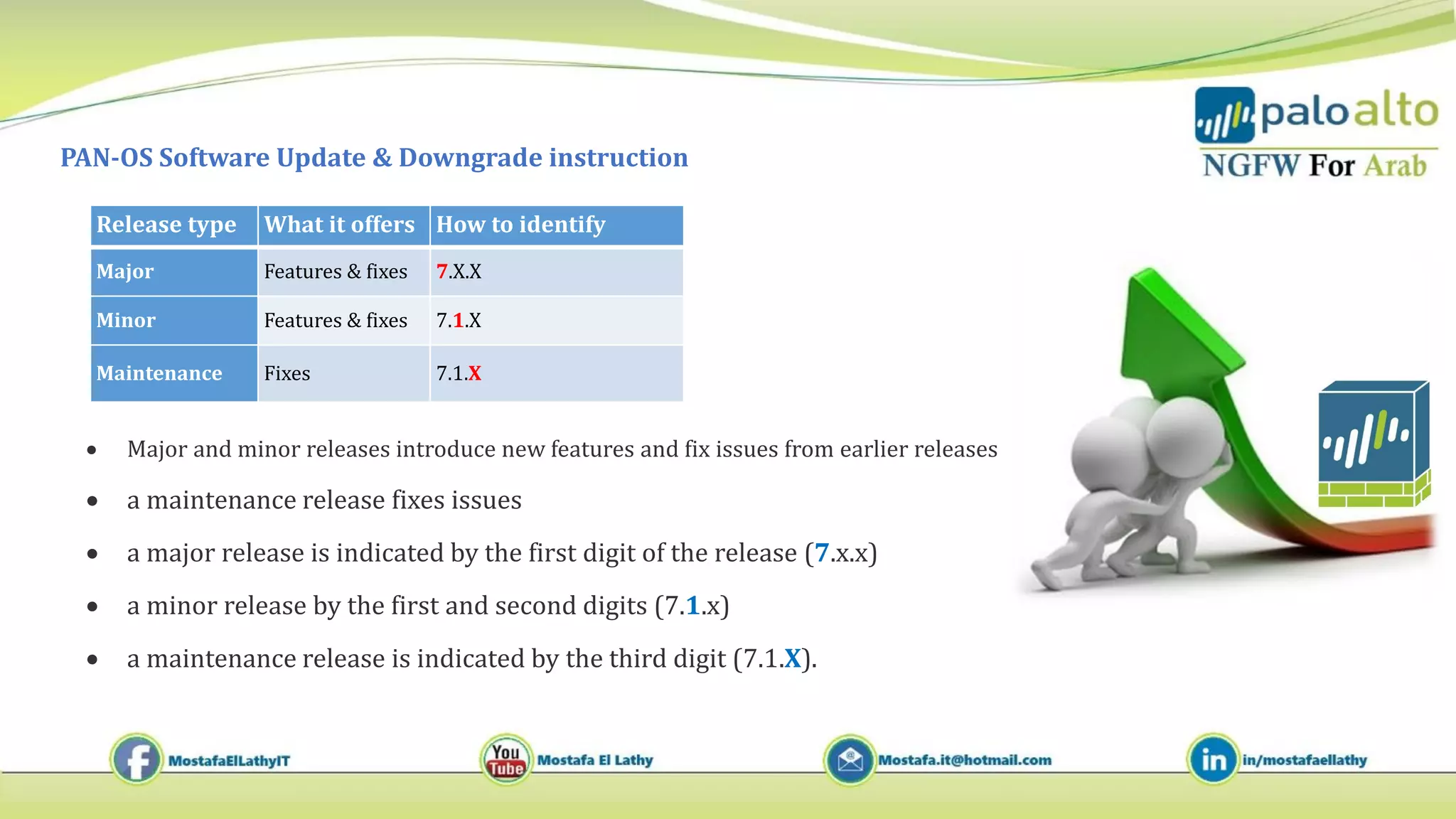
Release type What it offers How to identify
Major Features & fixes 7.X.X
Minor Features & fixes 7.1.X
Maintenance Fixes 7.1.X
 Major and minor releases introduce new features and fix issues from earlier releases
 a maintenance release fixes issues
 a major release is indicated by the first digit of the release (7.x.x)
 a minor release by the first and second digits (7.1.x)
 a maintenance release is indicated by the third digit (7.1.X).
PAN-OS Software Update & Downgrade instruction
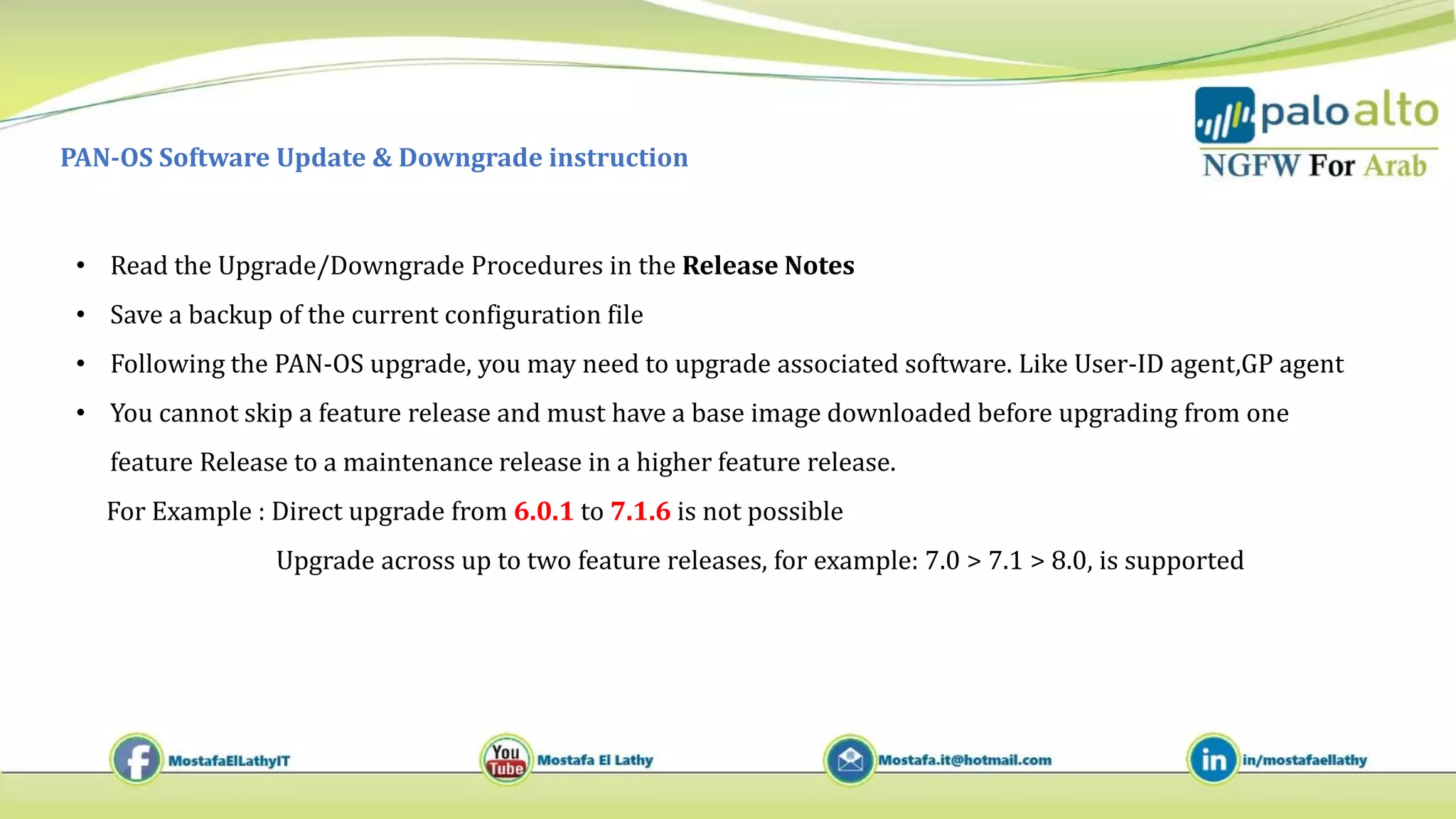
• Read the Upgrade/Downgrade Procedures in the Release Notes
• Save a backup of the current configuration file
• Following the PAN-OS upgrade, you may need to upgrade associated software. Like User-ID agent,GP agent
• You cannot skip a feature release and must have a base image downloaded before upgrading from one
feature Release to a maintenance release in a higher feature release.
For Example : Direct upgrade from 6.0.1 to 7.1.6 is not possible
Upgrade across up to two feature releases, for example: 7.0 > 7.1 > 8.0, is supported
PAN-OS Software Update instruction
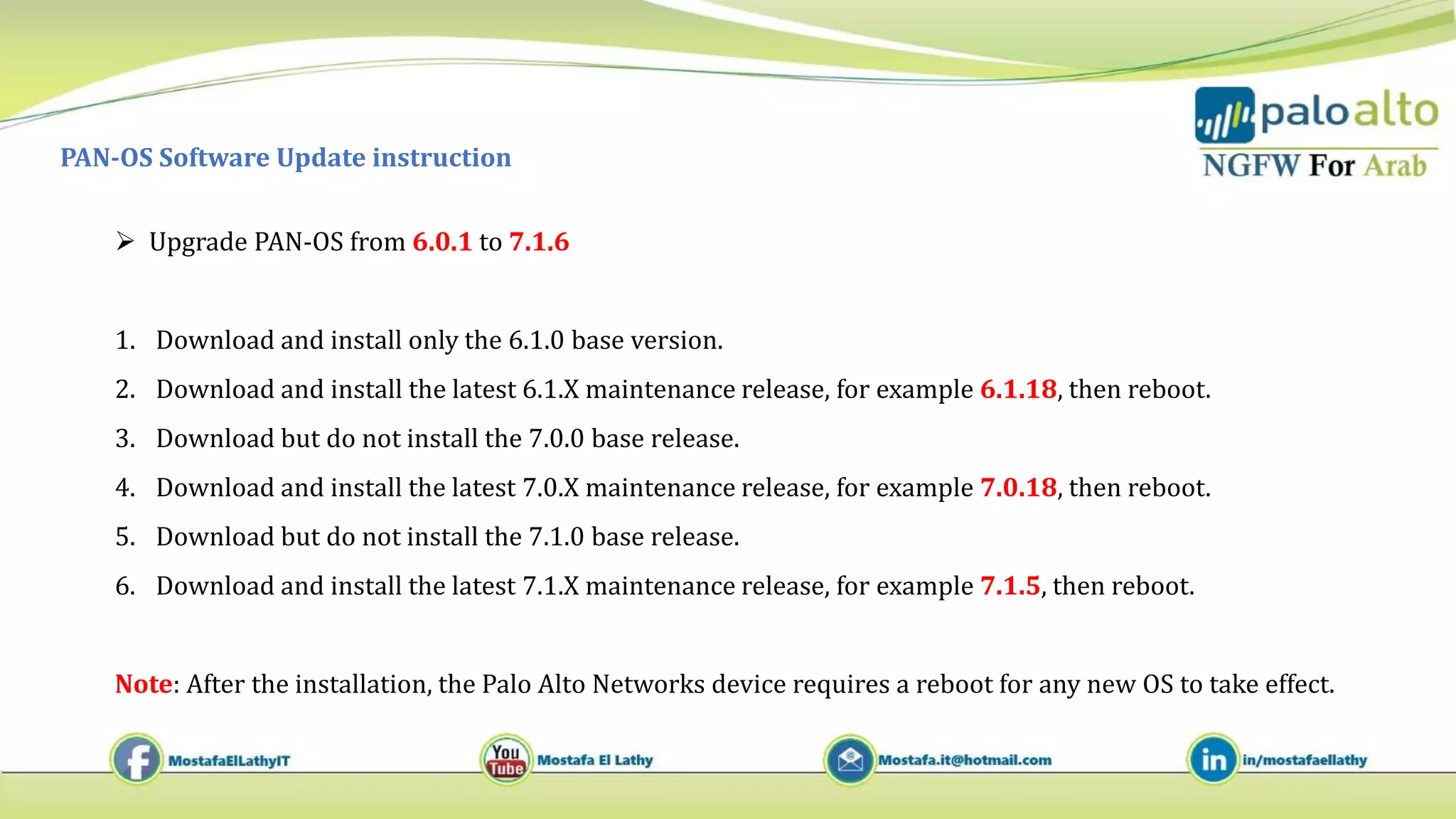
 Upgrade PAN-OS from 6.0.1 to 7.1.6
1. Download and install only the 6.1.0 base version.
2. Download and install the latest 6.1.X maintenance release, for example 6.1.18, then reboot.
3. Download but do not install the 7.0.0 base release.
4. Download and install the latest 7.0.X maintenance release, for example 7.0.18, then reboot.
5. Download but do not install the 7.1.0 base release.
6. Download and install the latest 7.1.X maintenance release, for example 7.1.5, then reboot.
Note: After the installation, the Palo Alto Networks device requires a reboot for any new OS to take effect.
PAN-OS Software Downgrade instruction
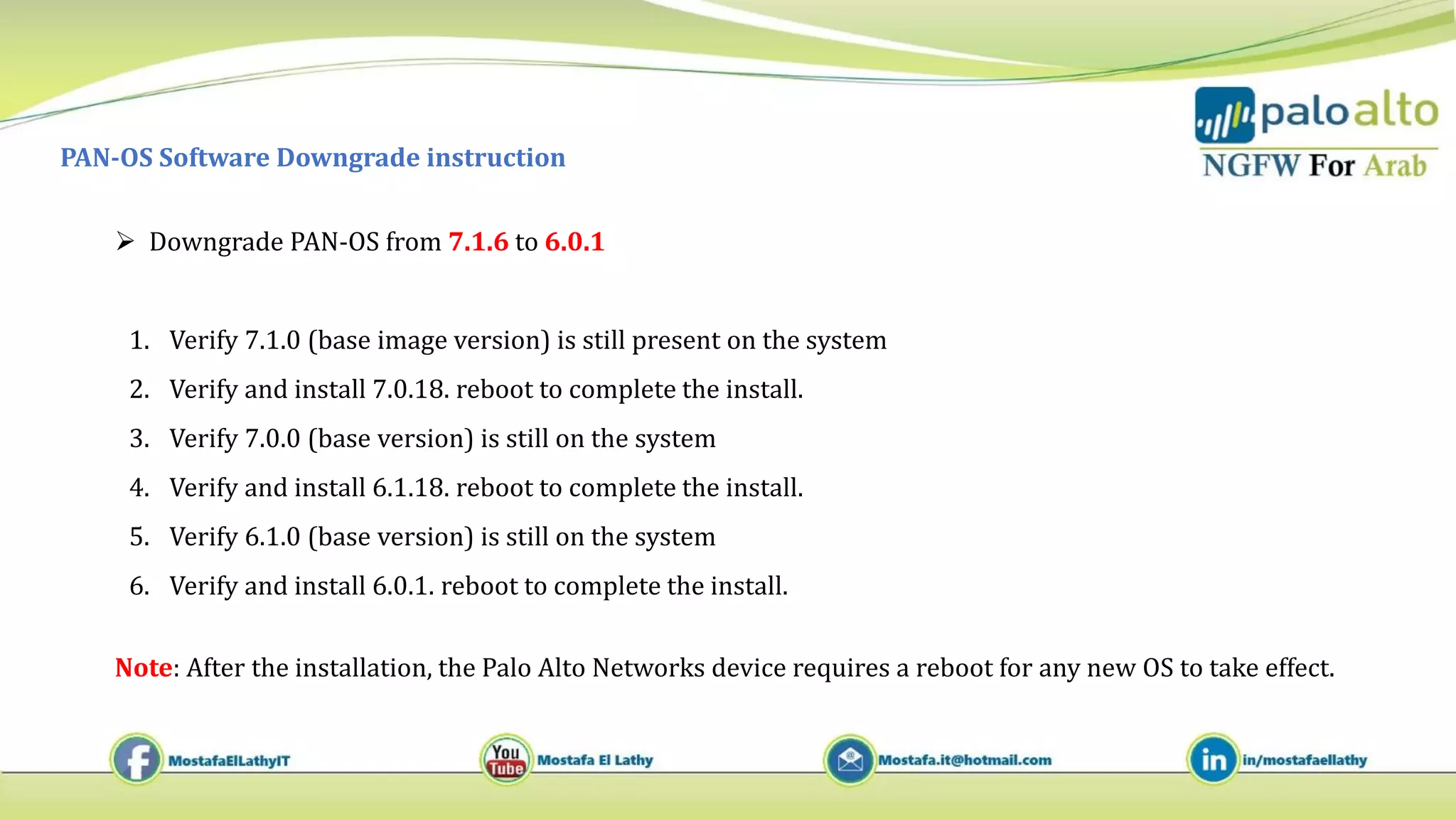
 Downgrade PAN-OS from 7.1.6 to 6.0.1
1. Verify 7.1.0 (base image version) is still present on the system
2. Verify and install 7.0.18. reboot to complete the install.
3. Verify 7.0.0 (base version) is still on the system
4. Verify and install 6.1.18. reboot to complete the install.
5. Verify 6.1.0 (base version) is still on the system
6. Verify and install 6.0.1. reboot to complete the install.
Note: After the installation, the Palo Alto Networks device requires a reboot for any new OS to take effect.
6 pan-os software update & downgrade instruction

6 pan-os software update & downgrade instruction

  • 1.
    PAN-OS Software Update& Downgrade instruction Release type What it offers How to identify Major Features & fixes 7.X.X Minor Features & fixes 7.1.X Maintenance Fixes 7.1.X  Major and minor releases introduce new features and fix issues from earlier releases  a maintenance release fixes issues  a major release is indicated by the first digit of the release (7.x.x)  a minor release by the first and second digits (7.1.x)  a maintenance release is indicated by the third digit (7.1.X).
  • 2.
    PAN-OS Software Update& Downgrade instruction • Read the Upgrade/Downgrade Procedures in the Release Notes • Save a backup of the current configuration file • Following the PAN-OS upgrade, you may need to upgrade associated software. Like User-ID agent,GP agent • You cannot skip a feature release and must have a base image downloaded before upgrading from one feature Release to a maintenance release in a higher feature release. For Example : Direct upgrade from 6.0.1 to 7.1.6 is not possible Upgrade across up to two feature releases, for example: 7.0 > 7.1 > 8.0, is supported
  • 3.
    PAN-OS Software Updateinstruction  Upgrade PAN-OS from 6.0.1 to 7.1.6 1. Download and install only the 6.1.0 base version. 2. Download and install the latest 6.1.X maintenance release, for example 6.1.18, then reboot. 3. Download but do not install the 7.0.0 base release. 4. Download and install the latest 7.0.X maintenance release, for example 7.0.18, then reboot. 5. Download but do not install the 7.1.0 base release. 6. Download and install the latest 7.1.X maintenance release, for example 7.1.5, then reboot. Note: After the installation, the Palo Alto Networks device requires a reboot for any new OS to take effect.
  • 4.
    PAN-OS Software Downgradeinstruction  Downgrade PAN-OS from 7.1.6 to 6.0.1 1. Verify 7.1.0 (base image version) is still present on the system 2. Verify and install 7.0.18. reboot to complete the install. 3. Verify 7.0.0 (base version) is still on the system 4. Verify and install 6.1.18. reboot to complete the install. 5. Verify 6.1.0 (base version) is still on the system 6. Verify and install 6.0.1. reboot to complete the install. Note: After the installation, the Palo Alto Networks device requires a reboot for any new OS to take effect.