PRELIMINARY TASK
For my Preliminary Task, I have created a
Front Cover and Contents Page to familiarise
myself with the software Adobe Photoshop
CS4
Evidence of Front Cover
Step-by-step
Before starting my Main Task Front Cover, I have created a
Test (Prelim) Front Cover
Below is a step by step guide on how I created my
‘Preliminary Task – Front Cover Page’
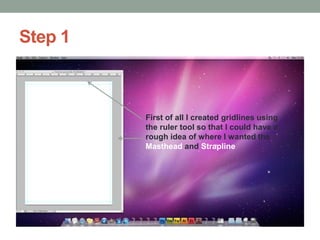
Step 1

First of all I created gridlines using
the ruler tool so that I could have a
rough idea of where I wanted the
Masthead and Strapline
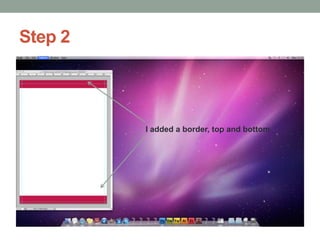
Step 2

I added a border, top and bottom
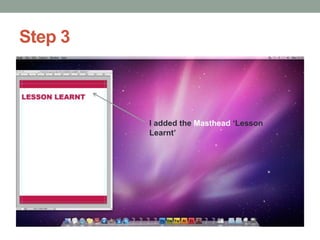
Step 3

I added the Masthead ‘Lesson
Learnt’
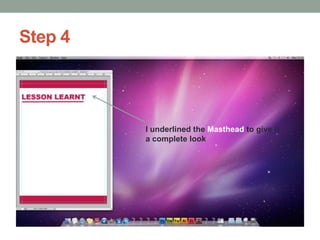
Step 4

I underlined the Masthead to give it
a complete look
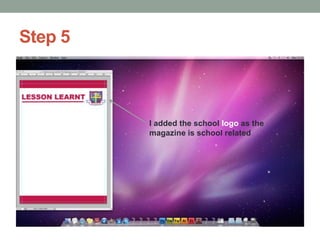
Step 5

I added the school logo as the
magazine is school related
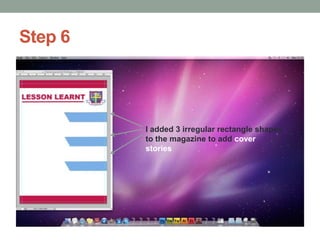
Step 6

I added 3 irregular rectangle shapes
to the magazine to add cover
stories
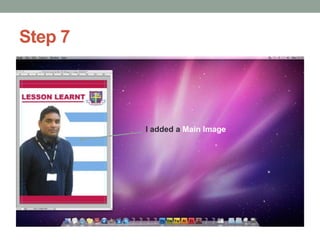
Step 7

I added a Main Image
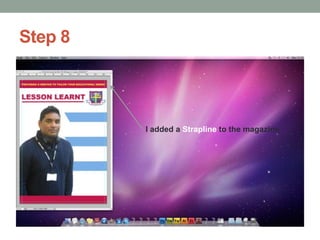
Step 8

I added a Strapline to the magazine
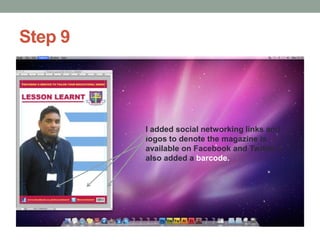
Step 9

I added social networking links and
logos to denote the magazine is
available on Facebook and Twitter. I
also added a barcode.
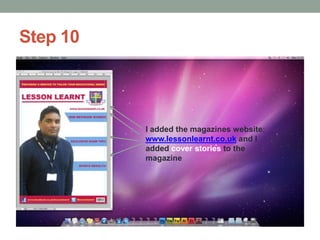
Step 10

I added the magazines website:
www.lessonlearnt.co.uk and I
added cover stories to the
magazine
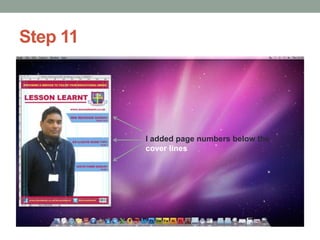
Step 11

I added page numbers below the
cover lines
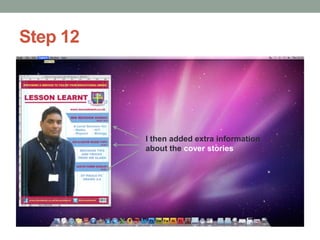
Step 12

I then added extra information
about the cover stories
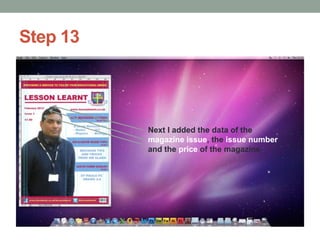
Step 13

Next I added the data of the
magazine issue, the issue number
and the price of the magazine
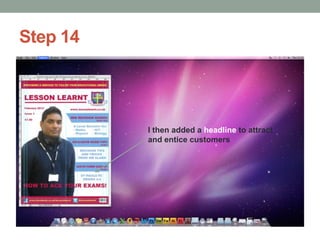
Step 14

I then added a headline to attract
and entice customers
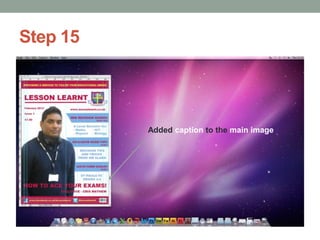
Step 15

Added caption to the main image
Preliminary Task – Evidence
Contents Page Layout
Step-by-step
Before starting my Main Task Contents Page, I have
created a Test (Prelim) Contents Page
Below is a step by step guide on how I created my
‘Preliminary Task – Contents Page’
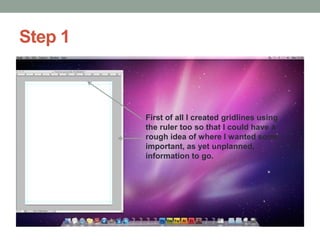
Step 1

First of all I created gridlines using
the ruler too so that I could have a
rough idea of where I wanted some
important, as yet unplanned,
information to go.
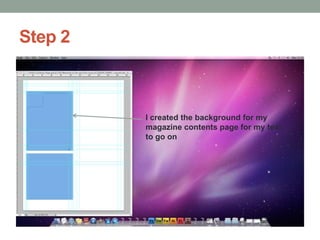
Step 2

I created the background for my
magazine contents page for my text
to go on
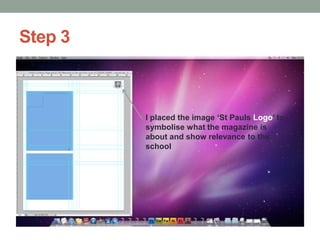
Step 3

I placed the image ‘St Pauls Logo’ to
symbolise what the magazine is
about and show relevance to the
school
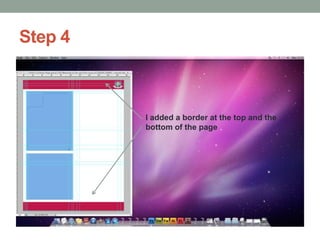
Step 4

I added a border at the top and the
bottom of the page
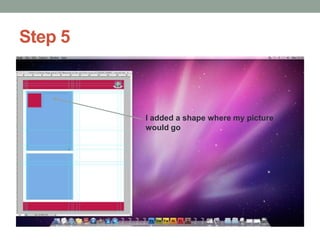
Step 5

I added a shape where my picture
would go
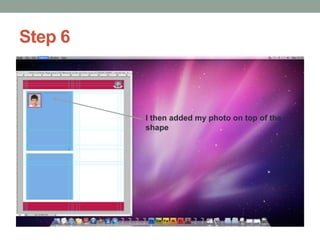
Step 6

I then added my photo on top of the
shape
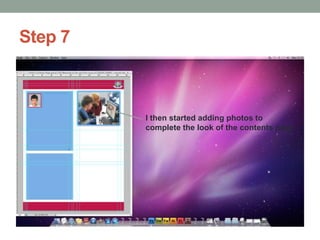
Step 7

I then started adding photos to
complete the look of the contents page
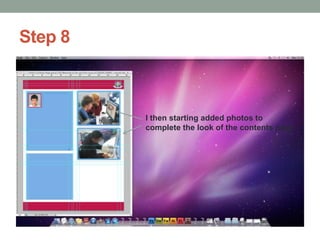
Step 8

I then starting added photos to
complete the look of the contents page
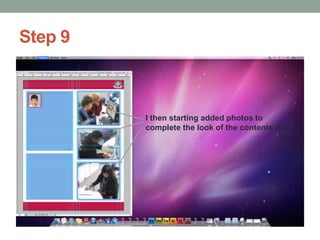
Step 9

I then starting added photos to
complete the look of the contents page
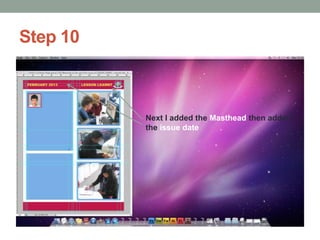
Step 10

Next I added the Masthead then added
the issue date
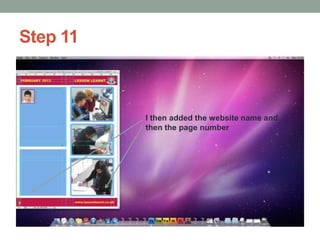
Step 11

I then added the website name and
then the page number
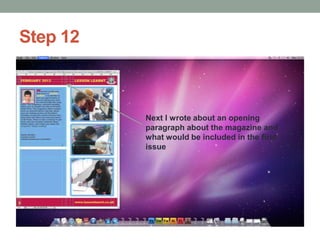
Step 12

Next I wrote about an opening
paragraph about the magazine and
what would be included in the first
issue
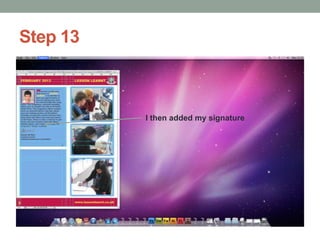
Step 13

I then added my signature
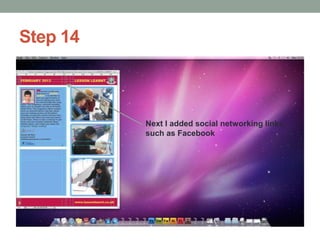
Step 14

Next I added social networking links,
such as Facebook
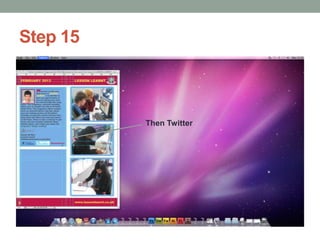
Step 15

Then Twitter
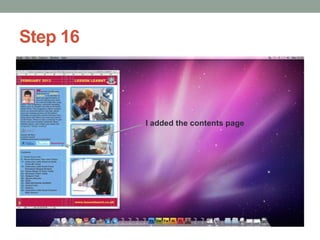
Step 16

I added the contents page
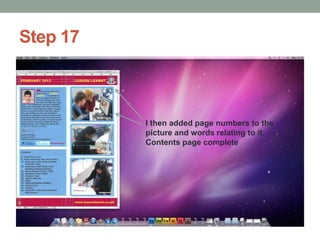
Step 17

I then added page numbers to the
picture and words relating to it.
Contents page complete

Preliminary Task - Step By Step

  • 1.
    PRELIMINARY TASK For myPreliminary Task, I have created a Front Cover and Contents Page to familiarise myself with the software Adobe Photoshop CS4
  • 2.
    Evidence of FrontCover Step-by-step Before starting my Main Task Front Cover, I have created a Test (Prelim) Front Cover Below is a step by step guide on how I created my ‘Preliminary Task – Front Cover Page’
  • 3.
    Step 1 First ofall I created gridlines using the ruler tool so that I could have a rough idea of where I wanted the Masthead and Strapline
  • 4.
    Step 2 I addeda border, top and bottom
  • 5.
    Step 3 I addedthe Masthead ‘Lesson Learnt’
  • 6.
    Step 4 I underlinedthe Masthead to give it a complete look
  • 7.
    Step 5 I addedthe school logo as the magazine is school related
  • 8.
    Step 6 I added3 irregular rectangle shapes to the magazine to add cover stories
  • 9.
    Step 7 I addeda Main Image
  • 10.
    Step 8 I addeda Strapline to the magazine
  • 11.
    Step 9 I addedsocial networking links and logos to denote the magazine is available on Facebook and Twitter. I also added a barcode.
  • 12.
    Step 10 I addedthe magazines website: www.lessonlearnt.co.uk and I added cover stories to the magazine
  • 13.
    Step 11 I addedpage numbers below the cover lines
  • 14.
    Step 12 I thenadded extra information about the cover stories
  • 15.
    Step 13 Next Iadded the data of the magazine issue, the issue number and the price of the magazine
  • 16.
    Step 14 I thenadded a headline to attract and entice customers
  • 17.
    Step 15 Added captionto the main image
  • 18.
    Preliminary Task –Evidence Contents Page Layout Step-by-step Before starting my Main Task Contents Page, I have created a Test (Prelim) Contents Page Below is a step by step guide on how I created my ‘Preliminary Task – Contents Page’
  • 19.
    Step 1 First ofall I created gridlines using the ruler too so that I could have a rough idea of where I wanted some important, as yet unplanned, information to go.
  • 20.
    Step 2 I createdthe background for my magazine contents page for my text to go on
  • 21.
    Step 3 I placedthe image ‘St Pauls Logo’ to symbolise what the magazine is about and show relevance to the school
  • 22.
    Step 4 I addeda border at the top and the bottom of the page
  • 23.
    Step 5 I addeda shape where my picture would go
  • 24.
    Step 6 I thenadded my photo on top of the shape
  • 25.
    Step 7 I thenstarted adding photos to complete the look of the contents page
  • 26.
    Step 8 I thenstarting added photos to complete the look of the contents page
  • 27.
    Step 9 I thenstarting added photos to complete the look of the contents page
  • 28.
    Step 10 Next Iadded the Masthead then added the issue date
  • 29.
    Step 11 I thenadded the website name and then the page number
  • 30.
    Step 12 Next Iwrote about an opening paragraph about the magazine and what would be included in the first issue
  • 31.
    Step 13 I thenadded my signature
  • 32.
    Step 14 Next Iadded social networking links, such as Facebook
  • 33.
  • 34.
    Step 16 I addedthe contents page
  • 35.
    Step 17 I thenadded page numbers to the picture and words relating to it. Contents page complete