Preliminary Breakdown
By Leeza Ah-wan
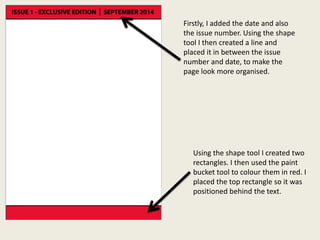
Using the shape tool I created two
rectangles. I then used the paint
bucket tool to colour them in red. I
placed the top rectangle so it was
positioned behind the text.
Firstly, I added the date and also
the issue number. Using the shape
tool I then created a line and
placed it in between the issue
number and date, to make the
page look more organised.
I added a web address for the main
website of the magazine. I then
added social networking logos and
the relevant web links as a form of
‘convergence’.
Then, I cropped my main image
using the quick selection tool. After
cropping, I positioned it onto the
page.
Next, I placed in the school logo.
This will attract students to the
magazine as they are familiar with
it.
I then typed up my masthead. I
decided to call my magazine
“School Success”.
I then created a rectangle using the
shape tool and then added a stroke
effect to make it bolder.
I then added my strapline which is
“A refreshing taste of school life”.
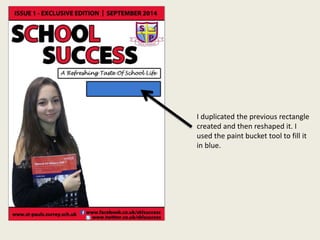
I duplicated the previous rectangle
created and then reshaped it. I
used the paint bucket tool to fill it
in blue.
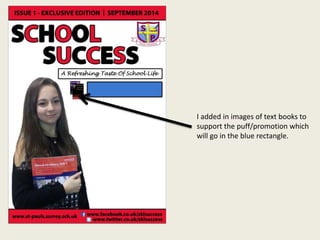
I added in images of text books to
support the puff/promotion which
will go in the blue rectangle.
I used the text tool to type up my
puff which is “Win! £50 worth of
revision books and school
resources”.
Using the text tool, I created my
first cover line. I decided to use
black and red so the page would
have a consistent colour scheme.
I then added a second cover line.
Then, I added my third cover line.
The use of cover lines is important
as the main headline might not
attract someone, but one of the
cover lines will.
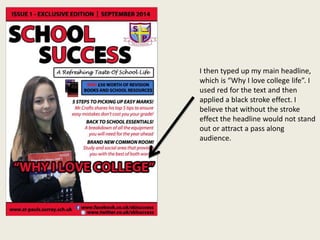
I then typed up my main headline,
which is “Why I love college life”. I
used red for the text and then
applied a black stroke effect. I
believe that without the stroke
effect the headline would not stand
out or attract a pass along
audience.
Below the main headline I typed up
a short summary which included
who the main story was featuring. I
thought this would be useful in
attracting a audience who had a
‘personal relationship’ (Katz) with
the cover star.
I placed in a bar code, which is a
vital convention.
I placed in a QR code generator
scanner as a form of synergy.
Next, I used the shape tool to
create a star. I also added a stroke
effect onto this star to make it look
bolder. Thus, the price inside it
would stand out once typed up.
I created a text box and typed
“Only £1”. I then, dragged this into
the star.
Lastly, I added in instructions on
how to use the QR code.
Firstly, I added the date of the issue
so it’s present on both my front
cover and contents page.
Then, I ‘repeated’ (Steve
Neale) my masthead so the
name becomes memorable
and well established to
readers.
I dragged over the school logo from
my front cover and placed it onto
my contents page, beside the
masthead.
I then added in the page number.
This is vital for readers to navigate
easily through the magazine.
I typed up the web address as
convergence is important for the
company to maintain a ‘personal
relationship’(Katz) with readers.
I made it clear that this was the
contents page for readers.
I didn’t want the page to look too
plain as the background is white.
Hence, I placed in two appropriate
clip art images.
I used the shape tool to create a
rectangle for my editorial.
I typed up my editorial. I
believe an editorial is
important in welcoming
readers to the issue. I placed in
my handwritten signature so I
can start to build a ‘personal
relationship’ (Katz) with
buyers.
To save time, instead of creating
another rectangle using the shape
tool, I simply duplicated my
previous rectangle. Then, resized it.
I made it clear to readers that they
could find all the necessary
information here of where to go for
certain stories.
I then typed up all the page
numbers and what readers will find
on each page.
I then placed in a original image to
support one of the stories that
feature.
I placed in another original image.
I placed in a image of the main star.
I purposely made this the largest
image on the page because it is the
main story.
Using the shape tool I created a
black square. I then duplicated this
shape for the other two images. I
will be placing the appropriate
page numbers in these boxes.
I typed up the appropriate
page number.
I typed up the appropriate
page number.
I typed up the appropriate
page number.
Then, I added my editorial
photo in. This way buyers will
know what the editor (me)
looks like.
I changed a part of my
editorial.
I also changed the text for
page 16.
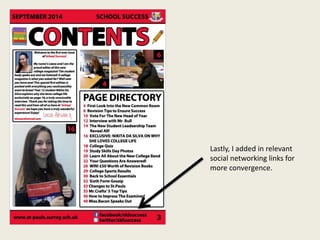
Lastly, I added in relevant
social networking links for
more convergence.

Prelim Task Breakdown

  • 1.
  • 2.
    Using the shapetool I created two rectangles. I then used the paint bucket tool to colour them in red. I placed the top rectangle so it was positioned behind the text. Firstly, I added the date and also the issue number. Using the shape tool I then created a line and placed it in between the issue number and date, to make the page look more organised.
  • 3.
    I added aweb address for the main website of the magazine. I then added social networking logos and the relevant web links as a form of ‘convergence’.
  • 4.
    Then, I croppedmy main image using the quick selection tool. After cropping, I positioned it onto the page.
  • 5.
    Next, I placedin the school logo. This will attract students to the magazine as they are familiar with it.
  • 6.
    I then typedup my masthead. I decided to call my magazine “School Success”. I then created a rectangle using the shape tool and then added a stroke effect to make it bolder.
  • 7.
    I then addedmy strapline which is “A refreshing taste of school life”.
  • 8.
    I duplicated theprevious rectangle created and then reshaped it. I used the paint bucket tool to fill it in blue.
  • 9.
    I added inimages of text books to support the puff/promotion which will go in the blue rectangle.
  • 10.
    I used thetext tool to type up my puff which is “Win! £50 worth of revision books and school resources”.
  • 11.
    Using the texttool, I created my first cover line. I decided to use black and red so the page would have a consistent colour scheme.
  • 12.
    I then addeda second cover line.
  • 13.
    Then, I addedmy third cover line. The use of cover lines is important as the main headline might not attract someone, but one of the cover lines will.
  • 14.
    I then typedup my main headline, which is “Why I love college life”. I used red for the text and then applied a black stroke effect. I believe that without the stroke effect the headline would not stand out or attract a pass along audience.
  • 15.
    Below the mainheadline I typed up a short summary which included who the main story was featuring. I thought this would be useful in attracting a audience who had a ‘personal relationship’ (Katz) with the cover star.
  • 16.
    I placed ina bar code, which is a vital convention.
  • 17.
    I placed ina QR code generator scanner as a form of synergy.
  • 18.
    Next, I usedthe shape tool to create a star. I also added a stroke effect onto this star to make it look bolder. Thus, the price inside it would stand out once typed up.
  • 19.
    I created atext box and typed “Only £1”. I then, dragged this into the star.
  • 20.
    Lastly, I addedin instructions on how to use the QR code.
  • 21.
    Firstly, I addedthe date of the issue so it’s present on both my front cover and contents page. Then, I ‘repeated’ (Steve Neale) my masthead so the name becomes memorable and well established to readers.
  • 22.
    I dragged overthe school logo from my front cover and placed it onto my contents page, beside the masthead.
  • 23.
    I then addedin the page number. This is vital for readers to navigate easily through the magazine.
  • 24.
    I typed upthe web address as convergence is important for the company to maintain a ‘personal relationship’(Katz) with readers.
  • 25.
    I made itclear that this was the contents page for readers.
  • 26.
    I didn’t wantthe page to look too plain as the background is white. Hence, I placed in two appropriate clip art images.
  • 27.
    I used theshape tool to create a rectangle for my editorial.
  • 28.
    I typed upmy editorial. I believe an editorial is important in welcoming readers to the issue. I placed in my handwritten signature so I can start to build a ‘personal relationship’ (Katz) with buyers.
  • 29.
    To save time,instead of creating another rectangle using the shape tool, I simply duplicated my previous rectangle. Then, resized it.
  • 30.
    I made itclear to readers that they could find all the necessary information here of where to go for certain stories.
  • 31.
    I then typedup all the page numbers and what readers will find on each page.
  • 32.
    I then placedin a original image to support one of the stories that feature.
  • 33.
    I placed inanother original image.
  • 34.
    I placed ina image of the main star. I purposely made this the largest image on the page because it is the main story.
  • 35.
    Using the shapetool I created a black square. I then duplicated this shape for the other two images. I will be placing the appropriate page numbers in these boxes.
  • 36.
    I typed upthe appropriate page number.
  • 37.
    I typed upthe appropriate page number.
  • 38.
    I typed upthe appropriate page number.
  • 39.
    Then, I addedmy editorial photo in. This way buyers will know what the editor (me) looks like.
  • 40.
    I changed apart of my editorial. I also changed the text for page 16.
  • 41.
    Lastly, I addedin relevant social networking links for more convergence.