Screen withTabs
How to create a Screen withTabs in PowerApps
Peter Heffner
@Lingualizer
Why this tutorial?
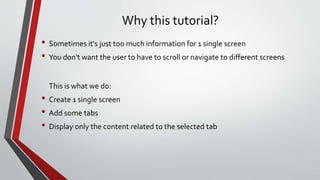
• Sometimes it's just too much information for 1 single screen
• You don't want the user to have to scroll or navigate to different screens
This is what we do:
• Create 1 single screen
• Add some tabs
• Display only the content related to the selected tab
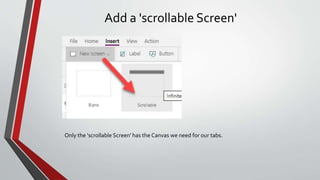
Add a 'scrollable Screen'
Only the 'scrollable Screen' has the Canvas we need for our tabs.
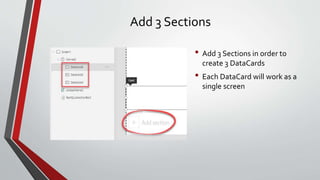
Add 3 Sections
• Add 3 Sections in order to
create 3 DataCards
• Each DataCard will work as a
single screen
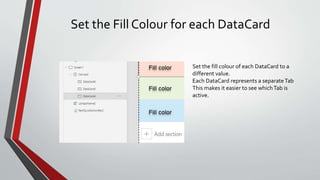
Set the Fill Colour for each DataCard
Set the fill colour of each DataCard to a
different value.
Each DataCard represents a separateTab
This makes it easier to see whichTab is
active.
Screen – OnVisible Action
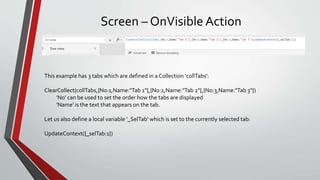
This example has 3 tabs which are defined in a Collection 'collTabs':
ClearCollect(collTabs,{No:1,Name:"Tab 1"},{No:2,Name:"Tab 2"},{No:3,Name:"Tab 3"})
'No' can be used to set the order how the tabs are displayed
'Name' is the text that appears on the tab.
Let us also define a local variable '_SelTab' which is set to the currently selected tab:
UpdateContext({_selTab:1})
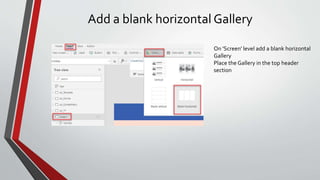
Add a blank horizontal Gallery
On 'Screen' level add a blank horizontal
Gallery
Place the Gallery in the top header
section
Define the Gallery
Set [Items] to the Collection created at
'OnVisible' of the screen.
Edit the Gallery
Add a Button control to the Gallery.
You may either want to change the colour of
the header rectangle or the fill color of the
button.
Define the Buttons 1/3
Make it a nice button:
Select the Button
Set RadiusBottomRight = 0
Set RadiusBottomLeft = 0
Set the top left and right
radius' to half the height of
the button
Add the text label:
With the button selected set
[Text]=ThisItem.Name
This will add the
corresponding name from the
Collection.
Define the Buttons 2/3
Add some Action:
With the button selected set
[OnSelect]=UpdateContext({_selTab:ThisItem.No})
The local variable [_selTab] is set to the number of the tab as defined in the collection
Define the Buttons 3/3
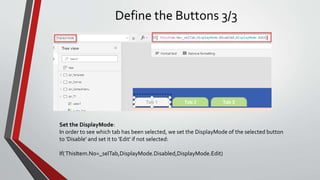
Set the DisplayMode:
In order to see which tab has been selected, we set the DisplayMode of the selected button
to 'Disable' and set it to 'Edit' if not selected:
If(ThisItem.No=_selTab,DisplayMode.Disabled,DisplayMode.Edit)
Display the Screens
Set the screensVisible property:
By default the [Visible] property of all DataCards is 'true'
Select a DataCard in the tree view which
should be displayed ifTab1 is selected:
Select the [Visible] property
Set the value to 'If(_selTab=1,true,false)'
The other DataCards go like
If(_selTab=2,true,false) and
If(_selTab=3,true,false)
TheVisible property of the DataCard is set
by the value of the local variable [_selTab].
Thanks for watching!
@Lingualizer

PowerApps - Canvas Screen with Tabs

  • 1.
    Screen withTabs How tocreate a Screen withTabs in PowerApps Peter Heffner @Lingualizer
  • 2.
    Why this tutorial? •Sometimes it's just too much information for 1 single screen • You don't want the user to have to scroll or navigate to different screens This is what we do: • Create 1 single screen • Add some tabs • Display only the content related to the selected tab
  • 3.
    Add a 'scrollableScreen' Only the 'scrollable Screen' has the Canvas we need for our tabs.
  • 4.
    Add 3 Sections •Add 3 Sections in order to create 3 DataCards • Each DataCard will work as a single screen
  • 5.
    Set the FillColour for each DataCard Set the fill colour of each DataCard to a different value. Each DataCard represents a separateTab This makes it easier to see whichTab is active.
  • 6.
    Screen – OnVisibleAction This example has 3 tabs which are defined in a Collection 'collTabs': ClearCollect(collTabs,{No:1,Name:"Tab 1"},{No:2,Name:"Tab 2"},{No:3,Name:"Tab 3"}) 'No' can be used to set the order how the tabs are displayed 'Name' is the text that appears on the tab. Let us also define a local variable '_SelTab' which is set to the currently selected tab: UpdateContext({_selTab:1})
  • 7.
    Add a blankhorizontal Gallery On 'Screen' level add a blank horizontal Gallery Place the Gallery in the top header section
  • 8.
    Define the Gallery Set[Items] to the Collection created at 'OnVisible' of the screen. Edit the Gallery Add a Button control to the Gallery. You may either want to change the colour of the header rectangle or the fill color of the button.
  • 9.
    Define the Buttons1/3 Make it a nice button: Select the Button Set RadiusBottomRight = 0 Set RadiusBottomLeft = 0 Set the top left and right radius' to half the height of the button Add the text label: With the button selected set [Text]=ThisItem.Name This will add the corresponding name from the Collection.
  • 10.
    Define the Buttons2/3 Add some Action: With the button selected set [OnSelect]=UpdateContext({_selTab:ThisItem.No}) The local variable [_selTab] is set to the number of the tab as defined in the collection
  • 11.
    Define the Buttons3/3 Set the DisplayMode: In order to see which tab has been selected, we set the DisplayMode of the selected button to 'Disable' and set it to 'Edit' if not selected: If(ThisItem.No=_selTab,DisplayMode.Disabled,DisplayMode.Edit)
  • 12.
    Display the Screens Setthe screensVisible property: By default the [Visible] property of all DataCards is 'true' Select a DataCard in the tree view which should be displayed ifTab1 is selected: Select the [Visible] property Set the value to 'If(_selTab=1,true,false)' The other DataCards go like If(_selTab=2,true,false) and If(_selTab=3,true,false) TheVisible property of the DataCard is set by the value of the local variable [_selTab].
  • 13.