Applying your own set of colours
to your PowerApp Controls
How to easily apply colours throughout your App.
Peter Heffner
@Lingualizer
Why this tutorial?
• I didn‘t like the standard colours of the controls, neither the pre-defined
themes, so I had to deal with my own RGB-values.
• Also I wanted to use ourCorporate Colours and didn‘t want to look up every
value with every new PowerApp.
• This presentation describes how I manage my own set of colours.
• Prepare a list with all colors and values
• „OnStart“ create a Collection for quick access to the colour values and minimise traffic
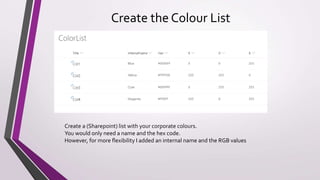
Create the Colour List
Create a (Sharepoint) list with your corporate colours.
You would only need a name and the hex code.
However, for more flexibility I added an internal name and the RGB values
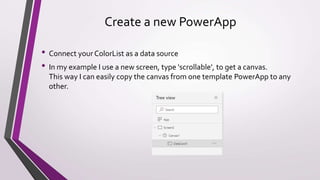
Create a new PowerApp
• Connect your ColorList as a data source
• In my example I use a new screen, type 'scrollable', to get a canvas.
This way I can easily copy the canvas from one template PowerApp to any
other.
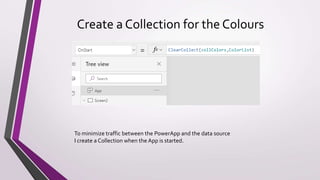
Create a Collection for the Colours
To minimize traffic between the PowerApp and the data source
I create a Collection when the App is started.
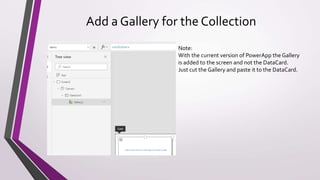
Add a Gallery for the Collection
Note:
With the current version of PowerApp the Gallery
is added to the screen and not the DataCard.
Just cut the Gallery and paste it to the DataCard.
Add a text label
Now we add a text label to the Gallery,
showing the [Title].
You can also use the Internal Name or
the ID, if it is unique.
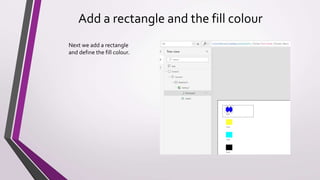
Add a rectangle and the fill colour
Next we add a rectangle
and define the fill colour.
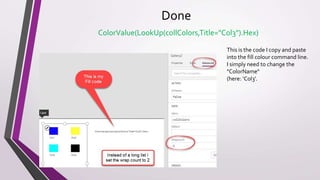
Done
ColorValue(LookUp(collColors,Title="Col3").Hex)
This is the code I copy and paste
into the fill colour command line.
I simply need to change the
"ColorName“
(here: ‘Col3’.
Thanks for watching!
@Lingualizer

PowerApps - Using your own Colour Set

  • 1.
    Applying your ownset of colours to your PowerApp Controls How to easily apply colours throughout your App. Peter Heffner @Lingualizer
  • 2.
    Why this tutorial? •I didn‘t like the standard colours of the controls, neither the pre-defined themes, so I had to deal with my own RGB-values. • Also I wanted to use ourCorporate Colours and didn‘t want to look up every value with every new PowerApp. • This presentation describes how I manage my own set of colours. • Prepare a list with all colors and values • „OnStart“ create a Collection for quick access to the colour values and minimise traffic
  • 3.
    Create the ColourList Create a (Sharepoint) list with your corporate colours. You would only need a name and the hex code. However, for more flexibility I added an internal name and the RGB values
  • 4.
    Create a newPowerApp • Connect your ColorList as a data source • In my example I use a new screen, type 'scrollable', to get a canvas. This way I can easily copy the canvas from one template PowerApp to any other.
  • 5.
    Create a Collectionfor the Colours To minimize traffic between the PowerApp and the data source I create a Collection when the App is started.
  • 6.
    Add a Galleryfor the Collection Note: With the current version of PowerApp the Gallery is added to the screen and not the DataCard. Just cut the Gallery and paste it to the DataCard.
  • 7.
    Add a textlabel Now we add a text label to the Gallery, showing the [Title]. You can also use the Internal Name or the ID, if it is unique.
  • 8.
    Add a rectangleand the fill colour Next we add a rectangle and define the fill colour.
  • 9.
    Done ColorValue(LookUp(collColors,Title="Col3").Hex) This is thecode I copy and paste into the fill colour command line. I simply need to change the "ColorName“ (here: ‘Col3’.
  • 10.