POWER ON SELF-TEST
(POST) /
BEEP CODES
The information that you see in the
desktop monitor is the result of the Power On
Self-Test (POST) upon opening the computer.
Power On Self-Test (POST) - is a process
performed by firmware or software routines
immediately after a computer is powered on.
The POST process may also set the initial state
of the device from firmware. The POST routines
are part of a device's pre-boot sequence; if they
complete successfully, the bootstrap loader code
is invoked to load an operating system.
Power On Self-Test (POST) checks
computer hardware, like Random Access
Memory(RAM), hard drive, CD-ROM drive,
keyboard, etc., to make sure all are working
correctly.
Programs stored on ROM chips are known
as firmware.
Programs stored on erasable media are
called software.
Computer POST and Beep
Codes
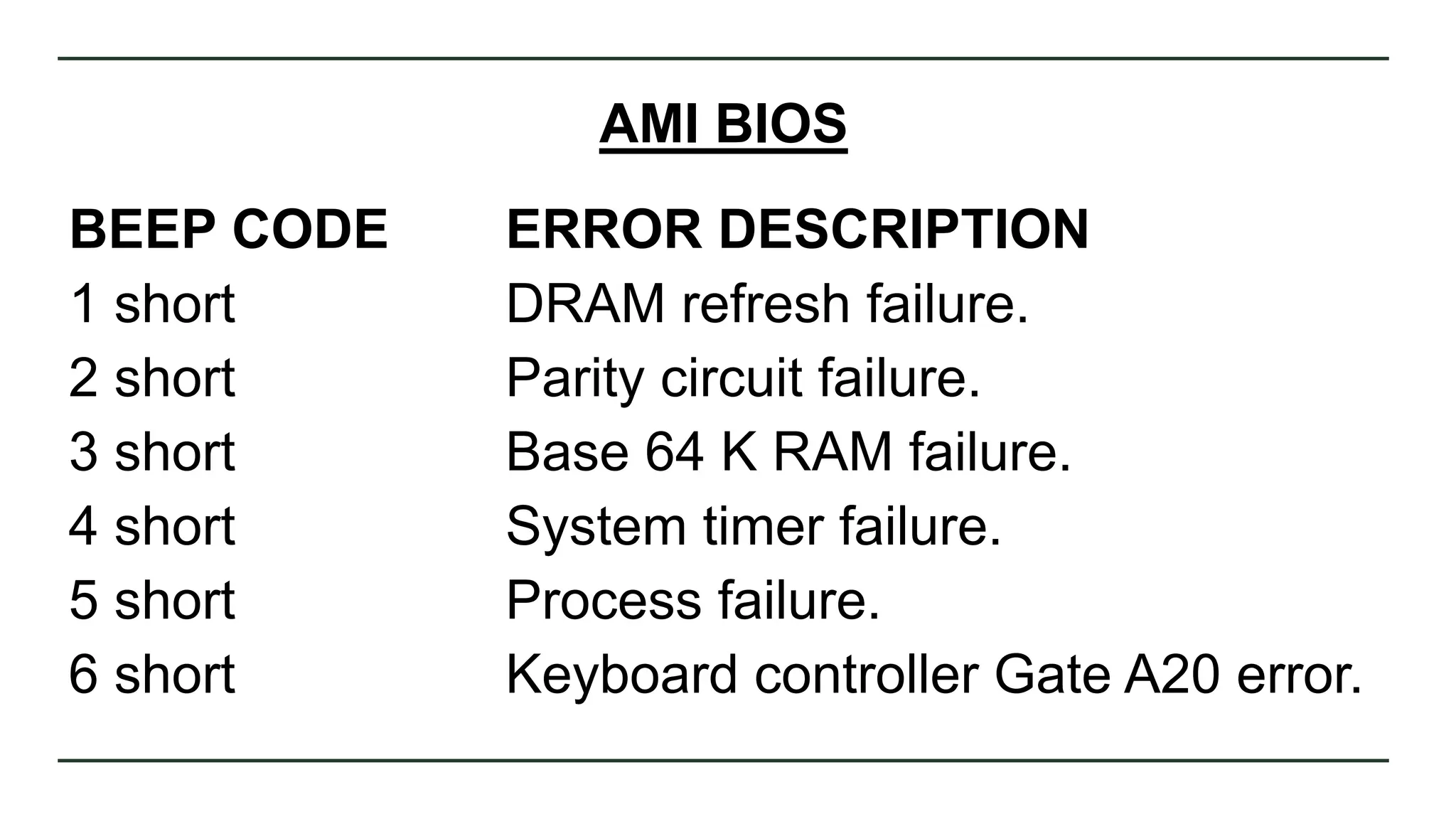
AMI BIOS
BEEP CODE ERROR DESCRIPTION
1 short DRAM refresh failure.
2 short Parity circuit failure.
3 short Base 64 K RAM failure.
4 short System timer failure.
5 short Process failure.
6 short Keyboard controller Gate A20 error.
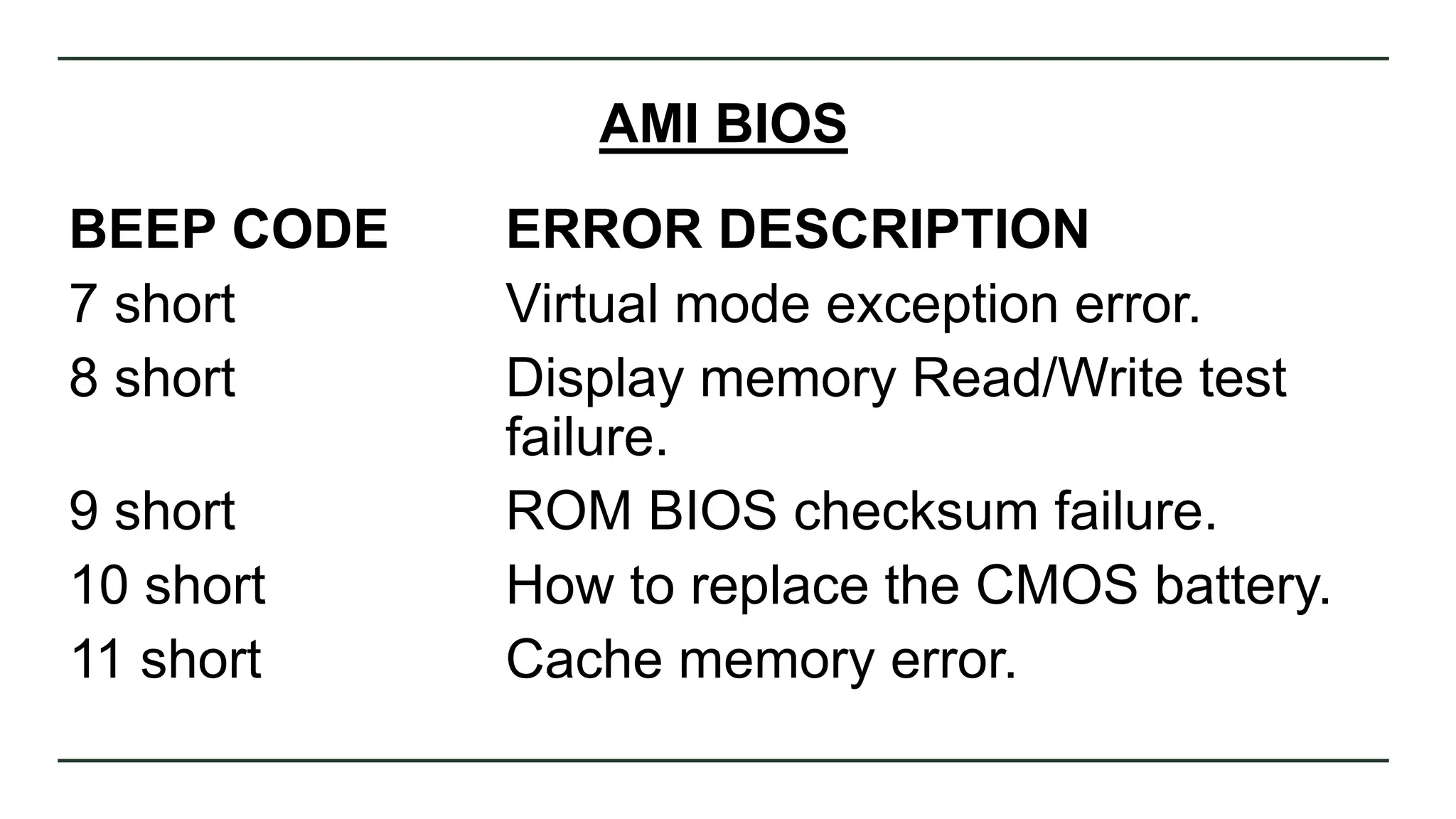
AMI BIOS
BEEP CODE ERROR DESCRIPTION
7 short Virtual mode exception error.
8 short Display memory Read/Write test
failure.
9 short ROM BIOS checksum failure.
10 short How to replace the CMOS battery.
11 short Cache memory error.
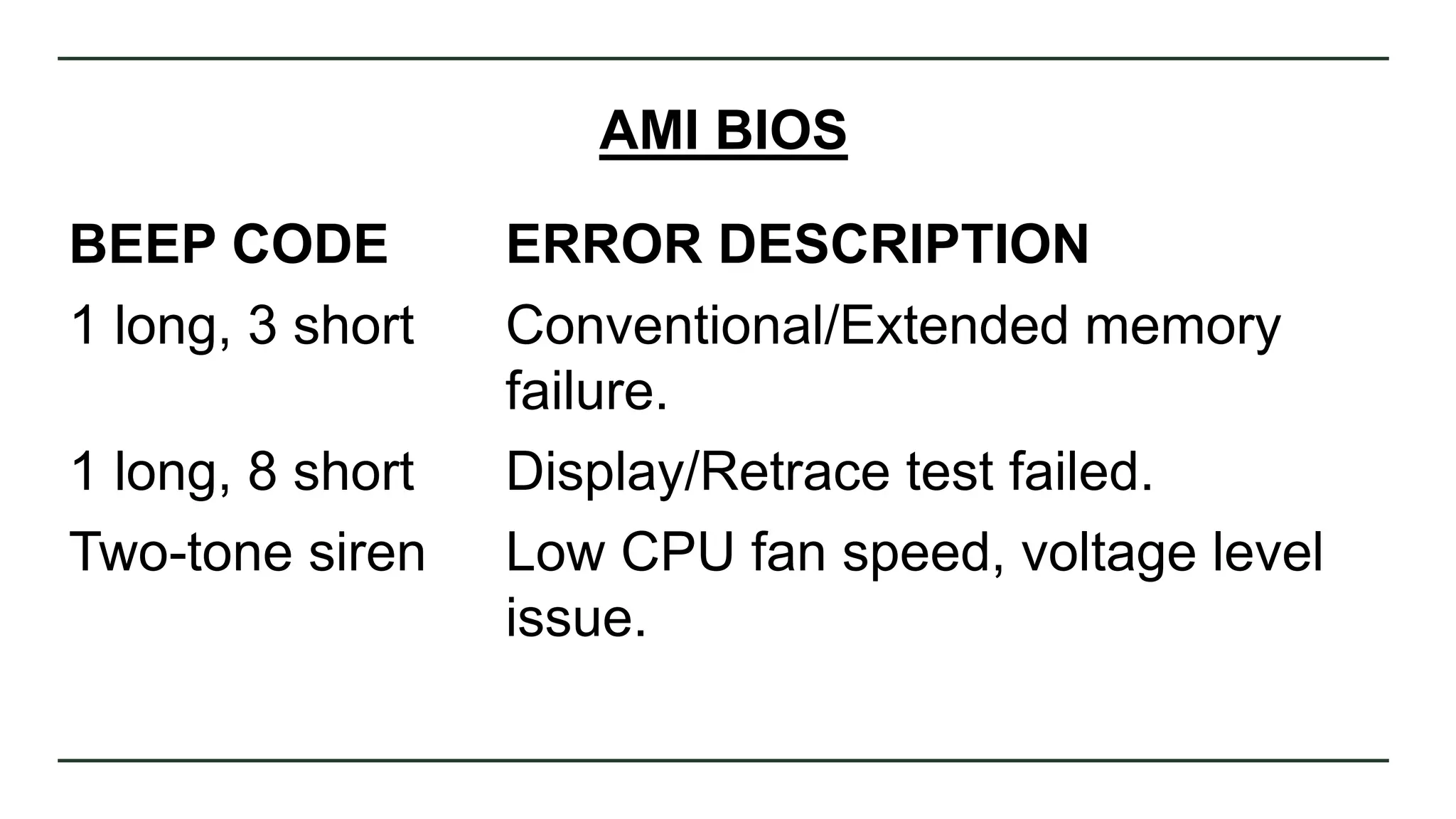
AMI BIOS
BEEP CODE ERROR DESCRIPTION
1 long, 3 short Conventional/Extended memory
failure.
1 long, 8 short Display/Retrace test failed.
Two-tone siren Low CPU fan speed, voltage level
issue.
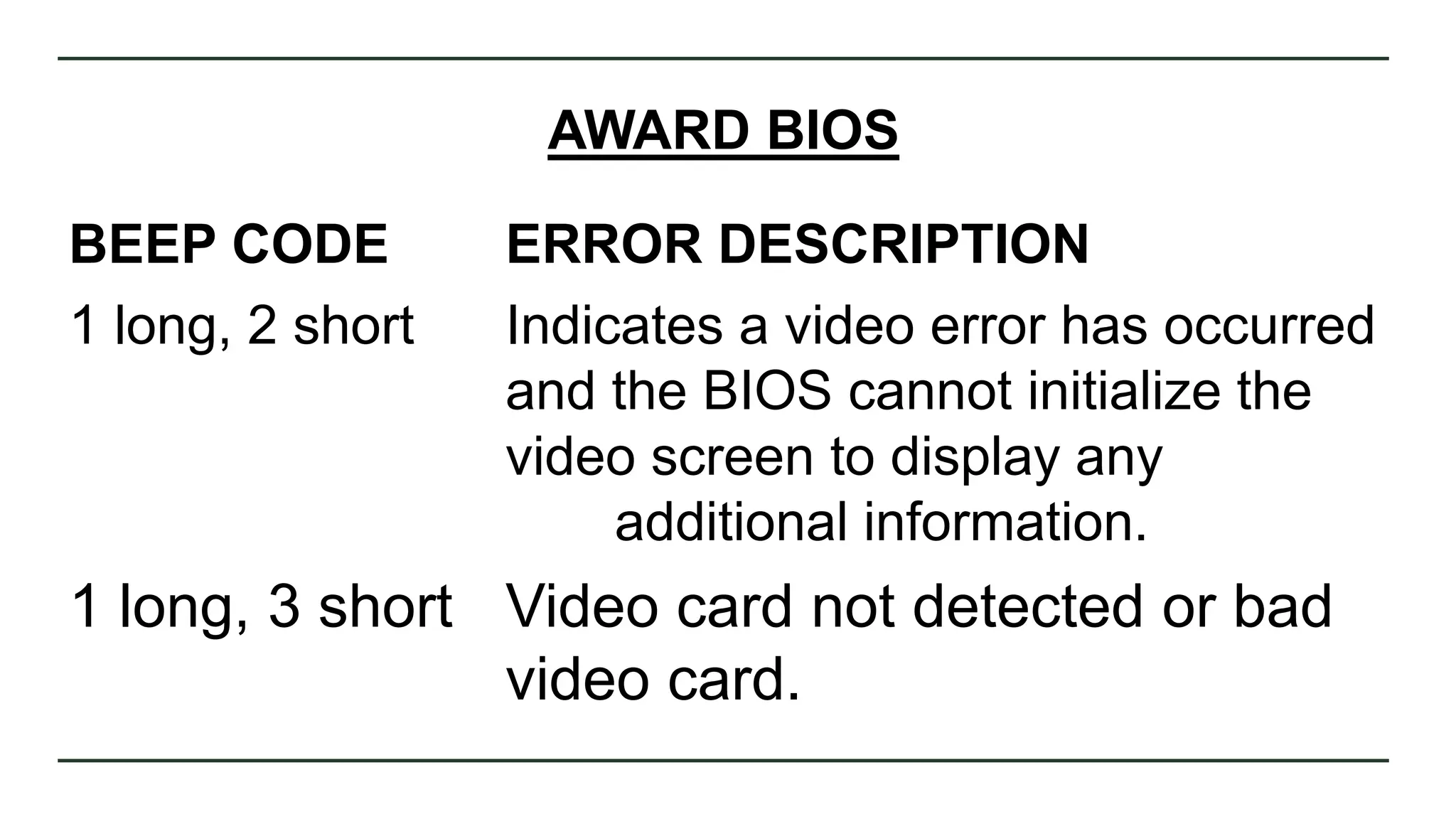
AWARD BIOS
BEEP CODE ERROR DESCRIPTION
1 long, 2 short Indicates a video error has occurred
and the BIOS cannot initialize the
video screen to display any
additional information.
1 long, 3 short Video card not detected or bad
video card.
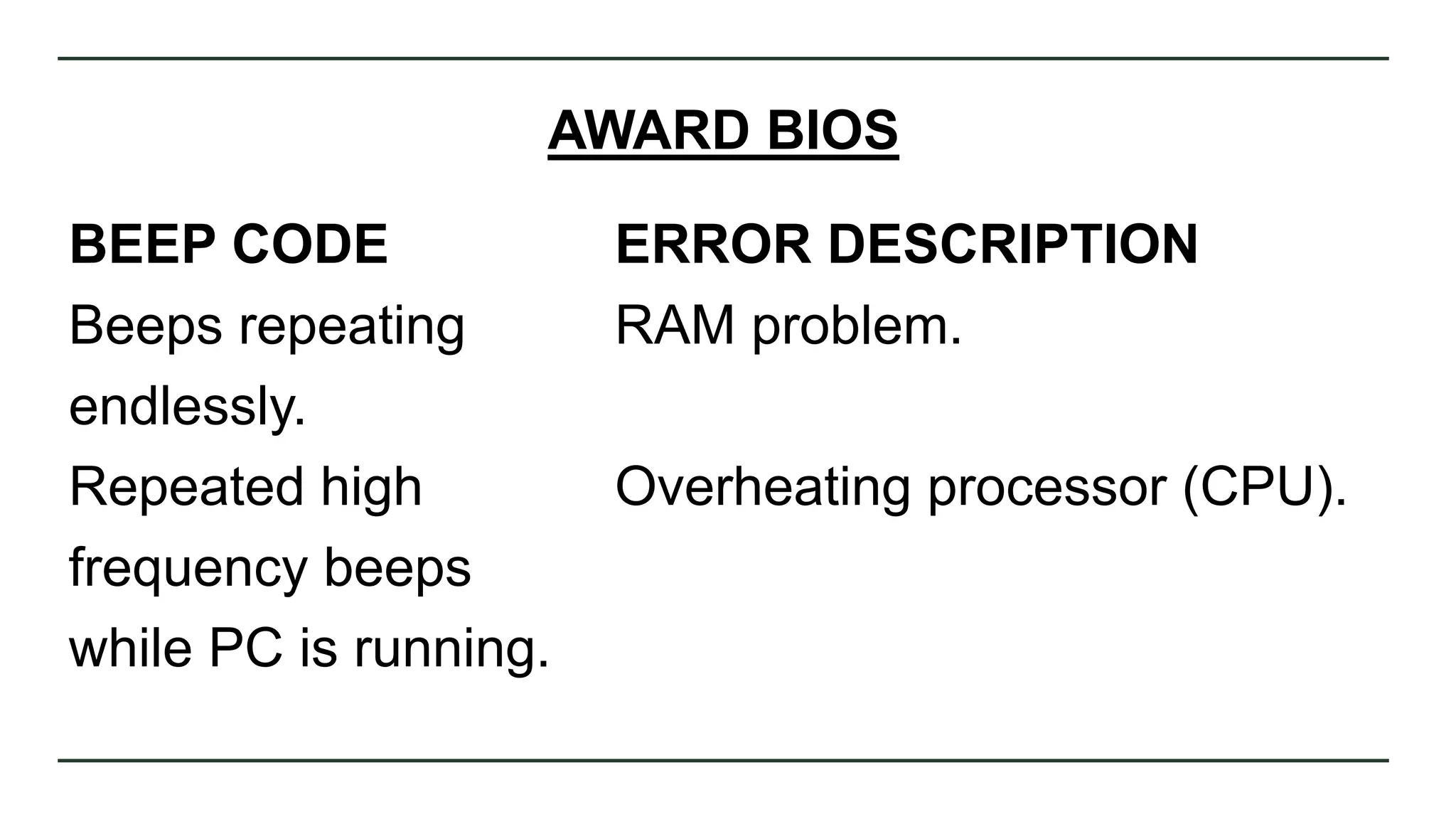
AWARD BIOS
BEEP CODE ERROR DESCRIPTION
Beeps repeating RAM problem.
endlessly.
Repeated high Overheating processor (CPU).
frequency beeps
while PC is running.
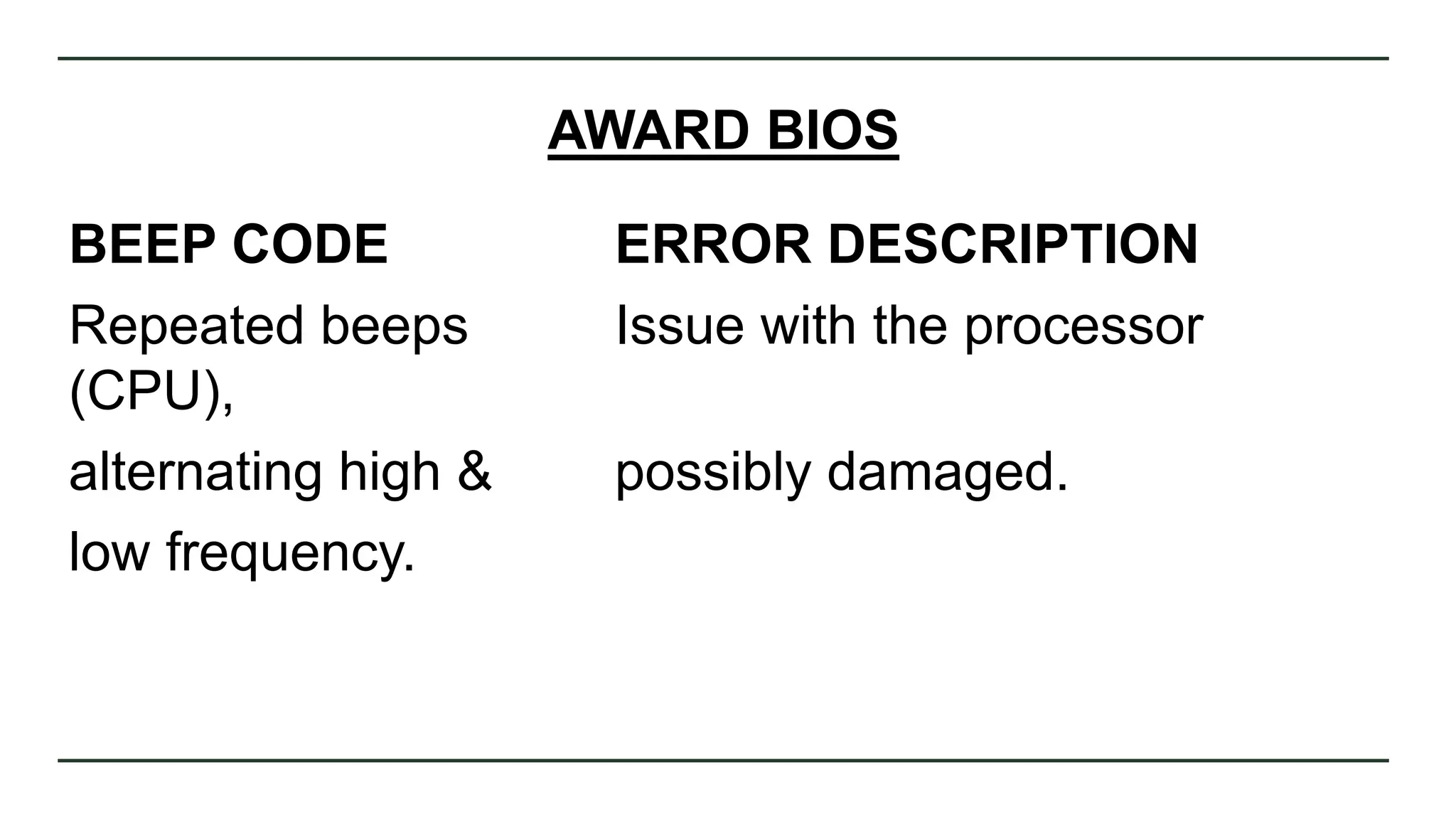
AWARD BIOS
BEEP CODE ERROR DESCRIPTION
Repeated beeps Issue with the processor
(CPU),
alternating high & possibly damaged.
low frequency.
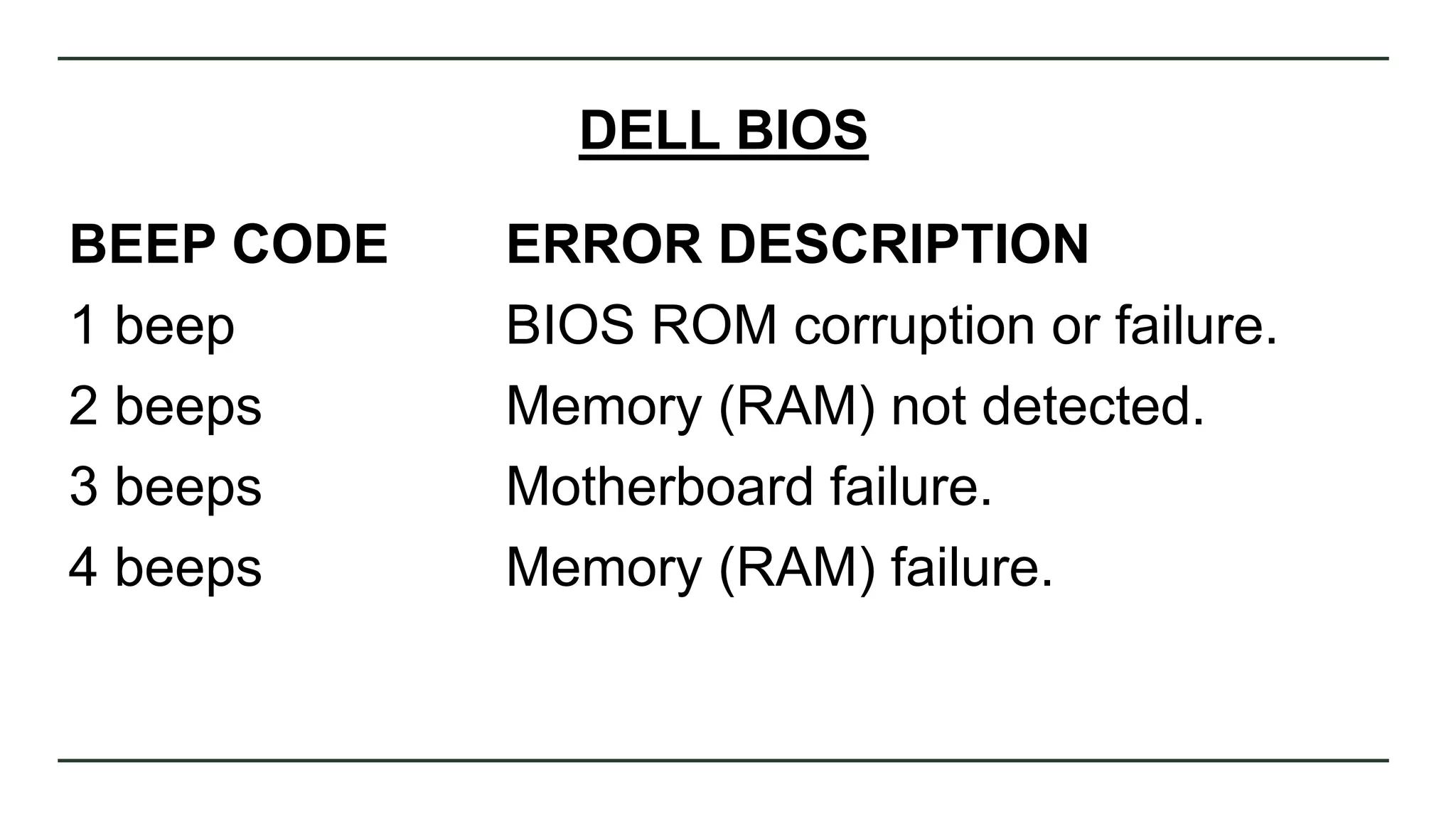
DELL BIOS
BEEP CODE ERROR DESCRIPTION
1 beep BIOS ROM corruption or failure.
2 beeps Memory (RAM) not detected.
3 beeps Motherboard failure.
4 beeps Memory (RAM) failure.
DELL BIOS
BEEP CODE ERROR DESCRIPTION
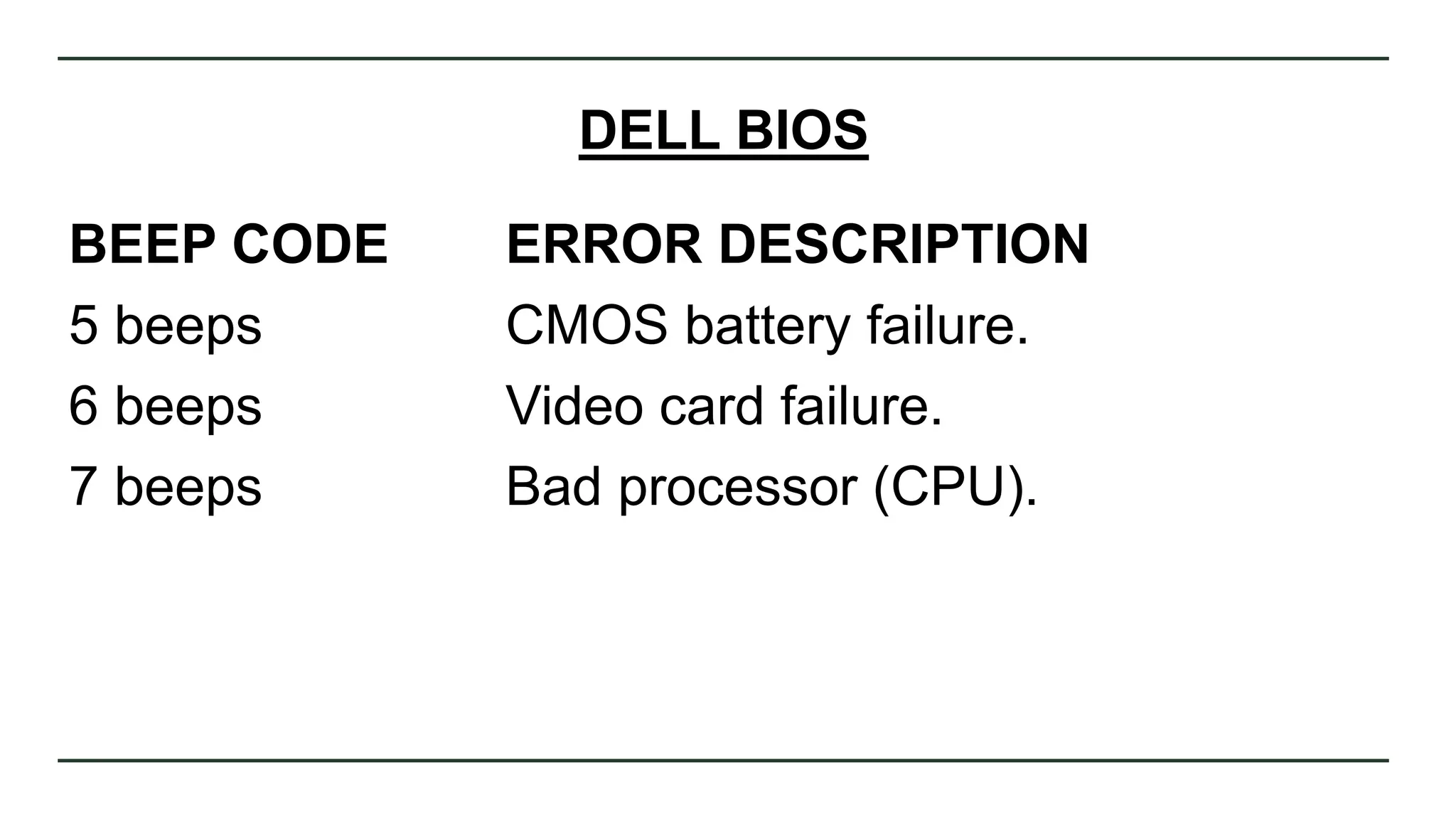
5 beeps CMOS battery failure.
6 beeps Video card failure.
7 beeps Bad processor (CPU).
PHOENIX BIOS
BEEP CODE ERROR DESCRIPTION
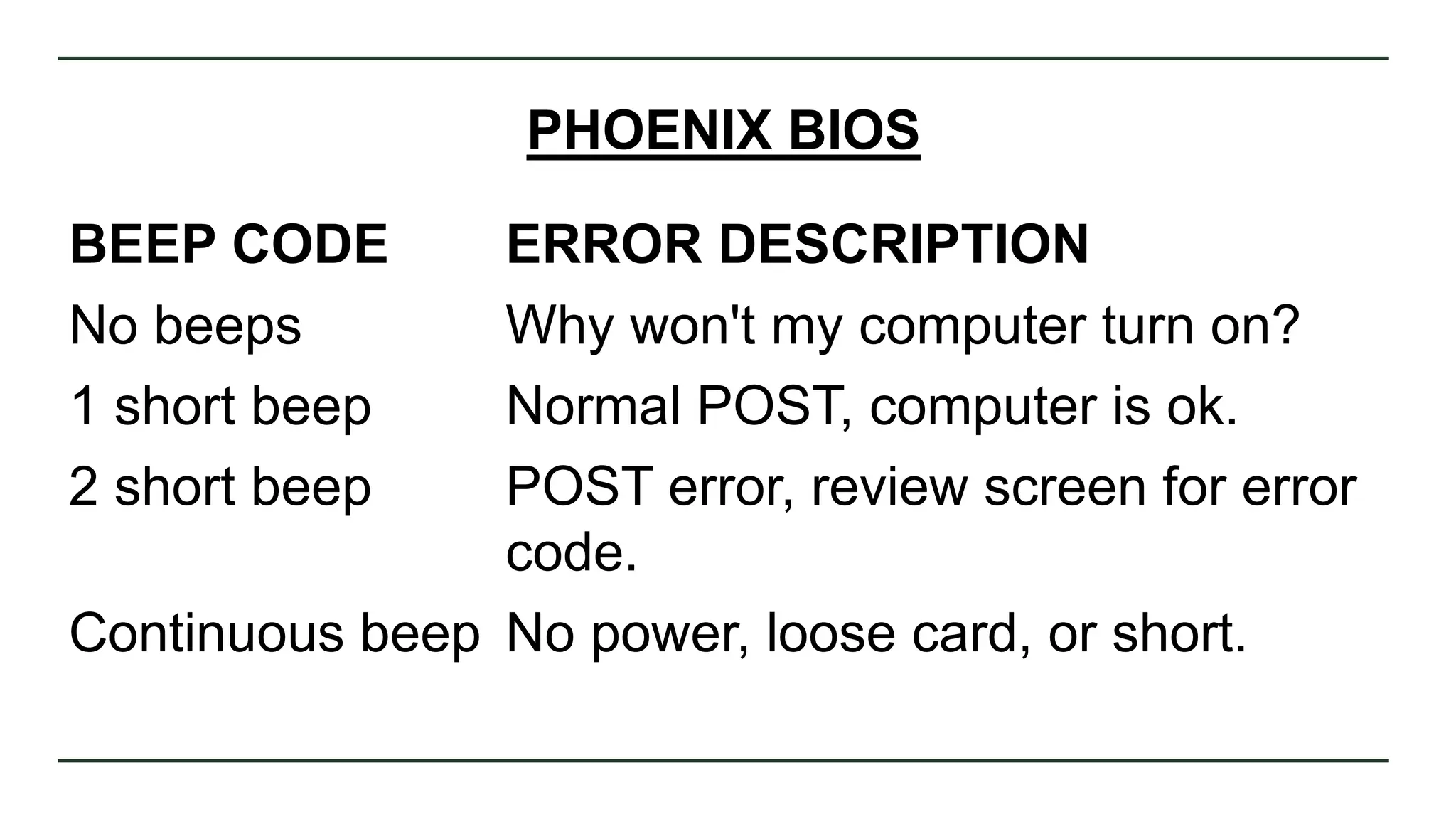
No beeps Why won't my computer turn on?
1 short beep Normal POST, computer is ok.
2 short beep POST error, review screen for error
code.
Continuous beep No power, loose card, or short.
PHOENIX BIOS
BEEP CODE ERROR DESCRIPTION
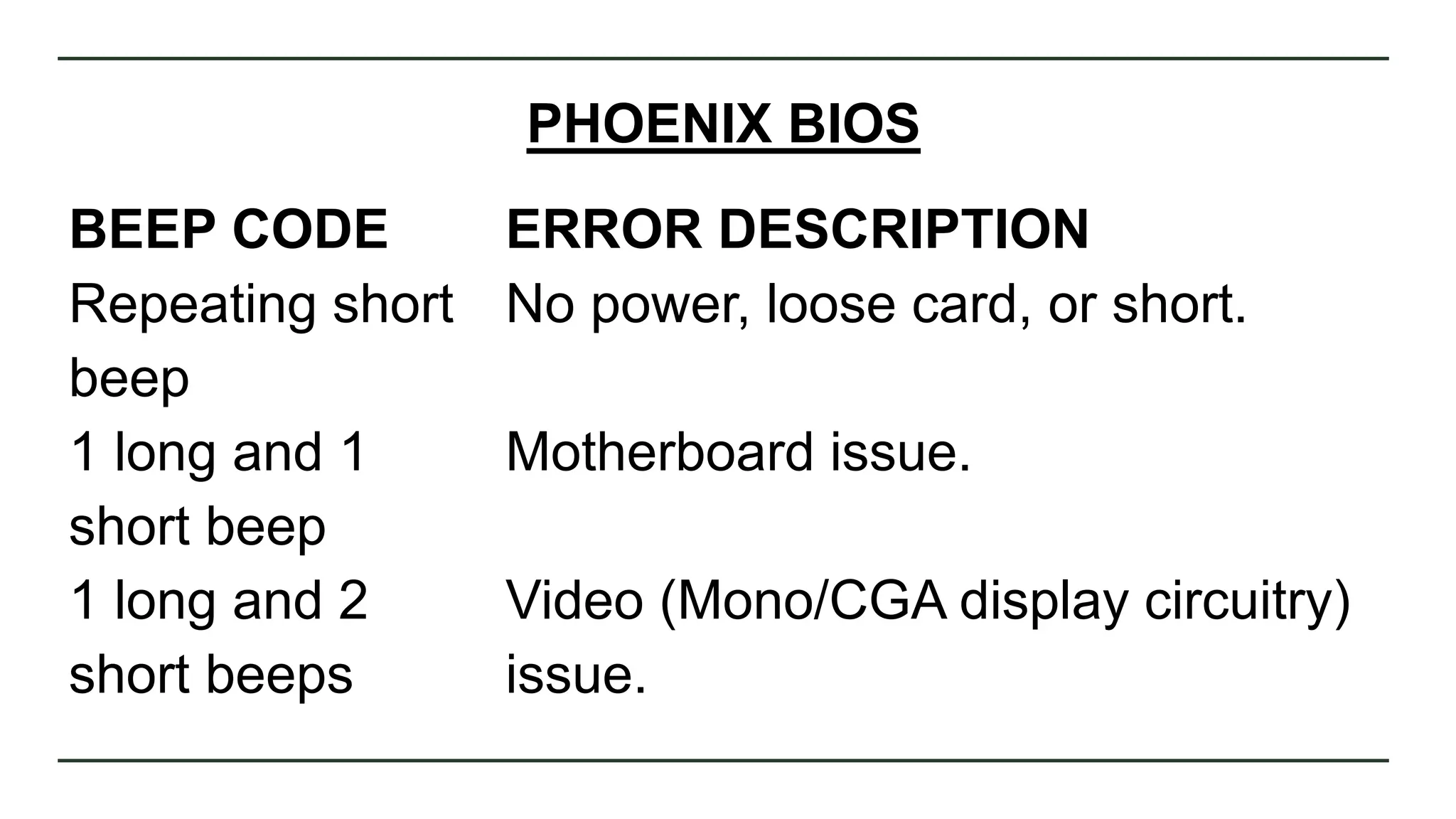
Repeating short No power, loose card, or short.
beep
1 long and 1 Motherboard issue.
short beep
1 long and 2 Video (Mono/CGA display circuitry)
short beeps issue.
PHOENIX BIOS
BEEP CODE ERROR DESCRIPTION
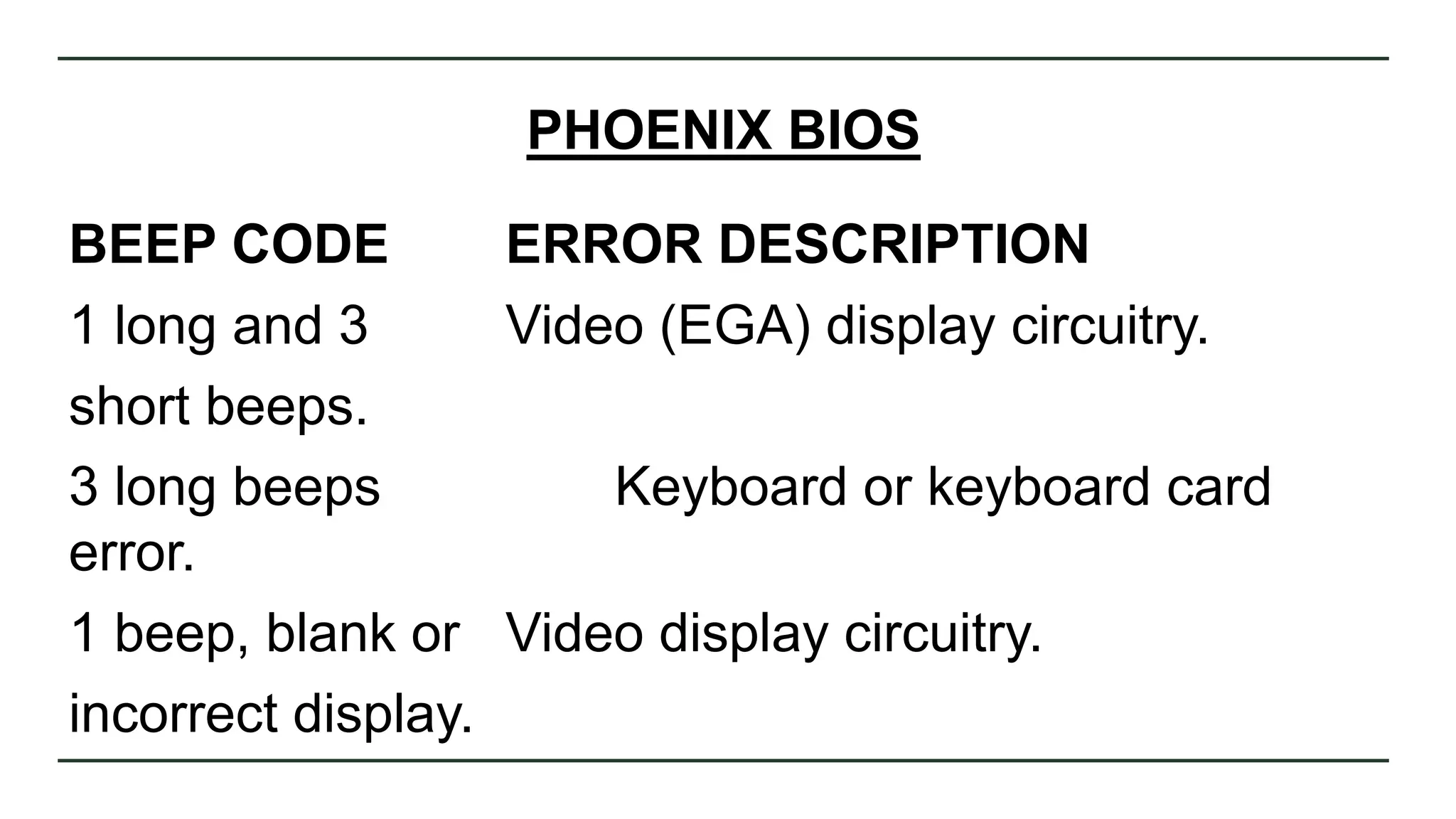
1 long and 3 Video (EGA) display circuitry.
short beeps.
3 long beeps Keyboard or keyboard card
error.
1 beep, blank or Video display circuitry.
incorrect display.
POST Troubleshooting Steps
Remove new hardware
If any new hardware was recently added to the
computer, remove that hardware to make sure it is
not causing your issue. If your computer works after
removing the new hardware, it can mean a few
things. Either the new hardware is not compatible
with your computer, a system setting needs to be
changed, or the new hardware is defective.
Remove any disks or USB devices
Remove any disks, CDs, or DVDs that are in
the computer. If any USB devices (iPods, drives,
phones, etc.) are connected, disconnect all of
them as well. Reboot the computer and see if
anything changes.
Disconnect external devices
Remove everything from the back of the
computer, except the power cable. Turn on the
computer and see if it beeps normally. If the
computer has never beeped, keep the monitor
or display connected to see if any change
occurs.
Reconnect and check power cords
If the computer is not getting enough power
or the power is getting interrupted, the computer
can encounter problems. Disconnect your power
cables from any power strip or UPS
(uninterruptible power supply) and connect the
computer directly to a known good wall outlet.
Identify beep code
If you are receiving a sequence of beeps,
you can also check your motherboard or
computer documentation for information on the
beep codes. These beep codes are meant to
help identify which computer component is
failing or bad. If your beep code is not listed,
continue troubleshooting.
Check all fans
Make sure all fans are running on the
computer. If a fan has failed (especially the heat
sink fan for the CPU), your computer could be
overheating or detecting the fan failure, causing
the computer not to boot.
Check all cables
Verify all the cables are securely connected
to the computer and that there are no loose
cables by firmly pressing in each cable.
Check all cables
• All disk drives should have a data cable
and power cable connected to them.
• Your power supply should have at least one
cable going to the motherboard. Many
motherboards may also have additional cables
connected to them to supply power to the fans.
Disconnect all expansion cards
If the above recommendations still have not
resolved the irregular POST, disconnect the riser
board (if applicable) and each of the expansion
cards. If this fixes the problem or allows the
computer to POST, connect one card at a time
until you determine which card is causing the
problem.
Disconnect all expansion cards
If the above recommendations still have not
resolved the irregular POST, disconnect the riser
board (if applicable) and each of the expansion
cards. If this fixes the problem or allows the
computer to POST, connect one card at a time
until you determine which card is causing the
problem.

POWER ON SELF-TEST (POST)/ERROR BEEP CODES.pptx

  • 1.
  • 2.
    The information thatyou see in the desktop monitor is the result of the Power On Self-Test (POST) upon opening the computer.
  • 3.
    Power On Self-Test(POST) - is a process performed by firmware or software routines immediately after a computer is powered on. The POST process may also set the initial state of the device from firmware. The POST routines are part of a device's pre-boot sequence; if they complete successfully, the bootstrap loader code is invoked to load an operating system.
  • 4.
    Power On Self-Test(POST) checks computer hardware, like Random Access Memory(RAM), hard drive, CD-ROM drive, keyboard, etc., to make sure all are working correctly.
  • 5.
    Programs stored onROM chips are known as firmware. Programs stored on erasable media are called software.
  • 6.
  • 7.
    AMI BIOS BEEP CODEERROR DESCRIPTION 1 short DRAM refresh failure. 2 short Parity circuit failure. 3 short Base 64 K RAM failure. 4 short System timer failure. 5 short Process failure. 6 short Keyboard controller Gate A20 error.
  • 8.
    AMI BIOS BEEP CODEERROR DESCRIPTION 7 short Virtual mode exception error. 8 short Display memory Read/Write test failure. 9 short ROM BIOS checksum failure. 10 short How to replace the CMOS battery. 11 short Cache memory error.
  • 9.
    AMI BIOS BEEP CODEERROR DESCRIPTION 1 long, 3 short Conventional/Extended memory failure. 1 long, 8 short Display/Retrace test failed. Two-tone siren Low CPU fan speed, voltage level issue.
  • 10.
    AWARD BIOS BEEP CODEERROR DESCRIPTION 1 long, 2 short Indicates a video error has occurred and the BIOS cannot initialize the video screen to display any additional information. 1 long, 3 short Video card not detected or bad video card.
  • 11.
    AWARD BIOS BEEP CODEERROR DESCRIPTION Beeps repeating RAM problem. endlessly. Repeated high Overheating processor (CPU). frequency beeps while PC is running.
  • 12.
    AWARD BIOS BEEP CODEERROR DESCRIPTION Repeated beeps Issue with the processor (CPU), alternating high & possibly damaged. low frequency.
  • 13.
    DELL BIOS BEEP CODEERROR DESCRIPTION 1 beep BIOS ROM corruption or failure. 2 beeps Memory (RAM) not detected. 3 beeps Motherboard failure. 4 beeps Memory (RAM) failure.
  • 14.
    DELL BIOS BEEP CODEERROR DESCRIPTION 5 beeps CMOS battery failure. 6 beeps Video card failure. 7 beeps Bad processor (CPU).
  • 15.
    PHOENIX BIOS BEEP CODEERROR DESCRIPTION No beeps Why won't my computer turn on? 1 short beep Normal POST, computer is ok. 2 short beep POST error, review screen for error code. Continuous beep No power, loose card, or short.
  • 16.
    PHOENIX BIOS BEEP CODEERROR DESCRIPTION Repeating short No power, loose card, or short. beep 1 long and 1 Motherboard issue. short beep 1 long and 2 Video (Mono/CGA display circuitry) short beeps issue.
  • 17.
    PHOENIX BIOS BEEP CODEERROR DESCRIPTION 1 long and 3 Video (EGA) display circuitry. short beeps. 3 long beeps Keyboard or keyboard card error. 1 beep, blank or Video display circuitry. incorrect display.
  • 18.
  • 19.
    Remove new hardware Ifany new hardware was recently added to the computer, remove that hardware to make sure it is not causing your issue. If your computer works after removing the new hardware, it can mean a few things. Either the new hardware is not compatible with your computer, a system setting needs to be changed, or the new hardware is defective.
  • 20.
    Remove any disksor USB devices Remove any disks, CDs, or DVDs that are in the computer. If any USB devices (iPods, drives, phones, etc.) are connected, disconnect all of them as well. Reboot the computer and see if anything changes.
  • 21.
    Disconnect external devices Removeeverything from the back of the computer, except the power cable. Turn on the computer and see if it beeps normally. If the computer has never beeped, keep the monitor or display connected to see if any change occurs.
  • 22.
    Reconnect and checkpower cords If the computer is not getting enough power or the power is getting interrupted, the computer can encounter problems. Disconnect your power cables from any power strip or UPS (uninterruptible power supply) and connect the computer directly to a known good wall outlet.
  • 23.
    Identify beep code Ifyou are receiving a sequence of beeps, you can also check your motherboard or computer documentation for information on the beep codes. These beep codes are meant to help identify which computer component is failing or bad. If your beep code is not listed, continue troubleshooting.
  • 24.
    Check all fans Makesure all fans are running on the computer. If a fan has failed (especially the heat sink fan for the CPU), your computer could be overheating or detecting the fan failure, causing the computer not to boot.
  • 25.
    Check all cables Verifyall the cables are securely connected to the computer and that there are no loose cables by firmly pressing in each cable.
  • 26.
    Check all cables •All disk drives should have a data cable and power cable connected to them. • Your power supply should have at least one cable going to the motherboard. Many motherboards may also have additional cables connected to them to supply power to the fans.
  • 27.
    Disconnect all expansioncards If the above recommendations still have not resolved the irregular POST, disconnect the riser board (if applicable) and each of the expansion cards. If this fixes the problem or allows the computer to POST, connect one card at a time until you determine which card is causing the problem.
  • 28.
    Disconnect all expansioncards If the above recommendations still have not resolved the irregular POST, disconnect the riser board (if applicable) and each of the expansion cards. If this fixes the problem or allows the computer to POST, connect one card at a time until you determine which card is causing the problem.