ISVforce Guide
Version 32.0, Winter ’15
@salesforcedocs
Last updated: September 19, 2014
© Copyright 2000–2014 salesforce.com, inc. All rights reserved. Salesforce.com is a registered trademark of salesforce.com,
inc., as are other names and marks. Other marks appearing herein may be trademarks of their respective owners.
CONTENTS
Chapter 1: Introduction . . . . . . . . . . . . . . . . . . . . . . . . . . . . . . . . . . . . . . . . . . . . . . . . 1
Resources for Partners . . . . . . . . . . . . . . . . . . . . . . . . . . . . . . . . . . . . . . . . . . . . . . . . . . 2
Roles in the Application Lifecycle . . . . . . . . . . . . . . . . . . . . . . . . . . . . . . . . . . . . . . . . . . . . 2
How to Sign Up for Test Environments . . . . . . . . . . . . . . . . . . . . . . . . . . . . . . . . . . . . . . . . 3
Chapter 2: ISVforce Quick Start . . . . . . . . . . . . . . . . . . . . . . . . . . . . . . . . . . . . . . . . . . 4
Tutorial #1: Signing Up . . . . . . . . . . . . . . . . . . . . . . . . . . . . . . . . . . . . . . . . . . . . . . . . . . 5
Step 1: Sign up for the Partner Program . . . . . . . . . . . . . . . . . . . . . . . . . . . . . . . . . . . 5
Step 2: Generate Development and Test Environments . . . . . . . . . . . . . . . . . . . . . . . . . 5
Step 3: Get a Business Org . . . . . . . . . . . . . . . . . . . . . . . . . . . . . . . . . . . . . . . . . . . . 6
Step 4: Edit Your Publisher Listing . . . . . . . . . . . . . . . . . . . . . . . . . . . . . . . . . . . . . . . . 7
Sign-up Summary . . . . . . . . . . . . . . . . . . . . . . . . . . . . . . . . . . . . . . . . . . . . . . . . . . 7
Tutorial #2: Developing Your App . . . . . . . . . . . . . . . . . . . . . . . . . . . . . . . . . . . . . . . . . . . 7
Step 1: Create an App . . . . . . . . . . . . . . . . . . . . . . . . . . . . . . . . . . . . . . . . . . . . . . . 7
Step 2: Package Your App . . . . . . . . . . . . . . . . . . . . . . . . . . . . . . . . . . . . . . . . . . . . 9
Step 3: Assign a Namespace . . . . . . . . . . . . . . . . . . . . . . . . . . . . . . . . . . . . . . . . . . 9
Step 4: Upload a Beta . . . . . . . . . . . . . . . . . . . . . . . . . . . . . . . . . . . . . . . . . . . . . . . 9
Step 5: Install and Test the Beta . . . . . . . . . . . . . . . . . . . . . . . . . . . . . . . . . . . . . . . . 10
Development Summary . . . . . . . . . . . . . . . . . . . . . . . . . . . . . . . . . . . . . . . . . . . . . . 11
Tutorial #3: Publishing and Licensing . . . . . . . . . . . . . . . . . . . . . . . . . . . . . . . . . . . . . . . . 11
Step 1: Uploading to the AppExchange . . . . . . . . . . . . . . . . . . . . . . . . . . . . . . . . . . . 11
Step 2: Create Your App Listing . . . . . . . . . . . . . . . . . . . . . . . . . . . . . . . . . . . . . . . . 12
Step 3: Complete Your Listing . . . . . . . . . . . . . . . . . . . . . . . . . . . . . . . . . . . . . . . . . 13
Step 4: Start Managing Licenses for Your App . . . . . . . . . . . . . . . . . . . . . . . . . . . . . . 13
Publishing and Licensing Summary . . . . . . . . . . . . . . . . . . . . . . . . . . . . . . . . . . . . . 14
Tutorial #4: Updating Your App . . . . . . . . . . . . . . . . . . . . . . . . . . . . . . . . . . . . . . . . . . . . 14
Step 1: Creating a Patch Organization . . . . . . . . . . . . . . . . . . . . . . . . . . . . . . . . . . . . 14
Step 2: Developing a Patch . . . . . . . . . . . . . . . . . . . . . . . . . . . . . . . . . . . . . . . . . . . 15
Step 3: Uploading the Patch . . . . . . . . . . . . . . . . . . . . . . . . . . . . . . . . . . . . . . . . . . 16
Step 4: Installing or Pushing a Patch . . . . . . . . . . . . . . . . . . . . . . . . . . . . . . . . . . . . . 16
Updating Your App Summary . . . . . . . . . . . . . . . . . . . . . . . . . . . . . . . . . . . . . . . . . 17
Chapter 3: Designing and Building Your App . . . . . . . . . . . . . . . . . . . . . . . . . . . . . . . 18
Overview of Packages . . . . . . . . . . . . . . . . . . . . . . . . . . . . . . . . . . . . . . . . . . . . . . . . . . 19
Planning the Release of Managed Packages . . . . . . . . . . . . . . . . . . . . . . . . . . . . . . 20
Creating and Editing a Package . . . . . . . . . . . . . . . . . . . . . . . . . . . . . . . . . . . . . . . . 21
Developing and Distributing Unmanaged Packages . . . . . . . . . . . . . . . . . . . . . . . . . . 21
Components Available in Managed Packages . . . . . . . . . . . . . . . . . . . . . . . . . . . . . . . . . 22
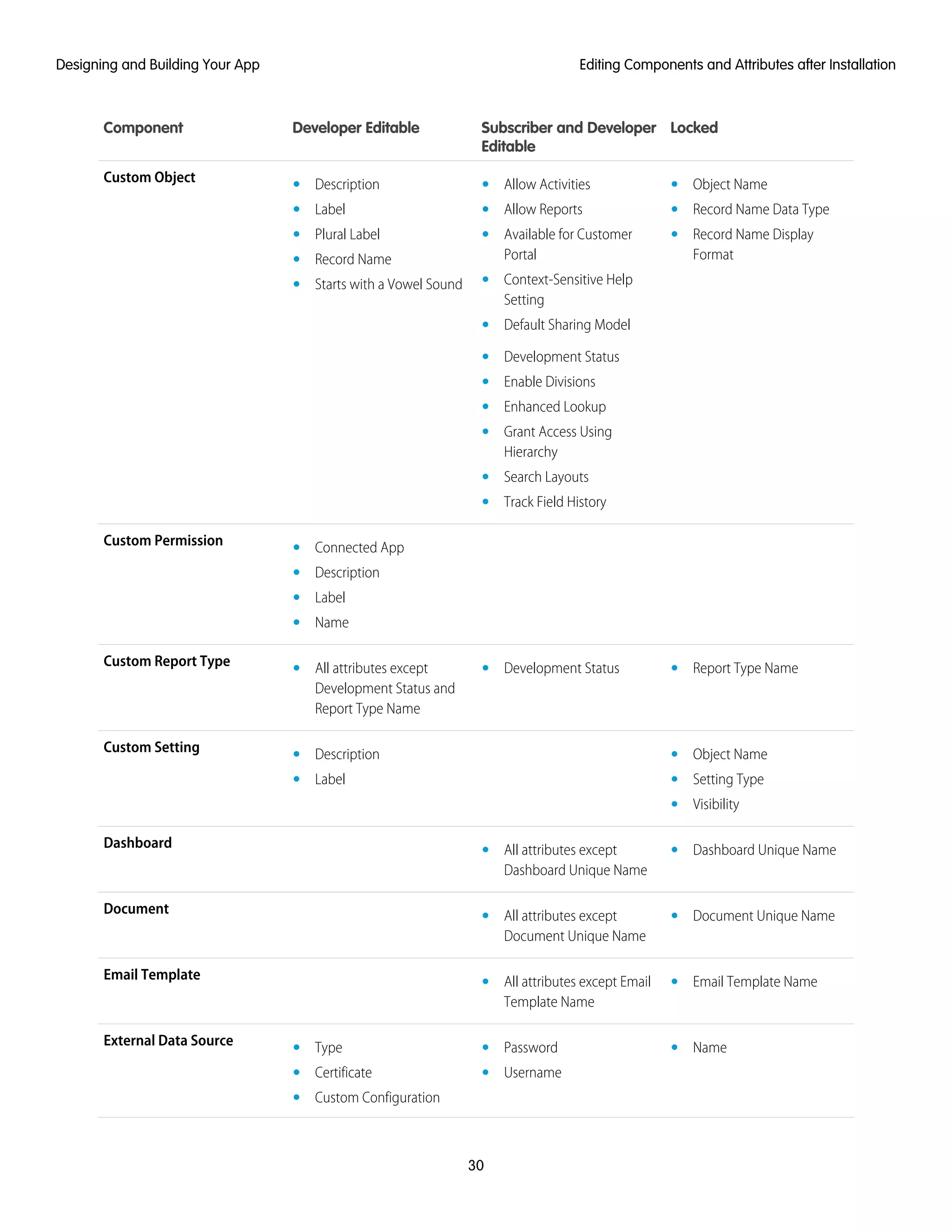
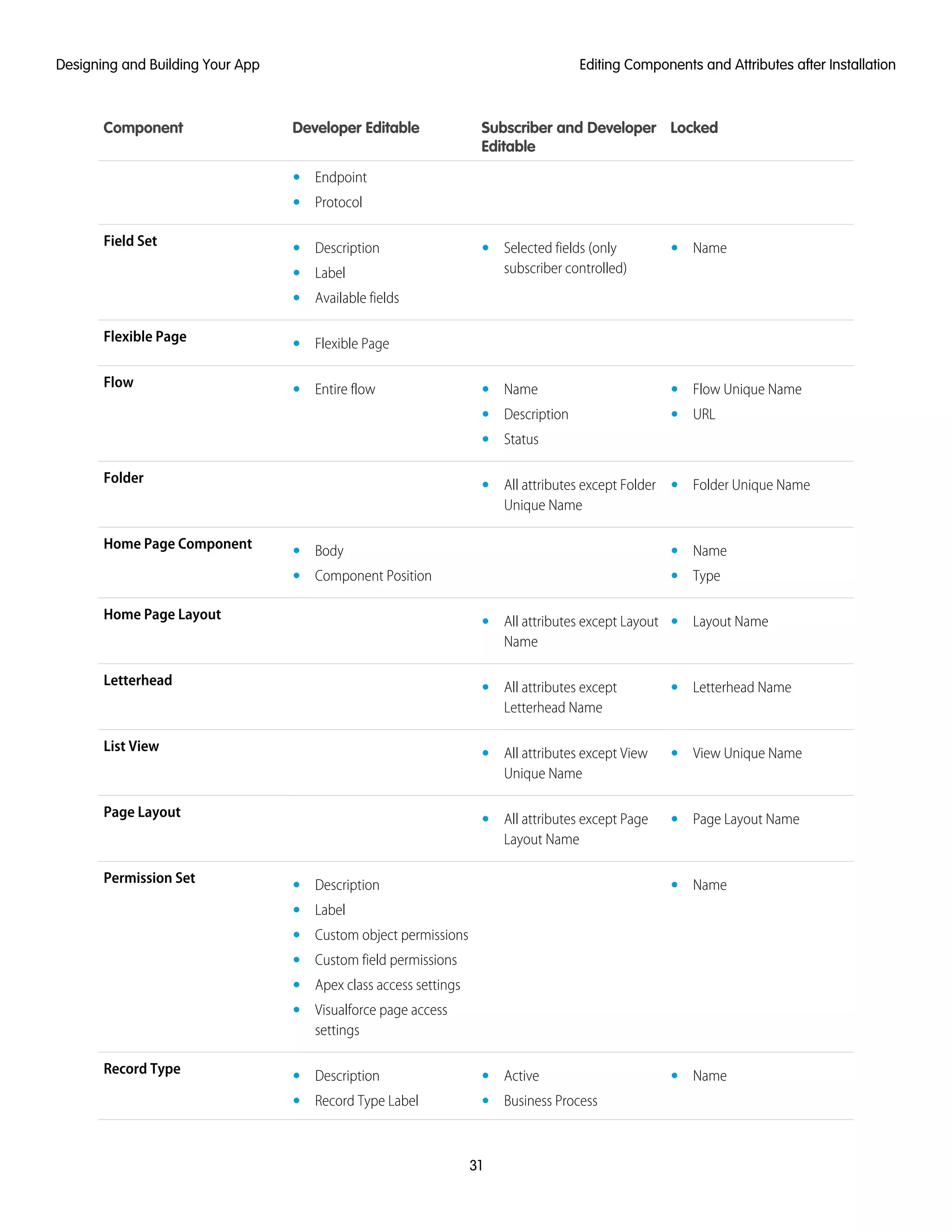
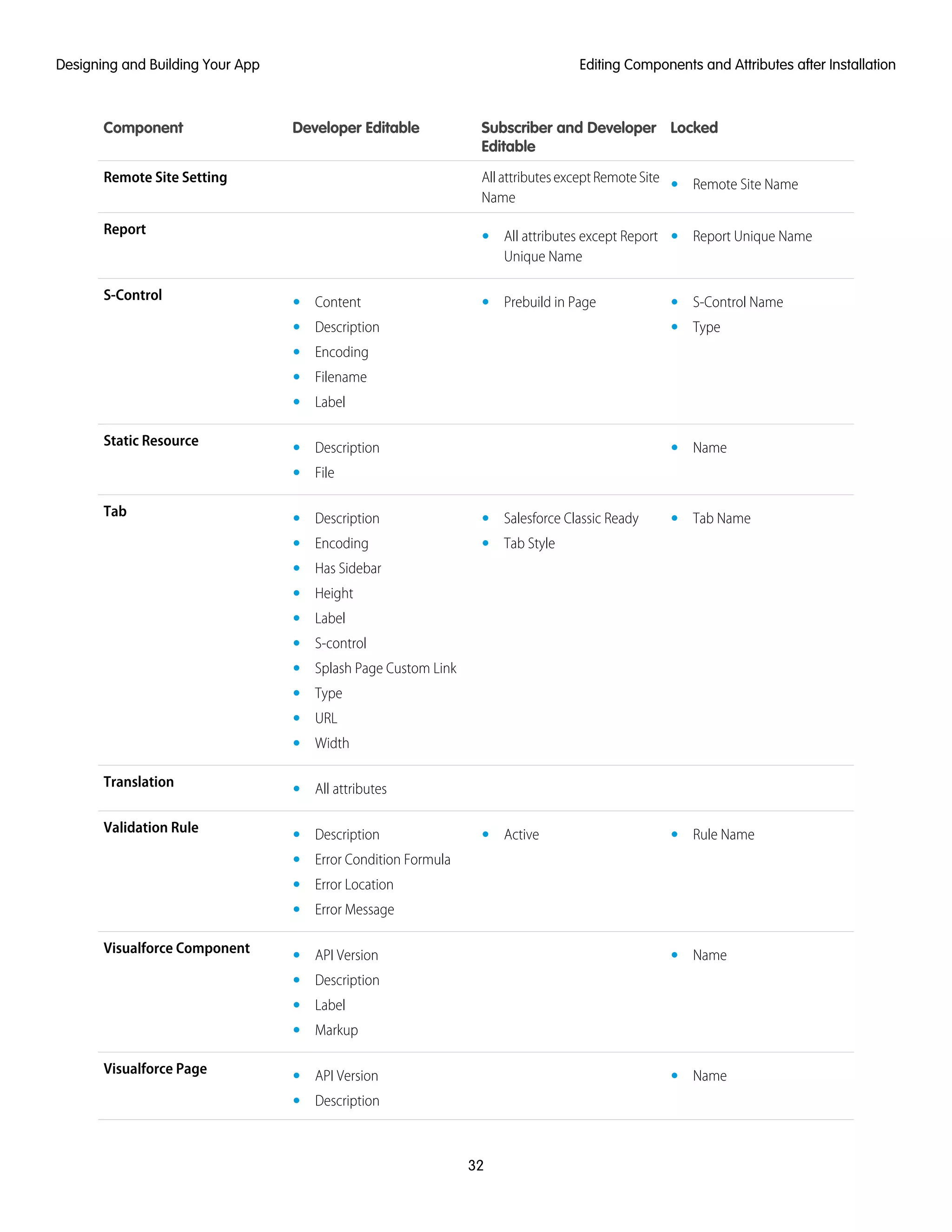
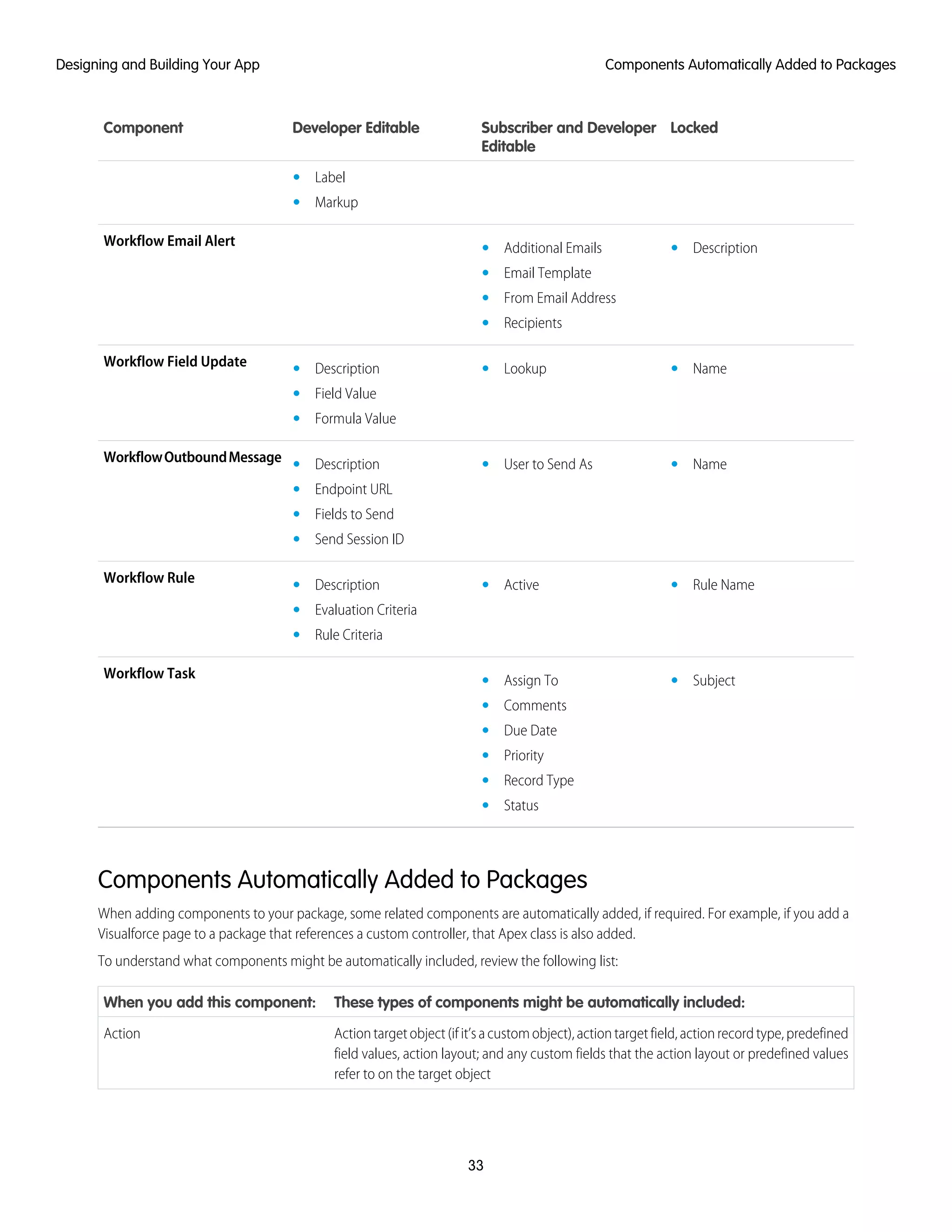
Editing Components and Attributes after Installation . . . . . . . . . . . . . . . . . . . . . . . . . . 27
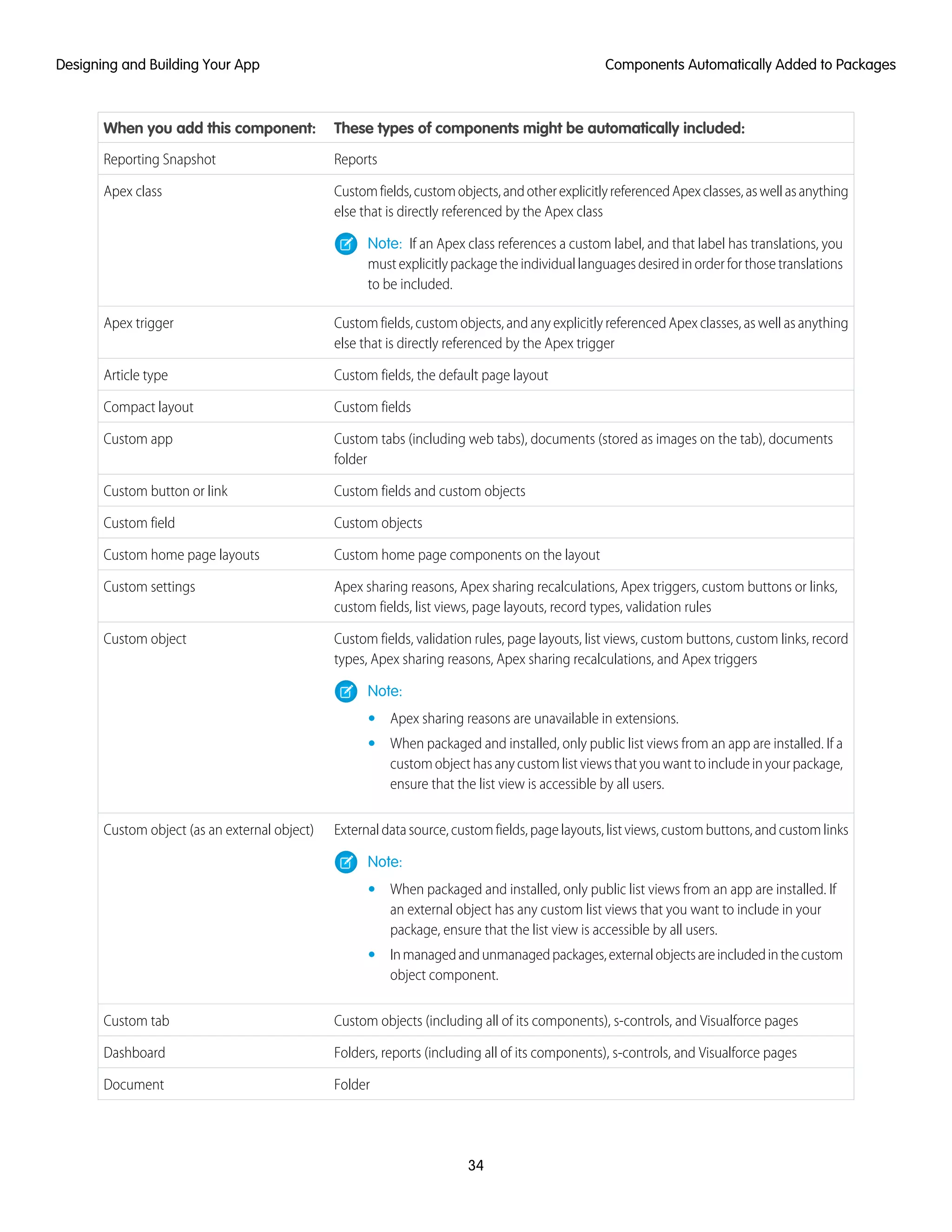
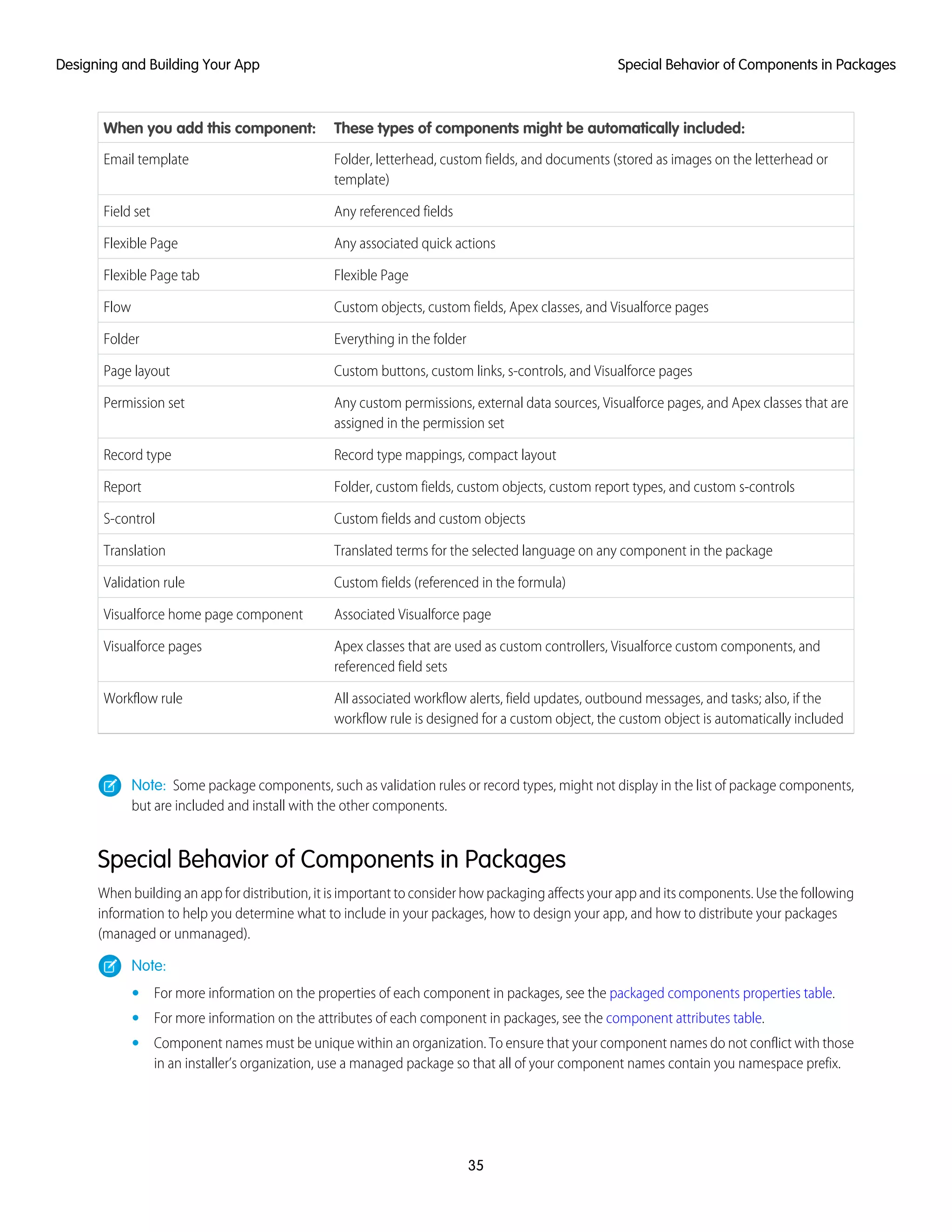
Components Automatically Added to Packages . . . . . . . . . . . . . . . . . . . . . . . . . . . . . 33
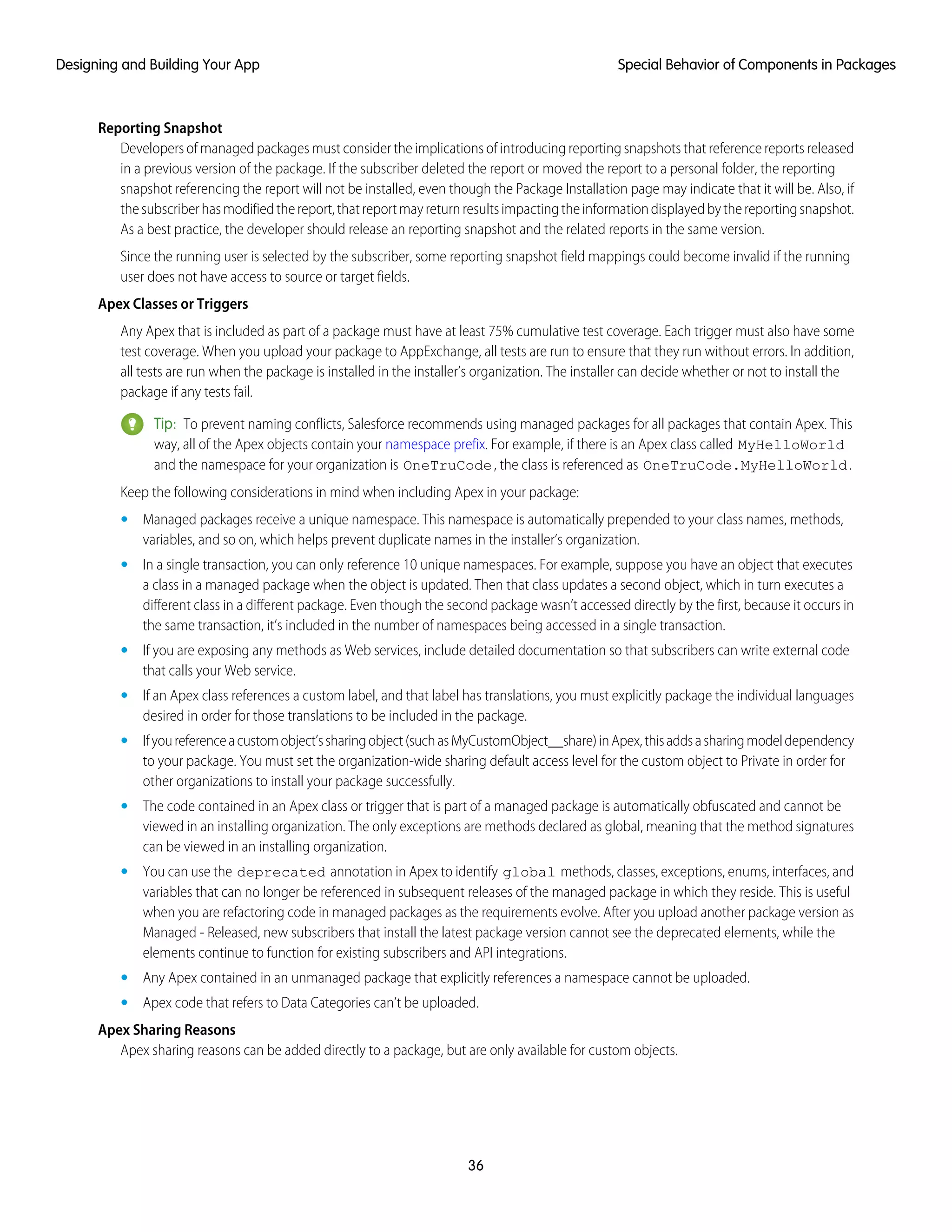
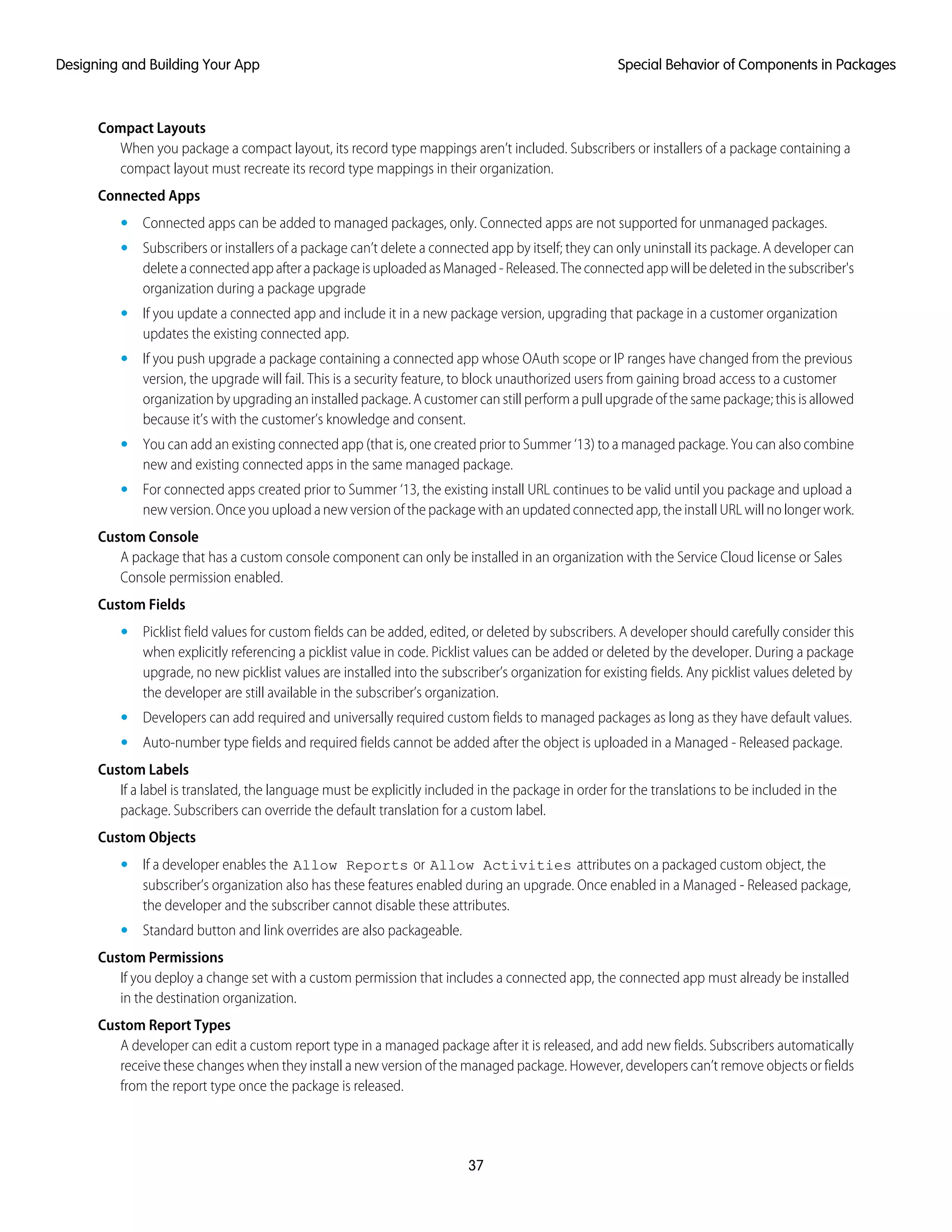
Special Behavior of Components in Packages . . . . . . . . . . . . . . . . . . . . . . . . . . . . . . 35
Protected Components . . . . . . . . . . . . . . . . . . . . . . . . . . . . . . . . . . . . . . . . . . . . . 43
Understanding Dependencies . . . . . . . . . . . . . . . . . . . . . . . . . . . . . . . . . . . . . . . . 44
About Permission Sets and Profile Settings . . . . . . . . . . . . . . . . . . . . . . . . . . . . . . . . 45
Creating Custom Profile Settings . . . . . . . . . . . . . . . . . . . . . . . . . . . . . . . . . . . . . . . 46
Protecting Your Intellectual Property . . . . . . . . . . . . . . . . . . . . . . . . . . . . . . . . . . . . . 47
Creating Packaged Applications with Chatter . . . . . . . . . . . . . . . . . . . . . . . . . . . . . . 47
Matching the Salesforce Look and Feel . . . . . . . . . . . . . . . . . . . . . . . . . . . . . . . . . . . 48
Developing App Documentation . . . . . . . . . . . . . . . . . . . . . . . . . . . . . . . . . . . . . . . 49
About API and Dynamic Apex Access in Packages . . . . . . . . . . . . . . . . . . . . . . . . . . . . . . 49
Managing API and Dynamic Apex Access in Packages . . . . . . . . . . . . . . . . . . . . . . . . 52
Configuring Default Package Versions for API Calls . . . . . . . . . . . . . . . . . . . . . . . . . . 53
About the Partner WSDL . . . . . . . . . . . . . . . . . . . . . . . . . . . . . . . . . . . . . . . . . . . . . 54
Generating an Enterprise WSDL with Managed Packages . . . . . . . . . . . . . . . . . . . . . . 55
Working with External Services . . . . . . . . . . . . . . . . . . . . . . . . . . . . . . . . . . . . . . . . 55
Architectural Considerations for Group and Professional Editions . . . . . . . . . . . . . . . . . . . . . 56
Features Available in Group and Professional Editions . . . . . . . . . . . . . . . . . . . . . . . . 57
Limits for Group and Professional Editions . . . . . . . . . . . . . . . . . . . . . . . . . . . . . . . . . 58
Access Control in Group and Professional Editions . . . . . . . . . . . . . . . . . . . . . . . . . . . 58
Using Apex in Group and Professional Editions . . . . . . . . . . . . . . . . . . . . . . . . . . . . . 58
API Access in Group and Professional Editions . . . . . . . . . . . . . . . . . . . . . . . . . . . . . . 59
Designing Your App to Support Multiple Editions . . . . . . . . . . . . . . . . . . . . . . . . . . . . 60
Sample Design Scenarios for Group and Professional Editions . . . . . . . . . . . . . . . . . . . 62
Connected Apps Overview . . . . . . . . . . . . . . . . . . . . . . . . . . . . . . . . . . . . . . . . . . . . . . 62
Creating a Connected App . . . . . . . . . . . . . . . . . . . . . . . . . . . . . . . . . . . . . . . . . . . 64
Editing, Packaging, or Deleting a Connected App . . . . . . . . . . . . . . . . . . . . . . . . . . . . 70
Installing a Connected App . . . . . . . . . . . . . . . . . . . . . . . . . . . . . . . . . . . . . . . . . . 72
Viewing Connected App Details . . . . . . . . . . . . . . . . . . . . . . . . . . . . . . . . . . . . . . . 72
Managing a Connected App . . . . . . . . . . . . . . . . . . . . . . . . . . . . . . . . . . . . . . . . . 73
Editing a Connected App . . . . . . . . . . . . . . . . . . . . . . . . . . . . . . . . . . . . . . . . . . . . 75
Monitoring Usage for a Connected App . . . . . . . . . . . . . . . . . . . . . . . . . . . . . . . . . . 77
Uninstalling a Connected App . . . . . . . . . . . . . . . . . . . . . . . . . . . . . . . . . . . . . . . . 78
Environment Hub . . . . . . . . . . . . . . . . . . . . . . . . . . . . . . . . . . . . . . . . . . . . . . . . . . . . . 79
Setting up Environment Hub . . . . . . . . . . . . . . . . . . . . . . . . . . . . . . . . . . . . . . . . . . 80
Setting up My Domain for the Environment Hub . . . . . . . . . . . . . . . . . . . . . . . . . . . . . 81
Environment Hub Best Practices . . . . . . . . . . . . . . . . . . . . . . . . . . . . . . . . . . . . . . . 82
Connecting an Organization to the Environment Hub . . . . . . . . . . . . . . . . . . . . . . . . . 83
Viewing an Environment Hub Member’s Details . . . . . . . . . . . . . . . . . . . . . . . . . . . . . 83
Editing an Environment Hub Member’s Details . . . . . . . . . . . . . . . . . . . . . . . . . . . . . . 85
Creating a New Organization from the Environment Hub . . . . . . . . . . . . . . . . . . . . . . 86
Enabling Single Sign-On in the Environment Hub . . . . . . . . . . . . . . . . . . . . . . . . . . . . 87
Disabling Single Sign-On in the Environment Hub . . . . . . . . . . . . . . . . . . . . . . . . . . . . 88
Mapping Users for Single Sign-On in the Environment Hub . . . . . . . . . . . . . . . . . . . . . 88
Contents
Chapter 4: Packaging and Testing Your App . . . . . . . . . . . . . . . . . . . . . . . . . . . . . . . 89
About Managed Packages . . . . . . . . . . . . . . . . . . . . . . . . . . . . . . . . . . . . . . . . . . . . . . 90
Configuring Your Developer Settings . . . . . . . . . . . . . . . . . . . . . . . . . . . . . . . . . . . . 90
Registering a Namespace Prefix . . . . . . . . . . . . . . . . . . . . . . . . . . . . . . . . . . . . . . . 91
Specifying a License Management Organization . . . . . . . . . . . . . . . . . . . . . . . . . . . . 92
Creating and Uploading a Managed Package . . . . . . . . . . . . . . . . . . . . . . . . . . . . . 94
Viewing Package Details . . . . . . . . . . . . . . . . . . . . . . . . . . . . . . . . . . . . . . . . . . . . 96
Installing a Package . . . . . . . . . . . . . . . . . . . . . . . . . . . . . . . . . . . . . . . . . . . . . . . . . . . 99
Uninstalling a Package . . . . . . . . . . . . . . . . . . . . . . . . . . . . . . . . . . . . . . . . . . . . . . . . . 101
Installing Managed Packages using the API . . . . . . . . . . . . . . . . . . . . . . . . . . . . . . . . . . 102
Resolving Apex Test Failures . . . . . . . . . . . . . . . . . . . . . . . . . . . . . . . . . . . . . . . . . . . . . 103
Running Apex on Package Install/Upgrade . . . . . . . . . . . . . . . . . . . . . . . . . . . . . . . . . . 103
Running Apex on Package Uninstall . . . . . . . . . . . . . . . . . . . . . . . . . . . . . . . . . . . . . . . 107
Publishing Extensions to Managed Packages . . . . . . . . . . . . . . . . . . . . . . . . . . . . . . . . . 109
Chapter 5: Passing the Security Review . . . . . . . . . . . . . . . . . . . . . . . . . . . . . . . . . . 110
About the Security Review . . . . . . . . . . . . . . . . . . . . . . . . . . . . . . . . . . . . . . . . . . . . . . . 111
Steps in the Security Review . . . . . . . . . . . . . . . . . . . . . . . . . . . . . . . . . . . . . . . . . . . . . . 111
The Security Review Questionnaire . . . . . . . . . . . . . . . . . . . . . . . . . . . . . . . . . . . . . . . . . 113
Create an AppExchange Publishing Organization . . . . . . . . . . . . . . . . . . . . . . . . . . . . . . . 114
Change Your AppExchange Publishing Organization . . . . . . . . . . . . . . . . . . . . . . . . . . . . 114
Update the Package Version in your AppExchange Listing . . . . . . . . . . . . . . . . . . . . . . . . . 115
Submit a Mobile App for Security Review . . . . . . . . . . . . . . . . . . . . . . . . . . . . . . . . . . . . . 116
Submit an Extension Package for Security Review . . . . . . . . . . . . . . . . . . . . . . . . . . . . . . . 116
Security Review Resources . . . . . . . . . . . . . . . . . . . . . . . . . . . . . . . . . . . . . . . . . . . . . . 117
Security Review FAQ . . . . . . . . . . . . . . . . . . . . . . . . . . . . . . . . . . . . . . . . . . . . . . . . . . . 117
Chapter 6: Publishing Your App . . . . . . . . . . . . . . . . . . . . . . . . . . . . . . . . . . . . . . . . 122
What is AppExchange? . . . . . . . . . . . . . . . . . . . . . . . . . . . . . . . . . . . . . . . . . . . . . . . . 123
Selling on the AppExchange . . . . . . . . . . . . . . . . . . . . . . . . . . . . . . . . . . . . . . . . . 123
How Does AppExchange Work? . . . . . . . . . . . . . . . . . . . . . . . . . . . . . . . . . . . . . . . 123
Who Can Use the AppExchange? . . . . . . . . . . . . . . . . . . . . . . . . . . . . . . . . . . . . . . 123
Managing Your Salesforce Organizations . . . . . . . . . . . . . . . . . . . . . . . . . . . . . . . . . . . . 123
Publishing Your App or Service . . . . . . . . . . . . . . . . . . . . . . . . . . . . . . . . . . . . . . . . . . . 124
Publishing an App on AppExchange . . . . . . . . . . . . . . . . . . . . . . . . . . . . . . . . . . . . 125
Creating or Editing Your Provider Profile . . . . . . . . . . . . . . . . . . . . . . . . . . . . . . . . . . 125
Creating or Editing a Listing . . . . . . . . . . . . . . . . . . . . . . . . . . . . . . . . . . . . . . . . . . . . . 126
Basic Tab . . . . . . . . . . . . . . . . . . . . . . . . . . . . . . . . . . . . . . . . . . . . . . . . . . . . . . 126
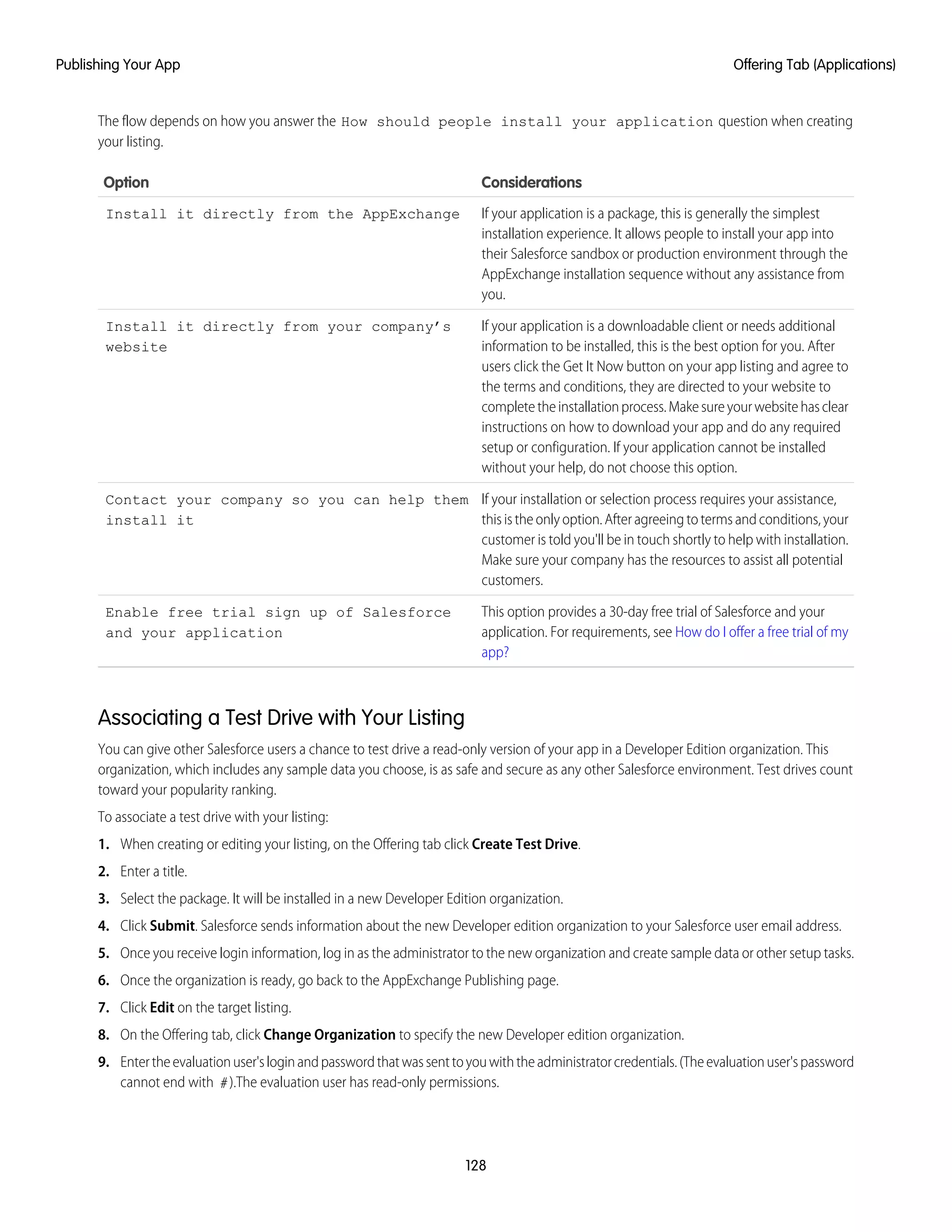
Offering Tab (Applications) . . . . . . . . . . . . . . . . . . . . . . . . . . . . . . . . . . . . . . . . . . 127
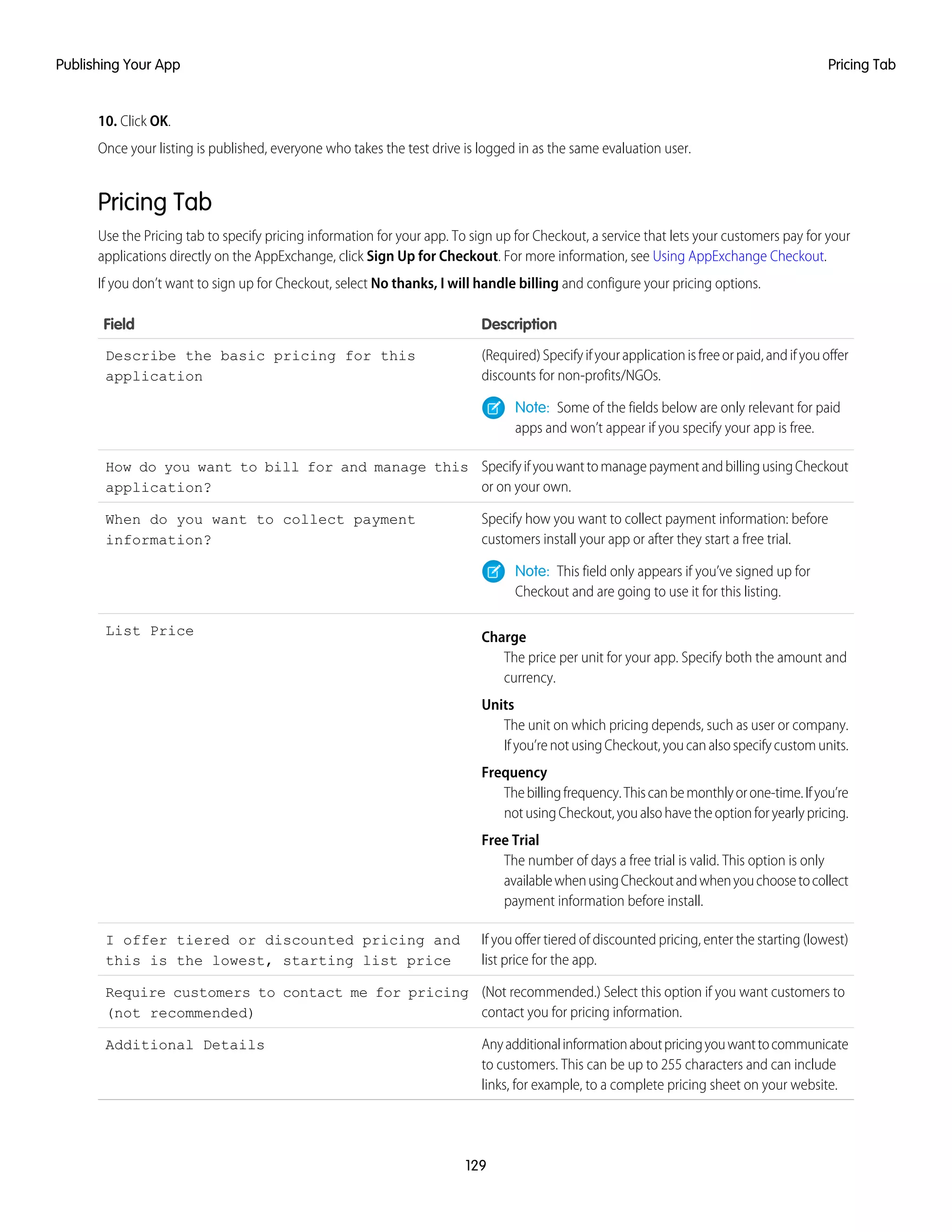
Pricing Tab . . . . . . . . . . . . . . . . . . . . . . . . . . . . . . . . . . . . . . . . . . . . . . . . . . . . . 129
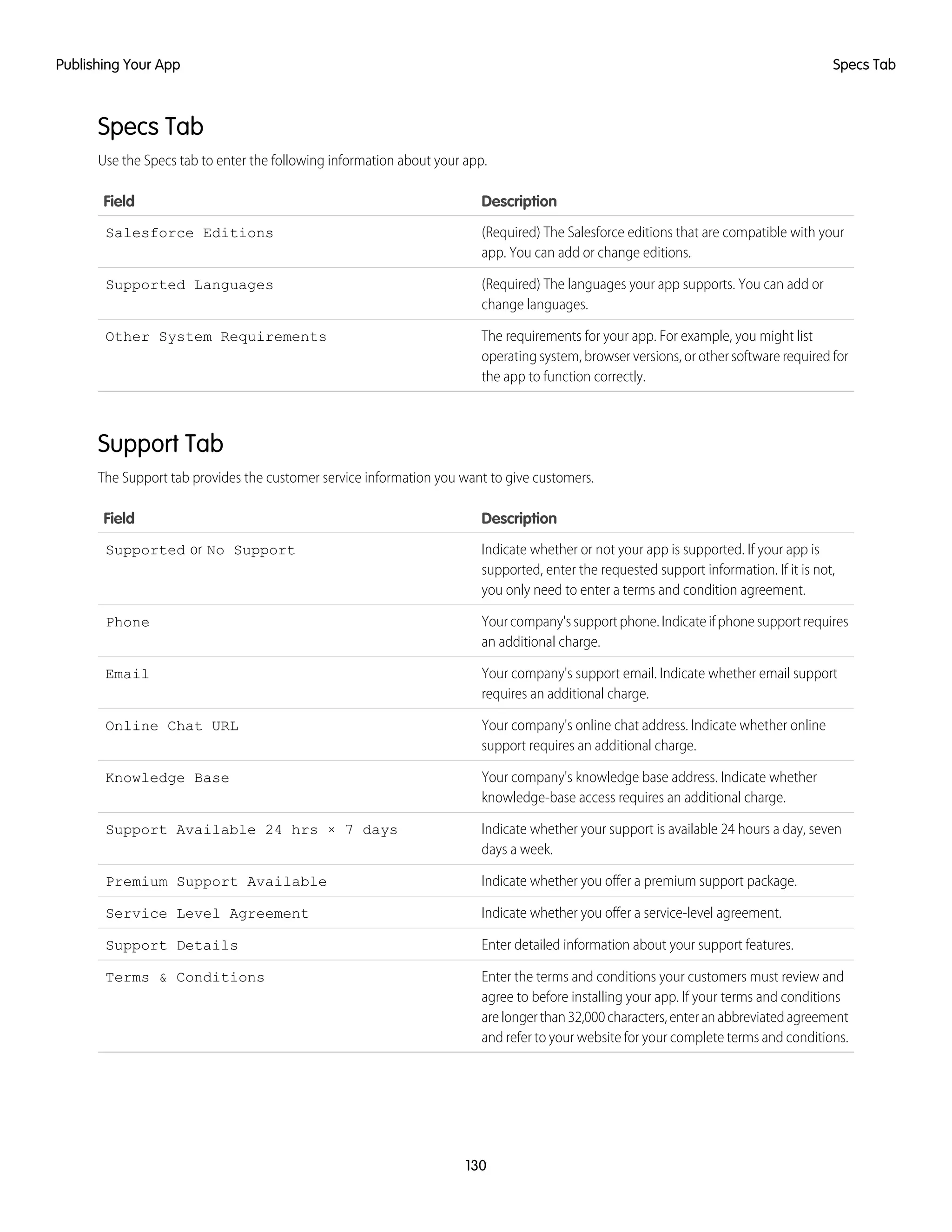
Specs Tab . . . . . . . . . . . . . . . . . . . . . . . . . . . . . . . . . . . . . . . . . . . . . . . . . . . . . 130
Support Tab . . . . . . . . . . . . . . . . . . . . . . . . . . . . . . . . . . . . . . . . . . . . . . . . . . . . 130
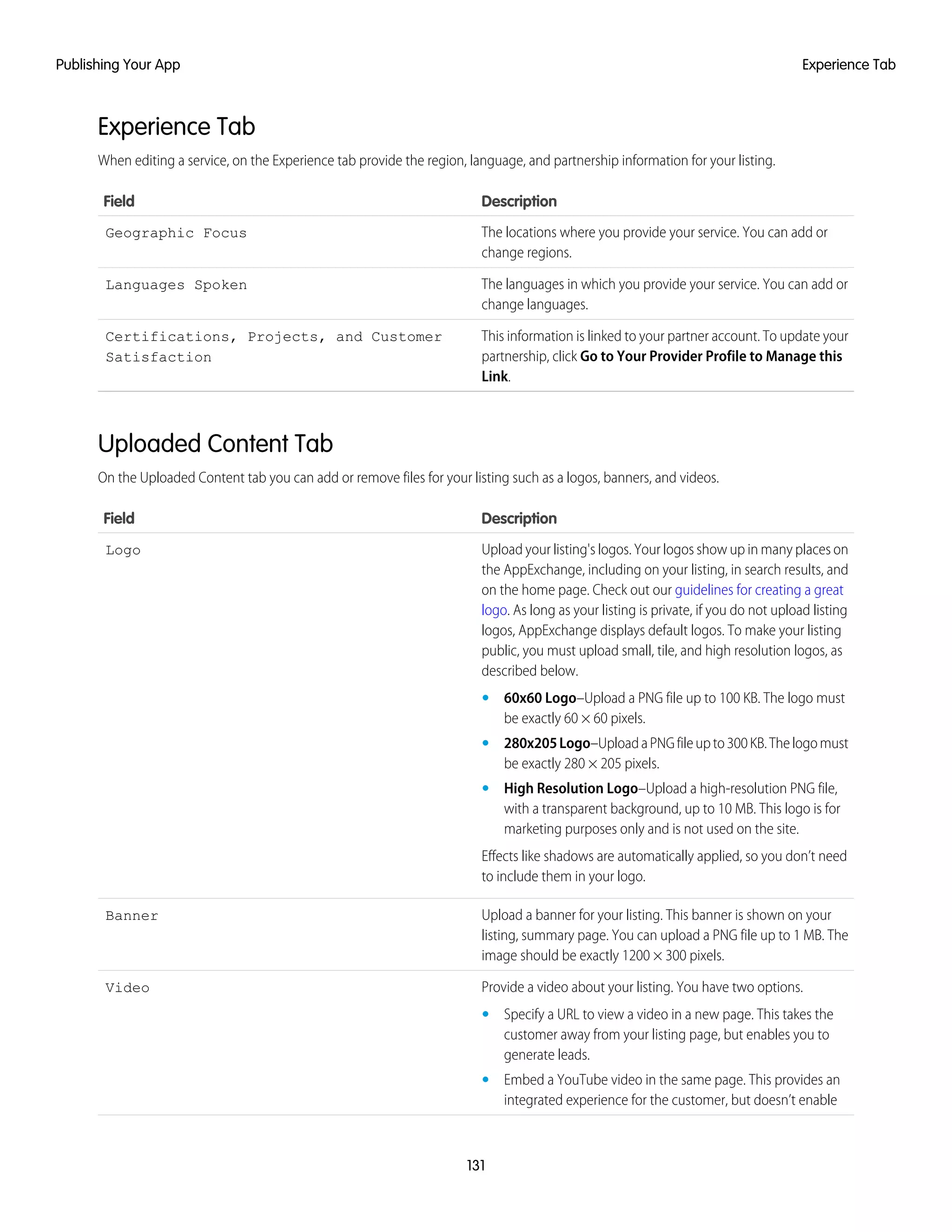
Experience Tab . . . . . . . . . . . . . . . . . . . . . . . . . . . . . . . . . . . . . . . . . . . . . . . . . . 131
Uploaded Content Tab . . . . . . . . . . . . . . . . . . . . . . . . . . . . . . . . . . . . . . . . . . . . . 131
Contents
Leads Tab . . . . . . . . . . . . . . . . . . . . . . . . . . . . . . . . . . . . . . . . . . . . . . . . . . . . . 132
Branding Your App . . . . . . . . . . . . . . . . . . . . . . . . . . . . . . . . . . . . . . . . . . . . . . . . . . . 133
Submitting Your Listing for Approval . . . . . . . . . . . . . . . . . . . . . . . . . . . . . . . . . . . . . . . . 133
Registering Your Package and Choosing License Settings . . . . . . . . . . . . . . . . . . . . . . . . . 134
Email Notifications . . . . . . . . . . . . . . . . . . . . . . . . . . . . . . . . . . . . . . . . . . . . . . . . . . . 135
Using AppExchange Checkout . . . . . . . . . . . . . . . . . . . . . . . . . . . . . . . . . . . . . . . . . . . 135
AppExchange Checkout FAQ . . . . . . . . . . . . . . . . . . . . . . . . . . . . . . . . . . . . . . . . . 136
Working with AppExchange Leads . . . . . . . . . . . . . . . . . . . . . . . . . . . . . . . . . . . . . . . . . 139
AppExchange Leads FAQ . . . . . . . . . . . . . . . . . . . . . . . . . . . . . . . . . . . . . . . . . . . 140
Analytics Reports for Publishers . . . . . . . . . . . . . . . . . . . . . . . . . . . . . . . . . . . . . . . . . . . 142
Installs (Get It Now) Report . . . . . . . . . . . . . . . . . . . . . . . . . . . . . . . . . . . . . . . . . . . 143
Leads Report . . . . . . . . . . . . . . . . . . . . . . . . . . . . . . . . . . . . . . . . . . . . . . . . . . . 143
Resources & Promotions Report . . . . . . . . . . . . . . . . . . . . . . . . . . . . . . . . . . . . . . . 144
Test Drives, Demos & Screenshots Report . . . . . . . . . . . . . . . . . . . . . . . . . . . . . . . . 144
Learn Mores, Videos & Screenshots Report . . . . . . . . . . . . . . . . . . . . . . . . . . . . . . . 144
AppExchange FAQ . . . . . . . . . . . . . . . . . . . . . . . . . . . . . . . . . . . . . . . . . . . . . . . . . . . 145
Chapter 7: Managing Orders . . . . . . . . . . . . . . . . . . . . . . . . . . . . . . . . . . . . . . . . . . 150
Key Objects in the Channel Order App . . . . . . . . . . . . . . . . . . . . . . . . . . . . . . . . . . . . . . 151
Installing and Configuring the Channel Order App . . . . . . . . . . . . . . . . . . . . . . . . . . . . . . 151
Install the Channel Order Application . . . . . . . . . . . . . . . . . . . . . . . . . . . . . . . . . . . 151
Configure the Channel Order App: Define a New Email Service . . . . . . . . . . . . . . . . . . 154
Configure the Channel Order App: Provide Service Order Credentials . . . . . . . . . . . . . . 156
Add Custom Fields to the Order Detail Page . . . . . . . . . . . . . . . . . . . . . . . . . . . . . . . 157
Enable the Channel Order App for Non-Admin Users . . . . . . . . . . . . . . . . . . . . . . . . 158
Managing Contract Terms and Product Catalogs . . . . . . . . . . . . . . . . . . . . . . . . . . . . . . . 160
Add New Contract Terms . . . . . . . . . . . . . . . . . . . . . . . . . . . . . . . . . . . . . . . . . . . 160
Update Contract Terms and Product Catalogs . . . . . . . . . . . . . . . . . . . . . . . . . . . . . 161
Submitting and Managing Orders . . . . . . . . . . . . . . . . . . . . . . . . . . . . . . . . . . . . . . . . . 163
View and Manage Orders . . . . . . . . . . . . . . . . . . . . . . . . . . . . . . . . . . . . . . . . . . 163
Submit an Order . . . . . . . . . . . . . . . . . . . . . . . . . . . . . . . . . . . . . . . . . . . . . . . . . 164
Using the Partner Order Submit API . . . . . . . . . . . . . . . . . . . . . . . . . . . . . . . . . . . . . . . . 167
Partner Order Submit API . . . . . . . . . . . . . . . . . . . . . . . . . . . . . . . . . . . . . . . . . . . 167
Chapter 8: Managing Licenses . . . . . . . . . . . . . . . . . . . . . . . . . . . . . . . . . . . . . . . . 172
License Management App (LMA) Overview . . . . . . . . . . . . . . . . . . . . . . . . . . . . . . . . . . . 173
Understanding License Management . . . . . . . . . . . . . . . . . . . . . . . . . . . . . . . . . . . 173
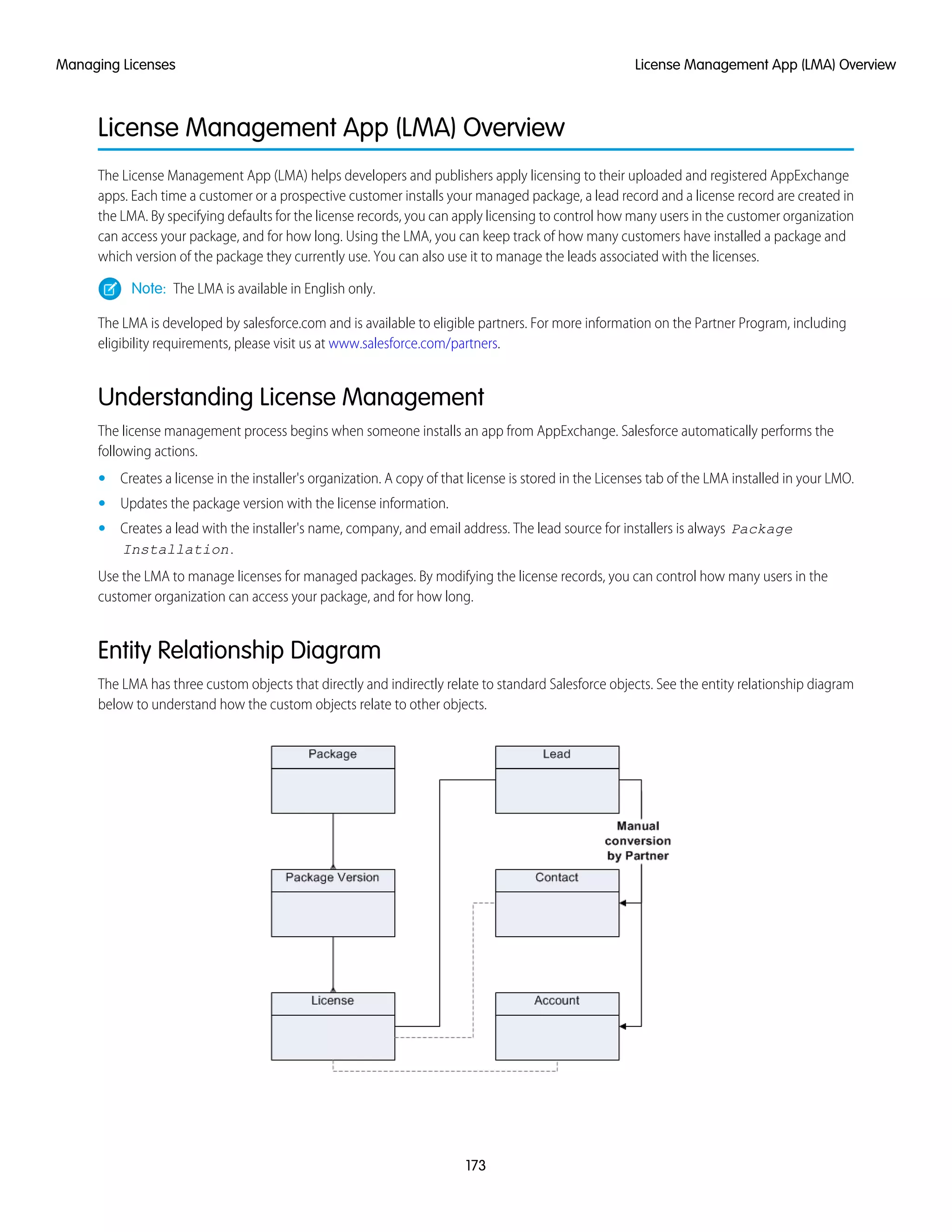
Entity Relationship Diagram . . . . . . . . . . . . . . . . . . . . . . . . . . . . . . . . . . . . . . . . . . 173
LMA Terminology . . . . . . . . . . . . . . . . . . . . . . . . . . . . . . . . . . . . . . . . . . . . . . . . . 174
Installing the LMA . . . . . . . . . . . . . . . . . . . . . . . . . . . . . . . . . . . . . . . . . . . . . . . . . . . . 175
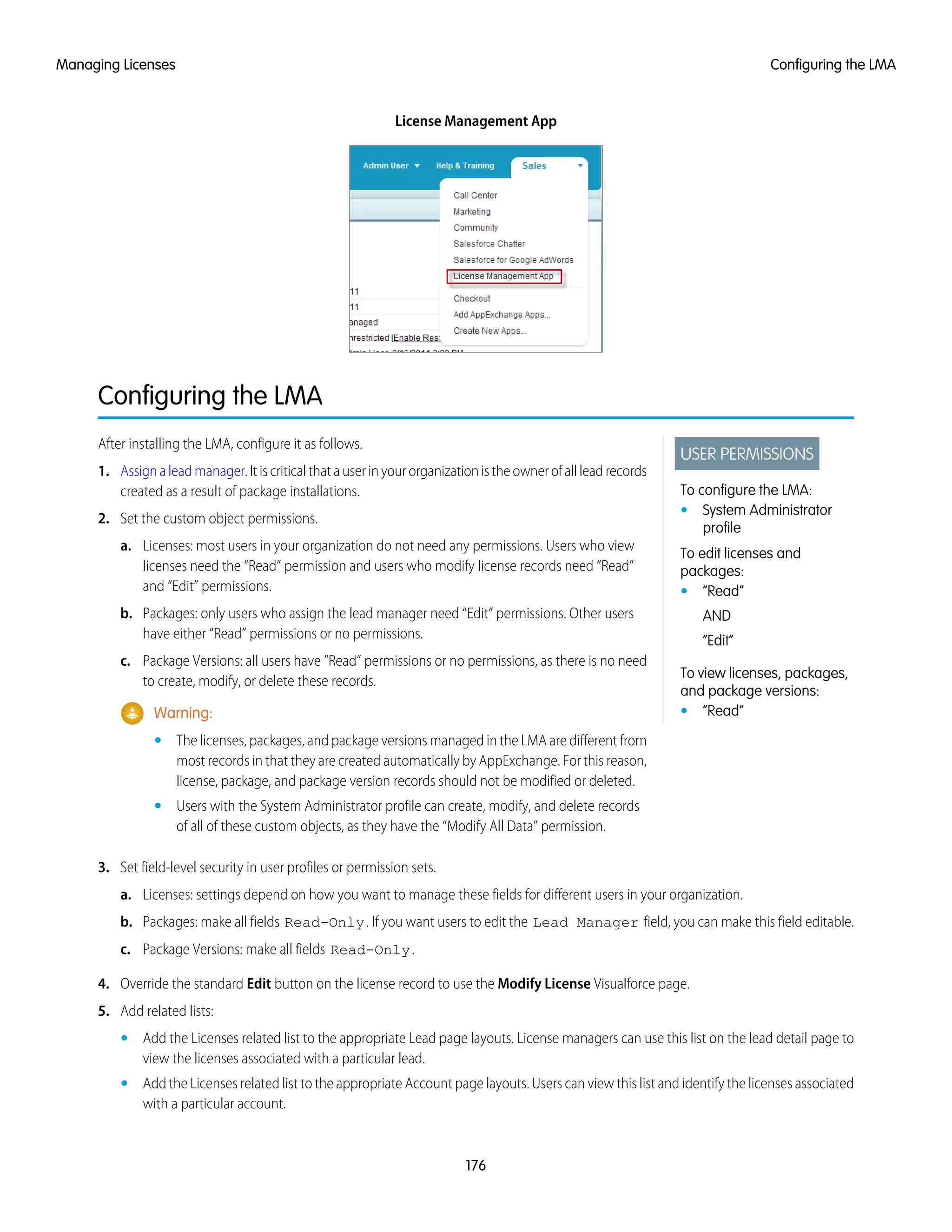
Configuring the LMA . . . . . . . . . . . . . . . . . . . . . . . . . . . . . . . . . . . . . . . . . . . . . . . . . . 176
Associating a Package with Your LMO . . . . . . . . . . . . . . . . . . . . . . . . . . . . . . . . . . . . . . 177
License Defaults . . . . . . . . . . . . . . . . . . . . . . . . . . . . . . . . . . . . . . . . . . . . . . . . . 177
Using the LMA . . . . . . . . . . . . . . . . . . . . . . . . . . . . . . . . . . . . . . . . . . . . . . . . . . . . . . 178
Contents
About Leads . . . . . . . . . . . . . . . . . . . . . . . . . . . . . . . . . . . . . . . . . . . . . . . . . . . . 178
About Packages . . . . . . . . . . . . . . . . . . . . . . . . . . . . . . . . . . . . . . . . . . . . . . . . . 178
About Package Versions . . . . . . . . . . . . . . . . . . . . . . . . . . . . . . . . . . . . . . . . . . . . 180
About Licenses . . . . . . . . . . . . . . . . . . . . . . . . . . . . . . . . . . . . . . . . . . . . . . . . . . 181
Integrating with Sales and Marketing . . . . . . . . . . . . . . . . . . . . . . . . . . . . . . . . . . . . . . . 184
Best Practices . . . . . . . . . . . . . . . . . . . . . . . . . . . . . . . . . . . . . . . . . . . . . . . . . . . . . . . 184
License Management App FAQ . . . . . . . . . . . . . . . . . . . . . . . . . . . . . . . . . . . . . . . . . . . 185
Troubleshooting . . . . . . . . . . . . . . . . . . . . . . . . . . . . . . . . . . . . . . . . . . . . . . . . . . . . . 186
Chapter 9: Providing a Free Trial . . . . . . . . . . . . . . . . . . . . . . . . . . . . . . . . . . . . . . . 188
Why Use Trialforce? . . . . . . . . . . . . . . . . . . . . . . . . . . . . . . . . . . . . . . . . . . . . . . . . . . . 189
Overview of Trialforce . . . . . . . . . . . . . . . . . . . . . . . . . . . . . . . . . . . . . . . . . . . . . . . . . 189
Setting Up Trialforce . . . . . . . . . . . . . . . . . . . . . . . . . . . . . . . . . . . . . . . . . . . . . . . . . . . 191
Linking a Package to Your AppExchange Publishing Organization . . . . . . . . . . . . . . . . 191
Linking a Package with Your License Management Organization . . . . . . . . . . . . . . . . 192
Requesting a Trialforce Management Organization . . . . . . . . . . . . . . . . . . . . . . . . . 193
Setting up Custom Branding for Trialforce . . . . . . . . . . . . . . . . . . . . . . . . . . . . . . . . 193
Creating a Trialforce Source Organization . . . . . . . . . . . . . . . . . . . . . . . . . . . . . . . . 195
Linking a Trialforce Source Organization to the APO . . . . . . . . . . . . . . . . . . . . . . . . . . 195
Creating a Trialforce Template . . . . . . . . . . . . . . . . . . . . . . . . . . . . . . . . . . . . . . . . 196
Getting a Trialforce Template Reviewed . . . . . . . . . . . . . . . . . . . . . . . . . . . . . . . . . . 196
Providing a Free Trial on AppExchange . . . . . . . . . . . . . . . . . . . . . . . . . . . . . . . . . . . . . . 197
Providing a Free Trial on AppExchange using Trialforce . . . . . . . . . . . . . . . . . . . . . . . 197
Configuring a Test Drive on AppExchange . . . . . . . . . . . . . . . . . . . . . . . . . . . . . . . . 198
Providing a Free Trial on AppExchange When Your App is Installed . . . . . . . . . . . . . . . 198
Providing a Free Trial on Your Website . . . . . . . . . . . . . . . . . . . . . . . . . . . . . . . . . . . . . . 199
Requesting a Signup Form for Trialforce . . . . . . . . . . . . . . . . . . . . . . . . . . . . . . . . . 199
Linking a Trialforce Template to the Signup Form . . . . . . . . . . . . . . . . . . . . . . . . . . . . 199
Customizing the HTML Registration Form . . . . . . . . . . . . . . . . . . . . . . . . . . . . . . . . 200
Provisioning New Trial Organizations . . . . . . . . . . . . . . . . . . . . . . . . . . . . . . . . . . . 201
Modifying the Trial for an Upgrade . . . . . . . . . . . . . . . . . . . . . . . . . . . . . . . . . . . . . . . . 201
Trialforce Best Practices . . . . . . . . . . . . . . . . . . . . . . . . . . . . . . . . . . . . . . . . . . . . . . . . 201
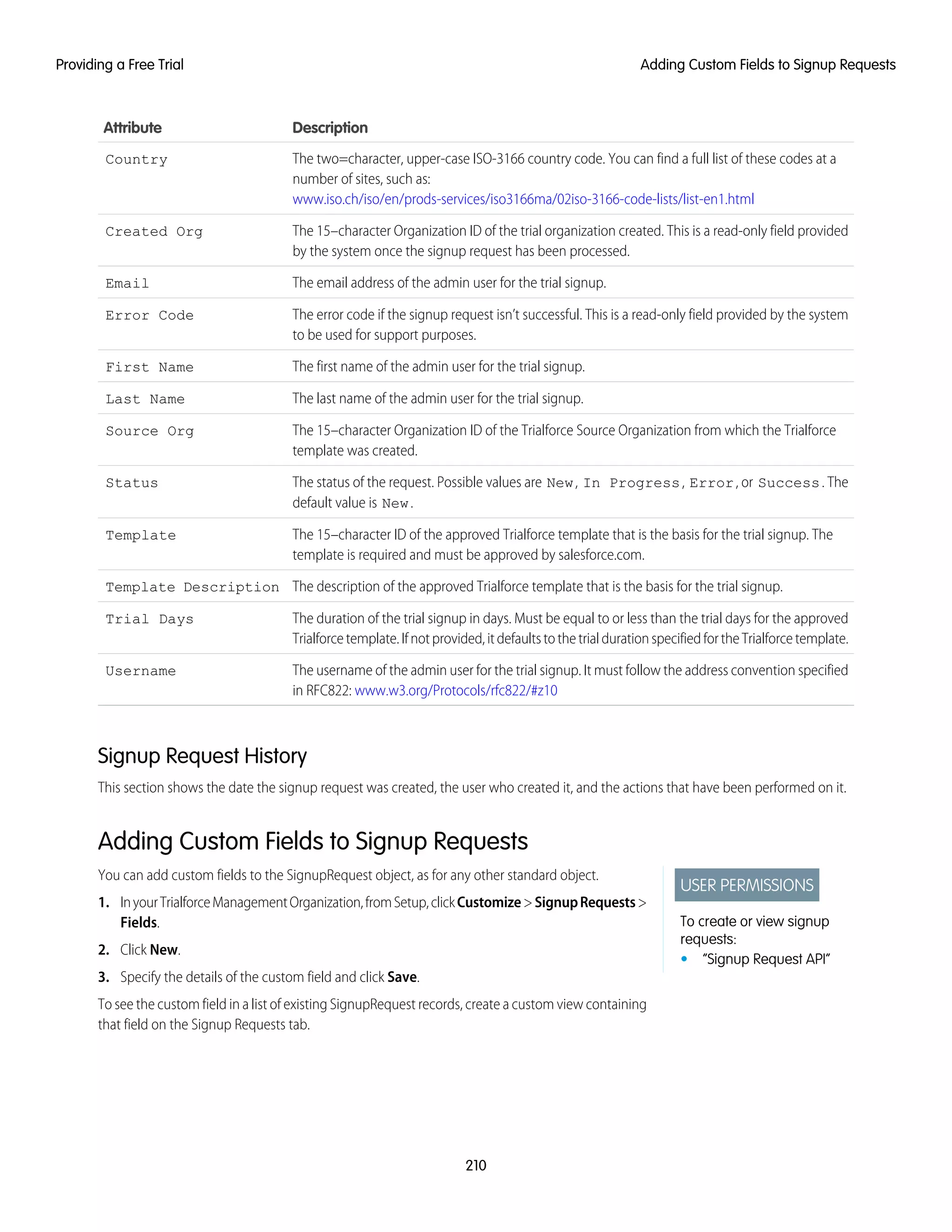
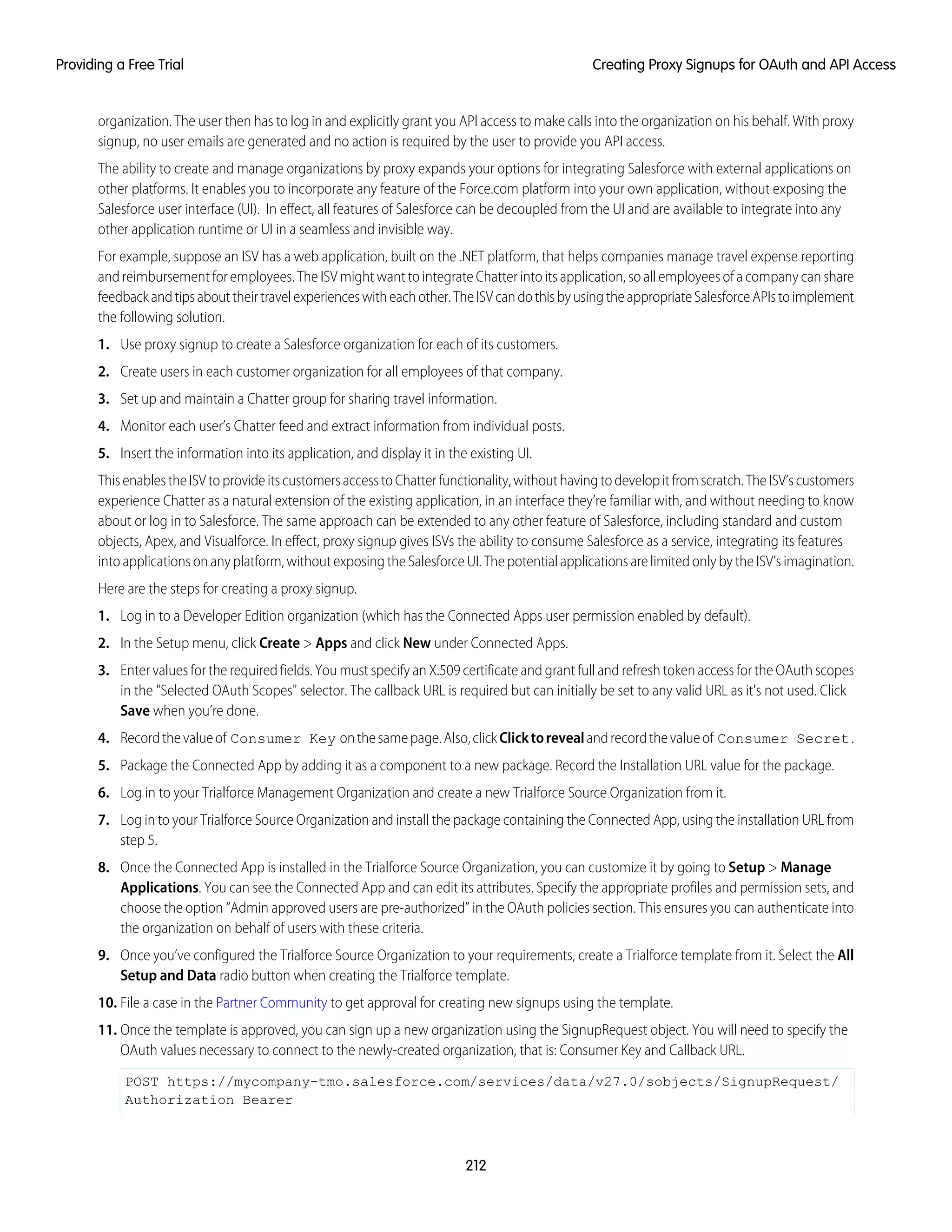
Creating Signups using the API . . . . . . . . . . . . . . . . . . . . . . . . . . . . . . . . . . . . . . . . . . . 202
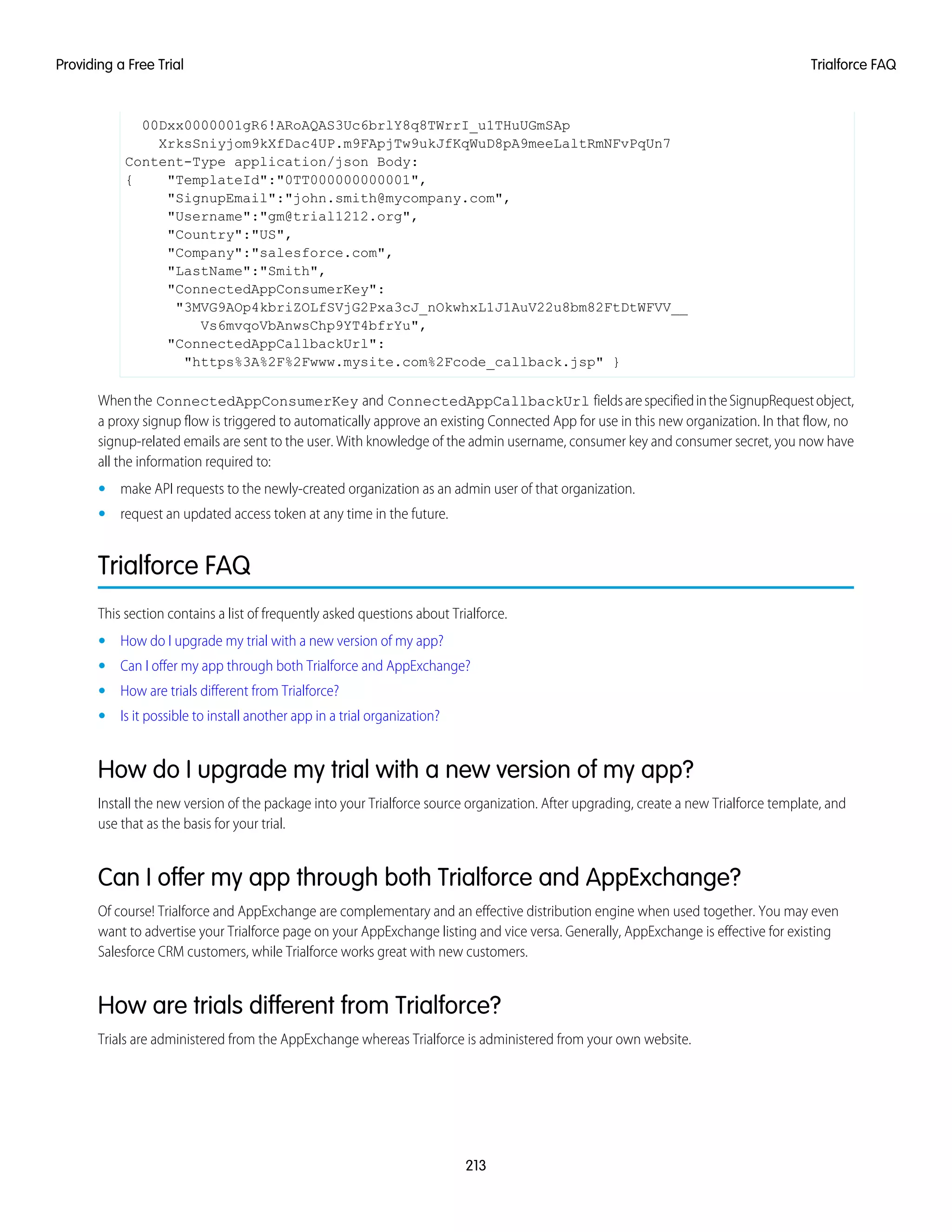
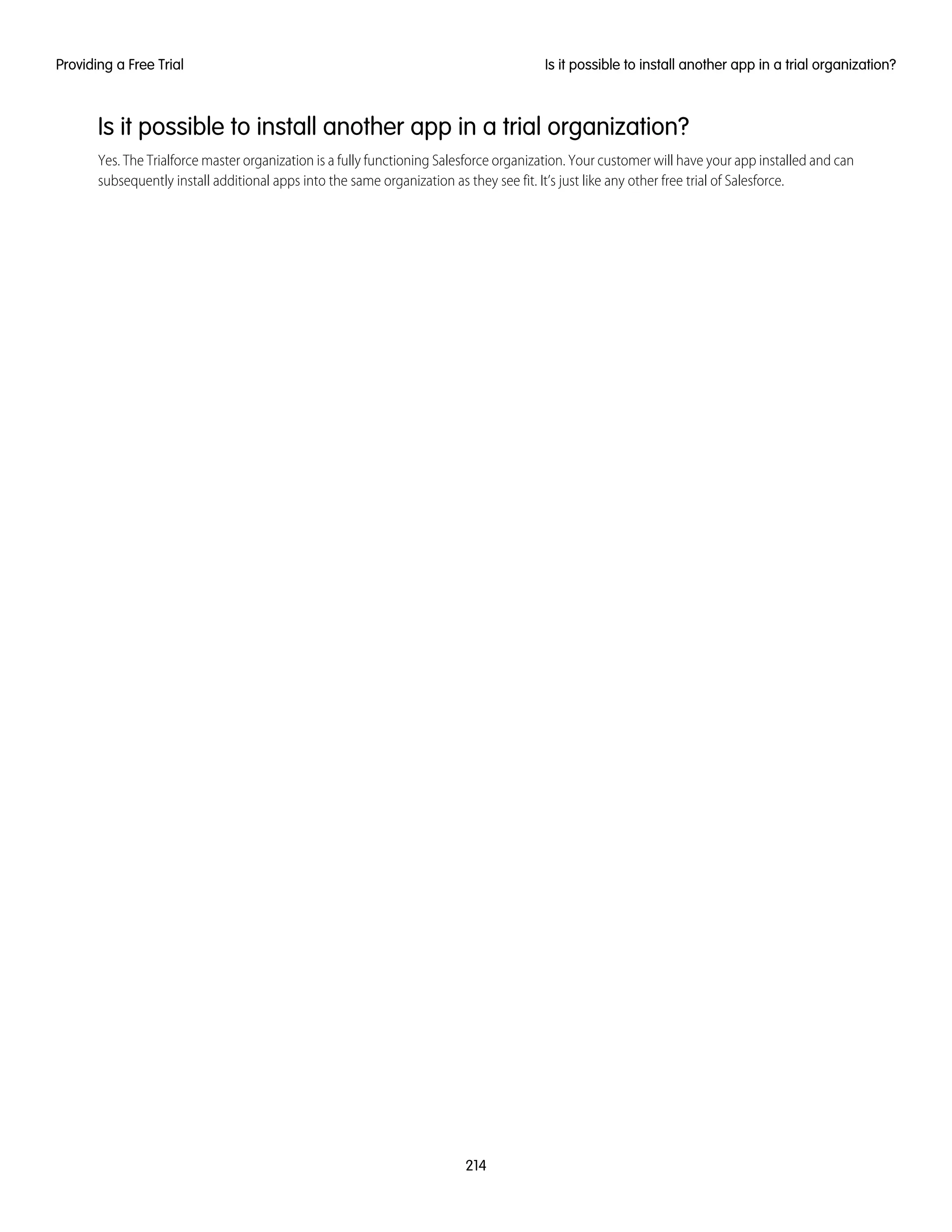
Trialforce FAQ . . . . . . . . . . . . . . . . . . . . . . . . . . . . . . . . . . . . . . . . . . . . . . . . . . . . . . . 213
Chapter 10: Supporting Your Customers . . . . . . . . . . . . . . . . . . . . . . . . . . . . . . . . . . 215
Support Tab . . . . . . . . . . . . . . . . . . . . . . . . . . . . . . . . . . . . . . . . . . . . . . . . . . . . . . . . 216
Subscriber Support Console . . . . . . . . . . . . . . . . . . . . . . . . . . . . . . . . . . . . . . . . . . . . . 216
Viewing Subscriber Details . . . . . . . . . . . . . . . . . . . . . . . . . . . . . . . . . . . . . . . . . . 216
Requesting Login Access . . . . . . . . . . . . . . . . . . . . . . . . . . . . . . . . . . . . . . . . . . . 217
Logging in to Subscriber Organizations . . . . . . . . . . . . . . . . . . . . . . . . . . . . . . . . . . 217
Troubleshooting in Subscriber Organizations . . . . . . . . . . . . . . . . . . . . . . . . . . . . . . 218
Usage Metrics . . . . . . . . . . . . . . . . . . . . . . . . . . . . . . . . . . . . . . . . . . . . . . . . . . . . . . 218
Setting up Usage Metrics . . . . . . . . . . . . . . . . . . . . . . . . . . . . . . . . . . . . . . . . . . . 219
Contents
Accessing Usage Metrics Data . . . . . . . . . . . . . . . . . . . . . . . . . . . . . . . . . . . . . . . 219
MetricsDataFile . . . . . . . . . . . . . . . . . . . . . . . . . . . . . . . . . . . . . . . . . . . . . . . . . . 220
Usage Metrics Visualization . . . . . . . . . . . . . . . . . . . . . . . . . . . . . . . . . . . . . . . . . 222
Chapter 11: Upgrading Your App . . . . . . . . . . . . . . . . . . . . . . . . . . . . . . . . . . . . . . . 225
About Package Versions . . . . . . . . . . . . . . . . . . . . . . . . . . . . . . . . . . . . . . . . . . . . . . . 227
Creating and Uploading Patches . . . . . . . . . . . . . . . . . . . . . . . . . . . . . . . . . . . . . . . . . 227
Working with Patch Versions . . . . . . . . . . . . . . . . . . . . . . . . . . . . . . . . . . . . . . . . . . . . 228
Versioning Apex Code . . . . . . . . . . . . . . . . . . . . . . . . . . . . . . . . . . . . . . . . . . . . . 230
Apex Deprecation Effects for Subscribers . . . . . . . . . . . . . . . . . . . . . . . . . . . . . . . . . 231
Publishing Upgrades to Managed Packages . . . . . . . . . . . . . . . . . . . . . . . . . . . . . . . . . 232
Deleting Components in Managed Packages . . . . . . . . . . . . . . . . . . . . . . . . . . . . . 233
Viewing Deleted Components . . . . . . . . . . . . . . . . . . . . . . . . . . . . . . . . . . . . . . . . 234
Modifying Custom Fields after a Package is Released . . . . . . . . . . . . . . . . . . . . . . . . 235
Managing Versions . . . . . . . . . . . . . . . . . . . . . . . . . . . . . . . . . . . . . . . . . . . . . . . 235
Pushing an Upgrade . . . . . . . . . . . . . . . . . . . . . . . . . . . . . . . . . . . . . . . . . . . . . . . . . 235
About Push Upgrades . . . . . . . . . . . . . . . . . . . . . . . . . . . . . . . . . . . . . . . . . . . . . 236
Push Upgrade Best Practices . . . . . . . . . . . . . . . . . . . . . . . . . . . . . . . . . . . . . . . . 236
Assigning Access to New Components and Fields . . . . . . . . . . . . . . . . . . . . . . . . . . 237
Sample Post Install Script for a Push Upgrade . . . . . . . . . . . . . . . . . . . . . . . . . . . . . 238
Known Limitations for Push Upgrade . . . . . . . . . . . . . . . . . . . . . . . . . . . . . . . . . . . 239
Scheduling Push Upgrades . . . . . . . . . . . . . . . . . . . . . . . . . . . . . . . . . . . . . . . . . 240
Viewing Push Upgrade Details . . . . . . . . . . . . . . . . . . . . . . . . . . . . . . . . . . . . . . . 241
Viewing an Organization's Upgrade History . . . . . . . . . . . . . . . . . . . . . . . . . . . . . . 242
APPENDICES . . . . . . . . . . . . . . . . . . . . . . . . . . . . . . . . . . . . . . . . . . . . . . . . . . . . 244
Appendix A: ISVforce User License Comparison . . . . . . . . . . . . . . . . . . . . . 244
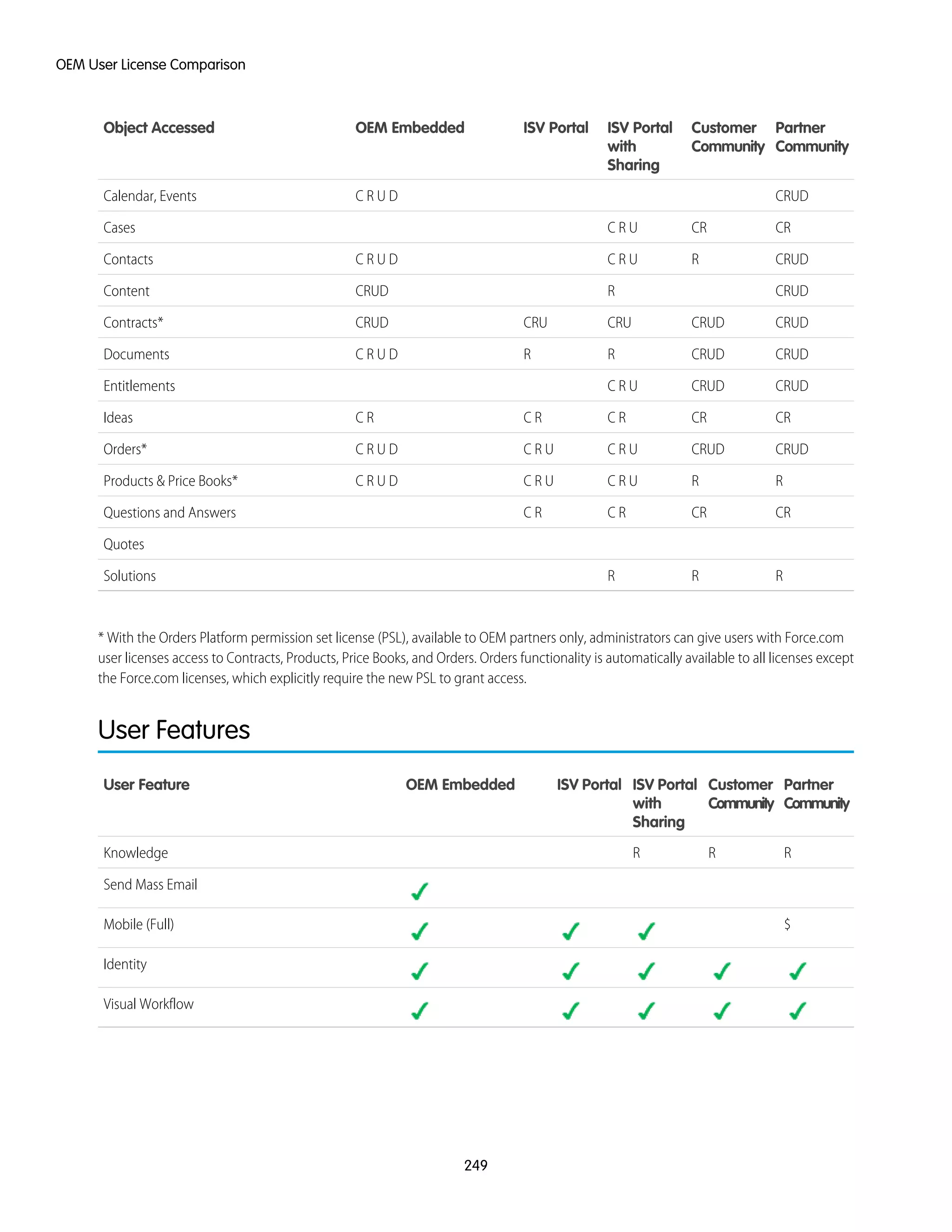
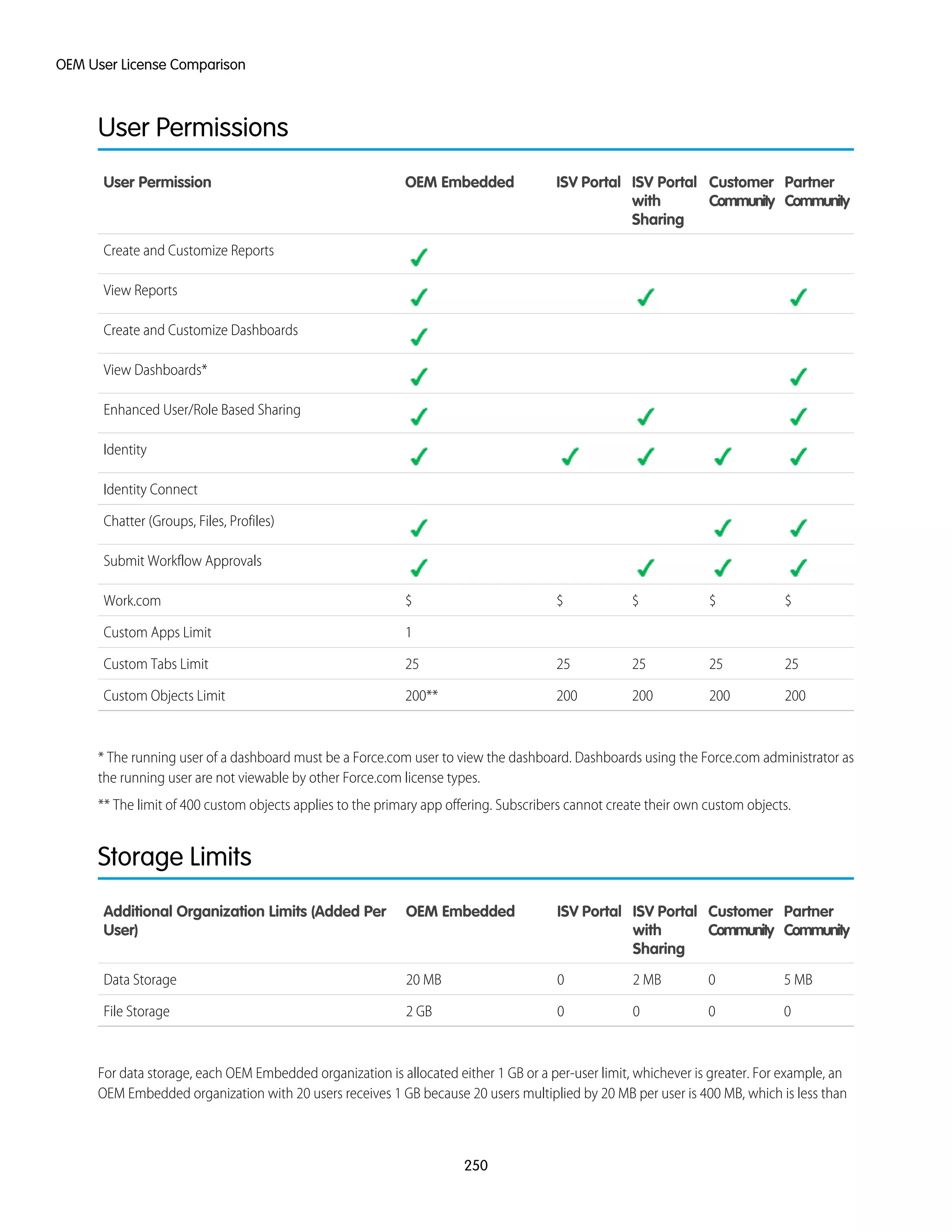
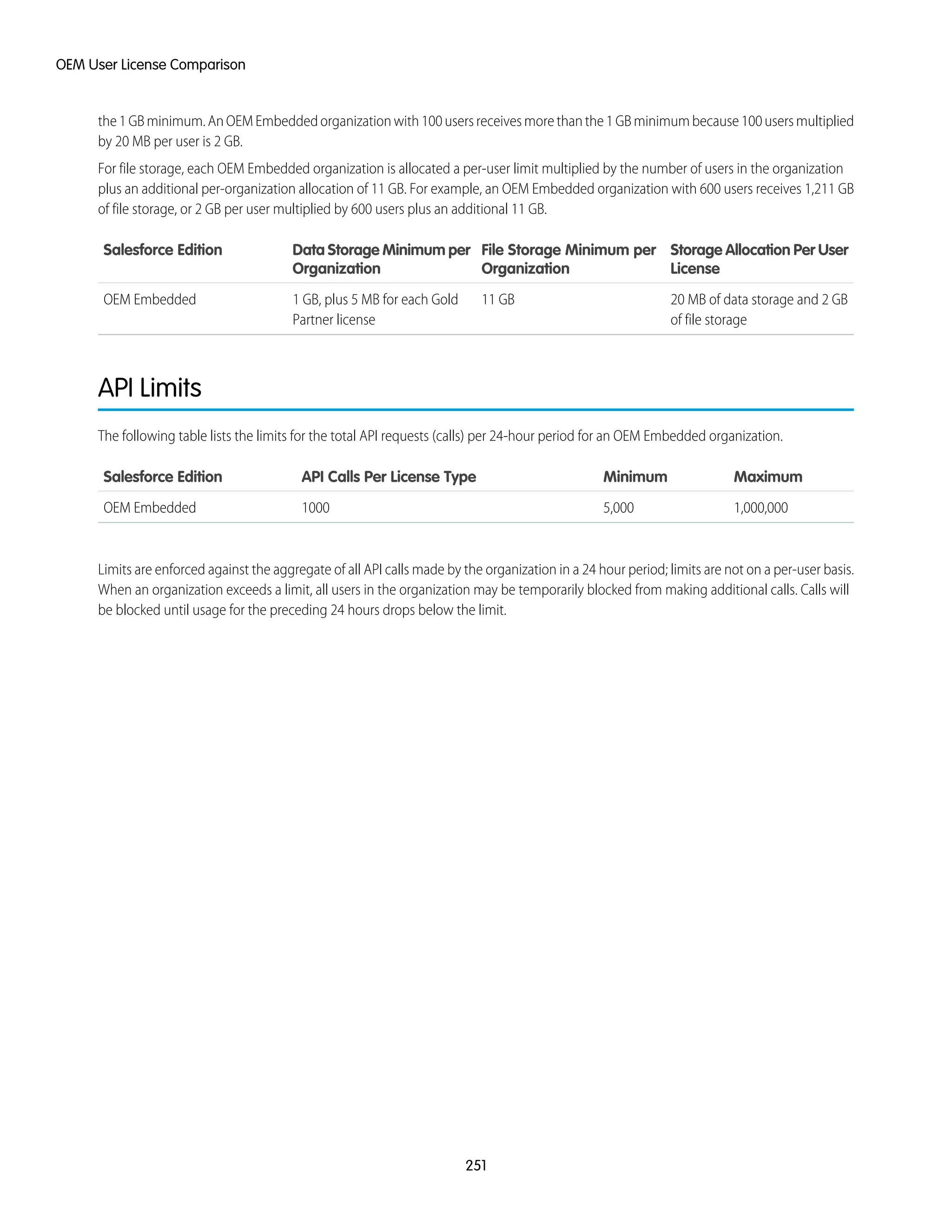
Appendix B: OEM User License Comparison . . . . . . . . . . . . . . . . . . . . . . . . 248
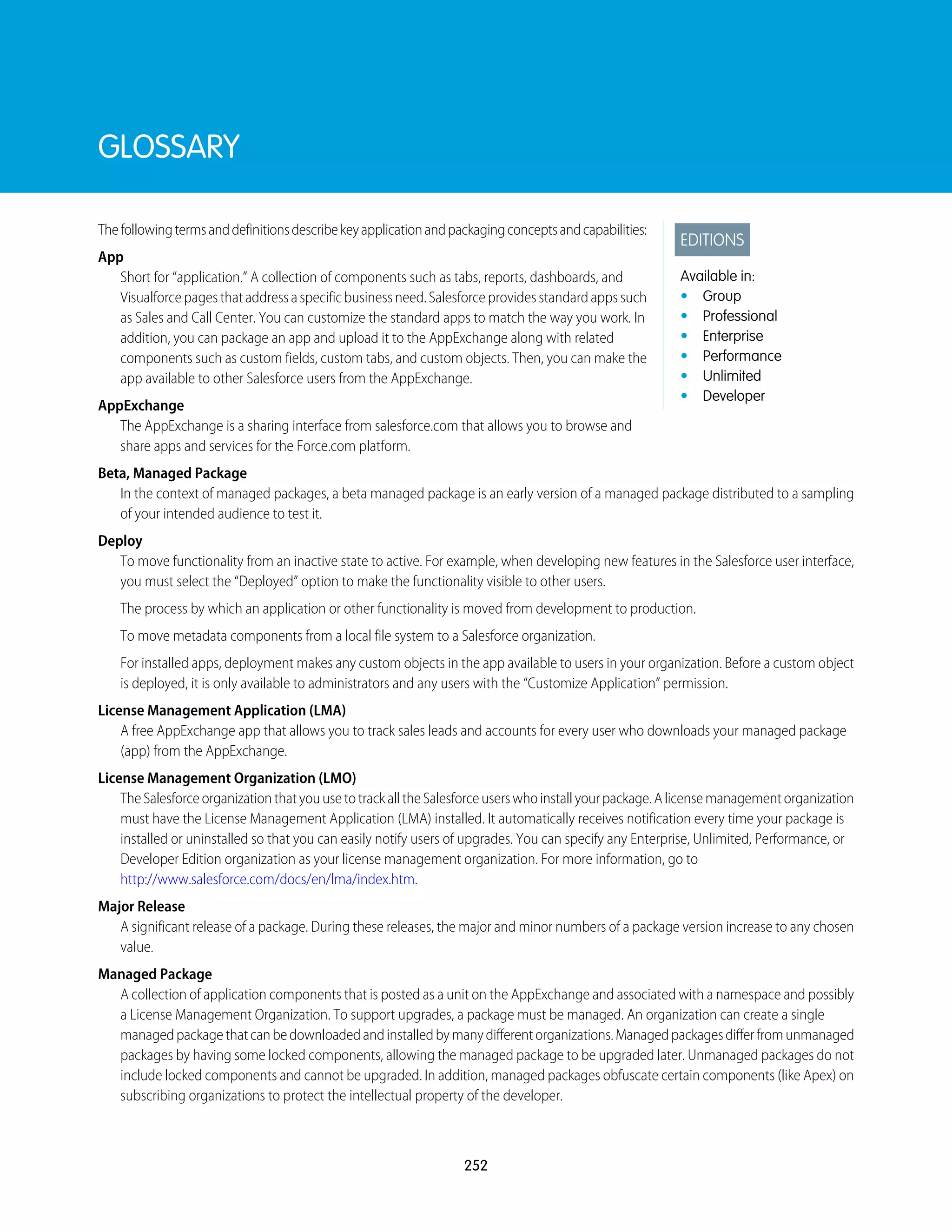
GLOSSARY . . . . . . . . . . . . . . . . . . . . . . . . . . . . . . . . . . . . . . . . . . . . . . . . . . . . . . 252
INDEX . . . . . . . . . . . . . . . . . . . . . . . . . . . . . . . . . . . . . . . . . . . . . . . . . . . . . . . . . . 255
Contents
CHAPTER 1 Introduction
The ISVforce Guide is written for independent software vendors (ISVs) who want to build and sell
applications using the Force.com platform. This guide is organized by the following chapters:
In this chapter ...
• Resources for
Partners • Quick Start—Start here to acquire and configure all of the environments you need in order to build
and sell apps.
• Roles in the
Application Lifecycle • Designing and Building Your App—Before you start development, it's important to know how all
the pieces fit together. This chapter covers architectural decisions to consider before development.
• How to Sign Up for
Test Environments • Packaging and Testing Your App—This chapter also covers specifics about developing and testing
packaged apps.
• Passing the Security Review—Learn about security best practices and plan for security review.
• Publishing Your App—List your app on the AppExchange marketplace.
• Managing Orders—Use the Channel Order App to create, manage, and submit orders to the Partner
Operations team.
• ManagingLicenses—UsetheLicenseManagementApptomanageyourcustomerandapplicenses.
• Providing a Free Trial—Create a free trial to help you sell your app to non-Salesforce customers.
• Supporting Your Customers—Give your customers technical support for the installation and use of
your app.
• Upgrading Your App—When it's time to upgrade your packaged app, you can push minor patches
or create major releases.
1
Resources for Partners
The Partner Community, at https://partners.salesforce.com, is the primary resource for all ISVs. To get started, we recommend visiting
the Education page, your one-stop shop for all ISV content. In addition, you can use the Partner Community to:
• Collaborate with other partners and salesforce.com using our Chatter community.
• Stay up-to-date on news and events related to the Salesforce Partner Program.
• Log cases for access to partner-specific features and customer support.
• Use enhanced search, integrated with the Success Community, to quickly find relevant resources.
• Browse the Salesforce Partner Online Training catalog and sign up for courses.
ThePartnerCommunityisself-service—thefirstpersontoregisteryourpartnershipbecomesyourdesignatedadministratorandmanages
the creation of additional users for your company. You can change or add administrators, as required.
Note: The Partner Portal, at https://salesforce.com/partnerportal, can still be used for creating test organizations. If you’ve set up
the Environment Hub, you can also use it to create test organizations. Using the Environment Hub can speed up development by
making it easier to manage multiple organizations.
Roles in the Application Lifecycle
This guide covers the entire lifecycle of a package application, so some of the topics might not be relevant to you. The following list has
topic suggestions by role.
An application architect
The application architect determines the scope of the application and the internal structures that support it. Architects need to know
details about the underlying Force.com platform that will determine not only the application's use, but which editions it supports,
how it's installed, configured, and upgraded. Architects need to be familiar with this entire guide, but especially the following
chapters:
• Designing and Building Your App on page 18
• Passing the Security Review on page 110
A developer creates, packages, and uploads an app
A developer, or often a team of developers, create an app, package it, and upload it to the AppExchange. Developers also update
the app with bug fixes and new features. As a developer, you'll want to see the following chapters:
• Designing and Building Your App on page 18
• Packaging and Testing Your App on page 89
• Developing App Documentation on page 49
• Upgrading Your App on page 225
A publisher distributes, sells, and supports the app
The publisher of an app is the person or company who has a profile and one or more listings for the app on AppExchange. Publisher
listings contain a link to an app they have uploaded to AppExchange, or to a third-party website. Publishers also set default license
settings. As a publisher, you'll want to see the following chapters:
• Publishing Your App on page 122
• Providing a Free Trial on page 188
• Supporting Your Customers on page 215
2
Resources for PartnersIntroduction
An administrator installs the app
An administrator, or admin, downloads your app from AppExchange and installs it into their organization. Admins might also
customize the app to further suit their business needs. See the following topic to learn how admins will interact with your app.
• Installing a Package on page 99
How to Sign Up for Test Environments
To sign up for test environments (organizations), use the Partner Portal.
1. Log into the Partner Portal.
2. In the Quick Links section of the Partner Portal, click Create a Test Org.
3. In the Edition drop-down box, choose the edition you want to test against.
4. Select the check box to agree to the terms and then click Submit.
5. You'll receive an email that will prompt you to log in and change your password. Click the link, change your password, and create
a password question and answer.
If you’ve set up the Environment Hub, you can also use it to create new test organizations. Using the Environment Hub can speed up
development by making it easier to manage multiple organizations.
3
How to Sign Up for Test EnvironmentsIntroduction
CHAPTER 2 ISVforce Quick Start
This quick start is meant to take you through the application lifecycle as quickly as possible. Upon
completion, you'll have everything you need to develop and publish a packaged application.
In this chapter ...
• Tutorial #1: Signing
Up Note: You must be an ISVforce/OEM partner to complete all steps in this quick start, as it covers
some features only available to eligible partners.• Tutorial #2:
Developing Your App
How is the Quick Start Organized?
The quick start is broken up into four tutorials, which are meant to be completed in order. Because some
of the steps require an automated email response, the time to complete the steps can vary. However,
you can stop at any step and pick up where you left off.
• Tutorial #3:
Publishing and
Licensing
• Tutorial #4: Updating
Your App
• Tutorial #1 takes you through the process of signing up for the Salesforce ISV Partner Program and
getting all of the organizations (environments) you'll need.
• Tutorial #2 walks you through creating a simple Hello World application.
• Tutorial #3 helps you publish and manage your app.
• Tutorial #4 tells you how to update your app for major and minor releases.
Tell Me More....
At the end of each step, there is an optional Tell Me More section. If you like to do things quickly, move
on to the next step. However, if you're a smell-the-roses type, there's a lot of useful information here.
• For a list of useful terms, see the Glossary on page 252.
• To learn more about Force.com and to access a rich set of resources, visit Salesforce Developers at
https://developer.salesforce.com.
• For a gentle introduction to developing on Force.com, see the Force.com Workbook at
https://developer.salesforce.com/page/Force.com_workbook.
4
Tutorial #1: Signing Up
In this tutorial you gather all of the pieces you'll need to develop, sell, and support your apps. It all starts when you sign up for the
AppExchange Partner Program. This will give you access to the Partner Community, where you can get access to useful resources, create
cases for support, collaborate with other partners and salesforce.com, and stay up-to-date on news and events. You also get access to
the Partner Portal, where you can get development and test organizations (environments).
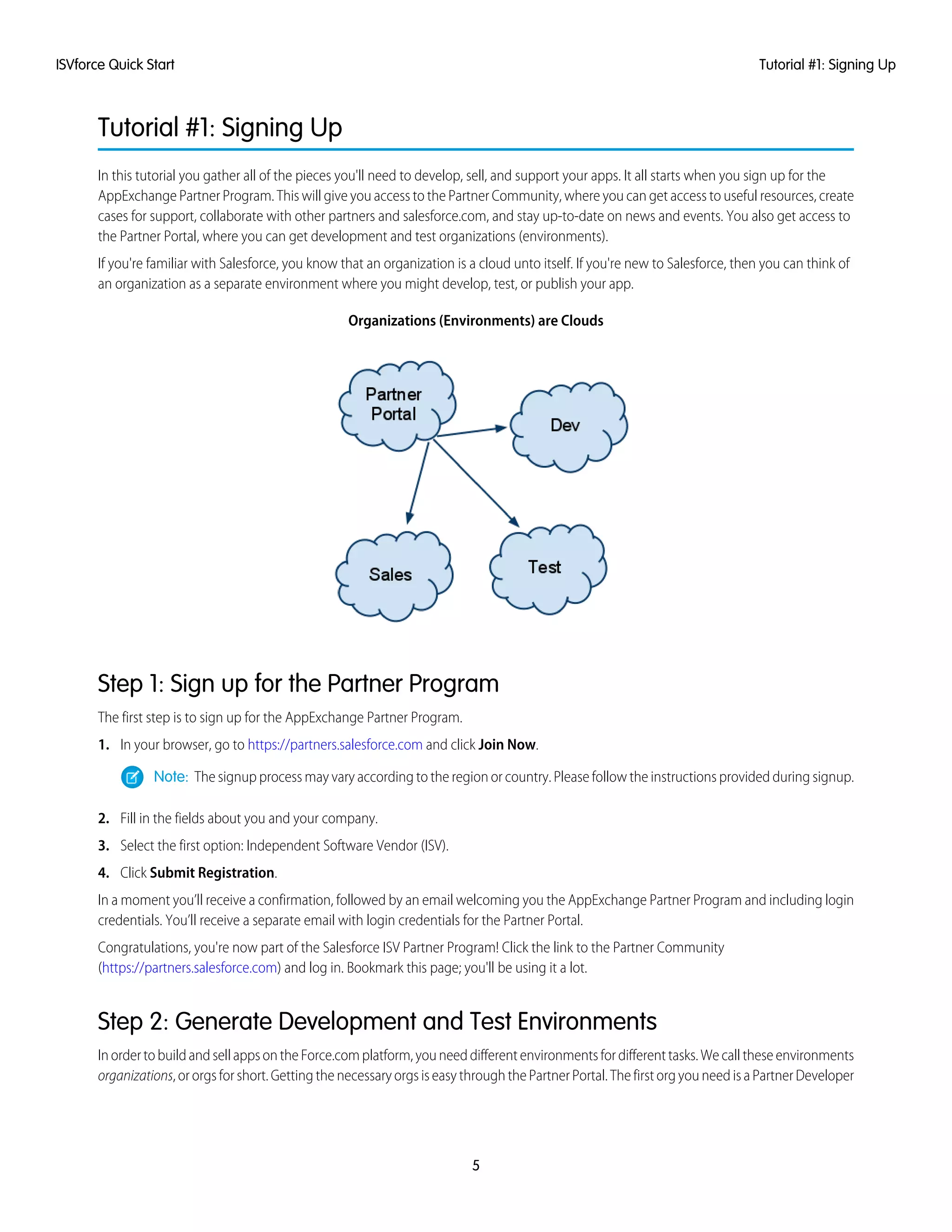
If you're familiar with Salesforce, you know that an organization is a cloud unto itself. If you're new to Salesforce, then you can think of
an organization as a separate environment where you might develop, test, or publish your app.
Organizations (Environments) are Clouds
Step 1: Sign up for the Partner Program
The first step is to sign up for the AppExchange Partner Program.
1. In your browser, go to https://partners.salesforce.com and click Join Now.
Note: The signup process may vary according to the region or country. Please follow the instructions provided during signup.
2. Fill in the fields about you and your company.
3. Select the first option: Independent Software Vendor (ISV).
4. Click Submit Registration.
In a moment you’ll receive a confirmation, followed by an email welcoming you the AppExchange Partner Program and including login
credentials. You’ll receive a separate email with login credentials for the Partner Portal.
Congratulations, you're now part of the Salesforce ISV Partner Program! Click the link to the Partner Community
(https://partners.salesforce.com) and log in. Bookmark this page; you'll be using it a lot.
Step 2: Generate Development and Test Environments
In order to build and sell apps on the Force.com platform, you need different environments for different tasks. We call these environments
organizations, or orgs for short. Getting the necessary orgs is easy through the Partner Portal. The first org you need is a Partner Developer
5
Tutorial #1: Signing UpISVforce Quick Start
Editionorganization,whichiswhereyou'lldoyourdevelopmentandeventuallypackageyourapplication.IfyoualreadyhaveaDeveloper
Edition organization, you should still sign up for Partner Developer Edition, because it allows more data storage, licenses, and users.
1. You should already be logged in to the Partner Portal. If not, click your bookmark and log in now.
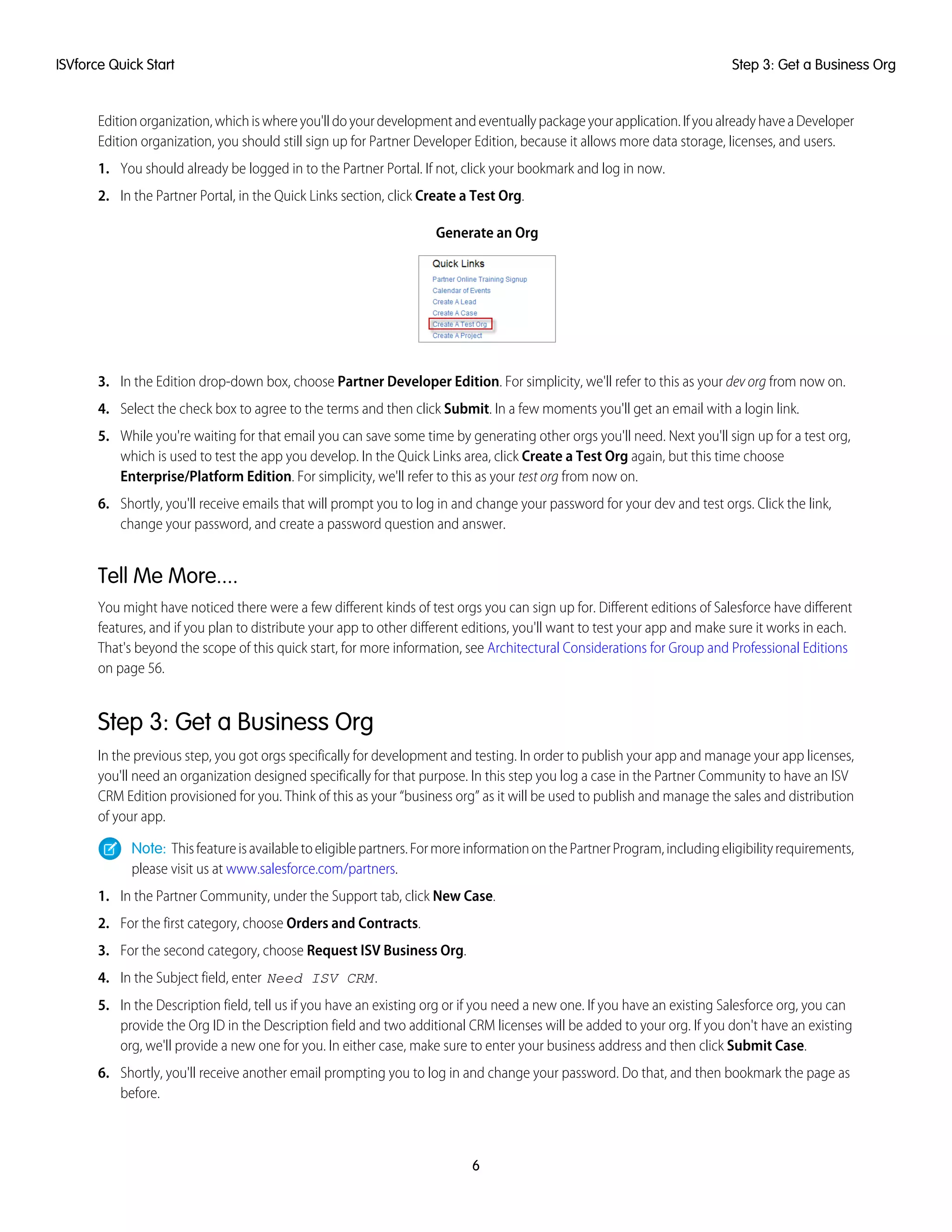
2. In the Partner Portal, in the Quick Links section, click Create a Test Org.
Generate an Org
3. In the Edition drop-down box, choose Partner Developer Edition. For simplicity, we'll refer to this as your dev org from now on.
4. Select the check box to agree to the terms and then click Submit. In a few moments you'll get an email with a login link.
5. While you're waiting for that email you can save some time by generating other orgs you'll need. Next you'll sign up for a test org,
which is used to test the app you develop. In the Quick Links area, click Create a Test Org again, but this time choose
Enterprise/Platform Edition. For simplicity, we'll refer to this as your test org from now on.
6. Shortly, you'll receive emails that will prompt you to log in and change your password for your dev and test orgs. Click the link,
change your password, and create a password question and answer.
Tell Me More....
You might have noticed there were a few different kinds of test orgs you can sign up for. Different editions of Salesforce have different
features, and if you plan to distribute your app to other different editions, you'll want to test your app and make sure it works in each.
That's beyond the scope of this quick start, for more information, see Architectural Considerations for Group and Professional Editions
on page 56.
Step 3: Get a Business Org
In the previous step, you got orgs specifically for development and testing. In order to publish your app and manage your app licenses,
you'll need an organization designed specifically for that purpose. In this step you log a case in the Partner Community to have an ISV
CRM Edition provisioned for you. Think of this as your “business org” as it will be used to publish and manage the sales and distribution
of your app.
Note: Thisfeatureisavailabletoeligiblepartners.FormoreinformationonthePartnerProgram,includingeligibilityrequirements,
please visit us at www.salesforce.com/partners.
1. In the Partner Community, under the Support tab, click New Case.
2. For the first category, choose Orders and Contracts.
3. For the second category, choose Request ISV Business Org.
4. In the Subject field, enter Need ISV CRM.
5. In the Description field, tell us if you have an existing org or if you need a new one. If you have an existing Salesforce org, you can
provide the Org ID in the Description field and two additional CRM licenses will be added to your org. If you don't have an existing
org, we'll provide a new one for you. In either case, make sure to enter your business address and then click Submit Case.
6. Shortly, you'll receive another email prompting you to log in and change your password. Do that, and then bookmark the page as
before.
6
Step 3: Get a Business OrgISVforce Quick Start
Tell Me More....
• Your business organization may go by many names. At times it may be referred to as your AppExchange Publishing Organization
(APO), your License Management Organization (LMO), or your CRM ISV Edition. It is all of those things at the same time, so it's easiest
to just think of it as your “business org.”
• It may take 24–48 hours for your case to be closed. You can check the status of a case at any time under the Support tab of the
Partner Community.
Step 4: Edit Your Publisher Listing
In this step, you log in to the AppExchange and provide information about your company.
1. You should still be logged in to your business org. In the upper right corner, click Add AppExchange Apps.
2. In the upper right corner, click Login or Register.
3. On the login page, use your username and password for your business org.
4. Click the Publishing tab.
5. Click Your Provider Profile.
6. Fill out the information in the Provider Profile and then click Save.
Sign-up Summary
In this first tutorial, you signed up for the Partner Program and all of the organizations you'll need top develop, test, and sell your app.
Let's review what you signed up for and the purpose of each.
AppExchange Partner Program
The Partner Program gives you access to the Partner Community, where you can get help and training information, log cases for
specific support issues, and collaborate with other partners, and the Partner Portal, where you can create new test and development
orgs.
Partner Developer Edition
Also known as your dev org, this is where you develop your application and eventually package it up for distribution.
EE Test Organization
Also know as your test org, this is where you'll install and test your app, just as a customer will.
CRM ISV Organization
Also known as your business org, this organization is used for publishing, licensing, and managing your application from a business
perspective. To help manage your license, you installed the License Management App (LMA) into your business organization.
Tutorial #2: Developing Your App
In this tutorial you'll create a very simple “Hello World” application. It won't do much, but it's enough to understand where development
takes place in the lifecycle of a packaged application.
Step 1: Create an App
In this step you're going to create an app that contains a page, and a tab to display the page.
1. In your browser, log in to your Partner Developer Edition organization. Hereafter we'll call this your “dev org”.
7
Step 4: Edit Your Publisher ListingISVforce Quick Start
2. From Setup, click Develop > Pages.
3. In the Visualforce list, click New.
4. In the Label field enter Greeting.
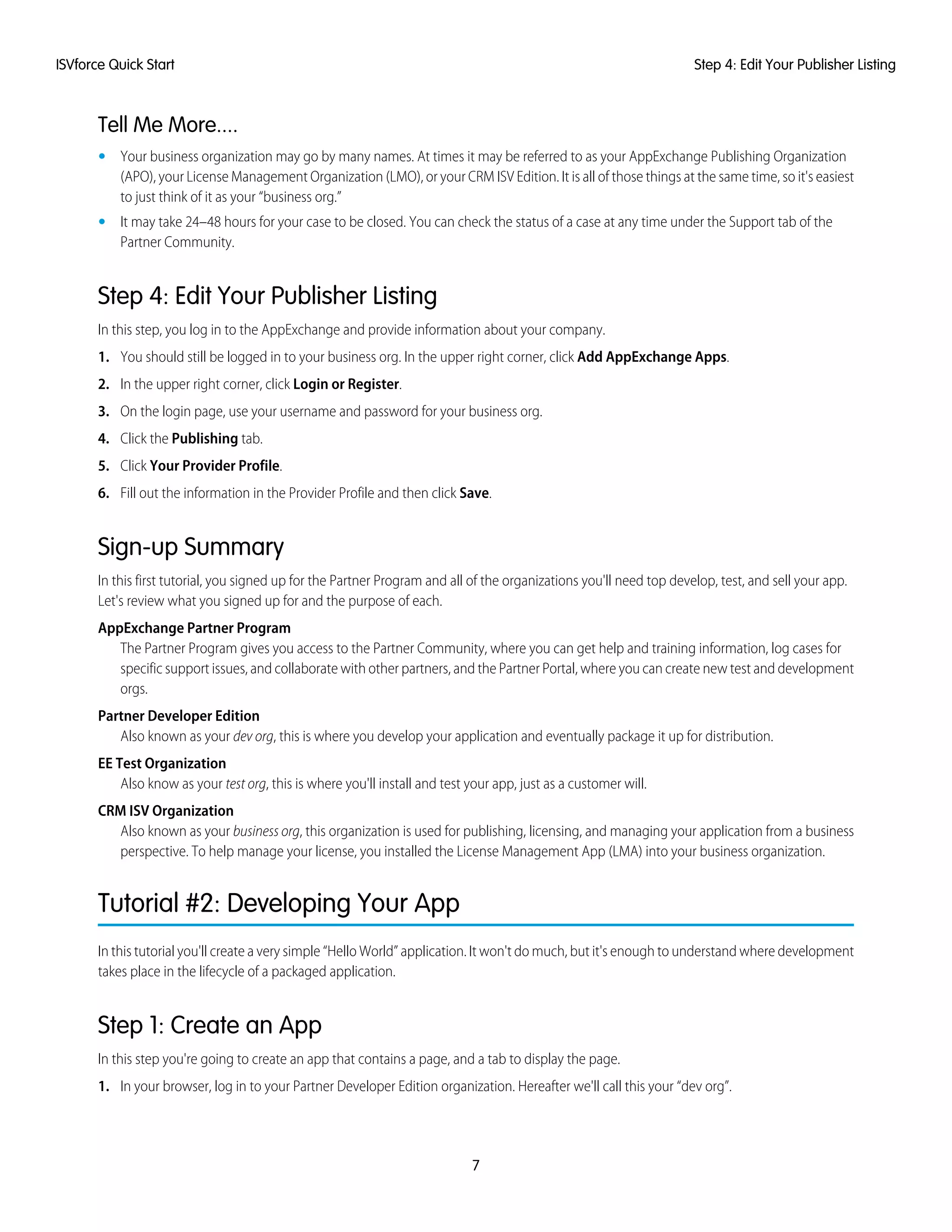
5. In the Visualforce Markup area, replace the contents of the <h1> tag with Hello World.
Visualforce Page Editor
6. Click Save.
Now you'll associate the page with a tab.
1. In the sidebar menu, click Create > Tabs.
2. In the Visualforce Tabs list, click New.
3. In the New Visualforce Tab wizard, click the drop-down box and select the Hello World page you just created.
4. For the Tab Label, enter Hello.
5. Click the Tab Style field and choose any icon to represent your tab.
6. Click Next, then Next again, and Save on the final page.
Now you'll create a new app that contains your tab and page.
1. In the sidebar menu, click Create > Apps.
2. Click New.
3. In the App Label field enter Hello World and then click Next and Next again on the following page.
4. On the Choose the Tabs page, scroll to the bottom of the Available Tabs list, find your Hello tab, and add it to the Selected Tabs list.
Click Next.
5. Select the Visible checkbox to make this app visible to all profiles and then click Save.
Tell Me More....
If it seems like you just created a page within a container, within another container, you did. And you're about to put all of that in another
container! What's with all these containers and what do they do?
• A tab is a container for things you want to display on the same page, such as a chart, a table, or the Visualforce page your created.
8
Step 1: Create an AppISVforce Quick Start
• An app is a container for tabs that appear next to each other. When you create an app, it's available in the app picker in the upper
right hand corner of the screen.
• A package is a container for things you upload to the AppExchange. Usually a package contains an app your customers can install
in their org, but you can also upload packages that extend existing apps. You haven't created a package yet, you'll do that in the
next step.
Step 2: Package Your App
In this step you'll package the app so you can distribute it on the AppExchange. A package is simply a container for components. In this
case it's your app, tab, and page.
1. In the sidebar menu, click Create > Packages, and then click New.
2. In the Package Name field enter Hello World and then click Save.
3. On the Package Detail page click Add Components.
4. Select your Hello World app and then click Add to Package.
Tell Me More....
When you clicked Add to Package, did you notice that your Hello tab and Greeting page were automatically added to the package?
When you create a package, the framework automatically detects dependent components and adds them to the package.
Step 3: Assign a Namespace
In this step you'll choose a unique identifier called a namespace. A namespace differentiates your components from other components
and allows you to do things such as upgrade the app after it's been installed. Choose your namespace carefully as it can’t be changed
later.
1. In the sidebar menu, click Create > Packages.
2. In the Developer Settings list, click Edit and on the following page click Continue.
3. In the Namespace Prefix field, enter a 1-15 character alphanumeric ID and then click Check Availability. Repeat this step until you
have a unique namespace.
4. In the Package to be managed field choose your Hello World package and then click Review Your Selections.
5. Review the information on the page and then click Save.
Tell Me More....
Within the underlying code, your namespace is prepended to all components that are packaged from your dev org. This allows your
package and its contents to be distinguished from those of other developers, and ensures your exclusive control of all packaged
components.
Step 4: Upload a Beta
Before you upload a production version of your app, it's a common practice to upload a beta version for testing.
1. In the sidebar menu, click Create > Packages.
2. On the Packages page, click your Hello World package and then click Upload.
3. On the Upload Package page, enter a version name and number.
9
Step 2: Package Your AppISVforce Quick Start
4. For the Release Type, make sure to choose Managed — Beta.
5. Scroll to the bottom and click Upload. It may take a moment for the upload to complete.
Congratulations, you've uploaded an app to the AppExchange! Your app isn't available to the public, but you can access it through an
install link. You'll do that in the next step.
Tell Me More....
The purpose of a beta is for testing only. Therefore, a beta can only be installed in a test org, Developer Edition, or sandbox (more on
that later). Next you'll install the beta in the test org you created in Step 2: Generate Development and Test Environments.
Step 5: Install and Test the Beta
Installing the beta is easy, just click the link and provide the username and password you use for your test org.
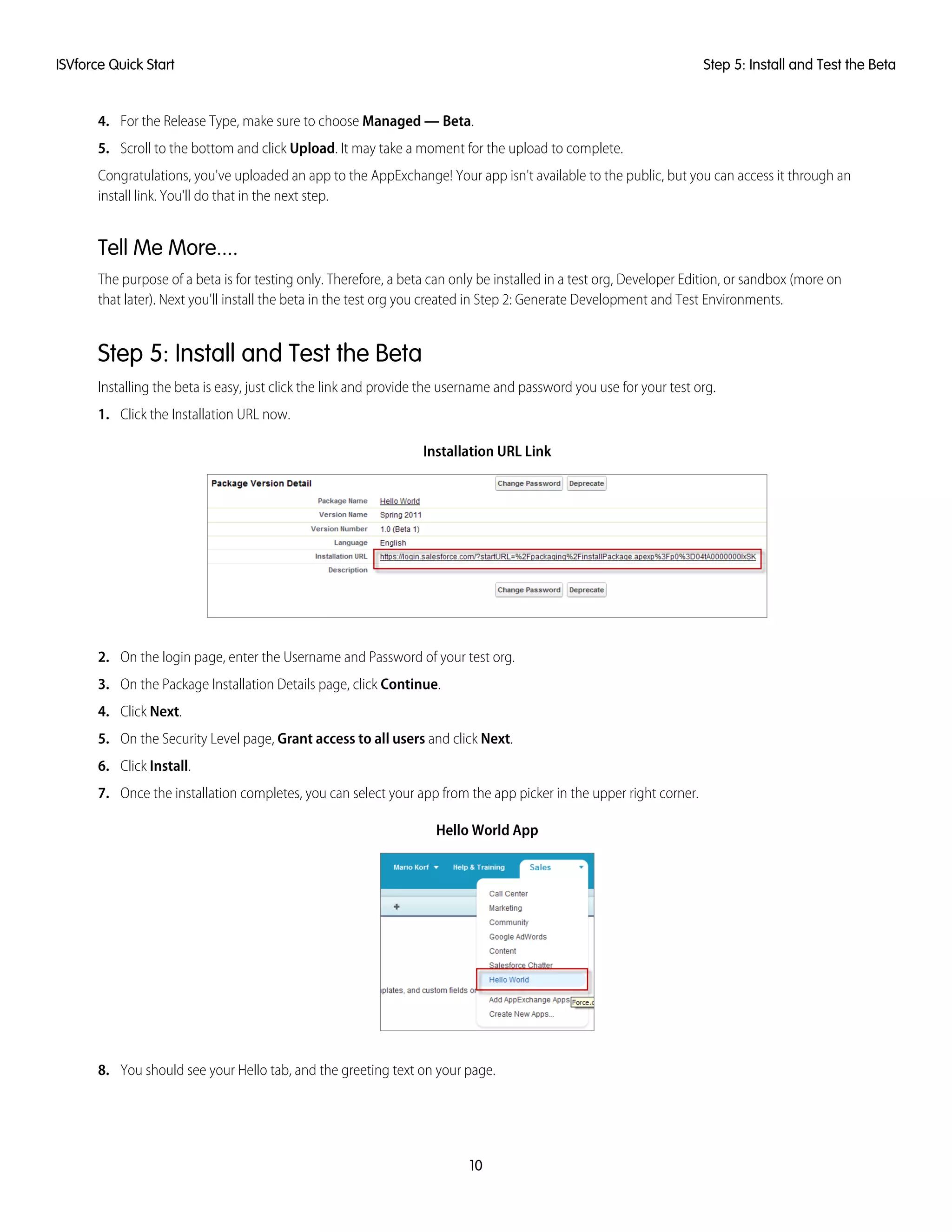
1. Click the Installation URL now.
Installation URL Link
2. On the login page, enter the Username and Password of your test org.
3. On the Package Installation Details page, click Continue.
4. Click Next.
5. On the Security Level page, Grant access to all users and click Next.
6. Click Install.
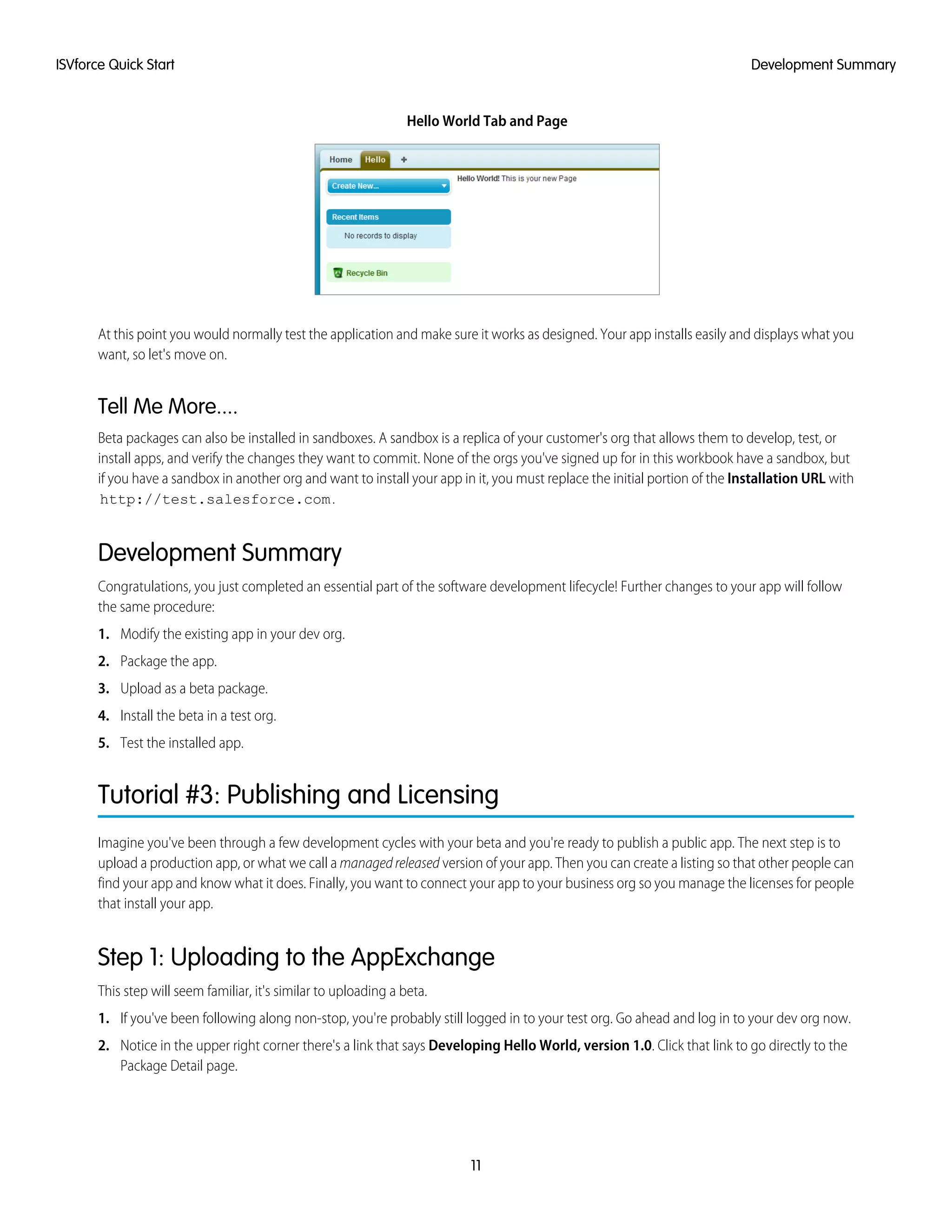
7. Once the installation completes, you can select your app from the app picker in the upper right corner.
Hello World App
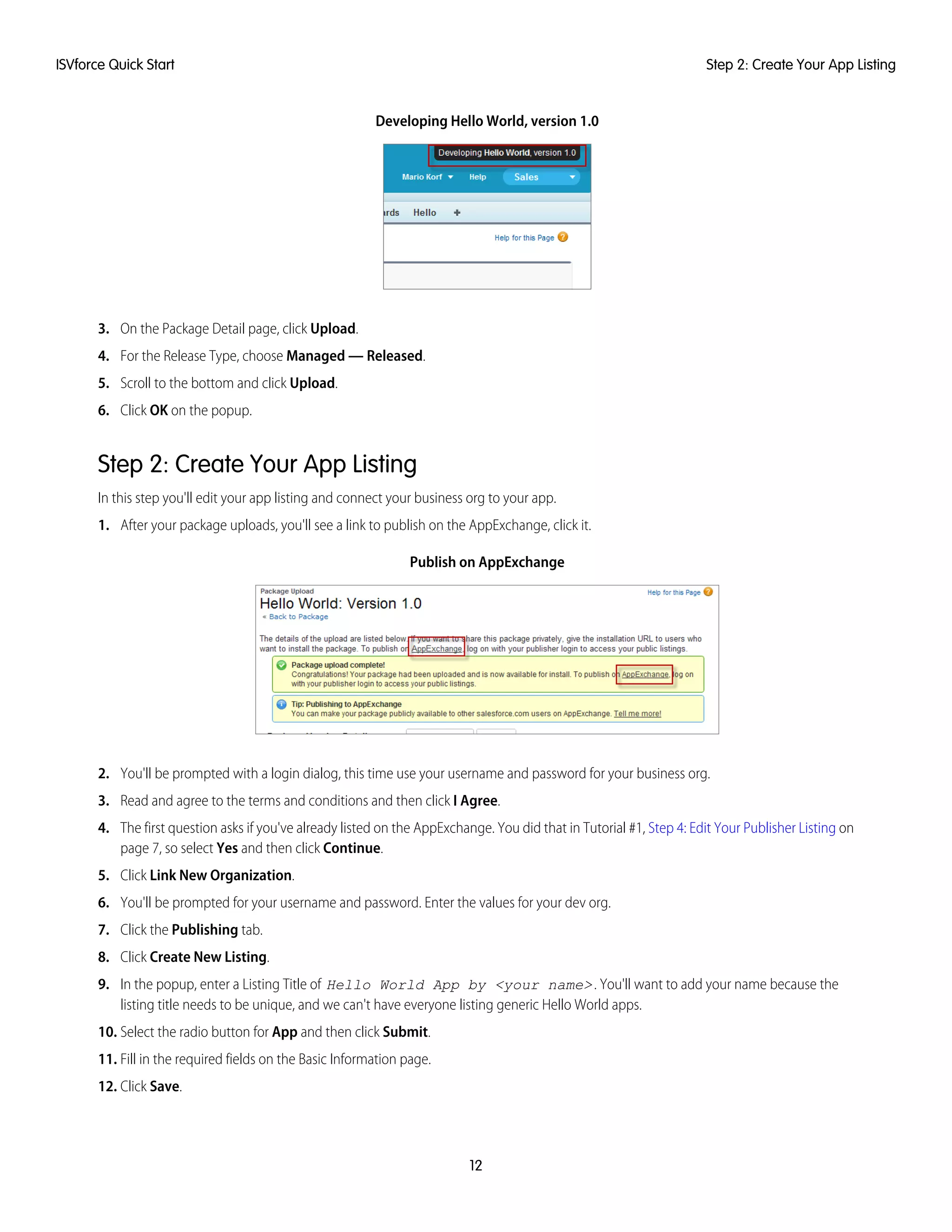
8. You should see your Hello tab, and the greeting text on your page.
10
Step 5: Install and Test the BetaISVforce Quick Start
Hello World Tab and Page
At this point you would normally test the application and make sure it works as designed. Your app installs easily and displays what you
want, so let's move on.
Tell Me More....
Beta packages can also be installed in sandboxes. A sandbox is a replica of your customer's org that allows them to develop, test, or
install apps, and verify the changes they want to commit. None of the orgs you've signed up for in this workbook have a sandbox, but
if you have a sandbox in another org and want to install your app in it, you must replace the initial portion of the Installation URL with
http://test.salesforce.com.
Development Summary
Congratulations, you just completed an essential part of the software development lifecycle! Further changes to your app will follow
the same procedure:
1. Modify the existing app in your dev org.
2. Package the app.
3. Upload as a beta package.
4. Install the beta in a test org.
5. Test the installed app.
Tutorial #3: Publishing and Licensing
Imagine you've been through a few development cycles with your beta and you're ready to publish a public app. The next step is to
upload a production app, or what we call a managedreleased version of your app. Then you can create a listing so that other people can
find your app and know what it does. Finally, you want to connect your app to your business org so you manage the licenses for people
that install your app.
Step 1: Uploading to the AppExchange
This step will seem familiar, it's similar to uploading a beta.
1. If you've been following along non-stop, you're probably still logged in to your test org. Go ahead and log in to your dev org now.
2. Notice in the upper right corner there's a link that says Developing Hello World, version 1.0. Click that link to go directly to the
Package Detail page.
11
Development SummaryISVforce Quick Start
Developing Hello World, version 1.0
3. On the Package Detail page, click Upload.
4. For the Release Type, choose Managed — Released.
5. Scroll to the bottom and click Upload.
6. Click OK on the popup.
Step 2: Create Your App Listing
In this step you'll edit your app listing and connect your business org to your app.
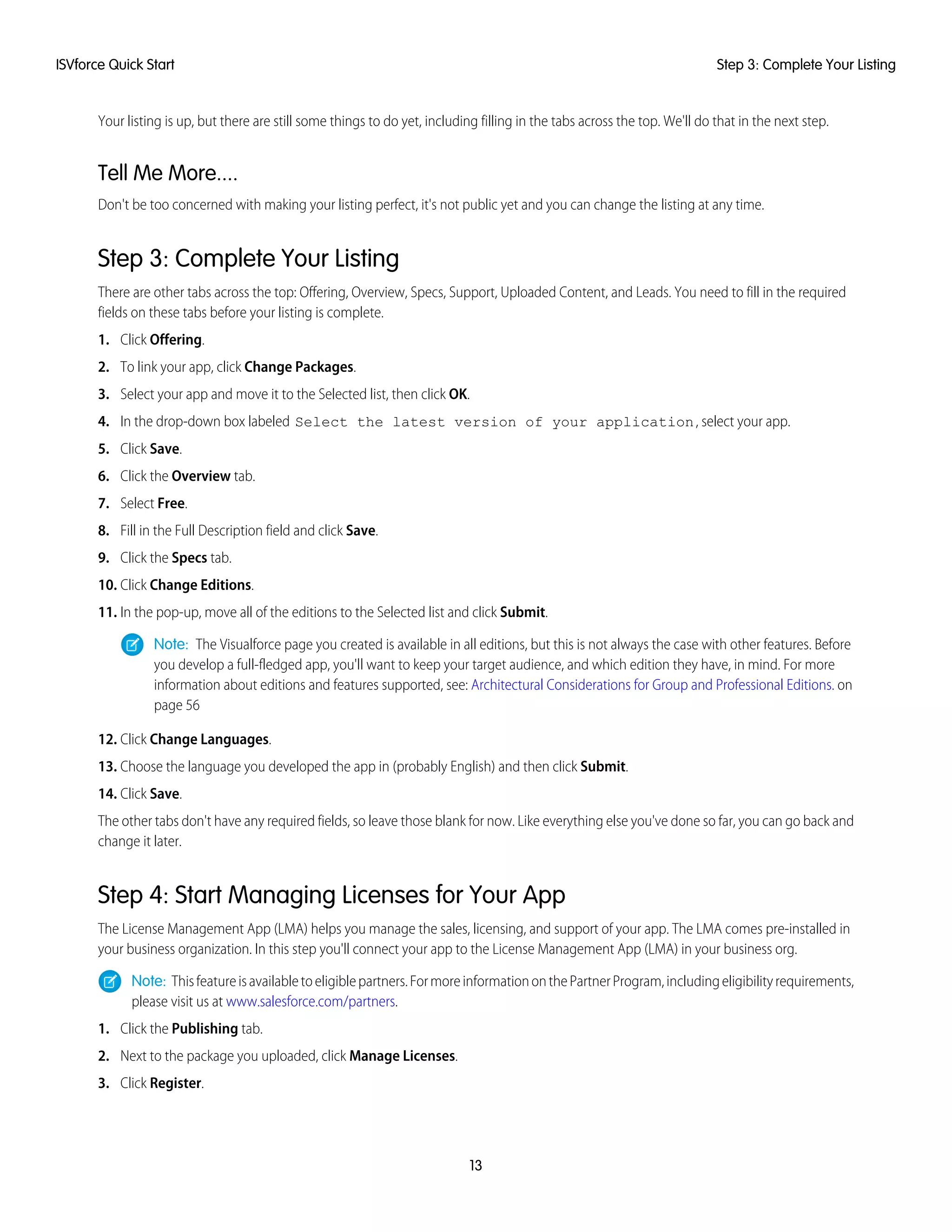
1. After your package uploads, you'll see a link to publish on the AppExchange, click it.
Publish on AppExchange
2. You'll be prompted with a login dialog, this time use your username and password for your business org.
3. Read and agree to the terms and conditions and then click I Agree.
4. The first question asks if you've already listed on the AppExchange. You did that in Tutorial #1, Step 4: Edit Your Publisher Listing on
page 7, so select Yes and then click Continue.
5. Click Link New Organization.
6. You'll be prompted for your username and password. Enter the values for your dev org.
7. Click the Publishing tab.
8. Click Create New Listing.
9. In the popup, enter a Listing Title of Hello World App by <your name>. You'll want to add your name because the
listing title needs to be unique, and we can't have everyone listing generic Hello World apps.
10. Select the radio button for App and then click Submit.
11. Fill in the required fields on the Basic Information page.
12. Click Save.
12
Step 2: Create Your App ListingISVforce Quick Start
Your listing is up, but there are still some things to do yet, including filling in the tabs across the top. We'll do that in the next step.
Tell Me More....
Don't be too concerned with making your listing perfect, it's not public yet and you can change the listing at any time.
Step 3: Complete Your Listing
There are other tabs across the top: Offering, Overview, Specs, Support, Uploaded Content, and Leads. You need to fill in the required
fields on these tabs before your listing is complete.
1. Click Offering.
2. To link your app, click Change Packages.
3. Select your app and move it to the Selected list, then click OK.
4. In the drop-down box labeled Select the latest version of your application, select your app.
5. Click Save.
6. Click the Overview tab.
7. Select Free.
8. Fill in the Full Description field and click Save.
9. Click the Specs tab.
10. Click Change Editions.
11. In the pop-up, move all of the editions to the Selected list and click Submit.
Note: The Visualforce page you created is available in all editions, but this is not always the case with other features. Before
you develop a full-fledged app, you'll want to keep your target audience, and which edition they have, in mind. For more
information about editions and features supported, see: Architectural Considerations for Group and Professional Editions. on
page 56
12. Click Change Languages.
13. Choose the language you developed the app in (probably English) and then click Submit.
14. Click Save.
The other tabs don't have any required fields, so leave those blank for now. Like everything else you've done so far, you can go back and
change it later.
Step 4: Start Managing Licenses for Your App
The License Management App (LMA) helps you manage the sales, licensing, and support of your app. The LMA comes pre-installed in
your business organization. In this step you'll connect your app to the License Management App (LMA) in your business org.
Note: Thisfeatureisavailabletoeligiblepartners.FormoreinformationonthePartnerProgram,includingeligibilityrequirements,
please visit us at www.salesforce.com/partners.
1. Click the Publishing tab.
2. Next to the package you uploaded, click Manage Licenses.
3. Click Register.
13
Step 3: Complete Your ListingISVforce Quick Start
4. Click Assign (One-Time Only).
5. Enter the login credentials of your business org and click Submit.
6. Click Save.
It may take up to 30 minutes before your app is connected to the LMA. Take a break, you've earned it!
Publishing and Licensing Summary
In this tutorial, you uploaded your managed-released app to the AppExchange and created a listing for your app. You also linked your
app to the License Management App, available in your business organization. You can use the LMA to manage and renew licenses and
to set default license settings. For example, you can license your app as a free trial that expires after a specified number of days. For more
information, see Managing Licenses on page 172.
Right now your app has a private listing on the AppExchange that you can share with potential customers, but the public doesn't see
it unless they have the link. Before you can list the app publicly, you'll need to pass a security review, which is beyond the scope of this
quick start. For more information, see Steps in the Security Review on page 111.
Tutorial #4: Updating Your App
If you're familiar with Salesforce, you know we do weekly patch releases to fix bugs, and a few times a year we have a major release to
introduce new features. As an ISV, you can do the same thing by delivering a patch release to fix bugs and a major release for new
features.
• For new features, the process is the same as you've experienced. You start by modifying your app, package it, upload a beta, test
the beta, and then upload a managed-released version. Major releases increment the version to the next whole number, from 1.0
to 2.0, for example, and minor releases to the first dot from 1.0 to 1.1. There are no hard rules for what constitutes a major or minor
release. That's up to you.
• For bug fixes, the process is slightly different. You start by creating a patch org, a special environment which has limited functionality
and can only be used to develop a patch for a specific package. After you upload the patch, you have the option of pushing the
patch to your customers, so they get your bug fixes the next time they log in. Minor releases increment the version number to the
second decimal, from 1.0 to 1.0.1, for example.
• Major or minor releases must be installed by customers (pulled). However, you can push patch releases directly to customer orgs.
This feature is only available to registered ISVforce/OEM partners. For more information on the Partner Program, including eligibility
requirements, please visit us at www.salesforce.com/partners.
Since the process for developing a major release is already familiar, let's do a patch release and then deliver it by pushing the patch to
our customers.
Step 1: Creating a Patch Organization
In order to create a patch, you need to generate a new patch development organization.
To create a patch version:
1. From Setup, click Create > Packages.
2. Click the name of your managed package.
3. Click the Patch Organization tab and then click New.
4. Select the package version that you want to create a patch for in the Patching Major Release drop-down list. The release type must
be Managed - Released.
14
Publishing and Licensing SummaryISVforce Quick Start
5. Enter a Username for a login to your patch organization.
6. Enter an Email Address associated with your login.
7. Click Save.
Note: If you ever lose your login information, click Reset on the package detail page under Patch Development Organizations
to reset the login to your patch development organization.
In a moment you'll receive an email with your login credentials. After you've logged in and changed your password, proceed to the next
step.
Tell Me More....
Development in a patch development organization is restricted. The following is a list of caveats:
• New package components can’t be added.
• Existing package components can’t be deleted.
• API and dynamic Apex access controls can’t change for the package.
• No deprecation of any Apex code.
• No new Apex class relationships, such as extends, can be added.
• No new Apex access modifiers, such as virtual or global, can be added.
• No new Web services can be added.
• No new feature dependencies can be added.
Step 2: Developing a Patch
We're going to make a simple change to your app. Instead of displaying just Hello World, you'll add today's date.
1. In your patch org, from Setup, click Create > Packages and click your Hello World package.
2. In the list of Package Components, click your Greeting page.
3. Click Edit.
4. Right after the closing </h1> tag, enter the following:
<br/>
<apex:outputText value="The date and time is: {!NOW()}"/>
5. Click Save.
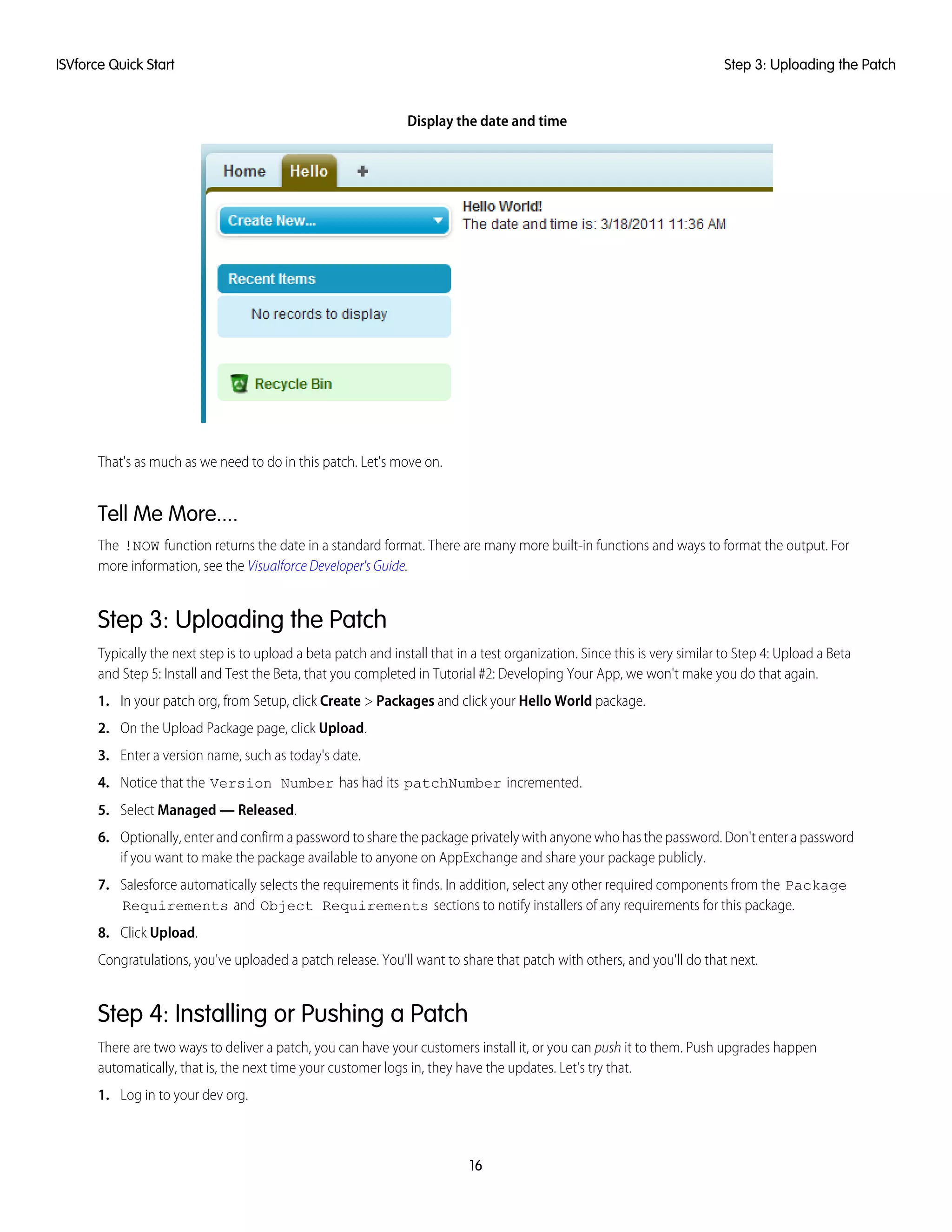
6. To see the output, click the Hello tab and you'll notice that today's time and date are displayed.
15
Step 2: Developing a PatchISVforce Quick Start
Display the date and time
That's as much as we need to do in this patch. Let's move on.
Tell Me More....
The !NOW function returns the date in a standard format. There are many more built-in functions and ways to format the output. For
more information, see the Visualforce Developer's Guide.
Step 3: Uploading the Patch
Typically the next step is to upload a beta patch and install that in a test organization. Since this is very similar to Step 4: Upload a Beta
and Step 5: Install and Test the Beta, that you completed in Tutorial #2: Developing Your App, we won't make you do that again.
1. In your patch org, from Setup, click Create > Packages and click your Hello World package.
2. On the Upload Package page, click Upload.
3. Enter a version name, such as today's date.
4. Notice that the Version Number has had its patchNumber incremented.
5. Select Managed — Released.
6. Optionally, enter and confirm a password to share the package privately with anyone who has the password. Don't enter a password
if you want to make the package available to anyone on AppExchange and share your package publicly.
7. Salesforce automatically selects the requirements it finds. In addition, select any other required components from the Package
Requirements and Object Requirements sections to notify installers of any requirements for this package.
8. Click Upload.
Congratulations, you've uploaded a patch release. You'll want to share that patch with others, and you'll do that next.
Step 4: Installing or Pushing a Patch
There are two ways to deliver a patch, you can have your customers install it, or you can push it to them. Push upgrades happen
automatically, that is, the next time your customer logs in, they have the updates. Let's try that.
1. Log in to your dev org.
16
Step 3: Uploading the PatchISVforce Quick Start
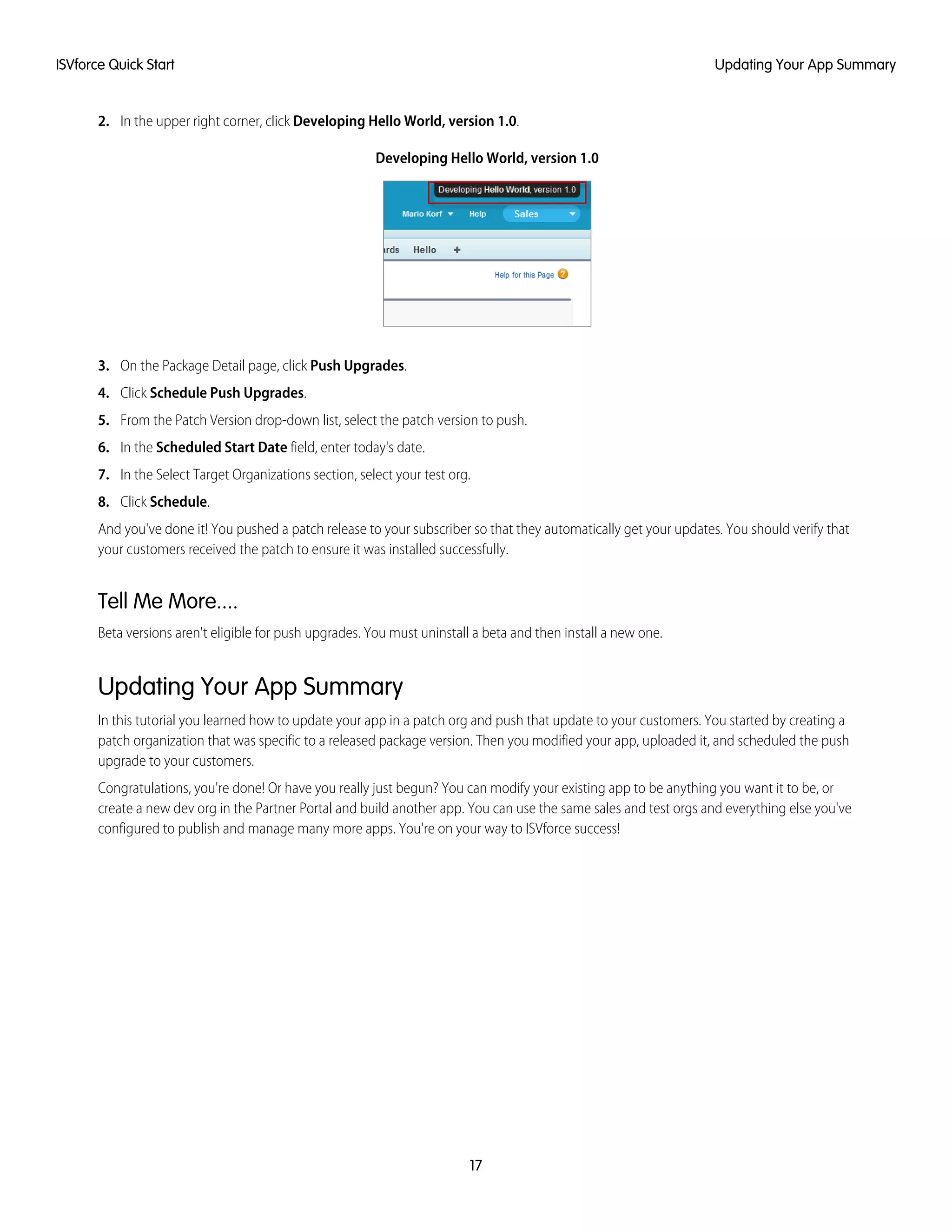
2. In the upper right corner, click Developing Hello World, version 1.0.
Developing Hello World, version 1.0
3. On the Package Detail page, click Push Upgrades.
4. Click Schedule Push Upgrades.
5. From the Patch Version drop-down list, select the patch version to push.
6. In the Scheduled Start Date field, enter today's date.
7. In the Select Target Organizations section, select your test org.
8. Click Schedule.
And you've done it! You pushed a patch release to your subscriber so that they automatically get your updates. You should verify that
your customers received the patch to ensure it was installed successfully.
Tell Me More....
Beta versions aren't eligible for push upgrades. You must uninstall a beta and then install a new one.
Updating Your App Summary
In this tutorial you learned how to update your app in a patch org and push that update to your customers. You started by creating a
patch organization that was specific to a released package version. Then you modified your app, uploaded it, and scheduled the push
upgrade to your customers.
Congratulations, you're done! Or have you really just begun? You can modify your existing app to be anything you want it to be, or
create a new dev org in the Partner Portal and build another app. You can use the same sales and test orgs and everything else you've
configured to publish and manage many more apps. You're on your way to ISVforce success!
17
Updating Your App SummaryISVforce Quick Start
CHAPTER 3 Designing and Building Your App
This section contains important concepts and architectural decisions to consider before you start
development, such as:
In this chapter ...
• Overview of
Packages • Understanding Managed and Unmanaged Packages
• Components Available for Packaging• Components
Available in
Managed Packages
• Special Behavior of Components in Packages
• Limits for Group and Professional Editions
• About API and
Dynamic Apex
Access in Packages
• Understanding Dependencies
• Working With External Services
• Protecting Your Intellectual Property• Architectural
Considerations for • Working with Connected Apps
Group and
Professional Editions
• Connected Apps
Overview
• Environment Hub
18
Overview of Packages
A package is a container for something as small as an individual component or as large as a set of related apps. After creating a package,
you can distribute it to other Salesforce users and organizations, including those outside your company.
Packages come in two forms—unmanaged and managed:
Unmanaged packages
Unmanaged packages are typically used to distribute open-source projects or application templates to provide developers with the
basic building blocks for an application. Once the components are installed from an unmanaged package, the components can be
edited in the organization they are installed in. The developer who created and uploaded the unmanaged package has no control
overtheinstalledcomponents,andcan'tchangeorupgradethem.Unmanagedpackagesshouldnotbeusedtomigratecomponents
from a sandbox to production organization. Instead, use Change Sets.
Managed packages
Managed packages are typically used by salesforce.com partners to distribute and sell applications to customers. These packages
must be created from a Developer Edition organization. Using the AppExchange and the License Management Application (LMA),
developers can sell and manage user-based licenses to the app. Managed packages are also fully upgradeable. To ensure seamless
upgrades, certain destructive changes, like removing objects or fields, can not be performed.
Managed packages also offer the following benefits:
• Intellectual property protection for Apex
• Built-in versioning support for API accessible components
• The ability to branch and patch a previous version
• The ability to seamlessly push patch updates to subscribers
• Unique naming of all components to ensure conflict-free installs
PackagesconsistofoneormoreSalesforcecomponents,which,inturn,consistofoneormoreattributes.Componentsandtheirattributes
behave differently in managed and unmanaged packages.
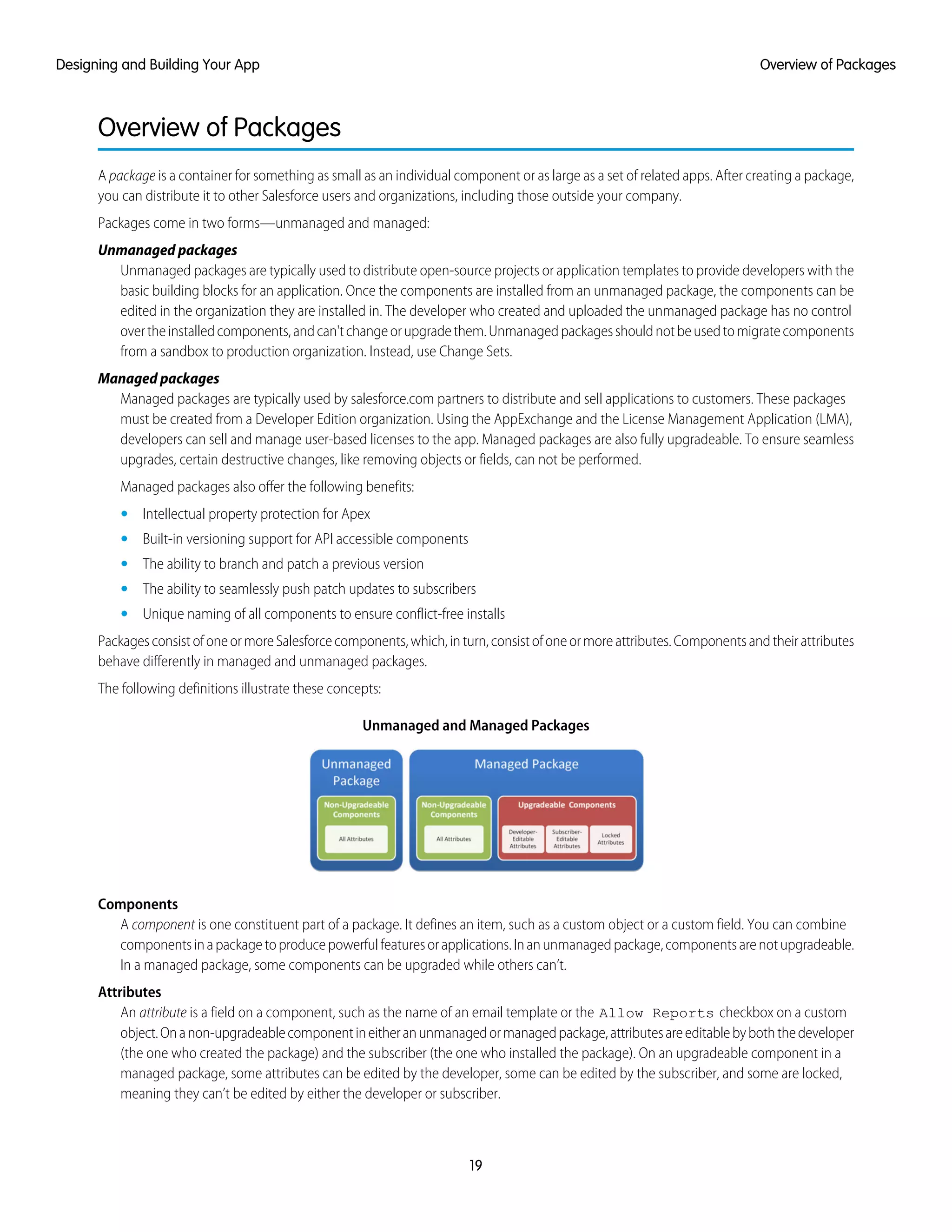
The following definitions illustrate these concepts:
Unmanaged and Managed Packages
Components
A component is one constituent part of a package. It defines an item, such as a custom object or a custom field. You can combine
componentsinapackagetoproducepowerfulfeaturesorapplications.Inanunmanagedpackage,componentsarenotupgradeable.
In a managed package, some components can be upgraded while others can’t.
Attributes
An attribute is a field on a component, such as the name of an email template or the Allow Reports checkbox on a custom
object.Onanon-upgradeablecomponentineitheranunmanagedormanagedpackage,attributesareeditablebyboththedeveloper
(the one who created the package) and the subscriber (the one who installed the package). On an upgradeable component in a
managed package, some attributes can be edited by the developer, some can be edited by the subscriber, and some are locked,
meaning they can’t be edited by either the developer or subscriber.
19
Overview of PackagesDesigning and Building Your App
Planning the Release of Managed Packages
Releasing an AppExchange package is similar to releasing any other program in software development. You may want to roll it out in
iterations to ensure each component functions as planned. You may even have beta testers who have offered to install an early version
of your package and provide feedback.
Once you release a package by publishing it on AppExchange, anyone can install it. So, plan your release carefully. Review the states
defined below to familiarize yourself with the release process. Salesforce automatically applies the appropriate state to your package
and components depending on the upload settings you choose and where it is in the release process.
DescriptionState
The package has not been converted into a managed package or the component has
not been added to a managed package. Note that a component that is “Managed - Beta”
Unmanaged
can become “Unmanaged” if it is removed from a managed package. All packages are
unmanaged unless otherwise indicated by one of the managed icons below.
The package or component was created in the current Salesforce organization and is
managed, but it is not released because of one of these reasons:
Managed - Beta
• It has not been uploaded.
• Ithasbeenuploadedwith Managed - Beta optionselected.Thisoptionprevents
it from being published, publicly available on AppExchange. The developer can still
edit any component but the installer may not be able to depending on which
components were packaged.
Note: Don’tinstallaManaged-BetapackageoveraManaged-Releasedpackage.
Ifyoudo,thepackageisnolongerupgradeableandyouronlyoptionistouninstall
and reinstall it.
The package or component was created in the current Salesforce organization and is
managed. It is also uploaded with the Managed - Released option selected,
Managed - Released
indicating that it can be published on AppExchange and is publicly available. Note that
once you have moved a package to this state, some properties of the components are
no longer editable for both the developer and installer.
This type of release is considered a major release on page 227.
If you need to provide a minor upgrade to a managed package, consider creating a patch
instead of a new major release. A patch enables a developer to change the functionality
Patch
ofexistingcomponentsinamanagedpackage,whileensuringthatsubscribersexperience
no visible changes to the package.
This type of release is considered a patch release on page 227.
The package or component was installed from another Salesforce organization but is
managed.
Managed - Installed
A developer can refine the functionality in a managed package over time, uploading and releasing new versions as the requirements
evolve. This might involve redesigning some of the components in the managed package. Developers can delete some, but not all,
types of components in a Managed - Released package when upgrading it. For details, see Deleting Components in Managed Packages
on page 233.
20
Planning the Release of Managed PackagesDesigning and Building Your App
Creating and Editing a Package
EDITIONS
Available in:
• Group
• Professional
• Enterprise
• Performance
• Unlimited
• Developer
USER PERMISSIONS
To create packages:
• “Create AppExchange
Packages”
An app can contain many different components and you can create, upload, and register your apps
on your own timeline. To group components in a container to upload to Force.com AppExchange,
create a package and add components to the package. A package is the container for the app that
you must use to upload all its components together.
Tip: Beforeyoubegin,determineifyouwanttocreateanduploadamanagedorunmanaged
package.
To create a new package:
1. From Setup, click Create > Packages.
2. Click New.
3. Enter a name for your package. This does not have to be the same name that appears on
AppExchange.
4. Fromthedrop-downmenu,selectthedefaultlanguageofallcomponentlabelsinthepackage.
5. Optionally, choose a custom link from the Configure Custom Link field to display
configuration information to installers of your app. You can select a predefined custom link to
a URL or s-control that you have created for your home page layouts; see the Configure Option
on page 49. The custom link displays as a Configure link within Salesforce on the Force.com AppExchange Downloads page and
app detail page of the installer's organization.
6. Optionally, in the Notify on Apex Error field, enter the username of the person who should receive an email notification
ifanexceptionoccursinApexthatisnotcaughtbytheApexcode.Ifyoudonotspecifyausername,alluncaughtexceptionsgenerate
an email notification that is sent to salesforce.com. This is only available for managed packages. For more information, see “Handling
Apex Exceptions in Managed Packages” in the Salesforce Help.
Note: Apex can only be packaged from Developer, Enterprise, Unlimited, and Performance Edition organizations.
7. Optionally, enter a description that describes the package. You will have a chance to change this description before you upload it
to AppExchange.
8. Optionally, specify a post install script. This is an Apex script that runs in the subscriber organization after the package is installed or
upgraded. For more information, see Running Apex on Package Install/Upgrade.
9. Optionally, specify an uninstall script. This is an Apex script that runs in the subscriber organization after the package is uninstalled.
For more information, see Running Apex on Package Uninstall.
10. Click Save.
Developing and Distributing Unmanaged Packages
Unmanaged packages are traditionally used for distributing open-source projects to developers, or as a one time drop of applications
that require customization after installation. You should never use unmanaged packages for sandbox to production migration. Instead,
use theForce.com IDE or the Force.com Migration Tool. If you’re using Enterprise, Unlimited, or Performance Edition, see “Change Sets”
in the Salesforce Help.
SEE ALSO:
Components Available in Unmanaged Packages
21
Creating and Editing a PackageDesigning and Building Your App
Creating and Uploading an Unmanaged Package
Use the following procedure to upload an unmanaged package.
1. Create the package:
a. From Setup, click Create > Packages.
b. Click New.
c. Fill in the details of the package.
d. Click Save.
2. Add the necessary components for your app.
a. Click Add Components.
b. From the drop-down list, choose the type of component.
c. Select the components you want to add.
Note: Some components cannot be added to Managed - Released packages. For a list of packageable components, see
Components Available in Managed Packages on page 22. Also, S-controls cannot be added to packages with restricted
API access.
d. Click Add To Package.
e. Repeat these steps until you have added all the components you want in your package.
Note: SomerelatedcomponentsareautomaticallyincludedinthepackageeventhoughtheymightnotdisplayinthePackage
Components list. For example, when you add a custom object to a package, its custom fields, page layouts, and relationships
with standard objects are automatically included. For a complete list of components, see Components Automatically Added
to Packages on page 33.
3. Click Upload.
You will receive an email that includes an installation link when your package has been uploaded successfully. Wait a few moments
before clicking the installation link or distributing it to others, as it might take a few minutes for it to become active.
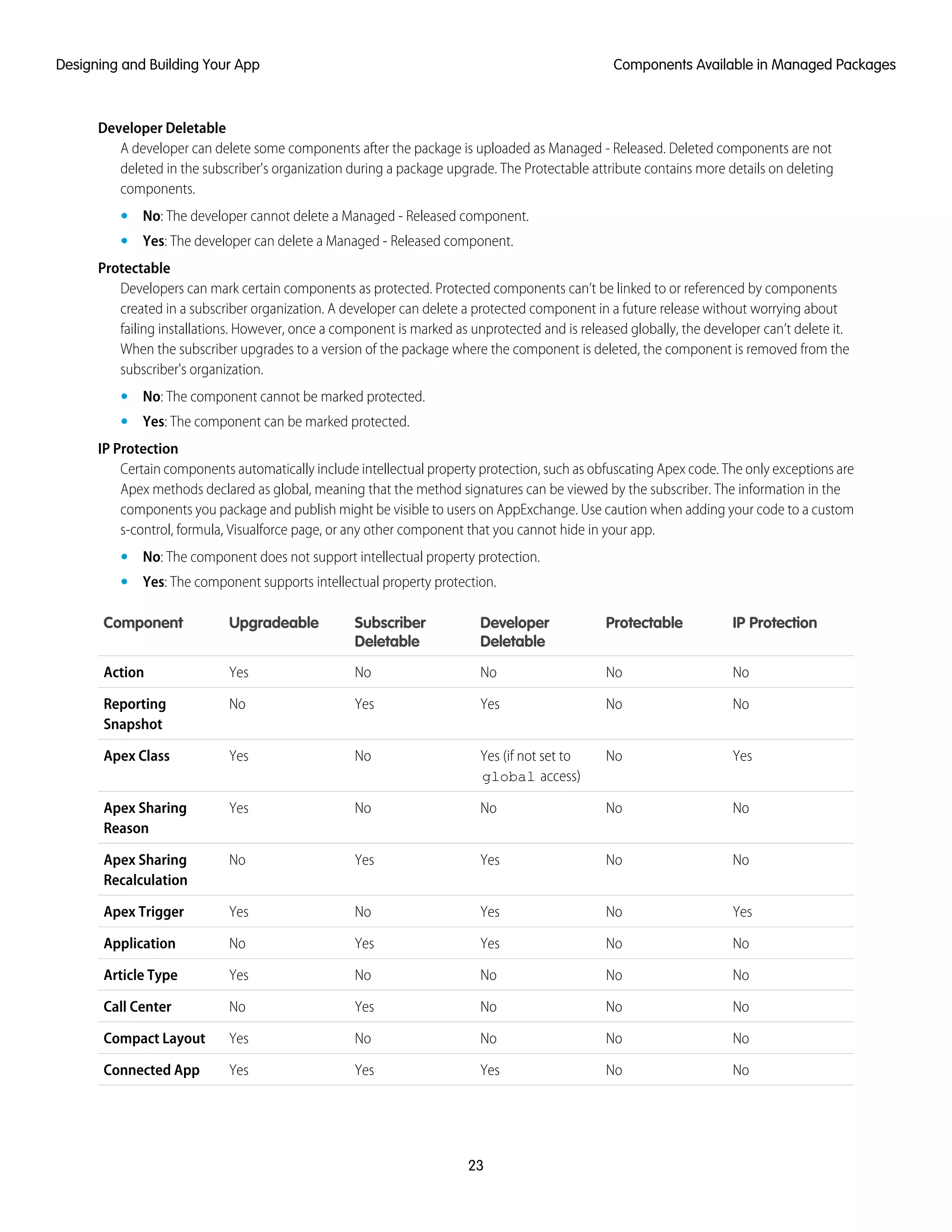
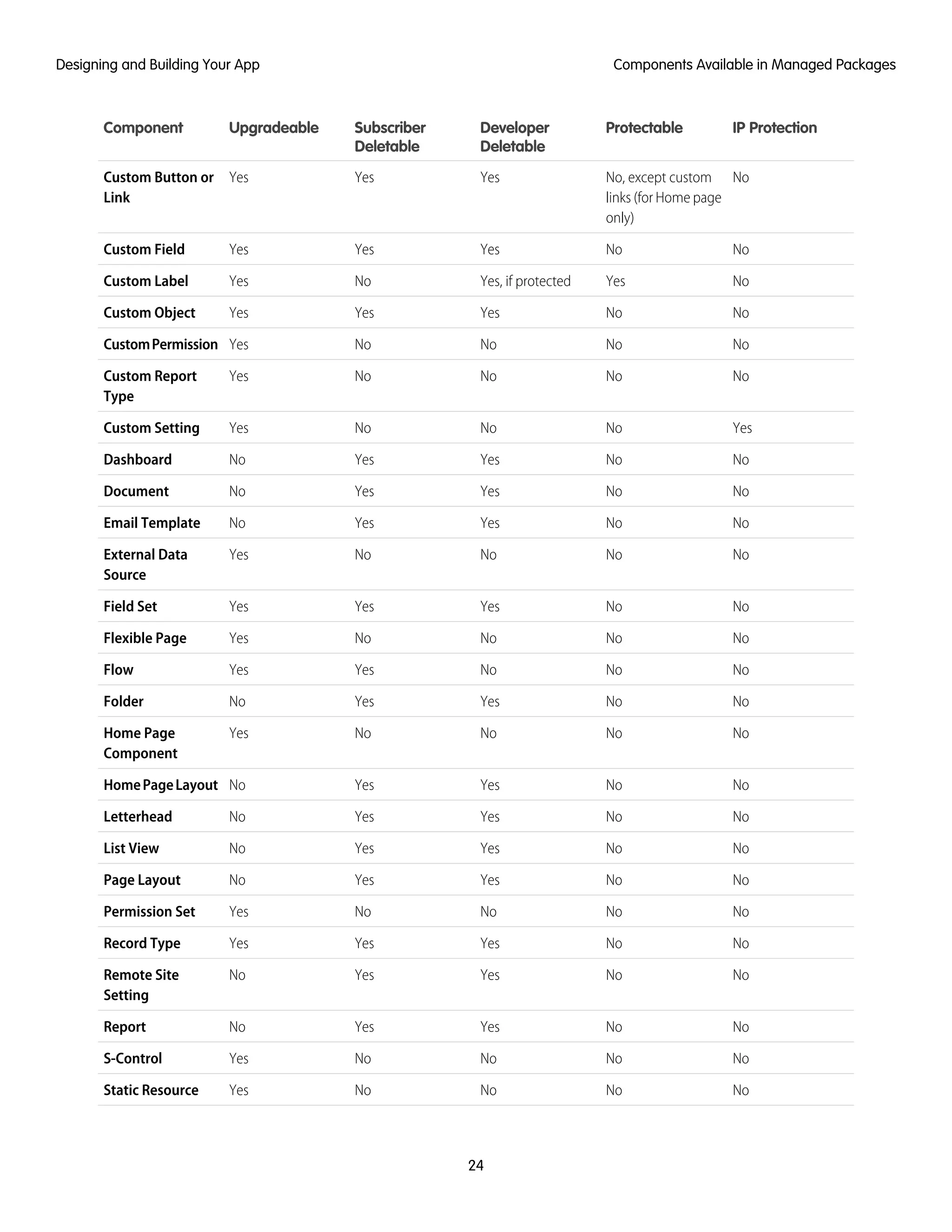
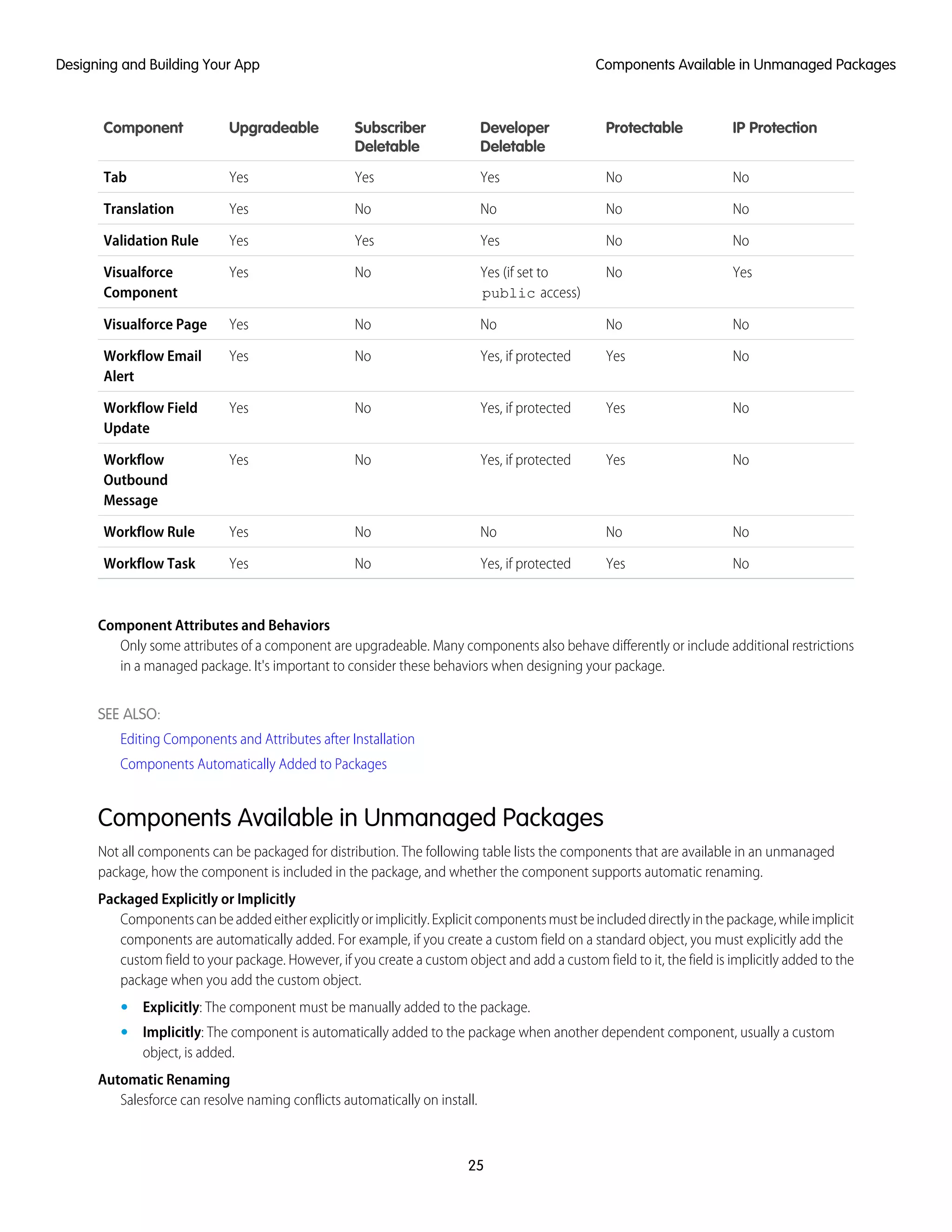
Components Available in Managed Packages
Notallcomponentscanbepackagedfordistribution.Ifyoucreateanappthatusescomponentsthataren'tpackageable,yoursubscribers
will have to create and configure those components after they install your app. If ease of installation is an important concern for your
subscribers, keep the packageable components in mind as you develop.
The following table shows the components that are available in a managed package, and whether or not it is updateable or deleteable.
The following sections describe the table columns and their values.
Upgradeable
Some components are updated to a newer version when a package is upgraded.
• No: The component is not upgraded.
• Yes: The component is upgraded.
Subscriber Deletable
A subscriber or installer of a package can delete the component.
• No: The subscriber cannot delete the component.
• Yes: The subscriber can delete the component.
22
Creating and Uploading an Unmanaged PackageDesigning and Building Your App
Developer Deletable
A developer can delete some components after the package is uploaded as Managed - Released. Deleted components are not
deleted in the subscriber's organization during a package upgrade. The Protectable attribute contains more details on deleting
components.
• No: The developer cannot delete a Managed - Released component.
• Yes: The developer can delete a Managed - Released component.
Protectable
Developers can mark certain components as protected. Protected components can’t be linked to or referenced by components
created in a subscriber organization. A developer can delete a protected component in a future release without worrying about
failing installations. However, once a component is marked as unprotected and is released globally, the developer can’t delete it.
When the subscriber upgrades to a version of the package where the component is deleted, the component is removed from the
subscriber's organization.
• No: The component cannot be marked protected.
• Yes: The component can be marked protected.
IP Protection
Certain components automatically include intellectual property protection, such as obfuscating Apex code. The only exceptions are
Apex methods declared as global, meaning that the method signatures can be viewed by the subscriber. The information in the
components you package and publish might be visible to users on AppExchange. Use caution when adding your code to a custom
s-control, formula, Visualforce page, or any other component that you cannot hide in your app.
• No: The component does not support intellectual property protection.
• Yes: The component supports intellectual property protection.
IP ProtectionProtectableDeveloper
Deletable
Subscriber
Deletable
UpgradeableComponent
NoNoNoNoYesAction
NoNoYesYesNoReporting
Snapshot
YesNoYes (if not set to
global access)
NoYesApex Class
NoNoNoNoYesApex Sharing
Reason
NoNoYesYesNoApex Sharing
Recalculation
YesNoYesNoYesApex Trigger
NoNoYesYesNoApplication
NoNoNoNoYesArticle Type
NoNoNoYesNoCall Center
NoNoNoNoYesCompact Layout
NoNoYesYesYesConnected App
23
Components Available in Managed PackagesDesigning and Building Your App
IP ProtectionProtectableDeveloper
Deletable
Subscriber
Deletable
UpgradeableComponent
NoNo, except custom
links (for Home page
only)
YesYesYesCustom Button or
Link
NoNoYesYesYesCustom Field
NoYesYes, if protectedNoYesCustom Label
NoNoYesYesYesCustom Object
NoNoNoNoYesCustomPermission
NoNoNoNoYesCustom Report
Type
YesNoNoNoYesCustom Setting
NoNoYesYesNoDashboard
NoNoYesYesNoDocument
NoNoYesYesNoEmail Template
NoNoNoNoYesExternal Data
Source
NoNoYesYesYesField Set
NoNoNoNoYesFlexible Page
NoNoNoYesYesFlow
NoNoYesYesNoFolder
NoNoNoNoYesHome Page
Component
NoNoYesYesNoHomePageLayout
NoNoYesYesNoLetterhead
NoNoYesYesNoList View
NoNoYesYesNoPage Layout
NoNoNoNoYesPermission Set
NoNoYesYesYesRecord Type
NoNoYesYesNoRemote Site
Setting
NoNoYesYesNoReport
NoNoNoNoYesS-Control
NoNoNoNoYesStatic Resource
24
Components Available in Managed PackagesDesigning and Building Your App
IP ProtectionProtectableDeveloper
Deletable
Subscriber
Deletable
UpgradeableComponent
NoNoYesYesYesTab
NoNoNoNoYesTranslation
NoNoYesYesYesValidation Rule
YesNoYes (if set to
public access)
NoYesVisualforce
Component
NoNoNoNoYesVisualforce Page
NoYesYes, if protectedNoYesWorkflow Email
Alert
NoYesYes, if protectedNoYesWorkflow Field
Update
NoYesYes, if protectedNoYesWorkflow
Outbound
Message
NoNoNoNoYesWorkflow Rule
NoYesYes, if protectedNoYesWorkflow Task
Component Attributes and Behaviors
Only some attributes of a component are upgradeable. Many components also behave differently or include additional restrictions
in a managed package. It's important to consider these behaviors when designing your package.
SEE ALSO:
Editing Components and Attributes after Installation
Components Automatically Added to Packages
Components Available in Unmanaged Packages
Not all components can be packaged for distribution. The following table lists the components that are available in an unmanaged
package, how the component is included in the package, and whether the component supports automatic renaming.
Packaged Explicitly or Implicitly
Componentscanbeaddedeitherexplicitlyorimplicitly.Explicitcomponentsmustbeincludeddirectlyinthepackage,whileimplicit
components are automatically added. For example, if you create a custom field on a standard object, you must explicitly add the
custom field to your package. However, if you create a custom object and add a custom field to it, the field is implicitly added to the
package when you add the custom object.
• Explicitly: The component must be manually added to the package.
• Implicitly: The component is automatically added to the package when another dependent component, usually a custom
object, is added.
Automatic Renaming
Salesforce can resolve naming conflicts automatically on install.
25
Components Available in Unmanaged PackagesDesigning and Building Your App
• No: If a naming conflict occurs the install is blocked.
• Yes: If a naming conflict occurs Salesforce can optionally change the name of the component being installed.
Automatic RenamingPackaged Explicitly or ImplicitlyComponent
YesExplicitlyReporting Snapshot
NoExplicitlyApex Class
NoImplicitly
On an extension: Explicitly
Apex Sharing Reason
NoImplicitlyApex Sharing Recalculation
NoOn a standard or extension object: Explicitly
On an object in the package: Implicitly
Apex Trigger
NoExplicitlyApplication
NoOn a standard object: Explicitly
On a custom object: Implicitly
Custom Button or Link
NoOn a standard object: Explicitly
On a custom object: Implicitly
Custom Field
NoImplicitlyCustom Label
NoExplicitlyCustom Object
NoImplicitly
Withrequiredcustompermissions:Explicitly
Custom Permission
NoExplicitlyCustom Report Type
NoExplicitlyCustom Setting
YesExplicitly
In a folder: Implicitly
Dashboard
YesExplicitly
In a folder: Implicitly
Document
YesExplicitly
In a folder: Implicitly
Email Template
YesExplicitlyFolder
NoExplicitlyHome Page Component
NoExplicitlyHome Page Layout
YesExplicitlyLetterhead
26
Components Available in Unmanaged PackagesDesigning and Building Your App
Automatic RenamingPackaged Explicitly or ImplicitlyComponent
YesOn a standard object: Explicitly
On a custom object: Implicitly
List View
NoOn a standard object: Explicitly
On a custom object: Implicitly
Page Layout
NoOn a standard object: Explicitly
On a custom object: Implicitly
Record Type
YesExplicitly
In a folder: Implicitly
Report
NoExplicitlyS-Control
NoExplicitlyStatic Resource
NoExplicitlyTab
NoExplicitlyTranslation
NoOn a standard object: Explicitly
On a custom object: Implicitly
Validation Rule
NoExplicitlyVisualforce Component
NoExplicitlyVisualforce Page
NoExplicitlyWorkflow Email Alert
NoExplicitlyWorkflow Field Update
NoExplicitlyWorkflow Outbound Message
NoExplicitlyWorkflow Rule
NoExplicitlyWorkflow Task
SEE ALSO:
Components Automatically Added to Packages
Editing Components and Attributes after Installation
The following table shows which components and attributes are editable after installation from a managed package. The following
sections describe the table columns and their values.
Developer Editable
The developer can edit the component attributes in this column. These attributes are locked in the subscriber’s organization.
27
Editing Components and Attributes after InstallationDesigning and Building Your App
Subscriber and Developer Editable
The subscriber and developer can edit the component attributes in this column. However, they’re not upgradeable; only new
subscribers receive the latest changes.
Locked
Once a package is Managed - Released, the developer and subscriber cannot edit the component attributes in this column.
LockedSubscriber and Developer
Editable
Developer EditableComponent
Action •• Target Record Type All fields except Target
Record Type• Action layout
• Predefined values for action
fields
Reporting Snapshot •• Reporting Snapshot Unique
Name
All attributes except
Reporting Snapshot Unique
Name
Apex Class •• API Version Name
• Code
Apex Sharing Reason •• Reason NameReason Label
Apex Sharing Recalculation • Apex Class
Apex Trigger •• API Version Name
• Code
Application •• App NameAll attributes except App
Name
Article Types •• Available for Customer
Portal
• Description Name
• Label
• Channel Displays• Plural Label
• Default Sharing Model• Starts with a Vowel Sound
• Development Status
• Enable Divisions
• Grant Access Using
Hierarchy
• Search Layouts
Compact Layout • All attributes
Connected App • API Name• ACS URL• Access Method
28
Editing Components and Attributes after InstallationDesigning and Building Your App
LockedSubscriber and Developer
Editable
Developer EditableComponent
• Canvas App URL •• Created Date/ByEntity ID
• IP Relaxation• Callback URL • Consumer Key
• Consumer Secret• Manage Permission Sets• Connected App Name
• Contact Email • Installed By• Manage Profiles
• Mobile Start URL• Contact Phone • Installed Date
• Last Modified Date/By• Permitted Users• Description
• Icon URL •• Refresh Token Policy Version
•• SAML AttributesInfo URL
• Trusted IP Range • Service Provider Certificate
• Start URL• Locations
• Logo Image URL • Subject Type
• OAuth Scopes
Custom Button or Link • Display Type• Height• Behavior
• Button or Link URL •• Resizeable Name
•• Show Address BarContent Source
• Description • Show Menu Bar
• Show Scrollbars• Display Checkboxes
• Label • Show Status Bar
• Show Toolbars• Link Encoding
• Width
• Window Position
Custom Field • Child Relationship Name• Chatter Feed Tracking• Auto-Number Display
Format •• Data TypeHelp Text
• Decimal Places •• External IDMask Type
• Description •• Field NameMask Character
• Default Value •• RequiredSharing Setting
• Field Label •• Roll-Up Summary FieldSort Picklist Values
• Formula •• Roll-Up Summary ObjectTrack Field History
• Length • Roll-Up Summary Type
• Lookup Filter • Unique
• Related List Label
• Roll-Up Summary Filter
Criteria
Custom Label •• Category Name
• Short Description
• Value
29
Editing Components and Attributes after InstallationDesigning and Building Your App
LockedSubscriber and Developer
Editable
Developer EditableComponent
Custom Object • Object Name• Allow Activities• Description
• Label • Record Name Data Type• Allow Reports
• Available for Customer
Portal
• Plural Label • Record Name Display
Format• Record Name
• Context-Sensitive Help
Setting
• Starts with a Vowel Sound
• Default Sharing Model
• Development Status
• Enable Divisions
• Enhanced Lookup
• Grant Access Using
Hierarchy
• Search Layouts
• Track Field History
Custom Permission • Connected App
• Description
• Label
• Name
Custom Report Type ••• Report Type NameDevelopment StatusAll attributes except
Development Status and
Report Type Name
Custom Setting • Object Name• Description
• • Setting TypeLabel
• Visibility
Dashboard •• Dashboard Unique NameAll attributes except
Dashboard Unique Name
Document •• Document Unique NameAll attributes except
Document Unique Name
Email Template •• Email Template NameAll attributes except Email
Template Name
External Data Source •• Password• Type Name
•• UsernameCertificate
• Custom Configuration
30
Editing Components and Attributes after InstallationDesigning and Building Your App
LockedSubscriber and Developer
Editable
Developer EditableComponent
• Endpoint
• Protocol
Field Set ••• Description NameSelected fields (only
subscriber controlled)• Label
• Available fields
Flexible Page • Flexible Page
Flow • Flow Unique Name• Name• Entire flow
•• URLDescription
• Status
Folder •• Folder Unique NameAll attributes except Folder
Unique Name
Home Page Component • Name• Body
• •Component Position Type
Home Page Layout •• Layout NameAll attributes except Layout
Name
Letterhead •• Letterhead NameAll attributes except
Letterhead Name
List View •• View Unique NameAll attributes except View
Unique Name
Page Layout •• Page Layout NameAll attributes except Page
Layout Name
Permission Set •• Description Name
• Label
• Custom object permissions
• Custom field permissions
• Apex class access settings
• Visualforce page access
settings
Record Type •• Active• Description Name
•• Business ProcessRecord Type Label
31
Editing Components and Attributes after InstallationDesigning and Building Your App
LockedSubscriber and Developer
Editable
Developer EditableComponent
AllattributesexceptRemoteSite
Name
Remote Site Setting • Remote Site Name
Report •• Report Unique NameAll attributes except Report
Unique Name
S-Control • S-Control Name•• Content Prebuild in Page
• •Description Type
• Encoding
• Filename
• Label
Static Resource •• Description Name
• File
Tab •• Salesforce Classic Ready• Description Tab Name
•• Tab StyleEncoding
• Has Sidebar
• Height
• Label
• S-control
• Splash Page Custom Link
• Type
• URL
• Width
Translation • All attributes
Validation Rule ••• Description Rule NameActive
• Error Condition Formula
• Error Location
• Error Message
Visualforce Component •• API Version Name
• Description
• Label
• Markup
Visualforce Page •• API Version Name
• Description
32
Editing Components and Attributes after InstallationDesigning and Building Your App
LockedSubscriber and Developer
Editable
Developer EditableComponent
• Label
• Markup
Workflow Email Alert •• Additional Emails Description
• Email Template
• From Email Address
• Recipients
Workflow Field Update ••• Description NameLookup
• Field Value
• Formula Value
WorkflowOutboundMessage ••• Description NameUser to Send As
• Endpoint URL
• Fields to Send
• Send Session ID
Workflow Rule ••• Description Rule NameActive
• Evaluation Criteria
• Rule Criteria
Workflow Task •• Assign To Subject
• Comments
• Due Date
• Priority
• Record Type
• Status
Components Automatically Added to Packages
When adding components to your package, some related components are automatically added, if required. For example, if you add a
Visualforce page to a package that references a custom controller, that Apex class is also added.
To understand what components might be automatically included, review the following list:
These types of components might be automatically included:When you add this component:
Actiontargetobject(ifit’sacustomobject),actiontargetfield,actionrecordtype,predefined
field values, action layout; and any custom fields that the action layout or predefined values
refer to on the target object
Action
33
Components Automatically Added to PackagesDesigning and Building Your App
These types of components might be automatically included:When you add this component:
ReportsReporting Snapshot
Customfields,customobjects,andotherexplicitlyreferencedApexclasses,aswellasanything
else that is directly referenced by the Apex class
Apex class
Note: If an Apex class references a custom label, and that label has translations, you
mustexplicitlypackagetheindividuallanguagesdesiredinorderforthosetranslations
to be included.
Custom fields, custom objects, and any explicitly referenced Apex classes, as well as anything
else that is directly referenced by the Apex trigger
Apex trigger
Custom fields, the default page layoutArticle type
Custom fieldsCompact layout
Custom tabs (including web tabs), documents (stored as images on the tab), documents
folder
Custom app
Custom fields and custom objectsCustom button or link
Custom objectsCustom field
Custom home page components on the layoutCustom home page layouts
Apex sharing reasons, Apex sharing recalculations, Apex triggers, custom buttons or links,
custom fields, list views, page layouts, record types, validation rules
Custom settings
Custom fields, validation rules, page layouts, list views, custom buttons, custom links, record
types, Apex sharing reasons, Apex sharing recalculations, and Apex triggers
Custom object
Note:
• Apex sharing reasons are unavailable in extensions.
• When packaged and installed, only public list views from an app are installed. If a
customobjecthasanycustomlistviewsthatyouwanttoincludeinyourpackage,
ensure that the list view is accessible by all users.
External data source, custom fields, page layouts, list views, custom buttons, and custom linksCustom object (as an external object)
Note:
• When packaged and installed, only public list views from an app are installed. If
an external object has any custom list views that you want to include in your
package, ensure that the list view is accessible by all users.
• Inmanagedandunmanagedpackages,externalobjectsareincludedinthecustom
object component.
Custom objects (including all of its components), s-controls, and Visualforce pagesCustom tab
Folders, reports (including all of its components), s-controls, and Visualforce pagesDashboard
FolderDocument
34
Components Automatically Added to PackagesDesigning and Building Your App
These types of components might be automatically included:When you add this component:
Folder, letterhead, custom fields, and documents (stored as images on the letterhead or
template)
Email template
Any referenced fieldsField set
Any associated quick actionsFlexible Page
Flexible PageFlexible Page tab
Custom objects, custom fields, Apex classes, and Visualforce pagesFlow
Everything in the folderFolder
Custom buttons, custom links, s-controls, and Visualforce pagesPage layout
Any custom permissions, external data sources, Visualforce pages, and Apex classes that are
assigned in the permission set
Permission set
Record type mappings, compact layoutRecord type
Folder, custom fields, custom objects, custom report types, and custom s-controlsReport
Custom fields and custom objectsS-control
Translated terms for the selected language on any component in the packageTranslation
Custom fields (referenced in the formula)Validation rule
Associated Visualforce pageVisualforce home page component
Apex classes that are used as custom controllers, Visualforce custom components, and
referenced field sets
Visualforce pages
All associated workflow alerts, field updates, outbound messages, and tasks; also, if the
workflow rule is designed for a custom object, the custom object is automatically included
Workflow rule
Note: Some package components, such as validation rules or record types, might not display in the list of package components,
but are included and install with the other components.
Special Behavior of Components in Packages
When building an app for distribution, it is important to consider how packaging affects your app and its components. Use the following
information to help you determine what to include in your packages, how to design your app, and how to distribute your packages
(managed or unmanaged).
Note:
• For more information on the properties of each component in packages, see the packaged components properties table.
• For more information on the attributes of each component in packages, see the component attributes table.
• Component names must be unique within an organization. To ensure that your component names do not conflict with those
in an installer’s organization, use a managed package so that all of your component names contain you namespace prefix.
35
Special Behavior of Components in PackagesDesigning and Building Your App
Reporting Snapshot
Developers of managed packages must consider the implications of introducing reporting snapshots that reference reports released
in a previous version of the package. If the subscriber deleted the report or moved the report to a personal folder, the reporting
snapshot referencing the report will not be installed, even though the Package Installation page may indicate that it will be. Also, if
thesubscriberhasmodifiedthereport,thatreportmayreturnresultsimpactingtheinformationdisplayedbythereportingsnapshot.
As a best practice, the developer should release an reporting snapshot and the related reports in the same version.
Since the running user is selected by the subscriber, some reporting snapshot field mappings could become invalid if the running
user does not have access to source or target fields.
Apex Classes or Triggers
Any Apex that is included as part of a package must have at least 75% cumulative test coverage. Each trigger must also have some
test coverage. When you upload your package to AppExchange, all tests are run to ensure that they run without errors. In addition,
all tests are run when the package is installed in the installer’s organization. The installer can decide whether or not to install the
package if any tests fail.
Tip: To prevent naming conflicts, Salesforce recommends using managed packages for all packages that contain Apex. This
way, all of the Apex objects contain your namespace prefix. For example, if there is an Apex class called MyHelloWorld
and the namespace for your organization is OneTruCode, the class is referenced as OneTruCode.MyHelloWorld.
Keep the following considerations in mind when including Apex in your package:
• Managed packages receive a unique namespace. This namespace is automatically prepended to your class names, methods,
variables, and so on, which helps prevent duplicate names in the installer’s organization.
• In a single transaction, you can only reference 10 unique namespaces. For example, suppose you have an object that executes
a class in a managed package when the object is updated. Then that class updates a second object, which in turn executes a
different class in a different package. Even though the second package wasn’t accessed directly by the first, because it occurs in
the same transaction, it’s included in the number of namespaces being accessed in a single transaction.
• If you are exposing any methods as Web services, include detailed documentation so that subscribers can write external code
that calls your Web service.
• If an Apex class references a custom label, and that label has translations, you must explicitly package the individual languages
desired in order for those translations to be included in the package.
• Ifyoureferenceacustomobject’ssharingobject(suchasMyCustomObject__share)inApex,thisaddsasharingmodeldependency
to your package. You must set the organization-wide sharing default access level for the custom object to Private in order for
other organizations to install your package successfully.
• The code contained in an Apex class or trigger that is part of a managed package is automatically obfuscated and cannot be
viewed in an installing organization. The only exceptions are methods declared as global, meaning that the method signatures
can be viewed in an installing organization.
• You can use the deprecated annotation in Apex to identify global methods, classes, exceptions, enums, interfaces, and
variables that can no longer be referenced in subsequent releases of the managed package in which they reside. This is useful
when you are refactoring code in managed packages as the requirements evolve. After you upload another package version as
Managed - Released, new subscribers that install the latest package version cannot see the deprecated elements, while the
elements continue to function for existing subscribers and API integrations.
• Any Apex contained in an unmanaged package that explicitly references a namespace cannot be uploaded.
• Apex code that refers to Data Categories can’t be uploaded.
Apex Sharing Reasons
Apex sharing reasons can be added directly to a package, but are only available for custom objects.
36
Special Behavior of Components in PackagesDesigning and Building Your App
Compact Layouts
When you package a compact layout, its record type mappings aren’t included. Subscribers or installers of a package containing a
compact layout must recreate its record type mappings in their organization.
Connected Apps
• Connected apps can be added to managed packages, only. Connected apps are not supported for unmanaged packages.
• Subscribers or installers of a package can’t delete a connected app by itself; they can only uninstall its package. A developer can
deleteaconnectedappafterapackageisuploadedasManaged-Released.Theconnectedappwillbedeletedinthesubscriber's
organization during a package upgrade
• If you update a connected app and include it in a new package version, upgrading that package in a customer organization
updates the existing connected app.
• If you push upgrade a package containing a connected app whose OAuth scope or IP ranges have changed from the previous
version, the upgrade will fail. This is a security feature, to block unauthorized users from gaining broad access to a customer
organization by upgrading an installed package. A customer can still perform a pull upgrade of the same package; this is allowed
because it’s with the customer’s knowledge and consent.
• You can add an existing connected app (that is, one created prior to Summer ‘13) to a managed package. You can also combine
new and existing connected apps in the same managed package.
• For connected apps created prior to Summer ‘13, the existing install URL continues to be valid until you package and upload a
new version. Once you upload a new version of the package with an updated connected app, the install URL will no longer work.
Custom Console
A package that has a custom console component can only be installed in an organization with the Service Cloud license or Sales
Console permission enabled.
Custom Fields
• Picklist field values for custom fields can be added, edited, or deleted by subscribers. A developer should carefully consider this
when explicitly referencing a picklist value in code. Picklist values can be added or deleted by the developer. During a package
upgrade, no new picklist values are installed into the subscriber’s organization for existing fields. Any picklist values deleted by
the developer are still available in the subscriber’s organization.
• Developers can add required and universally required custom fields to managed packages as long as they have default values.
• Auto-number type fields and required fields cannot be added after the object is uploaded in a Managed - Released package.
Custom Labels
If a label is translated, the language must be explicitly included in the package in order for the translations to be included in the
package. Subscribers can override the default translation for a custom label.
Custom Objects
• If a developer enables the Allow Reports or Allow Activities attributes on a packaged custom object, the
subscriber’s organization also has these features enabled during an upgrade. Once enabled in a Managed - Released package,
the developer and the subscriber cannot disable these attributes.
• Standard button and link overrides are also packageable.
Custom Permissions
If you deploy a change set with a custom permission that includes a connected app, the connected app must already be installed
in the destination organization.
Custom Report Types
A developer can edit a custom report type in a managed package after it is released, and add new fields. Subscribers automatically
receive these changes when they install a new version of the managed package. However, developers can’t remove objects or fields
from the report type once the package is released.
37
Special Behavior of Components in PackagesDesigning and Building Your App
Custom Settings
• If a custom setting is contained in a managed package, and the Visibility is specified as Protected, the custom setting is
notcontainedinthelistofcomponentsforthepackageonthesubscriber'sorganization.Alldataforthecustomsettingishidden
from the subscriber.
Custom Tabs
• The Tab Style for a custom tab must be unique within your app. However, it does not need to be unique within the
organization where it is installed. A custom tab’s style will not conflict with an existing custom tab in the installer’s environment.
• To provide custom tab names in different languages, from Setup, click Customize > Tab Names and Labels > Rename Tabs
and Labels.
• Subscribers cannot edit custom tabs in a managed package.
Customer Portal and Partner Portal
Packages referring to Customer Portal or partner portal fields are supported. The subscriber installing the package must have the
respective portal enabled to install the package.
Dashboard Components
Developers of managed packages must consider the implications of introducing dashboard components that reference reports
released in a previous version of the package. If the subscriber deleted the report or moved the report to a personal folder, the
dashboard component referencing the report is dropped during install. Also, if the subscriber has modified the report, that report
may return results impacting what information is displayed by the dashboard component. As a best practice, the developer should
release a dashboard and the related reports in the same version.
Divisions
• When divisions are enabled on a custom object in a package, the subscribing organization must have the divisions feature
enabled to install the package.
• Setting the division filter on a report does not cause a dependency. The setting is dropped when installed into the subscriber’s
organization.
• Summarizing by the object’s division field—for example, Account Division—in a report causes a dependency.
• If the object’s division field in a report is included as a column, and the subscriber’s organization does not support divisions on
the object, then the column is dropped during install.
• If you install a custom report type that includes an object’s division field as a column, that column is dropped if the organization
does not support divisions.
External Data Sources
After installation from a managed or unmanaged package, the subscriber must re-authenticate to the external server.
• For password authentication, the subscriber must re-enter the password in the external data source definition.
• For OAuth, the subscriber must update the callback URL in the client configuration for the authentication provider and then
re-authenticate by selecting Start Authentication Flow on Save on the external data source.
External Objects
In managed and unmanaged packages, external objects are included in the custom object component.
Field Dependencies
• Developers and subscribers can add, change, or remove field dependencies.
• If the developer adds a field dependency, it is added during installation unless the subscriber has already specified a dependency
for the same field.
• If a developer removes a dependency, this change is not reflected in the subscriber’s organization during an upgrade.
38
Special Behavior of Components in PackagesDesigning and Building Your App
• If the developer introduces a new picklist value mapping between the dependent and controlling fields, the mapping is added
during an upgrade.
• If a developer removes a picklist value mapping, the change is not reflected in the subscriber’s organization during an upgrade.
Field Sets
Field sets in installed packages perform different merge behaviors during a package upgrade:
Then in the package upgrade:If a package developer:
The modified field is placed at the end of the upgraded field set
in whichever column it was added to.
Changes a field from Unavailable to Available for the
Field Set or In the Field Set
The new field is placed at the end of the upgraded field set in
whichever column it was added to.
Adds a new field
The field is removed from the upgraded field set.ChangesafieldfromAvailablefortheFieldSetorIntheField
Set to Unavailable
The change is not reflected in the upgraded field set.ChangesafieldfromIntheFieldSettoAvailablefortheField
Set (or vice versa)
Note: Subscribersaren'tnotifiedofchangestotheirinstalledfieldsets.Thedevelopermustnotifyusers—throughthepackage
release notes or other documentation—of any changes to released field sets. Merging has the potential to remove fields in
your field set.
Once a field set is installed, a subscriber can add or remove any field.
Flows
• You can package only active flows. The active version of the flow is determined when you click to upload a package version. If
there aren’t any active versions of the flow, the upload fails.
• To update a managed package with a different flow version, activate that version and upload the package again. You don’t need
to add the newly activated version to the package. However, if you activate a flow version by mistake and upload the package,
you’ll distribute that flow version to everyone. Be sure to verify which version you really want to upload.
• Inadevelopmentorganization,youcan’tdeleteafloworflowversionafteryouuploadittoareleasedorbetamanagedpackage.
• You can’t delete flow components from Managed - Beta package installations in development organizations.
• You can’t delete a flow from an installed package. To remove a packaged flow from your organization, you must deactivate it,
wait 12 hours, and then uninstall the package.
• If you have multiple versions of a flow installed from multiple unmanaged packages, you can’t remove only one version by
uninstalling its package. Uninstalling a package—managed or unmanaged—that contains a single version of the flow removes
the entire flow, including all versions.
• Flows can’t be included in package patches.
• An active flow in a package is active after it’s installed. The previous active version of the flow in the destination organization is
deactivated in favor of the newly installed version. Any in-progress flows based on the now-deactivated version continue to run
without interruption but reflect the previous version of the flow.
• Upgrading a managed package in your organization installs a new flow version only if there’s a newer flow version from the
developer. After several upgrades, you might end up with multiple flow versions.
• If you install a package that contains multiple flow versions in a fresh destination organization, only the latest flow version that’s
included in the package is deployed.
39
Special Behavior of Components in PackagesDesigning and Building Your App
• If you install a flow from an unmanaged package that has the same name but a different version number as a flow in your
organization, the newly installed flow becomes the latest version of the existing flow. However, if the packaged flow has the
same name and version number as a flow already in your organization, the package install fails. You can’t overwrite a flow.
• The Cloud Flow Designer can’t open flows that are installed from managed packages.
Folders
• Components that Salesforce stores in folders, such as documents, cannot be added to packages when stored in personal and
unfiled folders. Put documents, reports, and other components that Salesforce stores in folders in one of your publicly accessible
folders.
• Components such as documents, email templates, reports, or dashboards are stored in new folders in the installer’s organization
using the publisher’s folder names. Give these folders names that indicate they are part of the package.
• Ifanewreport,dashboard,document,oremailtemplateisinstalledduringanupgrade,andthefoldercontainingthecomponent
was deleted by the subscriber, the folder is re-created. Any components in the folder that were previously deleted are not
restored.
• The name of a component contained in a folder must be unique across all folders of the same component type, excluding
personal folders. Components contained in a personal folder must be unique within the personal folder only.
Home Page Components
Whenyoupackageacustomhomepagelayout,allthecustomhomepagecomponentsincludedonthepagelayoutareautomatically
added.StandardcomponentssuchasMessages&Alertsarenotincludedinthepackageanddonotoverwritetheinstaller’sMessages
&Alerts.Toincludeamessageinyourcustomhomepagelayout,createanHTMLAreatypecustomHometabcomponentcontaining
your message, under Setup, in Customize > Home > Home Page Components and add it to your custom home page layout.
Home Page Layouts
Once installed, your custom home page layouts are listed with all the subscriber’s home page layouts. Distinguish them by including
the name of your app in the page layout name.
List Views
List views associated with queues cannot be included in a package.
Multi-Currency
• If a subscriber installs a report or custom report type that includes an object’s currency field as a column, that column is dropped
if the subscriber’s organization is not enabled for multiple currencies.
• Referencing an object’s currency field in a report’s criteria—for example, Account Currency—causes a dependency.
• Summarizing by an object’s currency field in a report causes a dependency.
• Using a currency designation in a report criteria value—for example, “Annual Revenue equals GBP 100”—does not cause a
dependency. The report generates an error when run in the installers organization if it does not support the currency.
• If an object’s currency field in a report is included as a column and the subscriber’s organization is not enabled for multiple
currencies, that column is dropped during install.
• If a subscriber installs a custom report type that includes an object’s currency field as a column, that column is dropped if the
organization is not enabled for multiple currencies.
Page Layouts
The page layout of the person uploading a package is the layout used for Group and Professional Edition organizations and becomes
the default page layout for Enterprise, Unlimited, Performance, and Developer Edition organizations.
Page layouts should be packaged alongside complimentary record types if the layout is being installed on an existing object.
Otherwise, the installed page layouts must be manually applied to profiles.
If a page layout and a record type are created as a result of installing a package, then the uploading user’s page layout assignment
for that record type is assigned to that record type for all profiles in the subscriber organization unless a profile is mapped during an
install or upgrade.
40
Special Behavior of Components in PackagesDesigning and Building Your App
Permission Sets
You can include permission sets as components in a package, with the following permissions and access settings:
• Custom object permissions
• External object permissions
• Custom field permissions
• Custom permissions
• Apex class access
• Visualforce page access
• External data source access
Note: Assigned apps and tab settings are not included in permission set components.
Use permission sets to install or upgrade a collection of permissions. In contrast to profile settings, permission sets don’t overwrite
profiles.
Picklist Values
• Subscribers can rename or delete picklist field values. A developer should carefully consider this when explicitly referencing a
picklist field value in Apex.
• Picklist field values can be added or deleted in the developer’s organization. Upon upgrade, no new values are installed. Any
values deleted by the developer are still available in the subscriber’s organization until the subscriber deletes them.
Profile Settings
Profile settings include the following for components in the package:
• Assigned apps
• Tab settings
• Page layout assignments
• Record type assignments
• Custom object permissions
• External object permissions
• Custom field permissions
• Custom permissions
• Apex class access
• Visualforce page access
• External data source access
Profile settings overwrite existing profiles in the installer’s organization with specific permission and setting changes.
Record Types
• If record types are included in the package, the subscriber’s organization must support record types to install the package.
• When a new picklist value is installed, it is associated with all installed record types according to the mappings specified by the
developer. A subscriber can change this association.
• Referencinganobject’srecordtypefieldinareport’scriteria—forexample, Account Record Type—causesadependency.
• Summarizing by an object’s record type field in a report’s criteria—for example, Account Record Type—causes a
dependency.
• If an object’s record type field is included as a column in a report, and the subscriber’s organization is not using record types on
the object or does not support record types, then the column is dropped during install.
41
Special Behavior of Components in PackagesDesigning and Building Your App
• Ifyouinstallacustomreporttypethatincludesanobject’srecordtypefieldasacolumn,thatcolumnisdroppediftheorganization
does not support record types or the object does not have any record types defined.
Reports
If a report includes elements that cannot be packaged, those elements will be dropped or downgraded, or the package upload will
fail. For example:
• Hierarchy drill-downs are dropped from activity and opportunities reports.
• Filters on unpackageable fields are automatically dropped (for example, in filters on standard object record types).
• Package upload fails if a report includes filter logic on an unpackageable field (for example, in filters on standard object record
types).
• Lookup values on the Select Campaign field of standard campaign reports are dropped.
• Reports are dropped from packages if they have been moved to a private folder or to the Unfiled Public Reports folder.
• When a package is installed into an organization that does not have Chart Analytics 2.0:
– Combinationchartsaredowngradedinsteadofdropped.Forexample,acombinationverticalcolumnchartwithalineadded
is downgraded to a simple vertical column chart; a combination bar chart with additional bars is downgraded to a simple
bar chart.
– Unsupported chart types, such as donut and funnel, are dropped.
S-Controls
Only s-controls in unmanaged packages created before January 1st, 2010 can be installed by subscribers.
S-controls have been deprecated, and are superseded by “Visualforce” in the Salesforce Help pages.
Translation Workbench
• If you have enabled the translation workbench and added a language to your package, any associated translated values are
automatically packaged for the appropriate components in your package. Make sure that you have provided translations for all
possible components.
• An installer of your package can see which languages are supported on the package detail page. The installer does not need to
enable anything for the packaged language translations to appear. The only reason installers may want to enable the translation
workbench is to change translations for unmanaged components after installation, override custom label translations in a
managed package, or to translate into additional languages.
• Ifyouaredesigningapackageextension,youcanincludetranslationsfortheextensioncomponentsbutnotadditionaltranslations
for components in the base package.
Validation Rules
For custom objects that are packaged, any associated validation rules are implicitly packaged as well.
Workflow
• Salesforce prevents you from uploading workflow alerts that have a public group, partner user, or role recipient. Change the
recipient to a user before uploading your app. During installation, Salesforce replaces that user with the user installing the app,
and the installer can customize it as necessary.
• Salesforce prevents you from uploading workflow field updates that change an Owner field to a queue. Change the updated
field value to a user before uploading your app. During installation, Salesforce replaces that user with the user installing the app,
and the installer can customize it as necessary.
• Salesforce prevents you from uploading workflow rules, field updates, and outbound messages that reference a record type on
a standard or managed-installed object.
• Salesforce prevents you from uploading workflow tasks that are assigned to a role. Change the Assigned To field to a user
before uploading your app. During installation, Salesforce replaces that user with the user installing the app, and the installer
can customize it as necessary.
42
Special Behavior of Components in PackagesDesigning and Building Your App
• Youcanpackageworkflowrulesandassociatedworkflowactions,suchasemailalertsandfieldupdates.However,anytime-based
triggers aren’t included in the package. Notify your installers to set up any time-based triggers that are essential to your app.
Flow triggers aren’t packageable. Flow trigger workflow actions are currently available through a pilot program. For information
on enabling this feature in your organization, contact salesforce.com.
• Some workflow actions can be protected by the developer. For more information on protected components, see “Protected
Components” in the Salesforce Help.
• Developerscanassociateordisassociateworkflowactionswithaworkflowruleatanytime.Thesechanges,includingdisassociation,
are reflected in the subscriber’s organization upon install. In managed packages, a subscriber cannot disassociate workflow
actions from a workflow rule if it was associated by the developer.
• References to a specific user in workflow actions, such as the email recipient of a workflow email alert, are replaced by the user
installing the package. Workflow actions referencing roles, public groups, account team, opportunity team, or case team roles
may not be uploaded.
• References to an organization-wide address, such as the From email address of a workflow email alert, are reset to
Current User during installation.
• On install, all workflow rules newly created in the installed or upgraded package, have the same activation status as in the
uploaded package.
Protected Components
Developers can mark certain components as protected. Protected components can’t be linked to or referenced by components created
inasubscriberorganization.Adevelopercandeleteaprotectedcomponentinafuturereleasewithoutworryingaboutfailinginstallations.
However, once a component is marked as unprotected and is released globally, the developer can’t delete it.
The developer can mark the following components as protected in managed packages.
• Custom labels
• Custom links (for Home page only)
• Workflow alerts
• Workflow field updates
• Workflow outbound messages
• Workflow tasks
• Workflow flow triggers
Flow trigger workflow actions are currently available through a pilot program. For information on enabling this feature in your
organization, contact salesforce.com.
43
Protected ComponentsDesigning and Building Your App
Understanding Dependencies
EDITIONS
AppExchange packages
and Visualforce are
available in: Group,
Professional, Enterprise,
Performance, Unlimited,
and Developer Editions
Apex available in:
Enterprise, Performance,
Unlimited, and Developer
Editions
USER PERMISSIONS
To upload packages:
• “Upload AppExchange
Packages”
To view Apex dependencies:
• “Author Apex”
To view Visualforce
dependencies:
• “Developer Mode”
Package dependencies are created when one component references another component,
permission, or preference that is required for the component to be valid. Force.com tracks certain
dependencies, including:
• Organizational dependencies, such as whether multicurrency or campaigns are enabled
• Component-specific dependencies, such as whether particular record types or divisions exist
• References to both standard and custom objects or fields
Packages, Apex classes, Apex triggers, Visualforce components, and Visualforce pages can have
dependencies on components within an organization. These dependencies are recorded on the
Show Dependencies page.
Dependencies are important for packaging because any dependency in a component of a package
is considered a dependency of the package as a whole.
Note: Aninstaller’sorganizationmustmeetalldependencyrequirementslistedontheShow
Dependencies page or else the installation will fail. For example, the installer's organization
must have divisions enabled to install a package that references divisions.
Dependencies are important for Apex classes or triggers because any component on which a class
ortriggerdependsmustbeincludedwiththeclassortriggerwhenthecodeisdeployedorpackaged.
In addition to dependencies, the operational scope is also displayed on the Show Dependencies
page. The operational scope is a table that lists any data manipulation language (DML) operations
(such as insert or merge) that Apex executes on a specified object. The operational scope
canbeusedwheninstallinganapplicationtodeterminethefullextentoftheapplication’sdatabase
operations.
To view the dependencies and operational scope for a package, Apex class, Apex trigger, or
Visualforce page:
1. Navigate to the appropriate component from Setup:
• For packages, click Create > Packages.
• For Apex classes, click Develop > Apex Classes.
• For Apex triggers on standard objects, click Customize, click the name of the object, and then click Triggers.
• For Apex triggers on custom objects, click Create, click the name of the object, and then click Triggers.
• For Visualforce pages, click Develop > Pages.
2. Select the name of the component.
3. Click View Dependencies for a package, or Show Dependencies for all other components, to see a list of objects that depend
upon the selected component.
If a list of dependent objects displays, click Fields to access the field-level detail of the operational scope. The field-level detail includes
information, such as whether a field is updated by Apex. For more information, see “Field Operational Scope” in the Salesforce Help.
Packages, Apex code, and Visualforce pages can be dependent on many components, including but not limited to:
• Custom field definitions
• Validation formulas
• Reports
• Record types
• Apex
44
Understanding DependenciesDesigning and Building Your App
• Visualforce pages and components
For example, if a Visualforce page includes a reference to a multicurrency field, such as {!contract.ISO_code}, that Visualforce
page has a dependency on multicurrency. If a package contains this Visualforce page, it also has a dependency on multicurrency. Any
organization that wants to install this package must have multicurrency enabled.
About Permission Sets and Profile Settings
Developers can use permission sets or profile settings to grant permissions and other access settings to a package. When deciding
whether to use permission sets, profile settings, or a combination of both, consider the similarities and differences.
Profile SettingsPermission SetsBehavior
Whatpermissionsandsettingsareincluded? • Assigned apps• Custom object permissions
• External object permissions • Tab settings
• Page layout assignments• Custom field permissions
• Custom permissions • Record type assignments
• Custom object permissions• Apex class access
• Visualforce page access • External object permissions
• Custom field permissions• External data source access
• Custom permissionsNote: Permission sets include
assigned apps and tab settings, but • Apex class access
these settings can’t be packaged as
permission set components.
• Visualforce page access
• External data source access
Profile settings are applied to existing
profiles in the subscriber's organization on
Yes.Can they be upgraded in managed
packages?
install or upgrade. Only permissions related
to new components created as part of the
install or upgrade are applied.
Yes.Subscribers can edit permission sets in
unmanaged packages, but not in managed
packages.
Can subscribers edit them?
Yes. Subscribers can clone any profile that
includes permissions and settings related
to packaged components.
Yes. However, if a subscriber clones a
permission set or creates one that's based
on a packaged permission set, it won't be
updated in subsequent upgrades. Only the
Can you clone or create them?
permission sets included in a package are
upgraded.
No.No. Also, you can’t include object
permissions for a custom object in a
Do they include standard object
permissions?
master-detailrelationshipwherethemaster
is a standard object.
No.No.Do they include user permissions?
45
About Permission Sets and Profile SettingsDesigning and Building Your App
Profile SettingsPermission SetsBehavior
Yes. Profile settings are applied to existing
profiles in the subscriber's organization on
No.Subscribersmustassignpermissionsets
after installation.
Are they included in the installation wizard?
install or upgrade. Only permissions related
to new components created as part of the
install or upgrade are applied.
None. In a subscriber organization, the
installation overrides the profile settings,
not their user licenses.
A permission set is only installed if the
subscriberorganizationhasatleastoneuser
licensethatmatchesthepermissionset.For
example,permissionsetswiththeSalesforce
What are the user license requirements?
Platform user license aren't installed in an
organizationthathasnoSalesforcePlatform
user licenses. If a subscriber subsequently
acquires a license, they must reinstall the
package to get the permission sets
associated with the newly acquired license.
Permission sets with no user license are
always installed. If you assign a permission
set with no user license, all of its enabled
settings and permissions must be allowed
by the user’s license, or the assignment will
fail.
Profile settings are applied to existing
profiles.
Subscribers must assign packaged
permissionsetsafterinstallingthepackage.
How are they assigned to users?
Best Practices
• Use permission sets in addition to packaged profiles so your subscribers can easily add new permissions for existing app users.
• If users need access to apps, tabs, page layouts, and record types, don't use permission sets as the sole permission-granting model
for your app. Assigned apps and tab settings are available in the permission set user interface, but they aren’t included in permission
set package components.
• Createpackagedpermissionsetsthatgrantaccesstothecustomcomponentsinapackage,butnotstandardSalesforcecomponents.
Creating Custom Profile Settings
When designing your app for AppExchange, create custom profiles for the various users of your app. Give each custom profile the
appropriate level of access to your app, such as tab visibility or field-level security settings for approval fields on custom objects. Use the
following tips when creating custom profiles for apps you want to publish:
• Giveeachcustomprofileameaningfulnamethatmakesitobviousthattheprofileappliestotheapp.Forexample,ifyouarecreating
a Human Resources app with the name “HR2GO,” you might want to name a custom profile “HR2GO Approving Manager” for
managers that approve requisitions.
• Ifyourcustomprofileshaveahierarchy,makesurethenameindicateswhereinthehierarchythatprofileis.Forexample,asenior-level
manager's profile can have the name “HR2GO Level 2 Approving Manager.”
46
Creating Custom Profile SettingsDesigning and Building Your App
• Avoid giving your custom profiles names that can be interpreted differently in other organizations. For example, “HR2GO Level 2
Approving Manager” is a more appropriate profile name than “Sr. Manager.”
• The profile Description displays to the user installing your app. Provide a meaningful description for each custom profile for
those users.
When you package an app, you can include your custom profiles. Profile settings are applied to existing profiles in the subscriber's
organization on install or upgrade. Only permissions related to new components created as part of the install or upgrade are applied.
The security settings associated with standard objects and existing custom objects in an installer's organization are unaffected.
Alternatively, you can use permission sets to avoid overwriting permissions in subscriber profiles and to maintain control of permission
settings through the upgrade process. Permission sets contain a subset of profile access settings, including object permissions, field
permissions, Apex class access, and Visualforce page access. These are the same permissions that are available on profiles. You can add
a permission set as a component in a package.
Note: In packages, assigned apps and tab settings aren’t included in permission set components.
Protecting Your Intellectual Property
The details of your custom objects, custom links, reports, and all other installed items are completely revealed to installers. While this
allows an installer to review an app and all its components for any malicious content, it prevents developers from protecting some
intellectual property.
The following information is important when considering your intellectual property and its protection.
• Only publish package components that are your intellectual property and that you have the rights to share.
• Once components are available on AppExchange, you cannot recall them from anyone who has installed them.
• The information in the components you package and publish might be visible to customers. Use caution when adding your code
to a formula, Visualforce page, or any other component that you cannot hide in your app.
• The code contained in an Apex class or trigger that is part of a managed package is automatically obfuscated and cannot be viewed
in an installing organization. The only exceptions are methods declared as global, meaning that the method signatures can be
viewed in an installing organization.
• If a custom setting is contained in a managed package, and the Visibility is specified as Protected, the custom setting is not
contained in the list of components for the package on the subscriber's organization. All data for the custom setting is hidden from
the subscriber.
Creating Packaged Applications with Chatter
The objects, field settings, and field settings history of Chatter are packageable. However, an object's field is only tracked if the object
itself is tracked. For example, you can create a new custom field on the Account standard object, but the field will only be tracked if you
have enabled feed tracking on Accounts.
When developing applications that use Chatter, it's important to be aware that some organizations might not have Chatter enabled. By
default, when you upload Chatter applications, the package is only available to organizations that have Chatter enabled. You can change
this behavior and allow organizations to install the package even if they don't have Chatter. Note the following:
• You must use a managed package. Unmanaged packages that include Chatter functionality can only be installed in organizations
that have Chatter enabled.
• DML operations and SOSL, and SOQL calls will throw a runtime exception if the subscriber organization does not have Chatter
enabled.YoumustcatchandhandleanyApexexceptionsthatarethrownasaresultofthemissingChatterfeature.Theseexceptions
are of the type REQUIRED_FEATURE_MISSING_EXCEPTION for SOSL and SOQL calls. For DML calls, you must check for
the specific REQUIRED_FEATURE_MISSING status code on a DML Exception.
47
Protecting Your Intellectual PropertyDesigning and Building Your App
• When you upload the package, deselect the Chatter required checkbox (this is automatically selected if you have an Apex reference
to Chatter).
Note: If the Chatter required checkbox can't be deselected, then some component in the package has a special requirement
for Chatter. This can happen, for example, if you package a custom report type that relies on Chatter. If the Chatter-required
checkbox can't be disabled, then the package can only be installed in organizations that have Chatter enabled.
The following example tries to post to feeds and get a user's feed. If Chatter is not enabled in the organization, the code catches the
REQUIRED_FEATURE_MISSING exception. Note that this is an incomplete code example and does not run.
public void addFeedItem(String post, Id objId) {
FeedItem fpost = new FeedItem();
// Get the parent ID of the feed
fpost.ParentId = objId;
fpost.Body = post;
try{
insert fpost;
} catch (System.DmlException e) {
for (Integer i = 0; i < e.getNumDml(); i++) {
// Chatter not endabled, do not insert record
System.assertEquals(StatusCode.REQUIRED_FEATURE_MISSING, e.getDmlType(i));
System.Debug('Chatter not enabled in this organization:' + e.getDMLMessage());
}
}
}
public List<NewsFeed> getMyFeed() {
List<NewsFeed> myfeed;
try{
myfeed = [SELECT Id, Type, CreatedById, CreatedBy.FirstName,CreatedBy.LastName,
CreatedDate, ParentId, Parent.Name,FeedItemId, Body,
Title, CreatedById, LinkUrl,
(SELECT Id, FieldName, OldValue, NewValue
FROM FeedTrackedChanges ORDER BY Id DESC),
(SELECT Id, CommentBody, CreatedDate, CreatedById,
CreatedBy.FirstName, CreatedBy.LastName
FROM FeedComments ORDER BY CreatedDate DESC, ID DESC LIMIT 10)
FROM NewsFeed
ORDER BY CreatedDate DESC, ID DESC LIMIT 20];
} catch(System.RequiredFeatureMissingException e){
// The above has returned an empty NewsFeed
// Chatter is not enabled in this organization
myfeed = new List<NewsFeed>{};
System.Debug('Chatter not enabled in organization:' + e.getMessage());
}
return myfeed;
}
Matching the Salesforce Look and Feel
Apps that resemble the Salesforce user interface look and feel are instantly more familiar to users and easy to use. The easiest way to
model the design of your app after the Salesforce user interface look and feel is to use Visualforce. When you use a standard controller
48
Matching the Salesforce Look and FeelDesigning and Building Your App
with a Visualforce page, your new page takes on the style of the associated object’s standard tab in Salesforce. For more information,
see Using Salesforce Styles in the Visualforce Developer's Guide.
Developing App Documentation
EDITIONS
Available in:
• Group
• Professional
• Enterprise
• Performance
• Unlimited
• Developer
Salesforce recommends publishing your app on AppExchange with the following types of
documentation:
Configure Option
You can include a Configure option for installers. This option can link to installation and
configuration details, such as:
• Provisioning the external service of a composite app
• Custom app settings
The Configure option is included in your package as a custom link. You can create a custom
link for your home page layouts and add it to your package.
1. Create a custom link to a URL that contains configuration information or a Visualforce page
that implements configuration. When you create your custom link, set the display properties to Open in separate
popup window so that the user returns to the same Salesforce page when done.
2. When you create the package, choose this custom link in the Configure Custom Link field of your package detail.
Data Sheet
Give installers the fundamental information they need to know about your app before they install.
Customization and Enhancement Guide
Let installers know what they must customize after installation as part of their implementation.
Custom Help
You can provide custom help for your custom object records and custom fields.
Tip: To give your custom help a professional tone using Salesforce terminology, follow the Salesforce.com Style Guide for
Documentation and User Interface Text. To use the Salesforce styles, use Visualforce to design your pages.
About API and Dynamic Apex Access in Packages
EDITIONS
Available in:
• Contact Manager
• Group
• Professional
• Enterprise
• Performance
• Unlimited
• Developer
ApexPackage components have access via dynamic Apex and the API to standard and custom
objectsintheorganizationwheretheyareinstalled.DevelopersofForce.comAppExchangepackages
that are intended for external customers (also called third-party developers or partners) may wish
to restrict this access. Restricting access makes packages safer for administrators to install. Also,
administrators who install such packages may wish to restrict this access after installation, even if
the package developers have not, for improved security.
API Access is a package setting that controls the dynamic Apex and API access that s-controls
and other package components have to standard and custom objects. The setting displays for both
the developer and installer on the package detail page. With this setting:
• ThedeveloperofanAppExchangepackagecanrestrictAPIaccessforapackagebeforeuploading
it to Force.com AppExchange. Once restricted, the package components receive Apex and API
sessionsthatarerestrictedtothecustomobjectsinthepackage.Thedevelopercanalsoenable
access to specific standard objects, and any custom objects in other packages that this package depends on.
• The installer of a package can accept or reject package access privileges when installing the package to his or her organization.
49
Developing App DocumentationDesigning and Building Your App
• After installation, an administrator can change Apex and API access for a package at any time. The installer can also enable access
on additional objects such as custom objects created in the installer’s organization or objects installed by unrelated packages.
There are two possible options for the API Access setting:
• The default Unrestricted, which gives the package components the same API access to standard objects as the user who is
logged in when the component sends a request to the API. Apex runs in system mode. Unrestricted access gives Apex read access
to all standard and custom objects.
• Restricted,whichallowstheadministratortoselectwhichstandardobjectsthecomponentsinthepackagecanaccess.Further,
the components in restricted packages can only access custom objects in the current package if the user has the object permissions
that provide access to them.
Considerations for API and Dynamic Apex Access in Packages
By default, dynamic Apex can only access the components with which the code is packaged. To provide access to standard objects not
included in the package, the developer must set the API Access.
1. Go to Create > Packages.
2. Select the package that contains a dynamic Apex that needs access to standard objects in the installing organization.
3. In the Package Detail related list, click Enable Restrictions or Restricted, whichever is available.
4. Set the access level (Read, Create, Edit, Delete) for the standard objects that the dynamic Apex can access.
5. Click Save.
Choosing Restricted for the API Access setting in a package affects the following:
• API access in a package overrides the following user permissions:
– Author Apex
– Customize Application
– Edit HTML Templates
– Edit Read Only Fields
– Manage Billing
– Manage Call Centers
– Manage Categories
– Manage Custom Report Types
– Manage Dashboards
– Manage Letterheads
– Manage Package Licenses
– Manage Public Documents
– Manage Public List Views
– Manage Public Reports
– Manage Public Templates
– Manage Users
– Transfer Record
– Use Team Reassignment Wizards
– View Setup and Configuration
– Weekly Export Data
50
About API and Dynamic Apex Access in PackagesDesigning and Building Your App
• If Read, Create, Edit, and Delete access are not selected in the API access setting for objects, users do not have access to
those objects from the package components, even if the user has the “Modify All Data” and “View All Data” permissions.
• A package with Restricted API access can’t create new users.
• Salesforce denies access to Web service and executeanonymous requests from an AppExchange package that has
Restricted access.
The following considerations also apply to API access in packages:
• Workflow rules and Apex triggers fire regardless of API access in a package.
• If a component is in more than one package in an organization, API access is unrestricted for that component in all packages in the
organization regardless of the access setting.
• If Salesforce introduces a new standard object after you select restricted access for a package, access to the new standard object is
not granted by default. You must modify the restricted access setting to include the new standard object.
• When you upgrade a package, changes to the API access are ignored even if the developer specified them. This ensures that the
administrator installing the upgrade has full control. Installers should carefully examine the changes in package access in each
upgrade during installation and note all acceptable changes. Then, because those changes are ignored, the administrator should
manually apply any acceptable changes after installing an upgrade.
• S-controls are served by Salesforce and rendered inline in Salesforce. Because of this tight integration, there are several means by
which an s-control in an installed package could escalate its privileges to the user’s full privileges. In order to protect the security of
organizations that install packages, s-controls have the following limitations:
– For packages you are developing (that is, not installed from AppExchange), you can only add s-controls to packages with the
default Unrestricted API access. Once a package has an s-control, you cannot enable Restricted API access.
– For packages you have installed, you can enable access restrictions even if the package contains s-controls. However, access
restrictions provide only limited protection for s-controls. Salesforce recommends that you understand the JavaScript in an
s-control before relying on access restriction for s-control security.
– If an installed package has Restricted API access, upgrades will be successful only if the upgraded version does not contain
any s-controls. If s-controls are present in the upgraded version, you must change the currently installed package to
Unrestricted API access.
51
About API and Dynamic Apex Access in PackagesDesigning and Building Your App
Managing API and Dynamic Apex Access in Packages
EDITIONS
Available in:
• Group
• Professional
• Enterprise
• Performance
• Unlimited
• Developer
USER PERMISSIONS
To edit API and dynamic
Apex access for a package
you have created or
installed:
• “Create AppExchange
packages”
To accept or reject package
API and dynamic Apex
access for a package as
part of installation:
• “Download
AppExchange
packages”
API Access is a package setting that controls the dynamic Apex and API access that s-controls
and other package components have to standard and custom objects. The setting displays for both
the developer and installer on the package detail page. With this setting:
• ThedeveloperofanAppExchangepackagecanrestrictAPIaccessforapackagebeforeuploading
it to Force.com AppExchange. Once restricted, the package components receive Apex and API
sessionsthatarerestrictedtothecustomobjectsinthepackage.Thedevelopercanalsoenable
access to specific standard objects, and any custom objects in other packages that this package
depends on.
• The installer of a package can accept or reject package access privileges when installing the
package to his or her organization.
• After installation, an administrator can change Apex and API access for a package at any time.
The installer can also enable access on additional objects such as custom objects created in the
installer’s organization or objects installed by unrelated packages.
Setting API and Dynamic Apex Access in Packages
Tochangepackageaccessprivilegesinapackageyouorsomeoneinyourorganizationhascreated:
1. From Setup, click Create > Packages.
2. Select a package.
3. The API Access field displays the current setting, Restricted or Unrestricted,
and a link to either Enable Restrictions or Disable Restrictions. If Read, Create, Edit,
and Delete access are not selected in the API access setting for objects, users do not have
access to those objects from the package components, even if the user has the “Modify All
Data” and “View All Data” permissions.
Use the API Access field to:
Enable Restrictions
This option is available only if the current setting is Unrestricted. Select this option if you want to specify the dynamic
Apex and API access that package components have to standard objects in the installer's organization. When you select this
option, the Extended Object Permissions list is displayed. Select the Read, Create, Edit, or Delete checkboxes to
enable access for each object in the list. This selection is disabled in some situations. Click Save when finished. For more
information about choosing the Restricted option, including information about when it is disabled, see Considerations
for API and Dynamic Apex Access in Packages on page 50.
Disable Restrictions
This option is available only if the current setting is Restricted. Select this option if you do not want to restrict the Apex
and API access privileges that the components in the package have to standard and custom objects. This option gives all the
components in the package the same API access as the user who is logged in. For example, if a user can access accounts, an
Apex class in the package that accesses accounts would succeed when triggered by that user.
Restricted
Click this link if you have already restricted API access and wish to edit the restrictions.
Accepting or Rejecting API and Dynamic Apex Access Privileges During Installation
To accept or reject the API and dynamic Apex access privileges for a package you are installing:
52
Managing API and Dynamic Apex Access in PackagesDesigning and Building Your App
• Start the installation process on Force.com AppExchange.
• In Approve API Access, either accept by clicking Next, or reject by clicking Cancel. Complete the installation steps if you have not
canceled.
Changing API and Dynamic Apex Access Privileges After Installation
To edit the package API and dynamic Apex access privileges after you have installed a package:
1. From Setup, click Installed Packages.
2. Click the name of the package you wish to edit.
3. The API Access fielddisplaysthecurrentsetting, Restricted or Unrestricted,andalinktoeitherEnableRestrictions
or Disable Restrictions. If Read, Create, Edit, and Delete access are not selected in the API access setting for objects,
users do not have access to those objects from the package components, even if the user has the “Modify All Data” and “View All
Data” permissions.
Use the API Access field to:
Enable Restrictions
This option is available only if the current setting is Unrestricted. Select this option if you want to specify the dynamic
Apex and API access that package components have to standard objects in the installer's organization. When you select this
option, the Extended Object Permissions list is displayed. Select the Read, Create, Edit, or Delete checkboxes to
enable access for each object in the list. This selection is disabled in some situations. Click Save when finished. For more
information about choosing the Restricted option, including information about when it is disabled, see Considerations
for API and Dynamic Apex Access in Packages on page 50.
Disable Restrictions
This option is available only if the current setting is Restricted. Select this option if you do not want to restrict the Apex
and API access privileges that the components in the package have to standard and custom objects. This option gives all the
components in the package the same API access as the user who is logged in. For example, if a user can access accounts, an
Apex class in the package that accesses accounts would succeed when triggered by that user.
Restricted
Click this link if you have already restricted API access and wish to edit the restrictions.
Configuring Default Package Versions for API Calls
EDITIONS
Available in: Enterprise,
Performance, Unlimited,
and Developer, Editions
USER PERMISSIONS
To configure default
package versions for API
calls:
• “Customize Application”
A package version is a number that identifies the set of components uploaded in a package. The
versionnumberhastheformat majorNumber.minorNumber.patchNumber (forexample,
2.1.3). The major and minor numbers increase to a chosen value during every major release. The
patchNumber is generated and updated only for a patch release. Publishers can use package
versions to evolve the components in their managed packages gracefully by releasing subsequent
package versions without breaking existing customer integrations using the package.
Default package versions for API calls provide fallback settings if package versions are not provided
by an API call. Many API clients do not include package version information, so the default settings
maintain existing behavior for these clients.
You can specify the default package versions for enterprise API and partner API calls. The enterprise
WSDL is for customers who want to build an integration with their Salesforce organization only. It
is strongly typed, which means that calls operate on objects and fields with specific data types,
such as int and string. The partner WSDL is for customers, partners, and ISVs who want to
build an integration that can work across multiple Salesforce organizations, regardless of their
53
Configuring Default Package Versions for API CallsDesigning and Building Your App
custom objects or fields. It is loosely typed, which means that calls operate on name-value pairs of field names and values instead of
specific data types.
You must associate the enterprise WSDL with specific package versions to maintain existing behavior for clients. There are options for
setting the package version bindings for an API call from client applications using either the enterprise or partner WSDL. The package
version information for API calls issued from a client application based on the enterprise WSDL is determined by the first match in the
following settings.
1. The PackageVersionHeader SOAP header.
2. The SOAP endpoint contains a URL with a format of serverName/services/Soap/c/api_version/ID where
api_version istheversionoftheAPI,suchas32.0,and ID encodesyourpackageversionselectionswhentheenterpriseWSDL
was generated.
3. The default enterprise package version settings.
The partner WSDL is more flexible as it is used for integration with multiple organizations. If you choose the Not Specified option for a
package version when configuring the default partner package versions, the behavior is defined by the latest installed package version.
This means that behavior of package components, such as an Apex trigger, could change when a package is upgraded and that change
would immediately impact the integration. Subscribers may want to select a specific version for an installed package for all partner API
calls from client applications to ensure that subsequent installations of package versions do not affect their existing integrations.
The package version information for partner API calls is determined by the first match in the following settings.
1. The PackageVersionHeader SOAP header.
2. An API call from a Visualforce page uses the package versions set for the Visualforce page.
3. The default partner package version settings.
To configure default package versions for API calls:
1. From Setup, click Develop > API.
2. Click Configure Enterprise Package Version Settings or Configure Partner Package Version Settings. These links are only
available if you have at least one managed package installed in your organization.
3. Select a Package Version for each of your installed managed packages. If you are unsure which package version to select,
you should leave the default selection.
4. Click Save.
Note: Installing a new version of a package in your organization does not affect the current default settings.
About the Partner WSDL
The Partner Web Services WSDL is used for client applications that are metadata-driven and dynamic in nature. It is particularly—but
not exclusively—useful to salesforce.com partners who are building client applications for multiple organizations. As a loosely typed
representation of the Salesforce data model that works with name-value pairs of field names and values instead of specific data types,
it can be used to access data within any organization. This WSDL is most appropriate for developers of clients that can issue a query call
to get information about an object before the client acts on the object. The partner WSDL document only needs to be downloaded and
consumed once per version of the API.
For more information about the Partner WSDL, see Using the Partner WSDL in the SOAP API Developer's Guide.
54
About the Partner WSDLDesigning and Building Your App
Generating an Enterprise WSDL with Managed Packages
EDITIONS
Available in: Enterprise,
Performance, Unlimited,
and Developer, Editions
USER PERMISSIONS
To download a WSDL:
• “Customize Application”
If you are downloading an enterprise WSDL and you have managed packages installed in your
organization,youneedtotakeanextrasteptoselecttheversionofeachinstalledpackagetoinclude
inthegeneratedWSDL.TheenterpriseWSDLisstronglytyped,whichmeansthatitcontainsobjects
and fields with specific data types, such as int and string.
A package version is a number that identifies the set of components uploaded in a package. The
versionnumberhastheformat majorNumber.minorNumber.patchNumber (forexample,
2.1.3). The major and minor numbers increase to a chosen value during every major release. The
patchNumber is generated and updated only for a patch release. Publishers can use package
versions to evolve the components in their managed packages gracefully by releasing subsequent
package versions without breaking existing customer integrations using the package. A subscriber
canselectapackageversionforeachinstalledmanagedpackagetoallowtheirAPIclienttocontinue
tofunctionwithspecific,knownbehaviorevenwhentheyinstallsubsequentversionsofapackage.
Each package version can have variations in the composition of its objects and fields, so you must select a specific version when you
generate the strongly typed WSDL.
To download an enterprise WSDL when you have managed packages installed:
1. From Setup, click Develop > API.
2. Click Generate Enterprise WSDL.
3. Select the Package Version for each of your installed managed packages. If you are unsure which package version to select,
you should leave the default, which is the latest package version.
4. Click Generate.
5. Use the File menu in your browser to save the WSDL to your computer.
6. On your computer, import the local copy of the WSDL document into your development environment.
Note the following in your generated enterprise WSDL:
• Each of your managed package version selections is included in a comment at the top of the WSDL.
• The generated WSDL contains the objects and fields in your organization, including those available in the selected versions of each
installed package. If a field or object is added in a later package version, you must generate the enterprise WSDL with that package
version to work with the object or field in your API integration.
• The SOAP endpoint at the end of the WSDL contains a URL with a format of
serverName/services/Soap/c/api_version/ID where api_version is the version of the API, such as 32.0,
and ID encodes your package version selections when you communicate with Salesforce.
You can also select the default package versions for the enterprise WSDL without downloading a WSDL at Develop > API > Generate
Enterprise WSDL. Default package versions for API calls provide fallback settings if package versions are not provided by an API call.
Many API clients do not include package version information, so the default settings maintain existing behavior for these clients.
Working with External Services
You might want to update your Salesforce data when changes occur in another service. Likewise, you might also want to update the
data in another service (outside of Salesforce) based on changes to your Salesforce data. Salesforce provides ways of doing both of these
transactions. For example, you might want to send a mass email to more contacts and leads than Salesforce allows. To do so, you can
useanexternalmailservicethatallowsuserstobuildarecipientlistofnamesandemailaddressesusingthecontactandleadinformation
in your Salesforce organization.
An app built on the Force.com platform can connect with an external service in many different ways. For example:
55
Generating an Enterprise WSDL with Managed PackagesDesigning and Building Your App
• You can create a custom link or custom formula field that passes information to an external service.
• You can use the Force.com API to transfer data in and out of Salesforce.
• You can use an Apex class that contains a Web service method.
Before any Visualforce page, Apex callout, or JavaScript code using XmlHttpRequest in an s-control or custom button can call an external
site, that site must be registered in the Remote Site Settings page, or the call will fail. For information on registering components, see
“Configuring Remote Settings” in the Salesforce Help.
Warning: Do not store usernames and passwords within any external service.
Provisioning External Services
If your app links to an external service, users who install the app must be signed up to use the service. Provide access in one of two ways:
• Access by all active users in an organization with no real need to identify an individual
• Access on a per user basis where identification of the individual is important
The Salesforce service provides two globally unique IDs to support these options. The user ID identifies an individual and is unique across
all organizations. User IDs are never reused. Likewise, the organization ID uniquely identifies the organization.
Avoid using email addresses, company names, and Salesforce usernames when providing access to an external service. Usernames can
change over time and email addresses and company names can be duplicated.
If you are providing access to an external service, we recommend the following:
• Use Single Sign-On (SSO) techniques to identify new users when they use your service.
• For each point of entry to your app, such as a custom link or web tab, include the user ID in the parameter string. Have your service
examine the user ID to verify that the user ID belongs to a known user. Include a session ID in the parameter string so that your
service can read back through the Force.com API and validate that this user has an active session and is authenticated.
• Offer the external service for any known users. For new users, display an alternative page to collect the required information.
• Do not store passwords for individual users. Besides the obvious security risks, many organizations reset passwords on a regular
basis, which requires the user to update the password on your system as well. We recommend designing your external service to
use the user ID and session ID to authenticate and identify users.
• If your application requires asynchronous updates after a user session has expired, dedicate a distinct administrator user license for
this.
Architectural Considerations for Group and Professional Editions
Salesforce CRM is offered in five tiers, or editions:
• Group Edition (GE)
• Professional Edition (PE)
• Enterprise Edition (EE)
• Unlimited Edition (UE)
• Performance Edition (PXE)
Note: Contact Manager Edition (CME) does not allow AppExchange package installations, so it won’t be discussed here.
If you plan to sell your app to existing Salesforce customers, it’s important to understand the differences between these editions because
they will affect the design of your app. It’s convenient to think about them in clusters, GE/PE and EE/UE/PXE, as the editions in each
clusterhavesimilarfunctionality.Forexample,youmightonlywanttosupportEE/UE/PXEifyourapprequirescertainobjectsandfeatures
56
Architectural Considerations for Group and Professional
Editions
Designing and Building Your App
thataren'tavailableinGE/PE.Also,insteadofasinglesolutionthatsupportsalleditions,youcanhaveatieredoffering.Thiswouldconsist
of a basic solution for GE/PE and an advanced one for EE/UE/PXE customers that takes advantage of the additional features.
EE/UE/PXE have the most robust functionality. They support Force.com platform licenses in addition to Salesforce CRM licenses. If your
app doesn’t require Salesforce CRM features (such as Leads, Opportunities, Cases, etc.), Force.com platform licenses provide you with
the most flexibility in deploying your app to users who might not normally be Salesforce users. Your app is still subject to the edition
limits and packaging rules.
GE/PE don't contain all of the functionality that you can build in a Developer Edition (DE). Therefore, an application developed in your
DE organization might not install in a GE/PE organization. If you’re designing an application to work specifically in GE/PE, you must be
aware of how these editions differ.
There are a number of other considerations to keep in mind when deciding whether to support these editions. Force.com platform
licenses cannot be provisioned in GE/PE organizations. This means that only existing Salesforce CRM users can use your app. There are
some features that aren't available in GE/PE. There are several special permissions available to eligible partner apps that overcome these
limitations.
See the following sections for available features, limits, and other design considerations.
• Features Available in Group and Professional Editions
• Limits for Group and Professional Editions
• Access Control in Group and Professional Editions
• Using Apex in Group and Professional Editions
• API Access in Group and Professional Editions
• Designing Your App to Support Multiple Editions
• Sample Design Scenarios
Features Available in Group and Professional Editions
The easiest way to determine which features and objects are available in a particular edition is by reviewing the Edition Comparison
Table. You can also look up which editions support a specific feature or object by searching the online help. It’s important that you check
these resources before you start designing your app, so you can make an informed decision on which editions to target. Once you’ve
finished building your app, we recommend you test it by installing your package in GE and PE test organizations to ensure everything
functions properly.
The following table shows the key features that are different between GE, PE, and DE.
Developer EditionProfessional EditionGroup EditionFeature
YesFor additional costNoAssets
YesYesNoCampaigns
YesYesNoContracts
YesYesNoForecasts
YesYesNoIdeas
YesYesNoProducts
YesYesNoSolutions
YesNoNoRecord Types
57
Features Available in Group and Professional EditionsDesigning and Building Your App
Developer EditionProfessional EditionGroup EditionFeature
YesNoNoPermission Sets
YesNoNoCustom Profiles
YesYesNoCustom Report Types
YesFor additional costNoWorkflow and Approvals
YesSee following noteSee following noteApex Code
YesYesNoSharing Rules
YesSee following noteSee following noteAPI
YesNoNoSites
Note: A client ID allows your app to use the API for integration to composite apps. For more information, see Using Apex in Group
and Professional Editions and API Access in Group and Professional Editions.
Limits for Group and Professional Editions
All Salesforce editions have limits that restrict the number of apps, objects, and tabs that can be used. For details on the limits for various
editions, see the Edition Limits Table.
For partners who are enrolled in the ISV Program, any managed package publicly posted on the AppExchange no longer counts against
the apps/objects/tabs limits for your Salesforce Edition. This effectively means that ISV partners no longer have to worry about package
installation failures because of apps/objects/tabs limits being exceeded. This feature is automatically enabled after your app passes the
security review.
Access Control in Group and Professional Editions
Both GE and PE do not support custom profiles or field level security. As a result, field level security is also handled by the page layout
for each object. Therefore, when a customer installs your app they will not be able to define which profiles have access to what and you
will need to ensure that your design works for the Standard User Profile. Permission sets can be installed in GE/PE orgs but not updated.
Because field level security is handled by the page layout, any fields you want to be visible must be added to the page layout. This means
that for fields to be accessible via the API or Visualforce, they must be added to the page layout.
Using Apex in Group and Professional Editions
Your app can contain business logic such as classes, triggers, email services, etc. written in Apex. As a general rule, Apex is not supported
in GE/PE, so it will not run in these editions. However, Apex developed as part of an ISV app and included in a managed package can
run in GE/PE, even though those editions do not support Apex by default.
You must be an eligible partner with salesforce.com and your app has to pass the security review. The appropriate permissions will
automatically be enabled after you pass the security review.
Here are some important considerations for using Apex in GE/PE.
• GE/PE customers can’t create or modify Apex in your app; they can only run the existing Apex.
• Your Apex code should not depend on features and functionality that exist only in DE, EE, UE, or PXE, or your app will fail to install.
58
Limits for Group and Professional EditionsDesigning and Building Your App
• Make sure to use REST if you plan to expose an Apex method as a Web service. Apex classes that have been exposed as a SOAP Web
service can’t be invoked from an external web app in GE/PE.
• Using Apex to make Web service callouts is allowed in GE/PE. For instance, if you’re planning to make a Web service callout to an
external Web service, as long as the managed package is authorized, these classes will function in GE/PE.
API Access in Group and Professional Editions
API access is not normally supported in GE/PE organizations. However, once your app passes the security review, you’re eligible to use
some APIs for building composite applications.
• Currently, only the standard SOAP and REST APIs are supported for GE and PE apps. You can also request that a connected app be
whitelisted to use the REST API in GE or PE organizations.
• Other APIs such as the Metadata API, Bulk API, and Apex Methods exposed using the SOAP Web service remain unavailable.
• REST based Web services can be enabled by connected app consumer whitelisting
• SOAP based Web services can be enabled using an API token called a Client ID, which needs to be appended to your SOAP headers
in integration calls. This special key enables your app to successfully make calls to GE/PE even if the customer does not have API
access.
The Client ID has these properties.
1. You can’t use the Client ID with the AJAX Toolkit in custom JavaScript, S-controls, or anywhere in your app where its value would
be exposed to the end customer.
2. For development purposes, GE/PE organizations created via the Partner Portal don’t need the Client ID.
3. The Client ID will only grant GE/PE access to the SOAP API, not the Metadata API. The Metadata API allows you to dynamically create
various components you typically create in Setup. For instance, creating a custom field dynamically is not possible in GE/PE even
with the API Token.
This table shows which APIs are accessible when using GE/PE and the method of access.
Access to GE/PEAPI
Yes, with tokenWeb Services (SOAP)
NoApex Methods exposed as Web Services (SOAP)
Yes, with connected app consumer whitelistingWeb Services (REST)
Yes, with connected app consumer whitelistingApex Methods exposed as Web Services (REST)
YesChatter REST API
NoMetadata API
NoBulk API
No, cannot set the tokenData Loader Tool (uses SOAP Web Services)
Accessing the REST API in Group and Professional Editions
The Force.com REST API provides you a powerful, convenient, and simple Web services API for interacting with Force.com. Qualified
partners can request salesforce.com to enable your application for REST API calls to GE/PE organizations. To get access to the REST API,
you must meet these conditions.
59
API Access in Group and Professional EditionsDesigning and Building Your App
• Access to the Partner Community – If you’re new, please learn about and join one of the ISV Partner Programs.
• Pass the security review – All applications enrolled in the AppExchange and/or OEM Program must go through a periodic security
review.
• Access to Salesforce Developer Edition – If you don’t already have access to a DE organization, you can get the Partner Developer
Edition from the Partner Portal.
To request the REST API token:
1. Create a new connected app from your DE organization. Log in to salesforce.com with your developer account, from Setup, click
Create > Apps, and click New in the Connected Apps section.
Note: We strongly recommend that you do this in an organization you will continue using for a long time, such as the one
where you build your managed package or your Trialforce management organization (TMO).
2. Enter the information requested and click Save. Saving your app gives you the Consumer Key and Consumer Secret the app uses
to communicate with Salesforce.
3. Submit a case from the Partner Community and provide your DE Org ID and the credentials for your connected app.
We’ll evaluate your request and enable the appropriate permission. Once this is done, you’ll receive a case notification from us. Please
wait 24 hours to make sure the permission is completely activated. Your client_id (or Consumer Key) and client_secret (or Consumer
Secret) will be checked against the information you submit via the case during the OAuth authentication. If it matches, the system will
allow you to communicate with GE/PE.
Note:
• This permission is intended solely for REST API. It does not enable your application to use SOAP Web Services API, Bulk API,
Metadata API, etc. for GE/PE.
• This permission is applied only to your application. We do not turn on the API in the GE/PE organization.
Designing Your App to Support Multiple Editions
Supporting multiple editions provides the opportunity to release richer versions of your app that can support more advanced features
foundinEE,UE,andPXE.Therearetwotechnologiesthatcanbeleveragedtosupportmultipleeditions.Thefirstapproachusesextension
packages and the second leverages Dynamic Apex. There are benefits to both, so be sure to review both strategies before designing
your app.
Supporting Multiple Editions using an Extension Package
This approach uses a base managed package that contains core app functionality. The base package only contains features supported
in GE/PE. You then use a second managed package, or extension package, that extends and enhances the base package. The extension
package adds additional features supported in EE/UE/PXE. For example, you have a warehouse application that tracks inventory and an
extension to this app includes workflow (which isn't available in Group). Your Group and Professional Edition customers can install the
base warehouse application, while your other customers install the base package and then the extension package with workflow
components.
60
Designing Your App to Support Multiple EditionsDesigning and Building Your App
Using a base and extension package to support multiple editions
Using extension packages enables you to avoid multiple code sets and to upsell your customers. Upgrading a customer only requires
installing the extension package.
Here is the process for creating an extension package.
1. Create your base managed package that leverages features supported by GE/PE.
2. Install your base managed package in a separate DE organization.
3. In this organization create your extension package that includes additional functionality supported in GE/PE. You can reference the
base managed package to avoid duplicating functionality. Any component that references the base managed package will
automatically trigger this package to be an extension package.
Sinceyourextensionpackagedependsonyourbasepackage,it’simportanttospendtimedesigningyourappandtheinterfacesbetween
the packages. For example, if the extension package needs to call an Apex class in the base package, you must make sure the desired
Apex class is made global.
It’s also important to consider the entire application lifecycle. For example, If you want to add new features, they should be included in
the appropriate package. Updates to the base package should not break the extension package.
Supporting Multiple Editions using Dynamic Apex
Using dynamic Apex, dynamic SOQL, and dynamic DML, it’s possible to create one managed package for all editions you plan to support
withouthavingtouseextensionpackages.Yourappbehaviorcanchangedynamicallybasedonthefeaturesavailableinyourcustomer's
edition. This is useful when designing an app with the intent to support multiple editions.
Make sure that Apex, workflows, etc. in your package do not contain any strongly-typed reference to a feature that isn't supported by
GE/PE. This can include adding a custom field on an unsupported standard object, such as Campaigns, or making an Apex reference to
featureslikemulti-currencyorterritorymanagement.WhenyoureferenceafeatureinyourpackagenotsupportedbyGE/PE,thispackage
dependency will cause the installation to fail.
61
Designing Your App to Support Multiple EditionsDesigning and Building Your App
Instead, if you use dynamic Apex to first check if these features are available before referencing them, you can install your managed
package in GE/PE. The important piece to consider is you must code your Dynamic Apex in a way that can support both use cases. This
ensures that if your customer doesn’t have a specific feature or object, your app will still function.
Sample Design Scenarios for Group and Professional Editions
Here are some scenarios to help you understand when and how to build for GE/PE.
Scenario 1: You want to build an app that uses record types
Since record types are not available in GE or PE, you”ll need to decide if you want to support GE/PE. Assuming you do, you can build
a base managed package that does not include record types. After uploading this managed package in a released state, you can
install it into another DE organization to start building the extension. Your extension can add record types that will be installed and
leveraged by your EE, UE, and PXE customers.
Scenario 2: You want to build an app with 80 custom objects and 25 custom tabs
Typically this would present a problem for GE and PE because of their objects and tabs limit. However, if you make your app available
on the AppExchange, it does not count towards custom objects, tabs and apps limits. So even if your app has 80 custom objects
and 25 custom tabs, it will install and work normally in GE and PE.
Scenario 3: You want to build an app that makes Apex callouts to a Web service
Apex doesn't generally run in GE/PE, but if you get your managed package authorized during the security review, your Apex will
execute as expected. So for this scenario you would build your Apex callout to invoke your external Web service and then include
this class in your package.
Scenario 4: You want to build an app that leverages Campaigns
Similar to scenario 1, Campaigns is a feature not supported by default in GE or PE. PE has the option to purchase Campaigns as an
add-on, but for this scenario, you have two options.
• Option 1 - Build a base managed package that does not reference Campaigns. Once complete, upload and install into another
DE org to build the Campaign functionality as an extension package. Now your GE and PE (without Campaigns) customers can
install the base, while the rest can also install the extension to get additional features.
• Option 2 - This can require only one package if you are using Dynamic Apex as the only reference to Campaigns (as described
above), and ensure your package does not include a custom field on the Campaign. Your app can then be installed in GE and
higher and if Campaigns is in your customer's edition, then your Dynamic Apex can manipulate Campaigns as expected.
Scenario 5: You want to build a composite app where your receive inbound API calls
You have a separate hosted app that you want to integrate with Salesforce, so you'll need to make API calls to GE/PE customers. By
default, this is not possible, but if you are an eligible partner, you can request a special API Token that allows your SOAP calls to
integrate with GE/PE. You will just need to embed the Client ID in the SOAP header of your external code.
Connected Apps Overview
EDITIONS
Connected Apps can be
created in: Group,
Professional, Enterprise,
Performance, Unlimited,
and Developer Editions
Connected Apps can be
installed in: All Editions
USER PERMISSIONS
“Customize Application”To read:
“Customize Application” AND either
“Modify All Data” OR “Manage Connected
Apps”
To create, update, or delete:
62
Sample Design Scenarios for Group and Professional EditionsDesigning and Building Your App
“Customize Application”To update all fields except Profiles, Permission Sets, and
Service Provider SAML Attributes:
“Customize Application” AND “Modify All Data”To update Profiles, Permission Sets, and Service Provider SAML
Attributes:
“Download AppExchange Packages”To uninstall:
A connected app integrates an application with Salesforce using APIs. Connected apps use standard SAML and OAuth protocols to
authenticate, provide Single Sign-On, and provide tokens for use with Salesforce APIs. In addition to standard OAuth capabilities,
connected apps allow administrators to set various security policies and have explicit control over who may use the corresponding
applications.
A developer or administrator defines a connected app for Salesforce by providing the following information.
• Name, description, logo, and contact information
• A URL where Salesforce can locate the app for authorization or identification
• The authorization protocol: OAuth, SAML, or both
• Optional IP ranges where the connected app might be running
• Optional information about mobile policies the connected app can enforce
For connected apps that use OAuth service providers, define the OAuth scopes and callback URL for the connected app. In return,
Salesforce provides an OAuth Consumer Key and a Consumer Secret for authorizing the connected app.
For connected apps that use SAML service providers, define the Entity ID, ACS (assertion consumer service) URL, Subject Type, Name ID
Format and Issuer (these should be available from the service provider) for authorizing the connected app.
There are two deployment modes:
• The app is created and used in the same organization. This is a typical use case for IT departments, for example.
• The app is created in one organization and installed on other organizations. This is how an entity with multiple organizations or an
ISV would use connected apps.
Administrators can install the connected app into their organization, enable SAML authentication, and use profiles, permission sets, and
IP range restrictions to control which users can access the application. They can set the connected app to be exposed as a canvas app
for tighter integration with the Salesforce UI. Administrators can also uninstall the connected app and install a newer version when a
developer updates the remote app and notifies administrators that there is a new version available.
Note: Salesforce-managed connected apps packages like those for the Salesforce1 downloadable apps can’t be uninstalled. They
are automatically updated when the next user’s session refreshes.
Connected apps can be added to managed packages, only. Connected apps are not supported for unmanaged packages.
63
Connected Apps OverviewDesigning and Building Your App
Creating a Connected App
EDITIONS
Connected Apps can be
created in: Group,
Professional, Enterprise,
Performance, Unlimited,
and Developer Editions
Connected Apps can be
installed in: All Editions
USER PERMISSIONS
“Customize Application”To read:
“Customize Application” AND either
“Modify All Data” OR “Manage Connected
Apps”
To create, update, or delete:
“Customize Application”To update all fields except Profiles,
Permission Sets, and Service Provider SAML
Attributes:
“Customize Application” AND “Modify All
Data”
To update Profiles, Permission Sets, and
Service Provider SAML Attributes:
“Download AppExchange Packages”To uninstall:
To create a connected app:
1. From Setup, click Create > Apps.
2. In the Connected Apps section, click New.
The information you enter to create a connected app is divided into these parts:
• Basic Information
• API (Enable OAuth Settings)
• Web App Settings
• Mobile App Settings
• Canvas App Settings
You can create a connected app without specifying any authorization, canvas, or mobile settings. This kind of connected app behaves
like a "bookmark" to the specified URL that appears in the user’s App Launcher and the drop-down app menu. Simply enter basic
information and provide a Start URL in the Web App Settings. If the destination requires authentication, the service hosting the
destination URL should prompt users to provide login credentials when they navigate to it.
When you’ve finished entering the information, click Save to save your new app. You can now publish your app, make further edits, or
delete it. If you’re using OAuth, saving your app gives you two new values the app uses to communicate with Salesforce:
• Consumer Key: A value used by the consumer to identify itself to Salesforce. Referred to as client_id in OAuth 2.0.
• Consumer Secret: A secret used by the consumer to establish ownership of the consumer key. Referred to as
client_secret in OAuth 2.0.
Important: As you update fields for a connected app, be aware that changes to some fields immediately apply to all installed
versions of the connected app, too. These are version-independent fields that bypass the packaging or installation lifecycle. Users
of the connected app will see things like the description change. The following fields have this version-independent behavior.
• Description
• Info URL
• Logo Image URL
• Callback URL
64
Creating a Connected AppDesigning and Building Your App
Basic Information
Specify basic information about your app in this section, including the app name, logo, and contact information.
1. Enter the Connected App Name. This name is displayed in the list of connected apps.
Note: The name must be unique for the current connected apps in your organization. You can reuse the name of a deleted
connected app if the connected app was created using the Spring ’14 release or later. You cannot reuse the name of a deleted
connected app if the connected app was created using an earlier release.
2. Enter the API Name, used when referring to your app from a program. It defaults to a version of the name without spaces. Only
letters, numbers, and underscores are allowed, so you’ll need to edit the default name if the original app name contained any other
characters.
3. Providethe Contact Email thatsalesforce.comshoulduseforcontactingyouoryoursupportteam.Thisaddressisnotprovided
to administrators installing the app.
4. Provide the Contact Phone for salesforce.com to use in case we need to contact you. This number is not provided to
administrators installing the app.
5. Enter a Logo Image URL to display your logo in the list of connected apps and on the consent page that users see when
authenticating. The URL must use HTTPS. The logo image can’t be larger than 125 pixels high or 200 pixels wide, and must be in the
GIF, JPG, or PNG file format with a 100 KB maximum file size. The default logo is a cloud. You have several ways to add a custom
logo.
• You can upload your own logo image by clicking Upload logo image. Select an image from your local file system that meets
the size requirements for the logo. When your upload is successful, the URL to the logo appears in the Logo Image URL
field. Otherwise, make sure the logo meets the size requirements.
• You can also select a logo from the samples provided by clicking Choose one of our sample logos. The logos available include
ones for Salesforce apps, third-party apps, and standards bodies. Click the logo you want, and then copy and paste the displayed
URL into the Logo Image URL field.
• You can use a logo hosted publicly on Salesforce servers by uploading an image that meets the logo file requirements (125
pixels high or 200 pixels wide, maximum, and in the GIF, JPG, or PNG file format with a 100 KB maximum file size) as a document
using the Documents tab. Then, view the image to get the URL, and enter the URL into the Logo Image URL field.
6. Enter an Icon URL to display a logo on the OAuth approval page that users see when they first use your app. The logo should
be 16 pixels high and wide, on a white background. Sample logos are also available for icons.
You can select an icon from the samples provided by clicking Choose one of our sample logos. Click the icon you want, and then
copy and paste the displayed URL into the Icon URL field.
7. If there is a a Web page with more information about your app, provide a Info URL.
8. Enter a Description to be displayed in the list of connected apps.
Prior to Winter ’14, the Start URL and Mobile Start URL were defined in this section. These fields can now be found under
Web App Settings and Mobile App Settings below.
API (Enable OAuth Settings)
This section controls how your app communicates with Salesforce. Select Enable OAuth Settings to configure authentication
settings.
1. Enterthe Callback URL (endpoint)thatSalesforcecallsbacktoyourapplicationduringOAuth;it’stheOAuth redirect_uri.
Depending on which OAuth flow you use, this is typically the URL that a user’s browser is redirected to after successful authentication.
As this URL is used for some OAuth flows to pass an access token, the URL must use secure HTTP (HTTPS) or a custom URI scheme.
65
Creating a Connected AppDesigning and Building Your App
2. If you’re using the JWT OAuth flow, select Use Digital Signatures. If the app uses a certificate, click Choose File and
select the certificate file.
3. Add all supported OAuth scopes to Selected OAuth Scopes. These scopes refer to permissions given by the user running
the connected app, and are followed by their OAuth token name in parentheses:
Access and manage your Chatter feed (chatter_api)
Allows access to Chatter REST API resources only.
Access and manage your data (api)
Allowsaccesstothelogged-inuser’saccountusingAPIs,suchasRESTAPIandBulkAPI.Thisvaluealsoincludes chatter_api,
which allows access to Chatter REST API resources.
Access your basic information (id, profile, email, address, phone)
Allows access to the Identity URL service.
Access custom permissions (custom_permissions)
Allows access to the custom permissions in an organization associated with the connected app, and shows whether the current
user has each permission enabled.
Allow access to your unique identifier (openid)
Allows access to the logged in user’s unique identifier for OpenID Connect apps.
Full access (full)
Allows access to all data accessible by the logged-in user, and encompasses all other scopes. full does not return a refresh
token. You must explicitly request the refresh_token scope to get a refresh token.
Perform requests on your behalf at any time (refresh_token, offline_access)
Allows a refresh token to be returned if you are eligible to receive one. This lets the app interact with the user’s data while the
user is offline. The refresh_token scope is synonymous with offline_access.
Provide access to custom applications (visualforce)
Allows access to Visualforce pages.
Provide access to your data via the Web (web)
Allows the ability to use the access_token on the Web. This also includes visualforce, allowing access to Visualforce
pages.
If your organization had the No user approval required for users in this organization option selected
onyourremoteaccesspriortotheSpring’12release,usersinthesameorganizationastheonetheappwascreatedinstillhaveautomatic
approval for the app. The read-only No user approval required for users in this organization checkbox
is selected to show this condition. For connected apps, the recommended procedure after you’ve created an app is for administrators
to install the app and then set Permitted Users to Admin-approved users. If the remote access option was not checked
originally, the checkbox doesn’t display.
Web App Settings
Enter a Start URL for your app to direct users to a specific location after they’ve authenticated. If you don’t enter a Start URL,
users will be sent to the application’s default start page after authentication completes. If the connected app that you’re creating is a
canvas app, then you don’t need to enter a value for this field. The Canvas App URL field contains the URL that gets called for the
connected app.
If your connected app will use a SAML service provider, select Enable SAML. Enter the Entity Id, ACS URL, Subject
Type, Name ID Format and Issuer, available from your service provider. Select Verify Request Signatures if the
service provider gave you a security certificate. Browse your system for the certificate. This is only necessary if you plan to initiate logging
into Salesforce from the service provider and the service provider signs their SAML requests.
66
Creating a Connected AppDesigning and Building Your App
Important: If you upload a certificate, all SAML requests must be signed. If no certificate is uploaded, all SAML requests are
accepted.
Optionally, select Encrypt SAML Response to upload a certificate and select an encryption method for encrypting the assertion.
Valid encryption algorithm values are AES–128 (128–bit key). AES–256 (256–bit key). and Triple-DES (Triple Data Encryption
Algorithm).
Mobile App Settings
1. Enter the Mobile Start URL to direct users to a specific location when the app is accessed from a mobile device. If you don’t
enter a Mobile Start URL, users will be sent to the Start URL defined under Web App Settings. If the connected app
you’re creating is a canvas app, you don’t need to enter a value for this field. The Canvas App URL field contains the URL that gets
called for the connected app.
2. Select PIN Protect, if your app supports PIN protection. This gives an administrator the option of setting the session timeout
and PIN length for mobile applications after installing the connected app. PIN protection is automatically supported by the Salesforce
Mobile SDK (https://developer.salesforce.com/page/Mobile_SDK). You can also implement it manually by reading the
mobile_policy object from the user’s Identity URL.
3. Specify the App Platform by choosing iOS or Android from the drop-down list.
4. Specify the supported device form factor(s) for the mobile app from the Restrict to Device Type drop-down list. The
possible values are Phone, Tablet, or Mini-Tablet. If the app is universal (that is, supports all form factors), don’t choose any value.
5. Enter the App Version number of the mobile app.
6. Enter the Minimum OS Version required for the app.
7. Select Private App to confirm this app is for internal (non-public) distribution only. This is required because Apple doesn’t
allow distribution of public mobile apps outside of its app store.
8. If the mobile app is private, specify the location of the Mobile App Binary file. This is an IPA file for iOS and an APK file for
Android.
9. For iOS apps only:
a. Specify the location of the Application Icon. This is the icon displayed during download and installation of the app on an iOS
device.
b. Specify the iOS Bundle Identifier.
Note: For iOS 7 and higher, you must specify the same bundle identifier that you used for developing the app in XCode.
Otherwise, the end user will see two app icons on app installation.
10. If the mobile connected app is a public app and you haven’t uploaded its binary file to Salesforce, enter the App Binary URL
here.
Note: Ifyouremovemobileintegrationfromanewversionofanexistingconnectedapp,mobileintegrationisnolongerincluded
in any version of the connected app. For example, imagine publishing a package containing version 1.0 of your connected app
with mobile integration. Then remove mobile integration from the app, repackage it, and publish it as version 1.1. If a customer
installs the earlier package with version 1.0 at this point, the version 1.0 connected app will not contain mobile integration.
Your connected app can receive push notifications if:
• Your app is built with Salesforce Mobile SDK.
• Your app implements the Mobile SDK push notification protocol for your platform.
• You are a registered developer with the mobile platform provider (Apple or Google).
67
Creating a Connected AppDesigning and Building Your App
• Your app is registered with Apple Push Notification Service (APNS) for iOS push notifications or with Google Cloud Messaging (GCM)
for Android push notifications.
• You’ve implemented Apex handlers for push notifications.
Note: A push-enabled connected app can support only one mobile platform. If you provide Android and iOS versions of your
mobile app and need to support push notifications on both versions, create a connected app for each platform.
To learn how to fulfill these requirements, see the Salesforce Mobile Push Notifications Implementation Guide.
To configure push notifications for APNS (iOS):
1. Select Push Messaging Enabled.
2. For Supported Push Platform, select Apple.
3. Select the Apple environment that is valid for your APNS push notifications certificate.
4. For Certificate, select the .p12 certificate file that you received from APNS when you registered your app for push notifications (for
example, appkey.p12).
5. Enter the password for your .p12 certificate file.
To configure push notifications for GCM (Android):
1. Select Push Messaging Enabled.
2. For Supported Push Platform, select Android GCM.
3. For Key for Server Applications (API Key), enter the key that you obtained during developer registration with Google.
To change the mobile platform that you’ve configured for push notifications:
1. Deselect Push Messaging Enabled.
2. Save the connected app, and then click Edit.
3. Change App Platform and associated values in Mobile Settings to reflect the new platform.
4. Reconfigure push notifications for the new platform.
Canvas App Settings
Two types of canvas apps are available:
• Canvas apps that are installed by the organization administrator.
• Canvas personal apps that are installed by end users across organizations. Users access a canvas personal app from the Chatter tab,
and are prompted to allow the app to connect to their Salesforce data. These steps include optionally making an app a canvas
personal app. For more information, see “Canvas Personal Apps” in the Force.com Canvas Developer’s Guide.
1. If your connected app will be exposed as a canvas app, select Force.com Canvas.
2. Type the Canvas App URL to the third-party app. The user is directed to this URL when they click the link to your canvas app.
3. Select an Access Method. This specifies how the canvas app initiates the OAuth authentication flow.
• Signed Request (POST): OAuth authentication is used, but when the administrator installs the canvas app, they
implicitly allow access for users. Therefore, the user won’t be prompted to allow the third-party to access their user information.
When you use this access method, the authentication is posted directly to the canvas app URL.
If your canvas app uses signed request authentication, then be sure you don’t add Perform requests on your
behalf at any time to the Selected OAuth Scopes. Signed request authorization never returns a refresh
token, even if this field value is selected.
68
Creating a Connected AppDesigning and Building Your App
• OAuth Webflow (GET): OAuth authentication is used, and the user is prompted to allow the third-party application to
access their information. When you use this access method, the canvas app must initiate the OAuth authentication flow.
4. If you’re using SAML single sign-on (SSO) for canvas app authentication, select the SAML Initiation Method field. This
field is enabled if you select Enable SAML in the Web App Settings section. The options for this field are:
• Identity Provider Initiated—Salesforce makes the initial request to start the SSO flow.
• Service Provider Initiated—The canvas app starts the SSO flow after the app is invoked.
5. Under Locations, select where the canvas app appears to users.
• Chatter Feed—The canvas app appears in the feed. If this option is selected, you must create a CanvasPost feed item and
ensure that the current user has access to the canvas app.
• Chatter Tab—The canvas app appears in the app navigation list on the Chatter tab. If this option is selected, the canvas app
appears there automatically.
• Console—The canvas app appears in the footer or sidebars of a Salesforce console. If this option is selected, you must choose
where the canvas app appears in a console by adding it as a custom console component.
• LayoutsandMobileCards—Thecanvasappcanappearonapagelayoutoramobilecard.Ifthisoptionisselected,youchoose
where the canvas app appears by adding it to the page layout.
• Mobile Nav—The canvas app is accessible from the navigation menu in Salesforce1.
Note: Canvas apps do not appear in the Salesforce1 navigation menu on Android mobile devices. To see canvas apps in
the navigation menu on Android, log in to the Salesforce1 mobile browser app.
• Open CTI—The canvas app appears in the call control tool. If this option is selected, you must specify the canvas app in your
call center’s definition file for it to appear.
• Publisher—The canvas app appears in the publisher. If this option is selected, you must also create a canvas custom action
and add it to the global layout or to an object layout.
• Visualforce Page—The canvas app can appear on a Visualforce page. If you add an <apex:canvasApp> component to
expose a canvas app on a Visualforce page, be sure to select this location for the canvas app; otherwise, you’ll receive an error.
6. Select Create Actions Automatically to create a global action for your canvas app. To create a global action for the
canvas app, you must select Publisher under Location; otherwise, no global actions are created. You can also create the
action manually at a later time.
7. If you’ve implemented your own Canvas.CanvasLifecycleHandler Apex class, provide the class name in Lifecycle Class.
Providing a CanvasLifecycleHandler Apex class lets you customize context information and add custom behavior to your canvas
app.
8. To make your app installable by end users, select the Enable as a Canvas Personal App checkbox. Chatter Tab is the
only Location that supports canvas personal apps. For details about canvas personal apps, see “Canvas Personal Apps” in the
Force.com Canvas Developer’s Guide.
Note: Ifyoudon’tseethe Enable as a Canvas Personal App setting,theadministratorfortheapp’sdestination
organization hasn’t enabled canvas personal apps. For details about this requirement, see “Enabling Canvas Personal Apps
within an Organization” in the Force.com Canvas Developer’s Guide.
69
Creating a Connected AppDesigning and Building Your App
Editing, Packaging, or Deleting a Connected App
EDITIONS
Connected Apps can be
created in: Group,
Professional, Enterprise,
Performance, Unlimited,
and Developer Editions
Connected Apps can be
installed in: All Editions
USER PERMISSIONS
“Customize Application”To read:
“Customize Application” AND either
“Modify All Data” OR “Manage Connected
Apps”
To create, update, or delete:
“Customize Application”To update all fields except Profiles,
Permission Sets, and Service Provider SAML
Attributes:
“Customize Application” AND “Modify All
Data”
To update Profiles, Permission Sets, and
Service Provider SAML Attributes:
“Download AppExchange Packages”To uninstall:
After creating a connected app, you can edit, package, or delete it.
Note: The name must be unique for the current connected apps in your organization. You can reuse the name of a deleted
connected app if the connected app was created using the Spring ’14 release or later. You cannot reuse the name of a deleted
connected app if the connected app was created using an earlier release.
Editing a Connected App
You can update a connected app at any time. From Setup, click Create > Apps. Click a Connected App Name in the list to open the
detail page for the app. Click Edit to bring up the edit page where you can make changes. Save your changes by clicking Save.
After you’ve created the connected app, you can go back to the detail page to specify the allowed IP ranges
The IP ranges work with OAuth, not SAML, and specify valid IP addresses for the connected app.
Use the following steps to set the allowed IP range.
1. From Setup, click Create > Apps.
2. Click a Connected App Name in the list to open the detail page for the app.
3. In the Trusted IP Range for OAuth Web server flow section, click New.
4. Enter a valid IP address in the Start IP Address field and a higher IP address in the End IP Address field.
You can enter multiple, discontinuous ranges by clicking New to enter each range.
You might want some users to be able to use the connected app from outside of the Trusted IP Range. For example, some users might
be allowed to use the connected app while traveling, but other users can not. In this case, set the connected app to Relax IP
Restrictions with second factor. When a user attempts to use the connected app from outside this range, the user is
prompted to provide a second factor of authentication, such as a token code. After a successful second factor authentication, the user
can use the connected app from outside the Trusted IP Range.
1. From Setup, click Manage Apps > Connected Apps.
2. Click Edit next to the connected app name to display the values for the app.
3. In the IP Relaxation field, select Relax IP Restrictions in the drop-down list.
70
Editing, Packaging, or Deleting a Connected AppDesigning and Building Your App
After you’ve created the connected app, you can also go back to the detail page and specify custom attributes. Use custom attributes
to specify SAML metadata or to specify OAuth parameters that are read at OAuth runtime.
1. From Setup, click Create > Apps.
2. Click a Connected App Name in the list to open the detail page for the app.
3. In the Custom Attributes section, click New.
Each custom attribute must have a unique key and must use fields available from the Insert Field menu. For example, assign a key
name, such as country and insert the field $Organization.Country. When using SAML, attributes are sent as SAML
attribute statements. When using OAuth, attributes are available as a custom_attributes object in the user’s Identity URL.
Important: As you update fields for a connected app, be aware that changes to some fields immediately apply to all installed
versions of the connected app, too. These are version-independent fields that bypass the packaging or installation lifecycle. Users
of the connected app will see things like the description change. The following fields have this version-independent behavior.
• Description
• Info URL
• Logo Image URL
• Callback URL
Packaging a Connected App
Aftercreatingaconnectedapporanewversionofanexistingapp,packageittomakeitavailabletousersonotherSalesforceorganizations.
You can add a connected app to a managed package in the same way as, and along with, other components such as custom objects,
Visualforce pages, or Apex classes. This makes it easy to distribute a connected app to other Salesforce organizations. As a packageable
component, connected apps can also take advantage of all other features of managed packages, such as listing on the AppExchange,
push upgrades, post-install Apex scripts, license management, and enhanced subscriber support.
Note: You can only package a connected app from a Developer Edition organization. Connected apps can be added to managed
packages, only. Connected apps are not supported for unmanaged packages.
Deleting a Connected App
To delete a connected app, click the Connected App Name in the list of apps. Click Delete on the editing page and confirm by clicking
Delete again. Even though the app is removed from your list, you cannot reuse the app name.
If you delete a connected app that has been included in a package, the app remains available in the package until you update the
package.
71
Editing, Packaging, or Deleting a Connected AppDesigning and Building Your App
Installing a Connected App
EDITIONS
Connected Apps can be
created in: Group,
Professional, Enterprise,
Performance, Unlimited,
and Developer Editions
Connected Apps can be
installed in: All Editions
USER PERMISSIONS
“Customize Application”To read:
“Customize Application” AND either
“Modify All Data” OR “Manage Connected
Apps”
To create, update, or delete:
“Customize Application”To update all fields except Profiles,
Permission Sets, and Service Provider SAML
Attributes:
“Customize Application” AND “Modify All
Data”
To update Profiles, Permission Sets, and
Service Provider SAML Attributes:
“Download AppExchange Packages”To uninstall:
You install a connected app by installing a managed package that includes the connected app as a component.
Note: Connected apps created prior to Summer ’13 can be installed using an install URL, as long as the connected app is not
updated. Once the developer uploads a package with an updated version of the connected app, the install URL will no longer
work.
Viewing Connected App Details
EDITIONS
Connected Apps can be
created in: Group,
Professional, Enterprise,
Performance, Unlimited,
and Developer Editions
Connected Apps can be
installed in: All Editions
USER PERMISSIONS
“Customize Application”To read:
“Customize Application” AND either
“Modify All Data” OR “Manage Connected
Apps”
To create, update, or delete:
“Customize Application”To update all fields except Profiles,
Permission Sets, and Service Provider SAML
Attributes:
“Customize Application” AND “Modify All
Data”
To update Profiles, Permission Sets, and
Service Provider SAML Attributes:
“Download AppExchange Packages”To uninstall:
The Connected App Detail page shows you information about the connected app, including its version and scopes. You can edit and
check usage of the connected app, and associate profiles and permissions with the app.
• Click Edit to make changes to the app on the Connected App Edit page.
72
Installing a Connected AppDesigning and Building Your App
• Click Download Metadata to get the service provider SAML login URLs and endpoints that are specific to your community or
customdomainconfiguration.ThisbuttononlyappearsifyourorganizationisenabledasanIdentityProvider,andonlywithconnected
apps that use SAML.
• Click View OAuth Usage to see the usage report for connected apps in your organization.
• Click Manage Profiles to select the profiles for the app from the Application Profile Assignment page. Select the profiles to have
access to the app.
Important: This option won’t appear if the OAuth policy for Permitted Users is set to All users may
self-authorize because this option isn’t needed when users can authorize themselves.
• Click Manage Permission Sets to select the permission sets for the profiles for this app from the Application Permission Set
Assignment page. Select the permission sets to have access to the app.
Important: This option won’t appear if the OAuth policy for Permitted Users is set to All users may
self-authorize because this option isn’t needed when users can authorize themselves.
• Click New in Service Provider SAML Attributes to create new attribute key/value pairs. You can also edit or delete existing attributes.
Only the users belonging to at least one of the selected profiles or permission sets can run the app if you selected Admin-approved
users for the Permitted Users value on the Connected App Edit page. If you selected All Users instead, profiles and
permission sets are ignored.
Managing a Connected App
EDITIONS
Connected Apps can be
created in: Group,
Professional, Enterprise,
Performance, Unlimited,
and Developer Editions
Connected Apps can be
installed in: All Editions
USER PERMISSIONS
“Customize Application”To read:
“Customize Application” AND either
“Modify All Data” OR “Manage Connected
Apps”
To create, update, or delete:
“Customize Application”To update all fields except Profiles,
Permission Sets, and Service Provider SAML
Attributes:
“Customize Application” AND “Modify All
Data”
To update Profiles, Permission Sets, and
Service Provider SAML Attributes:
“Download AppExchange Packages”To uninstall:
To view and update properties of a connected app, find the app under Setup, in Manage Apps > Connected Apps and click Edit next
to it. To view information, usage, and policies for a connected app, or add custom attributes, click the app’s name.
Note: Sessions refresh automatically between every 15 minutes and 12 hours while a user is in the app based upon the session
Timeout value set for your organization; this is often undetected by the user.
Connected Apps Installed by Salesforce
Some Salesforce client apps are implemented as connected apps and automatically installed in your organization, such as Salesforce1
or Salesforce for Outlook. So you might see more connected apps in your list of installed apps than you expected.
73
Managing a Connected AppDesigning and Building Your App
These Salesforce connected apps are distributed in two managed packages: one for Salesforce1-related apps and one for
non-Salesforce1-related apps. The list of included apps can change with each release. However, to simplify administration, each package
is asynchronously installed in your organization the first time any user in the organization accesses one of these apps.
If you want to install (or reinstall) the Salesforce1 package for connected apps, proactively, you can install it from the AppExchange.
The packages appear in Setup under the Installed Packages List.
Click on each Package Name to see the list of components. The following are some of the components for the Salesforce Connected
Apps package.
Note: The Force.com IDE, Force.com Migration Tool, Dataloader Bulk, and Dataloader Partner are “wrapper” connected apps that
usetheSOAPAPItoconnecttoSalesforce,insteadofOAuthlikeotherconnectedapps.But,theyusetheconnectedappsframework
to allow or deny users access to the apps in an organization.
The following are some of the components for the Salesforce1 and Chatter Apps package.
To manage these installed connected apps, from Setup, click Manage Apps > Connected Apps and you’ll see the automatically
installed Salesforce connected apps appear in the list as managed package installed apps along with your other installed connected
apps.
74
Managing a Connected AppDesigning and Building Your App
Editing a Connected App
EDITIONS
Connected Apps can be
created in: Group,
Professional, Enterprise,
Performance, Unlimited,
and Developer Editions
Connected Apps can be
installed in: All Editions
USER PERMISSIONS
“Customize Application”To read:
“Customize Application” AND either
“Modify All Data” OR “Manage Connected
Apps”
To create, update, or delete:
“Customize Application”To update all fields except Profiles,
Permission Sets, and Service Provider SAML
Attributes:
“Customize Application” AND “Modify All
Data”
To update Profiles, Permission Sets, and
Service Provider SAML Attributes:
“Download AppExchange Packages”To uninstall:
The Connected App Edit page allows you to edit settings and permissions for a connected app.
Follow these steps to edit settings for a connected app.
1. From Setup, click Manage Apps > Connected Apps.
2. Click Edit next to the name of the app you want to modify. (To review information about an app on the connected app Detail page,
click the app name.)
• OAuth policies are available for every connected app.
– Permitted Users determines who can run the app.
• All Users may self-authorize: Default. Anyone in the organization can self-authorize the app. This means
each user has to approve the app the first time they access it.
• Admin-approved users are pre-authorized: Access is limited to those users with a profile or permission
set specified, but these users don’t need to approve the app before they can access it. Manage profiles for the app by editing
each profile’s Connected App Access list. Manage permission sets for the app by editing each permission set’s Assigned
Connected Apps list.
Note: If you switch from All Users may self-authorize to Admin-approved users are
pre-authorized, anyone currently using the app will lose their access unless they belong to a permission set or
profile you have specified for the app.
75
Editing a Connected AppDesigning and Building Your App
– IP Relaxation refers to the IP restrictions that the users of the connected app are subject to. An administrator can choose
to either enforce or bypass these restrictions by choosing one of the following options.
• Enforce IP restrictions: Default. A user running this app is subject to the organization’s IP restrictions, such as
IP ranges set in the user’s profile.
• Relax IP restrictions with second factor: A user running this app bypasses the organization’s IP
restrictions if either of these conditions are true:
– The app has IP ranges whitelisted and is using the Web server OAuth authentication flow. Only requests coming from
the whitelisted IPs are allowed.
– The app has no IP range whitelist, is using the Web server or user-agent OAuth authentication flow, and the user
successfully completes Identity Confirmation.
• Relax IP restrictions: A user running this connected app is not subject to any IP restrictions.
– Refresh Token Policy specifies the validity period for a refresh token. Refresh tokens are used by the connected app
to obtain new sessions without requiring the user to provide their credentials. The connected app simply exchanges the refresh
token for a new session. Using refresh token policies, administrators control how long a refresh token may be used. Options
include the following.
• Refresh token is valid until revoked. This is the default behavior, and specifies that the token may be
used indefinitely, unless revoked by the user or administrator. Revoke tokens in a user’s detail page under OAuth Connected
Apps, or in the OAuth Connected Apps Usage report.
• Immediately expire refresh token. This setting specifies the token is immediately invalid. The user may use
the current session (access token) already issued, but cannot use the refresh token to obtain any new sessions.
• Expire refresh token if not used for n .Thissettinginvalidatesthetokenifitisnotusedfortheamount
of time specified. For example, if the field value states 7 days, and the refresh token is not exchanged for a new session
within seven days, the next attempt to use the token fails. The token expired and can no longer generate new sessions. If
the refresh token is successfully used before 7 days, monitoring the period of inactivity resets, and the token is valid for
another 7 days.
• Expire refresh token after n . This setting invalidates the refresh token after a fixed amount of time. For
example, if the policy states 1 day, the refresh token may be used to obtain new sessions for 24 hours. After 24 hours, the
token can not be used to obtain new sessions.
The Refresh Token Policy is only evaluated during usage of the issued refresh token, and does not directly impact a
userscurrentsession.Auser'ssessionmaybemaintainedbyusage,andit'svalidityperiodisdefinedinSetup,SecurityControls>
Session Settings. Refresh tokens are only required when a user's session has expired or is no longer available. For example, if
youseta Refresh Token Policy to Expire refresh token after 1 hour,andtheuserusestheapplication
for two hours, they will not be forced to authenticate after one hour. They will only be required to re-authenticate when the
session has expired and the client attempts to exchange its refresh tokens for a new session.
– The current permissions for the connected app are also listed here.
If your connected app is a canvas app that uses signed request authentication, be sure to:
– Set Permitted Users to Admin-approved users are pre-authorized.
– Set Expire Refresh Tokens to The first time they use this application.
– Give users access via profiles and permission sets.
• Session Level Policy is available for all connected apps. Select High Assurance session required to require users to
enter a time-based token during login to access the app.
• Basic Information is available for all connected apps. However, if your app is a canvas app, these field values aren’t used. Instead, the
canvas app URL that was specified when the connected app was created is used.
76
Editing a Connected AppDesigning and Building Your App
Start URL is used if the connected app uses single sign-on. In this case, set the URL to the page where the user starts the
authentication process. This location will also appear in the application switcher menu.
–
– Mobile Start URL is used to direct users to a specific location when the app is accessed from a mobile device.
• Mobile App settings are available for mobile connected apps that enforce pin protection.
– Require PIN after specifies how much time can pass while the app is idle before the app locks itself and requires the
PIN before continuing. Allowable values are none (no locking), 1, 5, 10, and 30 minutes. This policy is only enforced if a
corresponding Pin Length is configured. Enforcement of the policy is the responsibility of the connected app. Apps written
using the Salesforce MobileSDK can automatically enforce this policy, or the app may read the policy from the UserInfo service
and enforce the policy itself.
Note: This setting does not directly invalidate a user's session. While the session may expire due to inactivity, this policy
simply requires the user to enter their PIN in order to continue using their current session.
– Pin Length sets the length of the identification number sent for authentication confirmation. The length can be from 4 to
8 digits, inclusive.
• Custom Attributes are available for all connected apps. Developers can set custom SAML metadata or custom OAuth attributes for
a connected app. Administrators can delete or edit those attributes. Administrators can also add additional custom attributes.
Attributes deleted, edited, or added by administrators override attributes set by developers. For more information, see Editing,
Packaging, or Deleting a Connected App on page 70.
Monitoring Usage for a Connected App
EDITIONS
Connected Apps can be
created in: Group,
Professional, Enterprise,
Performance, Unlimited,
and Developer Editions
Connected Apps can be
installed in: All Editions
USER PERMISSIONS
“Customize Application”To read:
“Customize Application” AND either
“Modify All Data” OR “Manage Connected
Apps”
To create, update, or delete:
“Customize Application”To update all fields except Profiles,
Permission Sets, and Service Provider SAML
Attributes:
“Customize Application” AND “Modify All
Data”
To update Profiles, Permission Sets, and
Service Provider SAML Attributes:
“Download AppExchange Packages”To uninstall:
To view information on the usage of any connected apps in the organization, from Setup, click Manage Apps > Connected Apps
OAuth Usage. A list of connected apps and information about each appears.
Connected App
The name of the app. Connected apps that are installed but haven’t been used by anyone don’t appear in the list.
View App Info
Click ViewAppInfo to go to the detail page of the connected app. Alternatively, if the connected app isn’t yet installed, click Install.
User Count
The number of users who have run the app. Click a User Count value to see information about each user, including:
77
Monitoring Usage for a Connected AppDesigning and Building Your App
• When they first used the app
• The most recent time they used the app
• The total number of times they used the app
On the Connected App User’s Usage page, you can end a user’s access to their current session by clicking the Revoke action on that
person’s row. Or, click the Revoke All button at the top of the page to log out everyone currently using the connected app.
Action
Click Block to end all current user sessions with the connected app and block all new sessions. Blocking an app is not permanent.
You can click Unblock to allow users to log in and access the app at another time.
Uninstalling a Connected App
EDITIONS
Connected Apps can be
created in: Group,
Professional, Enterprise,
Performance, Unlimited,
and Developer Editions
Connected Apps can be
installed in: All Editions
USER PERMISSIONS
“Customize Application”To read:
“Customize Application” AND either
“Modify All Data” OR “Manage Connected
Apps”
To create, update, or delete:
“Customize Application”To update all fields except Profiles,
Permission Sets, and Service Provider SAML
Attributes:
“Customize Application” AND “Modify All
Data”
To update Profiles, Permission Sets, and
Service Provider SAML Attributes:
“Download AppExchange Packages”To uninstall:
You remove a connected app from your organization by uninstalling the package the app is part of.
Note: Whenaconnectedappisuninstalled,theaccessandrefreshtokensofallusersoftheapplicationareremoved.Thisprevents
a user from running the application later, using an existing access token, without explicitly approving the application themselves.
78
Uninstalling a Connected AppDesigning and Building Your App
Environment Hub
EDITIONS
Available in:
• Enterprise
• Performance
• Unlimited
USER PERMISSIONS
To set up and configure the
Environment Hub:
• “Manage Environment
Hub”
To connect an organization
to the Environment Hub:
• “Connect Organization
to Environment Hub”
TheEnvironmentHubletsyouview,connect,create,andlogintomultipleSalesforceorganizations
from one location. This can be especially convenient if you use a large number of organizations for
business, development, and testing.
You must choose one organization as the Environment Hub (or hub organization), and can then
connectallyourotherorganizations(ormemberorganizations)tothehub.Youcanestablishsingle
sign-onbetweenthehubandmemberorganizations,enablinguserstoseamlesslyswitchbetween
them without having to provide login credentials.
When you connect an organization to the hub, related organizations are automatically discovered
so you don't have to manually connect them. The following types of related organizations are
auto-discovered.
• For any organization, all sandbox organizations created from it.
• For a release organization, all its related patch organizations.
• For a Trialforce Management Organization, all Trialforce Source Organizations created from it.
• For a License Management Organization (LMO), that is, an organization with the License
Management App installed, any release organization (and therefore all its associated patch
organizations) that has a managed package registered in the LMO.
To access the Environment Hub:
1. In the Force.com App menu, click Environment Hub.
2. Click the Environment Hub tab.
Note: To find the hub organization for any member organization, from Setup, click Company Profile > Company Information.
The organization ID of the hub organization is listed in the Organization Details section.
The Environment Hub main page displays a list of all member organizations connected to the hub. For each organization, its name,
description, edition, organization ID, single sign-on status, and other details are displayed. From the Environment Hub tab, you can
perform these actions.
• Click Connect Organization to add another organization.
• Click Create Organization to create a new organization.
• Click the name of any organization to view details about it, including other organizations related to it.
• Click Edit next to an organization to update its details.
• Click Del next to an organization to delete it from the Environment Hub.
• Click Login next to an organization to log in to it. If you’ve previously enabled single sign-on for that organization, you’ll be logged
in without providing login credentials.
If you’ve added a large number of organizations to the Environment Hub, you can zero in on organizations of a specific type, for example,
development organizations, or organizations created after a certain date. To create a custom view, click Create New View at the top of
the page. You can filter organizations based on multiple criteria such as edition, creation date, instance, origin, SSO status, and so on.
EachmemberorganizationcorrespondstoanEnvironmentHubMemberobject.Thisisastandardobject,similartoAccountsorContacts.
Hence, you can use the full functionality of the Force.com platform to extend or modify the Environment Hub, both via the user interface
or the API. For example, you can create custom fields, set up workflow rules, or define user mappings and enable single sign-on using
the API, for any member organization.
79
Environment HubDesigning and Building Your App
Setting up Environment Hub
EDITIONS
Available in:
• Enterprise
• Performance
• Unlimited
USER PERMISSIONS
To set up and configure the
Environment Hub:
• “Manage Environment
Hub”
Follow these steps to set up Environment Hub for the first time.
1. Choose which organization you want to use as your hub organization. This should be the
organization most employees log in to regularly.
2. Optionally, set up and deploy My Domain for your hub organization.
Note: You can enable Environment Hub and use it to create new organizations, without
usingMyDomain.However,MyDomaindeploymentisrequiredtoenableSingleSign-On
or connect existing organizations to the hub.
3. Contact salesforce.com support to get Environment Hub enabled for your hub organization.
4. Once the feature is enabled, log in to your hub organization via the new My Domain URL.
5. Edit profiles or permission sets to assign users access to specific features of Environment Hub..
a. From Setup, click Manage Users > Profiles.
b. Click Edit next to the appropriate profile.
c. Select the settings you want to enable, on the profile editing page.
d. Click Save.
This table summarizes the settings for Environment Hub in the profile editing page.
Settings for Environment HubSection of Profile
EnabletheEnvironmentHubcustomapp,soit’savailableintheForce.comAppmenu.Custom App Settings
The Environment Hub connected app is for internal use only, and doesn’t need to be
enabled for any profiles.
Connected App Access
A new entry appears here automatically here whenever single sign-on is enabled in a
member organization. Enabling access to a service provider allows single sign-on login
Service Provider Access
access to the corresponding member organization. The service provider is named
"[OrganizationID] Service Provider" where [OrganizationID] is the
organizationIDofthememberorganization.Userswhodon’thaveaccesstotheservice
provider may see this message when attempting to log in via single sign-on: "User
[UserID] does not have access to sp [ServiceProviderID]."
The"ManageEnvironmentHub"permissioncontrolswhichprofilescanenable,create,
and edit single sign-on configuration for member organizations. It also controls which
Administrative Permissions
profiles can create new organizations from the hub (via the Create Organization
button).
The "Connect Organization to Environment Hub" permission controls which profiles
can connect existing organizations to the Environment Hub.
General User Permissions
The "Hub Members" settings are used to control access to the Environment Hub
Member entities as follows:
Standard Object Permissions
• Read: The ability to view existing Hub Member records.
• Create: This setting has no impact on the ability to create Hub Member records.
That’s because record creation is handled either by connecting an existing
organization or creating a new organization from the Environment Hub.
80
Setting up Environment HubDesigning and Building Your App
Settings for Environment HubSection of Profile
• Edit:TheabilitytoeditvariousfieldsonexistingHubMemberrecords(Organization,
Description, etc.). Note that not all fields are editable, as most are managed
internally.
• Delete: The ability to "disconnect" an organization from the Hub, and delete its
corresponding Environment Hub Member record and Service Provider record (if
SSO was enabled on the Member).
• View All: The administrative ability to read all Hub Member records, regardless of
who created them.
• Modify All: The administrative ability to read, edit and delete all Hub Member
records, regardless of who created them.
Also, the "Hub Invitations" settings are used to manage connecting organizations to
theEnvironmentHub.Whenenablingthe"ConnectOrganizationtoEnvironmentHub"
permission, Create, Read, Update, and Delete should also be enabled for the "Hub
Invitations" object. Otherwise, it can safely be disabled.
6. Define user mappings to configure which users should have single sign-on access to specific member organizations. For details, see:
Enabling Single Sign-On and Defining a SSO User Mapping.
Onceyou’vecompletedtheabovesteps,anyuserwiththeappropriateprofilecanaccesstheEnvironmentHubbyclickingEnvironment
Hub in the App menu. The types of actions a user can perform in the Environment Hub will depend on the settings in that user’s profile.
Setting up My Domain for the Environment Hub
USER PERMISSIONS
To set up a domain name:
• “Customize Application”
My Domain must be fully functional in your organization before Environment Hub can be enabled.
Follow these steps to set up and deploy My Domain.
1. Find a domain name that’s available and sign up for it.
a. From Setup, click Domain Management > My Domain.
b. Enter the subdomain name you want to use within the sample URL. You can use up to 40
characters.
c. Click Check Availability. If your name is already taken, choose a different one.
d. Click Terms and Conditions to review your agreement, then select the checkbox.
e. Click Register Domain.
You'll receive an email when your domain name is ready for testing. It can take from 10 minutes to 24 hours.
2. Test your domain name and deploy it to your entire organization.
a. From Setup, click Domain Management > My Domain, then click Click here to login, or click the URL in the confirmation
email, to login to Salesforce using your new domain name.
b. Test the new domain name by clicking tabs and links within your application. You’ll notice that all pages show your new domain
name. If you’ve customized your Salesforce UI with features such as custom buttons or Visualforce pages, make sure you test
custom elements thoroughly before deploying your domain name. Your customizations should not use instance-based URLs.
c. To roll out the new domain name to your organization, from Setup, click Domain Management > My Domain and then click
Deploy to Users .
81
Setting up My Domain for the Environment HubDesigning and Building Your App
The domain is activated immediately and all users are redirected to pages with new domain addresses.
3. Set the domain login policy for users accessing your pages.
a. From Setup, click Domain Management > My Domain.
b. Under My Domain Settings, click Edit.
c. To turn off authentication for users who do not use your domain-specific login page, select the login policy. For example, this
will prevent users from logging in at the generic https://<instance>.salesforce.com/ login page, and being
redirected to your pages after login. This option enhances security by preventing login attempts by anyone who does not know
your domain name.
d. Choose a redirect policy, based on the level of security desired. You have three options, in order of increasing security:
• Redirect users to the same page within the domain.
• Redirect users with a warning.
• Prevent redirecting, so users have to enter the new domain name.
4. Optionally,customizeyourloginpageandaddorchangeidentityprovidersavailableonyourloginpage.Fordetails,seetheSalesforce
online help.
Environment Hub Best Practices
EDITIONS
Available in:
• Enterprise
• Performance
• Unlimited
These guidelines can help you use Environment Hub effectively.
• Choose the organization that most employees log in to regularly, as your hub organization.
• You should have only one hub organization.
• Set up My Domain for each member organization, in addition to the hub organization.
• Edit profiles or permission sets to assign users access to specific features of Environment Hub.
Some key settings are listed below.
– The Environment Hub custom app must be enabled for it to appear in the Force.com App
menu.
– "ManageEnvironmentHub”isrequiredtocreateneworganizationsorconfiguresinglesign-onaccess.Thisispowerfulfunctionality
and should only be assigned to admin users
– “Connect Organization to Environment Hub” is required to add new member organizations to the hub.
– Service Provider Access must be enabled for each member organization to which you want to allow single sign-on access.
For details of all the profile settings, see: Setting up the Environment Hub.
• Decide on a strategy for enabling single sign-on access based on your organization's security requirements. You can then choose
which combination of the three SSO methods (explicit mapping, Federation ID, or custom formula) to use for your specific needs.
For details, see: Enabling Single Sign-On.
• Since each member organization is a standard object (of type EnvironmentHubMember), you can modify its behavior or access it
programmatically. For example, you can create custom fields, set up workflow rules, or define user mappings and enable single
sign-on using the API, for any member organization.
• Single sign-on won’t work for newly added users or for SSO user mappings defined in a sandbox organization. You should only add
users, edit user information, or define SSO user mappings in the parent organization for the sandbox.
82
Environment Hub Best PracticesDesigning and Building Your App
Connecting an Organization to the Environment Hub
EDITIONS
Available in:
• Enterprise
• Performance
• Unlimited
USER PERMISSIONS
To connect an organization
to the Environment Hub:
• “Connect Organization
to Environment Hub”
To connect an organization to the Hub:
1. On the Environment Hub main page, click Connect Organization.
2. Enter the admin username for the member organization, that is, the organization you want to
connect to the hub.
3. Click Connect Organization.
4. Enter the admin username and password of the member organization in the popup window.
5. Click Log in to Salesforce.
6. Click Allow in the next popup window.
The organization is now connected to the hub and appears in the list of member organizations in
the Environment Hub.
Viewing an Environment Hub Member’s Details
EDITIONS
Available in:
• Enterprise
• Performance
• Unlimited
Click the name of any organization in the Environment Hub to view details about it, such as its
name, description, organization ID, related organizations, and linked users.
The detail page has the following sections.
• Hub Member Detail
• Parent Organizations
• Child Organizations
• Single Sign-On User Mappings
From the Hub Member Detail page, you can do any of the following.
• Click Edit to edit information about this organization.
• Click Delete to remove this organization from the Environment Hub.
• ClickEnableSSOtoenablesinglesign-onforthisorganization.ThisletslinkeduserslogintothisorganizationfromtheEnvironment
Hub without providing credentials.
• Click Log into Organization to log in. If you’ve enabled SSO for this organization, you’ll be logged in without entering login
credentials.
• Click New SSO User Mapping to link a username in the member organization with a username in the hub organization for single
sign-on access.
Hub Member Detail
This section displays the following attributes (in alphabetical order).
DescriptionAttribute
A brief description of this organization.Description
The organization’s edition, for example, DE or EE.Edition
83
Connecting an Organization to the Environment HubDesigning and Building Your App
DescriptionAttribute
The method by which this organization was added to the
EnvironmentHub.Possiblevaluesare Auto Discovered and
User Added.
Origin
The name of this organization.Organization
The organization ID of this organization.Organization ID
If this is a sandbox organization.Sandbox
A Details link here indicates that the organization has been
activated for Environment Hub single sign-on by salesforce.com
Service Provider
support. You need to enable service provider access for this
organization in all profiles that will be using it for single sign-on.
Thelicensingorcreationstatusofthisorganization.Possiblevalues
include Trial, Free, Active, Suspended, and
Deleted.
Status
If single sign-on has been enabled for this organization. Possible
values are:
SSO
• On—Single sign-on is enabled.
• Off—Single sign-on is disabled.
• Pending—Singlesign-onisintheprocessofbeingenabled.
• Failed—Single sign-on enablement failed. Contact
salesforce.com support for assistance.
The number of SSO user mappings defined between this
organization and the environment hub.
SSO Method 1 — Mapped Users
If single sign-on has been enabled based on matching Federation
ID.
SSO Method 2 — Federation ID
Ifsinglesign-onhasbeenenabledusingacustomformulatomatch
usernames.
SSO Method 3 — User Name Formula
Note: All fields might not be visible by default. This is because the default layout is customer data, so isn’t updated automatically.
You might need to edit your layout to add in the new fields, by clicking Edit Layout at the top of the page.
Parent Organizations and Child Organizations
When you connect an organization to the Environment Hub, the following types of related organizations are automatically discovered
and connected.
• For any organization, all sandbox organizations created from it.
• For a release organization, all its related patch organizations.
• For a Trialforce Management Organization, all Trialforce Source Organizations created from it.
84
Viewing an Environment Hub Member’s DetailsDesigning and Building Your App
• For a License Management Organization (LMO), that is, an organization with the License Management App installed, any release
organization (and therefore all its associated patch organizations) that has a managed package registered in the LMO.
These sections display a list of the organizations related to this organization. For each organization in the list, its name and relationship
to this organization are displayed.
Single Sign-On User Mappings
This section displays a list of mapped users, that is, users in the hub organization who are associated with a corresponding user in the
memberorganization.Ifsinglesign-onhasbeenenabledforthememberorganization,allmappeduserscanloginfromtheEnvironment
Hub without needing to provide credentials.
From this section, you can do any of the following:
• Click New SSO User Mapping to define a new user mapping.
• Click Del next to a user to disable single sign-on access.
User mappings can be many-to-one (but not one-to-many). This means you can associate multiple users in the hub organization to the
same user in a member organization. This can be useful, for example, if you want a group of users to log in to a test organization as the
same user, so they experience exactly the same configuration.
Note:
• If a user mapping has been defined and the user is still unable to use single sign-on, check that the user’s profile has the
appropriate permissions enabled. For details, see Setting up Environment Hub.
• Single sign-on won’t work for newly added users or for SSO user mappings defined in a sandbox organization. You should
only add users, edit user information, or define SSO user mappings in the parent organization for the sandbox.
Editing an Environment Hub Member’s Details
EDITIONS
Available in:
• Enterprise
• Performance
• Unlimited
To edit details of a member organization in the Environment Hub:
1. Click Edit next to the organization’s name in the Environment Hub main page, or on its detail
page.
2. In the page that displays, edit the name and description for the organization. It’s helpful to
specify a meaningful name and description. This lets you easily recognize the organization in
the list of members in the Environment Hub.
3. Optionally, specify one or more single sign-on methods (see below for details).
4. Click Save.
To match users in the member and hub organizations for single sign-on, you can use any of three methods.
DescriptionSSO Method
Match users in the hub organization to users in a member organization manually. This
methodisonbydefaultifyou’vedefinedanySSOusermappingsfromthememberdetail
page. For details, see Defining a SSO User Mapping.
Mapped Users
Match users who have the same Federation ID in both organizations. To enable this
method, select the checkbox next to it.
Federation ID
Define a custom formula for matching users in the hub and member organizations. This
allows you the most flexibility. To enable this method, type a custom formula into the
User Name Formula
85
Editing an Environment Hub Member’s DetailsDesigning and Building Your App
DescriptionSSO Method
text box provided. For example, the following formula matches the first part of the user
name (the part before the “@” sign) with an explicit domain name.
LEFT($User.Username, FIND("@", $User.Username)) &
("mydev.org")
If you specify more than one single sign-on method, they're evaluated in the order of precedence listed above at the time a user tries
to log in. The first method that results in a match is used to log the user in, and the other methods are ignored. If no matching user can
be identified, you’re directed to the standard salesforce.com login page.
Creating a New Organization from the Environment Hub
EDITIONS
Available in:
• Enterprise
• Performance
• Unlimited
USER PERMISSIONS
To set up and configure the
Environment Hub:
• “Manage Environment
Hub”
You can create new organizations directly from the Environment Hub, for the following purposes.
• Development — Development organizations for creating and uploading managed packages.
• Test/Demo— Trial organizations created for test and demonstration purposes, similar to
organizations created from www.salesforce.com/trial. You can specify a Trialforce template for
creating trial organizations. This enables you to configure and test exactly how your prospects
experience the trial.
• Trialforce—You can create Trialforce Source Organizations (TSOs) from the Environment Hub,
as an alternative to using a Trialforce Management Organization (TMO).
Note: Custom branding is not supported in TSOs created using the Environment Hub.
If you plan to brand your emails or login page, create the TSO from a TMO instead.
To create a new organization in the Environment Hub:
1. On the Environment Hub, click Create Organization.
2. On the page that appears, from the pulldown menu, choose the type of organization you want
to create. Possible choices are: Development, Test/Demo, and Trialforce.
3. On the page that appears, specify these details.
• organization’s name and My Domain
• name, user name, and email address of the admin user
• edition (for development and Trialforce organizations)
• edition or a Trialforce template ID (for test/demo organizations)
4. Read the Master Subscription Agreement and select the checkbox.
5. Click Create.
Once the organization is created, it’ll appear in the Environment Hub and you’ll get an email confirmation.
86
Creating a New Organization from the Environment HubDesigning and Building Your App
Enabling Single Sign-On in the Environment Hub
EDITIONS
Available in:
• Enterprise
• Performance
• Unlimited
USER PERMISSIONS
To set up and configure the
Environment Hub:
• “Manage Environment
Hub”
Note: You can enable Environment Hub and use it to create new organizations, without
using My Domain. However, My Domain deployment is required to enable Single Sign-On
or connect existing organizations to the hub.
To enable single sign-on for an organization:
1. On the Environment Hub main page, click the name of the organization.
2. Click Enable SSO on the organization’s detail page.
3. On the page that displays, click Enable SSO.
You’re taken to the detail page of the organization. Its single sign-on status displays both at the top
of the page, and next to the SSO field in the Hub Member Details section.
To match users in the member and hub organizations for single sign-on, you can use any of three
methods.
DescriptionSSO Method
Match users in the hub organization to users in a member
organization manually. This method is on by default if you’ve
Mapped Users
defined any SSO user mappings from the member detail page.
For details, see Defining a SSO User Mapping.
Match users who have the same Federation ID in both
organizations. To enable this method, select the checkbox next
to it.
Federation ID
Define a custom formula for matching users in the hub and
member organizations. This allows you the most flexibility. To
User Name Formula
enable this method, type a custom formula into the text box
provided. For example, the following formula matches the first
part of the user name (the part before the “@” sign) with an
explicit domain name.
LEFT($User.Username, FIND("@",
$User.Username)) & ("mydev.org")
If you specify more than one single sign-on method, they're evaluated in the order of precedence listed above at the time a user tries
to log in. The first method that results in a match is used to log the user in, and the other methods are ignored. If no matching user can
be identified, you’re directed to the standard salesforce.com login page.
Note:
• If a user mapping has been defined and the user is still unable to use single sign-on, check that the user’s profile has the
appropriate permissions enabled. For details, see: Setting up Environment Hub.
• Single sign-on won’t work for newly added users or for SSO user mappings defined in a sandbox organization. You should
only add users, edit user information, or define SSO user mappings in the parent organization for the sandbox.
87
Enabling Single Sign-On in the Environment HubDesigning and Building Your App
Disabling Single Sign-On in the Environment Hub
EDITIONS
Available in:
• Enterprise
• Performance
• Unlimited
USER PERMISSIONS
To set up and configure the
Environment Hub:
• “Manage Environment
Hub”
To disable single sign-on for an organization:
1. On the Environment Hub main page, click the name of the organization.
2. Click Disable SSO on the organization’s detail page.
3. On the page that displays, click Disable SSO.
You’re taken to the detail page of the organization. Its single sign-on status displays both at the top
of the page, and next to the SSO field in the Hub Member Details section.
Mapping Users for Single Sign-On in the Environment Hub
EDITIONS
Available in:
• Enterprise
• Performance
• Unlimited
USER PERMISSIONS
To set up and configure the
Environment Hub:
• “Manage Environment
Hub”
You can define a mapping between a user in the hub organization and one or more users in a
member organization. If single sign-on has been enabled for the member organization, all mapped
users can log in to it from the Environment Hub without needing to provide credentials.
User mappings can be many-to-one (but not one-to-many). This means you can associate multiple
users in the hub organization to the same user in a member organization. This can be useful, for
example, if you want a group of users to log in to a test organization as the same user, so they
experience exactly the same configuration.
To define a new single sign-on user mapping in Environment Hub:
1. On the Environment Hub main page, click the name of the organization.
2. Click New SSO User Mapping on the hub member detail page.
3. In the page that appears, enter the username for the member organization and specify the
corresponding user for the hub organization using the lookup field.
4. Click Save (or Save & New to save and add a new mapped user).
Note:
• If a user mapping has been defined and the user is still unable to use single sign-on, check that the user’s profile has the
appropriate permissions enabled. For details, see Setting up Environment Hub.
• Single sign-on won’t work for newly added users or for SSO user mappings defined in a sandbox organization. You should
only add users, edit user information, or define SSO user mappings in the parent organization for the sandbox.
88
Disabling Single Sign-On in the Environment HubDesigning and Building Your App
CHAPTER 4 Packaging and Testing Your App
This section contains information on packaging and testing your app during development. The general
procedure is as follows:
In this chapter ...
• About Managed
Packages
1. Create and upload a beta package.
2. Install the beta package in a partner testing organization (Enterprise, Professional or Group Editions
are available). These can be requested through the Partner Portal.
• Installing a Package
• Uninstalling a
Package 3. Test the package.
• Installing Managed
Packages using the
API
4. Fix bugs and make changes in your development organization.
5. Repeat these steps until you’re ready to release a managed package.
SEE ALSO:
Creating and Uploading a Beta Package
Installing a Package
• Resolving Apex Test
Failures
• Running Apex on
Package
Install/Upgrade
• Running Apex on
Package Uninstall
• Publishing Extensions
to Managed
Packages
89
About Managed Packages
EDITIONS
Available in: Developer
Edition
Package uploads and
installs are available in
Group, Professional,
Enterprise, Performance,
Unlimited, and Developer
Editions
A managed package is a collection of application components that are posted as a unit on
AppExchange, and are associated with a namespace and a License Management Organization.
• You must use a Developer Edition organization to create and work with a managed package.
• Managed packages are depicted by the following icons:
– Managed - Beta
– Managed - Released
– Managed - Installed
Tip: To prevent naming conflicts, Salesforce recommends using managed packages for all
packages that contain Apex. This way, all of the Apex objects contain your namespace prefix.
For example, if there is an Apex class called MyHelloWorld and the namespace for your
organizationis OneTruCode,theclassisreferencedas OneTruCode.MyHelloWorld.
Configuring Your Developer Settings
EDITIONS
Available in: Developer
Edition
Package uploads and
installs are available in
Group, Professional,
Enterprise, Performance,
Unlimited, and Developer
Editions
USER PERMISSIONS
To configure developer
settings:
• “Customize Application”
To create packages:
• “Create AppExchange
Packages”
To upload packages:
• “Upload AppExchange
Packages”
The developer settings in a Developer Edition organization allow you to create a single managed
package, upload that package to the AppExchange, allowing other users to install and upgrade the
package in their organization. After configuring your developer settings the first time, you can no
longer modify them. Regardless of the developer settings, you can always create an unlimited
number of unmanaged packages.
To configure your developer settings:
1. From Setup, click Create > Packages.
2. Click Edit.
Note: Thisbuttondoesnotappearifyouhavealreadyconfiguredyourdevelopersettings.
3. Review the selections necessary to configure developer settings, and click Continue.
4. Register a namespace prefix.
5. Choose the package you want to convert to a managed package. If you do not yet have a
package to convert, leave this selection blank and update it later.
6. Click Review My Selections.
7. Click Save.
Tip: You may want to specify a License Management Organization (LMO) for your managed
package; to find out more, go to http://sites.force.com/appexchange/publisherHome.
90
About Managed PackagesPackaging and Testing Your App
Registering a Namespace Prefix
EDITIONS
Available in: Developer
Edition
Package uploads and
installs are available in
Group, Professional,
Enterprise, Performance,
Unlimited, and Developer
Editions
In a packaging context, a namespace prefix is a one to 15-character alphanumeric identifier that
distinguishes your package and its contents from packages of other developers on AppExchange.
Namespace prefixes are case-insensitive. For example, ABC and abc are not recognized as unique.
Your namespace prefix must be globally unique across all Salesforce organizations. It keeps your
managed package under your control exclusively.
Salesforce automatically prepends your namespace prefix, followed by two underscores (“__”), to
all unique component names in your Salesforce organization. A unique package component is one
that requires a name that no other component has within Salesforce, such as custom objects,
custom fields, custom links, s-controls, and validation rules. For example, if your namespace prefix
is abc and your managed package contains a custom object with the API name, Expense__c, use
the API name abc__Expense__c to access this object using the API. The namespace prefix is
displayed on all component detail pages.
Warning: S-controls stored in the s-control library or the Documents tab that do not use the Force.com API still function properly
after you register a namespace prefix. However, s-controls stored outside of your organization or s-controls that use the Force.com
API to call Salesforce may require some fine-tuning. For more information, see S-control in the Object Reference.
Your namespace prefix must:
• Begin with a letter
• Contain one to 15 alphanumeric characters
• Not contain two consecutive underscores
To register a namespace prefix:
1. From Setup, click Create > Packages.
2. Click Edit.
Note: This button does not appear if you have already configured your developer settings.
3. Review the selections necessary to configure developer settings and click Continue.
4. Enter the namespace prefix you want to register.
5. Click Check Availability to determine if it is already in use.
6. Repeat if the namespace prefix you entered is not available.
7. Click Review My Selections.
8. Click Save.
91
Registering a Namespace PrefixPackaging and Testing Your App
Specifying a License Management Organization
EDITIONS
Available in: Developer
Edition
Package uploads and
installs are available in
Group, Professional,
Enterprise, Performance,
Unlimited, and Developer
Editions
A license management organization is a Salesforce organization that you use to track all Salesforce
userswhoinstallyourmanagedpackage.Thelicensemanagementorganizationreceivesnotification
(intheformofaleadrecord)whenauserinstallsoruninstallsyourpackageandtrackseachpackage
upload on Force.com AppExchange.
Your license management organization can be any Salesforce Enterprise, Unlimited, Performance,
orDeveloperEditionorganizationthathasinstalledthefreeLicenseManagementApplication(LMA)
from AppExchange. To specify a License Management Organization, go to
http://sites.force.com/appexchange/publisherHome.
What are Beta Versions of Managed Packages?
A beta package is an early version of a managed package that is uploaded in a Managed - Beta
state. The purpose of a Managed - Beta package is to allow the developer to test their application in different Salesforce organizations
and to share the app with a pilot set of users for evaluation and feedback.
Before installing a beta version of a managed package, review the following notes:
• Beta packages can be installed in sandbox or Developer Edition organizations, or test organizations furnished through the Partner
Portal only.
• The components of a beta package are editable by the developer's organization until a Managed - Released package is uploaded.
• Beta versions aren't considered major releases, so the package version number doesn't change.
• Beta packages are not upgradeable. Because developers can still edit the components of a beta package, the Managed - Released
version might not be compatible with the beta package installed. Uninstall the beta package and install a new beta package or
released version. For more information, see Uninstalling a Package on page 101 and Installing a Package on page 99.
Creating and Uploading a Beta Package
USER PERMISSIONS
To create packages:
• “Create AppExchange
Packages”
To upload packages:
• “Upload AppExchange
Packages”
Use the following procedure to create and upload a beta package.
1. Create a package:
a. From Setup, click Create > Packages.
b. Click New.
c. Enter a name for your package. This does not have to be the same name that appears on
AppExchange.
d. From the drop-down menu, select the default language of all component labels in the
package.
e. Optionally,inthe Notify on Apex Error field,entertheusernameofthepersonwhoshouldreceiveanemailnotification
if an exception occurs in Apex code that is not caught by the code. If you don’t specify a username, all uncaught exceptions
generate an email notification that is sent to salesforce.com.
f. Optionally,chooseacustomlinkfromthe Configure Custom Link fieldtodisplayconfigurationinformationtoinstallers.
The custom link displays as a Configure link within Salesforce on the Installed Packages page and package detail page of the
subscriber's organization.
g. Optionally, enter a description that describes the package. You will have a chance to change this description before you upload
it to AppExchange.
92
Specifying a License Management OrganizationPackaging and Testing Your App
h. Optionally, specify a post install script. This is an Apex script that runs in the subscriber organization after the package is installed
or upgraded. For more information, see Running Apex on Package Install/Upgrade on page 103.
i. Optionally,specifyanuninstallscript.ThisisanApexscriptthatrunsinthesubscriberorganizationafterthepackageisuninstalled.
For more information, see Running Apex on Package Uninstall on page 107.
j. On the right side of the screen, select the Managed checkbox.
k. Click Save.
2. Optionally, change the API access privileges. By default, API access is set to Unrestricted, but you can change this setting to
further restrict API access of the components in the package.
3. Add the necessary components for your app.
a. Click Add Components.
b. From the drop-down list, choose the type of component.
c. Select the components you want to add.
Note: Some components cannot be added to Managed - Released packages. For a list of packageable components, see
Components Available in Managed Packages on page 22. Also, S-controls cannot be added to packages with restricted
API access.
d. Click Add To Package.
e. Repeat these steps until you have added all the components you want in your package.
Note: SomerelatedcomponentsareautomaticallyincludedinthepackageeventhoughtheymightnotdisplayinthePackage
Components list. For example, when you add a custom object to a package, its custom fields, page layouts, and relationships
with standard objects are automatically included. For a complete list of components, see Components Automatically Added
to Packages on page 33.
4. Optionally, click View Dependencies and review a list of components that rely on other components, permissions, or preferences
within the package. For more information on dependencies, see About Dependencies on page 44. Click Done to return to the
Package detail page.
5. Click Upload.
6. On the Upload Package page, do the following:
a. Enter a Version Name, such as Spring 11 — Beta.
b. Enter a Version Number, such as 1.0. All beta packages use the same version number until you upload a Managed -
Released package.
c. Select a Release Type of Managed - Beta.
Note: Beta packages can only be installed in Developer Edition, sandbox, or test organizations requested through the
Partner Portal, and thus can't be pushed to customer organizations.
d. Optionally, enter and confirm a password to share the package privately with anyone who has the password. Don't enter a
password if you want to make the package available to anyone on AppExchange and share your package publicly.
e. Salesforceautomaticallyselectstherequirementsitfinds.Inaddition,selectanyotherrequiredcomponentsfromthe Package
Requirements and Object Requirements sections to notify installers of any requirements for this package.
f. Click Upload.
You will receive an email that includes an installation link when your package has been uploaded successfully.
93
Creating and Uploading a Beta PackagePackaging and Testing Your App
Creating and Uploading a Managed Package
EDITIONS
Available in: Developer
Edition
Package uploads and
installs are available in
Group, Professional,
Enterprise, Performance,
Unlimited, and Developer
Editions
USER PERMISSIONS
To enable managed
packages:
• “Customize Application”
To create packages:
• “Create AppExchange
packages”
To upload packages:
• “Download
AppExchange
packages”
Creatingamanagedpackageisjustaseasyascreatinganunmanagedpackage.Theonlyrequirement
to create a managed package is that you’re using a Developer Edition organization.
Before creating a managed package:
• Determine if you want to create and upload a managed or unmanaged package.
• Optionally, install the License Management Application (LMA) from
http://sites.force.com/appexchange. Search for License Management App to locate
it. The License Management Application (LMA) tracks information about each user who installs
yourapp.Itallowsyoutotrackwhatusershavewhichversion,givingyouameansofdistributing
information about upgrades.
The License Management Application (LMA) can be installed in any Salesforce organization
except a Personal, Group, or Professional Edition organization and does not need to be the
same Salesforce organization that you use to create or upload the package, although it can be.
You can also use the same License Management Application (LMA) to manage an unlimited
number of your managed packages in different Developer Edition organizations.
• Configureyourdevelopersettingsonpage90.Yourdevelopersettingsspecifyyournamespace
prefix on page 91, the Salesforce organization where you install the License Management
Application(LMA),andtheunmanagedpackageyouwanttoconvertintoamanagedpackage.
Use the following procedure to create and upload a managed package. The procedure assumes
you have already created a namespace and beta package. If you’re uploading a beta package for
testing, see Creating and Uploading a Beta Package on page 92.
1. Create a package:
a. From Setup, click Create > Packages.
b. Click New.
c. Enter a name for your package. This does not have to be the same name that appears on AppExchange.
d. From the drop-down menu, select the default language of all component labels in the package.
e. Optionally,inthe Notify on Apex Error field,entertheusernameofthepersonwhoshouldreceiveanemailnotification
if an exception occurs in Apex code that is not caught by the code. If you don’t specify a username, all uncaught exceptions
generate an email notification that is sent to salesforce.com.
f. Optionally,chooseacustomlinkfromthe Configure Custom Link fieldtodisplayconfigurationinformationtoinstallers.
The custom link displays as a Configure link within Salesforce on the Installed Packages page and package detail page of the
subscriber's organization.
g. Optionally, enter a description that describes the package. You will have a chance to change this description before you upload
it to AppExchange.
h. Optionally, specify a post install script. This is an Apex script that runs in the subscriber organization after the package is installed
or upgraded. For more information, see Running Apex on Package Install/Upgrade on page 103.
i. Optionally,specifyanuninstallscript.ThisisanApexscriptthatrunsinthesubscriberorganizationafterthepackageisuninstalled.
For more information, see Running Apex on Package Uninstall on page 107.
j. On the right side of the screen, select the Managed checkbox.
k. Click Save.
94
Creating and Uploading a Managed PackagePackaging and Testing Your App
2. Optionally, change the API access privileges. By default, API access is set to Unrestricted, but you can change this setting to
further restrict API access of the components in the package.
3. Add the necessary components for your app.
a. Click Add Components.
b. From the drop-down list, choose the type of component.
c. Select the components you want to add.
Note: Some components cannot be added to Managed - Released packages. For a list of packageable components, see
Components Available in Managed Packages on page 22. Also, S-controls cannot be added to packages with restricted
API access.
d. Click Add To Package.
e. Repeat these steps until you have added all the components you want in your package.
Note: SomerelatedcomponentsareautomaticallyincludedinthepackageeventhoughtheymightnotdisplayinthePackage
Components list. For example, when you add a custom object to a package, its custom fields, page layouts, and relationships
with standard objects are automatically included. For a complete list of components, see Components Automatically Added
to Packages on page 33.
4. Optionally, click View Dependencies and review a list of components that rely on other components, permissions, or preferences
within the package. For more information on dependencies, see About Dependencies on page 44. Click Done to return to the
Package detail page.
5. Click Upload.
6. On the Upload Package page, do the following:
a. Enter a Version Name, such as Spring 12. The version name is the marketing name for a specific release of a package
and allows you to create a more descriptive title for the version than just a number.
b. Enter a Version Number, such as 1.0. For more information on versions, see Upgrading Your App on page 225.
c. Select a Release Type of Managed - Released.
d. Change the Description, if necessary.
e. Optionally, specify a link to release notes for the package. Click URL and enter the details in the text field that appears. This link
will be displayed during the installation process, and on the Package Details page after installation.
Note: As a best practice, this should point to an external URL, so you can make the information available to customers
in advance of the release, and update it independently of the package.
f. Optionally, specify a link to post install instructions for the package. Click URL or Visualforce page and enter the details in the
text field that appears. This link will be displayed on the Package Details page after installation.
Note: As a best practice, this should point to an external URL, so you can update the information independently of the
package.
g. Optionally, enter and confirm a password to share the package privately with anyone who has the password. Don't enter a
password if you want to make the package available to anyone on AppExchange and share your package publicly.
h. Salesforceautomaticallyselectstherequirementsitfinds.Inaddition,selectanyotherrequiredcomponentsfromthe Package
Requirements and Object Requirements sections to notify installers of any requirements for this package.
i. Click Upload.
7. Once your upload is complete, you can do any of the following.
95
Creating and Uploading a Managed PackagePackaging and Testing Your App
Click Change Password link to change the password option.•
• Click Deprecate to prevent new installations of this package while allowing existing installations to continue operating.
Note: You cannot deprecate the most recent version of a managed package.
When you deprecate a package, remember to remove it from AppExchange as well. See “Removing Apps from AppExchange”
in the AppExchange online help.
• Click Undeprecate to make a deprecated version available for installation again.
You will receive an email that includes an installation link when your package has been uploaded successfully.
Note:
• When using the install URL, the old installer is displayed by default. You can customize the installation behavior by modifying
the installation URL you provide your customers.
– To access the new installer, append the text &newui=1 to the installation URL.
– To access the new installer with the "All Users" option selected by default, append the additional text &p1=full to the
installation URL.
• If you uploaded from your Salesforce production organization, notify installers who want to install it in a sandbox organization
to replace the “login.salesforce.com” portion of the installation URL with “test.salesforce.com.”
Viewing Package Details
From Setup, click Create > Packages and click the name of a package to view its details, including any added components, whether
it is a managed package, if the package has been uploaded, and so on.
The detail page has the following sections:
• Package Details on page 96
• Components on page 97
• Versions on page 98
• Patch Organizations on page 98
From the Package Detail page, you can do any of the following:
• Click Edit to change the package name, custom link that displays when users click Configure, or description.
• Click youDelete to delete the package. This does not delete the components contained in the package but the components will
no longer be bundled together within this package.
• Click Upload to upload the package. You will receive an email when the upload is complete.
• Optionally, you can enable, disable, or change the dynamic Apex and API access that components in the package have to standard
objects in the installing organization by using the links next to API Access.
Viewing Package Details
For package developers, the package detail section displays the following package attributes (in alphabetical order):
DescriptionAttribute
The type of access that the API and dynamic Apex that package
components have. The default setting is Unrestricted, which
API Access
96
Viewing Package DetailsPackaging and Testing Your App
DescriptionAttribute
means that all package components that access the API have the
sameaccessastheuserwhoisloggedin.ClickEnableRestrictions
or Disable Restrictions to change the API and dynamic Apex
access permissions for a package.
The name of the developer that created this package, including
the date and time.
Created By
A detailed description of the package.Description
Thelanguageusedforthelabelsoncomponents.Thedefaultvalue
is your user language.
Language
The name of the last user to modify this package, including the
date and time.
Last Modified By
The username of the person who should receive an email
notification if an exception occurs in Apex that is not caught by
Notify on Apex Error
the code. If you don’t specify a username, all uncaught exceptions
generate an email notification that is sent to salesforce.com. This
is only available for managed packages.
Note: Apex can only be packaged from Developer,
Enterprise, Unlimited, and Performance Edition
organizations.
The name of the package, given by the publisher.Package Name
TheApexcodethatrunsafterthispackageisinstalledorupgraded.
For more information, see Running Apex on Package
Install/Upgrade on page 103.
Post Install Script
Indicates whether this is a managed or unmanaged package.Type
The Apex code that runs after this package is uninstalled. For more
information, see Running Apex on Package Uninstall on page 107.
Uninstall Script
Viewing Package Components
For package developers, the Components tab lists every package component contained in the package, including the name and type
of each component.
Click Add to add components to the package.
Note: Some related components are automatically included in the package even though they may not display in the Package
Components list. For example, when you add a custom object to a package, its custom fields, page layouts, and relationships with
standard objects are automatically included. For a complete list of components SalesforceSalesforce automatically includes, see
Components Automatically Added on page 33.
ClickViewDependenciestoreviewalistofcomponentsthatrelyonothercomponents,permissions,orpreferenceswithinthepackage.
An entity may include such things as an s-control, a standard or custom field, or an organization-wide setting like multicurrency. Your
97
Viewing Package DetailsPackaging and Testing Your App
package cannot be installed unless the installer has the listed components enabled or installed. For more information on dependencies,
see Understanding Dependencies on page 44. Click Back to Package to return to the Package detail page.
Click View Deleted Components to see which components were deleted from the package across all of its versions.
Viewing Version History
For package developers, the Versions tab lists all the previous uploads of a package.
Click Push Upgrades to automatically upgrade subscribers to a specific version.
Click the Version Number of any listed uploads to manage that upload. For more information, see Managing Versions on page 235.
Note: PushUpgrades is only available for patch updates. Registered Salesforce ISVs may request this feature through the Partner
Community.
The versions table displays the following package attributes (in alphabetical order):
DescriptionAttribute
Lists the actions you can perform on the package. The possible
actions are:
Action
• Deprecate: Deprecates a package version.
Warning: Users will no longer be able to download
or install this package. However, existing installations
will continue to work.
• Undeprecate: Enables a package version to be installed by
users once again.
The status of the package. The possible statuses are:Status
• Released: The package is Managed - Released.
• Beta: The package is Managed - Beta.
• Deprecated: The package version is deprecated.
The version name for this package version. The version name is
the marketing name for a specific release of a package. It is more
descriptive than the Version Number.
Version Name
The version number for the latest installed package version. The
formatis majorNumber.minorNumber.patchNumber,
Version Number
suchas2.1.3.Theversionnumberrepresentsareleaseofapackage.
The Version Name is a more descriptive name for the release.
Notethatthe patchNumber isgeneratedonlywhenyoucreate
a patch. If there is no patchNumber, it is assumed to be zero
(0).
Viewing Patch Development Organizations
Everypatchisdevelopedinapatchdevelopmentorganization,whichistheorganizationwherepatchversionsaredeveloped,maintained,
anduploaded.Tostartdevelopingapatch,youneedtocreateapatchdevelopmentorganization.Todothis,seeCreatingandUploading
98
Viewing Package DetailsPackaging and Testing Your App
Patches on page 227. Patch development organizations are necessary to permit developers to make changes to existing components
without causing incompatibilities between existing subscriber installations. Click New to create a new patch for this package.
The Patch Organizations table lists all the patch development organizations created. It lists the following attributes (in alphabetical order):
DescriptionAttribute
Lists the actions you can perform on a patch development
organization. The possible actions are:
Action
• Login: Log in to your patch development organization.
• Reset: Emails a new temporary password for your patch
development organization.
The login associated with the patch organization.Administrator Username
The package version number that you are patching.Patching Major Release
Installing a Package
During the development and testing cycle, you might need to periodically install and uninstall packages before you install the next beta.
Follow these steps to install a package.
Pre-Installation
1. In a browser, type in the installation URL you received when you uploaded the package.
2. Enter your username and password for the Salesforce organization in which you want to install the package, and then click the login
button.
3. If the package is password-protected, enter the password you received from the publisher.
Default Installation
Click Install. You’ll see a message that describes the progress and a confirmation message after the installation is complete.
Custom Installation
Follow these steps if you need to modify the default settings, as an administrator.
1. Choose one or more of these options, as appropriate.
• Click View Components. You’ll see an overlay with a list of components in the package. For managed packages, the screen
also contains a list of connected apps (trusted applications that are granted access to a user's Salesforce data after the user and
the application are verified). Review the list to confirm that the components and any connected apps shown are acceptable,
and then close the overlay.
Note: Some package items, such as validation rules, record types, or custom settings might not appear in the Package
Components list but are included in the package and installed with the other items. If there are no items in the Package
Components list, the package might contain only minor changes.
99
Installing a PackagePackaging and Testing Your App
• If the package contains a remote site setting, you must approve access to websites outside of Salesforce. The dialog box lists all
thewebsitesthatthepackagecommunicateswith.WerecommendthatawebsiteusesSSL(securesocketslayer)fortransmitting
data. After you verify that the websites are safe, select Yes, grant access to these third-party websites and click Continue,
or click Cancel to cancel the installation of the package.
Warning: Byinstallingremotesitesettings,you’reallowingthepackagetotransmitdatatoandfromathird-partywebsite.
Before using the package, contact the publisher to understand what data is transmitted and how it's used. If you have an
internal security contact, ask the contact to review the application so that you understand its impact before use.
• Click API Access. You’ll see an overlay with a list of the API access settings that package components have been granted. Review
the settings to verify they’re acceptable, and then close the overlay to return to the installer screen.
• In Enterprise, Performance, Unlimited, and Developer Editions, choose one of the following security options.
Note: Depending on the type of installation, you might not see this option. For example, in Group and Professional
Editions, or if the package doesn’t contain a custom object, Salesforce skips this option, which gives all users full access.
Install for Admins Only
Specifies the following settings on the installing administrator’s profile and any profile with the "Customize Application"
permission.
– Object permissions—“Read,” “Create,” “Edit,” “Delete,” “View All,” and “Modify All” enabled
– Field-level security—set to visible and editable for all fields
– Apex classes—enabled
– Visualforce pages—enabled
– App settings—enabled
– Tab settings—determined by the package creator
– Page layout settings—determined by the package creator
– Record Type settings—determined by the package creator
After installation, if you have Enterprise, Performance, Unlimited, or Developer Edition, set the appropriate user and object
permissions on custom profiles as needed.
Install for All Users
Specifies the following settings on all internal custom profiles.
– Object permissions—“Read,” “Create,” “Edit,” “Delete,” “View All,” and “Modify All” enabled
– Field-level security—set to visible and editable for all fields
– Apex classes—enabled
– Visualforce pages—enabled
– App settings—enabled
– Tab settings—determined by the package creator
– Page layout settings—determined by the package creator
– Record Type settings—determined by the package creator
Note: The Customer Portal User, Customer Portal Manager, High Volume Customer Portal, Authenticated Website,
Partner User, and standard profiles receive no access.
Install for Specific Profiles...
Enables you to choose the usage access for all custom profiles in your organization. You can set each profile to have full
access or no access for the new package and all its components.
– Full Access—Specifies the following settings for each profile.
100
Installing a PackagePackaging and Testing Your App
Object permissions—“Read,” “Create,” “Edit,” “Delete,” “View All,” and “Modify All” enabled•
• Field-level security—set to visible and editable for all fields
• Apex classes—enabled
• Visualforce pages—enabled
• App settings—enabled
• Tab settings—determined by the package creator
• Page layout settings—determined by the package creator
• Record Type settings—determined by the package creator
– No Access—Specifies the same settings as Full Access, except all object permissions are disabled.
You might see other options if the publisher has included settings for custom profiles. You can incorporate the settings of
the publisher’s custom profiles into your profiles without affecting your settings. Choose the name of the profile settings in
the drop-down list next to the profile that you need to apply them to. The current settings in that profile remain intact.
Alternatively, click Set All next to an access level to give this setting to all user profiles.
2. Click Install. You’ll see a message that describes the progress and a confirmation message after the installation is complete.
Post-Installation Steps
Ifthepackageincludespost-installationinstructions,they’redisplayedaftertheinstallationiscompleted.Reviewandfollowtheinstructions
provided. In addition, before you deploy the package to your users, make any necessary changes for your implementation. Depending
on the contents of the package, you might need to perform some of the following customization steps.
• If the package includes permission sets, assign the included permission sets to your users who need them. In managed packages,
you can't make changes to permission sets that are included in the package, but subsequent upgrades happen automatically. If you
clone a permission set that comes with a managed package or create your own, you can make changes to the permission set, but
subsequent upgrades won't affect it.
• If you’re re-installing a package and need to re-import the package data by using the export file that you received after uninstalling,
see “Importing Package Data” in the Salesforce Help.
• If you installed a managed package, click Manage Licenses to assign licenses to users.
• Configurecomponentsinthepackageasrequired.Formoreinformation,see“ConfiguringInstalledPackages”intheSalesforceHelp.
Uninstalling a Package
To remove a package:
1. From Setup, click Installed Packages.
2. Click Uninstall next to the package that you want to remove.
3. Select Yes, I want to uninstall... and click Uninstall.
4. After an uninstall, Salesforce automatically creates an export file containing the package data, as well as any associated notes and
attachments. When the uninstall is complete, Salesforce sends an email containing a link to the export file to the user performing
theuninstall.Theexportfileandrelatednotesandattachmentsarelistedbelowthelistofinstalledpackages.Werecommendstoring
the file elsewhere because it’s only available for a limited period of time after the uninstall completes.
Tip: If you reinstall the package later and want to reimport the package data, see “Importing Package Data” in the Salesforce
Help.
101
Uninstalling a PackagePackaging and Testing Your App
When you uninstall packages, consider the following:
• If you’re uninstalling a package that includes a custom object, all components on that custom object are also deleted. This includes
custom fields, validation rules, s-controls, custom buttons and links, as well as workflow rules and approval processes.
• You can’t uninstall a package whenever any component in the package is referenced by a component that will not get included in
the uninstall. For example:
– Whenaninstalledpackageincludesanycomponentonastandardobjectthatanothercomponentreferences,Salesforceprevents
you from uninstalling the package. This means that you can install a package that includes a custom user field and build a
workflow rule that gets triggered when the value of that field is a specific value. Uninstalling the package would prevent your
workflow from working.
– Whenyouhaveinstalledtwounrelatedpackagesthateachincludeacustomobjectandonecustomobjectcomponentreferences
a component in the other, Salesforce prevents you from uninstalling the package. This means that you can install an expense
report app that includes a custom user field and create a validation rule on another installed custom object that references that
custom user field. However, uninstalling the expense report app prevents the validation rule from working.
– Whenaninstalledfoldercontainscomponentsyouaddedafterinstallation,Salesforcepreventsyoufromuninstallingthepackage.
– When an installed letterhead is used for an email template you added after installation, Salesforce prevents you from uninstalling
the package.
• You can’t uninstall a package if a field added by the package is being updated by a background job, such as an update to a roll-up
summary field. Wait until the background job finishes, and try again.
• Uninstall export files contain custom app data for your package, excluding some components, such as documents and formula field
values.
Installing Managed Packages using the API
You can install, upgrade, and uninstall managed packages using the API, instead of the user interface. Automating these repeated tasks
can help you can work more efficiently and to speed up application development.
To install, upgrade, or uninstall a package, use the standard Metadata API deploy() call with the InstalledPackage metadata
type. The following operations are supported.
• Deploying an InstalledPackage installs the package in the deploying organization.
• Deploying a newer version of a currently installed package upgrades the package.
• Deploying an InstalledPackage using a manifest called destructiveChanges.xml, instead of package.xml,
uninstalls it from the organization.
Note: You can’t deploy a package along with other metadata types. Hence, InstalledPackage must be the only metadata
type specified in the manifest file.
This is a typical project manifest (package.xml) for installing a package. The manifest must not contain a fullName or
namespacePrefix element.
<?xml version="1.0" encoding="UTF-8"?>
<Package xmlns="http://soap.sforce.com/2006/04/metadata">
<types>
<members>*</members>
<name>InstalledPackage</name>
</types>
<version>28.0</version>
</Package>
102
Installing Managed Packages using the APIPackaging and Testing Your App
The package is specified in a file called MyNamespace.installedPackage, where MyNamespace is the namespace prefix
of the package. The file must be in a directory called installedPackages, and its contents must have this format.
<?xml version="1.0" encoding="UTF-8"?>
<InstalledPackage xmlns="http://soap.sforce.com/2006/04/metadata">
<versionNumber>1.0</versionNumber>
<password>optional_password</password>
</InstalledPackage>
To uninstall a package, deploy this destructiveChanges.xml manifest file in addition to the package.xml file.
<?xml version="1.0" encoding="UTF-8"?>
<Package xmlns="http://soap.sforce.com/2006/04/metadata">
<types>
<members>MyNamespace</members>
<name>InstalledPackage</name>
</types>
</Package>
Retrieving an InstalledPackage, using the retrieve() call creates an XML representation of the package installed in an
organization. If the installed package has a password, the password isn’t retrieved. Deploying the retrieved file in a different organization
installs the package in that organization.
For more information on the deploy() and retrieve() commands, see the Metadata API Developer’s Guide.
Resolving Apex Test Failures
EDITIONS
Available in:
• Developer
Package installs or upgrades may fail for not passing Apex test coverage. However, some of these
failures can be ignored. For example, a developer might write an Apex test that makes assumptions
about a subscriber's data.
If you're a subscriber whose installation is failing due to an Apex test, contact the developer of the
package for help.
If you're a developer and an install fails due to an Apex test failure, check for the following:
• Make sure that you are staging all necessary data required for your Apex test, instead of relying on subscriber data that exists.
• If a subscriber creates a validation rule, required field, or trigger on an object referenced by your package, your test might fail if it
performs DML on this object. If this object is created only for testing purposes and never at runtime, and the creation fails due to
these conflicts, you might be safe to ignore the error and continue the test. Otherwise, contact the customer and determine the
impact.
Running Apex on Package Install/Upgrade
App developers can specify an Apex script to run automatically after a subscriber installs or upgrades a managed package. This makes
it possible to customize the package install or upgrade, based on details of the subscriber’s organization. For instance, you can use the
script to populate custom settings, create sample data, send an email to the installer, notify an external system, or kick off a batch
operation to populate a new field across a large set of data. For simplicity, you can only specify one post install script. It must be an Apex
class that is a member of the package.
The post install script is invoked after tests have been run, and is subject to default governor limits. It runs as a special system user that
represents your package, so all operations performed by the script appear to be done by your package. You can access this user by using
UserInfo. You will only see this user at runtime, not while running tests.
103
Resolving Apex Test FailuresPackaging and Testing Your App
If the script fails, the install/upgrade is aborted. Any errors in the script are emailed to the user specified in the Notify on Apex Error
field of the package. If no user is specified, the install/upgrade details will be unavailable.
The post install script has the following additional properties.
• It can initiate batch, scheduled, and future jobs.
• It can’t access Session IDs.
• It can only perform callouts using an async operation. The callout occurs after the script is run and the install is complete and
committed.
Note: You can’t run a post install script in a new trial organization provisioned using Trialforce. The script only runs when a
subscriber installs your package in an existing organization.
How does a Post Install Script Work?
A post install script is an Apex class that implements the InstallHandler interface. This interface has a single method called
onInstall that specifies the actions to be performed on installation.
global interface InstallHandler {
void onInstall(InstallContext context)
}
The onInstall method takes a context object as its argument, which provides the following information.
• The org ID of the organization in which the installation takes place.
• The user ID of the user who initiated the installation.
• The version number of the previously installed package (specified using the Version class). This is always a three-part number,
such as 1.2.0.
• Whether the installation is an upgrade.
• Whether the installation is a push.
The context argument is an object whose type is the InstallContext interface. This interface is automatically implemented by
the system. The following definition of the InstallContext interface shows the methods you can call on the context argument.
global interface InstallContext {
ID organizationId();
ID installerId();
Boolean isUpgrade();
Boolean isPush();
Version previousVersion();
}
Version Methods and Class
You can use the methods in the System.Version class to get the version of a managed package and to compare package versions.
A package version is a number that identifies the set of components uploaded in a package. The version number has the format
majorNumber.minorNumber.patchNumber (for example, 2.1.3). The major and minor numbers increase to a chosen value
during every non-patch release. Major and minor number increases will always use a patch number of 0.
The following are instance methods for the System.Version class.
104
How does a Post Install Script Work?Packaging and Testing Your App
DescriptionReturn TypeArgumentsMethod
Comparesthecurrentversionwiththespecified
versionandreturnsoneofthefollowingvalues:
IntegerSystem.Version versioncompareTo
• Zeroifthecurrentpackageversionisequal
to the specified package version
• An Integer value greater than zero if the
currentpackageversionisgreaterthanthe
specified package version
• An Integer value less than zero if the
current package version is less than the
specified package version
If a two-part version is being compared to a
three-partversion,thepatchnumberisignored
andthecomparisonisbasedonlyonthemajor
and minor numbers.
Returnsthemajorpackageversionofthecalling
code.
Integermajor
Returns the minor package version of the
calling code.
Integerminor
Returnsthepatchpackageversionofthecalling
code or null if there is no patch version.
Integerpatch
The System class contains two methods that you can use to specify conditional logic, so different package versions exhibit different
behavior.
• System.requestVersion: Returns a two-part version that contains the major and minor version numbers of a package.
Using this method, you can determine the version of an installed instance of your package from which the calling code is referencing
your package. Based on the version that the calling code has, you can customize the behavior of your package code.
• System.runAs(System.Version):Changesthecurrentpackageversiontothepackageversionspecifiedintheargument.
When a subscriber has installed multiple versions of your package and writes code that references Apex classes or triggers in your
package, they must select the version they are referencing. You can execute different code paths in your package’s Apex code based on
the version setting of the calling Apex code making the reference. You can determine the calling code’s package version setting by
calling the System.requestVersion method in the package code.
Example of a Post Install Script
The following sample post install script performs these actions on package install/upgrade.
• If the previous version is null, that is, the package is being installed for the first time, the script:
– Creates a new Account called “Newco” and verifies that it was created.
– Creates a new instance of the custom object Survey, called “Client Satisfaction Survey”.
– Sends an email message to the subscriber confirming installation of the package.
• If the previous version is 1.0, the script creates a new instance of Survey called “Upgrading from Version 1.0”.
105
Example of a Post Install ScriptPackaging and Testing Your App
• If the package is an upgrade, the script creates a new instance of Survey called “Sample Survey during Upgrade”.
• If the upgrade is being pushed, the script creates a new instance of Survey called “Sample Survey during Push”.
global class PostInstallClass implements InstallHandler {
global void onInstall(InstallContext context) {
if(context.previousVersion() == null) {
Account a = new Account(name='Newco');
insert(a);
Survey__c obj = new Survey__c(name='Client Satisfaction Survey');
insert obj;
User u = [Select Id, Email from User where Id =:context.installerID()];
String toAddress= u.Email;
String[] toAddresses = new String[]{toAddress};
Messaging.SingleEmailMessage mail =
new Messaging.SingleEmailMessage();
mail.setToAddresses(toAddresses);
mail.setReplyTo('support@package.dev');
mail.setSenderDisplayName('My Package Support');
mail.setSubject('Package install successful');
mail.setPlainTextBody('Thanks for installing the package.');
Messaging.sendEmail(new Messaging.Email[] { mail });
}
else
if(context.previousVersion().compareTo(new Version(1,0)) == 0) {
Survey__c obj = new Survey__c(name='Upgrading from Version 1.0');
insert(obj);
}
if(context.isUpgrade()) {
Survey__c obj = new Survey__c(name='Sample Survey during Upgrade');
insert obj;
}
if(context.isPush()) {
Survey__c obj = new Survey__c(name='Sample Survey during Push');
insert obj;
}
}
}
Youcantestapostinstallscriptusingthenew testInstall methodofthe Test class.Thismethodtakesthefollowingarguments.
• A class that implements the InstallHandler interface.
• A Version object that specifies the version number of the existing package.
• An optional Boolean value that is true if the installation is a push. The default is false.
This sample shows how to test a post install script implemented in the PostInstallClass Apex class.
@isTest
static void testInstallScript() {
PostInstallClass postinstall = new PostInstallClass();
Test.testInstall(postinstall, null);
Test.testInstall(postinstall, new Version(1,0), true);
List<Account> a = [Select id, name from Account where name ='Newco'];
106
Example of a Post Install ScriptPackaging and Testing Your App
System.assertEquals(a.size(), 1, 'Account not found');
}
Specifying a Post Install Script
Once you have created and tested the post install script, you can specify it in the Post Install Script lookup field on the Package Detail
page. In subsequent patch releases, you can change the contents of the script but not the Apex class.
The class selection is also available via the Metadata API as Package.postInstallClass. This is represented in package.xml as
a <postInstallClass>foo</postInstallClass> element.
Running Apex on Package Uninstall
App developers can specify an Apex script to run automatically after a subscriber uninstalls a managed package. This makes it possible
to perform cleanup and notification tasks based on details of the subscriber’s organization. For simplicity, you can only specify one
uninstall script. It must be an Apex class that is a member of the package.
The uninstall script is subject to default governor limits. It runs as a special system user that represents your package, so all operations
performed by the script will appear to be done by your package. You can access this user by using UserInfo. You will only see this user
at runtime, not while running tests.
If the script fails, the uninstall continues but none of the changes performed by the script are committed. Any errors in the script are
emailed to the user specified in the Notify on Apex Error field of the package. If no user is specified, the uninstall details will be
unavailable.
The uninstall script has the following restrictions. You can’t use it to initiate batch, scheduled, and future jobs, to access Session IDs, or
to perform callouts.
How does an Uninstall Script Work?
An uninstall script is an Apex class that implements the UninstallHandler interface. This interface has a single method called
onUninstall that specifies the actions to be performed on uninstall.
global interface UninstallHandler {
void onUninstall(UninstallContext context)
}
The onUninstall method takes a context object as its argument, which provides the following information.
• The org ID of the organization in which the uninstall takes place.
• The user ID of the user who initiated the uninstall.
The context argument is an object whose type is the UninstallContext interface. This interface is automatically implemented
by the system. The following definition of the UninstallContext interface shows the methods you can call on the context
argument.
global interface UninstallContext {
ID organizationId();
ID uninstallerId();
}
107
Specifying a Post Install ScriptPackaging and Testing Your App
Example of an Uninstall Script
The sample uninstall script below performs the following actions on package uninstall.
• Inserts an entry in the feed describing which user did the uninstall and in which organization
• Creates and sends an email message confirming the uninstall to that user
global class UninstallClass implements UninstallHandler {
global void onUninstall(UninstallContext ctx) {
FeedItem feedPost = new FeedItem();
feedPost.parentId = ctx.uninstallerID();
feedPost.body = 'Thank you for using our application!';
insert feedPost;
User u = [Select Id, Email from User where Id =:ctx.uninstallerID()];
String toAddress= u.Email;
String[] toAddresses = new String[] {toAddress};
Messaging.SingleEmailMessage mail = new Messaging.SingleEmailMessage();
mail.setToAddresses(toAddresses);
mail.setReplyTo('support@package.dev');
mail.setSenderDisplayName('My Package Support');
mail.setSubject('Package uninstall successful');
mail.setPlainTextBody('Thanks for uninstalling the package.');
Messaging.sendEmail(new Messaging.Email[] { mail });
}
}
You can test an uninstall script using the testUninstall method of the Test class. This method takes as its argument a class
that implements the UninstallHandler interface.
This sample shows how to test an uninstall script implemented in the UninstallClass Apex class.
@isTest
static void testUninstallScript() {
Id UninstallerId = UserInfo.getUserId();
List<FeedItem> feedPostsBefore =
[SELECT Id FROM FeedItem WHERE parentId=:UninstallerId AND CreatedDate=TODAY];
Test.testUninstall(new UninstallClass());
List<FeedItem> feedPostsAfter =
[SELECT Id FROM FeedItem WHERE parentId=:UninstallerId AND CreatedDate=TODAY];
System.assertEquals(feedPostsBefore.size() + 1, feedPostsAfter.size(),
'Post to uninstaller failed.');
}
Specifying an Uninstall Script
Once you have created and tested the uninstall script and included it as a member of your package, you can specify it in the Uninstall
Script lookup field on the Package Detail page. In subsequent patch releases, you can change the contents of the script but not the
Apex class.
The class selection is also available via the Metadata API as Package.uninstallClass. This is represented in package.xml as an
<uninstallClass>foo</uninstallClass> element.
108
Example of an Uninstall ScriptPackaging and Testing Your App
Publishing Extensions to Managed Packages
EDITIONS
Available in:
• Group
• Professional
• Enterprise
• Performance
• Unlimited
• Developer
USER PERMISSIONS
To create packages:
• “Create AppExchange
Packages”
To upload packages:
• “Upload AppExchange
Packages”
An extension is any package, component, or set of components that adds to the functionality of a
managed package. An extension requires that the base managed package be installed in the
organization. For example, if you have built a recruiting app, an extension to this app might include
a component for performing background checks on candidates.
The community of developers, users, and visionaries building and publishing apps on Force.com
AppExchange is part of what makes Force.com such a rich development platform. Use this
community to build extensions to other apps and encourage them to build extensions to your
apps.
To publish extensions to a managed package:
1. Install the base package in the Salesforce organization that you plan to use to upload the
extension.
2. Build your extension components.
Note: To build an extension, install the base package and include a dependency to that
base package in your package. The extension attribute will automatically become active.
3. Create a new package and add your extension components. Salesforce automatically includes
some related components.
4. Upload the new package that contains the extension components.
5. Proceed with the publishing process as usual. For information on creating a test drive or registering and publishing your app, go to
http://sites.force.com/appexchange/publisherHome.
Note: Packages cannot be upgraded to Managed - Beta if they are used within the same organization as an extension.
109
Publishing Extensions to Managed PackagesPackaging and Testing Your App
CHAPTER 5 Passing the Security Review
Salesforce.com reviews all new applications for security compliance. Applications must meet or exceed
theserequirementstobecomecertified.Existingcertifiedapplicationsarealsotestedonanannualbasis.
In this chapter ...
• About the Security
Review
Thesecurityofcustomerinformationisabsolutelycriticalforourmutualcontinuedsuccess.Itisnecessary
to do the right thing from the very beginning to help our customers remain confident that Force.com
is a desirable, trusted platform for their core corporate applications.
• Steps in the Security
Review
This chapter contains both guidelines and specific tasks that will help you make sure your applications
pass the AppExchange security review process.
• The Security Review
Questionnaire
• Create an
AppExchange
Publishing
Organization
• Change Your
AppExchange
Publishing
Organization
• Update the Package
Version in your
AppExchange Listing
• Submit a Mobile App
for Security Review
• Submit an Extension
Package for Security
Review
• Security Review
Resources
• Security Review FAQ
110
About the Security Review
The security review has been developed to assess the security posture of partner organizations, and to ensure that all applications
published on the AppExchange follow industry best practices for security standards. For the latest information on the security review,
please visit https://developer.salesforce.com/page/Security_Review.
The AppExchange security review:
• Empowers customers to trust third-party apps to work securely with their Salesforce applications
• Helps partners succeed in delivering apps that span multiple systems and meet the needs of AppExchange users.
• Allows salesforce.com to facilitate open relationships between customers, third-party developers, and application providers, by
providing a secure ecosystem
The scope of the security review depends on the type of application. We will perform the testing indicated below for each type of
component included in your application.
Scope of ReviewDescriptionApplication Type
Applications where primary data, logic, and user
interface is built entirely on the Force.com
Force.com • Automated code scan
• Manual code review and black box testing
platform. The application can call out to
• Client-side components (Flash, JavaScript)approved 3rd party web-services, such as
Amazon, Google, Facebook, etc. • Integrations and web services
Applications that run outside the Salesforce
environment. These applications treat the
Client and Mobile Apps • Manual hands-on testing
• Integrations and web services
Force.com platform as a data source, using the
• Architecture review and web server testingdevelopment model of whatever tool and
platform they are designed for. Classic examples
of this kind of app include the iPhone app and
Microsoft Outlook connectors.
Applications that run in a third-party hosted
environment and integrate with Salesforce,
Web Applications • Automated tested and manual black box
testing
leveraging the Force.com Web-services API.
• Client-side components (Flash, JavaScript)
Application data, logic and user interface can be
stored outside of Force.com. • Integrations and web services
• Architecture review and web server testing
Steps in the Security Review
The security review process follows these steps.
1. Prepare for the security review.
• Read the security guidelines in this chapter.
• Review the free resources listed on our Secure Cloud Development site.
• Check out our Security Review Webinar video for preparation tips.
• Review the Requirements Checklist.
111
About the Security ReviewPassing the Security Review
• Review the OWASP Top Ten Checklist.
• Run a free self-service source code analysis against code developed on the Force.com platform:
• Run a free web-application scan against your external web-application that is integrated with Force.com.
• Manually test your app to ensure it meets review requirements not found by tools. For details see: OWASP Testing Guide
• Fix any issues found during testing.
In general, be as thorough as you can in your testing as lack of preparation can delay approval. For example, during the development
phase of your app, you should run the code scanner multiple times so you don’t spend a lot of time fixing issues towards the end.
If you have additional questions, you can schedule office hours with the security review team at:
http://security.force.com/security/contact/ohours.
2. Initiate the security review.
a. Log in to the AppExchange using the credentials for your APO.
b. Click your name in the upper right corner and from the dropdown menu, select Publishing Console.
c. Click the Offering tab.
d. Select one of these two options, as appropriate for your app.
• Your application is a package (entirely or in part)
• Your application is not a package and only uses the Salesforce API
e. Click Save
f. Click Start Review for your app. For existing applications that are due for a subsequent security review, log a case in the Partner
Community.
g. For each application, you'll complete a security checklist and questionnaire. Provide the review team with a fully-configured test
account and grant login access to your publishing organization.
h. You’ll be asked to provide a test environment and documentation for your offering and pay the annual listing fee.
The review team will run tests to identify any potential vulnerabilities in the code, and might contact you for a follow-up discussion,
if necessary. The review team will perform both application and network security testing, and provide you the results.
3. Review the results. There are three possible outcomes.
• Approved: You will immediately be allowed to list your application on the AppExchange. You might be provided an API token
to access Professional Edition accounts. For more information on the Partner Program, including eligibility requirements, please
visit us at www.salesforce.com/partners.
• Provisionally Approved: Low or medium risk issues were identified, which can be addressed fairly easily and do not pose
significant risk to salesforce.com or its customers. You will be allowed to create a public listing for your application on the
AppExchange.However,failuretoremedythenotedissueswithinthespecifiedtimeperiodwillresultinremovaloftheapplication
from the AppExchange. You might be provided an API token to access Professional Edition accounts.
• Not Approved: High risk issues were identified during the testing phase. You will not be allowed to list your application on the
AppExchange until all issues have been addressed and reviewed by the AppExchange security team. If the application is already
listedontheAppExchange,youwillbeprovided60daystoaddressissues.YouwillnotreceiveanAPItokentoaccessProfessional
Edition accounts.
Key Steps to Follow after Passing the Security Review
Once you have passed the security review, you’re eligible to:
• List your app publicly on the AppExchange
• Request an API token
112
Steps in the Security ReviewPassing the Security Review
Note: Salesforce.com reserves the right to conduct random on-site and off-site tests on published applications. If, during these
tests, we find that the application has deviated from any of our best practices requirements, we will notify you and provide time
to remedy the issue. In extreme cases, we might pull the AppExchange listing from public viewing.
The Security Review Questionnaire
Initiating the security review launches an online questionnaire that prompts you for all the information required to test your application.
Allow sufficient time to complete the questionnaire as it’s detailed and comprehensive. You can save your answers at any time and
return later to complete the process.
Note: Be as comprehensive as possible in your responses. It’s better to err on the side of providing more information rather than
less. The more information we have, the faster we can test and approve your app.
Thequestionnaireconsistsofaseriesofscreensthatguideyouthroughtheinformationrequired,dependingonthetypeofcomponents
in your application (that is, Force.com, web-based, hybrid, or mobile).
1. Preparation
Overview of the steps in the questionnaire and pointers to helpful information.
2. General Information
Your name and contact information.
3. Policies and Certifications
Details of your company’s information security policy and any certifications. You have the option of uploading a policy document.
4. Components
The components and technologies used by your application. You can select relevant items in a checklist based on the type of
application. Some examples are:
• Force.com — Apex, Visualforce, API, SSO
• Web app — frameworks/languages (Java, .NET, Rails, etc.), SSO, Heroku
• client app — desktop app, browser plugin, Salesforce CTI toolkit implementation
• mobile app — iOS, Android, Blackberry, Windows
5. Test Environments
Access details such as login credentials, install links, and sample data for fully configured, working test environments. These depend
on the type of application.
• Force.com — usernames and passwords for all user levels (admin, end user, etc.) in a test organization
• Web application — URLs, usernames, and passwords for all user levels, API keys, SSO, and OAuth/SAML settings
• client app — install URLs, configuration data and instructions; include any required license files, associated sample data, config
guides, credentials
• mobile app — separate install link for each type of mobile app
6. Reports
Upload reports from your previous testing, for example:
• Force.com — Security Code Scanner report
Note: The code scanner results should be clean before you submit for the review. If you’re aware of any issues in the
scanner report that are false positives, please provide the details.
• Web application — Web App Scanner report
• Other — other report or documentation
113
The Security Review QuestionnairePassing the Security Review
7. Review Details
This consolidates all the information you’ve provided, so you can verify it’s correct and complete. You can return to any previous
screen to modify its information.
8. Payment
This enables you to pay for the security review, using the Recurly payment service. Payment information is saved, so you only need
to provide it once. If your app is free, no payment is required.
Create an AppExchange Publishing Organization
AllyourappandservicelistingsmustbepublishedunderasingleSalesforceorganization,knownasyourmasterAppExchangePublishing
Organization (APO). The APO, which in most cases is the same organization you use to manage your licenses, is where you'll manage
all your AppExchange publishing. It provides the profile details that customers see when browsing your listings.
Note the following best practices for your APO.
• The Developer Edition (DE) organizations where you create and upload your app should not be designated as your APO. Instead,
the DE organizations should be linked to the APO as child organizations. This lets you log in to the APO to manage all the packages
(apps) and trial templates (sample versions of your app) that your listings provide, regardless of which organization you used to
create the apps. As a salesforce.com partner, you have one APO and as many linked organizations as you need.
• Use the same organization as your APO and LMO. This lets you keep track of the leads your listing generates, as well as the customers
who install your app in one place.
• Ask the marketing group at your company to complete the listing for the app in your APO. This is because your listing is public
information that’s viewable by your prospects and customers.
To create your APO:
1. Log in to the AppExchange using the credentials for your LMO. If you don’t have an LMO yet, create a new DE organization from the
Partner Portal and use those credentials. In case you don’t use the LMO credentials for creating the APO, you can later change the
organization.
2. Click your name in the upper right corner and from the dropdown menu, select Publishing Console. If you don’t see the link for
publishing console, go through the following steps:
a. Click List on the AppExchange.
b. You’ll be taken to a Terms and Conditions page. Review the information and click Accept.
c. Indicate if you’ve published an app to the AppExchange previously. You’ll be taken to the publishing area where information
about the application can be provided.
d. Enter the specified information and click Save.
Change Your AppExchange Publishing Organization
WhilecreatinganAppExchangelisting,youneedtologinwithyourSalesforcecredentialsforanexistingorganization.Itisrecommended
that the APO and LMO are the same. This means that you should log into the AppExchange publishing console with the organization
where your License Management App is installed.
You might have created the AppExchange listing by logging in using some other organization. This might be because you do not have
an LMO created yet or the persons responsible for the AppExchange listing might not have access to the LMO.
To change your APO:
1. Log in to the AppExchange using the credentials for your APO.
114
Create an AppExchange Publishing OrganizationPassing the Security Review
2. Click your name in the upper right corner and from the dropdown menu, select Publishing Console.
3. Click the Publishing tab.
4. Click Your Organizations.
5. Click Change my AppExchange Publishing Organization.
6. Enter the credentials for the organization you want to designate as your APO.
7. Click Save.
If you already have an APO designated, this moves that organization and all its linked organizations to the new organization. It might
take 30 minutes or longer for your app to appear as associated with the APO. To confirm the process has been completed, return to the
home section of the Publishing Console and click the Your Uploaded Packages tab. You should see your package version listed.
You can only change your APO if you don't have any public listings on the AppExchange. If you've already published a listing, you must
log a case to change the APO, from the Partner Community. Note that the DE organization where you create apps should not be your
APO; it should be linked to your APO. When logging the case, please:
• Look up the Organization ID for your LMO
• Provide your AppExchange listing URL and explain that you would like to get your APO changed to the new organization.
• Provide the Organization ID for your LMO
Update the Package Version in your AppExchange Listing
Each time you upgrade your package, you should update your AppExchange listing to point to the latest version. This ensures all new
customers get the latest version of your app. The upgraded app must meet the following criteria:
1. The app passed the security review within the last year.
2. You’ve tested the package with the security scanner and fixed any issues identified.
3. The package has the same namespace as the one that passed the security review.
To update the package version in the AppExchange listing:
1. Upload the latest version of your package from your packaging organization.
2. Log in to the AppExchange using your APO credentials.
3. Click the Your Uploaded Packages tab, to view a list of all uploaded packages. You should see the latest package version that you
just uploaded. It can take a few minutes after uploading for it to appear in this list.
4. Under the Security Review column, the package version that passed contains the date of passing. Subsequent versions show a status
"Never Reviewed" under the same column. Click Start Review for the latest version you just uploaded.
5. Fill out the self-evaluation questionnaire and click Submit.
• Your package will be run through the security source scanner, and you’ll receive the results of the scan by email. You must fix
any issues listed by the scanner.
• If your app has passed the security review within the last year, your new package version will be auto-approved and its status
will change to Reviewed. The status change can take up to 24 hours.
6. Edit the public listing for your app and click the Offering tab.
7. Under the section "Your Uploaded Packages," click the Change Packages link.
8. Move the latest version of the package to the Selected section of the multi-select picklist.
9. Select the latest version of the package in the version picklist.
115
Update the Package Version in your AppExchange ListingPassing the Security Review
10. Click Save.
Note: If the last security review was completed more than a year ago, you’ll be contacted by the security review team for a
subsequent review. Until then, you can continue to list the newer version.
Submit a Mobile App for Security Review
Most of the requirements that apply to client apps will apply to mobile apps, and some that apply to web apps will apply depending
on how the app is built. These are typical scenarios:
• The mobile app has a Force.com component which sits on the customer's organization. The Force.com component should be a
managed package and follow the security review process for a packaged app.
• The mobile app only uses APIs for communicating with Salesforce. In this case, follow the process for an API-only app for security
review.
For testing, we ask that you provision us an app for all the platforms you plan to distribute. We can accept a test flight or ad-hoc
deployment for iOS, and for other platforms we can accept the app in a file (.APK, COR etc.) Similar to that for a composite app, if there
are callouts to anything other than Salesforce, we ask for a Burp report. If the mobile app has a web component even optionally, a Burp
report is required.
As with any other app:
• A listing for your app should exist on the AppExchange.
• The AppExchange listing should be linked to your APO.
Submit an Extension Package for Security Review
ISVs create extension packages when they want to provide add-on features to their apps. The extension packages also help when ISVs
want to support Salesforce editions like PE and GE with their app. Another use case is creating a "bridge" package that enables the ISV’s
app to work with another app.
All packages, whether base or extension, require a security review. The same process needs to be followed for review of an extension
package as for a base package.
Some extension packages are very small, for example, a few links or buttons to call base package components. Regardless of the size of
the extension package, the same process needs to be followed. The only difference is that the review process will be faster for smaller
packages.
The process for submitting an extension package for the AppExchange security review is similar to that for the base package.
1. Upload your extension package (it should be managed-release like your base package). Of course, the extension package can only
be uploaded from an organization separate from that for the base package.
2. In your AppExchange listing, link the organization where the extension package was created. The extension package should appear
in the list of packages under your listings.
3. ClickStartReviewandcompletethefieldsontheform.Makesureyourtestaccountincludesboththebaseandextensionpackages.
4. Submit for review.
It’s important that every extension package is reviewed and approved by the Salesforce security team. However small a package, it can
introduce vulnerabilities to the platform. Follow the same process of doing a self-scan of the code before submitting for a review. If the
extension package has components that interface with an external application, please run a Burp scan and submit the corresponding
results.
116
Submit a Mobile App for Security ReviewPassing the Security Review
Security Review Resources
These resources can help you prepare for the security review.
• Security Review Process
• Security Review Requirements Checklist
• Force.com Secure Cloud Development Resources
• Force.com Secure Coding Guidelines
• Open Web Application Security Project (OWASP)
• OWASP Top 10 Issues
• OWASP Testing Guide
• OWASP Secure Coding Guide
• OWASP Secure Coding Practices Quick Reference
Security Review FAQ
This section contains a list of frequently asked questions about the security review.
• Is an AppExchange security review required?
• What comprises a security review?
• Why do I need to undergo a security review?
• How long does the security review take? How often is it required?
• Is there a fee?
• Do free applications need to pay for a security review?
• Why do I have to test my app before the review if the security team is going to test it anyway?
• What are the typical reasons why I would not pass the security review?
• Can I submit my application before it's complete so I can get the security review process done early?
• Why am I getting an error when I request a security review?
• If I have any “No” responses in the security questionnaire, or no formal and detailed documentation, will I fail the review?
• Why does the review team need to test the X or Y part of my offering?
• Do I have to fix all the issues that the security review team reported?
• Why can’t the review team send me every instance of every finding for my review?
• What happens after I pass the security review?
• What happens if my application is not approved?
• What’s the difference between Passed, Provisional Pass, and Failed?
• If I update my application, do I need to pay the security review fee again to have it reviewed?
• When I create a new managed package (effectively an upgrade of my first application), will I need to pay the fee again to have it
security reviewed?
• Why do I need to do periodic security reviews?
• I understand that reviewed solutions are able to work with PE and GE organizations. How does this work?
117
Security Review ResourcesPassing the Security Review
Is an AppExchange security review required?
Yes, all AppExchange and OEM applications are required to pass a security review.
What comprises a security review?
The security review process comprises two types of assessments:
• Qualitative: question and answer round to review policies and procedures.
• Quantitative: conduct network and application penetration test (see Scope).
Why do I need to undergo a security review?
We want to make the AppExchange the most trusted on-demand application ecosystem. Conducting a security review helps build this
cultureoftrustbyreviewingthattheapplicationsmeetasetofsecuritystandardsandbestpractices.Thisreviewhelpsprovidecredibility
to the AppExchange and its applications and in turn, this trust helps increase customer adoption.
How long does the security review take? How often is it required?
The review process takes about 5-7 weeks from when we have everything, provided:
• Your documentation is complete and accurate.
• The test environment is complete, fully configured, and includes all necessary information.
• You’ve met all the requirements.
• You are within the agreement guidelines
This is a periodic process. Around your security review expiry date, we will contact you to review your application again.
Is there a fee?
Click here to find out more about listing fees.
Do free applications need to pay for a security review?
No, free applications are reviewed for free. To qualify the application has to be free for the entire year.
Why do I have to test my app before the review if the security team is going
to test it anyway?
Your testing before the review is to give you the best chance possible to pass the review on the first round. Our security review is based
on best practices and is very thorough. The effort you invest up front will pay off later in the process, because retests create significant
delay for your app and the process as a whole.
What are the typical reasons why I would not pass the security review?
In no specific order, here’s a list of the top reasons for an app not being approved. For more details, see the OWASP Top 10.
• Injection (SQL, XML etc.)
118
Is an AppExchange security review required?Passing the Security Review
• Cross Site Scripting (XSS)
• Broken Authentication and Session Management
• Insecure Direct Object References
• Cross Site Request Forgery (CSRF/XSRF)
• Security Misconfiguration
• Insecure Cryptographic Storage
• Failure to Restrict URL Access
• Insufficient Transport Layer Protection
• Unvalidated Redirects and Forwards
Can I submit my application before it's complete so I can get the security
review process done early?
No. It’s very important that the offering submitted is the version that you intend to distribute and is complete. If the offering that is
submitted is not what you intend to distribute or is incomplete, we will not be able to properly identify issues. This will result in a full
re-review and delay.
Why am I getting an error when I request a security review?
The following errors may occur when you request a security review for your listing.
This partnership is already linked to another AppExchange Provider Profile.
This error means that your partner account is associated with a different Salesforce organization. The organization associated with
your partner account is known as your AppExchange Publishing Organization (APO), and it’s the only organization from which you
can publish to the AppExchange. To solve this error, link the organization(s) where you developed your app to your APO. If you don’t
know which organization is your APO, log a case in the Partner Community for assistance.
Tosecurityreviewyourapplication,youmustbeasalesforce.compartnerandconnectyourpartnershipinformationtoyour
provider profile. To connect this information, please login using your master APO and edit your provider profile.
Your AppExchange provider profile (that is, the provider profile associated with your APO), must be linked to your partner account
before you can submit a listing for security review. This requirement streamlines the review process downstream by ensuring that
partners have access to our partner resources and that they've agreed to the terms and conditions. To resolve this error, log in to
the AppExchange Publishing page using the credentials for your APO and add your partner account information to your provider
profile.
If I have any “No” responses in the security questionnaire, or no formal and
detailed documentation, will I fail the review?
No, we will not fail you. Although the questions ask for formal and detailed documentation, we understand that depending on the size
and maturity of the company, this may not be possible. We have tried to make the questionnaire generic so it can cover the entire
spectrum of companies. For example, smaller companies can provide us with an informal checklist instead of a formal documentation
of their security policies. If you have to answer “No” to some of the questions, please enter some comments in the comments box
explaining your approach. We understand that the scoring cannot be black and white, and will factor in the different elements like
company size, maturity, and so on.
119
Can I submit my application before it's complete so I can get
the security review process done early?
Passing the Security Review
Why does the review team need to test the X or Y part of my offering?
Our approach is to test all parts of the offering to ensure that our mutual customers and their data are not put at risk. This includes
external web applications or services that are required or optional, client/mobile applications that are required or optional, and all Apex
and Visualforce (packaged or unpackaged) that is included in the offering. If you’re not sure if you should include part of your offering,
include it anyway. The review team will not test parts of the offering that we determine are not in scope, but if a required part is not
included, your review will be delayed.
Do I have to fix all the issues that the security review team reported?
Yes. Unless otherwise noted on the test reports, you’re required to fix all classes of issues that were sent by the review team across the
entire app.
Why can’t the review team send me every instance of every finding for my
review?
The security review is a black-box, time-limited review, and it would be impractical to provide that information given the visibility and
time the review team has for each review. The findings should be interpreted as examples and all issues in the provided categories
should be fixed across the offering.
What happens after I pass the security review?
You can list your app publicly on the AppExchange. You’re also eligible to request an API token, if your app uses the SOAP or REST APIs.
What happens if my application is not approved?
You cannot publish your application on the AppExchange until all findings have been addressed and a follow-up review has been
conducted.
What’s the difference between Passed, Provisional Pass, and Failed?
If you’ve been granted Pass or Provisional Pass on your security review, it means we didn’t find any high risk vulnerabilities in your
application. For Provisional Pass applications, we likely found medium risk vulnerabilities. We’ll work out a mutually acceptable timeline
for you to remedy these items. In the meantime, we’ll give you the API token and you can list your application on the AppExchange. For
a Failed application, you’ll first need to remedy the issues found before you can list your application on the AppExchange or get access
to the API token.
If I update my application, do I need to pay the security review fee again
to have it reviewed?
No. The security review is a periodic, point-in-time review at an interval determined by salesforce.com (typically anywhere between 6
months - 2 years). When you upload a new package version to the AppExchange and attempt to associate it with your listing, we
automatically run a source code analysis against your Force.com code to identify potential security vulnerabilities. If we identify any
issues, we’ll send you a report via email and request you to address the issues immediately. We reserve the right to conduct random
security penetration tests on your application throughout the year. This is covered within the listing fee that you pay annually and there
120
Why does the review team need to test the X or Y part of my
offering?
Passing the Security Review
isnoextracharge.However,ifwefindthatyou’vedeviatedfromoursecuritystandardsandbestpracticeswemayremoveyourapplication
from the AppExchange.
When I create a new managed package (effectively an upgrade of my first
application), will I need to pay the fee again to have it security reviewed?
No. If you develop a new version in an already approved package, once you click "Start Review" for the new version, it’ll be automatically
approved and you can associate the new version to your listing.
Why do I need to do periodic security reviews?
We require periodic security reviews (usually between 6 months and 2 years, depending on the risk of the app) for all applications. New
versions of applications come out each year and we need to ensure that our integrated solutions continue to comply with the published
security best practices. Moreover, we update our review process to keep up with the industry requirements, as well as to check for the
latest security vulnerabilities. It’s important to ensure your application passes these new requirements as well.
I understand that reviewed solutions are able to work with PE and GE
organizations. How does this work?
EligiblepartnerscanapplyforanAPItokenviathePartnerCommunity.ThistokenistobeusedforallAPIcallsforthatspecificapplication.
Subsequent to the security review and if you’re an eligible partner, we allow API transactions identified with your API token to operate
with Professional Edition and Group Edition organizations. See the Use of ClientID page for code examples.
121
When I create a new managed package (effectively an
upgrade of my first application), will I need to pay the fee
again to have it security reviewed?
Passing the Security Review
CHAPTER 6 Publishing Your App
This section explains how to publish and distribute your packaged application on the AppExchange.In this chapter ...
All your app and service listings must be published under a single salesforce.com organization, known
as your AppExchange Publishing Organization, or APO. In most cases, your APO is also the same
• What is
AppExchange?
organizationyouusetomanageyourlicenses.YoucanlinkoneormoreDeveloperEditionorganizations
• Managing Your
Salesforce
Organizations
to the APO as child organizations. This lets you log in to the APO to manage all the packaged apps and
trial templates (sample versions of your app) that your listings provide, regardless of which organization
you used to create the apps.
• Publishing Your App
or Service
• Creating or Editing a
Listing
• Branding Your App
• Submitting Your
Listing for Approval
• Registering Your
Package and
Choosing License
Settings
• Email Notifications
• Using AppExchange
Checkout
• Working with
AppExchange Leads
• Analytics Reports for
Publishers
• AppExchange FAQ
122
What is AppExchange?
Selling on the AppExchange
Welcome to the AppExchange, your complete marketplace for cloud computing applications and consulting partners. Before you can
make your own app or service publicly available to potential customers (also known as publishingalisting), you must be a salesforce.com
partner. If you're not a partner, visit http://www.salesforce.com/partners to learn more.
Before You Get Started
Ifyou’llbepublishingappsontheAppExchange,installthefreeLicenseManagementApp(LMA)app.WiththeLMAyoucanautomatically
receive notification every time your package (app) is installed or uninstalled, thus letting you track users and easily notify them of any
upgrades you publish.
How Does AppExchange Work?
The creative power behind each AppExchange app is a Salesforce user. AppExchange gives users a place to create, publish, or install
apps and extensions to Salesforce. Briefly, here is how Force.com AppExchange works.
Create
Any Salesforce user initiates the process by creating a custom object, custom tab, or set of dashboards and reports that improves
their business. These customers can share their customizations with other Salesforce users as an app or extension.
Publish
Any Salesforce customer can register and publish their apps on AppExchange. They can also create a demo of the functionality
included in the app for customers to view before installing.
Install
Salesforce administrators can choose to install any app published to AppExchange. Installing a published app from AppExchange
is safe and simple.
• Browse — View the descriptions, reviews, and demos of any app from AppExchange. Choose an app that fits your needs.
• Test Drive — Review a fully-functional demo of the app as a read-only user and plan your implementation.
• Install — Add the app and all its components to your Salesforce environment.
• Deploy — Immediately give your users access to the app or customize it for a select group of users.
Who Can Use the AppExchange?
AnyonecanbrowseandtestdriveAppExchangelistings.Salesforceadministratorsanduserswiththe“DownloadAppExchangepackages”
permissioncaninstallAppExchangeapps.TopublishanappontheAppExchange,ausermusthaveboth“CreateAppExchangepackages”
and “Upload AppExchange packages” permissions.
Managing Your Salesforce Organizations
Decide how you want to structure your salesforce.com organizations. All your app and service listings must be published under a single
organization,knownasyourmasterAppExchangePublishingOrganization(APO).TheAPO,whichinmostcasesisthesameorganization
you use to manage your licenses, is where you'll manage all your AppExchange publishing. It provides the profile details that customers
see when browsing your listings. The Developer Edition (DE) organizations where you create and upload your app should be linked to
123
What is AppExchange?Publishing Your App
the APO as child organizations, also known as Contributing Publishing Organizations (CPOs). This lets you log in to the APO to manage
all the packages (apps) and trial templates (sample versions of your app) that your listings provide, regardless of which organization you
used to create the apps.
As a salesforce.com partner, you can have one APO and as many linked organizations (CPOs) as you need. We recommend using the
same organization as your APO and your License Management Organization (LMO). This consolidation lets you keep track of the leads
your listing generates as well as the customers who install your app in one place.
Note: Anyone with access to your APO will have access to your publishing console. Users who have access to any CPO linked to
the APO will also have access to the publishing console, but they will only see the packages uploaded from that CPO.
To manage your organizations, click the Publishing tab on the AppExchange and log in. Follow the Your Organizations link. On this
page you can:
• Click Change My AppExchange Publishing Organization and enter the credentials for the organization you want to designate
as your APO. If you already have an APO designated, this moves that organization and all its linked organizations to the new APO.
You can only change your APO if you don't have any public listings on the AppExchange. If you've already published a listing, you
must log a case with Salesforce Customer Support to change the APO. Note that the DE organization where you create apps should
not be your APO; it should be linked to your APO
• View a list of your linked organizations if you are logged in to your APO.
• View your APO information if you are logged in to a linked organization.
• Click Link New Organization if you are logged in to your APO and enter the credentials for the organization you'd like to add.
The linked organization list provides the following information.
DescriptionField
The linked organization's nameOrganization
The linked organization's IDID
The linked organization's editionSalesforce Edition
The number of packages uploaded from the linked organizationPackages
The number of trial templates uploaded from the linked
organization
Trial Templates
The date the organization was linked to the APO.Linked On
Publishing Your App or Service
To make your app or consulting service available on the AppExchange, you must create a listing:
1. Log in to your AppExchange Publishing Organization (APO) or the organization you will designate as your APO once you log in.
2. Create a provider profile.
3. Create a new listing.
4. If your listing is an app instead of a service, submit the app's package for security review.
5. After your app is approved, click Make Public to make your listing available to the AppExchange community. Public consulting
services do not need a review.
124
Publishing Your App or ServicePublishing Your App
Publishing an App on AppExchange
Listing your app on AppExchange is flexible. You are not limited to a single listing. You can post one app that addresses a generic business
need and also post several variations of the app that are specific to certain vertical markets. Once you have created a provider profile
and uploaded your app, you can begin creating an app listing by clicking Create New Listing on the Publishing home page.
Listings are your primary marketing tool for promoting your app. The more information you add to your listing, the more likely it is that
users can find it. Describe your solution, pricing, support, and other details so that potential customers can determine if your solution is
right for them. Upload informational videos, whitepapers and other content to enrich the customer's understanding of what your app
delivers.
To list your app publicly, it must pass the AppExchange Security Review. This review ensures that your app or trial template is safe for
customers to install.
Creating or Editing Your Provider Profile
TheproviderprofilethatyoucreateforyourAPOincludestheinformationaboutyourcompanythatyouwanttomakevisibletocustomers.
People browsing your listings see the profile information on the Provider tab. You can also create a provider profile for your linked
organizations, though this profile will not be public. Currently you can list one service per provider profile.
To edit the profile, make sure you're logged in using the credentials of the target organization and click Your Provider Profile in the
top-left corner of the Publishing page. You can provide the following information:
DescriptionField
Your company's name. This is the only required field.Provider Name
Your company's website URL.Website
Your company's contact email.Email
Your company's contact phone.Phone
Your company's complete headquarters' address, including city,
state (if applicable), and country.
Headquarters
The year your company was founded.Year Founded
The number of employees in your company.Employees
A brief paragraph or two about your company.Description
Your company's Salesforce.com partner account. This field is
required to list your app or service publicly on the AppExchange.
Salesforce.com Partnership
Click Change Partnership to create a link between your Partner
PortalaccountandyourAppExchangeproviderprofile.Thisenables
your certification, project, customer satisfaction, and partner-level
information to appear on the AppExchange.
Important: Because you can only link your Partner Portal
account once, ensure you link it to your APO.
Your company's logo. Enter a file location or click Browse... and
navigate to your logo.
Logo
125
Publishing an App on AppExchangePublishing Your App
Creating or Editing a Listing
Listings are your primary marketing tool for promoting your app or consulting service on the AppExchange. The more information you
add to your listing, the more likely it is that users can find it. Create one listing for each app or consulting service. Edit the following tabs,
which correspond to the tabs users see when viewing your listing.
• The Basic tab for apps and consulting services
• The Offering tab for apps
• The Pricing tab for apps
• The Specs tab for apps
• The Support tab for apps
• The Experience tab for consulting services
• The Uploaded Content tab for apps and consulting services
• The Leads tab for apps and consulting services
Basic Tab
The Basic tab includes information that helps customers find and evaluate your listing.
DescriptionField
(Required) Your listing's name.Listing Title
(Required) A short phrase that describes your listing.Tagline
(Required) The categories customers can use to browse for your
listing. If your listing is an app, the categories are assigned by
Categories
salesforce.comshortlyafteryourlistingismadepublic.Thisensures
your app has the best chance of being found by potential
customers. To change the categories for an app, you must log a
case in the Partner Community.
(Required)Business/MarketingEmail–Theemailaddresswhere
salesforce.comcancontactyouaboutbusinessormarketingrelated
information.
Contact Information (Private to
salesforce.com)
(Required) Technical Email–The email address where
salesforce.com can contact you about technical or security related
information.
(Required) Reviews Email–The email address where you would
liketoreceiveemailnotificationsrelatedtoreviewsandcomments
on your listing.
The above email addresses are not shared with customers.
Email–Your company's contact email for prospects.Contact Information (Public)
Phone–Your company's contact phone for prospects.
Website–Your company's website URL.
126
Creating or Editing a ListingPublishing Your App
DescriptionField
(Required) A summary of your listing. The maximum number of
characters permitted is 255.
Brief Description
Key features regarding your listing. You can enter 3.Highlights
A detailed description of your listing. The maximum number of
characters permitted is 1200.
Full Description
Offering Tab (Applications)
The Offering tab is where you decide how customers can install your app.
DescriptionField
A package is the container that holds all the custom and standard
tabsandobjectsthatmakeupyourapp.Selectwhetheryourlisting
What kind of application are you listing?
uses a package or the API. If the listing includes a package and the
API, select the API option.
See Choosing the Best Installation Option.How should people install your application?
Check here if you want to allow customers to sign up for a free
30-day trial of Salesforce and your app. For details, see How do I
offer a free trial of my app?
Enable free trial sign up of Salesforce
and your application
If your listing includes a package, click Change Packages and
include all versions of your app. Each package version can be
associated with only one listing at a time.
Link one or more of your uploaded packages
to this listing
Select the version that you want customers to install. Information
from this version is shown in the Specs tab on your listing. Each
package version can be associated with only one listing at a time.
Select the latest version of your
application
If you're allowing a free trial, you must associate at least one trial
template. This option is only available if Enable free trial signup is
selected.
Link one or more of your trial templates
to this listing
Select the template that customers will receive when signing in
to your free trial. For more information about trial templates see
Select the sign-up trial template
How do I offer a free trial of my app? This option is only available
if Enable free trial signup is selected.
Check here if you want to give Salesforce users a chance to test
drive a read-only version of your app. See Associating a Test Drive
with Your Listing.
Test Drive
Choosing the Best Installation Option
Theeasieritisforpeopletoinstallandtryyourapp,themorelikelyitistheywillconvertintoyourpayingcustomers.OntheAppExchange,
potential customers click Get It Now on your app listing and then answer some simple questions to guide them through installation.
127
Offering Tab (Applications)Publishing Your App
The flow depends on how you answer the How should people install your application question when creating
your listing.
ConsiderationsOption
If your application is a package, this is generally the simplest
installation experience. It allows people to install your app into
Install it directly from the AppExchange
their Salesforce sandbox or production environment through the
AppExchange installation sequence without any assistance from
you.
If your application is a downloadable client or needs additional
information to be installed, this is the best option for you. After
Install it directly from your company’s
website
users click the Get It Now button on your app listing and agree to
the terms and conditions, they are directed to your website to
completetheinstallationprocess.Makesureyourwebsitehasclear
instructions on how to download your app and do any required
setup or configuration. If your application cannot be installed
without your help, do not choose this option.
If your installation or selection process requires your assistance,
this is the only option. After agreeing to terms and conditions, your
Contact your company so you can help them
install it
customer is told you'll be in touch shortly to help with installation.
Make sure your company has the resources to assist all potential
customers.
This option provides a 30-day free trial of Salesforce and your
application. For requirements, see How do I offer a free trial of my
app?
Enable free trial sign up of Salesforce
and your application
Associating a Test Drive with Your Listing
You can give other Salesforce users a chance to test drive a read-only version of your app in a Developer Edition organization. This
organization, which includes any sample data you choose, is as safe and secure as any other Salesforce environment. Test drives count
toward your popularity ranking.
To associate a test drive with your listing:
1. When creating or editing your listing, on the Offering tab click Create Test Drive.
2. Enter a title.
3. Select the package. It will be installed in a new Developer Edition organization.
4. Click Submit. Salesforce sends information about the new Developer edition organization to your Salesforce user email address.
5. Once you receive login information, log in as the administrator to the new organization and create sample data or other setup tasks.
6. Once the organization is ready, go back to the AppExchange Publishing page.
7. Click Edit on the target listing.
8. On the Offering tab, click Change Organization to specify the new Developer edition organization.
9. Entertheevaluationuser'sloginandpasswordthatwassenttoyouwiththeadministratorcredentials.(Theevaluationuser'spassword
cannot end with #).The evaluation user has read-only permissions.
128
Offering Tab (Applications)Publishing Your App
10. Click OK.
Once your listing is published, everyone who takes the test drive is logged in as the same evaluation user.
Pricing Tab
Use the Pricing tab to specify pricing information for your app. To sign up for Checkout, a service that lets your customers pay for your
applications directly on the AppExchange, click Sign Up for Checkout. For more information, see Using AppExchange Checkout.
If you don’t want to sign up for Checkout, select No thanks, I will handle billing and configure your pricing options.
DescriptionField
(Required)Specifyifyourapplicationisfreeorpaid,andifyouoffer
discounts for non-profits/NGOs.
Describe the basic pricing for this
application
Note: Some of the fields below are only relevant for paid
apps and won’t appear if you specify your app is free.
SpecifyifyouwanttomanagepaymentandbillingusingCheckout
or on your own.
How do you want to bill for and manage this
application?
Specify how you want to collect payment information: before
customers install your app or after they start a free trial.
When do you want to collect payment
information?
Note: This field only appears if you’ve signed up for
Checkout and are going to use it for this listing.
Charge
The price per unit for your app. Specify both the amount and
currency.
List Price
Units
The unit on which pricing depends, such as user or company.
Ifyou’renotusingCheckout,youcanalsospecifycustomunits.
Frequency
Thebillingfrequency.Thiscanbemonthlyorone-time.Ifyou’re
notusingCheckout,youalsohavetheoptionforyearlypricing.
Free Trial
The number of days a free trial is valid. This option is only
availablewhenusingCheckoutandwhenyouchoosetocollect
payment information before install.
If you offer tiered of discounted pricing, enter the starting (lowest)
list price for the app.
I offer tiered or discounted pricing and
this is the lowest, starting list price
(Not recommended.) Select this option if you want customers to
contact you for pricing information.
Require customers to contact me for pricing
(not recommended)
Anyadditionalinformationaboutpricingyouwanttocommunicate
to customers. This can be up to 255 characters and can include
links, for example, to a complete pricing sheet on your website.
Additional Details
129
Pricing TabPublishing Your App
Specs Tab
Use the Specs tab to enter the following information about your app.
DescriptionField
(Required) The Salesforce editions that are compatible with your
app. You can add or change editions.
Salesforce Editions
(Required) The languages your app supports. You can add or
change languages.
Supported Languages
The requirements for your app. For example, you might list
operating system, browser versions, or other software required for
the app to function correctly.
Other System Requirements
Support Tab
The Support tab provides the customer service information you want to give customers.
DescriptionField
Indicate whether or not your app is supported. If your app is
supported, enter the requested support information. If it is not,
you only need to enter a terms and condition agreement.
Supported or No Support
Yourcompany'ssupportphone.Indicateifphonesupportrequires
an additional charge.
Phone
Your company's support email. Indicate whether email support
requires an additional charge.
Email
Your company's online chat address. Indicate whether online
support requires an additional charge.
Online Chat URL
Your company's knowledge base address. Indicate whether
knowledge-base access requires an additional charge.
Knowledge Base
Indicate whether your support is available 24 hours a day, seven
days a week.
Support Available 24 hrs × 7 days
Indicate whether you offer a premium support package.Premium Support Available
Indicate whether you offer a service-level agreement.Service Level Agreement
Enter detailed information about your support features.Support Details
Enter the terms and conditions your customers must review and
agree to before installing your app. If your terms and conditions
Terms & Conditions
arelongerthan32,000characters,enteranabbreviatedagreement
and refer to your website for your complete terms and conditions.
130
Specs TabPublishing Your App
Experience Tab
When editing a service, on the Experience tab provide the region, language, and partnership information for your listing.
DescriptionField
The locations where you provide your service. You can add or
change regions.
Geographic Focus
The languages in which you provide your service. You can add or
change languages.
Languages Spoken
This information is linked to your partner account. To update your
partnership, click Go to Your Provider Profile to Manage this
Link.
Certifications, Projects, and Customer
Satisfaction
Uploaded Content Tab
On the Uploaded Content tab you can add or remove files for your listing such as a logos, banners, and videos.
DescriptionField
Upload your listing's logos. Your logos show up in many places on
the AppExchange, including on your listing, in search results, and
Logo
on the home page. Check out our guidelines for creating a great
logo. As long as your listing is private, if you do not upload listing
logos, AppExchange displays default logos. To make your listing
public, you must upload small, tile, and high resolution logos, as
described below.
• 60x60 Logo–Upload a PNG file up to 100 KB. The logo must
be exactly 60 × 60 pixels.
• 280x205Logo–UploadaPNGfileupto300KB.Thelogomust
be exactly 280 × 205 pixels.
• High Resolution Logo–Upload a high-resolution PNG file,
with a transparent background, up to 10 MB. This logo is for
marketing purposes only and is not used on the site.
Effects like shadows are automatically applied, so you don’t need
to include them in your logo.
Upload a banner for your listing. This banner is shown on your
listing, summary page. You can upload a PNG file up to 1 MB. The
image should be exactly 1200 × 300 pixels.
Banner
Provide a video about your listing. You have two options.Video
• Specify a URL to view a video in a new page. This takes the
customer away from your listing page, but enables you to
generate leads.
• Embed a YouTube video in the same page. This provides an
integrated experience for the customer, but doesn’t enable
131
Experience TabPublishing Your App
DescriptionField
you to generate leads. You will need to specify a caption for
the video.
Upload up to eight images of your listing. There is no restriction
on the size of the image. Files must be PNG and up to 1 MB.
Images
Upload up to six whitepapers, testimonials, case studies, data
sheets, webinars, customization guides, or other resources that
Resources
can be hosted on the AppExchange or elsewhere. Resources can
be PDF files up to 10 MB.
Logo Guidelines
Logos are more than mere decorations. A great logo communicates to your customers that they can trust your app or service because
you have taken the time to invest in your brand. It also conveys key attributes about your offering.
Tips for creating a great logo:
1. Hire a designer or leverage a crowd-sourced logo service—you can find these online and set the price you wish to pay for your logo.
2. Don't just use your company logo—giving your app or service its own logo and name provides a platform for expanding your
offering.
3. Use imagery people recognize—you want people to get it right away, not spend time deciphering obscure references.
4. Keep it simple—avoid photos, wordiness, and complex imagery.
5. Spend time looking at your competitors and at popular apps in the consumer space—leverage the market for inspiration.
6. Test your logo in different contexts—on white backgrounds, black, and next to your company logo.
Leads Tab
On the Leads tab, you can specify the scenarios that generate leads from your listing.
DescriptionField
For app listings, a lead is sent when a customer installs your app.
You must select this option if you require customers to contact
you for installation info.
Send me leads on install
For app listings, a lead is sent when a customer test drives your
app.
Send me leads on test drive
For app listings, a lead is sent when a customer views your
demonstration.
Send me leads on demo
For app listings, a lead is sent when a customer signs up for a free
trial.
Send me leads on free trial sign up
For service listings, a lead is sent when a customer clicks Learn
More on your listing.
Send me leads on learn more
Forservicelistings,aleadissentwhenacustomerviewsyourvideo.Send me leads on video
132
Leads TabPublishing Your App
DescriptionField
If you want to associate the leads your listing generates with a
campaign, enter a campaign ID. Campaigns IDs start with 701 and
contain 15 characters.
Campaign (optional)
ClickChangeOrganizationtospecifytheSalesforceorganization
where you want to send leads for this listing. The organization
must have Web-To-Lead enabled.
Send Leads To
Branding Your App
It's important to consider the importance of branding while designing your app listings. Determine a meaningful and powerful brand
that you can use consistently on AppExchange to identify your app. See Partner Logo and Branding Usage Guidelines in the Education
section of the Partner Community for app logo and branding conventions.
Submitting Your Listing for Approval
Only publicly listed apps are searchable on the AppExchange. To list your app or provide a trial template publicly on the AppExchange,
it must pass the AppExchange Security Review. This review ensures that your app or trial template is safe for customers to install. As a
provider, you are obligated to update your security review information whenever your app or trial template changes.
Note: The information provided in this review is available to all AppExchange customers.
To start the review for a packaged app, follow these steps:
1. Click Start Review in the package's Security Review column on the Publishing home page or click Start Review on the Offering
tab when editing the listing.
2. Select whether you charge for your application or if your application is free. Free applications must complete the review, but the
review fee is waived.
3. If you charge for your application, Partner Operations will email you information within two business days on how to pay for the
review. This is an annual payment.
4. Indicate if your application integrates with any web services outside of Force.com, including your own servers.
5. If your application integrates with other web services, list all of them in the Webservices Used box. You can enter up to 1000
characters.
6. If your application integrates with other web services, select how your application authenticates with those services. Enter any helpful
comments in the box provided. You can enter up to 1000 characters.
7. Indicate if your application stores salesforce.com user credentials outside of Force.com.
8. Indicate if your application stores salesforce.com customer data outside of Force.com.
9. Ifyourapplicationstoressalesforce.comcustomerdataoutsideofForce.com,listallsalesforce.comobjectsaccessedinthe Objects
Accessed box. You can enter up to 255 characters.
10. Indicate if your application requires that customers install any client components, such as software or plug-ins.
11. If your application requires client components, enter the details in the Requirements box. You can enter up to 1000 characters.
12. Click Start Security Review to start the AppExchange Security Review. To discard your changes and return to the previous page,
click Cancel.
133
Branding Your AppPublishing Your App
Important: You are contractually required to keep this information current. For example, if you upgrade your app to use a
new web service, you must edit the information in your security review submission. To edit your submission information, click
Edit Review on the Offering tab when editing the listing. Apps are reviewed again periodically.
Once you start the review, a member of the partner operations team will email you the next steps within two business days.
To provide a free trial of your app and Salesforce, both your app (package) and its Trialforce template must receive a review. To start the
review process for a Trialforce template:
1. Ensure all packages included in the Trialforce template have passed the AppExchange Security Review. There is no additional cost
for the template review.
2. Click Start Review in the Trialforce template's Security Review column on the Publishing home page.
3. Click Sign Up Using Trial Template.
4. Enter the desired username and email for your new organization. Your new credentials (username and password) are sent to this
email.
5. Click Submit.
6. Once you receive a sign-up email with your user credentials, log in to that organization and set the permanent password.
7. Return to the AppExchange and your template's Security Review page by clicking Start Review in the template's Security Review
column on the Publishing home page.
8. Click Change Organization.
9. Enter your username and password for your new trial organization.
10. Click Start Security Review or click Cancel to discard your changes and return to the previous page. The template review takes a
few days, and the review team will contact you with questions.
Registering Your Package and Choosing License Settings
If you register your app's package you'll receive a license record each time a customer installs your app. Licenses let you track who is
using your app and for how long. The following conditions must apply to your listing before you can register your package.
• Your app is a managed package.
• YouhaveinstalledtheLicenseManagementApp(LMA).TheorganizationwhereyouinstalltheLMAiscalledyourLicenseManagement
Organization (LMO). Usually, your LMA and your APO are the same organization.
Register your package and choose the default license settings:
1. On the Publishing home page, click Manage Licenses next to the uploaded, managed package.
2. On the Register Your Uploaded Package page, click Register. If the package has never been associated with an LMO, select one. If
a previous version of the package was registered, the settings from that version automatically appear. You can edit these existing
settings except the LMO. An LMO can only be changed by contacting salesforce.com.
3. Select whether your default license is Free Trial or Active. If there is a charge for your license, select Active.
4. If you selected a free-trial license, enter the length in number of whole days, up to 90. If you selected an active license, enter the
license length in number of whole days. If your license is free or does not expire, select License does not expire.
5. Enter the number of seats associated with your default license, or select License is site-wide to offer the license to all users in the
installer's organization.
6. Click Save.
134
Registering Your Package and Choosing License SettingsPublishing Your App
Email Notifications
Installation Notification Emails
An email notification is sent to your app subscribers 30 days after their initial installation. The notification thanks users for installing the
app and encourages them to share their experiences with others by writing a review. A notification is sent only when the following
conditions are true:
• A valid email address exists for that user.
• A notification has not yet been sent to the same user.
• The user has not yet posted a review.
Review Notification Emails
When users post reviews and comments on your app and your consulting partner listings, email notifications are sent to interested
parties.Thereareseveraltypesofemailnotificationsthatdependupontheuser’sroleintheconversation(provider,author,orcommenter).
DetailsSent toType of Email
Notification
Sent only if you have specified an email address in the Reviews Email field on
your Edit Listing > Basic tab.
You, the providerNew Review on Your
Listing
Sent only if someone other than the review author comments on the review
and if the author has opted to receive email notifications on their profile. If the
The review authorNew Comment on Your
Review
author replies to the notification, the reply is posted as a new comment on the
review.
Sent to people who have commented on a review, are not the review author or
the author of this comment, and have opted to receive email notifications on
The people who
commented on the
review
Also Commented on the
Review
their profiles. At most one email notification is sent to each commenter for each
new comment. If the person replies to the notification, the reply is automatically
posted as a new comment on the review.
Sent whenever someone writes a new comment on a review of your listing. The
notification is sent only if you have specified an email address in the Reviews
Email field on your Edit Listing > Basic tab.
You, the providerNew Comment on the
Review of Your Listing
Using AppExchange Checkout
Checkout is a service from salesforce.com that lets your customers pay for your applications directly on the AppExchange. The service
bills your customers' credit cards and deposits money into your account automatically. Checkout makes it easier for customers to pay
for your app while saving you the pain of managing recurring billing and licenses.
Checkout is powered by Stripe, a simple, developer-friendly way to accept payments online. No merchant bank accounts or payment
gateways are required, so you can begin accepting payments immediately. Stripe provides no-touch recurring billing and subscription
management, including trials, coupons, upgrades/downgrades, and automatic renewals.
135
Email NotificationsPublishing Your App
What You Need to Know
• Checkout collects credit card information, manages trial periods, processes charges, and automatically updates licenses in your
License Management Application (which should be installed into your ISV business organization).
• Checkout supports six pricing models.
– per user per month
– per company per month
– per user per year
– per company per year
– per user one time
– per company one time
It also offers coupon support, giving you substantial pricing flexibility.
• CheckoutisanaturalcomplementtoISVforceandincludesaccesstoallthesametechnologies.TouseCheckout,youmustdistribute
your app as a managed package. Checkout is not compatible with OEM apps at this time.
• Signing up for Checkout is quick and easy via a self-service tool embedded in the AppExchange. To sign up, click Learn About
CheckoutatthetopofyourPublishingConsole.Connectyourcheckingaccount,authorizetheAppExchangetouseyournewStripe
account, and you’re ready to use Checkout!
• To activate Checkout for your app, first create your subscription plans in Stripe, then go back to your publisher home screen to edit
your listing and choose which plans to offer on the Pricing tab. After you select your plans and associate them with your listing, your
app is ready for Checkout. Customers who buy your app on the AppExchange will be asked to provide their credit card information.
If they install your app, they’ll be charged according to the payment details you specified.
• The fees to use Checkout are 15% plus Stripe’s per transaction fee (currently 30 cents per transaction).
• Stripe is working quickly to expand global support. See the list of supported countries at https://stripe.com/global. If your country
isn’t currently listed, sign up to be notified when Stripe is available.
AppExchange Checkout FAQ
This section contains a list of frequently asked questions about AppExchange Checkout.
• How do I sign up for Checkout?
• Can I have multiple listings for one application?
• Do you support pricing that is not per user per month, for example, a price of $5,000 per year per Salesforce instance?
• Can I have multiple pricing plans available on my listing?
• How do I manage my pricing plans for Checkout?
• Do customers have to purchase my app through the AppExchange or can I add them as customers in Stripe?
• Can my customer switch between payment plans on the AppExchange?
• Does a license automatically become inactive if a credit card is declined?
• Does Checkout replace the LMA? Will the LMA still control license status (Active/Trial) or are licenses active for any purchase made
through Checkout?
• Does Checkout support payment in multiple currencies?
• Is Checkout available for all countries?
• Does Checkout support Value Added Tax (VAT)? How do you configure VAT?
• Is there a minimum revenue share? For example, if the 15% falls below $1.00, is the revenue share still 15%?
136
AppExchange Checkout FAQPublishing Your App
• Does the revenue share apply to non-Checkout processed transactions?
• How does billing work when customers add/remove licenses during the month?
• HowdoesCheckoutaffectexistingprocesses,suchasleadmanagement,Trialforceandtriallicenses?Forexample,howwillCheckout
signup interact with lead processing?
• How should I handle invoices for my customers?
• If an Admin installs the app, can someone else in the company go to their AppExchange account to Buy Now?
How do I sign up for Checkout?
Signing up for Checkout is easy – no merchant bank accounts or payment gateways are required. Start on the Publishing Console screen.
Click the Learn About Checkout link at the top of the page. After you agree to the terms and conditions, you can create your Stripe
account. Connect your checking account, authorize the AppExchange to use your new Stripe account, and you’re ready to use Checkout!
Can I have multiple listings for one application?
You can have two listings, but only if you have two separate packages. A package can only be associated with one listing.
Do you support pricing that is not per user per month, for example, $5,000 per year
per Salesforce instance?
Yes, Checkout now supports the following pricing models.
• per user per month
• per company per month
• per user per year
• per company per year
• per user one time
• per company one time
Create your pricing plans in Stripe, then configure which plan(s) to offer to customers on the Pricing tab for your listings on the
AppExchange.
Can I have multiple pricing plans available on my listing?
Yes. AppExchange Checkout now supports multiple pricing plans on a single listing. For example, you can offer your app per user per
month and per company per month, or offer a recurring plan as well as a one-time plan.
How do I manage my pricing plans for Checkout?
To get your app ready for Checkout, first create your subscription plans in Stripe. Per month and per year payment plans are currently
supported. Go back to the AppExchange Publishing Console, edit your listing and choose the plans to offer on the Pricing tab. You can
also add one-time payment options from the Pricing tab which will be billed through Stripe. Select the plans you want to offer on your
listing. For each plan selected, define whether it is per user or per company (the unit) as well as the display order, if multiple plans are
selected.
137
AppExchange Checkout FAQPublishing Your App
Do customers have to purchase my app through the AppExchange or can I add them
as customers in Stripe?
Do not add customers to your plans in Stripe. The AppExchange will not be able to associate those customers with your listing/app and
thereforenoprovisioningoftheappwillbedonethroughtheLMA.CustomersshouldalwayspurchaseyourappthroughtheAppExchange.
Can my customer switch between payment plans on the AppExchange?
No, customers can’t switch payment plans through the AppExchange. They must contact you and you’ll need to manually switch them
to the new plan within Stripe.
Does a license automatically become inactive if a credit card is declined?
You specify what happens if a credit card is declined in your Stripe account settings. You can choose whether to retry the payment or
deactivate the subscription. If the subscription is deactivated, the license will also become inactive.
Does Checkout replace the LMA? Will the LMA still control license status or are licenses
active for any purchase made through Checkout?
Checkout does not replace the LMA. Checkout works with the LMA to control whether an app is active or inactive, as well as how many
licenses an organization has. Checkout automatically creates and updates license records in the LMA, as necessary. You cannot directly
edit the license records created by Checkout. To change any of these records, first update the corresponding subscription information
in Stripe. Checkout will then automatically update the records in the LMA
Does Checkout support purchases in multiple currencies?
The list of currencies currently supported by Stripe can be found here:
https://support.stripe.com/questions/which-currencies-does-stripe-support. When you first sign up for Stripe, you choose a default
payment currency based on your country (for example, USD if you’re in the United States). You can enable other currencies in your Stripe
account settings. When customers purchase your app, Checkout charges them in this currency and deposits money in this currency into
your bank account.
Is Checkout available for all countries?
Stripe is working quickly to expand global support. See the list of supported countries here: https://stripe.com/global. You can use
Checkout if you are based in a country listed on this page. If your country is not currently listed, sign up to be notified when Stripe is
available in your country.
Does Checkout support Value Added Tax (VAT)? How do you configure VAT?
Yes. If you want to charge VAT on app purchases, enable VAT on your Provider Profile after signing up for Stripe.
In your Provider Profile, check Charge Customers EU VAT. Enter your VAT number and the VAT pecentage that should be charged.
Customers will be charged VAT where applicable. Note that VAT is not supported for one-time payments at this time and Stripe does
not have VAT support so VAT can only be applied to purchases completed through the AppExchange.
138
AppExchange Checkout FAQPublishing Your App
Is there a minimum revenue share? For example, if the 15% falls below $1.00, is the
revenue share still 15%?
There is no minimum charge for apps sold via Checkout. The fee for Checkout is always 15% plus Stripe’s per transaction fee (currently
30 cents per transaction) even if that falls below $1.00.
Does the revenue share apply to non-Checkout processed transactions?
TherevenueshareappliesonlytoCheckouttransactions,thatis,anychargesinyourStripeaccountlinkedtoyourAppExchangePublishing
Organization (APO). As a Checkout partner, you agree that all purchases of your app will take place through the AppExchange and will
be a part of revenue sharing.
How does billing work when customers add/remove licenses during the month?
Licenses added or removed part way through a month are charged a prorated amount for that month.
How does Checkout affect existing processes, such as lead management, Trialforce,
and trial licenses? For example, how will Checkout signup interact with lead
processing?
Checkout doesn’t affect the way leads are sent to you, nor does it affect Trialforce configuration. However, it does change the way
AppExchange trial licenses are managed. When a customer signs up for a trial using Checkout, the checkout trial user is listed as Active
in the LMA.
How should I handle invoices for my customers?
Stripe generates invoices that customers can view directly on the AppExchange on the My Account page. You can also configure Stripe
to email receipts to customers for each charge made to their credit card.
If an Admin installs the app, can someone else in the company go to their
AppExchange account to Buy Now?
AnyuserwhohaspermissionstoinstallappscancompletetheBuyNowactions,providedtheyalsohavethe“ManageBilling”permission.
This is the same permission required to view the My Account page or to purchase apps using Checkout inside the Salesforce app.
Working with AppExchange Leads
AppExchange collects contact information when people take various actions on a provider’s app or consulting service listing. This contact
information is sent to a Salesforce organization of the provider’s choice in the form of a lead. Providers can choose which actions capture
leads. The following actions can be configured to capture leads:
• Confirm installation (apps only)
• Take a test drive (apps only)
• Watch a demo/video
• Sign up for a free trial of the provider’s app and Salesforce (apps only)
• Click Learn More (consulting services only)
139
Working with AppExchange LeadsPublishing Your App
AppExchange Leads FAQ
This section contains a list of frequently asked questions about AppExchange Leads.
• How do I receive leads from the AppExchange?
• Can I receive leads for only my primary AppExchange solution and not for my other listings?
• How will I know this lead came from the AppExchange?
• Can Salesforce de-duplicate leads before they are sent to me?
• What do the lead source codes from my listing mean?
• How can I see more information in the lead record?
• What's the difference between the leads and license records my listing generates?
• What happens to my listing if I chose not to receive any AppExchange leads?
How do I receive leads from the AppExchange?
To receive leads from AppExchange, edit your AppExchange listing and click the Leads tab. Specify the actions you want to receive leads
for and the Salesforce organization to send the leads to. This organization must have Web-To-Lead enabled and should be a standard
Salesforce organization or the provider’s CRM for ISVs Organization, not a Developer Edition organization. ISV Partners can log a case in
the Partner Community to get a CRM for ISVs Organization. In addition, providers can optionally specify a campaign ID for each action
for which they want to receive leads. The leads created will be automatically associated with the correct campaign in the provider’s
Salesforce organization.
Can I receive leads for only my primary AppExchange solution and not for
my other listings?
Eachlistingisseparatelyenabledforleadcollection.Ifyoudonotwishtocollectleadsforaparticularlisting,donotspecifyanorganization
to receive leads on the Leads tab.
How will I know this lead came from the AppExchange?
The lead source codes give you information about how the lead was created and can help you determine how to proceed. The lead
source code always takes the form of SFDC-XX|Listing Name or SFDC-dup-XX|Listing Name. If the source code
contains -dup-, then AppExchange already sent you a lead for this user, listing, or action within the last 180 days. The XX identifies
the action the user took to generate the lead.
Can Salesforce de-duplicate leads before they are sent to me?
A majority of the partners we polled requested that we send them all the leads. We designate duplicate AppExchange leads as follows:
SFDC-dup-XX|Listing Name.
If the source code contains -dup-, then AppExchange already sent you a lead for this user, listing, or action within the last 180 days.
For example, SFDC-dup-DM|VerticalResponse for AppExchange indicates a duplicate lead from a user who clicked
to view the demo video on the VerticalResponse for AppExchange listing.
140
AppExchange Leads FAQPublishing Your App
What do the lead source codes from my listing mean?
The lead source codes give you information about how the lead was created and can help you determine how to proceed. The lead
source code always takes the form of SFDC-XX|Listing Name or SFDC-dup-XX|Listing Name. If the source code
contains -dup-, then AppExchange already sent you a lead for this user, listing, or action within the last 180 days. The XX identifies
the action the user took to generate the lead.
Here's a table of the action codes and what they mean.
DescriptionLead Source Code
The user started the install process for your application by clicking
Get It Now on your listing, agreeing to the terms and conditions,
IN
and clicking the final install button on the confirmation page. The
user might not have completed the installation or might have
uninstalled your application. Use the License Management
Application (LMA) to track who has your application installed.
The user watched some or all of your demo.DM
The user clicked Learn More on your service listing. Note: App
listings that previously had Learn More buttons now have Get It
Now buttons and receive lead source codes with IN actions.
LM
The user clicked Get It Now on your listing and chose to start a
new30-dayfreetrialofSalesforceandyourapplication.Theseusers
might be preexisting salesforce.com customers.
TS
The user took your test drive by clicking TestDrive on your listing.TD
How can I see more information in the lead record?
At this time, providers can’t modify the lead form that customers are asked to fill out when they view a demo, access the test drive, install
an app, or click to Learn More. Please indicate any improvements you wish to see on the IdeaExchange.
What's the difference between the leads and license records my listing
generates?
Everyone who publishes a listing on the AppExchange receives leads, and you can choose which scenarios generate leads. If you have
the License Management App (LMA) installed, you can configure default license settings so that every time a customer installs your app
you receive a license record in the organization where you installed the LMA. Leads and license records are completely independent of
one another.
What happens to my listing if I chose not to receive any AppExchange
leads?
If providers don’t select any scenarios for which they wish to collect leads, users aren’t prompted to fill out the lead sign up form and no
leads are sent. Regardless of the lead settings, users can still view the demo, take a test drive, click on Learn More, and install the app.
141
What do the lead source codes from my listing mean?Publishing Your App
Analytics Reports for Publishers
The AppExchange analytics reports show you how your public app or consulting partner listing is performing. These reports provide
metrics for the number of installations and other user activities on your listing over time. With this information, you can identify areas
thatmayrequirerefinementsorclarificationsinordertoattractandengageusersandultimatelyincreaseyourinstallationcounts.Access
the reports by logging in to AppExchange Publishing and clicking on the Reports link associated with your public listing. Reports aren’t
available for private listings.
Report Types
For an app listing, the available reports are:
• Installs (Get It Now)
• Leads
• Resources & Promotions
• Test Drives, Demos & Screenshots
For a consulting partner listing, the available reports are:
• Leads
• Learn Mores, Videos & Screenshots
Report Attributes
All of the reports share these common attributes.
Listing Name
The title of the listing shown at the top of every report.
Back to Publishing Home link
Returns you to the Publishing Home page.
Show Menu
Allows you to choose from one of the available reports. The reports are sorted alphabetically.
Date Range Menu
Allows you to choose from one of the available date ranges, which include Last 30 Days, Last 60 Days, Last 90 Days, Last 120 Days
and Last 180 Days. Last 30 Days is selected by default.
Metrics
MetricsReport
Get it Now, Installs, Click-to-Install RatioInstalls (Get It Now)
Unique Leads, Duplicate Leads, Total LeadsLeads
Case Studies, Data Sheets, Promotions, Customer Testimonials,
Webinars, Customization Guides, Whitepapers
Resources & Promotions
Test Drives, Demos, ScreenshotsTest Drives, Demos & Screenshots
Learn Mores, Videos, ScreenshotsLearn Mores, Videos & Screenshots
142
Analytics Reports for PublishersPublishing Your App
Line Graph
Shows one or more lines for each of the metrics you’ve selected for display. Select the checkboxes beneath the graph for the metrics
you want to see. By default, all metrics are included in the graph. The reports show metrics over time grouped by created date. When
you click the graph, the date and selected metrics for that date display. Next to each metric, the total number of items in the metric
over the selected date range displays regardless of whether you have chosen to include the graph of that metric.
Table
Each report includes a table. The first column on all reports is the Date, and the rest of the columns correspond to the metrics
associated with the report. The table shows 30 rows at a time. Click Next to see more data. By default, the table is sorted by date
from oldest to newest. Change the sort order by clicking the column headers. Clicking the selected sort column a second time sorts
the data in the opposite direction. The small triangle pointing up or down next to a column header indicates the sort direction and
marks that column as the sort column.
Installs (Get It Now) Report
The Installs (Get it Now) report shows how your listing is performing based on the number of installs.
The available metrics are:
• Get It Now Clicks
• Install Confirmation Clicks
• Conversion rate—The total number of install confirmation clicks divided by the total number of Get It Now clicks, shown as a
percentage out to two decimal places.
The table includes:
• Date
• Get it Nows—The total number of Get It Now clicks for this listing on the date.
• Installs—The total number of Install clicks for this listing on the date.
• Click-to-Install Ratio—The total number of Install clicks for this listing on the date divided by the total number of Get It Now clicks
on the date, shown as a percentage out to two decimal places.
Leads Report
The Leads report shows you how many leads you’ve received on your listing.
The available metrics are:
• Unique Leads—The total number of leads, not including duplicates.
• Duplicate Leads—The total number of duplicate leads. A duplicate lead is created when the same person takes the same action on
the same listing more than once in the last 180 days.
• Total Leads—The total number of leads, including duplicates.
The table includes:
• Date
• Unique Leads
• Duplicate Leads
• Total Leads
143
Installs (Get It Now) ReportPublishing Your App
Resources & Promotions Report
The Resources & Promotions report shows you how your listing is performing based on resources and promotions.
The available metrics are:
• Case Studies—The total number of case study activities for the listing per day.
• Customer Testimonials—The total number of customer testimonial activities for the listing per day.
• Customization Guides—The total number of customization guide activities for the listing per day.
• Data Sheets—The total number of data sheet activities for the listing per day.
• Webinars—The total number of webinar activities for the listing per day.
• Whitepapers—The total number of whitepaper activities for the listing per day.
• Promotions—The total number of promotion activities for the listing per day.
The table includes:
• Date
• Case Studies
• Customer Testimonials
• Customization Guides
• Data Sheets
• Webinars
• Whitepapers
• Promotions
Test Drives, Demos & Screenshots Report
The Test Drives, Demos & Screenshots Report shows you how your listing is performing based on evaluation activities.
The available metrics are:
• Test Drives—The total number of test drive activities for the listing per day.
• Demos—The total number of demo activities for the listing per day.
• Screenshots—The total number of screenshot activities for the listing per day.
The table includes:
• Date
• Test Drives
• Demos
• Screenshots
Learn Mores, Videos & Screenshots Report
The Learn Mores, Videos & Screenshots report shows how your consulting partner listing is performing based on Learn More, video ,
and screenshot activities.
The available metrics are:
• Learn Mores—The total number of learn more activities for the listing per day.
• Videos—The total number of demo activities for the listing per day.
144
Resources & Promotions ReportPublishing Your App
• Screenshots—The total number of screenshot activities for the listing per day.
The table includes:
• Date
• Learn Mores
• Videos
• Screenshots
AppExchange FAQ
This section contains an alphabetical list of frequently asked questions about selling on the AppExchange.
• Can I add more industries?
• Can I add more languages?
• Can I associate my partner account with more than one provider profile (organization)?
• Can I change my company name?
• Can I create my app on a Salesforce sandbox and upload it to the AppExchange?
• Can I edit a review?
• Can I keep the same listing but change the package it provides?
• Can I update my app with a new version (patch)?
• How do customers find my listing?
• How do I edit a package after I've created a listing?
• How do I get an API token for my app?
• How do I increase my listing's popularity?
• How do I offer a free trial of my app?
• How do I see listings that were removed by Salesforce?
• How do I upgrade my customers to a new version of my app?
• What is an APO?
• What's the difference between a free trial and test drive?
• Where can I share my ideas?
• Where can I upload testimonials?
• Where can I write a review?
Can I add more industries?
No. To prevent abuse, you can only specify two industries for each listing. If you cover more industries, mention them in the full or brief
description of your listing.
Can I add more languages?
When editing a listing, you can select any language in the Languages Spoken list. If you support a language that is not on the list,
include the language in the full or brief description of your listing.
145
AppExchange FAQPublishing Your App
Can I associate my partner account with more than one provider profile
(organization)?
Before you can make a listing public on the AppExchange, you must associate the provider profile in your AppExchange Publishing
Organization (APO) with your partner account. To manage multiple Salesforce organizations under your partner account you can link
organizations to the APO, but a partner account can only be directly associated with one provider profile. To remove the association
between your partner account and an organization, log a case with Salesforce Customer Support from the Partner Community.
Can I change my company name?
Yes, you can change your company name on your provider profile. Make sure you're logged in to the AppExchange with the credentials
for your AppExchange Publishing Organization (APO) before updating the provider profile because only the provider profile associated
with the APO is visible to people browsing your listings on the AppExchange.
Can I create my app on a Salesforce sandbox and upload it to the
AppExchange?
No. Though you can use a sandbox to install and test your app, you must create and upload it using a Developer edition organization.
Can I edit a review?
You can edit reviews that you authored. You can comment on reviews that you did not write.
Can I keep the same listing but change the package it provides?
Yes, you can change the managed packages that are linked to your listing. On the AppExchange home page, click the Publishing tab
and log in using the credentials for your AppExchange Publishing Organization (APO). Click Your Organizations and then Link New
Organization. Add the credentials for the Developer edition organization where your new managed package was created. This makes
all listings and packages created by your Developer edition organization visible to your APO.
Can I update my app with a new version (patch)?
Yes, but you must submit the new app (package) for an AppExchange Security Review and register the package with your License
Management App (LMA).
How do customers find my listing?
People look for apps and consulting services on the AppExchange in several different ways: entering search terms, browsing categories,
and searching via an external search provider such as Google. Knowing how your listing is ranked in each of these scenarios helps you
get the most visibility with potential customers.
• Most of the time, people look for apps and consulting services by searching for a term (keyword) on the AppExchange home page.
The AppExchange returns matching results and sorts them based on keyword relevance. Here are some tips on how this works:
– If you include a keyword anywhere in your listing, your listing will appear in the search results for that keyword.
– Generally, a keyword's relevance is increased by appearing earlier in the listing.
146
Can I associate my partner account with more than one
provider profile (organization)?
Publishing Your App
– Generally, a keyword's relevance is increased by appearing more than once in the listing. Note that listing a keyword multiple
times in a row will not improve the listing's ranking.
– When two or more keywords are searched, only listings with all keywords in the same order are returned. In addition, searches
for multiple keywords will also match camel-cased words (e.g. a search for "Great App" will match "GreatApp").
– Listings at the top of a search are the most relevant from both a keyword perspective and a popularity perspective (i.e., installed
most frequently, etc).
• When people look for apps and consulting services by browsing categories (whether on the Home, Apps, or Consulting Services
tabs), the listings in a category are sorted based on popularity during the last 30 days. Popularity is based on all of the actions
customers can take: installing an app, taking a test drive, watching a demo or other resources, and clicking the Learn More link.
Activities that show greater commitment, such as installing an app or taking a test drive, are weighted more heavily than activities
showing less commitment, such as clicking screenshots. Note that the number of reviews and the average rating on a listing have
nothing to do with the popularity of the listing.
• People can also sort results by rating, by release date, by name, or by provider name. Search results ranked by rating are sorted first
by number of stars and then by number of reviews. Therefore, a listing with one review and five stars is ranked above a listing with
20 four-star reviews.
• Because the AppExchange is a public website, search engines such as Google and Bing index your listing pages and return them in
their search results. To improve your ranking with external search providers, ensure that you cross reference your listing URL on your
website, blog, Facebook, and Twitter pages.
How do I edit a package after I've created a listing?
When you log in to the AppExchange Publishing page using the credentials from your APO, you can view a list of all packages uploaded
to the AppExchange. From this list you can:
• Select Show only unlisted packages to see only the versions of your uploaded packages that have not yet been linked
to a listing.
• Click Start Review to begin the AppExchange Security Review.
• Click Edit Review to make changes to your security review submission.
• For unlisted packages, click List It to create a new listing and link it to this package version automatically.
• For any listed package, click Edit Listing to edit the current listing.
• For apps in managed packages, click Manage Licenses to update license settings for this package version such as whether your
app is free or for sale, if and when it should expire, and how many people in the installer's organization can access the app.
How do I get an API token for my app?
To get an API token for your app, so it can use the SOAP and REST APIs, it must pass the AppExchange security review. You can then log
acaseinthePartnerCommunityundertheAppExchangeandFeatureRequests>APITokenRequestcategory.Youneedtospecify
the type of token (SOAP or REST) and if you’re using OAuth.
Note: Thisfeatureisavailabletoeligiblepartners.FormoreinformationonthePartnerProgram,includingeligibilityrequirements,
please visit us at www.salesforce.com/partners.
How do I increase my listing's popularity?
Popularity is based on customer activity on the listings. The AppExchange measures everything users do on your listing: install, learn
more, test drive, demo, screenshots, white papers, data sheets and more. The AppExchange weighs them according to their level of
importance as indications of interest and filters out attempts to abuse the system.
147
How do I edit a package after I've created a listing?Publishing Your App
The AppExchange recalculates popularity on a daily basis, then summarizes and evaluates results over 30 days. When you browse by
category, you see listings sorted by their relative popularity over the last 30 days.
Howcustomershavereviewedorratedthelistingdoesnotaffectpopularity;AppExchangevisitorscansortbyratingifthey'reinterested.
Here are a few hints on improving rankings.
• Include a test drive. People like being able to try out an app and the number of test drives influence popularity. You also get the
added benefit of being able to collect leads.
• Add images. One of the first things visitors do is click the View Screenshots button. Without screenshots, many people won't look
at a listing.
• Add more resources such as data sheets and white papers.
• Be up front with your pricing: If you do not have pricing on your listing, people become disinterested very quickly.
How do I offer a free trial of my app?
When you're creating or editing a listing for an app, the Offering tab asks whether you want to offer a free trial of Salesforce and your
application. Before you can offer the free trial, you must first request access by logging a case in the Partner Community. After you are
granted access, you will need to prepare a sample Salesforce organization that includes your app and sample data; this organization
creates a trial template for customers who select the trial option. You must submit the trial template for security review and associate it
with your app listing before you can make it public. For more details, see Providing a Free Trial on page 188.
How do I see listings that were removed by Salesforce?
On the Publishing home page, click Show only delisted listings to see the private listings that were delisted by
salesforce.com, usually due to problems with their periodic security review.
How do I upgrade my customers to a new version of my app?
Create a new version of your managed package and upload this version in the released state. Once you upload, you can share the Install
URL with your existing customers so that they may upgrade. If you only need to deploy a bug fix to your customers and would like to
upgrade them automatically, see “Scheduling Push Upgrades” in the Salesforce online help. You can use the License Management App
(LMA) to find out which customers need to upgrade.
What is an APO?
All your app and service listings must be published under a single salesforce.com organization, known as your master AppExchange
Publishing Organization (APO). Think of the APO as the organization where you will do all your AppExchange management. If you have
aLicenseManagementOrganization(LMO),werecommendusingthesameorganizationforyourLMOandyourAPO.Thisconsolidation
letsyoukeeptrackofcustomerswhoinstallyourappandtheleadsyourlistinggeneratesinoneplace.TheDevelopereditionorganization
where you create apps should not be designated as your APO.
You can only change your APO if you don't have any public listings on the AppExchange. Once you've made at least one listing public,
you can only designate a different organization as your APO from the My Organizations section of the Publishing Console in the
AppExchange.
What's the difference between a free trial and test drive?
When you're creating or editing a listing for an app, the Offering tab asks whether you want to offer a free trial of Salesforce and your
application. The free trial is a non-production Salesforce organization that includes your app and sample data. If a customer chooses to
148
How do I offer a free trial of my app?Publishing Your App
purchase the app instead of letting the trial expire, the organization becomes a production version. We recommend giving customers
the option to remove sample data by writing a data cleanup script and including a button in your app.
You can also choose to offer a test drive, which is a single read-only version of your app that all customers taking the test drive log in to.
Like free trials, test drives are Developer edition organizations that include sample data and whatever configuration you choose.
Where can I share my ideas?
You can share your ideas on how to improve the AppExchange or salesforce.com partner programs in the Collaboration section of the
Partner Community. These ideas are only seen by salesforce.com and other partners. To share ideas more publicly, please post them on
the IdeaExchange.
Where can I upload testimonials?
Upload your testimonials on the Uploaded Content Tab when editing your listing.
Where can I write a review?
On the listing page, click the number of reviews or Write the first. If there are already reviews, you are directed to the review page
where you can click Write a review. Each user can write only one review per listing.
Important: You cannot write a review for your own listing. Please review the Terms of Use for AppExchange for additional legal
information.
149
Where can I share my ideas?Publishing Your App
CHAPTER 7 Managing Orders
The Channel Order App (COA) allows partners to create, manage and submit orders directly to the
salesforce.com Partner Operations team.
In this chapter ...
• Key Objects in the
Channel Order App
You should use this app if you are a partner with an OEM or ISVforce agreement. For OEM partners the
app is for provisioning the underlying salesforce.com licenses as well as revenue sharing and for ISVforce
partners it is for revenue sharing.
• Installing and
Configuring the
Channel Order App YouwillreceivetheCOAwhenyougetyourISVbusinessorg(it'spartofthetemplate).Tostartsubmitting
orders through the COA, you need to be trained by our Partner Operations team. Once you have your• Managing Contract
Terms and Product
Catalogs
ISV business org, have a finalized contract, and have passed security review for your app, you can sign
up for COA training by logging a case in the Partner Community under Orders & Contracts > Channel
Order App.
• Submitting and
Managing Orders Note: Orders should be submitted based on the sales and licensing of applications to customers,
as required by your partner agreement.• Using the Partner
Order Submit API
150
Key Objects in the Channel Order App
Before you start placing orders using the COA, you should be familiar with the following terms/objects.
• Contract Terms: This object defines how you are able to sell products to customers, according to your contract with salesforce.com.
• Product Catalog: This object defines the list of products you can sell under your contact and the associated revenue sharing details.
• Service Order and Service Order Detail: These two objects are used to submit the details of your orders to salesforce.com. The Channel
Order App collects the necessary data and populates these objects automatically.
• Customer: This custom object in the Channel Order App package stores the name, org ID, and address information for each of your
customers. The Service Order has a lookup to this object to obtain the customer information for your order.
Installing and Configuring the Channel Order App
Before you use the Channel Order App, you must install it in your org and configure the associated resources. This section walks you
through the installation and configuration process.
Install the Channel Order Application
This page explains how to get the Salesforce.com Channel Order Application from the AppExchange and install it in your production
org.
Before you begin, confirm that you have admin access to the org you will use to submit and track production orders.
1. Go to the application listing for the Channel Order App on the AppExchange:
https://appexchange.salesforce.com/listingDetail?listingId=a0N300000055ailEAA
You must use the link; the listing is private and can’t be found by searching or browsing.
2. If you are not already logged in, log in to the AppExchange using the credentials for the org where the app will be installed.
3. On the Salesforce.com Channel Order Application page, click Get It Now.
4. Click Install in production.
5. On the Installation Summary page, confirm that you are installing the app in the correct org. Review the Terms & Conditions and
select “I have read and agree to the terms & conditions.” Click Confirm and Install.
151
Key Objects in the Channel Order AppManaging Orders
6. Enter your Salesforce administrative credentials again and click Login.
7. Before beginning installation, the installer displays the Package Installation Details. Click Continue.
8. In the Approve Third-Party Access popup window, review the list of websites and select “Yes, grant access to these third-party
websites.” Click Continue.
9. In Step 1: Approve Package API Access, the installer lists the permissions required by the Channel Order App. Review the page and
approve the required access by clicking Next.
152
Install the Channel Order ApplicationManaging Orders
10. In Step 2: Choose Security Level, you can define which user profiles can access the app. Select Grant access to admins only and click
Next.
Note: For details on how security settings affect profiles in your org, click the help link on the page.
11. Click Install to start installation.
12. Installation may take 2-3 minutes. If you don’t see the Install Complete page, go to Setup > Installed Packages and look for SFDC
Channel Order. If the package is not available, refresh the page every minute until you see the package.
153
Install the Channel Order ApplicationManaging Orders
Configure the Channel Order App: Define a New Email Service
The first step in configuring the Channel Order App is defining a new Email Service.
1. From Setup, click Develop > Email Services > New Email Service.
2. On the Email Service Information page, enter the following:
• Email Service Name: SFDC Service Order
• Apex Class: ProcessServiceOrderStatus
• Accept Attachments: Text attachments only
• Active (selected)
Note: Leave all other fields blank, including Accept Email From.
Click Save and New Email Address.
154
Configure the Channel Order App: Define a New Email ServiceManaging Orders
3. On the Email Address Information page, enter the following:
• Email Address: SFDC_Service_Order (auto-populated)
• Active (selected)
• Context User: select a Salesforce admin user
Note: Leave the Accept Email From field blank.
155
Configure the Channel Order App: Define a New Email ServiceManaging Orders
4. Click Save or Save and New.
Note: Copy the generated email address at the bottom of the confirmation page; you will need it in the next step.
Configure the Channel Order App: Provide Service Order Credentials
Before using the Channel Order App, you must provide Service Order Credentials and import your Contract Terms and Product Catalogs.
1. In the Force.com App menu, click Partner Order.
2. View all available tabs by clicking “+” next to the last tab.
3. Click Service Order Credentials and enter the following information:
• Service Type: Production
• Username: Enter the user name provided to you by the Salesforce Partner Ops team. (This is different from the credentials used
to log in to the org where the Channel Order App is installed.)
• Password: Enter the password provided to you by the Salesforce Partner Ops team.
• Login URL: This value is auto-populated for production orgs.
156
Configure the Channel Order App: Provide Service Order
Credentials
Managing Orders
• Partner Org Email Address: Enter the email address you created in the previous step (Configure the Channel Order App: Define
a New Email Service). If you need to find this email address again, from Setup click Develop > Email Services > SFDC Service.
• End Point: This value is auto-populated for production orgs.
• Partner API Key: Enter the API key provided to you by the Salesforce Partner Ops team.
4. Click Save then Test Connection to verify the connection to Salesforce.
5. Click Import/Update Data to import your Contract Terms and associated Product Catalogs.
When the import is complete, the page will display a success message.
After you have completed the process above, your Contract Terms and Product Catalogs will appear in the Channel Order App. For
details, see Update Contract Terms and Product Catalogs and Add New Contract Terms.
Add Custom Fields to the Order Detail Page
You can add custom fields to the Order detail page to collect any data you want as orders are entered.
Follow the steps below to add custom fields to the Order detail page. All field types are accepted and the data entered is only stored
locally in your org (not sent to salesforce.com).
1. First, create the custom fields on the Service Order object. From Setup, click Create > Objects and select the Service Order object.
In Custom Fields & Relationships, click New.
For detailed instructions, see Creating Custom Fields in the Salesforce Help.
2. Add the new fields to the Custom Fields Field Set for the Service Order object and order them as they should appear on the Order
detail page.
For details on field sets, see Creating and Editing Field Sets in the Salesforce Help.
3. When you save the additions to the Service Order object, a new section called Enter Custom Details will appear on the Order detail
page that contains the custom fields.
157
Add Custom Fields to the Order Detail PageManaging Orders
Enable the Channel Order App for Non-Admin Users
To make the Channel Order App accessible to users without admin permissions, modify the custom profile for those users.
You must have admin access to modify profiles.
Note: The modifications required to access the Channel Order App can only be made to a custom profile. For details on creating
custom profiles, see the Salesforce online help.
1. From Setup, click Manage Users > Profiles and find the custom profile you want to modify.
2. Click the profile name. On the Profile Detail page, click Edit.
3. Under Custom App Settings, find Partner Order and select the checkbox in the Visible column.
4. Under Custom Tab Settings, set the Partner Order custom tabs as follows:
• Customers: Default On
• Orders: Default On
• Partner Contract Terms: Default On
• Partner Product Catalog: Default On
• Service Order Credentials: Tab Hidden
Note: For security purposes, the Service Order Credentials tab must be hidden for non-admin profiles.
• Service Order Detail: Tab Hidden
• Service Orders: Tab Hidden
5. Under Custom Object Permissions, set the following access options:
• Customers: Read, Create, and Edit
• Partner Contract Terms: Read
158
Enable the Channel Order App for Non-Admin UsersManaging Orders
• Partner Product Catalog: Read
• Service Orders: Read, Create, and Edit
• Service Order Detail: Read, Create, and Edit
Note: You cannot update object permissions for a standard profile; to make these changes to a standard profile, you must
clone the profile.
6. Click Save.
7. Back on the Profile Detail page, scroll down to Enable Apex Class Access and click Edit.
8. On the Enable Apex Class Access page, select all the classes under Available Apex Classes that begin with “CHANNEL_ORDERS” and
click Add to move them to Enabled Apex Classes. Click Save.
9. On the Profile Detail page, scroll to Enable Visualforce Page Access and click Edit.
10. On the Enable Visualforce Page Access page, select all the pages under Available Visualforce Pages that begin with
“CHANNEL_ORDERS” and click Add to move them to Enabled Visualforce Pages. Click Save.
11. Back on the Profile Detail page, scroll to the Field-Level Security: Custom Field-Level Security section and complete the steps below
for each of the following items:
• Customer
• Partner Contract Terms
• Partner Product Catalog
• Service Order
• Service Order Details
a. Click View to open the field list.
b. Click Edit.
c. Select all checkboxes in the Visible column. Leave the Read-Only column as is.
159
Enable the Channel Order App for Non-Admin UsersManaging Orders
d. Click Save.
e. Click Back to Profile. (Repeat for the next object.)
After these steps are complete, users with the profile should be able to access the Channel Order App.
Managing Contract Terms and Product Catalogs
This section explains how to import your Contract Terms and Product Catalogs into the Channel Order App so you can create and submit
orders.
Note: ContractTermsandProductCatalogsinstalledwiththeChannelOrderAppareownedandmaintainedbytheSalesforce.com
Partner Operations team and should not be modified.
Add New Contract Terms
To add Contract Terms to your Channel Order App, first obtain a new Partner API Key from salesforce.com, then follow the steps below
to configure the new Contract Terms.
Each Contract Terms record is associated with a unique Partner API Key.
1. In the Force.com App menu, click Partner Order.
160
Managing Contract Terms and Product CatalogsManaging Orders
2. View all available tabs by clicking “+” next to the last tab.
3. Click Service Order Credentials. Leave all the login information as is and enter the new Partner API Key you obtained from
salesforce.com.
4. Click Import/Update Data.
5. A confirmation message will display when the update is complete.
You can now manage the new Contract Terms as described in Update Contract Terms and Product Catalogs.
Update Contract Terms and Product Catalogs
Salesforce.com Partner Operations will push any necessary updates to your Channel Order App, but if you think your Contract Terms or
Product Catalogs are outdated, you can update them to the latest version yourself.
You can update your contract terms when you’re submitting an order, or from a Contract Terms record.
To update your Contract Terms and Product Catalog when you’re submitting an order, click RefreshProductDetails on the order detail
page.
To update Contract Terms from a Contract Terms record, follow the steps below:
1. In the Force.com App menu, click Partner Order.
161
Update Contract Terms and Product CatalogsManaging Orders
2. Go to the Partner Contract Terms tab and select the Contract Terms record you want to update.
3. On the Contract Terms record page, click Import/Update Data to update the Contract Terms and any associated Product Catalog
records, and add any new Product Catalog records that have been added to your Contract Terms.
162
Update Contract Terms and Product CatalogsManaging Orders
4. A confirmation message will display when the update is complete.
Submitting and Managing Orders
The Orders tab in the Channel Order App displays the status of your current orders and allows you to view, edit, and submit orders.
View and Manage Orders
Navigate to the Orders tab to view order status or edit and submit orders.
1. In the Force.com App menu, click Partner Order.
163
Submitting and Managing OrdersManaging Orders
2. Go to the Orders tab.
• Use the search box to find orders by Customer Name or Org ID.
• Click any column to sort orders by the corresponding value.
• Use the Order Status column to track your orders.
• Click a link in the Action column to view a completed order or edit an unsubmitted order.
• Click Submit a New Order to enter details for a new order.
Submit an Order
Submit new orders from the Orders tab in the Channel Order App.
To start a new order, click Submit New Order. To edit an unfinished order or continue with an unsubmitted order, click the Edit link
for the order in the Action column. The Order detail page allows you define the specifics of the order.
1. Enter Customer Information: Enter the customer information in the fields provided. To auto-populate the details, search on the
Company Name or Org ID. (If you use the License Management App to provision and control licenses, the Org ID is the
same as the Subscriber ID on the license record.)
164
Submit an OrderManaging Orders
Note: The screen you see may not look like the image above. The information and options on the page change based on the
customer’s contract terms and the order type.
2. Select a Contract: Choose the appropriate contract from the list.
3. Enter Order Details: Define the specifics of the order, including the type of order and the products to include.
Note: If you have recently upgraded the Channel Order App, or think your Contract Terms or Product Catalogs are outdated,
click Refresh Product Details to sync with the AppExchange and update data for the contract selected and the associated
product catalogs. The page will display a Success message when the sync is complete.
• Choose the Order Type.
Use to:Order Type
Create an order for a new customer who has never purchased
under the contract before
Initial
Add licenses or products for an existing customerAdd-On
Reduce licenses or products for an existing customerReduction
165
Submit an OrderManaging Orders
Use to:Order Type
Terminate the contractual relationship with an existing
customer
Cancellation
Upgrade an existing customer to an expanded version of your
app
Upgrade — Partner App
Upgrade an existing customer to an expanded version of
Salesforce
Upgrade — Org Edition
• Enter an optional SFDC Invoice Description. This field should contain anything extra you want included on the
invoice, including your identification information.
• Select an optional Related Opportunity to associate an opportunity from your org with the order. This data will not be
sent to salesforce.com.
• Modify the order details as necessary using the fields provided. Quantity is always required, and customer price is required for
% Net Revenue products. Many fields on this page are defined by your product catalog and contract. Use the action menu next
to each product listing to view product details, add line item descriptions that will appear on your invoice from salesforce.com,
or to clone a product line item if you sell it at two price points to the same customer.
Note: If the selected contract allows you to override contract or billing terms, you can update those terms on this page.
The updated terms will be applied to all products in the order.
Describes:Column
The name of the product. Click a link to view details about that
product.
Product
The name of the app.App
The type of pricing associated with the product, according to
your contract:
Pricing
– Fixed
– % Net Revenue
The unit associated with the pricing for the productUnit
– per user
166
Submit an OrderManaging Orders
Describes:Column
– per org
– custom units
Enter the quantity of the product to include in the order.Total Quantity
Enter the customer price per unit per month. Only required for
% Net Revenue products.
Customer Price (Unit/Month)
The amount the customer will owe you based on the quantity
and price entered for the order. Only calculated for % Net
Revenue products.
Total Customer Price/Month
Theamountyouwillowesalesforce.combasedonthequantity
entered and your product catalog and contract.
Estimated Total SFDC Price/Month
The length of the contract in months.Contract Length
The length of the Salesforce billing period in months.Billing Frequency
Whether or not the contract will be renewed automatically.Contract Auto Renew
The term for renewal in months.Renewal Terms (Months)
The term for cancellation in days.Cancellation Terms (Days)
Note: You can include custom fields to collect additional data about orders; for details, see Add Custom Fields to the Order
Detail Page.
4. Enter Service and Order Dates: For each field, click the text box to pick a date or click the link to choose today’s date.
5. Click Save & Next to continue or save the order with an Order Status of Draft. If there are any errors in your order, a
detailed message will be displayed. After you save an order, you can exit the application and return to the order later.
6. The Channel Order App – Order Confirmation page displays details about your order. If the details are correct and you agree to the
stated terms, click Confirm & Submit. To make changes, click Modify.
After your order is successfully submitted, it will appear in the list on the Orders tab with an Order Status of Received. Orders
that have not been submitted have an Order Status of Draft.
Using the Partner Order Submit API
The Channel Order App Partner Order Submit API allows you to submit orders programmatically via Apex from the ISV org where the
Channel Order App is installed directly to Salesforce for provisioning of base licensing for your app.
Partner Order Submit API
The Partner Order Submit API can be used to submit orders immediately or asynchronously.
167
Using the Partner Order Submit APIManaging Orders
Syntax
channel_orders.ServiceOrderProcessor.sendOrder()
channel_orders.ServiceOrderProcessor.sendOrderAsync()
Usage
Use sendOrderAsync when you want to create or update multiple orders and send them in the same transaction. See the example
in this section for more details.
Rules and Guidelines
This is an Apex implementation, so all Apex usage rules and limits apply. Currently we only support 1 order per call.
The Partner Submit API is used to send an order after it has been created, using a valid Service Order ID. You can create Service
Order and Service Order Detail records using the Channel Order App, data loading, or automated processing.
Each order must include the following fields:
Note: Field names are prefixed with CHANNEL_ORDERS__ unless noted.
Table 1: Service Order Fields
DescriptionField NameField Label
Indicatesyouareusingthelatest
version of the Channel Order
App.
Created_with_new_COA__cCreated with New COA
Note: Always check this
field to ensure proper
processing.
This field is a lookup to the
Contract Terms record.
Partner_Contract_Rules__cContract
This field is a lookup to the
Customerrecord,whichincludes
the address and org details.
Customer__cCustomer Company Name
Note: You must use an
existingCustomerrecord;
you can’t populate the
customer name and
address fields using the
API.
Thedateyoureceivedtheorder.Date_Partner_Received_Customer_Order__cDatePartnerReceivedCustomer
Order
Thedatethecustomeraccepted
the salesforce.com service
Date_Customer_Accepted_SFDC_Svc_Agrmnt__cDate Customer Accepted SFDC
Service Agreement
168
Partner Order Submit APIManaging Orders
DescriptionField NameField Label
agreement. Only required for
OEM contracts.
Confirmation that the order has
been received.
I_certify__cI Certify a Corresponding Order
is Rec’d
Accepted values:Order_Type__cOrder Type
• Initial
• Add-On
• Reduction
• Cancellation
Order
• Upgrade-Partner
App
• Upgrade-Org
Edition
The ID of the service order.
(Standardfield;notprefixedwith
CHANNEL_ORDERS__.)
NameService Order ID
The current status of the service
order:
Service_Order_Status__cService Order Status
• Draft
• Error
• Received
• Processed
Note: You can only
submit orders with a
status of Draft.
The date service should begin.Service_Start_Date__cService Start Date
Table 2: Service Order Details Fields
DescriptionField NameField Label
Must match contract with salesforce.com
unless you have been granted override
permissions.
pc_Billing_Frequency__cBilling Frequency
Must match contract with salesforce.com
unless you have been granted override
permissions.
pc_Cancellation_Terms__cCancellation Terms (days)
169
Partner Order Submit APIManaging Orders
DescriptionField NameField Label
Must match contract with salesforce.com
unless you have been granted override
permissions.
pc_Contract_Auto_Renew__cContract Auto Renew
Must match contract with salesforce.com
unless you have been granted override
permissions.
pc_Contract_Length__cContract Length
The price in units per month. Only required
for PNR products.
Customer_Price_Per_Month__cCustomer Price
This field is a lookup to the Contract Terms
record.
pc_Partner_Contract_Term__cPartner Contract Term
This field is a lookup to the Product Catalog
record.
Product_Name__cProduct
Must match contract with salesforce.com
unless you have been granted override
permissions.
pc_Renewal_Terms__cRenewal Terms (months)
This field is a lookup to the Service Order.Partner_Order__cService Order
Optional. This field should contain anything
extra you want added to the invoice,
including your identification information.
Product_Line_Description__cSFDC Invoice Description
ThetotalquantityofProductCatalogsinthe
service order.
Quantity__cTotal Quantity
Methods
The ServiceOrderProcessor object supports the following methods:
DescriptionArgumentsName
Submit an order with a single ID immediately.IDsendOrder
Submit an order with a set of IDs immediately.Set of IDssendOrder
Submit an order with a single ID asynchronously
(@future).
IDsendOrderAsync
Submit an order with a set of IDs asynchronously
(@future).
Set of IDssendOrderAsync
Example: Batching on the Partner Order Submit API
As noted above, only 1 call can be processed at a time. This example uses a batch job to work around this limitation.
170
Partner Order Submit APIManaging Orders
In the example below, if you have 100 orders in Draft status, the code will create one batch job with 100 executions, because only
one record is processed per execution, in the last line in the example.
//Batch Apex class
global class COABatchClass implements Database.batchable<sObject>, Database.AllowsCallouts,
Database.Stateful{
final String DRAFT_STATUS = 'Draft';
global final String query =
'select Id, CHANNEL_ORDERS__Service_Order_Status__c ' +
' from CHANNEL_ORDERS__Service_Order__c where CHANNEL_ORDERS__Service_Order_Status__c
=: DRAFT_STATUS';
global Database.QueryLocator start(Database.BatchableContext BC){
return Database.getQueryLocator(query);
}
global void execute(Database.BatchableContext info, List<CHANNEL_ORDERS__Service_Order__c>
scope){
for(CHANNEL_ORDERS__Service_Order__c s : scope){
CHANNEL_ORDERS.ServiceOrderProcessor.sendOrder(s.Id);
}
}
global void finish(Database.BatchableContext BC){}
}
//Batch call
Id batchInstanceId = Database.executeBatch(new COABatchClass(), 1);
171
Partner Order Submit APIManaging Orders
CHAPTER 8 Managing Licenses
If you have installed the License Management App (LMA) you can track licenses and leads, and provide
administrative support for your customers. These topics are covered in detail in the following sections.
In this chapter ...
• License
Management App
(LMA) Overview
Note that AppExchange provides a standard mechanism for presenting a license agreement to the
installer and requiring acceptance of this agreement before continuing with the installation. If you want
to require an agreement, paste the text of your license agreement in the License Agreement
text field on the app listing page on AppExchange directory.
• Installing the LMA
• Configuring the LMA
If your app requires a more interactive license negotiation, make sure your About tab splash page clearly
details the required end user license agreement and states your preferred process for getting started. In
all cases, salesforce.com includes a disclaimer that limits our liability for the app
• Associating a
Package with Your
LMO
• Using the LMA
• Integrating with Sales
and Marketing
• Best Practices
• License
Management App
FAQ
• Troubleshooting
172
License Management App (LMA) Overview
The License Management App (LMA) helps developers and publishers apply licensing to their uploaded and registered AppExchange
apps. Each time a customer or a prospective customer installs your managed package, a lead record and a license record are created in
the LMA. By specifying defaults for the license records, you can apply licensing to control how many users in the customer organization
can access your package, and for how long. Using the LMA, you can keep track of how many customers have installed a package and
which version of the package they currently use. You can also use it to manage the leads associated with the licenses.
Note: The LMA is available in English only.
The LMA is developed by salesforce.com and is available to eligible partners. For more information on the Partner Program, including
eligibility requirements, please visit us at www.salesforce.com/partners.
Understanding License Management
The license management process begins when someone installs an app from AppExchange. Salesforce automatically performs the
following actions.
• Creates a license in the installer's organization. A copy of that license is stored in the Licenses tab of the LMA installed in your LMO.
• Updates the package version with the license information.
• Creates a lead with the installer's name, company, and email address. The lead source for installers is always Package
Installation.
Use the LMA to manage licenses for managed packages. By modifying the license records, you can control how many users in the
customer organization can access your package, and for how long.
Entity Relationship Diagram
The LMA has three custom objects that directly and indirectly relate to standard Salesforce objects. See the entity relationship diagram
below to understand how the custom objects relate to other objects.
173
License Management App (LMA) OverviewManaging Licenses
• The package object is the root object for all information in the LMA.
• Each package can have multiple package versions. Package version has a master-detail relationship with the package object.
• Each package version can have multiple licenses. License has a lookup relationship with the package version object.
• Each license has a direct relationship with a single lead. License has a lookup relationship with the lead object.
• The lead can be manually converted into an account and contact. When that happens, the license record is automatically associated
with the converted account and contact records. License has a lookup relationship with the account and contact objects.
LMA Terminology
Apps
A collection of Salesforce components such as tabs, reports, dashboards, Apex classes and triggers, etc., that addresses a specific
business need. You store an app in a package to upload it to AppExchange.
Developer
The developer of an app is the Salesforce user who created the app and its components. The developer of an app can be the same
as or different from the publisher.
Installer
The installer of an app is the person who installed the app from Force.com AppExchange into their Salesforce organization.
Lead Manager
The lead manager is the user responsible for following up on the leads that are automatically created when a managed package is
installed. New leads are assigned to the license manager by default. The publisher (who owns the LMO) uses the lead manager to
follow-up on customers who uninstall the managed packages.
License
An installation of a package by a Salesforce organization. Each license entry in the LMA represents an installation of a managed
package.
License Manager
ThelicensemanageruserisautomaticallycreatedwhenanorganizationinstallstheLMA.AcorrespondingPackageLicenseManager
profile is also created. This user is the default owner for all packages managed using the LMA and all licenses created for those
packages.
License Management Organization (LMO)
A license management organization is the Salesforce organization that you use to track all the Salesforce users who install your
package. A license management organization must have the LMA installed. It automatically receives notification every time your
package is installed or uninstalled so that you can easily notify users of upgrades.
Managed Package
Managed packages are packages that can be upgraded in the installer's organization. They differ from unmanaged packages in that
some components are locked, allowing for the upgrade process.
Package
Thecontainerforanappanditscomponents.IntheLMA,thetermpackagerefersonlytomanagedpackages.Apackagemaycontain
zero, one, or many apps.
Package License Manager
The Package License Manager profile gives a single user, the license manager, full access to the LMA. You cannot edit this profile or
assign it to any other users.
Package Version
Aspecificversionofamanagedpackage.Anewversioniscreatedwhenthedeveloperuploadstheupdatedpackagefromadeveloper
organization.
174
LMA TerminologyManaging Licenses
Publisher
The publisher of an app is the Salesforce user or organization that published the app on AppExchange. After registering their app,
publishers are required to register using their contact information.
Installing the LMA
Before you install the LMA, you need to decide which organization is your License Management Organization (LMO). Because the LMA
is an integral part of the sales, billing, and marketing of a managed package, putting the LMA in the wrong organization makes it difficult
to manage licenses as a part of the sales and marketing process.
TheLMAcreatesleadandlicenserecordswhencustomersinstallatrialpackage.Whentheybuythepackage,thoselicensesareconverted
to paid licenses (either by site or based on a number of users). The LMA tracks who has installed a trial package, who is using it, how
many licenses have been purchased, when it's up for renewal, etc. These are all important parts of the sales, billing, and marketing
process ongoing in your production organization.
If you haven't already requested a CRM for ISV organization through the Partner Community, do that now. CRM for ISVs is available to
eligible partners. For more information on the Partner Program, including eligibility requirements, please visit us at
www.salesforce.com/partners.
Note: If you have a Developer Edition organization that is being used to create a managed package, do not use this organization
as your LMO.
Warning: Once you begin to manage a package license out of a specific LMO, you can't move those licenses, leads, and other
information to another organization. Once you install the LMA, you cannot uninstall it. You must contact Salesforce Support if you
want to uninstall the LMA.
TheLMA comes pre-installed with your ISV business organization. To install the LMA in a different organization, follow these steps.
1. File a case in the Partner Community under the AppExchange and Feature Requests > License Management App category.
2. Once the case is resolved, you will receive an email with an installation URL. Log in to the organization you plan to use as your LMO
and click the LMA link in the email.
3. You can read the blurb about the app, then click Get It Now.
4. In the pop-up, choose In my production Salesforce.
5. Read and agree to the terms and conditions and then click Install.
6. Verify your password and then click Submit.
7. On the Package Installation Details page, click Continue.
8. Click Next, Next, and Install.
Click in the upper right corner and confirm you have the LMA installed.
175
Installing the LMAManaging Licenses
License Management App
Configuring the LMA
USER PERMISSIONS
To configure the LMA:
• System Administrator
profile
To edit licenses and
packages:
• “Read”
AND
“Edit”
To view licenses, packages,
and package versions:
• “Read”
After installing the LMA, configure it as follows.
1. Assignaleadmanager.Itiscriticalthatauserinyourorganizationistheownerofallleadrecords
created as a result of package installations.
2. Set the custom object permissions.
a. Licenses: most users in your organization do not need any permissions. Users who view
licenses need the “Read” permission and users who modify license records need “Read”
and “Edit” permissions.
b. Packages: only users who assign the lead manager need “Edit” permissions. Other users
have either “Read” permissions or no permissions.
c. Package Versions: all users have “Read” permissions or no permissions, as there is no need
to create, modify, or delete these records.
Warning:
• The licenses, packages, and package versions managed in the LMA are different from
most records in that they are created automatically by AppExchange. For this reason,
license, package, and package version records should not be modified or deleted.
• Users with the System Administrator profile can create, modify, and delete records
of all of these custom objects, as they have the “Modify All Data” permission.
3. Set field-level security in user profiles or permission sets.
a. Licenses: settings depend on how you want to manage these fields for different users in your organization.
b. Packages: make all fields Read-Only. If you want users to edit the Lead Manager field, you can make this field editable.
c. Package Versions: make all fields Read-Only.
4. Override the standard Edit button on the license record to use the Modify License Visualforce page.
5. Add related lists:
• Add the Licenses related list to the appropriate Lead page layouts. License managers can use this list on the lead detail page to
view the licenses associated with a particular lead.
• Add the Licenses related list to the appropriate Account page layouts. Users can view this list and identify the licenses associated
with a particular account.
176
Configuring the LMAManaging Licenses
• Add the Licenses related list to the appropriate Contact page layouts. Users can view this list and identify the licenses associated
with a particular contact.
Associating a Package with Your LMO
To receive lead and license records from customer installs, you must associate your managed package with your License Management
Organization (LMO), the Salesforce organization where the License Management App is installed.
Warning: Once you associate a package with an LMO, that package's leads and licenses must permanently be managed out of
the LMO. You can't migrate licenses.
You can associate your managed package with your LMO on AppExchange.
1. Go to http://www.appexchange.com
2. Click the Publishing tab.
3. Enter the Developer Edition organization where you created the package.
4. Agree to the terms and conditions.
5. Fill in a brief profile; a name will suffice.
6. Click Your Uploaded Packages tab and find your package version.
7. Click the Manage Licenses link for the package version.
8. Click Register.
9. Specify the LMO by providing user credentials for that organization and specify the other default license parameters.
10. Click Save. It may take 30 minutes or longer for a package record to appear as associated with the LMO.
Note: All versions of a managed package are associated with the same LMO, therefore, the LMO is associated only once with the
package.
License Defaults
Register your package and choose the default license settings:
1. On the Publishing home page, click Manage Licenses next to the uploaded, managed package.
2. On the Register Your Uploaded Package page, click Register. If the package has never been associated with an LMO, select one. If
a previous version of the package was registered, the settings from that version automatically appear. You can edit these existing
settings except the LMO. An LMO can only be changed by contacting salesforce.com.
3. Select whether your default license is Free Trial or Active. If there is a charge for your license, select Active.
4. If you selected a free-trial license, enter the length in number of whole days, up to 90. If you selected an active license, enter the
license length in number of whole days. If your license is free or does not expire, select License does not expire.
5. Enter the number of seats associated with your default license, or select License is site-wide to offer the license to all users in the
installer's organization.
6. Click Save.
When a customer installs the package, these default values are used to set the Status, Expiration Date, and Seats fields
on the license record in the LMA and in the installer's organization. If you want to update these values, you can modify this license record
in the LMA.
177
Associating a Package with Your LMOManaging Licenses
Note: Default values are at the package version level, therefore, different versions of the same package may have different default
values.
Using the LMA
EDITIONS
Available in:
• Enterprise
• Performance
• Unlimited
• Developer
USER PERMISSIONS
To edit licenses and
packages:
• “Read”
AND
“Edit”
To view licenses, packages,
and package versions:
• “Read”
Use the License Management App (LMA) to apply licensing to your managed package to control
how many users in the installer's organization can access your package and for how long. Every
time your package is installed, a lead record is created in the LMA. You can use this information to
contact the prospect and try to convert the lead to a customer, or to tell them about updates to
your applications.
About Leads
When an installer installs a managed package, a lead is automatically created in the LMO. The lead
contains the installer's name, company, and email address. The lead source defaults to Package
Installation.
This information is important because it links the license to an actual Salesforce user that you can
contact to notify about upgrades. If an installer uninstalls the package from his or her organization,
a customer retention specialist for the developer's organization may want to contact the installer.
Additionally, if there is an upgrade for a particular package, a license manager might want to mass
email all installers with that package to let them know that an upgrade is available.
Each LMO should have a lead manager that is responsible for following up on all leads associated
with licenses. When a new lead is created as a result of someone installing a package from
AppExchange, the Lead Owner field on the lead record defaults to the lead manager specified
for the package. If there is no lead manager specified for a package, the lead owner defaults to the
License Manager.
About Packages
Packages in the LMA refer to managed packages that have been uploaded to AppExchange. On AppExchange, these packages are
referred to as apps, regardless of what components they contain. Each package has one or more package versions, for which there can
be multiple licenses. A Developer Edition organization can only contain one managed package at a time, but an LMO can manage
multiple packages from multiple developers.
Click the Packages tab to display all the packages that a user has recently viewed. To view all packages that the LMO manages, select
All from the list view. You can click a package name to view details including release date, latest version, owner, and developer name.
Package Details
From the Packages tab, click a package name to view package details. The package detail page contains information on the package,
as well as relevant related lists. In the Package Version related list, you can see all the uploaded and registered package versions on
AppExchange. The package version object has a master-detail relationship with package object.
Important: Do not edit, delete, clone, or create packages or package versions. Do not delete, clone, or create licenses. These
records are automatically created and contain important information for tracking the licenses and packages in the License
Management App. They cannot be repopulated.
Here are the attributes of a package.
178
Using the LMAManaging Licenses
DescriptionField
Defaults to the License Manager user.Created By
The package developer's organization name.Developer Name
The 18-character ID of the package developer's organization.Developer Org ID
The name of the user that last modified this record, as well as the date and time the record
was updated.
Last Modified By
The most recent uploaded and registered version of the package. The developer enters this
information when uploading the package.
Latest Version
The LMO user that automatically becomes the owner of the leads created as a result of
package installation. Lead Manager is blank when the package record is created. If you
don't assign a lead manager, the License Manager user becomes the owner of the leads.
Lead Manager
Defaults to the license manager user. You can transfer ownership at any time to any user in
the organization by clicking Change next to the current owner's name.
Owner
The 18-character GUID (Globally Unique ID) that identifies the package.Package ID
The name of the package, as specified by the developer.Package Name
The date the developer uploaded this package to AppExchange.Release Date
Editing Package Owners
USER PERMISSIONS
To edit licenses and
packages:
• “Read”
AND
“Edit”
The package owner automatically defaults to the License Manager user. You can change the owner
of a package at any time, provided you have the appropriate permissions.
Note: You can assign ownership to any user in your organization. Therefore, it is very
important to ensure that the user to which you are transferring ownership has access to the
LMA and the custom app, and has the appropriate user permissions.
To change the owner of a single package:
1. Click the Packages tab.
2. Select a package.
3. Click the Change link next to the owner.
4. Click the lookup icon and choose a new owner.
5. Optionally, check the Send Notification Email checkbox to email the current and new owners.
6. Click Save.
You can also transfer ownership for multiple packages to a single owner by viewing a specific package list view. To change the owner
of more than one license:
1. Click the Packages tab.
2. Select a package list view.
3. Select the packages you want to change.
4. Click Change Owner.
179
About PackagesManaging Licenses
5. Click the lookup icon and choose a new owner.
6. Optionally, check the Send Notification Email checkbox to email the current and new owners.
7. Click Save.
Editing the Lead Manager for a Package
USER PERMISSIONS
To edit licenses and
packages:
• “Read”
AND
“Edit”
When a new lead is created as a result of someone installing a package from AppExchange, the
Lead Owner field on the lead record defaults to the lead manager specified for the package. If
there is no lead manager specified for a package, the lead owner defaults to the License
Manager.
To assign or change the lead manager for a package.
1. Select a package from the Packages tab.
2. Click Edit.
3. Click the lookup icon next to the Lead Manager field to search for a user.
4. Select a user.
5. Click Save.
About Package Versions
Package versions are specific uploads of a package. A package version may contain updated or additional objects, representing an
upgrade of a package. A package may also have a new version if the package was originally uploaded as “Managed - Beta” but has been
changed to “Managed - Released.”
Licenses represent the package version a user has installed. All versions of a managed package are associated with the same LMO. If you
view the detail for a package version, you see a list of all licenses for installers that have installed that version.
Note: Do not edit, delete, clone, or create packages or package versions. Do not delete, clone, or create licenses. These records
are automatically created and contain important information for tracking the licenses and packages in the License Management
App. They cannot be repopulated.
Package Version Details
You can access the package version detail page by clicking the package version name in the Licenses, Packages, or Package Versions
tabs. In the Licenses related list, you can see all the licenses associated with this package version. The license object has a lookup
relationship with package version object.
Note: Do not edit, delete, clone, or create packages or package versions. Do not delete, clone, or create licenses. These records
are automatically created and contain important information for tracking the licenses and packages in the License Management
App. They cannot be repopulated.
Here are the attributes of a package version.
DescriptionField
An early version of a managed package that is uploaded to AppExchange for a sampling
of your intended audience to test it.
Beta
Defaults to the License Manager user.Created By
180
About Package VersionsManaging Licenses
DescriptionField
The name of the user that last modified this record, as well as the date and time the record
was updated.
Last Modified By
The package for which this is a package version.Package
The name of the package version, as specified by the developer during upload.Package Version Name
The date this package version was uploaded to AppExchange by the developer.Release Date
The version, as specified by the developer during upload to Force.com AppExchange.Version
The 18-character ID of this package version.Version ID
About Licenses
When an app is installed, Salesforce creates a license entry in the LMA. This license is directly related to the version of the package that
the installer has installed. Click the Licenses tab to display all licenses that a user has recently viewed. To view all licenses for the packages
that the LMO manages, select All from the drop-down list and click Go!.
Note: Do not edit, delete, clone, or create packages or package versions. Do not delete, clone, or create licenses. These records
are automatically created and contain important information for tracking the licenses and packages in the License Management
App. They cannot be repopulated.
License Details
From the License tab, you can click a license name to view details including status, package version, owner, and install date. Here are
the attributes of a license.
DescriptionField
The account for a converted lead.Account
The contact for a converted lead.Contact
Defaults to the License Manager user.Created By
Displays the expiration date or Does not expire if the license does not expire. The
default value is Does not expire.
Expiration Date
The date the package version was initially installed by the installer.Install Date
The name of the user that last modified this record, as well as the date and time the record
was updated.
Last Modified By
TheleadthattheLMAautomaticallycreatedwhentheappwasinstalled.Thisleadrepresents
the user who owns the license.
If the lead is converted into an opportunity, the lead name is retained but the lead record
no longer exists. Therefore, if you click this link, a page displays indicating that the lead has
been converted.
Lead
181
About LicensesManaging Licenses
DescriptionField
Represents an instance of a license. The license name is an auto-number that increments
by one for each new license.
License Name
A formula field that displays the number of licenses or Site License. The default
value is Site License.
Licensed Seats
Indicates the type of license. Available values are Trial, Active, Suspended, and
Uninstalled.
License Status
Indicates whether the license is editable.License Type
Defaults to the license manager user. You can transfer ownership at any time to any user
in the organization by clicking Change next to the current owner's name.
Owner
Links to the detail page for the package version that is the parent of this license.Package Version
If the license is for a package installed in a sandbox organization.Sandbox
A globally unique 15-character ID representing the installer's organization.Subscriber Org ID
Displays the number of users in an organization who have a license to a package. (Read
only)
This field is blank if:
Used Licenses
• A customer uninstalled the package
• Licensed Seats is set to Site License. This is because all users in an
organization implicitly have a license to the package when Licensed Seats is
set to Site License.
Editing License Owners
USER PERMISSIONS
To edit licenses and
packages:
• “Read”
AND
“Edit”
The license owner automatically defaults to the License Manager user. You can change the owner,
providedyouhavetheappropriatepermissions.Youcanalsotransferownershipformultiplelicenses
to a single owner by navigating to a specific license list view.
Note: You can assign ownership to any user in your organization. Therefore, it is very
important to ensure that the user to which you are transferring ownership has access to the
LMA and the custom app, and has the appropriate user permissions.
To change the owner of a license:
1. Click the Licenses tab.
2. Select a license.
3. Click the Change link next to the owner.
4. Click the lookup icon and choose a new owner.
5. Optionally, check the Send Notification Email checkbox to email the current and new owners.
6. Click Save.
To change the owner of more than one license:
1. Click the Licenses tab.
182
About LicensesManaging Licenses
2. Select a license list view.
3. Select the licenses you want to change.
4. Click Change Owner.
5. Click the lookup icon and choose a new owner.
6. Optionally, check the Send Notification Email checkbox to email the current and new owners.
7. Click Save.
Editing Licenses
USER PERMISSIONS
To edit licenses and
packages:
• “Read”
AND
“Edit”
You can modify licenses for each installer. To modify a license:
1. Click the Licenses tab.
2. Select the appropriate license.
3. Click Modify License.
Note: If Modify License is not visible, check your page layout or contact your
administrator.
4. Make the necessary changes to editable fields.
5. Click Save.
Editable License Fields
You can modify the following License fields.
DescriptionField
Enter the expiration date to identify the last day the installer can
access the package under the license agreement, or check Does
not expire if the license does not expire.
Expiration
Enter a positive number to set the number of licenses or check
Site License to make the package available to all users in the
installer's organization. The value defaults to Site License.
Seats
Use the drop-down list to set the license status. Available values
are:
Status
• Trial: Set to Trial to allow the installer to try out the package
for up to 90 days. Once a trial license is converted to an active
license, it cannot return to a trial license.
• Active: Set to Active to allow the installer to use your package
according to your license agreement.
• Suspended: Set to Suspended to prohibit the installer from
accessing the package. You may want to set a package to
Suspended if a user fails to pay for the license.
Note: When the installer uninstalls the package, the status
is set to Uninstalled. The license manager cannot set or
change this status. Once the package is uninstalled the
183
About LicensesManaging Licenses
DescriptionField
license becomes read only and is no longer editable. The
allowed status changes are:
• Trial to Active
• Active to Suspended
• Suspended to Active
Integrating with Sales and Marketing
You can use the information in the LMA to send notifications to your customers.
Warning: Do not create workflow rules, triggers, or validation rules that required custom fields on the license or lead objects. Do
not impose any conditions on updating or creating license or lead records. Doing so will block creation of the license or lead
records by the LMA, resulting in the loss of data concerning the packages installed by your customers.
Send upgrade notifications
Create an email template for notifying customers that an upgrade is available.
Send license expiration notifications
Create a workflow rule that automatically emails the sales representative or account manager before the license expires. To do this,
create an email template for the notification. Then, create a workflow rule with a filter that specifies a time period (month) before the
Expiration date. Finally, associate the workflow rule with a workflow alert that sends an email to the appropriate team member
or sales representative. You should configure the rule so that your sales representative and the customer have sufficient time to explore
contract renewal options before the license expires. It is also a good idea to send emails to customers warning them of license expiration.
Retain customers
Create a workflow rule that automatically emails a customer service representative or customer retention specialist when the package
is no longer installed in that organization. To do this, create an email template for the notification. Then, create a workflow rule with a
filter that specifies that the License Status equals “Uninstalled”. Finally, associate the workflow rule with a workflow alert that
sends an email to the appropriate team member or customer retention specialist.
Use the API to find licensed users
You can use the isCurrentUserLicensed method to determine if a user has a license to a managed package. For more
information, see the Apex Developer's Guide.
Best Practices
Avoid mandatory fields
Do not create mandatory custom fields on lead, license, package and package version objects.
184
Integrating with Sales and MarketingManaging Licenses
Avoid before-create triggers and validation rules
Don't define before-create triggers or validation rules on lead, license, package, or package version objects.
Use Custom Domains
When using Package Support Access to troubleshoot customer setup issues, you may be automatically logged out of your LMO. To
avoid being logged out, use a custom domain for your LMO. For more information, see “My Domain Overview” in the Salesforce
online help.
Make sure the lead user is a valid, active user
This is necessary for lead and license creation.
Track licenses
Create a lead list view filter for leads created by installed packages.
Set up history tracking for license fields.
Send license expiration notifications
Create a workflow rule that automatically emails the sales representative or account manager before the license expires. To do this,
create an email template for the notification. Then, create a workflow rule with a filter that specifies a time period (for example,
month) before the Expiration date. Finally, associate the workflow rule with a workflow alert that sends an email to the
appropriate team member or sales representative. You should configure the rule so that your sales representative and the customer
have sufficient time to explore contract renewal options before the license expires. It is also a good idea to send emails to customers
warning them of license expiration.
Send upgrade notifications
Create an email template for notifying customers that an upgrade is available. The Leads tab in the LMA has a list of all customers.
Use the API to find licensed users
You can use the isCurrentUserLicensed method to determine if a user has a license to a managed package. For more
information, see the Force.com Apex Code Developer's Guide.
Retain customers
Ifacustomeruninstallsapackage,thestatusofthelicenseintheLMOchangestoUninstalled.Createaworkflowrulethatautomatically
emails a customer service representative when the package is no longer installed in that organization. To do this, create an email
templateforthenotification.Then,createaworkflowrulewithafilterthatspecifiesthatthe License Status equals“Uninstalled”.
Finally, associate the workflow rule with a workflow alert that sends an email to the appropriate team member or customer retention
specialist.
Warning: Do not create workflow rules, triggers, or validation rules that require custom fields on the license or lead objects. Do
not impose any conditions on updating or creating license or lead records. Doing so will block creation of the license or lead
records by the LMA, resulting in the loss of data concerning the packages installed by your customers.
License Management App FAQ
How do I change my License Management Organization?
Contact salesforce.com support. Note that license records in the current LMO don't move to the new LMO; they stay with the original
LMO.
Why aren't Lead and License records being created in my LMO?
• Your LMO hasn't been associated with your package.
• Your package version hasn't been registered.
• There may be mandatory custom fields in lead, license, package, and package version custom objects.
• The LMO Lead Manager (the lead records owner) is not a valid active user.
185
License Management App FAQManaging Licenses
• The before_ triggers are preventing lead creation.
For additional possibilities, see Troubleshooting.
Why can't I see the Modify License button?
You must customize the page layout and add the Modify License button to your page.
A customer installed my package before I associated it with my LMO. How can I manage the license record?
Ask the customer to install your package once again without uninstalling it.
What happens when I decrease the number of licenses below the current number of licensed users?
All users still have access until a system administrator in the installer's organization revokes the extra licenses.
Why should I install the LMA into my production Salesforce organization?
The LMA is an important part of a partner's sales, billing, and marketing of a package on the Salesforce Platform. Installing it in a
separate organization means they can't manage package licenses as a part of their sales and marketing process.
Installing the LMA into the customer's production organization means they can manage the lead, trial, licensing, and billing as part
of their overall Salesforce dataset.
Can I automate the assignment of package licenses to users in the subscriber organization?
No. The API does not expose package licenses in the subscriber organization.
Troubleshooting
The most frequent troubles arise from leads and licenses not being created or a proxy user being deactivated.
Leads and licenses are not being created
When a subscriber installs my package, leads or licenses are not being created in the LMO. Usually this is caused by a misconfiguration
of the organization where the LMA is installed. Here is a list of things to check:
Did the subscriber really install the package?
AppExchange counts the installation when the user clicks “Get it now”, but the installation may fail or be canceled and the license
won't be delivered unless the installation was completed.
Is there a trigger on the lead or license object in the LMO?
There should never be a before_create or before_update trigger on a lead or license in the LMO. Try using after_
triggers instead. Or try removing the trigger; if the trigger fails for some reason, it can block license creation.
Is there a required custom field on the lead or license record?
If so remove the requirement; the LMA doesn't populate that required field, so it can block license or lead creation.
Is the LMO Lead Manager user a valid, active user?
The Lead Manager (the owner of lead records) must be a valid, active user, if not, it will block license or lead creation.
Is there a validation rule on the lead or license record?
Often these will block creation of the LMA lead or license records because that required field is not there.
Is there a workflow rule on lead or licenses?
These might me preventing creation of the license. Try removing the workflow rule.
Was the lead converted to an account?
When leads are converted to accounts, they are no longer leads.
Note: Licenses that were not delivered to an LMO will usually be re-delivered after a few days if the issue is solved in the above
steps.
186
TroubleshootingManaging Licenses
A proxy user has deactivated
If a "proxy user has deactivated" message appears when editing a license in the LMO, a subscriber organization may be locked, deleted,
or otherwise disabled. Check the following:
Verify the organization is active
Check with the organization administrator to see if the organization is active or deleted. If the organization is deleted, delete the
corresponding license record.
Verify the package is installed
Check with the organization administrator to see if the package is still installed. If the organization is locked or the package no longer
installed, the license may not be updated. Have the subscriber reinstall the package.
187
TroubleshootingManaging Licenses
CHAPTER 9 Providing a Free Trial
Everyone likes to try before they buy and free trials provide that opportunity for your prospects. Free
trials enable you to reach a wider range of customers and maximize the distribution and adoption of
In this chapter ...
• Why Use Trialforce? your app. It’s not uncommon for partners to more than double their leads by enabling free trials of their
apps. You have several options for providing a free trial of your app.• Overview of Trialforce
• Setting Up Trialforce • From AppExchange, by having prospects install your app
• Providing a Free Trial
on AppExchange
• From AppExchange, by configuring a test drive
• From AppExchange, using Trialforce
• Providing a Free Trial
on Your Website • From your website, using Trialforce
Trialforce is a provisioning technology for salesforce.com organizations. It enables ISV partners to set up
and manage free trials of their applications. Using Trialforce, you can configure your Force.com app to
• Modifying the Trial
for an Upgrade
your specifications, include relevant sample data, and even customize the look and feel of your app to
reflect your company’s branding.
• Trialforce Best
Practices
Note: This feature is available to eligible partners. For more information on the Partner Program,
including eligibility requirements, please visit us at www.salesforce.com/partners.
• Creating Signups
using the API
• Trialforce FAQ
188
Why Use Trialforce?
Trialforce provides a simple way to provision free trials and deploy your Force.com app from your own website, or any other site. Using
Trialforce you can:
• Run your own marketing campaigns to maximize customer reach and adoption.
• Customize your app, including branding, functionality, design, data, and trial experience.
• Manage trials for multiple apps, versions, and editions from one convenient place.
• Let customers, such as non-admin users, who can’t install your app spin up a trial of your app in a new organization.
In addition to provisioning a trial instance of your application for each new subscriber, Salesforce also deposits a lead into your License
Management Organization.
Overview of Trialforce
A Trialforce setup consists of several parts, configured at different times. It’s important to understand these parts and the relationship
between them before you start using Trialforce.
Trialforce Management Organization (TMO)
This is the starting point for setting up Trialforce and the central location for managing Trialforce after it’s set up. You must file a case
in the Partner Community to receive your TMO. The two tasks you perform in the TMO are: create Trialforce source organizations
and define templates for custom branding.
Trialforce Source Organization (TSO)
This organization is used to create a template for the trial orgs received by your customers. You create this from your TMO. The tasks
you perform in a TSO are: install your app, along with any sample data; specify branding by choosing from the templates you created
previously in the TMO; configure the TSO to be exactly as you want your customers to experience it; and generate a Trialforce
template, which becomes the basis for all trial organizations.
Trialforce Template
This is a snapshot or exact copy of your TSO at a specific instance in time. You create this from a TSO after you’ve installed your app
and made any configuration changes. The Trialforce template is specified in the HTML page from which customers sign up for trials,
and defines the trial organization that gets provisioned each time a customer signs up.
HTML Signup Form
This is an HTML form that serves as the registration page on your website from which customers sign up for trials. You must file a
case in the Partner Community to get this form, and then customize it with your company details. It is associated with the Trialforce
template you plan to use for trials. This ensures that each time a customer signs up for a trial on your website, they receive an
organization that is an exact copy of your chosen Trialforce template.
189
Why Use Trialforce?Providing a Free Trial
Relationship between organizations used to set up Trialforce
The TMO, TSOs, and Trialforce templates have a hierarchical relationship, as illustrated above.
• You can create multiple TSOs from a given TMO. For example, if you want to offer trials for two different apps, you would generate
two different TSOs from the same TMO, one for each app. This enables you to use the TMO as a central hub to manage the trials for
all Force.com apps produced by your company.
• You can create multiple Trialforce templates from the same TSO. For example, if you release a new version of your app after you’ve
started using Trialforce, you can install the upgraded version into the previous TSO, and then generate a new Trialforce template
from it. If you then update your HTML signup form to point to the new Trialforce template, all trial organizations created subsequently
will automatically have the new version of the package.
As a best practice, we recommend you have one unique TMO for your company, one TSO for each app, and one Trialforce template for
each version or edition of an app. Splitting up the configuration process across these different levels makes it easier to maintain and
update your trials. This is because each time you need to change something, such as the version of an app, its branding, or a configuration
detail of the trial organization, you only need to make the change at one level in the hierarchy. This minimizes the configuration steps
involved and makes it easy to concurrently manage trials for multiple products, versions, and editions.
190
Overview of TrialforceProviding a Free Trial
Setting Up Trialforce
EDITIONS
Available in:
• Developer
USER PERMISSIONS
To manage Trialforce:
• “Customize Application”
ToenableTrialforce,youmusthaveasignedISVforce/OEMagreement.Onceyou’vebuiltandtested
your app, and passed the AppExchange security review, follow these steps.
1. Create your managed package.
2. Create an AppExchange Publishing Organization (APO). The APO, which in most cases is the
same organization you use to manage your licenses, is where you'll manage all your
AppExchange publishing.
3. Link your managed package to the APO.
4. Create your License Management Organization (LMO). Your LMO is where you’ll manage your
customers' access to your app. You should install the License Management Application into
your existing Salesforce CRM organization (Enterprise Edition is required).
5. Associate your managed package version to the LMO and set your license defaults. This ensures that every time a prospect creates
a trial of your application, your LMO receives a new lead and license record.
6. Request a Trialforce Management Organization (TMO).
7. Optionally, create a customized branded login page and branded emails in your TMO.
8. Create a Trialforce Source Organization (TSO) from your TMO.
9. Link the TSO to your APO.
10. Install your managed package in the TSO, and customize it as you want your prospects to experience it. This includes applying
custom branding, loading any sample data, or creating custom profiles.
11. Create a new Trialforce template from the TSO.
12. Submit the Trialforce template for review and get it approved.
You can now use this template to create free trials in two ways. See the sections below for details.
• Providing a free trial on AppExchange
• Providing a free trial on your website
Linking a Package to Your AppExchange Publishing Organization
YoucanlinkyourmanagedpackagetoyourAppExchangePublishingOrganization(APO)throughtheAppExchangepublishingconsole.
1. Log in to the AppExchange using the credentials for your APO.
2. Click your name in the upper right corner and from the dropdown menu, select Publishing Console.
3. Click the Publishing tab.
4. Click Your Organizations.
5. Click Link New Organization.
6. Enterthecredentialsforyourpackagingorganization(theDeveloperEditionorganizationwhereyoucreatedthemanagedpackage)
and click Save.
It might take 30 minutes or longer for your app to appear as associated with the APO. To confirm the process has been completed, return
to the home section of the Publishing Console and click the Your Uploaded Packages tab. You should see your package version listed.
You only have to link your package to AppExchange once. New versions of the package will automatically appear in the Publishing
Console.
191
Setting Up TrialforceProviding a Free Trial
Linking a Package with Your License Management Organization
Toreceiveleadandlicenserecordsfromcustomerinstalls,youmustlinkyourmanagedpackagetoyourLicenseManagementOrganization
(LMO), the Salesforce organization where the License Management App is installed. You can also specify default license settings for your
app as part of this process.
Note: Once you link a package with an LMO, that package's leads and licenses must be permanently managed out of the LMO.
You can't migrate licenses to another organization.
To link a package to your LMO and configure default license settings:
1. Log in to the AppExchange using the credentials for your AppExchange Publishing Organization (APO).
2. Click your name in the upper right corner and select Publishing Console.
3. Click the Your Uploaded Packages tab and find your package version.
4. Click Manage Licenses next to the package version.
5. Click Register.
6. Specify the LMO by providing user credentials for that organization and specify the other default license parameters.
7. Select whether your default license is Free Trial or Active. If you don’t charge for a license, select Active.
8. Enter the license length in number of days. If your license is free or does not expire, select License does not expire.
9. Enter the number of seats associated with your default license, or select License is site-wide to offer the license to all users in the
installer's organization.
10. Click Save.
To verify that your package is linked to the LMO:
1. Log in to your LMO.
2. Click the Package Versions tab.
3. Click Go next to View All.
You should see your package name in the list.
Note:
• All versions of a managed package are associated with the same LMO. Hence, you only need to associate your package with
the LMO once.
• When a customer installs the package, the default license values are used to set the Status, Expiration Date, and Seats fields
on the license record in the LMA and in the installer's organization. If you want to update these values, you can modify this
license record in the LMA.
192
Linking a Package with Your License Management
Organization
Providing a Free Trial
Requesting a Trialforce Management Organization
EDITIONS
Available in:
• Developer
USER PERMISSIONS
To manage Trialforce:
• “Customize Application”
Trials for an application are managed in a Trialforce Management Organization (TMO). This enables
you to create your Trialforce Source Organization (TSO) and specify custom branding for your login
page and emails. To receive a TMO, you must be a qualified ISV partner and your app must have
passed the AppExchange security review. The TMO should be a separate organization from your
business organization or the Developer Edition organization in which you built your app.
To request a TMO:
1. Log in to the Partner Portal.
2. If you don't already have a Developer Edition (DE) organization to serve as your TMO, request
one by clicking Create a test org on the Partner Portal main page.
3. Once you have the DE organization, log in to the Partner Community.
4. Click New Case under the Support tab of the Partner Community
5. Specify the category as AppExchange and Feature Requests > Trialforce .
6. Complete the form to create a ticket requesting a TMO. In the body of the ticket, provide the requested information, including details
of your package and the organization ID of the DE organization you want to use as your TMO.
Note: To find your Organization ID, go to Company Profile > Company Information in the Setup menu, and see the
Organization Details section.
7. Click Save.
A ticket is generated and sent to the partner operations team. The team will review the case and configure your DE organization to be
the TMO, or contact you if there are any additional questions.
Setting up Custom Branding for Trialforce
EDITIONS
Available in:
• Developer
USER PERMISSIONS
To manage Trialforce:
• “Customize Application”
AppdevelopersusingTrialforcetocreatenewtrialsoftheirproductcanoptionallysetupabranded
login site and system emails. By branding these areas with your company's look and feel, users of
your application will be immersed in your brand from sign-up to login. Custom branding should
only be used for non-CRM apps, not for for apps that extend Salesforce CRM and require Salesforce
standard objects such as Leads, Opportunities, and Cases.
A branded login page enables you to specify your login domain and login site.
• Logindomainsendwith .cloudforce.com,sothatifyourcompanynameis“mycompany,”
then your login domain will be mycompany.cloudforce.com.
• Your custom login site includes your text and company logo, and mobile-friendly versions of
your login site as well.
Branded emails allow you to specify fields in system-generated emails so that your company name, address, and other pertinent details
are used in email correspondence. You can create multiple branded email sets for different campaigns or customer segments.
Note: To configure branding, you must be logged in to a Trialforce Management Organization (TMO). To get your TMO, log a
case in the Partner Community.
193
Requesting a Trialforce Management OrganizationProviding a Free Trial
Creating Branded Emails
EDITIONS
Available in:
• Developer
USER PERMISSIONS
To manage Trialforce:
• “Customize Application”
You can customize the branding of the emails sent to subscribers of new trial organizations.
To create a branded email set:
1. Log in to your Trialforce Management Organization.
2. From Setup, click App Setup > Trialforce > Branding > Email Sets.
3. Click New Email Set or Edit next to an existing email set.
4. Enter a name for the email set and your company information.
5. In the Preview Emails area, click through the different types of generated emails and make sure
they read correctly.
Note: The login URL displayed in the preview will always be http://login.salesforce.com
even if you use a branded login page. These two processes are distinct.
6. Click Save.
7. If you're ready to make these emails available to your Trialforce Source Organization (TSO), click Publish. Otherwise your changes
are saved and you can publish later.
To assign a branded email set to your TSO:
1. From Setup, click App Setup > Trialforce > Source Organizations.
2. Click Edit next to your TSO.
3. Select the email set.
4. Click Save.
5. Click Login if you want to see your branded login page in action.
Creating a Branded Login Page
EDITIONS
Available in:
• Developer
USER PERMISSIONS
To manage Trialforce:
• “Customize Application”
Customers typically log in to your app using the traditional login.salesforce.com site. A branded
login page enables you to customize this domain and parts of this login page so you can provide
a branded experience for your customers. Your custom login site includes your text and company
logo, and mobile-friendly versions of your login site as well.
To create a branded login page:
1. Log in to your Trialforce Management Organization.
2. From Setup, click Trialforce > Branding > Login Site.
3. Click Set Up Login Site.
4. Select a subdomain for your login site by providing a name in the field provided. Usually this
is the name of your company.
Note: Login domains end with .cloudforce.com, so that if your company name is “mycompany,” then your login
domain will be mycompany.cloudforce.com.
5. Check the availability of the domain and then accept the terms of use.
6. Click Save and Launch Editor.
7. Use the Login Brand Editor to change how your login page looks. For additional help using the editor, click Help for this Page.
8. Click Save and Close.
194
Setting up Custom Branding for TrialforceProviding a Free Trial
9. If you're ready to make these changes available to your TSO, click Publish. Otherwise your changes are saved and you can publish
later.
Creating a Trialforce Source Organization
EDITIONS
Available in:
• Developer
USER PERMISSIONS
To manage Trialforce:
• “Customize Application”
UsingaTrialforceManagementOrganization(TMO),youcancreateaTrialforceSourceOrganization
(TSO) to act as the basis for new trial organizations. Install your package on the TSO and also some
data so your prospects have something they can play with when they first log in to their trial
organization. The TSO is always an Enterprise Edition organization.
You have two options for creating a TSO: using a Trialforce Management Organization (TMO) or
the Environment Hub. If you’ve already set up Environment Hub, using it to create a TSO can be
more convenient. For details, see: Creating a New Organization from the Environment Hub.
Note: Custom branding is not supported in TSOs created using the Environment Hub. If you
plan to brand your emails or login page, create the TSO from a TMO instead.
To create a new TSO from a TMO: –
1. Log in to your TMO.
2. From Setup, click Trialforce > Source Organizations.
3. Click New.
4. Enter a new username and email address for the administrator account.
5. Enter a name for the TSO and optionally, specify the custom branding by choosing a branded email set or login site.
6. Click Create.
You’ll receive an email with the login details for your TSO. You can then log in to the TSO and install your package along with any sample
data and configurations. You can also, optionally:
• create a custom profile
• create new users
• create sample records
The goal is to configure the TSO exactly as you want your customers to experience it. You can then create a Trialforce template, which
is a snapshot or exact copy of your TSO at a specific point of time.
Note: Here are some special considerations in working with a TSO.
• Always associate a managed package to its License Management Organization (LMO), before installing the app into your TSO.
If you don't follow that order, trial organizations provisioned from the TSO won't generate leads or licenses in the LMO.
• Ensure the admin of the TSO has a license to the app in the TSO before creating the Trialforce template.
• You can create multiple TSOs from your TMO. This enables you to set up trials for different products, each with its own
configuration and branding.
• All new TSOs have a one-year expiration date. Log a case to request an extension if you plan to use the TSO for a longer period.
Linking a Trialforce Source Organization to the APO
To link your Trialforce Source Organization (TSO) to the AppExchange Publishing Organization (APO):
1. Log in to the AppExchange using the credentials for your APO.
2. Click your name in the upper right corner and, from the dropdown menu, select Publishing Console.
195
Creating a Trialforce Source OrganizationProviding a Free Trial
3. Click the Publishing tab.
4. Click Your Organizations.
5. Click Link New Organization.
6. Enter the login credentials for your TSO.
7. Click OK.
Once the linking is completed, any Trialforce template you create will be displayed in the Your Templates area.
Creating a Trialforce Template
EDITIONS
Available in:
• Developer
USER PERMISSIONS
To manage Trialforce:
• “Customize Application”
A Trialforce template is a snapshot or exact copy of your Trialforce Source Organization (TSO) at a
given instance in time. You can create many templates from the same TSO. Make sure you’ve
installed your package into the TSO and configured it exactly as you want your customers to
experience it, with the appropriate sample data, profiles, users, and records.
Note: You can only create a Trialforce template if your Trialforce Source Organization is less
than 256 MB in size.
To create a Trialforce template:
1. Log in to your TSO.
2. From Setup, click App Setup > Trialforce.
3. Click New Trialforce Template.
4. Specify a description of the template and whether to include data in the dialog that appears. The default option should be fine for
most cases.
5. Click Save.
You’ll receive an email with the organization ID of the new template, once it’s generated. You’ll need to submit the tempate for review,
before you can use it to sign up trial organizations. Remember to generate a new template every time you make updates to your TSO,
so your trials always reflect the most recent state.
Each Trialforce template has a status with one of the following values.
In Progress
When a Trialforce template is first created, it always has this status. It then automatically moves to either Success or Error status.
Success
The Trialforce template can be used to create new trial organizations.
Error
The Trialforce template cannot be used as something has gone wrong and additional debugging is required.
Deleted
The Trialforce template is no longer available for use. Deleted templates are automatically removed during system updates.
Getting a Trialforce Template Reviewed
To provide a free trial on AppExchange using Trialforce, you must pass a template review. Before requesting a template review, link your
Trialforce Source Organization to your AppExchange Publishing Organization (APO) and create a Trialforce template from your TSO.
Note: You can only request a review on a Trialforce template that has at least one package installed. All installed packages in the
template must be owned or licensed by you, and should have already passed the security review.
196
Creating a Trialforce TemplateProviding a Free Trial
1. Log in to the AppExchange using the credentials for your APO.
2. Click your name in the upper right corner and from the dropdown menu, select Publishing Console.
3. Click the Trial Templates tab.
4. Click Start Review next to the template you want reviewed.
You’ll receive an email confirmation once you initiate the review and another email once the review is completed. The review is free for
partners and typically takes 2–3 days.
Providing a Free Trial on AppExchange
Note: Free trials are only available to eligible partners. For more information on the Partner Program, including eligibility
requirements, please visit us at www.salesforce.com/partners.
To create trials on AppExchange, your app must:
• Be a managed package.
• Be managed via the License Management Application.
• Autoprovision—that is, the user must not need to interact with you at any point to get the app up and running.
• Have passed the Security Review.
• Have passed the Trialforce template review.
You can provide a free trial on AppExchange in three ways.
• Using Trialforce
• By configuring a test drive
• By installing your app into an existing organization
Providing a Free Trial on AppExchange using Trialforce
Note: Free trials are only available to eligible partners. For more information on the Partner Program, including eligibility
requirements, please visit us at www.salesforce.com/partners.
To provide free trials on AppExchange using Trialforce:
1. Create a new Trialforce template with your app installed and configured as you want your prospects to experience it. For details, see
Setting up Trialforce.
2. Submit the Trialforce template for review. This review is free and will take considerably less time than the security review for your
app. You’ll receive an email once the template is approved.
3. Link the Trialforce template to your AppExchange listing.
a. Log in to the AppExchange with your publishing organization credentials.
b. Click Organizations at the top of the publishing home page.
c. Click Link New Organization .
d. Enter the credentials for your Trialforce Source Organization and click Save.
e. Return to the Publishing homepage and click the Trial Templates tab. Hit the refresh link at the bottom of the page. You should
now see your template.
4. Go to your listing, click Edit, and then click the Offering tab.
197
Providing a Free Trial on AppExchangeProviding a Free Trial
5. Select Enable Trials , select your approved template, and click Save.
You're live! Now anyone can access your trial via your Get It Now button on your listing. You can also point people directly to the URL
associated with your trial lead form.
When someone clicks Get It Now on your listing, they’ll be given the option to start a free trial with your app pre-installed if they don’t
already have a salesforce.com account. After they make this selection, they’ll be prompted to enter the information we typically collect
for Salesforce free-trials, and to agree to your terms and conditions and our MSA. After completing this form, the user will receive an
email, prompting them to log in and reset their password.
Configuring a Test Drive on AppExchange
A test drive is a preconfigured Developer Edition (DE) organization that enables prospects to try out your application with sample data
that you set up. This organization is preloaded with your package and includes any sample data you choose. A test drive, is as safe and
secure as any other Salesforce environment. Test drives count toward your popularity ranking.
The test drive has two users: an administrator and a read-only evaluation user. You use the administrator user to create sample data and
prepare the organization. When prospects click the Test Drive button on your listing, they are logged in to your test drive as the read-only
evaluation user.
To configure a test drive:
1. Log in to the AppExchange using the credentials for your AppExchange Publishing Organization (APO).
2. Click your name in the upper right corner and select Publishing Console.
3. Click the Your Uploaded Packages tab and find your package version
4. Click Edit Listing next to the package version.
5. Click the Offering Tab
6. Click Create Test Drive.
7. From the pop-up, enter a title. This should be a name without any spaces, as it will be used to create the username.
8. Select the package. It will be installed in a new Developer Edition organization.
9. Click Submit.
You’ll receive an email with login credentials for a new DE organization. Once you receive this email:
1. Log in as the administrator to the new organization and create sample data or other setup tasks.
2. Log in as the evaluation user to define your password.
3. Log back in to the AppExchange.
4. From the Offering Tab, under Test Drive, click Change Organization to specify the new DE organization.
5. Enter the evaluation user's login and password that was sent to you with the administrator credentials. The evaluation user has
read-only permissions.
6. Click OK.
7. Click Save.
Providing a Free Trial on AppExchange When Your App is Installed
Youcanprovidefreetrialsofyourappbysettingthedefaultlicensesettingsonyourpackagetoallowfreetrials.Whenacustomerinstalls
your app in an existing Salesforce organization, they will be able to use your app for the specified trial period.
198
Configuring a Test Drive on AppExchangeProviding a Free Trial
Providing a Free Trial on Your Website
To provide a free trial on your website, follow these steps:
1. Set up Trialforce.
2. Request an HTML registration form.
3. Link your Trialforce template to the HTML form.
4. Customize the HTML form.
5. Provision new trial organizations.
You’re ready to go live. Now every time a prospective user enters their information and submits your form, salesforce.com will provision
a trial based on your Trialforce template.
Note: As an alternative to using a web form, you can also create Trialforce signups using the API. This gives you more control
over the signup process and enhanced visibility into your prospective customers.
Requesting a Signup Form for Trialforce
Partners wishing to use Trialforce need to link their website to an HTML form that collects important information about the individual
requesting a trial. Salesforce.com provides an easy way to request a sample HTML form whose branding you can customize to match
your site, while retaining the information required to ensure that submissions of the form will successfully provision the right trial.
To request a signup form:
1. Log in to the Partner Community.
2. Under the Support tab, click New Case.
3. Log a case in the AppExchange and Feature Requests > Trialforce category.
You’ll receive an email with the signup form, as well as instructions on how to modify it to ensure proper trial provisioning. Follow the
instructions in the email provided to make the necessary changes to the default HTML form.
Note: You can request the signup form before the Trialforce template is ready. Since the form won't be linked to any particular
template, the resulting organization will be a simple trial organization that expires in two days. But it provides you a good way to
test the form without requiring a copy of the Trialforce template.
Linking a Trialforce Template to the Signup Form
You can associate a specific Trialforce template with your HTML signup form. This ensures that when users fill out the form to request a
trial, they will receive a new trial organization with your app installed, along with any sample content or records you added into the
template. If this step is skipped, users who fill out the form will receive a generic trial organization that expires in two days.
To link a template to the signup form:
1. Log in to your Trialforce Source Organization.
2. From Setup, click App Setup > Trialforce.
3. Note the template ID of the Trialforce template you wish to use. This has a value similar to: 0TTi0000000Sxd8.
4. Note the Formname value on your signup form
5. Log a case to associate your Trialforce template with the signup form.
a. Log in to the Partner Community.
199
Providing a Free Trial on Your WebsiteProviding a Free Trial
b. Under the Support tab, click New Case.
c. Select the AppExchange and Feature Requests > Trialforce category.
d. In the description, provide the ID of your Trialforce template from Step 3 and the Form Name of your signup form from Step 4.
You’ll receive an email confirming that your request has been processed. Test that the template has been properly associated to the
registration form by filling out and submitting the form. You should receive an email when the new trial has been provisioned.
Customizing the HTML Registration Form
The sample registration HTML form you received by logging a case on the Partner Community is just a template, and you’ll need to
modify it. There are some mandatory changes that must be made to ensure that the proper trial is provisioned. You can , optionally,
modify the file to reflect the look and feel of your website and brand.
You’ll need to assign the formName and Lead.Partner_Account values in the HTML form to those provided by the partner
support team. These values will be given to you in the email that contains the sample HTML registration form.
1. Open your registration form HTML file in a text or HTML editing tool.
2. Change the following lines of HTML in the registration form to reflect this information by updating the value attribute. Search for
the TODO comment, which will help you find the lines to change.
<!-- TODO: Add Signup Config Item Name of Config record as formName -->
<!-- TODO: Add Partner Account Record Id for Partner Lookup on Lead
(Provided by Salesforce.com-->
<input type="hidden" name="formName" value=""/>
<input type="hidden" name="Lead.Partner_Account__c" value=""/>
3. Searchforandmodifyothersectionsintheformlabeled"TODO."Thiswillallowyoutodothingslikespecifycompanylogos,override
success or failure pages, and so on.
a. Open your registration form .HTML file in a text or html editing tool.
b. Search for the term "TODO".
c. Follow the instructions in the comments to change the appropriate portion of the form. Examples of items that can be changed
in this way:
• provide a custom logo
• modify the display name of the application (do not use spaces)
• specify your company name as the referring entity for any leads generated by the form
• specify custom URLs for success and failure redirects
• update the language/locale of the form
4. Modify the HTML and CSS to match the look and layout of your website
Note: Don’t make changes to the JavaScript except in specifically identified sections to ensure that the form will provision a new
trial properly.
Once the changes have been made, you can test filling out and submitting the form to verify that new trial organizations are provisioned
correctly.
If you haven’t already done so, log another case on the Partner Community to associate your trial template snapshot ID with your
FormName. Otherwise, the trials provisioned by filling out the form will be generic Force.com two day trials.
200
Customizing the HTML Registration FormProviding a Free Trial
Provisioning New Trial Organizations
Once you’ve configured Trialforce, you can provision new trial organizations in one of two ways.
• Push—You provision a trial on behalf of a customer by filling out the registration form with your prospect’s information.
• Pull—Prospects request a trial on their own by filling out a registration form on your public website.
1. Upload the HTML registration form to your public web servers.
2. EditandpublishtheappropriateHTMLpagesonyourcompanywebsitewhereyouwanttoincludealinktotheTrialforceregistration
form.
3. Navigate to the registration page from your company website.
4. Fill in the required fields and submit the form.
Anyonewithaccesstotheregistrationformcanmanuallycreateatrialonbehalfofaprospectwithouttheneedtoexposetheregistration
form on the company website. Simply launch the registration form HTML file in a browser and fill in the fields on behalf of the customer,
then submit the form. Your prospect will receive an email, optionally branded with your company information, indicating the new trial
is available.
Modifying the Trial for an Upgrade
Occasionally, you will want to maintain your trials to reflect changes to your app or its custom branding. To do so, you’ll need to:
• Create and publish a new version of your managed package (or an extension package) with your app changes.
• Have a Trialforce Source Organization (TSO) to upload your new package. You can reuse the TSO you used to create your original
Trialforce template, or you can create a new one. If you decide to create a new TSO, be sure to link it to your AppExchange listing.
To update your trial:
1. Install your updated managed package (or extension package) into your TSO
2. Make any other desired changes in the TSO, such as loading sample data or updating custom branding.
3. Create a new Trialforce template for your trial
4. Submit the template for review.. If there haven’t been major changes to your app, the review should be relatively quick.
5. Once you get the approval, link your new template to your HTML signup form.
Once you’ve completed these steps, new submissions of your signup form will result in an updated trial.
Trialforce Best Practices
Here are some best practices for using Trialforce.
• Create several Trialforce Source Organizations (TSOs) for customized trial experiences, for example, one for each managed package,
industry vertical solution, country.
• Load sample data into the TSO.
• Apply custom branding to your trial signup form, login page, and emails.
• Update your Trialforce template each time you release a new version of your app.
• Once you’ve set up Trialforce, go through the signup flow to confirm everything is working as you expect it to. This can also help
you identify areas the signup process can be improved.
Although Trialforce was primarily designed for enabling free trials, it’s also useful in other contexts. For example, you can use it to:
201
Provisioning New Trial OrganizationsProviding a Free Trial
• Create trial organizations for sales demos.
• Create test organizations with sample data for internal QA.
Creating Signups using the API
USER PERMISSIONS
To create or view signup
requests:
• “Signup Request API”
You can use API calls to the SignupRequest object to create trial organizations for prospective
customers. When creating trial organizations (or signups) using a web form, there’s no way to
customize the signup process or track its status. Using the API, you can collect and analyze detailed
information on all signups from your business organization. This gives you more control over the
signup process, and enhanced visibility into your prospective customers. For example, you can:
• Runreportsandcollectmetrics,suchasthenumberofsignupsperdayorthenumberofsignups
in different countries.
• Customize the SignupRequest object to add fields of special interest to your company.
• Create triggers to initiate specific actions, such as sending an email notification, whenever a new signup request is made.
• Enable signups from a wide range of client applications and devices, so you have additional channels for customer acquisition.
To start creating new signups using the API:
1. Create a Trialforce Source Organization (TSO) from your Trialforce Management Organization.
2. Install your app in the TSO, along with any sample data that might be useful for the trial.
3. Configure the TSO as you want your customers to experience it, including specifying any custom branding.
4. Create a Trialforce template from the TSO.
5. File a case to activate this feature.
a. Log in to the Partner Community.
b. Under the Support tab, click New Case.
c. Select the AppExchange and Feature Requests > Trialforce category.
d. In the description, provide the following details.
• the organization ID of your TSO
• the template ID of the Trialforce template you want to use
• the organization you plan to use for creating signups (so the appropriate user permission can be enabled)
Note: Although you can create new signups from any organization with the appropriate permissions, we recommend doing
so from your business organization. You can then easily integrate signup data with your existing business processes. For
example, you can create a workflow rule to convert each signup request into a lead or run reports to track the number of
signups in a given period.
You’ll be notified by email once the template is approved. It can then be used to create new signups by making API calls to the
SignupRequestobject.SeebelowfordetailsoftheSignupRequestobjectandacodesampledemonstratingitsuse.Formoreinformation
on working with objects, see the Object Reference for Salesforce and Force.com
SignupRequest
Represents a request for a new Trialforce signup. This object is available in API version 27.0 and later.
202
Creating Signups using the APIProviding a Free Trial
Supported Calls
create(), delete(), describeLayout(), describeSObjects(), getDeleted(), getUpdated(), query(),
retrieve(), undelete()
Fields
DetailsField Name
Type
string
AuthCode
Properties
Create, Filter, Group, Sort
Description
A one-time authorization code that can be exchanged for an OAuth access token and refresh
token using standard Salesforce APIs. It’s used in conjunction with
ConnectedAppCallbackUrl and ConnectedAppConsumerKey,whenthespecified
connected app hasn't been configured with an X.509 certificate. This is a read-only field provided
by the system once the signup request has been processed. This field is available in API version
29.0 and later.
Type
string
Company
Properties
Create, Filter, Group, Sort
Description
The name of the company requesting the trial signup.
Type
string
ConnectedAppCallbackUrl
Properties
Create, Filter, Group, Sort
Description
Whenusedinconjunctionwith ConnectedAppConsumerKey,specifiesaconnectedapp
that should be approved automatically during the signup creation. This field is available in API
version 28.0 and later.
Type
string
ConnectedAppConsumerKey
Properties
Create, Filter, Group, Sort
Description
Whenusedinconjunctionwith ConnectedAppCallbackUrl,specifiesaconnectedapp
that should be approved automatically during the signup creation. This field is available in API
version 28.0 and later.
203
SignupRequestProviding a Free Trial
DetailsField Name
Type
string
Country
Properties
Create, Filter, Group, Sort
Description
The two-character, upper-case ISO-3166 country code. You can find a full list of these codes at
a number of sites, such as:
www.iso.ch/iso/en/prods-services/iso3166ma/02iso-3166-code-lists/list-en1.html.Thelanguage
of the trial organization is auto-determined based on the value of this field.
Type
string
CreatedOrgId
Properties
Filter, Group, Nillable, Sort
Description
The15–characterorganizationIDofthetrialorganizationcreated.Thisisaread-onlyfieldprovided
by the system once the signup request has been processed.
Type
string
CreatedOrgInstance
Properties
Filter, Group, Nillable, Sort
Description
The server instance of the new trial organization, for example, “na8.” This field is available in API
version 29.0 and later.
Type
string
ErrorCode
Properties
Filter, Group, Nillable, Sort
Description
The error code if the signup request isn’t successful. This is a read-only field provided by the
system to be used for support purposes.
Type
string
FirstName
Properties
Create, Filter, Nillable, Sort
Description
The first name of the admin user for the trial signup.
204
SignupRequestProviding a Free Trial
DetailsField Name
Type
string
LastName
Properties
Create, Filter, Group, Sort
Description
The last name of the admin user for the trial signup.
Type
email
SignupEmail
Properties
Create, Filter, Group, Sort
Description
The email address of the admin user for the trial signup.
Type
picklist
Status
Properties
Filter, Group, Sort, Update
Description
The status of the request. Possible values are New, In Progress, Error, or Success.
The default value is New.
Type
string
Subdomain
Properties
Create, Filter, Group, Sort
Description
The subdomain for the new trial organization when it uses a custom My Domain. The maximum
lengthis33charactersforDeveloperEdition(DE)and40charactersforallothereditions(because
a suffix is appended to all DE organizations).
Type
boolean
SuppressSignupEmails
Properties
Filter, Group, Nillable, Sort
Description
When set to true, no signup emails are sent when the trial organization is created. This field
is used for the Proxy Signup feature, and is available in API version 29.0 and later.
Type
string
TemplateId
205
SignupRequestProviding a Free Trial
DetailsField Name
Properties
Create, Filter, Group, Sort
Description
The 15–character ID of the approved Trialforce template that is the basis for the trial signup. The
template is required and must be approved by salesforce.com.
Type
anyType
TrialDays
Properties
Create, Defaulted on create, Filter, Group, Sort
Description
Thedurationofthetrialsignupindays.Mustbeequaltoorlessthanthetrialdaysfortheapproved
Trialforce template. If not provided, it defaults to the trial duration specified for the Trialforce
template.
Type
string
TrialSourceOrgId
Properties
Filter, Group, Nillable, Sort
Description
The 15–character organization ID of the Trialforce Source Organization from which the Trialforce
template was created.
Type
string
Username
Properties
Create, Filter, Group, Sort
Description
The username of the admin user for the trial signup. It must follow the address convention
specified in RFC822: www.w3.org/Protocols/rfc822/#z10
Usage
The Java class below uses the REST API to create a SignupRequest object. It authenticates to the Trialforce Management Organization
and then posts a request to the SignupRequest object.
Here are the variables you need to specify in this example.
• SERVER — The name of the host server for the Trialforce Management Organization (TMO), for example, “na1.salesforce.com.”
• USERNAME — The admin username for the TMO.
• PASSWORD — The concatenation of the admin password and the security token for the TMO. To get an email with the security
token, from your personal settings in Salesforce select Reset My Security Token and click Reset Security Token.
206
SignupRequestProviding a Free Trial
• CLIENT_ID — From Setup in Salesforce, click Create > Apps and click New under Connected Apps. Enter values for the required
fields (the Callback URL is required but can initially be set to any valid URL as it's not used), grant full access for the OAuth scopes in
the "Selected OAuth Scopes" selector, and click Save. Then copy the value of “Consumer Key” and use it for this variable.
• CLIENT_SECRET — On the same page, click Click to reveal. Then copy the value of "Consumer Secret" and use it for this variable.
public class IsvSignupDriver {
private static final String SERVER = server_name:port;
private static final String USERNAME = tmo_username;
private static final String PASSWORD = tmo_passwordsecurity_token;
private static final String CLIENT_ID = consumer_key;
private static final String CLIENT_SECRET = consumer_secret;
private static SignupRequestInfo signupRequest = null;
public static String createSignupRequest (SignupRequestInfo sr)
throws JSONException, IOException {
JSONObject createResponse = null;
signupRequest = sr;
JSONObject loginResponse = login(SERVER, USERNAME, PASSWORD);
String instanceUrl = loginResponse.getString("instance_url");
String accessToken = loginResponse.getString("access_token");
createResponse = create(instanceUrl, accessToken);
System.out.println("Created SignupRequest object: " + createResponse + "n");
return createResponse.toString();
}
/* Authenticates to the TMO using the required credentials */
private static JSONObject login(String server, String username, String password)
throws ClientProtocolException, IOException, JSONException {
String authEndPoint = server + "/services/oauth2/token";
HttpClient httpclient = new DefaultHttpClient();
try {
HttpPost post = new HttpPost(authEndPoint);
List<NameValuePair> params = new ArrayList<NameValuePair>();
params.add(new BasicNameValuePair("grant_type", "password"));
params.add(new BasicNameValuePair("client_id", CLIENT_ID));
params.add(new BasicNameValuePair("client_secret", CLIENT_SECRET));
params.add(new BasicNameValuePair("username", username));
params.add(new BasicNameValuePair("password", password));
post.setEntity(new UrlEncodedFormEntity(params, Consts.UTF_8));
BasicResponseHandler handler = new BasicResponseHandler();
String response = httpclient.execute(post, handler);
return new JSONObject(response);
} finally {
httpclient.getConnectionManager().shutdown();
}
}
/* Posts a request to the SignupRequest object */
private static JSONObject create(String instanceUrl, String accessToken)
throws ClientProtocolException, IOException, JSONException {
207
SignupRequestProviding a Free Trial
HttpClient httpClient = new DefaultHttpClient();
try {
HttpPost post = new HttpPost(instanceUrl +
"/services/data/v27.0/sobjects/SignupRequest/");
post.setHeader("Authorization", "Bearer " + accessToken);
post.setHeader("Content-Type", "application/json");
JSONObject requestBody = new JSONObject();
requestBody.put("TemplateId", signupRequest.getTemplateID());
requestBody.put("SignupEmail", signupRequest.getEmail());
requestBody.put("username", signupRequest.getUsername());
requestBody.put("Country", "US");
requestBody.put("Company", signupRequest.getCompanyName());
requestBody.put("lastName", signupRequest.getLastName());
StringEntity entity = new StringEntity(requestBody.toString());
post.setEntity(entity);
BasicResponseHandler handler = new BasicResponseHandler();
String response = httpClient.execute(post, handler);
return new JSONObject(response);
} finally {
httpClient.getConnectionManager().shutdown();
}
}
}
Error Codes
If the signup fails, the system generates an error code that can help you identify the cause. This table shows the most important error
codes.
DescriptionError Code
Duplicate username.C-1007
Error while establishing the new organization's My Domain settings. Contact salesforce.com support for
assistance.
C-1015
Error while configuring the OAuth connected app for Proxy Signup. Verify that your connected app has a
valid consumer key, callback URL, and unexpired certificate (if applicable).
C-1016
Invalid subdomain value provided during signup.C-1018
Subdomain in use. Please choose a new subdomain value.C-1019
Generic “fatal error.” Contact salesforce.com support for assistance.C-9999
Invalild email address (not in a proper email address format).S-1006
Invalid country code.S-2006
Template ID not valid (not in the format 0TTxxxxxxxxxxxx).T-0001
Template not found. Either the template doesn't exist (it may have been deleted), or it doesn't exist at the
appropriate version.
T-0002
208
SignupRequestProviding a Free Trial
DescriptionError Code
Template not approved for use by salesforce.com.T-0003
Signup Request Home
USER PERMISSIONS
To create or view signup
requests:
• “Signup Request API”
Clicking the Signup Requests tab displays the signup requests home page. In the Recent Signup
Requests section:
• Click New to create a new signup.
• Clickthenumberofanysignuprequesttoseedetailsaboutit,includingitshistoryandapproval
status.
• Select an item from the drop-down list to display a list of the signup requests matching that
criterion. From the list, you can click any signup request name to go directly to the signup request detail.
• To show a filtered list of items, select a predefined list from the View drop-down list, or click Create New View to define your own
custom views. To edit or delete any view you created, select it from the View drop-down list and click Edit.
Note: You must get your Trialforce template approved, by filing a case in the Partner Community, before you can create new
signups from this page.
Creating a Signup Request
USER PERMISSIONS
To create or view signup
requests:
• “Signup Request API”
1. Select Signup Request from the Create New drop-down list in the sidebar, or click New next
to Recent Signup Requests on the signup requests home page.
2. Enter the information for the signup request.
3. Click Save when you’re finished, or click Save & New to save the current signup request and
add another.
Viewing Signup Request Details
USER PERMISSIONS
To create or view signup
requests:
• “Signup Request API”
From the Signup Request detail page:
• Click Delete to delete the signup request
• Click Clone to create a new signup request with the same attributes as this one
The detail page has the following sections.
• Signup Request Detail
• Signup Request History
Signup Request Detail
This section displays the following attributes (in alphabetical order).
DescriptionAttribute
The name of the company requesting the trial signup.Company
209
Signup Request HomeProviding a Free Trial
DescriptionAttribute
The two=character, upper-case ISO-3166 country code. You can find a full list of these codes at a
number of sites, such as:
www.iso.ch/iso/en/prods-services/iso3166ma/02iso-3166-code-lists/list-en1.html
Country
The 15–character Organization ID of the trial organization created. This is a read-only field provided
by the system once the signup request has been processed.
Created Org
The email address of the admin user for the trial signup.Email
The error code if the signup request isn’t successful. This is a read-only field provided by the system
to be used for support purposes.
Error Code
The first name of the admin user for the trial signup.First Name
The last name of the admin user for the trial signup.Last Name
The 15–character Organization ID of the Trialforce Source Organization from which the Trialforce
template was created.
Source Org
The status of the request. Possible values are New, In Progress, Error, or Success. The
default value is New.
Status
The 15–character ID of the approved Trialforce template that is the basis for the trial signup. The
template is required and must be approved by salesforce.com.
Template
The description of the approved Trialforce template that is the basis for the trial signup.Template Description
The duration of the trial signup in days. Must be equal to or less than the trial days for the approved
Trialforcetemplate.Ifnotprovided,itdefaultstothetrialdurationspecifiedfortheTrialforcetemplate.
Trial Days
The username of the admin user for the trial signup. It must follow the address convention specified
in RFC822: www.w3.org/Protocols/rfc822/#z10
Username
Signup Request History
This section shows the date the signup request was created, the user who created it, and the actions that have been performed on it.
Adding Custom Fields to Signup Requests
USER PERMISSIONS
To create or view signup
requests:
• “Signup Request API”
You can add custom fields to the SignupRequest object, as for any other standard object.
1. InyourTrialforceManagementOrganization,fromSetup,clickCustomize>SignupRequests>
Fields.
2. Click New.
3. Specify the details of the custom field and click Save.
To see the custom field in a list of existing SignupRequest records, create a custom view containing
that field on the Signup Requests tab.
210
Adding Custom Fields to Signup RequestsProviding a Free Trial
Running Reports on Signup Requests
USER PERMISSIONS
To create or view signup
requests:
• “Signup Request API”
Once a few SignupRequest records have been created, you can run custom reports on them.
1. In your Trialforce Management Organization, from Setup, click Create > Report Types and
click Custom Report Types.
2. Select Signup Requests as the Primary Object.
3. Enter a label, name, description, and store in a category such as Administrative Reports.
4. Finish the wizard, and save the Report Type.
5. Configure the report with the fields you're interested in and click Save.
6. Select the Reports tab and click New Report to create a Report from your new Report Type.
7. Select your report type name and click Create.
Once you’ve created the report, you can run it periodically to see trends in the data.
Using Triggers with Signup Requests
USER PERMISSIONS
To create or view signup
requests:
• “Signup Request API”
You can set up triggers to initiate specific actions, each time a signup request is submitted.
1. InyourTrialforceManagementOrganization,fromSetup,clickCustomize>SignupRequests>
Triggers.
2. Click New.
3. Add the code for the trigger, and click Save.
For example, this trigger inserts a new lead based on information in the signup request.
trigger SignupRequestTrigger on SignupRequest (after insert) {
private SignupRequest[] sr = Trigger.new;
Lead l = new Lead(
LastName = sr[0].LastName,
FirstName = sr[0].FirstName,
Company = sr[0].Company,
Email = sr[0].SignupEmail,
LeadSource = 'Trial Signup'
);
insert l;}
You can verify that a Lead record is created, each time you create a SignupRequest. To easily find a specific lead, you can sort leads by
email.
Creating Proxy Signups for OAuth and API Access
USER PERMISSIONS
To create or view signup
requests:
• “Signup Request API”
Using the SignupRequest object, you can programmatically create a new organization without any
system-generated emails being sent to the user. You can then obtain an OAuth access token to
log in to the organization and make API requests from it, without any action by the user. This is
called proxy signup because it enables you to create and operate the organization on the user’s
behalf, without their knowledge that you’re using Salesforce behind the scenes..
In the traditional signup process, when you create a new organization, the user receives a
system-generated email containing the login URL and initial password for logging in to the
211
Running Reports on Signup RequestsProviding a Free Trial
organization. The user then has to log in and explicitly grant you API access to make calls into the organization on his behalf. With proxy
signup, no user emails are generated and no action is required by the user to provide you API access.
The ability to create and manage organizations by proxy expands your options for integrating Salesforce with external applications on
other platforms. It enables you to incorporate any feature of the Force.com platform into your own application, without exposing the
Salesforce user interface (UI). In effect, all features of Salesforce can be decoupled from the UI and are available to integrate into any
other application runtime or UI in a seamless and invisible way.
For example, suppose an ISV has a web application, built on the .NET platform, that helps companies manage travel expense reporting
and reimbursement for employees. The ISV might want to integrate Chatter into its application, so all employees of a company can share
feedbackandtipsabouttheirtravelexperienceswitheachother.TheISVcandothisbyusingtheappropriateSalesforceAPIstoimplement
the following solution.
1. Use proxy signup to create a Salesforce organization for each of its customers.
2. Create users in each customer organization for all employees of that company.
3. Set up and maintain a Chatter group for sharing travel information.
4. Monitor each user’s Chatter feed and extract information from individual posts.
5. Insert the information into its application, and display it in the existing UI.
ThisenablestheISVtoprovideitscustomersaccesstoChatterfunctionality,withouthavingtodevelopitfromscratch.TheISV’scustomers
experience Chatter as a natural extension of the existing application, in an interface they’re familiar with, and without needing to know
about or log in to Salesforce. The same approach can be extended to any other feature of Salesforce, including standard and custom
objects, Apex, and Visualforce. In effect, proxy signup gives ISVs the ability to consume Salesforce as a service, integrating its features
into applications on any platform, without exposing the Salesforce UI. The potential applications are limited only by the ISV’s imagination.
Here are the steps for creating a proxy signup.
1. Log in to a Developer Edition organization (which has the Connected Apps user permission enabled by default).
2. In the Setup menu, click Create > Apps and click New under Connected Apps.
3. Enter values for the required fields. You must specify an X.509 certificate and grant full and refresh token access for the OAuth scopes
in the "Selected OAuth Scopes" selector. The callback URL is required but can initially be set to any valid URL as it's not used. Click
Save when you’re done.
4. Recordthevalueof Consumer Key onthesamepage.Also,clickClicktorevealandrecordthevalueof Consumer Secret.
5. Package the Connected App by adding it as a component to a new package. Record the Installation URL value for the package.
6. Log in to your Trialforce Management Organization and create a new Trialforce Source Organization from it.
7. Log in to your Trialforce Source Organization and install the package containing the Connected App, using the installation URL from
step 5.
8. Once the Connected App is installed in the Trialforce Source Organization, you can customize it by going to Setup > Manage
Applications. You can see the Connected App and can edit its attributes. Specify the appropriate profiles and permission sets, and
choose the option “Admin approved users are pre-authorized” in the OAuth policies section. This ensures you can authenticate into
the organization on behalf of users with these criteria.
9. Once you’ve configured the Trialforce Source Organization to your requirements, create a Trialforce template from it. Select the All
Setup and Data radio button when creating the Trialforce template.
10. File a case in the Partner Community to get approval for creating new signups using the template.
11. Once the template is approved, you can sign up a new organization using the SignupRequest object. You will need to specify the
OAuth values necessary to connect to the newly-created organization, that is: Consumer Key and Callback URL.
POST https://mycompany-tmo.salesforce.com/services/data/v27.0/sobjects/SignupRequest/
Authorization Bearer
212
Creating Proxy Signups for OAuth and API AccessProviding a Free Trial
00Dxx0000001gR6!ARoAQAS3Uc6brlY8q8TWrrI_u1THuUGmSAp
XrksSniyjom9kXfDac4UP.m9FApjTw9ukJfKqWuD8pA9meeLaltRmNFvPqUn7
Content-Type application/json Body:
{ "TemplateId":"0TT000000000001",
"SignupEmail":"john.smith@mycompany.com",
"Username":"gm@trial1212.org",
"Country":"US",
"Company":"salesforce.com",
"LastName":"Smith",
"ConnectedAppConsumerKey":
"3MVG9AOp4kbriZOLfSVjG2Pxa3cJ_nOkwhxL1J1AuV22u8bm82FtDtWFVV__
Vs6mvqoVbAnwsChp9YT4bfrYu",
"ConnectedAppCallbackUrl":
"https%3A%2F%2Fwww.mysite.com%2Fcode_callback.jsp" }
Whenthe ConnectedAppConsumerKey and ConnectedAppCallbackUrl fieldsarespecifiedintheSignupRequestobject,
a proxy signup flow is triggered to automatically approve an existing Connected App for use in this new organization. In that flow, no
signup-related emails are sent to the user. With knowledge of the admin username, consumer key and consumer secret, you now have
all the information required to:
• make API requests to the newly-created organization as an admin user of that organization.
• request an updated access token at any time in the future.
Trialforce FAQ
This section contains a list of frequently asked questions about Trialforce.
• How do I upgrade my trial with a new version of my app?
• Can I offer my app through both Trialforce and AppExchange?
• How are trials different from Trialforce?
• Is it possible to install another app in a trial organization?
How do I upgrade my trial with a new version of my app?
Install the new version of the package into your Trialforce source organization. After upgrading, create a new Trialforce template, and
use that as the basis for your trial.
Can I offer my app through both Trialforce and AppExchange?
Of course! Trialforce and AppExchange are complementary and an effective distribution engine when used together. You may even
want to advertise your Trialforce page on your AppExchange listing and vice versa. Generally, AppExchange is effective for existing
Salesforce CRM customers, while Trialforce works great with new customers.
How are trials different from Trialforce?
Trials are administered from the AppExchange whereas Trialforce is administered from your own website.
213
Trialforce FAQProviding a Free Trial
Is it possible to install another app in a trial organization?
Yes. The Trialforce master organization is a fully functioning Salesforce organization. Your customer will have your app installed and can
subsequently install additional apps into the same organization as they see fit. It’s just like any other free trial of Salesforce.
214
Is it possible to install another app in a trial organization?Providing a Free Trial
CHAPTER 10 Supporting Your Customers
App publishers are responsible for end user support of all their listings. When customers contact
salesforce.com Customer Support with a question about your listing, we direct the user to the support
In this chapter ...
• Support Tab information on the About and Support tabs of your listing. Make sure your AppExchange listings include
support information.• Subscriber Support
Console
If you have installed the License Management App (LMA), you can log in to a customer's organization
andprovideadministrativesupportforyourcustomers.Thisfeatureisonlyavailableformanagedpackages
that have passed the security review. For more information, see Logging in to Subscriber Organizations.
• Usage Metrics
215
Support Tab
The Support tab provides the customer service information you want to give customers.
DescriptionField
Indicate whether or not your app is supported. If your app is
supported, enter the requested support information. If it is not,
you only need to enter a terms and condition agreement.
Supported or No Support
Yourcompany'ssupportphone.Indicateifphonesupportrequires
an additional charge.
Phone
Your company's support email. Indicate whether email support
requires an additional charge.
Email
Your company's online chat address. Indicate whether online
support requires an additional charge.
Online Chat URL
Your company's knowledge base address. Indicate whether
knowledge-base access requires an additional charge.
Knowledge Base
Indicate whether your support is available 24 hours a day, seven
days a week.
Support Available 24 hrs × 7 days
Indicate whether you offer a premium support package.Premium Support Available
Indicate whether you offer a service-level agreement.Service Level Agreement
Enter detailed information about your support features.Support Details
Enter the terms and conditions your customers must review and
agree to before installing your app. If your terms and conditions
Terms & Conditions
arelongerthan32,000characters,enteranabbreviatedagreement
and refer to your website for your complete terms and conditions.
Subscriber Support Console
Using the Subscriber Support Console, you can easily access information about all your subscribers, such as which Salesforce Edition
they are using and if they are over their limits. Subscribers can also grant you login access to troubleshoot issues directly within the app,
in the familiar manner that they grant login access to administrators. Once granted access, you can log in to the subscriber’s organization
and directly view their configuration and data to help troubleshoot problems.
Note: Thisfeatureisavailabletoeligiblesalesforce.compartners.FormoreinformationonthePartnerProgram,includingeligibility
requirements, please visit us at www.salesforce.com/partners.
Viewing Subscriber Details
The Subscriber Overview page, accessed by clicking the organization’s name from the Subscribers tab of the LMA, provides detailed
information about each subscriber organization. This can give you insight into how a customer is using your app and help you in
troubleshooting problems.
216
Support TabSupporting Your Customers
Under Organization Details:
• The name and contact information is in Setup, on the Company Profile > Company Information page in the subscriber’s
organization. This may differ from the information shown in your LMA lead, account, or contact records.
• Organization ID is a unique ID that identifies this customer’s Salesforce organization.
• Instance determines which salesforce.com data center this customer’s organization resides in. It also determines when the customer
will get upgraded with a new version of Salesforce. See trust.salesforce.com during the release period to understand which version
of Salesforce the customer is using.
The page also includes these related lists.
Limits
Information on the file space, data space, and number of API requests associated with this customer, as a percentage.
Login Access Granted
A list of users who have granted login access and the date when access will expire.
Packages and Licensing
A list of all packages installed in this organization and associated with this LMA. For each package, it shows the version of the app a
customer is currently using, the total number of licenses provisioned to the subscriber and the number they’ve used. This information
should match the license record for the subscriber in your LMA.
Requesting Login Access
Ask the user to go to their personal settings and click Grant Account Login Access or Grant Login Access, whichever appears, to
grant access. If the publisher isn’t listed on this page, it’s for one of the following reasons:
• A system administrator disabled the ability for non-administrators to grant access.
• The user doesn’t have a license for the package.
• The package is licensed to the entire organization. Only administrators with the “Manage Users” permission enabled on their profile
can grant access.
• The organization preference Administrators Can Log in as Any User is enabled.
Note: Unless the organization preference Administrators Can Log in as Any User is enabled, access is granted for a limited
amount of time, and the subscriber can revoke access at any time. Any changes you make while logged in as a subscriber are
logged in the audit trail.
Logging in to Subscriber Organizations
USER PERMISSIONS
To log in to subscriber
organizations:
• “Log in to Subscriber
Organization”
Available in: Enterprise, Performance, Unlimited, and Developer Editions
Note: This feature is only available in organizations with a full Salesforce license.
To log in, once a user has granted you access:
1. In the License Management App (LMA), click the Subscribers tab.
2. To find a subscriber organization quickly, enter a subscriber name or organization ID in the search box and click Search.
3. Click the name of the subscriber organization.
4. On the Organization Details page, click Login next to a user's name. Note that you have the same permissions as the user you logged
in as.
217
Requesting Login AccessSupporting Your Customers
5. When you’re finished troubleshooting, from Setup, click Return to Subscriber Overview to return to your organization.
Note: Only subscribers who have installed at least one managed package that is linked to your LMA will appear in this list.
Best Practices
• When you access a subscriber organization, you’re logged out of your LMO (License Management Organization). You can set up a
my domain so that you aren’t automatically logged out of your LMO when you log in to a subscriber organization. To set up a my
domain, from Setup, click Domain Management > My Domain.
• Be careful to allow only trusted support and engineering personnel to log in to a subscriber’s organization. Since this feature may
include full read/write access to customer data and configurations, it’s vital to your reputation to preserve their security.
• Control who has access by giving the “Log in to Subscriber Organization” user permission to specific support personnel, via a profile
or permission set.
Troubleshooting in Subscriber Organizations
When logged in as a user in a subscriber’s organization, you can generate Apex debug logs that contain the output from your managed
packages. This includes logging that would normally not be exposed to the subscriber. Using this log information, you can troubleshoot
issues that are specific to that subscriber organization.
1. Launch the Developer Console from Your Name > Developer Console.
2. Perform the operation and view the debug log with your output. If the user has access, set up a Debug Log: from Setup, click
Monitoring > Debug Logs or Logs > Debug Logs.
Note that subscribers will be unable to see the logs you set up or generate since they contain your Apex code unobfuscated. In addition,
you can also view and edit data contained in protected custom settings from your managed packages when logged in as a user.
Usage Metrics
EDITIONS
Available in:
• Professional
• Enterprise
• Performance
• Unlimited
• Developer
You can collect detailed usage metrics from each organization in which your managed package is
installed. By analyzing this information, you can gain valuable insights into the utilization and
performance of your app across your entire customer base. For example, you can identify:
• Thefeaturesmostandleastused—thiscanhelpyouprioritizeyourdevelopmenteffortswhen
planning the next version of your app.
• The customers using your app most intensively — these are your most valuable customers.
• The customers whose usage of your app is minimal or declining — these are the customers
most at risk of attrition.
You can collect the following daily metrics on two types of components in a managed package.
• Custom objects — the total number of records existing per organization in each custom object. This enables you to track how the
usage of that custom object is growing with time in any subscriber organization, which is a reliable indicator of how much it's being
utilized
• Visualforce pages — the number of times per organization each Visualforce page was accessed, the number of unique users who
accessed it, and the average loading time (in milliseconds). By comparing the metrics for different Visualforce pages, you can
determine the relative popularity of different parts of your app in a specific customer organization, as well as trends across all
customers.
218
Troubleshooting in Subscriber OrganizationsSupporting Your Customers
The custom objects data is a snapshot that reflects the state of the organization at the time the database was sampled, while the
Visualforce data covers usage over a 24-hour period.
The usage metrics data for all production organizations in a given instance is merged and written into a text file, in a specified format,
once a day. Currently, no data is collected on packages installed in sandbox organizations or on managed beta packages.
This feature is intended for API access only. You must write a custom process to collect the metrics data from the reporting organization,
and export it to a system of your choice for analysis. This gives you the maximum flexibility to monitor and analyze the usage trends
most relevant for your app.
Your customers’ consent is not required for usage data to be collected, and there’s no way for them to opt out. This ensures you receive
complete data for your entire customer base. Allowing some users to be excluded would skew the results, making the data less useful.
Note: If any of your customers have concerns about privacy, reassure them any data collected is limited to usage statistics. No
customer data is ever exposed to the ISV under any circumstances. This is consistent with salesforce.com’s emphasis on trust as a
core value.
Setting up Usage Metrics
To set up Usage Metrics for any package, two organizations have special importance.
• Release organization — the Development Edition organization used to upload the package.
• Reporting organization — the organization to which the usage data is delivered, on a daily basis.
The release organization and reporting organization must be members of the same Environment Hub. This is a security feature, to ensure
usage data is only delivered to an organization controlled by the developer of the package. We recommend using the Environment Hub
as your reporting organization.
Note: For information on setting up and connecting organizations to the Environment Hub, see Environment Hub on page 79.
To set up Usage Metrics for a package:
1. Set up Environment Hub, if you haven’t already done so.
2. Connect the release organization to the Environment Hub.
3. Connect the reporting organization to the Environment Hub (if they’re different).
4. Log a case in the Partner Community to activate Usage Metrics. You’ll need to provide the package ID for your app.
Once the feature is activated, you’ll receive a confirmation email. From that point on, usage data will automatically be collected from all
organizations in which your package is installed, and delivered to the reporting organization on a daily basis. There is no way to get
usage data retroactively, that is, for any period prior to the activation of Usage Metrics.
Accessing Usage Metrics Data
The usage data for a package is stored in MetricsDataFile records in your reporting organization. Once you activate the Usage
Metrics feature, one new record is created for all custom objects and one for all Visualforce pages, per Salesforce instance per day.
Note: To see the number of Salesforce instances currently in use, visit trust.salesforce.com.
The usage data for each day and instance is stored as a text file, encoded in Base 64, in the MetricsDataFile field of the record.
Other fields in the record identify these properties.
• Namespace prefix of the package
• Salesforce instance
• Start time and date of data collection
219
Setting up Usage MetricsSupporting Your Customers
• End time and date of data collection
• Size of the data file in bytes
• Type of data, which is either CustomObject or Visualforce
The custom objects data is a snapshot that reflects the state of the organization at the time the database was sampled, while the
Visualforce data covers usage over a 24-hour period.
The custom object count is a snapshot captured once each day. Here’s a section of a sample data file for custom objects. It shows there
were 3500 and 1500 records in the Alpha and Beta custom objects, respectively, in the specified customer organization on the
specified day.
"00Dxx0000001gbk","org1","Enterprise Edition","TRIAL","Alpha", "3500"
"00Dxx0000001gbk","org1","Enterprise Edition","TRIAL","Beta", "1500"
In a record for Visualforce pages, each row of the text file contains usage data in the following order.
• Organization ID
• Organization name
• Organization edition
• Organization status
• Package version number
• Name of the Visualforce page
• Number of times the page was accessed
• Number of unique users who accessed the page
• Average loading time of the page, in milliseconds
The Visualforce counts for each organization measure the number of times the page was viewed in the duration between the start and
end times. Here’s a section of a sample data file for Visualforce pages.
"00Dxx0000001gbk","org1","Enterprise Edition","TRIAL","1.0","/apex/gm12__f1","1","1","66.0"
"00Dxx0000001gbk","org1","Enterprise Edition","TRIAL","1.0","/apex/gm12__f2","1","1","128.0"
"00Dxx0000001gbk","org1","Enterprise Edition","TRIAL","1.0","/apex/gm12__f3","1","1","107.0"
"00Dxx0000001gbf","org1","Enterprise Edition","TRIAL","1.0","/apex/gm12__f1","5","1","73.6"
"00Dxx0000001gbf","org1","Enterprise Edition","TRIAL","1.0","/apex/gm12__f2","1","1","72.0"
"00Dxx0000001gbf","org1","Enterprise Edition","TRIAL","1.0","/apex/gm12__f3","7","1","50.8"
You must write a custom process to query the reporting organization to collect the metrics data, and export it to a system of your choice
for analysis. This gives you the maximum flexibility to monitor and analyze the usage trends most relevant for your app.
MetricsDataFile
Represents a data file containing usage metrics on all installations of a managed package in a Salesforce instance. This object is available
in API version 30.0 and later.
Supported Calls
query(), delete()
220
MetricsDataFileSupporting Your Customers
Fields
DetailsField Name
Type
base64
MetricsDataFile
Properties
Filter, Query, Sort
Description
A text file containing the usage data encoded in Base 64.
Type
string
MetricsDataFileContentType
Properties
Filter, Query, Sort
Description
The format of the data file. Currently, the only allowed value is text/csv.
Type
int
MetricsDataFileLength
Properties
Filter, Query, Sort
Description
The size of the data file in bytes.
Type
dateTime
MetricsRunDate
Properties
Filter, Query, Sort
Description
The date when the usage metrics collection job was run.
Type
dateTime
MetricsEndDate
Properties
Filter, Query, Sort
Description
The end time and date for the data collection.
Type
dateTime
MetricsStartDate
Properties
Filter, Query, Sort
221
MetricsDataFileSupporting Your Customers
DetailsField Name
Description
The start time and date for the data collection.
Type
picklist
MetricsType
Properties
Filter, Query, Sort
Description
The type of data being collected. The possible values are CustomObject and
Visualforce.
Type
string
NamespacePrefix
Properties
Filter, Query, Sort
Description
The namespace prefix of the package for which data is being collected.
Type
string
SendingInstance
Properties
Filter, Query, Sort
Description
The server instance from which this data was collected, for example, “na8.”
Usage
Use this object to access customer usage metrics for a managed package. Each record contains one day’s data, on either custom objects
or Visualforce pages, for all organizations in a Salesforce instance that have the package installed. The following data is collected each
day.
• Custom objects — the number of records stored in each custom object.
• Visualforce pages — the number of times each Visualforce page was accessed, the number of unique users who accessed it, and
the average loading time (in milliseconds).
Usage Metrics Visualization
TheUsageMetricsVisualizationapp,availablefromSalesforceLabsontheAppExchange,enablesyoutovisualizetrendsinusagemetrics
data for your app. You can use the Usage Metrics Visualization app to generate charts showing changes in various app metrics, over a
specified duration, for one or more customer organizations.
The app must be installed in your Usage Metrics reporting organization and requires Usage Metrics to be enabled in advance, so some
data is available for analysis. You can analyze data going back a maximum of 30 days. If Usage Metrics wasn’t enabled for the entire time
period that you specify, only partial data is plotted.
222
Usage Metrics VisualizationSupporting Your Customers
The app is intended as a reference implementation, for illustration purposes only. It’s distributed as an unmanaged package, so you can
review its components and extend or customize it to meet your requirements. If your visualization needs are more complex, you can
export the raw metrics data from the reporting organization and analyze it by using custom code or a third-party tool .
To install the Usage Metrics Visualization app:
1. Go to the AppExchange and search for the Usage Metrics Visualization app.
2. Click Get It Now.
3. Enter the credentials for your reporting organization, and then click the login button.
4. Click Install.
You’ll see a message describing the progress and a confirmation message after the installation is complete.
The Usage Metrics Visualization app showing data for the top five Visualforce pages.
To visualize the usage metrics data:
1. Specify the app whose metrics you want to view by selecting it from the App menu.
Note: You should have enabled Usage Metrics for your app at least a few days before, so some usage data is available to
analyze.
2. Specify the organization(s) that you want to view metrics for by choosing one of these options.
• For a single organization, enter its Organization ID in the Single Organization field.
• For a group of organizations, select one of the following from the All Organizations menu.
– Any Status
223
Usage Metrics VisualizationSupporting Your Customers
– All Active: These are organizations used by paying customers.
– All Free: These are Developer Edition (DE) organizations.
– All Trial: These are trial organizations, which expire after a specified period.
3. Specify the type of metric that you want to visualize by selecting one of these values from the Show menu.
• Total Visualforce Page Views
• Top 5 Visualforce Pages
• Total Record Count
• Top 5 Objects by Record Count
4. Specify the time period to cover by selecting one of these values from the Date Range menu.
• Last 30 Days
• Last 7 Days
• Last 2 Days
Note: If the volume of usage data is too large, you might get an error message. In that case, choose a smaller date range and
try again.
5. Click View Metrics.
The data you specified is displayed on the page as a chart and as a table. To visualize a different data set, change the parameters, and
then click View Metrics again.
224
Usage Metrics VisualizationSupporting Your Customers
CHAPTER 11 Upgrading Your App
After you upload a packaged application, you can update it to fix bugs or introduce new functionality.
When you update a package, you create a new package version.
In this chapter ...
• About Package
Versions
A package version is a number that identifies the set of components uploaded in a package. The version
numberhastheformat majorNumber.minorNumber.patchNumber (forexample,2.1.3).The
• Creating and
Uploading Patches
major and minor numbers increase to a chosen value during every major release. The patchNumber
is generated and updated only for a patch release. Unmanaged packages are not upgradeable, so each
• Working with Patch
Versions
package version is simply a set of components for distribution. A package version has more significance
for managed packages. Packages can exhibit different behavior for different versions. Publishers can use
• Publishing Upgrades
to Managed
Packages
packageversionstoevolvethecomponentsintheirmanagedpackagesgracefullybyreleasingsubsequent
package versions without breaking existing customer integrations using the package.
Versionnumbersdependonthepackagereleasetype,whichidentifiesthewaypackagesaredistributed.
There are two kinds:
Major Release
A major release denotes a Managed - Released package. During these releases, the major and
minor numbers of a package version increase to a chosen value.
• Pushing an Upgrade
Patch Release
A patch release is only for patch versions of a package. During these releases, the patch number of
a package version increments.
The following table shows a sequence of version numbers for a series of uploads:
NotesVersion
Number
TypeUpload
Sequence
The first Managed - Beta upload.1.0Managed -
Beta
First upload
A Managed - Released upload. Note that the version
number does not change.
1.0Managed -
Released
Second
upload
Note the change of the minor release number for this
Managed - Released upload. If you are uploading a new
patch version, you can't change the patch number.
1.1Managed -
Released
Thirdupload
The first Managed - Beta upload for version number 2.0.
Note the major version number update.
2.0Managed -
Beta
Fourth
upload
A Managed - Released upload. Note that the version
number does not change.
2.0Managed -
Released
Fifth upload
225
When an existing subscriber installs a new package version, there is still only one instance of each
component in the package, but the components can emulate older versions. For example, a subscriber
may be using a managed package that contains an Apex class. If the publisher decides to deprecate a
method in the Apex class and release a new package version, the subscriber still sees only one instance
of the Apex class after installing the new version. However, this Apex class can still emulate the previous
version for any code that references the deprecated method in the older version.
SEE ALSO:
Working with Patch Versions
About Push Upgrades
226
Upgrading Your App
About Package Versions
EDITIONS
Available in: Developer
Edition
Package uploads and
installs are available in
Group, Professional,
Enterprise, Performance,
Unlimited, and Developer
Editions
A package version is a number that identifies the set of components uploaded in a package. The
versionnumberhastheformat majorNumber.minorNumber.patchNumber (forexample,
2.1.3). The major and minor numbers increase to a chosen value during every major release. The
patchNumber is generated and updated only for a patch release. Unmanaged packages are
not upgradeable, so each package version is simply a set of components for distribution. A package
version has more significance for managed packages. Packages can exhibit different behavior for
different versions. Publishers can use package versions to evolve the components in their managed
packages gracefully by releasing subsequent package versions without breaking existing customer
integrations using the package.
Version numbers depend on the package release type, which identifies the way packages are
distributed. There are two kinds:
Major Release
A major release denotes a Managed - Released package. During these releases, the major and minor numbers of a package
version increase to a chosen value.
Patch Release
A patch release is only for patch versions of a package. During these releases, the patch number of a package version increments.
When an existing subscriber installs a new package version, there is still only one instance of each component in the package, but the
components can emulate older versions. For example, a subscriber may be using a managed package that contains an Apex class. If the
publisher decides to deprecate a method in the Apex class and release a new package version, the subscriber still sees only one instance
of the Apex class after installing the new version. However, this Apex class can still emulate the previous version for any code that
references the deprecated method in the older version.
Package developers can use conditional logic in Apex classes and triggers to exhibit different behavior for different versions. This allows
the package developer to continue to support existing behavior in classes and triggers in previous package versions while continuing
to evolve the code.
When you are developing client applications using the API, you can specify the version of each package that you use in your integrations.
Creating and Uploading Patches
Note: Patch versions and push upgrades are only available to Salesforce ISV partners.
To create a patch version:
1. From Setup, click Create > Packages.
2. Click the name of your managed package.
3. Click the Patch Organization tab and then click New.
4. Select the package version that you want to create a patch for in the Patching Major Release drop-down list. The release type must
be Managed - Released.
5. Enter a Username for a login to your patch organization.
6. Enter an Email Address associated with your login.
7. Click Save.
Note: If you ever lose your login information, click Reset on the package detail page under Patch Development Organizations
to reset the login to your patch development organization.
227
About Package VersionsUpgrading Your App
AfteryoureceiveanemailindicatingSalesforcehascreatedyourpatchdevelopmentorganization,youcanclickLogintobegindeveloping
your patch version.
Development in a patch development organization is restricted. The following is a list of caveats:
• New package components can’t be added.
• Existing package components can’t be deleted.
• API and dynamic Apex access controls can’t change for the package.
• No deprecation of any Apex code.
• No new Apex class relationships, such as extends, can be added.
• No new Apex access modifiers, such as virtual or global, can be added.
• No new Web services can be added.
• No new feature dependencies can be added.
When you finish developing your patch, in your patch development organization:
1. Click Create > Packages and click the name of the package.
2. On the Upload Package page, click Upload.
3. Enter a Version Name. As a best practice, it's useful to have a short description and the date.
4. Notice that the Version Number has had its patchNumber incremented.
5. For managed packages, select a Release Type:
• Choose Managed - Released to upload an upgradeable version. After upload, some attributes of Salesforce components are
locked.
• ChooseManaged-Betaifyouwanttouploadaversionofyourpackagetoasmallsamplingofyouraudiencefortestingpurposes.
You'll still be able to change the components and upload additional beta versions.
Note: Beta packages can only be installed in Developer Edition or sandbox organizations, and thus can't be pushed to
customer organizations.
6. Change the Description, if necessary.
7. Optionally, enter and confirm a password to share the package privately with anyone who has the password. Don't enter a password
if you want to make the package available to anyone on AppExchange and share your package publicly.
8. Salesforce automatically selects the requirements it finds. In addition, select any other required components from the Package
Requirements and Object Requirements sections to notify installers of any requirements for this package.
9. Click Upload.
To distribute your patch, you can either share the upload link or schedule a push upgrade.
Working with Patch Versions
Note: Patch versions and push upgrades are only available to Salesforce ISV partners.
A patch version enables a developer to change the functionality of existing components in a managed package, while ensuring that
subscribers experience no visible changes to the package. Patches should be considered as minor upgrades to a Managed - Released
package and only used for fixing bugs or other errors.
Patch versions can only be created for Major Releases. Subscribers can receive patch upgrades just like any other package version.
However, you can also distribute a patch by using push upgrades.
228
Working with Patch VersionsUpgrading Your App
When you create a patch, the patchNumber on a package's Version Number increments by one. For example, suppose you
release a package with the version number 2.0. When you release a patch, the number changes to 2.0.1. This value can't be changed
manually.
Patch Development Organizations
Everypatchisdevelopedinapatchdevelopmentorganization,whichistheorganizationwherepatchversionsaredeveloped,maintained,
anduploaded.Tostartdevelopingapatch,youneedtocreateapatchdevelopmentorganization.Todothis,seeCreatingandUploading
Patches.Patchdevelopmentorganizationsarenecessarytopermitdeveloperstomakechangestoexistingcomponentswithoutcausing
incompatibilities between existing subscriber installations.
A patch development organization can upload an unlimited number of patches. Only one patch development organization can exist
per major release of your package. Thus, a patch development organization created for a package with a version number of 4.2 can only
work on patches such as 4.2.1, 4.2.2, 4.2.3, and so on, but not on version 4.1 or 4.3.
Integrating Patch Development
The following diagram illustrates the workflow of creating a patch and integrating any work into future versions:
Patch Development Workflow
In the diagram above, after version 2.0 is released, the developer creates a patch. The package version number in the patch development
organization starts at 2.0.1. As the main development organization moves towards a released version of 3.0, a second patch is created
229
Working with Patch VersionsUpgrading Your App
for2.0.2.Finally,thedevelopermergesthechangesbetweenthemaindevelopmentorganization,andthepatchdevelopmentorganization,
and releases the package as version 3.0.
If you are developing your packages using the Force.com IDE, you can take advantage of revision control systems in Eclipse to compare
and merge different project branches.
Salesforce recommends using the Subversion plug-in. To install Subversion for the Force.com IDE:
1. Go to http://subclipse.tigris.org to get the latest Eclipse Update Site URL compatible with your version of Eclipse.
2. In the Force.com IDE, navigate to Help > Software Updates, and select the Available Software tab. Click Add Site, and enter the
URL from the previous step.
3. Select the new site and click Finish to fetch the latest version of the Subclipse plug-in. Select the required Subclipse plug-in from
the list returned from the site.
4. Click Next, accept the terms, and click Next again.
5. ClickFinishtobegintheinstallation,andthenInstallAllwhenprompted.YouwillberequiredtorestartEclipseoncetheinstallation
completes.
You have now linked your Force.com IDE environment to Subclipse. The next step is to connect your repository to the environment:
1. Open the SVN Repository Exploring perspective in the IDE, which will open the SVN Repositories view.
2. Use the Add SVN Repository icon on the far right to configure Subclipse to access the local repository. The URL to access your
repository locally is file:///svn_repos.
The subversion repository tracks changes made to stored projects. Because working with patches involves two different branches—a
main development organization and a patch development organization—you need to combine your changes for a future release. To
view the different versions of your package:
1. Open the Project Explorer perspective.
2. Navigate to a file in your main development project that you want to compare, and use the context menu to select Compare
With... > Branch/Tag....
3. In the Compare to field, select the patch version of the file.
4. Click Graphical, then click OK.
Thechangesbetweenthemaindevelopmentorganization'sfileandthefilestoredinthepatchdevelopmentorganizationarehighlighted.
You can use this view to merge any differences between the two projects.
For more information on using the Force.com IDE, see the Platform Developer's Guide.
Versioning Apex Code
Package developers can use conditional logic in Apex classes and triggers to exhibit different behavior for different versions. This allows
the package developer to continue to support existing behavior in classes and triggers in previous package versions while continuing
to evolve the code.
When subscribers install multiple versions of your package and write code that references Apex classes or triggers in your package, they
must specify the version that they are referencing. Within the Apex code that is being referenced in your package, you can conditionally
execute different code paths based on the version setting of the calling Apex code that is making the reference. The package version
setting of the calling code can be determined within the package code by calling the System.requestVersion method. In this
way, package developers can determine the request context and specify different behavior for different versions of the package.
The following sample shows different behavior in a trigger for different package versions:
trigger oppValidation on Opportunity (before insert, before update) {
230
Versioning Apex CodeUpgrading Your App
for (Opportunity o : Trigger.new){
// Add a new validation to the package
// Applies to versions of the managed package greater than 1.0
if (System.requestVersion().compareTo(new Version(1,0)) > 0) {
if (o.Probability >= 50 && o.Description == null) {
o.addError('All deals over 50% require a description');
}
}
// Validation applies to all versions of the managed package.
if (o.IsWon == true && o.LeadSource == null) {
o.addError('A lead source must be provided for all Closed Won deals');
}
}
}
To compare different versions of your Apex classes, click the Class Definition tab when viewing the class details.
For more information about the System.requestVersion method, see the Force.com Apex Code Developer's Guide.
Apex Deprecation Effects for Subscribers
This section demonstrates how deprecation of an Apex method affects subscribers that install the managed package. The table shows
a typical sequence of actions by a package developer in the first column and actions by a subscriber in the second column. Each row in
the table denotes either a package developer or subscriber action.
NotesSubscriber ActionPackage Developer Action
Create a global Apex class,
PackageDevClass, containing a global
method m1.
Upload as Managed - Released version 1.0 of a
package that contains PackageDevClass.
The Version Number for
the package is 1.0. The First
Install version 1.0 of the package.
Installed Version
Number is 1.0.
Create an Apex class, SubscriberClass,
that references m1 in PackageDevClass.
Deprecate m1 and create a new method, m2.
Upload as Managed - Released version 2.0 of the
package.
The Version Number for
the package is 2.0. The First
Install version 2.0 of the package.
Installed Version
Number is still 1.0.
SubscriberClass still
231
Apex Deprecation Effects for SubscribersUpgrading Your App
NotesSubscriber ActionPackage Developer Action
references version 1.0 of the
package and continues to
function, as before.
Edit the version settings for
SubscriberClass toreferenceversion2.0
of the package. Save the class. Note an error
message indicating that m1 cannot be
referenced in version 2.0 of the package.
Change SubscriberClass to reference
m2 instead of m1. Successfully save the class.
Publishing Upgrades to Managed Packages
EDITIONS
Available in: Developer
Edition
Package uploads and
installs are available in
Group, Professional,
Enterprise, Performance,
Unlimited, and Developer
Editions
USER PERMISSIONS
To configure developer
settings:
• “Customize Application”
To create packages:
• “Create AppExchange
Packages”
To upload packages:
• “Upload AppExchange
Packages”
As a publisher, first ensure that your app is upgradeable by converting it to a managed package.
Any changes you make to the components in a managed package are automatically included in
subsequent uploads of that package, with one exception. When you upgrade a package, changes
totheAPIaccessareignoredevenifthedeveloperspecifiedthem.Thisensuresthattheadministrator
installing the upgrade has full control. Installers should carefully examine the changes in package
access in each upgrade during installation and note all acceptable changes. Then, because those
changesareignored,theadministratorshouldmanuallyapplyanyacceptablechangesafterinstalling
an upgrade. For more information, see About API and Dynamic Apex Access in Packages on page
49.
To publish upgrades to a managed package:
1. FromSetup,clickCreate>Packages,andselectthepackagefromthelistofpackagesavailable.
2. View the list of package components. Changes you have made to components in this package
are automatically included in this list. If the changes reference additional components, those
components are automatically included as well. To add new components, click Add to add
them to the package manually.
3. Click Upload and upload it as usual.
Note: After you upload a new version of your Managed - Released package, you can
click Deprecate so installers cannot install an older version. Deprecation prevents new
installationsofolderversionswithoutaffectingexistinginstallations.Formoreinformation,
see Managing Versions on page 235.
You cannot deprecate the most recent version of a managed package upload.
4. When you receive an email with the link to the upload on Force.com AppExchange, notify your
installed users that the new version is ready. Use the list of installed users from the License Management Application (LMA) to
distribute this information. The License Management Application (LMA) automatically stores the version number that your installers
have in their organizations.
232
Publishing Upgrades to Managed PackagesUpgrading Your App
Deleting Components in Managed Packages
USER PERMISSIONS
To delete components from
a package:
• “Create AppExchange
Packages”
After you've uploaded a Managed - Released package, you may find that a component needs
to be deleted from your organization. One of the following situations may occur:
• The component, once added to a package, can't be deleted.
• The component can be deleted, but can only be undeleted from the Deleted Package
Components page.
• The component can be deleted, but can be undeleted from either the Deleted Package
Components page or through the Recycle Bin
Note: To delete components in a managed package, you must log a case in the Partner Community.
Here are some key types of components you can delete when updating a previously released managed package.
• Custom Buttons or Links
• Custom Fields
• Custom Objects
• Custom Tabs
• Field Sets
• Record Types
• Validation Rules
For a complete list, see Available Components on page 22.
Deleting any component will permanently delete any data that exists in that component, delete tracked history data, and change any
integrations that rely on the component, such as assignment or escalation rules. Also, once you delete a component in a managed
package, you can’t restore it or create another component with the same name.
No data or metadata is ever deleted in a subscriber organization without specific action by the customer. Subscribers who upgrade to
thenewpackageversionwillstillhavethedeletedcomponentsavailableintheirorganization.They’redisplayedintheUnusedComponents
section of the Package Details page. This ensures subscribers have the opportunity to export data and modify custom integrations
involving those components, before explicitly deleting them. For example, before deleting custom objects or fields, customers can
preserve a record of their data by going to Setup and clicking Data Management > Data Export.
Note: It’s your responsibility to educate your customers about the potential impact from any components you delete. You should
list all custom components you've deleted and notify customers of any actions they need to take, in the Release Notes for your
upgraded package.
The following restrictions apply when deleting managed components.
• A component of any type is not deletable if it’s referenced by any other metadata, such as workflow rules, validation rules, or Apex
classes.
• A custom object is not deletable if it includes any of the following: Apex Sharing Reason, Apex Sharing Recalculation, Related Lookup
Filter, Compact Layout, or Action.
• Deleting a custom field that is referenced by a custom report type in the same package is not recommended, as that will lead to an
error when installing the upgraded package.
You can delete managed components, both declaratively, from the user interface, and programmatically, using the Metadata API. In the
latter case, specify the components you want to delete in a destructiveChanges.xml manifest file and then use the standard
deploy() call. The process is identical to that for deleting components that aren’t managed. For more information, see the Metadata
API Developer’s Guide.
233
Deleting Components in Managed PackagesUpgrading Your App
Viewing Deleted Components
To access the Deleted Package Components page, from Setup, click Create > Packages, select the package the component was
uploaded to, then click View Deleted Components. If a cYou can retrieve components from the Recycle Bin and Deleted Package
Components page any time before uploading a new version of the package. To do this, click Undelete next to the component.
After a package is uploaded with a component marked for deletion, it is deleted forever.
Warning: Although a component is deleted, its Name remains within Salesforce. You can never create another component with
the same name. The Deleted Package Components page lists which names can no longer be used.
To access the Deleted Package Components page, from Setup, click Create > Packages, select the package the component was
uploaded to, then click View Deleted Components. If a component can be retrieved through the Recycle Bin, it can also be retrieved
through this page. You can retrieve the following types of components from here:
• Apex classes and triggers that don't have global access.
• Custom tabs.
• Visualforce components with public access.
• Protected components, including:
– Custom labels
– Custom links (for Home page only)
– Workflow alerts
– Workflow field updates
– Workflow outbound messages
– Workflow tasks
– Workflow flow triggers
Flow trigger workflow actions are currently available through a pilot program. For information on enabling this feature in your
organization, contact salesforce.com.
• Datacomponents,suchasDocuments,Dashboards,andReports.Thesearetheonlytypesofcomponentsthatcanalsobeundeleted
from the Recycle Bin.
You can retrieve components from the Recycle Bin and Deleted Package Components page any time before uploading a new version
of the package. To do this, click Undelete next to the component.
The Deleted Components displays the following information (in alphabetical order):
DescriptionAttribute
If the Managed - Released package hasn't been uploaded with
thecomponentdeleted,thiscontainsanUndeletelinkthatallows
you to retrieve the component.
Action
Displaystheversionnumberofthepackageinwhichacomponent
exists.
Available in Versions
Displays the name of the component.Name
Displays the name of the parent object a component is associated
with. For example, a custom object is the parent of a custom field.
Parent Object
Displays the type of the component.Type
234
Viewing Deleted ComponentsUpgrading Your App
Modifying Custom Fields after a Package is Released
EDITIONS
Available in:
• Developer
The following changes are allowed to custom fields in a package, after it is released.
• The length of a text field can be increased or decreased.
• The number of digits to the left or right of the decimal point in a number field can be increased
or decreased.
• A required field can be made non-required and vice-versa. If a default value was required for a
field, that restriction can be removed and vice-versa.
Managing Versions
EDITIONS
Available in:
• Group
• Professional
• Enterprise
• Performance
• Unlimited
• Developer
USER PERMISSIONS
To upload packages:
• “Upload AppExchange
Packages”
AfteryouuploadapackagetotheAppExchange,youcanstillmanageitfromSalesforce.Tomanage
your versions:
1. From Setup, click Create > Packages.
2. Select the package that contains the app or components you uploaded.
3. Select the version number listed in the Versions tab.
• Click Change Password link to change the password option.
• Click Deprecate to prevent new installations of this package while allowing existing
installations to continue operating.
Note: You cannot deprecate the most recent version of a managed package.
When you deprecate a package, remember to remove it from AppExchange as well. See
“Removing Apps from AppExchange” in the AppExchange online help.
• Click Undeprecate to make a deprecated version available for installation again.
Note: To create a test drive or choose a License Management Organization (LMO) for what
you have uploaded, click Proceed to AppExchange from the package upload detail page.
Pushing an Upgrade
A push upgrade is a method of automatically upgrading your customers to a newer version of your package. This feature works with
managed packages only and can be used to ensure that all of your customers are on the same or latest version of your package. You
can push an upgrade to any number of organizations that have installed your managed package.
Apackagesubscriberdoesn'tneedtodoanythingtoreceivethepushupgrade.Theonlyindicationasubscriberreceivesafterasuccessful
push upgrade is that the package's Version Number on the Package Detail page has a higher value. Any upgrades that fail must
be resolved by the developer initiating the push.
Push upgrades minimize the potential risks and support costs of having multiple subscribers running different versions of your app. You
can also automate many post-upgrade configuration steps, further simplifying the upgrade process for your customers.
Note: Thisfeatureisavailabletoeligiblesalesforce.compartners.FormoreinformationonthePartnerProgram,includingeligibility
requirements, please visit us at www.salesforce.com/partners.
235
Modifying Custom Fields after a Package is ReleasedUpgrading Your App
About Push Upgrades
You can push either a patch or a major upgrade. A patch only contains bug fixes and minor enhancements. In contrast, a major upgrade
canincludemajorenhancementsandnewfeaturesthataddnewcomponents.Atahighlevel,pushinganupgradeinvolvesthefollowing
steps:
• Upgrade your managed package installed in a customer organization from version X to version Y
• Select one, many, or all customer organizations to upgrade and select a particular version to upgrade to
• Schedule the upgrade to start at a particular date and time
• View progress of upgrades, abort upgrades in progress, or view the result of a push upgrade
• Inconjunctionwithpush,youmayuseapostinstallApexScripttoautomatemanypost-upgradeconfigurationsthatyourcustomers
might have previously performed manually
Warning: When you push an upgrade, you’re making changes to a subscriber’s organization without their explicit consent.
Hence, it’s important to plan ahead and exercise due caution.
Pushingamajorupgradeentailsahigherdegreeofriskasitcanimpactexistingfunctionalityinasubscriber’sorganization.Thisisbecause
newcomponentsintheupgradedpackagemightnotbeavailabletoexistingusersofthepackage,orcouldoverwriteusers’customizations.
As the app developer, it’s your responsibility to protect users from any adverse impact due to upgrading. We strongly recommend you
consider all potential consequences of the upgrade and take appropriate steps to prevent any problems.
When pushing a major upgrade, we recommend that you divide changes in your package into two categories:
1. Enhancements to existing features that users already have access to—Use a post install Apex script to automatically assign the
relevant components to existing users. This ensures all current users of the package can continue using it without explicit action by
administrators.
2. New features you’re introducing for the first time—Don’t use a post install Apex script to auto-assign components. This ensures
your subscribers have the opportunity to decide if and when to use the new features.
Here are some additional guidelines to keep in mind when planning a push upgrade.
• Avoid changes to validation rules, formula fields, and errors thrown from Apex triggers, as they may negatively impact subscribers’
integrations.
• Don’t make visible changes to a package in a patch. This is because other than a change in the package version number, subscribers
aren't notified of push upgrades.
• Test your upgraded package in multiple environments, replicating all relevant features of your customers’ organizations, including
editions, customizations, other installed packages, and permission sets.
• Schedule push upgrades at your customers’ off-peak hours and outside of salesforce.com's major release windows, to minimize
potential subscriber impact.
• Notify your subscribers in advance about the timing of the upgrade, its potential consequences, and any steps they need to take.
Push Upgrade Best Practices
Push Upgrade is one of the most powerful features we provide to our partners. You have the power to upgrade your customers, but it’s
imperative that you use that power carefully. Pushing an upgrade without proper planning and preparation can result in significant
customer satisfaction issues. Hence, we strongly recommend that you adhere to the best practices documented here.
Plan, Test, and Communicate
• Communicate, communicate, and communicate! Your customers might not even know about the Push Upgrade feature. Some
might have strong reservations about changes being pushed to their organizations. Reach out to them and explain how the
236
About Push UpgradesUpgrading Your App
cloud-computing model works, how they can benefit from seamless upgrades, how you are using best practices to ensure a smooth
upgrade, and what your process and commitment is to them regarding the timing and content of an upgrade. Timely and thorough
communication is critical for the success of this program.
• Share an upgrade timeline plan with your customers so they know when you will upgrade, and how often.
• Plan when you want to push upgrades to your customers’ organizations. Keep in mind that most customers don’t want changes
around their month-end, quarter-end, and year-end or audit cycles. Do your customers have other critical time periods when they
don’t want any changes to their organization? For example, there might be certain times when they don’t have staff available to
verify changes or perform any required post-installation steps.
• Schedule push upgrades during your customers’ off-peak hours, such as late evening and night. Have you considered time zone
issues? Do you have customers outside the United States who have different off-peak hours? You can schedule push upgrades to
any number of customer organizations at a time. Consider grouping organizations by time zone, if business hours vary widely across
your customer base.
• Don’t schedule push upgrades close to Salesforce-planned maintenance windows. In most cases, it might be better to wait 3-4
weeks after a major Salesforce release before you push major upgrades.
• Test, test, and test! Since you’re pushing changes to the organization instead of the customer pulling in changes, there is a higher
bar to ensure the new version of your app works well in all customer configurations.
Stagger the Push
• Don’t push changes to all customers at once. It’s important to ensure that you have sufficient resources to handle support cases if
there are issues. Also, it’s important that you discover possible issues before your entire customer base is affected.
• Push to your own test organizations first to confirm that the push happens seamlessly. Log in to your test organization after the push
upgrade and test to see that everything works as expected.
• When applicable, push to the sandbox organizations of your customers first before pushing to their production organizations. Give
them a week or more to test, validate, and fix in the sandbox environment before you push to their production organizations.
• Push upgrades to small batches of customer production organizations initially. For example, if you have 1,000 customers, push
upgrades to 50 or 100 customers at a time, at least the first few times. Once you have confidence in the results, you can upgrade
customers in larger batches.
Focus on Customer Trust
• You’reresponsibleforensuringthatyourcustomers’organizationsarenotadverselyaffectedbyyourupgrade.Avoidmakingchanges
to the package, such as changes to validation rules or formula fields, that might break external integrations made by the customer.
If for some reason you do, test and communicate well in advance. Please keep in mind that you can impact customer data, not just
metadata, by pushing an upgrade that has bugs.
• Write an Apex test on install to do basic sanity testing to confirm that the upgraded app works as expected.
• If you’re enhancing an existing feature, use a post-install script to automatically assign new components to existing users using
permission sets.
• If you’re adding a new feature, don’t auto-assign the feature to existing users. Communicate and work with the administrators of
the customer organization so they can determine who should have access to the new feature, and the timing of the roll-out.
Assigning Access to New Components and Fields
If the new version of your package includes new components or new fields in existing components, existing users of the package won’t
automatically have access to the new components and fields after the upgrade. This can limit them from using the new features you’ve
237
Assigning Access to New Components and FieldsUpgrading Your App
added or prevent older features from working properly. By default, any new components in your package are assigned only to
administrators. You have two options for ensuring that all users of the package have access to the new components and fields.
Notify administrators to assign the appropriate permissions to all users of the package
We recommend this for any new features you’re introducing. This ensures administrators have the option of deciding if and when
to make the new features available.
Assign the new components to existing users automatically, using a post install Apex script
Werecommendthisforenhancementstoexistingfeatures.Thisensuresallcurrentusersofthepackagecancontinueusingitwithout
explicit action by administrators.
To assign access to new components automatically, you can use the following strategy.
1. Create new permission sets that define the default access settings for all new components and fields.
2. Include the new permission sets in the new package version.
3. Write a post install Apex script to run automatically in the subscriber organization after the package is upgraded. The script must
perform these tasks.
a. For each new permission set, choose an existing component whose user assignment needs to be copied.
b. Find all profiles that can access that component.
c. Assign the new permission sets to every user with those profiles.
Note: The default permission sets for all standard profiles aren’t editable. Hence, the post install script will trigger an exception
if it tries to update one of these permission sets. It’s important that you create a new permission set to assign access to the new
components in your package.
Sample Post Install Script for a Push Upgrade
This section shows a sample post install script that automates the assignment of new components to existing users of a package. For
more information on writing a post install Apex script, see Running Apex on Package Install/Upgrade on page 103.
The sample script covers a scenario in which an ISV is upgrading subscribers to a new package version that contains new Visualforce
pages and a new permission set that grants access to those pages. After upgrading, existing users of the package will not have access
to the new pages by default. The post install script resolves this problem by identifying which users have access to the Visualforce pages
in the old version of the package and granting them access to the new pages. The script performs the following actions.
• Get the Id of the Visualforce pages in the old version of the package
• Get the permission sets that have access to those pages
• Get the list of profiles associated with those permission sets
• Get the list of users who have those profiles assigned
• Assign the permission set in the new package to those users
global class PostInstallClass implements InstallHandler {
global void onInstall(InstallContext context) {
//Get the Id of the Visualforce pages
List<ApexPage> pagesList =[SELECT Id FROM ApexPage WHERE NamespacePrefix =
'TestPackage' AND Name = 'vfpage1'];
//Get the permission sets that have access to those pages
List<SetupEntityAccess> setupEntityAccessList = [SELECT Id,
ParentId, SetupEntityId, SetupEntityType FROM SetupEntityAccess
where SetupEntityId IN:pagesList];
238
Sample Post Install Script for a Push UpgradeUpgrading Your App
Set<ID > PermissionSetList = new Set<ID> ();
for(SetupEntityAccess sea : setupEntityAccessList){
PermissionSetList.add(sea.ParentId)};
List<PermissionSet> PermissionSetWithProfileIdList =
[SELECT id,Name,IsOwnedByProfile,Profile.Name,
ProfileId FROM PermissionSet where IsOwnedByProfile = true
AND Id IN :PermissionSetList ];
//Get the list of profiles associated with those permission sets
Set<ID> ProfileList = new Set<ID> ();
for(PermissionSet per : PermissionSetWithProfileIdList){
ProfileList.add(per.ProfileId);
}
//Get the list of users who have those profiles assigned
List<User> UserList =[SELECT id FROM User where ProfileId IN :ProfileList ];
//Assign the permission set in the new package to those users
List<PermissionSet> PermissionSetToAssignList = [SELECT id,Name
FROM PermissionSet where Name='TestPermSet' AND
NamespacePrefix = 'TestPackage'];
PermissionSet PermissionSetToAssign = PermissionSetToAssignList[0];
Set<ID> UsersSet = new Set<ID> ();
for(User us : UserList){
PermissionSetAssignment psa= new PermissionSetAssignment();
psa.PermissionSetId = PermissionSetToAssign.id;
psa.AssigneeId = us.id;
UsersSet.add(us.id);
}
}
}
// Test for the post install class
@isTest
private class PostInstallClassTest {
@isTest
public static void test() {
PostInstallClass myClass = new PostInstallClass();
Test.testInstall(myClass, null);
}
}
Known Limitations for Push Upgrade
The following are known limitations when pushing an upgrade.
• Settings for tab visibility are not carried over by permission sets. Hence, if your upgrade requires changes to tab settings, you can’t
implement the changes automatically using a post install script. Instead, you’ll need to notify administrators to make the change
manually.
239
Known Limitations for Push UpgradeUpgrading Your App
• Push upgrade fails if the package contains Visualforce markup that attempts to access the OpenActivity entity. For example,
the following code in the package will cause the push upgrade to fail.
<apex:outputLabel for="taskDate"
value="{!$ObjectType.OpenActivity.fields.ActivityDate.label}" />
As a workaround, avoid using the global ObjectType reference to obtain the label for OpenActivity.ActivityDate
by specifying the label as follows:
<apex:outputLabel for="taskDate" value="Date" />
Scheduling Push Upgrades
EDITIONS
Available in:
• Developer
USER PERMISSIONS
To push an upgrade:
• “Upload AppExchange
Packages”
Note: Patch versions and push upgrades are only available to Salesforce ISV partners.
After you’ve created a “patch version” in the Salesforce Help of your package, you can automatically
deploy it to customers using a push upgrade.
Tip: Salesforce.com strongly recommends following this sequence for pushing package
upgrades.
1. Push the upgrade to your own organizations so you can run tests and fix any bugs before
upgrading subscribers.
2. When you’re ready and have coordinated with your customers on their change
management process, push to a small number of customer organizations. Try sandbox
organizations first, if possible.
3. Once you’re comfortable with the initial results, push to your wider customer base, based
on your agreements with each customer.
4. Deprecate the previous version of your package in your main development organization.
Replace the version on AppExchange if necessary, and update your Trialforce setup.
5. Ifyourupgradewasapatch,afteryou’vesuccessfullydistributedtheupgradetosubscriber
organizations, reintegrate those changes into your main development organization. For
more information about combining patches in the main development organization, see
Working with Patch Versions on page 228.
Read “Best Practices for Push Upgrades and Patch Versions” in the Salesforce Help for more
information.
To schedule a push upgrade:
1. Log in to your main development organization (not the patch organization you used to upload the new version).
2. FromSetup,clickCreate>Packagesandclickthenameofthemanagedpackagewhoseupgradeyouwanttopush.Onthepackage
detail page, click the Versions tab, and then click Push Upgrades.
3. Click Schedule Push Upgrades.
4. Select a package version to push from the Patch Version drop-down list.
Note: Beta versions aren’t eligible for push.
5. Enter a Scheduled Start Date, indicating when a push upgrade should begin.
6. In the Select Target Organizations section, select the organizations to receive your push upgrade. If an organization already received
a push upgrade for the selected package version, it won’t appear in this list. You can select organizations by:
240
Scheduling Push UpgradesUpgrading Your App
Enteringatermthatfiltersbasedonanorganization’snameorID.Namescanmatchbypartialstring,butIDsmustmatchexactly.•
• Choosing between production and sandbox organizations from the Organizations drop-down list.
• Choosing organizations that have already installed a particular version.
• Clicking on individual organizations, or the Select All and Deselect All checkboxes.
This section lists the following information about the organization (in alphabetical order):
DescriptionField
The current package version an organization has installed.Current Version
TheIDthatuniquelyidentifiestheorganizationtosalesforce.com.Organization ID
The name of the organization. Clicking this name shows the
upgrade history for the organization.
Organization Name
The name of the contact who installed the package.Primary Contact
7. Click Schedule.
While a push upgrade is in progress, you can click Abort to stop it.
On the previous push upgrades page, a table lists recently scheduled push upgrades for the package.
Viewing Push Upgrade Details
EDITIONS
Available in:
• Developer
USER PERMISSIONS
To view push upgrade
details:
• “Upload AppExchange
Packages”
Note: Patch versions and push upgrades are only available to Salesforce ISV partners.
Forinformationaboutaspecificpushupgradethatyourorganizationsent,fromSetup,clickCreate>
Packages, click the name of the package you want to view, then click Push Upgrades. Clicking
on the name of a Target takes you to the Push Upgrade Details page, which has information
both for the push job and each organization that it was pushed to.
TheJobDetailssectionhasthefollowinginformationabouttheoverallpushupgrade(inalphabetical
order):
DescriptionField
The date and time the push upgrade finished.End Date
Whether Apex test failures that may cause the
installed application not to function properly
were ignored.
Ignore Apex Test Failures
The name of the user who initiated the push
upgrade.
Scheduled By
The scheduled start date and time of the push
upgrade.
Start Date
The status of the push upgrade, whether
scheduled, in progress, completed, aborted, or
completed with failures.
Status
241
Viewing Push Upgrade DetailsUpgrading Your App
DescriptionField
The package version number that was pushed.Version
In the Organizations section, you can get a list of all the organizations that received a push upgrade. You can filter organizations by using
the search box and entering a term that filters based on an organization’s name or ID. Names can match by partial string, but IDs must
match exactly. From the drop-down list, you can also filter based on the status of the push upgrade.
The list contains the following information specific to each organization (in alphabetical order):
DescriptionField
The amount of time the push upgrade took.Duration
Lists the type of failure that occurred (if any). If the push upgrade
didfail,apossibleexplanationisprovidedinthecollapsiblesection.
If the push upgrade was unsuccessful, click Retry to try it again.
Failure Type
The ID that uniquely identifies the organization to salesforce.com.Organization ID
The name of the organization. Clicking this name shows the
upgrade history for the organization.
Organization Name
The scheduled start date and time of the push upgrade.Start
The status of the push upgrade, whether scheduled, in progress,
completed, aborted, or completed with failures.
Status
Viewing an Organization's Upgrade History
EDITIONS
Available in:
• Developer
USER PERMISSIONS
To view push upgrade
history:
• “Upload AppExchange
Packages”
Note: Patch versions and push upgrades are only available to Salesforce ISV partners.
For more information about a specific organization that received a push upgrade, from Setup, click
Create > Packages, click the name of the package you want to view, then click on the name of a
Target.Clickingonanorganizationinthetargetlistprovidesthefollowingdetails(inalphabetical
order):
DescriptionField
The current package version an organization
has installed.
Current Version
The ID that uniquely identifies the organization
to salesforce.com.
Organization ID
The name of the organization.Organization Name
The name of the contact who installed the
package.
Primary Contact
The email address of the package publisher.Primary Contact Email
242
Viewing an Organization's Upgrade HistoryUpgrading Your App
DescriptionField
The status of the push upgrade, whether scheduled, in progress,
completed, aborted, or completed with failures.
Status
The Push Upgrade History lists the following information (in alphabetical order):
DescriptionField
Clicking View Details returns you to the job details for that
upgrade.
Action
The scheduled start date and time of the push upgrade.Start Date
The status of the push upgrade, whether scheduled, in progress,
completed, aborted, or completed with failures.
Status
The package version number that was pushed.Version
243
Viewing an Organization's Upgrade HistoryUpgrading Your App
APPENDICES
APPENDIX A ISVforce User License Comparison
Introduction
The following tables compare object access, user permissions and features, and organization limits for these license types.
• Force.comAdministrator—AstandardSalesforcelicensewithcompletecustomizationcapabilities.ItprohibitsCreate,Read,Update,
and Delete on Leads, Opportunities, Products, Cases, Solutions, and Campaigns.
• Force.com—AstandardSalesforcePlatformlicensewithaccesstoAccounts,Contacts,andcustomobjects.Usedbynon-administrators.
Note: Foracompletelistoflicensetypes,see:https://help.salesforce.com/HTViewHelpDoc?id=users_license_types_available.htm
The following symbols are used in the tables.
•
—Included in license
• $—Available as an add-on for an additional fee
• C—Create access to the object
• R—Read access to the object
• U—Update access to the object
• D—Delete access to the object
Object Accessed
Force.comForce.com AdministratorObject Accessed
UE/PXEEEUE/PXEEE
C R U DC R U DC R U DC R U DAccounts
C R U DC R U DC R U DC R U DActivities, Tasks
Assets
C R U DC R U DC R U DC R U DCalendar, Events
Campaigns
Cases
C R U DC R U DC R U DC R U DContacts
C R U DC R U DC R U DC R U DContent
Contracts
244
Force.comForce.com AdministratorObject Accessed
UE/PXEEEUE/PXEEE
C R U DC R U DC R U DC R U DDocuments
Entitlements
C RC RC R U DC R U DIdeas
RRKnowledge
Leads
Opportunities
Products & Price Books
C R U DC R U DQuestions and Answers
Quotes
Service Contracts
Solutions
User Features
Force.comForce.com AdministratorUser Features
UE/PXEEEUE/PXEEE
$$$$Company Community
Content
$$$$Jigsaw Exports
$$$$Knowledge
Send Mass Email
$$Mobile (Full)
Offline
$$$$Siteforce Contributor
$$$$Siteforce Publisher
Visual Workflow
245
ISVforce User License Comparison
User Permissions
Force.comForce.com AdministratorUser Permissions
UE/PXEEEUE/PXEEE
Customize Reports
Customize Dashboards
View Dashboards*
Chatter (Groups, Files, Profiles)
Create Workflow and Approval Process
Manage Users and Profiles
Identity
$$$$Identity Connect
Write Apex Code
$$$$Work.com
Unlimited10Unlimited10Custom Apps Limit
Unlimited25Unlimited25Custom Tabs Limit
2,0002002,000200Custom Objects Limit**
* The running user of a dashboard must be a Force.com or a Force.com One App user to view the dashboard. Dashboards using the
Force.com administrator as the running user are not viewable by other Force.com license types.
** Restricted limit for Force.com One App and Chatter Plus.
Additional Organization Limits
Force.comForce.com AdministratorAdditional Organization Limits (Added Per User)
UE/PXEEEUE/PXEEE
120 MB20 MB120 MB20 MBData Storage
2 GB2 GB2 GB2 GBFile Storage
5,0001,0005,0001,000API Calls (Per Day Per User)
246
ISVforce User License Comparison
For data storage, Enterprise, Performance, and Unlimited Editions are allocated either 1 GB or a per-user limit, whichever is greater. For
example, an Enterprise Edition organization with 10 users receives 1 GB because 10 users multiplied by 20 MB per user is 200 MB, which
is less than the 1 GB minimum. An Enterprise Edition organization with 100 users receives more than the 1 GB minimum because 100
users multiplied by 20 MB per user is 2,000 MB.
For file storage, Enterprise, Performance, and Unlimited Editions are allocated a per-user limit multiplied by the number of users in the
organization plus an additional per-organization allocation of 11 GB. For example, an Enterprise Edition organization with 600 users
receives 1,211 GB of file storage, or 2 GB per user multiplied by 600 users plus an additional 11 GB.
Note: For a complete list of storage limits for each edition, see:
https://help.salesforce.com/HTViewHelpDoc?id=limits_storage_allocation.htm
247
ISVforce User License Comparison
APPENDIX B OEM User License Comparison
Introduction
The following tables compare object access, user permissions and features, and organization limits for these license types.
• OEM Embedded—A full Force.com license with contractual restrictions. It prohibits Create, Read, Update, and Delete on Leads,
Opportunities, Products, Cases, Solutions, Campaigns, and Contracts.
• ISV Portal—An Authenticated Website license with basic data sharing options (manual sharing to user and participation in sharing
groupsisnotpermitted).UserscanonlyloginviaForce.comSites.Thisisbestusedwhenprojecteduservolumeswillexceed100,000.
• ISV Portal with Sharing—A Customer Portal Manage Custom license with full sharing capabilities. User can only log in via Force.com
Sites. This is best used when projected user volumes are under 100,000 and granular security access is required.
• Customer Community—The Customer Community license is similar to a High Volume Customer Portal license and is well-suited
for business-to-consumer communities with large numbers of external users.
• Partner Community—The Partner Community license is similar to a Gold Partner license and is well-suited for business-to-business
communities, such as a partner community.
Enduserscan’tdevelopapplicationsorextendapplicationsbycreatingadditionalcustomobjects,buttheycanhaveaccesstoadditional
applications as long as those applications are sold with an embedded or ISVforce license.
Portal licenses can’t be used to access any other application or functionality except for that of the application with which it was sold.
The following symbols are used in the tables:
•
—Included in license
• $—Available as an add-on for an additional fee
• C—Create access to the object
• R—Read access to the object
• U—Update access to the object
• D—Delete access to the object
Objects
Partner
Community
Customer
Community
ISV Portal
with
Sharing
ISV PortalOEM EmbeddedObject Accessed
CRUDRCRUC R U DAccounts
CRUDRC R U DActivities, Tasks
CRUDCRUDCRUAssets
248
Partner
Community
Customer
Community
ISV Portal
with
Sharing
ISV PortalOEM EmbeddedObject Accessed
CRUDC R U DCalendar, Events
CRCRC R UCases
CRUDRC R UC R U DContacts
CRUDRCRUDContent
CRUDCRUDCRUCRUCRUDContracts*
CRUDCRUDRRC R U DDocuments
CRUDCRUDC R UEntitlements
CRCRC RC RC RIdeas
CRUDCRUDC R UC R UC R U DOrders*
RRC R UC R UC R U DProducts & Price Books*
CRCRC RC RQuestions and Answers
Quotes
RRRSolutions
* With the Orders Platform permission set license (PSL), available to OEM partners only, administrators can give users with Force.com
user licenses access to Contracts, Products, Price Books, and Orders. Orders functionality is automatically available to all licenses except
the Force.com licenses, which explicitly require the new PSL to grant access.
User Features
Partner
Community
Customer
Community
ISV Portal
with
Sharing
ISV PortalOEM EmbeddedUser Feature
RRRKnowledge
Send Mass Email
$Mobile (Full)
Identity
Visual Workflow
249
OEM User License Comparison
User Permissions
Partner
Community
Customer
Community
ISV Portal
with
Sharing
ISV PortalOEM EmbeddedUser Permission
Create and Customize Reports
View Reports
Create and Customize Dashboards
View Dashboards*
Enhanced User/Role Based Sharing
Identity
Identity Connect
Chatter (Groups, Files, Profiles)
Submit Workflow Approvals
$$$$$Work.com
1Custom Apps Limit
2525252525Custom Tabs Limit
200200200200200**Custom Objects Limit
* The running user of a dashboard must be a Force.com user to view the dashboard. Dashboards using the Force.com administrator as
the running user are not viewable by other Force.com license types.
** The limit of 400 custom objects applies to the primary app offering. Subscribers cannot create their own custom objects.
Storage Limits
Partner
Community
Customer
Community
ISV Portal
with
Sharing
ISV PortalOEM EmbeddedAdditional Organization Limits (Added Per
User)
5 MB02 MB020 MBData Storage
00002 GBFile Storage
For data storage, each OEM Embedded organization is allocated either 1 GB or a per-user limit, whichever is greater. For example, an
OEM Embedded organization with 20 users receives 1 GB because 20 users multiplied by 20 MB per user is 400 MB, which is less than
250
OEM User License Comparison
the 1 GB minimum. An OEM Embedded organization with 100 users receives more than the 1 GB minimum because 100 users multiplied
by 20 MB per user is 2 GB.
For file storage, each OEM Embedded organization is allocated a per-user limit multiplied by the number of users in the organization
plus an additional per-organization allocation of 11 GB. For example, an OEM Embedded organization with 600 users receives 1,211 GB
of file storage, or 2 GB per user multiplied by 600 users plus an additional 11 GB.
Storage Allocation Per User
License
File Storage Minimum per
Organization
Data Storage Minimum per
Organization
Salesforce Edition
20 MB of data storage and 2 GB
of file storage
11 GB1 GB, plus 5 MB for each Gold
Partner license
OEM Embedded
API Limits
The following table lists the limits for the total API requests (calls) per 24-hour period for an OEM Embedded organization.
MaximumMinimumAPI Calls Per License TypeSalesforce Edition
1,000,0005,0001000OEM Embedded
Limits are enforced against the aggregate of all API calls made by the organization in a 24 hour period; limits are not on a per-user basis.
When an organization exceeds a limit, all users in the organization may be temporarily blocked from making additional calls. Calls will
be blocked until usage for the preceding 24 hours drops below the limit.
251
OEM User License Comparison
GLOSSARY
EDITIONS
Available in:
• Group
• Professional
• Enterprise
• Performance
• Unlimited
• Developer
Thefollowingtermsanddefinitionsdescribekeyapplicationandpackagingconceptsandcapabilities:
App
Short for “application.” A collection of components such as tabs, reports, dashboards, and
Visualforcepagesthataddressaspecificbusinessneed.Salesforceprovidesstandardappssuch
as Sales and Call Center. You can customize the standard apps to match the way you work. In
addition, you can package an app and upload it to the AppExchange along with related
components such as custom fields, custom tabs, and custom objects. Then, you can make the
app available to other Salesforce users from the AppExchange.
AppExchange
The AppExchange is a sharing interface from salesforce.com that allows you to browse and
share apps and services for the Force.com platform.
Beta, Managed Package
In the context of managed packages, a beta managed package is an early version of a managed package distributed to a sampling
of your intended audience to test it.
Deploy
To move functionality from an inactive state to active. For example, when developing new features in the Salesforce user interface,
you must select the “Deployed” option to make the functionality visible to other users.
The process by which an application or other functionality is moved from development to production.
To move metadata components from a local file system to a Salesforce organization.
For installed apps, deployment makes any custom objects in the app available to users in your organization. Before a custom object
is deployed, it is only available to administrators and any users with the “Customize Application” permission.
License Management Application (LMA)
A free AppExchange app that allows you to track sales leads and accounts for every user who downloads your managed package
(app) from the AppExchange.
License Management Organization (LMO)
TheSalesforceorganizationthatyouusetotrackalltheSalesforceuserswhoinstallyourpackage.Alicensemanagementorganization
must have the License Management Application (LMA) installed. It automatically receives notification every time your package is
installed or uninstalled so that you can easily notify users of upgrades. You can specify any Enterprise, Unlimited, Performance, or
Developer Edition organization as your license management organization. For more information, go to
http://www.salesforce.com/docs/en/lma/index.htm.
Major Release
A significant release of a package. During these releases, the major and minor numbers of a package version increase to any chosen
value.
Managed Package
A collection of application components that is posted as a unit on the AppExchange and associated with a namespace and possibly
a License Management Organization. To support upgrades, a package must be managed. An organization can create a single
managedpackagethatcanbedownloadedandinstalledbymanydifferentorganizations.Managedpackagesdifferfromunmanaged
packages by having some locked components, allowing the managed package to be upgraded later. Unmanaged packages do not
include locked components and cannot be upgraded. In addition, managed packages obfuscate certain components (like Apex) on
subscribing organizations to protect the intellectual property of the developer.
252
Managed Package Extension
Anypackage,component,orsetofcomponentsthataddstothefunctionalityofamanagedpackage.Youcannotinstallanextension
before installing its managed package.
Namespace Prefix
In a packaging context, a namespace prefix is a one to 15-character alphanumeric identifier that distinguishes your package and its
contents from packages of other developers on AppExchange. Namespace prefixes are case-insensitive. For example, ABC and abc
are not recognized as unique. Your namespace prefix must be globally unique across all Salesforce organizations. It keeps your
managed package under your control exclusively.
Package
A group of Force.com components and applications that are made available to other organizations through the AppExchange. You
use packages to bundle an app along with any related components so that you can upload them to AppExchange together.
Package Dependency
This is created when one component references another component, permission, or preference that is required for the component
to be valid. Components can include but are not limited to:
• Standard or custom fields
• Standard or custom objects
• Visualforce pages
• Apex code
Permissions and preferences can include but are not limited to:
• Divisions
• Multicurrency
• Record types
Package Installation
Installation incorporates the contents of a package into your Salesforce organization. A package on the AppExchange can include
an app, a component, or a combination of the two. After you install a package, you may need to deploy components in the package
to make it generally available to the users in your organization.
Package Version
A package version is a number that identifies the set of components uploaded in a package. The version number has the format
majorNumber.minorNumber.patchNumber (for example, 2.1.3). The major and minor numbers increase to a chosen
value during every major release. The patchNumber is generated and updated only for a patch release.
Unmanagedpackagesarenotupgradeable,soeachpackageversionissimplyasetofcomponentsfordistribution.Apackageversion
has more significance for managed packages. Packages can exhibit different behavior for different versions. Publishers can use
packageversionstoevolvethecomponentsintheirmanagedpackagesgracefullybyreleasingsubsequentpackageversionswithout
breaking existing customer integrations using the package. See also Patch and Patch Development Organization.
Patch
A patch enables a developer to change the functionality of existing components in a managed package, while ensuring subscribing
organizations that there are no visible behavior changes to the package. For example, you can add new variables or change the
body of an Apex class, but you may not add, deprecate, or remove any of its methods. Patches are tracked by a patchNumber
appended to every package version. See also Patch Development Organization and Package Version.
Patch Development Organization
The organization where patch versions are developed, maintained, and uploaded. Patch development organizations are created
automatically for a developer organization when they request to create a patch. See also Patch and Package Version.
Patch Release
A minor upgrade to a managed package. During these releases, the patch number of a package version increments.
253
Glossary
Publisher
The publisher of an AppExchange listing is the Salesforce user or organization that published the listing.
Push Upgrade
A method of delivering updates that sends upgrades of an installed managed package to all organizations that have installed the
package.
Subscriber
The subscriber of a package is a Salesforce user with an installed package in their Salesforce organization.
Test Drive
A test drive is a fully functional Salesforce organization that contains an app and any sample records added by the publisher for a
particular package. It allows users on AppExchange to experience an app as a read-only user using a familiar Salesforce interface.
Unmanaged Package
A package that cannot be upgraded or controlled by its developer.
Upgrading
Upgrading a package is the process of installing a newer version. Salesforce supports upgrades for managed packages that are not
beta.
Uploading
Uploading a package in Salesforce provides an installation URL so other users can install it. Uploading also makes your packaged
available to be published on AppExchange.
254
Glossary
INDEX
A
access control in Connected App 72, 75
Apex
access from packages 49
behavior in packages 230
deprecation effects 231
editing access from AppExchange packages 52
API
access from packages 49
default package versions 53
downloading enterprise WSDL 55
editing access from AppExchange packages 52
API token
requesting 147
APO
associate with partner account 125
create provider profile 125
definition 123
designate or change 123
app
installation options 127
patch (version) updates 146
publish 124
search optimization 146
sell 124
submit for security approval 133
AppExchange
beta packages 92
branding 193–194
creating packages 21, 103–105, 107–108, 235, 237, 239
custom help 49
deleting components 234
designing for 46
developing app documentation 49
editing package API access 52
email branding 195–196
managed package release types 227
managed package versions 227
managed packages 90
managing uploads 235
package API access 49
package details 96
providing a free trial 197
AppExchange Checkout 129, 135–140
AppExchange trials
difference from Trialforce 213
AppExchange, overview 123
Apps
uploading 22, 94
Attributes 19
B
Best practices 184
Beta packages
uninstalling 101
uploading 92
Branding 133
C
Channel Order App 150–151
Chatter in packages 47
Checkout 129, 135–140
company name 146
Components 19
Configuration 151, 154, 156–158, 176
Connected App
access control in 72, 75
create 62
creating 64
deleting 70
details 72
editing 70, 72, 75
installing 72
IP restrictions for 72, 75
managing 73
monitoring usage 77
packaging 70
start URL 72, 75
uninstalling 78
consulting partner
Learn Mores, Videos & Screenshots report 144
Contract Terms 156, 160–161
creating a Connected App 62, 64
Creating packages 22, 94
Creating patches 227
creating signups for OAuth and API access 211
creating signups using the API 202
Credentials 156
Custom Fields 157
255
Custom help
AppExchange apps 49
style guide 49
Custom Profiles
creating 46
D
data file 219
Defaults
setting 177
deleting a Connected App 70
Dependencies 44
Designing
matching Salesforce look-and-feel 48
Developer settings
configuring 90
license manager 92
namespace prefix 91
Developing
partner WSDL 54
unmanaged packages 21
Development lifecycle 2
Domain name
setup overview 81
Dynamic Apex
supporting multiple editions 61
E
editing a Connected App 70, 72, 75
Editions 3, 175
Editions supported 173
Email Service 154
Entity Relationships 173
Environment Hub
adding linked user 86, 88
connect organization 83
disabling single sign-on 88
edit organization details 85
enabling single sign-on 87
view organization details 83
Extending packages 60
External services
provisioning 55
working with 55
F
FAQ
LMA 185
feedback 149
free trial
create 117, 148
vs test drive 148
G
Group edition
access control 58
accessing REST API 59
limits 58
packages 56–57, 59–60
using Apex 58
I
ideas 149
industries 145
Installation 151, 175
installing a Connected App 72
Installing packages 99
Integration
default package versions 53
downloading enterprise WSDL 55
managed packages 53, 55
Intellectual property
protecting 47
introduction 218
IP ranges with Connected App 70
IP restrictions for Connected App 72, 75
L
languages 145
leads
select lead scenarios 132
source codes 140–141
vs license records 141
Leads
editing lead manager 180
License Management
overview 173
License Management App
terminology 174
use 178
License Management Organization
associating a managed package 177
License Owner
editing 182
licenses
choose settings 134
vs lead settings 141
256
Index
Licenses
details 181
editable fields 183
editing 183
editing owner 182
linked organizations
definition 123
link to APO 123
listing
add a test drive 128, 139
add categories 126, 132, 135
analytics 142
definition 123
delisted by Salesforce 148
pricing 129
submit for security approval 133
listing analytics
Installs (Get It Now) report 143
Leads report 143
Learn Mores, Videos & Screenshots report 144
Resources & Promotions report 144
Test Drives, Demos & Screenshots report 144
Login 216, 218
Logo 133
M
Manage Users 158
managed package
change 146
change a listing 147
register 134
Managed packages
about 90
beta 92
component behavior 27, 35
default package versions 53
downloading enterprise WSDL 55
extensions 109
group edition 56–60
limits for group edition 58
limits for professional edition 58
packageable components 22, 25, 33
patch version 228
planning 20
professional edition 56–60
protected components 43
publishing upgrades 232
push upgrades 235–236, 238, 240
release types 227
Managed packages (continued)
status 19
supporting multiple editions 60–61
upgrading 225
versions 227
managing a Connected App 73
managing license agreements 172
Marketing 184
MetricsDataFile object 220
monitoring usage of a Connected App 77
O
Objects
MetricsDataFile 220
SignupRequest 202
Operational scope 44
Order detail page 157
Orders 163–164
Overview 173
P
Package
LMO association 177
Package API access 49
Package installation 99
Package versions
behavior versioning Apex 230
deprecating Apex 231
Package Versions
details 180
Packages
about 1–2, 19
branding 193–196
Chatter 47
component behavior 27, 35
creating 21–22, 94, 103–105, 107–108, 235, 237, 239
deleting components 234
dependencies 44
designing 18
details 96, 178
developing 19
distributing 122
editing lead manager 180
editing owner 179
Editions 19
installing packages 62
installing using the API 102
managed 19
packageable components 22, 25, 33
257
Index
Packages (continued)
post install script 103–105, 237, 239
protected components 43
protecting intellectual property 47
status 19
terminology 19
test failures, resolving 103
understanding 19
uninstall script 107–108
uninstalling using the API 102
unmanaged 19
uploading 22, 94
user support 215
versions 180
Packaging
lifecycle 2
push upgrades, scheduling 240
packaging a Connected App 70
partner account 146
Partner API Key 160
Partner logo 133
Partner Order 163–164, 167
Partner WSDL 54
Patch versions
creating 227
creating patches 228
uploading 227
uploading patches 228
patches 146
Permission sets 45
Permissions needed 173
popularity 147
Product Catalogs 156, 160–161
Professional edition
access control 58
accessing REST API 59
limits 58
packages 56–57, 59–60
using Apex 58
Profile settings 45
Profiles 158
provider profile
and partner accounts 146
create or edit 125
proxy signup 211
publish
create a test drive 128, 139
making your listing public 124
Push upgrades
job details 241
organization details 242
scheduling 240
R
relevance 147
resources 117
REST API
accessing in group edition 59
accessing professional edition 59
review
edit 146
write 149
S
Sales 184
sandbox 146
search optimization 146
security review
errors 119
requirements 133
submit apps and trial templates 133
Security review
extension package 116
mobile app 116
questionnaire 113
Service Order Credentials 156
services
publish 124
search optimization 146
sell 124
setting up 219
Signup Request
create 209
Signup Requests
home page 209
viewing details 209
SignupRequest object 202
start URL in Connected App 75
Subscriber support 216, 218
Support for end users 215
Supporting multiple editions 61
T
Terminology
License Management App 174
test drive
create or edit 128, 139
258
Index
test drive (continued)
vs free trial 148
testimonials 149
Testing 3, 89
trial template
description 117, 148
link to your listing 127
submit for security approval 133
Trialforce
best practices 201
create a trial organization 202, 210–211
customizing HTML form 200
installing another app 214
link template to HTML form 199
modifying a trial 201
providing a free trial on AppExchange 197
provisioning trial organizations 201
signup 202, 210–211
Troubleshooting 186
Tutorials 4
U
uninstalling a Connected App 78
Uninstalling packages 101
Unmanaged packages
component behavior 35
developing 21
packageable components 25, 33
protected components 43
update 213
upgrade 148
Upgrading packages 225
Uploading beta packages 92
Uploading packages 22, 94
Uploading patches 227
Usage Metrics 218–219
User support 215
using an extension package 60
using dynamic Apex 60–61
W
whitelisting IP ranges in Connected App 70
WSDLs
downloading 55
259
Index

ISVForce Guide NEW

  • 1.
    ISVforce Guide Version 32.0,Winter ’15 @salesforcedocs Last updated: September 19, 2014
  • 2.
    © Copyright 2000–2014salesforce.com, inc. All rights reserved. Salesforce.com is a registered trademark of salesforce.com, inc., as are other names and marks. Other marks appearing herein may be trademarks of their respective owners.
  • 3.
    CONTENTS Chapter 1: Introduction. . . . . . . . . . . . . . . . . . . . . . . . . . . . . . . . . . . . . . . . . . . . . . . . 1 Resources for Partners . . . . . . . . . . . . . . . . . . . . . . . . . . . . . . . . . . . . . . . . . . . . . . . . . . 2 Roles in the Application Lifecycle . . . . . . . . . . . . . . . . . . . . . . . . . . . . . . . . . . . . . . . . . . . . 2 How to Sign Up for Test Environments . . . . . . . . . . . . . . . . . . . . . . . . . . . . . . . . . . . . . . . . 3 Chapter 2: ISVforce Quick Start . . . . . . . . . . . . . . . . . . . . . . . . . . . . . . . . . . . . . . . . . . 4 Tutorial #1: Signing Up . . . . . . . . . . . . . . . . . . . . . . . . . . . . . . . . . . . . . . . . . . . . . . . . . . 5 Step 1: Sign up for the Partner Program . . . . . . . . . . . . . . . . . . . . . . . . . . . . . . . . . . . 5 Step 2: Generate Development and Test Environments . . . . . . . . . . . . . . . . . . . . . . . . . 5 Step 3: Get a Business Org . . . . . . . . . . . . . . . . . . . . . . . . . . . . . . . . . . . . . . . . . . . . 6 Step 4: Edit Your Publisher Listing . . . . . . . . . . . . . . . . . . . . . . . . . . . . . . . . . . . . . . . . 7 Sign-up Summary . . . . . . . . . . . . . . . . . . . . . . . . . . . . . . . . . . . . . . . . . . . . . . . . . . 7 Tutorial #2: Developing Your App . . . . . . . . . . . . . . . . . . . . . . . . . . . . . . . . . . . . . . . . . . . 7 Step 1: Create an App . . . . . . . . . . . . . . . . . . . . . . . . . . . . . . . . . . . . . . . . . . . . . . . 7 Step 2: Package Your App . . . . . . . . . . . . . . . . . . . . . . . . . . . . . . . . . . . . . . . . . . . . 9 Step 3: Assign a Namespace . . . . . . . . . . . . . . . . . . . . . . . . . . . . . . . . . . . . . . . . . . 9 Step 4: Upload a Beta . . . . . . . . . . . . . . . . . . . . . . . . . . . . . . . . . . . . . . . . . . . . . . . 9 Step 5: Install and Test the Beta . . . . . . . . . . . . . . . . . . . . . . . . . . . . . . . . . . . . . . . . 10 Development Summary . . . . . . . . . . . . . . . . . . . . . . . . . . . . . . . . . . . . . . . . . . . . . . 11 Tutorial #3: Publishing and Licensing . . . . . . . . . . . . . . . . . . . . . . . . . . . . . . . . . . . . . . . . 11 Step 1: Uploading to the AppExchange . . . . . . . . . . . . . . . . . . . . . . . . . . . . . . . . . . . 11 Step 2: Create Your App Listing . . . . . . . . . . . . . . . . . . . . . . . . . . . . . . . . . . . . . . . . 12 Step 3: Complete Your Listing . . . . . . . . . . . . . . . . . . . . . . . . . . . . . . . . . . . . . . . . . 13 Step 4: Start Managing Licenses for Your App . . . . . . . . . . . . . . . . . . . . . . . . . . . . . . 13 Publishing and Licensing Summary . . . . . . . . . . . . . . . . . . . . . . . . . . . . . . . . . . . . . 14 Tutorial #4: Updating Your App . . . . . . . . . . . . . . . . . . . . . . . . . . . . . . . . . . . . . . . . . . . . 14 Step 1: Creating a Patch Organization . . . . . . . . . . . . . . . . . . . . . . . . . . . . . . . . . . . . 14 Step 2: Developing a Patch . . . . . . . . . . . . . . . . . . . . . . . . . . . . . . . . . . . . . . . . . . . 15 Step 3: Uploading the Patch . . . . . . . . . . . . . . . . . . . . . . . . . . . . . . . . . . . . . . . . . . 16 Step 4: Installing or Pushing a Patch . . . . . . . . . . . . . . . . . . . . . . . . . . . . . . . . . . . . . 16 Updating Your App Summary . . . . . . . . . . . . . . . . . . . . . . . . . . . . . . . . . . . . . . . . . 17 Chapter 3: Designing and Building Your App . . . . . . . . . . . . . . . . . . . . . . . . . . . . . . . 18 Overview of Packages . . . . . . . . . . . . . . . . . . . . . . . . . . . . . . . . . . . . . . . . . . . . . . . . . . 19 Planning the Release of Managed Packages . . . . . . . . . . . . . . . . . . . . . . . . . . . . . . 20 Creating and Editing a Package . . . . . . . . . . . . . . . . . . . . . . . . . . . . . . . . . . . . . . . . 21 Developing and Distributing Unmanaged Packages . . . . . . . . . . . . . . . . . . . . . . . . . . 21 Components Available in Managed Packages . . . . . . . . . . . . . . . . . . . . . . . . . . . . . . . . . 22 Editing Components and Attributes after Installation . . . . . . . . . . . . . . . . . . . . . . . . . . 27
  • 4.
    Components Automatically Addedto Packages . . . . . . . . . . . . . . . . . . . . . . . . . . . . . 33 Special Behavior of Components in Packages . . . . . . . . . . . . . . . . . . . . . . . . . . . . . . 35 Protected Components . . . . . . . . . . . . . . . . . . . . . . . . . . . . . . . . . . . . . . . . . . . . . 43 Understanding Dependencies . . . . . . . . . . . . . . . . . . . . . . . . . . . . . . . . . . . . . . . . 44 About Permission Sets and Profile Settings . . . . . . . . . . . . . . . . . . . . . . . . . . . . . . . . 45 Creating Custom Profile Settings . . . . . . . . . . . . . . . . . . . . . . . . . . . . . . . . . . . . . . . 46 Protecting Your Intellectual Property . . . . . . . . . . . . . . . . . . . . . . . . . . . . . . . . . . . . . 47 Creating Packaged Applications with Chatter . . . . . . . . . . . . . . . . . . . . . . . . . . . . . . 47 Matching the Salesforce Look and Feel . . . . . . . . . . . . . . . . . . . . . . . . . . . . . . . . . . . 48 Developing App Documentation . . . . . . . . . . . . . . . . . . . . . . . . . . . . . . . . . . . . . . . 49 About API and Dynamic Apex Access in Packages . . . . . . . . . . . . . . . . . . . . . . . . . . . . . . 49 Managing API and Dynamic Apex Access in Packages . . . . . . . . . . . . . . . . . . . . . . . . 52 Configuring Default Package Versions for API Calls . . . . . . . . . . . . . . . . . . . . . . . . . . 53 About the Partner WSDL . . . . . . . . . . . . . . . . . . . . . . . . . . . . . . . . . . . . . . . . . . . . . 54 Generating an Enterprise WSDL with Managed Packages . . . . . . . . . . . . . . . . . . . . . . 55 Working with External Services . . . . . . . . . . . . . . . . . . . . . . . . . . . . . . . . . . . . . . . . 55 Architectural Considerations for Group and Professional Editions . . . . . . . . . . . . . . . . . . . . . 56 Features Available in Group and Professional Editions . . . . . . . . . . . . . . . . . . . . . . . . 57 Limits for Group and Professional Editions . . . . . . . . . . . . . . . . . . . . . . . . . . . . . . . . . 58 Access Control in Group and Professional Editions . . . . . . . . . . . . . . . . . . . . . . . . . . . 58 Using Apex in Group and Professional Editions . . . . . . . . . . . . . . . . . . . . . . . . . . . . . 58 API Access in Group and Professional Editions . . . . . . . . . . . . . . . . . . . . . . . . . . . . . . 59 Designing Your App to Support Multiple Editions . . . . . . . . . . . . . . . . . . . . . . . . . . . . 60 Sample Design Scenarios for Group and Professional Editions . . . . . . . . . . . . . . . . . . . 62 Connected Apps Overview . . . . . . . . . . . . . . . . . . . . . . . . . . . . . . . . . . . . . . . . . . . . . . 62 Creating a Connected App . . . . . . . . . . . . . . . . . . . . . . . . . . . . . . . . . . . . . . . . . . . 64 Editing, Packaging, or Deleting a Connected App . . . . . . . . . . . . . . . . . . . . . . . . . . . . 70 Installing a Connected App . . . . . . . . . . . . . . . . . . . . . . . . . . . . . . . . . . . . . . . . . . 72 Viewing Connected App Details . . . . . . . . . . . . . . . . . . . . . . . . . . . . . . . . . . . . . . . 72 Managing a Connected App . . . . . . . . . . . . . . . . . . . . . . . . . . . . . . . . . . . . . . . . . 73 Editing a Connected App . . . . . . . . . . . . . . . . . . . . . . . . . . . . . . . . . . . . . . . . . . . . 75 Monitoring Usage for a Connected App . . . . . . . . . . . . . . . . . . . . . . . . . . . . . . . . . . 77 Uninstalling a Connected App . . . . . . . . . . . . . . . . . . . . . . . . . . . . . . . . . . . . . . . . 78 Environment Hub . . . . . . . . . . . . . . . . . . . . . . . . . . . . . . . . . . . . . . . . . . . . . . . . . . . . . 79 Setting up Environment Hub . . . . . . . . . . . . . . . . . . . . . . . . . . . . . . . . . . . . . . . . . . 80 Setting up My Domain for the Environment Hub . . . . . . . . . . . . . . . . . . . . . . . . . . . . . 81 Environment Hub Best Practices . . . . . . . . . . . . . . . . . . . . . . . . . . . . . . . . . . . . . . . 82 Connecting an Organization to the Environment Hub . . . . . . . . . . . . . . . . . . . . . . . . . 83 Viewing an Environment Hub Member’s Details . . . . . . . . . . . . . . . . . . . . . . . . . . . . . 83 Editing an Environment Hub Member’s Details . . . . . . . . . . . . . . . . . . . . . . . . . . . . . . 85 Creating a New Organization from the Environment Hub . . . . . . . . . . . . . . . . . . . . . . 86 Enabling Single Sign-On in the Environment Hub . . . . . . . . . . . . . . . . . . . . . . . . . . . . 87 Disabling Single Sign-On in the Environment Hub . . . . . . . . . . . . . . . . . . . . . . . . . . . . 88 Mapping Users for Single Sign-On in the Environment Hub . . . . . . . . . . . . . . . . . . . . . 88 Contents
  • 5.
    Chapter 4: Packagingand Testing Your App . . . . . . . . . . . . . . . . . . . . . . . . . . . . . . . 89 About Managed Packages . . . . . . . . . . . . . . . . . . . . . . . . . . . . . . . . . . . . . . . . . . . . . . 90 Configuring Your Developer Settings . . . . . . . . . . . . . . . . . . . . . . . . . . . . . . . . . . . . 90 Registering a Namespace Prefix . . . . . . . . . . . . . . . . . . . . . . . . . . . . . . . . . . . . . . . 91 Specifying a License Management Organization . . . . . . . . . . . . . . . . . . . . . . . . . . . . 92 Creating and Uploading a Managed Package . . . . . . . . . . . . . . . . . . . . . . . . . . . . . 94 Viewing Package Details . . . . . . . . . . . . . . . . . . . . . . . . . . . . . . . . . . . . . . . . . . . . 96 Installing a Package . . . . . . . . . . . . . . . . . . . . . . . . . . . . . . . . . . . . . . . . . . . . . . . . . . . 99 Uninstalling a Package . . . . . . . . . . . . . . . . . . . . . . . . . . . . . . . . . . . . . . . . . . . . . . . . . 101 Installing Managed Packages using the API . . . . . . . . . . . . . . . . . . . . . . . . . . . . . . . . . . 102 Resolving Apex Test Failures . . . . . . . . . . . . . . . . . . . . . . . . . . . . . . . . . . . . . . . . . . . . . 103 Running Apex on Package Install/Upgrade . . . . . . . . . . . . . . . . . . . . . . . . . . . . . . . . . . 103 Running Apex on Package Uninstall . . . . . . . . . . . . . . . . . . . . . . . . . . . . . . . . . . . . . . . 107 Publishing Extensions to Managed Packages . . . . . . . . . . . . . . . . . . . . . . . . . . . . . . . . . 109 Chapter 5: Passing the Security Review . . . . . . . . . . . . . . . . . . . . . . . . . . . . . . . . . . 110 About the Security Review . . . . . . . . . . . . . . . . . . . . . . . . . . . . . . . . . . . . . . . . . . . . . . . 111 Steps in the Security Review . . . . . . . . . . . . . . . . . . . . . . . . . . . . . . . . . . . . . . . . . . . . . . 111 The Security Review Questionnaire . . . . . . . . . . . . . . . . . . . . . . . . . . . . . . . . . . . . . . . . . 113 Create an AppExchange Publishing Organization . . . . . . . . . . . . . . . . . . . . . . . . . . . . . . . 114 Change Your AppExchange Publishing Organization . . . . . . . . . . . . . . . . . . . . . . . . . . . . 114 Update the Package Version in your AppExchange Listing . . . . . . . . . . . . . . . . . . . . . . . . . 115 Submit a Mobile App for Security Review . . . . . . . . . . . . . . . . . . . . . . . . . . . . . . . . . . . . . 116 Submit an Extension Package for Security Review . . . . . . . . . . . . . . . . . . . . . . . . . . . . . . . 116 Security Review Resources . . . . . . . . . . . . . . . . . . . . . . . . . . . . . . . . . . . . . . . . . . . . . . 117 Security Review FAQ . . . . . . . . . . . . . . . . . . . . . . . . . . . . . . . . . . . . . . . . . . . . . . . . . . . 117 Chapter 6: Publishing Your App . . . . . . . . . . . . . . . . . . . . . . . . . . . . . . . . . . . . . . . . 122 What is AppExchange? . . . . . . . . . . . . . . . . . . . . . . . . . . . . . . . . . . . . . . . . . . . . . . . . 123 Selling on the AppExchange . . . . . . . . . . . . . . . . . . . . . . . . . . . . . . . . . . . . . . . . . 123 How Does AppExchange Work? . . . . . . . . . . . . . . . . . . . . . . . . . . . . . . . . . . . . . . . 123 Who Can Use the AppExchange? . . . . . . . . . . . . . . . . . . . . . . . . . . . . . . . . . . . . . . 123 Managing Your Salesforce Organizations . . . . . . . . . . . . . . . . . . . . . . . . . . . . . . . . . . . . 123 Publishing Your App or Service . . . . . . . . . . . . . . . . . . . . . . . . . . . . . . . . . . . . . . . . . . . 124 Publishing an App on AppExchange . . . . . . . . . . . . . . . . . . . . . . . . . . . . . . . . . . . . 125 Creating or Editing Your Provider Profile . . . . . . . . . . . . . . . . . . . . . . . . . . . . . . . . . . 125 Creating or Editing a Listing . . . . . . . . . . . . . . . . . . . . . . . . . . . . . . . . . . . . . . . . . . . . . 126 Basic Tab . . . . . . . . . . . . . . . . . . . . . . . . . . . . . . . . . . . . . . . . . . . . . . . . . . . . . . 126 Offering Tab (Applications) . . . . . . . . . . . . . . . . . . . . . . . . . . . . . . . . . . . . . . . . . . 127 Pricing Tab . . . . . . . . . . . . . . . . . . . . . . . . . . . . . . . . . . . . . . . . . . . . . . . . . . . . . 129 Specs Tab . . . . . . . . . . . . . . . . . . . . . . . . . . . . . . . . . . . . . . . . . . . . . . . . . . . . . 130 Support Tab . . . . . . . . . . . . . . . . . . . . . . . . . . . . . . . . . . . . . . . . . . . . . . . . . . . . 130 Experience Tab . . . . . . . . . . . . . . . . . . . . . . . . . . . . . . . . . . . . . . . . . . . . . . . . . . 131 Uploaded Content Tab . . . . . . . . . . . . . . . . . . . . . . . . . . . . . . . . . . . . . . . . . . . . . 131 Contents
  • 6.
    Leads Tab .. . . . . . . . . . . . . . . . . . . . . . . . . . . . . . . . . . . . . . . . . . . . . . . . . . . . 132 Branding Your App . . . . . . . . . . . . . . . . . . . . . . . . . . . . . . . . . . . . . . . . . . . . . . . . . . . 133 Submitting Your Listing for Approval . . . . . . . . . . . . . . . . . . . . . . . . . . . . . . . . . . . . . . . . 133 Registering Your Package and Choosing License Settings . . . . . . . . . . . . . . . . . . . . . . . . . 134 Email Notifications . . . . . . . . . . . . . . . . . . . . . . . . . . . . . . . . . . . . . . . . . . . . . . . . . . . 135 Using AppExchange Checkout . . . . . . . . . . . . . . . . . . . . . . . . . . . . . . . . . . . . . . . . . . . 135 AppExchange Checkout FAQ . . . . . . . . . . . . . . . . . . . . . . . . . . . . . . . . . . . . . . . . . 136 Working with AppExchange Leads . . . . . . . . . . . . . . . . . . . . . . . . . . . . . . . . . . . . . . . . . 139 AppExchange Leads FAQ . . . . . . . . . . . . . . . . . . . . . . . . . . . . . . . . . . . . . . . . . . . 140 Analytics Reports for Publishers . . . . . . . . . . . . . . . . . . . . . . . . . . . . . . . . . . . . . . . . . . . 142 Installs (Get It Now) Report . . . . . . . . . . . . . . . . . . . . . . . . . . . . . . . . . . . . . . . . . . . 143 Leads Report . . . . . . . . . . . . . . . . . . . . . . . . . . . . . . . . . . . . . . . . . . . . . . . . . . . 143 Resources & Promotions Report . . . . . . . . . . . . . . . . . . . . . . . . . . . . . . . . . . . . . . . 144 Test Drives, Demos & Screenshots Report . . . . . . . . . . . . . . . . . . . . . . . . . . . . . . . . 144 Learn Mores, Videos & Screenshots Report . . . . . . . . . . . . . . . . . . . . . . . . . . . . . . . 144 AppExchange FAQ . . . . . . . . . . . . . . . . . . . . . . . . . . . . . . . . . . . . . . . . . . . . . . . . . . . 145 Chapter 7: Managing Orders . . . . . . . . . . . . . . . . . . . . . . . . . . . . . . . . . . . . . . . . . . 150 Key Objects in the Channel Order App . . . . . . . . . . . . . . . . . . . . . . . . . . . . . . . . . . . . . . 151 Installing and Configuring the Channel Order App . . . . . . . . . . . . . . . . . . . . . . . . . . . . . . 151 Install the Channel Order Application . . . . . . . . . . . . . . . . . . . . . . . . . . . . . . . . . . . 151 Configure the Channel Order App: Define a New Email Service . . . . . . . . . . . . . . . . . . 154 Configure the Channel Order App: Provide Service Order Credentials . . . . . . . . . . . . . . 156 Add Custom Fields to the Order Detail Page . . . . . . . . . . . . . . . . . . . . . . . . . . . . . . . 157 Enable the Channel Order App for Non-Admin Users . . . . . . . . . . . . . . . . . . . . . . . . 158 Managing Contract Terms and Product Catalogs . . . . . . . . . . . . . . . . . . . . . . . . . . . . . . . 160 Add New Contract Terms . . . . . . . . . . . . . . . . . . . . . . . . . . . . . . . . . . . . . . . . . . . 160 Update Contract Terms and Product Catalogs . . . . . . . . . . . . . . . . . . . . . . . . . . . . . 161 Submitting and Managing Orders . . . . . . . . . . . . . . . . . . . . . . . . . . . . . . . . . . . . . . . . . 163 View and Manage Orders . . . . . . . . . . . . . . . . . . . . . . . . . . . . . . . . . . . . . . . . . . 163 Submit an Order . . . . . . . . . . . . . . . . . . . . . . . . . . . . . . . . . . . . . . . . . . . . . . . . . 164 Using the Partner Order Submit API . . . . . . . . . . . . . . . . . . . . . . . . . . . . . . . . . . . . . . . . 167 Partner Order Submit API . . . . . . . . . . . . . . . . . . . . . . . . . . . . . . . . . . . . . . . . . . . 167 Chapter 8: Managing Licenses . . . . . . . . . . . . . . . . . . . . . . . . . . . . . . . . . . . . . . . . 172 License Management App (LMA) Overview . . . . . . . . . . . . . . . . . . . . . . . . . . . . . . . . . . . 173 Understanding License Management . . . . . . . . . . . . . . . . . . . . . . . . . . . . . . . . . . . 173 Entity Relationship Diagram . . . . . . . . . . . . . . . . . . . . . . . . . . . . . . . . . . . . . . . . . . 173 LMA Terminology . . . . . . . . . . . . . . . . . . . . . . . . . . . . . . . . . . . . . . . . . . . . . . . . . 174 Installing the LMA . . . . . . . . . . . . . . . . . . . . . . . . . . . . . . . . . . . . . . . . . . . . . . . . . . . . 175 Configuring the LMA . . . . . . . . . . . . . . . . . . . . . . . . . . . . . . . . . . . . . . . . . . . . . . . . . . 176 Associating a Package with Your LMO . . . . . . . . . . . . . . . . . . . . . . . . . . . . . . . . . . . . . . 177 License Defaults . . . . . . . . . . . . . . . . . . . . . . . . . . . . . . . . . . . . . . . . . . . . . . . . . 177 Using the LMA . . . . . . . . . . . . . . . . . . . . . . . . . . . . . . . . . . . . . . . . . . . . . . . . . . . . . . 178 Contents
  • 7.
    About Leads .. . . . . . . . . . . . . . . . . . . . . . . . . . . . . . . . . . . . . . . . . . . . . . . . . . . 178 About Packages . . . . . . . . . . . . . . . . . . . . . . . . . . . . . . . . . . . . . . . . . . . . . . . . . 178 About Package Versions . . . . . . . . . . . . . . . . . . . . . . . . . . . . . . . . . . . . . . . . . . . . 180 About Licenses . . . . . . . . . . . . . . . . . . . . . . . . . . . . . . . . . . . . . . . . . . . . . . . . . . 181 Integrating with Sales and Marketing . . . . . . . . . . . . . . . . . . . . . . . . . . . . . . . . . . . . . . . 184 Best Practices . . . . . . . . . . . . . . . . . . . . . . . . . . . . . . . . . . . . . . . . . . . . . . . . . . . . . . . 184 License Management App FAQ . . . . . . . . . . . . . . . . . . . . . . . . . . . . . . . . . . . . . . . . . . . 185 Troubleshooting . . . . . . . . . . . . . . . . . . . . . . . . . . . . . . . . . . . . . . . . . . . . . . . . . . . . . 186 Chapter 9: Providing a Free Trial . . . . . . . . . . . . . . . . . . . . . . . . . . . . . . . . . . . . . . . 188 Why Use Trialforce? . . . . . . . . . . . . . . . . . . . . . . . . . . . . . . . . . . . . . . . . . . . . . . . . . . . 189 Overview of Trialforce . . . . . . . . . . . . . . . . . . . . . . . . . . . . . . . . . . . . . . . . . . . . . . . . . 189 Setting Up Trialforce . . . . . . . . . . . . . . . . . . . . . . . . . . . . . . . . . . . . . . . . . . . . . . . . . . . 191 Linking a Package to Your AppExchange Publishing Organization . . . . . . . . . . . . . . . . 191 Linking a Package with Your License Management Organization . . . . . . . . . . . . . . . . 192 Requesting a Trialforce Management Organization . . . . . . . . . . . . . . . . . . . . . . . . . 193 Setting up Custom Branding for Trialforce . . . . . . . . . . . . . . . . . . . . . . . . . . . . . . . . 193 Creating a Trialforce Source Organization . . . . . . . . . . . . . . . . . . . . . . . . . . . . . . . . 195 Linking a Trialforce Source Organization to the APO . . . . . . . . . . . . . . . . . . . . . . . . . . 195 Creating a Trialforce Template . . . . . . . . . . . . . . . . . . . . . . . . . . . . . . . . . . . . . . . . 196 Getting a Trialforce Template Reviewed . . . . . . . . . . . . . . . . . . . . . . . . . . . . . . . . . . 196 Providing a Free Trial on AppExchange . . . . . . . . . . . . . . . . . . . . . . . . . . . . . . . . . . . . . . 197 Providing a Free Trial on AppExchange using Trialforce . . . . . . . . . . . . . . . . . . . . . . . 197 Configuring a Test Drive on AppExchange . . . . . . . . . . . . . . . . . . . . . . . . . . . . . . . . 198 Providing a Free Trial on AppExchange When Your App is Installed . . . . . . . . . . . . . . . 198 Providing a Free Trial on Your Website . . . . . . . . . . . . . . . . . . . . . . . . . . . . . . . . . . . . . . 199 Requesting a Signup Form for Trialforce . . . . . . . . . . . . . . . . . . . . . . . . . . . . . . . . . 199 Linking a Trialforce Template to the Signup Form . . . . . . . . . . . . . . . . . . . . . . . . . . . . 199 Customizing the HTML Registration Form . . . . . . . . . . . . . . . . . . . . . . . . . . . . . . . . 200 Provisioning New Trial Organizations . . . . . . . . . . . . . . . . . . . . . . . . . . . . . . . . . . . 201 Modifying the Trial for an Upgrade . . . . . . . . . . . . . . . . . . . . . . . . . . . . . . . . . . . . . . . . 201 Trialforce Best Practices . . . . . . . . . . . . . . . . . . . . . . . . . . . . . . . . . . . . . . . . . . . . . . . . 201 Creating Signups using the API . . . . . . . . . . . . . . . . . . . . . . . . . . . . . . . . . . . . . . . . . . . 202 Trialforce FAQ . . . . . . . . . . . . . . . . . . . . . . . . . . . . . . . . . . . . . . . . . . . . . . . . . . . . . . . 213 Chapter 10: Supporting Your Customers . . . . . . . . . . . . . . . . . . . . . . . . . . . . . . . . . . 215 Support Tab . . . . . . . . . . . . . . . . . . . . . . . . . . . . . . . . . . . . . . . . . . . . . . . . . . . . . . . . 216 Subscriber Support Console . . . . . . . . . . . . . . . . . . . . . . . . . . . . . . . . . . . . . . . . . . . . . 216 Viewing Subscriber Details . . . . . . . . . . . . . . . . . . . . . . . . . . . . . . . . . . . . . . . . . . 216 Requesting Login Access . . . . . . . . . . . . . . . . . . . . . . . . . . . . . . . . . . . . . . . . . . . 217 Logging in to Subscriber Organizations . . . . . . . . . . . . . . . . . . . . . . . . . . . . . . . . . . 217 Troubleshooting in Subscriber Organizations . . . . . . . . . . . . . . . . . . . . . . . . . . . . . . 218 Usage Metrics . . . . . . . . . . . . . . . . . . . . . . . . . . . . . . . . . . . . . . . . . . . . . . . . . . . . . . 218 Setting up Usage Metrics . . . . . . . . . . . . . . . . . . . . . . . . . . . . . . . . . . . . . . . . . . . 219 Contents
  • 8.
    Accessing Usage MetricsData . . . . . . . . . . . . . . . . . . . . . . . . . . . . . . . . . . . . . . . 219 MetricsDataFile . . . . . . . . . . . . . . . . . . . . . . . . . . . . . . . . . . . . . . . . . . . . . . . . . . 220 Usage Metrics Visualization . . . . . . . . . . . . . . . . . . . . . . . . . . . . . . . . . . . . . . . . . 222 Chapter 11: Upgrading Your App . . . . . . . . . . . . . . . . . . . . . . . . . . . . . . . . . . . . . . . 225 About Package Versions . . . . . . . . . . . . . . . . . . . . . . . . . . . . . . . . . . . . . . . . . . . . . . . 227 Creating and Uploading Patches . . . . . . . . . . . . . . . . . . . . . . . . . . . . . . . . . . . . . . . . . 227 Working with Patch Versions . . . . . . . . . . . . . . . . . . . . . . . . . . . . . . . . . . . . . . . . . . . . 228 Versioning Apex Code . . . . . . . . . . . . . . . . . . . . . . . . . . . . . . . . . . . . . . . . . . . . . 230 Apex Deprecation Effects for Subscribers . . . . . . . . . . . . . . . . . . . . . . . . . . . . . . . . . 231 Publishing Upgrades to Managed Packages . . . . . . . . . . . . . . . . . . . . . . . . . . . . . . . . . 232 Deleting Components in Managed Packages . . . . . . . . . . . . . . . . . . . . . . . . . . . . . 233 Viewing Deleted Components . . . . . . . . . . . . . . . . . . . . . . . . . . . . . . . . . . . . . . . . 234 Modifying Custom Fields after a Package is Released . . . . . . . . . . . . . . . . . . . . . . . . 235 Managing Versions . . . . . . . . . . . . . . . . . . . . . . . . . . . . . . . . . . . . . . . . . . . . . . . 235 Pushing an Upgrade . . . . . . . . . . . . . . . . . . . . . . . . . . . . . . . . . . . . . . . . . . . . . . . . . 235 About Push Upgrades . . . . . . . . . . . . . . . . . . . . . . . . . . . . . . . . . . . . . . . . . . . . . 236 Push Upgrade Best Practices . . . . . . . . . . . . . . . . . . . . . . . . . . . . . . . . . . . . . . . . 236 Assigning Access to New Components and Fields . . . . . . . . . . . . . . . . . . . . . . . . . . 237 Sample Post Install Script for a Push Upgrade . . . . . . . . . . . . . . . . . . . . . . . . . . . . . 238 Known Limitations for Push Upgrade . . . . . . . . . . . . . . . . . . . . . . . . . . . . . . . . . . . 239 Scheduling Push Upgrades . . . . . . . . . . . . . . . . . . . . . . . . . . . . . . . . . . . . . . . . . 240 Viewing Push Upgrade Details . . . . . . . . . . . . . . . . . . . . . . . . . . . . . . . . . . . . . . . 241 Viewing an Organization's Upgrade History . . . . . . . . . . . . . . . . . . . . . . . . . . . . . . 242 APPENDICES . . . . . . . . . . . . . . . . . . . . . . . . . . . . . . . . . . . . . . . . . . . . . . . . . . . . 244 Appendix A: ISVforce User License Comparison . . . . . . . . . . . . . . . . . . . . . 244 Appendix B: OEM User License Comparison . . . . . . . . . . . . . . . . . . . . . . . . 248 GLOSSARY . . . . . . . . . . . . . . . . . . . . . . . . . . . . . . . . . . . . . . . . . . . . . . . . . . . . . . 252 INDEX . . . . . . . . . . . . . . . . . . . . . . . . . . . . . . . . . . . . . . . . . . . . . . . . . . . . . . . . . . 255 Contents
  • 9.
    CHAPTER 1 Introduction TheISVforce Guide is written for independent software vendors (ISVs) who want to build and sell applications using the Force.com platform. This guide is organized by the following chapters: In this chapter ... • Resources for Partners • Quick Start—Start here to acquire and configure all of the environments you need in order to build and sell apps. • Roles in the Application Lifecycle • Designing and Building Your App—Before you start development, it's important to know how all the pieces fit together. This chapter covers architectural decisions to consider before development. • How to Sign Up for Test Environments • Packaging and Testing Your App—This chapter also covers specifics about developing and testing packaged apps. • Passing the Security Review—Learn about security best practices and plan for security review. • Publishing Your App—List your app on the AppExchange marketplace. • Managing Orders—Use the Channel Order App to create, manage, and submit orders to the Partner Operations team. • ManagingLicenses—UsetheLicenseManagementApptomanageyourcustomerandapplicenses. • Providing a Free Trial—Create a free trial to help you sell your app to non-Salesforce customers. • Supporting Your Customers—Give your customers technical support for the installation and use of your app. • Upgrading Your App—When it's time to upgrade your packaged app, you can push minor patches or create major releases. 1
  • 10.
    Resources for Partners ThePartner Community, at https://partners.salesforce.com, is the primary resource for all ISVs. To get started, we recommend visiting the Education page, your one-stop shop for all ISV content. In addition, you can use the Partner Community to: • Collaborate with other partners and salesforce.com using our Chatter community. • Stay up-to-date on news and events related to the Salesforce Partner Program. • Log cases for access to partner-specific features and customer support. • Use enhanced search, integrated with the Success Community, to quickly find relevant resources. • Browse the Salesforce Partner Online Training catalog and sign up for courses. ThePartnerCommunityisself-service—thefirstpersontoregisteryourpartnershipbecomesyourdesignatedadministratorandmanages the creation of additional users for your company. You can change or add administrators, as required. Note: The Partner Portal, at https://salesforce.com/partnerportal, can still be used for creating test organizations. If you’ve set up the Environment Hub, you can also use it to create test organizations. Using the Environment Hub can speed up development by making it easier to manage multiple organizations. Roles in the Application Lifecycle This guide covers the entire lifecycle of a package application, so some of the topics might not be relevant to you. The following list has topic suggestions by role. An application architect The application architect determines the scope of the application and the internal structures that support it. Architects need to know details about the underlying Force.com platform that will determine not only the application's use, but which editions it supports, how it's installed, configured, and upgraded. Architects need to be familiar with this entire guide, but especially the following chapters: • Designing and Building Your App on page 18 • Passing the Security Review on page 110 A developer creates, packages, and uploads an app A developer, or often a team of developers, create an app, package it, and upload it to the AppExchange. Developers also update the app with bug fixes and new features. As a developer, you'll want to see the following chapters: • Designing and Building Your App on page 18 • Packaging and Testing Your App on page 89 • Developing App Documentation on page 49 • Upgrading Your App on page 225 A publisher distributes, sells, and supports the app The publisher of an app is the person or company who has a profile and one or more listings for the app on AppExchange. Publisher listings contain a link to an app they have uploaded to AppExchange, or to a third-party website. Publishers also set default license settings. As a publisher, you'll want to see the following chapters: • Publishing Your App on page 122 • Providing a Free Trial on page 188 • Supporting Your Customers on page 215 2 Resources for PartnersIntroduction
  • 11.
    An administrator installsthe app An administrator, or admin, downloads your app from AppExchange and installs it into their organization. Admins might also customize the app to further suit their business needs. See the following topic to learn how admins will interact with your app. • Installing a Package on page 99 How to Sign Up for Test Environments To sign up for test environments (organizations), use the Partner Portal. 1. Log into the Partner Portal. 2. In the Quick Links section of the Partner Portal, click Create a Test Org. 3. In the Edition drop-down box, choose the edition you want to test against. 4. Select the check box to agree to the terms and then click Submit. 5. You'll receive an email that will prompt you to log in and change your password. Click the link, change your password, and create a password question and answer. If you’ve set up the Environment Hub, you can also use it to create new test organizations. Using the Environment Hub can speed up development by making it easier to manage multiple organizations. 3 How to Sign Up for Test EnvironmentsIntroduction
  • 12.
    CHAPTER 2 ISVforceQuick Start This quick start is meant to take you through the application lifecycle as quickly as possible. Upon completion, you'll have everything you need to develop and publish a packaged application. In this chapter ... • Tutorial #1: Signing Up Note: You must be an ISVforce/OEM partner to complete all steps in this quick start, as it covers some features only available to eligible partners.• Tutorial #2: Developing Your App How is the Quick Start Organized? The quick start is broken up into four tutorials, which are meant to be completed in order. Because some of the steps require an automated email response, the time to complete the steps can vary. However, you can stop at any step and pick up where you left off. • Tutorial #3: Publishing and Licensing • Tutorial #4: Updating Your App • Tutorial #1 takes you through the process of signing up for the Salesforce ISV Partner Program and getting all of the organizations (environments) you'll need. • Tutorial #2 walks you through creating a simple Hello World application. • Tutorial #3 helps you publish and manage your app. • Tutorial #4 tells you how to update your app for major and minor releases. Tell Me More.... At the end of each step, there is an optional Tell Me More section. If you like to do things quickly, move on to the next step. However, if you're a smell-the-roses type, there's a lot of useful information here. • For a list of useful terms, see the Glossary on page 252. • To learn more about Force.com and to access a rich set of resources, visit Salesforce Developers at https://developer.salesforce.com. • For a gentle introduction to developing on Force.com, see the Force.com Workbook at https://developer.salesforce.com/page/Force.com_workbook. 4
  • 13.
    Tutorial #1: SigningUp In this tutorial you gather all of the pieces you'll need to develop, sell, and support your apps. It all starts when you sign up for the AppExchange Partner Program. This will give you access to the Partner Community, where you can get access to useful resources, create cases for support, collaborate with other partners and salesforce.com, and stay up-to-date on news and events. You also get access to the Partner Portal, where you can get development and test organizations (environments). If you're familiar with Salesforce, you know that an organization is a cloud unto itself. If you're new to Salesforce, then you can think of an organization as a separate environment where you might develop, test, or publish your app. Organizations (Environments) are Clouds Step 1: Sign up for the Partner Program The first step is to sign up for the AppExchange Partner Program. 1. In your browser, go to https://partners.salesforce.com and click Join Now. Note: The signup process may vary according to the region or country. Please follow the instructions provided during signup. 2. Fill in the fields about you and your company. 3. Select the first option: Independent Software Vendor (ISV). 4. Click Submit Registration. In a moment you’ll receive a confirmation, followed by an email welcoming you the AppExchange Partner Program and including login credentials. You’ll receive a separate email with login credentials for the Partner Portal. Congratulations, you're now part of the Salesforce ISV Partner Program! Click the link to the Partner Community (https://partners.salesforce.com) and log in. Bookmark this page; you'll be using it a lot. Step 2: Generate Development and Test Environments In order to build and sell apps on the Force.com platform, you need different environments for different tasks. We call these environments organizations, or orgs for short. Getting the necessary orgs is easy through the Partner Portal. The first org you need is a Partner Developer 5 Tutorial #1: Signing UpISVforce Quick Start
  • 14.
    Editionorganization,whichiswhereyou'lldoyourdevelopmentandeventuallypackageyourapplication.IfyoualreadyhaveaDeveloper Edition organization, youshould still sign up for Partner Developer Edition, because it allows more data storage, licenses, and users. 1. You should already be logged in to the Partner Portal. If not, click your bookmark and log in now. 2. In the Partner Portal, in the Quick Links section, click Create a Test Org. Generate an Org 3. In the Edition drop-down box, choose Partner Developer Edition. For simplicity, we'll refer to this as your dev org from now on. 4. Select the check box to agree to the terms and then click Submit. In a few moments you'll get an email with a login link. 5. While you're waiting for that email you can save some time by generating other orgs you'll need. Next you'll sign up for a test org, which is used to test the app you develop. In the Quick Links area, click Create a Test Org again, but this time choose Enterprise/Platform Edition. For simplicity, we'll refer to this as your test org from now on. 6. Shortly, you'll receive emails that will prompt you to log in and change your password for your dev and test orgs. Click the link, change your password, and create a password question and answer. Tell Me More.... You might have noticed there were a few different kinds of test orgs you can sign up for. Different editions of Salesforce have different features, and if you plan to distribute your app to other different editions, you'll want to test your app and make sure it works in each. That's beyond the scope of this quick start, for more information, see Architectural Considerations for Group and Professional Editions on page 56. Step 3: Get a Business Org In the previous step, you got orgs specifically for development and testing. In order to publish your app and manage your app licenses, you'll need an organization designed specifically for that purpose. In this step you log a case in the Partner Community to have an ISV CRM Edition provisioned for you. Think of this as your “business org” as it will be used to publish and manage the sales and distribution of your app. Note: Thisfeatureisavailabletoeligiblepartners.FormoreinformationonthePartnerProgram,includingeligibilityrequirements, please visit us at www.salesforce.com/partners. 1. In the Partner Community, under the Support tab, click New Case. 2. For the first category, choose Orders and Contracts. 3. For the second category, choose Request ISV Business Org. 4. In the Subject field, enter Need ISV CRM. 5. In the Description field, tell us if you have an existing org or if you need a new one. If you have an existing Salesforce org, you can provide the Org ID in the Description field and two additional CRM licenses will be added to your org. If you don't have an existing org, we'll provide a new one for you. In either case, make sure to enter your business address and then click Submit Case. 6. Shortly, you'll receive another email prompting you to log in and change your password. Do that, and then bookmark the page as before. 6 Step 3: Get a Business OrgISVforce Quick Start
  • 15.
    Tell Me More.... •Your business organization may go by many names. At times it may be referred to as your AppExchange Publishing Organization (APO), your License Management Organization (LMO), or your CRM ISV Edition. It is all of those things at the same time, so it's easiest to just think of it as your “business org.” • It may take 24–48 hours for your case to be closed. You can check the status of a case at any time under the Support tab of the Partner Community. Step 4: Edit Your Publisher Listing In this step, you log in to the AppExchange and provide information about your company. 1. You should still be logged in to your business org. In the upper right corner, click Add AppExchange Apps. 2. In the upper right corner, click Login or Register. 3. On the login page, use your username and password for your business org. 4. Click the Publishing tab. 5. Click Your Provider Profile. 6. Fill out the information in the Provider Profile and then click Save. Sign-up Summary In this first tutorial, you signed up for the Partner Program and all of the organizations you'll need top develop, test, and sell your app. Let's review what you signed up for and the purpose of each. AppExchange Partner Program The Partner Program gives you access to the Partner Community, where you can get help and training information, log cases for specific support issues, and collaborate with other partners, and the Partner Portal, where you can create new test and development orgs. Partner Developer Edition Also known as your dev org, this is where you develop your application and eventually package it up for distribution. EE Test Organization Also know as your test org, this is where you'll install and test your app, just as a customer will. CRM ISV Organization Also known as your business org, this organization is used for publishing, licensing, and managing your application from a business perspective. To help manage your license, you installed the License Management App (LMA) into your business organization. Tutorial #2: Developing Your App In this tutorial you'll create a very simple “Hello World” application. It won't do much, but it's enough to understand where development takes place in the lifecycle of a packaged application. Step 1: Create an App In this step you're going to create an app that contains a page, and a tab to display the page. 1. In your browser, log in to your Partner Developer Edition organization. Hereafter we'll call this your “dev org”. 7 Step 4: Edit Your Publisher ListingISVforce Quick Start
  • 16.
    2. From Setup,click Develop > Pages. 3. In the Visualforce list, click New. 4. In the Label field enter Greeting. 5. In the Visualforce Markup area, replace the contents of the <h1> tag with Hello World. Visualforce Page Editor 6. Click Save. Now you'll associate the page with a tab. 1. In the sidebar menu, click Create > Tabs. 2. In the Visualforce Tabs list, click New. 3. In the New Visualforce Tab wizard, click the drop-down box and select the Hello World page you just created. 4. For the Tab Label, enter Hello. 5. Click the Tab Style field and choose any icon to represent your tab. 6. Click Next, then Next again, and Save on the final page. Now you'll create a new app that contains your tab and page. 1. In the sidebar menu, click Create > Apps. 2. Click New. 3. In the App Label field enter Hello World and then click Next and Next again on the following page. 4. On the Choose the Tabs page, scroll to the bottom of the Available Tabs list, find your Hello tab, and add it to the Selected Tabs list. Click Next. 5. Select the Visible checkbox to make this app visible to all profiles and then click Save. Tell Me More.... If it seems like you just created a page within a container, within another container, you did. And you're about to put all of that in another container! What's with all these containers and what do they do? • A tab is a container for things you want to display on the same page, such as a chart, a table, or the Visualforce page your created. 8 Step 1: Create an AppISVforce Quick Start
  • 17.
    • An appis a container for tabs that appear next to each other. When you create an app, it's available in the app picker in the upper right hand corner of the screen. • A package is a container for things you upload to the AppExchange. Usually a package contains an app your customers can install in their org, but you can also upload packages that extend existing apps. You haven't created a package yet, you'll do that in the next step. Step 2: Package Your App In this step you'll package the app so you can distribute it on the AppExchange. A package is simply a container for components. In this case it's your app, tab, and page. 1. In the sidebar menu, click Create > Packages, and then click New. 2. In the Package Name field enter Hello World and then click Save. 3. On the Package Detail page click Add Components. 4. Select your Hello World app and then click Add to Package. Tell Me More.... When you clicked Add to Package, did you notice that your Hello tab and Greeting page were automatically added to the package? When you create a package, the framework automatically detects dependent components and adds them to the package. Step 3: Assign a Namespace In this step you'll choose a unique identifier called a namespace. A namespace differentiates your components from other components and allows you to do things such as upgrade the app after it's been installed. Choose your namespace carefully as it can’t be changed later. 1. In the sidebar menu, click Create > Packages. 2. In the Developer Settings list, click Edit and on the following page click Continue. 3. In the Namespace Prefix field, enter a 1-15 character alphanumeric ID and then click Check Availability. Repeat this step until you have a unique namespace. 4. In the Package to be managed field choose your Hello World package and then click Review Your Selections. 5. Review the information on the page and then click Save. Tell Me More.... Within the underlying code, your namespace is prepended to all components that are packaged from your dev org. This allows your package and its contents to be distinguished from those of other developers, and ensures your exclusive control of all packaged components. Step 4: Upload a Beta Before you upload a production version of your app, it's a common practice to upload a beta version for testing. 1. In the sidebar menu, click Create > Packages. 2. On the Packages page, click your Hello World package and then click Upload. 3. On the Upload Package page, enter a version name and number. 9 Step 2: Package Your AppISVforce Quick Start
  • 18.
    4. For theRelease Type, make sure to choose Managed — Beta. 5. Scroll to the bottom and click Upload. It may take a moment for the upload to complete. Congratulations, you've uploaded an app to the AppExchange! Your app isn't available to the public, but you can access it through an install link. You'll do that in the next step. Tell Me More.... The purpose of a beta is for testing only. Therefore, a beta can only be installed in a test org, Developer Edition, or sandbox (more on that later). Next you'll install the beta in the test org you created in Step 2: Generate Development and Test Environments. Step 5: Install and Test the Beta Installing the beta is easy, just click the link and provide the username and password you use for your test org. 1. Click the Installation URL now. Installation URL Link 2. On the login page, enter the Username and Password of your test org. 3. On the Package Installation Details page, click Continue. 4. Click Next. 5. On the Security Level page, Grant access to all users and click Next. 6. Click Install. 7. Once the installation completes, you can select your app from the app picker in the upper right corner. Hello World App 8. You should see your Hello tab, and the greeting text on your page. 10 Step 5: Install and Test the BetaISVforce Quick Start
  • 19.
    Hello World Taband Page At this point you would normally test the application and make sure it works as designed. Your app installs easily and displays what you want, so let's move on. Tell Me More.... Beta packages can also be installed in sandboxes. A sandbox is a replica of your customer's org that allows them to develop, test, or install apps, and verify the changes they want to commit. None of the orgs you've signed up for in this workbook have a sandbox, but if you have a sandbox in another org and want to install your app in it, you must replace the initial portion of the Installation URL with http://test.salesforce.com. Development Summary Congratulations, you just completed an essential part of the software development lifecycle! Further changes to your app will follow the same procedure: 1. Modify the existing app in your dev org. 2. Package the app. 3. Upload as a beta package. 4. Install the beta in a test org. 5. Test the installed app. Tutorial #3: Publishing and Licensing Imagine you've been through a few development cycles with your beta and you're ready to publish a public app. The next step is to upload a production app, or what we call a managedreleased version of your app. Then you can create a listing so that other people can find your app and know what it does. Finally, you want to connect your app to your business org so you manage the licenses for people that install your app. Step 1: Uploading to the AppExchange This step will seem familiar, it's similar to uploading a beta. 1. If you've been following along non-stop, you're probably still logged in to your test org. Go ahead and log in to your dev org now. 2. Notice in the upper right corner there's a link that says Developing Hello World, version 1.0. Click that link to go directly to the Package Detail page. 11 Development SummaryISVforce Quick Start
  • 20.
    Developing Hello World,version 1.0 3. On the Package Detail page, click Upload. 4. For the Release Type, choose Managed — Released. 5. Scroll to the bottom and click Upload. 6. Click OK on the popup. Step 2: Create Your App Listing In this step you'll edit your app listing and connect your business org to your app. 1. After your package uploads, you'll see a link to publish on the AppExchange, click it. Publish on AppExchange 2. You'll be prompted with a login dialog, this time use your username and password for your business org. 3. Read and agree to the terms and conditions and then click I Agree. 4. The first question asks if you've already listed on the AppExchange. You did that in Tutorial #1, Step 4: Edit Your Publisher Listing on page 7, so select Yes and then click Continue. 5. Click Link New Organization. 6. You'll be prompted for your username and password. Enter the values for your dev org. 7. Click the Publishing tab. 8. Click Create New Listing. 9. In the popup, enter a Listing Title of Hello World App by <your name>. You'll want to add your name because the listing title needs to be unique, and we can't have everyone listing generic Hello World apps. 10. Select the radio button for App and then click Submit. 11. Fill in the required fields on the Basic Information page. 12. Click Save. 12 Step 2: Create Your App ListingISVforce Quick Start
  • 21.
    Your listing isup, but there are still some things to do yet, including filling in the tabs across the top. We'll do that in the next step. Tell Me More.... Don't be too concerned with making your listing perfect, it's not public yet and you can change the listing at any time. Step 3: Complete Your Listing There are other tabs across the top: Offering, Overview, Specs, Support, Uploaded Content, and Leads. You need to fill in the required fields on these tabs before your listing is complete. 1. Click Offering. 2. To link your app, click Change Packages. 3. Select your app and move it to the Selected list, then click OK. 4. In the drop-down box labeled Select the latest version of your application, select your app. 5. Click Save. 6. Click the Overview tab. 7. Select Free. 8. Fill in the Full Description field and click Save. 9. Click the Specs tab. 10. Click Change Editions. 11. In the pop-up, move all of the editions to the Selected list and click Submit. Note: The Visualforce page you created is available in all editions, but this is not always the case with other features. Before you develop a full-fledged app, you'll want to keep your target audience, and which edition they have, in mind. For more information about editions and features supported, see: Architectural Considerations for Group and Professional Editions. on page 56 12. Click Change Languages. 13. Choose the language you developed the app in (probably English) and then click Submit. 14. Click Save. The other tabs don't have any required fields, so leave those blank for now. Like everything else you've done so far, you can go back and change it later. Step 4: Start Managing Licenses for Your App The License Management App (LMA) helps you manage the sales, licensing, and support of your app. The LMA comes pre-installed in your business organization. In this step you'll connect your app to the License Management App (LMA) in your business org. Note: Thisfeatureisavailabletoeligiblepartners.FormoreinformationonthePartnerProgram,includingeligibilityrequirements, please visit us at www.salesforce.com/partners. 1. Click the Publishing tab. 2. Next to the package you uploaded, click Manage Licenses. 3. Click Register. 13 Step 3: Complete Your ListingISVforce Quick Start
  • 22.
    4. Click Assign(One-Time Only). 5. Enter the login credentials of your business org and click Submit. 6. Click Save. It may take up to 30 minutes before your app is connected to the LMA. Take a break, you've earned it! Publishing and Licensing Summary In this tutorial, you uploaded your managed-released app to the AppExchange and created a listing for your app. You also linked your app to the License Management App, available in your business organization. You can use the LMA to manage and renew licenses and to set default license settings. For example, you can license your app as a free trial that expires after a specified number of days. For more information, see Managing Licenses on page 172. Right now your app has a private listing on the AppExchange that you can share with potential customers, but the public doesn't see it unless they have the link. Before you can list the app publicly, you'll need to pass a security review, which is beyond the scope of this quick start. For more information, see Steps in the Security Review on page 111. Tutorial #4: Updating Your App If you're familiar with Salesforce, you know we do weekly patch releases to fix bugs, and a few times a year we have a major release to introduce new features. As an ISV, you can do the same thing by delivering a patch release to fix bugs and a major release for new features. • For new features, the process is the same as you've experienced. You start by modifying your app, package it, upload a beta, test the beta, and then upload a managed-released version. Major releases increment the version to the next whole number, from 1.0 to 2.0, for example, and minor releases to the first dot from 1.0 to 1.1. There are no hard rules for what constitutes a major or minor release. That's up to you. • For bug fixes, the process is slightly different. You start by creating a patch org, a special environment which has limited functionality and can only be used to develop a patch for a specific package. After you upload the patch, you have the option of pushing the patch to your customers, so they get your bug fixes the next time they log in. Minor releases increment the version number to the second decimal, from 1.0 to 1.0.1, for example. • Major or minor releases must be installed by customers (pulled). However, you can push patch releases directly to customer orgs. This feature is only available to registered ISVforce/OEM partners. For more information on the Partner Program, including eligibility requirements, please visit us at www.salesforce.com/partners. Since the process for developing a major release is already familiar, let's do a patch release and then deliver it by pushing the patch to our customers. Step 1: Creating a Patch Organization In order to create a patch, you need to generate a new patch development organization. To create a patch version: 1. From Setup, click Create > Packages. 2. Click the name of your managed package. 3. Click the Patch Organization tab and then click New. 4. Select the package version that you want to create a patch for in the Patching Major Release drop-down list. The release type must be Managed - Released. 14 Publishing and Licensing SummaryISVforce Quick Start
  • 23.
    5. Enter aUsername for a login to your patch organization. 6. Enter an Email Address associated with your login. 7. Click Save. Note: If you ever lose your login information, click Reset on the package detail page under Patch Development Organizations to reset the login to your patch development organization. In a moment you'll receive an email with your login credentials. After you've logged in and changed your password, proceed to the next step. Tell Me More.... Development in a patch development organization is restricted. The following is a list of caveats: • New package components can’t be added. • Existing package components can’t be deleted. • API and dynamic Apex access controls can’t change for the package. • No deprecation of any Apex code. • No new Apex class relationships, such as extends, can be added. • No new Apex access modifiers, such as virtual or global, can be added. • No new Web services can be added. • No new feature dependencies can be added. Step 2: Developing a Patch We're going to make a simple change to your app. Instead of displaying just Hello World, you'll add today's date. 1. In your patch org, from Setup, click Create > Packages and click your Hello World package. 2. In the list of Package Components, click your Greeting page. 3. Click Edit. 4. Right after the closing </h1> tag, enter the following: <br/> <apex:outputText value="The date and time is: {!NOW()}"/> 5. Click Save. 6. To see the output, click the Hello tab and you'll notice that today's time and date are displayed. 15 Step 2: Developing a PatchISVforce Quick Start
  • 24.
    Display the dateand time That's as much as we need to do in this patch. Let's move on. Tell Me More.... The !NOW function returns the date in a standard format. There are many more built-in functions and ways to format the output. For more information, see the Visualforce Developer's Guide. Step 3: Uploading the Patch Typically the next step is to upload a beta patch and install that in a test organization. Since this is very similar to Step 4: Upload a Beta and Step 5: Install and Test the Beta, that you completed in Tutorial #2: Developing Your App, we won't make you do that again. 1. In your patch org, from Setup, click Create > Packages and click your Hello World package. 2. On the Upload Package page, click Upload. 3. Enter a version name, such as today's date. 4. Notice that the Version Number has had its patchNumber incremented. 5. Select Managed — Released. 6. Optionally, enter and confirm a password to share the package privately with anyone who has the password. Don't enter a password if you want to make the package available to anyone on AppExchange and share your package publicly. 7. Salesforce automatically selects the requirements it finds. In addition, select any other required components from the Package Requirements and Object Requirements sections to notify installers of any requirements for this package. 8. Click Upload. Congratulations, you've uploaded a patch release. You'll want to share that patch with others, and you'll do that next. Step 4: Installing or Pushing a Patch There are two ways to deliver a patch, you can have your customers install it, or you can push it to them. Push upgrades happen automatically, that is, the next time your customer logs in, they have the updates. Let's try that. 1. Log in to your dev org. 16 Step 3: Uploading the PatchISVforce Quick Start
  • 25.
    2. In theupper right corner, click Developing Hello World, version 1.0. Developing Hello World, version 1.0 3. On the Package Detail page, click Push Upgrades. 4. Click Schedule Push Upgrades. 5. From the Patch Version drop-down list, select the patch version to push. 6. In the Scheduled Start Date field, enter today's date. 7. In the Select Target Organizations section, select your test org. 8. Click Schedule. And you've done it! You pushed a patch release to your subscriber so that they automatically get your updates. You should verify that your customers received the patch to ensure it was installed successfully. Tell Me More.... Beta versions aren't eligible for push upgrades. You must uninstall a beta and then install a new one. Updating Your App Summary In this tutorial you learned how to update your app in a patch org and push that update to your customers. You started by creating a patch organization that was specific to a released package version. Then you modified your app, uploaded it, and scheduled the push upgrade to your customers. Congratulations, you're done! Or have you really just begun? You can modify your existing app to be anything you want it to be, or create a new dev org in the Partner Portal and build another app. You can use the same sales and test orgs and everything else you've configured to publish and manage many more apps. You're on your way to ISVforce success! 17 Updating Your App SummaryISVforce Quick Start
  • 26.
    CHAPTER 3 Designingand Building Your App This section contains important concepts and architectural decisions to consider before you start development, such as: In this chapter ... • Overview of Packages • Understanding Managed and Unmanaged Packages • Components Available for Packaging• Components Available in Managed Packages • Special Behavior of Components in Packages • Limits for Group and Professional Editions • About API and Dynamic Apex Access in Packages • Understanding Dependencies • Working With External Services • Protecting Your Intellectual Property• Architectural Considerations for • Working with Connected Apps Group and Professional Editions • Connected Apps Overview • Environment Hub 18
  • 27.
    Overview of Packages Apackage is a container for something as small as an individual component or as large as a set of related apps. After creating a package, you can distribute it to other Salesforce users and organizations, including those outside your company. Packages come in two forms—unmanaged and managed: Unmanaged packages Unmanaged packages are typically used to distribute open-source projects or application templates to provide developers with the basic building blocks for an application. Once the components are installed from an unmanaged package, the components can be edited in the organization they are installed in. The developer who created and uploaded the unmanaged package has no control overtheinstalledcomponents,andcan'tchangeorupgradethem.Unmanagedpackagesshouldnotbeusedtomigratecomponents from a sandbox to production organization. Instead, use Change Sets. Managed packages Managed packages are typically used by salesforce.com partners to distribute and sell applications to customers. These packages must be created from a Developer Edition organization. Using the AppExchange and the License Management Application (LMA), developers can sell and manage user-based licenses to the app. Managed packages are also fully upgradeable. To ensure seamless upgrades, certain destructive changes, like removing objects or fields, can not be performed. Managed packages also offer the following benefits: • Intellectual property protection for Apex • Built-in versioning support for API accessible components • The ability to branch and patch a previous version • The ability to seamlessly push patch updates to subscribers • Unique naming of all components to ensure conflict-free installs PackagesconsistofoneormoreSalesforcecomponents,which,inturn,consistofoneormoreattributes.Componentsandtheirattributes behave differently in managed and unmanaged packages. The following definitions illustrate these concepts: Unmanaged and Managed Packages Components A component is one constituent part of a package. It defines an item, such as a custom object or a custom field. You can combine componentsinapackagetoproducepowerfulfeaturesorapplications.Inanunmanagedpackage,componentsarenotupgradeable. In a managed package, some components can be upgraded while others can’t. Attributes An attribute is a field on a component, such as the name of an email template or the Allow Reports checkbox on a custom object.Onanon-upgradeablecomponentineitheranunmanagedormanagedpackage,attributesareeditablebyboththedeveloper (the one who created the package) and the subscriber (the one who installed the package). On an upgradeable component in a managed package, some attributes can be edited by the developer, some can be edited by the subscriber, and some are locked, meaning they can’t be edited by either the developer or subscriber. 19 Overview of PackagesDesigning and Building Your App
  • 28.
    Planning the Releaseof Managed Packages Releasing an AppExchange package is similar to releasing any other program in software development. You may want to roll it out in iterations to ensure each component functions as planned. You may even have beta testers who have offered to install an early version of your package and provide feedback. Once you release a package by publishing it on AppExchange, anyone can install it. So, plan your release carefully. Review the states defined below to familiarize yourself with the release process. Salesforce automatically applies the appropriate state to your package and components depending on the upload settings you choose and where it is in the release process. DescriptionState The package has not been converted into a managed package or the component has not been added to a managed package. Note that a component that is “Managed - Beta” Unmanaged can become “Unmanaged” if it is removed from a managed package. All packages are unmanaged unless otherwise indicated by one of the managed icons below. The package or component was created in the current Salesforce organization and is managed, but it is not released because of one of these reasons: Managed - Beta • It has not been uploaded. • Ithasbeenuploadedwith Managed - Beta optionselected.Thisoptionprevents it from being published, publicly available on AppExchange. The developer can still edit any component but the installer may not be able to depending on which components were packaged. Note: Don’tinstallaManaged-BetapackageoveraManaged-Releasedpackage. Ifyoudo,thepackageisnolongerupgradeableandyouronlyoptionistouninstall and reinstall it. The package or component was created in the current Salesforce organization and is managed. It is also uploaded with the Managed - Released option selected, Managed - Released indicating that it can be published on AppExchange and is publicly available. Note that once you have moved a package to this state, some properties of the components are no longer editable for both the developer and installer. This type of release is considered a major release on page 227. If you need to provide a minor upgrade to a managed package, consider creating a patch instead of a new major release. A patch enables a developer to change the functionality Patch ofexistingcomponentsinamanagedpackage,whileensuringthatsubscribersexperience no visible changes to the package. This type of release is considered a patch release on page 227. The package or component was installed from another Salesforce organization but is managed. Managed - Installed A developer can refine the functionality in a managed package over time, uploading and releasing new versions as the requirements evolve. This might involve redesigning some of the components in the managed package. Developers can delete some, but not all, types of components in a Managed - Released package when upgrading it. For details, see Deleting Components in Managed Packages on page 233. 20 Planning the Release of Managed PackagesDesigning and Building Your App
  • 29.
    Creating and Editinga Package EDITIONS Available in: • Group • Professional • Enterprise • Performance • Unlimited • Developer USER PERMISSIONS To create packages: • “Create AppExchange Packages” An app can contain many different components and you can create, upload, and register your apps on your own timeline. To group components in a container to upload to Force.com AppExchange, create a package and add components to the package. A package is the container for the app that you must use to upload all its components together. Tip: Beforeyoubegin,determineifyouwanttocreateanduploadamanagedorunmanaged package. To create a new package: 1. From Setup, click Create > Packages. 2. Click New. 3. Enter a name for your package. This does not have to be the same name that appears on AppExchange. 4. Fromthedrop-downmenu,selectthedefaultlanguageofallcomponentlabelsinthepackage. 5. Optionally, choose a custom link from the Configure Custom Link field to display configuration information to installers of your app. You can select a predefined custom link to a URL or s-control that you have created for your home page layouts; see the Configure Option on page 49. The custom link displays as a Configure link within Salesforce on the Force.com AppExchange Downloads page and app detail page of the installer's organization. 6. Optionally, in the Notify on Apex Error field, enter the username of the person who should receive an email notification ifanexceptionoccursinApexthatisnotcaughtbytheApexcode.Ifyoudonotspecifyausername,alluncaughtexceptionsgenerate an email notification that is sent to salesforce.com. This is only available for managed packages. For more information, see “Handling Apex Exceptions in Managed Packages” in the Salesforce Help. Note: Apex can only be packaged from Developer, Enterprise, Unlimited, and Performance Edition organizations. 7. Optionally, enter a description that describes the package. You will have a chance to change this description before you upload it to AppExchange. 8. Optionally, specify a post install script. This is an Apex script that runs in the subscriber organization after the package is installed or upgraded. For more information, see Running Apex on Package Install/Upgrade. 9. Optionally, specify an uninstall script. This is an Apex script that runs in the subscriber organization after the package is uninstalled. For more information, see Running Apex on Package Uninstall. 10. Click Save. Developing and Distributing Unmanaged Packages Unmanaged packages are traditionally used for distributing open-source projects to developers, or as a one time drop of applications that require customization after installation. You should never use unmanaged packages for sandbox to production migration. Instead, use theForce.com IDE or the Force.com Migration Tool. If you’re using Enterprise, Unlimited, or Performance Edition, see “Change Sets” in the Salesforce Help. SEE ALSO: Components Available in Unmanaged Packages 21 Creating and Editing a PackageDesigning and Building Your App
  • 30.
    Creating and Uploadingan Unmanaged Package Use the following procedure to upload an unmanaged package. 1. Create the package: a. From Setup, click Create > Packages. b. Click New. c. Fill in the details of the package. d. Click Save. 2. Add the necessary components for your app. a. Click Add Components. b. From the drop-down list, choose the type of component. c. Select the components you want to add. Note: Some components cannot be added to Managed - Released packages. For a list of packageable components, see Components Available in Managed Packages on page 22. Also, S-controls cannot be added to packages with restricted API access. d. Click Add To Package. e. Repeat these steps until you have added all the components you want in your package. Note: SomerelatedcomponentsareautomaticallyincludedinthepackageeventhoughtheymightnotdisplayinthePackage Components list. For example, when you add a custom object to a package, its custom fields, page layouts, and relationships with standard objects are automatically included. For a complete list of components, see Components Automatically Added to Packages on page 33. 3. Click Upload. You will receive an email that includes an installation link when your package has been uploaded successfully. Wait a few moments before clicking the installation link or distributing it to others, as it might take a few minutes for it to become active. Components Available in Managed Packages Notallcomponentscanbepackagedfordistribution.Ifyoucreateanappthatusescomponentsthataren'tpackageable,yoursubscribers will have to create and configure those components after they install your app. If ease of installation is an important concern for your subscribers, keep the packageable components in mind as you develop. The following table shows the components that are available in a managed package, and whether or not it is updateable or deleteable. The following sections describe the table columns and their values. Upgradeable Some components are updated to a newer version when a package is upgraded. • No: The component is not upgraded. • Yes: The component is upgraded. Subscriber Deletable A subscriber or installer of a package can delete the component. • No: The subscriber cannot delete the component. • Yes: The subscriber can delete the component. 22 Creating and Uploading an Unmanaged PackageDesigning and Building Your App
  • 31.
    Developer Deletable A developercan delete some components after the package is uploaded as Managed - Released. Deleted components are not deleted in the subscriber's organization during a package upgrade. The Protectable attribute contains more details on deleting components. • No: The developer cannot delete a Managed - Released component. • Yes: The developer can delete a Managed - Released component. Protectable Developers can mark certain components as protected. Protected components can’t be linked to or referenced by components created in a subscriber organization. A developer can delete a protected component in a future release without worrying about failing installations. However, once a component is marked as unprotected and is released globally, the developer can’t delete it. When the subscriber upgrades to a version of the package where the component is deleted, the component is removed from the subscriber's organization. • No: The component cannot be marked protected. • Yes: The component can be marked protected. IP Protection Certain components automatically include intellectual property protection, such as obfuscating Apex code. The only exceptions are Apex methods declared as global, meaning that the method signatures can be viewed by the subscriber. The information in the components you package and publish might be visible to users on AppExchange. Use caution when adding your code to a custom s-control, formula, Visualforce page, or any other component that you cannot hide in your app. • No: The component does not support intellectual property protection. • Yes: The component supports intellectual property protection. IP ProtectionProtectableDeveloper Deletable Subscriber Deletable UpgradeableComponent NoNoNoNoYesAction NoNoYesYesNoReporting Snapshot YesNoYes (if not set to global access) NoYesApex Class NoNoNoNoYesApex Sharing Reason NoNoYesYesNoApex Sharing Recalculation YesNoYesNoYesApex Trigger NoNoYesYesNoApplication NoNoNoNoYesArticle Type NoNoNoYesNoCall Center NoNoNoNoYesCompact Layout NoNoYesYesYesConnected App 23 Components Available in Managed PackagesDesigning and Building Your App
  • 32.
    IP ProtectionProtectableDeveloper Deletable Subscriber Deletable UpgradeableComponent NoNo, exceptcustom links (for Home page only) YesYesYesCustom Button or Link NoNoYesYesYesCustom Field NoYesYes, if protectedNoYesCustom Label NoNoYesYesYesCustom Object NoNoNoNoYesCustomPermission NoNoNoNoYesCustom Report Type YesNoNoNoYesCustom Setting NoNoYesYesNoDashboard NoNoYesYesNoDocument NoNoYesYesNoEmail Template NoNoNoNoYesExternal Data Source NoNoYesYesYesField Set NoNoNoNoYesFlexible Page NoNoNoYesYesFlow NoNoYesYesNoFolder NoNoNoNoYesHome Page Component NoNoYesYesNoHomePageLayout NoNoYesYesNoLetterhead NoNoYesYesNoList View NoNoYesYesNoPage Layout NoNoNoNoYesPermission Set NoNoYesYesYesRecord Type NoNoYesYesNoRemote Site Setting NoNoYesYesNoReport NoNoNoNoYesS-Control NoNoNoNoYesStatic Resource 24 Components Available in Managed PackagesDesigning and Building Your App
  • 33.
    IP ProtectionProtectableDeveloper Deletable Subscriber Deletable UpgradeableComponent NoNoYesYesYesTab NoNoNoNoYesTranslation NoNoYesYesYesValidation Rule YesNoYes(if set to public access) NoYesVisualforce Component NoNoNoNoYesVisualforce Page NoYesYes, if protectedNoYesWorkflow Email Alert NoYesYes, if protectedNoYesWorkflow Field Update NoYesYes, if protectedNoYesWorkflow Outbound Message NoNoNoNoYesWorkflow Rule NoYesYes, if protectedNoYesWorkflow Task Component Attributes and Behaviors Only some attributes of a component are upgradeable. Many components also behave differently or include additional restrictions in a managed package. It's important to consider these behaviors when designing your package. SEE ALSO: Editing Components and Attributes after Installation Components Automatically Added to Packages Components Available in Unmanaged Packages Not all components can be packaged for distribution. The following table lists the components that are available in an unmanaged package, how the component is included in the package, and whether the component supports automatic renaming. Packaged Explicitly or Implicitly Componentscanbeaddedeitherexplicitlyorimplicitly.Explicitcomponentsmustbeincludeddirectlyinthepackage,whileimplicit components are automatically added. For example, if you create a custom field on a standard object, you must explicitly add the custom field to your package. However, if you create a custom object and add a custom field to it, the field is implicitly added to the package when you add the custom object. • Explicitly: The component must be manually added to the package. • Implicitly: The component is automatically added to the package when another dependent component, usually a custom object, is added. Automatic Renaming Salesforce can resolve naming conflicts automatically on install. 25 Components Available in Unmanaged PackagesDesigning and Building Your App
  • 34.
    • No: Ifa naming conflict occurs the install is blocked. • Yes: If a naming conflict occurs Salesforce can optionally change the name of the component being installed. Automatic RenamingPackaged Explicitly or ImplicitlyComponent YesExplicitlyReporting Snapshot NoExplicitlyApex Class NoImplicitly On an extension: Explicitly Apex Sharing Reason NoImplicitlyApex Sharing Recalculation NoOn a standard or extension object: Explicitly On an object in the package: Implicitly Apex Trigger NoExplicitlyApplication NoOn a standard object: Explicitly On a custom object: Implicitly Custom Button or Link NoOn a standard object: Explicitly On a custom object: Implicitly Custom Field NoImplicitlyCustom Label NoExplicitlyCustom Object NoImplicitly Withrequiredcustompermissions:Explicitly Custom Permission NoExplicitlyCustom Report Type NoExplicitlyCustom Setting YesExplicitly In a folder: Implicitly Dashboard YesExplicitly In a folder: Implicitly Document YesExplicitly In a folder: Implicitly Email Template YesExplicitlyFolder NoExplicitlyHome Page Component NoExplicitlyHome Page Layout YesExplicitlyLetterhead 26 Components Available in Unmanaged PackagesDesigning and Building Your App
  • 35.
    Automatic RenamingPackaged Explicitlyor ImplicitlyComponent YesOn a standard object: Explicitly On a custom object: Implicitly List View NoOn a standard object: Explicitly On a custom object: Implicitly Page Layout NoOn a standard object: Explicitly On a custom object: Implicitly Record Type YesExplicitly In a folder: Implicitly Report NoExplicitlyS-Control NoExplicitlyStatic Resource NoExplicitlyTab NoExplicitlyTranslation NoOn a standard object: Explicitly On a custom object: Implicitly Validation Rule NoExplicitlyVisualforce Component NoExplicitlyVisualforce Page NoExplicitlyWorkflow Email Alert NoExplicitlyWorkflow Field Update NoExplicitlyWorkflow Outbound Message NoExplicitlyWorkflow Rule NoExplicitlyWorkflow Task SEE ALSO: Components Automatically Added to Packages Editing Components and Attributes after Installation The following table shows which components and attributes are editable after installation from a managed package. The following sections describe the table columns and their values. Developer Editable The developer can edit the component attributes in this column. These attributes are locked in the subscriber’s organization. 27 Editing Components and Attributes after InstallationDesigning and Building Your App
  • 36.
    Subscriber and DeveloperEditable The subscriber and developer can edit the component attributes in this column. However, they’re not upgradeable; only new subscribers receive the latest changes. Locked Once a package is Managed - Released, the developer and subscriber cannot edit the component attributes in this column. LockedSubscriber and Developer Editable Developer EditableComponent Action •• Target Record Type All fields except Target Record Type• Action layout • Predefined values for action fields Reporting Snapshot •• Reporting Snapshot Unique Name All attributes except Reporting Snapshot Unique Name Apex Class •• API Version Name • Code Apex Sharing Reason •• Reason NameReason Label Apex Sharing Recalculation • Apex Class Apex Trigger •• API Version Name • Code Application •• App NameAll attributes except App Name Article Types •• Available for Customer Portal • Description Name • Label • Channel Displays• Plural Label • Default Sharing Model• Starts with a Vowel Sound • Development Status • Enable Divisions • Grant Access Using Hierarchy • Search Layouts Compact Layout • All attributes Connected App • API Name• ACS URL• Access Method 28 Editing Components and Attributes after InstallationDesigning and Building Your App
  • 37.
    LockedSubscriber and Developer Editable DeveloperEditableComponent • Canvas App URL •• Created Date/ByEntity ID • IP Relaxation• Callback URL • Consumer Key • Consumer Secret• Manage Permission Sets• Connected App Name • Contact Email • Installed By• Manage Profiles • Mobile Start URL• Contact Phone • Installed Date • Last Modified Date/By• Permitted Users• Description • Icon URL •• Refresh Token Policy Version •• SAML AttributesInfo URL • Trusted IP Range • Service Provider Certificate • Start URL• Locations • Logo Image URL • Subject Type • OAuth Scopes Custom Button or Link • Display Type• Height• Behavior • Button or Link URL •• Resizeable Name •• Show Address BarContent Source • Description • Show Menu Bar • Show Scrollbars• Display Checkboxes • Label • Show Status Bar • Show Toolbars• Link Encoding • Width • Window Position Custom Field • Child Relationship Name• Chatter Feed Tracking• Auto-Number Display Format •• Data TypeHelp Text • Decimal Places •• External IDMask Type • Description •• Field NameMask Character • Default Value •• RequiredSharing Setting • Field Label •• Roll-Up Summary FieldSort Picklist Values • Formula •• Roll-Up Summary ObjectTrack Field History • Length • Roll-Up Summary Type • Lookup Filter • Unique • Related List Label • Roll-Up Summary Filter Criteria Custom Label •• Category Name • Short Description • Value 29 Editing Components and Attributes after InstallationDesigning and Building Your App
  • 38.
    LockedSubscriber and Developer Editable DeveloperEditableComponent Custom Object • Object Name• Allow Activities• Description • Label • Record Name Data Type• Allow Reports • Available for Customer Portal • Plural Label • Record Name Display Format• Record Name • Context-Sensitive Help Setting • Starts with a Vowel Sound • Default Sharing Model • Development Status • Enable Divisions • Enhanced Lookup • Grant Access Using Hierarchy • Search Layouts • Track Field History Custom Permission • Connected App • Description • Label • Name Custom Report Type ••• Report Type NameDevelopment StatusAll attributes except Development Status and Report Type Name Custom Setting • Object Name• Description • • Setting TypeLabel • Visibility Dashboard •• Dashboard Unique NameAll attributes except Dashboard Unique Name Document •• Document Unique NameAll attributes except Document Unique Name Email Template •• Email Template NameAll attributes except Email Template Name External Data Source •• Password• Type Name •• UsernameCertificate • Custom Configuration 30 Editing Components and Attributes after InstallationDesigning and Building Your App
  • 39.
    LockedSubscriber and Developer Editable DeveloperEditableComponent • Endpoint • Protocol Field Set ••• Description NameSelected fields (only subscriber controlled)• Label • Available fields Flexible Page • Flexible Page Flow • Flow Unique Name• Name• Entire flow •• URLDescription • Status Folder •• Folder Unique NameAll attributes except Folder Unique Name Home Page Component • Name• Body • •Component Position Type Home Page Layout •• Layout NameAll attributes except Layout Name Letterhead •• Letterhead NameAll attributes except Letterhead Name List View •• View Unique NameAll attributes except View Unique Name Page Layout •• Page Layout NameAll attributes except Page Layout Name Permission Set •• Description Name • Label • Custom object permissions • Custom field permissions • Apex class access settings • Visualforce page access settings Record Type •• Active• Description Name •• Business ProcessRecord Type Label 31 Editing Components and Attributes after InstallationDesigning and Building Your App
  • 40.
    LockedSubscriber and Developer Editable DeveloperEditableComponent AllattributesexceptRemoteSite Name Remote Site Setting • Remote Site Name Report •• Report Unique NameAll attributes except Report Unique Name S-Control • S-Control Name•• Content Prebuild in Page • •Description Type • Encoding • Filename • Label Static Resource •• Description Name • File Tab •• Salesforce Classic Ready• Description Tab Name •• Tab StyleEncoding • Has Sidebar • Height • Label • S-control • Splash Page Custom Link • Type • URL • Width Translation • All attributes Validation Rule ••• Description Rule NameActive • Error Condition Formula • Error Location • Error Message Visualforce Component •• API Version Name • Description • Label • Markup Visualforce Page •• API Version Name • Description 32 Editing Components and Attributes after InstallationDesigning and Building Your App
  • 41.
    LockedSubscriber and Developer Editable DeveloperEditableComponent • Label • Markup Workflow Email Alert •• Additional Emails Description • Email Template • From Email Address • Recipients Workflow Field Update ••• Description NameLookup • Field Value • Formula Value WorkflowOutboundMessage ••• Description NameUser to Send As • Endpoint URL • Fields to Send • Send Session ID Workflow Rule ••• Description Rule NameActive • Evaluation Criteria • Rule Criteria Workflow Task •• Assign To Subject • Comments • Due Date • Priority • Record Type • Status Components Automatically Added to Packages When adding components to your package, some related components are automatically added, if required. For example, if you add a Visualforce page to a package that references a custom controller, that Apex class is also added. To understand what components might be automatically included, review the following list: These types of components might be automatically included:When you add this component: Actiontargetobject(ifit’sacustomobject),actiontargetfield,actionrecordtype,predefined field values, action layout; and any custom fields that the action layout or predefined values refer to on the target object Action 33 Components Automatically Added to PackagesDesigning and Building Your App
  • 42.
    These types ofcomponents might be automatically included:When you add this component: ReportsReporting Snapshot Customfields,customobjects,andotherexplicitlyreferencedApexclasses,aswellasanything else that is directly referenced by the Apex class Apex class Note: If an Apex class references a custom label, and that label has translations, you mustexplicitlypackagetheindividuallanguagesdesiredinorderforthosetranslations to be included. Custom fields, custom objects, and any explicitly referenced Apex classes, as well as anything else that is directly referenced by the Apex trigger Apex trigger Custom fields, the default page layoutArticle type Custom fieldsCompact layout Custom tabs (including web tabs), documents (stored as images on the tab), documents folder Custom app Custom fields and custom objectsCustom button or link Custom objectsCustom field Custom home page components on the layoutCustom home page layouts Apex sharing reasons, Apex sharing recalculations, Apex triggers, custom buttons or links, custom fields, list views, page layouts, record types, validation rules Custom settings Custom fields, validation rules, page layouts, list views, custom buttons, custom links, record types, Apex sharing reasons, Apex sharing recalculations, and Apex triggers Custom object Note: • Apex sharing reasons are unavailable in extensions. • When packaged and installed, only public list views from an app are installed. If a customobjecthasanycustomlistviewsthatyouwanttoincludeinyourpackage, ensure that the list view is accessible by all users. External data source, custom fields, page layouts, list views, custom buttons, and custom linksCustom object (as an external object) Note: • When packaged and installed, only public list views from an app are installed. If an external object has any custom list views that you want to include in your package, ensure that the list view is accessible by all users. • Inmanagedandunmanagedpackages,externalobjectsareincludedinthecustom object component. Custom objects (including all of its components), s-controls, and Visualforce pagesCustom tab Folders, reports (including all of its components), s-controls, and Visualforce pagesDashboard FolderDocument 34 Components Automatically Added to PackagesDesigning and Building Your App
  • 43.
    These types ofcomponents might be automatically included:When you add this component: Folder, letterhead, custom fields, and documents (stored as images on the letterhead or template) Email template Any referenced fieldsField set Any associated quick actionsFlexible Page Flexible PageFlexible Page tab Custom objects, custom fields, Apex classes, and Visualforce pagesFlow Everything in the folderFolder Custom buttons, custom links, s-controls, and Visualforce pagesPage layout Any custom permissions, external data sources, Visualforce pages, and Apex classes that are assigned in the permission set Permission set Record type mappings, compact layoutRecord type Folder, custom fields, custom objects, custom report types, and custom s-controlsReport Custom fields and custom objectsS-control Translated terms for the selected language on any component in the packageTranslation Custom fields (referenced in the formula)Validation rule Associated Visualforce pageVisualforce home page component Apex classes that are used as custom controllers, Visualforce custom components, and referenced field sets Visualforce pages All associated workflow alerts, field updates, outbound messages, and tasks; also, if the workflow rule is designed for a custom object, the custom object is automatically included Workflow rule Note: Some package components, such as validation rules or record types, might not display in the list of package components, but are included and install with the other components. Special Behavior of Components in Packages When building an app for distribution, it is important to consider how packaging affects your app and its components. Use the following information to help you determine what to include in your packages, how to design your app, and how to distribute your packages (managed or unmanaged). Note: • For more information on the properties of each component in packages, see the packaged components properties table. • For more information on the attributes of each component in packages, see the component attributes table. • Component names must be unique within an organization. To ensure that your component names do not conflict with those in an installer’s organization, use a managed package so that all of your component names contain you namespace prefix. 35 Special Behavior of Components in PackagesDesigning and Building Your App
  • 44.
    Reporting Snapshot Developers ofmanaged packages must consider the implications of introducing reporting snapshots that reference reports released in a previous version of the package. If the subscriber deleted the report or moved the report to a personal folder, the reporting snapshot referencing the report will not be installed, even though the Package Installation page may indicate that it will be. Also, if thesubscriberhasmodifiedthereport,thatreportmayreturnresultsimpactingtheinformationdisplayedbythereportingsnapshot. As a best practice, the developer should release an reporting snapshot and the related reports in the same version. Since the running user is selected by the subscriber, some reporting snapshot field mappings could become invalid if the running user does not have access to source or target fields. Apex Classes or Triggers Any Apex that is included as part of a package must have at least 75% cumulative test coverage. Each trigger must also have some test coverage. When you upload your package to AppExchange, all tests are run to ensure that they run without errors. In addition, all tests are run when the package is installed in the installer’s organization. The installer can decide whether or not to install the package if any tests fail. Tip: To prevent naming conflicts, Salesforce recommends using managed packages for all packages that contain Apex. This way, all of the Apex objects contain your namespace prefix. For example, if there is an Apex class called MyHelloWorld and the namespace for your organization is OneTruCode, the class is referenced as OneTruCode.MyHelloWorld. Keep the following considerations in mind when including Apex in your package: • Managed packages receive a unique namespace. This namespace is automatically prepended to your class names, methods, variables, and so on, which helps prevent duplicate names in the installer’s organization. • In a single transaction, you can only reference 10 unique namespaces. For example, suppose you have an object that executes a class in a managed package when the object is updated. Then that class updates a second object, which in turn executes a different class in a different package. Even though the second package wasn’t accessed directly by the first, because it occurs in the same transaction, it’s included in the number of namespaces being accessed in a single transaction. • If you are exposing any methods as Web services, include detailed documentation so that subscribers can write external code that calls your Web service. • If an Apex class references a custom label, and that label has translations, you must explicitly package the individual languages desired in order for those translations to be included in the package. • Ifyoureferenceacustomobject’ssharingobject(suchasMyCustomObject__share)inApex,thisaddsasharingmodeldependency to your package. You must set the organization-wide sharing default access level for the custom object to Private in order for other organizations to install your package successfully. • The code contained in an Apex class or trigger that is part of a managed package is automatically obfuscated and cannot be viewed in an installing organization. The only exceptions are methods declared as global, meaning that the method signatures can be viewed in an installing organization. • You can use the deprecated annotation in Apex to identify global methods, classes, exceptions, enums, interfaces, and variables that can no longer be referenced in subsequent releases of the managed package in which they reside. This is useful when you are refactoring code in managed packages as the requirements evolve. After you upload another package version as Managed - Released, new subscribers that install the latest package version cannot see the deprecated elements, while the elements continue to function for existing subscribers and API integrations. • Any Apex contained in an unmanaged package that explicitly references a namespace cannot be uploaded. • Apex code that refers to Data Categories can’t be uploaded. Apex Sharing Reasons Apex sharing reasons can be added directly to a package, but are only available for custom objects. 36 Special Behavior of Components in PackagesDesigning and Building Your App
  • 45.
    Compact Layouts When youpackage a compact layout, its record type mappings aren’t included. Subscribers or installers of a package containing a compact layout must recreate its record type mappings in their organization. Connected Apps • Connected apps can be added to managed packages, only. Connected apps are not supported for unmanaged packages. • Subscribers or installers of a package can’t delete a connected app by itself; they can only uninstall its package. A developer can deleteaconnectedappafterapackageisuploadedasManaged-Released.Theconnectedappwillbedeletedinthesubscriber's organization during a package upgrade • If you update a connected app and include it in a new package version, upgrading that package in a customer organization updates the existing connected app. • If you push upgrade a package containing a connected app whose OAuth scope or IP ranges have changed from the previous version, the upgrade will fail. This is a security feature, to block unauthorized users from gaining broad access to a customer organization by upgrading an installed package. A customer can still perform a pull upgrade of the same package; this is allowed because it’s with the customer’s knowledge and consent. • You can add an existing connected app (that is, one created prior to Summer ‘13) to a managed package. You can also combine new and existing connected apps in the same managed package. • For connected apps created prior to Summer ‘13, the existing install URL continues to be valid until you package and upload a new version. Once you upload a new version of the package with an updated connected app, the install URL will no longer work. Custom Console A package that has a custom console component can only be installed in an organization with the Service Cloud license or Sales Console permission enabled. Custom Fields • Picklist field values for custom fields can be added, edited, or deleted by subscribers. A developer should carefully consider this when explicitly referencing a picklist value in code. Picklist values can be added or deleted by the developer. During a package upgrade, no new picklist values are installed into the subscriber’s organization for existing fields. Any picklist values deleted by the developer are still available in the subscriber’s organization. • Developers can add required and universally required custom fields to managed packages as long as they have default values. • Auto-number type fields and required fields cannot be added after the object is uploaded in a Managed - Released package. Custom Labels If a label is translated, the language must be explicitly included in the package in order for the translations to be included in the package. Subscribers can override the default translation for a custom label. Custom Objects • If a developer enables the Allow Reports or Allow Activities attributes on a packaged custom object, the subscriber’s organization also has these features enabled during an upgrade. Once enabled in a Managed - Released package, the developer and the subscriber cannot disable these attributes. • Standard button and link overrides are also packageable. Custom Permissions If you deploy a change set with a custom permission that includes a connected app, the connected app must already be installed in the destination organization. Custom Report Types A developer can edit a custom report type in a managed package after it is released, and add new fields. Subscribers automatically receive these changes when they install a new version of the managed package. However, developers can’t remove objects or fields from the report type once the package is released. 37 Special Behavior of Components in PackagesDesigning and Building Your App
  • 46.
    Custom Settings • Ifa custom setting is contained in a managed package, and the Visibility is specified as Protected, the custom setting is notcontainedinthelistofcomponentsforthepackageonthesubscriber'sorganization.Alldataforthecustomsettingishidden from the subscriber. Custom Tabs • The Tab Style for a custom tab must be unique within your app. However, it does not need to be unique within the organization where it is installed. A custom tab’s style will not conflict with an existing custom tab in the installer’s environment. • To provide custom tab names in different languages, from Setup, click Customize > Tab Names and Labels > Rename Tabs and Labels. • Subscribers cannot edit custom tabs in a managed package. Customer Portal and Partner Portal Packages referring to Customer Portal or partner portal fields are supported. The subscriber installing the package must have the respective portal enabled to install the package. Dashboard Components Developers of managed packages must consider the implications of introducing dashboard components that reference reports released in a previous version of the package. If the subscriber deleted the report or moved the report to a personal folder, the dashboard component referencing the report is dropped during install. Also, if the subscriber has modified the report, that report may return results impacting what information is displayed by the dashboard component. As a best practice, the developer should release a dashboard and the related reports in the same version. Divisions • When divisions are enabled on a custom object in a package, the subscribing organization must have the divisions feature enabled to install the package. • Setting the division filter on a report does not cause a dependency. The setting is dropped when installed into the subscriber’s organization. • Summarizing by the object’s division field—for example, Account Division—in a report causes a dependency. • If the object’s division field in a report is included as a column, and the subscriber’s organization does not support divisions on the object, then the column is dropped during install. • If you install a custom report type that includes an object’s division field as a column, that column is dropped if the organization does not support divisions. External Data Sources After installation from a managed or unmanaged package, the subscriber must re-authenticate to the external server. • For password authentication, the subscriber must re-enter the password in the external data source definition. • For OAuth, the subscriber must update the callback URL in the client configuration for the authentication provider and then re-authenticate by selecting Start Authentication Flow on Save on the external data source. External Objects In managed and unmanaged packages, external objects are included in the custom object component. Field Dependencies • Developers and subscribers can add, change, or remove field dependencies. • If the developer adds a field dependency, it is added during installation unless the subscriber has already specified a dependency for the same field. • If a developer removes a dependency, this change is not reflected in the subscriber’s organization during an upgrade. 38 Special Behavior of Components in PackagesDesigning and Building Your App
  • 47.
    • If thedeveloper introduces a new picklist value mapping between the dependent and controlling fields, the mapping is added during an upgrade. • If a developer removes a picklist value mapping, the change is not reflected in the subscriber’s organization during an upgrade. Field Sets Field sets in installed packages perform different merge behaviors during a package upgrade: Then in the package upgrade:If a package developer: The modified field is placed at the end of the upgraded field set in whichever column it was added to. Changes a field from Unavailable to Available for the Field Set or In the Field Set The new field is placed at the end of the upgraded field set in whichever column it was added to. Adds a new field The field is removed from the upgraded field set.ChangesafieldfromAvailablefortheFieldSetorIntheField Set to Unavailable The change is not reflected in the upgraded field set.ChangesafieldfromIntheFieldSettoAvailablefortheField Set (or vice versa) Note: Subscribersaren'tnotifiedofchangestotheirinstalledfieldsets.Thedevelopermustnotifyusers—throughthepackage release notes or other documentation—of any changes to released field sets. Merging has the potential to remove fields in your field set. Once a field set is installed, a subscriber can add or remove any field. Flows • You can package only active flows. The active version of the flow is determined when you click to upload a package version. If there aren’t any active versions of the flow, the upload fails. • To update a managed package with a different flow version, activate that version and upload the package again. You don’t need to add the newly activated version to the package. However, if you activate a flow version by mistake and upload the package, you’ll distribute that flow version to everyone. Be sure to verify which version you really want to upload. • Inadevelopmentorganization,youcan’tdeleteafloworflowversionafteryouuploadittoareleasedorbetamanagedpackage. • You can’t delete flow components from Managed - Beta package installations in development organizations. • You can’t delete a flow from an installed package. To remove a packaged flow from your organization, you must deactivate it, wait 12 hours, and then uninstall the package. • If you have multiple versions of a flow installed from multiple unmanaged packages, you can’t remove only one version by uninstalling its package. Uninstalling a package—managed or unmanaged—that contains a single version of the flow removes the entire flow, including all versions. • Flows can’t be included in package patches. • An active flow in a package is active after it’s installed. The previous active version of the flow in the destination organization is deactivated in favor of the newly installed version. Any in-progress flows based on the now-deactivated version continue to run without interruption but reflect the previous version of the flow. • Upgrading a managed package in your organization installs a new flow version only if there’s a newer flow version from the developer. After several upgrades, you might end up with multiple flow versions. • If you install a package that contains multiple flow versions in a fresh destination organization, only the latest flow version that’s included in the package is deployed. 39 Special Behavior of Components in PackagesDesigning and Building Your App
  • 48.
    • If youinstall a flow from an unmanaged package that has the same name but a different version number as a flow in your organization, the newly installed flow becomes the latest version of the existing flow. However, if the packaged flow has the same name and version number as a flow already in your organization, the package install fails. You can’t overwrite a flow. • The Cloud Flow Designer can’t open flows that are installed from managed packages. Folders • Components that Salesforce stores in folders, such as documents, cannot be added to packages when stored in personal and unfiled folders. Put documents, reports, and other components that Salesforce stores in folders in one of your publicly accessible folders. • Components such as documents, email templates, reports, or dashboards are stored in new folders in the installer’s organization using the publisher’s folder names. Give these folders names that indicate they are part of the package. • Ifanewreport,dashboard,document,oremailtemplateisinstalledduringanupgrade,andthefoldercontainingthecomponent was deleted by the subscriber, the folder is re-created. Any components in the folder that were previously deleted are not restored. • The name of a component contained in a folder must be unique across all folders of the same component type, excluding personal folders. Components contained in a personal folder must be unique within the personal folder only. Home Page Components Whenyoupackageacustomhomepagelayout,allthecustomhomepagecomponentsincludedonthepagelayoutareautomatically added.StandardcomponentssuchasMessages&Alertsarenotincludedinthepackageanddonotoverwritetheinstaller’sMessages &Alerts.Toincludeamessageinyourcustomhomepagelayout,createanHTMLAreatypecustomHometabcomponentcontaining your message, under Setup, in Customize > Home > Home Page Components and add it to your custom home page layout. Home Page Layouts Once installed, your custom home page layouts are listed with all the subscriber’s home page layouts. Distinguish them by including the name of your app in the page layout name. List Views List views associated with queues cannot be included in a package. Multi-Currency • If a subscriber installs a report or custom report type that includes an object’s currency field as a column, that column is dropped if the subscriber’s organization is not enabled for multiple currencies. • Referencing an object’s currency field in a report’s criteria—for example, Account Currency—causes a dependency. • Summarizing by an object’s currency field in a report causes a dependency. • Using a currency designation in a report criteria value—for example, “Annual Revenue equals GBP 100”—does not cause a dependency. The report generates an error when run in the installers organization if it does not support the currency. • If an object’s currency field in a report is included as a column and the subscriber’s organization is not enabled for multiple currencies, that column is dropped during install. • If a subscriber installs a custom report type that includes an object’s currency field as a column, that column is dropped if the organization is not enabled for multiple currencies. Page Layouts The page layout of the person uploading a package is the layout used for Group and Professional Edition organizations and becomes the default page layout for Enterprise, Unlimited, Performance, and Developer Edition organizations. Page layouts should be packaged alongside complimentary record types if the layout is being installed on an existing object. Otherwise, the installed page layouts must be manually applied to profiles. If a page layout and a record type are created as a result of installing a package, then the uploading user’s page layout assignment for that record type is assigned to that record type for all profiles in the subscriber organization unless a profile is mapped during an install or upgrade. 40 Special Behavior of Components in PackagesDesigning and Building Your App
  • 49.
    Permission Sets You caninclude permission sets as components in a package, with the following permissions and access settings: • Custom object permissions • External object permissions • Custom field permissions • Custom permissions • Apex class access • Visualforce page access • External data source access Note: Assigned apps and tab settings are not included in permission set components. Use permission sets to install or upgrade a collection of permissions. In contrast to profile settings, permission sets don’t overwrite profiles. Picklist Values • Subscribers can rename or delete picklist field values. A developer should carefully consider this when explicitly referencing a picklist field value in Apex. • Picklist field values can be added or deleted in the developer’s organization. Upon upgrade, no new values are installed. Any values deleted by the developer are still available in the subscriber’s organization until the subscriber deletes them. Profile Settings Profile settings include the following for components in the package: • Assigned apps • Tab settings • Page layout assignments • Record type assignments • Custom object permissions • External object permissions • Custom field permissions • Custom permissions • Apex class access • Visualforce page access • External data source access Profile settings overwrite existing profiles in the installer’s organization with specific permission and setting changes. Record Types • If record types are included in the package, the subscriber’s organization must support record types to install the package. • When a new picklist value is installed, it is associated with all installed record types according to the mappings specified by the developer. A subscriber can change this association. • Referencinganobject’srecordtypefieldinareport’scriteria—forexample, Account Record Type—causesadependency. • Summarizing by an object’s record type field in a report’s criteria—for example, Account Record Type—causes a dependency. • If an object’s record type field is included as a column in a report, and the subscriber’s organization is not using record types on the object or does not support record types, then the column is dropped during install. 41 Special Behavior of Components in PackagesDesigning and Building Your App
  • 50.
    • Ifyouinstallacustomreporttypethatincludesanobject’srecordtypefieldasacolumn,thatcolumnisdroppediftheorganization does notsupport record types or the object does not have any record types defined. Reports If a report includes elements that cannot be packaged, those elements will be dropped or downgraded, or the package upload will fail. For example: • Hierarchy drill-downs are dropped from activity and opportunities reports. • Filters on unpackageable fields are automatically dropped (for example, in filters on standard object record types). • Package upload fails if a report includes filter logic on an unpackageable field (for example, in filters on standard object record types). • Lookup values on the Select Campaign field of standard campaign reports are dropped. • Reports are dropped from packages if they have been moved to a private folder or to the Unfiled Public Reports folder. • When a package is installed into an organization that does not have Chart Analytics 2.0: – Combinationchartsaredowngradedinsteadofdropped.Forexample,acombinationverticalcolumnchartwithalineadded is downgraded to a simple vertical column chart; a combination bar chart with additional bars is downgraded to a simple bar chart. – Unsupported chart types, such as donut and funnel, are dropped. S-Controls Only s-controls in unmanaged packages created before January 1st, 2010 can be installed by subscribers. S-controls have been deprecated, and are superseded by “Visualforce” in the Salesforce Help pages. Translation Workbench • If you have enabled the translation workbench and added a language to your package, any associated translated values are automatically packaged for the appropriate components in your package. Make sure that you have provided translations for all possible components. • An installer of your package can see which languages are supported on the package detail page. The installer does not need to enable anything for the packaged language translations to appear. The only reason installers may want to enable the translation workbench is to change translations for unmanaged components after installation, override custom label translations in a managed package, or to translate into additional languages. • Ifyouaredesigningapackageextension,youcanincludetranslationsfortheextensioncomponentsbutnotadditionaltranslations for components in the base package. Validation Rules For custom objects that are packaged, any associated validation rules are implicitly packaged as well. Workflow • Salesforce prevents you from uploading workflow alerts that have a public group, partner user, or role recipient. Change the recipient to a user before uploading your app. During installation, Salesforce replaces that user with the user installing the app, and the installer can customize it as necessary. • Salesforce prevents you from uploading workflow field updates that change an Owner field to a queue. Change the updated field value to a user before uploading your app. During installation, Salesforce replaces that user with the user installing the app, and the installer can customize it as necessary. • Salesforce prevents you from uploading workflow rules, field updates, and outbound messages that reference a record type on a standard or managed-installed object. • Salesforce prevents you from uploading workflow tasks that are assigned to a role. Change the Assigned To field to a user before uploading your app. During installation, Salesforce replaces that user with the user installing the app, and the installer can customize it as necessary. 42 Special Behavior of Components in PackagesDesigning and Building Your App
  • 51.
    • Youcanpackageworkflowrulesandassociatedworkflowactions,suchasemailalertsandfieldupdates.However,anytime-based triggers aren’tincluded in the package. Notify your installers to set up any time-based triggers that are essential to your app. Flow triggers aren’t packageable. Flow trigger workflow actions are currently available through a pilot program. For information on enabling this feature in your organization, contact salesforce.com. • Some workflow actions can be protected by the developer. For more information on protected components, see “Protected Components” in the Salesforce Help. • Developerscanassociateordisassociateworkflowactionswithaworkflowruleatanytime.Thesechanges,includingdisassociation, are reflected in the subscriber’s organization upon install. In managed packages, a subscriber cannot disassociate workflow actions from a workflow rule if it was associated by the developer. • References to a specific user in workflow actions, such as the email recipient of a workflow email alert, are replaced by the user installing the package. Workflow actions referencing roles, public groups, account team, opportunity team, or case team roles may not be uploaded. • References to an organization-wide address, such as the From email address of a workflow email alert, are reset to Current User during installation. • On install, all workflow rules newly created in the installed or upgraded package, have the same activation status as in the uploaded package. Protected Components Developers can mark certain components as protected. Protected components can’t be linked to or referenced by components created inasubscriberorganization.Adevelopercandeleteaprotectedcomponentinafuturereleasewithoutworryingaboutfailinginstallations. However, once a component is marked as unprotected and is released globally, the developer can’t delete it. The developer can mark the following components as protected in managed packages. • Custom labels • Custom links (for Home page only) • Workflow alerts • Workflow field updates • Workflow outbound messages • Workflow tasks • Workflow flow triggers Flow trigger workflow actions are currently available through a pilot program. For information on enabling this feature in your organization, contact salesforce.com. 43 Protected ComponentsDesigning and Building Your App
  • 52.
    Understanding Dependencies EDITIONS AppExchange packages andVisualforce are available in: Group, Professional, Enterprise, Performance, Unlimited, and Developer Editions Apex available in: Enterprise, Performance, Unlimited, and Developer Editions USER PERMISSIONS To upload packages: • “Upload AppExchange Packages” To view Apex dependencies: • “Author Apex” To view Visualforce dependencies: • “Developer Mode” Package dependencies are created when one component references another component, permission, or preference that is required for the component to be valid. Force.com tracks certain dependencies, including: • Organizational dependencies, such as whether multicurrency or campaigns are enabled • Component-specific dependencies, such as whether particular record types or divisions exist • References to both standard and custom objects or fields Packages, Apex classes, Apex triggers, Visualforce components, and Visualforce pages can have dependencies on components within an organization. These dependencies are recorded on the Show Dependencies page. Dependencies are important for packaging because any dependency in a component of a package is considered a dependency of the package as a whole. Note: Aninstaller’sorganizationmustmeetalldependencyrequirementslistedontheShow Dependencies page or else the installation will fail. For example, the installer's organization must have divisions enabled to install a package that references divisions. Dependencies are important for Apex classes or triggers because any component on which a class ortriggerdependsmustbeincludedwiththeclassortriggerwhenthecodeisdeployedorpackaged. In addition to dependencies, the operational scope is also displayed on the Show Dependencies page. The operational scope is a table that lists any data manipulation language (DML) operations (such as insert or merge) that Apex executes on a specified object. The operational scope canbeusedwheninstallinganapplicationtodeterminethefullextentoftheapplication’sdatabase operations. To view the dependencies and operational scope for a package, Apex class, Apex trigger, or Visualforce page: 1. Navigate to the appropriate component from Setup: • For packages, click Create > Packages. • For Apex classes, click Develop > Apex Classes. • For Apex triggers on standard objects, click Customize, click the name of the object, and then click Triggers. • For Apex triggers on custom objects, click Create, click the name of the object, and then click Triggers. • For Visualforce pages, click Develop > Pages. 2. Select the name of the component. 3. Click View Dependencies for a package, or Show Dependencies for all other components, to see a list of objects that depend upon the selected component. If a list of dependent objects displays, click Fields to access the field-level detail of the operational scope. The field-level detail includes information, such as whether a field is updated by Apex. For more information, see “Field Operational Scope” in the Salesforce Help. Packages, Apex code, and Visualforce pages can be dependent on many components, including but not limited to: • Custom field definitions • Validation formulas • Reports • Record types • Apex 44 Understanding DependenciesDesigning and Building Your App
  • 53.
    • Visualforce pagesand components For example, if a Visualforce page includes a reference to a multicurrency field, such as {!contract.ISO_code}, that Visualforce page has a dependency on multicurrency. If a package contains this Visualforce page, it also has a dependency on multicurrency. Any organization that wants to install this package must have multicurrency enabled. About Permission Sets and Profile Settings Developers can use permission sets or profile settings to grant permissions and other access settings to a package. When deciding whether to use permission sets, profile settings, or a combination of both, consider the similarities and differences. Profile SettingsPermission SetsBehavior Whatpermissionsandsettingsareincluded? • Assigned apps• Custom object permissions • External object permissions • Tab settings • Page layout assignments• Custom field permissions • Custom permissions • Record type assignments • Custom object permissions• Apex class access • Visualforce page access • External object permissions • Custom field permissions• External data source access • Custom permissionsNote: Permission sets include assigned apps and tab settings, but • Apex class access these settings can’t be packaged as permission set components. • Visualforce page access • External data source access Profile settings are applied to existing profiles in the subscriber's organization on Yes.Can they be upgraded in managed packages? install or upgrade. Only permissions related to new components created as part of the install or upgrade are applied. Yes.Subscribers can edit permission sets in unmanaged packages, but not in managed packages. Can subscribers edit them? Yes. Subscribers can clone any profile that includes permissions and settings related to packaged components. Yes. However, if a subscriber clones a permission set or creates one that's based on a packaged permission set, it won't be updated in subsequent upgrades. Only the Can you clone or create them? permission sets included in a package are upgraded. No.No. Also, you can’t include object permissions for a custom object in a Do they include standard object permissions? master-detailrelationshipwherethemaster is a standard object. No.No.Do they include user permissions? 45 About Permission Sets and Profile SettingsDesigning and Building Your App
  • 54.
    Profile SettingsPermission SetsBehavior Yes.Profile settings are applied to existing profiles in the subscriber's organization on No.Subscribersmustassignpermissionsets after installation. Are they included in the installation wizard? install or upgrade. Only permissions related to new components created as part of the install or upgrade are applied. None. In a subscriber organization, the installation overrides the profile settings, not their user licenses. A permission set is only installed if the subscriberorganizationhasatleastoneuser licensethatmatchesthepermissionset.For example,permissionsetswiththeSalesforce What are the user license requirements? Platform user license aren't installed in an organizationthathasnoSalesforcePlatform user licenses. If a subscriber subsequently acquires a license, they must reinstall the package to get the permission sets associated with the newly acquired license. Permission sets with no user license are always installed. If you assign a permission set with no user license, all of its enabled settings and permissions must be allowed by the user’s license, or the assignment will fail. Profile settings are applied to existing profiles. Subscribers must assign packaged permissionsetsafterinstallingthepackage. How are they assigned to users? Best Practices • Use permission sets in addition to packaged profiles so your subscribers can easily add new permissions for existing app users. • If users need access to apps, tabs, page layouts, and record types, don't use permission sets as the sole permission-granting model for your app. Assigned apps and tab settings are available in the permission set user interface, but they aren’t included in permission set package components. • Createpackagedpermissionsetsthatgrantaccesstothecustomcomponentsinapackage,butnotstandardSalesforcecomponents. Creating Custom Profile Settings When designing your app for AppExchange, create custom profiles for the various users of your app. Give each custom profile the appropriate level of access to your app, such as tab visibility or field-level security settings for approval fields on custom objects. Use the following tips when creating custom profiles for apps you want to publish: • Giveeachcustomprofileameaningfulnamethatmakesitobviousthattheprofileappliestotheapp.Forexample,ifyouarecreating a Human Resources app with the name “HR2GO,” you might want to name a custom profile “HR2GO Approving Manager” for managers that approve requisitions. • Ifyourcustomprofileshaveahierarchy,makesurethenameindicateswhereinthehierarchythatprofileis.Forexample,asenior-level manager's profile can have the name “HR2GO Level 2 Approving Manager.” 46 Creating Custom Profile SettingsDesigning and Building Your App
  • 55.
    • Avoid givingyour custom profiles names that can be interpreted differently in other organizations. For example, “HR2GO Level 2 Approving Manager” is a more appropriate profile name than “Sr. Manager.” • The profile Description displays to the user installing your app. Provide a meaningful description for each custom profile for those users. When you package an app, you can include your custom profiles. Profile settings are applied to existing profiles in the subscriber's organization on install or upgrade. Only permissions related to new components created as part of the install or upgrade are applied. The security settings associated with standard objects and existing custom objects in an installer's organization are unaffected. Alternatively, you can use permission sets to avoid overwriting permissions in subscriber profiles and to maintain control of permission settings through the upgrade process. Permission sets contain a subset of profile access settings, including object permissions, field permissions, Apex class access, and Visualforce page access. These are the same permissions that are available on profiles. You can add a permission set as a component in a package. Note: In packages, assigned apps and tab settings aren’t included in permission set components. Protecting Your Intellectual Property The details of your custom objects, custom links, reports, and all other installed items are completely revealed to installers. While this allows an installer to review an app and all its components for any malicious content, it prevents developers from protecting some intellectual property. The following information is important when considering your intellectual property and its protection. • Only publish package components that are your intellectual property and that you have the rights to share. • Once components are available on AppExchange, you cannot recall them from anyone who has installed them. • The information in the components you package and publish might be visible to customers. Use caution when adding your code to a formula, Visualforce page, or any other component that you cannot hide in your app. • The code contained in an Apex class or trigger that is part of a managed package is automatically obfuscated and cannot be viewed in an installing organization. The only exceptions are methods declared as global, meaning that the method signatures can be viewed in an installing organization. • If a custom setting is contained in a managed package, and the Visibility is specified as Protected, the custom setting is not contained in the list of components for the package on the subscriber's organization. All data for the custom setting is hidden from the subscriber. Creating Packaged Applications with Chatter The objects, field settings, and field settings history of Chatter are packageable. However, an object's field is only tracked if the object itself is tracked. For example, you can create a new custom field on the Account standard object, but the field will only be tracked if you have enabled feed tracking on Accounts. When developing applications that use Chatter, it's important to be aware that some organizations might not have Chatter enabled. By default, when you upload Chatter applications, the package is only available to organizations that have Chatter enabled. You can change this behavior and allow organizations to install the package even if they don't have Chatter. Note the following: • You must use a managed package. Unmanaged packages that include Chatter functionality can only be installed in organizations that have Chatter enabled. • DML operations and SOSL, and SOQL calls will throw a runtime exception if the subscriber organization does not have Chatter enabled.YoumustcatchandhandleanyApexexceptionsthatarethrownasaresultofthemissingChatterfeature.Theseexceptions are of the type REQUIRED_FEATURE_MISSING_EXCEPTION for SOSL and SOQL calls. For DML calls, you must check for the specific REQUIRED_FEATURE_MISSING status code on a DML Exception. 47 Protecting Your Intellectual PropertyDesigning and Building Your App
  • 56.
    • When youupload the package, deselect the Chatter required checkbox (this is automatically selected if you have an Apex reference to Chatter). Note: If the Chatter required checkbox can't be deselected, then some component in the package has a special requirement for Chatter. This can happen, for example, if you package a custom report type that relies on Chatter. If the Chatter-required checkbox can't be disabled, then the package can only be installed in organizations that have Chatter enabled. The following example tries to post to feeds and get a user's feed. If Chatter is not enabled in the organization, the code catches the REQUIRED_FEATURE_MISSING exception. Note that this is an incomplete code example and does not run. public void addFeedItem(String post, Id objId) { FeedItem fpost = new FeedItem(); // Get the parent ID of the feed fpost.ParentId = objId; fpost.Body = post; try{ insert fpost; } catch (System.DmlException e) { for (Integer i = 0; i < e.getNumDml(); i++) { // Chatter not endabled, do not insert record System.assertEquals(StatusCode.REQUIRED_FEATURE_MISSING, e.getDmlType(i)); System.Debug('Chatter not enabled in this organization:' + e.getDMLMessage()); } } } public List<NewsFeed> getMyFeed() { List<NewsFeed> myfeed; try{ myfeed = [SELECT Id, Type, CreatedById, CreatedBy.FirstName,CreatedBy.LastName, CreatedDate, ParentId, Parent.Name,FeedItemId, Body, Title, CreatedById, LinkUrl, (SELECT Id, FieldName, OldValue, NewValue FROM FeedTrackedChanges ORDER BY Id DESC), (SELECT Id, CommentBody, CreatedDate, CreatedById, CreatedBy.FirstName, CreatedBy.LastName FROM FeedComments ORDER BY CreatedDate DESC, ID DESC LIMIT 10) FROM NewsFeed ORDER BY CreatedDate DESC, ID DESC LIMIT 20]; } catch(System.RequiredFeatureMissingException e){ // The above has returned an empty NewsFeed // Chatter is not enabled in this organization myfeed = new List<NewsFeed>{}; System.Debug('Chatter not enabled in organization:' + e.getMessage()); } return myfeed; } Matching the Salesforce Look and Feel Apps that resemble the Salesforce user interface look and feel are instantly more familiar to users and easy to use. The easiest way to model the design of your app after the Salesforce user interface look and feel is to use Visualforce. When you use a standard controller 48 Matching the Salesforce Look and FeelDesigning and Building Your App
  • 57.
    with a Visualforcepage, your new page takes on the style of the associated object’s standard tab in Salesforce. For more information, see Using Salesforce Styles in the Visualforce Developer's Guide. Developing App Documentation EDITIONS Available in: • Group • Professional • Enterprise • Performance • Unlimited • Developer Salesforce recommends publishing your app on AppExchange with the following types of documentation: Configure Option You can include a Configure option for installers. This option can link to installation and configuration details, such as: • Provisioning the external service of a composite app • Custom app settings The Configure option is included in your package as a custom link. You can create a custom link for your home page layouts and add it to your package. 1. Create a custom link to a URL that contains configuration information or a Visualforce page that implements configuration. When you create your custom link, set the display properties to Open in separate popup window so that the user returns to the same Salesforce page when done. 2. When you create the package, choose this custom link in the Configure Custom Link field of your package detail. Data Sheet Give installers the fundamental information they need to know about your app before they install. Customization and Enhancement Guide Let installers know what they must customize after installation as part of their implementation. Custom Help You can provide custom help for your custom object records and custom fields. Tip: To give your custom help a professional tone using Salesforce terminology, follow the Salesforce.com Style Guide for Documentation and User Interface Text. To use the Salesforce styles, use Visualforce to design your pages. About API and Dynamic Apex Access in Packages EDITIONS Available in: • Contact Manager • Group • Professional • Enterprise • Performance • Unlimited • Developer ApexPackage components have access via dynamic Apex and the API to standard and custom objectsintheorganizationwheretheyareinstalled.DevelopersofForce.comAppExchangepackages that are intended for external customers (also called third-party developers or partners) may wish to restrict this access. Restricting access makes packages safer for administrators to install. Also, administrators who install such packages may wish to restrict this access after installation, even if the package developers have not, for improved security. API Access is a package setting that controls the dynamic Apex and API access that s-controls and other package components have to standard and custom objects. The setting displays for both the developer and installer on the package detail page. With this setting: • ThedeveloperofanAppExchangepackagecanrestrictAPIaccessforapackagebeforeuploading it to Force.com AppExchange. Once restricted, the package components receive Apex and API sessionsthatarerestrictedtothecustomobjectsinthepackage.Thedevelopercanalsoenable access to specific standard objects, and any custom objects in other packages that this package depends on. • The installer of a package can accept or reject package access privileges when installing the package to his or her organization. 49 Developing App DocumentationDesigning and Building Your App
  • 58.
    • After installation,an administrator can change Apex and API access for a package at any time. The installer can also enable access on additional objects such as custom objects created in the installer’s organization or objects installed by unrelated packages. There are two possible options for the API Access setting: • The default Unrestricted, which gives the package components the same API access to standard objects as the user who is logged in when the component sends a request to the API. Apex runs in system mode. Unrestricted access gives Apex read access to all standard and custom objects. • Restricted,whichallowstheadministratortoselectwhichstandardobjectsthecomponentsinthepackagecanaccess.Further, the components in restricted packages can only access custom objects in the current package if the user has the object permissions that provide access to them. Considerations for API and Dynamic Apex Access in Packages By default, dynamic Apex can only access the components with which the code is packaged. To provide access to standard objects not included in the package, the developer must set the API Access. 1. Go to Create > Packages. 2. Select the package that contains a dynamic Apex that needs access to standard objects in the installing organization. 3. In the Package Detail related list, click Enable Restrictions or Restricted, whichever is available. 4. Set the access level (Read, Create, Edit, Delete) for the standard objects that the dynamic Apex can access. 5. Click Save. Choosing Restricted for the API Access setting in a package affects the following: • API access in a package overrides the following user permissions: – Author Apex – Customize Application – Edit HTML Templates – Edit Read Only Fields – Manage Billing – Manage Call Centers – Manage Categories – Manage Custom Report Types – Manage Dashboards – Manage Letterheads – Manage Package Licenses – Manage Public Documents – Manage Public List Views – Manage Public Reports – Manage Public Templates – Manage Users – Transfer Record – Use Team Reassignment Wizards – View Setup and Configuration – Weekly Export Data 50 About API and Dynamic Apex Access in PackagesDesigning and Building Your App
  • 59.
    • If Read,Create, Edit, and Delete access are not selected in the API access setting for objects, users do not have access to those objects from the package components, even if the user has the “Modify All Data” and “View All Data” permissions. • A package with Restricted API access can’t create new users. • Salesforce denies access to Web service and executeanonymous requests from an AppExchange package that has Restricted access. The following considerations also apply to API access in packages: • Workflow rules and Apex triggers fire regardless of API access in a package. • If a component is in more than one package in an organization, API access is unrestricted for that component in all packages in the organization regardless of the access setting. • If Salesforce introduces a new standard object after you select restricted access for a package, access to the new standard object is not granted by default. You must modify the restricted access setting to include the new standard object. • When you upgrade a package, changes to the API access are ignored even if the developer specified them. This ensures that the administrator installing the upgrade has full control. Installers should carefully examine the changes in package access in each upgrade during installation and note all acceptable changes. Then, because those changes are ignored, the administrator should manually apply any acceptable changes after installing an upgrade. • S-controls are served by Salesforce and rendered inline in Salesforce. Because of this tight integration, there are several means by which an s-control in an installed package could escalate its privileges to the user’s full privileges. In order to protect the security of organizations that install packages, s-controls have the following limitations: – For packages you are developing (that is, not installed from AppExchange), you can only add s-controls to packages with the default Unrestricted API access. Once a package has an s-control, you cannot enable Restricted API access. – For packages you have installed, you can enable access restrictions even if the package contains s-controls. However, access restrictions provide only limited protection for s-controls. Salesforce recommends that you understand the JavaScript in an s-control before relying on access restriction for s-control security. – If an installed package has Restricted API access, upgrades will be successful only if the upgraded version does not contain any s-controls. If s-controls are present in the upgraded version, you must change the currently installed package to Unrestricted API access. 51 About API and Dynamic Apex Access in PackagesDesigning and Building Your App
  • 60.
    Managing API andDynamic Apex Access in Packages EDITIONS Available in: • Group • Professional • Enterprise • Performance • Unlimited • Developer USER PERMISSIONS To edit API and dynamic Apex access for a package you have created or installed: • “Create AppExchange packages” To accept or reject package API and dynamic Apex access for a package as part of installation: • “Download AppExchange packages” API Access is a package setting that controls the dynamic Apex and API access that s-controls and other package components have to standard and custom objects. The setting displays for both the developer and installer on the package detail page. With this setting: • ThedeveloperofanAppExchangepackagecanrestrictAPIaccessforapackagebeforeuploading it to Force.com AppExchange. Once restricted, the package components receive Apex and API sessionsthatarerestrictedtothecustomobjectsinthepackage.Thedevelopercanalsoenable access to specific standard objects, and any custom objects in other packages that this package depends on. • The installer of a package can accept or reject package access privileges when installing the package to his or her organization. • After installation, an administrator can change Apex and API access for a package at any time. The installer can also enable access on additional objects such as custom objects created in the installer’s organization or objects installed by unrelated packages. Setting API and Dynamic Apex Access in Packages Tochangepackageaccessprivilegesinapackageyouorsomeoneinyourorganizationhascreated: 1. From Setup, click Create > Packages. 2. Select a package. 3. The API Access field displays the current setting, Restricted or Unrestricted, and a link to either Enable Restrictions or Disable Restrictions. If Read, Create, Edit, and Delete access are not selected in the API access setting for objects, users do not have access to those objects from the package components, even if the user has the “Modify All Data” and “View All Data” permissions. Use the API Access field to: Enable Restrictions This option is available only if the current setting is Unrestricted. Select this option if you want to specify the dynamic Apex and API access that package components have to standard objects in the installer's organization. When you select this option, the Extended Object Permissions list is displayed. Select the Read, Create, Edit, or Delete checkboxes to enable access for each object in the list. This selection is disabled in some situations. Click Save when finished. For more information about choosing the Restricted option, including information about when it is disabled, see Considerations for API and Dynamic Apex Access in Packages on page 50. Disable Restrictions This option is available only if the current setting is Restricted. Select this option if you do not want to restrict the Apex and API access privileges that the components in the package have to standard and custom objects. This option gives all the components in the package the same API access as the user who is logged in. For example, if a user can access accounts, an Apex class in the package that accesses accounts would succeed when triggered by that user. Restricted Click this link if you have already restricted API access and wish to edit the restrictions. Accepting or Rejecting API and Dynamic Apex Access Privileges During Installation To accept or reject the API and dynamic Apex access privileges for a package you are installing: 52 Managing API and Dynamic Apex Access in PackagesDesigning and Building Your App
  • 61.
    • Start theinstallation process on Force.com AppExchange. • In Approve API Access, either accept by clicking Next, or reject by clicking Cancel. Complete the installation steps if you have not canceled. Changing API and Dynamic Apex Access Privileges After Installation To edit the package API and dynamic Apex access privileges after you have installed a package: 1. From Setup, click Installed Packages. 2. Click the name of the package you wish to edit. 3. The API Access fielddisplaysthecurrentsetting, Restricted or Unrestricted,andalinktoeitherEnableRestrictions or Disable Restrictions. If Read, Create, Edit, and Delete access are not selected in the API access setting for objects, users do not have access to those objects from the package components, even if the user has the “Modify All Data” and “View All Data” permissions. Use the API Access field to: Enable Restrictions This option is available only if the current setting is Unrestricted. Select this option if you want to specify the dynamic Apex and API access that package components have to standard objects in the installer's organization. When you select this option, the Extended Object Permissions list is displayed. Select the Read, Create, Edit, or Delete checkboxes to enable access for each object in the list. This selection is disabled in some situations. Click Save when finished. For more information about choosing the Restricted option, including information about when it is disabled, see Considerations for API and Dynamic Apex Access in Packages on page 50. Disable Restrictions This option is available only if the current setting is Restricted. Select this option if you do not want to restrict the Apex and API access privileges that the components in the package have to standard and custom objects. This option gives all the components in the package the same API access as the user who is logged in. For example, if a user can access accounts, an Apex class in the package that accesses accounts would succeed when triggered by that user. Restricted Click this link if you have already restricted API access and wish to edit the restrictions. Configuring Default Package Versions for API Calls EDITIONS Available in: Enterprise, Performance, Unlimited, and Developer, Editions USER PERMISSIONS To configure default package versions for API calls: • “Customize Application” A package version is a number that identifies the set of components uploaded in a package. The versionnumberhastheformat majorNumber.minorNumber.patchNumber (forexample, 2.1.3). The major and minor numbers increase to a chosen value during every major release. The patchNumber is generated and updated only for a patch release. Publishers can use package versions to evolve the components in their managed packages gracefully by releasing subsequent package versions without breaking existing customer integrations using the package. Default package versions for API calls provide fallback settings if package versions are not provided by an API call. Many API clients do not include package version information, so the default settings maintain existing behavior for these clients. You can specify the default package versions for enterprise API and partner API calls. The enterprise WSDL is for customers who want to build an integration with their Salesforce organization only. It is strongly typed, which means that calls operate on objects and fields with specific data types, such as int and string. The partner WSDL is for customers, partners, and ISVs who want to build an integration that can work across multiple Salesforce organizations, regardless of their 53 Configuring Default Package Versions for API CallsDesigning and Building Your App
  • 62.
    custom objects orfields. It is loosely typed, which means that calls operate on name-value pairs of field names and values instead of specific data types. You must associate the enterprise WSDL with specific package versions to maintain existing behavior for clients. There are options for setting the package version bindings for an API call from client applications using either the enterprise or partner WSDL. The package version information for API calls issued from a client application based on the enterprise WSDL is determined by the first match in the following settings. 1. The PackageVersionHeader SOAP header. 2. The SOAP endpoint contains a URL with a format of serverName/services/Soap/c/api_version/ID where api_version istheversionoftheAPI,suchas32.0,and ID encodesyourpackageversionselectionswhentheenterpriseWSDL was generated. 3. The default enterprise package version settings. The partner WSDL is more flexible as it is used for integration with multiple organizations. If you choose the Not Specified option for a package version when configuring the default partner package versions, the behavior is defined by the latest installed package version. This means that behavior of package components, such as an Apex trigger, could change when a package is upgraded and that change would immediately impact the integration. Subscribers may want to select a specific version for an installed package for all partner API calls from client applications to ensure that subsequent installations of package versions do not affect their existing integrations. The package version information for partner API calls is determined by the first match in the following settings. 1. The PackageVersionHeader SOAP header. 2. An API call from a Visualforce page uses the package versions set for the Visualforce page. 3. The default partner package version settings. To configure default package versions for API calls: 1. From Setup, click Develop > API. 2. Click Configure Enterprise Package Version Settings or Configure Partner Package Version Settings. These links are only available if you have at least one managed package installed in your organization. 3. Select a Package Version for each of your installed managed packages. If you are unsure which package version to select, you should leave the default selection. 4. Click Save. Note: Installing a new version of a package in your organization does not affect the current default settings. About the Partner WSDL The Partner Web Services WSDL is used for client applications that are metadata-driven and dynamic in nature. It is particularly—but not exclusively—useful to salesforce.com partners who are building client applications for multiple organizations. As a loosely typed representation of the Salesforce data model that works with name-value pairs of field names and values instead of specific data types, it can be used to access data within any organization. This WSDL is most appropriate for developers of clients that can issue a query call to get information about an object before the client acts on the object. The partner WSDL document only needs to be downloaded and consumed once per version of the API. For more information about the Partner WSDL, see Using the Partner WSDL in the SOAP API Developer's Guide. 54 About the Partner WSDLDesigning and Building Your App
  • 63.
    Generating an EnterpriseWSDL with Managed Packages EDITIONS Available in: Enterprise, Performance, Unlimited, and Developer, Editions USER PERMISSIONS To download a WSDL: • “Customize Application” If you are downloading an enterprise WSDL and you have managed packages installed in your organization,youneedtotakeanextrasteptoselecttheversionofeachinstalledpackagetoinclude inthegeneratedWSDL.TheenterpriseWSDLisstronglytyped,whichmeansthatitcontainsobjects and fields with specific data types, such as int and string. A package version is a number that identifies the set of components uploaded in a package. The versionnumberhastheformat majorNumber.minorNumber.patchNumber (forexample, 2.1.3). The major and minor numbers increase to a chosen value during every major release. The patchNumber is generated and updated only for a patch release. Publishers can use package versions to evolve the components in their managed packages gracefully by releasing subsequent package versions without breaking existing customer integrations using the package. A subscriber canselectapackageversionforeachinstalledmanagedpackagetoallowtheirAPIclienttocontinue tofunctionwithspecific,knownbehaviorevenwhentheyinstallsubsequentversionsofapackage. Each package version can have variations in the composition of its objects and fields, so you must select a specific version when you generate the strongly typed WSDL. To download an enterprise WSDL when you have managed packages installed: 1. From Setup, click Develop > API. 2. Click Generate Enterprise WSDL. 3. Select the Package Version for each of your installed managed packages. If you are unsure which package version to select, you should leave the default, which is the latest package version. 4. Click Generate. 5. Use the File menu in your browser to save the WSDL to your computer. 6. On your computer, import the local copy of the WSDL document into your development environment. Note the following in your generated enterprise WSDL: • Each of your managed package version selections is included in a comment at the top of the WSDL. • The generated WSDL contains the objects and fields in your organization, including those available in the selected versions of each installed package. If a field or object is added in a later package version, you must generate the enterprise WSDL with that package version to work with the object or field in your API integration. • The SOAP endpoint at the end of the WSDL contains a URL with a format of serverName/services/Soap/c/api_version/ID where api_version is the version of the API, such as 32.0, and ID encodes your package version selections when you communicate with Salesforce. You can also select the default package versions for the enterprise WSDL without downloading a WSDL at Develop > API > Generate Enterprise WSDL. Default package versions for API calls provide fallback settings if package versions are not provided by an API call. Many API clients do not include package version information, so the default settings maintain existing behavior for these clients. Working with External Services You might want to update your Salesforce data when changes occur in another service. Likewise, you might also want to update the data in another service (outside of Salesforce) based on changes to your Salesforce data. Salesforce provides ways of doing both of these transactions. For example, you might want to send a mass email to more contacts and leads than Salesforce allows. To do so, you can useanexternalmailservicethatallowsuserstobuildarecipientlistofnamesandemailaddressesusingthecontactandleadinformation in your Salesforce organization. An app built on the Force.com platform can connect with an external service in many different ways. For example: 55 Generating an Enterprise WSDL with Managed PackagesDesigning and Building Your App
  • 64.
    • You cancreate a custom link or custom formula field that passes information to an external service. • You can use the Force.com API to transfer data in and out of Salesforce. • You can use an Apex class that contains a Web service method. Before any Visualforce page, Apex callout, or JavaScript code using XmlHttpRequest in an s-control or custom button can call an external site, that site must be registered in the Remote Site Settings page, or the call will fail. For information on registering components, see “Configuring Remote Settings” in the Salesforce Help. Warning: Do not store usernames and passwords within any external service. Provisioning External Services If your app links to an external service, users who install the app must be signed up to use the service. Provide access in one of two ways: • Access by all active users in an organization with no real need to identify an individual • Access on a per user basis where identification of the individual is important The Salesforce service provides two globally unique IDs to support these options. The user ID identifies an individual and is unique across all organizations. User IDs are never reused. Likewise, the organization ID uniquely identifies the organization. Avoid using email addresses, company names, and Salesforce usernames when providing access to an external service. Usernames can change over time and email addresses and company names can be duplicated. If you are providing access to an external service, we recommend the following: • Use Single Sign-On (SSO) techniques to identify new users when they use your service. • For each point of entry to your app, such as a custom link or web tab, include the user ID in the parameter string. Have your service examine the user ID to verify that the user ID belongs to a known user. Include a session ID in the parameter string so that your service can read back through the Force.com API and validate that this user has an active session and is authenticated. • Offer the external service for any known users. For new users, display an alternative page to collect the required information. • Do not store passwords for individual users. Besides the obvious security risks, many organizations reset passwords on a regular basis, which requires the user to update the password on your system as well. We recommend designing your external service to use the user ID and session ID to authenticate and identify users. • If your application requires asynchronous updates after a user session has expired, dedicate a distinct administrator user license for this. Architectural Considerations for Group and Professional Editions Salesforce CRM is offered in five tiers, or editions: • Group Edition (GE) • Professional Edition (PE) • Enterprise Edition (EE) • Unlimited Edition (UE) • Performance Edition (PXE) Note: Contact Manager Edition (CME) does not allow AppExchange package installations, so it won’t be discussed here. If you plan to sell your app to existing Salesforce customers, it’s important to understand the differences between these editions because they will affect the design of your app. It’s convenient to think about them in clusters, GE/PE and EE/UE/PXE, as the editions in each clusterhavesimilarfunctionality.Forexample,youmightonlywanttosupportEE/UE/PXEifyourapprequirescertainobjectsandfeatures 56 Architectural Considerations for Group and Professional Editions Designing and Building Your App
  • 65.
    thataren'tavailableinGE/PE.Also,insteadofasinglesolutionthatsupportsalleditions,youcanhaveatieredoffering.Thiswouldconsist of a basicsolution for GE/PE and an advanced one for EE/UE/PXE customers that takes advantage of the additional features. EE/UE/PXE have the most robust functionality. They support Force.com platform licenses in addition to Salesforce CRM licenses. If your app doesn’t require Salesforce CRM features (such as Leads, Opportunities, Cases, etc.), Force.com platform licenses provide you with the most flexibility in deploying your app to users who might not normally be Salesforce users. Your app is still subject to the edition limits and packaging rules. GE/PE don't contain all of the functionality that you can build in a Developer Edition (DE). Therefore, an application developed in your DE organization might not install in a GE/PE organization. If you’re designing an application to work specifically in GE/PE, you must be aware of how these editions differ. There are a number of other considerations to keep in mind when deciding whether to support these editions. Force.com platform licenses cannot be provisioned in GE/PE organizations. This means that only existing Salesforce CRM users can use your app. There are some features that aren't available in GE/PE. There are several special permissions available to eligible partner apps that overcome these limitations. See the following sections for available features, limits, and other design considerations. • Features Available in Group and Professional Editions • Limits for Group and Professional Editions • Access Control in Group and Professional Editions • Using Apex in Group and Professional Editions • API Access in Group and Professional Editions • Designing Your App to Support Multiple Editions • Sample Design Scenarios Features Available in Group and Professional Editions The easiest way to determine which features and objects are available in a particular edition is by reviewing the Edition Comparison Table. You can also look up which editions support a specific feature or object by searching the online help. It’s important that you check these resources before you start designing your app, so you can make an informed decision on which editions to target. Once you’ve finished building your app, we recommend you test it by installing your package in GE and PE test organizations to ensure everything functions properly. The following table shows the key features that are different between GE, PE, and DE. Developer EditionProfessional EditionGroup EditionFeature YesFor additional costNoAssets YesYesNoCampaigns YesYesNoContracts YesYesNoForecasts YesYesNoIdeas YesYesNoProducts YesYesNoSolutions YesNoNoRecord Types 57 Features Available in Group and Professional EditionsDesigning and Building Your App
  • 66.
    Developer EditionProfessional EditionGroupEditionFeature YesNoNoPermission Sets YesNoNoCustom Profiles YesYesNoCustom Report Types YesFor additional costNoWorkflow and Approvals YesSee following noteSee following noteApex Code YesYesNoSharing Rules YesSee following noteSee following noteAPI YesNoNoSites Note: A client ID allows your app to use the API for integration to composite apps. For more information, see Using Apex in Group and Professional Editions and API Access in Group and Professional Editions. Limits for Group and Professional Editions All Salesforce editions have limits that restrict the number of apps, objects, and tabs that can be used. For details on the limits for various editions, see the Edition Limits Table. For partners who are enrolled in the ISV Program, any managed package publicly posted on the AppExchange no longer counts against the apps/objects/tabs limits for your Salesforce Edition. This effectively means that ISV partners no longer have to worry about package installation failures because of apps/objects/tabs limits being exceeded. This feature is automatically enabled after your app passes the security review. Access Control in Group and Professional Editions Both GE and PE do not support custom profiles or field level security. As a result, field level security is also handled by the page layout for each object. Therefore, when a customer installs your app they will not be able to define which profiles have access to what and you will need to ensure that your design works for the Standard User Profile. Permission sets can be installed in GE/PE orgs but not updated. Because field level security is handled by the page layout, any fields you want to be visible must be added to the page layout. This means that for fields to be accessible via the API or Visualforce, they must be added to the page layout. Using Apex in Group and Professional Editions Your app can contain business logic such as classes, triggers, email services, etc. written in Apex. As a general rule, Apex is not supported in GE/PE, so it will not run in these editions. However, Apex developed as part of an ISV app and included in a managed package can run in GE/PE, even though those editions do not support Apex by default. You must be an eligible partner with salesforce.com and your app has to pass the security review. The appropriate permissions will automatically be enabled after you pass the security review. Here are some important considerations for using Apex in GE/PE. • GE/PE customers can’t create or modify Apex in your app; they can only run the existing Apex. • Your Apex code should not depend on features and functionality that exist only in DE, EE, UE, or PXE, or your app will fail to install. 58 Limits for Group and Professional EditionsDesigning and Building Your App
  • 67.
    • Make sureto use REST if you plan to expose an Apex method as a Web service. Apex classes that have been exposed as a SOAP Web service can’t be invoked from an external web app in GE/PE. • Using Apex to make Web service callouts is allowed in GE/PE. For instance, if you’re planning to make a Web service callout to an external Web service, as long as the managed package is authorized, these classes will function in GE/PE. API Access in Group and Professional Editions API access is not normally supported in GE/PE organizations. However, once your app passes the security review, you’re eligible to use some APIs for building composite applications. • Currently, only the standard SOAP and REST APIs are supported for GE and PE apps. You can also request that a connected app be whitelisted to use the REST API in GE or PE organizations. • Other APIs such as the Metadata API, Bulk API, and Apex Methods exposed using the SOAP Web service remain unavailable. • REST based Web services can be enabled by connected app consumer whitelisting • SOAP based Web services can be enabled using an API token called a Client ID, which needs to be appended to your SOAP headers in integration calls. This special key enables your app to successfully make calls to GE/PE even if the customer does not have API access. The Client ID has these properties. 1. You can’t use the Client ID with the AJAX Toolkit in custom JavaScript, S-controls, or anywhere in your app where its value would be exposed to the end customer. 2. For development purposes, GE/PE organizations created via the Partner Portal don’t need the Client ID. 3. The Client ID will only grant GE/PE access to the SOAP API, not the Metadata API. The Metadata API allows you to dynamically create various components you typically create in Setup. For instance, creating a custom field dynamically is not possible in GE/PE even with the API Token. This table shows which APIs are accessible when using GE/PE and the method of access. Access to GE/PEAPI Yes, with tokenWeb Services (SOAP) NoApex Methods exposed as Web Services (SOAP) Yes, with connected app consumer whitelistingWeb Services (REST) Yes, with connected app consumer whitelistingApex Methods exposed as Web Services (REST) YesChatter REST API NoMetadata API NoBulk API No, cannot set the tokenData Loader Tool (uses SOAP Web Services) Accessing the REST API in Group and Professional Editions The Force.com REST API provides you a powerful, convenient, and simple Web services API for interacting with Force.com. Qualified partners can request salesforce.com to enable your application for REST API calls to GE/PE organizations. To get access to the REST API, you must meet these conditions. 59 API Access in Group and Professional EditionsDesigning and Building Your App
  • 68.
    • Access tothe Partner Community – If you’re new, please learn about and join one of the ISV Partner Programs. • Pass the security review – All applications enrolled in the AppExchange and/or OEM Program must go through a periodic security review. • Access to Salesforce Developer Edition – If you don’t already have access to a DE organization, you can get the Partner Developer Edition from the Partner Portal. To request the REST API token: 1. Create a new connected app from your DE organization. Log in to salesforce.com with your developer account, from Setup, click Create > Apps, and click New in the Connected Apps section. Note: We strongly recommend that you do this in an organization you will continue using for a long time, such as the one where you build your managed package or your Trialforce management organization (TMO). 2. Enter the information requested and click Save. Saving your app gives you the Consumer Key and Consumer Secret the app uses to communicate with Salesforce. 3. Submit a case from the Partner Community and provide your DE Org ID and the credentials for your connected app. We’ll evaluate your request and enable the appropriate permission. Once this is done, you’ll receive a case notification from us. Please wait 24 hours to make sure the permission is completely activated. Your client_id (or Consumer Key) and client_secret (or Consumer Secret) will be checked against the information you submit via the case during the OAuth authentication. If it matches, the system will allow you to communicate with GE/PE. Note: • This permission is intended solely for REST API. It does not enable your application to use SOAP Web Services API, Bulk API, Metadata API, etc. for GE/PE. • This permission is applied only to your application. We do not turn on the API in the GE/PE organization. Designing Your App to Support Multiple Editions Supporting multiple editions provides the opportunity to release richer versions of your app that can support more advanced features foundinEE,UE,andPXE.Therearetwotechnologiesthatcanbeleveragedtosupportmultipleeditions.Thefirstapproachusesextension packages and the second leverages Dynamic Apex. There are benefits to both, so be sure to review both strategies before designing your app. Supporting Multiple Editions using an Extension Package This approach uses a base managed package that contains core app functionality. The base package only contains features supported in GE/PE. You then use a second managed package, or extension package, that extends and enhances the base package. The extension package adds additional features supported in EE/UE/PXE. For example, you have a warehouse application that tracks inventory and an extension to this app includes workflow (which isn't available in Group). Your Group and Professional Edition customers can install the base warehouse application, while your other customers install the base package and then the extension package with workflow components. 60 Designing Your App to Support Multiple EditionsDesigning and Building Your App
  • 69.
    Using a baseand extension package to support multiple editions Using extension packages enables you to avoid multiple code sets and to upsell your customers. Upgrading a customer only requires installing the extension package. Here is the process for creating an extension package. 1. Create your base managed package that leverages features supported by GE/PE. 2. Install your base managed package in a separate DE organization. 3. In this organization create your extension package that includes additional functionality supported in GE/PE. You can reference the base managed package to avoid duplicating functionality. Any component that references the base managed package will automatically trigger this package to be an extension package. Sinceyourextensionpackagedependsonyourbasepackage,it’simportanttospendtimedesigningyourappandtheinterfacesbetween the packages. For example, if the extension package needs to call an Apex class in the base package, you must make sure the desired Apex class is made global. It’s also important to consider the entire application lifecycle. For example, If you want to add new features, they should be included in the appropriate package. Updates to the base package should not break the extension package. Supporting Multiple Editions using Dynamic Apex Using dynamic Apex, dynamic SOQL, and dynamic DML, it’s possible to create one managed package for all editions you plan to support withouthavingtouseextensionpackages.Yourappbehaviorcanchangedynamicallybasedonthefeaturesavailableinyourcustomer's edition. This is useful when designing an app with the intent to support multiple editions. Make sure that Apex, workflows, etc. in your package do not contain any strongly-typed reference to a feature that isn't supported by GE/PE. This can include adding a custom field on an unsupported standard object, such as Campaigns, or making an Apex reference to featureslikemulti-currencyorterritorymanagement.WhenyoureferenceafeatureinyourpackagenotsupportedbyGE/PE,thispackage dependency will cause the installation to fail. 61 Designing Your App to Support Multiple EditionsDesigning and Building Your App
  • 70.
    Instead, if youuse dynamic Apex to first check if these features are available before referencing them, you can install your managed package in GE/PE. The important piece to consider is you must code your Dynamic Apex in a way that can support both use cases. This ensures that if your customer doesn’t have a specific feature or object, your app will still function. Sample Design Scenarios for Group and Professional Editions Here are some scenarios to help you understand when and how to build for GE/PE. Scenario 1: You want to build an app that uses record types Since record types are not available in GE or PE, you”ll need to decide if you want to support GE/PE. Assuming you do, you can build a base managed package that does not include record types. After uploading this managed package in a released state, you can install it into another DE organization to start building the extension. Your extension can add record types that will be installed and leveraged by your EE, UE, and PXE customers. Scenario 2: You want to build an app with 80 custom objects and 25 custom tabs Typically this would present a problem for GE and PE because of their objects and tabs limit. However, if you make your app available on the AppExchange, it does not count towards custom objects, tabs and apps limits. So even if your app has 80 custom objects and 25 custom tabs, it will install and work normally in GE and PE. Scenario 3: You want to build an app that makes Apex callouts to a Web service Apex doesn't generally run in GE/PE, but if you get your managed package authorized during the security review, your Apex will execute as expected. So for this scenario you would build your Apex callout to invoke your external Web service and then include this class in your package. Scenario 4: You want to build an app that leverages Campaigns Similar to scenario 1, Campaigns is a feature not supported by default in GE or PE. PE has the option to purchase Campaigns as an add-on, but for this scenario, you have two options. • Option 1 - Build a base managed package that does not reference Campaigns. Once complete, upload and install into another DE org to build the Campaign functionality as an extension package. Now your GE and PE (without Campaigns) customers can install the base, while the rest can also install the extension to get additional features. • Option 2 - This can require only one package if you are using Dynamic Apex as the only reference to Campaigns (as described above), and ensure your package does not include a custom field on the Campaign. Your app can then be installed in GE and higher and if Campaigns is in your customer's edition, then your Dynamic Apex can manipulate Campaigns as expected. Scenario 5: You want to build a composite app where your receive inbound API calls You have a separate hosted app that you want to integrate with Salesforce, so you'll need to make API calls to GE/PE customers. By default, this is not possible, but if you are an eligible partner, you can request a special API Token that allows your SOAP calls to integrate with GE/PE. You will just need to embed the Client ID in the SOAP header of your external code. Connected Apps Overview EDITIONS Connected Apps can be created in: Group, Professional, Enterprise, Performance, Unlimited, and Developer Editions Connected Apps can be installed in: All Editions USER PERMISSIONS “Customize Application”To read: “Customize Application” AND either “Modify All Data” OR “Manage Connected Apps” To create, update, or delete: 62 Sample Design Scenarios for Group and Professional EditionsDesigning and Building Your App
  • 71.
    “Customize Application”To updateall fields except Profiles, Permission Sets, and Service Provider SAML Attributes: “Customize Application” AND “Modify All Data”To update Profiles, Permission Sets, and Service Provider SAML Attributes: “Download AppExchange Packages”To uninstall: A connected app integrates an application with Salesforce using APIs. Connected apps use standard SAML and OAuth protocols to authenticate, provide Single Sign-On, and provide tokens for use with Salesforce APIs. In addition to standard OAuth capabilities, connected apps allow administrators to set various security policies and have explicit control over who may use the corresponding applications. A developer or administrator defines a connected app for Salesforce by providing the following information. • Name, description, logo, and contact information • A URL where Salesforce can locate the app for authorization or identification • The authorization protocol: OAuth, SAML, or both • Optional IP ranges where the connected app might be running • Optional information about mobile policies the connected app can enforce For connected apps that use OAuth service providers, define the OAuth scopes and callback URL for the connected app. In return, Salesforce provides an OAuth Consumer Key and a Consumer Secret for authorizing the connected app. For connected apps that use SAML service providers, define the Entity ID, ACS (assertion consumer service) URL, Subject Type, Name ID Format and Issuer (these should be available from the service provider) for authorizing the connected app. There are two deployment modes: • The app is created and used in the same organization. This is a typical use case for IT departments, for example. • The app is created in one organization and installed on other organizations. This is how an entity with multiple organizations or an ISV would use connected apps. Administrators can install the connected app into their organization, enable SAML authentication, and use profiles, permission sets, and IP range restrictions to control which users can access the application. They can set the connected app to be exposed as a canvas app for tighter integration with the Salesforce UI. Administrators can also uninstall the connected app and install a newer version when a developer updates the remote app and notifies administrators that there is a new version available. Note: Salesforce-managed connected apps packages like those for the Salesforce1 downloadable apps can’t be uninstalled. They are automatically updated when the next user’s session refreshes. Connected apps can be added to managed packages, only. Connected apps are not supported for unmanaged packages. 63 Connected Apps OverviewDesigning and Building Your App
  • 72.
    Creating a ConnectedApp EDITIONS Connected Apps can be created in: Group, Professional, Enterprise, Performance, Unlimited, and Developer Editions Connected Apps can be installed in: All Editions USER PERMISSIONS “Customize Application”To read: “Customize Application” AND either “Modify All Data” OR “Manage Connected Apps” To create, update, or delete: “Customize Application”To update all fields except Profiles, Permission Sets, and Service Provider SAML Attributes: “Customize Application” AND “Modify All Data” To update Profiles, Permission Sets, and Service Provider SAML Attributes: “Download AppExchange Packages”To uninstall: To create a connected app: 1. From Setup, click Create > Apps. 2. In the Connected Apps section, click New. The information you enter to create a connected app is divided into these parts: • Basic Information • API (Enable OAuth Settings) • Web App Settings • Mobile App Settings • Canvas App Settings You can create a connected app without specifying any authorization, canvas, or mobile settings. This kind of connected app behaves like a "bookmark" to the specified URL that appears in the user’s App Launcher and the drop-down app menu. Simply enter basic information and provide a Start URL in the Web App Settings. If the destination requires authentication, the service hosting the destination URL should prompt users to provide login credentials when they navigate to it. When you’ve finished entering the information, click Save to save your new app. You can now publish your app, make further edits, or delete it. If you’re using OAuth, saving your app gives you two new values the app uses to communicate with Salesforce: • Consumer Key: A value used by the consumer to identify itself to Salesforce. Referred to as client_id in OAuth 2.0. • Consumer Secret: A secret used by the consumer to establish ownership of the consumer key. Referred to as client_secret in OAuth 2.0. Important: As you update fields for a connected app, be aware that changes to some fields immediately apply to all installed versions of the connected app, too. These are version-independent fields that bypass the packaging or installation lifecycle. Users of the connected app will see things like the description change. The following fields have this version-independent behavior. • Description • Info URL • Logo Image URL • Callback URL 64 Creating a Connected AppDesigning and Building Your App
  • 73.
    Basic Information Specify basicinformation about your app in this section, including the app name, logo, and contact information. 1. Enter the Connected App Name. This name is displayed in the list of connected apps. Note: The name must be unique for the current connected apps in your organization. You can reuse the name of a deleted connected app if the connected app was created using the Spring ’14 release or later. You cannot reuse the name of a deleted connected app if the connected app was created using an earlier release. 2. Enter the API Name, used when referring to your app from a program. It defaults to a version of the name without spaces. Only letters, numbers, and underscores are allowed, so you’ll need to edit the default name if the original app name contained any other characters. 3. Providethe Contact Email thatsalesforce.comshoulduseforcontactingyouoryoursupportteam.Thisaddressisnotprovided to administrators installing the app. 4. Provide the Contact Phone for salesforce.com to use in case we need to contact you. This number is not provided to administrators installing the app. 5. Enter a Logo Image URL to display your logo in the list of connected apps and on the consent page that users see when authenticating. The URL must use HTTPS. The logo image can’t be larger than 125 pixels high or 200 pixels wide, and must be in the GIF, JPG, or PNG file format with a 100 KB maximum file size. The default logo is a cloud. You have several ways to add a custom logo. • You can upload your own logo image by clicking Upload logo image. Select an image from your local file system that meets the size requirements for the logo. When your upload is successful, the URL to the logo appears in the Logo Image URL field. Otherwise, make sure the logo meets the size requirements. • You can also select a logo from the samples provided by clicking Choose one of our sample logos. The logos available include ones for Salesforce apps, third-party apps, and standards bodies. Click the logo you want, and then copy and paste the displayed URL into the Logo Image URL field. • You can use a logo hosted publicly on Salesforce servers by uploading an image that meets the logo file requirements (125 pixels high or 200 pixels wide, maximum, and in the GIF, JPG, or PNG file format with a 100 KB maximum file size) as a document using the Documents tab. Then, view the image to get the URL, and enter the URL into the Logo Image URL field. 6. Enter an Icon URL to display a logo on the OAuth approval page that users see when they first use your app. The logo should be 16 pixels high and wide, on a white background. Sample logos are also available for icons. You can select an icon from the samples provided by clicking Choose one of our sample logos. Click the icon you want, and then copy and paste the displayed URL into the Icon URL field. 7. If there is a a Web page with more information about your app, provide a Info URL. 8. Enter a Description to be displayed in the list of connected apps. Prior to Winter ’14, the Start URL and Mobile Start URL were defined in this section. These fields can now be found under Web App Settings and Mobile App Settings below. API (Enable OAuth Settings) This section controls how your app communicates with Salesforce. Select Enable OAuth Settings to configure authentication settings. 1. Enterthe Callback URL (endpoint)thatSalesforcecallsbacktoyourapplicationduringOAuth;it’stheOAuth redirect_uri. Depending on which OAuth flow you use, this is typically the URL that a user’s browser is redirected to after successful authentication. As this URL is used for some OAuth flows to pass an access token, the URL must use secure HTTP (HTTPS) or a custom URI scheme. 65 Creating a Connected AppDesigning and Building Your App
  • 74.
    2. If you’reusing the JWT OAuth flow, select Use Digital Signatures. If the app uses a certificate, click Choose File and select the certificate file. 3. Add all supported OAuth scopes to Selected OAuth Scopes. These scopes refer to permissions given by the user running the connected app, and are followed by their OAuth token name in parentheses: Access and manage your Chatter feed (chatter_api) Allows access to Chatter REST API resources only. Access and manage your data (api) Allowsaccesstothelogged-inuser’saccountusingAPIs,suchasRESTAPIandBulkAPI.Thisvaluealsoincludes chatter_api, which allows access to Chatter REST API resources. Access your basic information (id, profile, email, address, phone) Allows access to the Identity URL service. Access custom permissions (custom_permissions) Allows access to the custom permissions in an organization associated with the connected app, and shows whether the current user has each permission enabled. Allow access to your unique identifier (openid) Allows access to the logged in user’s unique identifier for OpenID Connect apps. Full access (full) Allows access to all data accessible by the logged-in user, and encompasses all other scopes. full does not return a refresh token. You must explicitly request the refresh_token scope to get a refresh token. Perform requests on your behalf at any time (refresh_token, offline_access) Allows a refresh token to be returned if you are eligible to receive one. This lets the app interact with the user’s data while the user is offline. The refresh_token scope is synonymous with offline_access. Provide access to custom applications (visualforce) Allows access to Visualforce pages. Provide access to your data via the Web (web) Allows the ability to use the access_token on the Web. This also includes visualforce, allowing access to Visualforce pages. If your organization had the No user approval required for users in this organization option selected onyourremoteaccesspriortotheSpring’12release,usersinthesameorganizationastheonetheappwascreatedinstillhaveautomatic approval for the app. The read-only No user approval required for users in this organization checkbox is selected to show this condition. For connected apps, the recommended procedure after you’ve created an app is for administrators to install the app and then set Permitted Users to Admin-approved users. If the remote access option was not checked originally, the checkbox doesn’t display. Web App Settings Enter a Start URL for your app to direct users to a specific location after they’ve authenticated. If you don’t enter a Start URL, users will be sent to the application’s default start page after authentication completes. If the connected app that you’re creating is a canvas app, then you don’t need to enter a value for this field. The Canvas App URL field contains the URL that gets called for the connected app. If your connected app will use a SAML service provider, select Enable SAML. Enter the Entity Id, ACS URL, Subject Type, Name ID Format and Issuer, available from your service provider. Select Verify Request Signatures if the service provider gave you a security certificate. Browse your system for the certificate. This is only necessary if you plan to initiate logging into Salesforce from the service provider and the service provider signs their SAML requests. 66 Creating a Connected AppDesigning and Building Your App
  • 75.
    Important: If youupload a certificate, all SAML requests must be signed. If no certificate is uploaded, all SAML requests are accepted. Optionally, select Encrypt SAML Response to upload a certificate and select an encryption method for encrypting the assertion. Valid encryption algorithm values are AES–128 (128–bit key). AES–256 (256–bit key). and Triple-DES (Triple Data Encryption Algorithm). Mobile App Settings 1. Enter the Mobile Start URL to direct users to a specific location when the app is accessed from a mobile device. If you don’t enter a Mobile Start URL, users will be sent to the Start URL defined under Web App Settings. If the connected app you’re creating is a canvas app, you don’t need to enter a value for this field. The Canvas App URL field contains the URL that gets called for the connected app. 2. Select PIN Protect, if your app supports PIN protection. This gives an administrator the option of setting the session timeout and PIN length for mobile applications after installing the connected app. PIN protection is automatically supported by the Salesforce Mobile SDK (https://developer.salesforce.com/page/Mobile_SDK). You can also implement it manually by reading the mobile_policy object from the user’s Identity URL. 3. Specify the App Platform by choosing iOS or Android from the drop-down list. 4. Specify the supported device form factor(s) for the mobile app from the Restrict to Device Type drop-down list. The possible values are Phone, Tablet, or Mini-Tablet. If the app is universal (that is, supports all form factors), don’t choose any value. 5. Enter the App Version number of the mobile app. 6. Enter the Minimum OS Version required for the app. 7. Select Private App to confirm this app is for internal (non-public) distribution only. This is required because Apple doesn’t allow distribution of public mobile apps outside of its app store. 8. If the mobile app is private, specify the location of the Mobile App Binary file. This is an IPA file for iOS and an APK file for Android. 9. For iOS apps only: a. Specify the location of the Application Icon. This is the icon displayed during download and installation of the app on an iOS device. b. Specify the iOS Bundle Identifier. Note: For iOS 7 and higher, you must specify the same bundle identifier that you used for developing the app in XCode. Otherwise, the end user will see two app icons on app installation. 10. If the mobile connected app is a public app and you haven’t uploaded its binary file to Salesforce, enter the App Binary URL here. Note: Ifyouremovemobileintegrationfromanewversionofanexistingconnectedapp,mobileintegrationisnolongerincluded in any version of the connected app. For example, imagine publishing a package containing version 1.0 of your connected app with mobile integration. Then remove mobile integration from the app, repackage it, and publish it as version 1.1. If a customer installs the earlier package with version 1.0 at this point, the version 1.0 connected app will not contain mobile integration. Your connected app can receive push notifications if: • Your app is built with Salesforce Mobile SDK. • Your app implements the Mobile SDK push notification protocol for your platform. • You are a registered developer with the mobile platform provider (Apple or Google). 67 Creating a Connected AppDesigning and Building Your App
  • 76.
    • Your appis registered with Apple Push Notification Service (APNS) for iOS push notifications or with Google Cloud Messaging (GCM) for Android push notifications. • You’ve implemented Apex handlers for push notifications. Note: A push-enabled connected app can support only one mobile platform. If you provide Android and iOS versions of your mobile app and need to support push notifications on both versions, create a connected app for each platform. To learn how to fulfill these requirements, see the Salesforce Mobile Push Notifications Implementation Guide. To configure push notifications for APNS (iOS): 1. Select Push Messaging Enabled. 2. For Supported Push Platform, select Apple. 3. Select the Apple environment that is valid for your APNS push notifications certificate. 4. For Certificate, select the .p12 certificate file that you received from APNS when you registered your app for push notifications (for example, appkey.p12). 5. Enter the password for your .p12 certificate file. To configure push notifications for GCM (Android): 1. Select Push Messaging Enabled. 2. For Supported Push Platform, select Android GCM. 3. For Key for Server Applications (API Key), enter the key that you obtained during developer registration with Google. To change the mobile platform that you’ve configured for push notifications: 1. Deselect Push Messaging Enabled. 2. Save the connected app, and then click Edit. 3. Change App Platform and associated values in Mobile Settings to reflect the new platform. 4. Reconfigure push notifications for the new platform. Canvas App Settings Two types of canvas apps are available: • Canvas apps that are installed by the organization administrator. • Canvas personal apps that are installed by end users across organizations. Users access a canvas personal app from the Chatter tab, and are prompted to allow the app to connect to their Salesforce data. These steps include optionally making an app a canvas personal app. For more information, see “Canvas Personal Apps” in the Force.com Canvas Developer’s Guide. 1. If your connected app will be exposed as a canvas app, select Force.com Canvas. 2. Type the Canvas App URL to the third-party app. The user is directed to this URL when they click the link to your canvas app. 3. Select an Access Method. This specifies how the canvas app initiates the OAuth authentication flow. • Signed Request (POST): OAuth authentication is used, but when the administrator installs the canvas app, they implicitly allow access for users. Therefore, the user won’t be prompted to allow the third-party to access their user information. When you use this access method, the authentication is posted directly to the canvas app URL. If your canvas app uses signed request authentication, then be sure you don’t add Perform requests on your behalf at any time to the Selected OAuth Scopes. Signed request authorization never returns a refresh token, even if this field value is selected. 68 Creating a Connected AppDesigning and Building Your App
  • 77.
    • OAuth Webflow(GET): OAuth authentication is used, and the user is prompted to allow the third-party application to access their information. When you use this access method, the canvas app must initiate the OAuth authentication flow. 4. If you’re using SAML single sign-on (SSO) for canvas app authentication, select the SAML Initiation Method field. This field is enabled if you select Enable SAML in the Web App Settings section. The options for this field are: • Identity Provider Initiated—Salesforce makes the initial request to start the SSO flow. • Service Provider Initiated—The canvas app starts the SSO flow after the app is invoked. 5. Under Locations, select where the canvas app appears to users. • Chatter Feed—The canvas app appears in the feed. If this option is selected, you must create a CanvasPost feed item and ensure that the current user has access to the canvas app. • Chatter Tab—The canvas app appears in the app navigation list on the Chatter tab. If this option is selected, the canvas app appears there automatically. • Console—The canvas app appears in the footer or sidebars of a Salesforce console. If this option is selected, you must choose where the canvas app appears in a console by adding it as a custom console component. • LayoutsandMobileCards—Thecanvasappcanappearonapagelayoutoramobilecard.Ifthisoptionisselected,youchoose where the canvas app appears by adding it to the page layout. • Mobile Nav—The canvas app is accessible from the navigation menu in Salesforce1. Note: Canvas apps do not appear in the Salesforce1 navigation menu on Android mobile devices. To see canvas apps in the navigation menu on Android, log in to the Salesforce1 mobile browser app. • Open CTI—The canvas app appears in the call control tool. If this option is selected, you must specify the canvas app in your call center’s definition file for it to appear. • Publisher—The canvas app appears in the publisher. If this option is selected, you must also create a canvas custom action and add it to the global layout or to an object layout. • Visualforce Page—The canvas app can appear on a Visualforce page. If you add an <apex:canvasApp> component to expose a canvas app on a Visualforce page, be sure to select this location for the canvas app; otherwise, you’ll receive an error. 6. Select Create Actions Automatically to create a global action for your canvas app. To create a global action for the canvas app, you must select Publisher under Location; otherwise, no global actions are created. You can also create the action manually at a later time. 7. If you’ve implemented your own Canvas.CanvasLifecycleHandler Apex class, provide the class name in Lifecycle Class. Providing a CanvasLifecycleHandler Apex class lets you customize context information and add custom behavior to your canvas app. 8. To make your app installable by end users, select the Enable as a Canvas Personal App checkbox. Chatter Tab is the only Location that supports canvas personal apps. For details about canvas personal apps, see “Canvas Personal Apps” in the Force.com Canvas Developer’s Guide. Note: Ifyoudon’tseethe Enable as a Canvas Personal App setting,theadministratorfortheapp’sdestination organization hasn’t enabled canvas personal apps. For details about this requirement, see “Enabling Canvas Personal Apps within an Organization” in the Force.com Canvas Developer’s Guide. 69 Creating a Connected AppDesigning and Building Your App
  • 78.
    Editing, Packaging, orDeleting a Connected App EDITIONS Connected Apps can be created in: Group, Professional, Enterprise, Performance, Unlimited, and Developer Editions Connected Apps can be installed in: All Editions USER PERMISSIONS “Customize Application”To read: “Customize Application” AND either “Modify All Data” OR “Manage Connected Apps” To create, update, or delete: “Customize Application”To update all fields except Profiles, Permission Sets, and Service Provider SAML Attributes: “Customize Application” AND “Modify All Data” To update Profiles, Permission Sets, and Service Provider SAML Attributes: “Download AppExchange Packages”To uninstall: After creating a connected app, you can edit, package, or delete it. Note: The name must be unique for the current connected apps in your organization. You can reuse the name of a deleted connected app if the connected app was created using the Spring ’14 release or later. You cannot reuse the name of a deleted connected app if the connected app was created using an earlier release. Editing a Connected App You can update a connected app at any time. From Setup, click Create > Apps. Click a Connected App Name in the list to open the detail page for the app. Click Edit to bring up the edit page where you can make changes. Save your changes by clicking Save. After you’ve created the connected app, you can go back to the detail page to specify the allowed IP ranges The IP ranges work with OAuth, not SAML, and specify valid IP addresses for the connected app. Use the following steps to set the allowed IP range. 1. From Setup, click Create > Apps. 2. Click a Connected App Name in the list to open the detail page for the app. 3. In the Trusted IP Range for OAuth Web server flow section, click New. 4. Enter a valid IP address in the Start IP Address field and a higher IP address in the End IP Address field. You can enter multiple, discontinuous ranges by clicking New to enter each range. You might want some users to be able to use the connected app from outside of the Trusted IP Range. For example, some users might be allowed to use the connected app while traveling, but other users can not. In this case, set the connected app to Relax IP Restrictions with second factor. When a user attempts to use the connected app from outside this range, the user is prompted to provide a second factor of authentication, such as a token code. After a successful second factor authentication, the user can use the connected app from outside the Trusted IP Range. 1. From Setup, click Manage Apps > Connected Apps. 2. Click Edit next to the connected app name to display the values for the app. 3. In the IP Relaxation field, select Relax IP Restrictions in the drop-down list. 70 Editing, Packaging, or Deleting a Connected AppDesigning and Building Your App
  • 79.
    After you’ve createdthe connected app, you can also go back to the detail page and specify custom attributes. Use custom attributes to specify SAML metadata or to specify OAuth parameters that are read at OAuth runtime. 1. From Setup, click Create > Apps. 2. Click a Connected App Name in the list to open the detail page for the app. 3. In the Custom Attributes section, click New. Each custom attribute must have a unique key and must use fields available from the Insert Field menu. For example, assign a key name, such as country and insert the field $Organization.Country. When using SAML, attributes are sent as SAML attribute statements. When using OAuth, attributes are available as a custom_attributes object in the user’s Identity URL. Important: As you update fields for a connected app, be aware that changes to some fields immediately apply to all installed versions of the connected app, too. These are version-independent fields that bypass the packaging or installation lifecycle. Users of the connected app will see things like the description change. The following fields have this version-independent behavior. • Description • Info URL • Logo Image URL • Callback URL Packaging a Connected App Aftercreatingaconnectedapporanewversionofanexistingapp,packageittomakeitavailabletousersonotherSalesforceorganizations. You can add a connected app to a managed package in the same way as, and along with, other components such as custom objects, Visualforce pages, or Apex classes. This makes it easy to distribute a connected app to other Salesforce organizations. As a packageable component, connected apps can also take advantage of all other features of managed packages, such as listing on the AppExchange, push upgrades, post-install Apex scripts, license management, and enhanced subscriber support. Note: You can only package a connected app from a Developer Edition organization. Connected apps can be added to managed packages, only. Connected apps are not supported for unmanaged packages. Deleting a Connected App To delete a connected app, click the Connected App Name in the list of apps. Click Delete on the editing page and confirm by clicking Delete again. Even though the app is removed from your list, you cannot reuse the app name. If you delete a connected app that has been included in a package, the app remains available in the package until you update the package. 71 Editing, Packaging, or Deleting a Connected AppDesigning and Building Your App
  • 80.
    Installing a ConnectedApp EDITIONS Connected Apps can be created in: Group, Professional, Enterprise, Performance, Unlimited, and Developer Editions Connected Apps can be installed in: All Editions USER PERMISSIONS “Customize Application”To read: “Customize Application” AND either “Modify All Data” OR “Manage Connected Apps” To create, update, or delete: “Customize Application”To update all fields except Profiles, Permission Sets, and Service Provider SAML Attributes: “Customize Application” AND “Modify All Data” To update Profiles, Permission Sets, and Service Provider SAML Attributes: “Download AppExchange Packages”To uninstall: You install a connected app by installing a managed package that includes the connected app as a component. Note: Connected apps created prior to Summer ’13 can be installed using an install URL, as long as the connected app is not updated. Once the developer uploads a package with an updated version of the connected app, the install URL will no longer work. Viewing Connected App Details EDITIONS Connected Apps can be created in: Group, Professional, Enterprise, Performance, Unlimited, and Developer Editions Connected Apps can be installed in: All Editions USER PERMISSIONS “Customize Application”To read: “Customize Application” AND either “Modify All Data” OR “Manage Connected Apps” To create, update, or delete: “Customize Application”To update all fields except Profiles, Permission Sets, and Service Provider SAML Attributes: “Customize Application” AND “Modify All Data” To update Profiles, Permission Sets, and Service Provider SAML Attributes: “Download AppExchange Packages”To uninstall: The Connected App Detail page shows you information about the connected app, including its version and scopes. You can edit and check usage of the connected app, and associate profiles and permissions with the app. • Click Edit to make changes to the app on the Connected App Edit page. 72 Installing a Connected AppDesigning and Building Your App
  • 81.
    • Click DownloadMetadata to get the service provider SAML login URLs and endpoints that are specific to your community or customdomainconfiguration.ThisbuttononlyappearsifyourorganizationisenabledasanIdentityProvider,andonlywithconnected apps that use SAML. • Click View OAuth Usage to see the usage report for connected apps in your organization. • Click Manage Profiles to select the profiles for the app from the Application Profile Assignment page. Select the profiles to have access to the app. Important: This option won’t appear if the OAuth policy for Permitted Users is set to All users may self-authorize because this option isn’t needed when users can authorize themselves. • Click Manage Permission Sets to select the permission sets for the profiles for this app from the Application Permission Set Assignment page. Select the permission sets to have access to the app. Important: This option won’t appear if the OAuth policy for Permitted Users is set to All users may self-authorize because this option isn’t needed when users can authorize themselves. • Click New in Service Provider SAML Attributes to create new attribute key/value pairs. You can also edit or delete existing attributes. Only the users belonging to at least one of the selected profiles or permission sets can run the app if you selected Admin-approved users for the Permitted Users value on the Connected App Edit page. If you selected All Users instead, profiles and permission sets are ignored. Managing a Connected App EDITIONS Connected Apps can be created in: Group, Professional, Enterprise, Performance, Unlimited, and Developer Editions Connected Apps can be installed in: All Editions USER PERMISSIONS “Customize Application”To read: “Customize Application” AND either “Modify All Data” OR “Manage Connected Apps” To create, update, or delete: “Customize Application”To update all fields except Profiles, Permission Sets, and Service Provider SAML Attributes: “Customize Application” AND “Modify All Data” To update Profiles, Permission Sets, and Service Provider SAML Attributes: “Download AppExchange Packages”To uninstall: To view and update properties of a connected app, find the app under Setup, in Manage Apps > Connected Apps and click Edit next to it. To view information, usage, and policies for a connected app, or add custom attributes, click the app’s name. Note: Sessions refresh automatically between every 15 minutes and 12 hours while a user is in the app based upon the session Timeout value set for your organization; this is often undetected by the user. Connected Apps Installed by Salesforce Some Salesforce client apps are implemented as connected apps and automatically installed in your organization, such as Salesforce1 or Salesforce for Outlook. So you might see more connected apps in your list of installed apps than you expected. 73 Managing a Connected AppDesigning and Building Your App
  • 82.
    These Salesforce connectedapps are distributed in two managed packages: one for Salesforce1-related apps and one for non-Salesforce1-related apps. The list of included apps can change with each release. However, to simplify administration, each package is asynchronously installed in your organization the first time any user in the organization accesses one of these apps. If you want to install (or reinstall) the Salesforce1 package for connected apps, proactively, you can install it from the AppExchange. The packages appear in Setup under the Installed Packages List. Click on each Package Name to see the list of components. The following are some of the components for the Salesforce Connected Apps package. Note: The Force.com IDE, Force.com Migration Tool, Dataloader Bulk, and Dataloader Partner are “wrapper” connected apps that usetheSOAPAPItoconnecttoSalesforce,insteadofOAuthlikeotherconnectedapps.But,theyusetheconnectedappsframework to allow or deny users access to the apps in an organization. The following are some of the components for the Salesforce1 and Chatter Apps package. To manage these installed connected apps, from Setup, click Manage Apps > Connected Apps and you’ll see the automatically installed Salesforce connected apps appear in the list as managed package installed apps along with your other installed connected apps. 74 Managing a Connected AppDesigning and Building Your App
  • 83.
    Editing a ConnectedApp EDITIONS Connected Apps can be created in: Group, Professional, Enterprise, Performance, Unlimited, and Developer Editions Connected Apps can be installed in: All Editions USER PERMISSIONS “Customize Application”To read: “Customize Application” AND either “Modify All Data” OR “Manage Connected Apps” To create, update, or delete: “Customize Application”To update all fields except Profiles, Permission Sets, and Service Provider SAML Attributes: “Customize Application” AND “Modify All Data” To update Profiles, Permission Sets, and Service Provider SAML Attributes: “Download AppExchange Packages”To uninstall: The Connected App Edit page allows you to edit settings and permissions for a connected app. Follow these steps to edit settings for a connected app. 1. From Setup, click Manage Apps > Connected Apps. 2. Click Edit next to the name of the app you want to modify. (To review information about an app on the connected app Detail page, click the app name.) • OAuth policies are available for every connected app. – Permitted Users determines who can run the app. • All Users may self-authorize: Default. Anyone in the organization can self-authorize the app. This means each user has to approve the app the first time they access it. • Admin-approved users are pre-authorized: Access is limited to those users with a profile or permission set specified, but these users don’t need to approve the app before they can access it. Manage profiles for the app by editing each profile’s Connected App Access list. Manage permission sets for the app by editing each permission set’s Assigned Connected Apps list. Note: If you switch from All Users may self-authorize to Admin-approved users are pre-authorized, anyone currently using the app will lose their access unless they belong to a permission set or profile you have specified for the app. 75 Editing a Connected AppDesigning and Building Your App
  • 84.
    – IP Relaxationrefers to the IP restrictions that the users of the connected app are subject to. An administrator can choose to either enforce or bypass these restrictions by choosing one of the following options. • Enforce IP restrictions: Default. A user running this app is subject to the organization’s IP restrictions, such as IP ranges set in the user’s profile. • Relax IP restrictions with second factor: A user running this app bypasses the organization’s IP restrictions if either of these conditions are true: – The app has IP ranges whitelisted and is using the Web server OAuth authentication flow. Only requests coming from the whitelisted IPs are allowed. – The app has no IP range whitelist, is using the Web server or user-agent OAuth authentication flow, and the user successfully completes Identity Confirmation. • Relax IP restrictions: A user running this connected app is not subject to any IP restrictions. – Refresh Token Policy specifies the validity period for a refresh token. Refresh tokens are used by the connected app to obtain new sessions without requiring the user to provide their credentials. The connected app simply exchanges the refresh token for a new session. Using refresh token policies, administrators control how long a refresh token may be used. Options include the following. • Refresh token is valid until revoked. This is the default behavior, and specifies that the token may be used indefinitely, unless revoked by the user or administrator. Revoke tokens in a user’s detail page under OAuth Connected Apps, or in the OAuth Connected Apps Usage report. • Immediately expire refresh token. This setting specifies the token is immediately invalid. The user may use the current session (access token) already issued, but cannot use the refresh token to obtain any new sessions. • Expire refresh token if not used for n .Thissettinginvalidatesthetokenifitisnotusedfortheamount of time specified. For example, if the field value states 7 days, and the refresh token is not exchanged for a new session within seven days, the next attempt to use the token fails. The token expired and can no longer generate new sessions. If the refresh token is successfully used before 7 days, monitoring the period of inactivity resets, and the token is valid for another 7 days. • Expire refresh token after n . This setting invalidates the refresh token after a fixed amount of time. For example, if the policy states 1 day, the refresh token may be used to obtain new sessions for 24 hours. After 24 hours, the token can not be used to obtain new sessions. The Refresh Token Policy is only evaluated during usage of the issued refresh token, and does not directly impact a userscurrentsession.Auser'ssessionmaybemaintainedbyusage,andit'svalidityperiodisdefinedinSetup,SecurityControls> Session Settings. Refresh tokens are only required when a user's session has expired or is no longer available. For example, if youseta Refresh Token Policy to Expire refresh token after 1 hour,andtheuserusestheapplication for two hours, they will not be forced to authenticate after one hour. They will only be required to re-authenticate when the session has expired and the client attempts to exchange its refresh tokens for a new session. – The current permissions for the connected app are also listed here. If your connected app is a canvas app that uses signed request authentication, be sure to: – Set Permitted Users to Admin-approved users are pre-authorized. – Set Expire Refresh Tokens to The first time they use this application. – Give users access via profiles and permission sets. • Session Level Policy is available for all connected apps. Select High Assurance session required to require users to enter a time-based token during login to access the app. • Basic Information is available for all connected apps. However, if your app is a canvas app, these field values aren’t used. Instead, the canvas app URL that was specified when the connected app was created is used. 76 Editing a Connected AppDesigning and Building Your App
  • 85.
    Start URL isused if the connected app uses single sign-on. In this case, set the URL to the page where the user starts the authentication process. This location will also appear in the application switcher menu. – – Mobile Start URL is used to direct users to a specific location when the app is accessed from a mobile device. • Mobile App settings are available for mobile connected apps that enforce pin protection. – Require PIN after specifies how much time can pass while the app is idle before the app locks itself and requires the PIN before continuing. Allowable values are none (no locking), 1, 5, 10, and 30 minutes. This policy is only enforced if a corresponding Pin Length is configured. Enforcement of the policy is the responsibility of the connected app. Apps written using the Salesforce MobileSDK can automatically enforce this policy, or the app may read the policy from the UserInfo service and enforce the policy itself. Note: This setting does not directly invalidate a user's session. While the session may expire due to inactivity, this policy simply requires the user to enter their PIN in order to continue using their current session. – Pin Length sets the length of the identification number sent for authentication confirmation. The length can be from 4 to 8 digits, inclusive. • Custom Attributes are available for all connected apps. Developers can set custom SAML metadata or custom OAuth attributes for a connected app. Administrators can delete or edit those attributes. Administrators can also add additional custom attributes. Attributes deleted, edited, or added by administrators override attributes set by developers. For more information, see Editing, Packaging, or Deleting a Connected App on page 70. Monitoring Usage for a Connected App EDITIONS Connected Apps can be created in: Group, Professional, Enterprise, Performance, Unlimited, and Developer Editions Connected Apps can be installed in: All Editions USER PERMISSIONS “Customize Application”To read: “Customize Application” AND either “Modify All Data” OR “Manage Connected Apps” To create, update, or delete: “Customize Application”To update all fields except Profiles, Permission Sets, and Service Provider SAML Attributes: “Customize Application” AND “Modify All Data” To update Profiles, Permission Sets, and Service Provider SAML Attributes: “Download AppExchange Packages”To uninstall: To view information on the usage of any connected apps in the organization, from Setup, click Manage Apps > Connected Apps OAuth Usage. A list of connected apps and information about each appears. Connected App The name of the app. Connected apps that are installed but haven’t been used by anyone don’t appear in the list. View App Info Click ViewAppInfo to go to the detail page of the connected app. Alternatively, if the connected app isn’t yet installed, click Install. User Count The number of users who have run the app. Click a User Count value to see information about each user, including: 77 Monitoring Usage for a Connected AppDesigning and Building Your App
  • 86.
    • When theyfirst used the app • The most recent time they used the app • The total number of times they used the app On the Connected App User’s Usage page, you can end a user’s access to their current session by clicking the Revoke action on that person’s row. Or, click the Revoke All button at the top of the page to log out everyone currently using the connected app. Action Click Block to end all current user sessions with the connected app and block all new sessions. Blocking an app is not permanent. You can click Unblock to allow users to log in and access the app at another time. Uninstalling a Connected App EDITIONS Connected Apps can be created in: Group, Professional, Enterprise, Performance, Unlimited, and Developer Editions Connected Apps can be installed in: All Editions USER PERMISSIONS “Customize Application”To read: “Customize Application” AND either “Modify All Data” OR “Manage Connected Apps” To create, update, or delete: “Customize Application”To update all fields except Profiles, Permission Sets, and Service Provider SAML Attributes: “Customize Application” AND “Modify All Data” To update Profiles, Permission Sets, and Service Provider SAML Attributes: “Download AppExchange Packages”To uninstall: You remove a connected app from your organization by uninstalling the package the app is part of. Note: Whenaconnectedappisuninstalled,theaccessandrefreshtokensofallusersoftheapplicationareremoved.Thisprevents a user from running the application later, using an existing access token, without explicitly approving the application themselves. 78 Uninstalling a Connected AppDesigning and Building Your App
  • 87.
    Environment Hub EDITIONS Available in: •Enterprise • Performance • Unlimited USER PERMISSIONS To set up and configure the Environment Hub: • “Manage Environment Hub” To connect an organization to the Environment Hub: • “Connect Organization to Environment Hub” TheEnvironmentHubletsyouview,connect,create,andlogintomultipleSalesforceorganizations from one location. This can be especially convenient if you use a large number of organizations for business, development, and testing. You must choose one organization as the Environment Hub (or hub organization), and can then connectallyourotherorganizations(ormemberorganizations)tothehub.Youcanestablishsingle sign-onbetweenthehubandmemberorganizations,enablinguserstoseamlesslyswitchbetween them without having to provide login credentials. When you connect an organization to the hub, related organizations are automatically discovered so you don't have to manually connect them. The following types of related organizations are auto-discovered. • For any organization, all sandbox organizations created from it. • For a release organization, all its related patch organizations. • For a Trialforce Management Organization, all Trialforce Source Organizations created from it. • For a License Management Organization (LMO), that is, an organization with the License Management App installed, any release organization (and therefore all its associated patch organizations) that has a managed package registered in the LMO. To access the Environment Hub: 1. In the Force.com App menu, click Environment Hub. 2. Click the Environment Hub tab. Note: To find the hub organization for any member organization, from Setup, click Company Profile > Company Information. The organization ID of the hub organization is listed in the Organization Details section. The Environment Hub main page displays a list of all member organizations connected to the hub. For each organization, its name, description, edition, organization ID, single sign-on status, and other details are displayed. From the Environment Hub tab, you can perform these actions. • Click Connect Organization to add another organization. • Click Create Organization to create a new organization. • Click the name of any organization to view details about it, including other organizations related to it. • Click Edit next to an organization to update its details. • Click Del next to an organization to delete it from the Environment Hub. • Click Login next to an organization to log in to it. If you’ve previously enabled single sign-on for that organization, you’ll be logged in without providing login credentials. If you’ve added a large number of organizations to the Environment Hub, you can zero in on organizations of a specific type, for example, development organizations, or organizations created after a certain date. To create a custom view, click Create New View at the top of the page. You can filter organizations based on multiple criteria such as edition, creation date, instance, origin, SSO status, and so on. EachmemberorganizationcorrespondstoanEnvironmentHubMemberobject.Thisisastandardobject,similartoAccountsorContacts. Hence, you can use the full functionality of the Force.com platform to extend or modify the Environment Hub, both via the user interface or the API. For example, you can create custom fields, set up workflow rules, or define user mappings and enable single sign-on using the API, for any member organization. 79 Environment HubDesigning and Building Your App
  • 88.
    Setting up EnvironmentHub EDITIONS Available in: • Enterprise • Performance • Unlimited USER PERMISSIONS To set up and configure the Environment Hub: • “Manage Environment Hub” Follow these steps to set up Environment Hub for the first time. 1. Choose which organization you want to use as your hub organization. This should be the organization most employees log in to regularly. 2. Optionally, set up and deploy My Domain for your hub organization. Note: You can enable Environment Hub and use it to create new organizations, without usingMyDomain.However,MyDomaindeploymentisrequiredtoenableSingleSign-On or connect existing organizations to the hub. 3. Contact salesforce.com support to get Environment Hub enabled for your hub organization. 4. Once the feature is enabled, log in to your hub organization via the new My Domain URL. 5. Edit profiles or permission sets to assign users access to specific features of Environment Hub.. a. From Setup, click Manage Users > Profiles. b. Click Edit next to the appropriate profile. c. Select the settings you want to enable, on the profile editing page. d. Click Save. This table summarizes the settings for Environment Hub in the profile editing page. Settings for Environment HubSection of Profile EnabletheEnvironmentHubcustomapp,soit’savailableintheForce.comAppmenu.Custom App Settings The Environment Hub connected app is for internal use only, and doesn’t need to be enabled for any profiles. Connected App Access A new entry appears here automatically here whenever single sign-on is enabled in a member organization. Enabling access to a service provider allows single sign-on login Service Provider Access access to the corresponding member organization. The service provider is named "[OrganizationID] Service Provider" where [OrganizationID] is the organizationIDofthememberorganization.Userswhodon’thaveaccesstotheservice provider may see this message when attempting to log in via single sign-on: "User [UserID] does not have access to sp [ServiceProviderID]." The"ManageEnvironmentHub"permissioncontrolswhichprofilescanenable,create, and edit single sign-on configuration for member organizations. It also controls which Administrative Permissions profiles can create new organizations from the hub (via the Create Organization button). The "Connect Organization to Environment Hub" permission controls which profiles can connect existing organizations to the Environment Hub. General User Permissions The "Hub Members" settings are used to control access to the Environment Hub Member entities as follows: Standard Object Permissions • Read: The ability to view existing Hub Member records. • Create: This setting has no impact on the ability to create Hub Member records. That’s because record creation is handled either by connecting an existing organization or creating a new organization from the Environment Hub. 80 Setting up Environment HubDesigning and Building Your App
  • 89.
    Settings for EnvironmentHubSection of Profile • Edit:TheabilitytoeditvariousfieldsonexistingHubMemberrecords(Organization, Description, etc.). Note that not all fields are editable, as most are managed internally. • Delete: The ability to "disconnect" an organization from the Hub, and delete its corresponding Environment Hub Member record and Service Provider record (if SSO was enabled on the Member). • View All: The administrative ability to read all Hub Member records, regardless of who created them. • Modify All: The administrative ability to read, edit and delete all Hub Member records, regardless of who created them. Also, the "Hub Invitations" settings are used to manage connecting organizations to theEnvironmentHub.Whenenablingthe"ConnectOrganizationtoEnvironmentHub" permission, Create, Read, Update, and Delete should also be enabled for the "Hub Invitations" object. Otherwise, it can safely be disabled. 6. Define user mappings to configure which users should have single sign-on access to specific member organizations. For details, see: Enabling Single Sign-On and Defining a SSO User Mapping. Onceyou’vecompletedtheabovesteps,anyuserwiththeappropriateprofilecanaccesstheEnvironmentHubbyclickingEnvironment Hub in the App menu. The types of actions a user can perform in the Environment Hub will depend on the settings in that user’s profile. Setting up My Domain for the Environment Hub USER PERMISSIONS To set up a domain name: • “Customize Application” My Domain must be fully functional in your organization before Environment Hub can be enabled. Follow these steps to set up and deploy My Domain. 1. Find a domain name that’s available and sign up for it. a. From Setup, click Domain Management > My Domain. b. Enter the subdomain name you want to use within the sample URL. You can use up to 40 characters. c. Click Check Availability. If your name is already taken, choose a different one. d. Click Terms and Conditions to review your agreement, then select the checkbox. e. Click Register Domain. You'll receive an email when your domain name is ready for testing. It can take from 10 minutes to 24 hours. 2. Test your domain name and deploy it to your entire organization. a. From Setup, click Domain Management > My Domain, then click Click here to login, or click the URL in the confirmation email, to login to Salesforce using your new domain name. b. Test the new domain name by clicking tabs and links within your application. You’ll notice that all pages show your new domain name. If you’ve customized your Salesforce UI with features such as custom buttons or Visualforce pages, make sure you test custom elements thoroughly before deploying your domain name. Your customizations should not use instance-based URLs. c. To roll out the new domain name to your organization, from Setup, click Domain Management > My Domain and then click Deploy to Users . 81 Setting up My Domain for the Environment HubDesigning and Building Your App
  • 90.
    The domain isactivated immediately and all users are redirected to pages with new domain addresses. 3. Set the domain login policy for users accessing your pages. a. From Setup, click Domain Management > My Domain. b. Under My Domain Settings, click Edit. c. To turn off authentication for users who do not use your domain-specific login page, select the login policy. For example, this will prevent users from logging in at the generic https://<instance>.salesforce.com/ login page, and being redirected to your pages after login. This option enhances security by preventing login attempts by anyone who does not know your domain name. d. Choose a redirect policy, based on the level of security desired. You have three options, in order of increasing security: • Redirect users to the same page within the domain. • Redirect users with a warning. • Prevent redirecting, so users have to enter the new domain name. 4. Optionally,customizeyourloginpageandaddorchangeidentityprovidersavailableonyourloginpage.Fordetails,seetheSalesforce online help. Environment Hub Best Practices EDITIONS Available in: • Enterprise • Performance • Unlimited These guidelines can help you use Environment Hub effectively. • Choose the organization that most employees log in to regularly, as your hub organization. • You should have only one hub organization. • Set up My Domain for each member organization, in addition to the hub organization. • Edit profiles or permission sets to assign users access to specific features of Environment Hub. Some key settings are listed below. – The Environment Hub custom app must be enabled for it to appear in the Force.com App menu. – "ManageEnvironmentHub”isrequiredtocreateneworganizationsorconfiguresinglesign-onaccess.Thisispowerfulfunctionality and should only be assigned to admin users – “Connect Organization to Environment Hub” is required to add new member organizations to the hub. – Service Provider Access must be enabled for each member organization to which you want to allow single sign-on access. For details of all the profile settings, see: Setting up the Environment Hub. • Decide on a strategy for enabling single sign-on access based on your organization's security requirements. You can then choose which combination of the three SSO methods (explicit mapping, Federation ID, or custom formula) to use for your specific needs. For details, see: Enabling Single Sign-On. • Since each member organization is a standard object (of type EnvironmentHubMember), you can modify its behavior or access it programmatically. For example, you can create custom fields, set up workflow rules, or define user mappings and enable single sign-on using the API, for any member organization. • Single sign-on won’t work for newly added users or for SSO user mappings defined in a sandbox organization. You should only add users, edit user information, or define SSO user mappings in the parent organization for the sandbox. 82 Environment Hub Best PracticesDesigning and Building Your App
  • 91.
    Connecting an Organizationto the Environment Hub EDITIONS Available in: • Enterprise • Performance • Unlimited USER PERMISSIONS To connect an organization to the Environment Hub: • “Connect Organization to Environment Hub” To connect an organization to the Hub: 1. On the Environment Hub main page, click Connect Organization. 2. Enter the admin username for the member organization, that is, the organization you want to connect to the hub. 3. Click Connect Organization. 4. Enter the admin username and password of the member organization in the popup window. 5. Click Log in to Salesforce. 6. Click Allow in the next popup window. The organization is now connected to the hub and appears in the list of member organizations in the Environment Hub. Viewing an Environment Hub Member’s Details EDITIONS Available in: • Enterprise • Performance • Unlimited Click the name of any organization in the Environment Hub to view details about it, such as its name, description, organization ID, related organizations, and linked users. The detail page has the following sections. • Hub Member Detail • Parent Organizations • Child Organizations • Single Sign-On User Mappings From the Hub Member Detail page, you can do any of the following. • Click Edit to edit information about this organization. • Click Delete to remove this organization from the Environment Hub. • ClickEnableSSOtoenablesinglesign-onforthisorganization.ThisletslinkeduserslogintothisorganizationfromtheEnvironment Hub without providing credentials. • Click Log into Organization to log in. If you’ve enabled SSO for this organization, you’ll be logged in without entering login credentials. • Click New SSO User Mapping to link a username in the member organization with a username in the hub organization for single sign-on access. Hub Member Detail This section displays the following attributes (in alphabetical order). DescriptionAttribute A brief description of this organization.Description The organization’s edition, for example, DE or EE.Edition 83 Connecting an Organization to the Environment HubDesigning and Building Your App
  • 92.
    DescriptionAttribute The method bywhich this organization was added to the EnvironmentHub.Possiblevaluesare Auto Discovered and User Added. Origin The name of this organization.Organization The organization ID of this organization.Organization ID If this is a sandbox organization.Sandbox A Details link here indicates that the organization has been activated for Environment Hub single sign-on by salesforce.com Service Provider support. You need to enable service provider access for this organization in all profiles that will be using it for single sign-on. Thelicensingorcreationstatusofthisorganization.Possiblevalues include Trial, Free, Active, Suspended, and Deleted. Status If single sign-on has been enabled for this organization. Possible values are: SSO • On—Single sign-on is enabled. • Off—Single sign-on is disabled. • Pending—Singlesign-onisintheprocessofbeingenabled. • Failed—Single sign-on enablement failed. Contact salesforce.com support for assistance. The number of SSO user mappings defined between this organization and the environment hub. SSO Method 1 — Mapped Users If single sign-on has been enabled based on matching Federation ID. SSO Method 2 — Federation ID Ifsinglesign-onhasbeenenabledusingacustomformulatomatch usernames. SSO Method 3 — User Name Formula Note: All fields might not be visible by default. This is because the default layout is customer data, so isn’t updated automatically. You might need to edit your layout to add in the new fields, by clicking Edit Layout at the top of the page. Parent Organizations and Child Organizations When you connect an organization to the Environment Hub, the following types of related organizations are automatically discovered and connected. • For any organization, all sandbox organizations created from it. • For a release organization, all its related patch organizations. • For a Trialforce Management Organization, all Trialforce Source Organizations created from it. 84 Viewing an Environment Hub Member’s DetailsDesigning and Building Your App
  • 93.
    • For aLicense Management Organization (LMO), that is, an organization with the License Management App installed, any release organization (and therefore all its associated patch organizations) that has a managed package registered in the LMO. These sections display a list of the organizations related to this organization. For each organization in the list, its name and relationship to this organization are displayed. Single Sign-On User Mappings This section displays a list of mapped users, that is, users in the hub organization who are associated with a corresponding user in the memberorganization.Ifsinglesign-onhasbeenenabledforthememberorganization,allmappeduserscanloginfromtheEnvironment Hub without needing to provide credentials. From this section, you can do any of the following: • Click New SSO User Mapping to define a new user mapping. • Click Del next to a user to disable single sign-on access. User mappings can be many-to-one (but not one-to-many). This means you can associate multiple users in the hub organization to the same user in a member organization. This can be useful, for example, if you want a group of users to log in to a test organization as the same user, so they experience exactly the same configuration. Note: • If a user mapping has been defined and the user is still unable to use single sign-on, check that the user’s profile has the appropriate permissions enabled. For details, see Setting up Environment Hub. • Single sign-on won’t work for newly added users or for SSO user mappings defined in a sandbox organization. You should only add users, edit user information, or define SSO user mappings in the parent organization for the sandbox. Editing an Environment Hub Member’s Details EDITIONS Available in: • Enterprise • Performance • Unlimited To edit details of a member organization in the Environment Hub: 1. Click Edit next to the organization’s name in the Environment Hub main page, or on its detail page. 2. In the page that displays, edit the name and description for the organization. It’s helpful to specify a meaningful name and description. This lets you easily recognize the organization in the list of members in the Environment Hub. 3. Optionally, specify one or more single sign-on methods (see below for details). 4. Click Save. To match users in the member and hub organizations for single sign-on, you can use any of three methods. DescriptionSSO Method Match users in the hub organization to users in a member organization manually. This methodisonbydefaultifyou’vedefinedanySSOusermappingsfromthememberdetail page. For details, see Defining a SSO User Mapping. Mapped Users Match users who have the same Federation ID in both organizations. To enable this method, select the checkbox next to it. Federation ID Define a custom formula for matching users in the hub and member organizations. This allows you the most flexibility. To enable this method, type a custom formula into the User Name Formula 85 Editing an Environment Hub Member’s DetailsDesigning and Building Your App
  • 94.
    DescriptionSSO Method text boxprovided. For example, the following formula matches the first part of the user name (the part before the “@” sign) with an explicit domain name. LEFT($User.Username, FIND("@", $User.Username)) & ("mydev.org") If you specify more than one single sign-on method, they're evaluated in the order of precedence listed above at the time a user tries to log in. The first method that results in a match is used to log the user in, and the other methods are ignored. If no matching user can be identified, you’re directed to the standard salesforce.com login page. Creating a New Organization from the Environment Hub EDITIONS Available in: • Enterprise • Performance • Unlimited USER PERMISSIONS To set up and configure the Environment Hub: • “Manage Environment Hub” You can create new organizations directly from the Environment Hub, for the following purposes. • Development — Development organizations for creating and uploading managed packages. • Test/Demo— Trial organizations created for test and demonstration purposes, similar to organizations created from www.salesforce.com/trial. You can specify a Trialforce template for creating trial organizations. This enables you to configure and test exactly how your prospects experience the trial. • Trialforce—You can create Trialforce Source Organizations (TSOs) from the Environment Hub, as an alternative to using a Trialforce Management Organization (TMO). Note: Custom branding is not supported in TSOs created using the Environment Hub. If you plan to brand your emails or login page, create the TSO from a TMO instead. To create a new organization in the Environment Hub: 1. On the Environment Hub, click Create Organization. 2. On the page that appears, from the pulldown menu, choose the type of organization you want to create. Possible choices are: Development, Test/Demo, and Trialforce. 3. On the page that appears, specify these details. • organization’s name and My Domain • name, user name, and email address of the admin user • edition (for development and Trialforce organizations) • edition or a Trialforce template ID (for test/demo organizations) 4. Read the Master Subscription Agreement and select the checkbox. 5. Click Create. Once the organization is created, it’ll appear in the Environment Hub and you’ll get an email confirmation. 86 Creating a New Organization from the Environment HubDesigning and Building Your App
  • 95.
    Enabling Single Sign-Onin the Environment Hub EDITIONS Available in: • Enterprise • Performance • Unlimited USER PERMISSIONS To set up and configure the Environment Hub: • “Manage Environment Hub” Note: You can enable Environment Hub and use it to create new organizations, without using My Domain. However, My Domain deployment is required to enable Single Sign-On or connect existing organizations to the hub. To enable single sign-on for an organization: 1. On the Environment Hub main page, click the name of the organization. 2. Click Enable SSO on the organization’s detail page. 3. On the page that displays, click Enable SSO. You’re taken to the detail page of the organization. Its single sign-on status displays both at the top of the page, and next to the SSO field in the Hub Member Details section. To match users in the member and hub organizations for single sign-on, you can use any of three methods. DescriptionSSO Method Match users in the hub organization to users in a member organization manually. This method is on by default if you’ve Mapped Users defined any SSO user mappings from the member detail page. For details, see Defining a SSO User Mapping. Match users who have the same Federation ID in both organizations. To enable this method, select the checkbox next to it. Federation ID Define a custom formula for matching users in the hub and member organizations. This allows you the most flexibility. To User Name Formula enable this method, type a custom formula into the text box provided. For example, the following formula matches the first part of the user name (the part before the “@” sign) with an explicit domain name. LEFT($User.Username, FIND("@", $User.Username)) & ("mydev.org") If you specify more than one single sign-on method, they're evaluated in the order of precedence listed above at the time a user tries to log in. The first method that results in a match is used to log the user in, and the other methods are ignored. If no matching user can be identified, you’re directed to the standard salesforce.com login page. Note: • If a user mapping has been defined and the user is still unable to use single sign-on, check that the user’s profile has the appropriate permissions enabled. For details, see: Setting up Environment Hub. • Single sign-on won’t work for newly added users or for SSO user mappings defined in a sandbox organization. You should only add users, edit user information, or define SSO user mappings in the parent organization for the sandbox. 87 Enabling Single Sign-On in the Environment HubDesigning and Building Your App
  • 96.
    Disabling Single Sign-Onin the Environment Hub EDITIONS Available in: • Enterprise • Performance • Unlimited USER PERMISSIONS To set up and configure the Environment Hub: • “Manage Environment Hub” To disable single sign-on for an organization: 1. On the Environment Hub main page, click the name of the organization. 2. Click Disable SSO on the organization’s detail page. 3. On the page that displays, click Disable SSO. You’re taken to the detail page of the organization. Its single sign-on status displays both at the top of the page, and next to the SSO field in the Hub Member Details section. Mapping Users for Single Sign-On in the Environment Hub EDITIONS Available in: • Enterprise • Performance • Unlimited USER PERMISSIONS To set up and configure the Environment Hub: • “Manage Environment Hub” You can define a mapping between a user in the hub organization and one or more users in a member organization. If single sign-on has been enabled for the member organization, all mapped users can log in to it from the Environment Hub without needing to provide credentials. User mappings can be many-to-one (but not one-to-many). This means you can associate multiple users in the hub organization to the same user in a member organization. This can be useful, for example, if you want a group of users to log in to a test organization as the same user, so they experience exactly the same configuration. To define a new single sign-on user mapping in Environment Hub: 1. On the Environment Hub main page, click the name of the organization. 2. Click New SSO User Mapping on the hub member detail page. 3. In the page that appears, enter the username for the member organization and specify the corresponding user for the hub organization using the lookup field. 4. Click Save (or Save & New to save and add a new mapped user). Note: • If a user mapping has been defined and the user is still unable to use single sign-on, check that the user’s profile has the appropriate permissions enabled. For details, see Setting up Environment Hub. • Single sign-on won’t work for newly added users or for SSO user mappings defined in a sandbox organization. You should only add users, edit user information, or define SSO user mappings in the parent organization for the sandbox. 88 Disabling Single Sign-On in the Environment HubDesigning and Building Your App
  • 97.
    CHAPTER 4 Packagingand Testing Your App This section contains information on packaging and testing your app during development. The general procedure is as follows: In this chapter ... • About Managed Packages 1. Create and upload a beta package. 2. Install the beta package in a partner testing organization (Enterprise, Professional or Group Editions are available). These can be requested through the Partner Portal. • Installing a Package • Uninstalling a Package 3. Test the package. • Installing Managed Packages using the API 4. Fix bugs and make changes in your development organization. 5. Repeat these steps until you’re ready to release a managed package. SEE ALSO: Creating and Uploading a Beta Package Installing a Package • Resolving Apex Test Failures • Running Apex on Package Install/Upgrade • Running Apex on Package Uninstall • Publishing Extensions to Managed Packages 89
  • 98.
    About Managed Packages EDITIONS Availablein: Developer Edition Package uploads and installs are available in Group, Professional, Enterprise, Performance, Unlimited, and Developer Editions A managed package is a collection of application components that are posted as a unit on AppExchange, and are associated with a namespace and a License Management Organization. • You must use a Developer Edition organization to create and work with a managed package. • Managed packages are depicted by the following icons: – Managed - Beta – Managed - Released – Managed - Installed Tip: To prevent naming conflicts, Salesforce recommends using managed packages for all packages that contain Apex. This way, all of the Apex objects contain your namespace prefix. For example, if there is an Apex class called MyHelloWorld and the namespace for your organizationis OneTruCode,theclassisreferencedas OneTruCode.MyHelloWorld. Configuring Your Developer Settings EDITIONS Available in: Developer Edition Package uploads and installs are available in Group, Professional, Enterprise, Performance, Unlimited, and Developer Editions USER PERMISSIONS To configure developer settings: • “Customize Application” To create packages: • “Create AppExchange Packages” To upload packages: • “Upload AppExchange Packages” The developer settings in a Developer Edition organization allow you to create a single managed package, upload that package to the AppExchange, allowing other users to install and upgrade the package in their organization. After configuring your developer settings the first time, you can no longer modify them. Regardless of the developer settings, you can always create an unlimited number of unmanaged packages. To configure your developer settings: 1. From Setup, click Create > Packages. 2. Click Edit. Note: Thisbuttondoesnotappearifyouhavealreadyconfiguredyourdevelopersettings. 3. Review the selections necessary to configure developer settings, and click Continue. 4. Register a namespace prefix. 5. Choose the package you want to convert to a managed package. If you do not yet have a package to convert, leave this selection blank and update it later. 6. Click Review My Selections. 7. Click Save. Tip: You may want to specify a License Management Organization (LMO) for your managed package; to find out more, go to http://sites.force.com/appexchange/publisherHome. 90 About Managed PackagesPackaging and Testing Your App
  • 99.
    Registering a NamespacePrefix EDITIONS Available in: Developer Edition Package uploads and installs are available in Group, Professional, Enterprise, Performance, Unlimited, and Developer Editions In a packaging context, a namespace prefix is a one to 15-character alphanumeric identifier that distinguishes your package and its contents from packages of other developers on AppExchange. Namespace prefixes are case-insensitive. For example, ABC and abc are not recognized as unique. Your namespace prefix must be globally unique across all Salesforce organizations. It keeps your managed package under your control exclusively. Salesforce automatically prepends your namespace prefix, followed by two underscores (“__”), to all unique component names in your Salesforce organization. A unique package component is one that requires a name that no other component has within Salesforce, such as custom objects, custom fields, custom links, s-controls, and validation rules. For example, if your namespace prefix is abc and your managed package contains a custom object with the API name, Expense__c, use the API name abc__Expense__c to access this object using the API. The namespace prefix is displayed on all component detail pages. Warning: S-controls stored in the s-control library or the Documents tab that do not use the Force.com API still function properly after you register a namespace prefix. However, s-controls stored outside of your organization or s-controls that use the Force.com API to call Salesforce may require some fine-tuning. For more information, see S-control in the Object Reference. Your namespace prefix must: • Begin with a letter • Contain one to 15 alphanumeric characters • Not contain two consecutive underscores To register a namespace prefix: 1. From Setup, click Create > Packages. 2. Click Edit. Note: This button does not appear if you have already configured your developer settings. 3. Review the selections necessary to configure developer settings and click Continue. 4. Enter the namespace prefix you want to register. 5. Click Check Availability to determine if it is already in use. 6. Repeat if the namespace prefix you entered is not available. 7. Click Review My Selections. 8. Click Save. 91 Registering a Namespace PrefixPackaging and Testing Your App
  • 100.
    Specifying a LicenseManagement Organization EDITIONS Available in: Developer Edition Package uploads and installs are available in Group, Professional, Enterprise, Performance, Unlimited, and Developer Editions A license management organization is a Salesforce organization that you use to track all Salesforce userswhoinstallyourmanagedpackage.Thelicensemanagementorganizationreceivesnotification (intheformofaleadrecord)whenauserinstallsoruninstallsyourpackageandtrackseachpackage upload on Force.com AppExchange. Your license management organization can be any Salesforce Enterprise, Unlimited, Performance, orDeveloperEditionorganizationthathasinstalledthefreeLicenseManagementApplication(LMA) from AppExchange. To specify a License Management Organization, go to http://sites.force.com/appexchange/publisherHome. What are Beta Versions of Managed Packages? A beta package is an early version of a managed package that is uploaded in a Managed - Beta state. The purpose of a Managed - Beta package is to allow the developer to test their application in different Salesforce organizations and to share the app with a pilot set of users for evaluation and feedback. Before installing a beta version of a managed package, review the following notes: • Beta packages can be installed in sandbox or Developer Edition organizations, or test organizations furnished through the Partner Portal only. • The components of a beta package are editable by the developer's organization until a Managed - Released package is uploaded. • Beta versions aren't considered major releases, so the package version number doesn't change. • Beta packages are not upgradeable. Because developers can still edit the components of a beta package, the Managed - Released version might not be compatible with the beta package installed. Uninstall the beta package and install a new beta package or released version. For more information, see Uninstalling a Package on page 101 and Installing a Package on page 99. Creating and Uploading a Beta Package USER PERMISSIONS To create packages: • “Create AppExchange Packages” To upload packages: • “Upload AppExchange Packages” Use the following procedure to create and upload a beta package. 1. Create a package: a. From Setup, click Create > Packages. b. Click New. c. Enter a name for your package. This does not have to be the same name that appears on AppExchange. d. From the drop-down menu, select the default language of all component labels in the package. e. Optionally,inthe Notify on Apex Error field,entertheusernameofthepersonwhoshouldreceiveanemailnotification if an exception occurs in Apex code that is not caught by the code. If you don’t specify a username, all uncaught exceptions generate an email notification that is sent to salesforce.com. f. Optionally,chooseacustomlinkfromthe Configure Custom Link fieldtodisplayconfigurationinformationtoinstallers. The custom link displays as a Configure link within Salesforce on the Installed Packages page and package detail page of the subscriber's organization. g. Optionally, enter a description that describes the package. You will have a chance to change this description before you upload it to AppExchange. 92 Specifying a License Management OrganizationPackaging and Testing Your App
  • 101.
    h. Optionally, specifya post install script. This is an Apex script that runs in the subscriber organization after the package is installed or upgraded. For more information, see Running Apex on Package Install/Upgrade on page 103. i. Optionally,specifyanuninstallscript.ThisisanApexscriptthatrunsinthesubscriberorganizationafterthepackageisuninstalled. For more information, see Running Apex on Package Uninstall on page 107. j. On the right side of the screen, select the Managed checkbox. k. Click Save. 2. Optionally, change the API access privileges. By default, API access is set to Unrestricted, but you can change this setting to further restrict API access of the components in the package. 3. Add the necessary components for your app. a. Click Add Components. b. From the drop-down list, choose the type of component. c. Select the components you want to add. Note: Some components cannot be added to Managed - Released packages. For a list of packageable components, see Components Available in Managed Packages on page 22. Also, S-controls cannot be added to packages with restricted API access. d. Click Add To Package. e. Repeat these steps until you have added all the components you want in your package. Note: SomerelatedcomponentsareautomaticallyincludedinthepackageeventhoughtheymightnotdisplayinthePackage Components list. For example, when you add a custom object to a package, its custom fields, page layouts, and relationships with standard objects are automatically included. For a complete list of components, see Components Automatically Added to Packages on page 33. 4. Optionally, click View Dependencies and review a list of components that rely on other components, permissions, or preferences within the package. For more information on dependencies, see About Dependencies on page 44. Click Done to return to the Package detail page. 5. Click Upload. 6. On the Upload Package page, do the following: a. Enter a Version Name, such as Spring 11 — Beta. b. Enter a Version Number, such as 1.0. All beta packages use the same version number until you upload a Managed - Released package. c. Select a Release Type of Managed - Beta. Note: Beta packages can only be installed in Developer Edition, sandbox, or test organizations requested through the Partner Portal, and thus can't be pushed to customer organizations. d. Optionally, enter and confirm a password to share the package privately with anyone who has the password. Don't enter a password if you want to make the package available to anyone on AppExchange and share your package publicly. e. Salesforceautomaticallyselectstherequirementsitfinds.Inaddition,selectanyotherrequiredcomponentsfromthe Package Requirements and Object Requirements sections to notify installers of any requirements for this package. f. Click Upload. You will receive an email that includes an installation link when your package has been uploaded successfully. 93 Creating and Uploading a Beta PackagePackaging and Testing Your App
  • 102.
    Creating and Uploadinga Managed Package EDITIONS Available in: Developer Edition Package uploads and installs are available in Group, Professional, Enterprise, Performance, Unlimited, and Developer Editions USER PERMISSIONS To enable managed packages: • “Customize Application” To create packages: • “Create AppExchange packages” To upload packages: • “Download AppExchange packages” Creatingamanagedpackageisjustaseasyascreatinganunmanagedpackage.Theonlyrequirement to create a managed package is that you’re using a Developer Edition organization. Before creating a managed package: • Determine if you want to create and upload a managed or unmanaged package. • Optionally, install the License Management Application (LMA) from http://sites.force.com/appexchange. Search for License Management App to locate it. The License Management Application (LMA) tracks information about each user who installs yourapp.Itallowsyoutotrackwhatusershavewhichversion,givingyouameansofdistributing information about upgrades. The License Management Application (LMA) can be installed in any Salesforce organization except a Personal, Group, or Professional Edition organization and does not need to be the same Salesforce organization that you use to create or upload the package, although it can be. You can also use the same License Management Application (LMA) to manage an unlimited number of your managed packages in different Developer Edition organizations. • Configureyourdevelopersettingsonpage90.Yourdevelopersettingsspecifyyournamespace prefix on page 91, the Salesforce organization where you install the License Management Application(LMA),andtheunmanagedpackageyouwanttoconvertintoamanagedpackage. Use the following procedure to create and upload a managed package. The procedure assumes you have already created a namespace and beta package. If you’re uploading a beta package for testing, see Creating and Uploading a Beta Package on page 92. 1. Create a package: a. From Setup, click Create > Packages. b. Click New. c. Enter a name for your package. This does not have to be the same name that appears on AppExchange. d. From the drop-down menu, select the default language of all component labels in the package. e. Optionally,inthe Notify on Apex Error field,entertheusernameofthepersonwhoshouldreceiveanemailnotification if an exception occurs in Apex code that is not caught by the code. If you don’t specify a username, all uncaught exceptions generate an email notification that is sent to salesforce.com. f. Optionally,chooseacustomlinkfromthe Configure Custom Link fieldtodisplayconfigurationinformationtoinstallers. The custom link displays as a Configure link within Salesforce on the Installed Packages page and package detail page of the subscriber's organization. g. Optionally, enter a description that describes the package. You will have a chance to change this description before you upload it to AppExchange. h. Optionally, specify a post install script. This is an Apex script that runs in the subscriber organization after the package is installed or upgraded. For more information, see Running Apex on Package Install/Upgrade on page 103. i. Optionally,specifyanuninstallscript.ThisisanApexscriptthatrunsinthesubscriberorganizationafterthepackageisuninstalled. For more information, see Running Apex on Package Uninstall on page 107. j. On the right side of the screen, select the Managed checkbox. k. Click Save. 94 Creating and Uploading a Managed PackagePackaging and Testing Your App
  • 103.
    2. Optionally, changethe API access privileges. By default, API access is set to Unrestricted, but you can change this setting to further restrict API access of the components in the package. 3. Add the necessary components for your app. a. Click Add Components. b. From the drop-down list, choose the type of component. c. Select the components you want to add. Note: Some components cannot be added to Managed - Released packages. For a list of packageable components, see Components Available in Managed Packages on page 22. Also, S-controls cannot be added to packages with restricted API access. d. Click Add To Package. e. Repeat these steps until you have added all the components you want in your package. Note: SomerelatedcomponentsareautomaticallyincludedinthepackageeventhoughtheymightnotdisplayinthePackage Components list. For example, when you add a custom object to a package, its custom fields, page layouts, and relationships with standard objects are automatically included. For a complete list of components, see Components Automatically Added to Packages on page 33. 4. Optionally, click View Dependencies and review a list of components that rely on other components, permissions, or preferences within the package. For more information on dependencies, see About Dependencies on page 44. Click Done to return to the Package detail page. 5. Click Upload. 6. On the Upload Package page, do the following: a. Enter a Version Name, such as Spring 12. The version name is the marketing name for a specific release of a package and allows you to create a more descriptive title for the version than just a number. b. Enter a Version Number, such as 1.0. For more information on versions, see Upgrading Your App on page 225. c. Select a Release Type of Managed - Released. d. Change the Description, if necessary. e. Optionally, specify a link to release notes for the package. Click URL and enter the details in the text field that appears. This link will be displayed during the installation process, and on the Package Details page after installation. Note: As a best practice, this should point to an external URL, so you can make the information available to customers in advance of the release, and update it independently of the package. f. Optionally, specify a link to post install instructions for the package. Click URL or Visualforce page and enter the details in the text field that appears. This link will be displayed on the Package Details page after installation. Note: As a best practice, this should point to an external URL, so you can update the information independently of the package. g. Optionally, enter and confirm a password to share the package privately with anyone who has the password. Don't enter a password if you want to make the package available to anyone on AppExchange and share your package publicly. h. Salesforceautomaticallyselectstherequirementsitfinds.Inaddition,selectanyotherrequiredcomponentsfromthe Package Requirements and Object Requirements sections to notify installers of any requirements for this package. i. Click Upload. 7. Once your upload is complete, you can do any of the following. 95 Creating and Uploading a Managed PackagePackaging and Testing Your App
  • 104.
    Click Change Passwordlink to change the password option.• • Click Deprecate to prevent new installations of this package while allowing existing installations to continue operating. Note: You cannot deprecate the most recent version of a managed package. When you deprecate a package, remember to remove it from AppExchange as well. See “Removing Apps from AppExchange” in the AppExchange online help. • Click Undeprecate to make a deprecated version available for installation again. You will receive an email that includes an installation link when your package has been uploaded successfully. Note: • When using the install URL, the old installer is displayed by default. You can customize the installation behavior by modifying the installation URL you provide your customers. – To access the new installer, append the text &newui=1 to the installation URL. – To access the new installer with the "All Users" option selected by default, append the additional text &p1=full to the installation URL. • If you uploaded from your Salesforce production organization, notify installers who want to install it in a sandbox organization to replace the “login.salesforce.com” portion of the installation URL with “test.salesforce.com.” Viewing Package Details From Setup, click Create > Packages and click the name of a package to view its details, including any added components, whether it is a managed package, if the package has been uploaded, and so on. The detail page has the following sections: • Package Details on page 96 • Components on page 97 • Versions on page 98 • Patch Organizations on page 98 From the Package Detail page, you can do any of the following: • Click Edit to change the package name, custom link that displays when users click Configure, or description. • Click youDelete to delete the package. This does not delete the components contained in the package but the components will no longer be bundled together within this package. • Click Upload to upload the package. You will receive an email when the upload is complete. • Optionally, you can enable, disable, or change the dynamic Apex and API access that components in the package have to standard objects in the installing organization by using the links next to API Access. Viewing Package Details For package developers, the package detail section displays the following package attributes (in alphabetical order): DescriptionAttribute The type of access that the API and dynamic Apex that package components have. The default setting is Unrestricted, which API Access 96 Viewing Package DetailsPackaging and Testing Your App
  • 105.
    DescriptionAttribute means that allpackage components that access the API have the sameaccessastheuserwhoisloggedin.ClickEnableRestrictions or Disable Restrictions to change the API and dynamic Apex access permissions for a package. The name of the developer that created this package, including the date and time. Created By A detailed description of the package.Description Thelanguageusedforthelabelsoncomponents.Thedefaultvalue is your user language. Language The name of the last user to modify this package, including the date and time. Last Modified By The username of the person who should receive an email notification if an exception occurs in Apex that is not caught by Notify on Apex Error the code. If you don’t specify a username, all uncaught exceptions generate an email notification that is sent to salesforce.com. This is only available for managed packages. Note: Apex can only be packaged from Developer, Enterprise, Unlimited, and Performance Edition organizations. The name of the package, given by the publisher.Package Name TheApexcodethatrunsafterthispackageisinstalledorupgraded. For more information, see Running Apex on Package Install/Upgrade on page 103. Post Install Script Indicates whether this is a managed or unmanaged package.Type The Apex code that runs after this package is uninstalled. For more information, see Running Apex on Package Uninstall on page 107. Uninstall Script Viewing Package Components For package developers, the Components tab lists every package component contained in the package, including the name and type of each component. Click Add to add components to the package. Note: Some related components are automatically included in the package even though they may not display in the Package Components list. For example, when you add a custom object to a package, its custom fields, page layouts, and relationships with standard objects are automatically included. For a complete list of components SalesforceSalesforce automatically includes, see Components Automatically Added on page 33. ClickViewDependenciestoreviewalistofcomponentsthatrelyonothercomponents,permissions,orpreferenceswithinthepackage. An entity may include such things as an s-control, a standard or custom field, or an organization-wide setting like multicurrency. Your 97 Viewing Package DetailsPackaging and Testing Your App
  • 106.
    package cannot beinstalled unless the installer has the listed components enabled or installed. For more information on dependencies, see Understanding Dependencies on page 44. Click Back to Package to return to the Package detail page. Click View Deleted Components to see which components were deleted from the package across all of its versions. Viewing Version History For package developers, the Versions tab lists all the previous uploads of a package. Click Push Upgrades to automatically upgrade subscribers to a specific version. Click the Version Number of any listed uploads to manage that upload. For more information, see Managing Versions on page 235. Note: PushUpgrades is only available for patch updates. Registered Salesforce ISVs may request this feature through the Partner Community. The versions table displays the following package attributes (in alphabetical order): DescriptionAttribute Lists the actions you can perform on the package. The possible actions are: Action • Deprecate: Deprecates a package version. Warning: Users will no longer be able to download or install this package. However, existing installations will continue to work. • Undeprecate: Enables a package version to be installed by users once again. The status of the package. The possible statuses are:Status • Released: The package is Managed - Released. • Beta: The package is Managed - Beta. • Deprecated: The package version is deprecated. The version name for this package version. The version name is the marketing name for a specific release of a package. It is more descriptive than the Version Number. Version Name The version number for the latest installed package version. The formatis majorNumber.minorNumber.patchNumber, Version Number suchas2.1.3.Theversionnumberrepresentsareleaseofapackage. The Version Name is a more descriptive name for the release. Notethatthe patchNumber isgeneratedonlywhenyoucreate a patch. If there is no patchNumber, it is assumed to be zero (0). Viewing Patch Development Organizations Everypatchisdevelopedinapatchdevelopmentorganization,whichistheorganizationwherepatchversionsaredeveloped,maintained, anduploaded.Tostartdevelopingapatch,youneedtocreateapatchdevelopmentorganization.Todothis,seeCreatingandUploading 98 Viewing Package DetailsPackaging and Testing Your App
  • 107.
    Patches on page227. Patch development organizations are necessary to permit developers to make changes to existing components without causing incompatibilities between existing subscriber installations. Click New to create a new patch for this package. The Patch Organizations table lists all the patch development organizations created. It lists the following attributes (in alphabetical order): DescriptionAttribute Lists the actions you can perform on a patch development organization. The possible actions are: Action • Login: Log in to your patch development organization. • Reset: Emails a new temporary password for your patch development organization. The login associated with the patch organization.Administrator Username The package version number that you are patching.Patching Major Release Installing a Package During the development and testing cycle, you might need to periodically install and uninstall packages before you install the next beta. Follow these steps to install a package. Pre-Installation 1. In a browser, type in the installation URL you received when you uploaded the package. 2. Enter your username and password for the Salesforce organization in which you want to install the package, and then click the login button. 3. If the package is password-protected, enter the password you received from the publisher. Default Installation Click Install. You’ll see a message that describes the progress and a confirmation message after the installation is complete. Custom Installation Follow these steps if you need to modify the default settings, as an administrator. 1. Choose one or more of these options, as appropriate. • Click View Components. You’ll see an overlay with a list of components in the package. For managed packages, the screen also contains a list of connected apps (trusted applications that are granted access to a user's Salesforce data after the user and the application are verified). Review the list to confirm that the components and any connected apps shown are acceptable, and then close the overlay. Note: Some package items, such as validation rules, record types, or custom settings might not appear in the Package Components list but are included in the package and installed with the other items. If there are no items in the Package Components list, the package might contain only minor changes. 99 Installing a PackagePackaging and Testing Your App
  • 108.
    • If thepackage contains a remote site setting, you must approve access to websites outside of Salesforce. The dialog box lists all thewebsitesthatthepackagecommunicateswith.WerecommendthatawebsiteusesSSL(securesocketslayer)fortransmitting data. After you verify that the websites are safe, select Yes, grant access to these third-party websites and click Continue, or click Cancel to cancel the installation of the package. Warning: Byinstallingremotesitesettings,you’reallowingthepackagetotransmitdatatoandfromathird-partywebsite. Before using the package, contact the publisher to understand what data is transmitted and how it's used. If you have an internal security contact, ask the contact to review the application so that you understand its impact before use. • Click API Access. You’ll see an overlay with a list of the API access settings that package components have been granted. Review the settings to verify they’re acceptable, and then close the overlay to return to the installer screen. • In Enterprise, Performance, Unlimited, and Developer Editions, choose one of the following security options. Note: Depending on the type of installation, you might not see this option. For example, in Group and Professional Editions, or if the package doesn’t contain a custom object, Salesforce skips this option, which gives all users full access. Install for Admins Only Specifies the following settings on the installing administrator’s profile and any profile with the "Customize Application" permission. – Object permissions—“Read,” “Create,” “Edit,” “Delete,” “View All,” and “Modify All” enabled – Field-level security—set to visible and editable for all fields – Apex classes—enabled – Visualforce pages—enabled – App settings—enabled – Tab settings—determined by the package creator – Page layout settings—determined by the package creator – Record Type settings—determined by the package creator After installation, if you have Enterprise, Performance, Unlimited, or Developer Edition, set the appropriate user and object permissions on custom profiles as needed. Install for All Users Specifies the following settings on all internal custom profiles. – Object permissions—“Read,” “Create,” “Edit,” “Delete,” “View All,” and “Modify All” enabled – Field-level security—set to visible and editable for all fields – Apex classes—enabled – Visualforce pages—enabled – App settings—enabled – Tab settings—determined by the package creator – Page layout settings—determined by the package creator – Record Type settings—determined by the package creator Note: The Customer Portal User, Customer Portal Manager, High Volume Customer Portal, Authenticated Website, Partner User, and standard profiles receive no access. Install for Specific Profiles... Enables you to choose the usage access for all custom profiles in your organization. You can set each profile to have full access or no access for the new package and all its components. – Full Access—Specifies the following settings for each profile. 100 Installing a PackagePackaging and Testing Your App
  • 109.
    Object permissions—“Read,” “Create,”“Edit,” “Delete,” “View All,” and “Modify All” enabled• • Field-level security—set to visible and editable for all fields • Apex classes—enabled • Visualforce pages—enabled • App settings—enabled • Tab settings—determined by the package creator • Page layout settings—determined by the package creator • Record Type settings—determined by the package creator – No Access—Specifies the same settings as Full Access, except all object permissions are disabled. You might see other options if the publisher has included settings for custom profiles. You can incorporate the settings of the publisher’s custom profiles into your profiles without affecting your settings. Choose the name of the profile settings in the drop-down list next to the profile that you need to apply them to. The current settings in that profile remain intact. Alternatively, click Set All next to an access level to give this setting to all user profiles. 2. Click Install. You’ll see a message that describes the progress and a confirmation message after the installation is complete. Post-Installation Steps Ifthepackageincludespost-installationinstructions,they’redisplayedaftertheinstallationiscompleted.Reviewandfollowtheinstructions provided. In addition, before you deploy the package to your users, make any necessary changes for your implementation. Depending on the contents of the package, you might need to perform some of the following customization steps. • If the package includes permission sets, assign the included permission sets to your users who need them. In managed packages, you can't make changes to permission sets that are included in the package, but subsequent upgrades happen automatically. If you clone a permission set that comes with a managed package or create your own, you can make changes to the permission set, but subsequent upgrades won't affect it. • If you’re re-installing a package and need to re-import the package data by using the export file that you received after uninstalling, see “Importing Package Data” in the Salesforce Help. • If you installed a managed package, click Manage Licenses to assign licenses to users. • Configurecomponentsinthepackageasrequired.Formoreinformation,see“ConfiguringInstalledPackages”intheSalesforceHelp. Uninstalling a Package To remove a package: 1. From Setup, click Installed Packages. 2. Click Uninstall next to the package that you want to remove. 3. Select Yes, I want to uninstall... and click Uninstall. 4. After an uninstall, Salesforce automatically creates an export file containing the package data, as well as any associated notes and attachments. When the uninstall is complete, Salesforce sends an email containing a link to the export file to the user performing theuninstall.Theexportfileandrelatednotesandattachmentsarelistedbelowthelistofinstalledpackages.Werecommendstoring the file elsewhere because it’s only available for a limited period of time after the uninstall completes. Tip: If you reinstall the package later and want to reimport the package data, see “Importing Package Data” in the Salesforce Help. 101 Uninstalling a PackagePackaging and Testing Your App
  • 110.
    When you uninstallpackages, consider the following: • If you’re uninstalling a package that includes a custom object, all components on that custom object are also deleted. This includes custom fields, validation rules, s-controls, custom buttons and links, as well as workflow rules and approval processes. • You can’t uninstall a package whenever any component in the package is referenced by a component that will not get included in the uninstall. For example: – Whenaninstalledpackageincludesanycomponentonastandardobjectthatanothercomponentreferences,Salesforceprevents you from uninstalling the package. This means that you can install a package that includes a custom user field and build a workflow rule that gets triggered when the value of that field is a specific value. Uninstalling the package would prevent your workflow from working. – Whenyouhaveinstalledtwounrelatedpackagesthateachincludeacustomobjectandonecustomobjectcomponentreferences a component in the other, Salesforce prevents you from uninstalling the package. This means that you can install an expense report app that includes a custom user field and create a validation rule on another installed custom object that references that custom user field. However, uninstalling the expense report app prevents the validation rule from working. – Whenaninstalledfoldercontainscomponentsyouaddedafterinstallation,Salesforcepreventsyoufromuninstallingthepackage. – When an installed letterhead is used for an email template you added after installation, Salesforce prevents you from uninstalling the package. • You can’t uninstall a package if a field added by the package is being updated by a background job, such as an update to a roll-up summary field. Wait until the background job finishes, and try again. • Uninstall export files contain custom app data for your package, excluding some components, such as documents and formula field values. Installing Managed Packages using the API You can install, upgrade, and uninstall managed packages using the API, instead of the user interface. Automating these repeated tasks can help you can work more efficiently and to speed up application development. To install, upgrade, or uninstall a package, use the standard Metadata API deploy() call with the InstalledPackage metadata type. The following operations are supported. • Deploying an InstalledPackage installs the package in the deploying organization. • Deploying a newer version of a currently installed package upgrades the package. • Deploying an InstalledPackage using a manifest called destructiveChanges.xml, instead of package.xml, uninstalls it from the organization. Note: You can’t deploy a package along with other metadata types. Hence, InstalledPackage must be the only metadata type specified in the manifest file. This is a typical project manifest (package.xml) for installing a package. The manifest must not contain a fullName or namespacePrefix element. <?xml version="1.0" encoding="UTF-8"?> <Package xmlns="http://soap.sforce.com/2006/04/metadata"> <types> <members>*</members> <name>InstalledPackage</name> </types> <version>28.0</version> </Package> 102 Installing Managed Packages using the APIPackaging and Testing Your App
  • 111.
    The package isspecified in a file called MyNamespace.installedPackage, where MyNamespace is the namespace prefix of the package. The file must be in a directory called installedPackages, and its contents must have this format. <?xml version="1.0" encoding="UTF-8"?> <InstalledPackage xmlns="http://soap.sforce.com/2006/04/metadata"> <versionNumber>1.0</versionNumber> <password>optional_password</password> </InstalledPackage> To uninstall a package, deploy this destructiveChanges.xml manifest file in addition to the package.xml file. <?xml version="1.0" encoding="UTF-8"?> <Package xmlns="http://soap.sforce.com/2006/04/metadata"> <types> <members>MyNamespace</members> <name>InstalledPackage</name> </types> </Package> Retrieving an InstalledPackage, using the retrieve() call creates an XML representation of the package installed in an organization. If the installed package has a password, the password isn’t retrieved. Deploying the retrieved file in a different organization installs the package in that organization. For more information on the deploy() and retrieve() commands, see the Metadata API Developer’s Guide. Resolving Apex Test Failures EDITIONS Available in: • Developer Package installs or upgrades may fail for not passing Apex test coverage. However, some of these failures can be ignored. For example, a developer might write an Apex test that makes assumptions about a subscriber's data. If you're a subscriber whose installation is failing due to an Apex test, contact the developer of the package for help. If you're a developer and an install fails due to an Apex test failure, check for the following: • Make sure that you are staging all necessary data required for your Apex test, instead of relying on subscriber data that exists. • If a subscriber creates a validation rule, required field, or trigger on an object referenced by your package, your test might fail if it performs DML on this object. If this object is created only for testing purposes and never at runtime, and the creation fails due to these conflicts, you might be safe to ignore the error and continue the test. Otherwise, contact the customer and determine the impact. Running Apex on Package Install/Upgrade App developers can specify an Apex script to run automatically after a subscriber installs or upgrades a managed package. This makes it possible to customize the package install or upgrade, based on details of the subscriber’s organization. For instance, you can use the script to populate custom settings, create sample data, send an email to the installer, notify an external system, or kick off a batch operation to populate a new field across a large set of data. For simplicity, you can only specify one post install script. It must be an Apex class that is a member of the package. The post install script is invoked after tests have been run, and is subject to default governor limits. It runs as a special system user that represents your package, so all operations performed by the script appear to be done by your package. You can access this user by using UserInfo. You will only see this user at runtime, not while running tests. 103 Resolving Apex Test FailuresPackaging and Testing Your App
  • 112.
    If the scriptfails, the install/upgrade is aborted. Any errors in the script are emailed to the user specified in the Notify on Apex Error field of the package. If no user is specified, the install/upgrade details will be unavailable. The post install script has the following additional properties. • It can initiate batch, scheduled, and future jobs. • It can’t access Session IDs. • It can only perform callouts using an async operation. The callout occurs after the script is run and the install is complete and committed. Note: You can’t run a post install script in a new trial organization provisioned using Trialforce. The script only runs when a subscriber installs your package in an existing organization. How does a Post Install Script Work? A post install script is an Apex class that implements the InstallHandler interface. This interface has a single method called onInstall that specifies the actions to be performed on installation. global interface InstallHandler { void onInstall(InstallContext context) } The onInstall method takes a context object as its argument, which provides the following information. • The org ID of the organization in which the installation takes place. • The user ID of the user who initiated the installation. • The version number of the previously installed package (specified using the Version class). This is always a three-part number, such as 1.2.0. • Whether the installation is an upgrade. • Whether the installation is a push. The context argument is an object whose type is the InstallContext interface. This interface is automatically implemented by the system. The following definition of the InstallContext interface shows the methods you can call on the context argument. global interface InstallContext { ID organizationId(); ID installerId(); Boolean isUpgrade(); Boolean isPush(); Version previousVersion(); } Version Methods and Class You can use the methods in the System.Version class to get the version of a managed package and to compare package versions. A package version is a number that identifies the set of components uploaded in a package. The version number has the format majorNumber.minorNumber.patchNumber (for example, 2.1.3). The major and minor numbers increase to a chosen value during every non-patch release. Major and minor number increases will always use a patch number of 0. The following are instance methods for the System.Version class. 104 How does a Post Install Script Work?Packaging and Testing Your App
  • 113.
    DescriptionReturn TypeArgumentsMethod Comparesthecurrentversionwiththespecified versionandreturnsoneofthefollowingvalues: IntegerSystem.Version versioncompareTo •Zeroifthecurrentpackageversionisequal to the specified package version • An Integer value greater than zero if the currentpackageversionisgreaterthanthe specified package version • An Integer value less than zero if the current package version is less than the specified package version If a two-part version is being compared to a three-partversion,thepatchnumberisignored andthecomparisonisbasedonlyonthemajor and minor numbers. Returnsthemajorpackageversionofthecalling code. Integermajor Returns the minor package version of the calling code. Integerminor Returnsthepatchpackageversionofthecalling code or null if there is no patch version. Integerpatch The System class contains two methods that you can use to specify conditional logic, so different package versions exhibit different behavior. • System.requestVersion: Returns a two-part version that contains the major and minor version numbers of a package. Using this method, you can determine the version of an installed instance of your package from which the calling code is referencing your package. Based on the version that the calling code has, you can customize the behavior of your package code. • System.runAs(System.Version):Changesthecurrentpackageversiontothepackageversionspecifiedintheargument. When a subscriber has installed multiple versions of your package and writes code that references Apex classes or triggers in your package, they must select the version they are referencing. You can execute different code paths in your package’s Apex code based on the version setting of the calling Apex code making the reference. You can determine the calling code’s package version setting by calling the System.requestVersion method in the package code. Example of a Post Install Script The following sample post install script performs these actions on package install/upgrade. • If the previous version is null, that is, the package is being installed for the first time, the script: – Creates a new Account called “Newco” and verifies that it was created. – Creates a new instance of the custom object Survey, called “Client Satisfaction Survey”. – Sends an email message to the subscriber confirming installation of the package. • If the previous version is 1.0, the script creates a new instance of Survey called “Upgrading from Version 1.0”. 105 Example of a Post Install ScriptPackaging and Testing Your App
  • 114.
    • If thepackage is an upgrade, the script creates a new instance of Survey called “Sample Survey during Upgrade”. • If the upgrade is being pushed, the script creates a new instance of Survey called “Sample Survey during Push”. global class PostInstallClass implements InstallHandler { global void onInstall(InstallContext context) { if(context.previousVersion() == null) { Account a = new Account(name='Newco'); insert(a); Survey__c obj = new Survey__c(name='Client Satisfaction Survey'); insert obj; User u = [Select Id, Email from User where Id =:context.installerID()]; String toAddress= u.Email; String[] toAddresses = new String[]{toAddress}; Messaging.SingleEmailMessage mail = new Messaging.SingleEmailMessage(); mail.setToAddresses(toAddresses); mail.setReplyTo('support@package.dev'); mail.setSenderDisplayName('My Package Support'); mail.setSubject('Package install successful'); mail.setPlainTextBody('Thanks for installing the package.'); Messaging.sendEmail(new Messaging.Email[] { mail }); } else if(context.previousVersion().compareTo(new Version(1,0)) == 0) { Survey__c obj = new Survey__c(name='Upgrading from Version 1.0'); insert(obj); } if(context.isUpgrade()) { Survey__c obj = new Survey__c(name='Sample Survey during Upgrade'); insert obj; } if(context.isPush()) { Survey__c obj = new Survey__c(name='Sample Survey during Push'); insert obj; } } } Youcantestapostinstallscriptusingthenew testInstall methodofthe Test class.Thismethodtakesthefollowingarguments. • A class that implements the InstallHandler interface. • A Version object that specifies the version number of the existing package. • An optional Boolean value that is true if the installation is a push. The default is false. This sample shows how to test a post install script implemented in the PostInstallClass Apex class. @isTest static void testInstallScript() { PostInstallClass postinstall = new PostInstallClass(); Test.testInstall(postinstall, null); Test.testInstall(postinstall, new Version(1,0), true); List<Account> a = [Select id, name from Account where name ='Newco']; 106 Example of a Post Install ScriptPackaging and Testing Your App
  • 115.
    System.assertEquals(a.size(), 1, 'Accountnot found'); } Specifying a Post Install Script Once you have created and tested the post install script, you can specify it in the Post Install Script lookup field on the Package Detail page. In subsequent patch releases, you can change the contents of the script but not the Apex class. The class selection is also available via the Metadata API as Package.postInstallClass. This is represented in package.xml as a <postInstallClass>foo</postInstallClass> element. Running Apex on Package Uninstall App developers can specify an Apex script to run automatically after a subscriber uninstalls a managed package. This makes it possible to perform cleanup and notification tasks based on details of the subscriber’s organization. For simplicity, you can only specify one uninstall script. It must be an Apex class that is a member of the package. The uninstall script is subject to default governor limits. It runs as a special system user that represents your package, so all operations performed by the script will appear to be done by your package. You can access this user by using UserInfo. You will only see this user at runtime, not while running tests. If the script fails, the uninstall continues but none of the changes performed by the script are committed. Any errors in the script are emailed to the user specified in the Notify on Apex Error field of the package. If no user is specified, the uninstall details will be unavailable. The uninstall script has the following restrictions. You can’t use it to initiate batch, scheduled, and future jobs, to access Session IDs, or to perform callouts. How does an Uninstall Script Work? An uninstall script is an Apex class that implements the UninstallHandler interface. This interface has a single method called onUninstall that specifies the actions to be performed on uninstall. global interface UninstallHandler { void onUninstall(UninstallContext context) } The onUninstall method takes a context object as its argument, which provides the following information. • The org ID of the organization in which the uninstall takes place. • The user ID of the user who initiated the uninstall. The context argument is an object whose type is the UninstallContext interface. This interface is automatically implemented by the system. The following definition of the UninstallContext interface shows the methods you can call on the context argument. global interface UninstallContext { ID organizationId(); ID uninstallerId(); } 107 Specifying a Post Install ScriptPackaging and Testing Your App
  • 116.
    Example of anUninstall Script The sample uninstall script below performs the following actions on package uninstall. • Inserts an entry in the feed describing which user did the uninstall and in which organization • Creates and sends an email message confirming the uninstall to that user global class UninstallClass implements UninstallHandler { global void onUninstall(UninstallContext ctx) { FeedItem feedPost = new FeedItem(); feedPost.parentId = ctx.uninstallerID(); feedPost.body = 'Thank you for using our application!'; insert feedPost; User u = [Select Id, Email from User where Id =:ctx.uninstallerID()]; String toAddress= u.Email; String[] toAddresses = new String[] {toAddress}; Messaging.SingleEmailMessage mail = new Messaging.SingleEmailMessage(); mail.setToAddresses(toAddresses); mail.setReplyTo('support@package.dev'); mail.setSenderDisplayName('My Package Support'); mail.setSubject('Package uninstall successful'); mail.setPlainTextBody('Thanks for uninstalling the package.'); Messaging.sendEmail(new Messaging.Email[] { mail }); } } You can test an uninstall script using the testUninstall method of the Test class. This method takes as its argument a class that implements the UninstallHandler interface. This sample shows how to test an uninstall script implemented in the UninstallClass Apex class. @isTest static void testUninstallScript() { Id UninstallerId = UserInfo.getUserId(); List<FeedItem> feedPostsBefore = [SELECT Id FROM FeedItem WHERE parentId=:UninstallerId AND CreatedDate=TODAY]; Test.testUninstall(new UninstallClass()); List<FeedItem> feedPostsAfter = [SELECT Id FROM FeedItem WHERE parentId=:UninstallerId AND CreatedDate=TODAY]; System.assertEquals(feedPostsBefore.size() + 1, feedPostsAfter.size(), 'Post to uninstaller failed.'); } Specifying an Uninstall Script Once you have created and tested the uninstall script and included it as a member of your package, you can specify it in the Uninstall Script lookup field on the Package Detail page. In subsequent patch releases, you can change the contents of the script but not the Apex class. The class selection is also available via the Metadata API as Package.uninstallClass. This is represented in package.xml as an <uninstallClass>foo</uninstallClass> element. 108 Example of an Uninstall ScriptPackaging and Testing Your App
  • 117.
    Publishing Extensions toManaged Packages EDITIONS Available in: • Group • Professional • Enterprise • Performance • Unlimited • Developer USER PERMISSIONS To create packages: • “Create AppExchange Packages” To upload packages: • “Upload AppExchange Packages” An extension is any package, component, or set of components that adds to the functionality of a managed package. An extension requires that the base managed package be installed in the organization. For example, if you have built a recruiting app, an extension to this app might include a component for performing background checks on candidates. The community of developers, users, and visionaries building and publishing apps on Force.com AppExchange is part of what makes Force.com such a rich development platform. Use this community to build extensions to other apps and encourage them to build extensions to your apps. To publish extensions to a managed package: 1. Install the base package in the Salesforce organization that you plan to use to upload the extension. 2. Build your extension components. Note: To build an extension, install the base package and include a dependency to that base package in your package. The extension attribute will automatically become active. 3. Create a new package and add your extension components. Salesforce automatically includes some related components. 4. Upload the new package that contains the extension components. 5. Proceed with the publishing process as usual. For information on creating a test drive or registering and publishing your app, go to http://sites.force.com/appexchange/publisherHome. Note: Packages cannot be upgraded to Managed - Beta if they are used within the same organization as an extension. 109 Publishing Extensions to Managed PackagesPackaging and Testing Your App
  • 118.
    CHAPTER 5 Passingthe Security Review Salesforce.com reviews all new applications for security compliance. Applications must meet or exceed theserequirementstobecomecertified.Existingcertifiedapplicationsarealsotestedonanannualbasis. In this chapter ... • About the Security Review Thesecurityofcustomerinformationisabsolutelycriticalforourmutualcontinuedsuccess.Itisnecessary to do the right thing from the very beginning to help our customers remain confident that Force.com is a desirable, trusted platform for their core corporate applications. • Steps in the Security Review This chapter contains both guidelines and specific tasks that will help you make sure your applications pass the AppExchange security review process. • The Security Review Questionnaire • Create an AppExchange Publishing Organization • Change Your AppExchange Publishing Organization • Update the Package Version in your AppExchange Listing • Submit a Mobile App for Security Review • Submit an Extension Package for Security Review • Security Review Resources • Security Review FAQ 110
  • 119.
    About the SecurityReview The security review has been developed to assess the security posture of partner organizations, and to ensure that all applications published on the AppExchange follow industry best practices for security standards. For the latest information on the security review, please visit https://developer.salesforce.com/page/Security_Review. The AppExchange security review: • Empowers customers to trust third-party apps to work securely with their Salesforce applications • Helps partners succeed in delivering apps that span multiple systems and meet the needs of AppExchange users. • Allows salesforce.com to facilitate open relationships between customers, third-party developers, and application providers, by providing a secure ecosystem The scope of the security review depends on the type of application. We will perform the testing indicated below for each type of component included in your application. Scope of ReviewDescriptionApplication Type Applications where primary data, logic, and user interface is built entirely on the Force.com Force.com • Automated code scan • Manual code review and black box testing platform. The application can call out to • Client-side components (Flash, JavaScript)approved 3rd party web-services, such as Amazon, Google, Facebook, etc. • Integrations and web services Applications that run outside the Salesforce environment. These applications treat the Client and Mobile Apps • Manual hands-on testing • Integrations and web services Force.com platform as a data source, using the • Architecture review and web server testingdevelopment model of whatever tool and platform they are designed for. Classic examples of this kind of app include the iPhone app and Microsoft Outlook connectors. Applications that run in a third-party hosted environment and integrate with Salesforce, Web Applications • Automated tested and manual black box testing leveraging the Force.com Web-services API. • Client-side components (Flash, JavaScript) Application data, logic and user interface can be stored outside of Force.com. • Integrations and web services • Architecture review and web server testing Steps in the Security Review The security review process follows these steps. 1. Prepare for the security review. • Read the security guidelines in this chapter. • Review the free resources listed on our Secure Cloud Development site. • Check out our Security Review Webinar video for preparation tips. • Review the Requirements Checklist. 111 About the Security ReviewPassing the Security Review
  • 120.
    • Review theOWASP Top Ten Checklist. • Run a free self-service source code analysis against code developed on the Force.com platform: • Run a free web-application scan against your external web-application that is integrated with Force.com. • Manually test your app to ensure it meets review requirements not found by tools. For details see: OWASP Testing Guide • Fix any issues found during testing. In general, be as thorough as you can in your testing as lack of preparation can delay approval. For example, during the development phase of your app, you should run the code scanner multiple times so you don’t spend a lot of time fixing issues towards the end. If you have additional questions, you can schedule office hours with the security review team at: http://security.force.com/security/contact/ohours. 2. Initiate the security review. a. Log in to the AppExchange using the credentials for your APO. b. Click your name in the upper right corner and from the dropdown menu, select Publishing Console. c. Click the Offering tab. d. Select one of these two options, as appropriate for your app. • Your application is a package (entirely or in part) • Your application is not a package and only uses the Salesforce API e. Click Save f. Click Start Review for your app. For existing applications that are due for a subsequent security review, log a case in the Partner Community. g. For each application, you'll complete a security checklist and questionnaire. Provide the review team with a fully-configured test account and grant login access to your publishing organization. h. You’ll be asked to provide a test environment and documentation for your offering and pay the annual listing fee. The review team will run tests to identify any potential vulnerabilities in the code, and might contact you for a follow-up discussion, if necessary. The review team will perform both application and network security testing, and provide you the results. 3. Review the results. There are three possible outcomes. • Approved: You will immediately be allowed to list your application on the AppExchange. You might be provided an API token to access Professional Edition accounts. For more information on the Partner Program, including eligibility requirements, please visit us at www.salesforce.com/partners. • Provisionally Approved: Low or medium risk issues were identified, which can be addressed fairly easily and do not pose significant risk to salesforce.com or its customers. You will be allowed to create a public listing for your application on the AppExchange.However,failuretoremedythenotedissueswithinthespecifiedtimeperiodwillresultinremovaloftheapplication from the AppExchange. You might be provided an API token to access Professional Edition accounts. • Not Approved: High risk issues were identified during the testing phase. You will not be allowed to list your application on the AppExchange until all issues have been addressed and reviewed by the AppExchange security team. If the application is already listedontheAppExchange,youwillbeprovided60daystoaddressissues.YouwillnotreceiveanAPItokentoaccessProfessional Edition accounts. Key Steps to Follow after Passing the Security Review Once you have passed the security review, you’re eligible to: • List your app publicly on the AppExchange • Request an API token 112 Steps in the Security ReviewPassing the Security Review
  • 121.
    Note: Salesforce.com reservesthe right to conduct random on-site and off-site tests on published applications. If, during these tests, we find that the application has deviated from any of our best practices requirements, we will notify you and provide time to remedy the issue. In extreme cases, we might pull the AppExchange listing from public viewing. The Security Review Questionnaire Initiating the security review launches an online questionnaire that prompts you for all the information required to test your application. Allow sufficient time to complete the questionnaire as it’s detailed and comprehensive. You can save your answers at any time and return later to complete the process. Note: Be as comprehensive as possible in your responses. It’s better to err on the side of providing more information rather than less. The more information we have, the faster we can test and approve your app. Thequestionnaireconsistsofaseriesofscreensthatguideyouthroughtheinformationrequired,dependingonthetypeofcomponents in your application (that is, Force.com, web-based, hybrid, or mobile). 1. Preparation Overview of the steps in the questionnaire and pointers to helpful information. 2. General Information Your name and contact information. 3. Policies and Certifications Details of your company’s information security policy and any certifications. You have the option of uploading a policy document. 4. Components The components and technologies used by your application. You can select relevant items in a checklist based on the type of application. Some examples are: • Force.com — Apex, Visualforce, API, SSO • Web app — frameworks/languages (Java, .NET, Rails, etc.), SSO, Heroku • client app — desktop app, browser plugin, Salesforce CTI toolkit implementation • mobile app — iOS, Android, Blackberry, Windows 5. Test Environments Access details such as login credentials, install links, and sample data for fully configured, working test environments. These depend on the type of application. • Force.com — usernames and passwords for all user levels (admin, end user, etc.) in a test organization • Web application — URLs, usernames, and passwords for all user levels, API keys, SSO, and OAuth/SAML settings • client app — install URLs, configuration data and instructions; include any required license files, associated sample data, config guides, credentials • mobile app — separate install link for each type of mobile app 6. Reports Upload reports from your previous testing, for example: • Force.com — Security Code Scanner report Note: The code scanner results should be clean before you submit for the review. If you’re aware of any issues in the scanner report that are false positives, please provide the details. • Web application — Web App Scanner report • Other — other report or documentation 113 The Security Review QuestionnairePassing the Security Review
  • 122.
    7. Review Details Thisconsolidates all the information you’ve provided, so you can verify it’s correct and complete. You can return to any previous screen to modify its information. 8. Payment This enables you to pay for the security review, using the Recurly payment service. Payment information is saved, so you only need to provide it once. If your app is free, no payment is required. Create an AppExchange Publishing Organization AllyourappandservicelistingsmustbepublishedunderasingleSalesforceorganization,knownasyourmasterAppExchangePublishing Organization (APO). The APO, which in most cases is the same organization you use to manage your licenses, is where you'll manage all your AppExchange publishing. It provides the profile details that customers see when browsing your listings. Note the following best practices for your APO. • The Developer Edition (DE) organizations where you create and upload your app should not be designated as your APO. Instead, the DE organizations should be linked to the APO as child organizations. This lets you log in to the APO to manage all the packages (apps) and trial templates (sample versions of your app) that your listings provide, regardless of which organization you used to create the apps. As a salesforce.com partner, you have one APO and as many linked organizations as you need. • Use the same organization as your APO and LMO. This lets you keep track of the leads your listing generates, as well as the customers who install your app in one place. • Ask the marketing group at your company to complete the listing for the app in your APO. This is because your listing is public information that’s viewable by your prospects and customers. To create your APO: 1. Log in to the AppExchange using the credentials for your LMO. If you don’t have an LMO yet, create a new DE organization from the Partner Portal and use those credentials. In case you don’t use the LMO credentials for creating the APO, you can later change the organization. 2. Click your name in the upper right corner and from the dropdown menu, select Publishing Console. If you don’t see the link for publishing console, go through the following steps: a. Click List on the AppExchange. b. You’ll be taken to a Terms and Conditions page. Review the information and click Accept. c. Indicate if you’ve published an app to the AppExchange previously. You’ll be taken to the publishing area where information about the application can be provided. d. Enter the specified information and click Save. Change Your AppExchange Publishing Organization WhilecreatinganAppExchangelisting,youneedtologinwithyourSalesforcecredentialsforanexistingorganization.Itisrecommended that the APO and LMO are the same. This means that you should log into the AppExchange publishing console with the organization where your License Management App is installed. You might have created the AppExchange listing by logging in using some other organization. This might be because you do not have an LMO created yet or the persons responsible for the AppExchange listing might not have access to the LMO. To change your APO: 1. Log in to the AppExchange using the credentials for your APO. 114 Create an AppExchange Publishing OrganizationPassing the Security Review
  • 123.
    2. Click yourname in the upper right corner and from the dropdown menu, select Publishing Console. 3. Click the Publishing tab. 4. Click Your Organizations. 5. Click Change my AppExchange Publishing Organization. 6. Enter the credentials for the organization you want to designate as your APO. 7. Click Save. If you already have an APO designated, this moves that organization and all its linked organizations to the new organization. It might take 30 minutes or longer for your app to appear as associated with the APO. To confirm the process has been completed, return to the home section of the Publishing Console and click the Your Uploaded Packages tab. You should see your package version listed. You can only change your APO if you don't have any public listings on the AppExchange. If you've already published a listing, you must log a case to change the APO, from the Partner Community. Note that the DE organization where you create apps should not be your APO; it should be linked to your APO. When logging the case, please: • Look up the Organization ID for your LMO • Provide your AppExchange listing URL and explain that you would like to get your APO changed to the new organization. • Provide the Organization ID for your LMO Update the Package Version in your AppExchange Listing Each time you upgrade your package, you should update your AppExchange listing to point to the latest version. This ensures all new customers get the latest version of your app. The upgraded app must meet the following criteria: 1. The app passed the security review within the last year. 2. You’ve tested the package with the security scanner and fixed any issues identified. 3. The package has the same namespace as the one that passed the security review. To update the package version in the AppExchange listing: 1. Upload the latest version of your package from your packaging organization. 2. Log in to the AppExchange using your APO credentials. 3. Click the Your Uploaded Packages tab, to view a list of all uploaded packages. You should see the latest package version that you just uploaded. It can take a few minutes after uploading for it to appear in this list. 4. Under the Security Review column, the package version that passed contains the date of passing. Subsequent versions show a status "Never Reviewed" under the same column. Click Start Review for the latest version you just uploaded. 5. Fill out the self-evaluation questionnaire and click Submit. • Your package will be run through the security source scanner, and you’ll receive the results of the scan by email. You must fix any issues listed by the scanner. • If your app has passed the security review within the last year, your new package version will be auto-approved and its status will change to Reviewed. The status change can take up to 24 hours. 6. Edit the public listing for your app and click the Offering tab. 7. Under the section "Your Uploaded Packages," click the Change Packages link. 8. Move the latest version of the package to the Selected section of the multi-select picklist. 9. Select the latest version of the package in the version picklist. 115 Update the Package Version in your AppExchange ListingPassing the Security Review
  • 124.
    10. Click Save. Note:If the last security review was completed more than a year ago, you’ll be contacted by the security review team for a subsequent review. Until then, you can continue to list the newer version. Submit a Mobile App for Security Review Most of the requirements that apply to client apps will apply to mobile apps, and some that apply to web apps will apply depending on how the app is built. These are typical scenarios: • The mobile app has a Force.com component which sits on the customer's organization. The Force.com component should be a managed package and follow the security review process for a packaged app. • The mobile app only uses APIs for communicating with Salesforce. In this case, follow the process for an API-only app for security review. For testing, we ask that you provision us an app for all the platforms you plan to distribute. We can accept a test flight or ad-hoc deployment for iOS, and for other platforms we can accept the app in a file (.APK, COR etc.) Similar to that for a composite app, if there are callouts to anything other than Salesforce, we ask for a Burp report. If the mobile app has a web component even optionally, a Burp report is required. As with any other app: • A listing for your app should exist on the AppExchange. • The AppExchange listing should be linked to your APO. Submit an Extension Package for Security Review ISVs create extension packages when they want to provide add-on features to their apps. The extension packages also help when ISVs want to support Salesforce editions like PE and GE with their app. Another use case is creating a "bridge" package that enables the ISV’s app to work with another app. All packages, whether base or extension, require a security review. The same process needs to be followed for review of an extension package as for a base package. Some extension packages are very small, for example, a few links or buttons to call base package components. Regardless of the size of the extension package, the same process needs to be followed. The only difference is that the review process will be faster for smaller packages. The process for submitting an extension package for the AppExchange security review is similar to that for the base package. 1. Upload your extension package (it should be managed-release like your base package). Of course, the extension package can only be uploaded from an organization separate from that for the base package. 2. In your AppExchange listing, link the organization where the extension package was created. The extension package should appear in the list of packages under your listings. 3. ClickStartReviewandcompletethefieldsontheform.Makesureyourtestaccountincludesboththebaseandextensionpackages. 4. Submit for review. It’s important that every extension package is reviewed and approved by the Salesforce security team. However small a package, it can introduce vulnerabilities to the platform. Follow the same process of doing a self-scan of the code before submitting for a review. If the extension package has components that interface with an external application, please run a Burp scan and submit the corresponding results. 116 Submit a Mobile App for Security ReviewPassing the Security Review
  • 125.
    Security Review Resources Theseresources can help you prepare for the security review. • Security Review Process • Security Review Requirements Checklist • Force.com Secure Cloud Development Resources • Force.com Secure Coding Guidelines • Open Web Application Security Project (OWASP) • OWASP Top 10 Issues • OWASP Testing Guide • OWASP Secure Coding Guide • OWASP Secure Coding Practices Quick Reference Security Review FAQ This section contains a list of frequently asked questions about the security review. • Is an AppExchange security review required? • What comprises a security review? • Why do I need to undergo a security review? • How long does the security review take? How often is it required? • Is there a fee? • Do free applications need to pay for a security review? • Why do I have to test my app before the review if the security team is going to test it anyway? • What are the typical reasons why I would not pass the security review? • Can I submit my application before it's complete so I can get the security review process done early? • Why am I getting an error when I request a security review? • If I have any “No” responses in the security questionnaire, or no formal and detailed documentation, will I fail the review? • Why does the review team need to test the X or Y part of my offering? • Do I have to fix all the issues that the security review team reported? • Why can’t the review team send me every instance of every finding for my review? • What happens after I pass the security review? • What happens if my application is not approved? • What’s the difference between Passed, Provisional Pass, and Failed? • If I update my application, do I need to pay the security review fee again to have it reviewed? • When I create a new managed package (effectively an upgrade of my first application), will I need to pay the fee again to have it security reviewed? • Why do I need to do periodic security reviews? • I understand that reviewed solutions are able to work with PE and GE organizations. How does this work? 117 Security Review ResourcesPassing the Security Review
  • 126.
    Is an AppExchangesecurity review required? Yes, all AppExchange and OEM applications are required to pass a security review. What comprises a security review? The security review process comprises two types of assessments: • Qualitative: question and answer round to review policies and procedures. • Quantitative: conduct network and application penetration test (see Scope). Why do I need to undergo a security review? We want to make the AppExchange the most trusted on-demand application ecosystem. Conducting a security review helps build this cultureoftrustbyreviewingthattheapplicationsmeetasetofsecuritystandardsandbestpractices.Thisreviewhelpsprovidecredibility to the AppExchange and its applications and in turn, this trust helps increase customer adoption. How long does the security review take? How often is it required? The review process takes about 5-7 weeks from when we have everything, provided: • Your documentation is complete and accurate. • The test environment is complete, fully configured, and includes all necessary information. • You’ve met all the requirements. • You are within the agreement guidelines This is a periodic process. Around your security review expiry date, we will contact you to review your application again. Is there a fee? Click here to find out more about listing fees. Do free applications need to pay for a security review? No, free applications are reviewed for free. To qualify the application has to be free for the entire year. Why do I have to test my app before the review if the security team is going to test it anyway? Your testing before the review is to give you the best chance possible to pass the review on the first round. Our security review is based on best practices and is very thorough. The effort you invest up front will pay off later in the process, because retests create significant delay for your app and the process as a whole. What are the typical reasons why I would not pass the security review? In no specific order, here’s a list of the top reasons for an app not being approved. For more details, see the OWASP Top 10. • Injection (SQL, XML etc.) 118 Is an AppExchange security review required?Passing the Security Review
  • 127.
    • Cross SiteScripting (XSS) • Broken Authentication and Session Management • Insecure Direct Object References • Cross Site Request Forgery (CSRF/XSRF) • Security Misconfiguration • Insecure Cryptographic Storage • Failure to Restrict URL Access • Insufficient Transport Layer Protection • Unvalidated Redirects and Forwards Can I submit my application before it's complete so I can get the security review process done early? No. It’s very important that the offering submitted is the version that you intend to distribute and is complete. If the offering that is submitted is not what you intend to distribute or is incomplete, we will not be able to properly identify issues. This will result in a full re-review and delay. Why am I getting an error when I request a security review? The following errors may occur when you request a security review for your listing. This partnership is already linked to another AppExchange Provider Profile. This error means that your partner account is associated with a different Salesforce organization. The organization associated with your partner account is known as your AppExchange Publishing Organization (APO), and it’s the only organization from which you can publish to the AppExchange. To solve this error, link the organization(s) where you developed your app to your APO. If you don’t know which organization is your APO, log a case in the Partner Community for assistance. Tosecurityreviewyourapplication,youmustbeasalesforce.compartnerandconnectyourpartnershipinformationtoyour provider profile. To connect this information, please login using your master APO and edit your provider profile. Your AppExchange provider profile (that is, the provider profile associated with your APO), must be linked to your partner account before you can submit a listing for security review. This requirement streamlines the review process downstream by ensuring that partners have access to our partner resources and that they've agreed to the terms and conditions. To resolve this error, log in to the AppExchange Publishing page using the credentials for your APO and add your partner account information to your provider profile. If I have any “No” responses in the security questionnaire, or no formal and detailed documentation, will I fail the review? No, we will not fail you. Although the questions ask for formal and detailed documentation, we understand that depending on the size and maturity of the company, this may not be possible. We have tried to make the questionnaire generic so it can cover the entire spectrum of companies. For example, smaller companies can provide us with an informal checklist instead of a formal documentation of their security policies. If you have to answer “No” to some of the questions, please enter some comments in the comments box explaining your approach. We understand that the scoring cannot be black and white, and will factor in the different elements like company size, maturity, and so on. 119 Can I submit my application before it's complete so I can get the security review process done early? Passing the Security Review
  • 128.
    Why does thereview team need to test the X or Y part of my offering? Our approach is to test all parts of the offering to ensure that our mutual customers and their data are not put at risk. This includes external web applications or services that are required or optional, client/mobile applications that are required or optional, and all Apex and Visualforce (packaged or unpackaged) that is included in the offering. If you’re not sure if you should include part of your offering, include it anyway. The review team will not test parts of the offering that we determine are not in scope, but if a required part is not included, your review will be delayed. Do I have to fix all the issues that the security review team reported? Yes. Unless otherwise noted on the test reports, you’re required to fix all classes of issues that were sent by the review team across the entire app. Why can’t the review team send me every instance of every finding for my review? The security review is a black-box, time-limited review, and it would be impractical to provide that information given the visibility and time the review team has for each review. The findings should be interpreted as examples and all issues in the provided categories should be fixed across the offering. What happens after I pass the security review? You can list your app publicly on the AppExchange. You’re also eligible to request an API token, if your app uses the SOAP or REST APIs. What happens if my application is not approved? You cannot publish your application on the AppExchange until all findings have been addressed and a follow-up review has been conducted. What’s the difference between Passed, Provisional Pass, and Failed? If you’ve been granted Pass or Provisional Pass on your security review, it means we didn’t find any high risk vulnerabilities in your application. For Provisional Pass applications, we likely found medium risk vulnerabilities. We’ll work out a mutually acceptable timeline for you to remedy these items. In the meantime, we’ll give you the API token and you can list your application on the AppExchange. For a Failed application, you’ll first need to remedy the issues found before you can list your application on the AppExchange or get access to the API token. If I update my application, do I need to pay the security review fee again to have it reviewed? No. The security review is a periodic, point-in-time review at an interval determined by salesforce.com (typically anywhere between 6 months - 2 years). When you upload a new package version to the AppExchange and attempt to associate it with your listing, we automatically run a source code analysis against your Force.com code to identify potential security vulnerabilities. If we identify any issues, we’ll send you a report via email and request you to address the issues immediately. We reserve the right to conduct random security penetration tests on your application throughout the year. This is covered within the listing fee that you pay annually and there 120 Why does the review team need to test the X or Y part of my offering? Passing the Security Review
  • 129.
    isnoextracharge.However,ifwefindthatyou’vedeviatedfromoursecuritystandardsandbestpracticeswemayremoveyourapplication from the AppExchange. WhenI create a new managed package (effectively an upgrade of my first application), will I need to pay the fee again to have it security reviewed? No. If you develop a new version in an already approved package, once you click "Start Review" for the new version, it’ll be automatically approved and you can associate the new version to your listing. Why do I need to do periodic security reviews? We require periodic security reviews (usually between 6 months and 2 years, depending on the risk of the app) for all applications. New versions of applications come out each year and we need to ensure that our integrated solutions continue to comply with the published security best practices. Moreover, we update our review process to keep up with the industry requirements, as well as to check for the latest security vulnerabilities. It’s important to ensure your application passes these new requirements as well. I understand that reviewed solutions are able to work with PE and GE organizations. How does this work? EligiblepartnerscanapplyforanAPItokenviathePartnerCommunity.ThistokenistobeusedforallAPIcallsforthatspecificapplication. Subsequent to the security review and if you’re an eligible partner, we allow API transactions identified with your API token to operate with Professional Edition and Group Edition organizations. See the Use of ClientID page for code examples. 121 When I create a new managed package (effectively an upgrade of my first application), will I need to pay the fee again to have it security reviewed? Passing the Security Review
  • 130.
    CHAPTER 6 PublishingYour App This section explains how to publish and distribute your packaged application on the AppExchange.In this chapter ... All your app and service listings must be published under a single salesforce.com organization, known as your AppExchange Publishing Organization, or APO. In most cases, your APO is also the same • What is AppExchange? organizationyouusetomanageyourlicenses.YoucanlinkoneormoreDeveloperEditionorganizations • Managing Your Salesforce Organizations to the APO as child organizations. This lets you log in to the APO to manage all the packaged apps and trial templates (sample versions of your app) that your listings provide, regardless of which organization you used to create the apps. • Publishing Your App or Service • Creating or Editing a Listing • Branding Your App • Submitting Your Listing for Approval • Registering Your Package and Choosing License Settings • Email Notifications • Using AppExchange Checkout • Working with AppExchange Leads • Analytics Reports for Publishers • AppExchange FAQ 122
  • 131.
    What is AppExchange? Sellingon the AppExchange Welcome to the AppExchange, your complete marketplace for cloud computing applications and consulting partners. Before you can make your own app or service publicly available to potential customers (also known as publishingalisting), you must be a salesforce.com partner. If you're not a partner, visit http://www.salesforce.com/partners to learn more. Before You Get Started Ifyou’llbepublishingappsontheAppExchange,installthefreeLicenseManagementApp(LMA)app.WiththeLMAyoucanautomatically receive notification every time your package (app) is installed or uninstalled, thus letting you track users and easily notify them of any upgrades you publish. How Does AppExchange Work? The creative power behind each AppExchange app is a Salesforce user. AppExchange gives users a place to create, publish, or install apps and extensions to Salesforce. Briefly, here is how Force.com AppExchange works. Create Any Salesforce user initiates the process by creating a custom object, custom tab, or set of dashboards and reports that improves their business. These customers can share their customizations with other Salesforce users as an app or extension. Publish Any Salesforce customer can register and publish their apps on AppExchange. They can also create a demo of the functionality included in the app for customers to view before installing. Install Salesforce administrators can choose to install any app published to AppExchange. Installing a published app from AppExchange is safe and simple. • Browse — View the descriptions, reviews, and demos of any app from AppExchange. Choose an app that fits your needs. • Test Drive — Review a fully-functional demo of the app as a read-only user and plan your implementation. • Install — Add the app and all its components to your Salesforce environment. • Deploy — Immediately give your users access to the app or customize it for a select group of users. Who Can Use the AppExchange? AnyonecanbrowseandtestdriveAppExchangelistings.Salesforceadministratorsanduserswiththe“DownloadAppExchangepackages” permissioncaninstallAppExchangeapps.TopublishanappontheAppExchange,ausermusthaveboth“CreateAppExchangepackages” and “Upload AppExchange packages” permissions. Managing Your Salesforce Organizations Decide how you want to structure your salesforce.com organizations. All your app and service listings must be published under a single organization,knownasyourmasterAppExchangePublishingOrganization(APO).TheAPO,whichinmostcasesisthesameorganization you use to manage your licenses, is where you'll manage all your AppExchange publishing. It provides the profile details that customers see when browsing your listings. The Developer Edition (DE) organizations where you create and upload your app should be linked to 123 What is AppExchange?Publishing Your App
  • 132.
    the APO aschild organizations, also known as Contributing Publishing Organizations (CPOs). This lets you log in to the APO to manage all the packages (apps) and trial templates (sample versions of your app) that your listings provide, regardless of which organization you used to create the apps. As a salesforce.com partner, you can have one APO and as many linked organizations (CPOs) as you need. We recommend using the same organization as your APO and your License Management Organization (LMO). This consolidation lets you keep track of the leads your listing generates as well as the customers who install your app in one place. Note: Anyone with access to your APO will have access to your publishing console. Users who have access to any CPO linked to the APO will also have access to the publishing console, but they will only see the packages uploaded from that CPO. To manage your organizations, click the Publishing tab on the AppExchange and log in. Follow the Your Organizations link. On this page you can: • Click Change My AppExchange Publishing Organization and enter the credentials for the organization you want to designate as your APO. If you already have an APO designated, this moves that organization and all its linked organizations to the new APO. You can only change your APO if you don't have any public listings on the AppExchange. If you've already published a listing, you must log a case with Salesforce Customer Support to change the APO. Note that the DE organization where you create apps should not be your APO; it should be linked to your APO • View a list of your linked organizations if you are logged in to your APO. • View your APO information if you are logged in to a linked organization. • Click Link New Organization if you are logged in to your APO and enter the credentials for the organization you'd like to add. The linked organization list provides the following information. DescriptionField The linked organization's nameOrganization The linked organization's IDID The linked organization's editionSalesforce Edition The number of packages uploaded from the linked organizationPackages The number of trial templates uploaded from the linked organization Trial Templates The date the organization was linked to the APO.Linked On Publishing Your App or Service To make your app or consulting service available on the AppExchange, you must create a listing: 1. Log in to your AppExchange Publishing Organization (APO) or the organization you will designate as your APO once you log in. 2. Create a provider profile. 3. Create a new listing. 4. If your listing is an app instead of a service, submit the app's package for security review. 5. After your app is approved, click Make Public to make your listing available to the AppExchange community. Public consulting services do not need a review. 124 Publishing Your App or ServicePublishing Your App
  • 133.
    Publishing an Appon AppExchange Listing your app on AppExchange is flexible. You are not limited to a single listing. You can post one app that addresses a generic business need and also post several variations of the app that are specific to certain vertical markets. Once you have created a provider profile and uploaded your app, you can begin creating an app listing by clicking Create New Listing on the Publishing home page. Listings are your primary marketing tool for promoting your app. The more information you add to your listing, the more likely it is that users can find it. Describe your solution, pricing, support, and other details so that potential customers can determine if your solution is right for them. Upload informational videos, whitepapers and other content to enrich the customer's understanding of what your app delivers. To list your app publicly, it must pass the AppExchange Security Review. This review ensures that your app or trial template is safe for customers to install. Creating or Editing Your Provider Profile TheproviderprofilethatyoucreateforyourAPOincludestheinformationaboutyourcompanythatyouwanttomakevisibletocustomers. People browsing your listings see the profile information on the Provider tab. You can also create a provider profile for your linked organizations, though this profile will not be public. Currently you can list one service per provider profile. To edit the profile, make sure you're logged in using the credentials of the target organization and click Your Provider Profile in the top-left corner of the Publishing page. You can provide the following information: DescriptionField Your company's name. This is the only required field.Provider Name Your company's website URL.Website Your company's contact email.Email Your company's contact phone.Phone Your company's complete headquarters' address, including city, state (if applicable), and country. Headquarters The year your company was founded.Year Founded The number of employees in your company.Employees A brief paragraph or two about your company.Description Your company's Salesforce.com partner account. This field is required to list your app or service publicly on the AppExchange. Salesforce.com Partnership Click Change Partnership to create a link between your Partner PortalaccountandyourAppExchangeproviderprofile.Thisenables your certification, project, customer satisfaction, and partner-level information to appear on the AppExchange. Important: Because you can only link your Partner Portal account once, ensure you link it to your APO. Your company's logo. Enter a file location or click Browse... and navigate to your logo. Logo 125 Publishing an App on AppExchangePublishing Your App
  • 134.
    Creating or Editinga Listing Listings are your primary marketing tool for promoting your app or consulting service on the AppExchange. The more information you add to your listing, the more likely it is that users can find it. Create one listing for each app or consulting service. Edit the following tabs, which correspond to the tabs users see when viewing your listing. • The Basic tab for apps and consulting services • The Offering tab for apps • The Pricing tab for apps • The Specs tab for apps • The Support tab for apps • The Experience tab for consulting services • The Uploaded Content tab for apps and consulting services • The Leads tab for apps and consulting services Basic Tab The Basic tab includes information that helps customers find and evaluate your listing. DescriptionField (Required) Your listing's name.Listing Title (Required) A short phrase that describes your listing.Tagline (Required) The categories customers can use to browse for your listing. If your listing is an app, the categories are assigned by Categories salesforce.comshortlyafteryourlistingismadepublic.Thisensures your app has the best chance of being found by potential customers. To change the categories for an app, you must log a case in the Partner Community. (Required)Business/MarketingEmail–Theemailaddresswhere salesforce.comcancontactyouaboutbusinessormarketingrelated information. Contact Information (Private to salesforce.com) (Required) Technical Email–The email address where salesforce.com can contact you about technical or security related information. (Required) Reviews Email–The email address where you would liketoreceiveemailnotificationsrelatedtoreviewsandcomments on your listing. The above email addresses are not shared with customers. Email–Your company's contact email for prospects.Contact Information (Public) Phone–Your company's contact phone for prospects. Website–Your company's website URL. 126 Creating or Editing a ListingPublishing Your App
  • 135.
    DescriptionField (Required) A summaryof your listing. The maximum number of characters permitted is 255. Brief Description Key features regarding your listing. You can enter 3.Highlights A detailed description of your listing. The maximum number of characters permitted is 1200. Full Description Offering Tab (Applications) The Offering tab is where you decide how customers can install your app. DescriptionField A package is the container that holds all the custom and standard tabsandobjectsthatmakeupyourapp.Selectwhetheryourlisting What kind of application are you listing? uses a package or the API. If the listing includes a package and the API, select the API option. See Choosing the Best Installation Option.How should people install your application? Check here if you want to allow customers to sign up for a free 30-day trial of Salesforce and your app. For details, see How do I offer a free trial of my app? Enable free trial sign up of Salesforce and your application If your listing includes a package, click Change Packages and include all versions of your app. Each package version can be associated with only one listing at a time. Link one or more of your uploaded packages to this listing Select the version that you want customers to install. Information from this version is shown in the Specs tab on your listing. Each package version can be associated with only one listing at a time. Select the latest version of your application If you're allowing a free trial, you must associate at least one trial template. This option is only available if Enable free trial signup is selected. Link one or more of your trial templates to this listing Select the template that customers will receive when signing in to your free trial. For more information about trial templates see Select the sign-up trial template How do I offer a free trial of my app? This option is only available if Enable free trial signup is selected. Check here if you want to give Salesforce users a chance to test drive a read-only version of your app. See Associating a Test Drive with Your Listing. Test Drive Choosing the Best Installation Option Theeasieritisforpeopletoinstallandtryyourapp,themorelikelyitistheywillconvertintoyourpayingcustomers.OntheAppExchange, potential customers click Get It Now on your app listing and then answer some simple questions to guide them through installation. 127 Offering Tab (Applications)Publishing Your App
  • 136.
    The flow dependson how you answer the How should people install your application question when creating your listing. ConsiderationsOption If your application is a package, this is generally the simplest installation experience. It allows people to install your app into Install it directly from the AppExchange their Salesforce sandbox or production environment through the AppExchange installation sequence without any assistance from you. If your application is a downloadable client or needs additional information to be installed, this is the best option for you. After Install it directly from your company’s website users click the Get It Now button on your app listing and agree to the terms and conditions, they are directed to your website to completetheinstallationprocess.Makesureyourwebsitehasclear instructions on how to download your app and do any required setup or configuration. If your application cannot be installed without your help, do not choose this option. If your installation or selection process requires your assistance, this is the only option. After agreeing to terms and conditions, your Contact your company so you can help them install it customer is told you'll be in touch shortly to help with installation. Make sure your company has the resources to assist all potential customers. This option provides a 30-day free trial of Salesforce and your application. For requirements, see How do I offer a free trial of my app? Enable free trial sign up of Salesforce and your application Associating a Test Drive with Your Listing You can give other Salesforce users a chance to test drive a read-only version of your app in a Developer Edition organization. This organization, which includes any sample data you choose, is as safe and secure as any other Salesforce environment. Test drives count toward your popularity ranking. To associate a test drive with your listing: 1. When creating or editing your listing, on the Offering tab click Create Test Drive. 2. Enter a title. 3. Select the package. It will be installed in a new Developer Edition organization. 4. Click Submit. Salesforce sends information about the new Developer edition organization to your Salesforce user email address. 5. Once you receive login information, log in as the administrator to the new organization and create sample data or other setup tasks. 6. Once the organization is ready, go back to the AppExchange Publishing page. 7. Click Edit on the target listing. 8. On the Offering tab, click Change Organization to specify the new Developer edition organization. 9. Entertheevaluationuser'sloginandpasswordthatwassenttoyouwiththeadministratorcredentials.(Theevaluationuser'spassword cannot end with #).The evaluation user has read-only permissions. 128 Offering Tab (Applications)Publishing Your App
  • 137.
    10. Click OK. Onceyour listing is published, everyone who takes the test drive is logged in as the same evaluation user. Pricing Tab Use the Pricing tab to specify pricing information for your app. To sign up for Checkout, a service that lets your customers pay for your applications directly on the AppExchange, click Sign Up for Checkout. For more information, see Using AppExchange Checkout. If you don’t want to sign up for Checkout, select No thanks, I will handle billing and configure your pricing options. DescriptionField (Required)Specifyifyourapplicationisfreeorpaid,andifyouoffer discounts for non-profits/NGOs. Describe the basic pricing for this application Note: Some of the fields below are only relevant for paid apps and won’t appear if you specify your app is free. SpecifyifyouwanttomanagepaymentandbillingusingCheckout or on your own. How do you want to bill for and manage this application? Specify how you want to collect payment information: before customers install your app or after they start a free trial. When do you want to collect payment information? Note: This field only appears if you’ve signed up for Checkout and are going to use it for this listing. Charge The price per unit for your app. Specify both the amount and currency. List Price Units The unit on which pricing depends, such as user or company. Ifyou’renotusingCheckout,youcanalsospecifycustomunits. Frequency Thebillingfrequency.Thiscanbemonthlyorone-time.Ifyou’re notusingCheckout,youalsohavetheoptionforyearlypricing. Free Trial The number of days a free trial is valid. This option is only availablewhenusingCheckoutandwhenyouchoosetocollect payment information before install. If you offer tiered of discounted pricing, enter the starting (lowest) list price for the app. I offer tiered or discounted pricing and this is the lowest, starting list price (Not recommended.) Select this option if you want customers to contact you for pricing information. Require customers to contact me for pricing (not recommended) Anyadditionalinformationaboutpricingyouwanttocommunicate to customers. This can be up to 255 characters and can include links, for example, to a complete pricing sheet on your website. Additional Details 129 Pricing TabPublishing Your App
  • 138.
    Specs Tab Use theSpecs tab to enter the following information about your app. DescriptionField (Required) The Salesforce editions that are compatible with your app. You can add or change editions. Salesforce Editions (Required) The languages your app supports. You can add or change languages. Supported Languages The requirements for your app. For example, you might list operating system, browser versions, or other software required for the app to function correctly. Other System Requirements Support Tab The Support tab provides the customer service information you want to give customers. DescriptionField Indicate whether or not your app is supported. If your app is supported, enter the requested support information. If it is not, you only need to enter a terms and condition agreement. Supported or No Support Yourcompany'ssupportphone.Indicateifphonesupportrequires an additional charge. Phone Your company's support email. Indicate whether email support requires an additional charge. Email Your company's online chat address. Indicate whether online support requires an additional charge. Online Chat URL Your company's knowledge base address. Indicate whether knowledge-base access requires an additional charge. Knowledge Base Indicate whether your support is available 24 hours a day, seven days a week. Support Available 24 hrs × 7 days Indicate whether you offer a premium support package.Premium Support Available Indicate whether you offer a service-level agreement.Service Level Agreement Enter detailed information about your support features.Support Details Enter the terms and conditions your customers must review and agree to before installing your app. If your terms and conditions Terms & Conditions arelongerthan32,000characters,enteranabbreviatedagreement and refer to your website for your complete terms and conditions. 130 Specs TabPublishing Your App
  • 139.
    Experience Tab When editinga service, on the Experience tab provide the region, language, and partnership information for your listing. DescriptionField The locations where you provide your service. You can add or change regions. Geographic Focus The languages in which you provide your service. You can add or change languages. Languages Spoken This information is linked to your partner account. To update your partnership, click Go to Your Provider Profile to Manage this Link. Certifications, Projects, and Customer Satisfaction Uploaded Content Tab On the Uploaded Content tab you can add or remove files for your listing such as a logos, banners, and videos. DescriptionField Upload your listing's logos. Your logos show up in many places on the AppExchange, including on your listing, in search results, and Logo on the home page. Check out our guidelines for creating a great logo. As long as your listing is private, if you do not upload listing logos, AppExchange displays default logos. To make your listing public, you must upload small, tile, and high resolution logos, as described below. • 60x60 Logo–Upload a PNG file up to 100 KB. The logo must be exactly 60 × 60 pixels. • 280x205Logo–UploadaPNGfileupto300KB.Thelogomust be exactly 280 × 205 pixels. • High Resolution Logo–Upload a high-resolution PNG file, with a transparent background, up to 10 MB. This logo is for marketing purposes only and is not used on the site. Effects like shadows are automatically applied, so you don’t need to include them in your logo. Upload a banner for your listing. This banner is shown on your listing, summary page. You can upload a PNG file up to 1 MB. The image should be exactly 1200 × 300 pixels. Banner Provide a video about your listing. You have two options.Video • Specify a URL to view a video in a new page. This takes the customer away from your listing page, but enables you to generate leads. • Embed a YouTube video in the same page. This provides an integrated experience for the customer, but doesn’t enable 131 Experience TabPublishing Your App
  • 140.
    DescriptionField you to generateleads. You will need to specify a caption for the video. Upload up to eight images of your listing. There is no restriction on the size of the image. Files must be PNG and up to 1 MB. Images Upload up to six whitepapers, testimonials, case studies, data sheets, webinars, customization guides, or other resources that Resources can be hosted on the AppExchange or elsewhere. Resources can be PDF files up to 10 MB. Logo Guidelines Logos are more than mere decorations. A great logo communicates to your customers that they can trust your app or service because you have taken the time to invest in your brand. It also conveys key attributes about your offering. Tips for creating a great logo: 1. Hire a designer or leverage a crowd-sourced logo service—you can find these online and set the price you wish to pay for your logo. 2. Don't just use your company logo—giving your app or service its own logo and name provides a platform for expanding your offering. 3. Use imagery people recognize—you want people to get it right away, not spend time deciphering obscure references. 4. Keep it simple—avoid photos, wordiness, and complex imagery. 5. Spend time looking at your competitors and at popular apps in the consumer space—leverage the market for inspiration. 6. Test your logo in different contexts—on white backgrounds, black, and next to your company logo. Leads Tab On the Leads tab, you can specify the scenarios that generate leads from your listing. DescriptionField For app listings, a lead is sent when a customer installs your app. You must select this option if you require customers to contact you for installation info. Send me leads on install For app listings, a lead is sent when a customer test drives your app. Send me leads on test drive For app listings, a lead is sent when a customer views your demonstration. Send me leads on demo For app listings, a lead is sent when a customer signs up for a free trial. Send me leads on free trial sign up For service listings, a lead is sent when a customer clicks Learn More on your listing. Send me leads on learn more Forservicelistings,aleadissentwhenacustomerviewsyourvideo.Send me leads on video 132 Leads TabPublishing Your App
  • 141.
    DescriptionField If you wantto associate the leads your listing generates with a campaign, enter a campaign ID. Campaigns IDs start with 701 and contain 15 characters. Campaign (optional) ClickChangeOrganizationtospecifytheSalesforceorganization where you want to send leads for this listing. The organization must have Web-To-Lead enabled. Send Leads To Branding Your App It's important to consider the importance of branding while designing your app listings. Determine a meaningful and powerful brand that you can use consistently on AppExchange to identify your app. See Partner Logo and Branding Usage Guidelines in the Education section of the Partner Community for app logo and branding conventions. Submitting Your Listing for Approval Only publicly listed apps are searchable on the AppExchange. To list your app or provide a trial template publicly on the AppExchange, it must pass the AppExchange Security Review. This review ensures that your app or trial template is safe for customers to install. As a provider, you are obligated to update your security review information whenever your app or trial template changes. Note: The information provided in this review is available to all AppExchange customers. To start the review for a packaged app, follow these steps: 1. Click Start Review in the package's Security Review column on the Publishing home page or click Start Review on the Offering tab when editing the listing. 2. Select whether you charge for your application or if your application is free. Free applications must complete the review, but the review fee is waived. 3. If you charge for your application, Partner Operations will email you information within two business days on how to pay for the review. This is an annual payment. 4. Indicate if your application integrates with any web services outside of Force.com, including your own servers. 5. If your application integrates with other web services, list all of them in the Webservices Used box. You can enter up to 1000 characters. 6. If your application integrates with other web services, select how your application authenticates with those services. Enter any helpful comments in the box provided. You can enter up to 1000 characters. 7. Indicate if your application stores salesforce.com user credentials outside of Force.com. 8. Indicate if your application stores salesforce.com customer data outside of Force.com. 9. Ifyourapplicationstoressalesforce.comcustomerdataoutsideofForce.com,listallsalesforce.comobjectsaccessedinthe Objects Accessed box. You can enter up to 255 characters. 10. Indicate if your application requires that customers install any client components, such as software or plug-ins. 11. If your application requires client components, enter the details in the Requirements box. You can enter up to 1000 characters. 12. Click Start Security Review to start the AppExchange Security Review. To discard your changes and return to the previous page, click Cancel. 133 Branding Your AppPublishing Your App
  • 142.
    Important: You arecontractually required to keep this information current. For example, if you upgrade your app to use a new web service, you must edit the information in your security review submission. To edit your submission information, click Edit Review on the Offering tab when editing the listing. Apps are reviewed again periodically. Once you start the review, a member of the partner operations team will email you the next steps within two business days. To provide a free trial of your app and Salesforce, both your app (package) and its Trialforce template must receive a review. To start the review process for a Trialforce template: 1. Ensure all packages included in the Trialforce template have passed the AppExchange Security Review. There is no additional cost for the template review. 2. Click Start Review in the Trialforce template's Security Review column on the Publishing home page. 3. Click Sign Up Using Trial Template. 4. Enter the desired username and email for your new organization. Your new credentials (username and password) are sent to this email. 5. Click Submit. 6. Once you receive a sign-up email with your user credentials, log in to that organization and set the permanent password. 7. Return to the AppExchange and your template's Security Review page by clicking Start Review in the template's Security Review column on the Publishing home page. 8. Click Change Organization. 9. Enter your username and password for your new trial organization. 10. Click Start Security Review or click Cancel to discard your changes and return to the previous page. The template review takes a few days, and the review team will contact you with questions. Registering Your Package and Choosing License Settings If you register your app's package you'll receive a license record each time a customer installs your app. Licenses let you track who is using your app and for how long. The following conditions must apply to your listing before you can register your package. • Your app is a managed package. • YouhaveinstalledtheLicenseManagementApp(LMA).TheorganizationwhereyouinstalltheLMAiscalledyourLicenseManagement Organization (LMO). Usually, your LMA and your APO are the same organization. Register your package and choose the default license settings: 1. On the Publishing home page, click Manage Licenses next to the uploaded, managed package. 2. On the Register Your Uploaded Package page, click Register. If the package has never been associated with an LMO, select one. If a previous version of the package was registered, the settings from that version automatically appear. You can edit these existing settings except the LMO. An LMO can only be changed by contacting salesforce.com. 3. Select whether your default license is Free Trial or Active. If there is a charge for your license, select Active. 4. If you selected a free-trial license, enter the length in number of whole days, up to 90. If you selected an active license, enter the license length in number of whole days. If your license is free or does not expire, select License does not expire. 5. Enter the number of seats associated with your default license, or select License is site-wide to offer the license to all users in the installer's organization. 6. Click Save. 134 Registering Your Package and Choosing License SettingsPublishing Your App
  • 143.
    Email Notifications Installation NotificationEmails An email notification is sent to your app subscribers 30 days after their initial installation. The notification thanks users for installing the app and encourages them to share their experiences with others by writing a review. A notification is sent only when the following conditions are true: • A valid email address exists for that user. • A notification has not yet been sent to the same user. • The user has not yet posted a review. Review Notification Emails When users post reviews and comments on your app and your consulting partner listings, email notifications are sent to interested parties.Thereareseveraltypesofemailnotificationsthatdependupontheuser’sroleintheconversation(provider,author,orcommenter). DetailsSent toType of Email Notification Sent only if you have specified an email address in the Reviews Email field on your Edit Listing > Basic tab. You, the providerNew Review on Your Listing Sent only if someone other than the review author comments on the review and if the author has opted to receive email notifications on their profile. If the The review authorNew Comment on Your Review author replies to the notification, the reply is posted as a new comment on the review. Sent to people who have commented on a review, are not the review author or the author of this comment, and have opted to receive email notifications on The people who commented on the review Also Commented on the Review their profiles. At most one email notification is sent to each commenter for each new comment. If the person replies to the notification, the reply is automatically posted as a new comment on the review. Sent whenever someone writes a new comment on a review of your listing. The notification is sent only if you have specified an email address in the Reviews Email field on your Edit Listing > Basic tab. You, the providerNew Comment on the Review of Your Listing Using AppExchange Checkout Checkout is a service from salesforce.com that lets your customers pay for your applications directly on the AppExchange. The service bills your customers' credit cards and deposits money into your account automatically. Checkout makes it easier for customers to pay for your app while saving you the pain of managing recurring billing and licenses. Checkout is powered by Stripe, a simple, developer-friendly way to accept payments online. No merchant bank accounts or payment gateways are required, so you can begin accepting payments immediately. Stripe provides no-touch recurring billing and subscription management, including trials, coupons, upgrades/downgrades, and automatic renewals. 135 Email NotificationsPublishing Your App
  • 144.
    What You Needto Know • Checkout collects credit card information, manages trial periods, processes charges, and automatically updates licenses in your License Management Application (which should be installed into your ISV business organization). • Checkout supports six pricing models. – per user per month – per company per month – per user per year – per company per year – per user one time – per company one time It also offers coupon support, giving you substantial pricing flexibility. • CheckoutisanaturalcomplementtoISVforceandincludesaccesstoallthesametechnologies.TouseCheckout,youmustdistribute your app as a managed package. Checkout is not compatible with OEM apps at this time. • Signing up for Checkout is quick and easy via a self-service tool embedded in the AppExchange. To sign up, click Learn About CheckoutatthetopofyourPublishingConsole.Connectyourcheckingaccount,authorizetheAppExchangetouseyournewStripe account, and you’re ready to use Checkout! • To activate Checkout for your app, first create your subscription plans in Stripe, then go back to your publisher home screen to edit your listing and choose which plans to offer on the Pricing tab. After you select your plans and associate them with your listing, your app is ready for Checkout. Customers who buy your app on the AppExchange will be asked to provide their credit card information. If they install your app, they’ll be charged according to the payment details you specified. • The fees to use Checkout are 15% plus Stripe’s per transaction fee (currently 30 cents per transaction). • Stripe is working quickly to expand global support. See the list of supported countries at https://stripe.com/global. If your country isn’t currently listed, sign up to be notified when Stripe is available. AppExchange Checkout FAQ This section contains a list of frequently asked questions about AppExchange Checkout. • How do I sign up for Checkout? • Can I have multiple listings for one application? • Do you support pricing that is not per user per month, for example, a price of $5,000 per year per Salesforce instance? • Can I have multiple pricing plans available on my listing? • How do I manage my pricing plans for Checkout? • Do customers have to purchase my app through the AppExchange or can I add them as customers in Stripe? • Can my customer switch between payment plans on the AppExchange? • Does a license automatically become inactive if a credit card is declined? • Does Checkout replace the LMA? Will the LMA still control license status (Active/Trial) or are licenses active for any purchase made through Checkout? • Does Checkout support payment in multiple currencies? • Is Checkout available for all countries? • Does Checkout support Value Added Tax (VAT)? How do you configure VAT? • Is there a minimum revenue share? For example, if the 15% falls below $1.00, is the revenue share still 15%? 136 AppExchange Checkout FAQPublishing Your App
  • 145.
    • Does therevenue share apply to non-Checkout processed transactions? • How does billing work when customers add/remove licenses during the month? • HowdoesCheckoutaffectexistingprocesses,suchasleadmanagement,Trialforceandtriallicenses?Forexample,howwillCheckout signup interact with lead processing? • How should I handle invoices for my customers? • If an Admin installs the app, can someone else in the company go to their AppExchange account to Buy Now? How do I sign up for Checkout? Signing up for Checkout is easy – no merchant bank accounts or payment gateways are required. Start on the Publishing Console screen. Click the Learn About Checkout link at the top of the page. After you agree to the terms and conditions, you can create your Stripe account. Connect your checking account, authorize the AppExchange to use your new Stripe account, and you’re ready to use Checkout! Can I have multiple listings for one application? You can have two listings, but only if you have two separate packages. A package can only be associated with one listing. Do you support pricing that is not per user per month, for example, $5,000 per year per Salesforce instance? Yes, Checkout now supports the following pricing models. • per user per month • per company per month • per user per year • per company per year • per user one time • per company one time Create your pricing plans in Stripe, then configure which plan(s) to offer to customers on the Pricing tab for your listings on the AppExchange. Can I have multiple pricing plans available on my listing? Yes. AppExchange Checkout now supports multiple pricing plans on a single listing. For example, you can offer your app per user per month and per company per month, or offer a recurring plan as well as a one-time plan. How do I manage my pricing plans for Checkout? To get your app ready for Checkout, first create your subscription plans in Stripe. Per month and per year payment plans are currently supported. Go back to the AppExchange Publishing Console, edit your listing and choose the plans to offer on the Pricing tab. You can also add one-time payment options from the Pricing tab which will be billed through Stripe. Select the plans you want to offer on your listing. For each plan selected, define whether it is per user or per company (the unit) as well as the display order, if multiple plans are selected. 137 AppExchange Checkout FAQPublishing Your App
  • 146.
    Do customers haveto purchase my app through the AppExchange or can I add them as customers in Stripe? Do not add customers to your plans in Stripe. The AppExchange will not be able to associate those customers with your listing/app and thereforenoprovisioningoftheappwillbedonethroughtheLMA.CustomersshouldalwayspurchaseyourappthroughtheAppExchange. Can my customer switch between payment plans on the AppExchange? No, customers can’t switch payment plans through the AppExchange. They must contact you and you’ll need to manually switch them to the new plan within Stripe. Does a license automatically become inactive if a credit card is declined? You specify what happens if a credit card is declined in your Stripe account settings. You can choose whether to retry the payment or deactivate the subscription. If the subscription is deactivated, the license will also become inactive. Does Checkout replace the LMA? Will the LMA still control license status or are licenses active for any purchase made through Checkout? Checkout does not replace the LMA. Checkout works with the LMA to control whether an app is active or inactive, as well as how many licenses an organization has. Checkout automatically creates and updates license records in the LMA, as necessary. You cannot directly edit the license records created by Checkout. To change any of these records, first update the corresponding subscription information in Stripe. Checkout will then automatically update the records in the LMA Does Checkout support purchases in multiple currencies? The list of currencies currently supported by Stripe can be found here: https://support.stripe.com/questions/which-currencies-does-stripe-support. When you first sign up for Stripe, you choose a default payment currency based on your country (for example, USD if you’re in the United States). You can enable other currencies in your Stripe account settings. When customers purchase your app, Checkout charges them in this currency and deposits money in this currency into your bank account. Is Checkout available for all countries? Stripe is working quickly to expand global support. See the list of supported countries here: https://stripe.com/global. You can use Checkout if you are based in a country listed on this page. If your country is not currently listed, sign up to be notified when Stripe is available in your country. Does Checkout support Value Added Tax (VAT)? How do you configure VAT? Yes. If you want to charge VAT on app purchases, enable VAT on your Provider Profile after signing up for Stripe. In your Provider Profile, check Charge Customers EU VAT. Enter your VAT number and the VAT pecentage that should be charged. Customers will be charged VAT where applicable. Note that VAT is not supported for one-time payments at this time and Stripe does not have VAT support so VAT can only be applied to purchases completed through the AppExchange. 138 AppExchange Checkout FAQPublishing Your App
  • 147.
    Is there aminimum revenue share? For example, if the 15% falls below $1.00, is the revenue share still 15%? There is no minimum charge for apps sold via Checkout. The fee for Checkout is always 15% plus Stripe’s per transaction fee (currently 30 cents per transaction) even if that falls below $1.00. Does the revenue share apply to non-Checkout processed transactions? TherevenueshareappliesonlytoCheckouttransactions,thatis,anychargesinyourStripeaccountlinkedtoyourAppExchangePublishing Organization (APO). As a Checkout partner, you agree that all purchases of your app will take place through the AppExchange and will be a part of revenue sharing. How does billing work when customers add/remove licenses during the month? Licenses added or removed part way through a month are charged a prorated amount for that month. How does Checkout affect existing processes, such as lead management, Trialforce, and trial licenses? For example, how will Checkout signup interact with lead processing? Checkout doesn’t affect the way leads are sent to you, nor does it affect Trialforce configuration. However, it does change the way AppExchange trial licenses are managed. When a customer signs up for a trial using Checkout, the checkout trial user is listed as Active in the LMA. How should I handle invoices for my customers? Stripe generates invoices that customers can view directly on the AppExchange on the My Account page. You can also configure Stripe to email receipts to customers for each charge made to their credit card. If an Admin installs the app, can someone else in the company go to their AppExchange account to Buy Now? AnyuserwhohaspermissionstoinstallappscancompletetheBuyNowactions,providedtheyalsohavethe“ManageBilling”permission. This is the same permission required to view the My Account page or to purchase apps using Checkout inside the Salesforce app. Working with AppExchange Leads AppExchange collects contact information when people take various actions on a provider’s app or consulting service listing. This contact information is sent to a Salesforce organization of the provider’s choice in the form of a lead. Providers can choose which actions capture leads. The following actions can be configured to capture leads: • Confirm installation (apps only) • Take a test drive (apps only) • Watch a demo/video • Sign up for a free trial of the provider’s app and Salesforce (apps only) • Click Learn More (consulting services only) 139 Working with AppExchange LeadsPublishing Your App
  • 148.
    AppExchange Leads FAQ Thissection contains a list of frequently asked questions about AppExchange Leads. • How do I receive leads from the AppExchange? • Can I receive leads for only my primary AppExchange solution and not for my other listings? • How will I know this lead came from the AppExchange? • Can Salesforce de-duplicate leads before they are sent to me? • What do the lead source codes from my listing mean? • How can I see more information in the lead record? • What's the difference between the leads and license records my listing generates? • What happens to my listing if I chose not to receive any AppExchange leads? How do I receive leads from the AppExchange? To receive leads from AppExchange, edit your AppExchange listing and click the Leads tab. Specify the actions you want to receive leads for and the Salesforce organization to send the leads to. This organization must have Web-To-Lead enabled and should be a standard Salesforce organization or the provider’s CRM for ISVs Organization, not a Developer Edition organization. ISV Partners can log a case in the Partner Community to get a CRM for ISVs Organization. In addition, providers can optionally specify a campaign ID for each action for which they want to receive leads. The leads created will be automatically associated with the correct campaign in the provider’s Salesforce organization. Can I receive leads for only my primary AppExchange solution and not for my other listings? Eachlistingisseparatelyenabledforleadcollection.Ifyoudonotwishtocollectleadsforaparticularlisting,donotspecifyanorganization to receive leads on the Leads tab. How will I know this lead came from the AppExchange? The lead source codes give you information about how the lead was created and can help you determine how to proceed. The lead source code always takes the form of SFDC-XX|Listing Name or SFDC-dup-XX|Listing Name. If the source code contains -dup-, then AppExchange already sent you a lead for this user, listing, or action within the last 180 days. The XX identifies the action the user took to generate the lead. Can Salesforce de-duplicate leads before they are sent to me? A majority of the partners we polled requested that we send them all the leads. We designate duplicate AppExchange leads as follows: SFDC-dup-XX|Listing Name. If the source code contains -dup-, then AppExchange already sent you a lead for this user, listing, or action within the last 180 days. For example, SFDC-dup-DM|VerticalResponse for AppExchange indicates a duplicate lead from a user who clicked to view the demo video on the VerticalResponse for AppExchange listing. 140 AppExchange Leads FAQPublishing Your App
  • 149.
    What do thelead source codes from my listing mean? The lead source codes give you information about how the lead was created and can help you determine how to proceed. The lead source code always takes the form of SFDC-XX|Listing Name or SFDC-dup-XX|Listing Name. If the source code contains -dup-, then AppExchange already sent you a lead for this user, listing, or action within the last 180 days. The XX identifies the action the user took to generate the lead. Here's a table of the action codes and what they mean. DescriptionLead Source Code The user started the install process for your application by clicking Get It Now on your listing, agreeing to the terms and conditions, IN and clicking the final install button on the confirmation page. The user might not have completed the installation or might have uninstalled your application. Use the License Management Application (LMA) to track who has your application installed. The user watched some or all of your demo.DM The user clicked Learn More on your service listing. Note: App listings that previously had Learn More buttons now have Get It Now buttons and receive lead source codes with IN actions. LM The user clicked Get It Now on your listing and chose to start a new30-dayfreetrialofSalesforceandyourapplication.Theseusers might be preexisting salesforce.com customers. TS The user took your test drive by clicking TestDrive on your listing.TD How can I see more information in the lead record? At this time, providers can’t modify the lead form that customers are asked to fill out when they view a demo, access the test drive, install an app, or click to Learn More. Please indicate any improvements you wish to see on the IdeaExchange. What's the difference between the leads and license records my listing generates? Everyone who publishes a listing on the AppExchange receives leads, and you can choose which scenarios generate leads. If you have the License Management App (LMA) installed, you can configure default license settings so that every time a customer installs your app you receive a license record in the organization where you installed the LMA. Leads and license records are completely independent of one another. What happens to my listing if I chose not to receive any AppExchange leads? If providers don’t select any scenarios for which they wish to collect leads, users aren’t prompted to fill out the lead sign up form and no leads are sent. Regardless of the lead settings, users can still view the demo, take a test drive, click on Learn More, and install the app. 141 What do the lead source codes from my listing mean?Publishing Your App
  • 150.
    Analytics Reports forPublishers The AppExchange analytics reports show you how your public app or consulting partner listing is performing. These reports provide metrics for the number of installations and other user activities on your listing over time. With this information, you can identify areas thatmayrequirerefinementsorclarificationsinordertoattractandengageusersandultimatelyincreaseyourinstallationcounts.Access the reports by logging in to AppExchange Publishing and clicking on the Reports link associated with your public listing. Reports aren’t available for private listings. Report Types For an app listing, the available reports are: • Installs (Get It Now) • Leads • Resources & Promotions • Test Drives, Demos & Screenshots For a consulting partner listing, the available reports are: • Leads • Learn Mores, Videos & Screenshots Report Attributes All of the reports share these common attributes. Listing Name The title of the listing shown at the top of every report. Back to Publishing Home link Returns you to the Publishing Home page. Show Menu Allows you to choose from one of the available reports. The reports are sorted alphabetically. Date Range Menu Allows you to choose from one of the available date ranges, which include Last 30 Days, Last 60 Days, Last 90 Days, Last 120 Days and Last 180 Days. Last 30 Days is selected by default. Metrics MetricsReport Get it Now, Installs, Click-to-Install RatioInstalls (Get It Now) Unique Leads, Duplicate Leads, Total LeadsLeads Case Studies, Data Sheets, Promotions, Customer Testimonials, Webinars, Customization Guides, Whitepapers Resources & Promotions Test Drives, Demos, ScreenshotsTest Drives, Demos & Screenshots Learn Mores, Videos, ScreenshotsLearn Mores, Videos & Screenshots 142 Analytics Reports for PublishersPublishing Your App
  • 151.
    Line Graph Shows oneor more lines for each of the metrics you’ve selected for display. Select the checkboxes beneath the graph for the metrics you want to see. By default, all metrics are included in the graph. The reports show metrics over time grouped by created date. When you click the graph, the date and selected metrics for that date display. Next to each metric, the total number of items in the metric over the selected date range displays regardless of whether you have chosen to include the graph of that metric. Table Each report includes a table. The first column on all reports is the Date, and the rest of the columns correspond to the metrics associated with the report. The table shows 30 rows at a time. Click Next to see more data. By default, the table is sorted by date from oldest to newest. Change the sort order by clicking the column headers. Clicking the selected sort column a second time sorts the data in the opposite direction. The small triangle pointing up or down next to a column header indicates the sort direction and marks that column as the sort column. Installs (Get It Now) Report The Installs (Get it Now) report shows how your listing is performing based on the number of installs. The available metrics are: • Get It Now Clicks • Install Confirmation Clicks • Conversion rate—The total number of install confirmation clicks divided by the total number of Get It Now clicks, shown as a percentage out to two decimal places. The table includes: • Date • Get it Nows—The total number of Get It Now clicks for this listing on the date. • Installs—The total number of Install clicks for this listing on the date. • Click-to-Install Ratio—The total number of Install clicks for this listing on the date divided by the total number of Get It Now clicks on the date, shown as a percentage out to two decimal places. Leads Report The Leads report shows you how many leads you’ve received on your listing. The available metrics are: • Unique Leads—The total number of leads, not including duplicates. • Duplicate Leads—The total number of duplicate leads. A duplicate lead is created when the same person takes the same action on the same listing more than once in the last 180 days. • Total Leads—The total number of leads, including duplicates. The table includes: • Date • Unique Leads • Duplicate Leads • Total Leads 143 Installs (Get It Now) ReportPublishing Your App
  • 152.
    Resources & PromotionsReport The Resources & Promotions report shows you how your listing is performing based on resources and promotions. The available metrics are: • Case Studies—The total number of case study activities for the listing per day. • Customer Testimonials—The total number of customer testimonial activities for the listing per day. • Customization Guides—The total number of customization guide activities for the listing per day. • Data Sheets—The total number of data sheet activities for the listing per day. • Webinars—The total number of webinar activities for the listing per day. • Whitepapers—The total number of whitepaper activities for the listing per day. • Promotions—The total number of promotion activities for the listing per day. The table includes: • Date • Case Studies • Customer Testimonials • Customization Guides • Data Sheets • Webinars • Whitepapers • Promotions Test Drives, Demos & Screenshots Report The Test Drives, Demos & Screenshots Report shows you how your listing is performing based on evaluation activities. The available metrics are: • Test Drives—The total number of test drive activities for the listing per day. • Demos—The total number of demo activities for the listing per day. • Screenshots—The total number of screenshot activities for the listing per day. The table includes: • Date • Test Drives • Demos • Screenshots Learn Mores, Videos & Screenshots Report The Learn Mores, Videos & Screenshots report shows how your consulting partner listing is performing based on Learn More, video , and screenshot activities. The available metrics are: • Learn Mores—The total number of learn more activities for the listing per day. • Videos—The total number of demo activities for the listing per day. 144 Resources & Promotions ReportPublishing Your App
  • 153.
    • Screenshots—The totalnumber of screenshot activities for the listing per day. The table includes: • Date • Learn Mores • Videos • Screenshots AppExchange FAQ This section contains an alphabetical list of frequently asked questions about selling on the AppExchange. • Can I add more industries? • Can I add more languages? • Can I associate my partner account with more than one provider profile (organization)? • Can I change my company name? • Can I create my app on a Salesforce sandbox and upload it to the AppExchange? • Can I edit a review? • Can I keep the same listing but change the package it provides? • Can I update my app with a new version (patch)? • How do customers find my listing? • How do I edit a package after I've created a listing? • How do I get an API token for my app? • How do I increase my listing's popularity? • How do I offer a free trial of my app? • How do I see listings that were removed by Salesforce? • How do I upgrade my customers to a new version of my app? • What is an APO? • What's the difference between a free trial and test drive? • Where can I share my ideas? • Where can I upload testimonials? • Where can I write a review? Can I add more industries? No. To prevent abuse, you can only specify two industries for each listing. If you cover more industries, mention them in the full or brief description of your listing. Can I add more languages? When editing a listing, you can select any language in the Languages Spoken list. If you support a language that is not on the list, include the language in the full or brief description of your listing. 145 AppExchange FAQPublishing Your App
  • 154.
    Can I associatemy partner account with more than one provider profile (organization)? Before you can make a listing public on the AppExchange, you must associate the provider profile in your AppExchange Publishing Organization (APO) with your partner account. To manage multiple Salesforce organizations under your partner account you can link organizations to the APO, but a partner account can only be directly associated with one provider profile. To remove the association between your partner account and an organization, log a case with Salesforce Customer Support from the Partner Community. Can I change my company name? Yes, you can change your company name on your provider profile. Make sure you're logged in to the AppExchange with the credentials for your AppExchange Publishing Organization (APO) before updating the provider profile because only the provider profile associated with the APO is visible to people browsing your listings on the AppExchange. Can I create my app on a Salesforce sandbox and upload it to the AppExchange? No. Though you can use a sandbox to install and test your app, you must create and upload it using a Developer edition organization. Can I edit a review? You can edit reviews that you authored. You can comment on reviews that you did not write. Can I keep the same listing but change the package it provides? Yes, you can change the managed packages that are linked to your listing. On the AppExchange home page, click the Publishing tab and log in using the credentials for your AppExchange Publishing Organization (APO). Click Your Organizations and then Link New Organization. Add the credentials for the Developer edition organization where your new managed package was created. This makes all listings and packages created by your Developer edition organization visible to your APO. Can I update my app with a new version (patch)? Yes, but you must submit the new app (package) for an AppExchange Security Review and register the package with your License Management App (LMA). How do customers find my listing? People look for apps and consulting services on the AppExchange in several different ways: entering search terms, browsing categories, and searching via an external search provider such as Google. Knowing how your listing is ranked in each of these scenarios helps you get the most visibility with potential customers. • Most of the time, people look for apps and consulting services by searching for a term (keyword) on the AppExchange home page. The AppExchange returns matching results and sorts them based on keyword relevance. Here are some tips on how this works: – If you include a keyword anywhere in your listing, your listing will appear in the search results for that keyword. – Generally, a keyword's relevance is increased by appearing earlier in the listing. 146 Can I associate my partner account with more than one provider profile (organization)? Publishing Your App
  • 155.
    – Generally, akeyword's relevance is increased by appearing more than once in the listing. Note that listing a keyword multiple times in a row will not improve the listing's ranking. – When two or more keywords are searched, only listings with all keywords in the same order are returned. In addition, searches for multiple keywords will also match camel-cased words (e.g. a search for "Great App" will match "GreatApp"). – Listings at the top of a search are the most relevant from both a keyword perspective and a popularity perspective (i.e., installed most frequently, etc). • When people look for apps and consulting services by browsing categories (whether on the Home, Apps, or Consulting Services tabs), the listings in a category are sorted based on popularity during the last 30 days. Popularity is based on all of the actions customers can take: installing an app, taking a test drive, watching a demo or other resources, and clicking the Learn More link. Activities that show greater commitment, such as installing an app or taking a test drive, are weighted more heavily than activities showing less commitment, such as clicking screenshots. Note that the number of reviews and the average rating on a listing have nothing to do with the popularity of the listing. • People can also sort results by rating, by release date, by name, or by provider name. Search results ranked by rating are sorted first by number of stars and then by number of reviews. Therefore, a listing with one review and five stars is ranked above a listing with 20 four-star reviews. • Because the AppExchange is a public website, search engines such as Google and Bing index your listing pages and return them in their search results. To improve your ranking with external search providers, ensure that you cross reference your listing URL on your website, blog, Facebook, and Twitter pages. How do I edit a package after I've created a listing? When you log in to the AppExchange Publishing page using the credentials from your APO, you can view a list of all packages uploaded to the AppExchange. From this list you can: • Select Show only unlisted packages to see only the versions of your uploaded packages that have not yet been linked to a listing. • Click Start Review to begin the AppExchange Security Review. • Click Edit Review to make changes to your security review submission. • For unlisted packages, click List It to create a new listing and link it to this package version automatically. • For any listed package, click Edit Listing to edit the current listing. • For apps in managed packages, click Manage Licenses to update license settings for this package version such as whether your app is free or for sale, if and when it should expire, and how many people in the installer's organization can access the app. How do I get an API token for my app? To get an API token for your app, so it can use the SOAP and REST APIs, it must pass the AppExchange security review. You can then log acaseinthePartnerCommunityundertheAppExchangeandFeatureRequests>APITokenRequestcategory.Youneedtospecify the type of token (SOAP or REST) and if you’re using OAuth. Note: Thisfeatureisavailabletoeligiblepartners.FormoreinformationonthePartnerProgram,includingeligibilityrequirements, please visit us at www.salesforce.com/partners. How do I increase my listing's popularity? Popularity is based on customer activity on the listings. The AppExchange measures everything users do on your listing: install, learn more, test drive, demo, screenshots, white papers, data sheets and more. The AppExchange weighs them according to their level of importance as indications of interest and filters out attempts to abuse the system. 147 How do I edit a package after I've created a listing?Publishing Your App
  • 156.
    The AppExchange recalculatespopularity on a daily basis, then summarizes and evaluates results over 30 days. When you browse by category, you see listings sorted by their relative popularity over the last 30 days. Howcustomershavereviewedorratedthelistingdoesnotaffectpopularity;AppExchangevisitorscansortbyratingifthey'reinterested. Here are a few hints on improving rankings. • Include a test drive. People like being able to try out an app and the number of test drives influence popularity. You also get the added benefit of being able to collect leads. • Add images. One of the first things visitors do is click the View Screenshots button. Without screenshots, many people won't look at a listing. • Add more resources such as data sheets and white papers. • Be up front with your pricing: If you do not have pricing on your listing, people become disinterested very quickly. How do I offer a free trial of my app? When you're creating or editing a listing for an app, the Offering tab asks whether you want to offer a free trial of Salesforce and your application. Before you can offer the free trial, you must first request access by logging a case in the Partner Community. After you are granted access, you will need to prepare a sample Salesforce organization that includes your app and sample data; this organization creates a trial template for customers who select the trial option. You must submit the trial template for security review and associate it with your app listing before you can make it public. For more details, see Providing a Free Trial on page 188. How do I see listings that were removed by Salesforce? On the Publishing home page, click Show only delisted listings to see the private listings that were delisted by salesforce.com, usually due to problems with their periodic security review. How do I upgrade my customers to a new version of my app? Create a new version of your managed package and upload this version in the released state. Once you upload, you can share the Install URL with your existing customers so that they may upgrade. If you only need to deploy a bug fix to your customers and would like to upgrade them automatically, see “Scheduling Push Upgrades” in the Salesforce online help. You can use the License Management App (LMA) to find out which customers need to upgrade. What is an APO? All your app and service listings must be published under a single salesforce.com organization, known as your master AppExchange Publishing Organization (APO). Think of the APO as the organization where you will do all your AppExchange management. If you have aLicenseManagementOrganization(LMO),werecommendusingthesameorganizationforyourLMOandyourAPO.Thisconsolidation letsyoukeeptrackofcustomerswhoinstallyourappandtheleadsyourlistinggeneratesinoneplace.TheDevelopereditionorganization where you create apps should not be designated as your APO. You can only change your APO if you don't have any public listings on the AppExchange. Once you've made at least one listing public, you can only designate a different organization as your APO from the My Organizations section of the Publishing Console in the AppExchange. What's the difference between a free trial and test drive? When you're creating or editing a listing for an app, the Offering tab asks whether you want to offer a free trial of Salesforce and your application. The free trial is a non-production Salesforce organization that includes your app and sample data. If a customer chooses to 148 How do I offer a free trial of my app?Publishing Your App
  • 157.
    purchase the appinstead of letting the trial expire, the organization becomes a production version. We recommend giving customers the option to remove sample data by writing a data cleanup script and including a button in your app. You can also choose to offer a test drive, which is a single read-only version of your app that all customers taking the test drive log in to. Like free trials, test drives are Developer edition organizations that include sample data and whatever configuration you choose. Where can I share my ideas? You can share your ideas on how to improve the AppExchange or salesforce.com partner programs in the Collaboration section of the Partner Community. These ideas are only seen by salesforce.com and other partners. To share ideas more publicly, please post them on the IdeaExchange. Where can I upload testimonials? Upload your testimonials on the Uploaded Content Tab when editing your listing. Where can I write a review? On the listing page, click the number of reviews or Write the first. If there are already reviews, you are directed to the review page where you can click Write a review. Each user can write only one review per listing. Important: You cannot write a review for your own listing. Please review the Terms of Use for AppExchange for additional legal information. 149 Where can I share my ideas?Publishing Your App
  • 158.
    CHAPTER 7 ManagingOrders The Channel Order App (COA) allows partners to create, manage and submit orders directly to the salesforce.com Partner Operations team. In this chapter ... • Key Objects in the Channel Order App You should use this app if you are a partner with an OEM or ISVforce agreement. For OEM partners the app is for provisioning the underlying salesforce.com licenses as well as revenue sharing and for ISVforce partners it is for revenue sharing. • Installing and Configuring the Channel Order App YouwillreceivetheCOAwhenyougetyourISVbusinessorg(it'spartofthetemplate).Tostartsubmitting orders through the COA, you need to be trained by our Partner Operations team. Once you have your• Managing Contract Terms and Product Catalogs ISV business org, have a finalized contract, and have passed security review for your app, you can sign up for COA training by logging a case in the Partner Community under Orders & Contracts > Channel Order App. • Submitting and Managing Orders Note: Orders should be submitted based on the sales and licensing of applications to customers, as required by your partner agreement.• Using the Partner Order Submit API 150
  • 159.
    Key Objects inthe Channel Order App Before you start placing orders using the COA, you should be familiar with the following terms/objects. • Contract Terms: This object defines how you are able to sell products to customers, according to your contract with salesforce.com. • Product Catalog: This object defines the list of products you can sell under your contact and the associated revenue sharing details. • Service Order and Service Order Detail: These two objects are used to submit the details of your orders to salesforce.com. The Channel Order App collects the necessary data and populates these objects automatically. • Customer: This custom object in the Channel Order App package stores the name, org ID, and address information for each of your customers. The Service Order has a lookup to this object to obtain the customer information for your order. Installing and Configuring the Channel Order App Before you use the Channel Order App, you must install it in your org and configure the associated resources. This section walks you through the installation and configuration process. Install the Channel Order Application This page explains how to get the Salesforce.com Channel Order Application from the AppExchange and install it in your production org. Before you begin, confirm that you have admin access to the org you will use to submit and track production orders. 1. Go to the application listing for the Channel Order App on the AppExchange: https://appexchange.salesforce.com/listingDetail?listingId=a0N300000055ailEAA You must use the link; the listing is private and can’t be found by searching or browsing. 2. If you are not already logged in, log in to the AppExchange using the credentials for the org where the app will be installed. 3. On the Salesforce.com Channel Order Application page, click Get It Now. 4. Click Install in production. 5. On the Installation Summary page, confirm that you are installing the app in the correct org. Review the Terms & Conditions and select “I have read and agree to the terms & conditions.” Click Confirm and Install. 151 Key Objects in the Channel Order AppManaging Orders
  • 160.
    6. Enter yourSalesforce administrative credentials again and click Login. 7. Before beginning installation, the installer displays the Package Installation Details. Click Continue. 8. In the Approve Third-Party Access popup window, review the list of websites and select “Yes, grant access to these third-party websites.” Click Continue. 9. In Step 1: Approve Package API Access, the installer lists the permissions required by the Channel Order App. Review the page and approve the required access by clicking Next. 152 Install the Channel Order ApplicationManaging Orders
  • 161.
    10. In Step2: Choose Security Level, you can define which user profiles can access the app. Select Grant access to admins only and click Next. Note: For details on how security settings affect profiles in your org, click the help link on the page. 11. Click Install to start installation. 12. Installation may take 2-3 minutes. If you don’t see the Install Complete page, go to Setup > Installed Packages and look for SFDC Channel Order. If the package is not available, refresh the page every minute until you see the package. 153 Install the Channel Order ApplicationManaging Orders
  • 162.
    Configure the ChannelOrder App: Define a New Email Service The first step in configuring the Channel Order App is defining a new Email Service. 1. From Setup, click Develop > Email Services > New Email Service. 2. On the Email Service Information page, enter the following: • Email Service Name: SFDC Service Order • Apex Class: ProcessServiceOrderStatus • Accept Attachments: Text attachments only • Active (selected) Note: Leave all other fields blank, including Accept Email From. Click Save and New Email Address. 154 Configure the Channel Order App: Define a New Email ServiceManaging Orders
  • 163.
    3. On theEmail Address Information page, enter the following: • Email Address: SFDC_Service_Order (auto-populated) • Active (selected) • Context User: select a Salesforce admin user Note: Leave the Accept Email From field blank. 155 Configure the Channel Order App: Define a New Email ServiceManaging Orders
  • 164.
    4. Click Saveor Save and New. Note: Copy the generated email address at the bottom of the confirmation page; you will need it in the next step. Configure the Channel Order App: Provide Service Order Credentials Before using the Channel Order App, you must provide Service Order Credentials and import your Contract Terms and Product Catalogs. 1. In the Force.com App menu, click Partner Order. 2. View all available tabs by clicking “+” next to the last tab. 3. Click Service Order Credentials and enter the following information: • Service Type: Production • Username: Enter the user name provided to you by the Salesforce Partner Ops team. (This is different from the credentials used to log in to the org where the Channel Order App is installed.) • Password: Enter the password provided to you by the Salesforce Partner Ops team. • Login URL: This value is auto-populated for production orgs. 156 Configure the Channel Order App: Provide Service Order Credentials Managing Orders
  • 165.
    • Partner OrgEmail Address: Enter the email address you created in the previous step (Configure the Channel Order App: Define a New Email Service). If you need to find this email address again, from Setup click Develop > Email Services > SFDC Service. • End Point: This value is auto-populated for production orgs. • Partner API Key: Enter the API key provided to you by the Salesforce Partner Ops team. 4. Click Save then Test Connection to verify the connection to Salesforce. 5. Click Import/Update Data to import your Contract Terms and associated Product Catalogs. When the import is complete, the page will display a success message. After you have completed the process above, your Contract Terms and Product Catalogs will appear in the Channel Order App. For details, see Update Contract Terms and Product Catalogs and Add New Contract Terms. Add Custom Fields to the Order Detail Page You can add custom fields to the Order detail page to collect any data you want as orders are entered. Follow the steps below to add custom fields to the Order detail page. All field types are accepted and the data entered is only stored locally in your org (not sent to salesforce.com). 1. First, create the custom fields on the Service Order object. From Setup, click Create > Objects and select the Service Order object. In Custom Fields & Relationships, click New. For detailed instructions, see Creating Custom Fields in the Salesforce Help. 2. Add the new fields to the Custom Fields Field Set for the Service Order object and order them as they should appear on the Order detail page. For details on field sets, see Creating and Editing Field Sets in the Salesforce Help. 3. When you save the additions to the Service Order object, a new section called Enter Custom Details will appear on the Order detail page that contains the custom fields. 157 Add Custom Fields to the Order Detail PageManaging Orders
  • 166.
    Enable the ChannelOrder App for Non-Admin Users To make the Channel Order App accessible to users without admin permissions, modify the custom profile for those users. You must have admin access to modify profiles. Note: The modifications required to access the Channel Order App can only be made to a custom profile. For details on creating custom profiles, see the Salesforce online help. 1. From Setup, click Manage Users > Profiles and find the custom profile you want to modify. 2. Click the profile name. On the Profile Detail page, click Edit. 3. Under Custom App Settings, find Partner Order and select the checkbox in the Visible column. 4. Under Custom Tab Settings, set the Partner Order custom tabs as follows: • Customers: Default On • Orders: Default On • Partner Contract Terms: Default On • Partner Product Catalog: Default On • Service Order Credentials: Tab Hidden Note: For security purposes, the Service Order Credentials tab must be hidden for non-admin profiles. • Service Order Detail: Tab Hidden • Service Orders: Tab Hidden 5. Under Custom Object Permissions, set the following access options: • Customers: Read, Create, and Edit • Partner Contract Terms: Read 158 Enable the Channel Order App for Non-Admin UsersManaging Orders
  • 167.
    • Partner ProductCatalog: Read • Service Orders: Read, Create, and Edit • Service Order Detail: Read, Create, and Edit Note: You cannot update object permissions for a standard profile; to make these changes to a standard profile, you must clone the profile. 6. Click Save. 7. Back on the Profile Detail page, scroll down to Enable Apex Class Access and click Edit. 8. On the Enable Apex Class Access page, select all the classes under Available Apex Classes that begin with “CHANNEL_ORDERS” and click Add to move them to Enabled Apex Classes. Click Save. 9. On the Profile Detail page, scroll to Enable Visualforce Page Access and click Edit. 10. On the Enable Visualforce Page Access page, select all the pages under Available Visualforce Pages that begin with “CHANNEL_ORDERS” and click Add to move them to Enabled Visualforce Pages. Click Save. 11. Back on the Profile Detail page, scroll to the Field-Level Security: Custom Field-Level Security section and complete the steps below for each of the following items: • Customer • Partner Contract Terms • Partner Product Catalog • Service Order • Service Order Details a. Click View to open the field list. b. Click Edit. c. Select all checkboxes in the Visible column. Leave the Read-Only column as is. 159 Enable the Channel Order App for Non-Admin UsersManaging Orders
  • 168.
    d. Click Save. e.Click Back to Profile. (Repeat for the next object.) After these steps are complete, users with the profile should be able to access the Channel Order App. Managing Contract Terms and Product Catalogs This section explains how to import your Contract Terms and Product Catalogs into the Channel Order App so you can create and submit orders. Note: ContractTermsandProductCatalogsinstalledwiththeChannelOrderAppareownedandmaintainedbytheSalesforce.com Partner Operations team and should not be modified. Add New Contract Terms To add Contract Terms to your Channel Order App, first obtain a new Partner API Key from salesforce.com, then follow the steps below to configure the new Contract Terms. Each Contract Terms record is associated with a unique Partner API Key. 1. In the Force.com App menu, click Partner Order. 160 Managing Contract Terms and Product CatalogsManaging Orders
  • 169.
    2. View allavailable tabs by clicking “+” next to the last tab. 3. Click Service Order Credentials. Leave all the login information as is and enter the new Partner API Key you obtained from salesforce.com. 4. Click Import/Update Data. 5. A confirmation message will display when the update is complete. You can now manage the new Contract Terms as described in Update Contract Terms and Product Catalogs. Update Contract Terms and Product Catalogs Salesforce.com Partner Operations will push any necessary updates to your Channel Order App, but if you think your Contract Terms or Product Catalogs are outdated, you can update them to the latest version yourself. You can update your contract terms when you’re submitting an order, or from a Contract Terms record. To update your Contract Terms and Product Catalog when you’re submitting an order, click RefreshProductDetails on the order detail page. To update Contract Terms from a Contract Terms record, follow the steps below: 1. In the Force.com App menu, click Partner Order. 161 Update Contract Terms and Product CatalogsManaging Orders
  • 170.
    2. Go tothe Partner Contract Terms tab and select the Contract Terms record you want to update. 3. On the Contract Terms record page, click Import/Update Data to update the Contract Terms and any associated Product Catalog records, and add any new Product Catalog records that have been added to your Contract Terms. 162 Update Contract Terms and Product CatalogsManaging Orders
  • 171.
    4. A confirmationmessage will display when the update is complete. Submitting and Managing Orders The Orders tab in the Channel Order App displays the status of your current orders and allows you to view, edit, and submit orders. View and Manage Orders Navigate to the Orders tab to view order status or edit and submit orders. 1. In the Force.com App menu, click Partner Order. 163 Submitting and Managing OrdersManaging Orders
  • 172.
    2. Go tothe Orders tab. • Use the search box to find orders by Customer Name or Org ID. • Click any column to sort orders by the corresponding value. • Use the Order Status column to track your orders. • Click a link in the Action column to view a completed order or edit an unsubmitted order. • Click Submit a New Order to enter details for a new order. Submit an Order Submit new orders from the Orders tab in the Channel Order App. To start a new order, click Submit New Order. To edit an unfinished order or continue with an unsubmitted order, click the Edit link for the order in the Action column. The Order detail page allows you define the specifics of the order. 1. Enter Customer Information: Enter the customer information in the fields provided. To auto-populate the details, search on the Company Name or Org ID. (If you use the License Management App to provision and control licenses, the Org ID is the same as the Subscriber ID on the license record.) 164 Submit an OrderManaging Orders
  • 173.
    Note: The screenyou see may not look like the image above. The information and options on the page change based on the customer’s contract terms and the order type. 2. Select a Contract: Choose the appropriate contract from the list. 3. Enter Order Details: Define the specifics of the order, including the type of order and the products to include. Note: If you have recently upgraded the Channel Order App, or think your Contract Terms or Product Catalogs are outdated, click Refresh Product Details to sync with the AppExchange and update data for the contract selected and the associated product catalogs. The page will display a Success message when the sync is complete. • Choose the Order Type. Use to:Order Type Create an order for a new customer who has never purchased under the contract before Initial Add licenses or products for an existing customerAdd-On Reduce licenses or products for an existing customerReduction 165 Submit an OrderManaging Orders
  • 174.
    Use to:Order Type Terminatethe contractual relationship with an existing customer Cancellation Upgrade an existing customer to an expanded version of your app Upgrade — Partner App Upgrade an existing customer to an expanded version of Salesforce Upgrade — Org Edition • Enter an optional SFDC Invoice Description. This field should contain anything extra you want included on the invoice, including your identification information. • Select an optional Related Opportunity to associate an opportunity from your org with the order. This data will not be sent to salesforce.com. • Modify the order details as necessary using the fields provided. Quantity is always required, and customer price is required for % Net Revenue products. Many fields on this page are defined by your product catalog and contract. Use the action menu next to each product listing to view product details, add line item descriptions that will appear on your invoice from salesforce.com, or to clone a product line item if you sell it at two price points to the same customer. Note: If the selected contract allows you to override contract or billing terms, you can update those terms on this page. The updated terms will be applied to all products in the order. Describes:Column The name of the product. Click a link to view details about that product. Product The name of the app.App The type of pricing associated with the product, according to your contract: Pricing – Fixed – % Net Revenue The unit associated with the pricing for the productUnit – per user 166 Submit an OrderManaging Orders
  • 175.
    Describes:Column – per org –custom units Enter the quantity of the product to include in the order.Total Quantity Enter the customer price per unit per month. Only required for % Net Revenue products. Customer Price (Unit/Month) The amount the customer will owe you based on the quantity and price entered for the order. Only calculated for % Net Revenue products. Total Customer Price/Month Theamountyouwillowesalesforce.combasedonthequantity entered and your product catalog and contract. Estimated Total SFDC Price/Month The length of the contract in months.Contract Length The length of the Salesforce billing period in months.Billing Frequency Whether or not the contract will be renewed automatically.Contract Auto Renew The term for renewal in months.Renewal Terms (Months) The term for cancellation in days.Cancellation Terms (Days) Note: You can include custom fields to collect additional data about orders; for details, see Add Custom Fields to the Order Detail Page. 4. Enter Service and Order Dates: For each field, click the text box to pick a date or click the link to choose today’s date. 5. Click Save & Next to continue or save the order with an Order Status of Draft. If there are any errors in your order, a detailed message will be displayed. After you save an order, you can exit the application and return to the order later. 6. The Channel Order App – Order Confirmation page displays details about your order. If the details are correct and you agree to the stated terms, click Confirm & Submit. To make changes, click Modify. After your order is successfully submitted, it will appear in the list on the Orders tab with an Order Status of Received. Orders that have not been submitted have an Order Status of Draft. Using the Partner Order Submit API The Channel Order App Partner Order Submit API allows you to submit orders programmatically via Apex from the ISV org where the Channel Order App is installed directly to Salesforce for provisioning of base licensing for your app. Partner Order Submit API The Partner Order Submit API can be used to submit orders immediately or asynchronously. 167 Using the Partner Order Submit APIManaging Orders
  • 176.
    Syntax channel_orders.ServiceOrderProcessor.sendOrder() channel_orders.ServiceOrderProcessor.sendOrderAsync() Usage Use sendOrderAsync whenyou want to create or update multiple orders and send them in the same transaction. See the example in this section for more details. Rules and Guidelines This is an Apex implementation, so all Apex usage rules and limits apply. Currently we only support 1 order per call. The Partner Submit API is used to send an order after it has been created, using a valid Service Order ID. You can create Service Order and Service Order Detail records using the Channel Order App, data loading, or automated processing. Each order must include the following fields: Note: Field names are prefixed with CHANNEL_ORDERS__ unless noted. Table 1: Service Order Fields DescriptionField NameField Label Indicatesyouareusingthelatest version of the Channel Order App. Created_with_new_COA__cCreated with New COA Note: Always check this field to ensure proper processing. This field is a lookup to the Contract Terms record. Partner_Contract_Rules__cContract This field is a lookup to the Customerrecord,whichincludes the address and org details. Customer__cCustomer Company Name Note: You must use an existingCustomerrecord; you can’t populate the customer name and address fields using the API. Thedateyoureceivedtheorder.Date_Partner_Received_Customer_Order__cDatePartnerReceivedCustomer Order Thedatethecustomeraccepted the salesforce.com service Date_Customer_Accepted_SFDC_Svc_Agrmnt__cDate Customer Accepted SFDC Service Agreement 168 Partner Order Submit APIManaging Orders
  • 177.
    DescriptionField NameField Label agreement.Only required for OEM contracts. Confirmation that the order has been received. I_certify__cI Certify a Corresponding Order is Rec’d Accepted values:Order_Type__cOrder Type • Initial • Add-On • Reduction • Cancellation Order • Upgrade-Partner App • Upgrade-Org Edition The ID of the service order. (Standardfield;notprefixedwith CHANNEL_ORDERS__.) NameService Order ID The current status of the service order: Service_Order_Status__cService Order Status • Draft • Error • Received • Processed Note: You can only submit orders with a status of Draft. The date service should begin.Service_Start_Date__cService Start Date Table 2: Service Order Details Fields DescriptionField NameField Label Must match contract with salesforce.com unless you have been granted override permissions. pc_Billing_Frequency__cBilling Frequency Must match contract with salesforce.com unless you have been granted override permissions. pc_Cancellation_Terms__cCancellation Terms (days) 169 Partner Order Submit APIManaging Orders
  • 178.
    DescriptionField NameField Label Mustmatch contract with salesforce.com unless you have been granted override permissions. pc_Contract_Auto_Renew__cContract Auto Renew Must match contract with salesforce.com unless you have been granted override permissions. pc_Contract_Length__cContract Length The price in units per month. Only required for PNR products. Customer_Price_Per_Month__cCustomer Price This field is a lookup to the Contract Terms record. pc_Partner_Contract_Term__cPartner Contract Term This field is a lookup to the Product Catalog record. Product_Name__cProduct Must match contract with salesforce.com unless you have been granted override permissions. pc_Renewal_Terms__cRenewal Terms (months) This field is a lookup to the Service Order.Partner_Order__cService Order Optional. This field should contain anything extra you want added to the invoice, including your identification information. Product_Line_Description__cSFDC Invoice Description ThetotalquantityofProductCatalogsinthe service order. Quantity__cTotal Quantity Methods The ServiceOrderProcessor object supports the following methods: DescriptionArgumentsName Submit an order with a single ID immediately.IDsendOrder Submit an order with a set of IDs immediately.Set of IDssendOrder Submit an order with a single ID asynchronously (@future). IDsendOrderAsync Submit an order with a set of IDs asynchronously (@future). Set of IDssendOrderAsync Example: Batching on the Partner Order Submit API As noted above, only 1 call can be processed at a time. This example uses a batch job to work around this limitation. 170 Partner Order Submit APIManaging Orders
  • 179.
    In the examplebelow, if you have 100 orders in Draft status, the code will create one batch job with 100 executions, because only one record is processed per execution, in the last line in the example. //Batch Apex class global class COABatchClass implements Database.batchable<sObject>, Database.AllowsCallouts, Database.Stateful{ final String DRAFT_STATUS = 'Draft'; global final String query = 'select Id, CHANNEL_ORDERS__Service_Order_Status__c ' + ' from CHANNEL_ORDERS__Service_Order__c where CHANNEL_ORDERS__Service_Order_Status__c =: DRAFT_STATUS'; global Database.QueryLocator start(Database.BatchableContext BC){ return Database.getQueryLocator(query); } global void execute(Database.BatchableContext info, List<CHANNEL_ORDERS__Service_Order__c> scope){ for(CHANNEL_ORDERS__Service_Order__c s : scope){ CHANNEL_ORDERS.ServiceOrderProcessor.sendOrder(s.Id); } } global void finish(Database.BatchableContext BC){} } //Batch call Id batchInstanceId = Database.executeBatch(new COABatchClass(), 1); 171 Partner Order Submit APIManaging Orders
  • 180.
    CHAPTER 8 ManagingLicenses If you have installed the License Management App (LMA) you can track licenses and leads, and provide administrative support for your customers. These topics are covered in detail in the following sections. In this chapter ... • License Management App (LMA) Overview Note that AppExchange provides a standard mechanism for presenting a license agreement to the installer and requiring acceptance of this agreement before continuing with the installation. If you want to require an agreement, paste the text of your license agreement in the License Agreement text field on the app listing page on AppExchange directory. • Installing the LMA • Configuring the LMA If your app requires a more interactive license negotiation, make sure your About tab splash page clearly details the required end user license agreement and states your preferred process for getting started. In all cases, salesforce.com includes a disclaimer that limits our liability for the app • Associating a Package with Your LMO • Using the LMA • Integrating with Sales and Marketing • Best Practices • License Management App FAQ • Troubleshooting 172
  • 181.
    License Management App(LMA) Overview The License Management App (LMA) helps developers and publishers apply licensing to their uploaded and registered AppExchange apps. Each time a customer or a prospective customer installs your managed package, a lead record and a license record are created in the LMA. By specifying defaults for the license records, you can apply licensing to control how many users in the customer organization can access your package, and for how long. Using the LMA, you can keep track of how many customers have installed a package and which version of the package they currently use. You can also use it to manage the leads associated with the licenses. Note: The LMA is available in English only. The LMA is developed by salesforce.com and is available to eligible partners. For more information on the Partner Program, including eligibility requirements, please visit us at www.salesforce.com/partners. Understanding License Management The license management process begins when someone installs an app from AppExchange. Salesforce automatically performs the following actions. • Creates a license in the installer's organization. A copy of that license is stored in the Licenses tab of the LMA installed in your LMO. • Updates the package version with the license information. • Creates a lead with the installer's name, company, and email address. The lead source for installers is always Package Installation. Use the LMA to manage licenses for managed packages. By modifying the license records, you can control how many users in the customer organization can access your package, and for how long. Entity Relationship Diagram The LMA has three custom objects that directly and indirectly relate to standard Salesforce objects. See the entity relationship diagram below to understand how the custom objects relate to other objects. 173 License Management App (LMA) OverviewManaging Licenses
  • 182.
    • The packageobject is the root object for all information in the LMA. • Each package can have multiple package versions. Package version has a master-detail relationship with the package object. • Each package version can have multiple licenses. License has a lookup relationship with the package version object. • Each license has a direct relationship with a single lead. License has a lookup relationship with the lead object. • The lead can be manually converted into an account and contact. When that happens, the license record is automatically associated with the converted account and contact records. License has a lookup relationship with the account and contact objects. LMA Terminology Apps A collection of Salesforce components such as tabs, reports, dashboards, Apex classes and triggers, etc., that addresses a specific business need. You store an app in a package to upload it to AppExchange. Developer The developer of an app is the Salesforce user who created the app and its components. The developer of an app can be the same as or different from the publisher. Installer The installer of an app is the person who installed the app from Force.com AppExchange into their Salesforce organization. Lead Manager The lead manager is the user responsible for following up on the leads that are automatically created when a managed package is installed. New leads are assigned to the license manager by default. The publisher (who owns the LMO) uses the lead manager to follow-up on customers who uninstall the managed packages. License An installation of a package by a Salesforce organization. Each license entry in the LMA represents an installation of a managed package. License Manager ThelicensemanageruserisautomaticallycreatedwhenanorganizationinstallstheLMA.AcorrespondingPackageLicenseManager profile is also created. This user is the default owner for all packages managed using the LMA and all licenses created for those packages. License Management Organization (LMO) A license management organization is the Salesforce organization that you use to track all the Salesforce users who install your package. A license management organization must have the LMA installed. It automatically receives notification every time your package is installed or uninstalled so that you can easily notify users of upgrades. Managed Package Managed packages are packages that can be upgraded in the installer's organization. They differ from unmanaged packages in that some components are locked, allowing for the upgrade process. Package Thecontainerforanappanditscomponents.IntheLMA,thetermpackagerefersonlytomanagedpackages.Apackagemaycontain zero, one, or many apps. Package License Manager The Package License Manager profile gives a single user, the license manager, full access to the LMA. You cannot edit this profile or assign it to any other users. Package Version Aspecificversionofamanagedpackage.Anewversioniscreatedwhenthedeveloperuploadstheupdatedpackagefromadeveloper organization. 174 LMA TerminologyManaging Licenses
  • 183.
    Publisher The publisher ofan app is the Salesforce user or organization that published the app on AppExchange. After registering their app, publishers are required to register using their contact information. Installing the LMA Before you install the LMA, you need to decide which organization is your License Management Organization (LMO). Because the LMA is an integral part of the sales, billing, and marketing of a managed package, putting the LMA in the wrong organization makes it difficult to manage licenses as a part of the sales and marketing process. TheLMAcreatesleadandlicenserecordswhencustomersinstallatrialpackage.Whentheybuythepackage,thoselicensesareconverted to paid licenses (either by site or based on a number of users). The LMA tracks who has installed a trial package, who is using it, how many licenses have been purchased, when it's up for renewal, etc. These are all important parts of the sales, billing, and marketing process ongoing in your production organization. If you haven't already requested a CRM for ISV organization through the Partner Community, do that now. CRM for ISVs is available to eligible partners. For more information on the Partner Program, including eligibility requirements, please visit us at www.salesforce.com/partners. Note: If you have a Developer Edition organization that is being used to create a managed package, do not use this organization as your LMO. Warning: Once you begin to manage a package license out of a specific LMO, you can't move those licenses, leads, and other information to another organization. Once you install the LMA, you cannot uninstall it. You must contact Salesforce Support if you want to uninstall the LMA. TheLMA comes pre-installed with your ISV business organization. To install the LMA in a different organization, follow these steps. 1. File a case in the Partner Community under the AppExchange and Feature Requests > License Management App category. 2. Once the case is resolved, you will receive an email with an installation URL. Log in to the organization you plan to use as your LMO and click the LMA link in the email. 3. You can read the blurb about the app, then click Get It Now. 4. In the pop-up, choose In my production Salesforce. 5. Read and agree to the terms and conditions and then click Install. 6. Verify your password and then click Submit. 7. On the Package Installation Details page, click Continue. 8. Click Next, Next, and Install. Click in the upper right corner and confirm you have the LMA installed. 175 Installing the LMAManaging Licenses
  • 184.
    License Management App Configuringthe LMA USER PERMISSIONS To configure the LMA: • System Administrator profile To edit licenses and packages: • “Read” AND “Edit” To view licenses, packages, and package versions: • “Read” After installing the LMA, configure it as follows. 1. Assignaleadmanager.Itiscriticalthatauserinyourorganizationistheownerofallleadrecords created as a result of package installations. 2. Set the custom object permissions. a. Licenses: most users in your organization do not need any permissions. Users who view licenses need the “Read” permission and users who modify license records need “Read” and “Edit” permissions. b. Packages: only users who assign the lead manager need “Edit” permissions. Other users have either “Read” permissions or no permissions. c. Package Versions: all users have “Read” permissions or no permissions, as there is no need to create, modify, or delete these records. Warning: • The licenses, packages, and package versions managed in the LMA are different from most records in that they are created automatically by AppExchange. For this reason, license, package, and package version records should not be modified or deleted. • Users with the System Administrator profile can create, modify, and delete records of all of these custom objects, as they have the “Modify All Data” permission. 3. Set field-level security in user profiles or permission sets. a. Licenses: settings depend on how you want to manage these fields for different users in your organization. b. Packages: make all fields Read-Only. If you want users to edit the Lead Manager field, you can make this field editable. c. Package Versions: make all fields Read-Only. 4. Override the standard Edit button on the license record to use the Modify License Visualforce page. 5. Add related lists: • Add the Licenses related list to the appropriate Lead page layouts. License managers can use this list on the lead detail page to view the licenses associated with a particular lead. • Add the Licenses related list to the appropriate Account page layouts. Users can view this list and identify the licenses associated with a particular account. 176 Configuring the LMAManaging Licenses
  • 185.
    • Add theLicenses related list to the appropriate Contact page layouts. Users can view this list and identify the licenses associated with a particular contact. Associating a Package with Your LMO To receive lead and license records from customer installs, you must associate your managed package with your License Management Organization (LMO), the Salesforce organization where the License Management App is installed. Warning: Once you associate a package with an LMO, that package's leads and licenses must permanently be managed out of the LMO. You can't migrate licenses. You can associate your managed package with your LMO on AppExchange. 1. Go to http://www.appexchange.com 2. Click the Publishing tab. 3. Enter the Developer Edition organization where you created the package. 4. Agree to the terms and conditions. 5. Fill in a brief profile; a name will suffice. 6. Click Your Uploaded Packages tab and find your package version. 7. Click the Manage Licenses link for the package version. 8. Click Register. 9. Specify the LMO by providing user credentials for that organization and specify the other default license parameters. 10. Click Save. It may take 30 minutes or longer for a package record to appear as associated with the LMO. Note: All versions of a managed package are associated with the same LMO, therefore, the LMO is associated only once with the package. License Defaults Register your package and choose the default license settings: 1. On the Publishing home page, click Manage Licenses next to the uploaded, managed package. 2. On the Register Your Uploaded Package page, click Register. If the package has never been associated with an LMO, select one. If a previous version of the package was registered, the settings from that version automatically appear. You can edit these existing settings except the LMO. An LMO can only be changed by contacting salesforce.com. 3. Select whether your default license is Free Trial or Active. If there is a charge for your license, select Active. 4. If you selected a free-trial license, enter the length in number of whole days, up to 90. If you selected an active license, enter the license length in number of whole days. If your license is free or does not expire, select License does not expire. 5. Enter the number of seats associated with your default license, or select License is site-wide to offer the license to all users in the installer's organization. 6. Click Save. When a customer installs the package, these default values are used to set the Status, Expiration Date, and Seats fields on the license record in the LMA and in the installer's organization. If you want to update these values, you can modify this license record in the LMA. 177 Associating a Package with Your LMOManaging Licenses
  • 186.
    Note: Default valuesare at the package version level, therefore, different versions of the same package may have different default values. Using the LMA EDITIONS Available in: • Enterprise • Performance • Unlimited • Developer USER PERMISSIONS To edit licenses and packages: • “Read” AND “Edit” To view licenses, packages, and package versions: • “Read” Use the License Management App (LMA) to apply licensing to your managed package to control how many users in the installer's organization can access your package and for how long. Every time your package is installed, a lead record is created in the LMA. You can use this information to contact the prospect and try to convert the lead to a customer, or to tell them about updates to your applications. About Leads When an installer installs a managed package, a lead is automatically created in the LMO. The lead contains the installer's name, company, and email address. The lead source defaults to Package Installation. This information is important because it links the license to an actual Salesforce user that you can contact to notify about upgrades. If an installer uninstalls the package from his or her organization, a customer retention specialist for the developer's organization may want to contact the installer. Additionally, if there is an upgrade for a particular package, a license manager might want to mass email all installers with that package to let them know that an upgrade is available. Each LMO should have a lead manager that is responsible for following up on all leads associated with licenses. When a new lead is created as a result of someone installing a package from AppExchange, the Lead Owner field on the lead record defaults to the lead manager specified for the package. If there is no lead manager specified for a package, the lead owner defaults to the License Manager. About Packages Packages in the LMA refer to managed packages that have been uploaded to AppExchange. On AppExchange, these packages are referred to as apps, regardless of what components they contain. Each package has one or more package versions, for which there can be multiple licenses. A Developer Edition organization can only contain one managed package at a time, but an LMO can manage multiple packages from multiple developers. Click the Packages tab to display all the packages that a user has recently viewed. To view all packages that the LMO manages, select All from the list view. You can click a package name to view details including release date, latest version, owner, and developer name. Package Details From the Packages tab, click a package name to view package details. The package detail page contains information on the package, as well as relevant related lists. In the Package Version related list, you can see all the uploaded and registered package versions on AppExchange. The package version object has a master-detail relationship with package object. Important: Do not edit, delete, clone, or create packages or package versions. Do not delete, clone, or create licenses. These records are automatically created and contain important information for tracking the licenses and packages in the License Management App. They cannot be repopulated. Here are the attributes of a package. 178 Using the LMAManaging Licenses
  • 187.
    DescriptionField Defaults to theLicense Manager user.Created By The package developer's organization name.Developer Name The 18-character ID of the package developer's organization.Developer Org ID The name of the user that last modified this record, as well as the date and time the record was updated. Last Modified By The most recent uploaded and registered version of the package. The developer enters this information when uploading the package. Latest Version The LMO user that automatically becomes the owner of the leads created as a result of package installation. Lead Manager is blank when the package record is created. If you don't assign a lead manager, the License Manager user becomes the owner of the leads. Lead Manager Defaults to the license manager user. You can transfer ownership at any time to any user in the organization by clicking Change next to the current owner's name. Owner The 18-character GUID (Globally Unique ID) that identifies the package.Package ID The name of the package, as specified by the developer.Package Name The date the developer uploaded this package to AppExchange.Release Date Editing Package Owners USER PERMISSIONS To edit licenses and packages: • “Read” AND “Edit” The package owner automatically defaults to the License Manager user. You can change the owner of a package at any time, provided you have the appropriate permissions. Note: You can assign ownership to any user in your organization. Therefore, it is very important to ensure that the user to which you are transferring ownership has access to the LMA and the custom app, and has the appropriate user permissions. To change the owner of a single package: 1. Click the Packages tab. 2. Select a package. 3. Click the Change link next to the owner. 4. Click the lookup icon and choose a new owner. 5. Optionally, check the Send Notification Email checkbox to email the current and new owners. 6. Click Save. You can also transfer ownership for multiple packages to a single owner by viewing a specific package list view. To change the owner of more than one license: 1. Click the Packages tab. 2. Select a package list view. 3. Select the packages you want to change. 4. Click Change Owner. 179 About PackagesManaging Licenses
  • 188.
    5. Click thelookup icon and choose a new owner. 6. Optionally, check the Send Notification Email checkbox to email the current and new owners. 7. Click Save. Editing the Lead Manager for a Package USER PERMISSIONS To edit licenses and packages: • “Read” AND “Edit” When a new lead is created as a result of someone installing a package from AppExchange, the Lead Owner field on the lead record defaults to the lead manager specified for the package. If there is no lead manager specified for a package, the lead owner defaults to the License Manager. To assign or change the lead manager for a package. 1. Select a package from the Packages tab. 2. Click Edit. 3. Click the lookup icon next to the Lead Manager field to search for a user. 4. Select a user. 5. Click Save. About Package Versions Package versions are specific uploads of a package. A package version may contain updated or additional objects, representing an upgrade of a package. A package may also have a new version if the package was originally uploaded as “Managed - Beta” but has been changed to “Managed - Released.” Licenses represent the package version a user has installed. All versions of a managed package are associated with the same LMO. If you view the detail for a package version, you see a list of all licenses for installers that have installed that version. Note: Do not edit, delete, clone, or create packages or package versions. Do not delete, clone, or create licenses. These records are automatically created and contain important information for tracking the licenses and packages in the License Management App. They cannot be repopulated. Package Version Details You can access the package version detail page by clicking the package version name in the Licenses, Packages, or Package Versions tabs. In the Licenses related list, you can see all the licenses associated with this package version. The license object has a lookup relationship with package version object. Note: Do not edit, delete, clone, or create packages or package versions. Do not delete, clone, or create licenses. These records are automatically created and contain important information for tracking the licenses and packages in the License Management App. They cannot be repopulated. Here are the attributes of a package version. DescriptionField An early version of a managed package that is uploaded to AppExchange for a sampling of your intended audience to test it. Beta Defaults to the License Manager user.Created By 180 About Package VersionsManaging Licenses
  • 189.
    DescriptionField The name ofthe user that last modified this record, as well as the date and time the record was updated. Last Modified By The package for which this is a package version.Package The name of the package version, as specified by the developer during upload.Package Version Name The date this package version was uploaded to AppExchange by the developer.Release Date The version, as specified by the developer during upload to Force.com AppExchange.Version The 18-character ID of this package version.Version ID About Licenses When an app is installed, Salesforce creates a license entry in the LMA. This license is directly related to the version of the package that the installer has installed. Click the Licenses tab to display all licenses that a user has recently viewed. To view all licenses for the packages that the LMO manages, select All from the drop-down list and click Go!. Note: Do not edit, delete, clone, or create packages or package versions. Do not delete, clone, or create licenses. These records are automatically created and contain important information for tracking the licenses and packages in the License Management App. They cannot be repopulated. License Details From the License tab, you can click a license name to view details including status, package version, owner, and install date. Here are the attributes of a license. DescriptionField The account for a converted lead.Account The contact for a converted lead.Contact Defaults to the License Manager user.Created By Displays the expiration date or Does not expire if the license does not expire. The default value is Does not expire. Expiration Date The date the package version was initially installed by the installer.Install Date The name of the user that last modified this record, as well as the date and time the record was updated. Last Modified By TheleadthattheLMAautomaticallycreatedwhentheappwasinstalled.Thisleadrepresents the user who owns the license. If the lead is converted into an opportunity, the lead name is retained but the lead record no longer exists. Therefore, if you click this link, a page displays indicating that the lead has been converted. Lead 181 About LicensesManaging Licenses
  • 190.
    DescriptionField Represents an instanceof a license. The license name is an auto-number that increments by one for each new license. License Name A formula field that displays the number of licenses or Site License. The default value is Site License. Licensed Seats Indicates the type of license. Available values are Trial, Active, Suspended, and Uninstalled. License Status Indicates whether the license is editable.License Type Defaults to the license manager user. You can transfer ownership at any time to any user in the organization by clicking Change next to the current owner's name. Owner Links to the detail page for the package version that is the parent of this license.Package Version If the license is for a package installed in a sandbox organization.Sandbox A globally unique 15-character ID representing the installer's organization.Subscriber Org ID Displays the number of users in an organization who have a license to a package. (Read only) This field is blank if: Used Licenses • A customer uninstalled the package • Licensed Seats is set to Site License. This is because all users in an organization implicitly have a license to the package when Licensed Seats is set to Site License. Editing License Owners USER PERMISSIONS To edit licenses and packages: • “Read” AND “Edit” The license owner automatically defaults to the License Manager user. You can change the owner, providedyouhavetheappropriatepermissions.Youcanalsotransferownershipformultiplelicenses to a single owner by navigating to a specific license list view. Note: You can assign ownership to any user in your organization. Therefore, it is very important to ensure that the user to which you are transferring ownership has access to the LMA and the custom app, and has the appropriate user permissions. To change the owner of a license: 1. Click the Licenses tab. 2. Select a license. 3. Click the Change link next to the owner. 4. Click the lookup icon and choose a new owner. 5. Optionally, check the Send Notification Email checkbox to email the current and new owners. 6. Click Save. To change the owner of more than one license: 1. Click the Licenses tab. 182 About LicensesManaging Licenses
  • 191.
    2. Select alicense list view. 3. Select the licenses you want to change. 4. Click Change Owner. 5. Click the lookup icon and choose a new owner. 6. Optionally, check the Send Notification Email checkbox to email the current and new owners. 7. Click Save. Editing Licenses USER PERMISSIONS To edit licenses and packages: • “Read” AND “Edit” You can modify licenses for each installer. To modify a license: 1. Click the Licenses tab. 2. Select the appropriate license. 3. Click Modify License. Note: If Modify License is not visible, check your page layout or contact your administrator. 4. Make the necessary changes to editable fields. 5. Click Save. Editable License Fields You can modify the following License fields. DescriptionField Enter the expiration date to identify the last day the installer can access the package under the license agreement, or check Does not expire if the license does not expire. Expiration Enter a positive number to set the number of licenses or check Site License to make the package available to all users in the installer's organization. The value defaults to Site License. Seats Use the drop-down list to set the license status. Available values are: Status • Trial: Set to Trial to allow the installer to try out the package for up to 90 days. Once a trial license is converted to an active license, it cannot return to a trial license. • Active: Set to Active to allow the installer to use your package according to your license agreement. • Suspended: Set to Suspended to prohibit the installer from accessing the package. You may want to set a package to Suspended if a user fails to pay for the license. Note: When the installer uninstalls the package, the status is set to Uninstalled. The license manager cannot set or change this status. Once the package is uninstalled the 183 About LicensesManaging Licenses
  • 192.
    DescriptionField license becomes readonly and is no longer editable. The allowed status changes are: • Trial to Active • Active to Suspended • Suspended to Active Integrating with Sales and Marketing You can use the information in the LMA to send notifications to your customers. Warning: Do not create workflow rules, triggers, or validation rules that required custom fields on the license or lead objects. Do not impose any conditions on updating or creating license or lead records. Doing so will block creation of the license or lead records by the LMA, resulting in the loss of data concerning the packages installed by your customers. Send upgrade notifications Create an email template for notifying customers that an upgrade is available. Send license expiration notifications Create a workflow rule that automatically emails the sales representative or account manager before the license expires. To do this, create an email template for the notification. Then, create a workflow rule with a filter that specifies a time period (month) before the Expiration date. Finally, associate the workflow rule with a workflow alert that sends an email to the appropriate team member or sales representative. You should configure the rule so that your sales representative and the customer have sufficient time to explore contract renewal options before the license expires. It is also a good idea to send emails to customers warning them of license expiration. Retain customers Create a workflow rule that automatically emails a customer service representative or customer retention specialist when the package is no longer installed in that organization. To do this, create an email template for the notification. Then, create a workflow rule with a filter that specifies that the License Status equals “Uninstalled”. Finally, associate the workflow rule with a workflow alert that sends an email to the appropriate team member or customer retention specialist. Use the API to find licensed users You can use the isCurrentUserLicensed method to determine if a user has a license to a managed package. For more information, see the Apex Developer's Guide. Best Practices Avoid mandatory fields Do not create mandatory custom fields on lead, license, package and package version objects. 184 Integrating with Sales and MarketingManaging Licenses
  • 193.
    Avoid before-create triggersand validation rules Don't define before-create triggers or validation rules on lead, license, package, or package version objects. Use Custom Domains When using Package Support Access to troubleshoot customer setup issues, you may be automatically logged out of your LMO. To avoid being logged out, use a custom domain for your LMO. For more information, see “My Domain Overview” in the Salesforce online help. Make sure the lead user is a valid, active user This is necessary for lead and license creation. Track licenses Create a lead list view filter for leads created by installed packages. Set up history tracking for license fields. Send license expiration notifications Create a workflow rule that automatically emails the sales representative or account manager before the license expires. To do this, create an email template for the notification. Then, create a workflow rule with a filter that specifies a time period (for example, month) before the Expiration date. Finally, associate the workflow rule with a workflow alert that sends an email to the appropriate team member or sales representative. You should configure the rule so that your sales representative and the customer have sufficient time to explore contract renewal options before the license expires. It is also a good idea to send emails to customers warning them of license expiration. Send upgrade notifications Create an email template for notifying customers that an upgrade is available. The Leads tab in the LMA has a list of all customers. Use the API to find licensed users You can use the isCurrentUserLicensed method to determine if a user has a license to a managed package. For more information, see the Force.com Apex Code Developer's Guide. Retain customers Ifacustomeruninstallsapackage,thestatusofthelicenseintheLMOchangestoUninstalled.Createaworkflowrulethatautomatically emails a customer service representative when the package is no longer installed in that organization. To do this, create an email templateforthenotification.Then,createaworkflowrulewithafilterthatspecifiesthatthe License Status equals“Uninstalled”. Finally, associate the workflow rule with a workflow alert that sends an email to the appropriate team member or customer retention specialist. Warning: Do not create workflow rules, triggers, or validation rules that require custom fields on the license or lead objects. Do not impose any conditions on updating or creating license or lead records. Doing so will block creation of the license or lead records by the LMA, resulting in the loss of data concerning the packages installed by your customers. License Management App FAQ How do I change my License Management Organization? Contact salesforce.com support. Note that license records in the current LMO don't move to the new LMO; they stay with the original LMO. Why aren't Lead and License records being created in my LMO? • Your LMO hasn't been associated with your package. • Your package version hasn't been registered. • There may be mandatory custom fields in lead, license, package, and package version custom objects. • The LMO Lead Manager (the lead records owner) is not a valid active user. 185 License Management App FAQManaging Licenses
  • 194.
    • The before_triggers are preventing lead creation. For additional possibilities, see Troubleshooting. Why can't I see the Modify License button? You must customize the page layout and add the Modify License button to your page. A customer installed my package before I associated it with my LMO. How can I manage the license record? Ask the customer to install your package once again without uninstalling it. What happens when I decrease the number of licenses below the current number of licensed users? All users still have access until a system administrator in the installer's organization revokes the extra licenses. Why should I install the LMA into my production Salesforce organization? The LMA is an important part of a partner's sales, billing, and marketing of a package on the Salesforce Platform. Installing it in a separate organization means they can't manage package licenses as a part of their sales and marketing process. Installing the LMA into the customer's production organization means they can manage the lead, trial, licensing, and billing as part of their overall Salesforce dataset. Can I automate the assignment of package licenses to users in the subscriber organization? No. The API does not expose package licenses in the subscriber organization. Troubleshooting The most frequent troubles arise from leads and licenses not being created or a proxy user being deactivated. Leads and licenses are not being created When a subscriber installs my package, leads or licenses are not being created in the LMO. Usually this is caused by a misconfiguration of the organization where the LMA is installed. Here is a list of things to check: Did the subscriber really install the package? AppExchange counts the installation when the user clicks “Get it now”, but the installation may fail or be canceled and the license won't be delivered unless the installation was completed. Is there a trigger on the lead or license object in the LMO? There should never be a before_create or before_update trigger on a lead or license in the LMO. Try using after_ triggers instead. Or try removing the trigger; if the trigger fails for some reason, it can block license creation. Is there a required custom field on the lead or license record? If so remove the requirement; the LMA doesn't populate that required field, so it can block license or lead creation. Is the LMO Lead Manager user a valid, active user? The Lead Manager (the owner of lead records) must be a valid, active user, if not, it will block license or lead creation. Is there a validation rule on the lead or license record? Often these will block creation of the LMA lead or license records because that required field is not there. Is there a workflow rule on lead or licenses? These might me preventing creation of the license. Try removing the workflow rule. Was the lead converted to an account? When leads are converted to accounts, they are no longer leads. Note: Licenses that were not delivered to an LMO will usually be re-delivered after a few days if the issue is solved in the above steps. 186 TroubleshootingManaging Licenses
  • 195.
    A proxy userhas deactivated If a "proxy user has deactivated" message appears when editing a license in the LMO, a subscriber organization may be locked, deleted, or otherwise disabled. Check the following: Verify the organization is active Check with the organization administrator to see if the organization is active or deleted. If the organization is deleted, delete the corresponding license record. Verify the package is installed Check with the organization administrator to see if the package is still installed. If the organization is locked or the package no longer installed, the license may not be updated. Have the subscriber reinstall the package. 187 TroubleshootingManaging Licenses
  • 196.
    CHAPTER 9 Providinga Free Trial Everyone likes to try before they buy and free trials provide that opportunity for your prospects. Free trials enable you to reach a wider range of customers and maximize the distribution and adoption of In this chapter ... • Why Use Trialforce? your app. It’s not uncommon for partners to more than double their leads by enabling free trials of their apps. You have several options for providing a free trial of your app.• Overview of Trialforce • Setting Up Trialforce • From AppExchange, by having prospects install your app • Providing a Free Trial on AppExchange • From AppExchange, by configuring a test drive • From AppExchange, using Trialforce • Providing a Free Trial on Your Website • From your website, using Trialforce Trialforce is a provisioning technology for salesforce.com organizations. It enables ISV partners to set up and manage free trials of their applications. Using Trialforce, you can configure your Force.com app to • Modifying the Trial for an Upgrade your specifications, include relevant sample data, and even customize the look and feel of your app to reflect your company’s branding. • Trialforce Best Practices Note: This feature is available to eligible partners. For more information on the Partner Program, including eligibility requirements, please visit us at www.salesforce.com/partners. • Creating Signups using the API • Trialforce FAQ 188
  • 197.
    Why Use Trialforce? Trialforceprovides a simple way to provision free trials and deploy your Force.com app from your own website, or any other site. Using Trialforce you can: • Run your own marketing campaigns to maximize customer reach and adoption. • Customize your app, including branding, functionality, design, data, and trial experience. • Manage trials for multiple apps, versions, and editions from one convenient place. • Let customers, such as non-admin users, who can’t install your app spin up a trial of your app in a new organization. In addition to provisioning a trial instance of your application for each new subscriber, Salesforce also deposits a lead into your License Management Organization. Overview of Trialforce A Trialforce setup consists of several parts, configured at different times. It’s important to understand these parts and the relationship between them before you start using Trialforce. Trialforce Management Organization (TMO) This is the starting point for setting up Trialforce and the central location for managing Trialforce after it’s set up. You must file a case in the Partner Community to receive your TMO. The two tasks you perform in the TMO are: create Trialforce source organizations and define templates for custom branding. Trialforce Source Organization (TSO) This organization is used to create a template for the trial orgs received by your customers. You create this from your TMO. The tasks you perform in a TSO are: install your app, along with any sample data; specify branding by choosing from the templates you created previously in the TMO; configure the TSO to be exactly as you want your customers to experience it; and generate a Trialforce template, which becomes the basis for all trial organizations. Trialforce Template This is a snapshot or exact copy of your TSO at a specific instance in time. You create this from a TSO after you’ve installed your app and made any configuration changes. The Trialforce template is specified in the HTML page from which customers sign up for trials, and defines the trial organization that gets provisioned each time a customer signs up. HTML Signup Form This is an HTML form that serves as the registration page on your website from which customers sign up for trials. You must file a case in the Partner Community to get this form, and then customize it with your company details. It is associated with the Trialforce template you plan to use for trials. This ensures that each time a customer signs up for a trial on your website, they receive an organization that is an exact copy of your chosen Trialforce template. 189 Why Use Trialforce?Providing a Free Trial
  • 198.
    Relationship between organizationsused to set up Trialforce The TMO, TSOs, and Trialforce templates have a hierarchical relationship, as illustrated above. • You can create multiple TSOs from a given TMO. For example, if you want to offer trials for two different apps, you would generate two different TSOs from the same TMO, one for each app. This enables you to use the TMO as a central hub to manage the trials for all Force.com apps produced by your company. • You can create multiple Trialforce templates from the same TSO. For example, if you release a new version of your app after you’ve started using Trialforce, you can install the upgraded version into the previous TSO, and then generate a new Trialforce template from it. If you then update your HTML signup form to point to the new Trialforce template, all trial organizations created subsequently will automatically have the new version of the package. As a best practice, we recommend you have one unique TMO for your company, one TSO for each app, and one Trialforce template for each version or edition of an app. Splitting up the configuration process across these different levels makes it easier to maintain and update your trials. This is because each time you need to change something, such as the version of an app, its branding, or a configuration detail of the trial organization, you only need to make the change at one level in the hierarchy. This minimizes the configuration steps involved and makes it easy to concurrently manage trials for multiple products, versions, and editions. 190 Overview of TrialforceProviding a Free Trial
  • 199.
    Setting Up Trialforce EDITIONS Availablein: • Developer USER PERMISSIONS To manage Trialforce: • “Customize Application” ToenableTrialforce,youmusthaveasignedISVforce/OEMagreement.Onceyou’vebuiltandtested your app, and passed the AppExchange security review, follow these steps. 1. Create your managed package. 2. Create an AppExchange Publishing Organization (APO). The APO, which in most cases is the same organization you use to manage your licenses, is where you'll manage all your AppExchange publishing. 3. Link your managed package to the APO. 4. Create your License Management Organization (LMO). Your LMO is where you’ll manage your customers' access to your app. You should install the License Management Application into your existing Salesforce CRM organization (Enterprise Edition is required). 5. Associate your managed package version to the LMO and set your license defaults. This ensures that every time a prospect creates a trial of your application, your LMO receives a new lead and license record. 6. Request a Trialforce Management Organization (TMO). 7. Optionally, create a customized branded login page and branded emails in your TMO. 8. Create a Trialforce Source Organization (TSO) from your TMO. 9. Link the TSO to your APO. 10. Install your managed package in the TSO, and customize it as you want your prospects to experience it. This includes applying custom branding, loading any sample data, or creating custom profiles. 11. Create a new Trialforce template from the TSO. 12. Submit the Trialforce template for review and get it approved. You can now use this template to create free trials in two ways. See the sections below for details. • Providing a free trial on AppExchange • Providing a free trial on your website Linking a Package to Your AppExchange Publishing Organization YoucanlinkyourmanagedpackagetoyourAppExchangePublishingOrganization(APO)throughtheAppExchangepublishingconsole. 1. Log in to the AppExchange using the credentials for your APO. 2. Click your name in the upper right corner and from the dropdown menu, select Publishing Console. 3. Click the Publishing tab. 4. Click Your Organizations. 5. Click Link New Organization. 6. Enterthecredentialsforyourpackagingorganization(theDeveloperEditionorganizationwhereyoucreatedthemanagedpackage) and click Save. It might take 30 minutes or longer for your app to appear as associated with the APO. To confirm the process has been completed, return to the home section of the Publishing Console and click the Your Uploaded Packages tab. You should see your package version listed. You only have to link your package to AppExchange once. New versions of the package will automatically appear in the Publishing Console. 191 Setting Up TrialforceProviding a Free Trial
  • 200.
    Linking a Packagewith Your License Management Organization Toreceiveleadandlicenserecordsfromcustomerinstalls,youmustlinkyourmanagedpackagetoyourLicenseManagementOrganization (LMO), the Salesforce organization where the License Management App is installed. You can also specify default license settings for your app as part of this process. Note: Once you link a package with an LMO, that package's leads and licenses must be permanently managed out of the LMO. You can't migrate licenses to another organization. To link a package to your LMO and configure default license settings: 1. Log in to the AppExchange using the credentials for your AppExchange Publishing Organization (APO). 2. Click your name in the upper right corner and select Publishing Console. 3. Click the Your Uploaded Packages tab and find your package version. 4. Click Manage Licenses next to the package version. 5. Click Register. 6. Specify the LMO by providing user credentials for that organization and specify the other default license parameters. 7. Select whether your default license is Free Trial or Active. If you don’t charge for a license, select Active. 8. Enter the license length in number of days. If your license is free or does not expire, select License does not expire. 9. Enter the number of seats associated with your default license, or select License is site-wide to offer the license to all users in the installer's organization. 10. Click Save. To verify that your package is linked to the LMO: 1. Log in to your LMO. 2. Click the Package Versions tab. 3. Click Go next to View All. You should see your package name in the list. Note: • All versions of a managed package are associated with the same LMO. Hence, you only need to associate your package with the LMO once. • When a customer installs the package, the default license values are used to set the Status, Expiration Date, and Seats fields on the license record in the LMA and in the installer's organization. If you want to update these values, you can modify this license record in the LMA. 192 Linking a Package with Your License Management Organization Providing a Free Trial
  • 201.
    Requesting a TrialforceManagement Organization EDITIONS Available in: • Developer USER PERMISSIONS To manage Trialforce: • “Customize Application” Trials for an application are managed in a Trialforce Management Organization (TMO). This enables you to create your Trialforce Source Organization (TSO) and specify custom branding for your login page and emails. To receive a TMO, you must be a qualified ISV partner and your app must have passed the AppExchange security review. The TMO should be a separate organization from your business organization or the Developer Edition organization in which you built your app. To request a TMO: 1. Log in to the Partner Portal. 2. If you don't already have a Developer Edition (DE) organization to serve as your TMO, request one by clicking Create a test org on the Partner Portal main page. 3. Once you have the DE organization, log in to the Partner Community. 4. Click New Case under the Support tab of the Partner Community 5. Specify the category as AppExchange and Feature Requests > Trialforce . 6. Complete the form to create a ticket requesting a TMO. In the body of the ticket, provide the requested information, including details of your package and the organization ID of the DE organization you want to use as your TMO. Note: To find your Organization ID, go to Company Profile > Company Information in the Setup menu, and see the Organization Details section. 7. Click Save. A ticket is generated and sent to the partner operations team. The team will review the case and configure your DE organization to be the TMO, or contact you if there are any additional questions. Setting up Custom Branding for Trialforce EDITIONS Available in: • Developer USER PERMISSIONS To manage Trialforce: • “Customize Application” AppdevelopersusingTrialforcetocreatenewtrialsoftheirproductcanoptionallysetupabranded login site and system emails. By branding these areas with your company's look and feel, users of your application will be immersed in your brand from sign-up to login. Custom branding should only be used for non-CRM apps, not for for apps that extend Salesforce CRM and require Salesforce standard objects such as Leads, Opportunities, and Cases. A branded login page enables you to specify your login domain and login site. • Logindomainsendwith .cloudforce.com,sothatifyourcompanynameis“mycompany,” then your login domain will be mycompany.cloudforce.com. • Your custom login site includes your text and company logo, and mobile-friendly versions of your login site as well. Branded emails allow you to specify fields in system-generated emails so that your company name, address, and other pertinent details are used in email correspondence. You can create multiple branded email sets for different campaigns or customer segments. Note: To configure branding, you must be logged in to a Trialforce Management Organization (TMO). To get your TMO, log a case in the Partner Community. 193 Requesting a Trialforce Management OrganizationProviding a Free Trial
  • 202.
    Creating Branded Emails EDITIONS Availablein: • Developer USER PERMISSIONS To manage Trialforce: • “Customize Application” You can customize the branding of the emails sent to subscribers of new trial organizations. To create a branded email set: 1. Log in to your Trialforce Management Organization. 2. From Setup, click App Setup > Trialforce > Branding > Email Sets. 3. Click New Email Set or Edit next to an existing email set. 4. Enter a name for the email set and your company information. 5. In the Preview Emails area, click through the different types of generated emails and make sure they read correctly. Note: The login URL displayed in the preview will always be http://login.salesforce.com even if you use a branded login page. These two processes are distinct. 6. Click Save. 7. If you're ready to make these emails available to your Trialforce Source Organization (TSO), click Publish. Otherwise your changes are saved and you can publish later. To assign a branded email set to your TSO: 1. From Setup, click App Setup > Trialforce > Source Organizations. 2. Click Edit next to your TSO. 3. Select the email set. 4. Click Save. 5. Click Login if you want to see your branded login page in action. Creating a Branded Login Page EDITIONS Available in: • Developer USER PERMISSIONS To manage Trialforce: • “Customize Application” Customers typically log in to your app using the traditional login.salesforce.com site. A branded login page enables you to customize this domain and parts of this login page so you can provide a branded experience for your customers. Your custom login site includes your text and company logo, and mobile-friendly versions of your login site as well. To create a branded login page: 1. Log in to your Trialforce Management Organization. 2. From Setup, click Trialforce > Branding > Login Site. 3. Click Set Up Login Site. 4. Select a subdomain for your login site by providing a name in the field provided. Usually this is the name of your company. Note: Login domains end with .cloudforce.com, so that if your company name is “mycompany,” then your login domain will be mycompany.cloudforce.com. 5. Check the availability of the domain and then accept the terms of use. 6. Click Save and Launch Editor. 7. Use the Login Brand Editor to change how your login page looks. For additional help using the editor, click Help for this Page. 8. Click Save and Close. 194 Setting up Custom Branding for TrialforceProviding a Free Trial
  • 203.
    9. If you'reready to make these changes available to your TSO, click Publish. Otherwise your changes are saved and you can publish later. Creating a Trialforce Source Organization EDITIONS Available in: • Developer USER PERMISSIONS To manage Trialforce: • “Customize Application” UsingaTrialforceManagementOrganization(TMO),youcancreateaTrialforceSourceOrganization (TSO) to act as the basis for new trial organizations. Install your package on the TSO and also some data so your prospects have something they can play with when they first log in to their trial organization. The TSO is always an Enterprise Edition organization. You have two options for creating a TSO: using a Trialforce Management Organization (TMO) or the Environment Hub. If you’ve already set up Environment Hub, using it to create a TSO can be more convenient. For details, see: Creating a New Organization from the Environment Hub. Note: Custom branding is not supported in TSOs created using the Environment Hub. If you plan to brand your emails or login page, create the TSO from a TMO instead. To create a new TSO from a TMO: – 1. Log in to your TMO. 2. From Setup, click Trialforce > Source Organizations. 3. Click New. 4. Enter a new username and email address for the administrator account. 5. Enter a name for the TSO and optionally, specify the custom branding by choosing a branded email set or login site. 6. Click Create. You’ll receive an email with the login details for your TSO. You can then log in to the TSO and install your package along with any sample data and configurations. You can also, optionally: • create a custom profile • create new users • create sample records The goal is to configure the TSO exactly as you want your customers to experience it. You can then create a Trialforce template, which is a snapshot or exact copy of your TSO at a specific point of time. Note: Here are some special considerations in working with a TSO. • Always associate a managed package to its License Management Organization (LMO), before installing the app into your TSO. If you don't follow that order, trial organizations provisioned from the TSO won't generate leads or licenses in the LMO. • Ensure the admin of the TSO has a license to the app in the TSO before creating the Trialforce template. • You can create multiple TSOs from your TMO. This enables you to set up trials for different products, each with its own configuration and branding. • All new TSOs have a one-year expiration date. Log a case to request an extension if you plan to use the TSO for a longer period. Linking a Trialforce Source Organization to the APO To link your Trialforce Source Organization (TSO) to the AppExchange Publishing Organization (APO): 1. Log in to the AppExchange using the credentials for your APO. 2. Click your name in the upper right corner and, from the dropdown menu, select Publishing Console. 195 Creating a Trialforce Source OrganizationProviding a Free Trial
  • 204.
    3. Click thePublishing tab. 4. Click Your Organizations. 5. Click Link New Organization. 6. Enter the login credentials for your TSO. 7. Click OK. Once the linking is completed, any Trialforce template you create will be displayed in the Your Templates area. Creating a Trialforce Template EDITIONS Available in: • Developer USER PERMISSIONS To manage Trialforce: • “Customize Application” A Trialforce template is a snapshot or exact copy of your Trialforce Source Organization (TSO) at a given instance in time. You can create many templates from the same TSO. Make sure you’ve installed your package into the TSO and configured it exactly as you want your customers to experience it, with the appropriate sample data, profiles, users, and records. Note: You can only create a Trialforce template if your Trialforce Source Organization is less than 256 MB in size. To create a Trialforce template: 1. Log in to your TSO. 2. From Setup, click App Setup > Trialforce. 3. Click New Trialforce Template. 4. Specify a description of the template and whether to include data in the dialog that appears. The default option should be fine for most cases. 5. Click Save. You’ll receive an email with the organization ID of the new template, once it’s generated. You’ll need to submit the tempate for review, before you can use it to sign up trial organizations. Remember to generate a new template every time you make updates to your TSO, so your trials always reflect the most recent state. Each Trialforce template has a status with one of the following values. In Progress When a Trialforce template is first created, it always has this status. It then automatically moves to either Success or Error status. Success The Trialforce template can be used to create new trial organizations. Error The Trialforce template cannot be used as something has gone wrong and additional debugging is required. Deleted The Trialforce template is no longer available for use. Deleted templates are automatically removed during system updates. Getting a Trialforce Template Reviewed To provide a free trial on AppExchange using Trialforce, you must pass a template review. Before requesting a template review, link your Trialforce Source Organization to your AppExchange Publishing Organization (APO) and create a Trialforce template from your TSO. Note: You can only request a review on a Trialforce template that has at least one package installed. All installed packages in the template must be owned or licensed by you, and should have already passed the security review. 196 Creating a Trialforce TemplateProviding a Free Trial
  • 205.
    1. Log into the AppExchange using the credentials for your APO. 2. Click your name in the upper right corner and from the dropdown menu, select Publishing Console. 3. Click the Trial Templates tab. 4. Click Start Review next to the template you want reviewed. You’ll receive an email confirmation once you initiate the review and another email once the review is completed. The review is free for partners and typically takes 2–3 days. Providing a Free Trial on AppExchange Note: Free trials are only available to eligible partners. For more information on the Partner Program, including eligibility requirements, please visit us at www.salesforce.com/partners. To create trials on AppExchange, your app must: • Be a managed package. • Be managed via the License Management Application. • Autoprovision—that is, the user must not need to interact with you at any point to get the app up and running. • Have passed the Security Review. • Have passed the Trialforce template review. You can provide a free trial on AppExchange in three ways. • Using Trialforce • By configuring a test drive • By installing your app into an existing organization Providing a Free Trial on AppExchange using Trialforce Note: Free trials are only available to eligible partners. For more information on the Partner Program, including eligibility requirements, please visit us at www.salesforce.com/partners. To provide free trials on AppExchange using Trialforce: 1. Create a new Trialforce template with your app installed and configured as you want your prospects to experience it. For details, see Setting up Trialforce. 2. Submit the Trialforce template for review. This review is free and will take considerably less time than the security review for your app. You’ll receive an email once the template is approved. 3. Link the Trialforce template to your AppExchange listing. a. Log in to the AppExchange with your publishing organization credentials. b. Click Organizations at the top of the publishing home page. c. Click Link New Organization . d. Enter the credentials for your Trialforce Source Organization and click Save. e. Return to the Publishing homepage and click the Trial Templates tab. Hit the refresh link at the bottom of the page. You should now see your template. 4. Go to your listing, click Edit, and then click the Offering tab. 197 Providing a Free Trial on AppExchangeProviding a Free Trial
  • 206.
    5. Select EnableTrials , select your approved template, and click Save. You're live! Now anyone can access your trial via your Get It Now button on your listing. You can also point people directly to the URL associated with your trial lead form. When someone clicks Get It Now on your listing, they’ll be given the option to start a free trial with your app pre-installed if they don’t already have a salesforce.com account. After they make this selection, they’ll be prompted to enter the information we typically collect for Salesforce free-trials, and to agree to your terms and conditions and our MSA. After completing this form, the user will receive an email, prompting them to log in and reset their password. Configuring a Test Drive on AppExchange A test drive is a preconfigured Developer Edition (DE) organization that enables prospects to try out your application with sample data that you set up. This organization is preloaded with your package and includes any sample data you choose. A test drive, is as safe and secure as any other Salesforce environment. Test drives count toward your popularity ranking. The test drive has two users: an administrator and a read-only evaluation user. You use the administrator user to create sample data and prepare the organization. When prospects click the Test Drive button on your listing, they are logged in to your test drive as the read-only evaluation user. To configure a test drive: 1. Log in to the AppExchange using the credentials for your AppExchange Publishing Organization (APO). 2. Click your name in the upper right corner and select Publishing Console. 3. Click the Your Uploaded Packages tab and find your package version 4. Click Edit Listing next to the package version. 5. Click the Offering Tab 6. Click Create Test Drive. 7. From the pop-up, enter a title. This should be a name without any spaces, as it will be used to create the username. 8. Select the package. It will be installed in a new Developer Edition organization. 9. Click Submit. You’ll receive an email with login credentials for a new DE organization. Once you receive this email: 1. Log in as the administrator to the new organization and create sample data or other setup tasks. 2. Log in as the evaluation user to define your password. 3. Log back in to the AppExchange. 4. From the Offering Tab, under Test Drive, click Change Organization to specify the new DE organization. 5. Enter the evaluation user's login and password that was sent to you with the administrator credentials. The evaluation user has read-only permissions. 6. Click OK. 7. Click Save. Providing a Free Trial on AppExchange When Your App is Installed Youcanprovidefreetrialsofyourappbysettingthedefaultlicensesettingsonyourpackagetoallowfreetrials.Whenacustomerinstalls your app in an existing Salesforce organization, they will be able to use your app for the specified trial period. 198 Configuring a Test Drive on AppExchangeProviding a Free Trial
  • 207.
    Providing a FreeTrial on Your Website To provide a free trial on your website, follow these steps: 1. Set up Trialforce. 2. Request an HTML registration form. 3. Link your Trialforce template to the HTML form. 4. Customize the HTML form. 5. Provision new trial organizations. You’re ready to go live. Now every time a prospective user enters their information and submits your form, salesforce.com will provision a trial based on your Trialforce template. Note: As an alternative to using a web form, you can also create Trialforce signups using the API. This gives you more control over the signup process and enhanced visibility into your prospective customers. Requesting a Signup Form for Trialforce Partners wishing to use Trialforce need to link their website to an HTML form that collects important information about the individual requesting a trial. Salesforce.com provides an easy way to request a sample HTML form whose branding you can customize to match your site, while retaining the information required to ensure that submissions of the form will successfully provision the right trial. To request a signup form: 1. Log in to the Partner Community. 2. Under the Support tab, click New Case. 3. Log a case in the AppExchange and Feature Requests > Trialforce category. You’ll receive an email with the signup form, as well as instructions on how to modify it to ensure proper trial provisioning. Follow the instructions in the email provided to make the necessary changes to the default HTML form. Note: You can request the signup form before the Trialforce template is ready. Since the form won't be linked to any particular template, the resulting organization will be a simple trial organization that expires in two days. But it provides you a good way to test the form without requiring a copy of the Trialforce template. Linking a Trialforce Template to the Signup Form You can associate a specific Trialforce template with your HTML signup form. This ensures that when users fill out the form to request a trial, they will receive a new trial organization with your app installed, along with any sample content or records you added into the template. If this step is skipped, users who fill out the form will receive a generic trial organization that expires in two days. To link a template to the signup form: 1. Log in to your Trialforce Source Organization. 2. From Setup, click App Setup > Trialforce. 3. Note the template ID of the Trialforce template you wish to use. This has a value similar to: 0TTi0000000Sxd8. 4. Note the Formname value on your signup form 5. Log a case to associate your Trialforce template with the signup form. a. Log in to the Partner Community. 199 Providing a Free Trial on Your WebsiteProviding a Free Trial
  • 208.
    b. Under theSupport tab, click New Case. c. Select the AppExchange and Feature Requests > Trialforce category. d. In the description, provide the ID of your Trialforce template from Step 3 and the Form Name of your signup form from Step 4. You’ll receive an email confirming that your request has been processed. Test that the template has been properly associated to the registration form by filling out and submitting the form. You should receive an email when the new trial has been provisioned. Customizing the HTML Registration Form The sample registration HTML form you received by logging a case on the Partner Community is just a template, and you’ll need to modify it. There are some mandatory changes that must be made to ensure that the proper trial is provisioned. You can , optionally, modify the file to reflect the look and feel of your website and brand. You’ll need to assign the formName and Lead.Partner_Account values in the HTML form to those provided by the partner support team. These values will be given to you in the email that contains the sample HTML registration form. 1. Open your registration form HTML file in a text or HTML editing tool. 2. Change the following lines of HTML in the registration form to reflect this information by updating the value attribute. Search for the TODO comment, which will help you find the lines to change. <!-- TODO: Add Signup Config Item Name of Config record as formName --> <!-- TODO: Add Partner Account Record Id for Partner Lookup on Lead (Provided by Salesforce.com--> <input type="hidden" name="formName" value=""/> <input type="hidden" name="Lead.Partner_Account__c" value=""/> 3. Searchforandmodifyothersectionsintheformlabeled"TODO."Thiswillallowyoutodothingslikespecifycompanylogos,override success or failure pages, and so on. a. Open your registration form .HTML file in a text or html editing tool. b. Search for the term "TODO". c. Follow the instructions in the comments to change the appropriate portion of the form. Examples of items that can be changed in this way: • provide a custom logo • modify the display name of the application (do not use spaces) • specify your company name as the referring entity for any leads generated by the form • specify custom URLs for success and failure redirects • update the language/locale of the form 4. Modify the HTML and CSS to match the look and layout of your website Note: Don’t make changes to the JavaScript except in specifically identified sections to ensure that the form will provision a new trial properly. Once the changes have been made, you can test filling out and submitting the form to verify that new trial organizations are provisioned correctly. If you haven’t already done so, log another case on the Partner Community to associate your trial template snapshot ID with your FormName. Otherwise, the trials provisioned by filling out the form will be generic Force.com two day trials. 200 Customizing the HTML Registration FormProviding a Free Trial
  • 209.
    Provisioning New TrialOrganizations Once you’ve configured Trialforce, you can provision new trial organizations in one of two ways. • Push—You provision a trial on behalf of a customer by filling out the registration form with your prospect’s information. • Pull—Prospects request a trial on their own by filling out a registration form on your public website. 1. Upload the HTML registration form to your public web servers. 2. EditandpublishtheappropriateHTMLpagesonyourcompanywebsitewhereyouwanttoincludealinktotheTrialforceregistration form. 3. Navigate to the registration page from your company website. 4. Fill in the required fields and submit the form. Anyonewithaccesstotheregistrationformcanmanuallycreateatrialonbehalfofaprospectwithouttheneedtoexposetheregistration form on the company website. Simply launch the registration form HTML file in a browser and fill in the fields on behalf of the customer, then submit the form. Your prospect will receive an email, optionally branded with your company information, indicating the new trial is available. Modifying the Trial for an Upgrade Occasionally, you will want to maintain your trials to reflect changes to your app or its custom branding. To do so, you’ll need to: • Create and publish a new version of your managed package (or an extension package) with your app changes. • Have a Trialforce Source Organization (TSO) to upload your new package. You can reuse the TSO you used to create your original Trialforce template, or you can create a new one. If you decide to create a new TSO, be sure to link it to your AppExchange listing. To update your trial: 1. Install your updated managed package (or extension package) into your TSO 2. Make any other desired changes in the TSO, such as loading sample data or updating custom branding. 3. Create a new Trialforce template for your trial 4. Submit the template for review.. If there haven’t been major changes to your app, the review should be relatively quick. 5. Once you get the approval, link your new template to your HTML signup form. Once you’ve completed these steps, new submissions of your signup form will result in an updated trial. Trialforce Best Practices Here are some best practices for using Trialforce. • Create several Trialforce Source Organizations (TSOs) for customized trial experiences, for example, one for each managed package, industry vertical solution, country. • Load sample data into the TSO. • Apply custom branding to your trial signup form, login page, and emails. • Update your Trialforce template each time you release a new version of your app. • Once you’ve set up Trialforce, go through the signup flow to confirm everything is working as you expect it to. This can also help you identify areas the signup process can be improved. Although Trialforce was primarily designed for enabling free trials, it’s also useful in other contexts. For example, you can use it to: 201 Provisioning New Trial OrganizationsProviding a Free Trial
  • 210.
    • Create trialorganizations for sales demos. • Create test organizations with sample data for internal QA. Creating Signups using the API USER PERMISSIONS To create or view signup requests: • “Signup Request API” You can use API calls to the SignupRequest object to create trial organizations for prospective customers. When creating trial organizations (or signups) using a web form, there’s no way to customize the signup process or track its status. Using the API, you can collect and analyze detailed information on all signups from your business organization. This gives you more control over the signup process, and enhanced visibility into your prospective customers. For example, you can: • Runreportsandcollectmetrics,suchasthenumberofsignupsperdayorthenumberofsignups in different countries. • Customize the SignupRequest object to add fields of special interest to your company. • Create triggers to initiate specific actions, such as sending an email notification, whenever a new signup request is made. • Enable signups from a wide range of client applications and devices, so you have additional channels for customer acquisition. To start creating new signups using the API: 1. Create a Trialforce Source Organization (TSO) from your Trialforce Management Organization. 2. Install your app in the TSO, along with any sample data that might be useful for the trial. 3. Configure the TSO as you want your customers to experience it, including specifying any custom branding. 4. Create a Trialforce template from the TSO. 5. File a case to activate this feature. a. Log in to the Partner Community. b. Under the Support tab, click New Case. c. Select the AppExchange and Feature Requests > Trialforce category. d. In the description, provide the following details. • the organization ID of your TSO • the template ID of the Trialforce template you want to use • the organization you plan to use for creating signups (so the appropriate user permission can be enabled) Note: Although you can create new signups from any organization with the appropriate permissions, we recommend doing so from your business organization. You can then easily integrate signup data with your existing business processes. For example, you can create a workflow rule to convert each signup request into a lead or run reports to track the number of signups in a given period. You’ll be notified by email once the template is approved. It can then be used to create new signups by making API calls to the SignupRequestobject.SeebelowfordetailsoftheSignupRequestobjectandacodesampledemonstratingitsuse.Formoreinformation on working with objects, see the Object Reference for Salesforce and Force.com SignupRequest Represents a request for a new Trialforce signup. This object is available in API version 27.0 and later. 202 Creating Signups using the APIProviding a Free Trial
  • 211.
    Supported Calls create(), delete(),describeLayout(), describeSObjects(), getDeleted(), getUpdated(), query(), retrieve(), undelete() Fields DetailsField Name Type string AuthCode Properties Create, Filter, Group, Sort Description A one-time authorization code that can be exchanged for an OAuth access token and refresh token using standard Salesforce APIs. It’s used in conjunction with ConnectedAppCallbackUrl and ConnectedAppConsumerKey,whenthespecified connected app hasn't been configured with an X.509 certificate. This is a read-only field provided by the system once the signup request has been processed. This field is available in API version 29.0 and later. Type string Company Properties Create, Filter, Group, Sort Description The name of the company requesting the trial signup. Type string ConnectedAppCallbackUrl Properties Create, Filter, Group, Sort Description Whenusedinconjunctionwith ConnectedAppConsumerKey,specifiesaconnectedapp that should be approved automatically during the signup creation. This field is available in API version 28.0 and later. Type string ConnectedAppConsumerKey Properties Create, Filter, Group, Sort Description Whenusedinconjunctionwith ConnectedAppCallbackUrl,specifiesaconnectedapp that should be approved automatically during the signup creation. This field is available in API version 28.0 and later. 203 SignupRequestProviding a Free Trial
  • 212.
    DetailsField Name Type string Country Properties Create, Filter,Group, Sort Description The two-character, upper-case ISO-3166 country code. You can find a full list of these codes at a number of sites, such as: www.iso.ch/iso/en/prods-services/iso3166ma/02iso-3166-code-lists/list-en1.html.Thelanguage of the trial organization is auto-determined based on the value of this field. Type string CreatedOrgId Properties Filter, Group, Nillable, Sort Description The15–characterorganizationIDofthetrialorganizationcreated.Thisisaread-onlyfieldprovided by the system once the signup request has been processed. Type string CreatedOrgInstance Properties Filter, Group, Nillable, Sort Description The server instance of the new trial organization, for example, “na8.” This field is available in API version 29.0 and later. Type string ErrorCode Properties Filter, Group, Nillable, Sort Description The error code if the signup request isn’t successful. This is a read-only field provided by the system to be used for support purposes. Type string FirstName Properties Create, Filter, Nillable, Sort Description The first name of the admin user for the trial signup. 204 SignupRequestProviding a Free Trial
  • 213.
    DetailsField Name Type string LastName Properties Create, Filter,Group, Sort Description The last name of the admin user for the trial signup. Type email SignupEmail Properties Create, Filter, Group, Sort Description The email address of the admin user for the trial signup. Type picklist Status Properties Filter, Group, Sort, Update Description The status of the request. Possible values are New, In Progress, Error, or Success. The default value is New. Type string Subdomain Properties Create, Filter, Group, Sort Description The subdomain for the new trial organization when it uses a custom My Domain. The maximum lengthis33charactersforDeveloperEdition(DE)and40charactersforallothereditions(because a suffix is appended to all DE organizations). Type boolean SuppressSignupEmails Properties Filter, Group, Nillable, Sort Description When set to true, no signup emails are sent when the trial organization is created. This field is used for the Proxy Signup feature, and is available in API version 29.0 and later. Type string TemplateId 205 SignupRequestProviding a Free Trial
  • 214.
    DetailsField Name Properties Create, Filter,Group, Sort Description The 15–character ID of the approved Trialforce template that is the basis for the trial signup. The template is required and must be approved by salesforce.com. Type anyType TrialDays Properties Create, Defaulted on create, Filter, Group, Sort Description Thedurationofthetrialsignupindays.Mustbeequaltoorlessthanthetrialdaysfortheapproved Trialforce template. If not provided, it defaults to the trial duration specified for the Trialforce template. Type string TrialSourceOrgId Properties Filter, Group, Nillable, Sort Description The 15–character organization ID of the Trialforce Source Organization from which the Trialforce template was created. Type string Username Properties Create, Filter, Group, Sort Description The username of the admin user for the trial signup. It must follow the address convention specified in RFC822: www.w3.org/Protocols/rfc822/#z10 Usage The Java class below uses the REST API to create a SignupRequest object. It authenticates to the Trialforce Management Organization and then posts a request to the SignupRequest object. Here are the variables you need to specify in this example. • SERVER — The name of the host server for the Trialforce Management Organization (TMO), for example, “na1.salesforce.com.” • USERNAME — The admin username for the TMO. • PASSWORD — The concatenation of the admin password and the security token for the TMO. To get an email with the security token, from your personal settings in Salesforce select Reset My Security Token and click Reset Security Token. 206 SignupRequestProviding a Free Trial
  • 215.
    • CLIENT_ID —From Setup in Salesforce, click Create > Apps and click New under Connected Apps. Enter values for the required fields (the Callback URL is required but can initially be set to any valid URL as it's not used), grant full access for the OAuth scopes in the "Selected OAuth Scopes" selector, and click Save. Then copy the value of “Consumer Key” and use it for this variable. • CLIENT_SECRET — On the same page, click Click to reveal. Then copy the value of "Consumer Secret" and use it for this variable. public class IsvSignupDriver { private static final String SERVER = server_name:port; private static final String USERNAME = tmo_username; private static final String PASSWORD = tmo_passwordsecurity_token; private static final String CLIENT_ID = consumer_key; private static final String CLIENT_SECRET = consumer_secret; private static SignupRequestInfo signupRequest = null; public static String createSignupRequest (SignupRequestInfo sr) throws JSONException, IOException { JSONObject createResponse = null; signupRequest = sr; JSONObject loginResponse = login(SERVER, USERNAME, PASSWORD); String instanceUrl = loginResponse.getString("instance_url"); String accessToken = loginResponse.getString("access_token"); createResponse = create(instanceUrl, accessToken); System.out.println("Created SignupRequest object: " + createResponse + "n"); return createResponse.toString(); } /* Authenticates to the TMO using the required credentials */ private static JSONObject login(String server, String username, String password) throws ClientProtocolException, IOException, JSONException { String authEndPoint = server + "/services/oauth2/token"; HttpClient httpclient = new DefaultHttpClient(); try { HttpPost post = new HttpPost(authEndPoint); List<NameValuePair> params = new ArrayList<NameValuePair>(); params.add(new BasicNameValuePair("grant_type", "password")); params.add(new BasicNameValuePair("client_id", CLIENT_ID)); params.add(new BasicNameValuePair("client_secret", CLIENT_SECRET)); params.add(new BasicNameValuePair("username", username)); params.add(new BasicNameValuePair("password", password)); post.setEntity(new UrlEncodedFormEntity(params, Consts.UTF_8)); BasicResponseHandler handler = new BasicResponseHandler(); String response = httpclient.execute(post, handler); return new JSONObject(response); } finally { httpclient.getConnectionManager().shutdown(); } } /* Posts a request to the SignupRequest object */ private static JSONObject create(String instanceUrl, String accessToken) throws ClientProtocolException, IOException, JSONException { 207 SignupRequestProviding a Free Trial
  • 216.
    HttpClient httpClient =new DefaultHttpClient(); try { HttpPost post = new HttpPost(instanceUrl + "/services/data/v27.0/sobjects/SignupRequest/"); post.setHeader("Authorization", "Bearer " + accessToken); post.setHeader("Content-Type", "application/json"); JSONObject requestBody = new JSONObject(); requestBody.put("TemplateId", signupRequest.getTemplateID()); requestBody.put("SignupEmail", signupRequest.getEmail()); requestBody.put("username", signupRequest.getUsername()); requestBody.put("Country", "US"); requestBody.put("Company", signupRequest.getCompanyName()); requestBody.put("lastName", signupRequest.getLastName()); StringEntity entity = new StringEntity(requestBody.toString()); post.setEntity(entity); BasicResponseHandler handler = new BasicResponseHandler(); String response = httpClient.execute(post, handler); return new JSONObject(response); } finally { httpClient.getConnectionManager().shutdown(); } } } Error Codes If the signup fails, the system generates an error code that can help you identify the cause. This table shows the most important error codes. DescriptionError Code Duplicate username.C-1007 Error while establishing the new organization's My Domain settings. Contact salesforce.com support for assistance. C-1015 Error while configuring the OAuth connected app for Proxy Signup. Verify that your connected app has a valid consumer key, callback URL, and unexpired certificate (if applicable). C-1016 Invalid subdomain value provided during signup.C-1018 Subdomain in use. Please choose a new subdomain value.C-1019 Generic “fatal error.” Contact salesforce.com support for assistance.C-9999 Invalild email address (not in a proper email address format).S-1006 Invalid country code.S-2006 Template ID not valid (not in the format 0TTxxxxxxxxxxxx).T-0001 Template not found. Either the template doesn't exist (it may have been deleted), or it doesn't exist at the appropriate version. T-0002 208 SignupRequestProviding a Free Trial
  • 217.
    DescriptionError Code Template notapproved for use by salesforce.com.T-0003 Signup Request Home USER PERMISSIONS To create or view signup requests: • “Signup Request API” Clicking the Signup Requests tab displays the signup requests home page. In the Recent Signup Requests section: • Click New to create a new signup. • Clickthenumberofanysignuprequesttoseedetailsaboutit,includingitshistoryandapproval status. • Select an item from the drop-down list to display a list of the signup requests matching that criterion. From the list, you can click any signup request name to go directly to the signup request detail. • To show a filtered list of items, select a predefined list from the View drop-down list, or click Create New View to define your own custom views. To edit or delete any view you created, select it from the View drop-down list and click Edit. Note: You must get your Trialforce template approved, by filing a case in the Partner Community, before you can create new signups from this page. Creating a Signup Request USER PERMISSIONS To create or view signup requests: • “Signup Request API” 1. Select Signup Request from the Create New drop-down list in the sidebar, or click New next to Recent Signup Requests on the signup requests home page. 2. Enter the information for the signup request. 3. Click Save when you’re finished, or click Save & New to save the current signup request and add another. Viewing Signup Request Details USER PERMISSIONS To create or view signup requests: • “Signup Request API” From the Signup Request detail page: • Click Delete to delete the signup request • Click Clone to create a new signup request with the same attributes as this one The detail page has the following sections. • Signup Request Detail • Signup Request History Signup Request Detail This section displays the following attributes (in alphabetical order). DescriptionAttribute The name of the company requesting the trial signup.Company 209 Signup Request HomeProviding a Free Trial
  • 218.
    DescriptionAttribute The two=character, upper-caseISO-3166 country code. You can find a full list of these codes at a number of sites, such as: www.iso.ch/iso/en/prods-services/iso3166ma/02iso-3166-code-lists/list-en1.html Country The 15–character Organization ID of the trial organization created. This is a read-only field provided by the system once the signup request has been processed. Created Org The email address of the admin user for the trial signup.Email The error code if the signup request isn’t successful. This is a read-only field provided by the system to be used for support purposes. Error Code The first name of the admin user for the trial signup.First Name The last name of the admin user for the trial signup.Last Name The 15–character Organization ID of the Trialforce Source Organization from which the Trialforce template was created. Source Org The status of the request. Possible values are New, In Progress, Error, or Success. The default value is New. Status The 15–character ID of the approved Trialforce template that is the basis for the trial signup. The template is required and must be approved by salesforce.com. Template The description of the approved Trialforce template that is the basis for the trial signup.Template Description The duration of the trial signup in days. Must be equal to or less than the trial days for the approved Trialforcetemplate.Ifnotprovided,itdefaultstothetrialdurationspecifiedfortheTrialforcetemplate. Trial Days The username of the admin user for the trial signup. It must follow the address convention specified in RFC822: www.w3.org/Protocols/rfc822/#z10 Username Signup Request History This section shows the date the signup request was created, the user who created it, and the actions that have been performed on it. Adding Custom Fields to Signup Requests USER PERMISSIONS To create or view signup requests: • “Signup Request API” You can add custom fields to the SignupRequest object, as for any other standard object. 1. InyourTrialforceManagementOrganization,fromSetup,clickCustomize>SignupRequests> Fields. 2. Click New. 3. Specify the details of the custom field and click Save. To see the custom field in a list of existing SignupRequest records, create a custom view containing that field on the Signup Requests tab. 210 Adding Custom Fields to Signup RequestsProviding a Free Trial
  • 219.
    Running Reports onSignup Requests USER PERMISSIONS To create or view signup requests: • “Signup Request API” Once a few SignupRequest records have been created, you can run custom reports on them. 1. In your Trialforce Management Organization, from Setup, click Create > Report Types and click Custom Report Types. 2. Select Signup Requests as the Primary Object. 3. Enter a label, name, description, and store in a category such as Administrative Reports. 4. Finish the wizard, and save the Report Type. 5. Configure the report with the fields you're interested in and click Save. 6. Select the Reports tab and click New Report to create a Report from your new Report Type. 7. Select your report type name and click Create. Once you’ve created the report, you can run it periodically to see trends in the data. Using Triggers with Signup Requests USER PERMISSIONS To create or view signup requests: • “Signup Request API” You can set up triggers to initiate specific actions, each time a signup request is submitted. 1. InyourTrialforceManagementOrganization,fromSetup,clickCustomize>SignupRequests> Triggers. 2. Click New. 3. Add the code for the trigger, and click Save. For example, this trigger inserts a new lead based on information in the signup request. trigger SignupRequestTrigger on SignupRequest (after insert) { private SignupRequest[] sr = Trigger.new; Lead l = new Lead( LastName = sr[0].LastName, FirstName = sr[0].FirstName, Company = sr[0].Company, Email = sr[0].SignupEmail, LeadSource = 'Trial Signup' ); insert l;} You can verify that a Lead record is created, each time you create a SignupRequest. To easily find a specific lead, you can sort leads by email. Creating Proxy Signups for OAuth and API Access USER PERMISSIONS To create or view signup requests: • “Signup Request API” Using the SignupRequest object, you can programmatically create a new organization without any system-generated emails being sent to the user. You can then obtain an OAuth access token to log in to the organization and make API requests from it, without any action by the user. This is called proxy signup because it enables you to create and operate the organization on the user’s behalf, without their knowledge that you’re using Salesforce behind the scenes.. In the traditional signup process, when you create a new organization, the user receives a system-generated email containing the login URL and initial password for logging in to the 211 Running Reports on Signup RequestsProviding a Free Trial
  • 220.
    organization. The userthen has to log in and explicitly grant you API access to make calls into the organization on his behalf. With proxy signup, no user emails are generated and no action is required by the user to provide you API access. The ability to create and manage organizations by proxy expands your options for integrating Salesforce with external applications on other platforms. It enables you to incorporate any feature of the Force.com platform into your own application, without exposing the Salesforce user interface (UI). In effect, all features of Salesforce can be decoupled from the UI and are available to integrate into any other application runtime or UI in a seamless and invisible way. For example, suppose an ISV has a web application, built on the .NET platform, that helps companies manage travel expense reporting and reimbursement for employees. The ISV might want to integrate Chatter into its application, so all employees of a company can share feedbackandtipsabouttheirtravelexperienceswitheachother.TheISVcandothisbyusingtheappropriateSalesforceAPIstoimplement the following solution. 1. Use proxy signup to create a Salesforce organization for each of its customers. 2. Create users in each customer organization for all employees of that company. 3. Set up and maintain a Chatter group for sharing travel information. 4. Monitor each user’s Chatter feed and extract information from individual posts. 5. Insert the information into its application, and display it in the existing UI. ThisenablestheISVtoprovideitscustomersaccesstoChatterfunctionality,withouthavingtodevelopitfromscratch.TheISV’scustomers experience Chatter as a natural extension of the existing application, in an interface they’re familiar with, and without needing to know about or log in to Salesforce. The same approach can be extended to any other feature of Salesforce, including standard and custom objects, Apex, and Visualforce. In effect, proxy signup gives ISVs the ability to consume Salesforce as a service, integrating its features into applications on any platform, without exposing the Salesforce UI. The potential applications are limited only by the ISV’s imagination. Here are the steps for creating a proxy signup. 1. Log in to a Developer Edition organization (which has the Connected Apps user permission enabled by default). 2. In the Setup menu, click Create > Apps and click New under Connected Apps. 3. Enter values for the required fields. You must specify an X.509 certificate and grant full and refresh token access for the OAuth scopes in the "Selected OAuth Scopes" selector. The callback URL is required but can initially be set to any valid URL as it's not used. Click Save when you’re done. 4. Recordthevalueof Consumer Key onthesamepage.Also,clickClicktorevealandrecordthevalueof Consumer Secret. 5. Package the Connected App by adding it as a component to a new package. Record the Installation URL value for the package. 6. Log in to your Trialforce Management Organization and create a new Trialforce Source Organization from it. 7. Log in to your Trialforce Source Organization and install the package containing the Connected App, using the installation URL from step 5. 8. Once the Connected App is installed in the Trialforce Source Organization, you can customize it by going to Setup > Manage Applications. You can see the Connected App and can edit its attributes. Specify the appropriate profiles and permission sets, and choose the option “Admin approved users are pre-authorized” in the OAuth policies section. This ensures you can authenticate into the organization on behalf of users with these criteria. 9. Once you’ve configured the Trialforce Source Organization to your requirements, create a Trialforce template from it. Select the All Setup and Data radio button when creating the Trialforce template. 10. File a case in the Partner Community to get approval for creating new signups using the template. 11. Once the template is approved, you can sign up a new organization using the SignupRequest object. You will need to specify the OAuth values necessary to connect to the newly-created organization, that is: Consumer Key and Callback URL. POST https://mycompany-tmo.salesforce.com/services/data/v27.0/sobjects/SignupRequest/ Authorization Bearer 212 Creating Proxy Signups for OAuth and API AccessProviding a Free Trial
  • 221.
    00Dxx0000001gR6!ARoAQAS3Uc6brlY8q8TWrrI_u1THuUGmSAp XrksSniyjom9kXfDac4UP.m9FApjTw9ukJfKqWuD8pA9meeLaltRmNFvPqUn7 Content-Type application/json Body: {"TemplateId":"0TT000000000001", "SignupEmail":"john.smith@mycompany.com", "Username":"gm@trial1212.org", "Country":"US", "Company":"salesforce.com", "LastName":"Smith", "ConnectedAppConsumerKey": "3MVG9AOp4kbriZOLfSVjG2Pxa3cJ_nOkwhxL1J1AuV22u8bm82FtDtWFVV__ Vs6mvqoVbAnwsChp9YT4bfrYu", "ConnectedAppCallbackUrl": "https%3A%2F%2Fwww.mysite.com%2Fcode_callback.jsp" } Whenthe ConnectedAppConsumerKey and ConnectedAppCallbackUrl fieldsarespecifiedintheSignupRequestobject, a proxy signup flow is triggered to automatically approve an existing Connected App for use in this new organization. In that flow, no signup-related emails are sent to the user. With knowledge of the admin username, consumer key and consumer secret, you now have all the information required to: • make API requests to the newly-created organization as an admin user of that organization. • request an updated access token at any time in the future. Trialforce FAQ This section contains a list of frequently asked questions about Trialforce. • How do I upgrade my trial with a new version of my app? • Can I offer my app through both Trialforce and AppExchange? • How are trials different from Trialforce? • Is it possible to install another app in a trial organization? How do I upgrade my trial with a new version of my app? Install the new version of the package into your Trialforce source organization. After upgrading, create a new Trialforce template, and use that as the basis for your trial. Can I offer my app through both Trialforce and AppExchange? Of course! Trialforce and AppExchange are complementary and an effective distribution engine when used together. You may even want to advertise your Trialforce page on your AppExchange listing and vice versa. Generally, AppExchange is effective for existing Salesforce CRM customers, while Trialforce works great with new customers. How are trials different from Trialforce? Trials are administered from the AppExchange whereas Trialforce is administered from your own website. 213 Trialforce FAQProviding a Free Trial
  • 222.
    Is it possibleto install another app in a trial organization? Yes. The Trialforce master organization is a fully functioning Salesforce organization. Your customer will have your app installed and can subsequently install additional apps into the same organization as they see fit. It’s just like any other free trial of Salesforce. 214 Is it possible to install another app in a trial organization?Providing a Free Trial
  • 223.
    CHAPTER 10 SupportingYour Customers App publishers are responsible for end user support of all their listings. When customers contact salesforce.com Customer Support with a question about your listing, we direct the user to the support In this chapter ... • Support Tab information on the About and Support tabs of your listing. Make sure your AppExchange listings include support information.• Subscriber Support Console If you have installed the License Management App (LMA), you can log in to a customer's organization andprovideadministrativesupportforyourcustomers.Thisfeatureisonlyavailableformanagedpackages that have passed the security review. For more information, see Logging in to Subscriber Organizations. • Usage Metrics 215
  • 224.
    Support Tab The Supporttab provides the customer service information you want to give customers. DescriptionField Indicate whether or not your app is supported. If your app is supported, enter the requested support information. If it is not, you only need to enter a terms and condition agreement. Supported or No Support Yourcompany'ssupportphone.Indicateifphonesupportrequires an additional charge. Phone Your company's support email. Indicate whether email support requires an additional charge. Email Your company's online chat address. Indicate whether online support requires an additional charge. Online Chat URL Your company's knowledge base address. Indicate whether knowledge-base access requires an additional charge. Knowledge Base Indicate whether your support is available 24 hours a day, seven days a week. Support Available 24 hrs × 7 days Indicate whether you offer a premium support package.Premium Support Available Indicate whether you offer a service-level agreement.Service Level Agreement Enter detailed information about your support features.Support Details Enter the terms and conditions your customers must review and agree to before installing your app. If your terms and conditions Terms & Conditions arelongerthan32,000characters,enteranabbreviatedagreement and refer to your website for your complete terms and conditions. Subscriber Support Console Using the Subscriber Support Console, you can easily access information about all your subscribers, such as which Salesforce Edition they are using and if they are over their limits. Subscribers can also grant you login access to troubleshoot issues directly within the app, in the familiar manner that they grant login access to administrators. Once granted access, you can log in to the subscriber’s organization and directly view their configuration and data to help troubleshoot problems. Note: Thisfeatureisavailabletoeligiblesalesforce.compartners.FormoreinformationonthePartnerProgram,includingeligibility requirements, please visit us at www.salesforce.com/partners. Viewing Subscriber Details The Subscriber Overview page, accessed by clicking the organization’s name from the Subscribers tab of the LMA, provides detailed information about each subscriber organization. This can give you insight into how a customer is using your app and help you in troubleshooting problems. 216 Support TabSupporting Your Customers
  • 225.
    Under Organization Details: •The name and contact information is in Setup, on the Company Profile > Company Information page in the subscriber’s organization. This may differ from the information shown in your LMA lead, account, or contact records. • Organization ID is a unique ID that identifies this customer’s Salesforce organization. • Instance determines which salesforce.com data center this customer’s organization resides in. It also determines when the customer will get upgraded with a new version of Salesforce. See trust.salesforce.com during the release period to understand which version of Salesforce the customer is using. The page also includes these related lists. Limits Information on the file space, data space, and number of API requests associated with this customer, as a percentage. Login Access Granted A list of users who have granted login access and the date when access will expire. Packages and Licensing A list of all packages installed in this organization and associated with this LMA. For each package, it shows the version of the app a customer is currently using, the total number of licenses provisioned to the subscriber and the number they’ve used. This information should match the license record for the subscriber in your LMA. Requesting Login Access Ask the user to go to their personal settings and click Grant Account Login Access or Grant Login Access, whichever appears, to grant access. If the publisher isn’t listed on this page, it’s for one of the following reasons: • A system administrator disabled the ability for non-administrators to grant access. • The user doesn’t have a license for the package. • The package is licensed to the entire organization. Only administrators with the “Manage Users” permission enabled on their profile can grant access. • The organization preference Administrators Can Log in as Any User is enabled. Note: Unless the organization preference Administrators Can Log in as Any User is enabled, access is granted for a limited amount of time, and the subscriber can revoke access at any time. Any changes you make while logged in as a subscriber are logged in the audit trail. Logging in to Subscriber Organizations USER PERMISSIONS To log in to subscriber organizations: • “Log in to Subscriber Organization” Available in: Enterprise, Performance, Unlimited, and Developer Editions Note: This feature is only available in organizations with a full Salesforce license. To log in, once a user has granted you access: 1. In the License Management App (LMA), click the Subscribers tab. 2. To find a subscriber organization quickly, enter a subscriber name or organization ID in the search box and click Search. 3. Click the name of the subscriber organization. 4. On the Organization Details page, click Login next to a user's name. Note that you have the same permissions as the user you logged in as. 217 Requesting Login AccessSupporting Your Customers
  • 226.
    5. When you’refinished troubleshooting, from Setup, click Return to Subscriber Overview to return to your organization. Note: Only subscribers who have installed at least one managed package that is linked to your LMA will appear in this list. Best Practices • When you access a subscriber organization, you’re logged out of your LMO (License Management Organization). You can set up a my domain so that you aren’t automatically logged out of your LMO when you log in to a subscriber organization. To set up a my domain, from Setup, click Domain Management > My Domain. • Be careful to allow only trusted support and engineering personnel to log in to a subscriber’s organization. Since this feature may include full read/write access to customer data and configurations, it’s vital to your reputation to preserve their security. • Control who has access by giving the “Log in to Subscriber Organization” user permission to specific support personnel, via a profile or permission set. Troubleshooting in Subscriber Organizations When logged in as a user in a subscriber’s organization, you can generate Apex debug logs that contain the output from your managed packages. This includes logging that would normally not be exposed to the subscriber. Using this log information, you can troubleshoot issues that are specific to that subscriber organization. 1. Launch the Developer Console from Your Name > Developer Console. 2. Perform the operation and view the debug log with your output. If the user has access, set up a Debug Log: from Setup, click Monitoring > Debug Logs or Logs > Debug Logs. Note that subscribers will be unable to see the logs you set up or generate since they contain your Apex code unobfuscated. In addition, you can also view and edit data contained in protected custom settings from your managed packages when logged in as a user. Usage Metrics EDITIONS Available in: • Professional • Enterprise • Performance • Unlimited • Developer You can collect detailed usage metrics from each organization in which your managed package is installed. By analyzing this information, you can gain valuable insights into the utilization and performance of your app across your entire customer base. For example, you can identify: • Thefeaturesmostandleastused—thiscanhelpyouprioritizeyourdevelopmenteffortswhen planning the next version of your app. • The customers using your app most intensively — these are your most valuable customers. • The customers whose usage of your app is minimal or declining — these are the customers most at risk of attrition. You can collect the following daily metrics on two types of components in a managed package. • Custom objects — the total number of records existing per organization in each custom object. This enables you to track how the usage of that custom object is growing with time in any subscriber organization, which is a reliable indicator of how much it's being utilized • Visualforce pages — the number of times per organization each Visualforce page was accessed, the number of unique users who accessed it, and the average loading time (in milliseconds). By comparing the metrics for different Visualforce pages, you can determine the relative popularity of different parts of your app in a specific customer organization, as well as trends across all customers. 218 Troubleshooting in Subscriber OrganizationsSupporting Your Customers
  • 227.
    The custom objectsdata is a snapshot that reflects the state of the organization at the time the database was sampled, while the Visualforce data covers usage over a 24-hour period. The usage metrics data for all production organizations in a given instance is merged and written into a text file, in a specified format, once a day. Currently, no data is collected on packages installed in sandbox organizations or on managed beta packages. This feature is intended for API access only. You must write a custom process to collect the metrics data from the reporting organization, and export it to a system of your choice for analysis. This gives you the maximum flexibility to monitor and analyze the usage trends most relevant for your app. Your customers’ consent is not required for usage data to be collected, and there’s no way for them to opt out. This ensures you receive complete data for your entire customer base. Allowing some users to be excluded would skew the results, making the data less useful. Note: If any of your customers have concerns about privacy, reassure them any data collected is limited to usage statistics. No customer data is ever exposed to the ISV under any circumstances. This is consistent with salesforce.com’s emphasis on trust as a core value. Setting up Usage Metrics To set up Usage Metrics for any package, two organizations have special importance. • Release organization — the Development Edition organization used to upload the package. • Reporting organization — the organization to which the usage data is delivered, on a daily basis. The release organization and reporting organization must be members of the same Environment Hub. This is a security feature, to ensure usage data is only delivered to an organization controlled by the developer of the package. We recommend using the Environment Hub as your reporting organization. Note: For information on setting up and connecting organizations to the Environment Hub, see Environment Hub on page 79. To set up Usage Metrics for a package: 1. Set up Environment Hub, if you haven’t already done so. 2. Connect the release organization to the Environment Hub. 3. Connect the reporting organization to the Environment Hub (if they’re different). 4. Log a case in the Partner Community to activate Usage Metrics. You’ll need to provide the package ID for your app. Once the feature is activated, you’ll receive a confirmation email. From that point on, usage data will automatically be collected from all organizations in which your package is installed, and delivered to the reporting organization on a daily basis. There is no way to get usage data retroactively, that is, for any period prior to the activation of Usage Metrics. Accessing Usage Metrics Data The usage data for a package is stored in MetricsDataFile records in your reporting organization. Once you activate the Usage Metrics feature, one new record is created for all custom objects and one for all Visualforce pages, per Salesforce instance per day. Note: To see the number of Salesforce instances currently in use, visit trust.salesforce.com. The usage data for each day and instance is stored as a text file, encoded in Base 64, in the MetricsDataFile field of the record. Other fields in the record identify these properties. • Namespace prefix of the package • Salesforce instance • Start time and date of data collection 219 Setting up Usage MetricsSupporting Your Customers
  • 228.
    • End timeand date of data collection • Size of the data file in bytes • Type of data, which is either CustomObject or Visualforce The custom objects data is a snapshot that reflects the state of the organization at the time the database was sampled, while the Visualforce data covers usage over a 24-hour period. The custom object count is a snapshot captured once each day. Here’s a section of a sample data file for custom objects. It shows there were 3500 and 1500 records in the Alpha and Beta custom objects, respectively, in the specified customer organization on the specified day. "00Dxx0000001gbk","org1","Enterprise Edition","TRIAL","Alpha", "3500" "00Dxx0000001gbk","org1","Enterprise Edition","TRIAL","Beta", "1500" In a record for Visualforce pages, each row of the text file contains usage data in the following order. • Organization ID • Organization name • Organization edition • Organization status • Package version number • Name of the Visualforce page • Number of times the page was accessed • Number of unique users who accessed the page • Average loading time of the page, in milliseconds The Visualforce counts for each organization measure the number of times the page was viewed in the duration between the start and end times. Here’s a section of a sample data file for Visualforce pages. "00Dxx0000001gbk","org1","Enterprise Edition","TRIAL","1.0","/apex/gm12__f1","1","1","66.0" "00Dxx0000001gbk","org1","Enterprise Edition","TRIAL","1.0","/apex/gm12__f2","1","1","128.0" "00Dxx0000001gbk","org1","Enterprise Edition","TRIAL","1.0","/apex/gm12__f3","1","1","107.0" "00Dxx0000001gbf","org1","Enterprise Edition","TRIAL","1.0","/apex/gm12__f1","5","1","73.6" "00Dxx0000001gbf","org1","Enterprise Edition","TRIAL","1.0","/apex/gm12__f2","1","1","72.0" "00Dxx0000001gbf","org1","Enterprise Edition","TRIAL","1.0","/apex/gm12__f3","7","1","50.8" You must write a custom process to query the reporting organization to collect the metrics data, and export it to a system of your choice for analysis. This gives you the maximum flexibility to monitor and analyze the usage trends most relevant for your app. MetricsDataFile Represents a data file containing usage metrics on all installations of a managed package in a Salesforce instance. This object is available in API version 30.0 and later. Supported Calls query(), delete() 220 MetricsDataFileSupporting Your Customers
  • 229.
    Fields DetailsField Name Type base64 MetricsDataFile Properties Filter, Query,Sort Description A text file containing the usage data encoded in Base 64. Type string MetricsDataFileContentType Properties Filter, Query, Sort Description The format of the data file. Currently, the only allowed value is text/csv. Type int MetricsDataFileLength Properties Filter, Query, Sort Description The size of the data file in bytes. Type dateTime MetricsRunDate Properties Filter, Query, Sort Description The date when the usage metrics collection job was run. Type dateTime MetricsEndDate Properties Filter, Query, Sort Description The end time and date for the data collection. Type dateTime MetricsStartDate Properties Filter, Query, Sort 221 MetricsDataFileSupporting Your Customers
  • 230.
    DetailsField Name Description The starttime and date for the data collection. Type picklist MetricsType Properties Filter, Query, Sort Description The type of data being collected. The possible values are CustomObject and Visualforce. Type string NamespacePrefix Properties Filter, Query, Sort Description The namespace prefix of the package for which data is being collected. Type string SendingInstance Properties Filter, Query, Sort Description The server instance from which this data was collected, for example, “na8.” Usage Use this object to access customer usage metrics for a managed package. Each record contains one day’s data, on either custom objects or Visualforce pages, for all organizations in a Salesforce instance that have the package installed. The following data is collected each day. • Custom objects — the number of records stored in each custom object. • Visualforce pages — the number of times each Visualforce page was accessed, the number of unique users who accessed it, and the average loading time (in milliseconds). Usage Metrics Visualization TheUsageMetricsVisualizationapp,availablefromSalesforceLabsontheAppExchange,enablesyoutovisualizetrendsinusagemetrics data for your app. You can use the Usage Metrics Visualization app to generate charts showing changes in various app metrics, over a specified duration, for one or more customer organizations. The app must be installed in your Usage Metrics reporting organization and requires Usage Metrics to be enabled in advance, so some data is available for analysis. You can analyze data going back a maximum of 30 days. If Usage Metrics wasn’t enabled for the entire time period that you specify, only partial data is plotted. 222 Usage Metrics VisualizationSupporting Your Customers
  • 231.
    The app isintended as a reference implementation, for illustration purposes only. It’s distributed as an unmanaged package, so you can review its components and extend or customize it to meet your requirements. If your visualization needs are more complex, you can export the raw metrics data from the reporting organization and analyze it by using custom code or a third-party tool . To install the Usage Metrics Visualization app: 1. Go to the AppExchange and search for the Usage Metrics Visualization app. 2. Click Get It Now. 3. Enter the credentials for your reporting organization, and then click the login button. 4. Click Install. You’ll see a message describing the progress and a confirmation message after the installation is complete. The Usage Metrics Visualization app showing data for the top five Visualforce pages. To visualize the usage metrics data: 1. Specify the app whose metrics you want to view by selecting it from the App menu. Note: You should have enabled Usage Metrics for your app at least a few days before, so some usage data is available to analyze. 2. Specify the organization(s) that you want to view metrics for by choosing one of these options. • For a single organization, enter its Organization ID in the Single Organization field. • For a group of organizations, select one of the following from the All Organizations menu. – Any Status 223 Usage Metrics VisualizationSupporting Your Customers
  • 232.
    – All Active:These are organizations used by paying customers. – All Free: These are Developer Edition (DE) organizations. – All Trial: These are trial organizations, which expire after a specified period. 3. Specify the type of metric that you want to visualize by selecting one of these values from the Show menu. • Total Visualforce Page Views • Top 5 Visualforce Pages • Total Record Count • Top 5 Objects by Record Count 4. Specify the time period to cover by selecting one of these values from the Date Range menu. • Last 30 Days • Last 7 Days • Last 2 Days Note: If the volume of usage data is too large, you might get an error message. In that case, choose a smaller date range and try again. 5. Click View Metrics. The data you specified is displayed on the page as a chart and as a table. To visualize a different data set, change the parameters, and then click View Metrics again. 224 Usage Metrics VisualizationSupporting Your Customers
  • 233.
    CHAPTER 11 UpgradingYour App After you upload a packaged application, you can update it to fix bugs or introduce new functionality. When you update a package, you create a new package version. In this chapter ... • About Package Versions A package version is a number that identifies the set of components uploaded in a package. The version numberhastheformat majorNumber.minorNumber.patchNumber (forexample,2.1.3).The • Creating and Uploading Patches major and minor numbers increase to a chosen value during every major release. The patchNumber is generated and updated only for a patch release. Unmanaged packages are not upgradeable, so each • Working with Patch Versions package version is simply a set of components for distribution. A package version has more significance for managed packages. Packages can exhibit different behavior for different versions. Publishers can use • Publishing Upgrades to Managed Packages packageversionstoevolvethecomponentsintheirmanagedpackagesgracefullybyreleasingsubsequent package versions without breaking existing customer integrations using the package. Versionnumbersdependonthepackagereleasetype,whichidentifiesthewaypackagesaredistributed. There are two kinds: Major Release A major release denotes a Managed - Released package. During these releases, the major and minor numbers of a package version increase to a chosen value. • Pushing an Upgrade Patch Release A patch release is only for patch versions of a package. During these releases, the patch number of a package version increments. The following table shows a sequence of version numbers for a series of uploads: NotesVersion Number TypeUpload Sequence The first Managed - Beta upload.1.0Managed - Beta First upload A Managed - Released upload. Note that the version number does not change. 1.0Managed - Released Second upload Note the change of the minor release number for this Managed - Released upload. If you are uploading a new patch version, you can't change the patch number. 1.1Managed - Released Thirdupload The first Managed - Beta upload for version number 2.0. Note the major version number update. 2.0Managed - Beta Fourth upload A Managed - Released upload. Note that the version number does not change. 2.0Managed - Released Fifth upload 225
  • 234.
    When an existingsubscriber installs a new package version, there is still only one instance of each component in the package, but the components can emulate older versions. For example, a subscriber may be using a managed package that contains an Apex class. If the publisher decides to deprecate a method in the Apex class and release a new package version, the subscriber still sees only one instance of the Apex class after installing the new version. However, this Apex class can still emulate the previous version for any code that references the deprecated method in the older version. SEE ALSO: Working with Patch Versions About Push Upgrades 226 Upgrading Your App
  • 235.
    About Package Versions EDITIONS Availablein: Developer Edition Package uploads and installs are available in Group, Professional, Enterprise, Performance, Unlimited, and Developer Editions A package version is a number that identifies the set of components uploaded in a package. The versionnumberhastheformat majorNumber.minorNumber.patchNumber (forexample, 2.1.3). The major and minor numbers increase to a chosen value during every major release. The patchNumber is generated and updated only for a patch release. Unmanaged packages are not upgradeable, so each package version is simply a set of components for distribution. A package version has more significance for managed packages. Packages can exhibit different behavior for different versions. Publishers can use package versions to evolve the components in their managed packages gracefully by releasing subsequent package versions without breaking existing customer integrations using the package. Version numbers depend on the package release type, which identifies the way packages are distributed. There are two kinds: Major Release A major release denotes a Managed - Released package. During these releases, the major and minor numbers of a package version increase to a chosen value. Patch Release A patch release is only for patch versions of a package. During these releases, the patch number of a package version increments. When an existing subscriber installs a new package version, there is still only one instance of each component in the package, but the components can emulate older versions. For example, a subscriber may be using a managed package that contains an Apex class. If the publisher decides to deprecate a method in the Apex class and release a new package version, the subscriber still sees only one instance of the Apex class after installing the new version. However, this Apex class can still emulate the previous version for any code that references the deprecated method in the older version. Package developers can use conditional logic in Apex classes and triggers to exhibit different behavior for different versions. This allows the package developer to continue to support existing behavior in classes and triggers in previous package versions while continuing to evolve the code. When you are developing client applications using the API, you can specify the version of each package that you use in your integrations. Creating and Uploading Patches Note: Patch versions and push upgrades are only available to Salesforce ISV partners. To create a patch version: 1. From Setup, click Create > Packages. 2. Click the name of your managed package. 3. Click the Patch Organization tab and then click New. 4. Select the package version that you want to create a patch for in the Patching Major Release drop-down list. The release type must be Managed - Released. 5. Enter a Username for a login to your patch organization. 6. Enter an Email Address associated with your login. 7. Click Save. Note: If you ever lose your login information, click Reset on the package detail page under Patch Development Organizations to reset the login to your patch development organization. 227 About Package VersionsUpgrading Your App
  • 236.
    AfteryoureceiveanemailindicatingSalesforcehascreatedyourpatchdevelopmentorganization,youcanclickLogintobegindeveloping your patch version. Developmentin a patch development organization is restricted. The following is a list of caveats: • New package components can’t be added. • Existing package components can’t be deleted. • API and dynamic Apex access controls can’t change for the package. • No deprecation of any Apex code. • No new Apex class relationships, such as extends, can be added. • No new Apex access modifiers, such as virtual or global, can be added. • No new Web services can be added. • No new feature dependencies can be added. When you finish developing your patch, in your patch development organization: 1. Click Create > Packages and click the name of the package. 2. On the Upload Package page, click Upload. 3. Enter a Version Name. As a best practice, it's useful to have a short description and the date. 4. Notice that the Version Number has had its patchNumber incremented. 5. For managed packages, select a Release Type: • Choose Managed - Released to upload an upgradeable version. After upload, some attributes of Salesforce components are locked. • ChooseManaged-Betaifyouwanttouploadaversionofyourpackagetoasmallsamplingofyouraudiencefortestingpurposes. You'll still be able to change the components and upload additional beta versions. Note: Beta packages can only be installed in Developer Edition or sandbox organizations, and thus can't be pushed to customer organizations. 6. Change the Description, if necessary. 7. Optionally, enter and confirm a password to share the package privately with anyone who has the password. Don't enter a password if you want to make the package available to anyone on AppExchange and share your package publicly. 8. Salesforce automatically selects the requirements it finds. In addition, select any other required components from the Package Requirements and Object Requirements sections to notify installers of any requirements for this package. 9. Click Upload. To distribute your patch, you can either share the upload link or schedule a push upgrade. Working with Patch Versions Note: Patch versions and push upgrades are only available to Salesforce ISV partners. A patch version enables a developer to change the functionality of existing components in a managed package, while ensuring that subscribers experience no visible changes to the package. Patches should be considered as minor upgrades to a Managed - Released package and only used for fixing bugs or other errors. Patch versions can only be created for Major Releases. Subscribers can receive patch upgrades just like any other package version. However, you can also distribute a patch by using push upgrades. 228 Working with Patch VersionsUpgrading Your App
  • 237.
    When you createa patch, the patchNumber on a package's Version Number increments by one. For example, suppose you release a package with the version number 2.0. When you release a patch, the number changes to 2.0.1. This value can't be changed manually. Patch Development Organizations Everypatchisdevelopedinapatchdevelopmentorganization,whichistheorganizationwherepatchversionsaredeveloped,maintained, anduploaded.Tostartdevelopingapatch,youneedtocreateapatchdevelopmentorganization.Todothis,seeCreatingandUploading Patches.Patchdevelopmentorganizationsarenecessarytopermitdeveloperstomakechangestoexistingcomponentswithoutcausing incompatibilities between existing subscriber installations. A patch development organization can upload an unlimited number of patches. Only one patch development organization can exist per major release of your package. Thus, a patch development organization created for a package with a version number of 4.2 can only work on patches such as 4.2.1, 4.2.2, 4.2.3, and so on, but not on version 4.1 or 4.3. Integrating Patch Development The following diagram illustrates the workflow of creating a patch and integrating any work into future versions: Patch Development Workflow In the diagram above, after version 2.0 is released, the developer creates a patch. The package version number in the patch development organization starts at 2.0.1. As the main development organization moves towards a released version of 3.0, a second patch is created 229 Working with Patch VersionsUpgrading Your App
  • 238.
    for2.0.2.Finally,thedevelopermergesthechangesbetweenthemaindevelopmentorganization,andthepatchdevelopmentorganization, and releases thepackage as version 3.0. If you are developing your packages using the Force.com IDE, you can take advantage of revision control systems in Eclipse to compare and merge different project branches. Salesforce recommends using the Subversion plug-in. To install Subversion for the Force.com IDE: 1. Go to http://subclipse.tigris.org to get the latest Eclipse Update Site URL compatible with your version of Eclipse. 2. In the Force.com IDE, navigate to Help > Software Updates, and select the Available Software tab. Click Add Site, and enter the URL from the previous step. 3. Select the new site and click Finish to fetch the latest version of the Subclipse plug-in. Select the required Subclipse plug-in from the list returned from the site. 4. Click Next, accept the terms, and click Next again. 5. ClickFinishtobegintheinstallation,andthenInstallAllwhenprompted.YouwillberequiredtorestartEclipseoncetheinstallation completes. You have now linked your Force.com IDE environment to Subclipse. The next step is to connect your repository to the environment: 1. Open the SVN Repository Exploring perspective in the IDE, which will open the SVN Repositories view. 2. Use the Add SVN Repository icon on the far right to configure Subclipse to access the local repository. The URL to access your repository locally is file:///svn_repos. The subversion repository tracks changes made to stored projects. Because working with patches involves two different branches—a main development organization and a patch development organization—you need to combine your changes for a future release. To view the different versions of your package: 1. Open the Project Explorer perspective. 2. Navigate to a file in your main development project that you want to compare, and use the context menu to select Compare With... > Branch/Tag.... 3. In the Compare to field, select the patch version of the file. 4. Click Graphical, then click OK. Thechangesbetweenthemaindevelopmentorganization'sfileandthefilestoredinthepatchdevelopmentorganizationarehighlighted. You can use this view to merge any differences between the two projects. For more information on using the Force.com IDE, see the Platform Developer's Guide. Versioning Apex Code Package developers can use conditional logic in Apex classes and triggers to exhibit different behavior for different versions. This allows the package developer to continue to support existing behavior in classes and triggers in previous package versions while continuing to evolve the code. When subscribers install multiple versions of your package and write code that references Apex classes or triggers in your package, they must specify the version that they are referencing. Within the Apex code that is being referenced in your package, you can conditionally execute different code paths based on the version setting of the calling Apex code that is making the reference. The package version setting of the calling code can be determined within the package code by calling the System.requestVersion method. In this way, package developers can determine the request context and specify different behavior for different versions of the package. The following sample shows different behavior in a trigger for different package versions: trigger oppValidation on Opportunity (before insert, before update) { 230 Versioning Apex CodeUpgrading Your App
  • 239.
    for (Opportunity o: Trigger.new){ // Add a new validation to the package // Applies to versions of the managed package greater than 1.0 if (System.requestVersion().compareTo(new Version(1,0)) > 0) { if (o.Probability >= 50 && o.Description == null) { o.addError('All deals over 50% require a description'); } } // Validation applies to all versions of the managed package. if (o.IsWon == true && o.LeadSource == null) { o.addError('A lead source must be provided for all Closed Won deals'); } } } To compare different versions of your Apex classes, click the Class Definition tab when viewing the class details. For more information about the System.requestVersion method, see the Force.com Apex Code Developer's Guide. Apex Deprecation Effects for Subscribers This section demonstrates how deprecation of an Apex method affects subscribers that install the managed package. The table shows a typical sequence of actions by a package developer in the first column and actions by a subscriber in the second column. Each row in the table denotes either a package developer or subscriber action. NotesSubscriber ActionPackage Developer Action Create a global Apex class, PackageDevClass, containing a global method m1. Upload as Managed - Released version 1.0 of a package that contains PackageDevClass. The Version Number for the package is 1.0. The First Install version 1.0 of the package. Installed Version Number is 1.0. Create an Apex class, SubscriberClass, that references m1 in PackageDevClass. Deprecate m1 and create a new method, m2. Upload as Managed - Released version 2.0 of the package. The Version Number for the package is 2.0. The First Install version 2.0 of the package. Installed Version Number is still 1.0. SubscriberClass still 231 Apex Deprecation Effects for SubscribersUpgrading Your App
  • 240.
    NotesSubscriber ActionPackage DeveloperAction references version 1.0 of the package and continues to function, as before. Edit the version settings for SubscriberClass toreferenceversion2.0 of the package. Save the class. Note an error message indicating that m1 cannot be referenced in version 2.0 of the package. Change SubscriberClass to reference m2 instead of m1. Successfully save the class. Publishing Upgrades to Managed Packages EDITIONS Available in: Developer Edition Package uploads and installs are available in Group, Professional, Enterprise, Performance, Unlimited, and Developer Editions USER PERMISSIONS To configure developer settings: • “Customize Application” To create packages: • “Create AppExchange Packages” To upload packages: • “Upload AppExchange Packages” As a publisher, first ensure that your app is upgradeable by converting it to a managed package. Any changes you make to the components in a managed package are automatically included in subsequent uploads of that package, with one exception. When you upgrade a package, changes totheAPIaccessareignoredevenifthedeveloperspecifiedthem.Thisensuresthattheadministrator installing the upgrade has full control. Installers should carefully examine the changes in package access in each upgrade during installation and note all acceptable changes. Then, because those changesareignored,theadministratorshouldmanuallyapplyanyacceptablechangesafterinstalling an upgrade. For more information, see About API and Dynamic Apex Access in Packages on page 49. To publish upgrades to a managed package: 1. FromSetup,clickCreate>Packages,andselectthepackagefromthelistofpackagesavailable. 2. View the list of package components. Changes you have made to components in this package are automatically included in this list. If the changes reference additional components, those components are automatically included as well. To add new components, click Add to add them to the package manually. 3. Click Upload and upload it as usual. Note: After you upload a new version of your Managed - Released package, you can click Deprecate so installers cannot install an older version. Deprecation prevents new installationsofolderversionswithoutaffectingexistinginstallations.Formoreinformation, see Managing Versions on page 235. You cannot deprecate the most recent version of a managed package upload. 4. When you receive an email with the link to the upload on Force.com AppExchange, notify your installed users that the new version is ready. Use the list of installed users from the License Management Application (LMA) to distribute this information. The License Management Application (LMA) automatically stores the version number that your installers have in their organizations. 232 Publishing Upgrades to Managed PackagesUpgrading Your App
  • 241.
    Deleting Components inManaged Packages USER PERMISSIONS To delete components from a package: • “Create AppExchange Packages” After you've uploaded a Managed - Released package, you may find that a component needs to be deleted from your organization. One of the following situations may occur: • The component, once added to a package, can't be deleted. • The component can be deleted, but can only be undeleted from the Deleted Package Components page. • The component can be deleted, but can be undeleted from either the Deleted Package Components page or through the Recycle Bin Note: To delete components in a managed package, you must log a case in the Partner Community. Here are some key types of components you can delete when updating a previously released managed package. • Custom Buttons or Links • Custom Fields • Custom Objects • Custom Tabs • Field Sets • Record Types • Validation Rules For a complete list, see Available Components on page 22. Deleting any component will permanently delete any data that exists in that component, delete tracked history data, and change any integrations that rely on the component, such as assignment or escalation rules. Also, once you delete a component in a managed package, you can’t restore it or create another component with the same name. No data or metadata is ever deleted in a subscriber organization without specific action by the customer. Subscribers who upgrade to thenewpackageversionwillstillhavethedeletedcomponentsavailableintheirorganization.They’redisplayedintheUnusedComponents section of the Package Details page. This ensures subscribers have the opportunity to export data and modify custom integrations involving those components, before explicitly deleting them. For example, before deleting custom objects or fields, customers can preserve a record of their data by going to Setup and clicking Data Management > Data Export. Note: It’s your responsibility to educate your customers about the potential impact from any components you delete. You should list all custom components you've deleted and notify customers of any actions they need to take, in the Release Notes for your upgraded package. The following restrictions apply when deleting managed components. • A component of any type is not deletable if it’s referenced by any other metadata, such as workflow rules, validation rules, or Apex classes. • A custom object is not deletable if it includes any of the following: Apex Sharing Reason, Apex Sharing Recalculation, Related Lookup Filter, Compact Layout, or Action. • Deleting a custom field that is referenced by a custom report type in the same package is not recommended, as that will lead to an error when installing the upgraded package. You can delete managed components, both declaratively, from the user interface, and programmatically, using the Metadata API. In the latter case, specify the components you want to delete in a destructiveChanges.xml manifest file and then use the standard deploy() call. The process is identical to that for deleting components that aren’t managed. For more information, see the Metadata API Developer’s Guide. 233 Deleting Components in Managed PackagesUpgrading Your App
  • 242.
    Viewing Deleted Components Toaccess the Deleted Package Components page, from Setup, click Create > Packages, select the package the component was uploaded to, then click View Deleted Components. If a cYou can retrieve components from the Recycle Bin and Deleted Package Components page any time before uploading a new version of the package. To do this, click Undelete next to the component. After a package is uploaded with a component marked for deletion, it is deleted forever. Warning: Although a component is deleted, its Name remains within Salesforce. You can never create another component with the same name. The Deleted Package Components page lists which names can no longer be used. To access the Deleted Package Components page, from Setup, click Create > Packages, select the package the component was uploaded to, then click View Deleted Components. If a component can be retrieved through the Recycle Bin, it can also be retrieved through this page. You can retrieve the following types of components from here: • Apex classes and triggers that don't have global access. • Custom tabs. • Visualforce components with public access. • Protected components, including: – Custom labels – Custom links (for Home page only) – Workflow alerts – Workflow field updates – Workflow outbound messages – Workflow tasks – Workflow flow triggers Flow trigger workflow actions are currently available through a pilot program. For information on enabling this feature in your organization, contact salesforce.com. • Datacomponents,suchasDocuments,Dashboards,andReports.Thesearetheonlytypesofcomponentsthatcanalsobeundeleted from the Recycle Bin. You can retrieve components from the Recycle Bin and Deleted Package Components page any time before uploading a new version of the package. To do this, click Undelete next to the component. The Deleted Components displays the following information (in alphabetical order): DescriptionAttribute If the Managed - Released package hasn't been uploaded with thecomponentdeleted,thiscontainsanUndeletelinkthatallows you to retrieve the component. Action Displaystheversionnumberofthepackageinwhichacomponent exists. Available in Versions Displays the name of the component.Name Displays the name of the parent object a component is associated with. For example, a custom object is the parent of a custom field. Parent Object Displays the type of the component.Type 234 Viewing Deleted ComponentsUpgrading Your App
  • 243.
    Modifying Custom Fieldsafter a Package is Released EDITIONS Available in: • Developer The following changes are allowed to custom fields in a package, after it is released. • The length of a text field can be increased or decreased. • The number of digits to the left or right of the decimal point in a number field can be increased or decreased. • A required field can be made non-required and vice-versa. If a default value was required for a field, that restriction can be removed and vice-versa. Managing Versions EDITIONS Available in: • Group • Professional • Enterprise • Performance • Unlimited • Developer USER PERMISSIONS To upload packages: • “Upload AppExchange Packages” AfteryouuploadapackagetotheAppExchange,youcanstillmanageitfromSalesforce.Tomanage your versions: 1. From Setup, click Create > Packages. 2. Select the package that contains the app or components you uploaded. 3. Select the version number listed in the Versions tab. • Click Change Password link to change the password option. • Click Deprecate to prevent new installations of this package while allowing existing installations to continue operating. Note: You cannot deprecate the most recent version of a managed package. When you deprecate a package, remember to remove it from AppExchange as well. See “Removing Apps from AppExchange” in the AppExchange online help. • Click Undeprecate to make a deprecated version available for installation again. Note: To create a test drive or choose a License Management Organization (LMO) for what you have uploaded, click Proceed to AppExchange from the package upload detail page. Pushing an Upgrade A push upgrade is a method of automatically upgrading your customers to a newer version of your package. This feature works with managed packages only and can be used to ensure that all of your customers are on the same or latest version of your package. You can push an upgrade to any number of organizations that have installed your managed package. Apackagesubscriberdoesn'tneedtodoanythingtoreceivethepushupgrade.Theonlyindicationasubscriberreceivesafterasuccessful push upgrade is that the package's Version Number on the Package Detail page has a higher value. Any upgrades that fail must be resolved by the developer initiating the push. Push upgrades minimize the potential risks and support costs of having multiple subscribers running different versions of your app. You can also automate many post-upgrade configuration steps, further simplifying the upgrade process for your customers. Note: Thisfeatureisavailabletoeligiblesalesforce.compartners.FormoreinformationonthePartnerProgram,includingeligibility requirements, please visit us at www.salesforce.com/partners. 235 Modifying Custom Fields after a Package is ReleasedUpgrading Your App
  • 244.
    About Push Upgrades Youcan push either a patch or a major upgrade. A patch only contains bug fixes and minor enhancements. In contrast, a major upgrade canincludemajorenhancementsandnewfeaturesthataddnewcomponents.Atahighlevel,pushinganupgradeinvolvesthefollowing steps: • Upgrade your managed package installed in a customer organization from version X to version Y • Select one, many, or all customer organizations to upgrade and select a particular version to upgrade to • Schedule the upgrade to start at a particular date and time • View progress of upgrades, abort upgrades in progress, or view the result of a push upgrade • Inconjunctionwithpush,youmayuseapostinstallApexScripttoautomatemanypost-upgradeconfigurationsthatyourcustomers might have previously performed manually Warning: When you push an upgrade, you’re making changes to a subscriber’s organization without their explicit consent. Hence, it’s important to plan ahead and exercise due caution. Pushingamajorupgradeentailsahigherdegreeofriskasitcanimpactexistingfunctionalityinasubscriber’sorganization.Thisisbecause newcomponentsintheupgradedpackagemightnotbeavailabletoexistingusersofthepackage,orcouldoverwriteusers’customizations. As the app developer, it’s your responsibility to protect users from any adverse impact due to upgrading. We strongly recommend you consider all potential consequences of the upgrade and take appropriate steps to prevent any problems. When pushing a major upgrade, we recommend that you divide changes in your package into two categories: 1. Enhancements to existing features that users already have access to—Use a post install Apex script to automatically assign the relevant components to existing users. This ensures all current users of the package can continue using it without explicit action by administrators. 2. New features you’re introducing for the first time—Don’t use a post install Apex script to auto-assign components. This ensures your subscribers have the opportunity to decide if and when to use the new features. Here are some additional guidelines to keep in mind when planning a push upgrade. • Avoid changes to validation rules, formula fields, and errors thrown from Apex triggers, as they may negatively impact subscribers’ integrations. • Don’t make visible changes to a package in a patch. This is because other than a change in the package version number, subscribers aren't notified of push upgrades. • Test your upgraded package in multiple environments, replicating all relevant features of your customers’ organizations, including editions, customizations, other installed packages, and permission sets. • Schedule push upgrades at your customers’ off-peak hours and outside of salesforce.com's major release windows, to minimize potential subscriber impact. • Notify your subscribers in advance about the timing of the upgrade, its potential consequences, and any steps they need to take. Push Upgrade Best Practices Push Upgrade is one of the most powerful features we provide to our partners. You have the power to upgrade your customers, but it’s imperative that you use that power carefully. Pushing an upgrade without proper planning and preparation can result in significant customer satisfaction issues. Hence, we strongly recommend that you adhere to the best practices documented here. Plan, Test, and Communicate • Communicate, communicate, and communicate! Your customers might not even know about the Push Upgrade feature. Some might have strong reservations about changes being pushed to their organizations. Reach out to them and explain how the 236 About Push UpgradesUpgrading Your App
  • 245.
    cloud-computing model works,how they can benefit from seamless upgrades, how you are using best practices to ensure a smooth upgrade, and what your process and commitment is to them regarding the timing and content of an upgrade. Timely and thorough communication is critical for the success of this program. • Share an upgrade timeline plan with your customers so they know when you will upgrade, and how often. • Plan when you want to push upgrades to your customers’ organizations. Keep in mind that most customers don’t want changes around their month-end, quarter-end, and year-end or audit cycles. Do your customers have other critical time periods when they don’t want any changes to their organization? For example, there might be certain times when they don’t have staff available to verify changes or perform any required post-installation steps. • Schedule push upgrades during your customers’ off-peak hours, such as late evening and night. Have you considered time zone issues? Do you have customers outside the United States who have different off-peak hours? You can schedule push upgrades to any number of customer organizations at a time. Consider grouping organizations by time zone, if business hours vary widely across your customer base. • Don’t schedule push upgrades close to Salesforce-planned maintenance windows. In most cases, it might be better to wait 3-4 weeks after a major Salesforce release before you push major upgrades. • Test, test, and test! Since you’re pushing changes to the organization instead of the customer pulling in changes, there is a higher bar to ensure the new version of your app works well in all customer configurations. Stagger the Push • Don’t push changes to all customers at once. It’s important to ensure that you have sufficient resources to handle support cases if there are issues. Also, it’s important that you discover possible issues before your entire customer base is affected. • Push to your own test organizations first to confirm that the push happens seamlessly. Log in to your test organization after the push upgrade and test to see that everything works as expected. • When applicable, push to the sandbox organizations of your customers first before pushing to their production organizations. Give them a week or more to test, validate, and fix in the sandbox environment before you push to their production organizations. • Push upgrades to small batches of customer production organizations initially. For example, if you have 1,000 customers, push upgrades to 50 or 100 customers at a time, at least the first few times. Once you have confidence in the results, you can upgrade customers in larger batches. Focus on Customer Trust • You’reresponsibleforensuringthatyourcustomers’organizationsarenotadverselyaffectedbyyourupgrade.Avoidmakingchanges to the package, such as changes to validation rules or formula fields, that might break external integrations made by the customer. If for some reason you do, test and communicate well in advance. Please keep in mind that you can impact customer data, not just metadata, by pushing an upgrade that has bugs. • Write an Apex test on install to do basic sanity testing to confirm that the upgraded app works as expected. • If you’re enhancing an existing feature, use a post-install script to automatically assign new components to existing users using permission sets. • If you’re adding a new feature, don’t auto-assign the feature to existing users. Communicate and work with the administrators of the customer organization so they can determine who should have access to the new feature, and the timing of the roll-out. Assigning Access to New Components and Fields If the new version of your package includes new components or new fields in existing components, existing users of the package won’t automatically have access to the new components and fields after the upgrade. This can limit them from using the new features you’ve 237 Assigning Access to New Components and FieldsUpgrading Your App
  • 246.
    added or preventolder features from working properly. By default, any new components in your package are assigned only to administrators. You have two options for ensuring that all users of the package have access to the new components and fields. Notify administrators to assign the appropriate permissions to all users of the package We recommend this for any new features you’re introducing. This ensures administrators have the option of deciding if and when to make the new features available. Assign the new components to existing users automatically, using a post install Apex script Werecommendthisforenhancementstoexistingfeatures.Thisensuresallcurrentusersofthepackagecancontinueusingitwithout explicit action by administrators. To assign access to new components automatically, you can use the following strategy. 1. Create new permission sets that define the default access settings for all new components and fields. 2. Include the new permission sets in the new package version. 3. Write a post install Apex script to run automatically in the subscriber organization after the package is upgraded. The script must perform these tasks. a. For each new permission set, choose an existing component whose user assignment needs to be copied. b. Find all profiles that can access that component. c. Assign the new permission sets to every user with those profiles. Note: The default permission sets for all standard profiles aren’t editable. Hence, the post install script will trigger an exception if it tries to update one of these permission sets. It’s important that you create a new permission set to assign access to the new components in your package. Sample Post Install Script for a Push Upgrade This section shows a sample post install script that automates the assignment of new components to existing users of a package. For more information on writing a post install Apex script, see Running Apex on Package Install/Upgrade on page 103. The sample script covers a scenario in which an ISV is upgrading subscribers to a new package version that contains new Visualforce pages and a new permission set that grants access to those pages. After upgrading, existing users of the package will not have access to the new pages by default. The post install script resolves this problem by identifying which users have access to the Visualforce pages in the old version of the package and granting them access to the new pages. The script performs the following actions. • Get the Id of the Visualforce pages in the old version of the package • Get the permission sets that have access to those pages • Get the list of profiles associated with those permission sets • Get the list of users who have those profiles assigned • Assign the permission set in the new package to those users global class PostInstallClass implements InstallHandler { global void onInstall(InstallContext context) { //Get the Id of the Visualforce pages List<ApexPage> pagesList =[SELECT Id FROM ApexPage WHERE NamespacePrefix = 'TestPackage' AND Name = 'vfpage1']; //Get the permission sets that have access to those pages List<SetupEntityAccess> setupEntityAccessList = [SELECT Id, ParentId, SetupEntityId, SetupEntityType FROM SetupEntityAccess where SetupEntityId IN:pagesList]; 238 Sample Post Install Script for a Push UpgradeUpgrading Your App
  • 247.
    Set<ID > PermissionSetList= new Set<ID> (); for(SetupEntityAccess sea : setupEntityAccessList){ PermissionSetList.add(sea.ParentId)}; List<PermissionSet> PermissionSetWithProfileIdList = [SELECT id,Name,IsOwnedByProfile,Profile.Name, ProfileId FROM PermissionSet where IsOwnedByProfile = true AND Id IN :PermissionSetList ]; //Get the list of profiles associated with those permission sets Set<ID> ProfileList = new Set<ID> (); for(PermissionSet per : PermissionSetWithProfileIdList){ ProfileList.add(per.ProfileId); } //Get the list of users who have those profiles assigned List<User> UserList =[SELECT id FROM User where ProfileId IN :ProfileList ]; //Assign the permission set in the new package to those users List<PermissionSet> PermissionSetToAssignList = [SELECT id,Name FROM PermissionSet where Name='TestPermSet' AND NamespacePrefix = 'TestPackage']; PermissionSet PermissionSetToAssign = PermissionSetToAssignList[0]; Set<ID> UsersSet = new Set<ID> (); for(User us : UserList){ PermissionSetAssignment psa= new PermissionSetAssignment(); psa.PermissionSetId = PermissionSetToAssign.id; psa.AssigneeId = us.id; UsersSet.add(us.id); } } } // Test for the post install class @isTest private class PostInstallClassTest { @isTest public static void test() { PostInstallClass myClass = new PostInstallClass(); Test.testInstall(myClass, null); } } Known Limitations for Push Upgrade The following are known limitations when pushing an upgrade. • Settings for tab visibility are not carried over by permission sets. Hence, if your upgrade requires changes to tab settings, you can’t implement the changes automatically using a post install script. Instead, you’ll need to notify administrators to make the change manually. 239 Known Limitations for Push UpgradeUpgrading Your App
  • 248.
    • Push upgradefails if the package contains Visualforce markup that attempts to access the OpenActivity entity. For example, the following code in the package will cause the push upgrade to fail. <apex:outputLabel for="taskDate" value="{!$ObjectType.OpenActivity.fields.ActivityDate.label}" /> As a workaround, avoid using the global ObjectType reference to obtain the label for OpenActivity.ActivityDate by specifying the label as follows: <apex:outputLabel for="taskDate" value="Date" /> Scheduling Push Upgrades EDITIONS Available in: • Developer USER PERMISSIONS To push an upgrade: • “Upload AppExchange Packages” Note: Patch versions and push upgrades are only available to Salesforce ISV partners. After you’ve created a “patch version” in the Salesforce Help of your package, you can automatically deploy it to customers using a push upgrade. Tip: Salesforce.com strongly recommends following this sequence for pushing package upgrades. 1. Push the upgrade to your own organizations so you can run tests and fix any bugs before upgrading subscribers. 2. When you’re ready and have coordinated with your customers on their change management process, push to a small number of customer organizations. Try sandbox organizations first, if possible. 3. Once you’re comfortable with the initial results, push to your wider customer base, based on your agreements with each customer. 4. Deprecate the previous version of your package in your main development organization. Replace the version on AppExchange if necessary, and update your Trialforce setup. 5. Ifyourupgradewasapatch,afteryou’vesuccessfullydistributedtheupgradetosubscriber organizations, reintegrate those changes into your main development organization. For more information about combining patches in the main development organization, see Working with Patch Versions on page 228. Read “Best Practices for Push Upgrades and Patch Versions” in the Salesforce Help for more information. To schedule a push upgrade: 1. Log in to your main development organization (not the patch organization you used to upload the new version). 2. FromSetup,clickCreate>Packagesandclickthenameofthemanagedpackagewhoseupgradeyouwanttopush.Onthepackage detail page, click the Versions tab, and then click Push Upgrades. 3. Click Schedule Push Upgrades. 4. Select a package version to push from the Patch Version drop-down list. Note: Beta versions aren’t eligible for push. 5. Enter a Scheduled Start Date, indicating when a push upgrade should begin. 6. In the Select Target Organizations section, select the organizations to receive your push upgrade. If an organization already received a push upgrade for the selected package version, it won’t appear in this list. You can select organizations by: 240 Scheduling Push UpgradesUpgrading Your App
  • 249.
    Enteringatermthatfiltersbasedonanorganization’snameorID.Namescanmatchbypartialstring,butIDsmustmatchexactly.• • Choosing betweenproduction and sandbox organizations from the Organizations drop-down list. • Choosing organizations that have already installed a particular version. • Clicking on individual organizations, or the Select All and Deselect All checkboxes. This section lists the following information about the organization (in alphabetical order): DescriptionField The current package version an organization has installed.Current Version TheIDthatuniquelyidentifiestheorganizationtosalesforce.com.Organization ID The name of the organization. Clicking this name shows the upgrade history for the organization. Organization Name The name of the contact who installed the package.Primary Contact 7. Click Schedule. While a push upgrade is in progress, you can click Abort to stop it. On the previous push upgrades page, a table lists recently scheduled push upgrades for the package. Viewing Push Upgrade Details EDITIONS Available in: • Developer USER PERMISSIONS To view push upgrade details: • “Upload AppExchange Packages” Note: Patch versions and push upgrades are only available to Salesforce ISV partners. Forinformationaboutaspecificpushupgradethatyourorganizationsent,fromSetup,clickCreate> Packages, click the name of the package you want to view, then click Push Upgrades. Clicking on the name of a Target takes you to the Push Upgrade Details page, which has information both for the push job and each organization that it was pushed to. TheJobDetailssectionhasthefollowinginformationabouttheoverallpushupgrade(inalphabetical order): DescriptionField The date and time the push upgrade finished.End Date Whether Apex test failures that may cause the installed application not to function properly were ignored. Ignore Apex Test Failures The name of the user who initiated the push upgrade. Scheduled By The scheduled start date and time of the push upgrade. Start Date The status of the push upgrade, whether scheduled, in progress, completed, aborted, or completed with failures. Status 241 Viewing Push Upgrade DetailsUpgrading Your App
  • 250.
    DescriptionField The package versionnumber that was pushed.Version In the Organizations section, you can get a list of all the organizations that received a push upgrade. You can filter organizations by using the search box and entering a term that filters based on an organization’s name or ID. Names can match by partial string, but IDs must match exactly. From the drop-down list, you can also filter based on the status of the push upgrade. The list contains the following information specific to each organization (in alphabetical order): DescriptionField The amount of time the push upgrade took.Duration Lists the type of failure that occurred (if any). If the push upgrade didfail,apossibleexplanationisprovidedinthecollapsiblesection. If the push upgrade was unsuccessful, click Retry to try it again. Failure Type The ID that uniquely identifies the organization to salesforce.com.Organization ID The name of the organization. Clicking this name shows the upgrade history for the organization. Organization Name The scheduled start date and time of the push upgrade.Start The status of the push upgrade, whether scheduled, in progress, completed, aborted, or completed with failures. Status Viewing an Organization's Upgrade History EDITIONS Available in: • Developer USER PERMISSIONS To view push upgrade history: • “Upload AppExchange Packages” Note: Patch versions and push upgrades are only available to Salesforce ISV partners. For more information about a specific organization that received a push upgrade, from Setup, click Create > Packages, click the name of the package you want to view, then click on the name of a Target.Clickingonanorganizationinthetargetlistprovidesthefollowingdetails(inalphabetical order): DescriptionField The current package version an organization has installed. Current Version The ID that uniquely identifies the organization to salesforce.com. Organization ID The name of the organization.Organization Name The name of the contact who installed the package. Primary Contact The email address of the package publisher.Primary Contact Email 242 Viewing an Organization's Upgrade HistoryUpgrading Your App
  • 251.
    DescriptionField The status ofthe push upgrade, whether scheduled, in progress, completed, aborted, or completed with failures. Status The Push Upgrade History lists the following information (in alphabetical order): DescriptionField Clicking View Details returns you to the job details for that upgrade. Action The scheduled start date and time of the push upgrade.Start Date The status of the push upgrade, whether scheduled, in progress, completed, aborted, or completed with failures. Status The package version number that was pushed.Version 243 Viewing an Organization's Upgrade HistoryUpgrading Your App
  • 252.
    APPENDICES APPENDIX A ISVforceUser License Comparison Introduction The following tables compare object access, user permissions and features, and organization limits for these license types. • Force.comAdministrator—AstandardSalesforcelicensewithcompletecustomizationcapabilities.ItprohibitsCreate,Read,Update, and Delete on Leads, Opportunities, Products, Cases, Solutions, and Campaigns. • Force.com—AstandardSalesforcePlatformlicensewithaccesstoAccounts,Contacts,andcustomobjects.Usedbynon-administrators. Note: Foracompletelistoflicensetypes,see:https://help.salesforce.com/HTViewHelpDoc?id=users_license_types_available.htm The following symbols are used in the tables. • —Included in license • $—Available as an add-on for an additional fee • C—Create access to the object • R—Read access to the object • U—Update access to the object • D—Delete access to the object Object Accessed Force.comForce.com AdministratorObject Accessed UE/PXEEEUE/PXEEE C R U DC R U DC R U DC R U DAccounts C R U DC R U DC R U DC R U DActivities, Tasks Assets C R U DC R U DC R U DC R U DCalendar, Events Campaigns Cases C R U DC R U DC R U DC R U DContacts C R U DC R U DC R U DC R U DContent Contracts 244
  • 253.
    Force.comForce.com AdministratorObject Accessed UE/PXEEEUE/PXEEE CR U DC R U DC R U DC R U DDocuments Entitlements C RC RC R U DC R U DIdeas RRKnowledge Leads Opportunities Products & Price Books C R U DC R U DQuestions and Answers Quotes Service Contracts Solutions User Features Force.comForce.com AdministratorUser Features UE/PXEEEUE/PXEEE $$$$Company Community Content $$$$Jigsaw Exports $$$$Knowledge Send Mass Email $$Mobile (Full) Offline $$$$Siteforce Contributor $$$$Siteforce Publisher Visual Workflow 245 ISVforce User License Comparison
  • 254.
    User Permissions Force.comForce.com AdministratorUserPermissions UE/PXEEEUE/PXEEE Customize Reports Customize Dashboards View Dashboards* Chatter (Groups, Files, Profiles) Create Workflow and Approval Process Manage Users and Profiles Identity $$$$Identity Connect Write Apex Code $$$$Work.com Unlimited10Unlimited10Custom Apps Limit Unlimited25Unlimited25Custom Tabs Limit 2,0002002,000200Custom Objects Limit** * The running user of a dashboard must be a Force.com or a Force.com One App user to view the dashboard. Dashboards using the Force.com administrator as the running user are not viewable by other Force.com license types. ** Restricted limit for Force.com One App and Chatter Plus. Additional Organization Limits Force.comForce.com AdministratorAdditional Organization Limits (Added Per User) UE/PXEEEUE/PXEEE 120 MB20 MB120 MB20 MBData Storage 2 GB2 GB2 GB2 GBFile Storage 5,0001,0005,0001,000API Calls (Per Day Per User) 246 ISVforce User License Comparison
  • 255.
    For data storage,Enterprise, Performance, and Unlimited Editions are allocated either 1 GB or a per-user limit, whichever is greater. For example, an Enterprise Edition organization with 10 users receives 1 GB because 10 users multiplied by 20 MB per user is 200 MB, which is less than the 1 GB minimum. An Enterprise Edition organization with 100 users receives more than the 1 GB minimum because 100 users multiplied by 20 MB per user is 2,000 MB. For file storage, Enterprise, Performance, and Unlimited Editions are allocated a per-user limit multiplied by the number of users in the organization plus an additional per-organization allocation of 11 GB. For example, an Enterprise Edition organization with 600 users receives 1,211 GB of file storage, or 2 GB per user multiplied by 600 users plus an additional 11 GB. Note: For a complete list of storage limits for each edition, see: https://help.salesforce.com/HTViewHelpDoc?id=limits_storage_allocation.htm 247 ISVforce User License Comparison
  • 256.
    APPENDIX B OEMUser License Comparison Introduction The following tables compare object access, user permissions and features, and organization limits for these license types. • OEM Embedded—A full Force.com license with contractual restrictions. It prohibits Create, Read, Update, and Delete on Leads, Opportunities, Products, Cases, Solutions, Campaigns, and Contracts. • ISV Portal—An Authenticated Website license with basic data sharing options (manual sharing to user and participation in sharing groupsisnotpermitted).UserscanonlyloginviaForce.comSites.Thisisbestusedwhenprojecteduservolumeswillexceed100,000. • ISV Portal with Sharing—A Customer Portal Manage Custom license with full sharing capabilities. User can only log in via Force.com Sites. This is best used when projected user volumes are under 100,000 and granular security access is required. • Customer Community—The Customer Community license is similar to a High Volume Customer Portal license and is well-suited for business-to-consumer communities with large numbers of external users. • Partner Community—The Partner Community license is similar to a Gold Partner license and is well-suited for business-to-business communities, such as a partner community. Enduserscan’tdevelopapplicationsorextendapplicationsbycreatingadditionalcustomobjects,buttheycanhaveaccesstoadditional applications as long as those applications are sold with an embedded or ISVforce license. Portal licenses can’t be used to access any other application or functionality except for that of the application with which it was sold. The following symbols are used in the tables: • —Included in license • $—Available as an add-on for an additional fee • C—Create access to the object • R—Read access to the object • U—Update access to the object • D—Delete access to the object Objects Partner Community Customer Community ISV Portal with Sharing ISV PortalOEM EmbeddedObject Accessed CRUDRCRUC R U DAccounts CRUDRC R U DActivities, Tasks CRUDCRUDCRUAssets 248
  • 257.
    Partner Community Customer Community ISV Portal with Sharing ISV PortalOEMEmbeddedObject Accessed CRUDC R U DCalendar, Events CRCRC R UCases CRUDRC R UC R U DContacts CRUDRCRUDContent CRUDCRUDCRUCRUCRUDContracts* CRUDCRUDRRC R U DDocuments CRUDCRUDC R UEntitlements CRCRC RC RC RIdeas CRUDCRUDC R UC R UC R U DOrders* RRC R UC R UC R U DProducts & Price Books* CRCRC RC RQuestions and Answers Quotes RRRSolutions * With the Orders Platform permission set license (PSL), available to OEM partners only, administrators can give users with Force.com user licenses access to Contracts, Products, Price Books, and Orders. Orders functionality is automatically available to all licenses except the Force.com licenses, which explicitly require the new PSL to grant access. User Features Partner Community Customer Community ISV Portal with Sharing ISV PortalOEM EmbeddedUser Feature RRRKnowledge Send Mass Email $Mobile (Full) Identity Visual Workflow 249 OEM User License Comparison
  • 258.
    User Permissions Partner Community Customer Community ISV Portal with Sharing ISVPortalOEM EmbeddedUser Permission Create and Customize Reports View Reports Create and Customize Dashboards View Dashboards* Enhanced User/Role Based Sharing Identity Identity Connect Chatter (Groups, Files, Profiles) Submit Workflow Approvals $$$$$Work.com 1Custom Apps Limit 2525252525Custom Tabs Limit 200200200200200**Custom Objects Limit * The running user of a dashboard must be a Force.com user to view the dashboard. Dashboards using the Force.com administrator as the running user are not viewable by other Force.com license types. ** The limit of 400 custom objects applies to the primary app offering. Subscribers cannot create their own custom objects. Storage Limits Partner Community Customer Community ISV Portal with Sharing ISV PortalOEM EmbeddedAdditional Organization Limits (Added Per User) 5 MB02 MB020 MBData Storage 00002 GBFile Storage For data storage, each OEM Embedded organization is allocated either 1 GB or a per-user limit, whichever is greater. For example, an OEM Embedded organization with 20 users receives 1 GB because 20 users multiplied by 20 MB per user is 400 MB, which is less than 250 OEM User License Comparison
  • 259.
    the 1 GBminimum. An OEM Embedded organization with 100 users receives more than the 1 GB minimum because 100 users multiplied by 20 MB per user is 2 GB. For file storage, each OEM Embedded organization is allocated a per-user limit multiplied by the number of users in the organization plus an additional per-organization allocation of 11 GB. For example, an OEM Embedded organization with 600 users receives 1,211 GB of file storage, or 2 GB per user multiplied by 600 users plus an additional 11 GB. Storage Allocation Per User License File Storage Minimum per Organization Data Storage Minimum per Organization Salesforce Edition 20 MB of data storage and 2 GB of file storage 11 GB1 GB, plus 5 MB for each Gold Partner license OEM Embedded API Limits The following table lists the limits for the total API requests (calls) per 24-hour period for an OEM Embedded organization. MaximumMinimumAPI Calls Per License TypeSalesforce Edition 1,000,0005,0001000OEM Embedded Limits are enforced against the aggregate of all API calls made by the organization in a 24 hour period; limits are not on a per-user basis. When an organization exceeds a limit, all users in the organization may be temporarily blocked from making additional calls. Calls will be blocked until usage for the preceding 24 hours drops below the limit. 251 OEM User License Comparison
  • 260.
    GLOSSARY EDITIONS Available in: • Group •Professional • Enterprise • Performance • Unlimited • Developer Thefollowingtermsanddefinitionsdescribekeyapplicationandpackagingconceptsandcapabilities: App Short for “application.” A collection of components such as tabs, reports, dashboards, and Visualforcepagesthataddressaspecificbusinessneed.Salesforceprovidesstandardappssuch as Sales and Call Center. You can customize the standard apps to match the way you work. In addition, you can package an app and upload it to the AppExchange along with related components such as custom fields, custom tabs, and custom objects. Then, you can make the app available to other Salesforce users from the AppExchange. AppExchange The AppExchange is a sharing interface from salesforce.com that allows you to browse and share apps and services for the Force.com platform. Beta, Managed Package In the context of managed packages, a beta managed package is an early version of a managed package distributed to a sampling of your intended audience to test it. Deploy To move functionality from an inactive state to active. For example, when developing new features in the Salesforce user interface, you must select the “Deployed” option to make the functionality visible to other users. The process by which an application or other functionality is moved from development to production. To move metadata components from a local file system to a Salesforce organization. For installed apps, deployment makes any custom objects in the app available to users in your organization. Before a custom object is deployed, it is only available to administrators and any users with the “Customize Application” permission. License Management Application (LMA) A free AppExchange app that allows you to track sales leads and accounts for every user who downloads your managed package (app) from the AppExchange. License Management Organization (LMO) TheSalesforceorganizationthatyouusetotrackalltheSalesforceuserswhoinstallyourpackage.Alicensemanagementorganization must have the License Management Application (LMA) installed. It automatically receives notification every time your package is installed or uninstalled so that you can easily notify users of upgrades. You can specify any Enterprise, Unlimited, Performance, or Developer Edition organization as your license management organization. For more information, go to http://www.salesforce.com/docs/en/lma/index.htm. Major Release A significant release of a package. During these releases, the major and minor numbers of a package version increase to any chosen value. Managed Package A collection of application components that is posted as a unit on the AppExchange and associated with a namespace and possibly a License Management Organization. To support upgrades, a package must be managed. An organization can create a single managedpackagethatcanbedownloadedandinstalledbymanydifferentorganizations.Managedpackagesdifferfromunmanaged packages by having some locked components, allowing the managed package to be upgraded later. Unmanaged packages do not include locked components and cannot be upgraded. In addition, managed packages obfuscate certain components (like Apex) on subscribing organizations to protect the intellectual property of the developer. 252
  • 261.
    Managed Package Extension Anypackage,component,orsetofcomponentsthataddstothefunctionalityofamanagedpackage.Youcannotinstallanextension beforeinstalling its managed package. Namespace Prefix In a packaging context, a namespace prefix is a one to 15-character alphanumeric identifier that distinguishes your package and its contents from packages of other developers on AppExchange. Namespace prefixes are case-insensitive. For example, ABC and abc are not recognized as unique. Your namespace prefix must be globally unique across all Salesforce organizations. It keeps your managed package under your control exclusively. Package A group of Force.com components and applications that are made available to other organizations through the AppExchange. You use packages to bundle an app along with any related components so that you can upload them to AppExchange together. Package Dependency This is created when one component references another component, permission, or preference that is required for the component to be valid. Components can include but are not limited to: • Standard or custom fields • Standard or custom objects • Visualforce pages • Apex code Permissions and preferences can include but are not limited to: • Divisions • Multicurrency • Record types Package Installation Installation incorporates the contents of a package into your Salesforce organization. A package on the AppExchange can include an app, a component, or a combination of the two. After you install a package, you may need to deploy components in the package to make it generally available to the users in your organization. Package Version A package version is a number that identifies the set of components uploaded in a package. The version number has the format majorNumber.minorNumber.patchNumber (for example, 2.1.3). The major and minor numbers increase to a chosen value during every major release. The patchNumber is generated and updated only for a patch release. Unmanagedpackagesarenotupgradeable,soeachpackageversionissimplyasetofcomponentsfordistribution.Apackageversion has more significance for managed packages. Packages can exhibit different behavior for different versions. Publishers can use packageversionstoevolvethecomponentsintheirmanagedpackagesgracefullybyreleasingsubsequentpackageversionswithout breaking existing customer integrations using the package. See also Patch and Patch Development Organization. Patch A patch enables a developer to change the functionality of existing components in a managed package, while ensuring subscribing organizations that there are no visible behavior changes to the package. For example, you can add new variables or change the body of an Apex class, but you may not add, deprecate, or remove any of its methods. Patches are tracked by a patchNumber appended to every package version. See also Patch Development Organization and Package Version. Patch Development Organization The organization where patch versions are developed, maintained, and uploaded. Patch development organizations are created automatically for a developer organization when they request to create a patch. See also Patch and Package Version. Patch Release A minor upgrade to a managed package. During these releases, the patch number of a package version increments. 253 Glossary
  • 262.
    Publisher The publisher ofan AppExchange listing is the Salesforce user or organization that published the listing. Push Upgrade A method of delivering updates that sends upgrades of an installed managed package to all organizations that have installed the package. Subscriber The subscriber of a package is a Salesforce user with an installed package in their Salesforce organization. Test Drive A test drive is a fully functional Salesforce organization that contains an app and any sample records added by the publisher for a particular package. It allows users on AppExchange to experience an app as a read-only user using a familiar Salesforce interface. Unmanaged Package A package that cannot be upgraded or controlled by its developer. Upgrading Upgrading a package is the process of installing a newer version. Salesforce supports upgrades for managed packages that are not beta. Uploading Uploading a package in Salesforce provides an installation URL so other users can install it. Uploading also makes your packaged available to be published on AppExchange. 254 Glossary
  • 263.
    INDEX A access control inConnected App 72, 75 Apex access from packages 49 behavior in packages 230 deprecation effects 231 editing access from AppExchange packages 52 API access from packages 49 default package versions 53 downloading enterprise WSDL 55 editing access from AppExchange packages 52 API token requesting 147 APO associate with partner account 125 create provider profile 125 definition 123 designate or change 123 app installation options 127 patch (version) updates 146 publish 124 search optimization 146 sell 124 submit for security approval 133 AppExchange beta packages 92 branding 193–194 creating packages 21, 103–105, 107–108, 235, 237, 239 custom help 49 deleting components 234 designing for 46 developing app documentation 49 editing package API access 52 email branding 195–196 managed package release types 227 managed package versions 227 managed packages 90 managing uploads 235 package API access 49 package details 96 providing a free trial 197 AppExchange Checkout 129, 135–140 AppExchange trials difference from Trialforce 213 AppExchange, overview 123 Apps uploading 22, 94 Attributes 19 B Best practices 184 Beta packages uninstalling 101 uploading 92 Branding 133 C Channel Order App 150–151 Chatter in packages 47 Checkout 129, 135–140 company name 146 Components 19 Configuration 151, 154, 156–158, 176 Connected App access control in 72, 75 create 62 creating 64 deleting 70 details 72 editing 70, 72, 75 installing 72 IP restrictions for 72, 75 managing 73 monitoring usage 77 packaging 70 start URL 72, 75 uninstalling 78 consulting partner Learn Mores, Videos & Screenshots report 144 Contract Terms 156, 160–161 creating a Connected App 62, 64 Creating packages 22, 94 Creating patches 227 creating signups for OAuth and API access 211 creating signups using the API 202 Credentials 156 Custom Fields 157 255
  • 264.
    Custom help AppExchange apps49 style guide 49 Custom Profiles creating 46 D data file 219 Defaults setting 177 deleting a Connected App 70 Dependencies 44 Designing matching Salesforce look-and-feel 48 Developer settings configuring 90 license manager 92 namespace prefix 91 Developing partner WSDL 54 unmanaged packages 21 Development lifecycle 2 Domain name setup overview 81 Dynamic Apex supporting multiple editions 61 E editing a Connected App 70, 72, 75 Editions 3, 175 Editions supported 173 Email Service 154 Entity Relationships 173 Environment Hub adding linked user 86, 88 connect organization 83 disabling single sign-on 88 edit organization details 85 enabling single sign-on 87 view organization details 83 Extending packages 60 External services provisioning 55 working with 55 F FAQ LMA 185 feedback 149 free trial create 117, 148 vs test drive 148 G Group edition access control 58 accessing REST API 59 limits 58 packages 56–57, 59–60 using Apex 58 I ideas 149 industries 145 Installation 151, 175 installing a Connected App 72 Installing packages 99 Integration default package versions 53 downloading enterprise WSDL 55 managed packages 53, 55 Intellectual property protecting 47 introduction 218 IP ranges with Connected App 70 IP restrictions for Connected App 72, 75 L languages 145 leads select lead scenarios 132 source codes 140–141 vs license records 141 Leads editing lead manager 180 License Management overview 173 License Management App terminology 174 use 178 License Management Organization associating a managed package 177 License Owner editing 182 licenses choose settings 134 vs lead settings 141 256 Index
  • 265.
    Licenses details 181 editable fields183 editing 183 editing owner 182 linked organizations definition 123 link to APO 123 listing add a test drive 128, 139 add categories 126, 132, 135 analytics 142 definition 123 delisted by Salesforce 148 pricing 129 submit for security approval 133 listing analytics Installs (Get It Now) report 143 Leads report 143 Learn Mores, Videos & Screenshots report 144 Resources & Promotions report 144 Test Drives, Demos & Screenshots report 144 Login 216, 218 Logo 133 M Manage Users 158 managed package change 146 change a listing 147 register 134 Managed packages about 90 beta 92 component behavior 27, 35 default package versions 53 downloading enterprise WSDL 55 extensions 109 group edition 56–60 limits for group edition 58 limits for professional edition 58 packageable components 22, 25, 33 patch version 228 planning 20 professional edition 56–60 protected components 43 publishing upgrades 232 push upgrades 235–236, 238, 240 release types 227 Managed packages (continued) status 19 supporting multiple editions 60–61 upgrading 225 versions 227 managing a Connected App 73 managing license agreements 172 Marketing 184 MetricsDataFile object 220 monitoring usage of a Connected App 77 O Objects MetricsDataFile 220 SignupRequest 202 Operational scope 44 Order detail page 157 Orders 163–164 Overview 173 P Package LMO association 177 Package API access 49 Package installation 99 Package versions behavior versioning Apex 230 deprecating Apex 231 Package Versions details 180 Packages about 1–2, 19 branding 193–196 Chatter 47 component behavior 27, 35 creating 21–22, 94, 103–105, 107–108, 235, 237, 239 deleting components 234 dependencies 44 designing 18 details 96, 178 developing 19 distributing 122 editing lead manager 180 editing owner 179 Editions 19 installing packages 62 installing using the API 102 managed 19 packageable components 22, 25, 33 257 Index
  • 266.
    Packages (continued) post installscript 103–105, 237, 239 protected components 43 protecting intellectual property 47 status 19 terminology 19 test failures, resolving 103 understanding 19 uninstall script 107–108 uninstalling using the API 102 unmanaged 19 uploading 22, 94 user support 215 versions 180 Packaging lifecycle 2 push upgrades, scheduling 240 packaging a Connected App 70 partner account 146 Partner API Key 160 Partner logo 133 Partner Order 163–164, 167 Partner WSDL 54 Patch versions creating 227 creating patches 228 uploading 227 uploading patches 228 patches 146 Permission sets 45 Permissions needed 173 popularity 147 Product Catalogs 156, 160–161 Professional edition access control 58 accessing REST API 59 limits 58 packages 56–57, 59–60 using Apex 58 Profile settings 45 Profiles 158 provider profile and partner accounts 146 create or edit 125 proxy signup 211 publish create a test drive 128, 139 making your listing public 124 Push upgrades job details 241 organization details 242 scheduling 240 R relevance 147 resources 117 REST API accessing in group edition 59 accessing professional edition 59 review edit 146 write 149 S Sales 184 sandbox 146 search optimization 146 security review errors 119 requirements 133 submit apps and trial templates 133 Security review extension package 116 mobile app 116 questionnaire 113 Service Order Credentials 156 services publish 124 search optimization 146 sell 124 setting up 219 Signup Request create 209 Signup Requests home page 209 viewing details 209 SignupRequest object 202 start URL in Connected App 75 Subscriber support 216, 218 Support for end users 215 Supporting multiple editions 61 T Terminology License Management App 174 test drive create or edit 128, 139 258 Index
  • 267.
    test drive (continued) vsfree trial 148 testimonials 149 Testing 3, 89 trial template description 117, 148 link to your listing 127 submit for security approval 133 Trialforce best practices 201 create a trial organization 202, 210–211 customizing HTML form 200 installing another app 214 link template to HTML form 199 modifying a trial 201 providing a free trial on AppExchange 197 provisioning trial organizations 201 signup 202, 210–211 Troubleshooting 186 Tutorials 4 U uninstalling a Connected App 78 Uninstalling packages 101 Unmanaged packages component behavior 35 developing 21 packageable components 25, 33 protected components 43 update 213 upgrade 148 Upgrading packages 225 Uploading beta packages 92 Uploading packages 22, 94 Uploading patches 227 Usage Metrics 218–219 User support 215 using an extension package 60 using dynamic Apex 60–61 W whitelisting IP ranges in Connected App 70 WSDLs downloading 55 259 Index