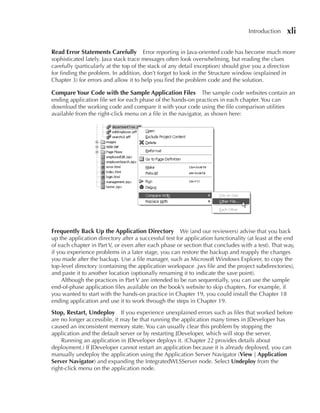
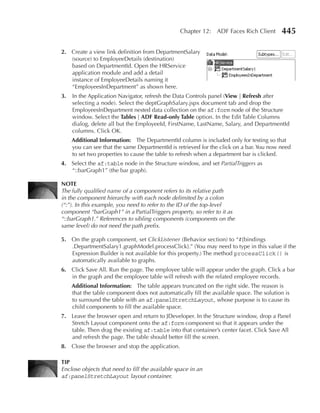
®


Oracle JDeveloper 11g
Handbook
A Guide to Oracle Fusion Web Development
ii   Oracle JDeveloper 11g Handbook: A Guide to Oracle Fusion Web Development


        About the Authors
        Duncan Mills is senior director of product management for Oracle’s Application Development
        Tools, including Oracle JDeveloper, Oracle Enterprise Pack for Eclipse, Forms, and the ADF
        Framework. Duncan is currently responsible for product direction, evangelism, and courseware
        development around the development tools products. He has been working with Oracle in a
        variety of application development and DBA roles since 1988. For the past fourteen years he has
        been working at Oracle in both support and product development, spending the last eight years
        in product management. Duncan is the co-author of the Oracle Press book Oracle JDeveloper
        10g for Forms and PL/SQL Developers: A Guide to Web Development with Oracle ADF
        (McGraw-Hill Professional, 2006).
             For nearly three decades, Oracle, the world’s largest enterprise software company, has
        provided the software and services that enable organizations to get the most up-to-date and
        accurate information from their business systems. With over 275,000 customers—including 98
        of the Fortune 100—Oracle supports customers in more than 145 countries. For more information
        about Oracle, visit www.oracle.com.
        Peter Koletzke is a technical director and principal instructor for the Enterprise e-Commerce
        Solutions practice at Quovera, in Mountain View, California, and has worked in the database
        industry since 1984. Peter has presented at various Oracle users group conferences more than
        250 times and has won awards such as Pinnacle Publishing’s Technical Achievement, Oracle
        Development Tools Users Group (ODTUG) Editor’s Choice (twice), ODTUG Best Speaker, ECO/
        SEOUC Oracle Designer Award, the ODTUG Volunteer of the Year, and NYOUG Editor’s Choice
        (twice). He is an Oracle ACE Director and an Oracle Certified Master. Peter has co-authored
        seven other Oracle Press books (variously with Dr. Paul Dorsey, Avrom, and Duncan) about
        Oracle JDeveloper, Oracle Forms and Reports, and Oracle Designer.
             Quovera (www.quovera.com) is a business consulting and technology integration firm that
        specializes in delivering solutions to the high technology, telecommunications, semiconductor,
        manufacturing, software and services, public sector, and financial services industries. Quovera
        deploys solutions that deliver optimized business processes quickly and economically, driving
        increased productivity and improved operational efficiency. Founded in 1995, the company has
        a track record of delivering hundreds of strategy, design, and implementation projects to over
        250 Fortune 2000 and high-growth middle market companies. Quovera’s client list includes notable
        organizations such as Cisco Systems, ON Semiconductor, New York State, Sun Microsystems,
        Lawrence Livermore National Laboratory, Seagate, Toyota, Fujitsu, Visa, and Cendant.
        Avrom Roy-Faderman works for Quovera as a Java EE consultant, architect, developer, and
        instructor, specializing in the Oracle Application Development Framework, as well as an Oracle
        ACE Director. He is a Sun Certified Programmer for the Java Platform and has acted as lead
        developer on diverse application projects ranging from e-business and online order systems to
        health-care provisioning for governmental and private organizations. He’s also a regular speaker
        at Oracle user group conferences and is the co-author, with Paul Dorsey and Peter Koletzke, of
        two books: the Oracle9i JDeveloper Handbook and the Oracle JDeveloper 10g Handbook, both
        from McGraw-Hill and Oracle Press.

           NOTe
           Sample code for the hands-on practices in this book as well as errata
           are available from the websites mentioned in the Introduction’s
           section “Websites for Sample Files.”
®


Oracle JDeveloper 11g
Handbook
A Guide to Oracle Fusion Web Development

Duncan Mills
Peter Koletzke
Avrom Roy-Faderman


New York Chicago San Francisco
Lisbon London Madrid Mexico City Milan
New Delhi San Juan Seoul Singapore Sydney Toronto
Copyright © 2010 by The McGraw-Hill Companies, Inc. All rights reserved. Except as permitted under the United States Copyright Act of
1976, no part of this publication may be reproduced or distributed in any form or by any means, or stored in a database or retrieval system,
without the prior written permission of the publisher.

ISBN: 978-0-07-160239-6

MHID: 0-07-160239-9

The material in this eBook also appears in the print version of this title: ISBN: 978-0-07-160238-9, MHID: 0-07-160238-0.

All trademarks are trademarks of their respective owners. Rather than put a trademark symbol after every occurrence of a trademarked name,
we use names in an editorial fashion only, and to the benefit of the trademark owner, with no intention of infringement of the trademark.
Where such designations appear in this book, they have been printed with initial caps.

McGraw-Hill eBooks are available at special quantity discounts to use as premiums and sales promotions, or for use in corporate training pro-
grams. To contact a representative please e-mail us at bulksales@mcgraw-hill.com.

Information has been obtained by Publisher from sources believed to be reliable. However, because of the possibility of human or mechani-
cal error by our sources, Publisher, or others, Publisher does not guarantee to the accuracy, adequacy, or completeness of any information
included in this work and is not responsible for any errors or omissions or the results obtained from the use of such information.

Oracle Corporation does not make any representations or warranties as to the accuracy, adequacy, or completeness of any information con-
tained in this Work, and is not responsible for any errors or omissions.

TERMS OF USE

This is a copyrighted work and The McGraw-Hill Companies, Inc. (“McGraw-Hill”) and its licensors reserve all rights in and to the work.
Use of this work is subject to these terms. Except as permitted under the Copyright Act of 1976 and the right to store and retrieve one copy
of the work, you may not decompile, disassemble, reverse engineer, reproduce, modify, create derivative works based upon, transmit, distrib-
ute, disseminate, sell, publish or sublicense the work or any part of it without McGraw-Hill’s prior consent. You may use the work for your
own noncommercial and personal use; any other use of the work is strictly prohibited. Your right to use the work may be terminated if you
fail to comply with these terms.

THE WORK IS PROVIDED “AS IS.” McGRAW-HILL AND ITS LICENSORS MAKE NO GUARANTEES OR WARRANTIES AS TO
THE ACCURACY, ADEQUACY OR COMPLETENESS OF OR RESULTS TO BE OBTAINED FROM USING THE WORK, INCLUDING
ANY INFORMATION THAT CAN BE ACCESSED THROUGH THE WORK VIA HYPERLINK OR OTHERWISE, AND EXPRESSLY
DISCLAIM ANY WARRANTY, EXPRESS OR IMPLIED, INCLUDING BUT NOT LIMITED TO IMPLIED WARRANTIES OF MER-
CHANTABILITY OR FITNESS FOR A PARTICULAR PURPOSE. McGraw-Hill and its licensors do not warrant or guarantee that the func-
tions contained in the work will meet your requirements or that its operation will be uninterrupted or error free. Neither McGraw-Hill nor its
licensors shall be liable to you or anyone else for any inaccuracy, error or omission, regardless of cause, in the work or for any damages result-
ing therefrom. McGraw-Hill has no responsibility for the content of any information accessed through the work. Under no circumstances shall
McGraw-Hill and/or its licensors be liable for any indirect, incidental, special, punitive, consequential or similar damages that result from the
use of or inability to use the work, even if any of them has been advised of the possibility of such damages. This limitation of liability shall
apply to any claim or cause whatsoever whether such claim or cause arises in contract, tort or otherwise.
For Amanda, Josh, Sam, and Hissy.
                             —Duncan Mills

                    For my folks, Jan and Max.
                              —Peter Koletzke

For Nilakash, a sudden blue sky on a rainy day.
                      —Avrom Roy-Faderman
This page intentionally left blank
Contents at a Glance

                                                                                PART I
                                                                        Overviews
 1   Overview of Fusion Development and ADF                                                              .  .  .  .  .  .  .  .  .  .  .  .  .  .  .  .  .  .  .  .  .  .  .  .  .  .  .  .  .   3
 2   Introduction to the JDeveloper Integrated Development environment                                                                                               .  .  .  .  .  .  .  .  .   33
 3   JDeveloper Tools                     .  .  .  .  .  .  .  .  .  .  .  .  .  .  .  .  .  .  .  .  .  .  .  .  .  .  .  .  .  .  .  .  .  .  .  .  .  .  .  .  .  .  .  .  .  .  .  .  .  .   61
 4   Technology Background                                  .  .  .  .  .  .  .  .  .  .  .  .  .  .  .  .  .  .  .  .  .  .  .  .  .  .  .  .  .  .  .  .  .  .  .  .  .  .  .  .  .  .  .  . 105

                                                                               PART II
                                                ADF Business Components
 5   Introducing ADF Business Components                                                        .  .  .  .  .  .  .  .  .  .  .  .  .  .  .  .  .  .  .  .  .  .  .  .  .  .  .  .  .  .  .  . 147
 6   Specifying a Business Domain                                       .  .  .  .  .  .  .  .  .  .  .  .  .  .  .  .  .  .  .  .  .  .  .  .  .  .  .  .  .  .  .  .  .  .  .  .  .  .  .  . 169
 7   Assembling a Data Model                                   .  .  .  .  .  .  .  .  .  .  .  .  .  .  .  .  .  .  .  .  .  .  .  .  .  .  .  .  .  .  .  .  .  .  .  .  .  .  .  .  .  .  . 233
 8   Providing Custom Data Services                                           .  .  .  .  .  .  .  .  .  .  .  .  .  .  .  .  .  .  .  .  .  .  .  .  .  .  .  .  .  .  .  .  .  .  .  .  .  . 285

                                                                              PART III
                                                   ADF View and Controller
 9   JavaServer Faces Basics                             .  .  .  .  .  .  .  .  .  .  .  .  .  .  .  .  .  .  .  .  .  .  .  .  .  .  .  .  .  .  .  .  .  .  .  .  .  .  .  .  .  .  .  .  . 309
10   Your First JSF                  .  .  .  .  .  .  .  .  .  .  .  .  .  .  .  .  .  .  .  .  .  .  .  .  .  .  .  .  .  .  .  .  .  .  .  .  .  .  .  .  .  .  .  .  .  .  .  .  .  .  .  . 327
11   The ADF Controller and Task Flows                                              .  .  .  .  .  .  .  .  .  .  .  .  .  .  .  .  .  .  .  .  .  .  .  .  .  .  .  .  .  .  .  .  .  .  .  . 371
12   ADF Faces Rich Client  .  .  .  .  .  .  .  .  .  .  .  .  .  .  .  .  .  .  .  .  .  .  .  .  .  .  .  .  .  .  .  .  .  .  .  .  .  .  .  .  .  .  .  .  .  . 413


                                                                                                                                                                                vii
viii    Oracle JDeveloper 11g Handbook: A Guide to Oracle Fusion Web Development


                                                                                  PART IV
                                                                            ADF Model
       13   ADF Model Basics                      .  .  .  .  .  .  .  .  .  .  .  .  .  .  .  .  .  .  .  .  .  .  .  .  .  .  .  .  .  .  .  .  .  .  .  .  .  .  .  .  .  .  .  .  .  .  .  .  . 455
       14   ADF Advanced Bindings                                .  .  .  .  .  .  .  .  .  .  .  .  .  .  .  .  .  .  .  .  .  .  .  .  .  .  .  .  .  .  .  .  .  .  .  .  .  .  .  .  .  .  .  . 489
       15   ADF Bindings: Iterators, executables, and Code                                                          .  .  .  .  .  .  .  .  .  .  .  .  .  .  .  .  .  .  .  .  .  .  .  .  .  . 537

                                                                                   PART V
                                          Developing the Sample Application
       16   Application Design Principles and Sample Application Overview  .  .  .  .  .  .  .  .  .  .  .  .  . 567
       17   Sample Application: UI Patterns and Templates                                                           .  .  .  .  .  .  .  .  .  .  .  .  .  .  .  .  .  .  .  .  .  .  .  .  .  . 597
       18   Sample Application: Search Page and Department Hierarchy Page                                                                                   .  .  .  .  .  .  .  .  .  .  .  . 627
       19   Sample Application: edit Page                                   .  .  .  .  .  .  .  .  .  .  .  .  .  .  .  .  .  .  .  .  .  .  .  .  .  .  .  .  .  .  .  .  .  .  .  .  .  .  .  . 667
       20   Sample Application: The Image LOV Dialog                                                        .  .  .  .  .  .  .  .  .  .  .  .  .  .  .  .  .  .  .  .  .  .  .  .  .  .  .  .  . 723
       21   Sample Application: Security                                    .  .  .  .  .  .  .  .  .  .  .  .  .  .  .  .  .  .  .  .  .  .  .  .  .  .  .  .  .  .  .  .  .  .  .  .  .  .  .  . 773
       22   Sample Application: Deployment                                           .  .  .  .  .  .  .  .  .  .  .  .  .  .  .  .  .  .  .  .  .  .  .  .  .  .  .  .  .  .  .  .  .  .  .  .  . 799

            Index     .  .  .  .  .  .  .  .  .  .  .  .  .  .  .  .  .  .  .  .  .  .  .  .  .  .  .  .  .  .  .  .  .  .  .  .  .  .  .  .  .  .  .  .  .  .  .  .  .  .  .  .  .  .  .  .  .  .  . 821
Contents

    Foreword . . . . . . . . . . . . . . . . . . . . . . . . . . . . . . . . . . . . . . . . . . . . . . . . . . . . . . . . . . . xxi
    Acknowledgments . . . . . . . . . . . . . . . . . . . . . . . . . . . . . . . . . . . . . . . . . . . . . . . . . . . . xxiii
    Introduction . . . . . . . . . . . . . . . . . . . . . . . . . . . . . . . . . . . . . . . . . . . . . . . . . . . . . . . . . xxix

                                                         PART I
                                                     Overviews
1   Overview of Fusion Development and ADF                                 ..........................                               3
    What Is Fusion? . . . . . . . . . . . . . . . . . . . . . . . . . . . . . . . . . . . . . . . . . . . . . . . . . . . . . .     4
           The Origins of Oracle Fusion Architecture . . . . . . . . . . . . . . . . . . . . . . . . . . . .                        5
           The Fusion Architecture . . . . . . . . . . . . . . . . . . . . . . . . . . . . . . . . . . . . . . . . . .             13
    What Is a Framework?      .................................................                                                    17
           The Anatomy of a Framework . . . . . . . . . . . . . . . . . . . . . . . . . . . . . . . . . . . . . .                  18
           What Characterizes a Good Framework? . . . . . . . . . . . . . . . . . . . . . . . . . . . . .                          20
    What Is Oracle ADF? . . . . . . . . . . . . . . . . . . . . . . . . . . . . . . . . . . . . . . . . . . . . . . . . . .        22
           How Do I Choose Technologies? . . . . . . . . . . . . . . . . . . . . . . . . . . . . . . . . . . .                     23
           User Interface Technology            ........................................                                           24
           Database Integration . . . . . . . . . . . . . . . . . . . . . . . . . . . . . . . . . . . . . . . . . . . . .          27
    Why Should I Use JDeveloper? . . . . . . . . . . . . . . . . . . . . . . . . . . . . . . . . . . . . . . . . . . .             29

2   Introduction to the JDeveloper Integrated Development Environment                                              ......         33
    What Are the Important Features of the JDeveloper IDE? . . . . . . . . . . . . . . . . . . . . . . . .                         35
          JDeveloper Roles . . . . . . . . . . . . . . . . . . . . . . . . . . . . . . . . . . . . . . . . . . . . . . .           36
          The Main IDE Window . . . . . . . . . . . . . . . . . . . . . . . . . . . . . . . . . . . . . . . . . . .                36
          Main Toolbar . . . . . . . . . . . . . . . . . . . . . . . . . . . . . . . . . . . . . . . . . . . . . . . . . .         46
          Main Menu Bar      ................................................                                                      46
    How Can I Best Use the Help Center?          .....................................                                             55
          Finding the Help Topic . . . . . . . . . . . . . . . . . . . . . . . . . . . . . . . . . . . . . . . . . . .             55
    How Does Source Code Version Control Work in JDeveloper? . . . . . . . . . . . . . . . . . . .                                 56
          Working with Subversion . . . . . . . . . . . . . . . . . . . . . . . . . . . . . . . . . . . . . . . . .                57
          Committing Files     ...............................................                                                     58


                                                                                                                        ix
x   Oracle JDeveloper 11g Handbook: A Guide to Oracle Fusion Web Development


                   Adding Files . . . . . . . . . . . . . . . . . . . . . . . . . . . . . . . . . . . . . . . . . . . . . . . . . . .    59
                   Refreshing a Working Copy . . . . . . . . . . . . . . . . . . . . . . . . . . . . . . . . . . . . . . .               59
                   Version History and Version Compare . . . . . . . . . . . . . . . . . . . . . . . . . . . . . . . .                   60
                   Version Navigator . . . . . . . . . . . . . . . . . . . . . . . . . . . . . . . . . . . . . . . . . . . . . . .       60
                   State Overlay Icons . . . . . . . . . . . . . . . . . . . . . . . . . . . . . . . . . . . . . . . . . . . . . .       60
                   Team Productivity Center . . . . . . . . . . . . . . . . . . . . . . . . . . . . . . . . . . . . . . . . .            60

     3   JDeveloper Tools               ..............................................                                                  61
         Application Navigator           . . . . . . . . . . . . . . . . . . . . . . . . . . . . . . . . . . . . . . . . . . . . . . . . . 62
                 Projects Panel . . . . . . . . . . . . . . . . . . . . . . . . . . . . . . . . . . . . . . . . . . . . . . . . . . 63
                 Application Resources Panel . . . . . . . . . . . . . . . . . . . . . . . . . . . . . . . . . . . . . . . 66
                 Data Controls Panel . . . . . . . . . . . . . . . . . . . . . . . . . . . . . . . . . . . . . . . . . . . . . 67
                 Recently Opened Files Panel                   . . . . . . . . . . . . . . . . . . . . . . . . . . . . . . . . . . . . . . 67
         Resource Palette . . . . . . . . . . . . . . . . . . . . . . . . . . . . . . . . . . . . . . . . . . . . . . . . . . . . . . 67
         New Gallery . . . . . . . . . . . . . . . . . . . . . . . . . . . . . . . . . . . . . . . . . . . . . . . . . . . . . . . . . 68
                 Wizards . . . . . . . . . . . . . . . . . . . . . . . . . . . . . . . . . . . . . . . . . . . . . . . . . . . . . . 70
                 Creation Dialogs . . . . . . . . . . . . . . . . . . . . . . . . . . . . . . . . . . . . . . . . . . . . . . . . 71
         Application Overview Window . . . . . . . . . . . . . . . . . . . . . . . . . . . . . . . . . . . . . . . . . . 72
                 Application Overview Panel Techniques . . . . . . . . . . . . . . . . . . . . . . . . . . . . . . 73
                 How Can the Application Overview Window Help? . . . . . . . . . . . . . . . . . . . . . 74
         Structure Window . . . . . . . . . . . . . . . . . . . . . . . . . . . . . . . . . . . . . . . . . . . . . . . . . . . . . 74
                 Structure Window Operations                     . . . . . . . . . . . . . . . . . . . . . . . . . . . . . . . . . . . . . 74
                 Structure Window Views . . . . . . . . . . . . . . . . . . . . . . . . . . . . . . . . . . . . . . . . . . 76
         Component Palette . . . . . . . . . . . . . . . . . . . . . . . . . . . . . . . . . . . . . . . . . . . . . . . . . . . . 77
                 My Components . . . . . . . . . . . . . . . . . . . . . . . . . . . . . . . . . . . . . . . . . . . . . . . . 77
         Property Inspector        . . . . . . . . . . . . . . . . . . . . . . . . . . . . . . . . . . . . . . . . . . . . . . . . . . . . 78
                 Property Inspector Operations . . . . . . . . . . . . . . . . . . . . . . . . . . . . . . . . . . . . . 79
         Log Window . . . . . . . . . . . . . . . . . . . . . . . . . . . . . . . . . . . . . . . . . . . . . . . . . . . . . . . . . 80
         Code Editor     . . . . . . . . . . . . . . . . . . . . . . . . . . . . . . . . . . . . . . . . . . . . . . . . . . . . . . . . . 81
                 End Tag Completion and Code Completion                              . . . . . . . . . . . . . . . . . . . . . . . . . . . 82
                 Code Templates . . . . . . . . . . . . . . . . . . . . . . . . . . . . . . . . . . . . . . . . . . . . . . . . 82
                 Code Insight and Tag Insight . . . . . . . . . . . . . . . . . . . . . . . . . . . . . . . . . . . . . . . 83
                 Other Text Editing Features . . . . . . . . . . . . . . . . . . . . . . . . . . . . . . . . . . . . . . . . 84
         Debugger . . . . . . . . . . . . . . . . . . . . . . . . . . . . . . . . . . . . . . . . . . . . . . . . . . . . . . . . . . . 90
                 Debugger Windows . . . . . . . . . . . . . . . . . . . . . . . . . . . . . . . . . . . . . . . . . . . . . 92
                 Running the Debugger . . . . . . . . . . . . . . . . . . . . . . . . . . . . . . . . . . . . . . . . . . . 93
                 Debugging PL/SQL . . . . . . . . . . . . . . . . . . . . . . . . . . . . . . . . . . . . . . . . . . . . . . 93
                 Other Tools for Improving Code . . . . . . . . . . . . . . . . . . . . . . . . . . . . . . . . . . . . 93
         JSP/HTML Visual Editor . . . . . . . . . . . . . . . . . . . . . . . . . . . . . . . . . . . . . . . . . . . . . . . . . 94
         Modelers and Diagrammers . . . . . . . . . . . . . . . . . . . . . . . . . . . . . . . . . . . . . . . . . . . . . 95
                 Types of Diagrams . . . . . . . . . . . . . . . . . . . . . . . . . . . . . . . . . . . . . . . . . . . . . . 95
                 Creating a UML Diagram . . . . . . . . . . . . . . . . . . . . . . . . . . . . . . . . . . . . . . . . . 96
                 Activity Diagram            . . . . . . . . . . . . . . . . . . . . . . . . . . . . . . . . . . . . . . . . . . . . . . . 98
                 XML Schema Editor . . . . . . . . . . . . . . . . . . . . . . . . . . . . . . . . . . . . . . . . . . . . . 99
                 JSF Navigation Diagrammer . . . . . . . . . . . . . . . . . . . . . . . . . . . . . . . . . . . . . . . 100
Contents      xi

           ADF Task Flow Diagrammer . . . . . . . . . . . . . . . . . . . . . . . . . . . . . . . . . . . . . . .                 100
           Struts Page Flow Modeler . . . . . . . . . . . . . . . . . . . . . . . . . . . . . . . . . . . . . . . . .             100
    Database Navigator . . . . . . . . . . . . . . . . . . . . . . . . . . . . . . . . . . . . . . . . . . . . . . . . . . .      100
           SQL Worksheet . . . . . . . . . . . . . . . . . . . . . . . . . . . . . . . . . . . . . . . . . . . . . . . . .        101
           Database Documentation . . . . . . . . . . . . . . . . . . . . . . . . . . . . . . . . . . . . . . . . .               103

4   Technology Background                    . . . . . . . . . . . . . . . . . . . . . . . . . . . . . . . . . . . . . . . . . 105
    What Is Java Platform, Enterprise Edition? . . . . . . . . . . . . . . . . . . . . . . . . . . . . . . . . . . .              106
           Online References . . . . . . . . . . . . . . . . . . . . . . . . . . . . . . . . . . . . . . . . . . . . . .          107
           Java EE Architecture Model . . . . . . . . . . . . . . . . . . . . . . . . . . . . . . . . . . . . . . . .             108
           BluePrints and Design Patterns . . . . . . . . . . . . . . . . . . . . . . . . . . . . . . . . . . . . .               110
    What Are the Main Styles of Java EE Code? . . . . . . . . . . . . . . . . . . . . . . . . . . . . . . . . . .                 111
           Application Client       ..............................................                                                112
           Web Client . . . . . . . . . . . . . . . . . . . . . . . . . . . . . . . . . . . . . . . . . . . . . . . . . . . .     114
    How Do Web Communications Work? . . . . . . . . . . . . . . . . . . . . . . . . . . . . . . . . . . . . .                     118
           HTTP Overview . . . . . . . . . . . . . . . . . . . . . . . . . . . . . . . . . . . . . . . . . . . . . . . .          118
           HTTP Request . . . . . . . . . . . . . . . . . . . . . . . . . . . . . . . . . . . . . . . . . . . . . . . . . .       119
           HTTP Response . . . . . . . . . . . . . . . . . . . . . . . . . . . . . . . . . . . . . . . . . . . . . . . .          120
           Methods . . . . . . . . . . . . . . . . . . . . . . . . . . . . . . . . . . . . . . . . . . . . . . . . . . . . . .    122
           The Steps in a Web Application Round-Trip . . . . . . . . . . . . . . . . . . . . . . . . . . .                        123
           Asynchronous JavaScript and XML (AJAX) . . . . . . . . . . . . . . . . . . . . . . . . . . . . .                       125
    What Languages Do I Need to Know for Web Development? . . . . . . . . . . . . . . . . . . . .                                 128
           The Web Development Experience . . . . . . . . . . . . . . . . . . . . . . . . . . . . . . . . . .                     128
           The Level of Knowledge Needed . . . . . . . . . . . . . . . . . . . . . . . . . . . . . . . . . . .                    129
           Java    .........................................................                                                      129
           Hypertext Markup Language (HTML) . . . . . . . . . . . . . . . . . . . . . . . . . . . . . . . .                       132
           JavaScript . . . . . . . . . . . . . . . . . . . . . . . . . . . . . . . . . . . . . . . . . . . . . . . . . . . . .   135
           Cascading Style Sheets (CSS)             ......................................                                        137
           Extensible Markup Language (XML) . . . . . . . . . . . . . . . . . . . . . . . . . . . . . . . . .                     139
           Expression Language          ............................................                                              140
           Groovy . . . . . . . . . . . . . . . . . . . . . . . . . . . . . . . . . . . . . . . . . . . . . . . . . . . . . . .   141

                                                             PART II
                                         ADF Business Components
5   Introducing ADF Business Components                              . . . . . . . . . . . . . . . . . . . . . . . . . . . . . 147
    Why Use ADF BC? . . . . . . . . . . . . . . . . . . . . . . . . . . . . . . . . . . . . . . . . . . . . . . . . . . . .       148
          Java Enterprise Design Patterns . . . . . . . . . . . . . . . . . . . . . . . . . . . . . . . . . . . . .               148
          Business Logic Framework . . . . . . . . . . . . . . . . . . . . . . . . . . . . . . . . . . . . . . . .                149
          Deployment Flexibility . . . . . . . . . . . . . . . . . . . . . . . . . . . . . . . . . . . . . . . . . . .            150
          Database Orientation . . . . . . . . . . . . . . . . . . . . . . . . . . . . . . . . . . . . . . . . . . . .            150
    How Do Business Components Use Java and XML? . . . . . . . . . . . . . . . . . . . . . . . . . . .                            151
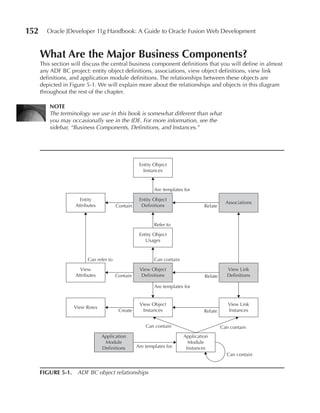
    What Are the Major Business Components? . . . . . . . . . . . . . . . . . . . . . . . . . . . . . . . . .                     152
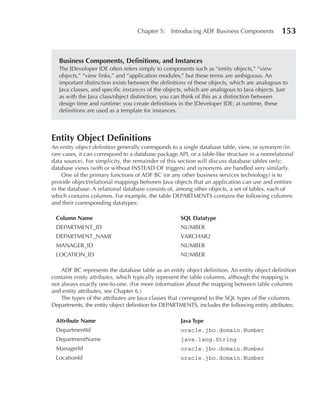
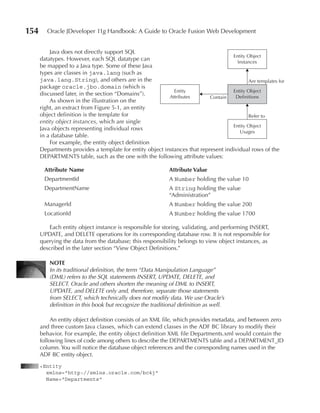
          Entity Object Definitions        .........................................                                              153
          Associations . . . . . . . . . . . . . . . . . . . . . . . . . . . . . . . . . . . . . . . . . . . . . . . . . . .      156
          View Object Definitions . . . . . . . . . . . . . . . . . . . . . . . . . . . . . . . . . . . . . . . . . .             157
xii     Oracle JDeveloper 11g Handbook: A Guide to Oracle Fusion Web Development


            View Link Definitions . . . . . . . . . . . . . . . . . . . . . . . . . . . . . . . . . . . . . . . . . . . .          160
            Application Module Definitions . . . . . . . . . . . . . . . . . . . . . . . . . . . . . . . . . . . .                 162
      Which Components Support the Major Business Components?                               ..................                     164
            Domains . . . . . . . . . . . . . . . . . . . . . . . . . . . . . . . . . . . . . . . . . . . . . . . . . . . . . .    164
            Validation Rules . . . . . . . . . . . . . . . . . . . . . . . . . . . . . . . . . . . . . . . . . . . . . . . .       165
            Business Logic Units . . . . . . . . . . . . . . . . . . . . . . . . . . . . . . . . . . . . . . . . . . . . .         165
            Property Sets . . . . . . . . . . . . . . . . . . . . . . . . . . . . . . . . . . . . . . . . . . . . . . . . . . .    165
      How Can I Visualize My Business Components? . . . . . . . . . . . . . . . . . . . . . . . . . . . . . .                      166

6     Specifying a Business Domain                      . . . . . . . . . . . . . . . . . . . . . . . . . . . . . . . . . . . . 169
      What Are Entity Object Definitions and Entity Object Instances? . . . . . . . . . . . . . . . . .                            170
             Entity Object XML Metadata . . . . . . . . . . . . . . . . . . . . . . . . . . . . . . . . . . . . . . .              170
             Entity Object Classes . . . . . . . . . . . . . . . . . . . . . . . . . . . . . . . . . . . . . . . . . . . .         171
             Entity Definition Classes . . . . . . . . . . . . . . . . . . . . . . . . . . . . . . . . . . . . . . . . . .         173
             Entity Collection Classes . . . . . . . . . . . . . . . . . . . . . . . . . . . . . . . . . . . . . . . . . .         174
             Custom Framework Classes              .......................................                                         174
      What Is an Association? . . . . . . . . . . . . . . . . . . . . . . . . . . . . . . . . . . . . . . . . . . . . . . . .      176
             Cardinality . . . . . . . . . . . . . . . . . . . . . . . . . . . . . . . . . . . . . . . . . . . . . . . . . . . .   177
             Source and Destination Attributes . . . . . . . . . . . . . . . . . . . . . . . . . . . . . . . . . . .               179
             Association Accessors . . . . . . . . . . . . . . . . . . . . . . . . . . . . . . . . . . . . . . . . . . . .         180
             Compositions . . . . . . . . . . . . . . . . . . . . . . . . . . . . . . . . . . . . . . . . . . . . . . . . . .      181
      How Do Entity Attributes Work? . . . . . . . . . . . . . . . . . . . . . . . . . . . . . . . . . . . . . . . . . .           182
             Persistent and Transient Attributes . . . . . . . . . . . . . . . . . . . . . . . . . . . . . . . . . . .             182
             Attribute Types and Column Datatypes . . . . . . . . . . . . . . . . . . . . . . . . . . . . . . .                    183
             Working with Built-in Domains . . . . . . . . . . . . . . . . . . . . . . . . . . . . . . . . . . . .                 184
             Object Type Domains . . . . . . . . . . . . . . . . . . . . . . . . . . . . . . . . . . . . . . . . . . . .           185
             Primary Key and Alternate Key Attributes . . . . . . . . . . . . . . . . . . . . . . . . . . . . .                    185
      How Do You Create and Edit Entity Object Definitions and Associations? . . . . . . . . . . .                                 186
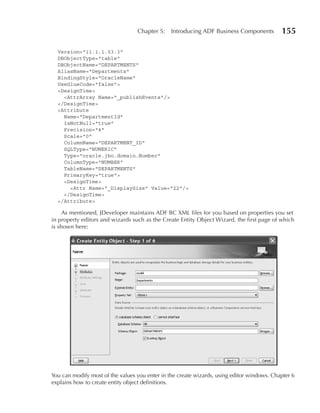
             Creating Entity Object Definitions and Associations . . . . . . . . . . . . . . . . . . . . .                         186
             Editing Entity Object Definitions and Associations . . . . . . . . . . . . . . . . . . . . . .                        188
      How Do You Implement Attribute-Level Validation? . . . . . . . . . . . . . . . . . . . . . . . . . . .                       190
             Specifying Mandatory Attributes . . . . . . . . . . . . . . . . . . . . . . . . . . . . . . . . . . . .               191
             Specifying Scale and Precision . . . . . . . . . . . . . . . . . . . . . . . . . . . . . . . . . . . . .              192
             Preventing Users from Changing Attribute Values . . . . . . . . . . . . . . . . . . . . . . .                         192
             Attribute-Level Validation Rules . . . . . . . . . . . . . . . . . . . . . . . . . . . . . . . . . . . .              192
             Adding Validation to Setter Methods . . . . . . . . . . . . . . . . . . . . . . . . . . . . . . . . .                 202
             Validation Domains . . . . . . . . . . . . . . . . . . . . . . . . . . . . . . . . . . . . . . . . . . . . .          204
      How Do You Implement Entity-Level Validation?                    .............................                               206
             Entity-Level Validation Rules . . . . . . . . . . . . . . . . . . . . . . . . . . . . . . . . . . . . . . .           207
             Validation in the Entity Object Class . . . . . . . . . . . . . . . . . . . . . . . . . . . . . . . . .               211
      How Does the ADF BC Validation Cycle Work? . . . . . . . . . . . . . . . . . . . . . . . . . . . . . .                       212
             The Attribute-Level Validation Process . . . . . . . . . . . . . . . . . . . . . . . . . . . . . . .                  212
             The Nondeferred Entity-Level Validation Process . . . . . . . . . . . . . . . . . . . . . . .                         213
             The Deferred Entity-Level Validation Process . . . . . . . . . . . . . . . . . . . . . . . . . .                      214
             Validation Loops . . . . . . . . . . . . . . . . . . . . . . . . . . . . . . . . . . . . . . . . . . . . . . . .      214
Contents         xiii

    How Do You Implement Attribute Defaulting and Calculation? . . . . . . . . . . . . . . . . . . .                        215
         Attribute Defaulting . . . . . . . . . . . . . . . . . . . . . . . . . . . . . . . . . . . . . . . . . . . . .     216
         Attribute Calculation   ............................................                                               217
    How Do You Synchronize with Database Defaulting and Calculation? . . . . . . . . . . . . .                              220
         The DBSequence Domain          ........................................                                            221
         Other Database Defaulting and Database Calculations . . . . . . . . . . . . . . . . . . .                          228
    How Do You Implement Polymorphic Business Rules? . . . . . . . . . . . . . . . . . . . . . . . . .                      228
         Business Logic Groups . . . . . . . . . . . . . . . . . . . . . . . . . . . . . . . . . . . . . . . . . . .        228
         Polymorphic Entity Object Definitions . . . . . . . . . . . . . . . . . . . . . . . . . . . . . . .                231

7   Assembling a Data Model                   . . . . . . . . . . . . . . . . . . . . . . . . . . . . . . . . . . . . . . . 233
    What Are View Object Definitions, View Object Instances, and View Rows?                               ........          234
          View Object XML Metadata . . . . . . . . . . . . . . . . . . . . . . . . . . . . . . . . . . . . . . .            235
          View Object Classes . . . . . . . . . . . . . . . . . . . . . . . . . . . . . . . . . . . . . . . . . . . . .     235
          View Row Classes . . . . . . . . . . . . . . . . . . . . . . . . . . . . . . . . . . . . . . . . . . . . . . .    236
          View Definition Classes . . . . . . . . . . . . . . . . . . . . . . . . . . . . . . . . . . . . . . . . . .       237
          Custom Framework Classes          .......................................                                         237
    How Do View Attributes Work? . . . . . . . . . . . . . . . . . . . . . . . . . . . . . . . . . . . . . . . . . .        238
          Persistent, SQL-Only, Entity-Derived, and Transient View Attributes . . . . . . . . .                             238
          SQL-Only View Object Definitions . . . . . . . . . . . . . . . . . . . . . . . . . . . . . . . . . .              244
          View Attribute Updatability and Read-Only Entity Object Usages                              ..........            244
          View Attribute Types . . . . . . . . . . . . . . . . . . . . . . . . . . . . . . . . . . . . . . . . . . . . .    245
          Key and Alternate Key Attributes . . . . . . . . . . . . . . . . . . . . . . . . . . . . . . . . . . . .          245
    How Do You Create and Edit View Object Definitions? . . . . . . . . . . . . . . . . . . . . . . . . .                   246
          Creating View Object Definitions . . . . . . . . . . . . . . . . . . . . . . . . . . . . . . . . . . .            246
          Editing View Object Definitions . . . . . . . . . . . . . . . . . . . . . . . . . . . . . . . . . . . .           247
    How Do You Specify View Object Queries? . . . . . . . . . . . . . . . . . . . . . . . . . . . . . . . . .               249
          Normal SQL Mode . . . . . . . . . . . . . . . . . . . . . . . . . . . . . . . . . . . . . . . . . . . . . .       250
          Declarative SQL Mode . . . . . . . . . . . . . . . . . . . . . . . . . . . . . . . . . . . . . . . . . . .        254
          Expert SQL Mode . . . . . . . . . . . . . . . . . . . . . . . . . . . . . . . . . . . . . . . . . . . . . . .     257
          Dynamic Queries . . . . . . . . . . . . . . . . . . . . . . . . . . . . . . . . . . . . . . . . . . . . . . .     259
    How Can View Object Instances Handle Row Creation,
      Row Deletion, and Association Changes?              ................................                                  261
          Reference Entity Usages . . . . . . . . . . . . . . . . . . . . . . . . . . . . . . . . . . . . . . . . . .       261
          Creating View Rows . . . . . . . . . . . . . . . . . . . . . . . . . . . . . . . . . . . . . . . . . . . . .      262
          Deleting View Rows . . . . . . . . . . . . . . . . . . . . . . . . . . . . . . . . . . . . . . . . . . . . .      263
    What Are View Link Definitions and View Link Instances? . . . . . . . . . . . . . . . . . . . . . .                     263
          Source and Destination Attributes . . . . . . . . . . . . . . . . . . . . . . . . . . . . . . . . . . .           263
          View Link SQL . . . . . . . . . . . . . . . . . . . . . . . . . . . . . . . . . . . . . . . . . . . . . . . . .   264
          View Link Accessors . . . . . . . . . . . . . . . . . . . . . . . . . . . . . . . . . . . . . . . . . . . . .     266
    How Do You Create and Edit View Link Definitions? . . . . . . . . . . . . . . . . . . . . . . . . . . .                 267
          Creating View Link Definitions . . . . . . . . . . . . . . . . . . . . . . . . . . . . . . . . . . . . .          267
          Editing View Link Definitions . . . . . . . . . . . . . . . . . . . . . . . . . . . . . . . . . . . . . .         268
    What Are Application Module Definitions and Application Module Instances? . . . . . . .                                 268
          Application Module XML Metadata . . . . . . . . . . . . . . . . . . . . . . . . . . . . . . . . .                 268
          Application Module Classes . . . . . . . . . . . . . . . . . . . . . . . . . . . . . . . . . . . . . . .          269
xiv      Oracle JDeveloper 11g Handbook: A Guide to Oracle Fusion Web Development


           Application Module Definition Classes . . . . . . . . . . . . . . . . . . . . . . . . . . . . . . .                      270
           Custom Framework Classes           .......................................                                               270
           How Application Module Instances Implement Their Data Model                                  ..........                  271
      How Do You Create and Edit Application Module Definitions? . . . . . . . . . . . . . . . . . . .                              271
           Creating Application Module Definitions . . . . . . . . . . . . . . . . . . . . . . . . . . . . .                        271
           Editing Application Module Definitions . . . . . . . . . . . . . . . . . . . . . . . . . . . . . .                       273
           Editing or Creating Configurations for Application Module Definitions . . . . . . .                                      275
      How Do You Use View Object Instances as LOVs? . . . . . . . . . . . . . . . . . . . . . . . . . . . .                         277
           View Accessors . . . . . . . . . . . . . . . . . . . . . . . . . . . . . . . . . . . . . . . . . . . . . . . . .         277
           LOV View Attributes . . . . . . . . . . . . . . . . . . . . . . . . . . . . . . . . . . . . . . . . . . . . .            279
           Static View Object Definitions . . . . . . . . . . . . . . . . . . . . . . . . . . . . . . . . . . . . .                 281
      How Do Application Module Instances Manage Transactional State? . . . . . . . . . . . . . .                                   282
           Locking     ......................................................                                                       282
           Application Module Pooling . . . . . . . . . . . . . . . . . . . . . . . . . . . . . . . . . . . . . . .                 283

8     Providing Custom Data Services                         . . . . . . . . . . . . . . . . . . . . . . . . . . . . . . . . . . 285
      What Sort of Method Can Be a Service Method? . . . . . . . . . . . . . . . . . . . . . . . . . . . . . .                      287
      How Do You Expose Methods as Service Methods?                     ...........................                                 288
            Client Interfaces . . . . . . . . . . . . . . . . . . . . . . . . . . . . . . . . . . . . . . . . . . . . . . . .       288
            Adding Methods to Client Interfaces . . . . . . . . . . . . . . . . . . . . . . . . . . . . . . . . .                   289
      How Do You Implement Single-Row Methods? . . . . . . . . . . . . . . . . . . . . . . . . . . . . . . .                        290
      How Do You Implement Query-Level Methods? . . . . . . . . . . . . . . . . . . . . . . . . . . . . . .                         292
            Retrieving View Rows . . . . . . . . . . . . . . . . . . . . . . . . . . . . . . . . . . . . . . . . . . . .            292
            Navigating Through the Cache . . . . . . . . . . . . . . . . . . . . . . . . . . . . . . . . . . . . .                  295
            Creating and Deleting Rows . . . . . . . . . . . . . . . . . . . . . . . . . . . . . . . . . . . . . . .                296
            Modifying Queries and Filtering Rows . . . . . . . . . . . . . . . . . . . . . . . . . . . . . . .                      297
      How Do You Implement Cross-Query or Transaction-Level Methods? . . . . . . . . . . . . . .                                    299
            Finding View Object and Nested Application Module Instances
                in the Data Model . . . . . . . . . . . . . . . . . . . . . . . . . . . . . . . . . . . . . . . . . . . .           299
            Creating and Removing View Object Instances Dynamically . . . . . . . . . . . . . .                                     300
            Creating and Removing Master-Detail Relationships Dynamically . . . . . . . . . .                                       302
            Manipulating Transactions . . . . . . . . . . . . . . . . . . . . . . . . . . . . . . . . . . . . . . . .               305

                                                              PART III
                                             ADF View and Controller
9     JavaServer Faces Basics                  . . . . . . . . . . . . . . . . . . . . . . . . . . . . . . . . . . . . . . . . . 309
      Why Was JSF Developed? . . . . . . . . . . . . . . . . . . . . . . . . . . . . . . . . . . . . . . . . . . . . . . .          311
      What JSF Concepts Do I Really Need to Know Now? . . . . . . . . . . . . . . . . . . . . . . . . . .                           312
             What Is JSF? . . . . . . . . . . . . . . . . . . . . . . . . . . . . . . . . . . . . . . . . . . . . . . . . . . .     313
             Runtime Architecture . . . . . . . . . . . . . . . . . . . . . . . . . . . . . . . . . . . . . . . . . . . .           313
             JSF-Oriented Files . . . . . . . . . . . . . . . . . . . . . . . . . . . . . . . . . . . . . . . . . . . . . . .       317
             Components . . . . . . . . . . . . . . . . . . . . . . . . . . . . . . . . . . . . . . . . . . . . . . . . . . .       320
             Designing Cross-Platform Interfaces . . . . . . . . . . . . . . . . . . . . . . . . . . . . . . . . .                  324
      Where Can I Find Additional Information about JSF?                      ..........................                            325
             Websites . . . . . . . . . . . . . . . . . . . . . . . . . . . . . . . . . . . . . . . . . . . . . . . . . . . . . .   326
             Printed Books . . . . . . . . . . . . . . . . . . . . . . . . . . . . . . . . . . . . . . . . . . . . . . . . . .      326
Contents        xv

10   Your First JSF           . . . . . . . . . . . . . . . . . . . . . . . . . . . . . . . . . . . . . . . . . . . . . . . . . 327
     Hands-on Practice: Create a JSF Login and JSF Home Page . . . . . . . . . . . . . . . . . . . . . .                             328
             I. Create the Application and a Project . . . . . . . . . . . . . . . . . . . . . . . . . . . . . . .                   330
             II. Diagram the Page Flow . . . . . . . . . . . . . . . . . . . . . . . . . . . . . . . . . . . . . . . . .             334
             III. Create the Login and Home Pages . . . . . . . . . . . . . . . . . . . . . . . . . . . . . . . .                    336
             IV. Add Components to the Login Page . . . . . . . . . . . . . . . . . . . . . . . . . . . . . . .                      344
             V. Add Components to the Home Page . . . . . . . . . . . . . . . . . . . . . . . . . . . . . . .                        354
             VI. Add Navigation and Validation Logic to the Application . . . . . . . . . . . . . . .                                359
     Centralize the Messages . . . . . . . . . . . . . . . . . . . . . . . . . . . . . . . . . . . . . . . . . . . . . . . .         365
     Hands-on Practice: Access a Message Bundle with EL . . . . . . . . . . . . . . . . . . . . . . . . .                            366
     Hands-on Practice: Access a Message Bundle with Java . . . . . . . . . . . . . . . . . . . . . . . .                            368

11   The ADF Controller and Task Flows                           . . . . . . . . . . . . . . . . . . . . . . . . . . . . . . . . 371
     What Is the ADF Controller and Why Is It Needed? . . . . . . . . . . . . . . . . . . . . . . . . . . . .                        372
            The Problem with JSF . . . . . . . . . . . . . . . . . . . . . . . . . . . . . . . . . . . . . . . . . . . .             372
            Creating a Task Flow Definition . . . . . . . . . . . . . . . . . . . . . . . . . . . . . . . . . . . .                  373
            About Task Flows and Managed Beans . . . . . . . . . . . . . . . . . . . . . . . . . . . . . . .                         374
            Task Flow Components . . . . . . . . . . . . . . . . . . . . . . . . . . . . . . . . . . . . . . . . . . .               377
     Types of Task Flows   ...................................................                                                       389
            Unbounded Task Flows . . . . . . . . . . . . . . . . . . . . . . . . . . . . . . . . . . . . . . . . . . .               389
            Bounded Task Flows . . . . . . . . . . . . . . . . . . . . . . . . . . . . . . . . . . . . . . . . . . . . .             390
            Pages or Fragments? . . . . . . . . . . . . . . . . . . . . . . . . . . . . . . . . . . . . . . . . . . . . .            395
            More Options on Task Flow Creation . . . . . . . . . . . . . . . . . . . . . . . . . . . . . . . .                       397
     Advanced Task Flows . . . . . . . . . . . . . . . . . . . . . . . . . . . . . . . . . . . . . . . . . . . . . . . . . .         402
            Data Control Scope . . . . . . . . . . . . . . . . . . . . . . . . . . . . . . . . . . . . . . . . . . . . .             402
            Transaction Management . . . . . . . . . . . . . . . . . . . . . . . . . . . . . . . . . . . . . . . . .                 403
            The Back Button . . . . . . . . . . . . . . . . . . . . . . . . . . . . . . . . . . . . . . . . . . . . . . . .          404
            Coding Around a Flow . . . . . . . . . . . . . . . . . . . . . . . . . . . . . . . . . . . . . . . . . . .               404
            Debugging Task Flows . . . . . . . . . . . . . . . . . . . . . . . . . . . . . . . . . . . . . . . . . . .               407

12   ADF Faces Rich Client                  . . . . . . . . . . . . . . . . . . . . . . . . . . . . . . . . . . . . . . . . . . 413
     What Is ADF Faces and Where Did It Come From? . . . . . . . . . . . . . . . . . . . . . . . . . . . .                           414
            HTML Render Kit . . . . . . . . . . . . . . . . . . . . . . . . . . . . . . . . . . . . . . . . . . . . . . .            415
            A Very Brief History . . . . . . . . . . . . . . . . . . . . . . . . . . . . . . . . . . . . . . . . . . . . .           416
            ADF Faces Is Better . . . . . . . . . . . . . . . . . . . . . . . . . . . . . . . . . . . . . . . . . . . . . .          416
     How Does Partial Page Rendering Work? . . . . . . . . . . . . . . . . . . . . . . . . . . . . . . . . . . .                     417
            Hands-on Practice: Demonstrate Basic PPR . . . . . . . . . . . . . . . . . . . . . . . . . . .                           418
     How Can I Achieve the Perfect Layout? . . . . . . . . . . . . . . . . . . . . . . . . . . . . . . . . . . . . .                 421
            Facets . . . . . . . . . . . . . . . . . . . . . . . . . . . . . . . . . . . . . . . . . . . . . . . . . . . . . . . .   421
            Knowledge of Layout Containers                   ...................................                                     422
            Nesting Layout Containers . . . . . . . . . . . . . . . . . . . . . . . . . . . . . . . . . . . . . . . .                426
            Hands-on Practice: Implement an Across and Down Tab Order . . . . . . . . . . . .                                        427
            Quick Start Layouts . . . . . . . . . . . . . . . . . . . . . . . . . . . . . . . . . . . . . . . . . . . . . .          432
     What Types of Atomic Components Are Available? . . . . . . . . . . . . . . . . . . . . . . . . . . . .                          433
            Other Atomic Components . . . . . . . . . . . . . . . . . . . . . . . . . . . . . . . . . . . . . . . .                  436
            Data Visualization Tools (DVT) . . . . . . . . . . . . . . . . . . . . . . . . . . . . . . . . . . . . .                 440
xvi      Oracle JDeveloper 11g Handbook: A Guide to Oracle Fusion Web Development


      How Can I Change the Default ADF Faces Appearance? . . . . . . . . . . . . . . . . . . . . . . . .                             446
            Working with Skins . . . . . . . . . . . . . . . . . . . . . . . . . . . . . . . . . . . . . . . . . . . . . .           446
            Working with Component-Level Styles . . . . . . . . . . . . . . . . . . . . . . . . . . . . . . .                        449
      How Will I Ever Learn about All These Components? . . . . . . . . . . . . . . . . . . . . . . . . . .                          451

                                                               PART IV
                                                          ADF Model
13    ADF Model Basics                 . . . . . . . . . . . . . . . . . . . . . . . . . . . . . . . . . . . . . . . . . . . . . 455
      What Is the ADF Model Layer? . . . . . . . . . . . . . . . . . . . . . . . . . . . . . . . . . . . . . . . . . . .             456
             Data Controls . . . . . . . . . . . . . . . . . . . . . . . . . . . . . . . . . . . . . . . . . . . . . . . . . .       457
             Binding Containers . . . . . . . . . . . . . . . . . . . . . . . . . . . . . . . . . . . . . . . . . . . . . .          457
      How Do You Provide Default or Dynamic Visual Properties for UI Controls?                                 ........              458
             Control Hints for Attributes . . . . . . . . . . . . . . . . . . . . . . . . . . . . . . . . . . . . . . . .            458
             Control Hints for Bind Variables . . . . . . . . . . . . . . . . . . . . . . . . . . . . . . . . . . . .                462
             Control Hints for Lists of Values . . . . . . . . . . . . . . . . . . . . . . . . . . . . . . . . . . . .               462
      How Do You Create Data-Bound Pages? . . . . . . . . . . . . . . . . . . . . . . . . . . . . . . . . . . . .                    464
             Using the Data Controls Panel with Pages . . . . . . . . . . . . . . . . . . . . . . . . . . . . .                      466
             “Drop As” Options . . . . . . . . . . . . . . . . . . . . . . . . . . . . . . . . . . . . . . . . . . . . . .           467
      How Do You Create Data-Bound Activities? . . . . . . . . . . . . . . . . . . . . . . . . . . . . . . . . .                     485
      What Files Are Involved in Data Binding? . . . . . . . . . . . . . . . . . . . . . . . . . . . . . . . . . . .                 486

14    ADF Advanced Bindings                      . . . . . . . . . . . . . . . . . . . . . . . . . . . . . . . . . . . . . . . . 489
      How Can I Edit Data Bindings? . . . . . . . . . . . . . . . . . . . . . . . . . . . . . . . . . . . . . . . . . . .            491
            Cleaning Up Bindings . . . . . . . . . . . . . . . . . . . . . . . . . . . . . . . . . . . . . . . . . . . .             492
            Exploring the Binding Categories . . . . . . . . . . . . . . . . . . . . . . . . . . . . . . . . . . .                   492
      What Binding Types Are Available? . . . . . . . . . . . . . . . . . . . . . . . . . . . . . . . . . . . . . . . .              494
            Attribute Bindings . . . . . . . . . . . . . . . . . . . . . . . . . . . . . . . . . . . . . . . . . . . . . . .         495
            List Bindings . . . . . . . . . . . . . . . . . . . . . . . . . . . . . . . . . . . . . . . . . . . . . . . . . . .      498
            List of Values Bindings . . . . . . . . . . . . . . . . . . . . . . . . . . . . . . . . . . . . . . . . . . .            508
            Tree Bindings . . . . . . . . . . . . . . . . . . . . . . . . . . . . . . . . . . . . . . . . . . . . . . . . . .        514
            Table Bindings . . . . . . . . . . . . . . . . . . . . . . . . . . . . . . . . . . . . . . . . . . . . . . . . .         522
            Action Bindings . . . . . . . . . . . . . . . . . . . . . . . . . . . . . . . . . . . . . . . . . . . . . . . .          524
            Method Bindings . . . . . . . . . . . . . . . . . . . . . . . . . . . . . . . . . . . . . . . . . . . . . . .            532
            Boolean Bindings . . . . . . . . . . . . . . . . . . . . . . . . . . . . . . . . . . . . . . . . . . . . . . .           534

15    ADF Bindings: Iterators, Executables, and Code                               . . . . . . . . . . . . . . . . . . . . . . . 537
      What Is an Iterator? . . . . . . . . . . . . . . . . . . . . . . . . . . . . . . . . . . . . . . . . . . . . . . . . . . . .   538
             Editing the Iterator . . . . . . . . . . . . . . . . . . . . . . . . . . . . . . . . . . . . . . . . . . . . . .        538
             Controlling Iterator Execution . . . . . . . . . . . . . . . . . . . . . . . . . . . . . . . . . . . . . .              540
             Types of Iterators      ...............................................                                                 540
      What Are Executables? . . . . . . . . . . . . . . . . . . . . . . . . . . . . . . . . . . . . . . . . . . . . . . . . .        541
             invokeAction Executable . . . . . . . . . . . . . . . . . . . . . . . . . . . . . . . . . . . . . . . . .               541
             taskFlow Executable . . . . . . . . . . . . . . . . . . . . . . . . . . . . . . . . . . . . . . . . . . . . .           542
             page Executable . . . . . . . . . . . . . . . . . . . . . . . . . . . . . . . . . . . . . . . . . . . . . . . .         544
             searchRegion Executable . . . . . . . . . . . . . . . . . . . . . . . . . . . . . . . . . . . . . . . . .               544
             shuttleRegion Executable . . . . . . . . . . . . . . . . . . . . . . . . . . . . . . . . . . . . . . . . .              545
Contents          xvii

     How Can I Control Execution in the ADF Model? . . . . . . . . . . . . . . . . . . . . . . . . . . . . .                    546
           Another Look at Executables . . . . . . . . . . . . . . . . . . . . . . . . . . . . . . . . . . . . . . .            546
     How Can I Override and Add to the ADF Model Life Cycle? . . . . . . . . . . . . . . . . . . . . .                          548
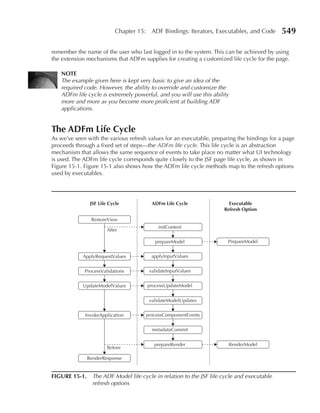
           The ADFm Life Cycle . . . . . . . . . . . . . . . . . . . . . . . . . . . . . . . . . . . . . . . . . . . .          549
           Customizing Error Handling . . . . . . . . . . . . . . . . . . . . . . . . . . . . . . . . . . . . . . .             553
     What Are Parameters? . . . . . . . . . . . . . . . . . . . . . . . . . . . . . . . . . . . . . . . . . . . . . . . . . .   554
           Populating PageDef Parameters . . . . . . . . . . . . . . . . . . . . . . . . . . . . . . . . . . . . .              554
           Advanced PageDef Parameter Properties . . . . . . . . . . . . . . . . . . . . . . . . . . . . . .                    555
     What Are Contextual Events? . . . . . . . . . . . . . . . . . . . . . . . . . . . . . . . . . . . . . . . . . . . .        555
           A Worked Example of Contextual Events . . . . . . . . . . . . . . . . . . . . . . . . . . . . .                      556
     How Can I Write Code Using the ADF Model? . . . . . . . . . . . . . . . . . . . . . . . . . . . . . . .                    559
           Access to Data and Methods             ......................................                                        559
           Executing Methods and Operations . . . . . . . . . . . . . . . . . . . . . . . . . . . . . . . . .                   562

                                                             PART V
                                  Developing the Sample Application
16   Application Design Principles and Sample Application Overview                                         . . . . . . . . . 567
     What Is the Design Process for a Fusion Application? . . . . . . . . . . . . . . . . . . . . . . . . . .                   569
            System Design Tools and the SDLC . . . . . . . . . . . . . . . . . . . . . . . . . . . . . . . . . .                569
            General Application Design Considerations . . . . . . . . . . . . . . . . . . . . . . . . . . .                     572
            Typical Fusion Page Design        .......................................                                           575
            Approaching ADF Business Components Design . . . . . . . . . . . . . . . . . . . . . . .                            576
     What Best Practice Should Be Adopted? . . . . . . . . . . . . . . . . . . . . . . . . . . . . . . . . . . . .              579
            Use Framework Buffer Classes . . . . . . . . . . . . . . . . . . . . . . . . . . . . . . . . . . . . .              579
            Use Java Packaging . . . . . . . . . . . . . . . . . . . . . . . . . . . . . . . . . . . . . . . . . . . . . .      581
            Stick to JSF and Only JSF     .........................................                                             581
            Create a Custom Skin . . . . . . . . . . . . . . . . . . . . . . . . . . . . . . . . . . . . . . . . . . . .        581
     What Is the Design of the Sample Application? . . . . . . . . . . . . . . . . . . . . . . . . . . . . . . .                582
            Database Design      ...............................................                                                582
            Application Design . . . . . . . . . . . . . . . . . . . . . . . . . . . . . . . . . . . . . . . . . . . . . .      584
     What Do I Have to Think about Before Starting? . . . . . . . . . . . . . . . . . . . . . . . . . . . . . .                 587
            Application Templates     ...........................................                                               587
            Source Control? . . . . . . . . . . . . . . . . . . . . . . . . . . . . . . . . . . . . . . . . . . . . . . . .     590
            Unit Testing    ...................................................                                                 593
            Auditing and Code Analysis . . . . . . . . . . . . . . . . . . . . . . . . . . . . . . . . . . . . . . .            594

17   Sample Application: UI Patterns and Templates                              . . . . . . . . . . . . . . . . . . . . . . . 597
     I. Prepare the Application Workspace . . . . . . . . . . . . . . . . . . . . . . . . . . . . . . . . . . . . . .           599
     II. Prepare the Database . . . . . . . . . . . . . . . . . . . . . . . . . . . . . . . . . . . . . . . . . . . . . . . .   602
              Create a Database Diagram . . . . . . . . . . . . . . . . . . . . . . . . . . . . . . . . . . . . . . .           603
              Modify the Diagram . . . . . . . . . . . . . . . . . . . . . . . . . . . . . . . . . . . . . . . . . . . . .      606
              Alter the Database . . . . . . . . . . . . . . . . . . . . . . . . . . . . . . . . . . . . . . . . . . . . . .    610
     III. Set Up Project Defaults . . . . . . . . . . . . . . . . . . . . . . . . . . . . . . . . . . . . . . . . . . . . . .   612
              Create Model Framework Superclasses . . . . . . . . . . . . . . . . . . . . . . . . . . . . . . .                 612
              Set Up ViewController Properties . . . . . . . . . . . . . . . . . . . . . . . . . . . . . . . . . . .            613
              Declare the Application’s Skin . . . . . . . . . . . . . . . . . . . . . . . . . . . . . . . . . . . . .          614
xviii      Oracle JDeveloper 11g Handbook: A Guide to Oracle Fusion Web Development


     IV. Define a JSF Page Template . . . . . . . . . . . . . . . . . . . . . . . . . . . . . . . . . . . . . . . . . . .        615
             Create the File . . . . . . . . . . . . . . . . . . . . . . . . . . . . . . . . . . . . . . . . . . . . . . . . .   615
             Add Boxes and Panels . . . . . . . . . . . . . . . . . . . . . . . . . . . . . . . . . . . . . . . . . . . .        617
             Define a Menu and Popup . . . . . . . . . . . . . . . . . . . . . . . . . . . . . . . . . . . . . . . .             621
             Define the Named Content Area of the Template . . . . . . . . . . . . . . . . . . . . . . .                         623
             Test the Template . . . . . . . . . . . . . . . . . . . . . . . . . . . . . . . . . . . . . . . . . . . . . . .     623
             Fix the Copyright Text . . . . . . . . . . . . . . . . . . . . . . . . . . . . . . . . . . . . . . . . . . . .      625

18   Sample Application: Search Page                       . . . . . . . . . . . . . . . . . . . . . . . . . . . . . . . . . . 627
     I. Prepare Employee Search Business Components . . . . . . . . . . . . . . . . . . . . . . . . . . . .                      629
              Set Up Entity Object Definitions . . . . . . . . . . . . . . . . . . . . . . . . . . . . . . . . . . . .           630
              Create the Employees View Object Definition . . . . . . . . . . . . . . . . . . . . . . . . . .                    632
              Define Named View Criteria . . . . . . . . . . . . . . . . . . . . . . . . . . . . . . . . . . . . . . .           633
     II. Create the Search Page . . . . . . . . . . . . . . . . . . . . . . . . . . . . . . . . . . . . . . . . . . . . . . .    635
     III. Create the Employee Search Area . . . . . . . . . . . . . . . . . . . . . . . . . . . . . . . . . . . . . .            637
              Define the Search Task Flow and Page Fragment . . . . . . . . . . . . . . . . . . . . . . . .                      637
              Refine the Layout . . . . . . . . . . . . . . . . . . . . . . . . . . . . . . . . . . . . . . . . . . . . . . .    640
              Add an Export Capability to the Result Set . . . . . . . . . . . . . . . . . . . . . . . . . . . .                 644
              Add an Employee Details Popup . . . . . . . . . . . . . . . . . . . . . . . . . . . . . . . . . . . .              645
              Add an In-Process Indicator . . . . . . . . . . . . . . . . . . . . . . . . . . . . . . . . . . . . . . .          646
     IV. Create the Hierarchy Viewer Area . . . . . . . . . . . . . . . . . . . . . . . . . . . . . . . . . . . . . .            648
              Set Up Hierarchy Node View Object Definitions                      .......................                         648
              Create the Hierarchy Task Flow and Page Fragment . . . . . . . . . . . . . . . . . . . . . .                       651
              Explore the Page . . . . . . . . . . . . . . . . . . . . . . . . . . . . . . . . . . . . . . . . . . . . . . . .   652
              Refine the Hierarchy Viewer . . . . . . . . . . . . . . . . . . . . . . . . . . . . . . . . . . . . . . .          654
              Improve the Department Node Display                  ..............................                                657
              Improve the Employee Node Display . . . . . . . . . . . . . . . . . . . . . . . . . . . . . . . .                  659
              Plug the Hierarchy Viewer into the Page . . . . . . . . . . . . . . . . . . . . . . . . . . . . . .                662
              Write a UI Manager to Switch Page Fragments . . . . . . . . . . . . . . . . . . . . . . . . .                      662

19   Sample Application: Edit Page                     . . . . . . . . . . . . . . . . . . . . . . . . . . . . . . . . . . . . 667
     I. Set Up the Edit Page and Add LOVs . . . . . . . . . . . . . . . . . . . . . . . . . . . . . . . . . . . . . .            669
              Create the Edit Page Fragment . . . . . . . . . . . . . . . . . . . . . . . . . . . . . . . . . . . . . .          669
              Add the Department List of Values . . . . . . . . . . . . . . . . . . . . . . . . . . . . . . . . . .              673
              Add the Job List of Values . . . . . . . . . . . . . . . . . . . . . . . . . . . . . . . . . . . . . . . . .       674
              Add the Manager List of Values . . . . . . . . . . . . . . . . . . . . . . . . . . . . . . . . . . . . .           675
     II. Refine the Salary Field . . . . . . . . . . . . . . . . . . . . . . . . . . . . . . . . . . . . . . . . . . . . . . .   682
              Add Validation to the Salary Field . . . . . . . . . . . . . . . . . . . . . . . . . . . . . . . . . . .           682
              Fix the Salary Validation and Change the Salary Format . . . . . . . . . . . . . . . . . .                         686
     III. Refine the Commission Field . . . . . . . . . . . . . . . . . . . . . . . . . . . . . . . . . . . . . . . . . .        688
              Add Validation to the Commission Field . . . . . . . . . . . . . . . . . . . . . . . . . . . . . .                 688
              Change Commission to a Spin Box . . . . . . . . . . . . . . . . . . . . . . . . . . . . . . . . . .                690
              Change the Commission Updatable Property . . . . . . . . . . . . . . . . . . . . . . . . . .                       691
              Clear the Commission Value for Non-Sales Employees . . . . . . . . . . . . . . . . . . .                           694
Contents         xix

     IV. Refine the Image Field and the Layout . . . . . . . . . . . . . . . . . . . . . . . . . . . . . . . . . . .           697
              Display the Employee Image . . . . . . . . . . . . . . . . . . . . . . . . . . . . . . . . . . . . . . .         697
              Rearrange the Layout and Modify Some Labels . . . . . . . . . . . . . . . . . . . . . . . . .                    698
              Fix the Forms and the Field Widths . . . . . . . . . . . . . . . . . . . . . . . . . . . . . . . . . .           700
     V. Create a Popup for Job History . . . . . . . . . . . . . . . . . . . . . . . . . . . . . . . . . . . . . . . . .       703
              Display the Job History in a Popup . . . . . . . . . . . . . . . . . . . . . . . . . . . . . . . . . .           704
              Update the Job History . . . . . . . . . . . . . . . . . . . . . . . . . . . . . . . . . . . . . . . . . . .     707
     VI. Apply Final Refinements . . . . . . . . . . . . . . . . . . . . . . . . . . . . . . . . . . . . . . . . . . . . .     713
              Define Cascade Delete Functionality . . . . . . . . . . . . . . . . . . . . . . . . . . . . . . . .              713
              Add the Biography . . . . . . . . . . . . . . . . . . . . . . . . . . . . . . . . . . . . . . . . . . . . . .    714
              Disable and Enable the Rich Text Editor . . . . . . . . . . . . . . . . . . . . . . . . . . . . . .              717
              Refactor the getBindings( ) Method . . . . . . . . . . . . . . . . . . . . . . . . . . . . . . . . . .           719
              Display the Manager Name . . . . . . . . . . . . . . . . . . . . . . . . . . . . . . . . . . . . . . .           720

20   Sample Application: The Image LOV Dialog . . . . . . . . . . . . . . . . . . . . . . . . . . 723
     I. Change How the Business Components Handle Image Usages . . . . . . . . . . . . . . . . .                               727
              Create an Entity Hierarchy for Image Usages                ..........................                            727
              Use the Entity Hierarchy in a View Object Definition . . . . . . . . . . . . . . . . . . . .                     729
     II. Create the Popup Dialog . . . . . . . . . . . . . . . . . . . . . . . . . . . . . . . . . . . . . . . . . . . . . .   733
              Create a Task Flow for the Dialog . . . . . . . . . . . . . . . . . . . . . . . . . . . . . . . . . . .          733
              Create a Page Template for the Dialog . . . . . . . . . . . . . . . . . . . . . . . . . . . . . . . .            734
              Create Page Fragments for the Train Stops . . . . . . . . . . . . . . . . . . . . . . . . . . . . .              736
              Wire the Dialog to the Edit Page . . . . . . . . . . . . . . . . . . . . . . . . . . . . . . . . . . . .         736
              Fix the Popup Behavior . . . . . . . . . . . . . . . . . . . . . . . . . . . . . . . . . . . . . . . . . . .     738
     III. Implement the Add Image Page . . . . . . . . . . . . . . . . . . . . . . . . . . . . . . . . . . . . . . . .         744
              Lay Out the Form Components . . . . . . . . . . . . . . . . . . . . . . . . . . . . . . . . . . . . .            744
              Create a Backing Bean for the Add Image Page . . . . . . . . . . . . . . . . . . . . . . . . .                   745
              Use the Image Component to Preview the Uploaded Image . . . . . . . . . . . . . . .                              745
              Create a Service Method to Add an Image . . . . . . . . . . . . . . . . . . . . . . . . . . . .                  747
              Fix Association Posting Behavior . . . . . . . . . . . . . . . . . . . . . . . . . . . . . . . . . . . .         751
              Create an Upload Listener to Copy the File and Call the Service Method . . . . .                                 752
     IV. Implement the Set Default Image Page . . . . . . . . . . . . . . . . . . . . . . . . . . . . . . . . . . .            756
              Lay Out the Form Components . . . . . . . . . . . . . . . . . . . . . . . . . . . . . . . . . . . . .            756
              Create a Backing Bean for the Set Default Image Page . . . . . . . . . . . . . . . . . . .                       759
              Add Drag-and-Drop Capabilities . . . . . . . . . . . . . . . . . . . . . . . . . . . . . . . . . . .             759
              Create a Service Method to Set the Default Image                   ......................                        760
              Implement a Drop Listener to Call the Service Method . . . . . . . . . . . . . . . . . . .                       762
              Add Commit Functionality . . . . . . . . . . . . . . . . . . . . . . . . . . . . . . . . . . . . . . . .         765
     V. Integrate the Edit Page with the Rest of the Application . . . . . . . . . . . . . . . . . . . . . . .                 766
              Create a Link from the Search Page to the Edit Page . . . . . . . . . . . . . . . . . . . . .                    766
              Parameterize the Edit Employee Task Flow . . . . . . . . . . . . . . . . . . . . . . . . . . . .                 768
              Restrict the EditEmployee View Object Instance’s Query
                 Using the Parameters . . . . . . . . . . . . . . . . . . . . . . . . . . . . . . . . . . . . . . . . . .      768
              Pass Parameters to the Edit Employee Task Flow . . . . . . . . . . . . . . . . . . . . . . . .                   770
xx     Oracle JDeveloper 11g Handbook: A Guide to Oracle Fusion Web Development


21   Sample Application: Security                     . . . . . . . . . . . . . . . . . . . . . . . . . . . . . . . . . . . . . 773
     I. Set Up Security for the Application . . . . . . . . . . . . . . . . . . . . . . . . . . . . . . . . . . . . . .             775
              Enable ADF Security . . . . . . . . . . . . . . . . . . . . . . . . . . . . . . . . . . . . . . . . . . . . .         775
              Define Application Roles . . . . . . . . . . . . . . . . . . . . . . . . . . . . . . . . . . . . . . . . .            777
              Define a Credential Store for Testing . . . . . . . . . . . . . . . . . . . . . . . . . . . . . . . . .               778
              Map Application Roles to Credential Store Roles . . . . . . . . . . . . . . . . . . . . . . .                         779
     II. Implement Authorization . . . . . . . . . . . . . . . . . . . . . . . . . . . . . . . . . . . . . . . . . . . . .          780
              Authorize Access to Pages . . . . . . . . . . . . . . . . . . . . . . . . . . . . . . . . . . . . . . . . .           780
              Create Basic Management Functionality . . . . . . . . . . . . . . . . . . . . . . . . . . . . . .                     783
              Authorize Access to Task Flows . . . . . . . . . . . . . . . . . . . . . . . . . . . . . . . . . . . . .              785
              Authorize Access to UI Components . . . . . . . . . . . . . . . . . . . . . . . . . . . . . . . . .                   786
     III. Implement Custom Login Functionality . . . . . . . . . . . . . . . . . . . . . . . . . . . . . . . . . .                  788
              Implement a Managed Bean to Handle Login . . . . . . . . . . . . . . . . . . . . . . . . . .                          788
              Create the Login Popup . . . . . . . . . . . . . . . . . . . . . . . . . . . . . . . . . . . . . . . . . .            791
              Create Menu Options to Log In and Log Out . . . . . . . . . . . . . . . . . . . . . . . . . .                         792
              Implement a Method to Handle Logout . . . . . . . . . . . . . . . . . . . . . . . . . . . . . .                       793
     IV. Access Information about the Logged-In User . . . . . . . . . . . . . . . . . . . . . . . . . . . . .                      794
              Create a View Object Definition to Return User Information . . . . . . . . . . . . . . .                              794
              Display User Information . . . . . . . . . . . . . . . . . . . . . . . . . . . . . . . . . . . . . . . . .            795
              Allow a User to Edit His/Her Own Records                ...........................                                   797

22   Sample Application: Deployment                         . . . . . . . . . . . . . . . . . . . . . . . . . . . . . . . . . . 799
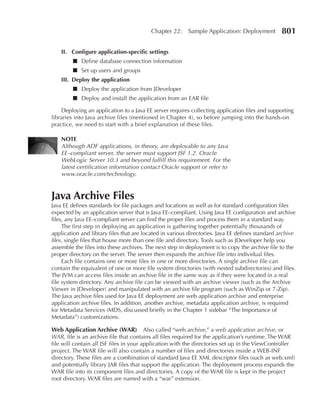
     Java Archive Files . . . . . . . . . . . . . . . . . . . . . . . . . . . . . . . . . . . . . . . . . . . . . . . . . . . . .   801
     I. Set Up a Standalone WebLogic Server for Testing . . . . . . . . . . . . . . . . . . . . . . . . . . . .                     802
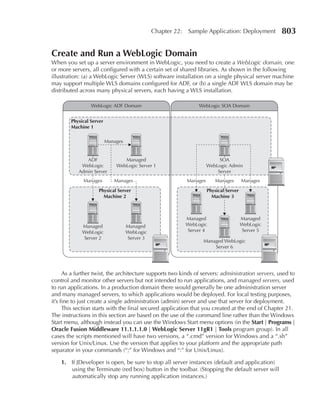
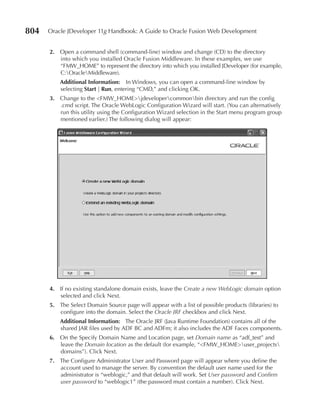
              Create and Run a WebLogic Domain . . . . . . . . . . . . . . . . . . . . . . . . . . . . . . . .                      803
              Run the Oracle WebLogic Server Administration Console . . . . . . . . . . . . . . . . .                               806
     II. Configure Application-Specific Settings . . . . . . . . . . . . . . . . . . . . . . . . . . . . . . . . . .                808
              Define Database Connection Information . . . . . . . . . . . . . . . . . . . . . . . . . . . . .                      808
              Set Up Users and Groups . . . . . . . . . . . . . . . . . . . . . . . . . . . . . . . . . . . . . . . . .             811
     III. Deploy the Application . . . . . . . . . . . . . . . . . . . . . . . . . . . . . . . . . . . . . . . . . . . . . .        813
              Deploy the Application from JDeveloper . . . . . . . . . . . . . . . . . . . . . . . . . . . . .                      813
              Deploy and Install the Application from an EAR file . . . . . . . . . . . . . . . . . . . . .                         817


     Index        . . . . . . . . . . . . . . . . . . . . . . . . . . . . . . . . . . . . . . . . . . . . . . . . . . . . . . . 821
Foreword


     I
             have worked as the architect in the tools group at Oracle for the past seven
             years, with the last three of those years also spent leading the development
             team. In all that time, we have been driving toward a single vision. Our goal
             is to create a tightly integrated, highly productive environment for a diverse
             set of developers building Java-, Java EE–, and SOA-based applications. I think
what we have delivered with JDeveloper and ADF 11g is the realization of that vision.

    As we have been working on building JDeveloper and ADF 11g over the past few years,
the rest of the company was getting behind us as well. JDeveloper and ADF 11g are not
only a best-of-breed development environment and runtime to build your custom
applications, but they are also the basis for all of the new products coming out of Oracle.
Oracle WebCenter 11g, Oracle SOA Suite 11g, and the next-generation Fusion packaged
applications are all built using the ADF technology using JDeveloper.
    What this means is that the contents of this book will not only get you productive and
up to speed on building custom Java and J2EE applications using JDeveloper and ADF, but
they will also provide you the necessary skills to build applications with Oracle WebCenter
and Oracle SOA Suite 11g, as well as customize and extend Fusion packaged applications.
When considering the vast market of Oracle middleware and packaged applications
customers, there is a lot of opportunity for anyone with this skillset.
    When thinking about a group of people qualified to write a book on this subject, I can’t
think of a better balanced team than Duncan, Peter, and Avrom. Duncan has been with
Oracle since well before our shift to Java technology and has been a key contributor in
helping us build a tool and framework that appeal to developers from a wide variety of
backgrounds. Duncan and his product management team have been on the front lines with
customers helping them adopt the 11g technology for the past two years.


                                                                                xxi
xxii   Oracle JDeveloper 11g Handbook: A Guide to Oracle Fusion Web Development


      Complementing Duncan’s internal perspective is Peter, who works as an external consultant
 in the market. Peter has written four previous books on JDeveloper and is a long-time guru and
 presenter on the topic. He is widely known as an expert on the Oracle tools and offers a wealth
 of information and experience from the view of a customer.
      Rounding things off is Avrom. Avrom was previously a documentation writer in the JDeveloper
 team at Oracle, and one of the most hands-on doc writers I have worked with. Avrom is able to get
 deep into the technology, and then use his skills as a writer to clearly articulate to the reader on
 how things work.
      We are very proud of the Oracle JDeveloper and ADF 11g release and are eager for more and
 more people to get their hands on it and try it out. Whether you are coming from a background of
 Java, Oracle Forms, PeopleTools, C/C++, or the scripting world, I think you will find this book and
 the technology it describes very approachable and powerful in helping you build applications.
                                                                                       —Ted Farrell
                                                         Chief Architect & SVP, Tools & Middleware
                                                                                 Oracle Corporation
Acknowledgments


   B
               ooks are magical and powerful things. There is something about the
               handling of the medium and the absoluteness of that old business card
               or ticket stub that you use as a bookmark that defines your progress and
               understanding of the subject matter. Although we all have so much
               information at our fingertips through online documentation and the
ubiquitous Google, the presence of a well-constructed and linear source of data in the
form of a thick wodge of paper adds some undefined quality to the learning process of
any technical subject.

    When Peter and I collaborated on our last book back in 2006, we created, I think, a
unique resource for the Oracle Development community, and certainly everyone we ever
spoke to echoed that sentiment. But times move on, technology changes, and like some
kind of primeval migration instinct, the urge to write arose again and here we are. Much
has changed in that time, and much has remained the same. I still work for Oracle,
although my role and circumstances changed considerably as I uprooted my family five
and a half thousand miles from ancient Winchester in England to California. In the course
of all this upheaval, I also took on much more management responsibility for the product
management and curriculum development teams within the Oracle Tools division. None of
which is actually very conducive to freeing up time for writing, but there you go.
    So why do it? Frankly, strange as it may sound, I find this stuff just too exciting. I’ve been
working with database development tools and Java frameworks for many, many years, and
I have to say that JDeveloper 11g and the Application Development Framework have reached
a level of maturity and functionality that just blows me away. Already, when I look at the
business applications that both Oracle and its customers are creating with the Fusion tools,
I see something that sets a standard that the rest of the industry is going to have a hard job
catching up with. I just want to rush out and physically shake developers out of their love
affair with the 1990s. So this book is, I suppose, a more polite way of doing that.


                                                                                   xxiii
xxiv    Oracle JDeveloper 11g Handbook: A Guide to Oracle Fusion Web Development


      For this book Peter and I are joined by Avrom, a long-time colleague of us both over the years
 and a hugely valuable addition to the team. Avrom brings a wealth of technical knowledge and
 possibly more important, practical experience of applying it. One of the roles of the technical book
 writer is to be an advocate on the readers’ behalf and to ask the questions that you’ve not thought of
 yet, and keep asking them until they get the answer. In this respect Avrom is tenacious, a veritable
 Canadian Mountie of the technical whys and hows. This book is so much the better for that.
      Peter, as my partner in crime for the last book, and so many joint technical presentations over
 the years, gets the less dashing comparison with epoxy. If you want to thank any one person for
 actually getting the book done and holding us together as a team, then Peter’s your man. He’s
 organized and herded us through the process, always riding the deadlines and managing the
 unglamorous tasks of styling and page count. All of this, and still one of the best people I know at
 expressing deeply technical subjects in a totally accessible manner.
      In an attempt to spread the blame I’ll say that a book is only as good as its reviewers, but of
 course we’ve had a fantastic review and editing team for the Handbook. Ann Horton took on the
 monumental task of technical editor at short notice and has done so well. All of these chapter
 reviewers have donated their own time to make this the book it is: (in no particular order)
 Dave Schneider, Eric Marcoux, Lynn Munsinger, Frank Nimphius, Shaun O’Brien, Grant Ronald,
 Blaise Ribet. And a special mention must go to Glenn Maslen, who managed the review process for
 us, and to the review “Dream Team” of Pam Gamer, Kate Heap, and Patrice Daux, who did such a
 great job of reviewing Part V of the book in particular—a daunting task with preproduction
 software. Steve Muench, the godfather of ADF Business Components, deserves a big thanks for his
 help with the sample application where he helped us out of some sticky situations with advice and
 much patience.
      Thanks to all at Oracle Press, Lisa McClain in particular, who patiently steered us through the
 whole process yet again and whose understanding of the realities of writing against preproduction
 software has been invaluable.
      Of course, every book needs a good foreword, and I have to thank Ted Farrell, my boss and
 the real moving force behind JDeveloper and ADF, for his contribution, vision, and patience over
 the last two years or so.
      The last word has to be for my family: Amanda, my perfect and understanding wife (did I mention
 that she is perfect?), Josh and Sam, who gave me the excuse for many hours of writing whilst sitting in
 the corner at Golden State Taekwondo in San Carlos—somewhat different from the traditional coffee
 shop writing environment, believe me!—and finally, of course, little Zoë, who kept me company for so
 many of those early morning writing sessions. Without all of their support this simply would not have
 happened. Guys, I owe you one.
                                                                                       —Duncan Mills
                                                                                  Foster City, CA, USA
                                                                                         October 2009
     If you compare our signature lines in this acknowledgments section and know our area or do
 some quick digging, you’ll find that the California communities in which we authors live form a
 small triangle, in the center of which is Redwood Shores, the location of Oracle HQ. It would have
 been nice if this serendipity of geographic proximity had somehow made the collaborative process
 required for a multi-author book such as this much quicker and easier than any of the other seven
 Oracle Press books, which I’ve co-authored variously with Duncan and Avrom and also with
 Dr. Paul Dorsey (who, although he was originally signed up for this book, had to bow out early in
 the process due to work pressures). However, due to a long product incubation slowed somewhat
 by various corporate acquisitions “relatively quick and easy” did not happen this time.
Acknowledgments       xxv

     Throughout that long (and sometimes hard) process, we had many contributors to this rather
large volume without whom you would not be reading this and whom, therefore, I’d like to thank.
First, I’d like to extend my great appreciation to my co-authors, Duncan and Avrom. I’m constantly
in awe of how they successfully juggle the full-time demands of parenting with full-time IT work
and book work. Despite my earlier claims to a “long and hard” process, I did learned a lot from
reading, reviewing, and questioning their material.
     Duncan, thanks again for hosting our FTP server as well as for your insightful and patient
mentoring and for inventing and implementing an application that shows off the great new
aspects of ADF and JDeveloper in a practical way. Sidebar to Duncan: if you are ever looking for
additional employment opportunities as a senior developer/architect . . . well, you know how to
get in touch with me.
     I have the pleasure not only of working in the same company as Avrom but also of collaborating
with him on client projects. Avrom, thanks for sharing in writing your deep knowledge of ADF
internals as well as for sticking with this really long-running project. I’d like to take this
opportunity to publicly extend my apologies for all my e-nagging about the various deadlines
(but you are now two days overdue on your last time report!).
     A large group of others contributed in many ways and now that their work is complete, it’s a real
pleasure to be able to thank them for their effort. Ann Horton, who worked as technical editor for the
last book Duncan and I wrote, just happens to be on a team in Oracle that was using JDeveloper 11g
(in its pre-production releases) to create applications. We couldn’t have asked for a better fit for a
technical editor. Thanks, Ann, for your expert insight and patience! Merci beaucoup to Eric Marcoux,
our other technical editor and fellow Oracle ACE Director. Eric is also one of the Fusion Middleware
11g early adopters, and his project (outside Oracle) is using the entire technology stack, including
JDeveloper 11g. Eric, your comments as a non-Oracle employee working with a real application
(also using pre-production software) were very, very helpful.
     My appreciation for additional technical reviews also goes to Rich Bruno, an Oracle consultant
whom I work with on a client project at NY State Office of Alcoholism and Substance Abuse Services
(OASAS). Rich brought into his reviews a longtime, in-the-trenches knowledge of JDeveloper 9i and
10g and the Oracle database. Rich worked through many of the hands-on practices in their early
stages (no small accomplishment there) and gave helpful suggestions for many of the chapters in the
book. Our other technical reviewers on the Oracle Product Management side also provided crucial
comments and corrections, including information about features I hadn’t figured out or known on my
own. For those reviews, thanks Patrice Daux, Susan Duncan, Kate Heap, Pam Gamer, Jeff Gallus,
Steve Muench, Lynn Munsinger, Frank Nimphius, Shaun O’Brien, Blaise Ribet, Grant Ronald, and
Dave Schneider for all your valuable input. Also thanks to Glen Maslen for keeping our chapters
flowing among the Oracle group. Another thanks to the Oracle JDeveloper documentation team. The
early documentation was amazingly complete and helped greatly in learning new features.
     Thanks also go to my boss, Austin Erlich, CEO of Quovera, for the flexibility in scheduling
required to balance book work with client work. I’d also like to recognize the stellar IT staff at
OASAS with whom I have worked for many years for their patience with my erratic work
schedule and for helping me stay aware that not everyone in the Oracle development
community is fully in tune with all the new aspects of Java (yet). My gratitude also goes to Karen
Cannell, Editor-in-Chief of the Oracle Development Tools User Group (ODTUG) Technical
Journal, for reviewing an early version of the book for an article in that excellent journal.
     I also appreciate the professionalism and friendliness of the McGraw-Hill staff who helped
this book project manifest, especially Lisa McClain, Smita Rajan, Robert Campbell, Janet Walden,
Jean Bodeaux, and Jack Lewis with whom we worked directly.
xxvi    Oracle JDeveloper 11g Handbook: A Guide to Oracle Fusion Web Development


     As always, Mom, Dad, and Marilyn, thank you for sympathizing with and showing a constant
 interest in the struggles of the book process.
     Most importantly, thanks to my wife, Anne, for her understanding and support. Anne, I foresee
 a vacation in the near future without the laptop.
                                                                                      —Peter Koletzke
                                                                                  San Carlos, CA, USA
                                                                                        October 2009
      Five years is a long time.
      It’s hard for me to believe, but that’s how long it’s been since the last time I wrote an
 acknowledgment page, for the Oracle JDeveloper 10g Handbook. A lot has happened in that
 time, for me personally, for JDeveloper, and for the world of web applications.
      Everyone knows how the web has changed. What was once a vehicle for reading news and
 making purchases has become a major part of our lives, and the static sequence of web pages
 and forms of the old Web have turned to a proliferation of sites as interactive and dynamic as
 any desktop application. And JDeveloper has changed apace: An application developed with
 JDeveloper 11g bears almost as little resemblance to one developed with JDeveloper 10g as
 does Facebook to trn. That’s what has made writing this book so exciting: the feeling of being
 involved with a true technological revolution. So first, I must send a big “thank you” to the
 JDeveloper team, just for making this possible by producing such a cool piece of software.
      My life has changed pretty dramatically too, both professionally and personally. Since the
 Oracle JDeveloper 10g Handbook, I’ve gone from being a member of the JDeveloper team to a
 very enthusiastic partner. I’d like to thank my current (no longer new—I’m writing this close to my
 fifth anniversary with them) employers, Quovera, Inc., for taking what must have seemed like a
 real chance by hiring a technical writer with no proven production development experience and
 helping me become the consultant and developer that I am today. In particular, I’d like to thank
 both my manager of record, Austin Erlich, and my mentor and the project manager of most of my
 projects, Peter Koletzke, for the understanding and flexibility they’ve shown when I’ve had to
 balance the demands of paying work and the brick of paper you’re holding in your hands.
      But of course, my thanks to Peter only barely begin with such abstracta as “understanding”
 and “flexibility.” This is our third book together, and I’ve worked with him on any number of
 development projects, as well. This man is a genius of project planning and implementation. Peter
 plans it, It Gets Done, and unless you’ve actually spent a year or so in the wilds of bookland, you
 probably can’t guess just how important that is. (Yes, I know you can guess it’s absolutely vital. It’s
 more important than that.)
      This is only my first book with Duncan Mills (although, of course, I worked with him during
 my years at Oracle), but I hope it won’t be my last. In addition to balancing the sometimes tricky
 load of official Oracle responsibilities and two highly opinionated co-authors (an experience I
 remember well from books past), Duncan has been a consistent voice of moderation and reason
 throughout the process. The massive sample application presented in this book, which Duncan
 created, certainly would not have existed at all if the rest of us had gone charging off with our
 wild-eyed sample application ideas, without his patient advice and guidance on what scope
 would and would not prove useful in an introductory text.
Acknowledgments       xxvii

     I owe a special debt of gratitude to both my co-authors for this book in particular. In the early
months of this year, I contracted a case of pneumonia that simply would not go away. I lost over two
months of productivity to the bug, which would have damaged or even killed this book’s prospects
if they hadn’t stepped in and taken tons of editing—far, far more than their fair share—off of my
plate. Both even took over part of my share of the manuscript.
     The primary work of a consultant, of course, is not writing books but, well, consulting.
A project as large as this perforce takes time away from the software development projects that
form my bread and butter. I’d like to thank all my clients over the last two years for their support
and understanding when book deadlines loomed, most especially the people at the New York
State Office of Alcoholism and Substance Abuse Services. I’d also like to give special thanks to my
Quovera colleague, Igor Gorbunov, who stepped in when book deadlines and software deadlines
seemed headed for unavoidable collision.
     Our technical editor, Ann Horton, has done truly heroic work turning a gigantic amount of
text by three people, each with our own idiosyncratic style, into a unified whole. Eric Marcoux,
another technical editor, also assisted greatly in the early stages of the process. And our technical
readers, Patrice Daux, Pam Gamer, Kate Heap, Steve Muench, Lynn Munsinger, Frank Nimphius,
Shaun O’Brien, Grant Ronald, Blaise Ribet, and Dave Schneider, have caught what must be
thousands of errors in the initial drafts. Particular thanks go to Steve Muench, who tirelessly and
patiently answered my questions, follow-up questions, follow-up follow-ups, and, more than
once, follow-ups to those. Many thanks are also due to our editor, Lisa McClain, and her entire
team at McGraw-Hill.
     Love and thanks to my parents, Lillian Faderman and Phyllis Irwin, who, as always, have been
immovable rocks of support, and congratulations to their finally sanctioned marriage in the
summer of 2008. Thanks to my friends, especially Jonathan Kaplan and Mark Barry, for well-timed
distractions. Thanks to everybody at the Ralston Peets in Belmont, who have provided probably
half the calories, and 95 percent of the caffeine, that I converted into words for the book. Thanks to
my cats, especially Nixie, who despite chewing through two baby monitor cords, two telephone
cords, a camera cord, and the power cord to Ina’s computer (three times!) has entirely refrained
from chewing through the cords to the computers on which I write.
     Probably the biggest change for me in the past five years is the entry into my life of my son
Nilakash. It’s a very different experience, writing a book as a family man, from writing one as a
young single guy or newlywed. My wife, Ina, deserves an entire uniform’s worth of medals for her
help, love, support, and patience, which stood up even when I all but disappeared into my work
for weeks on end. And thanks too to Nilakash for his understanding, which must have been hard
at times; thanks and a promise of more Daddy time in the future. And thanks to both of them for
making each day brighter.
                                                                             —Avrom Roy-Faderman
                                                                                 Belmont, CA, USA
                                                                                     October 2009
This page intentionally left blank
Introduction


This is not a novel to be tossed aside lightly.
It should be thrown with great force.
                                                              —Dorothy Parker (1893–1967)


  H
               ere’s the problem: developing an application using Java tools is very
               different from developing an application in other environments. As with
               any modern problem in virtually any realm, you can tap into a wealth of
               material on the Internet and obtain excellent tools to help with the solution.
               However, sifting through all of that material and finding the best way to use
the tools could take more time than you have. Moreover, the information and tools you
discover on your own may not be the best for your situation. For success with your first
application, you need to know which subjects are important, which techniques are
proven to work best, and which details are crucial to productivity. Briefly, the problem
boils down to, “What is the best way to work in this environment?”

    This is problem at which we are throwing this book.
    The motivation for writing this introduction was to expand upon our vision of the book’s
objectives, purpose, and contents so you can decide whether it will be useful for you and, if
the answer is “Yes” or “Maybe,” how best to use the book. This introduction includes details
about the book’s intended audience, objectives, contents, and scope. It also provides tips
and advice about how best to follow the hands-on practices (practical step-by-step
examples) in several parts of the book.


                                                                               xxix
xxx     Oracle JDeveloper 11g Handbook: A Guide to Oracle Fusion Web Development


 Who Is This Book For?
 As the title and subtitle of the book states, we address the material in this book to those who wish
 or need to use Oracle JDeveloper 11g to create web applications with the Fusion technologies—
 the technologies Oracle uses to create Oracle Fusion Applications—the next generation of
 Oracle’s packaged applications (which now includes Oracle E-Business Suite, PeopleSoft, Siebel
 CRM, and other applications products). This book is a “handbook,” not in the sense of a complete
 guide to all areas of the tool (because that function is well handled in the online JDeveloper Help
 Center) but in the sense that it is a guide for creating Java-enterprise standard, web applications
 using JDeveloper 11g.
     Although it may be erring on the conservative side, we assume that non-Java readers have no
 knowledge of or experience in Java Enterprise Edition (“Java EE” or Java standards-based) web
 development. We do assume that you have some experience at least with browsing web
 applications and are familiar with the tasks required to develop a database application. Although
 not a prerequisite, if you have worked on a Java EE web development project, you will be more
 quickly able to absorb the concepts needed to understand web application work. You will gain
 knowledge of best practices and solid techniques for JDeveloper work.
     Java-aware readers will find chapters that dive into low-level techniques for interacting with
 data using Oracle’s business services layer. In addition, we sneak some more advanced techniques
 into the hands-on practices in Part V. Java folks will also become aware of the robust and highly
 productive declarative techniques offered for writing applications in JDeveloper.
     The 11g release of JDeveloper is quite a bit different from earlier releases, and even
 developers, who have a head start to learning this version of the tool due to experience with
 previous versions, will benefit from the discussion of the additional features in this version.

      NOTe
      All of the material in this book has been verified with the first Oracle
      JDeveloper 11g production release (version 11.1.1.1.0, build 5407).
      Earlier builds of JDeveloper 11g may not work the same way or at all
      with the hands-on practices. For later builds, you may need to adapt to
      slightly different names and features. Although many of the concepts
      for building applications are the same with JDeveloper 10g, we do
      not recommend trying to follow the overviews or hands-on practices
      closely using a release of JDeveloper before 11g (build 5407).


 Do I Need to Know Java?
 Since JDeveloper generates code, including some written in the Java language, it is important that
 you have a basic understanding of Java before beginning serious development work. This book does
 not explain the Java language in any detail, because the pages are filled with specific information
 about JDeveloper. Chapter 4 provides an overview of some of the necessary Java concepts (as well
 as concepts for other languages) in case you need a review or a bit of background before taking
 your first formal training class in Java. However, at some point in your learning process, you will
 also want to obtain some training or to study one or more Java books. The Sun Microsystems Java
 website (java.sun.com) contains a wealth of free introductory and advanced information, including
 self-directed tutorials that you can use to become familiar with Java.
Introduction   xxxi

   NOTe
   As this is being written, the effects of Oracle Corporation’s acquisition of
   Sun Microsystems (the owner of Java) are unknown. Therefore, we refer
   to Sun Microsystems throughout the book as an autonomous entity.

    The JDeveloper wizards create a lot of code for you. This code is completely functional, well
formatted, and built to follow best practices. You can learn a lot by examining and analyzing the
code that the wizards create. If you are new to Java web development, after reading through
Chapter 4’s language concepts, you can look at the generated code and test your understanding of
the various languages in which the files are written, for example, Java and XML.
    Part II is considerably more Java-intensive than the rest of the book. Some sections of Part II
describe features of JDeveloper that require some understanding of object-oriented programming
to grasp and some hand-coding in Java to use. We expect that the brief Java background provided
in Chapter 4 will be enough to make the chapters in Part II useful, but some further training in
Java will make some of the subtleties expressed in those chapters clearer. Developing the sample
application in Part V does not require deep knowledge of Java. However, although we supply all
Java (as well as other language) code fragments needed to complete the tasks, we strongly
encourage you to study and understand them so that you can effectively solve similar
programming challenges in the future.


Objectives
No book can teach you all possible techniques that you will need when you face a real
application development task. If it could, this would take away much of the challenge,
excitement, and demand for creativity that application developers face and often take pride in
handling every day. However, a book can empower you with knowledge about the underlying
principles; this knowledge will help you face future application challenges presented to you.
    Therefore, the book’s objectives are as follows:

    ■   To explain in some detail the technology behind the code you create in JDeveloper
        11g, Release 1 (JDeveloper 11.1.1.1.0) with Application Development Framework
        (ADF) Business Components, ADF Faces Rich Client, ADF Task Flow, the ADF Model,
        and JavaServer Faces (JSF). This background information will give you a context for
        understanding what you are doing in the tool and how to address development
        requirements and any problems that may occur.
    ■   To demonstrate development of a somewhat real-world application that uses the same
        technology stack as the Oracle Fusion Applications.
    ■   To show you some of the basic techniques required to develop a typical application. We
        provide gentle introductions and explanations of some techniques so that you can fully
        understand why you are performing certain actions in JDeveloper.
    ■   To prove the productivity you can gain using JDeveloper’s declarative and visual tools to
        create and edit application code.
    ■   To present some best practices for approaching requirements in a web application. There
        are always many paths to a goal, and this is very true of Java EE development. We provide
        opinions about some paths we recommend with reasons for those opinions.
xxxii    Oracle JDeveloper 11g Handbook: A Guide to Oracle Fusion Web Development


     ■   To guide you toward additional sources of information for more details. These sources
         include those that have helped us, as well as others, understand aspects of Java web
         development. These references are scattered throughout the body of the book in context
         of the applicable subjects.


 The Java ee Knowledge Problem
 You likely have read or heard material about Java EE web development and JDeveloper, but you
 still may not be comfortable with the concepts. In fact, so-called introductions to Java EE often
 leave you with more questions than understanding. This is a natural effect of learning new
 material, but it seems to be particularly true with this environment, which already has a well-
 established and expert-level user community. That user community is highly qualified to present
 the concepts and examples to others and is quite generous in doing so. However, as is true with
 any instructor, Java EE writers many times assume that readers have understood more than they
 actually have mastered. This assumption means that new content is not properly assimilated
 because the reader has an incomplete understanding of that content’s foundation.
       You can obtain any information about the technologies behind Java EE web development from
 the Internet. The wealth of available information actually contributes to the steep learning curve
 for non-Java developers. When trying to learn a technology, you need to search for the right
 source, decide which sources are reliable and correct, read and understand multiple explanations
 (because one explanation is rarely complete for your purpose), and integrate them into a
 comprehensive picture. However, you are not sure whether all the knowledge you gain in this
 way is essential and true. You would like to reduce the knowledge to only that which is true and
 essential. Providing you with the true essentials is one of the goals of this book.

 The JDeveloper 11g Solution
 When you run JDeveloper, you will see the splash screen motto—“Productivity with Choice,” as
 shown in the following illustration.


 This motto means that JDeveloper supports different ways of creating code, for example, typing
 code text, declaring property values, and performing visual layout. It also correctly implies that
 JDeveloper supports development work using any Java EE technology. You will not need more than
 one tool—JDeveloper handles it all. However, before JDeveloper 11g, this same motto frustrated
 some non-Java developers because it meant that they needed to be aware of the ins and outs of
 various technologies, and they needed to make technology choices with little direction from Oracle.
Introduction     xxxiii

     Older application-building technologies often provide a single technology suite for deploying
web applications and a defined path for development. However, when working in a Java
environment and, therefore, in JDeveloper, you need to string together various Java EE technologies
for a final solution. The danger of a wrong selection exists unless you study carefully and obtain
some help from those with experience.
     With JDeveloper 11g, you can still select from any Java EE technology, and JDeveloper will
support your development work. However, Oracle has provided a defined path that it uses to
create Oracle Fusion Applications: ADF Business Components with JSF and ADF Faces Rich
Client—the technologies we explain in this book.


Information in This Book vs .
Information from Other Sources
A small number of readers may worry that a book in the Oracle Press series might repeat material
found elsewhere. Therefore, it is necessary to assure this group that the material in this book is
original and unique, although it is thankfully not the only information available about JDeveloper.
JDeveloper has an active user community and wide support within the Oracle development
world. Much material has been written about JDeveloper 11g already and will be written about
JDeveloper 11g in the future, including several books mentioned in the later section “Oracle Press
Books.” Most of this material is available from the following sources:

Oracle Technology Network (OTN) This website (www.oracle.com/technology) contains
many pages devoted to work with JDeveloper, ADF Business Components, and ADF Faces. Most
OTN articles focus on a specific application-development feature and provide examples with little
or no Java technology background explanation. This type of material is a critical source of
practical information about techniques. It can save you much time in researching how to solve
a particular programming problem. Start browsing for information from the JDeveloper home
page (www.oracle.com/technology/products/jdev/).

Oracle ADF Learning Center      As of this writing, an OTN website page called “Oracle ADF
Learning Center” (www.oracle.com/technology/products/adf/learnadf.html) provides useful
information, including demos, tutorials, developer’s guides, and sample applications to
experienced Java developers as well as traditional tools developers.

ADF Developer’s Guide       The Fusion Developer’s Guide online book is available in the Oracle
ADF Learning Center as well as in the JDeveloper Help Center. It targets the same audience as
this book and contains some similar techniques. However, it provides many more examples of
different types of code you may need to write. We think that this developer’s guide is a perfect
follow-on book to our book. Once you come to an understanding about the Java EE web
technologies and basic development techniques here, you can use the developer’s guide to round
out your understanding or to provide you with specific techniques not discussed here.

JDeveloper Help Center In addition to detailed (and some overview) information on OTN, the
JDeveloper Help Center (online help system) provides more tool-oriented information about
accomplishing specific tasks. For example, JDeveloper contains several useful features, such as Cue
Cards that provide step-by-step instructions for performing a certain task or for developing a certain
type of page, Favorites that allow you to create a list of help topics of interest, and Dynamic Links that
xxxiv     Oracle JDeveloper 11g Handbook: A Guide to Oracle Fusion Web Development


 display a list of help topics relevant to the task at hand. The entry point for the Help Center is the
 Help menu in the JDeveloper IDE or the Help Center window (Help | Table of Contents).

     NOTe
     Menu selections from right-click (context) menus or the JDeveloper
     main menu are marked in boldface throughout the book with “|”
     symbols separating menu, submenu, and menu item selections.


 What’s Different about This Book?
 Although a wealth of material about web development using JDeveloper is available from various
 sources, much of it assumes you have some background in the basics of Java and Java EE. This
 book helps you better assimilate that material by providing the necessary background information
 for your web development work.
     In addition, although many techniques and white papers you will find on the Web provide
 clear steps for creation of all types of web application code, this book has the luxury of spending
 many pages on a technique as well as on the background material and practical hands-on steps
 you need to know to understand the technique more fully.
     Coming up with best practices from the many information sources available to you can be
 daunting. This book guides you down a development path using Fusion technologies and, at
 the same time, states and demonstrates best practices for this path at appropriate moments in
 the discussion.


 Contents of the Chapters
 To provide you with a better idea of the subjects we think you need to know about Java EE web
 development using JDeveloper, it is useful to briefly examine the contents of each chapter. In
 addition, although we’ve designed the chapters to be read in order, you may find some of the
 overview chapters review material that you can skip over until later.
     The chapters are organized into five parts: Overviews, ADF Business Components, ADF View
 and Controller, ADF Model, and Developing the Sample Application.

 Part I: Overviews
 Developing Java EE web applications using JDeveloper and ADF requires familiarity with
 concepts that will be new to you if you have previously worked in other environments. You may
 have heard about and learned about some of these concepts before. However, so many Java EE
 technologies are available that you may be at a loss to know which technologies you need to
 learn most thoroughly. Part I of this book introduces you to the concepts you will run into when
 developing Java EE web applications with ADF in JDeveloper 11g.
      Most of the chapters in this part (as well as Parts II, III, and IV) are structured around questions
 listed at the beginning of each chapter. This should make finding an answer for a particular
 question easier later on, but the chapters are also intended to be read from start to finish.
 Although Part V is dedicated to hands-on practices that provide step-by-step instructions about
 how to complete tasks, some of the chapters in Part I provide general instructions for JDeveloper
 work that illustrate the concepts discussed in later chapters. While understanding those concepts
 is not dependent upon working in JDeveloper while you are reading, you might find that
 following along using JDeveloper helps you understand these concepts better.
Introduction    xxxv

    Chapter 1 leads the overviews by defining and relating JDeveloper, ADF, Fusion, and Fusion
development. All of these topics are foundations upon which everything in this book is built.
    Chapters 2 and 3 introduce and provide a tour of the main areas of JDeveloper, which you
will use for working with Fusion technologies.
    Chapter 4 explains Java EE—a set of specifications and best practices for developing and
deploying a Java-oriented application—as well as the technologies it specifies; it also describes
how web communications work to fill in the picture of how Java EE web technologies work at
runtime. Chapter 4 finishes by briefly defining the various languages you will use when
developing a Java EE web application.

Part II: ADF Business Components
Part II focuses on ADF Business Components (ADF BC), the framework that your application will
use to communicate with the database. Chapter 5 introduces this framework and explains how it
fits into ADF. Chapter 6 explains how to create business components that directly represent your
database objects and the relationships between them, and that encapsulate and enforce business
logic. Chapter 7 shows how to create components that query data from the database or provide
static data, and how to aggregate this data for use by your user interface. Chapter 8 demonstrates
how to encapsulate complex data operations.

Part III: ADF View and Controller
The theme of Part III is the View and Controller layers of a Java EE application, which are responsible
for rendering the user interface and for handling user interactions and data flow, respectively. The
View layer technology of choice for Fusion Applications is the Java EE technology, JavaServer Faces
(JSF). Chapters 9 and 10 introduce JSF and provide hands-on practices that allow you to dig a bit
into JSF internals.
     Chapter 11 explains how ADF supplies a Controller layer, ADF Controller, which manages
user interactions such as button clicks and defines the logic for which page or part of a page will
be displayed.
     Chapter 12 closes out Part III by describing (and demonstrating in hands-on practices) an Oracle
component library, ADF Faces Rich Client, which supplies a large range of JSF components that offer
highly interactive functionality.

Part IV: ADF Model
Part IV discusses ADF Model (ADFm), which performs the previously daunting task of data
binding—connecting user interface and controller code to data supplied by the business services
layer. Chapter 13 introduces the ADF Model layer and the files it uses for binding data on the
page and in controller activities. Chapter 14 explores the ADF Model bindings topic in more
depth and explains how to edit and implement bindings beyond the defaults. Chapter 15
explains executables, ADFm components that perform actions during the page or activity life
cycle, and explains how to work with ADFm from within managed beans.

Part V: Developing the Sample Application
There is absolutely nothing like the practical application of concepts to help them sink in; in
addition to helping you absorb concepts, it is often easier to explain a technical concept with real
code that implements a real-life requirement. Therefore, we dedicate roughly a third of the book
to walking you through hands-on practices, most of which develop a sample application called
The Ultimate Human Resources Application (TUHRA), version 2 (version 1 was used as an
xxxvi     Oracle JDeveloper 11g Handbook: A Guide to Oracle Fusion Web Development


 example in our previous book, Oracle JDeveloper 10g for Forms & PL/SQL Developers). After an
 explanation of design principles and best practices for working with JDeveloper and ADF in
 Chapter 16, we spend the rest of Part V guiding you though development of application pages
 using JDeveloper, ADF Business Components, ADF Faces Rich Client, and JSF.

     NOTe
     Although Part V develops the TUHRA2 application, we use screenshots
     and examples from the application in earlier chapters as well.

      The main application you create in this part of the book contains elements you would usually
 build into a real-world system. The application demonstrates data search and edit capabilities as
 well as the display of hierarchical data. Chapters 17 through 20 set up the application and complete
 these pages. Chapter 21 walks you through adding users, groups, and code to handle security in the
 application. Chapter 22 shows how to deploy the application—copy the application files to the
 server so the application can be run in a web environment.
      The practices in this part of the book contain discussion material that provides more detail
 about the tasks you are completing. Sidebars and paragraphs headed “Additional Information”
 anticipate questions you might have while completing the development steps.
      All hands-on practices are divided into major phases of work (numbered with Roman numerals),
 and these phases are divided into sections, each of which contains a logical unit of work. At the end
 of each major phase of development, the practice contains a section called “What Did You Just
 Do?” which explains again the result of the steps you followed. Some phases end with an additional
 section called “What Could You Do Next?” which provides guidance about variations or possible
 enhancements you could make to the code you just wrote.
      It is important to the learning process not only to complete a series of steps by following the
 instructions, but also to comprehend exactly what occurred in those steps. The detailed explanations
 and summaries at the end of each phase are intended to help with that comprehension.

     NOTe
     As mentioned throughout the book, completed code for each chapter
     of the sample application, as well as some additional features, is
     provided on the websites mentioned in the “Websites for Sample
     Files” section later in this introduction. You can use this code to check
     your work or to view additional techniques not detailed in the book.

     It is not our intention in these chapters to provide you with all techniques you will ever need
 to build web applications. Rather, the intention is to guide you through some basic techniques
 that go far beyond the defaults provided by the JDeveloper wizards. This type of work should
 make you think about and grasp how ADF and the other frameworks work, and this will help you
 solve programming problems in future projects.


 Subjects Not Discussed in This Book
 As just mentioned, in this book we do not intend to provide you with every technique you will
 ever need when developing an application. We do discuss most of the technology concepts and
 basic techniques you will require in a real project. However, you will need to refer to other sources
 for information on other essential topics, such as:
Introduction   xxxvii

Integration with Service-Oriented Architecture (SOA) Oracle bases Fusion Applications
around SOA principles. Although Chapter 1 explains SOA strategies, due to space limitations, this
book chooses to focus on core JDeveloper techniques that you will use to build applications in a
SOA environment, rather than explain or demonstrate SOA development. We would strongly
encourage you to investigate SOA integration further in other Oracle Press titles.

How ADF Compares with Application express Application Express (APEX, formerly HTML
DB) is an Oracle product that provides a rapid application development environment for creating
web applications. The development environment, runtime engine, and application code reside as
PL/SQL in an Oracle database. Although you can develop the same type of web application using
either ADF or APEX, their architectures are completely different. APEX is not used to build Fusion
Applications and does not fit into the Fusion technology stack. Therefore, we do not spend time
in this book comparing the ADF and APEX environments or explaining APEX other than in
this paragraph.

Reports Development        Although application development is not complete without a reporting
system, we do not devote space in this book to discussing reports development. Some reporting
needs can easily be handled by read-only JSF screens that are formatted in a printer-friendly way.
ADF Faces provides container components that can assist in the layout, but for more flexibility in
report building, Oracle is building reports for Fusion Applications using BI Publisher (previously
XML Publisher). The Oracle BI Publisher home page on OTN is currently www.oracle
.com/technology/products/xml-publisher. Development shops that use other reporting tools such
as Oracle Reports, Oracle Application Express, or the PL/SQL Web Toolkit, can continue to use
those tools with applications built in JDeveloper 11g.

   NOTe
   In Part V, we show how you can generate an Excel spreadsheet
   containing data displayed in the browser. This technique may fulfill
   some users’ reporting requirements.


Additional Development Tools—Ant and JUnit           Development efforts with JDeveloper often
employ other tools, such as Ant (ant.apache.org) for building deployment files or running scripts;
and JUnit (www.junit.org) for testing Java code. These (and many other) useful tools integrate well
with JDeveloper and complement its features.

A Complete Sample Application Although the hands-on practices in Part V take you through
development and deployment techniques for some of the most common types of screens—query,
browse, add, delete, and edit, with security features—you will need many more techniques to
complete a real enterprise-level application.

Web Application System Development Life Cycle (SDLC) This book focuses on the
Development phase of a full SDLC. Along the way, it provides tips and best practices for work you
would perform in the Design phase, and many of the techniques you learn in the book will guide
how you design your application. However, other than this implied support, the selection and
design of an SDLC for a web application project is beyond the scope of this book.
xxxviii     Oracle JDeveloper 11g Handbook: A Guide to Oracle Fusion Web Development


 Getting the Most Out of This Book
 The chapters in this book are intended to be read in sequential order. We have included material
 that we think will help you when developing Java EE web applications and think you will gain
 something from each chapter.
     However, we realize that you may need information about a certain subject before reviewing
 the entire book. You can find subjects in the book using the following features:

     ■    Contents and Contents at a Glance
     ■    Index
     ■    Questions in the beginning of the chapters (Part I through Part IV)
     ■    Lists of phases and sections in the hands-on practice chapters (Parts III and V)

     You may be able to skim through a chapter that addresses a subject already within your
 comfort zone. For example, if you have a working knowledge of Java EE basics, scan through that
 material in Chapter 4 and pay attention only to information about any unfamiliar technologies or
 technologies that you need to review.

 Following the Hands-On Practices
 Although you can gain useful knowledge by just reading the text in this book, we highly
 recommend that you perform the steps in the hands-on practices. Although these hands-on
 practices contain some standalone explanations, merely reading them will provide minimal
 benefit. The hands-on practices provide experience with concepts introduced throughout the
 book, and new and more detailed concepts are provided in the practices. Therefore, it is useful
 to stop while working in a hands-on practice and read these concepts embedded inside the
 hands-on practices so that you can have a context for the task at hand.

    CAUTION
    As mentioned before, the material in this book has been tested with
    JDeveloper 11g build 5407 (the first production version of JDeveloper
    released with Fusion Middleware 11g R1). The practices will not
    work with any version of JDeveloper before that. If you are using
    a later version of JDeveloper 11g, you may need to adjust some of
    the instructions, although the principles and best practices should
    remain accurate.


 Preparing for the Hands-On Practices
 You will need JDeveloper 11g and access to sample HR database schema, as described next.

 Installing JDeveloper
 You will need to install JDeveloper 11g (production build 5407 or later), which is available as
 a free download from the Oracle website. For computers running Windows or Linux, navigate to
 the JDeveloper home page at www.oracle.com/technology/products/jdev and look for the
 download link (currently in the top-right corner of the page). Download the Studio Edition,
 complete installation version for your operating system; this version includes the Java
 Development Kit that is compatible with this release of JDeveloper.
Introduction    xxxix

     After you have downloaded the install file, run the installer executable. The install wizard will
start up. This installer will create a local instance of Oracle Fusion Middleware, including
JDeveloper 11g and Oracle WebLogic Server. Follow the install wizard and accept all of its defaults.

    CAUTION
    Be sure to select an install directory that does not already contain
    Oracle 11g Fusion Middleware.

     When the installer completes, your Start menu will contain a new program group for Oracle
Fusion Middleware 11.1.1.1.0. This group will contain JDeveloper as well as WebLogic Server
utilities.

    TIP
    After installing JDeveloper, copy the JDeveloper shortcut in the Start
    menu to your desktop or taskbar toolbar. This will allow you to start
    up JDeveloper more quickly.


Browser Requirements
You work with JavaServer Faces (ADF Faces Rich Client) components in JDeveloper 11g. At this
writing, these components require one of the following web browsers:

    ■   Internet Explorer, version 7.0 or later
    ■   Mozilla Firefox, version 2.0 or later
    ■   Safari, version 3.0

The JDeveloper Install Guide documents certified browser versions. Follow links from the Release
Notes (Help | Release Notes) to access the Install Guide.

JDeveloper System Requirements
The JDeveloper 11g Install Guide describes system requirements. Oracle recommends running
JDeveloper in one of the following operating systems: Windows XP (SP 2), Server 2003 (R2), or
2000 (SP 4); Red Hat Enterprise Linux 3.0 or 4.0; or Mac OS X 10.4.x (dual CPU). As with most
software, the more memory you have, the better, but at least 2GB is recommended. Including all
middleware in the installation file, JDeveloper Studio Edition requires about 1.4GB of hard disk
space. If you are running a database on the same computer as JDeveloper, add the database’s
requirements to those numbers.
    It is always useful to review the Release Notes for any Oracle product for known limitations
and issues. JDeveloper is no exception.

    NOTe
    This book was prepared with and provides examples in the Microsoft
    Windows operating system. If you run JDeveloper on another operating
    system, you will need to translate any instructions that require work
    outside of JDeveloper into techniques using that other operating
    system. In addition, we tested the code with the latest versions of the
    Microsoft Internet Explorer and Mozilla Firefox browsers.
xl   Oracle JDeveloper 11g Handbook: A Guide to Oracle Fusion Web Development


 Accessing the Sample Database Schema
 Although JDeveloper supports connecting to any database with a JDBC driver, we focus on some
 specific features of the Oracle database. This book builds examples using database objects
 installed in the HR schema of an Oracle9i, 10g, or 11g database. Oracle8i also offers the HR
 schema, but its tables are slightly different. Should you not have access to the HR schema, you
 can download an installation script from the sample code websites. In later versions of the
 database, the HR schema is locked and you (or a DBA) will need to unlock it (“ALTER USER hr
 ACCOUNT UNLOCK;”).
     If you do not have access to an Oracle database and would like to install one on a desktop or
 other computer for nonproduction, development purposes, we highly recommend Oracle Express
 Edition (Oracle Database XE). Oracle Database XE is another free download available at OTN
 (oracle.com/technology/xe). This database is currently limited to 4GB of data (1GB for database
 memory), and the HR schema is preinstalled with the database. As mentioned before, be sure
 your computer hardware contains enough memory for both the database and for JDeveloper to
 run at the same time.

 ensuring Success with the Hands-On Practices
 Your experience with development in the hands-on practices should be trouble-free. However, it
 is possible that you will run into problems that are not easy to debug. Although problems are a
 natural part of any development effort, and the process of solving problems that arise is an
 excellent learning tool, we want you to ultimately be successful in completing the practices.
 Therefore, we offer the following tips:

 Do Not Type ending Periods and Commas into Values               Many steps in the practices direct you
 to type in or select a value for a field. To clearly designate the value you are supplying, we
 enclose it in double quotation marks (for example, “true”). We comply with standard American
 punctuation conventions in these situations. For example, if a sentence in the text requires a
 period or comma after the value, we enclose the period or comma inside the quotes. However,
 unless instructed, you should not add the period or comma to the value. For example, a sentence
 might be written as follows:

     Fill in Rendered as “#{bindings.DepartmentId.inputValue}.”

     In this example, you would only type in the value from “#” to “}” without the sentence-ending
 period (“.”).

 Test the Application When the Instructions Indicate        If you run into a problem, backtrack
 through the steps you followed after the last successful run, and look for typos or missed
 techniques.

 Slow Down     We have found ourselves, at times, wanting to quickly complete an exercise.
 However, in this haste, we miss (or misread) a critical step or part of a step.

 Debug the Code Although code that JDeveloper creates is not likely to cause problems, you
 should check any code you have typed into JDeveloper, whether it be in an editor or a property
 field, especially snippets of code and property values containing expressions. In addition, double-
 check the order and contents of the nodes in the Structure window for the files you are working
 with. You can compare these with the sample solutions visually in the Structure window or using
 the comparison utility mentioned later on.
Introduction    xli

Read error Statements Carefully Error reporting in Java-oriented code has become much more
sophisticated lately. Java stack trace messages often look overwhelming, but reading the clues
carefully (particularly at the top of the stack of any detail exception) should give you a direction
for finding the problem. In addition, don’t forget to look in the Structure window (explained in
Chapter 3) for errors and allow it to help you find the problem code and the solution.

Compare Your Code with the Sample Application Files            The sample code websites contain an
ending application file set for each phase of the hands-on practices in each chapter. You can
download the working code and compare it with your code using the file comparison utilities
available from the right-click menu on a file in the navigator, as shown here:


Frequently Back Up the Application Directory We (and our reviewers) advise that you back
up the application directory after a successful test for application functionality (at least at the end
of each chapter in Part V, or even after each phase or section that concludes with a test). That way,
if you experience problems in a later stage, you can restore the backup and reapply the changes
you made after the backup. Use a file manager, such as Microsoft Windows Explorer, to copy the
top-level directory (containing the application workspace .jws file and the project subdirectories),
and paste it to another location (optionally renaming it to indicate the save point).
     Although the practices in Part V are intended to be run sequentially, you can use the sample
end-of-phase application files available on the book’s website to skip chapters. For example, if
you wanted to start with the hands-on practice in Chapter 19, you could install the Chapter 18
ending application and use it to work through the steps in Chapter 19.
Stop, Restart, Undeploy      If you experience unexplained errors such as files that worked before
are no longer accessible, it may be that running the application many times in JDeveloper has
caused an inconsistent memory state. You can usually clear this problem by stopping the
application and the default server or by restarting JDeveloper, which will stop the server.
    Running an application in JDeveloper deploys it. (Chapter 22 provides details about
deployment.) If JDeveloper cannot restart an application because it is already deployed, you can
manually undeploy the application using the Application Server Navigator (View | Application
Server Navigator) and expanding the IntegratedWLSServer node. Select Undeploy from the
right-click menu on the application node.
xlii    Oracle JDeveloper 11g Handbook: A Guide to Oracle Fusion Web Development


 Google Is Your Friend    In addition to assistance you may gain from the OTN website, you can
 also broaden your search to the World Wide Web using a search engine like google.com. The
 truth is out there.

 Check the Look and Feel      Over time, we anticipate a slight change in the look and feel of the
 ADF Faces components used in the sample application. The chapters currently show screenshots
 using the 11.1.1.1.0 production version of JDeveloper 11g, Release 1 (build 5407). The hands-on
 practices chapters contain steps you can follow to switch the skin (look and feel) if your version is
 later and the components do not match the screenshots. You can follow those steps if you wish to
 match the screenshots exactly, or you can leave the default look and feel intact.

 Authors’ Availability
 Unfortunately, the authors are not able to help you with problems encountered in the hands-on
 practices. However, you can use the OTN JDeveloper forum (accessible from the JDeveloper
 home page) to post questions for the JDeveloper community. This resource is also useful for
 answering questions that occur when working in JDeveloper outside of the book’s practices.
     We intend to post updated files, corrections, and additional techniques on the sample code
 websites mentioned in the next section.

       NOTe
       Although the hands-on practices have been tested and retested by
       several reviewers, defects may exist. Be sure to check the websites
       mentioned next for corrections that may already be documented.


 Websites for Sample Files
 Links to sample files and errata for this book may be found through links at www.tuhra.com—
 named after the sample application you develop in Part V of this book. In addition, the authors’
 websites contain information about this book and other topics of interest to Oracle developers—
 www.avromroyfaderman.com for Avrom Roy-Faderman and www.groundside.com/blog/content/
 DuncanMills for Duncan Mills.
      The Downloads page of the McGraw-Hill Professional website also hosts links to the sample
 files for this book—www.oraclepressbooks.com.


 Further Study
 You will need more information than this book contains to learn the subject of application
 development in JDeveloper fully. Most developers agree that the best learning experience is
 gained from focusing efforts on a real development project. Books can help you get started
 learning about a technology and can serve as one source of reference material for when you get
 stuck in development. For this extra information, we again point you toward all the sources
 mentioned before in this Introduction as well as in references throughout the book. Several other
 resources are worth mentioning at this point.
Introduction    xliii

Oracle Press Books
We are pleased to state that the franchise this author group (with the addition of Dr. Paul Dorsey)
has long held on the JDeveloper topic within the Oracle Press series is expanding to other authors
and additional titles. At this writing, the following related books are in process:

    ■   Oracle Fusion Developer Guide: Build Rich Internet Applications with Oracle ADF
        Business Components & ADF Faces, by Lynn Munsinger and Frank Nimphius
    ■   Oracle WebCenter 11g Handbook: Build Rich, Customizable Enterprise 2.0 Applications,
        by Frédéric Desbiens, Peter Moskovits, and Philipp Weckerle
    ■   Oracle SOA Suite 11g Handbook, by Lonneke Dikmans and Lucas Jellema

Check www.oraclepressbooks.com or with your favorite bookseller for future availability details.

Oracle User Groups
In addition to these resources, we strongly urge you to take advantage of information available from
independent Oracle user groups. These groups meet at local, regional, national, and international
levels. Some offer newsletters or journals in addition to online forums. For example, the Oracle
Development Tools User Group (ODTUG, www.odtug.com) offers conferences, free electronic
mailing lists, and white papers, all geared toward sharing information gained by experience in
business environments. The Independent Oracle Users Group (IOUG, www.ioug.org) also provides
a technical tips repository and information about many local Oracle user groups in the Americas.
A web search engine will also assist you in finding an independent Oracle user group near you.
This page intentionally left blank
Part
                                         I
          Overviews
There is nothing more difficult to take in hand,
more perilous to conduct, or more uncertain
in its success, than to take the lead
in the introduction of a new order of things.
          —Niccolò Machiavelli (1469–1527),
                                  The Prince
This page intentionally left blank
ChaPter
                     1
  Overview of Fusion
Development and ADF

                 3
4   Oracle JDeveloper 11g Handbook: A Guide to Oracle Fusion Web Development


    When you innovate, you’ve got to be prepared for everyone telling you you’re nuts.
                                                                                     —Larry Ellison (1944–)


      O
                    ver the last few years we’ve heard an ever-increasing buzz around the term Fusion
                    within the Oracle community as Oracle pushes forward with its next generation of
                    business applications. Fusion means different things to different people, something
                    that we will discuss shortly, but its use as a term to define an architecture and
                    development methodology is the focus of this book.

        This first part of the book provides an essential overview of some of the key technologies
    and tools that you will encounter as a developer working in this space. This chapter introduces
    some of the key architectural issues and concepts, Chapters 2 and 3 provide an introduction to
    the JDeveloper IDE and Chapter 4 discusses the key technologies that define the web platform
    as a whole. Subsequent parts of the book drill into some of the fundamental framework pieces
    and provide a guided tutorial to help you to build your first Fusion application. We start,
    though, with this chapter, which provides an introduction to Fusion architecture and technology
    from the point of view of the developer. In the course of this introduction, it also touches on the
    Oracle Application Development Framework (ADF), which eases development chores when
    working with the Fusion platform. The chapter discusses answers to the following questions:

        ■    What is Fusion?
        ■    What is a framework?
        ■    What is Oracle ADF?
        ■    Why should I use JDeveloper?


    What Is Fusion?
    We have deliberately used the term “Fusion” in this book’s title rather than listing specific technologies
    or frameworks. Fusion as a term is used in multiple places as a brand by Oracle, and of course it’s a
    popular brand name for many other, nonsoftware products, ranging from razors to cars. Oracle refers
    to Fusion in two distinct branding contexts:

        ■    Oracle Fusion Middleware This is the entire suite of middleware used to run modern,
             standards-based applications. It provides a runtime environment for applications written
             to the Java Platform, Enterprise Edition (Java EE) APIs, Service-Oriented Applications, and
             much more. We’ll be explaining what this infrastructure supplies a little later on in this
             chapter.
        ■    Oracle Fusion Applications This is a project undertaken by Oracle to both unify
             and modernize its entire suite of packaged business applications. The term Fusion
             Applications covers packaged applications for financial management, human capital
             management, customer relationship management, and much more. This is a huge
             undertaking in software terms involving thousands of programmers working for several
             years, but it is important to note that the techniques and software used for that project are
             exactly what we describe in this book.
Chapter 1:     Overview of Fusion Development and ADF             5

    Oracle Fusion Middleware provides a runtime and development environment for Oracle
Fusion Applications, so there is a natural usage of a common branding there. However, when we
refer to Fusion in this book, we’re really employing a third use of the word: Fusion Architecture.
The common link here is that the Oracle Fusion Architecture defines the core architecture and
technologies used to build the Oracle Fusion Applications products, which in turn will be
deployed on Oracle Fusion Middleware (or indeed, in principle, to any other standards-based
application server). As continually writing the phrase “an application based on the principles of
Fusion Architecture” is a bit of a mouthful, we will tend to use the shorthand form “Fusion
application” when referring to such an application. Understand from this that we mean any
application architected on these principles, rather than specifically meaning one of Oracle’s
packaged applications.

The Origins of Oracle Fusion Architecture
Before looking more closely at the details of the Fusion Architecture, let’s take a step back and
consider what the traditional database-driven application looks like. Note that we will make no
apology for concentrating on applications that connect to databases here; the majority of our
business applications do so, and since you are reading a book with “Oracle” in the title, we
might expect at least a degree of interest in where the data is stored. In addition, although we do
not focus specifically on Service Oriented Architecture (SOA) in later chapters, we need to spend
a bit of time in this chapter explaining it so you can understand where Fusion fits with SOA.
    Taken as a group, the authors of this book have over 50 years of experience working with and
writing applications for the Oracle relational database. For most of that time the development
pattern has largely been static, although the technologies and platforms have certainly changed.
Throughout this period the core development paradigm has been one of a very close match
between the user interface and the relational tables in the database. In this model, business logic
for an application is either encoded into the application tier in the relevant language—Java, C, or
PL/SQL—or into the database in the form of PL/SQL (or occasionally Java). What is more, a lot of
key functions within this model are implemented as batch processes, as they are too expensive or
complex to run inline. Such batch programs may be responsible for reporting functions, data
transformation, communication with other systems, and so on, but every system has them, as
shown in Figure 1-1.
    Figure 1-1, represents several generations of Oracle tooling, from Oracle Forms with over
20 years of service all the way through to some of the newer Java-based frameworks. This
traditional model is obviously very successful; otherwise, it would not have persisted for so long
and in so many forms. All of these frameworks and development methodologies share a common
bond with the database as the hub of all things. However, the development landscape is rapidly
changing, and standards compliance is now a key business driver rather than a nice-to-have. The
watchword nowadays is “integration.”

The Rise of SOA
When you think of integration today, you think of Service-Oriented Architecture (SOA). SOA is not
really anything new; it is a re-expression of an old idea: reusable components that are distributed
throughout the network. The attractive propositions behind such a component-based model are
that they encourage reuse of functionality and that the components or services themselves can be
located in the most suitable place for that function, rather than being embedded within your
program. As a simple example, imagine a business process that attempts to audit transactions to
look for patterns that might indicate fraudulent activity. A process like this has needs that illustrate
6   Oracle JDeveloper 11g Handbook: A Guide to Oracle Fusion Web Development


                 Presentation                           Business Logic                         Data

                                                         ADF Business
                                                         Components
                     JSP
       10g ADF


                     UIX                             Enterprise Java Beans
                    Swing
                                                         Web Services


                   Siebel
       Siebel


                    Web                              Siebel Object Manager
                   Engine

                                                                                             Database
                                                       Batch Processes
                                                                                             Schema


                                     PeopleSoft


                                   Forms / Reports


                                     Application
                                      Express


    FIGuRe 1-1. The traditional Oracle application architecture


    both location importance and reusability. On the factor of location, such a process will probably
    crunch through a lot of database information to look for warning signs, so running it on or near to
    the database will be important. On the factor of reusability, aspects of the process, such as alerting
    the correct staff, need access to the corporate escalation map. This escalation processing is likely to
    be reusable throughout the enterprise, so it should not be programmed into the core audit function.
         SOA is all about using and assembling these services without compromising their functionality
    in the process. For example, if you wanted to include this higher-level audit function into your data
    entry system, you can do so, but without having to worry about the performance aspects of pattern
    matching or how to establish whom to alert. All of this is encapsulated within the high-level audit
    service, which in turn might be consuming multiple subservices to achieve its goals.
         The idea of remote reusable services itself is well established; it has surfaced before in various
    forms such as Microsoft’s DCOM (Distributed Common Object Model) and CORBA (Common
    Object Request Broker Architecture). Both of these attempts at a distributed service model failed
    to become pervasive for a variety of reasons such as complexity and cost; however, the most
    significant factor in the failure of both platforms was the transport mechanisms that they use. Both
    DCOM and CORBA use low-level TCP/IP protocols to communicate between remote servers and
    as a result have a real problem when the application needs to cross firewall boundaries or pass
    between proxy servers. This factor constrained these architectures to use within the enterprise and
Chapter 1:    Overview of Fusion Development and ADF              7

prevented their use as a transport mechanism between partners or trading groups. In fact, even
within a single enterprise, firewalls will exist to create demilitarized zones (DMZs) for sensitive
applications and databases. These firewalls experience the same communications issues when
DCOM and CORBA are used.

How Is SOA Different?
There is no doubt that the SOA concept has evolved from and aims to solve the same reuse
problems as the earlier attempts at distributed computing such as DCOM and CORBA. However,
it has been much more successful for the following reasons:

    ■   Communication is based on hypertext transfer protocols SOA primarily uses web
        services protocols for communication. Web services (centrally stored application
        functions available through the Web) use the Hypertext Transfer Protocol (HTTP)
        or HTTP Secure (HTTPS) as a transport layer and have already solved the problem of
        how to traverse firewalls and proxy servers. Additionally the web services community
        has already solved many of the secondary problems associated with third-party
        communication, including how to standardize security, encrypt the data, and define
        levels of service for remote service use.

    NOTe
    Chapter 4 discusses web communications and HTTP protocols.

    ■   Through web services, SOA has a common lexicon These include a service description
        format in the Web Services Description Language (WSDL) and a common discovery and
        publishing mechanism through the Universal Description, Discovery, and Integration
        (UDDI) standard, which acts as a yellow pages for services.
    ■   SOA emphasizes orchestration, not just communication Protocols like CORBA and
        DCOM allow programmers to write code that utilizes both local and remote function
        calls; however, all of that code was at a functional code level. SOA concentrates on
        the more abstract task of integrating at the service level rather than the function level.
        Using orchestration languages such as the Business Process Execution Language (BPEL),
        this task is something that can be achieved, to a certain level, by a suitably trained
        business analyst rather than requiring a programmer at every step. Generally the
        process of orchestration itself will involve the use of a diagram to map the outputs of
        one service to the inputs of another.

     Unlike a standard such as CORBA, SOA has not been built top-down by committee. Instead
it is much more of an accepted usage model for these existing standard pieces such as web
services, BPEL, and UDDI; all of these standards are well served by the Oracle tooling and, of
course, provided as runtime implementations by Fusion Middleware or any other standards-based
application server.

What Are the Key SOA Technologies to understand?
In a large enterprise development, core SOA tasks such as service orchestration and creation are
likely to be managed by an entirely different team from the team building the UIs for an application.
This approach makes a lot of sense; the skill sets are very different, and teams building SOA services
need to take the broader view across the enterprise so as to identify areas of common functionality
and reuse.
8   Oracle JDeveloper 11g Handbook: A Guide to Oracle Fusion Web Development


        The reality is of course that many developments are conducted on a smaller scale and may
    not have the luxury of dedicated teams devoted to architecture and shared service development,
    so even if you will be concentrating on building core Online Transaction Processing (OLTP)
    screens, you may have to venture into the world of SOA. So, let’s look at the key terms and
    technologies of SOA in Fusion Middleware:

        ■    Business Process execution Language (BPeL) BPEL is an Extensible Markup Language
             (XML)–based language used to orchestrate multiple services together. BPEL processes
             look a little like flow charts with inputs, outputs, branches, and so forth. Fortunately the
             diagram-based editors provided by JDeveloper make it easy to pick up and use. Oracle
             also provides another similar modeling tool, called the Business Process Modeler, which
             is discussed in the sidebar “About BPM.”
        ■    enterprise Service Bus (eSB) The ESB acts as a central clearing house for SOA-based
             transactions. It offers three key functions. First, the ESB acts as an event broker where clients
             can simply post a message to the ESB and then interested services can subscribe to that
             event and be triggered on demand. Second, the ESB acts as a service abstraction layer,
             allowing services to be moved without disrupting any clients that consume them. Third,
             the ESB provides transformation services to facilitate message translation between different
             services. Most Fusion applications integrate with the Mediator, a lightweight implementation
             of the ESB (explained further in the section “Business Logic” later in this chapter).
        ■    Rules engine This component provides a standardized way of defining sets of rules for
             expert systems and complex processes. The rules engine is driven by sets of rules that can
             be altered at runtime rather than being coded into the application.
        ■    Human Workflow This part describes a business process that is not specifically
             computational but rather concentrates on tasks such as approvals. Workflow systems
             are driven by an understanding of approval chains, permissions, and hierarchies. As the
             name suggests, Human Workflow processes involve interaction with a person, which is
             what distinguishes them from the fully automated processes implemented in BPEL.
        ■    Composite A composite is a term used for a complex or multi-part application that
             combines many of these technologies into one logical unit that is easier to deploy and
             monitor than its component parts.


       About BPM
       At the time of writing, BPM was a separate tool from the JDeveloper IDE, which is the focus of
       this book (although it will be merged into JDeveloper in the future). Rather than being focused
       at developers, it is more of a tool and notation for business analysts, providing them with a
       very visual approach to defining processes and workflows. As a higher-level abstraction of
       a process, it allows the analyst to both define the flow of a process and, to a certain extent,
       generate user interfaces that it will require. It also provides the infrastructure parts to actually
       execute those processed.
            BPM generates out a mix of artifacts, including a process flow in the form of Business
       Process Modeling Notation (BPMN). In some ways, BPMN is a competing notation to BPEL;
       however, Oracle Fusion Middleware uses the same core engine to support both notations
       at runtime.
Chapter 1:    Overview of Fusion Development and ADF            9

    TIP
    More complete coverage of the mechanics and usage of SOA
    technologies in Oracle Fusion Middleware is available in the sister
    volume for this book mentioned in the Introduction: Oracle SOA Suite
    11g Handbook (McGraw-Hill Professional/Oracle Press, 2010).


How to Get It Wrong with SOA
As you have seen, many technologies sit under the SOA umbrella, not just web services. Taken as
a whole, the platform is very attractive; services and processes can be mixed and matched at will
without having to be explicitly designed to work with each other. Likewise, integration with
external systems becomes much easier if both sides utilize SOA principles. However, those that
adopt SOA have a tendency to make the following two fundamental mistakes, particularly when
using SOA in database-backed systems.

everything Is a Service? Architects unseasoned in SOA have a tendency to take the SOA
message too literally and assume that absolutely every data access or process should be defined
using SOA architecture and protocols. With a typical database application, such as an OLTP
system, this is almost always the wrong thing to do. Relational databases already have a universal
standardized and abstract protocol for interacting with the database—SQL. In a typical data entry
form there is nothing to be gained by hiding data access behind a web service interface; doing so
will reduce performance because of the additional cost of marshaling and un-marshaling data
between Java and XML at either end of the service interface in addition to the extra overhead in
shipping messages through different layers. Hiding data access behind a web service will also
hide useful capabilities of the SQL interface from the client, for example, features such as array
fetching, transactions, and key relationships. When data is needed for remote access as part of a
genuine process orchestration, then it is reasonable to expose just that required data through web
service protocols; however, the remaining 98 percent of your data access should not pay the
penalty just to satisfy this corner case. The mantra for SOA designers needs to be “everything can
be a service” as opposed to “everything is a service.”

Service Granularity One of the hardest jobs for a service architect is that of defining the correct
level of granularity for a service. Many beginners who fall at the “everything must be a service”
hurdle will often also end up defining those services at too fine a level. As an example, consider an
HR-related function—promote an employee. This function represents a single, expressible use case
with a basic set of inputs, for example, employee ID, new job grade, and new salary. However,
encapsulated within that larger process may be multiple steps, including approving, updating the
employee record with the new grade information, and integrating with the payroll system. So this is
a great example of a use-case-driven service that is hiding complexity from the consumer and can
react to changes in the business process if required. An overly granular approach to building in the
same functionality might define separate services for updating the EMPLOYEES table and notifying
the payroll system. Architecting the application in this way would force the developer to carry out
the service orchestration in the calling program, thus hard-coding parts of the high-level use case
into the application rather than encapsulating it behind the service façade.
    The rules of thumb for service granularity are to ask the questions: “Does this service make
any sense when used on its own?” “Could this whole service be relocated?” and “Is this service
reusable in a variety of situations?” If there are dependencies and other steps in a process that
must be invoked for this service to be valid, it may be defined at too low a level.
10    Oracle JDeveloper 11g Handbook: A Guide to Oracle Fusion Web Development


        There may well be functions that operate at a finer level of functionality as part of a larger
     process orchestration, but these would be for internal consumption only.

     Is Thick Database the Way Forward?
     The so-called thick database architecture is occasionally held up as an alternative to SOA and
     Fusion development for the Oracle community. The idea behind thick database architecture is
     that everything from validation to workflow to complex business processes and even user
     interface should be defined in the database using a combination of PL/SQL code, views, and
     metadata. Thick database architecture is defined as having the following advantages:

         ■   Code is colocated with data Code that works with data is colocated with that data and
             there is no network overhead used to transport data and SQL statements.
         ■   Business rules can be highly dynamic Every system encodes a series of rules or validations
             for the data and processing. Some of these will be simple, hard-coded validations, but
             many are more complex, contain variable data, or change over time. If the metadata that
             configures those rules is held in the database, then the system becomes very agile, as that
             metadata can be easily changed on the running system.
         ■   uI independence is achieved Using thick database architecture, you can simplify your
             user interface development and become independent of the technology that you are
             using. User interface technologies change more rapidly than core database technologies,
             and this architecture allows you to switch between technologies much more cheaply.
             You can also bridge between older UI technologies such as Oracle Forms and newer
             technologies such as JSF using this common layer.
         ■   Familiarity with PL/SQL is rewarded Coding is done in a language that Oracle developers
             understand—PL/SQL.

         On the surface, thick database architecture does seem like an attractive proposition for
     incumbent PL/SQL developers, as it provides a coexistence model that does not require them to
     venture too far out of their comfort zone. However, as with SOA, taken to extremes, the thick
     database architecture can be misused in each of those categories and does not necessarily offer
     more than the SOA and Fusion technology stack can:

         ■   Code is colocated with data This is certainly a very good thing when that particular
             piece of code has to crunch through thousands of records to perform some calculation.
             For any such requirement, the database is certainly the place to put the code. However,
             most data access for an OLTP system is not of this nature, and in most modern systems
             it is not going to be acceptable for the user to have to post a transaction to the database
             just to perform a simple validation check. Among other problems this also introduces a
             long running stateful transaction into the database context which can seriously affect the
             scalability of the system. Users also want much richer UIs than the block-mode solution
             of a thick database can provide. Therefore, regardless of your use of thick database
             principles, you will inevitably end up duplicating code in the middle tier and the
             database tier. (This may not be a bad thing in any case.)
             It is also a fallacy to assume that a core validation such as checking for a value in a list is
             always going to be more efficient when conducted in the database. When performing this
             kind of work in the middle tier, the frameworks will be caching data for later reuse and
             the caches can be explicitly shared among the entire user population. (This is something
Chapter 1:    Overview of Fusion Development and ADF            11

        we’ll look at in Chapter 7.) As with all received wisdom, there is no substitute for
        prototyping and proving to yourself one way or another that the performance you receive
        using your preferred method falls within acceptable parameters.
    ■   Business rules can be highly dynamic This is indeed a key requirement of modern
        systems, and although you can take the decision to build your own metadata-based
        infrastructure in the database to provide such flexibility, you can also just use off-the-
        shelf capabilities. Features used by Fusion applications such as Business Logic Units
        (covered in Chapter 6) and the Rules Engine provide much of the desired flexibility. Also
        note that the SOA-based architecture is designed to make business processes as a whole
        more dynamic, not just the micro-rules within them. SOA-based systems also can have
        the advantage that processes can be easily versioned at runtime. This increases the safety
        factor as new processes are brought on-stream, as only new transactions will pick up the
        changes and existing transactions can continue under the old rules. Although runtime
        versioning is possible with database-based business rules systems, it requires a less
        standard, homegrown solution.
    ■   uI independence is achieved Fusion Architecture is based on a Model-View-Controller
        design pattern (discussed in Chapter 4) where the coupling between the business
        service (Model) layer and the UI (View) layer is already a loose one. The thick database
        architecture proposes a second layer of abstraction through database views and
        PL/SQL packages, allowing the reuse of a common table API between legacy and Java
        applications. In this case, the abstraction pattern within the database can be a very
        useful tool even when exposing that data through a Fusion middle tier. Since the Fusion
        Architecture already factors UI code away from business services code, the difference
        between the way Fusion Architecture and the thick database approach provide separate
        UI and business services layers is minimal.
    ■   Familiarity with PL/SQL is rewarded You cannot argue against PL/SQL; it is a great
        language and is actively evolving. However, to a large extent, learning a new language
        is not a big barrier to overcome. Any programmer should be familiar with the basics
        of writing procedural code; for example, the exact semantics of writing a loop are of
        secondary importance. This is particularly true when you are using an advanced code
        editor such as JDeveloper, which will almost write the code for you if you take advantage
        of its templating and auto-completion features. In addition, as we describe in Chapter 4
        in the section “Level of Knowledge”, developers do not need a high level of mastery with
        a new language to be immediately productive.

   Let’s preview some of the key features of the Fusion Architecture that provide support for putting
more of an application infrastructure in the middle tier.

    ■   Declarative Development One of the prime objectives of Fusion Architecture for the
        development team that created the underlying frameworks and tools was to enable
        application creation with as little coding as possible. Less code to write means less code
        to go wrong and less code to maintain. So most of a Fusion application, like an iceberg,
        exists below the surface in the form of declarative metadata. If you just concentrate on
        validation and basic business logic as areas of overlap with a thick database approach, the
        contrast becomes evident. From a declarative perspective, the database can implement
        simple check constraints and validate the relationships between tables, but pretty much
        everything else requires custom code.
12    Oracle JDeveloper 11g Handbook: A Guide to Oracle Fusion Web Development


             Using the ADF Business Components framework within JDeveloper, the declarative palette is
             much richer than before, in terms of both the types of declarative check style validations and
             of advanced features like Business Logic Groups, which allow multiple sets of business rules
             to apply conditionally to a row, depending on some deciding factor such as the value of a
             particular column. The semantics of the declarative coding within ADF Business Components
             are also richer, allowing the developer to traverse relationships as part of validations and so forth.
         ■   Agility In the subset of applications that have significant integration with other services,
             the loose coupling within a SOA composite provides a great deal of flexibility for making
             changes to the processes quickly and safely; for example, as mentioned earlier, multiple
             versions of a process can be in flight at any one time.
         ■   Customization This is a key part of the Fusion Architecture feature set. Runtime metadata
             such as business logic, process flow and screen UI designs is managed through a service
             called Metadata Services (MDS). MDS provides an engine for running customizations on top
             of a core application that can provide multiple versions of the application, implementing
             different business logic, processes or UI. These versions may be differentiated by job
             function, department, or company. We will discuss MDS in more detail later in the chapter.
         ■   Caching As mentioned earlier, the middleware engine and the frameworks that run on
             it provide caching by default. The Fusion Architecture frameworks allow developers to
             define the caches rather than caching being a DBA tuning exercise.
         ■   Security Although the database effectively manages its own security, the scope is
             constrained to the database. When dealing with a modern SOA-based application,
             security needs to extend beyond the boundaries of the local process; for example,
             although a user executing a business function is locally authenticated and authorized,
             what happens if that process has to call out to some remote service to perform some
             work? The SOA infrastructure already has the protocols in place to manage the trust and
             service-level agreements between systems.
         ■   Scalability This is a feature part of n-tier systems; connections are managed and the
             database is only used when it is needed. For example, a few hundred concurrent database
             connections may be required to support a concurrent user population of tens of thousands.
             This contrasts with a model that involves storing user state within the database session,
             which implies either a one-to-one client to database connection relationship (as is true
             in Oracle Forms), or at the very least, programming work by the PL/SQL programmer to
             manage the persistence and reconstitution of state from the session.
             Of course, the success of scalability depends on how you write the application. It is
             perfectly possible to write a bad application that uses middleware and consumes more
             resources than the equivalent two-tier application. Fortunately, JDeveloper helps the
             developer in this area; for example, it provides auditing to warn the developer when
             something that they have done will prevent the application from migrating or failing over
             between nodes on a middleware cluster.

         In summary, when it comes to how much work and logic you put into the database tier, it is
     a matter of being pragmatic. As you have seen, Fusion Middleware provides many capabilities
     out of the box that would be a lot of work to implement manually in PL/SQL database code. On
     the other hand, the database is highly capable and is there to be utilized. Also remember that the
     database should be a gatekeeper of the data that is stored within it, so relational integrity and
     basic validation such as check constraints should always be implemented no matter where the
     bulk of the business logic ends up, even if this seems like an apparent duplication of effort.
Chapter 1:          Overview of Fusion Development and ADF               13

The Fusion Architecture
We’ve established that taking either SOA or the thick database architecture to the extreme is
probably the wrong idea. The fact remains that in most applications, the core task is to move
data in and out of the database. This use case remains unchanged from the traditional model that
Figure 1-1 illustrates. Fusion Architecture as shown in Figure 1-2 reflects this reality; it is really
an evolution of the traditional model that does not ignore direct database access for OLTP but
adds in extra dimensions.
     The top half of Figure 1-2 is similar to the mode used in the tradition model, although as you
will see in later chapters, there has been a significant shift in the capabilities of the user interface
and in the way that information is presented. Where things change is the area below the dashed
line where parts of the Fusion Middleware suite are used. In this next section, we’ll examine how
these new components are used.
     Assuming that the basic business problems have not changed, why is there suddenly a need to
involve much more technology? One of the key factors is that, although the basic functions of our
systems have not changed, the technology allows them to be implemented in a much better way.
A traditional OLTP system includes an inline portion, the basic data entry and reporting functions;
it also almost always includes more code in the form of batch jobs and integration code. In the
traditional model of Oracle development you would often see logical transactions, which are
invoked by some action in the UI, but not completed until some overnight job has run. Once you
break down the functionality of these batch systems, you will find that their existence is largely
explained by integration needs, whether it is in the form of generating some data file to transfer
to a partner—for example payroll information—or to generate emails in some kind of workflow.


              Presentation                                   Business Logic                            Data

                                                              ADF Business
                                                              Components
   11g ADF


               JavaServer                                     Web Services
                  Faces                                                                              Database
                                                                                                     Schema
                                                              SDO Services


                                                                Events


                                                  Facts                       Assign Task
          Business                                            Mediator /                            Human
          Activity             Rules Engine                     BPEL                               Workflow
         Monitoring                                           Processes                             Service
                                                 Results                      Task Complete

                                          Instrumentation
         Monitoring          Policy Evaluation               Orchestration                    Human Interaction


FIGuRe 1-2. Fusion architecture as an evolution of the traditional model
14    Oracle JDeveloper 11g Handbook: A Guide to Oracle Fusion Web Development


     The change is that the underlying infrastructure now provides all of the standards-based engines
     to manage these conversations with external systems in-line, rather than as batch, and there is no
     need for the build-your-own infrastructure approach of the past.
         Another use case for batch processing, apart from integration and human workflow, is
     complexity. Often you would be unable to run a function or calculation inline because it would
     take too long. Thankfully SOA principles can also help out here as well—you can invoke
     asynchronous processes as easily as synchronous ones. Of significance here is the fact that BPEL
     has the concept of compensation.

     Compensation
     Compensation is the process of recovering from errors, similar in concept to a rollback for the
     database, but potentially much more complex. Imagine a simple process for increasing an
     employee’s salary. From the database perspective this is a simple update to a column in a row
     in the table. From perspective of the larger process, it would include a series of approvals and
     communication between the HR system and the payroll system (which might have been
     outsourced). So, if there is some downstream failure such as the departmental budget being
     exceeded, the transaction as a whole will need to be undone and the implications of this will
     extend beyond the core database that the UI is working with. “Compensation” is the name
     given to this recovery process, and it allows the developer to design the remediation process in
     just as much detail as the original process. An implication for the designers of SOA services is
     that they must think not only about the service design for carrying out a particular action, but
     also about the corresponding interfaces for use by compensating transactions.

     Breaking Down the Architecture
     Let’s look at each of the components in Figure 1-2 and examine what they are used for, starting
     with the top part of the figure, which defines the core OLTP part of the architecture.

     Presentation (user Interface) We spend a lot of time in this book focusing on exactly how
     you build user interfaces for this platform. However, the key feature of the view or user interface
     is that the user experience is very rich (highly interactive) even though these applications are
     delivered through a normal web browser. The core UI is delivered by a technology called
     JavaServer Faces (JSF), which is a core part of the Java EE standard. Chapter 9 discusses the basic
     principles of JSF. JSF provides a component-based UI development model and is only as good as
     the components that you have available. Fusion Architecture uses a set of components provided
     by Oracle called ADF Faces Rich Client (described further in Chapter 12). These components
     provide an end-user experience that approaches a desktop-like level of interactivity. Significantly,
     the range of components is huge, including not only the core data entry widgets that you would
     expect, but also a vast number of charts and gauges, and more exotic visualizations such as
     maps, hierarchy viewers, a pivot table, a Calendar, and even a full Gantt chart component.

         NOTe
         Throughout this book references to ADF Faces refer to ADF Faces
         Rich Client 11g rather than the ADF Faces components shipped as
         part of JDeveloper 10.1.3. Any mention of the older component set
         will explicitly mention ADF Faces 10g. This older component set is
         still available in ADF 11g but is now packaged as Apache Trinidad.
         Trinidad is an Open Source project created from the donation of ADF
         Faces 10g to the Apache Foundation.
Chapter 1:    Overview of Fusion Development and ADF              15

     If there is one feature that you will immediately notice from the applications that Oracle
produces using this technology, it is the way that these components are used to provide a visually
attractive and engaging user interface. Another aspect of the user interfaces is the inclusion of
features that would seem more at home on a social networking site such as Facebook. You can
think of these social features as adding a dimensional context to data within an application. For
example, you look at a record, and you can see who last changed it. This is not new, but you
might now also be able to see that that person is currently online; in addition, you might actually
be able to establish an instant messenger session with them, or click to call them over Voice over
IP. Again, these are part of the middleware capabilities, which can add significant value to the
users of your application.
     A significant part of this social instrumentation requires infrastructure to back it up in terms
of services and storage. Oracle’s WebCenter product adds this value on top of the ADF core UI
capabilities.

    TIP
    The Oracle WebCenter product is described in depth in another
    Oracle Press book (mentioned in the Introduction): Oracle WebCenter
    11g Handbook: Build Rich, Customizable Enterprise 2.0 Applications
    (McGraw-Hill Professional/Oracle Press, 2010).


Business Logic We have already discussed the placement of business logic to a certain degree,
and we describe the actual technology in some detail in later chapters. However, at this stage it is
important to grasp the following key Fusion Architecture concepts:

    ■   All data access to the business service layer from the user interface flows through an
        intermediate data binding abstraction layer. As you will see, interacting with this binding
        layer is one of the key skills of a Fusion developer.
    ■   Most database access is still directly to the database rather than via some proxy such as
        a web service and is defined declaratively or in SQL.
    ■   The core business service provider (ADF Business Components) is used to service SOA
        processes as well as user interfaces.
    ■   A strong direct linkage exists between ADF Business Components and the Mediator for
        invoking SOA processes as part of a normal business transaction. This linkage utilizes
        a capability called Service Data Objects (SDO), which is used to efficiently pass state
        between the business service and any associated BPEL process. The why and the how
        of this capability are beyond the scope of this book but are discussed in the online
        documentation and the Oracle SOA Suite 11g Handbook.

Data Let us not forget the database. At the core of all of these applications is still the
requirement for solid relational design.

SOA Tier    The bottom half of Figure 1-2 is getting into newer territory, working right to left:

    ■   Human Interaction The reality of many systems is that they have the concept of approvals
        at some stage. In simple applications, approvals could just be part of the functional user
        interfaces, provided that all of the approvers in the system actually have access to and
        use the user interfaces. In more complex cases, something a bit more robust is needed.
16   Oracle JDeveloper 11g Handbook: A Guide to Oracle Fusion Web Development


           Capabilities such as approval by email, approval chains, approval delegation and
           escalation, and so forth are all baked into the Human Workflow Service. Additionally, the
           work lists that are used within the service are all built using the same technology as the
           user interfaces you will be building for the rest of the application, so customization and
           integration of those interfaces is no great challenge.
       ■   Orchestration The orchestration space largely belongs to two technologies: the Mediator
           (or its bigger brother the Enterprise Service Bus) and the Business Process Execution
           Language Process Manager (BPEL PM or just BPEL for short). The Mediator, as its name
           suggests, is basically a routing engine to take events and distribute them to the relevant
           orchestration engine, which is usually BPEL. In the process, the Mediator may transform
           or map the payload of the event, although this will be less common within an application,
           where you own all of the interfaces and can dictate the required data structures. The key
           task of the Mediator then is to abstract away the details of the location and nature of the
           process that will be processing the event.
           BPEL PM itself is the main SOA engine. It is driven by the BPEL language, an XML syntax
           that provides a way of describing the process flows that are required. In the context of
           the JDeveloper IDE, this flow language is written through the medium of a BPEL diagram.
           This diagram allows the developer to draw the flow that will integrate the various services,
           which need to be coordinated as part of a transaction.
       ■   Policy evaluation Much like Human Interaction, many applications have the need for
           this capability and in the past have largely implemented it as custom code. The major
           focus in this space is the Rules Engine, although you can also consider policy evaluation
           in terms of governance of the running application—key performance indicators, and
           so forth. (This then overlaps with Monitoring.) Sticking to the Rules Engine, we are
           concentrating on the types of rules defined within an expert system, rather than the fixed
           business logic that would be defined with a simple validation on the business entity.
           A good example would be an insurance application. When an application for insurance
           coverage is made, you will need to consider many logical factors to calculate the level
           of risk associated with the request. What’s more, those rules may change between
           deployments (if this application is being re-sold) or even depend on factors such as
           time. The Rules Engine is driven by rule sets that can be defined dynamically by expert
           business users, rather than developers, and can be easily customized after deployment
           when the application is live. Many Oracle customer systems today have hand-created
           exactly this kind of functionality in custom PL/SQL code and fact tables. Now the
           capability is available, out of the box, in Oracle Fusion Middleware.
       ■   Monitoring Knowing exactly what is going on is one of the bigger problems of
           managing composite SOA applications. Multiple services may be consumed by an
           application, so visibility into how those services are performing is needed to measure
           the health of the application as a whole. If you cast your mind back to the traditional
           approach with batch engines, generally the batch job succeeds or it fails. If it fails, you
           find out in the morning, try and fix the issue, and just re-run the job. A batch job is
           asynchronous anyway, so that is a workable solution. In the more modern architecture
           things are much more fluid and it is much more important to have a real-time view of
           how the various moving parts are performing, in terms of being alerted both when things
           are not working at all, for example when losing connectivity to a partner’s service, and
           when things are simply slowing down at some link in the chain.
Chapter 1:    Overview of Fusion Development and ADF              17

        Oracle Fusion Middleware provides an engine for managing all of this information in the
        Business Activity Monitoring (BAM) service. BAM allows applications to be instrumented
        to output key performance data and correlates that information for presentation in the
        relevant management dashboards. Detailed discussion of BAM is out of scope for this
        book, but it is important to the Fusion Architecture overview to know that the data the
        BAM server makes available is just viewed as another service by the ADF framework that
        Fusion uses. Therefore, with an application instrumented with BAM the developer can
        easily expose performance metrics within the application. Information that was previously
        only available to administrators through specialized dashboards or through output logs
        can now be exposed within the core application user interface. In addition, BAM provides
        a data push capability referred to as active data. When a Fusion application user interface
        is bound to an active data service, its display will update dynamically as the underlying
        data changes without the user having to refresh the screen. This allows for the creation of
        real-time dashboards.

   Now that we’ve discussed the high-level view of what moving parts may go into a Fusion
application, it is time to drill down into an overview of the framework that makes much of this
possible, the Oracle Application Development Framework (ADF).


What Is a Framework?
ADF is the development framework used by Fusion applications that we have already alluded to.
Let us start out, however, by examining exactly what we mean by a framework before moving on
to the technical pieces of ADF specifically.
     When confronted with a set of low-level APIs, such as the Java EE APIs, programmers naturally
start to develop common patterns and convenience methods for fulfilling requirements that come
up again and again. After a while, most developers will build up their own personal toolkit of
handy code and techniques that they can reuse whenever they encounter a familiar use case.
Sometimes, problems are so common across the industry that formal recipes or design patterns
are recognized for handling with the scenario.

   TIP
   There are many sources for more information about design patterns.
   The seminal treatment is the classic Design Patterns: Elements of
   Reusable Object-Oriented Software (Addison-Wesley Professional,
   1994), also referred to as the “Gang of Four book” after the four
   authors. This treatment of the subject is not lightweight, so we’d
   also recommend Head First Design Patterns (O'Reilly Media, Inc.,
   2004) as a more approachable treatment of the subject that focuses
   on Java in its examples and Design Patterns in Java (Addison-Wesley
   Professional, 2006).

     Frameworks evolve as concrete implementations of such patterns, factoring out the repeated
portion of the task, and leaving programmers with a more limited exercise of configuring the
parameters of the framework to their needs and much less coding overall although coding is never
completely eliminated. The scope of a framework can vary. Some frameworks address specific parts
of the application development process. For example, object-relational mapping (O/R mapping),
used to convert between object-oriented and relational structures (such as class instances and
18    Oracle JDeveloper 11g Handbook: A Guide to Oracle Fusion Web Development


     database tables), is an important but constrained task. Many O/R mapping frameworks have evolved
     and compete; some, such as Hibernate, are from the open-source community; others, such as ADF
     Business Components or Oracle TopLink (EclipseLink), are from the commercial world. As you
     will see, using one of these existing frameworks for O/R mapping is a sensible thing; the skill
     comes in choosing a framework that will be best for implementing a particular project profile.
         Frameworks are not confined to point solutions (addressing one and only one task), such as
     O/R mapping. Some have evolved to supply a much larger range of the functionality needed to
     provide the infrastructure for a complete application. For instance, the Apache Struts framework
     handles user interface creation, page flow control, and a certain amount of security. Inevitably, this
     has led to the development of larger frameworks, such as the Oracle Application Development
     Framework (ADF), JBoss Seam, and Spring, which directly provide infrastructure for some tasks as
     well as inheriting functionally by aggregating and integrating smaller frameworks, such as the O/R
     mapping solutions or JavaServer Faces. These conglomerates are referred to as meta-frameworks,
     described further in the sidebar “Meta-Frameworks.”

     The Anatomy of a Framework
     We explained how frameworks evolve out of standardized solutions to common tasks, in the process
     implementing the best practice for solving that particular problem. However, what transforms a
     programmer’s toolkit of simple APIs into a framework? Part of this, of course, is determined by the
     scope of the problem; beyond that, the following attributes imply framework status:

         ■   Configured, not coded By definition, a framework performs most boilerplate and
             plumbing tasks for you. In order for that to happen, the framework must offer a way to
             define configuration data that provides the information it needs. This configuration data,
             or metadata, is sometimes injected through code or code annotations, but more often
             through some sort of configuration file. XML is typically used for such metadata files in
             modern frameworks, although this does not have to be the case.


        Meta-Frameworks
        We’ve just started to define a framework, and already we’ve introduced a twist in the form
        of meta-frameworks. What’s this all about? A meta-framework is an end-to-end application
        development framework that encompasses a wide range of functionality. The meta-framework
        not only provides functionality, but it may also encapsulate or subsume multiple single-
        solution frameworks. If a single-solution framework is a screwdriver, a meta-framework is
        the whole toolbox.
            Furthermore, the definition of meta-frameworks includes the idea that they offer choice
        and pluggability for particular tasks. For the O/R mapping example, meta-frameworks, such
        as Oracle ADF or Spring, allow the developer to choose one out of a whole range of O/R
        mapping solutions to implement the data access function. The important distinction is that
        the actual choice of implementation will not have an effect on the rest of the application.
        The user interface, for instance, will be unaware of the actual O/R mapping mechanism
        being used. This allows for much more flexibility in the development of the application as
        well as ease in changing the underlying technologies later should the need arise.
Chapter 1:    Overview of Fusion Development and ADF             19

    ■   Runtime component Applications written using frameworks rely on the framework
        infrastructure code being available at runtime. This infrastructure code may be deployed
        with the application as libraries, or it may exist as some kind of runtime engine that the
        application runs on.
    ■   Design-time component Since frameworks need to be configured with your business
        domain’s profile, they need to have some way of helping you create that configuration.
        This facility may take the form of complete IDE support, including graphical editors and
        syntax checkers; or it may be a more manual process, for instance, a Document Type
        Definition (DTD) containing XML element and attribute names used to verify that an
        XML configuration file is valid.

    If you review the many frameworks available within the Java EE universe, you’ll see a vast
spectrum of pretenders to the framework title. Many open-source frameworks, for instance, are
weak on the design-time support or concentrate too much on coded configuration rather than
on metadata-driven configuration. (See the sidebar “The Importance of Metadata” for details.)
So let’s look at what turns “just another framework” into something that you might actually
want to use.


  The Importance of Metadata
  Although you can usually configure frameworks using both code and metadata, metadata
  has some advantages. First, you achieve a clean separation of framework configuration from
  application logic; second, you have the potential for customization without recompiling.
       The first point is perhaps obvious. It is easy to understand the sense in keeping code that
  configures the basic framework operation separate from the code that implements the
  business logic so that updates are easier in case either layer changes. The second point,
  however, has implications that are more profound. The ability to customize an application
  through metadata can make the initial installation and setup of an application easier. For
  example, you can develop code while pointing the application database connection to a
  development database. Then, when you need to install the application in a production
  situation, you change a configuration file that points to the production database. The change
  is small and contained, and requires minimal testing.
       Further, the metadata may be manipulated at runtime to customize an application. For
  example, your code can change metadata for security rules at runtime if the application has
  to adapt based on the credentials of the connected user.
       The management and storage of such complex metadata is a problem. To this end,
  Oracle ADF has a complete set of services for managing and storing metadata called
  Metadata Services (MDS). The presence of MDS is largely transparent to a developer using
  ADF, but its services underlie all of the framework metadata handling in the JDeveloper IDE
  and the WebCenter runtime environment. MDS is of particular importance to organizations
  building applications for resale, although it can also have a place in applications used by
  multiple user communities within an organization. It allows a core application to be
  developed and then customized in a nondestructive way by its consumers. Such
  customizations are recorded as differences to the core application and do not physically
  change the base source code. This process simplifies the entire upgrade and patch process
  for the product using MDS technology.
20    Oracle JDeveloper 11g Handbook: A Guide to Oracle Fusion Web Development


     What Characterizes a Good Framework?
     Although we’ve defined a framework as a best-practice implementation that includes runtime,
     design time, and a little configuration, there is much more to a framework than that. Let’s consider
     the factors that make a framework truly useful:

         ■   Functional depth The framework must provide all features needed for a particular
             functional area. This is the one area when a well-thought-out commercial or open source
             framework can outshine an in-house toolkit. The framework must be able to handle
             every eventuality in the problem domain. Take, for example, an O/R mapping framework
             that handles basic query syntax but cannot map outer joins. Such a limitation may not
             have mattered to the original developer, but if you suddenly need that capability in your
             application, what do you do? You certainly don’t want to employ a second framework
             just to fulfill that niche requirement.
         ■   Functional scope The functional depth argument works the other way, too. A framework
             can be too specialized to a particular domain. An O/R mapping framework that specializes
             in only the query of data and that does not manage updates is of limited use in most
             applications, no matter how deep its query functionality. Learning to use a framework
             well takes time; you don’t want to have to repeat that exercise for every piece of point
             functionality in a system.
         ■   Being as declarative as possible You would expect that a framework will relieve you of
             the burden of coding, and this implies that most of the interaction with the framework
             will be in configuring it with the relevant metadata, rather than writing lower-level code.
         ■   Clean APIs Frameworks must provide a clean separation between the underlying
             code and the programming interface that the framework exposes to the developer. The
             framework’s authors should be able to change its implementation without affecting the
             code in existing business applications. This problem is particularly difficult in the Java
             EE world, as the frameworks and code written using them are generally both written in
             Java. In Java, it is fairly simple for a developer to inadvertently call an internal function
             by mistake or to override an internal-only class accidentally (or even deliberately to
             obtain some extra functionality). An update to the framework can break that type of code.
         ■   extensible APIs It is a fact of life that you can’t please 100 percent of the people
             100 percent of the time. Frameworks have a similar problem here. By necessity a
             framework has to be a compromise and has to dictate certain ways of carrying out a
             task; after all, it’s doing most of the work for you. A good framework will, however,
             give the programmer the hooks to extend or add functionality at the ground level to the
             framework, to customize it in a nondestructive way to more closely meet the needs of
             a particular task. It is often through the provision of such mechanisms that frameworks
             evolve: as one particular extension becomes more and more popular, it becomes a
             candidate for rolling into the core framework itself.
         ■   Tooling Many frameworks attempt to make your life easier by allowing you to configure
             them using metadata. However, if this involves having to manually write XML files, for
             example, you may well lose many of the productivity gains that the framework promises,
             because XML coding is prone to syntax errors that are difficult to debug. A framework
             does not need associated IDE support to make it successful, but such support will
             certainly boost adoption by flattening the learning curve. A good example of this is the
             Apache Struts framework. The Struts framework was popular before any kind of visual
Chapter 1:     Overview of Fusion Development and ADF             21

    Struts tool was available, but with the introduction of diagrammatic representations of
    Struts page flows in IDEs, such as JDeveloper and Eclipse, Struts use grew immensely.
    Developers using Struts in such graphical environments need never learn the syntax of
    the Struts XML configuration file or, indeed, the in-depth mechanics of how Struts works.
■   Scalability There is a world of difference in writing an application to track membership
    of a local soccer club and building out an enterprise HR system. One of the key
    abstractions that a good framework makes is to prevent the programmer from having to
    design and code the application around the need for scalability. The framework should
    take care of this as part of the plumbing and make those optimizations for scalability, such
    as supporting clusters of servers, transparent to the application developer if at all possible.
■   Community and Acceptance Frameworks evolve in a Darwinian environment; that is,
    widespread adoption is more a key to survival than technical brilliance. Particularly with
    open-source frameworks, the framework will survive and evolve only as long as people
    feel that it’s worthwhile and are prepared to give their time to both using and maintaining
    it. Successful frameworks tend to have a snowball effect: they are discussed more on the
    Web; more books are written about them; and because more information is available,
    the framework becomes even more popular. An active user community is another natural
    result of wide acceptance. An active user community can offer support and experience
    in real solutions that are not available from the framework’s author. Therefore, a user
    community adds to the snowball.
■   Support The most expensive part of using a framework is never the purchase price
    (if there is one); it’s the investment in time to learn and use the framework and the
    maintenance of the system you create with that framework down the line. With open-
    source frameworks, you have access to the source code, but in many cases, you may not
    have the expertise or desire to understand that code well enough to fix bugs yourself.
    As soon as you make a change, you need to either contribute that change back to the
    community (assuming that there still is a community at that point), with the possible legal
    issues that this may cause in many organizations, so that the change can become part of
    the framework. Alternatively, you can keep the change to yourself, but then you’re stuck
    with a custom implementation of the framework, and if and when the framework evolves
    to the next level, your change may not be relevant or supported.
    The fashionable business models in the open-source world recognize this issue. Much
    open-source software is now directly funded by companies looking to profit from support
    or consulting services in those frameworks. This is the ultimate loss-leader. Of course, this
    provides a loose coupling in terms of support, because those vendors can just walk away
    if something better comes along. Frameworks from stable companies like Oracle Forms
    and ADF at least offer a degree of service level, with commitments to error correction
    and so on. This is what gives them such tremendous longevity (for example, more than
    20 years and counting for the Oracle Forms framework) and makes them a surer bet for
    typically long-lived commercial applications.

TIP
The source code for the ADF framework is available to supported
Oracle customers on request. If you have an Oracle Support contract,
contact Oracle Support Services to ask for a copy.
22    Oracle JDeveloper 11g Handbook: A Guide to Oracle Fusion Web Development


            ■                     Documentation The learning curve for a framework is greatly reduced if it offers
                                  complete documentation in several categories: a reference for the APIs and framework
                                  classes, development guides with examples, and IDE documentation with task-oriented
                                  explanations. The more documentation the framework offers, the better the perception
                                  of its ease of use. This adds to its popularity as well as to its usefulness.


     What Is Oracle ADF?
     The Oracle Application Development Framework (Oracle ADF or just ADF) is a meta-framework
     that fulfills the core requirements for a framework as outlined in the preceding section. ADF
     integrates a mix of subframeworks to provide the key functions for object-relational mapping and
     other forms of service access, data bindings, and user interface, along with the functional glue to
     hold it all together. Nearly everything that a core OLTP application needs is already encapsulated
     within ADF. However, if something is not available, you can add external packages and libraries
     to extend the meta-framework or push the work into the SOA layer using the available hooks.
         Figure 1-3 shows the core technologies available within the overall Model-View-Controller
     (MVC) design pattern used by ADF.

          NOTe
          Chapter 4 discusses the MVC pattern along with much of the core
          technology that is used by ADF.


                                              Desktop                                     Browser-Based

                                       ADF Swing          Office           JSP              JSF           ADF Faces         View
        Metadata Services (MDS)


                                                                                 Struts            JSF/ADF Task Flow        Controller


                                   ADF Model (Bindings)                                                                     Model


                                     Java      EJB        BAM       BPEL    Web             ADF        Essbase   Portlets   Business
                                                                           Services        Business                         Services
                                        TopLink                                           Components


                                                                                                                            Data
                                                                                                                            Services


                                    Relational Data             XML Data          Legacy Data              Packaged Apps


     FIGuRe 1-3. The Oracle ADF technologies
Chapter 1:    Overview of Fusion Development and ADF             23

    Since this book focuses on the key ADF technologies used by Fusion (ADF Faces, ADF
Controller, and ADF Business Components), we will not discuss all of the possible technologies in
the ADF architecture. However, Figure 1-3 highlights the pluggability of ADF as a meta-framework.
ADF coordinates your selections from a range of technologies that fulfill various logical functions,
such as interacting with the database and generating user interfaces. The key component is a layer
provided by the ADF framework: ADF Model (or ADFm). The ADF Model layer (depicted as the
Model section of Figure 1-3) acts as the glue between the various business service providers, such
as Enterprise JavaBeans (EJBs) or web services, and the consumers of those services, generally the
user interface that you are building. We discuss the ADF Model layer in detail in Chapter 13.

    NOTe
    The ADF Model binding layer is being considered in the Java
    Community Process (JCP) as an extension to the J2EE standard. The
    proposal is covered in the Java Specification Request (JSR) 227, which
    you can find using the JSR search feature at www.jcp.org.


How Do I Choose Technologies?
ADF is a great offering, but the capability to plug in several different solutions into each functional
area gives rise to a problem—there is almost too much choice. If the technologies to be used for
an application have not been predefined for you, what slice through the available technology
stack should you use?
     When starting out on your first Java EE project using ADF, you are going to come up against
this technology question right away. The first step when creating an application presents the
Create Application dialog, which asks you to select an application template, as shown next. Each
template consists of a different combination of technologies.


If you make a wrong choice, you can always change your mind later on, but it’s better to get it
right from the start. Reading the descriptions will help you make the decision.
24    Oracle JDeveloper 11g Handbook: A Guide to Oracle Fusion Web Development


        When building a traditional data entry–style application of the type you would build with
     Oracle Forms, PeopleTools, or the PL/SQL Web Toolkit, you need to make a technology choice for
     two main functional areas: user interface and database integration.

     user Interface Technology
     This book concentrates on building web applications for delivery through a standard web browser,
     without the use of plug-ins or Java applets. This means we concentrate on UI technologies that can
     generate standard HTML, and maybe some JavaScript to create the screens. A large number of
     technologies available in the Java EE world address this task, for example, JavaServer Pages (JSP),
     servlets, Velocity, Tapestry, Wicket, and JavaServer Faces (JSF). However, JDeveloper best supports
     JSP and JSF.
         Before the advent of JSF, the user interface was a difficult area in which to make a decision;
     JSP technology has the benefits of being widely used, but it provides a rather low level of UI
     capabilities and is hugely fragmented in terms of the libraries and techniques to use even within
     that single technology stack.
         JSF has changed this picture considerably, and because of the way it is architected, it brings
     some key capabilities to the table; we discuss some of these later in the chapter.

         NOTe
         Chapter 9 describes JSF in more detail.


     But What Is a Modern user Interface?
     Over the last two or three years there has been a fundamental shift in user expectation when it
     comes to web-delivered user interfaces. Public applications such as Yahoo Mail and Google Maps
     have reset expectations of what a web user interface can do, and in the process the bar has been
     raised considerably for the average web developer.
         Examples of the kinds of interactivity that users have come to expect are drag and drop, instant
     validation, screens, which can be manipulated with the mouse to resize or reorder, and so on.
         The sad reality is that these modern, highly interactive web user interfaces are really hard to
     build without a framework to help. Developers need to combine skills in Java, or some other
     server-side language, JavaScript, and Cascading Style Sheets just to get started. Then they have to
     enter the mysterious world of Asynchronous JavaScript and XML (AJAX) programming, and finally
     they are confronted by the distinctly nonstandard ways in which different browsers behave in the
     area of building dynamic applications in particular. The sidebar “AJAX in a Nutshell” explains a
     bit more about AJAX.

         NOTe
         Don’t worry about the details of these languages at the moment.
         Chapter 4 explains these terms in a bit more detail.


     Why JSF?
     JavaServer Faces has really changed the playing field for web user interface development.
     Published as a standard in March 2004, JSF is now, like JSP, a formal part of the new Java
     platform specification (Java EE 5), and Java enterprise container engines, such as Oracle’s
     WebLogic, implement a JSF service in order to conform to this standard.
Chapter 1:    Overview of Fusion Development and ADF          25


Ajax in a Nutshell
AJAX (or “Ajax,” described in Chapter 4) stands for Asynchronous JavaScript and XML, and
describes a series of techniques for allowing components on the page to communicate with
the server in the background. Fortunately, you don’t have to worry about the mechanics of
all of this when using ADF; it’s all taken care of. So when you see the term “AJAX,” just
think “rich user interface.”


JSF technology is attractive because of the following characteristics:

 ■   Component-based architecture All UI elements within JSF are components and are
     written to a standard specification. These components can be complex and can consist
     of many sub-elements. For example, a tree control consists of images to connect
     the nodes, hyperlinks for the nodes, buttons to expand and collapse all, and a lot of
     dedicated JavaScript. Because components are standardized, you can pick and choose
     from multiple open-source or commercial sets of widgets and create your own, if
     required. The components will (in theory) all work together and be consistent to use.
 ■   Programming model Each JSF component is able to register action handlers and
     listeners for events. Put simply, for something such as carrying out an action in reaction
     to a button press, the programmer just has to write a piece of what we’ll call “trigger”
     code that is associated with the button definition in the UI and automatically executed
     by JSF when that button is pressed. Contrast this to JSP or servlet development, where
     the programmer needs to decode the request object to determine if a button was pressed
     and, if so, which one was pressed. Therefore, JSF makes the whole process of wiring up
     code to UI events much simpler for the programmer.
 ■   Page layout In the same way that each UI element in JSF is a component, screens
     collect and organize those components within specialized layout components. This
     removes the requirement from the developer to code low-level screen layout tasks using
     HTML tables and style sheets. It also requires much less code to define a single screen,
     since the boilerplate HTML elements used to generate a particular layout are created
     only at runtime. Some JSF component sets, such as ADF Face Rich Client and Apache
     Trinidad, also support the concept of multiple look and feel—custom skins, templates,
     and other definition files that enforce a common look and feel within an application.
     These capabilities allow the whole graphical aspect of an application to be changed
     after creation without having to change each and every page.
 ■   Component pool The Fusion developer is fortunate in having around 150 different
     components available for use from within the ADF Faces Rich Client component set. This
     pool of components includes the usual elements for creating data entry forms. However,
     also included are components such as the following:
     ■ Charts and graphs
     ■ Gauges and dials for status display
     ■ Geographical maps
     ■ Pivot tables
     ■ Hierarchy viewer
26    Oracle JDeveloper 11g Handbook: A Guide to Oracle Fusion Web Development


             In addition, ADF Faces offers some specialized nonvisual components to perform tasks
             such as file download, accessibility support, data export, dialog windows, and so on.
             Therefore, the JSF developer immediately has a much richer palette to work from, and
             what is most important, each component works with every other component in the same
             way. This blurs many of the old lines between specialized developer categories such as
             Graphical Information Systems specialists and Business Intelligence specialists. With a
             JSF application using an advanced component set such as ADF Faces, you can see all of
             these categories blended into one.
         ■   Device-independent rendering Through the use of components and layout containers, the
             programmer is actually coding an abstracted definition of a page rather than hard-coding
             the actual HTML tags that the web browser displays. JSF includes a mechanism called
             render kits—code that can enable a single page definition to be rendered in a device-
             specific way at runtime. For example, render kits allow a JSF page to run unchanged in
             a normal browser or on a handheld device. The JSF component and its render kit, rather
             than the developer, is responsible for creating the correct markup tags for the target device.
             This point is key when developing really rich user interfaces. Components that need a lot
             of scripting support to create client-side interactivity can take care of rendering the correct
             scripting for the particular browser that the end user is using. This saves the developer a
             huge headache. (Also see the sidebar “JSF and AJAX—A Rocky Road.”)
         ■   Security One of the secret problems of a modern AJAX (interactive) web application
             is that because there is a backchannel continually transmitting information between
             the browser and the server, the so-called attack surface for hackers is greatly increased.
             Because JSF enables the components to encapsulate the client-side scripting, they can be
             fully tested and hardened to remove any risk. If you hand-build the equivalent code for
             this kind of client-side interactivity, then that code becomes a security problem for you
             rather than one for Oracle.

         Therefore, with the advent of JSF, the problem of choosing the correct UI technology has been
     greatly simplified. There is no doubt that with the framework, and the component sets provided
     by ADF, applications that have a similar level of interactivity to thick-client desktop applications
     are a possibility. What’s more, you can write them without the in-depth knowledge of browser
     nuances or JavaScript.


        JSF and AJAX—A Rocky Road
        Although the component-based model of JSF promises seamless interactivity from
        components from different places, the reality does not quite match the vision. The
        problem here is how those components manage AJAX transactions. The techniques now
        used for these very rich web user interfaces were popularized only after the core JSF
        component specification was laid down. The JSF component vendors such as Oracle all
        wanted to enable their components with this rich functionality. However, because the JSF
        standards do not define how this should be done, the industry now has several competing
        implementations, which are not interoperable. As a result you are unlikely to be able to
        mix components from different component libraries on the same page. Fortunately, the
        ADF Faces Rich Client and Data Visualization Tools (DVT) component sets provide a
        pretty wide palette to choose from.
Chapter 1:    Overview of Fusion Development and ADF              27


       This entire AJAX compatibility issue is currently being addressed as part of the JCP’s JSF
   Expert Group’s discussion for the next release of the JSF specification. So, with luck, this
   will cease to be an issue in the future.


Database Integration
In a database-centric language such as PL/SQL, you may take it for granted that you can just
embed a SQL statement without thinking about how it will actually be issued or how the data will
be handled. However, in the Java EE world, things are different. You cannot just embed SQL within
the code; you need to use specific APIs to handle the SQL. Low-level Java Database Connectivity
(JDBC) APIs (explained a bit more in Chapter 4) are available for accessing the database. However,
by taking this approach, you are continually repeating code and introducing more places for bugs
to creep in, not something you really want to be doing. Therefore, with Java, you need to use one
of the higher-level O/R mapping frameworks supported by ADF.

Your Choices for Database Integration
ADF offers two primary choices for directly mapping database objects to Java code. Each choice
exhibits a slightly different focus and suits different communities of developers. The choices follow:

    ■    ADF Business Components
    ■    Enterprise JavaBeans (EJBs) using the Java Persistence API (JPA)

ADF Business Components ADF Business Components (ADF BC) is a powerful and rich
framework for mapping database objects into Java. It forms one of the core frameworks of the
ADF stack of technologies (as shown in Figure 1-3). It is widely used in the Oracle community
and is the key object-relational mapping tool for Fusion Applications. Consequently it’s the
technology that we concentrate on in the rest of this book (for reasons further discussed later,
in the section “Selecting the O/R Mapping Tool”). It is well suited to what we call the relational
viewpoint, where you approach the design process after creating a well-formed relational
database design. This, after all, is the way that most database developments are run—with the
database designer, DBA, and coders working closely together.

enterprise JavaBeans (eJB) and JPA The Enterprise JavaBeans standard defines a server-side
component architecture for Java Platform, Enterprise Edition (Java EE) loosely based (conceptually, at
least) on the JavaBeans standard used for Java GUI components. The EJB standard defines a series of
services for handling database persistence and transactions using an EJB container, which is usually,
although not always, provided by the application server’s Java EE container. EJBs have had such bad
press in the past that they’ve become somewhat of a cliché. However, things have changed in the EJB
world with the latest revision of the specification—EJB 3.0. The Java Community Process expert group
driving this latest revision of the standard (JSR 220) received the message that EJB was unnecessarily
complex, so EJB 3.0 is focused on simplification. EJB 3.0 also defines entity beans as Plain Old Java
Objects (POJOs)—standard Java class files—without having to implement all of the interfaces and
artifacts required by earlier standards. The EJB standard learned from its past mistakes and is turning
into a usable way to handle data. As part of this revamp of EJB, the Java Persistence API was
introduced as a core part of the implementation. Unlike traditional EJB, JPA is not exclusively tied to
a full Java EE container and can be used to access databases from within Java SE as well as Java EE.
28    Oracle JDeveloper 11g Handbook: A Guide to Oracle Fusion Web Development


         NOTe
         For more information about the JPA in particular, you can refer to the
         FAQ at java.sun.com/javaee/overview/faq/persistence.jsp.

          On the positive side, using EJB does have some advantages: all of the major development
     IDEs can help you build them, and every vendor’s EJB container provides all of the EJB services
     required for persistence and transactional support at runtime.
          However, to a traditional Oracle developer, EJBs are still going to be a less attractive option
     for the following reasons:

         ■   You do not write “normal” SQL       Instead, you write in a slightly different dialect using
             the EJB Query Language.
         ■   The eJB container generally handles persistence and querying Embedded hints in the
             form of code annotations define the management of data and relationships in data, such
             as sequence-number generation and master-detail queries. None of this is a bad thing but
             traditional Oracle developers may find this a little hard to adapt to and feel that EJBs lack
             the degree of control that they require.
         ■   eJB is a bare-bones framework You need to write your own code to add capabilities,
             such as validation in the EJB layer, although the Java standards are being enhanced as
             this book is being written to add a declarative data capability to JavaBeans generally.
             Note also that ADF actually provides a way to decorate bindings to EJBs with some basic
             metadata based validation as well. Neither of these techniques provides the same power
             or flexibility as the built-in validation capabilities of ADF BC.
         ■   It is not based on metadata With an EJB application there is much more Java code to
             write, and every line of that code is one more line to debug and maintain, and one line
             less that can be customized at runtime.


         NOTe
         Oracle’s implementation of EJB 3.0 within Fusion Middleware uses
         Oracle TopLink (an O/R mapping framework) under the covers.
         This foundation opens the way for users of Oracle’s particular
         implementation to use native SQL, and to gain all of the benefits in
         performance and resource usage that TopLink provides. TopLink also
         adds additional features above being an implementation of the JPA,
         providing, among other things, Object-to-XML mapping and database
         web services.


     Selecting the O/R Mapping Tool
     This book is biased to approaching Java Enterprise Edition development from a relational perspective,
     which is the normal perspective for existing users of the Oracle database. Accordingly, we don’t
     hesitate to recommend that you use ADF Business Components. This recommendation is not
     intended to minimize the effectiveness of other options, but experience has shown that
     traditional Oracle developers, in particular, adapt to ADF Business Components fairly quickly.
Chapter 1:     Overview of Fusion Development and ADF             29

We’ll look at some of the reasons for that next. However, one of the benefits of using the ADF
framework is that, should you choose to use any of the other options, such a decision will not
really affect the user interface of the project; it will just affect the mechanics of the model or
database integration layer and the amount of code that you have to write.
    ADF Business Components is attractive for the following reasons:

    ■   It emphasizes declarative definition It’s possible to build a relatively sophisticated
        database integration layer without a single line of handwritten code. You can generate
        default mappings to database tables using a wizard. JDeveloper will introspect
        (automatically examine properties of) the database schema and not only generate the
        table mappings but also put in place all of the artifacts and rules required to enforce
        referential integrity. It is worth noting that declarative definition also provides a cleaner
        upgrade path for the future and opens up the possibility of customization using the
        metadata customization capabilities of the framework.
    ■   It provides the ability to define basic validation rules It does so in a declarative fashion,
        just as with declarative O/R mapping. This type of declaration includes validating an
        attribute based on a database lookup—something that is relatively easy in PL/SQL and
        tools like Oracle Forms but that is generally not an off-the-shelf function in O/R mapping
        frameworks.
    ■   It exploits the power of the database ADF Business Components will run against
        non-Oracle databases, but Oracle is its core competency; this focus allows it to support
        functionality such as interMedia (now known as Oracle Multimedia) types and bulk
        (array) operations.
    ■   It provides a rich event model This allows developer much more control over the
        internal processing order and other features.

    We’ll spend a lot more time with ADF Business Components in detail in Part II of this book.


Why Should I use JDeveloper?
We’ve been making oblique references to the JDeveloper IDE throughout this chapter without
really touching on what it is. JDeveloper is a free tool that Oracle supplies to help developers
build applications for deployment onto both the middleware platform and the database. It
provides a wide range of capabilities as we will show, but most important, it is the tool that is
used to build the Fusion Applications within Oracle itself.
    At its heart, JDeveloper is a development environment engineered to make the end user
developer (you) as productive as possible. It manages the delicate balancing act of providing
very visual abstractions for tasks such as page flow design or page layout, without preventing
access to the underlying source. Thus, developers are able to work in a mode that suits them for
the task on hand. This is really important as developers cycle through the learning process with
a new API or framework. The visual editors help them to get up to speed quickly and produce
working code, even when they are not entirely sure how it works and what it is doing. However,
once the developer’s use of the technology matures, that same visual editor does not have to get
in the way. There is always the option to drop down into the underlying source code and make
30    Oracle JDeveloper 11g Handbook: A Guide to Oracle Fusion Web Development


     the changes there—an approach which is often quicker. The following illustration shows the
     multiple views available to the developer for editing a page flow. We can see (from top to
     bottom) the diagram view, the structured overview view, and of course the XML source code.


          Any of these views, in combination with the Structure Window and the Property Inspector,
     can be used to manipulate the object. JDeveloper takes care of keeping everything in sync. This
     approach of the IDE is also crucial when teams of developers are working together on the same
     artifacts. They can all use their favored views (or even a different IDE all together), and everything
     will be kept synchronized.

         NOTe
         Chapter 2 discusses the key structural features of the IDE such as the
         Structure window and the Property Inspector.
Chapter 1:     Overview of Fusion Development and ADF             31

     Of key importance is the range of technologies available to the developer. JDeveloper is a
platform IDE; that is, it serves the development needs of the entire Oracle platform, from working
with SQL and PL/SQL in the database, to creating Java EE web UIs, to SOA orchestration, to
customizing Oracle’s packaged applications. It is literally the Swiss Army Knife of IDEs and is best
of its breed in many of those core tasks. One area of particular focus, of course, is the support for
the ADF development framework. To use ADF in another IDE such as Eclipse would mean a lot of
editing of raw XML files. In JDeveloper, the developer uses a drag-and-drop environment instead;
all in all, it is a lot more attractive for building Fusion-style applications.
     JDeveloper is also a very adaptable IDE that can be both customized and extended to meet
your requirements. Some of the aspects of customization such as the basic environment, layout,
keyboard shortcuts, code templates, and so forth can be altered from within the tool. Other
customizations require the creation of plug-ins for the product. We don’t have space to discuss that
topic in this book, but it’s a really interesting process to get into and really not as difficult as you
might expect. Head over to OTN (www.oracle.com/technology) if you have an interest in that.
     Of course, there is much, much more to talk about in relation to JDeveloper, so much so in
fact that we devote the next two chapters to it.
This page intentionally left blank
Chapter
                           2
       Introduction to the
    JDeveloper Integrated
Development Environment
                      33
34    Oracle JDeveloper 11g Handbook: A Guide to Oracle Fusion Web Development


     Beware the ides of March.
                                            —William Shakespeare (1564–1616), Julius Caesar (I, ii, 18)


          J
                   ava integrated development environments (IDEs) have come a long way since the
                   early days of Java programming when the development tool of choice was vi or
                   Notepad. As the Java language has evolved and introduced new technologies, tools
                   vendors such as Oracle have kept up by creating IDEs that make the tasks required
                   in designing, creating, testing, and deploying Java-related applications easier.

         Since its initial 1.0 release as AppBuilder for Java, JDeveloper has followed the industry
     trends and has included features that match or exceed the more mainstream Java IDEs. Although
     JDeveloper has won the favor of many reviewers in the Java industry, it has been most popular
     with development shops centered around Oracle products. One example of such a shop, albeit
     an extremely large one consisting of several thousand developers, is Oracle Corporation. Oracle
     uses JDeveloper to create the Fusion Applications suite (the follow-on version for Oracle
     applications or E-Business Suite mentioned in Chapter 1). Therefore, the Oracle applications
     developers are solid proof that JDeveloper can support large teams and a large application
     development effort. Moreover, that Fusion Applications relies on JDeveloper means that we are
     assured that Oracle will continue to support and enhance JDeveloper, as it did with Oracle
     Forms, which was used to create its E-Business Suite.

        NOTe
        The JDeveloper IDE is written in Java. The choice of Java means that
        JDeveloper may be run in the Java Virtual Machines (JVMs) of different
        operating systems with few, if any, changes. This makes JDeveloper
        portable between operating systems.

          Creating an application in the Java environment requires creating and organizing hundreds
     of files. Whether you are an experienced or a novice Java programmer, the number of files and
     detailed file requirements of each technology can be daunting. As with any good IDE such as
     Oracle Forms or Visual Studio .NET, JDeveloper assists your development efforts by taking care
     of the following two development functions that can be time consuming and tedious:

         ■   Code creation When you use JDeveloper to create files, the IDE uses its internal
             templates to preload the files with the code that all files of that type require. For example,
             when you create a JavaServer Faces (JSF) file, JDeveloper adds all standard code that
             sets up aliases for the tag libraries that this type of file needs. It also adds standard tags
             required for all JSF files. This feature can speed up development significantly and make
             developers much more productive. JDeveloper also automatically creates supporting files
             for the files you create, like the faces-config.xml file needed for JSF work.
         ■   Code organization The large number of files needed for a Java project must work
             together and be located in standard directories or packages. JDeveloper automates
             the tedious tasks of keeping the files for an application in the proper locations and
             assembling them into deployment packages for the production server.

        JDeveloper contains an enormous number of features for editing files as well as for code
     generation and code organization. Although the methods for accomplishing normal development
Chapter 2: Introduction to the JDeveloper Integrated Development Environment              35

tasks are easy to learn on your own, it will help to have an overview of the basic JDeveloper tools
you will use for major development tasks. In addition, it will help to know some tips for best use
of these areas. This chapter provides an overview of the IDE basics and offers some tips for how to
best use them. The material in this chapter addresses the following questions:

    ■     What are the important features of the JDeveloper IDe?
    ■     How can I best use the Help Center?
    ■     How does source code version control work in JDeveloper?

     The main objective of this chapter is to provide an overview of the main features of the
JDeveloper IDE. Chapter 3 delves into details about specific IDE tools, which you will use for Fusion
web development. This chapter approaches the IDE explanation differently than the JDeveloper help
system (called “Help Center”), which is focused mostly on explaining one feature at a time. Also,
this chapter abbreviates the discussions of many subjects in order to provide a coherent overview.
Therefore, you will want to refer to the online JDeveloper help system for further details about the
features mentioned in this chapter as well as features not explained in this chapter.

    NOTe
    You will obtain practice with the IDE windows mentioned in this
    chapter and many of the tools mentioned in Chapter 3 when following
    the hands-on practices later in the book. Although this chapter does
    not contain hands-on practices, if you want to explore the IDE as you
    read, you can open an application in JDeveloper (or create one using
    the New Application option).


What Are the Important Features
of the JDeveloper IDe?
The JDeveloper IDE offers features that allow you to create and maintain applications using many
different styles of code. For example, the JDeveloper code editors assist in editing plain text files.
In addition, JDeveloper excels in its support for the declarative and visual style of development.
You will find yourself most effective when you use both styles of development although you may
spend more time in one than the other. The IDE offers common methods to access the tools you
need, regardless of the development style you choose for work at any given moment. The main
aspects to know about early on are how to select a role, how to manipulate IDE window, where
to find functions in the main toolbar, and what type of functions are found in the main menu bar.

    NOTe
    An “application” in JDeveloper is a collection of projects, which
    you are working on (previously called “application workspace” or
    “workspace”). A “project” in JDeveloper is a collection of files, usually
    with related functionality, such as files that access the database.
    Usually, all projects in an application are deployed (distributed to the
    server) together. You will see these terms used throughout this chapter.
    Chapter 3 explains these concepts a bit more.
36    Oracle JDeveloper 11g Handbook: A Guide to Oracle Fusion Web Development


     JDeveloper Roles
     The first time you open JDeveloper, you will receive a dialog such as that shown next, requesting
     a role selection. Selecting anything other than “Default Role” will reduce the options available in
     that JDeveloper session. This can assist in reducing the complexity of the IDE and tailoring it for
     the type of work you need to perform.


          By selecting the “Always prompt for role selection on startup” checkbox, you will see this dialog
     each time you start JDeveloper. If you most often work with JDeveloper in a single way, you can turn
     off this dialog to facilitate JDeveloper startup. You can change the role or this checkbox selection at
     any time by selecting Tools | Preferences and navigating to the Roles node in the Preferences dialog.
          For the purposes of following examples in the book, we recommend using the Default Role
     option because it does not limit the menus and other selections in the IDE.

         NOTe
         When starting JDeveloper after installing or upgrading the IDE,
         you will also receive a dialog prompting for migrating settings. For
         the initial installation, choose to not migrate settings (because you
         have none to migrate). If you are upgrading JDeveloper 10g or 11g,
         migrating settings can help by setting IDE preference and connections
         to their state in the preceding version.


     The Main IDe Window
     You can start JDeveloper from a desktop icon (mentioned in the Introduction) or directly from
     the executable file, jdeveloper.exe, in the JDEV_HOME directory, where JDEV_HOME is the
     JDeveloper directory under the directory in which you installed Fusion Middleware, for example
     in MS Windows, C:Oracle11gMiddlewareJDeveloper. Alternatively (in an MS Windows
     operating system) select Start | Programs | Oracle Fusion Middleware 11.1.1.1.0 | JDeveloper
     Studio 11.1.1.1.0.
Chapter 2: Introduction to the JDeveloper Integrated Development Environment             37


FIGuRe 2-1. The JDeveloper IDE window, displayed in 1024×768 resolution

    When you start JDeveloper, an IDE window such as the one shown in Figure 2-1 appears.
(See the sidebar “About Monitor Resolution” for recommendations about display hardware. The
introduction to this book provides recommendations about other hardware.) As this figure shows,
the IDE window contains a number of tools. These tools appear inside the IDE in locations called
windows. Although these windows are docked to and are part of the main IDE window by
default, you can drag most of them out as separate windows if needed. There are two types of
windows, which exhibit different behaviors in the IDE — the editor window and dockable
windows. These windows are described next in general terms.


   About Monitor Resolution
   JDeveloper contains many work areas, and you usually need to have several of them open
   at the same time. Therefore, you need as much screen real estate as possible. The first rule
   of thumb for JDeveloper windows is to maximize the size of the IDE window. The next rule
   of thumb is to maximize screen real estate by using a monitor set to a high resolution such
   as 1280×1024 (or higher). Figure 2-2 shows JDeveloper running in a 1280×1024 resolution.
   Compare that with Figure 2-1, where the screen is running a 1024×768 resolution.
                                                                                     (continued)
38    Oracle JDeveloper 11g Handbook: A Guide to Oracle Fusion Web Development


           As in most modern GUI development tools, a large monitor and high resolution are
       best. Although the screenshots in this book use a 1024×768 resolution for clarity, you will
       be more productive with a higher resolution, because you will be able to open more
       windows and leave them arranged to display the most content. With lower resolutions, you
       will spend time resizing windows so that their contents are visible. This is time that could
       be better spent on other tasks. As a rule, a 19-inch monitor is a minimum size for
       1280×1024 resolution. A resolution of 1600×1200 works on a good-quality, 21-inch
       monitor but may not be comfortable for some people. A more optimal setup is to use
       multiple monitors (for operating systems such as Windows XP that support a split display)
       and display different IDE windows or different applications in each monitor.


     FIGuRe 2-2. The JDeveloper IDE displayed in 1280×1024 resolution
Chapter 2: Introduction to the JDeveloper Integrated Development Environment                 39

editor Window
The editor window is an editing container in the center of the IDE window. It is the main window
for most development and is normally used to display or edit a single file at a time. The name of
the file that is active in the editor will be displayed in the IDE window title. Although the editor
window normally shows only one file, it can be split to show multiple views of the same file or
multiple files at the same time (as described later).

    TIP
    You can resize any window inside the IDE frame by dragging an edge.
    Other windows will be resized, if needed, to accommodate the new
    window size. The IDE window will remain the same size.

    You can view and edit files in different ways. For example, you use the Java Source Editor to
directly modify the source code for a Java application that displays Swing controls; you use the
Java UI Visual Editor to modify the same file by modifying a visual representation of the file. Both
editors appear in the same editor window area. Chapter 3 discusses details about the editors and
viewers that can be displayed inside the editor window, but it is useful first to examine some of
the features and operations available in this window.

    NOTe
    The type of file you are editing determines the type of editor that
    appears by default. For example, when you open a JSF file, the visual
    editor will appear; when you open a Java class file, the source code
    editor will appear.


Displaying the editor Window You display the editor window for a file either by selecting
Open from the right-click menu and clicking on the file name in the navigator, or by double
clicking the file name in the navigator. The default arrangement of JDeveloper windows places the
editor window in the large center area of the IDE, with the dockable windows containing support
features around it.

editor Tabs    You can display different editors for a single file using the editor tabs at the bottom
of the editor window. For example, for a JSF document file, the tab area at the bottom of the
window contains a Design tab that displays the JSP/HTML Visual Editor and a Source tab that
displays the XML Editor, as shown here:


You will also notice a Bindings editor tab that displays an XML Editor window for the binding
file, and a History editor tab that displays a list of changes made to the file in the current
session, and if you are using a version control system such as Subversion, in that source control
system as well.
40    Oracle JDeveloper 11g Handbook: A Guide to Oracle Fusion Web Development


     Document Tabs The editor window can also hold more than one file. You switch back and forth
     between files using the document tabs at the top of the editor window as shown here:


     Document tabs contain the name of the file (in this example, tuhraTemplate.jspx,
     employeeSearch.jspx, and searchUI.jsff) and an icon indicating the type of file within the editor. If
     the number of document tabs exceeds the room in the editor window, a pulldown in the top-right
     corner of the window will allow you to navigate to any open document.

         TIP
         Double clicking any editor tab will maximize the editor window to
         fill the IDE window. This technique is handy in many situations, for
         example, when you are laying out UI pages or when you need to split
         the editor window. Double clicking a maximized document tab will
         restore the size and position. You can use this technique for dockable
         windows as well.


     Splitting and unsplitting the editor Window You can combine the use of document tabs and
     document tabs to display more than one file at a time and to display more than one view of the
     same file. Figure 2-3 shows an example of an editor window containing the JSP/HTML Visual
     Editor view of tuhraTemplate.jspx in the top left. The same file is displayed in the XML (code)
     Editor in the top right. In addition, the editor window shows the employeeSearch.jspx file in split
     windows for the XML Editor (lower left) and the Page Data Binding Definition editor (or “Bindings
     Editor”) (lower right).
         You can accomplish this type of arrangement using a combination of several techniques (after
     clicking in the editor window):

         ■   Window | Split Document This menu selection automatically splits the active file in
             the editor window so that you can look at two views of the same file. Split Document is
             also available from the right-click menu on a document tab.
         ■   The splitter bars The splitter bars allow you to divide or merge views of a file and are
             located above the vertical scrollbar and to the right of the horizontal scrollbar in an
             editor window (as shown in Figure 2-3). Dragging the horizontal splitter bar down or the
             vertical splitter bar to the left will create another view of the same file. This technique is
             an alternative to the Split Document menu selection.
         ■   Window | New Tab Group This menu selection will open the file in a separate pane
             in the editor window. Alternatively, you can grab a document tab and drag and drop it
             inside another open file in the editor window. As you drag, a window outline will move
             over the area where the window will end up when you drop it.
Chapter 2: Introduction to the JDeveloper Integrated Development Environment                  41


                                                                                Horizontal splitter bar


                                                                                   Vertical splitter bar

FIGuRe 2-3. Split editor window


Unsplitting a window is just a matter of using the techniques in reverse—Window | unsplit
Document (which will remove all split windows for the selected file), dragging a splitter bar, or
dragging and dropping. Use Window | Collapse Tab Groups to combine two document panes
into one window.

    NOTe
    As with all operations in JDeveloper, if you have more than one
    editor window open for a single file, changes in one editor will be
    immediately reflected in all other editors.
42    Oracle JDeveloper 11g Handbook: A Guide to Oracle Fusion Web Development


     Closing an editor Window       You can close a file that is open in an editor window by clicking
     the document tab’s close (“x”) icon (as with all windows in JDeveloper) or by selecting Close from
     the right-click menu on the corresponding document tab. Alternatively, you can click the center
     mouse button (wheel) on an open tab to close that window.

         TIP
         You can also activate a document tab by selecting it from the
         Window menu, or from the pulldown displayed by clicking the down
         arrow button at the top-right corner of an editor window pane. The
         Window option in this pulldown also allows you to activate or close
         a document.


     Dockable Windows
     Dockable windows may be anchored (docked) to the top, bottom, or sides of the outer IDE
     window. The Application Navigator window embedded inside the IDE window, as shown in
     Figure 2-2, is one example of a dockable window. Dockable windows typically contain features
     to support editing code files; therefore, they are arranged around the editor window. These
     windows can also be pulled out of the docked position to float inside or outside of the IDE
     frame. If docked windows share the same area, a tab control will allow you to switch between
     them. These windows can be displayed or activated using the View menu options. You
     manipulate the docking or floating operations by dragging the window title bar as described later
     in “Docking and Floating a Window.”

     Arranging the Dockable Windows By default, areas for dockable windows line the inside
     perimeter of the IDE window in an arrangement such as that shown in Figure 2-1. (By default, no
     window is assigned to the inside top perimeter of the IDE window.) You can change the positions
     taken by each area using the Dockable Windows page of Tools | Preferences (under the
     Environment node) as shown in Figure 2-4. For example, if you click the curved arrow in the
     lower-left corner of this page, then click the curved arrow in the lower-right corner, the
     arrangement will change so that the bottom area takes up the entire bottom border.
         The contents and size of these areas vary, depending upon the type of work you are doing.
     The IDE displays the type of work in the lower-right corner of the status bar. For example, the
     status bar will show the phrase “Web Editing” if you have opened the JSP/HTML Visual Editor for
     a JSP application file as shown in Figure 2-1. The status bar will show “Xml Editing” if you are
     viewing and interacting with the Source tab of the same file. The windows will be arranged in the
     same way as they were the last time the arrangement was active. You can select alternative
     arrangements using the right-click menu on that corner of the status bar.

     Docking and Floating a Window Floating (undocking) a dockable window only requires
     dragging the title bar or tab of the window away from the docking edge to the center of the IDE
     window. When the window outline is over the center of the IDE window, releasing the mouse
     button will undock the window and make it float over the other windows.
Chapter 2: Introduction to the JDeveloper Integrated Development Environment   43


FIGuRe 2-4. Dockable windows page of the Preferences dialog


   TIP
   Floating the Component Palette or Data Controls panel windows
   will allow you to maximize the visual editor window and still drop
   components into the editor. Maximizing the visual editor while the
   palette windows are docked will hide these windows.

    Docking a dockable window requires grabbing the window’s title bar and
dragging the window until the mouse cursor reaches the border of the outer
window. You will see the window outline snap into place on that side of the
outer IDE window. Releasing the mouse button window will then dock the
window. The drag (and snap to border) is shown on the right.

   TIP
   You can alternatively select the Float option from the right-click menu
   on a docked window tab to undock the window. Selecting Dock from
   a floating window tab will dock the window again, although you may
   need to move it to the desired area after docking it.
44    Oracle JDeveloper 11g Handbook: A Guide to Oracle Fusion Web Development


     Merging Dockable Windows into the Same Space               You can move a dockable window into the
     same space as another dockable window so that both windows share the same area. For example,
     if you had undocked the Structure window and wanted to dock it over the Application Navigator
     window, you would drag the Structure window over the navigator area and watch the outline as
     you position the window. As soon as the window outline appeared in the center of the
     Application Navigator window, you would release the mouse button to dock the Structure
     window on top of the Application Navigator window; the two windows will share the same
     space, and each will have a tab you can click to activate it.
          The tab will contain an icon and a title that indicates its contents. If the space within the
     window is insufficient for titles, only the tab icon will be displayed. For example, the following
     shows tabs in the navigator window area:


     If this area is narrowed, one or more titles will not be displayed, as shown here:


          With some experimentation, you can see how a window can be docked under, over, to the
     left of, or to the right of another window. The outline of the window you are dragging provides a
     visual clue as to where the window will dock when you release the mouse button.

         TIP
         If you haven’t mastered the dockable windows feature in other tools,
         working with it in JDeveloper can be frustrating at best. Before you start
         any serious work, dedicate five minutes or so to experimenting with the
         techniques for docking, floating, merging, minimizing, and restoring
         dockable windows. This will help your productivity (and sanity) later
         on. To restore the default, exit JDeveloper and delete windowinglayout.
         xml in the JDEV_HOMEsystem11.1.1.1.xo.ide directory.


     Minimizing When a window is docked, a Minimize (dash) icon appears in the window’s upper-
     right corner. Clicking the Minimize icon causes the window to collapse and a tab with the
     window name to appear in the nearest margin. Clicking that tab (or just holding the mouse cursor
     over the tab) opens the window. Moving the mouse cursor over another window hides the
     minimized window. Clicking the Restore button; which replaces the Minimize button in a
     minimized window, will cause the window to be displayed regardless of the window in focus.
     Since the navigator area is used infrequently, you may find it useful to minimize it; doing so will
     increase the available space for other windows.

     Displaying a Dockable Window          Dockable windows open automatically when they are
     needed for a particular task. If a window you want to see is not displayed, you can select it from
     the View menu (for example, View | Log to display the Log window). If the window is already
     displayed, it will be activated when you select it from the View menu.

     Customizing the Main IDe Window
     You can employ several methods to modify how the IDE looks and works. You can resize and
     reposition the windows inside the IDE. You can also create JDeveloper extensions that present
Chapter 2: Introduction to the JDeveloper Integrated Development Environment                45

your own wizards, property editors, and file creation dialogs using the Extension SDK
documented in the JDeveloper Help Center. You can also change key mapping and default code
formatting. However, the main way to change the most commonly customized features is
contained in the Preferences dialog.

    NOTe
    You can modify the key assignment scheme by loading another
    scheme such as the key assignments for Visual C++. To reassign the
    keyboard shortcuts, select Tools | Preferences and click the Load
    Preset button on the Accelerators page. This page contains a number
    of preset selections.


Preferences Dialog     The Preferences dialog (Tools | Preferences shown in Figure 2-4) is the
main location for modifying the behavior of the tools (and many other IDE features). This dialog
contains a navigator for different categories of settings. Changing a setting in this dialog changes
the behavior in the tool. Most changes are immediate, although some require exiting and
reloading JDeveloper. Examples of some of these preferences are mentioned throughout this
chapter and Chapter 3.

    TIP
    As with many windows in JDeveloper, the Preferences dialog offers a
    search field (on top of the navigator) that you can use to search for text
    in preferences or preference navigator nodes. This is quite handy if
    you cannot immediately find a preference you need to set.


The IDe Look and Feel        The ability to change the look and feel (aspects such as colors, fonts,
and the treatment of window edges) of an application is a feature of the Swing (Java UI
components) used to build JDeveloper. You can define the look and feel for your JDeveloper
session using the Environment page of the Preferences dialog (Tools | Preferences). The Look and
Feel property specifies the general category, and the Theme field specifies color schemes within
that category. After setting this option, you will see a dialog to restart JDeveloper so that the new
setting will take effect.

    NOTe
    All screenshots in this book were captured with the IDE environment
    set to the default “Oracle” look and feel and “Fusion Blue” theme
    current with the first release of JDeveloper 11g. Subsequent releases
    may look slightly different.

    TIP
    JDeveloper will load faster if a reduced set of features is enabled. You
    can reduce the number of features loaded when JDeveloper is started
    by using the Extensions page of the Preferences dialog. This page
    allows you to deselect features that you do not use or use infrequently.
46    Oracle JDeveloper 11g Handbook: A Guide to Oracle Fusion Web Development


     Main Toolbar
     The IDE main toolbar contains frequently accessed commands for file creating, saving, compiling,
     and debugging, as well as standard edit commands (cut, copy, past, undo, and redo). All toolbar
     buttons provide tooltip hints that appear when the mouse cursor is held over the button. All
     functions performed by the toolbar icons also appear in the main menu and some appear in the
     right-click menus.

         NOTe
         The editor window and dockable windows also offer toolbars for
         frequently used operations.


     Main Menu Bar
     The IDE main menu bar offers access to a large number of operations. You should be able to find
     the option you need by browsing the menus, but some features are worthy of special mention.
     Therefore, this section explains some of functionality in the main menu bar that you might
     otherwise miss.

         TIP
         Items in JDeveloper’s menus are context sensitive. That is, they will be
         disabled or hidden if they are not appropriate to the type of file. If you
         do not see or cannot select a menu option that you need, change the
         focus to the relevant file type or window. Sometimes this technique
         requires some experimentation to discover the focus that is required
         for menu items.

         In addition to the main menu bar, JDeveloper uses right-click (context) menus extensively.
     Almost everything in the IDE offers right-click menu options for frequently used operations.
     Many of these options are also contained in the main IDE menu. Therefore, instead of listing
     and explaining all of the right-click menu selections here, it will be more useful to provide the
     following tip.

         TIP
         Always be aware that an operation you may want to perform on a
         particular object in the IDE may be more easily accessible in a right-
         click menu than in a main menu option. In addition, some accelerator
         key presses (such as ctrl-n to display the New Gallery) will help
         you access common operations quickly. For a listing navigate to the
         Shortcut Keys node in the Preferences dialog.


     File Menu
     This menu contains common operations such as opening files (Open), closing files (Close), saving
     a file (Save), and saving all changed files (Save All). It also allows you to delete a file (Delete). The
     New option (discussed in Chapter 3’s “New Gallery” section) creates a file or other element such
Chapter 2: Introduction to the JDeveloper Integrated Development Environment                 47

as a connection. A Rename option changes the name of a file. If you want to rename a class file
that is used by other class files, use the Refactor menu items (discussed in the section “Refactor
Menu” later).

    NOTe
    When you change a file, JDeveloper will italicize its name in the
    Application Navigator and document tab to signal that the file needs
    to be saved. If you close the IDE with an unsaved file, JDeveloper will
    display a prompt where you indicate whether you would like to save
    the changes.

     The Reopen menu item shows a list of all files recently opened. You can select from that
list and load projects into the IDE more quickly because you do not have to browse the file
system.
     You can load an existing file into an editor or viewer by selecting the Open item in this menu.
This will open the file but not add it to the active project, in case you just want to edit, copy, or
view the file’s contents. To add a copy of (not just a reference to) an existing file into your project
directory, use the Import menu option. You can include a file inside a WAR or EAR (types of Java
archive files formatted like Zip files) as well as to an existing file. The Import item can also just
include the file without copying it.

    TIP
    To copy a file, select it in the navigator and select File | Save As. You can
    then specify the new name and directory in the dialog that appears.


File Comparisons The Compare With submenu of the File menu (also available from the right-
click menu on a file in the Application Navigator) allows you to perform a file “diff” (comparison)
between the selected file and another file as shown here:
48    Oracle JDeveloper 11g Handbook: A Guide to Oracle Fusion Web Development


         This dialog allows you to edit the current version of the file (displayed in the right side of the
     window). You can compare files from the version control system using the Compare With submenu
     of a file’s right-click menu. In addition, if you group together files in the same application (using
     ctrl click), you can select each Other from this submenu to compare the files. If you compare
     project nodes, the file comparison is performed on the XML code in the project files. This is also
     the case with other objects you create in JDeveloper such as diagram objects.

         NOTe
         The Compare dialog only shows differences between files. You cannot
         edit the files in the results dialog. However, the History tab allows you
         to edit files; for example, you can revert a change from a previous
         version in source control or from a previous state in the editor session.


     edit Menu
     The Edit menu provides the standard cut, copy, paste, redo, and undo editing features. Many
     items here have keyboard shortcuts (such as ctrl-z for undo) that are faster to use than the menu
     selections. The Properties item allows you to view and modify the definitions of some objects
     such as database connections in the Database Navigator. Other objects make properties available
     in the right-click menu of the Application Navigator. For example, project properties are available
     using the Properties right-click menu option (and also from a menu item in the Tools menu).
     Editor objects such as JSF components display properties in the Property Inspector.

         NOTe
         The keyboard shortcuts mentioned in this book are based upon the
         default key assignments. You can modify the key assignment scheme
         by loading another scheme such as the key assignments for Eclipse. To
         reassign the keyboard shortcuts, select Tools | Preferences and click
         the Load Preset button on the Shortcut Keys page. This page contains a
         number of preset selections.


     View Menu
     Normally, the IDE displays the editors and windows appropriate to a certain task. The View menu
     allows you to override or supplement the choices that the IDE makes about which areas to
     display. You can display a window or make a window active by selecting items in this menu. You
     can also display or hide the status bar and toolbars using View menu selections.

     Application Menu
     This menu contains items that assist in managing JDeveloper applications. Many of its items are
     repeated in the right-click menu on the application pulldown (down-arrow icon) in the right side of
     the Application Navigator, for example, New, Open, Close, Delete, Rename, and Version. Both
     Application menus (pulldown and main menubar) also provide access to application properties and
     deployment utilities. Other useful options from the Application menu in the main menubar follow.

         ■   Find Application Files This option displays a window where you can enter file names in
             the application. Other search items locate text within files, so this option is very handy if
             you can’t locate a file.
Chapter 2: Introduction to the JDeveloper Integrated Development Environment               49

    ■     Manage Templates This Application menu selection opens the Manage Templates dialog
          (shown next) where you can view, add, and remove the technology templates that you
          can apply to new application workspaces.


    ■     edit Resource Bundle This option allows you to define and change resource bundles
          that provide messages and values to your application. Chapter 10 contains information
          and hands-on practice work with resource bundles.
    ■     Default Project Properties Use this item to set characteristics for new project files. This
          is useful if you need to change a particular setting for all subsequent projects.


Refactor Menu
This menu contains options for refactoring code, renaming or moving a file, and cascading the
change to all dependent files. Refactoring to rename Java class files also changes the class
declaration code (for example, public class TestClass) and the constructor code so that they
properly match the new file name. Renaming a file using the File menu will not automatically
change the class declaration, constructors, or other files that reference it. These refactoring options
allow you to safely reorganize code at any time. Developers often find this type of reorganization
necessary, despite the best design efforts.
    The Refactor menu also offers options to move to another file or to rename parts of a file, such
as methods and fields. Refactoring to reorganize your code is a common task and you will use
Refactor menu options in the hands-on practices throughout this book.

Search Menu
The Search menu contains standard find features. Selecting text to search for in the current editor
window will load it into the Text to Search For field in the Find Text dialog (Find menu option).
This dialog allows you to find (and optionally replace) text within the file in the editor window.
50    Oracle JDeveloper 11g Handbook: A Guide to Oracle Fusion Web Development


     It contains handy search features such as Wrap Around to search from the top if the text is not
     located below the cursor, as well as Scope options for defining how to replace text.
          The Search menu also offers a Find in Files option that allows you to search for files containing
     text that you specify, even if the text is within a .zip or .jar archive file. This is similar to the Windows
     Explorer file search feature. However, it is platform independent, so you can use this dialog regardless
     of the operating system in which you are working. Search results will be displayed in the Log
     window. Double clicking an instance of the text in the Log window will open the file and navigate to
     the line whose text matches the criteria. The XPath Search option allows you to search for information
     in an XML file. (The W3Schools website at www.w3schools.com/Xpath explains XPath in detail.)
          You can quickly search within a source code window by entering the search text inside the
     field in the top-left corner of the editor window as shown here:


         TIP
         After finding one instance of a text string, you can cancel the search
         dialog and press f3 to find the next instance of that string. (If you have
         changed the default key map, this keypress may be different.)


     Navigate Menu
     This menu contains items to set, clear, and find bookmarks (lines of code to which you can easily
     navigate) in a source code file. This is handy if you are frequently navigating back to the same
     lines of code. Setting a bookmark places a “bookmark” icon in the left margin of the Code Editor.
     The editor gutter (left margin) also includes options to manage bookmarks. Go to Recent Files
     shows a list of files you have recently opened in JDeveloper.
         This menu also contains selections for navigating through messages in the Log window (Go to
     Next Message and Go to Previous Message). You can jump to a specific line number using Go to
     Line. The following are other items in this menu:

         ■    Select in Navigator This selection will find the file node in the navigator that
              corresponds to a file that is open in an editor window.
         ■    Select in Structure This item selects the node in the Structure window that corresponds
              to an object selected in an editor such as the JSP/HTML Visual Editor.
         ■    Go to Java Type This selection (ctrl- –) displays a dialog where you enter or find a class
              name. When you click OK in that dialog, the source code file for that class is loaded into
              a Code Editor window (but not into the navigator). You can view the code and comments.
              The Structure window shows the contents of the source code file.
         ■    Go to Javadoc allows you to find Javadoc (standard Java documentation generated in a
              special format) documentation for a class instead of the source code.

     The Go to Declaration option in the Code Editor’s right-click menu has a effect similar to the Go to
     Java Type option but the former option loads the source file of the item at the cursor location.
Chapter 2: Introduction to the JDeveloper Integrated Development Environment                   51

If the cursor item is a class name, this option loads the source file for the class; if the cursor item
is a primitive variable or object, this option displays the declaration of that variable or object; if
the cursor item is a method, this option displays the method declaration.

    NOTe
    When JDeveloper navigates to a class file, it creates code stubs if the
    class has no available source code. If it is not able to determine the
    code, it will display a message in the status bar of the IDE.


Build Menu
This menu contains various Make and Rebuild commands. It also offers items for running Ant—a
popular script-language interpreter (ant.apache.org) most often used to process scripts that build
(make) projects and create deployment files. Using the Deploy submenu of this menu, you can
deploy (create a standard archive file containing application files and copy it to the server) based
on a deployment profile you define. Javadoc <filename> creates Javadoc files for the selected file.
Audit <filename> analyzes the code according to defined standards. Clean <project_name>
removes compiled files from the project directory.

    NOTe
    The Make commands compile only modified files. Rebuild compiles
    all files.


Run Menu
The Run menu contains items for running the project or file that is selected. This menu offers
selections to run the Profiler, which provides details about runtime memory and CPU usage.
Terminate in this menu stops a running program.

    NOTe
    When you run a file in JDeveloper, all changed files in the project
    will be recompiled automatically. If you prefer to control compilation
    more closely, you can turn off this behavior in the Run/Debug/Profile
    page of the Property Properties dialog (accessed by double clicking
    the project in the navigator).


Debug Options JDeveloper contains a full-featured debugger. It is accessible from items on the
Run menu. Debug <project> starts a debugging session and executes the code until the first
breakpoint. In the debugging session, many of the items in this menu will become enabled.
Clicking the Debug toolbar icon or pressing shift-f9 will also run the project in debug mode.

    NOTe
    Chapter 3 contains an introduction to the main features of the
    debugger. In addition, the JDeveloper Help Center contains more
    information about the debugger in the topics, starting with the Table of
    Contents node “Designing and Developing ApplicationsDeveloping
    Java ApplicationsProgramming in JavaDebugging Java Programs.”
52    Oracle JDeveloper 11g Handbook: A Guide to Oracle Fusion Web Development


     Source Menu
     The Source menu appears when the Source tab is active in the editor window. It contains items
     that access the features of a code editor; as usual, many of these items are also available in the
     right-click menu in the source code editor. Although the contents of this menu vary, depending on
     the type of file you are editing, you will find items such as the following (for a Java class file):

         ■   Completion Insight and Parameter Insight activate code assistance features described in
             the section “Code Insight and Tag Insight” in Chapter 3.
         ■   expand Template automatically inserts a code snippet defined for a code abbreviation.
             (Code templates are described in Chapter 3.)
         ■   Quick Javadoc displays a small box containing Javadoc text for a single method or class
             referenced in the code.
         ■   Override Methods allows you to select from a list of methods available (from the class file
             hierarchy) to the Java class file you are editing. Selecting one or more methods from this list
             will create code stubs in your file as a starting point for overriding the selected methods.
         ■   Implement Interface displays a dialog where you can browse and select an interface
             file that your Java class will implement. After you select one or more interfaces and click
             OK, JDeveloper will add the implements clause to your class definition and will add
             method stubs for which you will need to write code.
         ■   Generate options provide stubs for commonly required code units such as accessors (Java
             methods used to set and retrieve values from variables in a Java class) and constructors
             (code units in a Java file used to create objects).
         ■   Add Javadoc Comments creates a Javadoc block that you can use as a starting point for
             your comments on a method or class.
         ■   Surround With embeds the selected code inside a code structure, such as if..else.
         ■   Toggle Line Comments modifies the source code by commenting or uncommenting a
             number of lines.
         ■   Indent Block and unindent Block move blocks of code to the right or left, respectively.
         ■   Widen Imports changes imports for a specific class so that they reference the package
             that is the parent of the specific class. This option allows you to write code that refers to
             any Java class in that package without separate import statements for each class.
         ■   Reformat rearranges the white space in the file so that it complies with default standards
             or standards you have set in the Preferences dialog (Code EditorCode Style page). This
             utility works on both Java and XML code.


         TIP
         As mentioned, some menu options may be activated using key
         press combinations. For example, you can also access Toggle Line
         Comments by pressing ctrl-/.


     Compare Menu
     The Compare menu appears when a file comparison window is active. The menu options in this
     menu repeat the functions of the buttons in the comparison window toolbar, such as Go to Next
Chapter 2: Introduction to the JDeveloper Integrated Development Environment                 53

Difference and Go to Previous Difference. Generate Patch allows you to create a file containing
the differences between files; you can apply this file to another file checked out of a source
control system so that file can be updated in the source control system (Versioning | Apply Patch).

History Menu
The History menu appears when the History tab of a source code editor window is open. Like the
Compare menu, it contains items for navigation buttons that appear in the History window. It also
offers a Restore from Revision option that allows you to revert changes made to a file.

    TIP
    Using buttons in the middle splitter bar of the History window, you
    can revert changes made to a file on a one-by-one basis. Although
    the Compare window looks similar, it does not allow modifications
    to the files.


Diagram Menu
The Diagram menu appears when a diagram is active in the editor window. This menu contains
utility functions that assist the layout tasks in the UML modelers (class diagram, activity diagram,
sequence diagram, and use case diagram) and various class model variations (Java classes,
business components, database objects, EJBs, and web services). The Publish Diagram item allows
you to save the diagram as a .svg, .svgz, .jpg, or .png file.

Versioning Menu
The Versioning menu offers items for a source control system (also called “version control system” or
“software configuration management”) so that you can track changes made to source code and keep
backup copies of different versions of your code. A later section in this chapter—“How does Source
Code Version Control Work in JDeveloper?”—explains the operations you will use from this menu.

Tools Menu
The Tools menu contains a number of functions not found anywhere else, such as the Preferences
option already mentioned. Other functions available in the Tools menu include wizards for setting
up ADF Security and items such as the following:

    ■     Configure Palette This item displays the Configure Component Palette dialog that
          allows you to add to or modify the contents of the Component Palette window (discussed
          in the section “Component Palette” in Chapter 3).
    ■     Manage Libraries This item opens the Manage Libraries dialog, where you can create,
          modify, and remove groups of files that are organized into libraries. This option is used
          often by developers who are in charge of setting up libraries for use by other developers.
    ■     Plug-in HTML Converter This item calls a standard Java utility (Java Plug-in HTML
          Converter) that converts an HTML file containing applet tags to a file that supports a
          plugin (for Swing classes, for example). Since this is an external utility, it includes its own
          help text, which is not incorporated into the JDeveloper Help Center.
    ■     SQL Worksheet This option opens a utility in the editor window that allows you to
          enter SQL commands in much the same way as in SQL*Plus, but this utility is part of
          JDeveloper, so you do not need to install SQL*Plus. This feature is described in the
          section “SQL Worksheet” in Chapter 3.
54    Oracle JDeveloper 11g Handbook: A Guide to Oracle Fusion Web Development


         ■   SQL*Plus This option starts the SQL*Plus command-line SQL tool, which is distributed
             with other Oracle software such as the database. When you select this option, a dialog
             will appear where you select (or create) a database connection. The first time you use
             this option, another dialog will then prompt you for the name and location of SQL*Plus
             before opening a SQL*Plus window. You can also define the SQL*Plus executable on the
             SQL*Plus page of the Preferences dialog.

         TIP
         You can also open SQL*Plus from the right-click menu on a specific
         Connections node.

         ■   external Tools This item allows you to add programs outside of JDeveloper into the
             JDeveloper Tools menu, right-click menu, and IDE toolbar. You can configure the external
             program to load a file selected in JDeveloper. Explore this dialog and utilize the Help
             buttons if you want to learn more about this feature.

         A number of other Tools menu options manage access to the database: Database Copy—to
     create objects in one account that are the same as objects in another account; Database Diff—to
     compare and synchronize the objects in different database accounts; and Database export—to create
     Data Definition Language (DDL) scripts for objects and data in the database.

     Window Menu
     The Window menu contains items for splitting and unsplitting document windows and for creating
     and collapsing tab groups. Other items switch focus to one of the open windows so that you can
     activate a window that does not have focus. The Go to submenu contains options to navigate
     among the open windows or to open a list of files from which you can select. Use the Assign File
     Accelerator submenu to associate a shortcut (such as alt-2) with the active window.

         NOTe
         As mentioned, you can navigate between document windows using
         the pulldown in the top-right corner of the editor window.


     Help Menu
     Some items in the Help menu correspond to the tab pages in the Help window: Table of Contents,
     Help Favorites, and Dynamic Help. The menu also contains several items that link to content on
     the Oracle Technology Network (OTN) website. Other items display the Start Page, Release Notes,
     and About dialog (for version information), as well as Cue Cards (step-by-step instructions) and Tip
     of the Day (quick tips that can also appear when you start JDeveloper). The Check for updates
     item accesses the OTN website (or local file system) and displays a dialog that allows you to view
     available JDeveloper patches and add-ins from the Oracle or the JDeveloper community.

         NOTe
         The Check for Updates, JDeveloper Forum, and Oracle Technology
         Network menu options require an Internet connection.
Chapter 2: Introduction to the JDeveloper Integrated Development Environment              55

How Can I Best use the Help Center?
You start the JDeveloper Help Center (help system) by selecting Table of Contents (or Search, Cue
Cards, Help Favorites, or Dynamic Help) from the Help menu (or by pressing f1). The main help
system interface appears in the Help Center window. Finding a topic in the Help Center is
relatively easy for anyone who has used a modern help system or Internet search engine, but a
brief description of its features should help you find topics more quickly.

Finding the Help Topic
The Help button in various wizards and dialogs in JDeveloper opens a context-sensitive help page
in a separate nonmodal window as shown in Figure 2-5. You can open this window by pressing
the help key (f1 in Windows). You can either close the help window or just move it to the side and
continue to interact with the wizard or dialog.
    Other than this context-specific help, you can find help topics by selecting Help | Search and
entering keywords in the search field displayed in the top-right corner of the window as shown here:


FIGuRe 2-5. Context-sensitive help for the Preferences dialog
56    Oracle JDeveloper 11g Handbook: A Guide to Oracle Fusion Web Development


     Pressing enter or clicking the arrow button next to the search field will initiate the search. A list of
     topic matches will then appear in the Help Center editor window. You can click a link for one of
     these matches to open another tab containing that topic. All topics stay open in separate tabs until
     you close them. A list of open topics is available in the pulldown directly under the search field in
     the top-right corner of the screen.

         TIP
         Fast access to help topics is also available by entering keywords in the
         search field in the top-right corner of the JDeveloper IDE window. This
         field performs the same type of search as its clone in the Help Center
         window, but the IDE search field displays results in a popup list under
         the field. Selecting a topic will open the Help Center window with
         that topic displayed.

         Other than the tabs for each open help topic, the Help Center window displays the following tabs:

         ■    Contents This tab displays a list of topics arranged hierarchically in folders and in leaf
              nodes that represent topic pages.
         ■    Favorites This tab displays a list of topics you have marked as favorites, content that you
              would like to view again. You mark a topic as a favorite using the Add to Favorites toolbar
              (star) button that is displayed when a help topic appears in the Help Center window.
              When you save a topic as a favorite, you can place it in folders that you create. The topic
              will then appear under that folder in the Favorites tab. You can delete the favorite topic
              using the right-click menu on the topic node in the Favorites tab.
         ■    Dynamic This tab displays a short list of topics that could be needed for the type of
              work in which you are engaged. As the name suggests, this list changes as you move
              from editing one type of file to editing another type of file.

         TIP
         Display or hide a help system tab using the right-click menu on any
         Help Center tab.


     How Does Source Code Version Control
     Work in JDeveloper?
     Developing software rarely involves one developer, a single application, or a one-time release.
     Typically, teams of developers produce many integrated applications with releases appearing
     regularly over time. A version control system (VCS, also called software configuration management,
     SCM, or source control system) is designed to track and identify changes to development objects
     over time and to allow the developers to not only edit the latest version of a program, but also to
     return to previous releases and work in parallel with a more current release.
         JDeveloper addresses these requirements by providing extensions to the following version
     control systems:

         ■    Concurrent Versions System (CVS, www.nongnu.org/cvs/)
         ■    Subversion (subversion.tigris.org)
Chapter 2: Introduction to the JDeveloper Integrated Development Environment                57

    ■     IBM Rational ClearCase (www.ibm.com/software/awdtools/clearcase)
    ■     Serena Dimensions (www.serena.com/products/dimensions/)
    ■     Perforce (www.perforce.com)
    ■     MS Team System (msdn.microsoft.com/en-us/teamsystem)

If your version control system is not listed or if it is not available by default, select Help | Check
for updates to look for the relevant extension.

    TIP
    Details about setting up and using your own or natively supported
    version control systems are provided in the JDeveloper online help.
    Start your research in the “Designing and Developing Applications
    Using Versioning” node in the Contents tab.

    If you have a choice in version control systems, it is worth considering Subversion, which
many in the industry consider to be an improvement on CVS. Concepts for using Subversion
(abbreviated as SVN) and CVS in JDeveloper are very similar. The rest of this section explains how
to work with version control systems in JDeveloper using Subversion as an example.

    TIP
    Consult the JDeveloper Help Center for the Subversion version
    number you need for your version of JDeveloper 11g.


Working with Subversion
Subversion support is active by default in JDeveloper. Two setup steps are required.

1. Set up or Locate the Repository         If Subversion is set up in your development environment
already, select Versioning | Version Application; then select Subversion and click OK. A Create
Subversion Connection dialog will appear where you specify details about the Subversion
repository—the container for files you wish to manage with version control. (Click the Help
button if you need details about the fields in this dialog.)
    If you would like to create a small, local repository for testing purposes (or because you are
a sole developer for a project and want to keep the best practice of using version control), select
Versioning | Subversion | Create Repository and enter a directory to hold the repository files and
a repository name. Otherwise, for a multiple developer team, an administrator will set up a
repository on a central server by downloading the Subversion server (from subversion.tigris.org),
installing it, and setting up a repository using command-line commands appropriate to the server.

    TIP
    If you only use one version control system, you can save some
    overhead in JDeveloper if you turn the other extensions off using
    Versioning | Configure. This will eliminate the need to select the
    version control system from a submenu for each versioning operation.
    (If you decide to set up a single version control system, you will not
    need to select the Subversion submenu for all versioning options
    mentioned in the rest of this chapter.)
58    Oracle JDeveloper 11g Handbook: A Guide to Oracle Fusion Web Development


     2. Import a Module If your application has not been saved yet to the repository, you or an
     administrator will need to store the application by importing it into the repository. This action
     creates a Subversion module, a named group of files. The repository can hold many modules.
         An Import Module dialog will automatically appear after creating a connection. Alternatively,
     after you create the connection, you can summon the Import Module dialog using Versioning |
     Version Application; then selecting Subversion and clicking OK. The Import to Subversion Wizard
     will appear. Follow the wizard to import the application that is open in JDeveloper.

         TIP
         A how-to white paper on OTN, “Team Development Using
         Subversion,” describes best practices for Subversion work in
         JDeveloper.


     using Repository Files
     Once an application is imported into a Subversion repository, any developer can access files
     within it. The developer will issue a check out command (Versioning | Subversion | Check Out)
     to download all files from the repository and create a working copy, a set of all files in the
     application, on the local developer’s desktop computer. The developer can also add files to the
     application in the repository at any time. The repository stores all copies of the file throughout its
     life cycle. These copies are called versions or revisions and are assigned an internal number.
          When you request an update of a file (Versioning | Subversion | update), by default Subversion
     returns the most recent version from the repository, but all versions of a file are available.

         TIP
         If the application is under Subversion control, all relevant Subversion
         commands are available from the right-click menu on file nodes in the
         Application Navigator.


     Committing Files
     Once developers check out local working copies of the files, they can make changes to the files
     and commit (save) them back to the Subversion repository using JDeveloper (Versioning |
     Subversion | Commit Working Copy). Committing a working copy creates a new version in the
     Subversion repository.

         NOTe
         Versioning menus and submenus in JDeveloper contain both “Commit”
         and “Commit Working Copy” selections. The former runs the standard
         SVN commit command for a single file. The latter commits all files
         within the selected node in the Application Navigator. This command
         makes committing a number of files much easier.

          Subversion and JDeveloper handle file concurrency. For example, two developers check out
     (or update) the same file at the same time and make changes to it. The first developer commits the
     file, which increments the version number for that file in the repository. When the next developer
Chapter 2: Introduction to the JDeveloper Integrated Development Environment                 59

changes and commits the file, Subversion notices the difference between the repository version
and the version the developer made changes to. It then attempts to merge the changes into the
master copy for the second developer. If merging is not possible, it issues a notice that the file has
conflicts (inconsistencies between file versions). The second developer will then need to resolve
these conflicts by merging the changes using JDeveloper’s merge utility. Once the conflicts are
resolved and the second developer’s changes are merged, the second developer can commit
those changes.
    You can also lock files so that another developer cannot commit a changed working copy of
that file while you hold the lock. However, since this mechanism can tie up development work
for a file, it is best used only for a binary file that cannot be merged by normal means.

    TIP
    It makes good sense to be sure that files you commit to source control
    work with other files in the application. Otherwise, if developers
    refresh their copies of the application with your faulty code, they may
    not be able to run the application. Also, adding a comment (about the
    change you made) in the Commit dialog is a recognized best practice.


Adding Files
If you add a file to the application in JDeveloper, you need to select Versioning | Subversion |
Add from the right-click menu to add it to the repository. When that operation completes, you
then commit the file as usual.

Refreshing a Working Copy
If you need to refresh your working copy of a file because someone has committed a change to
that file, select update Working Copy from the right-click menu on the file (or node to refresh all
files under that node).

Pending Changes Window
The best way to keep track of files you and others have changed in the repository is the Pending
Changes window (Versioning | Subversion | Pending Changes) shown here:


This window displays changed files in three tabs: Outgoing (for changes you need to commit),
Candidates (for files you have added to the application but not to the repository), and Incoming
(for files that others have committed since you updated your copy). You can interact with the
repository using the right-click menu on files listed in these three tabs.
60    Oracle JDeveloper 11g Handbook: A Guide to Oracle Fusion Web Development


     Version History and Version Compare
     When you have source control enabled, the History editor tab allows you to view the version
     numbers, dates, and comments added to the versions of the file in the repository. Double clicking
     any version file will open it in read-only mode in a new editor window. As mentioned, local
     history (changes made in JDeveloper but not committed) is visible in this window as well.

         TIP
         You can change the size of the local history buffer in the Preferences
         dialog (Tools | Preferences), EnvironmentLocal History page.
         Preferences that control the behavior of comparison and merge
         utilities appear on the Compare and Merge page.


     Version Navigator
     The Version Navigator (View | Versioning Navigator) window allows you to see all the connections
     you have made to version control repositories (regardless of the type). You can use this window to
     create directories, check out files, and delete files in the repository.

     State Overlay Icons
     By default, JDeveloper displays state overlay icons that indicate the status of the file or directory;
     the overlay icons appear in the navigator next to each file that is associated with Subversion. The
     following illustration shows some of these icons.

                               New folder to be added


                                     Up-to-date folder

                                        Up-to-date file
                           Added file to be committed


                                New file to be added
                         Changed file to be committed


     Team Productivity Center
     Team Productivity Center (TPC) extends the idea of developer collaboration built into version
     control systems. TPC allows you to define team structures, conduct live developer-to-developer
     chats, and connect to various external repositories from within the JDeveloper IDE.
         A key function of Oracle TPC is to provide standardized interfaces within JDeveloper into
     common defect management (bug tracking) systems such as the open source JIRA (www.atlassian
     .com) or Bugzilla (www.bugzilla.org) packages. This interface allows the developer to work with
     defect reports within JDeveloper as well as to link code elements to defects or other documents.
     TPC is available as an extension to JDeveloper 11g that you load using Help | Check for updates.
Chapter
                 3
JDeveloper Tools


            61
62    Oracle JDeveloper 11g Handbook: A Guide to Oracle Fusion Web Development


     Intelligence . . . is the faculty of making artificial objects, especially tools to make tools.
                                —Henri Bergson (1859–1941), L’Evolution Créatrice (Creative Evolution)


        T
                     he JDeveloper IDE introduced in the preceding chapter offers a myriad of tools to
                     assist in creating web application code. The main tools you will probably use within
                     the IDE to develop Fusion web applications follow:


         ■    Application Navigator to create, edit, and find files for your application (Project panel),
              to interact with the database and other connections (Application Resources panel), to
              select data-bound components to drop into a UI page (Data Controls panel), and to view
              a list of files you have worked with (Recently Opened Files panel)
         ■    Resource Palette to manage database and application server connections as well as to
              provide access to other items such as ADF libraries
         ■    New Gallery to create any type of file
         ■    Application Overview to view a summary of the application’s state
         ■    Structure window to examine and change the order and the arrangement of source code
              using drag-and-drop operations
         ■    Component Palette to select and then drop objects onto a user interface page
         ■    Property Inspector to explore and set attribute values for elements in the user interface
              and other code
         ■    Log window to view messages from JDeveloper operations such as the outcome of a
              compilation or runtime process
         ■    Code Editor to interact with plain text files in various forms such as JSP, XML, or Java
         ■    Debugger to find and help you fix problems in the code
         ■    JSP/HTML Visual Editor to design the user interface of a web page
         ■    Modelers and diagrammers to performing Unified Modeling Language (UML) design tasks
         ■    Database Navigator to access and change database objects

     This chapter introduces these tools to complete the discussion of the IDE begun in Chapter 2. This
     chapter also offers tips that will help you be more productive when using them. The hands-on
     practices throughout the book will give you experience with most of these tools.


     Application Navigator
     The navigator—a hierarchical view consisting of a series of indented nodes—is a familiar interface
     style and needs little explanation because it is used by many other nondevelopment tools, such
     as Windows Explorer. JDeveloper uses this interface style in a number of tools, one of which is
     the Application Navigator, shown in the following illustration. This window is divided into
     collapsible panels for Projects—described in the next section; Application Resources—for connections
     such as database connections and for descriptors, application-specific configuration files;
Chapter 3:     JDeveloper Tools   63

Data Controls—for data-bound components that you can drag
into the UI files, and Recently Opened Files—for a list of files
you have just opened.

    TIP
    Clicking the split bar at the top of a panel will collapse or
    expand the panel.


Projects Panel
The Projects panel allows you to create, view, and edit
applications, projects, files, and other components.
This navigator shows a view of the files you are working
on grouped into projects.

Applications
The top organizational level in the navigator is the application,
which contains all files related to a specific development effort.
You can open (load from the file system) many applications in a
JDeveloper session, but only one is visible in the Application
Navigator at any given time. The files from more than one
application can be open at the same time in various editors.
    You can select, open, switch between, and create
applications using the pulldown in the top of the navigator. For example, the TUHRA2 application is
shown in the preceding illustration. You can open many applications at once in JDeveloper. When
you close and reopen JDeveloper, the applications previously open will reopen. You can close an
application (by selecting Close Application from the right-click menu on the application name) so
that it is no longer displayed.

    NOTE
    When you switch between applications, open files within the
    applications remain open. Closing the application will close all open
    files in that application. When you close an application, JDeveloper
    will present a dialog to ask if you just want to close the open files in
    the application or to close the open files and remove the application
    from the IDE.


Projects
An application is a logical container for projects, which contain the files needed for the system
you are creating. The application nodes in the preceding screenshot are DatabaseSchema, Model,
and ViewController (the top-level nodes in the Projects panel). Although you can divide the files
in your application into any number of projects, each project usually contains related files used
for a specific purpose. For example, in the sample application, the DatabaseSchema project
contains files used to create the database structures used in the application; Model contains the
ADF Business Components files used to access the database; and ViewController contains files
used to render the user interface and to process user events.
64    Oracle JDeveloper 11g Handbook: A Guide to Oracle Fusion Web Development


         NOTE
         Both applications and projects represent XML files in the file system,
         but their file extensions are not displayed in the IDE. The application
         file uses a .jws extension, and the project file uses a .jpr extension.

          When you deploy an application, you deploy all code required for the application regardless
     of which project contains the files. Deployment also ensures that all required libraries are
     deployed with the project code. You will learn more about and work with deployment techniques
     in Chapter 22’s hands-on practice.
          Code files you work on for the application are displayed in nodes under each project node.
     Different icons appear for different types of files. When you select a file, the file name appears in
     the IDE status bar. When you double click a file, the file will open in the relevant editor. The
     filename will appear in the JDeveloper IDE title bar as well as in the document tab.

         TIP
         As mentioned in Chapter 2, you can open files that are not part of any
         application using File | Open. This is useful if you just want to quickly
         look at a file external to the application but do not want to open
         another tool to view that file.


     Projects Panel Toolbar      The Projects panel displays the following toolbar.


          This toolbar contains buttons for: Project Properties to display the dialog where you can change
     project settings; Refresh to redraw the display in case it is not current; Working Sets to define and
     select sets of files (described more in the next section); and Navigator Display Options. The last of
     these buttons displays a menu containing options you can use to set preferences for displaying the
     list of files. For example, you can select Sort by Type to group files of the same kind together
     instead of displaying the files alphabetically.

         NOTE
         Selecting options from the Navigator Display Options menu will affect
         the display of all open applications.


     Working Sets The Working Sets button in the Projects toolbar displays a menu containing options
     for creating and selecting working sets, named groups of files within an application. This feature is
     handy when working with an application that contains a large number of files and you only need to
     look at a small set of those files. The default working set is all files in the application, but you can
     reduce this to a specific list of files by selecting the files or by applying a file name filter using the
     Manage Working Sets option from the Working Sets toolbar button. If you select this option, a dialog
     such as the following will appear:
Chapter 3:    JDeveloper Tools    65


You can then select or deselect files for the working set (for example, to hide all projects except
the DatabaseSchema project). Then you click Save As to save the list as a name, for example, “DB
Design Only.” When you return to the navigator display, the new working set will appear in the
list displayed by the Working Set button. You can tell which working set is active from the
checkmark in the pulldown on the Working Sets button as shown here:


In addition, notice that “filtered” appears next to the application name to indicate that a working
set is active. This working set applies only to the application for which it was created.

    TIP
    If your application contains projects that you do not always need to
    compile, run, or debug (for example, you are working on only a small
    number of a large list of projects), you can set up a working set to hide
    those projects. Then you can choose to compile, run, or debug only
    the working set of projects rather than the entire application.
66    Oracle JDeveloper 11g Handbook: A Guide to Oracle Fusion Web Development


     Changed File Indicator
     A modified or unsaved file is indicated by an italicized file name in the navigator and on the
     document tab in the editor window. When you save a file whose name is italicized, JDeveloper
     removes the italics from the name. JDeveloper automatically saves files before compiling, so a name
     that was italicized may not be italicized after compiling. This behavior is controlled by the Save All
     Before Compiling property on the Compiler page of the Preferences dialog (Tools | Preferences).
         You can watch the italicization of file names when making a change to see which files are
     affected by an operation.

         TIP
         As mentioned in Chapter 2, state overlay icons will also show changes
         to files if you are connected to a version control system. With a
         version control system, you can see all modified files in the Pending
         Changes window without having to open nodes in a navigator.


     Finding Files
     If you need to search for a specific item in the navigator, click somewhere in the navigator and start
     typing the name of the item. The cursor will jump to the first occurrence of that name if the node
     that contains that item has already been opened. Press down arrow to find the next occurrence of
     the name in an expanded node. Press esc or click in another window to exit search mode.
          JDeveloper offers a more sophisticated file search in the File List window accessed by selecting
     Application | Find Application Files. Results will include all files regardless of the working set you
     have selected.

         NOTE
         You can also search anywhere in the file system for files containing
         a text string by using the “Search | Find in Files” feature described in
         Chapter 2 in the section that discusses the Search menu.


     Application Resources Panel
     The Application Resources panel shown here offers access to
     connections for the currently selected application (such as for
     a database or application server) as well as to descriptor files
     that are used to configure the application.
         The Connections node provides access to database and
     other connections you have associated with the selected
     application. The Descriptors node provides access to files that
     contain settings for the application, such as adf-config.xml,
     where you specify ADF metadata settings, or deployment
     descriptor files, where you specify details about a deployment
     (collecting files to move to an application server).
         You can create resources in this panel using the right-
     click menu on either node. You can alternatively copy resources by dragging and dropping from
     the Resource Palette described earlier.
Chapter 3:       JDeveloper Tools   67

Data Controls Panel
The Data Controls panel of the Application Navigator offers
data controls (described in the “Data Controls” section of
Chapter 13) that allow you to automatically bind UI components
to data sources in the business services layer. This window,
shown on the right, contains a view of the data elements,
such as ADF business components, that are available in the
application.
     In this example, the DepartmentSelector node is a
collection of data elements (rows) that is available in
the application. Attributes, such as DepartmentId and
DepartmentName, under the collection node represent
the individual column values within a row. When you drag a
node such as a collection (rows and columns) from this palette
onto a UI page, such as a JavaServer Faces (JSF) file, a menu of
options will appear. The following shows the menu that would
appear when a collection is dropped with an
expansion of the Forms menu.
     When you select an option from this menu,
JDeveloper will add components to the page and
connect (bind) them to data elements represented
in the Data Controls panel. The hands-on practices
later in this book will demonstrate several
variations of this technique.

Recently Opened Files Panel
The Recently Opened Files panel of the Application
Navigator displays a list of files or other objects
(such as PL/SQL code units) that you have worked
with in the editors. This list is retained when you
exit JDeveloper.

    NOTE
    You can access files you have recently accessed in the JDeveloper
    session using Navigate | Go to Recent Files. This list of files is cleared
    when you exit JDeveloper. In addition, File | Reopen displays a list of
    files that you have opened.


Resource Palette
The Resource Palette window (accessed using View | Resource Palette) allows you to share
components and libraries (resources) as well as connections to databases and application servers.
It is similar to the Application Resources panel, but the Resource Palette items are available to all
68    Oracle JDeveloper 11g Handbook: A Guide to Oracle Fusion Web Development


     applications, not just the application active in the Application Navigator, as is the case with the
     Application Resources panel.

         NOTE
         When you create a database connection, you receive an option to
         create it in the Resource Palette (IDE Connections panel) or in the
         Application Resources panel (of the current application). The Resource
         Palette connections are available outside any application, and you can
         drag them into any application to make application-specific copies.

         When you create or assign resources in an application, you have the option of copying
     resources from the Resource Palette. For example, you can assign a database connection to
     an ADF BC project using the
     Business Components page
     of the Project Properties dialog.
     A portion of this page is
     shown here.
         If you have defined a connection in the Resource Palette, you would click the “Browse IDE
     database connections” (magnifying glass) button on the right side. This would display a dialog
     showing all database connections you have created outside of any application. Selecting one of
     these connections and clicking Copy Connection will copy the connection to the application. It
     will then be displayed in the Application Resources panel.

         NOTE
         When you copy a connection from the Resource Palette to the
         Application Resources panel, the properties of the copy are separate.
         Therefore, if you modify any property of the application-specific
         connection, the Resource Palette version of that same connection will
         remain unchanged.


     New Gallery
     The New Gallery offers dialogs that build starting code for a specific kind of new file. Wizards
     and creation dialogs are all started from the New Gallery. You access the New Gallery, shown in
     Figure 3-1, by using File | New or by selecting New from the right-click menu on various nodes in
     the navigator.

         NOTE
         Figure 3-1 shows the New Gallery category nodes that appear with
         the first production version of JDeveloper 11g, Release 1 (11.1.1.1.0),
         build 5407.

         This window is divided into a categories navigator on the left and a list of items within that
     category on the right. The main nodes in the navigator roughly parallel the Java EE tiers (Business,
     Client, Database, Web) with an additional node for General. Enabling different JDeveloper
     extensions (features added to the IDE as shipped, also called “add-ins” or “add-ons”) will also
     change the categories and items available in this navigator. Figure 3-1 shows the New Gallery tab
Chapter 3:       JDeveloper Tools   69


FIGuRE 3-1. The New Gallery

“All Technologies,” which displays all categories of items. Normally, the New Gallery displays the
Current Project Technologies tab first.

   TIP
   The New Gallery category “All Items” at the bottom of the navigator
   is useful if you are unclear in which category an option is displayed.
   After viewing the list of all items, you can search for an item using the
   search field at the top of the window.

    If you need to create a project, you can start up the New Gallery from the New Project
right-click menu item on the application pulldown at the top of the Application Navigator. The
New Gallery will then initially display the GeneralProjects category. You can alternatively
navigate to that category if you start the New Gallery using another method.
    After you select an object from one of the categories and click OK, the file node will be
created in the Application Navigator under the project that you selected. Depending on the
object, the appropriate wizard or dialog will appear and prompt you for properties. JDeveloper
uses these property values to create starting code.

   TIP
   Instead of selecting New from the right-click menu to display the
   New Gallery, you can press ctrl-n. Also, the selected node will often
   determine where the file will be located in the file system by default,
   although the dialog or wizard usually allows you to change that
   location.
70    Oracle JDeveloper 11g Handbook: A Guide to Oracle Fusion Web Development


     Wizards
     A wizard is a dialog (modal window) that leads you through the steps of creating a file or other
     object by means of various pages connected with Next and Back buttons. Text on each page
     explains the values required on that page; a Help button displays a context-sensitive help topic
     for that page. After filling out one page and clicking Next to move to the subsequent page, you
     can usually navigate back to previous pages using navigator links on the left side of the dialog.
     A sample wizard used to create an entity object is shown here:


         Once you create the file using a wizard, you will use an editor or other dialog to modify it.
     For example, the entity object editor used to modify the entity created by the Create Entity Object
     wizard appears in the editor window as shown here:
Chapter 3:    JDeveloper Tools    71

   NOTE
   You can define your own wizards and add them to the New
   Gallery. Start at the help system table of contents node “Developing
   JDeveloper ExtensionsWriting JDeveloper ExtensionsDeveloping
   a New Gallery Wizard” for technical information about adding
   a wizard.


Creation Dialogs
For some New Gallery items, JDeveloper offers creation dialogs, which allow you to specify
characteristics of files or objects you are creating. For example, the following illustration shows
the Create Database Connection dialog, where you can define the name and other properties of a
database connection. As with the wizards, settings in the dialog affect the code that is generated.


   TIP
   You can resize most wizards, dialogs, and user interface windows. In
   addition, some dialogs and wizards have multi-pane areas, which you
   can resize if something that you need to see is not visible.
72    Oracle JDeveloper 11g Handbook: A Guide to Oracle Fusion Web Development


     Application Overview Window
     The Application Overview window (Application | Show Overview) shown in Figure 3-2 provides
     a summary of the application. It contains separate panels for each category of components (in this
     context, files or objects) in the application. For example, Figure 3-2 displays panels for Java Files,
     XML Files, Offline Databases, and Page Flows. You can also define which projects to represent
     using the Show pulldown in the top-left corner of the window. The sample shown in Figure 3-2
     displays all projects. The top of the window also contains a File Summary area that shows how
     many files are available in the projects you’ve selected. The File Summary area also displays file
     status links. Clicking one of these links will open a page, listing all files in the selected projects
     that match the status you clicked.

         NOTE
         This section shows and describes the version of the Application
         Overview window as of the first production release of JDeveloper
         11g, 11.1.1.1.0. The format of this window may change slightly in
         future releases.


     FIGuRE 3-2. Application Overview window
Chapter 3:    JDeveloper Tools     73

Application Overview Panel Techniques
You can drag and drop panels on top of other panels to rearrange them. Alternatively, you can use
right-click menu options on the title bar of a panel to move it.
      The title bar of each panel contains controls for minimizing (or restoring) and maximizing the
panel. When you minimize a panel, its title will appear in the bottom margin of the window. For
example, in Figure 3-2, the Web Services and ADF Binding Files panels are minimized. Clicking a
minimized title will restore the panel into the Application Overview window. Maximizing a panel
will cause it to fill the window in the same way that double clicking an editor tab will cause it to
fill the IDE window.
      The title bar of each panel also contains a pulldown menu (shown below) where you can
change which components to display in the panel.


    NOTE
    Changing the way components are displayed in the Application
    Overview window panels does not affect the contents of the projects
    in the application.

For example, if you select “All Components,” the panel will display all components of that
category in the project or projects. You can filter files by file status, display all components, or
show overview information (by selecting “Getting Started”) that you can use to learn about the
component files. In Figure 3-2, the Java Files panel shows all components; the XML Files panel
shows only selected components with a status of “OK”; the Offline Databases panel shows
Getting Started information; and the Page Flows panel shows files with an error status.
     In addition, the title bar contains a New pulldown that you can use to create files of the
category represented in the panel. For example, the Java Files’ New pulldown offers menu items
for Java Class and Java Interface. The bottom margin of each panel contains links for Cue Cards,
Tutorials, and Detailed Help that will open the relevant topic in the Help Center.

    TIP
    You can resize the panels within the window using the splitter bars
    between panels.
74    Oracle JDeveloper 11g Handbook: A Guide to Oracle Fusion Web Development


     How Can the Application Overview Window Help?
     In general, the Application Overview provides quicker access to information about the
     application than any other tool. It also offers easy ways to perform the following tasks:

         ■   Read brief information snippets about the component using the Getting Started selection.
             As the name suggests, this feature is particular useful when you need a quick introduction
             to the component type. If you need more information, you can use the Help Center links
             at the bottom of the panels.
         ■   Create files or objects of the relevant type using the New pulldown. This method can be
             faster than opening the New Gallery and finding the file type from a much larger list. The
             options in the New pulldown trigger the same wizards and dialogs as the New Gallery.
         ■   Load files into the editor or perform other actions using the right-click menu. The file
             nodes in this window are as fully functional as the file nodes in the navigator. For example,
             the right-click menu for Java files displayed in this window offers compile and run options
             as well as options for interacting with your version control system.
         ■   View a summary of the application by reviewing which files have been completed and
             which files are incomplete. This type of summary can be useful to managers or anyone
             who needs to know the state of the application.


     Structure Window
     The Structure window, shown in Figure 3-3, is a dockable window that appears by default in
     the bottom-left corner of the IDE. It is a type of navigator that displays a detailed view of the
     objects within the properties of the file or node selected in the Application Navigator. If an
     editor window has focus (the window where the cursor is active), the Structure window displays
     the objects within the file in the active editor. Figure 3-3 shows the structure of a JSF JSP file;
     the nodes in this window represent the XML elements that compose the file, including a visual
     display of the hierarchy in which they are arranged. The form that this view takes depends upon
     the selected file type and the editor that has focus. For example, when a Java class file is open
     in the Code Editor, the Structure window displays details of the class, such as the imports,
     methods, superclass, and properties.

         NOTE
         The Structure window displays icons identifying type of object.
         In addition, hint text (tooltips) with more information about the file
         will appear when you rest the mouse on a node in the Structure
         window.


     Structure Window Operations
     You can open additional Structure windows by clicking the New View icon in the Structure
     window toolbar (or by selecting View | Options | New View after selecting a node in the
     Structure window). This feature is handy if you need to freeze one structure view (using the Freeze
     View button in the Structure window toolbar) and visually compare it with the structure view for
     a different object.
Chapter 3:     JDeveloper Tools    75


FIGuRE 3-3. Structure window


    TIP
    Normally, the Structure window displays details about the object
    selected in an editor or navigator. If you want to edit or navigate to
    other files but keep the view in the Structure window unchanged,
    click the Freeze View (red pin) icon in the Structure window toolbar.
    Click the button again to unfreeze the view.

     The right-click menu in the Structure window offers sophisticated file editing. For example, the
right-click menu in the Structure window for a JSF JSP file allows you to cut, copy, paste, delete,
and insert tags or components. When you double click a node in the Structure window, the
applicable editor will open if it is not already open, and the focus will be placed on the selected
object or section of code. For example, double clicking an import node in the Structure window
for a Java application file will open the Code Editor for that file and select the import statement.
You can use the Structure window in this way as a table of contents to navigate through a large file.
     If you are editing a file in the Code Editor or if you have selected a file in the Application
Navigator, the Structure window will also show syntax errors such as mismatched tags and
mismatched curly brackets. If you are typing code into the editor, the errors are displayed as
you move the cursor. The following example shows how errors made while editing a Java class
file will be displayed in the Structure window:
76    Oracle JDeveloper 11g Handbook: A Guide to Oracle Fusion Web Development


     Double clicking an error opens the editor to the problem code line. After you correct the error
     and move the mouse cursor to a different line, the error listing will disappear.

        TIP
        The Structure window toolbar for a Java file contains buttons to help
        sort or filter the display. You can use the “Sort by Type” button for
        ordering the contents. Other buttons allow you to hide or display
        methods, fields, static members, and public members.


     Drag-and-Drop Support
     The Structure window allows you to
     reorder the source code using drag-and-
     drop operations. For example, you want
     to move a LastName column item above
     a FirstName column item in a JSF page
     fragment file. Instead of editing the
     source code and selecting, cutting, and
     pasting the text for the LastName column
     tag and its child tags (or dragging and
     dropping or by cutting and pasting it in
     the editor), you could drag it and drop it
     above the FirstName item in the
     Structure window as shown in this
     illustration.
          After you select the object, arrowed lines will appear to indicate where the object would be
     located if you dropped it at that point. Once you drop the object, the source code will be
     rearranged. If you drop a child object on top of a master object, the child object will be nested
     inside the master (as the last child node).

     Structure Window Views
     For some file types, the Structure window displays different views of the same file. For example,
     the following illustration shows the Overview tab and Source tab for a faces-config.xml file (the
     main configuration file for the JSF controller). Both views represent the same items but organize
     them differently.
Chapter 3:      JDeveloper Tools   77

Component Palette
The Component Palette window (shown in the illustration on the right)
contains pages of components you use in the visual editors for various
styles of code such as Java client, JSF JSP files, or HTML files. (If the
Component Palette window is not displayed, press ctrl-shift-p or select
View | Component Palette.) You can switch between pages by selecting
the page from a pulldown at the top of the Component Palette window.
The pages that are available at any given time are based on the file that
is active in the editor window.
    The Component Palette contents change depending upon the file that
is being edited. For example, if the cursor is in the Java Visual Editor for a
Java application, the Component Palette contains applicable components
from the Swing and AWT libraries. If the cursor is in the JSP/HTML Visual
Editor for a JSF JSP file, the Component Palette contains applicable
controls from the various JSP tag libraries supplied with JDeveloper. If a
modeler is active, the Component Palette contains diagram components.
As shown in the illustration, the Component Palette page may contain
collapsible panels similar to the panels in the Application Navigator.
    Although you would typically drop components from the
Component Palette onto a visual editor, you can also drop them into the
Source tab of an editor window.

    TIP
    Sometimes dropping a component to the correct nested container
    component on a JSF JSP page is a bit difficult. You may find that you
    have more control by dropping components into the relevant nodes in
    the Structure window. Alternatively, you can select a master node in
    the Structure window and click the component in the palette to add
    that component as a child component.

    The tooltips for the icons in the Component Palette contain brief explanations of the
component. The right-click menu option Help displays the full online help page for a selected
component. By default, the palette shows an icon and a text label for each control, but you can
hide the text label for each icon by selecting Icon View from the right-click menu on the
Component Palette.
    Normally, JDeveloper determines which components are required for the type of file you are
editing, but you can add pages for other libraries by selecting Edit Tag Libraries from the right-
click menu in a Component Palette page.
    You can create Component Palette pages for certain types of components using the Configure
Component Palette dialog (Tools | Configure Palette).

My Components
The Component Palette contains a page called “My Components,” which you can use to hold
components you access often. This page contains the following panels:

    ■    Favorites When you select Add to Favorites from the right-click menu on a component
         in any page, that component will appear in the Favorites panel.
78    Oracle JDeveloper 11g Handbook: A Guide to Oracle Fusion Web Development


         ■   Code Snippets You can drag and drop frequently used code blocks into this panel from
             any editor. You then provide a name that will appear in this panel. Clicking the snippet
             name will add the code to the code editor. This panel only appears when the Source
             editor tab is active.
         ■   Recently used JDeveloper automatically adds components you have used to this panel.
             You can use the components in this panel in the same way as the components in any
             other page.


        TIP
        You can also use Code Templates to quickly add frequently used code
        to the file you are editing. This feature is described in the section
        “Code Templates” later in this chapter.


     Property Inspector
     The Property Inspector window, shown in Figure 3-4, automatically displays when a visual
     editor is active; as is true of any window, if the Property Inspector does not appear, select it
     from the View menu. This window displays properties relevant to the component selected in a
     visual editor, Structure window, or code editor. For example, Figure 3-4 shows the properties for
     an image component selected in the JSP/HTML Visual Editor. The Property Inspector tab shows
     the component type. The properties are divided into sections, which appear as tabs when the
     Property Inspector is wide enough to accommodate tabs, as in Figure 3-4.

        NOTE
        Selecting a property in the Property Inspector will display help text in
        a panel under the properties.


     FIGuRE 3-4. Property Inspector
Chapter 3:    JDeveloper Tools    79

    If the Property Inspector window is not wide enough to display tabs (such as when the
window is docked on a side of the JDeveloper IDE) or is high enough to show all sections, the
sections will appear as collapsible headings in the window as shown here:


Modifying property values in this window modifies text in the source code file. If the property
value is blank or marked as “default” in the Property Inspector, that property will not appear in
the source code file.

    TIP
    Press enter or click another property to make the change on a property
    permanent. Clicking in another window may not record the change.


Property Inspector Operations
The toolbar at the top of the Property Inspector window (shown in Figure 3-4) offers the following
features:

    ■   Enable/disable Auto-Extend If this toggle button is depressed, the Property Inspector
        window will expand to show all properties when the mouse cursor passes over the
        Property Inspector window. If the button is toggled in the up position (level with
        the background), the Property Inspector window will not expand automatically. The
        automatic expansion of this window is handy because it allows you to quickly look at or
        change any property value, although it might take some time to become accustomed to
        this behavior.
    ■   Freeze View Normally the Property Inspector will display the properties for the
        component you have selected in the visual editor or code editor. Clicking the red
        pin button will stop the Property Inspector from updating when you click the next
        component. This feature is useful in combination with the next one for comparing
        property values between components.
    ■   New View Clicking this button opens another Property Inspector window, which
        is usually helpful for comparing properties between components. You can set up
        this comparison by clicking the Freeze View button when the cursor is on the first
        component; clicking New View to open another Property Inspector window; and then
        selecting another component.
80    Oracle JDeveloper 11g Handbook: A Guide to Oracle Fusion Web Development


         ■   Edit Component Definition       If this button is active for a component, it will display an
             editor for that component.
         ■   Bind to ADF Control This button appears for certain components. It helps you to create
             an Expression Language expression that refers to (binds to) a Model layer object that will
             supply data to the property. Chapter 13 explains bindings in detail.
         ■   Find property field This field (on the top-right side of the window) allows you to type
             a property name. As you type, JDeveloper will find and highlight property names that
             match. If more than one property matches, you can navigate between the matching
             properties using the up and down arrow buttons.
         ■   Help The help (question mark) button displays context-sensitive help text for the
             selected object. This gives you quick access to documentation about the properties for
             a component.


         TIP
         You can group together components in the visual or source editor
         (using ctrl-click) and apply values to the group. This action will assign
         the same value to all selected components.


     Log Window
     The Log window shows messages from various operations such as running, debugging, or compiling
     code. If the message is an error, you can double click the error text, and the problem code will be
     highlighted in the editor. This gives you a quick way to navigate to the problem area. The right-click
     menu in the Log window allows you to select and save the text into a file for later use. The messages
     are color-coded for easier reading.

         TIP
         Using the Preferences dialog (EnvironmentLog node), you can modify
         settings for the number of lines displayed, for colors assigned to
         various text types, and for optionally storing the log window output
         in a file.

        The Log window area opens new windows for different types of activities; you can navigate
     between them using the tabs. For example, running a JSF page in JDeveloper will display
     messages from the WebLogic Server inside the Log window; another Log window will display
     messages from compiling the project before running the file.

         TIP
         Right-click menu options in the Log window allow you to clear, copy,
         save, and find text in the window. Finding text (using the search field
         accessed using ctrl-f) will highlight the matching text in the Log
         window. This feature is especially useful for finding debug messages.
Chapter 3:    JDeveloper Tools     81

Code Editor
Various code editors allow you to create and modify plain text files such as JSF page files, other
XML files, properties files, Java class files, JavaScript files, and Cascading Style Sheets (CSS). You
open a file for editing in a code editor by double clicking the file name in the Application
Navigator or by selecting Open from the right-click menu for a file node. The Source tab of the
code editor displays the code editor.
    Many characteristics such as fonts, syntax colors, undo behavior, and tab size are customizable
using selections from the Code Editor node of the Preferences dialog (Tools | Preferences), as shown
in Figure 3-5.
    The Code Editor uses standard Windows shortcut keys such as ctrl-c for Copy and ctrl-v for
Paste (on Windows operating systems). Search for “keymaps, list of available” in the Index Search
tab of the help system to find the supplied key mappings. You can customize these keymaps if
needed using the Shortcut Keys page of the preferences dialog (Tools | Preferences).

    TIP
    Extended paste (ctrl-shift-v or Edit | Extended Paste) enables you to
    select text to paste into the editor from clipboard history.


FIGuRE 3-5. Code Editor preferences
82       Oracle JDeveloper 11g Handbook: A Guide to Oracle Fusion Web Development


         You can drag and drop selected text in the editor by highlighting it with the mouse and
     dragging and dropping it into the new location. The right-click menu contains actions that you
     would use frequently (for example, Cut, Copy, Paste, and Undo). Many of the Source menu items
     discussed in Chapter 2 are also available from the right-click menu in the code editor.

           TIP
           The file name and path of the file open in the editor are shown in the
           IDE window title bar. You will also see the file name and path in the
           IDE status bar when you click the file node in a navigator. In addition,
           a tooltip containing the file name will appear when you hold the
           mouse above a file node in a navigator or above a document tab.
           Select Edit | Copy Path to copy the file name, including its path, into
           the clipboard.


     End Tag Completion and Code Completion
     The End Tag Completion feature adds an ending tag for tag language files such as HTML, JSF
     JSP page, and XML. The editor determines the file type (by the file extension) and applies this
     behavior. For example, when you edit an HTML or JSP file in the editor, the editor fills in ending
     tags (for a starting tag such as “<af:table>”) as you type the start of the ending tags. For example,
     after you type the “</” that follows an af:table tag, the editor will fill the ending tag in as
     “</af:table>.” This behavior is defined on the Preferences dialog’s “Code EditorXML and JSP/
     HTML” page.
         Code completion features are active in Java class files as well. You can press ctrl-shift-spacebar
     after typing the first several characters in a variable name, for example, and JDeveloper will
     complete the name, if possible. Completion features are part of Code Insight described later.

           NOTE
           Syntax highlighting is available for various types of files. You
           can modify the colors in the Preferences page “Code Editor
           Syntax Colors.”


     Code Templates
     The Code Template feature of the editor allows you to use shortcut text strings that can trigger a
     block of code to be entered automatically. For example, typing “for” in the Code Editor for a Java
     file and pressing ctrl-enter (using the default keymap) will replace “for” with the following code
     block:
     for ( ; ; )
     {

     }

     The word “for” is a shortcut for the code block template that was entered into the editor. The
     keypress ctrl-enter activates the shortcut and transforms it into the code template text.
Chapter 3:     JDeveloper Tools     83

   You can view, define, and modify these templates in the Preferences dialog (Tools | Preferences)
Code EditorCode Templates page as shown next.


    TIP
    To view line numbers in the code editor, select Toggle Line Numbers
    from the right-click menu in the left margin (gutter) of the editor
    window. This is faster than setting the preference in the Preferences
    dialog Code EditorLine Gutter page.

    Java class files require import statements to support references to class names. In addition to
defining text blocks that will be inserted into the code, you can define import statements that will
appear in the imports section. The Imports tab in the Preferences dialog’s Code EditorCode Templates
page allows you to specify the import statements that will be inserted with the code. If your code
already contains import statements for the parent package, the import code will not be inserted.

    TIP
    As mentioned in Chapter 2, you can add an external editor (or any
    other software) to the Tools menu and other locations in JDeveloper
    by using the Tools | External Tools dialog. If you use another editor
    to save a file that is open in JDeveloper, you can reload that file
    automatically (with or without a confirmation dialog) according to
    reload settings on the Environment page of the Preferences dialog.


Code Insight and Tag Insight
JDeveloper offers another feature to help you write code for Java, JSP, PL/SQL, HTML, and XML
source files. This feature, called Code Insight (for Java and PL/SQL) or Tag Insight (for tag languages),
pops up context-sensitive lists of elements that are appropriate to the type of file you are editing in
84    Oracle JDeveloper 11g Handbook: A Guide to Oracle Fusion Web Development


     the context of the code you are typing. For example, for Java class
     files, Code Insight presents lists of methods, constants, imports, and
     method parameters. For a JSP, Code Insight presents a list of
     component tags as shown in this illustration. This type of list
     appears when you type a character like a period (“.”) or colon (“:”)
     that JDeveloper can use to generate the appropriate list. You can
     select from the list and press enter to enter the selected text.
     Alternatively, you can keep typing and navigate to a match in the
     list. Clicking outside the pulldown list (or pressing esc) will dismiss
     the list. This style of Code Insight is called completion insight
     because it assists you in completing code that you are writing.
           Another style of Code Insight, called parameter insight, presents a list of valid arguments for
     a method after you type an opening parenthesis “(” as shown here for a Java class file:


     This example shows that the add() method is overloaded with different parameter lists. You do
     not select from this list but use it as a reminder of the types of objects or variables that can act
     as parameters to the method. This list will automatically appear when you type an opening
     parenthesis. Code Insight for tag languages works in a similar way.
         Use the Code EditorCode Insight page of the Preferences dialog to modify the time delay
     before Code Insight appears or to turn the feature off and on. Regardless of the settings in this
     dialog, Code Insight will appear if you press the appropriate key combinations (ctrl-spacebar by
     default for code insight or ctrl-shift-spacebar for parameter insight).

         CAuTION
         Java classes for which you want to obtain insight must be defined
         in the CLASSPATH of the project’s settings (Libraries and Classpath
         page). You also need to compile your code if you want Code Insight
         to find its members. In addition, this feature may not work if the file
         has compile errors. If Code Insight is not available, an appropriate
         message will appear in the editor’s status bar.


     Other Text Editing Features
     The code editor offers a multitude of features some of which apply to specific types of files.

         TIP
         If the code editor does not work the way you think it should, be sure
         to explore the Preferences dialog to see if you can adjust it.
Chapter 3:    JDeveloper Tools     85

Quick Javadoc
You can display the main Javadoc for a Java class, method, or member by selecting Quick Javadoc
from the right-click menu (or from the Source menu) on an element in the code editor as shown
here for the JRegionPanel interface:


Breadcrumbs
The bottom margin of many editors displays a breadcrumb (flat navigation hierarchy) list as shown
in the bottom part of the editor window for a JSF file here:


This breadcrumb area (directly above the editor tabs) allows you to view the structure of the file in
a single line instead of in a hierarchy as in the Structure window. As with the Structure window,
clicking a code element listed in the breadcrumb will select the code in the code editor. Holding
the mouse cursor over one of the arrows at the start or end of the visible breadcrumbs will
automatically scroll through the display if additional elements exist. Clicking an arrow to the right
of an element’s breadcrumb will display a pulldown list of the child elements for that element.
This feature is extremely useful when working with code that contains a deeply nested hierarchy
such as a JSF page.

Import Assistance
If a class you use in your Java source code is missing an import statement, a wavy line will appear
under the class name. After a short time, a hint will pop up somewhere above the line of code.
This hint explains that you can press alt-enter to create an import statement for that class. If the
hint does not appear, press alt-enter to see the hint, and alt-enter again to add the import. In
addition to the wavy line, a light bulb icon will appear in the editor gutter. Clicking that icon will
display a menu of techniques you can use to resolve the import problem.

    NOTE
    JDeveloper can automatically add imports as you type code based
    on settings on the Code EditorJavaImports page of the Preferences
    dialog.
86    Oracle JDeveloper 11g Handbook: A Guide to Oracle Fusion Web Development


     Syntax Error Highlighting
     After you move the cursor off a line of code, the Code Editor will display any relevant syntax or
     semantic error by placing a wavy line under the problem code. If you hold the mouse over that
     line of code, a hint will appear containing the error text, as shown here:


     As mentioned before, errors like this will also be shown in the Structure window.

         TIP
         You can validate the syntax of an XML file by selecting Validate XML
         from the right-click menu on an XML file (such as a JSF page) in the
         navigator or code editor. Errors will be displayed in the Log window.
         Selecting Make or Rebuild from that menu will also display errors in
         the Log window.


     Working with PL/SQL
     You can also use JDeveloper to edit PL/SQL database code either from scripts or opened from the
     Database Navigator. This section explains how to work with PL/SQL code you have opened or want
     to compile in a database. All work with PL/SQL in the database starts with the Database Navigator.
         After opening the Database Navigator (View | Database Navigator, described in the section
     “Database Navigator” later in this chapter), find the database code object (function, procedure,
     package, or package body) by expanding either the application node or the IDE Connections
     node. Then select Edit from the right-click menu on that object. An edit dialog will appear with
     some properties. Clicking OK in that dialog will open the file for editing. If you want to make a
     copy of the object, change the default name in the interim dialog; the editor will load the code
     with the new name.

         CAuTION
         If you just double click the code unit to open it (or select Open from
         the right-click menu), the editor will open in read-only mode.

         You can create database code (and any other database object) with the New <object> option
     from the right-click menu on a node such as Package. A create dialog will then appear where you
     name the object and specify its details; after clicking OK, an editor window will open so that you
     can define the details of the code.

         TIP
         You can alternatively create database objects such as PL/SQL code
         using the New Gallery category Database TierDatabase Objects.


     Compiling PL/SQL Code To compile the code and save it to the database, select Make from
     the right-click menu of the editor or click Save (or click the editor toolbar Compile button).
     Compile errors will be displayed in the Log window.
Chapter 3:    JDeveloper Tools     87

    CAuTION
    Although database objects appear in the Resource Palette and in the
    Application Resources panel of the Application Navigator, you cannot
    open them from those tools. However, the Resource Palette allows you
    to perform a database object search for using the search field at the
    top of the panel. The Database Navigator and Application Resources
    panel only allow navigator searches for names within nodes that have
    been opened.


Running PL/SQL Code After creating and compiling PL/SQL subprograms, you can test them in
standalone mode. Select the program unit in the Database Navigator and click the Run button (or
select Run from the right-click menu on the program’s node or in the editor window). A window
such as the following will appear:


If you are running a PL/SQL package as shown in the preceding illustration (although this package is
not included in the sample HR schema), you then select a subprogram in the Target panel. A PL/SQL
block that runs the subprogram will appear in the PL/SQL Block panel. You then assign values to
the variables declared in this block for the subprogram’s parameters. When you click OK, the
subprogram will be run with the parameter values passed to it in the variables. If the subprogram
is a function, the output value from the function will be displayed in the Log window by a call to
DBMS_OUTPUT.PUT_LINE. You can add any other PL/SQL code needed to this test block. You
can also save the block to a file and reload a file before running the code.

Debugging PL/SQL Code Selecting Debug from the right-click menu in the editor while a PL/SQL
code unit is open will run the code in debug mode. The debugger is described further in the
“Debugger” section later in this chapter.
88    Oracle JDeveloper 11g Handbook: A Guide to Oracle Fusion Web Development


     Cascading Style Sheets Editing
     The ADF Faces components you use to create Fusion web applications contain extensive support
     for skins, named definitions that provide a common look and feel to your application using
     Cascading Style Sheets (CSS) files. JDeveloper provides editor support for defining these CSS files
     or any other CSS file your application requires.
          To use these features, open the CSS file in the editor window. The Structure window will
     display the list of selectors (styles), as shown here:


     Selecting a selector name in the Structure window will navigate the cursor to the line of code
     where the selector is defined. The Property Inspector will display all properties and values for that
     selector, as shown next:


     The Property Inspector contains color palettes for properties that set a color (such as background-
     color). For these color properties, the property value field contains a pulldown palette and a button
     that opens a color palette dialog. You can use either of these controls to set a color. You can make
     changes to properties in the Property Inspector or in the editor. The editor provides Code Insight for
     style attributes and values. For example, on a blank line inside a selector definition, you can press
     ctrl-spacebar to show a list of properties that you can set for that selector. After entering the property
     name and a colon, you can press ctrl-spacebar again to show a list of valid property values, such as
     the following list for a border property:
Chapter 3:     JDeveloper Tools     89

Notice that the first entry in the list is “Choose Length,” which will display another dialog where you
can enter a value with units. The other property values are styles and colors that you can select.

Viewing CSS Selectors     The Preview tab for a CSS file displays class selectors for standard
HTML tags in the way they will appear in the browser. If you define custom selectors, create a
preview file with an HTML extension that includes sample text inside the <body> tag. Surround
sample text with each custom selector. For example, you create a global selector “computer
code” using the following CSS definition:
.computercode
{
  font-family: 'Courier New';
}

You then create a preview file called customCSS.html with the following code:
<html>
  <body>
    <p class="computercode">This is computer code.</p>
  </body>
</html>

The last step to viewing this style in the previewer is to define the Style Sheet Preview Page
property on the CSS Editor page of the Preferences dialog so that it points to customCSS.html.
When you click Preview in the CSS file, you will see the previewCSS.html file with the custom
selector. If you do not see the new preview file, close the CSS file and reopen it.

    NOTE
    If you define a custom preview file, you need to include samples for
    all selectors you wish to preview, even standard HTML selectors.


JavaScript Editing
JDeveloper provides support for editing JavaScript files. As with CSS files, the ADF Faces
components you use for building applications contain built-in JavaScript behavior. However,
you may need to create JavaScript to provide functionality outside the normal component set’s
capabilities. You can create JavaScript files using the JavaScript File item in the New Gallery
Web TierHTML category.
    While you edit the JavaScript file, Code Insight can help you type code for built-in JavaScript
functions and parameters. Code templates (activated with ctrl-enter) can help you enter standard
constructs like if else (“ife” and ctrl-enter) or for loops (“for” and ctrl-enter).
    You can debug JavaScript using a Mozilla Firefox browser in the same way you debug any
Java or JSP code. The following setup steps need to be completed in preparation for a JavaScript
debugging session:

    1. Set up a run configuration. In the Project Properties dialog (double click the ViewController
       project node), select the Run/Debug/Profile node and click New. Name the configuration
       JSDebug, for example, and leave the default setting to copy the default profile. Click OK.
90    Oracle JDeveloper 11g Handbook: A Guide to Oracle Fusion Web Development


     FIGuRE 3-6. Run configuration for JavaScript debugging


         2. Customize the run configuration, as shown in Figure 3-6. Select the new configuration
            and click Edit. On the Launch SettingsJavaScript page, select “Firefox/Mozilla” in the
            Run JavaScript in pulldown. In the Browser Command Line field, enter the location and
            name of the Mozilla Firefox command line (for example, “C:Program FilesMozilla
            Firefoxfirefox.exe”). Use the Browse button to find the file if needed.
         3. Install an extension. If you have not done so before, click the “Install debugee extension
            in browser” button to install the Oracle JavaScript Debug Agent extension. Firefox will
            restart. You only need to install the extension once.
         4. Set up remote debugging. On the Tool SettingsDebuggerRemote page, select “Attach to
            Mozilla/Firefox” in the Protocol pulldown. Click OK.

         Once you have set up the project in this way, you can set breakpoints (by clicking the gutter
     of any line in the JavaScript file) and select JSDebug from the right-click menu on the debug (red
     bug) icon. The application will run and stop for debugging when it reaches a JavaScript line where
     you have defined a breakpoint. You can then browse the execution path and view and set variable
     values as described in the next section, “Debugger.”


     Debugger
     JDeveloper offers a full-featured debugger that you can use to examine the execution path and data
     values for files written in various languages such as Java, JSP tags, ADF Faces and JSF, and JavaScript.
Chapter 3:      JDeveloper Tools    91

The debugger helps you find points where the code is in error by tracing (stepping through and
stopping at) individual lines of code. It includes the ability to handle many JDK versions (version 1.2
and later), and to debug code on remote machines. To run a file in debug mode, you need to be
sure the Full Debug Info checkbox is selected (the default value) on the Compiler page of the Project
Properties dialog (Application | Project Properties). The file compiles with special debugging
information. After you set breakpoints to pause the runtime process, the file will run in a modified
JDeveloper window such as that shown for a JSP file in Figure 3-7.


Breakpoints                                             Debug toolbar


              Breakpoints   Smart Data Data window Watches window   ADF Data    EL Evaluator
                window       window                                  window       window

FIGuRE 3-7. JDeveloper running a JSF JSP in debug mode
92    Oracle JDeveloper 11g Handbook: A Guide to Oracle Fusion Web Development


     Debugger Windows
     Various windows appear by default in debug mode, but you can display or hide the windows
     using the View | Debugger submenu items shown here:


     These windows offer the following functionality:

         ■   Breakpoints This window displays all breakpoints (program execution stopping points)
             that you have set or that are set by JDeveloper (such as exceptions and deadlocks). This
             window is viewable outside of debugging mode.
         ■   Classes This window displays the packages and classes that will be traced in the debug
             session. You can include or exclude tracing of specific packages using the right-click menu.
         ■   Data This window displays values of all variables, constants, and arguments that are in
             scope for the current execution point.
         ■   Heap This window shows the memory used by the application, which can help you
             find memory leaks in the application.
         ■   Log This window displays runtime messages from the server. It also shows the same set
             of buttons as in the debug toolbar.
         ■   Monitors This window tracks the synchronization of data and activities between threads
             of execution. For example, you can use this window to determine which thread is waiting
             for another thread to complete. This kind of check is helpful in detecting deadlocks.
         ■   Smart Data This window shows variables, constants, and arguments that are used close
             to the execution point (the line of code that is being traced). The Smart Data window is
             more restrictive than the Data window because it shows only elements that are used near
             the point at which the code is stopped.
         ■   Stack This window shows the sequence of method calls that preceded the execution
             point (the stack).
         ■   Threads This window shows all program execution lines. Since you can write
             multi-threaded programs in Java, you may need to examine the state of the current
             simultaneously executing threads.
         ■   Watches You use this window to display the current values of the expressions for which
             you have set watches (expressions that contain program variables or other data elements
             and their operators).
Chapter 3:   JDeveloper Tools     93

    ■   EL Evaluator This window allows you to track and change values inside Expression
        Language expressions, for example, for EL property values in an ADF Faces application.
    ■   ADF Structure This window displays the hierarchical arrangement of the component
        tree created in memory on the server for an ADF Faces JSF JSP file. Chapter 9 discusses
        the JSF component tree.
    ■   ADF Data This window displays the memory area on the server for an ADF Faces JSF
        JSP file or task flow and allows you to watch binding values.
    ■   Inspector This window is not available in the View menu but is available as the Inspect
        option from the right-click menu after selecting a variable or expression in the Code
        Editor, Watches window, Data window, or Smart Data window. You can open many
        Inspector windows and use each one to track a single variable or expression.


Running the Debugger
You can set breakpoints at lines of code where you wish the program to stop by clicking the left
margin of the editor window. The line of code will be highlighted in pink and a red dot will
appear in the left margin.
     You can start a debugging session from the IDE by clicking the Debug button, pressing
shift-f9, or selecting Debug from the right-click menu on the file in the editor or Application
Navigator. When debug mode is in effect, you can use the Debug menu items or toolbar buttons
to step over (execute the next method), step into (execute the program or go to the next line),
step out (return to the calling method without stopping), step to end of method (execute the
program to the end of the current method or to the next breakpoint), or terminate the debug
session. More information on debugging operations is available in help topics in the JDeveloper
online help system (search for “debugger”).

Debugging PL/SQL
You can debug PL/SQL code in an Oracle database that is version 8i or beyond. For Oracle 9.2
(9i, release 2) or later, the connection user must be granted the DEBUG CONNECT SESSION and
the DEBUG ANY PROCEDURE system privileges. Before Oracle 9.2, no special privileges are
required. You can set breakpoints by clicking in the left margin next to a line of code. When you
run the subprogram using the Debug menu item, the runtime session will stop at the breakpoint
and you can examine variables, view the execution thread, and step through the code. You can
start your search for more information by searching the help system for “About Debugging” to find
the topic “About Debugging PL/SQL Programs and Stored Java Programs.”

Other Tools for Improving Code
In addition to the debugger, you can apply the following tools to assist in making your code more
consistent and more efficient:

    ■   CPu Profiler This tool, accessed from the Run menu, provides detailed information
        about the processor resource time used by your code as it is running.
    ■   Memory Profiler This tool, also accessed from the Run menu, provides detailed
        information about memory used by the code as it is running.
94    Oracle JDeveloper 11g Handbook: A Guide to Oracle Fusion Web Development


         ■   uI Debugger This debugger, accessed from the Run menu, allows you debug the user
             interface objects for a Swing or AWT Java file.
         ■   Auditing This tool (in the Build menu) analyzes your code according to standards that
             you can tune. You would run this tool before compiling the code.


     JSP/HTML Visual Editor
     Visual editors provide a display of the user interface components that is similar to the runtime
     display. You can modify the components by dragging and dropping and using other familiar
     drawing operations. Changes you make in the visual editor, such as adding components or
     containers, will be reflected immediately in the source code. The JSP/HTML Visual Editor shown
     in Figure 3-8 provides these features for JSP (including JSF JSP files) and HTML files. The hands-on
     practices later in this book provide many examples of how best to work with this editor.

         NOTE
         If you are using JDeveloper to create “Java applications” (Java running
         on the desktop), you can use the Java Visual Editor to display layouts
         of Swing and AWT control. This editor also contains a Menu Editor to
         work with pulldown menus. You access the Menu Editor by double
         clicking an item under the Menu node in the Structure window UI
         Structure tab.


     FIGuRE 3-8. JSP/HTML Visual Editor
Chapter 3:     JDeveloper Tools     95

    The JSP/HTML Visual Editor interacts primarily with tag language code that you open from the
Application Navigator. If the file is open, clicking the Design tab will display the visual editor. The
toolbar contains a “Select reference device” pulldown that you can use to change the view size to
emulate the display in a particular monitor resolution such as 800×600.
    The toolbar also contains a Show pulldown that allows you to display icons, which indicate
various aspects of the components. For example, selecting Data Control Bindings | Bound
Components from the Show pulldown will display an icon at the top-right corner of components,
which components have been attached to data through data bindings. Similarly, selecting Data
Control Bindings | unbound Components from the Show pulldown will display a different icon
indicating that the component does not have a value derived from
a binding. The illustration here shows icons for the Unbound Item
(unbound) and Employee ID (bound) components:

    NOTE
    Your icons may appear differently if you are using an early production
    release of JDeveloper 11g.


Modelers and Diagrammers
Although a detailed discussion about modelers (diagrammers) is out of scope for this book, it is
useful to briefly examine the types of diagrams you can create in JDeveloper and to explain some
of their common operations.

    NOTE
    The help system table of contents nodes “Development Tools
    OverviewModelers and Diagrammers” and “Modeling with
    Diagrams” provide the starting points for help about the modelers and
    diagrammers.


Types of Diagrams
JDeveloper 11g includes the following Unified Modeling Language (UML) modelers:

    ■    Class diagram
    ■    Activity diagram
    ■    Use case diagram
    ■    Sequence diagram

    In addition, you can represent one or more of the following types of objects on a UML class
diagram or use case diagram:

    ■    Java classes
    ■    ADF business components
    ■    Database objects
    ■    EJBs
96    Oracle JDeveloper 11g Handbook: A Guide to Oracle Fusion Web Development


        JDeveloper also offers the following non-UML modelers:

         ■   XML Schema Editor
         ■   JSF Navigation Diagrammer
         ■   Struts Page Flow Modeler

        These diagrammers are not UML, but they use many of the same diagramming techniques.
     These diagrams are discussed later in this section.

        TIP
        To learn more about UML, start at the source: www.uml.org.


     Creating a uML Diagram
     Each of the UML diagrams and each type of object just listed has a dedicated item in the General
     Diagrams category of the New Gallery, as shown in the following illustration. (You may need to
     select the All Technologies tab to see all items.)


     After you select a type of diagram and click OK, a dialog appears
     where you can name the diagram and indicate a package name where
     the diagram will be stored. Clicking OK on this dialog opens a new
     diagram window in the editor window. The selected page in the
     Component Palette contains elements specific to the item you
     selected in the New Gallery. However, component pages containing
     other symbol types will also be available, as shown on the right for a
     database diagram.
Chapter 3:      JDeveloper Tools   97

   TIP
   Except for Activity Diagram symbols, all diagram symbols of similar
   type (for example, Java classes for a Business Components diagram)
   should be available as pages in the Component Palette for a UML
   diagram. If a Component Palette page for a particular symbol set does
   not appear, create a blank diagram of the missing type and then close
   it without saving.


Some Diagramming Operations
The top-left corner of the diagram window contains a toolbar with Zoom In and Zoom Out
buttons as well as a pulldown to select the zoom percentage. The toolbar also contains a tool
for automatically changing the arrangement of diagrammed objects. This is useful to provide a
starting place for modifying the layout after dropping a number of objects into the diagram. The
toolbar also offers tools for changing the color, font, and font size of selected objects.
     Another feature provided for changing the view is the Thumbnail window (View | Thumbnail).
This window contains a small representation of the page with a rectangle indicating the current
viewport of the page in the diagram window. For example, the following shows the Thumbnail
window on the left displaying the location of the view in a database diagram:


    The diagrams provide the drag-and-drop features you would expect for resizing and moving
diagram elements. In addition, the right-click menu on diagram elements contains an item for
Visual Properties where you can modify the subelements displayed as well as the colors and
fonts for a single or a selected group of elements. This set of properties also appears in the
Property Inspector. The Properties right-click menu item (alternatively activated by double
clicking the object) opens the appropriate properties dialog or editor for that element; for
example, selecting Properties from the right-click menu on a database table symbol, shows the
Edit Table dialog. (You will practice these techniques with a database diagram in Chapter 17.)
98    Oracle JDeveloper 11g Handbook: A Guide to Oracle Fusion Web Development


          Some diagram elements allow you to generate code or database objects. For example, an ADF
     BC entity object contains a right-click Generate Business Objects submenu containing items for
     Default Data Model Components (for ADF business component objects) and Database Objects
     (to create a table in the database).
          The right-click menu on the diagram surface contains a Publish Diagram option that you can
     use to save the diagram image to a file as mentioned in the Chapter 2 section “Diagram Menu.” It
     also contains an Add to Diagram item that displays the Add to Diagram dialog (shown next).


     Selecting a file or object in this hierarchical display and clicking OK will add an element for that
     file or object on the diagram.

         TIP
         The Diagrams node of the Preferences dialog contains pages that
         allow you to change the default appearance of new objects drawn on
         the diagram. You can also select Visual Properties from the right-click
         menu on a diagram element or use the Property Inspector to change
         the colors and fonts of one or more selected elements.


     Activity Diagram
     The Activity Diagram offers the same type of operations as the other diagrammers except that you
     cannot use symbols other than Activity Diagram symbols. You use this tool to create a standard
     UML activity diagram for business processes (like the more traditional Data Flow Diagram or flow
     chart). As with most process modeling tools, you can define activities (processes) and transitions
     (flows) and drill into an activity to represent detailed activities and transitions within the main
     activity. As with flow charts, you can model decision points for conditional transitions. You can
     optionally model activities within swim lanes—horizontal regions on the diagram that represent
     ownership or location of the activities within.
Chapter 3:    JDeveloper Tools    99

XML Schema Editor
JDeveloper 11g offers the XML Schema Editor for creating, viewing, and modifying XML schemas.
An XML schema is an .xsd file that defines the structure, content, and language elements used in
a set of XML files. (It is a replacement for the older concept of Document Type Definition files.)
You associate XML files with the schema file so that the tags within the XML file can be validated
and interpreted. You can display this editor by creating (using the GeneralXML category, XML
Schema item of the New Gallery) or editing an XML schema file.
     The Design tab of the XML Schema Editor is shown in Figure 3-9 for thepermissionshook.xsd
file in the oracle.adfm.jar file (located in JDEV_HOMEjdevextensions). The Source tab displays
a text version of the code in the file. Using the Component Palette, you can drop elements into
the design area and set their properties using the Property Inspector. You can also use the right-
click menu on an object in the XML Schema Editor to add elements and modify the file. The
Structure window will track the object hierarchy as you edit the file.
     More information about the XML Schema Editor is available starting at the help system Table
of Contents node “Working with Application Design ToolsWorking with Source FilesAbout
Source FilesAbout Source FilesAbout the XML Schema Editor.”


FIGuRE 3-9. XML Schema Editor
100      Oracle JDeveloper 11g Handbook: A Guide to Oracle Fusion Web Development


      JSF Navigation Diagrammer
      The JSF Navigation Diagrammer (shown here) is
      another diagrammer that does not use UML
      symbols. It is primarily a visual representation of
      the JSF controller configuration files, such as faces-
      config.xml. You use this diagram to visually define
      pages and navigation cases that are written into the
      configuration file. Several chapters in this book
      (such as Chapter 10) provide hands-on practices
      that use this diagrammer.
          You can display a JSF Navigation Diagrammer
      session by opening the configuration file (such as
      faces-config.xml) in a JSF project. Click the
      Diagram tab if the diagrammer is not visible.

      ADF Task Flow Diagrammer
      The ADF Task Flow Diagrammer allows you
      to model task flows that manage parts of the
      page. This concept is an innovation of ADF
      in JDeveloper 11g and we demonstrate
      it in the hands-on practices in Part V of
      this book. You use the same techniques to
      work with this diagrammer as you do to
      work with the JSF Navigation Diagrammer.
      A sample task flow diagram (editEmployee-
      flow.xml) is shown here.

      Struts Page Flow Modeler
      While the Apache Struts Controller
      framework is not used in the Fusion
      technology stack, JDeveloper offers a
      Struts Page Flow Modeler, which looks
      similar to and functions the same as the JSF
      Navigation Diagrammer.


      Database Navigator
      As described before, you can create and manage database connections using either the Connections
      node in the Application Navigator’s Application Resources panel (for a specific application) or in
      the IDE Connections panel of the Resource Palette (for connections available to copy into any
      application). However, these tools offer limited functionality for interacting with database objects.
          Another tool, the Database Navigator (View | Database Navigator), provides the capability to
      edit as well as view database objects. The first step in using the Database Navigator (as well as
      the other two database tools) is to set up a database connection, a definition of the username,
      password, and host information needed to define a Java Database Connectivity (JDBC) connection.
Chapter 3:   JDeveloper Tools     101

(The creation dialog for database connections is shown in the
section “Creation Dialogs” earlier in this chapter.) Once you set
up a database connection, double clicking that name will open
the connection and display the database object nodes as shown
on the right.

    TIP
    You can import database connections from Oracle SQL
    Developer or any version of JDeveloper and import them into
    JDeveloper 11g. Use appropriate right-click menu options on
    the connections nodes of the Database Navigator to create
    and import the connections. In addition, the Resource Palette
    and Application Navigator also allow you to create database
    connections.

     This navigator displays database objects owned by the schema
defined in the database connection properties. You can also navigate
to database objects owned by other schemas if the connection user
has been granted access to those objects using the Other Users node
at the bottom of the navigator. This navigator displays connections
set up in the Resources Palette (in the Database Navigator’s IDE
Connections node) or in the Application Resources panel (under the
specific application name) of all open applications.
     Double clicking a database object in this navigator displays relevant information in the editor
window. For example, double clicking a table name will open the table viewer, which contains the
editor tabs such as Columns, Data, Constraints, Grants, Statistics, Triggers, Dependencies, Details,
Indexes, and SQL. These tabs allow you to view and modify details of the database objects.

    TIP
    The Data tab for a table object allows you to change data and commit
    that change to the database.

    Selecting Edit from a database code node (for example, a PL/SQL trigger) opens an editor you can
use to modify the code as described in the section “Working with PL/SQL” earlier in this chapter.

    NOTE
    If you have used Oracle SQL Developer, the database development
    tool, the JDeveloper Database Navigator and its associated editors will
    look very familiar because both tools share the same code base.


SQL Worksheet
The right-click menu of a Database Navigator connection node offers an option for Open SQL
Worksheet. Selecting this item opens the SQL Worksheet tool in an editor window, as shown
in Figure 3-10.
    The top pane of the window allows you to enter and execute SQL statements or run PL/SQL
blocks using a database connection selected in the top-right corner pulldown. When you click the
102      Oracle JDeveloper 11g Handbook: A Guide to Oracle Fusion Web Development


      FIGuRE 3-10. SQL Worksheet


      “Execute Statement” arrow button (or press f9), the statement is issued to the database and the
      results are displayed in the Results panel (for queries) or status bar at the status bar at the bottom-left
      corner of the JDeveloper IDE window (for statements other than queries). If the result is data (such as
      for a SELECT statement), the Results panel will display the rows of data in a scrollable table.
           You can enter more than one command in the SQL Worksheet and execute them one at a
      time by placing the cursor somewhere in the statement and by clicking the “Execute Statement”
      button (or by pressing f9). Clicking Run Script (f5) will run all statements in the window and will
      display results in the Results window’s Script Output page.

          TIP
          You can alternatively run SQL*Plus from the SQL*Plus right-click
          menu option on the connection node in the Database Navigator.
          SQL*Plus is not shipped with JDeveloper, so you need to have it
          installed before this menu option will work.

          The right-click menu of the editor pane contains a SQL History selection that displays a
      window (alternatively activated by pressing f8) showing a list of statements you have entered in
      SQL Worksheet. Double clicking a statement in that window will load it into the editor window.
          The right-click menu in the editor pane also contains options for the toolbar actions as well as
      for using Query Builder to create SELECT statements from graphical representations of database
      objects. The results pane contains tab areas for viewing a query result grid, script output, Explain
      Plan results, Autotrace results, DBMS output, and Oracle Web Agent (OWA) output (if you are
      using the PL/SQL Web Toolkit htp and htf packages to generate HTML from a PL/SQL block).
Chapter 3:    JDeveloper Tools     103

    TIP
    The View menu includes several utility options for database work
    such as Database Reports—prebuilt queries that display output in the
    editor window—and Find DB Object—to search for various types of
    database structures.


Database Documentation
An option on the right-click menu of the database connection name node, Generate DB Doc,
creates an HTML front-end application, shown in Figure 3-11, which you can use to browse
database objects without connecting to a database. After selecting this option, specify a disk
location into which the documentation will be generated. JDeveloper will generate the
documentation files and open the browser to the index.html file in the directory you specify.
The generated interface allows selecting database object types in the top-left panel and searching
those objects in the bottom-left panel. Selecting an object will fill the right-side panel with a set
of tabs containing details about the object.


FIGuRE 3-11. Database documentation
This page intentionally left blank
Chapter
                       4
Technology Background


                 105
106      Oracle JDeveloper 11g Handbook: A Guide to Oracle Fusion Web Development


      One pill makes you larger
      And one pill makes you small
      And the ones that mother gives you
      Don’t do anything at all.
      Go ask Alice
      When she’s ten feet tall.
                                                               —Grace Slick (1939–), White Rabbit (1967)


           I
                      n recent times, IT organizations have been tasked more and more with charting
                      a course for writing new applications in and migrating existing applications to a
                      Java environment. On the surface, this task might seem to be a matter of using
                      predetermined methods and technologies. However, one major aspect of Java is
                      its enormous variety and breadth. There is no one way to create a system; in fact,
      there are probably hundreds of combinations of Java technologies that could serve any one
      purpose. This makes the decision of selecting the proper technology combination daunting,
      especially if the Java environment is new to the organization.

          When making a decision, you need to collect as much information about the choices as
      possible. Information about Java technologies is certainly prominent in the Oracle world, as it is
      across the IT industry. However, general introductory information about the world of Java is rare.
      Literature available in trade publications and on the Web often assumes that the reader is familiar
      with at least some of the basics and buzzwords. Grasping these basics is essential to assimilating
      and understanding any specific technology. In turn, understanding the technologies will help in
      making the decisions needed to collect these technologies into the proper environment for a
      particular application, as well as in the work performed during development of the application.
          This chapter provides overviews of the technology concepts you will need to know when
      developing Java-based web applications such as those in the Fusion stack introduced in Chapter 1.
      These overviews will prepare you for the details of these technologies discussed in the rest of this
      book. The chapter starts with an explanation of the basics of the Java platform and the main
      technologies that it offers for implementing database applications. It then explains how the
      Hypertext Transfer Protocol (HTTP) communication process works in a web application and
      which languages you will need to learn to be effective in the Fusion development environment.
          The discussions in this chapter focus around these questions:

          ■    What is Java Platform, Enterprise Edition?
          ■    What are the main styles of Java EE code?
          ■    How do web communications work?
          ■    What languages do I need to know for web development?


      What Is Java Platform, Enterprise Edition?
      Java Platform, Enterprise Edition (Java EE) is a set of standards and specifications (called a platform)
      that defines the environment for running software written using the Java language. Java EE (formerly
      called “J2EE”) is created and maintained by Sun Microsystems, but anyone may suggest and work
      on enhancements using the Java Community Process (explained further in the sidebar “About the
      Java Community Process”).
Chapter 4: Technology Background            107


   About the Java Community Process
   Java Community Process (JCP) is the means by which new and enhanced features and
   technologies are added to the Java standards (www.jcp.org). The JCP Executive Committee
   examines a proposal for viability; if it is approved, the committee assigns it a Java Specification
   Request (JSR) number. Then, a committee of experts works on the enhancement and
   presents it to the community for comments and suggestions. After several approval steps,
   the enhancement is ratified or rejected. Ratified JSRs may then become part of a platform’s
   standards. This process occurs for new versions of the platforms (such as Java EE) as well as
   for parts of the platform (such as the Java language).


    Java EE is not a product. Instead, vendors create Java EE–compliant products by implementing
the Java EE specifications. As the enterprise platform, Java EE describes components for software
applications intended to serve an entire organization. Two other platforms describe architectures
and technologies used for applications running in different environments:

    ■    Java Platform, Standard Edition (Java SE) describes components used for applications
         running on a desktop computer. This platform also includes the Java language distributed
         as the Java SE Development Kit (JDK), which includes libraries and executables needed
         to run code written in Java.
    ■    Java Platform, Micro Edition (Java ME) describes a runtime environment used for
         applications that run on small, portable devices that have minimal memory, small
         displays, and power limitations, such as cell phones or personal digital assistants (PDAs).


    NOTE
    At this writing, the current version of Java EE is 5.0, which includes
    Java SE 5. The current version of Java SE is 6. Java EE 6.0 is in the JCP as
    JSR 316.

    Java EE contains all components in Java SE, such as the Java language. The additional
functionality that Java EE adds to Java SE is in the realm of multi-tier deployment and web
technology. This makes Java EE popular with organizations that need to build applications that
will be run on the Web.

Online References
The Java EE specifications are available at the java.sun.com website (navigate through the Java EE
links and look for “specifications”). You will find much overview information on the Sun website,
but as a first reference, we highly recommend the Java EE Tutorial, an extensive online introduction,
also available at java.sun.com (most easily found by searching for “Java EE Tutorial” on www.google
.com). This online guide introduces Java EE in terms of an architecture model.

    TIP
    Although it is not a prerequisite for working through the Java EE
    Tutorial, you can also access the “Java Tutorial” at java.sun.com. The
    “Java Tutorial” provides an excellent overview of the Java language.
108      Oracle JDeveloper 11g Handbook: A Guide to Oracle Fusion Web Development


      Java EE Architecture Model
      Java EE defines components—technologies such as JavaServer Pages (JSP) code—which you
      assemble with other components to create an application. The Java EE architecture model divides
      these components into logical runtime tiers, or layers. Figure 4-1 shows these tiers (represented by
      rounded boxes) with some of their components. Java runtime processes (described in detail in the
      sidebar “About the JRE and JVM”) run code in one or more of these tiers.


         About the JRE and JVM
         The Java runtime, called the Java Runtime Environment (JRE) consists of an executable file
         (such as java.exe on MS Windows) and a number of library files, which interpret and run
         the code in an application. A Java Virtual Machine (JVM) refers to both the executable file
         and to an instance of this executable running as an operating system process. Sometimes,
         the terms “JRE” and “JVM” are used interchangeably to refer to a Java runtime process. JVMs
         can also run other types of code such as that written in Groovy (discussed in the section
         “Groovy” later in this chapter).


      Client Tier
      User interface code runs on this tier (usually a desktop computer or mobile client device). A web
      browser displays a Hypertext Markup Language user interface, or a JVM presents the interface (in
      the case of a Java application or applet). These interfaces interact with the user. Code running in
      the client JVM is described later in this chapter, in the section “Application Client.”

      Web Tier
      The Web Tier runs user interface code on a Java EE server—a server computer located outside of
      the user’s desktop computer. This server is often referred to as a web server or application server,
      although those terms are less precise in terms of Java EE architecture. The Web Tier is responsible


                             Client Tier               Web Tier

                              Standalone
                                                      JSP pages
                             Java runtime
                                                                             EIS Tier
                                Java
                             application               Servlets


                            Web browser                                      Database
                                                     Business Tier
                               HTML
                                                      Enterprise
                                                      JavaBeans
                               Applet


      FIGuRE 4-1. Java EE architecture model
Chapter 4: Technology Background            109

for running application code (for example, JSP or servlet code) inside a JVM and sending user
interface code such as Hypertext Markup Language (HTML) to the Client Tier device. Code running
in the Web Tier JVM (the Web container) is described in this chapter’s section “Web Client.”

    NOTE
    HTML was created so that plain text files displayed in a web browser
    could be formatted with colors, fonts, graphics, and links to other
    pages. HTML also contains a set of user interface controls, such as
    fields and forms, so that information can be sent to the application
    server for processing.


Business Tier
The Business Tier runs validation and business logic code, as well as code such as Enterprise
JavaBeans (EJBs) or ADF Business Components (ADF BC) that accesses a data source like a database.
It connects the Web Tier or Client Tier to the Enterprise Information System (EIS) Tier. The JVM on this
tier is called the “EJB container.”

EIS Tier
The EIS Tier represents the database (or other data source) for business data. The EIS Tier also
represents preexisting database applications that are out of Java EE’s scope. This book assumes
that you are using a single Oracle database, but that database could be distributed across a grid
or a series of servers. The sidebar “Accessing the Database with JDBC” describes briefly how this
kind of database access is accomplished.


   Accessing the Database with JDBC
   Java Database Connectivity (JDBC) is a library of Java classes included with the JDK that
   allows you to easily access a relational database from a Java program in the same way that
   SQL*Net allows easy access to the database from an Oracle Forms (or other client)
   application. You do not use SQL*Net on the client if you are using JDBC, although the
   Oracle database uses the TNS Listener (SQL*Net) process to support JDBC connections.
       Typically, application code constructs SQL statements and issues them to the database
   through calls to methods in the JDBC library. Technologies such as ADF Business
   Components and EJBs (introduced in Chapter 1) use JDBC in this way but shield you from
   having to call JDBC directly in your code.
       JDBC is the most frequently used database access method because it is implemented in
   Java class files and, therefore, allows you to embed standard SQL inside Java code. The JDBC
   API is included in the Java SE Development Kit and is mentioned in the Java EE specifications.
   However, many frameworks (such as EJBs and ADF Business Components) have been built on
   top of JDBC to make it easier to use. (Frameworks are described in Chapter 1.) You can create
   connections in JDeveloper to access any database that offers a JDBC driver.


Java EE Tiers and Server Hardware
Java EE tiers do not necessarily correspond on a one-to-one basis with computer server hardware.
More than one tier can be located on a single computer server, but a single tier can alternatively
span servers. This flexibility allows you to scale application easily; if more processing power is
110     Oracle JDeveloper 11g Handbook: A Guide to Oracle Fusion Web Development


      needed for a particular tier, you can add servers to that tier. It also provides robustness—if a server
      fails, other servers in the same group can handle its requests.

          NOTE
          The Client Tier and EIS Tier components often run on separate
          computers, a client desktop and a database server, respectively. On
          the other hand, the Web Tier and Business Tier components often run
          on the same computer or set of computers—the “Java EE server.”


      Java EE Containers
      Java EE services called containers provide the ability for the code in a component to run on a Java
      EE server. The Web Tier and Business Tier code runs inside JVMs located on a remote computer.
      Thus, the Web container is basically a JVM on a server that is customized to run Web Tier
      components as well as some Business Tier components such as ADF BC. Similarly, the EJB container
      is also a JVM on an application server that runs EJBs. Java EE–compliant application server programs,
      such as Oracle Application Server 11g, must supply these container processes as standard features.
      In addition to runtime services, these containers offer services such as connection pooling so that
      many clients can share the same database connection; and transaction support so that database
      commit and rollback operations can be associated with a particular user session.

      WebLogic Server     Oracle WebLogic Server (WLS, formerly from BEA Systems) supplies Java EE–
      compatible container services to Oracle Application Server 11g. WLS runs within the Oracle
      Application Server environment but can also be run as a standalone server. JDeveloper includes a
      copy of WLS with which you can run web client applications inside of JDeveloper.

          NOTE
          The Java container in Oracle Application Server and JDeveloper
          versions 9i and 10g was called “Oracle Containers for Java EE” (OC4J).


      BluePrints and Design Patterns
      Java developers rely on a resource called BluePrints (java.sun.com/reference/blueprints) for
      information about best practices and proven application architectures. BluePrints also offers
      design patterns, low-level code solutions for solving common problems. Model-View-Controller
      (MVC) is a popular design pattern that is used extensively in Oracle Application Development
      Framework (ADF) and in JDeveloper.

      Model-View-Controller
      Model-View-Controller is a frequently used design pattern (originally                       View
      developed for Smalltalk, another object-oriented programming language) that
      defines a separation of application code into three layers, as shown here.

          ■    Model The Model layer defines and validates the data used                  Controller
               by the application. It includes code to validate business rules
               and to communicate data to and from the database. It interacts
               with the View layer to notify it of changes in the data. It interacts
               with the Controller layer by receiving and processing requests to                 Model
               update data in the application.
Chapter 4: Technology Background          111

    ■   View The View layer provides the user interface that displays data from the Model layer.
        It interacts with the Controller layer by receiving requests to update the user interface and
        by sending it user events (for example, a button press).
    ■   Controller Code in the Controller layer determines what happens after a user event
        occurs in the View layer. It interacts with the View layer to request user interface updates;
        it sends requests to the Model layer when data needs to be updated. The Controller layer
        is responsible for task flow—the determination of what the View layer will render, and
        what changes to data the Model layer will make, after a certain data or user event.

    The intention of MVC is to allow the code that implements a particular area of the application
to be reused by many implementations of another area. For example, you could use the same
Model code to supply data to a desktop web browser application, as well as to an application
displayed on a cell phone. These two display devices might not be able to share the Controller
layer, but reusing the Model layer code can save a great deal of work and many maintenance
worries. Regardless of how much reuse is actually possible, MVC is still a valid guide.

    NOTE
    As mentioned in Chapter 1, ADF architecture is based on the
    MVC design pattern.

    Other than the MVC design pattern, technologies within the Java EE component architecture
are the most important, most frequently used, and most referenced part of Java EE. When you start
a Java EE project, you need to make decisions about which technologies to use in each tier of the
Java EE architecture.


What Are the Main Styles of Java EE Code?
Instead of offering a laundry list of the components of the Java EE component architecture, it is more
useful to examine the components in the context of how they are assembled into the following
styles of code named in the Java EE specifications:

    ■   Application client The application runs in a JVM on the client computer (also called
        desktop applications or thick client applications).
    ■   Web client The application runs in a JVM on a Java EE server (also called web browser
        applications, thin-client applications, or light-client applications).

    We will discuss the technology components you would use in each of these two styles. We
will assume that you are using an Oracle database as a data source, and therefore will not
mention other options in the EIS tier. Each of these code styles works differently only in the
other three tiers.

    NOTE
    All examples in this section show Enterprise JavaBeans in the Business
    Tier, since it is defined in the Java EE specifications, although this book
    and Fusion architecture focus on ADF Business Components.
112     Oracle JDeveloper 11g Handbook: A Guide to Oracle Fusion Web Development


      Application Client
      The application client coding style runs Java application code in the Client Tier. Java EE defines
      two types of clients that run solely in the Client Tier: Java applications and applets.

      Java Applications
      A Java application (known in the Java world as an application) consists of compiled Java code that
      runs in a JVM on the client computer. In the early days of Java, the Java application was the only
      way to deploy Java code. The Java runtime code and the compiled Java application files must be
      installed on the client computer (or on a network computer accessible by the client computer).
      Figure 4-2 shows this component in the Java EE tiers.
           In this application client example, the application program running in the JVM on the Client
      Tier communicates with Enterprise JavaBeans on the Business Tier. The EJBs supply business rules
      logic and the JDBC connection to the EIS Tier database.
           EJBs are shown on the Business Tier, which is often on an application server computer;
      locating the EJBs on a separate server allows multiple client applications (and multiple users) to
      access the same code. Alternatively, this code could be placed on the client computer. In this
      situation, Java EE Client Tier and Business Tier code would reside on the client computer and the
      computer architecture would be two-tier (client/server).
           Windowed Java applications are often written using code objects derived from the JDK Swing
      library such as panels, text fields, labels, pulldown menus, and buttons that result in a standard
      GUI look and feel, as shown in the following illustration.


                              Client Tier              Web Tier

                              Standalone
                                                       JSP pages
                             Java runtime
                                                                              EIS Tier
                                Java
                             application               Servlets


                            Web browser                                      Database
                                                     Business Tier
                                HTML
                                                      Enterprise
                                                      JavaBeans
                                Applet


      FIGuRE 4-2. Java EE application client architecture
Chapter 4: Technology Background           113


    NOTE
    JDeveloper is an example of a full-featured Java application that uses
    Swing (and other similar) libraries to present the IDE.

     Traditionally, Java applications were chosen when the system required highly interactive and
controllable user-interface components that offered immediate event processing and design-time
support. Swing is a standard Java SE UI component library, but other third-party libraries also offer
this type of control set.

    NOTE
    As you will see in later chapters, JSF components such as ADF Faces
    offer interactive features that rival those of Java applications and
    previous GUI technologies.


Applets
An applet is a Java program running on the Client Tier within the JVM of a web browser. Applets
were the first method created for making Java applications available through the Web. An applet
can be displayed as a window embedded inside the browser’s window; it can alternatively be
displayed as a separate window that is part of the browser session. Applets use the same highly
interactive controls (for example, those from the Swing library) as Java applications, and their
appearance and behavior is the same as Java applications written using those controls.
    An applet and its supporting libraries need to be installed on the client computer. It is started
when the user issues a Hypertext Transfer Protocol (HTTP) request using a web browser HTML
control, such as a link or button. The request is for the web server to return an HTML page to the
browser. The HTML page contains an <APPLET> tag that signals the browser to open a JVM
session. The <APPLET> tag also includes a reference to the Java applet file that the session will
run. If the Java applet file does not exist on the client computer, it is downloaded from the
application server. Then, the JVM takes control and runs the applet.
    Both Java applications and applets access compiled Java files on the client and run them in a
JVM on the client. The main difference between Java applications and applets is that an applet
runs in a web browser session. If the web browser session is closed, the applet closes.
114     Oracle JDeveloper 11g Handbook: A Guide to Oracle Fusion Web Development


          Applets run in the browser session, which normally cannot read and write to the client
      computer file system. Security signature files allow client file system access to occur, but this is
      viewed by some organizations as a potential security risk because a program distributed from the
      web can access the local, and perhaps the network, file systems. Applications that use applet
      technology are, therefore, prohibited in some locations.

          NOTE
          This book focuses on developing web applications, so methods
          for designing and developing Java applications and applets are not
          discussed further.


      Web Client
      A Java EE web client presents an interface on the Client Tier and runs application code in the Web
      Tier. For example, an application can execute Java code on an application server; this application
      code queries or otherwise interacts with the Business Tier for data needs; it then typically
      assembles an HTML page and returns it to a web browser. The user interacts with the page and
      sends data access and update requests to the application running on the application server. As
      another example of Java EE multi-tier server architecture (shown in Figure 4-3): the Client Tier runs
      a web browser on the client’s desktop (or mobile) computer, the Web Tier runs the application (for
      example JSP) code, and EJBs in the Business Tier interface between the UI code and the database.
           Running application code on a centralized server offers ease of maintenance because the
      application can be updated or patched in one location. Clients access a single installation; as
      mentioned before, applets also offer this advantage. In addition, you can deploy and maintain
      client installations of Java applications using a Sun Microsystems technology Java Web Start,
      which users access with a web browser.
           The web client adds another strong benefit to the central server strategy—it requires no
      client-side installations other than the web browser. This benefit—that only a browser, not
      a special runtime, is needed to run a web application—was the main improvement on the


                             Client Tier              Web Tier

                              Standalone
                                                      JSP pages
                             Java runtime
                                                                             EIS Tier
                                Java
                             application               Servlets


                            Web browser                                     Database
                                                     Business Tier
                               HTML
                                                      Enterprise
                                                      JavaBeans
                               Applet


      FIGuRE 4-3. Java EE web client architecture
Chapter 4: Technology Background             115

applet style of web application. This architectural style places the burden of processing on
the application server, but as the number of application users grows, servers can be added or
upgraded to handle the increased load.
     One traditional limitation to web client architecture is that the controls offered by HTML are
very basic. Although HTML offers user interface controls, such as text fields, buttons, checkboxes,
pulldown lists, and radio button groups, the range of controls and their embedded functionality
does not match those offered by the application client. With new web components such as those
offered in the ADF Faces library, this limitation has been virtually eliminated. Using code written
in JavaScript and CSS languages and techniques such as Asynchronous JavaScript and XML
(AJAX)—all described further later in this chapter—web client interactivity (and the corresponding
user productivity) can rival that of application client functionality.
     As is true of the Java EE application client, a number of web client technologies offer
alternatives for coding and functionality. The main Java EE web client alternatives are servlets,
JavaServer Pages (JSP), and JavaServer Faces (JSF).

Servlet
Servlets were the first style of Java code used for the web client architecture. In general, a servlet is a
program that extends the capabilities of a server. In the case of Java EE code, the term “servlet”
usually refers to an HTTP servlet that extends the capabilities of an HTTP server. (HTTP is described
in more detail in the section “How Do Web Communications Work?” later in this chapter.)
    You can use back-end servlets to perform server-level operations that do not interact with
or display to the user. However, the examples in this book are servlets used for user interfaces.
Although writing user-interface servlet code is a rare occurrence these days, web client code
written using JSPs and JSF runs in an environment based on servlets, so it is useful to understand
a bit about servlets.
    The following shows how the servlet process works:

                   Web Browser                              HTTP server
                                              HTTP
                                             request          Request
                                                                                  Other types
                                                               Type?


                                                                   Servlet type

                                                           Web Container
                                            HTTP
                                          response
                                                          JobHistory.class
                                                                                        Database


     An HTTP server receives a request for content or processing, the HTTP request, from a client,
such as a web browser. The request is transmitted from the client through the network using the
HTTP protocol. A standard HTTP request causes the server to find a resource such as an HTML
page in the file system and return it to the web browser (as an HTTP response). If the request is
not for an HTML page or other standard resource, the server interprets the HTTP request and
determines (by the directory or file name) what type of file it should process. If the request is for
a servlet, the Web container on the server runs a Java program (the servlet, JobHistory.class in
this example) that assembles the page dynamically based on parameters sent in the request.
116     Oracle JDeveloper 11g Handbook: A Guide to Oracle Fusion Web Development


      The Java program can then query and send data to the database and format the resulting data or
      message into the HTTP response—in this case, an HTML page.
          The servlet is coded in pure Java. That is, all code is contained in a Java class file that is
      compiled and available in the file system of the server. Java class files use a .java extension for the
      source code and a .class extension for the compiled, runtime code. The Java class file can contain
      database access code as well as print statements that will be output to the HTTP stream (and that
      eventually will be rendered in the web browser). For example, the following code snippet might
      appear in a servlet:
      out.println("<html><body>");
      out.println(" <h2>Job History</h2>");
      out.println(" <table border='1'>");
      out.println("    <tr><td>");
      out.println("      EmployeeId");
      out.println("    </td><td>");
      out.println(getJobHistoryEmployeeId());
      out.println("    </td></tr>");

      This code would send each print statement to the HTTP response stream. Since Java is a full-featured
      programming language, the Java file can contain any kind of logic to manipulate the data and the
      page. This sample contains mostly HTML and display values, but it also contains a sample call to a
      Java method getJobHistoryEmployeeId(), which could retrieve data from the database. The
      print statements would construct an HTTP response containing HTML and values from the database.
      The response would be sent to the client’s browser, and the browser would render the HTML.
          In summary, UI servlets are written in Java, run in a container (JVM) on the server, and output
      HTML to the browser.

      JavaServer Pages
      JavaServer Pages (JSP) technology is a variation (and most consider it an improvement) on servlet
      technology. A JSP page is a web client file that is written in a combination of HTML and JSP tags.
      It is saved in a file with a .jsp or .jspx extension; an HTTP request to the application server that
      contains this extension indicates that the file should be processed as a JSP page. JSP page
      processing is demonstrated in the following illustration:

                                                              HTTP server
                                                 HTTP
                       Web Browser              request         Request
                                                                                     Other types
                                                                 Type?

                                                                     JSP page type

                                                            Web Container
                                                             JobHistory.jsp
                                                                  JSP
                                               HTTP           Translation
                                             response       and Compilation


                                                            JobHistory.class                  Database
Chapter 4: Technology Background              117

     The communication flows are similar to those of a servlet. As with the servlet, the web server
runs the JSP file in the Web container. The first time a JSP page is run on a server, the Web container
converts it to a servlet file (.java) in a process called JSP translation. It then compiles the servlet file
into a .class file. Once the .class file is available on the server, it can be run for future requests
from any client without the translation and compilation processes. If the .jsp file is changed and
copied to the server, the server will sense that the .jsp file is out of sync with the .class file and will
translate and compile it into a new .class file.
     Then, the .class file is run in the same way as a normal servlet, because it is a normal servlet
at that point in the process. The only difference between servlets and JSP pages is the additional
JSP translation process and the style of code. JSP source code contains a mixture of HTML tags
and JSP tags. For example, you could create a JSP source file to create the same HTML code
as the example servlet shown before by substituting standard HTML tags for the println()
statements that contain HTML and by using the following instead of the method call in the
servlet example:
<%= getJobHistoryEmployeeId() %>

     HTML elements are coded directly in the JSP file without print statements. The JSP translator
wraps the HTML tags in print statements when it creates the servlet file. JSP coding style is different
from the servlet use of pure Java because of these raw HTML tags. It is also different from a static
HTML page because it contains dynamic, Java-like elements, such as the example method call
just shown.
     You can also write Java class files to implement the custom functionality that you need to call
from a JSP page. You then declare the files as a tag library, a set of files that is cataloged in an XML
file called a tag library descriptor (.tld file). After including in the JSP code a reference to the tag
library descriptor, you can then use these custom tags.
     JSPs allow you to embed scripting elements (scriptlets, small pieces of Java code that run
procedural logic to construct the page) as well as expressions as shown in the last code listing.
Java EE experts agree that overuse of scripting elements in the JSP page can make the code less
reusable and harder to maintain. Therefore, the preference is to use libraries or custom action tags
when complex logic is required. In fact, this is one of the conditions that led the Java community
to develop a follow-on technology called JavaServer Faces.

JavaServer Faces
JavaServer Faces (JSF) technology is another Java EE component that provides user interface and
control functionality to Java EE applications. The JSF tag libraries offer user interface components
(also just called “components”) that contain a rich set of properties and events that manage user
interactions and the state of the data inside the component. JSF components also include the
capability to easily bind the data in the elements to database objects and other data sources.
    Since JSF tags are often embedded inside a JSP page, the runtime architecture for JSF is the
same as for JSP pages. The difference between JSP pages and JSP pages with JSF is the additional
functionality and built-in UI components, events, and controller code that JSF provides.

    NOTE
    The JSF code demonstrated throughout this book is contained in JSP
    files, but few or no JSP or HTML tags appear in those file. Usually, JSF
    tags will suffice and are more flexible than JSP or HTML tags, so we
    recommend sticking with JSF tags as much as possible.
118     Oracle JDeveloper 11g Handbook: A Guide to Oracle Fusion Web Development


           JSF evolved from the need to make JavaServer Pages development easier and more reusable.
      As mentioned, JSP code contains a mixture of standard HTML markup tags and JSP-specific tags
      that can include embedded scriptlets (Java snippets) for processing logic and action tags
      (references to Java class files) for performing operations such as database queries and for
      generating additional HTML tags. JSP developers found themselves creating reusable libraries to
      perform high-level operations such as displaying the results of a query in a multi-row, multi-
      column HTML table. This required the use of frameworks not included in the Java standards or
      customized libraries, which were even more nonstandard.
           In addition, JSP technology is only a solution for the View layer. It requires a separate
      framework for Controller functions. A popular framework used as a JSP Controller layer is Apache
      Struts, but this framework is not supported by the Java EE standards, so seamless integration with
      JSP (which is a Java standard) is the responsibility of the developer.
           JSF evolved from the need for a standard Controller framework as well as for high-level
      components (for example, the table for query results). Since JSF is an integral member of the
      Fusion technology stack, we need to describe it in much more detail than we have room for
      in this chapter. Therefore, we’ll stop the JSF introduction at this point and pick it up again in
      Chapters 9 and 10.


      How Do Web Communications Work?
      This book focuses on Java EE development for web applications using JSF code inside JSP files.
      When you run application code on the Web, communication occurs between the web browser
      on the user’s desktop and the web server. Most of the details of this communication are hidden
      from users. In most situations, these details are also hidden from developers. However, knowing
      the capabilities and mechanics of the communications to and from the browser will serve you
      well as you develop and debug web applications.
          The most important communications protocol (message formatting guideline) for all web
      applications, including those built using Java EE architectures, is Hypertext Transfer Protocol
      (HTTP). In fact, web servers are HTTP servers, so HTTP is at the heart of the World Wide Web.

      HTTP Overview
      Web applications use HTTP for communications between the client’s web browser and the
      application code running on an application server. As with all communication protocols, a
      round-trip communication process consists of a request and a response. The request (also called
      an “HTTP request”) is a message asking for resources (such as an HTML page or image file) or an
      action from another computer. A response (also called an “HTTP response”) is a return message
      from the computer to which a request was sent. These messages often include browser content,
      such as HTML text or images. Figure 4-4 shows these two messages with some of their contents.
      Descriptions of the contents of the request and response messages follow.

         NOTE
         HTTP uses TCP/IP (Transmission Control Protocol/Internet Protocol).
         TCP/IP is a lower-level protocol that defines how the hardware
         communicates. When you develop web applications, you interface
         with HTTP, not directly with TCP/IP.
Chapter 4: Technology Background          119


                                                 HTTP Request
                              Request line
                              POST /jspapp/forum_query.jsp HTTP/1.1
                              Headers
                              User-Agent: Mozilla/4.0 (compatible; MSIE 6.0)
                              Host: www.oracle.com
                              Accept-Language: en-us
                              Message body
                              <!-- for POST: query parameter-value pairs -->
                              forumName=jdev
                              searchFor=11g new features
                              startDate=Jan-01-2009


                                                 HTTP Response
                              Status line
                               HTTP/1.1 200 OK
    Web Browser               Headers
                                                                                            Web
                               User-Agent: Mozilla/4.0 (compatible; MSIE 6.0)
                                                                                           Server
                               Server: www.oracle.com
                               Date: Sat, 23 May 2009 14:23:01 GMT
                               Content-Type: text/html; charset=utf-8

                              Message body
                               <html>
                                 <head><title>Forum Search Results</title>
                                 </head>
                                 <body>
                                 <!-- rest of page -->


FIGuRE 4-4. An HTTP communication session


HTTP Request
The browser sends an HTTP request message when the user clicks a link or button on the page
or enters an address in the browser’s address (location) field. As shown in Figure 4-4, the request
consists of a request line, headers, and a message body.

   NOTE
   A detailed explanation of HTTP appears on the TCP/IP Guide website,
   www.tcpipguide.com.


Request Line
The request line contains the method—a command to the server (described in the section
“Methods” later); a Uniform Resource Identifier (URI)—a unique identifier for a resource on the
Web (see the sidebar “About URIs and URLs” for more information); and the HTTP version—1.1
is the most recent version of HTTP.
120      Oracle JDeveloper 11g Handbook: A Guide to Oracle Fusion Web Development


         About uRIs and uRLs
         As mentioned, URIs uniquely identify resources such as files. The Web uses the Uniform
         Resource Locator (URL) format, a subset of the URI standard, to uniquely locate a web
         resource (such as a file) in HTTP communications. Here is an example using the Oracle
         website’s domain and some fictitious details:
         http://www.oracle.com:8080/jspapp/forum_query.jsp?forum_name=jdev&
            searchFor=11g%20new%20features&startDate=Jan-01-2009

             This URL identifies the host (www.oracle.com) using dot separators between
         hierarchical components; the web server listener port (8080), which is omitted if the
         default port assigned to the server, usually 80, will be used; the context root (/jspapp),
         also called the application directory (or virtual directory), which is the top-level directory
         for a web application and may be mapped to a physical directory on the application
         server; the path (in this case a file, forum_query.jsp); and query parameters consisting
         of name-value pairs: forum_name with a value of “jdev,” searchFor with a value of “11g
         new features” (“%20” represents the space character), and startDate with a value of
         “Jan-01-2009.”


      Headers
      Headers identify the requestor and indicate how the content will be obtained. Headers consist of
      a series of header fields. Each header field consists of the name of the header entry followed by
      either a value or a directive. For example, an “Accept” header indicates the media types that the
      client will receive; and a “Host” header defines the computer to which the request is sent—in this
      example, www.oracle.com. The Host header is the only required header field for a request.

          NOTE
          Standard headers are documented in the HTTP specifications on the
          World Wide Web Consortium (W3C) website: www.w3.org/Protocols/
          rfc2616/rfc2616.html. W3C is the owner and maintainer of standards
          for various web application languages such as HTML.


      Message Body
      The request can also send a message body to the server. The message body is typically used in a
      POST method request (described later) to supply parameter values to the server application. It is not
      usually used with a GET method request, because the information in the URL provides parameter
      values to the server application.

      HTTP Response
      When the web server receives the HTTP request, it gathers content and sends it back to the
      browser as an HTTP response. As shown in Figure 4-4, the response consists of the status line,
      headers, and message body.
Chapter 4: Technology Background           121

Status Line
The status line contains values that indicate success or failure of the request: the HTTP version—
such as HTTP/1.1; the status code—for example, 100s indicate that the server is still processing
the request, and 400s indicate an error with the client request such as authorization failure; and
the reason phrase—which repeats the information of the code in a friendlier format.

    NOTE
    You can find a listing of all status codes at www.w3.org/Protocols/
    rfc2616/rfc2616-sec10.html.


Headers
The response header fields are formatted in the same way as the request headers, although some
different headers are used. For example, a “Content-Length” header designates the length in bytes
of the message body sent after the headers; “Content-Type” defines the format of the content.

Message Body
After the headers, the HTTP response includes the actual content (message body) requested by the
client. This is usually the file (also called an entity) requested by the client.

State Management and Cookies
HTTP defines a stateless connection consisting of a standalone request and a standalone response.
A stateless connection is one where the server does not know that a particular request was issued
by the client that issued a previous request. This interaction works for a situation that only requires
requesting and returning a file, but it is unsuited for e-commerce and database transaction situations,
where the server needs to tie a number of requests together.
    HTTP was not originally designed to retain state information on the server to tie one request to
another. However, a feature called cookies allows the server to store information about the client
session in the browser session’s memory;
optionally, the response can specify a
persistent cookie, which stores cookie
information in a file on the client’s
computer (in a directory such as C:
Documents and Settings<username>
Local SettingsTemporary Internet Files).
Then, when another request is issued to the
same server, this information will be sent in
the request header. The cookie contains the
host name and path, a cookie name, value,
and expiration date, as shown here in the
cookie information after a request from the
Sun Microsystems’ website.

    NOTE
    This illustration shows cookie information using the Firefox Web
    Developer toolbar available at addons.mozilla.org/firefox. This
    toolbar also allows you to view the response headers and other useful
    information about a browser session.
122      Oracle JDeveloper 11g Handbook: A Guide to Oracle Fusion Web Development


          An example of cookie usage is the session ID. The session ID ties one request from a particular
      browser to a subsequent request. This is useful for many database transactions whose life cycle
      spans multiple HTTP requests, for example, if the user issued one request to update a record,
      another to insert a record, and yet another to commit the update and insert. The application can
      write a cookie (in a persistent file or in client memory) that stores the session ID retrieved from the
      application server, and this information can be sent with each request so that the application server
      can tie the requests to a particular database session.
          However, users can disable cookies and break the mechanism that stores the session ID. If this
      could be a problem in an application, the application can use a technique called URL rewriting
      to circumvent this problem. URL rewriting consists of writing the session ID directly into the
      HTTP response message body. Then, the browser can send this session ID back to the application
      server in subsequent requests. URL rewriting is a service of most modern controller frameworks,
      such as the JSF controller.
          The Java EE environment has added to HTTP communications an API called the HTTP Session
      that allows developers to maintain state. HTTP Session consists of a Java class containing methods
      that can be used to create and read information about the application user session.

      Methods
      An HTTP method specified in the HTTP request commands the server to perform a particular task.
      The most frequently used methods are GET and POST.

      GET
      The GET method retrieves content from the server based on the URL. It can only supply parameters
      coded into the URL (the query parameters mentioned before); the URL is usually specified using a
      link or entered using the URL field of the browser. Large amounts of data cannot be passed to the
      server this way because the URL size limitation is 2083 characters for most browsers.
           Another limitation of the GET method is that the query parameters are easily visible to the user
      in the URL (address or location) field of the browser. Users could potentially figure out the calling
      syntax for a server action and make an unintended request by sending different parameter values.
           GET is used for requests that can be repeated safely without side effects—usually, just retrieving
      a file. The request could be resubmitted without causing a change in data. For example, when
      ordering books online, viewing your shopping cart has no effect on your order. If you refresh the
      shopping cart page and therefore send the same request to the server to display the shopping cart,
      your order will not change.

      POST
      POST sends information to the server. The parameter values are coded into the request’s message
      body, as depicted in Figure 4-4; this hides the calling mechanism from the casual user although
      savy users can still hack into parameters and values. A POST request is most often sent from a
      button or image click after filling out fields in a form.
           POST is best for requests that cannot be repeated safely (such as submitting data input from a
      form). For example, in the book website example, you would navigate to the description page for
      a book, fill in the quantity of “1,” and click the submit button. This adds one book to your order.
      If that page were to use a GET request and then that page were refreshed, the quantity of books
      would increase. This is an undesirable side effect.
Chapter 4: Technology Background          123

   NOTE
   “HTTP Secure (HTTPS)” is used in an encrypted Secure Sockets Layer
   (SSL) session. The request and response messages are encrypted and
   considered secure, because only a key shared between client and
   server will allow the messages to be read. Otherwise, it works the
   same way as HTTP.


The Steps in a Web Application Round-Trip
Using the concepts from the preceding overview of how HTTP works, we can now examine the
steps an application goes through in a request-response communication round-trip, as in the
example shown in Figure 4-5. This discussion assumes that the host computer domain has been
assigned a domain name on the client computer or on a server, as described in the sidebar “About
Domain Name System and Domains.” It also assumes that the HTTP request is sent through the
Internet instead of being handled by the client or a local network.


   About Domain Name System and Domains
   HTTP supports locating a web server by using an IP address such as 141.146.9.91
   (currently assigned to www.oracle.com). Numbers, such as those that compose an
   IP address, are not very user-friendly. In addition, they are subject to change based
   on hardware and network architectures. Therefore, an important part of a typical round-
   trip is resolution of the domain name.
        The client computer may contain a list of domains and IP addresses; on a computer
   running MS Windows, it is usually in the C:Windowsdriverssystem32driversetchosts
   file. If this file does not contain the IP address, the address must be supplied by a Domain
   Name System (DNS) server—a network server that translates a domain name (such as www
   .oracle.com) to the Internet Protocol (IP) address that represents an actual host computer.
   This DNS (sometimes expanded to Domain Name Service) server could be located on the
   local network or on the Web. The name resolution process is not part of HTTP, although it
   plays an integral part in the HTTP round-trip. A domain name on the Web is assigned a
   unique IP address by a domain registration service, which has access to the means to copy
   a domain/IP pair to DNS servers on the Internet.


   1. A process on the HTTP web server—called the listener or HTTP daemon (HTTPD), listens
      for a request from the network on a specific port (by default, port 80).
   2. The user clicks a link on an HTML page that contains the following reference:
        http://www.oracle.com/jspapp/jsp/forum_query.jsp?forum_name=jdev&
           searchFor=11g%20new%20features&startDate=Jan-01-2009
   3. The browser assembles an HTTP request (specifying a GET method in this case) and sends
      it to the network (the Internet, in this example).
   4. A DNS server on the network translates the domain name to an IP address and sends the
      message to the web server.
124     Oracle JDeveloper 11g Handbook: A Guide to Oracle Fusion Web Development


                        Web Browser

          2                                                     HTTP Request
                       OTN Fo                        GET /jspapp/jsp/forum_query.jsp HTTP/1.1
                               rum         3         User-Agent: Mozilla/4.0
                       – JSF Po
                                sts                  Host: www.oracle.com                                    Internet
                                                     Accept-Language: en-us
                                                     ...


                                               H
                                                TT
                                                         5


                                                P
                                                                                                         4


                                                 Se
                                                      ss
                                                        io
                                                         n                HTTP Web Server
                       HTTP Response                                                        1
                                                 9                             6
                     HTTP/1.1 200 OK
                     User-Agent: Mozilla/4.0                 Web server               Port 80 listener
                     Server: 127.0.0.1
                     Content-Type: text/html
                     <html>
                                                             ..
                       <head>
                                                               j2ee             8
                     ...                                               7
                                                                 home
                                                                  config
                                                                  server.xml
                                                                  applications
                                                                     jspapp
                                                                        WEB.INF
                                                                        web.xml
                                                                       jsp
                                                                       forum_query.jsp


      FIGuRE 4-5. HTTP request-response round-trip


         5. The port 80 listener accepts the request and allows the client to set up a connection
            session so that data communication can occur.
         6. The listener passes control to the web server program.
         7. The web server parses the request and determines if the request is for static content that
            can be retrieved from the file system or for dynamic content, which requires another
            process to build the content. If the request is for dynamic content, the web server uses
            values in the server.xml and web.xml files (described in the sidebar “About server.xml
            and web.xml”) to determine the location of the application files. The context root (in this
            example, “jspapp”) is associated either with the location of the static content or with the
            process that will supply the content.
         8. The web server runs the code associated with the file (if it is a Java EE program, such as a
            servlet or the JSP page in this example) or opens the file (if it is an HTML or other type of
            nonprogram file).
         9. The web server constructs a response containing the requested content and then sends that
            response to the browser. The browser then renders the content and closes the connection.
Chapter 4: Technology Background             125


   About server.xml and web.xml
   Java EE specifies the standards for the descriptor files the web server uses for fulfilling
   requests. When the web server needs to find a Java EE web application file to satisfy an
   HTTP request, it parses the context root from the URL. It then looks for an entry such as the
   following in server.xml (a file containing configuration information, which, in the case of
   WebLogic Server is spread across config.xml, weblogic.xml, and application.xml files):
   <application name="jspapp" path="../applications/jspapp" />

        This entry identifies the application (the name attribute) and associates it with the physical
   directory (the path attribute). The file mentioned in the URL will be located in a subdirectory
   (for example, /jsp) of the context root directory. Therefore, the URL http://www.oracle.com/
   jspapp/jsp/forum_query.jsp may point to the forum_query.jsp file a specific Oracle Application
   Server 11g (web server) directory, for example C:oraclemiddlewareuser_projects
   applicationsforumjspappjsp (in an MS Windows operating system).
        If the URL contains no file name, the application server determines which file to open
   based on an entry in web.xml—the web module deployment descriptor. web.xml is another
   XML file, which is located in the context root’s WEB-INF directory. Web.xml contains
   information such as information about servlets that will be used to process files in the
   application (for example, the Faces Servlet used to process JSF JSPs).


   NOTE
   Tim Berners-Lee, the inventor of the World Wide Web, tells the story
   of how web communications work to “kids of various ages (6–96)” at
   his W3C website page, www.w3.org/People/Berners-Lee/Kids.html.


Asynchronous JavaScript and XML (AJAX)
The recent movement to make web applications more interactive has led to acceptance and wide
use of Asynchronous JavaScript and XML (AJAX). AJAX (sometimes spelled as “Ajax” as explained
in the sidebar “‘AJAX’ or ‘Ajax?’”) consists of a number of technologies that have existed for some
time (such as JavaScript and XML); it allows you to write code that refreshes only part of the page
instead of the entire page. This enhances the user experience because the user does not need to
wait for the entire page to redraw after clicking a button or link, changing a data value, or
interacting with the page in some other way.
     This high interactivity has been the domain of applications running on the desktop from the
start. However, until AJAX, no generally accepted solution existed to provide high interactivity to
web applications. In addition to the benefit of faster page interactions, AJAX saves bandwidth
because the request and response messages described in the preceding section are smaller.
However, AJAX usually increases the frequency of communications with the server.
126     Oracle JDeveloper 11g Handbook: A Guide to Oracle Fusion Web Development


         “AJAX” or “Ajax?”
         Jesse James Garner is credited with coining the term “AJAX” in a 2005 essay, “Ajax: A New
         Approach to Web Applications” (www.adaptivepath.com/ideas/essays/archives/000385.php).
         He states, “The name is shorthand for Asynchronous JavaScript + XML . . . ,” indicating to us
         that “AJAX” is an acronym (although Garner spelled it as “Ajax”). Later discussions in the
         user community forwarded the idea that AJAX techniques could be implemented using other
         technologies, indicating to us that a new term (“Ajax”) not an acronym (“AJAX”) might be
         appropriate. We feel that this latter distinction is very subtle; moreover, ADF Faces uses
         JavaScript and XML to implement AJAX functionality (described in the section “How Does
         Partial Page Rendering Work?” of Chapter 12). Therefore, we standardize on the “AJAX” form
         of the term throughout the book.


          NOTE
          The higher interactivity that the AJAX technique offers web user
          interfaces is part of a general concept—”Web 2.0”—that defines
          using the Web in a different, more productive way. Web 2.0 concepts
          include much more than web user interfaces, although web content
          interactivity is a key element.

          ADF Faces components include native AJAX functionality, so you automatically include AJAX
      in your application when you use ADF Faces. ADF Faces also allows you to supplement this
      functionality of the ADF Faces components using declarative methods. Even though you will
      write little if any AJAX code, it is useful to have a general understanding of how AJAX works.

      The Steps in an AJAX Process
      AJAX adds these parts to the standard web communications:

          ■   A JavaScript function to process a user event, send a request to the Web container, and set
              up a callback to wait for the server’s return message. Another JavaScript (callback) function
              handles the server’s return message.
          ■   An XMLHttpRequest object created by the JavaScript function to send an XML message
              to the server. This object is supported by the JavaScript engine in the web browser.
          ■   A custom servlet running in the Web container to processes data from the request from
              the JavaScript function on the page and to send a message back to the page.

          For example, the user enters a value in a Postal Code field and you would like the page to look
      up the postal code in the database and fill in the City field automatically without requiring a page
      submit and refresh. The steps in this process are shown in Figure 4-6 and listed next:

          1. The user enters the postal code and moves the cursor out of the field.
          2. A JavaScript event (onChange) calls a codeToCity() function written in the HTML page.
Chapter 4: Technology Background     127


                      Web Browser
                                                                   Web Container
                                           1
               Postal code 10036
                     City                      2                 PostalCodeLookup
                                                       10036           servlet
                                                   3
                 codeToCity() JavaScript                  5
                       function                                            4
                                                   New York
                   XMLHttpRequest


                                                                     Database
                                               6
               Postal code 10036
                     City New York


FIGuRE 4-6. Example AJAX process


    3. The function creates an XMLHttpRequest object and calls its open() method with
       arguments of the HTTP method, the URL of the server (including a virtual directory
       that points to the servlet), and an indicator to declare whether the request will be made
       asynchronously. Values (in this case, the postal code) appear as query parameters in
       the URL. The request is issued to the Web container. The JavaScript function sets up the
       callback function to wait for the server’s response.
    4. The container routes the information to the PostalCodeLookup custom servlet. The servlet
       processes the values passed to it—in this case, it queries the database with the postal
       code to look up the city.
    5. The servlet sends an XML document containing the results to the web browser.
    6. The callback JavaScript function receives this XML, determines whether the request was
       a success, and, if it was successful, updates only the City field.


Resources for AJAX
If you would like to learn more about AJAX, start by visiting these websites:

    ■   AJAX Tutorial This website describes AJAX mechanisms and code (www.learn-
        ajax-tutorial.com).
    ■   Ajaxian This website is a very active storehouse of all aspects of AJAX (ajaxian.com).
    ■   Asynchronous JavaScript Technology and XML (Ajax) With the Java Platform This article
        by Greg Murray contains a more detailed version of the steps described in this section
        (java.sun.com/developer/technicalArticles/J2EE/AJAX).
128      Oracle JDeveloper 11g Handbook: A Guide to Oracle Fusion Web Development


      What Languages Do I Need to Know
      for Web Development?
      For better or worse, Java EE web development work these days relies on many languages to create
      a full-featured application. Although tools such as JDeveloper 11g help greatly, web developers
      still need a working knowledge of multiple languages. This section discusses which languages you
      really need to know for Java EE web development in JDeveloper.
            As mentioned earlier in this chapter, the first style of web client code (servlets) required
      source code written purely in Java. The more modern Java EE technologies used for web client
      development, JavaServer Pages (JSP) and JavaServer Faces (JSF) applications, rely less on code
      written purely in Java than servlets do. Naturally, the more you know about Java, the better, but
      you can be quite productive with a knowledge of Java on the level required for scripting (code
      snippets rather than full systems of Java classes); at this level, you are familiar with the basic Java
      concepts and language constructs, and can write logic to solve problems. The reason that Java is
      used less in JSP and JSF applications is that you program using JSP and XML tags rather than Java.
      The tags point to a tag library that lists Java class files that implement the tag functionality, but you
      do not usually work directly with these class files.
            In some cases, when creating a Java EE web user interface, you need to write Java code to
      implement custom business logic or page navigation. In this case, the IDEs, such as JDeveloper,
      handle much of the mechanics of creating and maintaining these files. In addition, frameworks
      such as ADF handle the plumbing (infrastructure that connects all parts of the application) for you;
      you do not need to write Java code specifically for that purpose. Your main time is spent in writing
      the business-specific application logic that defines data validation and transformation and user
      interaction (page flow and events).

          CAuTION
          Although it is possible to be productive developing a web application
          by using Java for scripting purposes, a web project cannot easily
          succeed using developers who only know this level of Java. An
          enterprise-class application will also require at least one expert-level
          Java EE architect who can set directions and standards, and who can
          either code or guide the coding of framework extensions.


      The Web Development Experience
      Modern IDEs and technologies such as JDeveloper 11g and ADF reduce the need to write as
      much code as with previous Java web technologies. Since HTML is used for displaying content
      in the browser, a working understanding of HTML is important, even though the tools generate
      most of the HTML that you will need. Dragging and dropping components into a visual editor
      creates JSP tags that you can view and modify in the source code editor. At runtime, the Web
      container assembles an HTML file with output from the tags and sends the file in an HTTP
      response message.
          For example, you can use a single component from the ADF Faces library (af:table) and its
      child column component (af:column) to display an HTML table containing rows and columns
      of data (in addition to some user interface features, such as navigation buttons and sort buttons).
      You code this component by dropping it into the visual editor from the Data Controls panel
Chapter 4: Technology Background            129

(or Component Palette) and setting its properties using the Property Inspector. Setting properties,
especially properties that bind the component to data sources, may require Expression Language
(explained in the section “Expression Language” later in this chapter). The internal workings of the
Java, JavaScript, and XML code (used for the look and feel) that make up the component are not
usually important; you are just using prewritten library code when you include its tag. However,
should you need to modify the component’s behavior in a way that the property interface does
not provide, you will need to write some Java code.
    More details about ADF Faces and JDeveloper 11g appear throughout this book. The important
point for this discussion of languages is that the style of coding using ADF Faces and JDeveloper
11g is different from the style of coding in earlier versions of JDeveloper. Development with ADF
Faces and JDeveloper 11g consists more of declarative programming (dragging and dropping
components and setting their properties) than it does of writing lines of code. This means that the
burden of mastering the many languages used in a Java EE web application is lessened.

The Level of Knowledge Needed
This book concentrates on explaining how to develop JSF-based applications, since these
applications are easiest for a non-Java programmer and they meet the needs of most modern
applications. The language skills required for JSF development in JDeveloper 11g are listed, with
corresponding levels and uses, in Table 4-1. In this table, the Level Needed column designates
one of the following skill levels:

    ■    Basic This level refers to an understanding of all language fundamentals, such as syntax,
         logic constructs, datatypes, code assembly, compilation, and library usage. A developer
         at a basic level will need to refer to code examples frequently but knows how to code the
         solution to a programming problem using the language. A developer will need to spend
         some time studying the language formally or informally to achieve this level. Novice
         developers without this level will not be as useful for project work.
    ■    Intermediate This level includes all the basic skills plus the ability to quickly write
         basic code without having to refer to samples or reference material. Developers will
         quickly progress to this level from the Basic level during the first project in which they
         use the language.
    ■    Expert This level includes all the intermediate skills plus a good understanding of
         how to modify framework functionality. This level requires a high level of experience
         and facility with the particular language. A developer will progress to this level after
         assisting another expert developer with this type of code or after spending time coding
         a framework extension.

    A prerequisite with all skill levels is the ability to find examples of code usages for the particular
level; these reference sources are usually available on the Web or in books. The following discussion
about languages mentions websites available at the time of writing.
    Although it is out of scope for this book to explain details of these languages, it can discuss
some of their basics and advise you about where to look for further information.

Java
Java (the language) is defined by Java SE specifications and available as part of the Java SE
Development Kit (JDK), previously called Software Development Kit (SDK). Java was released
in May 1995 and is considered to be an evolution of C++. Compiled C++ code is specific to an
130     Oracle JDeveloper 11g Handbook: A Guide to Oracle Fusion Web Development


                              Level
       Language (use)         Needed          Primary use
       Java                   Basic           Writing specific business components code for
       (using frameworks                      validation and special handling of model objects, as
       such as ADF Faces)                     well as coding conditional page flow.
       Java                   Expert          Supplementing or replacing functionality supplied
       (extending                             by the framework. This requires research into the
       and overriding                         framework’s capabilities and architecture, as well as
       framework features)                    writing framework-level code.
       Hypertext Markup       Basic/None      Modifying code generated with component drag-and-
       Language (HTML)                        drop operations; infrequently constructing new pages
                                              from scratch with no IDE support. You can (and should)
                                              code JSF pages without any HTML. The JSF tags and
                                              the HTML renderer take care of the HTML for you, but
                                              knowledge of HTML helps you understand the HTML
                                              they generate.
       Extensible Markup      Basic/          The property editors and visual editors in JDeveloper
       Language (XML)         Intermediate    generate XML code for you, but it is helpful to know
                                              the structure of XML so that you can read (and modify)
                                              the generated code.
       JavaScript             Basic/None      Providing customized user interaction functionality, for
                                              example, special handling of a checkbox selection. With
                                              ADF Faces, you can often define special functionality
                                              declaratively without writing JavaScript code.
       Cascading Style        Intermediate/   Defining, modifying, or using cascading style sheets for
       Sheets (CSS)           None            making the appearance of application pages consistent.
                                              If you use prebuilt look-and-feel templates, no CSS
                                              coding is needed. If you need to create an ADF Faces
                                              skin to change the application’s look and feel, a good
                                              understanding of CSS.
       Expression             Basic/None      Supplying data to components from properties or
       Language (EL)                          methods in the application. JDeveloper’s Expression
                                              Builder dialog can help you create correct EL
                                              expressions for many binding needs.
       Groovy                 Basic           This language is used for scripting tasks such as
                                              validation, error messages, and bind variable values in
                                              ADF Business Components work.

      TABLE 4-1.    Languages Needed for JSF Web Development in JDeveloper 11g

      operating system and requires the developer to manage the memory used by the program, for
      example, by allocating and de-allocating memory and by addressing data using memory
      locations. Compiled Java code is portable, which means that the same compiled code will
      work in any operating system that can run a Java interpreter. Also, Java handles memory
      management automatically, without pointers and addressing.
Chapter 4: Technology Background            131

Code Organization
Java code is located in class files, which appear inside packages. The class path and import
statements ensure that code is accessible. Libraries store collections of classes oriented toward
a common function.
     Java class files that have some functionality in common are assigned to a package, which
usually represents a file system directory. Class files and their packages can be placed in archive
files that use a .jar or .zip extension (also called JAR files). The Java runtime can find and run class
files inside these archive files. Archive files facilitate the handling of the many files that make up
an application.
     The Java runtime looks for files by navigating the directory list stored in an operating system
(environment or shell) variable, CLASSPATH. This variable holds the class path, a list of the JAR
files used for an application. The class path can also include physical file system directories if the
Java files are not archived, that is, if they are separate files in the file system. For example, the
class path in a Windows environment could mix JAR file and directory names, as shown here:
CLASSPATH=C:JDevjdkjrelibrt.jar;C:appproject;C:appprojectlibapp.zip

In this example, the Java interpreter will look for class files inside the JAR file, the C:appproject
directory, and the Zip file.
     JAR files such as the ADF Business Components core classes can be collected into libraries,
which usually provide a certain function such as database access. JDeveloper assigns libraries to
projects automatically when you select an application workspace template to create an application
workspace. At runtime, JDeveloper constructs a class path containing all the JAR files that make up
the libraries assigned to the project.

Object Orientation
Java incorporates the three basic principles of object orientation (OO): inheritance, encapsulation,
and polymorphism. The most important of these to understand is, fortunately, the most familiar
concept—inheritance.

Inheritance The inheritance principle means that a class can be designated as a child of
another class using the keyword extends. A subclass (child class) is considered a specialization
of the parent class (the generalization), because it refines or adds something to the parent.
     You can only specify one parent for each Java class, but that parent can have a parent, and
so on, up to an unlimited number of steps. Therefore, the functionality available to a particular
class from its class hierarchy (the line of classes from the parent up to the Object class) can be
substantial.
     Inheritance is the most important of the three OO principles for Java work at the basic level,
because you need to understand that a class file takes many of its characteristics from its parent.

Encapsulation The encapsulation principle means that the details of the program being called are
hidden from the caller. A good example of encapsulation is a set of methods called getters and
setters (or accessors) that you write to retrieve values from and write values to a variable that is
private to the class. Callers may not access the variable directly; they must go through the approved
interface—the getters and setters. Encapsulation is a frequently used design principle in Java work.

Polymorphism      The polymorphism principle means that a class can modify or override aspects
of any class from which it inherits. A program that calls a method may not know which class from
the class hierarchy is servicing the call. This principle is applied most frequently at the advanced
132     Oracle JDeveloper 11g Handbook: A Guide to Oracle Fusion Web Development


      Java level when subclassing framework classes for specialized requirements. It is also used when
      creating template classes that will serve as a basis for other classes.

      Classes and Objects     In object-orientated thinking, the class is a blueprint or pattern from
      which you will build something. The “something” you build from a class is an object. The
      preceding discussion has presented the Java class as the container for code units; the class also
      acts as the pattern on which code objects are built. In Java, an object looks much like a variable
      in other languages.

      Resources for Java
      When learning and using Java, you will need to rely on websites as well as books. The following
      list contains resources we have found useful:

          ■   Java Tutorial, mentioned before, is available at java.sun.com (Sun Microsystems), which
              is the online source of all things Java. This online guide explains Java basics using many
              examples. You can also purchase a print version of this tutorial.
          ■   Thinking in Java, by Bruce Eckel, is a well-established, popular, complete guide to Java
              that is available online at www.mindview.net/Books/TIJ (for the free third edition) or
              www.mindview.net/Books/TIJ4 (for the fourth edition). You can also purchase hard-copy
              versions of Thinking in Java from links on that website.
          ■   Java: The Complete Reference, Seventh Edition by Herb Schildt (McGraw-Hill Professional,
              2006)
          ■   Head First Java, 2nd Edition by Kathy Sierra and Bert Bates (O’Reilly Media, Inc., 2005)


         TIP
         Chapter 5 from the Oracle JDeveloper 10g Handbook (by Roy-Faderman,
         Koletzke, and Dorsey, McGraw-Hill Professional 2004) contains
         more introductory information about Java, including longer code
         examples and hands-on practices; this chapter is available with the
         downloadable files for this book on the authors’ websites mentioned in
         the section “Websites for Sample Files” in the Introduction to this book.


      Hypertext Markup Language (HTML)
      Using JSF and ADF Faces components requires virtually no Hypertext Markup Language (HTML).
      However, all JSF and ADF Faces code generates HTML code at runtime if the intended client is a
      web browser, because it passes through the HTML render kit, a layer that translates JSF components
      into HTML, before being sent to the web browser. Therefore, it is useful to have a grasp of basic
      HTML concepts.
          HTML is a display language that does not support processing on the client side. All
      processing for values sent from an HTML form to the server must be performed on the server.
      However, a popular add-on to HTML—JavaScript—provides a programmatic way to handle
      user interactions without requiring server round-trips. (JavaScript is described further in the
      section “JavaScript.”)
          HTML was developed primarily to display formatted text and graphics inside a web browser
      and to allow navigation to other web pages using text, graphics links, or submit buttons. HTML has
Chapter 4: Technology Background           133

evolved, and its capabilities have been extended beyond the initial purposes, but it remains
focused on displaying content sent from a web server.

   NOTE
   Variations on HTML include DHTML (Dynamic HTML) that
   combines HTML with JavaScript and CSS for interactivity, and XHTML
   (Extensible HTML) that adds strict enforcement of tag matching and
   case sensitivity.


Tags, Attributes, and the Tag Hierarchy
HTML surrounds text to be formatted with tags, keywords inside less-than and greater-than
symbols, for example, “<html>.” The tag that ends a format or structure begins with a slash; for
example, to boldface text, you can surround it with the “strong” tag: “The next word is
<strong>bold</strong>.” The browser will display the text with the word “bold” in
boldface.
    HTML tags offer attributes, which refine their actions. For example, the anchor tag “a” is
used to link to another web resource using an attribute, href, that defines the linked page, for
example, <a href="http://www.oracle.com">Oracle Corporation</a>. In this
example, the words “Oracle Corporation” would appear specially formatted (underlined by
default) in the browser. When the user clicked “Oracle Corporation,” the browser would load
the requested page, in this case, the Oracle home page defined by the href attribute.

   NOTE
   HTML code is not case sensitive. Also, the browser ignores multiple
   spaces and blank lines embedded in the body. If you want to add a
   blank line, use the “<p>” (paragraph) or “<br>” (line break) tags. If
   you want to add multiple spaces, add the entity (code representation
   of a special character) for the non-breaking space, “&nbsp;” (without
   quotation marks but including the semicolon).

    HTML tags are arranged hierarchically on the page with the html tag appearing as the root tag
that surrounds all other tags. The following HTML shows some of these principles and, through the
code indentation, suggests how the HTML tags appear in a hierarchy.
<html>
  <head>
    <title>Sample HTML File</title>
  </head>
  <body>
    <h1>Sample Body Text</h1>
    The next word is <strong>bold</strong>.
    <p />
    <a href="http://www.oracle.com">Oracle Corporation</a>
  </body>
</html>
134   Oracle JDeveloper 11g Handbook: A Guide to Oracle Fusion Web Development


      This file would display in the browser as follows:


      NOTE
      Notice that the paragraph (“<p />”) tag is formatted as a combination
      of a start tag and an end tag (including the slash). This is a shortcut for
      coding the start and end tags—“<p></p>.” Browsers may interpret
      some tags, such as the paragraph tag, correctly even if the end tag is
      not present, but it is good practice to include both start and end tags
      (or the shortcut) for each tag.

      The JDeveloper Structure window representation of this page is as follows:
Chapter 4: Technology Background          135

    NOTE
    Since browsers ignore blank spaces in HTML, as is true of most
    programming languages, indenting source code is useful only for
    those who need to read the source code. As with all programming
    languages, indenting code is considered a good practice because it
    makes the code easier to read.


The HTML Form
The HTML form, or form tag, is another child element of the body tag. It is the primary
communication tool the browser offers for the user to communicate with the server.
    The form holds all user interaction tags, such as input fields (input type="text") and
buttons (input type="button"). An HTML page may contain more than one form. Each form
is named, for example:
<form name="deptdata">

The form is also associated with an action, such as a JSP file, that is run when the form is
submitted to the server, as in this example:
<form name="deptdata" action="deptmodify.jsp">

   The form tag can also specify which HTTP method will be used to send data to the server, for
example, GET or POST, as shown here:
<form name="deptdata" action="deptmodify.jsp" method="get">

     The processing for a form begins when the user fills in values for fields and clicks a submit
button. The browser assembles the values and names of all fields inside the HTML form containing
the submit button and forms an HTTP request containing the field name-value pairs in the URL
(for a GET method) or in the message body (for the POST method). The browser adds to the end of
the URL the name of the file referenced by the action attribute of the form tag. The browser sends
the HTTP request; the server finds the target file referenced in the URL and passes the name-value
pairs to it as parameters. The target file processes the parameters and sends an HTTP response
message to the browser, which displays the response content.

Resources for HTML
The source for all HTML standards, and a good starting point for reference material and examples,
is the custodian and owner of HTML standards—the World Wide Web Consortium (www.w3c.org).
This website contains links to tutorials and specifications you can use for more information.
     In addition, examining source code for any web page (in Internet Explorer, select View | Source
from the menu or View Source from the right-click menu on the page) can give you ideas for your
HTML code.

JavaScript
As mentioned, HTML is a text-and-graphics display language that has no capability for processing
on the client side. Processing a request from an HTML page occurs on a server after the page is
submitted. However, HTML supports embedding JavaScript, a scripting language (that has no
relationship with Java) that provides procedural processing when the page is loaded or when the
user interacts with elements on the page. JavaScript, developed by Netscape Communications
136     Oracle JDeveloper 11g Handbook: A Guide to Oracle Fusion Web Development


      Corporation, is the most popular HTML embedded scripting language as well as a core language
      of AJAX, described earlier in this chapter.

         CAuTION
         JavaScript is interpreted by browsers in a relatively standard way, but it
         is a good idea to test the application with each browser you intend to
         support to be sure the JavaScript you use is supported by those browsers.


      Events
      JavaScript executes in response to user events, and you can write code in the HTML page (usually
      in the head section or in a separate file accessed from the head section) that is called from event
      attributes on form objects. For example, you can code JavaScript functions (the JavaScript code
      unit) and call this code from input fields using the attributes onMouseOver (when the mouse
      cursor hovers over an object), onChange (when the user selects a value from a pulldown),
      onLoad (when the page is first rendered), and onClick (when the user clicks an object). You
      have probably seen websites that display a pulldown menu as the mouse cursor hovers over an
      image or word. JavaScript can supply this kind of functionality.
           The following shows a single-field HTML form (actionForm) with an embedded call to a
      JavaScript function in an onChange event attribute:
      <form name="actionForm">
        Last Name: <input type="text" name="lastName"
          onChange="return validUpperAlpha('Last Name', this.value);" />
      </form>


         NOTE
         The symbol “this.value” in the preceding code is a reference to the
         value of the lastName field. If you needed to reference the lastName
         field from a script called from another field or button, you would use
         the fully qualified name of the field, including the document reference
         and form name, for example, “document.actionForm.lastName.”

          This example calls a function, validUpperAlpha(), that is written in a file referenced in
      the HTML head section. This function runs when the onChange event fires (the user clicks tab or
      clicks out of the input field). The function might be written as follows:
      function validUpperAlpha(fieldLabel, fieldValue) {
        var validChars = "ABCDEFGHIJKLMNOPQRSTUVWXYZ";
        var isValid = true;
        var oneChar;
        for (i = 0; i < fieldValue.length && isValid == true; i++) {
          oneChar = fieldValue.charAt(i);
          if (validChars.indexOf(oneChar) == -1) {
            isValid = false;
            alert (fieldLabel + " may only contain uppercase letters.");
          }
        }
        return isValid;
      }
Chapter 4: Technology Background          137

    The code checks if the text passed to it (represented by this.value in the input tag) contains
only uppercase letters. If it contains something other than uppercase letters, the function displays
an alert dialog containing the field label and returns “false” to the onChange event. The onChange
event failure will cause the cursor to stay in the field. If the validation succeeds, the function
returns “true” and the onChange event allows the cursor to leave the field.
    Before coding a JavaScript validation such as this, check the built-in validators for the JSF or
ADF Faces component you need to validate because they may provide the functionality you need.
For example, JSF offers standard validation for a required value.

Page Objects and Attributes
JavaScript uses a Document Object Model (DOM) to address objects on the page. In the
preceding HTML example, the symbol “this” referred to the object (the input field). The value
attribute for that object represented the contents of the field. A fully qualified object name in
JavaScript includes the name of the form (much like addressing an item in Oracle Forms using
“block.item” syntax). For example, a field called “empName” in a form called “empForm” would
be referenced as document.empForm.empName in JavaScript. Other object attributes, such as
style, can supply other information—for example, whether the object is displayed. You can also
set these attributes; the following JavaScript will hide the userName field in the actionForm form:
document.actionForm.userName.style.display = "none";

    Although JavaScript shares main keywords with Java, JavaScript uses loosely defined datatypes
and is not always arranged in classes, so even if you know Java, you will still need to understand
JavaScript-specific coding rules.

Resources for JavaScript
Many examples of JavaScript are available from various websites. You can start your research
about JavaScript at javascript.internet.com. As with most languages, the best way to learn this
language is to find examples for a particular need using web searches. In addition, you may find
a JavaScript reference book (such as Head First JavaScript by Michael Morrison) useful.

    NOTE
    As mentioned, ADF Faces requires little or no JavaScript coding so you
    will not use JavaScript frequently in ADF work.


Cascading Style Sheets (CSS)
HTML relies on the browser to specify the fonts, sizes, and colors used to display text. You can
add a font tag and its attributes to specify a font, but this tag is deprecated—supported now but
targeted to be removed from future releases of HTML. Cascading style sheets are preferred over
the font tag for specifying fonts, sizes, and colors for text on an HTML page.

CSS Files
Cascading Style Sheets (CSS) is a language that specifies how an HTML component or area will
be displayed. CSS definitions can be assigned directly to the style attribute of many HTML tags.
CSS definitions also may be stored as named selectors in the head section of an HTML file, the
same as with JavaScript. However, CSS selectors are more often stored in a file that is referenced
in the HTML page head section so that the file can be accessed by many HTML pages.
138      Oracle JDeveloper 11g Handbook: A Guide to Oracle Fusion Web Development


      Selectors (Styles)
      The CSS file contains selectors (named definitions of style-oriented attributes, such as font, color,
      and size) that act much in the same way as a style in a word processing program like Microsoft
      Word. For example, you can apply a heading level 1 tag to a paragraph on your page and specify
      that this tag use a CSS selector that presents the text in red, Arial, 24 point. You can apply the
      same selector to many objects on your page, and those objects will all take the characteristics of
      the selector.
          You can use CSS to achieve a common look and feel for your application’s pages. Each page
      can refer to the same selectors in a common CSS file.
          A selector definition contains a selector name followed by an attribute-value pair separated
      by a colon. Attributes are delimited by semicolons, and the list of attributes is surrounded with
      curly brackets.
          CSS selectors are coded in a number of varieties, the most important of which are listed here:

          ■   universal selector This type of selector can be applied to any HTML tag using the
              class attribute of the HTML element. For example, a universal selector named BlueBold
              can be applied to any tag, such as p, using <p class="BlueBold" />.
          ■   Class selector This variety of selector is written for a specific HTML tag, such as
              td. You name the selector with <tag_name>.<selector_name>. For example,
              a style called “td.highlight” can only be applied to td (table cell) tags using
              <td class="highlight">
          ■   Type selector This variety of selector is written for a specific tag and redefines the
              default way in which the browser displays this tag throughout the document. For
              example, a selector called “p” will be applied to all p (paragraph) tags without the need
              for a class attribute on each tag. The p tag would appear as only “<p>” with no class
              attribute. The p type selector style will be applied automatically to any p tags.

      The following example of a simple CSS demonstrates the syntax for the universal, class, and type
      specifiers in the tinytext, p.warning, and H1 selectors, respectively:
      *.tinytext {
             font-size:70%;
      }
      p.warning {
           display: block;
           font-family: Arial, Helvetica, Geneva, sans-serif;
           font-size: 95%;
      H1 {
           font-family: Arial, Helvetica, sans-serif;
           font-size:170%;
           color:#336699;
      }


      Applying a Selector
      HTML tags contain an attribute, class, that you use to specify a universal or class selector from
      a style sheet attached to the HTML file. For example, the following will specify that the p tag use
      the selector “warning”:
      <p class="warning">
Chapter 4: Technology Background           139

    If more than one warning selector is available to a page (for example, from multiple CSS files
attached to the page and from selectors defined in the page head area), the styles will cascade, or
add to each other. If the selectors conflict for any given attribute, a single value is selected using
the CSS precedence order based on location (from low to high precedence: browser default,
external style sheet, style inside the head tag, and style inside the element tag).

    CAuTION
    The type selector that replaces a tag style is not intended for use with
    the class attribute. The browser will ignore any type selector names
    coded as class attribute values (such as H2, P, or BODY).


Resources for CSS
As with HTML, the custodian of CSS specifications and the first stop to make when learning the
language is the World Wide Web Consortium, www.w3c.org. You can open and edit CSS files in
JDeveloper as described in the “Cascading Style Sheets Editing” section of Chapter 3. JDeveloper
shows styles in the Structure window and Property Inspector.

    NOTE
    JSF and ADF Faces components have default style assignments but
    you can override them by assigning visual property-value pairs to the
    inlineStyle property (like the HTML style attribute) or by assigning a CSS
    selector name to the styleClass property (like the HTML class attribute).


Extensible Markup Language (XML)
Extensible Markup Language (XML) is an omnipresent language in Java EE web applications. It is
used whenever a hierarchical description is needed, for example, to store property values or to
define the structure of a web page. The main aspects of XML that you need to know when
developing web applications follow.

XML Is a Tag Language XML uses the same syntax elements and structure as other tag languages,
such as HTML. Like HTML, XML uses tag elements expressed with opening (“< tag >”) and closing
(“</tag>”) tags; each tag element can have multiple properties (attributes) to make its behavior
explicit and customized; some tag elements can be embedded within the opening and closing tags
of other tag elements. Therefore, if you understand how to read and write HTML, you understand
how to read and write XML.

    NOTE
    XML requires “well-formed code,” whereas in some cases, HTML does
    not. Well-formed code means that each start tag has a corresponding
    end tag. In addition, XML, unlike HTML, is case sensitive.


XML Has No Standard Tags        The primary purpose and characteristic of XML is extensibility—
that is, anyone can define an XML schema, which defines the elements (tags) available for a
particular use and the properties for those elements. The XML schema declares the name of the
elements, the properties each element offers, and how the elements are nested hierarchically.
140      Oracle JDeveloper 11g Handbook: A Guide to Oracle Fusion Web Development


      An XML schema is stored in an XML file; an older type of tag definition file, called Document
      Type Definition (DTD), used a different syntax to store the allowable tags and attributes, but its
      use is rare these days. To prevent conflicts between XML schemas that define the same tag
      names but use them for different purposes, an XML schema is assigned a namespace, a general
      name for XML schemas. An XML document can reference tags from more than one namespace.
      You often see XML tags prefixed with a letter or two, for example, “af:column”; these prefixes
      specify the XML namespace (abbreviated as “xmlns”) to which they belong.
          Since the schema designer defines tags for a specific purpose, unlike HTML, there is no single
      set of XML tags that you can learn. Each XML schema has its own set of tags and rules for using
      them. Once you understand the concepts of opening and closing a tag element, of tag elements
      having properties, and of the hierarchical arrangements of tag elements, you have enough
      background in XML for the purposes of XML development.

          NOTE
          An example of hierarchical tags in HTML is the “title” tag, which can
          only be used between the “head” beginning and end tags, which, in
          turn, can only be used inside the “html” start and end tags. The “html”
          tag is the top of the HTML tag hierarchy.


      JDeveloper Wizards and Editors Write and Maintain the XML for You               In JDeveloper, XML
      needed by some frameworks, such as ADF BC, is created and modified by interaction with
      property editors and wizards. All properties set in these declarative tools for ADF BC (and some
      other frameworks) are written into an XML file. Instead of editing the XML file using the Code
      Editor, you edit the XML file by reopening its property editor and interacting with the editor’s pages.
          JDeveloper offers property editors for some other XML files, such as the faces-config.xml file
      (which defines page flow and file locations for a JSF-based application), although you can also
      edit its source code in the Code Editor. Using the Code Editor to modify an XML file requires
      knowledge of the framework service the file defines. The Code Editor and Structure window in
      JDeveloper assist with syntax checking, but XML code is not compiled, so you need to be careful
      when using the Code Editor. Since XML files are used for core definitions in many frameworks,
      making an error when editing an XML file in the Code Editor could cause an entire system to fail.

          NOTE
          This book focuses on development of JSF files for the user interface
          layer. JSF is an XML-style tag language that, combined the HTML
          render kit, outputs HTML tags for a web application. To make JSF files
          most generic, you should not use HTML (or other markup language)
          tags in conjunction with JSF tags.


      Resources for XML     You can find more information about XML at the w3c.org website and also
      in tutorials at www.w3schools.com.

      Expression Language
      In an effort to reduce the amount of scriptlet and nontag Java language in JSP files, Sun Microsystems
      introduced JavaServer Pages Standard Tag Language (JSTL) with the JSP 1.2 specification. This
      language includes JSP tags for procedural processing operations, such as conditional statements and
Chapter 4: Technology Background             141

iterative structures. In addition, it contains Expression Language (EL), which defines syntax for
accessing dynamic values.

    NOTE
    EL is also known as “Variable Binding Language (VBL)” because EL
    allows you to bind component attributes to variable values. However,
    EL also allows you to bind to methods, so it is technically more
    inclusive than VBL.

    JSF adopted and adapted EL. You use EL in JDeveloper to define data binding and other dynamic
values for attributes of various JSF elements. The standard syntax for an EL expression is as follows:
#{object.attribute}

     JSF prefixes the expression with “#,” whereas JSTL expressions use the “$” prefix. Unlike JSTL
expressions, JSF expressions can define both bindings to method calls and read-write data.
     For example, the expression “#{backing_login.usernameField}” represents an object
instantiated from the backing bean for the login.jsp file (“backing_login” is defined as the name
of the Login class file in the faces-config.xml file). The expression accesses the usernameField
attribute of that object. You can build expressions most easily using the Expression Builder dialog,
as described in the hands-on practices later in this book. In addition to attributes, you can express
methods for the object. EL also allows you to build more complex expressions using mathematical
and logical operators.

Resources for Expression Language
More information about EL used for JSF is available in The Java EE 5 Tutorial (Chapter 5) (currently
at java.sun.com/javaee/5/docs/tutorial/doc/). Look for the topic “Unified Expression Language.”

Groovy
Groovy was developed by the Java community (currently in the JCP as JSR 241) as a scripting
language designed for situations where the full power of Java and associated overhead is unnecessary
for the job at hand. Although the specification has not completed all steps in the JSR process, a fully
functional version of the language is in broad use. Groovy is an object-oriented language that not
surprisingly looks much like very basic Java. However, Groovy is compiled at runtime, so you can
embed Groovy snippets in XML in the same way you can embed JavaScript inside HTML. When the
Java runtime engine reaches a Groovy expression, it will compile and run it.
     JDeveloper uses Groovy version 1.0 as a scripting language for ADF BC to accomplish several
tasks such as validation, validation error messages, bind variables, attributes, and attribute default
values. You will see examples of Groovy in action in later chapters. At this stage, it is useful to
look at the basics.

Groovy Basics
Groovy code is contained in Java classes; therefore, you can call Groovy from Java. You run
Groovy code in a Groovy runtime that parses and processes the source code (remember that
there is no compilation needed). The Groovy toolkit also contains a shell in which you can test
Groovy statements interactively. For work in JDeveloper, we are interested in the third way to
run Groovy code: by embedding it in another language, which can execute Groovy statements
through the Groovy runtime.
142     Oracle JDeveloper 11g Handbook: A Guide to Oracle Fusion Web Development


          Groovy code is much simpler than Java due to differences like the following:

          ■   Dynamic typing As with JavaScript, you do not declare datatypes for Groovy variables.
              This means that you do not need to match variable types or use casting or methods to
              convert one type to another.
          ■   No statement-end character      Groovy does not use the semicolon to end its statements.
          ■   Public everything Groovy classes and methods are public (accessible from all locations)
              by default, although you can restrict access using access modifiers.
          ■   No return statements This is a requirement in Java for methods that are declared with
              a return type.
          ■   No inheritance You cannot subclass a Groovy class, but dynamic typing provides many
              of the same features as subclassing.
          ■   No primitive datatypes Groovy only uses classes to declare objects. This means all
              Groovy objects can have data and can call the methods on the class from which they
              are declared.

          An example of a Groovy class used to create an object that represents a database view follows:
      class DatabaseView
      {
        name
        columnList
        tableList
        // this method returns the Data Definition Language statement
        viewDDL {
          "CREATE VIEW " + name + " AS SELECT " + columnList + " FROM " + tableList
      }

      You can then issue the following Groovy statements to use the features of this class.
      empView = new DatabaseView()
      empView.name = "EMPLOYEE_VW"
      empView.tableList = "EMPLOYEE"
      empView.columnList = "EMPLOYEE_ID, FIRST_NAME, LAST_NAME, EMAIL"
      println "The DDL for the " + empView.name + " is: " + empView.viewDDL


      Other Groovy Features
      Groovy allows you to create standalone functions (methods outside of a class) using the keyword
      def. You can also create methods called closures that can be called from outside objects or for
      variables from the class in which they are defined.
          Groovy is a standard procedural language with conditional and iterative control statements—
      using the same keywords as in Java. It also offers collection datatypes to store more than one
      object in the same structure.
Chapter 4: Technology Background          143

Resources for Groovy
You can start learning more about Groovy at the following websites:

    ■   Groovy home The groovy.codehaus.org website is the main source for all things Groovy.
    ■   Sun developers’ website Search on java.sun.com for articles and introductions such as
        “Getting to Know Groovy” (currently at java.sun.com/developer/technicalArticles/JavaLP/
        groovy/index.html).
    ■   JSR website You can track the scope and progress of JSR-241 here: jcp.org/en/jsr/
        detail?id=241.
    ■   Steve Muench’s Dive into Oracle ADF blog This website addresses Groovy’s use for
        ADF BC in the article “Groovy Scripting Tips for ADF Business Components” located
        here: radio.weblogs.com/0118231/2007/05/22.html.
    ■   alt.lang.jre: Feeling Groovy This article on the IBM website provides a good introduction
        to Groovy: www-128.ibm.com/developerworks/java/library/j-alj08034.html. Search google
        .com for the article name (in quotes) if that URL does not work.
This page intentionally left blank
Part
                                                      II
                      ADF Business
                       Components
The real problem is not whether machines think but whether men do.
                          —Burrhus Frederic Skinner (1904–1990),
                           Contingencies of Reinforcement (1969)
This page intentionally left blank
ChaPter
                     5
     Introducing ADF
Business Components

               147
148      Oracle JDeveloper 11g Handbook: A Guide to Oracle Fusion Web Development


      “If everybody minded their own business,”
      the Duchess said, in a hoarse growl,
      “the world would go round a great deal faster than it does.”
                                               —Lewis Carroll [Charles Lutwidge Dodgson] (1832–1898),
                                                                       Alice’s Adventures in Wonderland


       O
                     racle ADF Business Components (ADF BC) is the Oracle Fusion Java EE technology
                     for creating business services. Business services provide object/relational (O/R)
                     mappings, business logic, queries, transaction handling, and data access for an
                     application. They do not provide a user interface or control flow. The view and
                     controller layers of an ADF application communicate with business services
                     through the model layer and provide the user interface and control flow.

          Chapters 1, 2, and 3 provided an overview of the capabilities of JDeveloper, ADF, and Fusion,
      and Chapter 4 offers an overview of other technologies you will need to develop Fusion applications.
      Part II discusses ADF BC, a central part of ADF, in depth. This chapter builds on the description of
      ADF BC in Chapter 1. It provides an overview of ADF BC, describing its components and how it fits
      into the ADF framework. Chapter 6 explains how to create business components that provide O/R
      mappings and encapsulate business logic. Chapter 7 shows how to create components that query
      data from the database or provide static data, and how to assemble these components into a data
      model for your application. Chapter 8 demonstrates how to encapsulate complex data operations.
          This chapter answers the following questions:

          ■    Why use ADF BC?
          ■    How do business components use Java and XML?
          ■    What are the major business components?
          ■    Which components support the major business components?
          ■    How can I visualize my business components?


      Why Use ADF BC?
      In earlier releases of JDeveloper, ADF BC (then called “BC4J”) provided two major benefits over the
      available alternative business service technologies (hand-coded JDBC and Enterprise JavaBeans–EJB). It
      provided declarative O/R mapping and query functionality, as well as easy hooks for binding user
      interface components. Now, these two advantages are mitigated somewhat. The Java Persistence
      Architecture (JPA), Oracle TopLink, and frameworks such as Hibernate offer powerful and simple O/R
      mapping and query functionality; also, the ADF Model provides declarative binding of user interface
      components to many business services out of the box, and to any business service with the
      development of a custom data control. However, there are still reasons why ADF BC is an ideal way
      to develop business services for applications, particularly for developers with more relational database
      background than object orientation background. If you are concerned about using a vendor-specific
      framework for business services, see the sidebar, “How Safe Is a Vendor-Specific Framework?”

      Java Enterprise Design Patterns
      The components that make up ADF BC already implement many of Sun’s Java Enterprise design
      patterns (introduced in Chapter 4), which are part of the Java EE BluePrints documentation
Chapter 5:     Introducing ADF Business Components            149

(java.sun.com/reference/blueprints). These patterns make Java EE applications much more
efficient, by reducing round-trips and the amount of data that must be included in each round-
trip and by utilizing the cache more efficiently. JPA and JavaBeans developers who want to
create high-performance, scalable applications need to implement these design patterns—or
something like them—themselves. If you use ADF BC, you do not need to worry about these
design patterns; since ADF BC is architected using these design patterns, any system that uses
ADF BC automatically is based on these design patterns.

Business Logic Framework
ADF BC, unlike most other available business service technologies, provides an extensive
declarative framework for implementing business rules. As discussed in Chapter 1, you need to
make a decision whether to implement business rules in the database or the application. Moreover,
even if you do decide to place business rules in your application, you need to decide whether to
place them in the application’s business services layer, in the model layer, in the controller layer, or
as JavaScript generated by the view layer and running on the client machine.
     However, if you decide to place business rules in the business services layer, the declarative
framework for business rules makes ADF BC an even stronger choice for your business services
technology. The remainder of this section is devoted to considerations that may help you decide
if the business services layer is the right choice for the location of your business rules, once you
have decided to implement rules in the application rather than the database.

Rules in Business Services Business rules in the business services provide easy reuse between
multiple Java EE applications and are enforced in all Java EE applications in which they are
included. They require a round-trip from client to application server before they are enforced, but
not a round-trip to the database. ADF BC has a very powerful and flexible declarative validation
framework, meaning that you will only occasionally need to write procedural code for validation.
Moreover, exceptions thrown by ADF BC components are automatically integrated into ADF
Faces’ message framework.

Rules in the ADF Model The ADF Model allows you to attach declarative validation to particular
UI control bindings. This allows for declarative validation in applications that do not use ADF BC as
their business services layer. Like validation in the business services, validation in the model applies
whenever data is sent to the application server. However, the ADF Model validation framework is
not as powerful as the ADF BC validation framework. Moreover, because control bindings are
associated with particular pages or regions in an application, validation placed in the model has
limited reusability. Data processing considerations are the same as those for the business services.
The ADF Model layer is discussed in Part IV of this book.

Rules in the Controller JSF and ADF provide a few simple server-side validators that can be
set to fire when a particular field’s value is submitted. Moreover, you can create additional JSF
validators that perform more complex operations. These validators are easy to reuse across Java
EE applications, but except for the few pre-built validators, they must be developed in Java;
while their use is declarative, their definition is not.
     The ADF Controller also allows you to create actions that route based on conditions, and ADF
Faces RC allows you to call server-side listener methods. These can all be used to enforce business
rules, but with the exception of routing based on conditions (which is declarative but can be
limited), all require Java coding to define. The ADF Controller layer is discussed in Chapter 11.
150      Oracle JDeveloper 11g Handbook: A Guide to Oracle Fusion Web Development


      JavaScript You can enforce business rules in JavaScript code, which, while it is stored on the server,
      is downloaded to the client and interpreted and run directly in the user’s browser. As such, this is the
      most interactive form of business logic—it can be fired immediately, with no network round-trip.
      However, data required in business rules implemented here must be downloaded to the client
      machine; for rules involving more than a few hundred kilobytes of data, this is rarely advisable
      (and the limit is far lower if you expect some users to connect over non-broadband connections).
      Still more importantly, rules that are more than a convenience to the user should never be enforced
      in JavaScript alone; since the code is downloaded onto the user’s machine and interpreted there, it is
      quite easy for a user with malicious intent to circumvent such rules. When maximum interactivity is
      desired, it is advisable to redundantly implement business rules here and in another layer.

          CAUTIOn
          Users can disable JavaScript on the client, so you need to repeat
          rules enforced by JavaScript validation in other layers such as the
          application server or database.


      Deployment Flexibility
      ADF Business Components can be deployed in the following ways:

          ■    To a Java EE web container as part of a web application
          ■    To a Java EE EJB container as an EJB Session Bean available to other Java EE applications
          ■    As a web service, for example, to an Enterprise Service Bus (ESB) or for use in a Business
               Process Execution Language (BPEL) system. This makes the ADF BC service available
               to applications using any technology, inside or (if you make it available) outside your
               organization
          ■    To a library ready to be included, with design-time support for the model layer, in other
               applications developed in JDeveloper

      Switching between these deployment modes is a purely declarative change, requiring no re-coding.

      Database Orientation
      Many, though not all, developers who use Oracle ADF have a background that is more oriented
      toward database technologies than it is toward object-oriented languages. For these developers,
      ADF BC has an additional advantage as mentioned in Chapter 1: its concepts are likely to be
      familiar. Tables, queries, database transactions, and object types all have close correlates in ADF
      BC. While these concepts appear in any business service technology that can access the database,
      other technologies are not fundamentally organized around such concepts but rather around
      concepts that are likely to be familiar to developers with a background in object-oriented design.


         How Safe Is a Vendor-Specific Framework?
         Some technical managers and developers are concerned about using a vendor-specific, rather
         than open-source, framework. While ADF BC is compatible with any Java EE-compliant
         application server and any SQL-92-compliant database, the source is not open, so users are
         reliant on Oracle for any support or bug fixes. A desire to use open-source technologies is
         very understandable, but there are factors that should ameliorate these worries about ADF BC.
Chapter 5:    Introducing ADF Business Components         151


            nOTE
            Chapter 1 contains additional discussion about the
            benefits of ADF.


  Oracle Is Heavily Invested in ADF BC In addition to being a central piece of Fusion,
  ADF is used both internally in Oracle to develop the Oracle Fusion Applications suite and
  by customers who need to customize their applications.

  ADF BC Is Highly Evolved       As a result of Oracle’s heavy investment in ADF BC, the
  framework is fully evolved and proven in many production application suite and custom
  applications. It has been used and has evolved since the early JDeveloper releases
  (JDeveloper 3.0, November 1999).

            nOTE
            You can find a list of JDeveloper releases and their release
            dates on Steve Muench’s blog:
            radio.weblogs.com/0118231/stories/2005/02/25/
            historyOfJdeveloperReleases.html.


  You Can Take Advantage of Oracle Support           While using a vendor’s technology requires
  that you rely on the vendor for support, it also allows you to rely on that vendor. Open-
  source technologies often have vibrant communities surrounding them, with many people
  happy to provide support, but it is nobody’s job to support an open-source technology.
  Unless your organization is confident that it can internally fix bugs in your underlying
  technology, open source can actually be riskier than using a vendor’s product such as ADF
  BC (as mentioned in Chapter 1).


How Do Business Components Use Java and XML?
As explained in Chapter 1, the technologies that constitute the Fusion technology stack are
frameworks that manifest as a set of Java class libraries that use XML metadata to provide
most customization but are also extensible in Java. Therefore, creating a Fusion application
often does not require writing much procedural code; instead, you can use visual tools to
declaratively develop XML files that represent your application components. The classes in the
libraries contain code that handles the XML files to produce application behavior. However, if
you want your XML files handled in a way other than the default, you can extend many of
these classes to provide further customization. ADF BC technology follows this general model.
Each ADF BC component definition is primarily implemented as an XML file, which you can
edit using wizards and visual tools. Classes in the ADF BC library read the information stored
in these files and use it to provide application behavior. However, many business component
definitions can also have their own custom classes, which extend the classes in the ADF BC
library to further customize application behavior. These custom classes are further described
in Chapters 6 and 7.
152     Oracle JDeveloper 11g Handbook: A Guide to Oracle Fusion Web Development


      What Are the Major Business Components?
      This section will discuss the central business component definitions that you will define in almost
      any ADF BC project: entity object definitions, associations, view object definitions, view link
      definitions, and application module definitions. The relationships between these objects are
      depicted in Figure 5-1. We will explain more about the relationships and objects in this diagram
      throughout the rest of the chapter.

         nOTE
         The terminology we use in this book is somewhat different than what
         you may occasionally see in the IDE. For more information, see the
         sidebar, “Business Components, Definitions, and Instances.”


                                                    Entity Object
                                                      Instances


                                                           Are templates for

                      Entity                        Entity Object
                                                                                             Associations
                    Attributes           Contain     Definitions                  Relate


                                                           Refer to

                                                    Entity Object
                                                       Usages


                          Can refer to                     Can contain

                      View                          View Object                              View Link
                    Attributes           Contain     Definitions                  Relate     Definitions

                                                           Are templates for


                                                    View Object                               View Link
                   View Rows
                                          Create     Instances                    Relate      Instances


                                                       Can contain                         Can contain
                                 Application                             Application
                                  Module                                   Module
                                 Definitions       Are templates for      Instances
                                                                                             Can contain


      FIGURE 5-1. ADF BC object relationships
Chapter 5:    Introducing ADF Business Components            153


   Business Components, Definitions, and Instances
   The JDeveloper IDE often refers simply to components such as “entity objects,” “view
   objects,” “view links,” and “application modules,” but these terms are ambiguous. An
   important distinction exists between the definitions of these objects, which are analogous to
   Java classes, and specific instances of the objects, which are analogous to Java objects. Just
   as with the Java class/object distinction, you can think of this as a distinction between
   design time and runtime: you create definitions in the JDeveloper IDE; at runtime, these
   definitions are used as a template for instances.


Entity Object Definitions
An entity object definition generally corresponds to a single database table, view, or synonym (in
rare cases, it can correspond to a database package API, or a table-like structure in a nonrelational
data source). For simplicity, the remainder of this section will discuss database tables only;
database views (with or without INSTEAD OF triggers) and synonyms are handled very similarly.
     One of the primary functions of ADF BC (or any other business services technology) is to
provide object/relational mappings between Java objects that an application can use and entities
in the database. A relational database consists of, among other objects, a set of tables, each of
which contains columns. For example, the table DEPARTMENTS contains the following columns
and their corresponding datatypes:

 Column name                                         SQL Datatype
 DEPARTMENT_ID                                       NUMBER
 DEPARTMENT_NAME                                     VARCHAR2
 MANAGER_ID                                          NUMBER
 LOCATION_ID                                         NUMBER

    ADF BC represents the database table as an entity object definition. An entity object definition
contains entity attributes, which typically represent the table columns, although the mapping is
not always exactly one-to-one. (For more information about the mapping between table columns
and entity attributes, see Chapter 6.)
    The types of the attributes are Java classes that correspond to the SQL types of the columns.
Departments, the entity object definition for DEPARTMENTS, includes the following entity attributes:

 Attribute name                                      Java Type
 DepartmentId                                        oracle.jbo.domain.Number
 DepartmentName                                      java.lang.String
 ManagerId                                           oracle.jbo.domain.Number
 LocationId                                          oracle.jbo.domain.Number
154      Oracle JDeveloper 11g Handbook: A Guide to Oracle Fusion Web Development


          Java does not directly support SQL
                                                                                    Entity Object
      datatypes. However, each SQL datatype can                                       Instances
      be mapped to a Java type. Some of these Java
      types are classes in java.lang (such as
      java.lang.String), and others are in the                                             Are templates for
      package oracle.jbo.domain (which is
                                                            Entity                  Entity Object
      discussed later, in the section “Domains”).
                                                          Attributes       Contain   Definitions
          As shown in the illustration on the
      right, an extract from Figure 5-1, an entity
      object definition is the template for                                                Refer to
      entity object instances, which are single
                                                                                    Entity Object
      Java objects representing individual rows
                                                                                       Usages
      in a database table.
          For example, the entity object definition
      Departments provides a template for entity object instances that represent individual rows of the
      DEPARTMENTS table, such as the one with the following attribute values:

       Attribute name                                      Attribute Value
       DepartmentId                                        A Number holding the value 10
       DepartmentName                                      A String holding the value
                                                           “Administration”
       ManagerId                                           A Number holding the value 200
       LocationId                                          A Number holding the value 1700

         Each entity object instance is responsible for storing, validating, and performing INSERT,
      UPDATE, and DELETE operations for its corresponding database row. It is not responsible for
      querying the data from the database; this responsibility belongs to view object instances, as
      described in the later section “View Object Definitions.”

          nOTE
          In its traditional definition, the term “Data Manipulation Language”
          (DML) refers to the SQL statements INSERT, UPDATE, DELETE, and
          SELECT. Oracle and others shorten the meaning of DML to INSERT,
          UPDATE, and DELETE only and, therefore, separate those statements
          from SELECT, which technically does not modify data. We use Oracle’s
          definition in this book but recognize the traditional definition as well.

           An entity object definition consists of an XML file, which provides metadata, and between zero
      and three custom Java classes, which can extend classes in the ADF BC library to modify their
      behavior. For example, the entity object definition XML file Departments.xml would contain the
      following lines of code among others to describe the DEPARTMENTS table and a DEPARTMENT_ID
      column. You will notice the database object references and the corresponding names used in the
      ADF BC entity object.
      <Entity
        xmlns="http://xmlns.oracle.com/bc4j"
        Name="Departments"
Chapter 5:    Introducing ADF Business Components         155

  Version="11.1.1.53.3"
  DBObjectType="table"
  DBObjectName="DEPARTMENTS"
  AliasName="Departments"
  BindingStyle="OracleName"
  UseGlueCode="false">
  <DesignTime>
    <AttrArray Name="_publishEvents"/>
  </DesignTime>
  <Attribute
    Name="DepartmentId"
    IsNotNull="true"
    Precision="4"
    Scale="0"
    ColumnName="DEPARTMENT_ID"
    SQLType="NUMERIC"
    Type="oracle.jbo.domain.Number"
    ColumnType="NUMBER"
    TableName="DEPARTMENTS"
    PrimaryKey="true">
    <DesignTime>
      <Attr Name="_DisplaySize" Value="22"/>
    </DesignTime>
  </Attribute>

     As mentioned, JDeveloper maintains ADF BC XML files for you based on properties you set
in property editors and wizards such as the Create Entity Object Wizard, the first page of which
is shown here:


You can modify most of the values you enter in the create wizards, using editor windows. Chapter 6
explains how to create entity object definitions.
156      Oracle JDeveloper 11g Handbook: A Guide to Oracle Fusion Web Development


      Associations
      Just as tables are often related to one another, entity object definitions are often related to one
      another. Relationships between entity object
                                                            Entity Object
      definitions are represented by associations,                                               Association
                                                              Definition               Relate
      as shown in the illustration on the right, an
      excerpt from Figure 5-1.
           You can think of an association as the representation of a relationship such as a foreign key
      relationship. In the most common case, an association matches one or more attributes of a
      “source” (or master) entity object definition with one or more attributes of a “destination” (or
      detail) entity object definition, just as a foreign key constraint matches one or more columns of a
      parent table with one or more columns of a child table. If you are creating associations like this,
      you can (but do not need to) base them on foreign key constraints in the database.
           Associations, however, can also represent more complex relationships, such as many-to-many
      relationships. For example, there is a many-to-many relationship between the tables EMPLOYEES
      and JOBS, relating a row of EMPLOYEES to a row of JOBS if, and only if, the employee has held
      the job in the past. Since one employee may have held many past jobs, and one job may have
      been held by many employees in the past, this is a relationship that cannot be represented as a
      single foreign key relationship. The analogous relationship between the entity object definitions
      Employees and Jobs, however, could be represented by an association.
           An association is implemented as an XML file, which provides metadata about the specific
      table relationship. The following shows an example of the XML code, EmpDeptFkAssoc.xml, for
      an association that represents the relationship between the DEPARTMENTS (master) table and the
      EMPLOYEES (detail) table. Notice the definition of the association name, EmpDeptFKAssoc, and
      an attribute at one end of the association (Departments.DepartmentId).
      <Association
        xmlns="http://xmlns.oracle.com/bc4j"
        Name="EmpDeptFkAssoc"
        Version="11.1.1.53.3">
        <DesignTime>
          <Attr Name="_isCodegen" Value="true"/>
        </DesignTime>
        <AssociationEnd
          Name="Departments1"
          Cardinality="1"
          Source="true"
          Owner="model.Departments">
          <AttrArray Name="Attributes">
            <Item Value="model.Departments.DepartmentId"/>
          </AttrArray>
          <DesignTime>
            <Attr Name="_aggregation" Value="0"/>
            <Attr Name="_finderName" Value="Departments1"/>
            <Attr Name="_foreignKey" Value="model.Departments.DeptIdPk"/>
            <Attr Name="_isUpdateable" Value="true"/>
          </DesignTime>
        </AssociationEnd>

          Chapter 6 explains how to define associations.
Chapter 5:     Introducing ADF Business Components              157

View Object Definitions
An entity object definition usually represents a table, view, or synonym in the database. But you
generally do not present all of the information stored in a database object in one application
interface. Also, you may want data taken from more than one database object. SQL allows you to
select exactly the data that you need from one or more tables, views, or synonyms. This is also the
primary reason why ADF BC offers view object definitions, most (though not all) of which correspond
to SQL queries. Most view object definitions actually store a SQL SELECT statement. In this respect,
a view object definition is much like a database view, which is really only a stored query.
     Just as an entity object definition contains entity attributes, a view object definition contains view
attributes, which correspond to columns of the query result. For example, the view object definition
AllEmployees stores the following query (some query columns have been removed for brevity):
SELECT Employee.EMPLOYEE_ID,
       Employee.FIRST_NAME,
       Employee.LAST_NAME,
       Employee.MANAGER_ID,
       Employee.DEPARTMENT_ID,
       EmployeeDepartment.DEPARTMENT_NAME,
       EmployeeDepartment.DEPARTMENT_ID AS DEPARTMENT_DEPARTMENT_ID,
       EmployeeManager.FIRST_NAME AS MANAGER_FIRST_NAME,
       EmployeeManager.LAST_NAME AS MANAGER_LAST_NAME,
       EmployeeManager.EMPLOYEE_ID AS MANAGER_EMPLOYEE_ID,
       EmployeeManager.FIRST_NAME || ' ' || EmployeeManager.LAST_NAME
                                  AS MANAGER_FULL_NAME
FROM   EMPLOYEES Employee,
       DEPARTMENTS EmployeeDepartment,
       EMPLOYEES EmployeeManager
WHERE (Employee.DEPARTMENT_ID = EmployeeDepartment.DEPARTMENT_ID (+)) AND
       (Employee.MANAGER_ID = EmployeeManager.EMPLOYEE_ID (+))

    This view object definition contains the following view attributes:

  Attribute name                                        Java Type
  EmployeeId                                            oracle.jbo.domain.Number
  FirstName                                             java.lang.String
  LastName                                              java.lang.String
  ManagerId                                             oracle.jbo.domain.Number
  DepartmentId                                          oracle.jbo.domain.Number
  DepartmentName                                        java.lang.String
  DepartmentDepartmentId                                oracle.jbo.domain.Number
  ManagerFirstName                                      java.lang.String
  ManagerLastName                                       java.lang.String
  ManagerEmployeeId                                     oracle.jbo.domain.Number
  ManagerFullName                                       java.lang.String
158      Oracle JDeveloper 11g Handbook: A Guide to Oracle Fusion Web Development


          As shown in the following excerpt from Figure 5-1, view object definitions may (but need not)
      be based on one or more entity object usages, which are references to entity object definitions
      that correspond to single tables or aliases in the view object definition’s FROM clause.

                                    Entity                       Entity Object
                                  Attributes           Contain    Definitions


                                                                        Refer to

                                                                 Entity Object
                                                                    Usages


                                        Can refer to                    Can contain

                                    View                         View Object
                                  Attributes           Contain    Definitions

                                                                        Are templates for


                                                                 View Object
                                  View Rows
                                                        Create    Instances


      View attributes can then map to entity attributes within the entity usages. For example,
      AllEmployees contains two usages of the entity object definition Employees, corresponding to
      the two aliases in the query (Employee and EmployeeManager) and one usage of the entity
      object definition Departments (corresponding to the alias EmployeeDepartment). Most of
      AllEmployee’s view attributes are mapped to entity attributes within these three entity object
      usages. The exception is the attribute ManagerFullName, which is not mapped to any underlying
      entity attribute.
           As shown in the preceding illustration, a view object definition is the template for view object
      instances, which are particular caches of retrieved data. A view object instance is responsible for
      executing the query specified in its definition (possibly modified in some way) and creating view
      rows, which represent individual rows of the query’s result set, much as entity object instances
      represent individual table rows. View rows can store the column values directly, or, for view
      attributes mapped to entity attributes, can request that the entity object definition store the values
      in an entity object instance corresponding to the correct table row. Chapter 7 explains view rows
      in much greater detail.

          TIP
          One helpful way to remember the roles of view object instances and
          entity object instances is to remember that a view object instance
          is responsible for being a data source (executing a query), and each
          entity object instance is responsible for being a data target (performing
          DML operations for one row of a table).
Chapter 5:     Introducing ADF Business Components           159

    Though most view object definitions contain SQL queries, other types of view object
definitions are possible, such as the following:

    ■   View object definitions based on static lists of data defined within JDeveloper
    ■   View object definitions based on PL/SQL functions
    ■   View object definitions based on requests to nonrelational data sources

    A view object definition consists of an XML file, which provides metadata, between zero and
seven custom Java classes, which can extend classes in the ADF BC library to modify their
behavior, and between zero and two Java interfaces, which can specify functionality accessible
through the ADF Model layer. The following code listing shows part of a view object definition
XML file, AllDepartments.xml, representing an unfiltered list of departments and based on the
Departments entity object. Notice the reference to the Departments entity object and the
SelectList attribute containing the SELECT portion of the query. You will also see the definition for
a view attribute, DepartmentId, based on the Departments entity attribute DepartmentId.
<ViewObject
  xmlns="http://xmlns.oracle.com/bc4j"
  Name="AllDepartments"
  Version="11.1.1.53.3"
  SelectList="Departments.DEPARTMENT_ID,
       Departments.DEPARTMENT_NAME,
       Departments.MANAGER_ID,
       Departments.LOCATION_ID"
  FromList="DEPARTMENTS Departments"
  BindingStyle="OracleName"
  CustomQuery="false"
  PageIterMode="Full"
  UseGlueCode="false">
  <DesignTime>
    <Attr Name="_codeGenFlag2" Value="VarAccess"/>
  </DesignTime>
  <EntityUsage
    Name="Departments"
    Entity="model.Departments"/>
  <ViewAttribute
    Name="DepartmentId"
    IsNotNull="true"
    PrecisionRule="true"
    EntityAttrName="DepartmentId"
    EntityUsage="Departments"
    AliasName="DEPARTMENT_ID"/>

    Chapter 7 explains how to create view object definitions.
160      Oracle JDeveloper 11g Handbook: A Guide to Oracle Fusion Web Development


      View Link Definitions
      As shown in the following excerpt from Figure 5-1, a view link definition represents a relationship,
      such as a master-detail relationship, between the query result sets of two view object definitions.

                                  View Object                         View Link
                                   Definitions               Relate   Definitions

                                        Are templates for


                                  View Object                          View Link
                                   Instances                 Relate    Instances


          A view link definition consists of two parts:

          ■   A list of attributes from one view object definition (the source of the view link definition)
          ■   A parameterized fragment of a WHERE clause that can be appended to the query
              contained by the other view object definition (the destination of the view link definition)

          A view link definition is a template for view link instances, which relate two view object
      instances. By plugging attributes from a particular view row of the instance of the source into the
      parameters of the WHERE clause fragment, the rows of the instance of the destination can be
      limited so that the two instances stand in a master-detail relationship.
          For example, the view object definition AllEmployees contains the following SQL query:
      SELECT Employees.EMPLOYEE_ID,
             Employees.FIRST_NAME,
             Employees.LAST_NAME,
             Employees.EMAIL,
             Employees.DEPARTMENT_ID,
             Employees.HIRE_DATE,
             Employees.JOB_ID,
             Employees.MANAGER_ID,
             Employees.SALARY
      FROM EMPLOYEES Employees

      The view object definition AllJobHistory contains the following SQL query:
      SELECT JobHistory.EMPLOYEE_ID,
             JobHistory.START_DATE,
             JobHistory.END_DATE,
             JobHistory.JOB_ID,
             JobHistory.DEPARTMENT_ID
      FROM JOB_HISTORY JobHistory

          These view object definitions are related by the view link definition EmployeeJobHistoryVL.
      This view link definition identifies a single view attribute, EmployeeId, from AllEmployees, and
      a parameterized fragment of a WHERE clause to append to the query contained in AllJobHistory:
      :Bind_EmployeeId = JobHistory.EMPLOYEE_ID
Chapter 5:    Introducing ADF Business Components            161

    If EditEmployee is an instance of AllEmployees, and EmployeeJobHistory is an instance of
AllJobHistory, an instance of EmployeeJobHistoryVL, EmployeeJobHistoryVL1, can relate these
view object instances. EmployeeJobHistoryVL1 will change the query for EmployeeJobHistory
(and only that one instance) so that it reads as follows:
SELECT JobHistory.EMPLOYEE_ID,
       JobHistory.START_DATE,
       JobHistory.END_DATE,
       JobHistory.JOB_ID,
       JobHistory.DEPARTMENT_ID
FROM JOB_HISTORY JobHistory
WHERE :Bind_EmployeeId = JobHistory.EMPLOYEE_ID

     When a particular view row from EditEmployee (for example, one where the EmployeeId
attribute is “101”) is selected, the EmployeeId attribute from that row is plugged in to the parameter
Bind_EmployeeId in the query just listed, causing EmployeeJobHistory to return only rows where
JobHistory.EMPLOYEE_ID matches that value (for example, only rows where EmployeeId is “101”).

    nOTE
    For convenience in defining the ends of a view link definition, you
    can base a view link definition on an association. The attributes at
    each end of the association become the attributes at each end of the
    view link definition.

    A view link definition is implemented as an XML file, which provides metadata, primarily the
source and destination view object definitions, the source attributes, and the WHERE clause
fragment. The following code listing shows part of the XML file for a view link definition showing
the view link name and a definition of the attribute at one end.
<ViewLink
  xmlns="http://xmlns.oracle.com/bc4j"
  Name="EmployeeJobHistoryVL"
  Version="11.1.1.53.3">
  <DesignTime>
    <Attr Name="_isCodegen" Value="true"/>
  </DesignTime>
  <ViewLinkDefEnd
    Name="AllEmployees"
    Cardinality="1"
    Owner="tuhra.model.queries.main.AllEmployees"
    Source="true">
    <DesignTime>
      <Attr Name="_finderName" Value="Employee"/>
      <Attr Name="_isUpdateable" Value="true"/>
    </DesignTime>
    <AttrArray Name="Attributes">
      <Item Value="tuhra.model.queries.main.AllEmployees.EmployeeId"/>
    </AttrArray>
  </ViewLinkDefEnd>

    Chapter 7 explains how to create view link definitions.
162      Oracle JDeveloper 11g Handbook: A Guide to Oracle Fusion Web Development


      Application Module Definitions
      An application module definition is an encapsulation of a single business task. It defines which
      data will be required for the task, is responsible for ensuring that that data is queried and updated
      when needed, and provides other data services that might be required during the performance
      of that task. A task can be defined broadly or narrowly—a single application module definition
      might correspond to a task as broad as “allow customers to browse, search, and buy items” or as
      narrow as “handle customer checkout.”
          An application module definition provides a template for application module instances, which
      perform the relevant task for, in general, a single user (although it is possible for users to share
      application module instances in certain cases; for more information, see the sidebar “Sharing and
      Reusing Application Module Instances”).

          nOTE
          The application module instance provides database transaction
          processing. In other words, COMMIT and ROLLBACK statements
          are issued at the level of the application module instance.

          As shown in the following excerpt from Figure 5-1, application module instances can contain
      view object instances, view link instances that relate the view object instances, and other
      application module instances (which perform subtasks of the primary task).

                                         View Object                             View Link
                                          Instances                  Relate      Instances


                                            Can contain                       Can contain

                         Application                        Application
                          Module                              Module
                         Definitions    Are templates for    Instances
                                                                                Can contain


      The application module definition contains a tree, called the data model, which specifies which
      of these instances the application module instance must contain.
           For example, the data model for the application module definition TuhraService specifies that its
      instances will require a number of view object instances, including an instance of AllEmployees
      named EditEmployee, and an instance of AllJobHistory named EmployeeJobHistory. These instances
      will need to be joined by an instance of EmployeeJobHistoryVL named EmployeeJobHistoryVL1.
      This data model is shown here:


      Each instance of TuhraService will contain view object and view link instances as specified by
      the data model (and would contain other application module instances as well, if the data model
      specified any).
Chapter 5:     Introducing ADF Business Components             163


   Sharing and Reusing Application Module Instances
   There are two ways in which application module instances can be used by more than one
   user: through sharing and through reuse. A shared application module instance contains data
   that is identical at all times for all application users, such as static lists and data from lookup
   tables. Using a shared application module instance can save considerable memory—only
   one copy of the data is needed for all users—but it can only be used for data that all users
   have access to, and for which no transactional distinctions between users are required.
       Application module instances can be reused as well. The ADF BC framework maintains
   a pool of application module instances for each application module definition. These can
   be used, at different times, by different users. The pool is responsible for ensuring data
   consistency, so that each user sees the appropriate data for him or her, even if another user
   previously used the application module instance.
       Chapter 7 contains more information about shared application module instances and
   application module pools.


     An application module instance that is not contained by any other application module instance
is called a top-level application module instance. At any particular time, a top-level application
module instance corresponds to a single database transaction. Its view object instances query data
from within that transaction, creating view rows (and entity object instances, if the view attributes
are mapped to entity attributes) that are stored in caches maintained by the application module
instance. When entity object instances from within an application module instance’s cache perform
DML, the DML takes place within the transaction. Lower-level application module instances share
the top-level instance’s transaction. Application module instances survive past transaction
boundaries, maintaining their caches if the transaction is committed and rolling back their caches
if the transaction is rolled back.

    CAUTIOn
    Embedding application modules too deeply can cause performance
    issues. Oracle Fusion Applications are developed with the guideline of
    a single non-nested application module to represent a unit of work.

    An application module definition consists of an XML file, which provides metadata, between
zero and three custom Java classes, which can extend classes in the ADF BC library to modify
their behavior, and optionally one Java interface, which can specify operations available through
the ADF Model layer. The following shows part of the XML code definition for the TuhraService
application module. You will notice the application module name and a definition of two view
object instances (the ViewUsage element), EditEmployee and EmployeeJobHistory, as well as the
view link instance (the ViewLinkUsage element) EmployeeJobHistoryVL1.
<AppModule
  xmlns="http://xmlns.oracle.com/bc4j"
  Name="TuhraService"
  Version="11.1.1.52.34"
  ComponentClass="tuhra.model.framework.TuhraApplicationModuleImpl"
  ClearCacheOnRollback="true">
164      Oracle JDeveloper 11g Handbook: A Guide to Oracle Fusion Web Development


        <DesignTime>
          <Attr Name="_deployType" Value="0"/>
        </DesignTime>
        <ViewUsage
          Name="EditEmployee"
          ViewObjectName="tuhra.model.queries.main.AllEmployees"/>
        <ViewUsage
          Name="EmployeeJobHistory"
          ViewObjectName="tuhra.model.queries.main.AllJobHistory"/>
        <ViewLinkUsage
          Name="EmployeeJobHistoryVL1"
          Version="11.1.1.52.34"
          ViewLinkObjectName="tuhra.model.queries.main.EmployeeJobHistoryVL"
          SrcViewUsageName="tuhra.model.services.TuhraService.EditEmployee"
          DstViewUsageName="tuhra.model.services.TuhraService.EmployeeJobHistory"
          Reversed="false"/>

          Chapter 7 explains how to create application module definitions.


      Which Components Support
      the Major Business Components?
      Some business components have a smaller but definite part to play in ADF BC technology: domains,
      validation rules, business logic units, and property sets. You do not need to create these components
      in every application, either because you can use pre-built components or because you do not need
      them at all. However, an understanding of these supporting components will help you create better
      applications.

      Domains
      As discussed in the sections “Entity Object Definitions” and “View Object Definitions,” the types
      of entity attributes and view attributes are classes, instances of which hold attribute values. Some
      of these classes are standard Java classes from the package java.lang, such as java.lang
      .String and java.lang.Boolean, but many are specialized classes called domains.
           Domains hold both a value (for example, the domain oracle.jbo.domain.Number
      can hold an integer, long, double, float, or even an object of type java.math.BigInteger
      or java.math.BigDecimal) and some database mapping information (for example,
      oracle.jbo.domain.Number contains information about precision and scale).
           However, it is also possible to create customized domains. For example, if you create an
      entity object definition containing an attribute based on a column with an Oracle object type,
      JDeveloper will automatically generate a custom domain. This domain represents the Oracle
      object type, containing Java wrappers for the object type’s fields and methods. You can also create
      domains for your own complex types.
           Finally, you can create domains that encapsulate business logic. Suppose you have many
      database columns, possibly in different tables that are all very similar. Not only are they of the
      same SQL type (for instance, VARCHAR2), but they all contain information in exactly the same
      form, such as a URL. You may need business logic that is simultaneously associated with multiple
      columns; for example, any and all URLs must begin with a protocol type, a colon, and two
      slashes. Rather than putting this logic in every entity object definition that contains one of these
Chapter 5:     Introducing ADF Business Components            165

columns, you can create a URL domain that contains the validation code. Then you just need to
ensure that the appropriate entity attributes are all instances of that domain rather than of type
java.lang.String.
    Most domains are implemented as Java classes, but domains that represent complex types
use an XML file to store metadata information about the underlying type. Chapter 6 discusses
domains further.

Validation Rules
As stated in the section “Why Use ADF BC?,” ADF BC provides an extensive validation framework.
At the heart of this framework are validation rules, Java classes that can be declaratively configured
to provide validation for individual entity attributes or cross-attribute validation for entity object
instances.
    ADF BC provides a large number of powerful validation rules for you to use, from simple
rules that ensure a value is within a static range to rules that allow you to write very complex
requirements in the expression language Groovy (introduced in Chapter 4).
    If these validation rules are not sufficient for your needs, you can write Java code to perform
your validation. There are a number of ways to do this, including using custom domains as
described in the preceding section, but one option is to create your own custom validation
rules. Creating a custom validation rule requires creating a Java class that implements the
oracle.jbo.rules.JboValidatorInterface interface, but once you have created the
rule, you can apply it declaratively anywhere you could apply a built-in validation rule.
    A validation rule is a Java class, although for built-in validation rules, you will never need to
understand the details of the class. Chapter 6 explains how to use and create validation rules.

Business Logic Units
Sometimes different business logic applies to different entity object instances from the same
definition.
    For example, instances of the Employees entity object definition might have different business
logic, depending on the job title of the employee. Business logic units allow you to provide
multiple combinations of business rules for the same entity object definition. Each business logic
unit you create for an entity object definition provides one possible set of business rules. You can
add validation rules to business logic units just as you would add them to entity object definitions.
    Business logic units related to one entity object definition are members of a business logic
group, which is part of the entity object definition. The business logic group specifies a particular
entity attribute to act as a discriminator. The correct business logic unit will be determined for
each entity object instance at runtime based on the value of the discriminator attribute.
    A business logic unit is implemented as an XML file that contains metadata about the business
rules that apply to appropriate entity object instances and about the attributes (if any) they apply
to. Chapter 6 explains how to create business logic units and provides examples.

Property Sets
ADF BC is a business services technology, not a view technology. However, sometimes formatting
information for a particular attribute (such as a date) is consistent over a wide range of occurrences
in the user interface; in that case, for maximum reusability, it is useful to store some UI information
with the attribute itself.
     Both entity attributes and view attributes allow you to create UI hints (also called control hints),
formatting information that is accessible to the view layer through the ADF Model. UI hint
166      Oracle JDeveloper 11g Handbook: A Guide to Oracle Fusion Web Development


      information is stored in a localizable resource bundle (file), one for each entity or view object
      definition that uses UI hints. Setting UI hints individually on each attribute that requires them is
      simple and may be sufficient for your purposes.
          However, UI hints often go together. For example, the TUHRA application contains a number
      of attributes, across multiple entity and view object definitions that all represent various names
      (employee name and manager name, for example). You might want similar formatting for all of
      these, such as the same text field width and CSS style. Setting appropriate UI hints on each
      employee name attribute may be cumbersome.
          Instead of setting UI hints individually on attributes, you can define a property set, which is
      a collection of UI hints. Property sets can be applied to entity attributes and view attributes,
      which, by default, automatically inherit all their UI hints. You can still override particular UI hints
      from a property set at the attribute level.
          A property set is implemented as an XML file. Chapter 13 explains how to create and use UI
      hints and property sets.


      How Can I Visualize My Business Components?
      It’s helpful when you are designing business components to work with them in a visual way. As
      mentioned in the section “Models and Diagrammers” of Chapter 3, you can use the JDeveloper
      UML diagrammer to depict ADF Business Components. Figure 5-2 shows a small set of business
      components. Chapter 6 explains how to create diagrams of business components.


      FIGURE 5-2. ADF Business Components diagram
Chapter 5:   Introducing ADF Business Components           167

    Notice the TuhraServices application module definition that contains the view object instance
AllEmployees1 and its detail view object instance, AllJobHistory (the arrow represents the view link
instance that implements the master/detail relationship). To the right of the application module are
the JobHistory and Employees entity object definitions, which are related by an association. The
Employees entity object is also related to itself (ManagerId to EmployeeId) by a second association.
Below the application module definition is the AllDepartmentsWithManagers view object
definition, which is based on entity object usages called “Employees” and “Departments”
(usages of the Employees and Departments entity object definitions, respectively). Below the
entity object definitions is the DepartmentsList view object definition, which is based on the
Departments entity object usage (of the Departments entity object definition) and is related
to AllDepartmentsWithManagers with a view link definition.
    Chapters 6 and 7 contain further examples of using this diagrammer to visually represent an
ADF Business Components design.
This page intentionally left blank
Chapter
                   6
        Specifying
a Business Domain

             169
170     Oracle JDeveloper 11g Handbook: A Guide to Oracle Fusion Web Development


      . . . any thing so o’erdone is from the purpose of playing, whose end, both at the first and now,
      was and is, to hold as ’twere the mirror up to nature: to show virtue her feature, scorn her own
      image, and the very age and body of the time his form and pressure.
                                           —William Shakespeare (1564–1616), Hamlet, Act III, Scene 2


         T
                     he first step in creating a business services layer for a data-aware application is to
                     create a business domain: components that correspond to your database tables,
                     views, and synonyms, and that specify the business rules that your data follows. As
                     we explained in Chapter 5, ADF BC models database tables, views, and synonyms
                     as entity object definitions; it models relationships between them (such as those
                     specified by foreign key constraints) as associations.

          Entity object definitions can provide enforcement of your business rules, whether alone or
      redundantly with another layer.
          This chapter answers the following questions:

          ■   What are entity object definitions and entity object instances?
          ■   What is an association?
          ■   How do entity attributes work?
          ■   How do you create and edit entity object definitions and associations?
          ■   How do you implement attribute-level validation?
          ■   How do you implement entity-level validation?
          ■   How does the ADF BC validation cycle work?
          ■   How do you implement attribute defaulting and calculation?
          ■   How do you synchronize with database defaulting and calculation?
          ■   How do you implement polymorphic business rules?


      What Are Entity Object Definitions and
      Entity Object Instances?
      As described in Chapter 5, an entity object definition corresponds to a database table, view, or
      synonym. You can create it using several techniques described in the section “Creating Entity
      Object Definitions” later in this chapter. It has entity attributes corresponding to columns of Java
      types corresponding to the SQL types. It acts as a template for entity object instances, which
      represent single rows of data and are responsible for validating and performing DML operations
      for those single rows.
           Chapter 5 also stated that an entity object definition comprises an XML metadata file and
      between zero and three Java classes. This section explains how these elements can work together
      to constitute an entity object definition and to provide a template for entity object instances.

      Entity Object XML Metadata
      All entity object definitions involve an XML file. This file contains the metadata that describes the
      entity object, including the following:
Chapter 6:    Specifying a Business Domain         171

    ■    The database object to which the entity object definition maps
    ■    The attributes of the entity object definition including their Java types, the columns to
         which they map, and the SQL datatypes of those columns
    ■    References to associations in which the entity object definition participates and how it
         participates in them
    ■    Declaratively specified business rules applying to the individual attributes or to the entity
         object definition as a whole
    ■    Other declarative features of the entity object definition, such as control hints, property
         sets, business logic groups, and tuning information

    You will never need to directly edit the entity object XML file, except in the rare situation where
the XML file has become corrupt (such as through a file system problem or uncontrolled shutdown
while JDeveloper is writing to the XML). Almost always, you will modify the XML file using
JDeveloper’s visual editors. We explain various components of the editors throughout this chapter.

Entity Object Classes
When the ADF BC framework needs to create an entity object instance (for example, to be the
basis of a view row created to hold queried data), it instantiates the class oracle.jbo.server
.EntityImpl and configures it based on the entity object definition’s XML metadata. The object
created by this process is an entity object instance.
    EntityImpl has all the methods required to initialize a newly created entity object instance,
to prepare an entity object instance for deletion, to perform DML operations, and to retrieve and
change attribute values. However, you can create an entity object class, a subclass of EntityImpl
that is customized to a particular entity object definition. If you create an entity object class, the
corresponding entity object instances will be instances of that class, rather than direct instances of
EntityImpl.
    By default, an entity object class is named after its entity object definition, with the suffix
“Impl” added. For example, the entity object class for the Employees entity object definition, by
default, would be named EmployeesImpl. For information about changing naming conventions
for ADF BC classes, see the sidebar, “Changing Class Naming Conventions.”

Entity Attribute Accessors
The class EntityImpl implements the interface oracle.jbo.Row, which contains methods,
getAttribute() and setAttribute(), that allow access to attribute values using generic
parameters and return values. If you generate an entity object class, you can also generate accessors
(getters and setters) for each attribute. For example, if you generate accessors for EmployeesImpl,
the class will contain getSalary() and setSalary() methods, which retrieve and change the
value of the Salary attribute, respectively. There are two substantial advantages to generating these
accessors, as opposed to relying on the getAttribute() and setAttribute() methods.

Entity Attribute Accessors Are Typesafe Entity attribute accessors are typesafe, which means
that they take fully typed objects as parameters and have fully typed return values. For example,
getSalary() has a return type of Number and no parameters, and setSalary() has a return
type of void and takes a Number as a parameter. This can be very helpful in eliminating coding
errors. If you make a mistake with an attribute’s Java type, JDeveloper’s syntax highlighting
will show the error as you code, and the compiler will also show the error at compile time.
172     Oracle JDeveloper 11g Handbook: A Guide to Oracle Fusion Web Development


         Changing Class Naming Conventions
         We recommend using the default naming conventions ADF BC uses for custom classes;
         they are intuitive and useful. However, you can change all of the naming conventions ADF
         BC uses for custom classes in the Preferences dialog (select Tools | Preferences), on the
         Entity Object tab of the “Business Components  Class Naming” page, as shown here:


             This tab contains the suffixes for the entity object class (Row), entity collection class
         (Collection), and entity definition class (Definition). For example, if you enter “Object” in
         the Row field, the entity object class for Employees will be EmployeesObject. If you
         make the Row field blank, the entity object class for Employees will be Employees. The
         other portions of the dialog deal with naming conventions for view object and application
         module classes and interfaces.


      The following lines of code will be flagged in the code editor and cause compile-time errors
      because they assume the Salary attribute has the wrong type (String, as opposed to Number).
      String salary = myEmployeesImpl.getSalary();
      myEmployeesImpl.setSalary("$2000");

          In contrast, getAttribute() and setAttribute() are not typesafe: getAttribute()
      takes a String (the attribute name) as an argument and has a return type of java.lang.Object;
      setAttribute() takes a String (the attribute name) and an Object as arguments. If you
      make a mistake regarding the Java type of your attributes, you will not get a compile-time error.
Chapter 6:     Specifying a Business Domain        173

Instead, your application will throw an exception at runtime, requiring substantially more work to
debug. Neither of the following lines of code will cause compile-time errors or be flagged in the
JDeveloper code editor (even though they make mistakes about the type of the attribute); instead,
they will throw exceptions when called at runtime, making it possible to miss the errors before
production if they are not adequately covered by test cases:
String salary = (String)myEntityImpl.getAttribute("Salary");
myEntityImpl.setAttribute("Salary", "$2000");

    Using the entity attribute accessors can also make it easier to debug typos in attribute names.
For example, the first of the following lines of code will be flagged in the code editor and will
yield a compile-time error (because the method name should be spelled getSalary()); the
second will throw an exception when called at runtime:
Number salary=myDepartmentsImpl.getSallery();
Number salary=myEntityImpl.getAttribute("Sallery");


Entity Attribute Accessors Provide Hooks for Business Rules          If you want to place business
rules in the business logic tier (some advantages and disadvantages of doing so are explained in
Chapter 1), you can edit the implementation of entity attribute setter methods to add business
rules that need to fire when that attribute is changed. If you want to validate changes to data, you
can add custom Java code to the body of these methods to enforce your requirements. If you want
to trigger events whenever an attribute is changed, you can write Java code to do that as well.
There are several other options for implementing attribute-level business rules, such as attribute
validation and calculation, which are explained in the sections “How Do You Implement
Attribute-Level Validation?” and “How Do You Implement Attribute Defaulting and Calculation?”
However, writing attribute-level business rules directly in the setter methods is often the quickest
way to implement validation code and matches standard practice for JavaBean technology.
Additionally, some attribute-level business rules, such as events that trigger when an attribute is
changed, must be implemented in setter methods.

Overriding Methods in EntityImpl
In addition to the accessor methods, entity object classes also allow you to override various
methods in the EntityImpl class to implement other sorts of business rules. For example, by
overriding EntityImpl.create() in an entity object class, you can implement defaulting
rules or trigger events whenever a row is created. This is explained in greater detail in the section
“How Do You Implement Attribute Defaulting and Calculation?”

Entity Definition Classes
An entity object definition’s XML file holds metadata that describes the entity object. However, in
order to properly use this metadata, the ADF BC framework must create a Java class to represent
this XML metadata. This Java class is an instance of oracle.jbo.server.EntityDefImpl.
There is only one EntityDefImpl instance for each entity definition in a Java EE application;
the framework will access the same object across entity object instances and even users.
     EntityDefImpl contains all the methods required to discover information about an entity
object definition’s name, O/R mappings, attribute properties, validation rules, or anything else
specified in the entity object definition’s XML file. It even contains methods that allow you to
change these properties dynamically.
174     Oracle JDeveloper 11g Handbook: A Guide to Oracle Fusion Web Development


          CAuTION
          Be careful when changing an entity object definition’s properties at
          runtime. Remember that you are doing so not just for a single user, but
          for all users of the entity object definition.

          You can also create an entity definition class, a subclass of EntityDefImpl that is
      customized to a particular entity object definition. If you create an entity definition class,
      ADF BC will use an instance of that class to represent the XML, rather than a direct instance
      of EntityDefImpl.
          Unlike entity object classes, which many applications require, entity definition classes are
      required by relatively few applications. However, there are two reasons you might want to extend
      EntityDefImpl: to create convenience methods that you can use to retrieve specific metadata
      about an entity object definition, and in the situation when you need to override one of
      EntityDefImpl’s methods. An example of creating and overriding methods for an entity
      definition class is provided in the section “How Do You Synchronize with Database Defaulting
      and Calculation?”

      Entity Collection Classes
      The top-level application module instances for a particular user’s session maintain caches of all
      entity object instances and view rows in memory for that single user. The cache of entity object
      instances for a particular entity object definition, as used by a single top-level application module
      instance (or any of its nested application module instances), is an instance of the class
      oracle.jbo.server.EntityCache.
          EntityCache contains all the methods required to add and remove entity object instances
      from the cache, iterate through all entity object instances in the cache, or find a particular entity
      object instance in the cache based on its primary key attributes. However, you will rarely use
      these methods, or in any way manipulate the cache of entity object instances, directly. Instead,
      you will manipulate a cache of view rows, which will automatically find and make appropriate
      changes to underlying entity caches. Chapter 7 explains this process.
          It is even less likely that you will need to create a custom subclass of EntityCache for a
      particular entity object definition, but you can do so. This subclass is called an entity collection
      class, and it allows you to override methods on EntityCache.

          TIP
          The Javadoc for EntityCache contains details that you will need
          when overriding or calling its methods.


      Custom Framework Classes
      Sometimes you need to extend the normal behavior of business components throughout a project,
      rather than on a component-by-component basis; for example, you may want all entity object
      instances in a project to share some behavior that is not provided for by the framework itself.
      Rather than implementing this behavior in a custom entity object class for each entity object
      definition, you can create custom framework classes that implement this behavior. Custom
      framework classes extend the ADF BC base classes (for example, a custom framework entity
      object class would extend EntityImpl), and all entity object definitions use them (or extensions
      of them) to represent their entity object instances, XML wrappers, or caches.
Chapter 6:    Specifying a Business Domain         175

    TIP
    In addition to creating custom framework classes within your
    application, you may wish to create higher-level custom framework
    classes in a separate application. You can then deploy them as a
    library and import them into various applications as needed (for
    more information about deployment, see Chapter 22). Deploying
    as a library allows you to create enterprise-wide functionality. Your
    enterprise-level framework classes should extend the framework base
    classes directly; your application-level framework classes should
    extend the enterprise-level framework classes.

     For example, if you created a custom framework entity object class, TuhraEntityImpl, and
registered it with a project, and then created an entity object class for a particular entity object
definition in the project, the entity object class would extend TuhraEntityImpl rather than
extending EntityImpl directly. If you do not create an entity object class for the entity object
definition, its entity object instances would be direct instances of TuhraEntityImpl.
     After you create custom framework classes (which you do as you would create any Java class),
you can specify that a project should use them on the “Business ComponentsBase Classes” page
of the Project Properties dialog, as shown in Figure 6-1. You can also make particular entity object
definitions use custom framework classes (rather than making all entity object definitions in a
project use them) by clicking the Extends button on the Java page of those entity object definitions’
editors. Editors for entity object definitions are explained in the section “How Do You Create and
Edit Entity Object Definitions and Associations?”


                                                                                   Standard ADF entity
                                                                                   collection class
                                                                                   Custom framework
                                                                                   entity object class

                                                                                   Standard ADF entity
                                                                                   definition class


FIGuRE 6-1. Specifying custom framework classes
176     Oracle JDeveloper 11g Handbook: A Guide to Oracle Fusion Web Development


          You will create and specify custom framework classes in Chapter 19; a specific use for custom
      framework classes is explained in the section “How Do You Synchronize with Database
      Defaulting and Calculation?”

          TIP
          We suggest creating custom framework classes and registering them
          with your projects whether you think you need them or not; you can
          leave any class you do not yet have a use for as an empty stub. If
          you register a custom framework class with a project after you have
          already created business components in the project, you must open
          each business component in an editor and then save it to change the
          component to use the custom framework class. Registering custom
          framework classes before creating business components will keep you
          from needing to do this, should you discover you need enterprise-level
          or application-level customizations later. This practice is discussed
          further in Chapter 16.


      What Is an Association?
      An association connects two entity object definitions. It specifies a relationship between entity
      object instances from the first entity object definition and entity object instances from the second
      entity object definition. An association has no Java classes—it is specified entirely by an XML file
      and, in some cases, by methods in the relevant entity object classes.
          The entity object definitions on either end of an association are called its “source” and
      “destination” entity object definitions. The source and destination need not be distinct; the
      association could instead be a recursive relationship between one entity object definition and itself,
      such as the association EmployeeManagerFkAssoc, based upon EMPLOYEE_MANAGER_FK, which
      associates rows from the Employees entity object definition to other rows from the same definition.
          Which entity object definition will be the source and which will be the destination is,
      essentially, arbitrary, with one exception. You could create an association between Departments
      (the source) and Employees (the destination) that relates departments to employees who work
      there, and an association between Employees (the source) and Departments (the destination) that
      relates employees to departments in which they work, and use the associations to do exactly the
      same things. By convention, in foreign-key-type associations (“one-to-many” associations, as
      described in the section “Cardinality”), the entity object definition corresponding to the
      referenced table (the “one” end of the relationship) is made the source entity object definition;
      but again, this is a matter of convention.
          As just stated, there is an exception to this rule—compositions (explained in the section
      “Compositions”). In compositions, the source entity object definition must be the one
      corresponding to the referenced table, and the destination must be the one corresponding to
      the referencing table.
Chapter 6:    Specifying a Business Domain      177

   CAuTION
   An association can be reverse-engineered from a foreign key
   constraint, but it does not enforce a foreign key constraint. At runtime,
   it is possible to create destination entity object instances with “foreign
   key” values that do not match the referenced key value of any source
   entity object instance. The exception, again, is compositions—
   referential integrity is enforced for containees. The section “How Do
   You Implement Entity-Level Validation?” explains how to enforce
   referential integrity for entity object instances that are not containees
   in composition relationships.


Cardinality
Any binary relationship has a cardinality—an indication of the number of instances that can occur
on either side of a relationship. If you have worked with Unified Modeling Language (UML) or
Entity Relationship Diagram (ERD) diagrams, you are already familiar with relationship cardinality.

Cardinality Concepts
The most common relationship shown on an ERD is a foreign key relationship between tables,
where a row from the referenced table corresponds to any number of rows from the referencing
table. Each detail row is linked to, at most, one master row, but a master row can be linked to any
number of detail rows. This kind of relationship has a cardinality of one-to-many. For example,
the relationship between departments and their employees is one-to-many, as shown here:

                          DEPARTMENTS                         EMPLOYEES
                               10                                200
                               20                                201
                               30                                202
                               …                                 116
                                                                 117
                                                                 118
                                                                  …


    There is a more specific way to categorize foreign key relationships. Some foreign key
constraints apply to required attributes, meaning that each detail row must correspond to exactly
one master row. Some foreign key constraints apply to nullable attributes, meaning that each
detail row must correspond to at most one row. You can distinguish between these relationships
by using a formal notation for cardinality. For example, the cardinality “1-*” applies to foreign
keys based on required detail attributes. The “1” means that each detail row must correspond to
exactly 1 master row; the “*” means that each master row can correspond to any number of detail
rows. The cardinality “0..1-*” applies to foreign keys based on nullable detail attributes. The
“0..1” means that each detail row can correspond to 0 master rows or 1 master row.
    Some relationships have one-to-one cardinalities. These are rare in relationships between
tables, because they represent the use of two tables to store data that could be stored in one.
These are relationships that can be represented by foreign key constraints with a UNIQUE
constraint on the detail attributes. For example, in the TUHRA application, each employee can,
178     Oracle JDeveloper 11g Handbook: A Guide to Oracle Fusion Web Development


      optionally, have a biography. This would lead to a one-to-one relationship (specifically, a “1-0..1”
      relationship) between the EMPLOYEES table and the BIOGRAPHIES table, as shown here:

                                     EMPLOYEES                    BIOGRAPHIES
                                        100                         Bio for 100
                                        101                         Bio for 101
                                        102                         Bio for 103
                                        103                         Bio for 105
                                        104                              …
                                        105
                                         …


          Finally, some relationships have many-to-many cardinalities, although these cannot be
      represented by a single foreign key relationship. An employee may have held any number of
      past jobs, and any number of employees may have held one job, so this relationship between
      EMPLOYEES and JOBS is many-to-many (that is, *-*), as shown here:

                                   EMPLOYEES                           JOBS
                                      103                            SH_CLERK
                                      104                            PU_CLERK
                                      108                            ST_CLERK
                                      114                             SA_REP
                                       …                                …


          A many-to-many association can generally be represented by two one-to-many associations.
      For example, the many-to-many relationship between EMPLOYEES and JOBS is represented by
      two foreign key constraints, one between EMPLOYEES and JOB_HISTORY, and one between JOBS
      and JOB_HISTORY. An employee is related to a job if they share a job history entry as a detail, as
      shown here:

          EMPLOYEES                                JOB_HISTORY                                   JOBS
         EMPLOYEE_ID             EMPLOYEE_ID        START_DATE         JOB_ID                JOB_ID
                 103             103                 1993-01-04       SH_CLERK               SH_CLERK
                 104             103                 1989-09-21       PU_CLERK               PU_CLERK
                 108             104                 1996-02-17       PU_CLERK               ST_CLERK
                 114             108                 1998-03-24       PU_CLERK               SA_REP
                                 114                 1999-01-01       ST_CLERK
                                 114                 1999-12-17       PU_CLERK

          In this many-to-many relationship, the table JOB_HISTORY is called an “intersection table.”

      Associations and Cardinality
      Just as relationships between tables have a cardinality, associations between entity object definitions
      have a cardinality. ADF BC associations can be one-to-many (“0..1-*” or “1-*”), one-to-one (“0..1-1”
      or “1-1”), many-to-many (*-*), or the inverse of any of these. For example, in a “0..1-*” association,
      an entity object instance from the destination can be related to at most one entity object instance
Chapter 6:   Specifying a Business Domain         179

from the source, and an entity object definition from the source can be related to any number of
entity object instances from the destination.
    In addition to source and destination entity object definitions, many-to-many associations
require a third entity object definition, the intersection entity object definition, based on an
intersection table.

Source and Destination Attributes
One-to-one, one-to-many, and many-to-one associations work on essentially the same principles.
Attributes from the source entity object definition are selected as the source attributes of the
association. For each source attribute, there is a (not necessarily distinct) corresponding attribute
in the destination entity object definition, called a destination attribute of the association. The
association relates entity object instances if every source attribute value from the source entity
object instance is equal, as defined by the method Object.equals(), to its corresponding
destination attribute value in the destination entity object instance.
     For example, the association EmpDeptFkAssoc has the entity object definition Departments
as its source, and the entity object definition Employees as its destination. It has one source
attribute, DepartmentId (an attribute of Departments), and one destination attribute, also called
DepartmentId (but this is an attribute of Employees). Both of these attributes are of type Number.
If the DepartmentId value of a particular entity object instance of Departments matches the
DepartmentId value of a particular entity object instance of Employees, the association will
relate those instances, as shown here:

                                                        Departments entity object instance
                                               DepartmentId      DepartmentName      ManagerId   …

                                               90                “Executive”         100         …


                Employees entity object instance

         EmployeeId    LastName      DepartmentId     …

         100           “King”        90               …


    JDeveloper can automatically generate one-to-one or one-to-many associations based on
foreign key relationships (with or without UNIQUE constraints on the foreign key columns,
respectively). In these automatically generated associations, the source attributes are based on
the referenced columns from the referenced table, and the destination attributes are based on
the corresponding foreign key columns from the constrained table.
    Many-to-many associations work slightly differently. While attributes from the source entity
object definition still makes up the source attributes of the association, there are no directly
corresponding attributes in the destination entity object definition. Instead, each source attribute
has a corresponding attribute in the intersection entity object definition. Separate attributes in the
intersection entity object definition each have corresponding attributes in the destination entity
object definition; these are the destination attributes of the association.
    For example, you can create a many-to-many association EmployeesPastJobs, based on the
many-to-many relationship between employees and the jobs that they have held in the past. The
source entity object definition of this association is Employees, the destination entity object
definition is Jobs, and the intersection entity object definition is JobHistory.
180      Oracle JDeveloper 11g Handbook: A Guide to Oracle Fusion Web Development


          The attribute EmployeeId from Employees is the sole source attribute of the association. It
      corresponds to the attribute EmployeeId from JobHistory. A separate attribute from the intersection,
      JobId, corresponds to the sole destination attribute, JobId from Jobs. The relationship between an
      entity object instance from Employees and a corresponding entity object instance from Jobs is
      shown here:

                    Employees entity object instance

             EmployeeId    LastName       DepartmentId     …

             102           “De Haan”      90               …


                                       JobHistory entity object instance

                               EmployeeId      JobID         DepartmentId      …

                               102             “IT_PROG”     60                …


                                                                       Jobs entity object instance

                                                           JobId           DepartmentName    ManagerId   …

                                                           “IT_PROG”       “Executive”       100         …


      Association Accessors
      An association accessor is an operation (sometimes implemented as a Java method) by which an
      entity object instance at one end of an association can access the related entity object instances
      at the other end of the association. By default, JDeveloper generates accessors at both ends of an
      association. You can change this behavior if you will only need to use the association in one
      direction (doing this may simplify your code slightly), but the default behavior is acceptable in
      the vast majority of applications. An accessor that travels from the destination to the source is
      called a source accessor, and an accessor that travels from the source to the destination is called
      a destination accessor.
           Association accessors, which are described in the entity object definitions’ XML files, can be
      used by view object and view link definitions to specify cross-entity relationships (Chapter 7
      explains this in more detail). In addition, if you generate an entity object class for a file, JDeveloper
      will use the accessor’s name to generate a getter method that returns the associated entity object
      instance or instances. For example, the association EmpJobFkAssoc has a source accessor named
      “Job” and a destination accessor called “EmployeesInJob.” If you generate an entity object class for
      Jobs, it will contain a method getEmployeesInJob(), and if you generate an entity object class
      for Employees, it will contain a method getJob().
           The return type of the method differs depending on whether it is returning a “one” side or a
      “many” side of the association. If the method is returning a “one” side, its return type will be the
      entity object class of the associated entity object definition, or EntityImpl if the associated
      entity object definition has no entity object class. The returned object will be the associated entity
      object instance itself (or possibly null, if the side has cardinality “0..1” and there is no associated
      instance). For example, because EmployeesImpl.getJob() returns the “one” side of the
Chapter 6:    Specifying a Business Domain         181

association, it will have a return type of EntityImpl or (if the entity object class for Jobs has been
generated) JobsImpl. You can use this method to retrieve the associated entity and then use
methods (such as getter methods) on that entity object instance, such as in the following code,
which could be placed in the EmployeesImpl class:
JobsImpl jobForThisEmployee = getJob();
String jobTitle = jobForThisEmployee.getJobTitle();
// do something with the job title

     If the method is returning a “many” side, the return type of the method will be oracle.jbo
.RowIterator, which Oracle recommends you cast to the class oracle.jbo.RowSet. This is
a collection of entity object instances that supplies a default iterator. In other contexts, a RowSet
instance can contain other types of objects, as long as those objects are of a class that implements
the interface oracle.jbo.Row (this is explained further in Chapter 8, in the section “How Do
You Implement Query-Level Methods?”), but the RowSet instances returned by getter methods
for associations always contain entity object instances. Once you have retrieved a RowSet, you can
cycle through it (via its default iterator) using its next() method, which returns the first Row in the
RowSet when it is first called, and the next Row each subsequent time, and its hasNext() method,
which returns true when the default iterator has another row. Since these rows are entity object
instances, you can cast them to entity object classes or EntityImpl to use methods on those classes.
     For example, because JobsImpl.getEmployeesInJob() returns the “many” side of the
association, it will have a return type of RowIterator, which you can cast to RowSet. You can
cycle through this RowSet instance, cast the Row instances to EntityImpl or (if you have
generated the entity object class for Employees) EmployeesImpl, and then use methods (such
as getter methods) on those entity object instances, as demonstrated in the following code (which
could be added to a method in JobsImpl):
RowSet employeesForThisJob = (RowSet) getEmployeesInJob();
while (employeesForThisJob.hasNext()) {
  EmployeesImpl currentEmp =
    (EmployeesImpl) employeesForThisJob.next();
  String firstName = currentEmp.getFirstName();
  // Do something with the first name
}


Compositions
Consider two different sorts of foreign key relationships: relationships like the one between
employees and the departments in which they work, and relationships like the one between job
histories and the employees that they are histories for. Certainly, employees need to work in a
department, but an employee is not, strictly speaking, just part of a department. Employees exist
independently of their departments; you can eliminate a department and preserve the employees
within it by just moving them to another department. By contrast, an employee’s job history is just
part of an employee, rather than an independently existing thing. It makes no sense to delete an
employee without deleting his or her job history.
    An association such as the one between employees and their job histories, where the detail is
nothing but a part of the master, is called a composition or a composite association. When you
create default business components, associations based on foreign keys with ON DELETE
CASCADE are made compositions, but you can change this behavior, either to make other
182      Oracle JDeveloper 11g Handbook: A Guide to Oracle Fusion Web Development


      associations compositions or to remove the composition property from default compositions.
      Because of the close relationship between the containees, the details in a composition, and their
      containers, or masters, ADF BC will not allow users to delete a container without deleting the
      containees. You can also, optionally, add the following behaviors to a composition:

      Optimize for Database Cascade Delete If an association is based on a foreign key with ON
      DELETE CASCADE, ADF will not issue DML to delete those instances when the changes are posted
      to the database, whether they’ve been automatically deleted (via “Implement Cascade Delete,” as
      explained next) or explicitly deleted by the application. This considerably improves performance.

      Implement Cascade Delete If you select this option and the application requests that a
      container be deleted, ADF will automatically delete all containees first.

      Cascade update Key Attributes If you select this option and the values of source attributes
      change for a particular master entity object instance, the values of the destination attributes of all
      detail instances will change with it, so as to preserve the association. For example, if you have a
      composition between an entity object definition called “Employees” and one called “JobHistory,”
      and you select this option, when the EmployeeId value of an Employees entity object instance is
      changed, selecting this option will ensure that the EmployeeId values of all associated JobHistory
      instances will change as well. Usually, users are not allowed to change primary key attributes, but
      the framework may change them in some circumstances, as explained in the section, “The
      DBSequence Domain.”

      update Top-Level History Columns       Entity object attributes can be used to mark the history of
      each row—when and by whom each row was added or modified. If this option is selected, when
      a child in the composition is added or modified, the parent will be marked as modified as well.
      You will use history columns in the hands-on practice in Chapter 17.

      Lock Level   This option changes locking behavior. This is explained in the section “How Do
      Application Module Instances Manage Transactional State?” in Chapter 7.


      How Do Entity Attributes Work?
      As we explained in Chapter 5, in general, each database column (with its SQL datatype) is
      mapped to an entity attribute (with its Java type). However, there can be more or fewer attributes
      in an entity object definition than in the corresponding database table, and there is some
      flexibility in the mappings between SQL datatypes of columns and the Java types of attributes.

      Persistent and Transient Attributes
      Entity attributes that map to a database column are called persistent attributes. Although you
      usually define one persistent attribute for each database column, you can remove attributes for
      database columns that your application does not need.
           In addition, you can add transient entity attributes to an entity object definition. Transient
      attributes are attributes that do not map to database columns. Because they do not map to a
      persistent data source, values of transient attributes do not last longer than a single session; but
      they can be useful places to store information within a single session. Most frequently, transient
Chapter 6:   Specifying a Business Domain       183

attributes hold calculated values. The section “How Do You Implement Attribute Defaulting and
Calculation?” explains how to calculate values for transient attributes.
     You can add or remove attributes from an entity object definition using an ADF Business
Components diagram or using the Entity Object Wizard or Editor (as explained in the section
“How Do You Create and Edit Entity Object Definitions and Associations?”).

Attribute Types and Column Datatypes
Table 6-1 shows the default type mappings between column datatypes and entity object attribute
Java types. Essentially, numeric types are mapped to a Number; character types are mapped to a
String; date types are mapped to a Date, Timestamp, TimestampTZ, or TimestampLTZ;
and LOB or structured types are mapped to specialized domains (domains were introduced in
Chapter 5 and are covered more extensively in the current chapter in the sections “Working with
Built-in Domains,” “Object Type Domains,” and “Validation Domains.”
     However, you can change the data type of entity object attributes from the default, although
the types you select must always be classes, not primitive types. For example, you can map a BIT
column, or a NUMBER column that you are certain contains only values of “1” and “0,” to an
attribute of column type java.lang.Boolean (“1” will be treated as true; “0” as false).


 Column Datatype                                Java Type
 NUMBER, TINYINT, SMALLINT, INTEGER,            oracle.jbo.domain.Number
 BIGINT, INT, REAL, DOUBLE, FLOAT,
 DECIMAL, NUMERIC, BIT
 VARCHAR2, NVARCHAR2, CHAR,                     java.lang.String
 VARCHAR, LONG
 DATE, TIME, DATETIME                           oracle.jbo.domain.Date
 TIMESTAMP                                      oracle.jbo.domain.Timestamp
 TIMESTAMP WITH TIME ZONE                       oracle.jbo.domain.TimestampTZ
 TIMESTAMP WITH LOCAL TIME ZONE                 oracle.jbo.domain.TimestampLTZ
 RAW, LONG RAW                                  oracle.jbo.domain.Raw
 CLOB                                           oracle.jbo.domain.ClobDomain
 BLOB                                           oracle.jbo.domain.BlobDomain
 BFILE                                          oracle.jbo.domain.BFileDomain
 ARRAY, VARRAY                                  oracle.jbo.domain.Array
 REF                                            oracle.jbo.domain.Ref

TABLE 6-1.   Default Type Mappings for Entity Object Attributes
184      Oracle JDeveloper 11g Handbook: A Guide to Oracle Fusion Web Development


         CAuTION
         Be careful when changing the type of an entity attribute from the
         default. If, for example, you map a column of type NUMBER to an
         attribute of type java.lang.Integer, and the column contains
         nonintegral values, those values will be truncated to integers when
         they are loaded into entity object instances. This can corrupt the data
         when it is posted to the database.

          You can change entity attribute types using an ADF Business Components diagram or using
      the Entity Object Wizard or Editor (as described in the section “How Do You Create and Edit
      Entity Object Definitions and Associations?”).

      interMedia Domains
      If you create an entity object attribute based on a column with an interMedia datatype, JDeveloper,
      by default, maps it to one of a selection of specialized domains, the interMedia domains. Unlike
      most domains, which reside in the package oracle.jbo.domain, the interMedia domains are in
      the package oracle.ord.im. The default type mappings for interMedia datatypes are shown in
      Table 6-2. We do not recommend changing these type mappings.

      Working with Built-in Domains
      The domains in the oracle.jbo.domain package have a number of methods for working
      with their values without converting the values into more standard Java types, such as
      Number.add(). For more information on these methods, see the Javadoc for the individual
      domains. More commonly, however, you will want to do one of two tasks:

      Create a Domain Instance Based on a Standard Java Type       Most domains (all but the LOB,
      structured datatype, and interMedia domains) provide constructors that you can use to create
      new instances from standard Java types. For example, Number provides constructors that accept
      a single parameter of type int, float, long, or double (as well as some standard numeric
      object types, such as java.math.BigInteger). The following code will create a Number with
      a value of 5.2:
      Number fivePointTwo = new Number(5.2);


       interMedia Datatype                       Java Type
       ORDSYS.ORDAudio                           oracle.ord.im.OrdAudioDomain
       ORDSYS.ORDDoc                             oracle.ord.im.OrdDocDomain
       ORDSYS.ORDImage                           oracle.ord.im.OrdImageDomain
       ORDSYS.OrdImageSignature                  oracle.ord.im.OrdImageSignatureDomain
       ORDSYS.OrdVideo                           oracle.ord.im.OrdVideoDomain

      TABLE 6-2.   Type Mappings for interMedia Datatypes
Chapter 6:    Specifying a Business Domain        185

Extract the Value of a Domain Instance as a Standard Java Type Most of the built-in domains
(all but the LOB, structured datatype, and interMedia domains) provide methods you can use to
extract their values as standard Java types. For example, Number contains the methods
intValue(), floatValue(), longValue(), and doubleValue(), which extract the
domain’s value as an int, float, long, and double, respectively. If the Number’s value does
not fit in the specified type, it will be truncated. For example, the following code returns a value
of 5 (the value is truncated to an integer):
Number fivePointTwo = new Number(5.2);
return fivePointTwo.intValue();


    NOTE
    You only need to use these constructors and methods if you are
    working with domains inside Java code. ADF Faces (discussed in
    Part III) contains automatic converters that read text input values
    and create appropriate domains for them. The converters then read
    domains back out as strings for display. ADF Faces also offers the
    ability to display LOB and interMedia domains, and to allow users to
    upload files to create LOB and interMedia domains.


Object Type Domains
ADF BC automatically associates standard SQL datatypes with Java classes. However, some table
columns are of custom Oracle object types. As mentioned in Chapter 5, Oracle object type
columns are represented as custom object type domains. When you create an entity object
definition based on a table with an Oracle object type column, JDeveloper automatically creates
a custom domain for you and maps the column to an entity attribute with that domain as its Java
type. If you have object types embedded in object types, JDeveloper recursively creates custom
domains for all of them.

    NOTE
    ADF does not support object types for non-Oracle databases.

    Like an entity object definition, an object type domain has a number of attributes (one for
each attribute in the Oracle object type). All attributes have Java types, with default mappings just
like entity attribute mappings. You can delete attributes from domains, add transient attributes to
them, or change attribute types, just as you can for entity object definitions.
    Domains are not used to represent Oracle object types that occur in object tables. If you
create a table using CREATE TABLE <table> OF <object_type>, and you base an entity object
definition on that table, JDeveloper will not create a domain to represent the object type; instead,
it will just create entity attributes for each of the object type’s attributes.
    Object type domain classes have accessors for their attributes, just as entity object classes do.

Primary Key and Alternate Key Attributes
Every entity object definition must include one or more attributes defined as primary key attributes,
which ADF uses to look up unique entity object instances. This is true even if the underlying
database object is a view or otherwise does not have a primary key. When you create an entity
186      Oracle JDeveloper 11g Handbook: A Guide to Oracle Fusion Web Development


      object definition (as explained in the section “How Do You Create Entity Object Definitions and
      Associations?”) from a database object with a primary key, the primary key column(s) are, by
      default, selected as primary key attributes. When you create an entity object definition from a
      table or synonym for a table with no primary key, either you must designate primary key
      attributes or JDeveloper will automatically create an attribute based on the pseudo-column
      ROWID and will mark that attribute as a primary key attribute. If you create an entity object
      definition from a view or synonym for a view, you must specify primary key attributes in order
      for the view to work properly.
           The attribute (or combination of attributes) you select for your primary key attributes must be
      (jointly) unique; your application may throw an oracle.jbo.TooManyObjectsException if
      they are not.
           In addition to a primary key, you can specify alternate keys, other jointly unique combinations
      of attributes that can be used to look up entity object instances. Using primary or alternate keys to
      perform lookups is explained in Chapter 8.


      How Do You Create and Edit Entity Object
      Definitions and Associations?
      The details of creating and editing the entity object definitions and associations that represent
      your business domain will be shown in Chapters 18 and 20. However, this section provides an
      overview of the options for creating and editing entity object definitions and associations.

      Creating Entity Object Definitions and Associations
      There are a number of ways to create the entity object definitions and associations that represent
      your business domain.

      The Create Business Components from Tables Wizard
      You can create an entire set of default business components using the Create Business Components
      from Tables Wizard, accessible from the New Gallery or by selecting New Business Components from
      Tables on a package’s right-click menu. The first page of the wizard, shown in Figure 6-2, allows you to
      specify database tables, views, and synonyms for which to create default entity object definitions. The
      other pages allow you to specify other business components and, optionally, a location for a UML
      diagram of your business components. The attributes of default entity object definitions correspond
      one-to-one with columns in the corresponding database object. Moreover, the attributes are all
      defined with the ADF default Java types for the SQL datatypes of the columns. The section “How Do
      Entity Attributes Work?” explains these default types and other options for entity attribute types.
          If the Create Business Components from Tables Wizard creates entity object definitions from
      database objects that have a foreign key relationship, it will also create one-to-many associations
      between those entity object definitions. The entity attributes corresponding to the referenced
      columns will be the source attributes of the association, and the attributes corresponding to the
      foreign key columns will be the destination attributes.

      Dragging from the Application Navigator to a Business Components Diagram
      If, in the Create Business Components from Tables Wizard, you opt to create a UML diagram,
      JDeveloper will automatically add your default business components to the diagram. However, you
      can create additional entity object definitions and associations on the generated diagram, or create
      entity object definitions and associations on a diagram you create directly from the New Gallery, by
Chapter 6:    Specifying a Business Domain         187


FIGuRE 6-2. The Entity Objects page of the Create Business Components from Tables Wizard


dragging tables, views, or synonyms from under the “ConnectionsDatabase<connection_name>”
node in the Applications Navigator’s Application Resources panel onto the diagram. This operation
will generate default entity object definitions from the tables, views, or synonyms. It will also create
associations based on foreign key relationships among those tables, views, or synonyms, or between
the new objects and existing entity object definitions. Finally, it will add representations of the
created business components to the diagram.

Dragging from the Component Palette to a Business Components Diagram
When an ADF BC diagram is open, the component palette displays various business components,
as shown here:


                      Association

           Entity object definition
188      Oracle JDeveloper 11g Handbook: A Guide to Oracle Fusion Web Development


          You can create entity object definitions by clicking the Entity Object icon in the component
      palette and then dragging to or clicking the diagram. You can create associations between these
      entity object definitions by clicking the Association icon in the component palette, clicking the
      source entity object definition, and then clicking the destination entity object definition.
          Entity object definitions created from the component palette are mapped to a database object
      with a name corresponding to the entity object definition’s name using the standard naming
      convention. For example, an entity object definition named “MyEntityObject” will be mapped to
      the database object MY_ENTITY_OBJECT, if one exists. If the name of the entity object definition
      does not correspond to any database object, you can generate a database table with the appropriate
      name by selecting Generate | Database Objects from the right-click menu on the diagram.
          Associations created from the component palette have no source or destination attributes.
      You must add these in the association editor before the association will work correctly. For more
      information, see the section “Editing Entity Object Definitions and Associations.”

      The Create Entity Object and Create Association Wizards
      You can create a single entity object definition by using the Create Entity Object Wizard,
      accessible from the New Gallery or by selecting New Entity Object from a package’s right-click
      menu. This method takes longer than the other creation processes, but it gives you more
      immediate control over the entity object definition’s properties, lessening the need for post-
      creation modifications.
          You can use the Create Entity Object Wizard either to create entity object definitions based on
      existing database objects or to create entity object definitions from which you can generate
      database tables, as with the Business Components diagram. You can also use the wizard to
      remove attributes or add transient attributes, change attribute data types from the default,
      implement some simple business rules, and choose which custom entity classes to generate.
          You can create a single association by using the Create Association Wizard. This wizard
      allows you to specify cardinality, source and destination entity object definitions and attributes,
      whether to generate association accessors, whether the association is a composition, and which
      optional composition properties to apply.

      Editing Entity Object Definitions and Associations
      There are several ways to edit entity object definitions and associations.

      Editing Entity Object Definitions and Associations on the Diagram
      You can rename entity object definitions, add or remove entity attributes, change the type of
      entity attributes, and change the cardinality of associations directly on the diagram, as shown in
      Figure 6-3. In particular:

          ■   Selecting the name area will allow you to type a new entity object definition name.
          ■   Selecting an attribute and then clicking it will allow you to change the attribute name
              and type.
          ■   Selecting an attribute and pressing delete will remove the attribute.
          ■   Selecting the new attribute area and then clicking it will allow you to add an attribute
              name and type.
          ■   Selecting a cardinality marker and then clicking it will allow you to change the cardinality
              of an association.
Chapter 6:    Specifying a Business Domain       189


                 Name area

                     Attributes

             New attribute area


                                                       Cardinality


FIGuRE 6-3. A simple Business Components diagram


Editors for Entity Object Definitions and Associations
By double-clicking an entity object definition in the Application Navigator or on a diagram, you
can open it in an editor. Unlike the Create Entity Object Wizard, this is a nonmodal editor window
rather than a modal dialog. It allows you to change any property of an entity object definition you
can set in the Create Entity Object Wizard, plus a number of additional properties, such as more
complex validation rules, tuning properties, and security properties.
    By double-clicking an association in the Application Navigator or on a diagram, you can
open it in an editor similar to the editor for entity object definition.

Editing Custom Entity Classes
If you have generated custom entity object
classes, entity definition classes, or entity
collection classes, you can find them in the
Application Navigator by expanding the
business components node in question, as
shown in this illustration.
     You can open a code editor for these classes
by double-clicking them. In addition, most
options available on any Java class are available
on these classes from the right-click menu. The
notable exceptions are Refactor | Rename and
Refactor | Move, which are not available for
these classes; custom entity classes must follow
the naming conventions used by the project and
must reside in the same package as the entity
object XML.
190      Oracle JDeveloper 11g Handbook: A Guide to Oracle Fusion Web Development


      Editing Individual Attribute Settings
      You can edit settings for individual entity attributes using either the Attribute Editor or the Property
      Inspector.
           The Attribute Editor is a modal dialog that you can invoke by double-clicking an attribute in an
      ADF BC diagram or an entity object definition’s editor, or by selecting an attribute in an entity
      object definition’s editor and clicking the Edit Selected Attribute button as shown in Figure 6-4. This
      dialog allows you to edit all attribute settings that can be set in the Create Entity Object Wizard,
      and also allows you to add attribute-level validation rules, control hints, and settings that affect
      attribute recalculation.
           When you select an attribute in the Attributes page of an entity object definition’s editor, its
      settings appear in the Property Inspector. You can also change the settings there.


      How Do You Implement Attribute-Level
      Validation?
      The simplest kind of business rule is one that needs to fire whenever an attribute value is changed,
      to make sure the new value passes some test. For example, the LastName attribute in Employees
      is mandatory (cannot be null) and can contain at most 25 characters. The UsageType attribute in
      ImageUsages is mandatory and must match either “E” or “L”. Logic like this is called attribute-
      level validation because it is intended to check the value of a single attribute in a single row.


                                                 Create new attribute button   Edit selected attribute button


            Table of
            attributes


                                                                        Add validation rule button

      FIGuRE 6-4. The Attributes page of an entity object definition’s editor
Chapter 6:    Specifying a Business Domain          191


     Mandatory Value Type                                      Updatable area       Refresh After area


                                                    Database Column Type

FIGuRE 6-5. The Attribute Settings page of the Create Entity Object Wizard


Specifying Mandatory Attributes
You can mark an attribute as mandatory on the Attribute Settings page of the Create Entity Object
Wizard (as shown in Figure 6-5), in the attribute Property Inspector, or in the Entity Attribute page
of the Attribute Editor.
     When you create an entity object definition from a table, JDeveloper determines whether any
column in the table has a NOT NULL constraint. If this constraint has been defined, JDeveloper
automatically marks the corresponding attribute as mandatory.

    NOTE
    Although you can mark attributes as unique, this setting is not
    enforced by Oracle ADF. It only affects tables generated from entity
    object definitions by adding a UNIQUE constraint on the database
    table. The section “Entity-Level Validation Rules” contains information
    on enforcing uniqueness in the Business Services layer.
192      Oracle JDeveloper 11g Handbook: A Guide to Oracle Fusion Web Development


      Specifying Scale and Precision
      The database column type that corresponds to an entity attribute is visible and editable in the
      Attribute Settings page of the Create Entity Object Wizard (as shown in Figure 6-5), in the attribute’s
      Property Inspector, or on the Entity Attribute page of the Attribute Editor. If this type includes a scale
      and/or precision, the precision and scale will be enforced by ADF BC when the attribute is set.

      Preventing users from Changing Attribute Values
      If you want to prevent users from changing an attribute value, you can select the Never radio
      button in the Updatable region of the Attribute Settings page of the Create Entity Object Wizard
      (as shown in Figure 6-5), or on the Entity Attribute page of the Attribute Editor. This setting
      prevents generation of a setter method, and causes an attempt to set the attribute via a call to
      setAttribute() to throw an oracle.jbo.ReadOnlyAttrException.
           If you want to allow users to set an attribute value for a new (not yet posted) entity object
      instance, but not to change the value for an instance that already has a corresponding row in
      the database, you can select the While New radio button in the same region. This will throw
      a ReadOnlyAttrException if an attempt is made to change the attribute value for a
      posted row.

      Attribute-Level Validation Rules
      Validation rules (also called validators), as explained in Chapter 5, are Java classes that can be
      declaratively configured to provide validation for individual entity attributes or cross-attribute
      validation for entity object instances. A number of built-in validation rules are included in the
      ADF Business Components libraries, ranging from the simple to the almost infinitely flexible.
      This section explains the application of validation rules at the entity attribute level.

      Considerations for Any Validation Rule
      All validation rules can be applied on the Validators page of an entity object definition’s editor
      (as shown in Figure 6-6) by selecting an attribute or an entire entity and clicking the Create
      New Validator button. In addition, you can add a validation rule to an attribute on the Attributes
      page of an entity object definition’s editor (as shown in Figure 6-4) by selecting an attribute and
      clicking the Add Validation Rule button, or on the Validation page of the Attribute Editor. You
      can edit a validation rule by double-clicking it.
          When you apply or edit a validation rule, a dialog appears. This dialog is called either “Add
      Validation Rule” or “Edit Validation Rule,” but with one exception (the dropdown list that allows
      you to select a validation rule type is read-only in the “Edit Validation Rule” dialog), the dialogs
      are identical.
          Each dialog contains three tabs.

      The Rule Definition Tab This tab allows you to configure the content of the validation rule.
      As such, its appearance is different for different validation rule types. The appearance for each
      validation rule type is discussed in the sections on the various validation rules.
Chapter 6:   Specifying a Business Domain        193


                                                                             Create New
                                                                           Validator button


     Attribute-level
     validation rule


                                  Entity-level
                                 validation rule

FIGuRE 6-6. The Validators page of an entity object definition’s editor


The Validation Execution Tab        This tab allows you to specify a Groovy Boolean expression. If
you do so, the validation rule will only be checked when the expression evaluates to “true.” In
addition to standard Groovy constructs, there are a number of variables that ADF will make
available in the context of attribute-level validation.
    You can use entity attribute names in the expression to refer to their values. For example,
you can refer to the value of Salary with the variable Salary; if the validation rule is being
fired because Salary is being changed, this will refer to the prechange value. If you want to refer
to the new value that the attribute is being set to, you can do so with the variable newValue.
    To refer to the entity object instance, you can use the variable source. This is helpful when,
for example, you want to call methods on the entity object instance.
    You can even access associated entity object instances in the Groovy expression by using the
appropriate accessor attribute name. For example, in a rule for the Employees entity object
definition, Departments will refer to the employees’ corresponding Departments entity object
194      Oracle JDeveloper 11g Handbook: A Guide to Oracle Fusion Web Development


      instance; in a rule for the Departments entity object definition, Employees will refer to the
      RowSet containing the current department’s Employees entity object instances.
          This tab has additional functionality for entity-level validation rules. For more information, see
      the section “Entity-Level Validation Rules.”

      Failure Handling      This tab, shown next, allows you to specify what happens when data fails
      validation.


            Choose “Error” or
              “Informational
                   Warning”


                      Failure
                Message field


              Message Token


                    Expression


           Errors cause the application’s UI to flag the field and display an error message. They also
      prevent the attribute value from being changed. Informational warnings do not prevent the change
      of the attribute to the new value; they just cause the application’s UI to flag the field and display
      a warning message.
           You can enter a message in the Failure Message field. This field can contain identifiers in curly
      brackets for which Groovy expressions can be substituted. When you include an expression in
      curly brackets, the expression appears in the Message Token column of the Token Message
      Expressions table. You should enter the corresponding Groovy expression in the Expression
      column of that table. The same variables are available here as in the Validation Execution tab.
Chapter 6:    Specifying a Business Domain         195

The Compare Validation Rule
The Compare validation rule allows you to specify that an attribute must stand in a relationship
to a specified value. You can specify the value as a literal (such as “50” or “NAME”), as the first
column of the first row of a SQL query, as a value of a view attribute in the first view row in a
view object instance’s cache, or as a value of a view attribute in the first view row of a view
accessor (view attributes, view rows, view object instances, and view accessors are explained
in Chapter 7). You can require that the attribute stand in any of the standard arithmetic
relationships (such as equals or greater than) to the specified value. For example, the following
image shows a validation rule requiring that the Salary attribute of Employees be less than or
equal to 24000:


The Length Validation Rule
Some table columns specify a precision and/or scale, and these are enforced at the ADF BC level
as explained in the section “Specifying Scale and Precision.” However, for table columns that do
not provide specifications that imply a maximum length, you can still enforce a maximum length
using a Length validation rule. The rule allows you to specify a literal value, expressed in either
bytes or characters. Validation will fail when an attempt is made to set the attribute to a value with
length greater than that specified.
196      Oracle JDeveloper 11g Handbook: A Guide to Oracle Fusion Web Development


      The List Validation Rule
      The List validation rule allows you to provide a list of values, from which any value for the
      attribute must come. You can specify this list as a static list of literals, values from the first
      column returned by a SQL query, or values for a particular view attribute within a particular
      view object instance or view accessor’s cache. For example, the following illustration shows
      a validation rule that requires the UsageType attribute of the ImageUsages entity object definition
      to match either “E” or “L”:


      The Method Validation Rule
      If you want to write a validation test in Java, you can do so with the Method validation rule.
      Adding a Method validation to an attribute automatically creates a public method with a return
      type of boolean and a single parameter with a type that matches the Java type of the attribute.
      You should then implement the method to return true if the parameter is an acceptable
      value for the attribute, and false if the parameter is not an acceptable value. For example, you
      could define a Method validation rule on the attribute Salary, generate a validateSalary()
      method stub in EmployeesImpl, and implement the method as follows (in EmployeesImpl)
      to require that an Employees instance’s Salary be less than or equal to its manager’s Salary:
Chapter 6:    Specifying a Business Domain         197

public boolean validateSalary(Number value) {
  boolean isValid = true;
  EmployeesImpl mgr = getManager();
  if (mgr != null && getSalary() != null) {
    Number mgrSal = mgr.getSalary();
    if (mgrSal != null && mgrSal.intValue() < value.intValue()) {
      isValid = false;
  }
  return isValid;
}

     When an attempt is made to change an attribute’s value, the potential new value is passed in
to the method, and validation fails if the method returns false.

The Range Validation Rule
The Range validation rule allows you to specify an inclusive range within which a value must
or must not fall. Unlike the value used in a Compare validator, these values must be specified
as literals.

The Regular Expression Validation Rule
The Regular Expression validation rule allows you to specify a Java-style regular expression that
a potential attribute value must or must not match (for an explanation of Java-style regular
expressions, which are very similar to Perl-style regular expressions, see the Javadoc for
java.util.regexp.Pattern). When you add a Regular Expression validation rule to an
attribute, you can enter your own regular expression or select from two predefined regular
expressions:

    ■   Email Address Uses the regular expression [A‑Z0‑9._%+‑]+@[A‑Z0‑9.‑]
        +.[A‑Z]{2,4}, which matches syntactically valid email addresses (except for case,
        but selecting Email Address also automatically marks the expression as case-insensitive,
        as explained later in this section)
    ■   Phone Number (uS) Uses the regular expression [0‑9]{3}‑?[0‑9]{3}‑?[0‑9]
        {4}, which matches U.S. telephone numbers in the format xxx-xxx-xxxx

    You can also select any of the following options:

    ■   Case Insensitive   Rules ignore mismatches due solely to the case of letters.
    ■   DotAll Rules allow the dot character in their expressions to match any character,
        including line terminators (normally, dot characters do not match line terminators).
    ■   Multiline Rules allow the $ and ^ characters to match the beginning and end of lines
        (normally, those characters only match the beginning and end of the entire input).
    ■   unicode Case Rules support Unicode characters (normally, rules support only ASCII
        characters).
    ■   Canon Eq Rules use canon equality, which allows you to use escaped formats for
        characters in the regular expression—for example, under canon equality, the expression
        u030A matches the character ?.
198      Oracle JDeveloper 11g Handbook: A Guide to Oracle Fusion Web Development


         The following illustration shows a validation rule requiring that a Job instance’s JobId be two
      capital letters, followed by an underscore, followed by 2–4 capital letters:


      The Script Expression Validation Rule
      The Script Expression validation rule allows you to specify a Groovy Boolean expression. The data
      is considered valid if the expression evaluates to true, and invalid if it evaluates to false. You
      can refer to the same contextual objects as in the Validation Execution tab. For example, the
      following expression would ensure that the Salary of an Employees instance is within the
      employee’s Job’s salary grade:
      newValue == null || source.job == null ||
      ( ( source.job.minSalary == null ||
          newValue >= source.job.minSalary ) &&
        ( source.job.maxSalary == null ||
          newValue <= source.job.maxSalary )
      )


      Custom Validation Rules
      With the preceding validation rules, especially the Method and Script Expression rules, you can
      implement any programmable requirement on an attribute’s value. However, there are still
      reasons to create customized validation rules. You might have a type of requirement that cannot
      be implemented with one of the simpler validation rules (such as the Range rule), but wish to
      provide easier configuration for the rule than writing a method or Groovy expression.
Chapter 6:    Specifying a Business Domain        199


FIGuRE 6-7. The Create Validation Rule Class dialog

    Creating a custom validation rule requires some Java coding, but once it is created, it can be
customized and used declaratively again and again.
    A validation rule is any class that implements the interface oracle.jbo.server.rules
.JbiValidator or oracle.jbo.server.rules.JboValidatorInterface. You can create
your own validation rule by implementing this interface; JDeveloper will create a stub implementation
of JboValidatorInterface for you if you select Validation Rule from the Business Components
section of the New Gallery and complete a dialog like the one shown in Figure 6-7.
    The stub contains simple implementations of all of the methods required by the
JboValidatorInterface interface. For example, the stub created according to the dialog
in Figure 6-7 is as follows:
package com.tuhra.model.entities;

import oracle.jbo.ValidationException;
import oracle.jbo.rules.JboValidatorContext;
import oracle.jbo.rules.JboValidatorInterface;

public class FancyPhoneValidator implements JboValidatorInterface {
  private String description = "Checks whether a telephone number " +
    "meets the U.S. standard.n"          // Description continues

  public FancyPhoneValidator() {
  }

  /**Return true if value is valid.
    */
  public boolean validateValue(Object value) {
     return true;
  }
200       Oracle JDeveloper 11g Handbook: A Guide to Oracle Fusion Web Development


          /**Invoked by framework for validation.
            */
          public void validate(JboValidatorContext ctx) {
             if (!validateValue(ctx.getNewValue())) {
               throw new ValidationException(
                 "com.tuhra.model.entities.FancyPhoneValidator validation failed");
             }
          }

          /**Description of what this class validates.
            */
          public String getDescription() {
             return description;
          }

          /**Description of what this class validates.
            */
          public void setDescription(String str) {
             description = str;
          }
      }


      Implementing validateValue()         You should implement the validateValue() method to
      return true if the value parameter is an acceptable value, and false otherwise. You can also add
      fields (with getters and setters) that can be used to configure the validation rule; you can refer to
      these fields within your validateValue() method. For example, to implement this validation
      rule as described, you should create three additional String fields as shown next, and generate
      default accessors for them.
      private String areaCodeDelimiter;
      private String prefixDelimiter;
      private String suffixDelimiter;

          Then, you can refer to these fields inside your validateValue() method, as demonstrated
      here:
      private static final String THREE_DIGIT_PATTERN = "[0‑9]{3}";
      private static final String FOUR_DIGIT_PATTERN = "[0‑9]{4}";
      private Pattern phonePattern = null; // This field is initialized when first needed

      /**Return true if value is valid.
        * This method uses the class java.util.regexp.Pattern to match a constructed
        * regular expression against the value's String representation.
        */
      public boolean validateValue(Object value) {
         if (value == null) return true;
         if (phonePattern == null) {
           initPhonePattern();
         }
         return phonePattern.matcher(value.toString()).matches();
      }

      /**Configures the phone number Pattern based on the parameters
       * provided
Chapter 6:   Specifying a Business Domain        201

  */
private void initPhonePattern() {
   String areaCodeRegexp = createRegexp(areaCodeDelimiter, THREE_DIGIT_PATTERN);
   String prefixRegexp = createRegexp(prefixDelimiter, THREE_DIGIT_PATTERN);
   String suffixRegexp = createRegexp(suffixDelimiter, FOUR_DIGIT_PATTERN);
   phonePattern = Pattern.compile(areaCodeRegexp+prefixRegexp+suffixRegexp);
}

/**Creates a regular expression by adding a delimiter to a base pattern
 * @return The new expression
 */
private String createRegexp(String delimiter,
                            String basePattern) {
  String regexp;
  switch (delimiter.length()) {
    case 0: regexp = basePattern;
            break;
    case 1: regexp = basePattern + delimiter;
            break;
    default: regexp = delimiter.charAt(0) + basePattern + delimiter.charAt(1);
  }
  return regexp;
}

    Once you have created a validation rule, it will be available in the Add Validation Rule
dialog’s Validation Rule Type list. Your custom fields, as well as the description field, will be
editable by the developer adding the rule to an attribute. For example, the following illustration
shows the rule configured to accept phone numbers in the format (xxx)xxx-xxxx:
202      Oracle JDeveloper 11g Handbook: A Guide to Oracle Fusion Web Development


           This could have been accomplished by configuring a Regular Expression validation rule for
      the phone number format appropriate to each use case, but applying the Fancy Phone validation
      rule does not require writing any regular expressions; once the rule is created, applying it to
      attributes is easy.
           ADF allows you to define a custom Swing JPanel, which can act as a more user-friendly
      Rule Definition tab for custom validation rules. For example, you could create a Rule Definition
      tab that treats the Description as help text, has rollover help for each field, or limits the number
      of characters you can enter into each delimiter field to 2 (since characters past the second in a
      delimiter are ignored). However, creating these special customizers is beyond the scope of this
      book; for more information, see Section 37.9.2, “Adding a Design Time Bean Customizer for Your
      Rule,” of the Fusion ADF Developer’s Guide.

          TIP
          As with custom framework classes, we recommend implementing
          custom validation rules (and their customizers, if any) in a separate
          application that can be deployed as a JAR file and reused as a library
          across the enterprise.


      Adding Validation to Setter Methods
      The standard Java method for validating field values is to add logic to the methods that set those
      values. You can use a similar technique to add validation logic to entity object attributes. Because
      of the comparative flexibility of the 11g declarative validation framework, we do not suggest using
      setter validation nearly as often as in previous releases of JDeveloper. However, sometimes you
      may need greater control than even the new validation framework provides. For example, you
      may not want to display an error message to the user upon validation, but instead catch the
      validation exception in other code and handle it there. The best way to do this is to create a
      custom exception that you can throw from an entity object setter method, and wrap code that
      attempts to change the attribute’s value in a try/catch block.
           If you generate an entity object class and accessors for the entity object’s attributes, each
      attribute will have a default setter method that passes the value to EntityImpl
      .setAttributeInternal(), a method that actually changes the attribute’s value. For
      example, the following is the default setter method for the Salary attribute of the Employees
      entity object definition:
      public void setSalary(Number value) {
        setAttributeInternal(SALARY, value);
      }

          You can add validation to this method by preceding the call to setAttributeInternal()
      with code that will throw a custom runtime exception if value is not valid. This runtime exception
      should extend oracle.jbo.ValidationException, which contains functionality to assist with
      marshaling exceptions for the view and controller layers. The exception shown next, which you
      might throw if an employee’s salary is too high or too low for his/her salary grade, is an example:
Chapter 6:   Specifying a Business Domain   203

package com.tuhra.model.framework.exceptions;

import oracle.jbo.ValidationException;

public class SalaryOutOfRangeException extends ValidationException {

    private final Number salary;
    private final Number violatedBoundary;
    private final boolean boundaryMin;

    /** Creates an exception for an employee salary with a range outside his/her
     * salary range
     * @param salary The the out‑of‑range salary value
      * @param violatedBoundary The value of the boundary the salary violates
      * @param boundaryMin Whether the violated boundary is the minimum
      * (false means the violated salary is the maximum)
      */
    public SalaryOutOfRangeException(Number salary,
                                       Number violatedBoundary,
                                       boolean boundaryMin) {
       super("Salary out of range for this employee's job");
       this.salary = salary;
       this.violatedBoundary = violatedBoundary;
       this.boundaryMin = boundaryMin;
    }

    /** Returns the problematic salary.
      */
    public Number getSalary() {
       return salary;
    }

    /** Returns the violated boundary salary.
      */
    public Number getViolatedBoundary() {
       return violatedBoundary;
    }

    /** Returns whether the violated salary is the minimum.
      * @return true, if the violated salary is the minimum,
      * false if it is the maximum
      */
    public boolean isBoundaryMin() {
       return boundaryMin;
    }
}
204      Oracle JDeveloper 11g Handbook: A Guide to Oracle Fusion Web Development


         Once you have created a custom exception, you can use it in the entity attribute’s setter
      method, as shown next:
      public void setSalary(Number value) {
        EntityImpl job = getJob();          // Call an association accessor method
        if (value != null && job != null) {
          Number minSal = job.getAttribute("MinSalary");
          if (minSal != null && value.intValue() < minSal.intValue()) {
            throw new SalaryOutOfRangeException(value, minSal, true);
          }
          Number maxSal = job.getAttribute("MaxSalary");
          if (maxSal != null && value.intValue() > maxSal.intValue()) {
            throw new SalaryOutOfRangeException(value, maxSal, false);
          }
        }
        setAttributeInternal(DATAPRECISION, value);
      }

      This code throws the custom exception if a user tries to set the Salary attribute to a value outside
      the range for the employee’s job.
           You can wrap any block of code in your application that might change the Salary of an Employees
      entity object instance to a try/catch block that handles a SalaryOutOfRangeException, such as
      the following trivial code that prints an error message to the console:
      try {
        methodThatMightChangeSalary();
      } catch (SalaryOutOfBoundsException e) {
        System.err.println("Salary " + e.getSalary() +
                           " is out of range. Salary must be at " +
                           e.isBoundaryMin()?"least ":"most " +
                           e.getViolatedBoundary() + ".");
      }

      Alternatively, you can let ADF handle the error; the message the user will see will be the argument
      passed to super(): “Salary out of range for this employee’s job.”

      Validation Domains
      Custom domains can also be used to provide validation. These domains, called validation domains,
      wrap other domains or standard Java classes (such as String) that can be used as attribute types, but
      include validation code as well. These domains can be used for many attributes just by setting the
      attribute’s type to the validation domain. For example, suppose (as in the section “The Regular
      Expression Validation Rule”) that you want to require that various attributes follow the standard
      format for a job ID (two capital letters, followed by an underscore, followed by 2–4 capital letters),
      but that you do not want to attach a validation rule to every such attribute. You can instead create a
      validation domain that you can use as a datatype for each of the attributes.

      Creating a Validation Domain
      You can create a validation domain by selecting New Domain from the right-click menu of a
      Business Components package, or by selecting Domain from the “Business TierADF Business
      Components” section of the New Gallery, and ensuring that “Domain for an Oracle Object Type”
Chapter 6:   Specifying a Business Domain     205

is not selected on the first page of the Create Domain Wizard that opens. On the second page
of the wizard, you can select which existing Java type you want the domain to wrap, as well as
several other settings, as shown here:

           Mandatory          Type to wrap         Primary Key


                           Column
                           datatype

    By selecting settings such as Mandatory or Primary Key, or by specifying a size, scale, or
precision for the domain, you can require that all attributes with the domain as their datatype
have those properties. For example, attributes with a mandatory domain as their type must always
be mandatory; attributes with a primary key domain as their type are always parts of their entity
object definition’s primary key, and attributes that have a domain that maps to a VARCHAR(30)
can only have 30 characters in their values.

Working with Validation Domain Values
The way to retrieve the value of a validation domain depends on the type of domain that the
validation domain wraps. Domains that wrap other domains (such as a domain that wraps
Number) actually extend those domains and have transparent constructors. So, for example,
if NumberValidationDomain wraps Number, you can construct a NumberValidationDomain
from an int, float, long, double, or any of a long list of numeric types, just as you would
construct a Number, and you can extract a value using methods such as intValue(),
floatValue(), longValue(), and doubleValue(), as shown here:
NumberValidationDomain five = new NumberValidationDomain(5);
int fiveInt = five.intValue();
206      Oracle JDeveloper 11g Handbook: A Guide to Oracle Fusion Web Development


          Domains that wrap nondomain Java types (such as String) include constructors that take an
      argument of that type (and use it as the value of the domain), and a method, getData(), that
      returns the object. getData() has a return type of Object, so you must cast it to the
      appropriate type to work with it, as shown here, with a domain that wraps a String:
      JobIdDomain jobId = new JobIdDomain("AD_PRES");
      int jobIdLength = ((String) jobId.getData()).length();

         Within the domain class itself, you can refer to the domain’s value using the private field
      mData, which does not need to be cast.

      The validate() Method
      For validation requirements more complex than requiring an attribute not be null or that it fit
      into a particular size or precision and scale, you must implement a test inside the domain class’
      validate() method. The Create Domain Wizard will generate a stub method for you, as
      shown here:
      protected void validate() {
        // ### Implement custom domain validation logic here. ###
      }

          You should implement the method to throw an oracle.jbo.DataCreationException if
      the domain’s value does not satisfy the validation rule you want to implement. There are a number
      of ways to construct a DataCreationException (for full details, including how to construct a
      localizable exception, consult the Javadoc for the DataCreationException class), but the one
      we will use here takes three arguments:

          ■   A String The name of the domain throwing the exception
          ■   A String The error message to use
          ■   An Exception A root cause of the exception (which can be null in most cases)

          The method does not need to do anything if the domain’s value satisfies the validation rule
      you want to implement.
          The following code implements the validate() method for a domain that requires its String
      value to be in standard Job ID format.
      private static Pattern regex = Pattern.compile("[A‑Z]{2}_[A‑Z]{2,4}");

      protected void validate() {
        if (mData != null && ! regex.matcher(mData).matches()) {
          throw new DataCreationException(getClass().getName(),
            mData + " is not a valid Job ID.",
            null);
        }
      }


      How Do You Implement Entity-Level Validation?
      Some validation logic does not apply to a single attribute, but rather to multiple attributes in the
      same row. For example, you might want to require that an Employees instance’s salary be over
Chapter 6:    Specifying a Business Domain         207

15,000 if, and only if, the instance is an executive (with job ID “AD_VP” or “AD_PRES”). You cannot
apply this logic as an attribute-level validation for the following reasons:

    ■    You cannot implement this validation on the Salary attribute alone         It has to be applied
         when a user enters or changes the value of JobId.
    ■    You cannot implement this validation on the JobId attribute alone         It has to be applied
         when users enter or change the value of Salary.
    ■    You cannot implement this validation twice You can’t implement it on both the Salary
         and JobId attributes, since it will then be impossible to change either—as soon as the first
         one is changed, validation will fail (since the second hasn’t yet been changed to match)
         and the change will be rejected.

     This kind of business rule requires entity-level validation, that is, value-checking logic that
applies to an entire row, rather than to a single attribute. Entity-level validation is not invoked as
soon as an attribute changes value. Rather, when an attribute value changes, the entity object will
be marked as needing validation. This validation can be enforced when a user changes rows or
tries to commit a row.

Entity-Level Validation Rules
In addition to applying a validation rule to an entity object attribute, you can apply a rule to an
entire entity object definition; any such rule will be enforced at the entity level. You can apply an
entity-level validation rule on the Validators tab of an entity object definition’s editor by selecting
the Entity node in the tree and clicking the “Create a New Validator” (green plus “+” button),
shown in Figure 6-6. This opens the Add Validation Rule dialog, just as it does when you apply a
validation rule to an entity attribute (as in the section “Attribute-Level Validation Rules”). Similarly,
you can edit an entity-level validation rule by double-clicking it in the Validators tab; this action
opens the Edit Validation Rule dialog.
    The Validation Execution tab on these dialogs is more complex than that for attribute-level
validation rules, and the list of rules available at the entity level is different.

The Validation Execution Tab for Entity-Level Validation Rules
The Validation Execution tab for entity-level rules is shown in Figure 6-8. As with the tab for
attribute-level rules, it contains a Conditional Execution Expression field in which you can enter
a Groovy Boolean expression; the validation rule will only be checked if the expression evaluates
to true.
     The tab contains other controls as well. One is a pair of radio buttons:

    ■    Execute at Entity Level The default setting; this causes the validation rule to fire
         (assuming other conditions are met) whenever the user navigates away from a row or
         attempts to commit.
    ■    Defer Execution to Transaction Level Only enabled for the Key Exists and Method
         validation rules; this causes the validation rule to fire only when the user attempts to
         commit data. This provides less regular user feedback but can be significantly more
         efficient.

   Additionally, the tab allows you to select an “Execute Only if One of the Selected Values Has
Been Changed” checkbox and then use a shuttle control to select one or more entity attributes.
208      Oracle JDeveloper 11g Handbook: A Guide to Oracle Fusion Web Development


      FIGuRE 6-8. The Validation Execution tab of the Add Validation Rule dialog for entity-level
                  validation rules

      The rule will only fire (on navigation or commit) if it has not yet been fired since one of the
      selected attributes changed. For example, in the case of the rule, “Employees instance’s salary
      must be over 15,000 if, and only if, the instance is an executive,” you could select this option and
      the Salary and JobId entity attributes, and this would cause the rule to execute only if one or both
      of those attributes has changed.

      Attribute-Level Rules at the Entity Object Level
      All the rules covered in the section “Attribute-Level Validation Rules” are available for Entity-Level
      validation rules, and there are only a few differences in the way they work:

          ■   The rules will not execute when an attempt is made to set or change an attribute
              value Rather, they will execute when you specify on the Validation Execution tab.
          ■   You must select an attribute on the Rule Definition tab This is true for all of these rules,
              with the exception of the Method and Script Expression validation rules.
          ■   You cannot use the newValue Groovy Variable This is true in the Script Expression
              validation rule or the Validation Execution tab for any of the rules; by the time the rules
              are executed, the value of the attribute will already have been set.
Chapter 6:    Specifying a Business Domain         209

    ■    No parameters are generated For methods generated for a Method validation rule,
         access entity attributes in this method using their getters.


The Collection Validation Rule
If the entity object definition contains an association accessor that retrieves the children of a
composition, you can apply a Collection validation rule. This rule acts like the Compare attribute-
level validation rule, except that instead of comparing an attribute with a value, the Collection
rule performs a group function on an attribute of the child entity object instances and compares
that with a value.
     For example, suppose you wanted to require that no image be used in multiple usage types.
You could implement this with a Collection validation rule, as shown here:


        Group function

           Association
              accessor
             Attribute in
        retrieved entity
            instances to
          pass to group
                function


The Key Exists Validation Rule
As stated in the section “What Is an Association?”—associations, with the exception of compositions,
do not enforce FOREIGN KEY constraints; they allow you to create entity object instances on the
“many” side of a one-to-many (or many-to-one) association with no corresponding entity object
instances on the “one” side. To actually enforce a FOREIGN KEY constraint on the destination of an
association, you can use the Key Exists validation rule.
     Creating this rule requires that you select an association for which the entity object definition
represents the “many” side. Whenever the rule is fired for an instance of the entity object definition,
210      Oracle JDeveloper 11g Handbook: A Guide to Oracle Fusion Web Development


      ADF BC will ensure that there is a corresponding entity object instance on the “one” side, and will
      throw an exception if there isn’t.

          NOTE
          You will usually not need to specify a Key Exists validation rule, even
          if you must ensure that the key exists. As explained in the “What Are
          View Link Definitions and View Link Instances?” section of Chapter 7,
          it is possible to configure your data model so that foreign key
          attributes of detail rows are automatically configured to match the
          referenced attributes in the selected master row. If you do not provide
          the UI for your users to change these attributes from the automatic
          configuration, it will not be possible to use your application to create
          orphaned detail rows. You will only need to use the rule if it is not
          feasible to create your application this way (for example, if you must
          allow users to enter or change the foreign key attributes manually),
          or if you have code that may set or change these attributes without
          checking that the constraint is still satisfied.


      The unique Key Validation Rule
      The Unique Key validation rule allows you to enforce uniqueness of an entity object definition’s
      primary key attribute combination, or of an alternate key attribute combination, if one exists.
      Creating this rule is very simple; you only have to select the key from a dropdown list.

      Custom Entity-Level Validation Rules
      You can also create customized validation rules for application at the entity level. This process is
      very similar to the process for creating customized validation rules for attribute-level validation;
      the only difference is the way in which you implement the validateValue() method.
           When validateValue() is called for a custom validation rule applied at the entity level,
      the value parameter, rather than being a potential attribute value, is the entity object instance to
      be validated. You can cast the value to EntityImpl in order to work with it. For example, a
      validation rule that required that one attribute of an entity object instance be a prefix (proper
      initial substring) of another attribute of that instance might have a validateValue() method
      implemented as follows:
      01: public boolean validateValue(Object value) {
      02:   EntityImpl entityToValidate = (EntityImpl) value;
      03:   Object prefixObj = entityToValidate.getAttribute(prefixAttr);
      04:   Object fullStringObj = entityToValidate.getAttribute(fullStringAttr);
      05:   if (!(prefixObj instanceof String) || ! (fullStringObj instanceof String)) {
      06:     throw new NonStringPrefixValidatorException();
      07:   }
      08:   String prefix = (String) prefixObj;
      09:   String fullString = (String) fullStringObj;
      10:   return (prefix != null && fullString != null &&
      11:     prefix.length() > 0 && prefix.length() < fullString.length() &&
      12:     fullString.startsWith(prefix));
      13: }
Chapter 6:     Specifying a Business Domain         211

    The preceding code executes the following steps:

    ■   Line 2   Cast the value parameter to EntityImpl.
    ■   Lines 3–4 Retrieve the value of two attributes from the entity to validate. prefixAttr
        and fullStringAttr would need to be added to the validation rule class as String
        fields with default getters and setters; they are the customizable entity attribute names for
        the prefix and the attribute of which it should be a prefix.
    ■   Lines 5–7 Throw an exception if either attribute value is not a String; this means that the
        validation rule has not been correctly applied. NonStringPrefixValidatorException
        would need to be created separately (as a subclass of JboException).
    ■   Lines 8–9 Cast the attribute values to String so that they can be compared.
    ■   Lines 10–13 Return true if neither attribute value is null and the attribute value that is
        supposed to be a prefix of the other attribute value is in fact a proper initial substring of
        that attribute value.


Validation in the Entity Object Class
As with attribute-level validation, the ADF BC validation framework is more powerful than in
previous releases, and we recommend using validation outside that framework only in special
cases, particularly in the case where you need to throw a custom exception on validation failure
because you have written other code that can catch and handle that exception.

The validateEntity() Method
The method EntityImpl.validateEntity() is called whenever a user tries to navigate
between rows or commit a transaction. You can override this method to throw an instance of
JboException (generally, an instance of a custom subclass) if your validation requirements are
not satisfied, just as you can for setter methods at the attribute level.
    An overridden version of validateEntity() should always include, in a finally block,
a call to the superclass method. The following example shows a possible validateEntity()
method in EmployeesImpl; the method throws a SalaryMismatchException if either the
Salary is greater than 15,000 for a nonexecutive or the Salary is less than 15,000 for an executive.
(The exception is a subclass of JboException and not shown):
protected void validateEntity() {
  try {
    testSalaryForExec();
  } finally {
    super.validateEntity();
  }
}

private void testSalaryForExec() {
  Number salary = getSalary();
  String jobId = getJobId();
  if (salary != null && jobId != null) {
    if ( salary.intValue() > 15000 &&                           // Salary too high for
         ! jobId.equals("AD_PRES") &&                           // non‑executive
         ! jobId.equals("AD_VP") ) {
212       Oracle JDeveloper 11g Handbook: A Guide to Oracle Fusion Web Development


                throw new SalaryMismatchException(salary, jobId,
                                                  SalaryMismatchException.TOO_HIGH);
              } else if ( salary.intValue() < 15000 &&    // Salary too low for
                        ( jobId.equals("AD_PRES") ||      // executive
                          jobId.equals("AD_VP") ) {
                throw new SalaryMismatchException(salary, jobId,
                                                  SalaryMismatchException.TOO_LOW);
              }
          }
      }


      The beforeCommit() Method
      The method EntityImpl.beforeCommit() is called right before a transaction is committed
      to the database. You can override this method to throw an instance of JboException if your
      validation requirements are not satisfied. This is similar to an entity-level validation rule that has
      been deferred to the transaction level, as described in the section “The Validation Execution Tab
      for Entity-Level Validation Rules.” EntityImpl.beforeCommit() takes a single argument of
      type oracle.jbo.server.TransactionEvent. For almost all purposes, you can ignore
      this parameter; just pass it to the superclass method in a finally block at the end of your
      overridden method.
           The following code enforces the same validation requirements as the validateEntity()
      method in the section “The validateEntity() Method,” except this code defers validation until the
      user tries to commit the row. It makes use of the method testSalaryForExec() from the code
      listing in that section.
      public void beforeCommit(TransactionEvent transactionEvent) {
        try {
          testPctUsedPctFree();
        } finally {
          super.beforeCommit(transactionEvent);
        }
      }

         If you write validation logic in a beforeCommit() method, you must set the configuration
      property jbo.txn.handleafterpostexc to true. Setting configuration properties is explained in
      Chapter 7, in the section, “Editing or Creating Configurations for Application Module Definitions.”


      How Does the ADF BC Validation Cycle Work?
      Not all implementations of validation logic are equivalent; they fire at different times. This can be
      important when some validation tests assume others have been passed, or rely on side effects of
      other validation code.

      The Attribute-Level Validation Process
      Figure 6-9 shows the flow of attribute-level validation. Validation code contained in validation
      domains fires first, when the new values for entity object attributes are first created. If the data
      passes that test, an attempt is made to set the entity object attribute to the new value. The
      framework invokes the attribute’s setter method, and any tests that have been implemented in setter
Chapter 6:       Specifying a Business Domain                   213


             User submits form
                                    User corrects                                                                 End
   Start       with changed
                                       errors
              attribute values


             Controller tries to         View                                                                      View
              set new values        displays errors                                                          displays success

                                             validate() throws
              Framework calls                exception
             domain’s validate()
                  method
                                             validate()
                                             returns                   Setter throws
                                                                       exception
                                   Framework calls
                                   attribute’s setter
                                        method
                                                                       Setter calls
                                                                       setAttributeInternal()   Validation
                                                                                                fails
                                                              Attribute-level
                                                           validation rules fired


                                                                                     Value changed and
                                                                                    entity object instance
                                                                                         marked dirty


FIGuRE 6-9. Attribute-level validation


code execute. If those tests do not throw an exception, the setter method reaches its last line, the
call to setAttributeInternal(). It is during the execution of setAttributeInternal()
that attribute-level validators fire. If the data passes this final test, the value of the attribute is
actually changed, and the row is marked as “dirty,” requiring entity-level validation.

The Nondeferred Entity-Level Validation Process
Figure 6-10 shows the flow of nondeferred entity-level validation, such as what occurs on the old
row whenever a user navigates from one row to another. If the form submission (which occurs
during any navigation event) also involves submission of new values for the attributes, these
values must first undergo attribute-level validation as shown in Figure 6-9. In either case, the row
checks to see whether it has been marked as “dirty” by an attribute change, and if so, nondeferred
entity-level validation proceeds. First, the framework calls the validateEntity() method on
the entity object instance, and any tests that have been implemented in an overridden version of
the method execute. If those tests do not throw an exception, the method reaches its last line, the
call to the superclass method. This method invokes any nondeferred entity-level validation rules
that apply; if the entity object is successfully validated, it is marked as “clean” and navigation is
allowed to proceed.
    When an entity object instance is a container in a composition, it will perform entity-level
validation on its containees whenever it undergoes entity-level validation (this occurs as the last
step in the validation process).
214     Oracle JDeveloper 11g Handbook: A Guide to Oracle Fusion Web Development


                       User attempts to
                                                                                                                                 End
         Start        navigate away from                          User corrects errors
                              row

                                    User changed no
                                    attribute values                     View
                                                                                                                          View shows
                                                                        displays
                                                                                                                          different row
                                                                         errors
                                User changed
                                attribute values

                            Attribute                  Row is not dirty
                                                                                                                       Navigation succeeds
                       validation occurs
                                                   Row is dirty
       See Fig. 6-9                                                           validateEntity()
                                       Framework calls entity                 throws exception
                                             object class
                                       validateEntity() method
                                                                              No exception
                                                                              from custom code
                                                                                                                    Validation
                                                                                                                    fails
                                                                  validateEntity() calls
                                                                   superclass method

                                                                                                                    Validation
                                                                                                                                   Started at
                                                                                                                    succeeds
                                                             Nondeferred entity-level                                              “User
                                                              validation rules fire if                                             attempts
                                                               conditions are met                         Row marked as clean      to
                                                                                                                                   navigate
                                                                                                                                   away
                                                                                                                                   from row”
                                                                     See Fig. 6-9
                                                                                           Started from Fig. 6-9


      FIGuRE 6-10. Nondeferred entity-level validation


      The Deferred Entity-Level Validation Process
      Figure 6-11 shows the flow of entity-level validation that has been deferred to an attempt to
      commit the transaction. As with row navigation, when a user submits a commit request, any new
      attribute values posted with the request must go through attribute-level validation. Then, the
      framework performs nondeferred entity-level validation, as shown in Figure 6-10, on any dirty
      entity object instances that remain in the cache. If the entity object instances are validated
      successfully, they are posted to the database, and the framework prepares for a commit()
      operation. Then, the framework invokes any deferred entity-level validation rules that apply, as
      shown in Figure 6-11. When this process has been performed on each entity object instance in
      the cache, the commit operation proceeds.

      Validation Loops
      Java code in setters, the validateEntity() or beforeCommit() method, or custom validation
      rules, and Groovy expressions used in Script Expression validators or other locations, can change
      attributes as side effects. For example, if the validateEntity() method in EmployeesImpl
      calls a setter method, it will have the effect of changing an attribute value during validation.
           If this happens, ADF BC will start the validation cycle over as soon as it completes, since the
      entity object instance is now in a new state—possibly an invalid one. However, to avoid the risk
Chapter 6:        Specifying a Business Domain                215


  Start         User attempts to                                                                 User corrects         end
               commit transaction                                                                   errors
                              User changed no attribute
                              values on current row
                                                                                                      View             View
                         User changed                                                            displays errors   shows success
                         attribute values
           Attribute
                                  For each entity
          validation
                                instance in cache
            occurs
                                                           Row new or
                                                           changed in
                              Non-deferred                 transaction
                               entity-level                              Framework posts
                                validation                                   the row
                                 occurs

                                                                      Framework calls entity
                                    Row not new or
                                                                          object class’
                                        changed in
                                                                         beforeCommit()
                                        transaction
                                                                             method
                                                                                       beforeCommit()
                                                                                       throws exception
                                                                                    No exception
                                                                                    from custom code
                         More entity
                         object             Deferred entity-level        beforeCommit()
                         instances           validation rules fire       calls super class
                         in cache           if conditions are met             method

                                Validation
                                succeeds                    Validation fails

                                                         No more entity object instances in cache


FIGuRE 6-11. Deferred entity-level validation


of infinite loops, ADF BC imposes a limit on the number of times it will perform the validation
cycle because of attribute changes that are side effects of validation. If the last pass through the
cycle changes attribute values as a result of side effects, the validation process will throw a
JboException with the message “JBO-28200: Validation threshold limit reached. Invalid
Entities still in cache.” To avoid this exception, you should be careful to ensure that any form of
validation that might change attributes will eventually hit a base case where no attributes are
changed, and that this will happen before the validation threshold is reached.
     The validation threshold defaults to 10. You can change this by changing the jbo.validation.
threshold property in an application module definition’s configuration, as described in Chapter 7.


How Do You Implement Attribute
Defaulting and Calculation?
Defaulting and calculation are two ways of automatically providing attribute values. Defaulting
provides an initial value for an attribute when a new row is created. This value may change later,
but an initial starting point is supplied by the system, not the user. This is analogous to a BEFORE
216      Oracle JDeveloper 11g Handbook: A Guide to Oracle Fusion Web Development


      INSERT trigger in the database that calculates a value for one or more columns when none is
      supplied by the INSERT statement. Calculation applies to attributes that are not stored persistently,
      but rather are continuously maintained based on the value of other attributes. This is analogous to
      what is done by a database view with derived columns.

          NOTE
          The word “calculation” is used here in a very specific way.
          You can, of course, calculate values for persistent attributes by
          programmatically calling those attributes’ setters. “Calculation,” as
          we are using the term, applies to attributes whose values are always
          determined by an expression or formula rather than a value stored for
          them in a table field.


      Attribute Defaulting
      Persistent attributes can be defaulted for new entity object instances in a number of ways.

          NOTE
          In the large majority of cases, you do not need to default foreign key
          attributes, even if you want detail entity object instances to start out
          with master entity object instances. The framework will automatically
          default these values for you based on the way the application module
          instance’s data model is set up; for more information, see the section
          “What Are View Link Definitions and View Link Instances?” in
          Chapter 7.


      Literal Default Values
      The simplest sort of defaulting is when you want each new row to share a common specific value.
      For example, you might want the CommissionPct attribute of all new Employees entity object
      instances to start out as 0. You can implement this default by selecting “Literal” in the Value Type
      radio group on the Entity Attribute page of the Attribute Editor or the Attribute Settings page of the
      Create Entity Object Wizard, as shown in Figure 6-5, and then entering a value directly into the
      Value field.

      Groovy-Calculated Default Values
      In many cases, you need a default value for an attribute to vary depending on the circumstances
      in which the entity object instance is created, such as the initial value of other attributes, attribute
      values from an associated entity object instance, or the current system time. You can implement
      this dynamic defaulting of attributes using a Groovy expression. Select Expression in the Value
      Type radio group on the Entity Attribute page of the Attribute Editor or the Attribute Settings page
      of the Create Entity Object Wizard, as shown in Figure 6-5, and then click the Edit button beside
      the Value field to open the Edit Expression dialog, shown next:
Chapter 6:    Specifying a Business Domain         217


In the Expression field, you can enter any Groovy expression that evaluates to the correct datatype,
using the same variables described in the section “How Do You Implement Attribute-Level
Validation Rules?” The shuttle is ignored when you use this dialog to calculate default values.

Java-Calculated Default Values
If you do not want to use Groovy in your project, you can also calculate default values in Java
code in an entity object class.
     You can set attribute default values in Java by overriding the method EntityImpl.create()
and setting attribute values there after a call to the superclass method, as shown here (this code
could appear in the entity object class for the Employees entity object definition):
protected void create(AttributeList attrs) {
  super.create(attrs);
  setHiredate(new Date(Date.getCurrentDate()));
}

    Other modes of attribute defaulting occur during the call to the superclass method, so in your
custom code, you can assume that these values are already populated.

Attribute Calculation
The first step in providing a calculated attribute is to create a transient attribute. You can create
a transient attribute by clicking the Create New Attribute (green plus “+”) button on the Attributes
page of an entity object definition’s editor, as shown in Figure 6-4, or the New button on the
218      Oracle JDeveloper 11g Handbook: A Guide to Oracle Fusion Web Development


      Attributes page of the Create Entity Object Wizard. This opens the New Entity Attribute dialog,
      shown next:


           Specify a name and Java type for the attribute and deselect the Persistent checkbox to make the
      attribute transient. In addition, the user should not be able to change the value of most calculated
      attributes, which you can enforce by selecting the Never radio button in the Updatable area.
           Once you have created a transient attribute, you can implement a calculation for it.

      Calculating an Attribute Value using Groovy
      The process of calculating an attribute value with
      a Groovy expression is similar to the process of
      defaulting an attribute value with a Groovy
      expression. While editing a transient attribute,
      select “Expression” in the Value Type radio group
      and then click the Edit button beside the Value
      field to open the Edit Expression dialog, just as
      you would to implement defaulting for a persistent
      attribute. However, the version of the Edit
      Expression dialog for transient attributes (shown
      here) is different than that for persistent attributes.
           As in the persistent attribute version of the
      Edit Expression dialog, you can edit a Groovy
      expression that evaluates to the correct Java type
      in the Expression field. However, then you can
      select a radio button to determine whether the
      expression is considered for re-evaluation every
      time a change is made to an entity object
      instance, never (that is, if the expression is only
Chapter 6:     Specifying a Business Domain          219

evaluated when an entity object instance is first created or retrieved from the database), or
according to a separate Boolean Groovy expression. You can further limit attribute recalculation
by selecting attributes using the shuttle; the expression will only be re-evaluated if (in addition to
the Boolean expression evaluating to true, if a Boolean expression is used) one of the selected
attributes has changed.

Calculating an Attribute Value using SQL
You can base an attribute value on a SQL expression by selecting the Derived from SQL
Expression checkbox in the Entity Attribute page of the Attribute Editor or the Attribute Settings
page of the Create Entity Object Wizard (as shown in Figure 6-5). This opens a checkbox in which
you can enter a SQL expression that will calculate the attribute’s value based on an initial SQL
query. The SQL expression must be one that would be valid in the following query:
SELECT <expression>
FROM <table>

In this query, <expression> represents the SQL expression used for calculation, and <table>
refers to the database object on which the entity object definition is based.
     SQL-calculated attributes are only calculated when a row is first retrieved from the database
(or if the attribute is set to refresh on update or insert as is described in the section “How Do You
Synchronize with Database Defaulting and Calculation?”). To maintain these attributes at other
times, use Java, as explained in the following section.

Calculating an Attribute Value using Java
You can perform all attribute calculation using Java, or use Java code to maintain an attribute that
was initially calculated using SQL. The code you will need is the same in both cases.

Implementing Attribute Calculation in a Getter Method First, you must add code to the
calculated attribute’s getter method that attempts to calculate the attribute whenever it is
requested, if it still has a null value. This technique, called lazy initialization, is often used in Java
applications to defer calculations until they are first required, without having to re-perform them
every time a value is requested. For example, you could edit the getter method for a transient
attribute, ExpectedSalaryPlusCommission, in the EmployeesImpl entity object class, so that it
resembles the following code snippet:
01: public Number getExpectedSalaryPlusCommission() {
02:   Number expectedSalaryPlusCommission =
03:     (Number)getAttributeInternal(EXPECTEDSALARYPLUSCOMMISSION);
04:   if ( expectedSalaryPlusCommission == null &&
05:        getSalary() != null ) {
06:     if (getCommissionPct() == null) {
07:       expectedSalaryPlusCommission = getSalary();
08:     } else {
09:       expectedSalaryPlusCommission = new Number(
10:         getSalary().intValue * (1 + getCommissionPct.floatValue()));
11:     }
12:     populateAttribute(EXPECTEDSALARYPLUSCOMMISSION, expectedSalaryPlusCommission);
13:   }
14:   return expectedSalaryPlusCommission;
15: }
220      Oracle JDeveloper 11g Handbook: A Guide to Oracle Fusion Web Development


          The preceding code performs the following actions:

          ■   Lines 2–3     Retrieve the value currently being stored for the transient attribute.
          ■   Lines 4–5 Perform tests to see whether the attribute value needs to be calculated;
              calculation should take place if the current attribute value is null and the current value
              of the Salary attribute is not null.
          ■   Lines 6–11 Calculate the new value for the transient attribute.
          ■   Line 12 Calls a method, populateAttribute(), to store the calculated value so that
              it does not need to be recalculated with each request. populateAttribute() sets
              an attribute value much as setAttributeInternal() does, but it is different in the
              following ways:
              ■ It can be used even on read-only attributes. (It is not directly callable from the controller
                layer, so users cannot call it themselves.)
              ■ It bypasses validation rules.
              ■ It does not mark the entity object instance as “dirty,” requiring entity-level validation.
              ■ It does not mark the entity object instance as requiring posting to the database.
          ■   Line 12     Returns the (possibly newly calculated) attribute value.


      Triggering Attribute Recalculation in Setter Methods Once an attribute has been calculated
      in a getter method, it will not be recalculated as long as its value is not null. If you want to
      maintain the calculation, you must set the calculated attribute’s value to null whenever an
      attribute value on which it depends changes. You can do this in the setter methods for attributes
      on which the attribute value depends, as shown here:
      public void setSalary(Number value) {
        setAttributeInternal(SALARY, value);
        populateAttribute(EXPECTEDSALARYPLUSCOMMISSION, null);
      }

      public void setCommissionPct(Number value) {
        setAttributeInternal(COMMISSION_PCT, value);
        populateAttribute(EXPECTEDSALARYPLUSCOMMISSION, null);
      }


      How Do You Synchronize with Database
      Defaulting and Calculation?
      If database triggers create an initial value for a column or maintain a column based on other
      column values, you must integrate this into your entity object definitions. Otherwise, your entity
      object instances may become out of synch with the database after posting new or changed
      instances because, by default, ADF BC does not requery data after executing DML.
Chapter 6:    Specifying a Business Domain        221

    CAuTION
    The information contained in this section applies only to entity object
    definitions based on tables. Using database sequences with entity
    object definitions based on database views with INSTEAD_OF triggers
    is explained in Section 37.6, “Basing an Entity Object on a Join View
    or Remote DBLink,” in the Fusion Developer’s Guide for Oracle ADF.


The DBSequence Domain
Many numeric primary key attributes are automatically populated or updated by database triggers
that select new values from sequences. ADF BC provides a domain, oracle.jbo.domain
.DBSequence, which can be used instead of Number for corresponding entity object attributes.
DBSequence acts exactly like Number except for two important differences:

    ■   When a new entity object instance is created ADF automatically populates attributes
        typed to DBSequence with unique, temporary negative values. This ensures that primary
        keys involving DBSequence attributes can be used to find unique instances in the entity
        object cache without making a database round-trip to select a new value from the
        database sequence.
    ■   When a newly created entity object instance is posted ADF refreshes attributes typed
        to DBSequence with the value inserted by the database trigger.

The Importance of Posting Order
If you have a DBSequence attribute that is a source or destination attribute in an association, it is
important to post the DBSequence attribute’s entity object instance before posting the associated
entity object instance. Otherwise, the following scenario may occur:

    1. The user creates a new entity object instance, and ADF sets the value of its DBSequence
       attribute to –1.
    2. The user creates a new associated entity object instance, which requires that its Number
       attribute be set to –1.
    3. The user requests that data be posted.
    4. Because posting order is not being controlled, the associated entity object instance may
       be posted first. A row will be inserted with –1 in its foreign key column.
    5. The original entity object instance is posted. A row will be inserted and its primary key
       column will be populated from the database sequence. What should be the detail row
       will be orphaned, because the foreign key column no longer matches the primary key.

     If the association is not a composition with “Cascade Update Key Attributes” selected, you will
need to manually update the Number attribute once the permanent value of the DBSequence
attribute is retrieved. Then the following successful process will replace the problematic one
discussed previously:

    1. The user creates a new entity object instance, and ADF sets the value of its DBSequence
       attribute to –1.
    2. The user creates a new associated entity object instance, which requires that its Number
       attribute be set to –1.
222      Oracle JDeveloper 11g Handbook: A Guide to Oracle Fusion Web Development


            3. The user requests that data be posted.
            4. Because posting order is being controlled, the entity object instance with the DBSequence
               value will be posted first. A new row is inserted, with its primary key populated from the
               database sequence, which will be loaded into the DBSequence attribute.
            5. Either because the association is a composition with Cascade Update Key Attributes
               selected, or because the application implements it, the Number attribute in the
               associated entity object instance is changed to match the newly retrieved sequence value.
            6. The associated entity object instance is posted. The new row that is inserted has a foreign key
               that matches the primary key in the row inserted in Step 5; the relationship is maintained.


      Creating a Custom Entity Definition Framework Class
      to Expose Appropriate Accessor Methods
      To control posting order and manually cascade update key attributes, entity object instances need
      to discover what associations they participate in that require changes to posting order or cascade
      updates. You could do this in an entity object class, but the lists of relevant associations would
      need to be re-created for every entity object instance. It is more efficient to lazily create and store
      lists of such associations at the entity definition level. You can do this in a custom entity definition
      framework class.

      Fields and Getter Methods The two lists of association accessors needed are as follows:
            ■   A list of association accessors such that the other side of the association is based on one
                or more DBSequence attributes. For these associations, it is important to make sure the
                other side of the association posts first.
            ■   A list of association accessors such that this side of the association is based on one or
                more DBSequence attributes. For these associations, it is important to cascade update
                key attributes when posting this side of the association.

           You will need fields and public getter methods for them (the fields do not require public setters),
      as follows:
      01:    private List<AssociationDefImpl> mastersToPost = null;
      02:    private List<AssociationDefImpl> detailsToUpdate = null;
      03:
      04:    public List<AssociationDefImpl> getDetailsToUpdate() {
      05:      if (detailsToUpdate == null) {
      06:        detailsToUpdate = getDbSeqAssocs(true);
      07:      }
      08:      return detailsToUpdate;
      09:    }
      10:
      11:    public List<AssociationDefImpl> getMastersToPost() {
      12:      if (mastersToPost == null) {
      13:        mastersToPost = getDbSeqAssocs(false);
      14:      }
      15:      return mastersToPost;
      16:    }
Chapter 6:    Specifying a Business Domain        223

   An explanation of the preceding code follows:

   ■   Lines 1–2 Defines the two lists of accessors and initialize them to null (they will be lazily
       loaded by the getter methods). oracle.jbo.server.AssociationDefImpl is the
       class ADF uses to represent association accessors. mastersToPost will contain the
       association accessors such that the other side of the association is based on one or more
       DBSequence attributes, and detailsToUpdate will contain the association accessors
       such that this side of the association is based on one or more DBSequence attributes.
   ■   Line 4 Is the beginning of the getter method for detailsToUpdate.
   ■   Line 5   Checks whether detailsToUpdate still needs to be loaded.
   ■   Line 6 Calls a method, getDbSeqAssocs(), which is shown in the next section. This
       method retrieves the association accessors such that either this side or the other side of
       the association (depending on the Boolean attribute passed in) is based on DBSequence
       attributes.
   ■   Lines 11–16 Forms the getter method for mastersToPost. This uses a lazy initialization
       process identical to the one in getDetailsToUpdate() except for the value passed to
       getDbSeqAssocs().


Implementing getDbSeqAssocs() The getter methods described in the preceding section both
depend on the method getDbSeqAssocs(), shown here:
01: private List<AssociationDefImpl> getDbSeqAssocs(boolean thisSide) {
02:   List<AssociationDefImpl> selectedAssocs =
03:     new ArrayList<AssociationDefImpl>();
04:   AssociationDefImpl[] allAssocs = getAssociationDefImpls();
05:   for (AssociationDefImpl assoc:allAssocs) {
06:     AssociationEnd endToCheck = thisSide ?
07:       assoc.getAssociationEnd():
08:       assoc.getOtherAssociationEnd();
09:     if (hasDbSequenceAttr(endToCheck)) {
10:       selectedAssocs.add(assoc);
11:     }
12:   }
13:   return selectedAssocs;
14: }

   The preceding code steps through the following process:

   ■   Lines 2–3   Creates a list to hold the association accessors as they are found.
   ■   Line 4 Calls the method EntityDefImpl.getAssociationDefImpls(), which
       returns an array containing all the association accessors for the entity object definition.
   ■   Lines 6–8 Chooses an association end (represented by oracle.jbo.server
       .AssociationEnd) to check for DBSequence attributes based on the parameter
       passed in to the method.
224     Oracle JDeveloper 11g Handbook: A Guide to Oracle Fusion Web Development


         ■   Line 9 Calls a method, hasDbSequenceAttr(), which is implemented in the
             following section. This method determines whether an association end is based on at
             least one DBSequence attribute.
         ■   Line 10 Adds the association (if the appropriate end is based on at least one DBSequence
             attribute) to the list.


      Implementing hasDbSequenceAttr()
      The hasDbSequenceAttr() method, shown next, determines whether one of the attributes an
      association end is based on is of type DbSequence.
      01: private boolean hasDbSequenceAttr(AssociationEnd endToCheck) {
      02:   boolean foundDbSequence = false;
      03:   AttributeDefImpl[] attrs = endToCheck.getAttributeDefImpls();
      04:   for (AttributeDefImpl attr:attrs) {
      05:     if (DBSequence.class.isAssignableFrom(attr.getJavaType())) {
      06:       foundDbSequence = true;
      07:       break;
      08:     }
      09:   }
      10:   return foundDbSequence;
      11: }

         The preceding code steps through the following process:

         ■   Line 2 Initializes a variable that starts out false but will become true if a DBSequence
             attribute is found in the association end.
         ■   Line 3 Calls the method AssociationEnd.getAttributeDefImpls() to retrieve an
             array of attributes (represented by the class oracle.jbo.server.AttributeDefImpl)
             that act as the defining attributes for the association end (source or destination attributes,
             depending on which end of the association is being examined).
         ■   Lines 5–7 These are executed for each attribute and test whether the attribute’s
             Java type is DBSequence or a subclass thereof (the method java.lang.Class
             .isAssignableFrom() tests whether one class or interface is identical to or
             is an extension or implementation of another). If the attribute passes the test,
             foundDbSequence is assigned to be true and the attribute loop is broken.


      Creating a Custom Entity Object Framework Class
      to Control Posting Order and Cascade update Key Values
      You can override the method EntityImpl.postChanges() in a custom framework entity
      object class to control posting order and manually cascade update key attributes.
      postChanges() is the method that performs DML operations.

      Overriding EntityImpl.postChanges()       The overridden method is shown here:
      01: public void postChanges(TransactionEvent event) {
      02:   Map<AssociationDefImpl, Object> detailsToUpdateMap = null;
      03:   TuhraEntityDefImpl def = (TuhraEntityDefImpl) getEntityDef();
      04:   if (STATUS_NEW == getPostState()) {
Chapter 6:     Specifying a Business Domain         225

05:      postFirst(event, def.getMastersToPost());
06:      detailsToUpdateMap = prepareDetails(def.getDetailsToUpdate());
07:     }
08:     super.postChanges(event);
09:     if (detailsToUpdateMap != null) {
10:       adjustDetails(def.getDetailsToUpdate(), detailsToUpdateMap);
11:     }
12: }

   The preceding code performs the following actions:

   ■    Line 2 initializes a variable, detailsToUpdateMap, that will map association
        accessors returning EntityImpl or RowSet instances requiring updating to the values
        they return for this entity object instance.
   ■    Line 3 retrieves this entity object instance’s entity definition and casts it to the custom
        entity object class described in the preceding section. This code assumes that the entity
        definition class is named TuhraEntityDefImpl; you should change it to cast the
        entity definition to your organization’s entity definition class.
   ■    Line 4 tests whether this entity is new in the current transaction. If the entity is not new,
        there will be no conversion from temporary DBSequence values to actual values from
        the database sequence, which means no special behavior is required.
   ■    Line 5 calls the method postFirst(), which is created later in this section to ensure
        that all entity object instances containing DBSequence attributes on which this instance
        depends are posted before this instance.
   ■    Line 6 populates detailsToUpdateMap using the method prepareDetails(),
        which is created later in this section. The method will discover every entity object
        instance or rowset containing attributes that depend on DBSequence attributes from
        this entity object instance. It is important to collect these before posting this entity object
        instance, since they will become disassociated with it as soon as the DBSequence
        attributes are refreshed from the database and will need to be readjusted to fit it.
   ■    Line 8 calls the superclass method to post this entity object instance.
   ■    Line 9 calls the method adjustDetails(), which adjusts attributes in the instances
        collected in Line 6 to re-associate those instances with the just-posted instance.


   CAuTION
   This code will lead to an infinite loop in the case of dependency loops
   between new entity object instances. For example, if a user attempts
   to create both a department and a manager of that department who
   is also a member of the department in a single transaction, the code
   will enter an infinite loop, as posting the department requires posting
   the manager first (to retrieve the department’s correct ManagerId),
   and posting the manager requires posting the department first (to
   retrieve the manager’s correct DepartmentId). You should not use
   the technique described in this section if you are going to allow
   simultaneous posting of new entity object instances that may have
   an association loop between them.
226      Oracle JDeveloper 11g Handbook: A Guide to Oracle Fusion Web Development


      Implementing postFirst() The postFirst() method must ensure that all entity instances
      containing DBSequence attributes on which this instance depends are posted to the database.
      The code is as follows:
      01: private void postFirst(TransactionEvent event,
      02:                        List<AssociationDefImpl> accessorsToPostFirst) {
      03:   for (AssociationDefImpl accessor:accessorsToPostFirst) {
      04:     EntityImpl associatedEntity = (EntityImpl) getAttribute(accessor.getIndex());
      05:     if (associatedEntity != null && STATUS_NEW == associatedEntity.getPostState()) {
      06:       associatedEntity.postChanges(event);
      07:     }
      08:   }
      09: }

          The preceding code performs the following actions:

          ■    Line 3 Loops through all the accessors that return entity object instances that must be
               posted first.
          ■    Line 4 Calls the method oracle.jbo.server.EntityImpl
               .getAttributeValue() to retrieve the associated entity object instance for each
               accessor. getAttributeValue() is just the same as getAttribute(), except that
               instead of taking a String or int parameter representing the attribute’s name or index,
               it takes an AttributeDefImpl representing the attribute itself as its parameter.
          ■    Lines 5–6 Tests whether the associated entity is itself new in this transaction, and if
               so, post the entity so that its DBSequence attributes are updated from the database and
               cascaded.


      Implementing prepareDetails() The prepareDetails() method must collect all
      entity object instances and RowSets that may need to be adjusted to match DBSequence attributes
      from this entity object instance after it is posted. It collects these instances into a map indexed by
      the association accessors that return the instances. The method is implemented here:
      private Map<AssociationDefImpl, Object> prepareDetails(
        List<AssociationDefImpl> accessorsToUpdate) {
        Map<AssociationDefImpl, Object> detailMap =
          new HashMap<AssociationDefImpl, Object>();
        for (AssociationDefImpl assoc:accessorsToUpdate) {
          detailMap.put(assoc, getAttributeValue(assoc));
        }
        return detailMap;
      }

          The preceding code cycles through the accessors, adding the object (EntityImpl or RowSet
      instance, depending on association cardinality) to the map indexed by its accessor.

      Implementing adjustDetails() The adjustDetails() method must adjust the EntityImpl
      and RowSet instances collected by prepareDetails() to re-associate them with the current
      entity object after it posts. It is shown next:
Chapter 6:    Specifying a Business Domain        227

01: private void adjustDetails(List<AssociationDefImpl> accessorsToUpdate,
02:                            Map<AssociationDefImpl, Object> detailsToUpdateMap)
03: {
04:   for (AssociationDefImpl assoc:accessorsToUpdate) {
05:     Object detail = detailsToUpdateMap.get(assoc);
06:     if (detail instanceof EntityImpl) {
07:       adjustDetailEntity((EntityImpl) detail, assoc);
08:     } else {
09:       RowSet detailRS = (RowSet) detail;
10:       while (detailRS.hasNext()) {
11:         adjustDetailEntity((EntityImpl) detailRS.next(), assoc);
12:       }
13:     }
14:   }
15: }

   The preceding code steps through the following process:

    ■   Line 4   Loops through each accessor that requires a cascade update.
    ■   Line 5 Retrieves the object (EntityImpl or RowSet instance) that was associated
        with this entity by the accessor before the entity was posted. The method needs to adjust
        this object so that it is associated with this entity again.
    ■   Lines 6–7 If the object is an EntityImpl instance, these lines call the method
        adjustDetailEntity(), which is implemented in the next section to adjust a single
        entity instance to re-associate it with the current instance.
    ■   Lines 8–11 If the object is a RowSet instance, these lines loop through the RowSet
        and call adjustDetailEntity() for each entity object instance it contains.


Implementing adjustDetailEntity() The adjustDetailEntity() method must adjust a single
entity object instance that contains attributes depending on DBSequence attributes from the
currently posting entity object instance. Its code is shown here:
01: private void adjustDetailEntity(EntityImpl detail
02:                                  AssociationDefImpl accessorForDetail) {
03:   AttributeDefImpl[] thisSideAttrs =
04:     accessorForDetail.getAssociationEnd().getAttributeDefImpls();
05:   AttributeDefImpl[] otherSideAttrs =
06:     accessorForDetail.getOtherAssociationEnd().getAttributeDefImpls();
07:   for (int i=0; i < thisSideAttrs.length; i++) {
08:     DBSequence sequenceAttr = (DBSequence) getAttribute(thisSideAttrs[i].getIndex());
09:     detail.setAttribute(otherSideAttrs[i].getIndex(),
10:                        sequenceAttr.getSequenceNumber()
11:   }
12: }

   The preceding code steps through the following operations:

    ■   Lines 3–4 Retrieves the definitions of attributes, in order, on the posting entity object
        instance’s side of the association.
228      Oracle JDeveloper 11g Handbook: A Guide to Oracle Fusion Web Development


          ■    Lines 5–6 Retrieves the definitions of attributes, in order, on the detail parameter’s
               side of the association.
          ■    Lines 7–11 Loop through the attributes retrieved in Lines 3–4 and, for each such attribute,
               adjust the value of the corresponding attribute in detail so that the association is restored.


      Other Database Defaulting and Database Calculations
      Triggers that default columns not from a sequence, and that maintain columns after updates, are
      easier to integrate with ADF BC than those that default columns from database sequences,
      although the integration is less complete.
          ADF BC contains functionality that lets you retrieve new values from the database after an
      INSERT or UPDATE operation. Unlike DbSequence-typed attributes, the framework does not
      create temporary values for not-yet-posted entity object instances; you will have to do this
      yourself if an attribute corresponding to a database-defaulted column is marked Mandatory or is
      needed to make a primary key or alternate key unique.
          You can request refreshes for attributes using the checkboxes in the Refresh After area of the
      Attribute Editor or of the Attribute Settings page of the Create Entity Object Wizard, as is shown in
      Figure 6-5.


      How Do You Implement Polymorphic
      Business Rules?
      Sometimes tables contain somewhat heterogeneous data, and different rows must obey different
      validation rules. For example, you might want to require that “E”-type image usages have an
      AssociatedId that matches an employee ID, and that “L”-type image usages have an AssociatedId
      that matches a location ID. Simple polymorphic business rules (rules that are different for different
      rows) can be implemented using business logic groups. A business logic group, as explained in
      Chapter 5, is a collection of business logic units—sets of business rules—that can be applied to
      different instances of an entity object. More complex polymorphism can be implemented using
      polymorphic entity object definitions, which are hierarchies of entity object definitions that inherit
      from one another.

      Business Logic Groups
      Which business logic unit is applied to a particular entity object instance depends on the value of
      one attribute, which is called the business logic group’s “discriminator attribute,” or simply its
      “discriminator.” For example, if you want to define different sets of rules for instances of ImageUsages
      with a UsageType of “L” or “E”, you would create a business logic group for ImageUsages using the
      UsageType attribute as its discriminator.

      Creating Business Logic Groups
      and Business Logic units
      You can create a business logic group by clicking the
      Create New Business Logic Group button on the General
      page of an entity object definition’s editor, as shown in
      Figure 6-12. This opens the Define Business Logic Group
      dialog, shown here:
Chapter 6:    Specifying a Business Domain         229


                                                                              Create New Business
                                                                              Logic Group button


FIGuRE 6-12. The General page of an entity object definition’s editor


    In this dialog, you name your business logic group and select a discriminator attribute for it,
which can be any attribute of type String.
    Once you have created a business logic group, you can create business logic units for various
possible discriminator values by selecting the Entity Business Logic Unit item from the “Business
TierADF Business Components” category of the New Gallery. This opens the Create Business
Logic Unit dialog, shown here:


    To create the business logic unit, first browse for the entity object definition containing the
group this unit belongs to (Base Entity Name). Then, select the business logic group from the
dropdown list. Finally, enter the value for the discriminator attribute that you want this business
230      Oracle JDeveloper 11g Handbook: A Guide to Oracle Fusion Web Development


      logic unit to handle in the Unit Name field, select a package (if you want to use a different one
      from what is displayed), and click OK.

          NOTE
          The Unit Name field is misleadingly labeled, as the value you enter
          here will not be the name of the business logic unit. Business logic
          units are named <entity definition name>_<business logic group
          name>_<discriminator attribute value>, for example, ImageUsage_
          ImageUsageTypeGroup_E.

         You can edit a business logic unit by double-clicking it in the Application Navigator; it will
      open in a specialized editor.

      Specifying Polymorphic Attribute Properties and Validation Rules
      The Attributes page of a business logic unit’s editor is shown here:


           If you click the Override button, you can select attributes for which you want to specify
      polymorphic properties. For example, overriding an attribute allows you to: make a normally
      nonmandatory attribute mandatory within the unit, provide customized attribute calculations,
      make a normally editable attribute read-only, or to attach attribute-level validation rules that
      apply only within the business logic unit.
           Once you have overridden an attribute, you can double-click it in the table to open it in the
      Attribute Editor, and change the attribute’s properties. You can only change requirements on the
      attribute to make them more restrictive than normal. For example, you can make a normally
      nonmandatory attribute mandatory, or a normally editable attribute read-only, but not the reverse.
           You can use the Validation page of the business logic unit’s editor to apply validation rules that
      apply only to entity object instances that fall within the business logic unit. You can apply attribute-
      level validation rules to overridden attributes, as well as entity-level validation rules, just as you
      would apply them on the Validation page of an entity object definition’s editor (as explained in the
      sections “Attribute-Level Validation Rules” and “Entity-Level Validation Rules ”).
Chapter 6:    Specifying a Business Domain        231

Polymorphic Entity Object Definitions
While business logic groups and business logic units provide a simple way to implement
polymorphism, they have some considerable limitations. A business logic unit can add validation
rules to an entity object and make attribute updatability more restrictive, but it cannot add new
attributes or provide programmatic validation, calculation, or defaulting. If your application needs
more complete polymorphism than is provided by business logic groups, you have the option of
creating polymorphic hierarchies of entity object definitions.
     Once you have created one entity object definition, you can create other entity object
definitions that extend it. These other entity object definitions are based on the same database
object as the original entity object definition, but their instances are only used to represent a
portion of the database table’s rows.

Setting up an Entity Object Definition to Be Extended
The first step in creating a hierarchy of polymorphic entity object definitions is to create a base
entity object definition. This is an ordinary entity object definition, based on a database table,
view, or synonym. However, to enable polymorphism, you must select one or more attributes to
be discriminator attributes. Which sub-entity object definition is used to create an entity object
instance representing a particular database object row will depend on the values of the database
object columns corresponding to discriminator attributes.
    You can mark an entity attribute as a discriminator attribute on the Attribute Settings page of
the Create Entity Object Wizard (shown in Figure 6-5) or in the Attribute Editor. You will do this in
the hands-on practice in Chapter 20.

Creating an Extension of an Entity Object Definition
The best way to create an entity object definition that extends another is by using the Create Entity
Object Wizard. The Name page of the wizard allows you to specify an entity object definition to
extend; you will do this in Chapter 20. You can then select attributes to override (these must
include the discriminator attributes), just as you can in a business logic unit; but in addition, you
can also add new attributes, such as calculated attributes where the calculation only makes sense
for particular row subtypes.
     You must also fill in declarative “default values” (as explained in the section “How Do You
Implement Attribute Defaulting and Calculation”) for each of the discriminator attributes. These
values are not really used as defaults; rather, they are used to determine when a particular
sub-entity object definition is used to create an entity object instance to represent a row. For
example, the ImageType attribute is a discriminator attribute for ImageUsages.
EmployeeImageUsages, an extension of ImageUsages, overrides the ImageType attribute and gives
it a “default value” of “E.” This means that, when a row of IMAGE_USAGES has an IMAGE_TYPE
value of “E,” an instance of EmployeeImageUsages will be created to represent it.

Validation, Calculation, and Defaulting in Extended Entity Object Definitions
As with business logic groups, you can add entity-level validation rules to sub-entity object
definitions, can add attribute-level validation rules to overridden attributes, and make the
updatability of such attributes more restrictive. However, unlike in business logic groups, you can
also add programmatic validation, calculation, and defaulting to overridden attributes in sub-
entity object definitions.
     You can set the same declarative calculation and defaulting properties on an overridden
attribute (other than a discriminator attribute) in a sub-entity object definition that you can set on
232      Oracle JDeveloper 11g Handbook: A Guide to Oracle Fusion Web Development


      any other entity attribute. In addition, if you elect to create an entity object class for a sub-entity
      object definition, the class will extend the entity object class for the parent definition, and will
      automatically contain overridden accessor methods for all overridden attributes as well as getters
      and setters for attributes unique to the extension. You can also override the validateEntity()
      method in an entity object subclass to provide programmatic entity-level validation.

      Polymorphic Entity Object Definitions and Associations
      An association that has a sub-entity object definition on one end will only return instances of that
      sub-entity object definition. For example, EmployeesImageUsageAssoc is an association between
      the Employees and EmployeeImageUsages entity object definitions, with EmployeeId as its
      source attribute and AssociatedId as its image attribute. The destination accessor of this
      association will return a RowSet containing entity object instances satisfying two criteria:

          ■    The instances’ AssociatedId attribute values will all match the EmployeeId attribute
               of the Employees instance, as with all associations.
          ■    The instances’ UsageType attribute values will all be “E,” so that they are instances of
               EmployeeImageUsages.
Chapter
              7
  Assembling
a Data Model

        233
234      Oracle JDeveloper 11g Handbook: A Guide to Oracle Fusion Web Development


      All is waste and worthless, till
      Arrives the selecting will,
      And out of slime and chaos, Wit
      Draws the threads of fair and fit.
                                                           —Ralph Waldo Emerson (1803–1882), Wealth


         C
                     hapter 6 explained how to create entity object definitions and associations to
                     represent features of the database and encapsulate business logic. This chapter
                     discusses how to create view object definitions that query data from the database
                     and view link definitions that specify relationships between query results. It also
                     discusses application module definitions that specify a data model—a collection of
                     view object and view link instances—for other parts of your application.

          This chapter answers the following questions:

          ■    What are view object definitions, view object instances, and view rows?
          ■    How do view attributes work?
          ■    How do you create and edit view object definitions?
          ■    How do you specify view object queries?
          ■    How can view object instances handle row creation, row deletion, and association changes?
          ■    What are view link definitions and view link instances?
          ■    How do you create and edit view link definitions?
          ■    What are application module definitions and application module instances?
          ■    How do you use view object instances as LOVs?
          ■    How do application module instances manage transactional state?


      What Are View Object Definitions,
      View Object Instances, and View Rows?
      As described in Chapter 5, a view object definition is a source of data that normally corresponds
      to a SQL query. You can create it using several techniques described in the section “Creating View
      Object Definitions” later in this chapter. The view object definition contains view attributes
      corresponding to query columns. These attributes are defined using Java types that correspond to
      the SQL datatypes of the columns. The view object definition acts as a template for view object
      instances, which are responsible for executing the query. These view object instances contain
      view rows, which represent single rows returned by the query.

          NOTe
          The claim that a view object definition corresponds to a SQL query
          is an oversimplification. Most view object definitions correspond
          to SQL queries, but static view object definitions (described in the
          section “How Do You Use View Object Instances as LOVs?”) and
          programmatic view object definitions create or retrieve data differently.
Chapter 7: Assembling a Data Model              235

    Chapter 5 also stated that a view object definition comprises an XML metadata file, between
zero and seven Java classes, and between zero and two Java interfaces. This section explains how
the XML file and three of the classes can work together to constitute a view object definition to
provide a template for view object instances and their view rows.

    NOTe
    The remaining four Java classes and the interfaces are only used when
    you create custom service methods (discussed in Chapter 8) or web
    services.


View Object XML Metadata
All view object definitions involve an XML file. This file contains the metadata that describes
details of the view object, including the following:

    ■   SQL Query The SELECT statement that view object instances based on the definition
        should execute.
    ■   entity usages in the view object definition The entity usages include references to entity
        object definitions, how the entity usages relate to elements of the FROM clause in the
        SQL query, and how they relate to one another in the view object definition.
    ■   Attributes of the view object definition The attribute properties include the database
        columns to which they map, the entity attributes on which they are based (if any), and
        their Java types (if they are not based on entity attributes).
    ■   References to view link definitions This metadata refers to view link definitions in
        which the view object definition participates, and contains information about how it
        participates in them.
    ■   Other declarative features Examples of other features are UI hints (control hints),
        property sets, and tuning information.

You will never need to directly edit a view object XML file, except in the rare situation where the
XML file has become corrupt (as mentioned in Chapter 6). The vast majority of the time, you will
modify the XML file using JDeveloper’s visual editors. Various components of the editors are
explained throughout this chapter.

View Object Classes
When the ADF BC framework needs to create a view object instance, it instantiates the class
oracle.jbo.server.ViewObjectImpl and configures it according to the view object
definition’s XML metadata. The object created by this process is a view object instance.
    ViewObjectImpl has all the methods required to set query bind variables, execute queries,
and navigate through query result sets. However, you can create a view object class, a subclass of
ViewObjectImpl that is customized to a particular view object definition. If you create a view
object class, the corresponding view object instances will be instances of that class, rather than
direct instances of ViewObjectImpl.
    By default, a view object class is named after its view object definition, with the suffix “Impl”
added. For example, the view object class for the AllEmployees view object definition, by default,
would be named AllEmployeesImpl. (Chapter 6 contains information about changing naming
conventions for ADF BC classes.)
236      Oracle JDeveloper 11g Handbook: A Guide to Oracle Fusion Web Development


          Although for many purposes, you do not need to create view object classes for your view object
      definitions, in some cases it may be useful, since view object classes provide a number of features.

      Query Bind Variable Accessors
      ViewObjectImpl contains methods, getNamedWhereClauseParam() and
      setNamedWhereClauseParam(), which allow access to query bind variable values. However, if
      you generate a view object class, then you can also generate accessors (getters and setters) for each
      bind variable. For example, the EmployeesSearch view object definition contains a bind variable
      called QueryEmail; if you generate accessors for EmployeesSearchImpl, the class will contain
      getQueryEmail() and setQueryEmail() methods, which retrieve and change the value of the
      QueryEmail variable value, respectively. These accessors are typesafe (as described in Chapter 6),
      making errors more likely to appear at compile time, rather than runtime.

      Overriding Methods in ViewObjectImpl
      In addition to the accessor methods, view object classes also allow you to override various
      methods in the ViewObjectImpl class to change query execution behavior.

      View Object–Level Service Methods
      View object classes are the appropriate location to write view object–level service methods, methods
      that perform tasks based on a particular query or its results and can be called declaratively from the
      view or controller layer. Service methods are the focus of Chapter 8.

      View Row Classes
      When the ADF BC framework needs to create a view row (for example, to represent a row of queried
      data), it instantiates the class oracle.jbo.server.ViewRowImpl and configures it based on the
      view object definition’s XML metadata. The object created by this process is a view row.
          ViewRowImpl has all the methods required to initialize a newly created view row (including
      creating any underlying entity object instances), to prepare a view row for deletion (which involves
      marking any underlying entity object instances for deletion), and to retrieve and change attribute
      values. However, you can create a view row class, a subclass of ViewRowImpl that is customized
      to a particular view object definition. If you create a view row class, the corresponding view rows
      will be instances of that class, rather than direct instances of ViewRowImpl.
          By default, a view row class is named after its view object definition, with the suffix “RowImpl”
      added. For example, the view row class for the AllEmployees view object definition, by default,
      would be named AllEmployeesRowImpl.

      View Attribute Accessors
      The ViewRowImpl class, like the EntityImpl class, implements the interface oracle.jbo.Row,
      which means it contains the methods getAttribute() and setAttribute(). Just as these
      methods on EntityImpl allow access to entity attribute values, on ViewRowImpl they allow
      access to view attribute values. Like entity object classes, view row classes (if generated) also
      contain typesafe accessors for the view attributes.

      Overriding Methods in ViewRowImpl
      Because ViewRowImpl and EntityImpl both implement Row, they contain many similar
      methods. For example, by overriding ViewRowImpl.create() in a view row class, you can
Chapter 7: Assembling a Data Model             237

trigger events whenever a new view row is created. In most cases, events like this are better
implemented in an entity object class, because entity object definitions may be reusable across
many view object definitions. However, in some cases (such as when the event you want to
trigger involves multiple entity object usages, or doesn’t involve any), it may make more sense to
implement them in a view row class.

View Definition Classes
Just as an instance of oracle.jbo.server.EntityDefImpl is a Java class for representing
metadata defined in an entity object definition’s XML file, an instance of oracle.jbo.server
.ViewDefImpl is a Java class for representing metadata in a view object definition’s XML file.
There is only one ViewDefImpl instance per view object definition in a running ADF application;
the framework will access the same object across view object instances and even user sessions.
     ViewDefImpl has all the methods required to discover information about a view object
definition’s name, query, attribute properties, or anything else specified in the view object definition’s
XML file. It even contains methods that allow you to change these properties dynamically.

    CAuTION
    Be careful about changing a view object definition’s properties at
    runtime. Remember that you are doing so not just for a single user,
    but for all users of the view object definition.

    You can also create a view definition class, which extends ViewDefImpl in the same way an
entity definition class extends EntityDefImpl. Like entity definition classes, view definition
classes are required by relatively few applications. The reasons for doing so are much the same as
the reasons for creating an entity definition class (as described in Chapter 6).

Custom Framework Classes
As stated in Chapter 6, sometimes you need to extend the normal behavior of Business Components
throughout a project, rather than on a component-by-component basis; for example, you may want
all entity object instances in a project to share some behavior that is not provided for by the
framework alone. Chapter 6 explains how to create custom framework classes for entity object
definitions that implement this behavior.
     You can also create custom framework classes for view object definitions. These classes
extend the ADF BC base classes (for example, a custom framework view object class would
extend ViewObjectImpl), and all view object definitions use them (or extensions of them) to
represent their entity object instances, XML wrappers, or caches. Chapter 6 contains details on
specifying custom framework view object classes.

    NOTe
    You will create various framework classes in the hands-on practices in
    Part V of this book.
238      Oracle JDeveloper 11g Handbook: A Guide to Oracle Fusion Web Development


      How Do View Attributes Work?
      As described in Chapter 5, view attributes are usually based on entity attributes from the view
      object definition’s entity usage’s and are usually mapped to columns from the view object
      definition’s SQL query. However, there are a number of exceptions to this rule. Moreover, some
      view attributes play particular roles in a view object definition.

      Persistent, SQL-Only, entity-Derived,
      and Transient View Attributes
      Because view attributes can, but do not need to, be based on entity attributes, and because they
      can, but do not need to, be mapped to columns in the SQL query, there are four possible view
      attribute types, as shown in Table 7-1. Population and caching behavior works differently for each
      of these view attribute types, so you need to understand all four of these types to make good
      choices during view object definition design.

      Persistent View Attributes
      A persistent view attribute is one that is both mapped to a query column and to an entity attribute.
      When a view object instance with entity-derived view attributes first executes its query, it sends the
      query to the database. The database returns a result, as shown in Figure 7-1.
          The columns in the query result are mapped to view attributes and to the entity attributes they
      are based on, as shown in Figure 7-2.
          Next, entity object instances are created, and the attributes are populated with the appropriate
      result column data and inserted into entity caches (one for each entity object definition the view
      object uses), as shown in Figure 7-3. There may not be as many instances in each entity cache as
      there are rows in the query result; the entity object usages’ primary key attributes are used to
      determine how many rows are needed. For example, in Figure 7-3, there is one Departments
      entity object instance (with a DepartmentId of 80) and one Jobs entity object instance (with a
      JobId of “SA_REP”) corresponding to two rows of the query result. Note that only some of the
      entity attributes (those corresponding to query columns) are populated; the rest remain null and
      will be queried when necessary. More information appears in the sidebar “Fault-in.”


       View Attribute Type                 Mapped to Query Column?         Mapped to entity Attribute?
       Persistent                          Yes                             Yes
       SQL-Only                            Yes                             No
       Entity-Derived                      No                              Yes
       Transient                           No                              No

      TABLe 7-1.    View Attribute Types
Chapter 7: Assembling a Data Model                   239


                                     AllEmployees view object instance
                  SELECT Employees.EMPLOYEE_ID,
                         Employees.FIRST_NAME,
                         Employees.LAST_NAME,
                         Employees.EMAIL,
                         Employees.PHONE_NUMBER,
                         Departments.DEPARTMENT_NAME,
                         Departments.DEPARTMENT_ID,
                         Jobs.JOB_TITLE,
                         Job.JOB_ID
                  FROM EMPLOYEES Employees, DEPARTMENTS Departments, JOBS Jobs
                  WHERE (Employees.DEPARTMENT_ID = Departments.DEPARTMENT_ID)
                         AND (Employees.JOB_ID = Jobs.JOB_ID)
                  ORDER BY Employees.LAST_NAME,Employees.FIRST_NAME


        EMPLOYEE_ID       FIRST_NAME       LAST_NAME   …   DEPARTMENT_NAME       DEPARTMENT_ID      …   JOB_ID      …
        174               Ellen            Abel        …   Sales                 80                 …   SA_REP      …
        166               Sundar           Ande        …   Sales                 80                 …   SA_REP      …
        130               Mozhe            Atkinson    …   Shipping              50                 …   ST_CLERK    …


      FIGuRe 7-1. Executing a query and returning a result


        EMPLOYEE_ID       FIRST_NAME       LAST_NAME   …   DEPARTMENT_NAME       DEPARTMENT_ID      …   JOB_ID      …
        174               Ellen            Abel        …   Sales                 80                 …   SA_REP      …
        166               Sundar           Ande        …   Sales                 80                 …   SA_REP      …
        130               Mozhe            Atkinson    …   Shipping              50                 …   ST_CLERK    …


View attributes from
                          EmployeeId FirstName LastName … DepartmentName                DepartmentId    … JobId …
   EmployeesSearch


           EmployeeId FirstName LastName …                 DepartmentName   DepartmentId    …       JobId …


                       Entity attributes                            Entity attributes           Entity attributes
                       from Employees                             from Departments                 from Jobs

      FIGuRe 7-2. Associating the query result columns with view and entity attributes
240      Oracle JDeveloper 11g Handbook: A Guide to Oracle Fusion Web Development


                                                       Employees’ entity object cache
                       EmployeeId     FirstName        LastName         Email     PhoneNumber               …

                       174            Ellen            Abel             EABEL     011.44.1644.429267        All null

                             EmployeeId       FirstName       LastName        Email       PhoneNumber               …

                             166              Sunder          Ande            SANDE       011.44.1346.629268        All null

                                   EmployeeId     FirstName          LastName      Email             PhoneNumber         …

                                   130            Mozhe              Atkinson      MATKINSO          650.124.6234        All null


                                                                                       Departments’ entity object cache
                                                                   DepartmentId DepartmentName             ManagerId           LocationId
                             Entity object                         80                  Sales               null                null
                                instances
                                                                         DepartmentId DepartmentName              ManagerId           LocationId

                                                                         50                    Shipping           null                null


                                   Jobs’ entity object cache
            JobId              JobTitle                   MinSalary      MaxSalary
            SA_REP             Sales Representative       null           null

                    JobId           JobTitle                     MinSalary      MaxSalary

                    ST_CLERK        Stock Clerk                  null           null


      FIGuRe 7-3. Populating entity caches

           Finally, view rows are created. The persistent view attributes in these rows are not actually
      populated. Rather, the view rows retain pointers to the relevant entity object instances and delegate
      attribute storage, change, and retrieval to those entity object instances. These view rows are inserted
      into the view cache for the view object instance, as shown in Figure 7-4.


         Fault-In
         A view object definition’s query rarely contains all columns from all tables; when tables
         have a large number of columns (especially if some of those columns have LOB or
         interMedia datatypes), this is critical to save both execution time and memory consumption.
         However, if, for example, a validation rule for a retrieved entity attribute depends on a
         nonretrieved entity attribute, and a user attempts to change the retrieved attribute, the
         framework will need the value for the nonretrieved attribute.
              This triggers fault-in, a process whereby ADF retrieves all unpopulated attributes for a
         particular entity object instance (using a query by primary key) whenever a not-yet-retrieved
         attribute is requested. This prevents the framework from needing to make return trips to the
         database each time a new attribute value is needed.
Chapter 7: Assembling a Data Model                    241


                                            Employees’ entity object cache

                  Entity object instance
                                                Entity object instance
                                                                             Entity object instance


                                  EmployeeSearch view object instance’s view object cache

                                 View row
                                                              View row
                                                                                      View row


                            Departments’ entity object cache

        Entity object instance
                                     Entity object instance


                                                                     Jobs’ entity object cache

                                                        Entity object instance
                                                                                     Entity object instance


FIGuRe 7-4. Populating view caches: persistent view attributes


    NOTe
    Strictly speaking, a persistent view attribute does not need to be
    mapped to a persistent entity attribute. You could map a persistent
    view attribute to a transient entity attribute; in that case, the view
    row will still take the initial value of the attribute from a column in a
    query result set row and then delegate storage, change, and retrieval
    to the entity object instance, although the attribute value will never be
    written to the database.


SQL-Only View Attributes
A SQL-only view attribute is one that is mapped to a column in the view object’s SQL query but is
not mapped to an underlying entity attribute. The values of SQL-only attributes are held in the view
cache for the view object instance; view rows are responsible for handling SQL-only attribute
storage, change, and retrieval themselves, rather than delegating to entity object instances, as
shown in Figure 7-5 (which shows the cache of a view object instance based on a view definition
that uses exclusively SQL-only attributes).
242      Oracle JDeveloper 11g Handbook: A Guide to Oracle Fusion Web Development


                                  EmployeeSearchSqlOnly view object instance’s view object cache

         EmployeeId   FirstName     LastName   Email   PhoneNumber            DepartmentId     DepartmentName   JobId    …

         174          Ellen         Abel       EABEL   011.44.1644.429267     80               Sales            SA_REP   …


         EmployeeId   FirstName     LastName   Email   PhoneNumber            DepartmentId     DepartmentName   JobId    …

         166          Sunder        Ande       SANDE 011.44.1346.629268       80               Sales            SA_REP   …


         EmployeeId FirstName      LastName    Email      PhoneNumber       DepartmentId     DepartmentName   JobId      …

         130          Mozhe        Atkinson    MATKINSO   650.124.6234      50               Shipping         ST_CLERK   …


                                                  View rows                        Duplicate data

      FIGuRe 7-5. Populating view caches: SQL-only view attributes


          SQL-only view attributes are appropriate for query columns that cannot logically be mapped to
      an entity attribute because the corresponding query column has one of the following properties:

          ■    It is a calculation that spans database objects In this case, no single entity object
               definition could logically hold an appropriate entity attribute to map the view attribute to.
          ■    It is a calculation using a group function In this case, entity object instances, which
               correspond to database object rows, would not be appropriate for storing the retrieved data.

           While it is possible to use SQL-only view attributes to store data taken directly from database
      object columns or single-table calculations, we instead recommend using persistent view
      attributes (based on persistent or transient entity attributes), for the following reasons:

      using Persistent View Attributes uses Less Memory for Data Retrieved by a View Object
      Instance For some join queries, using entity-derived attributes for attributes of the parent table
      can save memory. Contrast Figure 7-4 with Figure 7-5, which shows how an EmployeeSearch
      view object instance would cache data if all its attributes were SQL-only. In Figure 7-5, data from
      DEPARTMENTS and JOBS is stored twice—once for each row corresponding to the Sales
      department and the job SA_REP. In Figure 7-4, one entity object the containing the data is created
      for each table, and multiple view rows can point to it.

      using Persistent View Attributes ensures Consistency Across View Object Instances
      EmployeeSearch and AllEmployees each have attributes that map to columns queried from
      EMPLOYEES. In particular, each has a persistent attribute, FirstName, which maps to the same
      data. Because this attribute is persistent, view rows delegate changes to and retrieval of its value
      to the underlying entity object instance, as shown in Figure 7-6. Because of this, when a view row
      (such as a row from an instance of AllEmployees) changes the value of FirstName, the changes are
      automatically visible in any rows of EmployeeSearch that use the same entity instance.
           If the FirstName attribute were SQL-only, in either EmployeeSearch or AllEmployees, this
      automatic synchronization would not happen, because the in-memory value would not be
Chapter 7: Assembling a Data Model               243


         EmployeeSearch view object                                         AllEmployees view object
         instance’s view object cache                                     instance’s view object cache

                  View row                                                         View row


                                                                                    Change
                                                                                  FirstName
                                                                                 to “Stephen”
                                        Employees’ entity object cache
                          EmployeeId      FirstName           More attributes…
                          100             Steven   Stephen    …


FIGuRe 7-6. Synchronization between view object instances


shared by these view rows. To see the change in an EmployeeSearch instance, you would need to
post any changes made by the AllEmployees view object instance to the database (only possible
if at least that view object was using a persistent attribute) and re-execute the EmployeeSearch
instance’s query.

Only Persistent View Attributes Can Write Changes to the Database View rows cannot
perform DML operations directly, but rather must delegate DML operations to entity object
instances. Because of this, changes to SQL-only view attributes, which do not delegate storage
and update to entity attributes, cannot be saved to the database. You need a persistent view
attribute based on a persistent entity attribute to write data to the database.

using Persistent View Attributes uses Less Memory for Data Retrieved Across View Object
Instances If your data model contains multiple view object instances based on the same view
object definition, they will maintain separate caches of view rows, so that one cache can, for
example, be limited by a different view link instance than the other. Any duplicate data between the
queries will only be stored once (in the entity object cache) if it is placed in persistent attributes, but
it will be stored twice (in each view object cache) if it is placed in SQL-only attributes.
     The same consideration applies to view object instances based on separate view object
definitions, so long as they need to retrieve data in common. For example, EmployeeSearch and
AllEmployees both need to retrieve data from EMPLOYEES. Because they both contain persistent
attributes from usages of Employees, the data in those attributes only needs to be stored once, in
the entity object cache. If the attributes were SQL-only, their data would need to be stored twice,
in each view object cache.

using Persistent View Attributes Allows You to use Intersection Tables Without expert SQL
Mode Many-to-many view link definitions that use intersection tables require the destination
view object definition (and the source view object definition, under some circumstances) to use
expert SQL mode, unless the source and destination attributes of the view link definition are
persistent. More information is provided in the section “What Are View Link Definitions and View
Link Instances?”
244      Oracle JDeveloper 11g Handbook: A Guide to Oracle Fusion Web Development


      entity-Derived View Attributes
      Entity-derived view attributes are not mapped to a query column. Instead, they are based on an
      entity attribute (usually a transient one) that uses a nonquery method to calculate its values, as
      explained in Chapter 6. Like persistent view attributes, entity-derived view attributes delegate to
      their underlying entity attribute for storage, retrieval, and change.

      Transient View Attributes
      Transient view attributes are neither mapped to a query column nor based on entity attributes.
      Instead, they can be used to store temporary or calculated values in the view cache, much the
      way entity-derived view attributes store temporary and calculated values in an entity cache. Like
      SQL-only attributes, transient view attributes should generally only be used when an underlying
      entity attribute is inappropriate (because the calculation relies on more than one table, or is based
      on values of SQL-only attributes). The reasons are similar: entity-derived attributes perform
      essentially the same function while allowing data sharing within and between view caches and
      ensuring consistency across view caches.

          TIP
          You can define attribute-level declarative validation rules on transient
          view attributes.


      SQL-Only View Object Definitions
      A SQL-only view object definition is a view object definition that is not based on entity object
      usages but that defines a SELECT statement. Because of this, SQL-only view object definitions can
      have only SQL-only and transient attributes, not attributes based on entity attributes. SQL-only
      view object definitions are indicated when you do not need the services of an entity object
      (INSERT, UPDATE, and DELETE capabilities), and when none of the attributes can be reasonably
      mapped to a database object column.

          NOTe
          We use the term “SQL-only” for this type of view object definition,
          whereas the JDeveloper help system and IDE sometimes refer to this
          type of view object definition as “read-only” to distinguish it from
          entity object–based view object definitions.


          TIP
          A PL/SQL function that returns a PL/SQL table can serve as the source
          of data in the FROM clause of a SELECT (FROM TABLE(CAST(<PL/SQL
          function>))). If you use this technique inside a SQL-only view object,
          you can pass view object bind variables to the PL/SQL function.


      View Attribute updatability
      and Read-Only entity Object usages
      As noted, only persistent view attributes can actually write changes to the database, but it is
      possible to change the data in other types of view attributes in memory. This is especially useful
Chapter 7: Assembling a Data Model           245

for entity-derived and transient attributes, but it is possible with SQL-only attributes as well. To
prevent this, an attribute must be marked as never updatable or only updatable while new.
    Persistent or entity-derived view attributes that are based on never-updatable entity attributes
are themselves automatically never updatable. Ones that are based on updatable-when-new
entity attributes can be marked as never updatable or updatable when new. Ones that are based
on always-editable entity attributes can be marked as never updatable, updatable when new, or
always updatable.
    Transient or SQL-only view attributes can be marked as never updatable, updatable when
new, or always updatable.
    You can mark an entire entity object usage as not updatable (read-only). All view attributes
based on entity attributes from that usage will be considered never updatable. By default,
JDeveloper marks every entity object usage in a view object definition other than the first as
read-only (because they are frequently used to read lookup information that should not be
edited), but you can change this.
    By default, JDeveloper marks all attributes in a SQL-only view object definition as never
updatable (because, in the most common case, developers do not want to allow edits that cannot
be persisted), but you can change this.

View Attribute Types
Persistent and entity-derived view attributes inherit their datatypes from their underlying entity
attribute, as should be expected given that they actually delegate their data storage to the
underlying attribute. SQL-only and transient attributes allow you to specify a Java type; the types
available are the same as those available to entity attributes, as described in Chapter 6. Because
view attributes often use domains as their Java types, the information about working with domains
in Chapter 6 applies at the view object level as well as the entity object level.

Key and Alternate Key Attributes
When a view object definition contains entity object usages, it must contain each entity object
usage’s primary key attributes. (JDeveloper adds these for you automatically when you add an
entity object usage to a view object definition.) These attributes are required to maintain the
pointers to underlying entity object instances to which each view row needs to delegate.
    These attributes form a default key for the view object definition if the view attribute is
based on an attribute from an updatable (not a read-only) entity object usage. A view object
definition’s key is similar to an entity object definition’s primary key; it provides a unique way
to identify or find a particular view row. For view object definitions with entity usages, you can
optionally specify additional attributes to form part of the key (although you cannot remove
entity usage primary key attributes from the key). For SQL-only view object definitions, you
must specify key attributes (which should be jointly unique, like the components of a primary
key) to enable row navigation.
    View object definitions with at least one entity object usage can also specify alternate keys,
other ways of identifying one or more view rows. These keys are unlike entity object definition
alternate keys in that you cannot select an arbitrary set of jointly unique attributes. Instead, you
create an alternate key for a view object definition by selecting alternate keys for some or all of
the underlying entity object usages. A view row matches the alternate key if each of its underlying
entity object instances matches the appropriate alternate key (if any).
    Using keys or alternate keys to perform lookups is explained in Chapter 8.
246      Oracle JDeveloper 11g Handbook: A Guide to Oracle Fusion Web Development


      How Do You Create
      and edit View Object Definitions?
      This section provides an overview of the options for creating and editing view object definitions.
      For specific details of the process of creating and editing view object definitions, see the examples
      provided in Chapters 18 and 20.

      Creating View Object Definitions
      There are a number of ways to create the view object definitions your application needs to
      retrieve data.

      The Business Components from Tables Wizard
      As explained in Chapter 6, you can create an entire set of default business components using the
      Create Business Components from Tables Wizard, accessible from the New Gallery or by selecting
      New Business Components from Tables on a package’s right-click menu. As explained in Chapter 6,
      the first page of the wizard allows you to select database tables, views, and synonyms for default
      entity object definitions. The second page allows you to specify entity object definitions for entity-
      based view object definitions.
           These defaults have a single entity usage, pointing to the selected entity object definition. The
      attributes of default entity-based view object definitions are persistent or entity-derived attributes
      based on each of the attributes from the entity object definition. The third page of the wizard
      allows you to specify database objects for default SQL-only (which the wizard calls “read-only”)
      view object definitions.

      The Default Data Model Components Wizard
      You can create an entire set of default data model components (view object definitions, view link
      definitions, and an application module definition) using the Default Data Model Components
      Wizard, accessible from the New Gallery, or by selecting New Default Data Model Components
      on a package’s right-click menu. The first page of the wizard allows you to select entity object
      definitions to use for default entity-based view object definitions.

      Dragging from the Component Palette to a Business Components Diagram
      As mentioned in Chapters 5 and 6, you can create a business components diagram from the New
      Gallery item (Diagrams or ADF Business Components categories). When an ADF BC diagram is
      open, the Component Palette shows various business components, as shown in Figure 7-7.
          You can create view object definitions by clicking the View Object icon in the Component
      Palette and then dragging to or clicking a blank area of the diagram. You can add entity object
      usages to view object definitions by clicking the Entity Object Usage icon in the Component
      Palette and then dragging to or clicking a view object definition that is already on the diagram;
      you will be prompted to select an entity object definition for the usage to refer to, and to enter
      a name for the usage.

      The Create View Object Wizard
      You can create a single view object definition by using the Create View Object wizard, accessible
      from the New Gallery or by selecting New View Object from a package’s right-click menu.
Chapter 7: Assembling a Data Model           247


              Entity object usage


             View link definition


           View object definition


FIGuRe 7-7. The View panel


This method requires more steps than the other creation processes but gives you more precise
control over the view object definition’s properties, lessening the need for later modifications.
    You can use the Create View Object Wizard to create any of the following types of view
object definitions:

    ■   entity-based view object definitions, which contain entity usages
    ■   SQL-only view object definitions, called “read-only” by the wizard, with a query but no
        entity usages
    ■   Static view object definitions, which let you specify rows and attribute values at design
        time rather than using a query to generate data (static view objects are explained in the
        section “How Do You Use View Object Instances as LOVs?”)
    ■   Programmatic view object definitions for which you must override ViewObjectImpl
        methods in a view object class to retrieve data in a custom manner.


editing View Object Definitions
There are several ways to edit view object definitions.

editing View Object Definitions on the Diagram
Using a Business Components diagram that contains view object definitions, you can rename
those view object definitions, change the type of transient and SQL-only view attributes, add
transient view attributes, remove any view attributes (except those based on the primary key
attributes of entity object usages), and add or remove entity object usages, as shown in Figure 7-8.
In particular:

    ■   Selecting the Name area will allow you to type a new view object definition name.
    ■   Selecting an attribute and then clicking it will allow you to type a new attribute name,
        as well as a type if the view attribute is transient or SQL-only.
248      Oracle JDeveloper 11g Handbook: A Guide to Oracle Fusion Web Development


                     Name area


                                                                                  Entity usages
                       Attributes


              New Attribute area


      FIGuRe 7-8. A View object definition on a diagram


          ■    Selecting an attribute and pressing delete will delete the attribute, unless the attribute is
               based on a primary key attribute of an existing entity object usage.
          ■    Selecting the New Attribute area and then clicking it will allow you to type a new attribute
               name and type; the attribute created will be transient.


      editors for View Object Definitions
      By double-clicking a view object definition in the Application Navigator or on a diagram, you can
      open it in an editor window. Like the editors for entity object definitions and associations, this is a
      nonmodal editor window that allows you to change any property of a view object definition you
      can set in the Create View Object Wizard, except whether the view object definition uses a query
      (that is, is SQL-only or entity-based), a static list of values, or programmatic data retrieval. You can
      also specify a number of additional properties, such as named view criteria objects (explained in
      the section “How Can You Change Queries at
      Runtime?”), tuning properties, and security
      properties.

          TIP
          The Edit (pencil) button in all ADF BC editor
          windows will open a dialog with properties
          for the item selected in the editor.


      editing Custom View Classes
      If you have generated custom view object,
      definition, or row classes, you can find them in
      the Application Navigator by expanding the view
      object definition’s node, as shown to the right.
Chapter 7: Assembling a Data Model             249

    NOTe
    If you or JDeveloper have created resource bundle classes (for
    example, to hold error message text) for a view object, that class will
    also appear in the same area.

    You can open a code editor for these classes by double-clicking them. In addition, most
options available on any Java class are available on these classes from the right-click menu—the
notable exceptions are Refactor | Rename and Refactor | Move. This is because custom view
classes must follow the naming conventions used by the project and must reside in the same
package as the view object XML.

    TIP
    If you need to rename the Java classes and XML file used for any ADF
    BC object, select the object’s node in the navigator. Refactor utilities
    will rename all files under that node.


editing Individual Attribute Settings
You can edit settings for individual view attributes using either the Attribute Editor or the Property
Inspector.
    You can open the Attribute Editor by double-clicking a view attribute in an ADF BC diagram
or a view object definition’s editor, or by selecting an attribute in a view object definition’s editor
and clicking the Edit Selected Attribute button. This editor is very similar to the Attribute Editor for
entity attributes, described in Chapter 6. The differences are as follows:

    ■    The Entity Attribute page is read-only, and only displays the properties of underlying
         entity attributes for persistent or entity-derived view attributes.
    ■    The View Attribute page allows you to change all attribute settings that can be set in the
         Create View Object Wizard, and it also allows you to add attribute-level validation rules
         (for transient attributes), UI hints, and settings that affect attribute recalculation.
    ■    There is no “Validation Rules” page except for transient view attributes; you cannot add
         declarative validation to other view attributes.

     When you select an attribute in the Attributes page of a view object definition’s editor, the
Property Inspector appears in the Log window. You can also use this window to change an
attribute’s settings.


How Do You Specify View Object Queries?
Most view object definitions are created based on one or more entity object usages. The view
object definitions’ persistent view attributes are based on entity attributes from those definitions.
For example, the view object definition EmployeesSearch is based on usages of the entity object
definitions Employees, Departments, and Jobs. In these cases, the view object definitions’ default
queries are constructed from the tables and columns represented by the entity object definitions.
250      Oracle JDeveloper 11g Handbook: A Guide to Oracle Fusion Web Development


          You can specify a view object’s query on the Query page of the Create View Object Wizard,
      or by clicking the Edit SQL Query icon on the Query page of a view object definition’s editor, as
      shown in Figure 7-9, to open the Edit Query dialog, shown here:


          If you are creating or editing a view object definition with entity object usages, the page or
      dialog will allow you to select “Normal,” “Declarative,” or “Expert” SQL mode for the view
      object’s query, and the rest of the page or dialog will change depending on your selection. If you
      are creating or editing a SQL-only view object definition, the page or dialog will always be in
      expert SQL mode. The modes are described in this section.

      Normal SQL Mode
      Normal SQL mode is a way of specifying a view object definition’s query such that the query’s
      SELECT and FROM clauses are maintained by JDeveloper. You optionally specify a WHERE
      clause, for which JDeveloper provides a default, and an ORDER BY clause that are appended to
      the query. Default view object definitions with entity usages use normal SQL mode, though you
      can change their SQL mode by editing them.

      Normal Query FROM and SeLeCT Clauses
      The FROM clause that JDeveloper generates contains the underlying database objects for each
      entity object usage’s definition, aliased to the name of the entity object usage. Using another
      example, an EmployeeJobSearch view object definition could contain usages of the entity object
      definitions Employees, Jobs, and JobHistory. The usages would be called Employees, Jobs, and
      JobHistory, so the FROM clause of EmployeesJobSearch’s query would be the following:
      FROM EMPLOYEES Employees,
           JOBS Jobs,
           JOB_HISTORY JobHistory
Chapter 7: Assembling a Data Model              251


                                                                                     Edit SQL query


                                                 Create new bind variable   Create new view criteria

FIGuRe 7-9. The Query page of a view object definition editor

    The SELECT clause of the query contains one column for each view attribute, except for
transient and entity-derived attributes (which are explained in the section “How Do View
Attributes Work?”).

Normal Query WHeRe Clauses
In a view object definition with a single entity object usage, JDeveloper does not supply a default
WHERE clause, although you can add one yourself. However, when you add a second or later
entity object usage to a view object definition, you can choose ways in which it is related to
existing entity object usages in that definition, as shown in Figure 7-10. This allows JDeveloper to
generate a default WHERE clause for you, based on the following settings:

    ■   Selected The entity object usage.
    ■   Alias The usage’s alias in the FROM clause (also the name of the usage).
    ■   Definition The underlying entity object definition.
252     Oracle JDeveloper 11g Handbook: A Guide to Oracle Fusion Web Development


      FIGuRe 7-10. The Entity Objects tab of a view object definition’s editor


          ■   Association A list of potential associations that relate the entity objects.
          ■   Source usage Which previous entity object usage this is related to.
          ■   Join Type Where to put (+) in the generated WHERE clause (if needed).
          ■   updatable If this checkbox is not selected, rows from this entity object are read-only.
          ■   Reference If checked, the related row from the reference entity object data source will
              be queried when the master row changes (as described in the section “Reference Entity
              Usages”).
          ■   Participate in row delete Whether a delete of a view row will delete the corresponding
              entity object instance for this usage. This is used for updatable entity usages only.

         The Association pulldown contains the following options:

      No Association If you choose to give the new entity object usage no association (by choosing
      “None” in the Association dropdown list), JDeveloper does not create a WHERE clause
      component for it. Unless you edit the WHERE clause, the query will return a Cartesian product
      involving the entire table.

         NOTe
         Cartesian product queries are rare but necessary if outer joins are not
         sufficient to supply blank rows.
Chapter 7: Assembling a Data Model          253

Default Association    If you select “default” in the Association dropdown list JDeveloper will
look for columns in the two entity object usages with common names. For example, since
Employees and Departments both have an attribute called “DepartmentId,” the component of the
WHERE clause of EmployeesSearch generated for this association will be as follows:
Employees.DEPARTMENT_ID = Departments.DEPARTMENT_ID


   NOTe
   The default option is only available in the view object editor after
   creating the view object. It is not available in the Create View
   Object Wizard.


A Particular Association Accessor If there are any associations between the new entity object
usage and any previously added entity object usages, you can choose an accessor that returns
instances from the new entity object usage. (You usually only will be able to choose one accessor
from an association, but you can choose either accessor from associations between an entity
object definition and itself, such as EmpMgrFkAssoc.) This will generate a WHERE clause that
requires source attributes of the source entity object usage to match destination attributes of the
destination entity object usage.
    For example, there are two associations between Employees and Departments: EmpDeptFkAssoc
and DeptMgrFkAssoc. EmpDeptFkAssoc has a single source/destination attribute pair: DepartmentId
from Employees is paired with DepartmentId from Departments. This generates the following WHERE
clause fragment:
Employees.DEPARTMENT_ID = Departments.DEPARTMENT_ID

    If, instead, EmployeeSearchView used DeptMgrFkAssoc (which pairs EmployeeId from
Employees with ManagerId from Departments), the generated WHERE clause fragment would be
as follows:
Employees.EMPLOYEE_ID = Departments.MANAGER_ID

  For any of these options, you can select whether you want the generated portion of the
WHERE clause to be an inner join, left outer join, or right outer join.

Normal Query ORDeR BY Clauses
JDeveloper does not generate a default ORDER BY clause, but you can specify one. Stating the
ORDER BY clause using the Order By property will sort the view rows.

editing Queries in Normal SQL Mode
The Edit Query dialog for normal SQL mode shown before contains the Generated Statement
field, which represents the entire SQL query, including JDeveloper-generated SELECT and FROM
clauses. The Where field is, of course, the SELECT statement WHERE clause (in this case, the
JDeveloper default) and any criteria predicates you type here will change the generated statement.
You specify the Order By field to create the ORDER BY clause in the query.
254      Oracle JDeveloper 11g Handbook: A Guide to Oracle Fusion Web Development


      Declarative SQL Mode
      Declarative SQL Mode is a way of specifying a view object definition’s query such that the query
      is generated at runtime from declarative properties you specify. The query is generated on the fly
      and can change based on the attributes on the page.

      Declarative Query FROM and SeLeCT Clauses
      The FROM clause of a declarative query works exactly like that of a normal query, except that it is
      generated at runtime rather than design time. However, the SELECT clause of a declarative query
      does not always contain a column for every persistent or SQL-only attribute in the view object
      definition. Instead, ADF automatically generates a SELECT clause at runtime that queries data for
      only the attributes actually used by the user interface. Only if other attributes are required by
      business logic is the entire view row faulted in (as explained in the sidebar “Fault-in” earlier in
      this chapter).

          TIP
          If you want to ensure that the SELECT clause of a declarative query
          always queries data for all attributes (for example, to avoid fault-in),
          you can select Include all attributes in runtime-generated query in
          the Tuning section of the General page of the view object definition’s
          editor.


      Declarative Query WHeRe Clauses
      ADF generates a basic WHERE clause at runtime based on the view object definition’s entity
      object usages and the associations between them, much like the default WHERE clause generated
      by JDeveloper for normal queries. Unlike normal query WHERE clauses, however, declarative
      query WHERE clauses do not allow you to edit them. You can, however, specify additional
      conditions for the WHERE clause by adding one or more view criteria objects.

      View Criteria Objects, Groups, and Items A view criteria object (sometimes called “a view
      criteria” in the JDeveloper user interface and online help) is a structured set of requirements that
      can be used to construct a SQL condition for use in a WHERE clause. A view criteria object
      consists of one or more groups, conditions that can be ANDed or ORed together. Each group is a
      conjunction of items, which are requirements (ANDed or ORed together) that a particular view
      attribute stands in a relation, or operator, to zero or more values, specified as literals or bind
      variables. A view criteria object, with its single group and that group’s three items, is shown in
      Figure 7-11.
           Selecting a criteria node and clicking Add Criteria will add a nested criteria node to which
      you can add groups.

      View Criteria Operators    The operators allowed depend on the SQL type of the attribute’s
      underlying table column or expression. For example, attributes corresponding to a NUMBER
      column can be compared to a single literal value or a bind variable value for the following
      operators:

          ■   Equal to
          ■   Not equal to
Chapter 7: Assembling a Data Model         255


  View criteria object


               Group


                Items


FIGuRe 7-11. The Criteria Definition dialog


    ■    Less than
    ■    Less than or equal to

Attributes corresponding to a NUMBER column can be compared to two literal values or two
bind variable values using these operators:

    ■    Greater than
    ■    Greater than or equal to

For example, the “AND Email = :QueryEmail” item shown in Figure 7-11 requires that the column
underlying the Email attribute be equal to the bind variable :QueryEmail (subject to the item
options discussed in the subsection “View Criteria Item Options”. Using bind variables in a View
Object query is explained further in the section “How Can You Change Queries at Runtime?”

View Criteria Item Options A view criteria item for an attribute that maps to a VARCHAR2
query column can be set to perform a case-insensitive search (by comparing uppercase versions
of the attribute and literal/variable values), as shown in Figure 7-11.
256      Oracle JDeveloper 11g Handbook: A Guide to Oracle Fusion Web Development


          In addition, you can choose a type of validation for a view criteria item that uses a bind
      parameter, as shown in Figure 7-11, which describes whether the bind variable value can be null.
      The options available are as follows:

          ■   Required If the bind variable value is null, attempting to execute the query will throw
              an oracle.jbo.AttrValException.
          ■   Selectively Required If the bind variable value is null, but at least one other item in the
              group uses a literal or a non-null bind variable, the view criteria item will be ignored. If
              the bind variable value is null but there are no other items in the group, or all of the other
              items in the group use bind variables that are also null, attempting to execute the query
              will throw an oracle.jbo.AttrValException.
          ■   Optional A null value for the bind variable will be accepted.

          If the view criteria item is marked “optional,” which values will satisfy the view criteria item
      when the bind variable value is null depends on whether Ignore Null Values is selected. If Ignore
      Null Values is selected, every value (including NULL) will satisfy the view criteria item; otherwise,
      only NULL values will satisfy the view criteria item.
          View criteria have a number of uses in ADF BC, in addition to their use in declarative queries.
      For more information, refer to the sections “How Can You Change Queries at Runtime?” and
      “What Are View Link Definitions and View Link Instances?” later in this chapter.

      Declarative Query ORDeR BY Clauses
      To specify an ORDER BY clause for a declarative query, you select an ordered list of attributes
      from the view object definition, and a sort order for each attribute. ADF converts this list to an
      ORDER BY clause at runtime.

      editing Queries in Declarative SQL Mode
      The Edit Query dialog for declarative normal SQL mode is shown here:
Chapter 7: Assembling a Data Model          257

You can specify ascending or descending sort order using the Sort Order pulldown after selecting
an attribute. Click Edit to open the Criteria Definition dialog (shown in Figure 7-11), which will
build the WHERE clause criteria.

expert SQL Mode
Expert SQL mode allows you to enter any query you require for a view object definition, but
requires more maintenance than the other SQL modes. In an expert SQL mode query, you manually
enter the query for the view object, plus an optional separate ORDER BY clause. At runtime, ADF
executes the query “SELECT * FROM (<VO_QUERY>) ORDER BY <ORDER_BY_CLAUSE>,” where
<VO_QUERY> is the expert mode query you specify, and <ORDER_BY_CLAUSE> is the separate
ORDER BY clause. JDeveloper assigns an alias to <VO_QUERY> of “QRSLT.”

   TIP
   Although you usually do not need a table alias in the ORDER BY
   clause for an expert mode query, if you do need to include one, use
   “QRSLT” to represent the entire query.

    As is explained in the sections “Dynamic Queries” and “What Are View Link Definitions and
View Link Instances?” view object instances can append WHERE clauses to this larger query to
modify it for execution.
    The query can be any query that is valid for use as an inline view, and so it can contain
not only SELECT, FROM, WHERE, and ORDER_BY clauses, but also GROUP BY clauses and
UNION operations (though not the FOR UPDATE clause, or any other construct not allowed in
an inline view).

   NOTe
   There is a difference between an ORDER BY clause entered as part
   of the expert query and the optional separate ORDER BY clause. Since
   the latter is appended to the statement that selects from the inner view,
   it should refer to query column aliases in the inner view (if they exist),
   not table column names. In addition, if the expert query is a UNION,
   the separate ORDER BY clause can mingle rows from the union.

    Because JDeveloper and ADF cannot use entity object usages to create the FROM clause of
their queries, SQL-only view object definitions must use expert SQL mode. However, you can use
expert SQL mode in view object definitions with entity object usages, as well. If you use expert
SQL mode with persistent view attributes, JDeveloper will try to match attributes to columns, but
you need to cross-check this mapping of attributes’ query columns and underlying entity attributes,
as explained next.

Persistent View Attributes and expert SQL Mode
If you use normal or declarative SQL mode in a view object definition, the definition’s query’s
SELECT clause is created, in part, based on the persistent view attributes you select for the view
object. Because of this, JDeveloper can automatically determine which entity attributes should be
populated with which query columns, as shown in Figure 7-2.
258      Oracle JDeveloper 11g Handbook: A Guide to Oracle Fusion Web Development


          If you use expert SQL mode in a view object definition, however, you specify the entire query,
      including its SELECT clause (or clauses, in the case of unions), independently of persistent attribute
      selection. Because of this, JDeveloper and ADF cannot automatically do the work of mappings
      shown in Figure 7-2. Instead, you must specify and maintain which query columns map to which
      persistent attributes of the view object on the QueryAttribute Mappings page of the Edit Query
      dialog, as shown here:


          The DEPARTMENT_ID query column is mapped to the DepartmentId attribute from the
      entity object usage Departments. Notice the CountEmps SQL-only view attribute in the list of
      available attributes.

          CAuTION
          It is important to maintain these mappings correctly. Mapping
          incorrect query columns (especially calculated columns) to persistent
          entity attributes can result in application errors and even, in rare
          cases, data corruption when the entity object instance attempts to
          write data queried from one column or expression into a separate
          column.
Chapter 7: Assembling a Data Model            259

editing Queries in expert SQL Mode
The Edit Query dialog for expert SQL mode is shown next:


   Notice that the Order By property is applied using a separate field rather than being
embedded in the query. The Query Statement area consists of editable custom SQL.

Dynamic Queries
Sometimes, you need to allow a view object instance flexibility to modify its query (inherited
from its view object definition) at runtime. For example, users may only be able to see restricted
query results; if the restrictions differ from user to user, you need to allow particular view object
instances in separate user’s data model to change their copy of the query based on who the user
is. Alternatively, you may need to temporarily restrict a view object instance’s query to match
query-by-example (QBE) parameters or to match a more complex search condition.

Bind Variables
There are a number of ways to include bind variables in a view object definition’s query:

    ■    Directly type them into a query in expert SQL mode.
    ■    Include them in the WHERE clause of a query in normal SQL mode.
    ■    Use them in the view criteria object of a query in declarative SQL mode, as described in
         the section “How Do View Object Queries Work?”

    In addition to including bind variables in the view object’s query, you must register them with
the view object; click the “Create new bind variable” icon on the Query page of a view object
definition’s editor (shown in Figure 7-9), or use the Bind Variables page of the Create View Object
Wizard. This requires specifying a Java type for each variable (such as String for VARCHAR2
variables or Number for NUMBER variables).
260      Oracle JDeveloper 11g Handbook: A Guide to Oracle Fusion Web Development


          Once you have specified bind variables, you can access and change them from a view object
      instance, as explained in the section “What are View Object Definitions and View Object
      Instances?” The ADF model layer also contains declarative methods for accessing them declaratively,
      as described in Chapter 14. Once bind variable values are set, executing (or re-executing) the view
      object’s query will use the entered values.

      Named View Criteria Objects
      As explained in the section “How Do View Object Queries Work?” a view criteria object is a
      structured set of requirements that can be used to construct a SQL condition for use in a WHERE
      clause. That section explained how declarative-mode queries use view criteria to construct their
      WHERE clause.
          You can also specify named view criteria objects, which are view criteria that can be
      appended to the WHERE clause of individual view object instances at runtime. At runtime, you
      can switch between view criteria objects by passing a view criteria object’s name to the method
      ViewObjectImpl.setApplyViewCriteriaName(), or by passing an array containing
      multiple view criteria objects’ names to ViewObjectImpl.setApplyViewCriteriaNames(),
      which will result in those view criteria being applied simultaneously. You can also switch between
      view criteria declaratively through the ADF model, as described in Chapter 14.
          To add named view criteria objects, click the “Create new view criteria” (green “+” plus)
      button on the Query page of a view object definition’s editor, shown in Figure 7-9. This opens
      a version of the Edit Query Criteria Dialog (the basic version is shown in Figure 7-11) with two
      additional fields; one allows you to set a name for the view criteria, the other lets you specify a
      query execution mode.

      Query execution Modes The view criteria objects used in declarative queries always operate
      by adding a WHERE clause to the view object definition’s query; that is, the filter is always
      applied (and only applied) when the query is executed. If a new view row is created, or the
      attribute values of an existing view row change in such a way that the row no longer satisfies the
      view criteria object, the view row will continue to appear as one of its instance’s rows until
      changes are posted to the database and the query is re-executed. Named view criteria objects, by
      contrast, can specify one of three query execution modes, which affect how the view criteria
      object filters rows:

          ■   Database mode works exactly like a view criteria object used in declarative queries; the
              view criteria object is applied as a WHERE clause to the view object definition’s query.
          ■   In memory mode filters view rows held in the cache, hiding nonmatching rows from the
              application.
          ■   Both mode both adds a WHERE clause to the view object definition’s query and filters
              view rows in the cache.

            The Database mode is the fastest of these modes, and the one that uses the least memory in
      the application server; however, any changes to data must be posted and the query re-executed
      before the changed data is filtered appropriately. The In memory mode immediately filters rows
      according to changes, but because the query alone is not filtered, far more rows may be retrieved
      from the database, and far more view row instances created, than will actually be used. Moreover,
      filtering rows in memory is generally slower than allowing the database to filter them. Both mode
      has more overhead than the other two modes (since the database needs to process a WHERE
Chapter 7: Assembling a Data Model         261

clause and the in-memory filter needs to be maintained), but eliminates the disadvantages of the
other methods: the filter is automatically maintained without a database round-trip, and no more
rows will be retrieved from the database than will actually be displayed.

Changing a View Object Instance’s entire WHeRe Clause or entire Query
If you need to completely change a view object query’s WHERE clause, you can pass a WHERE
clause (without the word “WHERE”) into the method ViewObjectImpl.setWhereClause().
You can also change a view object’s entire query if you need to (for example, to change an expert
SQL mode view object’s HAVING clause, or the calculation of a SQL-only attribute) by passing
the new query into ViewObjectImpl.setQuery(), although unpredictable behavior may result
if you change the number, datatypes, or aliases of query columns, or the FROM clause of a query.
These methods are substantially slower than the other techniques discussed in this section; they
should be used only if the other techniques discussed are not an option.

    CAuTION
    Never construct a WHERE clause or query using unfiltered data
    entered by the user; doing so opens you to attacks by SQL injection
    from malicious users. Instead, either filter user input to make sure it
    does not contain SQL code, or use bind variables and view criteria
    instead of setQuery().


How Can View Object Instances Handle Row
Creation, Row Deletion, and Association Changes?
In addition to querying data from the database, view object instances are able to create and
delete rows, and manage attribute changes that can affect the way in which they point to entity
object instances.

Reference entity usages
Any entity usage you add to a view object instance other than the first is, by default, a reference
entity usage (although you can change that as shown in Figure 7-10). A reference entity usage
allows a view row to change which entity object instance it points to, depending on values of
foreign key attributes from other entity usages.
    Figure 7-12 shows how an entity usage’s being a reference entity usage can make a
difference in how it handles change in data from other usages. The view object definition
AllDepartmentsWithManagers contains two entity object usages: one of Departments, and one of
Employees. Because the Employees usage is a reference usage, when the value of ManagerId in
a Departments instance (the source attribute of the association between the entity object usages)
changes, the view row based on it automatically begins pointing to a different Employees instance
in order to maintain the association.
    In general, reference entity object usages should not be marked as “Updatable,” (in the view
object editor’s Entity Object page) because it’s usually not the developer’s intent to allow editing
of reference data through a view row. Even in exceptions to this, it is almost always wise to make
262      Oracle JDeveloper 11g Handbook: A Guide to Oracle Fusion Web Development


                               AllDepartmentsWithManagers instance’s view object
                                                   cache

                                                   View row

                                         Change
                                     ManagerId to 101

               Department’s entity object cache
                                                                      Employee’s entity object cache
         DepartmentId DepartmentName ManagerId …
                                                                      EmployeeId   FirstName LastName …
         1            EMPLOYEE_ID    100 101 …
                                                                      100          Steven    King     …


                                                              EmployeeId   FirstName LastName …
                                                              101          Neena     Kochhar  …


      FIGuRe 7-12. Reference entity usages and data change


      the view attributes corresponding to the reference usage’s primary key attributes read-only.
      Changing which entity object instance a reference entity object usage points to should be done
      by changing values of attributes associated with those primary key attributes in a different entity
      object usage, not changing the values of the primary key attributes themselves.

      Creating View Rows
      When the application creates a new view row, the following happens:

          1. For each non–reference entity object usage in the view row’s view object definition,
             a new entity object instance is created (no instances are created for view rows from
             SQL-only view object instances).
          2. Any defaulting or creation logic specified by each entity object instance’s entity object
             definition (as explained in Chapter 6) executes.
          3. If no default value is supplied in the entity attribute, any defaulting or creation logic
             specified by the view row’s view object definition executes. If the entity object declares
             a default value, the view object will use it.
          4. If the view row’s view object instance is a detail in a master-detail relationship (created by
             a view link instance), some of its attributes may be prepopulated to match the currently
             selected master view row. This is explained in the section “What Are View Link Definitions
             and View Link Instances?”
          5. The attributes populated through steps 2–4 may be sufficient to determine existing
             instances of the reference entity object usages for the view row to point to. If so, the view
             row will point to those instances.
          6. If no existing instance for a particular entity object usage is found, one will be created.
Chapter 7: Assembling a Data Model            263

Deleting View Rows
When your application deletes a view row, the following happens:

    1. The entity object instance corresponding to the first entity object usage is marked for
       deletion, as long as that entity object usage is updatable. (Deleting view rows from a
       SQL-only view object definition does not affect any entity object instances.)
    2. If any other entity object usages are marked as “Updatable” and “Participate in row
       delete” (using options shown in Figure 7-10), the instances corresponding to those usages
       are marked for deletion as well. Note that this is not generally the desired behavior for
       reference entity object usages, so those should usually not be marked as participating in
       row deletion (read-only entity object usages cannot participate in row deletion).
    3. The view row is removed from the view cache, together with any other view rows that
       rely on entity object instances that have been marked for deletion.


What Are View Link Definitions
and View Link Instances?
A view link definition connects two view object definitions. It specifies a relationship between
view rows from the first view object definition and view rows from the second view object
definition. A view link definition includes no Java classes—it is specified entirely by an XML file
and, in some cases, by methods in the relevant view row classes.
     The view object definitions on the ends of a view link definition are called its source and
destination view object definitions. The source and destination need not be distinct; the
association could instead be a recursive relationship between one view object definition and
itself. This is similar to the source and destination entity object definitions for an association.
     As with associations, which view object definition will be the source and which will be the
destination is essentially arbitrary, although if one view object definition will primarily be used to
query details of the other, the source view object definition is conventionally the master, and the
destination is conventionally the detail.
     A view link instance is an instance of the class oracle.jbo.server.ViewLinkImpl that
has been configured using a view link definition as a template. This instance also refers to master
and detail view object instances, which must be instances of the source and destination view
object definitions (respectively or vice versa; the master instance can be an instance of the source
or destination view object definition).
     Like associations, view link definitions have cardinality; the possible cardinalities are the
same as those for associations as described in Chapter 6.

Source and Destination Attributes
Like associations, view link definitions specify source attributes from the source view object
definition, and, for each source attribute, a corresponding destination attribute in the destination
view object definition. You can choose these attributes directly, or you can select an association to
base the view link on if all of the following are true:

    ■   Each view object definition contains at least one entity object usage.
    ■   At least one of the source view object definition’s usages is connected via an association
        to at least one of the destination’s usages.
264      Oracle JDeveloper 11g Handbook: A Guide to Oracle Fusion Web Development


          ■   The source view object definition contains attributes mapped to the association’s source
              attributes.
          ■   The destination view object definition contains attributes mapped to the association’s
              destination attributes.

          In this case, the view attributes based on the association’s source attributes will become the
      source attributes of the view link definition, and the view attributes based on the association’s
      destination attributes will become the destination attributes of the view link definition.

      View Link SQL
      Each view link definition contains two parameterized SQL expressions, its WHERE clause and its
      reverse WHERE clause. These expressions allow for access of destination view rows from a source
      view row or access of source view rows from a destination view row, respectively. For the purposes
      of this section, we will concentrate of the view link definition’s WHERE clause; the reverse WHERE
      clause works exactly the same way, except that source and destination are reversed.
           A view link definition’s WHERE clause is a bit of SQL specifying relationships between
      bind variables that correspond to the view link definition’s source attributes and columns
      from the destination view object definition’s query. For example, the view link definition
      DepartmentsToEmployeesVL connects the view object definitions AllDepartments and
      AllEmployees, and has the single source attribute DepartmentId (from AllDepartments). The
      definition has the following WHERE clause:
      (:Bind_DepartmentId = Employees.DEPARTMENT_ID)

      Bind_DepartmentId is a bind variable that corresponds to DepartmentId from AllDepartments,
      and Employees.DEPARTMENT_ID is a column from an AllEmployees’ query.
          Similarly, a view link definition’s reverse WHERE clause is a bit of SQL specifying relationships
      between bind variables that correspond to the view link definition’s destination attributes and
      columns from the source view object’s query. DepartmentsToEmployeesVL has the following
      reverse WHERE clause:
      (:Bind_DepartmentId = Departments.DEPARTMENT_ID)

      Here, :Bind_DepartmentId is a bind variable that corresponds to DepartmentId from
      AllEmployees, and Departments.DEPARTMENT_ID is a column from an AllDepartments’ query.

      How the WHeRe Clause Works at Runtime
      ADF can use the WHERE clause to access a collection of destination view rows from a particular
      source view row. First, the WHERE clause is appended to the query SELECT * FROM <Q>, where
      <Q> is the destination view object definition’s query. The source attribute values from the selected
      source view row are then set as the values of their corresponding bind variables. For example,
      consider the row from AllDepartments that has a DepartmentId attribute value of “90.” ADF can
      retrieve related rows from AllEmployees using DepartmentEmployeesVL’s WHERE clause. First, the
      WHERE clause is applied to the AllEmployee’s query to yield the following:
      SELECT * FROM (
        SELECT Employees.COMMISSION_PCT,
               Employees.CREATED_BY,
               Employees.CREATED_DATE,
               Employees.DEPARTMENT_ID,
Chapter 7: Assembling a Data Model           265

         Employees.EMAIL,
         Employees.EMPLOYEE_ID,
         Employees.FIRST_NAME,
         Employees.HIRE_DATE,
         Employees.JOB_ID,
         -- other columns omitted to save space in this listing
         Jobs.JOB_ID AS JOB_ID1
  FROM EMPLOYEES Employees, IMAGE_USAGE ImageUsage, IMAGES Images, JOBS Jobs
  WHERE (ImageUsage.IMAGE_ID = Images.IMAGE_ID(+)) AND
        (Employees.JOB_ID = Jobs.JOB_ID) AND
        ImageUsage.ASSOCIATED_ID(+) = Employees.EMPLOYEE_ID AND
        ImageUsage.USAGE_TYPE(+) = 'E'
  ORDER BY Employees.LAST_NAME,Employees.FIRST_NAME
) WHERE (:Bind_DepartmentId = Employees.DEPARTMENT_ID)

Then, the value “90” is applied as a bind value for :Bind_DepartmentId.
    A reverse WHERE clause is applied very similarly, reversing the roles of the source and
destination view object instances.

How the WHeRe Clause Is Created for Normal or expert SQL Mode
If the destination view object definition uses normal or expert SQL mode, JDeveloper will
automatically create a default view link WHERE clause, but you can change this WHERE clause
yourself. For view links that are not based on a many-to-many association, the default WHERE
clause requires any destination view row instance to have destination attributes that match the
source view row instance’s source attributes. For example, since AllEmployees uses normal query
mode, JDeveloper generated the following default WHERE clause:
WHERE (:Bind_DepartmentId = Employees.DEPARTMENT_ID)

This requires retrieved destination rows to have DEPARTMENT_ID values that match the source
attribute values from the currently selected source view row. Since the destination attribute
DepartmentId is mapped to these columns, this will link the source view row to destination view
rows having destination attributes that correspond to its source attributes.
     The same applies to the default reverse WHERE clause if the source view object definition
uses normal or expert SQL mode.
     For many-to-many view links based on a many-to-many association, the default WHERE clause
makes use of the intersection database object to return only rows that refer to associated entity
object instances. For example, the many-to-many association EmployeesPastJobs, introduced as an
example in Chapter 6, is based on the many-to-many relationship between employees and the jobs
that they have held in the past. The source entity object definition of this association is Employees
(corresponding to the EMPLOYEES table), the destination entity object definition is Jobs
(corresponding to JOBS), and the intersection entity object definition is JobHistory (corresponding
to JOB_HISTORY).
     You could create a view link definition, EmployeesPastJobsVL, between the view object
definitions AllEmployees (which contains a usage of Employees) and a view object instance
AllJobs (which would contain a usage of Jobs), based on EmployeesPastJobs. Assuming AllJobs
uses normal or declarative SQL, JDeveloper will generate the following default WHERE clause:
WHERE (:EmployeeId = JobHistory.EMPLOYEE_ID) AND
      (JobHistory.JOB_ID = Jobs.JOB_ID)
266      Oracle JDeveloper 11g Handbook: A Guide to Oracle Fusion Web Development


         At runtime, ADF will append this WHERE clause to the query of a detail instance of AllJobs,
      and it will also append the following to that query’s FROM clause:
      JOB_HISTORY JobHistory

           ADF can identify the intersection table to add because this view link definition was based on
      the many-to-many association containing it; if you create a many-to-many view link definition
      without an underlying association, you need to add the FROM clause fragment yourself using
      expert SQL mode; you will also need to edit the view link definition’s WHERE clause to make use
      of the intersection table.
           The preceding WHERE clause will cause the detail instance to retrieve rows from JOBS only if
      they are related (via the intersection JOB_HISTORY) to the currently selected master view row.
           A many-to-many view link’s reverse WHERE clause will work similarly if the source view object
      definition uses normal or expert SQL mode, with the roles of source and destination reversed.

      How the WHeRe Clause Is Created for Declarative SQL Mode
      If the destination view object definition uses declarative SQL mode, JDeveloper will not generate
      a default WHERE clause at design time. Instead, ADF will generate the WHERE clause (which
      matches the default WHERE clauses for normal and expert SQL mode) at runtime. You cannot
      modify this clause (unlike the generated defaults for other query modes), but you can select a
      named view criteria object from the destination view object definition to restrict the query results
      further. You can do the same for the reverse WHERE clause if the source view object definition
      uses declarative SQL mode.

      View Link Accessors
      A view link accessor is an operation (sometimes implemented as a Java method) by which a view
      row at one end of a master-detail relationship specified by a view link definition can access the
      related view rows at the other end of the relationship. An accessor that extends from the destination
      to the source is called a source accessor, and an accessor that extends from the source to the
      destination is called a destination accessor. By default, JDeveloper generates only a destination
      accessor. You can change this behavior if you need to add a source accessor, but the default
      behavior is acceptable in a majority of applications.
           If you generate a view object class for a view object definition, JDeveloper will use the
      accessor’s name to generate a getter method that returns the associated view row instance or
      instances. For example, the view link DepartmentsToEmployeesVL has a source accessor named
      Department and a destination accessor called EmployeesInDepartment. If you generate a view row
      class for AllDepartments, it will contain a method getEmployeesInDepartment(), and if you
      generate a view row class for AllEmployees, it will contain a method getDepartment().
           The return type of the method differs depending on whether it is returning a “one” side or a
      “many” side of the view link definition. If the method is returning a “one” side, its return type will
      be the view row class of the associated view object definition, or ViewRowImpl if the associated
      view object definition has no view row class. The returned object will be the single row returned
      by the query (or possibly null, if the side has cardinality “0..1” and the query returns no rows).
           If the method is returning a “many” side, the return type of the method will be oracle.jbo
      .RowIterator that you should cast to RowSet, just as with an association accessor method that
      returns a “many” side (as explained in Chapter 6). Unlike RowIterator instances returned by getter
      methods for associations, however, RowIterator instances returned by getter methods for view links
      always contain view row instances.
Chapter 7: Assembling a Data Model           267

     Calling these methods from the view row class does not require that there be a view link
instance joining the current view object instance with a view object instance of the target type, or
even that there be a view object instance of the target type in the data model. Calling the method
just executes the appropriate view link–limited query, creates view rows based on its results, and
returns either the view row or a RowIterator instance containing view rows.
     This is different than when a view link instance is linking master and detail view object
instances in the data model. That case is explained in the section “What Are Application Module
Definitions and Application Module Instances?”


How Do You Create and edit View Link Definitions?
This section provides an overview of the options for creating and editing view link definitions.

Creating View Link Definitions
There are a number of ways to create view link definitions.

The Create Business Components from Tables Wizard
and the Create Default Data Model Components Wizard
When you create default view object definitions with entity usages by selecting entity object
definitions on the second page of the Create Business Components from Tables Wizard or on the
first page of the Create Default Data Model Components Wizard (as explained in the section
“How Do You Create and Edit View Object Definitions?”), the wizard will automatically create
view link definitions based on every association between selected entities.
     When you create default SQL-only view object definitions by selecting tables on the third
page of the Create Business Components from Tables Wizard, the wizard will automatically create
a one-to-many view link definition for each foreign key relationship between your selected tables.
The source view object definition will be the view object definition based on the referenced table,
and the source view attributes will be the view attributes based on the referenced columns. The
destination view object definition will be the view object definition based on the table with the
foreign key constraint, and the destination view attributes will be those based on the foreign key
columns. The view link definition will only contain one accessor, from source to destination.

Dragging from the Component Palette to a Business Components Diagram
When an ADF BC diagram is open, the Component Palette shows various business components, as
shown in Figure 7-7. You can create view link definitions between diagrammed view definitions by
clicking the View Link icon in the Component Palette, clicking the source view object definition,
and then clicking the destination view object definition.
     View link definitions created from the Component Palette have no source or destination
attributes. You must add these in the view link definition editor before the view link definition
will work correctly. The section “Editing View Link Definitions” contains more information.

The Create View Link Wizard
You can create a single view link definition by using the Create View Link Wizard. This wizard
allows you to specify cardinality, source and destination view object definitions and attributes,
WHERE and reverse WHERE clauses (or named view criteria objects, for use with the runtime-
generated WHERE and/or reverse WHERE clauses that work with declarative SQL mode), and
whether to generate view link accessors.
268      Oracle JDeveloper 11g Handbook: A Guide to Oracle Fusion Web Development


      editing View Link Definitions
      There are several ways to edit view link definitions.

      editing View Link Definitions on a Diagram
      Just as with associations, you can select and then click one of the cardinality markers on a view
      link definition to change it (as described in Chapter 6).

      editors for View Link Definitions
      By double clicking a view link definition in the Application Navigator or on a diagram, you can
      open it in an editor. Like the editors for view object definitions, this is a nonmodal editor window.
      It allows you to change any property of a view link definition that you can change in the Create
      View Link Wizard.


      What Are Application Module Definitions
      and Application Module Instances?
      As described in Chapter 5, an application module definition defines which data will be required
      for a particular task (which can be defined as broadly or narrowly as the developer wants) and
      what services might be required during the performance of that task. It specifies a data model,
      which defines view object, view link, and nested application module instances that will be
      required for the performance of that task. In this way, it acts as a template for application module
      instances, which handle the data needs of the relevant task for a single user.

          NOTe
          It is an oversimplification to say that application module instances
          handle the data needs for only one user. This is true most of the time,
          but application module recycling (described in the section “How
          Do Application Module Instances Manage Transactional State?”) and
          shared application module instances (described in the section “How
          Do You Use View Object Instances as LOVs?”) may allow a single
          application module instance to handle the data needs of multiple
          users over its life cycle.

         Chapter 5 also states that an application module definition comprises an XML metadata file,
      between zero and three Java classes, and optionally a Java interface. This section explains how the
      XML file and two of the classes can work together to constitute an application module definition
      and to provide a template for application module instances.

          NOTe
          The remaining Java class and the interface are only used when you
          create custom service methods. This topic, as well as the Java class
          and the interface, are discussed in Chapter 8.


      Application Module XML Metadata
      All application module definitions involve an XML file. This file contains the metadata that
      describes the application module definition, including the following:
Chapter 7: Assembling a Data Model            269

    ■   Descriptions of view object instances that the data model requires, including which
        definitions they should be based on and a unique name for each instance
    ■   Descriptions of view link instances, including which definitions they should be based
        on, which view object instances they relate, which of those view object instances is the
        master and which the detail, and a unique name for each view link instance
    ■   Descriptions of nested application module instances, including which definitions they
        should be based on and a unique name for each instance
    ■   Other declarative features of the view object definition, such as which service methods
        its instances provide (as described in Chapter 8) and tuning information

Almost all of the time, you will modify the XML file using JDeveloper’s visual editors. Various
components of the editors are explained throughout the rest of this chapter.

Application Module Classes
When the ADF BC framework needs to create an application module instance, it instantiates the
class oracle.jbo.server.ApplicationModuleImpl and configures it according to the
application module definition’s XML metadata. The object created by this process is an application
module instance.
    ApplicationModuleImpl has all the methods required to manage the current database
transaction; retrieve view object, view link, and nested application module instances specified in the
application module definition’s data model; create new view object, view link, or nested application
module instances dynamically; or dynamically remove one of these instances from its data model.
However, you can create an application module class, a subclass of ApplicationModuleImpl
that is customized to a particular application module definition. If you create an application module
class, the corresponding application module instances will be instances of that class, rather than
direct instances of ApplicationModuleImpl.
    By default, an application module class is named after its application module definition, with
the suffix “Impl” added. For example, the view object class for the TuhraService application module
definition, by default, would be named TuhraServiceImpl. (Chapter 6 contains information
about changing naming conventions for ADF BC classes.)
    Creating an application module class is not required for all applications, but it can be useful,
as explained next.

View Object, View Link, and Nested Application Module Instance Getter Methods
ApplicationModuleImpl contains the methods, findViewObject(), findViewLink(),
and findApplicationModule(), which allow retrieval of view object instances, view link
instances, and nested application module instances from the data model. If you generate an
application module class, it will contain accessors for each view object instance, view link
instance, and nested application module instance the application module definition specifies.
For example, the TuhraService application module definition specifies that the data model
should contain a view object instance called DepartmentSelector; if you generate a custom
application module class, the class will contain a getDepartmentSelector() method,
which retrieves the relevant view object instance. These accessors have the advantage of being
typesafe, making errors more likely to appear at compile time, rather than runtime. In particular,
if you’ve generated a view object class for an included view object instance, the getter method
for that instance will have a return type of your view object class, rather than ViewObjectImpl;
similarly, if you’ve generated an application module class for a nested application module
270      Oracle JDeveloper 11g Handbook: A Guide to Oracle Fusion Web Development


      instance, the getter method for that instance will have a return type of the application module
      class, rather than ApplicationModuleImpl.

      Overriding Methods in ApplicationModuleImpl
      In addition to the accessor methods, view object classes also allow you to override various
      methods in the ApplicationModuleImpl class to change transactional behavior, although
      doing so is beyond the scope of this book.

      Application Module–Level Service Methods
      Application module classes are the appropriate location to write application module–level service
      methods, methods that perform tasks that are inappropriate for view object–level or view row-
      level service methods and can be called declaratively from the view or controller layer. Service
      methods are the focus of Chapter 8.

      Application Module Definition Classes
      Just as an instance of oracle.jbo.server.EntityDefImpl is a Java class for representing
      metadata defined in an entity object definition’s XML file, an instance of oracle.jbo.server
      .ApplicationModuleDefImpl is a Java class for representing metadata in an application
      module definition’s XML file. There is only one ApplicationModuleDefImpl instance per
      application module definition in a running ADF application; the framework will access the same
      object across application module instances.
           ApplicationModuleDefImpl contains all the methods required to discover and change
      information about an application module definition’s specified data model (as distinct from the
      current data model of any particular application module instance, which can be accessed as
      explained in the section “Application Module Classes” and changed using techniques explained
      in Chapter 8), transactional behavior, state management mechanisms, and so on. You can find
      specifics of this class in its Javadoc.

          CAuTION
          Be careful about changing an application module definition’s
          properties at runtime. Remember that you are doing so not just for a
          single user, but for all users of the application module definition.

          You can also create an application module definition class, which extends
      ApplicationModuleDefImpl in the same way an entity definition extends EntityDefImpl.
      Like entity definition classes, application module definition classes are required by relatively few
      applications. The reasons for doing so are much the same as the reasons for creating an entity
      definition class, as described in Chapter 6.

      Custom Framework Classes
      As explained in Chapter 6 and in the section “What Are View Object Definitions and View Object
      Instances,” you can create custom framework classes that extend ADF’s base Business Components
      classes and that your own business component definitions use or extend. This is true for application
      modules as well; you can create custom framework application module classes that extend
      ApplicationModuleImpl to provide common behavior as well as custom framework
      application module definition classes that extend ApplicationModuleDefImpl, and use these
      classes as base classes for multiple application module definitions.
Chapter 7: Assembling a Data Model            271

    NOTe
    As mentioned, the hands-on practices in Part V of this book provide
    examples of creating custom framework classes.


How Application Module Instances
Implement Their Data Model
When an application module instance is created, it creates view object and view link instances as
specified by the data model. Some of the view object instances are top-level in the data model,
that is, not the detail of any other view object instance. Some of the view object instances are
configured by view link instances to be details of other view object instances.
    View link instances, unlike view link definitions, are always directional. While the decision
of which view object definition should be the source of a view link definition, and which the
destination, is essentially arbitrary, particular view link instances always have a master view
object instance and a detail view object instance.
    The first time (in any user’s session) that a particular view row of the master view object
instance is selected, the view-link limited query of the detail view object instance is executed
and view rows are created, just as if you had called the view link accessor method on the master
instance. However, instead of just returning a RowIterator containing all the rows, the detail
view object definition places them in its cache and points to them with a query collection, a
collection of pointers to cached view rows.
    A view object instance only makes one query collection at a time visible to the view and
controller layers of the application, so the user will only see rows from one query collection—the
one that corresponds to the currently selected master row. However, these query collections are
maintained when the current row in the master view object instance changes, so when the user
returns to an old master row, the query does not need to be re-executed.


How Do You Create
and edit Application Module Definitions?
This section provides an overview of the options for creating and editing application module
definitions.

Creating Application Module Definitions
There are a number of ways to create the application module definitions your application needs
to support its tasks.

The Business Components from Tables Wizard
and the Default Data Model Components Wizard
As explained in Chapter 6, you can create an entire set of default Business Components using the
Create Business Components from Tables Wizard, accessible from the New Gallery or by selecting
New Business Components from Tables on a package’s right-click menu. As explained in Chapter 6
and in the sections “How Do You Create and Edit View Object Definitions” and “How Do You
Create and Edit View Link Definitions,” the first three pages of the wizard allow you to create default
entity object definitions, associations, entity-based view object definitions, SQL-only view object
definitions, and view link definitions.
272      Oracle JDeveloper 11g Handbook: A Guide to Oracle Fusion Web Development


          Similarly, as explained in the sections “How Do You Create and Edit View Object Definitions”
      and “How Do You Create and Edit View Link Definitions,” the first page of the Create Default
      Data Model Components Wizard allows you to create default entity-based view object definitions
      and view link definitions.
          The fifth page of the Business Components from Tables Wizard and the second page of the
      Default Data Model Components Wizard each allow you to create a default application module
      definition, if you want to.
          A default application module has a data model that contains the following:

          ■     A top-level view object instance for each view object definition the wizard creates
          ■     A view link instance for every view link definition the wizard creates, which will use the
                appropriate top-level view object instance as a master
          ■     A detail view object instance for each of the view link instances

      A default application module definition’s data model will be at most two levels deep; no details of
      details will be created by default.

      Dragging from the Component Palette to a Business Components Diagram
      When an ADF BC diagram is open, the Component Palette shows various Business Components,
      as shown in Figure 7-13.


      Application
         module
       definition

          Nested
      application
         module
        instance


      FIGuRe 7-13. The Application Module panel of the Diagram Component Palette
Chapter 7: Assembling a Data Model            273

     You can create application module definitions by clicking the Application Module icon in the
 Component Palette and then dragging to or clicking the diagram. You can add nested application
 module instances and nested view object instances to an application module definition’s data
 model by clicking the Application Module Instance icon or View Object Instance icon in the
 Component Palette and then dragging to or clicking an application module definition that is
 already on the diagram; you will be prompted to select another application module definition or
 view object definition to use as a template for the instance, and then to enter a unique name for
 the instance within the data model.
     You can add view link instances to the application module definition’s data model by clicking
 the View Link Instance icon in the Component Palette, clicking a view object instance already
 within the application module’s data model, and then clicking another view object instance
 within the application module. The first view object instance will be the master in the
 relationship, the second the detail. JDeveloper will search for an appropriate view object
 definition on which to base the view object instance. If none are found, the operation will fail; if
 exactly one is found, it will be used to act as the template for the instance. If more than one are
 found, you will be prompted to select one.
     Figure 7-14 shows a simple application module definition as it appears on a diagram. Notice
 the EmployeeSearch view object instance and the DepartmentSelector, DepartmentTree, and
 EmployeesInDepartment view object instances related by view link instances.

 The Create Application Module Wizard
 You can create a single application module definition by using the Create Application Module
 Wizard, accessible from the New Gallery or by selecting New Application Module from a
 package’s right-click menu. This wizard allows you to specify a data model and which of the
 application module Java classes to generate. This method requires more steps than the other
 creation processes but gives you more detailed control over the application module definition’s
 properties, lessening the need for later modifications.

 editing Application Module Definitions
 There are several ways to edit application module definitions, once they are created.


                                                    View object instances


Name area


                                                                                    View link instances


 FIGuRe 7-14. A simple application module definition on a diagram
274     Oracle JDeveloper 11g Handbook: A Guide to Oracle Fusion Web Development


      editing Application Module Definitions on the Diagram
      You can rename application module definitions, add additional elements to their data model,
      rename existing data model elements, or delete data model elements as shown in Figure 7-14.
      In particular:

          ■   Selecting the Name area of the application module definition will allow you to rename
              the definition.
          ■   Selecting the Name area of a view object or nested application module instance will
              allow you to rename the instance.
          ■   Selecting the name of a view link instance will allow you to rename the instance.
          ■   Selecting a nested application module instance or view link instance and pressing delete
              will delete the instance.
          ■   Selecting a view object instance and pressing delete will delete the instance and any
              view link instances for which it is the master or detail.


      editors for Application Module Definitions
      By double-clicking an application module definition in the Application Navigator or on a
      diagram, you can open it in an editor. Like the editors for other Business Components, this is a
      nonmodal editor window, which allows you to change any property of an application module
      definition you can set in the Create Application Module Wizard (most saliently the data model).
      You can also specify a number of additional properties such as tuning properties.

      editing View Object Instances in an Application Module Definition           On the Data Model
      page of an application module’s editor, you can select a view object instance from the data model
      and click Edit to open the Edit View Instance dialog. This allows you to select named view criteria
      from the underlying view object definition. Selected named view criteria will be automatically
      applied to the view object instance. In addition, you can select bind variable values for any or all
      bind variables in the view object definition.

      editing Custom Classes
      If you have generated custom application module or application module
      definition classes, you can find them in the Application Navigator by
      expanding the application module definition’s node, as shown here.
           You can open a code editor for these classes by double-clicking them. In addition, most
      options available on any Java class are available on these classes from the right-click menu, just as
      for custom entity and view classes.

          NOTe
          As mentioned, if you need to rename or move ADF BC objects, use
          the Refactor menu options for the entire object, not for files within the
          object. For ADF BC objects, the File | Rename menu option will be
          disabled for individual files because ADF BC objects can potentially
          have many dependents.
Chapter 7: Assembling a Data Model            275

editing or Creating Configurations
for Application Module Definitions
Each application module definition is created with two default configurations, or switchable sets
of properties that affect runtime behavior. One, named <ApplicationModuleDefName>Local
(where <ApplicationModuleDefName> is the name of the application module definition),
is used by default to instantiate top-level application module instances, and one, named
<ApplicationModuleDefName>Shared, is used by default to instantiate shared application
module instances (described in the section, “How Do You Use View Object Instances as LOVs?”).
You can edit these configurations or make additional configurations as alternatives to
<ApplicationModuleDefName>Local.
    You can edit these configurations by selecting Configurations from the right-click menu on an
application module. This opens the Manage Configurations dialog, shown here:


Clicking New or edit in the Manage Configurations dialog opens the Edit Business Components
Configuration dialog. This dialog has three tabs:

    ■   The Application Module tab shown allows you to specify how the application module
        will connect to the database.
    ■   The Pooling and Scalability tab configures the application module and connection
        pools. This is explained in the section “How do Application Module Instances Manage
        Transactional State?”
    ■   The Properties tab provides a property inspector that allows you to specify a large
        number of properties governing the behavior of business components.

A complete discussion on using application module configurations is beyond the scope of this
book. Most of the defaults provided are acceptable for most applications, but there are three
properties that should be changed in the almost all Fusion web applications:

JDBC Connection Type As shown in Fig. 7-15, the Application Module tab of the Edit Business
Components Configuration dialog contains a dropdown which allows you to specify the method the
application module will use to connect to the database. The default value of the dropdown list is
JDBC URL, which means that the application module will connect to the database using connection
276      Oracle JDeveloper 11g Handbook: A Guide to Oracle Fusion Web Development


      FIGuRe 7-15. The Application Module Tab of the Edit Business Components Configuration Dialog


      information deployed with the application. This is not a security risk; the connection password
      is encrypted.
          However, for production applications, you should select the other option, JDBC Datasource.
      A JDBC Datasource is a connection to a database which is set up and configured on the server.
      Your application server administrator can create a JDBC datasource for all applications that share
      a database and user; when you select this option, all you need to supply is the datasource’s name.
      Using JDBC datasources decouples applications from the connections they use; if database
      connection information for a set of applications changes, the application server administrator can
      update the JDBC datasource, and the applications need not be changed and redeployed.

      Locking Mode By default, ADF Business Components acquires locks on database rows using a
      strategy called “pessimistic locking.” However, this is not desirable for the large majority of web
      applications. Instead, web applications should use a locking strategy called “optimistic locking.”
      You can change the locking strategy to optimistic on the Properties tab of the Edit Business
      Components Configuration dialog, by changing the value of the property jbo.locking.mode to
      “optimistic.” The section “Locking” explains locking strategies in detail.

      Referenced Pool Size A property called the “referenced pool size” controls how the application
      should handle large numbers of users. The default for this property’s value is 10, but most applications
      will be optimized at a significantly higher value; you can do this on the Pooling and Scalability tab of
      the Edit Business Components Configuration dialog. The section “Application Module Pooling”
      explains the function of the referenced pool size and how you can determine the correct pool size for
      your application.
Chapter 7: Assembling a Data Model            277

How Do You use View Object Instances as LOVs?
Often database queries are intended to provide lists of values (LOVs) from which the user can
select a value for a separate field in another table. View object instances can be used to provide
LOV data for particular view and entity attributes.

View Accessors
A view accessor (not to be confused with a view object accessor or a view link accessor) is a
pathway in a view object definition or entity object definition that allows it to access a particular
view object instance for LOV data. Certain declarative validation rules can use entity object
definition view accessors for validation against an LOV (as described in Chapter 6, in the section
“Attribute-Level Validation Rules”). View object attributes can use view accessors in view object
definitions to provide data for the dropdown lists and LOV windows that users use to edit them.
You can add view accessors to an entity object or view object definition by clicking the “Create
new view accessors” button on the View Accessors page of the definition’s editor. This button
opens the View Accessors dialog, shown here:


You create a view accessor by shuttling a view object definition or view object instance to the
View Accessors list and clicking OK.
    If you create a view accessor on an entity object definition, all view object definitions that use
the entity object definition will inherit its view accessors.

View Accessors Based on View Object Definitions
The simplest way to create a view accessor is to base it directly on a view object definition. When
the application traverses such an accessor, the framework creates an anonymous view object
instance to query the appropriate rows and retrieve a row set.

Shared Application Module Instances
To create view accessors that access particular view object instances out of data models, you need to
create shared application module instances for your project. A shared application module instance is
a direction to ADF to create a particular application module instance that holds view object instances
278      Oracle JDeveloper 11g Handbook: A Guide to Oracle Fusion Web Development


      needed by view accessors. The definition for that instance must be in the same application as any
      entity or view object definitions that will use it, but it need not be in the same project. This is a more
      complex process than simply basing a view accessor directly on a view object definition, but it
      allows multiple applications to share queried LOV data, which may greatly increase efficiency.
           There are two types of shared application module instances: session-scoped instances and
      application-scoped instances. You can create both of these on the “Business Components
      Application Module Instances” page of the Project Properties dialog, as shown here:


      Notice the Application and Session tabs where you define application-scoped shared application
      module instances and session-scoped shared application module instances, respectively.

      Session-Scoped Shared Application Module Instances When you create a session-scoped
      shared application module instance, this instructs ADF to create a single instance of the specified
      application module definition per application session—that is, per user. In that respect, session-
      scoped shared application module instances are much like ordinary application module instances:
      they provide separate access, for each user, to a unique set of view object instances and view link
      instances. The view object instances maintain different caches for each user. The only difference is
      that session-scoped shared application module instances provide their view object instances for
      the use of view accessors.

      Application-Scoped Shared Application Module Instances           Fairly frequently, LOV data can
      easily be shared across users. Data from a code table, for example, is generally not editable by
      users, so every user should be able to share a single cache of data. This saves both in-memory
      storage and database queries.
          This is what happens when you create an application-scoped shared application module
      instance: you instruct ADF to create a single instance of the specified application module
      definition, to be shared across sessions and users.
Chapter 7: Assembling a Data Model             279

Specifying View Criteria Objects and Bind Variables for View Accessors
You can edit a view accessor by selecting it and clicking Edit in the View Accessors dialog. This
allows you to specify view criteria objects and/or bind variable values to customize the query that
retrieves the view accessor row set.
     You can specify bind parameter values as Groovy expressions, which allows you to plug in
row-specifc values. For example, the entity object definition Employees contains a view accessor,
SalaryValidatorAccessor, which returns rows from an anonymous instance of the view object definition
SalaryValidator. SalaryValidator contains the bind variable JobIdToValidate. SalaryValidatorAccessor
specifies the Groovy expression “JobId” as the value for this bind variable, so when the accessor is
called from any instance of Employees, that instance’s JobId will be set as the value of JobIdToValidate
for the purposes of retrieving the row set.
     You will create view accessors and specify view criteria and bind variable values for them in
Chapter 19.

LOV View Attributes
Once you have added a view accessor to a view object definition, you can use that accessor to
create an LOV for one of the view attributes. Select the attribute for the LOV (called the “base
attribute” on the Attributes page of the view object editor, and click the “Add list of values” (green
“+” plus) button in the List of Values region, as shown in Figure 7-16.
     This opens the Create List of Values dialog, which contains two tabs: Configuration and
UI Hints.

The Configuration Tab
In the Configuration tab of the list of values dialog, you specify a view object accessor and a view
attribute (called the “list attribute”) from its view object instance. This helps the client create a
dropdown or LOV window based on the view object accessor such that, if the user selects a row,
the base attribute will be populated by the value of the list attribute from the selected row.
     You can also specify additional pairs of base and list attributes, allowing the user’s selection to
set more than one attribute simultaneously. The Configuration tab is shown here:
280      Oracle JDeveloper 11g Handbook: A Guide to Oracle Fusion Web Development


      FIGuRe 7-16. Creating an LOV on the Attributes view object definition’s editor


      The uI Hints Tab
      In the UI Hints tab of the list of values dialog, you give information that helps your view layer
      present a user-friendly editor for the base attribute. For a Fusion web application, you can specify
      a default UI control type for the editor using any of following:

          ■   Choice List A single-selection dropdown list
          ■   List Box A single-selection list in a scrollable box
          ■   Input Text with List of Values A component that allows the user to type in a value or
              search for one using an LOV window
Chapter 7: Assembling a Data Model           281

    ■   Combo Box A combination component that allows the user to type in a value or select
        from a dropdown list of the first few options
    ■   Combo Box with List of Values A combination component that allows the user to type
        in a value, select from a dropdown list of the first few options, or open an LOV window
    ■   Radio Group A group of radio buttons, one for each row returned by the view accessor

    The tab also lets you select one or more attributes from the view accessor to display in the
control. These need not include the list attributes; you can display an attribute containing a
user-friendly description of each option while actually using a numeric code for a list attribute. If
you specify multiple attributes here, they are shown as different columns in a table in LOV
windows and separated by spaces in dropdown lists, scrollable list boxes, and radio button labels.
    For control types that include LOV windows, you can optionally specify search functionality.
For those that include dropdown lists, you can optionally request that the list display recently
used selections at the top. For those that include dropdown lists or list boxes, you can optionally
request a “No Selection” option. The UI Hints tab is shown here:


Static View Object Definitions
A static view object definition is a view object definition that, instead of getting data from a SQL
query, uses a table of literal values provided by the developer at design time. Static view object
definitions can be used anywhere in an application, but they are especially well suited to provide
LOV data in application-scoped shared application module instances.
    When you specify in the Create View Object Wizard that you want to create a static view
object definition, instead of being asked to specify entity object usages or to enter a query, you
are asked first to specify attribute names and then to enter rows of literal data, one row at a time.
The attributes you create form the columns of the table of literal data.
282      Oracle JDeveloper 11g Handbook: A Guide to Oracle Fusion Web Development


          Since changing the data held in a static view object definition requires recompiling and
      redeploying your application, rather than just updating the database, static view object definitions
      are best for small sets of data that are projected to change very rarely, if at all.


      How Do Application Module Instances
      Manage Transactional State?
      In an application, each shared application module instance and each top-level (non-nested)
      application module instance manages its own database transaction and maintains its own set of
      cached data in memory. Nested application module instances inherit their database transaction
      from their parent.
          Dealing with multiple transactions and caches raises a number of issues, including how to prevent
      data conflicts and how to manage separate data caches for what may be a large number of users.

      Locking
      Locking is a RDBMS feature that prevents users in different transactions from causing data conflicts.
      When a lock is acquired on a row, it prevents other transactions from changing that row. Locks
      persist until the RDBMS transaction ends. Application module instances can use one of two
      automatic locking modes. The process of changing locking mode is demonstrated in Chapter 18.

      Pessimistic Locking
      By default, application module instances use pessimistic locking, which means they instruct entity
      object instances in their entity caches to attempt to acquire a lock on their corresponding table
      row as soon as one of their attributes is changed. The lock is maintained until the transaction is
      rolled back or committed.
          Therefore, pessimistic locking blocks the second person attempting to change an attribute; when
      they do so, the entity object instance throws an oracle.jbo.AlreadyLockedException.

      Optimistic Locking
      Pessimistic locking can tie up rows for long periods. If one user changes data and then waits a long
      time before committing or rolling back, no other users will be able to change that data at all.
      Optimistic locking is preferable for the vast majority of web applications. Under optimistic locking,
      the application module instance instructs entity object instances to defer locking until they are
      posted (with changes) to the database. Since in web applications, post operations are usually
      immediately followed by committing the transaction, the row does not stay locked for long.
          This requires, however, that ADF ensure that the following scenario does not occur:

          1. User A and User B query data from the database.
          2. User A and User B both change the data.
          3. User A posts his/her changes to the data. The change is committed and the locks
             immediately released.
          4. User B posts his/her changes to the data. The change is committed, silently overwriting or
             conflicting with user A’s changes.

          ADF prevents this by maintaining a snapshot of each entity object instance that is created to
      represent an existing table row. This snapshot of the queried row state is maintained even if the
Chapter 7: Assembling a Data Model          283

user changes the row. When the user attempts to acquire a lock (immediately before posting),
ADF checks the snapshot against the current row’s state in the database; a difference implies that
there have been changes outside the application since the row was queried, and the entity object
instance throws an oracle.jbo.RowInconsistentException.
    As stated in the section, “Editing or Creating Configurations for Application Module
Definitions,” you can set the locking mode on the Properties tab of the Edit Business Components
Configuration dialog.

Change Indicators If an entity object definition represents a table with large rows, the process
of comparing the snapshot with the database row’s current state may be resource-intensive. Many
of these tables contain timestamps or other columns or sets of columns that are guaranteed to
change whenever the row is updated. If you are working with a table like that, you may want to
set one or more entity attributes as change indicators.
     The change indicators of an entity object definition are attributes corresponding to table
columns such that at least one of those columns is guaranteed to change in any row that is
updated. If an entity object definition has change indicator attributes, only those attribute value
snapshots will be compared to the values in the database for purposes of determining whether the
row has changed since it was queried.

Application Module Pooling
The entity and view caches maintained by a top-level application module instance or session-
scoped shared application module instance can be an expensive resource. When large numbers
of users connect simultaneously (each receiving their own instance and their own cache),
maintaining all of this data in memory could lead to performance or stability problems.
     Moreover, establishing an initial JDBC connection (which a top-level application module
instance or shared application module instance must do) is a time- and resource-consuming
operation. Creating a new connection every time a user session begins can lead to performance
and network congestion issues.
     An application module pool is a resource manager that helps maintain scalability by
determining which caches need to be maintained in memory, which can be temporarily swapped
to the database (to a table called PS_TXN), and which can be safely discarded. There can be one
application module pool for each application module definition.

Checking Application Module Instances into the Pool
When a user session is temporarily done using an application module instance (which occurs
between each request/response cycle), it checks the application module instance back into the
pool. It maintains an application module cookie, which is an object keyed to a session cookie
downloaded to the user’s browser, that points to that application module instance. While the
session continues, the application module instance is marked as “managed”; when the user’s
session expires, the application module cookie disappears, the instance’s caches are cleared, and
the instance is marked as “stateless.” Whether an instance is managed or stateless has an impact
on what happens the next time an application tries to check the instance out of the pool.

Checking Application Module Instances out of the Pool for the First Time
When a particular session first requires an application module instance, it requests one from the
pool. If there is already a stateless instance in the pool, the pool will return that instance.
284      Oracle JDeveloper 11g Handbook: A Guide to Oracle Fusion Web Development


          If there is no stateless instance in the pool and the number of instances in the pool is below a
      threshold called the referenced pool size, or if there are no instances of any sort in the pool, the
      pool will create and return a new stateless instance. If, however, creating a new instance would
      exceed the referenced pool size and there is a managed application module instance in the pool,
      that application module instance will be passivated before being returned.

          NOTe
          In some earlier versions of JDeveloper, the referenced pool size was
          called the “recycle threshold.”

          Passivation is a process by which the transactional state of a managed application module
      instance (change logs, new row states, transient attribute values, bind variable values, current
      rows, and so on) is written to the database table PS_TXN, following which the application module’s
      in-memory caches are then cleared so that they can be used again.

      Re-Checking Application Module Instances out of the Pool
      When a particular session requests an application module instance that it has previously released
      as managed, the pool checks whether it has been passivated and recycled. If not, it returns that
      instance to the application.
          If the application module instance has already been passivated, the application module pool
      obtains a new application module instance (using the same strategy as for a first check-out
      request) and activates it, restoring its state from the database table PS_TXN. The activated
      application module instance is returned to the session, identical to the application module
      instance that the session released.

      Determining a Referenced Pool Size
      Determining the best referenced pool size for your application involves a tradeoff between two
      resources. A lower referenced pool size will result in a smaller number of caches being retained
      in application server memory; a higher referenced pool size will result in fewer database hits for
      activation and passivation. As stated in the section, “Editing or Creating Configurations for
      Application Module Definitions,” you can set the referenced pool size on the Pooling and
      Scalability tab of the Edit Business Components Configuration dialog.
          The default value of the referenced pool size is 10. This is a very safe value for testing, but
      most applications will be optimized at a considerably higher value. For most applications, we
      recommend starting with a referenced pool size of 20. Then, you should perform stress tests
      equivalent to both your expected average server hit rate and your expected peak server hit rate
      and analyze causes of poor performance. If performance is slow primarily because of many disk
      swaps on the application server, the application needs a lower referenced pool size. If
      performance is slow primarily because of a disproportionately high number of database hits
      (much more than a linear progression from a single user), performance will likely benefit from a
      higher referenced pool size. You should repeat this process until you find a referenced pool size
      that provides acceptable performance at the peak hit rate and the best performance possible
      (compatible with acceptable peak hit rate performance) at the average hit rate.
Chapter
                  8
Providing Custom
    Data Services

            285
286      Oracle JDeveloper 11g Handbook: A Guide to Oracle Fusion Web Development


      Sow good services; sweet remembrances will grow them.
                                                  —Mme. de Staël [Anne de Staël-Holstein] (1776–1817)


         C
                     hapter 7 explains how to assemble data for other parts of your application by
                     creating appropriate view object, view link, and application module definitions
                     and assembling instances of them into a data model. Top-level application
                     module instances, containing view object, view link, and nested application
                     module instances, expose their standard services to the application, for example,
      transactional commit and rollback, query-by-example (QBE) search, attribute retrieval and
      setting, and row navigation, paging, creation, and deletion. Data controls (explained in
      Chapter 13) expose these features to clients in a consistent way.

           Sometimes, however, you want to provide custom data services that are not included in the
      standard set. Such services are often compositions of the previous services, for example, searching
      for rows matching a particular QBE condition, iterating through them, and performing a particular
      data change on each. However, the service must encapsulate what would be for the user, or even
      an automated task flow, a complex procedure into a single service call. In certain circumstances,
      you might want to allow a user or the controller to perform an operation (such as dynamic
      creation of a new view object instance) or retrieve information (such as table metadata) that is not
      normally accessible outside of ADF business components.
           This chapter discusses mechanisms for creating and exposing custom service methods,
      methods in a custom application module, view object, or view row class that a data control can
      expose to the controller layer of an application, to be activated with a single user click or task flow
      activity. Note that not all encapsulations of complex procedures are service methods; procedures
      that should execute every time a particular piece of data changes, for example, are better
      implemented in a custom validation rule, validation domain, or the relevant entity attribute’s setter
      method. Service methods are best for procedures that are initiated by a specific request from the
      user or task flow.

          NOTe
          You can create two fundamental types of service methods in your
          business components layer: client service methods, which are
          accessed locally (or via Remote Method Invocation [RMI], which is
          beyond the scope of this book) through the ADF Model layer, and web
          service methods, which are accessed via web service protocols. This
          chapter deals exclusively with client service methods.

          This chapter answers the following questions:

          ■    What sort of method can be a service method?
          ■    How do you expose methods as service methods?
          ■    How do you implement single-row methods?
          ■    How do you implement query-level methods?
          ■    How do you implement cross-query or transaction-level methods?
Chapter 8:   Providing Custom Data Services    287

   NOTe
   This chapter digs deeply into ADF BC internals. However, the
   declarative features of ADF BC are powerful enough that you will
   probably need to dig in at this level only occasionally. When you do,
   in addition to the explanations in this chapter, you can also rely on the
   Fusion Developer’s Guide (included in the JDeveloper Help Center
   and as a separate PDF file on otn.oracle.com) and Javadoc for each
   Java class mentioned.


What Sort of Method Can Be a Service Method?
Only certain methods on an application module, view object, or view row class can be exposed
as service methods. For a method to be exposable as a service method, all its parameter types
must come from the following list, and its return type must be void or from the following list:

    ■   Java primitives
    ■   java.lang.Serializable as well as any of its subinterfaces or any class that
        implements it (all Business Components domains implement Serializable)
    ■   oracle.jbo.Row and subinterfaces, but not implementing classes except those that
        also implement Serializable
    ■   oracle.jbo.RowSet and subinterfaces (which include RowIterator,
        RowSetIterator, and ViewObject, introduced later in this chapter), but not
        implementing classes except those that also implement Serializable
    ■   java.util.Iterable or any of its subinterfaces (such as java.util.List or
        java.util.Map), so long as any specific objects passed to or returned by the method are
        instances of classes that implement Serializable and the containees of the Iterable
        will always be from this list
    ■   Arrays of any type from this list


   CAuTION
   The JDeveloper design time will allow you to export methods with
   return or parameter types of Iterable or its subinterfaces even if the
   method may return non-Serializable implementations of these or
   instances of them containing objects of unacceptable types. However,
   this will cause an exception at runtime. The standard implementations
   of Iterable, which are in the java.util package, all implement
   Serializable, so this caution only applies if you are using a
   custom or unusual implementation of Serializable or cannot
   guarantee that the containees will all be from the preceding list.
288      Oracle JDeveloper 11g Handbook: A Guide to Oracle Fusion Web Development


      How Do You expose Methods as Service Methods?
      Once you have created a method that satisfies the criteria laid out in the section “What Sort of
      Method Can Be a Service Method?” you can make it a service method by exposing it on a client
      interface.

      Client Interfaces
      A client interface is a Java interface exposing service methods written on an application module
      class, view object class, or view row class. You cannot access a business components method
      from your application’s view or controller layer unless it is exposed on a client interface. These
      interfaces are automatically created for you when you declare the first appropriate method
      as a service method. They are automatically maintained for you when you change the list of
      exposed methods.

      View Row Client Interfaces
      A view row client interface is an interface extending the interface oracle.jbo.Row and
      exposing the service methods written on a view row class. When you expose a custom method
      on the view object definition, the view row client interface is automatically created and the
      definition’s view row class will automatically be marked as implementing the interface.
          By default, a view row client interface is named after its view object definition, with the suffix
      “Row” added. For example, the view row client interface for the AllDepartmentsWithManagers
      view object definition, by default, would be named AllDepartmentsWithManagersRow.
      For information about changing naming conventions for ADF BC classes, see Chapter 6.

      View Object Client Interfaces
      A view object client interface is an interface extending the interface oracle.jbo.ViewObject
      and exposing the service methods written on a view object class. When you expose a custom
      method on the view object definition, the view object client interface is automatically created
      and the definition’s view object class will automatically be marked as implementing the
      interface.
          By default, a view object client interface is named after its view object definition. For example,
      the client interface for the AllDepartmentsWithManagers view object definition, by default, would
      be named AllDepartmentsWithManagers.

      Application Module Client Interfaces
      An application module client interface is an interface extending the interface oracle.jbo
      .ApplicationModule and exposing the service methods written on an application module
      class. When you expose a custom method on the application module definition, the application
      module client interface is automatically created and the definition’s application module class
      will automatically be marked as implementing the interface.
          By default, an application module client interface is named after its application module
      definition. For example, the client interface for the TuhraService application module definition,
      by default, would be named TuhraService. The default package for the client interface is the
      “common” subpackage of the component (such as an application module).
Chapter 8:     Providing Custom Data Services        289

Adding Methods to Client Interfaces
You can edit an application module client interface by clicking the “Edit Application Module
Client Interface” (pencil) button on the Java tab of the application module definition’s editor, as
shown next.


                                                   Edit application module client interface

This button will be enabled only if you have defined one or more service methods in the application
module class. You can add or edit a view object client interface or view row client interface by
clicking the same button on the Java tab of the view object definition’s editor.
    Clicking this button opens the Edit Client Interface dialog, shown next:
290      Oracle JDeveloper 11g Handbook: A Guide to Oracle Fusion Web Development


      Methods that satisfy the requirements described in the section, “What Sort of Method Can Be
      a Service Method?” are shown in the Available list; you can add them to the client interface by
      shuttling them to the Selected list as shown here:


          The first time you move one or more service methods to the client interface and click OK in the
      Edit Client Interface dialog, the client interface Java interface file (for example, TuhraService.java)
      and the file for a client-side Java class that implements it (for example, TuhraServiceClient.java) will
      be created as shown in the following Application Navigator nodes:

                                        Before                         After


      In addition, the editor will now display the names of the new Java classes and the exposed methods
      as shown in Figure 8-1.


      How Do You Implement Single-Row Methods?
      View row class service methods are appropriate for any task that applies to a specific row, such as
      setting multiple attribute values on that row or returning a complex calculated value based on
      attributes in the row. You can also create a method on a view row class that, while it is not a
      service method, is used by a service method at the view object or application module level.
           View row–level methods will generally use some or all of the following:

          ■    Getter and/or setter methods for view object attribute values
          ■    View link accessor methods to return related view rows or RowIterator instances
               (which you should cast to RowSet) containing related view rows
Chapter 8:      Providing Custom Data Services        291


                                                 Java classes


                               Exposed service methods

FIGuRe 8-1. Application module editor after exposing a service method


    ■    View accessor methods to return RowIterator instances (which you should cast to
         RowSet) of rows retrieved through a view row accessor
    ■    The RowSet methods hasNext() and next() to cycle through those rows (for more
         information about these methods, see Chapter 6).

    For example, you could implement a view row-level service method payRaiseForAll()in
the view row class AllDepartmentsWithManagersRowImpl as follows:
public void payRaiseForAll(double pctAmount) {
  RowSet employees = (RowSet) getEmployeesInDepartment();
  while (employees.hasNext()) {
    AllEmployeesRowImpl employee = (AllEmployeesRowImpl) employees.next();
    int oldSalary = employee.getSalary().intValue();
    int newSalary = (int) (oldSalary * (1 + pctAmount/100));
    employee.setSalary(newSalary);
  }
}

     The preceding code calls the view link accessor getEmployeesInDepartment() to
retrieve a RowSet instance. Then, the method cycles through the RowSet instance, making
changes to each row.
     When you generate a view row class, it automatically contains getter methods for each entity
object usage (the method returns the entity object instance that this view row refers to via the usage).
292      Oracle JDeveloper 11g Handbook: A Guide to Oracle Fusion Web Development


      If a method applies to attributes from a single entity usage, you may be able to improve reusability
      by writing the method in the appropriate entity object class instead and creating a very simple
      method in the view row class that delegates to the entity object method. For example, the view
      object definition AllEmployees contains an entity object usage of Employees called Manager.
      So you could write a complex method, entityLevelMethod(), in EmployeesImpl (the
      entity object class for Employees), and write the following simple method in the class
      AllEmployeesRowImpl:
      public Number delegateToEntityLevelMethod() {
        Number retVal = null;
        EmployeesImpl entity = getManager();
        if (entity != null) {
          retVal = entity.entityLevelMethod();
        }
        return retVal;
      }

          This way, you can reuse the code in entityLevelMethod() for any usage of Employees
      in any view object definition by calling a similar delegating method in other view row classes
      (or one in AllEmployeesRowImpl that calls the method on the Employees usage of Employees).


      How Do You Implement Query-Level Methods?
      View object class service methods are appropriate for any task that applies to a particular set of
      query results, such as making a multi-row calculation, deleting multiple rows, or changing the
      view object instance’s query. You can also create a method in a view object class that, while not
      a service method, can be called by an application module–level service method.

      Retrieving View Rows
      In many cases, the purpose of methods written in a view object class is to process or manipulate
      particular view rows within its cache. This section explains a number of techniques for accessing
      view rows within a view object class.

      Accessing the Current Row
      Should you need to access the currently selected row in a view object instance’s cache, you can
      do so by calling the method ViewObjectImpl.getCurrentRow(). The return type of this
      method is oracle.jbo.Row, so you should cast it to ViewRowImpl or a particular view row
      class to call any methods not provided by the Row interface, as shown here in code that could be
      written inside a method on the view object class AllEmployeeImagesImpl:
      AllEmployeeImagesRowImpl currentRow =
        (AllEmployeeImagesRowImpl) getCurrentRow();
      Number imageId = currentRow.getImageId();


      Cycling Through Rows in the View Object Instance’s Row Set
      The current row in a view object instance is maintained by an iterator called the view object
      instance’s default row set iterator. While you could use this iterator to cycle through the rows in
      the view object’s query collection, doing so would lose the place of the view object instance’s
      current row. If your method needs to cycle through view rows to process them, rather than to
Chapter 8:    Providing Custom Data Services        293

perform navigation, you should instead create a secondary row set iterator, an iterator that
keeps track of an alternate “current row.”
    A row set iterator is an object of type oracle.jbo.RowSetIterator, which provides
methods called next() and hasNext() for use in looping through rows.
    The process of looping through rows using a secondary row set iterator is as follows:

      1. Create the secondary row set iterator.
      2. Use the hasNext() and next() methods to create a loop through the rows of the row
         set iterator.
      3. Inside the loop, cast each row appropriately (if you need methods not exposed by
         oracle.jbo.Row) and manipulate it as desired.
      4. Close the row set iterator.

    An example of this process is provided in the following code, which could be written inside
an AllEmployeeImagesImpl method:
01:    RowSetIterator it = createRowSetIterator(null);
02:    while (it.hasNext()) {
03:      AllEmployeeImagesRowImpl currentRow =
04:        (AllEmployeeImagesRowImpl) it.next();
05:      String id = currentRow.getImageId();
06:      // do something with id/currentRow here
06:    }
07:    it.closeRowSetIterator();


      ■   Line 01 creates the row set iterator by calling the method ViewObjectImpl
          .createRowSetIterator(). You can optionally pass a String into this method,
          which provides a name for the row set iterator. If multiple secondary row set iterators
          are open at the same time, each must have a distinct name.
      ■   Line 02 opens the loop through the rows in the view object instance’s current row set.
      ■   Lines 03–04 retrieve the next row in the row set and cast it to the custom view row class.
          The cast is necessary because Line 5 calls a typesafe accessor method from that class,
          which is not exposed by oracle.jbo.Row.
      ■   Line 05 retrieves the value of the row’s ImageId attribute, using the typesafe getter method.
      ■   Line 06 is a placeholder for code that uses the ImageId attribute and processes or
          manipulates the row in further ways, such as calling a view row-level method (as described
          in the section, “How Do You Implement a Method on a View Row Class?”)
      ■   Line 07 closes the row set iterator by calling the method
          RowSetIterator.closeRowSetIterator().


      NOTe
      This code listing is simplified for illustration purposes. Line 07 would
      more properly be placed inside the finally section of a try-finally block
      in case the while loop raises exceptions. It is important to close the
      iterator regardless of whether exceptions occur.
294      Oracle JDeveloper 11g Handbook: A Guide to Oracle Fusion Web Development


      Finding a Particular Row by Key
      The ADF Faces model layer provides a declarative way for the client to find a row by a key.
      However, ADF also provides a programmatic way to find a row by key so that you can do it
      within a service method.

      Key Objects As explained in Chapter 6, a view object definition’s key is a set of view attributes
      whose values uniquely identify a view row, and which includes all primary key attributes from any
      updatable underlying entity object usage. Within a custom service method, you can create a key
      object, a Java encapsulation of values for some or all of the attributes in the key. You can use this
      key object to retrieve a RowSet or array containing some or all of the rows that match the
      appropriate values.
          A key object is an instance of the class oracle.jbo.Key, which you can construct by
      passing an array of values into its constructor. The array of values should satisfy these requirements:

          ■    It should have as many elements as the view object definition has key attributes, in the
               order in which the attributes occur in the view object definition.
          ■    Some of the elements may be null, but for each updatable entity object usage, either
               all the elements corresponding to the entity object usage’s primary key attributes must
               be null, or none can be. Attributes added to the key beyond the primary key attributes
               from updateable entity object usages cannot be null.


      Finding Rows by Key Once you have created a key object, you can use it to retrieve a
      RowIterator (which you can cast to a RowSet) containing matching rows by calling the
      method ViewObjectImpl.findByAltKey() (you can use this method, as explained next,
      even if you are finding a row by the view object definition’s key rather than by an alternate key).
      This method takes the following parameters:

          ■    A value of null to find rows by the view object’s key; other possible values are explained
               in the section “Alternate Keys.”
          ■    The key object to match; if some of the key object’s values are null, they will be treated
               as wildcards that match any value.
          ■    An int indicating the maximum number of view rows to find; a value of –1 means to
               return every matching view row.
          ■    A boolean that should usually be false; a value of true means to ignore the current
               WHERE clause of a normal or declarative SQL mode query, any WHERE clause applied
               via a view criteria object, any WHERE clause applied via a view link instance, and any
               WHERE clause applied via the setWhereClause() method.

           For example, in the sample application, the view object definition AllEmployees has one key
      attribute: EmployeeId. You could use the following code in a method on the AllEmployees view
      object class to retrieve the first (and only) view row that has EmployeeId 101:
      Key key = new Key(new Object[] {
        new Number(101);
      });
      RowSet foundRows = (RowSet) findByAltKey(null, key, 1, false);
Chapter 8:    Providing Custom Data Services        295

    You can also use another method, findByKey(), to search for view rows. findByKey()
takes two parameters:

    ■   The key object to match; if some of the key object’s values are null, they will be treated
        as wildcards which match any value.
    ■   An int indicating the maximum number of view rows to find; a value of -1 means to
        return every matching view row.

   Instead of a row iterator, findByKey() returns an array of type Row[].

Alternate Keys As explained in Chapter 7, a view object definition’s alternate key is a combination
of alternate keys for some or all of its entity object usages.
     Once you have created a key object for an alternate key, you can use it to retrieve a
RowIterator (which you can cast to a RowSet) containing matching rows by calling the method
ViewObjectImpl.findByAltKey(), just as you do to retrieve rows matching the view object
definition’s key. The only difference is in the first parameter you pass to findByAltKey()—instead
of a value of null, you pass the name of the alternate key you want to use.

Navigating Through the Cache
The ADF Model layer allows you to declaratively navigate through a view object instance’s cache,
moving forward or backward one or multiple rows at a time, jumping to the beginning or end of
the cache, or navigating based on key values. However, you may need to change the current row
pointer programmatically, within a service method.
    ViewObjectImpl provides methods first(), previous(), next(), and last(),
which both return the appropriate row and change the current row pointer accordingly. It also
contains the methods hasPrevious() and hasNext(), Boolean tests that allow you to call
previous() and next() safely, as in the following code, which could be written inside any
view object class’ method as follows:
if (hasNext()) {
  Row r = next();
}

    If you have retrieved a row (for example, using findByAltKey()) that is in the view object
instance’s cache, you can move the current row pointer to that row by passing the row into
setCurrentRow(), as shown here:
Key key = new Key(new Object[] {
  new Number(101)
});
RowIterator foundRows = findByAltKey(null, key, 1, false);
if (foundRows.hasNext()) {
  setCurrentRow(foundRows.next());
}
296      Oracle JDeveloper 11g Handbook: A Guide to Oracle Fusion Web Development


      Creating and Deleting Rows
      ViewObjectImpl contains four methods that let you insert and delete rows from the view
      cache: createRow(), createAndInitRow(), insertRow(), and removeCurrentRow().
          If the view object definition contains entity object usages, the relevant entity object instances
      will be created or marked for deletion. When the transaction is committed, these rows will be
      added to or deleted from the database.
          The createRow() method returns a new view row (its return type is Row), and insertRow()
      inserts that row into the view cache right before the current row, as in the following example:
      Row newRow = createRow();
      insertRow(newRow);

      It is important to call both of these methods. Just creating a row will not make it visible in the
      application’s user interface.
            You can also create a row and set values for some or all of its attributes at the same time using
      the method createAndInitRow(). This method takes an argument of type oracle.jbo
      .NameValuePairs. You can populate a NameValuePairs instance by calling the method
      NameValuePairs.setAttribute(), which works very similarly to Row.setAttribute(),
      as shown next:
      NameValuePairs nvp = new NameValuePairs();
      nvp.setAttribute("FirstName", "Elwood");
      nvp.setAttribute("LastName", "Fritchie");
      nvp.setAttribute("DepartmentId", new Number(90));
      Row newRow = createAndInitRow(nvp);
      insertRow(newRow);

          As with create(), you need to insert rows created with createAndInitRow(). The
      primary advantage of using createAndInitRow(), rather than using create() and setting
      the attribute values directly on the row, is for view object definitions based on polymorphic entity
      object definitions. For example, consider a view object definition (which does not exist in the
      sample application) called “ImagesView” that contains a usage of the ImageUsages entity object
      definition, which has a discriminator attribute UsageType. You can use createAndInitRow()
      to populate this attribute as the row is created, as shown here:
      NameValuePairs nvp = new NameValuePairs;
      nvp.setAttribute("UsageType", "E");
      Row newRow = createAndInitRow(nvp);
      insertRow(newRow);

          When you do this, the new row will be based on an instance of EmployeesImageUsage, which
      corresponds to the discriminator value “E.”

          NOTe
          createAndInitRow() is also useful when you have implemented
          polymorphism at the view object, rather than the entity object, level.
          For more information about polymorphism at the view object level,
          see the section “38.6.5 Working with Polymorphic View Rows” of the
          Fusion Developer’s Guide for Oracle ADF.
Chapter 8:    Providing Custom Data Services         297

    The removeCurrentRow() method removes the current row. If there is a UI component
bound to a view object instance which executes removeCurrentRow(), the ADF Model Layer
(explained in Part IV) will move the current row pointer to point to the next row, or the previous
row if there is no next row. Otherwise, the current row pointer will point to null until you move it
by calling one of the row navigation methods.
    You can also delete a view row by calling remove() directly on the row object. The row
deleted in this way does not need to be current. The following example deletes the AllEmployees
view row with EmployeeId 101:
Key key = new Key(new Object[] {
  new Number(101)
});
RowIterator foundRows = findByAltKey(null, key, 1, false);
if (foundRows.hasNext()) {
  foundRows.next().remove();
}


    NOTe
    Remember that if you have jbo.locking.mode set to “pessimistic,”
    deleting rows in this way will acquire a row lock immediately. If
    jbo.locking.mode is set to “optimistic” (recommended for web
    applications), the database will not be affected until you issue
    a COMMIT or POST statement.


Modifying Queries and Filtering Rows
Chapter 7 explained a number of general techniques for allowing flexibility in view object
instances’ queries at runtime. This section explains how to modify these queries within view
object–level methods.

Setting Named Bind Variables
When you generate a custom view object class, JDeveloper will automatically add typesafe
accessors for its bind variables. These accessors do not follow standard naming conventions in
that they do not automatically capitalize the first letter of the variable name. So, for example, if
the view object definition AllEmployees had a bind variable named “queryFirstName,” its view
object class would contain methods with the following declarations:
public void setqueryFirstName(String value);
public String getqueryFirstName();

For the sake of clarity, we recommend naming bind variables with an initial capital letter. For
example, the bind parameter is actually named “QueryFirstName,” so the view object class
contains the following methods with more standard-looking names:
public void setQueryFirstName(String value);
public String getQueryFirstName();

   The ADF Model automatically exposes the ability to set bind parameters and re-execute the
query, so that you can do so from a button or link on a page. However, you can also call these
methods from within a service method.
298      Oracle JDeveloper 11g Handbook: A Guide to Oracle Fusion Web Development


          After setting bind parameters, you will generally need to re-execute the view object instance’s
      query; you can do this by calling the method ViewObjectImpl.executeQuery(), as shown
      here in this code that could be written inside an AllEmployees view object class method:
      setQueryFirstName("Neena");
      executeQuery();


      Switching Named View Criteria
      As explained in Chapter 7, you can apply a single named view criteria object by passing its name
      into ViewObjectImpl.setApplyViewCriteriaName(), or apply several named view
      criteria objects simultaneously by passing an array of their names into ViewObjectImpl
      .setApplyViewCriteriaNames(). If any of the new or old applied view criteria objects use
      database execution mode or both modes, you then need to re-execute the view object’s query to
      make sure that all and only the appropriate rows are shown.

      Filtering Rows in Memory
      With the exception of named view criteria with in-memory execution mode or both execution
      modes, filtering rows via where clauses or the other mechanisms in this section is done at
      database query–execution time. This has two main consequences:

          ■   You must re-execute the query after changing it using any of those mechanisms.
          ■   Rows added to an entity cache but not yet posted to the database will appear in all
              view object instances that use the relevant entity definition, even if those view object
              definitions’ WHERE clauses would exclude them.

           To filter rows in memory, you can use named view criteria with in-memory execution mode
      or both execution modes, or you can apply row matches in memory. A row match is an object of
      type oracle.jbo.RowMatch, which encapsulates a WHERE-clause equivalent that can be used
      to filter rows in memory. RowMatch has a constructor which takes a String, which resembles a
      SQL WHERE clause (without the “WHERE” keyword), except that attribute names are used instead
      of column names, and only the following SQL operations and functions are supported:

          ■   The comparison operators      =, <, >, <=, >=, <>, LIKE, and BETWEEN
          ■   The boolean logical operators
          ■   The row functions    UPPER, TO_CHAR, TO_DATE, and TO_TIMESTAMP

          After applying a row match or making a change that interacts with view criteria with
      in-memory execution mode or both execution modes, you still need to call executeQuery()
      on the view object instance, but you can temporarily set up the view object so that it queries the
      entity cache rather than the database, or queries both, by calling the method ViewObjectImpl.
      setQueryMode(). This method accepts a byte, which is one of the following:

          ■   QUERY_MODE_SCAN_DATABASE_TABLES, a constant representing the default mode,
              which executes the query against the database (using the query’s WHERE clause but then
              applying the RowMatch or in-memory view criteria object if one has been specified)
          ■   QUERY_MODE_SCAN_ENTITY_ROWS, a constant representing a mode that executes the
              query against the entity cache (using only the RowMatch or in-memory execution mode
              view criteria object)
Chapter 8:    Providing Custom Data Services        299

      ■   QUERY_MODE_SCAN_UNPOSTED_ENTITY_ROWS, a constant representing a mode that
          executes the query against the entity cache, but excludes any rows that already exist in
          the database
      ■   QUERY_MODE_SCAN_VIEW_ROWS, a constant representing a mode that executes the
          query exclusively against rows already in the view cache (using only the RowMatch or
          in-memory execution mode view criteria object, but in general the WHERE clause was
          applied when the rows were originally queried)
      ■   Any number of the preceding, bitwise-disjoined (using the “|” operator), to indicate
          multiple sources

    For example, the following code, which could appear in a method in the view object class for
the definition JobsLOV, applies an additional, in-memory filter to the rows in one of its instances:
01:    RowMatch rowMatch=new RowMatch("JobId like AD%");
02:    applyRowMatch(rowMatch);
03:    setQueryMode(QUERY_MODE_SCAN_VIEW_ROWS);
04:    executeQuery();
05:    setQueryMode(QUERY_MODE_SCAN_DATABASE_TABLES);

      This code performs the following actions:

      ■   Line 01 creates a row match.
      ■   Line 02 applies the row match.
      ■   Line 03 sets the query mode so that it exclusively filters existing view rows, without going
          to the database
      ■   Line 04 executes the query against the existing view rows.
      ■   Line 05 sets the query mode back to the default.


How Do You Implement Cross-Query
or Transaction-Level Methods?
Application module class service methods are appropriate for any task that acts on the results of
multiple queries, such as calling multiple view object service methods (possibly performing cross-
view object instance calculations on the return values). They are also appropriate to tasks that
apply to no particular set of query results but to the transaction or data model as a whole, such as
the dynamic creation of view object instances.

Finding View Object and Nested Application
Module Instances in the Data Model
In many cases, the purpose of methods written in an application module class is to process or
manipulate data. This generally requires gaining access to the view object instances in the data
model. Application module classes provide getter methods for each view object instance directly
in the data model (that is, not inside a nested application module instance). These getter methods
use the view object class as their return type, if a view object class has been generated. If no view
object class has been generated, they use ViewObjectImpl as their return type. For example, the
application module definition TuhraService contains (among others) view object instances in its
300      Oracle JDeveloper 11g Handbook: A Guide to Oracle Fusion Web Development


      data model called EmployeeSearch (an instance of the view object definition EmployeeSearch) and
      DepartmentTree (an instance of the view object definition AllDepartmentsWithManager).
          If you generate a custom view object class for the EmployeeSearch view object definition, but
      not for the AllDepartmentsWithManager view object definition, the class TuhraServiceImpl
      will contain methods with the following declarations:
      public EmployeeSearchImpl getEmployee()
      public ViewObjectImpl getDepartmentTree()

          If your primary application module definition contains nested application module instances,
      the application module class will also contain getter methods for the nested application module
      instances. These getter methods use the application module class for the nested instance as their
      return type, if it has been generated, and use ApplicationModuleImpl as their return type, if
      there is no nested application module class.
          If an accessor returns a particular application module class, it can call that class’ view object
      instance getters to retrieve view object instances from the nested application module. Otherwise,
      you can pass the name of a view object instance into the method ApplicationModuleImpl
      .findViewObject() to retrieve such an instance, as in the following code (which assumes the
      existence of a nested application module instance called OrgChartModule, which itself contains
      an instance of AllEmployees called EmpsForOrgChart):
      public ApplicationModuleImpl orgChartModule = getOrgChartModule();
      public AllEmployees empsForOrgChart = (AllEmployees)
        orgChartModule.findViewObject("EmpsForOrgChart");

          The findViewObject() method is also useful to retrieve view object instances that were
      added at runtime (as described in the next section, “Creating and Removing View Object Instances
      Dynamically”) and therefore do not have typesafe accessors.
          Once you have retrieved view object instances, you can call methods on their custom
      implementation classes (if any) or manipulate them in other ways (such as by adding view link
      instances at runtime, as described later in this section).

      Creating and Removing View Object Instances Dynamically
      It is possible that the specific view object instances your application needs, or even the total number
      of instances, may vary based on user actions. In this case, you may need to add view object
      instances to the data model of a particular application module instance in a service method, rather
      than being able to rely entirely on the data model you define in the application module editor.
            Adding a view object instance to an application module instance’s data model always adds it
      as a top-level instance with no details, not as a participant in a master-detail relationship. If you
      want to create a master or detail instance, first create the instance at the top level and then add
      an appropriate view link instance, as described in the subsection “Creating and Removing
      Master-Detail Relationships Dynamically.”

          CAuTION
          If you add a view object instance to the data model and do not
          remove it, ADF will throw an error if you attempt to add it again using
          the same name. This may happen if you add a view object instance to
          the data model in a service method that may be called multiple times.
          Because of this, you may want to test for the view object’s existence
          before attempting to add it, as in the following code:
Chapter 8:    Providing Custom Data Services       301

ViewObject voInstance=findViewObject("NewInstance");
if (voInstance == null) {
  /* code to create a view object instance named "NewInstance" */
}


Creating View Object Instances from existing View Object Definitions
Creating only a view object definition does not require that an instance of that definition
automatically appear in every application module definition’s data model. You can create a
number of view object definitions at design time, and add them to the application module’s data
model only when they are required. Similarly, you can add additional instances of a view object
definition to a data model that already contains one or more instances.
    To do this, you call the method ApplicationModuleImpl.createViewObject(),
which takes the following parameters:

    ■   A name for the new view object instance
    ■   The package-qualified name of the view object definition to use

    For example, if you want to create an instance of the EmployeesSearch view object definition
(which is in the package tuhra.model.queries.main) called NewEmployees, you would use
the following code from within a method inside the application module class:
createViewObject("NewEmployees", "tuhra.model.queries.main.EmployeesSearch");


Creating View Object Instances with a Single entity Object usage on the Fly
In addition to dynamically creating view object instances based on existing view object
definitions, you can also create view object instances from definitions created on the fly, with no
preexisting view object definition. Where reasonable, you should create these definitions with an
entity object usage, for the reasons described in Chapter 7.
     Creating on-the-fly view object definitions with multiple entity object usages is a complex
process and beyond the scope of this book; here, we will only discuss creating on-the-fly view
object definitions with a single entity object usage. Moreover, the definition you create must use
a query form much like normal SQL mode: You can specify SELECT, FROM, WHERE, and
ORDER BY clauses, but you cannot specify clauses such as GROUP BY. The view object will
perform default attribute mappings for the SELECT clause based on column names; SELECT
clause columns that do not match entity object attributes under the default conversion become
SQL-only attributes.
     You can create an instance of such an on-the-fly view object definition by calling the method
ApplicationModuleImpl.createViewObjectFromQueryClauses(), which accepts the
following String parameters:

    ■   A name for the new view object instance
    ■   The package-qualified name of the entity object definition to use
    ■   The SELECT clause of the query (without the word “SELECT”)
    ■   The FROM clause of the query (without the word “FROM”)
    ■   The WHERE clause of the query (without the word “WHERE”)
    ■   The ORDER BY clause of the query (without the words “ORDER BY”)
302      Oracle JDeveloper 11g Handbook: A Guide to Oracle Fusion Web Development


          For example, suppose you wanted to create a view object instance using an on-the-fly definition
      with one usage of Departments and the following query:
      SELECT DEPARTMENT_NO,
             DEPARTMENT_NAME,
             MANAGER_ID
      FROM DEPARTMENTS

         You could do this with the following code in a method in the application module class:
      createViewObjectFromQueryClauses("NewDeptsByManagerInstance",
                                       "tuhra.model.entities.Departments",
                                       "DEPARTMENT_NO, DEPARTMENT_NAME, MANAGER_ID",
                                       "DEPARTMENTS",
                                       null, null);


         CAuTION
         As always, never construct SQL statements directly from user input
         unless you filter the input to exclude SQL keywords and symbols first.


      Creating SQL-Only View Object Instances on the Fly
      If you want to create an instance of an on-the-fly view object definition with a more complex
      query, you need to use a SQL-only view object definition. You can do this by calling the method
      ApplicationModuleImpl.createViewObjectFromQueryStmt(), which takes two
      parameters:

          ■   A name for the new view object instance
          ■   A SQL query

      Removing View Object Instances from the Data Model
      Removing a view object instance, whether dynamically created or otherwise, from the data model
      is simple. ViewObjectImpl provides a method, remove(), that will remove the instance on
      which it is called from the application module’s data model. For example, you could remove the
      view object instance “NewDeptsByManagerInstance” using the following code in an application
      module instance:
      ViewObjectImpl deptsByMgr = (ViewObjectImpl)
        findViewObject("NewDeptsByManagerInstance");
      if (deptsByMgr != null) {
        deptsByMgr.remove();
      }


      Creating and Removing Master-Detail
      Relationships Dynamically
      Sometimes you must create a view link instance dynamically. In particular, since dynamically
      created view object instances are not in the data model at design time, the data model cannot
      contain view link instances that involve them (as masters, details, or both).
Chapter 8:    Providing Custom Data Services        303

    You can add view link instances to a particular application module instance at runtime in one
of two ways, depending on whether you already have a view link definition to use.

    CAuTION
    As with view object instances, if you add a view link instance to the
    data model and do not remove it, ADF will throw an error if you
    attempt to add it again using the same name. This may happen if you
    add a view link instance to the data model in a service method that
    may be called multiple times. Because of this, you may want to test
    for the view link’s existence before attempting to add it, as in the
    following code:
    ViewLink vlInstance = findViewLink("NewLink");
    if (vlInstance == null) {
      /* code to create a view object instance named "NewLink" */
    }


Creating View Link Instances from existing View Link Definitions
If both view object instances that you want to join in a master-detail relationship are based on view
object definitions you created at design time (either because the instances were added to the data
model at design time or because they were added using the createViewObject() method),
you can create a view link definition between those view object definitions, and then use it at
runtime to create a view link instance by calling the method ApplicationModuleImpl
.createViewLink(), which takes the following arguments:

    ■   The name of the view link instance to be created
    ■   The package-qualified name of the view link definition to use
    ■   The view object instance to use as a master
    ■   The view object instance to use as a detail

    For example, suppose you have created a view link definition, EmployeesJobsFkLink (in the
package tuhra.model.queries), between the view object definitions AllJobs and AllEmployees.
You have an instance of AllEmployees called “EmployeeDisplay” in the data model, and at
runtime, you want to make it a detail of an instance of AllJobs, NewJobsInstance, that you created
using createViewObject(). You could do this with the following code:
createViewLink("NewEmpJobsLink",
               "tuhra.model.queries.EmployeesJobsFkLink",
               findViewObject("NewJobsInstance"),
               getEmployeeDisplay());


Creating Association-Based View Link Instances on the Fly
Suppose you do not have access to a view link definition created at design time (because,
for example, one of the view object instances you want to join was created using
createViewObjectFromQueryClauses()), but both view object definitions contain entity
object usages that are known at design time. Then, you can predefine an association between
the entity object definitions and use that association in an application module method to create
304      Oracle JDeveloper 11g Handbook: A Guide to Oracle Fusion Web Development


      a view link from an on-the-fly view link definition by calling the method ApplicationModuleImpl.
      createViewLinkFromEntityAssocName(), which takes the following arguments:

          ■   A name for the view link instance to be created
          ■   The package-qualified name of the association
          ■   The view object instance to be used as the master
          ■   The view object instance to be used as the detail


      Creating View Link Instances from View Object Attributes on the Fly
      You can also create a view link instance from an on-the-fly view link definition without using
      associations, by specifying source and destination attributes and, optionally, a custom view link
      WHERE clause. To do this, you first need to create arrays of source and destination attributes,
      represented by objects of the type oracle.jbo.AttributeDef. You can retrieve one of these
      objects by passing the attribute name into the method ViewObject.findAttributeDef(). For
      example, to create a view link instance on-the-fly between AllJobs and EmployeeDisplay (and you
      do not have any appropriate view link definition or association), you would first retrieve the view
      object instances and create arrays of the source and destination attributes, as shown in the
      following code:
      ViewObject allJobs = getAllJobs();
      ViewObject employeeDisplay = getEmployeeDisplay();
      AttributeDef[] sourceAttrs = new AttributeDef() {
         allJobs.findAttributeDef("JobId")
      };
      AttributeDef[] destAttrs = new AttributeDef() {
         employeeDisplay.findAttributeDef("JobId");
      }

         Then, you could call the method ApplicationModuleImpl
      .createViewLinkBetweenViewObjects(), which takes the following arguments:

          ■   The name of the view link instance to create.
          ■   An optional accessor name, which can later be passed into the getAttribute()
              method on the master view object instance to retrieve a RowSet containing its details;
              this is much like calling an accessor method for an ordinary view link instance. You can
              use null if you do not need this functionality.
          ■   The master view object instance.
          ■   The array of source (master) attributes.
          ■   The detail view object instance.
          ■   The array of destination (detail) attributes.
          ■   An optional view link WHERE clause; if you pass in null for this attribute, ADF will use
              the default view link WHERE clause. View link WHERE clauses are explained in Chapter 7.
Chapter 8:    Providing Custom Data Services       305

   An example of this method call is shown here:
createViewLinkBetweenViewObjects("NewViewLinkInstance",
                                 null,
                                 allJobs,
                                 sourceAttrs,
                                 employeeDisplay,
                                 destAttrs,
                                 null);


Removing View Link Instances
You can delete view link instances from the data model in much the same way you can remove view
object instances: By locating them using the method ApplicationModule.findViewLink()
and then calling their remove() method, as shown in the following code:
ViewLink linkToRemove = findViewLink("NewViewLinkInstance");
if (linkToRemove != null) {
  linkToRemove.remove();
}


Manipulating Transactions
As explained in Chapter 13, you can declaratively commit or roll back a transaction from the view
or controller layer using the ADF Model. However, you may want to commit or roll back a transaction
atomically, as part of a coarse-grained service method.
     To commit or roll back a transaction, you must first acquire a transaction object, an object
of type oracle.jbo.Transaction, which represents the database transaction used by an
application module instance at any given time. Transaction objects do not map one-to-one to
database transactions; a single transaction object will serve a top-level application module for
(with certain exceptions that are beyond the scope of this book) its entire lifetime, surviving
commit and rollback operations. However, at any particular time, a transaction object represents
exactly one database transaction.
     Every top-level or shared application module instance has its own transaction object.
Nested application module instances inherit their transaction objects (and therefore their
database transactions) from their top-level instances.
     You can access a transaction object by calling the method ApplicationModuleImpl
.getTransaction(). Then you can use the methods Transaction.commit() and
Transaction.rollback() to either post and commit the transaction to the database or roll
back the transaction and empty all caches (so that they can be queried anew).
This page intentionally left blank
Part
                                                                            III
         ADF View and Controller
Every day you may make progress. Every step may be fruitful.
Yet there will stretch out before you an ever-lengthening, ever-ascending, ever-improving path.
You know you will never get to the end of the journey.
But this, so far from discouraging, only adds to the joy and the glory of the climb.
                —Sir Winston Churchill (1874–1965), Strand Magazine (Dec. 1921/Jan. 1922)
This page intentionally left blank
ChaPter
                        9
JavaServer Faces Basics


                  309
310      Oracle JDeveloper 11g Handbook: A Guide to Oracle Fusion Web Development


      There are three things I always forget.
      Names, faces, and—the third I can’t remember.
                                                                               —Italo Svevo (1861–1928)


         T
                      he purpose of frameworks (and of new development technologies in general) is to
                      make development within a complex environment easier. Technologies evolve so
                      that development can be faster, cheaper, and more accurate. It is one thing to
                      develop a technology and create guidelines about how best to use it. It is another
                      to actually apply that theory to a real-world application development project.
      The proof of the technology and its methods comes from applying it. Therefore, as a natural
      course in the evolution of a technology or framework, features and methods are added that
      improve development productivity. At some point, needs arise that require core changes to the
      original technology. At this point, the technology’s authors must decide to evolve it with a rewrite
      or to replace it with another technology and end the life cycle of the original technology.

           This kind of evolution has occurred with Java EE web technology. As mentioned in Chapter 4, Java
      EE web technology evolved from Java applets to HTTP servlet code written in pure Java. This evolution
      was a major shift in development and deployment environments. The next major shift was from
      servlets to JavaServer Pages technology, which mixes HTML and JSP tags. JSP pages are translated into
      and run as servlets, so they share the deployment environment, but the code is different and requires
      less hands-on work with Java. The next major evolution in Java EE web technology was from JSP pages
      to JavaServer Faces (JSF) pages. JSF technology was ratified as a standard in March 2004 through
      the Java Community Process (JCP), which Sun Microsystems uses to obtain the participation of
      Java experts when introducing new technologies and existing technology upgrades (jcp.org).
           Since this book focuses on Fusion web development using JSF technology, we need to provide
      some more details about JSF concepts. This chapter explains the basics of JSF and provides a bit
      more information about ADF Faces to supplement the material in Chapter 1 and Chapter 4.
      Information about JSF architecture and design principles abounds on the Web. Therefore, this
      chapter will focus on what you, as a developer who may be new to this environment, need to
      know to be productive in creating JSF-based code. The chapter answers the following questions:

          ■   Why was JSF developed?
          ■   What JSF concepts do I really need to know now?
          ■   Where can I find additional information about JSF?

           Part III of this book provides details about the View and Controller layers to complement the
      material about the ADF Business Components (Business Services layer) in Part II. Part III contains
      some brief hands-on practices so that you can get a taste of development work using JSF technology.
      Chapter 10 consists of hands-on practices that introduce you to some of the JSF concepts this chapter
      discusses. Chapter 11 digs into details about task flows, which offer additional Controller-level
      features for the View layer. Chapter 12 discusses more details about the ADF Faces components used
      in the View layer.

          NOTe
          ADF Faces in JDeveloper 11g is properly called “ADF Faces Rich
          Client” or “ADF Faces RC” to distinguish it from “ADF Faces” in
          JDeveloper 10g. Since this book focuses only on JDeveloper 11g, it
          usually shortens “ADF Faces RC” to just “ADF Faces.”
Chapter 9:    JavaServer Faces Basics      311

    Although the chapters in this part of the book illustrate concepts from Part I, they also
introduce new topics. As mentioned in the Introduction, merely reading the text in these chapters
will not benefit you as much as reading the text and completing any steps we provide for working
in JDeveloper.

    NOTe
    This chapter assumes that you have been exposed to the Java EE, JSP,
    JSF, and ADF Faces material in Chapter 1 and the brief JSF overview
    in Chapter 4.


Why Was JSF Developed?
The popularity of JSP technology grew rapidly because it was easier to use than the preceding
technologies. Instead of building up an HTML page using print statements and coding low-level
details of the HTTP communication in a servlet file, developers could concentrate on creating the
HTML page using HTML tags and JSP (Java-oriented) tags. They could use HTML visual editors for the
visual design and Java tools for the required Java logic. In the early days of JSP technology, developers
used the core JSP tags with Java scriptlets (small bits of Java code embedded in tags within the JSP file)
added for custom functionality. The scriptlets supplied logic to conditionally display items or to
retrieve data. They would also supply logic that determined page navigation (page flow).
     However, developers found themselves writing the same scriptlets in each application; this made
the code difficult to maintain, so they started creating their own custom tags to perform the same
function as those scriptlets (for example, drawing an HTML table containing rows and columns of
data). They then stored the tags in tag libraries and referenced these tags in each application.
     This served the Java community up to a point, but, even though frameworks supplied many of
the custom tag libraries required for an application, the Java platform standards (Java EE) did not
regulate the foundation on which these libraries were built. In addition to problems with design
consistency, developers found JSP custom tag libraries lacking consistency in a number of other
areas. JSF grew out of the need to address inconsistencies and inefficiencies in areas such as these:

Components       The days of writing JSP files that included large amounts of JSP scriptlet tags
and JSP expression tags came to an end when developers found that approach nonproductive
for code modifications and framework usage. Wrapping complex functionality and display
characteristics into a single tag—the UI component (or just component)—became a goal for
most tag libraries. As mentioned before, a single component could query a database table and
present an HTML table structure, with data from the query arranged into rows and columns in
the table. JSF supplies similar, high-level controls and supports them with a standard. Developers
spend little or no time coding HTML layout tags and spend more time on the arrangement of
components and how they are used to solve business requirements. They define the functionality
and display characteristics of the component by setting property (attribute) values and arranging
them inside layout containers.

Layout Containers Layout containers (also called layout components, container components, or
containers) are components that provide a structure for the components nested inside them (using
the tag hierarchy). When you add components to a JSF page, you plug them into areas inside the
layout container. The child components will maintain their relative position if the user resizes the
window at runtime. For example, an ADF Faces layout container, af:panelGroupLayout, can
display child objects in a vertical or horizontal arrangement.
312     Oracle JDeveloper 11g Handbook: A Guide to Oracle Fusion Web Development


          Another benefit of using layout containers is that you do not need to worry about coding HTML
      tables or CSS selectors to position components in specific locations in the page. The HTML and CSS
      code is created for you based on the functionality and areas defined for the container. Another
      benefit of layout containers is that they abstract the component arrangements from the specific
      markup language. For example, you can stack components into an af:panelFormLayout layout
      container. If the JSF page appears in a web browser, the components will appear inside an HTML
      table. If the display is in a wireless device, the components will appear inside the corresponding
      table structure specific to the wireless markup language.

      Support for Different Display Devices Before JSF, running an application on different display
      devices, such as a web browser or a PDA, usually required rewriting the View layer code to use
      a different technology. Tag libraries that supported multiple display devices were, again, not
      standard. JSF separates the View layer components from their display using a render kit that
      outputs a certain style of code.

          NOTe
          Enterprise applications target web browsers more frequently than
          any other style. Therefore, the examples in this book assume that the
          application will be running in a web browser.


      Controller The MVC design pattern specifies that a separate code layer (the Controller) defines
      page flow and data communications. In addition, the Front Controller design pattern describes a
      single handler for all requests in an application. The patterns are clear, but in the past, the
      developer was responsible for implementing them. Open-source controller frameworks, the most
      popular being Apache Struts, removed the need for developers to implement custom controllers
      and provided the infrastructure needed to manipulate page flow. However, these controller
      frameworks did not tie the Controller layer to View layer tag libraries in a standard way. JSF
      includes a Controller layer that is integrated with the JSF View layer tag libraries and defined in
      the Java EE specifications.

      event Processing   User events, such as a button press, had no standard handling mechanism in
      web technologies before JSF. JSF defines an event model for its tags using listeners and actions.

          NOTe
          JSF was a new addition to the Java EE specification in release 5, Java
          EE 5—now usually shortened to “Java EE.”


      What JSF Concepts Do
      I Really Need to Know Now?
      Fortunately, just as with most other modern frameworks, you only need to know a subset of
      everything there is to know about JSF concepts to start creating JSF pages. However, as is true of
      any technology, the more you know, the more creative you can be when faced with a development
      challenge. The resources mentioned in the later section “Where Can I Find Additional Information
      About JSF?” will continue your JSF education.
Chapter 9:    JavaServer Faces Basics      313

What Is JSF?
JSF consists mainly of specifications that resulted from the JCP (jcp.org), focused on Java
Specification Request (JSR) 127. The specification was revised as JSR 252 and is included in the
current Java platform specifications, Java EE 5. In principle, JSF technology supports any type of
client device and programming code markup language. However, Sun Microsystems offers a
Reference Implementation (RI)—code libraries that prove that the standard supports real code—for
servlets (as class libraries) and JSP technology (as tag libraries). These libraries contain classes and
tags for the components and functionality described later in this section. Since RI libraries are
tested and proven implementations of the standard, you can use them as a basis for your own
code. The RI also includes a render kit (a code layer that translates JSF tags into a specific output
format) for HTML output from JSP components.

    NOTe
    MyFaces, an open-source, non-Sun JSF implementation is available at
    the open-source Apache website page myfaces.apache.org. An earlier
    version of ADF Faces (10.1.3) was donated to the public domain to
    kick off the Trinidad project of MyFaces.

    Understanding JSF requires knowing a little about each of these concepts:

    ■    Runtime architecture
    ■    JSF-oriented files
    ■    Components
    ■    Designing cross-platform interfaces


    NOTe
    Many of the principles discussed in this section are exemplified in the
    application you will develop in the hands-on practice in Chapter 10.


Runtime Architecture
JSF code runs in a Web Tier container (discussed in Chapter 4) in the same way as servlet code.
Figure 9-1 shows the main actors in the request-response round-trip communication for a JSF file.
JSP files are the standard view technology used for JSF components running on the Web; you usually
code JSF inside a JSP file (although JSF, theoretically, supports multiple-view layer technologies).
In this example, the JSF code is contained within a JSP file. The browser issues an HTTP request to
the web server. The web server finds the URL’s virtual directory name in the web.xml file and passes
the request to the Faces Servlet that is running (or that will be started) on the web server. The Faces
Servlet handles the request by passing control to an object created using the life cycle class
(javax.faces.lifecycle.Lifecycle). This Lifecycle class processes the JSF file using a set of
steps called the JSF Life Cycle (described later in this section).
314     Oracle JDeveloper 11g Handbook: A Guide to Oracle Fusion Web Development


                                                      HTTP Server
                                                                                                       Database
                                         HTTP             Request
                                        Request                               Other Types
                                                           Type?
                    Web Browser
                                                                JSF JSP Page Type
                                                                        Web Container

                                                      Faces Servlet           Other Model Code
                                         HTTP          Life Cycle
                                                      1     2     3                 Backing Bean
                                        Response
                                                      6     5       4
                                                                                    jobHistory.jsp
                                                                                      JSP
                                                                                  Translation
                                                    HTML Render Kit             and Compilation


                                                                                    jobHistory.class


      FIGuRe 9-1. JSF JSP runtime


          NOTe
          The Faces Servlet initializes an object typed from the FacesContext
          class that stores state information and data pertaining to the user
          interface elements, as well as information about the request session.
          You can tap into the FacesContext object in your code, as shown in
          a practice in Chapter 10.

          The servlet accesses any necessary Model layer code to obtain values from the data source
      (such as a database). The servlet instantiates the bean if a component property value refers to an
      element in a backing bean (described in the sidebar “About Managed Beans and Backing Beans”).
      The Faces Servlet then assembles the page (shown here with a .jsp extension identifying it as a JSP
      page). The file runs through the normal JSP translate and compile steps. The application then
      assembles an HTTP response using a render kit (in this case, the HTML render kit), which converts
      the display elements to an HTML page. It then sends the response to the web browser. The
      process for other display types, such as for a PDA or cell phone client, is similar, although their
      render kits are different.

      JSF Life Cycle
      The FacesServlet and Lifecycle objects work together to process the HTTP request and
      assemble an HTTP response using the six steps described in this section (represented in Figure 9-1).
      A JSF application can support requests to non-JSF components, but processing of a non-JSF request
      follows an abbreviated version of the life cycle. This description focuses on the process for requests
      that address JSF components.
Chapter 9:    JavaServer Faces Basics    315


   About Managed Beans and Backing Beans
   A bean in Java (also called a “JavaBean”) is a class file that conforms to a standard format.
   A managed bean (MBean) is a Java object containing code used to handle operations and
   data for a resource (in this case, for components on the page). In JSF work, a managed bean
   is manipulated (created and destroyed) by the JSF controller. It can handle operations and
   data for one or more pages, or do so for many pages (for example, to support a logout action
   available on many pages). The JSF framework controls the instantiation and subsequent
   calling of this managed bean. The general convention is to use one managed bean for each
   JSF page or page fragment, although some prefer a single managed bean for more than one
   page in the application.
        The term backing bean is used to denote a managed bean assigned to a single page or
   page fragment. A JSF page may not require special code for its components; in this case,
   you would not create a managed bean for that page.


    The rough idea is that the steps proceed in the order indicated by their numbers. However, as
the servlet processes events it may bypass one or more steps. For example, if there is an error in
step 2, an error message would normally be queued for display later in the life cycle. However,
the JSF code can be written to jump directly to step 6 (Render Response) and bypass the
intermediate steps.

   NOTe
   Various sources, including some from Oracle, refer to the “JSF life
   cycle” as the “JSF lifecycle.” Although this book adopts the classical
   form of this term (“life cycle”), the two forms are synonymous.


1. Restore the Component Tree         The components used in a JSF application are arranged in
the file in a hierarchical way. This hierarchy, the component tree (also called the UI tree),
corresponds to the tag hierarchy you would see in an HTML file (plus any other files or
components included on the page at runtime). For example, the following illustration shows
the JDeveloper Structure window view of the JSF home page you will create in a hands-on
practice in Chapter 10:
316     Oracle JDeveloper 11g Handbook: A Guide to Oracle Fusion Web Development


          Two types of page requests affect JSF processing: the initial request, where the user requests
      the page for the first time; and a postback, where the user submits a page that was previously
      loaded into the browser. For a postback, the component tree is already created in the
      FacesContext object. It is stored there when the page is first rendered (in step 6). For an initial
      request, the component tree has not been created in the FacesContext, so processing passes
      from this step directly to step 6 to render the content.

          NOTe
          The root component in a JSF file is f:view. All other JSF tags will
          appear within this tag. A JSP file may have element tags outside the
          f:view tag (such as taglib directives), but these are used to assist in
          processing the JSP file.


      2. Apply Request Values   In this step, the Lifecycle instance populates the components in
      the component tree with data from the request parameters. These values are held in a buffer area
      and the process does not validate the assigned datatypes yet. Events that apply to this step are
      also processed.

      3. Process Validations      This step applies conversions (defined in converter components) that
      translate the plain-string value loaded into the buffer for each component in the preceding step
      to the datatype assigned to that component.
          You can define validation (using validator components)—for a component to check the value
      assigned to it. For example, you can define a minimum and maximum value validator. This step
      applies these validations.
          Validations and conversions are bypassed for a particular component if that component is
      assigned an immediate property value of “true.” You would set this value for a component that
      you would not want to validate, such as a button.
          If any validation or conversion fails, the error messages are queued and the process jumps to
      step 6 for rendering the response. In addition, event code written for this step is executed. Errors
      or messages from these events are also sent to the message queue.

      4. update Model Values        Just as step 2 sets values for the components in the component tree
      from the request, this step sets the values for the corresponding components in the Model layer
      code. As before, if errors occur in validations or conversions, the messages are queued and the
      process jumps to step 6 for rendering the response. As with all phases, appropriate events are also
      processed or queued.

      5. Invoke Application      This step performs application-level tasks, such as page navigation, as
      appropriate to the request. Events are handled if the page being restored contains components
      that fired events. Therefore, this step runs any event code you have written.

      6. Render Response If this is the first request to a page, control is passed from step 1. The
      FacesServlet object builds the component tree as specified in the JSF file and stores the tree in
      the FacesContext object. The framework then requests components in the tree to be rendered;
      this results in the components using the appropriate render kit to output markup text (such as
      HTML), which the JSF servlet buffers into the final page definition.
           Messages that were queued from previous steps are written to the output as well. In addition,
      the state of the page (for example, the component data values) is stored so that subsequent
Chapter 9:    JavaServer Faces Basics        317

requests can use it for the restore view step. This step ends with the Faces Servlet sending an
HTTP response to the browser containing the buffered page output.

Working with the JSF Life Cycle During most JSF development work that you perform, the life
cycle is transparent. However, knowing a bit about the life cycle steps should give you an idea about
the richness of the environment. It can also assist when debugging or when you need to write
specialized code to alter the normal runtime behavior. You can control the JSF runtime process with
custom code. You can also customize the life cycle using additional ADF life cycle steps as explained
in the section “How Can I Override and Add to the ADF Model Life Cycle?” in Chapter 15. JDeveloper
provides the ADF Declarative Debugger, which can display details about the ADF life cycle runtime.

JSF-Oriented Files
When you set up a project for JSF work in JDeveloper by including the JSF technology scope in
the project (or using a JSF application template), the web deployment descriptor file (web.xml) is
automatically modified so that it contains a definition that the Faces Servlet will load when the
application starts as shown here:
<servlet>
    <servlet-name>Faces Servlet</servlet-name>
    <servlet-class>javax.faces.webapp.FacesServlet</servlet-class>
    <load-on-startup>1</load-on-startup>
</servlet>

Additional code in web.xml sets up a pointer for requests that contain a designated virtual
directory (such as “/faces/”) as in the following code:
<servlet-mapping>
    <servlet-name>Faces Servlet</servlet-name>
    <url-pattern>/faces/*</url-pattern>
</servlet-mapping>


    NOTe
    For an ADF application, web.xml will contain references to additional
    servlets and filters.

   You will interact with the following types of files when developing a JSF application: managed
beans, faces-config.xml, and the JSF JSP file.

Managed Beans
As mentioned in the section “Runtime Architecture” previously, a managed bean may be associated
with the JSF JSP page file. For example, a login.jsp page file would use a managed bean class file
typically named “Login.java.” The Java file contains the code needed to process events that are
outside of the declarative framework. (You will write managed bean code to handle button-click
events in Chapter 10.)
     In addition, the managed bean class can contain accessors (getters and setters) for the
objects on the page (for example, text fields), so you can manipulate the values of these objects
programmatically. These accessors manipulate a private object for each component in the JSF
file. This object and its accessors can be used to change the characteristics of the object as well
as its behavior.
318      Oracle JDeveloper 11g Handbook: A Guide to Oracle Fusion Web Development


           For example, if your JSF file contains a text input field, lastName, the managed bean class would
      contain a lastName HtmlTextInput variable as well as a getLastName() method to retrieve the
      value of the variable, and a setLastName() method to change the value of the variable. The
      following example shows how to use the getLastName() method to assign the object’s properties.
      getLastName().setRendered(false);

      In this code, the getter, getLastName(), provides access to the component and setRendered()
      changes the rendered property value.

          NOTe
          Working with a managed bean is necessary only if you need to
          change the default behavior or provide special processing for the
          page. You do not need to create one otherwise.


      events and Action Listeners One of the strengths of the JSF framework is its rich model for
      event handling. Events occur due to some user interaction, such as a button click or list selection.
      You can write action listener methods in the managed bean to handle these events. For example,
      an OK button called “okButton” in a JSF page could have a corresponding action listener method
      called okButton_action() written in the managed bean. When the user clicks the OK button,
      the code in this method would be run. JSF action listener methods are, by convention, named
      with a prefix of the component they work for. A single action method can be reused to provide
      the event handler for many components.
          The action listener name is associated with the component using a property, such as Action
      for a button component. Alternatively, you can code a separate listener class (that implements the
      ActionListener interface). You then associate that class with the component using a different
      property, such as ActionListener for a button component.

          NOTe
          If JSF components render as HTML controls in a web browser,
          you can set event properties, such as onClick, on JSF components
          to run JavaScript code you have written. With ADF Faces, use an
          af:clientListener component under an ADF Faces component to
          define the JavaScript event.


      faces-config.xml
      This XML file, called the application configuration resource file, contains definitions that specify
      the following:

          ■   Navigation rules for defining flow from one page to another
          ■   Managed bean definitions for making JavaBean code accessible in the application
          ■   Render kits that are used to display the page in a certain encoding, such as HTML or WML
          ■   Converters, mentioned before, which change the type of data from the plain-vanilla string
              supplied by the HTTP request parameter value to a specific datatype for a component value
          ■   Validators, also mentioned earlier, which check the value of the data (for example, the
              range of the value or its length)
Chapter 9:     JavaServer Faces Basics      319

    Although this file is coded in XML, JDeveloper offers a visual representation of the navigation
rules in the JSF Navigation Diagram. You can code other entries in this file using the code editor
(the Source tab) or a property editor available from the Overview tab. The practice in Chapter 10
demonstrates both methods.

    NOTe
    The section “Creating a Task Flow Definition” in Chapter 11 discusses
    another configuration file, adfc-config.xml, used for controlling task
    flows in ADF applications.


A Note about Struts The open-source, highly evolved Struts framework has become popular for
the Controller layer of a JSP or servlet application. Struts is not supported by the Java EE standards,
but due to its widespread use, Struts was a very popular technology choice before JSF technology
was released. The JSF controller serves the same purpose for JSF applications as Struts served for
JSP applications. Therefore, you do not need to use Struts when creating a JSF application.
However, JDeveloper supports working with Struts and provides a visual tool, the Struts Page Flow
Modeler, which you can use to interact with Struts components defined in the struts-config.xml file.

JSF JSP file
The JSF JSP file (also just called the “JSF file”) contains all user interface components arranged in
the same kind of hierarchy as with any HTML or JSP file. When developing a JSF application, you
write View layer code in the JSF JSP file, and you write Model and Controller code in the managed
bean and faces-config.xml file. When working with the JSF JSP file in JDeveloper, you can use
declarative and visual tools, such as the JSP/HTML Visual Editor, Property Inspector, and Structure
window. You can also use the XML Code Editor to write or modify code outside of the declarative
tools. You can create and run JSF JSP files in two different forms: a JSP page and a JSP document.

    NOTe
    As mentioned in Chapter 3, the Structure window sometimes allows
    you to position components more precisely than is possible in the JSP/
    HTML Visual Editor. You can also drag and drop components from any
    node to any applicable node. You can add components by dragging
    them from the Component Palette or from the right-click menu on the
    structure node.


JSP Page and JSP Document The JSP page is a file with a .jsp extension that contains both
HTML tags and JSP-oriented tags. It is the traditional style used for JSP files. The benefit of this file
type is that it allows you to use HTML tags, which you can display and design in an HTML editor
such as Dreamweaver. JDeveloper also provides HTML editing and viewing capabilities,
including a formatting toolbar that helps you enter HTML tags in a visual way.
    The JSP document is a file with a .jspx extension that contains only well-formed XML code
(mentioned in Chapter 4). In this case, well-formed code means that all start tags have corresponding
end tags and all tag elements are named with lowercase names.
    Although some browsers can interpret HTML tags without closing tags, XML parsers are stricter
than browsers about requiring well-formed code. JDeveloper provides a way to view JSP document
code in a visual way and to edit it using the Property Inspector and some drag-and-drop functions.
320      Oracle JDeveloper 11g Handbook: A Guide to Oracle Fusion Web Development


      Should I use a .jsp or a .jspx File? You can use either JSP pages or JSP documents for creating
      JSP code that contains JSF tags. However, since JSF architecture supports multiple display device
      types, you can choose to use a tag library such as ADF Faces that does not require any HTML.
      Therefore, the separation of HTML and JSP tags that a JSP page offers is not important. Page design
      consists more of selecting which tags to use and of setting their properties. Those tags will draw
      major areas of the page without the requirement for HTML design.
          Using a format that is independent of the display device technology can make your
      application more flexible. Whether your application will support multiple display devices is still
      not a firm decision point for using either JSP pages or JSP documents because you can code both
      JSP pages and JSP documents without HTML. However, it is more difficult to write HTML within a
      JSP document, and selecting the JSP document as a standard may help enforce writing portable
      code. It is a natural choice for files you will be editing only in JDeveloper, because JDeveloper is
      built to help you lay out and maintain JSF tags and ADF Faces in a visual way. Other HTML
      editing tools support layout with JSP pages better, and if you will need to design the page using
      a tool other than JDeveloper, a JSP page might be a better choice.

      Why Does This Book use JSP Documents? As you may have gathered from the preceding
      discussion, the choice of whether to use JSP pages or JSP documents for JSF work is almost
      arbitrary. However, developing an application in a way that is less dependent upon a display
      device can have strategic advantages. For example, if another display device ever becomes more
      popular than the web browser, an application written using a portable language (such as ADF
      Faces inside a JSP document) will have a better chance of running on that new device without
      being rewritten.
           Another strong advantage of developing JSP documents in JDeveloper is code validation. The
      IDE applies rules for validating syntax, and it shows some syntax errors immediately after navigating
      off the line of code. The stricter rules for validating XML tags will ensure that your file contains only
      well-formed code. In addition, and most important, some features of ADF Faces work only when
      using the XML style enforced by JSP documents. This book uses JSP documents in its examples
      because of their portability and better support for writing better code.

          NOTe
          Fusion applications are written using JSP documents.


      Components
      JSF components for JSP work are contained in two reference implementation (RI) libraries:

          ■    JSF Core This tag library contains components, such as validators and converters, that
               are used in conjunction with other components. Components in this library use the “f”
               prefix, for example, f:loadbundle.
          ■    JSF HTML This tag library contains HTML user interface components, such as text input,
               buttons, labels, and radio options. You refer to these components using the “h” prefix, for
               example, h:datatable, h:column, and h:form.
Chapter 9:    JavaServer Faces Basics    321

   NOTe
   As mentioned, the JSF standard supports multiple output device styles
   through the use of render kits, but the initial RI only offers an HTML
   render kit for JSP files. ADF Faces RC also provides render kits for
   HTML clients. Its underlying technology, ADF Faces 10g (technically
   called “Apache MyFaces Trinidad”), offers render kits for TELNET and
   wireless clients as well.


Facets
Some components may be placed inside of other components as a child object in the component
hierarchy, for example, an af:column inside an af:table. In addition to nesting related
components, you can nest components using the facet, a named subcomponent. It is up to the
component to determine where to render the contents of a particular facet. For example, the ADF
Faces af:panelBorderLayout component supports top, bottom, start, and end facets. Items in
these facets will appear in specific positions within the page, as shown in Figure 9-2.

   NOTe
   A facet can only contain one component, but that one component can
   be a layout container (such as af:panelForm), which can contain
   more than one component.

    The visual editor for JSPs provides special support for facets in a component by displaying
facet drop zones into which you can place components. These drop zones are shown as gray
dotted boxes in Figure 9-2. They reflect the relative layout of the components at runtime.


FIGuRe 9-2. af:panelBorderLayout with its facets
322      Oracle JDeveloper 11g Handbook: A Guide to Oracle Fusion Web Development


          NOTe
          You do not need to use all facets for a component.

           Facets are important in controlling and adapting standardized
      layouts (skins) within JSF applications, because they provide a type
      of named API for component children that can be changed without
      having to recode the page.
           The bottom, end, start, and top facets for
      af:panelBorderLayout display drop zones by default, but you
      can drop components into the Structure window for other facets
      (or for the default facets), as shown here.

          TIP
          To quickly navigate to a component and expand the Structure window
          hierarchy to a particular component, select that component in a visual
          editor.

           You can control the facets displayed in the visual editor by checking the relevant facet names
      in the right-click submenu selection, Facets – <component>, on the component in the Structure
      window, as shown in Figure 9-3.


      FIGuRe 9-3. Displaying or hiding facets in the Structure window
Chapter 9:    JavaServer Faces Basics   323

ADF Faces Rich Client
As mentioned in Chapter 1, the ADF Faces Rich Client (referred to throughout the book as “ADF
Faces”) is a set of component tags contained in class libraries and tag libraries. ADF Faces 10g
(in JDeveloper 10.1.3) evolved to allow access in JSF code to the enhanced component set offered
previously as ADF UIX.

    NOTe
    Chapter 12 explains a bit more of the history and more about the
    main characteristics and features of ADF Faces.

   The examples in the applications developed in Part V of this book focus on use of ADF Faces
components. ADF Faces is designed to be displayed on different devices.

    NOTe
    ADF Faces RC require a Java EE container that is capable of running
    JSF 1.2 code such as Oracle WebLogic Server 10.3 or later. Oracle
    Application Server’s OC4J 10.1.3 is not capable of running JSF 1.2
    code. ADF Faces Rich Client also requires a client browser of Internet
    Explorer 7.0 or later, Mozilla Firefox 2.0 or later, or Safari, version 3.0.


HTML and ADF Faces When working with ADF Faces, you do not code HTML tags directly.
Instead, you use ADF Faces components that will be rendered in a web browser using HTML tags.
For example, ADF Faces offers a component, af:inputText, which renders an HTML form input
item (a text field) when displayed in a web browser.

ADF Faces Layout Container As mentioned before, layout containers hold other components.
The process of creating a file with ADF Faces consists of adding layout containers tags, and then
inserting components within the containers. ADF Faces offers layout containers, such as
af:panelBorderLayout, that contain a number of predefined areas, as shown in Figure 9-2.
These predefined areas use JSF facets to provide default positions for objects on the page. After
dragging this component onto the page, you can drag other components to each of the facet areas
you need to use.
    ADF Faces layout containers provide automatic layout capabilities that reposition or stretch
child components when the container is resized.

    NOTe
    Mastering the layout containers is a key skill needed to achieve the
    perfect UI layout. Chapter 12 discusses more about layout containers,
    and you use them to build a sample application in Part V of this book.


Tag Libraries
Just as JSF offers Core and HTML tag libraries, ADF Faces offers Core tag libraries (prefixed with
“af”). It also offers Data Visualization Tools (DVT) tags for graphs and charts. This tag library is
represented with a dvt prefix. Some of the ADF Faces components are parallel to JSF components.
324      Oracle JDeveloper 11g Handbook: A Guide to Oracle Fusion Web Development


      For example, the JSF RI component h:inputText has an ADF Faces equivalent, af:inputText,
      used to present a text entry field. You can distinguish between these components in code, because
      of their prefixes (“h” for JSF RI and “af” for ADF Faces). Also, the ADF Faces tags offer many more
      properties than the RI tags.
           These prefixes for components that you use on the page are defined in a jsp:root tag in the
      beginning of the JSF JSP file as follows:
      <jsp:root
          xmlns:jsp="http://java.sun.com/JSP/Page" version="2.1"
          xmlns:af=http://xmlns.oracle.com/adf/faces/rich
          xmlns:f="http://java.sun.com/jsf/core"
          xmlns:dvt="http://xmlns.oracle.com/dss/adf/faces">


          NOTe
          JDeveloper automatically adds the appropriate jsp:root prefix
          definitions the first time you drag a component from that library onto
          the page. Technically, you can change the prefix in this definition, but
          it is best to stick with the default prefixes that JDeveloper assigns.


      ADF Faces Properties
      In general, ADF Faces components offer more properties and built-in functionality than the JSF RI
      components. For example, the ADF Faces af:inputText component includes a label property
      (for a prompt) that is not included with the comparable JSF RI component. Also, unlike the JSF RI
      component, the ADF Faces component validates items marked as required using JavaScript, which
      does not require a communications trip to the server.
           Figure 9-4 shows the Property Inspector view (split into three columns) of the af:inputText
      component properties so that you can see the large range of properties available for a typical ADF
      Faces component.

      Messages
      As the application runtime proceeds, messages are written to the FacesContext object. They are
      placed into a queue until the last step of the life cycle renders a response. You can programmatically
      add messages to a component (af:messages) using managed bean code.
           JSF messages support the idea of specific text for specific locales and languages. To
      implement this feature, you abstract the messages out of the JSF JSP file into message bundle
      files (also called resource files) that hold all text for the application (one message bundle for
      each location or language). The JSF controller matches the correct language file and uses it to
      supply messages for the application. Chapter 10 contains more information and hands-on
      practices for creating and using message bundles.

      Designing Cross-Platform Interfaces
      ADF Faces and JSF support the concept of displaying the user interface on different types of
      client devices. The render kit used to display the application is specific to each device’s needs,
      but the same JSF code can display a user interface in a web browser or cell phone or other
      wireless device. If the application needs to support multiple client platforms, you would work
      this requirement in from the starting point. You would need to set a standard that code in the
Chapter 9:   JavaServer Faces Basics   325


FIGuRe 9-4. Property list for the af:inputText ADF Faces component


application avoids the use of HTML tags. In addition, you would create
a standard to avoid use of JavaScript and CSS, both of which are add-
ins to HTML browser code that may not work on other display devices.

   TIP
   The JDeveloper visual editor offers a screen size pulldown (shown
   on the right) that you can use to see how the layout you have
   designed will appear in different screen resolutions.


Where Can I Find Additional
Information about JSF?
This chapter describes most of the JSF basics you will need to know to start working with JSF
technology. Although the hands-on practices in Part V will provide knowledge based on practical
experience, you will likely need other resources for learning about JSF. The authors have found
the following resources useful.
326      Oracle JDeveloper 11g Handbook: A Guide to Oracle Fusion Web Development


      Websites
      Information about JSF concepts abounds on the Internet. The following websites are good places
      to begin further research:

          ■   JavaServer Faces home page, at java.sun.com, currently at java.sun.com/j2ee/javaserverfaces.
          ■   JSF Central. This website (www.jsfcentral.com) contains many articles and discussions
              about JSF.
          ■   JSF Tutorial. This is an online book by Marty Hall, currently at www.coreservlets.com/
              JSF-Tutorial.
          ■   JavaServer Faces Resources, by James Holmes, www.jamesholmes.com/JavaServerFaces.
          ■   Java EE 5 Tutorial (Chapter 10). This is an online book currently at java.sun.com/javaee/
              5/docs/tutorial/doc/.
          ■   JSF Tutorials at www.jsftutorials.net.
          ■   OnJava, at www.onjava.com, by O’Reilly Media, Inc. Search for “JSF” to find links for
              articles such as “Introduction to JavaServer Faces.”
          ■   JSF home page, on Oracle Technology Network (OTN), currently at www.oracle.com/
              technology/tech/java/jsf.html; also perform a search on OTN for ADF Faces for articles
              about that subject.
          ■   Rich enterprise Applications, showcases and provides a launchpad for more information
              about ADF Faces components (rea.oracle.com).


         CAuTION
         The website addresses presented are current as this chapter is being
         written. If your requests to these addresses fail, use a web search
         engine to look for their new locations.


      Printed Books
      You can supplement information about JSF from the Web using printed books, such as the following:

          ■   JavaServer Faces in Action, by Kito D. Mann (Manning Publications, 2004). This is a good
              book for overall JSF learning and reference.
          ■   Core JavaServer Faces, by David Geary and Cay Horstmann (Sun Microsystems Java
              Press, Prentice Hall PTR, 2004). Some chapters of this book are also available online at
              www.horstmann.com/corejsf/.
          ■   JSF: The Complete Reference, by Chris Schalk and Ed Burns (McGraw-Hill/Professional,
              2006). This book is an in-depth look at JSF technology.
          ■   JavaServer Faces Programming, by Budi Kurniawan (McGraw-Hill/Professional, 2004).
              This is a good book about basic JSF concepts.
          ■   Pro JSF and Ajax: Building Rich Internet Components, by Jonas Jacobi and John Fallows
              (APress, 2006). This is an advanced book, which is useful for those who need to know
              how to create their own JSF components that use Asynchronous JavaScript and XML
              (AJAX) technology for a highly interactive user interface.
Chapter
         10
 Your First JSF


          327
328      Oracle JDeveloper 11g Handbook: A Guide to Oracle Fusion Web Development


      By nature, men are nearly alike;
      by practice, they get to be wide apart.
                                                     —Confucius (551–479 b.c.), The Confucian Analects
      An ounce of practice is worth more than tons of preaching.
                                                                        —Mahatma Gandhi (1869–1948)


         T
                     he guiding principle for practices in this book is that you will absorb detailed
                     concepts better if you use them right away in code that builds an application.
                     Although we do not present all possible techniques you will ever need when
                     creating a real-world application, the hands-on practices should make you think
                     about how to perform basic web development tasks in JDeveloper 11g. The hands-
      on practices also point you toward external resources that can be useful when you are stuck on a
      specific programming problem.

           This chapter provides three hands-on practices that build on the introductions to JavaServer
      Faces technology in Chapter 9. The first hands-on practice uses largely manual techniques for
      building a simple, two-page, non-data-aware JSF application. We stop at many points along the
      way to discuss what is going on in the background so that you can obtain a more detailed
      understanding of the files that are being created and manipulated when you use JDeveloper’s
      declarative and visual operations. We feel that with this type of detailed introduction, you will be
      better able to understand and debug applications you create.
           Please keep in mind throughout this practice that in normal JDeveloper work, you will not
      need to modify or even examine some of the files we show you during this practice. In Part V of
      this book, you will develop a sample application using a more standard development flow that
      concentrates on visual and declarative programming techniques.
           The discussion about centralizing messages and the last two hands-on practices in this chapter
      explain message bundle files work and how to access them within the application.

          TIp
          The section “Ensuring Success with the Hands-on Practices” in the
          Introduction to this book provides some advice about how to handle
          errors and solve problems that may occur during this work.


      Hands-on practice:
      Create a JSF Login and JSF Home page
      A standard exercise when learning any new programming language is the “Hello World”
      application that demonstrates a user interface that receives input from the user, processes the
      input, and displays a message. This chapter’s hands-on practice takes a similar, but more
      expanded approach and shows how you can create a pair of simple JSF pages that emulate login
      and home page screens.
          To allow the example to focus on JSF concepts with less distraction, this application does not
      connect to a database or pay much attention to real-world security needs. You will build this
      application to implement the following features:
Chapter 10: Your First JSF     329

■    A login page with user name and password fields marked as required.
■    Validation of the user name and password fields. Both are required, and can be from
     one to 20 characters long. However, the only valid password is “JSF.” This password
     is hard-coded in the application, although it would normally be authenticated using
     security services of the application server as discussed in Chapter 21. Error messages are
     displayed for invalid or missing entries.
■    Additional logic on the login page to display the password after three unsuccessful
     attempts. Of course, real-world applications would not show the password but would
     instead take some action such as logging the repeated attempts or locking the user account.
■    A Login button that submits the form to the server, which will validate the data and pass
     control to the Home page if validation succeeds.
■    A Home page that displays the user name and a welcome message.
■    A Logout button on the home page that returns to the login.


NOTe
As we’ve mentioned several times before, be sure you are running
a supported web browser (Internet Explorer 7.0 or later, Mozilla
Firefox 2.0 or later, or Safari, version 3.0). If you want to set up
a browser for JDeveloper work that is different from your default
browser, open the Preferences dialog (Tools | Preferences) and
navigate to the Web Browser and Proxy page. Set the path and name
of the browser in the Browser Command Line property and click OK.

Developing these pages consists of the following phases:

I.   Create the application and a project
II. Diagram the page flow
III. Create the login and home pages
     ■ Create the JSF pages
IV. Add components to the login page
     ■ Add the layout containers
     ■ Add the visual components
     ■ Test the page
V. Add components to the home page
     ■ Remove Automatic Backing Bean updates
     ■ Add JSF components
     ■ Set the af:outputText value as an expression
     ■ Set component properties and test the page
VI. Add navigation and validation logic to the application
     ■ Add the navigation and validation code
     ■ Test the validation and navigation logic
330      Oracle JDeveloper 11g Handbook: A Guide to Oracle Fusion Web Development


          As with all practices in this book, sample code and code snippets for long code examples are
      available on the websites mentioned in the section “Websites for Sample Files” of the Introduction.

          NOTe
          Although this section does not use database data, it assumes that you
          have read the installation notes and installed JDeveloper as mentioned
          in the Introduction section “Preparing for the Hands-on Practices.”


      I. Create the Application and a project
      In this phase of the practice, you create the JDeveloper code containers—an application
      and projects.

          1. Open JDeveloper as described in the Introduction to this book.
              Additional Information: In Windows, look in the Programs menu for Oracle Fusion
              Middleware 11.1.1.1.0 | JDeveloper Studio 11.1.1.1.0 or a shortcut on your desktop.
          2. In the Application Navigator, click New Application (if the selection appears) or select
             New Application from the application name pulldown. The Create Generic Application
             dialog will appear, as shown here:


          NOTe
          As mentioned, throughout the book we comply with American
          typesetting standards, which place a sentence- or clause-ending
          punctuation mark inside the quotes. Do not type this punctuation
          mark into the value unless instructed to do so.
Chapter 10: Your First JSF      331

    3. Fill in Application Name as “LoginJSF,” and Directory as “<HANDBOOK_HOME>
       LoginJSF” where “<HANDBOOK_HOME>” is a directory where you want to store
       your applications, for example, “C:JDev11gHandbookLoginJSF.” Change the
       Application Package Prefix to “login” and select “Generic Application” in the Application
       Template pane if it is not already selected.
        Additional Information: The “Generic Application” option creates a project that is not
        assigned any specific technology (also called “technology scope”)—a selection of libraries
        oriented to a specific type of development, such as ADF BC or JSF. Some technology scope
        selections create specific project names in specific directories. However, if you select
        “Generic Application,” JDeveloper will prompt you for a project name and directory.
        You will add technologies in another step so that you can see how the process works.
        This selection is useful for demonstration purposes, such as this simple application, but for
        production applications, you would select a template (such as “Fusion Web Application
        (ADF)”) that contains projects with specific technologies, such as ADF Business Components.
    4. Click Next. On the project page, enter the project name as “ViewController.” The
       directory name will be rewritten to include the new project name (for example,
       “C:JDev11gHandbookLoginJSFViewController”). Leave this directory name.
    5. You will be using the ADF Faces components to build this JSF application so in the Project
       Technologies region, select ADF Faces and click “>” to move it to the Selected area.
        Additional Information: Notice that technologies for Java, JSF, and JSP and Servlets
        were automatically added when you added the ADF Faces technology because ADF
        Faces work requires those technologies as well. You can add technologies to a project
        later using the Project Properties dialog (a right-click menu option on the project node).
        However, adding technologies now will filter the selections available in the New Gallery.
        You can always view all choices, regardless of the selected technologies, by clicking the
        All Technologies tab of the New Gallery.
    6. Click Finish. The application and project will appear in the navigator. Notice that several
       standard configuration files required for JSF projects will appear under the ViewController
       project as shown here.
        Additional Information: The WEB-INF node contains faces-config
        .xml (the application configuration resource, also called application
        configuration file), and web.xml (the web module deployment
        descriptor introduced in Chapter 4). The Page Flows node displays
        the same faces-config.xml file.

    NOTe
    The faces-config.xml file appears under two nodes in the Application
    Navigator because it is applicable to both categories (WEB-INF and
    Page Flows). It is the same file.


What Did You Just Do? You just created the JDeveloper application that organizes the projects
you are working on. You also created a project that is used to store the application files. For this
example, you just needed a single project, so you used the “Generic Application” template when
creating the application. You then created a project and configured it for the ADF Faces technology.
To verify the technology selections, double click the ViewController project node to display the
332      Oracle JDeveloper 11g Handbook: A Guide to Oracle Fusion Web Development


      Project Properties dialog. Select the Technology Scope node and notice that the Project Technologies
      tab contains ADF Faces, Java, JSF, and Java and Servlets in the Selected region. Click Cancel to close
      the dialog.

          NOTe
          Double clicking the project node is a shortcut for selecting
          Project Properties from the right-click menu on the project node.

         It is worthwhile at this point to look at the files that have been created: web.xml and faces-
      config.xml.

      faces-config.xml
      Adding the JSF technology to the selected technologies created the application configuration
      resource, faces-config.xml. Open faces-config.xml (under the WEB-INF node) by double clicking
      its name in the navigator. Click the Source tab of the editor. Other than the XML definition tags at
      the beginning of the file, this file contains an empty root node, faces-config, as shown here (the
      line numbers do not appear by default in the Code Editor):
      01: <?xml version="1.0" encoding="windows-1252"?>
      02: <faces-config version="1.2" xmlns="http://java.sun.com/xml/ns/javaee">
      03:
      04: </faces-config>

          ■   Line 01 defines this file as an XML file.
          ■   Line 02 references the XML namespace (the xmlns attribute) that supplies the tag set
              available to the document. Although the value of the xmlns attribute appears to be a web
              address, the XML schema (tag definition) is actually located in a Java library file in the
              local file system—the web-facesconfig_1_2.xsd file in the jsf-ri.jar file. You can find this
              JAR file under JDEV_HOME modulesoracle.jsf_1.2.7.1.
          ■   Line 04 closes the root element (XML tag) for the file, faces-config. All other elements
              will be contained inside this root element.

          NOTe
          You can turn line numbers on or off in the Code Editor by selecting
          Toggle Line Numbers from the right-click menu in the line gutter
          (left-hand margin).


      web.xml
      JDeveloper generates the web.xml file automatically when you create a web project or associate
      the project with the web technology scope (such as JSF or ADF Faces). Open this file and view its
      Source tab. The entire web.xml file that is created by default is shown next.
      01: <?xml version = '1.0' encoding = 'windows-1252'?>
      02: <web-app xmlns:xsi="http://www.w3.org/2001/XMLSchema-instance"
               xsi:schemaLocation="http://java.sun.com/xml/ns/j2ee
               http://java.sun.com/xml/ns/j2ee/web-app_2_5.xsd" version="2.5"
               xmlns="http://java.sun.com/xml/ns/j2ee">
      03:   <servlet>
Chapter 10: Your First JSF     333

04:     <servlet-name>Faces Servlet</servlet-name>
05:     <servlet-class>javax.faces.webapp.FacesServlet</servlet-class>
06:     <load-on-startup>1</load-on-startup>
07:   </servlet>
08:   <servlet-mapping>
09:     <servlet-name>Faces Servlet</servlet-name>
10:     <url-pattern>/faces/*</url-pattern>
11:   </servlet-mapping>
12: </web-app>

This code defines the following elements:

    ■   Lines 01 and 02 define this file as XML and start the root element (web-app) that encloses
        the other elements in this file.
    ■   Lines 03–07 associate a name, “Faces Servlet,” with the FacesServlet class file. This
        file is provided by the JSF libraries and is used to process JSF files.
    ■   Lines 08–11 direct the web server to send requests containing the /faces/ virtual directory
        to the Faces servlet for processing.
    ■   Line 12 closes the file.

     Normally, you do not need to modify this file, but if you need to add or change elements in
this file, you use the XML Editor that is now open in the Source tab. You can alternatively interact
with this file using the Overview tab, which displays the Web Application Deployment Descriptor
Editor, shown here.


This editor organizes the XML elements into property fields that you can modify. You can expand
or collapse the headings to view all elements as shown for the MIME Mappings region. Links on
the left allow you to navigate to different categories of elements. Changes you make in this editor
are written into the web.xml source code, and changes you make in the Source tab are reflected
in this editor.
334      Oracle JDeveloper 11g Handbook: A Guide to Oracle Fusion Web Development


      II. Diagram the page Flow
      Since this application will contain only two pages, you will define a very simple page flow. This
      phase will demonstrate how to design the page flow in the JSF Navigation Diagram before adding
      any code for the pages. The application you develop in Part V of this book will demonstrate a
      slightly more complex navigation using task flows, but for this example, you only need navigation
      from the login page to the home page, and from the home page back to the login page.

         1. Open the faces-config.xml file, if it is not already open (double click faces-config.xml
            under WEB-INF in the Application Navigator). Click the Diagram tab to display the empty
            diagram page.
         2. Drag a JSF Page component from the Components panel of the Component
            Palette to the diagram. (If the Component Palette is not visible, select it from
            the View menu.) After you drop the JSF Page component onto the page, the
            name will become editable. Change the name to “login” and press enter.
            JDeveloper will add a “/” prefix, so the page icon will appear as shown here.
              Additional Information: The icon contains a page symbol drawn partially with a dotted
              line to indicate that no file has been associated with this diagram element.
         3. Click the Source tab to examine the code in faces-config.xml. Notice that nothing has
            been added since you looked before, because no file has been linked to the diagrammed
            page element. Up to this point, you have only interacted with the diagram in design
            mode. Click the Diagram tab again.
         4. Drop another JSF Page from the Component Palette to the right of the login symbol. Enter
            the name as “home” and press enter. As before, JDeveloper will add a “/” prefix to the
            file name.
         5. In the Diagram view of the faces-config.xml file, click JSF Navigation Case in the
            Component Palette, click the login symbol, and click the home symbol to draw the
            navigation case line. Click the navigation case name if it is not editable, and change it to
            “gohome.” Press enter to complete the edit mode.
              Additional Information: Navigation cases define the flow of control from one page to
              another. Navigation cases are named “success” by default, but it is a best practice to
              rename them so that you can more easily distinguish between them within your code.
         6. Under the navigation case line, draw another navigation case from home to login in the
            same way. Name the navigation case “logout.”
         7. Click the orthogonal button (the third
            button to the right of the Show pulldown)
            in the diagram toolbar and rearrange the
            objects to roughly match the adjacent
            illustration.
Chapter 10: Your First JSF      335

        Additional Information: JDeveloper draws connecting lines in an orderly way using
        three line styles: direct (straight lines without angled bends or “doglegs”), polyline (angled
        bends that you define), and orthogonal (right-angle bends). Clicking the relevant button
        in the diagram toolbar (to the right of the Show pulldown displayed in the preceding
        illustration) sets the line style for that diagram.

    TIp
    After setting the line style, change the position of a page symbol
    so that you can see how JDeveloper redraws the lines using that
    line style.

    8. Notice that the navigation cases are also displayed in the Structure window. The Structure
       window contains a hierarchical view of the diagrammed elements.
        Additional Information: Small diagrams like this do not need navigation assistance. For
        larger diagrams, you can use the Thumbnail window (View | Thumbnail if the window is
        not already visible) to display part of the diagram in the editor window. You can also use the
        zoom buttons or pulldown in the diagram toolbar to change the size of the diagram view.

    NOTe
    A yellow triangle information icon attached to the navigation case
    indicates that the page at the (arrow) end of the navigation has not yet
    been created.

    9. Click Save All.


What Did You Just Do? You used the JSF Navigation Diagram to depict the two pages and the
flows between them. This example application starts with page design. Alternatively, you could
start by coding the page (.jspx) files and then work out the navigation diagram afterwards. The
finished application will include a page design diagram, where each page symbol has an
associated page file. It doesn’t matter whether you create the page file code or diagram the pages
first. In fact, since design and development are often performed iteratively, you will probably find
yourself working in both ways to complete an application.
     Some code was added to faces-config.xml, so in the interest of understanding a bit about this
file, it is worthwhile taking a quick look at it.

Application Configuration Resource (faces-config.xml)
Click the Source tab of the faces-config.xml file. You will see the following listing inside the tags
shown earlier (again, without the line numbers):
03: <navigation-rule>
04:   <from-view-id>/login</from-view-id>
05:   <navigation-case>
06:     <from-outcome>gohome</from-outcome>
07:     <to-view-id>/home</to-view-id>
08:   </navigation-case>
09: </navigation-rule>
10: <navigation-rule>
11:   <from-view-id>/home</from-view-id>
336      Oracle JDeveloper 11g Handbook: A Guide to Oracle Fusion Web Development


      12:   <navigation-case>
      13:    <from-outcome>logout</from-outcome>
      14:    <to-view-id>/login</to-view-id>
      15:   </navigation-case>
      16: </navigation-rule>

          The first navigation-rule element (lines 03–09) specifies that navigation flows from /login to
      /home if the outcome is “gohome” (the name you assigned to the navigation case in the diagram).
      You can define when you want the navigation to occur by setting the outcome string in backing
      bean code or in the action property of a command button or link.
          The second navigation-rule element (lines 10–16) specifies flow from /home to /login if the
      backing bean or the action property indicates an outcome of “logout.” The from-view-id and
      to-view-id elements identify the start and end of the navigation in both navigation-rule sections.

      III. Create the Login and Home pages
      You are now ready to create the JSF files. You can start the Create JSF Page dialog from the New
      Gallery (Web TierJSF category) to create a file, and add that file to the JSF Navigation Diagram
      afterwards. Alternatively, you can start the Create JSF Page dialog from the JSF Navigation
      Diagram by double clicking a page symbol that has no page associated with it. As mentioned in
      Chapter 9, JSF code is usually contained in a JSP file and you can code JSP files in two styles: the
      JSP page and the JSP document. This hands-on practice, and the others in this book, uses the JSP
      document style (.jspx files).

      Create the JSF pages
      The following steps create files corresponding to the symbols you dropped onto the diagram.

          1. Click the Diagram tab of the JSF Navigation Diagram editor. Double click the /login page
             icon. The Create JSF Page dialog will appear.
          2. Ensure that the Create as XML Document (*.jspx) checkbox is selected. This setting will
             add to the default page name (login) a “.jspx” extension. Leave the other defaults; for
             example, do not specify a page template.

          NOTe
          Notice (but do not select) the “Render in Mobile Device” checkbox.
          This setting allows you to configure the file to use libraries that support
          a wireless (PDA or cellphone) client in case the file needs to be
          displayed on such a device.

          3. Click the plus (“+”) symbol next to Page Implementation to expand the implementation
             region. Select “Automatically Expose UI Components in a New Managed Bean” and
             leave the default in Name as “backing_login” and Class as “Login.” Change Package from
             its default (application package plus “backing” package) to “login.view.backing.” This
             package assignment will allow you to place other files in the view package if needed but
             still keep the backing beans in a separate package (view.backing).
              Additional Information: The backing bean is created from this dialog selection, but you
              can alternatively create it later and associate it with the JSF file using the Overview tab
              (Managed Beans page) of the faces-config.xml file. The backing bean will also hold the
              event methods for buttons and other logic needed to process the page.
Chapter 10: Your First JSF    337

    NOTe
    You can write the code for more than one page inside a single
    managed bean. Some developers prefer this style because it provides
    a centralized point for all action code.

    4. Click OK to create the JSF file. Click Save All.
        Additional Information: The JSP file will open in the visual
        editor. The nodes in the Application Navigator will display the
        new login.jspx file and its backing bean file, Login.java, as well
        as a trinidad-config.xml file (explained in the section “Working
        with Skins” in Chapter 12) as shown here.
    5. In the Diagram tab of the faces-config.xml file, notice that
       the page symbol within login.jspx is now made of solid lines,
       indicating that a real JSF page file is available for navigation. In
       addition, the page icon shows the file extension (“.jspx”).
    6. Double click the /home symbol on the diagram to start the process again for the home
       page. Check that the default values in the dialog fields are correct (file name, directory,
       and .jspx type).
    7. Expand the Page Implementation area. Notice that the managed bean option is preselected
       because you selected it for the login.jspx page. (JDeveloper remembers the previous
       preference.) Change Package to “login.view.backing” (you might be able to select it from
       the pulldown that appears when you click inside this field).

    TIp
    The Page Implementation region heading contains a hint that appears
    when the region is collapsed. This hint identifies the state of the
    managed bean radio group selection that is displayed when you
    expand the region.

    8. Click OK. The file will be created and will be visible in the navigator as well as in the
       visual editor.
    9. Click Save All.


What Did You Just Do? You used the JSF Navigation Diagram to create two JSF page files. The
process of creating each file linked it to a separate backing bean, which will hold processing logic
and data access logic for the page.
    We will now take a brief look at the contents and style of code in one of the JSF document files
(the other contains similar elements), the application configuration resource (faces-config.xml), and
one of the backing bean files (Login.java).

JSF File
The home.jspx file should already be open in the JSP/HTML Visual Editor. If it is not, double click
it in the Application Navigator and be sure the Design tab is selected. This view of the file shows
the visual and some nonvisual elements on the page. At this point, you have not added anything
338      Oracle JDeveloper 11g Handbook: A Guide to Oracle Fusion Web Development


      to the page, but you will see a blue, dotted rectangle on the page. If you select one of those
      dotted lines the cursor focus will move to that object, and the status bar of the editor will show
      the name and location (tag hierarchy) of the component as follows:


      This status line indicates that the selected component is af:form, which is nested within the
      jsp:root, f:view, and af:document tags as shown in the Structure window snippet here:


            NOTe
            You can ignore any warnings shown in the Structure window for now.
            You will fix these warnings later.

          Now click the Source tab to view the source code version of the elements you viewed in the
      Structure window. The code will appear as follows (although your component IDs may be different):
      01:    <?xml version='1.0' encoding='windows-1252'?>
      02:    <jsp:root xmlns:jsp="http://java.sun.com/JSP/Page" version="2.1"
      03:               xmlns:f="http://java.sun.com/jsf/core"
      04:               xmlns:h="http://java.sun.com/jsf/html"
      05:               xmlns:af="http://xmlns.oracle.com/adf/faces/rich">
      06:      <jsp:directive.page contentType="text/html;charset=windows-1252"/>
      07:      <f:view>
      08:        <af:document id="d2" binding="#{backing_home.d2}">
      09:          af:form id="f2" binding="#{backing_home.f2}"></af:form>
      10:        </af:document>
      11:      </f:view>
      12:    <!--oracle-jdev-comment:auto-binding-backing-bean-name:backing_home-->
      13:    </jsp:root>

            This JSF code contains the following elements:

            ■   Line 01 identifies the document as an XML file.
            ■   Lines 02–05 begin the file and specify the tag libraries—JSP, JSF Core, JSF HTML, and
                ADF Faces—used in the file and their namespace prefixes—jsp, f, h, and af respectively.
                Tag names will start with the prefix, for example, f:view in line 07 represents the view
                tag in the JSF core tag library.
            ■   Line 06 specifies that the content created will identify itself to the web browser as HTML
                text with a Windows character set.
Chapter 10: Your First JSF      339

      ■   Lines 07 and 11 define the JSF tag container (f:view) used for all the other elements
          in the page. This tag identifies the file as a JSF page. The f:view tag is a required
          component for all JSF files.
      ■   Lines 08 and 10 define the ADF Faces container. When passed to the HTML render kit
          (which will create HTML markup language code from the ADF faces component code),
          this tag generates the opening and closing <html>, <head>, and <body> tags. The
          binding property is assigned to an Expression Language expression (described in the
          “Expression Language” section of Chapter 4) representing the component in the backing
          bean (referenced by “backing_home” here and in the faces-config.xml file). It also
          specifies the ID of the component, “d2.”
      ■   Line 09 defines an ADF Faces form tag, af:form, and assigns the binding property in
          the same way as with the af:document tag. It also specifies the ID of the component,
          “f2.” The af:form tag works similarly to a standard HTML form (described in the section
          “The HTML Form” of Chapter 4); it submits values in its child controls (for example, input
          fields or pulldown lists) to the server.
      ■   Line 12 is a JSP comment line used at design time only. It identifies the backing bean
          name that is associated with this page in the faces-config.xml file. This line declares
          that JDeveloper should update the backing bean’s members when the Id property for an
          element in the JSF file changes or when you add or delete components in the page. You
          will see this automatic renaming process in action later on.
      ■   Line 13 closes the JSF file.


      TIp
      You can use several methods to view help for a code element
      in JDeveloper. For Java files, position the cursor in a class name
      or method name and select Go to Javadoc from the right-click
      menu. Go to Declaration in that same menu shows you where
      the code element is defined (master class or variable declaration).
      Quick Javadoc in the right-click menu displays a popup window
      containing an excerpt from the class Javadoc. For non-Java sources
      (such as the JSF or faces-config.xml files), press f1 when the cursor
      is positioned in the element and the Help window will load with
      applicable reference material.


Application Configuration Resource (faces-config.xml)
The faces-config.xml file was automatically modified when you created the JSF files so that it contains
references to the backing beans. Adding a reference to an resource file is known as registering the file
to the application. At this point in the development of the sample application, we have registered two
backing beans with the application, Login.java and Home.java. Click the Source tab for the faces-
config.xml file. You will see that JDeveloper added the following (without the line numbers):
20:       <managed-bean>
21:         <managed-bean-name>backing_login</managed-bean-name>
22:         <managed-bean-class>login.view.backing.Login</managed-bean-class>
23:         <managed-bean-scope>request</managed-bean-scope>
340      Oracle JDeveloper 11g Handbook: A Guide to Oracle Fusion Web Development


      24:         <!--oracle-jdev-comment:managed-bean-jsp-link:1login.jspx-->
      25:       </managed-bean>
      26:       <managed-bean>
      27:         <managed-bean-name>backing_home</managed-bean-name>
      28:         <managed-bean-class>login.view.backing.Home</managed-bean-class>
      29:         <managed-bean-scope>request</managed-bean-scope>
      30:         <!--oracle-jdev-comment:managed-bean-jsp-link:1home.jspx-->
      31:       </managed-bean>

      This code registers both managed beans in a similar way as explained here for the Login.java
      managed bean:

            ■   Lines 20 and 25 declare a managed (backing) bean. JDeveloper added this entry because
                you specified in the wizard that the login.jspx file would use a backing bean for its data
                and logic.
            ■   Line 21 defines the name of the bean (backing_login) that you specified in the JDeveloper
                Create JSF Page dialog. This name will be used as a prefix when you refer to the elements
                inside the backing bean. For example, to access the f2 element in the backing bean for
                the login.jspx file, you would use the token backing_login.f2.
            ■   Line 22 specifies the fully qualified Java class name for this backing bean.
            ■   Line 23 declares the scope: that is, how long the bean will be retained in memory. The
                sidebar “About Scope” briefly describes the available scope values.
            ■   Line 24 is a comment JDeveloper uses to link this backing bean to the JSF file. When you
                change a name (Id property) of an element in the JSP document, JDeveloper rewrites the
                backing bean so that its variables and accessor methods use the new name. This comment
                corresponds to the special comment line (21) described earlier for the home.jspx file.
            ■   Lines 26–31 follow the same pattern to declare the backing bean for the home page.


            NOTe
            If you open the JSF Navigation Diagram, you will see that it now
            shows the .jspx extension on both pages and that the yellow triangle
            information symbols on the navigation case lines have disappeared
            because the page files exist.


      The Backing Bean (Login.java)
      The faces-config.xml file registers the backing bean (managed bean), Login.java, that is used to
      hold code for the JSF file, login.jspx. The Home.java file is registered similarly for the home.jspx
      file. The contents of the Login.java file follow. As before, line numbers appear only in this listing
      and they may vary slightly from your line numbers. Expand the Application Sourceslogin.view
      .backing node in the navigator, and double click the Login.java file if you want to follow along in
      the Code Editor. (So that you can see all lines, you may need to expand any collapsed structures
      using the “+” signs in the editor’s margin.)
      01: package login.view.backing;
      02:
      03: import oracle.adf.view.rich.component.rich.RichDocument;
Chapter 10: Your First JSF     341

04:   import oracle.adf.view.rich.component.rich.RichForm;
05:
06:   public class Login
07:   {
08:     private RichForm f2;
09:     private RichDocument d2;
10:     public void setF2(RichForm f2)
11:     {
12:       this.f2 = f2;
13:     }
14:
15:       public RichForm getF2()
16:       {
17:         return f2;
18:       }
19:
20:       public void setD2(RichDocument d2)
21:       {
22:         this.d2 = d2;
23:       }
24:
25:       public RichDocument getD2()
26:       {
27:         return d2;
28:       }
29:   }


  About Scope
  The scope setting for a bean instance (or variable) determines how long that element will
  remain in memory. The JSF framework offers three scopes: request, session, and application.
  The request scope signifies that the bean will be retained in memory only for the HTTP
  request and response; the data held in the bean will not be available after that time. In the
  session scope, the bean will be retained across requests for the same client session. When
  the client disconnects (logs out) or times out, the bean will be destroyed. The application
  scope setting retains the bean across client sessions. This setting is useful for beans that
  need to hold globally available data.
       In addition to the standard JSF scopes, ADF offers a page flow scope (formerly called
  “process scope”), which is retained across pages (for requests within the same browser
  window). It is a longer scope than request scope but shorter than session scope, because
  page flow scope ends when a new window is opened in the same session. ADF also adds
  a view scope, which is recreated for each new page, and a backing bean scope, which is
  active for a page fragment or declarative component on a page and, therefore, separates
  each page fragment or declarative component in a package. (Scope and the ADF and JSF
  life cycle phases are described further in the JDeveloper Help Center topic “Understanding
  the JSF and ADF Faces Lifecycles.”)
342      Oracle JDeveloper 11g Handbook: A Guide to Oracle Fusion Web Development


          NOTe
          JDeveloper will format curly brackets (end of line or new line)
          according to a preference you set. Select Tools | Preferences,
          navigate to the Code EditorCode Style node, and set the “Profile”
          to “JDeveloper Classic” to better match examples shown throughout
          this chapter (other parts of the book match the Java Code Conventions
          profile more closely).

      This file is a standard class file that contains the following elements:

          ■    Line 01 is a package instruction.
          ■    Lines 03–04 are imports for the ADF Faces document and form elements.
          ■    Line 06 is the class declaration.
          ■    Lines 07 and 29 are class block delimiters.
          ■    Line 08 defines a private variable, f2, declared as a RichForm type. This variable (object)
               represents the af:form tag.
          ■    Line 09 defines a private variable, d2, declared as a RichDocument type. This variable
               (object) represents the af:document tag.
          ■    Lines 10–28 are added by JDeveloper as accessor methods for each component in the
               JSP document. In this case, you have not yet added any components, but creating the
               JSP document automatically created the document and form components. The accessor
               methods setF2() and getF2() support the af:form component, and the accessor
               methods setD2() and getD2() support the af:document component.

          A name such as “f2” is not very descriptive, although it might serve the purpose if you do not
      need to distinguish it from other similar form tags. In that situation, you would need to assign a
      more descriptive name. JDeveloper maintains the link between a JSF file element and its code in
      the backing bean. We will demonstrate this feature in later steps after showing how to handle
      warning messages:

          1. Open the login.jspx file in the editor, and click the Design tab if it is not already active.
          2. You will now resolve the warnings displayed in the Structure window. Select View | Status
             (not Status Bar) to display the Status window as shown here.


              Additional Information: This window shows the same warnings as in the Structure
              window but allows you to filter the messages by types (for example, error, warning,
              incomplete, or advisory).
Chapter 10: Your First JSF      343

 3. On the “The prefix h is never used . . .” message, select Remove unused xmlns attribute
    from the right-click menu. The source code will be updated and the error will disappear.
     Additional Information: This option is also available from the right-click menu on that
     message’s node under the Warnings section of the Structure window.
 4. Click the Source tab in the editor window. On the “The ‘title’ attribute should be set . . .”
    message in the Status window, select Goto Source from the right-click menu.
     Additional Information: This option is not available in the Structure window, but you can
     double click the message in the Structure window to navigate to the relevant source code.
 5. The source code editor will open and the af:document tag should be selected.
 6. In the Property Inspector, set Title as “Application Login.” If the Property Inspector is not
    open, select it in the View menu. (If necessary, expand the Common section to display the
    Title property.) This text will display in the browser window title at runtime. Click enter
    to set the property value and the warning message in the Structure window and Status
    window should disappear.
 7. Select the form object by clicking its node (af:form) in the Structure window (under the
    af:document node). This will display the form properties in the Property Inspector.
     Additional Information: You can also select an element by clicking it in the visual
     editor, but some components, such as af:form, are a bit easier to select in the Structure
     window. At this point you can close the Status window by clicking the “X” icon in its tab.
 8. Change the Id property to “loginForm” and press enter to register the change. A dialog
    will appear, indicating that the rename operation is being propagated to other files (the
    backing bean in this case).
     Additional Information: Move the cursor to another property to trigger the renaming
     process, if you do not see this dialog after pressing enter.

 CAuTION
 Component names (the “Id” property) should start with lowercase, as
 is a convention for Java object names.

 9. Click the Source tab if the code is not displayed and notice that the id attribute of the
    form element has been renamed.
10. Click the Login.java document tab in the window to display the code (or open the file
    from the navigator, if it is not already open).
     Additional Information: Notice that the private variable and accessor method names
     have been renamed to loginForm, setLoginForm(), and getLoginForm(), although
     the arguments used by the methods have not been renamed. As you add elements to the
     JSF file, you will be able to rename them so that you can distinguish the elements more
     easily and the backing bean code will automatically synchronize to the new names.
     You can use Refactor options to rename the arguments. If you want to try this, select the
     f2 argument by double clicking it. Then select Refactor | Rename. Fill in Rename to as
     “form” and click OK. Both instances of f2 will be replaced.
11. Open the Source tab for home.jspx. Repeat the steps to resolve the warnings using a Title
    property value of “Application Home.”
344      Oracle JDeveloper 11g Handbook: A Guide to Oracle Fusion Web Development


        12. In the Source tab, change the Id property of the form element (line 8) to “homeForm.”
            Navigate off the line. Notice that no renaming dialog appears.
        13. Open Home.java and click the Source tab. Notice that the form variable and accessors
            have not been renamed. The renaming feature is only available in the Property Inspector
            and JSP/HTML Visual Editor.
        14. Return to the home.jspx window and press ctrl-z multiple times to restore the Id property
            to “f2.” Click the Design tab; select the af:form node in the Structure window; and in
            the Property Inspector change the Id property to “homeForm”; press enter to register the
            change. This time, the accessors in the backing bean will be renamed.
        15. Click Save All.

         CAuTION
         As just demonstrated, if you rename the form in the Source view of the
         file, the name change will not cascade to other elements.


      IV. Add Components to the Login page
      This phase demonstrates how to add layout containers, messages, fields, and a button to the login
      page. Since this application is only concerned with showing how to develop a simple file that
      demonstrates JSF basics, it does not connect the pages to the database. Hands-on practices later
      in the book will explore that subject in some detail.
           In this phase, you select components from the Component Palette. These components are not
      automatically bound to data sources, so you need to add mechanisms to load data into and read
      data from the components.
           Applications that require database access normally contain one or more Model projects that
      represent tables. When this code is available, you will select components as data controls from
      the Data Controls panel instead of selecting components from the Component Palette. The Data
      Controls panel method adds ADF Faces components that are automatically bound to the Model
      layer objects. Other practices in this part of this book demonstrate adding components using the
      Data Controls panel.
           When designing a screen layout, it is important to consider the arrangement of layout
      containers and their child components. When starting with ADF Faces, it is important to scan the
      documentation (such as the list of ADF Faces tags available in the JDeveloper Help Center’s tag
      library reference pages) to find appropriate layout containers and other components. Drawing a
      layout arrangement with notes about the component types will be helpful when it comes time to
      add components to the file. For example, you could draw this layout as a hierarchy (as shown in
      Figure 10-1) to indicate how you will place components within containers. You could
      alternatively represent the hierarchy as nested boxes.
           In this diagram, the af:form component is the parent for the other components. It
      corresponds to the HTML form tag and must enclose all components whose values are submitted
      to the server. The direct child component for af:form is af:panelHeader, which allows you to
      place a title on the page and place components under that title. Inside af:panelHeader is
      af:panelFormLayout, which lays out its child components in rows and columns. The user
      interacts with or uses these child components within af:panelFormLayout: af:inputText
      (for the two text fields), af:commandButton (the submit button for the page), and af:outputText
      (a read-only text message inside the footer facet that displays text about required fields).
Chapter 10: Your First JSF      345


                           af:form (Submit values)
                              af:panelHeader (Region title)
                                 af:panelFormLayout (Input fields and button)
                                    af:inputText (Username)
                                    af:inputText (Password)
                                    af:commandButton (Login)

                                    af:panelFormLayout footer facet
                                      af:outputText (Required fields hint)


FIGuRe 10-1. A hierarchical design for an ADF Faces component layout


Add the Layout Containers
One of the first steps when creating a JSF project is working out templates so that all pages can
share a look and feel. Although this example ignores the template step, the hands-on practice in
Chapter 17 demonstrates templating principles.
    In this section, you add layout containers that will hold other objects. The steps in this
example use the Structure window to position components. A JSF or ADF Faces file (and even a
standard HTML file) is laid out hierarchically. Sometimes, it is easier to lay out a component in a
specific position in this hierarchy using the visual representation of that hierarchy in the Structure
window. Also, it is usually possible to perform a layout task by dragging and dropping directly
into the visual editor, but you will still need to check the Structure window to be sure that the
component lands in the correct place in the hierarchy.

    1. Open the login.jspx file (by double clicking the login.jspx file in the navigator), or select
       its tab in the editor, if it is already open. Click the Design tab if it is not selected.
    2. Be sure the Component Palette is accessible. It usually appears in the right-hand side of
       the JDeveloper window. If it is not displayed, select it using View | Component palette.
    3. Be sure the Structure window is displayed. This usually appears in the lower-left corner of
       the JDeveloper window, but you can display it using View | Structure if it is not visible.
    4. Select the ADF Faces page from the Component Palette pulldown if it that page is not
       visible. Locate the Panel Header component in the Layout
       panel of the Component Palette. Drag and drop the Panel
       Header component on top of the af:form tag in the Structure
       window, as shown on the right.
        Additional Information: The Structure window should now appear as follows:
346   Oracle JDeveloper 11g Handbook: A Guide to Oracle Fusion Web Development


      NOTe
      The label for your af:panelHeader component may be slightly
      different. JDeveloper generates default labels and names for
      components you drop into the editor based on the component name
      and an index number that increments for each new component of the
      same type in the same file.

      5. If your Structure window nodes do not appear in the same order as the illustration, use
         drag-and-drop operations to rearrange them until they match. Click the Design tab if it is
         not in focus. The JSP/HTML Visual Editor should appear as follows:


      TIp
      You can correct a drag-and-drop operation by selecting Edit | Undo
      (ctrl-z) or by dragging components around in the Structure window.

          Additional Information: The af:panelHeader component is an ADF Faces layout
          container that displays a heading and can contain stacked child components. It has no
          other inherent layout capabilities.

      TIp
      One way to reorder the components inside another component
      is to drag the child component on top of the parent component.
      Components nested in this way always appear below all other child
      components at the same level.

      6. The af:panelHeader tag should now appear nested under an af:form tag. Be sure
         the af:panelHeader is selected. Be sure the Property Inspector is visible (select View |
         property Inspector if it is not).
      7. Change the Text property to “Enter Login Information” and press enter. This text will now
         appear as the main heading for the page.
          Additional Information: We will not change the Id property of this component because
          we do not need to reference it in code.
Chapter 10: Your First JSF     347

   TIp
   You can also type some text changes such as this directly in the JSP/
   HTML Visual Editor. However, you will probably find it faster and
   easier to use the Property Inspector.

   8. You now need a layout container to hold the form’s objects. ADF Faces offers an
      af:panelFormLayout component that stacks fields and keeps their prompts aligned.
      Drag a Panel Form Layout from the Layout panel of the Component Palette, and drop it on
      top of the af:panelHeader tag in the Structure window.
   9. Expand the panel tags and you will see the arrangement shown here.
       Additional Information: As mentioned in Chapter 9, some
       ADF Faces containers, such as af:panelFormLayout in this
       example, offer facets—predefined areas into which you can place
       child objects. Usually, the child component appears in a specific
       location on the page within the parent component. In this case,
       a facet exists for footer elements. When you place a component
       inside this facet, it will automatically be placed at the bottom of all child components.
  10. Click Save All.


Add the Visual Components
You are now ready to add the form fields, button, and a footer message. ADF Faces offers
af:inputText, an improvement on the standard JSF input field, h:inputText. The ADF Faces
component adds a prompt, a richer set of validators, and default messages to the JSF component.
ADF Faces also supplies an af:commandButton component used to submit the form. All
components use a default style defined in the ADF Faces libraries, and you do not need to apply
styles manually.

   TIp
   As discussed in Chapter 12, you can change the default ADF Faces
   styles if the defaults are not suitable for your environment. Look for
   white papers about altering the look-and-feel definitions (skins) of
   ADF Faces at otn.oracle.com. In addition, the help system contains a
   topic, “Customizing the Appearance Using Styles and Skins,” that will
   assist (search for “skins” to find this topic).

    As mentioned in the explanation of the HTML form in Chapter 4, the form tag (af:form) must
surround the fields and buttons it submits to the server.

   1. Select the af:panelFormLayout tag in the Structure window. In the Common
      Components panel of the ADF Faces page in the Component Palette, click Input Text.
      (This is an alternative layout technique to the drag-and-drop operation you have used
      before.) A field and label will appear in the editor, and the tag will be nested under the
      af:panelFormLayout component in the Structure window.
       Additional Information: af:inputText allows the user to enter data that will be
       submitted when the form is submitted. This field will hold the user’s name.
348   Oracle JDeveloper 11g Handbook: A Guide to Oracle Fusion Web Development


      2. To demonstrate another technique for adding components, click the af:inputText
         node in the Structure window and press ctrl-c (to copy the component). Click the
         af:panelFormLayout node and press ctrl-v (to paste a copy of the component under
         this node). Another field and label will appear in the visual editor. This field will hold the
         login password.

      TIp
      Yet another way to create duplicate objects is to press ctrl while
      selecting the component to copy, then dropping the selection and
      releasing ctrl on the node or area where the copies should appear
      (such as the af:panelFormLayout component).

      3. Drag and drop a Button (from the
         Common Components panel) on top of the
         af:panelFormLayout node of the Structure window.
         A command button will appear in the visual editor.
         This button will be used to submit the login values.
          Additional Information: The Structure window
          af:panelHeader node should now appear as
          shown on the right.

      TIp
      You can hold the mouse cursor above a Component Palette item, such
      as Button, to view a tooltip containing a description of the component
      as well as its ADF Faces name.

      4. Both af:inputText fields will be required. You can make changes to both fields at
         the same time. Select the two fields by clicking one and ctrl clicking the other in the
         Structure window. (You may need to wait a couple of seconds for the Property Inspector
         to merge the properties.) In the Property Inspector, expand the Behavior region (or click
         the Behavior tab) and set the Required property to “true.”
          Additional Information: Setting the Required property to “true” for an ADF Faces field
          causes an asterisk to display in the label. For example, the field label for the first field
          now appears as “* Label 1.” This suggests to the user that this field requires input.
      5. With both fields still selected, set the following properties. (Be sure to press enter after
         entering each value so JDeveloper can register the change.)
           MaximumLength in the Behavior region as “20” (the limit of the number of characters a
             user can type in the field)
           Columns in the Appearance region as “15” (the width on the page)
           RequiredMessageDetail in the Appearance region as “is required” (this text will appear
             as an error message if the user submits the form without a value in this field)
      6. In the Design tab, click the page outside of a field to deselect the two fields.
      7. From the Common Components panel of the ADF Faces page in the Component Palette,
         drag an Output Text component and drop it on top of the footer tag in the JSP/HTML
         Visual Editor. (This is yet another way to add components to the page.) The object will
         replace the placeholder for the footer facet and the Structure window will appear as
         shown in Figure 10-2.
Chapter 10: Your First JSF      349


FIGuRe 10-2. Structure window excerpt after all components are in place

   8. Click Save All.
   9. Click the Design tab if it is not already active. You can now fine-tune more properties on
      each component. Select the topmost af:inputText item in the Structure window. You
      have set some of its properties already. Now set the following properties (pressing enter
      after each setting):
         Id in the Common region as “usernameField”
         LabelAndAccessKey in the Appearance region as “&Username”
         Label in the Appearance region as blank. Remove the value so the preceding property
            will take effect.
         ShortDesc in the Appearance region as “Your name” (this appears as popup hint text)
       Additional Information: The LabelAndAccessKey property combines a field prompt
       with an access key assignment. (An AccessKey property just assigns the access key.) The
       access key allows the user to navigate to a field by pressing alt-<letter>, where “alt”
       is a browser-specific key (“alt” in Internet Explorer or alt-shift in Firefox and Safari)
       and “<letter>” is the letter that appears in the label after an ampersand character. For
       example, the LabelAndAccessKey value “&Username” will be displayed as “* Username.”
       The letter following the ampersand (“U”) is underscored to signify that the user can press
       alt-u (in Internet Explorer) to move the cursor to that field. The access key need not be the
       first letter in the label, but it does need to appear in the label.

   TIp
   You can view reference information about a component and
   its properties by selecting the component in the visual editor,
   clicking the Source tab, and pressing f1.
   The reference page for the component
   will appear. This page should give you
   additional clues for the component’s
   use. You can view help for properties by
   dragging the hint panel at the bottom of
   the window into view, then selecting the
   property in the Property Inspector, as shown
   on the right for ShortDesc.
350      Oracle JDeveloper 11g Handbook: A Guide to Oracle Fusion Web Development


        10. Select the second field and set its properties as follows:
              Id as “passwordField” (press enter)
              Secret in the Appearance region as “true” (This setting will convert the characters the
                 user enters in this field to dots so that an onlooker cannot see the password.)
              Label as no text. (Remove the value.)
              LabelAndAccessKey as “&Password”
              ShortDesc as “Just Something Fun”

         TIp
         Get into the habit of pressing enter after typing a property so that the
         value will register before you navigate the cursor to a different place.
         This keypress is not required for values set using pulldown lists or
         popup dialogs.

        11. Select the af:commandButton component and set its properties as follows. (Be sure to
            press enter after changing a value.)
              Id as “loginButton” (This change will be written into the backing bean.)
              Text as blank (Remove the value.)
              TextAndAccessKey as “&Login”
             Additional Information: The page should appear in the visual editor as follows:


        12. Select the af:outputText item and set its Value property (Common region) as “*
            indicates a required field.”
        13. Click Save All.


      Test the page
      Although the logic to process input and navigate to the home page is not in place, you can run
      this page in the Integrated WLS Server to view its appearance in the browser.
           You can also look at the page in a web browser without running the server by using the
      right-click menu option preview in Browser on any page. As a third alternative, the Preview tab
      of the editor window shows the page’s components without running the server. Both of these
      previewers provide an approximation of the runtime appearance of the page but do not allow
      you to test any of the functionality. Running the page using the Integrated WLS Server is the
      only way to test functionality through JDeveloper.

         1. Be sure the login.jspx file is active (click its document tab in the editor if you are not
            certain). Select Run from the right-click menu in the editor. You can alternatively press
            ctrl-f11 when the page is active.
Chapter 10: Your First JSF       351

2. The server will start, the application will be deployed, and the page will appear in your
   browser. Without entering data, click Login to submit the form. Since you did not fill in
   mandatory fields, the following dialog will appear:


3. Notice that the dialog contains the field labels from the LabelAndAccessKey property and
   the text from the RequiredMessageDetail property.
    Additional Information: You may also notice that this dialog did not require a round-trip
    request to the server; you can usually tell if the page submits to the server because part or
    all of the page is redrawn. In this case, JavaScript on the page checked the values before
    submitting the page to the server. The dialog you are viewing is a JavaScript alert dialog.
    JSF reference implementation (RI) components allow you to set the Required property, but
    that setting requires a round-trip to the server.
4. Click OK to dismiss the validation error dialog.
5. Click in the Username field. (An error message callout containing the error text for this
   field will appear.) Type your name and press tab to move the cursor to the Password field
   value; another error message callout will appear for this field. Click Login again; the
   second field’s error message will reappear as shown here:


    Additional Information: You do not need to click anything to enter data in the field,
    although you can click the window background to hide the message.
6. Enter some text in the Password field. Notice that the Secret property setting changes the
   input to dots. Click Login. The error message does not appear. Nothing happens because
   you have not coded any action.
7. Press alt-p and alt-u (alt-shift-p and alt-shift-u for Firefox or Safari) to test the navigation
   to the fields based on the access key. You will see the Short Desc (hint) text appear as
   the cursor enters the fields. This navigation aid is helpful to assisting users who prefer or
   require keyboard navigation. alt-l (alt-shift-l) navigates to the button and activates it as if
   you clicked it.
    Additional Information: Again, nothing will occur if you click this button, because you
    have not handled the submit action yet.
352      Oracle JDeveloper 11g Handbook: A Guide to Oracle Fusion Web Development


          TIp
          To examine the HTML created by the JSF components, select View |
          Source (Internet Explorer) or View | Page Source (Firefox) when
          running a JSF page.

          8. Close the browser window. Click the red
             Terminate button in the IDE toolbar and select
             the application name (LoginJSF) from the
             button’s pulldown as shown here.
              Additional Information: This action undeploys the application but does not stop the
              default server. Selecting DefaultServer from this pulldown will stop the Integrated WLS
              Server. You do not need to undeploy the application or stop the server each time you
              test the application, but doing so ensures that no information or error states are held in
              server memory between test runs. Also, in the following chapters in this book, changes
              you make to database access code (using ADF Business Components) may not take effect
              until the application is undeployed and the server is restarted to clear out any objects
              cached in memory.


          NOTe
          Chapter 22 discusses and provides a hands-on practice for WebLogic
          Server deployment.


      What Did You Just Do? In this phase, you added ADF Faces layout containers to the login JSF
      file. These layout containers abstract the HTML layout so that you do not need to worry about
      coding HTML structures such as tables and rows. Some ADF Faces containers also offer facets—
      prebuilt slots into which you can add components.
           In addition, you added components to the login page and set their properties; then you tested
      the page. Many properties you set for the ADF Faces field items (such as LabelAndAccessKey,
      Required, Columns, Secret, and MaximumLength) may already be familiar if you have experience
      with other development tools. The property set offered by ADF Faces is richer than most other Java
      EE–oriented component sets, including the JSF RI components.
           It is time to take another quick look at the JSP file and the backing bean. The faces-config.xml
      file has not changed since you last examined it.

      Login JSF File   Select the document tab for login.jspx. Click the Source tab and locate the
      tags for the ADF Faces containers—af:panelHeader and af:panelFormLayout. Find the
      af:panelFormLayout’s facet, as shown the following code:
      <af:panelFormLayout binding="#{backing_login.pfl1}"
                       id="pfl1">
        <f:facet name="footer">
          <af:outputText value="* indicates a required field"
                       binding="#{backing_login.ot1}"
                       id="ot1"/>
        </f:facet>
           <!-- more components here -->
      </af:panelFormLayout>
Chapter 10: Your First JSF      353

   NOTe
   Many of the components are still set to their default “Id” property
   value (for example, “ot1” for the af:outputText component). As
   mentioned, it is not necessary to reassign the “Id” property of all
   components you use in a JSF file. However, you will find descriptive
   names useful if you write backing bean code. In this code, you
   need to distinguish between multiple occurrences of text fields or
   other components in the same file, and descriptive names make this
   identification easier.

    The af:outputText component is assigned to this facet, so it will appear in the footer area.
Remember that all ADF Faces components will be sent as HTML to the web browser (or in
another language to other display devices such as a PDA). For the HTML display, layout
containers will create HTML tables with specific properties. Components such as af:inputText
and af:commandButton will create HTML form elements such as fields and buttons, respectively.
    If you run this file, view its HTML source in the browser, save the source to an HTML file in
the file system, and open the file in JDeveloper, after reformatting the text, you will end up with
268 lines of code with HTML tables nested at least three levels deep as shown in the following
Structure window snippet.


The JSF file contains around 43 lines of code, which has no HTML and fewer levels of nested
containers. In other words, using JSF and ADF Faces tags supplies a large amount of HTML
output, which provides sophisticated layouts. In addition, you do not code much, if any, HTML;
the JSF code—or, more correctly, the HTML render kit—is responsible for generating HTML for
the browser.
    Spend a bit more time familiarizing yourself with the components in the source code for login.
jspx. Identify the property values you set in the Property Inspector. Remember that you can always
view the help page for a component by clicking inside the tag in the Code Editor and pressing f1.
354      Oracle JDeveloper 11g Handbook: A Guide to Oracle Fusion Web Development


      The Backing Bean File       The Login.java backing bean for this page has grown substantially
      since you last viewed it. Each time you drop a component onto the visual editor, JDeveloper
      creates accessor methods and a private variable for the object. When you change the Id property,
      JDeveloper sweeps through the backing bean and changes the accessors and private variable to
      match the new component name. Open the editor for the Login.java file, and scan through it to
      find the private variable and accessors for usernameField, for example. All other objects in
      the JSP file have similar code units. Browse the contents a bit further using the Structure window.
      You may need to click the Show Methods or Show Fields button in the Structure window toolbar
      to see these elements.

      V. Add Components to the Home page
      The intent of the home page in this example is to demonstrate page navigation and value passing,
      and, therefore, it contains very few components.

      Remove Automatic Backing Bean updates
      The auto-bind comments in faces-config.xml and the JSF file are handy when learning about
      backing beans. However, for production-level work, you would normally choose to turn off
      this feature because it creates variables and accessors that you will never use. In fact, you may
      not even need a backing bean file at all for many JSF files you create. This section disables the
      variable and method updates to the backing bean that are automatically triggered by changes
      in the JSF file.

         1. Click the home.jspx file tab if the file is already open. (Double click the home.jspx node
            in the navigator if the home.jspx file is not already open.) Click the Design tab if it is not
            already selected.
         2. Select Design | page properties and click the Component Binding tab. Unselect Auto Bind.
            Click OK.
              Additional Information: This action will remove the following line in the faces-config.xml
              file as well as a corresponding line in the home.jspx file:
              <!--oracle-jdev-comment:managed-bean-jsp-link:1home.jspx-->
         3. Open the faces-config.xml file and confirm that the comment line for home.jspx has been
            removed. Open home.jspx file and confirm that the corresponding comment line has
            been removed. Click Save All.
              Additional Information: You have just removed support for automatic updates of the
              Home.java file that occur when you change properties or add items in home.jspx.


         NOTe
         Restoring the Auto Bind selection will re-establish the automatic
         update support.
Chapter 10: Your First JSF    355

Add JSF Components
This section adds a layout container and three child components to the Home page.

   1. Return to the home.jspx page and click the Design tab. As with the login page, drag a
      Panel Header component from the Component Palette Layout panel, and drop it on top of
      the af:form tag in the Structure window.
   2. As with the login page, drop a Panel Form Layout component on top of the
      af:panelHeader node in the Structure window. Although you will not use the footer
      facet, this container offers the appropriate component stacking behavior.
       Additional Information: As you saw when creating the Login page, you can add
       components in the correct location in the structure by selecting the parent object and
       then clicking the new child object type in the Component Palette. A child component
       will appear under the parent component with no drag-and-drop operation. The next
       step uses this technique again.
   3. Select the new af:panelFormLayout node in the Structure window, and click Output
      Text in the Common Components panel of the Component Palette. An af:outputText
      node will appear under af:panelFormLayout.
       Additional Information: As you saw with the required message text in the login page,
       the af:outputText component will be rendered as plain text on the page.
   4. Drop a Spacer component from the Component Palette (Layout panel) onto the
      af:panelFormLayout component in the Structure window. The new component will
      appear under the af:outputText component. The Spacer component provides vertical
      or horizontal space between components.
   5. Select the af:panelFormLayout and click Button in the Component Palette to add an
      af:commandButton child component.
       Additional Information: This button will be used to send control back to the Controller
       layer so that the Login page can be redisplayed. This is an alternative to the browser’s
       Back button, which can cause the problems mentioned in the sidebar “The Back Button
       and Refresh Button Problem.”
   6. Click Save All. The structure should appear something like this:
356      Oracle JDeveloper 11g Handbook: A Guide to Oracle Fusion Web Development


         The Back Button and Refresh Button problem
         Users may be accustomed to clicking the browser’s Back button to return to the preceding
         page or the Refresh button to reload the page. This can cause problems with web applications
         that use a Controller layer, like the JSF controller or Struts, because the browser Back button
         returns to the preceding page in the browser’s page history without calling code in the
         Controller layer. The Controller will, therefore, not know the state of the application’s data,
         and the preceding page will either not load properly or may place the application into an
         inconsistent or unstable state. The same problem occurs with the browser’s Refresh button,
         which just reloads the same page, again without calling Controller layer code. This is a
         problem in all web applications, not only those using Java EE technology or ADF libraries.
             Most frameworks do not offer programmatic solutions for this problem yet. At this point
         in web technologies, the solutions consist of user education (to warn them of incorrect
         results when using these buttons) and hiding the browser’s buttons (using a JavaScript
         window call that specifies no toolbars), although users can still press keyboard shortcuts to
         perform the Back and Refresh functions. Other solutions consist of writing JavaScript that
         deletes the browser history, or checking a timestamp on the page and issuing a warning
         about an inconsistent state. In addition, the ADF controller offers some support for detecting
         a Back button click; to understand this support, start with a search in the JDeveloper Help
         Center for the topic “Creating Complex Task Flows.” (Chapter 11 of this book discusses the
         ADF Task Flow Controller.)
             Another partial solution is for the application to provide the equivalent of the Back
         button, as with the Logout button on this page, that performs standard Controller actions.
         This allows the user to perform the same function as the browser’s Back button and also
         uses the standard Controller actions.


      Set the af:outputText Value as an expression
      You can base the text that appears in the af:outputText component on an EL expression that
      refers to the username field on the Login page so that the username typed into the Login page will
      appear in the text. This section sets up this functionality.

         1. In the home.jspx editor window, select the af:outputText component and find the
            Value property in the Property Inspector. From the pulldown on the right side of the Value
            property field, select “Expression Builder . . .” as shown here:


         2. The Expression Builder dialog shown in Figure 10-3 will appear. This dialog assists in
            building an expression used to supply a value to this property. Delete the contents of the
            Expression field and type “Welcome ” (including the trailing space). In the next step, you
            will fill in that phrase with an expression that contains the value of the Username field on
            the login page.
Chapter 10: Your First JSF      357


FIGuRe 10-3. The Expression Builder dialog for the Value property


       Additional Information: Since the username value is loaded into a field on the Login
       page and that field is controlled by a backing bean with accessors for the field’s value,
       you can build an expression that will call the accessor for that field. You build this
       expression using Expression Language (EL), as introduced in the section “Expression
       Language” in Chapter 4. This dialog will help you build a proper expression, so you do
       not need to master EL syntax right away.
   3. You need to select something that will represent the value of the Username field, which
      has an Id property of “usernameField” in login.jspx. Remember that the data for login.
      jspx is supplied by a managed bean, known to the controller as backing_login. These
      clues will lead you to the correct expression. Start the search by expanding the JSF
      Managed Beans node.
   4. Find the backing_login node and expand it. You will see a node for the usernameField
      element. Expand that node and scroll down until you find the value node. Select the
      value node. The expression “#{backing_login.usernameField.value}” will load
      into the Expression field in the dialog.
       Additional Information: Reading backward in the object hierarchy, the value property
       is supplied for the usernameField element contained in the managed bean backing_login
       (as defined in faces-config.xml). If that backing bean contains a getter for the field
       (getUsernameField()), the expression will call that getter. If the getter does not exist,
       the expression will call a generic get() method in the managed bean class (or any class
       from which it inherits).
358      Oracle JDeveloper 11g Handbook: A Guide to Oracle Fusion Web Development


          5. Click OK. The expression and literal text will appear in the Value property and also in the
             visual editor as Welcome #{...usernameField.value}.

          NOTe
          The Structure window will display a warning about a reference value
          not found. This relates to the value expression for the af:outputText
          component because the value from the login page will be filled in at
          runtime. You can ignore this warning.


      Set Component properties and Test the page
      This section starts by setting some properties of the components you have added to the page.
           ADF Faces components render using a default set of style sheets. You can override the default
      appearance of a component by applying visual characteristics (using the subtabs in the Style
      region of the Property Inspector) or by applying a new Cascading Style Sheets (CSS) selector that
      is available in the ADF Faces set of styles. This section chooses the latter strategy because applying
      a style selector means you will rely on a common style sheet for the interpretation of the selector.
      Then you will test this page.

          1. With the af:spacer tag selected, set the Height property to “20.”
          2. With the af:panelHeader tag selected, set the Text property as “Home.”
          3. Select the af:outputText component and in the Style region, select Edit from the
             pulldown for the StyleClass property.
              Additional Information: Editing selections in the Property Inspector display additional
              editor windows that allow you to set property values in an easier way. In this case, a style
              selection dialog appears as shown here:


          4. The Available Classes list shows all CSS selectors available to this ADF Faces component.
          5. Type “orae” to scroll the list to names starting with those letters. Select
             “OraErrorNameText” and click “>”to move the selector name to the Selected Classes list.
             Click OK. The text will turn to a bold red font.
              Additional Information: Of course, if you are certain of the selector name and its
              spelling, you can just type it into the Property Inspector field and bypass the dialog.
Chapter 10: Your First JSF        359

    6. Set the following properties for the af:commandButton component. Remember that
       you can search for property names using the search field in the top-right corner of the
       Property Inspector.
          Id as “logoutButton”
         Text as blank
         TextAndAccessKey as “&Logout”
        Additional Information: As you saw for the Login button on the Login page, the
        TextAndAccessKey property for the af:commandButton works similarly to the
        LabelAndAccessKey property for the af:textInput component. It underscores the letter
        following the “&” in the property, in this example “L.” When the user presses alt-l (alt-shift-l),
        the button will be activated as if the user had clicked it.
    7. Click Save All.
    8. Although you have not connected this page to the login page, you can now run this page
       to check its visual elements. Click the mouse cursor in the home.jspx editor window and
       select Run from the right-click menu in the editor.
        Additional Information: The home page will appear in your browser without the user
        name in the message. As before, the button will not work yet.
    9. Close the browser. Stop the application and stop the Default Server using the Terminate
       button in the IDE toolbar.


What Did You Just Do? You added components to the home page show the user name, a page
heading (“Home”), and a button to return to the login page. With the assistance of the Expression
Builder for the Value property, you defined the af:outputText value using an EL expression. You
also changed the default style for the output text component by selecting an existing ADF Faces
CSS selector. Then you ran the JSP pages to check that they appear correctly. You will specify the
navigation and logic to check and process values entered by the user in the next phase.
    Examine the home.jspx file’s code to identify its elements. Notice that the EL data bindings
appear as property values, as you would expect, because you entered the expressions in the
Property Inspector.

VI. Add Navigation and Validation Logic to the Application
This phase specifies the page navigation and adds logic in the backing bean for the validation and
other required functionality.

Add the Navigation and Validation Code
Navigation, validation, and other logic are initiated by a user event, for example, a Login button
click. Event logic is coded in a managed bean listener method named, by convention,
“<component>_action,” where “<component>” is the name (Id property value) of the JSF
component, such as the command button. For example, you would use a method called
“loginButton_action” to run code when the user clicks the af:commandButton component with
an Id property of “loginButton.” JDeveloper can add a method stub for this event, as you will see
in this section. This method serves as a place to enter any code that applies to the navigation. You
will use this technique to define the navigation from the login page to the home page, because
you need to check the number of logins and to validate the password.
360      Oracle JDeveloper 11g Handbook: A Guide to Oracle Fusion Web Development


           The event code validates the user name and password values and returns a value to the
      controller. If the login is successful, the event code will return “gohome” (the name of the
      navigation case in the faces-config.xml file) and the home.jspx page will load. If the login is
      unsuccessful, the event code will return null, a message will be added to the FacesContext
      message area, and control will remain on the login page.
           If you have no code to run for a particular navigation, you can define navigation in the action
      property for an af:commandButton (or af:commandLink). We show how to use this technique
      for the navigation from the home page back to the login page. No additional logic in the backing
      bean code or elsewhere is required for this type of navigation.
           As you saw earlier, error messages for required values are displayed in an ADF Faces dialog.
      The code you will add in this section issues error messages that will be shown on the page.
      Loading the messages component requires a small amount of Java code, as explained in the
      sidebar “About Messages in FacesContext.”

          1. Display the Design page of the home.jspx file. Click the Logout button. In the Action
             property in the Common region (Button Action section) of the Property Inspector, select
             “logout” from the pulldown.
              Additional Information: The Action pulldown contains a list of all navigation cases you
              have defined from this page. In this case, you only defined one navigation case called
              “logout,” so that is the only value preloaded into the property’s pulldown. (You can
              verify this name by looking in the faces-config.xml source code.) You do not need any
              conditional or validation logic for this navigation, because the framework performs the
              navigation based on the Action property setting.
          2. Click Save All.


         About Messages in FacesContext
         The JSF life cycle adds messages to the FacesContext memory area. You can
         programmatically add messages to this area as well. To access the FacesContext area in the
         managed bean code, you create a FacesContext object that represents the current
         instance of the context using code similar to the following:
         FacesContext messageContext = FacesContext.getCurrentInstance();

             You can then load messages into the context area using the addMessage() method.
         The string passed to addMessage() must be inside a FacesMessage object. You can
         combine these requirements into a single line of code that calls addMessage() on the
         current context object and passes it a new FacesMessage object loaded with the desired
         text. The following shows an example of how you would place the “Hello JSF World”
         message into the FacesContext area so that it will be displayed in the standard ADF Faces
         message area (in this case, an error dialog):
         messageContext.addMessage(null, new FacesMessage("Hello JSF World"));
Chapter 10: Your First JSF      361

3. Display the Design tab of the login.jspx file. Double click the Login button. A Bind Action
   Property dialog will appear; you use this dialog to identify the managed bean name and
   method name for this button. Select Method Binding, leave the defaults (backing_login
   and loginButton_action), and click OK. The Login.java file will appear in the editor, and
   the cursor will navigate to a newly added method, loginButton_action().
4. Delete the following lines in this method stub:
    // Add event code here...
    return null;
5. In their place, enter the following code. As before, the line numbers are for reference
   purposes and should not appear in the code text. As you type in class names that are not
   yet available, JDeveloper will detect missing import statements and prompt you to press
   alt-enter to resolve them.

    Additional Information: When you type in the FacesContext line, a popup message will
    appear to prompt you to enter an import. If you press alt-enter, a selection list will appear.
    Select the FacesContext class from this list. Repeat this action for the line that contains
    FacesMessage and select the FacesMessage class from the list.
    01:   FacesContext messageContext = FacesContext.getCurrentInstance();
    02:
    03:   String returnResult = "gohome";
    04:   loginAttempts++;
    05:
    06:   if (!passwordField.getValue().toString().equals("JSF"))
    07:   {
    08:     returnResult = null;
    09:     if (loginAttempts >= 3)
    10:     {
    11:        // message displayed in the FacesContext dialog
    12:        messageContext.addMessage(null, new FacesMessage("You seem " +
    13:            " to have forgotten that the password is "JSF.""));
    14:     }
    15:     else
    16:     {
    17:         messageContext.addMessage(null,
    18:            new FacesMessage("Incorrect login. Try again."));
    19:     }
    20:   }
    21:   else
    22:   {
    23:     loginAttempts = 0;
    24:     passwordField.setValue(null);
    25:   }
    26:
    27:   return returnResult;


NOTe
Files containing code snippets for all source code in this book are
available at the websites mentioned in the section “Websites for
Sample Files” in the Introduction.
362   Oracle JDeveloper 11g Handbook: A Guide to Oracle Fusion Web Development


       6. In addition, outside of this and any other method (at the top of the class where the private
          variables are declared), declare the variable to hold the number of login attempts as
          follows:
           int loginAttempts = 0;
           Additional Information: We will explain how this code works a little later.
       7. Select Make from the right-click menu in the Code Editor to compile the class file. Fix any
          syntax errors that the compiler finds.
       8. Click Save All.
       9. The variable that stores the number of login attempts, loginAttempts, needs to be
          incremented across multiple requests (command button clicks). The scope for the backing
          bean is set to “request” by default, but this would reset the value each time the page is
          submitted. You need to change this scope to “session.” Select the Overview tab of the
          faces-config.xml file.

       NOTe
       Normally, backing beans are left at their default scope of “request.”
       By convention, you would normally use a managed bean that is
       shared among pages to code functionality required across requests
       (application or session scopes). For simplicity in illustrating the
       concept of scope, this example sets the backing bean’s scope directly
       and does not create a separate managed bean.

      10. On the Managed Beans page, in the backing_login row, change the Scope pulldown
          to “session.” This action resets the scope of the backing bean so that the login attempts
          counter will persist across requests.
      11. Click Save All.
      12. Select the Login.java backing bean file tab in the editor to examine the code you just
          entered. This block of code performs the following actions:
            ■ Line 01 creates the context object that represents messages you will display.
            ■ Line 03 declares and initializes a return object with the value “gohome.” Returning
              this value will instruct the controller to forward to the Home page. The code reassigns
              this object to null if the validation fails. In that case, the controller will not forward to
              the home page.
            ■ Line 04 increments the login counter variable, loginAttempts. This variable is
              retained throughout the user session but is reset to zero if a login attempt is successful
              (in line 23).
            ■ Lines 06–15 run if the password is not “JSF.” The getValue() method calls the getter
              method for the component’s variable in the backing bean. For example, the value of
              the passwordField component is accessed in the Login.java backing bean using the
              getPasswordField() method, declared by the following method signature:
               public RichInputText getPasswordField()
               Notice that getPasswordField() returns a RichInputText type. However, the
               getValue() method that calls getPasswordField() returns an Object type.
Chapter 10: Your First JSF       363

            To compare this Object type with a null string, you need to convert it to a string
            (using the toString() method available to all Objects). Finally, a null pointer
            exception can result from a comparison with a null string, so you need to use the
            equals() method to compare the value with the desired password. (If this Java
            expression seems complex, there is no need to worry; you will soon be able to
            construct expressions like this faster than you can explain them.)
        ■ Line 08 sets the return object to null if the password is not “JSF” so that the controller
          will not forward to the home page.
        ■ Lines 09–14 check if the user has attempted three or more logins. If so, a message is
          set into the context area in Lines 12–13 using addMessage(). This message shows
          the user the password (although you would never show a password in a real-world
          situation). The error message shows the user’s correct password inside quotes; the
          backslash characters in the string escape the double quotes that follow, so they can
          appear as a literal inside the string delimited by double quotes. For example, ""JSF.""
          will appear as "JSF." on the page.
        ■ Lines 15–19 are reached if the number of login attempts is fewer than three. This code
          sets a message indicating an unsuccessful login.
        ■ Lines 22–24 are reached if the password is correct (“JSF”).
        ■ Line 23 resets the number of login attempts to zero in case the user returns to the
          login page to attempt another login.
        ■ Line 24 clears the password field in case the user returns to the login page. The
          password must be reentered each time the login page appears.
        ■ Line 27 returns the value that has been set in the logic before it. If all validation
          succeeds, the value will still be set to “gohome,” which causes the controller to
          forward to the Home page. If any validation fails, the return value passed to the
          controller will be null and no page navigation will occur.

Test the Validation and Navigation Logic
This section tests the validation and navigation code you just created.

    1. Before testing the login.jspx file again, be sure the faces-config.xml Diagram tab is active,
       and, on the login.jspx icon, select Set as Default Run Target from the right-click menu.
        Additional Information: This will set a property in web.xml that will cause the server
        to find login.jspx whenever a file other than a JSP file in the project is run. Notice that
        a green halo appears behind the login.jspx file symbol in the diagram, indicating that it
        is the default run target. Now, whenever you run any non-JSP file in the ViewController
        project, JDeveloper will automatically run login.jspx.

    NOTe
    The default run target adds or changes the value in a welcome-file
    tag in the web.xml file.

    2. Press f11 to run the project or select Run from the right-click menu on the ViewController
       project node. (JDeveloper will automatically save all modified files when you run the
       application.) The login.jspx file will display. (If it does not, stop the application and server
       and try again.)
364      Oracle JDeveloper 11g Handbook: A Guide to Oracle Fusion Web Development


         3. You have already tested the error alert that indicates whether either field is blank when you
            click Login, but you may test other combinations of null values if you wish.
         4. Enter a user name. Enter a password other than “JSF.” Click Login and the messages dialog
            will appear, indicating that the login is incorrect, as shown here:


         5. This dialog is not modal, but click OK to dismiss it. Then try logging in two more times
            without the correct password. The third unsuccessful login attempt will show a different
            message and display the required password. Dismiss the dialog.
         6. Enter the password as “JSF” (using uppercase) and be sure the user name is still filled in.
            Click Login and the home page will load with a title containing the user’s name.
         7. Click Logout to return to the login page. The login page will reappear with no messages
            and no password (although the user name will be retained).
         8. Close the browser. Stop the application.


      What Did You Just Do? In this phase, you defined the page navigation from login to home and
      from home to login. Both navigation cases were triggered by button clicks. The former navigation
      case required validating the user name and password fields, and returning success if the values
      were valid; returning “gohome” caused the controller to follow the navigation case and forward
      to the home page. The logic returned null and displayed a message on the login page if the
      password was invalid.
           The home page Logout button is connected to the navigation case “logout” through the
      Action property, and this navigation will occur regardless of data values. Therefore, clicking
      Logout will always redisplay the login page.

      What Could You Do Next? Not all pages require backing bean code. You demonstrated this
      principle by disabling support for automatic backing bean updates from changes to home.jspx in
      the editor or Property Inspector. If you examine Home.java now, you will see the same code as
      before you started adding components to the page. You can prove the principle that backing beans
      are not always needed by deleting Home.java using the following steps:

         1. Select the Home.java file in the Application Navigator and select Refactor | Delete
            Safely. You will see a dialog that indicates that file usages were found, which indicates
            this file is referenced by other files.
         2. Click View Usages to display the dependent code in the Log window—faces-config.xml
            in this case. Double click the line of code in the Log window to navigate to that line in
            the file.
Chapter 10: Your First JSF      365

    3. Remove the entire managed-bean section that references Home.java (five lines of code).
    4. Select Home.java in the Application Navigator again and select Refactor | Delete Safely to
       delete the file. (Ignore any errors that do not point to another dependency.) Click Save All.
    5. Run the ViewController project again.
    6. You will find that the Login page runs. If the Home page also works, you can ignore the
       remaining steps except the last one to close everything.
    7. If the Home page does not work, examine the server messages in the Log window; you
       may still see reference to “backing_home,” so you will need to find that reference and
       remove it.
    8. Select Search | Find in Files and specify a search within the ViewController project for
       “backing_home.” You will see two references in the home.jspx file. Remove the binding
       attribute and its quoted value in both places referenced by the search results.
    9. Run the project again. This time the application should work as designed.
  10. Close the browser; stop the application; and stop the server.

    A few more areas you can explore follow:

    ■   Support for wireless displays You can build in support for other display devices, such
        as a wireless device. The Create JSF Page dialog contains a checkbox to include this
        support. You can then run the same application in the other devices. This demonstrates
        how specific render kits are activated to support special devices. To test this feature on
        your local computer, you need an emulator for the alternative device. Start your search
        for the required code and emulators on the www.oracle.com/technology JDeveloper
        home page.
    ■   Centralize messages You can place messages shown to the user in all JSP pages inside
        a single text file instead of in the compiled code. The rest of this chapter explores this
        topic a bit more.


Centralize the Messages
JSF offers the ability to store messages—text such as prompts, errors and warnings, button labels,
and tab labels as text strings inside a message bundle (also called a resource bundle), a Java file or
properties file that contains key-value pairs defining the text displayed to users. You can access
this file programmatically in the backing bean (or other Controller) code as well as declaratively
within EL expressions. The benefits of message bundles are as follows:

    ■   They centralize messages That way, you can change any message in the application by
        editing a single file.
    ■   They allow you to internationalize (localize) the application You can create separate
        message bundle files for each language you need to support. Each message bundle
        would contain all messages used in the application translated into the local language.
        These language files share the same file name prefix and a suffix indicating the language.
        The JSF runtime engine retrieves the locale information from the browser’s settings and
        uses the appropriate file to supply messages to the application.
366      Oracle JDeveloper 11g Handbook: A Guide to Oracle Fusion Web Development


          ■   They make it easy to replace default validation messages The JSF framework allows
              you to code validators for each component by embedding a child tag—such as
              <f:validateLength minimum="8" maximum="20"> —inside the opening and
              closing tags of the component (for example, af:inputText). This validator calls default
              functionality and displays a default error message under the component (such as a field).
              You can replace the default error message using message bundles. The sidebar “Using a
              Message Bundle for JSF Error Messages” describes this a bit more.


      Hands-on practice:
      Access a Message Bundle with eL
      The simplest example of (and easiest way to work with) message bundle files uses Expression
      Language expressions in property values. This technique does not require writing Java code. You
      first register the message file with the project. Then you create expressions in EL that reference the
      text and, at the same time, create the message tokens in the message bundle file. The following
      steps demonstrate how this method works starting with the application you developed in the first
      hands-on practice of this chapter.

          1. Double click ViewController in the Application Navigator and select the Resource Bundle
             page as shown in the following illustration. Be sure the One Bundle Per Project radio
             button is selected and change Default Project Bundle Name to “login.resources.LoginJSF.”
              Additional Information: These settings indicate the location and name of the file you
              will use to contain messages.


         using a Message Bundle for JSF error Messages
         Default JSF messages are not completely user-friendly. For example, the standard JSF
         message for a required field (and InputText component with the Required property set to
         “true”), which the user has left blank, is “Validation Error: Value is required.” This message
         does not indicate the problem field name, and the wording may not be as descriptive as you
         might like.
             To replace messages such as these, you create entries with predefined names (keys) in
         the message bundle file. For example, naming the message “javax.faces.component.
         UIInput.REQUIRED” will cause the JSF runtime to replace the default error message for
         required text with whatever you have assigned to that message. You can find the JSF error
         message names in an article on java.sun.com; search for the tutorial “Customizing a
         Standard Validator Message” (with or without quotes). This technique will only redefine the
         default message that the framework provides. The hands-on practice at the end of this
         chapter shows how to programmatically insert messages into the FacesContext object so
         they can be displayed as part of the page processing.
Chapter 10: Your First JSF    367


2. Be sure the Resource Bundle Type is “Properties Bundle” and click OK. If a confirmation
   dialog appears with a warning about renaming keys, click Yes.
3. In the Design tab of the home.jspx file, select the af:outputText component. In the
   Property Inspector, select Select Text Resource from the pulldown in the Value property.
   The following dialog will appear:
368      Oracle JDeveloper 11g Handbook: A Guide to Oracle Fusion Web Development


         4. Notice that the LoginJSF resource bundle name appears in the top of this dialog. Enter
            Display Value as “Welcome Home.” The Key value will automatically fill in as “WELCOME_
            HOME.” Fill in Description as “English welcome message” and click Save and Select.
         5. A new EL expression will appear in the Value property and the message will be displayed
            in the visual editor. The message you just set up was written to a new file, LoginJSF.
            properties. Expand the ViewControllerApplication Sourceslogin.resources nodes and
            double click LoginJSF.properties to display it in the editor.
              Additional Information: You will see the key, WELCOME_HOME, and the message text
              and comment you typed into the Select Text Resource dialog.
         6. In the home.jspx editor window’s Design tab, select the af:outputText component
            again and add the reference to the login name again after the welcome message.
              Additional Information: Select Expression Builder from the pulldown in the Value
              property. Navigate to the JSF Managed Beansbacking_loginusernameFieldvalue node
              and select it. The expression will appear after the message bundle expression. Type a
              space between expressions and click OK. The expression in the Value property should
              now be the following:
              #{viewcontrollerBundle.WELCOME_HOME} #{backing_login.usernameField.value}
         7. The message bundle message is available in the Expression Builder as well. To verify how
            this works, open the Expression Builder (from the pulldown next to the Value property)
            and navigate to JSP Objects. (It is not a managed bean and so it will not appear under the
            JSF Managed Beans node.) You will see a node for viewcontrollerBundle and under it,
            your message. Click Cancel.
         8. Click Save All. Run the application. Test successful navigation to the Home page and
            verify that the new Welcome Home message is displayed correctly.
         9. Close the browser and stop the application.


      What Did You Just Do? This practice showed how to access a message bundle message using
      an EL expression by registering the message bundle file in the project properties and then
      composing an expression to access the message in the file. You can add messages directly to the
      message file (instead of using the Select Text Resource dialog) and those messages will be
      available in the Expression Builder. You can also use the Select Text Resource dialog to create
      expressions for existing messages in the message bundle. If you just want to construct EL for an
      existing message in the message bundle, Select Text Resource is easier because you don’t need to
      navigate a hierarchy to find the value.


      Hands-on practice:
      Access a Message Bundle with Java
      You can try out the concept of programmatically referring to message bundle messages by using
      the code in this hands-on practice. This example adds messages to the message bundle you
      created in the preceding practice. It also adds backing bean code to extract the messages. If
      your application requires international support, you can create additional message files in the
      same way, using the same message key names. The exercise of creating additional files is left to
      you, but it follows the same pattern as the next steps.
Chapter 10: Your First JSF       369

      This example will demonstrate how to use the properties (text) file you just created containing
key-value pairs for the message. Alternatively, you can create a Java file that loads key-value pairs into
a collection object. The last option is to create an XML Localization Interchange File Format (XLIFF)
file, which also contains key-value pairs and can also be localized, but which is formatted in XML.

    NOTe
    The JDeveloper Help Center topic “Internationalizing and Localizing
    Pages” describes more about the options and techniques for changing
    messages based on the user’s language.


    1. In the Application Navigator, double click the LoginJSF.properties file under
       ViewControllerApplication Sourceslogin.resources. The file will open in the editor.
       Add the following lines of code at the end of the file:
         # login attempt messages
         incorrectLogin=Incorrect login. Try again.
         loginHint=You seem to have forgotten that the password is "JSF."
    2. Lines starting with “#” are comment lines. Click Save All.
    3. You can now add code to read these messages. You need to add an object that represents
       the contents of the message bundle file. Then you can programmatically reference
       specific messages from that bundle. Open Login.java in the editor.
    4. In the loginButton_action() method, in the blank line under the declaration of
       messageContext (Line 01 in the preceding listing), add the following code:
         ResourceBundle messageBundle = ResourceBundle.getBundle(
                    "login.resources.LoginJSF",
                    messageContext.getViewRoot().getLocale());
        Additional Information: This statement declares a message bundle object of type
        ResourceBundle. It references the LoginJSF.properties file you just created in the login.
        resources directory and specifies that you need to obtain the locale from the context
        area. (Notice that you do not need to enter the file extension “.properties.”) The context
        area stores information about the session, including the user’s preferred language. Locale
        specifies a language and includes the concept that a language may be used in one way
        by a certain region and in another way by another region. For example, the English
        language can be used in UK or U.S. forms, and that form (the region) would be stored as
        a user preference available to the browser. Message bundle files can use a locale suffix
        of language (for example, LoginJSF_en.properties) or a locale suffix of both language
        and region (for example, LoginJSF_en_us.properties). If your application only offers one
        message file, that file will be used regardless of the user’s locale preference.
    5. A wavy red line will appear under ResourceBundle. Press alt-enter and select the
       ResourceBundle class to add the proper import.
        Additional Information: JDeveloper will usually automatically insert imports to
        resolve the class names. This behavior is defined by selecting the Code Insight property,
        Automatically Add Import When Completing a Fully-Qualified Class Name in the
        Preferences dialog page Code EditorJavaCode Insight (Tools | preferences). If JDeveloper
        does not automatically resolve the class name imports, hold the cursor over the class
        name and press alt-enter to add the import (for example, java.util.ResourceBundle).
370     Oracle JDeveloper 11g Handbook: A Guide to Oracle Fusion Web Development


         6. Replace the addMessage() call for the message that displays the “JSF” password (Lines
            12 and 13 in the preceding listing) with the following:
              messageContext.addMessage(null, new FacesMessage(messageBundle.
                getString("loginHint")));
             Additional Information: This code refers to the loginHint key in the message bundle file
             (the file is now represented as the messageBundle object in the code).
         7. Replace the addMessage() call that indicates to the user to try again (Lines 17 and 18 in
            the preceding listing) with this:
              messageContext.addMessage(null, new FacesMessage(messageBundle.
                getString("incorrectLogin")));
         8. Click Save All.
         9. Run the application and login incorrectly to see the two login error messages stored in the
            message bundle file.
             Additional Information: If you would like more practice with this concept, work on
             replacing the “Home ” and “Enter Login Information” strings with text in the LoginJSF
             .properties file.
        10. Close the browser, stop the application, and stop the server process.


      What Did You Just Do? This practice showed how to create a message bundle file and access
      its messages in a backing bean Java file. Programmatic access is a handy feature, but the EL
      method described in the preceding hands-on practice is much easier and quicker if you just need
      a message for a property value.
Chapter
              11
The ADF Controller
    and Task Flows

             371
372      Oracle JDeveloper 11g Handbook: A Guide to Oracle Fusion Web Development


      We herd sheep, we drive cattle, we lead people.
      Lead me, follow me, or get out of my way.
                                                                          —George S. Patton (1885–1945)


         T
                     he ADF Controller (ADFc) is one of the most important new features of the ADF
                     Framework introduced with 11g and a key part of any Fusion technology based
                     application. Unlike other major parts of the framework, such as ADF BC, the ADF
                     Controller is a totally new feature, although it will have some familiar concepts
                     and features for developers that have built applications in Apache Struts or
      JavaServer Faces in the past. The key artifact that the controller introduces into the framework is a
      task flow, which is the metadata that the developer creates to configure the controller’s operation.

          This chapter provides an overview of the key concepts and features of the ADF Controller that
      most developers will need for the creation of Fusion-style applications. In the course of this
      introduction to the feature, we’ll cover the following questions:

          ■   What is the ADF Controller and why is it needed?
          ■   Why are task flows needed?
          ■   What are the different types of task flows?
          ■   How can I reuse task flows?
          ■   How can I debug a task flow?


      What Is the ADF Controller and Why Is It Needed?
      The concept behind the ADF Controller and the task flows it uses is very simple: at its core, it is
      a page flow controller—it fulfills the controller function within the Model-View-Controller design
      pattern. Applications use the controller as a way to abstract navigation through the application,
      the programmer will cause the application to raise an event such as “NextPage,” and the
      controller is in charge of working out what that actually means. The controller will map the event
      to a physical page and then perform the navigation to it, on the behalf of the calling page. The
      benefit of this controller mechanism is that pages do not have those hard-coded relationships,
      making them reusable and simplifying maintenance should a change be required in the
      navigation sequence or the name of a page.
          Basic page flow is a core feature of ADFc, but it is nothing new. As we saw briefly in
      Chapter 9, JSF already has navigation metadata for basic page flow that can be defined within
      the faces-config.xml file, and JDeveloper even provides a diagram to make the creation of page
      flows as simple as possible. So why does ADF need something different for Fusion?

      The Problem with JSF
      In many ways, it seems like controller functionality was tacked onto the JSF standard as an
      afterthought. JSF is all about creating user interfaces for web pages and needed some way of
      stringing a sequence of pages together. The default controller functionality supplied within JSF
      only handles that basic task. The existing navigation functionality provided by JSF is sufficient
Chapter 11: The ADF Controller and Task Flows            373

for the needs of basic applications; however, it is severely challenged when faced with the
requirements of modern rich UIs for a variety of reasons:

    ■   Core JSF Navigation is all about whole pages Within a modern Ajax web application,
        much more activity is going to happen within a single page. To a user’s perception,
        the experience of using an application changes from the function–per–page view of a
        traditional stateless web application to something much more like a desktop application.
        They will see the shell of the application staying as a static frame and content within
        different areas of the screen changing as they interact with it. For this to be possible,
        subsets of UI smaller than pages—page fragments—have to be used.
    ■   It’s not just pages Core JSF navigation only has two concepts; views (pages) and
        navigation cases that wire them together. In reality more than that is needed; for
        example, what if code must be called to set up some data context before navigating
        to a page? What if the page flow navigation needs to be conditionally branched? Both
        of these use cases are possible using JSF, but they have to be handled either by putting
        that logic into the page’s code itself or by extending and overriding parts of JSF for your
        application. They are not handled as out-of-the-box capabilities of the controller.
    ■   Reuse of pages Although one of the key features for a controller is to allow a page to
        be isolated from its peers by abstracting navigation, JSF does not really deliver true page
        reusability. The JSF navigation metadata does not provide any way of defining a page to
        be used in multiple contexts within the application. So, as in the flow control case, logic
        to handle reuse has to be coded into the page itself, rather than being expressed in a
        declarative fashion. As an example, if you wanted to use a page as a List of Values, that
        could be called from several other pages, you would be responsible for coding the logic
        required to work out, in each instance, which page called the LOV and how data should
        get passed back.
    ■   Reuse of flows JSF has a monolithic controller model. You can actually define many
        faces-config.xml files for an application; however, at runtime, the navigation models
        for all of them are combined into one large flat, navigation map. There is no concept of
        being able to define page flows that can be reusable in different parts of the application
        or in multiple applications, or of being able to nest flows recursively. Much of the ADF
        Controller functionality is shaped by having to address this reuse problem.

    Fortunately, one thing that the JSF standard specification does very well is to define a
comprehensive set of extension points to allow the framework to be enhanced with extra
functionality. ADF takes advantage of this and allows the users to (optionally) use ADFc as
a replacement controller.
    With ADFc in the picture, all of these reuse and navigation scenarios are easy to handle.
Additionally, the integration with JSF, as a whole, is so seamless that switching between basic
JSF navigation and task flow is a simple task even for experienced JSF programmers used to
working with the existing controller. When building a Fusion application, you should always
use the ADF Controller.

Creating a Task Flow Definition
If you have created an application using the Fusion Web Application (ADF) template from the
New Gallery, JDeveloper will have already created a task flow definition file for you. A file called
adfc-config.xml will have been pre-created in the ViewController project’s /WEB-INF/ directory.
374     Oracle JDeveloper 11g Handbook: A Guide to Oracle Fusion Web Development


      Notice that there is still a faces-config.xml file as well in the same directory, and recall from
      Chapter 9 that the faces-config.xml file configures a JSF application with its navigation rules and
      managed beans. Although JSF’s default navigation mechanism is not used within a Fusion
      application, the faces-config.xml file may still be required for a limited set of other JSF-related
      functions such as defining global resource bundles and data type converters.

          TIP
          When a task flow is present in a project, the Application navigator
          will show an additional node labeled as “Page flows” under the Web
          Content node for that project. This folder in the navigator shows
          shortcuts to any task flow definition files in the project, so you can
          either edit the files from here or expand the WEB-INF directory to
          locate them.

            If the Fusion Web Application template was not used to create the application, a project can
      still be enabled for task flows by adding the ADF Page Flow technology scope in the project
      properties.
            The adfc-config.xml file is directly analogous to the JSF faces-config.xml file and defines the
      unbounded task flow for the application. We will discuss the different types of task flow,
      including unbounded task flows, later in the chapter. If you double click this configuration file in
      the Application Navigator, it will open into a diagram view by default. Like most of the editors in
      JDeveloper, the task flow editor has multiple pages or views, as shown in Figure 11-1, plus a
      Component Palette. As with the other diagrams in the IDE, a thumbnail view of the diagram is also
      available to help navigation around large page flows.
            As you would expect, the available editor views for task flows are accessed using the tabs that
      are displayed at the bottom of the panel. The default view is the diagram editor, which, just like
      the diagram for the faces-config.xml file, provides a drag-and-drop surface to lay out the task flow.
      You can see, however, that unlike the diagram for JSF navigation flow, the Component Palette has
      a larger set of elements than just pages, as we explore in the next section.
            In addition to the diagram view, the editor also exposes a Source view for editing the XML
      metadata directly, and an Overview view that provides a structured window onto that metadata
      and the history view.

      About Task Flows and Managed Beans
      Just as the faces-config.xml file encodes information in addition to the actual navigation rules, the
      same is true for task flow definitions. Each task flow can include managed bean definitions using
      exactly the same metadata format as the faces-config.xml definitions. What is interesting about
      the ADF Controller is that it brings three extra bean storage scopes to the table. Conventional JSF
      applications allow managed beans to be defined (stored at) Application, Session, None, or
      Request level/scope. The ADF Controller provides the following additional scopes:

          ■   pageFlow
          ■   view
          ■   backingBean
Chapter 11: The ADF Controller and Task Flows           375


           Structural view                                                    Components


           Thumbnail view         Editors                                       Properties

FIGuRe 11-1. Task flows in the JDeveloper IDE


About pageFlow Scope         The rather confusingly named pageFlow scope is the key memory
scope used in task flows. The name here is somewhat historical, and although “taskFlow” might
have been a more accurate name for the memory scope, we have to live with pageFlow instead.
The memory area defined by this scope is private to each instance of a task flow and lives as long
as that task flow, or one of its children, is active. What’s more, if an application is running with
more than one instance of the same task flow, each will have its own private version of pageFlow
scope. This allows recursive calls to a task flow by ensuring that multiple copies of the flow do not
corrupt each other’s data. The pageFlow scope is one of the key enhancements provided by ADFc
over the default JSF state management model, and it is one of the core elements needed to
address the reusability constraints of JSF. Figure 11-2 shows the definition of a pageFlow scope
managed bean through the overview panel of the task flow editor.

    NOTe
    In the overview editor for task flows shown in Figure 11-2 several
    other subtabs are available. Activities and control flows are covered
    next, and we’ll get to the more advanced topics of Parameters and
    Behaviors a little later in the chapter.
376     Oracle JDeveloper 11g Handbook: A Guide to Oracle Fusion Web Development


      FIGuRe 11-2. Defining a managed bean


         When using pageFlow scope managed beans in expression language, you must use the
      #{pageFlowScope…} prefix. JSF will not automatically search in any of the custom ADFc
      scopes if only provided with the name of a managed bean, so always ensure that the scope
      qualifier is specified.

      About View Scope Because ADFc allows the programmer to call the same task flow recursively
      and, as we will see later, combine multiple task flows onto the same page, even the addition of
      pageFlow scope is not enough. Many applications need to have a way of storing information just
      for use in the context of the current page. Conventionally, the JSF Request scope is used for this
      purpose. The required data hangs around for the duration of the current HTTP Request and is then
      discarded. However, this is limited in two respects: First, the request may end but the user is on the
      same page, and this can catch programmers out because the previous contents of the request
      scope are now gone. Second, with ADFc, as we will see, pages may be composed of many page
      fragments. The programmer may need to maintain state for the lifetime of each of these mini-pages,
      and each needs to be sandboxed and have different lifespan durations.
Chapter 11: The ADF Controller and Task Flows               377

    The new view scope provides exactly this functionality. Any state stored in the view scope of
a particular task flow will persist from the moment it is first referenced until the view activity
(page or page fragment) changes. This also means that if other tasks such as method calls take
place between the user leaving the first page and entering the second page, the stored view scope
state will still be available up until the moment that the second page is invoked.
    When using view scope managed beans in expression language, you must use the
#{viewScope…} prefix.

About backingBean Scope The final extra scope introduced by the controller is backingBean
scope. Again, don’t be fooled by the name. You might expect that backingBean scope is the scope
that you would used to hold the so-called backing beans or page-specific managed beans; however,
a programmer should generally use the viewScope for that specific task. The backingBean scope
covers a very specific use case where two or more instances of a particular managed bean may be
present in the same page. Usually, JSF will ensure that within a particular scope, if a managed bean
is named, every consumer will share the same object. This is generally the desirable behavior.
However, when you are building some types of reusable components (such as the ADF Faces
Declarative Components), you will want each to have its own state rather than automatically picking
up some shared data. Imagine, for example, a declarative component in a table column. Although
at design time you only create one component on the screen, at runtime one instance will be
created for every displayed row and you will not want them to get the data mixed up between rows!
    When using backingBean scope managed beans in expression language, you must use the
#{backingBeanScope…} prefix.

Task Flow Components
The Component Palette shown in Figure 11-1 shows some components listed under Activities and
some under Control Flow. There are also facilities for attaching documentation to the task flow
diagram in the form of annotations. The annotations and attachments are identical to those available
in all of the other diagrams in JDeveloper.
    Notice that the Component Palette also has an accordion (section) labeled as Source Elements.
This sub-panel on the palette exposes all of the XML elements available for use in the task flow
directly. You will only ever need to use this view of the components when interacting with the
source code directly or building up the configuration file using the Structure window. Both of these
approaches require some expertise to get right and should be avoided until the developer is
comfortable with the underlying metadata of the configuration file. So, for now, keep that accordion
pane collapsed to prevent confusion.
    Looking at the available components classified as activities and control flow in the main
Components accordion pane, you can see these components:

    ■   Method Call     Provides a way to execute code within the flow.
    ■   Router Provides a way to branch the flow based on some declarative condition.
    ■   Save Point Restore Part of an advanced feature that allows the developer to take a
        snapshot of, and then later restore, application state at a specific point in the flow.
    ■   Task Flow Call Allows a task flow to be called from this task flow.
    ■   uRL View Provides a way to reach out of the flow and potentially out of the web
        application to some arbitrary URL such as http://www.oracle.com.
    ■   View Is the most commonly used activity type and of course allows the display of a
        page or page fragment.
378      Oracle JDeveloper 11g Handbook: A Guide to Oracle Fusion Web Development


          ■    Control Flow Case Defines the actual flow between two activities. This is similar to a
               navigation case exposed by the default JSF navigation engine.
          ■    Wildcard Control Flow Rule Provides a way to define an origin for one or more global
               control flow cases that are shared by, and available from, multiple activities on the diagram.

           Save point restore is discussed toward the end of the chapter, in the section “Advanced Task
      Flows.” The other components are explained in more detail next in the order in which they will
      generally be encountered. In this section we will discuss the use of the components in
      conjunction with a task flow diagram. However, remember that alternatively, developers can use
      the source code view, the Structure window, the Overview pane of the task flow, or any
      combination of these to create activities for the task flow. We encourage you to explore these
      different views on the metadata as you go along so that you can become familiar with the
      relationship between the diagram’s visualization and the underlying XML. Over time, you will
      probably find yourself spending more time in the XML source code view for certain tasks and it’s
      perfectly okay to mix and match your development style in that way.

          NOTe
          There are two additional task flow activities not present in the
          preceding list: Task Flow Return and Parent Action. These activities are
          specific to a subtype of task flow called a bounded task flow and are
          discussed in that section of the chapter.


      View
      View activities correspond to pages (or as we will see later, fragments of pages) and, as such, are the
      most widely used of the activity types. When the flow transitions to a view activity, the requested UI
      is displayed and the flow will stop until the user carries out some action to cause the next navigation
      in the flow.
           View activities can be created on the diagram in two ways, either by dragging the view
      activity onto the diagram from the Component Palette, or by dragging an existing JSF page, or
      page fragment, from the Application Navigator onto the diagram. In the former case the new
      activity will be given a default name, for example view1, and will be marked with a warning
      icon. This icon is there to remind the developer that although the activity is now in the flow, it
      is not fully defined because it has yet to be associated with an actual page to display.
           The normal action for the developer at this point would be to double click the view activity in
      the diagram, which will take them through the process of creating a new JSF page associated with
      the activity. If the page already exists in the application, rather than double clicking the icon, the
      Property Inspector can be used to select the page that this view activity displays. This is one of the
      mechanisms for reusing the same physical page in multiple ways on the same task flow.

          TIP
          The name of the page pointed to by the view activity and the name of
          the view activity itself do not have to be the same. The purpose of the
          controller is to provide an abstraction between the physical page and
          its use, so that later on the page can be moved or renamed without the
          overall flow having to be changed. If you use JDeveloper to rename
          (refactor) a page, then it will take care of updating any task flow
          definitions with the new name for you.
Chapter 11: The ADF Controller and Task Flows            379

    If a view activity is created by dragging and dropping a page from the Application Navigator,
then the resulting activity is already wired up to that page and will not show the warning icon.
The name for the new view activity will be based on the name of the page that was dragged,
although in all cases you can click the name in the diagram to change it, or use the Property
Inspector to change the id property of the activity—which will in turn update the label on the
diagram. A page can be dragged into the diagram several times to allow its reuse in different
contexts; in each case a unique default name will be generated for the view activity.
    Once a view activity is defined on the diagram, it is ready to run; just choose Run or Debug
from the right-click menu.

    TIP
    Because a page can be reused in several different task flows
    throughout the application, it is a good idea always to run the page
    from the icon in the task flow that you are testing, rather than by using
    the right-click menu and choosing Run or Debug on the page JSP(X)
    file itself. This way, the context in which you want to run the page is
    unambiguous.

    There is a bit more to view activities than simply pointing to a JSF file. View activities have
additional metadata that can be defined to further refine their behavior. All of these capabilities
are exposed through the Property Inspector as shown in Figure 11-3.


FIGuRe 11-3. The Property Inspector for a task flow view activity
380      Oracle JDeveloper 11g Handbook: A Guide to Oracle Fusion Web Development


      The Redirect Property        By default, controllers such as Apache Struts, JSF, and ADFc use a
      mechanism called forwarding to display a new page to the user. When a controller forwards
      between pages, the one thing that the end user might notice is that the URL shown in the browser
      address bar does not change. Basically, the browser is unaware that a different physical page is
      being displayed. The behavior has some implications, both good and bad. On the positive side,
      this is the most efficient way for the application to operate, and this is why all of the controllers
      do it. On the negative side, users are sometimes confused by the content of the screen changing
      but the URL staying the same. This lack of a direct relationship between the URL and the page
      also has implications for both bookmarking and security (when the security mechanism is based
      on matching URL patterns, as is the case for basic Java EE security).
           The view activity has a mechanism in the redirect property, which is exposed as a true/false
      dropdown list in the General section of the Property Inspector, as shown in Figure 11-3. The
      default value is false, but if set to true, then the controller will tell the browser to construct and
      GET a new URL for this view activity. Setting the property will meet user expectation and cause
      the URL to change as the user navigates to this page; however, there are two side effects to
      consider: First of all, an extra network round-trip will be required to manage the GET request from
      the browser, and second, the ADF Binding Context for the request (discussed in Chapter 14) will
      be destroyed and rebuilt for the new page. This could result in certain data being unavailable for
      mapping into page parameters.
           We will see, later in the chapter, how ADF implements an alternative mechanism for
      bookmarking, and later, in Chapter 21, for security, so there is little reason to actually set this flag.

      Page Parameters The next interesting section in the Property Inspector for view activities is the
      Page Parameters section. As task flow allows the developer to reuse a page in multiple places in a
      flow (or in multiple flows), it is useful to be able to configure that page in some way that reflects
      the context in which it is being used. Page parameters provide a basic API mechanism for the
      page when it is being reused. For example, a page may need to have different titles, depending
      upon the context in which it is being used. Page parameters can be used to pass in a value to be
      used for this. The from‑value and to‑value shown in the Property Inspector in Figure 11-3 both use
      EL expressions to map data from one place to another. Generally, the to‑value will be a variable in
      viewScope that will have only a limited lifespan. The XML metadata to set a dynamic page title
      and some information text using page parameters might look like the following snippet:
      <view id="accessWarningScreen">
        <page>/genericWarning.jspx</page>
        <input-page-parameter>
          <from-value>You Have Limited Access</from-value>
          <to-value>#{viewScope.infoPageHeaderText}</to-value>
        </input-page-parameter>
        <input-page-parameter>
          <from-value>#{res['reducedAccess.messageText']}</from-value>
          <to-value>#{viewScope.infoPageMsg}</to-value>
        </input-page-parameter>
      </view>

          Notice in this case that one of the parameters passes a literal value “You Have Limited
      Access” to be stored in the infoPageHeaderText variable in viewScope, and the second
      parameter uses expression language to read a string from a resource bundle to populate the
      infoPageMsg variable.
Chapter 11: The ADF Controller and Task Flows           381

   NOTe
   Page Parameters provide a degree of limited flexibility to allow page
   reuse, but there is no provision for more complex activities such as
   running a variable piece of code before the page is displayed. Bounded
   task flows, which we discuss later, do provide that more sophisticated
   reuse capability and are the more common reuse mechanism.


Bookmarking In our discussion on the redirect property, bookmarking was mentioned as one of
the reasons for wanting the URL to change in the browser. In reality, having a bookmarkable page
will involve more than just the pointer to the correct page, which is the only capability provided
by the redirect flag. In most cases you want to be able to bookmark a page “in context,” that is,
have a way to navigate to the page and restore the same set of data that you were viewing when
you saved the reference to the page. This is also a requirement for systems that need to generate
so called deep links to pages to include in an email message. We have all seen examples of this in
online shopping and travel systems where details of your order or trip are mailed to you and a
simple click on the hyperlink in the email takes you directly into a summary screen for it. For
applications such as this, the URL that is presented to the user has to encode not only the correct
page, but also enough information to identify the user and the topic.
    The bookmarking-related properties of the view activity, as shown in Figure 11-3, are:

    ■   Bookmark A Boolean value to indicate that the page should be bookmarkable.
    ■   Method Will be set to an EL reference to a method that is used to process any data
        passed in from the bookmark URL to set up the correct context for the page. For example,
        this method property might be bound to the executeWithParams() method exposed by
        a View Object. This would allow the arguments passed on the URL to be mapped directly
        into bind variables used by the View Object query.
    ■   uRL Parameters A bookmarkable page will generally have one or more parameters that
        will encode the information required to reconstruct the page. Each parameter has a name
        that will be used on the URL, and a value. The value property of the parameter should be
        an EL expression that will be used in read-write mode. When the page is displayed and
        the URL constructed, the value expression will be evaluated into a string and encoded into
        the URL. Conversely, when a bookmark is used to restore a page, the value passed in the
        named parameter will be injected into the managed bean defined by the value expression.
        Finally, each of the parameters can have a converter defined. The converter is another EL
        value reference that points to a class that implements the ADFc UrlParameterConverter
        interface. All URL parameters are Strings, and so the converter can be used to manage the
        transformation from a string form to some other data type. For example, a parameter value
        such as “coords=10,25” might be transformed into a Coordinate object with separate
        attributes for x and y values (longitude=10, latitude=25). For a full example of the code
        required to do this, see the later section “URL View” in this chapter. A URL view activity
        uses the same encoding/decoding methodology.


   NOTe
   The bookmark property and the redirect property are mutually
   exclusive. In addition, like redirect, the bookmark property only
   applies to view activities that display pages, not page fragments.
382      Oracle JDeveloper 11g Handbook: A Guide to Oracle Fusion Web Development


      Train Stops View activities can be used in wizard-style user interfaces called trains, in which
      the user steps through a sequence of activities in a particular order. Trains are discussed in some
      detail later in the chapter, and the train-specific view activity properties are covered here.

      Method Call
      As a task flow encounters a method call activity, it will execute the code that the method call
      activity is linked to. Expression language is used to associate the activity with a method in a
      managed bean, or to a method exposed
      through the ADF Bindings mechanism that
      we will cover in detail in Chapter 14. For
      example, a very common use case within a
      task flow is to want to create a new empty
      record before navigating to a page to edit
      that record. The task flow to do this is shown here.
           In this case, the method call activity createNewDepartment is bound to the Create operation
      of the view object instance in question. This is achieved by dropping an empty method call
      activity onto the diagram, and then dragging the CreateInsert operation from the Data Controls
      panel and dropping it on top of the new activity. This process will automatically wire up the
      activity, resulting in a set of properties for the activity as shown in Figure 11-4.


      FIGuRe 11-4. Properties for a data-bound method call activity
Chapter 11: The ADF Controller and Task Flows         383

    The methods that are invoked from a method call activity can have any signature, but the
way in which parameters are passed to that method will differ, depending on if the method is
just an arbitrary managed bean method, or if it is a data-bound method exposed through the
data control.

Calling Managed Bean Methods With an ad hoc method defined within some managed bean,
the method is associated with the activity by using the EL picker on the method property, or by
entering the expression directly. Any arguments that the method requires are defined through the
activity Parameters property in the overview editor.
    Likewise, as is shown in the return‑value property in Figure 11-5, any return value from the
method call can also be stored for further use using an EL expression.

Calling Data Bound Methods As discussed earlier, methods exposed through data binding can
be associated with a method call activity by dragging and dropping that method or operation onto
the diagram. If the method concerned has one or more arguments, these are not set using the
method call activity parameters. Instead, the arguments are passed via the method binding
definition in binding metadata. This is consistent with the way that parameters will be passed
when the same service method is bound to a UI widget in a page. This topic is covered in detail
in Chapter 14.


FIGuRe 11-5. Setting parameters for a method call activity
384      Oracle JDeveloper 11g Handbook: A Guide to Oracle Fusion Web Development


      Managing the Outcome of a Method Call Activity Methods that are called from a method
      call activity can, as shown in Figure 11-5, have a return value. There is no particular signature
      required, but if the value that is returned can be converted into a String, then that String
      result can be used as an outcome to control subsequent navigation. This behavior is controlled by
      the Boolean property to‑string on the method call activity itself.
           If the method does not return a value, or it does not return a value that can be converted to
      a string, or if you simply don’t care about using that value to control the outcome, then the
      fixed‑outcome property can be used instead of to‑string. Using fixed‑outcome, the navigation is
      essentially hard-coded. In the example used in Figure 11-5, such a fixed outcome of “continue”
      is used.

          NOTe
          As in the case of parameters to a method call activity, the return-value
          property is only used for methods accessed out of managed beans.
          Data-bound service methods use the pageDef file to manage the
          storage of return values in the same way that the arguments to those
          same methods are handled.


      Router
      It is not uncommon within a task flow to want to make portions of the flow conditional. This can
      be useful to allow a single task flow definition to cover several related use cases, or it may be
      that a single use case is complex enough to need decision points and branching. A method call
      activity could be used for this purpose. This would be done by taking advantage of the to‑string
      property to switch outcomes, based on the return value of the method. However, this is such a
      common requirement that it makes sense to have an activity type specifically for this job of
      routing the flow based on simple data evaluation. This is the function of a router activity. It is
      able to evaluate EL expressions to true or false and based on that result direct the flow.
            A router activity acts just like the switch or case statement that is present in many
      programming languages. The activity lists a series of expressions that are evaluated in the order
      that they appear. If a particular statement resolves to true, then the associated outcome is the one
      raised by the router. If none of the expressions resolve to true, then the activity will fall back to the
      outcome defined in the default‑outcome property. This default outcome is a required property of
      this activity type.

          TIP
          The cases (expression + associated outcome) listed for a router are
          evaluated in the order that they are defined. Therefore, it makes sense
          to place the case that is most likely as the first in the list. It is also a
          good idea to be explicit in defining the flow by setting up cases with
          expressions for each possible outcome, rather than “failing back” to
          the default-outcome. Relying on default-outcome could lead to the
          wrong result when values are unexpectedly null.
Chapter 11: The ADF Controller and Task Flows              385

    Taking the simple task flow illustrated next, the router called “createOrEditBranch” can be used
to make the task flow able to either create new records or edit an existing record as shown here.


    In this case, the router activity uses a value stored on the pageFlowScope to make a decision
about following the newDept outcome or the editExistingDept outcome. The properties for the
router are shown here.


    Notice that in this case an explicit unknownOperation outcome has also been created to act
as the default fallback routing.

Task Flow Call
One of the key enhancements of the ADF Controller over basic JSF navigation is the ability to have
encapsulated flows that can be reused in many places. How to create such flows and wire them in is
discussed later on in the chapter, in the section “Bounded Task Flows.” For now, all you need to
understand is that the task flow call activity represents the transition of one task flow into a nested
task flow, and that as part of this process, data can be passed both into and out of the nested flow.
Only bounded task flows can be called from a task flow call activity, and the simplest way to create a
task flow call activity is to drag an existing bounded task flow from the Application Navigator into the
parent task flow diagram. Once a task flow call activity is set up, it can be treated just like a view
activity and wired into the flow. We discuss how to pass data into a task flow later in the chapter.
386      Oracle JDeveloper 11g Handbook: A Guide to Oracle Fusion Web Development


      uRL View
      A URL view activity represents an external resource, usually a web page outside of the scope of
      the application itself.

          NOTe
          There is a current restriction that a URL view activity will always open
          the required URL in the current browser window. If you want to just
          pop the content up in an extra window to the side, then consider using
          the ADF af:goLink component inside of the UI definition instead.

          The activity has a core URL parameter that will take the base address of the page that is
      required. As shown in Figure 11-6, parameters can also be defined.

      Parameters for a uRL View Activity       If the URL of a particular target page is fixed, then there is
      no need to be concerned with the parameter capabilities of a URL view activity; however, if the
      URL that you need to construct is in some way dynamic, then the parameters allow you to build
      up a standard query string without having to write code to concatenate the variable parts together.
      Notice from Figure 11-6 that three bits of information can be provided for each parameter.

          ■    Name Defines the name for the parameter that will be appended on to the URL. In the
               example the parameters are ll, z, and t, respectively.
          ■    Value Defines an expression that will resolve to the value for each named parameter.
               In the example, shown in Figure 11-6, there is a mix of hard-coded and evaluated values. If
               you only have hard-coded parameters, then these can be defined as part of the url property.
          ■    Converter Provides a way to represent the evaluated expression as a string so that it
               can be represented on the URL. In this example, the expression #{oracleLocation}
               returns a coordinate object with longitude and latitude attributes. The converter will take
               that object and flatten it out into a String in the format “longitude,latitude” for use on
               the URL. Note that the z (zoom level) parameter does not require a converter, as it is a
               simple integer value that can be automatically encoded as a String.


      FIGuRe 11-6. Defining a URL view activity
Chapter 11: The ADF Controller and Task Flows          387

   The complete xml for the URL view activity shown in Figure 11-6 is as follows:
<url-view id="goOracleHQ">
  <url>http://maps.google.com/</url>
  <url-parameter>
    <name>z</name>
    <value>#{zoomLevel}</value>
  </url-parameter>
  <url-parameter>
    <name>t</name>
    <value>#{'h'}</value>
  </url-parameter>
  <url-parameter>
    <name>ll</name>
    <value>#{oracleCoordinates}</value>
    <converter>#{coordinateConverter}</converter>
  </url-parameter>
</url-view>


Parameter Converters       The converter used in the example from Figure 11-6 is a very simple
piece of code that will take a complex Coordinate object (implementation not shown) and
output a String (and vice versa). This is accomplished using a small Java class that implements the
oracle.adf.controller.UrlParameterConverter interface. Here is the sample code:
package com.tuhra.view;
import java.util.StringTokenizer;
import oracle.adf.controller.UrlParameterConverter;

/**
 * This class implements the UrlParameterConverter to allow the expression of
 * coordinates as Strings that can be passed as a URL argument and the
 * reconstruction of a coordinate from a string passed in on a URL
 */
public class CoordinateURLConverter implements UrlParameterConverter {

  /**
    * The interface method defined for re-constructing an object from a string
    * passed on the URL
    * @param value Coordinate expressed as a string in the format
    * "longitude,latitude" e.g.?coord=10.223,-12.234
    * @return a Coordinate object
    */
  public Object getAsObject(String value) {
     //For simplicity assume that the string is in the correct format
     String[] longLat = value.split(",");
     Coordinate coord = new Coordinate();
     coord.setLongitude(Double.valueOf(longLat[0]));
     coord.setLatitude(Double.valueOf(longLat[1]));
     return coord;
  }
388       Oracle JDeveloper 11g Handbook: A Guide to Oracle Fusion Web Development


          /**
            * The interface method defined for expressing a Coordinate object as a
            * string in the format "longitude,latitude" for use as a URL parameter
            * @param value Coordinate object
            * @return String in the format "longitude,latitude"
            */
          public String getAsString(Object value) {
             Coordinate coord = (Coordinate)value;
             StringBuilder builder = new StringBuilder();
             builder.append(coord.getLongitude());
             builder.append(',');
             builder.append(coord.getLatitude());
             return builder.toString();
          }
      }

         This converter class is defined as a request scope managed bean called coordinateConverter,
      and the framework will call the getAsString() and getAsObject() methods as required.

      Control Flow Case
      Control flow cases provide the wiring between activities in the task flow. Each case is given a
      name and represents a specific event that can be raised as an outcome by UI elements on a page,
      or by another activity type such as a method call activity. Each control flow case can be further
      qualified with an action. This defines that only when a particular action binding raises a specific
      outcome will this case be matched. This extra qualifying from‑action property is optional and
      rarely used.
          Once control flow cases have been defined for a page, then the IDE will automatically list
      them in the Property Inspector for action items such as af:commandButton or af:commandLink
      on that page. This is shown by this illustration:
Chapter 11: The ADF Controller and Task Flows            389

Wildcard Control Flow Rule
In many flows, certain activities may be called from more than one place. For example, a view
activity called “aboutApplication” might be called from a link on the bottom of every page in the
UI. The developer can, of course, draw in control flow cases from every other view activity to the
“aboutApplication” view activity, but this would get a little tedious and could make the diagram
harder to read. To handle this situation, ADFc, like JSF itself, supports the concept of wildcard or
global control flow rules. These allow you to just define a rule once (for example a rule called
“about”) between a wildcard control flow rule and the destination. When an action is invoked
from a particular activity and emits a particular outcome, ADFc will first of all look for explicit
control flow cases in the task flow that have an origin in the current activity that match the
outcome. If there is no matching control flow case, then the framework will look for rules
emanating from a wildcard control flow rule that match.
    Normally it is sufficient to have one single wildcard control flow rule to act as an origin for
shared rules; however, the framework does allow a little more precision than that. The default
name for the wildcard is simply “*”—which means that it will match any other activity as an
alternative source of control flow cases. The name of a wildcard control flow rule can be refined
with a prefix, but it must always have a trailing “*” character. If the name of the rule were “pr*,”
for example, then the control flow rules that it defines could be used from activities named
“programming” or “prototype” but would not be used by activities named “editEmployee” or
“poll,” as they do not match the string pattern.


Types of Task Flows
Earlier on in the chapter, mention was made that more than one type of task flow exists. The two
available types are bounded and unbounded task flows. The bounded task flow has a further
subtype called a train. In this section of the chapter we look at how these types differ and how
they can be used.

unbounded Task Flows
When a project with the ADF Page Flow technology scope is created, it will contain a task flow
definition file called adfc-config.xml by default. This is an unbounded task flow. Such task flows
are called “unbounded” simply because they have no explicit start or end. With an unbounded
flow, the user can start from any vew activity they like. Functionally, the flow is equivalent to the
conventional page flow defined by a faces-config.xml. It is important to understand that for an
application there is one, and only one, unbounded task flow. It is possible to have several
separate definition files containing unbounded task flow definitions, but at runtime, these are all
merged into a single logical flow.

Menu Model Generation
As all of the view activities within the unbounded task flow are accessible via the URL, the design
time diagram for an unbounded task flow definition has a neat capability to automatically
generate a menu model. This menu model can then be bound to the appropriate ADF Faces
components that can be driven by such a model—for example, a set of tabs or a dropdown menu.
    The menu is generated by the option Create ADF Menu Model on the right-click mouse menu
on the diagram. When it is selected, four things will happen:

    1. The Create ADF Menu Model dialog appears This allows the developer to specify a name
       and location for the menu model file.
390      Oracle JDeveloper 11g Handbook: A Guide to Oracle Fusion Web Development


          2. An XML file is generated It uses the name defined for the menu in the dialog in the
             selected place (usually the /WEB-INF directory). It contains a summary of all the menu
             items (which will only be the available view activities in the configuration). You can alter
             the menu item labels by editing this file.
          3. A managed bean entry is created in the adfc-config.xml file This bean is of the class
             oracle.adf.view.rich.model.MDSMenuModel and reads the XML file generated
             in step 2 to actually construct the menu at runtime. The bean is defined on the request
             scope and uses the same name that was selected for the menu when it was created
             (generally root_menu). Notice that the name of the menu XML file is passed in as the
             source managed property for the bean.
          4. Wildcard control flow cases are constructed Each leads to the view activities defined
             in the menu that don’t already have them. These auto-generated control flow cases are
             prefixed with “adfMenu_.” If control flow cases have already been defined for a particular
             view activity, then these will be reused rather than a new one being created.

           The menu model that is initially created from the view activities on the diagram can be
      refreshed from the right-click mouse menu if more view activities are added into the task flow
      later. The generated menu XML file can also be used as a starting point for a more complex menu
      structure with grouped menu items and multiple levels. This particular topic is well documented
      in the Web User Interface Developer’s Guide for ADF in the JDeveloper online help, which
      explains all of the options for customizing the XML file, managing translations, combining
      multiple menu files into one logical structure, and so on.
           The Developer’s Guide also demonstrates the code technique for using this XML-defined
      menu to drive the UI using the af:navigationPane component.

      When to use unbounded Task Flows
      As we grow more experienced with Fusion technologies, it is becoming evident that most
      applications will have very little content in their unbounded task flow. The rule of thumb here is
      to consider which pages within the User Interface can be used as application entry points; these
      may be URLs entered directly by a user, emailed as hyperlinks, or stored as a bookmark in a
      browser. If your application contains pages that make no sense or cannot work if called in this
      way, then they probably belong in a bounded task flow instead.

      Bounded Task Flows
      Bounded task flows differ from the unbounded task flow in an application in several important
      respects:

          ■   They have one entry point and zero or more exit points.
          ■   They can be parameterized and maintain private state.
          ■   They can be nested within other task flows using the task flow call activity, or nested in
              pages or page fragments using the ADF region component.
          ■   They can be flows that use entire pages or just fragments of pages.

          Bounded task flows are created by selecting the Create as Bounded Task Flow check box in
      the Create Task Flow dialog as shown in Figure 11-7. This option is exposed through the New
      Gallery in the Web Tier | JSF section:
Chapter 11: The ADF Controller and Task Flows           391


FIGuRe 11-7. Creating a bounded task flow


     The combination of the task flow file name and the task flow ID needs to be unique within
the application. Although the JDeveloper design time does not expose it, it is possible to define
multiple tasks flows within a particular XML definition file, hence the uniqueness of the
combination of the ID and file name.
     Once a bounded task flow is created, the editor opens and the flow can be constructed just
like the unbounded task flow that we’ve been dealing with up until now. The first thing that you
will notice, however, is that the first activity that you drop onto the diagram will gain a green
halo. This indicator shows the default entry point or start of the flow. Only one activity within a
particular flow can be marked as the default activity. To assign this status, you must select the
required activity in the diagram and then select Mark Activity | Default Activity from the right-
click menu. Notice that there is a corresponding unmark Activity menu option; when a different
activity is marked as the default, any previously selected activity will be automatically unmarked.
     The default activity can also be set through the overview editor for the task flow where it is
listed under the General category. Once a default activity is set, it will be encoded into the
underlying task flow configuration XML file using the <default-activity> . . . </
default-activity> element.

Task Flow Parameters
One of the key reusability features of bounded task flows is the ability to parameterize them with
a list of typed arguments. When a bounded task flow is started, values can be passed into the flow
using expression language assigned to each parameter. From here, they are generally stored in the
page flow scope.
392      Oracle JDeveloper 11g Handbook: A Guide to Oracle Fusion Web Development


         Parameters are defined through the Overview | Parameters subtab of the task flow editor as
      shown in the following illustration.


           Name is the important attribute here, and of course, it defines the name of the parameter
      within the task flow’s API. The value attribute of each parameter defines the place where the value
      of the parameter will be stored. If no storage location is supplied using this value attribute, then
      the name attribute is used as a pageFlow-scoped variable. Thus, in the preceding illustration, the
      value attributes are all superfluous, as they just follow this pattern. However, the availability of the
      value attribute does provide the availability to override this behavior explicitly if required.
           Parameters can be marked as required and with a specific type, both of which help the
      developer of the task flow to make the API to the task flow more explicit. If, for example, a
      parameter marked as required is not populated when a task flow is called, then a runtime
      exception will be thrown. This exception can be captured by a nominated activity in the flow, as
      we cover later in this section.
           Notice that parameters can also have a defined converter attribute in the Property Inspector.
      This attribute is identical in makeup and purpose to the converters we saw in relation to URL
      view activities, and the converter classes that you write for this purpose would implement the
      same oracle.adf.controller.UrlParameterConverter interface.

      Passing Parameters into a Bounded Task Flow         Earlier in the chapter we discussed the task
      flow call activity as the way that one task flow could call another. You can now see that
      parameters provide a way of passing some kind of context information into these called flows.
      If a called flow contains parameters, then the Property Inspector for the task flow call activity
      provides access to set the values as shown in Figure 11-8.
           When the called task flow has parameters defined, these will be listed automatically in the
      Input Parameters name column as shown in Figure 11-8. The value property then needs to be set
      using expression language.
Chapter 11: The ADF Controller and Task Flows          393


FIGuRe 11-8. Passing parameters to a task flow


    TIP
    To pass a literal value such as the value 10, just wrap it with the EL
    designators—thus #{10} or if the value is a literal string #{'ten as text'}.

    When a value is passed into a task flow as a parameter, if it refers to an object (as opposed to
a scalar type), it is actually passed as a reference to that Java object. This means that the nested
task flow has the ability to reach into the managed bean and change values, and those changed
values will be visible to the parent when control is returned. This behavior can be changed by
selecting the pass‑by‑value checkbox, which can be seen as the final column in Figure 11-8.
Switching this feature on will cause the referenced bean to be cloned, and the copy will be
passed to the nested flow. In this case any changes made to the input parameter will be thrown
away when the child task flow has ended.
    Scalar values or literals passed as parameters to a flow are always passed as copies, so this
flag is ignored in those cases.

    CAuTION
    Although Strings are passed as references to the child task flow, they
    are immutable, so don’t expect to be able to make a change to one of
    these and have that value sent back to the parent.


Returning Data from a Bounded Task Flow          Not surprisingly, bounded task flows can also
return data when they exit. The process is identical to the flow input parameters, with a set of
394      Oracle JDeveloper 11g Handbook: A Guide to Oracle Fusion Web Development


      Return value definitions defined on the task flow definition itself that define the name and value
      of values available for output. Then on the task flow usage, these output values can be mapped
      back into storage in the parent flow. This is done in the Return Values section shown in Figure 11-8.

      extra Activities for Bounded Task Flows
      As we mentioned earlier, within the context of the diagram for a bounded task flow, the
      Component Palette changes slightly and two new components appear:

          ■   Task Flow Return     Provides a way to define an endpoint for a bounded task flow.
          ■   Parent Action     Provides a way to reach into the parent flow to carry out some action.


      exiting the Task Flow with a Task Flow Return          The important feature of bounded task flows is
      that they have a beginning and an end, with the capability to take in parameters when they start
      and return data as they exit. You can also associate code execution with the boundaries of the
      task flow, something that is covered in “Coding Around a Flow” later in the chapter.
          To exit a bounded task flow, task flow return activities are used. One or more of these
      activities can be present in the task flow, each of which can represent a different outcome for the
      flow as a whole. This outcome is defined using the name property of the activity and must be set
      to a literal String value. To exit the flow, the developer needs to transition to one of these task
      flow return activities; control returns to the parent flow, with the outcome of the nested flow being
      determined by the outcome of the task flow return activity used to exit the flow.

          TIP
          Task flow return activities have a gray halo around them in the same
          way that the default activity in a task flow has a green halo. The gray
          halo indicates that this is a possible exit point for the flow. URL view
          activities also have this halo.


      Calling a Parent Action     The parent action activity is specifically used when bounded task
      flows are used in the context of being embedded in a parent page as a region (we cover this in
      more detail in “Pages or Fragments?” a little later on). The purpose of the Parent Action is to
      provide a way for a nested task flow to communicate cleanly with the enclosing page by raising
      a navigation event. A use case for this might be that a nested task flow makes a change to some
      data that requires the parent page to explicitly re-query to refresh itself.
          The Parent Action actually defines two parallel outcomes: the normal outcome property for
      the nested flow and the parent‑outcome, which is the outcome that is sent to the enclosing page
      to process. Note that the navigation rule triggered by this parent outcome may cause the parent
      flow to replace the current view, thus destroying the nested task flow. However, if such a parent
      navigation does not occur, then the outcome property will drive the flow within the nested task
      flow in the normal way.

      exception Handler
      When marking an activity as the default for a flow, you may have noticed the option to mark an
      activity as an exception handler, which is also available on the right-click menu. Doing so will
      overlay a red exclamation point over the activity as a visual indicator of this role. At runtime, if
Chapter 11: The ADF Controller and Task Flows             395

the framework encounters an unexpected exception the flow will redirect to this specified activity
to handle the problem. Generally the activity used as an exception handler will be a view activity
that can then display information about the error to help to diagnose the issue. Activities can be
marked in this way in both bounded and unbounded task flows. When building task flows, it is a
good idea to create a page or page fragment to handle unexpected errors using this capability,
even if you never expect such a thing to happen.

Pages or Fragments?
Notice that Figure 11-7 shows a checkbox labeled Create with Page Fragments inside the Create as
Bounded Task Flow area. This feature of the controller allows the developer to build flows that are
not designed to step through whole pages of UI but rather to operate within a fixed area on a page
rather like a portlet. Once a flow is marked as using fragments, any view activity that is created via
the diagram will be correctly formatted and named with the .jsff extension. Page fragments can also
be created through the New Gallery and then dragged onto the task flow diagram in the normal way
to create view activities.

Consuming Fragment-Based Task Flows
A fragment-based flow cannot just be called from a URL; it must be embedded within a page. This
is done by dragging and dropping the task flow from the Application Navigator onto the page in
question. When this action is carried out, the drop menu will appear with two choices: Region or
Dynamic Region. Selecting the first option (Region) will create two artifacts:

    ■    A region component (af:region) in the page
    ■    A taskFlow binding in the ADF binding metadata (pageDef file) for the page

     The region component that is created will have its value attribute set to an expression that
points to the created taskFlow binding in the parent page’s data binding metadata file. This binding
in the pageDef is analogous to the task flow call activity and contains the parameter mapping for
the flow. When the drag-and-drop action takes place, a dialog pops up to gather the required value
for any task flow parameters. These can also be set, after the fact, by navigating to the bindings
editor for the parent page, locating the taskFlow binding in the executables section, and either
locating the parameters in the Property Inspector or double clicking the binding to redisplay the
parameter dialog.
     Bounded flows used as regions can include a task flow return activity and end. In this case,
the containing region will become empty as the flow ends. This could have the side effect of
causing the page layout to shift around, as the space previously occupied by the task flow is
now empty.
     At design time, once a task flow is embedded into a region on the page, it will be represented
by a grayed-out representation of the first activity, if that activity is a view activity. If the first
activity in the flow is not a view activity (for example, if it is a router), then the message “This
region cannot be rendered at design time” will be displayed.

Dynamic Regions     We skipped over the second option that is offered when a task flow is
dropped onto the page—Dynamic Region. With dynamic regions, rather than having the space
on the page devoted to a single particular child task flow, several alternative task flows can
396      Oracle JDeveloper 11g Handbook: A Guide to Oracle Fusion Web Development


      exist and the decision can be made at runtime as to which one to display. When a flow is
      dropped as a dynamic region, a dialog will first pop up asking for a managed bean value
      and then prompt for the task flow parameters as normal. So, what’s going on here? If you just
      follow through with all of the defaults and look at the results, you will see that three things
      have happened:

          1. An af:region component is created in the page with a value property set to something
             like “#{bindings.tabletabflowdefinition1.regionModel}.”
          2. In the pageDef file for the parent page, a taskFlow binding is created, but rather than
             having a hard-coded reference to the page flow (such as /WEB-INF/bounded-flow-
             definition.xml#my-bounded-flow), it references an expression that uses the specified
             managed bean, such as ${regionManager.dynamicTaskFlowId}
          3. The specified managed bean class will be created (RegionManager in this example),
             and the getDynamicTaskFlowId() method will be created automatically. At runtime,
             this method is called to return the ID of the required task flow. The following code listing
             shows the default contents for this method as generated when the table-tab-flow-definition
             task flow is dropped as a dynamic region. Notice that this generated method is just the
             starting point, and it’s up to you to add the alternative flow IDs and the logic to decide
             which one to return to the binding container. Notice how the task flow that is required is
             defined using the unique combination of task flow file name and Task Flow ID.
              public class RegionManager {
                private String taskFlowId
                      = "/WEB-INF/bounded-flow-definition.xml#my-bounded-flow";
                //You would add the alternative flow names here...

                  public RegionManager() {
                  }

                  public TaskFlowId getDynamicTaskFlowId() {
                    //Add logic here to return one of the possible flows.
                    return TaskFlowId.parse(taskFlowId);
                  }
              }


      Introducing the ViewPort Using regions, you can see how a page can be constructed from
      various flows, all defined and running separately. This is in fact the normal way that Fusion-based
      applications are developed so as to provide maximum reuse and very dynamic pages. For the
      controller, these embedded regions introduce a large amount of complexity—each will be
      displaying different pieces of user interface, will be using different data bindings, and will have a
      life cycle that is separate from the enclosing page. To make matters worse, regions can be nested
      within regions, so the page can get very complex to manage. To help with this whole process, the
      controller introduced the concept of ViewPorts. The browser window is the top-level ViewPort,
      and then each nested region is its own ViewPort within that. The controller uses the ViewPorts to
      identify and manage these. Your main contact with ViewPorts will be when debugging your task
      flows, something that we cover at the end of this chapter.
Chapter 11: The ADF Controller and Task Flows           397

More Options on Task Flow Creation
We’ve shown how the Create Task Flow dialog (Figure 11-7) can be used to create bounded and
unbounded task flows and control whether whole pages or page fragments are used. There are two
other options available from that dialog specifically for bounded task flows: trains and templates.

Trains
Trains are sequences of pages (or page fragments) that are executed in a known stepwise manner.
The most common and familiar use of a train is in the creation of “wizard”-like user interfaces
where the user is asked a series of simple questions to build up something more complex. The
following illustration shows a typical wizard-style page and the specialized components used to
provide navigation control.

                     <af:train> component


                                     <af:trainButtonBar> component      Normal <af:commandButton>

     These control components, specifically the af:train component, allow the user to jump
through all of the pages in the train flow. On the af:train control itself the user can click the
icon or the label of any enabled train stop to navigate to it. However, the developer does have a
lot of control over exactly which steps are available at any particular point in time using some of
the properties, as we’ll discuss shortly.
398      Oracle JDeveloper 11g Handbook: A Guide to Oracle Fusion Web Development


          A task flow can be designated as a train by selecting the Create Train checkbox in the Create Task
      Flow dialog, or by taking an existing flow and in the overview editor Behavior tab, selecting the Train
      property checkbox there. Once a task flow is designated as a train, two things will happen:

          ■    As View Activities are added to the flow, they will be linked with a dashed line. This
               represents the path and order of the steps (train stops) in the flow. This is shown in
               Figure 11-9. The default ordering is based upon the order in which the view activities
               are added to the task flow diagram; however, the train submenu on the right-click menu
               for the task flow can be used to change the order of views in the flow.
          ■    At runtime, a model of the train will be available to automatically control the
               af:trainButtonBar and af:train components. If one of these components is
               added to any view that is part of a train flow, JDeveloper will recognize that there is
               a train model available and offer that as an option when the component is dropped
               onto the page. This train model will manage all of the important behaviors of the train
               for the developer, graying out buttons and train stops as required and doing the actual
               navigation.


          TIP
          The expression used for a train model is always the same and set
          to the value #{controllerContext.currentViewPort
          .taskFlowContext.trainModel}. This means that it is safe to
          create page templates for trains that contain the af:trainButtonBar
          and af:train components that are bound to this expression. This
          template can then be reused for all of your wizard pages, no matter
          what train they are a part of.

          Figure 11-9 shows a simple train made up of two view activities; note how each view activity
      has a representation of a train at the top of each page icon. The reality is that most train flows will
      need to be a little more complex than the one show here, so next we’ll explore how more
      sophisticated trains can be created.
          One important property to consider when using trains is the display-name property in the
      Train Stop section of the Property Inspector for the view activity. This property controls the label
      that the af:train component will use and render as a hyperlink for the user to navigate through
      the steps of a flow.

          TIP
          If you look at the task flow XML source, don’t confuse the <display-
          name> child of the <train-stop> with the <display-name> child
          of the <view> tag. The former controls the labels used by the train
          component; the latter is ignored and only exists for compatibility with
          the metadata used by the faces-config.xml file.


      Controlling Train Stop Availability    With any complex train or wizard-type user interface, you
      need to be able to control how the user proceeds through the steps of the process. Often it will not
      make sense for the user to jump ahead to a particular page without making some intervening choices.
Chapter 11: The ADF Controller and Task Flows              399


FIGuRe 11-9. A basic train showing train properties for a stop


Likewise in some cases, based on user decisions, you might want to skip a page because it is not
relevant. There are two properties available on each train stop to control this:

    ■    Sequential is a Boolean property on the view that determines if the user can only access
         it from the preceding page (this is the true/default value) or jump to it directly. In most
         cases trains are sequential. From a particular train stop the user can jump back to any
         earlier stop.
    ■    Skip is a Boolean property that allows steps in a train to be bypassed. If skip is set to true,
         then navigation using an af:trainButtonBar will skip over that view and access to it
         will be disabled in the af:train control itself.

     When set to literal Boolean values, both sequential and skip are of limited use; their real
power is revealed when they are configured to use expression language. When used with
expressions, the value of those expressions can be dynamic. For example, you might want a train
to be fully sequential when stepping through the creation of a new record, but when editing an
existing record you want the user to be able to jump to any page in the process. By making the
sequential property dynamic, the same train can be used for both purposes.
     Finally notice that in the same Train Stop section of the Property Inspector for a view, there is the
train‑stop property itself. This property allows views to be defined that do not directly contribute to
400      Oracle JDeveloper 11g Handbook: A Guide to Oracle Fusion Web Development


      the train flow. Typically, all pages in the flow will be train stops, but perhaps the final summary page
      of the wizard is a special case that needs to be present but does not need to be accessed via the
      train components. This train-stop property can only have a literal Boolean value. If you need to
      make view conditionally part of the train, use the skip property with a suitable expression instead.

      Calling Code in the Train Flow       The only activities that get marked as train stops as they are
      dropped onto the diagram are view activities. Likewise, as the af:train and af:trainButtonBar
      components are used to navigate between pages, focus jumps directly from view to view. So a big
      problem is how to get something else to happen before a train stop is displayed. For example, how
      to execute a bound method on the business model to prepare some data for the page?
           This is all accomplished using the rather strangely named outcome property in the Train Stop
      section of the Property Inspector. This property names a control flow case from a wildcard
      control flow rule that is present in the task flow. If a train view activity has this outcome property
      set, then the controller will navigate to that outcome rather than directly displaying the view.
      This gives the developer the ability to define a different activity type, such as a method call
      activity, at the terminus of that control flow case. Once that activity completes, the flow can
      continue to the required view activity.
           This is shown in the following illustration, where the first activity in the train has an outcome
      of statusCheck. The statusCheck rule actually points to a router activity that will make a decision
      about what to do: in one case, execute some code and then continue to the first page, or jump
      directly to the second page.


          This capability makes it possible to meet any preconditions before navigating to a view.

          CAuTION
          The outcome property makes it possible to execute code before
          navigating to a page; however, there is no simple mechanism for
          specifying code that should be executed on the way out of a page,
          nor is there any mechanism for attaching listeners or any extra code
          to the train components (af:trainButtonBar, af:train). Be aware
          of this restriction when defining the flow for your trains, and be aware
          that if a train stop is not sequential, the user may be able to bypass
          code validation that you place into methods called via the outcome
          property.
Chapter 11: The ADF Controller and Task Flows            401

Bypassing the Train Model Just because a task flow is defined as a train, that does not mean
that the only form of navigation through the activities is using the train components. You can
revert to normal navigation control and components at any time. An example of where this
might be relevant is on the last page of a wizard. Using the default train button bar, the Next
and Previous buttons will be present and the Next button always grayed out. You might, quite
reasonably, want to only display a Previous button and replace the Next button with a Finish
button. This has to be done using normal button components and an extra navigation case to
provide the “previous” navigation from the Previous button rather than the default rule implied
by the dashed line. Overriding the train flow in this way is perfectly okay.

Branching in Trains      The final topic to consider in relation to trains is the ability to branch to
subflows. A certain amount of complexity can be introduced using the outcome property that was
discussed earlier; however, more power is provided by the ability to define additional train-based
task flows as stops in a train. To do this, subflows can be defined and dragged into the main train
diagram. These task flow call activity–based train stops have the same properties as a normal view
activity that is being used as a stop, for example, outcome, sequential, and skip. When a train
steps into a subflow, as shown in the following illustration, the af:train component will display
the stops from the current subflow, plus indicators to show the surrounding flow.


    Subflows that are used as train stops must themselves be marked as trains and will require a task
flow return activity with an associated outcome. When such a flow is dropped into the parent train,
the outcome(s) needs to be manually wired to the next logical stop in the train. This manual wiring
step provides the opportunity to jump to a variety of stops in the parent flow based on the returned
outcome from the child train.

Task Flow Templates
Just like JSF-based pages, JDeveloper allows the developer to develop reusable templates for
bounded task flows. Common uses for such templates would include defining common managed
beans, parameters, exception handlers, or initializers and finalizers (see “Coding Around the
Flow” later in this chapter). Unbounded task flows cannot use a template.
     Just like page templates, any task flows that inherit from a task flow template can be
permanently linked to the template to automatically inherit any updates. This is controlled by
the check box labeled Update the Task Flow when the Template Changes in the Create Task
Flow dialog (see Figure 11-7). This switch is enabled by default. If the reference is maintained,
then any task flow that uses a template will contain a section similar to this:
<template-reference>
  <document>/WEB-INF/wizard-template.xml</document>
  <id>wizard-template</id>
</template-reference>

   If the developer chooses not to maintain the template reference, then the information from the
template is copied into the new task flow as if it had been manually entered.
402      Oracle JDeveloper 11g Handbook: A Guide to Oracle Fusion Web Development


         CAuTION
         When using page templates for the user interface, JDeveloper will
         ghost in the template contents to help the developer to work in
         context. However, task flow templates do not have an equal degree
         of functionality in JDeveloper 11g. When using a task flow reference,
         none of the inherited artifacts are visible from any task flow that has
         consumed a template in the design-time environment. This has the
         potential for introducing errors and bugs with multiple definitions
         of the same object or control flow case. The JDeveloper Help and
         the ADF Developers Guide have a section on how collisions are
         resolved when things are defined both in the template and in the flow.
         Read this information about the feature carefully before using task
         flow templates.


      Advanced Task Flows
      So far, this chapter has discussed the basic features and mechanics of task flows. Next, we look at
      some of the more advanced features, specifically:

          ■   Data control scope
          ■   Transaction management
          ■   Controlling re-entry behavior
          ■   Adding code around task flows and debugging
          ■   The ADF Controller coding APIs


      Data Control Scope
      So far, we’ve looked at the explicit transfer of data in and out of a task flow using parameters
      and return values. However, in the context of a Fusion application, a major source of data is,
      of course, the ADF data bindings. Although it is convenient to view task flows as black boxes
      with only limited, strictly defined, dependencies on their parents, things are rarely that simple.
      In some cases, a task flow may be strictly independent and have enough information passed
      into it through its parameters to display the required data. In other circumstances you might
      want the task flow to be contextual, that is, to display data that relates to some selection in
      the parent.
          To address this requirement, task flows define an important property, Data Control Scope,
      which can be accessed through the Behavior tab of the overview editor for the flow. This property
      has two values, “isolated” and “shared”:

          ■   Isolated The ADF Controller creates a new data control instance for use in this task
              flow. When using ADF Business Components, this will results in a new application
              module instance being created and a separate connection to the database being used.
              The task flow therefore has no inheritance of the existing state of the application module
              being used by the parent.
Chapter 11: The ADF Controller and Task Flows             403

    ■    Shared (default) In this case, the data control instance (and therefore the application
         module instance) is shared with the parent flow. This implies that the same connection is
         being used, and all of the context from the parent, such as the current row in a particular
         view object instance, is known to the child task flow. This is the default mode for a
         task flow and the mode that is used if no explicit value is defined for the Data Control
         Scope property.

     The capability to define task flow as isolated is a very powerful one, as you can essentially
build a system that is engaged in multiple concurrent transactions in parallel. However, be aware
of the cost of that decision with respect to memory requirements and connection pool sizes that
could result if an application uses multiple isolated flows. Data controls are explained further
in Chapter 13.

Transaction Management
Closely related to the issue of Data Control Scope is that of using a task flow to define a transaction
boundary. For a bounded task flow, notice the Transaction property on the Behavior page of the
task flow Overview. This property has four possible values:

    ■    Default (no value supplied) ADF BC manages the transaction as required.
    ■    requires-existing-transaction Indicates that the flow expects to be called from a parent
         flow that has already started a transaction. If the task flow is called without a suitable
         transaction open, a runtime exception will be thrown. This option is not relevant when
         using ADF BC as a service layer.
    ■    requires-transaction Indicates that the flow must be called from a parent flow that
         already has an open transaction, or failing that, a new transaction should be started.
    ■    new-transaction     Causes the flow to start a new transaction.

    When using ADF BC as a service layer, you generally don’t have to worry about the
management of transactions, and the default value is used; therefore, the subtleties of requires-
transaction verses new-transaction can be ignored. However, the feature does provide a useful
way of declaratively issuing a COMMIT or ROLLBACK to the database, saving the developer
from having to explicitly bind these operations into the page or task flow.
    To set this up, the task flow transaction behavior must be set to “requires-transaction” or
“new-transaction”. Once this is done, each task flow return activity can be marked to either
automatically COMMIT or ROLLBACK. This option is set through the Behavior tab of the
Property Inspector for the task flow return activity. Rollback can be a complete rollback, or you
can have the framework roll back to an implicit save point that is created at the start of the task
flow. Note that you can control whether this implicit save point is created or not from the task
flow properties.

    TIP
    Setting up a transactional task flow with an initial save point can also
    help with managing the Back button in the browser. If the user enters
    a transactional task flow, makes some change, and then uses the Back
    button to back out and exit the flow, then the flow will automatically
    roll back to the implicit save point as the user crosses that boundary.
404      Oracle JDeveloper 11g Handbook: A Guide to Oracle Fusion Web Development


      Save Points
      The final related feature to transaction control is the save point restore activity. Although this feature
      refers to save points, these are different from the database save points implied by using the restore-
      to-savepoint feature on a transactional task flow. This alternative usage of the term save point refers
      to the ability that tasks flows exhibit to snapshot their current session state, using, for instance,
      pageFlowScope, and then restore that at a later point in time. This style of state management will
      rarely be used by a typical Fusion application, and the code required to do so is an advanced topic
      and beyond the scope of this book. Suffice to say, a save point restore activity is unrelated to the
      database save points used by the task flow transactional capabilities.

      The Back Button
      The use of the browser Back button was discussed briefly in relation to transactional task flows in
      the preceding section. In addition to this implicit rollback behavior, the developer has a degree of
      control over how the application should react to the Back button when such a navigation would
      take the user back into a flow that had been exited. This behavior is controlled by the Task Flow
      Reentry property on the task flow itself and augmented by the Reentry property on the task flow
      return activity. Using these properties, the programmer can declare that using the Back button to
      re-enter a task flow is not allowed; however, setting the properties in this way does not prevent
      the Back button from physically working. The user can still use the browser Back button (and the
      forbidden page displays); however, as soon as any action, such as pressing a button, is carried
      out, an oracle.adf.controller.InvalidTaskFlowReentryException exception is
      thrown. Catching this exception would be a good use for an exception handler activity, but be
      sure to define this activity on the parent page flow, as this is the context in which the exception
      will be raised.
          The Task Flow Reentry property can be found on the Behavior tab of the Task Flow overview
      editor. It allows three explicit values:

          ■    reentry-allowed     Indicates that the flow should not try to detect this circumstance.
          ■    reentry-not-allowed Indicates that the controller should throw the
               InvalidTaskFlowReentryException if the user Back-buttons (or bookmarks into
               the middle of) a flow.
          ■    reentry-outcome-dependent Indicates that the decision about re-entry depends on the
               task flow return activity that was used to end the flow.

          When reentry-outcome-dependent is selected as an option for the flow, then each of the task
      flow return activities in the flow will have to set its Reentry property to either “reentry-allowed”
      or “reentry-not-allowed.” The effect of these settings is the same as the settings on the task flow
      as a whole, but the programmer now has more granularity.
          An example of where this outcome dependent granularity might be useful is for a shopping
      cart. If the user has saved the contents of the cart for later, then it may be perfectly okay to
      Back-button to the cart and make additional changes. However, if the user has checked out, then
      the contents of the cart are no longer available and you don’t want the user going back in to make
      changes to an order that has already been submitted.

      Coding Around a Flow
      We’ve see how code can be executed within a task flow using method call activities, but the
      framework also provides for two other sets of code that can be executed as a bounded task flow
Chapter 11: The ADF Controller and Task Flows               405

is entered and exited. The first set (initializers and finalizers) is part of the task flow definition
itself, and additionally, listeners can be attached to a particular usage of a flow.

    NOTe
    In the case of both of these execution points, the code should not
    reference any ADF-bound data accessed through the bindings
    expression root. Although the bindings object may be available on
    the request, the exact content is not guaranteed at the point in the life
    cycle at which these methods execute. If you need to carry out bound
    methods or access bound data, then do this in the formal flow using
    Method Call activities. Alternatively, pass the bound data into the page
    flow scope as part of the arguments to the task flow.


Initializers and Finalizers
As a part of the task flow definition, EL Expressions can be used to define code that will be
executed as the task flow starts up and as it ends. As the naming suggests, these initializer and
finalizer methods fire as the very first and very last things that happen within the flow itself. What is
more, these methods will always fire, even when the user navigates in and out of the task flow using
the browser navigation buttons or the browser history. The finalizer is particularly useful when a
bounded task flow is contained within a dynamic region on the page. If some external action in the
page causes the contents of that dynamic region to be replaced, at least the finalizer will be
executed, allowing the developer to clean up any work in progress that has now been aborted.

    NOTe
    There always seems to be an exception to phrases like “will always
    fire.” In this case, note that the task flow finalizer currently does not
    fire if the user closes the browser window, although this restriction
    may be lifted in the future.

    Initializers and finalizers are both defined through the Overview page of the task flow editor.
The following output shows an initializer in use to provide some debugging information as the
task flow is entered:
2008-05-27     07:48:43.171 Page Flow in Window: 1723699912_0
2008-05-27     07:48:43.171 Dumping pageFlowScope variables for:
2008-05-27     07:48:43.171 data.mainShellPageDef.tabletabflowdefinition1
2008-05-27     07:48:43.171     currentOwner=DDT
2008-05-27     07:48:43.171     currentTable=Worksheet

    The corresponding XML in the configuration file for this would be the following:
<adfc-config xmlns="http://xmlns.oracle.com/adf/controller" version="1.2">
  <task-flow-definition id="table-tab-flow-definition">
    <default-activity>checkArgs</default-activity>
    <managed-bean>
      <managed-bean-name>taskFlowUtil</managed-bean-name>
      <managed-bean-class>
        com.tuhra.ddt.view.util.TaskFlowUtils
406      Oracle JDeveloper 11g Handbook: A Guide to Oracle Fusion Web Development


               </managed-bean-class>
               <managed-bean-scope>request</managed-bean-scope>
             </managed-bean>
             <initializer>#{taskFlowUtil.dumpTaskFlowState}</initializer>
             ...

          In this case the method being used as an initializer is defined within the com.tuhra.ddt
      .view.util.TaskFlowUtils class, for reference, the dumpTaskFlowState() method is
      reproduced in the accompanying sidebar, “Dumping Out Page Flow Scope.” There is no way to
      directly pass arguments to initializer or finalizer code, and any return value is ignored, so the
      basic signature of any method used in this way should be
      public void methodName() {….}


      Controlling Navigation with an Initializer Task flow initializers do not directly control the
      navigation within the flow; the default activity of the task flow is always the entry point for a
      bounded task flow (unless the Back button has been used). However, it is possible to control
      navigation indirectly by setting up a variable in the initializer that a router activity in the flow
      can then use to branch upon.


         Dumping Out Page Flow Scope
         The following routine is a really useful utility for your programming toolbox. In most task
         flows, pageFlowScope variables are used to pass arguments into the flow. This routine dumps
         out the contents of the pageFlowScope along with a little information about the unique
         identity of this instance of the task flow. The code currently prints the information to the
         console, although in a production system you would probably want to use a formal logging
         solution instead to control the destination for the output.
         public void dumpTaskFlowState(){
           AdfFacesContext afctx = AdfFacesContext.getCurrentInstance();
           FacesContext ctx = FacesContext.getCurrentInstance();
           String windowName = afctx.getWindowIdProvider().getCurrentWindowId(ctx);
           Map flowScopeMap = afctx.getPageFlowScope();
           // Loop through the values in the map
           String viewp = ControllerState.getInstance().getCurrentViewPort().getClientId();
           System.out.println("Page Flow in Window: " + windowName);
           System.out.println("Dumping pageFlowScope variables for: " + viewp);
           Iterator iter = flowScopeMap.entrySet().iterator();
           while (iter.hasNext()){
             Map.Entry entry = (Map.Entry)iter.next();
             String mapKey = entry.getKey().toString();
             // Note value may be null - code expecting this!
             Object mapValue = entry.getValue();
             StringBuilder bldr = new StringBuilder("    ");
             bldr.append(mapKey);
             bldr.append("=");
             bldr.append((mapValue==null)?"<null>":mapValue.toString());

                 System.out.println(bldr.toString())
             }
         }
Chapter 11: The ADF Controller and Task Flows              407

Task Flow Activity Listeners
Initializers and finalizers are part of the core definition for a task flow and will be used by every
instance. However, it is also possible to define code that will wrap around a specific usage of a
task flow, using Before and After listeners on a task flow call activity.

Comparing Listeners and Initializer/Finalizers The following table outlines the similarities
and differences between these two coding points:

 Feature                        Initializer/Finalizer        Before / After Listeners
 Method signature               public void name()           public void name()
 Applies to                     Bounded task flows           Bounded task flows
 Defined                        Within the task flow         Within the parent task flow that calls
                                definition, shared by        this bounded task flow. Each set of
                                every instance               listeners is unique to a particular task
                                                             flow call activity
 Number allowed                 One initializer, one         One Before and one After listener
                                finalizer shared by          defined per usage of the task flow
                                every instance of the
                                task flow
 Executes when a flow is        Yes                          No
 re-entered/exited using
 the Back button or other
 browser navigation?

     In a situation where a task flow has an initializer or finalizer and before or after listeners, the
listeners are wrapped around the whole flow; that is, the Before listener will execute before the
initializer and the After listener will execute after the finalizer.
     Because listeners are defined in the surrounding parent flow, rather than in the calling flow, they
can be used to store information in that context. For example, in an application where multiple
copies of a bounded task flow are opened concurrently to view different customer accounts, such
a set of listeners could be used to maintain an index of all of the account numbers that are open.

    TIP
    In this section we have looked at adding code around task flows;
    however, there is a lot of programming that the developer can do
    with ADF Controller APIs, which are beyond the scope of this book. If
    you are interested in that topic, we recommend that you read Oracle
    Fusion Developer Guide: Build Rich Internet Applications with Oracle
    ADF Business Components and ADF Faces by Frank Nimphius and
    Lynn Munsinger (McGraw-Hill Professional, forthcoming), which has
    some more advanced use cases that exploit this ability.


Debugging Task Flows
As a passive debugging technique, the state dumping initializer shown earlier is a useful tool,
however, task flows also support interactive debugging. Within the task flow diagram, the right-click
408      Oracle JDeveloper 11g Handbook: A Guide to Oracle Fusion Web Development


      menu offers a Toggle Breakpoint option, allowing a debugging breakpoint to be set on an activity
      (the f5 key can also be used to set breakpoints). With breakpoints set on the diagram, running the
      application will suspend execution on the requested activities and the developer is able to examine
      all of the state, including the contents of the various state buckets.
           When the debugger is active on a task flow node, several interesting panels will appear in the
      debugging section of the IDE.

      ADF Structure Panel
      As a peer to the debugger stack panel, the ADF Structure panel shown in Figure 11-10 shows a
      logical view of the task flows that are currently open and the views within them. This is particularly
      useful when dealing with complex pages consisting of a large number of nested flows and regions.
          The nodes in the hierarchy displayed by Figure 11-10 can be selected with the mouse, and
      that will determine the contents of the ADF Data panel. Several different types of nodes are
      available to inspect:

          ■    ViewPorts As we discussed in the section on regions, ADFc uses a concept of ViewPorts
               to define either the page as a whole or a region within a page that contains a running
               task flow.


                                          Life cycle
                                          ViewPorts


         User
       interface
                Binding    Task flows
               container


      FIGuRe 11-10. ADF Structure window’s Debug panel
Chapter 11: The ADF Controller and Task Flows            409

    ■   user Interface The enclosing page and the UI defined by any nested page fragments
        that are currently active in the ViewPorts are visible here. You can drill into these and see
        the complete component tree that makes up the UI fragment, including all of the current
        property values for those components.
    ■   Binding Container This is something that you will encounter in Chapter 13. Put simply,
        clicking one of these nodes will show you all of the ADF BC values that are in scope for
        a particular ViewPort.
    ■   Task Flows These include both the top-level task flow that owns the page and any
        nested, bounded task flows being used within regions. Selecting one of these nodes will
        allow you to inspect all of the important state in the various scopes such as pageFlow and
        view scope for this ViewPort.

     As you click each of these nodes in the ADF Structure panel, the ADF Data panel in the
Debug area will display the relevant information.
     Figure 11-10 also highlights the Lifecycle icon. Clicking
this image will pop up this dialog, which allows the developer
to set breakpoints at specific phases of the ADFc and JSF
life cycles.
     If you click the left-hand column before the Lifecycle phase
name, the breakpoint will be set before the life cycle phase starts,
and conversely setting the breakpoint in the right-hand column
will set an after-phase breakpoint.

ADF Data Panel
As we mentioned, the ADF Data panel provides structured data
views on the artifact types that the developer selects in the ADF Structure tree:

    ■   ViewPorts The key information in this case is the ViewPort ID and the information about
        the task flow within the ViewPort (if the ViewPort is a region).
410   Oracle JDeveloper 11g Handbook: A Guide to Oracle Fusion Web Development


       ■   Task Flows The whole hierarchy of task flows can be explored through the ADF
           Structure tree. Selecting a particular flow will provide a lot of information about that
           flow, including the name of the current activity, the transaction status, and the contents
           of the pageFlow scope.


       ■   Views (pages and page fragments) If a view is selected in the ADF Structure tree shown
           in Figure 11-10, the entire component hierarchy of that page or page fragment can
           be browsed in the ADF Data panel. This provides the ability to look at the values and
           properties of individual components.


       ■   Binding Container Nested within each view that has bound data, the ADF Structure
           tree provides access to the associated pageDef file. When one of these is selected, the
           ADF Data panel will allow the developer to explore the current binding container. In the
           following illustration both conventional data binding and region bindings are shown.
Chapter 11: The ADF Controller and Task Flows            411


eL evaluator
Finally we have the EL Evaluator panel. This panel allows the developer to enter, evaluate, and
watch the values of Expression Language expressions. This capability is very powerful and useful
when parts of a task flow or page formatting is dependent on such evaluated expressions.


In the preceding illustration the value of a pageFlow scope variable called “employeeId” is being
inspected and we can see that the current value is 142.
     In this chapter we have covered at least the basic concepts and mechanics of task flows, to
provide the Fusion programmer with a solid grounding. However, like many programming tasks,
the way that a feature or API is used is often more interesting (and difficult) than the definition of
the API itself. In Part V of this book we’ll show how all of these task flow features come together to
create a typical Fusion application.
This page intentionally left blank
Chapter
                12
ADF Faces Rich Client


                413
414     Oracle JDeveloper 11g Handbook: A Guide to Oracle Fusion Web Development


      The rich are different from you and me.
      They have more money.
                                                              —F. Scott Fitzgerald (1896–1940), author,
                                                          and Mary McGuire Colum (1884–1957), critic
      We didn’t need dialogue.
      We had faces.
                                                           —Norma Desmond, Sunset Boulevard (1950)


           I
                    n Chapter 10, you built a basic JavaServer Faces (JSF) application using the Oracle
                    JSF user interface library ADF Faces Rich Client. This chapter takes off where the ADF
                    Faces RC introduction in Chapters 1 and 9 left off. It explains a lot more about the
                    features of ADF Faces RC and demonstrates basic functionality and standard
                    techniques for working with some of the ADF Faces RC components.


         NOTe
         As mentioned earlier, whenever we refer to “ADF Faces” in this book,
         we are discussing the version available with JDeveloper 11g (ADF
         Faces RC). When we refer to the version of ADF Faces that premiered
         with JDeveloper 10g, we use the term “ADF Faces 10g,” which was
         the source of Apache MyFaces Trinidad, available in JDeveloper 11g.

         The chapter focuses on answering the following questions:

          ■   What is ADF Faces and where did it come from?
          ■   How does partial page rendering work?
          ■   How can I achieve the perfect layout?
          ■   What kinds of atomic components are available?
          ■   How can I change the default ADF Faces appearance?
          ■   How will I ever learn about all these components?

          As with any subject, the best way to learn is by doing, and you will receive plenty of
      experience working with ADF Faces components while building the application in Part V of this
      book. Therefore, the main objective of this chapter is to supply some background to give you a
      better basis for understanding what you are working with when building an application using
      ADF Faces. However, to further this background, you will be following some short, hands-on
      practices to get tastes of the features and components, which are introduced in this chapter.


      What Is ADF Faces and Where Did It Come From?
      ADF Faces is a JSF component set that provides a group of rich user interface controls for
      developing JSP pages with JSF components. ADF Faces is well integrated with JDeveloper, and
      the developer’s experience using ADF Faces can be mostly declarative and visual. In addition,
      as mentioned before, ADF Faces is one of the technologies Oracle uses to build the Fusion
      Applications.
Chapter 12: ADF Faces Rich Client           415

    ADF Faces consists of class libraries and tag libraries of several categories. This chapter
focuses on these two main categories that you will use to build JSF pages:

    ■    Atomic components, which display a single object such as a text field with its prompt
         (af:inputText) or a pulldown (af:selectOneChoice).
    ■    Layout containers, which surround atomic components and other layout containers and
         offer automatic layout features such as field alignment (af:panelFormLayout).

    One of the last runtime processing steps for a JSF page is to pass the components through a
render kit, a translation layer that converts the raw representation of the components into markup
tags specific to the client display device.

HTML Render Kit
When the target client device is a web browser, ADF Faces uses the HTML render kit to form the
component hierarchy into HTML tags that the web browser can display. Therefore for a web browser
target device, an ADF Faces component such as af:panelGroupLayout will create an HTML table
structure using tags such as <table> and <tr>. An ADF Faces text field component such as
af:inputText will render as an HTML input tag, for example, <input type="text" />.
    As a visual example of this translation, the first hands-on practice in this chapter creates the
small form shown here in the JDeveloper visual editor:


The tag hierarchy that represents this form is shown next in the Structure window:


At runtime, the web page is created with standard
HTML tags that would display in the JDeveloper
visual editor as shown here. Notice the use of
nested HTML table elements.
416     Oracle JDeveloper 11g Handbook: A Guide to Oracle Fusion Web Development


          NOTe
          As mentioned in Chapter 9, ADF Faces tags use the “af” prefix to refer
          to the tag library. The tags are represented with a friendlier name in the
          Component Palette. For example, the af:inputText tag is labeled as
          “Input Text” in the Component Palette. This book uses both types of
          names interchangeably.


      A Very Brief History
      Oracle E-Business Suite (EBS) applications (the predecessor to Oracle Fusion Applications) were
      developed early on using Oracle Forms. Although currently Oracle Forms applications are run in
      a web browser environment, Oracle saw the need for a lightweight, Java EE–oriented runtime
      environment and met the need in later versions of EBS with ADF UIX (formerly UIX or “User
      Interface XML”). ADF UIX is a framework consisting of components used to build user interfaces.
      UIX files are coded in XML (as the name implies), and the files run in a standard Java EE web
      client environment. UIX files are interpreted by the UIX Servlet process running in a standard Java
      EE web container. The servlet constructs an HTML page (for web browser clients) and that page
      returns to the client browser. JDeveloper 9i was the first release to offer development tools support
      for UIX; this support continued through JDeveloper 10g, release 2 (10.1.2).
           After Oracle had released EBS applications that successfully used UIX, the industry adopted
      JSF technology as a Java EE standard. Oracle then rewrote the proprietary ADF UIX tag library to
      be completely compliant with the JSF standard and called this new framework ADF Faces (ADF
      Faces 10g). ADF Faces, therefore, is a JSF-compliant UI component set that is based on the JSF
      API. It is most commonly used to output HTML for web browsers, but it is capable of output to
      any type of display device, with native support for wireless devices. This multi-faced output style
      is defined in the JSF standards but is rarely implemented.
           In JDeveloper 10g, Release 3 (10.1.3), tools support for ADF UIX was phased out in favor of
      support for ADF Faces 10g. JDeveloper 11g introduces ADF Faces Rich Client (ADF Faces RC, referred
      to in this book as just “ADF Faces”) as a further evolution on and improvement of ADF Faces 10g.

      Trinidad
      Early in 2006, Oracle donated ADF Faces 10g to the open-source Apache MyFaces Project
      (myfaces.apache.org). Although Oracle continued to enhance and support ADF Faces for its
      customers, the larger Java community also contributed to the functionality of the donated version.
      The part of the MyFaces project based on ADF Faces 10g is called Trinidad. ADF Faces RC is a
      separate code base, which is at the moment maintained only by Oracle. The Trinidad library is
      also supported in JDeveloper 11g, and ADF Faces RC is built on top of it.

      ADF Faces Is Better
      Since “better” is a relative word, the first question is, “What is ADF Faces better than?” The short
      answer is that it is the latest step in an evolution, and therefore better than any of its predecessors
      (UIX, ADF UIX, and ADF Faces 10g). ADF Faces is arguably better than other JSF component sets
      because of its long-term evolution (few competing frameworks have such a long heritage) and its
      native features that make declarative and visual development of highly-functional user interfaces
      faster and easier. To further answer the question, it is helpful to know more about its features,
      which will be explored in this chapter and throughout the rest of this book. One such feature is
      partial page rendering.
Chapter 12: ADF Faces Rich Client          417

How Does Partial Page Rendering Work?
Of all ADF features, partial page rendering (PPR) is one of the most powerful because it offers the
developer a declarative way to create highly-interactive web pages. PPR uses JavaScript and XML
to submit and update only some fields or data on a page. The concept behind PPR (and the use of
JavaScript in general) is to achieve a more user-friendly interface by mitigating or completely
removing the wait a user experiences when a full page is submitted to the server and rerendered
after processing occurs.
    You are no doubt familiar with web pages that rely on the full-page submit technique. You also
may share the frustration that your experience with an application or website is interrupted by
waiting for a server to return and redraw a web page. One of the tenets of Web 2.0 is that user
interfaces are highly interactive and wait times as well as the ensuing frustrations are reduced.
    PPR was one of the strengths of the early releases of ADF UIX and provided this high interactivity
to Oracle EBS applications. Subsequently, the Java community evolved the core ideas behind PPR,
and the technology that emerged is now called “Asynchronous JavaScript and XML” (AJAX, as
discussed in the section “Asynchronous JavaScript and XML” in Chapter 4).
    ADF Faces offers the PPR capability but works within the guidelines of the popular industry
technology AJAX. Unlike typical AJAX development, where you need to write custom JavaScript
code, define JavaScript events, and create custom Java servlet code to handle the requests, using
PPR in ADF Faces is completely declarative. It could even be called “declarative AJAX.”
    You can think of PPR in simple terms as a process outside the normal page submit and full
page rendering whereby a source component’s change in value (or a user event such as a button
click) triggers a target component to be rerendered. As the target component is rerendered, its
property values are read and, in the case of EL expressions, reevaluated. The source component
needs to be marked so that it automatically submits its value for processing; the target component
needs to be marked so that it watches (listens) for a partial submit from one or more source
components. You use the following properties to mark the source and target components:

    ■   AutoSubmit Set this property to “true” on all source components that will initiate the
        partial page submission.
    ■   PartialTriggers Set this property on the target component or components to listen for a
        change in the source component. The value of this property is a space-delimited list of
        IDs for the components that will trigger the PPR rerendering of the target component.

    In addition, the PartialSubmit property of command components, such as af:commandButton
and af:commandLink, declares whether that command component will initiate a PPR event. For
example, you could declare a button and set its PartialSubmit property to “true” so that when the
user clicks the button, any components declared with AutoSubmit as “true” will be rerendered. You
can also use components called listeners to trigger partial submits on non-standard component
actions, such as right-click, selection, or rollover.
    You will use PPR extensively in building the application in Part V of this book, but you might
want a taste of the concepts now. If so, follow these (abbreviated) steps in JDeveloper 11g.

    NOTe
    As an additional reminder, you need to run ADF Faces RC applications
    in a compatible browser, for example, Internet Explorer 7.0 or later,
    Mozilla Firefox 2.0 or later, or Safari 3.0.
418     Oracle JDeveloper 11g Handbook: A Guide to Oracle Fusion Web Development


      Hands-on Practice: Demonstrate Basic PPR
      This hands-on practice shows how you can declare AJAX (PPR) functionality using the ADF Faces
      components. (As with all abbreviated practices, refer to earlier chapters such as Chapter 9 if you
      need help with a basic operation such as creating an application.) The application you will build is
      a three-field form with a Calc button and Salary, Raise, and New Salary fields. The New Salary field
      will automatically update when the value of the Salary or Raise field changes.
          You will be building a form that appears as follows at runtime:


          For simplicity, this practice uses a backing bean (managed bean) to provide a source for binding
      the user interface fields.

          1. If any applications are running, stop them as well as the Default Server (using the
             Terminate button).
          2. Create an application called “ADFFacesTest” using the “Fusion Web Application (ADF)”
             application template. Specify an application prefix of “demo.” This template will create
             two projects, although you will not use the Model project in this practice.

          CAuTION
          Remember to avoid typing the ending period or comma for property
          values we enclose inside quotes unless otherwise specified.

          3. In the ViewController project, create a JSF page as an XML document with the name
             “testPPR.jspx.” (Start this process from the New Gallery.) In the Page Implementation
             section of the Create JSF Page dialog, specify that the components will be exposed in
             a new managed bean.
              Additional Information: Automatically exposing UI components in a managed bean is
              something you will rarely do in a Fusion application, but we show it here to demonstrate
              how you can interact with managed beans using EL.
          4. From the Component Palette, drop a Panel Form Layout component (from the Layout
             panel) onto the page.
              Additional Information: The af:panelFormLayout component provides automatic
              alignment for fields it contains. You will drop in some fields next.
          5. Drop an Input Text component (Common Components) onto the af:panelFormLayout
             node in the Structure window. In the Property Inspector, set Label as “Salary” and Value
             as “0.”
              Additional Information: The Value property supplies a default value that will be
              overridden by input from the user.
          6. Drop another Input Text component onto the af:panelFormLayout and set Label as
             “Raise” and Value as “0.”
Chapter 12: ADF Faces Rich Client         419

 TIP
 Dropping a component onto a layout container such as
 af:panelFormLayout adds it under the other components within
 that container. You can reorder components within a container most
 easily using drag-and-drop operations in the Structure window.

 7. Drop an Output Text component onto the af:panelFormLayout.
     Additional Information: This read-only field will show the results of the calculation.
 8. For the Value property, click the down arrow next to the field and select Expression
    Builder. Remove the existing expression. Enter or select nodes in the Expression Builder
    navigator to form the following expression (all on one line):
     #{backingBeanScope.backing_testPPR.it1.value +
        backingBeanScope.backing_testPPR.it2.value}
     Additional Information: Open nodes under ADF Managed BeansbackingBeanScope to
     find the inputText (“it”) items. The name of your backing bean and text item IDs may vary
     a bit. This expression adds the values of the two fields and assigns the value to the Output
     Text item after the page is submitted.
 9. Now you need to add a label for the read-only field. Notice that the af:panelFormLayout
    container left aligns the af:outputText field with the existing fields, but af:outputText
    has no Label property so the line looks incomplete. Fortunately, there is an easy solution—
    the Panel Label and Message component.
10. On the af:outputText component in the visual editor or Structure window, select
    Surround With from the right-click menu. Select “Panel Label and Message” and click
    OK. Set Label for af:panelLabelAndMessage as “New Salary.”
     Additional Information: This embeds the af:outputText component within the
     af:PanelLabelAndMessage component, which supplies the label. Now the fields and
     labels line up properly.
11. Drop a Button onto the footer facet of the af:panelFormLayout. Set Text as “Calc.”
     Additional Information: This button will submit the values to the server (Model layer of
     code, which for this application is included with the ViewController code). The addition
     specified in the New Salary Value expression will fill in when the user clicks this button
     and the page is refreshed with updated values from the server. The Structure window
     should display the following nodes:
420   Oracle JDeveloper 11g Handbook: A Guide to Oracle Fusion Web Development


      12. Run the page. Fill in Salary as 1000 and Raise as “200”; press tab. The New Salary field
          value will not change. Click Calc. The New Salary field will display “1,200.”
           Additional Information: This is the default behavior of a JSF page. No processing will
           occur unless the user actively submits the page, in this case, using a submit button. Now
           it is time to set up PPR so that the New Salary value will be refreshed automatically.
      13. Close the browser.
      14. On both Salary and Raise components, set AutoSubmit (Behavior section) as “true.” This
          will trigger PPR when either of the component values change.
      15. On the New Salary af:panelLabelAndMessage component, click the Edit selection
          in the pulldown to the right of PartialTriggers and move the names of the other two items
          to the Selected area as shown here:


      16. Click OK and the property will fill in with the names of the items separated by a space.
      17. Click Save All. Run the page. Fill in Salary as “1000” and press tab. The New Salary field
          will fill in with “1000.” Fill in Raise as “200” and press tab. The New Salary field will
          change to “1,200.”
           Additional Information: You do not need to click Calc to cause the server to update
           the calculated field. PPR submits the values automatically when you navigate out of
           a changed field.
      18. Close the browser. Stop the application.
Chapter 12: ADF Faces Rich Client         421

What Did You Just Do? You created a JSF page containing input fields and a submit button. The
page used a backing bean that provided access to values with Expression Language expressions.
Without PPR, you needed to submit the page so that the entire page, including the calculated
value, would refresh. You then set up PPR by verifying that the input fields were assigned ID values,
setting AutoSubmit on the input fields, and setting PartialTriggers on the read-only field. With PPR
declared in this way, when you changed a value in an input field and navigated out of the field, the
calculation was performed and the read-only field value changed accordingly, without having to
submit the entire page.
     This practice also demonstrated several commonly used ADF Faces atomic components
(af:inputText and af:outputText) and layout containers (af:panelFormLayout and
af:panelLabelAndMessage).

    CAuTION
    If you use PPR to set the Rendered property of a component to display
    or hide dynamically, you need to set the Partial Triggers property on
    a parent object such as an af:panelGroupLayout component that
    surrounds the component. Setting Partial Triggers on the component
    you are displaying or hiding will have no effect. This limitation applies
    only to the Rendered property.


How Can I Achieve the Perfect Layout?
Success in laying out a page that uses ADF Faces components requires at least a modest comfort
level with the concept of using layout containers. While you are in the process of attaining that
comfort level, it helps to allocate some design time to planning how you will use the layout
containers in your application. Several tools will help you achieve the layout you require.

    NOTe
    The hands-on practices in Part V explore and demonstrate the use of
    templates and task flows that contain page fragments.


Facets
As mentioned in Chapter 9, layout containers offer facets, components into which you place other
components. If the facet is responsible for a visual effect, at runtime, the facets maintain relative
positioning of their contents. For example, the af:panelFormLayout layout container offers a
footer facet that appears under all fields and is not bound by the alignment rules of the main area
of the container. Facets is one tool you can use in achieving the perfect layout.

    NOTe
    Facets can contain only one component. However, the one
    component in a facet could be a layout container, which, in turn, can
    hold more than one component. JDeveloper leads by example in this
    case—if you drop a second component into a facet, instead of raising
    an error, JDeveloper will automatically add an af:group container
    around the two components. An af:group container component is
    just used to group related components into a single unit but it offers
    no visual properties of its own.
422      Oracle JDeveloper 11g Handbook: A Guide to Oracle Fusion Web Development


      Knowledge of Layout Containers
      The main tool you need to master for achieving the perfect layout is
      a knowledge of the layout containers. Fortunately, the list of layout
      containers is small at the moment as shown in the illustration on the
      right, from the Layout panel of the ADF Faces Component Palette page,
      where you can access most of the layout containers.
           You will use many of these components in the hands-on practices
      in Part V of this book, but it is worthwhile previewing a few of them at
      this point.

      af:panelFormLayout As the PPR hands-on practice in this chapter
      demonstrated, this container allows you to lay out fields in columns
      without requiring any other embedded containers. The fields are left-
      aligned, and their prompts are right-aligned. All fields are stacked on top
      of one another, but you can specify the number of columns and rows for
      a columnar arrangement. This provides a familiar appearance for data
      entry needs. The fields are rendered down one column and then down
      the next column. This ordering implements a tab order (the order in
      which the cursor navigates fields when the tab key is pressed) of down
      and across. (The section “Nesting Layout Containers” later in this chapter
      discusses tab order.) The PPR hands-on practice shows screenshots of the
      effect of this layout container on its child components.

      af:panelHeaderLayout This container provides a title to denote a
      grouping of elements on the page. It offers properties for Size to set the
      height of the heading text, MessageType to automatically add an icon
      (information or warning, for example) to the left of the heading text, Text for the heading text, and
      others. Nesting components within this container will stack them vertically on the page as shown
      next. The InlineStyle property has been set to “border-color:Black; border-style:dotted; border-
      width:thin;” to make the edges of the container visible.


          TIP
          Setting the background color as well as the border style of layout
          containers in this way is a useful debugging technique because it
          allows you to see the edges of each layout container.


      af:panelGroupLayout This container lays out components in a single row (horizontal layout) or
      column (vertical layout). The Layout property sets the orientation by which components in the
      container will be arranged: horizontal, vertical, or scroll (vertical with scrollbars). The following
Chapter 12: ADF Faces Rich Client            423

illustration shows a af:panelGroupLayout component with a Layout of “horizontal” and
under it, another with the same components but with a Layout of “vertical.” As with the preceding
illustration, InlineStyle defines a dotted line to show the edge of the containers.


    TIP
    af:panelGroupLayout works best when you explicitly assign a Layout
    property value other than “default” rather than relying on the default.


af:panelSplitter This container divides an area horizontally or vertically into two panels and
optionally allows the user to move the dividing line between the panels to change the relative sizes
of the panels. If the Disabled property is set to “true,” the user will not be able to move the splitter
bar. You drop components into the first and second facets in this container to assign them to one
panel or the other. For example, if you define a horizontal splitter, the user can move the splitter
bar (divider) between panels to the left or right to make the first panel narrower or wider. The
following illustration shows this effect as the splitter bar is in motion (the mouse cursor is the
double-headed arrow):


The user can click the arrow icon on the splitter bar (not shown when the splitter bar is in motion, as
it is in the preceding illustration) to collapse the first panel completely. Notice that the components in
this display are truncated. To help you solve layout issues such as this, JDeveloper offers a pulldown
menu in the top-right corner of the component after selecting it in the visual editor as shown here:
424      Oracle JDeveloper 11g Handbook: A Guide to Oracle Fusion Web Development


      Selecting Design This Container opens an editor area that allows you to resize the component
      borders so that you could achieve a layout such as the following, where all components fit within
      the panels.


          NOTe
          This editor just sets InlineStyle and SplitterPositions, but it allows
          you to control the size visually instead of by experimenting with
          property values.

      af:panelBorderLayout As explained in the “Facets” section in Chapter 9, this layout container
      provides facets such as top, bottom, start, and end. Components dropped into one of these facets
      will maintain their relative positions at runtime. You can use this layout container for pages that
      require a logo in the header area (top facet) and copyright and informational text in the footer
      area (bottom facet). The facets are easiest to see in the visual editor as shown here:


      af:panelStretchLayout This container also offers facets for bottom, start, top, and end. It also
      provides a center facet, which stretches the contained component to fill the available width. You
      would use this container if another container cuts off the display of a layout container or atomic
      component. The following illustration shows this container with StartWidth, EndWidth, TopWidth,
      and BottomWidth properties set to “30.” Each
      facet contains an af:panelGroupLayout
      component with a background color of
      “Silver” and dotted border to better display
      the facet areas. The center facet contains a
      button with no properties set except Text (the
      label). Notice how the center facet stretches
      the button to fill the available space.
Chapter 12: ADF Faces Rich Client        425

The “Design This Container” editor described earlier allows you to set the size of the facets
surrounding the center facet of the af:panelStretchLayout component as well its overall size.

   TIP
   The af:panelGroupLayout component is only as large as
   its child components. Therefore, if you have trouble aligning
   components within this layout container, it could be because
   the af:panelGroupLayout component is not wide enough. Try
   surrounding it with an af:panelStretchLayout component, which
   will expand the af:panelGroupLayout component and align its
   child components properly.

    As a short demonstration of layout container properties and alignment capabilities, open the
PPR application you created earlier in the chapter. Navigate to the Property Inspector for the
af:panelFormLayout component and set MaxColumns (in the Common region) as “2” and
Rows as “2.” Notice that the New Salary field moved into the second column because the tab
(cursor navigation) order for an af:panelFormLayout layout container is across and down. The
button retained its position at the bottom of the layout because it is placed in the footer facet.

   TIP
   If you try to copy and paste components in the Structure window but
   JDeveloper copies and pastes property values or other components
   instead, click a window such as the Log window to hide the Property
   Inspector. Then try the copy and paste operation in the Structure
   window again.

    On the Salary field, set the Columns property (Appearance region) as “10” to set the width of
the field. Notice that the New Salary field retains its horizontal position as shown here:


   This alignment occurs because the New Salary field is in the second column, which is sized
according to the widest field in the first column (Raise).

Other Layout Containers
Although most of the layout containers are available in the Layout panel of the Component Palette
displayed earlier, you will find some additional layout containers in the Common Components
panel as in the following examples:

    ■   af:form This container renders a submit form (in HTML, <form>) used to pass content
        to the server for processing. It is technically not a layout container because it does not
        provide layout characteristics, but it is a container that holds other components.
    ■   af:menuBar This component provides an area into which you place pulldown menu
        components. This component is called “Panel Menu Bar” in the Component Palette.
    ■   af:menu This component displays a pulldown menu and can be placed into a popup
        or menubar.
426      Oracle JDeveloper 11g Handbook: A Guide to Oracle Fusion Web Development


          ■   af:popup This container has no visual aspect; it displays whatever you place in it on
              top of the page.
          ■   af:dialog This component displays a window containing a border, one or more buttons,
              and a content area. This component must be placed inside an af:popup component.
          ■   af:toolbar This component displays an area into which you place command
              components such as buttons. This component is usually placed inside another layout
              container—af:toolbox (in the Layout panel), which contains toolbars and menubars.
          ■   af:panelLabelAndMessage As demonstrated in the PPR practice, this layout container
              supplies a label to its contents. For example, the af:outputText component does not
              have a Label property. If you want to use that component to display read-only data values
              in a form, you can surround the component with af:panelLabelAndMessage and set
              the layout container’s Label property. Since you can place more than one component in
              a container, you could remove the labels on employee First Name and Last Name fields,
              surround those fields with af:panelLabelAndMessage, and fill in the container’s Label
              as “Employee Name” as shown here:


              If the Employee Name structure is contained in an af:panelFormLayout, the
              container will treat it as a single field and apply the label and field layout alignments
              as shown next. The af:panelFormLayout is assigned a dotted border for visibility in
              this illustration.


          TIP
          Set Simple as “true” for af:inputText field components inside the
          af:panelLabelAndMessage container so that the field labels are not
          displayed. This setting also causes the fields to lay out horizontally as
          shown in the preceding illustration.


      Visual Component Guide
      The JDeveloper help system contains a visual representation of ADF Faces container (as well as all
      other) components. Enter “enhanced tag doc” in the help search field and click the link with the same
      name in the search results. Alternatively, navigate in the Contents tree to Javadoc and Tag Library
      ReferenceJDeveloper Tag Library ReferenceOracle ADF Faces Tag Library Overview.

      Nesting Layout Containers
      As with other tag languages, such as HTML, you can embed layout containers within layout
      containers to take advantage of more than one type of arrangement. This is a useful and
      necessary tool for achieving the perfect layout. For example, the next illustration shows an
      af:panelGroupLayout container (defined with Layout as “vertical”) that surrounds three
      more af:panelGroupLayout components (defined with Layout as “horizontal”), each of
Chapter 12: ADF Faces Rich Client   427

which contains two af:inputText components. The Columns properties of the fields have
been set differently to show the somewhat ragged
alignment that will result.

   TIP
   Use the af:spacer component to add a fixed horizontal or vertical
   space between components. Enter values in the af:spacer properties
   “Width” and “Height” to designate a pixel width or height for the
   spacer, for example, “10px.”

     The tab order for an af:panelGroupLayout with Layout set to “horizontal” is across. The tab
order for an af:panelGroupLayout set to “vertical” is down. Therefore, the preceding
arrangement implements a tab order of across and down—within a inner horizontal
af:panelGroupLayout component and between inner horizontal af:panelGroupLayout
components. This type of layout provides an alternative to the af:panelFormLayout tab order
of down and across. Techniques for implementing a tab order of across and down are explored
in the following hands-on practice.

Hands-on Practice:
Implement an Across and Down Tab Order
If you wanted to emulate the alignment characteristics of a af:panelFormLayout layout
container in addition to implementing an across-and-down tab order, you could use these two
alternative techniques:

   I.   use spacers to align the fields
   II. use container properties to align the fields

     This hands-on practice demonstrates both of these alternative techniques and mentions some
of the benefits and drawbacks of each.

I. use Spacers to Align the Fields
This technique consists of adding af:spacer components before and between fields to achieve
the following layout:


This arrangement looks similar to the arrangement of components within an af:panelFormLayout
container. It has a more complicated setup (finding the widths required for each spacer takes
experimentation) but allows you to provide a tab order that some users prefer.

   1. In the ADFFacesTest application you used for the earlier hands-on practice, create a JSF
      page called tabOrder1.jspx. Specify that JDeveloper will not create a backing bean file.
   2. Drop a Panel Group Layout component into the af:form. Set Layout to “vertical.” Drop
      three more Panel Group Layout components on top of the first af:panelGroupLayout
      and set Layout for the three components to “horizontal.” This will result in three rows
      inside the outer layout container.
428   Oracle JDeveloper 11g Handbook: A Guide to Oracle Fusion Web Development


      3. In the first row, drag a Spacer component on top of the af:panelGroupLayout and set
         its Width property to “22”; then add an Input Text component and set Columns to “35”;
         add a Spacer and set its Width to “25”; and add a final Input Text and set Columns to “10.”
         Repeat this process (using copy and paste if you want to) for the other two rows using the
         settings in the following table.

            Row          Field (Columns) or Spacer (Width)
            2            Spacer (11); Input Text (10); Spacer (150); Input Text (10)
            3            Spacer (10); Input Text (20); Spacer (65); Input Text (5)

          Additional Information: The Structure window should appear as follows (although the
          Structure window labels for your fields may be different at this point). Notice that the
          af:spacer nodes show the Height property (all defaulting to 10), not the Width property
          that you set. The Columns property represents character columns, not pixels.


      4. Set the field labels as shown in the preceding illustration. The layout editor will not show
         the final runtime alignment although the Preview in Browser right-click menu option will.
      5. Run the file to test the field alignments. Proper alignment will depend upon the skin you
         are using (discussed in the section “Working with Skins” later on). If needed, so adjust the
         properties so the field alignment matches the earlier illustration. Resize the window width
         to test variations on the window size.
          Additional Information: Since the field labels are single words, the alignment will be
          maintained. If you change the labels to multiple words, they would wrap if the window
          width became too small; this would disrupt the field alignment. Since the field labels are
          used to maintain field alignment, if the field labels need to be changed dynamically based
          on the user’s language, the work required for this technique becomes nearly unmanageable.
      6. Close the browser.
Chapter 12: ADF Faces Rich Client          429

What Did You Just Do? You set up nested layout containers with specific alignments to
implement an across and down tab order. The problem with this layout arrangement is that it
requires experimentation to find the correct size for the spacers. Another problem mentioned
before is the dependency on the width of field labels, which may change based on the user’s
language and which are subject to wrapping if the window is narrowed sufficiently.

    CAuTION
    This alignment technique may not produce consistent results on
    all versions of all browsers. It is always a good idea to try your
    application with different browsers to verify the visual effects.

II. use Container Properties to Align the Fields
An alternative technique for implementing an across and down tab order, but still maintaining the
alignment of fields between rows, is to use multiple af:panelFormLayout components, each of
which displays a single row. If you set each row’s layout container with the same space allocated to
the field width and label width, you can achieve the vertical alignment of fields, even if the fields
and field labels are different widths. The following steps use this technique to create the layout
shown in Figure 12-1.

    CAuTION
    This is not a complete functional equivalent to the single
    af:panelFormLayout solution. We explain the drawbacks of this
    technique after the hands-on practice.

    1. Create a JSF page called tabOrder2.jspx (no managed bean). You will be adding
       components to create the structure shown in the Structure window snippet here.
430     Oracle JDeveloper 11g Handbook: A Guide to Oracle Fusion Web Development


      FIGuRe 12-1. af:panelFormLayout component tab order demonstration


         2. Drop a Panel Header on the page and set Text to “Multiple Panel Form Layouts.”
         3. Drop a Panel Group Layout into af:panelHeader and set Layout as “vertical.” This
            component will supply the mechanism to stack rows of fields.
         4. Drop a Panel Form Layout component onto the af:panelGroupLayout component and
            set MaxColumns as “2” and Rows as “1.”
         5. Select the af:panelHeader and copy it. Paste it onto the af:form component to create
            another region. Change Text of the copy to “Single Panel Form Layout.”
         6. In the Multiple Panel Form Layouts region, drop two Input Text components into the
            af:panelFormLayout component.
         7. Copy the af:panelFormLayout component and paste on top of the
            af:panelGroupLayout component to create the second row of fields.
         8. Repeat the preceding step to create the third row of fields.
         9. Group the three af:panelFormLayout components and set the following properties:
              FieldWidth as “300px”
              LabelWidth as “100px”
              Inline Style as “width:800.0px;”
             Additional Information: The FieldWidth property designates how much space is
             available for each input item in the layout container. The LabelWidth property sets a fixed
             space for each input item’s prompt. The Inline Style width sets the available space for
             the entire layout container. The amount of space allocated to each column is half of that
             (400 pixels in this example) because we are specifying two columns.
        10. Change the af:inputText Label properties to match those shown in Figure 12-1.
        11. Group the two components with “Narrow” labels (using ctrl-click) and set Columns as “10.”
        12. Group the two components with “Medium” labels and set Columns as “25.”
        13. Group the two components with “Wide” labels and set Columns as “50.”
        14. Under the the Single Panel Form Layout af:panelGroupLayout, set the
            af:panelFormLayout Rows as “3.”
             Additional Information: MaxColumns is the important setting, but it is good practice to
             set Rows as well. Rows will be formed by the layout container placing the MaxColumns
             number of items on each line. If the number of items exceeds MaxColumns times Rows,
             the number of rows will be extended.
Chapter 12: ADF Faces Rich Client          431

    NOTe
    Be sure the FieldWidth, LabelWidth and InlineStyle properties are blank
    for the Single Panel Form Layout af:panelFormLayout component.

  15. Group all six fields from the three af:panelFormLayout components in the multiple
      panel region above and copy them, then paste them onto the af:panelFormLayout in
      the Single Panel Form Layout region. Compare your Structure window nodes with the
      illustration shown in Step 1.
  16. Click Save All. Run the page.
  17. Click in the first field and tab through the six fields in the top region to verify that the tab
      order is across and down.
  18. Continue tabbing through the fields in the bottom region to verify that the tab order is
      down and across.
  19. Resize the window width. Notice that the fields in the top region maintain their relative
      positions but they do not move based on the window width. The fields in the bottom
      region react to the window resizing and relocate so that more of the content is visible.
  20. Close the browser. Stop the application.


What Did You Just Do? You created a tab across-and-down region and a tab down-and-across
region each with six fields. The former layout technique uses multiple af:panelGroupLayout
and af:panelFormLayout components to emulate the alignment effect of a single
af:panelFormLayout component. The resulting layout is not as fragile as the technique
demonstrated in the preceding practice and it does not require as much experimentation.
However, it has some limitations: mainly that the container widths need to be set explicitly. This
takes a small amount of calculation and experimentation. Also, if the user increases the browser
font size or uses a different skin, the width of one of the fields may exceed the width allotted and
one or more rows may lose their alignment with the other rows. A summary of the differences in
features between the single af:panelFormLayout component technique and the multiple
af:panelFormLayout technique appears in Table 12-1.


 Feature                                                                  Single         Multiple
 Tab order                                                                Down and       Across and
                                                                          across         down
 Fields left-align and labels right-align                                 Yes            Yes
 Width of the browser window determines width of the container            Yes            No
 Width of a column within the container is based on the width of          Yes            No
 the widest field in that column
 Calculations and experimentation are needed to assign widths             No             Yes
 Technique is immune to the user increasing the browser font size         Yes            No

TABLe 12-1.    Comparison of Features for Single Panel Form Layout and Multiple Panel Form
               Layout Containers
432      Oracle JDeveloper 11g Handbook: A Guide to Oracle Fusion Web Development


           Should you decide to use this technique, you will need to experiment with setting the
      FieldWidth property (in pixels) to accommodate the widest field. Fields are sized in character
      columns, which does not translate to pixels, and this is why you need to experiment a bit.
      Remember that you need to multiply the sum of the largest field width plus a reasonable label
      width by the number of fields per line to reach the InlineStyle width for the
      af:panelFormLayout component. In other words, the formula to use (after finding the optimal
      field width and label width) follows (all widths use the unit pixels):
      (FieldWidth + LabelWidth) = (Inline Style:Width / Number of Fields per Line)


      Quick Start Layouts
      One way to shortcut work with layout containers is to create the page using Quick Start Layouts.
      Quick Start Layouts are pre-built sets of layout containers that are designed for specific
      functionality. You access this feature from the Create JSF Page dialog (started from the New
      Gallery’s JSF Page item). Selecting Click Start Layout in the dialog and then clicking Browse will
      open a dialog such as that shown in Figure 12-2.


      FIGuRe 12-2. Quick Start Layout Component Gallery window
Chapter 12: ADF Faces Rich Client          433

    Selecting a category in the Categories panel and a type in the Types panel will display a
number of options in the Layouts panel. Clicking a layout will display a short description about its
layout. After selecting a layout, you click OK. JDeveloper will create the JSF page with a set of
layout containers based on the layout you selected. For example, selecting “Two Column Left,
Partial Split Header, Fixed Footer (Split, Stretched)” will preload the following structure onto the
new JSF page:


You then drop components into the pre-built layout containers.
    Becoming familiar with this feature can save you some time in laying out the proper layout
containers. If you study the resulting layout from a Quick Start Layout selection, you are likely to
learn a bit about how to properly nest layout containers.


What Types of Atomic Components Are Available?
In addition to the layout container components, ADF Faces supplies a large number of atomic
components that render as user interface elements such as input fields, selection lists, date and
color pickers, menus, trees, tables, shuttle controls, and buttons. Figure 12-3 shows the
Component Palette window with the Common Components panel (split into four columns to save
space, although the Component Palette is actually a single column). Most of the components in
this list are atomic components, although, as mentioned, some are layout containers.
     Describing all of these components would not only take more pages than are allocated for
this chapter, but it would also repeat a lot of good information available elsewhere, for example,
the tag library visual overview mentioned in the earlier tip. However, it is useful to get a taste for
the some of the components that you will use in the hands-on practices in Part V of this book. The
visual representation of the components described is shown in Figure 12-4.

    ■   af:inputText This component is a standard text item that includes a label (prompt)
        property. Another of its many properties is Required; if this property is set to “true,” the
        framework will validate that a value is entered when the page is submitted. As shown in
        Figure 12-4, it will also display an asterisk (“*”) before the label as a hint to the user that
        this field value is mandatory. If the user submits the page without a value, a message such
        as the following appears:
434     Oracle JDeveloper 11g Handbook: A Guide to Oracle Fusion Web Development


      FIGuRe 12-3. ADF Faces Component Palette page, Common Components panel


      FIGuRe 12-4. Some ADF Faces atomic components at runtime
Chapter 12: ADF Faces Rich Client           435

    You can customize the message using the RequiredMessageDetail property. For example,
    suppose RequiredMessageDetail is set to “You must enter a value for {0}.” The following
    will appear if the page is submitted. (The item label fills in for the “{0}” placeholder.)


■   af:outputText This component displays a read-only field and is handy for text that the
    user will never be able to edit. The component does not offer a Label property, but you
    can embed it inside an af:panelLabelAndMessage layout container and set the Label
    property of the layout container if needed. If you will allow users to enter data into the field
    conditionally (for example, based on the user’s role or other values), use an af:inputText
    component instead and set that component’s Disabled property conditionally.
■   af:inputDate This component displays a text item
    with a graphical LOV button. When the user clicks
    this button, a calendar window will appear as in the
    illustration on the right. The user can select a date from
    this calendar window, and the selected date will be
    returned into the associated text item.
■   af:selectOneChoice This component displays
    a standard pulldown item. After dropping an
    af:selectOneChoice component on the page,
    you will be prompted to define the source of the data in the pulldown. The hands-on
    practices later in this book demonstrate how to base the list on a database query, but you
    can also create a static list that will be embedded into the component tag as shown in
    this example:
    <af:selectOneChoice label="af:selectOneChoice" id="soc1">
      <af:selectItem label="Choice1" value="1" id="si2"/>
      <af:selectItem label="Choice2" value="2" id="si1"/>
    </af:selectOneChoice>
■   af:selectManyShuttle This component displays a shuttle control—two text
    areas that allow the user to select more than one value for a single field. All headings,
    graphics buttons, and text areas are built into this component. Child components of this
    component define the values that appear in the available (left-hand) list.
■   af:separator This component renders a horizontal line to divide a page horizontally.
    (The af:separator label in Figure 12-4 is an af:outputText item, not part of the
    af:separator.)
■   af:commandButton This component displays an action button. When the user clicks
    this item, an event is triggered defined in the Action or ActionListener properties. For
    example, you define a navigation case from page1 to page2 in the faces-config.xml file
    and name the outcome “openPage2.” You can then set the Action property for a button
    on page1 as “openPage2” so that when the user clicks the button, page2 will open.
436      Oracle JDeveloper 11g Handbook: A Guide to Oracle Fusion Web Development


      Other Atomic Components
      The most commonly used atomic components appear on the Common
      Components panel of the ADF Faces Component Palette (shown in
      Figure 12-3). The Component Palette also provides an Operations panel
      (shown on the right) that lists more atomic components, most of which
      are not visual in nature but are used in conjunction with other atomic
      components.
          The online help system’s visual tag library page contains links that
      navigate to the tag documentation for each component. Components are
      organized into three categories in this help page: converters, validators, and
      miscellaneous.

          TIP
          As mentioned, you can access the tag library help page using the
          Contents tree Designing and Developing ApplicationsDeveloping
          Oracle ADF ApplicationsOracle ADF Faces Tag Library Overview
          node. This page shows and briefly describes the ADF Faces tags
          (over 130 at last count).


      Converters
      These components nest under data value components such as af:inputText. They transform
      the inherently string data type for HTML text fields to a number (af:convertNumber), date
      (af:convertDateTime), or color (af:convertColor, for red-green-blue value combinations).
      You use the Pattern property of the converter tag to specify the format mask.

      Hands-on Practice: Test Converters        As an example, try these steps in JDeveloper in the
      ADFFacesTest application:

          1. Create a JSF page called “operationsDemo.jspx.” In the Page Implementations area,
             specify that no managed bean will be created. Drop two Input Text items onto the page.
             Drop a Button under the second field (so that you can submit the page in a later step).
             Set the af:commandButton Text property as “Test.” Run the page.
          2. Enter a mixture of numbers and characters in the first field and tab to the second field.
             No validation occurs. Leave the browser open.
          3. In JDeveloper, from the Operations panel, drop a Convert Number component on top of
             the first field in the Structure window. Repeat the drop operation for the second field.
          4. With the second field’s af:convertNumber node selected in the Structure window, set
             Pattern as “###,###.##” without quotes (the Java-style format mask for this converter). This
             format will be validated on the server when the value is submitted.
              Additional Information: The Javadoc for the java.text.DecimalFormat class contains
              details about the available number format mask characters.
          5. Click Save All. Refresh the browser.
          6. Enter alphabetic characters in the first field and press tab. The field border will change to
             red, indicating a value error, and the hint will appear for the second field to indicate the
             proper format as shown next.
Chapter 12: ADF Faces Rich Client         437


       Additional Information: You can change this and other messages by setting properties
       on the converters and validators (explained in the following sections).
   7. Enter alphabetic characters in the second field and click tab. The cursor will move to the
      button, but the second field’s border will not indicate a value error. Click Test. The cursor
      will move to the first field and the following error message will appear:


       Additional Information: The validation for the second field occurs on the server side (after
       you submit the page) because the Pattern property is not supported on the client side.
   8. Change the value in the first field to a number and click Test again. The following message
      will appear:


   NOTe
   Notice that the number value in the first field is right-aligned, whereas
   when you typed an alphabetic string, the value was left-aligned. This
   type of alignment is usually preferred so that stacked number fields
   can be more easily compared.

   9. Change the second field’s value to a number and click Test. The error state will be cleared
      and no messages will appear.
  10. Close the browser.

   TIP
   Set the IntegerOnly property of af:convertNumber to “true” if the
   value must be an integer. This property is validated on the client side.


Validators
Validator components check component values for different aspects: range
(af:validateDateTimeRange, af:validateDoubleRange, and af:validateLongRange);
length (af:validateByteLength and af:validateLength); date characteristics
(af:validateDateRestriction); and regular expression (af:validateRegExp).
438      Oracle JDeveloper 11g Handbook: A Guide to Oracle Fusion Web Development


      Hands-on Practice: Test Validators     Try these steps on the page you just used to test the number
      converter:

         1. In the operationsDemo.jspx page, drop an Input Date component above the button. Drop
            a Validate Date Restriction (Operations) component on top of that component.
         2. Set InvalidDaysOfWeek as “sat sun” and press enter. Click Save All.
         3. In the Log window’s Running tab, one of the messages in the last section will start with
            “Target URL.” Click the HTTP link next to that label. The browser will reopen and the
            page will load. The new date field should be displayed.
              Additional Information: Since you changed the page and saved the changes, the
              timestamp of the file was updated. The server determined that the servlet already created
              for that page was older than the source JSP code and therefore recompiled it before
              running it. If you do not see the date field, stop the application and try this step again.
         4. Move the cursor into the date field. A hint will appear indicating that a date other than
            Saturday and Sunday should be entered. Type in a Saturday or Sunday date and press tab.
            A client-side error message such as the following should appear:


              Additional Information: Clear the value, and then click the calendar icon to the right
              of the field. The calendar (date picker) popup will appear. Selecting a Saturday or Sunday
              date from the calendar will cause the error message just displayed to appear without your
              having to press tab.
         5. Close the browser.


         TIP
         Another operations component, af:validateRegExp, uses the
         power of regular expressions to validate the format of the value.
         It is useful for enforcing the format of string values, for example,
         Social Security Number, telephone number, or postal codes such as
         the six-digit codes used in Canada (for example, “K1S 4W7”). The
         af:validateLength component can help validate a postal code
         such as the base five-digit zip code in the United States that can be
         left-padded with zeros.


      Miscellaneous
      This category of the Operations panel in the ADF Faces Component Palette page includes
      components with varied functionality, for example:

          ■   af:forEach This component supplies iterative logic within the JSF page. It replaces the
              JSTL equivalent tag for ADF Faces work.
Chapter 12: ADF Faces Rich Client         439

    ■   af:pageTemplateDef This component serves as the root component in a page
        template. The Create JSF Page Template dialog creates a page containing this tag, but
        you can create templates manually if needed by dragging this tag from the Component
        Palette. You will use templates in the hands-on practice in Chapter 17.
    ■   af:showPopupBehavior This component displays a popup (named in the PopupId
        property). You will use this tag when defining an About menu option in the Chapter 17
        hands-on practice as well as in other chapters throughout Part V of this book.
    ■   Drag and drop components When declaring drag-and-drop behavior, you use
        Operations tags such as af:attributeDragSource, af:attributeDropTarget,
        af:clientAttribute, af:collectionDragSource, af:collectionDropTarget,
        af:componentDragSource, and af:dropTarget. The next section steps through setting
        up drag-and-drop behavior in an ADF Faces application.


Hands-on Practice: Set up Drag and Drop Behavior The Operations tab includes tags you
can use to set up drag-and-drop actions in your application. This allows users to assign values to
items based on values of other items. The following brief set of steps demonstrates how to use
three drag-and-drop components.

    1. Create a JSF page called dragDropDemo.jspx and for Page Implementation, specify that
       a managed bean will be created.
    2. Drop in a Panel Group Layout. Into the af:panelGroupLayout component, drop the
       following components in this order, setting their properties as indicated:
          Input Text (Label as “Drag Source” and Value as “2000”)
          Button (Text as “Submit”)
          Separator
          Spacer (Height as “50”)
          Input Text (Label as “Drop Target”)
        Additional Information: The Submit button is required because the value you type into
        the Drag Source field must be submitted to the server so that it can be used to set the value
        of the drop target. The initial value of the Drag Source item (“2000”) can be used right
        after the form starts because it is already set as the component value on the server side.

    NOTe
    The Common and the Appearance sections of the Property Inspector
    display the same Text property.

    3. Run the page. Try dragging the Drag Source field. It will not move because you have not
       added drag-and-drop operations yet. Leave the browser open.
    4. Drag an Attribute Drag Source from the Operations panel onto the Drag Source field. Set
       Attribute as value. Click OK.
        Additional Information: This af:attributeDragSource component defines the Input
        Item as the origin of a drag-and-drop operation.
440      Oracle JDeveloper 11g Handbook: A Guide to Oracle Fusion Web Development


         5. Drag an Attribute Drop Target from the Operations panel onto the Drop Target field. Set
            Attribute as “value.” This attribute specifies which property of the Drop Target field will be
            filled in by the drag-and-drop operation. Click OK.
              Additional Information: The af:attributeDropTarget component defines the
              destination for a drag-and-drop operation.
         6. Click Save All. Refresh the browser. Grab the Drag Source field and drop it onto the Drop
            Target field as shown here:


              Additional Information: The value will be copied to the Drop Target field.
         7. Modify the Drag Source value and drop it onto the Drop Target again. The value will not
            change. Click Submit and try the drag-and-drop operation again. This time the value will
            change because the new value has been submitted to the server and has updated the
            component’s value.
         8. Close the browser.


      Data Visualization Tools (DVT)
      Another class of atomic components raises the bar on high interactivity—the Data Visualization
      Tools (DVT) tag library. DVT consists of the following component types you can use to display
      data visually:

          ■   Gantt chart This component is used to track project work.
          ■   Gauge This component displays minimum and maximum values for a data range and
              places a data point within that range.
          ■   Geographic map This component displays a map and allows you to place data on the
              map. The user can use zoom and pan operations to access different views of the map.
          ■   Graph This component allows you to represent the relations between sets of data in
              nearly any style, for example, area, bar, bubble, funnel, line, pareto (single-series bar
              graph), pie, radar, scatter/polar, and stock.
          ■   Hierarchy viewer This DVT component displays parent-child relationships between
              data elements and allows the user to pan and zoom in the display. The data elements
              can support drill-down operations so that double clicking a node can open a window
              or dialog with more information.
          ■   Pivot table This element displays an interactive spreadsheet that allows the user to drag
              and drop data to create summaries or sorts dynamically. This type of component is useful
              for multi-dimensional data or data used primarily for analysis.
Chapter 12: ADF Faces Rich Client    441

    The illustration on the right shows the ADF Data Visualizations page of
the Component Palette with the Graph panel partially expanded to show
the major graph components. Each panel contains one or more major
component and a number of child components that you place into the
major component.
    You will experience development with the hierarchy viewer component
while building the application in the Part V hands-on practices, but to get
an early taste, you can follow the steps in the next hands-on practice.

Hands-on Practice: Build a Bar Graph
In this practice, you will create a simple bar chart that shows the sum and
average salaries in each department. You will modify several default
properties to see how to work with the graph DVT component. In this
practice, notice that when you drop a data collection from the Data
Control panel, you will see options for several DVT style components as
shown here:


   1. Create an application, called “DVTGraph” using the Fusion Web Application (ADF)
      template.
   2. On the Model project node select New from the right-click menu. Double click the View
      Object item in the ADF Business Components category.
   3. The Initialize Business Components Project dialog will appear. Create a connection or use
      an existing connection to the HR schema. Click OK.

   CAuTION
   If you receive an error that the connection cannot be created, click
   Save All, restart JDeveloper, and continue from this point.

   4. In the Create View Object Wizard, enter Name as “DepartmentSalary.” Select “Read-only
      access through SQL query” and click Next.
442   Oracle JDeveloper 11g Handbook: A Guide to Oracle Fusion Web Development


      5. Fill Query Statement as follows:
          SELECT SUM(emp.salary) AS sum_salary,
                 AVG(emp.salary) AS avg_salary,
                 dept.department_id, dept.department_name
          FROM   departments dept, employees emp
          WHERE dept.department_id = emp.department_id
          GROUP BY dept.department_id, dept.department_name
      6. Fill Order By as “department_name.” Click Next, Next, and Finish.
      7. On the demo.model node of the Model project select New Application Module. Fill
         in the wizard fields to create an application module called “HRService” and add an
         instance of DepartmentSalary to the data model.
          Additional Information: On the Step 2 page, move DepartmentSalary to the Data Model
          area and click Finish. Click Save All.
      8. In the ViewController project node, create a JSF page called “deptSalaryGraph.jspx.”
         For the Page Implementation section, specify that no managed bean will be created.
      9. Find the Data Controls panel in the Application Navigator window. If the
         Application Navigator window does not appear, select it in the View menu. Drop
         DepartmentSalary1 from the Data Controls panel onto the page and select Graphs.
         (Select View | Refresh or collapse and expand the Data Controls panel if the Data
         Controls panel is empty.) The following dialog will appear:
Chapter 12: ADF Faces Rich Client         443

10. Select “Bar” in the Categories list and select “Bar” (the default) in Graph Types. Select the
    first selection in the Quick Start Layouts area (the default). Click OK.
11. Click the Add Attribute (green plus “+”) button next to the Bars field and select “SumSalary.”
    Click the same button and select “AvgSalary” to add that attribute to the Bars list. These two
    query columns will appear as bars in the graph.
12. In the Attribute Labels area, change the SumSalary label to “Total of All Salaries.” Change
    the AvgSalary attribute label to “Average Salary.”
13. Click Add Attribute next to the X-Axis field and select “DepartmentName.” This declares
    that the department name will show as labels on the horizontal axis. The dialog should
    appear as follows:


14. Click the Preview tab to see how the graph will appear. Click OK to dismiss the dialog.
15. Click Save All. Run the page. Move the mouse over a bar to view a popup with the data
    details.

 TIP
 If you receive error messages in the server console (Log window)
 about lack of memory or other problems when running a page, save
 your work and exit JDeveloper. Then stop all java.exe processes (using
 Task Manager in a Windows environment), restart JDeveloper, and run
 the page again.

16. Leave the browser open and return to JDeveloper.
444      Oracle JDeveloper 11g Handbook: A Guide to Oracle Fusion Web Development


        17. In the Design tab of the editor, click the graph component to select it. In the Property
            Inspector, Graph Data section, notice that the Value expression refers to a graphModel
            binding (“#{bindings.DepartmentSalary1.graphModel}”). Navigate to the Page Binding
            file (in the editor window, select Go to Page Definition from the right-click menu in the
            editor) and notice in the Source tab that the binding DepartmentSalary1 is defined as a
            graph binding (<graph />).
        18. In the deptSalaryGraph.jspx editor, select the graph component again. In the Appearance
            section of the Property Inspector, change the following properties and notice the changes in
            the visual editor along the way:
               Style as “Southwest”
               Title as “Department Salaries”
               ImageHeight as “400”
               ImageWidth as “600”
               3D Effect to “true”
        19. Click Save All. Refresh the browser to view the changes (press the shift key while refreshing
            to force a full refresh). The graph should now appear as follows:


        20. Close the browser. Stop the application.


      What Did You Just Do? You sampled the development experience when working with a DVT
      component. You created a read-only view object as a SELECT statement to retrieve the total salaries
      for each department. You also created an application module to expose the view object to the View
      layer code. Then, you defined a bar graph based on the view object and changed some properties
      of that graph.

      What Could You Do Next? To continue the experiment with the graph component, you can set
      up a master-detail drill-down feature using the following abbreviated steps. The effect will be that
      clicking a department bar in the graph will display a table of employee records for that department.

          1. Create an entity object definition, Employees, based on the EMPLOYEES table and specify a
             default view object, EmployeeDetails. This will serve as the data source for the detail table.
Chapter 12: ADF Faces Rich Client        445

2. Create a view link definition from DepartmentSalary
   (source) to EmployeeDetails (destination)
   based on DepartmentId. Open the HRService
   application module and add a detail
   instance of EmployeeDetails naming it
   “EmployeesInDepartment” as shown here.
3.   In the Application Navigator, refresh the Data Controls panel (View | Refresh after
     selecting a node). Select the deptGraphSalary.jspx document tab and drop the
     EmployeesInDepartment nested data collection on the af:form node of the Structure
     window. Select the Tables | ADF Read-only Table option. In the Edit Table Columns
     dialog, delete all but the EmployeeId, FirstName, LastName, Salary, and DepartmentId
     columns. Click OK.
     Additional Information: The DepartmentId column is included only for testing so that
     you can see that the same DepartmentId is retrieved for the click on a bar. You now need
     to set two properties to cause the table to refresh when a department bar is clicked.
4. Select the af:table node in the Structure window, and set PartialTriggers as
   “::barGraph1” (the bar graph).

NOTe
The fully qualified name of a component refers to its relative path
in the component hierarchy with each node delimited by a colon
(“:”). In this example, you need to refer to the ID of the top-level
component “barGraph1” in a PartialTriggers property, so refer to it as
“::barGraph1.” References to sibling components (components on the
same level) do not need the path prefix.

5. On the graph component, set ClickListener (Behavior section) to “#{bindings
   .DepartmentSalary1.graphModel.processClick}.” (You may need to type in this value if the
   Expression Builder is not available for this property.) The method processClick() is
   automatically available to graphs.
6. Click Save All. Run the page. The employee table will appear under the graph. Click a bar
   in the graph and the employee table will refresh with the related employee records.
     Additional Information: The table appears truncated on the right side. The reason is
     that the table component does not automatically fill the available space. The solution is
     to surround the table with an af:panelStretchLayout, whose purpose is to cause its
     child components to fill the available space.
7. Leave the browser open and return to JDeveloper. In the Structure window, drop a Panel
   Stretch Layout component onto the af:form component so that it appears under the
   table. Then drag the existing af:table into that container’s center facet. Click Save All
   and refresh the page. The table should better fill the screen.
8. Close the browser and stop the application.

TIP
Enclose objects that need to fill the available space in an
af:panelStretchLayout layout container.
446      Oracle JDeveloper 11g Handbook: A Guide to Oracle Fusion Web Development


      How Can I Change
      the Default ADF Faces Appearance?
      Although developers are often impressed (regardless of whether they acknowledge it) with ADF
      Faces’ rich features and extensive set of components, one of their first reactions (after being
      impressed) is to question how to change the appearance of the components. ADF Faces
      components are bound to a default set of Cascading Style Sheets (CSS) files and a resource bundle
      that defines an extensive set of selectors. These style sheets provide a consistent, well-designed,
      common look and feel to all components by default. This means that every af:inputText
      component that you use in an application will share the same visual characteristics.
          The problem is that the default may not agree with the standards set up for your applications.
      The easiest way to solve this inconsistency is by changing your standards to match the ADF Faces
      defaults. This is the “WYSIWYG-IWYGIWYW” principle: What you see is what you get if what
      you get is what you want. That is, the default ADF Faces look-and-feel standards will serve you
      perfectly if your standards match the ADF Faces standards.
          Naturally, that principle is easy to state, and although it seems a bit flippant, it is worth
      considering. However, many organizations do not have the freedom to change standards based
      on a technology choice. Fortunately, you have options; the first is to override the default CSS files
      using an ADF Faces feature called “skins”; the second is to make changes to the style properties
      for a specific component.

      Working with Skins
      An ADF skin offers a relatively easy way to make changes to the application. Instead of attaching CSS
      files to each page, ADF Faces defines a skin on an application level. An ADF Faces skin is a set of
      cascading style sheets containing selectors that define how each type of component will appear in an
      application. For example, a CSS selector is defined for the af:inputText component. Each time that
      component is rendered, it automatically uses that selector for its appearance. You do not need to
      apply the selector unless you want to override the default for a specific instance of a component.
           Once a different skin is applied to the application, all components will then take on the
      characteristics defined in the new skin. Moreover, this change can be dynamic; that is, you can
      offer users the ability to change at runtime the skin that is being used to display the application.
      This ability has obvious benefits to users who are interested in specific color and font schemes
      for personal aesthetic reasons. It also has practical benefits for helping serve those who are
      visually disabled and whose interaction with the application could be easier with nonstandard
      fonts and colors.
           You programmatically change from one skin to another by modifying a single application-level
      property. In the ADFFacesTest application you have used in this chapter, open trinidad-config.xml
      in the WEB-INF directory. You will see something like the following:
      <?xml version="1.0" encoding="windows-1252"?>
      <trinidad-config xmlns="http://myfaces.apache.org/trinidad/config">
        <skin-family>blafplus-rich</skin-family>
      </trinidad-config>

      The skin-family setting defines the skin. Change the “blafplus-rich” (or “fusion”) skin family value
      to “simple,” click Save All, and open a JSF page (for example, dragDropDemo.jspx) in the
      JDeveloper visual editor. (You may need to close the editor window and reopen the page for the
      changes to take effect.)
Chapter 12: ADF Faces Rich Client         447


            blafplus-rich                  blafplus-medium                      simple

FIGuRe 12-5. Different skins applied to the same page


    ADF Faces ships with three skins; the default skin “blafplus-rich” is modeled using the Oracle
Browser Look and Feel (BLAF) standards; the effect of applying this skin and the other two skins—
blafplus-medium and simple—to a simple JSF page with various components is shown in Figure 12-5.
No changes were made to the page between screen shots; only the skin was changed. You will notice
the minor difference between the blafplus-rich skin and the blafplus-medium skin—only the tabs look
different in this set of components. However, the difference between the simple skin and the
blafplus-medium skin is much more dramatic.
    If you want to try applying different skins and
rerunning this same JSF page, drop components
into a new JSF file called “skinsDemo.jspx” (no
managed bean) so that they form the following
arrangement in the Structure window. Nodes that
are not expanded are empty. No properties were
changed on any component after dropping them
onto the page except the af:spacer, whose
Height was set to “50.” Remember that
af:menuBar appears as “Panel Menu Bar.”
448      Oracle JDeveloper 11g Handbook: A Guide to Oracle Fusion Web Development


          NOTe
          The screenshots in this book match the first full production version
          of JDeveloper 11g (build 5407) but in later releases of ADF Faces,
          the default look-and-feel (skin) may change slightly. This small
          difference is not important to your work while learning JDeveloper
          using this book.


      Oracle Browser Look and Feel (BLAF)
      If you need to create a skin, it is helpful to take inspiration from a fully developed look and feel.
      The Oracle Browser Look and Feel (BLAF) is backed by an extensive set of standards for designing
      the appearance and workings of the user interface layer of an application. Oracle develops and
      maintains these standards primarily to support the Oracle EBS modules that present web browser
      interfaces. BLAF standards are exhaustively documented in hundreds of pages of public web files
      (www.oracle.com/technology/tech/blaf).

          TIP
          Even if you do not use BLAF standards, it is worthwhile using them for
          ideas about what type of look-and-feel standards to create and how
          the standards for different elements must complement each other.


      Getting Started Defining Custom Skins
      If you decide not to use the default ADF Faces skins, you can develop your own skin. The process
      is well documented in the JDeveloper help system. Enter “skins” in the help system search field
      and find the topic “Customizing the Appearance Using Styles and Skins.” This topic will guide you
      through the steps you need to perform to create a custom skin. The first step is to prepare by
      reviewing details of the work, and to budget time for this work. Creating a skin entails working
      primarily with style sheets; the work is not difficult but can be time-consuming if you want to be
      thorough. Another preliminary step is defining a complete graphical design that you wish to
      implement. It will not be productive to make extensive changes to the design while coding the
      skin. Other major steps follow:

          1. Starting with the simple skin, define property values for specially named CSS selectors
             (styles). This process will override the default look and feel that ADF Faces components
             use. Working with the CSS selectors will take the bulk of your skin development time.

          TIP
          You can extend an existing skin with your own skin, which means you
          can avoid writing an entire skin and, therefore, save time and effort.

          2. Register the skin in a file called “trinidad-skins.xml” in the WEB-INF directory so that it is
             available to the skin-family property in the trinidad-config.xml file.
          3. Activate the new skin by changing the skin-family property as described before.
          4. Deploy the custom skin in a JAR file so that it can be more easily shared between
             applications.
Chapter 12: ADF Faces Rich Client         449

Working with Component-Level Styles
A general development best practice is to take advantage of reuse and inheritance as much as
possible so that maintenance and enhancements are easier; also, reuse theoretically means that
you are taking advantage of pre-built and pre-tested code so fewer software defects should result.
The ADF Faces use of skins falls into the category of reuse and inheritance because an application
applies a consistent and tested appearance to each component.
     However, there are always exceptions to any rule, so it is useful to know how to override the
styles set by the skin you are using. It turns out that each ADF Faces visual component offers a
number of properties that you can use to alter the default appearance of a component without
having to modify a style sheet. You have used some of these already, so the following is intended
as a refresher. As with other techniques, the hands-on practices in Part V of this book will use the
manual overriding technique in many places to show the effects of various style settings.

    TIP
    If you find yourself overriding the same visual properties in the same
    way on most uses of the same component type, you need to consider
    making that change permanent in a skin.


Inline Styles
The Inline Style property appears in the Style section of the Property Inspector for most visible
ADF Faces components (including layout containers). The property value can consist of a
number of attributes and values delimited with semicolons (“;”). JDeveloper provides an editor
under the Inline Style property that allows you to enter values for the Inline Style properties. The
values and property names are dynamically loaded from the editor into the Inline Style property
as shown here:


Modifying Inline Style properties uses the same techniques as other Property Inspector properties—a
combination of typing values, selecting from a pulldown, interacting with a dedicated property
editor (the Edit selection of the pulldown), or using the Expression Builder.
450      Oracle JDeveloper 11g Handbook: A Guide to Oracle Fusion Web Development


          CAuTION
          Although JDeveloper displays all Inline Style properties for all
          visual components, not all of these properties are appropriate for
          all component types. Rather than issuing an error message if an
          inappropriate property is set, ADF Faces just ignores the property. For
          example, a border setting is not applicable to an anchor (<a>) tag.

          The properties in the Inline Style editor are divided into tabs for Text, Background, Box (for the
      area taken up by the component, most appropriate for layout containers), and Classification (for lists).

          TIP
          Be judicious when setting Inline Style properties, especially for nested
          layout containers, because a setting on a parent layout component
          can affect child components. If a component is not being arranged the
          way you expect, it could be due to an Inline Style property setting on
          a parent component.


      Content Style
      The Content Style property (shown in the preceding illustration) is available on components with
      data and other types of display such as af:inputText, af:inputDate, and af:selectOneChoice.
      For example, Content Style for the af:inputText component affects the way data in the field is
      displayed. If you set a Content Style width for an Input Text component, that width will override
      the Columns property of that field. The Content Style expression is the same format as the Inline
      Style expression.

          TIP
          You can use the Inline Style editor (tabbed property list in the Style
          section) to create an expression that you can cut and paste into the
          Content Style property. This editor makes it easy to create correctly
          formatted style expressions.


      Style Class
      The Style Class property (also shown in the preceding illustration) allows you to assign one or more
      preexisting style sheet selectors to the component. Selecting Edit in this property’s pulldown
      displays the Edit Property: StyleClass dialog shown here:
Chapter 12: ADF Faces Rich Client        451

When you move one or more selector classes to the Selected Classes area and click OK, the
property value will be populated with the selected names. Selecting more than one class will
apply attributes from all classes to the component.
    You can enable ADF component styles to appear in a Style Class property pulldown by selecting
the ADF Faces Extension checkbox in the Preferences dialog (Tools | Preferences) CSS Editor page.
Then, when you select an ADF Faces component, the Style Class property will display a pulldown
from which you can choose a selector specific to that component as shown here:


   TIP
   The ADF Faces Rich Client demonstration application (accessible
   and downloadable from www.oracle.com/technology/products/adf/
   adffaces) allows you to view all ADF Faces components and try out
   different settings for various properties. The Styles tab allows you to
   test run settings for Inline Style and Style Class.


How Will I ever Learn
about All These Components?
Now that you’ve gotten a taste for some of the commonly used components and features, you may
be a feeling a bit overwhelmed because in addition to the ADF Faces techniques and components
that this chapter discusses, you have gotten the sense that there are many more. Some of these
additional subjects will be explained and demonstrated in the hands-on practices in subsequent
chapters. After completing the study in this book, you will have a pretty good picture of the major
components and methods you need to use for working with ADF Faces. However, we admit freely
and without apology that this book does not completely discuss all ADF Faces subjects you will
ever need to know to develop applications.
    The key principle for further study is the same as always and is best expressed by Samuel
Johnson (1820–1784) who said, “Knowledge is of two kinds: we know a subject ourselves, or we
know where we can find information upon it.” Here are several resources for finding the ADF
Faces information you do not know yourself:

    ■   The JDeveloper Help Center Mentioned several times in this chapter is a single topic you
        can access by searching for “enhanced tag doc.” This topic shows all visual components
        and provides links to detailed information about each component. Since this source is the
        closest to your work in JDeveloper, it might also be your first resort.
452   Oracle JDeveloper 11g Handbook: A Guide to Oracle Fusion Web Development


      ■    The Fusion Developer’s Guide for Oracle ADF This document (over 1200 PDF pages)
           is available online and in downloadable PDF format at www.oracle.com/technology/
           products/jdev. It is also part of the JDeveloper help system. Look for it under the Contents
           tree node Designing and Developing ApplicationsDeveloping Oracle ADF Applications.
           The website version may be more up-to-date than the version in the JDeveloper help system.
      ■    OTN demos and white papers Start looking for these documents from the JDeveloper
           home page on www.oracle.com/technology/products/jdev.
      ■    ADF Faces Rich Client Demonstration This application is available online as well as
           in a downloadable application that you can run locally in JDeveloper 11g. It contains a
           demonstration of all ADF Faces components; a separate demo application exists for DVT
           components. It also contains tips and advice on using ADF Faces components. Access
           this application from the web page www.oracle.com/technology/products/adf/adffaces
           (or from a “Related Sites” link on the JDeveloper home page).


      TIP
      After you drop a component onto a page, press f1 to display the
      tag help page for that component. This reference page is helpful for
      learning more about the component because it explains the purpose
      of the tag as well as its properties. For layout containers, it also lists
      the supported facets.
Part
                                      IV
               ADF Model
By copying, the ancient models should be perpetuated.
                     —Hsieh Ho (Xie Ho) (479–502),
  Notes Concerning the Classification of Old Paintings,
                                         Sixth Principle
This page intentionally left blank
ChaPter
            13
ADF Model Basics


            455
456      Oracle JDeveloper 11g Handbook: A Guide to Oracle Fusion Web Development


      Now that we have all this useful information,
      it would be nice to be able to do something with it.
      (Actually, it can be emotionally fulfilling just to get information.
      This is usually only true, however, if you have the social life of a kumquat.)
                                                                            —UNIX Programmer’s Manual


        N
                     ow that we’ve discussed the basic technologies for defining business services and
                     user interfaces (in Parts II and III, respectively), we now are ready to address the
                     issue of gluing the two together. In traditional Java EE applications, this implies
                     creating a large amount of Java code to carry out tasks such as managing the
                     location of and connection to business services, obtaining collections of data,
      mapping that data into the UI layer, and so on. One major benefit of using ADF is that this task of
      binding the UI to the back-end business services is handled by the ADF Model layer (abbreviated
      in this book as ADFm).

          In this chapter, we discuss the basics of the ADFm architecture and look at the ways to quickly
      create data-bound UI components and task flow activities using a JDeveloper design time tool
      called the “Data Controls panel” of the Application Navigator. Chapter 14 examines the binding
      architecture in more depth and explains how to edit bindings and implement relationships between
      UI controls and bindings beyond those that can be created using the Data Controls panel. Chapter 15
      explains executables, ADFm components that perform actions during the page or activity life cycle,
      and explains how to work with ADFm from within managed beans.

          NOTe
          This chapter relies heavily on concepts and techniques explained in
          Chapter 7. You should ensure that you are familiar with the material in
          that chapter before reading this one.

          This chapter answers the following questions:

          ■   What is the ADF Model layer?
          ■   How do you provide default or dynamic visual properties for UI controls?
          ■   How do you create data-bound pages?
          ■   How do you create data-bound activities?
          ■   What files are involved in data binding?


      What Is the ADF Model Layer?
      ADFm is an architectural layer that binds the UI of your application to the back-end business
      services. Before you can use the ADF Model layer effectively, it is important to understand the
      basics of its architecture. A single user session for an ADF application uses a single binding
      context, a container for all of the ADF Model layer components that the application needs.
      A binding context contains data controls, components that allow access to underlying business
      services, and binding containers, components that provide the data access needed for each
      page, page fragment, or task flow activity. You can see the architecture of the ADF Model layer
Chapter 13: ADF Model Basics      457


                                            Binding Context

                                Binding Container                                ADF BC
                                  Binding
                                                                             Top-Level/Shared
              JSF                  Binding                     Data
                                                                               Application
           Document                                           Control
                                      Binding                                Module Instance

                                        Binding


                                Binding Container

                                  Binding                                    Top-Level/Shared
            JSF Page                                           Data
                                                                               Application
            Fragment               Binding                    Control
                                                                             Module Instance
                                      Binding


                              Binding Container
            ADF Task
          Flow Activity           Binding


FIGUre 13-1. ADF Model layer architecture with JSF, ADF Task Flow, and ADF BC


in Figure 13-1. This figure shows a binding context interacting with view and controller components
and ADF BC application module instances.

Data Controls
A data control is a Java object in the ADF Model layer that acts as an extra layer of code to abstract
business services. Rather than reading data from or sending data to business services directly, the
application sends all requests through data controls.
    Without the use of data controls, ADF would need to use different APIs to communicate with
ADF BC, web services, JPA, and other diverse business service technologies. Data controls provide
a common API for ADF and convert calls to the common API into calls appropriate for each
specific business services technology. As a result, JDeveloper provides a consistent view and
controller development experience across various business service technologies.
    In an ADF BC application, a data control corresponds to a single top-level application module
instance. As discussed in Chapter 7, a top-level application module instance manages a particular
database transaction (or rather, a serial set of database transactions interrupted by commit and
rollback operations) and acts as a single point of contact between the data managed within that
transaction and the rest of the application. The data control can go through the application module
instance to access its data model, read and manipulate data, call custom service methods, and
manage database transactions.

Binding Containers
A binding container is a Java object in the ADF Model layer that provides data access for a single
page, page fragment, or activity in an ADF application. For example, a page allowing a user
458      Oracle JDeveloper 11g Handbook: A Guide to Oracle Fusion Web Development


      to browse through a department’s employees would have its own binding container, as would
      a separate page allowing a user to edit a particular employee. Binding containers contain
      bindings, which provide the interaction between a UI component in a page or form, or a single
      operation or unit of data in a task flow activity, and a data control.
          Any page or activity with a binding container can access that container using the EL expression
      #{bindings}. This chapter is limited to data-bound UI controls and activities that can be
      generated through drag-and-drop; Chapters 14 and 15 discuss manually using the #{bindings}
      expression.


      How Do You Provide Default
      or Dynamic Visual Properties for UI Controls?
      ADF BC is not a user-interface architecture; in Fusion applications, the job of providing the view
      layer is left to ADF Faces. However, in your ADF BC project, you can create control hints, or
      display suggestions for UI controls, based on your business components. These hints are exposed
      by ADFm and are used to generate default display properties for UI controls created from the
      Data Controls panel. Internally, ADF BC stores the hints in a translatable form in resource bundles
      within the Model project.

          TIP
          For the purposes of testing, the Oracle Business Component Browser
          (introduced in Chapter 18) also respects these UI hints when working
          with the objects.


      Control Hints for Attributes
      You can specify control hints on either view attributes or entity attributes using the Control Hints
      page of the Edit Attribute dialog, shown in Figure 13-2. (Accessing this dialog for entity attributes
      and view attributes is explained in Chapters 6 and 7.)

      Types of Attribute Control Hints
      The control hints you can specify for attributes are as follows:

          ■   Display Hint Is a dropdown list allowing you to select “display” or “hide.” This hint
              controls whether a control for the attribute will be displayed by default in generated
              forms and tables.
          ■   Label Text Allows you to specify the default label for controls (in forms) or columns (in
              tables) for the attribute values. If you don’t specify a label text, the attribute name is used
              as a label.
          ■   Tooltip Text   Specifies a default tooltip, or rollover popup, for controls for the attribute.
          ■   Format Type Defines the general way in which the data should be formatted. The
              options available depend on the type of the attribute, and in the case of String attributes
              cannot be set at all. Most attribute types only allow for a single format type, but a few
              numeric types allow you to choose “Number” or “Currency” in this field.
Chapter 13: ADF Model Basics           459


FIGUre 13-2. The Control Hints page of the Edit Attribute dialog for a view object definition


    ■   Format Allows you to type in an Java-style format mask for your format, for example,
        “yyyy-MM-dd” as a typical date format.
    ■   Control Type Allows you to select a default control type to use in forms and non-
        read-only tables. If you do not select a control hint, the default control type will be an
        af:inputDate component for Date attributes, and an af:inputText component for
        other non-LOV attributes (specifying default control types for LOV attributes is explained
        in the section “Control Hints for Lists of Values”).
    ■   Display Width Is for control types (such as af:inputText) that allow the specification
        of a width using the columns property, this specifies the default value of that attribute.
    ■   Display Height Is not automatically used when the attribute is bound to a JSF component.
        However, you can manually bind, for example, the rows property of an af:inputText to
        a value that you store in this hint using the expression #{bindings.<attribute_name>
        .hints.displayHeight}, where “<attribute_name>” is the name of the attribute.
    ■   Form type    Is not used in ADF Faces applications.
    ■   Field Order (This is only shown in the view attribute hints.) Allows you to specify an
        integer. Attributes with a specified “field order” will, by default be, displayed at the top of
        forms and the left end of tables (or table column groups), in ascending order according
        to this control hint. For attributes with no field order specified (which are always shown
        below or to the right of attributes with field order specified, if any), order will be according
        to attribute order in the view object definition.
460      Oracle JDeveloper 11g Handbook: A Guide to Oracle Fusion Web Development


          ■    Category (This is only shown in the view attribute hints.) Is only used by the ADF read-
               only dynamic table (explained in the section “How Do You Create Data-Bound Pages?”).
               Categories correspond to column groups in such a table, and attributes that share a
               category are grouped together.
          ■    Auto Submit In theory should be used to set the autoSubmit property of the UI
               component that is created from this attribute. However, the property is not actually set
               by any of the default drag-and-drop operations. That being said, just as with the Display
               Height hint you can manually use an EL expression to obtain the value of this hint.


      entity Attribute vs. View Attribute Control Hints
      Data bindings to business components attributes are always to view attributes. However, you can
      specify control hints at the entity or view attribute level. If you specify a control hint on an entity
      attribute, it will, by default, be treated as a control hint for every view attribute mapped to that
      entity attribute. However, this will be overridden by control hints you specify directly on view
      attributes. This can be useful where a particular view object definition is used in a context where
      different hints are needed, where, for example, an entity object definition may be shared by a
      view object definition used for data entry and a second used for a list of values. Different screen
      labels may be needed in either case.

      Creating Localizable Attribute Control Hints
      As shown in Figure 13-2, the Label text and Tooltip text control hint fields have an expansion (“. . .”)
      button beside them. Clicking this button will display the Select Text Resource dialog, as shown here.
Chapter 13: ADF Model Basics           461

    This dialog allows you to select an existing text resource (name/value pair stored in a resource
bundle). In this case, the dialog has been used to search for an existing String beginning with the
word “Last.” This makes the process of reusing common strings much easier.
    ADF BC stores the hints in a resource bundle that can be used both for translation purposes
and also to allow the UI hints to be changed and polished without the business objects having to
be touched. By default, a single shared property bundle called ModelBundle.properties is used for
the project. This file is created in the root of the project directory. You can configure the way that
the project handles resources and, for example, change from having a single global bundle to one
bundle per entity object definition and view object definition. This configuration is done through
the Resource Bundle node in the project properties as shown in the following illustration:


Property Sets
A property set (introduced in Chapter 5) allows you to abstract a set of control hints away from a
particular attribute. For example, an HR application might have several different forms, all of which
require entering an employee ID. These IDs correspond to columns in different tables, so there is
no single view attribute, or even entity attribute, to which all these controls correspond. However,
you might want all of these controls to use the label “Employee ID,” the tooltip “The Employee ID
is a two- or three-digit number,” and a width of five. Rather than repeating these control hints for
each employee ID attribute, you can instead create a property set that specifies these control hints,
and attach the property set to each attribute that requires it. Attributes attached to property sets
will, by default, use control hints from the property sets, although this can be overridden by either
setting a particular control hint directly on the attribute or setting a particular control hint on an
entity attribute on which the attribute is based.
462      Oracle JDeveloper 11g Handbook: A Guide to Oracle Fusion Web Development


           Property sets are not particularly intuitive to use. The basic task of creating a property set
      is to just use the New Gallery. Once the property set is created, you need to use the Property
      Inspector for the property set object to set each of the relevant attributes. You then assign the
      property set to an entity or view attribute using the Property Set dropdown list on the attribute
      editor for either type of attribute. This list will display the names of all of the available property
      sets in the project.

      Control Hints for Bind Variables
      In many cases, a user needs to be able to directly enter bind-variable values. You can create
      control hints on bind variables to specify defaults for controls generated from them.
          You specify control hints for bind variables on the “Control Hints” page of the Bind Variable
      dialog:


          These control hints are a subset of those available for attributes; see the section “Control Hints
      for Attributes” for more details. You cannot use property sets with bind variables.

      Control Hints for Lists of Values
      As explained in the section “How Do You Create Data-Bound Pages?” users can select a value
      for an attribute based on a LOV using specialized controls such as dropdown lists and LOV
      popup windows.
          There are two ways to specify control hints for such controls: You can set LOV control hints on
      a view object definition, which will be used by default by any attribute that uses a LOV from a
      view accessor to that definition or one of its instances. Alternatively, you can specify LOV control
      hints for particular LOV-based attributes; these will override any LOV control hints on the view
      object definitions they access.
          To specify LOV hints at the view object definition level, select the List UI Hints page of
      a view object definition’s editor. To do so at the LOV-based attribute level, select the UI Hints
      page of the List of Values dialog. These user interfaces are extremely similar; the UI Hints page
      of the List of Values dialog is shown next.
Chapter 13: ADF Model Basics           463


The “Default List Type” Dropdown         The “Default List Type” dropdown allows you to select
a default control type that users will use to select a list value. The available types are as follows:

    ■    Choice List is a simple dropdown list from which the user can select a value.
    ■    Combo Box is a control that, in addition to letting the user select a value from a dropdown
         list, also allows him or her to type a value in directly.
    ■    Combo Box with List of Values is a combo box paired with a button. The button opens
         a popup dialog allowing the user to search for a row of the LOV, and browse through the
         results table, before selecting a particular row.
    ■    Input Text with List of Values is an ordinary text field paired with a button that opens
         a popup LOV dialog.
    ■    List Box is a fixed-size list box with a scrollbar. The user can select a single value from
         the list.
    ■    radio Group is a group of radio buttons, one for each row in the LOV.

In general, we recommend using a radio group, choice list, or combo box for relatively short lists
of values, and using a combo box or input text with list of values for long lists of values.

Display Attributes A row from a LOV contains an attribute, the list attribute, whose value is used
to populate the LOV-based attribute. However, the list attribute can be distinct from the LOV’s
display attributes, the attributes actually shown to the user in a dropdown, LOV dialog, list box, or
radio button label set. For example, the JobId attribute of the AllEmployees view object definition is
populated from the JobId attribute of the AllJobs view object definition. However, JobIds are just
codes and so should not actually appear in the choice list from which the users select a job. Instead,
the elements the user will see in the choice list are values of the JobTitle attribute of AllJobs.
464      Oracle JDeveloper 11g Handbook: A Guide to Oracle Fusion Web Development


          The Display Attributes shuttle allows you to select one or more attributes that will appear in
      the UI control for the attribute based on the LOV. In dropdown lists, list boxes, or radio groups,
      multiple display attribute values will be separated with spaces. In popup LOV dialogs, multiple
      display attribute values will appear as separate columns in the LOV table.

      List Search This section is only enabled for Choice List types that create a popup LOV window—
      namely, Combo Box with List of Values and Input Text with List of Values. They allow you to select a
      collection criteria object that will be used to create the search region for the LOV window. Collection
      criteria objects are explained further in the section “How Do You Create Data-Bound Pages?”
           The Query List Automatically checkbox, if selected, will automatically search for LOV rows
      when the popup dialog opens. If this checkbox is left clear, the LOV will only be queried when
      the user explicitly requests it.

      Choice List Options This section is only enabled for Choice List types that create a dropdown list,
      combo box, or radio group—that is, not for the Input Text with List of Values or List Box options.
            The “Most Recently Used Count” field, in particular, is only enabled for Choice List types that
      create a combo box. Recently selected options in a combo box will be moved to the top of the
      list, as shown here:


      The value in this field indicates the maximum number of history items to display at the top of
      the list.
           The “Include ‘No Selection’ Item” checkbox, if checked, will include a particular item in the
      list or radio group that will change the value of the LOV-based attribute to null. If you include
      a “No Selection” item, you can specify whether it should appear at the top or bottom of the list
      (or radio group), whether it should have a label, and, if so, what its label should be.


      How Do You Create Data-Bound Pages?
      The Data Controls panel of the Application Navigator provides the basic design-time user interface
      to ADFm. This panel exposes all of the data and public functions (operations) that the UI developer
      can use in an application’s screens. Figure 13-3 shows the Data Controls panel structure from the
      TUHRA2 application:
Chapter 13: ADF Model Basics            465

   ■    Data control The top-level nodes of the tree exposed in the panel are the data controls.
        In this case, the sole data control is TuhraServiceDataControl, the data control for a top-
        level instance of application module definition TuhraService.
   ■    Top-level collection The Data Controls panel may expose data collections (sets of rows).
        When the data control represents an application module instance, each view object
        instance in the application module instance’s data model will be represented as a data
        collection node; the top-level (nondetail) view object instances in the data model appear
        directly under the data control node in the tree. Some user interface components, such as
        table controls, trees, graphs, and charts, can be bound to a whole collection of data.
   ■    Nested collection Where a master-detail relationship is implemented by a view
        link instance in the data model (or through other mechanisms in other business
        service technologies), the detail collection appears under the master collection in
        the Data Controls panel. In this case, the DepartmentTree collection represents the


         Data control


  Top-level collection


    Nested collection

                                                                              Attributes


                                                                              Collection criteria


   Built-in operations
                                                                              Custom service
                                                                              operation


FIGUre 13-3. The Data Controls panel of the Application Navigator
466      Oracle JDeveloper 11g Handbook: A Guide to Oracle Fusion Web Development


              DepartmentTree view object instance, accessed through a view link instance from the
              DepartmentSelector view object instance. The important feature here is that any nested
              collection (or attributes of that collection) will reveal data only within the context of, and
              coordinated with, the associated master row in the master collection.
          ■   Attribute Individual data elements are exposed either at the top level of a data
              control or by expanding data collections. In the case of data controls for application
              module instances, there are no attributes at the top level of the data control, but
              there are attributes corresponding to each view attribute under the appropriate data
              collection. These can be dragged onto the page to bind the individual attributes to
              the user interface (UI).
          ■   Collection criteria Every view object instance–based data collection always contains
              at least one “collection criteria” node, labeled “All Queriable Attributes.” This represents
              a query-by-example search across all view attributes that are marked “Queriable” in
              the View Attribute page of the Attribute Editor for view attributes. In addition, data
              collections corresponding to view object instances with named view criteria have
              collection criteria nodes for each named view criteria object.
          ■   Built-in operations This is a special method type provided by ADFm itself rather than
              being written by you. Operations are common across one or more types of data controls
              and may apply at the data control level (as shown here with Commit and Rollback) or at
              the collection level. We will look at operations in more detail later.
          ■   Custom service operations Any data control may expose custom methods that can be
              executed from the UI. In the case of ADF BC data controls, application module–level
              service methods appear at the data control level, and view object– and view row–level
              service methods appear at the collection level. Methods can be bound in different ways:
              to provide a way to run them, to provide any parameters (arguments), and to gain access
              to their results. The method displayed in the Data Controls panel can be expanded to give
              the developer access to these parameters and results. In Figure 13-3, you can see that
              createNewImageForEmployee() takes a Number parameter called employeeId, and
              a String parameter called imageName.


      Using the Data Controls Panel with Pages
      The Data Controls panel represents the data and methods that developers can use, or bind to, in
      their pages and task flow activities. The act of creating a usage of data by a user interface element
      or activity is, therefore, referred to as data binding. The primary use of the Data Controls panel is
      to create bindings by dragging and dropping nodes from the Data Controls panel onto a page
      or activity. For example, if you need to create a page showing an editable table of Employee
      information, you would drag and drop the EditEmployee collection icon in the Data Controls
      panel onto the page, as shown in Figure 13-4. When you release the mouse button, a menu
      will pop up as Figure 13-4 also shows, so that you can choose the kind of user interface element
      (or elements) to create.
Chapter 13: ADF Model Basics         467


FIGUre 13-4. Creating a table component


    The list of options displayed when the mouse button is released is dependent on the UI
technology, whether the target is a page or task flow, and the type of object dragged from the
panel (that is, a collection, an attribute, collection criteria, or an operation).

“Drop As” Options
In this section, we’ll explore the various “drop as” UI options you can create using drag-and-drop
from the Data Controls panel.

“Drop As” Options for Collections
Figure 13-5 shows the options available for collections when dropping onto a JSF page. The drop
options for the collection are divided into twelve groups: Forms, Gantts, Gauges, Geographic
Maps, Graphs, the Hierarchy Viewer, Master-Details, Multiple Selections, Navigation, Single
Selections, Tables, and Trees.
468      Oracle JDeveloper 11g Handbook: A Guide to Oracle Fusion Web Development


      FIGUre 13-5. Data binding a collection onto a JSF page

      Form “Drop As” Options for Collections Table 13-1 lists the options available for form
      layouts. In most cases, choosing one of the form options will display the Edit Form Fields dialog
      shown in Figure 13-6.


       “Drop As” Option          Description
       ADF Form                  Dropping this form displays the Edit Form Fields dialog shown in
                                 Figure 13-6. Controls bound to the attributes of the collection are
                                 created, by default matching the attribute’s “Control Type” control
                                 hint (or the LOV’s “Control Type” control hint, for view attributes with
                                 LOVs) with properties matching the other control hints. The following
                                 illustration shows an ADF form created from the EditEmployee collection:


      TABLe 13-1.    “Drop As” Form Options with ADF Faces
Chapter 13: ADF Model Basics            469


 “Drop As” Option            Description
                             Fields created from ADF BC attributes marked as “mandatory” are
                             displayed at runtime with an asterisk indicating a required value.
                             The components are automatically aligned within an af:panelForm
                             container component. JSF validators are also automatically defined
                             for the fields to implement any validation defined in the model. If the
                             user clicks the supplied Submit button, the controller will update the
                             model but not commit any changes.
 ADF Read-Only Form          Dropping this form on the page also displays the Edit Form Fields
                             dialog. The only difference from the previous option is that the default
                             components selected are ADF output text (af:outputText) rather
                             than various input controls, and no validators or mandatory markers
                             are created. Other properties (such as tips and labels) are still bound
                             to the attribute’s control hints. The following illustration shows an
                             ADF read-only form created from the AllEmployees collection:


 ADF Search Form             A search form provides a Query-by-Example (QBE) interface for a data
                             collection. In general, we do not recommend using this component;
                             query components (discussed in the section “‘Drop As’ Options for
                             Collection Named Criteria”) provide greater functionality.

TABLe 13-1.     “Drop As” Form Options with ADF Faces (continued)


     Each field in the source collection is listed, allowing you to add or delete fields or to change the
field order using the buttons around the field list. The Include Navigation Controls checkbox adds
navigation buttons used to scroll through the records. The Include Submit Button checkbox places a
Submit button on the form. This button allows the user to apply any changes made in the screen to
the Model layer. The navigation buttons can also be added later by individually binding the relevant
operations or by dragging and dropping the collection again and selecting Navigation | Navigation
Buttons in the appropriate style. The Submit button can also be added later by dropping in a normal
CommandButton from the Component Palette.
     In the list of fields displayed by the dialog shown in Figure 13-6, you can control how each
field is represented in the generated form. The Value Binding column in the center lists the
attributes that are available in the collection. The Display Label column controls the label for the
field that is created to represent that attribute. If this is left to the default value of “<default>,” the
Label Text control hint or attribute name (if there is no control hint) defined for the underlying
ADF BC entity or view attribute will be used at runtime. Alternatively, you can hard-code your
own label value.

Gantt “Drop As” Options for Collections          A Gantt chart is a graphical chart that displays, for a
list of resources or tasks, bars representing periods of time, such as times during which particular
470      Oracle JDeveloper 11g Handbook: A Guide to Oracle Fusion Web Development


      FIGUre 13-6. The Edit Form Fields dialog


      resources are utilized, or times during which particular tasks are being executed. The vertical axis
      of the chart is the list of resources or tasks, and the horizontal axis is a calendar.

          NOTe
          Chapter 12 introduced the Data Visualization Tools components and
          provided a short hands-on practice for the graph component. You
          can find more information about these components in Chapter 24
          (“Creating Databound ADF Data Visualization Components”) of the
          Fusion Developer’s Guide for Oracle ADF.


      Gauge “Drop As” Options for Collections A gauge is a graphical way to display a single,
      numerical value. Optionally, gauges can also use visual properties like color to represent various
      ranges for the value, such as an “OK” range, a “Warning” range, and a “Critical” range. Again,
      gauges are covered in the JDeveloper documentation.

      Geographic Map “Drop As” Options for Collections          Geographic map–style “Drop As”
      options do not actually create maps (although if you drop one of these options onto a page that is
      not yet configured for a map, a dialog will appear allowing you to configure it as one before
      proceeding). Rather, they create various themes, or overlays of data, on maps supplied by an
      Oracle Application Server MapViewer service.

      Graph “Drop As” Options for Collections         ADF provides a wide range of graphs that you can
      use to display data, including bar graphs, line graphs, pie graphs, and many others.
Chapter 13: ADF Model Basics          471

Hierarchy Viewer “Drop As” Options for Collections ADF provides a very rich, tree-type
navigator for viewing hierarchical relationships, called a “hierarchy viewer.” You will create an
ADF Hierarchy Viewer in Chapter 18.

Master-Detail “Drop As” Options for Collections When a collection that is a nested within
another collection is dropped onto the page, four Master-Detail options will be available. Selecting
one of these options is a shortcut for dropping an option for the master collection, followed by a
second drop from the detail collection. The shortcut combinations available are as follows:

    ■   ADF Master Table, Detail Form
    ■   ADF Master Form, Detail Table
    ■   ADF Master Form, Detail Form
    ■   ADF Master Table, Detail Table

    The forms and tables created using these options are identical to the read-only forms and
read-only tables described in the sections “Form ‘Drop As’ Options for Collections” and “Table
‘Drop As’ Options for Collections.”

Multiple Selection “Drop As” Options for Collections           When you drop a collection onto
a page, you have an option to create one of several components that allow the user to select
multiple rows from a collection’s result set. The component will pass an array of values for an
attribute you choose. This form of binding is not declaratively handled when ADF BC is providing
the data control, so you will need to process this array in code in a managed bean.
     Table 13-2 lists the options available for these multiple selection form layouts. When these
components are dropped, the Edit List Binding Editor, shown in Figure 13-7, pops up to gather the
extra information needed to define the contents of the list options. List Bindings are described in
more detail in Chapter 14, in the section “List Bindings.”


 “Drop As” Option                 Description
 ADF Select Many Choice           Dropping this component on
                                  a page creates an
                                  af:selectManyChoice,
                                  which renders a dropdown
                                  list with checkboxes beside
                                  each option. The user can expand
                                  the LOV and select one or more
                                  options, as shown here:


TABLe 13-2.    “Drop As” Multiple Selection Options with ADF Faces (continued)
472     Oracle JDeveloper 11g Handbook: A Guide to Oracle Fusion Web Development


       “Drop As” Option              Description
                                     The user can check the “All” box to automatically select
                                     every item in the list. The number of rows displayed (without
                                     scrolling) is under the control of the browser; because of this,
                                     the Select Many Choice component is only appropriate for
                                     collections with a small number of rows.
       ADF Select Many Checkbox      Dropping this component on a page
                                     creates an af:selectManyCheckbox,
                                     which renders a set of checkboxes, one
                                     for each row in the collection. The user
                                     can select any combination of these
                                     checkboxes, as shown on the right.
                                        You can choose whether to lay out
                                     these checkboxes vertically or
                                     horizontally by setting the Layout property
                                     of the af:selectManyCheckbox (the default
                                     is vertical). We only recommend
                                     horizontal layout for very small
                                     collections that will
                                     not cause horizontal scrolling.
       ADF Select Many Listbox       Dropping this component on a page
                                     creates an af:selectManyListbox,
                                     which renders a scrollable list of
                                     components, as shown here.


                                     You can control the size of the scrollable area by setting the
                                     Size property of the ADF Select Many Listbox. The value you
                                     select will be the maximum number of rows visible at once.

      TABLe 13-2.   “Drop As” Multiple Selection Options with ADF Faces (continued)
Chapter 13: ADF Model Basics          473


 “Drop As” Option               Description
 ADF Select Many Shuttle        Dropping this component on a page creates an
                                af:selectManyShuttle, which renders a shuttle control
                                (similar to the shuttle controls within the JDeveloper design
                                time), as shown here.


                                The user selects one or more items in the left-hand list and
                                clicks the Move button to move them to the right-hand list, or
                                clicks Move All to move all items in the left-hand list to the
                                right-hand list. The user can also select one or more items in
                                the right-hand list and click Remove to move them back to the
                                left-hand list, or can click Remove All to move all items in the
                                right-hand list to the left-hand list. When the form containing
                                the component is submitted, items in the right-hand list are
                                sent to the server.

TABLe 13-2.   “Drop As” Multiple Selection Options with ADF Faces (continued)


FIGUre 13-7. The Edit List Binding dialog for multiple selections
474      Oracle JDeveloper 11g Handbook: A Guide to Oracle Fusion Web Development


      Navigation “Drop As” Options for Collections        We have already introduced the concept of
      navigational buttons. These buttons can be created using a checkbox in the Edit Form Fields
      dialog used to create forms from a collection. You can also create these buttons separately by
      dragging and dropping a data collection. Table 13-3 shows the types of navigational user
      interfaces that you can create by dragging and dropping a collection as a navigation type.

      Single Selection “Drop As” Options for Collections The single selection options for a collection
      are effectively identical to the Navigation List option that we saw in Table 13-3. The only difference
      is that there are three different list widgets that can be used: Choice List, Select List, or Radio Group.
      Additionally, the UI that is created for the list does not contain the Panel Header.


       “Drop As” Option          Description
       ADF Navigation List       Dropping a navigation list will first pop up
                                 the Edit List Binding dialog to allow the
                                 selection of the attribute(s) for use as the
                                 list label, as shown in Figure 13-8. Then
                                 it will create an af:panelGroup containing
                                 a specialized dropdown list item, as shown
                                 in the illustration here.
                                    The list is bound to the rows in the
                                 collection in such a way that selecting
                                 a particular row in the list will set the row
                                 currency in the collection. This effectively
                                 “jumps” you to the selected record. This
                                 kind of navigation is best restricted to small
                                 collections of records; otherwise, the
                                 dropdown list will be too long. The panel
                                 group is labeled with a default header value
                                 of “Details.” This can be changed by editing the properties of the
                                 embedded af:panelHeader that the drag-and-drop action creates.
                                 If you want to display detail fields after selecting a record in the
                                 dropdown list, you drop a form into the af:panelHeader. This will
                                 automatically show the row as it is selected from the navigation list.
       ADF Navigation            This option will create and arrange buttons for the First, Previous,
       Buttons                   Next, and Last operations, as shown here:


                                 These buttons are set up with expressions to automatically enable and
                                 disable the buttons. For example, when you are on the first record of
                                 the collection, the Previous and First buttons are disabled.

      TABLe 13-3.     “Drop As” Navigation Options with ADF Faces
Chapter 13: ADF Model Basics             475


FIGUre 13-8. The Edit List Binding dialog for navigation list selection


Table “Drop As” Options for Collections         You can drop various types of tabular layouts onto a
page, in both writable and read-only alternatives. This ability to implement multi-row editing with
no extra coding is one of the benefits of JSF. Table 13-4 shows the options available for tabular
layouts when using the ADF libraries.


 “Drop As” Option          Description
 ADF Table                 Dropping a data collection
                           as “ADF Table . . .” displays
                           an Edit Table Columns
                           dialog as shown in Figure 13-9,
                           with all fields designated as
                           input fields by default. This
                           will create an af:table
                           component (see the sidebar
                           “About af:table”), containing
                           one af:column for each field
                           and then an input component
                           (as in the “ADF Form” “Drop
                           As” option). The attribute label
                           control hint (or the attribute
                           name) is, by default, used as
                           the column header, as shown
                           on the right.
                             The example table shown in
                           this illustration was created with the sorting, filtering, and row selection
                           options selected in the dialog.

TABLe 13-4.    “Drop As” Table Options for Collections (continued)
476     Oracle JDeveloper 11g Handbook: A Guide to Oracle Fusion Web Development


       “Drop As” Option        Description
       ADF Read-Only Table     Using the Edit Table Columns dialog, this option creates a table
                               control identical to the editable table example, except that each
                               column contains a read-only af:outputText component rather
                               than an input field. This type of table is shown in the following
                               illustration.


                               TIP
                               It is possible to have a table that contains a
                               mixture of read-only fields and input fields. To
                               define this effect, set the component types as
                               required in the Edit Table Columns dialog.
       ADF Read-Only           The output from this option is identical to a read-only table,
       Dynamic Table           except that the columns in this option are not explicitly created in
                               the page. Instead, an af:forEach loop is used to dynamically
                               list the columns at runtime. This can be advantageous if you are
                               building dynamic view object instances, because if the number of
                               attributes in the data collection (or the actual data collection used)
                               changes, the table will adjust automatically. Column labels will be
                               determined dynamically at runtime from Label hints. The only way
                               to not show a particular attribute in a dynamic table is to set its
                               Display hint to “Hide.”

      TABLe 13-4.   “Drop As” Table Options for Collections (continued)
Chapter 13: ADF Model Basics           477


 “Drop As” Option        Description
 ADF Pivot Table         Most tables use table rows to represent view rows, and table columns
                         to represent attributes. An ADF Pivot table uses cells to represent view
                         rows, and both table rows and table columns to represent possible
                         attribute values. For example, consider a view object definition with
                         this query:

                         SELECT DEPARTMENT_ID,
                                JOB_ID,
                                COUNT(EMPLOYEE_ID) NUM_EMPLOYEES
                         FROM EMPLOYEES
                         GROUP BY DEPARTMENT_ID, JOB_ID

                         In the following illustration, possible values of DepartmentId are
                         represented as table rows, possible values of JobId are represented
                         as table columns, and each view row matching the appropriate JobId
                         and DepartmentId is represented as a cell, in which the view row’s
                         NumEmployees is displayed.


                         Developers can use pivot table rows or columns to represent
                         multiple attributes, in which case possible combinations of attributes
                         correspond to the rows or columns. At runtime, users can even
                         change which attributes are represented where by dragging row or
                         column headers to the opposite axis.

TABLe 13-4.   “Drop As” Table Options for Collections (continued)
478      Oracle JDeveloper 11g Handbook: A Guide to Oracle Fusion Web Development


                    Row selection      Filtering     Sorting     Group and Ungroup buttons


      FIGUre 13-9. Edit Table Columns dialog


         About af:table
         All of the “Drop As” table options, with the exception of the pivot table, use the af:table
         component to generate a tabular layout. This component is quite powerful. It supports features
         such as sorting by column headers, lazy-loading of long tables, row selection, banding
         (shading or highlighting columns or rows at repeating intervals), and nested detail tables.
             You bind a data collection to the af:table component. The individual attributes within
         the collection are then referenced using a variable that represents each row as it is
         processed (usually called “row”), which is defined using the var attribute of the table tag.
         For example, the value for Department Name in a table column is bound using the
         expression #{row.DepartmentName}.


          The Edit Table Columns dialog, shown in Figure 13-9, is similar to the Edit Form Fields dialog,
      except that the navigation and Submit button check options are replaced by options to make the
      table sortable, enable record selection, and allow for filtering the table based on user-entered
      values for each column. The dialog also allows you to create column groups by selecting a set of
      columns and clicking the Group button. You can remove columns from the group by selecting
      them and clicking the Ungroup button.
Chapter 13: ADF Model Basics           479

Tree-Style “Drop As” Options for Collections ADF Faces includes some complex components
that are capable of displaying master-detail relationships in a single component. If a collection
contains such a relationship to another collection, such as employees within a department, then the
tree-based components will be available. These components require you to define the relationship
by filling in the tree binding information when you drop the control onto the page. This process is
discussed in Chapter 14, in the section “Tree Bindings.” Table 13-5 lists the tree options.


 “Drop As” Option       Description
 ADF Tree Table         This option creates an
                        af:treeTable, which represents
                        hierarchical data in a table-like
                        structure, as shown in this
                        illustration.
                           The nodes in tree tables have
                        a specialized right-click menu,
                        allowing the user to zoom in
                        on a node, expand the entire
                        hierarchy below the node,
                        or collapse the entire hierarchy
                        below the node.
                           Tree-specific events—such as DisclosureEvent, an event that fires
                        when the user expands a node in the tree—are supported by this
                        control. This component is complex, and you will need to consult the
                        ADF Faces documentation in the JDeveloper help system for the full
                        list of attributes and events. The tree table is covered by Section 23.5,
                        “Using Tree Tables to Display Master-Detail Objects,” of the Fusion
                        Developer’s Guide for Oracle ADF.
 ADF Tree               An ADF Tree provides a more conventional navigator or explorer tree
                        control, as shown in the next illustration. Again, events are raised when
                        the user clicks or expands a node.


TABLe 13-5.    “Drop As” Tree Options for Collections
480      Oracle JDeveloper 11g Handbook: A Guide to Oracle Fusion Web Development


      “Drop As” Options for Attributes
      In many cases, it will not be enough to just drop a collection as a form or table onto the page.
      You can create UI controls individually by dragging and dropping the individual attributes from
      the expanded collection in the Data Controls panel. Although dragging and dropping a
      collection creates a group of components, when you drag and drop an attribute, you will usually
      create a single component.

          TIP
          In addition to dropping an attribute into a container to create a
          component, you can drop an attribute onto a non-data-bound
          component to bind the component to the attribute, or drop an
          attribute onto an already data-bound component to change the
          component’s binding.

          As shown in Figure 13-10, you can create four classes of components from the Data Controls
      panel: Dates (date components), Lists of Values (list-based components using the LOV defined for
      the view attribute), Single Selections (list-based components using other sources of possible values),
      and Texts (text-based components).
          The Dates submenu is only shown when the attribute being dropped is a date type. This submenu
      offers the ADF Input Date (af:selectInputDate) component, an input field with a built-in pop-up
      calendar. You can specify whether to label the date field or not.
          The List of Values submenu is only shown when the attribute being dropped is based on a list
      of values. The ADF LOV Input (af:inputListOfValues) creates a text field with a search icon;
      clicking the icon brings up the LOV in a popup window. The popup window supports searching,


      FIGUre 13-10. Data binding an attribute onto a JSF page
Chapter 13: ADF Model Basics          481

sorting, and range paging. This component is ideal for very long lists of values. The ADF LOV
Choice List (af:inputComboBoxListOfValues) provides a combo box. Because it can be hard
to find items in a long dropdown list, we recommend using the ADF LOV Choice List for
relatively small lists of values.
     With the Single Selections options, you need to do extra work after dropping the attribute
to define the values to display, as well as the attribute to which the underlying value is bound.
When these components are dropped, the List Binding Editor pops up to gather the extra
information needed to define the contents of the list options. This dialog is described in more
detail in Chapter 14, in the section “List Bindings.”
     The various components shown on the Texts menu are all self-explanatory. The Input Text and
Output Text options come in two flavors: plain or with a label (labeled as “w/ Label” in the menu).
Selecting the “w/ Label” version will set the relevant component property to be bound to the label
UI hint defined in ADF BC.

“Drop As” Options for Collection Named Criteria
The list of collection criteria shown in the Data Controls panel is derived from the list of view
criteria that are defined on the relevant view object definition. A default named criteria object
called “All Queriable Attributes” is present for
every view object instance and defines a
default search operation where all of the view
attributes are available for searching. Like a
collection or an attribute, the criteria object
can be dragged into the UI editor and bound
to components. In this case several search-
related UI constructions are offered as is
shown on the right.
     Table 13-6 discusses each of the options.


 “Drop As” Option             Description
 ADF Query Panel              The Query panel creates a classic query-by-example UI using the
                              af:query component, as shown here.


TABLe 13-6.    “Drop As” Options for Named Criteria (continued)
482     Oracle JDeveloper 11g Handbook: A Guide to Oracle Fusion Web Development


       “Drop As” Option           Description
                                  This panel will, by default, show those fields defined in the
                                  underlying query criteria as queriable. You have control of
                                  various aspects of the query screen, such as the availability of
                                  the Advanced button through the properties of the af:query
                                  component itself. The labels for the fields are defined through the
                                  UI hints on the ADF BC entity and view object definitions.
                                  By default the whole query component is contained within a
                                  af:panelHeader component, but this is purely decorative and
                                  can be removed if not required.
       ADF Query Panel            Dropping as a query panel with table creates exactly the same query
       with Table                 UI as the preceding option, but this time it also automatically creates
                                  a read-only table for the results of the query. This table is bound to
                                  the source collection (view object instance) for the query criteria.
                                  If you examine the component properties for the af:query
                                  component, you will note that its resultComponentId property is
                                  set to the ID of the table that was also created. If you move the
                                  table in some way that changes its ID, for example by enclosing
                                  the table in an af:panelCollection, then you must also change
                                  the resultComponentId on the af:query to correctly reflect the ID
                                  change or the results table will no longer be coordinated with the
                                  query component.
       ADF Query Panel            Just like the Query Panel with Table option except that a tree table
       with Tree Table            is created for the results instead.
       ADF Quick Query Panel      Unlike the Query Panel, which shows all of the attributes associated
                                  with a view criterion, the Quick Query option shows a much
                                  simpler UI, using the af:quickQuery component, where only one
                                  query field is available, as shown here.


                                  By changing the value in the selection list, the user can target the
                                  search field value to search that specific attribute.
                                  The quick query option is only available with the generic All
                                  Query Criteria named criteria that all view object instances will
                                  expose. So to create one, be sure to drag that named criterion
                                  onto the UI editor.
                                  The values displayed in the dropdown list of attributes are again
                                  inherited from the UI hints defined in ADF BC.
       ADF Quick Query Panel      As with the Query panel case, this associates a results table with
       with Table                 the preceding af:quickQuery component.

      TABLe 13-6.   “Drop As” Options for Named Criteria (continued)
Chapter 13: ADF Model Basics          483


 “Drop As” Option            Description
 ADF Quick Query Panel       Again as before, this time with a Tree Table for the results.
 with Tree Table
 ADF Filtered Table          When you drop a Named Criteria value as a filtered table, no
                             af:query or af:quickQuery component is created. Instead,
                             a results table is created with its column filters wired up to
                             automatically filter the query results. Although the options for
                             a filtered table are offered with any named criteria in the view
                             object instance, it only really makes sense to do this in relation to
                             the All Query Criteria, as the query is effectively controlled by the
                             columns that you have available in the table.
 ADF Filtered Read           As per the previous option but creating a read-only table.
 Only Table

TABLe 13-6.   “Drop As” Options for Named Criteria (continued)


“Drop As” Options for Operations
Both built-in operations and service operations can be dragged onto JSF pages; the options this
creates are shown in Figure 13-11.
    The Methods menu (so-called for service operations; for built-in operations, this is labeled as
the Operations menu) allows you to create command components that execute the operation.
    The Parameters menu, which only appears for operations that accept parameters, has only one
option—the ADF Parameter Form. Dragging this option onto a page creates an ADF Form (like the
one described in the section “Form ‘Drop As’ Options for Collections”), except that instead of
users entering attribute values, they instead enter parameter values for the operation. If the
operation is subsequently executed (for example, by a method call activity), the values the user
enters will be passed into it.


FIGUre 13-11. Data binding an operation onto an ADF page
484      Oracle JDeveloper 11g Handbook: A Guide to Oracle Fusion Web Development


      Operation Node Subtrees in the Data Controls Panel             Figure 13-12 shows the expanded
      nodes of three different kinds of operations. As it shows, different operations can take different
      numbers of parameters (including 0) and can have different return types (or no return value at all).
          Dragging a parameter onto a form gives you a subset of the options (shown in Figure 13-10) you
      see when you drag an attribute onto a form. The Single Selections, Texts, and (if the parameter is a
      Date) Dates submenus are available for parameters. As with completely generated parameter forms,
      when the user enters a value into one of these controls and submits its form, that value will be used
      the next time the operation is executed (unless explicitly changed first).
          Operations that return a simple value (such as a primitive or built-in domain) show that value
      as a node in the operation node subtree. An example is the getDbSid() operation shown in
      Figure 13-12. When you drag its return value onto a page, the same submenus are available as for


      FIGUre 13-12. Operation Node subtrees in the Data Controls panel
Chapter 13: ADF Model Basics          485

a parameter of the same type. Note that before a return value for an operation will display on a
page, the method must have been executed in some way within the current binding context (page).
    Operations that return a Collection (or any of its subinterfaces, such as List or Set) have
a subnode called “return.” An example of this is the getDeadlineDates(int) operation shown
in Figure 13-12. You can drag this node onto a JSF page, and you will be presented with a list of
options that is a subset of the options (shown in Figure 13-5) for a collection. All submenus are
available except the Master-Details, Multiple Selections, and Trees submenus.

    NOTe
    A Collection return value is treated as having only a single
    attribute—the element of the collection. Therefore, if you drag a
    Collection return value as a form onto a page, the form will have
    only one input control; if you drag it as a table onto a page, the table
    will have only one column. To return structured data, return a RowSet,
    as explained later in this section.

    Underneath the return node, there is an “element” node and a folder containing the six
available navigation operations. Dragging the “element” node onto a page yields the same
options as dragging a simple return value onto a page; the controls generated will display the
value of the element for the current collection row. The navigation operations are self-explanatory,
except for “Previous Set” and “Next Set,” which are used to navigate forward and backward by
range size. Range size is explained in Chapter 15, in the sidebar, “About Range Size.”
    Operations that return a RowSet (or any of its subinterfaces, such as ViewObject) also have
a subnode called “return.” An example of this is the getDistinguishedEmployees() operation
shown in Figure 13-12. However, unlike the “return” node for Collection return values,
dragging this “return” node onto a page always generates an ADF Read-Only Dynamic table. The
table does not, in general, have just one column; instead, the number of columns is determined at
runtime from the types of rows in the RowSet.
    There is no “element” node under a RowSet return value, but there are the same six
operations as are available for Collection return values.


How Do You Create Data-Bound Activities?
Dragging Data Controls panel nodes onto pages allows you to create components that allow users
to see and/or change data, bind parameter values, and parameter values for operations; execute
operations; and access operation results. Methods and operations can also be bound into Method
Activities in a Task Flow.
    Essentially, the process for doing this is identical to dragging such an operation onto a JSF
page. Either the method or operation can be dropped directly onto the diagram, in which case a
Method Activity is created for it, or it can be dropped onto an existing Method Activity as well.
486      Oracle JDeveloper 11g Handbook: A Guide to Oracle Fusion Web Development


          When the method or operation is dropped, JDeveloper will pop up the Edit Action Binding
      dialog as shown here:


          Notice now the parameters for the operation (if there are any) can be filled in on this screen.
      Generally you will set these parameters to EL values pointing to the data that you need to pass to
      the method.


      What Files Are Involved in Data Binding?
      So far, we’ve looked at the results of data binding within the design-time environment, but you
      might be wondering, what is actually going on here? How does the ADF Model actually work,
      and what files are used?
          At a high level, the binding model is represented by a series of XML files, which we will
      examine shortly. At runtime, these XML files are translated by the framework into instances of
      lightweight Java classes (binding objects) that work with the framework to coordinate the
      requested business service with the UI.

          ■   Data control definition and collection definition files These XML files, in the Model
              project, specify the details of the data controls ADFm should create at runtime. For many
              business services technologies, these data control definition and collection definition
              files must be explicitly generated by the developer, but for ADF BC, there is no special
              step to create these files. This is because application module and view object XML files
              act directly as data control definition and collection definition files, respectively.
          ■   Page definition files These XML files, located by default in the pageDefs subpackage
              of the ViewController project’s default package, each define a binding container. A page
              definition file contains and describes the bindings needed by the binding container.
              These files are further explained in Chapter 14.
Chapter 13: ADF Model Basics         487

   ■   Data binding registry This file, located in the ViewController project’s default package,
       is called DataBindings.cpx but is in fact an XML file. The file has a specialized editor,
       shown in Figure 13-13. The file contains three sorts of items:
       ■ Page mappings Each URL and task flow activity potentially requires a page definition
         usage. The data binding registry contains page mappings, which map URLs and activities
         to page definition usages.
       ■ Page definition usages Each page definition file may be used by one or more pages,
         fragments, templates, or activities. For each physical PageDef file, the data binding
         registry includes a page definition usage entry. Each page definition usage represents
         an individual binding container at runtime.
       ■ Data control usages Each data control definition may be used one or more times in
         the binding context. The data binding registry contains a data control usage for every
         data control in the binding context that must be created at runtime.


FIGUre 13-13. The Data Binding Registry editor
This page intentionally left blank
Chapter
                14
ADF Advanced Bindings


                 489
490      Oracle JDeveloper 11g Handbook: A Guide to Oracle Fusion Web Development


      Dig within.
      Within is the wellspring of good;
      and it is always ready to bubble up,
      if you just dig.
                                                                          —Marcus Aurelius (121–180),
                                                                                Meditations, Book VII


           I
                    n Chapter 13, we discussed the mechanics of binding data into the UI and files
                    used in the process. In this chapter we’ll spend some more time explaining the
                    various types of bindings and how to edit them. This chapter is structured around
                    the following questions:


          ■   How can I edit data bindings?
          ■   What binding types are available?
              ■ Attribute bindings
              ■ List bindings
              ■ List of values bindings
              ■ Tree bindings
              ■ Table bindings
              ■ Action bindings
              ■ Method bindings
              ■ Boolean bindings


         CauTIOn
         If you are just starting out with ADF, you may find that the Chapters 14
         and 15 are a little hard to absorb until you’ve had more exposure
         to using JDeveloper and the ADF framework. If this is the case, you
         might want to jump ahead to Part V of the book and spend a little time
         working with the software through the practices. Later, you can come
         back to these chapters and understand more about what you’ve really
         been doing. Before leaving this chapter, however, take a moment to
         read the section “Exploring the Binding Categories” in this chapter and
         the section “What Is an Iterator?” in Chapter 15.
Chapter 14: ADF Advanced Bindings            491

    Chapter 13 looked at the act of creating bindings through drag-and-drop actions into the
visual editor. This action on the part of the developer does three things:

    ■    It creates the uI markup in the page source to define the required components.
    ■    It writes information about the data bindings that will be required to populate those
         components at runtime to the page definition file that services the page or page fragment.
    ■    It adds EL expressions to the new components on the page that associates them with the
         bindings data defined in the page definition.

    In this chapter you will become familiar with this page definition file, as it plays a key role
in every ADF application. We will be referring to this file with its shortened name as used in the
online documentation—PageDef file (or just PageDef). this chapter will also examine bindings in
more detail and show how they can be changed after the drag-and-drop is done.

    nOTE
    Only data-bound pages or pages with embedded task flow regions
    have associated PageDef files.

     As you become more familiar with ADF, you will find yourself spending more and more time
in the PageDef file, or at least the graphical representation of it that is shown as one of the visual
page editor views. Familiarity with manually creating and editing bindings is a vital skill for
working successfully with the framework.


How Can I Edit Data Bindings?
To view and edit the bindings, you can either switch the page editor to the graphical bindings view
using the visual editor Bindings tab or open up the underlying PageDef file from the Application
Navigator. There are also a variety of shortcuts to navigate to the binding information, as follows:

    ■    Selecting Go To Page Definition from the right-click menu on a page displays the
         underlying PageDef file.
    ■    Selecting Go To Binding from the right-click menu on a bound item switches the page
         editor to the Bindings view tab and selects the relevant binding. The Property Inspector
         (or a double-click on the binding) displays the detail information on that binding.
    ■    Drilling from the Bindings TabView can be done using the hyperlink shortcut on the
         Bindings tab in the main page editor which navigates to the underlying PageDef file. This
         is useful if you want to be able to edit the PageDef XML directly, rather than using the
         graphical view displayed on the Bindings tab.
    ■    Drilling from the DataBindings.cpx file can be accomplished using the Overview tab of
         the DataBindings.cpx file (the data bindings registry file that maintains the master index
         of PageDef to page mappings introduced in Chapter 13). As shown in the following
         illustration, this tab shows all of the pages or UI fragments (under Page Mappings path)
492      Oracle JDeveloper 11g Handbook: A Guide to Oracle Fusion Web Development


              and PageDefs (under Page Definition Usages path) as hyperlinks to allow drill-down into
              the relevant source files.


      Cleaning up Bindings
      If a bound item is deleted from the Design view of the visual editor, JDeveloper will automatically
      remove the corresponding binding from the PageDef file. Deleting components from the Source
      view of the visual editor, however, will bypass the clean-up mechanism and will leave bindings
      orphaned in the PageDef file.
           This behavior can be desirable. For example, to create a binding for programmatic purposes,
      it can be quicker to drag and drop the component onto the page and then delete the UI element,
      leaving the binding behind. If you take this approach, be sure to delete the component from the
      source view so that the automatic clean-up process is bypassed.
           If you need to clean up bindings manually, open the Bindings editor of the page editor, select
      the required binding, and use the “Delete selected element” (red “x”) button to delete it.

      Exploring the Binding Categories
      Getting to the PageDef file is the first step, but the important information is what to do once you
      get there and how to understand what it is telling you. You can think of binding types in two
      categories: generic bindings and data visualization bindings.

      Generic Binding Types
      The following generic binding types service standard user interface components such as InputText,
      OutputText, and SelectOneChoice.
Chapter 14: ADF Advanced Bindings             493

    ■   attribute bindings More specifically called attribute value bindings, this binding
        type is used for a single attribute in a collection. When using ADF BC, a collection is
        essentially the contents of a view object—a result set of rows from the database. So an
        attribute binding is a binding to a particular attribute (column) in the result set. Implicitly,
        such a binding refers to the current row within that set of records, and the value of the
        attribute binding will change as the user navigates through the rowset.
    ■   List bindings Also referred to as list value bindings, these are used to define the contents
        of data-bound list components, such as radio groups and dropdown lists.
    ■   navigationList bindings These are used to identify the current row in a row set and
        change the current record in a set.
    ■   ListOfValues binding These provide a specialized binding for input fields with a popup
        list of values function that is very similar to the Oracle Forms LOV capability if you are
        familiar with that (see the sidebar “List of Values”).
    ■   Tree bindings These are one of the most common and yet complicated types of binding.
        They define sets of data, possibly defining master-detail relationships, used to populate
        both tables and hierarchical controls such as trees, tree-tables, or the hierarchy viewer
        component.
    ■   Table bindings These are used to bind to a flat collection of data. They are used for
        lists that are looped through with the af:forEach and af:iterator components.
        Table bindings are no longer typically used for backing the af:table component, in
        a departure from the 10.1.3 release of ADF. As noted in the preceding item, the tree
        binding is now used for table controls, and the basic table binding now has a more
        limited role.
    ■   action bindings These are used to define the binding of standard operations, such as
        Commit, Next, and Last.
    ■   Method bindings These are similar to action bindings but are used to bind custom code
        methods rather than standard operations.
    ■   Boolean bindings Also called button bindings or Boolean value bindings, these are
        used to define a set of Boolean options. This binding is used for checkboxes in JSF pages.


   List of Values
   The significance of the term list of values, or LOV, may not immediately register. An LOV is
   very different from the kind of value list that you might see in a dropdown list. It provides
   the user with a popup window that displays possible choices in a tabular view. This UI
   provides the ability to interact with that list of data, including issuing searches against it and
   sorting the results set, before a value is selected to bring back to the field with the list
   attached. The LOV also exhibits some auto-complete and quick selection capabilities. List-
   of-Value bindings are discussed in detail, along with some screenshots, later in this chapter.


Data Visualization Binding Types
Another category of bindings is available to service the ADF Data Visualization Components, a set
of charts and gauges that Chapter 12 touched on. Because of the complexity of these components,
494      Oracle JDeveloper 11g Handbook: A Guide to Oracle Fusion Web Development


      there is insufficient space to discuss them further in this chapter. However, what you learn about
      bindings here should be enough to help you reverse-engineer meaning from these specialized
      binding types as you encounter them. For your information the relevant bindings are

          ■   Graph binding Defines the data used by the various chart types available through the
              ADF Data Visualization Components.
          ■   Gauge binding Defines the data used by the various gauge and dial controls available
              through the ADF Data Visualization components.
          ■   PivotTable binding Not surprisingly, this is used by the pivot table component and
              contains information about the rows, columns, and aggregations needed for the pivot.
          ■   Gantt binding Defines the particular data structure needed to populate a Gantt chart,
              including the definition of tasks, subtasks, and the relationships between them. The Gantt
              chart is the cornerstone of scheduling and project management type user interfaces.
          ■   Map Theme binding Defines the particular data structure needed to overlay data onto
              the GeoMap component in a location-aware way.


          nOTE
          An additional subset of bindings designed specifically for Swing
          applications are also available. These include slider and progressBar
          bindings. This book concentrates on the core Fusion web application
          technology stack that uses JSF and ADF Faces, so these binding types
          and Swing in general are not covered.


      More Than Bindings
      In addition to bindings, we need to discuss executables, which include taskFlow, searchRegion,
      and iterator. Iterators, in particular, are key to all of the bindings mentioned previously. The
      JDeveloper documentation refers in places to “iterator bindings,” implying that they are just
      another binding type. Although this is strictly true (because they bind to a row set iterator in the
      underlying view object), iterators have a very different function from the other binding types.
      Iterators are covered in the section “What Is an Iterator?” in Chapter 15, but a brief introduction is
      included in the sidebar “About Iterators.”


         about Iterators
         We haven’t explained the concept of iterators yet. They are described more fully in the
         section “What Is an Iterator?” in Chapter 15. If you are familiar with Java, you will be
         familiar with the Iterator interface and the way that it can be used to step through a
         collection of data. If you are more familiar with SQL and PL/SQL, think of the iterator as an
         element used to navigate a row set, much as a cursor navigates a query result in PL/SQL.


      What Binding Types are available?
      Each of the binding types that has been introduced have various and specific behaviors so this
      section discusses each of the important bindings in detail.
Chapter 14: ADF Advanced Bindings              495


FIGurE 14-1. A form created from an ADF BC view object


attribute Bindings
Figure 14-1 shows a default screen created by dragging the default view object based on the HR
schema Employees table onto the page and dropping it as an ADF Form. To make things a little more
interesting here, some of the fields have various styles of list of values defined as hints in the business
model and those are interpreted by the drag-and-drop operation to create specific UI components
and some specialized bindings to go along with them. For now though we’ll concentrate on the plain
attribute bindings represented by fields such as First Name and Last Name in the form.
     Each of the fields shown on the page has a matching binding in the PageDef file. Selecting Go
to Binding from the right-click menu on one of the fields, such as FirstName, switches the page
editor display to the Bindings panel as shown here:
496      Oracle JDeveloper 11g Handbook: A Guide to Oracle Fusion Web Development


      FIGurE 14-2. Editing an Attribute Binding

          From here, the details of the binding can be examined in the Property Inspector, or by a
      double-click on the binding, which will bring up a basic mapping dialog. Figure 14-2 shows
      both of these views side by side. Notice how the contents of the Edit Attribute Binding dialog
      view mirror the General section of the Property Inspector. Either can be used to change the
      mapped attribute; however, the Property Inspector offers the ability to change the binding name
      as well as many advanced options.
          Working through the properties in that Common section of the Property Inspector:

          ■   id Defines the name by which this attribute binding will be referenced in the page. The
              segment “FirstName” in the expression #{bindings.FirstName.inputValue} refers to
              this ID property of the binding, not the actual mapped attribute from the view object. The
              inputValue in the preceding expression is a standard method exposed by any attribute
              binding to give access to the actual data pointed to by the binding.
          ■   Data Source Is a dropdown list that indirectly specifies the iterator that this attribute is
              mapped from (see the sidebar “About Iterators” earlier in the chapter). The list will display
              all of the view object mappings that are currently available in this PageDef file. Click the
              Add (green plus “+”) button to the right of the field to invoke a view of the Data Control
              list in the project to quickly map another view object if needed.
              The dropdown list for Data Source in the Property Inspector attempts to simplify things
              for the developer by just displaying the Data Control name and the view object instance
              name that the iterator represents, rather that showing the underlying iterator name. Thus,
              in Figure 14-2, the selected Data Source is HRServiceDataControl.AllEmployees, which,
Chapter 14: ADF Advanced Bindings            497

         in the actual XML source for the binding, translates to the iterator “AllEmployeesIterator.”
         If more than one iterator in the PageDef maps the same view object, then the dropdown
         here will display the actual iterator that is used for the mapping in parentheses after the
         name of the view object.
    ■    attribute Defines the attribute within the view object that the selected Data Source
         (iterator) points to. There is no requirement for the id and Attribute properties to match—
         any arbitrary name can be used for the ID; however, the value selected for Attribute
         must exist in the target collection. Therefore, the selection here uses a dropdown list that
         constrains the choices to the valid options.

     If you edit a binding, for example, by changing the value in the Attribute list from “FirstName”
to “LastName,” the reference to the binding will not change on the page. The expression in the
af:inputText component will still read #{bindings.FirstName.inputValue}. However, when
the page runs, the “LastName” information will be displayed in the First Name field. This makes an
important point: the name of the attribute used in the binding expression is an abstraction. Just
because a field is bound to an expression containing the word “FirstName,” that does not mean that
the First Name value will be displayed; the value depends on the PageDef file entry.

Manually Creating an attribute Binding
The bindings discussed so far were all created by drag-and-drop actions from the Data Controls
panel. You can also create bindings manually, by editing the XML directly in the source view of
the PageDef file editor, using menu options offered in the Structure window’s right-click menus.
An easier alternative for creating binding is to use the facilities of the Bindings pane of the visual
editor (or the Overview pane of the PageDef editor, which shows the same view).
    All binding types can be manually created from the Bindings tab by following these steps:

    1. Open the page that needs the new binding and switch to the Bindings tab in the editor.
    2. Click the “Create control binding” (green plus “+”) button at the top of the list of bindings.
       Notice the pencil button, which can be used to edit an existing binding, and the red cross
       to delete an existing binding.
       A popup window then displays the various binding types that can be created.

   If you follow these steps and choose “attributeValues” as the binding type, the Edit Attribute
Binding dialog shown in Figure 14-2 displays.
   When working with bindings it is always worth looking at the underlying XML markup so that
you can see the cause and effect of making changes through the editor and the Property Inspector.
Here is the XML for the FirstName attribute binding that has been illustrated:
<attributeValues id="FirstName" IterBinding="AllEmployeesIterator">
  <AttrNames>
    <Item Value="FirstName"/>
  </AttrNames>
</attributeValues>

   Properties for the binding can be edited here directly in the XML, or the Property Inspector
can be used for a more structured approach to the task.
498      Oracle JDeveloper 11g Handbook: A Guide to Oracle Fusion Web Development


      advanced Properties for attribute Bindings
      So far we’ve described the Common section of the Property Inspector for the binding; however,
      there are a number of options under the advanced section that need some explanation.

          TIP
          Not all of the properties displayed by every binding type in the
          advanced section are relevant. Some exist purely for backward
          compatibility, are used for test purposes, or have no effect on a
          particular binding subtype. Throughout this chapter we list the
          important and useful attributes.


          ■   CustomInputHandler Is used to override the processing of new values defined by the
              user. The normal use for this is when using Oracle Multimedia (Intermedia) data types
              such as video and image, when the predefined OrdDomainInputHandler class will be
              used. Advanced developers can, however, develop their own handlers.
          ■   applyValidation Is a Boolean flag (default = false) used to determine if the framework
              should process validations defined within the PageDef file. The framework allows the
              developer to add simple validations such as length, ranges, regular expressions, and so
              on to individual bindings. These validations are intended for use with back-end services
              that themselves have no declarative validation, such as a Web Service call. When using
              an ADF BC service layer, it is better to stick to defining the declarative validations on the
              entity objects, where they have more capabilities and are more reusable.


      List Bindings
      List bindings are a specialized subset of bindings used for populating lists, radio groups, and
      checkbox groups. In the form illustrated by Figure 14-1, the JobId and DepartmentId fields are both
      represented as dropdown lists and use a list binding. These components need to be bound to two
      pieces of information—the actual attribute in the underlying dataset that is being populated and
      the set of data that makes up the options. This set of data could be a static list of values, such as
      “Male” or “Female,” or it could be fully dynamic and driven from a collection managed by a data
      control, for example, a list of departments coming from the database. Once a list is configured
      using a list binding, the framework will handle all of the runtime tasks of populating the list and
      managing the data type conversions if required, saving a lot of effort on the part of the programmer.
           You can create a list binding by dragging and dropping a suitable attribute from the Data
      Controls panel. When you drop the attribute and choose a UI widget from the Single Selections
      submenu, the Edit List Binding dialog (shown in Figure 14-3) will appear.

          nOTE
          If the underlying attribute already has a list of values defined in the
          data model, then dropping the attribute onto the visual page editor
          will not show the dialog from Figure 14-3. This is because JDeveloper
          already has all of the information that it needs to wire up the list
          correctly. This is discussed in the later section “Model-Driven Lists.”
Chapter 14: ADF Advanced Bindings              499


FIGurE 14-3. The Edit List Binding dialog


     The Edit List Binding dialog shown in Figure 14-3 will automatically select the correct Base Data
Source based on the attribute that was dragged from the Data Controls panel. So the important part
of the dialog is the radio button group used to select the type of list to use. Note that this is the type
of list binding, not the physical UI type of list (list-box, dropdown, radio-group, and so on). Any list
binding can be used with all of these UI types. Let’s examine the options for the subtypes of list
bindings offered here. Each is selected using the relevant radio button in the group underneath the
Base Data Source.

Dynamic Lists
With a dynamic list binding there is an explicit reference to the Data Source that provides the
values for the list. This will generally map onto another ADF BC view object.

    nOTE
    As a best practice create separate view object instances to service
    your lists. These view objects can be read only and potentially could
    be shared across applications using the shared Application Module
    feature of ADF BC.
500      Oracle JDeveloper 11g Handbook: A Guide to Oracle Fusion Web Development


      FIGurE 14-4. Defining a dynamic list binding for JobId


         In Figure 14-4, the dynamic list binding has been created for the JobId attribute in the
      EMPLOYEES table.
         To define a dynamic list, you carry out the following steps:

         1. Define the Base Data Source. If the editor popped up after a drag-and-drop operation,
            this dropdown list will contain the correct data source already. If you are creating a
            binding manually, all existing iterators in the PageDef file will be listed in the data source
            format (ApplicationModuleName.ViewObjectInstanceName); you can also create a base
            data source using the Add button that is adjacent to this field. The base data source in a
            list binding is the target of the list—the iterator that holds the attribute for which you are
            setting the value using the list.
         2. Select the Dynamic List option, as shown in Figure 14-4.
         3. Define the List Data Source as the name of the iterator that will supply the data in the
            list. Again, you can use the Add button, which causes a dialog containing a list of all of
            the view object instances exposed through the data control to appear, so you can create
            an iterator if required.
Chapter 14: ADF Advanced Bindings             501

4. Map the key attribute(s) that define the relationship between the list options and the
   value you are selecting. After you select both data sources, the lists labeled Data Value
   and List Attribute will be populated for you in the Data Mapping section of the dialog.
   Use these lists to define the relationship between the collections. The Data Value is the
   attribute that will be populated. The List Attribute is the attribute that will supply the value
   when the user selects from the list. The attribute you use will usually be the foreign key
   that links the table on which the page is based with the table that supplies values to the
   list, but a foreign key is not required. You can define more than one pair of attributes to
   populate more than one value on the page simultaneously.
5. Define the value to display in the list. The Display Attribute dropdown list allows you
   to specify one or more attributes from the list data source that will be used as the label
   for the list entries. In Figure 14-4, we are selecting JobId for the value attribute, but the
   list label (Display Attribute) will display the JobId followed by JobTitle. By default, the
   Display Attribute list allows the selection of a single attribute as the label; however, an
   option at the bottom of the list labeled as Select Multiple will bring up a second dialog,
   which will allow multiple attributes to be shuttled into the display list.
6. Set up the “no selection” Item option. Dropdown lists can display a blank item that can
   signify various values. The No Selection Item dropdown list allows you to declare how to
   handle this blank selection. Setting this property to “Selection Required” means that the
   populated list will have no blank item. Alternatively, you can allow nulls, either with an
   empty label (“Blank Item”) or a custom label (“Labeled Item”), as is shown in Figure 14-4.
   In both cases, you can have this extra item appear at the start or at the end of the list. If
   you select “Labeled Item,” the string that is entered in the dialog is stored in a message
   bundle file in the root source directory of the view project, for example com.tuhra
   .view.ViewControllerBundle.properties. This properties file is linked to the
   null value string in the list binding using a combination of the NullValueId attribute in
   the binding and a <ResourceBundle> element in the PageDef. By default, the property
   bundle that is used is always <project name>Bundle.properties, but by changing the
   <ResourceBundle> reference in the PageDef XML a different file can be used.

TIP
The value ViewControllerBundle.properties is defined as a
default value in the Resource Bundle category of the project properties
and can be changed if required. You can also reuse this bundle to
store your own resources for use elsewhere within the application, for
example, for button labels and other boilerplate text.

7. Set the Mru options. MRU stands for Most Recently Used, a feature where the list will
   remember the most common choices made by the user in the session and will display
   these first in the list to speed up selection. This quick list is separated from the full list by
   a separator string, in this case, a line of equal signs. With the MRU checkbox selected,
   the developer can customize this separator string in the MRU Separator Value field and
   also decide exactly how many selections should be remembered using the MRU Count
   spinbox. The string used for the separator is also stored in the same resource bundle that
   is used for the null list values. Once the MRU option is switched on, the framework takes
   care of managing that list at runtime.
502      Oracle JDeveloper 11g Handbook: A Guide to Oracle Fusion Web Development


          CauTIOn
          The MRU list remembers the most recent selections but does not
          detect if the contents of the list are changing dynamically. Thus, if the
          contents of the list change regularly, there may be MRU values that
          are not actually present in the current version of the list.

           This definition will create a dropdown list for the employee JobId item on the page. The dropdown
      list will offer all Job IDs and Titles. When the user selects from the list, the Job ID will become the
      value for that item. Similarly, when the record is queried, the list will display the Job ID and Title
      information corresponding to the JobId value of the list item’s attribute. The following code listing
      shows the XML in the PageDef file generated by the values selected for the binding in Figure 14-4:
      <list id="JobId" IterBinding="AllEmployeesIterator"
            StaticList="false" ListIter="JobsLOVIterator"
            NullValueFlag="start" NullValueId="JobId_null"
            DTSupportsMRU="true"
            MRUCount="2" MRUId="mruId">
        <AttrNames>
          <Item Value="JobId"/>
        </AttrNames>
        <ListAttrNames>
          <Item Value="JobId"/>
        </ListAttrNames>
        <ListDisplayAttrNames>
          <Item Value="JobId"/>
          <Item Value="JobTitle"/>
        </ListDisplayAttrNames>
      </list>

           You can easily spot the mapping between the values selected in Figure 14-4 and the
      corresponding XML definition. Notice, for example, the NullValueFlag property and the
      NullValueId property. In this example, these properties specify that a null value is allowed on
      the list with the label for it appearing at the start of the list, and the NullValueId names the
      resource that contains the null value label (in the message bundle file). If you look at the bottom
      of the PageDef file, you’ll also see that a reference to the message bundle file has been added:
      <ResourceBundle>
        <PropertiesBundle xmlns="http://xmlns.oracle.com/adfm/resourcebundle"
                          PropertiesFile="com.tuhra.view.ViewControllerBundle"/>
      </ResourceBundle>


          CauTIOn
          If you manually create a dynamic list binding in the PageDef file, be
          sure to set the “RangeSize” attribute of the iterator that is populating the
          list values to minus one (–1). This will ensure that all of the possible list
          items will appear in the list. Failure to do this will restrict your lists to a
          maximum of 25 entries, the default value of the “RangeSize” property.
          By default the framework will do all this for you if you create the iterators
          through the Edit List Binding dialog, but if you pick up an existing data
          source from the PageDef, it may not have the range set correctly.
Chapter 14: ADF Advanced Bindings             503

Fixed Lists
In some circumstances, lists only require a set of static values. Fixed lists are defined through the
same Edit List Binding dialog as dynamic lists. The following illustration shows such a definition:


    When defining a fixed list binding, the target data source is defined in the same way as for a
dynamic list. The Fixed List option must be selected, and then the attribute within the target iterator
that will take the selected value is defined. In this example, the FirstName attribute has been
selected, and the values to display as options have been entered into the Set of Values field. As
before, the list can be configured to display a null entry, or not, using the “No Selection” Item list.
    Switching to the PageDef file, you can see that the list-binding definition is slightly different,
indicating that this is a static list (using the StaticList attribute) and containing the literal values
that will appear in the list.
<list id="FirstName" IterBinding="AllEmployeesIterator"
      DTSupportsMRU="true"
      StaticList="true">
  <AttrNames>
    <Item Value="FirstName"/>
  </AttrNames>
  <ValueList>
    <Item Value="John"/>
    <Item Value="Paul"/>
    <Item Value="Ringo"/>
    <Item Value="George"/>
  </ValueList>
</list>
504      Oracle JDeveloper 11g Handbook: A Guide to Oracle Fusion Web Development


          TIP
          As you can see in this listing, the values for the list items are hard-
          coded into the PageDef file. The strings are not translatable, and the
          value and label of each item is the same. If you need flexibility, such
          as multiple languages in a static list, you could use a dynamic list
          binding to a static view object on the model. The strings used in static
          view objects are stored in resource bundles and can be translated.
          Using this technique, you can also have separate values and labels for
          each entry in the list.


      Model-Driven Lists
      The final option for a lookup list binding is a model-driven list. This is a new feature for Release 11
      of the ADF framework and provides a way for the information within a list to be defined centrally
      as part of the view object definition. With such a central definition, all of the information required
      to define the list is already known, so the only information that is needed for the binding is the
      name of the attribute to map and the name of the list of values defined in the view object definition,
      as is shown here:


          The corresponding XML markup for this type of binding is similarly quite simple:
      <list id="DepartmentId"
            IterBinding="AllEmployeesIterator"
            StaticList="false"
            Uses="LOV_DepartmentId"
            DTSupportsMRU="true"/>
Chapter 14: ADF Advanced Bindings            505

    Within a Fusion application it makes sense to use this type of list binding as the default
methodology for lists. The advantages of the approach are twofold: first the same list of values
definition can be shared by multiple pieces of UI, and second, the view object that defines the list
of valid values for the attribute does not have to be explicitly exposed through the application
module data model. This makes the service interface (Application Module) simpler and cleaner.

List Binding navigation Subtype
Although it is not offered as an option in the Edit List Binding dialog shown in Figure 14-3, there
is a fourth subtype of list binding used for defining navigation lists. The navigation list subtype is
historical and functionally identical to the newer navigation list binding. As such it is covered in
the section “Navigation Lists” later in the chapter.

Creating a List Binding from the Binding Panel
As you would expect, it is possible to create a list binding directly from the binding editor
(or the associated Structure window) as well as through drag-and-drop onto the visual page
editor. The procedure is identical to the creation of an attribute binding except that the
developer selects “list” from the Generic Bindings list in the Insert Item dialog. A selector
dialog shown next then appears, and if the “Select one value list that updates a base data
source” is selected, the Edit List Binding dialog from Figure 14-3 is then displayed. The
binding process is then identical.


The other options offered by the Select List Binding Type dialog relate to more specialized versions
of the list binding such as the Record Navigation List.

advanced Property Inspector Options for List Bindings
When a list binding is selected in the Structure window or in the binding editor, the Property
Inspector is synchronized to show its properties. Several of these attributes, such as IterBinding,
are common with other binding types; however, the following are specific to the list binding type.
You should be able to map these properties directly onto functions that we’ve examined already
in this section:

    ■    ListOperMode Defines the primary job of this list. The options here are “setAttribute,”
         “navigation,” and “multiSelect.” An operating mode of “setAttribute” is used to indicate that
         this list is used for lookups (dynamic, fixed list, or model driven). A value of “navigation”
         indicates that the list should be used to change record currency (see “Navigation Lists” later
         in this chapter). The third option, “multiSelect,” is not yet supported for web clients, so we
         don’t discuss it further.
506      Oracle JDeveloper 11g Handbook: A Guide to Oracle Fusion Web Development


          ■   MruId Is used to map to the property in the PageDef resource bundle that defines the
              separator string for the list. Each list binding with an MRU will usually share the same
              ID so that the look and feel of the list is the same in every case. Typically, this will be the
              following string value in the resource bundle:
              mruId=====
          ■   MruCount Defines how many entries should be displayed in the MRU section of the
              list. For usability, this value should set to 5 or less.
          ■   DTSupportsMru Is a flag used by the JDeveloper design time to indicate that MRU
              options should be displayed in the Edit List Binding dialog. MRU functionality is only
              supported by af:selectOneChoice components, and the DTSupportsMRU flag is
              automatically set to true for a binding that is created by drag-and-drop as that component
              type from the Data Controls Panel.
          ■   nullValueFlag Indicates that this list supports an entry to represent a null value.
              The property can be set to “none” (default), “start,” or “end.” The start and end values
              determine where the null value entry should appear on the list. The actual label for the
              null value entry is defined by NullValueId.
          ■   nullValueId Points to a resource in the PageDef’s resource bundle that will be used to
              provide the translatable label for the null entry in the list.
          ■   StaticList Is a Boolean flag that indicates that the list binding has a set of static values
              defined within the binding definition rather than needing an external list.
          ■   ListIter Is used for dynamic lists and names the iterator that is being used to provide the
              range of values to populate the list.


      Lists in the user Interface
      The Edit List Binding dialog defines a list binding that can be used from several types of user
      interface components: af:selectOneChoice (a dropdown list style sometimes known as a
      “poplist,” af:selectOneListbox (a multi-line selection item, also known as a “T-List”), and
      af:selectOneRadio (a radio group). As an example, here is the tag markup for a dropdown list:
      <af:selectOneChoice
          value="#{bindings.JobId.inputValue}"
          label="#{bindings.JobId.label}">
        <f:selectItems
             value="#{bindings.JobId.items}"/>
      </af:selectOneChoice>

          And a radio group:
      <af:selectOneRadio
          value="#{bindings.DepartmentId.inputValue}"
          label="#{bindings.DepartmentId.label}">
        <f:selectItems
            value="#{bindings.DepartmentId.items}"/>
      </af:selectOneRadio>

           These sets of markup are essentially identical, apart from the type of top-level component. The
      value that the component is bound to, and the set of options (the f:selectItems tag) are the same
      for both.
Chapter 14: ADF Advanced Bindings            507

navigation Lists
A navigation list binding (along with the corresponding navigation subtype of the list binding) is
used less often than the other forms of list bindings and is really unrelated to them, except that it
is displayed in a list-style UI component.
     Rather than setting the value of a bound attribute, the navigation list binding is used to change
the row currency within the view object collection. Selecting a value from a navigation list will
navigate to that row. Since all rows in the collection appear in the list, navigation list bindings are
most effectively used when the number of records in the collection is small.
     Recall that the navigation list is one of the options offered when you drop a whole collection
onto a page, as opposed to the single attribute that you would drop to create a value selection list.
The following illustration shows the slightly different version of the Edit List Binding dialog that
displays after dropping the collection as a navigation list:


   The Base Data Source list will be automatically wired up to the collection that was dropped.
The Display Attribute list will list all of the attributes in the view object by default, but it can be
used to change the label to a subset or even a single attribute if desired.
   If you take a look at the XML created in the PageDef file, you will see the AttrNames element,
which defines the attributes that will be used in the label of the list.
<navigationlist id="AllEmployees"
                IterBinding="AllEmployeesIterator"
                ListOperMode="navigation"
                ListIter="AllEmployeesIterator"
                DTSupportsMRU="false">
  <AttrNames>
    <Item Value="FirstName"/>
    <Item Value="LastName"/>
  </AttrNames>
</navigationlist>


    CauTIOn
    Just like dynamic list bindings, navigation list bindings are constrained
    by the default range size of the iterator. Of course, it may be a good
    idea to use an upper limit for the RangeSize property for the navigation
    list, because showing a navigation list containing every row in a huge
    table is of minimal use.

    The XML shown here is the new form of the navigation list binding that uses the explicit
navigationList element in the PageDef file. Older applications may use the secondary form of this
508      Oracle JDeveloper 11g Handbook: A Guide to Oracle Fusion Web Development


      binding, which is to use a conventional list binding, with the ListOperMode attribute set to
      “navigation.” Functionally, both of these bindings are identical, although the newer navigation list
      binding should be used for clarity.

      List of Values Bindings
      To complete the review of list-related bindings, we need to describe the listOfValues binding. This
      binding type is a new feature in Release 11 of ADF and provides a much more powerful list
      searching capability than the simple drop-down and option-based lists that we have explained so
      far. They are created by dragging an attribute from the Data Controls panel and dropping it as one
      of the explicit list of values (LOV) types: ADF LOV input or ADF LOV Choice List. Figure 14-5
      shows a list of values search window that these components make available in action.
            As shown here, the modal LOV search window provides the user with the ability to search the
      relevant data and then either double click a record or select a record and use the OK button to
      bring a value back into the LOV UI field.
            LOV bindings, like list bindings, can either be declarative or model driven (although not
      static). If a list is declarative, the process of defining it is identical to the process of defining a
      normal list binding, in that the developer has to create a Data Source to populate the list. There is
      no opportunity in the current binding dialog, however, to select the attributes that should be
      displayed in the pop-up window, so you need to edit the PageDef file after the fact to modify that
      list. Or specify those attributes in the underlying view object’s LOV UI hints. When a LOV is


      FIGurE 14-5. LOV Selection window
Chapter 14: ADF Advanced Bindings            509

based on a declarative binding, it has no search capability
and will just display the record set defined by the
underlying view object as is shown in this illustration.
Notice that the search region at the top of the dialog is
not visible.

    nOTE
    All of the labels for search fields and column
    headings within the LOV window are derived from
    the underlying UI hints defined in the entity and
    view objects. There is no way to override these in
    the JSF page.

    The underlying binding XML for the Job ID search is
<listOfValues id="JobId"
               StaticList="false"
               IterBinding="AllEmployeesIterator"
               DTSupportsMRU="false"
               ListIter="JobsLOVIterator">
  <AttrNames>
    <Item Value="JobId"/>
  </AttrNames>
  <ListAttrNames>
    <Item Value="JobId"/>
  </ListAttrNames>
  <ListDisplayAttrNames>
    <Item Value="JobTitle"/>
    <Item Value="MinSalary"/>
    <Item Value="MaxSalary"/>
  </ListDisplayAttrNames>
</listOfValues>

    As you can see, the binding definition is very similar to the list bindings that we discussed
previously. In this case, the ListDisplayAttrNames items have been manually edited through the
PageDef file to remove the unwanted JobId field.

Model-Driven LOVs
The most common form of LOV is one that is driven off of the data model rather than the dynamic
binding subtype shown for the JobId LOV in the preceding section. Using a declarative model-
driven binding is slightly more complex to set up; however, it does provide several benefits:

    1. Just as with model-driven list bindings, the same definition can be reused on multiple screens.
    2. Search functionality becomes available in the LOV window. The searches can be
       predefined by the developer and even customized and saved by the end user.
    3. The list can be configured to automatically query and display a quick selection list, rather
       than requiring the user to bring up the search popup every time.

   A model-driven LOV has several moving parts, and it is useful to step through each of these to
explain what the contribution to the whole is.
510     Oracle JDeveloper 11g Handbook: A Guide to Oracle Fusion Web Development


      The Search List View Object     Getting the functionality that you want with a LOV starts with
      defining the lookup view object definition that will provide the data set for the search window.
      When using a model-driven LOV component, all of the UI attributes, such as the search fields, the
      labels, and the columns shown in the results table, are derived from this view object definition.

          TIP
          Any time that you find yourself defining this kind of view object,
          consider if it should actually be shared among all of the sessions
          using the application by using the shared application module feature
          discussed in Chapter 7.

           The search fields are defined by a view criteria definition on the LOV view object. Recall from
      Chapter 7 that view criteria are a way of creating precanned where clauses for a view object.
      When that view object is used for a LOV, a view criteria is selected to provide the default search
      conditions for the dialog. The following illustration shows the view criteria used for a manager
      LOV, “ManagerLOVBasicCriteria.” These will be displayed in the LOV search dialog as two search
      fields, one for each bind variable defined for the view criteria.


         In this case, the criteria are fairly simple, but the available conjunctions and operators can be
      used to build complex queries if desired.
         The Control Hints tab, shown next, on the same view criteria editing dialog is important in
      controlling exactly how the search area will appear in the final LOV.
Chapter 14: ADF Advanced Bindings        511


    The options here, such as Show Match All and Match Any and Search Region Mode, directly
correspond to options shown in the search area of Figure 14-5.

The LOV Definition on the attribute With the underlying LOV view object defined, the next
step is to wire it up to the required attribute in the data view object that needs the LOV
functionality. Use the following steps to do this:

   1. Select the attribute that needs
      the LOV in the view object
      editor and click the “Add list
      of values” (green plus “+”)
      button in the List of Values
      section. This will invoke
      the List of Values dialog as
      shown here; notice the name
      LOV_ManagerId, which is
      auto-generated. This can be
      changed if required.
   2. In the List of Values Editor
      a List Data Source needs to
      be defined. As you would
      expect, existing data sources
      are available in the list, or the
      “Create new view accessor”
      (green plus “+”) button can
512   Oracle JDeveloper 11g Handbook: A Guide to Oracle Fusion Web Development


          be used to add a new one. The meaning of Data Source is slightly different in this dialog
          from the meaning of Data Source in the binding editors shown earlier. In this case, it refers
          to a view accessor rather than a data control + iterator combination. A view accessor
          is really just a way to tell the view object that there is a relationship with another view
          object; however, unlike a view link, a view accessor does not specify the cardinality
          of that relationship. Note that view accessors can point to view objects that are made
          available through shared application modules. For the view object used to generate the
          form shown in Figure 14-1, several view accessors are used to define the various model-
          driven lists as shown here.


      3. Once the view accessor to the LOV view object has been defined, the List Attribute value
         needs to be set to one of the available attributes in the LOV view object. In this example,
         we’re building a LOV for selecting managers, so the EmployeeId is the value that needs
         to be selected from the LOV
         view object, to populate the
         ManagerId of the main view
         object. Notice in the screen
         shot shown here, that just like
         the Edit List Binding dialog,
         more than one attribute can
         be returned with the selection.
         Additional return values are
         added to the initial selection
         by clicking the “Create return
         attribute map” (green plus
         “+”) button. This capability is
         important when the relationship
         between the base view object
         and the LOV uses a composite
         primary key.
Chapter 14: ADF Advanced Bindings            513

   4. With the core data mapping between the base view object and the LOV view object
      complete, the next step is to set up the UI hints for the LOV. This is accomplished using
      the UI Hints tab on the List of Values Editor. The selections on this screen are fairly self-
      explanatory, with a shuttle control available to select the values that will appear in the
      selection table. The really important fields here are the Include Search Region field and
      the Query List Automatically checkbox.
        The Include Search Region dropdown provides two automatic choices, plus any of the
        custom view criteria that are defined on the LOV view object. The default choices are
        “< No Search >,” which indicates that the LOV dialog should not provide a search area at
        all, and “All Queriable Attributes,” which will create a search area with a field for every
        attribute in the LOV view object. Generally, if a search is used at all it is sensible to use
        a specific custom view criterion to define this rather than the supplied “All Queriable
        Attributes.” This gives the developer much more control over the appearance and
        functionality of the search area in the LOV.
        Finally, as shown in the illustration that follows, the Query List Automatically option adds
        an important twist. The same option on the control hints of the view criterion defines that
        when the LOV window is displayed, the base query should already be executed to show
        the default list in the window. The option here in the LOV definition, however, has a very
        different effect. Specifically, when used with an af:inputComboboxListOfValues
        component it provides a quick list for user selection, before the whole search LOV is
        displayed. You can see an example of that in Figure 14-6.


user Interfaces for List of Values Bindings
The LOV binding can be used with two specialized components that provide the infrastructure
required to create the pop-up search window:

    ■   af:inputListOfValues Displays a normal text input field with an associated search
        icon that is used to launch the LOV; it looks like this:
514     Oracle JDeveloper 11g Handbook: A Guide to Oracle Fusion Web Development


      FIGurE 14-6. The quick select list on a inputComboboxListOfValues

            ■    af:inputComboboxListOfValues Is a more sophisticated component that provides a
                 different UI resembling a pull-down list for triggering the LOV as shown here:

      When this button is clicked, a quick select area appears. By default, this just contains a hyperlink
      labeled as “Search” as shown here. Clicking this will bring up the full LOV search dialog.


      However, if the underlying LOV definition on the model has the Query List Automatically option
      set, then this quick select list will look something like Figure 14-6.

      Tree Bindings
      Tree bindings are one of the most common binding types that a typical application will use. In a big
      change from earlier versions of the ADF framework, tree bindings are now used to provide data for
      normal tables as well as master-detail information for tree controls and tree-tables. Tree bindings can
      also be used for any other data representation requiring a nested structure, for example,
      organizational chart data using the hierarchy viewer component.
          Because the tree binding can potentially define a master-detail relationship, it is a little tricky
      to grasp how to manually create one the first time that you encounter it. For simplicity, start off by
      examining the binding that gets created when a view object collection is dropped as a read-only
      table onto a page. For this case, the Edit Tree Binding dialog is shown in Figure 14-7.
          The basics here will be familiar. The Root Data Source dropdown allows the selection (or
      creation) of an iterator, which of course links to the view object that is being used to populate the
      table. The same view object is represented in the section of the screen labeled as Tree Level Rules,
      and then the shuttle control at the bottom of the dialog allows the selection and ordering of the
      view object attributes that should be exposed through the binding. We’ll come back to the rules
      section later, but for a basic table that’s all there is to it. If you examine the underlying PageDef
      XML data, it will look like this (line numbers added to aid explanation):
      01:       <tree id="AllDepartments"
      02:             IterBinding="AllDepartmentsIterator">
      03:         <nodeDefinition DefName="com.tuhra.model.queries.AllDepartments">
      04:           <AttrNames>
      05:             <Item Value="DepartmentId"/>
Chapter 14: ADF Advanced Bindings            515


FIGurE 14-7. Edit Tree Binding dialog


06:             <Item Value="DepartmentName"/>
07:             <Item Value="ManagerId"/>
08:             <Item Value="LocationId"/>
09:           </AttrNames>
10:         </nodeDefinition>
11:       </tree>


      ■    Line 01 defines the ID of the binding. This will be used by to link the table component to
           the binding.
      ■    Line 02 defines the iterator for the collection.
      ■    Line 03 defines a node or level in the tree hierarchy. As this binding is used for a plain
           table, there is no master-detail relationship and so there is only one of these nodeDefinition
           elements. The nodeDefinition defName value defines the type of the node by linking back
           to the view object definition (com.tuhra.model.queries.AllDepartments). This
           tells the framework exactly what shape the data is. As you will see later, with master-detail
           tree bindings each node or level in the tree is likely to have a different shape and type.
      ■    Lines 04–10 list the attributes from the view object that are actually bound to the tree
           nodes. This list is initially defined by the choices that the developer made when working
           with the Edit Columns dialog that appeared when dropping the collection onto the page.
516     Oracle JDeveloper 11g Handbook: A Guide to Oracle Fusion Web Development


          If you then examine the corresponding tags in the JSF page, the markup looks like this (some
      table columns have been omitted for brevity):
      <af:table value="#{bindings.AllDepartments.collectionModel}"
            var="row"
            rows="#{bindings.AllDepartments.rangeSize}"
            emptyText=
                "#{bindings.AllDepartments.viewable?'No rows yet.':'Access Denied.'}"
            fetchSize="#{bindings.AllDepartments.rangeSize}"
            filterModel="#{bindings.AllDepartmentsQuery.queryDescriptor}"
            queryListener="#{bindings.AllDepartmentsQuery.processQuery}"
            filterVisible="true" varStatus="vs"
            selectedRowKeys=
                "#{bindings.AllDepartments.collectionModel.selectedRow}"
            selectionListener=
               " #{bindings.AllDepartments.collectionModel.makeCurrent}"
            rowSelection="single">
        <af:column sortProperty="DepartmentId"
                 filterable="true"
                 sortable="true"
                 headerText="#{bindings.AllDepartments.hints.DepartmentId.label}">
          <af:outputText value="#{row.DepartmentId}">
            <af:convertNumber groupingUsed="false"
                  pattern=
                       "#{bindings.AllDepartments.hints.DepartmentId.format}"/>
          </af:outputText>
        </af:column>
      ...
      </af:table>

          The value attribute of the af:table component points to the tree binding used to
      populate the table. Notice that the collectionModel attribute (#{bindings.AllDepartments
      .collectionModel}) of the tree binding is used to actually access the collection of data. There
      are other attributes of the binding that are used in the next few lines of the table definition and
      elsewhere. These are all documented in Table 14-1.
          The second line in the definition defines the var attribute for the table tag and assigns it to the
      value “row.” This var value is an alias by which the row in the table that is being processed can be
      referenced. Later on in the listing you can see this in action as the value of an af:outputText
      component is set to #{row.DepartmentId}, meaning “print the department ID of the row that
      is currently being processed by the table.”

          CauTIOn
          If you create an updatable table (as opposed to the read-only table
          used in this example), you will see an alternative notation used for
          the value of the input items, #{row.bindings.DepartmentId
          .inputValue}. Although these two notations are apparently
          synonymous for output purposes, when an input item is being used
          you should always use this longer notation to ensure correct operation.

          Table 14-1 summarizes the important attributes and methods that are exposed to expression
      language by the tree binding. Many of the attributes are also shared by other binding types, and
      you will see them crop up in the code that you drag and drop.
Chapter 14: ADF Advanced Bindings                517


 Tree Binding
 attribute           use
 collectionModel     This attribute adapts the tree binding to a form that any JSF table component
                     can use. The object returned by the collectionModel attribute supports
                     additional properties and methods—for example, collectionModel
                     .selectedRow, which helps the table to mark the current record in the
                     table, and collectionModel.makeCurrent, a method reference, which
                     synchronizes the iterator with the selection that the user makes in the table UI.
 rangeSize           This attribute indicates how many rows the table should display at once. It maps
                     directly to the RangeSize attribute of the iterator that the table binding uses. Note
                     that this does not actually control the number of rows displayed in the table.
 rangeStart          Based on information provided by the iterator, this attribute will tell the table
                     which record within the collection is currently at the top of the table.
 viewable            If security is being used on the collection, this property of the table binding
                     indicates if the user is actually able to view data from this collection. The
                     expression that uses this attribute is a ternary expression; see the sidebar “What
                     Is a Ternary Expression?” for more information.
 queryDescriptor     Exposes a special data structure that the table control uses to filter columns.
 processQuery        Provides a hook to a method to process the filter operation as the user enters
                     a value in the filter fields.
 hints               This is a very powerful attribute that provides direct access to all of the control
                     hints and custom properties that are defined on the underlying View and Entity
                     object definitions. It is being used in the code snippet in the accompanying text
                     to retrieve the Label for the DepartmentId column using this expression:
                     #{bindings.AllDepartments.hints.DepartmentId.label}
                     It is also used here to retrieve formatting hints for numbers and dates.
 Labels              The labels property of the tree binding is just a shorthand to get to the label
                     of an attribute. It is a java.util.Map (a list indexed by the attribute
                     name) of the labels on the underlying view object or Entity. The expression
                     #{bindings.AllDepartments.labels.DepartmentId}, has exactly
                     the same meaning as the hints example expression used in the text. It means
                     to display the label of the attribute called DepartmentId. This label will be
                     extracted from the control hint Label Text; on the view/entity object definition.
                     If that UI hint is not set, the label will be the attribute name. Attribute bindings
                     also support a label (singular) property, which provides the same information
                     on a single attribute basis (as opposed to being a collection of labels).
 rangeSet            Although not used in the accompanying example of a table, the rangeSet
                     property of a tree binding is useful, so it deserves mention. This property is
                     similar to the collectionModel property, but rather than adapting the table
                     binding to a form acceptable to a JSF table control, it exposes the rows in the
                     binding as an array that can be used inside af:forEach loops. The List object
                     returned by this expression also exposes further attributes, which identify,
                     among other things, the current row in the collection.

TaBLE 14-1.     EL Reachable Expressions for a Table Binding
518     Oracle JDeveloper 11g Handbook: A Guide to Oracle Fusion Web Development


         What Is a Ternary Expression?
         A ternary expression is a Java operator. It is also available for Expression Language
         constructs; it acts very much like the PL/SQL DECODE function. A ternary expression
         consists of three parts:

             ■   Evaluation    An expression, which evaluates to a Boolean.
             ■   True value    The value to return for the whole expression if the evaluation is true.
             ■   False value   The value to return for the whole expression if the evaluation is false.

              The expression is written in the form: (evaluation)?(true value):(false value). Consider the
         following expression:
         #{(1==2)? 'One does equal two':'One and two are different'}

         This expression will print “One and two are different” because (1==2) evaluates to false. In
         JSF work, be careful with ternary expressions and null values. If the subject of the evaluation
         is null and you compare it to something other than null, the result will evaluate to false.


      Tree Bindings with Hierarchical Data
      Tree bindings, as used with a table, represent a single collection of rows from the same iterator.
      With tree components (af:tree, af:treeTable) the data sets are more complex. Figure 14-8
      shows the Edit Tree Binding dialog for the master-detail relationship of Departments to Employees.
           Notice here how the Rules section of the editor now shows AllEmployees nested beneath
      AllDepartments. Also, in comparison with Figure 14-7 notice that the AllDepartments root node has
      gained an “(<AllEmployees>)” suffix. This suffix indicates the name of the view link accessor in the
      AllDepartments view object that will be used to relate the employee data to the parent department.
      If the view object has a generated Java class, then this view link accessor may be exposed through
      a getter method, in which case it would be called something like getAllEmployees(), which
      returns a RowIterator. This iterator is used to populate the linked level or node within the tree.
           Nesting is added to the binding by selecting a node in the rule list and pressing the “Add rule”
      (green plus “+”) button. This displays a dropdown list that displays all of the available child view
      objects based on the view links defined for the parent. When the rule is created,
      the shuttle control at the bottom of the dialog is used to select the attributes for
      display in the tree. The tree populated by the binding in Figure 14-8 is shown in
      this illustration.
           Notice how the Departments just use the department name as a node label
      in the tree and Employees have the ID, first name, and last name printed. For
      each rule, the appropriate attributes for that particular view object can be
      selected. Rules do not need to select the same number of attributes for display.
           The binding XML, in this case, is a little more complex than the instance
      where the binding was being used for a simple table (line numbers added for
      the purposes of discussion).
      01:   <tree id="AllDepartments"
      02:         IterBinding="AllDepartmentsIterator">
      03:     <nodeDefinition DefName="com.tuhra.model.queries.AllDepartments">
Chapter 14: ADF Advanced Bindings          519


FIGurE 14-8. Edit Tree Binding dialog for a master-detail binding


04:           <AttrNames>
05:             <Item Value="DepartmentName"/>
06:           </AttrNames>
07:           <Accessors>
08:             <Item Value="AllEmployees"/>
09:           </Accessors>
10:         </nodeDefinition>
11:         <nodeDefinition DefName="com.tuhra.model.queries.AllEmployees"
12:                         TargetIterator=
                               "${bindings.EmployeesInDepartmentIterator}">
13:           <AttrNames>
14:             <Item Value="EmployeeId"/>
15:             <Item Value="FirstName"/>
16:             <Item Value="LastName"/>
17:           </AttrNames>
18:         </nodeDefinition>
19:       </tree>


      ■    Lines 07–09 define the view link accessor that will be used to traverse from the parent
           view object to its children.
520      Oracle JDeveloper 11g Handbook: A Guide to Oracle Fusion Web Development


          ■   Lines 11–17 define the second node type in the tree, “employee,” and the selected
              attributes for it. It is important to notice that there is no direct relationship between the
              department parent node and employees defined within this XML. The way that the tree
              binding actually works is to examine the type of the RowIterator collection, for example
              .tuhra.model.queries.AllEmployees, that is returned by the accessor call and
              then map that to the types listed in the defName attribute (line 11) of the nodeDefinition.
              In this way, a single node definition may be used recursively in a tree binding, for
              example to display managers and employees that both share the same underlying
              AllEmployee type. In that particular instance only one nodeDefinition is required to
              service an infinite level of nesting.
          ■   Line 12 shows a useful feature of the rule. Using the TargetIterator attribute, you can ask
              the binding container to automatically synchronize a separate iterator on the page with
              the selection that is made in the tree. The result of this is to give the developer the ability
              to automatically synchronize other fields on the screen with the selection in the tree. This
              is also shown as the Target Data Source section in Figure 14-8.


      Customizing the Tree Labels
      A common question about the tree binding relates to the labels used for each branch and leaf. If
      you look at the tree definition created by drag-and-drop, the markup will look like this:
      <af:tree value="#{bindings.AllDepartments.treeModel}"
               var="node"
               selectionListener="#{bindings.AllDepartments.treeModel.makeCurrent}"
               rowSelection="single">
        <f:facet name="nodeStamp">
          <af:outputText value="#{node}"/>
        </f:facet>
      </af:tree>

           The similarity to the table usage of the tree binding should be evident here, although notice
      that another attribute of the binding—treeModel, is used for the value of the control, and the
      selection listener is likewise provided by that object. Each row in the treeModel is referenced by
      the alias (var attribute) called node, and then this node value is printed out to create the branches
      and leaves of the tree. For each particular node, the value will be made up of each of the selected
      attributes for the corresponding rule, separated from the next with a space.
           However, you can change the label of theses node. Sometimes, you will need access to data
      in the tree programmatically but not want to display that data in the label. For example, if the tree
      is used as a navigation device for selecting a department, the label of the tree node will only need
      to contain the department name, not the ID; however, the ID may need to be available in the
      binding definition for use in the drilldown.
           It is important to understand that this node object encapsulates all of the attributes that you
      selected for display (as represented in the tree binding). This means that you can access those
      attributes explicitly using EL and define exactly what you want printed. For example, in the case
      of the departments and employees tree the following nodeStamp can be used to print just the last
      name and not the first name or ID for employee nodes.
           Notice here how the EmployeeId attribute is tested for null using the EL operator empty. If it is
      null, the DepartmentName is used; otherwise, the LastName value is used:
Chapter 14: ADF Advanced Bindings    521

<af:tree
        ...>
  <f:facet name="nodeStamp">
    <!-- af:group is used here because a facet can only have a single
         direct child -->
    <af:group>
      <!-- print Department for nonemployee records -->
      <af:outputText value="#{node.DepartmentName}"
                     rendered="#{empty node.EmployeeId}"/>
      <!-- EmployeeId only has a value on employee nodes -->
      <af:outputText value="#{node.LastName}"
                     rendered="#{!empty node.EmployeeId}"/>
    </af:group>
  </f:facet>
</af:tree>

    Within the nodeStamp facet of the tree control, components other than simple outputText
can be used. Typically this will include af:image components to add icons to the tree and
even nonvisual components like af:attributeDragSource used to flag data as being used
for drag-and-drop.

    TIP
    When grouping components within the nodeStamp facet of the tree,
    always use the af:group container, which has no visual aspect, rather
    than trying to use, say, an af:panelGroupLayout component. This
    latter layout container will cause problems in the alignment of the tree
    node data.


adding artificial Levels into the Tree
When using a tree to represent complex data sets, there is often a requirement
to introduce grouping into the structure. For example, continuing with the
departments and employees tree, what if you want to display both the manager
for a department and the staff within it? An example of this is shown here.
     Unfortunately it is not possible to achieve this nesting using the Edit Tree
Binding dialog alone. For this more complex case, the PageDef file needs to
be edited directly. Here’s the XML definition of the tree binding used to create
that illustration:
<tree id="AllDepartments"
      IterBinding="AllDepartmentsIterator">
  <nodeDefinition DefName="com.tuhra.model.queries.AllDepartments">
    <AttrNames>
      <Item Value="DepartmentName"/>
    </AttrNames>
    <Accessors>
      <Item Value="DepartmentalManager" Label="tree.manager.node.label"/>
      <Item Value="AllEmployees" Label="tree.staff.node.label"/>
    </Accessors>
  </nodeDefinition>
522      Oracle JDeveloper 11g Handbook: A Guide to Oracle Fusion Web Development


        <nodeDefinition DefName="com.tuhra.model.queries.AllEmployees">
          <AttrNames>
            <Item Value="FirstName"/>
            <Item Value="LastName"/>
              </AttrNames>
        </nodeDefinition>
      </tree>

          Notice that this definition is almost identical to the last one that we described. The only
      difference is that the <Accessors> element under the AllDepartments node definition now
      has two children, naming two different view link accessors. Each accessor also has a label
      value (for example, tree.staff.node.label, which is a lookup into the resource bundle
      defined inside the PageDef file). The AllEmployees node definition is shared by both the staff
      accessor and the manager accessor, as both ViewLinks return that same kind of object.
          On a related subject, a particular rule on the tree can be filtered.

      node Filtering
      The Edit Tree Binding dialog shown in Figure 14-7 displays an Enable Filtering checkbox. This is
      rarely used but is worth explaining. This option allows you to populate a particular level in the
      tree with more than one set of data, thus contradicting the previous statement that a rule defines
      a single level in the tree hierarchy. This data could be loaded from different child collections
      based on a discriminator column in the master collection, or it can be used to filter a single child
      collection by only displaying rows that match the entered criteria.
          When Enable Filtering is selected, a dropdown list labeled as Filter Attribute is displayed,
      allowing you to select an attribute from the master and add a string value in the Filter Value field
      below, as shown here:


      At runtime, as this rule is processed, the indicated attribute will be compared with the fixed value
      and the node only displayed if they match.

      TreeTable Binding
      You may notice that you can also create another tree-related binding called a treeTable binding
      in the PageDef file. This binding type is not used. Tree bindings are used to populate the TreeTable
      component.

      Table Bindings
      Table bindings are no longer actually used for backing tables automatically, although they can be still
      used in that way. The most common use case for this style of binding is for stamping out a collection
      of data using one of the looping JSF components such as af:forEach or af:iterator. As table
      bindings are no longer used for any of the drag and drop operations from the Data Controls Panel,
      you will always have to create them manually from the binding editor.
          Table bindings are similar to attribute bindings, except that a single binding encapsulates a set
      of attributes for display rather than just one attribute. When creating a table binding, you use the
      Create Table Binding dialog shown in Figure 14-9.
Chapter 14: ADF Advanced Bindings             523


FIGurE 14-9. Create Table Binding dialog


     Unlike some of the other binding editors, this editor still references iterators rather than data
sources in its user interface. To create an iterator here, expand the Data Collection tree to the
correct view object and then click the New button to the right of the Select an Iterator list.
A further pop-up appears for the name of the new iterator to be set. Once an iterator is created
or selected, the attributes of the underlying view object are displayed in the Available Attributes
list and can be shuttled into the Display Attributes list and re-ordered if required.

    nOTE
    Generally the ordering of attributes in a table binding has no effect.
    Code will refer to each attribute explicitly rather than to a pseudo-
    attribute such as node, which is exposed by tree bindings.

A typical table binding in XML form is straightforward. In the example shown in Figure 14-9, it
looks like this:
<table id="AllDepartments"
       IterBinding="AllDepartmentsIterator">
  <AttrNames>
    <Item Value="DepartmentId"/>
    <Item Value="DepartmentName"/>
    <Item Value="LocationId"/>
  </AttrNames>
</table>
524      Oracle JDeveloper 11g Handbook: A Guide to Oracle Fusion Web Development


      using a Table Binding
      It is possible to bind an af:table component to a table binding using the expression
      #{bindings.[Table Binding Name].collectionModel} as the value attribute—for example,
      #{bindings.AllDepartments.collectionModel} However, it’s more common that a table
      binding will be used with a looping component such as af:forEach. In this case, the expression
      used is slightly different: #{bindings.[Table Binding Name].rangeSet}. Refer back to
      Table 14-1 for a more of the attributes that the table binding also shares with the tree binding.

      action Bindings
      In addition to the data-bound fields shown in the JSF page in Figure 14-1, there are also a series
      of buttons used for navigating between records. Just like the fields, these buttons are bound and
      defined in the PageDef file. The buttons are bound to operations using an action binding.
           Operations are data control items that perform an action on the data model. Available
      operations appear in the Data Controls Panel, and you can drop them onto the page as buttons
      or links (or, in some cases, as complete forms with input items and buttons). Action bindings
      connect the UI element (button or link) on the page (View layer) to the operation function in
      the model layer. These action bindings are defined in the PageDef file just like the data access
      binding types.

          TIP
          If you have an Oracle Forms background, the best way to think
          of operations is that they are like the Oracle Forms built-ins.
          Operations are standard infrastructure functions that operate at
          the collection level (like the block level in triggers) or at the
          data control level (like Form-level triggers), as shown in this
          illustration.


      available Operations
      As mentioned in Chapter 13, operations are part of the
      abstraction provided by the ADFm layer, and different business
      services (data control types) will support a different subset of
      operations, depending on the capabilities of that service. With
      ADF BC–based data controls, a large set of operations are
      supported. At the other extreme, a data control that is based on
      a JavaBean may not support any operations.

      Data Control–Level Operations The data control–level
      operations (shown in Table 14-2) are only exposed by ADF
      BC–based data controls and any other data controls that
      have the supportsTransactions property set to “true” in the
      DataControls.dcx file.
Chapter 14: ADF Advanced Bindings           525


 Operation           Description
 Commit              This operation tells the data control to issue a database COMMIT to save
                     changes in the transaction.
 Rollback            This operation issues a database ROLLBACK to undo any changes posted
                     after the last COMMIT. This operation also clears out the record caches in
                     ADF Business Components and resets the iterators to the first record.

TaBLE 14-2.    Data Control–Level Transactional Operations


    In the PageDef file, a data control–level action binding will look like this:
<action id="Commit"
        DataControl="HrServiceDataControl"
        InstanceName="HrServiceDataControl"
        RequiresUpdateModel="true"
        Action="commitTransaction"/>

    The properties used in the action binding have the following meanings:

    ■   id This property defines a name for the operation. This ID is used when binding the
        action into the UI. It matches the logical name of the operation by default, but it does not
        need to match.
    ■   Instancename This property is also set to the name of the data control for ADF BC
        work. It may or may not be present in the binding definition and can generally be
        ignored. It will only come into play if you are using nested application modules within
        your application.
    ■   DataControl     This property defines the data control that this operation acts on.
    ■   requiresModelupdate This Boolean value indicates to the framework if any changes on
        the page should be applied to the Model layer before the operation executes.
    ■   action This keyword tells the framework what to do. Each operation has a unique text
        ID. For example, Commit is “commitTransaction,” and Rollback is “rollbackTransaction.”
        These identifiers are fixed within the framework.


    nOTE
    Earlier versions of the binding framework used numerical constants
    rather than meaningful text IDs for identifying the standard operations.
    For example, the Commit operation (commitTransaction) had a
    numerical value of 100. These values are still a valid way to identify
    actions, and you may encounter them in upgraded code.


Collection Operations      Most operations are associated with a collection or, more strictly, are
associated with an iterator. Table 14-3 lists the collection operations by text ID and the numerical
codes associated with them.
526     Oracle JDeveloper 11g Handbook: A Guide to Oracle Fusion Web Development


       Operation                         numerical
       (Text ID)                         Code         Description
       Create                                         This operation opens a slot for a new record in
         createRow                       41           the collection. The new record is added to the
                                                      collection after the page is submitted. Therefore,
                                                      if the user abandons the page by navigating
                                                      away, an empty record is not left orphaned. The
                                                      new record opened by Create is inserted before
                                                      the current record in the iterator.
       CreateInsert                                   This operation is the same as Create, except
         createInsertRow                 40           that the new empty record is inserted into the
                                                      collection as part of the operation. This means
                                                      that even if the user never submits the page, the
                                                      row will still be in the collection. See the sidebar
                                                      “Create or CreateInsert” for details about how to
                                                      decide between these operations.
       Create with parameters                         Creates a row and initializes values at the same
         createWithParams                42           time see the later section “Defaulting Data
                                                      During Record Creation.”
       Delete                                         This operation removes the current row from the
        removeCurrentRow                 30           collection. It is similar to the removeRowWithKey
                                                      operation.
       Execute                                        This operation refreshes the current collection.
         iteratorExecute                 2            This is like requerying the database, although it
         execute                         1            works with data in the mid-tier cache rather than
                                                      data from the database. There are actually two
                                                      forms of execute, which are discussed in “Scoped
                                                      Action Bindings” later in this section.
       ExecuteWithParams                              This operation will be available if the source view
         executeWithParams               95           object for a collection contains bind variable
                                                      references. ExecuteWithParams combines the
                                                      tasks of setting the bind variable values and
                                                      refreshing the collection into one call.
       Find                                           This operation places the collection into 10.1.3
         find                            3/ 1         style Query-By-Example mode and is rendered
                                                      obsolete by the newer af:query component. The
                                                      Create and Delete operations take on overloaded
                                                      meanings when in Find mode. They add and
                                                      remove from the list of query criteria rather than
                                                      adding and deleting rows.

      TaBLE 14-3.    Operations Available on a Collection
Chapter 14: ADF Advanced Bindings                527


 Operation                        numerical
 (Text ID)                        Code         Description
 First                                         This operation repositions the current row, as
    first                         12           defined by the iterator, to the initial record in the
                                               collection.
 Last                                          This operation repositions the current row to the
   last                           13           final record in the collection.
 next                                          Next moves the current row down one.
  next                            10
 next Set                                      This operation scrolls the current record location
  nextSet                         14           down a number of rows specified by the iterator’s
                                               RangeSize property.
 Previous                                      Previous moves the current row up one record.
   previous                       11
 Previous Set                                  This operation scrolls the current record location
   previousSet                    15           up by the number of rows specified by the
                                               iterator’s RangeSize property.
 removerowWithKey                              This operation deletes a specified row in the
   removeRowWithKey               99           collection. This operation takes a parameter
                                               of the row identifier generated by ADFm and
                                               accessed through the binding attribute rowKeyStr.
                                               This attribute is available when iterating through
                                               a collection as a special attribute that is always
                                               present, rather like ROWNUM in a SQL Query.
                                               It is unlikely that you will need to use this
                                               operation in a JSF-based application, since JSF
                                               tables and trees manage row currency for you.
 setCurrentrowWithKey                          Like removeRowWithKey, this operation takes
   setCurrentRowWithKey           96           a row identifier parameter and uses it to set
                                               the iterator currency (focus) onto a specific
                                               row. Again, you are unlikely to need this in JSF
                                               applications.
 setCurrentrowWithKeyValue                     This operation is a version of
   setCurrentRowWithKeyValue      98           setCurrentRowWithKey that takes a parameter
                                               of the primary key value rather than the ADFm-
                                               generated key.
 <custom methods>                              Methods you create in the application module or
   invokeMethod                   999          view object Impl classes can appear in a similar
                                               way to operations and use this special ID.

TaBLE 14-3.   Operations Available on a Collection (continued)
528      Oracle JDeveloper 11g Handbook: A Guide to Oracle Fusion Web Development


         Create or CreateInsert?
         The two different create operations provided by ADF, Create and CreateInsert, can be a little
         confusing because they seem to accomplish the same task. The row created by the Create
         operation is managed as a temporary object by the framework. If the user abandons an
         input screen without submitting the new record, the row will simply disappear, leaving the
         programmer with no clean-up to do. CreateInsert, however, requires clean-up.
             Although the Create behavior is generally more useful, there are still some circumstances
         where CreateInsert should be used. Typically, this will be when the side effects of entity object
         creation are desirable. For example, the create method on the entity object adds information
         defined as defaults for attributes such as dates and reference numbers. With CreateInsert, this
         default information will be visible to the user on the created (blank) record. If the Create
         operation is used, the defaults will not be set until after the user submits the new record.


          An action binding for a collection-level operation has similar attributes to the data control-
      level operation bindings. The following code listing shows the binding of the First button shown
      in Figure 14-1:
      <action id="First"
              IterBinding="AllEmployeesIterator"
              RequiresUpdateModel="true"
              Action="first"/>

          The id, Action, and RequiresUpdateModel properties have the same meaning as the data
      control–level operations. In this case, the binding is associated with an iterator though the
      IterBinding property, rather than directly with a data control.

      Defaulting Data During record Creation         A common use case for many applications is the
      requirement to create a new row in a view object and to initialize some of the attributes to a set
      of default values. In most cases, the developer should handle this using the capabilities of the
      underlying entity objects. However, in some circumstances, the data that needs to be defaulted
      in has to come from the UI layer and may not be directly discoverable by the ADF BC entities.
      There are two approaches to this scenario.

         1. Create a custom method on the view object that takes in arguments from the UI layer,
            creates a new row in the view object, and then sets the relevant defaults. This method
            can then be bound to a page or a method activity in a task flow.
         2. Use CreateWithParams to combine the creation and defaulting in a single call. Using this
            approach does require manual editing of the PageDef file to add the required attributes
            that need to be set. The following snippet shows such a definition where the DepartmentId
            attribute is defaulted to the literal value of 60, although this could also use expression
            language to define a more dynamic value.

              <action id="CreateWithParams"
                      IterBinding="AllEmployeesIterator"
                      RequiresUpdateModel="true"
                      Action="createWithParams">
Chapter 14: ADF Advanced Bindings            529

          <NamedData NDName="DepartmentId"
                     NDType="java.lang.Integer"
                     NDValue="60"/>
        </action>
    Both approaches work equally well. The custom method approach has the advantage of giving
the developer more control over the creation process; on the other hand, CreateWithParams requires
no extra code to implement the most common use cases.

Manually Creating action Bindings
The most convenient way of creating an action binding is to drag and drop the operation from the
Data Controls Panel onto the page. Like the other binding types, action bindings can be created
from within the Bindings tab in the page editor or in the PageDef file using the “Create control
binding” (green plus “+”) button above the bindings list.
    After selecting Action as the binding type, the following Create Action Binding dialog appears:


    The Create Action Binding dialog shows the standard list of data collections at the top and
offers a dropdown list of actions below. Selecting the top-level data control node will configure
the Operation list to show the data control–level operations (Commit and Rollback), if they are
available for the selected data control. When a collection/iterator is selected, the list reconfigures
to display the valid operations for a collection.

Scoped action Bindings If you scroll through the collection-level actions to the Execute and
Find operations, you’ll see the dialog reconfigure slightly. The Apply to all iterators in page
definition checkbox becomes enabled. Execute and Find have special scopes of operation; the
default level is iterator level, where the operation is associated explicitly with an iterator. The
alternative, binding container level, operates at the page level and is switched on by selecting the
checkbox. Clicking a button bound to the Execute operation scoped at the binding container level
530      Oracle JDeveloper 11g Handbook: A Guide to Oracle Fusion Web Development


      will refresh all collections on the page. If the button’s operation were defined on the iterator level,
      only the bindings associated with the same iterator as the Execute action would be refreshed.
          If you create both types of bindings (iterator and binding container) and compare them, you
      will see that the only difference is the ID of the action. Iterator-level Execute, for example, has an
      Action attribute of “iteratorExecute.” The same operation bound at the binding container level
      has an Action attribute of “execute.” So although these action bindings are considered two
      scopes or levels for the same operation, in reality, they are two separate operations. Table 14-3
      shows both action codes when applicable. The lower-numbered code of any pair operates at the
      whole-page level.

          nOTE
          The term “binding container” is the formal name for the set of
          bindings on a page. All bindings defined within a PageDef file are
          within the same binding container. When building JSF user interfaces,
          there is generally a one-to-one relationship between a binding
          container and a page or page fragment.


      action Bindings in the uI
      When we described tree and table bindings, you saw that the binding exposes extra features though
      Expression Language. The same is true of action bindings. For example, here is the markup for the
      First button shown in Figure 14-1:
      <af:commandButton actionListener="#{bindings.First.execute}"
                        text="First"
                        disabled="#{!bindings.First.enabled}"/>

          The first feature exposed by the operation is the enabled attribute in the expression
      #{!bindings.First.enabled}. This expression implements a framework behavior that we
      mentioned earlier in the chapter. Operation UI elements, such as buttons, are enabled or disabled
      automatically by the framework to reflect if the operation is available.

          TIP
          You can use this “enabled” attribute within Expression Language
          to understand if the user has made changes to the data. Bind the
          Commit operation into the PageDef file and then the expression
          #{bindings.Commit.enabled} can be used to detect if there
          are outstanding changes.

          The second interesting property is shown in the actionListener property. An actionListener in
      JSF is code that will execute before the main action for a command item component. For
      example, consider the following code:
      <af:commandButton actionListener="#{bindings.Commit.execute}"
                        action="Home"
                        text="Save and return"/>

          The actionListener operation of a commit is processed, and then the navigation implied by
      the “Home” outcome takes place. The expression #{bindings.[operation].execute} is a
Chapter 14: ADF Advanced Bindings           531

JSF method binding. Chapter 15’s section “How Do I Write Code Using the ADF Model?” will
look at how you can override or enhance these built-in operation calls.

Operations with Parameters
A subset of operations, of which the most important are executeWithParams and createWithParams,
take arguments (parameters). The three operations named with “WithKey” suffixes (in Table 14-3)
take a single argument value. ExecuteWithParams will take as many arguments as there are bind
variables in the view object SQL statement and createWithParams takes as many arguments as it
has attributes.
    For operations with arguments, you can expand the operation’s node in the Data Controls
Panel to reveal a Parameters node. This node contains the arguments, except in the case of
createWithParams, where the arguments are implicitly the same as the list of attributes.
    Dropping an operation that takes arguments, such as executeWithParams, onto the page
allows the creation of a parameter form as well as a command button or a command link.
    As an example, let’s take a look at the markup generated by dropping the executeWithParams
operation for a view object with one bind variable. In this case, the view object is based on the
DEPARTMENTS table and the bind variable is used to set the location value. Dropping this
operation as a parameter form creates the following JSF tags:
<af:inputText value="#{bindings.location.inputValue}"
              label="#{bindings.location.hints.label}"
              required="#{bindings.location.hints.mandatory}"
              columns="#{bindings.location.hints.displayWidth}"
              maximumLength="#{bindings.location.hints.precision}"
              shortDesc="#{bindings.location.hints.tooltip}">
  <f:validator binding="#{bindings.location.validator}"/>
  <af:convertNumber groupingUsed="false"
              pattern="#{bindings.location.format}"/>
</af:inputText>
<af:commandButton actionListener="#{bindings.ExecuteWithParams.execute}"
              text="ExecuteWithParams"
              disabled="#{!bindings.ExecuteWithParams.enabled}"/>

    Notice that the af:inputText uses a value binding to retrieve several of its UI attributes,
such as the label, columns (width), and required attributes. All of the information powering these
bindings is coming from the view object bind variable definition and its associated UI hints and
data type information. That information is used here to configure the parameter form.
    The input item used to enter the bind variable value has been bound to an attribute binding
called “location” (in the PageDef file). To find out about this binding, on the field, select Go To
Binding from the right-click menu and then double click the location binding. The Edit Attribute
Binding dialog appears as follows:
532      Oracle JDeveloper 11g Handbook: A Guide to Oracle Fusion Web Development


           Notice that a Data Source (iterator) called “variables” is selected. The variable iterator is a
      special iterator that provides access to local variables defined in the PageDef file. In this case, the
      input field is bound to a variable called “ExecuteWithParams_location,” using an attribute binding
      called “location.”
           The af:commandButton tag created by dropping the parameter form is identical to the
      examples described before. Its binding definition in the PageDef file, as shown in the following
      listing, should be relatively familiar:
      <action id="ExecuteWithParams" IterBinding="DepartmentsInLocationIterator"
              RequiresUpdateModel="true" Action="executeWithParams">
        <NamedData NDName="location"
                   NDType="oracle.jbo.domain.Number"
                   NDValue="${bindings.ExecuteWithParams_location}"/>
      </action>

         You will see that the executeWithParams operation has an action ID of “executeWithParams”
      and that it is bound to the “DepartmentsInLocationIterator”. In addition, you will see a child
      element of the action tag, the NamedData element.
         NamedData is used to define arguments that the framework needs to pass to operations and
      methods that have arguments. This element has the following attributes:

          ■    nDname This attribute is the name of the argument. It is important to assign a name if
               you need to programmatically set this value before calling the bound method.
          ■    nDType This attribute identifies the datatype of the parameter, in this case the type is
               derived from the datatype set for the bind variable in the view object.
          ■    nDValue This attribute is the value to pass to the parameter. This can be set to a literal
               value, or, as in this example, it can be set to an expression.

          The ability to pass an expression to the parameter’s value attribute is immensely powerful.
      The programmer can use any EL expression here, including conditional expressions using the
      ternary operator that we discussed earlier. In this case, the drag-and-drop operation has set up
      the expression as ${bindings.ExecuteWithParams_location}. This expression binds the
      value of the ExecuteWithParams _location local variable as the argument to the operation call.
      Thus, you can see the relationship between the input field in the parameter form and the
      operation call. The input field sets the value of the local variable, and the operation passes that
      same value up to the model.

          TIP
          Expressions in the PageDef file can use either the dollar “$” or hash
          (pound) “#” symbol to mark the start of the expression. There is
          no functional difference between either notation, both forms are
          supported for compatibility with the forms of expression language
          that different UI technologies may use, specifically JSF and JSTL
          expressions.


      Method Bindings
      In principle, method bindings are virtually identical to the action bindings used to access
      operations. When a custom method is dropped into the UI as a parameter form, for example, input
Chapter 14: ADF Advanced Bindings            533

fields are created and bound to variables in the same way as for operations with parameters. The
only difference between custom methods and operations is that custom methods may yield results.
These results can then be bound into the page and treated just like any other normal attribute.

Editing Method Bindings
Custom methods are bound using a binding type called a methodAction binding. You can create
a methodAction binding by dropping the method onto the page as a command button, command
link, or parameter form in the normal way, or by using the binding editor. When manually creating
or editing the binding from the binding screen, the parameters to the method can be set. The next
illustration shows the Create Action Binding dialog for a method called searchByLocation().
In the example this method is exposed as a client method on the Department-based view object
instance.


    This method takes a single argument in this case (locationid), and the Create Action Binding
dialog provides a place to set the value of the argument. The parameter can be set to a literal value
or an expression. Clicking the Value field in the dialog causes a dropdown list to appear that gives
access to the Expression Language dialog, allowing you to set an expression for the value.
    The dropdown list labeled Option is only operational in Swing-based applications, so you can
ignore it for JSF applications.
    The XML for a method binding in the PageDef file looks similar to that of an operation binding:
<methodAction id="searchByLocation"
              IterBinding="AllDepartmentsIterator"
              RequiresUpdateModel="true"
              Action="invokeMethod"
              MethodName="searchByLocation"
              IsViewObjectMethod="true"
534      Oracle JDeveloper 11g Handbook: A Guide to Oracle Fusion Web Development


                    DataControl="HrServiceDataControl"
                    InstanceName="HrServiceDataControl.AllDepartments">
        <NamedData NDName="locationid"
                   NDValue="10"
                   NDType="int"/>
      </methodAction>

          In this case, the binding is to a method exposed by a view object instance, so there is
      additional information required to map that relationship. You can see that custom methods use
      the Action property in the same way that operation bindings do. However, custom methods
      always use the action ID of invokeMethod (numeric code “999”) for that property. The framework
      interprets this as a call to the service.

          nOTE
          If you reproduce this example, you may or may not see the IterBinding
          property in the methodAction definition. In this kind of binding, the
          InstanceName property provides the runtime with enough information
          to locate and execute the method. JDeveloper is not consistent about
          adding iterator references for view object methods, and what you see
          in the binding will depend on what other binding operations have
          been carried out on the same page.

         This listing also shows how method parameters are defined as they are for operations—using
      NamedData elements. In this case, the value to pass to the method is a literal value (“10”), but it
      could alternatively be set to an expression.

      Boolean Bindings
      Finally, as a complement to the list bindings mentioned earlier, specialized bindings exist called
      boolean bindings that offer two choices and no option for null. Checkboxes are the usual UI
      component for this kind of binding. However, toggle buttons (which represent a Boolean value
      and display either as depressed or not) in ADF Swing also use it. Therefore, this binding is also
      known as a button binding. You can create a
      boolean binding by dragging an attribute onto
      the page and dropping it as a checkbox (ADF
      Select Boolean Checkbox). The Edit Boolean
      Binding dialog shown here, will display.
            The elements should be familiar. You can
      select a Base Data Source from the dropdown
      list (or create one with the Add button) to be a
      target of the binding. The collection will then
      automatically be selected. You can also select
      the target attribute within that collection (in
      the Attribute column). You need to type in the
      Selected State Value and Unselected State
      Value fields the values that the database
      expects for those states.
Chapter 14: ADF Advanced Bindings            535

   The following listing shows what a boolean binding looks like. For the sake of illustration
we’ve added a transient attribute to the Employees view object to record the working status of an
employee: full time or part time. As you can see, it’s remarkably similar to a fixed list binding.
<button id="WorkingBasis"
        IterBinding="AllEmployeesIterator"
        DTSupportsMRU="false">
  <AttrNames>
    <Item Value="WorkingBasis"/>
  </AttrNames>
  <ValueList>
    <Item Value="FULL_TIME"/>
    <Item Value="PART_TIME"/>
  </ValueList>
 </button>

    In the ValueList element, the first child element represents the true (checked) value and the
second represents the false (unchecked) value.

Boolean Bindings in a Table
One use case that is worth quickly discussing is where the developer wants to display an
af:selectBooleanCheckbox within a table or tree. Earlier in the chapter you saw that the
nodeDefinition within the tree binding is used to define all of the attributes that are available.
As shown in this simple listing for a version of the employee table:
<nodeDefinition DefName="com.tuhra.model.queries.AllEmployees">
  <AttrNames>
    <Item Value="EmployeeId"/>
    <Item Value="FirstName"/>
    <Item Value="LastName"/>
    <Item Value="EmployeeWorkingBasis"/>
  </AttrNames>
</nodeDefinition>

    As the definition stands each of the individual attributes within the node are treated exactly
like standard attribute bindings. So what if you wanted to show the EmployeeWorkingBasis as
a checkbox rather than the literal value? To do this you need to create the boolean binding
manually in the binding editor as shown in the “WorkingBasis” listing. Then you link the Item
definition to this new binding using the boolean binding ID using the Binds attribute. Here’s what
it would then look like:
<nodeDefinition DefName="com.tuhra.model.queries.AllEmployees">
  <AttrNames>
    <Item Value="EmployeeId"/>
    <Item Value="FirstName"/>
    <Item Value="LastName"/>
    <Item Value="EmployeeWorkingBasis" Binds="WorkingBasis"/>
  </AttrNames>
</nodeDefinition>

Now the EmployeeWorkingBasis attribute can be exposed using an af:selectBooleanCheckbox
rather than being restricted to an af:outputText or af:inputText.
This page intentionally left blank
Chapter
                   15
ADF Bindings: Iterators,
 Executables, and Code

                   537
538      Oracle JDeveloper 11g Handbook: A Guide to Oracle Fusion Web Development


      Real programmers can write assembly code in any language.
                                                        —Larry Wall (1954–), creator of the Perl language


           I
                     n Chapter 14 we spent some time looking at the various binding types that ADF
                     uses to provide data for the UI. In this second half of the binding topic we take a
                     closer look at how the ADF Model (ADFm) handles bindings at runtime by
                     answering the following questions:


          ■   What is an iterator?
          ■   What are executables?
          ■   How can I control execution in the ADF Model?
          ■   How can I override and add to the ADF Model Life Cycle?
          ■   What are parameters?
          ■   What are contextual events?
          ■   How can I write code using the ADF Model?

          Just like Chapter 14, this is an advanced chapter, and provided that you understand the basic
      concept of what an iterator is, you may want to skip over it and return after you have worked
      through the practices in Part V of the book.


      What Is an Iterator?
      As we mentioned in the preceding chapter, data access for attributes in a binding, as well as most
      operations and method bindings, requires iterators. You can think of an iterator as a current record
      pointer on a collection; for example, the expression #{bindings.EmployeeId.inputValue}
      actually evaluates to “the Employee ID of whatever record the Employees iterator is currently
      pointing to in the Employees.” This link from EmployeeId to Employees Iterator is defined in the
      PageDef file, as you’ve seen in the preceding chapter.
           In normal circumstances, a particular collection of records would maintain a single iterator to
      track the row currency (record marked as current) in the user interface. However, secondary
      iterators on the same collection are possible. A now-obsolete example of this is the old Find mode
      for a collection (this is now replaced by the new search component functionality). Find mode
      specifically uses one iterator, and therefore components associated with it, to be used for input to
      build up a Where clause for the view object, while the other tracks the result set of the view object.
           The primary iterator for a collection is automatically created when binding data to the page in
      a drag-and-drop operation. The default name is made up of the name of the collection suffixed
      with the word “Iterator,” for example, “AllEmployeesIterator.” As you would expect, the name,
      however, is arbitrary and can be changed through the Property Inspector. Once an iterator is
      defined for a collection, any subsequent bindings to attributes, operations, or methods associated
      with that collection will reuse the same iterator.

      Editing the Iterator
      Iterators are defined in the PageDef file within the executables section before the bindings section.
      The sidebar “Why Are Iterators Called ‘Executables?’” provides details about this designation.
Chapter 15: ADF Bindings: Iterators, Executables, and Code             539


   Why Are Iterators Called “Executables?”
   If the iterator is a current record pointer, why is it defined in a section called “executables”
   in the PageDef file?
        The executables section defines work that is done when the PageDef file is loaded at
   runtime. The framework processes each entry in the order in which it appears in the PageDef
   file. In the case of the iterator, as ADFm processes the definition, it automatically fetches the
   collection data so that the iterator has something to work with. So, a side effect of executing
   (or refreshing) the iterator is to execute the query on the underlying view object (when using
   ADF BC) and put the contents of that query into the bindings object, ready for display on the
   page. The framework automatically manages fetching from the view object as the user scrolls
   through the data.
        If more than one iterator is defined for a collection, only the first will invoke the side
   effect of executing the query on the view object.


    To examine or edit an iterator, click the Bindings tab of the visual page editor or the
associated PageDef file for the page and select the iterator within the executables section of
the bindings. The Property Inspector will then show the relevant properties for the iterator. If
you switch to the source view of the PageDef file, the code associated with this section looks
like the following for AllEmployeesIterator (without the line numbers):
01: <executables>
02:   <iterator id="AllEmployeesIterator"
03:             RangeSize="25"
04:             Binds="AllEmployees"
05:             DataControl="HRServiceDataControl"/>
06: </executables>

    ■   Lines 01 and 06 mark the beginning and end of the executables section.
    ■   Line 02 defines the iterator and gives the iterator its identifier.
    ■   Line 03 declares how many rows should be pulled from the view object into the bindings
        at one time. The sidebar “About Range Size” explains this concept a bit more.
    ■   Line 04 defines the collection (view object instance) that this iterator works with.
    ■   Line 05 completes the definition by indicating which data control supplies the collection
        named in the Binds property (Line 04).

    A single PageDef file may contain multiple iterator definitions, depending on the data sources
required to service all of the bindings in the page.

   TIp
   You might expect that the RangeSize property would control the
   number of rows displayed in a table based on the collection. In earlier
   versions of the framework, this was indeed the case. However, the rich
   table in ADF 11g actually will display as many rows as can fit into
   the available space physically allocated to the table component, so
   all the range size controls is the number of AJAX transactions that are
   required to populate the table as the user scrolls up and down.
540      Oracle JDeveloper 11g Handbook: A Guide to Oracle Fusion Web Development


         About Range Size
         The RangeSize property defines the number of records to retrieve in the first request to the
         server, and the framework handles the fetching of extra batches as required. Twenty-five
         rows is the default value for the RangeSize, and this should be adjusted depending on the
         requirements of the application. RangeSize supports a magic value of minus 1 (–1), which
         declares that all rows will be retrieved in the first batch. This is useful for dropdown lists and
         other cases where all records need to be visible at once.


      Controlling Iterator Execution
      By default, an iterator will refresh when the user first enters the page or fragment. ADFm will then
      manage the collection when the user carries out actions such as scrolling through a table or inserting
      and deleting rows.
           There are some circumstances, however, when you need to control exactly when (and if) an
      iterator is refreshed. For example, you call an application module method that recalculates the
      summary value in a record accessed through the iterator. You need to somehow refresh the
      iterator to display the updated value.
           Iterator execution is controlled by the three optional iterator properties Refresh, RefreshCondition,
      and RefreshAfter. The section “How Can I Control Execution in the ADF Model?” later in this chapter
      looks at the purpose and settings of these properties.
           The ChangeEventPolicy property, though, is worth a mention now. ChangeEventPolicy has
      three valid values:

          ■    none With this setting the iterator, it is only refreshed according to its refreshCondition
               property.
          ■    push Indicates that asynchronous data changes may occur in the model and the data
               will be automatically refreshed in response to this. This option is mostly used with the
               Business Activity Monitoring (BAM) data control, in combination with active components
               such as tables and charts.
          ■    ppr Standing for Partial Page Refresh (introduced in Chapter 12), this value allows the
               framework to make the decision about when to manage the update of the iterator for the
               developer and automatically update the components bound to that iterator in the page.
               In earlier versions of the framework, the developer was responsible for the PPR settings
               on individual components and each component would be declaratively set up to pull
               data changes in response to some other component value change. With this new PPR
               setting on the iterator, much of this is handled automatically, the framework will work out
               that the current row of the iterator has changed, and, in cooperation with the ADF Faces
               Rich Client components, refresh all of the interested fields directly. This is the default
               setting for ChangeEventPolicy.


      Types of Iterators
      So far, we’ve explained the plain iterator used to manage a view object collection. If you manually
      create an iterator from the Structure window or the Bindings panel, you’ll see four iterator types.
      These are described in Table 15-1.
Chapter 15: ADF Bindings: Iterators, Executables, and Code            541


 Iterator Type         Description
 accessorIterator      Accessor iterators give access to secondary (detail) sets of data, based on
                       the selection in a master iterator. These iterators are not needed in ADF
                       Business Components–based applications, since the view link mechanism
                       handles master-detail coordination automatically.
 Iterator              The plain iterator acts as the current record pointer for a collection
                       (view object instance). This is the type you will normally use.
 methodIterator        When a custom method that returns data is bound to a page, a method
                       iterator provides access to the results of that method. It works just like a
                       plain iterator and is created automatically if the return value of a custom
                       method is dragged onto the page. Refreshing a method iterator will cause
                       the associated method to be executed. Method iterators are used to access
                       method call results, regardless whether the results returned are a collection
                       or a single value.
                       Because a method iterator acts just like a plain iterator, user interface
                       elements such as tables and lists can be bound to the results returned from
                       a method call. Like accessor iterators, method iterators are used frequently
                       with service providers such as EJB, but you will encounter them in ADF
                       BC–based applications if you use custom application module methods or
                       view object methods.
 variableIterator      The PageDef file supports the definition of local variables that are not
                       bound to the business service, but rather are a convenient holder for
                       temporary state. This iterator provides access to these variables. Unlike the
                       other iterator types, the variableIterator only ever has one “row.”

TAbLE 15-1.      Iterator Types


   In most cases, you will only create iterators implicitly by dragging and dropping or by using
one of the binding dialogs; in both cases, the correct type will be created for you.


What Are Executables?
Iterators are the most common executable elements within the binding layer, but, as you may have
noticed while exploring the different iterator types, there are some additional artifacts to cover here.

invokeAction Executable
An invokeAction executable calls an existing action or method binding defined in the action
bindings. The invokeAction executable is created using the “Add” (green plus “+”) button in
the Executables section of the Bindings panel, shown here:
542      Oracle JDeveloper 11g Handbook: A Guide to Oracle Fusion Web Development


          The invokeAction executable needs to be
      associated with an existing action (operation) or
      method binding in the PageDef file. For example, to
      create an insert form that creates a new record
      automatically, you would need to create a binding to
      the Create operation for the relevant iterator, and
      then create an invokeAction on that Create binding.
      When you create an invokeAction executable, the following Insert invokeAction dialog will
      appear; in this illustration, the Binds dropdown list shows all of the operations or methods that
      are already defined in the PageDef file. The id field can be set to any string value.
          For clarity, adopt a naming convention that clearly identifies the purpose of the invokeAction
      executable. For example, call the invokeAction executable that calls Create “invokeCreate.”
          Once the invokeAction executable is created, be aware that it will automatically call the
      bound method as the page is refreshed. This can often lead to operations or methods being called
      more frequently than expected; however, we will explain how you can control this execution
      with more precision in the next section.

         TIp
         Although the invokeAction executable provides a way of invoking a
         bound method or operation as the page or page fragment is loaded, it
         is generally better to use an explicit call to a method activity in the task
         flow prior to the page or page fragment flow as a way of achieving this.
         This approach is much more explicit to maintain and makes it easier to
         control exactly when the required method or operation is executed.


      taskFlow Executable
      One of the important new features of ADF in Release 11 is the ADF Controller with its concept of
      task flows. As we discussed in Chapter 11, task flows can contain either whole pages or page
      fragments as view activities. When fragments are used, those task flows can be embedded into
      another page or fragment as a region. When a task flow is associated with the page in this way, an
      af:region component is used within the UI and that is coupled with a page binding in the
      executables section of the PageDef.
          When a task flow is dragged into a page, the region component usage will look like this:
      <af:region id="editEmployeeFlow"
                 value="#{bindings.editEmployeeFlow.regionModel}"/>

          Notice how the value of the region uses a binding expression to link to an associated taskFlow
      binding in the PageDef executables section:
      <taskFlow id="editEmployeeFlow"
                taskFlowId="/WEB-INF/editEmployee-flow.xml#editEmployee-flow"
                xmlns="http://xmlns.oracle.com/adf/controller/binding">
        <parameters>
          <parameter id="employeeId" value="#{sessionScope.editEmployeeId}"
                      xmlns="http://xmlns.oracle.com/adfm/uimodel"/>
        </parameters>
      </taskFlow>
Chapter 15: ADF Bindings: Iterators, Executables, and Code             543

    The main purpose of the executable binding, as you can see in this example, is as a place to
define any parameter values that the task flow accepts. In this example, the parameter is called
employeeId and is being set to the value of the session scope variable editEmployeeId.

Creating a taskFlow Executable
In most cases, you will create taskFlow
executables as a side effect of a drag-and-drop
operation as you associate a bounded task flow
with a page. However, as you would expect, you
can also create one manually using the “Add”
button on the Executables section of the Bindings
panel. Note that the taskFlow executable is not
shown in the Generic Bindings category as is
shown initially by the dialog; instead, you need to
select the “ADF Task Flow Bindings” category from
the drop-down list, as show here, and then
taskFlow is the only option.
     Once selected a simple dialog for entering an
ID for the taskFlow executable and a reference to
the actual task flow pops up. There are no lists or
aids either here in this dialog or in the Property Inspector for the binding to help you to select the
correct task flow ID reference, so start off by creating these bindings using drag-and-drop until
you become familiar with the format of the PageDef metadata.
     The taskFlowId property of the executable is usually assigned a literal string like “/WEB-INF/
my-task-flow-definition.xml#my-task-flow-definition.” However, you may also see it contains an
expression such as ${tfManager.dynamicTaskFlowId}. This latter usage is an example of a
dynamic region, where the method getDynamicTaskFlowId() on a managed bean (tfManager
in this case) is called to obtain the actual task flow that is required. Different task flows may be
returned for different circumstances. You will see a dynamic region in use in the application that
you will build in the next section of the book.
     Parameters for the task flow are specified through the Property Inspector, or through a dialog
that is invoked by a double-click on the executable binding as shown here:
544      Oracle JDeveloper 11g Handbook: A Guide to Oracle Fusion Web Development


         TIp
         Parameters for the task flow can also be passed as a single Java Map
         containing name-value pairs rather than in addition to individual
         parameter elements nested inside the taskFlow binding. In this case
         the parametersMap property of the taskFlow binding is used and
         should contain an EL expression that points to the relevant Map of
         arguments. If the same argument is passed as an explicit parameter
         and passed within the parametersMap, then the value in the latter
         takes precedence. The parametersMap feature is mainly used when
         the task flow within a region is dynamic and hence the number of
         parameters required is unknown or different between the candidate
         flows that might populate that region.


      page Executable
      Page entries in the Executables section of the binding are related to any templates that are used
      for the UI. If a template is data-bound in some way and has its own PageDef file, then any page
      consuming that template will have a page executable entry in its PageDef. The page entry points
      directly to the PageDef of the template, allowing the framework to merge the two sets of binding
      information at runtime. These page executable bindings can be created manually using the
      Bindings panel; however, the only circumstances in which this would be required is when a
      template is being retrofitted into a page.

      searchRegion Executable
      The new search components (af:query, af:quickQuery) introduced with 11g depend on the
      searchRegion executable to operate. Like the taskFlow executable, the searchRegion is tightly
      coupled to some corresponding user interface elements, so manual creation of this kind of
      executable will be rare (although perfectly possible). If a search component is created on the
      page, the executable binding will be based on the view criteria that the developer selects when
      dragging from the Data Controls panel and, of course, the iterator for the view object being
      searched. The next code listing is an example based on the “All Queriable Attributes” named
      criteria of the AllDepartments view object. Notice how AllQueriableAttributes has a magic value
      of “__ImplicitViewCriteria__”. Developer-created view criteria will use their defined name:
      <searchRegion id="ImplicitViewCriteriaQuery"
                    Criteria="__ImplicitViewCriteria__"
                    Customizer="oracle.jbo.uicli.binding.JUSearchBindingCustomizer"
                    Binds="AllDepartmentsIterator"/>

           The id property of the searchRegion executable is generated from the view criteria name and
      is used to link the actual af:query component to the binding. Here you can see that the
      searchRegion executable exposes various methods and properties used to wire the UI component
      to the search capabilities provided by ADF BC:
      <af:query id="implicitViewCriteriaQueryId"
                headerText="Search"
                disclosed="true"
                value="#{bindings.ImplicitViewCriteriaQuery.queryDescriptor}"
Chapter 15: ADF Bindings: Iterators, Executables, and Code             545

            model="#{bindings.ImplicitViewCriteriaQuery.queryModel}"
            queryListener="#{bindings.ImplicitViewCriteriaQuery.processQuery}"
            queryOperationListener=
               "#{bindings.ImplicitViewCriteriaQuery.processQueryOperation}"/>


properties Specific for the searchRegion
Most of the searchRegion properties are shared with the other executable types, with the
exception of the following:

    ■   Criteria Defines the name of the default view criteria for the search. As mentioned the
        implicit AllQueriableAttributes view criteria use a magic value of “__ImplicitViewCriteria__”.
    ■   Customizer Defines the class that controls how the query components
        and the searchBinding interact. For ADF BC–based applications the default
        JUSearchBindingCustomizer does everything that is required. Any customizer has to
        implement the oracle.adf.model.binding.DCBindingCustomizerInterface
        interface. You would only change this value if using a different data control type for which
        you had to develop your own search wiring.
    ■   DefaultQuickSearchAttrName Is used specifically by the af:quickQuery component
        to define which attribute name is preselected in the dropdown list. If this value is not set,
        the first attribute in the view object is preselected. This attribute will allow you to set a
        preferred search attribute without having to alter the attribute order in the view object
        just for this purpose.
    ■   TrackQueryperformed Configures the searchRegion executable for how long it should
        remember that a search has actually been executed. This can be set to one of two values,
        the default “PageFlow” or “Page.” This property is closely linked to a property that the
        executable exposes called queryPerformed. This property is made available through
        Expression Language (for example #{bindings.ImplicitViewCriteriaQuery
        .queryPerformed}) and is used to control the iterator associated with a search so
        that it only refreshes when the user has actually done a search. This is used to prevent
        an open query being executed by the iterator every time that the page is refreshed.
        The TrackQueryPerformed property on the searchRegion executable determines the
        granularity at which this flag should be reset. Imagine a scenario where a page has a
        set of tabs, one of those tabs contains a region containing a bounded task flow, and
        in that task flow is a search. By setting the TrackQueryPerformed value to “Page,” the
        queried state will be remembered for the lifetime of the top-level page. So as the user
        switches between tabs, the search will not be continually re-run, even if you are using
        a dynamic region and switching the task flow containing the search in and out. Setting
        TrackQueryPerformed to “PageFlow” would cause the queried flag to be reset every time
        the task flow is restarted, so if that task flow is embedded in a dynamic region, there is
        the potential for unwanted queries.


shuttleRegion Executable
The shuttle executable is not yet used by JSF-based applications. It is, however, used in ADF
Swing–based applications, where it is created when a shuttle control is bound.
546      Oracle JDeveloper 11g Handbook: A Guide to Oracle Fusion Web Development


      How Can I Control Execution in the ADF Model?
      In the last two chapters, we’ve been discussing the results of drag-and-drop operations and the
      core binding types. In this section, we’ll dig into how the ADF Model can be controlled and
      extended. As a basis for this investigation, we’ll look at how code can be executed as a page is
      loaded. This particular task touches on all of the key aspects of controlling ADFm.
           We’ll start by looking at how bound operations or methods can be called when the page
      loads. For example, the page may need to create a record when the user navigates to the page.

      Another Look at Executables
      Everything that we’ve discussed so far in this chapter has been based around creating bindings in
      association with user interface elements and the iterators and other executables to support that.
      One thing you may have noticed when you bind a collection onto a page is that the data appears
      as soon as you navigate to the page. So, although you’ve just been concerned about creating
      bound fields, somehow the collection has been populated by the framework automatically.
          This automatic population is a default behavior of iterators. Recall that iterators are defined in
      a section of the PageDef file called executables. Anything defined in the executables section will
      be executed by the framework when the page is loaded. A little later, we’ll describe how this
      process is controlled.

      Controlling the Execution Order
      By default, the elements defined in the executables section of the PageDef file will be processed
      from top to bottom in the order in which they appear in the file. This means that you can control
      the order of execution by reordering the elements. This can be done in the Bindings panel of the
      page or the PageDef by dragging the executable and dropping it elsewhere in the order. The
      Structure window can also be used for the same purpose. An example where execution order may
      be important would be where a custom method is used to set up some view criteria on a view
      object. For example, when drilling down into a detail page, a record key from the calling page
      has to be passed to a method that customizes the WHERE clause used by the called page. In this
      case, you obviously want to set up the query correctly before executing it.
          Clearly, the simple ordering of the elements can provide an amount of control. However, the
      framework actually offers more flexibility than this. If you inspect an iterator or invokeAction
      definition, you’ll see several properties within the Property Inspector with refresh in the name:
      Refresh, RefreshCondition, and RefreshAfter. By default, none of these properties will exist in the
      XML code, but the Property Inspector will show the default value of refresh as “deferred.” The
      dropdown list for that property will show the following options:

          ■   always This option will invoke the action or refresh the collection of data every time the
              page or page fragment is invoked. Page invocation occurs upon the initial navigation to
              the page or when the user submits the page using a command item.
          ■   deferred This setting indicates that the executable should only be invoked if a binding
              that is associated with it is used in the UI. You use this mode to prevent the refresh of an
              iterator when regions of the page are dynamically hidden or displayed using the rendered
              property present on all JSF components. This is the default mode and ensures that only
              the required data is actually processed to populate a page.
Chapter 15: ADF Bindings: Iterators, Executables, and Code           547

    ■   ifNeeded This value allows the framework to decide when to refresh the collection or
        execute the method. When using ADF BC as the service layer, the framework only refreshes
        the collection or method when it knows changes have been applied to the ADF Model. In
        earlier versions of the framework, this was the default value for the refresh property.
    ■   never This option stops the framework from calling this executable. You would use this
        when you’re explicitly managing execution from code. (The section “How Do I Write
        Code Using the ADF Model?” explains this subject further.)
    ■   prepareModel This value provides more precise control over when in the life cycle the
        executable should be invoked. (We will provide an overview of the life cycle later.) An
        invokeAction executable with the refresh property set to “prepareModel” will be invoked
        before any changes posted by the user have been applied to the model.
    ■   prepareModelIfNeeded This selection refreshes the executable only if the framework
        has detected that is required. If the refresh is required, then it takes place during the
        prepare model phase, just as the prepareModel option does.
    ■   RefreshAfter Defines that this iterator is dependent on the execution of another, as
        defined by the actual RefreshAfter property that will name the iterator on which this
        executable depends.
    ■   renderModel Like prepareModel, this option offers more precise control over when the
        executable is invoked. In this case, any changes made to the ADF Model by the user will
        have been applied before this invokeAction executable is called.
    ■   renderModelIfNeeded This value also allows the framework to decide if execution is
        actually required, and if that is the case, executes during renderModel.


   NOTE
   The life cycle phases of prepareModel and renderModel are explained
   in more detail later in this chapter.

     In most cases, when using ADF Business Components and ADF Faces, the default “deferred”
is a sensible refresh property value for iterators.
     However, with invokeAction executables, you should be more explicit about defining the
phase in which the method or operation should be executed. The decision here comes down to
whether the function you are calling needs access to any incoming changes that the user has just
made on the screen. For example, an invokeAction executable is declared to execute an
ExecuteWithParams operation. That operation passes the value of an “order ID” to populate a
collection of order lines. If the user selects another order ID, refreshing the ExecuteWithParams
in the prepareModel stage would pass the old ID to the ExecuteWithParams operation. Instead, if
the invokeAction refresh were set to the renderModel stage, the ID selected by the user would be
processed and applied; this new ID would then be used as the basis for the bind parameter (and
the resulting query of order lines).

Refining Execution Further with RefreshCondition
The most powerful feature of a binding executable is the ability to conditionally control the
execution. We’ve explained how both ordering, the Refresh property and the RefreshAfter property
can be used to control when an executable is called or refreshed. RefreshCondition adds an “if”
dimension to the refresh process.
548      Oracle JDeveloper 11g Handbook: A Guide to Oracle Fusion Web Development


          In the earlier sections on action and method bindings, we discussed how expressions can be
      used to define arguments. Expressions can also be used to control execution using the
      RefreshCondition property. For example, here is a fragment of a PageDef that is created when an
      ADF Query Panel with Table is dropped onto the UI. This automatically assigns a refreshCondition
      property that ensures that the table is only populated once the user has entered some query.
      <iterator id="AllDepartmentsIterator"
                Binds="AllDepartments"
                RangeSize="25"
                DataControl="HrServiceDataControl"
                RefreshCondition=
                  "#{bindings.ImplicitViewCriteriaQuery.queryPerformed}"/>

      The refresh condition in this case evaluates the queryPerformed property of the searchRegion
      binding, which returns a Boolean value. So in this example, if the search has not been triggered
      through the searchRegion, the refreshCondition will evaluate to “false” and the iterator will not be
      refreshed. This prevents the results table from needlessly doing an open query on the view object.
          The conditions used in the expressions can refer to any bound data, or any valid EL for JSF.
      Therefore, information held in managed beans or cookies can be used to control execution.

      Handling postback        One condition that deserves special mention is that of page postback.
      A postback is a request from one page to the same page. In a JSF page, all events are handled by
      posting back to the same page (view). Usually, you will want to carry out an operation when the
      user first enters the page but not repeat that operation every time a button or link is clicked. In JSF
      work, it is tricky to detect this situation, even though it is often essential to know, because JSF
      provides no simple expression that can be used from within the PageDef to distinguish the initial
      page display from a postback. However, ADF Faces does provide that information through the
      expression adfFacesContext.initialRender. This is often used as shown here:
      <invokeAction id="ExecuteClearQuery"
                    Binds="clearQueryCriteria"
                    RefreshCondition="#{adfFacesContext.initialRender}"/>

      This code declares that the custom method binding, “clearQueryCriteria”, should only be called
      when initialRender is true, that is, when the page is initially loaded. However, there is one
      serious drawback with this particular expression: it is only effective in relation to whole pages and
      is not applicable for page fragments. Given that many ADF applications use a style of user
      interface that is assembled from page fragments running inside regions, this expression cannot be
      used to effectively control execution within those regions. For page fragments, the recommended
      approach, as mentioned earlier in this chapter, is to explicitly invoke the required code using a
      methodAction in the task flow that is hosting the page fragment.


      How Can I Override and Add
      to the ADF Model Life Cycle?
      We’ve shown how executables in the PageDef file can be used to automatically invoke operations
      and custom methods exposed by the business service. However, sometimes you need to carry out
      work that does not involve the ADF Model. An example of this is setting a cookie after a login to
Chapter 15: ADF Bindings: Iterators, Executables, and Code       549

remember the name of the user who last logged in to the system. This can be achieved by using
the extension mechanisms that ADFm supplies for creating a customized life cycle for the page.

   NOTE
   The example given here is kept very basic to give an idea of the
   required code. However, the ability to override and customize the
   ADFm life cycle is extremely powerful, and you will use this ability
   more and more as you become more proficient at building ADF
   applications.


The ADFm Life Cycle
As we’ve seen with the various refresh values for an executable, preparing the bindings for a page
proceeds through a fixed set of steps—the ADFm life cycle. This life cycle is an abstraction
mechanism that allows the same sequence of events to take place no matter what UI technology
is used. The ADFm life cycle corresponds quite closely to the JSF page life cycle, as shown in
Figure 15-1. Figure 15-1 also shows how the ADFm life cycle methods map to the refresh options
used by executables.


               JSF Life Cycle           ADFm Life Cycle                Executable
                                                                     Refresh Option

                RestoreView
                                           initContext
                       After

                                         prepareModel                  PrepareModel


            ApplyRequestValues          applyInputValues


             ProcessValidations        validateInputValues


            UpdateModelValues         processUpdateModel


                                       validateModelUpdates


             InvokeApplication        processComponentEvents


                                        metadataCommit


                                         prepareRender                 RenderModel
                       Before

              RenderResponse


FIGuRE 15-1. The ADF Model life cycle in relation to the JSF life cycle and executable
             refresh options
550      Oracle JDeveloper 11g Handbook: A Guide to Oracle Fusion Web Development


          NOTE
          Figure 15-1 shows the life cycle used specifically during a postback
          to a page. This life cycle is truncated when a page is initially loaded,
          because there are no changes to apply from user input. In this
          case, a shortened version of the ADFm life cycle also runs with the
          initContext, prepareModel, and prepareRender squeezed before the
          RenderResponse phase in the JSF life cycle.

          In Figure 15-1, the ADFm life cycle is shown in the context of the JSF life cycle that we covered
      in Chapter 10. The dashed lines show at which point each of the ADFm life cycle methods is
      executed in relation to the JSF life cycle. Likewise, the Executable Refresh Option column shows
      the points which correspond to the refresh property values on executables (prepareModel,
      prepareRender) that we discussed earlier. The phases shown have the following functions:

          ■    initContext sets up the life cycle, working out what PageDefs to load.
          ■    prepareModel creates the bindings object and adds it to the HTTP request. Parameters
               are also evaluated at this point. (We explain parameters later in the chapter.)
          ■    applyInputValues processes the values posted from the page and builds up an internal list
               of bindings to update and methods to execute as required.
          ■    validateInputValues applies the client-side validators to the list of updates presented by
               the applyInputValues phase. These validators are defined as nested f:validator and
               af:convertNumber components within an input component.
          ■    processupdateModel sends the validated changes to bound objects to the model layer
               (ADF BC in this case).
          ■    validateModelupdates manages validation errors from the Model layer. For example, an
               inserted record may violate a primary key constraint. This phase will capture and report
               that error.
          ■    processComponentEvents processes any listeners and action events queued up from the
               applyInputValues phase.
          ■    metadataCommit manages part of the runtime customization capabilities of the framework.
               If the user has customized the page in some way such as moving components on the
               screen or adding in task flows via WebCenter, then those personalizations to the screen are
               saved away to the metadata repository (MDS) at this point.
          ■    prepareRender is the last phase to execute before the page is displayed.

          A useful feature of the ADFm life cycle is that you can customize it on a page-by-page basis.
      This allows you to add extra functionality that will be called automatically. ADFm offers two ways
      to add functionality to the life cycle: using a life cycle listener and using a custom page controller.

      ADFm Life Cycle Listeners
      A life cycle listener allows you to add code to specific phases of the ADFm life cycle without
      changing the basic life cycle. A life cycle listener must implement the interface oracle.adf
      .controller.v2.lifecycle.PagePhaseListener. This interface defines two methods—
      beforePhase() and afterPhase()—which the life cycle will automatically call before and
      after each phase, respectively. You can see from Figure 15-1 that you could define code to execute
      after the prepareRender phase. This code would look something like this:
Chapter 15: ADF Bindings: Iterators, Executables, and Code             551

public class CookieSettingListener implements PagePhaseListener
{
  public void beforePhase(PagePhaseEvent event) { }

    public void afterPhase(PagePhaseEvent event)
    {
      if (event.getPhaseId() == Lifecycle.PREPARE_RENDER_ID)
      {
        setCookie();
      }
    }
}

     Our intention is to call the setCookie() method (implementation not shown) in the afterPhase
handler for the prepareRender phase in the life cycle, that is, just before the page is displayed to the
end user. In this example, no events fire in the beforePhase handler, so the implementation is empty.
The standard life cycle process will still occur before the phase; this empty method just fulfills the
requirement that methods defined in an interface must be implemented in the class built from the
interface. Each of these methods can handle events from each phase of the life cycle. When the
framework calls the methods in this class at the appropriate time in the life cycle, it passes in a
PagePhaseEvent object that represents the phase of the life cycle. As shown in the sample code,
this PagePhaseEvent object offers a getPhaseId() method that indicates the life cycle phase that
called the method (in this example, prepareRender).

     NOTE
     If you attach a phase listener to a particular page life cycle, you may
     observe that there are more events than you would expect. You can
     use the event.getDebugValue() method to get the name of the
     event being processed for reference. When you do so, you will see
     a series of events labeled with the prefix “jsf.” These events directly
     correspond to the underlying JSF life cycle shown in Figure 15-1.
     Notice that there are no constants in the oracle.adf.controller
     .v2.lifecycle.Lifecycle class for these JSF life cycle events. For
     any listeners that you write, stick to the main ADFm life cycle events.

    The listener must be attached to the page life cycle so that the life cycle knows to raise the
events. This attachment can occur in one of two places. The simplest place is to define the
attachment in the PageDef file for the page that needs the customized life cycle. The top-level
element of the PageDef file is the <PageDefinition> element. This element offers a
ControllerClass property, in which you would indicate the custom listener class to use:
<PageDefinition
  xmlns="http://xmlns.oracle.com/adfm/uimodel"
  version="11.1.1.n.n"
  id="homePageDef"
  Package="com.tuhra.view.PageDefs"
  ControllerClass="com.tuhra.view.framework.CookieSettingListener">

     You would add this reference to any PageDef files that need the same customization. If, however,
it turns out that you need this listener for every page, it makes sense to register a global listener.
552      Oracle JDeveloper 11g Handbook: A Guide to Oracle Fusion Web Development


      This is accomplished by defining a setting in the file adf-settings.xml in the ViewController project’s
      src/META-INF directory:
      <?xml version="1.0" encoding="windows-1252" ?>
      <adf-config xmlns="http://xmlns.oracle.com/adf/config">
        <adfc-controller-config
                  xmlns="http://xmlns.oracle.com/adf/controller/config">
          <lifecycle>
            <phase-listener>
              <listener-id>TUHRAPagePhaseListener</listener-id>
              <class>tuhra.view.framework.TUHRAPagePhaseListener</class>
            </phase-listener>
          </lifecycle>
        </adfc-controller-config>
      </adf-config>


          CAuTION
          In the current release of JDeveloper 11g adf-settings.xml has limited
          design-time support, and so you will need to manually create the file
          as an XML file from the New Gallery. Some help is available in the
          ADF online documentation section: A5. Configuration in adf-settings
          .xml in the JDeveloper documentation set book Web User Interface
          Developer’s Guide for Oracle Application Development Framework
          11g (available through the JDeveloper Help option).

          Using the adf-settings.xml mechanism, you can also register multiple listeners if required.

      Custom ADFm page Controller The listener approach just described is probably sufficient for
      most purposes. However, it is also possible to customize the ADFm life cycle by creating a custom
      page controller subclass from oracle.adf.controller.v2.lifecycle.PageController.
      A custom page controller that emulates the preceding life cycle listener example would look like this:
      public class HomeSetup extends PageController
      {
        public void prepareRender(LifecycleContext context)
        {
          super.prepareRender(context);
          setCookie();
        }
      }

          In this case, the subclass of the PageController only overrides one method—the
      prepareRender() method. The first line of prepareRender() calls the superclass’
      prepareRender() method so that the normal action for this phase occurs. Then, the custom
      code calls the cookie setting method (again implementation not shown). The LifecycleContext
      object that is passed into this method provides access to the HTTP request and response, which
      is usually enough external information for most purposes. As you might expect, if you want
      code to execute before the life cycle phase, you would place this code before the call to the
      superclass’ method.
Chapter 15: ADF Bindings: Iterators, Executables, and Code         553

     CAuTION
     Be sure to include the call to the superclass code when you are
     replacing the life cycle phase. Otherwise, the normal life cycle code
     will not be called.

    You can consult the Javadoc for that class for details about the methods and objects you will
use when replacing the page controller. (Press alt-shift-minus to display the Go To Javadoc dialog,
which will help you to locate the Javadoc.) In most cases, you will override the prepareRender()
method if you want to execute code before the page renders.
    You register a custom page controller using the same ControllerClass attribute in the
PageDefinition element of the PageDef file. The framework will understand by the type of code if
the class that you specify in this attribute is a listener (implementation of PagePhaseListener)
or a custom page controller (subclass of PageController).

Customizing Error Handling
Finally, while we are on the subject of extending core parts of the ADFm framework, error handling
is worth a mention. The binding layer has a mechanism for delivering error messages such as
validation errors back to the page. In most circumstances this mechanism does a good job of taking
the message defined in the business component layer and delivering it cleanly to the field that
raised the error. Errors raised from the database, however, may have embedded ORA codes and
need cleaning up in some fashion before presenting. To manage this process, developers have
the ability to plug in a custom error handling class. This custom class needs to extend oracle
.adf.model.binding.DCErrrorHandlerImpl and should implement the method
reportException(DCBindingContainer formBnd, Exception ex). This reportException
method is called by the framework to turn an exception into a polished message for display.
    A typical stub for a custom error handler class will look like the following code snippet. Note
the two constructors for this class, which are required:
public class TuhraCustomErrors extends DCErrorHandlerImpl {
  public TuhraCustomErrors() {
    this(true);
  }

    public TuhraCustomErrors(boolean setToThrow) {
      super(setToThrow);
    }

    @Override
    public void reportException(DCBindingContainer formBnd, Exception ex) {
      //Errors can be suppressed here
      super.reportException(formBnd, ex);
    }
    public String getDisplayMessage(BindingContext ctx, Exception th) {
      String cleanMsg = super.getDisplayMessage(ctx,th);
      //Here each exception is stripped of any JBO codes by the superclass
      //and returned as a plain String. You can do further parsing
      //and change the message again here if required.
      return cleanMsg;
    }
}
554      Oracle JDeveloper 11g Handbook: A Guide to Oracle Fusion Web Development


          Each exception that is raised and then processed by the framework and passed through the
      reportException() method in the custom error handler class. Here the developer can choose
      to suppress it if required, or, assuming that the message is desirable, it is cleaned up by the
      getDisplayMessage() method. The getDisplayMessage() method removes any framework
      chrome from the message and just returns the error string defined by the developer. If required,
      you can do some further work in this method to alter or clean up the message.

      Configuring the Framework to use a Custom Error Handler Once an error handler is defined,
      it is registered in the DataBindings.cpx file as an attribute called ErrorHandlerClass of the top-level
      <Application> element. This value can be set directly in the XML source view of the .cpx file, or
      by selecting the DataBindings node for the file in the Structure window and using the Property
      Inspector. Once set, the XML will look something like this:
      <Application xmlns="http://xmlns.oracle.com/adfm/application"
                   version="11.1.1.n.n"
                   id="DataBindings"
                   SeparateXMLFiles="false"
                   Package="com.tuhra.view"
                   ClientType="Generic"
                   ErrorHandlerClass="com.tuhra.view.TuhraCustomErrors">

      This error handler will then apply to the entire application. In the future, it is likely that the
      registration of the error handler will also be possible through the adf-settings.xml file so as to be
      consistent with the definition of custom life cycle.


      What Are parameters?
      Parameters are another set of elements that can appear in the PageDef file. They provide a sort of
      public API for a PageDef. A common use case for these PageDef parameters is when a value
      needs to be passed to a method in the PageDef file as an argument. For example, a page that
      displays information for a given stock ticker symbol could define the stock symbol as a PageDef
      file parameter. The method binding would then refer to the PageDef parameter directly using the
      syntax #{bindings.parameterName}. Unlike variables, PageDef parameters can be accessed
      directly in EL without having to go through an attribute binding.

      populating pageDef parameters
      PageDef parameters have their own section at the top of the Bindings panel of the PageDef file.
      They are not shown in the normal Bindings panel that is shown as one of the editors for the page,
      so you will need to click the hyperlink in that panel to bring up the associated PageDef. As usual,
      pressing the Add (green plus “+”) button in that section adds a new PageDef parameter to the list.
      Each PageDef parameter can be set to a hard-coded value or EL expression. A common approach
      is to map the value of the PageDef parameter to the EL expression, which will insert, for example,
      a URL parameter into the value. Here is an example:
      <parameter id="status"
                 value="${param.status}"/>

      If the page was called with a URL, such as “http://tuhra.com/hr/mypage.jsp?status=open,” the
      status parameter in the PageDef file would evaluate to “open.”
Chapter 15: ADF Bindings: Iterators, Executables, and Code              555

     URL parameters are coded into the URL created from a command link or command button
using the f:param tag nested inside those items. Alternatively, these parameters may be defined
in a hard-coded URL that identifies a resource external to an application. For example, you might
generate an email as part of your application and require the user to click a link within the email
to carry out some action. The combination of URL parameters and parameters within the PageDef
file can then be used to set the data context correctly for the page being loaded.

    CAuTION
    URL parameters are not a way to routinely pass context information
    around the application. JSF-managed beans and task flow parameters
    provide better ways to manage such tasks. Also consider the
    bookmarking capabilities of a ADFc View activity as discussed
    in Chapter 11.


Advanced pageDef parameter properties
Any expressions in PageDef parameters are usually evaluated every time the page is refreshed;
however, three refresh possibilities are offered:

    ■   eachuse The parameter EL is re-evaluated every time that it is referenced.
    ■   firstuse The parameter EL is evaluated the first time that it is referenced, and then this
        cached value is used unchanged for any subsequent references.
    ■   inprepareModel The evaluation of the parameter EL is carried out at the start of the
        prepareModel phase and will be fixed at that value for the remainder of the life cycle.
        Thus this option is similar to firstUse, except that the time of evaluation is at the very start
        of the life cycle rather than at the point in time that the parameter is actually used (which
        may be later on).

     Furthermore, extra control can be exercised over PageDef parameters. The readonly attribute
is self-explanatory; the option attribute, however, is a little more involved. It has three possible
values, which also mirror the options for task flow parameters, which are discussed in Chapter 11:

    ■   Final Indicates that the PageDef parameter must be used as defined; essentially, it
        cannot be passed in to the binding container and is just used as a default value.
    ■   Optional The PageDef parameter is not required to be passed in.
    ■   Required The PageDef parameter must be passed to the binding container; an error will
        be raised if it is not supplied.

    The reality is that 99 percent of the time developers will stick to the defaults here. Using these
advanced options is really only going to be relevant if you are programmatically creating the
binding container. Use task flows as a way of parameterizing pages in preference.


What Are Contextual Events?
Before we move on to cover programmatic interaction with the binding layer, there is one further
advanced ADFm feature to discuss: contextual events. Contextual events provide a messaging
mechanism between binding containers and can be useful in an application that uses multiple
556       Oracle JDeveloper 11g Handbook: A Guide to Oracle Fusion Web Development


      regions that need to be coordinated. In some circumstances this can be achieved using
      parameterized task flows and also the Task Flow Parent Action (refer to Chapter 11), or of course,
      when using a shared data control for the task flow context can be shared in that way. However,
      there are cases—where task flows are peers, for example—where messages need to be sent, and
      restarting the flows or sharing the data control is not an option. This is where contextual events fit
      in; they provide a publish and subscribe mechanism for binding containers to raise and listen for
      application-wide events.

      A Worked Example of Contextual Events
      For the purposes of illustration, we will work through a small example of contextual events to
      illustrate how they are used. The scenario we’ll use is very simple, using the standard
      DEPARTMENTS and EMPLOYEES tables in a master-detail relationship from the HR schema.
      Imagine a page that contains a simple output text item and a task flow inside a region. The
      output text item is bound to a method on the Departments view object that calculates the sum
      of all of the employees within the currently selected department:
      public Number departmentSalaryTotal(){
        Number totsal = new Number(0);
        //Get the current department
        DepartmentsViewRowImpl row = (DepartmentsViewRowImpl)this.getCurrentRow();

          //Get the associated list of employees in that department
          RowIterator rowSet = row.getEmployeesView();
          //loop through the employees in this department and add up SAL
          while (rowSet.hasNext()){
            EmployeesViewRowImpl empRow = (EmployeesViewRowImpl)rowSet.next();
            totsal = totsal.add(empRow.getSalary());
          }
          return totsal;
      }

           The task flow embedded in
      the page contains a tabular list of
      departments from which the user
      can select a particular department
      and then an edit form for editing
      employees within that department.
      The page looks like this illustration.
           You can see from this
      scenario that there are two
      possible events that will require
      the salary sum field to be
      updated: The user may switch to
      a different department or, within
      a department, may change a
      salary for an employee and
      submit. The next section
      describes the simpler case of
      triggering an update when the
      Salary field is changed.
Chapter 15: ADF Bindings: Iterators, Executables, and Code             557

Event producers
An event producer is a reference to a binding that will raise a contextual event. An example of this
might be an action binding where you want to raise the event as well as carrying out the action, or
an attribute binding where you want to raise an event when the value has been changed.
    Registering an event producer is relatively simple, although all of the work has to be done by
editing the PageDef XML directly or by using the combination of the Structure window and the
Property Inspector. Here are the steps for raising an event when the Salary attribute value is changed:

    1. Open the producer’s binding editor or pageDef file        Both views will give you access to
       create the event entries.
    2. Locate the attribute binding in the Structure window        In this case we want to raise the
       event when the Salary is changed.
    3. Insert a child for events On the Salary attribute select Insert inside Salary | Contextual
       Event | events from the right-click menu.
    4. Insert the event On the new events node, select Insert inside events | event from the
       right-click menu.
    5. Select the new event Then define a name for the event, for example salaryChangeEvent.
       Notice at this stage that there is a second attribute shown in the Property Inspector for the
       event called attribute. This property is used to qualify the event so that it is only raised when
       that named attribute (for example DepartmentName) in the binding has been changed.

    Using the Structure window with the preceding steps results in a binding definition something
like this:
<attributeValues IterBinding="EmployeesView3Iterator" id="Salary">
  <events xmlns="http://xmlns.oracle.com/adfm/contextualEvent">
    <event name="salaryChangeEvent"/>
  </events>
  <AttrNames>
    <Item Value="Salary"/>
  </AttrNames>
</attributeValues>

The Structure window will look like this screen shot.
    If an event is associated with a method binding that has a return
value, this value is automatically included in the event as a payload
and will be accessible to consumers using the EL syntax #{payload}.

Event Consumers
An event consumer refers to an action binding or executable that you
want to subscribe to and have react in some way to an incoming event.
     Defining handlers, or consumers, for events is also accomplished
from the PageDef file. Subscriptions are registered in the PageDef file
of the View activity that wishes to consume the event. In this example
you want the event to call the departmentSalaryTotal action binding in
the main page.

    1. Open the consumer’s binding editor or pageDef file         In this case, the consuming event
       is on the main page.
558      Oracle JDeveloper 11g Handbook: A Guide to Oracle Fusion Web Development


          2. Locate the root pageDef node in the Structure window         This will be labeled with the
             name of the PageDef, for example, mainPageDef.
          3. Open the Event Map editor         Use the right-click menu on the PageDef root node.
          4. Add an event Use the “Add a New Event Entry” (green plus “+”) button. This will
             display the Add New EventMap Entry dialog, which provides lists of all of the valid
             event producers and the events they raise, plus the valid consumer methods. Notice that
             using this dialog (shown here), you can choose consumer methods from either the page
             PageDef or the PageDef of any of the regions embedded within the page.


      Once filled in, this dialog looks like this:


      More Advanced use of Contextual Events In this simple worked example you have just wired
      an attribute binding in one PageDef to an action binding in another. In most situations, however, the
      contextual event will need to execute UI layer code as well as bound methods. In order to achieve
Chapter 15: ADF Bindings: Iterators, Executables, and Code           559

this, you need to create a Java class with a suitable method that manages the UI layer interaction.
You then need to create a bean data control from this Java class and add an action binding to the
bean data control in the consumer PageDef. You will then be able to subscribe this method to the
event so that the contextual event mechanism can trigger it. For more information on this and other
advanced features such as implementing your own event dispatchers, you can consult the
JDeveloper online help. This topic is explained in section 27.6 (“Creating Contextual Events”) of the
Fusion Developer’s Guide for ADF.


How Can I Write Code using the ADF Model?
Much of what needs to be achieved in an ADF application can be handled declaratively through
task flows, the various bindings, and use of Expression Language in those binding definitions, as
we have already discussed. For example, conditionally executing a method exposed by an
application module or carrying out a task in addition to a bound operation on a button click can
all be handled without having to replace the default invocation mechanism. However, it is likely
that you will need to write code that will interact with the bindings, either in the form of accessing
bound data values or manually executing operations and methods. A example of this might be
when you want to combine two or more data-bound method calls into a single button action.

Access to Data and Methods
When programming with JSF, it is possible to access any managed bean using Expression Language,
both in the PageDef file and also from within the code. This maintains a loose coupling between the
page, its associated code, and any ADF Model objects that it uses.
    Therefore, you can use standard JSF Expression Language to access a bound data value using
something like this in a page-backing bean (line numbers added):
01:       FacesContext ctx = FacesContext.getCurrentInstance();
02:       ELContext ectx =ctx.getELContext();
03:       Application app = ctx.getApplication();
04:       ExpressionFactory factory = app.getExpressionFactory();
05:       ValueExpression ve =
            factory.createValueExpression(ectx,
                                          "#{bindings.DepartmentName.inputValue}",
                                          java.lang.String);
06:       String dname = ve.getValue(ectx);

    In JSF terms, this code translates an EL expression into an actual object that can be called
from Java.

      ■    Line 01 obtains the FacesContext object.
      ■    Line 02 obtains the ELContext for JSF, which will be needed to help resolve the
           expression.
      ■    Line 03 obtains a reference to the JSF Application that is needed to locate the EL resolver
           factory.
      ■    Line 04 shows the Application object being used to obtain the current
           ExpressionFactory.
560      Oracle JDeveloper 11g Handbook: A Guide to Oracle Fusion Web Development


          ■   Line 05 uses the ExpressionFactory to parse the EL String #{bindings
              .DepartmentName.inputValue} to create a ValueExpression object. Note that the
              expected class of the resolved expression (in this case a String), is passed to this method.
              The Factory will attempt to coerce the value to this type and will throw an exception
              (javax.faces.el.EvaluationException) if unable to do so. If this argument is set
              to null, then the value will be returned as a plain Java object.
          ■   Line 06 calls getValue() on the ValueExpression to retrieve the actual value. This object
              also supports a getType() call if you need to check the class of the payload.

          You have seen the expression #{bindings.DepartmentName.inputValue} already, in
      the expressions that JDeveloper generates for you when dragging and dropping from the Data
      Controls panel. These six lines of code are one of the programmatic ways to obtain the same data.

      More Direct Access to the bindings
      When you implement a JSF page that contains ADF
      bindings and you double click a bound command button
      or command link to create some code, the Bind Action
      Property dialog will appear, as shown here.
           Selecting the Generate ADF Binding Code checkbox
      will set up shortcut access to your data bindings. The
      backing bean for the page will gain a new method,
      getBindings(). This generated getBindings() method contains code to programmatically
      obtain the binding container for use inside the bean. The end result is that you will now have access
      to the binding object directly in Java without having to use the expression-resolving facilities
      provided by the ExpressionFactory as shown in the preceding code example. However, the
      previous version holds true for any EL expression, not just bindings, so it is a useful code snippet
      to have in your toolbox.

      Manually Defining the bindings Object JDeveloper will only show the Bind Action Property
      dialog if you attempt to override an existing command component that is bound to a custom
      method or operation by double clicking the component in the visual editor or selecting Create
      Method binding for Action from the right-click menu on the component.
          In the cases where JDeveloper has not created a managed bean for you automatically, you
      may still want access to the binding context. In this situation, you need to use the following steps
      to manually configure the managed bean:

          1. Add an Import the oracle.binding.BindingContainer interface into the bean.
          2. Create a getBindings() method with a return type of BindingContainer and add the
             following code:
              public BindingContainer getBindings() {
                return BindingContext.getCurrent().getCurrentBindingsEntry();
              }

         These steps are identical for any managed bean that needs to access bindings information. In
      most cases you would create this in a shared bean that all of your other managed beans will subclass.
Chapter 15: ADF Bindings: Iterators, Executables, and Code           561

Getting and Setting Attribute Values using getbindings()
The following code uses the bindings object that was just created to access the department name:
AttributeBinding deptBinding=
  (AttributeBinding)getBindings().getControlBinding("DepartmentName");
String departmentName = (String)deptBinding.getInputValue();

This code is a little simpler than the code shown earlier, although with this code, we need to cast
the ControlBinding returned by the getControlBinding() to an AttributeBinding.
    This technique gives you access to all properties of the attribute binding, the most important
of which is the underlying value, accessed from the inputValue attribute using the
getInputValue() method.
    You can similarly set the values of attributes using the setInputValue() method. Here is
an example:
AttributeBinding deptBinding =
     (AttributeBinding)getBindings().getControlBinding("DepartmentName");
deptBinding.setInputValue("Special Projects");


Refreshing the uI When you change the value of a bound attribute in code, you are directly
changing the Model layer. For output items, such as af:outputText, the new value that you’ve
defined will be displayed (as you would expect) when the page or fragment is next rendered.
However, for input items, you do not see the value when the page is next rendered, because JSF
input components maintain their own version of the bound value and will continue to display that
version. For input items to show the changed data immediately, you have to cause them to refresh
from the model.
    To cause this value refresh, you need to have a reference to the item in the page’s backing
bean so that you can call methods on the component. If you elected not to have JDeveloper
create and manage a backing bean for you, you can create the required class file object and
reference to it by selecting the component in the visual editor and clicking the arrow next to the
Binding property in the Property Inspector. Clicking this arrow displays a dropdown list containing
the option “Edit”; selecting this then displays a dialog, which allows you to select an existing
managed bean to use as the backing bean or to create one if necessary. The dialog also allows
you to specify a name for the component in that bean.
    After you click OK in this dialog, JDeveloper will create a component variable in the page-
backing bean using the name you have specified and of the appropriate type based on the
selected component in the UI. It also generates getter and setter methods for that component,
along with the binding reference in the JSF page to the component in the backing bean.

    CAuTION
    The binding property supported by JSF components has nothing to do
    with the bindings object that we’ve been discussing in this chapter.
    Binding in this context means the binding of a component definition
    in the UI to a component reference in the page backing bean. This
    component reference can then be used to programmatically change
    the UI object. For example, you can set the rendered property from
    code to display or hide the component.
562      Oracle JDeveloper 11g Handbook: A Guide to Oracle Fusion Web Development


           Once you have created a reference to the object that represents the input field, you can call
      its resetValue() method to force it to refresh its internal state from the new model value. So to
      extend our earlier example with the DepartmentName:
      AttributeBinding deptBinding =
           (AttributeBinding)getBindings().getControlBinding("DepartmentName");
      deptBinding.setInputValue("Special Projects");
      this.getDepartmentNameField().resetValue();


      Accessing pageDef File parameters
      You can access parameters directly from the binding context in your managed beans obtained
      through the getBindings() method. The only twist here is that you need to cast the binding up
      to an oracle.adf.model.DCBindingContainer (see the sidebar “Which Binding Container
      Do I Use?”), which supports the findParameter() method. An example follows:
      DCBindingContainer dcBindings = (DCBindingContainer)getBindings();
      DCParameter param = dcBindings().findParameter("deptno");
      String paramValue = (String)param.getValue();

           Note that the exact return type of param.getValue() depends on what is stored in the
      parameter. Unlike when working with variables, you do not declare the type of parameters up
      front, so if you map an object into a parameter using EL, the type of the parameter will be the type
      of that object; it is your responsibility to cast the return from getValue() correctly.


         Which binding Container Do I use?
         When you are writing code using these binding classes, you may notice that the import
         insight feature displays two alternatives for many of the classes. For example, oracle
         .adf.model.BindingContainer and oracle.binding.BindingContainer.
             The classes in the oracle.binding package make up the generic data-binding APIs.
         The classes in the oracle.adf.model package extend the generic classes and add extra
         functionality to support some of the additional features found in ADF. In most cases, it is
         best to use the oracle.binding.* versions; if you need the extra functionality of the
         ADF-specific types, you can cast as required. The oracle.binding.BindingContainer is
         an interface, and DCBindingContainer is a concrete implementation of it. You would
         generally code to the interface unless you need a capability only found in the specific
         implementation, such as findParameter() in DCBindingContainer.


      Executing Methods and Operations
      Now that you have mastered basic access to get and set bound attributes, what about calling
      methods? This is similar, and it uses the same getBindings() method as a starting point. The
      method or operation is retrieved into an OperationBinding object using a lookup by name,
      and then its execute() method is called, as shown here for the First operation:
      BindingContainer bindings = getBindings();
      OperationBinding operationBinding =
Chapter 15: ADF Bindings: Iterators, Executables, and Code          563

    bindings.getOperationBinding("First");
Object result = operationBinding.execute();

    When you choose to override a method call by double clicking a command item bound to a
method, the previously shown code will be generated into the backing bean for you. Of course,
a single command button could be coded to call multiple operations, looking each up by name
and executing as required.

Method Results You will note in the example used to show how to execute an operation that
the execute() call returns an Object type. If the method that you are calling returns a value,
you will need to cast the object to the correct type. If the method or operation you are calling
does not return a value, you can ignore this value.

Checking for Errors Once an operation binding has been executed, you can inspect the errors
collection that it supports to see if any problems occurred. The code for this is identical for any
operation binding and will generally take the form of an if statement to check for errors using the
isEmpty() method of the List interface API:
if (!operationBinding.getErrors().isEmpty()) {
  //handle the error list here
  List<Throwable> errors = operationBinding.getErrors();
  for (Throwable error:errors){
    //Handle the error in some way
    System.out.println(error.getMessage());
  }
}

   Note here how the error list contains java.lang.Throwable objects; you can consult the
general Javadoc for the methods and attributes supported by this object type.

Setting Method Arguments In many cases, a method that is called programmatically will have
its arguments set in the PageDef file, either as bindings to input fields or as EL expressions.
However, in some cases, you will want to explicitly set the argument values from code.
     You could, of course, add the data into the relevant PageDef file variables using the methods
we just discussed, but there is a simpler way. The version of the OperationBinding within the
oracle.adf.model package exposes a getParamsMap() method that returns a java.util
.Map, allowing you to set the values of arguments using the put() method of the Map interface.
Here is an example that sets an argument (searchTerm) on a method called
findDepartmentManagerId():
OperationBinding operationBinding =
    getBindings().getOperationBinding("findDepartmentManagerId");
Map params = operationBinding.getParamsMap();
params.put("searchTerm","Sales");
Number deptManager = operationBinding.execute();
This page intentionally left blank
Part
                                       V
   Developing the
Sample Application
     We learn by example and by direct experience
     because there are real limits
     to the adequacy of verbal instruction.
                      —Malcolm Gladwell (1963–)
     Blink: The Power of Thinking Without Thinking
This page intentionally left blank
ChaPter
                16
   Application Design
Principles and Sample
Application Overview
                567
568      Oracle JDeveloper 11g Handbook: A Guide to Oracle Fusion Web Development


      If you want to build a ship,
      don’t drum up people to collect wood
      and don’t assign them tasks and work,
      but rather teach them to long for the endless immensity of the sea.
                                                                    —Antoine de Saint-Exupéry (1900–1944)


          T
                     his part of the book takes you out of all the theory and background of the
                     preceding chapters into the useful practical work of building something with the
                     Fusion framework. The quote at the head of this chapter is very apt in this case. We
                     find much of our application design driven not by cold hard logic or a rigid design
                     palette, but rather by the whims of our customers and users. Much of the skill that
      you will acquire as you become proficient with Fusion technologies will be the bending of the
      framework to your needs. Fortunately ADF is set up for this, and over the next few chapters we’ll
      take you through creating a sample application that should put you in good stead for your own
      development work.

           Chapters 16 through 22 build a simple application that interacts with the database called
      TUHRA. TUHRA is an acronym for “The Ultimate Human Resources Application,” (pronounced
      “too-rah”) and this is the second book that uses it as an example—therefore, we formally call this
      application “TUHRA2” although we refer to it in various places just as “THURA.”
           Although this is necessarily a small sample with only a handful of pages, we’ve packed a lot
      of key features into it. The application illustrates many of the key features and principles of Fusion
      application design.
           TUHRA2 uses the familiar Oracle HR sample schema with a few twists to make the application
      a little more realistic. Chapter 16 discusses general design principles, team considerations and then
      specific design used for the TUHRA2 application. Chapter 17 covers the setup work that you’ll need
      on the database and manages the creation of the initial workspace. Chapters 18-20 progressively
      add functionality to the application with search and edit screens. Chapter 21 then layers security
      onto the application and finally Chapter 22 explains how to deploy the completed application onto
      an application server.
           For this part of the book it is very important that you follow the practices in order. Just like a real
      application some of the later stages of the practices end up having to revise design decisions made
      earlier on. The practices in Part V also assume that you have read the material that was introduced in
      the first four parts of the book and builds upon that knowledge, adding new concepts and
      techniques along the way.
           The first chapter in this part of the book is all about the things you need to think about before
      launching into the development of an application. It is based around the following questions:

          ■    What is the design process for a Fusion application?
          ■    What best practice should be adopted?
          ■    What is the design of the sample application?
          ■    What do I have to think about before starting?

           The chapter also includes a mini-practice on setting up your own application templates which
      you don’t need to carry out in order to build the main THURA2 application, but which, nevertheless
      is an important exercise to go through.
Chapter 16: Application Design Principles and Sample Application Overview               569

What Is the Design Process
for a Fusion Application?
The goal of system design is to outline details of system components that will fulfill requirements
of the business. Business requirements are implemented in three different but integrated areas
within an overall system design:

    ■    Database design The data model determines what data structures (tables and views) you
         will need to create in the database. Some business rules and requirements derived from
         requirements analysis can be implemented as database design elements. For example,
         the system could require datatypes, sizes, and NOT NULL characteristics for specific
         columns. It could also require foreign key constraints. All of these would be implemented
         in the database.
    ■    Service design As we discussed in Chapter 1, Fusion-based applications live in a world
         of service composition and orchestration. Part of the design of any application should
         begin with an examination of the high-level service interfaces. There is necessarily an
         overlap between this service design and the more UI-focused application design.
    ■    Application design The functional process model helps form the application
         design. The application design consists of the user interface and back-end database
         (or application server) code to enforce business rules that implement the business
         requirements. Application design includes defining standard layout features that are
         common to all pages. It also includes process flow—the steps the user and system
         follow to complete a business function. These definitions translate to the elements
         available on the page as well as the functional responsibility of each page.

    Design tools can assist with the process of capturing business requirements into service,
database, and application definitions that you can use to build the application.

System Design Tools and the SDLC
The term “system design” evokes thoughts of a system development life cycle (SDLC)—a process
by which system development is divided into phases, for example, Strategy, Analysis, Design,
Development, and Deployment (Implementation). SDLCs guide the system through these phases
in some order, such as sequential (known as a waterfall approach), iterative (as with Rapid
Application Development, or RAD, approaches), or “middle out” (Development at the same time
as analysis and design).
     Various software tools can support the SDLC. In the past, computer-aided software engineering
(CASE) software tools assisted the process by providing a repository for all information about the
system’s data and processes, and by generating some front-end and database code. Although
JDeveloper contains a number of UML (Unified Modeling Language) diagramming tools that can
be used for analysis and design, Oracle Designer currently still holds the niche as the full-system
life cycle tool for the Oracle product line.

Oracle Designer
Oracle Designer, once categorized as a Computer Aided Software Engineering (CASE) tool, stores
information about processes and data throughout an SDLC; it can generate application code in
Oracle Forms, Oracle Reports, Web PL/SQL, and Visual Basic styles, as well as database DDL
(Data Definition Language) code for any kind of Oracle database object, such as a table, view,
570      Oracle JDeveloper 11g Handbook: A Guide to Oracle Fusion Web Development


      PL/SQL package, or sequence. Oracle Designer is still available, and Oracle still supports it.
      Oracle Designer still offers the most complete support for Oracle database objects.
          Although Oracle Designer can store information and generate code for Java code stored in the
      database, it cannot generate front-end Java EE code or Business Tier code, such as ADF BC. Also,
      Oracle Designer does not support object-oriented analysis and design. So the main focus for the
      product in this context is purely from the perspective of the data architect.

      Oracle SQLDeveloper and SQL Developer Data Modeler
      At the time of writing, Oracle’s SQL Developer tool is in the process of expanding out of its
      incumbent role as a visual development tool for the database into the design space. Modeling
      and repository capabilities are being added to a version of the SQL Developer tool to position it
      as a tool for data architects. Over the next year or so, as the road map is implemented, you
      might expect to see SQL Developer Data Modeler, or some derivative of it, largely replace
      Oracle Designer as the tool of choice for database design. One advantage that SQL Developer
      will offer over Oracle Designer in this particular niche is a more seamless interchange of
      information between it and JDeveloper.

      Process Design and Orchestration Tools
      Although we don’t discuss the larger subject of service design and orchestration within this book, it
      is worth mentioning the Oracle Fusion Middleware tools available for this function. These include
      the following:

          ■   Business Process Architect Oracle resells the ARIS Business Architect tool from IDS
              Scheer as part of the middleware Business Process Management suite(www.oracle.com/
              technologies/soa/bpa-suite.html). The ARIS tool provides a web-based user interface for
              architects to design business processes with formal methodologies. The tool also has the
              capability to generate BPEL processes out of these higher-level models.
          ■   BPM Studio The Business Process Management Studio tool (www.oracle.com/
              technologies/bpm) is a desktop-based development environment designed for co-
              operative use by both business experts and developers. The tool visually creates processes
              using the Business Process Modeling Notation language, which is then executed using the
              engine provided as part of the BPM Suite. (The same engine is used to execute BPEL-based
              processes.) The BPM studio can also be used to generate the web user interfaces that are
              required as part of a process flow, although these are much more restrictive than the types
              of user interface that you will be building as part of a Fusion application.
          ■   BPEL The visual design time for BPEL is contained within JDeveloper. Just like the
              BPMN language used by the BPM studio, BPEL is an XML syntax that is executed directly
              by the relevant engine in the middleware suite. BPEL is a lower-level language than
              BPMN, which affords developers more power and control over the business processes.


      Unified Modeling Language Tools
      Recently, many organizations have chosen newer Unified Modeling Language (UML) tools to
      assist with the SDLC phases. UML standardizes a symbolic syntax for diagramming system design
      in various ways; UML offers a richer symbol set and better support for object-oriented analysis
      and design than the traditional tools, such as those available in Oracle Designer.
Chapter 16: Application Design Principles and Sample Application Overview                 571

JDeveloper’s Diagrams       As discussed in the section “Modeler and Diagrammers” in Chapter 2,
JDeveloper offers the ability to create the following UML diagrams:

    ■    Activity Diagram This modeling tool looks similar to the Process Modeler in Oracle
         Designer. It represents activities (processes) and the transitions (flows) between activities
         within partitions (swim lanes or organizational units). You cannot directly generate code
         from this diagram.
    ■    Class Diagram This diagram can represent various domains of information, such as
         conceptual classes (not connected to code), Java classes and interfaces, EJBs (Enterprise
         JavaBeans), database objects, and business components. You can build this type of diagram
         from existing code (or database objects) and can also generate code in the form of Java
         class definitions from the diagram.
    ■    Sequence Diagram This diagram shows the messages exchanged between classes. You
         do not generate code from this diagram.
    ■    Use Case Diagram This diagram represents actors and their use cases (actions). It is
         used to represent details of how a system task (or process) is accomplished. You do not
         generate code from this diagram either.

    In addition to these diagrams, JDeveloper contains several diagrams to assist in creating code:
the XML Schema Diagram—for coding XML schemas, the WSDL Modeler—for visually creating
Web Services Description Language files—and the JSF Navigation and ADF Task Flow Diagrams—
for defining the navigation rules and navigation cases between JSF pages or fragments and coding
the various faces configuration files.
    The JDeveloper diagrams help greatly with the development phase of the system life cycle
because they provide the ability to graphically represent the components in your system.
However, they do not store information in a central repository, do not provide features for the
Strategy and Analysis phases, and, except as noted, do not generate code.

Which Oracle Design Tool to Use
Currently, no one Oracle tool supports the complete system life cycle for a typical Fusion web
project. If you want to stay with all Oracle development tools and feel that an SDLC tool is important,
you can use Oracle Designer’s Strategy and Analysis tools for the early stages of the system life cycle;
then you can use JDeveloper’s tools for the Design, Development, and Deployment stages. However,
one can argue that the heyday of traditional model-driven development has passed or at least is at
a low point in its cycle, and the currently popular design tools are aids to the application creation
process rather than tools that accomplish the creation process.

    NOTE
    As mentioned in the Introduction, this book focuses on the use of
    JDeveloper for web application development, and therefore bypasses
    the question of how to use Oracle Designer, and JDeveloper’s
    diagramming tools within a full life system life cycle.
572      Oracle JDeveloper 11g Handbook: A Guide to Oracle Fusion Web Development


      General Application Design Considerations
      Application design consists of planning how to implement a user interface and other code to fulfill
      a set of business requirements. You need to consider several areas when designing an application’s
      user interface.

      Setting a Standard for Scrolling and Screen Resolution
      The user’s monitor size will affect the amount of content you can place on a page. Although it is
      best to place all content so that a user does not need to use the browser scrollbars to view parts of
      the screen, this is not always possible. A good guideline for web applications is to expect the user
      to use the vertical scrollbar but not the horizontal scrollbar. Scrolling to the right and left to see
      additional content is not a standard action for web applications because content is often grouped
      horizontally. That means, if the user is viewing a field, other fields with related information may
      be to the left or right and the user would not be able to see all related information at the same
      time. However, expecting the user to scroll the browser window up or down is reasonable and, in
      fact, common in web applications.
          After setting the standard about avoiding horizontal scrolling, you can then set a standard on
      what monitor resolution size your application will support. This decision will affect the amount of
      content you can place horizontally on the page. These days, many applications standardize on
      support for a 1024 × 768 resolution, but it is always good to do some research to ensure that the
      majority of users can accommodate that standard. You need to publish whatever standard you
      choose for the minimum screen resolution so that users can be aware that anything under it could
      require horizontal scrolling.
          When using the ADF Faces components, it is also important to understand how geometry is
      managed within them. Some container components such as af:panelStretchLayout and
      af:decorativeBox have the ability to automatically manage the size of their children. So for
      example, to make a table fill an area of a screen, you would put that table within a parent
      component that would perform this stretching for you, rather than setting the sizing on the table.
      We also recommend that any screen designs clearly specify what the expected screen behavior is
      as the user re-sizes the browser window. For example, which areas should stretch, which should
      scroll and which should remain fixed. There is no doubt that understanding and effectively using
      the geometry management features of the components is one of the most important factors in the
      UI design of Fusion applications. As you progress through the process of building the sample
      application over the remaining chapters, you’ll see many of these factors come into play.

      Achieving a Common Look and Feel
      One of the steps in system design is creating a common look and feel for the user interface. A well-
      designed user interface is important from the standpoint of aesthetics. It is also a key to efficient use
      of the application. It, therefore, expresses both art and science. The page should be pleasant to look
      at with colors and graphics that do not distract from the functional purpose of the page.
           Applications available on the Web are usually aimed at users who can teach themselves how
      the application function should be accomplished. Often, no formal training other than a help
      system is available for a web application. Clarity in the design allows users to quickly understand
      how to accomplish the intended business function. Consistency of this design means that the user
      needs to learn a particular interface design only once for the entire application. Therefore, to
      achieve user friendliness, the user interface and screen design should be clear and consistent.
Chapter 16: Application Design Principles and Sample Application Overview               573

    NOTE
    You may also need to plan your application for use by those who
    cannot see the screen or who cannot use a mouse. You will need
    to plan early in the application process if you want to use web
    component features such as access keys and alt text for these
    users. Fortunately the ADF Faces components have all of the base
    capabilities to support use of the application with screen readers and
    so forth. However, using the components alone is not enough; you
    still have to consider how those capabilities are used, and how usable
    the application as a whole is.

    One factor to take into account in your design is also that of user expectation as to how a web
user interface is used. The traditional model of interaction with web user interfaces was fairly
simple, and user behavior was predictable because of this simplicity. This has led to the assumption
that such web user interfaces are always simple enough for users to pick up and use with little or no
help. Sadly, one of the downsides of the increased richness of the developer’s palette is that it is
entirely possible to create applications with increased complexity that may defeat the user’s
expectations. For example, ADF Faces supports a whole drag-and-drop framework for applications
to use. Although such a capability is relatively normal within a desktop application, it is decidedly
unusual for a web-based UI. When using some of these richer interactions, consider how the user
can be trained or informed that these capabilities are present.

Reuse
One of the most effective ways to ensure that your application is consistently usable is to define
strict UI standards for your developers to follow. However, the human element comes into play
here, so rather than just relying on developers to follow documented standards, it is much more
effective to enforce the standards in some way through one of the available reuse mechanisms:
templates, declarative components, and task flows. All of these features have been introduced
exactly for this purpose of maximizing reuse and minimizing the margin for error.

Page Templates The af:template tag, introduced in ADF 11g, allows the developer to define
a shared template containing both defined areas of variable content (exposed as facets by the
template) and also arguments or parameters that are passed to the template when it is evaluated
and exposed through Expression Language. A common use for these template parameters is to pass
information such as page titles—basically information that has to be different for each usage of the
template by different pages, but that is not truly dynamic. The template mechanism in 11g has the
primary benefit of allowing the template to contain binding information. At runtime the bindings
used by the template are automatically combined with the bindings for the consuming page. This,
then, solves the problem of integrating more dynamic content into the template body. One of the
first things we do when creating the sample application in Chapter 17 is to define a basic template
to control the overall look and feel of every page.

Declarative Components Templates save us from having to repeat common code across multiple
pages to establish a unified look and feel. However, in many applications there is also the need for
other forms of UI reuse, for example presenting a certain subset of data in a certain way. The
canonical example of this would be an address record. Given the assumption that an application or
suite of applications is using a common format for addresses, it would be useful to be able to expose
that address in the user interface laid out in a common way. Declarative components provide just
574     Oracle JDeveloper 11g Handbook: A Guide to Oracle Fusion Web Development


      this capability. Just like templates, they can be parameterized to allow data to be passed in for
      display; however, unlike templates, declarative components have no bindings of their own, so any
      binding information has to be defined in the consuming page or page fragment.

      Task Flows    To complement declarative components, you use ADF task flows, which provide a
      very powerful reuse mechanism. Just like templates and declarative components, task flows can
      be parameterized, and as they can be constructed using page fragments, they can be used inline
      within a region on a page.
          Recall from Chapter 11 that one of the attributes of a task flow is its ability to share the current
      binding context or create its own transaction. Both of these options have their place within your
      applications.

      Approaching the User Interface Design
      One approach to take when designing page flow for the user interface is to create a storyboard or
      sketch that shows the pages and action items (buttons or links) that will cause navigation to other
      pages. You use this sketch to communicate your design to users so that they can provide feedback
      before the application development is started. Also, this storyboard sketch guides you while
      developing the pages. A full user interface design will also include mockups of the screens so that
      you can prove the concepts.
           This sketch can be drawn using any tool (software or manual). Although the JDeveloper JSF
      Navigation Diagrammer and Task Flow Diagrammers are intended as visual editors to assist in
      building the underlying configuration files used to define page flow, you can also use them to
      create an application page flow sketch. Navigation diagrams are not as descriptive as we would
      like for planning out the entire user interface flow, because they concentrate on the high-level
      artifacts of pages and page fragments. However, they can also contain documentation in the form
      of notes (boxes containing text), or attachments (dotted lines drawn from one attachment to
      another or from one page to an attachment). With smart use of notes and attachments, you can
      represent more detail defining how user interface elements should interact; these items will not
      become part of the code, so you can add any kind of documentation or note to them.

          TIP
          Although you can define page flow both within the faces-config
          .xml JSFNavigation Diagrammer and the adfc-config.xml Task Flow
          Diagrammer, things will get confusing if you attempt to use both. We
          recommend that you use task flows for everything and only use the
          faces-config.xml to define JSF configuration overrides.

           The benefit of using the Task Flow Diagrammer for the page flow sketch is that drawing page
      and navigation case symbols on the diagram will create code in the task flow configuration files.
      This code can be used “as is” or refined later to define navigation. When you define a JSP or JSFF
      file for a page represented on the diagram, the yellow “undefined” triangle symbol will disappear.
      Details about the pages and the intention of the application follow.

          NOTE
          Since undefined pages on the diagram do not affect functionality
          of defined pages, you can wait until the end of the project to delete
          undefined pages from the diagram.
Chapter 16: Application Design Principles and Sample Application Overview             575

     However, on the negative side, individual task flow diagrams generally only represent a subset
of the application function. So, multiple task flow diagrams will need to be logically combined to
represent the storyboard for the complete application.

Pages or Page Fragments?       This last point leads us into the discussion about how task flows
should be used to construct an application. Traditionally, web-based applications have been
based around a page-centric design paradigm, that is, one function per page: query on one page,
update on another, and so on. Task flows and specifically the capability of task flows to contain
fragments rather than whole pages have changed all of this. Let’s look at that concept and the
effect it has on the UI design now.

Typical Fusion Page Design
Most Fusion-based applications, including the sample application that we demonstrate in this part
of the book, are architected in a similar way. The application has very few whole pages, maybe
only one whole page. Within this page, there will be various regions that will host dynamic
content in the form of task flows that use page fragments. Most of the flow of the application,
then, is within these various granular subflows. This model has several benefits:

    ■    Initial loading of ADF Faces applications is relatively expensive. When a whole new
         page is sent down to the browser, it will include a large amount of extra material other
         than the page markup. This will include style sheets and a lot of JavaScript, which is used
         to make the components interactive. Such is the cost of this operation that you want to be
         able to keep it to a minimum.
    ■    By constraining dynamic content into regions, the user experience of navigation is
         much smoother and faster. The only piece of the screen that needs to be updated is the
         child task flow in the region, and correspondingly less information has to be sent to the
         browser to accomplish this.
    ■    Task flows are intended to be reusable components. By embracing task flows as a basic
         unit of work, reuse, both within and between applications, is encouraged. For example,
         the task flow for managing an address record can be easily reused across multiple Fusion
         applications, or if it is wrapped as a portlet, even outside of the Fusion world.
    ■    Functionality can be quickly tested in isolation from the larger page or process by
         running the task flows in isolation. This helps to ensure that the task flows are truly
         behaving as expected and that your code does not have any hidden dependencies that
         are not handled by the parameters. This does raise the question about exactly how
         much external context you should allow to bleed through into a task flow. If a bounded
         task flow is reusing the existing data control context, then there will be some implicit
         relationship between the task flow and its container. Specifically, this will include the
         current transaction context, as you would expect, but also other contexts such as the
         current row in a particular view object instance. In some cases (such as a task flow to
         edit the current address) this bleed-through of row currency will be a useful thing. In
         other cases you might not want this, in which case the task flow will explicitly need to be
         linked with separate view object instances and explicitly set the row currency as desired
         using a method activity at the start of the flow.
576     Oracle JDeveloper 11g Handbook: A Guide to Oracle Fusion Web Development


          TIP
          Task flows containing page fragments cannot be run in isolation. For
          testing purposes, you will need to drag the task flow as a region into a
          complete page created especially for that purpose. This test page can
          then be run to test the task flow contained within it. You will do this in
          the following practice chapters.

          ■   Task flows are the main unit of granularity defined by the ADF Security framework.
              Most security will be applied at this level rather than to individual pages. If you choose
              not use task flows, you will not be able to exploit the ADF Security framework effectively
              and it will be much more difficult to secure your applications.


      When to Use Unbounded Task Flows
      We have explained that the common pattern for building your applications will be using only a
      small number of pages, each of which will contain dynamic data and flows defined by bounded
      task flows. So the question arises: exactly what defines your top-level pages which will appear in
      the adfc-config.xml diagram?
            The decision point here is clear. The only things that should appear in the unbounded task
      flow are the entry points to your application. These will define pages (or flows) that you can
      reasonably expect the user to access via a URL or a bookmark. If you do not want users to
      navigate to a particular page out of context, then you should encapsulate it within a bounded task
      flow where the only entry point is known and controlled. For example, the unbounded task flow
      should never really contain a combination of a method activity setting some context and then
      navigating to a view in that same unbounded task flow. By definition, if the page that is navigated
      to as a secondary activity after the method executes is available in the unbounded task flow, then
      it is accessible via the URL and the user may bypass the preparatory method activity. If activities
      need to be executed in a specific order, then encapsulate them into a bounded task flow and
      expose the encapsulated process on the unbounded task flow.

      Approaching ADF Business Components Design
      An effective design method for the ADF BC layer is driving its design from the user interface
      screens as they are planned. View objects and view links should be developed to support the data
      requirements for each screen or fragment. In addition, entity objects are created to support the
      data needs of the view objects. This iterative approach needs constant monitoring to check for
      and consolidate any duplication, but the final design will fit the application requirements much
      more effectively than the alternate approach of generating default entity objects and view objects
      from the database schema and trying to force the user interface into using them.
           When planning the view objects for a screen, take full advantage of the capability of the view
      objects to join entities. For example, view object definitions can be created which encapsulate
      the joins for reference data foreign key lookups. Such encapsulated lookups are much more
      efficient and simpler than trying to fetch the data separately.
           Additionally, determine if a particular view object needs to be read-only. If a view object is
      always used only for populating dropdown lists or query-only screens, then marking it as read-only
      can save resources on the application server. You should also consider if that same view object is a
      candidate for a shared application module to further reduce the runtime resource usage.
Chapter 16: Application Design Principles and Sample Application Overview                 577

     Finally, look for opportunities to reuse objects. The view link, view criteria, and bind variable
mechanisms discussed in Part II can be used to adapt a single view object for use in several
different contexts, for example, to serve as a datasource for standalone data entry form and as
part of a separate master-detail screen.

Implementing Business Rules and Validation
One of the most discussed areas of Java EE application design is where to locate application
logic—we spent some time on this subject way back in Chapter 1. We have described how ADF
Business Components provides places for both declarative and coded validation, and this will
probably be the natural place for most of the logic. However, we also appreciate that a proven
technique for implementing business rules is the database-centric approach that keeps as much of
the business rule code in the database as possible, implemented through views and PL/SQL
triggers. There are other approaches. The approach you use depends upon how much you want to
rely on database code to enforce business rules and how important the customization capabilities
of the framework are to you.

A Database-Centric Approach The authors have had success with the database-centric
approach to business rules, which stores all business rules code in the database and calls this
code from database triggers. That way, the application front-end layer can be changed more easily
with less recoding. In addition, any application—past, present, or future—will pass through the
same validation rules.
    This is the idea behind the Table API that Oracle Designer generates. The Table API is a PL/
SQL package of procedures that handle INSERT, UPDATE, DELETE, SELECT and LOCK operations
for a table. A full set of table triggers ensures that access to the table (for INSERT, UPDATE,
DELETE and LOCK) is allowed only by calling these procedures. By adding to this application
fine-grained access control (also called virtual private database) policies to restrict access to
specific rows of data, the table is effectively protected with a code layer that allows business rules
code to be applied to any type of operation. If rules error messages from this layer are handled in
a user-friendly way, this approach can, theoretically, serve any type of user interface layer.

A Modified Database-Centric Approach Using the database-centric approach, the application
layer can, also theoretically, be devoid of business rules code. This situation is rarely completely
practical, because some validations, such as datatype, format, and mandatory values, as well as
JSF validators and converters, are most user-friendly when they occur immediately on the user
interface level before the page is submitted to the application server and from there to the
database. Therefore, you may opt for a modified database-centric approach where you repeat
business rules, such as those just mentioned in the user interface layer. Validation in the UI layer
has the advantage of providing more immediate feedback to users when they are in error.
However, such code should always be used in addition to checks in the business and database
layers, and should not be the only form of validation.

    CAUTION
    Always assume, however, that any validation in the user interface layer
    can be bypassed by alternative interfaces into the business service or
    by malicious users, so it should not be relied upon.

    In addition, some business rules, such as field value comparisons and conditional logic based
on cached data, can be easily handled on the application server side. Validation errors from this
578      Oracle JDeveloper 11g Handbook: A Guide to Oracle Fusion Web Development


      level of code would appear to the user faster than the corresponding errors coded in database
      triggers. In addition, enforcing these business rules on the application server level would not
      require database processing time or network messages to and from the database. In this case, the
      business rules code that implements these would also be duplicated in the application server
      layers (such as ADF BC code).
           Duplicating business rules code in more than one layer does require extra coding as well as
      extra work in synchronizing the code that is duplicated between layers. Therefore, you need to
      seriously consider whether the benefits of this duplication—namely, saving database processing,
      saving network traffic, and providing friendlier feedback to users—are worthwhile.

      Which Approach to Take? In addition to the database-centric approaches mentioned, you can
      select variations on coding all business rules in the application server and all business rules in the
      database. These variations would code a particular business rule in one place or the other.
          The approach that you take will depend partially on your preference for Java or PL/SQL code;
      both types of code are valid, and both will be required at some level in each application. The
      important thing to remember, though, is that ultimate responsibility for the integrity of data must
      remain with the database. At the minimum, your approach should take full advantage of the
      relational integrity capability offered by database constraints (primary key, foreign key, and check)
      to ensure that data has a valid structure.

      Designing Security
      Most applications will need some security, even if it is just to determine the identity of a user. In
      the traditional Oracle world, this user information is generally gathered from the Oracle database
      account that connects the application to the database. However, for scalability reasons, Java
      enterprise applications do not generally work this way but use a shared database account to
      connect the application to the database.
          The important thing about a security strategy is to think about it from the start. Base your
      thinking on application logical user roles rather than on specific user identities. As you lay out the
      user interface and the page flow, consider which pages or flows need to be restricted and which
      logical user roles are required. In some cases, you may need to hide regions of the page or make
      them read-only based on these roles, so plan out these requirements as you design the pages.
      Once the application is deployed, the logical application roles can be mapped to real users
      without your having to make changes to the application.
          In principle there are two separate security mechanisms that you could use for your Fusion-
      based application: basic Java Enterprise Edition container security and ADF Security. Although these
      two approaches ultimately use the same credential stores for authentication and authorization, the
      ways in which they function can be a constraining factor in the overall system design.

          ■   Java EE Security secures pages based on URL patterns. This means that in order for a
              security check to be applied, the URL must change during a navigation event. This further
              implies that applications should be architected around the concept of whole pages, not
              page fragments, and furthermore the JSF framework has to artificially ask the browser
              to redirect between page calls to ensure that the URL is changed so that the pattern
              matching can take place.
          ■   ADF Security is based on task flows as a security unit. This allows much more granularity
              for security within a particular page, as the task flows in question may be using fragments
              and be running within a page region. Neither the owning page nor the URL has to
              change for security to be applied.
Chapter 16: Application Design Principles and Sample Application Overview                579

     Given the typical UI architecture of Fusion applications as we discussed it earlier, ADF Security
is a better choice for securing your applications. In Chapter 21 we look at how it can be applied to
the sample TUHRA2 application.


What Best Practice Should Be Adopted?
Many of the core best practices in building out Fusion applications should, by now, be self-evident.
We’ve discussed how the task flow mechanism points toward a very granular style of page assembly
using fragments and regions. We’ve also discussed how the various reuse mechanisms such as
templates and declarative components can be used to reduce the amount of repetition within our
code. However, there are a few extra steps that you should take when starting out to ensure that
things are a little easier down the line.
     You will see these in use throughout the sample application discussed in the remainder of Part V
of the book. This advice is intended to be a good starting point. As adoption of the ADF and Fusion
Platform grows, the body of knowledge and best practices will evolve.

Use Framework Buffer Classes
Frameworks, such as ADF Business Components and the ADF Model, provide comprehensive
framework extension points. You should use these capabilities to create framework buffer
classes—Java classes that provide a layer between the framework implementation and any code
that you write using that framework.
    As an example, let’s look at how this works for ADF Business Components. In “Entity Object
Classes” from Chapter 6, we discussed how entity row definitions can be subclassed to add
validation code. This is accomplished by choosing the Generate Java File option in the entity
object properties, creating an Impl (implementation) subclass of the framework EntityImpl
class, for example:
public class DepartmentsImpl extends EntityImpl
{
}

    Your specific entity Impl class (DepartmentsImpl, in this case) should not directly extend the
framework EntityImpl class but rather should extend a framework buffer class that you create
that, in turn, extends the framework-supplied EntityImpl, as shown in the following illustration.


                                                                            DepartmentsImpl


             EntityImpl                   AppEntityImpl


                                                                             EmployeesImpl
580      Oracle JDeveloper 11g Handbook: A Guide to Oracle Fusion Web Development


      In this example, DepartmentsImpl and EmployeesImpl extend AppEntityImpl, which, in turn,
      extends the framework class, EntityImpl. The AppEntityImpl class does not initially need to
      contain any extra functionality; it just extends the EntityImpl class as follows:
      public class AppEntityImpl extends EntityImpl
      {
      }

      You would then change your code to extend the framework buffer class as follows:
      public class DepartmentsImpl extends AppEntityImpl
      {
      }

          Adding your own buffer classes between the application and the framework provides two
      benefits. First, as the application evolves, you will identify certain bits of reusable functionality or
      functionality that modifies the default way that the framework operates. These can be moved into
      the buffer class with a minimum of disruption and immediately become available to all your
      classes, since your classes will extend this framework buffer class. Second, the buffer class
      provides a good patching point. If you encounter a problem in the way that the base framework
      works, you can patch workarounds into the single buffer class, rather than having to make the
      change in every implementation.

      Setting Up Framework Extensions
      JDeveloper provides excellent support for layering in buffer classes with ADF Business Components.
      You can configure the IDE to automatically use your extension when creating new objects. You can
      define these buffer classes on a project-by-project basis (in the Project Properties screen) or from the
      Preferences dialog (Tools | Preferences). In the Preferences dialog, select Business Components
      Base Classes in the preferences tree, and the following screen will display:
Chapter 16: Application Design Principles and Sample Application Overview                   581

Each of the base classes shown in this dialog can be replaced with an application-specific subclass
at the very start of the project build. For most applications, it will be sufficient to provide framework
buffer classes for EntityImpl, ViewObjectImpl, ViewRowImpl, and ApplicationModuleImpl
because they are the most commonly used extension points. When an ADF BC wizard creates a
business component class, it will use the class of the appropriate type defined on this page as
the superclass.

    TIP
    While you are looking at the base class configuration in the
    preferences, take a moment to examine all of the other settings you
    can override for the Business Components framework.

    For other parts of the application that wire into the frameworks, such as backing beans for JSF
pages, you will not be directly subclassing framework classes, but it is still useful to put a superclass
in place that all your implementations subclass. This superclass will provide you with a place to put
common functionality. In the sample application you will create just such a superclass and move
various utility methods into it as you progress through the application development. Over the course
of your first few ADF projects you will probably end up with a common backing bean superclass
that you will then automatically use at the start of any new project.

Use Java Packaging
Java packages provide a mechanism for grouping objects together in a logical structure. In the
context of ADF BC for example it is good practice to create your entity objects and view objects
in separate packages within the model project to ease maintenance. This same principle can be
extended to the ViewController project as well. Keep page backing beans, PageDef files, and
other files partitioned into their own package structures.

Stick to JSF and Only JSF
In the design of the user interface, don’t mix HTML markup with JSF components. Doing so can
lead to unexpected results because of the different page-creation life cycles of JSF and normal JSP/
HTML and problems with layouts, particularly stretching behavior. Using HTML markup in a JSF
page will also make it harder to migrate the application to different user interface technologies that
are evolving, such as Facelets, or to deploy to devices other than a standard web browser. Use the
power of the JSF layout containers, rather than HTML or CSS, to position your components in a
portable and consistent manner. It is important, therefore, to take the time to understand the layout
capabilities of the various container components available.

Create a Custom Skin
Much like the concept behind framework buffer classes, a custom skin may be something that
you never need to touch; however, it’s useful to have it there just in case. One of the great
improvements of skinning technology within ADF 11g is the ability to create skins that subclass
the supplied Oracle skins rather than having to re-implement the whole thing.
    As well as overriding the skinning behavior of an individual component at a global level,
skins can also be used to create specialized versions of particular components, or even as
a place to put custom styles for use in the inlineStyle property of components on your page.
582      Oracle JDeveloper 11g Handbook: A Guide to Oracle Fusion Web Development


      In fact you should always use a skin for this rather than defining a custom style sheet for a
      particular page or introducing the style information directly into the component definition.
           In the case of some of the more complex components such as af:query, it turns out that
      skinning is the only way to change aspects of the color and layout of the component. Although
      other than the general description in Chapter 12, we don’t discuss details about skinning in this
      book, it is an extremely powerful feature of the component set as a whole and is a topic that
      advanced users of the framework will quickly need to become familiar with.

         TIP
         Skinning is a subject that is described in some depth in the
         accompanying volume to this book, Oracle Fusion Developer Guide:
         Building Rich Internet Applications with Oracle ADF Business
         Components and ADF Faces (McGraw-Hill Professional, forthcoming).


      What Is the Design of the Sample Application?
      As mentioned in the Introduction, the TUHRA2 application uses database objects installed in the
      demo HR schema in the Oracle database. The purpose of the application is to allow access to and
      modification of the data in the HR tables. The Security Administrator for the company assigns one
      of three application roles—user, admin, and manager—to each user (a process that is described
      in Chapter 21).
           Users assigned the user role are allowed to search for any employee record but will not be
      able to edit any employee record but their own. Users assigned the manager role have the same
      access but are also able to edit or create any other employee record. Users assigned the admin
      role have the same access as managers but can also display the screens used to maintain reference
      data, such as job types.

      Database Design
      As mentioned, the application uses the basic HR schema available in all versions of the Oracle
      database; however, as part of Chapter 17 we will have you extend and augment that schema a
      little to add some extra twists to the data model. What we are attempting to do here is to more
      closely match many of the relational designs that we see in real life with awkward constructs to
      handle, such as many-to-many relationships. Figure 16-1 shows the JDeveloper database diagram
      for the revised schema.
            The schema shown here depicts the following design features:

          ■   A hierarchy of tables from REGIONS to COUNTRIES to LOCATIONS to DEPARTMENTS
              to EMPLOYEES. Each pair of tables represents a master-detail (parent-child) relationship.
          ■   An optional lookup relationship between a single DEPARTMENTS record and the
              EMPLOYEES table to associate a manager with the department.
          ■   An optional self-referencing relationship in EMPLOYEES to associate a manager record
              with an employee record.
          ■   A lookup table, JOBS, that provides a job code for the EMPLOYEES and JOB_HISTORY
              tables.
Chapter 16: Application Design Principles and Sample Application Overview                                                                  583


                               TUHRA                                             TUHRA
                                JOBS                                          JOB_HISTORY
                JOB_ID : VARCHAR2(10 BYTE)                          EMPLOYEE_ID : NUMBER(6, 0)
                JOB_TITLE : VARCHAR2(35 BYTE)         1             START_DATE : DATE                     *
                MIN_SALARY : NUMBER(6, 0)                       *   END_DATE : DATE
                MAX_SALARY : NUMBER(6, 0)                           JOB_ID : VARCHAR2(10 BYTE)
                                                                    DEPARTMENT_ID : NUMBER(4, 0)

                                                                *
                                    1


                    *           *
                                                          1
                               TUHRA
                             EMPLOYEES
        0..1    EMPLOYEE_ID : NUMBER(6, 0)                                      TUHRA
                FIRST_NAME : VARCHAR2(20 BYTE)                               BIOGRAPHIES
                                                 1
                LAST_NAME : VARCHAR2(25 BYTE)                    EMPLOYEE_ID : NUMBER(6, 0)
                EMAIL : VARCHAR2(25 BYTE)                      * BIO_UPDATED : DATE
                PHONE_NUMBER : VARCHAR2(20 BYTE)                 BIOGRAPHY : CLOB
                HIRE_DATE : DATE
                JOB_ID : VARCHAR2(10 BYTE)
                SALARY : NUMBER(8, 2)                                                  Images may relate to Employees or Locations
                COMMISSION_PCT : NUMBER(2, 2)
                MANAGER_ID : NUMBER(6, 0)
                DEPARTMENT_ID : NUMBER(4, 0)                                                                          USAGE_TYPE defines if the
                CREATED_BY : VARCHAR2(60 BYTE)                                       TUHRA                            ASSOCIATED_ID is for an
                CREATED_DATE : DATE                                             IMAGE_USAGES                          Employee or Location
                MODIFIED_BY : VARCHAR2(60 BYTE)                         IMAGE_ID : NUMBER(6, 0)
                MODIFIED_DATE : DATE                                    USAGE_TYPE : VARCHAR2(1)
                                                                        ASSOCIATED_ID : NUMBER(6, 0)

                        *               0..1                                                                  0..1
                                                                                                                                 TUHRA
                                                                                                               1                 IMAGES
                                                                                                                     IMAGE_ID : NUMBER(6, 0)
  Employee in                            Manager of                                                                  IMAGE : ORDSYS.ORDIMAGE


                 0..1               *
                               TUHRA                                             TUHRA                                            TUHRA
                            DEPARTMENTS                                        LOCATIONS                                         COUNTRIES
                DEPARTMENT_ID : NUMBER(4, 0)                       LOCATION_ID : NUMBER(4, 0)                        COUNTRY_ID : CHAR(2 BYTE)
                DEPARTMENT_NAME : VARCHAR2(30 B *                  STREET_ADDRESS : VARCHAR2(40 BYTE) *              COUNTRY_NAME : VARCHAR2(40 BYTE)
                MANAGER_ID : NUMBER(6, 0)                     0..1 POSTAL_CODE : VARCHAR2(12 BYTE)                   REGION_ID : NUMBER
                LOCATION_ID : NUMBER(4, 0)                         CITY : VARCHAR2(30 BYTE)                   0..1
                                                                   STATE_PROVINCE : VARCHAR2(25 BYTE)
                                                                   COUNTRY_ID : CHAR(2 BYTE)
                                0..1
                                                                                                                                        *


                                                                                                                                 0..1
                                                                                                                                      TUHRA
                                                                                                                                     REGIONS
                                                                                                                     REGION_ID : NUMBER
                                                                                                                     REGION_NAME : VARCHAR2(25 BYTE)


FIGURE 16-1. THURA2 database design diagram showing the revised HR schema


    You will also make some small changes to the HR schema to add some additional points
of interest:

   ■       Audit columns are added to the EMPLOYEES table to record who last changed it and when.
   ■       A BIOGRAPHIES table is added to hold historical information about the employees in
           a CLOB data type.
584      Oracle JDeveloper 11g Handbook: A Guide to Oracle Fusion Web Development


          ■    An IMAGES table is added to hold images associated with both employees and locations.
               Employees may have many images associated with them. An image may be reused by
               multiple employees or locations. Because we want the book sample to be usable with
               the free Oracle XE database, which does not support Oracle Multimedia (formally Oracle
               interMedia) features, we have elected to only store the name of the image file in the
               table, rather than storing the image as a Binary Large Object (BLOB).
          ■    An IMAGE_USAGES table is added to relate IMAGES and EMPLOYEES or IMAGES and
               LOCATIONS because employees or locations may have many images associated with
               them. In addition, an image may be reused by multiple employees or locations.


      Application Design
      The TUHRA2 application adopts the standard BLAF+ Oracle Browser Look and Feel, which is
      currently the default look and feel for Fusion applications. At the point in time when this book is
      being written, a new look and feel is being designed for the ADF Faces components, however, the
      Oracle Browser look and feel will still be available as the “blafplus-rich” skin. As noted previously,
      skinning provides us with a way of easily switching out the look and feel completely if desired.
          The core layout of the top-level pages is defined by a common page template, and another
      template is used for formatting a subset of page fragments used by the employee editing screen.

      Entry Points
      As it stands, the application has only three entries in the main page flow (adfc-config.xml) file. These
      are the public entry points to the application. The following illustration shows a high-level logical
      view of the application, mapping out all of the functions that relate to each of its entry points:

                            Entry Point                          Fragments
                              Pages                                          • Browse page
                                                                             • Hierarchy viewer
                                                                             • Master-detail coordination
                                                          Department
                                                       Employee Hierarchy
              Public                        Contains                         • Query components
                                                                             • Popup menus
                              Employee                                       • Export to Excel
                               Search
                                                          Query by
                                                                                    Only available to managers
                                                          Example
                                                                             • File upload
              Must be                       Contains                         • Drag-and-drop
           authenticated                                                     • Popups
                              Employee                      Edit             • List of values
                                Edit                      Employee           • Rich text editor

                                                                                     Only available to admins

                                                          Maintain
                                            Contains       Jobs
                              Maintain
                              Ref.Data                                Maintain Regions
                                                                         Countries
                                                         Maintain
                                                        Departments
Chapter 16: Application Design Principles and Sample Application Overview                585

   The actual implementation of these pages involves the use of nested task flows and page fragments.

Employee Search     The search page shown here provides the user with the ability to perform
both basic and complex searches for an employee in a highly customizable user interface. The
search component that is being used can also be configured to allow customized search
parameters to be saved. The screen also allows the search results to be exported to Excel.


    The search screen also gives access to another view of employee relationships, this time in the
form of a hierarchical view of employees by department:
586      Oracle JDeveloper 11g Handbook: A Guide to Oracle Fusion Web Development


          This second view is an example of where a region has been used to swap out one task flow
      with another inside a single page. Within this view the user can select different departments from
      the list box at the top of the screen and view the employees within that department.

      Edit Employee The employee edit screen shown here is used to illustrate many of the key
      features of the framework with use of popups, lists of values, trains, file upload, and much more:


          This page may be called from the context of an employee record on the search page, or it can
      be called directly from the URL, to edit an employee’s own record.

      Management Functions: Finally, the management screen provides access to some data
      maintenance tables using a tabbed interface:
Chapter 16: Application Design Principles and Sample Application Overview                    587

     We do not walk you through the creation of this part of the application in the hands-on
exercises, as it is just a repetition of the techniques that have already been covered in the creation
of the previous pages. However, the complete application can be downloaded, for reference,
from the websites mentioned in the Introduction under “Websites for Sample Files.”


What Do I Have to Think about Before Starting?
In previous chapters we have discussed many of the physical interactions with the IDE and various
pieces of technology within it. It is important to understand that the initial state of JDeveloper, as it is
installed, is just a serving suggestion. It comes fully loaded with every feature needed to work with
the middleware platform, many of which may not apply to what you are planning to do. Some
aspects of the IDE, for example, how the windows are arranged, shortcut keys, code snippets, and
code templates, will evolve as you become comfortable with the product. It is important to
remember that you can change all of these things at any time.
    However, from the start, for a particular application, use the Extensions page of the Preferences
dialog (Tools | Preferences) to switch off the parts of the IDE that you do not need. This will improve
memory use, load time and performance, particularly on actions like right mouse clicks in the IDE,
when even a few tenths of a second saved is a good thing.
    While you are deciding what extensions to have loaded, it is a good time to think about some
specific aspects of day-to-day work with your code:

    ■    Workspace application templates
    ■    Source control
    ■    Unit testing
    ■    Auditing and code analysis


Application Templates
In Chapter 17 we explain and demonstrate the creation of templates for pages, but entire applications
(as defined by a workspace) have templates that can be customized. When you create a workspace,
from the New Gallery you are presented with the New Application dialog shown here:
588      Oracle JDeveloper 11g Handbook: A Guide to Oracle Fusion Web Development


      The key thing to understand here is that these templates are not a fixed list; you could and should
      adapt the existing ones or create your own. For example, you might want to define a default
      application template that includes a separate project for the database schema or documentation. As an
      example you can follow the steps here to copy and alter the default Fusion ADF application template.

      Defining a Custom Application Template
      An application template is composed of one or more project templates. In the case of the Fusion
      Application template, there are two project templates in use: ADF Model Project and ADF
      ViewController Project, as shown in the Create Fusion Web Application (ADF) dialog here:


         If you needed a third project template to hold information relating to the database for the
      application, after displaying the New Gallery, you would select GeneralProjects node as shown
      next and then double click Project Template:
Chapter 16: Application Design Principles and Sample Application Overview                   589

Select the Project Templates node and click the “Create a New Template” (green plus “+”) button.
A dialog will appear allowing you to name the new template and project (for example, “Database
Schema Project” and “DatabaseSchema.jpr,” respectively):


    NOTE
    The “.jpr” extension is added automatically to the Project name if you
    do not explicitly specify it.

     After clicking OK, you can then shuttle the required libraries, in this case the Database
(offline) library, into the template and set up the initial defaults such as the package suffix that will
be appended to the value that the developer defines when using the template. In this case the
Default Package “schema” is used, so if the developer enters a package root of com.tuhra when
creating the application from the template, files in the project will use com.tuhra.schema.The
completed dialog is shown in the following illustration:


    Finally, the new project template needs to be added to the application template. Since you
can’t change the shipped templates, you’ll need to copy the Fusion Web Application (ADF)
template to create a custom version. The same template management screen is used to create an
590      Oracle JDeveloper 11g Handbook: A Guide to Oracle Fusion Web Development


      application template in this case. The following illustration shows the settings used to create the
      TUHRA Fusion Template:


          Now new applications can use this template and will have the DatabaseSchema project built in.

          TIP
          Project templates can also be used as standalone entities when adding
          extra projects to an existing workspace. Again you can predefine
          the libraries and technology scopes as part of the project template
          definition.


      Source Control?
      It seems surprising, but we still encounter customer sites where there is no source control system
      in use. Even if you are working individually or as a small team, using source control is something
      that makes a lot of sense, if only for the benefit of having more than one copy of the code. Open-
      source Source Control Management (SCM) systems like Subversion (subversion.tigris.org) are easy
      to install and use, and consume very little in the way of resources. It’s a good idea to install your
      source control repository on a machine other than your main working machine, if you can, just to
      protect against hardware failure.

          NOTE
          The section “How Does Source Code Version Control Work in
          JDeveloper?” in Chapter 2 includes more information about setting up
          and using Subversion with JDeveloper.

           Apart from the obvious benefit of having a complete audit trail in your code showing who
      changed what and when, having versions of the code in an SCM system also acts as a kind of
      super undo system. Occasionally developers do get things into a total mess, and the only option
      is to unwind to where you were yesterday and try again.
Chapter 16: Application Design Principles and Sample Application Overview               591

Source Control Strategies
Accepting that source control is a good idea, the question often comes up, how exactly should
you work with it? Of course every team will have different circumstances and different
dependencies, but let’s consider a small Fusion project of the type that a team just starting out
with the technology might undertake.
    With any SCM system there are essentially two universal concepts: tagging and branching.
Tagging is the process of defining a stripe across the repository at a certain point in time. It will
do nothing to the structure of the repository but instead will mark a known point. Commonly
teams will tag the code line as part of the nightly build process. Tags are useful primarily as a
communication tool. For example, you want to have a QA team test your code, so you would
tag it and export a copy for them to use. If any problems come up that you want to try and
reproduce using exactly the same code as they received, then you can go back at any point in
time by checking out that tag. If you’re used to the Oracle database, think of this as being like a
flashback query. Tags, on a SCM system such as Subversion, essentially cost nothing, so the rule
here is to tag often. If you are using a build automation system such as Cruise Control
(cruisecontrol.sourceforge.net), you can automatically tag the code after every good build.
    Branching is a different concept from tagging. Normally when you work with an SCM system,
you check code into the mainline or trunk. When you create a branch, you are creating a copy of
the code at that point in time. Note that unlike a tag, which is just a marker or savepoint on the
mainline, the branch has its own copy of the code. This code can be changed independently from
the mainline and over time may diverge.

Why Would You Branch?
In a simple world, the only time that you would branch is when you release a version of the
code. You want to be able to snapshot the code contained in that release so that you can
continue to add new features for the next version on the mainline. You might ask “Well, why
not just use a tag?” The problem here is that you may want to maintain the code for a release
independently over time. Often the mainline will be in an unstable state, and if you want to
make just a minor bug fix to an existing production version, you won’t be able to do so.
Generally when you find a critical bug in a production version, you would fix it in the mainline
and then, if it really must be patched on the production system, backport the same fix into the
branch you saved off. This ensures that the only changes going into the patch are the fixes you
care about.
     So apart from major product releases, what other reasons are there to branch the code?
One common use of branches is to provide individual developers or teams with a private work
area. For example, you may not allow a developer to check their work into the mainline until
it has passed tests and been reviewed. However, you don’t want to prevent them from having
the benefits of an SCM system while they work. This can be addressed by the creation of
private branches. The problem with private branches, though, is that the longer that the
developer works on their own branch, the more it will diverge from the mainline, so the job of
merging changes back into main will potentially be harder. If you can, avoid private branches
for this reason.
     In really large projects such as Oracle’s Fusion Applications, the nature and size of the effort
necessitates that all the teams work on different branches and then have to manage a complex
dance to merge back into the mainline and refresh their branches with work from other teams.
This kind of process needs a full-time, dedicated team just to manage the source control process
and is probably overkill for most applications.
592      Oracle JDeveloper 11g Handbook: A Guide to Oracle Fusion Web Development


      Golden Rules of SCM use
      We’ve only had space to touch briefly on SCM as part of the development life cycle, but here are
      some simple rules to follow if it’s a new area for you:

          ■   Use it.
          ■   Use it.
          ■   Use it.
          ■   Assign a developer as the Source Control System owner. Even if your team is not large
              enough to warrant a dedicated SCM team, you’ll still need someone who understands the
              way that your SCM and automated build setup works. Assign one person and have that
              person be the gatekeeper of any key tasks such as branching.
          ■   Check in little and often. The more granular your check-ins, the easier it is to work out
              the problem when something has gone wrong. Think in terms of one check-in per bug fix
              or at least one a day if you’re developing something new. As a rule of thumb, if more than
              ten files have been changed or added, you should probably do a check-in.
          ■   Comment your check-ins and use a unique identifier for each developer. This way, you
              can see exactly who changed what and why. This also makes it easier to resolve disputes
              when multiple changes to the same file have to be merged.
          ■   Identify hot files and check these in as soon as a change is made. Within an ADF
              project there are certain files that a lot of the developers will be hitting, for example the
              DataBindings.cpx file and the adfc-config. You don’t want those files to end up being
              different on the machines of separate developers, or it will lead to difficulties.
          ■   Assign an owner for hot files. For these hot files assign someone to own them and
              communicate to the team when a change has been made. This way everyone can be
              told to pick up the new version, preventing conflicts. Hot files include ADFc task flow
              definitions and the web.xml descriptor, plus of course common framework superclasses
              that everyone depends on.
          ■   Automate your builds. If you can, use a build automation system such as Cruise Control
              or Hudson (hudson.dev.java.net) to automate the basic tasks of compiling your code
              and testing it. This helps to identify build problems early on where one developer’s code
              impacts others in unexpected ways.
          ■   Tag often, ideally as part of your automated builds.
          ■   Branch as little as possible. Fewer branches mean less merging to do.
          ■   Back up your SCM repository frequently; there’s a lot of useful information in there,
              don’t lose it!


      Local History
      If you don’t have an SCM system in place, JDeveloper still maintains a local history of changes
      that you make to files. However, this history is limited in its capabilities and will only show
      changes that have been made on this one copy of the application on the local system, rather than
      reflecting all of the changes made across the team. This local history cache is controlled through
      the Tools | Preferences dialog using the Environment | Local History option.
Chapter 16: Application Design Principles and Sample Application Overview                593


Unit Testing
Unit testing is one of the core principles of Agile programming, although there is much more to this
style of development than just testing. The principle here is that every function within your code
should have an accompanying test. Advocates propose that development should actually be test-
driven—that is, the unit tests for a function should be written before the code, and then the code
written to implement or pass the test. Such an approach involves much more investment on the part
of the developer to think about the piece of code that they are writing. Done well, the code base for
the tests alone will be of comparable size or greater than the code base that does useful work.
     The reality is that this extreme programming view of test-driven development does not work
especially well for a metadata-based framework like ADF. In ADF, much of the code that you
write is actually XML metadata and is not expressed in a form that can be run from some
command-line testing tool. The principle with unit testing is that you should test what you can,
but don’t get hung up on it. Some key candidates for testing are

    ■    Application Module methods
    ■    View Object methods
    ■    View Object result sets
    ■    Utility methods

     Code that you would like to test, such as the action code associated with a button in the user
interface, can be difficult to test in isolation, as it often has dependencies on the binding layer and
the whole Servlet container.
     Testing the user interface is a complete topic on its own, and beyond the scope of this book. If
you are interested in this area, you should look at another open-source tool, called Selenium
(selenium.seleniumhq.org). Selenium is used by the team that builds the ADF Faces components
to test the components and so is proven to work well with the framework.
594      Oracle JDeveloper 11g Handbook: A Guide to Oracle Fusion Web Development


           When writing the tests for the ADF BC layer, you have to consider how to make those tests
      reproducible. In order to test that a view object is returning the correct result set, for example,
      you will need to set up the database with a known dataset before each run. This can be a time-
      consuming process, and if it takes too long, developers will not run the unit tests very often,
      which defeats the purpose somewhat.
           For the mechanics of unit testing, JDeveloper comes with support for the popular open-source
      testing framework JUnit (www.junit.org). Because of the license that JUnit uses, it cannot be
      included in the JDeveloper install bundle, so in order to be able to use it, you must use Help |
      Check For Updates to pull JUnit from the JDeveloper extension center. You will have to accept the
      separate JUnit license as you install it. As well as the core JUnit extension, you should also
      download the BC4J JUnit Integration package from the update center. This extension helps you
      build unit tests for ADF BC code.
           Once JUnit is installed, you can select any Java file and right mouse click to create a skeleton
      unit test for that class. The plug-in also provides New Gallery items for creating fixtures (test setup
      and tear-down code) and suites of unit tests. Once tests have been defined, you can run them
      from within the IDE, or you can automate the running of the tests through your build management
      system if you are using one.

      Auditing and Code Analysis
      To finish up this section, we should review the general issues of code quality. Out of the box,
      JDeveloper comes with an audit mechanism, which will actually check your work as you go,
      providing you with various informational, warning, and error messages.

          TIP
          Problems flagged by the auditing mechanism are displayed in the
          right-hand margin when in code view for a particular file. Warnings
          are shown as an orange block and errors are shown in red. You can
          hover the mouse over the color block to see what the problem is. The
          information will also be posted at the top of the Structure window
          when the file is selected.

          The built-in auditing capability within JDeveloper is extremely rich, and not all of the audit rules
      are activated by default. You can view and configure the whole mechanism through the Tools |
      Preferences dialog. It is possible to create your own audit profile by activating and combining those
      rules that you want to apply to your project. You can also create custom rules through the supplied
      export-import mechanism and the JDeveloper extension API, although this is not a trivial task.

          TIP
          Audit is not just for Java code. The audit rules also include a large
          number of checks for your metadata, including JSF UIs. For example,
          you will be warned if component attributes such as shortDesc, which
          are used by screen readers when processing a page, are missing. This
          helps you build accessible applications.

         As well as auditing concurrently as you work, you can also run audits from the Build | Audit
      menu option or even from a command line or build system using the ojaudit program, which you
      can find in the JDeveloper/bin directory.
Chapter 16: Application Design Principles and Sample Application Overview                  595

     The following illustration shows the result of running an audit on a version of TUHRA as it
was being developed. Most of the warnings here are to do with the JavaDoc; however, the
highlighted warning is an important one, as it points out an issue that may not surface as a bug
until after the application is running in production in a cluster of application servers. In this case,
if a session is migrated from one server to another as a failover happens, the contents of this
managed bean uiState would not be copied—resulting in unpredictable behavior:


    You can use the right mouse menu About… option to view a little more information about the
error or warning, and double click to drill down to the file with the problem.

More Built-in Tools
The built-in audit capability provides a good baseline sanity check on your code, although it is
not a substitute for testing. JDeveloper also provides CPU and memory profilers, which are
accessible through the Run menu. Both of these tools actually run your application and then
observe it and gather statistics. Using these tools, you can identify where your code is spending
most of its time and allocating memory. You should be warned that your first experience of using
these advanced tools should probably not be on an ADF project. When the framework is
involved, you will be flooded with information relating to that and it will be hard to pick out your
code. So for your first investigations, profile some of your unit test code where you are dealing
with a much smaller set of classes.

FindBugs
Finally, we need to mention an open-source tool that can be a really useful addition to your
armory—FindBugs (findbugs.sourceforge.net). FindBugs is a static analysis tool. It looks through
your code in a different way from the audit capability that is built into JDeveloper, although often
596      Oracle JDeveloper 11g Handbook: A Guide to Oracle Fusion Web Development


      both techniques will highlight some of the same issues. In the following illustration you can see
      that FindBugs has noticed that there is a particular code path within the EmployeeEditBean where
      you have missed a check for null before referencing an object, in this case lockedBinding:


           Notice that higher up in the same file the utility also reference the lockedBinding object,
      but in that case the code correctly places a guard condition around it to ensure that the object
      reference is not null. This is typical of the type of error that FindBugs can identify for you and how
      it can really help you to improve the quality of your code.
           So, enough of all the theory and background—it’s time to write some code.
Chapter
                    17
     Sample Application:
UI Patterns and Templates

                    597
598      Oracle JDeveloper 11g Handbook: A Guide to Oracle Fusion Web Development


      Good design keeps the user happy,
      the manufacturer in the black
      and the aesthete unoffended.
                                                   —Raymond Loewy (1893–1986), industrial designer


           I
                   n the design phase of an application, you will identify standards that will guide
                   the development work. One category of standards to consider is the look and
                   feel of the web pages in the application. Users will more easily understand your
                   application and will therefore be more productive if all pages are designed to
                   look and act the same. If UI consistency is properly implemented, users can
      learn the common features of one page and they will quickly understand all other pages in the
      application.

          Standards for “common look and feel” are most often implemented by the use of templates.
      When discussing user interface development, the term template refers to a file that contains
      elements and functions that are common to many or all pages in the application. These common
      elements supply the consistent look and feel that helps the user understand the application. The
      common functions allow the user to perform operations such as logout and login on many pages.
      An additional benefit of template use is easier maintenance; changing common elements in a
      number of windows or pages is often as easy as modifying a common file that is used by all
      windows or pages.
          JDeveloper 11g offers support for page templates on which you can base your JSF JSP files.
      The template contains content areas that you use for the components specific to the page such as
      a data input form or table specific to the screen function. It also contains common elements and
      functions (both visual and non-visual) such as commit actions, menus, title bars, and footer
      messages. When you run a page based on a template, the common elements and functions
      from the template are included onto the page; this means you do not need to copy these
      elements to each page.
          The hands-on practice in this chapter shows how to define a JSF page template that will be
      used to supply common elements for the all pages in the application. Before setting up and testing
      the template, it shows how to prepare the application for work, including creating the application
      workspace, setting up project properties, and adding framework files.
          Another preparation step for this practice application is to modify the standard HR schema to
      allow it to demonstrate some advanced principles in later chapters. The work in the hands-on
      practice is divided into the following phases:

         I.   Prepare the application workspace
         II. Prepare the database
              ■ Create a database diagram
              ■ Modify the diagram
              ■ Alter the database
Chapter 17:     Sample Application: UI Patterns and Templates           599

    III. Set up project defaults
         ■ Create Model framework superclasses
         ■ Set up ViewController properties
         ■ Declare the application’s skin
    IV. Define a JSF page template
         ■ Create the file
         ■ Add boxes and panels
         ■ Define a menu and popup
         ■ Define the named content area of the template
         ■ Test the template
         ■ Fix the copyright text

    NOTe
    As mentioned before, ADF Faces applications must be run in a
    compatible web browser: Internet Explorer version 7.0 or later;
    Mozilla Firefox 2.0 or later; or Safari 2.0 or later.


I. Prepare the Application Workspace
The first stage of any work in JDeveloper is to create the application (formerly called “application
workspace”). As described in Chapter 3, an application is an organizational unit in JDeveloper
that contains all projects required to fulfill a set of the business’ needs. It is represented as a .jws
file on disk. Each workspace contains one or more projects, which are represented as .jpr files
and which encapsulate the actual coding of the application (except for some external files such as
application security files as discussed in Chapter 22). The workspace has no real properties or
attributes except for information about application deployment. The projects contained within it
contain the source tree of code and metadata.
     By convention, projects within an application are split along architectural lines. For instance,
in a typical web application that uses the MVC architecture, the default application template
creates two projects: one project called “Model,” which will contain your application business
logic (the Business Services layer primarily), and a second project called “ViewController,” which
will contain the user interface (View) and page flow (Controller) code. There is nothing to stop you
from creating more projects to subdivide an application further, for example, for functional areas of
the UI or for your database model, as we discussed in Chapter 16.
600      Oracle JDeveloper 11g Handbook: A Guide to Oracle Fusion Web Development


         This phase of the practice sets up the application and a Model and ViewController project
      under it.

         1. In the Application Navigator, select New Application in the application pulldown menu.
            The Create Generic Application dialog will appear as shown here:


         2. Enter the Application Name as “tuhra2.” The Directory will default to a location such as
            C:JDevelopermywork<application name>, but you can change it if needed. Examples
            in this part of the book use “C:JDev11gHandbook” as the root directory for all application
            directories, so this application directory would be “C:JDev11gHandbooktuhra2.”
             Additional Information: This directory will contain the tuhra2.jws (application
             workspace) file and all project directories you include in the application. If you need to
             back up the application or store it in a source code control system such as Subversion, you
             will usually store the entire directory tree starting at the application level. This will ensure
             that all required files are included.

         TIP
         Remember that we comply with American typesetting standards,
         which place a sentence- or clause-ending punctuation mark inside
         the quotes. Do not type this punctuation mark into the value unless
         instructed to do so.

         3. Set the Application Package Prefix as “tuhra” to specify the Java package (that corresponds
            to a file system folder) that will act as the root structure to contain all files you will deploy.
             Additional Information: The Application Package Prefix differs from the Directory
             designation you set in the preceding step because Directory is specific to the computer,
             which you are using for development whereas the Application Package Prefix is abstracted
             from the actual file system of any computer.
Chapter 17:    Sample Application: UI Patterns and Templates        601

   4. In the Application Template area, select “Fusion Web Application (ADF).”
       Additional Information: We discussed application templates and how to customize
       them in Chapter 16.
   5. Click Next to display the “Name your project” page (for the Model project). You could alter
      the default to satisfy a specific application need, but in this case, the default will work.
   6. Click Next to display the ”Configure Java settings” page. Again, the defaults will work.
      Notice how the “model” suffix has been added to the tuhra package root that was
      specified at the start of the wizard.
   7. Click Next and, on this page, click Finish to accept the default settings for the second
      (ViewController) project. The Application Overview window will appear in the editor
      window as shown in Figure 17-1.
       Additional Information: As described in Chapter 3, the Application Overview window
       summarizes the status of all elements in the application. Descriptions of the elements help
       you understand which types of files are needed. The objects are divided into panels that
       represent functional areas such as Java files and XML files. You can modify the scope of the
       display using the Show pulldown in the top window border. All panels contain controls for
       handling window operations (minimize and maximize) as well as a pulldown for filtering
       the objects displayed (shown as “Getting Started” in Figure 17-1) and a New pulldown for
       creating objects in that category. This view provides quick access to errors and to-do items
       within the application as well as other useful metrics such as audit warnings. You can view
       this overview at any time using the Application | Show Overview menu option.


FIGure 17-1. Application Overview window
602      Oracle JDeveloper 11g Handbook: A Guide to Oracle Fusion Web Development


          8. You now need to create a project to hold scripts you will use to modify the database.
             In the application menu (the right-side pulldown above the toolbar) in the Application
             Navigator, select “New Project.”
              Additional Information: The right-click menu in the Application Navigator will not
              show the New Project option, but it does have the more general New option, which, just
              like the ctrl-n keyboard shortcut, will invoke the New Gallery. From the New Gallery
              you can then select the Projects category.
          9. Double click Generic Project to load the Create Generic Project dialog. In the Step 1
             page, move “Database (Offline)” from the Available area to the Selected area.

          TIP
          Double clicking an Available item in any shuttle control will move it
          to the Selected area without a need to click the move (“>”) button. In
          addition, you can usually select more than one option using ctrl-click
          before clicking the move button.

        10. Fill in the Project Name as “DatabaseSchema” and click Finish. A DatabaseSchema
            project will appear in the navigator.
        11. Click Save All.

          NOTe
          Although JDeveloper automatically saves your work to temporary files,
          it is always a good idea to save after you’ve completed a unit of work.
          The hands-on practices in this book contain directives to Save All,
          which you can accomplish with the File | Save All menu option or the
          Save All icon in the JDeveloper toolbar.


      What Did You Just Do? In this phase, you created the application and three projects that will
      contain all the files for it. This step is common to all work in JDeveloper. If you find yourself using
      the same application template and altering it in the same way for multiple new applications, it is
      time to create an application template as described in the section “Defining a Custom Application
      Template” in Chapter 16. Then you can use your custom application template and save the
      manual steps to alter the standard application template.


      II. Prepare the Database
      The TUHRA2 application requires some minor changes to the HR schema to allow automatic
      sequence number generation. It also needs several new tables to demonstrate the features of
      domains and image uploads. This phase demonstrates how to accomplish these tasks by starting
      with a JDeveloper database diagram.
Chapter 17:    Sample Application: UI Patterns and Templates        603

   CAuTION
   You are about to make changes to your default Oracle HR schema
   in the database. You might want to take a backup of the schema
   using Tools | Database Export menu option from JDeveloper and
   then locate the scripts needed to re-create it in its original state. By
   default, the scripts to re-create the HR and other demo schemas can
   be found in the /demo/schema directory of your database install. The
   script you need is called mkplug.sql on an 11g and 10g R2 database.
   Alternatively, you can use scripts available on the websites mentioned
   in the ”Websites for Sample Files” section of the Introduction.


Create a Database Diagram
You can make modifications to the database using any tool with which you are comfortable.
Sometimes, design changes are easier to understand if they are made in a visual tool, such as a
diagram. JDeveloper supports this kind of visual design work for database objects as well as for
Java-oriented objects. This section creates a diagram of the existing database objects and changes
some of the default properties.

   1. Select the DatabaseSchema project and press ctrl-n to display the New Gallery. Select
      the Database TierDatabase Objects category and double click Database Diagram.
   2. Enter Name as “HR Schema Diagram.” Leave the Package as “tuhra” and click OK. A blank
      diagram will open in the editor window.
   3. The next steps create a database connection to the HR schema. The connection will
      allow you to drag and drop database objects onto the diagram as well as to connect ADF
      Business Components objects to the database for development and runtime purposes.
      Expand the Application Resources node of the navigator. On the Connections node,
      select New Connection | Database from the right-click menu to display the Create
      Database Connection dialog.
   4. Fill in the Name as “HR_DB” and set the Username to “hr.” Set Password, Host Name,
      JDBC Port, and SID as appropriate to your installation. Use the Test Connection button to
      check that the database is available. Fix any problems and click OK when all problems
      are cleared.
        Additional Information: New database installations usually leave the HR schema
        locked, so you will need to be sure the schema is unlocked and you will need the HR
        account password. The port for most Oracle installations is 1521. You will need to reset
        the default SID of “XE” if your Oracle installation is different. If you are running the
        Oracle database on your desktop machine, the Host Name will be “localhost.”
604   Oracle JDeveloper 11g Handbook: A Guide to Oracle Fusion Web Development


      NOTe
      Database connections work differently in JDeveloper 10g and
      JDeveloper 11g. In JDeveloper 10g, the connection is global to
      the IDE, so everyone working on the application needs to create
      a connection with an identical name. In JDeveloper 11g, the
      connection is a resource (asset) of the application workspace. This
      means everyone working on the same application can use the same
      connection definition. JDeveloper 11g allows you to have global IDE
      connections for purposes such as ad hoc database queries that are
      outside an application. These global connections can be defined from
      the Database Navigator (View | Database Navigator) or the Resource
      Palette (ctrl-shift-o). Once created, those global connections can also
      be dragged and dropped into a workspace to create an application
      resource connection with the same information.

      5. Expand the ConnectionsDatabase nodes to view the new HR_DB connection.
      6. Expand the HR_DB and Tables nodes
         and multi-select (by holding down ctrl
         while clicking each selection) the tables
         COUNTRIES, DEPARTMENTS, EMPLOYEES,
         JOB_HISTORY, JOBS, LOCATIONS, and
         REGIONS. Drag and drop this group of tables
         onto the diagram. The Specify Location dialog
         will appear as shown here.
      7. Leave the default selection for Copy Objects
         to Project and be sure Initialize Default
         Templates is deselected. Change Offline
         Database to “TUHRA.” Click OK.
          Additional Information: Copying the
          objects to the project sets up definitions
          in the project that replicate the state of
          the objects when you performed the copy
          operation. This means you can work on
          the diagram objects without a database
          connection and without affecting objects in
          the database. The other option, Leave Objects in Database Connection, will not create
          local copies but will automatically synchronize the diagram with the state of objects in
          the online database.
          Selecting Initialize Default Templates causes JDeveloper to create additional features in
          objects you create in the diagram. For example, assume you had selected this checkbox
          when setting up the offline database name in the Specify Location dialog. If you then
          dragged a table object from the Component Palette to the diagram and changed its name,
          JDeveloper would create a default primary key column and primary key constraint for
          that new table. In this application, we want to create everything manually, so the TUHRA
          offline database does not use this feature.
Chapter 17:    Sample Application: UI Patterns and Templates        605

 8. Repeat steps 6 and 7 with the Sequences node objects. This will create diagram and
    offline database objects for three sequences: DEPARTMENTS_SEQ, EMPLOYEES_SEQ,
    and LOCATIONS_SEQ. Click a blank space in the diagram to deselect the sequences.
 9. The sequence objects on the diagram use the same title bar color as the tables. To better
    distinguish the sequences, you can change the color of the objects in the diagram. Select
    Select All This Type from the right-click menu on DEPARTMENTS_SEQ. This will select all
    sequences.
10. Select Visual Properties from the right-click menu on one of the sequences. The Edit
    Visual Properties dialog will appear as follows:


11. Click the color box next to the Fill Color property to display the color editor. Select the
    gray color in the second column of the first row of colors. Click OK. The title bars of all
    sequences will change to reflect the new color. (You can alternatively use the Property
    Inspector to set visual properties.)

 TIP
 You can change the default color for diagram objects by selecting
 Tools | Preferences and selecting the Database page under the
 Diagrams node. For example, to change sequence objects to
 display with a different title bar color, select “Sequence” in the Edit
 Preferences for pulldown. On the ColorFont tab, select from the Fill
 Color pulldown and click OK.

12. Spend a bit of time (five minutes at the most) modifying the layout on the diagram. Start
    by double clicking the editor tab labeled HR Schema Diagram to expand the diagram to
    fill the IDE window. Explore the right-click menu options for modifying the layout and for
    setting properties determining what will be displayed. For example, you can select a table
    and then set properties to hide the list of check constraints. Save the diagram when you
    are finished with the alterations.
606      Oracle JDeveloper 11g Handbook: A Guide to Oracle Fusion Web Development


         TIP
         Use the Zoom In and Zoom Out buttons in the toolbar, or hold
         the ctrl key while using your mouse wheel, to assist in displaying
         a workable diagram size. Start layout modifications using the
         hierarchical pulldown (next to the zoom percentage pulldown) in the
         toolbar; for example, try “Hierarchical (Left to Right)” to show the
         master tables on the left with detail tables on the right. This pulldown
         is a powerful auto-layout tool that should result in a layout that is
         at least 90 percent of what you need. The exact percentage is based
         on your sense of aesthetics, but consider that it could be as much as
         100 percent if your aesthetic matches (or can be flexible enough to be
         made to match) the layout of this tool.


      Modify the Diagram
      In this section, you modify the diagram to add history (audit) columns to the EMPLOYEES table
      and to add the following tables:

          ■   BIOGrAPHIeS to hold historical information about employees
          ■   IMAGeS to hold the locations of pictures
          ■   IMAGe_uSAGeS to store details about where the images are used

      You will also add an IMAGE_SEQ sequence. Then you use these modifications in the diagram to
      alter the database.

         1. Double click the EMPLOYEES table title (aim for the table icon in the top-left corner so
            that you do not edit the table name by mistake). The Edit Table dialog will appear.
         2. On the Columns page, select the last column in the table and click the Add Column
            (green “+”) button to add a column. Fill in Name as “CREATED_BY,” Type as “VARCHAR2,”
            Size as “30,” and Comment as “The user who inserted this record.” (including the period).
              Additional Information: Moving the cursor to another column or clicking a button will
              register the change in the column name. You do not need to dismiss the dialog using OK
              when making changes in the dialog.
         3. Repeat the preceding step for the following columns:

              Name                 Type            Size    Comment
              CREATED_DATE         DATE                    The time and date when this record was
                                                           inserted.
              MODIFIED_BY          VARCHAR2        30      The user who last updated this record.
              MODIFIED_DATE        DATE                    The time and date when this record was last
                                                           updated.

         4. The new columns will appear at the end of the column list sorted by the order in which
            you created them. You can select columns and use the up and down arrow buttons to
            change the order if needed. Click OK. Click Save All.
Chapter 17:     Sample Application: UI Patterns and Templates       607

NOTe
You will set ADF BC to assign values to these history columns. The
CREATED_BY and CREATED_DATE columns will be assigned when
the record is created, so they should be set to NOT NULL. However,
the table contains rows already, so you will run a script later on to
update the existing rows and set up the NOT NULL constraints.

5. An employee owns one or no biographies, and the biography will be stored in the
   BIOGRAPHIES table. This table will have a zero-or-one relationship with EMPLOYEES.
   If the diagram window is maximized, double click the HR Schema Diagram editor tab
   to restore it. If the Component Palette is not currently visible, display it using View |
   Component Palette from the menu or ctrl-shift-p.
6. Drag a Table from the Component Palette and drop it on the diagram. In the Specify
   Location dialog, select or leave selected “Application Project” and click OK. In the
   editable name box, fill in “BIOGRAPHIES” and press enter.
    Additional Information: Examine the table you just diagrammed. If JDeveloper
    automatically added a column, BIOGRAPHIES_ID, you did not deselect the Initialize
    Default Templates checkbox in the Select Location dialog in an earlier step. To correct
    this problem, delete the table on the diagram. Then, in the Application Navigator, expand
    the Offline Database Sources node. On the TUHRA node, select Properties from the right-
    click menu. The Edit Offline Database dialog will appear. On the Default Templates page,
    select an object type such as Functions and select the blank option in the Name field.
    Repeat this setting for each object type. Then follow this step again to create the table.

TIP
In the Edit Offline Database dialog we just described, you can select
a template object type, and click Edit (pencil icon) to view and
change the settings for the template that JDeveloper uses to create a
diagram object of that type. Although you cannot modify the database
version after it is created, instead of creating offline databases in the
diagramming process, you can create them from the Offline Database
Sources node (using the New right-click menu option) and specify the
database version in that process.

7. Double click the table icon in the BIOGRAPHIES table to open the Edit Table dialog.
   Select the Comment node and fill in Comment as “A description of relevant history,
   accomplishments, and notable events for an employee.” (including the period).
8. Select the Columns node in the navigator. Add columns with the following properties:

                                                               Cannot
    Name                       Type          Size              be NuLL      Comment
    EMPLOYEE_ID                NUMBER        PRECISION: 6      Checked      Unique identifier
                                             SCALE: 0                       for the biography
                                                                            text for an
                                                                            employee.
608     Oracle JDeveloper 11g Handbook: A Guide to Oracle Fusion Web Development


                                                                    Cannot
             Name                     Type         Size             be NuLL      Comment
             BIO_UPDATED_DATE         DATE                          Checked      The date on
                                                                                 which this
                                                                                 biography was
                                                                                 entered.
             BIOGRAPHY                CLOB                          Checked      Text that details
                                                                                 relevant history,
                                                                                 accomplishments,
                                                                                 and notable
                                                                                 events for the
                                                                                 employee.

         9. On the Primary Key page, move EMPLOYEE_ID to the Selected Columns area. Leave the
            default name. Click OK to dismiss the dialog.
        10. Select Foreign Key in the Component Palette, click EMPLOYEES (the master table), and
            click BIOGRAPHIES (the detail table). Leave the default name. Select EMP_EMP_ID_PK
            as the referenced constraint and ensure that EMPLOYEE_ID appears in the Local Column
            and Referenced Column on EMPLOYEES fields. Ensure that On Delete is set to “RESTRICT.”
            Click OK.
        11. Using similar steps, add a table called IMAGES with a comment of “The location of a file
            containing a picture of the employee.” (including the period) and the following columns:

                                                                       Cannot
             Name                     Type           Size              be NuLL     Comment
             IMAGE_ID                 NUMBER         PRECISION: 6      Checked     The unique
                                                     SCALE: 0                      identifier for
                                                                                   an image.
             IMAGE                    VARCHAR2       120               Checked     A file system path
                                                                                   and file name
                                                                                   for the graphic
                                                                                   file. The path is
                                                                                   relative to the
                                                                                   project directory.

        12. Define a primary key using IMAGE_ID is used as the primary key column. Click OK to
            dismiss the table dialog. Click Save All.
        13. Using the same methods, add an IMAGE_USAGES table with a comment of “Information
            about where the image in the IMAGES table is utilized.” (including the period) and with
            the following columns:

                                                      Cannot
 Name                 Type           Size             be NuLL      Default    Comment
 IMAGE_ID             NUMBER         PRECISION: 6     Checked                 The image referenced
                                     SCALE: 0                                 by this usage.
Chapter 17:    Sample Application: UI Patterns and Templates         609

                                                        Cannot
Name                  Type            Size              be NuLL      Default    Comment
USAGE_TYPE            VARCHAR2        1                 Checked      ‘E’        What this image is
                                                                                associated with, for
                                                                                example, “E” means
                                                                                that this is an image
                                                                                for an employee.
ASSOCIATED_ID         NUMBER          PRECISION: 6      Checked                 The unique ID
                                      SCALE: 0                                  value (for example,
                                                                                EMPLOYEE_ID) of the
                                                                                object with which the
                                                                                image is associated.
DEFAULT_IMAGE         VARCHAR2        1                 Checked      ‘N’        “Y” if this image is the
                                                                                image used most often
                                                                                for the associated
                                                                                object. “N” otherwise.

        NOTe
        Be sure to enter the default values using single quotes as shown.

       14. Define a primary key consisting of three columns: IMAGE_ID, USAGE_TYPE, and
           ASSOCIATED_ID. Click OK to dismiss the table editor. Click Save All.
       15. Select Foreign Key in the Component Palette, click IMAGES, and click IMAGE_USAGES.
           Leave the Name as the default. Ensure that IMAGE_ID appears in the Local Column
           and Referenced Column on IMAGES fields. Ensure that On Delete is set to “RESTRICT.”
           Click OK.
       16. Select Sequence in the Component Palette and drop it on the diagram. Fill in the name as
           IMAGES_SEQ. All sequence defaults will work as is, so you do not need to visit the Edit
           Sequence Database dialog, but you can double click the sequence icon in the IMAGES_
           SEQ title bar if you wish to review its properties. Click Cancel when you are finished
           viewing the properties.
       17. Click on an empty space in the diagram and select Visual Properties from the right-click
           menu. Set the value of Max Shape Width as “300.” Click OK.
            Additional Information: The visual properties of the diagrams in JDeveloper act within
            constraints defined for each diagram type. The automatic width adjustment, for example,
            will adjust the width up to the maximum allowed for that diagram type. Unfortunately,
            the default width of 200 is not quite wide enough for this schema, so you just increased
            the default for this particular diagram. You can also use the Tools | Preferences menu to
            change the defaults for any future diagrams that you create.
       18. Group select the new tables and sequence. Select Optimize Shape Size | Height and
           Width from the right-click menu to show all of the content in the objects.
       19. Select the new IMAGES_SEQ and set its color to gray as you did for the existing sequences.
       20. Select a foreign key line and select Select All This Type from the right-click menu. With all
           foreign key lines selected in this way, select Straighten Lines from the right-click menu on
           a foreign key line. Move any lines that pass through table or sequence boxes. Click Save All.
610     Oracle JDeveloper 11g Handbook: A Guide to Oracle Fusion Web Development


         TIP
         If you want to create a drawing point for an angled line, select Line
         Style | Oblique from the right-click menu on the line. You can then
         add points by holding the shift key and clicking the line. You can
         delete a point by holding shift and clicking the point.

        21. You can now create a script that will alter the database to match the diagram. On an open
            space in the diagram select Synchronize with Database | Generate to | SQL script from
            the right-click menu. The following dialog will appear:


        22. Select the ALTER radio button and the Override Schema checkbox. In the Connections
            pulldown look for an HR_DB connection. If it does not exist, click the “Create a new
            database connection” (green plus “+”) button and fill in the properties, then dismiss the
            Create New Database Connection dialog. Be sure the schema name is “HR.”
        23. Click Next. If you receive a warning about generating 11g objects for a 10g Express
            database, click Yes. (You will not be creating anything that is Oracle 11g-specific.)
        24. Enter the SQL file Name as “alter_hr_for_tuhra2.sql.” Click Finish. The script will be
            generated and will appear in an editor window.


      Alter the Database
      The alter script you created will make changes to the database based on the modifications you
      made in the diagram. For this application, you also need to add some additional code to handle
      the automatically loaded column values. This section adds this code and then runs the script to
      make the changes to the database.
Chapter 17:    Sample Application: UI Patterns and Templates         611

1. At the end of the script, add the following code to assign the history column values to
   EMPLOYEES and to set the created columns to NOT NULL:
    UPDATE employees
    SET created_by = 'HR',
        created_date = TO_DATE('01/01/1980 12:12','MM/DD/YYYY HH24:MI');

    COMMIT;

    ALTER TABLE employees
    MODIFY (created_by CONSTRAINT emp_created_by_nn NOT NULL,
            created_date CONSTRAINT emp_created_date_nn NOT NULL);


TIP
As mentioned, you can download a file containing code snippets
for these practices from the websites mentioned in the ”Websites for
Sample Files” section of the Introduction.

2. At the end of the script, add the following code to create a trigger that will assign the
   sequence number for an employee when the record is created:
    CREATE OR REPLACE TRIGGER employees_bi
       BEFORE INSERT
       ON employees
       FOR EACH ROW
    BEGIN
       SELECT employees_seq.nextval
       INTO   :new.employee_id
       FROM   dual;
    END;
    /
3. Again, at the end of the script, add the following SQL to create the trigger that loads the
   IMAGES_SEQ value into IMAGE_ID during an INSERT:
    CREATE OR REPLACE TRIGGER images_bi
       BEFORE INSERT
       ON images
       FOR EACH ROW
    BEGIN
       SELECT images_seq.nextval
       INTO   :new.image_id
       FROM   dual;
    END;
    /
4. Click Save All.
5. In the top-right corner of the alter_hr_for_tuhra.sql editor window’s toolbar, select HR_DB
   (tuhra2) from the pulldown to connect to the database.
612     Oracle JDeveloper 11g Handbook: A Guide to Oracle Fusion Web Development


          6. Select run Script from the right-click menu in the script (or click the Run Script button in
             the SQL Worksheet window).
              Additional Information: This script will alter the database with the changes you made
              in the diagram as well as the additional code for triggers and for setting the create history
              columns in EMPLOYEES to NOT NULL. You can view messages from the script in the
              Script Output tab at the bottom of the SQL Worksheet window.
          7. Return to the diagram tab in the editor. Select Synchronize with Database | refresh from
             [Hr_DB] from the right-click menu. In the Confirm Offline Object Overwrite dialog,
             click Yes.
          8. Visit the Edit Table dialog for EMPLOYEES to confirm that the NOT NULL constraints were
             added to CREATED_BY and CREATED_DATE. Click Cancel.
          9. Click Save All. Close the editor windows.

      What Did You Just Do? You just modified a database schema using the JDeveloper database
      diagram to visualize the changes and generate the Data Definition Language (DDL) script required
      to make the changes. You also ran the DDL script in the database.
           In most development environments, you perform development work in a special development
      database instance separate from the production instance. When the application has been
      developed, you promote the changes made to the development database into the next level in your
      production process—usually a quality assurance or user acceptance test database instance—and
      test the application in that environment. Eventually, the application will go live and you will make
      changes to a production database. As you move through this promotion process, you can run the
      DDL script you created in this phase; it is part of the process and is stored with the application files.

          NOTe
          It is important that any minor changes made outside of this script be
          captured so that the database alteration process can be complete.


      III. Set up Project Defaults
      This phase creates the framework superclass files mentioned in Chapter 16. These files provide
      a central place for setting up and for changing the default behavior of all application module
      instances, entity object instances, and view object instances in the Model project. You will also
      set properties for the ViewController project that will modify how the application runs and where
      it looks for messages.

      Create Model Framework Superclasses
      This section adds framework superclasses to the Model project. You will add framework
      superclasses to the ViewController project in a later chapter. In most development situations you
      would actually want to share these same superclasses between all of your development projects
      and so would be creating them in a separate workspace and deploying them in a library for reuse
      in other applications. However, for simplicity here you will keep them in the Model project.

          1. Select the Model project.
Chapter 17:   Sample Application: UI Patterns and Templates         613

    2. Press ctrl-n to display the New Gallery. Select the GeneralJava category and double
       click Java Class. The Create Java Class dialog will appear.
    3. Fill in Name as “TuhraApplicationModuleImpl” and Package as “tuhra.model.framework.”
    4. Click the browse (magnifying glass) button next to the Extends field and type into the
       Match Class Name field “ApplicationModuleImpl.” As you are typing, the classes
       matching this name will appear. Select the class with this name from the oracle.jbo
       .server package. Click OK.
    5. Deselect Constructors from Superclass and click OK.
    6. Select the tuhra.model.framework node in the Application Navigator
        Additional Information: Setting the navigator focus to the framework package before
        the next classes are created will indicate to JDeveloper which package you want the new
        classes to be created in, saving the work of re-entering the information each time.
    7. Repeat steps 2–6 for the following classes:

          New Class File                   extends
          TuhraEntityImpl                  EntityImpl
          TuhraViewObjectImpl              ViewObjectImpl
          TuhraViewRowImpl                 ViewRowImpl

    8. Double click the Model project to open its editor. Select the Business Components
       Base Classes page and fill in the following settings to declare default superclasses for any
       objects you create in this project.

          Field                            Value
          Entity Object: Row               tuhra.model.framework.TuhraEntityImpl
          View Object: Object              tuhra.model.framework.TuhraViewObjectImpl
          View Object: Row                 tuhra.model.framework.TuhraViewRowImpl
          Application Module: Object       tuhra.model.framework.TuhraApplicationModuleImpl

    9. Select the Resource Bundle page and change Default Project Bundle Name to “tuhra.
       model.resources.ModelBundle.”
        Additional Information: To simplify development, the book does not go out of its way
        to externalize labels and other strings into resource bundles, but this file can be used for
        any future strings that need to be stored in a resource bundle. Chapter 10 discusses and
        demonstrates resource bundles (message bundles).
  10. Click OK (select Yes in the Confirm Change dialog). Click Save All.


Set up ViewController Properties
In this section, you change properties for the ViewController project to set the context root (the
runtime “directory”) and web application name (to name the deployment file). You will also set
614     Oracle JDeveloper 11g Handbook: A Guide to Oracle Fusion Web Development


      some project properties that specify that runtime business components messages will appear in
      the console window.

          1. Double click the ViewController project node to display its properties. On the Java EE
             Application page set Java EE Web Application Name as “tuhra2” and Java EE Web Context
             Root to “tuhra2.”
              Additional Information: The Java EE Web Application Name will show in the
              application server (WebLogic Server) control. The Java EE Web Context Root is the
              directory name in the URL for the application.
          2. Select the Resource Bundle page and change Default Project Bundle Name to “tuhra.
             view.resources.ViewControllerBundle.”
              Additional Information: As with the Model project resources bundle, this file can store
              any strings that need to be moved from a component to the resource bundle.
          3. You can now set an option to assist in debugging the ViewController project files. Select
             the Run/Debug/Profile page. Click Yes in the Confirm Change dialog. Click New and set
             Name as “FrameworkLogging” and Copy Settings From as “Default.” Click OK.
          4. With the FrameworkLogging run configuration selected, click Edit. Set Java Options as
             “-Djbo.debugoutput=console” (with an uppercase “D”).
              Additional Information: This debugging switch sets up ADF BC to run in a mode that
              outputs information about all of the SQL statements that are sent to the database.
          5. Click OK. Click OK. Click Save All.


      Declare the Application’s Skin
      The TUHRA2 application as shown throughout the book uses the Oracle Browser Look and Feel
      (BLAF) as defined by the “blafplus-rich” skin (described in Chapter 12). If you are using a newer
      version of JDeveloper than the 11.1.1.1.0 release, you may find a different skin called “fusion”
      being used by default. In this section, you will ensure that the correct skin is being used.

          1. In the ViewController project, expand the Web Content/WEB-INF node in the navigator
             and double click the trinidad-config.xml file to open it in the editor.
              Additional Information: The trinidad-config.xml controls several aspects of the behavior
              of the ADF Faces components including accessibility mode and debugging.
          2. In the Structure window, select the skin-family node and ensure that the value is set to
             “blafplus-rich” rather than a value such as “fusion.” The source code should read as follows:
              <skin-family>blafplus-rich</skin-family>
          3. Click Save All if you made a change to the value.


      What Did You Just Do?       In this phase, you set up defaults for the Model project, in the form of
      framework superclasses that provide application-specific behavior to all business components in
      the application. You also set some default properties for the ViewController project for the context
      root and web application name. In addition, you set up a runtime configuration you can use to
      debug business components. Finally, you ensured that the correct skin was being used for the
      ADF Faces components.
Chapter 17:     Sample Application: UI Patterns and Templates           615

IV. Define a JSF Page Template
This phase creates a UI template that will supply a common look and feel for the application
pages. The basic layout for all pages will be a fixed title at the top of the page, a resizable copyright
and message area at the bottom, and a stretchable pane for content in the middle. You will also
add a menu bar with a Help About menu item that shows a popup dialog with information about
the application. Figure 17-2 shows a page based on the template (with no content).

Create the File
This section creates a JSF page template that you will use as a basis for other pages in the
application.

    1. Select the ViewController project node and display the New Gallery (ctrl-n). In the
       Web TierJSF category double click JSF Page Template to display the Create JSF Page
       Template dialog.
    2. Fill in File Name as “tuhraTemplate.jspx” and add to the Directory value after “. . .
       public_html” the value “WEB-INFtemplates.” Leave the Page Template Name as
       “tuhraTemplate.”


FIGure 17-2. A page based on the TUHRA template at runtime
616   Oracle JDeveloper 11g Handbook: A Guide to Oracle Fusion Web Development


          Additional Information: Any file stored in the WEB-INF directory (or subdirectory) of a
          web application cannot be directly run. This makes it a good place to store files such as
          templates; however, this is just a convention and you could put your templates anywhere
          under the HTML root (public_html).
      3. Select the Create Associated ADFm Page Definition checkbox if it is not selected. You
         will add an ADF BC lookup to the template later and the page definition file will hold the
         binding for this lookup.
      4. On the Facet Definitions tab, click the New (green plus “+”) button to add a facet. Fill in
         Name as “content.”
          Additional Information: This facet will be available for specific content for the pages
          you create from the template.
      5. On the Attributes tab, click the New (green plus “+”) button and fill in Name as
         “pageTitle.” Leave Type as “java.lang.String” and fill in Default Value as “TUHRA.”

      TIP
      Before you close the Create dialog, select the Use a Quick Start Layout
      checkbox (as described in Chapter 12) and click Browse to explore
      some of the default layouts that exist for templates and pages. In this
      example, you will be building the template from scratch, but for your
      own templates and pages, you will probably want to use this feature
      to save a little time. Cancel the dialog and deselect the Use a Quick
      Start Layout option when you are done.

      6. Be sure that Use a Quick Start Layout is deselected. Click OK. Click Save All.
      7. The visual editor will open the new template file. Select the Source tab to view the
         code, if it is not already selected. You will see code like the following to represent
         the values you entered in the Create JSF Page Template dialog (surrounded by various
         <jsp:> tags that we have omitted to save space):
          <af:pageTemplateDef var="attrs">
            <af:xmlContent>
              <component xmlns="http://xmlns.oracle.com/adf/faces/rich/component">
                <display-name>tuhraTemplate</display-name>
                <facet>
                  <facet-name>content</facet-name>
                </facet>
                <attribute>
                  <attribute-name>pageTitle</attribute-name>
                  <attribute-class>java.lang.String</attribute-class>
                  <default-value>TUHRA</default-value>
                </attribute>
              </component>
            </af:xmlContent>
          </af:pageTemplateDef>
      8. Switch to the Design tab of the editor. From the Component Palette ADF Faces page,
         scroll down in the Layout panel and find the Panel Stretch Layout component. Drop it
         into the template. The editor will display the facets of this component as shown next.
Chapter 17:    Sample Application: UI Patterns and Templates           617


    9. In this case you only care about the top and center facets, so you will hide the other
       facets. On the right-click menu for the af:panelStretchLayout node in the bottom
       breadcrumbs area of the visual editor (or in the Structure window), select Facets – Panel
       Stretch Layout and one at a time, uncheck the Bottom, Start, and End facets.
        Additional Information: You can alternatively delete the extraneous facets (for example,
        <facet name="start"/> in the source code).
  10. In the sections that follow, we will refer to various image files for a icons, logos, and
      employee images. You can obtain these image files from the websites mentioned in the
      section “Websites for Sample Files” in the Introduction. All image files are contained
      within an archive file called tuhra2_application_images.zip. Alternatively, you can locate
      any other images that will work as a logo, help icon, and employee images.
  11. Open a file system explorer (such as Windows Explorer) and navigate to <TUHRA_HOME>
      ViewControllerpublic_html (where “<TUHRA_HOME>” is the directory that holds the
      application workspace file, for example, “C:JDev11gHandbooktuhra2”).

    TIP
    You can check the Application Properties for the location of your
    TUHRA_HOME directory or hold the mouse over any file in the
    navigator to view a tooltip with the file name and location.

  12. Create a directory called “images” and copy the images including the TUHRA logo and
      help image files into it. These files will now be accessible in the application using a path
      relative to the public_html directory (for example, “/images/help.png”).


Add Boxes and Panels
This section sets up the three main areas of the page: the top logo and title area, the middle
content area, and the bottom message and copyright area.

    1. In the tuhraTemplate.jspx file, select the af:panelStretchLayout component (using the
       Structure window or editor breadcrumbs bar) and in the Property Inspector set TopHeight
       to “50px” if it is not already “50px.”
        Additional Information: This property defines the default height of the top facet of the
        layout, if it contains something. If the facet is empty, no space will be allocated.
618   Oracle JDeveloper 11g Handbook: A Guide to Oracle Fusion Web Development


      2. From the Component Palette, drop a Panel Splitter into the center facet. It will appear as
         a horizontal split with a vertical bar. In the Property Inspector, change the Orientation
         property to “vertical.” The splitter bar will become positioned horizontally.
      3. Set the PositionedFromEnd property to true and SplitterPosition to “30.”

      NOTe
      SplitterPosition appears in both the Common and the Appearance
      sections of the Property Inspector. Changing one of these fields
      changes the other.

      4. You will now add decorative boxes to provide color to the backgrounds. Drop a Decorative
         Box component into the top facet of the af:panelStretchLayout container. Set Theme
         of the Decorative Box as “medium.” The box background color will become a medium gray.
      5. Hide the Top facet of the Decorative Box using the right-click menu method described
         before. (You can alternatively select the top facet in the Structure window and press delete.)
      6. Drop another Decorative Box onto the first facet of the af:panelSplitter component;
         fill in Theme as “light,” and hide the Top facet as before.
          Additional Information: At this point you should see three facets in the template: center,
          center, and second as shown here:


      7. You can now add a logo. From the Common Components panel of the Component
         Palette, drop an Image into the topmost center facet. Select “tuhra.png” from the Source
         pulldown so the field contains “/images/tuhra.png.” Fill in ShortDesc as “The Ultimate
         Human Resources Application 2.0 Website.” Click OK.
      8. In the Property Inspector for the af:image component, switch to the Style tab (or expand
         the Style area). Switch to the Box (third) tab within that section and set Height to “30”
         and select “px” (pixel) in the pulldown next to the Height field (scroll to the bottom to
         see it). The InlineStyle property will be set to the value “height:30.0px;” as is shown next.
Chapter 17:      Sample Application: UI Patterns and Templates   619


 9. The logo will be a hyperlink to the TUHRA website. From the right-click menu on the
    image tag in the Structure window or visual editor, select Surround With and select Go
    Link (a component used for a hyperlink to specific URL). Set Text as a blank, Destination
    as “http://www.tuhra.com,” and TargetFrame to “_blank” (including the initial underscore
    so that the link opens the website in a new window).
10. The title for the page will be assigned in the pageTitle attribute you set up for the
    template. Every page that uses the template can have a different title passed in via
    this template attribute. The pageTitle value will be assigned to an af:outputText
    component in the template.
    A facet can contain only one object as a direct child, and in this case, the new
    af:goLink is already assigned as that child. However, you can wrap the af:goLink
    component in another layout container so that peer components can be added. Use
    the Surround With right-click menu option as before to add a Panel Group Layout
    component around the af:goLink component.
11. Set the Layout of the
    af:panelGroupLayout
    to “horizontal.” This is an
    important setting, because if
    you leave the layout as the
    default the alignment will
    not work. Drop an Output
    Text component onto the
    af:panelGroupLayout
    container (in the Structure
    window) and set the value
    property to “#{attrs.pageTitle}”
    using the Expression Builder
    dialog as shown here.
12. Ensure that the Valign property
    of the af:panelGroupLayout
    is set to “middle.”
620   Oracle JDeveloper 11g Handbook: A Guide to Oracle Fusion Web Development


      13. Using the Structure window, drag a Spacer (from the Layout panel of the Component
          Palette) between the af:goLink and af:outputText components as shown here:


      14. Select the af:spacer component and set the Width to “20.”
      15. Select the af:outputText component and in the Style property section, Text (first) tab
          set properties for Color as “Navy” and Size as “large.”
      16. Next you will add the copyright text in the bottom pane. This technique demonstrates
          how to achieve a relatively complex layout using the ADF Faces components. Drag an
          Output Formatted (not Output Text) component from the Component Palette and drop it
          into the second facet (of the af:panelSplitter layout container).
      17. Fill in the Value property as “Copyright &copy; TUHRA, Inc. All rights reserved.” (including
          the period).
           Additional Information: The HTML entity “&copy;” displays a copyright symbol.
      18. Select the StyleUsage property (Style category) as “pageStamp” to set the font color.
           Additional Information: The pageStamp style is a predefined style within the default
           skin used by the ADF Faces components. It provides a color that harmonizes with the
           decorative box themes you applied earlier. The copyright symbol should appear.
      19. The text appears on the left side, but it should appear on the right side. In the Style
          category, set Horizontal Align to “right.” Note that this will align the text within the
          space allocated to the af:outputFormatted component, but it will not necessarily
          cause the text to be right-aligned to the screen as a whole. To make sure this alignment
          occurs, you need to enclose the text in a layout container.
      20. Use the Surround With option on the right-click menu to enclose the
          af:outputFormatted component with an af:panelGroupLayout layout container.
      21. On this surrounding af:panelGroupLayout component, set the Halign property (in the
          Common section) to “end” and the Layout property to “horizontal.”
           Additional Information: ADF Faces supports applications that require bi-directional
           reading styles. As such, alignment can be expressed in two ways, either in terms of absolute
           left and right, or in the relative terms of start and end. In a left-to-right language such as
           English, the “end” value will equate to the right of the page. However, in a language with a
           right-to-left reading order such as Arabic, “end” will actually be on the left-hand edge of the
           page. The copyright text will still not appear correctly, but you will fix that later.
Chapter 17:     Sample Application: UI Patterns and Templates          621

Define a Menu and Popup
In this section, you add a menu bar and menu item for a Help About selection. You also add
a popup dialog that displays when the menu item is selected.

   1. Select the Decorative Box in the first facet of the af:panelSplitter layout container (it
      contains the center facet). The top facet is hidden, but you can display it using the right-
      click menu option Facets – Decorative Box | Top.
   2. Select the af:decorativeBox component and set Top Height to “26px” (26 pixels). You
      will see the facet become shorter in the visual editor.
   3. Drop a Panel Menu Bar (Common Components panel) into the top facet. Drop a Menu
      (af:menu) onto the menu bar and set the property TextAndAccessKey (in the Appearance
      category) to “&Help.”
       Additional Information: The visual editor will read the “&” and underline the following
       “H” to denote that the user can press alt-h (in Internet Explorer or alt-shift-h in Firefox or
       Safari) to activate this menu.
   4. Drop a Menu Item onto the af:menu component. Fill in TextAndAccessKey as “&About”
      and Text as “About.” The former property displays the word “About” with an underlined
      “A”; the latter property is not displayed because TextAndAccessKey is filled in, but will
      help in finding this item in the Structure window.
       Additional Information: This menu item will display information about the application.
       Instead of having to code a special page for this display, you can use the ADF Faces
       popup component. You can define a popup anywhere in the JSP, but it will not display
       until it is activated by an action item.
   5. Since the popup is associated with the menu bar, you will place it in the top facet after
      adding a container component to hold it and the menu bar inside the top facet; in this
      case, you will use af:group component (a basic, non-visual layout container with few
      properties). In the breadcrumb area at the bottom of the visual editor (or in the Structure
      window) select Surround With from the right-click menu on the af:menubar item. Select
      Group and click OK.
   6. Select the af:menuBar breadcrumb or Structure window node and select Insert Before
      Panel Menu Bar | ADF Faces from the right-click menu. Select Popup and click OK. The
      popup will appear and the rest of the template will become disabled.
       Additional Information: The visual editor displays either the popup layout or the main
       page. To switch to the main page layout, select a component in the main page from the
       Structure window. To switch to the popup layout, select the popup or a component inside
       the popup from the Structure window. Take a moment to become familiar with switching
       the display from popup to main page. Be sure you are looking at the popup layout for the
       next step.
   7. Fill in Id property as “aboutPopup.” Drop a Dialog component into the popup. The
      af:dialog component shows an area with borders that looks like a window.
   8. Fill in Title as “About TUHRA2.” This text will appear in the top bar of the popup area.
      Select the Type property as “ok.” This property defines the buttons that will appear in the
      dialog (just an “OK” button in this case).
   9. Fill in TitleIconSource as “/images/help.png” to display a help image in the dialog’s title bar.
622   Oracle JDeveloper 11g Handbook: A Guide to Oracle Fusion Web Development


      10. Drop a Panel Group Layout component onto the af:dialog and set Halign to “center,”
          Valign to “middle” (if it is not already set that way), and Layout to “vertical.” The popup
          should appear as follows:


      11. Drop three Output Text components into this af:panelGroupLayout component.

       TIP
       You may find it faster to copy the first af:outputText component
       in the Structure window, select af:panelGroupLayout, and paste.
       Repeat this technique for the third component.

      12. Set the Value property for the first Output Text component to “The Ultimate Human
          Resources Application”; for the second component to “Copyright &copy; 2006, 2009”;
          and for the third component to “Duncan Mills, Peter Koletzke, Avrom Roy-Faderman.”
      13. Select the second af:outputText item and set the Escape property (Behavior category)
          to “false” because the value contains an “&” entity that needs to be interpreted as HTML
          at runtime.

       TIP
       If the Property Inspector properties do not refresh after you select a
       component, click a different component then click the component
       you need again. If that still does not help, close and reopen the
       Property Inspector.

      14. You can now link the Popup to the menu item. Select the “About” af:commandMenuItem
          in the Structure window. Drop a Show Popup Behavior component (from the Operations
          panel) onto it. Fill in PopupId as “aboutPopup” (the name of the popup you are
          displaying with the menu selection).
           Additional Information: Instead of typing in the PopupId property value, you can select
           Edit next to the field and select it from the navigator as shown next.
Chapter 17:    Sample Application: UI Patterns and Templates        623


  15. Select the Trigger Type as “action.” This is the normal trigger type for this component;
      others are documented in the online reference. (Select the component and press f1 to
      load the help page for that component.)


Define the Named Content Area of the Template
In this section, you indicate where a page that uses the template will actually place its unique
content.

    1. You can use a Facet Ref component to indicate where the content area will be for a
       page based on a template. Drag a Facet Ref into the center facet of the af:decorative
       box within the af:panelSplitter layout container and select from the Facet Name
       pulldown “content” (the facet you defined when creating the template).
        Additional Information: As you will see in the next section, this facet will appear in the
        page that you create from the template. Your template can contain multiple named facets,
        each of which can be placed within the template definition in different areas.
    2. Click OK. Click Save All. The template is now ready for use.


Test the Template
Since the template is merged into the page at runtime, any changes to its layout elements will
affect all pages that use it. Therefore, you can make changes to the template at any stage of
development. It is still a good idea to test the template and make refinements before you first use
it. This section of the practice creates a sample JSF file that will allow you to test the menu and
resizable panes in the template.
624   Oracle JDeveloper 11g Handbook: A Guide to Oracle Fusion Web Development


      NOTe
      You cannot run the template directly, so to test the runtime look and
      feel, you need to create a JSF test page.


      1. Select ViewController and press ctrl-n. In the Web TierJSF category, double click JSF Page.
         The Create JSF Page dialog will appear as shown here (with the tuhraTemplate shown in
         the Page Template field):


      2. Fill in File Name as “templateTest” and select the Page Template “tuhraTemplate.” Click
         OK to create the page.
      3. The page will appear in the visual editor. Notice that the elements such as the TUHRA
         logo in the template are not selectable. (Selecting any of those elements makes an
         af:pageTemplate tag active.)
      4. Click the Source tab. Other than the standard JSF structure tags, the only special tags are
         the following:
          <af:pageTemplate viewId="/WEB-INF/templates/tuhraTemplate.jspx"
                           value="#{bindings.pageTemplateBinding}"
                           id="pt1">
            <f:facet name="content"/>
          </af:pageTemplate>
          Additional Information: The af:pageTemplate tag causes the template elements
          defined in tuhraTemplate.jspx to appear on the page, but you change them only by
          editing the template file. You will place all content inside the content facet, which is
          a child tag of the template reference tag.
Chapter 17:    Sample Application: UI Patterns and Templates        625

   5. Click the Design tab. Drop an Input Text item into the content facet. It will appear in the
      top-left corner of the center pane.
   6. In the editor window, select run from the right-click menu. The server will start up, and
      the page will appear in the browser.
   7. Resize the width of the window and notice that the copyright text maintains its right
      justification. However, notice that the text is wrapped and that you may need to move the
      splitter bar up to see all of it. You’ll fix that next.
   8. Select Help | About from the page menu to display the popup dialog. Click the window
      close button or the OK button to close the About dialog.


Fix the Copyright Text
The copyright text was correctly aligned; however, it is wrapped onto multiple lines. One of the
benefits of an HTML rendered layout is that text will move and flow as the browser is resized.
However, this leads to an unwanted side effect on this page. You will fix that in this section.

   1. Open the template file in the editor and locate the copyright af:outputFormatted
      component. To prevent the text from wrapping vertically, you need to control the width of
      the component. However, this component has no property to control the width. Instead,
      you need to control the amount of space available to the component.
   2. With the af:outputFormatted component selected, select Surround With from the
      right-click menu, and enclose the output item with a Panel Group Layout.
   3. Set the Layout for the af:panelGroupLayout layout container as “vertical.”
   4. Select the af:outputFormatted component in the Structure window again and select
      Insert before af:outputFormatted from the right-click menu and select Spacer.
   5. Set the Height of the spacer to “8” and the Width to “230.”
        Additional Information: By putting a fixed-width spacer inside of the
        af:panelGroupLayout layout container, you are forcing the layout container to be at
        least 230 pixels wide. Since the af:outputFormatted layout container is placed inside
        the same layout container, it now has room to display without having to wrap.

   TIP
   Sometimes it can be useful to see exactly how wide or high a layout
   container or other component is within the running screen. A simple
   way of accomplishing this is to temporarily change the inlineStyle
   property for the component to “border-color:Red; border-style:dotted;
   border-width:2.0px;”—you will then see the outline of the component
   in the page.
626      Oracle JDeveloper 11g Handbook: A Guide to Oracle Fusion Web Development


          6. Save the template and re-run the test page. The copyright text will now appear on a single
             line as in the screenshot here:


          7. Close the browser and stop the tuhra2 application.


      What Did You Just Do? You created a template that will provide common content to the pages
      of the application. The elements you added to the template will appear in all pages based on the
      template at runtime. The pages only include a reference to the template and the specific content
      needed for the page. You will use this template to create pages for this application. If you want to
      make a change to the template, you can use the templateTest.jspx page to test the changes. This
      file does not include data and is simpler and faster to run than the other pages in the application.
Chapter
              18
Sample Application:
       Search Page

              627
628      Oracle JDeveloper 11g Handbook: A Guide to Oracle Fusion Web Development


      The search for truth is more precious than its possession.
                                                                        —Albert Einstein (1879–1955),
                                                       The American Mathematical Monthly, v. 100, no. 3
      Research is what I’m doing when I don’t know what I’m doing.
                                                                      —Wernher von Braun. (1912–1977)


         T
                      his chapter uses the application workspace and template created in Chapter 17 to
                      build a search page that allows the user to find an employee by entering query
                      conditions or by browsing a department hierarchy viewer. Both of these functions
                      are commonly used interface paradigms. Searching for a record or set of records
                      based on query criteria is an essential part of nearly all Online Transaction
      Processing (OLTP) applications. The hierarchy or tree allows the user to navigate to a record or
      set of records that have a well-known parent-child relationship, for example, groups of
      employees who are organized into departments.

           The hands-on practice in this chapter starts with the application you completed in Chapter 17.
      It sets up page fragments for both of these navigation interfaces and defines the capability to switch
      between them by clicking graphical icons in the left-hand pane. The practice steps through the
      following phases:

          I.   Prepare employee search business components
               ■ Set up entity object definitions
               ■ Create the employees view object definition
               ■ Define named view criteria
          II. Create the search page
          III. Create the employee search area
               ■ Define the search task flow and page fragment
               ■ Refine the layout
               ■ Add an export capability to the result set
               ■ Add an employee details popup
               ■ Add an in-process indicator
          IV. Create the hierarchy viewer area
               ■ Set up hierarchy node view object definitions
               ■ Create the hierarchy task flow and page fragment
               ■ Explore the page
               ■ Refine the hierarchy viewer
               ■ Improve the department node display
               ■ Improve the employee node display
               ■ Plug the hierarchy viewer into the page
               ■ Write a UI manager to switch page fragments
Chapter 18:   Sample Application: Search Page      629


FIGurE 18-1. Search page with employee search and hierarchy viewer areas


Figure 18-1 shows the employee search in one page and the hierarchy viewer in
another page.


I. Prepare Employee Search Business Components
The search page allows the user to find employee records. After finding a record, the user will be
able to make changes to it using the edit page (described in Chapter 19). The information you
need on the search page consists of the following elements:

    ■   Details of the employee profile
    ■   The name of the department
    ■   The employee’s job title

In addition, the departments hierarchy viewer will require these additional elements:

    ■   Images
    ■   Image usage by employees

Each of these elements represents a table: EMPLOYEES, DEPARTMENTS, JOBS, IMAGES, and
IMAGE_USAGES, respectively. This phase sets up ADF BC objects for all of these tables.
630      Oracle JDeveloper 11g Handbook: A Guide to Oracle Fusion Web Development


          TIP
          When following the practices in this book, it is a good idea to back
          up the application directory when you get to a stage where a set of
          functionality is complete and working. Remember that you can download
          the application in its state as of the end of Chapter 17 from the website
          mentioned in the “Websites for Sample Files” section of the Introduction.


      Set up Entity Object Definitions
      In this section, you use the Business Components from Tables wizard to create the default entity
      object and association definitions for the required elements listed before. Start this work in the
      tuhra2 application.

          1. On the Model node, select New from the right-click menu to display the New Gallery.
             In the Business TierADF Business Components category, double click the Business
             Components from Tables option.
          2. Check that the Connection is “HR_DB” and click OK in the Initialize Business Components
             dialog.
              Additional Information: This action adds configuration information to associate the
              HR_DB connection to the Model project. You can change this information by displaying
              the project properties dialog (double clicking the Model node) and selecting the Business
              Components page.
          3. Change Package to “tuhra.model.entities,” click Query (assuming that Auto-Query is
             unchecked as is the default), and move DEPARTMENTS, EMPLOYEES, IMAGES,
             IMAGE_USAGES, and JOBS to the Selected area. Click Finish to dismiss the wizard and
             create the entity object definitions and associations.
              Additional Information: Bypassing the other pages of this wizard means that JDeveloper
              will only create entity object definitions to represent tables and associations to foreign
              key relationships between the selected tables.

          CAuTIOn
          Use the Business Components from Tables wizard carefully because it
          can create more objects than you need. For example, you may not need
          the association created between Employees and Jobs, but this wizard
          will create one if you select both tables. These additional objects can,
          of course, be deleted after the fact to clean up the project, so it’s mainly
          important to understand that the creation of extra definitions may
          take place when using this wizard. For the purposes of this hands-
          on practice, the wizard is controllable enough that no spurious
          definitions are created.

          4. If it is not already open, expand the Model node.
              Additional Information: Expand the tuhra.model.entities node
              and notice that JDeveloper created entity object definitions for
              the selected tables and associations to represent the foreign key
              constraints between the selected tables. You should see something
              like this snippet on the right from the Application Navigator.
Chapter 18:    Sample Application: Search Page        631

5. To verify that the framework superclass definition was applied, double click the
   Employees entity node. In the Source tab, you will see a RowClass attribute for the
   Entity element defined as “tuhra.model.framework.TuhraEntityImpl” to declare that your
   project-specific entity class will be used rather than EntityImpl.
6. You now need to set some properties on the Employees entity object definition. Click the
   Overview tab and click the Attributes tab. One at a time double click each attribute, set
   the following property values, and click OK (or use the Property Inspector):

                      Section:
    Attribute         Property            Value                      notes (do not enter these)
    EmployeeId        Attribute:          DBSequence                 This provides handling
                      Type                                           of the table trigger that
                                                                     assigns the primary key
                                                                     value.
    CreatedBy         Attribute:          Select the History         JDeveloper assigns default
                      History Column      Column checkbox and        values to this and the next
                                          set the pulldown to        three attributes. These
                                          “created by.”              settings are alternatives to
                                                                     a table trigger assignment
                                                                     of the column values.
    CreatedDate       Attribute:          Select the History         Same
                      History Column      Column checkbox and
                                          set the pulldown to
                                          “created on.”
    ModifiedBy        Attribute:          Select the History         Same
                      History Column      Column checkbox and
                                          set the pulldown to
                                          “modified by.”
    ModifiedDate      Attribute:          Select the History         Same
                      History Column      Column checkbox and
                                          set the pulldown to
                                          “modified on.”


nOTE
The history column feature provides values for columns that need
to be automatically loaded with standard audit information. You
can alternatively load these column values using a database table
trigger. The history columns feature offers the benefit that the values
are available on the screen without a need to set the “Update After”
properties in the entity object definition. The table trigger offers the
benefit that any application can write to the table without having to
remember how to load the audit values. The best strategy will depend
on which applications are actually accessing the table.
632      Oracle JDeveloper 11g Handbook: A Guide to Oracle Fusion Web Development


         7. Open the editor for the Images entity object definition and set the Attribute: Type of the
            ImageId attribute to “DBSequence.”
              Additional Information: You have just set the DBSequence domain type for both
              the Images entity definition’s ImageId and the Employees entity definitions EmployeeId
              because both of these entities will be used to create new records in the application.
              There is no need to define the same domain type for the Departments entity definition’s
              DepartmentId because the TUHRA2 application will not be creating DEPARTMENTS
              records.

         nOTE
         As mentioned, we may include sentence- or clause-ending punctuation
         inside quotation marks for property or field values but you should not
         type in the end punctuation mark unless we instruct otherwise.

         8. Click OK in the Edit Attribute dialog. Click Save All.


      Create the Employees View Object Definition
      The search page will query the EMPLOYEES table, so you need a view object definition to
      represent that table. This section defines this view object and assigns it some properties.

         1. On the tuhra.model node, select New View Object from the right-click menu. Fill in
            Package as “tuhra.model.queries” and Name as “EmployeeSearch”; leave “Updatable
            access through entity objects” selected. Click Next.
         2. Move Employees to the Selected area and leave Updatable selected. Also move
            Departments and Jobs to Selected and leave their defaults: Updatable unselected and
            Reference selected. The default Association properties will also suffice. Click Next.
         3. In the attribute list move the following attributes to Selected (you can multi-select the
            attributes using ctrl-click before moving them to the Selected area):
              ■ Employees: EmployeeId
              ■ Employees: FirstName
              ■ Employees: LastName
              ■ Employees: Email
              ■ Employees: PhoneNumber
              ■ Departments: DepartmentName (this will also bring the DepartmentId across as well)
              ■ Jobs: JobTitle (again the key column JobId will be selected automatically too)
         4. Click Next and then Next again. Fill in Order By as “Employees.LAST_NAME, Employees.
            FIRST_NAME” and click Finish. The EmployeeSearch view object definition will be created.
         5. To test the view object definition, create an application module definition (on the tuhra
            .model node select new Application Module from the right-click menu). Fill in Package
            as “tuhra.model.services” and Name as “TuhraService” and click Next.
Chapter 18:     Sample Application: Search Page         633

    6. Select EmployeeSearch (under tuhra.model.queries) and change the View Object Instance
       field to “EmployeeSearch.” Move it to the Data Model area. Click Finish.
    7. Before testing the application module definition, it is a good idea to make two changes to
       the default configuration, which are helpful for web applications. (For more information

       refer to the Chapter 7 sections “Editing or Creating Configurations for Application
       Module Definitions” and “Locking.”) On the TuhraService application module node,
       select Configurations from the right-click menu.
    8. Be sure TuhraServiceLocal is selected and click Edit. In the Application Module tab
       change the connection type from the default value of “JDBC URL” to “JDBC Datasource.”
       Leave the Datasource Name as the default value of “java:comp/env/jdbc/HR_DBDS.”
        Additional Information: In earlier versions of ADF BC the Oracle Business Component
        Browser (ADF BC tester) would only work with a JDBC URL connection. In the 11g version,
        however, it understands JDBC datasources. This is a benefit because you will always
        want to use a JDBC datasource (which places the database connection information in the
        application server definition instead of in the application’s files) when you finally deploy the
        application into a standalone server. So setting this at the outset is good practice.
    9. Click the Properties tab and select jbo.locking.mode. Double click the “pessimistic”
       value next to the property to open the field editor and type “optimistic” over the value.
       Press enter.
        Additional Information: The text in this editor is small, and JDeveloper will not verify
        the spelling of the value. In addition, a typographical error may not cause a visible
        runtime error. Therefore, a good second step after changing a configuration property
        value is to double-check its spelling. Do so now.
  10. Click OK. Click OK. Click Save All.
  11. On the TuhraService application module definition node, select run from the right-click
      menu (or press ctrl-f11). This will automatically run an instance of the application module
      with the “TuhraServiceLocal” configuration.
  12. The Oracle Business Component Browser will appear. Double click the EmployeeSearch
      node to open the tester for the view object instance. Use the toolbar icons to scroll
      through records.
        Additional Information: Notice that the EmployeeId field is disabled—this is one of the
        features of the DBSequence domain that you assigned as the data type for that attribute.
        DBSequence only allows an attribute value to be changed when the record is still new
        (has not been sent to the database yet). Also, the DepartmentName, DepartmentId (from
        Departments), and Jobs fields are not updatable because their corresponding entity object
        usages in the EmployeeSearch view object definition are marked as reference only.
  13. Close the tester window.


Define named View Criteria
The application will offer a simple search screen where the user can search for employees by
specifying values for FirstName, LastName, or Email attributes. You can easily define a default
search screen that includes all of the attributes of the view object instance, but that presents too
many options for a simple search. If you need a more focused search screen for fewer attributes,
you can define named view criteria—declared sets of query conditions for specific attributes that
634      Oracle JDeveloper 11g Handbook: A Guide to Oracle Fusion Web Development


      you can define using bind variables (described more in the “Named View Criteria Objects”
      section of Chapter 7).

         1. Open the EmployeeSearch view object definition’s editor (double click its node or, if it is
            still open, click its tab in the editor) and click the Query tab. Click the “Create new view
            criteria” (green plus “+”) button in the View Criteria section to display the Create View
            Criteria dialog.
         2. Fill in Criteria Name as “BasicEmployeeSearchCriteria.”
         3. Click Add Item. A new node will be created in the Group hierarchy node. Select Attribute
            as “FirstName,” the Operator as “Contains,” and the Operand as “Bind Variable.”
         4. Click New (green “+”) next to the Parameter pulldown, and in the Bind Variable dialog,
            enter the Name as “QueryFirstName.” Leave the default Type as “String.” Click OK.
         5. In the Create View Criteria dialog, ensure that the Ignore Case checkbox is selected. The
            dialog will appear as follows:


             Additional Information: Notice that the settings you just made added a query predicate
             to the View Object Where Clause area.
         6. Select the Group node. Repeat steps 3–5 for LastName using a Conjunction setting of
            “AND” and a bind variable of “QueryLastName.”
         7. Select the Group node. Repeat steps 3–5 for Email using a Conjunction setting of “AND”
            and a bind variable of “QueryEmail.”
Chapter 18:    Sample Application: Search Page       635

   8. Click Test to check the query. Click OK in the notification dialog; click OK in the Create
      View Criteria dialog.
   9. Click Save All.
  10. Run the application module again to test this named view criteria. Open the EmployeeSearch
      page. Click the Specify View Criteria (binoculars) button in the toolbar.
  11. Move BasicEmployeeSearchCriteria to Selected and click Find. A Bind Variables dialog
      will appear where you can select a bind variable and assign a value. Select LastName
      and enter Value as “Z.” Click OK. The query should return only employees whose last
      names contain “Z.”
  12. Close the tester window.

What Did You Just Do?        In this phase you set up ADF BC objects for the employee search and
department edit page fragments. You also set up a named view criteria object that will present
a subset of attributes to the user for querying purposes. Setting up the business services layer is
generally the first major development step when developing an application with ADF. You then
develop the View layer UI code that will allow the user to interact with data in the Business
Services layer. As with any type of development, this process is iterative. That is, although you
will make an attempt to be as complete as possible in the first stage of creating the Business
Services layer, when working on View layer code, you will inevitably require a modification to
the business services so you will return to that work.
    This phase also showed how you can use the Oracle Business Component Browser to test the
Business Services code you’ve created. Frequent use of this testing tool will help you ensure that
the code in this data layer is solid before moving on to using the data layer in the UI code. This
browser is also useful when troubleshooting problems in an application. If you can run the tester
successfully, the problem is likely somewhere in the View or Controller layer. If the same problem
occurs with and without the View and Controller layer code, you can be pretty sure that the
problem is somewhere in the Business Services layer.


II. Create the Search Page
The Model objects are now complete enough to create a user interface. The strategy you will use
is to create a JSP page based on the template with some simple elements. You will then create task
flows and page fragments for the employee search and hierarchy viewer displays. You will also
create code that switches the view between these two fragments when the user clicks the
appropriate navigation icon in the left-hand pane.
     This phase creates the search page with some title settings.

   1. In the ViewController project follow the steps you used to create the templateTest.jspx
      page to test and create a JSF page in the public_html directory called “employeeSearch
      .jspx.”
        Additional Information: Start the New Gallery from the Web Content node. Be
        sure you create an XML document (.jspx), use the tuhraTemplate, and under Page
        Implementation, leave the default selection of “Do Not Automatically Expose UI
        Components in a Managed Bean.”
636   Oracle JDeveloper 11g Handbook: A Guide to Oracle Fusion Web Development


       2. Select the af:pageTemplate in the Structure window (under f:viewaf:document
          af:form) and in the Property Inspector fill in pageTitle as “Employee Search.” You will
          find the pageTitle property in the Other section of the Property Inspector.
       3. Select af:document and fill in Title as “T.U.H.R.A.” This property value will become the
          browser window title for all pages.
       4. From the ADF Faces page of the Component Palette, drop a Panel Splitter (Layout panel)
          into the content facet. Set the SplitterPosition as “140” and ensure that the Orientation is
          set to “horizontal.”
           Additional Information: The default value for the Orientation property of the
           af:panelSplitter is already “<default> horizontal” but setting the value explicitly
           has two benefits. First of all, developers can see exactly what you mean to do when you
           used the component and secondly, the Structure Window will show “af:panelSplitter -
           Horizontal, ” making it easier to locate this component and relate it to what you see in
           the visual page editor.
       5. Drop a Panel Group Layout component into the first facet of the splitter. Set Layout to
          “vertical.”
       6. Drop a Spacer into the af:panelGroupLayout and check that its Height is set to “10.”
       7. Drop a Link (Common Components panel) into the af:panelGroupLayout. Set the Id as
          “searchLink” and clear the Text property.
           Additional Information: JDeveloper will automatically generate IDs for all JSF components
           that you add to the page. However, sometimes it is a good idea to override the generated
           defaults with more meaningful names so that you can remember what this component is for.
       8. Repeat the preceding step using an Id of “orgLink,” dropping the new link after searchLink.
       9. Drop a Panel Group Layout component into the first af:commandLink that is displayed in
          the Structure window. Select Layout as “vertical,” and Halign as “center,” and ensure that
          Valign is “middle.”
           Additional Information: You will want to put both an image and some text within this
           link component, so the af:panelGroupLayout is needed to contain and align them.
      10. Drag “search.png” from the images directory under the ViewControllerWeb Content
          node and drop it into the af:panelGroupLayout component in the visual editor.
          Specify that the component is an ADF Faces Image.
      11. Set ShortDesc for the image as “Search for Employees.” This text will appear as a tooltip
          (mouse rollover text). In the Style property category, Box (third) tab, set Width as “120.0px.”
      12. Drop an Output Label component on the af:panelGroupLayout in the Structure
          window. It will be automatically added after the af:image. Set Value as “Search for
          Employees” and For as “searchLink.”
           Additional Information: The For property in this situation refers to the Id of the
           af:commandLink component. This helps screen reader software to understand that this is
           a textual description of the link.
      13. You need another set of objects for the org chart link and image. The easiest way to
          repeat the effect of steps 9–13 is to copy to the clipboard the af:panelGroupLayout
          node under af:commandLink for the employee search image. Then select the second
          af:commandLink node and paste.
Chapter 18:    Sample Application: Search Page         637

  14. Change the af:image Source to “/images/orgchart.png,” ShortDesc to “View by
      Department.” Change the af:outputLabel Value to “View by Department” and For to
      “orgLink.”
  15. In the Structure window, expand the outer af:panelGroupLayout (under the first facet).
      Into its separator facet, drop a Spacer (Layout panel of the Component Palette) and set the
      spacer’s Height to “20.”
        Additional Information: Whatever you place within the separator facet of a
        af:panelGroupLayout will be repeated between every child component that is
        dropped into the layout container.
  16. The af:panelSplitter nodes should appear in the Structure window as in this illustration:


  17. Adjust the components if they do not match using drag-and-drop operations. Click Save All.


What Did You Just Do? You just created a JSF page from the template. This page contains the
navigational icon graphics in the left-hand pane and container components to hold the page
fragments you will create next.


III. Create the Employee Search Area
Now you need to design the region that appears when the user clicks the top icon; this area will
function as a basic Query-by-Example (QBE) search.

Define the Search Task Flow and Page Fragment
In this section, you diagram the task flow and create the page fragment from that task flow.

   1. Select the ViewController project in the navigator. From the New Gallery, select an ADF
      Task Flow (Web TierJSF category) to display the Create Task Flow dialog. Specify File
      Name as “searchEmployees-flow.xml” and ensure that Create with Page Fragments is
      selected. Ensure that Create as a Bounded Task Flow is selected. Click OK.
   2. Drop a View component from the Activities section of the Component Palette onto the
      diagram and change its name to “searchUI.”
638   Oracle JDeveloper 11g Handbook: A Guide to Oracle Fusion Web Development


      3. Double click searchUI to implement the task and add “fragments” (including the backslash)
         to the directory name (leaving the rest intact) and click OK. The visual editor will appear.
          Additional Information: The page fragments you are creating here do not need to use the
          tuhraTemplate template, as they will be embedded within a page that uses that template.
      4. In the Data Controls panel (located as a panel within the Application Navigator), expand
         the nodes TuhraServiceDataControlEmployeeSearchNamed Criteria.
          Additional Information: Notice the “All Queriable Attributes” criteria that are available
          in the Data Controls panel hierarchy here. Every view object instance will have one
          of these, and as the name suggests, it would create a query form containing all of the
          attributes in the view object definition.

      TIP
      If the Data Controls panel is empty or seems not to have reflected
      recent changes remember that you can use the Refresh option on the
      right-click menu to force JDeveloper to update it.

      5. Drag BasicEmployeeSearchCriteria onto the visual editor and select Query | ADF Query
         Panel with Table.
      6. In the Edit Table Columns dialog, group-select (holding the ctrl key and selecting) the
         EmployeeId, DepartmentId, and JobId columns, and click the Delete (red “x”) button to
         delete them.
      7. Select the Sorting and Row Selection checkboxes.
      8. Move the JobTitle to appear after LastName using the up arrow button.
      9. Group select the Email and PhoneNumber columns and click Group. This will add a node
         above these two columns. Change the group label to “Contact Information” by clicking
         into it and typing. The dialog should appear as follows:
Chapter 18:   Sample Application: Search Page       639

  10. Click OK. Click Save All.
  11. Click the document tab for employeeSearch.jspx to switch back to that page (or open it from
      the navigator). Select searchEmployees-flow under the Web Content  Page Flows node in
      the Application Navigator. Drag it onto the second facet of the af:panelSplitter that
      you had previously added to that page, and select region from the context menu. You
      will see a ghosted version of the search page fragment now appear, embedded within the
      employeeSearch page.
  12. Click Save All.
  13. Select run from the right-click menu on the page to view the page. The browser should
      display a page like that shown in Figure 18-2. Try various searches using native search
      features like Match, Advanced, and Add Fields.
  14. Close the browser.


FIGurE 18-2. Search employees page
640      Oracle JDeveloper 11g Handbook: A Guide to Oracle Fusion Web Development


      refine the Layout
      In this next section you will polish the user interface of the search screen and fix some UI
      problems that you may have noticed when running the application such as:

          ■   The search component takes up lots of space and has a generic title of “Employees.”
          ■   The results table does not fill the entire width and height of the screen.
          ■   The field labels show the attribute names, not user-friendly text.

      The following sections will address these issues.

      Compacting the Search Area
      You can very easily change the default title and layout used for the search area that you created
      through drag-and-drop using these steps:

          1. Click the searchUI.jsff tab of the editor to display the page fragment (or reopen the file if
             you had closed it).
          2. Select the Employees heading and type “Enter Search Criteria” to replace it. This changes
             the Text property of the af:panelHeader component to a more meaningful title.
              Additional Information: If you have trouble with this in-place editing procedure, select
              the component and change the Text property using the Property Inspector.
          3. Expand af:panelHeader in the Structure window and select af:query. Set Id as
             “basicEmployeeSearchCriteriaQuery” and DisplayMode (in the Appearance section)
             as “compact.”
              Additional Information: The compact mode for the query component removes much of
              the extra chrome (decoration) for this component that you don’t need on this screen. You
              also set the Id property for this component as that is something you will be referring to
              later in this practice.

          TIP
          A long ID value is being used for clarity here; however, Oracle
          recommends that for optimal performance, component IDs should be
          seven characters or less in length.


      Stretching the results Table
      In this next set of steps you will enclose the results table in a stretch layout container and panel
      collection component. The af:panelCollection container component is interesting because
      it adds a range of functionality to any table or tree that it encloses including:

          ■   Providing a place to define table or tree specific menu choices
          ■   Offering the capability to undock the table or tree and expand it up to full-screen mode
          ■   Allowing the user to show, hide, and freeze table columns in the display
          ■   Stretching the table or tree inside of it to use all of the available space

          It is this latter geometry management behavior that is of the most interest here, but you will
      also add custom menu options to the af:panelCollection later on in the chapter.
Chapter 18:     Sample Application: Search Page        641

1. Select the af:table component in the Structure window and select Surround With from
   the right-click menu. Select Panel Collection and click OK.
2. Select the Id of the af:table component as “basicEmployeeSearchCriteriaQueryResult.”
3. The af:query component will by now be displaying an error (red “X” in the visual
   editor). Hold the mouse above the marker and you will see something like the following:


    Additional Information: The error indicator shows that the naming reference has
    been broken by the combination of adding the af:panelCollection component and
    changing the Id of the table.
4. Click the “X” indicator. The Property Inspector will outline the property containing the
   problem reference in the af:query component. In the Property Inspector select Edit
   from the pulldown next to the ResultComponentId field and navigate to the correct path
   (“::pc1:basicEmployeeSearchCriteriaQueryResult”). Click OK. The error state should
   be cleared.
    Additional Information: The “::” token denotes a path to the referenced component.
5. Click Save All.
    Additional Information: At this point, the results table still does not fill the width of the
    screen. This is because although the panel collection is now enclosing the table (and
    stretching it), the af:panelCollection itself is not being told to fill the available
    space. The solution for this problem is to add an af:panelStretchLayout component
    around the panel collection. It is easiest to modify existing layout containers like this in
    the Source tab of the editor window.
6. Click the Source tab in the editor for searchUI.jsff. Find the af:panelGroupLayout
   component under jsp:root. af:panelGroupLayout is the component that encloses
   everything within the page fragment.
7. Delete the tag “<af:panelGroupLayout layout="vertical" ...>” and type the
   following in its place:
    <af:panelStretchLayout topHeight="180px" id="psl1">
      <f:facet name="top">
8. Close the facet component after the af:panelHeader that encloses the query
   component (before the af:panelCollection tag). If you just type “</” JDeveloper will
   autocomplete the closing tag to create </f:facet>.
    Additional Information: If JDeveloper does not autocomplete or adds a different
    closing tag, you have started typing in the wrong place.
9. Add a line after the f:facet closing and before the af:panelCollection tag and type
   the following code:
    <f:facet name="center">
642      Oracle JDeveloper 11g Handbook: A Guide to Oracle Fusion Web Development


        10. Close this facet after the af:panelCollection closing tag. Then change the
            closing af:panelGroupLayout tag (the second line from the bottom of the file) to
            “af:panelStretchLayout.”
              Additional Information: The file should appear as in the following summary listing.
              (The line numbers are approximations and do not appear in the actual code.)
              01: <?xml version='1.0' encoding='windows-1252'?>
              02: <jsp:root xmls:jsp...
              ...
              05:   <af:panelStretchLayout topHeight="180px" id="psl1">
              06:     <f:facet name="top">
              07:       <af:panelHeader text="Enter Search Criteria" id="ph1">
              ...
              14:       </af:panelHeader>
              15:     </f:facet>
              16:     <f:facet name="center">
              17:       <af:panelCollection id="pc1">
              ...
              59:       </af:panelCollection>
              60:     </f:facet>
              61:   </af:panelStretchLayout>
              61: </jsp:root>
        11. Click Save All, then run employeeSearch.jspx. Click Search to show data in the results
            table. The table fills the allotted space properly now. You can also stretch columns to the
            right to verify that the full width of the lower pane is available. Leave the browser open.
        12. Back in JDeveloper, in the searchUI.jsff tab, select af:table and set ColumnStretching as
            “last.” This setting will cause the Department Name column to stretch to the right.
              Additional Information: You can see from this pulldown that the ColumnStretching
              property can be used to allocate any column, or add a blank one to expand and fill the
              spare space in the table. You can also set explicit widths on individual columns using the
              Width property of the af:column component.
        13. Click Save All and then refresh the browser (or re-run the page if you had closed
            the browser) to see that this change caused the DepartmentName column to fill the
            remaining table width. Close the browser.


          TIP
          When making changes to a page where only the component tags have
          be altered and no data binding or ADF BC changes have been made,
          you will not actually have to re-run the application. Instead it will be
          sufficient to save the page file and then refresh the browser page to
          pick up the new version.


      Setting uI Hints
      You can set Model layer properties (UI Hints) to affect the UI layer. This section shows how to set
      properties on the view object definition, entity object definition, and view criteria levels. These
      labels will be inherited by both the search form and the table.
Chapter 18:      Sample Application: Search Page       643

 1. In the Model project, open the Employees entity object definition (double click
    Employees under the ModelApplication Sourcestuhra.model.entities node).
 2. In the Attributes tab of the Overview editor tab for the entity, select the FirstName attribute.
    In the Property Inspector UI Hints section (or tab), fill in Label as “First/Given Name” and
    Display Width as “50.”
 3. Repeat the preceding step for other attributes in the Employees entity object definition as
    noted here:

     Attribute                           Label                               Display Width
     LastName                            Last Name/Surname                   60
     Email                               Email Address                       40
     PhoneNumber                         Phone No.                           50


 nOTE
 By default the Display Width property only affects the query fields,
 not the table columns, as the query fields are automatically wired to
 the entity UI hints whereas the table columns are not. The labels are
 connected using Expression Language to both the search fields and
 the column headers, so both parts of the screen automatically share
 the labels.

 4. In the Departments entity DepartmentName attribute, set the Label as “Department” and
    Display Width as “80.”
 5. In the Jobs entity JobTitle attribute, set the Label as “Job Title.”
 6. Open the editor for the EmployeeSearch view object definition (under tuhra.model
    .queries) and find the view criteria BasicEmployeeSearchCriteria (on the Query tab).
    Click the “Edit selected view criteria” (pencil) button and on the UI Hints tab, set the
    Display Name property to “Query by Name.” Click OK.
 7. In the searchUI.jsff Design tab, select af:column containing the Phone Number field
    in the table and set its Width (Appearance section) as “150.” Set Width for the column
    containing Job Title to “150” as well.

 TIP
 Remember that you can use the search field in the Property Inspector
 to find fields that match a particular name.

 8. Click Save All.
 9. Run the employeeSearch.jspx to view the label and width changes.
     Additional Information: This time, because you have changed the ADF BC model by
     adding UI hints, you need to re-run the application rather than just saving and refreshing
     the browser.
10. Close the browser.
644      Oracle JDeveloper 11g Handbook: A Guide to Oracle Fusion Web Development


      Add an Export Capability to the result Set
      In this section, you add functionality that allows the user to copy the search result data into an
      Excel file.

          1. Click the Design tab for searchUI.jsff if it is not already displayed. Click the menus facet
             of the results table in the visual editor to expand the Structure window nodes. In the
             Structure window the menus facet of the af:panelCollection should be selected.
             Drop a Menu (not Menu Item) component from the Component Palette (Common
             Components panel) into the menus facet. Set Text as “Export.”
          2. Drop a Menu Item into the Export menu. Change Text to “Export to Excel.”
          3. Drop an Export Collection Action Listener from the components Operations
             panel inside of the “Export to Excel” menu item. Set the ExportedId as
             “basicEmployeeSearchCriteriaQueryResult” (the ID of the af:table component) and
             select Type as “excelHTML” (the only option). Click OK.
          4. In the properties for the af:exportCollectionActionListener set the Filename
             as “SearchResults” and Title as “TUHRA Employee Search Results.” If your browser is
             properly associated with Excel files, ADF Faces will automatically add the .xls extension
             to the file at runtime.
          5. The export facility should only be available if a search has returned some results,
             so edit the af:commandMenuItem Disabled property (in the Behavior section)
             using the Expression Builder. Set the expression to “#{bindings.EmployeeSearch
             .estimatedRowCount < 1}.”
              Additional Information: The estimatedRowCount will be zero if no data is retrieved or
              if the query has not been performed.

          TIP
          The Disabled property is defined with a true/false dropdown list. To
          add a binding expression you will have to press the property menu
          (pulldown) icon to the right of the property in the Property Inspector.
          Select Expression Builder and then you will be able to enter (or
          construct) the binding expression.

          6. Finally you need to cause the menu item to update when a query is performed. Set the
             PartialTriggers property to “::basicEmployeeSearchCriteriaQuery” to define that the
             expression is evaluated when a change is made to the query component. (Use the field
             pulldown Edit functionality if needed, but remember that the query component is now
             contained within the top facet of the af:panelStretchLayout.)
          7. Click Save All.
          8. Run the employeeSearch.jspx page. The Export | Export to Excel menu item should be
             disabled before you run a query or if no rows are returned for specific query criteria.
          9. Try querying some records. The Export to Excel menu option should be enabled. Try this
             option to test the export feature.
              Additional Information: Notice that the tab label is set to “TUHRA Employee Search
              Results”—the Title property of the af:exportCollectionActionListener component.
              The column headings in the spreadsheet also match those on the screen.
Chapter 18:    Sample Application: Search Page        645

   nOTE
   This functionality requires that you have set up a browser association
   with Excel data. This type of association is made automatically when
   you install a program that handles Excel data. With Excel 2007 you
   may receive a warning that the file type does not match the contents.
   You can ignore this message.

  10. Close the spreadsheet and the browser.


Add an Employee Details Popup
In this application the user will be able to see all of the employee details from a right-click menu
option and from the pulldown menu. You will implement this functionality using a popup window
wired into the results table.

   1. In the searchUI.jsff editor, expand the Structure window and locate the
      af:panelStretchLayout component under jsp:root. The bottom facet of this
      component is not being used, so it can hold the popup object. Set bottomHeight “0px”
      on the af:panelStretchLayout so that it does not allocate screen space for the
      components.
   2. Drop a Popup (Common Components panel) into the bottom facet of the
      af:panelStretchLayout component.
   3. Drop a Dialog inside the af:popup. Set Title as “Employee Detail”; set Type as “ok.”
   4. If the popup is not shown in the visual editor yet, double click the af:popup component
      in the Structure window.
   5. Drag and drop the EmployeeSearch view object instance from the Data Controls panel
      into the dialog as an ADF Read-only Form. Remove DepartmentId and JobId fields. Click
      OK to accept the Edit Form Fields dialog.
   6. Now that the layout is complete, you can complete the wiring. Assign the af:popup
      Id a more meaningful value of “empDetailPopup” so that you easily can refer to it from
      another component.
   7. In the Structure window, locate the af:panelCollection (under the center facet of the
      af:panelStretchLayout). Expand the Panel Collection facets node and drop a Menu
      Item component into the viewMenu facet. Set Text to “View Employee.”
        Additional Information: Menu items added to this facet of the af:panelCollection
        are automatically inserted into the existing view menu that it provides.
   8. Drop a Show Popup Behavior component (Operations panel) into the new
      af:commandMenuItem and set PopupId as “::empDetailPopup” to point to the new
      popup. Select TriggerType as “action.” Leave the values for Align and AlignId as empty.
        Additional Information: If the Align property of the af:showPopupBehavior is not
        set, the popup will automatically be centered on the screen.
   9. Now you will repeat part of this process for the right-click (context) menu. On the
      af:table component select Facets – Table | Context Menu from the right-click menu to
      display the contextMenu facet.
646      Oracle JDeveloper 11g Handbook: A Guide to Oracle Fusion Web Development


        10. Drop a Popup component (Common Components panel) into the contextMenu facet (for
            the popup menu); set the Id to “contextMenu.”
        11. Drop a Menu component into the af:popup and a Menu Item into the af:menu. Set Text
            for the af:commandMenuItem as “View Employee.”
        12. To implement the popup behavior, drop a Show Popup Behavior (Operations panel) into
            the View Employee menu item and set its PopupId as “:::empDetailPopup” (the path to
            the popup). If you use the edit option in the PopupId to locate the popup, remember that
            you placed it in the “bottom” facet of the af:panelStretchLayout.
        13. Click Save All.
        14. Run the employeeSearch.jspx page. Click Search to populate the query results table.
            Select an employee record by clicking a row. Note the name. Now select View |
            View Employee. The popup dialog should display with the read-only form view of the
            employee data you noted. Click OK.
        15. On another employee record, select View Employee from the right-click menu. You might
            expect that the popup dialog should appear with data for that employee. However, if you
            examine the employee details closely, you will find that the data matches the first record that
            you selected. The reason for this is that the popup data is not being refreshed. Click OK.
        16. Leave the browser open. In the searchUI.jsff page fragment, find the af:popup in the
            bottom facet of af:panelStretchLayout and set contentDelivery to “lazyUncached.”
              Additional Information: contentDelivery defines when data on the page are refreshed
              from the Model layer. The default value is “lazy,” which means that the contents will be
              refreshed only when the popup first displays. The value “lazyUncached” signifies that
              the data should not be stored between displays; the values will be refreshed each time.
              Another value, “immediate,” causes the popup to be loaded when the base page is
              loaded even before the popup is displayed.
        17. Click Save All and refresh the browser. Test the popup and be sure it refreshes for each
            employee record.
              Additional Information: Also notice that you do not need to select the record before
              displaying the right-click menu. Pointing at a row and displaying the right-click menu is
              enough to change the context to that record.
        18. Close the browser.


      Add an In-Process Indicator
      You may notice that when you run a search, nothing appears on the screen to indicate that processing
      is ongoing. This section shows how to add an indication to the user that some work is occurring.

         1. Open the tuhraTemplate.jspx file (under ViewControllerWeb ContentWEB-INF
            templates). In the editor, click the Source tab. Expand the nodes in the Structure window.
            Select the af:group node above the Menu Bar as shown next.
Chapter 18:    Sample Application: Search Page      647


2. In the editor add an af:panelStretchLayout component and facet using the
   following two lines before the af:group:
    <af:panelStretchLayout endWidth="20" id="pt_psl2">
      <f:facet name="center">
3. If the end tag facet appears, cut it. Find the closing af:group tag and add the following
   four lines after it:
      </f:facet>
      <f:facet name="end">
      </f:facet>
    </af:panelStretchLayout>
    Additional Information: These lines properly close the center facet (that now contains
    the af:group component) and create an empty “end” facet.

TIP
When the Source tab is in focus for a page or any other source file
you can use the Reformat option on the right-click menu to format the
code according to the preferences defined for that file type. This will
fix the tag indenting in the editor making it easier to read.

4. Place the cursor between the open and
   close tags for the end facet tag and
   click Status Indicator in the Component
   Palette (Common Components panel).
   The Structure window will display nodes
   in this area as shown here.
648      Oracle JDeveloper 11g Handbook: A Guide to Oracle Fusion Web Development


          5. Click Save All. Run employeeSearch.jspx. Click Search and watch for the spinning “O”
             symbol in the top right-hand corner of the search area (above the Saved Search pulldown)
             as shown in the following screen snippet.
          6. Close the browser.
                                                                                           Status indicator


      What Did You Just Do? In this phase, you created the task flow and corresponding page
      fragment to contain the elements of the employee search area. This area leverages standard search
      capabilities written into the ADF Faces components, for example, Any and All designators.
          You also set up the table so that the user can export the result set to an Excel file. This is a very
      common user requirement and is easy to define in ADF Faces. This phase also gave you more
      practice with the ADF Faces container components such as af:panelStretchLayout and the
      ubiquitous af:panelGroupLayout.

      What Could You Do next? You could spend some time rearranging the fields in the search
      form. You could also add the employee image to the search results table by defining a column
      with an af:image component, which has a value based on a binding you need to add to the
      PageDef file for that page fragment. The next phase demonstrates how to add images to another
      view of the employees.


      IV. Create the Hierarchy Viewer Area
      The other function of the search page is to show a hierarchical view of the organization using the
      Data Visualization Tools (DVT) hierarchical viewer (HView) component. As shown in Figure 18-3,
      the department node will display the department name and manager name; the employee node
      will show the employee’s name, profile information, and picture.

      Set up Hierarchy node View Object Definitions
      This display requires view object definitions for the two nodes in the hierarchy: departments (with
      manager names) and employees.

          1. In the Model project create a view object definition named “AllDepartmentsWithManagers”
             based on usages of the Departments entity (not updatable) and the Employees entity (not
             updatable but reference) (so that the name of the department’s manager can be shown). For
             clarity set the Alias of the Employees entity object usage to the value “Managers.” Ensure
             that the DeptMgrFkAssoc.Employees association is selected for the Employees entity usage.
              Additional Information: Start the view object definition dialog using the new View
              Object selection on the right-click menu for the tuhra.model.queries node.
Chapter 18:     Sample Application: Search Page      649


FIGurE 18-3. Organization tree display


   2. When you reach the Attributes page of the Create View Object dialog, move the Managers
      attributes EmployeeId, FirstName, and LastName to the Selected area using the Add (“>”)
      button. Move all of the Departments attributes in the Selected area in the same way.
      Move the Departments attributes above the name attributes.

   TIP
   You can alternatively select the Departments node in the Available list
   and click “>” to move all of its attributes to the Selected list.

   3. On the Query page, fill in Order By as “Departments.DEPARTMENT_NAME.” Notice
      that the WHERE clause has been filled in based on the existing association between
      Departments and Managers (Employees); it is defined as an outer join because the value
      of MANAGER_ID in DEPARTMENTS is optional. Finish the Create View Object dialog.
   4. Repeat the steps to create a view object definition for “AllEmployees” based on an
      updatable usage of the Employees entity object definition and reference usages of the
      Images, ImageUsages, and Jobs entity object definitions. Navigate to the Attributes page.
   5. Move to the right the following attributes in this order: from Employees: EmployeeId,
      FirstName, LastName, Email, PhoneNumber, JobId; from ImageUsages: AssociatedId,
      DefaultImage, ImageId, UsageType; from Images: Image, ImageId; from Jobs: JobId, JobTitle.
   6. Click Next. On the Attribute Settings page of the wizard select the JobId1 attribute (from
      Jobs) in the Select Attribute: pulldown and change the Name to “JobsJobId.” Repeat for
      the ImageId1 attribute (from Images) setting the Name to “ImagesImageId.”
650   Oracle JDeveloper 11g Handbook: A Guide to Oracle Fusion Web Development


           Additional Information: It is always a good idea to provide more specific names for
           these duplicate key attributes so that it is clear to the developer which entity definition is
           the source of the attribute. Return to the Attributes page and be sure these two attributes
           reference the proper entity objects.
       7. Navigate to the Query page of the wizard. In the Where property, change the default text
          to conditions that join EMPLOYEES with IMAGES though IMAGE_USAGES (using a usage
          type of “E”), and also join EMPLOYEES to JOBS.
           Additional Information:     The following code will accomplish this task:
           ImageUsages.IMAGE_ID = Images.IMAGE_ID(+)
           AND ImageUsages.ASSOCIATED_ID(+) = Employees.EMPLOYEE_ID
           AND ImageUsages.USAGE_TYPE(+) = 'E'
           AND Employees.JOB_ID = Jobs.JOB_ID
       8. Fill in Order By as “Employees.LAST_NAME, Employees.FIRST_NAME.” Click Finish.
       9. Create a view link definition in the tuhra.model.queries package called
          DepartmentsToEmployeesVL between AllDepartmentsWithManagers (source) and
          AllEmployees (destination) by selecting the EmpDeptFKAssoc association under each
          entity object and clicking Add. Click Next. Make sure the Generate Accessor: In View
          Object: AllDepartmentsWithManagers checkbox is selected. For clarity, change the default
          Accessor Name property from “AllEmployees” to “EmployeesInDepartment.” Click Finish.
           Additional Information: ADF BC will generate default names for accessors based upon
           the names of the view object definitions involved. In this case, the default name would
           be misleading to a programmer using the accessor in Java code because the default
           name implies that all employees are accessible. The new name you have provided for the
           accessor provides a more accurate description of what the accessor will be doing.
      10. Open the TuhraService application module definition; in the Data Model tab add an
          instance of the AllDepartmentsWithManagers view object definition to the data model
          and name this instance “DepartmentTree.”
           Additional Information: Create this view object instance by selecting the
           AllDepartmentsWithManagers view object definition in the Available area, changing the
           New View Instance property to “DepartmentTree,” and clicking the Add Instance (“>”) button.
      11. Also in the data model, add an instance of AllEmployees as a child instance of
          AllDepartmentsWithManagers under DepartmentTree calling the view object instance
          “EmployeesByDepartment.”
           Additional Information: To accomplish this step, select AllEmployees nested
           under AllDepartmentsWithManagers in the Available View Objects area. Then select
           DepartmentTree in the Data Model area, change the New View Instance name, and click
           Add Instance.
      12. It is always a good idea to test all new view object definitions at the top level if possible.
          Therefore, also create an instance of the AllEmployees view object definition called
          “AllEmployeesTest” in the top level of the Data Model area. (Select TuhraService in the
          Data Model area before moving the view object definition.)
           Additional Information: This view object instance is only required for testing, and you
           will remove it afterward. The data model area of the application module definition editor
           should now appear as follows:
Chapter 18:    Sample Application: Search Page       651


  13. Select run on the TuhraService application module definition node to run the Oracle
      Business Component Browser. Open the view link instance (DepartmentsToEmployeesVL1)
      to display the master-detail form. Scroll through records in the DepartmentTree (master)
      form to be sure the appropriate employees appear in the detail area.

   nOTE
   Some departments are not assigned any employees in the sample data.

  14. Also open the AllEmployeesTest view object instance and scroll through its records to be
      sure the query is working properly. Close the components browser.
        Additional Information: As yet, all of the image attributes in this view object instance
        are empty. Later in the practice you will run a script to populate this information.
  15. In the Data Model area, remove AllEmployeesTest (the top-level view object instance).
      The hierarchy viewer will use the employees view object instance that is a child of
      AllDepartmentsWithManagers.
  16. Click Save All.


Create the Hierarchy Task Flow and Page Fragment
The Model layer is now set up for the hierarchy, so you can move over to the ViewController side.
This section shows how to work with a DVT component, dvt:hierarchyViewer.

   1. In the ViewController project, create an ADF bounded task flow called departmentTree-flow
      (in the WEB-INF directory). Like the searchEmployees-flow, this should use page fragments.
   2. Drop a View component (Activities panel of the Component Palette) into the task flow
      editor and change the name to “departmentTree.”
652      Oracle JDeveloper 11g Handbook: A Guide to Oracle Fusion Web Development


          3. Double click the activity to create the page fragment. Specify the Directory as
             “<TUHRA_HOME>ViewControllerpublic_htmlfragments.” (Fill in the actual file
             system directory path for “<TUHRA_HOME>.”) Create it as a blank page.
          4. In the Data Controls panel, select refresh from the right-click menu. The view object
             definitions that you just created should now appear (although you may need to expand
             some nodes).
          5. Drag the DepartmentTree view object instance onto the page from the Data Controls panel,
             and drop it as a Hierarchy Viewer.
          6. On the Component Gallery page, select Hierarchy Viewer Types as “Tree” and leave the
             default Quick Start Layouts selection (single page).
              Additional Information: The other Quick Start Layouts selection (multiple pages) defines
              zoom (drilldown) levels which this application does not use, however, these extra zoom
              levels can be defined manually as facets if required.
          7. Click OK. The Create Hierarchy Viewer dialog will appear to allow you to specify the
             contents and zoom depth of each level of the hierarchy based on the data model. Select
             the DepartmentTree node, and in the Zoom 100% tab, ensure that only the following
             Node Attributes are included in this order: DepartmentName, FirstName, and LastName.
             All of these attributes can be defined as ADF Output Texts. Delete any other attributes.

          CAuTIOn
          The hierarchy viewer is a complex component and the exact attributes
          and components that are created by default with a drag-and-drop
          operation from the Data Controls panel may vary depending on the
          release of JDeveloper that you are using.

          8. Select the EmployeesInDepartment checkbox in the Hierarchy area. In the Zoom 100%
             tab, set up the attribute list as the following attributes in this order: EmployeeId, FirstName,
             LastName, Email, PhoneNumber, JobTitle, and Image, in that order. Click the New (green “+”)
             button to add missing attributes. EmployeeId and Image should be defined as ADF Output
             Text, the other attributes should be defined as ADF OutputText w/Label. Click OK to create
             the hierarchy viewer.
          9. Click Save All.


      Explore the Page
      The initial layout used by the department
      tree needs a bit of refinement. You are
      going to change the display so that it is
      a bit easier to read as in this illustration.
Chapter 18:     Sample Application: Search Page          653

Before proceeding with that work, it is useful to explore the objects that were just created.

1. Click the Bindings tab of departmentTree.jsff to view the binding summary. On the
   binding DepartmentTree, select Go to Declaration from the right-click menu. The
   PageDef file will open.
2. Click the Source tab. Notice that the highlighted DepartmentTreeIterator executable is
   referenced by the following entry in the bindings section:
    <tree IterBinding="DepartmentTreeIterator" id="DepartmentTree">
    Additional Information: This code sets up a standard tree binding that points to the
    DepartmentTreeIterator iterator, which in turn queries the DepartmentTree view object
    instance.
3. Click the Source tab of the departmentTree.jsff file. Find the dvt:hierarchyViewer tag
   (around line 6).
    Additional Information: Notice that this element encloses a dvt:node component
    that refers to the view object instance (AllDepartmentsWithManagers) queried into that
    hierarchy node. It also encloses a second dvt:node component that refers to the query
    used in the next node level (AllEmployees). Each of these dvt:node elements contains a
    facet called “zoom100“ for the 100% zoom properties you entered in the hierarchy dialog.

TIP
You can easily display line numbers in the editor by selecting Toggle
Line Numbers from the right-click menu on the editor left-hand
gutter (margin).

4. Examine the elements within the 100% facets. You will see familiar component tags
   for panel group layouts and output text items that show attribute values. The DVT
   components wrap these familiar components into a hierarchy display.
5. You can now run the hierarchy in this default form and compare it to the intended result.
   Since much of the layout is generated at runtime, it will be useful to run the page fragment
   within a page to test it. You can reuse the templateTest.jspx file you created in Chapter 17.
    Additional Information: If you do not have this file, complete the steps in the Chapter 17
    section “Test the Template.”
6. Open templateTest.jspx and remove the af:inputText item in the content facet. Drop
   the departmentTree-flow into the content facet and specify Region as the drop type.
7. Run templateTest.jspx. You will see a screen like that in Figure 18-4. Although you can
   use the pan and zoom tools in the control panel (accessed with the double arrow button
   on the top-left side of the screen), the data in the initial tree display is very small.
    Additional Information: The reason for this display is that the viewer needs to show all data
    in one screen. It would be better if you could restrict the diagram to one department at a time.

TIP
You may be able to use the mouse wheel to zoom in and out within
the hierarchy viewer.

8. Close the browser.
654      Oracle JDeveloper 11g Handbook: A Guide to Oracle Fusion Web Development


      FIGurE 18-4. Departments hierarchy viewer


      refine the Hierarchy Viewer
      As it stands, the hierarchy is showing too much information. Next, you will restrict the hierarchy
      viewer to only display data for one department at a time.

          1. A view link can restrict the view to a single department without adding complexity to
             the query. Create a view object definition called DepartmentsList using the Departments
             entity definition. Specify attributes of DepartmentId and DepartmentName. Define an
             Order By of the department name (“Departments.DEPARTMENT_NAME”).
          2. Create a view link definition called “DepartmentSelectionVL” between DepartmentsList
             (source) and the AllDepartmentsWithManagers (destination) using the DepartmentId as a
             link. Specify Cardinality as “1-1.” There is no need to worry about accessors in this case,
             so deselect all the accessor checkboxes.
          3. Click Next and Finish. Edit the TuhraService application module definition and remove
             the DepartmentTree view object instance from the data model. (You need to remove
             EmployeesByDepartment first.)
Chapter 18:    Sample Application: Search Page      655

4. Create an instance of the DepartmentsList view object definition with the name
   “DepartmentSelector”; then move the “AllDepartmentsWithManagers via
   DepartmentSelectionVL” view object definition and name the instance “DepartmentTree.”
    Additional Information: Keeping the “DepartmentTree” name for this view object
    instance, you won’t need to change the page bindings that have already been created.
5. Add the child object definition “AllEmployees via DepartmentsToEmployeesVL” under
   DepartmentTree, calling the view object instance “EmployeesByDepartment” (again
   preserving the name you used previously). The Data Model area will now appear
   as follows:


6. Open the Source tab of the departmentTree.jsff editor. Add the following lines of code
   before the dvt:hierachyViewer tag (which appears at around line 6):
    <af:panelStretchLayout>
      <f:facet name="top">
      </f:facet>
      <f:facet name="center">
7. Under the closing dvt:hiearchyViewer tag (around line 93), add the following lines
   of code:
       </f:facet>
    </af:panelStretchLayout>
656   Oracle JDeveloper 11g Handbook: A Guide to Oracle Fusion Web Development


           Additional Information: This code surrounds the entire display with an
           af:panelStretchLayout container and moves all hierarchy components to a center
           facet. It also adds an empty top facet, which you will use in the next step. The Structure
           window will now show nodes like the following:


       8. Select Source | reformat from the right-click menu in the editor to fix the XML formatting.
       9. Refresh the Data Controls panel and in the Structure Window drop the DepartmentSelector
          collection into the top facet of the new af:panelStretchLayout. Select navigation |
          ADF navigation List. In the Edit List Binding dialog, select Display Attribute as
          “DepartmentName.” Click OK.
      10. Select the af:selectOneChoice (the dropdown) component in the Structure window
          (under af:panelStretchLayouttop facetaf:panelGroupLayout), and set Label
          as “Explore Department.” Check that the Id property is set to a default value of “nl1.”
      11. On the dvt:hierarchyViewer component (in the center facet), set partialTriggers
          property (Behavior section) as “::nl1” so that the hierarchy object is refreshed when the
          list changes. Click Save All.

       CAuTIOn
       If the Property Inspector changes the partialTriggers property to “[::nl1]”
       with square brackets, remove the brackets in the source code. This is a
       bug in the older versions of the product.

      12. Run templateTest.jspx. Select a department
          from the list, and the hierarchy view will only
          show that department with its employees.
          Try various selections from the pulldown.
          (Accounting, Executive, and IT departments,
          among others, should show employees.)
      13. Zoom in using the control panel (accessed
          with the “>>” bar on the top-left side of the
          component), and you will see something like
          this for a department and employee node.
      14. Close the browser.
Chapter 18:    Sample Application: Search Page        657

Improve the Department node Display
To improve upon this display, the department name needs to be shown in boldface as a header
and the full manager name should be displayed underneath on a single line.

   CAuTIOn
   The following steps explain how to make these changes by modifying
   the code. Although we’ve explained it as clearly as possible, if
   something doesn’t make complete sense along the way keep going
   and check your code against the code listing provided towards the
   end of this section. As we mentioned earlier in the chapter, the
   exact markup generated by the drag-and-drop operation for the
   dvt:hierachyViewer may change from release to release, so
   if you find that your example is significantly differing from the
   instructions then just jump ahead and reconcile your code with the
   completed listing.


   1. In the Source tab for departmentTree.jsff, on the dvt:node component at the
      AllDepartmentsWithManagers level, change Height to “100” so that the department node
      box is shorter.
   2. Locate the zoom100 facet for AllDepartmentsWithManagers (around line 26). The
      following steps refer to selecting code and changing properties in the Property Inspector.
   3. Select the af:panelGroupLayout component directly under the zoom100 facet, and
      change Valign to “top” so the contents appear at the top of the hierarchy viewer box.
      Then add “background-color:#C0E4FD;border-color:#87CDFC;border-width:1;” to the
      end of the InlineStyle property to color the background of the boxes.
       Additional Information: Before adding the additional styles, add a semicolon to the
       end of the existing style string if one is not present.
   4. Place the cursor inside the af:outputText tag for the DepartmentName attribute. In the
      Property Inspector, change the font-size value in the InlineStyle (Style section) to “18 px.”
      The complete inlineStyle value in the code should read:
        inlineStyle="font-weight:bold;font-size:18px;color:#383A47;"
       Additional Information: The DepartmentName value will show in a bold, 18-point font.
       If a font-family setting also appears, you can leave it as is. The order of the properties in
       this listing is not critical. For example, font-size can appear after color.
   5. In the Structure window, if the DepartmentName node appears below the LastName
      or FirstName nodes, drag it above those nodes. This may require dragging it out of an
      af:panelFormLayout. Also drag FirstName into the same container as LastName.
   6. In the Source tab, drop a Spacer (Layout panel) after the DepartmentName field and
      change the height to “4.” Drop a Separator after this and then another Spacer (unless
      a spacer already exists below the separator); set the second af:spacer height to “4”
      as well.
       Additional Information: You can alternatively drop these components into the page
       using the Structure window or visual editor.
658   Oracle JDeveloper 11g Handbook: A Guide to Oracle Fusion Web Development


       TIP
       If you click a Component Palette component with the code editor
       active, JDeveloper will add it at the location of the cursor so you do
       not need to drag and drop. In this example, place the cursor after
       the <af:outputText /> tag and click the Spacer, Separator, and
       Spacer components in the Component Palette.

       7. Click the Design tab to look at the effect of these changes.
       8. Drop a Panel Label and Message (Common Components panel) under the last spacer,
          and set Label as “#{empty node.LastName?'No Manager Assigned':'Managed By'}.” This
          ternary expression will display “No Manager Assigned” if the LastName is NULL, which
          is the case in many of the records in the DEPARTMENTS table.
       9. In the code editor remove any layouts such as af:panelFormLayout and
          af:panelLabelAndMessage that surround the FirstName and LastName fields
          (you may not have any of these layouts). Consolidate them into a single horizontal
          af:panelGroupLayout with a Layout set to “horizontal.”
           Additional Information: One way to accomplish this task is to drop a Panel Group
           Layout component below the af:panelLabelAndMessage component. Then
           drag the af:outputText components for FirstName and LastName into the
           af:panelGroupLayout. You could alternatively group the fields together and use the
           Surround With right-click menu option.
      10. Group the FirstName and LastName fields together and remove the InlineStyle value. If
          there is an empty af:panelFormLayout component, delete it. If an extra spacer appears
          at the end of this structure, delete it, too.
      11. Check that the code under the zoom100 node appears as follows. Although the
          inlineStyle property spans three lines in the listing, it should appear on a single line in the
          code editor. The Id property values are not critical as long as IDs are unique on the page.
           <af:panelGroupLayout inlineStyle=
                                    "width:100%;height:100%;padding:3px;
                                     background-color:#C0E4FD;border-color:#87CDFC;
                                     border-width:1;"
                                layout="horizontal" valign="top" id="pgl1">
             <af:panelGroupLayout layout="vertical" halign="center"
                                  inlineStyle="width:100%;" id="pgl2">
               <af:outputText value="#{node.DepartmentName}"
                              inlineStyle=
                                    "font-weight:bold;font-size:18px;color:#383A47;"
                              id="ot6"/>
               <af:spacer width="10" height="4" id="s3"/>
               <af:separator id="s4"/>
               <af:spacer width="10" height="4" id="s5"/>
               <af:panelLabelAndMessage label=
                            "#{empty node.LastName?'No Manager Assigned':'Managed By'}"
                                         id="plam6"/>
               <af:panelGroupLayout layout="horizontal" id="pgl6">
                  <af:outputText value="#{node.FirstName}" id="ot1"/>
                  <af:outputText value="#{node.LastName}" id="ot2"/>
                </af:panelGroupLayout>
             </af:panelGroupLayout>
           </af:panelGroupLayout>
Chapter 18:     Sample Application: Search Page          659

  12. Run templateTest.jspx. The department node box should now appear as follows:


  13. Switch to a department that is not assigned a manager (such as Benefits) to check the
      message. Close the browser.


Improve the Employee node Display
You can now apply layout improvements to the employee node. You will be creating the following
appearance:


The layout for employees is a little more complex than that for departments because the node display
contains an image. The code to implement this display is shown in the next code listing. All code is
within the zoom100 facet of the AllEmployees node. After following the first three steps in this
section, you can follow the rest of the steps or use any other technique to make your code match this
listing. (Although the inlineStyle property spans three lines in the listing, it should appear on a single
line in the code editor. Id values do not have to be the same but should be unique.)
<af:panelGroupLayout inlineStyle=
                      "width:100%;height:100%;padding:3px;
                       background-color:#C0E4FD;border-color:#87CDFC;
                       border-width:1;"
                     layout="horizontal" valign="top" id="pgl3">
  <af:panelGroupLayout layout="vertical" halign="center"
                       inlineStyle="width:100%;" id="pgl4">
    <af:outputText value="Employee #{node.EmployeeId}" id="ot3"
                   inlineStyle=
                      "font-weight:bold;font-size:18px;color:#383A47;"/>
    <af:spacer width="10" height="4" id="s1"/>
    <af:separator id="s2"/>
    <af:spacer width="10" height="4" id="s6"/>
    <af:panelGroupLayout id="pgl7" layout="horizontal">
      <af:panelFormLayout id="pfl1">
        <af:panelLabelAndMessage label="Name" id="plam4">
          <af:outputText value="#{node.FirstName}" id="ot10"/>
          <af:outputText value="#{node.LastName}" id="ot7"/>
        </af:panelLabelAndMessage>
        <af:panelLabelAndMessage label="Email" id="plam2">
          <af:outputText value="#{node.Email}" id="ot8"/>
660     Oracle JDeveloper 11g Handbook: A Guide to Oracle Fusion Web Development


              </af:panelLabelAndMessage>
              <af:panelLabelAndMessage label="Phone No." id="plam5">
                <af:outputText value="#{node.PhoneNumber}" id="ot4"/>
              </af:panelLabelAndMessage>
              <af:panelLabelAndMessage label="Title" id="plam1">
                <af:outputText value="#{node.JobTitle}" id="ot9"/>
              </af:panelLabelAndMessage>
            </af:panelFormLayout>
            <af:image source="#{node.Image}"
                      shortDesc="Picture of #{node.FirstName} #{node.LastName}"
                      id="i1" inlineStyle="width:144px;height:144px;"/>
          </af:panelGroupLayout>
        </af:panelGroupLayout>
      </af:panelGroupLayout>


         1. In the Structure window, select the dvt:node component for AllEmployees and set
            Height as “150” and Width as “300.” This change modifies the size of the employee
            node box.
         2. For the af:panelGroupLayout component directly under the zoom100 facet tag,
            change Valign to “top.”
         3. Add at the end of the InlineStyle property for the same af:panelGroupLayout
            component directly under the zoom100 facet, “background-color:#C0E4FD;
            border-color:#87CDFC; border-width:1;” to color the background of the boxes. Ensure
            that there is a semicolon between the existing style information and these extra values.
         4. The remainder of the steps in this section demonstrate a technique for matching the code
            listing. If you want to try another method, you can make the code changes and skip to the
            last step for testing.
         5. The best approach is to rebuild the node from scratch. Since you will need several container
            components around the display components, the changes are easiest to accomplish
            by moving the component tags into another editor, adding the container components,
            and pasting the component tags back into the containers. Expand the two outer
            af:panelGroupLayout components and select all nodes under them as shown here:


         6. In the source code editor, cut (ctrl-x) those nodes and paste the code into a text editor
            outside of JDeveloper.
         7. In JDeveloper, drop an Output Text component inside the inner af:panelGroupLayout
            component. Set Value as “Employee #{node.EmployeeId}” and InlineStyle to “font-weight:
            bold;font-size:18px;color:#383A47;” (including the semicolon).
Chapter 18:     Sample Application: Search Page        661

 8. Drop a Spacer after that and set the height to “4.” Add a Separator, add another Spacer,
    and set the af:spacer Height as “4.” This will create the same heading line as you
    created for the department node box.
 9. Drop a Panel Group Layout and set Layout as “horizontal.” Drop a Panel Form Layout
    inside that component.
10. In the editor holding the text you cut earlier, select each of the complete
    af:panelLabelAndMessage components (FirstName, LastName, Email, PhoneNumber
    and JobTitle) and their child tags and copy them into the new af:panelFormLayout
    (in the code editor).
     Additional Information: Depending on the version of JDeveloper you are using
     the FirstName af:outputText component may not be enclosed in an
     af:panelLabelAndMessage. This will not matter (see the next step).
11. In JDeveloper’s code editor, combine FirstName and LastName af:outputText
    components under one af:panelLabelAndMessage component, deleting the empty
    af:panelLabelAndMessage that is left behind, if any. Change the Label of the
    af:panelLabelAndMessage to “Name.”
12. Change the Label properties of the other af:panelLabelAndMessage components
    to “Email,” “Phone No.,” and “Title,” respectively (instead of the EL expressions). This
    explicit setting is required because of a limitation of the components. Clear the labelStyle
    and inlineStyle property for all af:panelLabelAndMessage components in the
    employee node and af:outputText items within them.
13. Drop an af:image into the af:panelGroupLayout after the af:panelFormLayout
    component; this image will appear on the right side of the node box. Set the Source as
    “#{node.Image},” ShortDesc as “Picture of #{node.FirstName} #{node.LastName},” and
    InlineStyle as “width:144px;height:144px;” (again, including the semicolon).
14. Copy the script import_employee_images.sql from the authors’ website (mentioned in
    the section “Websites for Sample Files” in the introduction) and place it in the
    <TUHRA_HOME>DatabaseSchemadatabaseTUHRA directory. Open the script in
    JDeveloper and run it using the HR_DB connection. This script creates references to
    images in the /images directory and assigns them to associated IMAGE_USAGES records
    for each EMPLOYEE.
15. For departmentTree.jsff, look in the Errors node of the Structure window and resolve
    any errors (red circles) such as duplicate Id properties that resulted from dropping
    components whose IDs were used by code in the external text editor. You do not need to
    spend time clearing the warnings (yellow triangles).
16. Cross check your code with the listing at the start of this section. As before, the actual Id
    property values are not critical.
17. Click Save All. Run templateTest.jspx. The employee
    box should look something like this illustration.
18. Close the browser and stop the application.
662      Oracle JDeveloper 11g Handbook: A Guide to Oracle Fusion Web Development


      Plug the Hierarchy Viewer into the Page
      You have been testing changes to the departmentTree-flow in a separate page so far. Now that the
      functionality and appearance is refined and tested, you can integrate this fragment into the main
      search page. This section steps through that development process and also adds a mechanism for
      the user to switch between the criteria field search and the department tree browser using the
      images in the left-hand pane.

          1. Open employeeSearch.jspx and delete the existing region in the second facet.
          2. Now drop the searchEmployees-flow back into the same spot as before, but this time
             select Dynamic region. The Choose Managed Bean for Dynamic Scope dialog will
             appear; the managed bean provides the logic that identifies the content for this region.
          3. Click New (green “+”) to add a managed bean. Set Bean Name as “searchScreenBB,” Class
             Name as “SearchScreenBean,” and Package as “tuhra.view.backing.” Click OK. Click OK.
          4. The Edit Task Flow Binding dialog will appear; neither the search form nor the hierarchy
             viewer task flows use parameters, so click OK.
          5. Open the SearchScreenBean.java file (under tuhra.view.backing). Notice that this
             bean is very simple; it just provides a getDynamicTaskFlowId() method to derive the
             ID of the flow for the region based on the name.
          6. Click Save All.
          7. Open the bindings file for the employeeSearch.jspx page (on the Bindings tab of the jspx
             file, click the Page Definition File link). Click the Source tab and notice that it contains a
             single taskflow element, which uses EL to access dynamicTaskFlowId the result of the
             getDynamicTaskFlowId() method.
              Additional Information: For a one-off solution, you could add if-else logic into the
              getDynamicTaskFlowId() method to switch between flows, but it is better to create a
              generic UI manager class to handle task flow needs like this.


      Write a uI Manager to Switch Page Fragments
      It is a good idea to use a single managed bean to manage all the flags that configure the UI but
      that do not need to be stored in the database. In this case, the bean needs to store the region that
      is currently selected in the search page. In this section, you’ll create a UIManager class to do
      this. It will be defined at a session-level scope and will contain a variable, searchScreenFocus,
      to store the selected region name.

          1. In the ViewController project, create a Java class called “UIManager” in tuhra.view
             package. (In the New Gallery, select Java Class from the GeneralJava category and fill in
             Name and Package.)
          2. Change the class to contain the following code (without the line number prefixes):
              01: package tuhra.view;
              02:
              03: /**
              04: * Class which manages persistent UI state
              05: * for the application.
              06: * Defined in the adfc-config.xml file as the
Chapter 18:     Sample Application: Search Page         663

   07: * managed bean uiManager in session scope.
   08: */
   09: public class UIManager implements Serializable{
   10:   //This list could grow as we add more Pages / Screens
   11:   public enum Screen {EMPLOYEE_SEARCH, DEPARTMENT_TREE}
   12:
   13:   //Store the current screen state
   14:   private Screen _searchScreenFocus = Screen.EMPLOYEE_SEARCH;
   15:
   16:   /**
   17:     * Set the searchScreenFocus flag from a text
   18:     * version of the screen name
   19:     * @param focus String matching the enumeration value
   20:     */
   21:   public void setSearchScreenFocus(String focus) {
   22:      this._searchScreenFocus = Screen.valueOf(focus);
   23:   }
   24:
   25:   /**
   26:     * Set the searchScreenFocus flag from the enum value
   27:     * @param focus
   28:     */
   29:   public void setSearchScreenFocus(UIManager.Screen focus){
   30:      this._searchScreenFocus = focus;
   31:   }
   32:
   33:   /**
   34:     * Return the searchScreenFocus as the enum constant
   35:     * @return
   36:     */
   37:   public UIManager.Screen getSearchScreenFocus() {
   38:      return _searchScreenFocus;
   39:   }
   40: }
   Additional Information: This code uses an enum (line 11) to define a group of
   constants; enums, which became available in JDK version 5.0, are more typesafe
   than conventional int (integer)–based constants. Also notice that the code contains
   an extra setSearchScreenFocus() method (line 21) that finds the enum from a
   string using valueOf() (line 22). This method allows you to set the focus by passing
   in the name (instead of the enum); this style of call is useful when you want to use
   af:setActionListener or af:setPropertyListener because they will not work
   directly with an enum argument.
3. Import the java.io.Serializable interface into the class.
   Additional Information: This will be stored in session state and as such may be
   migrated between nodes in an application server cluster. By using the Serializable
   interface you are telling the application server that it is alright to copy these UI settings
   between nodes on the cluster so that any of the servers can handle a request from a
   particular user of the application.
664   Oracle JDeveloper 11g Handbook: A Guide to Oracle Fusion Web Development


      4. You now need to make this bean known to the runtime. Open adfc-config (under Page
         Flows in the Application Navigator). On the Overview tab, select Managed Beans and
         add a bean (using the green “+”) and fill in Name as “uiState,” Class as “tuhra.view
         .UIManager,” and Scope as “session.”
      5. Click Save All.
      6. Update SearchScreenBean.java to read as in the following code listing (without the line
         numbers).
          01:   package tuhra.view.backing;
          02:
          03:   import java.util.HashMap;
          04:   import oracle.adf.controller.TaskFlowId;
          05:   import tuhra.view.UIManager;
          06:
          07:   /**
          08:    * Backing bean class for the main search screen used to
          09:    * manage which view is shown on that screen.
          10:    * Defined in the adfc-config.xml file as the managed bean
          11:    * searchScreenBB in backingBean scope.
          12:    * References the UI manager for a longer running state.
          13:    * @see tuhra.view.UIManager
          14:   */
          15:   public class SearchScreenBean {
          16:
          17:       //   The following Map and static block defines the mapping
          18:       //   between the focus flag held in the UIManager
          19:       //   and a particular pageflow definition to
          20:       //   swap into the region when that state is selected
          21:
          22:       private static final HashMap<UIManager.Screen,String> _REGION_MAP;
          23:       static {
          24:         _REGION_MAP = new HashMap<UIManager.Screen,String>(2);
          25:         _REGION_MAP.put(UIManager.Screen.EMPLOYEE_SEARCH,
          26:                  "/WEB-INF/searchEmployees-flow.xml#searchEmployees-flow");
          27:         _REGION_MAP.put(UIManager.Screen.DEPARTMENT_TREE,
          28:                  "/WEB-INF/departmentTree-flow.xml#departmentTree-flow");
          29:       }
          30:
          31:       // Store a reference to the state holder (this will be injected)
          32:       private UIManager _uiManager;
          33:
          34:       public TaskFlowId getDynamicTaskFlowId(){
          35:         return TaskFlowId.parse(
          36:            _REGION_MAP.get(_uiManager.getSearchScreenFocus()));
          37:       }
          38:
          39:       /**
          40:         * Used to inject the UI Manager during the creation of this bean
          41:         * @see adfc-config.xml
          42:         * @param _uiManager
          43:         */
          44:       public void setUiManager(UIManager _uiManager){
          45:          this._uiManager = _uiManager;
          46:       }
          47:   }
Chapter 18:    Sample Application: Search Page        665

     Additional Information: The HashMap _REGION_MAP is defined on line 22. It maps
     the screen focus to a particular region definition, which makes the actual selection of the
     region in the getDynamicTaskFlowId() method relatively simple. Since you have only
     two regions to swap, a HashMap is a bit of overkill (an if-else structure would suffice).
     However, if any more regions were needed, their names could be added to the HashMap
     static definition and getDynamicTaskFlowId() would remain the same.
 7. Notice that you defined a setUiManager() method as part of the API for the
    SearchScreenBean. This is used to accept a reference to the UI manager that is being
    held in session scope.
 8. To have JSF inject the UI manager value, switch back to the adfc-config.xml editor and
    locate the Managed Beans area on the Overview tab.

 TIP
 Be sure that the SearchScreenBean bean is set to a scope of
 “backingBean.”

 9. Select the searchScreenBB bean and then click Add (green “+”) in the Managed
    Properties: searchScreenBB table. Set the managed property Name to “uiManager”
    (to match the setUiManager() method in the bean), the Class to tuhra.view.UIManager,
    and the Value to “#{uiState}.”
10. Now that the logic to switch the screens is in place, you can define how the UI will
    activate the change in searchScreenFocus values. You could of course use a custom
    method in SearchScreenBean, but using a af:setPropertyListener is simpler.
    In the employeeSearch.jspx file, locate the af:commandLink that surrounds the “Search
    for Employees” image.
11. Drop into the af:commandLink a Set Property Listener (Operations panel). Set From as
    “#{'EMPLOYEE_SEARCH'},” To as “#{uiState.searchScreenFocus},” and Type as “action.”
    Click OK.
12. Repeat the preceding step for the “View by Department” link. This time, fill in From as
    “#{'DEPARTMENT_TREE'}.”
     Additional Information: Both of these af:setPropertyListener tags will call the
     setSearchScreenFocus(String) method to determine which region should be
     loaded next.
13. Click Save All.
14. Run employeeSearch.jspx. Click each navigation link on the left-hand pane to be sure
    you can switch between employee and departments task flow displays.
     Additional Information: You can make this code a bit more efficient. Currently, clicking
     the links refreshes the entire page in the process.
15. Exit the browser. In employeeSearch.jspx, check that the two af:commandLink
    components are assigned an Id property (“searchLink” and “orgLink”).
     Additional Information: The Id properties must be set so that you can refer to them in
     the partialTriggers property.
666      Oracle JDeveloper 11g Handbook: A Guide to Oracle Fusion Web Development


        16. On each of the two af:commandLink components, set partialSubmit to “true.” This will
            activate a partial page refresh when the links are clicked.
        17. On the af:region component (under the second facet), set the partialTriggers property
            on the af:region as “::searchLink ::orgLink” so that the region will refresh when those
            two components are activated.
        18. Run employeeSearch.jspx. Now when you click the links, only the task flow region
            refreshes, not the entire page.


      What Did You Just Do? In this phase, you completed the search page by adding another task
      flow and associated page fragment for the hierarchy viewer. You gained some experience with
      visual layout and code editing of a DVT component, dvt:hierarchyViewer. You also wrote
      a generalized Java class to manage the switching of page fragments into the base page.
Chapter
              19
Sample Application:
         Edit Page

              667
668      Oracle JDeveloper 11g Handbook: A Guide to Oracle Fusion Web Development


      God has given you one face,
      and you make yourself another.
                                             —William Shakespeare (1564–1616) Hamlet, (II, 1, 1834)
      If I could write the beauty of your eyes
      And in fresh numbers number all your graces,
      The age to come would say, “This poet lies;
      Such heavenly touches ne’er touch’d earthly faces.”
                                                      —William Shakespeare (1564–1616), Sonnet XVII


           I
                    n this chapter, you will create a page fragment that allows the user to edit
                    information about an employee. The practice builds on the results of the practice
                    in Chapter 18 and demonstrates a number of techniques for working with ADF BC
                    and ADF Faces.


          The practice covers a lot of ground and demonstrates many concepts you need to know when
      building an edit screen. The practice steps through the following phases:

         I.   Set up the edit page and add LOVs
              ■ Create the edit page fragment
              ■ Add the department list of values
              ■ Add the job list of values
              ■ Add the manager list of values
         II. Refine the Salary field
              ■ Add validation to the Salary field
              ■ Fix the salary validation and change the salary format
         III. Refine the Commission field
              ■ Add validation to the Commission field
              ■ Change commission to a spin box
              ■ Change the commission updatable property
              ■ Clear the commission value for non-Sales employees
         IV. Refine the image field and the layout
              ■ Display the employee image
              ■ Rearrange the layout and modify some labels
              ■ Fix the forms and the field widths
         V. Create a popup for job history
              ■ Display the job history in a popup
              ■ Update the job history
Chapter 19:     Sample Application: Edit Page       669

    VI. Apply final refinements
        ■ Define cascade delete functionality
        ■ Add the biography
        ■ Disable and enable the rich text editor
        ■ Refactor the getBindings( ) method
        ■ Display the manager name


    NOTe
    As mentioned for other chapters, if you did not complete the hands-
    on practice in Chapter 18, you can use as a starting point application
    files available on the websites mentioned in the “Websites for Sample
    Files” section of the Introduction. You can use the end-of-Chapter-18
    application files to start work in this chapter.


I. Set Up the edit Page and Add LOVs
This phase creates the edit employee page fragment and sets up lists of values for the DepartmentId,
JobId, and ManagerId fields. A list of values (LOV) offers a set of valid values from which the user
selects. LOVs can appear as pulldowns or as popups where the user selects a value and the value is
returned to the page. You usually supply data to the LOV using a read-only view object definition or
a view object instance in a shared application module’s data model. For simplicity, this practice uses
view object definitions.

Create the edit Page Fragment
This section adds a task flow and page fragment for the edit page starting with the application that
you created in Chapters 17 and 18.
     Just as in the search page, the main content of the edit page will be located in a task flow
containing page fragments. Therefore, the first thing to do is to build a basic bounded task flow
for the edit form.

    1. In the ViewController project, create an ADF task flow from the New Gallery (Web TierJSF
       category) and call it “editEmployee-flow.xml.” Be sure the Create with Page Fragments
       and Create as Bounded Task Flow checkboxes are selected and click OK.
        Additional Information: Notice that the new task flow appears twice in the navigator,
        under the directory that is specified in the dialog (WEB-INF by default) and in a separate
        node in the navigator called Page Flows. The Page Flows node is a virtual folder in the
        navigator that displays shortcuts to all of the task flows defined in the project. Opening
        the task flow from either place has the same effect.
    2. In the Diagram page of the task flow, drop in a View activity from the Component Palette
       and name it “editEmployee.” As this is the first activity you have added to this task flow, it
       is automatically marked as the default activity (denoted by a green halo).
670   Oracle JDeveloper 11g Handbook: A Guide to Oracle Fusion Web Development


      3. Drop a Wildcard Control Flow Rule above editEmployee, leaving its name as the default
         value of “*” (matches any activity). Draw a Control Flow Case from the wildcard control
         flow rule to the editEmployee view and name it “refresh.” The editEmployee-flow.xml
         diagram should appear as follows:


      4. Next, you need to think about what to display on the page fragment. First of all, you need a
         view object instance to populate the data fields from the base EMPLOYEES table. You can
         reuse the AllEmployees view object definition in this context. In the Model project, open
         the TuhraService application module editor (under tuhra.model.services). In the Data Model
         page, name an AllEmployees instance as “EditEmployee” and move it to the Selected area
         as a top-level view object instance. The Data Model area should appear as follows:


      5. The edit UI also needs to display a little more information about the employee, such as
         their department, their compensation, and some audit information about when and by
         whom a record was created or changed. Edit the AllEmployees view object definition by
         double clicking that node in the tuhra.model.queries package of the Model project.
          Additional Information: As a developer, you will need to make the judgment about
          when to modify and reuse an existing view object definition and when you should just
          start over and create a specialized one. In this case it does not matter too much, as you
          are just adding a few extra attributes. However, in many cases you will want to create
          separate view object definitions to reduce the overhead of fetching more data than
          you really need. Alternatively, you could create a single view object definition with
          a declarative-mode query (explained in Chapter 7), which automatically defines the
          columns it fetches based on the UI requirements.
      6. In the Overview tab of the view object editor, select the Attributes tab and click Add
         from Entity. From the Employees node in the Available pane, group select and shuttle
         the CommissionPct, CreatedBy, CreatedDate, DepartmentId, HireDate, ManagerId,
         ModifiedBy, ModifiedDate, and Salary attributes to the selected list. Click OK to close
         the Attributes dialog.
Chapter 19:     Sample Application: Edit Page        671

     Additional Information: Because you are adding attributes to an existing View Object
     definition, this is a safe operation. If you need to remove attributes that are already in the
     definition, you need to exercise care that the attributes that you are about to remove are
     not referenced anywhere in existing bindings.
 7. Click Save All.
 8. In the editEmployee-flow, double click the editEmployee view activity and create a page
    fragment “editEmployee.jsff” in the fragments subdirectory under the ViewController
    project public-html directory (public_htmlfragmentseditEmployee.jsff). Leave the initial
    page layout as a blank page and specify that no managed bean will be created.
 9. Refresh the Data Controls panel from the right-click menu, expand the nodes, and then
    drag and drop the new EditEmployee view object instance into the editEmployee.jsff page
    fragment as a FormsADF Form.
10. In the Edit Form Fields dialog, remove the following fields:
     ■ ImageId
     ■ AssociatedId
     ■ DefaultImage
     ■ ImagesImageId
     ■ UsageType
     ■ JobsJobId
     ■ JobTitle
11. Set the following attributes to be created as “ADF Output Text w/Label” components rather
    than the default components such as ADF Input Text w/Label or ADF Input Date w/Label:
     ■ EmployeeId
     ■ CreatedBy
     ■ CreatedDate
     ■ ModifiedBy
     ■ ModifiedDate
12. Set the Image attribute as an “ADF Output Text” component (without a label). You will
    change the type to an af:image later.
13. Notice that the attributes order in this dialog is dependent on the order in which the
    attributes were added to the view object. Reorder the attributes using the arrow buttons
    to match the following list (which we determined from a screen mockup in an earlier
    phase of the project):
     ■ EmployeeId
     ■ FirstName
     ■ LastName
     ■ Email
     ■ PhoneNumber
     ■ DepartmentId
672   Oracle JDeveloper 11g Handbook: A Guide to Oracle Fusion Web Development


           ■ ManagerId
           ■ JobId
           ■ HireDate
           ■ Salary
           ■ CommissonPct
           ■ Image
           ■ CreatedBy
           ■ CreatedDate
           ■ ModifiedBy
           ■ ModifiedDate
      14. Select the Include Navigation Controls and Include Submit Button checkboxes. Check
          that the Edit Form Fields dialog looks like this:


      15. Click OK. At this point, you have a basic working data entry form. However, you need to
          make the interface a bit more user-friendly by adding LOVs for departments, jobs, and
          managers, and by improving the arrangement of fields. To see how the interface looks in
          its current state, open templateTest.jspx, remove the region from the content facet, and
          then drop the page flow (editEmployee-flow) into the content facet as a Region.
      16. Run templateTest.jspx, and you should see something like the display in Figure 19-1.
      17. Close the browser.
Chapter 19:    Sample Application: Edit Page    673


FIGURe 19-1. Default form layout for the EditEmployee fields


   NOTe
   Running the application will compile it. Before compiling, JDeveloper
   will, by default, save all modified files. You can change the automatic
   saving setting in the Preferences dialog’s Compiler page although we
   recommend leaving it as is.


Add the Department List of Values
The department ID can be loaded from a simple pulldown because the list of departments is small.
This section develops this pulldown.

   1. In the Model project’s tuhra.model.queries folder, create a view object definition called
      “DepartmentsLOV” based on a non-updatable usage of the Departments entity object
      definition.
   2. In the Step 3 page, select the DepartmentId and DepartmentName attributes.
   3. In the Step 5 page, fill in Order By as “Departments.DEPARTMENT_NAME” and click Finish.
674      Oracle JDeveloper 11g Handbook: A Guide to Oracle Fusion Web Development


          4. Open the AllEmployees view object definition in the editor and click the Attributes tab.
             Select the DepartmentId attribute. Expand the “List of Values: DepartmentId” section and
             click the “Add list of values” (green plus “+”) button to create an LOV.
          5. In the Create List of Values dialog, leave the default name. Click the “Create new view
             accessor” (green plus “+”) button next to the List Data Source field.
          6. Select DepartmentsLOV in the left-hand side. Set Name as “DepartmentsLOVAccessor”
             (changing from the default name of DepartmentsLOV1) and move it to the right-hand side.
              Additional Information: This action creates a view accessor, which provides
              programmatic navigation from the AllEmployees view rows to the row sets containing
              DepartmentLOV rows.
          7. Click OK. Set the List Attribute as “DepartmentId.” This action automatically adds
             DepartmentId to the List Return Values area.
          8. Click the UI Hints tab. Leave the Default List Type as “Choice List” (to specify a pulldown
             item) and, in the Display Attributes section, move “DepartmentName” to the Selected area.
          9. In the Choice List Options section, select the “Labeled Item (First of List)” selection in the
             Include “No Selection” Item property and fill in the field next to it as “<No Department
             Selected>” rather than the default “<No Selection>.” Click OK.
        10. Click Save All.
        11. Run the TuhraService application module and double click the EditEmployee view object
            instance to open it. You should see a pulldown for the DepartmentId column that is
            supplied by the new LOV. This pulldown displays the department name based on settings
            you made in the LOV dialog. Click the “Insert a new row” (green plus “+” ) button to
            add a record. Notice that the default value is the first one in the list—the blank label you
            specified. Close the Business Component Browser.
        12. In the editEmployee.jsff page fragment file, delete the DepartmentId field (above the
            ManagerId field).
        13. In the Data Controls panel, refresh the view from the right-click menu and expand the
            EditEmployee collection. Drag the DepartmentId attribute to the previous location of the
            DepartmentId field. Select Single Selections | ADF Select One Choice.
              Additional Information: You may find it easier to drop the DepartmentId attribute in the
              correct location if you use the Structure window.
        14. Run templateTest.jspx. The DepartmentId pulldown should appear as seen next. (You will
            modify the width of the pulldown later.)


        15. Close the browser.


      Add the Job List of Values
      In this section, you will create a pulldown LOV for JobId. Since it is the same type of item, the process
      is identical to the process for departments. Therefore, the following steps are somewhat abbreviated.
Chapter 19:    Sample Application: Edit Page       675

   1. Create a view object definition called JobsLOV based on a non-updatable usage of the
      Jobs entity object definition (deselect the Updatable checkbox). Select the JobId and
      JobTitle attributes. Order by “Jobs.JOB_TITLE.” Click Finish.
        Additional Information: Notice that you do not need LOV view object instances in the
        application module definition (TuhraService). This keeps the whole service interface and
        the data controls tree much simpler.
   2. Select the JobId (not JobsJobId) attribute in the AllEmployees view object definition and
      define a list of values with a List Data Source (accessor) named “JobsLOVAccessor”
      using the new JobsLOV view object definition.
   3. Specify JobId as the list attribute. On the UI Hints tab, ensure that the Default List Type is
      “Choice List” and move JobTitle to the Selected area for the Display Attributes section. Set
      the “No Selection” label as a “Labeled Item (First of List)” with the text “<Select a Job>.”
      Click OK.
   4. Click Save All.
   5. Return to the editEmployee page fragment, refresh the Data Controls panel and replace the
      af:inputText component for JobId by dragging JobId from the EditEmployee collection
      and by selecting an ADF Select One Choice (in the Single Selection pulldown menu).
   6. Run templateTest.jspx. The JobId field should appear as in this snippet from the browser:


   7. Close the browser.


Add the Manager List of Values
You want to allow the user to select the manager ID based on an LOV. The list of managers is too
long (or you expect it to grow to be too long) for a pulldown. Therefore, you will create a popup
LOV dialog to allow the user to search for a manager. In addition, the contents of this LOV will
incorporate the following business rules:

    ■   Employees cannot manage themselves.
    ■   Employees can be managed only by other employees in the same department or in the
        Executive Department (ID of “90”).
   1. In the Model project, create a view object definition, in the tuhra.model.queries package,
      called “FilteredManagerLOV” and using the option “Updatable access through entity
      objects.” Base this view object definition on a usage of the Employees entity object
      definition. Deselect the Updatable checkbox.
   2. On the Attributes page, select the DepartmentId, EmployeeId, FirstName, and LastName
      attributes. On the Query page, define Order By as “Employees.FIRST_NAME,Employees
      .LAST_NAME.” Click Finish.
676   Oracle JDeveloper 11g Handbook: A Guide to Oracle Fusion Web Development


      3. Open the view object editor for FilteredManagerLOV if it is not open already and select
         the Query tab of the Overview editor.
          Additional Information: You need to add view criteria that filter the list based on two
          values: the EmployeeId of the current record (so that the current employee will not
          be displayed) and the DepartmentId of the current record (so only employees in that
          department or in Department 90 will be displayed).
      4. In the Bind Variables section, click the “Create new bind variable” (green plus “+”) button to
         add a bind variable. Fill in Name as “CurrentEmployeeId” and Type as “Number.” Deselect
         the Required checkbox. Click OK.

      NOTe
      Be sure to define CurrentEmployeeId as non-required.

      5. Repeat the preceding step to add another non-required Number bind variable called
         “CurrentDepartmentId.”
      6. In the View Criteria section, click “Create new view criteria” (green plus “+”) button to
         display the Create View Criteria dialog.
      7. Fill in Criteria Name as “FilteredManagerLOVCriteria” if it is not already present. Click
         Add Item to add a group and an initial item. Set Validation as “Required” and change
         values in the Criteria Item section to change the expression to “((EmployeeId <>
         :CurrentEmployeeId)).”
          Additional Information: To build this expression, select Attribute as “EmployeeId,”
          Operator as “Not equal to,” Operand as “Bind Variable,” and Parameter as
          “CurrentEmployeeId” as shown here:
Chapter 19:     Sample Application: Edit Page    677

 8. You have defined the expression for the first business rule. To define the second business
    rule, select the top-level node (FilteredManagerLOVCriteria) and click Add Group.
    This action adds an “Or Group” by default. With the new group node selected, set the
    Conjunction as “AND.”
 9. Click Add Item and define the expression “DepartmentId = 90” with a Validation of
    “Required.” (Operand should be “Literal” in this case.)
10. Select the “AND Group” node and click Add Item again. Define the additional expression
    “DepartmentId = :CurrentDepartmentId” (a bind variable operand in this case). Change
    Conjunction to “OR” because the employee can be managed by any employee in the
    executive department or in the same department as that employee.

 TIP
 The Parameter list in this dialog only contains existing bind variables.
 You can add bind variables in this dialog by clicking the New (green
 plus “+”) button in this dialog.

11. Set Validation to “Optional” because some employees are not assigned to departments.
    The Create View Criteria dialog should appear as follows:


     Additional Information: The declarations you enter in the Create View Criteria dialog
     are recorded as XML elements in the view object definition (XML) file. Therefore, it is
     useful to become familiar with entering view criteria using this dialog because apart from
678   Oracle JDeveloper 11g Handbook: A Guide to Oracle Fusion Web Development


           editing the view object definition source code, there is no other practical way to enter
           declarative criteria conditions. It is of course possible to define view objects in expert
           mode where you directly have to enter all of the SQL for a view object. However, we
           recommend that you restrict your use of expert mode view objects to a minimum, as they
           are harder to maintain in the long run. In addition, expert mode view objects cannot be
           customized after deployment.
      12. Click OK. Open the AllEmployees view object editor and select the ManagerId attribute.
      13. Create a list of values. Add a List Data Source item, and select “FilteredManagerLOV.”
          Change the Name to “FilteredManagerLOVAccessor” and move it to the View Accessors
          area. The View Accessors dialog should now contain three accessors and look like this:


      14. Select the FilteredManagerLOVAccessor in the right-hand pane of the shuttle and click
          Edit. The Edit View Accessor dialog will appear. Move the FilteredManagerLOVCriteria to
          the Selected area.
      15. In the Bind Parameter Values section, set the Value field for the bind variables (by double
          clicking the field and typing) as follows:

           Parameter                             Value
           CurrentDepartmentId                   DepartmentId
           CurrentEmployeeId                     EmployeeId

           Additional Information: The Value field specifies that the bind variable value will be
           filled in with the AllEmployees record values at runtime. The dialog will appear as shown
           in the following illustration.
Chapter 19:     Sample Application: Edit Page         679


16. Click OK in the Edit View Accessor dialog. Click OK in the View Accessors dialog.
17. In the Create List of Values dialog, set the List Attribute to “EmployeeId.” This action
    should set the List Return Values field for View Attribute as “ManagerId” and for List
    Attribute as “EmployeeId.”
18. Click the UI Hints tab and set Default List Type as “Combo Box with List of Values.” Move
    FirstName and LastName to the Selected area of the Display Attributes section.
19. In the List Search section, select the Query List Automatically checkbox so that the list will
    be displayed when the LOV appears. The UI Hints page should look like this:
680   Oracle JDeveloper 11g Handbook: A Guide to Oracle Fusion Web Development


      20. Click OK and click Save All.
      21. In the editEmployee.jsff page fragment, delete the ManagerId field, refresh the Data
          Controls panel and drop ManagerId from EditEmployee collection to above the JobId
          field selecting List Of Values | ADF LOV Choice List.
           Additional Information: The user interface of the ADF LOV Choice List provides a
           traditional data-entry-style code field where the user can enter the code value if they
           know it (in this example, the employee ID of the manager); alternatively, the user can
           select the code from the LOV.
           If you know users are unlikely to know the employee ID and the list of values is short,
           a pulldown (ADF Select One Choice, as you defined for DepartmentId and JobId) is a
           better option. The view criteria filtered list would work the same for a pulldown as it
           does for an ADF LOV Choice List.
      22. One feature that is useful to enable for this kind of LOV is automatic validation of the user’s
          data entry. So if the user types in an invalid value into the field, the LOV will automatically
          launch. To define this behavior, select the ManagerId af:inputComboboxListOfValues
          in the visual editor and set the AutoSubmit property to “true.”
      23. Run templateTest.jspx; the ManagerId should appear as follows:


      24. Check that you can type a value into the ManagerId field because it is a combobox.
          When you display the pulldown, you will see a list of valid manager choices as follows:


           Additional Information: Notice at this stage that the list area that appears in the
           preceding illustration is really wider than is needed to display only the names of
           the manager. This is because the width of the list is defined by the overall width of the
           af:inputComboboxListOfValues component. We’ll show you how to fix this later on.
      25. Look for the Search link that appears when you click the pulldown button. Selecting
          this link will cause a popup dialog to appear; this dialog allows the user to enter search
          conditions to find a valid value as is shown next.
Chapter 19:    Sample Application: Edit Page       681


  26. Dismiss the popup, type in an invalid manager ID (for example, 1000), and press tab. The
      same search dialog will appear so that the user can find a valid manager. This feature that
      uses the LOV values to check the user input is sometimes called LOV validation.
  27. Cancel the dialog. Close the browser.

What Did You Just Do?        In this phase, you created the page fragment you will use to supply
the user with employee record editing functionality. The work flowed in the same way as that in
Chapter 18, which is typical when working with ADF: you first set up view object instances that
contain attributes for the data entry fields; you then drop the view object collection or attributes
from the data controls onto a JSF JSP page (in this case, a JSF page fragment). The drag-and-drop
operation from the Data Controls panel creates data input elements that are prebound to the
Model layer business services. In addition it sets up standard defaults for properties that you
may need.
    You then set up two different styles of LOVs for the fields that act as foreign keys to reference
tables. Both styles contain lists of valid values queried from a table. The pulldown style uses the
af:selectOneChoice component; in this page, you used this style for the DepartmentId and
JobId attributes. The pulldown LOV displays a description that the user will recognize, and it
stores the code value in the attribute. Pulldowns are good for lists that are small (for example, 50
or 60 choices). The advantage of this style is that the data domain consists of only valid options;
therefore, you would not require additional validation on the UI side.
    The other style of LOV you created in this phase was the combobox LOV, which also shows a
pulldown list of values but also allows the user to type in the code value. The ADF Faces Rich
Client component af:inputComboboxListOfValues also offers a selection that displays
682      Oracle JDeveloper 11g Handbook: A Guide to Oracle Fusion Web Development


      a search window. This window can be set up to appear if the user types in an invalid value (a value
      not in the list). Therefore, this component shares with the pulldown list the advantage of data validation.


      II. Refine the Salary Field
      This phase applies various user interface techniques to the Salary field to demonstrate how
      declarative validation can provide basic data validation functionality for values that the user types
      into fields. You can create declarative validation rules for many types of validation (comparison,
      range, regular expression, and so on, as introduced in various sections of Chapter 6) and use
      validation values from a fixed list that you code into the validation rule or from a dynamic list that
      is queried from a table. Declarative validation is a bit trickier when you need to use a dynamic
      value that is conditional to values in the current record.
          Knowing how to accomplish this type of validation can enable you to define metadata for a
      requirement that would otherwise require programmatic code. The more you can define behavior
      through metadata, the less reliant you are on a particular version of a technology or language.
      This phase shows how to set up declarative validation that is conditionally based on values from
      the current record.
          This phase also shows how to apply basic formatting properties to the Salary field.

      Add Validation to the Salary Field
      This section demonstrates how you can add validation to a field. A business rule states that the
      salary of the employee must be within the allowable range (the MIN_SALARY and MAX_SALARY
      values for that job in the JOBS table). This is one of those validation tasks that you would expect to
      have to write code to accomplish. However, in this case, you can define validation declaratively
      using a validation rule based on a view accessor (discussed in Chapters 6 and 7).

          1. In the Model project, create a non-updatable view object definition called “SalaryValidator”
             based on a usage of the Jobs entity object definition.
              Additional Information: As a reminder, a non-updatable view object definition based
              on the usage of an entity object definition is defined by selecting “Updatable access
              through entity objects” on the Step 1 (Entity Objects) page, and then selecting an entity
              object on the Step 2 (Attributes) page and deselecting the Updatable checkbox.
          2. Select all attributes and click Finish. In the view object editor for SalaryValidator, click the
             General tab, and expand the Tuning section. In the Retrieve from the Database section,
             select the “At Most One Row” radio button. You only need to retrieve one job record from
             the JOBS table to match the particular JobId in the employee record.
          3. In the Query tab, Bind Variables section, add a bind variable called “JobIdToValidate.”
             Specify the Type as “String” and set it as not required. Click OK.
          4. Also on the Query tab, create view criteria that set JobId equal to the new bind variable,
             JobIdToValidate. Deselect Ignore Case and set Validation to “Required.”
              Additional Information: Setting Validation to “Required” causes an exception to be
              thrown if a NULL value is passed in as the parameter. Deselecting Ignore Case eliminates
              uppercase conversions. Compare the value of View Object Where Clause value with
              Ignore Case checked and unchecked to see the difference. In this situation, the JobId is
              passed in from a valid list, so you do not need the uppercase conversion. Moreover, the
              query will be more efficient without the UPPER() function conversions.
Chapter 19:     Sample Application: Edit Page        683

 5. The View Object Where Clause should contain “( (Jobs.JOB_ID = :JobIdToValidate) ).”
    Click OK. Save All and close all the editor windows (using the right-click menu option
    on any editor tab).
 6. Up to now, you have (hopefully) been creating view object definitions in the queries
    package. You might want to take time now to refactor the set of view objects into
    subpackages for main, lov, and validation. You can accomplish this task most easily
    by group selecting view objects (for example, those with an LOV suffix) and using the
    Refactor | Move option from the right-click menu. Here is a sample arrangement:


     Additional Information: If spurious package nodes appear after refactoring, refresh the
     display or ignore them. They should disappear when you restart JDeveloper.
 7. Next, you will create an accessor to the new validation view object from the JobId of the
    Employees record. Open the Employees entity object in the editor and click the View
    Accessors tab in the Overview tab of the editor.

 NOTe
 Earlier, you created view accessors in the context of view objects, but you
 could alternatively have created them in the base entity object so that
 they would be shared with any view objects based on that entity object.

 8. Create a view accessor called “SalaryValidatorAccessor” that points to the new
    SalaryValidator view object. (Do not click OK.)
 9. Staying in the View Accessors dialog, select SalaryValidatorAccessor in the View Accessors
    area and click Edit. If you clicked OK before this step, click the “Edit selected View
    accessor” (pencil) button.
     Additional Information: As you may recall, the Edit View Accessor dialog allows you to
     select the view criteria for the view object to limit the results of the view object query (in
     this case, you will limit results to the JobId that matches the current employee record).
10. Move SalaryValidatorCriteria to the Selected area and in the Bind Parameter Values
    section, set the JobIdToValidate Value as “JobId.”
     Additional Information: This setting declares that the query will use the JobId value in
     the current employee row to populate the bind variable (parameter); that bind variable
     will be used to query the JOBS table for the SalaryValidator view object. In this case,
     since the bind variable will contain a JobId value, only one row will be returned.
684   Oracle JDeveloper 11g Handbook: A Guide to Oracle Fusion Web Development


      11. Click OK, and OK to dismiss both dialogs. Click the Validators tab and expand the
          EmployeesAttributesSalary node. You will see one validation rule already added by the
          entity object creation labeled as “Database Constraint – Precision : (8,2).”
      12. Select the Salary node in this tree and click “Create new validator” (green plus “+”). The
          “Add Validation Rule for: Salary” dialog will appear.
      13. You might be tempted to use the built-in range validation rule to check that the value of
          Salary is between the MinSalary and MaxSalary attributes. However, range validation
          rules can only be defined using literal values, not with values from a query. Select Rule
          Type as “Compare” (if it is not already selected), set Operator as “GreaterOrEqualTo,” and
          set Compare With as “View Accessor Attribute.”
      14. The SalaryValidatorAccessor will appear in the Select View Accessor Attribute area.
          Expand this node and select MinSalary. The dialog will appear as follows:


      15. Click the Failure Handling tab and ensure that the Error radio button is selected.
           Additional Information: Notice the radio button Informational Warning. The ability to
           declare validation that raises only a warning (not a failure error) is a new feature with
           ADF 11g.
      16. Fill in Message Text as follows (all on one line):
           The defined salary of {empSalary} falls below the minimum of
           {minSalary} defined for the {jobDescription} job.
           Additional Information: As you enter this text, the Token Message Exceptions section will
           be filled in to contain the message tokens in the text. Message tokens (or just “tokens”) are
           placeholders delimited with curly brackets, which will be replaced by values at runtime.
Chapter 19:   Sample Application: Edit Page      685

17. You need to define the source of data for each token. You can declare the source to be
    a name of an attribute or a fully qualified expression that refers to a value. In the Token
    Message Expressions section, fill in the Expressions column as follows:

     Message Token                expression
     empSalary                    Salary
     minSalary                    SalaryValidatorAccessor.first().MinSalary
     jobDescription               SalaryValidatorAccessor.first().JobTitle

     Additional Information: These expressions are actually using the Groovy scripting
     language and the last two use the view object accessor (SalaryValidatorAccessor);
     for the first (and only) row in the JOBS table (first()) that matches the JobId of the
     current employee record, these expressions will reference the values of the MinSalary,
     and JobDescription attributes, respectively.
18. Click OK. Click Save All.
19. Run the application module and open the EditEmployee view object instance node. The
    first row in the EditEmployee collection should be Employee 174 (Ellen Abel) with a Job of
    “Sales Representative.” Change the Salary value to 4000 and press tab. The following error
    should appear: “The defined salary of 11000 falls below the minimum of 6000 defined for
    the Sales Representative job.”
     Additional Information: That the message appears is correct, but the value of the
     “{empSalary}” is the value before you made the change (11000). This effect occurs
     because validation fires prior to setting the value of the Salary attribute. Since the
     validation stopped the value from being set, the old value is shown in the message. You
     need to access the value that failed the validation and you can use the special expression
     “newValue” to accomplish that access.

 NOTe
 In the Business Component Browser, the error message is prefixed
 with a string noting the Java exception type and the internal validation
 rule name. ADF Faces will remove this prefix at runtime so web
 application users will only see the message you have defined.

20. Dismiss the error dialog and close the Business Component Browser. Return to the
    Compare validation rule’s Failure Handling tab and change the Expression for the empSalary
    token from “Salary” to “newValue.” Run the application module and the error message
    should show something like, “The defined salary of 4000 falls below the minimum of
    6000 defined for the Sales Representative job.” Set the salary back to “11000.”
21. Change the Job to “President,” which has a minimum salary of 20000. The record is now
    invalid, but no error message is raised because the validation rule fires only for a change
    in salary. The next section demonstrates how to fix this problem.
22. Close the Business Component Browser.
686      Oracle JDeveloper 11g Handbook: A Guide to Oracle Fusion Web Development


      Fix the Salary Validation and Change the Salary Format
      You can use one of the following approaches to fix the problem that no validation error occurs
      when you change just the job value to cause an invalid combination of Job and MinSalary:

          ■   Add a dependency, which would automatically force the Salary value to clear when the
              Job changes.
          ■   Add the same validation to the JobId field as the salary field. (Chapter 6 explains more
              about cross-attribute validation and how to solve its potential problems.)
          ■   Move the validation to the Entity level.

         In this case it makes sense to move the validation to the Entity level.

         CAUTION
         Since you know that all declarative property values are written into
         XML code, you might be tempted to edit the XML source code to
         move the code that defines the declarative validation rule. We very
         strongly urge you to resist this temptation because the XML definitions
         for these two validation rules are slightly different and because the
         editor automatically handles message bundle files for you. We predict
         that, if you give in to this temptation, you are likely to spend more
         time troubleshooting and debugging problems in the XML code than
         you would spend using the declarative property editors.


         1. In the Employees entity object editor, click the Validators tab within the Overview editor
            and select the Entity node, which will currently be empty.
         2. Click “Create new validator” (green plus “+”) and recreate the Compare validation rule
            (as in the preceding section in steps 13-18). Select Salary as the attribute to validate and
            use “newValue” for the value of the empSalary token.
         3. Remove the instance of the Compare validation rule on the Salary attribute (by selecting it
            and clicking the “Delete selected validator(s)” (red “x”) button.
         4. Run the application module again; opening the EditEmployee view object instance.
            For Ellen Abel, change Salary to “4000” and move the cursor to another field. No error
            message will result because the validation rule is defined on the Entity (row) level.
         5. Navigate to the next record. The error message will now appear but it will contain
            something like “Entity [oracle.jbo.Key[174 ]]” rather than the entered salary value.
              Additional Information: This reference appears because the validation is on the entity
              level, so the Groovy expression “newValue” now refers to the whole row. You can refine
              the Groovy expression in the error message substitution variable to “newValue.Salary” to
              refer to the Salary value within the row.
         6. Close the browser. Return to the validation rule editor and change the Expression for
            empSalary to “newValue.Salary.”
Chapter 19:    Sample Application: Edit Page        687

 7. Run the application module and change the salary to “4000.” The correct error should
    appear when you try to navigate to another record. Restore the Salary field to “11000.”
    Navigate to the next record to prove that the validation passes. Return to the Ellen Abel
    record.
 8. Now it is time to test the validation when you change the Job value, remember that the
    minimum salary value directly relates to the JobId being passed in to the validating view
    object. On the Ellen Abel record, change the JobId to “President” and navigate to the next
    record. The error message does not appear.
     Additional Information: This problem occurs because the framework is optimized to
     trigger entity object validations only if a contributing attribute changes. In this case, the
     JobId is not defined as part of the validation, so just changing that does not force the
     validation event. Fortunately you can change this behavior.
 9. Close the Business Component Browser. Edit the new entity level Compare validation
    rule and click the Validation Execution tab. Notice the Triggering Attributes section
    at the bottom. You can globally switch off the optimization effect by deselecting the
    “Execute only if one of the Selected Attributes has been changed” checkbox; in this case,
    you know that only JobId or Salary are triggering attributes, so just move JobId into the
    Selected Attributes list so that both are now listed. Click OK.
10. Run the application module to test that changing the Job to “President” and navigating to
    another record will raise the message. Close the Business Component Browser.
11. Now repeat the process to define an entity object–level Compare validation rule for the
    upper limit to Salary. This time use the “LessOrEqualTo” operator and the MaxSalary
    attribute from the SalaryValidatorAccessor object. Add JobId to the Selected Attributes in
    the Triggering Attributes section on the Validation Execution page.
12. On the Failure Handling page, define the error message as follows:
     The defined salary of {empSalary} exceeds the maximum of {maxSalary}
     defined for the {jobDescription} job.
13. Fill in the Expression column for the message tokens as follows:

     Message Token                expression
     empSalary                    newValue.Salary
     maxSalary                    SalaryValidatorAccessor.first().MaxSalary
     jobDescription               SalaryValidatorAccessor.first().JobTitle

14. Click OK. Run the application module and test the upper limit for a record. (For example,
    “15000” for the Sales Representative job title held by Ellen Abel).
15. Close the Business Component Browser.
16. The final cleanup task is to change a label and format mask to clarify that Salary is a
    currency field. Open the editEmployee.jsff page fragment and locate the Salary field in
    the Structure window.
17. Expand the Salary field node in the Structure window and select the af:convertNumber
    tag. In the Property Inspector, set Type as “currency” and Currency Code as “USD.”
688      Oracle JDeveloper 11g Handbook: A Guide to Oracle Fusion Web Development


        18. Run the templateTest.jspx page and notice the currency formatting. Change Ellen Abel’s
            Salary value to “4000” and click Next to cause the validation rule message to appear. You
            should see a validation error like the following:


        19. Close the browser.

         NOTe
         If your application supports multiple currencies (U.S. dollars and
         UK pounds sterling, for example), instead of adding a formatter, you
         would instruct the user to enter the currency type in the value (and
         store the type in another column in the table). Alternatively, you could
         base the currency type label on an expression derived from the locale
         of the user.


      What Did You Just Do? In this phase, you created declarative comparison validation rules to
      check the Salary field based on the minimum and maximum values for the job as listed in the
      JOBS table. This demonstrated the technique of defining declarative validation rules that rely on a
      value from another table based on the value in the current record. This technique required setting
      up a view object accessor to retrieve related records in another table and then defining the
      declarative validation to use that related data. This phase showed how to add dynamic values to
      error messages using message tokens that the framework substitutes with values at runtime.
          You also defined currency formatting for the Salary field using the built-in currency type.


      III. Refine the Commission Field
      In this phase, you will add validation to the Commission field using a declarative range validation
      rule. The phase demonstrates how to add your own metadata to attributes using custom properties,
      and how to use those custom properties in messages as well as in component expressions. This
      phase also shows how to use the af:inputNumberSpinBox component to constrain values that the
      user enters. Then this phase explains how to set the ReadOnly property of an ADF Faces component
      dynamically and how to save and reset values using some Java code in a backing bean file.

      Add Validation to the Commission Field
      In this section, you will add a simple validation rule to restrict the commission value to
      between 0 percent and 50 percent. This section also shows how to set up and use custom
      properties for an entity object attribute. Custom properties offer a place where you can define
Chapter 19:     Sample Application: Edit Page      689

attribute metadata that is specific to your application. You can refer to them in various locations
programmatically or declaratively.

    1. Navigate to the Employees entity object definition’s editor and click the Validators tab in
       the Overview. Select the CommissionPct attribute and click the “Create new validator”
       (green plus “+”) to create a validation rule.
    2. Select the following properties:
         Rule Type as “Range”
         Operator as “Between”
         Minimum Value as “0”
         Maximum Value as “0.5”
    3. Click the Failure Handling tab and fill in Message Text as “{commFld} must be less
       than or equal to 50%.” (including the period).
    4. In the Token Message Expressions section, set the Expression for commFld as “source.hints
       .CommissionPct.label.”
        Additional Information: This setting will print the label UI hint for the attribute in the
        message rather than using the name of the attribute or a hard-coded value.
    5. Click OK. On the Attributes tab, select CommissionPct and in the Property Inspector, set
       Label (UI Hints section) as “Sales Commission.”
    6. Click Save All.
    7. Run the application module and open the EditEmployee node; you will see the Sales
       Commission label. Change the commission for Ellen Abel to “0.6” and press tab; the
       error message should include the Label property value (“Sales Commission”).
        Additional Information: Other attribute metadata is accessible in a similar way
        for messages (using Groovy expressions) and for setting properties of user interface
        components (using EL). For example, you could store the maximum percentage as a
        custom property of the CommissionPct attribute and then write a more complex validation
        rule that uses that custom property. In fact, that is a useful technique to show next.
    8. Dismiss the error dialog. Close the Business Component Browser.
    9. Double click the CommissionPct attribute to open the Edit Attribute dialog. Click the
       Custom Properties node. Enter Name as “MAX_ALLOWED_COMMISSION” and Value as
       “0.5.” Click Add. The new property will display under the buttons as shown here:
690      Oracle JDeveloper 11g Handbook: A Guide to Oracle Fusion Web Development


        10. Click OK. Now open the CommissionPct Range validation rule (from the Validator tab)
            and click the Failure Handling tab. Change “50%” in the message to “{maxPercent}%.”
            Set the Expression for the maxPercent token to the following Groovy expression. (Enter
            this all on one line.)
              new java.lang.Float(
                  source.hints.CommissionPct.MAX_ALLOWED_COMMISSION
                  ).value * 100
              Additional Information: This is a slightly more complex Groovy expression that converts
              the String custom property to a float value and multiplies it by 100 to obtain a percentage
              for the error message.
        11. Click OK. Click Yes in the confirmation dialog.
        12. Run the application module and test the validation by entering a commission above 0.5
            (50%). The message should display the custom property value.
              Additional Information: This technique of storing your own additional metadata with
              an attribute is really useful; for example, you might want to color certain fields differently
              or allow a user to customize certain fields. These custom properties on the attribute can
              be used to define the customizations centrally for all user interfaces. You can use custom
              properties with a common name (for example, “COLOR”) on multiple attributes, and
              refer to these property names from user interface components; this allows the components
              to dynamically discover attribute metadata. The value of defining custom properties is
              discussed further at www.avromroyfaderman.com/2008/07/the-power-of-properties.
        13. Close the browser.


      Change Commission to a Spin Box
      Now that you have enabled a rule on the Commission attribute to set minimum and maximum
      values, you have another idea: the spin box control (shown next on the Sales Commission field)
      allows you to define minimum and maximum values; if you change the item to a spin box, the
      component will not allow entry of values that are outside the minimum and maximum.


           In this section, you change the Sales Commission field to a spin box to demonstrate how to
      change a component type and how the spin box works. Normally you would also want to enforce
      this type of business rule in your business components or database as well. Relying on the UI side
      alone to apply business rules validation is not a good idea for the following reasons:

          ■   You might want to expose this attribute through another application that does not have
              a user interface (for example, a file upload application).
          ■   It is easy for a hacker to bypass client-side validation so you must check the value on the
              business components side (and probably also on the database side).
          ■   Each application that works with the attribute must write program code for the same
              business rule validation. If an application developer somehow forgets to implement this
              validation, the resulting data could become corrupt.
Chapter 19:     Sample Application: Edit Page      691

   1. Open editEmployee.jsff in the editor. On the CommissionPct field, select Convert from
      the right-click menu. In the Convert Input Text dialog, select Input Number Spinbox and
      click OK. In the Confirm Convert dialog click OK after reviewing the contents (that the
      MaximumLength attribute will be removed).
        Additional Information: You just changed the af:inputText component to a
        af:inputNumberSpinbox component.
   2. Select the new af:inputNumberSpinBox and in the Property Inspector set Minimum
      (in the Data section) to “0.”
   3. Use the Expression Builder on the Maximum property to set the value as “#{bindings
      .CommissionPct.hints.MAX_ALLOWED_COMMISSION}.” This value refers to the custom
      property you set up in the preceding section.
   4. Set StepSize (the increment used when the user clicks the up or down buttons on the spin
      box) to “0.01.”
   5. Expand the af:inputNumberSpinbox node in the Structure window and select the
      nested af:convertNumber component. Remove the Pattern value (Rules section) by
      selecting the Reset to Default option in the pulldown next to the field.
   6. Change the Type of the converter to “percent.”
   7. Now run templateTest.jspx. The page will not load. The following error should appear in
      the server console (in the Log window), although you may need to scroll up a bit to see it:
      “Sales Commission java.lang.ClassCastException: java.lang.String cannot be cast to
      java.lang.Number.”
        Additional Information: The problem is that a custom property like MAX_ALLOWED_
        COMMISSION (that you set up to store the maximum commission value) is a String, and
        the Maximum property for the af:InputNumberSpinbox requires a Number.
   8. Close the browser.
   9. You can solve this problem in EL by causing an implicit conversion to a number. Change
      the bindings expression in the Maximum property to be prefixed with “0 + ” as follows:
        #{0 + bindings.CommissionPct.hints.MAX_ALLOWED_COMMISSION}
        Additional Information: You might want to add a comment to the code here to explain
        that EL will interpret “+” as an addition (not a concatenation) operator and will treat both
        operands as numbers. Comments in a JSF file can be entered as XML comments, as in the
        following comment:
        <!-- the maximum property adds 0 to perform a Number type conversion -->
  10. Run the page again. The spin box should constrain the value to between 0% and 50%
      inclusive.
  11. Leave the browser open and return to JDeveloper.


Change the Commission Updatable Property
This section shows how to make Commission updatable only when the Department is set to
“Sales” (department ID of “80”). This might seem to be a trivial problem that you could solve
692     Oracle JDeveloper 11g Handbook: A Guide to Oracle Fusion Web Development


      using Expression Language to set the ReadOnly property of the af:inputNumberSpinbox
      component. However, there are several twists, as the following steps demonstrate.

         1. In the editEmployee.jsff page fragment file, navigate to the ReadOnly property (Behavior
            tab) of the af:inputNumberSpinbox and select Expression Builder from the
            property field pulldown. Set the value to “#{bindings.DepartmentId.inputValue != 80}”
            and click OK.
             Additional Information: By now, we think you know that this expression will return
             “false” if the value of the DepartmentId for the current record is not “80.” Setting
             ReadOnly to “false” means that the field will be editable.
         2. Click Save All. Refresh the browser and navigate to an employee like Ellen Abel
            who works in Sales. The Sales Commission spin box will be disabled, although the
            DepartmentId is “80” (Sales). The following steps show why this property value is
            ignored.
         3. Do not close the browser. In JDeveloper, drop an Output Text component anywhere on the
            page fragment and set the Value property to “#{bindings.DepartmentId.inputValue}.”
             Additional Information: This setting will display the value you are using in the expression.
             Displaying values in this way is a useful debugging technique.
         4. Click Save All. Refresh the browser and you should see a value like “24,” not “80,” which
            you would expect for Sales.
             Additional Information: The inputValue used by a list binding is not the key value of the
             lookup; rather, it is an internal index value maintained by the list binding that refers to
             elements within the list. The list binding may actually be representing a compound primary
             key, but it still needs a single value to internally refer to the item in the list. The solution
             for this problem is to create a conventional attribute binding (in addition to the existing list
             binding) for DepartmentId so that you can derive the “real” value of the department.
         5. Close the browser. In the page fragment editor, delete the af:outputText component
            you added for the preceding test.
         6. Click the Bindings tab and in the Bindings section, click the “Create control binding”
            (green plus “+”) button. Select “attributeValues” to indicate that you want to create an
            attribute binding and click OK.
         7. Select Data Source as “TuhraServiceDataControl.EditEmployee” and select the
            DepartmentId attribute. Click OK. This will create a binding called “DepartmentId1.”
             Additional Information: You now have a plain attribute binding (as opposed to
             a list binding) for which the inputValue will equal the real key for the Department
             (“80” for “Sales”).
         8. In the Property Inspector for the binding, change Id to “ComparableDepartmentId.”
         9. Click the Design tab and change the ReadOnly property of the CommissionPct field to
            the following:
             #{bindings.ComparableDepartmentId.inputValue != 80}
             Additional Information: You are now preforming the comparison with the real value of
             the department ID as exposed by the new attribute binding.
        10. Run the test page; the “Loading” icon will stick and the page will not render. Now what?
Chapter 19:     Sample Application: Edit Page   693

11. Close the browser and return to JDeveloper. Something like the following error message
    will appear in the server console:
     errorjava.lang.IllegalArgumentException: Cannot convert 80 of type
     class oracle.jbo.domain.Number to class java.lang.Long
     Additional Information: Is this another casting exception? The good news is that the
     value is correct this time (80 is displayed in the error message). However, the attribute
     binding for DepartmentId returns an oracle.jbo.domain.Number (the attribute type) and
     the Expression Language framework expects a java.lang.Long.
12. Display the Javadoc for oracle.jbo.domain.Number.

 TIP
 The easiest way to display Javadoc for a class that is not used in the
 current file is to press alt-shift-minus and type in the class name. In this
 case, type “Number” into the search field in the Go to Javadoc dialog
 that appears.

13. Find the getValue() method and notice that it returns a double and that it may be used
    to retrieve the value in EL. That sounds promising, so close the Javadoc window, change
    the EL expression for the Read Only property to the following:
     #{bindings.ComparableDepartmentId.inputValue.value != 80}


 NOTe
 You may recall that an EL reference to “value” runs the getValue()
 method on the object for which it is defined.

14. Run the test page. Now the Commission field will be writable only for Sales employees.
    Navigate through some records and notice that the field is disabled for non-Sales
    employees. (It appears to be hidden because no values appear for employees who are not
    in the Sales department.)
15. Navigate to Ellen Abel and change the department. The commission field is still enabled,
    even though the department is no longer Sales. If you navigate to the next employee and
    back to Ellen Abel, the field is correctly disabled. You need to use PPR to force a change
    after the pulldown value changes.
16. Leave the browser open and return to JDeveloper.
17. In the page fragment file, select the DepartmentId field and note the Id property value that
    JDeveloper assigned (for example, “soc1”); set AutoSubmit as “true” so that changes to
    the field will cause a partial page submit.
18. Set the CommissionPct partialTriggers property to the ID of the DepartmentId item (“soc1”)
    so that the properties of this component will refresh when the DepartmentId changes.
19. Click Save All. Refresh the browser and change the department to and from Sales to be sure
    that the Commission field is disabled and enabled properly.
20. Close the browser and return to JDeveloper.
694      Oracle JDeveloper 11g Handbook: A Guide to Oracle Fusion Web Development


      Clear the Commission Value for Non-Sales employees
      You may have already noticed this problem, although users would likely notice it if you did not: The
      act of disabling the Commission field will properly prevent the commission from being set when a
      new record is inserted, but it has a problem for updates of existing records that already have a
      commission set. For example, starting with an employee in Sales who does have a commission,
      moving that employee to a different department will disable the commission field but do nothing to
      remove the now invalid value (only employees in Sales can have commission set).
          This section shows how a bit of Java code can solve this problem.

          1. In the Model project, open the Employees entity object definition in the editor. Click the
             Java tab. Click the “Edit java options” (pencil) button and select the Generate Entity Object
             Class checkbox. Be sure the Accessors checkbox is selected (the default). Click OK.
          2. An EmployeesImpl.java Java file containing getter and setter methods for each attribute
             will now appear under the Employees entity object definition node in the navigator.
             Double click it in the navigator to open it in the editor. Notice that it extends our
             framework class, TuhraEntityImpl.
          3. Find the public setDepartmentId() method in the code (double click the method name
             in the Structure window to navigate to it).
          4. Write code to change the Commission to null if the DepartmentId changes to something
             other than “Sales” (“80”). Sample code follows with brief explanations in the line
             comments. (The line numbers do not appear in the code.)
              01: public void setDepartmentId(Number value) {
              02:   // Define some variable names to make the code more readable
              03:   final Number changeToDepartment = value;
              04:   final Number sales = new Number(80);
              05:
              06:   // First get the current value of the department so we can
              07:   // do something only if this value *was* Sales.
              08:   Number changeFromDepartment = getDepartmentId();
              09:
              10:   // Set the DepartmentId as usual.
              11:   setAttributeInternal(DEPARTMENTID, value);
              12:
              13:   // If changing from Sales to something else then
              14:   // null out Commission. Check for null first to avoid an exception.
              15:   if (!(changeFromDepartment == null)) {
              15:     if (changeFromDepartment.equals(sales) &&
              16:         !changeToDepartment.equals(sales)){
              17:       setCommissionPct(null);
              18:     }
              19:   }
              20: }


          NOTe
          Notice that the Sales department ID is written into the code. If
          this could change over time, or if other departments that require
          commissions could be added over time, you might want to query the
          commissionable departments from a view accessor instead of relying
          on values in the code.
Chapter 19:    Sample Application: Edit Page      695

5. Run the TuhraService application module and double click EditEmployee. Change the
   department of a Sales employee who has a commission. The Sales Commission value
   should be removed.
    Additional Information: There is another problem: if the user modifies the department
    by mistake and then wants to restore the commission value from the database, the user
    will need to reenter the value or requery the record. It would be nice to restore the
    previously saved Sales Commission value if the Department is restored to Sales. You
    could create a transient attribute in the entity object to store the original information
    that was queried from the database, and then restore that value if the department ID is
    restored to Sales. However, this is a pretty common requirement, so the framework offers
    a method, getPostedAttribute(), to serve this purpose.

NOTe
The getPostedAttribute() method provides functionality similar
to the :OLD bind variable in an Oracle table trigger. For example,
getPostedAttribute(DEPARTMENTID) will return the original
database value in entity object code just as :OLD.DEPARTMENT_ID
will return the same value in a row-level, update or delete trigger on
the database table side.

6. Close the Business Component Browser.
7. Change the if structure (lines 15–18 in the preceding listing) as in the following code
   listing to handle the department changing to Sales.
    if (!(changeFromDepartment == null)) {
      if (changeFromDepartment.equals(sales) &&
          !changeToDepartment.equals(sales)){
        setCommissionPct(null);
      }
      else {
        if (!changeFromDepartment.equals(sales) &&
                   changeToDepartment.equals(sales)){
          Number originalCommission =
              (Number)this.getPostedAttribute(COMMISSIONPCT);
          if (originalCommission == null){
             originalCommission = new Number(0);
          }
          setCommissionPct(originalCommission);
        }
      }
    }
    Additional Information: Notice that this helps the user by entering a Sales Commission
    default value of zero if the department is Sales; this allows the spin box to work correctly
    without the user having to type “0” to initialize it.
8. Run the application module and change the department of a Sales employee; the
   commission will disappear as before. Then change the department back to Sales and the
   Sales Commission value should be restored. Close the tester.
696   Oracle JDeveloper 11g Handbook: A Guide to Oracle Fusion Web Development


       9. Another Sales Commission field enhancement is to display “N/A” for a non-Sales
          employee. This functionality can be implemented using a Switcher component and
          a ternary expression on the page. In the editEmployee.jsff editor, find the spin box
          component. Select Go to Source from the right-click menu on that component.
           Additional Information: The Source tab will be activated and the code block for the
           component selected.
      10. Remove the nested f:validator subcomponent; it is not needed because the spin box
          prevents out of range data.
      11. With the cursor in the spin box code block, the component node will be selected
          in the Structure window. In the Structure window, surround the spin box with an
          af:panelLabelAndMessage using the Surround With right-click menu option. Set the
          Label property to “#{bindings.CommissionPct.hints.label}” (to refer to the label UI hint);
          remove the Label property value from the spin box.
      12. For the spin box component, set Simple (on the Appearance tab) as “true” to prevent the
          framework from displaying a default label for the spin box.

       NOTe
       Setting the “simple” property to “true” is useful when you embed
       one component such as an af:inputText inside another, such as
       af:panelLabelAndMessage or af:table. This setting suppresses
       the display of the nested component’s label.

      13. In the code editor, surround the spin box with a switcher so the code appears as follows:
           <af:switcher defaultFacet="spinner" id="s1">
             <f:facet name="spinner">
               <af:inputNumberSpinbox ...
               </af:inputNumberSpinbox>
             </f:facet>
             <f:facet name="na">

             </f:facet>
           </af:switcher>
           Additional Information: Enclose the full declaration of the spin box tag in place of the
           ellipses shown in this code listing. The empty “na” facet will contain the output text field
           containing “N/A.” We are showing how to edit the code because the Surround With
           Structure window option does not contain this component or other components whose
           contents must be within a facet such as af:panelStretchLayout.
      14. In the “na” facet, drop an Output Text component; set Value to “N/A.”
      15. In the Property Inspector for the switcher component, set FacetName to the following
          expression:
           #{empty bindings.CommissionPct.inputValue?'na':'spinner'}
           Additional Information: FacetName specifies the displayed facet within the
           af:switcher. The EL declares that if the Sales Commission is null, display the na facet
           (containing the af:outputText item); otherwise, display the spinner facet (containing
           the af:inputNumberSpinbox). Remember that even if there is a problem with the
Chapter 19:    Sample Application: Edit Page       697

        data and a nonsalesperson has an amount in the Sales Commission field, the field will
        be read-only unless the employee is in Sales. Notice that you could also use the same
        expression to compare to department 80 in the switcher, but it is useful to see the EL
        empty operator, which evaluates if an attribute is null.
  16. Check that the code appears as follows (although your Output Text Id property may vary:
        <af:switcher defaultFacet="spinner"
            facetName="#{empty bindings.CommissionPct.inputValue?'na':'spinner'}"
            id="s1">
          <f:facet name="spinner">
            <af:inputNumberSpinbox ...
            </af:inputNumberSpinbox>
          </f:facet>
          <f:facet name="na">
            <af:outputText value="N/A” id="ot7"/>
          </f:facet>
        </af:switcher>
  17. Run the test page and you should see the field displayed as “N/A” for non-Sales
      employees or a spin box for Sales employees.
  18. Close the browser.


What Did You Just Do? This phase showed how you could apply several useful techniques to
the CommissionPct field: declarative validation for fixed maximum and minimum values,
custom properties to store metadata specific to an attribute, the af:inputNumberSpinBox and
af:switcher components, how to fix errors you might stumble upon with these frameworks, and
entity code for setting and resetting the value of an attribute.


IV. Refine the Image Field and the Layout
You have added much functionality, validation, and user-friendliness to the form since you first
dragged the collection onto the page. Now you can apply some other techniques to further
enhance the screen. You will define the Image item to display the employee image instead of the
image file name (as you did in Chapter 18). You will also set up some UI hints to make the field
labels more user-friendly. Then you will set up multiple panels to display fields in a different
number of columns. As we’ve mentioned, mastery of the various layout containers (panel
components) is the secret to achieving the desired layout. This phase gives you some more
practice with these layouts.

Display the employee Image
In this section, you will set up an image item to display a picture of the employee. The steps in
this section are similar to those in the preceding chapter where you added an image item to the
hierarchy viewer.

   1. In the editor, Design tab, for the editEmployee.jsff page fragment, on the af:outputText
      for the image field use Go To Source from the right-click menu to select the component
      in the Source view. Edit the existing definition to use an af:image component instead
      and change the value property to be the source property, retaining the binding that the
      existing value is using.
698      Oracle JDeveloper 11g Handbook: A Guide to Oracle Fusion Web Development


          2. In the Property Inspector, or the code editor (your choice), set the following additional
             properties:
             ShortDesc as “Picture of #{bindings.FirstName.inputValue}
                #{bindings.LastName.inputValue}” (all on one line with a space between the expressions)
             InlineStyle as “border-style:inset; border-width:3px; border-color: rgb(181,231,255);
                height:180px; width:180px;” (again, all on one line but no spaces between lines)
          3. Run the test page. Scroll through some records to be sure the image changes correctly.
          4. Close the browser.


      Rearrange the Layout and Modify Some Labels
      The employee fields are still arranged in the default, single-column layout. In this section, you will
      split the information into multiple forms as a demonstration of how to align multiple, unrelated
      form layouts.
           The idea is to show the employee ID in a one-column layout, the other profile fields in a
      two-column layout, the biography spanning the whole fragment, and finally the audit information
      in a separate four-column region at the bottom of the page as shown in Figure 19-2.

          1. In the editEmployee page fragment, find the af:panelFormLayout under jsp:root in
             the Structure window. On the af:panelFormLayout node, select Surround With from
             the right-click menu and select Panel Group Layout. Click OK. Set Layout as “vertical” in
             the Property Inspector for the Panel Group Layout.
          2. For the one column EmployeeId region, in the Structure window, drop a Panel Form
             Layout component above the existing af:panelFormLayout. Using the Structure
             window, drag the af:panelLabelAndMessage component for the EmployeeId attribute
             into the new af:panelFormLayout container.
          3. Add an af:panelHeader after the second af:panelFormLayout. Set Text as “Audit
             Information” and MessageType as “info” (to add the “info” icon to the right-hand side of
             the heading).
          4. Group select the CreatedBy,
             CreatedDate, ModifiedBy, and
             ModifiedDate fields, drag them into
             the af:panelHeader, and surround
             them with a Panel Form Layout (using
             the Surround With right-click menu
             option). Sort these audit fields so that
             CreatedDate is first, then CreatedBy,
             ModifiedDate, and ModifiedBy. The
             main containers and the fields you
             just set up should appear as shown to
             the right in the Structure window.
              Additional Information: In this illustration, the second af:panelFormLayout component
              is collapsed to save space. It includes all fields not in the other two layout containers.
          5. In the Structure window, move the Image field under the Phone Number field.
          6. In Property Inspector for the second af:panelFormLayout, set MaxColumns as “2” and
             Rows as “6.”
Chapter 19:    Sample Application: Edit Page       699


FIGURe 19-2. Employee edit page

   7. In the Property Inspector for the third af:panelFormLayout, set MaxColumns as “4” and
      Rows as “1.”
   8. You set some of the UI Hint Label properties earlier, but some fields still require user-
      friendly prompts. In the Model project, open the Employees entity object definition’s
      editor and set the label UI hints for the attributes as follows:

       Attribute                   Label
       EmployeeId                  Employee No.
       HireDate                    Date Joined
       JobId                       Current Job
       ManagerId                   Line Manager
       DepartmentId                Department
       CreatedBy                   Record entered by
       CreatedDate                 Entry date
       ModifiedBy                  Record last changed by
       ModifiedDate                Last change date
700      Oracle JDeveloper 11g Handbook: A Guide to Oracle Fusion Web Development


             Additional Information: As a reminder, to set UI hints you select the attribute in the
             Attributes page (or under the Attributes node of the Structure window) and navigate to the
             UI Hints tab in the Property Inspector.
         9. Save all and run the templateTest.jspx page and you should see something like this:


             Additional Information: You may have noticed that the layout could still be improved;
             for example, the audit fields and the main fields do not line up because they are
             in different af:panelFormLayout containers. Also, the field widths are uneven,
             particularly the pulldowns.
        10. Close the browser and return to JDeveloper.


      Fix the Forms and the Field Widths
      Now that you have set some layout properties in the Model layer and some in the View layer, you
      may be asking yourself, “Should the View layer or the Model layer be responsible for properties
      such as the field width and labels?” The sidebar, “Rule-of-Thumb for Setting Property Values,”
      addresses this question.


        Rule-of-Thumb for Setting Property Values
        The question of whether to set UI-oriented property values on the Model (entity object or
        view object definition) level or the View (component) level arises often when developing
        with these frameworks. A useful rule-of-thumb is that property values that are likely to serve
        most purposes should be defined on the entity object definition level. That way, all view
        object definitions and UI components based on that entity object definition will inherit the
        properties. You can then specialize (override) those properties, if needed, in the view object
        definition level. The view object definition can serve many UI components, so a single view
        object definition setting can affect many places in the UI. The last place to override these
        properties is on the UI component level.
Chapter 19:    Sample Application: Edit Page       701

    Applying the rule-of-thumb, you decide that the width properties should be set on the user
interface level. You have already set the attribute width properties on the Employees entity object
definition level. If you change those properties again, other screens will be affected. You have also
used the AllEmployees view object definition elsewhere, so making changes at that level could
affect other pages.

    1. Open the editEmployee.jsff page fragment in the editor. For the FirstName field, set
       columns as “30.” Repeat the setting for Last Name. For Email Address and Phone Number
       fields, set columns as “30.”
        Additional Information: You may have noticed that all pulldown fields are different
        widths. The default width for a pulldown is based on the widest value in the list. However,
        you can use the ContentStyle property to override the default width and make all lists the
        same size. The JobId field happens to contain the widest values so that width will be used
        for the other fields.

    TIP
    We determined the values of these widths with a bit of
    experimentation. When you are responsible for this type of
    experimentation, remember that you can leave the browser open and
    the application running while you make changes in JDeveloper. To
    check the results, save in JDeveloper and refresh the browser.

    2. In the Property Inspector for the ManagerId field, set columns as “31,” which will emulate
       the width of the JobId field.
    3. In the Property Inspector for JobId, set ContentStyle as “width:193px;.” Job will now be
       the same width as Manager.
        Additional Information: The ContentStyle and InlineStyle for a component have
        different effects, depending on the component it is being set for. In the case of the
        af:selectOneChoice component, setting the width in the InlineStyle would change the
        width of the whole component including the label. Setting ContentStyle, however, just
        sets the width of the list part of the component.
        The value we have arrived at here, 193 px (pixels), is again based on trial and error and
        the default size at which the browser draws the fonts. If the user changes the font size in
        the browser, things may not quite line up.
    4. Repeat the ContentStyle setting for DepartmentId. For Salary and CommissionPct (the spin
       box component under the af:switcher component), set Columns as “15.”
    5. It would also be nice to move the DepartmentId field to the right-hand column. It is
       currently positioned to the left because the af:panelFormLayout will fill in column order,
       not row order, and you only have 11 objects in the form. To do this, switch to the Structure
       window for the edit page fragment and drag a Panel Label And Message component from
       the Component Palette into the structure, after the af:image component. Clear out the
       Label property for this component. This component will act as a placeholder to move the
       other columns down (and across).
702   Oracle JDeveloper 11g Handbook: A Guide to Oracle Fusion Web Development


       6. Run the test page. (Refreshing the browser is not sufficient here.) The fields should now
          look fairly neat as shown next.


       7. Notice that the EmployeeId prompt is outset from the fields immediately below
          it. This is caused by the field prompts being aligned differently across different
          af:panelFormLayout containers.
       8. Do not close the browser. Select the first af:panelFormLayout that contains the
          employee ID field and set LabelWidth as “115.”
       9. Set LabelWidth to “115” for the other two af:panelFormLayout components as well.

       NOTe
       You can also use the FieldWidth property on the af:panelFormLayout
       component to help align multiple columns across forms. This is helpful
       when you are trying to line up two or more multi-column forms.

      10. Click Save All. Refresh in the browser. All left-hand column prompts should now align
          more closely as shown next.
Chapter 19:    Sample Application: Edit Page      703


   NOTe
   If the alignment does not change, close the browser and rerun
   the page.

  11. Close the browser.


What Did You Just Do? This phase gave you more practice with manipulating image items. The
next chapter will demonstrate some more techniques for images, including uploading them. This
phase also demonstrated how to change field labels using UI hints. Finally, it showed how to set
up the af:panelFormLayout elements to define a page containing a one-column layout, a two-
column layout, and a four-column layout. This gave you some experience using various container
components to create this display.


V. Create a Popup for Job History
When an employee changes jobs, the user selects the new job and saves the record. A database
trigger fires on update of DEPARTMENT_ID or JOB_ID and writes a record to the JOB_HISTORY
table so that analysis can be performed on all jobs held by all employees over time. This phase
shows how to define a popup using another ADF Faces component: af:noteWindow. The popup
will be displayed when the user holds the mouse over certain text on the screen. You will spend
some time modifying the properties of a standard ADF Faces af:table component to change
the layout.
     This phase also shows how to record the job history record using Model layer code. This
piece of code demonstrates a number of concepts: how to retrieve data programmatically using
an association, how to set up an object to hold information for a record in another table, and how
to insert a record programmatically.
704      Oracle JDeveloper 11g Handbook: A Guide to Oracle Fusion Web Development


      Display the Job History in a Popup
      In this section, you will add a rollover popup on the JobId field to display the previous jobs for the
      employee from the JOB_HISTORY table. Since much of this section repeats tasks you have
      already completed, some instructions are abbreviated.

          1. In the Structure window for the edit page fragment, find the top-level af:panelGroupLayout
             and select Insert inside af:panelGroupLayout – vertical | ADF Faces from the right-click
             menu; select Popup.
              Additional Information: Be sure the Id property is set (for example, “p1”) and set
              ContentDelivery to “lazyUncached” because the user may scroll through many records.
          2. On the new popup, select Insert inside af:popup and select a Note Window.
              Additional Information: A note window is a bit like a large tooltip that has no border
              and is useful for displaying supplemental read-only information.
          3. In the Model project, create an entity object definition—JobHistory—to represent the
             JOB_HISTORY table; specify that the wizard generates a default view object definition
             (in the tuhra.model.queries.main package) called “AllJobHistory.”
          4. In the editor for AllJobHistory, add usages of the Departments and Jobs entity object
             definitions and using the Add from Entity button on the Attributes page add the JobTitle
             and DepartmentName attributes to display descriptions to the code values, JobId and
             DepartmentId, respectively.
          5. Order the view rows by JobHistory.START_DATE with the most recent job first. (That
             is, click the Edit SQL Query (pencil) button in the Query page and fill in Order By as
             “JobHistory.START_DATE DESC.”)
          6. Create a view link definition called “EmployeeJobHistoryVL” in the tuhra.model
             .queries.main package. Define a relationship, with “1 to *” cardinality between
             AllEmployees (source) and AllJobHistory (destination).
              Additional Information: Some associations were automatically created when you
              created the JobHistory entity object. You should be able to find an association for the
              JobHistory to Employee relationship (JhistEmpFkAssoc) and use that as the basis for this
              view link.
          7. In the TuhraService application module editor, add an instance of AllJobHistory with the
             name “EmployeeJobHistory” as a child of EditEmployee using an instance of this view
             link definition. The data model for the application module should now look like this:
Chapter 19:     Sample Application: Edit Page      705

 8. Run the application module and double click the EmployeeJobHistoryVL1 view link in
    the navigator of the test client. This will display the Employee record and any associated
    job history records. Scroll through the records until you find an employee with some job
    history (hint: Employee 101, Neena Kochhar, should have two previous jobs recorded.)
 9. Close the Business Component Browser.
10. Activate the editEmployee.jsff page fragment editor window. Refresh the Data Controls
    panel and locate EmployeeJobHistory under the EditEmployee collection in the Data
    Controls panel. Drop it into the note window as an ADF Read-only Table (with all
    checkboxes unselected). Specify the following attributes (in this order):
      ■ StartDate
      ■ EndDate
      ■ JobTitle
      ■ DepartmentName
11. On the af:table component, set emptyText as “No job history.” (Including the period.)
12. Finally, you need to provide a gesture (user action) to display the popup. In this case, you
    will add mouse-over text next to the Jobs pulldown. Click the JobId field in the Structure
    window. Surround the JobId field with a Panel Label and Message component. This
    container will allow you to maintain alignment within the form.
13. Move the Label property value from the Job pulldown (af:selectOneChoice) to the
    Label property of af:panelLabelAndMessage. (Be sure to remove the label from the
    Job pulldown.)
14. For the Job af:selectOneChoice component, set simple to “true” to prevent the
    component from displaying a default component label.
15. Be sure the Job af:selectOneChoice id property is set (for example, to “soc2”)
    and set the af:panelLabelAndMessage for property as that ID value (“soc2”). This
    setting ensures that any error messages or help topics relating to the pulldown are
    displayed at the af:panelLabelAndMessage component level.
16. Inside af:panelLabelAndMessage, surround the Job af:selectOneChoice with a
    Panel Group Layout, and set the af:panelGroupLayout Layout property as “horizontal.”
17. Drop a Spacer into the separator facet of the af:panelGroupLayout component.
    Set Width to “4.”
18. Drop an Output Text component onto the af:panelGroupLayout component after
    af:selectOneChoice, and set Value as “Past Jobs.” This component will display the text
    for the user to hover over.
19.   Drop a Show Popup Behavior component (Operations panel) inside the new af:outputText
      item. Set the following properties:
         popupId as id of the popup (for example, “p1”)
         TriggerType as “mouseOver”
         Align as “endBefore” to specify where the popup will appear
         AlignId to “soc2” (the id value of the JobId pulldown)
706   Oracle JDeveloper 11g Handbook: A Guide to Oracle Fusion Web Development


      20. Notice that the AlignId value will be outlined in red, indicating an error. In the Structure
          window expand the Errors node at the top. You should see an error such as “Id soc2
          referenced by alignId does not point to an ADF Faces component that sends a client
          component.” To fix this error, select the JobId (af:selectOneChoice) component and
          set the ClientComponent property as “true.” This signifies that the popup behavior can
          refer to this component ID; the error will disappear from the Structure window.
           Additional Information: The ClientComponent property forces the framework to create
           an object in the browser that can be referenced by JavaScript. You should only set this
           value to “true” when you need this capability. If the value is “false,” ADF can optimize
           the way the component is created in the rendered HTML for the page, reducing the size
           of the page markup and increasing performance.
      21. Now run the test page. Navigate to a record for an employee who has job history records.
          Employees with an ID of 101, 102, 114, 176, 200, or 201 have job history records (101,
          176, and 200 have two history records each). Hold the mouse cursor above the Past Jobs
          label. You should see something like the following (for employee 101):


       TIP
       Leave the browser open with the page loaded so that after you make
       a change to components in the layout and save the file, you can test
       the change by refreshing the browser. This technique may not work in
       situations where you are changing Model layer code, controller files,
       or bindings files.

      22. Notice that displaying the history using a table component wastes some space and
          requires scrolling to see the values. As an optional challenge, try to adapt the table
          component and note window to produce the following result:


           Additional Information: The existing structure will work, but you will need to find
           formatting properties for the table and column components and add various items to
           remove the grid lines and banding and to stretch the table to the full width of the note
           window; to not display column headings; to combine the date fields; and to combine
           the job title and department name fields. The following hints may help you create this
           type of display:
Chapter 19:    Sample Application: Edit Page       707

        ■ Use the table properties HorizontalGridVisible (“false”), VerticalGridVisible (“false”),
          ColumnStretching (“last”), and InlineStyle (“width:100%; height:100%; border-
          style:none;”).
        ■ Remove HeaderText from all columns.
        ■ Set the size of the af:noteWindow component explicitly by setting InlineStyle as
          “width:400px;height:80px;.”
        ■ Add components and combine the date components in
          a single column to match the Structure window snippet
          shown on the right. The af:spacer width is “4” and
          the af:column Width and MinimumWidth are “130.”
          (The “1” in the name of the af:spacer is the height,
          not the width.)
        ■ Change the column’s Width property if the data is
          truncated.

    NOTe
    ADF Faces requires all component ID properties to be unique within
    the same page.

        ■ Combine the job title and department name fields
          in a similar way to the date fields. The Structure
          window snippet for this new column is shown on
          the right.

    NOTe
    Remember that the code for all practices in this book is available on
    the websites noted in the ”Websites for Sample Files” section of the
    Introduction.

  23. Close the browser and return to JDeveloper.


Update the Job History
Now that the job history is available on the page, it might be a good idea to actually load
records into JOB_HISTORY as the user changes the job assigned to a particular employee. Of
course, this kind of function could be carried out in a database trigger; in fact, the default HR
schema contains an update trigger on employees (UPDATE_JOB_HISTORY) that records the
job history.
     However, if you examine the UPDATE_JOB_HISTORY trigger carefully, you will see that
it calls a procedure that sets the start date of a job to the hire date of the employee; this logic
works for the first job change: the starting date of the history record is the hire date and the
ending date of the history record is the date on which the job was changed. It does not
work for the second and subsequent job changes as shown in the following table. This table
assumes the Hire Date for the employee is “01-JUN-1997”and the initial job for the employee
708      Oracle JDeveloper 11g Handbook: A Guide to Oracle Fusion Web Development


      is “FI_ACCOUNT.” The value in the End Date column is the date on which the change was
      made (SYSDATE).

         Job                Trigger-Assigned Start Date    Correct Start Date     end Date
         FI_ACCOUNT         01-JUN-1997                    01-JUN-1997            30-SEP-1997
         AC_MGR             01-JUN-1997                    30-SEP-1997            15-OCT-1997
         PU_MAN             01-JUN-1997                    15-OCT-1997            15-DEC-1997

          This section demonstrates how to use some Java code in the Model layer to correct this logic.
      You would probably also correct the logic on the database trigger side to use the end date of the
      previous history record as the start date of the new history record.
          You need to write code that inserts information into the JOB_HISTORY table only if the value
      of JOB_ID changes. The following data is required for the history record:

         Column                Value
         JOB_ID                The JOB_ID value of the employee row before the change was
                               made (the “old job”).
         START_DATE            The day on which the employee changed to the old job. If this
                               is the first job change, START_DATE will match the HIRE_DATE
                               value of the EMPLOYEE record because the employee started
                               the old job when she or he was hired. If this is a subsequent
                               job change, START_DATE will match the END_DATE of the last
                               job history record for that employee—the date the employee
                               changed into the old job.
         END_DATE              The day on which the employee left the old job; in other words,
                               when the record changed. For simplicity, this practice assumes
                               the employee record is updated with new job information on the
                               same day as the job change occurred, in other words, today.
         EMPLOYEE_ID           The ID of the employee record is copied to the history record to
                               associate it with an employee.
         DEPARTMENT_ID         The department ID of the employee record may be changed in the
                               update, so you need to store the old value of the department ID.


         TIP
         It might help to remember that the JOB_HISTORY table contains
         information about jobs the employee held before the job documented
         in the EMPLOYEE record.


         1. Open a SQL Worksheet window (double click the HR_DB connection node in the
            Application Resources panel, ConnectionDatabase node) and disable the existing trigger:
               ALTER TRIGGER update_job_history DISABLE
         2. Close the SQL worksheet; there is no need to save the contents when prompted.
Chapter 19:    Sample Application: Edit Page        709

3. In the Model project, open the Employees entity object definition’s editor and navigate
   to the Java tab. Click the “Edit java options” (pencil) button to edit the Java classes for the
   entity object.
    Additional Information: You already created the EmployeesImpl class for this entity
    object to modify the behavior of the accessors.
4. In the Select Java Options dialog, select the Data Manipulation Methods checkbox (if it is
   not already selected) and click OK. This action generates methods such as doDML() that,
   as you may already know, submits inserts, updates, and deletes to the database.
5. Open EmployeesImpl.java and locate the doDML() method; this is a good method to use
   for job history functionality because it executes with insert, update, and delete operations
   to the table.
    Additional Information: Creating the JobHistory entity object definition automatically
    created some associations, one of which, JhistEmpFkAssoc, links the Employees to
    JobHistory. You can write code in doDML() that uses this association to navigate through
    the job history for that employee. The following steps add the code to this method in an
    incremental way so that you can understand the thought process used in building the code.
6. In the doDML() method, replace the existing contents with an if construct that detects an
   update operation. An example follows. (As usual, the line numbers should not appear in
   the code.)
    01: if (operation == DML_UPDATE) {
    02:   //Remember to do the update to Employees
    03:   super.doDML(operation, e);
    04: } else {
    05:   super.doDML(operation, e);
    06: }
    Additional Information: You only need to insert a record in the case of an Employees
    record update. Line 01 uses a built-in constant to check that the operation is an update.
    This code just defines a place to perform some processing only for an update operation
    (before line 03). In all operations, you want the framework functionality to work on
    the employee record, so both if and else sections contain super.doDML() (lines 03
    and 05, respectively).
7. You want to define the creation of a JobHistory record only if the JobId has been changed.
   The database trigger already contains this type of code; in Java, you add the following
   code before line 02 in the preceding code listing.
    String oldJobId = (String)getPostedAttribute(JOBID);
    if (!getJobId().equals(oldJobId)) {
      //Do our code here
    }
    Additional Information: You used getPostedAttribute() earlier to check the
    department ID for the commission field. Using this code, the old value of JobId is
    available as a local object (oldJobId).
8. Next you need the end date of the most recent job history entry for this employee. You
   can use the association JhistEmpFkAssoc to navigate the relevant job history records.
   Open the JobHistory entity object and select the Java tab. Generate the entity object class
   with accessors for use in subsequent code.
710   Oracle JDeveloper 11g Handbook: A Guide to Oracle Fusion Web Development


       9. You will now define an iterator that will allow access to the JobHistory records.
          The framework automatically retrieves the rows based on the association. Return to
          EmployeesImpl.java and add the following lines inside the if structure, replacing the
          comment line “//Do our code here:”
           //Get the set of JobHistory rows
           RowSet pastJobs = (RowSet) this.getJobHistory();
           Additional Information: The problem with the iterator collection is that you only need
           the latest row, but you cannot assume a specific order for the records returned by the
           query. You could write code to loop through all records and compare their dates, but
           that technique could be inefficient if the association leads to a large number of rows.
           The framework offers a more efficient method: you can define a view object to use as
           a proxy and to populate the association rows. That view object can be defined with a
           specific ORDER BY clause. You already have such a view object with the correct order
           by property—AllJobHistory.
      10. Open the JhistEmpFkAssoc association. Select the Tuning tab and in the Custom View
          Objects section, click the “Edit accessors” (pencil) button to edit the view object
          selection. Select the Use Custom View Object checkbox on the Destination Entity Object
          (JobHistory) side of the dialog.
      11. In the Select Destination View Object list, select the AllJobHistory view object.
           Additional Information: This definition ensures that the first record retrieved from the
           association will be the most recent job history record for that employee (because the
           view object contains records ordered by START_DATE DESC). Naturally, the iterator may
           contain no rows if this is the first job change for the employee; in that situation, you will
           use the HireDate value from the current Employees record.
           The Custom Views dialog will look like this:


      12. Click OK to close the dialog box. In the EmployeesImpl.java file, write code like the
          following to retrieve the first record from the iterator; place this code after the pastJobs
          declaration in the preceding code listing:
Chapter 19:    Sample Application: Edit Page     711

     Date histStartDate;
     if (pastJobs.hasNext()) {
       JobHistoryImpl row = (JobHistoryImpl)pastJobs.next();
       histStartDate = row.getEndDate();
     } else {
       //No history rows - fall back to the hiredate
       histStartDate = getHireDate();
     }
13. Now you have all the information required to construct a new history row. You need to
    add a call to create() for a new JobHistory record. You will then set the value for each
    attribute in that record. Lastly, you will call insertRow() for the JobHistory record.
     Additional Information: The next code listing shows the entire contents of the doDML()
     method, including the additions just described (shown in boldface), which you will need
     to add in the code editor.
     if (operation == DML_UPDATE)
     {
       String oldJobId = (String)getPostedAttribute(JOBID);
       if (!getJobId().equals(oldJobId))
       {
         //Get the set of JobHistory rows
         RowIterator pastJobs = this.getJobHistory();
         Date histStartDate;
         if (pastJobs.hasNext())
         {
           JobHistoryImpl row = (JobHistoryImpl)pastJobs.next();
           histStartDate = row.getEndDate();
         } else
         {
           //No history rows - fall back to the hiredate
           histStartDate = getHireDate();
         }
         //You now have everything to create the JobHistory row
         JobHistoryImpl newRow = (JobHistoryImpl)pastJobs.createRow();
         newRow.setJobId(oldJobId);

          // the department may have been changed as part
          //of the same transaction so use the old version
          newRow.setDepartmentId((Number)getPostedAttribute(DEPARTMENTID));
          newRow.setStartDate(histStartDate);
          newRow.setEndDate(new Date(Date.getCurrentDate()));

          //And add the new row to the history rowset
          pastJobs.insertRow(newRow);
       }
       //Remember to do the update to Employees
       super.doDML(operation, e);
     } else {
       super.doDML(operation, e);
     }
712     Oracle JDeveloper 11g Handbook: A Guide to Oracle Fusion Web Development


         NOTe
         Notice that there is no need to set the EmployeeId value on the new Job
         History row because the association assigns the value automatically.

        14. Run the application module and use the EmployeeJobHistoryVL1 page to update the
            job for one of the employee IDs mentioned before (employees with existing job history
            records, for example 101). Select Database | Commit and you will see a JOB_HISTORY
            record appear. Check that the history record has been added with the proper job and
            dates for that employee.

         TIP
         You can quickly navigate to a particular EmployeeId in the Business
         Component Browser by clicking the “Specify view criteria” (binoculars)
         button in the toolbar. Then just enter the ID, for example 101, into the
         EmployeeId field and click Find.

        15. Try changing the job for the same employee again and selecting Database | Commit. You
            will receive an error message referring to the JHIST_DATE_INTERVAL constraint because
            the existing constraint specifies that the end date must be after the start date. (Click the
            Details button in the error message to view the full error.)
              Additional Information: Depending upon the business rules, this constraint may be
              accurate, but it is also within reason that the user could make a mistake, and the system
              should be able to handle this situation. In the latter situation, you could change the
              database constraint to be “end_date >= start_date” and also modify the primary key of
              the table (by adding a sequence-generated ID column, for example) because the current
              primary key (EMPLOYEE_ID, START_DATE) is not sufficient. Alternatively, you could
              adapt the doDML() code to update the existing history record if the iterator returned an
              end_date of today. (Database purists often frown on changing the values of history tables.)
        16. Dismiss the error dialog. Close the Business Component Browser and click Save All.


      What Did You Just Do? You practiced techniques for using an af:noteWindow in an ADF
      Faces RC popup that is activated by a mouseover event. You also practiced modifying the default
      table display so the popup took up less screen real estate. You also wrote code that creates a
      record in the JOB_HISTORY table.
          One final note about the history record you created: although you tested submitting the
      record to the server (using the Submit button in the web browser page), you have not yet applied
      functionality to allow the user to commit the record (this will occur in the Chapter 20 hands-on
      practice). However, you can (and did) test the history functionality using the Business Component
      Browser, which offers a menu option to commit changes.

      What Could You Do Next? As mentioned in Chapter 1, we feel that table triggers offer the
      surest means for universally applying business rules validation and application functionality (such
      as creating history records). However, there is value in duplicating some functionality on the
      middle tier, application side. Programming the job history insert on the application side offers
      access to cached data without additional queries that the database might require. Also, it can
      offer faster performance because no database message round-trip is required.
Chapter 19:    Sample Application: Edit Page        713

    If you were to provide the job history functionality on both the database side (so that it is not
possible for any application to miss this requirement) and the application side, you would write a
bypass to the table trigger code into the application. For example, the application code could set
a database package variable (or set a transient value in a database view column that is not saved
to a table) indicating that the history record has been or will be inserted (by the application code).
The table trigger would then not insert another history record.

    CAUTION
    You need to be careful that the package variable setting (for a table
    trigger bypass) is made in the same transaction as the employee
    update because ADF BC provides connection pooling where users
    share the same database session. The best bet would be to set the
    variable in doDML() before the commit occurs. Then reset the variable
    after the commit.


VI. Apply Final Refinements
The edit page is nearly complete, but you will apply several other techniques to further refine its
functionality. You want to declare that deleting an employee record will automatically delete the
job history records. You also want to set up a region in which the user can write a biography of the
employee. Biographies will be written to the BIOGRAPHIES table that you created in Chapter 17.
     You will use another ADF Faces RC component, af:richTextEditor, for the biography. The
af:richTextEditor (Rich Text Editor) component allows the user to save formatting styles (such
as boldface, italics, and bullets) as part of the text in an attribute. You will use some Java code to
set a flag that stores whether the user may enter text into the Rich Text Editor component.
     This phase also demonstrates how to move reusable code from a specific backing bean to a
superclass backing bean that shares its functionality with other backing beans. Finally, in this
phase, you will add a display of the manager name under the combobox for the ManagerId
attribute. This display will be refreshed whenever the value of the ManagerId field changes.

Define Cascade Delete Functionality
The relationship between the EMPLOYEES table and JOB_HISTORY is stronger than a plain
association—it is actually a composition because the JOB_HISTORY rows have no meaning
without a parent EMPLOYEE row. This section runs through a short set of steps to define this
relationship so that if the user issues a delete operation to the Employees entity object, all related
JobHistory rows will also be deleted.

    1. Open the editor for the JhistEmpFKAssoc association and select the Relationship tab in
       the Overview view of the editor.
    2. Expand the Behavior section and select the Composition Association checkbox. Then
       select Implement Cascade Delete. The section “Compositions” in Chapter 6 explains
       these settings.
    3. Run the application module. The easiest way to test the cascade delete is to first create
       an employee record: Last Name/Surname as “Smith,” Email Address as “SMITH,” Current
       Job as “Accountant,” Department as “Accounting,” and Date Joined as “2009-10-15.”
       Commit this record (Database | Commit).
714     Oracle JDeveloper 11g Handbook: A Guide to Oracle Fusion Web Development


         4. Change the Current Job value and commit again. A job history record will appear. Now
            click the “Delete the current row” in the employee toolbar (not the job history toolbar).
            Commit. This action will be allowed.
         5. Close the Business Component Browser.

         NOTe
         The default HR schema implements delete restrict behavior (defined as
         “no action”), not cascade delete behavior, in the database. The database
         delete rule will not conflict with the application cascade delete because
         the application code will delete the detail records (JOB_HISTORY)
         before the master record (EMPLOYEES). This would not be possible
         without the cascade delete setting in the view link definition.


      Add the Biography
      In this section, you will add the capability to write a biography for each employee. An employee
      can be profiled with one or no biography. We have decided to implement this in a highly
      normalized way and store biographies in a separate table so that we can show you how to edit rich
      text using the ADF Faces component, Rich Text Editor. You have already created the BIOGRAPHIES
      table to hold this description.

         1. Use the Refactor menu options to move the associations now in the tuhra.model
            .entities package into a new package: tuhra.model.entities.assoc.
         2. In the Model project, create an entity object definition based on the BIOGRAPHIES table
            called Biographies. Place it in the entities package. Do not click Finish yet.

         TIP
         To save time in the Create Entity Object wizard, you can type in
         (or select using Browse) the Schema Object field. The Name field
         above it will be filled in automatically.

         3. In the second page of the Create Entity Object Wizard, click New to add a nondatabase
            attribute called “Locked.” You will use this transient attribute to control the UI and prevent
            accidental changes to the biography. Set the following properties:
               Type as “Boolean”
               (Default) Value as “true”
               Persistent unselected
         4. Click OK. Move the Locked attribute so that it is third in the list (before the Biography
            attribute).
         5. On the Step 3 page, set up the BioUpdatedDate attribute to be a history column with
            “modified on” as the type so that the framework will automatically manage the column
            value. Click Finish.
              Additional Information: JDeveloper will automatically generate an association between
              Employees and Biographies, BiographiesEmployeesFkAssoc, to represent the foreign key
              in the BIOGRAPHIES table.
Chapter 19:     Sample Application: Edit Page        715

 6. Refactor the association to the assoc package.
     Additional Information: If a phantom node persists in the navigator, select another
     application and then reselect the tuhra2 application or ignore the node because it will
     clear when you reopen JDeveloper.
 7. Open the editor for the association. In the Relationship tab, expand the Behavior section
    and select the Composition Association checkbox. Also select the Implement Cascade
    Delete and Update Top Level History Columns checkboxes.
     Additional Information: The latter setting ensures that the audit columns on the main
     employee record will also be changed when the Biographies detail record is updated.
 8. Create an updatable view object definition in for Biographies called EmployeeBio
    (in tuhra.model.queries.main). Select all of the attributes. Click Finish.
 9. Create a view link definition, EmployeeBioVL, in tuhra.model.queries.main
    with a relationship between AllEmployees (source) and EmployeeBio (destination) that
    is defined with a Cardinality of “1..0-1” and that uses the BiographiesEmployeesFkAssoc
    association. (Remember to click Add after selecting the association on both sides.)
10. In the application module definition, add an instance of the EmployeeBio view object
    definition (calling it ‘EmployeeBio”) as a child of EditEmployee via an instance of the new
    view link definition. Click Save All.
11. In the ViewController project, open the editor for the editEmployee page fragment. Drop
    an af:panelBox after the second af:panelFormLayout.
12. Set Text as “Biography” to specify the label.

 TIP
 You can edit label properties by overtyping the text in the visual editor.
 Sometimes this technique is faster than opening the Property Inspector
 or locating and changing the property in the source code editor.

13. Set InlineStyle of the af:panelBox component to “width:800px;” to specify the size of
    the container.
14. Refresh the Data Control panel (Refresh from the right-click menu). Expand to the
    EditEmployeeEmployeeBio node, drag the Biography attribute into the af:panelBox,
    and specify the item type as Texts | ADF Input Text (no label). This component provides
    basic text editing, but using another component can provide richer editing capabilities.
15. Select Convert from the right-click menu on the af:inputText component and
    change the tag to an af:richTextEditor. In the Structure window, remove the nested
    validator tag, which is not a valid child of the af:richTextEditor component.
     Additional Information: This component allows the user to format the text with simple
     styles such as bold, italic, underline, different fonts and colors, bullets, numbered lists,
     indents, and so on.
16. Set Rows as “10” and Columns as “140” (both on the Appearance tab). Set contentStyle to
    “width:100%;” (remembering that contentStyle is best with a trailing semicolon, “;”).
716   Oracle JDeveloper 11g Handbook: A Guide to Oracle Fusion Web Development


      17. From the Data Controls panel, drag the Create operation for EmployeeBio into the
          af:panelBox component above af:richTextEditor and specify ADF Button. This
          button will assist in testing the functionality. Click Save All.
      18. Run the test page. Click Create to add a biography record and enter some text into the rich
          text field. Try the formatting features of this component. Click Submit. An error message box
          will appear with a stack of messages. You should see a message about “Cannot convert . . . of
          type class java.lang.String to class oracle.jbo.domain.ClobDomain.”
           Additional Information: This is a problem of using an ADF BC large object domain
           (such as ClobDomain) because the JSF components (Rich Text Editor) and the JSF
           runtime cannot automatically convert those types to types they can handle (like String).
           To work around this problem, you can build a basic converter. This will demonstrate a useful
           technique that can serve you in future work.
      19. Close the browser.
      20. Create a Java class in the ViewController project called “ClobConverter” and place it
          in the tuhra.view.converter package. Implement the javax.faces.convert
          .Converter interface. Click OK.
      21. Notice that the following methods are required to implement this interface:
            ■ getAsObject() This method converts from the posted String type to another type
              (ClobDomain in this case).
            ■ getAsString() This method manages the conversion from the type (ClobDomain
              in this case) to a String so the value can be sent over HTTP.
      22. Write getAsObject() as follows (you will need to import oracle.jbo.domain
          .ClobDomain):
           public Object getAsObject(FacesContext facesContext,
                                     UIComponent uIComponent,
                                     String string) {
             return new ClobDomain(string);
           }
      23. Write getAsString() as follows:
           public String getAsString(FacesContext facesContext,
                                     UIComponent uIComponent,
                                     Object object) {
             return ((ClobDomain)object).toString();
           }
      24. The next step is to register this converter in faces-config.xml. Open the faces-config.xml
          file (under WEB-INF) and click the Overview tab. Click the Converters tab.
      25. Click the Add (green plus “+”) button to add a converter; set For‑Class as “oracle.jbo
          .domain.ClobDomain” and Class as “tuhra.view.converter.ClobConverter.” Leave ID blank.
          This should fix the submit problem.
      26. Next you will use the Locked attribute to enable and disable the rich text editor. Open the
          editor for the editEmployee page fragment and click the Bindings tab.
      27. Select the Create operation binding and use the Property Inspector to change the Id to
          “CreateBio.” This change will help later in locating the function in the source code.
Chapter 19:     Sample Application: Edit Page       717

    TIP
    If the Property Inspector does not automatically load after you select
    an item, wait for a couple of seconds, then try clicking another tab
    in the Property Inspector and click the tab you are working with to
    refresh the properties.

  28. Click the “Create control binding” (green plus “+”) button in the Bindings area,
      and create an attributeValues binding for the Locked attribute (Data Source as
      “TuhraServiceDataControl.EmployeeBio). Click OK.
  29. In the Design tab of the page, drag a Toolbar into the toolbar facet of the af:panelBox.
  30. Drag a Toolbar Button into the Toolbar. Set Icon as the following expression (all on
      one line):
        #{(empty bindings.Locked.inputValue || bindings.Locked.inputValue ) ?
        '/images/locked.png': '/images/unlocked.png'}
        Additional Information: The ternary expression returns a locked image file name to the
        Icon property if the value of the Locked attribute is null or true; otherwise, it returns the
        unlocked image file name.
  31. Set ShortDesc as the following expression (all on one line):
        #{(empty bindings.Locked.inputValue || bindings.Locked.inputValue ) ?
        'Click to edit': 'Click to lock'}
  32. Set the id property of the toolbar button as “lockIcon.” Remove the label in the Text
      property.
  33. For the af:richTextEditor component, set PartialTriggers as “lockIcon” so that it will
      refresh when the toolbar button is clicked.
  34. Also for the af:richTextEditor component, set ReadOnly as “#{bindings.Locked
      .inputValue}.” This setting specifies that the user will not be able to change the value in
      the field if Locked is “true.” The code you create next will toggle Locked between true
      and false.


Disable and enable the Rich Text editor
The next step adds a bit of code to the button to toggle the Locked attribute value and to create
a biography record, if necessary.

    1. Create a Java class in the tuhra.view.backing package. Call the class
       “EmployeeEditBean.”
    2. Add the standard binding code to this new class (refer to Chapter 15 for an explanation),
       as in the following example:
        import oracle.binding.BindingContainer;
        import oracle.adf.model.BindingContext;
        ...
        public BindingContainer getBindings() {
          return BindingContext.getCurrent().getCurrentBindingsEntry();
        }
718   Oracle JDeveloper 11g Handbook: A Guide to Oracle Fusion Web Development


      3. Open the editEmployee-flow task flow file and on the Overview tab, create a managed
         bean item called “employeeEditBB” using the new class (tuhra.view.backing
         .EmployeeEditBean); change the Scope to “view.”
      4. In the page fragment file, double click the lower right-hand corner of the toolbar button
         (or select Create Method Binding for Action from the right-click menu) and associate the
         action with the employeeEditBB bean. Use the default action name for the backing bean
         method—“lockIcon_action.” Click OK.
      5. Change the method code to the following:
          public String lockIcon_action() {
            // Access the Locked attribute binding
            AttributeBinding lockedBinding =
              (AttributeBinding)getBindings().getControlBinding(
                 "Locked");

              Boolean locked = false;
              if (lockedBinding != null) {
                //Get the current value of the transient attr
                locked = (Boolean)lockedBinding.getInputValue();
              }
              //The attribute may be null if no detail record exists yet
              if (locked == null) {
                // Set a default value
                locked = true;
                // Create a Biographies record
                OperationBinding createBio =
                     getBindings().getOperationBinding("CreateBio");
                if (createBio != null) {
                  createBio.execute();
                }
              }
              //Toggle the locked state
              lockedBinding.setInputValue(!locked);
              return null;
          }
      6. You will need to add the following imports:
          import oracle.binding.AttributeBinding;
          import oracle.binding.OperationBinding;
      7. In the page fragment, ensure that the action property of the af:commandToolbarButton
         component explicitly includes the viewScope qualifier and reads as follows:
          #{viewScope.employeeEditBB.lockIcon_action}
      8. Delete the Create button. You don’t need it anymore because the additional code will
         create a record.
Chapter 19:    Sample Application: Edit Page        719

    9. Run the test page again. You should be able to click the lock button icon to toggle the
       state of the biography editor and to create a biography record. Also, click Submit after
       adding text to the editor to be sure the conversion error has been resolved.
        Additional Information: The Submit button submits the values to the server, but you
        have not written anything to save changes to the database yet. You will do that in Chapter 20.
        For now, you are testing whether the page mechanics work and values can be submitted
        to the server.
  10. Close the browser.


Refactor the getBindings() Method
It is time to do a little refactoring. You just set up the employee edit managed bean to provide
access to the bindings object. It seems like this might be a really useful function for many
managed beans. In OO terms, the way to accomplish this would be to have all backing beans
inherit from a common superclass. JDeveloper makes it easy to do this retroactively.

    1. In the EmployeeEditBean.java editor, select Refactor | extract Superclass from the right-
       click menu.
    2. In the Extract Superclass dialog, set Package Name as “tuhra.view.framework” to match
       the pattern you set up in the Model project. Set Class Name as “TuhraBackingBean.”
    3. In the Members to Extract list, select the getBindings() checkbox. Select the Replace
       Usages checkbox. Click OK.
    4. The newly created framework superclass will open. You will see the bindings code you
       created earlier.
    5. Alter the declaration of the class to “public abstract class TuhraBackingBean,” to indicate
       to anyone reading this code that this class is not designed to be used directly.
    6. Add Javadoc to the backing bean to indicate that the purpose of this framework class is to
       access the bindings programmatically.
        Additional Information: You can click the cursor in the class name and select Source |
        Add Javadoc Comments from the right click menu to add a Javadoc block.
    7. In the editor for EmployeeEditBean.java, notice that the bindings-related methods have
       been stripped out and the class now extends the framework class. Add the following
       import if it does not exist:
        import tuhra.view.framework.TuhraBackingBean;
    8. You will now have some imports in the class that are not needed anymore (for example,
       FacesContext), so select Organize Imports from the right-click menu in the code editor
       to clean up the imports.
    9. Click Save All. Run the test page again if you want to check that the refactoring worked.
720      Oracle JDeveloper 11g Handbook: A Guide to Oracle Fusion Web Development


      Display the Manager Name
      The LOV for the ManagerId field really needs to show the name of the manager as well as the
      Employee ID. This section implements this requirement. You can use this same technique to
      allow the user to input the name and use the AutoComplete capabilities of the LOV to select the
      correct ID.

         1. In the Model project, edit the AllEmployees view object definition and move a second
            usage of the Employees entity object definition into the Selected area with Alias as
            “Manager.” Be sure the Association is “EmpManagerFkAssoc.ManagerIdEmployees.”
         2. In the Attributes tab, click Add from Entity and move the FirstName and LastName
            attributes from the Manager usage. The EmployeeId of the Manager usage will be added
            automatically with an alias of “EmployeeId1.”
         3. Click OK. In the Attributes section, add the prefix “Manager” to the new FirstName,
            LastName, and EmployeeId attributes. Remove the “1” suffixes, if they appear.
             Additional Information: You can rename an attribute by selecting Rename from the
             right-click menu on the attribute name in the Attributes page.
         4. Select the ManagerId attribute in the view object and edit the LOV_ManagerId list
            of values that you created before. In the List Return Values area add mappings for
            ManagerFirstName and ManagerLastName as shown here:


         5. Click OK. Now run the application module to be sure you can see the manager names
            and ID at the bottom of the EditEmployee screen for the first employee and that they
            change correctly when you use the Manager LOV to change it.
Chapter 19:     Sample Application: Edit Page   721

 6. If you scroll through records you may notice that you are now seeing multiple records
    for each employee (each with a different image). What is going on here is that the
    WHERE clause for the AllEmployees view object definition was reset when you added
    the extra usage of the Employees entity object definition. Therefore, you need to restore
    the custom parts of the WHERE clause that you added in Chapter 18. Close the Business
    Component Browser.
 7. In JDeveloper, switch to the Query tab in the view object editor and click the “Edit SQL
    Query” (pencil) button to edit the Query. Change the Where property to read as follows:
     ImageUsages.IMAGE_ID = Images.IMAGE_ID(+)
     AND ImageUsages.ASSOCIATED_ID(+) = Employees.EMPLOYEE_ID
     AND ImageUsages.USAGE_TYPE(+) = 'E'
     AND Employees.JOB_ID = Jobs.JOB_ID
     AND Employees.MANAGER_ID = Manager.EMPLOYEE_ID(+)
 8. Test the application module again and be sure that scrolling through records works. Close
    the tester.
 9. Edit the editEmployee page fragment and, using the Structure window, surround the
    ManagerId af:inputComboboxListofValues (combobox) with a Panel Label and
    Message component. Set Label as the value of the combobox Label property. For the
    combobox, remove Label value and set Simple to “true.”
10. Set the For property of the af:panelLabelAndMessage to the ID of the ManagerId
    combobox.
11. Select the combobox and surround it again with a Panel Group Layout component; set
    the af:panelGroupLayout Layout to “vertical.”
12. After the combobox in the af:panelGroupLayout component, insert an
    af:outputText component.
13. Refresh the Data Controls panel to include the changes you made in the Model project.
14. Click the Bindings tab of the editor and manually create attributeValues bindings based
    on the EditEmployee attributes ManagerFirstName and ManagerLastName.

 NOTe
 If you do not see these attributes in the pulldown, cancel the dialog
 and refresh the Data Controls panel (again).

15. For the af:outputText item you added, use the Expression Builder for the Value
    property to create the following expression representing the full name of the manager:
     #{bindings.ManagerFirstName} #{bindings.ManagerLastName}
16. The components for the ManagerId structure should appear as follows:
722      Oracle JDeveloper 11g Handbook: A Guide to Oracle Fusion Web Development


        17. Run the test page and notice that the manager name is now printed as shown next.
            Make a change in the LOV and check that the selected name is also loaded into the
            output text field.


      What Did You Just Do? In this phase, you enhanced the edit page fragment even more. You
      defined delete cascade functionality to delete the job history when an employee record is deleted.
      You also added an editor in which the user can record a biography for the employee. This technique
      demonstrated the functionality of the ADF Faces component, Rich Text Editor. You wrote some Java
      code to lock and unlock access to the item. You also practiced moving methods from a specific
      backing bean to a superclass backing bean. Finally, you added a display of the manager name to
      decode the manager ID.
Chapter
                20
  Sample Application:
The Image LOV Dialog

                723
724      Oracle JDeveloper 11g Handbook: A Guide to Oracle Fusion Web Development


      You pays your money and you takes your choice.
                                                                               —Punch v. 10, no. 16 (1846)


         T
                     his chapter uses the application workspace and template created in Chapters 17
                     and the search and edit pages built in Chapters 18–19 to build a user interface that
                     allows the user to change and manipulate employee images. This functionality
                     involves the commonly used interface paradigms of passing control and data to
                     and from a modal popup window and of accomplishing a linear task by stepping
      through a train (a wizard-style user interface explained in the “Trains” section of Chapter 11).


          NOTe
          As with all chapters in this part of the book, you can download
          the files representing the application as it will be at the end of the
          preceding chapter from the websites mentioned in the section
          “Websites for Sample Files” in the Introduction.

          The hands-on practice in this chapter sets up page fragments for the steps in the train and
      adds the capability to open the train in a modal popup and return data from the train to the
      primary application window. The practice steps through the following phases:

          I.   Change how the business components handle image usages
               ■ Create an entity hierarchy for image usages
               ■ Use the entity hierarchy in a view object definition
          II. Create the popup dialog
               ■ Create a task flow for the dialog
               ■ Create a page template for the dialog
               ■ Create page fragments for the train stops
               ■ Wire the dialog to the edit page
               ■ Fix the popup behavior
          III. Implement the add image page
               ■ Lay out the form components
               ■ Create a backing bean for the add image page
               ■ Use the Image component to preview the uploaded image
               ■ Create a service method to add an image
               ■ Fix association posting behavior
               ■ Create an upload listener to copy the file and call the service method
          IV. Implement the set default image page
               ■ Lay out the form components
               ■ Create a backing bean for the set default image page
Chapter 20:    Sample Application: The Image LOV Dialog          725

        ■ Add drag-and-drop capabilities
        ■ Create a service method to set the default image
        ■ Implement a drop listener to call the service method
        ■ Add commit functionality
   V. Integrate the edit page with the rest of the application
        ■ Create a link from the search page to the edit page
        ■ Parameterize the Edit Employee task flow
        ■ Restrict the EditEmployee view object instance’s query using the parameters
        ■ Pass parameters to the Edit Employee task flow

   Figure 20-1 shows the edit page as it will appear at the end of this chapter. Figures 20-2 and
20-3 show pages of the modal train.


FIGure 20-1. The completed edit page
726     Oracle JDeveloper 11g Handbook: A Guide to Oracle Fusion Web Development


      FIGure 20-2. The add image page


      FIGure 20-3. The set default image page
Chapter 20:    Sample Application: The Image LOV Dialog             727

I. Change How the Business
Components Handle Image usages
Before creating the new user interface, pause to reconsider the way the application currently
handles image usages. When the view object definition AllEmployees was originally created, it
used the following WHERE clause:
WHERE ImageUsages.IMAGE_ID = Images.IMAGE_ID(+)
AND ImageUsages.ASSOCIATED_ID(+) = Employees.EMPLOYEE_ID
AND ImageUsages.USAGE_TYPE(+) = 'E'
AND Employees.JOB_ID = Jobs.JOB_ID
AND Employees.MANAGER_ID = Manager.EMPLOYEE_ID(+)

There are two issues with this WHERE clause:

    ■   If an employee has more than one image, the query will return several rows for that
        employee.
    ■   The ImageUsages.ASSOCIATED_ID(+) = Employees.EMPLOYEE_ID AND
        ImageUsages.USAGE_TYPE(+) = 'E' conditions needed to be manually added
        (and maintained if changes are made) to restrict image usages to those for employees.

   In this phase, you will make the ImageUsages entity object definition polymorphic, with
separate subtypes for employee and location image usages. Then you will change the way image
usages are queried so as to solve the preceding two issues.

   TIp
   When following the practices in this book, in addition to relying on
   the sample files for this book mentioned before, we should reiterate
   that it is a good idea to back up the application directory when you
   get to a stage where a set of functionality is complete and working.


Create an entity Hierarchy for Image usages
In this section, you create two subtypes of the ImageUsages entity object definition: one for
employee image usages, and one for location image usages. Then, you create an association
between the Employees entity object definition and the employee subtype of ImageUsages.

   1. In the Applications panel of the Navigator, under the “ModelApplication Sources” node,
      expand the tuhra.model.entities package and edit the ImageUsages entity object
      definition.
   2. On the Attributes page of the editor, select UsageType to give it focus in the Property
      Inspector.
   3. Check the Discriminator checkbox in the Type section of the Property Inspector and Save.
        Additional Information: When you make the ImageUsages entity object polymorphic,
        marking this attribute as a Discriminator will allow you to use the attribute’s value to
        determine which subtype of ImageUsages to instantiate.
   4. Create an entity object definition in the tuhra.model.entities package.
728   Oracle JDeveloper 11g Handbook: A Guide to Oracle Fusion Web Development


       5. On Step 1 of the wizard, fill in the following fields:
           Name as “EmployeeImageUsages”
           Extends Entity as “tuhra.model.entities.ImageUsages”
           Schema Object as “IMAGE_USAGES”

       TIp
       If you browse for the entity to extend, the schema object will be
       automatically filled in for you.

       6. On Step 2 of the wizard, click Override to open the Inherited Attributes to Override dialog.
       7. Shuttle UsageType to the Selected list and click OK to close the dialog.
       8. On Step 3 of the wizard, set the Default Value field for UsageType to “E” and click Finish.
           Additional Information: This will cause rows with a USAGE_TYPE value of “E” to be
           encapsulated in instances of this entity object definition. Moreover, view object instances
           that use this entity object definition will at runtime restrict their query collections to
           return only rows with a USAGE_TYPE of “E.”
       9. Repeat Steps 4–8 to create an entity object definition named “LocationImageUsages,”
          with a UsageType default value of “L.”
      10. Click Save All.
      11. Create an association in the tuhra.model.entities.assoc package.
      12. On Step 1 of the wizard, name the association “EmployeeImageUsagesAssoc.”
      13. On Step 2 of the wizard, specify that this is a “1 to *” association with the EmployeeId
          attribute of Employees as the source attribute and the AssociatedId attribute of
          EmployeeImageUsages as the destination attribute, as shown here:
Chapter 20:    Sample Application: The Image LOV Dialog         729

  14. Finally, check the tuhra.model.entities package and delete any extra Image Usage
      associations that you find there. The only ones you want are those defined in the assoc
      package.
       Additional Information: In some cases, JDeveloper is trying to be a little too helpful and
       will automatically generate associations that in this case you no longer need—because
       you have more explicit relationships defined than the ones that can be deduced from the
       database alone.
  15. Click Save All.


use the entity Hierarchy in a View Object Definition
In this section, you will change the AllEmployees view object definition to use the
EmployeeImageUsages entity object definition, rather than the ImageUsages entity object
definition. Then, you will modify the AllEmployees’ query mode to the simple, easy-to-maintain
declarative mode. Finally, you will change the way employee images are queried so that multiple
images for a single employee will be handled gracefully.

   1. Expand the tuhra.model.queries.main package and edit the AllEmployees view
      object definition.
   2. On the Entity Objects page of the editor, remove the entity object usages of Images and
      ImageUsages.
   3. Add a usage of EmployeeImageUsages, and confirm or set the following properties on it:
        Association as EmployeeImageUsagesAssoc.EmployeeImageUsages
        Source Usage as Employees
        Join Type as left outer join
   4. Add a usage of Images, and confirm or set the following properties on it:
        Association as ImageUsagesImagesFkAssoc.Images
        Source Usage as EmployeeImageUsages
        Join Type as left outer join
   5. On the Attributes page, click Add from Entity to open the Attributes dialog.
   6. Add the Image attribute from the Images entity object definition.
   7. Add the DefaultImage attribute from the EmployeeImageUsages entity object definition
      and click OK to close the Attributes dialog.
   8. On the Query tab, check to see that the correct relationship has been generated in the
      SQL. Notice that there is no longer any reference to the UsageType in the WHERE clause,
      as this is now handled by the underlying polymorphic entity.
       Additional Information: The WHERE clause is getting relatively complex, and it will
       need to get more complex to solve the problem of employees with multiple image
       usages. Changing to declarative SQL mode will make the query easier to maintain by
       providing a structured form for the WHERE clause.
   9. Click the Edit button to open the Edit Query: AllEmployees dialog.
  10. Change the SQL Mode to “Declarative.”
       Additional Information: The complete query listing disappears, as shown in Figure 20-4,
       because the SELECT and FROM clauses will be generated at runtime from the attributes and
730     Oracle JDeveloper 11g Handbook: A Guide to Oracle Fusion Web Development


                                                                                              Edit button


                           Switch query mode here

      FIGure 20-4. The Edit Query dialog in declarative mode


             entity object usages at runtime, as will the portion of the WHERE clause that implements
             the associations between the entity usages. This allows you to restrict maintenance to
             custom portions of the WHERE clause and the order by clause, and to use a declarative
             interface to edit those.
        11. Click the Edit button to open the Criteria Definition dialog.
        12. Select AllEmployeesWhereCriteria and press Add Item.
        13. Set the following properties on the new item:
              Attribute as “DefaultImage”
              Operator as “Equal To”
              Operand as “Literal”
              Value as “Y”
              Uncheck Ignore Case
              Validation as “Required”
Chapter 20:    Sample Application: The Image LOV Dialog          731

     Additional Information: The dialog should appear as shown here:


14. Select the Group node in the View Criteria tree, and click Add Item to create another
    item. Set the following properties on this item:
       Conjunction as “OR”
       Attribute as “DefaultImage”
       Operator as “Is blank”
       Uncheck Ignore Case
       Validation as “Required”
     Additional Information: “Is blank” is a generic way of testing for an empty value. On
     the Oracle database this will evaluate to “IS NULL”; however, on a different server it may
     cause different SQL specific to that server to be generated. This highlights an important
     feature of the declarative query mode: it adapts to the server being used rather than
     expecting a specific flavor of SQL.
     Additional Information: The view criteria object you have created restricts the query to
     return only rows containing the default image for the employee or no image at all, which
     supports employees with no images, thus preventing multiple employee images from
     translating into multiple AllEmployees rows.
15. Click OK to close the Criteria Definition dialog.
732      Oracle JDeveloper 11g Handbook: A Guide to Oracle Fusion Web Development


        16. Shuttle the LastName and FirstName to the Selected list in the Order By clause.
        17. Click Save All.
        18. Run the application module tester and double click the EditEmployee view object instance.
            You should see the DefaultImage attribute set to “Y” and the UsageType set to “E.”
        19. Create a view object definition in the tuhra.model.queries.main package. Name this
            view object definition AllEmployeeImages.
              Additional Information: Previously, AllEmployees queried one row for every image an
              employee had (to a minimum of 1), which resulted in too many employee rows being
              queried. You have solved this problem by restricting the query of AllEmployees so that it
              only returns rows containing default images (or no image, for employees with no image).
              However, the user needs some way to access nondefault images for employees; you will
              use this view object definition to query these nondefault images.
        20. On Page 2 of the wizard, add a usage of EmployeeImageUsages, followed by a usage of
            Images. Ensure that ImageUsagesImagesFkAssoc.Images is selected as the association end
            for the Images usage. Set the Join Type as “inner join.”
        21. Make the Images usage updatable.
        22. On Page 3 of the wizard, shuttle all attributes to the Selected list and click Finish.
        23. In the tuhra.model.queries.main package, create a view link definition, called
            EmployeeImagesVL. Use a cardinality of 1..*, AllEmployees as the source view
            object definition, AllEmployeeImages as the destination view object definition, and
            EmployeeImageUsagesAssoc as the source and destination attributes.
        24. In the tuhra.model.services package, open the TuhraService application module
            definition.
        25. On the Data Model page of the application module editor, add an instance of the
            AllEmployeeImages view object definition as a detail of EditEmployee in the Data Model
            list. Call the instance AllEmployeeImages as well.

          CAuTION
          Be careful to add the instance as a detail of EditEmployee, not a detail
          of EmployeeSearch.

        26. Click Save All.
        27. Run TuhraService, and test EditEmployee and AllEmployeeImages instances to ensure that
            they are working properly.
        28. In the ViewController project, run the templateTest page to ensure that the embedded edit
            screen still works correctly.


      What Did You Just Do? You just created two subtypes for the ImageUsages entity object definition,
      which each handle a different type of image usage. Then, you changed the AllEmployees view object
      definition to use the EmployeeImageUsages subtype and to put it in declarative mode, fixing its
      behavior and improving its maintainability. Finally, you created a separate view object definition to
      handle employee images, since fixing the behavior of AllEmployeesView required you to limit its
      query to default images only.
Chapter 20:    Sample Application: The Image LOV Dialog           733

II. Create the popup Dialog
In this phase, you will create the dialog containing the train that allows the user to upload a new
image and, optionally, choose a new default image for an employee.

Create a Task Flow for the Dialog
Since the dialog will contain a train of pages, it will require its own task flow definition,
specialized to be a train.

    1. In the ViewController project, create a new bounded ADF task flow, selecting the
       following options in the Create Task Flow dialog (and leaving all others as the default):
          File Name as “imageLOV-flow.xml”
          Create as Bounded Task Fow selected
          Create with Page Fragments selected
          Create Train selected
    2. Select the “task-flow-definition - imageLOV-flow” node in the Structure pane.
    3. In the Property Inspector, expand the Parameters panel and add an input parameter with
       the following values:
          name as “currentEmpId”
          class as “oracle.jbo.domain.Number”
          value as “#{pageFlowScope.currentEmpId}”
          required selected
        Additional Information: When this task flow is called from another task flow,
        that other task flow will be able to pass a Number value to this task flow as the
        parameter “currentEmpId.” This task flow will then store that parameter in the location
        #{pageFlowScope.currentEmpId} so that its activities can access it.
    4. Drop two view activities onto the task flow diagram view, naming them “addImage” and
       “setDefaultImage.”
        Additional Information: Because this task flow is a train, JDeveloper automatically
        makes these view activities into train stops. It shows the order of the train with a dotted
        line, as shown here:


    5. Add a task flow return activity onto the task flow. Name it “lovDone.”
    6. In the Property Inspector, set the name of lovDone’s outcome to “refresh.”
        Additional Information: When the task flow returns, the calling task flow will follow
        a control flow case called “refresh.”
    7. Add a wildcard control flow rule to the task flow.
    8. Add a control flow case from the wildcard control flow rule to the task flow return
       activity. Name the case “finish.”
    9. Click Save All.
734      Oracle JDeveloper 11g Handbook: A Guide to Oracle Fusion Web Development


      Create a page Template for the Dialog
      Train pages in the TUHRA application should have a consistent look and feel, but that supplied by
      the tuhraTemplate.jspx is not appropriate for a train page. In this section, you will create a separate
      template that supports the tasks required by the train.

          1. In the WEB-INF/templates directory under the Web Content folder, create a JSF page
             template using the New Gallery (in the Web Tier  JSF category). Set the following
             properties in the dialog, but do not yet click OK:
                File Name as “tuhraTrainTemplate.jspx”
                Directory as your “ViewControllerpublic_htmlWEB-INFtemplates”
                Quickstart Layout as “One Column Header and Footer (Stretched), ” as shown here:


          2. Add a facet definition named “trainContent,” with the description “Train content goes here.”
          3. Add two attributes: pageUse and pageDescription. Both are of type String (the default).
             Mark both as required.
          4. Click OK to create the template.
          5. In the Structure pane, select the af:panelStretchLayout element.
          6. In the Property Inspector, set the component’s inlineStyle property to “height:450px;
             width:600px;”.
Chapter 20:     Sample Application: The Image LOV Dialog            735

 7. Drag a panelGroupLayout onto the “top” facet of the af:panelStretchLayout in the
    visual editor.
 8. Using the Property Inspector, set the Layout of the panelGroupLayout to “vertical.”
 9. Drop an Output Text into the panelGroupLayout, and set its value to “#{attrs.pageUse}.”
      Additional Information: Since pageUse was declared as an attribute of the template,
      pages that use the template will provide it as an attribute in the template’s XML tag. The
      expression #{attrs.pageUse} accesses the attribute value.
10. Set the outputText’s size attribute in the style section to “large.”
11. From the Common Components panel of the Component Palette, drop a Train after the
    output text.
      Additional Information: This component provides a visual indication of where the user
      is in the steps that make up the train process.
12. Set the value of the train to “#{controllerContext.currentViewPort.taskFlowContext.
    trainModel}.”
      Additional Information: This expression returns the train model corresponding to the
      current train stop. It will allow the train component to display all the stops in the train,
      with the current stop highlighted.
13. Drop a Spacer after the train and set its height to 6.
14. Drop an Output Text after the spacer and set its value to “#{attrs.pageDescription}.”
15. Drop a Separator component after the outputText to draw a horizontal line.
16. Drop another Panel Group Layout into the bottom facet of the Panel Stretch Layout, and
    set its layout to “vertical.”
17. Drop a Separator into this Panel Group Layout.
18. Drop a Spacer after the Separator, and set its height to 6.
19. Drop a Panel Group Layout after the Spacer (creating nested af:panelGroupLayout
    components).
20. Set the following properties on the new Panel Group Layout:
      Halign as “end”
      Layout as “horizontal.”
21. Drop a Train Button Bar into the new (inner) Panel Group Layout.

 TIp
 Remember that it may be easier to drop components onto the
 Structure pane than onto the visual editor.

22. Set the value of the Train Button Bar to “#{controllerContext.currentViewPort
    .taskFlowContext.trainModel}.”
      Additional Information: This will create a button bar displaying Previous and Next
      buttons, as appropriate, for each train stop.
23.   Drop a Button after the Train Button Bar.
736      Oracle JDeveloper 11g Handbook: A Guide to Oracle Fusion Web Development


        24. Set the text of the button to “Finish” and its action to “finish.”
              Additional Information: This action refers to the wildcard control flow case that leads to
              the lovDone task flow return. This will allow users to leave the popup dialog from either
              train stop.
        25. Drop a Facet Ref into the “center” facet of the Panel Stretch Layout, and select the Facet
            Name “trainContent.”
        26. Click Save All.


      Create page Fragments for the Train Stops
      In this section, you will create page fragments for each of the stops in the train.

          1. Re-open the imageLOV-flow.xml task flow.
          2. Select the addImage view activity and set its Display Name property, in the Description area
             of the Train Stop panel, to “Upload a New Image.” Note that this is a different property than
             the Display Name property in the top-level Description panel.
          3. Double click the view activity to open the Create New JSF Fragment dialog.
          4. Append “fragmentsimageLOV” to the end of the Directory field. Do not change the rest
             of the path.
          5. Select tuhraTrainTemplate from the Use Page Template pulldown, and click OK to
             generate the page.
          6. In the Structure pane, note that there are two errors (and a warning) listed. The errors are
             the missing attributes that you specified in the page template’s definition.
          7. In the Structure pane, select the af:pageTemplate node.
          8. Use the Property Inspector to set the following properties:
               pageDescription as “In this page you can upload a new image to the system for use
                  with this user.”
               pageUse as “Upload a New Image”
          9. Re-open imageLOV-flow.xml.
        10. Select the setDefaultImage view activity and set its Display Name property, in the
            Description area of the Train Stop panel, to “Default Employee Image.”
        11. Repeat steps 3–7 for the setDefaultImage view activity.
        12. Use the Property Inspector to set the following properties on the af:pageTemplate:
              pageDescription as “Use this page to define which of your images should be used as
                 the default.”
              pageUse as “Default Employee Image”
        13. Click Save All.


      Wire the Dialog to the edit page
      In this section, you will add a popup to the edit page that displays the dialog. Although the pages
      of the dialog are currently only stubs, this will allow you to test the task flow and template.

          1. Open editEmployee.jsff (in the fragments folder in the Application Navigator).
Chapter 20:    Sample Application: The Image LOV Dialog        737

 2. In the Structure pane, find the af:popup component.
     Additional Information: This is the component, created in Chapter 19, that displays an
     employee’s job history.
 3. Drop another Popup directly after that component.
 4. Set the Id of the popup to “imageLOV” and the ContentDelivery to “lazyUncached.”
 5. Drop a dialog inside the popup, and set the following properties on the dialog:
      Title as “Manage Employee Images”
      TitleIconSource as “/images/user.png”
      Type as “none”
     Additional Information: The train pages you have created for the image LOV already
     have a Finish button, so there is no need to have the additional OK and Cancel buttons
     that the Dialog component can supply. Therefore, the Type of the dialog is set to none.
 6. Drag the imageLovFlow.xml task flow from the Application Navigator into the dialog, and
    drop it as a region into the af:dialog.
 7. When the Edit Task Flow Binding dialog appears, set the currentEmpId input parameter to
    “#{bindings.EmployeeId.inputValue.sequenceNumber}” and click OK.
     Additional Information: This is the parameter you defined in imageLOV-flow, in the
     section “Create a Task Flow for the Dialog.” The editEmployee page will pass the numeric
     value of EmployeeId into this parameter, which will store it on the page flow scope so
     that it can be accessed by activities and page fragments.
 8. Select a non-popup node in the Structure window to return to the main view of
    editEmployee.jsff to switch focus back to the main part of the page.
 9. Select the image.
10. As the popup LOV may be changing the default image of the employee, set the
    partialTriggers property for the image to point at the new popup using the value
    “imageLOV.”
     Additional Information: This will refresh the image once the popup has been accessed.
11. Next, from the right-click menu on the image, select Surround With and surround the
    image with a Panel Label and Message.
12. In the Property Inspector, clear the Label property.
13. Drop a Link into the “end” facet of the Panel Label and Message.
14. Set the Text attribute of the link to “Manage Images.”
15. Drop a Show Popup Behavior into the link.
16. Set the following properties on the Show Popup Behavior:
      PopupId as “imageLOV”
      TriggerType as “action”
17. Click Save All.
18. To test the popup functionality, run templateTest.jspx, which contains the editEmployee-
    flow task flow.
19. When the edit page opens, click Manage Images to open the popup dialog.
738      Oracle JDeveloper 11g Handbook: A Guide to Oracle Fusion Web Development


        20. Try the Next and Previous buttons to see the pages of the train. They are still without
            content, but you can see the layout, as shown here for the set default image page:


              Notice how you’re not seeing the whole of the header section. Because you based the
              train pages on a template, it is simple to go in and fix that.
        21. Open the tuhraTrainTemplate file and select the top-level af:panelStretchLayout
            component in the Structure window. Change the TopHeight property to “100px.”
        22. Click Save All and rerun the test page. The dialog will now look like this:


        23. Press Finish in the popup and notice that although the content disappears, a small popup
            window is left behind that you have to close using the “x” button in the top right-hand
            corner. You will fix that problem next.
        24. Close the browser.


      Fix the popup Behavior
      The reason that the popup is not being closed when you finish the train is that all the Finish button
      does is to end the imageLOV-flow; the popup has no idea that it’s no longer needed. To fix this
      behavior, you need to add a region listener to hide the popup when the task flow has completed.
Chapter 20:     Sample Application: The Image LOV Dialog           739

This same section will also fix a problem that you have not seen yet, the fact that if you invoke the
popup for the second time in the same session, it will appear as empty without showing the train.

    1. Delete the af:region containing the imageLOV-flow from within the af:dialog inside
       the popup.
    2. Drag and drop the imageLOV-flow task flow into the af:dialog again, but this time drop
       it as a Dynamic Region.
    3. In the Choose Managed Bean for Dynamic Region dialog, choose “employeeEditBB” from
       the dropdown list and click OK.
    4. The Edit Task Flow Binding dialog will appear as it did last time that you created a region
       from this flow. Create a parameter and set the Name to “currentEmpId” and the Value to
       “#{bindings.EmployeeId.inputValue.sequenceNumber}.” Click OK.
    5. Open the EmployeeEditBean class and add the following method (line numbers added
       for explanation):
        01: public void navigationListener(
        02:   RegionNavigationEvent regionNavigationEvent) {
        03:   String newViewId = regionNavigationEvent.getNewViewId();
        04:   if (newViewId == null) {
        05:     RichRegion region = (RichRegion)regionNavigationEvent.getSource();
        06:     RichPopup popup = findParentPopup(region);
        07:     if (popup != null) {
        08:       hidePopup(popup);
        09:     }
        10:   }
        11: }
        Additional Information: This method will contain syntax errors because it depends on
        classes that aren’t yet imported and methods which aren’t yet written. You will import the
        classes in the next step. This method goes through the following steps:
        ■ Lines 1–2 This listener is passed a RegionNavigationEvent event that provides
          information about the region that contains the task flow that is being ended.
        ■ Lines 3–4 Checks to see if this is the event raised comes from a Task Flow that
          is ended, and if that is the case, then the name of the region containing the flow
          is obtained.
        ■ Line 5     Retrieves the region holding the task flow.
        ■ Line 6 This call is to a method that you will create later in this section,
          findParentPopup(). You will implement this method to find the popup window,
          if any, containing the passed in component.
        ■ Line 8 This call is to a helper method, hidePopup(), which you will create shortly.
          This method will ensure that the popup is hidden when the request is completed.

    TIp
    This region navigation listener is generic enough to use in your own
    applications.
740   Oracle JDeveloper 11g Handbook: A Guide to Oracle Fusion Web Development


      6. Use import assistance to import the following classes:
          ■ oracle.adf.view.rich.event.RegionNavigationEvent
          ■ oracle.adf.view.rich.component.rich.fragment.RichRegion
          ■ oracle.adf.view.rich.component.rich.RichPopup
      7. Using code assistance on the remaining syntax errors, generate stubs for the
         findParentPopup()and hidePopup() methods.
      8. Implement the findParentPopup()as follows, using import assistance to import
         javax.faces.component.UIComponent when you are done:
          private RichPopup findParentPopup(UIComponent source) {
            UIComponent parent = source.getParent();
            while (parent != null && !(parent instanceof RichPopup)) {
              parent = parent.getParent();
            }
            return (RichPopup)parent;
          }
          Additional Information: This method iteratively walks up the JSF component hierarchy
          to find the popup component (if any) that contains the parameter source.
      9. Implement the hidePopup() method as follows:
          01: private void hidePopup(RichPopup popup) {
          02:   FacesContext context = FacesContext.getCurrentInstance();
          03:   String popupId = popup.getClientId(context);
          04:   Service.getRenderKitService(context,
          05:     ExtendedRenderKitService.class).addScript(context,
          06:       "var popup = AdfPage.PAGE.findComponent('" +
          07:       popupId +
          08:       "'); popup.hide();");
          09: }
          Additional Information: This method will contain syntax errors because it depends on
          classes that aren’t yet imported. The code steps through the following operations:
          ■ Lines 2–3 retrieve the ID of the popup. An ID can be used to find a component
            and manipulate it on the server via Java, or, for components with Javascript objects
            generated on the client side, to manipulate the generated HTML on the client using
            the ADF Javascript API. Popup components always have client-side objects; to
            ensure generation of client side objects for other components, set the attribute value
            clientComponent="true" on the component. This comes with a significant
            performance cost, so do it only for components you need to manipulate through
            your own Javascript.
          ■ Lines 4–8 add the following line to the generated page’s Javascript code, in a location
            (outside of any method) which makes it execute immediately:
          var popup = AdfPage.PAGE.findComponent('<component_id>'); popup.hide();
Chapter 20:     Sample Application: The Image LOV Dialog          741

         <component_id> is standing in for the component id retrieved in line 3. AdfPage
         and PAGE are Javascript objects created when ADF renders ADF faces pages;
         findComponent() is a Javascript function which returns a client-side object based
         on its component ID, and hide() is a Javascript function on client-side popup
         components.
10. Use import assistance to import the following classes:
     ■ javax.faces.context.FacesContext
     ■ org.apache.myfaces.trinidad.util.Service
     ■ org.apache.myfaces.trinidad.render.ExtendedRenderKitService
11. Open the editEmployee page fragment and locate the region used to host the imageLOV-
    flow. In the Other section of the Property Inspector, set the RegionNavigationListener
    property to the EL that evaluates to the listener code that you have just created,
    “#{viewScope.employeeEditBB.navigationListener}.”
12. Click Save All and run the templateTest page. Click Manage Images and step through the
    steps and finally press the Finish button. Notice that the popup window now completely
    closes. However, click Manage Images again and notice that now the popup dialog is
    displayed empty. You will fix that next.
     Additional Information: A popup is always present in the page, and opening and
     closing it is really just showing and hiding it. So when the popup is displayed for the
     second time, it is just showing the current contents, and of course, you had just ended
     the task flow, so it is now empty.
13. Open the EmployeeEditBean class, and locate the member variable “taskFlowId.”
    Use the refactor | rename option from the right-click menu to change the name of the
    variable to “_imageTaskFlowId.”
14. Create one more member variable in the class as follows:
     private String _selectedTaskFlowId = "";
     Additional Information: One way to save resources in your application is to populate
     the region with a task flow only when it is visible. The selectedTaskFlowId variable will
     be used to hold the ID of the flow that is currently hosted within the dynamic region
     (either the imageLOV-flow or the empty flow). Notice that the selected flow is initially set
     to the null flow, represented by the default empty string.
15. Generate accessors (get and set) for the _selectedTaskFlowId variable using the
    right-click menu.
16. Generate a “get” accessor only for the _imageTaskFlowId variable.
17. Locate the getDynamicTaskFlowId() method in the class. This is the method that
    the dynamic region uses to decide which task flow to display. Now that you have two
    possible flows (imageLOV-flow and the null flow), you need to change this method to
    select the correct one. The value you will need is held in the _selectedTaskFlowId
    variable. Update the method to read as follows:
     public String getDynamicTaskFlowId() {
       return _selectedTaskFlowId;
     }
742   Oracle JDeveloper 11g Handbook: A Guide to Oracle Fusion Web Development


      18. Next you need to indicate which flow should be selected as the user opens and closes
          the popup. Open the editEmployee fragment and locate the popup containing the region
          in the Structure window. Select Insert inside af:popup | ADF Faces from the right-click
          menu and select “Set Property Listener” in the Insert ADF Faces Item dialog.
      19. The Insert Set Property Listener dialog will display. Set From to “#{viewScope.employeeEditBB
          .imageTaskFlowId}.” Set To to “#{viewScope.employeeEditBB.selectedTaskFlowId}.” Set
          Type to “popupFetch.”
           Additional Information: When the popup is opened, you are copying the value for the
           imageLOV-flow into the selected flow for display in the region.
           The final step is to reset the region contents when the af:popup is closed; however, the
           popup close event is private to the browser and does not automatically call server-side
           code to allow you to reset the _selectedTaskFlowId, so next you will add a little
           JavaScript into the page to trigger the change of _selectedTaskFlowId on the server.
      20. After the last af:popup tag in the editEmployee fragment add an af:resource
          component. Set the Type property to “javascript.”
           Additional Information: The af:resource component allows you to embed both
           JavaScript and CSS into your pages, either in-line as we are showing here, or as a
           reference to an external .js or .css file. Although we are using in-line code for simplicity, in
           production applications we generally recommend externalizing resources to separate files.
      21. Switch to the source code editor view for the page and add the following JavaScript inside
          the resource tag:
           function popupClosedListener(event) {
             var source = event.getSource();
             var popupId = source.getClientId();

               var params = {};
               params['popupId'] = popupId;
               var type = "serverPopupClosed";
               var immediate = true;
               AdfCustomEvent.queue(source, type, params, immediate);
           }
           Additional Information: This script uses the ADF JavaScript API to execute a custom
           server-side event called “serverPopupClosed.” You will implement the handler for that
           event shortly. Specifying true as the last parameter to the method means that the custom
           event should trigger during the apply request values phase of the JSF lifecycle, just as
           specifying immediate="true" on a server-side component does.
      22. Next, you need to wire the popupClosedListener() JavaScript method into the
          popup so that it is executed as the popup is closed. Select the second af:popup in the
          Structure window and select Insert inside af:popup | ADF Faces from the right-click
          menu. Then select “Client Listener” in the Insert ADF Faces Item dialog.
           Additional Information: The Client Listener component executes JavaScript methods
           in the browser. A Server Listener, which you will create next, executes a Java method
           on the server.
Chapter 20:    Sample Application: The Image LOV Dialog            743

  23. Set the Method property of the Client Listener to “popupClosedListener” and the Type to
      “popupClosed.”
  24. Repeat the insert process inside the af:popup, but this time insert an Server Listener. Set
      the Type to “serverPopupClosed” and click OK; then set the method as “#{viewScope
      .employeeEditBB.swapEmptyTaskFlow}.” The markup for the entire popup containing the
      imageLOV-flow will now read:
        <af:popup id="imageLOV" contentDelivery="lazyUncached"
                  eventContext="launcher">
          <af:dialog id="d1" title="Manage Employee Images"
                     titleIconSource="/images/user.png" type="none">
            <af:region value="#{bindings.dynamicRegion1.regionModel}"
                       id="r1"
                       regionNavigationListener=
                         "#{viewScope.employeeEditBB.navigationListener}"/>
          </af:dialog>
          <af:setPropertyListener from="#{viewScope.employeeEditBB.imageTaskFlowId}"
                                  to="#{viewScope.employeeEditBB.selectedTaskFlowId}"
                                  type="popupFetch"/>
          <af:clientListener method="popupClosedListener" type="popupClosed"/>
          <af:serverListener type="serverPopupClosed"
                             method="#{viewScope.employeeEditBB.swapEmptyTaskFlow}"/>
        </af:popup>
  25. Finally you need to implement the swapEmptyTaskFlow() method that the
      af:serverListener is calling. This method basically resets the value of the
      selectedTaskFlowId variable to the null value so that the popup is empty when it
      is not displayed. Reopen EmployeeEditBean and create the method as follows:
        public void swapEmptyTaskFlow(ClientEvent event) {
          setSelectedTaskFlowId("");
          // If event delivery set to immediate="true",
          // short-circuit to renderResponse.
          // Forcing an empty taskflow releases the bindings and view port.
          Boolean immediate = (Boolean)event.getParameters().get("immediate");
          if (immediate != null && immediate) {
            FacesContext context = FacesContext.getCurrentInstance();
            context.renderResponse();
          }
        }
  26. Import oracle.adf.view.rich.render.ClientEvent using import assistance.
  27. Click Save All and run the templateTest page. Click Manage Images to show the popup.
      You should now find that the Finish button works as expected and the LOV is also
      correctly displayed if you open it for a second time.


What Did You Just Do? You created a very basic prototype of the edit image functionality: A task
flow train for image editing, a template for train stops, stubs of both of the train stops, and a popup
dialog in which to run the task flow. You also spent some time integrating the task flow with the
popup to ensure that the popup closes correctly and the contents are correctly reinitialized as you
finish and restart the flow.
744      Oracle JDeveloper 11g Handbook: A Guide to Oracle Fusion Web Development


          TIp
          For a more comprehensive version of the generic code for managing
          region in popup behavior, we recommend that you read the white
          paper “Embedding Regions inside PopUp Windows” by David
          Giammona, which you can find on the Oracle Technology Network.

          In the next sections, you will implement the train stops beyond the stub level.


      III. Implement the Add Image page
      In this phase, you will add details and functionality to the first of your two train stops: the add
      image page, which allows the user to select an image file from their local machine, upload it to
      the server’s file system, and create IMAGES and IMAGE_USAGES rows for it.

          NOTe
          In this application, the IMAGES table stores only an ID number and
          a relative path; the image file is stored on the application server’s
          file system. This decision was made to allow the application to run
          on an Oracle XE database. In a production application using a full-
          featured Oracle database, we would not recommend storing data
          (such as employee images) in the application server’s file system for
          reasons of reliability and scalability. Instead, we would recommend
          saving images to a more managed repository such as Oracle’s content
          database product or an interMedia datatype column in the database
          (Oracle XE does not support interMedia types).


      Lay Out the Form Components
      In this section, you will lay out the UI components for the add image page, although many of
      them will not be functional until a later section.

          1. Open the addImage.jsff page fragment (fragmentsimageLOV) in the visual editor.
          2. Drop a Panel Form Layout into the trainContent area of the page.
          3. Drop an Input File component into the Panel Form Layout, and set the following
             properties on the component:
               Id as “upload”
               Label as “New image to upload”
               AutoSubmit as “true”
              Additional Information: This creates an input component into which a file name can be
              typed, or a Browse button used to open a file selection dialog to select a file name from
              the local (browser machine) file system. Because the autoSubmit attribute is true, as soon
              as a file is selected, or the field loses focus, the form data (including the contents of the
              file) will be sent to the server in a partial page request.
          4. Drop an Image component after the Input File, specifying “Uploaded Image” as the
             ShortDesc in the Insert Image dialog. Leave the Source property empty for the moment.
Chapter 20:    Sample Application: The Image LOV Dialog          745

   5. In the Property Inspector, set the following properties on the Image:
         InlineStyle as “width:180px; height:180px;”
         PartialTriggers as “upload”
        Additional Information: By setting “upload” as a partial trigger, you ensure that the
        image will be refreshed after the Input File component (with id=“upload”) sends its partial
        page request.
   6. Click Save All.


Create a Backing Bean for the Add Image page
In this section, you will create a backing bean for the add image page. This bean will hold the
uploaded file and will eventually execute the operation that will create the new AllEmployeeImages
row for the new image.

   1. Create a class in the tuhra.view.backing package, named ImageUploadBean and
      extending tuhra.view.framework.TuhraBackingBean.
   2. Select Source | Implement Interface and make the class implement the java.io.
      Serializable interface.
        Additional Information: Classes for beans of scope longer than request or view need
        to implement Serializable, which is a marker interface that lets the JVM know that
        details of an instance of this class may be communicated or written to a stream in text
        form, allowing the content to be migrated between machines operating as a clustered
        application server. Because Serializable is a marker interface, implementing it does
        not require you to implement any methods.

   TIp
   You can also specify interfaces in the Create Java Class dialog by
   adding them to the Option Attributes list.

   3. Re-open imageLOV-flow.xml, and switch to the Overview tab in the editor. Within the
      Overview editor select the Managed Beans tab on the left-hand side and then use the
      Add (green “+”) button to create a managed bean.
   4. Specify the following properties in the table:
        Name as “imageUploadBB”
        Class as “tuhra.view.backing.ImageUploadBean”
          (searching for “ImageUploadBean” may be easier)
        Scope as “pageFlow”
   5. Click Save All.


use the Image Component to preview the uploaded Image
In this section, you will use the managed bean created in the preceding section to store the
uploaded image, and you will wire the Image component created in the earlier section “Lay Out
the Form Components” to the uploaded image.

   1. Re-open the ImageUploadBean class in the source editor.
746   Oracle JDeveloper 11g Handbook: A Guide to Oracle Fusion Web Development


       2. Add the following field declaration:
           private String _uploadedImageName = "/images/uploadPlaceholder.png";
       3. On the right-click menu for _uploadedImageName, select Generate Accessors.
       4. When the Generate Accessors dialog opens, accept the defaults and click OK to create
          public getter and setter methods for the field.
           Additional Information: A public getter method allows the property to be accessed
           from a task flow activity or page; a public setter method allows the property’s value to be
           injected through a managed property or changed from a task flow activity or page. This
           will override the default value of “/images/uploadPlaceholder.png.”
       5. Add the following field declaration:
           private UploadedFile _uploadedImageFile;
       6. Press alt-enter to import the correct UploadedFile version (which is org.apache
          .myfaces.trinidad.model.UploadedFile).
       7. Repeat steps 3–4 to create accessors for this field.
       8. Re-open the addImage.jsff fragment and select the image.
       9. In the Property Inspector, open the Expression Builder for the Rendered property, and set
          the expression to “#{! empty pageFlowScope.imageUploadBB.uploadedImageName}.”
      10. Similarly, set the image’s Source property to “#{pageFlowScope.imageUploadBB
          .uploadedImageName}.”
           Additional Information: The Rendered and Source values you entered will ensure that
           the image isn’t displayed at all when the ImageUploadBB bean’s uploadedImageName
           is null, and that, when it does show, it always displays the image at the relative path
           specified by uploadedImageName’s value.
      11. Select the af:inputFile component in the Structure window.
      12. In the Behavior panel of the Property Inspector, open the pulldown list to the right of the
          ValueChangeListener component and select Edit.
      13. In the Edit Property dialog, select the imageUploadBB bean, and click New beside
          the Method pulldown to create a method in the bean’s class. Name the method
          “fileUploadedListener,” and click OK twice to close both open dialogs.
           Additional Information: This creates a method stub for the method fileUploaded
           Listener(ValueChangeEvent), which will be called (with a parameter describing the
           value change) whenever the value of the af:inputFile component changes (by the user
           selecting a new file to upload). You will implement this method in the section “Create an
           Upload Listener to Call the Service Method.”
      14. Open the ImageUploadBean class to ensure it looks like the following (except, possibly,
          for spacing and ordering of the fields, methods, constructor, and imports):
           package tuhra.view.backing;

           import   java.io.Serializable;
           import   javax.faces.event.ValueChangeEvent;
           import   org.apache.myfaces.trinidad.model.UploadedFile;
           import   tuhra.view.framework.TuhraBackingBean;
Chapter 20:    Sample Application: The Image LOV Dialog           747

        public class ImageUploadBean extends TuhraBackingBean implements Serializable {

            private String _uploadedImageName = "/images/uploadPlaceholder.png";
            private UploadedFile _uploadedImageFile;

            public ImageUploadBean() {
            }

            public void setUploadedImageName(String _uploadedImageName) {
              this._uploadedImageName = _uploadedImageName;
            }

            public String getUploadedImageName() {
              return _uploadedImageName;
            }

            public void setUploadedImageFile(UploadedFile _uploadedImageFile) {
              this._uploadedImageFile = _uploadedImageFile;
            }

            public UploadedFile getUploadedImageFile() {
              return _uploadedImageFile;
            }

            public void fileUploadedListener(ValueChangeEvent valueChangeEvent) {
              // Add event code here...
            }
        }
  15. Make the class to ensure it compiles correctly.
  16. Click Save All.


Create a Service Method to Add an Image
In this section, you will create an application module–level service method that will create a new
image and image usage for a given employee number and image path.

   1. In the tuhra.model.services package, double click the TuhraService application
      module definition to open it in an editor.
   2. Select the Java tab, and click the “Edit java options” (pencil) button in the Java Classes
      section to open the Select Java Options dialog.
   3. Select “Generate Application Module Class” and click OK to close the dialog.
        Additional Information: This generates an application module class, TuhraServiceImpl,
        for TuhraService. You will write the service method in this class.
   4. In the tuhra.model.queries.main package, double click the AllEmployeeImages view
      object definition to open it in an editor.
   5. Again select the Java tab, and click the Edit java options (pencil) button in the Java Classes
      section to open the Select Java Options dialog.
   6. Select “Generate View Row Class,” leave “Include accessors” selected, and click OK.
        Additional Information: This generates a view row class, AllEmployeeImagesRowImpl,
        for AllEmployeeImages. This class contains typesafe getters and setters on it that you can
        call from the service method to access and change attributes.
748   Oracle JDeveloper 11g Handbook: A Guide to Oracle Fusion Web Development


       7. Repeat steps 4–6 for the AllEmployees view object definition.
       8. Expand the TuhraService node, and double click TuhraServiceImpl to open it in a
          code editor.
       9. Add the following method:
           public void createNewImageForEmployee(Number employeeId,
                                                 String imageName) {
             AllEmployeesRowImpl empRow = getEmpRow(employeeId);
             if (empRow != null) {
               createAndInsertImage(empRow, imageName);
               getAllEmployeeImages().setAssociationConsistent(true);
             }
           }
           Additional Information: This will be the service method, but most of it is not
           implemented yet (which is part of the reason you will see syntax errors highlighted).
           Most of the work is factored into two methods that aren’t created yet: getEmpRow(),
           which returns an AllEmployees view row matching the passed-in employeeId,
           and createAndInsertImage(), which creates, initializes, and inserts an
           AllEmployeeImages view row. The call to getAllEmployeeImages()
           .setAssociationConsistent() allows the newly created row to show up in the
           AllEmployeeImages view object instance. For more information, see the sidebar, “View
           Link Consistency.”


      View Link Consistency
      View link consistency is a feature that allows view object instances with entity usages to
      immediately see rows based on new entity object instances as they get created. For
      example, suppose you create a row using EditEmployee. This would create an instance of
      the entity object definition Employees. View link consistency will allow that employee to
      appear as a row in EmployeeSearch (a different view object instance) without a database
      post and requery.
          For simple view object definitions with only one updatable entity, this happens
      automatically unless you make manual changes to your application module. However, by
      default, view object definitions with multiple updatable entities do not have instances with
      view link consistency. This is because, if an instance of each entity usage is created, it may
      not be clear how many new view rows to base on them (one row with both, or two separate
      view rows, one with each).
          However, in some cases, you are creating both entity object instances by creating a
      single view row appropriate to a particular view object instance. In that case, you can
      manually set view row consistency on the view object instance by passing a value of true
      to ViewObjectImpl.setAssociationConsistent().


      10. Use import assistance to import the AllEmployeesRowImpl class.
      11. Add oracle.jbo.domain.Number manually to the import block of the class.
           Additional Information: This is to ensure that the Number type of the first parameter is
           interpreted as oracle.jbo.domain.Number rather than java.lang.Number.
Chapter 20:    Sample Application: The Image LOV Dialog          749

12. Click the red light bulb icon beside the call to getEmpRow(), and select “Create method
    getEmpRow” to generate a stub for that method.
13. Similarly, generate a stub for createAndInsertImage().
14. Implement the getEmpRow() method as follows:
     private AllEmployeesRowImpl getEmpRow(Number employeeId) {
       AllEmployeesRowImpl empRow = null;
       TuhraViewObjectImpl empRows = this.getEditEmployee();
       Key key = new Key(new Object[] {employeeId});
       Row[] hits = empRows.findByKey(key, 1);
       if (hits.length > 0) {
         empRow = (AllEmployeesRowImpl)hits[0];
       }
       return empRow;
     }
     Additional Information: This method creates a Key object based on the passed in
     employee ID (which forms the key for AllEmployees), and calls the method findByKey()
     to return an array of matching rows (in this case, because the key is complete, at most one
     row will match). It returns the matching row, if any, and returns null otherwise.
15. Using import assistance, import oracle.jbo.Key and oracle.jbo.Row.
16. Implement the createAndInsertImage() method as follows:
     private void createAndInsertImage(AllEmployeesRowImpl empRow, String imageName) {
       RowSet empImages = (RowSet) empRow.getAllEmployeeImages();
       //Create an Image
       EntityDefImpl imageDef =
         EntityDefImpl.findDefObject("tuhra.model.entities.Images");
       ImagesImpl newImage =
         (ImagesImpl)imageDef.createInstance2(getDBTransaction(),null);
       newImage.setImage(imageName);

         //Initalize the values for, and then Create an Image Usage
         //in the context of the current Employee row
         NameValuePairs initializeUsage = new NameValuePairs();
         initializeUsage.setAttribute("ImageId", newImage.getImageId());
         initializeUsage.setAttribute("DefaultImage", "N");
         AllEmployeeImagesRowImpl newUsage =
           (AllEmployeeImagesRowImpl)empImages.createAndInitRow(initializeUsage);
     }

     Additional Information: This method retrieves the row set containing images that belong
     to the employee. Then, it creates a new image, setting its image (name) value in the
     process. Finally using the ID generated for the new image and a suitable value for the
     DefaultImage flag as initialization values, it creates a new usage row. The row iterator
     ensures that the foreign key attribute to AllEmployees is set correctly.
17. Use Import Assistance to import
     ■ oracle.jbo.server.EntityDefImpl
     ■ oracle.jbo.NameValuePairs
     ■ oracle.jbo.RowSet
     ■ tuhra.model.queries.main.AllEmployeeImagesRowImpl
750   Oracle JDeveloper 11g Handbook: A Guide to Oracle Fusion Web Development


      18. The ImagesImpl class is still missing and needs to be generated. In the tuhra.model
          .entities package, double click the Images entity object definition to open it in an
          editor.
      19. Again select the Java tab, and click the Edit java options (pencil) button in the Java Classes
          section to open the Select Java Options dialog.
      20. Select “Generate Entity Object Class,” leave “Accessors” selected in the Include section,
          and click OK.
           Additional Information: This generates an entity object class, ImagesImpl, which is
           needed by the createAndInsert() method in the application module class. In a later
           section, you will also need to add some code to this class to ensure that new images
           correctly propagate their primary key to any ImageUsages that use them.
      21. Re-open TuhraServiceImpl, and use import assistance to import tuhra.model
          .entities.ImagesImpl.
      22. Reopen the editor for TuhraService, and ensure that the Java page is displayed.
      23. Click the “Edit application module client interface” (pencil) button beside the Client
          Interface section.
           Additional Information: This allows you to export methods, turning them into service
           methods that the client can use. For more information on service methods, see Chapter 8.
      24. Shuttle “createNewImageForEmployee(Number,String):void” to the Selected list, and click
          OK to export the method.
      25. Click Save All.
      26. Run TuhraService to open an instance in the Business Component Browser.
      27. In the Business Component Browser, double click the TuhraService top-level node to open
          it in a window, which will allow you to test its service method. The Business Components
          Browser screen will look like this:
Chapter 20:    Sample Application: The Image LOV Dialog           751

  28. Enter the following parameters:
        oracle.jbo.domain.Number as “101” (the employeeID parameter)
        java.lang.String as “images/test.png” (the imageName parameter)
  29. Click Execute to verify that the method executes correctly.
  30. Still in the Business Component Browser, double click EmployeeImagesVL to open
      a master-detail view of AllEmployees and AllEmployeeImages.
  31. Scroll the employees to employee number 101, and verify that the image and usage have
      been successfully inserted into the cache.
  32. Close the Business Component Browser.


Fix Association posting Behavior
If, rather than closing the Business Component Browser, you had attempted to commit your
changes, you would have noticed a problem. The ImageId attribute of Images, which is of type
DBSequence, holds a temporary (negative) value before posting. The ImageId attribute of
EmployeesImageUsages is keyed to this value through the association ImageUsageImagesFkAssoc.
If you had posted the Images row, the negative value for its ImageId attribute would have been
replaced by the actual sequence value, causing it to become out of synch with the new
EmployeesImageUsages row. You will fix this problem in this section.

   1. Generate an entity object class, with accessors, for the ImageUsages entity object definition.
   2. Open the ImagesImpl class (under the Images entity object definition) and select
      the Source | Override Methods menu option. Use the checkbox to override the
      postChanges()method.
   3. Edit the postChanges() method to read as follows:
       @Override
       public void postChanges(TransactionEvent e) {
         /* Only references if Image is NEW */
         RowSet newImageUsagesBeforePost = null;
         if (getPostState() == STATUS_NEW) {
           // Store the rowset of imageUsages related
           // to this new image before calling super
           newImageUsagesBeforePost = (RowSet)getImageUsages();
         }
         super.postChanges(e);
         if (newImageUsagesBeforePost != null) {
           adjustImageUsages(newImageUsagesBeforePost);
         }
       }
   4. Use Import Assistance to import oracle.jbo.RowSet.
   5. Implement the adjustImageUsages() method as follows:
       private void adjustImageUsages(RowSet newImageUsagesBeforePost) {
         Number newFkValue = getImageId().getSequenceNumber();
         while (newImageUsagesBeforePost.hasNext()) {
           ImageUsagesImpl imageUsage =
752     Oracle JDeveloper 11g Handbook: A Guide to Oracle Fusion Web Development


                        (ImageUsagesImpl) newImageUsagesBeforePost.next();
                      imageUsage.setImageId(newFkValue);
                  }
              }
              Additional Information: This method will have syntax errors, which you will fix in the
              next step. It processes the row set of image usages that was stored away in the modified
              postChanges() method. This list of rows is then processed and the newly allocated
              DBSequence key assigned to the image is set as the ImageId in each ImageUsages row.
         6. Manually add oracle.jbo.domain.Number to the import block.
         7. Open the ImageUsagesImpl class and select the Source | Override Methods menu
            option. Use the checkbox to override the postChanges()method.
         8. Implement the postChanges() method as follows:
              @Override
              public void postChanges(TransactionEvent e) {
                ImagesImpl image = getImages();
                if (STATUS_NEW == image.getPostState()) {
                  image.postChanges(e);
                }
                super.postChanges(e);
              }
              Additional Information: If a particular ImageUsages entity object instance is associated
              with a new Images instance, this ensures that the Images instance is posted (and all its
              associated ImageUsages are updated) before the ImageUsages instance is posted.


      Create an upload Listener to Copy
      the File and Call the Service Method
      In this section, you will create a method in a managed bean to process uploaded image
      information and call the service method to insert the appropriate database rows. You will
      configure this method to fire whenever the user requests a file upload on the add image page.

         1. In the ViewController project, find addImage.jsff and open it in an editor.
         2. Switch to the Bindings view in the editor.
         3. In the Bindings area, click the “Create control binding” (green plus “+”) button to open
            the Insert Item dialog.
         4. Select methodAction and click OK.
              Additional Information: This will be a binding to the service method you created in the
              preceding section; it will allow the listener to invoke the service method.
         5. The Create Action Binding dialog opens. Select TuhraServiceDataControl.
              Additional Information: Because the application module contains only one service
              method, the Operation will be prepopulated with that method. If you don’t see the
              method, close the dialog, refresh the Data Controls panel, and then try again.
         6. Click OK to create an operation binding, createNewImageForEmployee, bound to the
            service method.
Chapter 20:    Sample Application: The Image LOV Dialog           753

 7. Open tuhra.view.backing.ImageUploadBean.
 8. Implement the fileUploadedListener() method as follows:
     public void fileUploadedListener(ValueChangeEvent valueChangeEvent) {
       UploadedFile file = (UploadedFile)valueChangeEvent.getNewValue();
       if (file != null) {
         String fileName = file.getFilename();
         setUploadedImageName("/images/" + fileName);
         copyFileToImagesDir(file);
         insertRows();
       }
     }
     Additional Information: After retrieving the UploadedFile object from the event (that is,
     the user submitting a new file path for uploading), and setting the uploadedImageName
     field to match the relative path of the destination for the upload, this method calls two
     other methods that have not yet been defined, so all will show up as compile errors.
     copyFileToImagesDir() will actually handle the file upload, and insertRows()
     will call the service method to ensure that the new image and image usage rows are
     created.
 9. Using code assistance, generate stubs for each of the nonexistent methods.
     Additional Information: You can click the red light bulb in the margin to generate the
     methods.
10. Implement the copyFileToImagesDir() method as follows (not including line
    numbers):
     01: private void copyFileToImagesDir(UploadedFile file) {
     02:   ServletContext servletCtx = (ServletContext)
     03:     FacesContext.getCurrentInstance().getExternalContext().getContext();
     04:   String imageDirPath = servletCtx.getRealPath("/images");
     05:   try {
     06:     InputStream is = file.getInputStream();
     07:     OutputStream os =
     08:       new FileOutputStream(imageDirPath + "/" + file.getFilename());
     09:     int readData;
     10:     while ((readData = is.read()) != -1) {
     11:       os.write(readData);
     12:     }
     13:     is.close();
     14:     os.close();
     15:   } catch (IOException ex) {
     16:     ex.printStackTrace();
     17:   }
     18: }
     Additional Information: This method will contain many syntax errors, because many of
     the classes aren’t yet imported. You will import the classes in the next step. This method
     goes through the following steps:
     ■ Lines 1– 4 Find the real directory on the server that corresponds to the relative path
       “/images.” The file needs to be copied to that directory, so that the application, in the
       future, can access it through the relative path.
754   Oracle JDeveloper 11g Handbook: A Guide to Oracle Fusion Web Development


           ■ Line 6 Opens an input stream for the uploaded image, through which its contents
             can be read.
           ■ Lines 7–8 Open an output stream for the target location, through which the contents
             of the new copy can be written.
           ■ Lines 10–12 Copy the image data from the input stream to the output stream. Input
             streams are read in chunks (the size can be configured, but that is not necessary
             for these relatively small images). These chunks are positive integers that encode
             segments of data. When the last data has been read, the next call to InputStream
             .read() will return a value of –1; when that happens, the loop terminates. JDeveloper
             will warn you about this line, because assignments inside conditional tests (in this
             case, readData = is.read()) are usually mistakes; generally, the developer
             meant to type the equality operator == instead of the assignment operator. However,
             in this case, the loop is using a little-used feature of the assignment operator: in
             addition to assigning the value of the expression on the right to the variable on
             the left, it returns that value; so, when is.read() evaluates to –1, readData =
             is.read() also evaluates to –1.
           ■ Lines 13–14 Close the input stream and output stream, releasing the file resources.
           ■ Lines 15–17 Deal with I/O exceptions such as the target location not being writable.
             In this simple application, they print a stack trace of the exception to the console.
               In a more sophisticated application, you might include validation such as whether the
               target file already exists, whether the file to upload is really an image, and whether it
               falls within a certain size limit.
      11. Use import assistance to import the following classes:
           ■ javax.servlet.ServletContext
           ■ javax.faces.context.FacesContext
           ■ java.io.InputStream
           ■ java.io.OutputStream
           ■ java.io.FileOutputStream
           ■ java.io.IOException
      12. Implement the insertRows() method as follows (not including line numbers):
           01: private void insertRows() {
           02:   AdfFacesContext afctx = AdfFacesContext.getCurrentInstance();
           03:   Map<String, Object> pfParams = afctx.getPageFlowScope();
           04:   Number empId = (Number)pfParams.get("currentEmpId");
           05:   OperationBinding insImage =
           06:     getBindings().getOperationBinding("createNewImageForEmployee");
           07:   Map args = insImage.getParamsMap();
           08:   args.put("employeeId", empId);
           09:   args.put("imageName", uploadedImageName);
           10:   insImage.execute();
           11: }
           Additional Information: This method will also contain syntax errors due to missing
           imports (you will import the classes in the next step). The method goes through the
           following process:
Chapter 20:    Sample Application: The Image LOV Dialog         755

     ■ Lines 2–3 Retrieve the page flow scope.
     ■ Line 4 Retrieves the value of the page flow–scoped variable “currentEmpId.” In the
       section “Create a Task Flow for the Dialog,” you set this variable to be the parameter
       passed into the page flow.
     ■ Lines 5–6 Retrieve the operation binding called “createNewImageForEmployee”
       from the binding context. In steps 3–6 of this section, you created that binding for the
       service method createNewImageForEmployee().
     ■ Line 7     Gets the map that holds parameters for the operation binding.
     ■ Lines 8–9 Set the parameters for the operation binding.
     ■ Line 10     Executes the operation, creating the AllEmployeeImages view row.
13. Use import assistance to import the following classes:
     ■ oracle.adf.view.rich.context.AdfFacesContext
     ■ java.util.Map
     ■ oracle.binding.OperationBinding
14. Manually import oracle.jbo.domain.Number.
15. Open templateTest.jspx in an editor.
16. In the Structure window, find and select the af:form component.
17. Set the UsesUpload property to “true.”
     Additional Information: For an upload component to work properly, the form containing
     it must have the attribute usesUpload="true". Since the form is at the JSP page level,
     rather than the fragment level, to see the popup behavior from the test page requires
     that you set the value on the test page’s form. When, later in this chapter, you hook the
     editEmployee fragment into the main application, you will need to repeat steps 15–17 for
     the correct application page.
     Before you can test the upload, you need to make a small configuration change to the
     application to make sure that the WebLogic application server allows you to upload the
     image into the running application.
18. In the ViewController project, open the New Gallery and create a WebLogic deployment
    descriptor (in the General  Deployment Descriptors category).
19. In the Select Descriptor step of the Create WebLogic Deployment Descriptor Wizard
    select weblogic.xml as the descriptor type. Click Next.
20. Select 10.3 as the version of the descriptor and Finish the wizard.
21. The new weblogic.xml file will be created in the WEB-INF directory. Open it and
    switch to Source view. Replace the contents of the XML file with the following (note the
    xsi:schemaLocation entry should all be on one line):
     <?xml version = '1.0' encoding = 'windows-1252'?>
     <weblogic-web-app xmlns:xsi="http://www.w3.org/2001/XMLSchema-instance"
                       xsi:schemaLocation=
                              "http://www.bea.com/ns/weblogic/weblogic-web-app
     http://www.bea.com/ns/weblogic/weblogic-web-app/1.0/weblogic-web-app.xsd"
                       xmlns="http://www.bea.com/ns/weblogic/weblogic-web-app">
       <container-descriptor>
756      Oracle JDeveloper 11g Handbook: A Guide to Oracle Fusion Web Development


                  <show-archived-real-path-enabled>true</show-archived-real-path-enabled>
                </container-descriptor>
              </weblogic-web-app>
              Additional Information: The show-archived-real-path-enabled switch allows the call to
              getRealPath("/images") from the Servlet Context to return a suitable location for the
              image upload, even though the real image directory is packaged within a WAR file by the
              deploy process and is not directly writable. Without this switch, the call will return null
              and the upload will fail.
        22. Run templateTest.jspx.
        23. When the page appears, click “Manage Images.”
        24. When the train loads, click Browse, find an image file on your local drive, and click OK.
              Additional Information: The image is now uploaded and will display.
        25. Close the browser.


      What Did You Just Do? You implemented the functionality of the add image page, which
      included doing the following:

          ■   Creating file upload functionality, including a listener that reacts when a file is uploaded
          ■   Implementing an application module–level service method to create database rows to
              keep track of uploaded files
          ■   Implementing functionality to keep the new ImageUsages and Images rows in synch
              during and after posting to the database
          ■   Calling the service method from a managed bean


      What Could You Do Next? The functionality you created in the section, “Fix Association
      Posting Behavior” will work to keep ImageUsages and Images in synch after posting, but it is not a
      general solution to the problem of how to post new entities in non-composition associations that
      involve DBSequence attributes. Chapter 6, in the section “The DBSequence Domain,” contains a
      technique for doing this using a custom entity definition framework class. You could use the
      information there to implement a framework-level solution; if you do that, you will not need the
      code you added to ImagesImpl or ImageUsagesImpl. If you attempt this, remember that
      when you register a custom framework class after creating entity object definitions, you must
      “touch” each definition (such as by opening the Java Options dialog and immediately dismissing
      it by clicking “OK”) so that they will use the new class.


      IV. Implement the Set Default Image page
      In this phase, you will add details and functionality to the second train stop: the set default image
      page, which allows the user to select an image for the current employee and set it as the employee’s
      default image.

      Lay Out the Form Components
      In this section, you will lay out the UI components for the set default image page, although many
      of them will not be functional until a later section.
Chapter 20:    Sample Application: The Image LOV Dialog           757

 1. Open the setDefaultImage.jsff page fragment in the visual editor.
 2. Drop a Panel Group Layout into the trainContent area of the page, and set its Layout
    property to “vertical.”
 3. Drop an Output Formatted into the Panel Group Layout.
 4. Set the following properties on the Output Formatted component:
      StyleUsage as “instruction”
      Value as “Select the required picture for #{bindings.FirstName.inputValue}
         #{bindings.LastName.inputValue} and drag it onto the Default Picture target.”
 5. In the Data Controls panel of the Application Navigator, drag TuhraServiceControl
    EditEmployeeFirstName after the af:outputFormatted component and drop it as an
    ADF Output Text.
 6. Delete the ADF Output Text you just created.
     Additional Information: Steps 5–6 represent a shortcut to creating a binding: Bindings
     are created as side-effects of dragging elements from the Data Controls panel onto a
     page to create a UI component. When the component is deleted, the binding remains
     if there is more than one reference to it in the page. In this case, the Output Formatted
     created in steps 3–4 refers to the binding with the expression #{bindings.FirstName
     .inputValue}.
 7. Repeat steps 5–6 for the LastName attribute.
 8. Drag a Spacer from the Component Palette to after the Output Formatted, and set its
    Height to “5.”
 9. Drop another Panel Group Layout after the spacer.
10. Set the following properties on the new (inner) Panel Group Layout:
      Layout as “horizontal”
      Halign as “center”
      InlineStyle as “height:260.0px;”
11. In the Data Controls panel, find the TuhraServiceDataControlEditEmployee
    AllEmployeeImages collection and drag it onto the inner Panel Group Layout. Drop it as
    an ADF Read-Only Table to open the Edit Table Columns dialog.
12. In the Edit Table Columns dialog, remove all columns except ImageId and Image and
    click OK to create the table.
13. Select the column containing ImageIds and delete it.
     Additional Information: Although you have deleted this column, it remains as an
     attribute in the underlying tree binding. This will allow you to access its value later, when
     you need to set the default image property.
14. Right click the remaining column and select Go to Source, to open the source editor with
    the column highlighted.
15. Find the af:outputText component inside the column, and change it to an af:image
    component like the following:
     <af:image source="#{row.Image}" id="availableImage"
               shortDesc="Available Image"
               inlineStyle="width:54px; height:54px;"/>
758   Oracle JDeveloper 11g Handbook: A Guide to Oracle Fusion Web Development


       TIp
       Even when you are working in a code editor, you can use the Property
       Inspector to edit or add attributes.

      16. In the af:column surrounding the image, remove the headerText attribute, set the
          column Width to “60.”
      17. In the Structure window, select the af:table. Using the Property Inspector, set both the
          HorizontalGridVisible and VerticalGridVisible attributes to “false.” In the inlineStyle set
          the Width to “60px,” the Height to “250px,” and the Border Width to “0px.”
      18. Return to the design view. The table should appear as follows:


      19. In the Structure window, on the af:table - t1 node, click Insert after af:table - t1 | image
          from the right-click menu.
           Additional Information: Because of the layout of the page, dragging an image component
           from the Component Palette into the correct position is difficult; this is an easier option.
      20. Set the image’s source as “/images/arrow.png”; you can leave the shortDesc attribute blank.
      21. Drop a panel box after the new image, and set the following properties on the panel box:
            Text as “Drag Image Here”
            ShowDisclosure as “false”

       TIp
       To ensure that the panel box is directly after the image and still inside
       the inner panel group, you may find it easier to drop the panel box
       into the Structure pane rather than the visual editor.

      22. Drag an image into the panel box, leaving its source and short description blank for now.
      23. Set the Width and Height properties of the picture to 180px, via the inlineStyle property
      24. Click Save All.
Chapter 20:     Sample Application: The Image LOV Dialog              759

Create a Backing Bean for the Set Default Image page
In this section, you will create a backing bean for the set default image page. This bean will (in a later
phase) hold the uploaded file and execute the operation that will create the new AllEmployeeImages
row for the new image.

    1. Create a class in the tuhra.view.backing package, named “DefaultImageSelectionBean”
       and extending tuhra.view.framework.TuhraBackingBean.
    2. Make the class implement the java.io.Serializable interface.
    3. Re-open imageLOV-flow.xml, and drag a managed bean from the Source Elements section
       of the Component Palette onto the task flow to open the Insert Managed Bean dialog.
        Additional Information: This technique is a shortcut to creating the same managed bean
        via the Overview panel of the editor.
    4. Specify the following properties in the dialog:
         Managed Bean Name as “defaultImageSelectionBB”
         Managed Bean Class as “tuhra.view.backing.DefaultImageSelectionBean”
         Managed Bean Scope as “pageFlow”
    5. Click Save All.


Add Drag-and-Drop Capabilities
In this section, you will use the managed bean created in the preceding section to store the path
of the selected image, and will use this to enable drag-and-drop functionality.

    1. Add a private String field to the class, as shown here:
         private String _selectedImage="/images/newDefaultPlaceholder.png";
    2. Create public getter and setter methods for the field using Generate Accessors on the
       right-click menu.
    3. Return to setDefaultImage.jsff.
    4. Select the image inside the panel box, and set its Source property to “#{pageFlowScope
       .defaultImageSelectionBB.selectedImage}.”

    TIp
    Using the Expression Builder may be easier than typing in the value.

    5. From the Component Palette (Operations), drop a Collection Drag Source into the table.
       You may find this easiest if you drag onto the table in the Structure window.
        Additional Information: This specifies that the table is a potential source for drag-and-
        drop operations.
    6. Set the following properties on the Collection Drag Source:
         Actions as “COPY”
         ModelName as “empImagesModel”
760      Oracle JDeveloper 11g Handbook: A Guide to Oracle Fusion Web Development


              Additional Information: Setting the actions attribute to “COPY” ensures that, when the
              object is dropped, the event generated will have DnDEvent.COPY as its action, rather
              than prompting the user to choose an action (other possible actions include DnDEvent
              .MOVE and DnDEvent.LINK). The modelName attribute is referenced by the drop target;
              drop targets will only accept drops from drag sources with appropriate modelName values.
          7. From the Component Palette, drop a Drop Target into the panel box (with the title Drag
             Image Here) to open the “Insert Drop Target” dialog.
              Additional Information: Any component containing a Drop Target will act as a target
              area for drag-and-drop, so this will make the entire panel box a target area. Notice that
              you only need to use an af:dropTarget, not an af:collectionDropTarget, as the
              target is a single component, not a collection-containing component such as a table.
          8. Select Edit from the pulldown list beside the DropListener field in the Insert Drop Target
             dialog, to open the EditProperty: DropListener dialog.
          9. Select defaultImageSelectionBB as the managed bean, and create a method, with
             “dragAndDropHandler” as the method name.
              Additional Information: This will create a method stub, DefaultImageSelectionBean.
              dragAndDropHandler(), which the application will call whenever an image is dropped
              onto the target area.
        10. Click OK in each dialog, finishing by clicking OK in the Insert Drop Target dialog. The
            Insert Data Flavor dialog opens automatically.
        11. Set the FlavorClass field to “org.apache.myfaces.trinidad.model.RowKeySet” and click OK.
              Additional Information: A RowKeySet represents one or more dragged rows (in this case, it
              will only be one row, because the table was not generated to support multiple row selection).

          TIp
          It may be easier to search for the class “RowKeySet” than to type the
          entire package-qualified name.

        12. When the data flavor component is generated, use the Property Inspector to set its
            Discriminant property to “empImagesModel.” The af:dataFlavor component can be
            found nested within the af:dropTarget.
              Additional Information: This property references the modelName attribute set in Step 6,
              ensuring that other drag sources cannot be dropped on this target.
        13. Click Save All.


      Create a Service Method to Set the Default Image
      In this section, you will create a view row–level service method that will unset the current default
      image (if any) and set a new image as the default.

          1. In the Model project, in the tuhra.model.queries.main package, expand the
             AllEmployees view object definition node, and open the AllEmployeesRowImpl class
             in an editor.
Chapter 20:    Sample Application: The Image LOV Dialog        761

2. Add the following method:
   01: public void defineDefaultImage(Number newDefaultImageId) {
   02:   Number oldDefaultImageId =
   03:     getImageId() == null ? null : getImageId().getSequenceNumber();
   04:   if (newDefaultImageId != null &&
   05:       !newDefaultImageId.equals(oldDefaultImageId)) {
   06:     RowSet imageRows = (RowSet) getAllEmployeeImages();
   07:     AllEmployeeImagesRowImpl oldDefaultImageRow =
   08:       findImageUsagesRowByKey(imageRows, oldDefaultImageId);
   09:     AllEmployeeImagesRowImpl newDefaultImageRow =
   10:       findImageUsagesRowByKey(imageRows, newDefaultImageId);
   11:     if (newDefaultImageRow != null) {
   12:       newDefaultImageRow.setDefaultImage("Y");
   13:       if (oldDefaultImageRow != null) {
   14:         oldDefaultImageRow.setDefaultImage("N");
   15:       }
   16:       setEntity(3, newDefaultImageRow.getEmployeeImageUsages());
   17:       setEntity(4, newDefaultImageRow.getImages());
   18:     }
   19:   }
   20: }
   Additional Information: Lines 8 and 10 will contain syntax errors, because they rely on a
   helper method you will create in the next step. The method executes the following steps:
    ■ Lines 2–3 determine the image ID of the current default image.
    ■ Lines 4–5 check whether a new default image has really been specified; if not, the
      method need do nothing.
    ■ Line 6 calls a view link accessor method to retrieve the AllEmployeeImages rows for
      this employee. For more information on view link accessor methods, see Chapter 7.
    ■ Lines 7–10 call a helper method that you will create in the next step. The method will
      find the old and new image rows (based on the old and new image IDs). The helper
      method will return null if the row is not found, that is, if the parameter is not an
      image ID for one of this employee’s images.
    ■ Line 11 checks to ensure that the new default image ID really did correspond to an
      image for this employee.
    ■ Lines 12–14 set the newly selected image to be the default and, if there was an old
      default image, set it to not be the default.
    ■ Lines 16–17 set the EmployeesImageUsages and Images entity object usages of the
      AllEmployees view row to point at the new default ImageUsages and Images entity
      object instances. Although when AllEmployees’ query was originally executed, the
      employee was joined to his or her default image, just marking a different image as
      default will not change the already-queried row. AllEmployeeImagesRowImpl
      .getEmployeeImageUsages() and AllEmployeeImagesRowImpl
      .getImages() retrieve the entity object instances from the AllEmployeeImages
      row, and ViewRowImpl.setEntity() sets the entity usage at the specified index
      to point to the entity object. (You can confirm that the EmployeesImageUsages
      usage is at index 3 and the Images usage is at index 4 by checking the automatically
762     Oracle JDeveloper 11g Handbook: A Guide to Oracle Fusion Web Development


                 generated methods AllEmployeesRowImpl.getEmployeeImageUsages() and
                 AllEmployeesRowImpl.getImages().)
         3. Implement the findImageUsagesRowByKey() method as follows:
              private AllEmployeeImagesRowImpl findImageUsagesRowByKey(RowSet imageRows,
                                                                       Number imageId) {
                AllEmployeeImagesRowImpl retRow = null;
                Key key =
                  new Key(new Object[] { getEmployeeId().getSequenceNumber(), imageId, "E" });
                Row[] hits = imageRows.findByKey(key, 1);
                if (hits.length > 0) {
                  retRow = (AllEmployeeImagesRowImpl)hits[0];
                }
                return retRow;
              }


         CAuTION
         The ordering of the elements in the array passed to the Key constructor
         assumes that the AssociatedId, ImageId, and UsageType attributes
         in the AllEmployeeImages view object definition are present in
         that order: with AssociatedId before ImageId, and ImageId before
         UsageType (they do not need to appear consecutively). Check
         and ensure this is the case; if not, either re-order the attributes in
         AllEmployeeImages to match this order, or re-order the elements in
         the array passed to the Key constructor to match the order that those
         attributes have in the view object definition.

              Additional Information: This method uses the EmployeeId of the current employee,
              the supplied ImageId, and the discriminator “E” (for employee image usages) to find
              a particular image row by its key. The method will have syntax errors because of the
              unimported Key class; you will rectify this in the next step.
         4. Use Import Assistance to import oracle.jbo.Key.
         5. Open the AllEmployees view object definition in the editor.
         6. Select the Java tab, and click the Edit button for the Client Row Interface panel to open
            the Edit Client Row Interface dialog.
         7. Shuttle the defineDefaultImage(Number):void method from the Available list to the
            Selected list.
         8. Click OK to close the dialog.
         9. Click Save All.


      Implement a Drop Listener to Call the Service Method
      In this section, you will implement the drop listener created in the section “Add Drag-and-Drop
      Capabilities.” This listener will analyze the drop event to discover the dragged image’s ID and
      path, display the selected image in the drop target, and call the service method created in the
      preceding section to set the dropped image as the new default for the employee.

         1. In the ViewController project, find setDefaultImage.jsff and open it in an editor.
Chapter 20:     Sample Application: The Image LOV Dialog            763

 2. Select the Bindings tab of the editor.
 3. Click the “Create control binding” (green “+”) button in the Bindings list to open the
    Insert Item dialog.
 4. Select methodAction and click OK to open the Create Action Binding dialog.
 5. Select “EditEmployeeIterator” from the Select an Iterator pulldown list.
     Additional Information: JDeveloper automatically selects the view row–level service
     method defineDefaultImage(Number) for the Operation list, because it is the only
     exported method on the AllEmployees view object definition, at either the view object
     or view row level.
 6. Click OK to close the dialog.
     Additional Information: This creates an operation binding, defineDefaultImage, bound
     to the service method.
 7. Open tuhra.view.backing.DefaultImageSelectionBean, and find the
    dragAndDropHandler() method.
     Additional Information: This method stub was created when you created the Drop
     Target component in the section “Add Drag-and-Drop Capabilities.”
 8. Implement the method as follows:
     01: public DnDAction dragAndDropHandler(DropEvent dropEvent) {
     02:   FacesCtrlHierNodeBinding draggedNode = findDraggedNode(dropEvent);
     03:   if (draggedNode != null) {
     04:     String imageName = (String)draggedNode.getAttribute("Image");
     05:     Number imageId = (Number)draggedNode.getAttribute("ImageId");
     06:     if (imageId != null) {
     07:       _selectedImage = imageName;
     08:       defineDefaultImage(imageId);
     09:       return DnDAction.COPY;
     10:     }
     11:   }
     12:   return DnDAction.NONE;
     13: }
     Additional Information: As before, this method will contain syntax errors until you
     import classes and generate helper methods. The method executes the following steps:
     ■ Line 2 Calls a helper method that you will implement in a later step,
       findDraggedNode(). This method will use information contained in the drop
       event to find the dragged row’s node binding.
     ■ Lines 4–5 Extract the image path and image ID from the node binding.
     ■ Line 7 Sets the field selectedImage, which is used as the source of the image to be
       displayed in the drop target area, to be the extracted image path.
     ■ Line 8 Calls a helper method that you will implement in a later step,
       defineDefaultImage(). This method will set parameters for and execute the
       defineDefaultImage operation binding.
 9. Use import assistance to import oracle.adfinternal.view.faces.model.binding
    .FacesCtrlHierNodeBinding.
10. Manually import oracle.jbo.domain.Number.
764   Oracle JDeveloper 11g Handbook: A Guide to Oracle Fusion Web Development


      11. Use code assistance to generate stubs for the helper methods.
      12. Implement the findDraggedNode() method as follows:
           01: private FacesCtrlHierNodeBinding findDraggedNode(DropEvent dropEvent) {
           02:   FacesCtrlHierNodeBinding node = null;
           03:   Transferable transferable = dropEvent.getTransferable();
           04:   DataFlavor<RowKeySet> rowKeySetFlavor =
           05:     DataFlavor.getDataFlavor(RowKeySet.class, "empImagesModel");
           06:   RowKeySet rowKeySet = transferable.getData(rowKeySetFlavor);
           07:   if (rowKeySet != null) {
           08:     CollectionModel dragModel = transferable.getData(CollectionModel.class);
           09:     if (dragModel != null) {
           10:       Object currKey = rowKeySet.iterator().next();
           11:       dragModel.setRowKey(currKey);
           12:       node = (FacesCtrlHierNodeBinding)dragModel.getRowData();
           13:     }
           14:   }
           15:   return node;
           16: }
           Additional Information: This method performs the following actions:
           ■ Line 3 Retrieves the drop event’s Transferable object, which encapsulates the
             thing dropped.
           ■ Lines 4–6 Retrieve the RowKeySet (encapsulating the dragged row or rows) from
             the Transferable object. The DataFlavor must be specified to handle cases where
             multiple drag sources could be dropped on the drop target.
           ■ Line 8 Retrieves the underlying data (encapsulated as a CollectionModel) from
             the RowKeySet.
           ■ Lines 10–11 Advance the collection model to its first row. Since, in this case, only
             one row can be dragged and dropped, this is guaranteed to be the correct row.
           ■ Line 12    Extracts the first row from the CollectionModel.
           ■ Line 15    Returns the dragged row’s data, or null if the data could not be found.
      13. Use import assistance to import the following classes:
           ■ oracle.adf.view.rich.datatransfer.Transferable
           ■ oracle.adf.view.rich.datatransfer.DataFlavor
           ■ org.apache.myfaces.trinidad.model.RowKeySet
           ■ org.apache.myfaces.trinidad.model.CollectionModel
      14. Implement the defineDefaultImage() method as follows:
           private void defineDefaultImage(Number imageId) {
             OperationBinding setDefault =
               getBindings().getOperationBinding("defineDefaultImage");
             Map args = setDefault.getParamsMap();
             args.put("newDefaultImageId", imageId);
             setDefault.execute();
           }
           Additional Information: This method is very similar to the insertRows() method you
           created in step 12 of the section “Create an Upload Listener to Copy the File and Call the
           Service Method.”
Chapter 20:     Sample Application: The Image LOV Dialog          765

  15. Import the appropriate classes, just as in step 13 of the section “Create an Upload Listener
      to Copy the File and Call the Service Method.”
  16. Click Save All.
  17. Run templateTest.jspx.
  18. When the browser opens, click Manage Images to open the popup.
  19. On the “Upload a New Image” train stop, upload an image from your computer and
      click Next.
  20. On the Edit Default Image page, drag the picture into the “Drag Image Here” area. The
      dialog should appear like Figure 20-3 as shown at the start of this chapter.
       Additional Information: If you uploaded a different image when you last run the
       application, you can see that it is not available in the source table; only the images added
       in the preceding step will show. This is because the new Image and ImageUsages rows
       were never committed to the database. You will enable committing to the database in the
       following section.
  21. Click Finish.
  22. Close the browser.


Add Commit Functionality
In this section, you will remove the navigation buttons from the editEmployee page and add
a way of committing your changes to the database:

   1. Re-open the editEmployee.jsff fragment in the design editor.
   2. Find the Panel Form Layout footer facet containing both the submit button and the
      af:panelGroupLayout that contains the four navigation buttons, and delete it.
       Additional Information: This application will not allow navigation between employees
       directly on the editEmployees page, and there is no reason to submit the form without
       attempting to commit it to the database.
   3. Open the tuhraTemplate.jspx template.
   4. Drag a new Menu from the Component Palette onto the menu bar, and set its Text
      property to “Action.”
   5. In the Data Controls panel of the Application Navigator, expand TuhraServiceDataControl,
      and expand the Operations node beneath it.
   6. Drag the Commit operation into the Action menu as an ADF menu item.
   7. Set the following properties on the menu item:
        Text as “Save”
        Disabled as “<default> (false)” (use the “Reset to Default” option from the pulldown
           beside the property)
   8. Click Save All.
   9. Run templateTest.jspx. Continue through the train, adding an image and setting a default
      image, and click Finish. Note that all behavior is as expected.
766     Oracle JDeveloper 11g Handbook: A Guide to Oracle Fusion Web Development


      What Did You Just Do? You implemented the functionality of the set default image page,
      which included doing the following:

          ■   Creating drag-and-drop functionality, including a listener that reacts to the drop event
          ■   Implementing a view row–level service method to manipulate the view row’s detail rows
          ■   Calling the service method from a managed bean
          ■   Adding database commit functionality to the global template


      What Could You Do Next? One possible next step would be to change the default drop target
      image so that, if the employee already had an existing default image, it would show the existing
      image. You could also enable single-selection in the table and turn the arrow on the page into an
      active component, where selecting a row and clicking the arrow would be equivalent to dragging
      the row onto the drop target.


      V. Integrate the edit page
      with the rest of the Application
      The Edit page is now complete. In this phase, you will create a connection between the Employee
      Search page and the edit page, allowing users to edit employees they have found.

      Create a Link from the Search page to the edit page
      In this section, you will create a JSF page to hold the Edit Employee fragment, and will implement
      the primary, unbounded control flow of the application.

         1. Open the unbounded task flow adfc-config.xml.
         2. Drag the page employeeSearch.jspx from the Application Navigator onto the task flow to
            create a view activity called “employeeSearch.”
         3. Drag a wildcard control-flow rule onto the diagram.
         4. Create a control-flow case from that rule to the employeeSearch activity. Call this control-
            flow case “search.”
              Additional Information: Specific control-flow cases between view activities will
              override the control-flow cases from a wildcard control flow rule, but this means that
              any action that does not trigger a specific control-flow case elsewhere will open the
              Employees Search page.
         5. Drag a new view activity from the Component Palette onto the diagram, and name it
            employeeEdit.
         6. Create a control-flow case from employeeSearch to employeeEdit, named “edit.”
         7. Double click the employeeEdit view activity to implement the page. Use tuhraTemplate
            as the page template.
         8. In the Structure window, find and select the af:form component.
Chapter 20:    Sample Application: The Image LOV Dialog         767

 9. Set the component’s UsesUpload property to “true.”
     Additional Information: This is the same property as you set on the form inside
     templateTest.jspx in the section “Create an Upload Listener to Copy the File and Call
     the Service Method.”
10. Open the employeeSearch.jspx page.
11. In the Structure pane, find and select the af:panelSplitter component.
12. Press ctrl-c to copy the component and its subtree.
13. Return to the employeeEdit.jspx page.
14. Select the “content” facet and press ctrl-v to paste the component and its subtree.
15. Select the command link containing the “Search” image and label, and set its Action
    property to “search.”
     Additional Information: This action will fall back to the wildcard control flow rule and
     return the user to the Employee Search page.
16. Change the value property of the af:outputLabel that forms the label of the navigation
    icon so that it reads, “Return to Employee Search.”
17. Select the command link containing the “View By Department” image and label, and
    delete it.
18. Delete the region in the right-hand pane of the splitter.
19. Drop editEmployee-flow into the “second” facet as a region.
20. Open the searchEmployees-flow task flow.
21. From the Component Palette, drop a Parent Action activity onto the diagram, and name it
    “parentEdit.”
     Additional Information: This activity will allow an action in searchEmployees-flow to
     trigger navigation in the parent task flow, adfc-config.
22. Create a control flow case from searchUI to parentEdit, and name it “edit.”
23. Set the Parent Outcome property of the parentEdit activity to “edit.”
     Additional Information: This will cause adfc-config to follow the “edit” control flow
     case whenever searchEmployees-flow follows its own “edit” control flow case.
24. Open the searchUI.jsff page fragment.
25. Select the Export menu, and change its Text to “Actions.”
26. Drop a Menu Item into the menu, and set the following properties on it:
      Text as “Edit Employee”
      Action as “edit”
27. Expand the af:table and its contextMenu facet. Find the af:menu inside the af:popup
    underneath it.
28. Drop a Menu Item into the af:menu, and set its properties as in Step 26.
29. Click Save All.
30. Re-open the adfc-config task flow, and run the employeeSearch activity.
31. When the browser opens, run a search with no criteria.
768      Oracle JDeveloper 11g Handbook: A Guide to Oracle Fusion Web Development


        32. From David Austin’s row, select edit employee from the right-click menu.
              Additional Information: The edit page opens, as expected. However, the selected
              employee is not David Austin, but the first employee in the query results, Ellen Abel. This
              is because currently, there is no way to pass information about which employee to edit
              from one task flow to the other.
        33. Close the browser.


      parameterize the edit employee Task Flow
      In order to specify a particular employee for the Edit Employee task flow to edit, you must parameterize
      the task flow to accept an employee ID. In this section, you will parameterize the task flow.

          1. Open the editEmployee-flow task flow.
          2. Select the Overview tab, and the Parameters tab within it.
          3. Click the Add (green plus “+”) button beside the Input Parameter Definitions panel to add
             a parameter.
          4. Name the parameter “employeeId” and accept the default Value (the place this parameter
             will be stored, which is #{pageFlowScope.employeeId}.
          5. Click the Diagram tab.
          6. From the Component Palette, drop a Router activity onto the diagram to the left of the
             existing editEmployee View activity, and name it “checkForExplicitID.”
              Additional Information: This router serves no direct purpose in the TUHRA application,
              because the application will always follow the same case from the router. It is presented
              as an example of how to add conditional routing to a task flow.
          7. On the router, select Mark Activity | Default Activity from the right-click menu to make
             the router the starting activity of the task flow.
          8. Reroute the “refresh” control flow case from the wildcard control flow rule so that it
             points to the router.
          9. Create a control flow case from the router to the editEmployee view activity, and name it
             “currentUser.”
        10. Set the router’s Default Outcome property to “currentUser.”
        11. Using the Property Inspector, add a case to the router, and set the following properties on it:
              Expression as “#{!empty pageFlowScope.employeeId}”
              Outcome as “byId”
              Additional Information: The expression will evaluate to true when an ID has been passed
              to the task flow, which is always the case when the task flow is called within the TUHRA
              application. The outcome refers to a control flow case that you will create shortly.


      restrict the editemployee View Object
      Instance’s Query using the parameters
      In this section, you will create a service method to restrict an instance of the AllEmployees view
      object definition to contain one employee only. The service method will accept a single parameter,
      the employee ID, that you will pass in through the task flow.
Chapter 20:    Sample Application: The Image LOV Dialog           769

 1. In the Model project, open the AllEmployees view object definition in an editor, and
    select the Query tab.
 2. Click the “Create a new bind variable” (green plus “+”) button beside the Bind Variables
    panel (you may have to scroll down the editor to see this section) to open the Bind
    Variable dialog.
 3. Set the following properties in the dialog (leave the others as their defaults), and click OK:
      Name as “RestrictEmployeeId”
      Type as “Number”
      Required as unchecked
 4. Click the “Create new view criteria” (green “+” button) beside the View Criteria panel to
    open the Create View Criteria dialog.
 5. Name the view criteria object “EmployeeByIdCriteria.”
 6. Add an item, and set its properties as follows:
      Attribute as “EmployeeId”
      Operator as “Equal to”
      Operand as “Bind Variable”
      Parameter as “RestrictEmployeeId”
      Validation as “Required”
 7. Click OK to create the view criteria object.
 8. Run the TuhraService application module in the Model project to open the Business
    Component Browser.
 9. When the Business Component Browser opens, double click EditEmployee to open it.
10. Click the Specify View Criteria (binoculars) button on the toolbar for the EditEmployee
    view object instance.
11. Shuttle EmployeeIdByCriteria from the Available list to the Selected list, and click Find.
12. When the Bind Variables dialog appears, set the value of the bind variable to 101 (the
    employee ID for Nina Kochhar) and click OK.
     Additional Information: Nina Kochhar’s record is the only one displayed. The view
     criteria object, together with the bind variable, restricted the query to include only the
     employee with ID 101.
13. Close the Business Component Browser.
14. Click the Java tab in the AllEmployees editor, and click the “Edit java options” (pencil)
    button in the Java Classes section to open the Select Java Options dialog.
15. Select “Generate View Object Class: AllEmployeesImpl” and “Include bind variable
    accessors.” Do not deselect any already-selected options.
16. Click OK to generate the view object class.
17. Open the newly created class, AllEmployeesImpl, in an editor.
18. Add the following static field to AllEmployeesImpl:
     private static final String EMPLOYEE_BY_ID_CRITERIA = "EmployeeByIdCriteria";
     Additional Information: “AllEmployeesWhereCriteria” is the name of the default view
     criteria object created from AllEmployees’ declarative where clause. “EmployeeByIdCriteria”
     is the new named view criteria object you created.
770      Oracle JDeveloper 11g Handbook: A Guide to Oracle Fusion Web Development


        19. Add the following method to AllEmployeesImpl:
              public void queryEmployeeById(Number id) {
                if (id != null) {
                  setApplyViewCriteriaName(EMPLOYEE_BY_ID_CRITERIA);
                  setRestrictEmployeeId(id);
                  executeQuery();
                }
              }
              Additional Information: This method applies the named view criteria, sets the bind
              variable, and re-executes the query.
        20. Return to the editor for the view object definition, and click the “Edit view client object
            interface” (pencil) button in the Client Interface section.
        21. Expose the queryEmployeeById(Number) method and click OK.
        22. In the View Controller project, return to the editEmployee-flow task flow.
        23. In the Data Controls panel of the navigator, select refresh from the right-click menu.
        24. Expand TuhraServiceDataControl  EditEmployee.
        25. Drag the queryEmployeeById(Number) operation onto the editEmployee-flow diagram.
        26. Set the value of the parameter to #{pageFlowScope.employeeId} and click OK.
              Additional Information: This creates an operation binding for the service method, and
              creates a method call activity that will execute it with a parameter taken from the page
              flow scope.
        27. Create a control flow case named “byId” from the router to the method call.
        28. Create a control flow case from the method call to the editEmployee view activity. Accept
            the default name of “queryEmployeeById.”
              Additional Information: The method call activity will call a view-object level service
              method that will restrict the EditEmployee view object instance’s query to only the
              employee requested.
        29. Click Save All.
        30. Open templateTest.jspx in the editor.
        31. Delete the region, and re-drag editEmployee-flow onto the page as a region.
              Additional Information: Because you have added a parameter to editEmployee-flow,
              a dialog opens asking you to specify the parameter value.
        32. Specify the parameter value as 101 (the ID for Nina Kochhar) and click OK.
        33. Click Save All.
        34. Run templateTest.jspx.
              Additional Information: When the browser opens, you can see that Nina Kochhar,
              rather than Ellen Abel, is the employee displayed.


      pass parameters to the edit employee Task Flow
      In this section, you will complete the link between the search and edit pages by passing the
      appropriate parameter value between the task flows.
Chapter 20:    Sample Application: The Image LOV Dialog          771

   1. Open the tuhra.view.UIManager Java class.
   2. Introduce a new variable called _editEmployeeId and generate a getter and a setter for it.
        private long _editEmployeeId;
   3. Re-open the searchUI.jsff page fragment in an editor.
   4. Select the Actions menu. (Reminder you can find this inside the “menus” facet of the
      af:panelCollection surrounding the results table.)
   5. In the Structure pane, expand the “af:menu - Actions” node and select the
      “af:commandMenuItem - Edit Employee” component.
   6. Drag a Set Property Listener from the Component Palette onto the af:commandMenuItem
      to open the Insert Set Property Listener dialog.
   7. Set the following properties for the listener, and click OK.
        From as “#{bindings.EmployeeId.inputValue.value}”
        To as “#{uiState.editEmployeeId}”
        Type as “action”
       Additional Information: The af:setPropertyListener is used here to copy the
       employee ID to a common known location that the region can read to pass the ID
       parameter.
   8. Now open the bindings editor for the searchUI fragment and double click the
      EmployeeSearch tree binding. Shuttle the “EmployeeId” to the Display Attributes list to
      make it available in the binding context. Click OK and switch back to the Design view.
   9. Repeat steps 4–5 for the “Edit Employee” menu item in the table’s context menu. This
      time use the expression “#{row.EmployeeId.value}” as the From value.
  10. Open the employeeEdit.jspx page in the editor.
  11. Delete the region from the page. You will find this in the second facet of the panelSplitter.
  12. Drag the editEmployee-flow task flow into the “second” facet as a region to open the Edit
      Task Flow Binding dialog.
  13. Set the task flow parameter’s value to #{uiState.editEmployeeId} and click OK.
  14. Click Save All.
  15. Run the employeeSearch.jspx page.
  16. Search for employees, select an employee, and navigate to the edit page using either the
      context menu or the Actions menu.
       Additional Information: The correct employee is opened in the edit page.
  17. Close the browser.


What Did You Just Do? You created navigation between the search and edit components of the
application. This involved adding action components in the search page fragments and edit page
and to navigate back and forth, parameterizing the editEmployee-flow task flow, and adding set
property listeners to extract the parameter from context in the search page.
This page intentionally left blank
Chapter
              21
Sample Application:
          Security

              773
774     Oracle JDeveloper 11g Handbook: A Guide to Oracle Fusion Web Development


      A white door in a hawthorn hedge– / Who lives through there?
      A sorcerer? A wicked witch / With serpents in her hair? . . .
      A queen with slippers made of ice? / I’d love to see.
      A white door in a hawthorn hedge– / I wish I had a key.
                                                                      —Richard Edwards (1949–), The Door


         T
                     his chapter builds on the application you completed in Chapter 20 and implements
                     authorization and authentication for the application. As shown in Figure 21-1,
                     authorization for the TUHRA application is divided into four logical roles
                     (represented by arrowed boxes): non-authenticated users (Public), the general user
                     role (authenticated users without any specific privileges), the manager role, and the
      admin role. The application contains no hard-coded user names or group names; instead, these
      logical roles will be mapped to user and group names at runtime using WebLogic internal LDAP.


          TIp
          We recommend always implementing authorization for applications
          in terms of logical roles and using an identity store such as WebLogic
          internal LDAP or Oracle Internet Directory (OID) for runtime mapping
          of users to roles.


                            Entry Point                        Fragments
                              Pages


                                                        Department
                                                     Employee Hierarchy
             Public                       Contains

                             Employee
                              Search
                                                        Query by
                                                                                 Only available to managers
                                                        Example

             Must be                      Contains
          authenticated
                             Employee                     Edit
                               Edit                     Employee

                                                                                  Only available to admins

                                                        Maintain
                                          Contains       Jobs
                              Maintain
                              Ref.Data                              Maintain Regions
                                                                       Countries
                                                       Maintain
                                                      Departments


      FIGure 21-1. Access in the TUHRA application
Chapter 21:    Sample Application: Security        775

    The hands-on practice in this chapter sets up security for the sample application, creates a
login page, and restricts access to task flows, data, and UI elements based on authorization status.
The practice steps through the following phases:

    I.   Set up security for the application
         ■ Enable ADF security
         ■ Define application roles
         ■ Define a credential store for testing
         ■ Map application roles to credential store roles
    II. Implement authorization
         ■ Authorize access to pages
         ■ Create basic management functionality
         ■ Authorize access to task flows
         ■ Authorize access to UI components
    III. Implement custom login functionality
         ■ Implement a managed bean to handle login
         ■ Create the login popup
         ■ Create menu options to log in and log out
         ■ Implement a method to handle logout
    IV. Access information about the logged-in user
         ■ Create a view object definition to return user information
         ■ Display user information
         ■ Allow a user to edit his/her own records

    NOTe
    As mentioned throughout this part of the book, you can download a
    set of starting files for this chapter from the websites mentioned in the
    “Websites for Sample Files” section in the Introduction.


I. Set up Security for the Application
Before you can implement the specifics of authorization for the application, you must perform
some setup. In this phase, you will enable ADF security and prepare a simple, XML-based identity
store for testing purposes.

enable ADF Security
In this section, you will configure options for security in the TUHRA2 application.

    1. With the TUHRA workspace open, select Application | Secure | Configure ADF Security
       to open the Configure ADF Security wizard.
    2. On the first page, leave the default selection (“ADF Authentication and Authorization”).
776   Oracle JDeveloper 11g Handbook: A Guide to Oracle Fusion Web Development


      3. Click Next. On the “Select authentication type” page, select “Form-Based Authentication”
         and “Generate Default Pages.”
          Additional Information: The various Authentication Type options correspond to different
          ways of authenticating the user:
          ■ HTTp Basic Authentication uses the browser’s login functionality to send a user name
            and password in plain text across HTTP. This is not secure by modern standards but
            may be required to support certain very old browsers. However, given that ADF Faces
            only supports the more recent versions of the browsers, this option should never be
            used for an ADF page.
          ■ HTTp Digest Authentication uses the browser’s login functionality to send a user
            name and encrypted password across HTTP. The server does not decrypt the sent
            password; rather, the server executes the encryption process on the user’s real
            password and compares the results.
          ■ HTTpS Client Authentication issues an SSL certificate to the browser and requires it
            for future authentication.
          ■ Form-Based Authentication uses an HTML form, rather than browser functionality,
            to request user credentials. In a production environment, this type of authentication
            should only be used when the application is running in HTTPS mode.
          For more information about authentication types and their advantages and disadvantages,
          you can refer to books about application security, for example, Core Security Patterns by
          Christopher Steel, Ramesh Nagappan, and Ray Lai (Prentice Hall, 2005) and Enterprise
          Java Security by Marco Pistoia, Nataraj Nagaratnam, Larry Koved, and Anthony Nadalin
          (Addison-Wesley, 2004).
      4. Click Next. On the “Enable automatic policy grants” page, leave the default (No
         Automatic Grants) and click Next.
          Additional Information: The other options automatically create a special testing role
          called “test-all,” with access to all pages and task flows in the application. While this can
          be useful for testing, you will set up your own security roles in the next section, so it is
          not necessary to create the test-role now.
      5. On the “Specify authenticated welcome” page, select Redirect Upon Successful
         Authentication and set the welcome page to “/employeeSearch.jspx.”
          Additional Information: Upon successful authentication, this will send a browser
          redirect to reroute users to the search page.
      6. Click Finish. When the Security Infrastructure Created dialog appears, click OK.
      7. Click Save All.
          Additional Information: JDeveloper creates several files to implement security for the
          application:
          ■ login.html is the default login page created in step 3.
          ■ error.html is the default login error page created in step 3.
          ■ jazn-data.xml will store the security rules or permissions that you will create for the
            application, as well as providing a simple credential store for testing purposes. This
            file can be found in the Application Resources section of the Application Navigator,
            under DescriptorsMETA-INF.
Chapter 21:     Sample Application: Security      777

        JDeveloper also updates the following files, which already exist:
        ■ web.xml Various security settings such as the selected authentication type and the
          name of the login and error pages have been added to this file. To view the changes,
          open the web.xml file and click the Security tab of the Overview editor.
        ■ weblogic.xml Recall that you had already defined this file to control some of the
          WebLogic behavior with respect to handling files for the image upload. If you look
          at this file now, you will see that a new section called “security-role-assignment” has
          been created. This section is used to map users (also called “principals” ) to roles
          in WebLogic. In this case it is used to map a generic principal called “user” to the
          WebLogic role “valid-users.”
            If you cross-reference with the web.xml file at this point, you will see the security role
            “valid-users” mentioned there as well; it has been automatically defined for you as
            a logical-application level role.
        ■ jps-config.xml This file defines the high-level configuration of ADF Security. JPS in this
          context stands for “Java Platform Security.” This file controls, among other things, where
          the credential store used for security is located. This file can be found in the Application
          Resources section of the Application Navigator, under DescriptorsMETA-INF.
        ■ adf-config.xml This is the general ADF configuration file (do not confuse it with
          the unbounded task flow definition file adfc-config.xml). The changes made here
          just indicate to ADF that security is now enabled and handled by JPS. This file can
          be found in the Application Resources section of the Application Navigator, under
          DescriptorsADF META-INF.


Define Application roles
In this section, you will define the logical security roles for the application. As noted in the
introduction to this chapter, these roles are distinct from users and groups in your credential store.
They are mapped to the store at runtime, allowing for easy change of permissions.

    1. In the Application Resources panel of the Navigator, open jazn-data.xml, and select the
       Overview tab if it is not already selected.
    2. Click Custom Policies to open the Edit JPS Identity & Policy Store dialog. Select the
       Application Policy Store node.
    3. Click the New button to create an application security policy. Accept the default name,
       “tuhra2.”
        Additional Information: An application security policy is a collection of logical roles for
        an application and grants of portions of the application to these roles. In general, you will
        only have one application security policy per application.
    4. In the tree, select the “Application Roles” node under tuhra2.
    5. Click Add to open the Add Application Role dialog, and add a role named “user.”
    6. Repeat step 5 to add roles named “manager” and “admin.”
    7. Click OK to close the dialog.
    8. Click Save All.
778     Oracle JDeveloper 11g Handbook: A Guide to Oracle Fusion Web Development


      Define a Credential Store for Testing
      In addition to storing logical roles for an application, jazn-data.xml can be used as a simple
      credential store, including actual users and/or groups. When an application is deployed in a
      production environment, we do not recommend using jazn-data.xml as a credential store; rather,
      the roles within your application should be mapped to roles provided by an external credential
      store (such as an LDAP server) using runtime mappings created in the application’s Java EE
      container. However, we do recommend adding sample users and groups to jazn-data.xml for
      testing purposes within JDeveloper, and that is what you will do in this section.

         1. In the editor for jazn-data.xml, click Users to re-open the Edit JPS Identity and Policy Store
            dialog, this time with the “Identity Storejazn.comUsers” node preselected.
             Additional Information:     jazn.com is the default realm, or identity namespace, used
             by Oracle.
         2. Select the Roles node in the tree.
             Additional Information: Roles created on this panel are not logical application roles,
             but rather the equivalent of roles or groups in the credential store.
         3. Click Add to display the New Role dialog.
         4. Name the role “cs_admin” (for “credential store administrator role”) and click OK.
             Additional Information: You could use identical role names for both the logical and
             credential store roles; however, you are using different role names here to help you to
             understand the mapping between the two.
         5. Repeat steps 3–4 to create roles named “cs_manager” and “cs_user.”
         6. Select the “Users” node under jazn.com.
         7. Click Add to create a user in the credential store.
         8. Set the following properties on the user and click OK:
              Name as “TFOX”
              Credentials as “welcome2tuhra”
             Additional Information: WebLogic requires passwords of at least eight characters.
         9. Repeat steps 7–8 to create users named “NKOCHHAR” and “CDAVIES,” both with the
            password “welcome2tuhra.”
        10. Without leaving the dialog, select the Identity Storejazn.comRoles node again.
        11. Select the Member Users tab.
        12. Select the cs_admin role.
        13. Shuttle TFOX to the Selected list.
        14. Repeat steps 12–13 to add NKOCHHAR to the cs_manager role and CDAVIES to the
            cs_user role.
        15. Click OK to close the dialog.
        17. Click Save All.
        18. Open the Source tab and examine the code.
Chapter 21:        Sample Application: Security   779

        Additional Information: The credential store is inside the jazn-realm element.
        A portion of the code is reproduced next. You may also see a guid element in your file,
        which is a unique global id for the user that WebLogic will automatically generate.
        <jazn-realm default="jazn.com">
          <realm>
            <name>jazn.com</name>
            <users>
              <user>
                <name>TFOX</name>
                <credentials>{903}LJHErT4qy...WYKpkC0CpY=</credentials>
              </user>
            </users>
            <roles>
              <role>
                <name>cs_admin</name>
                <members>
                   <member>
                     <type>user</type>
                     <name>TFOX</name>
                   </member>
                </members>
              </role>
            </roles>
          </realm>
        </jazn-realm>
        Users, with their userid and encrypted credentials, are defined in user elements; roles
        are defined in role elements, with references to member users and member roles inside
        member elements.


Map Application roles to Credential Store roles
Now that you have created both application roles and a set of credential store roles for testing,
you need to create a mapping between them. In a production application, the credential store is
likely to be in a repository that is separate from the jazn-data.xml file, for example, the WebLogic
LDAP repository or OID. However, for testing purposes, the same jazn-data.xml file can be used
for storing both your credential store roles and application roles. Recall that you deliberately used
different names for these so as to illustrate the mapping that is required.

    1. Re-open the Overview tab in jazn-data.xml.
    2. Click Application Roles.
    3. Select the Member Roles tab.
    4. Select the “user” role in the Application Roles list.
    5. Shuttle all credential store roles to the Selected list.
        Additional Information: Any user with one of these roles in the credential store will
        automatically have the “user” application role.
    6. Repeat steps 4–5 to make both cs_manager and cs_admin member roles of manager.
    7. Repeat steps 4–5 to make cs_admin a member role of admin.
780      Oracle JDeveloper 11g Handbook: A Guide to Oracle Fusion Web Development


          8. Click OK to close the dialog.
          9. Click Save All.

      What Did You Just Do?       You set up the jazn-data.xml file to hold the following application
      metadata:

          ■   Application roles    Collections of application privileges
          ■   A sample credential store     Users and roles for testing purposes
          ■   Mappings Mappings between application roles and roles in the credential store


      II. Implement Authorization
      When you first enable ADF security on an application, no users have any permissions on the
      application at all. In this phase, you will re-open access to various parts of the application based
      on user roles.

      Authorize Access to pages
      In this section, you will open the search page to all users, including those who are not yet logged
      in, and will also open the edit page to all logged-in users.

          1. Terminate the embedded WebLogic server (DefaultServer), if it’s running.
          2. Run the employeeSearch.jspx page.
          3. When the default login page appears, enter the following information and click Submit:
              Username as “NKOCHHAR”
              Password as “welcome2tuhra”
              Additional Information: An HTTP 500 error is displayed:
              oracle.adf.controller.security.AuthorizationException: ADFC-0619:
              Authorization check failed: '/employeeSearch.jspx' 'VIEW'.
              This is because you have not yet granted permission on the page to the public or to any
              group of which NKOCHHAR is a member.
          4. Close the browser and terminate the default server.

          TIp
          When developing and testing security, it is always a good idea to
          close the browser after every run. This is because, if the browser
          is not entirely shut down (including all windows and any other
          applications that share session cookies with the browser), it may still
          regard the session as authenticated. In addition, if you have changed
          the credential store or permissions, you will need to re-deploy the
          application (by stopping and restarting it in JDeveloper) to copy the
          new values across.

          5. Re-open the Overview tab of jazn-data.xml, if it isn’t already opened.
          6. Select the Web Pages tab within the Overview page.
Chapter 21:     Sample Application: Security        781

       Additional Information: You can declaratively authorize access to application resources in
       two different ways: by authorizing access to a particular ADF page definition file (on this tab),
       or by authorizing access to a bounded task flow (on the “Task Flows” tab). Authorizing access
       to a particular ADF page definition file allows access to whatever resource—a page, page
       fragment, method call activity, or template—uses that page definition.
       In general, the best practice is to authorize access to task flows rather than page definition
       files—this allows the same data-bound resource to be used in multiple task flows, with
       different authorization in each. However, this is not an option for resources embedded
       directly in the application’s unbounded task flow, such as employeeSearch.jspx, so you
       must define the authorization at the page level in this case.
       You will authorize resource access using the task flow method in the next section.
   7. Select the employeeSearch page definition.
   8. Click the “Add Application Role” (green plus “+”) button in the Granted To Roles column.
   9. In the Select Roles dialog, select anonymous-role as shown in Figure 21-2, and click OK.
       Additional Information: In addition to the three application roles you defined in
       the phase “Set Up Security for the Application,” you will see two additional roles,
       anonymous-role and authenticated-role, as shown in Figure 21-2.
       These roles exist in any ADF Security-enabled application. Resources granted to
       anonymous-role can be accessed by any user, even a user who is not logged in.
       Resources granted to authenticated-role can be accessed by any logged-in user.
       Also, note that the right-most pane, as shown in Figure 21-3, contains a list entitled
       “actions”; for more information, see the sidebar “Authorized Actions.”
  10. Repeat steps 7–9 to grant access to employeeEdit.jspx to the “user” application role.
  11. Click Save All.


FIGure 21-2. Selecting the anonymous-role for the employeeSearch page
782     Oracle JDeveloper 11g Handbook: A Guide to Oracle Fusion Web Development


      FIGure 21-3. The anonymous-role defined for the employeeSearch page

        12. Run employeeSearch.jspx.
             Additional Information: When the browser opens, you will see the template, the
             panelSplitter, and the images, as shown here:
Chapter 21:     Sample Application: Security      783

        However, you will not see the expected fragment in the right-hand pane, because you
        have not yet authorized access to the bounded task flow searchEmployees-flow that
        should be running there. You will authorize access to searchEmployees-flow in the
        section “Authorize Access to Task Flows.”
  13. Close the browser and terminate the server.


   Authorized Actions
   When you specify that a particular application role is authorized to access a page definition
   or task flow, you can specify up to five actions that role is authorized to perform on the
   page or the contents of the task flow:

       ■   View Selected by default, allows the role to access the page or task flow activities
           as designed by the developer. Note that this does not imply that the object is
           somehow read-only. The user can interact with the data on the page to make
           updates if the application allows that.
       ■   Customize Allows the role to perform runtime customizations to the page,
           changing its contents for all viewers, as a portal administrator might do to a portal.
       ■   edit Allows the role to make changes to the page using Oracle Composer, and
           automatically grants the Customize and Personalize actions.
       ■   Grant Allows the role to create authorizations for other roles to access the page
           or task flow at runtime.
       ■   personalize Allows the role to perform runtime personalization of the page,
           changing its contents for the logged-in user only, as a portal user might do to
           a user-customizable portal.

      Runtime customization, editing, grants, and personalization are a feature exposed by
   applications using Oracle WebCenter capabilities and beyond the scope of this book.


Create Basic Management Functionality
In this section, you will create a page, management.jspx. A complete implementation of the
management.jspx page is included in the sample application. However, because implementing
the page uses no techniques not already covered in Chapters 17–20, you will leave the page
blank for the purposes of this practice. You are creating this page so that, in the following section,
you can see a technique for authorizing access to top-level pages other than by creating
authorizations for their page definitions.

    1. Create a bounded task flow, management-flow.xml, deselecting Create with Page Fragments.
        Additional Information: Unlike the other bounded task flows in the application, which
        contain fragments and are used inside regions, management-flow.xml will contain only a single,
        top-level page and will be accessed from the unbounded task flow via a control flow case.
    2. Drag a view activity from the Component Palette onto the flow.
    3. Name the activity “management.”
    4. Double-click the activity to open the Create JSF Page dialog.
784   Oracle JDeveloper 11g Handbook: A Guide to Oracle Fusion Web Development


       5. Base the page on the tuhraTemplate template and click OK.
       6. Return to the task flow and drag a task flow return from the Component Palette to the
          diagram, and name it “returnToSearch.”
       7. Create a control flow case named “search” from the management view activity to the task
          flow return activity.
       8. Select the returnToSearch activity and set its Outcome: Name property to “search.”
           Additional Information: When the task flow returns, it will follow the wildcard control
           flow case in the unbounded task flow to return to employeeSearch.jspx.
       9. Click Save All.
      10. Open the application’s unbounded task flow, adfc-config.xml.
      11. Drag management-flow from the Application Navigator onto the task flow diagram to
          create a task flow call activity.
      12. Create a control flow case from the wildcard control flow rule to the task flow call
          activity, named “maintain.”
      13. Open employeeSearch.jspx in the editor.
      14. Select the second command link (View By Department) in the “first” facet of the
          af:panelSplitter.
      15. Using the Structure window, copy the link, and paste a copy immediately after it. The
          Structure window should look like the following:


      16. Set the following properties on the new command link:
            Id as “maintLink”
            Action as “maintain”
            PartialSubmit as “false”
      17. Expand the link and af:panelGroupLayout inside it and select af:image.
Chapter 21:     Sample Application: Security      785

  18. Set the following properties on the image:
        Source as “images/maintain.png”
        ShortDesc as “Maintenance”
  19. Select the af:outputLabel.
  20. Set the following properties on af:outputLabel:
        For as “maintLink”
        Value as “Maintenance”
  21. Delete the af:setPropertyListener.
  22. Click Save All.


Authorize Access to Task Flows
Although you have granted access to the application’s top-level pages, you also need to allow
access to the task flows that run in regions of those pages. In addition, you need to allow access to
the maintenance page you created in the previous section, which you can do by allowing access to
its bounded task flow. In this section, you will implement authorization for the bounded task flows.

    1. In the jazn-data.xml file’s editor Overview tab, click the Task Flows tab.
    2. Select searchEmployees-flow.
    3. Click the Add Application Role (green “+”) button, and authorize anonymous-role to
       access the task flow.
    4. Repeat steps 2–3 to authorize anonymous-role to access the task flow departmentTree-flow.
    5. Repeat steps 2–3 to authorize the “user” role to access editEmployee-flow and
       imageLOV-flow.
    6. Repeat steps 2–3 to authorize the “admin” role to access management-flow.
        Additional Information: Instead of putting the management view activity directly in the
        application’s unbounded task flow, in the preceding section you created a bounded task
        flow to hold it. This allows you to authorize access to everything inside the flow in one
        operation, rather than having to control access to each activity within the flow individually.
    7. Click Save All.
    8. Run employeeSearch.jspx.
        Additional Information: This time, the expected UI appears, because anonymous users
        are authorized to access both the page and the task flows running in the “second” facet
        of the panelSplitter.
    9. Perform a search, select an employee in the results table, and select edit employee from
       the right click menu you created on the table in Chapter 20.
        Additional Information: The default login page appears. This is because, although
        employeeSearch access was granted to anonymous-role, employeeEdit access is restricted
        to the user role.
  10. Log in with the credentials “CDAVIES”/“welcome2tuhra.”
        Additional Information: The Edit Employee page appears, because CDAVIES has the
        “user” role, and that role has been authorized for the Edit Employee page and all of its
        internal task flows.
786      Oracle JDeveloper 11g Handbook: A Guide to Oracle Fusion Web Development


        11. Click the “Return to Employee Search” link to return to the search page.
        12. Click the Maintenance link.
              Additional Information: A page containing a 500 – Internal Server Error will appear.
              This is because CDAVIES does not have the “admin” application role, which is required
              for access to the management task flow.
        13. Close the browser and terminate the server.
        14. Repeat steps 8–12, this time logging in using the credentials “TFOX”/“welcome2tuhra.”
              Additional Information: This time, when you click the Maintenance link, you will see
              the (empty except for the template components) Maintenance page. This is because TFOX
              has the required “admin” application role.
        15. Close the browser and terminate the server.


      Authorize Access to uI Components
      When you attempted to access the Maintenance page when logged in as CDAVIES, you received
      an unfriendly error page. It would be better if the Maintenance link did not appear at all for users
      who did not have the required application role. In this section, you will hide that link from non-
      administrative users. You will also hide the command components that link to the Edit Employee
      page from anyone who is not a manager.
          The reason you are hiding those components, instead of restricting access to the Edit Employee
      page to managers, is that users with only the “user” role will, eventually, need to use the Edit
      Employee page to edit their own record. You will implement this in the section “Allow a User to
      Edit His/Her Own Records.” What an ordinary user will not be able to do is edit arbitrary records
      using command components on search results.

          1. Re-open the employeeSearch.jspx page in an editor.
          2. Select the maintLink command link.
          3. Set the Rendered property of the link to “#{securityContext.taskflowViewable['/WEB-INF/
             management-flow.xml#management-flow']}.”

          NOTe
          You’ll need to use the Expression Builder to set the property to a value
          other than “true,” “false,” or “default.”

              Additional Information: Here, securityContext is a JSF managed bean that ADF Security
              introduces at runtime to keep track of security information. Its taskflowViewable property
              is a Map from task flows to Boolean values, containing a value of true for task flows that
              the current authenticated user (or anonymous-role, for non-logged-in users) is allowed
              to access. The actual value that you test for in the taskflowViewable map is a compound
              value created from the name and location of the XML file containing the task flow—
              “/WEB-INF/management-flow.xml,” followed by the name of the task flow in that file—
              “ management-flow.” These values are separated by “#.”
              You could use the much simpler #{securityContext.userInRole['admin']},
              which evaluates to true if the current user is in the “admin” application role, but that
              effectively creates a duplicate reference to the “admin” role: The management-flow task
Chapter 21:     Sample Application: Security       787

        flow is restricted to members of that role, and the role name would also be hard-coded
        in the page. If you were later to decide to change authorization for management-flow,
        you would have to change both of these references. By using the more complex EL
        expression, you will cause ADF to render the link for anyone authorized to access its
        destination, whatever role or roles that may translate into in the future.
    4. Run employeeSearch.jspx.
        Additional Information: The Maintenance link is not displayed, since the user is not yet
        authenticated, and management-flow is not viewable by anonymous-role.
    5. Edit an employee’s record (to force a login), log in as CDAVIES, and return to the search page.
        Additional Information: The Maintenance link is still not displayed, since CDAVIES does
        not have the “admin” application role, which is required to view management-flow.
    6. Close the browser.
    7. Repeat steps 4–5, this time logging in as TFOX.
        Additional Information: This time, the Maintenance link is displayed.
    8. Close the browser and terminate the server.
    9. Open the searchUI.jsff page fragment in a visual editor.
  10. In the Structure window, expand af:panelStretchLayout and its center facet to
      locate the af:panelCollection that surrounds the results table. In the menus facet
      of af:panelCollection, expand the Actions menu and select the Edit Employee
      command menu item.
  11.   Set the Rendered property on the item to “#{securityContext.userInRole['manager']}.”
        Additional Information: This uses the alternative way of checking who the user
        is as we mentioned earlier—in this case, checking against an absolute role name
        rather than against a permission to do something. Best practice is generally to use the
        taskflowViewable approach, but here this is not possible, because members of only the
        “user” role can access the control flow; they just cannot access it from this menu.
  12. Expand the af:table inside the af:panelCollection and locate af:popup inside
      the table contextMenu facet.
  13. Select the edit employee menu item nested under the popup’s menu.
  14. Set the Rendered property on the item to “#{securityContext.userInRole['manager']}.”
  15. Click Save All and test employeeSearch.jspx. Notice now that all of the edit links have
      disappeared, and there is no way to make them appear. You will fix this problem in the
      following phase.
  16. Close the browser and terminate the server.


What Did You Just Do? You implemented authorization for the application, exposing the search
page to the public, restricting access to the Edit Employee page to authenticated users with the “user”
role, and restricting access to the Management page to authenticated users with the “admin” role.
     Then, you hid the UI components that link to the Edit Employee and Management pages from
users not authorized to access those pages. Unfortunately, this has the effect of rendering the pages
completely inaccessible. By default, ADF only displays a login page when a non-authenticated user
tries to access a resource requiring authentication. Because you hid the links to these resources from
788      Oracle JDeveloper 11g Handbook: A Guide to Oracle Fusion Web Development


      non-authenticated users, there is now no way to trigger the display of the login page, so no way
      for the user to authenticate. You will fix this problem in the following phase by allowing any
      unauthenticated user to request authentication at any time.


      III. Implement Custom Login Functionality
      The default login form functionality provided by ADF is not appropriate for the TUHRA
      application. First, the default form does not have a look and feel consistent with the rest of the
      application. Also, and even more important, the default functionality does not provide any way
      for a user to trigger an authentication request, since all links to resources requiring authentication
      are hidden from users who are not already authenticated. In this phase, you will create a login
      popup that is better integrated into the application’s appearance and can be accessed by any
      unauthenticated user on demand.

      Implement a Managed Bean to Handle Login
      In this section, you will create a managed bean that will handle login attempts in a manner
      consistent with application behavior. For example, it will provide an in-context message to a
      user upon failed login, rather than relying on browser behavior to handle authentication errors.

          1. In the ViewController project, create a Java class, tuhra.controller.LoginHandler.
          2. Create two private fields:
              private String _username;
              private String _password;
          3. Generate or create public accessors for both fields.
          4. Add the following method to the class:
              01: public String performLogin() {
              02:   byte[] pw = _password.getBytes();
              03:   FacesContext ctx = FacesContext.getCurrentInstance();
              04:   HttpServletRequest request =
              05:     (HttpServletRequest)ctx.getExternalContext().getRequest();
              06:   CallbackHandler handler = new SimpleCallbackHandler(_username, pw);
              07:   try {
              08:     Subject mySubject = Authentication.login(handler);
              09:     ServletAuthentication.runAs(mySubject, request);
              10:     String loginUrl = "/adfAuthentication?success_url=/faces" +
              11:       ctx.getViewRoot().getViewId();
              12:     HttpServletResponse response =
              13:       (HttpServletResponse)ctx.getExternalContext().getResponse();
              14:     sendForward(request, response, loginUrl);
              15:   } catch (FailedLoginException fle) {
              16:     FacesMessage msg = new FacesMessage(FacesMessage.SEVERITY_ERROR,
              17:                                         "Incorrect Username or Password",
              18:                                         "An incorrect Username or Password" +
              19:                                         " was specified");
              20:     ctx.addMessage(null, msg);
              21:   } catch (LoginException le) {
              22:     reportUnexpectedLoginError("LoginException", le);
              23:   }
              24:   return null;
              25: }
Chapter 21:     Sample Application: Security     789

    Additional Information: This is the method that will be called as an action when a user
    attempts to log in. The method performs the following tasks:
    ■ Lines 04–05 get an object encapsulating the HTTP request from FacesContext.
    ■ Line 06 creates a CallbackHandler, which is an object that retrieves information
      for security operations. A SimpleCallbackHandler allows security operations
      to retrieve the user name and password that were passed to its constructor; other
      CallbackHandler implementations can obtain the user name and password from
      another source.
    ■ Line 08 creates a Subject, which is an object that encapsulates credentials, from the
      information provided by CallbackHandler.
    ■ Line 09 attempts to log in the user issuing the request using the credentials that are
      encapsulated by Subject.
    ■ Lines 10–11 construct a URL to which to forward the user. The getViewId()
      method returns the path, from the context root, to the currently rendered page. So, if
      the line executes when the user is on the employeeSearch.jspx page, forwardURL
      will be set to “/adfAuthentication?success_url=/faces/employeesSearch.jspx.”
    ■ Lines 12–13 retrieve an object that encapsulates the HTTP response from
      FacesContext.
    ■ Line 14 calls a method, sendForward(), which you will implement later in this
      section to forward the user to the URL specified in Lines 11–12.
    ■ Lines 15–20 handles a FailedLoginException, which is the exception thrown
      when the credentials supplied are incorrect. The lines handle the exception by adding
      a new message to FacesContext.
    ■ Lines 21–22 handles a LoginException, which can be thrown by many
      different problems with a login, including not only incorrect credentials but
      also attempts to log in to a locked account or uses of an expired password.
      FailedLoginException is a subclass of LoginException, but since a
      FailedLoginException will be caught by Line 12, these lines will only
      be executed when there are login problems other than incorrect credentials.
      reportUnexpectedLoginError() is a method that you will implement later
      in this section to deal with miscellaneous problems with the login process.
    ■ Line 24 returns null so that the ADF controller will not attempt to follow a control
      flow case.
5. Import the following classes:
    ■ javax.faces.context.FacesContext
    ■ javax.servlet.http.HttpServletRequest
    ■ javax.security.auth.callback.CallbackHandler
    ■ weblogic.security.SimpleCallbackHandler
    ■ javax.security.auth.Subject
    ■ weblogic.security.services.Authentication
    ■ weblogic.servlet.security.ServletAuthentication
790   Oracle JDeveloper 11g Handbook: A Guide to Oracle Fusion Web Development


          ■ javax.servlet.http.HttpServletResponse
          ■ javax.security.auth.login.FailedLoginException
          ■ javax.faces.application.FacesMessage
          ■ javax.security.auth.login.LoginException
      6. Implement the sendForward() method as follows:
          01: private void sendForward(HttpServletRequest request,
          02:                           HttpServletResponse response,
          03:                           String loginUrl) {
          04:   FacesContext ctx = FacesContext.getCurrentInstance();
          05:   RequestDispatcher dispatcher = request
          06:      .getRequestDispatcher(loginUrl);
          07:   try {
          08:      dispatcher.forward(request, response);
          09:   } catch (ServletException se) {
          10:      reportUnexpectedLoginError("ServletException", se);
          11:   } catch (IOException ie) {
          12:     reportUnexpectedLoginError("IOException", ie);
          13:   }
          14:   ctx.responseComplete();
          15: }
          Additional Information: This method performs the following actions:
          ■ Line 05–06 create a RequestDispatcher, which forwards a response to
            a particular URI.
          ■ Line 08 uses the RequestDispatcher to forward the current HTTP response to the
            URL specified by loginUrl.
          ■ Lines 09–10 handles a ServletException, which is thrown when the resource at
            the RequestDispatcher’s target URI throws an exception.
          ■ Lines 11–12 handles an IOException, which is thrown when the request cannot be
            read or the response cannot be written to.
          ■ Line 14 marks the HTTP response as complete so that the browser can finish rendering it.
      7. Import the following classes:
          ■ javax.servlet.RequestDispatcher
          ■ javax.servlet.ServletException
          ■ java.io.IOException
      8. Implement the reportUnexpectedLoginError() method as follows:
          private void reportUnexpectedLoginError(String errType, Exception e){
            FacesMessage msg =
              new FacesMessage(FacesMessage.SEVERITY_ERROR, "Unexpected Error During Login",
                               "Unexpected Error during Login (" + errType +
                               "), please consult logs for detail");
            FacesContext.getCurrentInstance().addMessage(null, msg);
            e.printStackTrace();
          }

          Additional Information: This method adds a summary error message to the
          FacesContext, and then prints the full stack trace of the exception to the console.
Chapter 21:     Sample Application: Security         791

    9. Select Make from the right-click menu in the editor to compile the file. Open adfc-config
       .xml and select the Overview tab.
  10. Add a managed bean with the following properties:
        Name as “login”
        Class as “tuhra.controller.LoginHandler”
        Scope as “request”
  11. Click Save All.


Create the Login popup
In this section, you will create the custom login UI. This is not a separate page, but rather a popup
that appears from within tuhraTemplate.

    1. Open tuhraTemplate.jspx in a visual editor.
    2. Select the Help menu defined in the menu bar for the page, and in the Structure window,
       select the af:group component containing the menu bar.
    3. Drag a Popup into the group.
    4. Set the Popup’s Id to “pt_loginPopup.”
        Additional Information: By convention, any object IDs assigned within a page template
        definition should be prefixed with “pt_.” This reduces the possibility of experiencing
        a duplicate component name in a page that uses that template.
    5. Drop a Panel Window into the Popup, and set the following properties on the Panel
       Window:
         Modal as “true”
         Title as “Log In to TUHRA”
         TitleIconSource as “/images/key.png”
    6. Drop a Panel Form Layout into the window.
    7. Drop an Input Text item into the Panel Form Layout, and set the following properties:
         Label as “User Name”
         Value as “#{login.username}”
    8. Drop another Input Text item after the first (but not into the footer facet), and set the
       following properties:
          Label as “Password”
          Value as “#{login.password}”
          Secret as “true”
    9. Drop a Panel Group Layout into the footer facet of the form, and set the following
       properties:
         Layout as “horizontal”
         Halign as “end”
  10. Drop a Spacer into the separator facet of the Panel Group Layout, and set its Width to 4.

    TIp
    Use the Structure window, not the visual editor, to find the
    separator facet.
792      Oracle JDeveloper 11g Handbook: A Guide to Oracle Fusion Web Development


        11. Drop a Button into the Panel Group Layout, and set the following properties:
              Text as “Log In”
              Action as “#{login.performLogin}”
        12. Drop another Button into the Panel Group Layout, and set the following properties:
              Text as “Cancel”
              Immediate as “true”
              Additional Information: The popup should look like the following:


      Create Menu Options to Log In and Log Out
      In this section, you will create menu options to open the popup dialog and to log the user out.

         1. In the Structure window, expand the af:menuBar that is a sibling of the popup.
         2. Select Insert inside af:menu - Action | Group from the right-click menu on the Action
            menu component.
         3. Still in the Structure window, drag the group so that it comes before the Save command
            menu item.
         4. Drag a Menu Item into the af:group, and set the following properties on it:
              Text as “Log In”
              Rendered as “#{!securityContext.authenticated}”
              Additional Information: The authenticated property of the securityContext expression
              evaluates to true if the current user is authenticated; the Log In option will be rendered
              only if the user is not authenticated.
         5. Drop a Show Popup Behavior into the Log In command menu item and set the following
            properties on it:
              PopupId as “pt_loginPopup”
              TriggerType as “action”
         6. Drag another Menu Item into the group, and set the following properties on it:
              Text as “Log Out”
              Rendered as “#{securityContext.authenticated}”
         7. Click Save All.
         8. Run employeeSearch.jspx.
         9. Expand the Action menu.
              Additional Information: The Action | Log In menu item is displayed, because the user is
              not yet logged in. The Log Out menu item is not displayed.
        10. Select the Log In option to open the “Log In to TUHRA” popup.
Chapter 21:   Sample Application: Security     793

  11. Enter “TFOX”/“welcome2tuhra” and click Log In.
        Additional Information: The Maintenance link is now displayed, because TFOX has
        access to it.
  12. Select Action | Log Out from the menu bar inside the TUHRA application.
        Additional Information: The Log Out menu item is displayed (and the Log In menu
        item is not) because the user is logged in. However, selecting the Log Out menu item
        does nothing. You will implement logout in the following section.
  13. Close the browser and terminate the server.


Implement a Method to Handle Logout
In this section, you will implement a method to log the user out, and edit the Log Out menu item
to call it.

   1. Open the LoginHandler class in an editor.
   2. Add the following method to the class:
        public String performLogout() {
          FacesContext ctx = FacesContext.getCurrentInstance();
          HttpServletRequest request =
            (HttpServletRequest)ctx.getExternalContext().getRequest();
          HttpServletResponse response =
            (HttpServletResponse)ctx.getExternalContext().getResponse();
          String logoutUrl =
            "/adfAuthentication?logout=true&end_url=/faces/employeeSearch";
          sendForward(request, response, logoutUrl);
          return null;
        }
        Additional Information: This method forwards the user to the URL specified in the
        logoutUrl variable. The adfAuthentication resource will log the user out (because of
        the logout parameter) and forward the user to /faces/employeeSearch (because of the
        end_url parameter).
   3. Re-open tuhraTemplate.jspx.
   4. Find and select the Log Out menu item.
   5. Set the Action of the item to “#{login.performLogout}.”
   6. Click Save All.
   7. Run employeeSearch.jspx, and retry the login and logout functionality.
        Additional Information: The Log Out menu item now logs the user out.
   8. Close the browser and terminate the server.


What Did You Just Do? You created a managed bean with methods to log the user in and out.
You also created a popup containing a login screen, which calls the login method, and menu
items to bring up the popup for non-authenticated users and log authenticated users out.
794      Oracle JDeveloper 11g Handbook: A Guide to Oracle Fusion Web Development


      IV. Access Information about the Logged-In user
      The application already accesses certain information about the logged-in user—namely, whether
      the user has a particular role and whether the user is authorized to access a particular resource.
      In this phase, you will implement functionality that relies on other information about the user:
      displaying information about the user and allowing the user (even if not a manager) to edit his/her
      own records.

      Create a View Object Definition to return user Information
      In this section, you will create a view object definition that retrieves information about the
      logged-in user, and add an instance of it to the data model.

          1. In the Model project, in the tuhra.model.queries.main package, open the Create
             View Object wizard.
          2. On the Name page, name the view object definition “UserInfo.”
          3. On the Entity Objects page, add a usage of the entity object definition Employees and
             deselect the Updatable checkbox.
          4. On the Attributes page, select the following attributes:
              Email
              EmployeeId
              FirstName
              LastName
          5. On the Query page, add the following WHERE clause:
              Employees.EMAIL = :AuthenticatedUserId
          6. On the Bind Variables page, add a bind variable with the following properties and click
             Finish:
               Name as “AuthenticatedUserId”
               Type as “String”
               Value Type as “Expression”
               Value as “viewObject.DBTransaction.session.userPrincipalName”
              Additional Information: The value you specified is a Groovy expression, which calls the
              following methods on the view object and returns the result:
              geDBTransaction().getSession().getUserPrincipalName()
              This is the login ID (email) of the logged-in user.
          7. Click Finish. In the editor for the UserInfo view object definition, in the General tab,
             expand the Tuning panel, and select “At Most One Row.”
              Additional Information: This ensures that no more than one row will be fetched from
              the database, but also makes it clear that you as a developer only ever expect a single
              row to match.
          8. Add an instance of this view object definition, also called “UserInfo,” to TuhraService’s
             data model.
          9. Click Save All.
Chapter 21:     Sample Application: Security     795

Display user Information
In this section, you will add information about the logged-in user to the application pages.

    1. In the ViewController project, refresh the Data Controls panel and then open
       tuhraTemplate.jspx.
    2. Select the Bindings tab.
    3. Create attributeValues bindings for the FirstName and LastName attributes of UserInfo.
    4. Return to the Design tab.
    5. Select the copyright notice in the footer of the page, then in the Structure window, select
       the horizontal Panel Group Layout that contains the vertical Panel Group Layout above
       that text.
    6. In the Source tab, surround this with a Panel Stretch Layout, placing
       af:panelGroupLayout into the center facet of af:panelStretchLayout.
    7. Generate an appropriate unique ID (using the yellow lightbulb in the line gutter) for
       af:panelStretchLayout and set its StartWidth property to 200px. The relevant code
       should now look like this:
        <af:panelStretchLayout id="pt_psl3" startWidth="200px">
          <f:facet name="center">
            <af:panelGroupLayout id="pt_pgl2" halign="end"
                                  layout="horizontal">
              <af:panelGroupLayout id="pt_pgl4" layout="vertical">
                <af:spacer width="230" height="8" id="pt_s2"/>
                <af:outputFormatted
                   value="Copyright &amp;copy; TUHRA, Inc. All rights reserved."
                   id="pt_of1" styleUsage="pageStamp"
                   inlineStyle="text-align:right;width:230.0em;"/>
              </af:panelGroupLayout>
            </af:panelGroupLayout>
          </f:facet>
        </af:panelStretchLayout>
    8. Add a start facet to the new Panel Stretch layout, drop a Panel Group Layout into the
       facet, and set the Panel Group Layout’s Layout property to “vertical.”
    9. Drop a Spacer into the Panel Group Layout, and set the following properties:
         Height as 8
         Width as 200

    TIp
    If you are finding it hard to work with the visual editor for manipulating
    components in the Panel Stretch Layout in the Structure window, then
    select Design This Container from the right-click menu. The visual
    page editor will then zoom in to that part of the screen.
796   Oracle JDeveloper 11g Handbook: A Guide to Oracle Fusion Web Development


      10. Drop another Panel Group Layout after the new spacer, still inside the vertical
          af:panelGroupLayout component, and set its Layout property to “horizontal.”
      11. Drop a Spacer inside this Panel Group Layout, and set its Width to “4.”
      12. Drop a Switcher after the Spacer, and set the following properties on it:
            FacetName as “#{securityContext.authenticated?'loggedon':'loggedoff'}”
            DefaultFacet as “loggedoff”
           Additional Information: Depending on whether the user is authenticated, the switcher
           will display one of two facets, “loggedon” or “loggedoff.” If the call returns null, the
           switcher will display its default facet.
      13. Select Insert inside af:switcher | Facet from the switcher’s right-click menu.
      14. Name the facet “loggedoff.”
      15. Drop an Output Formatted inside the facet, and set the following properties:
            Value as “[Not Connected]”
            StyleUsage as “pageStamp”
      16. Repeat steps 12–14 to create a facet named “loggedon,” with an Output Formatted
          with the Value “[Connected as #{bindings.FirstName.inputValue} #{bindings.LastName
          .inputValue}].” The Structure window at this point will look like this (under jsp:root):


      17. Click Save All.
      18. Run employeeSearch.jspx.
           Additional Information: The text “[Not Connected]” should appear in the page footer,
           along with the copyright notice.
      19. Log in as CDAVIES.
           Additional Information: The text “[Connected as Curtis Davies]” should appear in the
           page footer.
      20. Close the browser and terminate the server.
Chapter 21:    Sample Application: Security      797

Allow a user to edit His/Her Own records
In this section, you will add a menu item to the Action menu that will let users (even non-managers)
edit their own information.

    1. In tuhraTemplate.jspx, select the Action menu where you previously created the Log In
       and Log Out options.
    2. Add a Menu Item to the af:group component inside the Action menu.
    3. Set the following properties on the menu item:
         Text as “Edit My Information”
         Action as “edit”
         Disabled as “#{!securityContext.authenticated}”
        Additional Information: The “edit” control flow case points to editEmployee.jspx.
        By setting Disabled to #{!securityContext.authenticated}, rather than setting
        Rendered to #{securityContext.authenticated}, you gray out the item for non-
        authenticated users rather than hiding it entirely.
    4. Select the Bindings tab.
    5. Add an attributeValues binding for the EmployeeId attribute of UserInfo.
    6. Reselect the Design tab.
    7. Drop a Set Property Listener into the Edit My Information menu item and set the following
       properties:
         From as “#{bindings.EmployeeId.inputValue.value}”
         To as “#{uiState.editEmployeeId}”
         Type as “action”
        Additional Information: This sets the editEmployeeId that is used as a parameter to the
        editEmployee-flow task flow, to be the employee ID of the currently logged in user. That
        way, a user will always edit his or her own record if he or she open the Edit Employee
        page via this menu item (rather than from a search result as a manager).
    8. Click Save All.
    9. Run employeeSearch.jspx.
  10. When the browser opens, expand the Action menu.
        Additional Information: The Edit My Information menu item appears but is disabled
        because you are not yet logged in.
  11. Select Action | Log In and log in as CDAVIES.
  12. Select Action | edit My Information.
        Additional Information: The Edit Employee page opens to CDAVIES’ record.
  13. Close the browser.


What Did You Just Do? You added functionality to the application to display the logged in
user’s name and to allow the user (regardless of role) to access the Edit Employee page for his or
her own record. The application is now complete, and in Chapter 22, you will deploy it.
798      Oracle JDeveloper 11g Handbook: A Guide to Oracle Fusion Web Development


      What Could You Do Next? The Edit Employee page allows the user to edit too much information
      about him- or herself, including salary, hire date, and manager. You could set the readOnly attribute
      on these fields so that they can be edited only by a manager.
           More ambitiously, you could change the way the link from search results to the edit page is
      implemented. Rather than allowing any manager to edit any employee, you could change the
      functionality such that a user can edit an employee from a search result only if one of the following
      is true:

          ■   The user has the “admin” application role.
          ■   The user is in the employee’s management chain.

           The latter would most likely involve creating a service method to determine if one employee
      is in another’s management chain and passing the logged-in and selected employees’ IDs as
      parameters to the method.
Chapter
              22
Sample Application:
       Deployment

              799
800      Oracle JDeveloper 11g Handbook: A Guide to Oracle Fusion Web Development


      However beautiful the strategy,
      you should occasionally look at the results.
                                                                        —Winston Churchill (1874–1965)
      This is not the end.
      It is not even the beginning of the end.
      But it is, perhaps, the end of the beginning.
                                                                       —Winston Churchill (1874–1965),
                                                                         Nov. 10, 1942, Mansion House


         A
                     fter you create the code for your application and debug it, you need to install it in
                     a testing or production environment. The term deployment refers to the process
                     of copying and installing the necessary application and configuration files into
                     a specific server environment.


          During development, you should test your application in an environment that is as similar
      to the production environment as possible. Therefore, once development and unit testing of a
      phase of your application are complete, you will deploy the application to an environment that
      matches a production situation (for further testing). Your organization may also require other
      levels of testing (for user acceptance testing or volume testing) that may require additional
      preproduction deployments. After all testing is complete, you will deploy the application into
      the production environment.
          In this final chapter for the sample application, you will deploy the completed application
      to a standalone Oracle WebLogic instance, a Java EE container used for running Java web
      applications; although this process does not employ a full application server, it very closely
      emulates the process used for deployment to a full application server environment. Although in
      many organizations it is not the responsibility of the developer to finally deploy applications
      into production, it is nevertheless an essential step in the testing of the application before you
      hand it over to those who will perform the deployment.

          NOTe
          As mentioned throughout this part of the book, if you did not
          complete the preceding chapter successfully, you can download
          a version of the application in its state at the end of the previous
          chapter from the websites mentioned in the “Websites for Sample
          Files” section in the Introduction.

          For the purposes of this hands-on practice you will use the existing WebLogic software that is
      part of the JDeveloper installation and will proceed through the following steps:

          I.   Set up a standalone WebLogic server for testing
               ■ Create and run a WebLogic domain
               ■ Run the Oracle WebLogic Server Administration Console
Chapter 22:    Sample Application: Deployment          801

    II. Configure application-specific settings
         ■ Define database connection information
         ■ Set up users and groups
    III. Deploy the application
         ■ Deploy the application from JDeveloper
         ■ Deploy and install the application from an EAR file

    Deploying an application to a Java EE server requires collecting application files and supporting
libraries into Java archive files (mentioned in Chapter 4), so before jumping into the hands-on
practice, we need to start with a brief explanation of these files.

    NOTe
    Although ADF applications, in theory, are deployable to any Java
    EE–compliant server, the server must support JSF 1.2. Oracle
    WebLogic Server 10.3 and beyond fulfill this requirement. For the
    latest certification information contact Oracle support or refer to
    www.oracle.com/technology.


Java Archive Files
Java EE defines standards for file packages and locations as well as for standard configuration files
expected by an application server that is Java EE–compliant. Using Java EE configuration and archive
files, any Java EE–compliant server can find the proper files and process them in a standard way.
     The first step in deploying an application is gathering together potentially thousands of
application and library files that are located in various directories. Java EE defines standard archive
files, single files that house more than one file and directory. Tools such as JDeveloper help you
assemble the files into these archives. The next step in deployment is to copy the archive file to the
proper directory on the server. The server then expands the archive file into individual files.
     Each file contains one or more files in one or more directories. A single archive file can
contain the equivalent of one or more file system directories (with nested subdirectories) and files.
The JVM can access files inside an archive file in the same way as if they were located in a real
file system directory. Any archive file can be viewed with an archive viewer (such as the Archive
Viewer in JDeveloper) and manipulated with an archive file program (such as WinZip or 7-Zip).
The Java archive files used for Java EE deployment are web application archive and enterprise
application archive files. In addition, another archive, metadata application archive, is required
for Metadata Services (MDS, discussed briefly in the Chapter 1 sidebar “The Importance of
Metadata”) customizations.

Web Application Archive (WAR) Also called “web archive,” a web application archive, or
WAR, file is an archive file that contains all files required for the application’s runtime. The WAR
file will contain all JSF files in your application with the directories set up in the ViewController
project. The WAR file will also contain a number of files and directories inside a WEB-INF
directory. These files are a combination of standard Java EE XML descriptor files (such as web.xml)
and potentially library JAR files that support the application. The deployment process expands the
WAR file into its component files and directories. A copy of the WAR file is kept in the project
root directory. WAR files are named with a “war” extension.
802      Oracle JDeveloper 11g Handbook: A Guide to Oracle Fusion Web Development


          TIp
          ADF applications depend on many individual JAR files which are
          installed as shared resources on the target application server. These
          libraries of shared JAR files are referenced from a common location
          and are not packaged within the WAR file. A list of these shared JAR
          files and the libraries that they are included in is available in the
          Oracle Fusion Middleware Administrator’s Guide 11g Release 1.

      enterprise Application Archive (eAR) Also called “enterprise archive,” an enterprise application
      archive, or EAR, file is an archive file used for standard Java EE deployments. It provides a single
      archive that contains all other archive and other files needed for an entire enterprise (many
      applications). The EAR file can contain one or more WAR files, JAR files, and EJB JAR files, as well
      as several deployment descriptor files. EAR files are named with an “ear” extension.

      Metadata Application Archive (MAR) The MAR file is an optional format that is not part of the Java
      EE standard and is specific to ADF based applications that contain metadata customizations. The MAR
      is essentially the same as an EAR file except that it contains all of the seeded MDS customizations for
      an application as well. The WebLogic container has special logic to correctly install applications in a
      MAR file and will both install the Java EE portion of the application and publish the MDS metadata to
      the metadata repository. In addition to WAR, EAR and MAR files, a deployment will likely include
      normal Java Archive (JAR) files, which contain supporting library code (and use a .jar file extension).

          NOTe
          Although some Java EE applications can be deployed as a simple
          WAR files without being embedded in an EAR, ADF applications will
          generally use the EAR or MAR files for deployment.


      I. Set Up a Standalone WebLogic Server for Testing
      Within your JDeveloper install, you already have all of the pieces required to set up a standalone
      WebLogic server for testing. When you run the TUHRA2 application from within JDeveloper, the
      IDE takes various shortcuts to speed up the runtime and so does not exactly emulate the final
      deployment environment with the Application Server. Therefore, this additional step to deploy to
      a standalone server is a valuable one because, if you’ve tested an EAR file by deploying it to a
      standalone server, the hand-off process for the final production environment will be smoother.

          NOTe
          You can read more information about the WebLogic Server in the
          online manual “Oracle Fusion Middleware Deploying Applications to
          Oracle WebLogic Server 11g Release 1 (10.3.1),” currently available at
          download.oracle.com/docs/cd/E12839_01/web.1111/e13702/toc.htm.

          TIp
          Links to specific on-line documents may change from time to
          time, however, you can always start from otn.oracle.com and click
          Documentation | Fusion Middleware on the shortcuts menu bar to get
          to the very latest documentation on WebLogic.
Chapter 22:   Sample Application: Deployment         803

Create and Run a WebLogic Domain
When you set up a server environment in WebLogic, you need to create a WebLogic domain, one
or more servers, all configured with a certain set of shared libraries. As shown in the following
illustration: (a) a WebLogic Server (WLS) software installation on a single physical server machine
may support multiple WLS domains configured for ADF, or (b) a single ADF WLS domain may be
distributed across many physical servers, each having a WLS installation.

                 WebLogic ADF Domain                             WebLogic SOA Domain


        Physical Server
        Machine 1

                          Manages


              ADF                Managed                                    SOA
            WebLogic          WebLogic Server 1                        WebLogic Admin
           Admin Server                                                    Server
             Manages         Manages                         Manages      Manages        Manages

                    Physical Server                                    Physical Server
                      Machine 2                                          Machine 3


                                                             Managed                     Managed
             Managed                Managed                  WebLogic                    WebLogic
             WebLogic               WebLogic                 Server 4                    Server 5
             Server 2               Server 3
                                                                   Managed WebLogic
                                                                       Server 6


      As a further twist, the architecture supports two kinds of servers: administration servers, used to
control and monitor other servers but not intended to run applications, and managed servers, used
to run applications. In a production domain there would generally be one administration server
and many managed servers, to which applications would be deployed. For local testing purposes,
it’s fine to just create a single administration (admin) server and use that server for deployment.
      This section starts with the final secured application that you created at the end of Chapter 21.
The instructions in this section are based on the use of the command line rather than the Windows
Start menu, although instead you can use the Windows Start menu options (in the Start | programs |
Oracle Fusion Middleware 11.1.1.1.0 | WebLogic Server 11gR1 | Tools program group). In all
cases the scripts mentioned will have two versions, a “.cmd” version for Windows and a “.sh”
version for Unix/Linux. Use the version that applies to your platform and the appropriate path
separator in your commands (“;” for Windows and “:” for Unix/Linux).

    1. If JDeveloper is open, be sure to stop all server instances (default and application)
       using the Terminate (red box) button in the toolbar. (Stopping the default server will
       automatically stop any running application instances.)
804   Oracle JDeveloper 11g Handbook: A Guide to Oracle Fusion Web Development


      2. Open a command shell (command-line) window and change (CD) to the directory
         into which you installed Oracle Fusion Middleware. In these examples, we use
         “FMW_HOME” to represent the directory into which you installed JDeveloper (for example,
         C:OracleMiddleware).
          Additional Information: In Windows, you can open a command-line window by
          selecting Start | Run, entering “CMD,” and clicking OK.
      3. Change to the <FMW_HOME>jdevelopercommonbin directory and run the config
         .cmd script. The Oracle WebLogic Configuration Wizard will start. (You can alternatively
         run this utility using the Configuration Wizard selection in the Start menu program group
         mentioned earlier.) The following dialog will appear:


      4. If no existing standalone domain exists, leave the Create a new WebLogic domain option
         selected and click Next.
      5. The Select Domain Source page will appear with a list of possible products (libraries) to
         configure into the domain. Select the Oracle JRF checkbox and click Next.
          Additional Information: The Oracle JRF (Java Runtime Foundation) contains all of the
          shared JAR files used by ADF BC and ADFm; it also includes the ADF Faces components.
      6. On the Specify Domain Name and Location page, set Domain name as “adf_test” and
         leave the Domain location as the default (for example, “<FMW_HOME>user_projects
         domains”). Click Next.
      7. The Configure Administrator User and Password page will appear where you define the
         account used to manage the server. By convention the default user name used for the
         administrator is “weblogic,” and that default will work. Set User password and Confirm
         user password to “weblogic1” (the password must contain a number). Click Next.
Chapter 22:    Sample Application: Deployment      805

 8. The Configure Server Start Mode and JDK page will appear. Ensure that the WebLogic
    Domain Startup Mode is set to “Development Mode,” and accept the default for JDK
    Selection, which should be the same JDK version with which you are running JDeveloper
    (for example, “1.6.0_11”). Click Next.
 9. The Select Optional Configuration page will appear. You will not need any of these
    options, so just click Next.
10. The Configuration Summary page will appear as follows. Review the settings. You can
    return to earlier pages using the Previous buttons.


11. Once you have reviewed and confirmed the settings, click Create. The Creating Domain
    progress page will appear.
12. When the creation process completes, select the Start Admin Server checkbox in the
    lower-right corner of the dialog and click Done. The Configuration Wizard will exit, and
    another command-line window will open and display messages about the server startup.
    Wait for the message that ends with “<Server started in RUNNING mode>.”

 CAUTION
 For now, leave the server command-line window open so that the
 server will continue to run. Closing this window will stop the server.

 13. The original command-line window from which you started the Configuration Wizard
     will return to a command-line prompt. Close this window (but not the server window).
806      Oracle JDeveloper 11g Handbook: A Guide to Oracle Fusion Web Development


         TIp
         If you accidently close the server window, or forgot to start the server
         at the end of the Oracle WebLogic Configuration Wizard you can
         jump ahead to the sidebar “Starting the WebLogic Domain Server
         from the Command Line” for instructions on starting the server
         manually. This information will also help when you need to start the
         server outside of this hands-on practice.


      Run the Oracle WebLogic Server Administration Console
      Next you need to configure some key attributes to allow the TUHRA2 application to successfully
      deploy and run—specifically, connection information for the database and a list of valid users for
      the security that you added in Chapter 21. This configuration is performed using the Oracle
      WebLogic Server Application Console (“the console”).

         TIp
         A single WebLogic admin server can be used for multiple concurrently
         running server instances. If you want to set up multiple servers, you
         would fill in some of the Configuration Wizard screens to assign a
         unique port number to each server on a physical machine. The default
         port is 7001.


         1. Open a web browser and navigate to the URL: http://localhost:7001/console. This will
            launch the WebLogic console application, which is installed into every administration
            server. You will see a message saying “Deploying application for /console”, then the
            following login screen will display.
Chapter 22:    Sample Application: Deployment         807

    2. Log in to the console using the user name and password that you specified earlier
       (weblogic/weblogic1). The administration console page will then display as shown in
       Figure 22-1. Notice the domain name in the top right-hand corner (“Connected to”) area.

What Did You Just Do? The configuration wizard that you ran in this phase creates a set of
configuration files and scripts, which will start a WebLogic Server instance. This server is
configured to use the default port: 7001, which is different from the port that is used when
running within JDeveloper (port 7101), so you can safely use both the internal server and this new
external testing server at the same time. The domain that you have created is set up with all of the
libraries required to run an ADF application.
     In this phase, you also ran the console, the tool you will use for the rest of the configuration
tasks. Before you run the console, you need to start the server. The steps in this phase ran the
server from the Configuration Wizard. The next time you need to start the server, you will be using
the command line batch file or shell script (or shortcut) as described in the sidebar “Starting the
WebLogic Domain Server from the Command Line.”


FIGURe 22-1. Oracle WebLogic Server Administration Console for the adf_test domain
808      Oracle JDeveloper 11g Handbook: A Guide to Oracle Fusion Web Development


         Starting the WebLogic Domain Server from the Command Line
         The last step of the Oracle WebLogic Configuration Wizard allowed you to start the server
         (domain). If you are not running the wizard, you can manually start up the server using the
         following steps. If the server is running and you want to try these steps, press ctrl-c, then
         enter “Y” at the prompt to stop the server, and then close the command-line window.

              1. From a new command-line window, navigate to the FMW_HOME directory
                 and then navigate to the user_projectsdomainsadf_test. Notice that “adf_test”
                 corresponds to the name and location of the domain that you created earlier.
              2. At the command line, run the script startWebLogic.cmd (or .sh) script to start
                 the server instance. As before, wait for the “Server started in RUNNING mode.”
                 message. Leave this window open. Reconnect to the console as described earlier.
              3. To stop the server you can run the corresponding stopWeblogic.cmd (or .sh) script
                 in the adf_testbin directory rather than pressing ctrl-c in the server window.

                   TIp
                   As with any frequently used program, you will
                   probably want to create a shortcut on your desktop for
                   startWebLogic.cmd (Windows) or startWebLogic.sh (Unix
                   or Linux).


      What Could You Do Next? You can also access the administration console for the default
      server in JDeveloper. Once JDeveloper starts the default server (after you run an application, for
      example), use the default server URL (http://localhost:7101/console) to start the console. The user
      name and default password are the same as those used in this practice (weblogic / weblogic1).


      II. Configure Application-Specific Settings
      The steps in the preceding phase centered around tasks you need to complete regardless of the
      application. This phase focuses on tasks that are more specific to an application, for example,
      database connection information and users and groups.

      Define Database Connection Information
      So far when you have run the TUHRA2 application from within JDeveloper, you have been using
      a user name and password defined by the HR_DB connection that was created in Chapter 17. In
      Chapter 18, you made an alteration to the ADF BC configuration “TUHRAServiceLocal” to make
      the application use the HR_DB connection information in a JDBC data source rather than as a
      hard-coded user name and password. This JDBC data source mechanism allows you to abstract
      the connection information and hold it separately from the application definition. Data sources
      are a named connection resource that the application asks the Application Server for rather than
      holding the connection information directly. This feature allows the application to remain unchanged
      as it is moved from server to server, for example, test to production. In this section you will define this
      data source in the adf_test WebLogic domain.
Chapter 22:   Sample Application: Deployment           809

1. Return to the WLS console (http://localhost:7001/console). In the Domain Structure (left-
   hand side) region expand the ServicesJDBC node and click the Data Sources node. The
   screen will change to look like Figure 22-2.
    Additional Information: The Multi Data Sources node in the services section is used
    when configuring a data source to work with an Oracle Real Application Clusters (RAC)
    database. The “Data Source Factories” page is used only for backward compatibility.
2. Click New (above the Data Sources table) to launch the Create a New JDBC Data Sources
   wizard, which you will use to create a data source. On the first page of the wizard, set
   the values as follows:

    Field              Value                       purpose
    Name               TuhraDS                     A name that identifies this resource in
                                                   the console.
    JNDI Name          jdbc/HR_DBDS                The name that is used to look up the
                                                   connection. This value matches the value
                                                   defined in the ADF BC configuration
                                                   without the java:comp/env prefix.
    Database Type      Oracle                      This is the default; it assumes you’re
                                                   accessing an Oracle database.
    Database Driver    Oracle’s Driver (Thin)      The correct driver for a local XE or local
                       for Service Connections     Oracle 11g database installation. Do not
                                                   select the “Thin XA” driver.

3. Click Next. On the next page leave all options as their defaults and click Next.
4. Fill in the fields on this page as in the following table to define the core connection
   information. The following values are based on a default Oracle XE database installed on
   the local machine; adapt these if you are using a different database type.

    Field                    Value       purpose
    Database Name            XE          The SID or service name of the database (“XE” for
                                         Oracle XE and “ORCL” for an 11g install, by default).
    Host Name                localhost   This setting will loop back to your local machine;
                                         alternatively use the database machine’s host name,
                                         if any.
    Port                     1521        The default port for an Oracle database.
    Database User Name       hr          The schema owner as set up in Chapter 17.
    Password                 hr          Use the password for hr on your system.
    Confirm Password         hr          The same as the password.
810     Oracle JDeveloper 11g Handbook: A Guide to Oracle Fusion Web Development


      FIGURe 22-2. Summary of JDBC Data Sources page of the console


         5. Click Next. The screen will change slightly adding fields at the bottom, one of which, Test
            Table Name, allows you to enter a sample SQL statement (one is entered by default) for
            testing purposes.
         6. Be sure your database is started and click the Test Configuration button to check that the
            database is accessible. A green “Connection test succeeded” message will appear near
            the top of the screen if the connection is correctly defined and the database is reachable.
             Additional Information: If the connection fails, cross-check the settings on all pages
             with the settings in the preceding steps and with the HR_DB database connection
             information in JDeveloper.
         7. Click Next to display the Select Targets page. At this point, you need to activate the data
            source for the administration server. Select the AdminServer checkbox.
             Additional Information: If you miss this step or need to deactivate the data source later,
             you can click the data source link after displaying the list of data sources, select the Targets
             tab, select (or deselect) the target server, and click Save.
         8. Click Finish. The wizard will set up the data source and return you to the Data Sources
            list, which now contains TuhraDS.
Chapter 22:    Sample Application: Deployment        811

Set Up Users and Groups
The next configuration task is to configure the WebLogic server’s LDAP service for the users and
roles that TUHRA2 needs. When you run the application from within the IDE, JDeveloper takes
care of this for you, but running on a standalone server requires some setup steps.

   1. In the WebLogic console’s Domain Structure navigator area, click Security Realms to
      display a single predefined realm called “myrealm.” Click myrealm.

   NOTe
   Remember that a realm in security is just a namespace. It does not
   matter that the realm you are using here is different from the one you
   used in Chapter 21 (jazn.com).

   2. Click the Users and Groups tab in the “Settings for myrealm” page and click New to define
      each of the application users (CDAVIES, NKOCHHAR, and TFOX, all with passwords of
      “welcome2tuhra”). The screen should appear as in Figure 22-3.
        Additional Information: Feel free to add descriptions (as shown in Figure 22-3) and
        create extra users as well, as long as you assign them to the correct groups, as you will
        do for the main users in the next steps.


FIGURe 22-3. Users and Groups tab of the Security Realm page
812     Oracle JDeveloper 11g Handbook: A Guide to Oracle Fusion Web Development


          3. Click the Groups subtab.
          4. Click New on the Groups table to add a group called “cs_admin” that will represent the
             application’s admin group. Provide a suitable description. Click OK.
              Additional Information: Naming the server group differently from the application’s
              logical roles helps illustrate the kind of mapping that will often have to take place when
              using existing credential stores such as Oracle Internet Directory (OID). Each of the
              server’s LDAP credential store groups will correspond to one of the local server groups
              you set up when testing security from within JDeveloper.
          5. Repeat the preceding step to define groups for cs_manager and cs_user. Provide a suitable
             description for each group.
          6. Click the Users subtab.
          7. Click CDAVIES to display the “Settings for CDAVIES” page. Click the Groups subtab.
             Shuttle “cs_user” from Available to Chosen. The screen will contain the following areas:


          8. Click Save. Click the “Users and Groups” link in the breadcrumb area (above the title
             “Settings for myrealm”).
          9. Repeat the preceding two steps to assign NKOCHHAR to the cs_manager group and
             TFOX to the cs_admin group.
        10. Click Home (under the WLS Server banner at the top of the page) to display the main
            console page.


      What Did You Just Do? In this phase you have carried out some essential configuration work.
      First, you ran the Oracle WebLogic Server Application Console, where you can perform
      configuration and administrative tasks for the server instance. You defined a JDBC data source for
      the application to use for its database connections. Then you created a set of groups and test users
      in the internal LDAP server provided by Oracle WebLogic so that security in the deployed
      application can be tested. You also assigned users to groups.
Chapter 22:    Sample Application: Deployment         813

III. Deploy the Application
Now that the server is set up, you can deploy the TUHRA2 application to it. This section will
actually explain two alternative forms of deployment: deployment directly from JDeveloper, which
you would use to test the deployment on a local WebLogic Server instance, and deployment using
an EAR file, which is the technique that you or an administrator would usually use to roll out an
application into a full application server environment.

    NOTe
    If you have been using an earlier version of ADF security, you
    may be familiar with the concept of having to manually migrate
    security permissions from the application jazn-data.xml file into the
    application server. One of the big improvements you will see in this
    version of the framework is that this permission deployment is now
    handled by the direct deployment from JDeveloper.


Deploy the Application from JDeveloper
JDeveloper makes the process of deploying to either a local or a remote WebLogic server, a relatively
easy, point-and-click task.

    1. In JDeveloper, with the TUHRA2 application open in the Application Navigator (in its
       state as of the end of Chapter 21), display the project properties for the ViewController
       project (by double clicking the ViewController node). On the Java EE Application page,
       ensure that Java EE Web Application Name and Java EE Web Context Root are both set
       to “tuhra2.”
    2. Click OK.
    3. Click the application menu for TUHRA2 shown in the following illustration:


                                                                                     Application menu
814   Oracle JDeveloper 11g Handbook: A Guide to Oracle Fusion Web Development


      4. Select Application Properties (also available from Application | Application properties),
         and in the Deployment page ensure that the Application Policies checkbox is selected
         and the Auto Generate and Synchronize weblogic-jdbc.xml Descriptors During Deployment,
         Credentials, and Users and Groups checkbox are unselected as shown here:


          Additional Information: You have already explicitly defined the database connection,
          credentials, users, and groups on the server side and do not need to move those items.

      CAUTION
      If you fail to deselect the Auto Generate and Synchronize weblogic-
      jdbc.xml Descriptors During Deployment option the final deployment
      from an EAR file in Phase III will fail. This is because this option
      embeds a separate data source definition for the application with the
      EAR file but cannot embed the password for it (the password has to
      be encrypted after installation onto the target WebLogic server). It is
      possible to complete this data source definition from the WebLogic
      console after installation; however, because you have already defined
      a global data source it is much simpler to avoid the whole problem by
      not generating the extra application level data source. Note, that you
      will need to re-select the Auto Generate and Synchronize weblogic-
      jdbc.xml Descriptors During Deployment option if you want to run
      the application again in the embedded server.
Chapter 22:    Sample Application: Deployment       815

 5. Click OK to dismiss the dialog.
 6. Be sure the WebLogic server is running from the preceding phase. If it is not, return to the
    sidebar “Starting the WebLogic Domain Server from the Command Line” in Phase I and
    start the server.
 7. From the Application menu, select Deploy | tuhra2_application1 | to | New Connection.
    The Create Application Server Connection dialog will appear as shown here:


 8. Set the Connection Name as “TestingServer.” Leave the Connection Type as “WebLogic
    10.3.” Click Next.
 9. On the Authentication page, provide the user name and password, which you used to log
    in to the WebLogic console for the adf_test domain (weblogic/weblogic1). Click Next.
10. On the Configuration page, leave all of the defaults except for setting the WLS Domain
    value to the name of your domain, “adf_test.” Click Next.
11. Click Test Connection and wait for the test to complete. All of the tests should succeed.
    Click Finish.
     Additional Information: In the future, you will be able to select this connection from
     the Deploy menu option without having to step through this connection wizard.
12. The deployment will proceed, and you will see messages appear in the Log window.

 TIp
 If more than one server is defined for the domain that you are deploying
 to, an additional popup dialog allows you to select the target server.

13. When the process is complete, the Log window will display “Deployment finished.”
816      Oracle JDeveloper 11g Handbook: A Guide to Oracle Fusion Web Development


        14. Open the Application Server Navigator (View | Application Server Navigator). Expand the
            Application ServersTestingServer deployments node to view all deployed applications
            as shown here with the TUHRA2 deployment highlighted:


          TIp
          The right-click menu on a deployed application node allows you to
          undeploy the application.

        15. Test the deployed application by opening a browser window and entering the URL
            http://localhost:7001/tuhra2/faces/employeeSearch into the browser location field.
              Additional Information: The Employee Search page will appear. Alternatively, you could
              test the login.html page (from Chapter 21) to confirm that the login works in this server
              arrangement.
        16. Test various application functions and close the browser when you are finished testing.


      exploring the eAR File As mentioned earlier in this chapter, an EAR file is the standard
      deployment unit for Java EE applications; it contains all the bits of the application that have to be
      deployed except for the connection information and security setup, which are held in the server.
          The EAR file created by this process was created, copied to the server, and deployed
      automatically by the JDeveloper deployment process. However, you can open and examine the
      contents of this file using the following steps:

          1. In JDeveloper, look in the Deployment log window for a message about the EAR file
             that was created (“Wrote Enterprise Application Module to…”). Notice the file system
             location for the EAR file. Select File | Open and navigate to that deploy directory under
             TUHRA_HOME.
Chapter 22:     Sample Application: Deployment         817

        Additional Information: The deploy directory is parallel to the Model and ViewController
        directories. You will see two nodes for the one TUHRA2_application1.ear file. One
        node (displayed as a file icon) allows you to open the EAR as a file; the other node
        (displayed as a directory icon with a “?”) allows you to look inside the EAR file and select
        one or more files.

   TIp
   You can copy the file system location from the Log window and paste
   it into the Open dialog instead of navigating through the file system.

   2. Select the version of the EAR file that displays as a file (page with lines) icon and click
      Open. The list of EAR file contents should open in the Archive Viewer. The list of files
      in the EAR file is mostly configuration files and the WAR file, tuhra2_ViewController_
      webapp1.war.
   3. Double click the WAR file to examine its contents. You should see familiar files as you
      browse this list, for example, Model project files that are required for the application,
      library JAR files, and ViewController files (JSF files and images).
   4. You can open any of these files in an editor or viewer window by double clicking the file
      name. Close the Archive Viewer when you are finished browsing.


Deploy and Install the Application from an eAR file
Although the approach of deploying the application directly from JDeveloper will work
successfully for both local and remote application servers, many organizations would prefer that
their developers not directly update production servers. In these cases the developer will need to
create an EAR file of the application to hand over to the administrator for deployment.
    Most Java EE application servers (with exceptions such as Apache Tomcat, which is not a
complete Java Enterprise Edition application server) understand how to automatically install an
EAR file. The process of deployment directly from JDeveloper that we explained in the previous
section is really just automating the process of packaging the EAR file, copying it to the target
server machine, and triggering the installation. However, since most administrators will use
manual deployment steps, we will run through that technique in this section. Although you’ve
already created the EAR file as part of the JDeveloper deployment steps before, the following
creates it again to demonstrate the steps. If you are in charge of deployment to the production
application server, you can use these steps to practice the production deployment steps on a
standalone local server.

   1. Starting from the JDeveloper Application Navigator open the application menu, and select
      Deploy | tuhra2_Application1 | to eAR File. By default this will package the application
      into an EAR and copy it to the deploy subdirectory underneath the application directory
      root. You will see “Deployment finished” in the Log window when the process completes.
        Additional Information: You would then pass this EAR file to the application server
        administrator, who would deploy the application to the server, but the following steps
        demonstrate the process of deployment using the WebLogic console in your standalone
        WebLogic server.
818   Oracle JDeveloper 11g Handbook: A Guide to Oracle Fusion Web Development


       2. Next, log in to the WebLogic console (http://localhost:7001/console) using the user name/
          password you set up (weblogic/weblogic1). From the Domain Structure tree on the left-
          hand side of the screen, click Deployments.
       3. Browse the list of the deployed applications until you find tuhra2_application1 that you
          deployed from JDeveloper as shown here:


       4. Select the checkbox next to this deployment and click Delete to remove it.

       NOTe
       This step just demonstrates how to remove a deployment, but it is not
       really necessary. You could choose instead to update the deployment.

       5. Click the Install button in the Deployments table. This will launch the Install Application
          Assistant, the first screen of which will allow you to navigate to and select the EAR file for
          the application (tuhra2_application1.ear) from your local disk.
       6. Find the file (as mentioned before, the name is provided at the end of the Log window
          messages in a line starting with “Wrote Enterprise Application Module to”). Select the
          radio button next to the file name and click Next.
       7. On this page, leave the default option of “Install this deployment as an application”
          selected and click Next.
       8. On this page, leave all of the options as default and click Finish. The “Summary of
          Deployments” page will display.
       9. Scroll to the page containing tuhra2_application1 to confirm that the State is “Active” and
          Health is “OK.”
      10. Open a new browser session and connect to the application as before (http://
          localhost:7001/tuhra2/faces/employeeSearch). Test the application.
      11. Close the browser and stop the server using the stopWeblogic script or by pressing ctrl-c
          and closing the server’s command-line window.
Chapter 22:   Sample Application: Deployment       819

What Did You Just Do? In the final section of this chapter, we showed how to deploy the
application you developed into a standalone instance of WebLogic. In the process of doing this
you used both automated deployment from JDeveloper as well as the more manual process using
the console to deploy an EAR file. As mentioned, you would only need to deploy an application
once, but this phase showed both methods to give you experience with the processes.
    When deploying directly from JDeveloper, you also migrated the permissions used by ADF to
secure bindings and task flows. The manual migration of these permissions is also discussed in
some detail in the JDeveloper online help if you need to understand the steps in more detail.


    This concludes the work to create a sample application that demonstrates many of the
techniques you will use in real application development. Be sure to continue study of ADF Fusion
web development concepts in the websites and reference materials we’ve mentioned throughout
the book and stay tuned for future developments and enhancements to JDeveloper.
This page intentionally left blank
Index

                 Symbols                      action bindings, 524–532
                                                     collection operations, 525–529
: (component tree delimiter), 445                    data-control level operations,
# (pound sign), 532                                      524–525
#{backingBeanScope...} prefix, 377                   defined, 493
#{pageFlowScope...} prefix, 376                      manually creating, 529–530
#{viewScope...} prefix, 377                          operations with parameters, 531–532
$ (dollar sign), 532                                 overview of, 524
* (Wildcard activity), 389, 433                      in UI, 530–531
                                              action handlers, JSF, 25
                                              action listener methods, JSF events, 318
                      A                       Action property
About dialog, Help menu, 54                          action binding, 525
acceptance, characteristics of good                  button components, 318, 435
   frameworks, 21                             Action pulldown, Property Inspector, 360–361
access control                                ActionListener interface, 318
      authorizing to pages, 780–783           ActionListener property, af:commandButton,
      authorizing to task flows, 785–786         435, 530–531
      authorizing to UI components, 786–788   activation, of application module instances, 284
access keys                                   active data, BAM, 17
      functionality of, 349                   activities
      interface design considerations, 573           creating data-bound, 485–486
      testing login page navigation, 351             of task flow components. See task flow
AccessKey property, 349                                  components
accessorIterator type, 541                    Activity Diagram, 98, 571
accessors                                     activity diagram, UML, 53, 98
      association accessors, 180–181, 253     Add files, to Subversion repository, 59
      entity attribute accessors, 171         add image page
      generating, 759                                creating backing bean for, 745
      query bind parameter accessors, 236            creating service method for, 747–751
      view accessors, 277–279                        fixing association posting behavior of,
      view attribute accessors, 236                      751–752
      view link accessors, 266–267                   illustration of, 726

                                                                                        821
822   Oracle JDeveloper 11g Handbook: A Guide to Oracle Fusion Web Development

  add image page (continued)                                entity object definitions and associations,
        implementing upload listener for                        editing, 188–190
           processing image, 752–756                        Java EE design patterns in, 148–149
        laying out form components for, 744–745             object relationships in, 152
  Add Validation Rule button, 192                           vs. open-source frameworks, 148–151
  addMessage( ) method, 360, 370                            overview of, 148
  ADF (Application Development Framework)                   supporting components, 164–166
        authorizing access to pages, 780–783                view link definitions, 160–161
        bindings. See bindings, ADF                         view object definitions, 157–159
        bindings, advanced. See bindings,             adf-config.xml, 66, 777
           advanced ADF                               ADF Controller (ADFc)
        characteristics of good frameworks, 20–22           defined, 372
        choosing technologies, 23–24                        rules, 149
        Data panel, 408–410                                 task flow feature. See task flow
        Data window, 91–93                            ADF Faces, 413–452
        database integration, 27–29                         10g. See Trinidad
        Declarative Debugger, 317                           AJAX functionality, 126
        designing security, 578                             atomic components, 433–440
        enabling security, 775–777                          as better than its predecessors, 416
        overview of, 22–23                                  built-in domains and, 185
        reasons to use JDeveloper, 29–31                    components, managing geometry in, 572
        Smart Data window, 91–93                            components, styling, 449–451
        source code for, 21                                 creating new project, 331
        Structure panel, 408–409                            data bindings. See bindings, advanced ADF
        Task flow Diagrammer, 100, 571, 574–575             Data Visualization Tools, 440–445
        UI technology, 24–27                                defined, 14
        UIX (User Interface XML), 416–417                   drop options for. See “drop as” options
  ADF BC (Business Components)                                  for collections
        application module definitions, 162–164             Fusion page design, 575
        associations, 156                                   history of, 416
        business logic framework, 15, 149–150               HTML and, 323
        in Business Tier of Java EE, 108                    layout containers, 323
        changing image handling, 727                        messages, 324
        creating application module definitions,            overview of, 323, 414
           272–273                                          page layout, 25
        creating entity object definitions and              partial page rendering, hands-on-practice,
           associations from, 187–188                           418–421
        creating view link definitions, 267                 partial page rendering, understanding, 417
        creating view object definitions, 245               properties, 324
        database integration using, 27, 29–30               resources on, 451–452
        database orientation of, 150–151                    reviewing new JSF file, 339
        declarative development using, 12                   Rich Text Editor, 714–719
        deployment flexibility of, 150                      screen layout design, 344–345
        designing, 576–579                                  styling, 347, 446–451
        diagramming/visualizing, 166–167                    tag libraries, 115, 323–324
        editing application module definitions              understanding, 414–415
           in, 274                                          use of term in this book, 311
        editing view link definitions, 268                  using HTML render kit, 132, 321, 415–416
        editing view object definitions, 247–248      ADF Faces, achieving perfect layout, 421–433
        entity object definitions, 153–155                  facets, 421
        entity object definitions and associations,         hands-on-practice, 427–429
           creating, 187–188                                nesting layout containers, 426–427
                                                            overview of, 421
Index      823
        understanding layout containers, 422–426          hierarchical design for screen layout,
        using component properties to align                   344–345
            fields, 429–432                               JSF file, 338
        using Quick Start Layouts, 432–433                resolving warnings in Structure window,
ADF Faces RC (Rich Client) 11g. See ADF Faces                 342–344
ADF Faces Rich Client Demonstration, 452           af:group component
ADF Learning Center, Oracle, xxxiii                       adding in-process indicator, 646–647
ADFc (ADF Controller)                                     creating login popup, 791
        defined, 372                                      creating menu options to log in and log
        rules, 149                                            out, 792
        task flow feature. See Task flow                  customizing tree labels, 521
adfc-config.xml file, 585–587                      af:image component, 521
        application entries in, 584–585            af:inputComboboxListOfValues component,
        as unbounded task flow, 389–390, 576           481, 513, 514
        creating managed bean entry in, 390        af:inputDate component, 435, 450, 459
        creating task flow definition, 373–374     af:inputListOfValues component, 480–481, 513
        defining page flow, 574                    af:inputText component
        example of creating link, 766–777                 adding visual components to page,
ADFm (ADF Model), 455–487                                     347–349
        binding containers in, 457–458                    as atomic component, 433–434
        creating data-bound activities, 485–486           field alignment using, 430
        creating data-bound pages, 464–485                setting up drag-and-drop behavior, 438
        data binding files, 486–487                af:iterator component, 493, 522
        data controls in, 457                      af:menu component, 426, 621, 645, 792
        defined, 22–23                             af:menuBar component, 425, 621, 792
        overriding and adding to life cycle,       af:messages, 324
            548–553                                af:outputText component
        overview of, 456                                  adding JSF components to home page,
        providing default/dynamic properties                  356–358
            for UI controls, 458–464                      adding visual components, 350
        rules in, 149                                     ADF read-only table using, 476
        understanding, 456–457                            as atomic component, 435
        writing code using, 559–562                       examining JSF file, 353
admin role, authorization and, 774                        setting styles for JSF, 358
administration servers, as WebLogic servers, 803   af:pageTempateDef component, 438
af: prefix, 323, 416                               af:panelBorderLayout container, 321–322, 424
af:attributeDragSource component, 438, 521         af:panelFormLayout component
af:attributeDropTarget component, 439–440                 adding to JSF page, 347–350, 355
af:commandButton component                                examining JSF file, 352–353
        adding to page, 350, 355                          implementing tab order, 427–429
        as atomic component, 435                          overview of, 422
        defined, 347                                      properties and alignment in, 425
        defining navigation for, 360–362                  using component properties to align field,
        examining JSF file, 353                               429–432
        setting properties, 359                    af:panelGroupLayout component
af:dialog component, 426, 621–622                         expanding to align components, 425
af:document tag, 338–339, 342–343                         nesting, 427
af:forEach component, 438, 476, 522                       overview of, 422–423
af:form tag                                               setting drag-and-drop behavior, 438–439
        adding visual components to page,          af:panelHeader component
            347–350                                       adding components to login page, 344–345
        defined, 425                                      adding layout containers to JSF project,
                                                              345–346
824   Oracle JDeveloper 11g Handbook: A Guide to Oracle Fusion Web Development

  af:panelHeader component (continued)             af:treetable component, 479
         adding to JSF home page, 355              af:validateRegExp component, 438
         adding visual components to page, 348     agility, of Fusion Architecture frameworks, 12
         using component properties to align       AJAX (Asynchronous JavaScript and XML)
             field, 430                                    creating PPR, 418–421
  af:panelHeader tag                                       defined, 25–26
         adding JSF components to home page, 355           JSF compatibility of, 26–27
         adding layout containers, 347                     modern user interfaces requiring, 24
         adding visual components, 348                     overview of, 125–126
         changing ADF Navigation List                      resources on, 127
             properties, 474                               steps for using, 126–127
         defined, 344–345                          alignment
         setting styles for JSF components, 358            using component properties for field,
         using component properties to align                   429–432
             field, 430                                    using layout containers, 422–425
  af:panelHeaderLayout component, 422                      using spacers for field, 427–429
  af:panelLabelAndMessage component, 419,          alt text, interface design, 573
      426, 435                                     alternate keys
  af:panelSplitter component, 423–424                      entity object definition, 185–186
  af:panelStretchLayout component, 424–425, 445            finding rows by, 295
  af:popup component, 426                                  performing lookups with, 186
  af:query component                                       view object definition, 245
         “drop-as” options for named criteria,     always option, binding executables, 546
             481–482                               Apache Ant, running, 51
         Find operation on collection vs., 526     Apache Struts framework
         using searchRegion executable, 544                defined, 18
  af:quickQuery component, 544                             Struts Page Flow Modeler, 100
  af:region, 395–396                                       tooling and, 20–21
  af:resource component, 742                       Apache Trinidad, 14, 25
  af:SelectBooleanCheckbox, 535                    APIs (application programming interfaces),
  af:selectInputDate component, 480                    of good frameworks, 20
  af:selectManyCheckbox, 472                       applets, 113–114
  af:selectManyChoice, 471–472                     application clients, Java EE, 111–114
  af:selectManyListbox, 472                        application configuration file. See faces-config
  af:selectManyShuttle component, 435, 473             .xml file
  af:selectOneChoice component, 435, 506           application configuration resource file.
  af:SelectOneListbox, 506                             See faces-config.xml file
  af:SelectOneRadio, 506                           Application Console, WLS (WebLogic Server),
  af:separator component, 435                          806–808
  af:setClientListener component, 318              application design, principles of, 565–582
  af:showPopupBehavior component, 438                      achieving common look and feel, 572–573
  af:spacer component, 358, 427–429                        ADF BC design, 576–579
  af:spinBox. See spin box                                 business requirements, 569
  af:table component                                       creating custom skin, 581–582
         “drop as” options for collections, 475            declarative components, 573–574
         setting master drill-down feature, 445            page templates, 573
         tree binding, 516                                 reusability, 573
         understanding, 478                                sample application. See application
         using table bindings, 524                             design, sample
  af:template tag, 573                                     setting standard for scrolling and screen
  af:toolbar component, 426                                    resolution, 572
  af:train component, 397–401                              system design tools and SDLC, 569–571
  af:trainButtonBar, 399–400                               task flows, 574
Index      825
      typical Fusion page design, 575–576               tasks performed by, 74
      user interface, 574–575                           viewing application elements, 601
      using framework buffer classes, 579–581    Application Package Prefix, 600
      using Java packages, 581                   application programming interfaces (APIs),
      using JSF and only JSF, 581                   of good frameworks, 20
application design, sample                       Application Resources panel, Application
      application, 584–587                          Navigator, 66–68
      application templates, 587–590             application roles, 777, 779–780
      auditing and code analysis, 594–596        application scope, JSF, 341
      database, 582–584                          application-scoped shared application module
      overview of, 582                              instances, 279
      source control system, 590–593             application servers
      unit testing, 593–594                             deploying/installing application from EAR
Application Development Framework. See ADF                  file, 817–819
  (Application Development Framework)                   Web Tier and, 108
application directory, HTTP, 120                 Application Template area, 601
Application menu, 48–49                          application workspace
application module classes, 269–270, 299–305            creating, 599–602
application module client interfaces, 288,              overview of, 35
  289–291                                        ApplicationModuleImpl class, 581
application module cookie, 283                   applications
application module definition classes, 270–271          applets, 113–114
application module definitions                          business requirements and design
       activation, 283                                      process, 569
      ADF BC object relationships, 162                  concept of, 34, 63
      creating, 271–273                                 creating, 330–334
      editing, 273–274                                  deploying. See deployment
      editing or creating configurations for,           design principles. See application design,
         275–277                                            principles of; application design, sample
      overview of, 162–164                              Java, 112–113
      understanding, 268–271                            Java EE Web, 114–118
application module instances                            in JDeveloper, 599
      implementing data model, 271                      Projects panel, 63
      managing transactional state, 282–284      ApplyValidation property, attribute bindings, 498
      overview of, 162–163                       architecture model, Java EE, 108–110
      passivation, 284                           archive files, Java, 801–802
      pooling (recycling), 283–284               ARIS tool, 570
      recycling, 268                             Assign File Accelerator submenu, Window
      shared, 277                                   menu, 54
      understanding, 268–271                     associations, 176–182
Application Navigator, 62–67                            accessors, 180–181, 253
      Application Resources panel, 66                   ADF BC object relationships, 156
      changed file indicator, 66                        and view object definitions, 252–253,
      Data Controls panel, 67                               261–262
      defined, 62                                       and the DBSequence domain, 221–228,
      finding files, 66                                     751–752
      overview of, 62–63                                cardinality, 177–179
      Projects panel, 63–65                             compositions and, 181–182, 713
      Recently Opened Files panel, 67                   creating, 186–188, 728
Application Overview window                             creating view link definitions based on,
      defined, 62                                           263–264
      overview of, 72                                   creating view link instances on-the-fly,
      panel techniques, 73                                  303–304
826   Oracle JDeveloper 11g Handbook: A Guide to Oracle Fusion Web Development

  associations (continued)                                      Range validation rule, 197
         editing, 188–190                                       Regular Expression validation rule, 197–198
         normal SQL mode queries, 252–253                       Rule Definition tab, 192–193
         overview of, 176–177                                   Script Expression validation rule, 198
         in polymorphic entity object                           Validation Execution tab, 193–194
             definitions, 232                            attribute node, Data Controls panel, 466
         source and destination attributes,              attribute property, attribute bindings, 497
             179–180                                     attribute value bindings, 493
  Asynchronous JavaScript and XML. See AJAX              attributes
      (Asynchronous JavaScript and XML)                         Boolean binding, 534
  atomic components, ADF Faces, 433–440                         calculation, 217–220
         defined, 415                                           control hints, 458–462
         in Operations panel of Components                      defaulting, 215–217
             Palette, 438–440                                   “drop as” options for, 480–481
         validators, 437–438                                    dynamic list binding, 501
         converters, 437                                        editing individual, 190
  attachments, navigation diagrams, 574                         entity. See entity attributes
  attribute bindings                                            foreign key relationship, 177–178
         advanced properties, 498                               getting and setting value of bound, 561
         manually creating, 497                                 HTML tags, 133–135
         overview of, 495–497                                   JavaScript, 137
         table bindings vs., 522                                model-driven LOVs, 511–512
  Attribute Editor                                              NamedData element, 532
         adding validation rules, 192                           object type domain, 185
         attribute defaulting, 216–217                          ordering in table binding, 523
         editing individual attribute settings, 190             source and destination (for associations),
         preventing users from changing attribute                   179–180
             values, 192                                        source and destination (for view link
         specifying attribute scale and precision, 192              definitions), 263–264
         specifying mandatory attributes, 191                   tree binding, 517
  attribute-level validation, 190–206                           view. See view attributes
         adding to setter methods, 202–204               Attributes page, business logic unit, 230
         in ADF BC validation cycle, 212–213             AttrNames element, navigation list binding, 507
         creating validation domains, 204–206            Audit <filename>, Build menu, 51
         overview of, 190–191                            auditing tool, 95, 594–596
         preventing users from changing                  authentication
             values, 192                                        managed bean for handling login, 788–791
         specifying mandatory attributes, 191                   types of, 776
         specifying scale and precision, 192             authorization
  attribute-level validation rules                              logical roles, 774
         business logic groups and, 230                         management functionality for, 783–785
         Compare validation rule, 195                           page access, 780–783
         considerations for, 192                                task flow access, 785–786
         creating custom, 198–202                               UI component access, 786–788
         defined, 192                                    Auto-Extend button, in Property Inspector, 79
         entity-level vs., 208–209                       Auto Submit attribute control hint, 460
         Failure Handling tab, 194                       AutoSubmit property, 417, 420
         Length validation rule, 195                     Available Attributes list, Create Table Binding
         List validation rule, 196                           dialog, 523
         Method validation rule, 196–197                 Available Classes list, 358
Index      827
                        B                            binding containers
                                                           in ADF Model layer, 456–457
Back button                                                choosing, 562
      managing with save points, 403                       messaging between, 556–559
      overview of, 404                                     overview of, 457–458
      problems with, 356                                   page definition files defining, 486
back-end servlets, 115                                     of scoped action bindings, 529–530
backing bean (Login.java) files                      Binding Context, ADFm, 409–411, 456–457
      adding navigation to application, 362          Binding property, JSF, 561
      creating for add image page, 745               bindings, ADF, 490–564
      creating JSF pages, 336–337                          action. See action bindings
      examining code/contents of, 340–344                  attribute bindings, 495–498
      examining for JSF login page, 354                    Boolean bindings, 534–535
      faces-config.xml file registering, 339–340           cleaning up, 492
      not always needed, 364–465                           creating data-bound activities, 485–486
      overview of, 315                                     creating data-bound pages. See pages,
      refactoring, 719                                         creating data-bound
      removing automatic updates from, 354                 customizing error handling, 553–554
      scope settings for, 341                              data visualization types, 493–494
backing bean scope, ADF, 341, 377, 419                     editing, 491–492
BAM (Business Activity Monitoring) service, 17             executables, 494
bar graphs, 441–445                                        executing methods and operations, 562–563
Base Data Source list, 507, 534                            files involved in, 486–487
Basic authentication, HTTP, 776                            generic types, 492–493
BC4J. See ADF BC (Business Components)                     hierarchy viewer, 654
beans, Java                                                list. See list bindings
      about, 315                                           LOV. See LOV (list of values) bindings
      adding drag-and-drop to set default image            method bindings, 532–534
         page, 759–760                                     overriding and adding to ADF Model life
      creating backing bean for add image                      cycle, 548–553
         page, 745                                         overview of, 490–491
      creating backing bean for set default                table bindings, 522–524
         image page, 759                                   tree. See tree bindings
      creating managed beans for handling                  understanding contextual events, 555–559
         login, 788–791                                    understanding executables. See
      creating upload listener for copy file and               executables
         calling service methods, 752–756                  understanding iterators, 538–541
      JSF at runtime and, 314                              understanding parameters, 554–555
      previewing uploaded image, 745–747                   writing code using ADFm, 559–562
      refactoring, 719                               Bindings editor tab, editor window, 39
beforeCommit( ) method, entity object class          Bindings panel
   validation, 212                                         controlling execution order of executables
behaviors, adding to compositions, 182                         in, 546–547
Bind Action Property dialog, 361, 560                      creating page executable bindings in, 543
bind variables                                             creating taskFlow executable bindings
      constructing WHERE clause or query                       in, 543
         with, 261                                         displaying attribute bindings in, 495
      including in view object definition query,           displaying iterator types in, 540–541
         259–260                                           populating PageDef parameters, 554
      modifying queries by naming, 297               Bindings tab, visual editor
Bind to ADF Control button, Property                       creating attribute bindings, 497
   Inspector, 80                                           editing iterators, 539
bind variables, control hints for view object, 462         viewing and editing bindings, 491
828   Oracle JDeveloper 11g Handbook: A Guide to Oracle Fusion Web Development

  Binds attribute, 535                                   Business Components from Tables wizard, 630
  BLAF (Browser Look and Feel), 448, 614                 business domain, specifying, 169–232
  blafplus-medium skin, 446–447                                ADF BC validation cycle, 212–215
  blafplus-rich skin, 446–447, 614                             associations. See associations
  BluePrints, Java EE, 110–111, 148                            attribute calculation, 217–220
  Bookmark property, view activity, 381                        attribute defaulting, 215–217
  bookmarking                                                  attribute-level validation. See attribute-
         Navigate menu, 50                                         level validation
         view activity properties, 381                         built-in domains, 184–185
  books, on Oracle Fusion Middleware, xliii                    entity-level validation. See entity-level
  Boolean bindings, 493, 534–535                                   validation
  Both query execution mode, 260–261                           entity object definitions. See entity object
  BottomWidth property, af:panelStretchLayout, 424                 definitions
  bounded task flows                                           entity object definitions/associations,
         calling parent action activity, 394                       creating, 186–188
         exiting with task flow return activities, 394         entity object definitions/associations,
         marking activity as Exception Handler,                    editing, 188–190
             394–395                                           entity object instances. See entity object
         overview of, 390–391                                      instances
         parameters, 391–392                                   polymorphic business rules, 228–232
         passing parameters into, 392–393                      synchronizing with database defaulting
         returning data from, 393–394                              and calculation, 220–228
         using pages vs. fragments, 395–396              business logic. See also validation
  boxes, adding to JSF page template, 617–620                  ADF BC framework, 149–150
  BPEL (Business Process Execution Language)                   Fusion Architecture concepts, 15
         compensation concept, 14                              groups, 12, 165, 228–229
         defined, 8                                            units, 165, 229–230
         Human Workflow processes vs., 8                 Business Process Architect tool, 570
         overview of, 570                                Business Process Execution Language. See BPEL
         SOA orchestration process, 7, 16                   (Business Process Execution Language)
  BPM (Business Process Management) Studio               Business Process Management (BPM) Studio
     tool, 570                                              tool, 570
  BPM (Business Process Modeler), 8–9                    Business Process Modeler (BPM), 8–9
  BPMN (Business Process Modeling Notation), 8           Business Process Modeling Notation (BPMN), 8
  branching                                              business requirements, application design
         source control strategy, 591                       process, 569
         in trains, 401                                  business rules. See also validation
  breadcrumbs, Code Editor, 85                                 entity attribute accessors providing, 173
  breakpoints, 91–92, 407                                      implementing ADF BC, 577–578
  Browser Look and Feel (BLAF), 448, 614                       in Java EE application layers, 149–150
  buffer classes, framework, 579–581                           thick database vs. SOA architecture, 10–11
  Build menu, 51                                         business services
  built-in operations, Data Controls panel, 466                ADF implementation of, See ADF BC
  Business Activity Monitoring (BAM)                               (Business Components)
     service, 17                                               rules, 149
  Business Component Browser                                   testing code for, 635
         error message format, 685                       Business Tier, Java EE, 109–110
         opening service instances, 750–751              button bindings, 534–535
         testing Business Services code, 635             buttons
  business components, ADF. See ADF BC                         for action bindings. See action bindings
     (Business Components)                                     adding to page, 348–350, 355
Index      829
      ADF navigation, 474                                entity definition, 173–174
      bypassing train model, 401                         entity object, 171–173
      creating PPR with ADF Faces, 419                   framework buffer, 579–581
      problems with Back and Refresh, 356                object orientation in Java, 132
                                                         object type domain, 185
                                                         view definition, 237
                      C                                  view object, 235–236
                                                         view row, 236–237
C++, Java evolving from, 129
                                                  Classes window, debugger, 92
cache
                                                  Clean <project_name>, Build menu, 51
       creating and deleting rows from, 296–297
                                                  ClickListener, graphs, 445
       Fusion Architecture framework, 12
                                                  client authentication, HTTP, 776
       navigating through, 295
                                                  client interfaces, 288–290
calculations
                                                  Client Listener, 742
       attribute, 217–220
                                                  client service methods, 286. See also custom
       defined, 216
                                                      service methods
       in extended entity object definitions,
                                                  Client Tier, Java EE
           231–232
                                                         applets, 113
       synchronizing with database defaulting
                                                         overview of, 108
           and, 220–228
                                                         web clients, 114–118
calendar
                                                  Close option
       af:inputDate displaying, 435
                                                         editor window, 42
       vertical axis of Gantt chart as, 470
                                                         File menu, 46
cardinality, 177–179
                                                  closures, Groovy, 142
cascade delete, 713–714
                                                  .cmd extension, 803
Cascading Style Sheets. See CSS (Cascading
                                                  code
   Style Sheets)
                                                         adding around task flows, 404–407
CASE (computer-aided software engineering)
                                                         commenting. See Toggle Line Comments,
   tools, 569–571
                                                             in the source menu
cases, Router activity, 384
                                                         compiling PL/SQL, 86–87
categories, binding, 492–494
                                                         completion, Code Editor, 82
Category control hint, 460
                                                         comparisons. See Compare With
cells, ADF Pivot tables, 377
                                                             submenu
change indicators
                                                         Fusion using least amount of possible, 11
       Application Navigator, 66
                                                         generating/organizing with JDeveloper, 34
       entity object definitions, 283
                                                         generating with UML diagrams, 98
ChangeEventPolicy property, iterator
                                                         Java EE styles, application clients, 112–114
   execution, 540
                                                         Java EE styles, overview of, 111
Check for Updates, Help menu, 54, 57
                                                         Java EE styles, Web clients, 114–118
checkboxes, rendering, 471, 472
                                                         organization of Java, 131
Choice List, LOV control hints, 463–464
                                                         refactoring, 49
Class diagram, UML, 571
                                                         thick database vs. SOA architecture, 10–11
class libraries, ADF Faces, 415
                                                         train flow, 400
class selectors, CSS, 138
                                                         writing using ADFm, 559–562
classes
                                                  code assistance, syntax errors, 740
       application module, 269–270
                                                  code auditing tool, 95, 594–596
       application module definition, 270–271
                                                  Code Editor
       creating Model framework superclasses,
                                                         breadcrumbs, 85
           612–613
                                                         Code Insight and Tag Insight, 83–84
       custom framework. See custom
                                                         Code Templates, 82–83
           framework classes
                                                         CSS editing with, 88–89
       editing custom entity, 189
                                                         defined, 62
       editing custom view, 248–249
                                                         editing custom entity classes, 189
       entity collection, 174
830   Oracle JDeveloper 11g Handbook: A Guide to Oracle Fusion Web Development

  Code Editor (continued)                              Common Components panel, Component Palette
        End Tag completion, 82                              adding atomic components, 433–434
        extended paste in, 81                               adding layout containers, 425–426
        Import Assistance, 85                               adding visual components, 347–350
        JavaScript editing with, 89–90                 Common Object Request Broker Architecture
        overview of, 81–82                               (CORBA), 7
        Quick Javadoc, 85                              communication, 6–7. See also web
        showing syntax errors in Structure               communication
            window, 75–76                              communication protocols, 118. See also HTTP
        syntax error highlighting, 86                    (Hypertext Transfer Protocol)
        toggling line numbers on/off in, 332           Compare dialog, 48
        working with PL/SQL, 86–87                     Compare menu, 52–53
        XML editing with, 140                          Compare validation rule, 195, 209
  Code Insight property, 83–84, 369                    Compare With submenu
  Code Snippets panel, My Components page, 78               File menu, 47–48
  Code Templates, 78, 82–83                                 from the right-click menu, xli
  Collapse Tab Groups, 41                              compensation, 14
  collection criteria, Data Controls panel, 466        compiling PL/SQL code, 86–87
  collection definition files, data binding, 486       completion insight, 84
  collection operations, action bindings, 525–529      Component Palette
  collection return values, 485                             adding components to JSF login page. See
  collectionModel attribute, tree binding, 516–517              JSF login page, adding components
  collections. See “drop as” options for collections        adding components to JSF page, 347–350,
  Collections validation rule, 209                              355–356
  color                                                     ADF Faces tag names, 416
        database diagrams, 605                              Common Components panel of. See
        editing CSS files, 88                                   Common Components panel,
  column datatypes, 183–184                                     Component Palette
  Columns property                                          creating application module definitions,
        adding visual components, 348                           272–273
        af:panelFormLayout, 428                             creating entity object definitions and
        af:panelGroupLayout, 427                                associations from, 187–188
  Combo Box control, 463–464                                creating PPR with ADF Faces, 418
  comments                                                  creating view link definitions from, 267
        backing bean file, 354                              creating view object definitions from, 245
        removing automatic backing bean                     defined, 62
            updates, 354                                    diagramming JSF page flow, 334
        reviewing new JSF file, 339                         Layout panel of, 422–423
        Toggle Line Comments, in Source menu, 52            Operations panel of, 436–437
  commission field, edit page application                   overview of, 77–78
        adding validation, 688–690                          Panel Splitter, 618, 636
        changing commission to a spin box,                  positioning, 345
            690–691                                         Status indicator in, 647
        changing commission updatable property,             Task flow components. See Task flow
            691–693                                             components
        clearing for non-sales employees, 694–697           Task flow Editor and, 374–375
  COMMIT                                                    for UML diagram, 97
        adding to set default image page, 765–766      component tree (UI tree), 315
        data-control level operations, 525             components
        task flow transaction behavior, 403                 adding to JSF home page, 355–356
  Commit Working Copy, to Subversion repository,            ADF business. See ADF BC (Business
     58–59                                                      Components)
Index      831
      ADF Faces, 323–324                                 entity attributes vs. view attributes, 460
      defined, 25                                        property sets, 461–462
      HTML created by JSF, 352                           types of, 458–459
      Java EE architecture model, 108              Control Hints tab, model-driven LOVs, 511
      managing geometry within ADF Faces, 572      Control Type control hint, 459, 468–469
      nesting using facets, 321                    Controller
      overview of, 320                                   integration with JSF View tag libraries, 312
      task flow. See task flow components                MVC design pattern, 111
      viewing reference information, 349                 rules in ADF, 149
composite, SOA, 8                                  conversions, JSF life cycle, 316
compositions, creating associations as,            converter attribute, bounded task flow
  176–177, 713                                        parameters, 392
computer-aided software engineering (CASE)         converter components, JSF life cycle, 316
  tools, 570–571                                   Converter parameter, URL view activity,
Concurrent Versions System (CVS), 56–57               386–388
configuration data. See metadata                   converters, as atomic components, 436–437
  (configuration data)                             cookies, HTTP, 121–122
Configuration tab, Create List of Values dialog,   copy and paste, Structure window, 425
  279–280                                          copyright text, aligning, 625–626
configurations, application module, 275–277        CORBA (Common Object Request Broker
Configure Palette, Tools menu, 53                     Architecture), 6–7
connections                                        Core tab libraries, ADF Faces, 323–324
      Application Resources panel, 66              Core tag library, JSF, 320
      database. See database connections           CPU Profile tool, 94
      defining in Resource Palette vs.             Create Action Binding dialog, 529, 533
          Application Resources panel, 68          Create ADF Menu Model, 389–390
      Fusion Architecture scalability and, 12      Create Application Module wizard, 273, 274
      JDBC data source, 276, 808                   Create as Bounded Task flow, 390, 395–396
      stateless, in HTTP communication, 121        Create Association Wizard, 188
consistency, importance of UI consistency, 598     Create Business Components from Tables wizard
containers, compositions and, 182                        application module definitions, 271
containers, deploying ADF BC to, 150                     entity object definitions and
containers, binding. See binding containers                  associations, 186
containers, layout. See layout containers                view link definitions, 267
containers, runtime. See Web Tier                        view object definitions, 245
content area, JSF page templates, 623              Create Default Data Model Components wizard,
Content Style property, components, 450               267, 272
contentDelivery attribute, 690                     Create Domain wizard, 204–205, 206
Contents tab, Help Center, 56                      Create Entity Object Wizard, 155
context (right-click) menus, 46                          attribute defaulting, 216–217
context root, HTTP, 120                                  editing entity object definitions and
context sensitivity                                          associations, 189
      finding Help, 55                                   editing individual attribute settings, 190
      of menus, 46                                       overview of, 188
contextual events, 555–559                               preventing users from changing attribute
Control Flow Cases, 378, 388                                 values, 192
control-flow, wildcard, 670, 766                         specifying attribute scale and precision, 192
control hints                                            specifying mandatory attributes, 191
      defined, 458                                 Create Generic Application dialog, 330–334, 600
      lists of values, 462–464                     Create Generic Project dialog, 602
      viewing object bind variables, 462           Create JSF Page dialog
control hints, attributes, 458–462                       JSF page template, 615–616
      creating localizable, 460–461                      JSF pages for login/home pages, 336–340
832   Oracle JDeveloper 11g Handbook: A Guide to Oracle Fusion Web Development

  Create JSF Page dialog (continued)                Cue Cards, Help menu, 54–55
         PPR with ADF Faces, 418                    currency formats, 688
         using Quick Start Layouts, 432             custom data services. See services, custom data
  Create List of Values dialog                      custom framework classes
         Configuration tab, 279–280                       for application module definitions, 270–271
         overview of, 279                                 for entity object definitions, 174–176,
         UI Hints tab, 280–281                                222–224
  Create New Business Logic Group button, 228             overview of, 174–176
  Create New JSF Fragment dialog, 736                     for view object definitions, 237
  Create New Validator button, 192–193                    view object definition, editing, 248–249
  Create operation, 528                             custom method, Data Controls panel, 466
  Create Table Binding dialog, 522–523              <custom methods> operation, 527
  Create Task flow dialog, 398, 401                 custom properties, entity attributes, 688–689
  Create View Criteria dialog, 634                  custom service methods
  Create View Link wizard, 267                            adding to client interfaces, 289–290
  Create View Object wizard                               criteria for, 287
         building bar graph, 441–442                      cross-query or transaction-level, 299–305
         editing view object definitions, 248             defined, 286
         specifying view object query, 250                exposing on client interfaces, 288
         static view object definitions, 281–282          query-level. See query-level service
         view object definitions, 246–247                     methods
  Create with Page Fragments, 395–396                     single-row, 290–292
  createAndInitRow( ) method, 296                         types of diagrams, 286
  CreateInsert operation, 528                       custom validation rules, 198–202, 211–212
  createInsertRow operation, 526                    CustomInputHandler property, attribute
  createRow( ) method, 296                             bindings, 498
  createRow operation, 526                          customization, Fusion Architecture frameworks
  createViewLink( ) method, 303                        and, 12
  createViewLinkBetweenViewObjects( )               customizer property, searchRegion
      method, 304                                      executable, 545
  createViewObject( ) method, 301                   CVS (Concurrent Versions System), 56–57
  createViewObjectFromQueryClauses( ) method,
      301–302
  createWithParams operation, 526, 528–529,                                 D
      531–532
                                                    Data Binding Registry editor, 487
  creating files. See New Gallery
                                                    data bound methods, calling, 383
  credential store, 778–779
                                                    data control definition files, data binding, 486
  Criteria Definition dialog, 730–731
                                                    data-control level operations, action bindings,
  criteria property, searchRegion executable, 545
                                                       524–525
  cross-attribute validation, 686
                                                    data control node, Data Controls panel, 465
  cross-entity relationships, 180–181
                                                    Data Control Scope, 402–403
  cross-platform interfaces, designing, 324–325
                                                    data controls, ADFm, 456–457
  cross-query service methods, 299–305
                                                    Data Controls panel
  CSS (Cascading Style Sheets)
                                                          adding components, 344
         ADF Faces, 446–448
                                                          building bar graphs, 442
         custom skins, 448
                                                          classes of components in, 480
         editing in Code Editor, 88–89
                                                          creating data-bound activities using,
         files, 137
                                                             485–486
         JSF components, 358–359
                                                          defined, 67
         reasons for developing, 312
                                                          “drop as” options for attributes, 480–481
         resources, 138–139
                                                          “drop as” options for collection criteria, 481
         selectors (styles), 138–139
Index     833
       “drop as” options. See “drop as” options      Database Navigator
       operation node subtrees in, 484–485                 defined, 62
       structure of, 464–466                               defining global connections, 604
       using with pages, 466–467                           documentation, 103
Data Definition Language (DDL), 612                        overview of, 100–101
data, Fusion Architecture concepts, 15                     SQL Worksheet, 101–103
Data Manipulation Language (DML), 154                      working with PL/SQL, 86–87
Data Mapping section, dynamic list binding, 501      database query execution mode, 260
data models, assembling, 233–284                     database tables, entity object definitions
       application module definitions and               and, 153
           instances, 268–271                        databases
       application module instances managing               ADF BC orientation towards, 150–151
           transactional state, 282–284                    ADF integration with, 27–29
       creating application module definitions,            business requirements and design
           271–273, 275–277                                   process, 569
       creating view link definitions, 267                 creating database diagram, 603–606
       creating view object definitions, 246–247           Database Navigator functionality, 100–103
       editing application module definitions,             designing sample application, 582–584
           273–277                                         generating objects with UML diagrams, 98
       editing view link definitions, 268                  modifying database diagram, 606–610
       editing view object definitions, 247–249            writing data with persistent view
       how view attributes work, 238–245                      attributes, 243
       overview of, 234                              DataBindings.cpx file, 487, 491–492
       specifying view object queries. See view      DataControl property, data-control level action
           object definition queries                    binding, 525
       using view object definitions as LOVs,        datatypes
           277–282                                         mapping SQL types to Java types, 154
       view link definitions and instances,                view attribute, 245
           263–267                                   Dates submenu, 480
       view object definitions, instances and        DBSequence domain, 221–228
           view rows, 234–237                              creating custom entity definition
data models, in application module                            framework class, 222–224
   definitions, 162                                        creating custom entity object framework
Data panel, ADF, 408–410                                      class, 224–228
data services. See services, custom data                   overview of, 221
Data Source                                                posting order and, 221–222
       as connection resource, 808                   DBSequenceAttr( ) method, 224
       defining for WebLogic domain, 808–810         DCOM (Distributed Common Object Model), 6–7
       for operations with parameters, 532           DDL (Data Definition Language), 612
       providing values for dynamic lists, 499–502   Debug button, debugger, 93
Data Source property, attribute bindings, 496        debug messages, Log window, 80
Data Value, dynamic list binding, 501                debugging, 407
data visualization binding types, 493–494                  declarative property values, 686
Data Visualization Tools. See DVT (Data                    defined, 62
   Visualization Tools)                                    hands-on practices, xl–xlii
Data window, ADF, 91–93                                    Help for, 51–52
database-centric approaches, business rules,               JavaScript, 89–90
   577–578                                                 overview of, 90–91
database connections                                       PL/SQL code, 87, 93
       configuring for deployment, 808–810                 running debugger, 93
       importing, 101                                      task flows, 407–411
       in JDeveloper 10g vs.11g, 604                       using initializer, 405–406
       setting up, 100–101                                 windows, 92–93
834   Oracle JDeveloper 11g Handbook: A Guide to Oracle Fusion Web Development

  decision points, 98                                         deploying application from JDeveloper,
  declarative components, application design,                     813–817
     573–574                                                  deploying/installing application from EAR
  Declarative Debugger, ADF, 317                                  file, 817–819
  declarative development                                     Java archive files and, 801–802
         ADF BC emphasizing, 30                               overview of, 800–801
         in Fusion Architecture frameworks,                   setting up users and groups for, 811–812
             11–12                                     descriptor settings, Application Resources
         in good frameworks, 20                           panel, 66
  declarative mode, SQL queries, 729–730               design
  declarative property values, 686                            principles of application. See application
  declarative SQL mode, 254–257, 266                              design, principles of
  Decorative Box, 618                                         sample application. See application
  def keyword, 142                                                design, sample
  Default Activity, bounded task flows, 391            design patterns. See UI patterns and templates,
  Default Data Model Components wizard, 245,              sample application
     271–272                                           design patterns, Java
  Default List Type dropdown, types of controls, 463          ADF BC implementing, 148–149
  default-outcome property, Router activity,                  frameworks evolving from, 17–18
     384–385                                                  MVC as, 110–111
  Default Project Properties, Application menu, 49            overview of, 110
  Default Role option, JDeveloper, 36                         sources of information on, 17
  default row set iterator, 292–293                    Design tab, editor window, 39
  defaulting                                           design-time, framework component, 19
         attribute, 216–217                            desktop applications, Java EE, 111
         data during record creation, 528–529          destination accessor, 180–181, 266
         defined, 215–216                              destination entity object definitions, 176,
         in extended entity object definitions,           179–180
             231–232                                   destination view object definitions, 263–264, 267
         synchronizing with database, 220–228          Development Mode, WebLogic Domain Startup
  DefaultQuickSearchAttrName property,                    Modes, 805
     searchRegion executable, 545                      Diagram menu, 53, 98
  Defer Execution to Transaction Level button, 207     diagrams. See also modelers and diagrammers
  deferred entity-level validation, 214–215                   creating database, 603–606
  deferred option, execution order of                         modifying database, 606–610
     executables, 546                                         page flow, 334–336
  Define Business Logic Group dialog, 228–229          Diagrams node, Preferences dialog, 98
  definitions, object definitions vs. object           Digest authentication, HTTP, 776
     instances, 153                                    direct line style, 335
  Delete                                               directories
         File menu, 46                                        creating application, 600
         SQL statement, 154                                   creating for images, 617
  department hierarchy page. See hierarchy             directory separators, for Windows and
     viewer, sample application                           Unix/Linux, 803
  department LOVs, 673–674                             Display Attribute dropdown list, dynamic list
  Deploy submenu, Build menu, 51                          binding, 501
  deployment                                           Display Attribute list, navigation list binding, 507
         ADF BC flexibility, 150                       display attributes, LOV control hints, 463–464
         configuring application using WebLogic        display devices, reasons for developing JSF, 312
             Server Application Console, 806–808       Display Height control hint, 459
         creating/running WebLogic domain,             Display Hint, 458
             803–806                                   Display Label column, Edit Form Fields
         defining database connections, 808–810           dialog, 469
Index     835
display-name property, trains, 398               “drop as” options
Display Width control hint, 459                         attributes, 480–481
Distributed Common Object Model (DCOM),                 for collections, 467–483
    6–7                                                 forms, 468–469
DML (Data Manipulation Language), 154                   Gantt charts, 469–470
DNS (Domain Name System), 123                           gauges, 470
dockable windows                                        geographic maps, 470
       arranging, 42                                    graphs, 470
       displaying, 44                                   hierarchy viewer, 471
       docking and floating, 42–43                      Master-Detail, 471
       merging into same space, 44                      multiple selections, 471–473
       minimizing, 44                                   named view criteria, 481–483
       overview of, 42                                  navigation, 474
       toolbar, 46                                      operations, 483–485
Document Object Model (DOM), JavaScript, 137            overview of, 467–468
document tabs, 40, 42                                   single selection, 474–475
Document Type Definitions (DTDs), 140                   tables, 475–478
documentation                                           tree-style, 479
       framework, 22                             Drop Target field, drag-and-drop behavior, 439
       navigation diagrams, 574                  dropdown lists, rendering with checkbox
doDML(), example of supplementing, 709–711          options, 471
DOM (Document Object Model), JavaScript, 137     DTDs (Document Type Definitions), 140
Domain Name System (DNS) server, 123             DTSupportsMRU property, list bindings, 506
domain names, translating into IP addresses,     duplicating, objects, 348
    123. See also DNS (Domain Name System)       DVT (Data Visualization Tools). See also
domains                                             hierarchy viewer, sample application
       ADF BC, 164–165                                  data visualization binding types, 493–494
       built-in, 184–185                                defined, 323
       creating/running WebLogic domain,                hands-on-practice, 441–445
           803–806                                      HView component, 648
       object type, 185–186                             types of, 440–441
       validation, 204–206                       .dvt prefix, 323
drag-and-drop. See also “drop as” options, for   Dynamic Help, Help menu, 54–55
    operations                                   dynamic list bindings, 499–502
       adding visual components to page, 348     dynamic queries, 259–261
       for attribute bindings, 495–497           Dynamic Regions, task flows, 395–396
       in Code Editor, 82                        Dynamic tab, Help Center, 56
       for collections. See “drop as” options,   dynamic tables, “drop as” options for, 476
           for collections
       components for, 438–439
       for correcting operations, 346                                   E
       for floating dockable windows, 42–43
                                                 EAR (enterprise application archive), 802,
       implementing drop listener, 762–765
                                                    816–819
       for list bindings. See list bindings
                                                 EBS (E-Business Suite) application, Oracle, 416
       for operations, 483–485
                                                 Edit Action Binding dialog, 486
       resizing window inside IDE frame, 39
                                                 Edit Attribute Binding dialog, 496, 531–532
       setting default image page, 759–760
                                                 Edit Business Components Configuration dialog,
       setting up behavior, 438–439
                                                    275–277
       Structure window supporting, 76
                                                 Edit Client Interface dialog, 289–290
       for UML diagram objects, 97
                                                 Edit Component Definition button, 80
Drag Source field, 438–439
                                                 Edit Employee, 768–770
drill-down feature, master, 444–445
                                                 Edit Expression dialog, 218–219
836   Oracle JDeveloper 11g Handbook: A Guide to Oracle Fusion Web Development

  Edit Form Fields dialog                             Edit Table Columns dialog, 476–478
         creating edit page fragment, 671             Edit Tree Binding dialog
         Edit Table Columns dialog vs., 478                  defining tree bindings, 515
         overview of, 468–470                                Enable Filtering checkbox, 522
  edit image. See image editing                              for master-detail relationships, 518–519
  Edit List Binding dialog                            Edit View Criteria dialog, 510–511
         dynamic list bindings, 499–502               Edit Visual Properties dialog, 605
         fixed list bindings, 503–504                 editing
         list bindings, 498–499                              application module definitions, 273–274
         lists in user interface, 506–507                    data bindings, 491–492
         model-driven lists, 504–505                         entity object definitions and associations,
         navigation list bindings, 507                           188–190
  Edit List Binding Editor                                   iterators, 538–539
         “drop as” options for multiple selections,          method bindings, 533
             471–473                                         own records, 796–798
         “drop as” options for navigation, 474               queries in declarative SQL mode, 256–257
  Edit menu, 48, 346                                         queries in expert SQL mode, 258–259
  Edit Offline Database dialog, 607                          queries in normal SQL mode, 253
  edit page, sample application,                             using Code Editor. See Code Editor
         adding biography, 714–717                           using Structure window, 75
         adding department list of values, 673–674           view link definitions, 268
         adding job list of values, 674–675                  view object definitions, 247–249
         adding manager list of values, 675–681       editor gutter, 50
         adding validation to commission field,       editor tabs, editor window, 39–40
             688–690                                  editor window
         adding validation to salary field, 682–685          closing, 42
         changing commission to a spin box,                  displaying, 39
             690–691                                         document tabs, 40
         changing commission updatable property,             editing application module definitions
             691–693                                             in, 274
         clearing commission field for non-sales             editing view link definitions in, 268
             employees, 694–697                              editing view object definitions, 248
         creating job history popup, 703                     editor tabs, 39–40
         creating link from search page to edit              overview of, 39
             page, 766–767                                   selecting text to search for in, 49–50
         creating page fragment for, 669–673                 splitting and unsplitting, 40–41
         defining cascade delete functionality,              toolbar, 46
             713–714                                         viewing page in Preview tab, 350
         displaying employee images, 697–698          EIS (Enterprise Information System) Tier,
         displaying job history in popup, 704–707        Java EE, 109
         displaying manager name, 720–722             EJB container. See Java EE containers
         enabling/disabling rich text editor,         EJBs (Enterprise JavaBeans)
             717–719                                         ADF BC vs., 148
         fixing forms and field widths, 700–703              in Business Tier of Java EE, 108
         fixing validation and changing salary               database integration using JPA and, 27–28
             format, 686–688                                 implementing version 3.0, 27–29
         overview of, 668–669                         EL (Expression Language)
         rearranging layout, 698–700                         accessing binding containers, 458
         refactoring getBindings( ) method, 719              accessing message bundles, 368–370
         updating job history, 707–713                       debugging with, 93, 411
         wiring popup dialog to, 736–738                     overview of, 140–141
  Edit Query Dialog, 250–251, 730                            ReadOnly property, 692
  Edit Resource Bundle, 49                                   reading, example of, 357
Index    837
       for table bindings, 517                                persistent and transient, 182–183
       viewing user changes to data, 530                      primary key and alternate key attributes,
       writing code using ADFm, 559–560                           185–186
elements (tags), XML, 139                                     specifying control hints for, 460
email addresses, adding Regular Expression                    type mappings for, 183–184
   Validation Rule, 197                                       validation, See attribute-level validation
employee edit page. See edit page, sample                     working with built-in domains, 184–185
   application                                         entity collection classes, 174
employee images, displaying, 697–698                   entity definition classes, 173–174
employee records, searching                            entity-derived view attributes, 244–245
       adding export capability to search area,        entity hierarchy
           644–645                                            creating for image usage, 727–729
       adding in-process indicator, 646–648                   using in view object definitions,
       adding popup for employee details,                         729–732
           645–646                                     entity-level validation, 206–212
       compacting search area, 640                            attribute-level rules, 208–209
       creating employee view object                          Collection rule, 209
           definitions, 632–633                               custom rules, 211–212
       creating search page, 635–637                          deferred process, 214–215
       defining named view criteria, 633–635                  in entity object class, 211–212
       defining task flow and page fragments,                 implementing, 206–207
           637–639                                            Key Exists rule, 209–210
       plugging hierarchy viewer into search                  nondeferred process, 213–214
           page, 662                                          overview of, 207
       refining layout for, 640                               Unique Key rule, 210
       setting UI Hints, 642–643                              Validation Execution tab for rules, 194,
       setting up entity object definitions, 630–632              207–208
       stretching results table, 640–642               entity object classes, 171–173, 211–212
Enable/disable Auto-Extend button, Property            entity object definitions
   Inspector, 79                                              attribute-level validation. See attribute-
Enable Filtering checkbox, Edit Tree Binding                      level validation
   dialog, 522                                                change indicators of, 283
enabled attribute, action bindings in UI, 530                 creating, 727
encapsulation, Java, 131                                      creating associations. See associations
encryption, HTTPS, 123                                        custom framework classes, 174–176
End Tag completion, Code Editor, 82                           database tables and, 153
enter key and registering property values, 350                defined, 170
Enterprise Information System (EIS) Tier,                     editing associations and, 188–190
   Java EE, 109                                               entity collection classes, 174
Enterprise JavaBeans, see EJBs (Enterprise                    entity definition classes, 173–174
   JavaBeans)                                                 entity object classes, 171–173
Enterprise Service Bus (ESB), 8, 16                           how entity attributes work, 182–186
enterprise application archive (EAR), 802,                    overview of, 153–155
   816–819                                                    polymorphic, 231–232
entities, HTTP communication, 121                             referencing from view object
entity attribute accessors, 171–173                               definitions, 158
entity attributes                                             setting up for employee search page,
       creating UI hints, 165–166                                 630–632
       cross-attribute validation, 686                        synchronizing with database defaulting
       in entity object definition, 153                           and calculation, 220–228
       how they work, 182                                     viewing object definitions, 246
       object type domains, 185                               XML metadata in, 170–171
838   Oracle JDeveloper 11g Handbook: A Guide to Oracle Fusion Web Development

  entity object instances                                    handling postback, 548
         creating associations. See associations             invokeAction executable, 541–542
         creating custom framework classes,                  page executable, 544
             174–176                                         refining execution with RefreshCondition,
         defined, 170                                            547–554
         entity collection classes and, 173                  searchRegion executable, 544–545
         entity definition classes and, 173                  shuttleRegion executable, 545
         of entity object classes, 171                       taskFlow executable, 542–544
         synchronizing with database defaulting              why iterators are called, 539
             and calculation, 220–228                  Execute at Entity level button, 207
  Entity Relationship Diagram (ERD) diagrams,          execute( ) method, calling methods, 562–563
     177–179                                           Execute operation, 526, 529–530
  entity usages, 261–262                               “Execute Statement” button, SQL Worksheet, 102
  EntityCache class, 174–176                           executeQuery( ) method, 298
  EntityDefImpl class, 173–174                         executeWithParams operation, 526, 531–532
  EntityImpl class                                     execution, iterator, 540
         customizing entity-level validation rules,    expert SQL mode
             210–211                                         how WHERE clause is created for, 265–266
         entity object class validation, 212                 specifying view object definition query,
         entity object classes, 171–173                          257–259
         framework buffer classes for, 579–581               using intersection tables without, 243
         overriding methods in, 173                    export capability, search page application,
  entry points, sample application design, 585            644–645
  ERD (Entity Relationship Diagram) diagrams,          Expression Builder dialog, 356–359
     177–179                                           Expression Language. See EL (Expression
  error handling, customizing, 553–554                    Language)
  error messages                                       expressions. See also EL (Expression Language)
         adding layout container to JSF home                 in PageDef file, 532
             page, 355                                       used for train model, 398
         Business Component Browser format, 685        Extended Paste, Code Editor, 81
         in Log window, 443                            extensibility, XML, 139
         replacing using message bundle for JSF, 366   Extensible Markup Language. See XML
         testing login page, 351                          (Extensible Markup Language)
  error.html, 776                                      extensions
  errors, operation binding, 563                             advantages of JSF, 373
  ESB (Enterprise Service Bus), 8, 16                        affecting options in New Gallery, 68–69
  escalation processing, 6                                   setting up framework, 580–581
  evaluation, ternary expressions, 518                 External Tools, 54, 83
  event broker, ESB as, 8
  event consumers, 557–558
  event producers, 557                                                        F
  events
                                                       f1 key (tag help), 349, 452
         ADF BC emphasizing, 30
                                                       f5 key (Run Script), 102
         af:commandButton, 435
                                                       f8 key (SQL History), 102
         contextual, 555–559
                                                       f9 key (Execute Statement), 102
         JavaScript, 136–137
                                                       faces-config.xml file
         JSF, 25, 312, 318
                                                              adfc-config.xml file analogous to, 374
         navigation and validation, 359
                                                              creating JSF pages, 337
  Excel, copying search results into, 644–645
                                                              diagramming JSF page flow, 334–336
  Exception Handler activity, 394, 404
                                                              generating, 331
  executables, 541–548
                                                              overview of, 332
         controlling execution order, 546–547
                                                              registering backing beans, 339–340
         defined, 494
Index      839
        reviewing in newly created JSF file,         findByKey( ) method, rows, 294–295
            339–340                                  findParameter( ) method, PageDef file, 562
        viewing help for code elements in, 339       findviewobject( ) method, data model, 300
Faces Servlet, 314–317                               Firefox Web Developer Toolbar, 121
FacesContext memory area, 314, 316, 360              First operation, 526
facet drop zones, 321                                fixed list binding, 503–504
facets                                               fixed-outcome property, method call activity, 384
        ADF Faces containers offering, 347           floating windows, dockable windows, 42–43
        ADF Faces layouts using, 421                 foreign key constraints, 156, 177, 209–210
        nesting JSF components using, 321–322        foreign key relationships
Failure Handling tab, validation, 194                       cardinality and, 177–178
Failure Message field, validation, 194                      compositions, 181–182
false value, ternary expressions, 518                       creating view link definitions, 267
fault-in, triggering for view attributes, 240–241    form-based authentication, HTTP, 776
Favorites panel, My Components page, 77              form tag, HTML, 135
Favorites tab, Help Center, 56                       Form type control hint, 459
Field Order control hint, 459                        Format control hint, 459
fields                                               Format Type control hint, 458
        af:panelFormLayout, 422                      formatting source code, 52
        aligning with component properties,          forms
            429–432                                         components for add image page, 744–745
        creating custom entity definition                   drop options for collections, 468–469
            framework class, 222–224                        fixing on employee edit page application,
        fixing widths on employee edit page                     700–703
            application, 700–703                     forwarding, 380
FieldWidth property, af:panelFormLayout,             fragment-based task flows, 395
    430–432                                          fragments, creating popup dialog page, 736
file comparisons, 47–48, 52–53                       framework buffer classes, 579–581
File menu, 46–48, 67                                 frameworks
file name and path, 82                                      ADF. See ADF (Application Development
File Summary area, Application Overview, 72                     Framework)
files                                                       anatomy of, 18–19
        creating JSF page, 615–617                          characteristics of good, 20–22
        CSS, 137                                            evolution of, 310
        data binding, 486–487                               meta-frameworks, 18
        finding in Application Navigator, 66                overview of, 17–18
Fill Color, Edit Visual Properties dialog, 605       Freeze View button, Property Inspector, 79
Filter Attribute dropdown list, Edit Tree Binding    from-action property, Control Flow Cases, 388
    dialog, 522                                      FROM clause
Filter Value field, Edit Tree Binding dialog, 522           queries in declarative SQL mode, 254
Filtered Table, ADF, 483                                    queries in normal SQL mode, 250–251
filtering, 298–299, 483                              from-value, view activities, 380
finalizers, 405–407                                  fully qualified name
Find Application Files, Application menu, 48, 66            of an ADF Faces component, 445
Find in Files option, Search menu, 50, 66                   in JavaScript, 137
Find mode                                            function keys, in JDeveloper’s IDE. See
        collections, 526                                 keyboard shortcuts
        iterators and, 538                           Fusion Applications
Find operation, scoped action bindings, 529–530             ADF and. See ADF (Application
Find option, Search menu, 49–50                                 Development Framework)
Find property field button, Property Inspector, 80          architecture. See Fusion Architecture
FindBugs tool, 595–596                                      definition of, 4–5
findByAltKey( ) method, rows, 294                           Middleware, 4–5
840   Oracle JDeveloper 11g Handbook: A Guide to Oracle Fusion Web Development

  Fusion Applications (continued)                    Go To submenu, Window menu, 54
        overview of, 4–5                             granularity, service, 9
        using JDeveloper to create, 34               graph bindings, 494
  Fusion Architecture                                graphs
        application page design principles,                building bar, 441–445
            575–576                                        as Data Visualization Tools, 440
        business logic, 15                                 drop options for collections, 470
        defined, 5                                   Groovy expressions
        evolving from traditional model, 13–14             calculating attribute values, 218–219
        origins of, 5–12                                   calculating default values, 216–217
        SOA tier, 15–17                                    in Failure Message tab, 194
        view, 14–15                                        features of, 141–142
  Fusion Web Application, 418–421                          resources, 143
  f:view, 316                                              in Script Expression Validation Rule, 198
                                                           in Validation Execution tab, 193–194
                                                     groups
                         G                                 setting up for deployment, 811–812
                                                           view criteria object, 254
  Gantt bindings, 494
  Gantt charts, 440, 469–470
  gauge bindings, 494                                                       H
  gauges, 440, 470
  Generate ADF Binding code, Bind Action             hands-on practices
     Property dialog, 560                                  database for, xl
  Generic Application option, 330–334                      debugging, xl
  generic binding types, 492–493                           JDeveloper version for, xxxviii
  Generic Bindings list, Insert Item dialog, 505           success with, xl–xlii
  Geographic maps                                    hardware, Java EE tiers and server, 109–110
         as Data Visualization Tools, 440            headers, HTTP request, 120
         drop options for collections, 470           headers, HTTP response, 121
         map theme binding, 494                      Heap window, debugger, 92
  GET method, HTTP, 122                              height
  getAttribute( ) method, 171                              Display Height control hint, 459
  getBindings( ) method, 560–563, 719                      Height property, components, 428
  getDBSeqAssocs( ) method, 223–224                  Help
  getDynamicTaskFlowId( ) method, 396                      code elements, 339
  getPasswordField( ) method, 362                          Component Palette, 77
  getter methods                                           menu, 54
         attribute calculation, 219–220                    Property Inspector, 80
         attribute value bindings, 561–562                 tag libraries, 436
         custom entity definition framework class,         visual components, 426
             222–224                                 Help Center
         entity attribute accessors, 171                   ADF Faces components, 451
         generating accessors, 741                         debugger information in, 51
         managed beans and JSF-oriented files,             using JDeveloper, 55–56
             317–318                                 Help Favorites, Help menu, 54, 55
         query bind variable accessors, 236          hidePopup( ), 740
  .getTransaction( ) method, 305                     hierarchical data, tree bindings with, 518
  Go to Binding, 491                                 hierarchical design, 344–345
  Go To Declaration option, 50                       hierarchical viewer (HView) component, 648
  Go To Java Type option, 50                         hierarchy
  Go to Page Definition, 491                               department. See hierarchy viewer, sample
  Go to Recent Files option, Navigate menu,                    application
     50, 67                                                navigating records or record sets, 628
Index      841
hierarchy viewer                                      HTTP request
       as Data Visualization Tool, 440                      header and message body, 120
       drop options for collections, 471                    JSF at runtime, 314
hierarchy viewer, sample application                        JSF life cycle, 314–317
       defining task flow and page fragments,               overview of, 118
           651–652                                          request line, 119
       exploring the page, 652–654                          servlets for, 115
       improving department node display,                   steps in web-application round trip,
           657–659                                             123–124
       improving employee node display, 659–661       HTTP response
       overview of, 628–629                                 JSF at runtime, 314
       plugging hierarchy viewer into employee              JSF life cycle, 314–317
           search page, 662                                 overview of, 118, 120–122
       refining hierarchy, 654–656                          servlets for, 115
       setting up hierarchy node view object                steps in web-application round trip,
           definitions, 648–651                                123–124
       writing UI manager for switching page          HTTP servlets, 115
           fragments, 662–666                         HTTP Session API, 122
hints attribute, tree binding, 517                    HTTPD (HTTP daemon), 123
history                                               HTTPS (HTTP Secure), 7, 123
       ADF Faces, 416–417                             human interaction, SOA tier technologies
       designing sample application, 592–593            for, 15–16
       SQL History, 102                               Human Workflow Service, SOA, 8, 16
       version, 60                                    HView (hierarchical viewer) component, 648
History editor tab, editor window, 39, 60             Hypertext Markup Language. See HTML
History menu, 53                                        (Hypertext Markup Language)
       home page,first application, 327–370           Hypertext Transfer Protocol. See HTTP
host, HTTP communication, 120                           (Hypertext Transfer Protocol)
HR schema, sample application database design,
   582–584
HTML (Hypertext Markup Language)                                             I
       ADF Faces and, 323, 416
                                                      Id property
       controls for web clients, 115
                                                             adding visual components, 349–350
       fixing effects of rendered layout, 625
                                                             af:CommandButton component, 359
       form tag, 135
                                                             attribute bindings, 496
       for JSF components, 352–354
                                                             backing bean file, 354
       JSF HTML tag library, 320–321
                                                             creating PPR with ADF Faces, 420
       JSP/HTML Visual Editor for, 94–95
                                                             setting Username field for JSF home
       overview of, 132–134
                                                                 page, 357
       reasons for developing JSF, 311–312
                                                      identity stores, 774
       resources, 135
                                                      IDEs (integrated development environments)
       tags, attributes, and tag hierarchy, 133–135
                                                             Java, 34
HTML render kit, 132, 415–416
                                                             look and feel, 45
HTML tag library, 320
                                                             in web development, 128
HTTP (Hypertext Transfer Protocol)
                                                      ifNeeded option, execution order of binding
       authentication, 776
                                                         executables, 547
       GET and POST methods, 122
                                                      image editing, sample application
       HTTP requests, 119–120
                                                             creating page fragments for popup, 736
       HTTP response, 120–122
                                                             creating page template for popup, 734–736
       overview of, 118–119
                                                             creating task flow for popup, 733
       SOA using, 7
                                                             fixing popup behavior, 738–744
       steps in web-application round trip,
                                                             integrating task flow with popup, 736–738
           123–124
842   Oracle JDeveloper 11g Handbook: A Guide to Oracle Fusion Web Development

  image field, employee edit page                    integrated development environments (IDEs)
          displaying employee images, 697–698                Java, 34
          fixing forms and field widths, 700–703             in web development, 128
          overview of, 697                           Integrated WLS Server, 350–352
          rearranging layout and modifying labels,   interatorExecute operation, 526
              698–700                                interface
  Image LOV dialog, sample application,                      client, 288–290
      724–771                                                designing cross-platform, 324–325
  images. See also add image page; set default               user. See UI (user interface)
      image page                                     interMedia domains, 184–185
          changing how business components           internal LDAP, WebLogic, 774
              handle, 727                            internationalizing, with message bundles,
          creating directory for, 617                    365–366, 369–370
          creating entity hierarchy for, 727–729     intersection entity object definition, 179
          previewing uploaded image, 745–747         intersection tables, 243, 266
  ImageUsages, sample application data               invokeAction executable, 541–542, 547
          creating entity hierarchy for, 727–729     IP addresses, translating domain names into, 123
          fixing association posting behavior,       Is blank, testing empty values, 731
              751–752                                isEmpty( ) method, List interface API, 563
          using entity hierarchy in a view object    isolated property, Data Control Scope, 402
              definition, 729–732                    items, view criteria object, 254–256
  immediate, value of contentDelivery, 646           iterative phase approach, SDLC, 569
  immediate property, JSF validations, 316           Iterator type, 541
  Impl class, 579–581                                iterators
  import assistance, 85, 740–741                             binding types vs., 494
  Import menu option, File menu, 47                          controlling execution of, 540
  In memory query execution mode, 260                        creating table bindings, 523
  in-process indicator, adding, 646–648                      defined, 494
  Include Navigation Controls checkbox,                      defining for tree bindings, 514–515
      forms, 469                                             editing, 538–539
  Include Search Region field, UI Hints tab, 513             as executables, 539
  Include Submit Button checkbox, forms, 469                 navigation list bindings constrained by, 507
  inheritance, 129                                           operations with parameters, 532
  initial request, JSF processing, 316                       RangeSize property, 539–540
  initializers, task flow, 405–407                           scoped action bindings, 529–530
  InlineStyle property                                       specifying with Data Source for attribute
          af:panelFormLayout, 430                                bindings, 496–497
          af:panelHeaderLayout, 422                          types of, 540–541
          components, 449–450                                understanding, 538
  Input Parameters name column, 392–393              IterBinding property, methodAction binding, 534
  Input Text component
          creating PPR with ADF Faces, 418
          “drop-as” options for Text menu, 481                                J
          generic binding types serving, 492–493
                                                     Java
  Input Text with of Values, Default List Type
                                                            archive files, 801–802
      dropdown, 463
                                                            calculating default values in, 217
  Insert Item dialog, 505
                                                            code organization in, 131
  INSERT, SQL statement, 154
                                                            Groovy vs., 142
  insertRow( ) method, rows, 296
                                                            help for code elements, 339
  Inspector window, debugger, 93
                                                            IDEs, 34
  InstanceName property, data-control level
                                                            JDeveloper written in, 34
      action binding, 525
                                                            object orientation, 131–132
  instances, object definitions vs. object, 151
Index    843
       overview of, 129–130                                   debugging, 89–90
       packages, 581                                          editing in Code Editor, 89–90
       resources, 132                                         events, 136–137
Java applications, 112–113                                    executing custom server-side event
Java Community Process. See JCP (Java                             with, 742
   Community Process)                                         overview of, 135–136
Java Development Kit (JDK), 129                               page objects and attributes, 137
Java EE containers                                            partial page rendering using, 417
       deploying ADF BC to, 150                               resources, 137
       overview of, 110                                JavaServer Faces. See JSF (JavaServer Faces)
Java EE (Java Platform, Enterprise Edition)            JavaServer Pages. See JSP (JavaServer Pages)
       ADF BC implementing Java design                 JavaServer Pages Standard Tag Language (JSTL),
           patterns, 148–149                              140–141
       applets, 113–114                                jazn-data.xml, 776, 778–780
       application client coding style, 112            jbo.validation.threshold property, 215
       application servers, 817                        JCP (Java Community Process)
       architecture model for, 108–110                        ADF Model layer, 23
       BluePrints and design patterns, 110–111                defined, 310
       calculating attribute value using, 219                 Groovy developed by, 141
       code styles, 111                                       JSF specifications, 313
       configuration and archive files, 801                   overview of, 107
       designing security using, 578                   JDBC Data Sources wizard, 809
       evolution of, 310                               JDBC (Java Database Connectivity)
       Java applications and, 112–113                         accessing database with, 27, 109
       JSF, 117–118                                           ADF BC advantages over, 148
       JSP, 116–117                                           connection setup, 100–101
       online references, 107                                 connection type, application module
       overview of, 106–107                                       configurations, 275–276
       problem with knowledge of, xxxii                       data source, 276, 808–810
       server.xml and web.xml, 125                     JDeveloper IDE, 33–60
       servlets, 115–116                                      as Java application, 113
       Tutorial, 107                                          deploying application from, 813–817
       web clients, 114–115                                   information about, xxxiii
Java ME (Java Platform, Micro Edition), 107                   installing, xxxviii–xxxix
Java Persistence API. See JPA (Java Persistence API)          loading faster, 45
Java Platform, Enterprise Edition. See Java EE                main menu bar. See menu bar,
   (Java Platform, Enterprise Edition)                            JDeveloper
Java Platform, Micro Edition (ME), 107                        main toolbar, 45
Java Platform, Standard Edition (SE), 107                     main windows. See main window,
Java Runtime Environment (JRE), 108                               JDeveloper
Java SE (Java Platform, Standard Edition), 107                overview of, 34–35
Java Server Pages. See JSP (JavaServer Pages)                 reasons to use, 29–31
Java Source Editor, 39                                        roles, 36
Java Specification Request (JSR), 107                         solution to Java EE knowledge problem,
Java UI Visual Editor, 39, 94                                     xxxii–xxxiii
Java Virtual Machine (JVM), 108                               source code version control, 56–60
Java Web Start, 114                                           starting, 36
JavaBeans, 314–315                                            system requirements for, xxxix
Javadoc, displaying main, 85                                  tools. See tools
Javadoc <filename>, Build menu, 51                            using Help Center, 55–56
JavaScript                                                    wizards and editors for writing/
       AJAX adding to web communication, 126                      maintaining XML, 140
       business rules enforced by, 149–150                    written in Java, 34
844   Oracle JDeveloper 11g Handbook: A Guide to Oracle Fusion Web Development

  JDEV_HOME directory, 36                                      designing page flow in, 334–336
  JDK (Java Development Kit), 129                              overview of, 100
  job history                                                  using for page flow sketch, 574
         creating job history popup on employee        JSF-oriented files, 317–320
             edit page, 703                            JSF page template
         displaying in popup, 704–707                          adding boxes and panels, 617–620
         updating on employee edit page, 707–713               creating file for, 615–617
  jobs, adding job LOVs to edit page, 674–675                  creating page template for popups,
  JPA (Java Persistence API), 27–28                                734–736
  .jpr extension, 589                                          defining named content area, 623
  jps-config.xml, 777                                          defining menus and popups, 621–623
  JRE (Java Runtime Environment), 108                          fixing copyright text for, 625–626
  JSDebug option, JavaScript, 90                               testing, 623–625
  JSF Core tag library, 320                            .jsf extension, 395
  JSF home page, first application, 327–370            JSFpages, 766
  JSF (JavaServer Faces)                               .jsp files, 320
         adapted for EL, 141                           JSP/HTML Visual Editor
         ADF Faces compliancy with, 416                        adding layout containers to JSF project, 346
         AJAX compatibility with, 26–27                        defined, 62
         application design using only, 581                    overview of, 94–95
         characteristics of, 25–26                             supporting facets in components, 321–322
         controller problem in, 372–373                JSP (JavaServer Pages)
         core UI, 14                                           coding JSF inside, 313–314
         creating page for PPR, 418–421                        creating employee search page, 635–637
         defined, 24                                           documents, 319–320
         drop options for collections. See “drop as”           expression language. See EL (Expression
             options for collections                               Language)
         HTML render kit for, 132                              improving servlet technology, 116–117
         HTML tag library, 320                                 JSF developed from, 311–312
         JSF JSP file, 319                                     overview of, 116–117, 319
         life cycle. See life cycles                           page template for, 598
         overview of, 117–118                                  translation, 117
         page template for JSP files, 598                      using JSP documents vs., 320
         skills needed for developing, 129             .jspx files, 320, 336–337
         user interface technology and, 24             JSR (Java Specification Request), 107
  JSF (JavaServer Faces), basics, 310–326              JSTL (JavaServer Pages Standard Tag Language),
         additional information about, 325–326             140–141
         components, 320–324                           JUnit tool, 594
         designing cross-platform interfaces,          JVM (Java Virtual Machine), 108
             324–325                                   .jws files, 599
         JSF-oriented files, 317–320
         overview of, 310–311
         reasons for developing, 311–312                                        K
         runtime architecture, 313–317
                                                       key assignment scheme, 45, 48
         understanding, 313
                                                       key attributes, view object definition, 245
  JSF (JavaServer Faces), first application,
                                                       Key Exists validation rule, entity-level, 209–210
      327–370
                                                       key objects, 294
  JSF login page, first application,327–370
                                                       keyboard shortcuts
  JSF Navigation Diagrammer
                                                             Code Editor, 81
         creating JSF pages as .jspx files, 340
                                                             Edit menu, 48
         creating JSF pages in, 336–337
                                                             list of, 46
         defined, 571
                                                             reassigning, 45, 48
Index      845
                        L                            life cycles
                                                             adding messages in FacesContext memory
Label Text control hint, 458, 469                                area to JSF, 360
labels                                                       overriding and adding to ADFm, 548–553
       adding visual components, 349–351                     setting breakpoints in ADFc and JSF, 409
       customizing tree, 520–521                             system development life cycle (SDLC)
       modifying employee edit page, 698–700                     process, 569–571
Labels attribute, tree binding, 517                          working with JSF, 314–317
LabelWidth property, af:panelFormLayout, 430         Lifecycle class, JSF, 314–317
languages                                            light-client applications, Java EE, 111
       internationalizing with message bundles,      line numbers, toggling, 332
           365–366, 369–370                          lines, drawing connecting, 335
       web development, 128, 130                     links, search to edit pages, 766–767
Last operation, 527                                  List Attribute, dynamic list binding, 501
layout                                               list attributes, LOVs, 463, 511–512
       achieving perfect. See ADF Faces,             list bindings, 498–508
           achieving perfect layout                          advanced Property Inspector options,
       database diagrams, 605–606                                505–506
       department node display in hierarchy                  creating from Binding panel, 505
           viewer, 657–659                                   defined, 493
       designing screen, 344                                 dynamic, 499–502
       employee edit page, 698–700                           fixed, 503–504
       employee node display in hierarchy                    model-driven, 504–505
           viewer, 659–661                                   navigation, 507–508
       employee search page, 636, 640–643                    navigation subtype of, 505
       fixing alignment of copyright text, 625–626           overview of, 498–499
       using Quick Start Layout, 616–617                     in user interface, 506
layout components. See layout containers             List Box, Default List Type dropdown, 463
layout containers, ADF Faces, 422–426                List Data Source, List of Values editor, 511–512
       adding to JSF home page, 355–356              list of values. See LOVs (list of values)
       adding to JSF login page, 345–347             List of Values editor, 511–513
       designing screen layout with, 344             list search, LOV control hints, 464
       in Common Components panel, 425–426           List validation rule, attributes, 196
       defined, 415                                  listboxes, rendering, 472
       developing JSF, 312                           listeners
 in Layout panel of Component Palette, 422–425               drop, 762–765
       mastering for perfect layout, 323                     HTTP web server, 123
       nesting, 426–427                                      JSF event, 25
       using Quick Start Layouts, 432–433                    region, 738–744
Layout panel, Component Palette, 422–423                     task flow activity, 407
Layout property                                              upload, 752–756
       af:outputText, 435                            ListIter property, list bindings, 506
       af:panelGroupLayout, 422–423, 427             ListOperMode property, list bindings, 505
       af:selectManyCheckbox, 472                    LOB domains, creating in ADF Faces, 185
lazy, value of contentDelivery, 646                  local history option, 592–593
lazy initialization, 219–220, 223                    localizable attribute control hints, 460–461
lazyUncached, value of contentDelivery, 646          location, SOA and, 5–6
LDAP                                                 locking modes, 276, 282
       service for user and group roles, 811–812     Log window
       WebLogic internal, 774                                debugger, 92
Length validation rule, attributes, 195                      defined, 62
libraries, deploying ADF BC to, 150                          displaying syntax errors in, 86
846   Oracle JDeveloper 11g Handbook: A Guide to Oracle Fusion Web Development

  Log window (continued)                                                    M
         navigating through messages in, 50
         overview of, 80                             main menu bar. See JDeveloper IDE, main
         positioning Component Palette in same         menu bar
             area as, 345                            main window, JDeveloper, 37–45
  logged-in user, 794–798                                  customizing, 44–45
  login page, first application, 327–370                   dockable windows, 42–44
  login                                                    editor window, 39–42
         adding navigation to application, 362–363         monitor resolution, 37–38
         creating JSP page for. See JSF login page         overview of, 36–37
         creating menu options, 792–793              Make commands, Build menu, 51
         creating popup, 791–792                     Manage Configurations dialog, 275–277
         managed beans for handling, 788–791         Manage Libraries, Tools menu, 53
  loginButton_action( ) method, sample               Manage Templates, Application menu, 49
     application, 369                                Manage Working Sets, 64–65
  login.html, implementing security, 776             managed beans
  logo, adding JSF page template, 618–619                  calling methods, 383
  logout, in the sample application, 792–793               configuring code using ADFm, 559–561
  look-and-feel                                            creating JSF pages, 336–337
         achieving common, 572–573                         creating PPR with ADF Faces, 418–419
         application design principles, 581–582            faces-config.xml file registering, 339–340
         changing default ADF Faces styles, 347            handling login, 788–791
         customizing main IDE window, 45                   JSF-oriented files and, 317–318
         defining CSS files for, 88–89                     overview of, 315
         defining custom skins, 448                        refactoring, 719
         importance of UI consistency, 598                 task flows and, 373–377
         using Oracle Browser Look and Feel,         managed servers, 803
             448, 614                                management.jspx page, 783–785
         working with ADF Faces, 446–448             managers, sample application
  lookup table, sample application database                adding manager LOVs to edit page,
     design, 582                                              675–681
  lookups, with primary or alternate key                   adding name to edit page, 720–722
     attributes, 186                                       authorization and role of, 774
  loops, validation, 214–215                         mandatory attributes, 191
  LOV (list of values) bindings, 508–514             Mandatory setting, Create Domain wizard, 205
         defined, 493                                many-to-many relationships
         model-driven, 509–513                             cardinality and, 178–179
         overview of, 508–509                              as complex associations, 156
         user interfaces for, 513–514                      creating WHERE clause for normal
  LOVs (list of values)                                       or expert SQL mode, 265
         adding department LOVs to edit page,              defined, 178
             673–674                                       source and destination attributes in,
         adding job LOVs to edit page, 674–675                179–180
         adding manager LOVs to edit page,           map theme bindings, 494
             675–681                                 mappings
         af:inputDate displaying, 435                      entity object attributes, 183–184
         control hints for, 462–464                        in expert SQL mode, 258
         defined, 493                                MAR (metadata application archive), 802
         displaying manager name on edit page,       Master-Details, drop options for collections, 471
             720–722                                 master drill-down feature, 444–445
         “drop-as” options for attributes, 480–481   MaxColumns property, af:panelFormLayout, 425
         overview of, 669                            Maximum length property, visual
         using view object instances as, 277–282       components, 348
Index      847
MBeans (managed beans), 315. See also                   importance of, 19
  managed beans                                         XML. See XML metadata
MDS (Metadata Services), 12, 19                   Metadata Services (MDS), 12, 19
Mediator, 8, 15–16                                method bindings
memory                                                  defined, 493
      filtering rows in, 298–299                        editing, 533–534
      persistent view attributes conserving,            overview of, 532–533
          242–243                                 method call activity, 377, 382–384
Memory Profile tool, 94                           Method property, view activity, 381
menu bar, JDeveloper, 46–54                       Method validation rule, attributes, 196–197
      Application menu, 48–49                     methodAction binding, 533
      Build menu, 51                              methodIterator type, 541
      Compare menu, 52–53                         methods
      debug options, 51                                 “drop as” options for operations, 483
      Diagram menu, 53                                  HTTP, 122
      Edit menu, 48                                     service. See service methods
      File menu, 46–48                                  writing code using ADFm, 559–563
      Help menu, 54                               middleware, 4–5
      History menu, 53                            migrating settings, 36
      Navigate menu, 50–51                        minimizing
      overview of, 46                                   Application Overview panels, 73
      Refactor menu, 49                                 dockable windows, 44
      Run menu, 51                                model-driven list binding, 504–505
      Search menu, 49–50                          model-driven LOVs, 507–513
      Source menu, 52                             Model, in MVC design pattern, 110
      Tools menu, 53–54                           Model layer
      Versioning menu, 53                               selecting components as data
      View menu, 48                                         controls, 344
      Window menu, 54                                   setting property values, 700
menu model creation, unbounded task flows,        Model project
  389–390                                               containing application business logic, 599
menus. See also menu bar, JDeveloper                    creating Model framework superclasses,
      defining for JSF page template, 621–623               612–613
      options for log in/log out, 792–793               setting up in sample application, 600–602
merging dockable windows, 44                      Model-View-Controller. See MVC (Model-View-
message body, HTTP request, 120                     Controller)
message body, HTTP response, 121                  ModelBundle.properties, 461
message bundles, 324, 365–366                     modelers and diagrammers, 95–100
Message Token column, Failure Message tab               Activity Diagram, 98
  in validation, 194                                    ADF Task flow Diagrammer, 100
messages                                                creating UML diagram, 96–98
      adding in FaceContext, 360                        defined, 62
      ADF Faces, 324                                    JSF Navigation Diagrammer, 100
      centralizing in JSF, 365                          Struts Page Flow Modeler, 100
      displaying error messages for required            types of diagrams, 95–96
          values, 360                                   XML Schema Editor, 99
MessageType property, af:panelHeaderLayout, 422   monitor resolution
meta-frameworks, 18. See also ADF (Application          JDeveloper IDE, 36–37
  Development Framework)                                setting standard for, 572
metadata application archive (MAR), 802           monitoring
metadata (configuration data)                           with policy evaluation, 16
      and ADF BC, 151                                   SOA applications, 16
      framework component, 18                           using Business Activity Monitoring, 17
848   Oracle JDeveloper 11g Handbook: A Guide to Oracle Fusion Web Development

  Monitors window, debugger, 92                             “drop as” options for ADF forms, 469,
  Most Recently Used (MRU) options, dynamic                     574–575
    list binding, 501–502, 506                              drop options for collections, 474
  mouse, for zoom in/out, 653                               hierarchies, 628
  MRU (Most Recently Used) options, dynamic                 problem with JSF, 372–373
    list binding, 501–502, 506                              shortcuts to binding information, 491–492
  Multiple Selections, drop options for                     task flow, 406
    collections, 471–473                                    testing login page fields, 351
  MVC (Model-View-Controller)                               through cache, 295
        ADF core technologies, 22                           typical Fusion page design, 575
        controller function in. See ADFc                    using JSF Navigation Diagrammer, 100
            (ADF Controller)                          navigation cases, 334–335
        design pattern used in ADF and                navigation list, ADF, 474
            JDeveloper, 110–111                       navigationList bindings
        Fusion Architecture based on, 11                    defined, 493
  My Components page, Component Palette,                    navigation list subtype and, 505
    77–78                                                   overview of, 507–508
  MyFaces, 313, 321, 416                              Navigator Display Options menu, 64
                                                      navigators
                                                            defined, 62
                         N                                  types of. See tools
                                                      nested collection node, Data Controls panel,
  name attribute, bounded task flow
                                                         465–466
     parameters, 392
                                                      nested layout containers
  Name parameter, URL view activity, 386
                                                            within af:panelHeaderLayout, 422
  Name property
                                                            overview of, 426–427
        af:inputText component, 438
                                                            setting Inline Style properties for, 450
        task flow return activities, 394
                                                      nesting
  named content area, JSF page template, 623
                                                            adding to tree binding, 518
  Named Criteria, “drop-as” options for collection,
                                                            finding nested application module
     481–482
                                                                instances, 299–300
  named view criteria, 298–299
                                                      never option, execution order of executables, 547
        defining for employee search page,
                                                      Never radio button, entity object defintion, 192
            633–635
                                                      New Application dialog, 587–588
        filtering rows in memory using, 298–299
                                                      New Entity Attribute dialog, 218
        modifying queries by switching, 298
                                                      New Gallery
        specifying, 260
                                                            creating entity object definitions and
        specifying query execution modes, 260
                                                                associations from, 186–187
  NamedData element, 532, 534
                                                            creating view object definitions from, 245
  namespaces, XML schema, 140
                                                            creation dialogs, 71
  naming conventions
                                                            defined, 62
        ADF Faces tags, 416
                                                            overview of, 68–69
        bind parameters, 297
                                                            wizards, 70–71
        classes, 172
                                                      New <object> option, 86
        default components, 346
                                                      New option, File menu, 46–47
        entity object classes, 171
                                                      New pulldown, Application Overview panel, 73
        for invokeAction executable, 542
                                                      New Tab Group, splitting editor window, 40
        JSF page components, 334
                                                      New View button, Property Inspector, 79
        task flow components, 378
                                                      New View option, View menu, 74
        viewvariables, 379
                                                      Next, binding operation, 527
  Navigate menu, 50–51
                                                      Next Set, binding operation, 527
  navigation
                                                      No Selection Item dropdown list, dynamic list
        adding to JSF application, 359–363
                                                         binding, 501
        diagramming JSF page flow, 334–336
Index      849
nodeDefinition elements, tree binding, 515, 535           MyFaces, 313
nondeferred entity-level validation, 213–214              Oracle Technology Network, 54
none value, ChangeEventPolicy property, 540         Online Transaction Processing (OLTP), 8, 628
normal SQL mode                                     OO (object orientation), in Java, 131–132
      how WHERE clause is created for, 265–266      Open option, File menu
      specifying view object definition query,            defined, 46–47
         250–253                                          displaying editor window, 39
NOT NULL constraint, specifying, 191                      opening files not part of any application, 64
notes, navigation diagrams, 574                     Open-source frameworks, ADF BC vs., 148–151
NullValueFlag property, dynamic list binding, 502   opening, JDeveloper IDE, 330
NullValueFlag property, list bindings, 506          operations
NullValueId attribute, dynamic list binding,              action bindings connecting UI element
   501–502                                                    to, 524
NullValueId property, list bindings, 506                  collection, 525–528
Number attribute, DBSequence, 221–222                     data-control level, 524–525
numerical constants, 525–527                              defined, 524
                                                          “drop as” options for, 483–485
                                                          executing, 562–563
                       O                                  with parameters, 531–532
                                                    Operations panel, Components Palette
O/R (object-relational) mapping
                                                          atomic components in, 436–440
       ADF BC providing, 148
                                                          Export Collection Action Listener, 644
       choices for database integration, 27
                                                          Set Property Listener, 665
       Java objects to database entities, 153
                                                          Show Popup Behavior component, 622,
       meta-frameworks and, 18
                                                              645–646, 705
       Oracle EJB 3.0 using, 29
                                                    operators, viewing criteria, 254–255
       overview of, 17–18
                                                    optimistic locking, 276, 282–283
       selecting for database integration, 29–30
                                                    Optional option, view criteria item, 256
object orientation (OO), in Java, 131–132
                                                    Oracle
object relationships, ADF BC, 152
                                                          BLAF (Browser Look and Feel), 614
object type domains, 185
                                                          Business Component Browser, 635
objects, definitions vs. instances, 151
                                                          choosing design tool, 571
OC4J, 110
                                                          investment in ADF BC, 151
offline database, edit dialog, 607
                                                          TopLink, 29
OID (Oracle Internet Directory), 774, 779
                                                          WebCenter product, 15
ojaudit program, 594
                                                    Oracle ADF Learning Center, xxxiii
OLTP (Online Transaction Processing), 8, 628
                                                    Oracle Containers for Java EE (OC4J), 110
ON DELETE CASCADE, compositions, 181–182
                                                    Oracle Designer, 569–570
one-to-many relationships
                                                    Oracle Forms, 416
       ADF BC associations, 178
                                                    Oracle Fusion
       cardinality and, 178
                                                          applications. See Fusion applications
       source and destination attributes, 179–180
                                                          architecture. See Fusion Architecture
one-to-one cardinalities, 177–178
                                                          Middleware, See middleware
one-to-one relationships, 178–179
                                                    Oracle Internet Directory (OID), 774, 779
online references
                                                    Oracle SQL Developer Data Modeler, 570
       ADF Faces, 451–452
                                                    Oracle SQL Developer, 101, 570
       ADF Model layer as extension to J2EE, 23
                                                    Oracle Technology Network (OTN) website,
       altering skins of ADF Faces, 347
                                                       xxxiii, 54, 452
       extensions for version control systems,
                                                    Oracle WebLogic Server. See WLS (WebLogic
           56–57
                                                       Server)
       Java EE, 107
                                                    orchestration
       Java Persistence API, 28
                                                          SOA, 7, 16
       JavaServer Faces, 325–326
                                                          tools, 570
850   Oracle JDeveloper 11g Handbook: A Guide to Oracle Fusion Web Development

  ORDER BY clauses                                   PageDef file
        declarative SQL mode, 256                          accessing parameters, 562
        expert SQL mode, 257                               attribute bindings, 495–498
        normal SQL mode, 253                               cleaning up bindings, 492
  organization hierarchy. See hierarchy viewer,            controlling execution order of
     sample application                                        executables, 546–547
  orthogonal line style, 335                               creating dynamic list binding, 502
  OTN (Oracle Technology Network) website,                 data-control level action binding in, 525
     54, 452                                               defining fixed lists in, 503–504
  outcome property                                         editing data bindings, 491–492
        branching in trains, 401                           editing iterators in, 538–539
        calling code in train flow, 400                    expressions in, 532
        Parent Action activity, 394                        files located in, 486
  Output Text component                                    overview of, 395–396
        creating PPR with ADF Faces, 419                   parameters, 554–555
        “drop-as” options for Text menu, 481               role in ADF applications, 491
        generic binding types serving, 492–493       pageFlow scope, task flow, 375–376, 406
  overriding methods                                 pages
        on EntityCache class, 174                          vs. fragments, task flows, 395–396
        on EntityImpl class, 173                           JavaScript, 137
        on ViewObjectImpl class, 236                       JSF technology for layout, 25
        on ViewRowImpl class, 236–237                      using Data Controls panel with, 466–467
        writing code using ADFm, 563                 pages, creating data-bound
  Overview Editor, Task flow, 375–376, 398                 “drop as” options for collections, 467–483
  Overview tab, Create Generic Application                 “drop as” options for operations, 483–485
     dialog, 333                                           overview of, 464–466
                                                           using Data Controls panel, 466–467
                                                     panel boxes, adding to add image page, 758
                         P                           Panel Form Layout component, 355
                                                     Panel Header component, 345, 355
  packages, Java, 581
                                                     Panel Splitter, 618, 636
  page access, 780–783
                                                     panels
  page definition files, data binding, 486
                                                           adding to JSF page template, 617–620
  page executable, 544
                                                           Application Overview, 73
  page flow scope, ADF, 341
                                                     parameter insight, Code Insight, 84
  page flows
                                                     parameters
        controller. See ADFc (ADF Controller)
                                                           accessing PageDef file, 562
        diagramming, 100
                                                           bounded task flow, 391–394
        diagramming JSF, 334–336
                                                           designing for page templates, 573
        user interface design, 574–575
                                                           “drop as” options for operations, 483
  page fragments
                                                           method call activity, 384
        creating for edit page, 669–673
                                                           operations with, 531–532
        creating for popup dialog, 736
                                                           PageDef file, 554–555
        debugging, 410
                                                           passing to Edit Employee task flow,
        defined, 373
                                                               770–771
        for employee search page, 637–639
                                                           restricting EditEmployee view object
        in fragment-based task flows, 395
                                                               instance’s query, 768–770
        for hierarchy viewer, 651–652
                                                           service methods and, 287
        writing UI manager for switching, 662–666
                                                           task flow, 768
  Page implementation, Create JSF Page dialog, 337
                                                           taskFlow executable, 543–544
  Page Parameters, view activities, 380–381
                                                           URL view activity, 386–388
  page postback, 316, 548
                                                     parametersMap property, taskFlow binding, 544
  page templates, for sample application, 615–626,
                                                     Parent Action activity, bounded task flows, 394
     734–736
Index     851
parent-outcome property, Parent Action                popups
   activity, 394                                            adding employee details to employee
partial page rendering (PPR)                                     search page, 645–646
       hands-on-practice, 418–421                           af:showPopupBehavior, 438
       understanding, 417, 540                              defining for JSF page template,
PartialSubmit property, partial page rendering, 417              621–623
PartialTriggers property, partial page rendering,           displaying job history in, 703–707
   417, 420                                           POST method, HTTP, 122
pass-by-value checkbox, 393                           postback, 316, 548
passivation, of application module instances, 284     postChanges( ) method, 224–225
passwords                                             postFirst( ) method, 226
       adding navigation to application, 362–363      posting order
       testing login page, 351                              controlling with custom entity definition
path file, 82                                                    framework class, 222–224
Pattern property, converters, 436–437                       controlling with custom entity object
Pending Changes window, 59                                       framework class, 224–228
performance. See monitoring                                 importance of in DBSequence,
permissions, roles, 777                                          221–222
persistent cookies, HTTP, 121                         PPR (partial page rendering)
persistent entity attributes, 182–183, 216–217              hands-on-practice, 418–421
persistent view attributes                                  understanding, 417
       advantages of, 242–243                         ppr value, ChangeEventPolicy property, 540
       expert SQL mode and, 257–258                   precision
       overview of, 238–240                                 attribute-level validation, 192, 195
       triggering fault-in, 240–241                         creating validation domains, 205
       updatability of, 245                           preferences
pessimistic locking, 276, 282                               class naming conventions, 172
phone numbers (US), 197                                     Code Editor, 81–83
Pivot tables, ADF, 377, 440                                 Code Templates, 82–83
PivotTable bindings, 494                                    customizing main IDE window, 45
PL/SQL                                                      Diagrams node, 98
       debugging, 93                                        Log window settings, 80
       thick database vs. SOA architecture, 10–11           setting profile to match examples
       using inside SQL-only view object, 244                    in book, 342
       working with, 86–87                                  Shortcut Keys node, 46
Plain Old Java Objects (POJOs), 27–28                 Preferences dialog, 45
platform, Java EE, 106                                prepareDetails( ) method, posting order, 226
platform, JDeveloper as, 31                           prepareModel option, execution order of
Plug-in HTML Converter, 53                               executables, 547
point solutions, frameworks not confined to, 18       prepareModelIfNeeded option, execution order
POJOs, See Plain Old Java Objects                        of executables, 547
policy evaluation, SOA for, 16                        Preview in Browser option, 350–352
polyline line style, 335                              Preview tab, CSS files, 89
polymorphic business rules, 228–232                   Preview tab, editor window, 350
polymorphism, in Java, 131–132                        Previous operation, 527
poplist, in user interface, 506                       Previous Set operation, 527
popup dialog                                          primary key attributes
       creating page template, 615–626,                     creating validation domains, 205
           734–736                                          entity object definition, 185–186
       creating task flows, 733                             view object definition’s key vs., 245
       hiding when task flow completed,               printed book resources
           738–744                                          ADF Controller APIs, 407
       wiring to edit page, 736–738                         Design patterns, 17
852   Oracle JDeveloper 11g Handbook: A Guide to Oracle Fusion Web Development

  printed book resources (continued)                                       Q
         JSF information, 326
         Oracle WebCenter product, 15               QBE (Query-by-Example) searches, 469, 637
         SOA technologies, 9                        queries. See also view object definition queries
  privileges, debugging PL/SQL, 93                        execution modes, 260
  process flow, business requirements and                 limiting with view link instances, 161
     design, 569                                          SQL queries, 234, 729–730
  processClick( ) method, graphs, 445                     and view object definitions, 157
  processQuery attribute, tree binding, 517         query bind variable accessors, 236
  Productivity with Choice motto, xxxii             Query Builder, 102
  programmatic view object definitions, 234         query collections, 271
  programming model, JSF technology, 25             query-level service methods, 292–299
  progressBar binding, 494                                creating and deleting rows, 296–297
  projects                                                filtering rows, 298–299
         concept of, 34, 63                               modifying queries, 297–298
         creating in New Gallery, 69                      navigating through cache, 295
         creating new, 330–334, 602                       retrieving view rows, 292–295
         workspaces containing one or more, 599     Query List Automatically checkbox, UI Hints
  Projects panel, Application Navigator, 63–65        tab of List of Values editor, 513
  properties                                        Query Panel, ADF, 481–482
         ADF Faces component, 324–325               Query Panel with Table, ADF, 482
         advanced options for list bindings,        Query Panel with Tree Table, ADF, 482
             505–506                                query parameters, HTTP, 120
         af:inputText, 433–434                      queryDescriptor attribute, tree binding, 517
         af:panelHeaderLayout, 422                  queryPerformed property, 545
         aligning fields with component,            Quick Javadoc, 85, 339
             429–432                                Quick Query Panel, ADF, 482
         attribute bindings, 496–498                Quick Query Panel with Table, ADF, 482
         attribute scale and precision, 192         Quick Query Panel with Tree Table,
         data-control level action binding, 525       ADF, 483
         editing CSS files, 88                      Quick Start Layout box, 616–617
         ppr partial page rendering, 417            Quick Start Layouts, 432–433, 443
         iterator execution, 540
         for JSF home page components,
             358–359                                                       R
         mandatory attribute, 191                   Radio Group, Default List Type dropdown,
         operations, 79–80                             463–464
         polymorphic attribute, 230                 Range validation rule, attributes, 197
         pressing enter key after typing, 350       rangeSet attribute, tree binding, 517
         rule-of-thumb for setting, 700
                                                    rangeSize attribute, tree binding, 517
         searchRegion executable, 545
                                                    RangeSize property, iterators, 539–540
         task flow view activity, 379–382
                                                    rangeStart attribute, tree binding, 517
         UML diagram, 97
                                                    re-entry, behavior of task flows, 404
         ViewController project, 613–614
                                                    read-only dynamic table, ADF, 476
         viewing information about component, 349
                                                    read-only entity objects, 244–245
         visual component, 348–350
                                                    read-only form, ADF, 469
  Property Inspector window, 62, 78–79
                                                    read-only table, ADF, 483
  property sets, 165–166, 461–462
                                                    read-only tables, 476
  protocols, communication, 118
                                                    read-only view object definitions, 244
  Publish Diagram item, 53
                                                    ReadOnly property, Expression language, 692
  pulldown, 435. See also af:selectOneChoice
                                                    Rebuild commands, Build menu, 51
     component
                                                    Recently Opened Files panel, Application
  push value, ChangeEventPolicy property, 540
                                                       Navigator, 67
Index    853
Recently Used panel, My Components                   render kits, JSF
    page, 78                                                for HTML clients, 321
records                                                     overview of, 26
       allowing users to edit own, 796–798                  understanding, 313
       defaulting data when creating, 528–529        renderModel option, 547
recycle threshold, 284                               renderModelIfNeeded option, 547
recycling, application modules, 268                  Reopen menu item, File menu, 47, 67
redirect property, view activities, 380              repository, Subversion, 57–60
reentry property, task flow return activity, 404     request line, HTTP, 119
Refactor menu                                        request scope, JSF, 341
       overview of, 49                               Required option, view criteria, 256
       renaming arguments, 343                       Required property
       renaming class files, 47                             af:inputText, 433–434
refactoring, getBindings( ) method, 719                     visual components, 348
reference entity usages, 261–262                     RequiredMessageDetail property
reference implementation (RI) libraries, 313,               adding visual components, 348
    320–321                                                 af:inputText, 435
referenced pool size, 276–277, 284                          testing login page, 351
Reformat, in the Source menu, 52                     RequiresModeUpdate property, data-control
Refresh button, problems with, 356                      level action binding, 525
Refresh property, 546–547                            resizing panels, Application Overview, 73
RefreshAfter option, 547                             resizing windows, 39, 71
RefreshAfter property, 547                           resolution
RefreshCondition property, 546                              application design principles, 572
refreshing                                                  JDeveloper monitor, 36–37
       controlling execution order of executables,          screen size pulldown to view
           546–548                                              layout, 325
       user interface, 561–562                       resource bundles. See message bundles
       working copy, 59                              Resource Palette, 62, 67–68
region navigation listener, 738–744                  ResourceBundle, 369
Region option, fragment-based task flows, 395        resources
registration                                                copying from Resource Palette, 68
       custom framework classes, 176                        creating in Application Resources panel,
       of file to application, 339                              66–67
Regular Expression validation rule, 197–198                 supplemental information. See online
relational viewpoint, creating databases, 27                    references; printed book resources
relationships                                        resources, web development languages
       cardinality, 177–179                                 AJAX, 127
       sample application database design, 582              CSS, 138–139
Remote Method Invocation (RMI), 286                         Expression language, 141
remote reusable services, 6–7                               Groovy, 143
remove( ) method                                            HTML, 135
       deleting rows from cache, 297                        Java language, 132
       removing view link instances, 305                    JavaScript, 137
       removing view object instances from           Restore from Revision option, History
           data model, 302                              menu, 53
removeCurrentRow( ) method, 297                      resultComponentId property, ADF Query Panel
removeCurrentRow binding operation, 526                 with Table, 482
removeRowWithKey binding operation, 527              results, employee search, 640–642, 644
Rename option, File menu, 47                         Return Value Definitions, 393–394
Render in Mobile Device checkbox, Create JSF         return-value property, method call activity, 383
    Page dialog, 336                                 return values, Collection, 485
854   Oracle JDeveloper 11g Handbook: A Guide to Oracle Fusion Web Development

  reusability                                                               S
         application design principles, 573–574
         Page Parameters and, 381                     salary field, of sample application edit page,
         problem with JSF navigation, 373                682–685, 686–688
         SOA and, 5–7                                 sample applications. See application design,
         task flow templates, 401                        sample; applications, sample
  reverse WHERE clause, view link SQL, 264–265        Save options, File menu, 46–47
  RI (reference implementation) libraries, 313,       Save Point Restore, 377–378
      320–321                                         save points, 403, 404
  Rich Text Editor, 714–719                           scalability
  right-click (context) menus, 46                            Fusion Architecture frameworks and, 12
  RMI (Remote Method Invocation), 286                        good frameworks and, 21
  roles                                               scale
         application, defining, 777                          attribute-level validation, 192, 195
         application, mapping to credential store            creating validation domains, 205
             roles, 779–780                           SCM (source control system), 590–593. See also
         authorization and, 774                          VCS (version control system)
         authorizing access to task flows,                   defined, 56
             785–786                                         designing sample application, 590–593
         authorizing access to UI components,                Versioning menu for, 53
             786–788                                  scope setting, bean instance, 341
         defining credential store roles, 778–779     scoped action bindings, 529–530
         JDeveloper, 36                               scopes, JSF, 341, 374–377
  ROLLBACK, 403, 525                                  screens
  Root Data Source dropdown, tree bindings, 514              application design principles for
  Router activity, 377, 384–385                                  resolution, 572
  row currency, 538                                          JSF technology, 25
  row iterators, 294                                  Script Expression validation rule, 198
  row-level service methods, 290–292                  scriptlets
  row matches, 298–299                                       Java, 311
  row set iterator, 293                                      JSP embedding, 117
  rows                                                scripts
         creating and deleting from view cache,              altering database with, 610
             296–297                                         in web development, 128
         filtering in memory, 298–299                 scrolling, 572
  RowSet return value, operations, 485                SDK (Software Development Kit), Java EE, 129
  Rule Definition tab, validation rule dialogs,       SDLC (system development life cycle) process,
      192–193                                            569–571
  rules                                               SDO (Service Data Objects), 15
         attribute-level validation. See attribute-   Search field, Preferences dialog, 45
             level validation rules                   search forms, ADF, 469
         entity-level validation. See entity-level    Search, Help Center, 55
             validation                               search list view object, model-driven LOVs,
  Rules Engine, 8, 16                                    510–511
  Run menu, 51, 87                                    Search menu, 49–50, 66
  runtime                                             search page, sample application
         customizing JSF for, 317                            adding export capability, 644–645
         framework component, 19                             adding in-process indicator, 646–648
         how WHERE clause works at, 264–265                  adding popup for employee details,
         JSF architecture, 313–317                               645–646
         manipulating metadata at, 19                        compacting search area, 640
Index      855
      creating employee view object                   Select Multiple, dynamic list binding, 501
           definitions, 632–633                       SELECT statements. See also queries
      creating link to edit page from, 766–767               creating with Query Builder, 102
      creating search page, 635–637                          SQL, 154
      defining named view criteria, 633–635                  SQL-only view object definitions using, 244
      defining task flow and page fragments,          Select Text Resource dialog, 460–461
           637–639                                    Selected Classes list, 358
      overview of, 628–629                            Selected State value, Boolean bindings, 534
      plugging hierarchy viewer into, 662             Selectively Required option, view criteria
      refining layout for, 640                           item, 256
      setting UI Hints, 642–643                       SelectOneChoice component, 492–493
      setting up entity object definitions, 630–632   selectors (styles), 138–139, 358–359
      stretching results table, 640–642               Selenium unit testing, 593
searchByLocation( ) method, method                    Sequence diagram, UML, 571
   bindings, 533                                      sequential property, train stops, 399, 401
searchRegion binding executable, 544–545              Serializable class, beans, 745
secondary row set iterator, 293                       Server Listener, 742–743
Secret property, passwords, 350–351                   servers
Secure Sockets Layer (SSL), in HTTPS, 123                    Java EE tiers, 109–110
security                                                     Web Tier and, 108
      designing, 578–579                                     WebLogic, 803
      enabling ADF, 775–777                           server.xml, 125
      Fusion Architecture frameworks and, 12          service abstraction layer, ESB as, 8
      JSF technology, 26                              Service Data Objects (SDO), 15
      roles. See roles                                Service Granularity, 9
      task flows as main unit of, 575                 service methods
Security Realms, WebLogic domains, 811                       creating for setting default image, 760–762
security, sample application                                 creating service method for adding
      allowing users to edit own records, 796–798                images, 747–751
      authorizing access to pages, 780–783                   drop listener for calling, 762–765
      authorizing access to task flows, 785–786              restricting EditEmployee view object
      authorizing access to UI components,                       instance’s query, 768–770
           786–788                                    Service-Oriented Architecture. See SOA
      creating login popup, 791–792                      (Service-Oriented Architecture)
      creating menu options for log in/log out,       services
           792–793                                           business requirements and design
      defining application roles, 777                            process, 569
      defining credential store for testing,                 design tools, 570
           778–779                                           mistakes when using SOA, 9
      displaying user information, 795–796            services, custom data, 285–305
      enabling ADF security, 775–777                         criteria for service methods, 287
      implementing managed bean for login,                   exposing methods as service methods,
           788–791                                               288–290
      implementing method for logout, 793                    implementing cross-query or transaction-
      management functionality for, 783–785                      level methods, 299–305
      mapping application roles to credential                implementing query-level methods,
           store roles, 779–780                                  292–299
      overview of, 774–775                                   implementing single-row methods,
      returning user information with view                       290–292
           object definition, 794                            overview of, 286
SELECT clause                                         servlets, 116–117, 126
      declarative SQL mode, 254                       session ID, cookies used by, 122
      normal SQL mode, 250–251                        session scope, JSF, 341
856   Oracle JDeveloper 11g Handbook: A Guide to Oracle Fusion Web Development

  session-scoped shared application module               Size property, af:panelHeaderLayout, 422
      instances, 278, 283–284                            skins (look-and-feel definitions)
  set default image page                                         application design principles, 581–582
         adding commit functionality to, 765–766                 customizing main IDE window, 45
         adding drag-and-drop to, 759–760                        declaring application, 614
         creating backing bean for, 759                          defining CSS files for, 88–89
         creating service method for setting default             defining custom, 448
             image, 760–762                                      using Oracle Browser Look and Feel
         illustration of, 726                                        (BLAF), 448
         implementing drop listener for, 762–765                 working with ADF Faces, 347, 446–448
         laying out form components for, 756–758         skip property, train stops, 399–401
  setApplyViewCriteriaName( ) method, named              slider binding, 494
      view criteria, 298                                 Smart Data window, ADF, 91–93
  setApplyViewCriteriaNames( ) method, named             SOA (Service-Oriented Architecture)
      view criteria, 298                                         key technologies, 7–8
  setAttribute( ) method, entity attribute                       mistakes when using, 9–10
      accessors, 171                                             reasons for success of, 7
  setAttributeInternal( ) method, validation,                    rise of, 5–7
      202–204                                                    thick database architecture vs., 10–12
  setCurrentRowWithKey binding operation, 527            SOA tier, 15–17
  setCurrentRowWithKeyValue binding                      social features, of user interface, 15
      operation, 527                                     software configuration management. See SCM
  setInputValue( ) method, attributes, 561                   (source control system)
  setQueryMode( ) method, filtering rows                 Software Development Kit (SDK), Java EE, 129
      in memory, 298–299                                 sorting, in Structure window, 76
  setter methods                                         source accessor, 180–181, 266
         adding attribute-level validation to, 202–204   source code
         attribute value bindings, 561–562                       in JDeveloper, 56–60
         entity attribute accessors, 171                         reordering using drag-and-drop, 76
         generating accessors, 741                               reviewing new JSF file, 338–339
         generating for query bind variable                      version control in JDeveloper, 56–60
             accessors, 236                              source code editor window, 39, 53
         managed beans and JSF-oriented files,           source control system. See SCM
             317–318                                         (source control system)
         preventing users from changing attribute        source entity object definitions, 176, 179–180
             values, 192                                 Source menu, 52
         triggering attribute recalculation in, 220      source view object definitions, 263–264, 267
  .sh scripts, 803                                       Spacer component, 355
  shared application module instances                    spin box, 690–691
         application-scoped, 279                         Split Document, 40
         managing transactional state, 282–284           splitter bar, 40, 423–424
         overview of, 278                                splitting windows, 40, 54
         pooling, 283–284                                SQL
         session-scoped, 278                                     calculating attribute value, 219
  shared (default) property, Data Control Scope, 403             cause of injection attacks, 261
  ShortDesc property, 349–351                                    mapping datatypes to Java types, 154
  shuttle controls, 435, 473                                     view link definitions and, 264–266
  shuttleRegion binding executable, 545                  SQL History, 102
  simple skins, 446–448                                  SQL-only view attributes, 241–242, 245
  single-row service methods, 290–292                    SQL-only view object definitions
  Single Selections                                              creating view link definitions, 267
         drop options for attributes, 480–481                    creating view object instances
         drop options for collections, 474–475                       on-the-fly, 302
Index      857
       overview of, 244                           subflows, for train stops, 401
       using expert SQL mode, 257                 Submit button, 438, 469
SQL*Plus, 54, 102                                 Subversion
SQL queries, 234, 729–730                               adding files, 59
SQL statements, 154, 159                                committing files, 58–59
SQL Worksheet, 53, 101–103                              designing sample application, 590–593
SQL Developer, Oracle, 570                              refreshing working copy, 59
SSL (Secure Sockets Layer), in HTTPS, 123               state overlay icons, 60
Stack window, debugger, 92                              working with, 57–58
standards, for look and feel of web pages, 598    superclasses, 612–613
startup                                           support, frameworks, 21
       monitor resolution, 37–38                  supportsTransactions property, data-control level
       overview of, 36–37                            operations, 525
       reducing number of features loaded         swim lanes, modeling activities within, 98
           at, 45                                 Swing applications, bindings for, 494
StartWidth property, af:panelStretchLayout, 424   synchronizing, with database defaulting and
state management, HTTP response, 121                 calculation, 220–228
state overlay icons, 60, 66                       syntax errors
stateless connections, HTTP, 121                        Code Editor highlighting, 82, 86
static view object definitions, 234, 281–282            Structure window showing, 75–76
StaticList property, list bindings, 506           system design tools, application design
Status Indicator, Component Palette, 647             principles, 569–571
status line, HTTP response, 121                   system development life cycle. See SDLC
Status window, 342–344                               (system development life cycle) process
storyboards, UI design, 574                       system development life cycle (SDLC) process,
string values, formatting, 438                       569–571
Structure panel, ADF, 408–409
Structure window
       adding layout containers to JSF project                            T
           in, 345–347
                                                  T-List, in user interface, 506
       copying and pasting components in, 425
                                                  tab order
       defined, 62
                                                          af:panelFormLayout, 422
       diagramming page flow for JSF in, 335
                                                          af:panelGroupLayout, 427
       dropping components on, 735
                                                          implementing with nested layout
       examining HTML tag hierarchy, 352
                                                             containers, 427–430
       hierarchical design layout in, 345
                                                          using component properties to align field,
       JSF JSP file using, 319
                                                             429–432
       overview of, 74–76
                                                  table bindings, 493, 522–524
       resolving warnings in, 342–344
                                                  Table of Contents, Help menu, 54, 55
Struts
                                                  tables
       JSF applications not requiring, 319
                                                          displaying Boolean bindings in, 535
       Page Flow Modeler, 100
                                                          sample application database design, 582
Style Class property, components, 450–451
                                                  tables, database, 153
styles
                                                  tables, drop options for collections
       component, 449–451
                                                          about af:table, 478
       for default ADF Faces, 347, 446–448
                                                          ADF Pivot Table, 477
       JDeveloper line, 335
                                                          ADF Read-Only Dynamic Table, 476
       JSF component, 358–359
                                                          ADF Read-Only Table, 476
styles, CSS. See CSS (Cascading Style Sheets)
                                                          ADF Table, 475
styles, Java EE code
                                                          ADF Tree Table, 479
       application clients, 112–114
                                                          Edit Table Columns dialog, 476–478
       overview of, 111
                                                          named criteria, 482
       Web clients, 114–118
858   Oracle JDeveloper 11g Handbook: A Guide to Oracle Fusion Web Development

  Tag Insight, Code Editor, 83–84                    Team Productivity Center (TPC), 60
  tag libraries                                      technologies
         accessing help page, 436                            adding to applications and projects, 331
         ADF Faces, 115, 323–324, 415                        choosing ADF, 23–24
         JSF, 117–118                                        JDeveloper, 31
         JSP, 117                                            key SOA, 7–8
  tagging, source control strategies, 591            technology scope, 331
  tags, HTML, 133–135                                templates. See also UI patterns and templates,
  tags, XML, 139–140                                     sample application; page templates, for
  TargetIterator attribute, Edit Tree Binding            sample application
     dialog, 520                                             af:pageTempateDef for page, 438
  Task flow, 371–411                                         application design principles, 573
         adding code around, 404–407                         Code Editor/Code Templates, 82–83
         application design principles, 574                  creating page templates, 615–626, 734–736
         authorizing access to, 785–786                      designing sample application, 587–590
         controlling re-entry behavior, 404                  implementing standards for look and
         creating definition file for, 373–374                   feel, 598
         creating for popup dialog, 733                      JSF page. See JSF page template
         creating, more options, 397–402                     page executable related to, 544
         debugging, 407–411                                  task flow, 401–402
         defining Data Control Scope for, 402–403    ternary expressions (Expression Language), 518
         for employee search page, 637–639           testing
         hiding popup when completed, 738–744                deployment and, 800
         for hierarchy viewer, sample application,           JSF page template, 623–625
             651–652                                         login page with added components,
         managed beans and, 374–377                              350–352
         modeling, 100                                       validation and navigation logic, 363–365
         pages vs. fragments in, 395–396             Text property
         parameterizing Edit Employee task flow,             af:CommandButton component, 359
             sample application, 768                         af:panelHeaderLayout, 422
         passing to Edit Employee task flow,                 creating PPR with ADF Faces, 419
             sample application, 770–771             text resource, creating localizable attribute
         transaction management using, 403–404           control hints, 461
         types of, 389–395                           TextAndAccessKey property, af:CommandButton
         typical Fusion page design, 575–576             component, 359
         understanding, 372–373                      Texts menu, 480–481
  task flow Call Activity, 377, 385                  The Ultimate Human Resources Application
  task flow components, 377–389                          (TUHRA), 568. See also application design,
         control flow cases, 388                         sample
         method call activity, 382–384               themes
         overview of, 377–378                                creating with geographic maps, 470
         router activity, 384–385                            map theme binding, 494
         task flow Call Activity, 385                thick client applications, Java EE, 111
         URL view activity, 385–388                  thick database architecture, 10–11
         view activity, 378–382                      thin-client applications, Java EE, 111
         wildcard control flow rule, 389             Threads window, debugger, 92
  Task Flow Diagrammer, ADF, 100, 571, 574–575       Thumbnail window, UML diagram, 97
  Task Flow Editor, 374–375, 391, 405–406            tiers, Java EE architecture model, 108–110
  task flow reentry property, Back button, 404       Tip of the Day, Help menu, 54
  task flow return activities, 394, 404              title bar, Application Overview panels, 73
  taskFlow executables, 542–544                      Title property, Structure window, 343
  taskFlowId property, taskFlow executable, 543      .tld (tag library descriptor) files, JSP pages, 117
Index      859
to-string property, method call activity, 384         Transaction.commit( ) method, 305
to-value, Page Parameters section of view             Transaction.rollback( ) method, 305
    activities, 380                                   transactions, committing or rolling back, 305
Toggle Line Comments, in Source menu, 52              transformation, ESB for, 8
Toggle Line Numbers, 332                              transient entity attributes, 182–183, 217–220
Token Message Expressions table, 194                  transient view attributes, 244, 245
toolbars                                              troubleshooting. See debugging
       IDE main, 46                                   tree bindings, 514–522
       Projects panel, 64–65                                 adding artificial levels into tree, 521–522
       Property Inspector, 79–80                             customizing tree labels, 520–521
tools                                                        defined, 493
       Application Navigator, 62–67                          with hierarchical data, 518–520
       Application Overview, 72–74                           node filtering, 522
       Code Editor, 81–90                                    overview of, 514–517
       Component Palette, 77–78                              treeTable binding, 522
       Database Navigator, 100–103                    tree view, 649. See also hierarchy viewer,
       debugger, 90–94                                   sample application
       good frameworks and, 20–21                     treeModel attribute, tree labels, 520
       JSP/HTML visual editor, 94–95                  trees
       Log Window, 80                                        drop options for, 479
       modelers and diagrammers, 95–100                      drop options for Named Criteria, 482–483
       New Gallery, 68–71                             treeTable binding, 522
       Property Inspector, 78–80                      Trinidad, 14, 416
       Resource Palette, 67–68                        true value, ternary expressions, 518
       Structure window, 74–76                        TUHRA (The Ultimate Human Resources
Tools menu, 53–54                                        Application), 568. See also application
tooltips                                                 design, sample
       Component Palette icons, 77                    type selector, CSS, 138
       components, 348                                typesafe, entity attribute accessors as, 171–173
       ToolTip Text control hint, 458
top-level collection node, Data Controls
    panel, 465                                                               U
top-level view object instances, 271
                                                      UDDI (Universal Description, Discovery, and
TopLink, 29
                                                         Integration) standard, SOA, 7
TopWidth property, af:panelStretchLayout, 424
                                                      UI components
TPC (Team Productivity Center), 60
                                                            for add image page, 744–745
tracing, debugger using, 91
                                                            authorizing access to, 786–788
TrackQueryPerformed property, searchRegion
                                                            developing JSF, 311–312
    executable, 545
                                                            for set default image page, 756–758
train-stop property, train stops, 399–400
                                                      UI Debug tool, 95
trains
                                                      UI Hints
       branching in, 401
                                                            control hints for LOVs, 462–463
       bypassing train model, 401
                                                            creating LOVs, 280–281
       calling code in train flow, 400
                                                            creating with entity attributes and view
       controlling train stop availability, 398–399
                                                                attributes, 165
       designating task flows as, 398
                                                            setting for employee search page, 642–643
       understanding, 397–398
                                                            setting up for LOV, 513
       view activities used as, 382
                                                      UI patterns and templates, sample application
transaction management, Task flow, 403–404
                                                            adding boxes and panels to page, 617–620
Transaction property, Behavior page of Task flow
                                                            altering database based on changes to
    Overview, 403
                                                                diagram, 610–612
transactional state, managing, 282–284
860   Oracle JDeveloper 11g Handbook: A Guide to Oracle Fusion Web Development

  UI patterns and templates, sample application        uniqueness
     (continued)                                              entity-level validation rule enforcing, 210
        creating database diagram, 603–606                    specifying mandatory attributes, 191
        creating file for JSF page template, 615–617   Unit Name field, business logic units, 230
        creating Model framework superclasses,         unit testing, 593–594, 800
            612–613                                    Universal Description, Discovery, and
        declaring application skin, 614                   Integration (UDDI) standard, SOA, 7
        defining menus and popups, 621–623             universal selector, CSS, 138
        defining named content area of JSF page        Unix/Linux, directory separators for, 803
            template, 623                              Unmark Activity, bounded task flows, 391
        fixing copyright text, 625–626                 Unselected State value, Boolean bindings, 534
        modifying database diagram, 606–610            unsplitting
        overview of, 598–599                                  document windows, 54
        preparing application workspace, 599–602              editor window, 41
        preparing database for, 602                    UPDATE, SQL statement, 154
        setting up ViewController properties,          updates
            613–614                                           key attribute, 222–228
        testing JSF page template, 623–625                    reference entity usages and, 261–262
  UI (user interface)                                         refreshing working copy, 59
        action bindings in, 530–531                           removing automatic backing bean, 354
        ADF technology, 24–27                                 Task flow template automatic, 401
        application design considerations,                    view attribute, 244–245
            572–575                                    upgrades, migrating settings for, 36
        binding to back-end business services.         upload listener, 745–747, 752–756
            See ADFm (ADF Model)                       uploaded images, implementing, 752–756
        client, 288–290                                URIs, in HTTP communication, 120
        coding binding container to, 562               URL parameters property, view activity, 381
        creating custom login, 791–792                 URL rewriting, 122
        debugging Task flows ADF Structure             URL View Activity, 377, 385–388
            panel, 408                                 URLs (Uniform Resource Locators)
        designing cross-platform, 324–325                     in HTTP communication, 120
        Fusion Architecture view, 14–15                       size limitations for browsers, 122
        for list bindings, 506                         Use Case diagram, UML, 571
        for LOV bindings, 513–514                      user interface. See UI (user interface)
        providing default/dynamic properties           User Interface XML (UIX), ADF, 416
            for controls, 458–464                      user role, 774
        refreshing, 561–562                            Username field
        thick database vs. SOA technology, 10–11              setting for JSF home page, 357
        using page templates for, 402                         testing JSF login page, 351
  UIManager class, 662–666                             users
  UIX (User Interface XML), ADF, 416–417                      acceptance of framework in community
  UML diagrams                                                    of, 21
        creating, 96–98                                       allowingto edit own records, 796–798
        creating entity object definitions and                displaying information about, 795–796
            associations on, 186–187                          returning information about, 794
        relationship cardinality in, 177–179                  setting up for deployment, 811–812
        types of, 571
        visualizing ADF business components,
            166–167                                                            V
  UML (Unified Modeling Language) tools, 569–571
                                                       validate( ) method, validation domains, 206
  unbounded task flows, 389–390, 576
                                                       validateEntity( ) method
  Undo option, Edit menu, 346
                                                             entity object class validation, 211–212
  Unique Key validation rule, 210
                                                             overriding for entity-level validation, 232
Index      861
validateValue( ) method                              VCS (version control system)
       customizing attribute-level validation              adding files, 59
           rules, 200–202                                  committing files, 58–59
       customizing entity-level validation rules,          displaying state overlay icons, 60
           210–211                                         refreshing working copy, 59
validation                                                 for source code in JDeveloper, 56–57
       adding to JSF application, 359–363                  Team Productivity Center, 60
       ADF BC, 577–578                                     version history and version compare, 60
       ADF BC emphasis on, 30                              Version Navigator, 60
       attribute-level. See attribute-level                Versioning menu for, 53
           validation                                      working with subversion, 57–58
       developing JSP documents for, 320             version control system. See VCS (version
       entity-level. See entity-level validation        control system)
       extended entity object definition, 231–232    version information, Help menu for, 54
       JSF life cycle, 316                           Version Navigator, 60
       polymorphic business logic group, 230         Versioning menu, 53
       rules, ADF BC, 165                            view accessors, 277–279, 281
       view criteria item, 256                       view activity, 378–382
       XML syntax, 86                                      bookmarking, 381
validation, edit page application                          calling code in train flow, 400
       adding to commission field, 688–690                 creating, 378–379
       adding to salary field, 682–685                     creating bounded task flows for trains, 398
       fixing, and changing salary format, 686–688         defined, 377
Validation Execution tab, 193–194, 207–208                 Page Parameters section, 380–381
validation loops, 214–215                                  redirect property, 380
validators. See also attribute-level validation            train stops, 382
   rules                                             view attributes, 238–245
       as atomic components, 437–438                       adding to view object definition, 670–671
       entity object definitions, 192–193                  editing individual settings, 249
       using message bundles to code, 366                  entity-derived, 244
Value Binding column, Edit Form Fields                     key and alternate key attributes, 245
   dialog, 469                                             LOV, 279–281
Value parameter, URL View Activity, 386                    persistent, 238–240, 242–243
Value property                                             specifying control hints for, 165–166, 460
       af:inputText component, 438                         SQL-only, 241–242
       displaying error messages, 360                      SQL-only view object definitions, 244
       Expression Builder dialog for, 356–358              transient, 244
       passing parameters into bounded task                triggering fault-in, 240–241
           flow, 392–393                                   types of, 245
values                                                     view object definitions and, 157
       attribute defaulting, 216–217                 view criteria objects, 254. See also named
       attribute-level validation rules for,            view criteria
           195–200                                   view definition classes, 237
       built-in domain, 185                          View, in MVC design pattern, 111
       preventing users from changing                view link accessors, 266–267
           attribute, 192                            view link consistency, 748
       of task flow Reentry property, 404            view link definitions
       of Transaction property, 403                        ADF BC object relationships, 160
       using page parameters to pass, 380–381              creating, 267
       validation domain, 205                              editing, 268
var attribute, tree binding, 516                           overview of, 160–161
variableIterator type, 541                                 understanding, 263–267
862   Oracle JDeveloper 11g Handbook: A Guide to Oracle Fusion Web Development

  view link instances                                      implementing data model for application
        adding to application module definition’s             module instances, 271
            data model, 273                                modifying queries and filtering rows
        ADF BC object relationships and, 160                  within, 297–299
        in application module instances, 162               overview of, 158
        creating and removing, 302–305                     persistent view attributes and, 242–243
        understanding, 263–267                             understanding, 234–237
  View menu, 48, 67, 352                                   using as LOVs, 277–282
  view object attributes, 304                       view object-level service methods, writing, 236
  view object bind variables, 462                   view row classes, 236–237, 290–292
  view object classes, 235–236. See also query-     view row client interfaces, 288–290
     level service methods                          view rows
  view object client interfaces                            ADF BC object relationships, 158
        adding service methods to, 289–290                 creating, 240, 262
        implementing query-level service                   deleting, 263
            methods. See query-level service               implementing query-level methods,
            methods                                           292–295
        overview of, 288                                   implementing single-row methods,
  view object definition queries, 249–261                     290–292
        declarative SQL mode, 254–257                      service method for adding images,
        dynamic queries, 259–261                              747–751
        expert SQL mode, 257–259                           understanding, 234–237
        normal SQL mode, 250–253                    view scope, 341, 376–377
        overview of, 249–250                        viewable attribute, tree binding, 517
  view object definitions                           ViewDefImpl class, 237
        adding attributes to, 670–671               ViewObjectImpl class
        ADF BC object relationships and, 157               customizing framework classes for view
        AllEmployees, sample application, 727                 object definitions, 237
        creating, 246–247                                  framework buffer classes for, 581
        creating for employee search page,                 implementing query-level methods.
            632–633                                           See query-level service methods
        editing, 247–249                                   modifying queries by switching named
        overview of, 157–159                                  view criteria, 297
        returning user information with, 794               view object classes and, 235–236
        setting up for hierarchy page, 648–651      ViewPorts
        SQL-only, 244                                      debugging task flows ADF Structure
        understanding, 234–237                                panel, 408
        using as LOVs, 277–282                             debugging task flows in ADF Data
        using entity hierarchy in, 729–732                    panel, 409
        view accessors based on, 277                       overview of, 396
        view link consistency, 748                  ViewRowImpl class, 236–237, 581
        view link definitions representing          views
            relationships of, 160                          of CSS selectors, 89
  view object instances                                    debugging task flows in ADF Data
        creating, 235–236                                     panel, 410
        creating and removing dynamically,                 Fusion Architecture, 14–15
            300–302                                        rule-of-thumb for setting property
        creating on-the-fly, 302                              values, 700
        editing in application module                      Structure window, 76
            definition, 274                         virtual directory, HTTP communication, 120
        finding in data model, 299–300              visual components, adding to JSF pages, 347–350,
                                                        355–356
Index     863
visual editors                                        languages needed for, 128, 130
       defined, 94                                    skills needed for JSF, 129
       dropping components on, 735                    XML, 139–140
       Java UI Visual Editor, 39                WEB-INF node, ViewController project, 331
       JSP/HTML Visual Editor, 94–95            web module deployment descriptor. See web
                                                   .xml (web module deployment descriptor)
                                                web pages, standards for look and feel, 598
                      W                         web references (resources). See online
                                                   references
WAR (web application archive), 801
                                                web server listener port (8080), HTTP, 120
Watches window, debugger, 92
                                                web servers, Web Tier and, 108
waterfall approach, SDLC, 569
                                                web service methods, 286
Web 2.0, AJAX and, 126
                                                web services, deploying ADF BC as, 150
web application archive (WAR), 801
                                                Web Services Description Language. See WSDL
Web Application Deployment Descriptor Editor,
                                                   (Web Services Description Language)
  333–334
                                                Web Tier, 108–110, 313–314
web browsers. See also Back button
                                                Web Tier container. See Java EE containers
      ADF Faces requirements, 417
                                                WebLogic Server (WLS)
      applications in Java EE model, 111
                                                      administration servers, 803
      Back button problem in, 356, 403–404
                                                      Application Console, 806–808
      closing after each run when testing
                                                      creating and running, 803–806
          security, 780
                                                      data sources for, 808–810
      JDeveloper setup, 329
                                                      Java EE tiers and, 110LDAP service for
      JSF requirements, 329
                                                          user and group roles, 811–812
      Refresh button problem in, 356
                                                      servers, 800, 813
      URL size limitations, 122
                                                      WebLogic domain server, starting from
      viewing appearance of page, 350–352
                                                          command line, 808
Web clients, Java EE
                                                      WebLogic Server Application Console,
      defined, 111
                                                          806–808
      JSF, 117–118
                                                WebLogic LDAP, 774, 779
      JSP, 116–117
                                                WebLogic Server. See WLS (WebLogic Server)
      overview of, 114–115
                                                weblogic.xml, 777
      servlets, 115–116
                                                web.xml (web module deployment descriptor)
web communication, 122
                                                      creating web project with JSF, 332–334
      AJAX and, 125–127
                                                      Java EE descriptor files in HTTP
      GET and POST methods, 122
                                                          requests, 125
      HTTP and, 118–119
                                                      JSF-oriented files and, 317–318
      HTTP requests, 119–120
                                                      updating for security, 777
      HTTP response, 120–122
                                                well-formed code, 319–320
      HTTPS (HTTP Secure), 123
                                                WHERE clause
      overview of, 118
                                                      AllEmployees view object definition, 727
      web-application round trips, 123–124
                                                      changing view object instance, 261
web containers. See Java EE containers
                                                      filtering rows in memory, 298
Web Content node, ViewController project, 331
                                                      queries in declarative SQL mode, 254–256
web development
                                                      queries in normal SQL mode, 251–252
      CSS, 137–139
                                                      view link SQL, 264–266
      experience in, 128–129
                                                width, Display Width control hint, 459
      Expression language, 140–141
                                                wildcard, control-flow, 670, 766
      Groovy, 141–143
                                                      Rules, 378, 389
      HTML, 133–135
                                                Window menu, 54
      Java language, 129–132
                                                Windows, directory separators for, 803
      JavaScript, 135–137
                                                wireless displays, support for, 365
864   Oracle JDeveloper 11g Handbook: A Guide to Oracle Fusion Web Development

  WLS, See WebLogic Server                              entity object definitions, 170–171
  Working Sets button, Projects toolbar, 64–65          JDeveloper wizards and editors for, 140
  workspaces                                            using, 18
       overview of application workspace, 35            view object definitions, 235
       preparing application workspace, 599–602   XML schema
  WSDL (Web Services Description Language),             defined, 99
    7, 571                                              extensibility of, 139
  WYSIWYG principle, default ADF Faces, 446             stored in DTDs, 140
                                                  XML Schema diagram, 571
                                                  XML Schema Editor, 99
                       X                          XMLHttpRequest object, AJAX, 126
                                                  XPath Search, Search menu, 50
  XML Editor, 333
  XML (Extensible Markup Language)
       data binding files, 486–487                                       Z
       method binding in PageDef file, 533–534
       overview of, 139–140                       Zoom
       partial page rendering using, 417                 changing size of database diagrams, 606
       tags, 139–140                                     UML diagram, 97
       validating syntax of, 86                          using mouse wheel for, 653
  XML metadata
       application modules, 268–269
       entity definition classes, 173–174
FREE SUBSCRIPTION
GET
YOUR


TO ORACLE MAGAZINE
Oracle Magazine is essential gear for today’s information technology professionals.
Stay informed and increase your productivity with every issue of Oracle Magazine.
Inside each free bimonthly issue you’ll get:


If there are other Oracle users at
your location who would like to
receive their own subscription to                                   Three easy ways to subscribe:
Oracle Magazine, please photo-
copy this form and pass it along.
                                                                     1 Web
                                                                                                             oracle.com/oraclemagazine


                                                                     2 Fax

                                                                                                                                          +1.847.763.9638

                                                                     3 Mail

                                                                                                 P.O. Box 1263, Skokie, IL 60076-8263


Copyright © 2008, Oracle and/or its affiliates. All rights reserved. Oracle is a registered trademark of Oracle Corporation and/or its affiliates. Other names may be trademarks of their respective owners.
Want your own FREE subscription?
               To receive a free subscription to Oracle Magazine, you must fill out the entire card, sign it, and date
               it (incomplete cards cannot be processed or acknowledged). You can also fax your application to
               +1.847.763.9638. Or subscribe at our Web site at oracle.com/oraclemagazine
               Yes, please send me a FREE subscription Oracle Magazine.                                                           No.
               From time to time, Oracle Publishing allows our partners
               exclusive access to our e-mail addresses for special promo-
               tions and announcements. To be included in this program,
                                                                                                           x
               please check this circle. If you do not wish to be included, you                           signature (required)                                                              date
               will only receive notices about your subscription via e-mail.
                                                                                                          name                                                                 title
               Oracle Publishing allows sharing of our postal mailing list with
               selected third parties. If you prefer your mailing address not to                          company                                                              e-mail address
               be included in this program, please check this circle.
               If at any time you would like to be removed from either mailing list, please contact
               Customer Service at +1.847   .763.9635 or send an e-mail to oracle@halldata.com.
                                                                                                          street/p.o. box
               If you opt in to the sharing of information, Oracle may also provide you with
               e-mail related to Oracle products, services, and events. If you want to completely
               unsubscribe from any e-mail communication from Oracle, please send an e-mail to:           city/state/zip or postal code                                        telephone
               unsubscribe@oracle-mail.com with the following in the subject line: REMOVE [your
               e-mail address]. For complete information on Oracle Publishing’s privacy practices,
               please visit oracle.com/html/privacy/html                                                  country                                                              fax

               Would you like to receive your free subscription in digital format instead of print if it becomes available?                                                                           Yes         No

               YOU MUST ANSWER ALL 10 QUESTIONS BELOW.

           1   WHAT IS THE PRIMARY BUSINESS ACTIVITY                   3   WHAT IS YOUR CURRENT PRIMARY OPERATING                 o   18   Minicomputer                                     o   05 Hibernate     o 17 SQL
               OF YOUR FIRM AT THIS LOCATION? (check                       PLATFORM (check all that apply)                        o   19   Intel x86(32)                                    o   06 J++/J#        o 18 Visual Basic
               one only)                                                                                                          o   20   Intel x86(64)                                    o   07 Java          o 98 Other
                                                                           o    01   Digital Equipment Corp UNIX/VAX/VMS
                                                                                                                                  o   21   Network Computer                                 o   08 JSP
               o   01   Aerospace and Defense Manufacturing                o    02   HP UNIX
                                                                                                                                  o   22   Symmetric Multiprocessing                        o   09 .NET
               o   02   Application Service Provider                       o    03   IBM AIX
                                                                                                                                  o   23   Workstation Services                             o   10 Perl
               o   03   Automotive Manufacturing                           o    04   IBM UNIX
               o   04   Chemicals                                          o    05   Linux (Red Hat)                              SERVICES                                                  o   11 PHP
               o   05   Media and Entertainment                            o    06   Linux (SUSE)                                 o 24 Consulting                                           o   12 PL/SQL
               o   06   Construction/Engineering                           o    07   Linux (Oracle Enterprise)                    o 25 Education/Training
               o   07   Consumer Sector/Consumer Packaged                  o    08   Linux (other)                                o 26 Maintenance                                     10   WHAT ORACLE PRODUCTS ARE IN USE AT YOUR
                        Goods                                              o    09   Macintosh                                    o 27 Online Database                                      SITE? (check all that apply)
               o   08   Education                                          o    10   MVS                                          o 28 Support
               o   09   Financial Services/Insurance                       o    11   Netware                                      o 29 Technology-Based Training                            ORACLE DATABASE
               o   10   Health Care                                        o    12   Network Computing                            o 30 Other                                                o 01 Oracle Database 11g
               o   11   High Technology Manufacturing, OEM                 o    13   SCO UNIX                                     99 o None of the Above                                    o 02 Oracle Database 10 g
               o   12   Industrial Manufacturing                           o    14   Sun Solaris/SunOS                                                                                      o 03 Oracle9 i Database
               o   13   Independent Software Vendor                        o    15   Windows                                                                                                o 04 Oracle Embedded Database
               o   14   Life Sciences (biotech, pharmaceuticals)           o    16   Other UNIX                               6   WHAT IS YOUR COMPANY’S SIZE?                                    (Oracle Lite, Times Ten, Berkeley DB)
               o   15   Natural Resources                                  o    98   Other                                        (check one only)                                          o 05 Other Oracle Database Release
               o   16   Oil and Gas                                        99   o    None of the Above                                01   More than 25,000 Employees
                                                                                                                                  o                                                         ORACLE FUSION MIDDLEWARE
               o   17   Professional Services                                                                                     o   02   10,001 to 25,000 Employees                       o 06 Oracle Application Server
               o   18   Public Sector (government)                                                                                o   03   5,001 to 10,000 Employees                        o 07 Oracle Portal
               o   19   Research                                       4   DO YOU EVALUATE, SPECIFY, RECOMMEND,
                                                                           OR AUTHORIZE THE PURCHASE OF ANY OF                    o   04   1,001 to 5,000 Employees                         o 08 Oracle Enterprise Manager
               o   20   Retail/Wholesale/Distribution                                                                             o   05   101 to 1,000 Employees                           o 09 Oracle BPEL Process Manager
               o   21   Systems Integrator, VAR/VAD                        THE FOLLOWING? (check all that apply)
                                                                                                                                  o   06   Fewer than 100 Employees                         o 10 Oracle Identity Management
               o   22   Telecommunications                                 o    01   Hardware                                                                                               o 11 Oracle SOA Suite
               o   23   Travel and Transportation                          o    02   Business Applications (ERP, CRM, etc.)                                                                 o 12 Oracle Data Hubs
               o   24   Utilities (electric, gas, sanitation, water)       o    03   Application Development Tools            7   DURING THE NEXT 12 MONTHS, HOW MUCH
               o   98   Other Business and Services _________              o    04   Database Products                            DO YOU ANTICIPATE YOUR ORGANIZATION                       ORACLE DEVELOPMENT TOOLS
                                                                           o    05   Internet or Intranet Products                WILL SPEND ON COMPUTER HARDWARE,                          o 13 Oracle JDeveloper
                                                                           o    06   Other Software                               SOFTWARE, PERIPHERALS, AND SERVICES FOR                   o 14 Oracle Forms
           2   WHICH OF THE FOLLOWING BEST DESCRIBES                       o    07   Middleware Products                          YOUR LOCATION? (check one only)                           o 15 Oracle Reports
               YOUR PRIMARY JOB FUNCTION?                                  99   o    None of the Above                                                                                      o 16 Oracle Designer
               (check one only)                                                                                                   o   01   Less than $10,000                                o 17 Oracle Discoverer
                                                                                                                                  o   02   $10,000 to $49,999                               o 18 Oracle BI Beans
               CORPORATE MANAGEMENT/STAFF                                                                                             03   $50,000 to $99,999
                                                                       5   IN YOUR JOB, DO YOU USE OR PLAN TO PUR-                o                                                         o 19 Oracle Warehouse Builder
               o 01 Executive Management (President, Chair,                                                                           04   $100,000 to $499,999
                                                                           CHASE ANY OF THE FOLLOWING PRODUCTS?                   o                                                         o 20 Oracle WebCenter
                       CEO, CFO, Owner, Partner, Principal)                                                                           05   $500,000 to $999,999
                                                                           (check all that apply)                                 o                                                         o 21 Oracle Application Express
               o 02 Finance/Administrative Management                                                                             o   06   $1,000,000 and Over
                       (VP/Director/ Manager/Controller,                   SOFTWARE                                                                                                         ORACLE APPLICATIONS
                       Purchasing, Administration)                         o 01 CAD/CAE/CAM                                                                                                 o 22 Oracle E-Business Suite
               o 03 Sales/Marketing Management                             o 02 Collaboration Software                        8   WHAT IS YOUR COMPANY’S YEARLY SALES                       o 23 PeopleSoft Enterprise
                       (VP/Director/Manager)                               o 03 Communications                                    REVENUE? (check one only)                                 o 24 JD Edwards EnterpriseOne
               o 04 Computer Systems/Operations                            o 04 Database Management                                                                                         o 25 JD Edwards World
                       Management                                          o 05 File Management                                   o   01   $500, 000, 000 and above                         o 26 Oracle Fusion
                       (CIO/VP/Director/Manager MIS/IS/IT, Ops)            o 06 Finance                                           o   02   $100, 000, 000 to $500, 000, 000                 o 27 Hyperion
               IS/IT STAFF                                                 o 07 Java                                              o   03   $50, 000, 000 to $100, 000, 000                  o 28 Siebel CRM
               o 05 Application Development/Programming                    o 08 Multimedia Authoring                              o   04   $5, 000, 000 to $50, 000, 000
                       Management                                                                                                                                                           ORACLE SERVICES
                                                                           o 09 Networking                                        o   05   $1, 000, 000 to $5, 000, 000                     o 28 Oracle E-Business Suite On Demand
               o 06 Application Development/Programming                    o 10 Programming
                                                                                                                                                                                            o 29 Oracle Technology On Demand
                       Staff                                               o 11 Project Management
                                                                                                                                                                                            o 30 Siebel CRM On Demand
               o 07 Consulting                                             o 12 Scientific and Engineering                    9   WHAT LANGUAGES AND FRAMEWORKS DO
                                                                                                                                                                                            o 31 Oracle Consulting
               o 08 DBA/Systems Administrator                              o 13 Systems Management                                YOU USE? (check all that apply)
                                                                                                                                                                                            o 32 Oracle Education
               o 09 Education/Training                                     o 14 Workflow
                                                                                                                                                                                            o 33 Oracle Support
               o 10 Technical Support Director/Manager                                                                            o   01   Ajax          o   13   Python
                                                                           HARDWARE                                                                                                         o 98 Other
               o 11 Other Technical Management/Staff                                                                              o   02   C             o   14   Ruby/Rails
               o 98 Other                                                  o 15 Macintosh                                                                                                   99 o None of the Above
                                                                                                                                      03   C++               15   Spring
08014004


                                                                                                                                  o                      o
                                                                           o 16 Mainframe
                                                                                                                                  o   04   C#            o   16   Struts
                                                                           o 17 Massively Parallel Processing

J Developer 11g1

  • 2.
    ® Oracle JDeveloper 11g Handbook AGuide to Oracle Fusion Web Development
  • 3.
    ii Oracle JDeveloper 11g Handbook: A Guide to Oracle Fusion Web Development About the Authors Duncan Mills is senior director of product management for Oracle’s Application Development Tools, including Oracle JDeveloper, Oracle Enterprise Pack for Eclipse, Forms, and the ADF Framework. Duncan is currently responsible for product direction, evangelism, and courseware development around the development tools products. He has been working with Oracle in a variety of application development and DBA roles since 1988. For the past fourteen years he has been working at Oracle in both support and product development, spending the last eight years in product management. Duncan is the co-author of the Oracle Press book Oracle JDeveloper 10g for Forms and PL/SQL Developers: A Guide to Web Development with Oracle ADF (McGraw-Hill Professional, 2006). For nearly three decades, Oracle, the world’s largest enterprise software company, has provided the software and services that enable organizations to get the most up-to-date and accurate information from their business systems. With over 275,000 customers—including 98 of the Fortune 100—Oracle supports customers in more than 145 countries. For more information about Oracle, visit www.oracle.com. Peter Koletzke is a technical director and principal instructor for the Enterprise e-Commerce Solutions practice at Quovera, in Mountain View, California, and has worked in the database industry since 1984. Peter has presented at various Oracle users group conferences more than 250 times and has won awards such as Pinnacle Publishing’s Technical Achievement, Oracle Development Tools Users Group (ODTUG) Editor’s Choice (twice), ODTUG Best Speaker, ECO/ SEOUC Oracle Designer Award, the ODTUG Volunteer of the Year, and NYOUG Editor’s Choice (twice). He is an Oracle ACE Director and an Oracle Certified Master. Peter has co-authored seven other Oracle Press books (variously with Dr. Paul Dorsey, Avrom, and Duncan) about Oracle JDeveloper, Oracle Forms and Reports, and Oracle Designer. Quovera (www.quovera.com) is a business consulting and technology integration firm that specializes in delivering solutions to the high technology, telecommunications, semiconductor, manufacturing, software and services, public sector, and financial services industries. Quovera deploys solutions that deliver optimized business processes quickly and economically, driving increased productivity and improved operational efficiency. Founded in 1995, the company has a track record of delivering hundreds of strategy, design, and implementation projects to over 250 Fortune 2000 and high-growth middle market companies. Quovera’s client list includes notable organizations such as Cisco Systems, ON Semiconductor, New York State, Sun Microsystems, Lawrence Livermore National Laboratory, Seagate, Toyota, Fujitsu, Visa, and Cendant. Avrom Roy-Faderman works for Quovera as a Java EE consultant, architect, developer, and instructor, specializing in the Oracle Application Development Framework, as well as an Oracle ACE Director. He is a Sun Certified Programmer for the Java Platform and has acted as lead developer on diverse application projects ranging from e-business and online order systems to health-care provisioning for governmental and private organizations. He’s also a regular speaker at Oracle user group conferences and is the co-author, with Paul Dorsey and Peter Koletzke, of two books: the Oracle9i JDeveloper Handbook and the Oracle JDeveloper 10g Handbook, both from McGraw-Hill and Oracle Press. NOTe Sample code for the hands-on practices in this book as well as errata are available from the websites mentioned in the Introduction’s section “Websites for Sample Files.”
  • 4.
    ® Oracle JDeveloper 11g Handbook AGuide to Oracle Fusion Web Development Duncan Mills Peter Koletzke Avrom Roy-Faderman New York Chicago San Francisco Lisbon London Madrid Mexico City Milan New Delhi San Juan Seoul Singapore Sydney Toronto
  • 5.
    Copyright © 2010by The McGraw-Hill Companies, Inc. All rights reserved. Except as permitted under the United States Copyright Act of 1976, no part of this publication may be reproduced or distributed in any form or by any means, or stored in a database or retrieval system, without the prior written permission of the publisher. ISBN: 978-0-07-160239-6 MHID: 0-07-160239-9 The material in this eBook also appears in the print version of this title: ISBN: 978-0-07-160238-9, MHID: 0-07-160238-0. All trademarks are trademarks of their respective owners. Rather than put a trademark symbol after every occurrence of a trademarked name, we use names in an editorial fashion only, and to the benefit of the trademark owner, with no intention of infringement of the trademark. Where such designations appear in this book, they have been printed with initial caps. McGraw-Hill eBooks are available at special quantity discounts to use as premiums and sales promotions, or for use in corporate training pro- grams. To contact a representative please e-mail us at bulksales@mcgraw-hill.com. Information has been obtained by Publisher from sources believed to be reliable. However, because of the possibility of human or mechani- cal error by our sources, Publisher, or others, Publisher does not guarantee to the accuracy, adequacy, or completeness of any information included in this work and is not responsible for any errors or omissions or the results obtained from the use of such information. Oracle Corporation does not make any representations or warranties as to the accuracy, adequacy, or completeness of any information con- tained in this Work, and is not responsible for any errors or omissions. TERMS OF USE This is a copyrighted work and The McGraw-Hill Companies, Inc. (“McGraw-Hill”) and its licensors reserve all rights in and to the work. Use of this work is subject to these terms. Except as permitted under the Copyright Act of 1976 and the right to store and retrieve one copy of the work, you may not decompile, disassemble, reverse engineer, reproduce, modify, create derivative works based upon, transmit, distrib- ute, disseminate, sell, publish or sublicense the work or any part of it without McGraw-Hill’s prior consent. You may use the work for your own noncommercial and personal use; any other use of the work is strictly prohibited. Your right to use the work may be terminated if you fail to comply with these terms. THE WORK IS PROVIDED “AS IS.” McGRAW-HILL AND ITS LICENSORS MAKE NO GUARANTEES OR WARRANTIES AS TO THE ACCURACY, ADEQUACY OR COMPLETENESS OF OR RESULTS TO BE OBTAINED FROM USING THE WORK, INCLUDING ANY INFORMATION THAT CAN BE ACCESSED THROUGH THE WORK VIA HYPERLINK OR OTHERWISE, AND EXPRESSLY DISCLAIM ANY WARRANTY, EXPRESS OR IMPLIED, INCLUDING BUT NOT LIMITED TO IMPLIED WARRANTIES OF MER- CHANTABILITY OR FITNESS FOR A PARTICULAR PURPOSE. McGraw-Hill and its licensors do not warrant or guarantee that the func- tions contained in the work will meet your requirements or that its operation will be uninterrupted or error free. Neither McGraw-Hill nor its licensors shall be liable to you or anyone else for any inaccuracy, error or omission, regardless of cause, in the work or for any damages result- ing therefrom. McGraw-Hill has no responsibility for the content of any information accessed through the work. Under no circumstances shall McGraw-Hill and/or its licensors be liable for any indirect, incidental, special, punitive, consequential or similar damages that result from the use of or inability to use the work, even if any of them has been advised of the possibility of such damages. This limitation of liability shall apply to any claim or cause whatsoever whether such claim or cause arises in contract, tort or otherwise.
  • 6.
    For Amanda, Josh,Sam, and Hissy. —Duncan Mills For my folks, Jan and Max. —Peter Koletzke For Nilakash, a sudden blue sky on a rainy day. —Avrom Roy-Faderman
  • 7.
  • 8.
    Contents at aGlance PART I Overviews 1 Overview of Fusion Development and ADF . . . . . . . . . . . . . . . . . . . . . . . . . . . . . 3 2 Introduction to the JDeveloper Integrated Development environment . . . . . . . . . 33 3 JDeveloper Tools . . . . . . . . . . . . . . . . . . . . . . . . . . . . . . . . . . . . . . . . . . . . . . . . . . 61 4 Technology Background . . . . . . . . . . . . . . . . . . . . . . . . . . . . . . . . . . . . . . . . . . . . 105 PART II ADF Business Components 5 Introducing ADF Business Components . . . . . . . . . . . . . . . . . . . . . . . . . . . . . . . . 147 6 Specifying a Business Domain . . . . . . . . . . . . . . . . . . . . . . . . . . . . . . . . . . . . . . . . 169 7 Assembling a Data Model . . . . . . . . . . . . . . . . . . . . . . . . . . . . . . . . . . . . . . . . . . . 233 8 Providing Custom Data Services . . . . . . . . . . . . . . . . . . . . . . . . . . . . . . . . . . . . . . 285 PART III ADF View and Controller 9 JavaServer Faces Basics . . . . . . . . . . . . . . . . . . . . . . . . . . . . . . . . . . . . . . . . . . . . . 309 10 Your First JSF . . . . . . . . . . . . . . . . . . . . . . . . . . . . . . . . . . . . . . . . . . . . . . . . . . . . 327 11 The ADF Controller and Task Flows . . . . . . . . . . . . . . . . . . . . . . . . . . . . . . . . . . . . 371 12 ADF Faces Rich Client . . . . . . . . . . . . . . . . . . . . . . . . . . . . . . . . . . . . . . . . . . . . . . 413 vii
  • 9.
    viii Oracle JDeveloper 11g Handbook: A Guide to Oracle Fusion Web Development PART IV ADF Model 13 ADF Model Basics . . . . . . . . . . . . . . . . . . . . . . . . . . . . . . . . . . . . . . . . . . . . . . . . . 455 14 ADF Advanced Bindings . . . . . . . . . . . . . . . . . . . . . . . . . . . . . . . . . . . . . . . . . . . . 489 15 ADF Bindings: Iterators, executables, and Code . . . . . . . . . . . . . . . . . . . . . . . . . . 537 PART V Developing the Sample Application 16 Application Design Principles and Sample Application Overview . . . . . . . . . . . . . 567 17 Sample Application: UI Patterns and Templates . . . . . . . . . . . . . . . . . . . . . . . . . . 597 18 Sample Application: Search Page and Department Hierarchy Page . . . . . . . . . . . . 627 19 Sample Application: edit Page . . . . . . . . . . . . . . . . . . . . . . . . . . . . . . . . . . . . . . . . 667 20 Sample Application: The Image LOV Dialog . . . . . . . . . . . . . . . . . . . . . . . . . . . . . 723 21 Sample Application: Security . . . . . . . . . . . . . . . . . . . . . . . . . . . . . . . . . . . . . . . . 773 22 Sample Application: Deployment . . . . . . . . . . . . . . . . . . . . . . . . . . . . . . . . . . . . . 799 Index . . . . . . . . . . . . . . . . . . . . . . . . . . . . . . . . . . . . . . . . . . . . . . . . . . . . . . . . . . . 821
  • 10.
    Contents Foreword . . . . . . . . . . . . . . . . . . . . . . . . . . . . . . . . . . . . . . . . . . . . . . . . . . . . . . . . . . . xxi Acknowledgments . . . . . . . . . . . . . . . . . . . . . . . . . . . . . . . . . . . . . . . . . . . . . . . . . . . . xxiii Introduction . . . . . . . . . . . . . . . . . . . . . . . . . . . . . . . . . . . . . . . . . . . . . . . . . . . . . . . . . xxix PART I Overviews 1 Overview of Fusion Development and ADF .......................... 3 What Is Fusion? . . . . . . . . . . . . . . . . . . . . . . . . . . . . . . . . . . . . . . . . . . . . . . . . . . . . . . 4 The Origins of Oracle Fusion Architecture . . . . . . . . . . . . . . . . . . . . . . . . . . . . 5 The Fusion Architecture . . . . . . . . . . . . . . . . . . . . . . . . . . . . . . . . . . . . . . . . . . 13 What Is a Framework? ................................................. 17 The Anatomy of a Framework . . . . . . . . . . . . . . . . . . . . . . . . . . . . . . . . . . . . . . 18 What Characterizes a Good Framework? . . . . . . . . . . . . . . . . . . . . . . . . . . . . . 20 What Is Oracle ADF? . . . . . . . . . . . . . . . . . . . . . . . . . . . . . . . . . . . . . . . . . . . . . . . . . . 22 How Do I Choose Technologies? . . . . . . . . . . . . . . . . . . . . . . . . . . . . . . . . . . . 23 User Interface Technology ........................................ 24 Database Integration . . . . . . . . . . . . . . . . . . . . . . . . . . . . . . . . . . . . . . . . . . . . . 27 Why Should I Use JDeveloper? . . . . . . . . . . . . . . . . . . . . . . . . . . . . . . . . . . . . . . . . . . . 29 2 Introduction to the JDeveloper Integrated Development Environment ...... 33 What Are the Important Features of the JDeveloper IDE? . . . . . . . . . . . . . . . . . . . . . . . . 35 JDeveloper Roles . . . . . . . . . . . . . . . . . . . . . . . . . . . . . . . . . . . . . . . . . . . . . . . 36 The Main IDE Window . . . . . . . . . . . . . . . . . . . . . . . . . . . . . . . . . . . . . . . . . . . 36 Main Toolbar . . . . . . . . . . . . . . . . . . . . . . . . . . . . . . . . . . . . . . . . . . . . . . . . . . 46 Main Menu Bar ................................................ 46 How Can I Best Use the Help Center? ..................................... 55 Finding the Help Topic . . . . . . . . . . . . . . . . . . . . . . . . . . . . . . . . . . . . . . . . . . . 55 How Does Source Code Version Control Work in JDeveloper? . . . . . . . . . . . . . . . . . . . 56 Working with Subversion . . . . . . . . . . . . . . . . . . . . . . . . . . . . . . . . . . . . . . . . . 57 Committing Files ............................................... 58 ix
  • 11.
    x Oracle JDeveloper 11g Handbook: A Guide to Oracle Fusion Web Development Adding Files . . . . . . . . . . . . . . . . . . . . . . . . . . . . . . . . . . . . . . . . . . . . . . . . . . . 59 Refreshing a Working Copy . . . . . . . . . . . . . . . . . . . . . . . . . . . . . . . . . . . . . . . 59 Version History and Version Compare . . . . . . . . . . . . . . . . . . . . . . . . . . . . . . . . 60 Version Navigator . . . . . . . . . . . . . . . . . . . . . . . . . . . . . . . . . . . . . . . . . . . . . . . 60 State Overlay Icons . . . . . . . . . . . . . . . . . . . . . . . . . . . . . . . . . . . . . . . . . . . . . . 60 Team Productivity Center . . . . . . . . . . . . . . . . . . . . . . . . . . . . . . . . . . . . . . . . . 60 3 JDeveloper Tools .............................................. 61 Application Navigator . . . . . . . . . . . . . . . . . . . . . . . . . . . . . . . . . . . . . . . . . . . . . . . . . 62 Projects Panel . . . . . . . . . . . . . . . . . . . . . . . . . . . . . . . . . . . . . . . . . . . . . . . . . . 63 Application Resources Panel . . . . . . . . . . . . . . . . . . . . . . . . . . . . . . . . . . . . . . . 66 Data Controls Panel . . . . . . . . . . . . . . . . . . . . . . . . . . . . . . . . . . . . . . . . . . . . . 67 Recently Opened Files Panel . . . . . . . . . . . . . . . . . . . . . . . . . . . . . . . . . . . . . . 67 Resource Palette . . . . . . . . . . . . . . . . . . . . . . . . . . . . . . . . . . . . . . . . . . . . . . . . . . . . . . 67 New Gallery . . . . . . . . . . . . . . . . . . . . . . . . . . . . . . . . . . . . . . . . . . . . . . . . . . . . . . . . . 68 Wizards . . . . . . . . . . . . . . . . . . . . . . . . . . . . . . . . . . . . . . . . . . . . . . . . . . . . . . 70 Creation Dialogs . . . . . . . . . . . . . . . . . . . . . . . . . . . . . . . . . . . . . . . . . . . . . . . . 71 Application Overview Window . . . . . . . . . . . . . . . . . . . . . . . . . . . . . . . . . . . . . . . . . . 72 Application Overview Panel Techniques . . . . . . . . . . . . . . . . . . . . . . . . . . . . . . 73 How Can the Application Overview Window Help? . . . . . . . . . . . . . . . . . . . . . 74 Structure Window . . . . . . . . . . . . . . . . . . . . . . . . . . . . . . . . . . . . . . . . . . . . . . . . . . . . . 74 Structure Window Operations . . . . . . . . . . . . . . . . . . . . . . . . . . . . . . . . . . . . . 74 Structure Window Views . . . . . . . . . . . . . . . . . . . . . . . . . . . . . . . . . . . . . . . . . . 76 Component Palette . . . . . . . . . . . . . . . . . . . . . . . . . . . . . . . . . . . . . . . . . . . . . . . . . . . . 77 My Components . . . . . . . . . . . . . . . . . . . . . . . . . . . . . . . . . . . . . . . . . . . . . . . . 77 Property Inspector . . . . . . . . . . . . . . . . . . . . . . . . . . . . . . . . . . . . . . . . . . . . . . . . . . . . 78 Property Inspector Operations . . . . . . . . . . . . . . . . . . . . . . . . . . . . . . . . . . . . . 79 Log Window . . . . . . . . . . . . . . . . . . . . . . . . . . . . . . . . . . . . . . . . . . . . . . . . . . . . . . . . . 80 Code Editor . . . . . . . . . . . . . . . . . . . . . . . . . . . . . . . . . . . . . . . . . . . . . . . . . . . . . . . . . 81 End Tag Completion and Code Completion . . . . . . . . . . . . . . . . . . . . . . . . . . . 82 Code Templates . . . . . . . . . . . . . . . . . . . . . . . . . . . . . . . . . . . . . . . . . . . . . . . . 82 Code Insight and Tag Insight . . . . . . . . . . . . . . . . . . . . . . . . . . . . . . . . . . . . . . . 83 Other Text Editing Features . . . . . . . . . . . . . . . . . . . . . . . . . . . . . . . . . . . . . . . . 84 Debugger . . . . . . . . . . . . . . . . . . . . . . . . . . . . . . . . . . . . . . . . . . . . . . . . . . . . . . . . . . . 90 Debugger Windows . . . . . . . . . . . . . . . . . . . . . . . . . . . . . . . . . . . . . . . . . . . . . 92 Running the Debugger . . . . . . . . . . . . . . . . . . . . . . . . . . . . . . . . . . . . . . . . . . . 93 Debugging PL/SQL . . . . . . . . . . . . . . . . . . . . . . . . . . . . . . . . . . . . . . . . . . . . . . 93 Other Tools for Improving Code . . . . . . . . . . . . . . . . . . . . . . . . . . . . . . . . . . . . 93 JSP/HTML Visual Editor . . . . . . . . . . . . . . . . . . . . . . . . . . . . . . . . . . . . . . . . . . . . . . . . . 94 Modelers and Diagrammers . . . . . . . . . . . . . . . . . . . . . . . . . . . . . . . . . . . . . . . . . . . . . 95 Types of Diagrams . . . . . . . . . . . . . . . . . . . . . . . . . . . . . . . . . . . . . . . . . . . . . . 95 Creating a UML Diagram . . . . . . . . . . . . . . . . . . . . . . . . . . . . . . . . . . . . . . . . . 96 Activity Diagram . . . . . . . . . . . . . . . . . . . . . . . . . . . . . . . . . . . . . . . . . . . . . . . 98 XML Schema Editor . . . . . . . . . . . . . . . . . . . . . . . . . . . . . . . . . . . . . . . . . . . . . 99 JSF Navigation Diagrammer . . . . . . . . . . . . . . . . . . . . . . . . . . . . . . . . . . . . . . . 100
  • 12.
    Contents xi ADF Task Flow Diagrammer . . . . . . . . . . . . . . . . . . . . . . . . . . . . . . . . . . . . . . . 100 Struts Page Flow Modeler . . . . . . . . . . . . . . . . . . . . . . . . . . . . . . . . . . . . . . . . . 100 Database Navigator . . . . . . . . . . . . . . . . . . . . . . . . . . . . . . . . . . . . . . . . . . . . . . . . . . . 100 SQL Worksheet . . . . . . . . . . . . . . . . . . . . . . . . . . . . . . . . . . . . . . . . . . . . . . . . . 101 Database Documentation . . . . . . . . . . . . . . . . . . . . . . . . . . . . . . . . . . . . . . . . . 103 4 Technology Background . . . . . . . . . . . . . . . . . . . . . . . . . . . . . . . . . . . . . . . . . 105 What Is Java Platform, Enterprise Edition? . . . . . . . . . . . . . . . . . . . . . . . . . . . . . . . . . . . 106 Online References . . . . . . . . . . . . . . . . . . . . . . . . . . . . . . . . . . . . . . . . . . . . . . 107 Java EE Architecture Model . . . . . . . . . . . . . . . . . . . . . . . . . . . . . . . . . . . . . . . . 108 BluePrints and Design Patterns . . . . . . . . . . . . . . . . . . . . . . . . . . . . . . . . . . . . . 110 What Are the Main Styles of Java EE Code? . . . . . . . . . . . . . . . . . . . . . . . . . . . . . . . . . . 111 Application Client .............................................. 112 Web Client . . . . . . . . . . . . . . . . . . . . . . . . . . . . . . . . . . . . . . . . . . . . . . . . . . . . 114 How Do Web Communications Work? . . . . . . . . . . . . . . . . . . . . . . . . . . . . . . . . . . . . . 118 HTTP Overview . . . . . . . . . . . . . . . . . . . . . . . . . . . . . . . . . . . . . . . . . . . . . . . . 118 HTTP Request . . . . . . . . . . . . . . . . . . . . . . . . . . . . . . . . . . . . . . . . . . . . . . . . . . 119 HTTP Response . . . . . . . . . . . . . . . . . . . . . . . . . . . . . . . . . . . . . . . . . . . . . . . . 120 Methods . . . . . . . . . . . . . . . . . . . . . . . . . . . . . . . . . . . . . . . . . . . . . . . . . . . . . . 122 The Steps in a Web Application Round-Trip . . . . . . . . . . . . . . . . . . . . . . . . . . . 123 Asynchronous JavaScript and XML (AJAX) . . . . . . . . . . . . . . . . . . . . . . . . . . . . . 125 What Languages Do I Need to Know for Web Development? . . . . . . . . . . . . . . . . . . . . 128 The Web Development Experience . . . . . . . . . . . . . . . . . . . . . . . . . . . . . . . . . . 128 The Level of Knowledge Needed . . . . . . . . . . . . . . . . . . . . . . . . . . . . . . . . . . . 129 Java ......................................................... 129 Hypertext Markup Language (HTML) . . . . . . . . . . . . . . . . . . . . . . . . . . . . . . . . 132 JavaScript . . . . . . . . . . . . . . . . . . . . . . . . . . . . . . . . . . . . . . . . . . . . . . . . . . . . . 135 Cascading Style Sheets (CSS) ...................................... 137 Extensible Markup Language (XML) . . . . . . . . . . . . . . . . . . . . . . . . . . . . . . . . . 139 Expression Language ............................................ 140 Groovy . . . . . . . . . . . . . . . . . . . . . . . . . . . . . . . . . . . . . . . . . . . . . . . . . . . . . . . 141 PART II ADF Business Components 5 Introducing ADF Business Components . . . . . . . . . . . . . . . . . . . . . . . . . . . . . 147 Why Use ADF BC? . . . . . . . . . . . . . . . . . . . . . . . . . . . . . . . . . . . . . . . . . . . . . . . . . . . . 148 Java Enterprise Design Patterns . . . . . . . . . . . . . . . . . . . . . . . . . . . . . . . . . . . . . 148 Business Logic Framework . . . . . . . . . . . . . . . . . . . . . . . . . . . . . . . . . . . . . . . . 149 Deployment Flexibility . . . . . . . . . . . . . . . . . . . . . . . . . . . . . . . . . . . . . . . . . . . 150 Database Orientation . . . . . . . . . . . . . . . . . . . . . . . . . . . . . . . . . . . . . . . . . . . . 150 How Do Business Components Use Java and XML? . . . . . . . . . . . . . . . . . . . . . . . . . . . 151 What Are the Major Business Components? . . . . . . . . . . . . . . . . . . . . . . . . . . . . . . . . . 152 Entity Object Definitions ......................................... 153 Associations . . . . . . . . . . . . . . . . . . . . . . . . . . . . . . . . . . . . . . . . . . . . . . . . . . . 156 View Object Definitions . . . . . . . . . . . . . . . . . . . . . . . . . . . . . . . . . . . . . . . . . . 157
  • 13.
    xii Oracle JDeveloper 11g Handbook: A Guide to Oracle Fusion Web Development View Link Definitions . . . . . . . . . . . . . . . . . . . . . . . . . . . . . . . . . . . . . . . . . . . . 160 Application Module Definitions . . . . . . . . . . . . . . . . . . . . . . . . . . . . . . . . . . . . 162 Which Components Support the Major Business Components? .................. 164 Domains . . . . . . . . . . . . . . . . . . . . . . . . . . . . . . . . . . . . . . . . . . . . . . . . . . . . . . 164 Validation Rules . . . . . . . . . . . . . . . . . . . . . . . . . . . . . . . . . . . . . . . . . . . . . . . . 165 Business Logic Units . . . . . . . . . . . . . . . . . . . . . . . . . . . . . . . . . . . . . . . . . . . . . 165 Property Sets . . . . . . . . . . . . . . . . . . . . . . . . . . . . . . . . . . . . . . . . . . . . . . . . . . . 165 How Can I Visualize My Business Components? . . . . . . . . . . . . . . . . . . . . . . . . . . . . . . 166 6 Specifying a Business Domain . . . . . . . . . . . . . . . . . . . . . . . . . . . . . . . . . . . . 169 What Are Entity Object Definitions and Entity Object Instances? . . . . . . . . . . . . . . . . . 170 Entity Object XML Metadata . . . . . . . . . . . . . . . . . . . . . . . . . . . . . . . . . . . . . . . 170 Entity Object Classes . . . . . . . . . . . . . . . . . . . . . . . . . . . . . . . . . . . . . . . . . . . . 171 Entity Definition Classes . . . . . . . . . . . . . . . . . . . . . . . . . . . . . . . . . . . . . . . . . . 173 Entity Collection Classes . . . . . . . . . . . . . . . . . . . . . . . . . . . . . . . . . . . . . . . . . . 174 Custom Framework Classes ....................................... 174 What Is an Association? . . . . . . . . . . . . . . . . . . . . . . . . . . . . . . . . . . . . . . . . . . . . . . . . 176 Cardinality . . . . . . . . . . . . . . . . . . . . . . . . . . . . . . . . . . . . . . . . . . . . . . . . . . . . 177 Source and Destination Attributes . . . . . . . . . . . . . . . . . . . . . . . . . . . . . . . . . . . 179 Association Accessors . . . . . . . . . . . . . . . . . . . . . . . . . . . . . . . . . . . . . . . . . . . . 180 Compositions . . . . . . . . . . . . . . . . . . . . . . . . . . . . . . . . . . . . . . . . . . . . . . . . . . 181 How Do Entity Attributes Work? . . . . . . . . . . . . . . . . . . . . . . . . . . . . . . . . . . . . . . . . . . 182 Persistent and Transient Attributes . . . . . . . . . . . . . . . . . . . . . . . . . . . . . . . . . . . 182 Attribute Types and Column Datatypes . . . . . . . . . . . . . . . . . . . . . . . . . . . . . . . 183 Working with Built-in Domains . . . . . . . . . . . . . . . . . . . . . . . . . . . . . . . . . . . . 184 Object Type Domains . . . . . . . . . . . . . . . . . . . . . . . . . . . . . . . . . . . . . . . . . . . . 185 Primary Key and Alternate Key Attributes . . . . . . . . . . . . . . . . . . . . . . . . . . . . . 185 How Do You Create and Edit Entity Object Definitions and Associations? . . . . . . . . . . . 186 Creating Entity Object Definitions and Associations . . . . . . . . . . . . . . . . . . . . . 186 Editing Entity Object Definitions and Associations . . . . . . . . . . . . . . . . . . . . . . 188 How Do You Implement Attribute-Level Validation? . . . . . . . . . . . . . . . . . . . . . . . . . . . 190 Specifying Mandatory Attributes . . . . . . . . . . . . . . . . . . . . . . . . . . . . . . . . . . . . 191 Specifying Scale and Precision . . . . . . . . . . . . . . . . . . . . . . . . . . . . . . . . . . . . . 192 Preventing Users from Changing Attribute Values . . . . . . . . . . . . . . . . . . . . . . . 192 Attribute-Level Validation Rules . . . . . . . . . . . . . . . . . . . . . . . . . . . . . . . . . . . . 192 Adding Validation to Setter Methods . . . . . . . . . . . . . . . . . . . . . . . . . . . . . . . . . 202 Validation Domains . . . . . . . . . . . . . . . . . . . . . . . . . . . . . . . . . . . . . . . . . . . . . 204 How Do You Implement Entity-Level Validation? ............................. 206 Entity-Level Validation Rules . . . . . . . . . . . . . . . . . . . . . . . . . . . . . . . . . . . . . . . 207 Validation in the Entity Object Class . . . . . . . . . . . . . . . . . . . . . . . . . . . . . . . . . 211 How Does the ADF BC Validation Cycle Work? . . . . . . . . . . . . . . . . . . . . . . . . . . . . . . 212 The Attribute-Level Validation Process . . . . . . . . . . . . . . . . . . . . . . . . . . . . . . . 212 The Nondeferred Entity-Level Validation Process . . . . . . . . . . . . . . . . . . . . . . . 213 The Deferred Entity-Level Validation Process . . . . . . . . . . . . . . . . . . . . . . . . . . 214 Validation Loops . . . . . . . . . . . . . . . . . . . . . . . . . . . . . . . . . . . . . . . . . . . . . . . . 214
  • 14.
    Contents xiii How Do You Implement Attribute Defaulting and Calculation? . . . . . . . . . . . . . . . . . . . 215 Attribute Defaulting . . . . . . . . . . . . . . . . . . . . . . . . . . . . . . . . . . . . . . . . . . . . . 216 Attribute Calculation ............................................ 217 How Do You Synchronize with Database Defaulting and Calculation? . . . . . . . . . . . . . 220 The DBSequence Domain ........................................ 221 Other Database Defaulting and Database Calculations . . . . . . . . . . . . . . . . . . . 228 How Do You Implement Polymorphic Business Rules? . . . . . . . . . . . . . . . . . . . . . . . . . 228 Business Logic Groups . . . . . . . . . . . . . . . . . . . . . . . . . . . . . . . . . . . . . . . . . . . 228 Polymorphic Entity Object Definitions . . . . . . . . . . . . . . . . . . . . . . . . . . . . . . . 231 7 Assembling a Data Model . . . . . . . . . . . . . . . . . . . . . . . . . . . . . . . . . . . . . . . 233 What Are View Object Definitions, View Object Instances, and View Rows? ........ 234 View Object XML Metadata . . . . . . . . . . . . . . . . . . . . . . . . . . . . . . . . . . . . . . . 235 View Object Classes . . . . . . . . . . . . . . . . . . . . . . . . . . . . . . . . . . . . . . . . . . . . . 235 View Row Classes . . . . . . . . . . . . . . . . . . . . . . . . . . . . . . . . . . . . . . . . . . . . . . . 236 View Definition Classes . . . . . . . . . . . . . . . . . . . . . . . . . . . . . . . . . . . . . . . . . . 237 Custom Framework Classes ....................................... 237 How Do View Attributes Work? . . . . . . . . . . . . . . . . . . . . . . . . . . . . . . . . . . . . . . . . . . 238 Persistent, SQL-Only, Entity-Derived, and Transient View Attributes . . . . . . . . . 238 SQL-Only View Object Definitions . . . . . . . . . . . . . . . . . . . . . . . . . . . . . . . . . . 244 View Attribute Updatability and Read-Only Entity Object Usages .......... 244 View Attribute Types . . . . . . . . . . . . . . . . . . . . . . . . . . . . . . . . . . . . . . . . . . . . . 245 Key and Alternate Key Attributes . . . . . . . . . . . . . . . . . . . . . . . . . . . . . . . . . . . . 245 How Do You Create and Edit View Object Definitions? . . . . . . . . . . . . . . . . . . . . . . . . . 246 Creating View Object Definitions . . . . . . . . . . . . . . . . . . . . . . . . . . . . . . . . . . . 246 Editing View Object Definitions . . . . . . . . . . . . . . . . . . . . . . . . . . . . . . . . . . . . 247 How Do You Specify View Object Queries? . . . . . . . . . . . . . . . . . . . . . . . . . . . . . . . . . 249 Normal SQL Mode . . . . . . . . . . . . . . . . . . . . . . . . . . . . . . . . . . . . . . . . . . . . . . 250 Declarative SQL Mode . . . . . . . . . . . . . . . . . . . . . . . . . . . . . . . . . . . . . . . . . . . 254 Expert SQL Mode . . . . . . . . . . . . . . . . . . . . . . . . . . . . . . . . . . . . . . . . . . . . . . . 257 Dynamic Queries . . . . . . . . . . . . . . . . . . . . . . . . . . . . . . . . . . . . . . . . . . . . . . . 259 How Can View Object Instances Handle Row Creation, Row Deletion, and Association Changes? ................................ 261 Reference Entity Usages . . . . . . . . . . . . . . . . . . . . . . . . . . . . . . . . . . . . . . . . . . 261 Creating View Rows . . . . . . . . . . . . . . . . . . . . . . . . . . . . . . . . . . . . . . . . . . . . . 262 Deleting View Rows . . . . . . . . . . . . . . . . . . . . . . . . . . . . . . . . . . . . . . . . . . . . . 263 What Are View Link Definitions and View Link Instances? . . . . . . . . . . . . . . . . . . . . . . 263 Source and Destination Attributes . . . . . . . . . . . . . . . . . . . . . . . . . . . . . . . . . . . 263 View Link SQL . . . . . . . . . . . . . . . . . . . . . . . . . . . . . . . . . . . . . . . . . . . . . . . . . 264 View Link Accessors . . . . . . . . . . . . . . . . . . . . . . . . . . . . . . . . . . . . . . . . . . . . . 266 How Do You Create and Edit View Link Definitions? . . . . . . . . . . . . . . . . . . . . . . . . . . . 267 Creating View Link Definitions . . . . . . . . . . . . . . . . . . . . . . . . . . . . . . . . . . . . . 267 Editing View Link Definitions . . . . . . . . . . . . . . . . . . . . . . . . . . . . . . . . . . . . . . 268 What Are Application Module Definitions and Application Module Instances? . . . . . . . 268 Application Module XML Metadata . . . . . . . . . . . . . . . . . . . . . . . . . . . . . . . . . 268 Application Module Classes . . . . . . . . . . . . . . . . . . . . . . . . . . . . . . . . . . . . . . . 269
  • 15.
    xiv Oracle JDeveloper 11g Handbook: A Guide to Oracle Fusion Web Development Application Module Definition Classes . . . . . . . . . . . . . . . . . . . . . . . . . . . . . . . 270 Custom Framework Classes ....................................... 270 How Application Module Instances Implement Their Data Model .......... 271 How Do You Create and Edit Application Module Definitions? . . . . . . . . . . . . . . . . . . . 271 Creating Application Module Definitions . . . . . . . . . . . . . . . . . . . . . . . . . . . . . 271 Editing Application Module Definitions . . . . . . . . . . . . . . . . . . . . . . . . . . . . . . 273 Editing or Creating Configurations for Application Module Definitions . . . . . . . 275 How Do You Use View Object Instances as LOVs? . . . . . . . . . . . . . . . . . . . . . . . . . . . . 277 View Accessors . . . . . . . . . . . . . . . . . . . . . . . . . . . . . . . . . . . . . . . . . . . . . . . . . 277 LOV View Attributes . . . . . . . . . . . . . . . . . . . . . . . . . . . . . . . . . . . . . . . . . . . . . 279 Static View Object Definitions . . . . . . . . . . . . . . . . . . . . . . . . . . . . . . . . . . . . . 281 How Do Application Module Instances Manage Transactional State? . . . . . . . . . . . . . . 282 Locking ...................................................... 282 Application Module Pooling . . . . . . . . . . . . . . . . . . . . . . . . . . . . . . . . . . . . . . . 283 8 Providing Custom Data Services . . . . . . . . . . . . . . . . . . . . . . . . . . . . . . . . . . 285 What Sort of Method Can Be a Service Method? . . . . . . . . . . . . . . . . . . . . . . . . . . . . . . 287 How Do You Expose Methods as Service Methods? ........................... 288 Client Interfaces . . . . . . . . . . . . . . . . . . . . . . . . . . . . . . . . . . . . . . . . . . . . . . . . 288 Adding Methods to Client Interfaces . . . . . . . . . . . . . . . . . . . . . . . . . . . . . . . . . 289 How Do You Implement Single-Row Methods? . . . . . . . . . . . . . . . . . . . . . . . . . . . . . . . 290 How Do You Implement Query-Level Methods? . . . . . . . . . . . . . . . . . . . . . . . . . . . . . . 292 Retrieving View Rows . . . . . . . . . . . . . . . . . . . . . . . . . . . . . . . . . . . . . . . . . . . . 292 Navigating Through the Cache . . . . . . . . . . . . . . . . . . . . . . . . . . . . . . . . . . . . . 295 Creating and Deleting Rows . . . . . . . . . . . . . . . . . . . . . . . . . . . . . . . . . . . . . . . 296 Modifying Queries and Filtering Rows . . . . . . . . . . . . . . . . . . . . . . . . . . . . . . . 297 How Do You Implement Cross-Query or Transaction-Level Methods? . . . . . . . . . . . . . . 299 Finding View Object and Nested Application Module Instances in the Data Model . . . . . . . . . . . . . . . . . . . . . . . . . . . . . . . . . . . . . . . . . . . . 299 Creating and Removing View Object Instances Dynamically . . . . . . . . . . . . . . 300 Creating and Removing Master-Detail Relationships Dynamically . . . . . . . . . . 302 Manipulating Transactions . . . . . . . . . . . . . . . . . . . . . . . . . . . . . . . . . . . . . . . . 305 PART III ADF View and Controller 9 JavaServer Faces Basics . . . . . . . . . . . . . . . . . . . . . . . . . . . . . . . . . . . . . . . . . 309 Why Was JSF Developed? . . . . . . . . . . . . . . . . . . . . . . . . . . . . . . . . . . . . . . . . . . . . . . . 311 What JSF Concepts Do I Really Need to Know Now? . . . . . . . . . . . . . . . . . . . . . . . . . . 312 What Is JSF? . . . . . . . . . . . . . . . . . . . . . . . . . . . . . . . . . . . . . . . . . . . . . . . . . . . 313 Runtime Architecture . . . . . . . . . . . . . . . . . . . . . . . . . . . . . . . . . . . . . . . . . . . . 313 JSF-Oriented Files . . . . . . . . . . . . . . . . . . . . . . . . . . . . . . . . . . . . . . . . . . . . . . . 317 Components . . . . . . . . . . . . . . . . . . . . . . . . . . . . . . . . . . . . . . . . . . . . . . . . . . . 320 Designing Cross-Platform Interfaces . . . . . . . . . . . . . . . . . . . . . . . . . . . . . . . . . 324 Where Can I Find Additional Information about JSF? .......................... 325 Websites . . . . . . . . . . . . . . . . . . . . . . . . . . . . . . . . . . . . . . . . . . . . . . . . . . . . . . 326 Printed Books . . . . . . . . . . . . . . . . . . . . . . . . . . . . . . . . . . . . . . . . . . . . . . . . . . 326
  • 16.
    Contents xv 10 Your First JSF . . . . . . . . . . . . . . . . . . . . . . . . . . . . . . . . . . . . . . . . . . . . . . . . . 327 Hands-on Practice: Create a JSF Login and JSF Home Page . . . . . . . . . . . . . . . . . . . . . . 328 I. Create the Application and a Project . . . . . . . . . . . . . . . . . . . . . . . . . . . . . . . 330 II. Diagram the Page Flow . . . . . . . . . . . . . . . . . . . . . . . . . . . . . . . . . . . . . . . . . 334 III. Create the Login and Home Pages . . . . . . . . . . . . . . . . . . . . . . . . . . . . . . . . 336 IV. Add Components to the Login Page . . . . . . . . . . . . . . . . . . . . . . . . . . . . . . . 344 V. Add Components to the Home Page . . . . . . . . . . . . . . . . . . . . . . . . . . . . . . . 354 VI. Add Navigation and Validation Logic to the Application . . . . . . . . . . . . . . . 359 Centralize the Messages . . . . . . . . . . . . . . . . . . . . . . . . . . . . . . . . . . . . . . . . . . . . . . . . 365 Hands-on Practice: Access a Message Bundle with EL . . . . . . . . . . . . . . . . . . . . . . . . . 366 Hands-on Practice: Access a Message Bundle with Java . . . . . . . . . . . . . . . . . . . . . . . . 368 11 The ADF Controller and Task Flows . . . . . . . . . . . . . . . . . . . . . . . . . . . . . . . . 371 What Is the ADF Controller and Why Is It Needed? . . . . . . . . . . . . . . . . . . . . . . . . . . . . 372 The Problem with JSF . . . . . . . . . . . . . . . . . . . . . . . . . . . . . . . . . . . . . . . . . . . . 372 Creating a Task Flow Definition . . . . . . . . . . . . . . . . . . . . . . . . . . . . . . . . . . . . 373 About Task Flows and Managed Beans . . . . . . . . . . . . . . . . . . . . . . . . . . . . . . . 374 Task Flow Components . . . . . . . . . . . . . . . . . . . . . . . . . . . . . . . . . . . . . . . . . . . 377 Types of Task Flows ................................................... 389 Unbounded Task Flows . . . . . . . . . . . . . . . . . . . . . . . . . . . . . . . . . . . . . . . . . . . 389 Bounded Task Flows . . . . . . . . . . . . . . . . . . . . . . . . . . . . . . . . . . . . . . . . . . . . . 390 Pages or Fragments? . . . . . . . . . . . . . . . . . . . . . . . . . . . . . . . . . . . . . . . . . . . . . 395 More Options on Task Flow Creation . . . . . . . . . . . . . . . . . . . . . . . . . . . . . . . . 397 Advanced Task Flows . . . . . . . . . . . . . . . . . . . . . . . . . . . . . . . . . . . . . . . . . . . . . . . . . . 402 Data Control Scope . . . . . . . . . . . . . . . . . . . . . . . . . . . . . . . . . . . . . . . . . . . . . 402 Transaction Management . . . . . . . . . . . . . . . . . . . . . . . . . . . . . . . . . . . . . . . . . 403 The Back Button . . . . . . . . . . . . . . . . . . . . . . . . . . . . . . . . . . . . . . . . . . . . . . . . 404 Coding Around a Flow . . . . . . . . . . . . . . . . . . . . . . . . . . . . . . . . . . . . . . . . . . . 404 Debugging Task Flows . . . . . . . . . . . . . . . . . . . . . . . . . . . . . . . . . . . . . . . . . . . 407 12 ADF Faces Rich Client . . . . . . . . . . . . . . . . . . . . . . . . . . . . . . . . . . . . . . . . . . 413 What Is ADF Faces and Where Did It Come From? . . . . . . . . . . . . . . . . . . . . . . . . . . . . 414 HTML Render Kit . . . . . . . . . . . . . . . . . . . . . . . . . . . . . . . . . . . . . . . . . . . . . . . 415 A Very Brief History . . . . . . . . . . . . . . . . . . . . . . . . . . . . . . . . . . . . . . . . . . . . . 416 ADF Faces Is Better . . . . . . . . . . . . . . . . . . . . . . . . . . . . . . . . . . . . . . . . . . . . . . 416 How Does Partial Page Rendering Work? . . . . . . . . . . . . . . . . . . . . . . . . . . . . . . . . . . . 417 Hands-on Practice: Demonstrate Basic PPR . . . . . . . . . . . . . . . . . . . . . . . . . . . 418 How Can I Achieve the Perfect Layout? . . . . . . . . . . . . . . . . . . . . . . . . . . . . . . . . . . . . . 421 Facets . . . . . . . . . . . . . . . . . . . . . . . . . . . . . . . . . . . . . . . . . . . . . . . . . . . . . . . . 421 Knowledge of Layout Containers ................................... 422 Nesting Layout Containers . . . . . . . . . . . . . . . . . . . . . . . . . . . . . . . . . . . . . . . . 426 Hands-on Practice: Implement an Across and Down Tab Order . . . . . . . . . . . . 427 Quick Start Layouts . . . . . . . . . . . . . . . . . . . . . . . . . . . . . . . . . . . . . . . . . . . . . . 432 What Types of Atomic Components Are Available? . . . . . . . . . . . . . . . . . . . . . . . . . . . . 433 Other Atomic Components . . . . . . . . . . . . . . . . . . . . . . . . . . . . . . . . . . . . . . . . 436 Data Visualization Tools (DVT) . . . . . . . . . . . . . . . . . . . . . . . . . . . . . . . . . . . . . 440
  • 17.
    xvi Oracle JDeveloper 11g Handbook: A Guide to Oracle Fusion Web Development How Can I Change the Default ADF Faces Appearance? . . . . . . . . . . . . . . . . . . . . . . . . 446 Working with Skins . . . . . . . . . . . . . . . . . . . . . . . . . . . . . . . . . . . . . . . . . . . . . . 446 Working with Component-Level Styles . . . . . . . . . . . . . . . . . . . . . . . . . . . . . . . 449 How Will I Ever Learn about All These Components? . . . . . . . . . . . . . . . . . . . . . . . . . . 451 PART IV ADF Model 13 ADF Model Basics . . . . . . . . . . . . . . . . . . . . . . . . . . . . . . . . . . . . . . . . . . . . . 455 What Is the ADF Model Layer? . . . . . . . . . . . . . . . . . . . . . . . . . . . . . . . . . . . . . . . . . . . 456 Data Controls . . . . . . . . . . . . . . . . . . . . . . . . . . . . . . . . . . . . . . . . . . . . . . . . . . 457 Binding Containers . . . . . . . . . . . . . . . . . . . . . . . . . . . . . . . . . . . . . . . . . . . . . . 457 How Do You Provide Default or Dynamic Visual Properties for UI Controls? ........ 458 Control Hints for Attributes . . . . . . . . . . . . . . . . . . . . . . . . . . . . . . . . . . . . . . . . 458 Control Hints for Bind Variables . . . . . . . . . . . . . . . . . . . . . . . . . . . . . . . . . . . . 462 Control Hints for Lists of Values . . . . . . . . . . . . . . . . . . . . . . . . . . . . . . . . . . . . 462 How Do You Create Data-Bound Pages? . . . . . . . . . . . . . . . . . . . . . . . . . . . . . . . . . . . . 464 Using the Data Controls Panel with Pages . . . . . . . . . . . . . . . . . . . . . . . . . . . . . 466 “Drop As” Options . . . . . . . . . . . . . . . . . . . . . . . . . . . . . . . . . . . . . . . . . . . . . . 467 How Do You Create Data-Bound Activities? . . . . . . . . . . . . . . . . . . . . . . . . . . . . . . . . . 485 What Files Are Involved in Data Binding? . . . . . . . . . . . . . . . . . . . . . . . . . . . . . . . . . . . 486 14 ADF Advanced Bindings . . . . . . . . . . . . . . . . . . . . . . . . . . . . . . . . . . . . . . . . 489 How Can I Edit Data Bindings? . . . . . . . . . . . . . . . . . . . . . . . . . . . . . . . . . . . . . . . . . . . 491 Cleaning Up Bindings . . . . . . . . . . . . . . . . . . . . . . . . . . . . . . . . . . . . . . . . . . . . 492 Exploring the Binding Categories . . . . . . . . . . . . . . . . . . . . . . . . . . . . . . . . . . . 492 What Binding Types Are Available? . . . . . . . . . . . . . . . . . . . . . . . . . . . . . . . . . . . . . . . . 494 Attribute Bindings . . . . . . . . . . . . . . . . . . . . . . . . . . . . . . . . . . . . . . . . . . . . . . . 495 List Bindings . . . . . . . . . . . . . . . . . . . . . . . . . . . . . . . . . . . . . . . . . . . . . . . . . . . 498 List of Values Bindings . . . . . . . . . . . . . . . . . . . . . . . . . . . . . . . . . . . . . . . . . . . 508 Tree Bindings . . . . . . . . . . . . . . . . . . . . . . . . . . . . . . . . . . . . . . . . . . . . . . . . . . 514 Table Bindings . . . . . . . . . . . . . . . . . . . . . . . . . . . . . . . . . . . . . . . . . . . . . . . . . 522 Action Bindings . . . . . . . . . . . . . . . . . . . . . . . . . . . . . . . . . . . . . . . . . . . . . . . . 524 Method Bindings . . . . . . . . . . . . . . . . . . . . . . . . . . . . . . . . . . . . . . . . . . . . . . . 532 Boolean Bindings . . . . . . . . . . . . . . . . . . . . . . . . . . . . . . . . . . . . . . . . . . . . . . . 534 15 ADF Bindings: Iterators, Executables, and Code . . . . . . . . . . . . . . . . . . . . . . . 537 What Is an Iterator? . . . . . . . . . . . . . . . . . . . . . . . . . . . . . . . . . . . . . . . . . . . . . . . . . . . . 538 Editing the Iterator . . . . . . . . . . . . . . . . . . . . . . . . . . . . . . . . . . . . . . . . . . . . . . 538 Controlling Iterator Execution . . . . . . . . . . . . . . . . . . . . . . . . . . . . . . . . . . . . . . 540 Types of Iterators ............................................... 540 What Are Executables? . . . . . . . . . . . . . . . . . . . . . . . . . . . . . . . . . . . . . . . . . . . . . . . . . 541 invokeAction Executable . . . . . . . . . . . . . . . . . . . . . . . . . . . . . . . . . . . . . . . . . 541 taskFlow Executable . . . . . . . . . . . . . . . . . . . . . . . . . . . . . . . . . . . . . . . . . . . . . 542 page Executable . . . . . . . . . . . . . . . . . . . . . . . . . . . . . . . . . . . . . . . . . . . . . . . . 544 searchRegion Executable . . . . . . . . . . . . . . . . . . . . . . . . . . . . . . . . . . . . . . . . . 544 shuttleRegion Executable . . . . . . . . . . . . . . . . . . . . . . . . . . . . . . . . . . . . . . . . . 545
  • 18.
    Contents xvii How Can I Control Execution in the ADF Model? . . . . . . . . . . . . . . . . . . . . . . . . . . . . . 546 Another Look at Executables . . . . . . . . . . . . . . . . . . . . . . . . . . . . . . . . . . . . . . . 546 How Can I Override and Add to the ADF Model Life Cycle? . . . . . . . . . . . . . . . . . . . . . 548 The ADFm Life Cycle . . . . . . . . . . . . . . . . . . . . . . . . . . . . . . . . . . . . . . . . . . . . 549 Customizing Error Handling . . . . . . . . . . . . . . . . . . . . . . . . . . . . . . . . . . . . . . . 553 What Are Parameters? . . . . . . . . . . . . . . . . . . . . . . . . . . . . . . . . . . . . . . . . . . . . . . . . . . 554 Populating PageDef Parameters . . . . . . . . . . . . . . . . . . . . . . . . . . . . . . . . . . . . . 554 Advanced PageDef Parameter Properties . . . . . . . . . . . . . . . . . . . . . . . . . . . . . . 555 What Are Contextual Events? . . . . . . . . . . . . . . . . . . . . . . . . . . . . . . . . . . . . . . . . . . . . 555 A Worked Example of Contextual Events . . . . . . . . . . . . . . . . . . . . . . . . . . . . . 556 How Can I Write Code Using the ADF Model? . . . . . . . . . . . . . . . . . . . . . . . . . . . . . . . 559 Access to Data and Methods ...................................... 559 Executing Methods and Operations . . . . . . . . . . . . . . . . . . . . . . . . . . . . . . . . . 562 PART V Developing the Sample Application 16 Application Design Principles and Sample Application Overview . . . . . . . . . 567 What Is the Design Process for a Fusion Application? . . . . . . . . . . . . . . . . . . . . . . . . . . 569 System Design Tools and the SDLC . . . . . . . . . . . . . . . . . . . . . . . . . . . . . . . . . . 569 General Application Design Considerations . . . . . . . . . . . . . . . . . . . . . . . . . . . 572 Typical Fusion Page Design ....................................... 575 Approaching ADF Business Components Design . . . . . . . . . . . . . . . . . . . . . . . 576 What Best Practice Should Be Adopted? . . . . . . . . . . . . . . . . . . . . . . . . . . . . . . . . . . . . 579 Use Framework Buffer Classes . . . . . . . . . . . . . . . . . . . . . . . . . . . . . . . . . . . . . 579 Use Java Packaging . . . . . . . . . . . . . . . . . . . . . . . . . . . . . . . . . . . . . . . . . . . . . . 581 Stick to JSF and Only JSF ......................................... 581 Create a Custom Skin . . . . . . . . . . . . . . . . . . . . . . . . . . . . . . . . . . . . . . . . . . . . 581 What Is the Design of the Sample Application? . . . . . . . . . . . . . . . . . . . . . . . . . . . . . . . 582 Database Design ............................................... 582 Application Design . . . . . . . . . . . . . . . . . . . . . . . . . . . . . . . . . . . . . . . . . . . . . . 584 What Do I Have to Think about Before Starting? . . . . . . . . . . . . . . . . . . . . . . . . . . . . . . 587 Application Templates ........................................... 587 Source Control? . . . . . . . . . . . . . . . . . . . . . . . . . . . . . . . . . . . . . . . . . . . . . . . . 590 Unit Testing ................................................... 593 Auditing and Code Analysis . . . . . . . . . . . . . . . . . . . . . . . . . . . . . . . . . . . . . . . 594 17 Sample Application: UI Patterns and Templates . . . . . . . . . . . . . . . . . . . . . . . 597 I. Prepare the Application Workspace . . . . . . . . . . . . . . . . . . . . . . . . . . . . . . . . . . . . . . 599 II. Prepare the Database . . . . . . . . . . . . . . . . . . . . . . . . . . . . . . . . . . . . . . . . . . . . . . . . 602 Create a Database Diagram . . . . . . . . . . . . . . . . . . . . . . . . . . . . . . . . . . . . . . . 603 Modify the Diagram . . . . . . . . . . . . . . . . . . . . . . . . . . . . . . . . . . . . . . . . . . . . . 606 Alter the Database . . . . . . . . . . . . . . . . . . . . . . . . . . . . . . . . . . . . . . . . . . . . . . 610 III. Set Up Project Defaults . . . . . . . . . . . . . . . . . . . . . . . . . . . . . . . . . . . . . . . . . . . . . . 612 Create Model Framework Superclasses . . . . . . . . . . . . . . . . . . . . . . . . . . . . . . . 612 Set Up ViewController Properties . . . . . . . . . . . . . . . . . . . . . . . . . . . . . . . . . . . 613 Declare the Application’s Skin . . . . . . . . . . . . . . . . . . . . . . . . . . . . . . . . . . . . . 614
  • 19.
    xviii Oracle JDeveloper 11g Handbook: A Guide to Oracle Fusion Web Development IV. Define a JSF Page Template . . . . . . . . . . . . . . . . . . . . . . . . . . . . . . . . . . . . . . . . . . . 615 Create the File . . . . . . . . . . . . . . . . . . . . . . . . . . . . . . . . . . . . . . . . . . . . . . . . . 615 Add Boxes and Panels . . . . . . . . . . . . . . . . . . . . . . . . . . . . . . . . . . . . . . . . . . . . 617 Define a Menu and Popup . . . . . . . . . . . . . . . . . . . . . . . . . . . . . . . . . . . . . . . . 621 Define the Named Content Area of the Template . . . . . . . . . . . . . . . . . . . . . . . 623 Test the Template . . . . . . . . . . . . . . . . . . . . . . . . . . . . . . . . . . . . . . . . . . . . . . . 623 Fix the Copyright Text . . . . . . . . . . . . . . . . . . . . . . . . . . . . . . . . . . . . . . . . . . . . 625 18 Sample Application: Search Page . . . . . . . . . . . . . . . . . . . . . . . . . . . . . . . . . . 627 I. Prepare Employee Search Business Components . . . . . . . . . . . . . . . . . . . . . . . . . . . . 629 Set Up Entity Object Definitions . . . . . . . . . . . . . . . . . . . . . . . . . . . . . . . . . . . . 630 Create the Employees View Object Definition . . . . . . . . . . . . . . . . . . . . . . . . . . 632 Define Named View Criteria . . . . . . . . . . . . . . . . . . . . . . . . . . . . . . . . . . . . . . . 633 II. Create the Search Page . . . . . . . . . . . . . . . . . . . . . . . . . . . . . . . . . . . . . . . . . . . . . . . 635 III. Create the Employee Search Area . . . . . . . . . . . . . . . . . . . . . . . . . . . . . . . . . . . . . . 637 Define the Search Task Flow and Page Fragment . . . . . . . . . . . . . . . . . . . . . . . . 637 Refine the Layout . . . . . . . . . . . . . . . . . . . . . . . . . . . . . . . . . . . . . . . . . . . . . . . 640 Add an Export Capability to the Result Set . . . . . . . . . . . . . . . . . . . . . . . . . . . . 644 Add an Employee Details Popup . . . . . . . . . . . . . . . . . . . . . . . . . . . . . . . . . . . . 645 Add an In-Process Indicator . . . . . . . . . . . . . . . . . . . . . . . . . . . . . . . . . . . . . . . 646 IV. Create the Hierarchy Viewer Area . . . . . . . . . . . . . . . . . . . . . . . . . . . . . . . . . . . . . . 648 Set Up Hierarchy Node View Object Definitions ....................... 648 Create the Hierarchy Task Flow and Page Fragment . . . . . . . . . . . . . . . . . . . . . . 651 Explore the Page . . . . . . . . . . . . . . . . . . . . . . . . . . . . . . . . . . . . . . . . . . . . . . . . 652 Refine the Hierarchy Viewer . . . . . . . . . . . . . . . . . . . . . . . . . . . . . . . . . . . . . . . 654 Improve the Department Node Display .............................. 657 Improve the Employee Node Display . . . . . . . . . . . . . . . . . . . . . . . . . . . . . . . . 659 Plug the Hierarchy Viewer into the Page . . . . . . . . . . . . . . . . . . . . . . . . . . . . . . 662 Write a UI Manager to Switch Page Fragments . . . . . . . . . . . . . . . . . . . . . . . . . 662 19 Sample Application: Edit Page . . . . . . . . . . . . . . . . . . . . . . . . . . . . . . . . . . . . 667 I. Set Up the Edit Page and Add LOVs . . . . . . . . . . . . . . . . . . . . . . . . . . . . . . . . . . . . . . 669 Create the Edit Page Fragment . . . . . . . . . . . . . . . . . . . . . . . . . . . . . . . . . . . . . . 669 Add the Department List of Values . . . . . . . . . . . . . . . . . . . . . . . . . . . . . . . . . . 673 Add the Job List of Values . . . . . . . . . . . . . . . . . . . . . . . . . . . . . . . . . . . . . . . . . 674 Add the Manager List of Values . . . . . . . . . . . . . . . . . . . . . . . . . . . . . . . . . . . . . 675 II. Refine the Salary Field . . . . . . . . . . . . . . . . . . . . . . . . . . . . . . . . . . . . . . . . . . . . . . . 682 Add Validation to the Salary Field . . . . . . . . . . . . . . . . . . . . . . . . . . . . . . . . . . . 682 Fix the Salary Validation and Change the Salary Format . . . . . . . . . . . . . . . . . . 686 III. Refine the Commission Field . . . . . . . . . . . . . . . . . . . . . . . . . . . . . . . . . . . . . . . . . . 688 Add Validation to the Commission Field . . . . . . . . . . . . . . . . . . . . . . . . . . . . . . 688 Change Commission to a Spin Box . . . . . . . . . . . . . . . . . . . . . . . . . . . . . . . . . . 690 Change the Commission Updatable Property . . . . . . . . . . . . . . . . . . . . . . . . . . 691 Clear the Commission Value for Non-Sales Employees . . . . . . . . . . . . . . . . . . . 694
  • 20.
    Contents xix IV. Refine the Image Field and the Layout . . . . . . . . . . . . . . . . . . . . . . . . . . . . . . . . . . . 697 Display the Employee Image . . . . . . . . . . . . . . . . . . . . . . . . . . . . . . . . . . . . . . . 697 Rearrange the Layout and Modify Some Labels . . . . . . . . . . . . . . . . . . . . . . . . . 698 Fix the Forms and the Field Widths . . . . . . . . . . . . . . . . . . . . . . . . . . . . . . . . . . 700 V. Create a Popup for Job History . . . . . . . . . . . . . . . . . . . . . . . . . . . . . . . . . . . . . . . . . 703 Display the Job History in a Popup . . . . . . . . . . . . . . . . . . . . . . . . . . . . . . . . . . 704 Update the Job History . . . . . . . . . . . . . . . . . . . . . . . . . . . . . . . . . . . . . . . . . . . 707 VI. Apply Final Refinements . . . . . . . . . . . . . . . . . . . . . . . . . . . . . . . . . . . . . . . . . . . . . 713 Define Cascade Delete Functionality . . . . . . . . . . . . . . . . . . . . . . . . . . . . . . . . 713 Add the Biography . . . . . . . . . . . . . . . . . . . . . . . . . . . . . . . . . . . . . . . . . . . . . . 714 Disable and Enable the Rich Text Editor . . . . . . . . . . . . . . . . . . . . . . . . . . . . . . 717 Refactor the getBindings( ) Method . . . . . . . . . . . . . . . . . . . . . . . . . . . . . . . . . . 719 Display the Manager Name . . . . . . . . . . . . . . . . . . . . . . . . . . . . . . . . . . . . . . . 720 20 Sample Application: The Image LOV Dialog . . . . . . . . . . . . . . . . . . . . . . . . . . 723 I. Change How the Business Components Handle Image Usages . . . . . . . . . . . . . . . . . 727 Create an Entity Hierarchy for Image Usages .......................... 727 Use the Entity Hierarchy in a View Object Definition . . . . . . . . . . . . . . . . . . . . 729 II. Create the Popup Dialog . . . . . . . . . . . . . . . . . . . . . . . . . . . . . . . . . . . . . . . . . . . . . . 733 Create a Task Flow for the Dialog . . . . . . . . . . . . . . . . . . . . . . . . . . . . . . . . . . . 733 Create a Page Template for the Dialog . . . . . . . . . . . . . . . . . . . . . . . . . . . . . . . . 734 Create Page Fragments for the Train Stops . . . . . . . . . . . . . . . . . . . . . . . . . . . . . 736 Wire the Dialog to the Edit Page . . . . . . . . . . . . . . . . . . . . . . . . . . . . . . . . . . . . 736 Fix the Popup Behavior . . . . . . . . . . . . . . . . . . . . . . . . . . . . . . . . . . . . . . . . . . . 738 III. Implement the Add Image Page . . . . . . . . . . . . . . . . . . . . . . . . . . . . . . . . . . . . . . . . 744 Lay Out the Form Components . . . . . . . . . . . . . . . . . . . . . . . . . . . . . . . . . . . . . 744 Create a Backing Bean for the Add Image Page . . . . . . . . . . . . . . . . . . . . . . . . . 745 Use the Image Component to Preview the Uploaded Image . . . . . . . . . . . . . . . 745 Create a Service Method to Add an Image . . . . . . . . . . . . . . . . . . . . . . . . . . . . 747 Fix Association Posting Behavior . . . . . . . . . . . . . . . . . . . . . . . . . . . . . . . . . . . . 751 Create an Upload Listener to Copy the File and Call the Service Method . . . . . 752 IV. Implement the Set Default Image Page . . . . . . . . . . . . . . . . . . . . . . . . . . . . . . . . . . . 756 Lay Out the Form Components . . . . . . . . . . . . . . . . . . . . . . . . . . . . . . . . . . . . . 756 Create a Backing Bean for the Set Default Image Page . . . . . . . . . . . . . . . . . . . 759 Add Drag-and-Drop Capabilities . . . . . . . . . . . . . . . . . . . . . . . . . . . . . . . . . . . 759 Create a Service Method to Set the Default Image ...................... 760 Implement a Drop Listener to Call the Service Method . . . . . . . . . . . . . . . . . . . 762 Add Commit Functionality . . . . . . . . . . . . . . . . . . . . . . . . . . . . . . . . . . . . . . . . 765 V. Integrate the Edit Page with the Rest of the Application . . . . . . . . . . . . . . . . . . . . . . . 766 Create a Link from the Search Page to the Edit Page . . . . . . . . . . . . . . . . . . . . . 766 Parameterize the Edit Employee Task Flow . . . . . . . . . . . . . . . . . . . . . . . . . . . . 768 Restrict the EditEmployee View Object Instance’s Query Using the Parameters . . . . . . . . . . . . . . . . . . . . . . . . . . . . . . . . . . . . . . . . . . 768 Pass Parameters to the Edit Employee Task Flow . . . . . . . . . . . . . . . . . . . . . . . . 770
  • 21.
    xx Oracle JDeveloper 11g Handbook: A Guide to Oracle Fusion Web Development 21 Sample Application: Security . . . . . . . . . . . . . . . . . . . . . . . . . . . . . . . . . . . . . 773 I. Set Up Security for the Application . . . . . . . . . . . . . . . . . . . . . . . . . . . . . . . . . . . . . . 775 Enable ADF Security . . . . . . . . . . . . . . . . . . . . . . . . . . . . . . . . . . . . . . . . . . . . . 775 Define Application Roles . . . . . . . . . . . . . . . . . . . . . . . . . . . . . . . . . . . . . . . . . 777 Define a Credential Store for Testing . . . . . . . . . . . . . . . . . . . . . . . . . . . . . . . . . 778 Map Application Roles to Credential Store Roles . . . . . . . . . . . . . . . . . . . . . . . 779 II. Implement Authorization . . . . . . . . . . . . . . . . . . . . . . . . . . . . . . . . . . . . . . . . . . . . . 780 Authorize Access to Pages . . . . . . . . . . . . . . . . . . . . . . . . . . . . . . . . . . . . . . . . . 780 Create Basic Management Functionality . . . . . . . . . . . . . . . . . . . . . . . . . . . . . . 783 Authorize Access to Task Flows . . . . . . . . . . . . . . . . . . . . . . . . . . . . . . . . . . . . . 785 Authorize Access to UI Components . . . . . . . . . . . . . . . . . . . . . . . . . . . . . . . . . 786 III. Implement Custom Login Functionality . . . . . . . . . . . . . . . . . . . . . . . . . . . . . . . . . . 788 Implement a Managed Bean to Handle Login . . . . . . . . . . . . . . . . . . . . . . . . . . 788 Create the Login Popup . . . . . . . . . . . . . . . . . . . . . . . . . . . . . . . . . . . . . . . . . . 791 Create Menu Options to Log In and Log Out . . . . . . . . . . . . . . . . . . . . . . . . . . 792 Implement a Method to Handle Logout . . . . . . . . . . . . . . . . . . . . . . . . . . . . . . 793 IV. Access Information about the Logged-In User . . . . . . . . . . . . . . . . . . . . . . . . . . . . . 794 Create a View Object Definition to Return User Information . . . . . . . . . . . . . . . 794 Display User Information . . . . . . . . . . . . . . . . . . . . . . . . . . . . . . . . . . . . . . . . . 795 Allow a User to Edit His/Her Own Records ........................... 797 22 Sample Application: Deployment . . . . . . . . . . . . . . . . . . . . . . . . . . . . . . . . . . 799 Java Archive Files . . . . . . . . . . . . . . . . . . . . . . . . . . . . . . . . . . . . . . . . . . . . . . . . . . . . . 801 I. Set Up a Standalone WebLogic Server for Testing . . . . . . . . . . . . . . . . . . . . . . . . . . . . 802 Create and Run a WebLogic Domain . . . . . . . . . . . . . . . . . . . . . . . . . . . . . . . . 803 Run the Oracle WebLogic Server Administration Console . . . . . . . . . . . . . . . . . 806 II. Configure Application-Specific Settings . . . . . . . . . . . . . . . . . . . . . . . . . . . . . . . . . . 808 Define Database Connection Information . . . . . . . . . . . . . . . . . . . . . . . . . . . . . 808 Set Up Users and Groups . . . . . . . . . . . . . . . . . . . . . . . . . . . . . . . . . . . . . . . . . 811 III. Deploy the Application . . . . . . . . . . . . . . . . . . . . . . . . . . . . . . . . . . . . . . . . . . . . . . 813 Deploy the Application from JDeveloper . . . . . . . . . . . . . . . . . . . . . . . . . . . . . 813 Deploy and Install the Application from an EAR file . . . . . . . . . . . . . . . . . . . . . 817 Index . . . . . . . . . . . . . . . . . . . . . . . . . . . . . . . . . . . . . . . . . . . . . . . . . . . . . . . 821
  • 22.
    Foreword I have worked as the architect in the tools group at Oracle for the past seven years, with the last three of those years also spent leading the development team. In all that time, we have been driving toward a single vision. Our goal is to create a tightly integrated, highly productive environment for a diverse set of developers building Java-, Java EE–, and SOA-based applications. I think what we have delivered with JDeveloper and ADF 11g is the realization of that vision. As we have been working on building JDeveloper and ADF 11g over the past few years, the rest of the company was getting behind us as well. JDeveloper and ADF 11g are not only a best-of-breed development environment and runtime to build your custom applications, but they are also the basis for all of the new products coming out of Oracle. Oracle WebCenter 11g, Oracle SOA Suite 11g, and the next-generation Fusion packaged applications are all built using the ADF technology using JDeveloper. What this means is that the contents of this book will not only get you productive and up to speed on building custom Java and J2EE applications using JDeveloper and ADF, but they will also provide you the necessary skills to build applications with Oracle WebCenter and Oracle SOA Suite 11g, as well as customize and extend Fusion packaged applications. When considering the vast market of Oracle middleware and packaged applications customers, there is a lot of opportunity for anyone with this skillset. When thinking about a group of people qualified to write a book on this subject, I can’t think of a better balanced team than Duncan, Peter, and Avrom. Duncan has been with Oracle since well before our shift to Java technology and has been a key contributor in helping us build a tool and framework that appeal to developers from a wide variety of backgrounds. Duncan and his product management team have been on the front lines with customers helping them adopt the 11g technology for the past two years. xxi
  • 23.
    xxii Oracle JDeveloper 11g Handbook: A Guide to Oracle Fusion Web Development Complementing Duncan’s internal perspective is Peter, who works as an external consultant in the market. Peter has written four previous books on JDeveloper and is a long-time guru and presenter on the topic. He is widely known as an expert on the Oracle tools and offers a wealth of information and experience from the view of a customer. Rounding things off is Avrom. Avrom was previously a documentation writer in the JDeveloper team at Oracle, and one of the most hands-on doc writers I have worked with. Avrom is able to get deep into the technology, and then use his skills as a writer to clearly articulate to the reader on how things work. We are very proud of the Oracle JDeveloper and ADF 11g release and are eager for more and more people to get their hands on it and try it out. Whether you are coming from a background of Java, Oracle Forms, PeopleTools, C/C++, or the scripting world, I think you will find this book and the technology it describes very approachable and powerful in helping you build applications. —Ted Farrell Chief Architect & SVP, Tools & Middleware Oracle Corporation
  • 24.
    Acknowledgments B ooks are magical and powerful things. There is something about the handling of the medium and the absoluteness of that old business card or ticket stub that you use as a bookmark that defines your progress and understanding of the subject matter. Although we all have so much information at our fingertips through online documentation and the ubiquitous Google, the presence of a well-constructed and linear source of data in the form of a thick wodge of paper adds some undefined quality to the learning process of any technical subject. When Peter and I collaborated on our last book back in 2006, we created, I think, a unique resource for the Oracle Development community, and certainly everyone we ever spoke to echoed that sentiment. But times move on, technology changes, and like some kind of primeval migration instinct, the urge to write arose again and here we are. Much has changed in that time, and much has remained the same. I still work for Oracle, although my role and circumstances changed considerably as I uprooted my family five and a half thousand miles from ancient Winchester in England to California. In the course of all this upheaval, I also took on much more management responsibility for the product management and curriculum development teams within the Oracle Tools division. None of which is actually very conducive to freeing up time for writing, but there you go. So why do it? Frankly, strange as it may sound, I find this stuff just too exciting. I’ve been working with database development tools and Java frameworks for many, many years, and I have to say that JDeveloper 11g and the Application Development Framework have reached a level of maturity and functionality that just blows me away. Already, when I look at the business applications that both Oracle and its customers are creating with the Fusion tools, I see something that sets a standard that the rest of the industry is going to have a hard job catching up with. I just want to rush out and physically shake developers out of their love affair with the 1990s. So this book is, I suppose, a more polite way of doing that. xxiii
  • 25.
    xxiv Oracle JDeveloper 11g Handbook: A Guide to Oracle Fusion Web Development For this book Peter and I are joined by Avrom, a long-time colleague of us both over the years and a hugely valuable addition to the team. Avrom brings a wealth of technical knowledge and possibly more important, practical experience of applying it. One of the roles of the technical book writer is to be an advocate on the readers’ behalf and to ask the questions that you’ve not thought of yet, and keep asking them until they get the answer. In this respect Avrom is tenacious, a veritable Canadian Mountie of the technical whys and hows. This book is so much the better for that. Peter, as my partner in crime for the last book, and so many joint technical presentations over the years, gets the less dashing comparison with epoxy. If you want to thank any one person for actually getting the book done and holding us together as a team, then Peter’s your man. He’s organized and herded us through the process, always riding the deadlines and managing the unglamorous tasks of styling and page count. All of this, and still one of the best people I know at expressing deeply technical subjects in a totally accessible manner. In an attempt to spread the blame I’ll say that a book is only as good as its reviewers, but of course we’ve had a fantastic review and editing team for the Handbook. Ann Horton took on the monumental task of technical editor at short notice and has done so well. All of these chapter reviewers have donated their own time to make this the book it is: (in no particular order) Dave Schneider, Eric Marcoux, Lynn Munsinger, Frank Nimphius, Shaun O’Brien, Grant Ronald, Blaise Ribet. And a special mention must go to Glenn Maslen, who managed the review process for us, and to the review “Dream Team” of Pam Gamer, Kate Heap, and Patrice Daux, who did such a great job of reviewing Part V of the book in particular—a daunting task with preproduction software. Steve Muench, the godfather of ADF Business Components, deserves a big thanks for his help with the sample application where he helped us out of some sticky situations with advice and much patience. Thanks to all at Oracle Press, Lisa McClain in particular, who patiently steered us through the whole process yet again and whose understanding of the realities of writing against preproduction software has been invaluable. Of course, every book needs a good foreword, and I have to thank Ted Farrell, my boss and the real moving force behind JDeveloper and ADF, for his contribution, vision, and patience over the last two years or so. The last word has to be for my family: Amanda, my perfect and understanding wife (did I mention that she is perfect?), Josh and Sam, who gave me the excuse for many hours of writing whilst sitting in the corner at Golden State Taekwondo in San Carlos—somewhat different from the traditional coffee shop writing environment, believe me!—and finally, of course, little Zoë, who kept me company for so many of those early morning writing sessions. Without all of their support this simply would not have happened. Guys, I owe you one. —Duncan Mills Foster City, CA, USA October 2009 If you compare our signature lines in this acknowledgments section and know our area or do some quick digging, you’ll find that the California communities in which we authors live form a small triangle, in the center of which is Redwood Shores, the location of Oracle HQ. It would have been nice if this serendipity of geographic proximity had somehow made the collaborative process required for a multi-author book such as this much quicker and easier than any of the other seven Oracle Press books, which I’ve co-authored variously with Duncan and Avrom and also with Dr. Paul Dorsey (who, although he was originally signed up for this book, had to bow out early in the process due to work pressures). However, due to a long product incubation slowed somewhat by various corporate acquisitions “relatively quick and easy” did not happen this time.
  • 26.
    Acknowledgments xxv Throughout that long (and sometimes hard) process, we had many contributors to this rather large volume without whom you would not be reading this and whom, therefore, I’d like to thank. First, I’d like to extend my great appreciation to my co-authors, Duncan and Avrom. I’m constantly in awe of how they successfully juggle the full-time demands of parenting with full-time IT work and book work. Despite my earlier claims to a “long and hard” process, I did learned a lot from reading, reviewing, and questioning their material. Duncan, thanks again for hosting our FTP server as well as for your insightful and patient mentoring and for inventing and implementing an application that shows off the great new aspects of ADF and JDeveloper in a practical way. Sidebar to Duncan: if you are ever looking for additional employment opportunities as a senior developer/architect . . . well, you know how to get in touch with me. I have the pleasure not only of working in the same company as Avrom but also of collaborating with him on client projects. Avrom, thanks for sharing in writing your deep knowledge of ADF internals as well as for sticking with this really long-running project. I’d like to take this opportunity to publicly extend my apologies for all my e-nagging about the various deadlines (but you are now two days overdue on your last time report!). A large group of others contributed in many ways and now that their work is complete, it’s a real pleasure to be able to thank them for their effort. Ann Horton, who worked as technical editor for the last book Duncan and I wrote, just happens to be on a team in Oracle that was using JDeveloper 11g (in its pre-production releases) to create applications. We couldn’t have asked for a better fit for a technical editor. Thanks, Ann, for your expert insight and patience! Merci beaucoup to Eric Marcoux, our other technical editor and fellow Oracle ACE Director. Eric is also one of the Fusion Middleware 11g early adopters, and his project (outside Oracle) is using the entire technology stack, including JDeveloper 11g. Eric, your comments as a non-Oracle employee working with a real application (also using pre-production software) were very, very helpful. My appreciation for additional technical reviews also goes to Rich Bruno, an Oracle consultant whom I work with on a client project at NY State Office of Alcoholism and Substance Abuse Services (OASAS). Rich brought into his reviews a longtime, in-the-trenches knowledge of JDeveloper 9i and 10g and the Oracle database. Rich worked through many of the hands-on practices in their early stages (no small accomplishment there) and gave helpful suggestions for many of the chapters in the book. Our other technical reviewers on the Oracle Product Management side also provided crucial comments and corrections, including information about features I hadn’t figured out or known on my own. For those reviews, thanks Patrice Daux, Susan Duncan, Kate Heap, Pam Gamer, Jeff Gallus, Steve Muench, Lynn Munsinger, Frank Nimphius, Shaun O’Brien, Blaise Ribet, Grant Ronald, and Dave Schneider for all your valuable input. Also thanks to Glen Maslen for keeping our chapters flowing among the Oracle group. Another thanks to the Oracle JDeveloper documentation team. The early documentation was amazingly complete and helped greatly in learning new features. Thanks also go to my boss, Austin Erlich, CEO of Quovera, for the flexibility in scheduling required to balance book work with client work. I’d also like to recognize the stellar IT staff at OASAS with whom I have worked for many years for their patience with my erratic work schedule and for helping me stay aware that not everyone in the Oracle development community is fully in tune with all the new aspects of Java (yet). My gratitude also goes to Karen Cannell, Editor-in-Chief of the Oracle Development Tools User Group (ODTUG) Technical Journal, for reviewing an early version of the book for an article in that excellent journal. I also appreciate the professionalism and friendliness of the McGraw-Hill staff who helped this book project manifest, especially Lisa McClain, Smita Rajan, Robert Campbell, Janet Walden, Jean Bodeaux, and Jack Lewis with whom we worked directly.
  • 27.
    xxvi Oracle JDeveloper 11g Handbook: A Guide to Oracle Fusion Web Development As always, Mom, Dad, and Marilyn, thank you for sympathizing with and showing a constant interest in the struggles of the book process. Most importantly, thanks to my wife, Anne, for her understanding and support. Anne, I foresee a vacation in the near future without the laptop. —Peter Koletzke San Carlos, CA, USA October 2009 Five years is a long time. It’s hard for me to believe, but that’s how long it’s been since the last time I wrote an acknowledgment page, for the Oracle JDeveloper 10g Handbook. A lot has happened in that time, for me personally, for JDeveloper, and for the world of web applications. Everyone knows how the web has changed. What was once a vehicle for reading news and making purchases has become a major part of our lives, and the static sequence of web pages and forms of the old Web have turned to a proliferation of sites as interactive and dynamic as any desktop application. And JDeveloper has changed apace: An application developed with JDeveloper 11g bears almost as little resemblance to one developed with JDeveloper 10g as does Facebook to trn. That’s what has made writing this book so exciting: the feeling of being involved with a true technological revolution. So first, I must send a big “thank you” to the JDeveloper team, just for making this possible by producing such a cool piece of software. My life has changed pretty dramatically too, both professionally and personally. Since the Oracle JDeveloper 10g Handbook, I’ve gone from being a member of the JDeveloper team to a very enthusiastic partner. I’d like to thank my current (no longer new—I’m writing this close to my fifth anniversary with them) employers, Quovera, Inc., for taking what must have seemed like a real chance by hiring a technical writer with no proven production development experience and helping me become the consultant and developer that I am today. In particular, I’d like to thank both my manager of record, Austin Erlich, and my mentor and the project manager of most of my projects, Peter Koletzke, for the understanding and flexibility they’ve shown when I’ve had to balance the demands of paying work and the brick of paper you’re holding in your hands. But of course, my thanks to Peter only barely begin with such abstracta as “understanding” and “flexibility.” This is our third book together, and I’ve worked with him on any number of development projects, as well. This man is a genius of project planning and implementation. Peter plans it, It Gets Done, and unless you’ve actually spent a year or so in the wilds of bookland, you probably can’t guess just how important that is. (Yes, I know you can guess it’s absolutely vital. It’s more important than that.) This is only my first book with Duncan Mills (although, of course, I worked with him during my years at Oracle), but I hope it won’t be my last. In addition to balancing the sometimes tricky load of official Oracle responsibilities and two highly opinionated co-authors (an experience I remember well from books past), Duncan has been a consistent voice of moderation and reason throughout the process. The massive sample application presented in this book, which Duncan created, certainly would not have existed at all if the rest of us had gone charging off with our wild-eyed sample application ideas, without his patient advice and guidance on what scope would and would not prove useful in an introductory text.
  • 28.
    Acknowledgments xxvii I owe a special debt of gratitude to both my co-authors for this book in particular. In the early months of this year, I contracted a case of pneumonia that simply would not go away. I lost over two months of productivity to the bug, which would have damaged or even killed this book’s prospects if they hadn’t stepped in and taken tons of editing—far, far more than their fair share—off of my plate. Both even took over part of my share of the manuscript. The primary work of a consultant, of course, is not writing books but, well, consulting. A project as large as this perforce takes time away from the software development projects that form my bread and butter. I’d like to thank all my clients over the last two years for their support and understanding when book deadlines loomed, most especially the people at the New York State Office of Alcoholism and Substance Abuse Services. I’d also like to give special thanks to my Quovera colleague, Igor Gorbunov, who stepped in when book deadlines and software deadlines seemed headed for unavoidable collision. Our technical editor, Ann Horton, has done truly heroic work turning a gigantic amount of text by three people, each with our own idiosyncratic style, into a unified whole. Eric Marcoux, another technical editor, also assisted greatly in the early stages of the process. And our technical readers, Patrice Daux, Pam Gamer, Kate Heap, Steve Muench, Lynn Munsinger, Frank Nimphius, Shaun O’Brien, Grant Ronald, Blaise Ribet, and Dave Schneider, have caught what must be thousands of errors in the initial drafts. Particular thanks go to Steve Muench, who tirelessly and patiently answered my questions, follow-up questions, follow-up follow-ups, and, more than once, follow-ups to those. Many thanks are also due to our editor, Lisa McClain, and her entire team at McGraw-Hill. Love and thanks to my parents, Lillian Faderman and Phyllis Irwin, who, as always, have been immovable rocks of support, and congratulations to their finally sanctioned marriage in the summer of 2008. Thanks to my friends, especially Jonathan Kaplan and Mark Barry, for well-timed distractions. Thanks to everybody at the Ralston Peets in Belmont, who have provided probably half the calories, and 95 percent of the caffeine, that I converted into words for the book. Thanks to my cats, especially Nixie, who despite chewing through two baby monitor cords, two telephone cords, a camera cord, and the power cord to Ina’s computer (three times!) has entirely refrained from chewing through the cords to the computers on which I write. Probably the biggest change for me in the past five years is the entry into my life of my son Nilakash. It’s a very different experience, writing a book as a family man, from writing one as a young single guy or newlywed. My wife, Ina, deserves an entire uniform’s worth of medals for her help, love, support, and patience, which stood up even when I all but disappeared into my work for weeks on end. And thanks too to Nilakash for his understanding, which must have been hard at times; thanks and a promise of more Daddy time in the future. And thanks to both of them for making each day brighter. —Avrom Roy-Faderman Belmont, CA, USA October 2009
  • 29.
  • 30.
    Introduction This is nota novel to be tossed aside lightly. It should be thrown with great force. —Dorothy Parker (1893–1967) H ere’s the problem: developing an application using Java tools is very different from developing an application in other environments. As with any modern problem in virtually any realm, you can tap into a wealth of material on the Internet and obtain excellent tools to help with the solution. However, sifting through all of that material and finding the best way to use the tools could take more time than you have. Moreover, the information and tools you discover on your own may not be the best for your situation. For success with your first application, you need to know which subjects are important, which techniques are proven to work best, and which details are crucial to productivity. Briefly, the problem boils down to, “What is the best way to work in this environment?” This is problem at which we are throwing this book. The motivation for writing this introduction was to expand upon our vision of the book’s objectives, purpose, and contents so you can decide whether it will be useful for you and, if the answer is “Yes” or “Maybe,” how best to use the book. This introduction includes details about the book’s intended audience, objectives, contents, and scope. It also provides tips and advice about how best to follow the hands-on practices (practical step-by-step examples) in several parts of the book. xxix
  • 31.
    xxx Oracle JDeveloper 11g Handbook: A Guide to Oracle Fusion Web Development Who Is This Book For? As the title and subtitle of the book states, we address the material in this book to those who wish or need to use Oracle JDeveloper 11g to create web applications with the Fusion technologies— the technologies Oracle uses to create Oracle Fusion Applications—the next generation of Oracle’s packaged applications (which now includes Oracle E-Business Suite, PeopleSoft, Siebel CRM, and other applications products). This book is a “handbook,” not in the sense of a complete guide to all areas of the tool (because that function is well handled in the online JDeveloper Help Center) but in the sense that it is a guide for creating Java-enterprise standard, web applications using JDeveloper 11g. Although it may be erring on the conservative side, we assume that non-Java readers have no knowledge of or experience in Java Enterprise Edition (“Java EE” or Java standards-based) web development. We do assume that you have some experience at least with browsing web applications and are familiar with the tasks required to develop a database application. Although not a prerequisite, if you have worked on a Java EE web development project, you will be more quickly able to absorb the concepts needed to understand web application work. You will gain knowledge of best practices and solid techniques for JDeveloper work. Java-aware readers will find chapters that dive into low-level techniques for interacting with data using Oracle’s business services layer. In addition, we sneak some more advanced techniques into the hands-on practices in Part V. Java folks will also become aware of the robust and highly productive declarative techniques offered for writing applications in JDeveloper. The 11g release of JDeveloper is quite a bit different from earlier releases, and even developers, who have a head start to learning this version of the tool due to experience with previous versions, will benefit from the discussion of the additional features in this version. NOTe All of the material in this book has been verified with the first Oracle JDeveloper 11g production release (version 11.1.1.1.0, build 5407). Earlier builds of JDeveloper 11g may not work the same way or at all with the hands-on practices. For later builds, you may need to adapt to slightly different names and features. Although many of the concepts for building applications are the same with JDeveloper 10g, we do not recommend trying to follow the overviews or hands-on practices closely using a release of JDeveloper before 11g (build 5407). Do I Need to Know Java? Since JDeveloper generates code, including some written in the Java language, it is important that you have a basic understanding of Java before beginning serious development work. This book does not explain the Java language in any detail, because the pages are filled with specific information about JDeveloper. Chapter 4 provides an overview of some of the necessary Java concepts (as well as concepts for other languages) in case you need a review or a bit of background before taking your first formal training class in Java. However, at some point in your learning process, you will also want to obtain some training or to study one or more Java books. The Sun Microsystems Java website (java.sun.com) contains a wealth of free introductory and advanced information, including self-directed tutorials that you can use to become familiar with Java.
  • 32.
    Introduction xxxi NOTe As this is being written, the effects of Oracle Corporation’s acquisition of Sun Microsystems (the owner of Java) are unknown. Therefore, we refer to Sun Microsystems throughout the book as an autonomous entity. The JDeveloper wizards create a lot of code for you. This code is completely functional, well formatted, and built to follow best practices. You can learn a lot by examining and analyzing the code that the wizards create. If you are new to Java web development, after reading through Chapter 4’s language concepts, you can look at the generated code and test your understanding of the various languages in which the files are written, for example, Java and XML. Part II is considerably more Java-intensive than the rest of the book. Some sections of Part II describe features of JDeveloper that require some understanding of object-oriented programming to grasp and some hand-coding in Java to use. We expect that the brief Java background provided in Chapter 4 will be enough to make the chapters in Part II useful, but some further training in Java will make some of the subtleties expressed in those chapters clearer. Developing the sample application in Part V does not require deep knowledge of Java. However, although we supply all Java (as well as other language) code fragments needed to complete the tasks, we strongly encourage you to study and understand them so that you can effectively solve similar programming challenges in the future. Objectives No book can teach you all possible techniques that you will need when you face a real application development task. If it could, this would take away much of the challenge, excitement, and demand for creativity that application developers face and often take pride in handling every day. However, a book can empower you with knowledge about the underlying principles; this knowledge will help you face future application challenges presented to you. Therefore, the book’s objectives are as follows: ■ To explain in some detail the technology behind the code you create in JDeveloper 11g, Release 1 (JDeveloper 11.1.1.1.0) with Application Development Framework (ADF) Business Components, ADF Faces Rich Client, ADF Task Flow, the ADF Model, and JavaServer Faces (JSF). This background information will give you a context for understanding what you are doing in the tool and how to address development requirements and any problems that may occur. ■ To demonstrate development of a somewhat real-world application that uses the same technology stack as the Oracle Fusion Applications. ■ To show you some of the basic techniques required to develop a typical application. We provide gentle introductions and explanations of some techniques so that you can fully understand why you are performing certain actions in JDeveloper. ■ To prove the productivity you can gain using JDeveloper’s declarative and visual tools to create and edit application code. ■ To present some best practices for approaching requirements in a web application. There are always many paths to a goal, and this is very true of Java EE development. We provide opinions about some paths we recommend with reasons for those opinions.
  • 33.
    xxxii Oracle JDeveloper 11g Handbook: A Guide to Oracle Fusion Web Development ■ To guide you toward additional sources of information for more details. These sources include those that have helped us, as well as others, understand aspects of Java web development. These references are scattered throughout the body of the book in context of the applicable subjects. The Java ee Knowledge Problem You likely have read or heard material about Java EE web development and JDeveloper, but you still may not be comfortable with the concepts. In fact, so-called introductions to Java EE often leave you with more questions than understanding. This is a natural effect of learning new material, but it seems to be particularly true with this environment, which already has a well- established and expert-level user community. That user community is highly qualified to present the concepts and examples to others and is quite generous in doing so. However, as is true with any instructor, Java EE writers many times assume that readers have understood more than they actually have mastered. This assumption means that new content is not properly assimilated because the reader has an incomplete understanding of that content’s foundation. You can obtain any information about the technologies behind Java EE web development from the Internet. The wealth of available information actually contributes to the steep learning curve for non-Java developers. When trying to learn a technology, you need to search for the right source, decide which sources are reliable and correct, read and understand multiple explanations (because one explanation is rarely complete for your purpose), and integrate them into a comprehensive picture. However, you are not sure whether all the knowledge you gain in this way is essential and true. You would like to reduce the knowledge to only that which is true and essential. Providing you with the true essentials is one of the goals of this book. The JDeveloper 11g Solution When you run JDeveloper, you will see the splash screen motto—“Productivity with Choice,” as shown in the following illustration. This motto means that JDeveloper supports different ways of creating code, for example, typing code text, declaring property values, and performing visual layout. It also correctly implies that JDeveloper supports development work using any Java EE technology. You will not need more than one tool—JDeveloper handles it all. However, before JDeveloper 11g, this same motto frustrated some non-Java developers because it meant that they needed to be aware of the ins and outs of various technologies, and they needed to make technology choices with little direction from Oracle.
  • 34.
    Introduction xxxiii Older application-building technologies often provide a single technology suite for deploying web applications and a defined path for development. However, when working in a Java environment and, therefore, in JDeveloper, you need to string together various Java EE technologies for a final solution. The danger of a wrong selection exists unless you study carefully and obtain some help from those with experience. With JDeveloper 11g, you can still select from any Java EE technology, and JDeveloper will support your development work. However, Oracle has provided a defined path that it uses to create Oracle Fusion Applications: ADF Business Components with JSF and ADF Faces Rich Client—the technologies we explain in this book. Information in This Book vs . Information from Other Sources A small number of readers may worry that a book in the Oracle Press series might repeat material found elsewhere. Therefore, it is necessary to assure this group that the material in this book is original and unique, although it is thankfully not the only information available about JDeveloper. JDeveloper has an active user community and wide support within the Oracle development world. Much material has been written about JDeveloper 11g already and will be written about JDeveloper 11g in the future, including several books mentioned in the later section “Oracle Press Books.” Most of this material is available from the following sources: Oracle Technology Network (OTN) This website (www.oracle.com/technology) contains many pages devoted to work with JDeveloper, ADF Business Components, and ADF Faces. Most OTN articles focus on a specific application-development feature and provide examples with little or no Java technology background explanation. This type of material is a critical source of practical information about techniques. It can save you much time in researching how to solve a particular programming problem. Start browsing for information from the JDeveloper home page (www.oracle.com/technology/products/jdev/). Oracle ADF Learning Center As of this writing, an OTN website page called “Oracle ADF Learning Center” (www.oracle.com/technology/products/adf/learnadf.html) provides useful information, including demos, tutorials, developer’s guides, and sample applications to experienced Java developers as well as traditional tools developers. ADF Developer’s Guide The Fusion Developer’s Guide online book is available in the Oracle ADF Learning Center as well as in the JDeveloper Help Center. It targets the same audience as this book and contains some similar techniques. However, it provides many more examples of different types of code you may need to write. We think that this developer’s guide is a perfect follow-on book to our book. Once you come to an understanding about the Java EE web technologies and basic development techniques here, you can use the developer’s guide to round out your understanding or to provide you with specific techniques not discussed here. JDeveloper Help Center In addition to detailed (and some overview) information on OTN, the JDeveloper Help Center (online help system) provides more tool-oriented information about accomplishing specific tasks. For example, JDeveloper contains several useful features, such as Cue Cards that provide step-by-step instructions for performing a certain task or for developing a certain type of page, Favorites that allow you to create a list of help topics of interest, and Dynamic Links that
  • 35.
    xxxiv Oracle JDeveloper 11g Handbook: A Guide to Oracle Fusion Web Development display a list of help topics relevant to the task at hand. The entry point for the Help Center is the Help menu in the JDeveloper IDE or the Help Center window (Help | Table of Contents). NOTe Menu selections from right-click (context) menus or the JDeveloper main menu are marked in boldface throughout the book with “|” symbols separating menu, submenu, and menu item selections. What’s Different about This Book? Although a wealth of material about web development using JDeveloper is available from various sources, much of it assumes you have some background in the basics of Java and Java EE. This book helps you better assimilate that material by providing the necessary background information for your web development work. In addition, although many techniques and white papers you will find on the Web provide clear steps for creation of all types of web application code, this book has the luxury of spending many pages on a technique as well as on the background material and practical hands-on steps you need to know to understand the technique more fully. Coming up with best practices from the many information sources available to you can be daunting. This book guides you down a development path using Fusion technologies and, at the same time, states and demonstrates best practices for this path at appropriate moments in the discussion. Contents of the Chapters To provide you with a better idea of the subjects we think you need to know about Java EE web development using JDeveloper, it is useful to briefly examine the contents of each chapter. In addition, although we’ve designed the chapters to be read in order, you may find some of the overview chapters review material that you can skip over until later. The chapters are organized into five parts: Overviews, ADF Business Components, ADF View and Controller, ADF Model, and Developing the Sample Application. Part I: Overviews Developing Java EE web applications using JDeveloper and ADF requires familiarity with concepts that will be new to you if you have previously worked in other environments. You may have heard about and learned about some of these concepts before. However, so many Java EE technologies are available that you may be at a loss to know which technologies you need to learn most thoroughly. Part I of this book introduces you to the concepts you will run into when developing Java EE web applications with ADF in JDeveloper 11g. Most of the chapters in this part (as well as Parts II, III, and IV) are structured around questions listed at the beginning of each chapter. This should make finding an answer for a particular question easier later on, but the chapters are also intended to be read from start to finish. Although Part V is dedicated to hands-on practices that provide step-by-step instructions about how to complete tasks, some of the chapters in Part I provide general instructions for JDeveloper work that illustrate the concepts discussed in later chapters. While understanding those concepts is not dependent upon working in JDeveloper while you are reading, you might find that following along using JDeveloper helps you understand these concepts better.
  • 36.
    Introduction xxxv Chapter 1 leads the overviews by defining and relating JDeveloper, ADF, Fusion, and Fusion development. All of these topics are foundations upon which everything in this book is built. Chapters 2 and 3 introduce and provide a tour of the main areas of JDeveloper, which you will use for working with Fusion technologies. Chapter 4 explains Java EE—a set of specifications and best practices for developing and deploying a Java-oriented application—as well as the technologies it specifies; it also describes how web communications work to fill in the picture of how Java EE web technologies work at runtime. Chapter 4 finishes by briefly defining the various languages you will use when developing a Java EE web application. Part II: ADF Business Components Part II focuses on ADF Business Components (ADF BC), the framework that your application will use to communicate with the database. Chapter 5 introduces this framework and explains how it fits into ADF. Chapter 6 explains how to create business components that directly represent your database objects and the relationships between them, and that encapsulate and enforce business logic. Chapter 7 shows how to create components that query data from the database or provide static data, and how to aggregate this data for use by your user interface. Chapter 8 demonstrates how to encapsulate complex data operations. Part III: ADF View and Controller The theme of Part III is the View and Controller layers of a Java EE application, which are responsible for rendering the user interface and for handling user interactions and data flow, respectively. The View layer technology of choice for Fusion Applications is the Java EE technology, JavaServer Faces (JSF). Chapters 9 and 10 introduce JSF and provide hands-on practices that allow you to dig a bit into JSF internals. Chapter 11 explains how ADF supplies a Controller layer, ADF Controller, which manages user interactions such as button clicks and defines the logic for which page or part of a page will be displayed. Chapter 12 closes out Part III by describing (and demonstrating in hands-on practices) an Oracle component library, ADF Faces Rich Client, which supplies a large range of JSF components that offer highly interactive functionality. Part IV: ADF Model Part IV discusses ADF Model (ADFm), which performs the previously daunting task of data binding—connecting user interface and controller code to data supplied by the business services layer. Chapter 13 introduces the ADF Model layer and the files it uses for binding data on the page and in controller activities. Chapter 14 explores the ADF Model bindings topic in more depth and explains how to edit and implement bindings beyond the defaults. Chapter 15 explains executables, ADFm components that perform actions during the page or activity life cycle, and explains how to work with ADFm from within managed beans. Part V: Developing the Sample Application There is absolutely nothing like the practical application of concepts to help them sink in; in addition to helping you absorb concepts, it is often easier to explain a technical concept with real code that implements a real-life requirement. Therefore, we dedicate roughly a third of the book to walking you through hands-on practices, most of which develop a sample application called The Ultimate Human Resources Application (TUHRA), version 2 (version 1 was used as an
  • 37.
    xxxvi Oracle JDeveloper 11g Handbook: A Guide to Oracle Fusion Web Development example in our previous book, Oracle JDeveloper 10g for Forms & PL/SQL Developers). After an explanation of design principles and best practices for working with JDeveloper and ADF in Chapter 16, we spend the rest of Part V guiding you though development of application pages using JDeveloper, ADF Business Components, ADF Faces Rich Client, and JSF. NOTe Although Part V develops the TUHRA2 application, we use screenshots and examples from the application in earlier chapters as well. The main application you create in this part of the book contains elements you would usually build into a real-world system. The application demonstrates data search and edit capabilities as well as the display of hierarchical data. Chapters 17 through 20 set up the application and complete these pages. Chapter 21 walks you through adding users, groups, and code to handle security in the application. Chapter 22 shows how to deploy the application—copy the application files to the server so the application can be run in a web environment. The practices in this part of the book contain discussion material that provides more detail about the tasks you are completing. Sidebars and paragraphs headed “Additional Information” anticipate questions you might have while completing the development steps. All hands-on practices are divided into major phases of work (numbered with Roman numerals), and these phases are divided into sections, each of which contains a logical unit of work. At the end of each major phase of development, the practice contains a section called “What Did You Just Do?” which explains again the result of the steps you followed. Some phases end with an additional section called “What Could You Do Next?” which provides guidance about variations or possible enhancements you could make to the code you just wrote. It is important to the learning process not only to complete a series of steps by following the instructions, but also to comprehend exactly what occurred in those steps. The detailed explanations and summaries at the end of each phase are intended to help with that comprehension. NOTe As mentioned throughout the book, completed code for each chapter of the sample application, as well as some additional features, is provided on the websites mentioned in the “Websites for Sample Files” section later in this introduction. You can use this code to check your work or to view additional techniques not detailed in the book. It is not our intention in these chapters to provide you with all techniques you will ever need to build web applications. Rather, the intention is to guide you through some basic techniques that go far beyond the defaults provided by the JDeveloper wizards. This type of work should make you think about and grasp how ADF and the other frameworks work, and this will help you solve programming problems in future projects. Subjects Not Discussed in This Book As just mentioned, in this book we do not intend to provide you with every technique you will ever need when developing an application. We do discuss most of the technology concepts and basic techniques you will require in a real project. However, you will need to refer to other sources for information on other essential topics, such as:

  • 38.
    Introduction xxxvii Integration with Service-Oriented Architecture (SOA) Oracle bases Fusion Applications around SOA principles. Although Chapter 1 explains SOA strategies, due to space limitations, this book chooses to focus on core JDeveloper techniques that you will use to build applications in a SOA environment, rather than explain or demonstrate SOA development. We would strongly encourage you to investigate SOA integration further in other Oracle Press titles. How ADF Compares with Application express Application Express (APEX, formerly HTML DB) is an Oracle product that provides a rapid application development environment for creating web applications. The development environment, runtime engine, and application code reside as PL/SQL in an Oracle database. Although you can develop the same type of web application using either ADF or APEX, their architectures are completely different. APEX is not used to build Fusion Applications and does not fit into the Fusion technology stack. Therefore, we do not spend time in this book comparing the ADF and APEX environments or explaining APEX other than in this paragraph. Reports Development Although application development is not complete without a reporting system, we do not devote space in this book to discussing reports development. Some reporting needs can easily be handled by read-only JSF screens that are formatted in a printer-friendly way. ADF Faces provides container components that can assist in the layout, but for more flexibility in report building, Oracle is building reports for Fusion Applications using BI Publisher (previously XML Publisher). The Oracle BI Publisher home page on OTN is currently www.oracle .com/technology/products/xml-publisher. Development shops that use other reporting tools such as Oracle Reports, Oracle Application Express, or the PL/SQL Web Toolkit, can continue to use those tools with applications built in JDeveloper 11g. NOTe In Part V, we show how you can generate an Excel spreadsheet containing data displayed in the browser. This technique may fulfill some users’ reporting requirements. Additional Development Tools—Ant and JUnit Development efforts with JDeveloper often employ other tools, such as Ant (ant.apache.org) for building deployment files or running scripts; and JUnit (www.junit.org) for testing Java code. These (and many other) useful tools integrate well with JDeveloper and complement its features. A Complete Sample Application Although the hands-on practices in Part V take you through development and deployment techniques for some of the most common types of screens—query, browse, add, delete, and edit, with security features—you will need many more techniques to complete a real enterprise-level application. Web Application System Development Life Cycle (SDLC) This book focuses on the Development phase of a full SDLC. Along the way, it provides tips and best practices for work you would perform in the Design phase, and many of the techniques you learn in the book will guide how you design your application. However, other than this implied support, the selection and design of an SDLC for a web application project is beyond the scope of this book.

  • 39.
    xxxviii Oracle JDeveloper 11g Handbook: A Guide to Oracle Fusion Web Development Getting the Most Out of This Book The chapters in this book are intended to be read in sequential order. We have included material that we think will help you when developing Java EE web applications and think you will gain something from each chapter. However, we realize that you may need information about a certain subject before reviewing the entire book. You can find subjects in the book using the following features: ■ Contents and Contents at a Glance ■ Index ■ Questions in the beginning of the chapters (Part I through Part IV) ■ Lists of phases and sections in the hands-on practice chapters (Parts III and V) You may be able to skim through a chapter that addresses a subject already within your comfort zone. For example, if you have a working knowledge of Java EE basics, scan through that material in Chapter 4 and pay attention only to information about any unfamiliar technologies or technologies that you need to review. Following the Hands-On Practices Although you can gain useful knowledge by just reading the text in this book, we highly recommend that you perform the steps in the hands-on practices. Although these hands-on practices contain some standalone explanations, merely reading them will provide minimal benefit. The hands-on practices provide experience with concepts introduced throughout the book, and new and more detailed concepts are provided in the practices. Therefore, it is useful to stop while working in a hands-on practice and read these concepts embedded inside the hands-on practices so that you can have a context for the task at hand. CAUTION As mentioned before, the material in this book has been tested with JDeveloper 11g build 5407 (the first production version of JDeveloper released with Fusion Middleware 11g R1). The practices will not work with any version of JDeveloper before that. If you are using a later version of JDeveloper 11g, you may need to adjust some of the instructions, although the principles and best practices should remain accurate. Preparing for the Hands-On Practices You will need JDeveloper 11g and access to sample HR database schema, as described next. Installing JDeveloper You will need to install JDeveloper 11g (production build 5407 or later), which is available as a free download from the Oracle website. For computers running Windows or Linux, navigate to the JDeveloper home page at www.oracle.com/technology/products/jdev and look for the download link (currently in the top-right corner of the page). Download the Studio Edition, complete installation version for your operating system; this version includes the Java Development Kit that is compatible with this release of JDeveloper.
  • 40.
    Introduction xxxix After you have downloaded the install file, run the installer executable. The install wizard will start up. This installer will create a local instance of Oracle Fusion Middleware, including JDeveloper 11g and Oracle WebLogic Server. Follow the install wizard and accept all of its defaults. CAUTION Be sure to select an install directory that does not already contain Oracle 11g Fusion Middleware. When the installer completes, your Start menu will contain a new program group for Oracle Fusion Middleware 11.1.1.1.0. This group will contain JDeveloper as well as WebLogic Server utilities. TIP After installing JDeveloper, copy the JDeveloper shortcut in the Start menu to your desktop or taskbar toolbar. This will allow you to start up JDeveloper more quickly. Browser Requirements You work with JavaServer Faces (ADF Faces Rich Client) components in JDeveloper 11g. At this writing, these components require one of the following web browsers: ■ Internet Explorer, version 7.0 or later ■ Mozilla Firefox, version 2.0 or later ■ Safari, version 3.0 The JDeveloper Install Guide documents certified browser versions. Follow links from the Release Notes (Help | Release Notes) to access the Install Guide. JDeveloper System Requirements The JDeveloper 11g Install Guide describes system requirements. Oracle recommends running JDeveloper in one of the following operating systems: Windows XP (SP 2), Server 2003 (R2), or 2000 (SP 4); Red Hat Enterprise Linux 3.0 or 4.0; or Mac OS X 10.4.x (dual CPU). As with most software, the more memory you have, the better, but at least 2GB is recommended. Including all middleware in the installation file, JDeveloper Studio Edition requires about 1.4GB of hard disk space. If you are running a database on the same computer as JDeveloper, add the database’s requirements to those numbers. It is always useful to review the Release Notes for any Oracle product for known limitations and issues. JDeveloper is no exception. NOTe This book was prepared with and provides examples in the Microsoft Windows operating system. If you run JDeveloper on another operating system, you will need to translate any instructions that require work outside of JDeveloper into techniques using that other operating system. In addition, we tested the code with the latest versions of the Microsoft Internet Explorer and Mozilla Firefox browsers.
  • 41.
    xl Oracle JDeveloper 11g Handbook: A Guide to Oracle Fusion Web Development Accessing the Sample Database Schema Although JDeveloper supports connecting to any database with a JDBC driver, we focus on some specific features of the Oracle database. This book builds examples using database objects installed in the HR schema of an Oracle9i, 10g, or 11g database. Oracle8i also offers the HR schema, but its tables are slightly different. Should you not have access to the HR schema, you can download an installation script from the sample code websites. In later versions of the database, the HR schema is locked and you (or a DBA) will need to unlock it (“ALTER USER hr ACCOUNT UNLOCK;”). If you do not have access to an Oracle database and would like to install one on a desktop or other computer for nonproduction, development purposes, we highly recommend Oracle Express Edition (Oracle Database XE). Oracle Database XE is another free download available at OTN (oracle.com/technology/xe). This database is currently limited to 4GB of data (1GB for database memory), and the HR schema is preinstalled with the database. As mentioned before, be sure your computer hardware contains enough memory for both the database and for JDeveloper to run at the same time. ensuring Success with the Hands-On Practices Your experience with development in the hands-on practices should be trouble-free. However, it is possible that you will run into problems that are not easy to debug. Although problems are a natural part of any development effort, and the process of solving problems that arise is an excellent learning tool, we want you to ultimately be successful in completing the practices. Therefore, we offer the following tips: Do Not Type ending Periods and Commas into Values Many steps in the practices direct you to type in or select a value for a field. To clearly designate the value you are supplying, we enclose it in double quotation marks (for example, “true”). We comply with standard American punctuation conventions in these situations. For example, if a sentence in the text requires a period or comma after the value, we enclose the period or comma inside the quotes. However, unless instructed, you should not add the period or comma to the value. For example, a sentence might be written as follows: Fill in Rendered as “#{bindings.DepartmentId.inputValue}.” In this example, you would only type in the value from “#” to “}” without the sentence-ending period (“.”). Test the Application When the Instructions Indicate If you run into a problem, backtrack through the steps you followed after the last successful run, and look for typos or missed techniques. Slow Down We have found ourselves, at times, wanting to quickly complete an exercise. However, in this haste, we miss (or misread) a critical step or part of a step. Debug the Code Although code that JDeveloper creates is not likely to cause problems, you should check any code you have typed into JDeveloper, whether it be in an editor or a property field, especially snippets of code and property values containing expressions. In addition, double- check the order and contents of the nodes in the Structure window for the files you are working with. You can compare these with the sample solutions visually in the Structure window or using the comparison utility mentioned later on.
  • 42.
    Introduction xli Read error Statements Carefully Error reporting in Java-oriented code has become much more sophisticated lately. Java stack trace messages often look overwhelming, but reading the clues carefully (particularly at the top of the stack of any detail exception) should give you a direction for finding the problem. In addition, don’t forget to look in the Structure window (explained in Chapter 3) for errors and allow it to help you find the problem code and the solution. Compare Your Code with the Sample Application Files The sample code websites contain an ending application file set for each phase of the hands-on practices in each chapter. You can download the working code and compare it with your code using the file comparison utilities available from the right-click menu on a file in the navigator, as shown here: Frequently Back Up the Application Directory We (and our reviewers) advise that you back up the application directory after a successful test for application functionality (at least at the end of each chapter in Part V, or even after each phase or section that concludes with a test). That way, if you experience problems in a later stage, you can restore the backup and reapply the changes you made after the backup. Use a file manager, such as Microsoft Windows Explorer, to copy the top-level directory (containing the application workspace .jws file and the project subdirectories), and paste it to another location (optionally renaming it to indicate the save point). Although the practices in Part V are intended to be run sequentially, you can use the sample end-of-phase application files available on the book’s website to skip chapters. For example, if you wanted to start with the hands-on practice in Chapter 19, you could install the Chapter 18 ending application and use it to work through the steps in Chapter 19. Stop, Restart, Undeploy If you experience unexplained errors such as files that worked before are no longer accessible, it may be that running the application many times in JDeveloper has caused an inconsistent memory state. You can usually clear this problem by stopping the application and the default server or by restarting JDeveloper, which will stop the server. Running an application in JDeveloper deploys it. (Chapter 22 provides details about deployment.) If JDeveloper cannot restart an application because it is already deployed, you can manually undeploy the application using the Application Server Navigator (View | Application Server Navigator) and expanding the IntegratedWLSServer node. Select Undeploy from the right-click menu on the application node.
  • 43.
    xlii Oracle JDeveloper 11g Handbook: A Guide to Oracle Fusion Web Development Google Is Your Friend In addition to assistance you may gain from the OTN website, you can also broaden your search to the World Wide Web using a search engine like google.com. The truth is out there. Check the Look and Feel Over time, we anticipate a slight change in the look and feel of the ADF Faces components used in the sample application. The chapters currently show screenshots using the 11.1.1.1.0 production version of JDeveloper 11g, Release 1 (build 5407). The hands-on practices chapters contain steps you can follow to switch the skin (look and feel) if your version is later and the components do not match the screenshots. You can follow those steps if you wish to match the screenshots exactly, or you can leave the default look and feel intact. Authors’ Availability Unfortunately, the authors are not able to help you with problems encountered in the hands-on practices. However, you can use the OTN JDeveloper forum (accessible from the JDeveloper home page) to post questions for the JDeveloper community. This resource is also useful for answering questions that occur when working in JDeveloper outside of the book’s practices. We intend to post updated files, corrections, and additional techniques on the sample code websites mentioned in the next section. NOTe Although the hands-on practices have been tested and retested by several reviewers, defects may exist. Be sure to check the websites mentioned next for corrections that may already be documented. Websites for Sample Files Links to sample files and errata for this book may be found through links at www.tuhra.com— named after the sample application you develop in Part V of this book. In addition, the authors’ websites contain information about this book and other topics of interest to Oracle developers— www.avromroyfaderman.com for Avrom Roy-Faderman and www.groundside.com/blog/content/ DuncanMills for Duncan Mills. The Downloads page of the McGraw-Hill Professional website also hosts links to the sample files for this book—www.oraclepressbooks.com. Further Study You will need more information than this book contains to learn the subject of application development in JDeveloper fully. Most developers agree that the best learning experience is gained from focusing efforts on a real development project. Books can help you get started learning about a technology and can serve as one source of reference material for when you get stuck in development. For this extra information, we again point you toward all the sources mentioned before in this Introduction as well as in references throughout the book. Several other resources are worth mentioning at this point.
  • 44.
    Introduction xliii Oracle Press Books We are pleased to state that the franchise this author group (with the addition of Dr. Paul Dorsey) has long held on the JDeveloper topic within the Oracle Press series is expanding to other authors and additional titles. At this writing, the following related books are in process: ■ Oracle Fusion Developer Guide: Build Rich Internet Applications with Oracle ADF Business Components & ADF Faces, by Lynn Munsinger and Frank Nimphius ■ Oracle WebCenter 11g Handbook: Build Rich, Customizable Enterprise 2.0 Applications, by Frédéric Desbiens, Peter Moskovits, and Philipp Weckerle ■ Oracle SOA Suite 11g Handbook, by Lonneke Dikmans and Lucas Jellema Check www.oraclepressbooks.com or with your favorite bookseller for future availability details. Oracle User Groups In addition to these resources, we strongly urge you to take advantage of information available from independent Oracle user groups. These groups meet at local, regional, national, and international levels. Some offer newsletters or journals in addition to online forums. For example, the Oracle Development Tools User Group (ODTUG, www.odtug.com) offers conferences, free electronic mailing lists, and white papers, all geared toward sharing information gained by experience in business environments. The Independent Oracle Users Group (IOUG, www.ioug.org) also provides a technical tips repository and information about many local Oracle user groups in the Americas. A web search engine will also assist you in finding an independent Oracle user group near you.
  • 45.
  • 46.
    Part I Overviews There is nothing more difficult to take in hand, more perilous to conduct, or more uncertain in its success, than to take the lead in the introduction of a new order of things. —Niccolò Machiavelli (1469–1527), The Prince
  • 47.
  • 48.
    ChaPter 1 Overview of Fusion Development and ADF 3
  • 49.
    4 Oracle JDeveloper 11g Handbook: A Guide to Oracle Fusion Web Development When you innovate, you’ve got to be prepared for everyone telling you you’re nuts. —Larry Ellison (1944–) O ver the last few years we’ve heard an ever-increasing buzz around the term Fusion within the Oracle community as Oracle pushes forward with its next generation of business applications. Fusion means different things to different people, something that we will discuss shortly, but its use as a term to define an architecture and development methodology is the focus of this book. This first part of the book provides an essential overview of some of the key technologies and tools that you will encounter as a developer working in this space. This chapter introduces some of the key architectural issues and concepts, Chapters 2 and 3 provide an introduction to the JDeveloper IDE and Chapter 4 discusses the key technologies that define the web platform as a whole. Subsequent parts of the book drill into some of the fundamental framework pieces and provide a guided tutorial to help you to build your first Fusion application. We start, though, with this chapter, which provides an introduction to Fusion architecture and technology from the point of view of the developer. In the course of this introduction, it also touches on the Oracle Application Development Framework (ADF), which eases development chores when working with the Fusion platform. The chapter discusses answers to the following questions: ■ What is Fusion? ■ What is a framework? ■ What is Oracle ADF? ■ Why should I use JDeveloper? What Is Fusion? We have deliberately used the term “Fusion” in this book’s title rather than listing specific technologies or frameworks. Fusion as a term is used in multiple places as a brand by Oracle, and of course it’s a popular brand name for many other, nonsoftware products, ranging from razors to cars. Oracle refers to Fusion in two distinct branding contexts: ■ Oracle Fusion Middleware This is the entire suite of middleware used to run modern, standards-based applications. It provides a runtime environment for applications written to the Java Platform, Enterprise Edition (Java EE) APIs, Service-Oriented Applications, and much more. We’ll be explaining what this infrastructure supplies a little later on in this chapter. ■ Oracle Fusion Applications This is a project undertaken by Oracle to both unify and modernize its entire suite of packaged business applications. The term Fusion Applications covers packaged applications for financial management, human capital management, customer relationship management, and much more. This is a huge undertaking in software terms involving thousands of programmers working for several years, but it is important to note that the techniques and software used for that project are exactly what we describe in this book.

  • 50.
    Chapter 1: Overview of Fusion Development and ADF 5 Oracle Fusion Middleware provides a runtime and development environment for Oracle Fusion Applications, so there is a natural usage of a common branding there. However, when we refer to Fusion in this book, we’re really employing a third use of the word: Fusion Architecture. The common link here is that the Oracle Fusion Architecture defines the core architecture and technologies used to build the Oracle Fusion Applications products, which in turn will be deployed on Oracle Fusion Middleware (or indeed, in principle, to any other standards-based application server). As continually writing the phrase “an application based on the principles of Fusion Architecture” is a bit of a mouthful, we will tend to use the shorthand form “Fusion application” when referring to such an application. Understand from this that we mean any application architected on these principles, rather than specifically meaning one of Oracle’s packaged applications. The Origins of Oracle Fusion Architecture Before looking more closely at the details of the Fusion Architecture, let’s take a step back and consider what the traditional database-driven application looks like. Note that we will make no apology for concentrating on applications that connect to databases here; the majority of our business applications do so, and since you are reading a book with “Oracle” in the title, we might expect at least a degree of interest in where the data is stored. In addition, although we do not focus specifically on Service Oriented Architecture (SOA) in later chapters, we need to spend a bit of time in this chapter explaining it so you can understand where Fusion fits with SOA. Taken as a group, the authors of this book have over 50 years of experience working with and writing applications for the Oracle relational database. For most of that time the development pattern has largely been static, although the technologies and platforms have certainly changed. Throughout this period the core development paradigm has been one of a very close match between the user interface and the relational tables in the database. In this model, business logic for an application is either encoded into the application tier in the relevant language—Java, C, or PL/SQL—or into the database in the form of PL/SQL (or occasionally Java). What is more, a lot of key functions within this model are implemented as batch processes, as they are too expensive or complex to run inline. Such batch programs may be responsible for reporting functions, data transformation, communication with other systems, and so on, but every system has them, as shown in Figure 1-1. Figure 1-1, represents several generations of Oracle tooling, from Oracle Forms with over 20 years of service all the way through to some of the newer Java-based frameworks. This traditional model is obviously very successful; otherwise, it would not have persisted for so long and in so many forms. All of these frameworks and development methodologies share a common bond with the database as the hub of all things. However, the development landscape is rapidly changing, and standards compliance is now a key business driver rather than a nice-to-have. The watchword nowadays is “integration.” The Rise of SOA When you think of integration today, you think of Service-Oriented Architecture (SOA). SOA is not really anything new; it is a re-expression of an old idea: reusable components that are distributed throughout the network. The attractive propositions behind such a component-based model are that they encourage reuse of functionality and that the components or services themselves can be located in the most suitable place for that function, rather than being embedded within your program. As a simple example, imagine a business process that attempts to audit transactions to look for patterns that might indicate fraudulent activity. A process like this has needs that illustrate
  • 51.
    6 Oracle JDeveloper 11g Handbook: A Guide to Oracle Fusion Web Development Presentation Business Logic Data ADF Business Components JSP 10g ADF UIX Enterprise Java Beans Swing Web Services Siebel Siebel Web Siebel Object Manager Engine Database Batch Processes Schema PeopleSoft Forms / Reports Application Express FIGuRe 1-1. The traditional Oracle application architecture both location importance and reusability. On the factor of location, such a process will probably crunch through a lot of database information to look for warning signs, so running it on or near to the database will be important. On the factor of reusability, aspects of the process, such as alerting the correct staff, need access to the corporate escalation map. This escalation processing is likely to be reusable throughout the enterprise, so it should not be programmed into the core audit function. SOA is all about using and assembling these services without compromising their functionality in the process. For example, if you wanted to include this higher-level audit function into your data entry system, you can do so, but without having to worry about the performance aspects of pattern matching or how to establish whom to alert. All of this is encapsulated within the high-level audit service, which in turn might be consuming multiple subservices to achieve its goals. The idea of remote reusable services itself is well established; it has surfaced before in various forms such as Microsoft’s DCOM (Distributed Common Object Model) and CORBA (Common Object Request Broker Architecture). Both of these attempts at a distributed service model failed to become pervasive for a variety of reasons such as complexity and cost; however, the most significant factor in the failure of both platforms was the transport mechanisms that they use. Both DCOM and CORBA use low-level TCP/IP protocols to communicate between remote servers and as a result have a real problem when the application needs to cross firewall boundaries or pass between proxy servers. This factor constrained these architectures to use within the enterprise and
  • 52.
    Chapter 1: Overview of Fusion Development and ADF 7 prevented their use as a transport mechanism between partners or trading groups. In fact, even within a single enterprise, firewalls will exist to create demilitarized zones (DMZs) for sensitive applications and databases. These firewalls experience the same communications issues when DCOM and CORBA are used. How Is SOA Different? There is no doubt that the SOA concept has evolved from and aims to solve the same reuse problems as the earlier attempts at distributed computing such as DCOM and CORBA. However, it has been much more successful for the following reasons: ■ Communication is based on hypertext transfer protocols SOA primarily uses web services protocols for communication. Web services (centrally stored application functions available through the Web) use the Hypertext Transfer Protocol (HTTP) or HTTP Secure (HTTPS) as a transport layer and have already solved the problem of how to traverse firewalls and proxy servers. Additionally the web services community has already solved many of the secondary problems associated with third-party communication, including how to standardize security, encrypt the data, and define levels of service for remote service use. NOTe Chapter 4 discusses web communications and HTTP protocols. ■ Through web services, SOA has a common lexicon These include a service description format in the Web Services Description Language (WSDL) and a common discovery and publishing mechanism through the Universal Description, Discovery, and Integration (UDDI) standard, which acts as a yellow pages for services. ■ SOA emphasizes orchestration, not just communication Protocols like CORBA and DCOM allow programmers to write code that utilizes both local and remote function calls; however, all of that code was at a functional code level. SOA concentrates on the more abstract task of integrating at the service level rather than the function level. Using orchestration languages such as the Business Process Execution Language (BPEL), this task is something that can be achieved, to a certain level, by a suitably trained business analyst rather than requiring a programmer at every step. Generally the process of orchestration itself will involve the use of a diagram to map the outputs of one service to the inputs of another. Unlike a standard such as CORBA, SOA has not been built top-down by committee. Instead it is much more of an accepted usage model for these existing standard pieces such as web services, BPEL, and UDDI; all of these standards are well served by the Oracle tooling and, of course, provided as runtime implementations by Fusion Middleware or any other standards-based application server. What Are the Key SOA Technologies to understand? In a large enterprise development, core SOA tasks such as service orchestration and creation are likely to be managed by an entirely different team from the team building the UIs for an application. This approach makes a lot of sense; the skill sets are very different, and teams building SOA services need to take the broader view across the enterprise so as to identify areas of common functionality and reuse.
  • 53.
    8 Oracle JDeveloper 11g Handbook: A Guide to Oracle Fusion Web Development The reality is of course that many developments are conducted on a smaller scale and may not have the luxury of dedicated teams devoted to architecture and shared service development, so even if you will be concentrating on building core Online Transaction Processing (OLTP) screens, you may have to venture into the world of SOA. So, let’s look at the key terms and technologies of SOA in Fusion Middleware: ■ Business Process execution Language (BPeL) BPEL is an Extensible Markup Language (XML)–based language used to orchestrate multiple services together. BPEL processes look a little like flow charts with inputs, outputs, branches, and so forth. Fortunately the diagram-based editors provided by JDeveloper make it easy to pick up and use. Oracle also provides another similar modeling tool, called the Business Process Modeler, which is discussed in the sidebar “About BPM.” ■ enterprise Service Bus (eSB) The ESB acts as a central clearing house for SOA-based transactions. It offers three key functions. First, the ESB acts as an event broker where clients can simply post a message to the ESB and then interested services can subscribe to that event and be triggered on demand. Second, the ESB acts as a service abstraction layer, allowing services to be moved without disrupting any clients that consume them. Third, the ESB provides transformation services to facilitate message translation between different services. Most Fusion applications integrate with the Mediator, a lightweight implementation of the ESB (explained further in the section “Business Logic” later in this chapter). ■ Rules engine This component provides a standardized way of defining sets of rules for expert systems and complex processes. The rules engine is driven by sets of rules that can be altered at runtime rather than being coded into the application. ■ Human Workflow This part describes a business process that is not specifically computational but rather concentrates on tasks such as approvals. Workflow systems are driven by an understanding of approval chains, permissions, and hierarchies. As the name suggests, Human Workflow processes involve interaction with a person, which is what distinguishes them from the fully automated processes implemented in BPEL. ■ Composite A composite is a term used for a complex or multi-part application that combines many of these technologies into one logical unit that is easier to deploy and monitor than its component parts. About BPM At the time of writing, BPM was a separate tool from the JDeveloper IDE, which is the focus of this book (although it will be merged into JDeveloper in the future). Rather than being focused at developers, it is more of a tool and notation for business analysts, providing them with a very visual approach to defining processes and workflows. As a higher-level abstraction of a process, it allows the analyst to both define the flow of a process and, to a certain extent, generate user interfaces that it will require. It also provides the infrastructure parts to actually execute those processed. BPM generates out a mix of artifacts, including a process flow in the form of Business Process Modeling Notation (BPMN). In some ways, BPMN is a competing notation to BPEL; however, Oracle Fusion Middleware uses the same core engine to support both notations at runtime.
  • 54.
    Chapter 1: Overview of Fusion Development and ADF 9 TIP More complete coverage of the mechanics and usage of SOA technologies in Oracle Fusion Middleware is available in the sister volume for this book mentioned in the Introduction: Oracle SOA Suite 11g Handbook (McGraw-Hill Professional/Oracle Press, 2010). How to Get It Wrong with SOA As you have seen, many technologies sit under the SOA umbrella, not just web services. Taken as a whole, the platform is very attractive; services and processes can be mixed and matched at will without having to be explicitly designed to work with each other. Likewise, integration with external systems becomes much easier if both sides utilize SOA principles. However, those that adopt SOA have a tendency to make the following two fundamental mistakes, particularly when using SOA in database-backed systems. everything Is a Service? Architects unseasoned in SOA have a tendency to take the SOA message too literally and assume that absolutely every data access or process should be defined using SOA architecture and protocols. With a typical database application, such as an OLTP system, this is almost always the wrong thing to do. Relational databases already have a universal standardized and abstract protocol for interacting with the database—SQL. In a typical data entry form there is nothing to be gained by hiding data access behind a web service interface; doing so will reduce performance because of the additional cost of marshaling and un-marshaling data between Java and XML at either end of the service interface in addition to the extra overhead in shipping messages through different layers. Hiding data access behind a web service will also hide useful capabilities of the SQL interface from the client, for example, features such as array fetching, transactions, and key relationships. When data is needed for remote access as part of a genuine process orchestration, then it is reasonable to expose just that required data through web service protocols; however, the remaining 98 percent of your data access should not pay the penalty just to satisfy this corner case. The mantra for SOA designers needs to be “everything can be a service” as opposed to “everything is a service.” Service Granularity One of the hardest jobs for a service architect is that of defining the correct level of granularity for a service. Many beginners who fall at the “everything must be a service” hurdle will often also end up defining those services at too fine a level. As an example, consider an HR-related function—promote an employee. This function represents a single, expressible use case with a basic set of inputs, for example, employee ID, new job grade, and new salary. However, encapsulated within that larger process may be multiple steps, including approving, updating the employee record with the new grade information, and integrating with the payroll system. So this is a great example of a use-case-driven service that is hiding complexity from the consumer and can react to changes in the business process if required. An overly granular approach to building in the same functionality might define separate services for updating the EMPLOYEES table and notifying the payroll system. Architecting the application in this way would force the developer to carry out the service orchestration in the calling program, thus hard-coding parts of the high-level use case into the application rather than encapsulating it behind the service façade. The rules of thumb for service granularity are to ask the questions: “Does this service make any sense when used on its own?” “Could this whole service be relocated?” and “Is this service reusable in a variety of situations?” If there are dependencies and other steps in a process that must be invoked for this service to be valid, it may be defined at too low a level.
  • 55.
    10 Oracle JDeveloper 11g Handbook: A Guide to Oracle Fusion Web Development There may well be functions that operate at a finer level of functionality as part of a larger process orchestration, but these would be for internal consumption only. Is Thick Database the Way Forward? The so-called thick database architecture is occasionally held up as an alternative to SOA and Fusion development for the Oracle community. The idea behind thick database architecture is that everything from validation to workflow to complex business processes and even user interface should be defined in the database using a combination of PL/SQL code, views, and metadata. Thick database architecture is defined as having the following advantages: ■ Code is colocated with data Code that works with data is colocated with that data and there is no network overhead used to transport data and SQL statements. ■ Business rules can be highly dynamic Every system encodes a series of rules or validations for the data and processing. Some of these will be simple, hard-coded validations, but many are more complex, contain variable data, or change over time. If the metadata that configures those rules is held in the database, then the system becomes very agile, as that metadata can be easily changed on the running system. ■ uI independence is achieved Using thick database architecture, you can simplify your user interface development and become independent of the technology that you are using. User interface technologies change more rapidly than core database technologies, and this architecture allows you to switch between technologies much more cheaply. You can also bridge between older UI technologies such as Oracle Forms and newer technologies such as JSF using this common layer. ■ Familiarity with PL/SQL is rewarded Coding is done in a language that Oracle developers understand—PL/SQL. On the surface, thick database architecture does seem like an attractive proposition for incumbent PL/SQL developers, as it provides a coexistence model that does not require them to venture too far out of their comfort zone. However, as with SOA, taken to extremes, the thick database architecture can be misused in each of those categories and does not necessarily offer more than the SOA and Fusion technology stack can: ■ Code is colocated with data This is certainly a very good thing when that particular piece of code has to crunch through thousands of records to perform some calculation. For any such requirement, the database is certainly the place to put the code. However, most data access for an OLTP system is not of this nature, and in most modern systems it is not going to be acceptable for the user to have to post a transaction to the database just to perform a simple validation check. Among other problems this also introduces a long running stateful transaction into the database context which can seriously affect the scalability of the system. Users also want much richer UIs than the block-mode solution of a thick database can provide. Therefore, regardless of your use of thick database principles, you will inevitably end up duplicating code in the middle tier and the database tier. (This may not be a bad thing in any case.) It is also a fallacy to assume that a core validation such as checking for a value in a list is always going to be more efficient when conducted in the database. When performing this kind of work in the middle tier, the frameworks will be caching data for later reuse and the caches can be explicitly shared among the entire user population. (This is something
  • 56.
    Chapter 1: Overview of Fusion Development and ADF 11 we’ll look at in Chapter 7.) As with all received wisdom, there is no substitute for prototyping and proving to yourself one way or another that the performance you receive using your preferred method falls within acceptable parameters. ■ Business rules can be highly dynamic This is indeed a key requirement of modern systems, and although you can take the decision to build your own metadata-based infrastructure in the database to provide such flexibility, you can also just use off-the- shelf capabilities. Features used by Fusion applications such as Business Logic Units (covered in Chapter 6) and the Rules Engine provide much of the desired flexibility. Also note that the SOA-based architecture is designed to make business processes as a whole more dynamic, not just the micro-rules within them. SOA-based systems also can have the advantage that processes can be easily versioned at runtime. This increases the safety factor as new processes are brought on-stream, as only new transactions will pick up the changes and existing transactions can continue under the old rules. Although runtime versioning is possible with database-based business rules systems, it requires a less standard, homegrown solution. ■ uI independence is achieved Fusion Architecture is based on a Model-View-Controller design pattern (discussed in Chapter 4) where the coupling between the business service (Model) layer and the UI (View) layer is already a loose one. The thick database architecture proposes a second layer of abstraction through database views and PL/SQL packages, allowing the reuse of a common table API between legacy and Java applications. In this case, the abstraction pattern within the database can be a very useful tool even when exposing that data through a Fusion middle tier. Since the Fusion Architecture already factors UI code away from business services code, the difference between the way Fusion Architecture and the thick database approach provide separate UI and business services layers is minimal. ■ Familiarity with PL/SQL is rewarded You cannot argue against PL/SQL; it is a great language and is actively evolving. However, to a large extent, learning a new language is not a big barrier to overcome. Any programmer should be familiar with the basics of writing procedural code; for example, the exact semantics of writing a loop are of secondary importance. This is particularly true when you are using an advanced code editor such as JDeveloper, which will almost write the code for you if you take advantage of its templating and auto-completion features. In addition, as we describe in Chapter 4 in the section “Level of Knowledge”, developers do not need a high level of mastery with a new language to be immediately productive. Let’s preview some of the key features of the Fusion Architecture that provide support for putting more of an application infrastructure in the middle tier. ■ Declarative Development One of the prime objectives of Fusion Architecture for the development team that created the underlying frameworks and tools was to enable application creation with as little coding as possible. Less code to write means less code to go wrong and less code to maintain. So most of a Fusion application, like an iceberg, exists below the surface in the form of declarative metadata. If you just concentrate on validation and basic business logic as areas of overlap with a thick database approach, the contrast becomes evident. From a declarative perspective, the database can implement simple check constraints and validate the relationships between tables, but pretty much everything else requires custom code.

  • 57.
    12 Oracle JDeveloper 11g Handbook: A Guide to Oracle Fusion Web Development Using the ADF Business Components framework within JDeveloper, the declarative palette is much richer than before, in terms of both the types of declarative check style validations and of advanced features like Business Logic Groups, which allow multiple sets of business rules to apply conditionally to a row, depending on some deciding factor such as the value of a particular column. The semantics of the declarative coding within ADF Business Components are also richer, allowing the developer to traverse relationships as part of validations and so forth. ■ Agility In the subset of applications that have significant integration with other services, the loose coupling within a SOA composite provides a great deal of flexibility for making changes to the processes quickly and safely; for example, as mentioned earlier, multiple versions of a process can be in flight at any one time. ■ Customization This is a key part of the Fusion Architecture feature set. Runtime metadata such as business logic, process flow and screen UI designs is managed through a service called Metadata Services (MDS). MDS provides an engine for running customizations on top of a core application that can provide multiple versions of the application, implementing different business logic, processes or UI. These versions may be differentiated by job function, department, or company. We will discuss MDS in more detail later in the chapter. ■ Caching As mentioned earlier, the middleware engine and the frameworks that run on it provide caching by default. The Fusion Architecture frameworks allow developers to define the caches rather than caching being a DBA tuning exercise. ■ Security Although the database effectively manages its own security, the scope is constrained to the database. When dealing with a modern SOA-based application, security needs to extend beyond the boundaries of the local process; for example, although a user executing a business function is locally authenticated and authorized, what happens if that process has to call out to some remote service to perform some work? The SOA infrastructure already has the protocols in place to manage the trust and service-level agreements between systems. ■ Scalability This is a feature part of n-tier systems; connections are managed and the database is only used when it is needed. For example, a few hundred concurrent database connections may be required to support a concurrent user population of tens of thousands. This contrasts with a model that involves storing user state within the database session, which implies either a one-to-one client to database connection relationship (as is true in Oracle Forms), or at the very least, programming work by the PL/SQL programmer to manage the persistence and reconstitution of state from the session. Of course, the success of scalability depends on how you write the application. It is perfectly possible to write a bad application that uses middleware and consumes more resources than the equivalent two-tier application. Fortunately, JDeveloper helps the developer in this area; for example, it provides auditing to warn the developer when something that they have done will prevent the application from migrating or failing over between nodes on a middleware cluster. In summary, when it comes to how much work and logic you put into the database tier, it is a matter of being pragmatic. As you have seen, Fusion Middleware provides many capabilities out of the box that would be a lot of work to implement manually in PL/SQL database code. On the other hand, the database is highly capable and is there to be utilized. Also remember that the database should be a gatekeeper of the data that is stored within it, so relational integrity and basic validation such as check constraints should always be implemented no matter where the bulk of the business logic ends up, even if this seems like an apparent duplication of effort.
  • 58.
    Chapter 1: Overview of Fusion Development and ADF 13 The Fusion Architecture We’ve established that taking either SOA or the thick database architecture to the extreme is probably the wrong idea. The fact remains that in most applications, the core task is to move data in and out of the database. This use case remains unchanged from the traditional model that Figure 1-1 illustrates. Fusion Architecture as shown in Figure 1-2 reflects this reality; it is really an evolution of the traditional model that does not ignore direct database access for OLTP but adds in extra dimensions. The top half of Figure 1-2 is similar to the mode used in the tradition model, although as you will see in later chapters, there has been a significant shift in the capabilities of the user interface and in the way that information is presented. Where things change is the area below the dashed line where parts of the Fusion Middleware suite are used. In this next section, we’ll examine how these new components are used. Assuming that the basic business problems have not changed, why is there suddenly a need to involve much more technology? One of the key factors is that, although the basic functions of our systems have not changed, the technology allows them to be implemented in a much better way. A traditional OLTP system includes an inline portion, the basic data entry and reporting functions; it also almost always includes more code in the form of batch jobs and integration code. In the traditional model of Oracle development you would often see logical transactions, which are invoked by some action in the UI, but not completed until some overnight job has run. Once you break down the functionality of these batch systems, you will find that their existence is largely explained by integration needs, whether it is in the form of generating some data file to transfer to a partner—for example payroll information—or to generate emails in some kind of workflow. Presentation Business Logic Data ADF Business Components 11g ADF JavaServer Web Services Faces Database Schema SDO Services Events Facts Assign Task Business Mediator / Human Activity Rules Engine BPEL Workflow Monitoring Processes Service Results Task Complete Instrumentation Monitoring Policy Evaluation Orchestration Human Interaction FIGuRe 1-2. Fusion architecture as an evolution of the traditional model
  • 59.
    14 Oracle JDeveloper 11g Handbook: A Guide to Oracle Fusion Web Development The change is that the underlying infrastructure now provides all of the standards-based engines to manage these conversations with external systems in-line, rather than as batch, and there is no need for the build-your-own infrastructure approach of the past. Another use case for batch processing, apart from integration and human workflow, is complexity. Often you would be unable to run a function or calculation inline because it would take too long. Thankfully SOA principles can also help out here as well—you can invoke asynchronous processes as easily as synchronous ones. Of significance here is the fact that BPEL has the concept of compensation. Compensation Compensation is the process of recovering from errors, similar in concept to a rollback for the database, but potentially much more complex. Imagine a simple process for increasing an employee’s salary. From the database perspective this is a simple update to a column in a row in the table. From perspective of the larger process, it would include a series of approvals and communication between the HR system and the payroll system (which might have been outsourced). So, if there is some downstream failure such as the departmental budget being exceeded, the transaction as a whole will need to be undone and the implications of this will extend beyond the core database that the UI is working with. “Compensation” is the name given to this recovery process, and it allows the developer to design the remediation process in just as much detail as the original process. An implication for the designers of SOA services is that they must think not only about the service design for carrying out a particular action, but also about the corresponding interfaces for use by compensating transactions. Breaking Down the Architecture Let’s look at each of the components in Figure 1-2 and examine what they are used for, starting with the top part of the figure, which defines the core OLTP part of the architecture. Presentation (user Interface) We spend a lot of time in this book focusing on exactly how you build user interfaces for this platform. However, the key feature of the view or user interface is that the user experience is very rich (highly interactive) even though these applications are delivered through a normal web browser. The core UI is delivered by a technology called JavaServer Faces (JSF), which is a core part of the Java EE standard. Chapter 9 discusses the basic principles of JSF. JSF provides a component-based UI development model and is only as good as the components that you have available. Fusion Architecture uses a set of components provided by Oracle called ADF Faces Rich Client (described further in Chapter 12). These components provide an end-user experience that approaches a desktop-like level of interactivity. Significantly, the range of components is huge, including not only the core data entry widgets that you would expect, but also a vast number of charts and gauges, and more exotic visualizations such as maps, hierarchy viewers, a pivot table, a Calendar, and even a full Gantt chart component. NOTe Throughout this book references to ADF Faces refer to ADF Faces Rich Client 11g rather than the ADF Faces components shipped as part of JDeveloper 10.1.3. Any mention of the older component set will explicitly mention ADF Faces 10g. This older component set is still available in ADF 11g but is now packaged as Apache Trinidad. Trinidad is an Open Source project created from the donation of ADF Faces 10g to the Apache Foundation.
  • 60.
    Chapter 1: Overview of Fusion Development and ADF 15 If there is one feature that you will immediately notice from the applications that Oracle produces using this technology, it is the way that these components are used to provide a visually attractive and engaging user interface. Another aspect of the user interfaces is the inclusion of features that would seem more at home on a social networking site such as Facebook. You can think of these social features as adding a dimensional context to data within an application. For example, you look at a record, and you can see who last changed it. This is not new, but you might now also be able to see that that person is currently online; in addition, you might actually be able to establish an instant messenger session with them, or click to call them over Voice over IP. Again, these are part of the middleware capabilities, which can add significant value to the users of your application. A significant part of this social instrumentation requires infrastructure to back it up in terms of services and storage. Oracle’s WebCenter product adds this value on top of the ADF core UI capabilities. TIP The Oracle WebCenter product is described in depth in another Oracle Press book (mentioned in the Introduction): Oracle WebCenter 11g Handbook: Build Rich, Customizable Enterprise 2.0 Applications (McGraw-Hill Professional/Oracle Press, 2010). Business Logic We have already discussed the placement of business logic to a certain degree, and we describe the actual technology in some detail in later chapters. However, at this stage it is important to grasp the following key Fusion Architecture concepts: ■ All data access to the business service layer from the user interface flows through an intermediate data binding abstraction layer. As you will see, interacting with this binding layer is one of the key skills of a Fusion developer. ■ Most database access is still directly to the database rather than via some proxy such as a web service and is defined declaratively or in SQL. ■ The core business service provider (ADF Business Components) is used to service SOA processes as well as user interfaces. ■ A strong direct linkage exists between ADF Business Components and the Mediator for invoking SOA processes as part of a normal business transaction. This linkage utilizes a capability called Service Data Objects (SDO), which is used to efficiently pass state between the business service and any associated BPEL process. The why and the how of this capability are beyond the scope of this book but are discussed in the online documentation and the Oracle SOA Suite 11g Handbook. Data Let us not forget the database. At the core of all of these applications is still the requirement for solid relational design. SOA Tier The bottom half of Figure 1-2 is getting into newer territory, working right to left: ■ Human Interaction The reality of many systems is that they have the concept of approvals at some stage. In simple applications, approvals could just be part of the functional user interfaces, provided that all of the approvers in the system actually have access to and use the user interfaces. In more complex cases, something a bit more robust is needed.
  • 61.
    16 Oracle JDeveloper 11g Handbook: A Guide to Oracle Fusion Web Development Capabilities such as approval by email, approval chains, approval delegation and escalation, and so forth are all baked into the Human Workflow Service. Additionally, the work lists that are used within the service are all built using the same technology as the user interfaces you will be building for the rest of the application, so customization and integration of those interfaces is no great challenge. ■ Orchestration The orchestration space largely belongs to two technologies: the Mediator (or its bigger brother the Enterprise Service Bus) and the Business Process Execution Language Process Manager (BPEL PM or just BPEL for short). The Mediator, as its name suggests, is basically a routing engine to take events and distribute them to the relevant orchestration engine, which is usually BPEL. In the process, the Mediator may transform or map the payload of the event, although this will be less common within an application, where you own all of the interfaces and can dictate the required data structures. The key task of the Mediator then is to abstract away the details of the location and nature of the process that will be processing the event. BPEL PM itself is the main SOA engine. It is driven by the BPEL language, an XML syntax that provides a way of describing the process flows that are required. In the context of the JDeveloper IDE, this flow language is written through the medium of a BPEL diagram. This diagram allows the developer to draw the flow that will integrate the various services, which need to be coordinated as part of a transaction. ■ Policy evaluation Much like Human Interaction, many applications have the need for this capability and in the past have largely implemented it as custom code. The major focus in this space is the Rules Engine, although you can also consider policy evaluation in terms of governance of the running application—key performance indicators, and so forth. (This then overlaps with Monitoring.) Sticking to the Rules Engine, we are concentrating on the types of rules defined within an expert system, rather than the fixed business logic that would be defined with a simple validation on the business entity. A good example would be an insurance application. When an application for insurance coverage is made, you will need to consider many logical factors to calculate the level of risk associated with the request. What’s more, those rules may change between deployments (if this application is being re-sold) or even depend on factors such as time. The Rules Engine is driven by rule sets that can be defined dynamically by expert business users, rather than developers, and can be easily customized after deployment when the application is live. Many Oracle customer systems today have hand-created exactly this kind of functionality in custom PL/SQL code and fact tables. Now the capability is available, out of the box, in Oracle Fusion Middleware. ■ Monitoring Knowing exactly what is going on is one of the bigger problems of managing composite SOA applications. Multiple services may be consumed by an application, so visibility into how those services are performing is needed to measure the health of the application as a whole. If you cast your mind back to the traditional approach with batch engines, generally the batch job succeeds or it fails. If it fails, you find out in the morning, try and fix the issue, and just re-run the job. A batch job is asynchronous anyway, so that is a workable solution. In the more modern architecture things are much more fluid and it is much more important to have a real-time view of how the various moving parts are performing, in terms of being alerted both when things are not working at all, for example when losing connectivity to a partner’s service, and when things are simply slowing down at some link in the chain.

  • 62.
    Chapter 1: Overview of Fusion Development and ADF 17 Oracle Fusion Middleware provides an engine for managing all of this information in the Business Activity Monitoring (BAM) service. BAM allows applications to be instrumented to output key performance data and correlates that information for presentation in the relevant management dashboards. Detailed discussion of BAM is out of scope for this book, but it is important to the Fusion Architecture overview to know that the data the BAM server makes available is just viewed as another service by the ADF framework that Fusion uses. Therefore, with an application instrumented with BAM the developer can easily expose performance metrics within the application. Information that was previously only available to administrators through specialized dashboards or through output logs can now be exposed within the core application user interface. In addition, BAM provides a data push capability referred to as active data. When a Fusion application user interface is bound to an active data service, its display will update dynamically as the underlying data changes without the user having to refresh the screen. This allows for the creation of real-time dashboards. Now that we’ve discussed the high-level view of what moving parts may go into a Fusion application, it is time to drill down into an overview of the framework that makes much of this possible, the Oracle Application Development Framework (ADF). What Is a Framework? ADF is the development framework used by Fusion applications that we have already alluded to. Let us start out, however, by examining exactly what we mean by a framework before moving on to the technical pieces of ADF specifically. When confronted with a set of low-level APIs, such as the Java EE APIs, programmers naturally start to develop common patterns and convenience methods for fulfilling requirements that come up again and again. After a while, most developers will build up their own personal toolkit of handy code and techniques that they can reuse whenever they encounter a familiar use case. Sometimes, problems are so common across the industry that formal recipes or design patterns are recognized for handling with the scenario. TIP There are many sources for more information about design patterns. The seminal treatment is the classic Design Patterns: Elements of Reusable Object-Oriented Software (Addison-Wesley Professional, 1994), also referred to as the “Gang of Four book” after the four authors. This treatment of the subject is not lightweight, so we’d also recommend Head First Design Patterns (O'Reilly Media, Inc., 2004) as a more approachable treatment of the subject that focuses on Java in its examples and Design Patterns in Java (Addison-Wesley Professional, 2006). Frameworks evolve as concrete implementations of such patterns, factoring out the repeated portion of the task, and leaving programmers with a more limited exercise of configuring the parameters of the framework to their needs and much less coding overall although coding is never completely eliminated. The scope of a framework can vary. Some frameworks address specific parts of the application development process. For example, object-relational mapping (O/R mapping), used to convert between object-oriented and relational structures (such as class instances and
  • 63.
    18 Oracle JDeveloper 11g Handbook: A Guide to Oracle Fusion Web Development database tables), is an important but constrained task. Many O/R mapping frameworks have evolved and compete; some, such as Hibernate, are from the open-source community; others, such as ADF Business Components or Oracle TopLink (EclipseLink), are from the commercial world. As you will see, using one of these existing frameworks for O/R mapping is a sensible thing; the skill comes in choosing a framework that will be best for implementing a particular project profile. Frameworks are not confined to point solutions (addressing one and only one task), such as O/R mapping. Some have evolved to supply a much larger range of the functionality needed to provide the infrastructure for a complete application. For instance, the Apache Struts framework handles user interface creation, page flow control, and a certain amount of security. Inevitably, this has led to the development of larger frameworks, such as the Oracle Application Development Framework (ADF), JBoss Seam, and Spring, which directly provide infrastructure for some tasks as well as inheriting functionally by aggregating and integrating smaller frameworks, such as the O/R mapping solutions or JavaServer Faces. These conglomerates are referred to as meta-frameworks, described further in the sidebar “Meta-Frameworks.” The Anatomy of a Framework We explained how frameworks evolve out of standardized solutions to common tasks, in the process implementing the best practice for solving that particular problem. However, what transforms a programmer’s toolkit of simple APIs into a framework? Part of this, of course, is determined by the scope of the problem; beyond that, the following attributes imply framework status: ■ Configured, not coded By definition, a framework performs most boilerplate and plumbing tasks for you. In order for that to happen, the framework must offer a way to define configuration data that provides the information it needs. This configuration data, or metadata, is sometimes injected through code or code annotations, but more often through some sort of configuration file. XML is typically used for such metadata files in modern frameworks, although this does not have to be the case. Meta-Frameworks We’ve just started to define a framework, and already we’ve introduced a twist in the form of meta-frameworks. What’s this all about? A meta-framework is an end-to-end application development framework that encompasses a wide range of functionality. The meta-framework not only provides functionality, but it may also encapsulate or subsume multiple single- solution frameworks. If a single-solution framework is a screwdriver, a meta-framework is the whole toolbox. Furthermore, the definition of meta-frameworks includes the idea that they offer choice and pluggability for particular tasks. For the O/R mapping example, meta-frameworks, such as Oracle ADF or Spring, allow the developer to choose one out of a whole range of O/R mapping solutions to implement the data access function. The important distinction is that the actual choice of implementation will not have an effect on the rest of the application. The user interface, for instance, will be unaware of the actual O/R mapping mechanism being used. This allows for much more flexibility in the development of the application as well as ease in changing the underlying technologies later should the need arise.
  • 64.
    Chapter 1: Overview of Fusion Development and ADF 19 ■ Runtime component Applications written using frameworks rely on the framework infrastructure code being available at runtime. This infrastructure code may be deployed with the application as libraries, or it may exist as some kind of runtime engine that the application runs on. ■ Design-time component Since frameworks need to be configured with your business domain’s profile, they need to have some way of helping you create that configuration. This facility may take the form of complete IDE support, including graphical editors and syntax checkers; or it may be a more manual process, for instance, a Document Type Definition (DTD) containing XML element and attribute names used to verify that an XML configuration file is valid. If you review the many frameworks available within the Java EE universe, you’ll see a vast spectrum of pretenders to the framework title. Many open-source frameworks, for instance, are weak on the design-time support or concentrate too much on coded configuration rather than on metadata-driven configuration. (See the sidebar “The Importance of Metadata” for details.) So let’s look at what turns “just another framework” into something that you might actually want to use. The Importance of Metadata Although you can usually configure frameworks using both code and metadata, metadata has some advantages. First, you achieve a clean separation of framework configuration from application logic; second, you have the potential for customization without recompiling. The first point is perhaps obvious. It is easy to understand the sense in keeping code that configures the basic framework operation separate from the code that implements the business logic so that updates are easier in case either layer changes. The second point, however, has implications that are more profound. The ability to customize an application through metadata can make the initial installation and setup of an application easier. For example, you can develop code while pointing the application database connection to a development database. Then, when you need to install the application in a production situation, you change a configuration file that points to the production database. The change is small and contained, and requires minimal testing. Further, the metadata may be manipulated at runtime to customize an application. For example, your code can change metadata for security rules at runtime if the application has to adapt based on the credentials of the connected user. The management and storage of such complex metadata is a problem. To this end, Oracle ADF has a complete set of services for managing and storing metadata called Metadata Services (MDS). The presence of MDS is largely transparent to a developer using ADF, but its services underlie all of the framework metadata handling in the JDeveloper IDE and the WebCenter runtime environment. MDS is of particular importance to organizations building applications for resale, although it can also have a place in applications used by multiple user communities within an organization. It allows a core application to be developed and then customized in a nondestructive way by its consumers. Such customizations are recorded as differences to the core application and do not physically change the base source code. This process simplifies the entire upgrade and patch process for the product using MDS technology.
  • 65.
    20 Oracle JDeveloper 11g Handbook: A Guide to Oracle Fusion Web Development What Characterizes a Good Framework? Although we’ve defined a framework as a best-practice implementation that includes runtime, design time, and a little configuration, there is much more to a framework than that. Let’s consider the factors that make a framework truly useful: ■ Functional depth The framework must provide all features needed for a particular functional area. This is the one area when a well-thought-out commercial or open source framework can outshine an in-house toolkit. The framework must be able to handle every eventuality in the problem domain. Take, for example, an O/R mapping framework that handles basic query syntax but cannot map outer joins. Such a limitation may not have mattered to the original developer, but if you suddenly need that capability in your application, what do you do? You certainly don’t want to employ a second framework just to fulfill that niche requirement. ■ Functional scope The functional depth argument works the other way, too. A framework can be too specialized to a particular domain. An O/R mapping framework that specializes in only the query of data and that does not manage updates is of limited use in most applications, no matter how deep its query functionality. Learning to use a framework well takes time; you don’t want to have to repeat that exercise for every piece of point functionality in a system. ■ Being as declarative as possible You would expect that a framework will relieve you of the burden of coding, and this implies that most of the interaction with the framework will be in configuring it with the relevant metadata, rather than writing lower-level code. ■ Clean APIs Frameworks must provide a clean separation between the underlying code and the programming interface that the framework exposes to the developer. The framework’s authors should be able to change its implementation without affecting the code in existing business applications. This problem is particularly difficult in the Java EE world, as the frameworks and code written using them are generally both written in Java. In Java, it is fairly simple for a developer to inadvertently call an internal function by mistake or to override an internal-only class accidentally (or even deliberately to obtain some extra functionality). An update to the framework can break that type of code. ■ extensible APIs It is a fact of life that you can’t please 100 percent of the people 100 percent of the time. Frameworks have a similar problem here. By necessity a framework has to be a compromise and has to dictate certain ways of carrying out a task; after all, it’s doing most of the work for you. A good framework will, however, give the programmer the hooks to extend or add functionality at the ground level to the framework, to customize it in a nondestructive way to more closely meet the needs of a particular task. It is often through the provision of such mechanisms that frameworks evolve: as one particular extension becomes more and more popular, it becomes a candidate for rolling into the core framework itself. ■ Tooling Many frameworks attempt to make your life easier by allowing you to configure them using metadata. However, if this involves having to manually write XML files, for example, you may well lose many of the productivity gains that the framework promises, because XML coding is prone to syntax errors that are difficult to debug. A framework does not need associated IDE support to make it successful, but such support will certainly boost adoption by flattening the learning curve. A good example of this is the Apache Struts framework. The Struts framework was popular before any kind of visual
  • 66.
    Chapter 1: Overview of Fusion Development and ADF 21 Struts tool was available, but with the introduction of diagrammatic representations of Struts page flows in IDEs, such as JDeveloper and Eclipse, Struts use grew immensely. Developers using Struts in such graphical environments need never learn the syntax of the Struts XML configuration file or, indeed, the in-depth mechanics of how Struts works. ■ Scalability There is a world of difference in writing an application to track membership of a local soccer club and building out an enterprise HR system. One of the key abstractions that a good framework makes is to prevent the programmer from having to design and code the application around the need for scalability. The framework should take care of this as part of the plumbing and make those optimizations for scalability, such as supporting clusters of servers, transparent to the application developer if at all possible. ■ Community and Acceptance Frameworks evolve in a Darwinian environment; that is, widespread adoption is more a key to survival than technical brilliance. Particularly with open-source frameworks, the framework will survive and evolve only as long as people feel that it’s worthwhile and are prepared to give their time to both using and maintaining it. Successful frameworks tend to have a snowball effect: they are discussed more on the Web; more books are written about them; and because more information is available, the framework becomes even more popular. An active user community is another natural result of wide acceptance. An active user community can offer support and experience in real solutions that are not available from the framework’s author. Therefore, a user community adds to the snowball. ■ Support The most expensive part of using a framework is never the purchase price (if there is one); it’s the investment in time to learn and use the framework and the maintenance of the system you create with that framework down the line. With open- source frameworks, you have access to the source code, but in many cases, you may not have the expertise or desire to understand that code well enough to fix bugs yourself. As soon as you make a change, you need to either contribute that change back to the community (assuming that there still is a community at that point), with the possible legal issues that this may cause in many organizations, so that the change can become part of the framework. Alternatively, you can keep the change to yourself, but then you’re stuck with a custom implementation of the framework, and if and when the framework evolves to the next level, your change may not be relevant or supported. The fashionable business models in the open-source world recognize this issue. Much open-source software is now directly funded by companies looking to profit from support or consulting services in those frameworks. This is the ultimate loss-leader. Of course, this provides a loose coupling in terms of support, because those vendors can just walk away if something better comes along. Frameworks from stable companies like Oracle Forms and ADF at least offer a degree of service level, with commitments to error correction and so on. This is what gives them such tremendous longevity (for example, more than 20 years and counting for the Oracle Forms framework) and makes them a surer bet for typically long-lived commercial applications. TIP The source code for the ADF framework is available to supported Oracle customers on request. If you have an Oracle Support contract, contact Oracle Support Services to ask for a copy.
  • 67.
    22 Oracle JDeveloper 11g Handbook: A Guide to Oracle Fusion Web Development ■ Documentation The learning curve for a framework is greatly reduced if it offers complete documentation in several categories: a reference for the APIs and framework classes, development guides with examples, and IDE documentation with task-oriented explanations. The more documentation the framework offers, the better the perception of its ease of use. This adds to its popularity as well as to its usefulness. What Is Oracle ADF? The Oracle Application Development Framework (Oracle ADF or just ADF) is a meta-framework that fulfills the core requirements for a framework as outlined in the preceding section. ADF integrates a mix of subframeworks to provide the key functions for object-relational mapping and other forms of service access, data bindings, and user interface, along with the functional glue to hold it all together. Nearly everything that a core OLTP application needs is already encapsulated within ADF. However, if something is not available, you can add external packages and libraries to extend the meta-framework or push the work into the SOA layer using the available hooks. Figure 1-3 shows the core technologies available within the overall Model-View-Controller (MVC) design pattern used by ADF. NOTe Chapter 4 discusses the MVC pattern along with much of the core technology that is used by ADF. Desktop Browser-Based ADF Swing Office JSP JSF ADF Faces View Metadata Services (MDS) Struts JSF/ADF Task Flow Controller ADF Model (Bindings) Model Java EJB BAM BPEL Web ADF Essbase Portlets Business Services Business Services TopLink Components Data Services Relational Data XML Data Legacy Data Packaged Apps FIGuRe 1-3. The Oracle ADF technologies
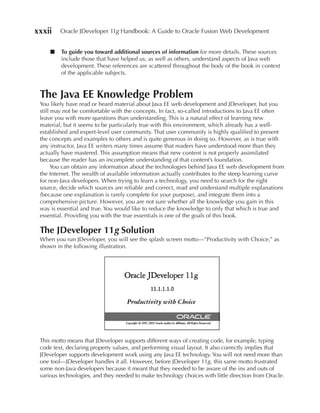
  • 68.
    Chapter 1: Overview of Fusion Development and ADF 23 Since this book focuses on the key ADF technologies used by Fusion (ADF Faces, ADF Controller, and ADF Business Components), we will not discuss all of the possible technologies in the ADF architecture. However, Figure 1-3 highlights the pluggability of ADF as a meta-framework. ADF coordinates your selections from a range of technologies that fulfill various logical functions, such as interacting with the database and generating user interfaces. The key component is a layer provided by the ADF framework: ADF Model (or ADFm). The ADF Model layer (depicted as the Model section of Figure 1-3) acts as the glue between the various business service providers, such as Enterprise JavaBeans (EJBs) or web services, and the consumers of those services, generally the user interface that you are building. We discuss the ADF Model layer in detail in Chapter 13. NOTe The ADF Model binding layer is being considered in the Java Community Process (JCP) as an extension to the J2EE standard. The proposal is covered in the Java Specification Request (JSR) 227, which you can find using the JSR search feature at www.jcp.org. How Do I Choose Technologies? ADF is a great offering, but the capability to plug in several different solutions into each functional area gives rise to a problem—there is almost too much choice. If the technologies to be used for an application have not been predefined for you, what slice through the available technology stack should you use? When starting out on your first Java EE project using ADF, you are going to come up against this technology question right away. The first step when creating an application presents the Create Application dialog, which asks you to select an application template, as shown next. Each template consists of a different combination of technologies. If you make a wrong choice, you can always change your mind later on, but it’s better to get it right from the start. Reading the descriptions will help you make the decision.
  • 69.
    24 Oracle JDeveloper 11g Handbook: A Guide to Oracle Fusion Web Development When building a traditional data entry–style application of the type you would build with Oracle Forms, PeopleTools, or the PL/SQL Web Toolkit, you need to make a technology choice for two main functional areas: user interface and database integration. user Interface Technology This book concentrates on building web applications for delivery through a standard web browser, without the use of plug-ins or Java applets. This means we concentrate on UI technologies that can generate standard HTML, and maybe some JavaScript to create the screens. A large number of technologies available in the Java EE world address this task, for example, JavaServer Pages (JSP), servlets, Velocity, Tapestry, Wicket, and JavaServer Faces (JSF). However, JDeveloper best supports JSP and JSF. Before the advent of JSF, the user interface was a difficult area in which to make a decision; JSP technology has the benefits of being widely used, but it provides a rather low level of UI capabilities and is hugely fragmented in terms of the libraries and techniques to use even within that single technology stack. JSF has changed this picture considerably, and because of the way it is architected, it brings some key capabilities to the table; we discuss some of these later in the chapter. NOTe Chapter 9 describes JSF in more detail. But What Is a Modern user Interface? Over the last two or three years there has been a fundamental shift in user expectation when it comes to web-delivered user interfaces. Public applications such as Yahoo Mail and Google Maps have reset expectations of what a web user interface can do, and in the process the bar has been raised considerably for the average web developer. Examples of the kinds of interactivity that users have come to expect are drag and drop, instant validation, screens, which can be manipulated with the mouse to resize or reorder, and so on. The sad reality is that these modern, highly interactive web user interfaces are really hard to build without a framework to help. Developers need to combine skills in Java, or some other server-side language, JavaScript, and Cascading Style Sheets just to get started. Then they have to enter the mysterious world of Asynchronous JavaScript and XML (AJAX) programming, and finally they are confronted by the distinctly nonstandard ways in which different browsers behave in the area of building dynamic applications in particular. The sidebar “AJAX in a Nutshell” explains a bit more about AJAX. NOTe Don’t worry about the details of these languages at the moment. Chapter 4 explains these terms in a bit more detail. Why JSF? JavaServer Faces has really changed the playing field for web user interface development. Published as a standard in March 2004, JSF is now, like JSP, a formal part of the new Java platform specification (Java EE 5), and Java enterprise container engines, such as Oracle’s WebLogic, implement a JSF service in order to conform to this standard.
  • 70.
    Chapter 1: Overview of Fusion Development and ADF 25 Ajax in a Nutshell AJAX (or “Ajax,” described in Chapter 4) stands for Asynchronous JavaScript and XML, and describes a series of techniques for allowing components on the page to communicate with the server in the background. Fortunately, you don’t have to worry about the mechanics of all of this when using ADF; it’s all taken care of. So when you see the term “AJAX,” just think “rich user interface.” JSF technology is attractive because of the following characteristics: ■ Component-based architecture All UI elements within JSF are components and are written to a standard specification. These components can be complex and can consist of many sub-elements. For example, a tree control consists of images to connect the nodes, hyperlinks for the nodes, buttons to expand and collapse all, and a lot of dedicated JavaScript. Because components are standardized, you can pick and choose from multiple open-source or commercial sets of widgets and create your own, if required. The components will (in theory) all work together and be consistent to use. ■ Programming model Each JSF component is able to register action handlers and listeners for events. Put simply, for something such as carrying out an action in reaction to a button press, the programmer just has to write a piece of what we’ll call “trigger” code that is associated with the button definition in the UI and automatically executed by JSF when that button is pressed. Contrast this to JSP or servlet development, where the programmer needs to decode the request object to determine if a button was pressed and, if so, which one was pressed. Therefore, JSF makes the whole process of wiring up code to UI events much simpler for the programmer. ■ Page layout In the same way that each UI element in JSF is a component, screens collect and organize those components within specialized layout components. This removes the requirement from the developer to code low-level screen layout tasks using HTML tables and style sheets. It also requires much less code to define a single screen, since the boilerplate HTML elements used to generate a particular layout are created only at runtime. Some JSF component sets, such as ADF Face Rich Client and Apache Trinidad, also support the concept of multiple look and feel—custom skins, templates, and other definition files that enforce a common look and feel within an application. These capabilities allow the whole graphical aspect of an application to be changed after creation without having to change each and every page. ■ Component pool The Fusion developer is fortunate in having around 150 different components available for use from within the ADF Faces Rich Client component set. This pool of components includes the usual elements for creating data entry forms. However, also included are components such as the following: ■ Charts and graphs ■ Gauges and dials for status display ■ Geographical maps ■ Pivot tables ■ Hierarchy viewer
  • 71.
    26 Oracle JDeveloper 11g Handbook: A Guide to Oracle Fusion Web Development In addition, ADF Faces offers some specialized nonvisual components to perform tasks such as file download, accessibility support, data export, dialog windows, and so on. Therefore, the JSF developer immediately has a much richer palette to work from, and what is most important, each component works with every other component in the same way. This blurs many of the old lines between specialized developer categories such as Graphical Information Systems specialists and Business Intelligence specialists. With a JSF application using an advanced component set such as ADF Faces, you can see all of these categories blended into one. ■ Device-independent rendering Through the use of components and layout containers, the programmer is actually coding an abstracted definition of a page rather than hard-coding the actual HTML tags that the web browser displays. JSF includes a mechanism called render kits—code that can enable a single page definition to be rendered in a device- specific way at runtime. For example, render kits allow a JSF page to run unchanged in a normal browser or on a handheld device. The JSF component and its render kit, rather than the developer, is responsible for creating the correct markup tags for the target device. This point is key when developing really rich user interfaces. Components that need a lot of scripting support to create client-side interactivity can take care of rendering the correct scripting for the particular browser that the end user is using. This saves the developer a huge headache. (Also see the sidebar “JSF and AJAX—A Rocky Road.”) ■ Security One of the secret problems of a modern AJAX (interactive) web application is that because there is a backchannel continually transmitting information between the browser and the server, the so-called attack surface for hackers is greatly increased. Because JSF enables the components to encapsulate the client-side scripting, they can be fully tested and hardened to remove any risk. If you hand-build the equivalent code for this kind of client-side interactivity, then that code becomes a security problem for you rather than one for Oracle. Therefore, with the advent of JSF, the problem of choosing the correct UI technology has been greatly simplified. There is no doubt that with the framework, and the component sets provided by ADF, applications that have a similar level of interactivity to thick-client desktop applications are a possibility. What’s more, you can write them without the in-depth knowledge of browser nuances or JavaScript. JSF and AJAX—A Rocky Road Although the component-based model of JSF promises seamless interactivity from components from different places, the reality does not quite match the vision. The problem here is how those components manage AJAX transactions. The techniques now used for these very rich web user interfaces were popularized only after the core JSF component specification was laid down. The JSF component vendors such as Oracle all wanted to enable their components with this rich functionality. However, because the JSF standards do not define how this should be done, the industry now has several competing implementations, which are not interoperable. As a result you are unlikely to be able to mix components from different component libraries on the same page. Fortunately, the ADF Faces Rich Client and Data Visualization Tools (DVT) component sets provide a pretty wide palette to choose from.
  • 72.
    Chapter 1: Overview of Fusion Development and ADF 27 This entire AJAX compatibility issue is currently being addressed as part of the JCP’s JSF Expert Group’s discussion for the next release of the JSF specification. So, with luck, this will cease to be an issue in the future. Database Integration In a database-centric language such as PL/SQL, you may take it for granted that you can just embed a SQL statement without thinking about how it will actually be issued or how the data will be handled. However, in the Java EE world, things are different. You cannot just embed SQL within the code; you need to use specific APIs to handle the SQL. Low-level Java Database Connectivity (JDBC) APIs (explained a bit more in Chapter 4) are available for accessing the database. However, by taking this approach, you are continually repeating code and introducing more places for bugs to creep in, not something you really want to be doing. Therefore, with Java, you need to use one of the higher-level O/R mapping frameworks supported by ADF. Your Choices for Database Integration ADF offers two primary choices for directly mapping database objects to Java code. Each choice exhibits a slightly different focus and suits different communities of developers. The choices follow: ■ ADF Business Components ■ Enterprise JavaBeans (EJBs) using the Java Persistence API (JPA) ADF Business Components ADF Business Components (ADF BC) is a powerful and rich framework for mapping database objects into Java. It forms one of the core frameworks of the ADF stack of technologies (as shown in Figure 1-3). It is widely used in the Oracle community and is the key object-relational mapping tool for Fusion Applications. Consequently it’s the technology that we concentrate on in the rest of this book (for reasons further discussed later, in the section “Selecting the O/R Mapping Tool”). It is well suited to what we call the relational viewpoint, where you approach the design process after creating a well-formed relational database design. This, after all, is the way that most database developments are run—with the database designer, DBA, and coders working closely together. enterprise JavaBeans (eJB) and JPA The Enterprise JavaBeans standard defines a server-side component architecture for Java Platform, Enterprise Edition (Java EE) loosely based (conceptually, at least) on the JavaBeans standard used for Java GUI components. The EJB standard defines a series of services for handling database persistence and transactions using an EJB container, which is usually, although not always, provided by the application server’s Java EE container. EJBs have had such bad press in the past that they’ve become somewhat of a cliché. However, things have changed in the EJB world with the latest revision of the specification—EJB 3.0. The Java Community Process expert group driving this latest revision of the standard (JSR 220) received the message that EJB was unnecessarily complex, so EJB 3.0 is focused on simplification. EJB 3.0 also defines entity beans as Plain Old Java Objects (POJOs)—standard Java class files—without having to implement all of the interfaces and artifacts required by earlier standards. The EJB standard learned from its past mistakes and is turning into a usable way to handle data. As part of this revamp of EJB, the Java Persistence API was introduced as a core part of the implementation. Unlike traditional EJB, JPA is not exclusively tied to a full Java EE container and can be used to access databases from within Java SE as well as Java EE.
  • 73.
    28 Oracle JDeveloper 11g Handbook: A Guide to Oracle Fusion Web Development NOTe For more information about the JPA in particular, you can refer to the FAQ at java.sun.com/javaee/overview/faq/persistence.jsp. On the positive side, using EJB does have some advantages: all of the major development IDEs can help you build them, and every vendor’s EJB container provides all of the EJB services required for persistence and transactional support at runtime. However, to a traditional Oracle developer, EJBs are still going to be a less attractive option for the following reasons: ■ You do not write “normal” SQL Instead, you write in a slightly different dialect using the EJB Query Language. ■ The eJB container generally handles persistence and querying Embedded hints in the form of code annotations define the management of data and relationships in data, such as sequence-number generation and master-detail queries. None of this is a bad thing but traditional Oracle developers may find this a little hard to adapt to and feel that EJBs lack the degree of control that they require. ■ eJB is a bare-bones framework You need to write your own code to add capabilities, such as validation in the EJB layer, although the Java standards are being enhanced as this book is being written to add a declarative data capability to JavaBeans generally. Note also that ADF actually provides a way to decorate bindings to EJBs with some basic metadata based validation as well. Neither of these techniques provides the same power or flexibility as the built-in validation capabilities of ADF BC. ■ It is not based on metadata With an EJB application there is much more Java code to write, and every line of that code is one more line to debug and maintain, and one line less that can be customized at runtime. NOTe Oracle’s implementation of EJB 3.0 within Fusion Middleware uses Oracle TopLink (an O/R mapping framework) under the covers. This foundation opens the way for users of Oracle’s particular implementation to use native SQL, and to gain all of the benefits in performance and resource usage that TopLink provides. TopLink also adds additional features above being an implementation of the JPA, providing, among other things, Object-to-XML mapping and database web services. Selecting the O/R Mapping Tool This book is biased to approaching Java Enterprise Edition development from a relational perspective, which is the normal perspective for existing users of the Oracle database. Accordingly, we don’t hesitate to recommend that you use ADF Business Components. This recommendation is not intended to minimize the effectiveness of other options, but experience has shown that traditional Oracle developers, in particular, adapt to ADF Business Components fairly quickly.
  • 74.
    Chapter 1: Overview of Fusion Development and ADF 29 We’ll look at some of the reasons for that next. However, one of the benefits of using the ADF framework is that, should you choose to use any of the other options, such a decision will not really affect the user interface of the project; it will just affect the mechanics of the model or database integration layer and the amount of code that you have to write. ADF Business Components is attractive for the following reasons: ■ It emphasizes declarative definition It’s possible to build a relatively sophisticated database integration layer without a single line of handwritten code. You can generate default mappings to database tables using a wizard. JDeveloper will introspect (automatically examine properties of) the database schema and not only generate the table mappings but also put in place all of the artifacts and rules required to enforce referential integrity. It is worth noting that declarative definition also provides a cleaner upgrade path for the future and opens up the possibility of customization using the metadata customization capabilities of the framework. ■ It provides the ability to define basic validation rules It does so in a declarative fashion, just as with declarative O/R mapping. This type of declaration includes validating an attribute based on a database lookup—something that is relatively easy in PL/SQL and tools like Oracle Forms but that is generally not an off-the-shelf function in O/R mapping frameworks. ■ It exploits the power of the database ADF Business Components will run against non-Oracle databases, but Oracle is its core competency; this focus allows it to support functionality such as interMedia (now known as Oracle Multimedia) types and bulk (array) operations. ■ It provides a rich event model This allows developer much more control over the internal processing order and other features. We’ll spend a lot more time with ADF Business Components in detail in Part II of this book. Why Should I use JDeveloper? We’ve been making oblique references to the JDeveloper IDE throughout this chapter without really touching on what it is. JDeveloper is a free tool that Oracle supplies to help developers build applications for deployment onto both the middleware platform and the database. It provides a wide range of capabilities as we will show, but most important, it is the tool that is used to build the Fusion Applications within Oracle itself. At its heart, JDeveloper is a development environment engineered to make the end user developer (you) as productive as possible. It manages the delicate balancing act of providing very visual abstractions for tasks such as page flow design or page layout, without preventing access to the underlying source. Thus, developers are able to work in a mode that suits them for the task on hand. This is really important as developers cycle through the learning process with a new API or framework. The visual editors help them to get up to speed quickly and produce working code, even when they are not entirely sure how it works and what it is doing. However, once the developer’s use of the technology matures, that same visual editor does not have to get in the way. There is always the option to drop down into the underlying source code and make
  • 75.
    30 Oracle JDeveloper 11g Handbook: A Guide to Oracle Fusion Web Development the changes there—an approach which is often quicker. The following illustration shows the multiple views available to the developer for editing a page flow. We can see (from top to bottom) the diagram view, the structured overview view, and of course the XML source code. Any of these views, in combination with the Structure Window and the Property Inspector, can be used to manipulate the object. JDeveloper takes care of keeping everything in sync. This approach of the IDE is also crucial when teams of developers are working together on the same artifacts. They can all use their favored views (or even a different IDE all together), and everything will be kept synchronized. NOTe Chapter 2 discusses the key structural features of the IDE such as the Structure window and the Property Inspector.
  • 76.
    Chapter 1: Overview of Fusion Development and ADF 31 Of key importance is the range of technologies available to the developer. JDeveloper is a platform IDE; that is, it serves the development needs of the entire Oracle platform, from working with SQL and PL/SQL in the database, to creating Java EE web UIs, to SOA orchestration, to customizing Oracle’s packaged applications. It is literally the Swiss Army Knife of IDEs and is best of its breed in many of those core tasks. One area of particular focus, of course, is the support for the ADF development framework. To use ADF in another IDE such as Eclipse would mean a lot of editing of raw XML files. In JDeveloper, the developer uses a drag-and-drop environment instead; all in all, it is a lot more attractive for building Fusion-style applications. JDeveloper is also a very adaptable IDE that can be both customized and extended to meet your requirements. Some of the aspects of customization such as the basic environment, layout, keyboard shortcuts, code templates, and so forth can be altered from within the tool. Other customizations require the creation of plug-ins for the product. We don’t have space to discuss that topic in this book, but it’s a really interesting process to get into and really not as difficult as you might expect. Head over to OTN (www.oracle.com/technology) if you have an interest in that. Of course, there is much, much more to talk about in relation to JDeveloper, so much so in fact that we devote the next two chapters to it.
  • 77.
  • 78.
    Chapter 2 Introduction to the JDeveloper Integrated Development Environment 33
  • 79.
    34 Oracle JDeveloper 11g Handbook: A Guide to Oracle Fusion Web Development Beware the ides of March. —William Shakespeare (1564–1616), Julius Caesar (I, ii, 18) J ava integrated development environments (IDEs) have come a long way since the early days of Java programming when the development tool of choice was vi or Notepad. As the Java language has evolved and introduced new technologies, tools vendors such as Oracle have kept up by creating IDEs that make the tasks required in designing, creating, testing, and deploying Java-related applications easier. Since its initial 1.0 release as AppBuilder for Java, JDeveloper has followed the industry trends and has included features that match or exceed the more mainstream Java IDEs. Although JDeveloper has won the favor of many reviewers in the Java industry, it has been most popular with development shops centered around Oracle products. One example of such a shop, albeit an extremely large one consisting of several thousand developers, is Oracle Corporation. Oracle uses JDeveloper to create the Fusion Applications suite (the follow-on version for Oracle applications or E-Business Suite mentioned in Chapter 1). Therefore, the Oracle applications developers are solid proof that JDeveloper can support large teams and a large application development effort. Moreover, that Fusion Applications relies on JDeveloper means that we are assured that Oracle will continue to support and enhance JDeveloper, as it did with Oracle Forms, which was used to create its E-Business Suite. NOTe The JDeveloper IDE is written in Java. The choice of Java means that JDeveloper may be run in the Java Virtual Machines (JVMs) of different operating systems with few, if any, changes. This makes JDeveloper portable between operating systems. Creating an application in the Java environment requires creating and organizing hundreds of files. Whether you are an experienced or a novice Java programmer, the number of files and detailed file requirements of each technology can be daunting. As with any good IDE such as Oracle Forms or Visual Studio .NET, JDeveloper assists your development efforts by taking care of the following two development functions that can be time consuming and tedious: ■ Code creation When you use JDeveloper to create files, the IDE uses its internal templates to preload the files with the code that all files of that type require. For example, when you create a JavaServer Faces (JSF) file, JDeveloper adds all standard code that sets up aliases for the tag libraries that this type of file needs. It also adds standard tags required for all JSF files. This feature can speed up development significantly and make developers much more productive. JDeveloper also automatically creates supporting files for the files you create, like the faces-config.xml file needed for JSF work. ■ Code organization The large number of files needed for a Java project must work together and be located in standard directories or packages. JDeveloper automates the tedious tasks of keeping the files for an application in the proper locations and assembling them into deployment packages for the production server. JDeveloper contains an enormous number of features for editing files as well as for code generation and code organization. Although the methods for accomplishing normal development
  • 80.
    Chapter 2: Introductionto the JDeveloper Integrated Development Environment 35 tasks are easy to learn on your own, it will help to have an overview of the basic JDeveloper tools you will use for major development tasks. In addition, it will help to know some tips for best use of these areas. This chapter provides an overview of the IDE basics and offers some tips for how to best use them. The material in this chapter addresses the following questions: ■ What are the important features of the JDeveloper IDe? ■ How can I best use the Help Center? ■ How does source code version control work in JDeveloper? The main objective of this chapter is to provide an overview of the main features of the JDeveloper IDE. Chapter 3 delves into details about specific IDE tools, which you will use for Fusion web development. This chapter approaches the IDE explanation differently than the JDeveloper help system (called “Help Center”), which is focused mostly on explaining one feature at a time. Also, this chapter abbreviates the discussions of many subjects in order to provide a coherent overview. Therefore, you will want to refer to the online JDeveloper help system for further details about the features mentioned in this chapter as well as features not explained in this chapter. NOTe You will obtain practice with the IDE windows mentioned in this chapter and many of the tools mentioned in Chapter 3 when following the hands-on practices later in the book. Although this chapter does not contain hands-on practices, if you want to explore the IDE as you read, you can open an application in JDeveloper (or create one using the New Application option). What Are the Important Features of the JDeveloper IDe? The JDeveloper IDE offers features that allow you to create and maintain applications using many different styles of code. For example, the JDeveloper code editors assist in editing plain text files. In addition, JDeveloper excels in its support for the declarative and visual style of development. You will find yourself most effective when you use both styles of development although you may spend more time in one than the other. The IDE offers common methods to access the tools you need, regardless of the development style you choose for work at any given moment. The main aspects to know about early on are how to select a role, how to manipulate IDE window, where to find functions in the main toolbar, and what type of functions are found in the main menu bar. NOTe An “application” in JDeveloper is a collection of projects, which you are working on (previously called “application workspace” or “workspace”). A “project” in JDeveloper is a collection of files, usually with related functionality, such as files that access the database. Usually, all projects in an application are deployed (distributed to the server) together. You will see these terms used throughout this chapter. Chapter 3 explains these concepts a bit more.
  • 81.
    36 Oracle JDeveloper 11g Handbook: A Guide to Oracle Fusion Web Development JDeveloper Roles The first time you open JDeveloper, you will receive a dialog such as that shown next, requesting a role selection. Selecting anything other than “Default Role” will reduce the options available in that JDeveloper session. This can assist in reducing the complexity of the IDE and tailoring it for the type of work you need to perform. By selecting the “Always prompt for role selection on startup” checkbox, you will see this dialog each time you start JDeveloper. If you most often work with JDeveloper in a single way, you can turn off this dialog to facilitate JDeveloper startup. You can change the role or this checkbox selection at any time by selecting Tools | Preferences and navigating to the Roles node in the Preferences dialog. For the purposes of following examples in the book, we recommend using the Default Role option because it does not limit the menus and other selections in the IDE. NOTe When starting JDeveloper after installing or upgrading the IDE, you will also receive a dialog prompting for migrating settings. For the initial installation, choose to not migrate settings (because you have none to migrate). If you are upgrading JDeveloper 10g or 11g, migrating settings can help by setting IDE preference and connections to their state in the preceding version. The Main IDe Window You can start JDeveloper from a desktop icon (mentioned in the Introduction) or directly from the executable file, jdeveloper.exe, in the JDEV_HOME directory, where JDEV_HOME is the JDeveloper directory under the directory in which you installed Fusion Middleware, for example in MS Windows, C:Oracle11gMiddlewareJDeveloper. Alternatively (in an MS Windows operating system) select Start | Programs | Oracle Fusion Middleware 11.1.1.1.0 | JDeveloper Studio 11.1.1.1.0.
  • 82.
    Chapter 2: Introductionto the JDeveloper Integrated Development Environment 37 FIGuRe 2-1. The JDeveloper IDE window, displayed in 1024×768 resolution When you start JDeveloper, an IDE window such as the one shown in Figure 2-1 appears. (See the sidebar “About Monitor Resolution” for recommendations about display hardware. The introduction to this book provides recommendations about other hardware.) As this figure shows, the IDE window contains a number of tools. These tools appear inside the IDE in locations called windows. Although these windows are docked to and are part of the main IDE window by default, you can drag most of them out as separate windows if needed. There are two types of windows, which exhibit different behaviors in the IDE — the editor window and dockable windows. These windows are described next in general terms. About Monitor Resolution JDeveloper contains many work areas, and you usually need to have several of them open at the same time. Therefore, you need as much screen real estate as possible. The first rule of thumb for JDeveloper windows is to maximize the size of the IDE window. The next rule of thumb is to maximize screen real estate by using a monitor set to a high resolution such as 1280×1024 (or higher). Figure 2-2 shows JDeveloper running in a 1280×1024 resolution. Compare that with Figure 2-1, where the screen is running a 1024×768 resolution. (continued)
  • 83.
    38 Oracle JDeveloper 11g Handbook: A Guide to Oracle Fusion Web Development As in most modern GUI development tools, a large monitor and high resolution are best. Although the screenshots in this book use a 1024×768 resolution for clarity, you will be more productive with a higher resolution, because you will be able to open more windows and leave them arranged to display the most content. With lower resolutions, you will spend time resizing windows so that their contents are visible. This is time that could be better spent on other tasks. As a rule, a 19-inch monitor is a minimum size for 1280×1024 resolution. A resolution of 1600×1200 works on a good-quality, 21-inch monitor but may not be comfortable for some people. A more optimal setup is to use multiple monitors (for operating systems such as Windows XP that support a split display) and display different IDE windows or different applications in each monitor. FIGuRe 2-2. The JDeveloper IDE displayed in 1280×1024 resolution
  • 84.
    Chapter 2: Introductionto the JDeveloper Integrated Development Environment 39 editor Window The editor window is an editing container in the center of the IDE window. It is the main window for most development and is normally used to display or edit a single file at a time. The name of the file that is active in the editor will be displayed in the IDE window title. Although the editor window normally shows only one file, it can be split to show multiple views of the same file or multiple files at the same time (as described later). TIP You can resize any window inside the IDE frame by dragging an edge. Other windows will be resized, if needed, to accommodate the new window size. The IDE window will remain the same size. You can view and edit files in different ways. For example, you use the Java Source Editor to directly modify the source code for a Java application that displays Swing controls; you use the Java UI Visual Editor to modify the same file by modifying a visual representation of the file. Both editors appear in the same editor window area. Chapter 3 discusses details about the editors and viewers that can be displayed inside the editor window, but it is useful first to examine some of the features and operations available in this window. NOTe The type of file you are editing determines the type of editor that appears by default. For example, when you open a JSF file, the visual editor will appear; when you open a Java class file, the source code editor will appear. Displaying the editor Window You display the editor window for a file either by selecting Open from the right-click menu and clicking on the file name in the navigator, or by double clicking the file name in the navigator. The default arrangement of JDeveloper windows places the editor window in the large center area of the IDE, with the dockable windows containing support features around it. editor Tabs You can display different editors for a single file using the editor tabs at the bottom of the editor window. For example, for a JSF document file, the tab area at the bottom of the window contains a Design tab that displays the JSP/HTML Visual Editor and a Source tab that displays the XML Editor, as shown here: You will also notice a Bindings editor tab that displays an XML Editor window for the binding file, and a History editor tab that displays a list of changes made to the file in the current session, and if you are using a version control system such as Subversion, in that source control system as well.
  • 85.
    40 Oracle JDeveloper 11g Handbook: A Guide to Oracle Fusion Web Development Document Tabs The editor window can also hold more than one file. You switch back and forth between files using the document tabs at the top of the editor window as shown here: Document tabs contain the name of the file (in this example, tuhraTemplate.jspx, employeeSearch.jspx, and searchUI.jsff) and an icon indicating the type of file within the editor. If the number of document tabs exceeds the room in the editor window, a pulldown in the top-right corner of the window will allow you to navigate to any open document. TIP Double clicking any editor tab will maximize the editor window to fill the IDE window. This technique is handy in many situations, for example, when you are laying out UI pages or when you need to split the editor window. Double clicking a maximized document tab will restore the size and position. You can use this technique for dockable windows as well. Splitting and unsplitting the editor Window You can combine the use of document tabs and document tabs to display more than one file at a time and to display more than one view of the same file. Figure 2-3 shows an example of an editor window containing the JSP/HTML Visual Editor view of tuhraTemplate.jspx in the top left. The same file is displayed in the XML (code) Editor in the top right. In addition, the editor window shows the employeeSearch.jspx file in split windows for the XML Editor (lower left) and the Page Data Binding Definition editor (or “Bindings Editor”) (lower right). You can accomplish this type of arrangement using a combination of several techniques (after clicking in the editor window): ■ Window | Split Document This menu selection automatically splits the active file in the editor window so that you can look at two views of the same file. Split Document is also available from the right-click menu on a document tab. ■ The splitter bars The splitter bars allow you to divide or merge views of a file and are located above the vertical scrollbar and to the right of the horizontal scrollbar in an editor window (as shown in Figure 2-3). Dragging the horizontal splitter bar down or the vertical splitter bar to the left will create another view of the same file. This technique is an alternative to the Split Document menu selection. ■ Window | New Tab Group This menu selection will open the file in a separate pane in the editor window. Alternatively, you can grab a document tab and drag and drop it inside another open file in the editor window. As you drag, a window outline will move over the area where the window will end up when you drop it.
  • 86.
    Chapter 2: Introductionto the JDeveloper Integrated Development Environment 41 Horizontal splitter bar Vertical splitter bar FIGuRe 2-3. Split editor window Unsplitting a window is just a matter of using the techniques in reverse—Window | unsplit Document (which will remove all split windows for the selected file), dragging a splitter bar, or dragging and dropping. Use Window | Collapse Tab Groups to combine two document panes into one window. NOTe As with all operations in JDeveloper, if you have more than one editor window open for a single file, changes in one editor will be immediately reflected in all other editors.
  • 87.
    42 Oracle JDeveloper 11g Handbook: A Guide to Oracle Fusion Web Development Closing an editor Window You can close a file that is open in an editor window by clicking the document tab’s close (“x”) icon (as with all windows in JDeveloper) or by selecting Close from the right-click menu on the corresponding document tab. Alternatively, you can click the center mouse button (wheel) on an open tab to close that window. TIP You can also activate a document tab by selecting it from the Window menu, or from the pulldown displayed by clicking the down arrow button at the top-right corner of an editor window pane. The Window option in this pulldown also allows you to activate or close a document. Dockable Windows Dockable windows may be anchored (docked) to the top, bottom, or sides of the outer IDE window. The Application Navigator window embedded inside the IDE window, as shown in Figure 2-2, is one example of a dockable window. Dockable windows typically contain features to support editing code files; therefore, they are arranged around the editor window. These windows can also be pulled out of the docked position to float inside or outside of the IDE frame. If docked windows share the same area, a tab control will allow you to switch between them. These windows can be displayed or activated using the View menu options. You manipulate the docking or floating operations by dragging the window title bar as described later in “Docking and Floating a Window.” Arranging the Dockable Windows By default, areas for dockable windows line the inside perimeter of the IDE window in an arrangement such as that shown in Figure 2-1. (By default, no window is assigned to the inside top perimeter of the IDE window.) You can change the positions taken by each area using the Dockable Windows page of Tools | Preferences (under the Environment node) as shown in Figure 2-4. For example, if you click the curved arrow in the lower-left corner of this page, then click the curved arrow in the lower-right corner, the arrangement will change so that the bottom area takes up the entire bottom border. The contents and size of these areas vary, depending upon the type of work you are doing. The IDE displays the type of work in the lower-right corner of the status bar. For example, the status bar will show the phrase “Web Editing” if you have opened the JSP/HTML Visual Editor for a JSP application file as shown in Figure 2-1. The status bar will show “Xml Editing” if you are viewing and interacting with the Source tab of the same file. The windows will be arranged in the same way as they were the last time the arrangement was active. You can select alternative arrangements using the right-click menu on that corner of the status bar. Docking and Floating a Window Floating (undocking) a dockable window only requires dragging the title bar or tab of the window away from the docking edge to the center of the IDE window. When the window outline is over the center of the IDE window, releasing the mouse button will undock the window and make it float over the other windows.
  • 88.
    Chapter 2: Introductionto the JDeveloper Integrated Development Environment 43 FIGuRe 2-4. Dockable windows page of the Preferences dialog TIP Floating the Component Palette or Data Controls panel windows will allow you to maximize the visual editor window and still drop components into the editor. Maximizing the visual editor while the palette windows are docked will hide these windows. Docking a dockable window requires grabbing the window’s title bar and dragging the window until the mouse cursor reaches the border of the outer window. You will see the window outline snap into place on that side of the outer IDE window. Releasing the mouse button window will then dock the window. The drag (and snap to border) is shown on the right. TIP You can alternatively select the Float option from the right-click menu on a docked window tab to undock the window. Selecting Dock from a floating window tab will dock the window again, although you may need to move it to the desired area after docking it.
  • 89.
    44 Oracle JDeveloper 11g Handbook: A Guide to Oracle Fusion Web Development Merging Dockable Windows into the Same Space You can move a dockable window into the same space as another dockable window so that both windows share the same area. For example, if you had undocked the Structure window and wanted to dock it over the Application Navigator window, you would drag the Structure window over the navigator area and watch the outline as you position the window. As soon as the window outline appeared in the center of the Application Navigator window, you would release the mouse button to dock the Structure window on top of the Application Navigator window; the two windows will share the same space, and each will have a tab you can click to activate it. The tab will contain an icon and a title that indicates its contents. If the space within the window is insufficient for titles, only the tab icon will be displayed. For example, the following shows tabs in the navigator window area: If this area is narrowed, one or more titles will not be displayed, as shown here: With some experimentation, you can see how a window can be docked under, over, to the left of, or to the right of another window. The outline of the window you are dragging provides a visual clue as to where the window will dock when you release the mouse button. TIP If you haven’t mastered the dockable windows feature in other tools, working with it in JDeveloper can be frustrating at best. Before you start any serious work, dedicate five minutes or so to experimenting with the techniques for docking, floating, merging, minimizing, and restoring dockable windows. This will help your productivity (and sanity) later on. To restore the default, exit JDeveloper and delete windowinglayout. xml in the JDEV_HOMEsystem11.1.1.1.xo.ide directory. Minimizing When a window is docked, a Minimize (dash) icon appears in the window’s upper- right corner. Clicking the Minimize icon causes the window to collapse and a tab with the window name to appear in the nearest margin. Clicking that tab (or just holding the mouse cursor over the tab) opens the window. Moving the mouse cursor over another window hides the minimized window. Clicking the Restore button; which replaces the Minimize button in a minimized window, will cause the window to be displayed regardless of the window in focus. Since the navigator area is used infrequently, you may find it useful to minimize it; doing so will increase the available space for other windows. Displaying a Dockable Window Dockable windows open automatically when they are needed for a particular task. If a window you want to see is not displayed, you can select it from the View menu (for example, View | Log to display the Log window). If the window is already displayed, it will be activated when you select it from the View menu. Customizing the Main IDe Window You can employ several methods to modify how the IDE looks and works. You can resize and reposition the windows inside the IDE. You can also create JDeveloper extensions that present
  • 90.
    Chapter 2: Introductionto the JDeveloper Integrated Development Environment 45 your own wizards, property editors, and file creation dialogs using the Extension SDK documented in the JDeveloper Help Center. You can also change key mapping and default code formatting. However, the main way to change the most commonly customized features is contained in the Preferences dialog. NOTe You can modify the key assignment scheme by loading another scheme such as the key assignments for Visual C++. To reassign the keyboard shortcuts, select Tools | Preferences and click the Load Preset button on the Accelerators page. This page contains a number of preset selections. Preferences Dialog The Preferences dialog (Tools | Preferences shown in Figure 2-4) is the main location for modifying the behavior of the tools (and many other IDE features). This dialog contains a navigator for different categories of settings. Changing a setting in this dialog changes the behavior in the tool. Most changes are immediate, although some require exiting and reloading JDeveloper. Examples of some of these preferences are mentioned throughout this chapter and Chapter 3. TIP As with many windows in JDeveloper, the Preferences dialog offers a search field (on top of the navigator) that you can use to search for text in preferences or preference navigator nodes. This is quite handy if you cannot immediately find a preference you need to set. The IDe Look and Feel The ability to change the look and feel (aspects such as colors, fonts, and the treatment of window edges) of an application is a feature of the Swing (Java UI components) used to build JDeveloper. You can define the look and feel for your JDeveloper session using the Environment page of the Preferences dialog (Tools | Preferences). The Look and Feel property specifies the general category, and the Theme field specifies color schemes within that category. After setting this option, you will see a dialog to restart JDeveloper so that the new setting will take effect. NOTe All screenshots in this book were captured with the IDE environment set to the default “Oracle” look and feel and “Fusion Blue” theme current with the first release of JDeveloper 11g. Subsequent releases may look slightly different. TIP JDeveloper will load faster if a reduced set of features is enabled. You can reduce the number of features loaded when JDeveloper is started by using the Extensions page of the Preferences dialog. This page allows you to deselect features that you do not use or use infrequently.
  • 91.
    46 Oracle JDeveloper 11g Handbook: A Guide to Oracle Fusion Web Development Main Toolbar The IDE main toolbar contains frequently accessed commands for file creating, saving, compiling, and debugging, as well as standard edit commands (cut, copy, past, undo, and redo). All toolbar buttons provide tooltip hints that appear when the mouse cursor is held over the button. All functions performed by the toolbar icons also appear in the main menu and some appear in the right-click menus. NOTe The editor window and dockable windows also offer toolbars for frequently used operations. Main Menu Bar The IDE main menu bar offers access to a large number of operations. You should be able to find the option you need by browsing the menus, but some features are worthy of special mention. Therefore, this section explains some of functionality in the main menu bar that you might otherwise miss. TIP Items in JDeveloper’s menus are context sensitive. That is, they will be disabled or hidden if they are not appropriate to the type of file. If you do not see or cannot select a menu option that you need, change the focus to the relevant file type or window. Sometimes this technique requires some experimentation to discover the focus that is required for menu items. In addition to the main menu bar, JDeveloper uses right-click (context) menus extensively. Almost everything in the IDE offers right-click menu options for frequently used operations. Many of these options are also contained in the main IDE menu. Therefore, instead of listing and explaining all of the right-click menu selections here, it will be more useful to provide the following tip. TIP Always be aware that an operation you may want to perform on a particular object in the IDE may be more easily accessible in a right- click menu than in a main menu option. In addition, some accelerator key presses (such as ctrl-n to display the New Gallery) will help you access common operations quickly. For a listing navigate to the Shortcut Keys node in the Preferences dialog. File Menu This menu contains common operations such as opening files (Open), closing files (Close), saving a file (Save), and saving all changed files (Save All). It also allows you to delete a file (Delete). The New option (discussed in Chapter 3’s “New Gallery” section) creates a file or other element such
  • 92.
    Chapter 2: Introductionto the JDeveloper Integrated Development Environment 47 as a connection. A Rename option changes the name of a file. If you want to rename a class file that is used by other class files, use the Refactor menu items (discussed in the section “Refactor Menu” later). NOTe When you change a file, JDeveloper will italicize its name in the Application Navigator and document tab to signal that the file needs to be saved. If you close the IDE with an unsaved file, JDeveloper will display a prompt where you indicate whether you would like to save the changes. The Reopen menu item shows a list of all files recently opened. You can select from that list and load projects into the IDE more quickly because you do not have to browse the file system. You can load an existing file into an editor or viewer by selecting the Open item in this menu. This will open the file but not add it to the active project, in case you just want to edit, copy, or view the file’s contents. To add a copy of (not just a reference to) an existing file into your project directory, use the Import menu option. You can include a file inside a WAR or EAR (types of Java archive files formatted like Zip files) as well as to an existing file. The Import item can also just include the file without copying it. TIP To copy a file, select it in the navigator and select File | Save As. You can then specify the new name and directory in the dialog that appears. File Comparisons The Compare With submenu of the File menu (also available from the right- click menu on a file in the Application Navigator) allows you to perform a file “diff” (comparison) between the selected file and another file as shown here:
  • 93.
    48 Oracle JDeveloper 11g Handbook: A Guide to Oracle Fusion Web Development This dialog allows you to edit the current version of the file (displayed in the right side of the window). You can compare files from the version control system using the Compare With submenu of a file’s right-click menu. In addition, if you group together files in the same application (using ctrl click), you can select each Other from this submenu to compare the files. If you compare project nodes, the file comparison is performed on the XML code in the project files. This is also the case with other objects you create in JDeveloper such as diagram objects. NOTe The Compare dialog only shows differences between files. You cannot edit the files in the results dialog. However, the History tab allows you to edit files; for example, you can revert a change from a previous version in source control or from a previous state in the editor session. edit Menu The Edit menu provides the standard cut, copy, paste, redo, and undo editing features. Many items here have keyboard shortcuts (such as ctrl-z for undo) that are faster to use than the menu selections. The Properties item allows you to view and modify the definitions of some objects such as database connections in the Database Navigator. Other objects make properties available in the right-click menu of the Application Navigator. For example, project properties are available using the Properties right-click menu option (and also from a menu item in the Tools menu). Editor objects such as JSF components display properties in the Property Inspector. NOTe The keyboard shortcuts mentioned in this book are based upon the default key assignments. You can modify the key assignment scheme by loading another scheme such as the key assignments for Eclipse. To reassign the keyboard shortcuts, select Tools | Preferences and click the Load Preset button on the Shortcut Keys page. This page contains a number of preset selections. View Menu Normally, the IDE displays the editors and windows appropriate to a certain task. The View menu allows you to override or supplement the choices that the IDE makes about which areas to display. You can display a window or make a window active by selecting items in this menu. You can also display or hide the status bar and toolbars using View menu selections. Application Menu This menu contains items that assist in managing JDeveloper applications. Many of its items are repeated in the right-click menu on the application pulldown (down-arrow icon) in the right side of the Application Navigator, for example, New, Open, Close, Delete, Rename, and Version. Both Application menus (pulldown and main menubar) also provide access to application properties and deployment utilities. Other useful options from the Application menu in the main menubar follow. ■ Find Application Files This option displays a window where you can enter file names in the application. Other search items locate text within files, so this option is very handy if you can’t locate a file.
  • 94.
    Chapter 2: Introductionto the JDeveloper Integrated Development Environment 49 ■ Manage Templates This Application menu selection opens the Manage Templates dialog (shown next) where you can view, add, and remove the technology templates that you can apply to new application workspaces. ■ edit Resource Bundle This option allows you to define and change resource bundles that provide messages and values to your application. Chapter 10 contains information and hands-on practice work with resource bundles. ■ Default Project Properties Use this item to set characteristics for new project files. This is useful if you need to change a particular setting for all subsequent projects. Refactor Menu This menu contains options for refactoring code, renaming or moving a file, and cascading the change to all dependent files. Refactoring to rename Java class files also changes the class declaration code (for example, public class TestClass) and the constructor code so that they properly match the new file name. Renaming a file using the File menu will not automatically change the class declaration, constructors, or other files that reference it. These refactoring options allow you to safely reorganize code at any time. Developers often find this type of reorganization necessary, despite the best design efforts. The Refactor menu also offers options to move to another file or to rename parts of a file, such as methods and fields. Refactoring to reorganize your code is a common task and you will use Refactor menu options in the hands-on practices throughout this book. Search Menu The Search menu contains standard find features. Selecting text to search for in the current editor window will load it into the Text to Search For field in the Find Text dialog (Find menu option). This dialog allows you to find (and optionally replace) text within the file in the editor window.
  • 95.
    50 Oracle JDeveloper 11g Handbook: A Guide to Oracle Fusion Web Development It contains handy search features such as Wrap Around to search from the top if the text is not located below the cursor, as well as Scope options for defining how to replace text. The Search menu also offers a Find in Files option that allows you to search for files containing text that you specify, even if the text is within a .zip or .jar archive file. This is similar to the Windows Explorer file search feature. However, it is platform independent, so you can use this dialog regardless of the operating system in which you are working. Search results will be displayed in the Log window. Double clicking an instance of the text in the Log window will open the file and navigate to the line whose text matches the criteria. The XPath Search option allows you to search for information in an XML file. (The W3Schools website at www.w3schools.com/Xpath explains XPath in detail.) You can quickly search within a source code window by entering the search text inside the field in the top-left corner of the editor window as shown here: TIP After finding one instance of a text string, you can cancel the search dialog and press f3 to find the next instance of that string. (If you have changed the default key map, this keypress may be different.) Navigate Menu This menu contains items to set, clear, and find bookmarks (lines of code to which you can easily navigate) in a source code file. This is handy if you are frequently navigating back to the same lines of code. Setting a bookmark places a “bookmark” icon in the left margin of the Code Editor. The editor gutter (left margin) also includes options to manage bookmarks. Go to Recent Files shows a list of files you have recently opened in JDeveloper. This menu also contains selections for navigating through messages in the Log window (Go to Next Message and Go to Previous Message). You can jump to a specific line number using Go to Line. The following are other items in this menu: ■ Select in Navigator This selection will find the file node in the navigator that corresponds to a file that is open in an editor window. ■ Select in Structure This item selects the node in the Structure window that corresponds to an object selected in an editor such as the JSP/HTML Visual Editor. ■ Go to Java Type This selection (ctrl- –) displays a dialog where you enter or find a class name. When you click OK in that dialog, the source code file for that class is loaded into a Code Editor window (but not into the navigator). You can view the code and comments. The Structure window shows the contents of the source code file. ■ Go to Javadoc allows you to find Javadoc (standard Java documentation generated in a special format) documentation for a class instead of the source code. The Go to Declaration option in the Code Editor’s right-click menu has a effect similar to the Go to Java Type option but the former option loads the source file of the item at the cursor location.
  • 96.
    Chapter 2: Introductionto the JDeveloper Integrated Development Environment 51 If the cursor item is a class name, this option loads the source file for the class; if the cursor item is a primitive variable or object, this option displays the declaration of that variable or object; if the cursor item is a method, this option displays the method declaration. NOTe When JDeveloper navigates to a class file, it creates code stubs if the class has no available source code. If it is not able to determine the code, it will display a message in the status bar of the IDE. Build Menu This menu contains various Make and Rebuild commands. It also offers items for running Ant—a popular script-language interpreter (ant.apache.org) most often used to process scripts that build (make) projects and create deployment files. Using the Deploy submenu of this menu, you can deploy (create a standard archive file containing application files and copy it to the server) based on a deployment profile you define. Javadoc <filename> creates Javadoc files for the selected file. Audit <filename> analyzes the code according to defined standards. Clean <project_name> removes compiled files from the project directory. NOTe The Make commands compile only modified files. Rebuild compiles all files. Run Menu The Run menu contains items for running the project or file that is selected. This menu offers selections to run the Profiler, which provides details about runtime memory and CPU usage. Terminate in this menu stops a running program. NOTe When you run a file in JDeveloper, all changed files in the project will be recompiled automatically. If you prefer to control compilation more closely, you can turn off this behavior in the Run/Debug/Profile page of the Property Properties dialog (accessed by double clicking the project in the navigator). Debug Options JDeveloper contains a full-featured debugger. It is accessible from items on the Run menu. Debug <project> starts a debugging session and executes the code until the first breakpoint. In the debugging session, many of the items in this menu will become enabled. Clicking the Debug toolbar icon or pressing shift-f9 will also run the project in debug mode. NOTe Chapter 3 contains an introduction to the main features of the debugger. In addition, the JDeveloper Help Center contains more information about the debugger in the topics, starting with the Table of Contents node “Designing and Developing ApplicationsDeveloping Java ApplicationsProgramming in JavaDebugging Java Programs.”
  • 97.
    52 Oracle JDeveloper 11g Handbook: A Guide to Oracle Fusion Web Development Source Menu The Source menu appears when the Source tab is active in the editor window. It contains items that access the features of a code editor; as usual, many of these items are also available in the right-click menu in the source code editor. Although the contents of this menu vary, depending on the type of file you are editing, you will find items such as the following (for a Java class file): ■ Completion Insight and Parameter Insight activate code assistance features described in the section “Code Insight and Tag Insight” in Chapter 3. ■ expand Template automatically inserts a code snippet defined for a code abbreviation. (Code templates are described in Chapter 3.) ■ Quick Javadoc displays a small box containing Javadoc text for a single method or class referenced in the code. ■ Override Methods allows you to select from a list of methods available (from the class file hierarchy) to the Java class file you are editing. Selecting one or more methods from this list will create code stubs in your file as a starting point for overriding the selected methods. ■ Implement Interface displays a dialog where you can browse and select an interface file that your Java class will implement. After you select one or more interfaces and click OK, JDeveloper will add the implements clause to your class definition and will add method stubs for which you will need to write code. ■ Generate options provide stubs for commonly required code units such as accessors (Java methods used to set and retrieve values from variables in a Java class) and constructors (code units in a Java file used to create objects). ■ Add Javadoc Comments creates a Javadoc block that you can use as a starting point for your comments on a method or class. ■ Surround With embeds the selected code inside a code structure, such as if..else. ■ Toggle Line Comments modifies the source code by commenting or uncommenting a number of lines. ■ Indent Block and unindent Block move blocks of code to the right or left, respectively. ■ Widen Imports changes imports for a specific class so that they reference the package that is the parent of the specific class. This option allows you to write code that refers to any Java class in that package without separate import statements for each class. ■ Reformat rearranges the white space in the file so that it complies with default standards or standards you have set in the Preferences dialog (Code EditorCode Style page). This utility works on both Java and XML code. TIP As mentioned, some menu options may be activated using key press combinations. For example, you can also access Toggle Line Comments by pressing ctrl-/. Compare Menu The Compare menu appears when a file comparison window is active. The menu options in this menu repeat the functions of the buttons in the comparison window toolbar, such as Go to Next
  • 98.
    Chapter 2: Introductionto the JDeveloper Integrated Development Environment 53 Difference and Go to Previous Difference. Generate Patch allows you to create a file containing the differences between files; you can apply this file to another file checked out of a source control system so that file can be updated in the source control system (Versioning | Apply Patch). History Menu The History menu appears when the History tab of a source code editor window is open. Like the Compare menu, it contains items for navigation buttons that appear in the History window. It also offers a Restore from Revision option that allows you to revert changes made to a file. TIP Using buttons in the middle splitter bar of the History window, you can revert changes made to a file on a one-by-one basis. Although the Compare window looks similar, it does not allow modifications to the files. Diagram Menu The Diagram menu appears when a diagram is active in the editor window. This menu contains utility functions that assist the layout tasks in the UML modelers (class diagram, activity diagram, sequence diagram, and use case diagram) and various class model variations (Java classes, business components, database objects, EJBs, and web services). The Publish Diagram item allows you to save the diagram as a .svg, .svgz, .jpg, or .png file. Versioning Menu The Versioning menu offers items for a source control system (also called “version control system” or “software configuration management”) so that you can track changes made to source code and keep backup copies of different versions of your code. A later section in this chapter—“How does Source Code Version Control Work in JDeveloper?”—explains the operations you will use from this menu. Tools Menu The Tools menu contains a number of functions not found anywhere else, such as the Preferences option already mentioned. Other functions available in the Tools menu include wizards for setting up ADF Security and items such as the following: ■ Configure Palette This item displays the Configure Component Palette dialog that allows you to add to or modify the contents of the Component Palette window (discussed in the section “Component Palette” in Chapter 3). ■ Manage Libraries This item opens the Manage Libraries dialog, where you can create, modify, and remove groups of files that are organized into libraries. This option is used often by developers who are in charge of setting up libraries for use by other developers. ■ Plug-in HTML Converter This item calls a standard Java utility (Java Plug-in HTML Converter) that converts an HTML file containing applet tags to a file that supports a plugin (for Swing classes, for example). Since this is an external utility, it includes its own help text, which is not incorporated into the JDeveloper Help Center. ■ SQL Worksheet This option opens a utility in the editor window that allows you to enter SQL commands in much the same way as in SQL*Plus, but this utility is part of JDeveloper, so you do not need to install SQL*Plus. This feature is described in the section “SQL Worksheet” in Chapter 3.
  • 99.
    54 Oracle JDeveloper 11g Handbook: A Guide to Oracle Fusion Web Development ■ SQL*Plus This option starts the SQL*Plus command-line SQL tool, which is distributed with other Oracle software such as the database. When you select this option, a dialog will appear where you select (or create) a database connection. The first time you use this option, another dialog will then prompt you for the name and location of SQL*Plus before opening a SQL*Plus window. You can also define the SQL*Plus executable on the SQL*Plus page of the Preferences dialog. TIP You can also open SQL*Plus from the right-click menu on a specific Connections node. ■ external Tools This item allows you to add programs outside of JDeveloper into the JDeveloper Tools menu, right-click menu, and IDE toolbar. You can configure the external program to load a file selected in JDeveloper. Explore this dialog and utilize the Help buttons if you want to learn more about this feature. A number of other Tools menu options manage access to the database: Database Copy—to create objects in one account that are the same as objects in another account; Database Diff—to compare and synchronize the objects in different database accounts; and Database export—to create Data Definition Language (DDL) scripts for objects and data in the database. Window Menu The Window menu contains items for splitting and unsplitting document windows and for creating and collapsing tab groups. Other items switch focus to one of the open windows so that you can activate a window that does not have focus. The Go to submenu contains options to navigate among the open windows or to open a list of files from which you can select. Use the Assign File Accelerator submenu to associate a shortcut (such as alt-2) with the active window. NOTe As mentioned, you can navigate between document windows using the pulldown in the top-right corner of the editor window. Help Menu Some items in the Help menu correspond to the tab pages in the Help window: Table of Contents, Help Favorites, and Dynamic Help. The menu also contains several items that link to content on the Oracle Technology Network (OTN) website. Other items display the Start Page, Release Notes, and About dialog (for version information), as well as Cue Cards (step-by-step instructions) and Tip of the Day (quick tips that can also appear when you start JDeveloper). The Check for updates item accesses the OTN website (or local file system) and displays a dialog that allows you to view available JDeveloper patches and add-ins from the Oracle or the JDeveloper community. NOTe The Check for Updates, JDeveloper Forum, and Oracle Technology Network menu options require an Internet connection.
  • 100.
    Chapter 2: Introductionto the JDeveloper Integrated Development Environment 55 How Can I Best use the Help Center? You start the JDeveloper Help Center (help system) by selecting Table of Contents (or Search, Cue Cards, Help Favorites, or Dynamic Help) from the Help menu (or by pressing f1). The main help system interface appears in the Help Center window. Finding a topic in the Help Center is relatively easy for anyone who has used a modern help system or Internet search engine, but a brief description of its features should help you find topics more quickly. Finding the Help Topic The Help button in various wizards and dialogs in JDeveloper opens a context-sensitive help page in a separate nonmodal window as shown in Figure 2-5. You can open this window by pressing the help key (f1 in Windows). You can either close the help window or just move it to the side and continue to interact with the wizard or dialog. Other than this context-specific help, you can find help topics by selecting Help | Search and entering keywords in the search field displayed in the top-right corner of the window as shown here: FIGuRe 2-5. Context-sensitive help for the Preferences dialog
  • 101.
    56 Oracle JDeveloper 11g Handbook: A Guide to Oracle Fusion Web Development Pressing enter or clicking the arrow button next to the search field will initiate the search. A list of topic matches will then appear in the Help Center editor window. You can click a link for one of these matches to open another tab containing that topic. All topics stay open in separate tabs until you close them. A list of open topics is available in the pulldown directly under the search field in the top-right corner of the screen. TIP Fast access to help topics is also available by entering keywords in the search field in the top-right corner of the JDeveloper IDE window. This field performs the same type of search as its clone in the Help Center window, but the IDE search field displays results in a popup list under the field. Selecting a topic will open the Help Center window with that topic displayed. Other than the tabs for each open help topic, the Help Center window displays the following tabs: ■ Contents This tab displays a list of topics arranged hierarchically in folders and in leaf nodes that represent topic pages. ■ Favorites This tab displays a list of topics you have marked as favorites, content that you would like to view again. You mark a topic as a favorite using the Add to Favorites toolbar (star) button that is displayed when a help topic appears in the Help Center window. When you save a topic as a favorite, you can place it in folders that you create. The topic will then appear under that folder in the Favorites tab. You can delete the favorite topic using the right-click menu on the topic node in the Favorites tab. ■ Dynamic This tab displays a short list of topics that could be needed for the type of work in which you are engaged. As the name suggests, this list changes as you move from editing one type of file to editing another type of file. TIP Display or hide a help system tab using the right-click menu on any Help Center tab. How Does Source Code Version Control Work in JDeveloper? Developing software rarely involves one developer, a single application, or a one-time release. Typically, teams of developers produce many integrated applications with releases appearing regularly over time. A version control system (VCS, also called software configuration management, SCM, or source control system) is designed to track and identify changes to development objects over time and to allow the developers to not only edit the latest version of a program, but also to return to previous releases and work in parallel with a more current release. JDeveloper addresses these requirements by providing extensions to the following version control systems: ■ Concurrent Versions System (CVS, www.nongnu.org/cvs/) ■ Subversion (subversion.tigris.org)
  • 102.
    Chapter 2: Introductionto the JDeveloper Integrated Development Environment 57 ■ IBM Rational ClearCase (www.ibm.com/software/awdtools/clearcase) ■ Serena Dimensions (www.serena.com/products/dimensions/) ■ Perforce (www.perforce.com) ■ MS Team System (msdn.microsoft.com/en-us/teamsystem) If your version control system is not listed or if it is not available by default, select Help | Check for updates to look for the relevant extension. TIP Details about setting up and using your own or natively supported version control systems are provided in the JDeveloper online help. Start your research in the “Designing and Developing Applications Using Versioning” node in the Contents tab. If you have a choice in version control systems, it is worth considering Subversion, which many in the industry consider to be an improvement on CVS. Concepts for using Subversion (abbreviated as SVN) and CVS in JDeveloper are very similar. The rest of this section explains how to work with version control systems in JDeveloper using Subversion as an example. TIP Consult the JDeveloper Help Center for the Subversion version number you need for your version of JDeveloper 11g. Working with Subversion Subversion support is active by default in JDeveloper. Two setup steps are required. 1. Set up or Locate the Repository If Subversion is set up in your development environment already, select Versioning | Version Application; then select Subversion and click OK. A Create Subversion Connection dialog will appear where you specify details about the Subversion repository—the container for files you wish to manage with version control. (Click the Help button if you need details about the fields in this dialog.) If you would like to create a small, local repository for testing purposes (or because you are a sole developer for a project and want to keep the best practice of using version control), select Versioning | Subversion | Create Repository and enter a directory to hold the repository files and a repository name. Otherwise, for a multiple developer team, an administrator will set up a repository on a central server by downloading the Subversion server (from subversion.tigris.org), installing it, and setting up a repository using command-line commands appropriate to the server. TIP If you only use one version control system, you can save some overhead in JDeveloper if you turn the other extensions off using Versioning | Configure. This will eliminate the need to select the version control system from a submenu for each versioning operation. (If you decide to set up a single version control system, you will not need to select the Subversion submenu for all versioning options mentioned in the rest of this chapter.)
  • 103.
    58 Oracle JDeveloper 11g Handbook: A Guide to Oracle Fusion Web Development 2. Import a Module If your application has not been saved yet to the repository, you or an administrator will need to store the application by importing it into the repository. This action creates a Subversion module, a named group of files. The repository can hold many modules. An Import Module dialog will automatically appear after creating a connection. Alternatively, after you create the connection, you can summon the Import Module dialog using Versioning | Version Application; then selecting Subversion and clicking OK. The Import to Subversion Wizard will appear. Follow the wizard to import the application that is open in JDeveloper. TIP A how-to white paper on OTN, “Team Development Using Subversion,” describes best practices for Subversion work in JDeveloper. using Repository Files Once an application is imported into a Subversion repository, any developer can access files within it. The developer will issue a check out command (Versioning | Subversion | Check Out) to download all files from the repository and create a working copy, a set of all files in the application, on the local developer’s desktop computer. The developer can also add files to the application in the repository at any time. The repository stores all copies of the file throughout its life cycle. These copies are called versions or revisions and are assigned an internal number. When you request an update of a file (Versioning | Subversion | update), by default Subversion returns the most recent version from the repository, but all versions of a file are available. TIP If the application is under Subversion control, all relevant Subversion commands are available from the right-click menu on file nodes in the Application Navigator. Committing Files Once developers check out local working copies of the files, they can make changes to the files and commit (save) them back to the Subversion repository using JDeveloper (Versioning | Subversion | Commit Working Copy). Committing a working copy creates a new version in the Subversion repository. NOTe Versioning menus and submenus in JDeveloper contain both “Commit” and “Commit Working Copy” selections. The former runs the standard SVN commit command for a single file. The latter commits all files within the selected node in the Application Navigator. This command makes committing a number of files much easier. Subversion and JDeveloper handle file concurrency. For example, two developers check out (or update) the same file at the same time and make changes to it. The first developer commits the file, which increments the version number for that file in the repository. When the next developer
  • 104.
    Chapter 2: Introductionto the JDeveloper Integrated Development Environment 59 changes and commits the file, Subversion notices the difference between the repository version and the version the developer made changes to. It then attempts to merge the changes into the master copy for the second developer. If merging is not possible, it issues a notice that the file has conflicts (inconsistencies between file versions). The second developer will then need to resolve these conflicts by merging the changes using JDeveloper’s merge utility. Once the conflicts are resolved and the second developer’s changes are merged, the second developer can commit those changes. You can also lock files so that another developer cannot commit a changed working copy of that file while you hold the lock. However, since this mechanism can tie up development work for a file, it is best used only for a binary file that cannot be merged by normal means. TIP It makes good sense to be sure that files you commit to source control work with other files in the application. Otherwise, if developers refresh their copies of the application with your faulty code, they may not be able to run the application. Also, adding a comment (about the change you made) in the Commit dialog is a recognized best practice. Adding Files If you add a file to the application in JDeveloper, you need to select Versioning | Subversion | Add from the right-click menu to add it to the repository. When that operation completes, you then commit the file as usual. Refreshing a Working Copy If you need to refresh your working copy of a file because someone has committed a change to that file, select update Working Copy from the right-click menu on the file (or node to refresh all files under that node). Pending Changes Window The best way to keep track of files you and others have changed in the repository is the Pending Changes window (Versioning | Subversion | Pending Changes) shown here: This window displays changed files in three tabs: Outgoing (for changes you need to commit), Candidates (for files you have added to the application but not to the repository), and Incoming (for files that others have committed since you updated your copy). You can interact with the repository using the right-click menu on files listed in these three tabs.
  • 105.
    60 Oracle JDeveloper 11g Handbook: A Guide to Oracle Fusion Web Development Version History and Version Compare When you have source control enabled, the History editor tab allows you to view the version numbers, dates, and comments added to the versions of the file in the repository. Double clicking any version file will open it in read-only mode in a new editor window. As mentioned, local history (changes made in JDeveloper but not committed) is visible in this window as well. TIP You can change the size of the local history buffer in the Preferences dialog (Tools | Preferences), EnvironmentLocal History page. Preferences that control the behavior of comparison and merge utilities appear on the Compare and Merge page. Version Navigator The Version Navigator (View | Versioning Navigator) window allows you to see all the connections you have made to version control repositories (regardless of the type). You can use this window to create directories, check out files, and delete files in the repository. State Overlay Icons By default, JDeveloper displays state overlay icons that indicate the status of the file or directory; the overlay icons appear in the navigator next to each file that is associated with Subversion. The following illustration shows some of these icons. New folder to be added Up-to-date folder Up-to-date file Added file to be committed New file to be added Changed file to be committed Team Productivity Center Team Productivity Center (TPC) extends the idea of developer collaboration built into version control systems. TPC allows you to define team structures, conduct live developer-to-developer chats, and connect to various external repositories from within the JDeveloper IDE. A key function of Oracle TPC is to provide standardized interfaces within JDeveloper into common defect management (bug tracking) systems such as the open source JIRA (www.atlassian .com) or Bugzilla (www.bugzilla.org) packages. This interface allows the developer to work with defect reports within JDeveloper as well as to link code elements to defects or other documents. TPC is available as an extension to JDeveloper 11g that you load using Help | Check for updates.
  • 106.
    Chapter 3 JDeveloper Tools 61
  • 107.
    62 Oracle JDeveloper 11g Handbook: A Guide to Oracle Fusion Web Development Intelligence . . . is the faculty of making artificial objects, especially tools to make tools. —Henri Bergson (1859–1941), L’Evolution Créatrice (Creative Evolution) T he JDeveloper IDE introduced in the preceding chapter offers a myriad of tools to assist in creating web application code. The main tools you will probably use within the IDE to develop Fusion web applications follow: ■ Application Navigator to create, edit, and find files for your application (Project panel), to interact with the database and other connections (Application Resources panel), to select data-bound components to drop into a UI page (Data Controls panel), and to view a list of files you have worked with (Recently Opened Files panel) ■ Resource Palette to manage database and application server connections as well as to provide access to other items such as ADF libraries ■ New Gallery to create any type of file ■ Application Overview to view a summary of the application’s state ■ Structure window to examine and change the order and the arrangement of source code using drag-and-drop operations ■ Component Palette to select and then drop objects onto a user interface page ■ Property Inspector to explore and set attribute values for elements in the user interface and other code ■ Log window to view messages from JDeveloper operations such as the outcome of a compilation or runtime process ■ Code Editor to interact with plain text files in various forms such as JSP, XML, or Java ■ Debugger to find and help you fix problems in the code ■ JSP/HTML Visual Editor to design the user interface of a web page ■ Modelers and diagrammers to performing Unified Modeling Language (UML) design tasks ■ Database Navigator to access and change database objects This chapter introduces these tools to complete the discussion of the IDE begun in Chapter 2. This chapter also offers tips that will help you be more productive when using them. The hands-on practices throughout the book will give you experience with most of these tools. Application Navigator The navigator—a hierarchical view consisting of a series of indented nodes—is a familiar interface style and needs little explanation because it is used by many other nondevelopment tools, such as Windows Explorer. JDeveloper uses this interface style in a number of tools, one of which is the Application Navigator, shown in the following illustration. This window is divided into collapsible panels for Projects—described in the next section; Application Resources—for connections such as database connections and for descriptors, application-specific configuration files;
  • 108.
    Chapter 3: JDeveloper Tools 63 Data Controls—for data-bound components that you can drag into the UI files, and Recently Opened Files—for a list of files you have just opened. TIP Clicking the split bar at the top of a panel will collapse or expand the panel. Projects Panel The Projects panel allows you to create, view, and edit applications, projects, files, and other components. This navigator shows a view of the files you are working on grouped into projects. Applications The top organizational level in the navigator is the application, which contains all files related to a specific development effort. You can open (load from the file system) many applications in a JDeveloper session, but only one is visible in the Application Navigator at any given time. The files from more than one application can be open at the same time in various editors. You can select, open, switch between, and create applications using the pulldown in the top of the navigator. For example, the TUHRA2 application is shown in the preceding illustration. You can open many applications at once in JDeveloper. When you close and reopen JDeveloper, the applications previously open will reopen. You can close an application (by selecting Close Application from the right-click menu on the application name) so that it is no longer displayed. NOTE When you switch between applications, open files within the applications remain open. Closing the application will close all open files in that application. When you close an application, JDeveloper will present a dialog to ask if you just want to close the open files in the application or to close the open files and remove the application from the IDE. Projects An application is a logical container for projects, which contain the files needed for the system you are creating. The application nodes in the preceding screenshot are DatabaseSchema, Model, and ViewController (the top-level nodes in the Projects panel). Although you can divide the files in your application into any number of projects, each project usually contains related files used for a specific purpose. For example, in the sample application, the DatabaseSchema project contains files used to create the database structures used in the application; Model contains the ADF Business Components files used to access the database; and ViewController contains files used to render the user interface and to process user events.
  • 109.
    64 Oracle JDeveloper 11g Handbook: A Guide to Oracle Fusion Web Development NOTE Both applications and projects represent XML files in the file system, but their file extensions are not displayed in the IDE. The application file uses a .jws extension, and the project file uses a .jpr extension. When you deploy an application, you deploy all code required for the application regardless of which project contains the files. Deployment also ensures that all required libraries are deployed with the project code. You will learn more about and work with deployment techniques in Chapter 22’s hands-on practice. Code files you work on for the application are displayed in nodes under each project node. Different icons appear for different types of files. When you select a file, the file name appears in the IDE status bar. When you double click a file, the file will open in the relevant editor. The filename will appear in the JDeveloper IDE title bar as well as in the document tab. TIP As mentioned in Chapter 2, you can open files that are not part of any application using File | Open. This is useful if you just want to quickly look at a file external to the application but do not want to open another tool to view that file. Projects Panel Toolbar The Projects panel displays the following toolbar. This toolbar contains buttons for: Project Properties to display the dialog where you can change project settings; Refresh to redraw the display in case it is not current; Working Sets to define and select sets of files (described more in the next section); and Navigator Display Options. The last of these buttons displays a menu containing options you can use to set preferences for displaying the list of files. For example, you can select Sort by Type to group files of the same kind together instead of displaying the files alphabetically. NOTE Selecting options from the Navigator Display Options menu will affect the display of all open applications. Working Sets The Working Sets button in the Projects toolbar displays a menu containing options for creating and selecting working sets, named groups of files within an application. This feature is handy when working with an application that contains a large number of files and you only need to look at a small set of those files. The default working set is all files in the application, but you can reduce this to a specific list of files by selecting the files or by applying a file name filter using the Manage Working Sets option from the Working Sets toolbar button. If you select this option, a dialog such as the following will appear:
  • 110.
    Chapter 3: JDeveloper Tools 65 You can then select or deselect files for the working set (for example, to hide all projects except the DatabaseSchema project). Then you click Save As to save the list as a name, for example, “DB Design Only.” When you return to the navigator display, the new working set will appear in the list displayed by the Working Set button. You can tell which working set is active from the checkmark in the pulldown on the Working Sets button as shown here: In addition, notice that “filtered” appears next to the application name to indicate that a working set is active. This working set applies only to the application for which it was created. TIP If your application contains projects that you do not always need to compile, run, or debug (for example, you are working on only a small number of a large list of projects), you can set up a working set to hide those projects. Then you can choose to compile, run, or debug only the working set of projects rather than the entire application.
  • 111.
    66 Oracle JDeveloper 11g Handbook: A Guide to Oracle Fusion Web Development Changed File Indicator A modified or unsaved file is indicated by an italicized file name in the navigator and on the document tab in the editor window. When you save a file whose name is italicized, JDeveloper removes the italics from the name. JDeveloper automatically saves files before compiling, so a name that was italicized may not be italicized after compiling. This behavior is controlled by the Save All Before Compiling property on the Compiler page of the Preferences dialog (Tools | Preferences). You can watch the italicization of file names when making a change to see which files are affected by an operation. TIP As mentioned in Chapter 2, state overlay icons will also show changes to files if you are connected to a version control system. With a version control system, you can see all modified files in the Pending Changes window without having to open nodes in a navigator. Finding Files If you need to search for a specific item in the navigator, click somewhere in the navigator and start typing the name of the item. The cursor will jump to the first occurrence of that name if the node that contains that item has already been opened. Press down arrow to find the next occurrence of the name in an expanded node. Press esc or click in another window to exit search mode. JDeveloper offers a more sophisticated file search in the File List window accessed by selecting Application | Find Application Files. Results will include all files regardless of the working set you have selected. NOTE You can also search anywhere in the file system for files containing a text string by using the “Search | Find in Files” feature described in Chapter 2 in the section that discusses the Search menu. Application Resources Panel The Application Resources panel shown here offers access to connections for the currently selected application (such as for a database or application server) as well as to descriptor files that are used to configure the application. The Connections node provides access to database and other connections you have associated with the selected application. The Descriptors node provides access to files that contain settings for the application, such as adf-config.xml, where you specify ADF metadata settings, or deployment descriptor files, where you specify details about a deployment (collecting files to move to an application server). You can create resources in this panel using the right- click menu on either node. You can alternatively copy resources by dragging and dropping from the Resource Palette described earlier.
  • 112.
    Chapter 3: JDeveloper Tools 67 Data Controls Panel The Data Controls panel of the Application Navigator offers data controls (described in the “Data Controls” section of Chapter 13) that allow you to automatically bind UI components to data sources in the business services layer. This window, shown on the right, contains a view of the data elements, such as ADF business components, that are available in the application. In this example, the DepartmentSelector node is a collection of data elements (rows) that is available in the application. Attributes, such as DepartmentId and DepartmentName, under the collection node represent the individual column values within a row. When you drag a node such as a collection (rows and columns) from this palette onto a UI page, such as a JavaServer Faces (JSF) file, a menu of options will appear. The following shows the menu that would appear when a collection is dropped with an expansion of the Forms menu. When you select an option from this menu, JDeveloper will add components to the page and connect (bind) them to data elements represented in the Data Controls panel. The hands-on practices later in this book will demonstrate several variations of this technique. Recently Opened Files Panel The Recently Opened Files panel of the Application Navigator displays a list of files or other objects (such as PL/SQL code units) that you have worked with in the editors. This list is retained when you exit JDeveloper. NOTE You can access files you have recently accessed in the JDeveloper session using Navigate | Go to Recent Files. This list of files is cleared when you exit JDeveloper. In addition, File | Reopen displays a list of files that you have opened. Resource Palette The Resource Palette window (accessed using View | Resource Palette) allows you to share components and libraries (resources) as well as connections to databases and application servers. It is similar to the Application Resources panel, but the Resource Palette items are available to all
  • 113.
    68 Oracle JDeveloper 11g Handbook: A Guide to Oracle Fusion Web Development applications, not just the application active in the Application Navigator, as is the case with the Application Resources panel. NOTE When you create a database connection, you receive an option to create it in the Resource Palette (IDE Connections panel) or in the Application Resources panel (of the current application). The Resource Palette connections are available outside any application, and you can drag them into any application to make application-specific copies. When you create or assign resources in an application, you have the option of copying resources from the Resource Palette. For example, you can assign a database connection to an ADF BC project using the Business Components page of the Project Properties dialog. A portion of this page is shown here. If you have defined a connection in the Resource Palette, you would click the “Browse IDE database connections” (magnifying glass) button on the right side. This would display a dialog showing all database connections you have created outside of any application. Selecting one of these connections and clicking Copy Connection will copy the connection to the application. It will then be displayed in the Application Resources panel. NOTE When you copy a connection from the Resource Palette to the Application Resources panel, the properties of the copy are separate. Therefore, if you modify any property of the application-specific connection, the Resource Palette version of that same connection will remain unchanged. New Gallery The New Gallery offers dialogs that build starting code for a specific kind of new file. Wizards and creation dialogs are all started from the New Gallery. You access the New Gallery, shown in Figure 3-1, by using File | New or by selecting New from the right-click menu on various nodes in the navigator. NOTE Figure 3-1 shows the New Gallery category nodes that appear with the first production version of JDeveloper 11g, Release 1 (11.1.1.1.0), build 5407. This window is divided into a categories navigator on the left and a list of items within that category on the right. The main nodes in the navigator roughly parallel the Java EE tiers (Business, Client, Database, Web) with an additional node for General. Enabling different JDeveloper extensions (features added to the IDE as shipped, also called “add-ins” or “add-ons”) will also change the categories and items available in this navigator. Figure 3-1 shows the New Gallery tab
  • 114.
    Chapter 3: JDeveloper Tools 69 FIGuRE 3-1. The New Gallery “All Technologies,” which displays all categories of items. Normally, the New Gallery displays the Current Project Technologies tab first. TIP The New Gallery category “All Items” at the bottom of the navigator is useful if you are unclear in which category an option is displayed. After viewing the list of all items, you can search for an item using the search field at the top of the window. If you need to create a project, you can start up the New Gallery from the New Project right-click menu item on the application pulldown at the top of the Application Navigator. The New Gallery will then initially display the GeneralProjects category. You can alternatively navigate to that category if you start the New Gallery using another method. After you select an object from one of the categories and click OK, the file node will be created in the Application Navigator under the project that you selected. Depending on the object, the appropriate wizard or dialog will appear and prompt you for properties. JDeveloper uses these property values to create starting code. TIP Instead of selecting New from the right-click menu to display the New Gallery, you can press ctrl-n. Also, the selected node will often determine where the file will be located in the file system by default, although the dialog or wizard usually allows you to change that location.
  • 115.
    70 Oracle JDeveloper 11g Handbook: A Guide to Oracle Fusion Web Development Wizards A wizard is a dialog (modal window) that leads you through the steps of creating a file or other object by means of various pages connected with Next and Back buttons. Text on each page explains the values required on that page; a Help button displays a context-sensitive help topic for that page. After filling out one page and clicking Next to move to the subsequent page, you can usually navigate back to previous pages using navigator links on the left side of the dialog. A sample wizard used to create an entity object is shown here: Once you create the file using a wizard, you will use an editor or other dialog to modify it. For example, the entity object editor used to modify the entity created by the Create Entity Object wizard appears in the editor window as shown here:
  • 116.
    Chapter 3: JDeveloper Tools 71 NOTE You can define your own wizards and add them to the New Gallery. Start at the help system table of contents node “Developing JDeveloper ExtensionsWriting JDeveloper ExtensionsDeveloping a New Gallery Wizard” for technical information about adding a wizard. Creation Dialogs For some New Gallery items, JDeveloper offers creation dialogs, which allow you to specify characteristics of files or objects you are creating. For example, the following illustration shows the Create Database Connection dialog, where you can define the name and other properties of a database connection. As with the wizards, settings in the dialog affect the code that is generated. TIP You can resize most wizards, dialogs, and user interface windows. In addition, some dialogs and wizards have multi-pane areas, which you can resize if something that you need to see is not visible.
  • 117.
    72 Oracle JDeveloper 11g Handbook: A Guide to Oracle Fusion Web Development Application Overview Window The Application Overview window (Application | Show Overview) shown in Figure 3-2 provides a summary of the application. It contains separate panels for each category of components (in this context, files or objects) in the application. For example, Figure 3-2 displays panels for Java Files, XML Files, Offline Databases, and Page Flows. You can also define which projects to represent using the Show pulldown in the top-left corner of the window. The sample shown in Figure 3-2 displays all projects. The top of the window also contains a File Summary area that shows how many files are available in the projects you’ve selected. The File Summary area also displays file status links. Clicking one of these links will open a page, listing all files in the selected projects that match the status you clicked. NOTE This section shows and describes the version of the Application Overview window as of the first production release of JDeveloper 11g, 11.1.1.1.0. The format of this window may change slightly in future releases. FIGuRE 3-2. Application Overview window
  • 118.
    Chapter 3: JDeveloper Tools 73 Application Overview Panel Techniques You can drag and drop panels on top of other panels to rearrange them. Alternatively, you can use right-click menu options on the title bar of a panel to move it. The title bar of each panel contains controls for minimizing (or restoring) and maximizing the panel. When you minimize a panel, its title will appear in the bottom margin of the window. For example, in Figure 3-2, the Web Services and ADF Binding Files panels are minimized. Clicking a minimized title will restore the panel into the Application Overview window. Maximizing a panel will cause it to fill the window in the same way that double clicking an editor tab will cause it to fill the IDE window. The title bar of each panel also contains a pulldown menu (shown below) where you can change which components to display in the panel. NOTE Changing the way components are displayed in the Application Overview window panels does not affect the contents of the projects in the application. For example, if you select “All Components,” the panel will display all components of that category in the project or projects. You can filter files by file status, display all components, or show overview information (by selecting “Getting Started”) that you can use to learn about the component files. In Figure 3-2, the Java Files panel shows all components; the XML Files panel shows only selected components with a status of “OK”; the Offline Databases panel shows Getting Started information; and the Page Flows panel shows files with an error status. In addition, the title bar contains a New pulldown that you can use to create files of the category represented in the panel. For example, the Java Files’ New pulldown offers menu items for Java Class and Java Interface. The bottom margin of each panel contains links for Cue Cards, Tutorials, and Detailed Help that will open the relevant topic in the Help Center. TIP You can resize the panels within the window using the splitter bars between panels.
  • 119.
    74 Oracle JDeveloper 11g Handbook: A Guide to Oracle Fusion Web Development How Can the Application Overview Window Help? In general, the Application Overview provides quicker access to information about the application than any other tool. It also offers easy ways to perform the following tasks: ■ Read brief information snippets about the component using the Getting Started selection. As the name suggests, this feature is particular useful when you need a quick introduction to the component type. If you need more information, you can use the Help Center links at the bottom of the panels. ■ Create files or objects of the relevant type using the New pulldown. This method can be faster than opening the New Gallery and finding the file type from a much larger list. The options in the New pulldown trigger the same wizards and dialogs as the New Gallery. ■ Load files into the editor or perform other actions using the right-click menu. The file nodes in this window are as fully functional as the file nodes in the navigator. For example, the right-click menu for Java files displayed in this window offers compile and run options as well as options for interacting with your version control system. ■ View a summary of the application by reviewing which files have been completed and which files are incomplete. This type of summary can be useful to managers or anyone who needs to know the state of the application. Structure Window The Structure window, shown in Figure 3-3, is a dockable window that appears by default in the bottom-left corner of the IDE. It is a type of navigator that displays a detailed view of the objects within the properties of the file or node selected in the Application Navigator. If an editor window has focus (the window where the cursor is active), the Structure window displays the objects within the file in the active editor. Figure 3-3 shows the structure of a JSF JSP file; the nodes in this window represent the XML elements that compose the file, including a visual display of the hierarchy in which they are arranged. The form that this view takes depends upon the selected file type and the editor that has focus. For example, when a Java class file is open in the Code Editor, the Structure window displays details of the class, such as the imports, methods, superclass, and properties. NOTE The Structure window displays icons identifying type of object. In addition, hint text (tooltips) with more information about the file will appear when you rest the mouse on a node in the Structure window. Structure Window Operations You can open additional Structure windows by clicking the New View icon in the Structure window toolbar (or by selecting View | Options | New View after selecting a node in the Structure window). This feature is handy if you need to freeze one structure view (using the Freeze View button in the Structure window toolbar) and visually compare it with the structure view for a different object.
  • 120.
    Chapter 3: JDeveloper Tools 75 FIGuRE 3-3. Structure window TIP Normally, the Structure window displays details about the object selected in an editor or navigator. If you want to edit or navigate to other files but keep the view in the Structure window unchanged, click the Freeze View (red pin) icon in the Structure window toolbar. Click the button again to unfreeze the view. The right-click menu in the Structure window offers sophisticated file editing. For example, the right-click menu in the Structure window for a JSF JSP file allows you to cut, copy, paste, delete, and insert tags or components. When you double click a node in the Structure window, the applicable editor will open if it is not already open, and the focus will be placed on the selected object or section of code. For example, double clicking an import node in the Structure window for a Java application file will open the Code Editor for that file and select the import statement. You can use the Structure window in this way as a table of contents to navigate through a large file. If you are editing a file in the Code Editor or if you have selected a file in the Application Navigator, the Structure window will also show syntax errors such as mismatched tags and mismatched curly brackets. If you are typing code into the editor, the errors are displayed as you move the cursor. The following example shows how errors made while editing a Java class file will be displayed in the Structure window:
  • 121.
    76 Oracle JDeveloper 11g Handbook: A Guide to Oracle Fusion Web Development Double clicking an error opens the editor to the problem code line. After you correct the error and move the mouse cursor to a different line, the error listing will disappear. TIP The Structure window toolbar for a Java file contains buttons to help sort or filter the display. You can use the “Sort by Type” button for ordering the contents. Other buttons allow you to hide or display methods, fields, static members, and public members. Drag-and-Drop Support The Structure window allows you to reorder the source code using drag-and- drop operations. For example, you want to move a LastName column item above a FirstName column item in a JSF page fragment file. Instead of editing the source code and selecting, cutting, and pasting the text for the LastName column tag and its child tags (or dragging and dropping or by cutting and pasting it in the editor), you could drag it and drop it above the FirstName item in the Structure window as shown in this illustration. After you select the object, arrowed lines will appear to indicate where the object would be located if you dropped it at that point. Once you drop the object, the source code will be rearranged. If you drop a child object on top of a master object, the child object will be nested inside the master (as the last child node). Structure Window Views For some file types, the Structure window displays different views of the same file. For example, the following illustration shows the Overview tab and Source tab for a faces-config.xml file (the main configuration file for the JSF controller). Both views represent the same items but organize them differently.
  • 122.
    Chapter 3: JDeveloper Tools 77 Component Palette The Component Palette window (shown in the illustration on the right) contains pages of components you use in the visual editors for various styles of code such as Java client, JSF JSP files, or HTML files. (If the Component Palette window is not displayed, press ctrl-shift-p or select View | Component Palette.) You can switch between pages by selecting the page from a pulldown at the top of the Component Palette window. The pages that are available at any given time are based on the file that is active in the editor window. The Component Palette contents change depending upon the file that is being edited. For example, if the cursor is in the Java Visual Editor for a Java application, the Component Palette contains applicable components from the Swing and AWT libraries. If the cursor is in the JSP/HTML Visual Editor for a JSF JSP file, the Component Palette contains applicable controls from the various JSP tag libraries supplied with JDeveloper. If a modeler is active, the Component Palette contains diagram components. As shown in the illustration, the Component Palette page may contain collapsible panels similar to the panels in the Application Navigator. Although you would typically drop components from the Component Palette onto a visual editor, you can also drop them into the Source tab of an editor window. TIP Sometimes dropping a component to the correct nested container component on a JSF JSP page is a bit difficult. You may find that you have more control by dropping components into the relevant nodes in the Structure window. Alternatively, you can select a master node in the Structure window and click the component in the palette to add that component as a child component. The tooltips for the icons in the Component Palette contain brief explanations of the component. The right-click menu option Help displays the full online help page for a selected component. By default, the palette shows an icon and a text label for each control, but you can hide the text label for each icon by selecting Icon View from the right-click menu on the Component Palette. Normally, JDeveloper determines which components are required for the type of file you are editing, but you can add pages for other libraries by selecting Edit Tag Libraries from the right- click menu in a Component Palette page. You can create Component Palette pages for certain types of components using the Configure Component Palette dialog (Tools | Configure Palette). My Components The Component Palette contains a page called “My Components,” which you can use to hold components you access often. This page contains the following panels: ■ Favorites When you select Add to Favorites from the right-click menu on a component in any page, that component will appear in the Favorites panel.
  • 123.
    78 Oracle JDeveloper 11g Handbook: A Guide to Oracle Fusion Web Development ■ Code Snippets You can drag and drop frequently used code blocks into this panel from any editor. You then provide a name that will appear in this panel. Clicking the snippet name will add the code to the code editor. This panel only appears when the Source editor tab is active. ■ Recently used JDeveloper automatically adds components you have used to this panel. You can use the components in this panel in the same way as the components in any other page. TIP You can also use Code Templates to quickly add frequently used code to the file you are editing. This feature is described in the section “Code Templates” later in this chapter. Property Inspector The Property Inspector window, shown in Figure 3-4, automatically displays when a visual editor is active; as is true of any window, if the Property Inspector does not appear, select it from the View menu. This window displays properties relevant to the component selected in a visual editor, Structure window, or code editor. For example, Figure 3-4 shows the properties for an image component selected in the JSP/HTML Visual Editor. The Property Inspector tab shows the component type. The properties are divided into sections, which appear as tabs when the Property Inspector is wide enough to accommodate tabs, as in Figure 3-4. NOTE Selecting a property in the Property Inspector will display help text in a panel under the properties. FIGuRE 3-4. Property Inspector
  • 124.
    Chapter 3: JDeveloper Tools 79 If the Property Inspector window is not wide enough to display tabs (such as when the window is docked on a side of the JDeveloper IDE) or is high enough to show all sections, the sections will appear as collapsible headings in the window as shown here: Modifying property values in this window modifies text in the source code file. If the property value is blank or marked as “default” in the Property Inspector, that property will not appear in the source code file. TIP Press enter or click another property to make the change on a property permanent. Clicking in another window may not record the change. Property Inspector Operations The toolbar at the top of the Property Inspector window (shown in Figure 3-4) offers the following features: ■ Enable/disable Auto-Extend If this toggle button is depressed, the Property Inspector window will expand to show all properties when the mouse cursor passes over the Property Inspector window. If the button is toggled in the up position (level with the background), the Property Inspector window will not expand automatically. The automatic expansion of this window is handy because it allows you to quickly look at or change any property value, although it might take some time to become accustomed to this behavior. ■ Freeze View Normally the Property Inspector will display the properties for the component you have selected in the visual editor or code editor. Clicking the red pin button will stop the Property Inspector from updating when you click the next component. This feature is useful in combination with the next one for comparing property values between components. ■ New View Clicking this button opens another Property Inspector window, which is usually helpful for comparing properties between components. You can set up this comparison by clicking the Freeze View button when the cursor is on the first component; clicking New View to open another Property Inspector window; and then selecting another component.
  • 125.
    80 Oracle JDeveloper 11g Handbook: A Guide to Oracle Fusion Web Development ■ Edit Component Definition If this button is active for a component, it will display an editor for that component. ■ Bind to ADF Control This button appears for certain components. It helps you to create an Expression Language expression that refers to (binds to) a Model layer object that will supply data to the property. Chapter 13 explains bindings in detail. ■ Find property field This field (on the top-right side of the window) allows you to type a property name. As you type, JDeveloper will find and highlight property names that match. If more than one property matches, you can navigate between the matching properties using the up and down arrow buttons. ■ Help The help (question mark) button displays context-sensitive help text for the selected object. This gives you quick access to documentation about the properties for a component. TIP You can group together components in the visual or source editor (using ctrl-click) and apply values to the group. This action will assign the same value to all selected components. Log Window The Log window shows messages from various operations such as running, debugging, or compiling code. If the message is an error, you can double click the error text, and the problem code will be highlighted in the editor. This gives you a quick way to navigate to the problem area. The right-click menu in the Log window allows you to select and save the text into a file for later use. The messages are color-coded for easier reading. TIP Using the Preferences dialog (EnvironmentLog node), you can modify settings for the number of lines displayed, for colors assigned to various text types, and for optionally storing the log window output in a file. The Log window area opens new windows for different types of activities; you can navigate between them using the tabs. For example, running a JSF page in JDeveloper will display messages from the WebLogic Server inside the Log window; another Log window will display messages from compiling the project before running the file. TIP Right-click menu options in the Log window allow you to clear, copy, save, and find text in the window. Finding text (using the search field accessed using ctrl-f) will highlight the matching text in the Log window. This feature is especially useful for finding debug messages.
  • 126.
    Chapter 3: JDeveloper Tools 81 Code Editor Various code editors allow you to create and modify plain text files such as JSF page files, other XML files, properties files, Java class files, JavaScript files, and Cascading Style Sheets (CSS). You open a file for editing in a code editor by double clicking the file name in the Application Navigator or by selecting Open from the right-click menu for a file node. The Source tab of the code editor displays the code editor. Many characteristics such as fonts, syntax colors, undo behavior, and tab size are customizable using selections from the Code Editor node of the Preferences dialog (Tools | Preferences), as shown in Figure 3-5. The Code Editor uses standard Windows shortcut keys such as ctrl-c for Copy and ctrl-v for Paste (on Windows operating systems). Search for “keymaps, list of available” in the Index Search tab of the help system to find the supplied key mappings. You can customize these keymaps if needed using the Shortcut Keys page of the preferences dialog (Tools | Preferences). TIP Extended paste (ctrl-shift-v or Edit | Extended Paste) enables you to select text to paste into the editor from clipboard history. FIGuRE 3-5. Code Editor preferences
  • 127.
    82 Oracle JDeveloper 11g Handbook: A Guide to Oracle Fusion Web Development You can drag and drop selected text in the editor by highlighting it with the mouse and dragging and dropping it into the new location. The right-click menu contains actions that you would use frequently (for example, Cut, Copy, Paste, and Undo). Many of the Source menu items discussed in Chapter 2 are also available from the right-click menu in the code editor. TIP The file name and path of the file open in the editor are shown in the IDE window title bar. You will also see the file name and path in the IDE status bar when you click the file node in a navigator. In addition, a tooltip containing the file name will appear when you hold the mouse above a file node in a navigator or above a document tab. Select Edit | Copy Path to copy the file name, including its path, into the clipboard. End Tag Completion and Code Completion The End Tag Completion feature adds an ending tag for tag language files such as HTML, JSF JSP page, and XML. The editor determines the file type (by the file extension) and applies this behavior. For example, when you edit an HTML or JSP file in the editor, the editor fills in ending tags (for a starting tag such as “<af:table>”) as you type the start of the ending tags. For example, after you type the “</” that follows an af:table tag, the editor will fill the ending tag in as “</af:table>.” This behavior is defined on the Preferences dialog’s “Code EditorXML and JSP/ HTML” page. Code completion features are active in Java class files as well. You can press ctrl-shift-spacebar after typing the first several characters in a variable name, for example, and JDeveloper will complete the name, if possible. Completion features are part of Code Insight described later. NOTE Syntax highlighting is available for various types of files. You can modify the colors in the Preferences page “Code Editor Syntax Colors.” Code Templates The Code Template feature of the editor allows you to use shortcut text strings that can trigger a block of code to be entered automatically. For example, typing “for” in the Code Editor for a Java file and pressing ctrl-enter (using the default keymap) will replace “for” with the following code block: for ( ; ; ) { } The word “for” is a shortcut for the code block template that was entered into the editor. The keypress ctrl-enter activates the shortcut and transforms it into the code template text.
  • 128.
    Chapter 3: JDeveloper Tools 83 You can view, define, and modify these templates in the Preferences dialog (Tools | Preferences) Code EditorCode Templates page as shown next. TIP To view line numbers in the code editor, select Toggle Line Numbers from the right-click menu in the left margin (gutter) of the editor window. This is faster than setting the preference in the Preferences dialog Code EditorLine Gutter page. Java class files require import statements to support references to class names. In addition to defining text blocks that will be inserted into the code, you can define import statements that will appear in the imports section. The Imports tab in the Preferences dialog’s Code EditorCode Templates page allows you to specify the import statements that will be inserted with the code. If your code already contains import statements for the parent package, the import code will not be inserted. TIP As mentioned in Chapter 2, you can add an external editor (or any other software) to the Tools menu and other locations in JDeveloper by using the Tools | External Tools dialog. If you use another editor to save a file that is open in JDeveloper, you can reload that file automatically (with or without a confirmation dialog) according to reload settings on the Environment page of the Preferences dialog. Code Insight and Tag Insight JDeveloper offers another feature to help you write code for Java, JSP, PL/SQL, HTML, and XML source files. This feature, called Code Insight (for Java and PL/SQL) or Tag Insight (for tag languages), pops up context-sensitive lists of elements that are appropriate to the type of file you are editing in
  • 129.
    84 Oracle JDeveloper 11g Handbook: A Guide to Oracle Fusion Web Development the context of the code you are typing. For example, for Java class files, Code Insight presents lists of methods, constants, imports, and method parameters. For a JSP, Code Insight presents a list of component tags as shown in this illustration. This type of list appears when you type a character like a period (“.”) or colon (“:”) that JDeveloper can use to generate the appropriate list. You can select from the list and press enter to enter the selected text. Alternatively, you can keep typing and navigate to a match in the list. Clicking outside the pulldown list (or pressing esc) will dismiss the list. This style of Code Insight is called completion insight because it assists you in completing code that you are writing. Another style of Code Insight, called parameter insight, presents a list of valid arguments for a method after you type an opening parenthesis “(” as shown here for a Java class file: This example shows that the add() method is overloaded with different parameter lists. You do not select from this list but use it as a reminder of the types of objects or variables that can act as parameters to the method. This list will automatically appear when you type an opening parenthesis. Code Insight for tag languages works in a similar way. Use the Code EditorCode Insight page of the Preferences dialog to modify the time delay before Code Insight appears or to turn the feature off and on. Regardless of the settings in this dialog, Code Insight will appear if you press the appropriate key combinations (ctrl-spacebar by default for code insight or ctrl-shift-spacebar for parameter insight). CAuTION Java classes for which you want to obtain insight must be defined in the CLASSPATH of the project’s settings (Libraries and Classpath page). You also need to compile your code if you want Code Insight to find its members. In addition, this feature may not work if the file has compile errors. If Code Insight is not available, an appropriate message will appear in the editor’s status bar. Other Text Editing Features The code editor offers a multitude of features some of which apply to specific types of files. TIP If the code editor does not work the way you think it should, be sure to explore the Preferences dialog to see if you can adjust it.
  • 130.
    Chapter 3: JDeveloper Tools 85 Quick Javadoc You can display the main Javadoc for a Java class, method, or member by selecting Quick Javadoc from the right-click menu (or from the Source menu) on an element in the code editor as shown here for the JRegionPanel interface: Breadcrumbs The bottom margin of many editors displays a breadcrumb (flat navigation hierarchy) list as shown in the bottom part of the editor window for a JSF file here: This breadcrumb area (directly above the editor tabs) allows you to view the structure of the file in a single line instead of in a hierarchy as in the Structure window. As with the Structure window, clicking a code element listed in the breadcrumb will select the code in the code editor. Holding the mouse cursor over one of the arrows at the start or end of the visible breadcrumbs will automatically scroll through the display if additional elements exist. Clicking an arrow to the right of an element’s breadcrumb will display a pulldown list of the child elements for that element. This feature is extremely useful when working with code that contains a deeply nested hierarchy such as a JSF page. Import Assistance If a class you use in your Java source code is missing an import statement, a wavy line will appear under the class name. After a short time, a hint will pop up somewhere above the line of code. This hint explains that you can press alt-enter to create an import statement for that class. If the hint does not appear, press alt-enter to see the hint, and alt-enter again to add the import. In addition to the wavy line, a light bulb icon will appear in the editor gutter. Clicking that icon will display a menu of techniques you can use to resolve the import problem. NOTE JDeveloper can automatically add imports as you type code based on settings on the Code EditorJavaImports page of the Preferences dialog.
  • 131.
    86 Oracle JDeveloper 11g Handbook: A Guide to Oracle Fusion Web Development Syntax Error Highlighting After you move the cursor off a line of code, the Code Editor will display any relevant syntax or semantic error by placing a wavy line under the problem code. If you hold the mouse over that line of code, a hint will appear containing the error text, as shown here: As mentioned before, errors like this will also be shown in the Structure window. TIP You can validate the syntax of an XML file by selecting Validate XML from the right-click menu on an XML file (such as a JSF page) in the navigator or code editor. Errors will be displayed in the Log window. Selecting Make or Rebuild from that menu will also display errors in the Log window. Working with PL/SQL You can also use JDeveloper to edit PL/SQL database code either from scripts or opened from the Database Navigator. This section explains how to work with PL/SQL code you have opened or want to compile in a database. All work with PL/SQL in the database starts with the Database Navigator. After opening the Database Navigator (View | Database Navigator, described in the section “Database Navigator” later in this chapter), find the database code object (function, procedure, package, or package body) by expanding either the application node or the IDE Connections node. Then select Edit from the right-click menu on that object. An edit dialog will appear with some properties. Clicking OK in that dialog will open the file for editing. If you want to make a copy of the object, change the default name in the interim dialog; the editor will load the code with the new name. CAuTION If you just double click the code unit to open it (or select Open from the right-click menu), the editor will open in read-only mode. You can create database code (and any other database object) with the New <object> option from the right-click menu on a node such as Package. A create dialog will then appear where you name the object and specify its details; after clicking OK, an editor window will open so that you can define the details of the code. TIP You can alternatively create database objects such as PL/SQL code using the New Gallery category Database TierDatabase Objects. Compiling PL/SQL Code To compile the code and save it to the database, select Make from the right-click menu of the editor or click Save (or click the editor toolbar Compile button). Compile errors will be displayed in the Log window.
  • 132.
    Chapter 3: JDeveloper Tools 87 CAuTION Although database objects appear in the Resource Palette and in the Application Resources panel of the Application Navigator, you cannot open them from those tools. However, the Resource Palette allows you to perform a database object search for using the search field at the top of the panel. The Database Navigator and Application Resources panel only allow navigator searches for names within nodes that have been opened. Running PL/SQL Code After creating and compiling PL/SQL subprograms, you can test them in standalone mode. Select the program unit in the Database Navigator and click the Run button (or select Run from the right-click menu on the program’s node or in the editor window). A window such as the following will appear: If you are running a PL/SQL package as shown in the preceding illustration (although this package is not included in the sample HR schema), you then select a subprogram in the Target panel. A PL/SQL block that runs the subprogram will appear in the PL/SQL Block panel. You then assign values to the variables declared in this block for the subprogram’s parameters. When you click OK, the subprogram will be run with the parameter values passed to it in the variables. If the subprogram is a function, the output value from the function will be displayed in the Log window by a call to DBMS_OUTPUT.PUT_LINE. You can add any other PL/SQL code needed to this test block. You can also save the block to a file and reload a file before running the code. Debugging PL/SQL Code Selecting Debug from the right-click menu in the editor while a PL/SQL code unit is open will run the code in debug mode. The debugger is described further in the “Debugger” section later in this chapter.
  • 133.
    88 Oracle JDeveloper 11g Handbook: A Guide to Oracle Fusion Web Development Cascading Style Sheets Editing The ADF Faces components you use to create Fusion web applications contain extensive support for skins, named definitions that provide a common look and feel to your application using Cascading Style Sheets (CSS) files. JDeveloper provides editor support for defining these CSS files or any other CSS file your application requires. To use these features, open the CSS file in the editor window. The Structure window will display the list of selectors (styles), as shown here: Selecting a selector name in the Structure window will navigate the cursor to the line of code where the selector is defined. The Property Inspector will display all properties and values for that selector, as shown next: The Property Inspector contains color palettes for properties that set a color (such as background- color). For these color properties, the property value field contains a pulldown palette and a button that opens a color palette dialog. You can use either of these controls to set a color. You can make changes to properties in the Property Inspector or in the editor. The editor provides Code Insight for style attributes and values. For example, on a blank line inside a selector definition, you can press ctrl-spacebar to show a list of properties that you can set for that selector. After entering the property name and a colon, you can press ctrl-spacebar again to show a list of valid property values, such as the following list for a border property:
  • 134.
    Chapter 3: JDeveloper Tools 89 Notice that the first entry in the list is “Choose Length,” which will display another dialog where you can enter a value with units. The other property values are styles and colors that you can select. Viewing CSS Selectors The Preview tab for a CSS file displays class selectors for standard HTML tags in the way they will appear in the browser. If you define custom selectors, create a preview file with an HTML extension that includes sample text inside the <body> tag. Surround sample text with each custom selector. For example, you create a global selector “computer code” using the following CSS definition: .computercode { font-family: 'Courier New'; } You then create a preview file called customCSS.html with the following code: <html> <body> <p class="computercode">This is computer code.</p> </body> </html> The last step to viewing this style in the previewer is to define the Style Sheet Preview Page property on the CSS Editor page of the Preferences dialog so that it points to customCSS.html. When you click Preview in the CSS file, you will see the previewCSS.html file with the custom selector. If you do not see the new preview file, close the CSS file and reopen it. NOTE If you define a custom preview file, you need to include samples for all selectors you wish to preview, even standard HTML selectors. JavaScript Editing JDeveloper provides support for editing JavaScript files. As with CSS files, the ADF Faces components you use for building applications contain built-in JavaScript behavior. However, you may need to create JavaScript to provide functionality outside the normal component set’s capabilities. You can create JavaScript files using the JavaScript File item in the New Gallery Web TierHTML category. While you edit the JavaScript file, Code Insight can help you type code for built-in JavaScript functions and parameters. Code templates (activated with ctrl-enter) can help you enter standard constructs like if else (“ife” and ctrl-enter) or for loops (“for” and ctrl-enter). You can debug JavaScript using a Mozilla Firefox browser in the same way you debug any Java or JSP code. The following setup steps need to be completed in preparation for a JavaScript debugging session: 1. Set up a run configuration. In the Project Properties dialog (double click the ViewController project node), select the Run/Debug/Profile node and click New. Name the configuration JSDebug, for example, and leave the default setting to copy the default profile. Click OK.
  • 135.
    90 Oracle JDeveloper 11g Handbook: A Guide to Oracle Fusion Web Development FIGuRE 3-6. Run configuration for JavaScript debugging 2. Customize the run configuration, as shown in Figure 3-6. Select the new configuration and click Edit. On the Launch SettingsJavaScript page, select “Firefox/Mozilla” in the Run JavaScript in pulldown. In the Browser Command Line field, enter the location and name of the Mozilla Firefox command line (for example, “C:Program FilesMozilla Firefoxfirefox.exe”). Use the Browse button to find the file if needed. 3. Install an extension. If you have not done so before, click the “Install debugee extension in browser” button to install the Oracle JavaScript Debug Agent extension. Firefox will restart. You only need to install the extension once. 4. Set up remote debugging. On the Tool SettingsDebuggerRemote page, select “Attach to Mozilla/Firefox” in the Protocol pulldown. Click OK. Once you have set up the project in this way, you can set breakpoints (by clicking the gutter of any line in the JavaScript file) and select JSDebug from the right-click menu on the debug (red bug) icon. The application will run and stop for debugging when it reaches a JavaScript line where you have defined a breakpoint. You can then browse the execution path and view and set variable values as described in the next section, “Debugger.” Debugger JDeveloper offers a full-featured debugger that you can use to examine the execution path and data values for files written in various languages such as Java, JSP tags, ADF Faces and JSF, and JavaScript.
  • 136.
    Chapter 3: JDeveloper Tools 91 The debugger helps you find points where the code is in error by tracing (stepping through and stopping at) individual lines of code. It includes the ability to handle many JDK versions (version 1.2 and later), and to debug code on remote machines. To run a file in debug mode, you need to be sure the Full Debug Info checkbox is selected (the default value) on the Compiler page of the Project Properties dialog (Application | Project Properties). The file compiles with special debugging information. After you set breakpoints to pause the runtime process, the file will run in a modified JDeveloper window such as that shown for a JSP file in Figure 3-7. Breakpoints Debug toolbar Breakpoints Smart Data Data window Watches window ADF Data EL Evaluator window window window window FIGuRE 3-7. JDeveloper running a JSF JSP in debug mode
  • 137.
    92 Oracle JDeveloper 11g Handbook: A Guide to Oracle Fusion Web Development Debugger Windows Various windows appear by default in debug mode, but you can display or hide the windows using the View | Debugger submenu items shown here: These windows offer the following functionality: ■ Breakpoints This window displays all breakpoints (program execution stopping points) that you have set or that are set by JDeveloper (such as exceptions and deadlocks). This window is viewable outside of debugging mode. ■ Classes This window displays the packages and classes that will be traced in the debug session. You can include or exclude tracing of specific packages using the right-click menu. ■ Data This window displays values of all variables, constants, and arguments that are in scope for the current execution point. ■ Heap This window shows the memory used by the application, which can help you find memory leaks in the application. ■ Log This window displays runtime messages from the server. It also shows the same set of buttons as in the debug toolbar. ■ Monitors This window tracks the synchronization of data and activities between threads of execution. For example, you can use this window to determine which thread is waiting for another thread to complete. This kind of check is helpful in detecting deadlocks. ■ Smart Data This window shows variables, constants, and arguments that are used close to the execution point (the line of code that is being traced). The Smart Data window is more restrictive than the Data window because it shows only elements that are used near the point at which the code is stopped. ■ Stack This window shows the sequence of method calls that preceded the execution point (the stack). ■ Threads This window shows all program execution lines. Since you can write multi-threaded programs in Java, you may need to examine the state of the current simultaneously executing threads. ■ Watches You use this window to display the current values of the expressions for which you have set watches (expressions that contain program variables or other data elements and their operators).
  • 138.
    Chapter 3: JDeveloper Tools 93 ■ EL Evaluator This window allows you to track and change values inside Expression Language expressions, for example, for EL property values in an ADF Faces application. ■ ADF Structure This window displays the hierarchical arrangement of the component tree created in memory on the server for an ADF Faces JSF JSP file. Chapter 9 discusses the JSF component tree. ■ ADF Data This window displays the memory area on the server for an ADF Faces JSF JSP file or task flow and allows you to watch binding values. ■ Inspector This window is not available in the View menu but is available as the Inspect option from the right-click menu after selecting a variable or expression in the Code Editor, Watches window, Data window, or Smart Data window. You can open many Inspector windows and use each one to track a single variable or expression. Running the Debugger You can set breakpoints at lines of code where you wish the program to stop by clicking the left margin of the editor window. The line of code will be highlighted in pink and a red dot will appear in the left margin. You can start a debugging session from the IDE by clicking the Debug button, pressing shift-f9, or selecting Debug from the right-click menu on the file in the editor or Application Navigator. When debug mode is in effect, you can use the Debug menu items or toolbar buttons to step over (execute the next method), step into (execute the program or go to the next line), step out (return to the calling method without stopping), step to end of method (execute the program to the end of the current method or to the next breakpoint), or terminate the debug session. More information on debugging operations is available in help topics in the JDeveloper online help system (search for “debugger”). Debugging PL/SQL You can debug PL/SQL code in an Oracle database that is version 8i or beyond. For Oracle 9.2 (9i, release 2) or later, the connection user must be granted the DEBUG CONNECT SESSION and the DEBUG ANY PROCEDURE system privileges. Before Oracle 9.2, no special privileges are required. You can set breakpoints by clicking in the left margin next to a line of code. When you run the subprogram using the Debug menu item, the runtime session will stop at the breakpoint and you can examine variables, view the execution thread, and step through the code. You can start your search for more information by searching the help system for “About Debugging” to find the topic “About Debugging PL/SQL Programs and Stored Java Programs.” Other Tools for Improving Code In addition to the debugger, you can apply the following tools to assist in making your code more consistent and more efficient: ■ CPu Profiler This tool, accessed from the Run menu, provides detailed information about the processor resource time used by your code as it is running. ■ Memory Profiler This tool, also accessed from the Run menu, provides detailed information about memory used by the code as it is running.
  • 139.
    94 Oracle JDeveloper 11g Handbook: A Guide to Oracle Fusion Web Development ■ uI Debugger This debugger, accessed from the Run menu, allows you debug the user interface objects for a Swing or AWT Java file. ■ Auditing This tool (in the Build menu) analyzes your code according to standards that you can tune. You would run this tool before compiling the code. JSP/HTML Visual Editor Visual editors provide a display of the user interface components that is similar to the runtime display. You can modify the components by dragging and dropping and using other familiar drawing operations. Changes you make in the visual editor, such as adding components or containers, will be reflected immediately in the source code. The JSP/HTML Visual Editor shown in Figure 3-8 provides these features for JSP (including JSF JSP files) and HTML files. The hands-on practices later in this book provide many examples of how best to work with this editor. NOTE If you are using JDeveloper to create “Java applications” (Java running on the desktop), you can use the Java Visual Editor to display layouts of Swing and AWT control. This editor also contains a Menu Editor to work with pulldown menus. You access the Menu Editor by double clicking an item under the Menu node in the Structure window UI Structure tab. FIGuRE 3-8. JSP/HTML Visual Editor
  • 140.
    Chapter 3: JDeveloper Tools 95 The JSP/HTML Visual Editor interacts primarily with tag language code that you open from the Application Navigator. If the file is open, clicking the Design tab will display the visual editor. The toolbar contains a “Select reference device” pulldown that you can use to change the view size to emulate the display in a particular monitor resolution such as 800×600. The toolbar also contains a Show pulldown that allows you to display icons, which indicate various aspects of the components. For example, selecting Data Control Bindings | Bound Components from the Show pulldown will display an icon at the top-right corner of components, which components have been attached to data through data bindings. Similarly, selecting Data Control Bindings | unbound Components from the Show pulldown will display a different icon indicating that the component does not have a value derived from a binding. The illustration here shows icons for the Unbound Item (unbound) and Employee ID (bound) components: NOTE Your icons may appear differently if you are using an early production release of JDeveloper 11g. Modelers and Diagrammers Although a detailed discussion about modelers (diagrammers) is out of scope for this book, it is useful to briefly examine the types of diagrams you can create in JDeveloper and to explain some of their common operations. NOTE The help system table of contents nodes “Development Tools OverviewModelers and Diagrammers” and “Modeling with Diagrams” provide the starting points for help about the modelers and diagrammers. Types of Diagrams JDeveloper 11g includes the following Unified Modeling Language (UML) modelers: ■ Class diagram ■ Activity diagram ■ Use case diagram ■ Sequence diagram In addition, you can represent one or more of the following types of objects on a UML class diagram or use case diagram: ■ Java classes ■ ADF business components ■ Database objects ■ EJBs
  • 141.
    96 Oracle JDeveloper 11g Handbook: A Guide to Oracle Fusion Web Development JDeveloper also offers the following non-UML modelers: ■ XML Schema Editor ■ JSF Navigation Diagrammer ■ Struts Page Flow Modeler These diagrammers are not UML, but they use many of the same diagramming techniques. These diagrams are discussed later in this section. TIP To learn more about UML, start at the source: www.uml.org. Creating a uML Diagram Each of the UML diagrams and each type of object just listed has a dedicated item in the General Diagrams category of the New Gallery, as shown in the following illustration. (You may need to select the All Technologies tab to see all items.) After you select a type of diagram and click OK, a dialog appears where you can name the diagram and indicate a package name where the diagram will be stored. Clicking OK on this dialog opens a new diagram window in the editor window. The selected page in the Component Palette contains elements specific to the item you selected in the New Gallery. However, component pages containing other symbol types will also be available, as shown on the right for a database diagram.
  • 142.
    Chapter 3: JDeveloper Tools 97 TIP Except for Activity Diagram symbols, all diagram symbols of similar type (for example, Java classes for a Business Components diagram) should be available as pages in the Component Palette for a UML diagram. If a Component Palette page for a particular symbol set does not appear, create a blank diagram of the missing type and then close it without saving. Some Diagramming Operations The top-left corner of the diagram window contains a toolbar with Zoom In and Zoom Out buttons as well as a pulldown to select the zoom percentage. The toolbar also contains a tool for automatically changing the arrangement of diagrammed objects. This is useful to provide a starting place for modifying the layout after dropping a number of objects into the diagram. The toolbar also offers tools for changing the color, font, and font size of selected objects. Another feature provided for changing the view is the Thumbnail window (View | Thumbnail). This window contains a small representation of the page with a rectangle indicating the current viewport of the page in the diagram window. For example, the following shows the Thumbnail window on the left displaying the location of the view in a database diagram: The diagrams provide the drag-and-drop features you would expect for resizing and moving diagram elements. In addition, the right-click menu on diagram elements contains an item for Visual Properties where you can modify the subelements displayed as well as the colors and fonts for a single or a selected group of elements. This set of properties also appears in the Property Inspector. The Properties right-click menu item (alternatively activated by double clicking the object) opens the appropriate properties dialog or editor for that element; for example, selecting Properties from the right-click menu on a database table symbol, shows the Edit Table dialog. (You will practice these techniques with a database diagram in Chapter 17.)
  • 143.
    98 Oracle JDeveloper 11g Handbook: A Guide to Oracle Fusion Web Development Some diagram elements allow you to generate code or database objects. For example, an ADF BC entity object contains a right-click Generate Business Objects submenu containing items for Default Data Model Components (for ADF business component objects) and Database Objects (to create a table in the database). The right-click menu on the diagram surface contains a Publish Diagram option that you can use to save the diagram image to a file as mentioned in the Chapter 2 section “Diagram Menu.” It also contains an Add to Diagram item that displays the Add to Diagram dialog (shown next). Selecting a file or object in this hierarchical display and clicking OK will add an element for that file or object on the diagram. TIP The Diagrams node of the Preferences dialog contains pages that allow you to change the default appearance of new objects drawn on the diagram. You can also select Visual Properties from the right-click menu on a diagram element or use the Property Inspector to change the colors and fonts of one or more selected elements. Activity Diagram The Activity Diagram offers the same type of operations as the other diagrammers except that you cannot use symbols other than Activity Diagram symbols. You use this tool to create a standard UML activity diagram for business processes (like the more traditional Data Flow Diagram or flow chart). As with most process modeling tools, you can define activities (processes) and transitions (flows) and drill into an activity to represent detailed activities and transitions within the main activity. As with flow charts, you can model decision points for conditional transitions. You can optionally model activities within swim lanes—horizontal regions on the diagram that represent ownership or location of the activities within.
  • 144.
    Chapter 3: JDeveloper Tools 99 XML Schema Editor JDeveloper 11g offers the XML Schema Editor for creating, viewing, and modifying XML schemas. An XML schema is an .xsd file that defines the structure, content, and language elements used in a set of XML files. (It is a replacement for the older concept of Document Type Definition files.) You associate XML files with the schema file so that the tags within the XML file can be validated and interpreted. You can display this editor by creating (using the GeneralXML category, XML Schema item of the New Gallery) or editing an XML schema file. The Design tab of the XML Schema Editor is shown in Figure 3-9 for thepermissionshook.xsd file in the oracle.adfm.jar file (located in JDEV_HOMEjdevextensions). The Source tab displays a text version of the code in the file. Using the Component Palette, you can drop elements into the design area and set their properties using the Property Inspector. You can also use the right- click menu on an object in the XML Schema Editor to add elements and modify the file. The Structure window will track the object hierarchy as you edit the file. More information about the XML Schema Editor is available starting at the help system Table of Contents node “Working with Application Design ToolsWorking with Source FilesAbout Source FilesAbout Source FilesAbout the XML Schema Editor.” FIGuRE 3-9. XML Schema Editor
  • 145.
    100 Oracle JDeveloper 11g Handbook: A Guide to Oracle Fusion Web Development JSF Navigation Diagrammer The JSF Navigation Diagrammer (shown here) is another diagrammer that does not use UML symbols. It is primarily a visual representation of the JSF controller configuration files, such as faces- config.xml. You use this diagram to visually define pages and navigation cases that are written into the configuration file. Several chapters in this book (such as Chapter 10) provide hands-on practices that use this diagrammer. You can display a JSF Navigation Diagrammer session by opening the configuration file (such as faces-config.xml) in a JSF project. Click the Diagram tab if the diagrammer is not visible. ADF Task Flow Diagrammer The ADF Task Flow Diagrammer allows you to model task flows that manage parts of the page. This concept is an innovation of ADF in JDeveloper 11g and we demonstrate it in the hands-on practices in Part V of this book. You use the same techniques to work with this diagrammer as you do to work with the JSF Navigation Diagrammer. A sample task flow diagram (editEmployee- flow.xml) is shown here. Struts Page Flow Modeler While the Apache Struts Controller framework is not used in the Fusion technology stack, JDeveloper offers a Struts Page Flow Modeler, which looks similar to and functions the same as the JSF Navigation Diagrammer. Database Navigator As described before, you can create and manage database connections using either the Connections node in the Application Navigator’s Application Resources panel (for a specific application) or in the IDE Connections panel of the Resource Palette (for connections available to copy into any application). However, these tools offer limited functionality for interacting with database objects. Another tool, the Database Navigator (View | Database Navigator), provides the capability to edit as well as view database objects. The first step in using the Database Navigator (as well as the other two database tools) is to set up a database connection, a definition of the username, password, and host information needed to define a Java Database Connectivity (JDBC) connection.
  • 146.
    Chapter 3: JDeveloper Tools 101 (The creation dialog for database connections is shown in the section “Creation Dialogs” earlier in this chapter.) Once you set up a database connection, double clicking that name will open the connection and display the database object nodes as shown on the right. TIP You can import database connections from Oracle SQL Developer or any version of JDeveloper and import them into JDeveloper 11g. Use appropriate right-click menu options on the connections nodes of the Database Navigator to create and import the connections. In addition, the Resource Palette and Application Navigator also allow you to create database connections. This navigator displays database objects owned by the schema defined in the database connection properties. You can also navigate to database objects owned by other schemas if the connection user has been granted access to those objects using the Other Users node at the bottom of the navigator. This navigator displays connections set up in the Resources Palette (in the Database Navigator’s IDE Connections node) or in the Application Resources panel (under the specific application name) of all open applications. Double clicking a database object in this navigator displays relevant information in the editor window. For example, double clicking a table name will open the table viewer, which contains the editor tabs such as Columns, Data, Constraints, Grants, Statistics, Triggers, Dependencies, Details, Indexes, and SQL. These tabs allow you to view and modify details of the database objects. TIP The Data tab for a table object allows you to change data and commit that change to the database. Selecting Edit from a database code node (for example, a PL/SQL trigger) opens an editor you can use to modify the code as described in the section “Working with PL/SQL” earlier in this chapter. NOTE If you have used Oracle SQL Developer, the database development tool, the JDeveloper Database Navigator and its associated editors will look very familiar because both tools share the same code base. SQL Worksheet The right-click menu of a Database Navigator connection node offers an option for Open SQL Worksheet. Selecting this item opens the SQL Worksheet tool in an editor window, as shown in Figure 3-10. The top pane of the window allows you to enter and execute SQL statements or run PL/SQL blocks using a database connection selected in the top-right corner pulldown. When you click the
  • 147.
    102 Oracle JDeveloper 11g Handbook: A Guide to Oracle Fusion Web Development FIGuRE 3-10. SQL Worksheet “Execute Statement” arrow button (or press f9), the statement is issued to the database and the results are displayed in the Results panel (for queries) or status bar at the status bar at the bottom-left corner of the JDeveloper IDE window (for statements other than queries). If the result is data (such as for a SELECT statement), the Results panel will display the rows of data in a scrollable table. You can enter more than one command in the SQL Worksheet and execute them one at a time by placing the cursor somewhere in the statement and by clicking the “Execute Statement” button (or by pressing f9). Clicking Run Script (f5) will run all statements in the window and will display results in the Results window’s Script Output page. TIP You can alternatively run SQL*Plus from the SQL*Plus right-click menu option on the connection node in the Database Navigator. SQL*Plus is not shipped with JDeveloper, so you need to have it installed before this menu option will work. The right-click menu of the editor pane contains a SQL History selection that displays a window (alternatively activated by pressing f8) showing a list of statements you have entered in SQL Worksheet. Double clicking a statement in that window will load it into the editor window. The right-click menu in the editor pane also contains options for the toolbar actions as well as for using Query Builder to create SELECT statements from graphical representations of database objects. The results pane contains tab areas for viewing a query result grid, script output, Explain Plan results, Autotrace results, DBMS output, and Oracle Web Agent (OWA) output (if you are using the PL/SQL Web Toolkit htp and htf packages to generate HTML from a PL/SQL block).
  • 148.
    Chapter 3: JDeveloper Tools 103 TIP The View menu includes several utility options for database work such as Database Reports—prebuilt queries that display output in the editor window—and Find DB Object—to search for various types of database structures. Database Documentation An option on the right-click menu of the database connection name node, Generate DB Doc, creates an HTML front-end application, shown in Figure 3-11, which you can use to browse database objects without connecting to a database. After selecting this option, specify a disk location into which the documentation will be generated. JDeveloper will generate the documentation files and open the browser to the index.html file in the directory you specify. The generated interface allows selecting database object types in the top-left panel and searching those objects in the bottom-left panel. Selecting an object will fill the right-side panel with a set of tabs containing details about the object. FIGuRE 3-11. Database documentation
  • 149.
  • 150.
    Chapter 4 Technology Background 105
  • 151.
    106 Oracle JDeveloper 11g Handbook: A Guide to Oracle Fusion Web Development One pill makes you larger And one pill makes you small And the ones that mother gives you Don’t do anything at all. Go ask Alice When she’s ten feet tall. —Grace Slick (1939–), White Rabbit (1967) I n recent times, IT organizations have been tasked more and more with charting a course for writing new applications in and migrating existing applications to a Java environment. On the surface, this task might seem to be a matter of using predetermined methods and technologies. However, one major aspect of Java is its enormous variety and breadth. There is no one way to create a system; in fact, there are probably hundreds of combinations of Java technologies that could serve any one purpose. This makes the decision of selecting the proper technology combination daunting, especially if the Java environment is new to the organization. When making a decision, you need to collect as much information about the choices as possible. Information about Java technologies is certainly prominent in the Oracle world, as it is across the IT industry. However, general introductory information about the world of Java is rare. Literature available in trade publications and on the Web often assumes that the reader is familiar with at least some of the basics and buzzwords. Grasping these basics is essential to assimilating and understanding any specific technology. In turn, understanding the technologies will help in making the decisions needed to collect these technologies into the proper environment for a particular application, as well as in the work performed during development of the application. This chapter provides overviews of the technology concepts you will need to know when developing Java-based web applications such as those in the Fusion stack introduced in Chapter 1. These overviews will prepare you for the details of these technologies discussed in the rest of this book. The chapter starts with an explanation of the basics of the Java platform and the main technologies that it offers for implementing database applications. It then explains how the Hypertext Transfer Protocol (HTTP) communication process works in a web application and which languages you will need to learn to be effective in the Fusion development environment. The discussions in this chapter focus around these questions: ■ What is Java Platform, Enterprise Edition? ■ What are the main styles of Java EE code? ■ How do web communications work? ■ What languages do I need to know for web development? What Is Java Platform, Enterprise Edition? Java Platform, Enterprise Edition (Java EE) is a set of standards and specifications (called a platform) that defines the environment for running software written using the Java language. Java EE (formerly called “J2EE”) is created and maintained by Sun Microsystems, but anyone may suggest and work on enhancements using the Java Community Process (explained further in the sidebar “About the Java Community Process”).
  • 152.
    Chapter 4: TechnologyBackground 107 About the Java Community Process Java Community Process (JCP) is the means by which new and enhanced features and technologies are added to the Java standards (www.jcp.org). The JCP Executive Committee examines a proposal for viability; if it is approved, the committee assigns it a Java Specification Request (JSR) number. Then, a committee of experts works on the enhancement and presents it to the community for comments and suggestions. After several approval steps, the enhancement is ratified or rejected. Ratified JSRs may then become part of a platform’s standards. This process occurs for new versions of the platforms (such as Java EE) as well as for parts of the platform (such as the Java language). Java EE is not a product. Instead, vendors create Java EE–compliant products by implementing the Java EE specifications. As the enterprise platform, Java EE describes components for software applications intended to serve an entire organization. Two other platforms describe architectures and technologies used for applications running in different environments: ■ Java Platform, Standard Edition (Java SE) describes components used for applications running on a desktop computer. This platform also includes the Java language distributed as the Java SE Development Kit (JDK), which includes libraries and executables needed to run code written in Java. ■ Java Platform, Micro Edition (Java ME) describes a runtime environment used for applications that run on small, portable devices that have minimal memory, small displays, and power limitations, such as cell phones or personal digital assistants (PDAs). NOTE At this writing, the current version of Java EE is 5.0, which includes Java SE 5. The current version of Java SE is 6. Java EE 6.0 is in the JCP as JSR 316. Java EE contains all components in Java SE, such as the Java language. The additional functionality that Java EE adds to Java SE is in the realm of multi-tier deployment and web technology. This makes Java EE popular with organizations that need to build applications that will be run on the Web. Online References The Java EE specifications are available at the java.sun.com website (navigate through the Java EE links and look for “specifications”). You will find much overview information on the Sun website, but as a first reference, we highly recommend the Java EE Tutorial, an extensive online introduction, also available at java.sun.com (most easily found by searching for “Java EE Tutorial” on www.google .com). This online guide introduces Java EE in terms of an architecture model. TIP Although it is not a prerequisite for working through the Java EE Tutorial, you can also access the “Java Tutorial” at java.sun.com. The “Java Tutorial” provides an excellent overview of the Java language.
  • 153.
    108 Oracle JDeveloper 11g Handbook: A Guide to Oracle Fusion Web Development Java EE Architecture Model Java EE defines components—technologies such as JavaServer Pages (JSP) code—which you assemble with other components to create an application. The Java EE architecture model divides these components into logical runtime tiers, or layers. Figure 4-1 shows these tiers (represented by rounded boxes) with some of their components. Java runtime processes (described in detail in the sidebar “About the JRE and JVM”) run code in one or more of these tiers. About the JRE and JVM The Java runtime, called the Java Runtime Environment (JRE) consists of an executable file (such as java.exe on MS Windows) and a number of library files, which interpret and run the code in an application. A Java Virtual Machine (JVM) refers to both the executable file and to an instance of this executable running as an operating system process. Sometimes, the terms “JRE” and “JVM” are used interchangeably to refer to a Java runtime process. JVMs can also run other types of code such as that written in Groovy (discussed in the section “Groovy” later in this chapter). Client Tier User interface code runs on this tier (usually a desktop computer or mobile client device). A web browser displays a Hypertext Markup Language user interface, or a JVM presents the interface (in the case of a Java application or applet). These interfaces interact with the user. Code running in the client JVM is described later in this chapter, in the section “Application Client.” Web Tier The Web Tier runs user interface code on a Java EE server—a server computer located outside of the user’s desktop computer. This server is often referred to as a web server or application server, although those terms are less precise in terms of Java EE architecture. The Web Tier is responsible Client Tier Web Tier Standalone JSP pages Java runtime EIS Tier Java application Servlets Web browser Database Business Tier HTML Enterprise JavaBeans Applet FIGuRE 4-1. Java EE architecture model
  • 154.
    Chapter 4: TechnologyBackground 109 for running application code (for example, JSP or servlet code) inside a JVM and sending user interface code such as Hypertext Markup Language (HTML) to the Client Tier device. Code running in the Web Tier JVM (the Web container) is described in this chapter’s section “Web Client.” NOTE HTML was created so that plain text files displayed in a web browser could be formatted with colors, fonts, graphics, and links to other pages. HTML also contains a set of user interface controls, such as fields and forms, so that information can be sent to the application server for processing. Business Tier The Business Tier runs validation and business logic code, as well as code such as Enterprise JavaBeans (EJBs) or ADF Business Components (ADF BC) that accesses a data source like a database. It connects the Web Tier or Client Tier to the Enterprise Information System (EIS) Tier. The JVM on this tier is called the “EJB container.” EIS Tier The EIS Tier represents the database (or other data source) for business data. The EIS Tier also represents preexisting database applications that are out of Java EE’s scope. This book assumes that you are using a single Oracle database, but that database could be distributed across a grid or a series of servers. The sidebar “Accessing the Database with JDBC” describes briefly how this kind of database access is accomplished. Accessing the Database with JDBC Java Database Connectivity (JDBC) is a library of Java classes included with the JDK that allows you to easily access a relational database from a Java program in the same way that SQL*Net allows easy access to the database from an Oracle Forms (or other client) application. You do not use SQL*Net on the client if you are using JDBC, although the Oracle database uses the TNS Listener (SQL*Net) process to support JDBC connections. Typically, application code constructs SQL statements and issues them to the database through calls to methods in the JDBC library. Technologies such as ADF Business Components and EJBs (introduced in Chapter 1) use JDBC in this way but shield you from having to call JDBC directly in your code. JDBC is the most frequently used database access method because it is implemented in Java class files and, therefore, allows you to embed standard SQL inside Java code. The JDBC API is included in the Java SE Development Kit and is mentioned in the Java EE specifications. However, many frameworks (such as EJBs and ADF Business Components) have been built on top of JDBC to make it easier to use. (Frameworks are described in Chapter 1.) You can create connections in JDeveloper to access any database that offers a JDBC driver. Java EE Tiers and Server Hardware Java EE tiers do not necessarily correspond on a one-to-one basis with computer server hardware. More than one tier can be located on a single computer server, but a single tier can alternatively span servers. This flexibility allows you to scale application easily; if more processing power is
  • 155.
    110 Oracle JDeveloper 11g Handbook: A Guide to Oracle Fusion Web Development needed for a particular tier, you can add servers to that tier. It also provides robustness—if a server fails, other servers in the same group can handle its requests. NOTE The Client Tier and EIS Tier components often run on separate computers, a client desktop and a database server, respectively. On the other hand, the Web Tier and Business Tier components often run on the same computer or set of computers—the “Java EE server.” Java EE Containers Java EE services called containers provide the ability for the code in a component to run on a Java EE server. The Web Tier and Business Tier code runs inside JVMs located on a remote computer. Thus, the Web container is basically a JVM on a server that is customized to run Web Tier components as well as some Business Tier components such as ADF BC. Similarly, the EJB container is also a JVM on an application server that runs EJBs. Java EE–compliant application server programs, such as Oracle Application Server 11g, must supply these container processes as standard features. In addition to runtime services, these containers offer services such as connection pooling so that many clients can share the same database connection; and transaction support so that database commit and rollback operations can be associated with a particular user session. WebLogic Server Oracle WebLogic Server (WLS, formerly from BEA Systems) supplies Java EE– compatible container services to Oracle Application Server 11g. WLS runs within the Oracle Application Server environment but can also be run as a standalone server. JDeveloper includes a copy of WLS with which you can run web client applications inside of JDeveloper. NOTE The Java container in Oracle Application Server and JDeveloper versions 9i and 10g was called “Oracle Containers for Java EE” (OC4J). BluePrints and Design Patterns Java developers rely on a resource called BluePrints (java.sun.com/reference/blueprints) for information about best practices and proven application architectures. BluePrints also offers design patterns, low-level code solutions for solving common problems. Model-View-Controller (MVC) is a popular design pattern that is used extensively in Oracle Application Development Framework (ADF) and in JDeveloper. Model-View-Controller Model-View-Controller is a frequently used design pattern (originally View developed for Smalltalk, another object-oriented programming language) that defines a separation of application code into three layers, as shown here. ■ Model The Model layer defines and validates the data used Controller by the application. It includes code to validate business rules and to communicate data to and from the database. It interacts with the View layer to notify it of changes in the data. It interacts with the Controller layer by receiving and processing requests to Model update data in the application.
  • 156.
    Chapter 4: TechnologyBackground 111 ■ View The View layer provides the user interface that displays data from the Model layer. It interacts with the Controller layer by receiving requests to update the user interface and by sending it user events (for example, a button press). ■ Controller Code in the Controller layer determines what happens after a user event occurs in the View layer. It interacts with the View layer to request user interface updates; it sends requests to the Model layer when data needs to be updated. The Controller layer is responsible for task flow—the determination of what the View layer will render, and what changes to data the Model layer will make, after a certain data or user event. The intention of MVC is to allow the code that implements a particular area of the application to be reused by many implementations of another area. For example, you could use the same Model code to supply data to a desktop web browser application, as well as to an application displayed on a cell phone. These two display devices might not be able to share the Controller layer, but reusing the Model layer code can save a great deal of work and many maintenance worries. Regardless of how much reuse is actually possible, MVC is still a valid guide. NOTE As mentioned in Chapter 1, ADF architecture is based on the MVC design pattern. Other than the MVC design pattern, technologies within the Java EE component architecture are the most important, most frequently used, and most referenced part of Java EE. When you start a Java EE project, you need to make decisions about which technologies to use in each tier of the Java EE architecture. What Are the Main Styles of Java EE Code? Instead of offering a laundry list of the components of the Java EE component architecture, it is more useful to examine the components in the context of how they are assembled into the following styles of code named in the Java EE specifications: ■ Application client The application runs in a JVM on the client computer (also called desktop applications or thick client applications). ■ Web client The application runs in a JVM on a Java EE server (also called web browser applications, thin-client applications, or light-client applications). We will discuss the technology components you would use in each of these two styles. We will assume that you are using an Oracle database as a data source, and therefore will not mention other options in the EIS tier. Each of these code styles works differently only in the other three tiers. NOTE All examples in this section show Enterprise JavaBeans in the Business Tier, since it is defined in the Java EE specifications, although this book and Fusion architecture focus on ADF Business Components.
  • 157.
    112 Oracle JDeveloper 11g Handbook: A Guide to Oracle Fusion Web Development Application Client The application client coding style runs Java application code in the Client Tier. Java EE defines two types of clients that run solely in the Client Tier: Java applications and applets. Java Applications A Java application (known in the Java world as an application) consists of compiled Java code that runs in a JVM on the client computer. In the early days of Java, the Java application was the only way to deploy Java code. The Java runtime code and the compiled Java application files must be installed on the client computer (or on a network computer accessible by the client computer). Figure 4-2 shows this component in the Java EE tiers. In this application client example, the application program running in the JVM on the Client Tier communicates with Enterprise JavaBeans on the Business Tier. The EJBs supply business rules logic and the JDBC connection to the EIS Tier database. EJBs are shown on the Business Tier, which is often on an application server computer; locating the EJBs on a separate server allows multiple client applications (and multiple users) to access the same code. Alternatively, this code could be placed on the client computer. In this situation, Java EE Client Tier and Business Tier code would reside on the client computer and the computer architecture would be two-tier (client/server). Windowed Java applications are often written using code objects derived from the JDK Swing library such as panels, text fields, labels, pulldown menus, and buttons that result in a standard GUI look and feel, as shown in the following illustration. Client Tier Web Tier Standalone JSP pages Java runtime EIS Tier Java application Servlets Web browser Database Business Tier HTML Enterprise JavaBeans Applet FIGuRE 4-2. Java EE application client architecture
  • 158.
    Chapter 4: TechnologyBackground 113 NOTE JDeveloper is an example of a full-featured Java application that uses Swing (and other similar) libraries to present the IDE. Traditionally, Java applications were chosen when the system required highly interactive and controllable user-interface components that offered immediate event processing and design-time support. Swing is a standard Java SE UI component library, but other third-party libraries also offer this type of control set. NOTE As you will see in later chapters, JSF components such as ADF Faces offer interactive features that rival those of Java applications and previous GUI technologies. Applets An applet is a Java program running on the Client Tier within the JVM of a web browser. Applets were the first method created for making Java applications available through the Web. An applet can be displayed as a window embedded inside the browser’s window; it can alternatively be displayed as a separate window that is part of the browser session. Applets use the same highly interactive controls (for example, those from the Swing library) as Java applications, and their appearance and behavior is the same as Java applications written using those controls. An applet and its supporting libraries need to be installed on the client computer. It is started when the user issues a Hypertext Transfer Protocol (HTTP) request using a web browser HTML control, such as a link or button. The request is for the web server to return an HTML page to the browser. The HTML page contains an <APPLET> tag that signals the browser to open a JVM session. The <APPLET> tag also includes a reference to the Java applet file that the session will run. If the Java applet file does not exist on the client computer, it is downloaded from the application server. Then, the JVM takes control and runs the applet. Both Java applications and applets access compiled Java files on the client and run them in a JVM on the client. The main difference between Java applications and applets is that an applet runs in a web browser session. If the web browser session is closed, the applet closes.
  • 159.
    114 Oracle JDeveloper 11g Handbook: A Guide to Oracle Fusion Web Development Applets run in the browser session, which normally cannot read and write to the client computer file system. Security signature files allow client file system access to occur, but this is viewed by some organizations as a potential security risk because a program distributed from the web can access the local, and perhaps the network, file systems. Applications that use applet technology are, therefore, prohibited in some locations. NOTE This book focuses on developing web applications, so methods for designing and developing Java applications and applets are not discussed further. Web Client A Java EE web client presents an interface on the Client Tier and runs application code in the Web Tier. For example, an application can execute Java code on an application server; this application code queries or otherwise interacts with the Business Tier for data needs; it then typically assembles an HTML page and returns it to a web browser. The user interacts with the page and sends data access and update requests to the application running on the application server. As another example of Java EE multi-tier server architecture (shown in Figure 4-3): the Client Tier runs a web browser on the client’s desktop (or mobile) computer, the Web Tier runs the application (for example JSP) code, and EJBs in the Business Tier interface between the UI code and the database. Running application code on a centralized server offers ease of maintenance because the application can be updated or patched in one location. Clients access a single installation; as mentioned before, applets also offer this advantage. In addition, you can deploy and maintain client installations of Java applications using a Sun Microsystems technology Java Web Start, which users access with a web browser. The web client adds another strong benefit to the central server strategy—it requires no client-side installations other than the web browser. This benefit—that only a browser, not a special runtime, is needed to run a web application—was the main improvement on the Client Tier Web Tier Standalone JSP pages Java runtime EIS Tier Java application Servlets Web browser Database Business Tier HTML Enterprise JavaBeans Applet FIGuRE 4-3. Java EE web client architecture
  • 160.
    Chapter 4: TechnologyBackground 115 applet style of web application. This architectural style places the burden of processing on the application server, but as the number of application users grows, servers can be added or upgraded to handle the increased load. One traditional limitation to web client architecture is that the controls offered by HTML are very basic. Although HTML offers user interface controls, such as text fields, buttons, checkboxes, pulldown lists, and radio button groups, the range of controls and their embedded functionality does not match those offered by the application client. With new web components such as those offered in the ADF Faces library, this limitation has been virtually eliminated. Using code written in JavaScript and CSS languages and techniques such as Asynchronous JavaScript and XML (AJAX)—all described further later in this chapter—web client interactivity (and the corresponding user productivity) can rival that of application client functionality. As is true of the Java EE application client, a number of web client technologies offer alternatives for coding and functionality. The main Java EE web client alternatives are servlets, JavaServer Pages (JSP), and JavaServer Faces (JSF). Servlet Servlets were the first style of Java code used for the web client architecture. In general, a servlet is a program that extends the capabilities of a server. In the case of Java EE code, the term “servlet” usually refers to an HTTP servlet that extends the capabilities of an HTTP server. (HTTP is described in more detail in the section “How Do Web Communications Work?” later in this chapter.) You can use back-end servlets to perform server-level operations that do not interact with or display to the user. However, the examples in this book are servlets used for user interfaces. Although writing user-interface servlet code is a rare occurrence these days, web client code written using JSPs and JSF runs in an environment based on servlets, so it is useful to understand a bit about servlets. The following shows how the servlet process works: Web Browser HTTP server HTTP request Request Other types Type? Servlet type Web Container HTTP response JobHistory.class Database An HTTP server receives a request for content or processing, the HTTP request, from a client, such as a web browser. The request is transmitted from the client through the network using the HTTP protocol. A standard HTTP request causes the server to find a resource such as an HTML page in the file system and return it to the web browser (as an HTTP response). If the request is not for an HTML page or other standard resource, the server interprets the HTTP request and determines (by the directory or file name) what type of file it should process. If the request is for a servlet, the Web container on the server runs a Java program (the servlet, JobHistory.class in this example) that assembles the page dynamically based on parameters sent in the request.
  • 161.
    116 Oracle JDeveloper 11g Handbook: A Guide to Oracle Fusion Web Development The Java program can then query and send data to the database and format the resulting data or message into the HTTP response—in this case, an HTML page. The servlet is coded in pure Java. That is, all code is contained in a Java class file that is compiled and available in the file system of the server. Java class files use a .java extension for the source code and a .class extension for the compiled, runtime code. The Java class file can contain database access code as well as print statements that will be output to the HTTP stream (and that eventually will be rendered in the web browser). For example, the following code snippet might appear in a servlet: out.println("<html><body>"); out.println(" <h2>Job History</h2>"); out.println(" <table border='1'>"); out.println(" <tr><td>"); out.println(" EmployeeId"); out.println(" </td><td>"); out.println(getJobHistoryEmployeeId()); out.println(" </td></tr>"); This code would send each print statement to the HTTP response stream. Since Java is a full-featured programming language, the Java file can contain any kind of logic to manipulate the data and the page. This sample contains mostly HTML and display values, but it also contains a sample call to a Java method getJobHistoryEmployeeId(), which could retrieve data from the database. The print statements would construct an HTTP response containing HTML and values from the database. The response would be sent to the client’s browser, and the browser would render the HTML. In summary, UI servlets are written in Java, run in a container (JVM) on the server, and output HTML to the browser. JavaServer Pages JavaServer Pages (JSP) technology is a variation (and most consider it an improvement) on servlet technology. A JSP page is a web client file that is written in a combination of HTML and JSP tags. It is saved in a file with a .jsp or .jspx extension; an HTTP request to the application server that contains this extension indicates that the file should be processed as a JSP page. JSP page processing is demonstrated in the following illustration: HTTP server HTTP Web Browser request Request Other types Type? JSP page type Web Container JobHistory.jsp JSP HTTP Translation response and Compilation JobHistory.class Database
  • 162.
    Chapter 4: TechnologyBackground 117 The communication flows are similar to those of a servlet. As with the servlet, the web server runs the JSP file in the Web container. The first time a JSP page is run on a server, the Web container converts it to a servlet file (.java) in a process called JSP translation. It then compiles the servlet file into a .class file. Once the .class file is available on the server, it can be run for future requests from any client without the translation and compilation processes. If the .jsp file is changed and copied to the server, the server will sense that the .jsp file is out of sync with the .class file and will translate and compile it into a new .class file. Then, the .class file is run in the same way as a normal servlet, because it is a normal servlet at that point in the process. The only difference between servlets and JSP pages is the additional JSP translation process and the style of code. JSP source code contains a mixture of HTML tags and JSP tags. For example, you could create a JSP source file to create the same HTML code as the example servlet shown before by substituting standard HTML tags for the println() statements that contain HTML and by using the following instead of the method call in the servlet example: <%= getJobHistoryEmployeeId() %> HTML elements are coded directly in the JSP file without print statements. The JSP translator wraps the HTML tags in print statements when it creates the servlet file. JSP coding style is different from the servlet use of pure Java because of these raw HTML tags. It is also different from a static HTML page because it contains dynamic, Java-like elements, such as the example method call just shown. You can also write Java class files to implement the custom functionality that you need to call from a JSP page. You then declare the files as a tag library, a set of files that is cataloged in an XML file called a tag library descriptor (.tld file). After including in the JSP code a reference to the tag library descriptor, you can then use these custom tags. JSPs allow you to embed scripting elements (scriptlets, small pieces of Java code that run procedural logic to construct the page) as well as expressions as shown in the last code listing. Java EE experts agree that overuse of scripting elements in the JSP page can make the code less reusable and harder to maintain. Therefore, the preference is to use libraries or custom action tags when complex logic is required. In fact, this is one of the conditions that led the Java community to develop a follow-on technology called JavaServer Faces. JavaServer Faces JavaServer Faces (JSF) technology is another Java EE component that provides user interface and control functionality to Java EE applications. The JSF tag libraries offer user interface components (also just called “components”) that contain a rich set of properties and events that manage user interactions and the state of the data inside the component. JSF components also include the capability to easily bind the data in the elements to database objects and other data sources. Since JSF tags are often embedded inside a JSP page, the runtime architecture for JSF is the same as for JSP pages. The difference between JSP pages and JSP pages with JSF is the additional functionality and built-in UI components, events, and controller code that JSF provides. NOTE The JSF code demonstrated throughout this book is contained in JSP files, but few or no JSP or HTML tags appear in those file. Usually, JSF tags will suffice and are more flexible than JSP or HTML tags, so we recommend sticking with JSF tags as much as possible.
  • 163.
    118 Oracle JDeveloper 11g Handbook: A Guide to Oracle Fusion Web Development JSF evolved from the need to make JavaServer Pages development easier and more reusable. As mentioned, JSP code contains a mixture of standard HTML markup tags and JSP-specific tags that can include embedded scriptlets (Java snippets) for processing logic and action tags (references to Java class files) for performing operations such as database queries and for generating additional HTML tags. JSP developers found themselves creating reusable libraries to perform high-level operations such as displaying the results of a query in a multi-row, multi- column HTML table. This required the use of frameworks not included in the Java standards or customized libraries, which were even more nonstandard. In addition, JSP technology is only a solution for the View layer. It requires a separate framework for Controller functions. A popular framework used as a JSP Controller layer is Apache Struts, but this framework is not supported by the Java EE standards, so seamless integration with JSP (which is a Java standard) is the responsibility of the developer. JSF evolved from the need for a standard Controller framework as well as for high-level components (for example, the table for query results). Since JSF is an integral member of the Fusion technology stack, we need to describe it in much more detail than we have room for in this chapter. Therefore, we’ll stop the JSF introduction at this point and pick it up again in Chapters 9 and 10. How Do Web Communications Work? This book focuses on Java EE development for web applications using JSF code inside JSP files. When you run application code on the Web, communication occurs between the web browser on the user’s desktop and the web server. Most of the details of this communication are hidden from users. In most situations, these details are also hidden from developers. However, knowing the capabilities and mechanics of the communications to and from the browser will serve you well as you develop and debug web applications. The most important communications protocol (message formatting guideline) for all web applications, including those built using Java EE architectures, is Hypertext Transfer Protocol (HTTP). In fact, web servers are HTTP servers, so HTTP is at the heart of the World Wide Web. HTTP Overview Web applications use HTTP for communications between the client’s web browser and the application code running on an application server. As with all communication protocols, a round-trip communication process consists of a request and a response. The request (also called an “HTTP request”) is a message asking for resources (such as an HTML page or image file) or an action from another computer. A response (also called an “HTTP response”) is a return message from the computer to which a request was sent. These messages often include browser content, such as HTML text or images. Figure 4-4 shows these two messages with some of their contents. Descriptions of the contents of the request and response messages follow. NOTE HTTP uses TCP/IP (Transmission Control Protocol/Internet Protocol). TCP/IP is a lower-level protocol that defines how the hardware communicates. When you develop web applications, you interface with HTTP, not directly with TCP/IP.
  • 164.
    Chapter 4: TechnologyBackground 119 HTTP Request Request line POST /jspapp/forum_query.jsp HTTP/1.1 Headers User-Agent: Mozilla/4.0 (compatible; MSIE 6.0) Host: www.oracle.com Accept-Language: en-us Message body <!-- for POST: query parameter-value pairs --> forumName=jdev searchFor=11g new features startDate=Jan-01-2009 HTTP Response Status line HTTP/1.1 200 OK Web Browser Headers Web User-Agent: Mozilla/4.0 (compatible; MSIE 6.0) Server Server: www.oracle.com Date: Sat, 23 May 2009 14:23:01 GMT Content-Type: text/html; charset=utf-8 Message body <html> <head><title>Forum Search Results</title> </head> <body> <!-- rest of page --> FIGuRE 4-4. An HTTP communication session HTTP Request The browser sends an HTTP request message when the user clicks a link or button on the page or enters an address in the browser’s address (location) field. As shown in Figure 4-4, the request consists of a request line, headers, and a message body. NOTE A detailed explanation of HTTP appears on the TCP/IP Guide website, www.tcpipguide.com. Request Line The request line contains the method—a command to the server (described in the section “Methods” later); a Uniform Resource Identifier (URI)—a unique identifier for a resource on the Web (see the sidebar “About URIs and URLs” for more information); and the HTTP version—1.1 is the most recent version of HTTP.
  • 165.
    120 Oracle JDeveloper 11g Handbook: A Guide to Oracle Fusion Web Development About uRIs and uRLs As mentioned, URIs uniquely identify resources such as files. The Web uses the Uniform Resource Locator (URL) format, a subset of the URI standard, to uniquely locate a web resource (such as a file) in HTTP communications. Here is an example using the Oracle website’s domain and some fictitious details: http://www.oracle.com:8080/jspapp/forum_query.jsp?forum_name=jdev& searchFor=11g%20new%20features&startDate=Jan-01-2009 This URL identifies the host (www.oracle.com) using dot separators between hierarchical components; the web server listener port (8080), which is omitted if the default port assigned to the server, usually 80, will be used; the context root (/jspapp), also called the application directory (or virtual directory), which is the top-level directory for a web application and may be mapped to a physical directory on the application server; the path (in this case a file, forum_query.jsp); and query parameters consisting of name-value pairs: forum_name with a value of “jdev,” searchFor with a value of “11g new features” (“%20” represents the space character), and startDate with a value of “Jan-01-2009.” Headers Headers identify the requestor and indicate how the content will be obtained. Headers consist of a series of header fields. Each header field consists of the name of the header entry followed by either a value or a directive. For example, an “Accept” header indicates the media types that the client will receive; and a “Host” header defines the computer to which the request is sent—in this example, www.oracle.com. The Host header is the only required header field for a request. NOTE Standard headers are documented in the HTTP specifications on the World Wide Web Consortium (W3C) website: www.w3.org/Protocols/ rfc2616/rfc2616.html. W3C is the owner and maintainer of standards for various web application languages such as HTML. Message Body The request can also send a message body to the server. The message body is typically used in a POST method request (described later) to supply parameter values to the server application. It is not usually used with a GET method request, because the information in the URL provides parameter values to the server application. HTTP Response When the web server receives the HTTP request, it gathers content and sends it back to the browser as an HTTP response. As shown in Figure 4-4, the response consists of the status line, headers, and message body.
  • 166.
    Chapter 4: TechnologyBackground 121 Status Line The status line contains values that indicate success or failure of the request: the HTTP version— such as HTTP/1.1; the status code—for example, 100s indicate that the server is still processing the request, and 400s indicate an error with the client request such as authorization failure; and the reason phrase—which repeats the information of the code in a friendlier format. NOTE You can find a listing of all status codes at www.w3.org/Protocols/ rfc2616/rfc2616-sec10.html. Headers The response header fields are formatted in the same way as the request headers, although some different headers are used. For example, a “Content-Length” header designates the length in bytes of the message body sent after the headers; “Content-Type” defines the format of the content. Message Body After the headers, the HTTP response includes the actual content (message body) requested by the client. This is usually the file (also called an entity) requested by the client. State Management and Cookies HTTP defines a stateless connection consisting of a standalone request and a standalone response. A stateless connection is one where the server does not know that a particular request was issued by the client that issued a previous request. This interaction works for a situation that only requires requesting and returning a file, but it is unsuited for e-commerce and database transaction situations, where the server needs to tie a number of requests together. HTTP was not originally designed to retain state information on the server to tie one request to another. However, a feature called cookies allows the server to store information about the client session in the browser session’s memory; optionally, the response can specify a persistent cookie, which stores cookie information in a file on the client’s computer (in a directory such as C: Documents and Settings<username> Local SettingsTemporary Internet Files). Then, when another request is issued to the same server, this information will be sent in the request header. The cookie contains the host name and path, a cookie name, value, and expiration date, as shown here in the cookie information after a request from the Sun Microsystems’ website. NOTE This illustration shows cookie information using the Firefox Web Developer toolbar available at addons.mozilla.org/firefox. This toolbar also allows you to view the response headers and other useful information about a browser session.
  • 167.
    122 Oracle JDeveloper 11g Handbook: A Guide to Oracle Fusion Web Development An example of cookie usage is the session ID. The session ID ties one request from a particular browser to a subsequent request. This is useful for many database transactions whose life cycle spans multiple HTTP requests, for example, if the user issued one request to update a record, another to insert a record, and yet another to commit the update and insert. The application can write a cookie (in a persistent file or in client memory) that stores the session ID retrieved from the application server, and this information can be sent with each request so that the application server can tie the requests to a particular database session. However, users can disable cookies and break the mechanism that stores the session ID. If this could be a problem in an application, the application can use a technique called URL rewriting to circumvent this problem. URL rewriting consists of writing the session ID directly into the HTTP response message body. Then, the browser can send this session ID back to the application server in subsequent requests. URL rewriting is a service of most modern controller frameworks, such as the JSF controller. The Java EE environment has added to HTTP communications an API called the HTTP Session that allows developers to maintain state. HTTP Session consists of a Java class containing methods that can be used to create and read information about the application user session. Methods An HTTP method specified in the HTTP request commands the server to perform a particular task. The most frequently used methods are GET and POST. GET The GET method retrieves content from the server based on the URL. It can only supply parameters coded into the URL (the query parameters mentioned before); the URL is usually specified using a link or entered using the URL field of the browser. Large amounts of data cannot be passed to the server this way because the URL size limitation is 2083 characters for most browsers. Another limitation of the GET method is that the query parameters are easily visible to the user in the URL (address or location) field of the browser. Users could potentially figure out the calling syntax for a server action and make an unintended request by sending different parameter values. GET is used for requests that can be repeated safely without side effects—usually, just retrieving a file. The request could be resubmitted without causing a change in data. For example, when ordering books online, viewing your shopping cart has no effect on your order. If you refresh the shopping cart page and therefore send the same request to the server to display the shopping cart, your order will not change. POST POST sends information to the server. The parameter values are coded into the request’s message body, as depicted in Figure 4-4; this hides the calling mechanism from the casual user although savy users can still hack into parameters and values. A POST request is most often sent from a button or image click after filling out fields in a form. POST is best for requests that cannot be repeated safely (such as submitting data input from a form). For example, in the book website example, you would navigate to the description page for a book, fill in the quantity of “1,” and click the submit button. This adds one book to your order. If that page were to use a GET request and then that page were refreshed, the quantity of books would increase. This is an undesirable side effect.
  • 168.
    Chapter 4: TechnologyBackground 123 NOTE “HTTP Secure (HTTPS)” is used in an encrypted Secure Sockets Layer (SSL) session. The request and response messages are encrypted and considered secure, because only a key shared between client and server will allow the messages to be read. Otherwise, it works the same way as HTTP. The Steps in a Web Application Round-Trip Using the concepts from the preceding overview of how HTTP works, we can now examine the steps an application goes through in a request-response communication round-trip, as in the example shown in Figure 4-5. This discussion assumes that the host computer domain has been assigned a domain name on the client computer or on a server, as described in the sidebar “About Domain Name System and Domains.” It also assumes that the HTTP request is sent through the Internet instead of being handled by the client or a local network. About Domain Name System and Domains HTTP supports locating a web server by using an IP address such as 141.146.9.91 (currently assigned to www.oracle.com). Numbers, such as those that compose an IP address, are not very user-friendly. In addition, they are subject to change based on hardware and network architectures. Therefore, an important part of a typical round- trip is resolution of the domain name. The client computer may contain a list of domains and IP addresses; on a computer running MS Windows, it is usually in the C:Windowsdriverssystem32driversetchosts file. If this file does not contain the IP address, the address must be supplied by a Domain Name System (DNS) server—a network server that translates a domain name (such as www .oracle.com) to the Internet Protocol (IP) address that represents an actual host computer. This DNS (sometimes expanded to Domain Name Service) server could be located on the local network or on the Web. The name resolution process is not part of HTTP, although it plays an integral part in the HTTP round-trip. A domain name on the Web is assigned a unique IP address by a domain registration service, which has access to the means to copy a domain/IP pair to DNS servers on the Internet. 1. A process on the HTTP web server—called the listener or HTTP daemon (HTTPD), listens for a request from the network on a specific port (by default, port 80). 2. The user clicks a link on an HTML page that contains the following reference: http://www.oracle.com/jspapp/jsp/forum_query.jsp?forum_name=jdev& searchFor=11g%20new%20features&startDate=Jan-01-2009 3. The browser assembles an HTTP request (specifying a GET method in this case) and sends it to the network (the Internet, in this example). 4. A DNS server on the network translates the domain name to an IP address and sends the message to the web server.
  • 169.
    124 Oracle JDeveloper 11g Handbook: A Guide to Oracle Fusion Web Development Web Browser 2 HTTP Request OTN Fo GET /jspapp/jsp/forum_query.jsp HTTP/1.1 rum 3 User-Agent: Mozilla/4.0 – JSF Po sts Host: www.oracle.com Internet Accept-Language: en-us ... H TT 5 P 4 Se ss io n HTTP Web Server HTTP Response 1 9 6 HTTP/1.1 200 OK User-Agent: Mozilla/4.0 Web server Port 80 listener Server: 127.0.0.1 Content-Type: text/html <html> .. <head> j2ee 8 ... 7 home config server.xml applications jspapp WEB.INF web.xml jsp forum_query.jsp FIGuRE 4-5. HTTP request-response round-trip 5. The port 80 listener accepts the request and allows the client to set up a connection session so that data communication can occur. 6. The listener passes control to the web server program. 7. The web server parses the request and determines if the request is for static content that can be retrieved from the file system or for dynamic content, which requires another process to build the content. If the request is for dynamic content, the web server uses values in the server.xml and web.xml files (described in the sidebar “About server.xml and web.xml”) to determine the location of the application files. The context root (in this example, “jspapp”) is associated either with the location of the static content or with the process that will supply the content. 8. The web server runs the code associated with the file (if it is a Java EE program, such as a servlet or the JSP page in this example) or opens the file (if it is an HTML or other type of nonprogram file). 9. The web server constructs a response containing the requested content and then sends that response to the browser. The browser then renders the content and closes the connection.
  • 170.
    Chapter 4: TechnologyBackground 125 About server.xml and web.xml Java EE specifies the standards for the descriptor files the web server uses for fulfilling requests. When the web server needs to find a Java EE web application file to satisfy an HTTP request, it parses the context root from the URL. It then looks for an entry such as the following in server.xml (a file containing configuration information, which, in the case of WebLogic Server is spread across config.xml, weblogic.xml, and application.xml files): <application name="jspapp" path="../applications/jspapp" /> This entry identifies the application (the name attribute) and associates it with the physical directory (the path attribute). The file mentioned in the URL will be located in a subdirectory (for example, /jsp) of the context root directory. Therefore, the URL http://www.oracle.com/ jspapp/jsp/forum_query.jsp may point to the forum_query.jsp file a specific Oracle Application Server 11g (web server) directory, for example C:oraclemiddlewareuser_projects applicationsforumjspappjsp (in an MS Windows operating system). If the URL contains no file name, the application server determines which file to open based on an entry in web.xml—the web module deployment descriptor. web.xml is another XML file, which is located in the context root’s WEB-INF directory. Web.xml contains information such as information about servlets that will be used to process files in the application (for example, the Faces Servlet used to process JSF JSPs). NOTE Tim Berners-Lee, the inventor of the World Wide Web, tells the story of how web communications work to “kids of various ages (6–96)” at his W3C website page, www.w3.org/People/Berners-Lee/Kids.html. Asynchronous JavaScript and XML (AJAX) The recent movement to make web applications more interactive has led to acceptance and wide use of Asynchronous JavaScript and XML (AJAX). AJAX (sometimes spelled as “Ajax” as explained in the sidebar “‘AJAX’ or ‘Ajax?’”) consists of a number of technologies that have existed for some time (such as JavaScript and XML); it allows you to write code that refreshes only part of the page instead of the entire page. This enhances the user experience because the user does not need to wait for the entire page to redraw after clicking a button or link, changing a data value, or interacting with the page in some other way. This high interactivity has been the domain of applications running on the desktop from the start. However, until AJAX, no generally accepted solution existed to provide high interactivity to web applications. In addition to the benefit of faster page interactions, AJAX saves bandwidth because the request and response messages described in the preceding section are smaller. However, AJAX usually increases the frequency of communications with the server.
  • 171.
    126 Oracle JDeveloper 11g Handbook: A Guide to Oracle Fusion Web Development “AJAX” or “Ajax?” Jesse James Garner is credited with coining the term “AJAX” in a 2005 essay, “Ajax: A New Approach to Web Applications” (www.adaptivepath.com/ideas/essays/archives/000385.php). He states, “The name is shorthand for Asynchronous JavaScript + XML . . . ,” indicating to us that “AJAX” is an acronym (although Garner spelled it as “Ajax”). Later discussions in the user community forwarded the idea that AJAX techniques could be implemented using other technologies, indicating to us that a new term (“Ajax”) not an acronym (“AJAX”) might be appropriate. We feel that this latter distinction is very subtle; moreover, ADF Faces uses JavaScript and XML to implement AJAX functionality (described in the section “How Does Partial Page Rendering Work?” of Chapter 12). Therefore, we standardize on the “AJAX” form of the term throughout the book. NOTE The higher interactivity that the AJAX technique offers web user interfaces is part of a general concept—”Web 2.0”—that defines using the Web in a different, more productive way. Web 2.0 concepts include much more than web user interfaces, although web content interactivity is a key element. ADF Faces components include native AJAX functionality, so you automatically include AJAX in your application when you use ADF Faces. ADF Faces also allows you to supplement this functionality of the ADF Faces components using declarative methods. Even though you will write little if any AJAX code, it is useful to have a general understanding of how AJAX works. The Steps in an AJAX Process AJAX adds these parts to the standard web communications: ■ A JavaScript function to process a user event, send a request to the Web container, and set up a callback to wait for the server’s return message. Another JavaScript (callback) function handles the server’s return message. ■ An XMLHttpRequest object created by the JavaScript function to send an XML message to the server. This object is supported by the JavaScript engine in the web browser. ■ A custom servlet running in the Web container to processes data from the request from the JavaScript function on the page and to send a message back to the page. For example, the user enters a value in a Postal Code field and you would like the page to look up the postal code in the database and fill in the City field automatically without requiring a page submit and refresh. The steps in this process are shown in Figure 4-6 and listed next: 1. The user enters the postal code and moves the cursor out of the field. 2. A JavaScript event (onChange) calls a codeToCity() function written in the HTML page.
  • 172.
    Chapter 4: TechnologyBackground 127 Web Browser Web Container 1 Postal code 10036 City 2 PostalCodeLookup 10036 servlet 3 codeToCity() JavaScript 5 function 4 New York XMLHttpRequest Database 6 Postal code 10036 City New York FIGuRE 4-6. Example AJAX process 3. The function creates an XMLHttpRequest object and calls its open() method with arguments of the HTTP method, the URL of the server (including a virtual directory that points to the servlet), and an indicator to declare whether the request will be made asynchronously. Values (in this case, the postal code) appear as query parameters in the URL. The request is issued to the Web container. The JavaScript function sets up the callback function to wait for the server’s response. 4. The container routes the information to the PostalCodeLookup custom servlet. The servlet processes the values passed to it—in this case, it queries the database with the postal code to look up the city. 5. The servlet sends an XML document containing the results to the web browser. 6. The callback JavaScript function receives this XML, determines whether the request was a success, and, if it was successful, updates only the City field. Resources for AJAX If you would like to learn more about AJAX, start by visiting these websites: ■ AJAX Tutorial This website describes AJAX mechanisms and code (www.learn- ajax-tutorial.com). ■ Ajaxian This website is a very active storehouse of all aspects of AJAX (ajaxian.com). ■ Asynchronous JavaScript Technology and XML (Ajax) With the Java Platform This article by Greg Murray contains a more detailed version of the steps described in this section (java.sun.com/developer/technicalArticles/J2EE/AJAX).
  • 173.
    128 Oracle JDeveloper 11g Handbook: A Guide to Oracle Fusion Web Development What Languages Do I Need to Know for Web Development? For better or worse, Java EE web development work these days relies on many languages to create a full-featured application. Although tools such as JDeveloper 11g help greatly, web developers still need a working knowledge of multiple languages. This section discusses which languages you really need to know for Java EE web development in JDeveloper. As mentioned earlier in this chapter, the first style of web client code (servlets) required source code written purely in Java. The more modern Java EE technologies used for web client development, JavaServer Pages (JSP) and JavaServer Faces (JSF) applications, rely less on code written purely in Java than servlets do. Naturally, the more you know about Java, the better, but you can be quite productive with a knowledge of Java on the level required for scripting (code snippets rather than full systems of Java classes); at this level, you are familiar with the basic Java concepts and language constructs, and can write logic to solve problems. The reason that Java is used less in JSP and JSF applications is that you program using JSP and XML tags rather than Java. The tags point to a tag library that lists Java class files that implement the tag functionality, but you do not usually work directly with these class files. In some cases, when creating a Java EE web user interface, you need to write Java code to implement custom business logic or page navigation. In this case, the IDEs, such as JDeveloper, handle much of the mechanics of creating and maintaining these files. In addition, frameworks such as ADF handle the plumbing (infrastructure that connects all parts of the application) for you; you do not need to write Java code specifically for that purpose. Your main time is spent in writing the business-specific application logic that defines data validation and transformation and user interaction (page flow and events). CAuTION Although it is possible to be productive developing a web application by using Java for scripting purposes, a web project cannot easily succeed using developers who only know this level of Java. An enterprise-class application will also require at least one expert-level Java EE architect who can set directions and standards, and who can either code or guide the coding of framework extensions. The Web Development Experience Modern IDEs and technologies such as JDeveloper 11g and ADF reduce the need to write as much code as with previous Java web technologies. Since HTML is used for displaying content in the browser, a working understanding of HTML is important, even though the tools generate most of the HTML that you will need. Dragging and dropping components into a visual editor creates JSP tags that you can view and modify in the source code editor. At runtime, the Web container assembles an HTML file with output from the tags and sends the file in an HTTP response message. For example, you can use a single component from the ADF Faces library (af:table) and its child column component (af:column) to display an HTML table containing rows and columns of data (in addition to some user interface features, such as navigation buttons and sort buttons). You code this component by dropping it into the visual editor from the Data Controls panel
  • 174.
    Chapter 4: TechnologyBackground 129 (or Component Palette) and setting its properties using the Property Inspector. Setting properties, especially properties that bind the component to data sources, may require Expression Language (explained in the section “Expression Language” later in this chapter). The internal workings of the Java, JavaScript, and XML code (used for the look and feel) that make up the component are not usually important; you are just using prewritten library code when you include its tag. However, should you need to modify the component’s behavior in a way that the property interface does not provide, you will need to write some Java code. More details about ADF Faces and JDeveloper 11g appear throughout this book. The important point for this discussion of languages is that the style of coding using ADF Faces and JDeveloper 11g is different from the style of coding in earlier versions of JDeveloper. Development with ADF Faces and JDeveloper 11g consists more of declarative programming (dragging and dropping components and setting their properties) than it does of writing lines of code. This means that the burden of mastering the many languages used in a Java EE web application is lessened. The Level of Knowledge Needed This book concentrates on explaining how to develop JSF-based applications, since these applications are easiest for a non-Java programmer and they meet the needs of most modern applications. The language skills required for JSF development in JDeveloper 11g are listed, with corresponding levels and uses, in Table 4-1. In this table, the Level Needed column designates one of the following skill levels: ■ Basic This level refers to an understanding of all language fundamentals, such as syntax, logic constructs, datatypes, code assembly, compilation, and library usage. A developer at a basic level will need to refer to code examples frequently but knows how to code the solution to a programming problem using the language. A developer will need to spend some time studying the language formally or informally to achieve this level. Novice developers without this level will not be as useful for project work. ■ Intermediate This level includes all the basic skills plus the ability to quickly write basic code without having to refer to samples or reference material. Developers will quickly progress to this level from the Basic level during the first project in which they use the language. ■ Expert This level includes all the intermediate skills plus a good understanding of how to modify framework functionality. This level requires a high level of experience and facility with the particular language. A developer will progress to this level after assisting another expert developer with this type of code or after spending time coding a framework extension. A prerequisite with all skill levels is the ability to find examples of code usages for the particular level; these reference sources are usually available on the Web or in books. The following discussion about languages mentions websites available at the time of writing. Although it is out of scope for this book to explain details of these languages, it can discuss some of their basics and advise you about where to look for further information. Java Java (the language) is defined by Java SE specifications and available as part of the Java SE Development Kit (JDK), previously called Software Development Kit (SDK). Java was released in May 1995 and is considered to be an evolution of C++. Compiled C++ code is specific to an
  • 175.
    130 Oracle JDeveloper 11g Handbook: A Guide to Oracle Fusion Web Development Level Language (use) Needed Primary use Java Basic Writing specific business components code for (using frameworks validation and special handling of model objects, as such as ADF Faces) well as coding conditional page flow. Java Expert Supplementing or replacing functionality supplied (extending by the framework. This requires research into the and overriding framework’s capabilities and architecture, as well as framework features) writing framework-level code. Hypertext Markup Basic/None Modifying code generated with component drag-and- Language (HTML) drop operations; infrequently constructing new pages from scratch with no IDE support. You can (and should) code JSF pages without any HTML. The JSF tags and the HTML renderer take care of the HTML for you, but knowledge of HTML helps you understand the HTML they generate. Extensible Markup Basic/ The property editors and visual editors in JDeveloper Language (XML) Intermediate generate XML code for you, but it is helpful to know the structure of XML so that you can read (and modify) the generated code. JavaScript Basic/None Providing customized user interaction functionality, for example, special handling of a checkbox selection. With ADF Faces, you can often define special functionality declaratively without writing JavaScript code. Cascading Style Intermediate/ Defining, modifying, or using cascading style sheets for Sheets (CSS) None making the appearance of application pages consistent. If you use prebuilt look-and-feel templates, no CSS coding is needed. If you need to create an ADF Faces skin to change the application’s look and feel, a good understanding of CSS. Expression Basic/None Supplying data to components from properties or Language (EL) methods in the application. JDeveloper’s Expression Builder dialog can help you create correct EL expressions for many binding needs. Groovy Basic This language is used for scripting tasks such as validation, error messages, and bind variable values in ADF Business Components work. TABLE 4-1. Languages Needed for JSF Web Development in JDeveloper 11g operating system and requires the developer to manage the memory used by the program, for example, by allocating and de-allocating memory and by addressing data using memory locations. Compiled Java code is portable, which means that the same compiled code will work in any operating system that can run a Java interpreter. Also, Java handles memory management automatically, without pointers and addressing.
  • 176.
    Chapter 4: TechnologyBackground 131 Code Organization Java code is located in class files, which appear inside packages. The class path and import statements ensure that code is accessible. Libraries store collections of classes oriented toward a common function. Java class files that have some functionality in common are assigned to a package, which usually represents a file system directory. Class files and their packages can be placed in archive files that use a .jar or .zip extension (also called JAR files). The Java runtime can find and run class files inside these archive files. Archive files facilitate the handling of the many files that make up an application. The Java runtime looks for files by navigating the directory list stored in an operating system (environment or shell) variable, CLASSPATH. This variable holds the class path, a list of the JAR files used for an application. The class path can also include physical file system directories if the Java files are not archived, that is, if they are separate files in the file system. For example, the class path in a Windows environment could mix JAR file and directory names, as shown here: CLASSPATH=C:JDevjdkjrelibrt.jar;C:appproject;C:appprojectlibapp.zip In this example, the Java interpreter will look for class files inside the JAR file, the C:appproject directory, and the Zip file. JAR files such as the ADF Business Components core classes can be collected into libraries, which usually provide a certain function such as database access. JDeveloper assigns libraries to projects automatically when you select an application workspace template to create an application workspace. At runtime, JDeveloper constructs a class path containing all the JAR files that make up the libraries assigned to the project. Object Orientation Java incorporates the three basic principles of object orientation (OO): inheritance, encapsulation, and polymorphism. The most important of these to understand is, fortunately, the most familiar concept—inheritance. Inheritance The inheritance principle means that a class can be designated as a child of another class using the keyword extends. A subclass (child class) is considered a specialization of the parent class (the generalization), because it refines or adds something to the parent. You can only specify one parent for each Java class, but that parent can have a parent, and so on, up to an unlimited number of steps. Therefore, the functionality available to a particular class from its class hierarchy (the line of classes from the parent up to the Object class) can be substantial. Inheritance is the most important of the three OO principles for Java work at the basic level, because you need to understand that a class file takes many of its characteristics from its parent. Encapsulation The encapsulation principle means that the details of the program being called are hidden from the caller. A good example of encapsulation is a set of methods called getters and setters (or accessors) that you write to retrieve values from and write values to a variable that is private to the class. Callers may not access the variable directly; they must go through the approved interface—the getters and setters. Encapsulation is a frequently used design principle in Java work. Polymorphism The polymorphism principle means that a class can modify or override aspects of any class from which it inherits. A program that calls a method may not know which class from the class hierarchy is servicing the call. This principle is applied most frequently at the advanced
  • 177.
    132 Oracle JDeveloper 11g Handbook: A Guide to Oracle Fusion Web Development Java level when subclassing framework classes for specialized requirements. It is also used when creating template classes that will serve as a basis for other classes. Classes and Objects In object-orientated thinking, the class is a blueprint or pattern from which you will build something. The “something” you build from a class is an object. The preceding discussion has presented the Java class as the container for code units; the class also acts as the pattern on which code objects are built. In Java, an object looks much like a variable in other languages. Resources for Java When learning and using Java, you will need to rely on websites as well as books. The following list contains resources we have found useful: ■ Java Tutorial, mentioned before, is available at java.sun.com (Sun Microsystems), which is the online source of all things Java. This online guide explains Java basics using many examples. You can also purchase a print version of this tutorial. ■ Thinking in Java, by Bruce Eckel, is a well-established, popular, complete guide to Java that is available online at www.mindview.net/Books/TIJ (for the free third edition) or www.mindview.net/Books/TIJ4 (for the fourth edition). You can also purchase hard-copy versions of Thinking in Java from links on that website. ■ Java: The Complete Reference, Seventh Edition by Herb Schildt (McGraw-Hill Professional, 2006) ■ Head First Java, 2nd Edition by Kathy Sierra and Bert Bates (O’Reilly Media, Inc., 2005) TIP Chapter 5 from the Oracle JDeveloper 10g Handbook (by Roy-Faderman, Koletzke, and Dorsey, McGraw-Hill Professional 2004) contains more introductory information about Java, including longer code examples and hands-on practices; this chapter is available with the downloadable files for this book on the authors’ websites mentioned in the section “Websites for Sample Files” in the Introduction to this book. Hypertext Markup Language (HTML) Using JSF and ADF Faces components requires virtually no Hypertext Markup Language (HTML). However, all JSF and ADF Faces code generates HTML code at runtime if the intended client is a web browser, because it passes through the HTML render kit, a layer that translates JSF components into HTML, before being sent to the web browser. Therefore, it is useful to have a grasp of basic HTML concepts. HTML is a display language that does not support processing on the client side. All processing for values sent from an HTML form to the server must be performed on the server. However, a popular add-on to HTML—JavaScript—provides a programmatic way to handle user interactions without requiring server round-trips. (JavaScript is described further in the section “JavaScript.”) HTML was developed primarily to display formatted text and graphics inside a web browser and to allow navigation to other web pages using text, graphics links, or submit buttons. HTML has
  • 178.
    Chapter 4: TechnologyBackground 133 evolved, and its capabilities have been extended beyond the initial purposes, but it remains focused on displaying content sent from a web server. NOTE Variations on HTML include DHTML (Dynamic HTML) that combines HTML with JavaScript and CSS for interactivity, and XHTML (Extensible HTML) that adds strict enforcement of tag matching and case sensitivity. Tags, Attributes, and the Tag Hierarchy HTML surrounds text to be formatted with tags, keywords inside less-than and greater-than symbols, for example, “<html>.” The tag that ends a format or structure begins with a slash; for example, to boldface text, you can surround it with the “strong” tag: “The next word is <strong>bold</strong>.” The browser will display the text with the word “bold” in boldface. HTML tags offer attributes, which refine their actions. For example, the anchor tag “a” is used to link to another web resource using an attribute, href, that defines the linked page, for example, <a href="http://www.oracle.com">Oracle Corporation</a>. In this example, the words “Oracle Corporation” would appear specially formatted (underlined by default) in the browser. When the user clicked “Oracle Corporation,” the browser would load the requested page, in this case, the Oracle home page defined by the href attribute. NOTE HTML code is not case sensitive. Also, the browser ignores multiple spaces and blank lines embedded in the body. If you want to add a blank line, use the “<p>” (paragraph) or “<br>” (line break) tags. If you want to add multiple spaces, add the entity (code representation of a special character) for the non-breaking space, “&nbsp;” (without quotation marks but including the semicolon). HTML tags are arranged hierarchically on the page with the html tag appearing as the root tag that surrounds all other tags. The following HTML shows some of these principles and, through the code indentation, suggests how the HTML tags appear in a hierarchy. <html> <head> <title>Sample HTML File</title> </head> <body> <h1>Sample Body Text</h1> The next word is <strong>bold</strong>. <p /> <a href="http://www.oracle.com">Oracle Corporation</a> </body> </html>
  • 179.
    134 Oracle JDeveloper 11g Handbook: A Guide to Oracle Fusion Web Development This file would display in the browser as follows: NOTE Notice that the paragraph (“<p />”) tag is formatted as a combination of a start tag and an end tag (including the slash). This is a shortcut for coding the start and end tags—“<p></p>.” Browsers may interpret some tags, such as the paragraph tag, correctly even if the end tag is not present, but it is good practice to include both start and end tags (or the shortcut) for each tag. The JDeveloper Structure window representation of this page is as follows:
  • 180.
    Chapter 4: TechnologyBackground 135 NOTE Since browsers ignore blank spaces in HTML, as is true of most programming languages, indenting source code is useful only for those who need to read the source code. As with all programming languages, indenting code is considered a good practice because it makes the code easier to read. The HTML Form The HTML form, or form tag, is another child element of the body tag. It is the primary communication tool the browser offers for the user to communicate with the server. The form holds all user interaction tags, such as input fields (input type="text") and buttons (input type="button"). An HTML page may contain more than one form. Each form is named, for example: <form name="deptdata"> The form is also associated with an action, such as a JSP file, that is run when the form is submitted to the server, as in this example: <form name="deptdata" action="deptmodify.jsp"> The form tag can also specify which HTTP method will be used to send data to the server, for example, GET or POST, as shown here: <form name="deptdata" action="deptmodify.jsp" method="get"> The processing for a form begins when the user fills in values for fields and clicks a submit button. The browser assembles the values and names of all fields inside the HTML form containing the submit button and forms an HTTP request containing the field name-value pairs in the URL (for a GET method) or in the message body (for the POST method). The browser adds to the end of the URL the name of the file referenced by the action attribute of the form tag. The browser sends the HTTP request; the server finds the target file referenced in the URL and passes the name-value pairs to it as parameters. The target file processes the parameters and sends an HTTP response message to the browser, which displays the response content. Resources for HTML The source for all HTML standards, and a good starting point for reference material and examples, is the custodian and owner of HTML standards—the World Wide Web Consortium (www.w3c.org). This website contains links to tutorials and specifications you can use for more information. In addition, examining source code for any web page (in Internet Explorer, select View | Source from the menu or View Source from the right-click menu on the page) can give you ideas for your HTML code. JavaScript As mentioned, HTML is a text-and-graphics display language that has no capability for processing on the client side. Processing a request from an HTML page occurs on a server after the page is submitted. However, HTML supports embedding JavaScript, a scripting language (that has no relationship with Java) that provides procedural processing when the page is loaded or when the user interacts with elements on the page. JavaScript, developed by Netscape Communications
  • 181.
    136 Oracle JDeveloper 11g Handbook: A Guide to Oracle Fusion Web Development Corporation, is the most popular HTML embedded scripting language as well as a core language of AJAX, described earlier in this chapter. CAuTION JavaScript is interpreted by browsers in a relatively standard way, but it is a good idea to test the application with each browser you intend to support to be sure the JavaScript you use is supported by those browsers. Events JavaScript executes in response to user events, and you can write code in the HTML page (usually in the head section or in a separate file accessed from the head section) that is called from event attributes on form objects. For example, you can code JavaScript functions (the JavaScript code unit) and call this code from input fields using the attributes onMouseOver (when the mouse cursor hovers over an object), onChange (when the user selects a value from a pulldown), onLoad (when the page is first rendered), and onClick (when the user clicks an object). You have probably seen websites that display a pulldown menu as the mouse cursor hovers over an image or word. JavaScript can supply this kind of functionality. The following shows a single-field HTML form (actionForm) with an embedded call to a JavaScript function in an onChange event attribute: <form name="actionForm"> Last Name: <input type="text" name="lastName" onChange="return validUpperAlpha('Last Name', this.value);" /> </form> NOTE The symbol “this.value” in the preceding code is a reference to the value of the lastName field. If you needed to reference the lastName field from a script called from another field or button, you would use the fully qualified name of the field, including the document reference and form name, for example, “document.actionForm.lastName.” This example calls a function, validUpperAlpha(), that is written in a file referenced in the HTML head section. This function runs when the onChange event fires (the user clicks tab or clicks out of the input field). The function might be written as follows: function validUpperAlpha(fieldLabel, fieldValue) { var validChars = "ABCDEFGHIJKLMNOPQRSTUVWXYZ"; var isValid = true; var oneChar; for (i = 0; i < fieldValue.length && isValid == true; i++) { oneChar = fieldValue.charAt(i); if (validChars.indexOf(oneChar) == -1) { isValid = false; alert (fieldLabel + " may only contain uppercase letters."); } } return isValid; }
  • 182.
    Chapter 4: TechnologyBackground 137 The code checks if the text passed to it (represented by this.value in the input tag) contains only uppercase letters. If it contains something other than uppercase letters, the function displays an alert dialog containing the field label and returns “false” to the onChange event. The onChange event failure will cause the cursor to stay in the field. If the validation succeeds, the function returns “true” and the onChange event allows the cursor to leave the field. Before coding a JavaScript validation such as this, check the built-in validators for the JSF or ADF Faces component you need to validate because they may provide the functionality you need. For example, JSF offers standard validation for a required value. Page Objects and Attributes JavaScript uses a Document Object Model (DOM) to address objects on the page. In the preceding HTML example, the symbol “this” referred to the object (the input field). The value attribute for that object represented the contents of the field. A fully qualified object name in JavaScript includes the name of the form (much like addressing an item in Oracle Forms using “block.item” syntax). For example, a field called “empName” in a form called “empForm” would be referenced as document.empForm.empName in JavaScript. Other object attributes, such as style, can supply other information—for example, whether the object is displayed. You can also set these attributes; the following JavaScript will hide the userName field in the actionForm form: document.actionForm.userName.style.display = "none"; Although JavaScript shares main keywords with Java, JavaScript uses loosely defined datatypes and is not always arranged in classes, so even if you know Java, you will still need to understand JavaScript-specific coding rules. Resources for JavaScript Many examples of JavaScript are available from various websites. You can start your research about JavaScript at javascript.internet.com. As with most languages, the best way to learn this language is to find examples for a particular need using web searches. In addition, you may find a JavaScript reference book (such as Head First JavaScript by Michael Morrison) useful. NOTE As mentioned, ADF Faces requires little or no JavaScript coding so you will not use JavaScript frequently in ADF work. Cascading Style Sheets (CSS) HTML relies on the browser to specify the fonts, sizes, and colors used to display text. You can add a font tag and its attributes to specify a font, but this tag is deprecated—supported now but targeted to be removed from future releases of HTML. Cascading style sheets are preferred over the font tag for specifying fonts, sizes, and colors for text on an HTML page. CSS Files Cascading Style Sheets (CSS) is a language that specifies how an HTML component or area will be displayed. CSS definitions can be assigned directly to the style attribute of many HTML tags. CSS definitions also may be stored as named selectors in the head section of an HTML file, the same as with JavaScript. However, CSS selectors are more often stored in a file that is referenced in the HTML page head section so that the file can be accessed by many HTML pages.
  • 183.
    138 Oracle JDeveloper 11g Handbook: A Guide to Oracle Fusion Web Development Selectors (Styles) The CSS file contains selectors (named definitions of style-oriented attributes, such as font, color, and size) that act much in the same way as a style in a word processing program like Microsoft Word. For example, you can apply a heading level 1 tag to a paragraph on your page and specify that this tag use a CSS selector that presents the text in red, Arial, 24 point. You can apply the same selector to many objects on your page, and those objects will all take the characteristics of the selector. You can use CSS to achieve a common look and feel for your application’s pages. Each page can refer to the same selectors in a common CSS file. A selector definition contains a selector name followed by an attribute-value pair separated by a colon. Attributes are delimited by semicolons, and the list of attributes is surrounded with curly brackets. CSS selectors are coded in a number of varieties, the most important of which are listed here: ■ universal selector This type of selector can be applied to any HTML tag using the class attribute of the HTML element. For example, a universal selector named BlueBold can be applied to any tag, such as p, using <p class="BlueBold" />. ■ Class selector This variety of selector is written for a specific HTML tag, such as td. You name the selector with <tag_name>.<selector_name>. For example, a style called “td.highlight” can only be applied to td (table cell) tags using <td class="highlight"> ■ Type selector This variety of selector is written for a specific tag and redefines the default way in which the browser displays this tag throughout the document. For example, a selector called “p” will be applied to all p (paragraph) tags without the need for a class attribute on each tag. The p tag would appear as only “<p>” with no class attribute. The p type selector style will be applied automatically to any p tags. The following example of a simple CSS demonstrates the syntax for the universal, class, and type specifiers in the tinytext, p.warning, and H1 selectors, respectively: *.tinytext { font-size:70%; } p.warning { display: block; font-family: Arial, Helvetica, Geneva, sans-serif; font-size: 95%; H1 { font-family: Arial, Helvetica, sans-serif; font-size:170%; color:#336699; } Applying a Selector HTML tags contain an attribute, class, that you use to specify a universal or class selector from a style sheet attached to the HTML file. For example, the following will specify that the p tag use the selector “warning”: <p class="warning">
  • 184.
    Chapter 4: TechnologyBackground 139 If more than one warning selector is available to a page (for example, from multiple CSS files attached to the page and from selectors defined in the page head area), the styles will cascade, or add to each other. If the selectors conflict for any given attribute, a single value is selected using the CSS precedence order based on location (from low to high precedence: browser default, external style sheet, style inside the head tag, and style inside the element tag). CAuTION The type selector that replaces a tag style is not intended for use with the class attribute. The browser will ignore any type selector names coded as class attribute values (such as H2, P, or BODY). Resources for CSS As with HTML, the custodian of CSS specifications and the first stop to make when learning the language is the World Wide Web Consortium, www.w3c.org. You can open and edit CSS files in JDeveloper as described in the “Cascading Style Sheets Editing” section of Chapter 3. JDeveloper shows styles in the Structure window and Property Inspector. NOTE JSF and ADF Faces components have default style assignments but you can override them by assigning visual property-value pairs to the inlineStyle property (like the HTML style attribute) or by assigning a CSS selector name to the styleClass property (like the HTML class attribute). Extensible Markup Language (XML) Extensible Markup Language (XML) is an omnipresent language in Java EE web applications. It is used whenever a hierarchical description is needed, for example, to store property values or to define the structure of a web page. The main aspects of XML that you need to know when developing web applications follow. XML Is a Tag Language XML uses the same syntax elements and structure as other tag languages, such as HTML. Like HTML, XML uses tag elements expressed with opening (“< tag >”) and closing (“</tag>”) tags; each tag element can have multiple properties (attributes) to make its behavior explicit and customized; some tag elements can be embedded within the opening and closing tags of other tag elements. Therefore, if you understand how to read and write HTML, you understand how to read and write XML. NOTE XML requires “well-formed code,” whereas in some cases, HTML does not. Well-formed code means that each start tag has a corresponding end tag. In addition, XML, unlike HTML, is case sensitive. XML Has No Standard Tags The primary purpose and characteristic of XML is extensibility— that is, anyone can define an XML schema, which defines the elements (tags) available for a particular use and the properties for those elements. The XML schema declares the name of the elements, the properties each element offers, and how the elements are nested hierarchically.
  • 185.
    140 Oracle JDeveloper 11g Handbook: A Guide to Oracle Fusion Web Development An XML schema is stored in an XML file; an older type of tag definition file, called Document Type Definition (DTD), used a different syntax to store the allowable tags and attributes, but its use is rare these days. To prevent conflicts between XML schemas that define the same tag names but use them for different purposes, an XML schema is assigned a namespace, a general name for XML schemas. An XML document can reference tags from more than one namespace. You often see XML tags prefixed with a letter or two, for example, “af:column”; these prefixes specify the XML namespace (abbreviated as “xmlns”) to which they belong. Since the schema designer defines tags for a specific purpose, unlike HTML, there is no single set of XML tags that you can learn. Each XML schema has its own set of tags and rules for using them. Once you understand the concepts of opening and closing a tag element, of tag elements having properties, and of the hierarchical arrangements of tag elements, you have enough background in XML for the purposes of XML development. NOTE An example of hierarchical tags in HTML is the “title” tag, which can only be used between the “head” beginning and end tags, which, in turn, can only be used inside the “html” start and end tags. The “html” tag is the top of the HTML tag hierarchy. JDeveloper Wizards and Editors Write and Maintain the XML for You In JDeveloper, XML needed by some frameworks, such as ADF BC, is created and modified by interaction with property editors and wizards. All properties set in these declarative tools for ADF BC (and some other frameworks) are written into an XML file. Instead of editing the XML file using the Code Editor, you edit the XML file by reopening its property editor and interacting with the editor’s pages. JDeveloper offers property editors for some other XML files, such as the faces-config.xml file (which defines page flow and file locations for a JSF-based application), although you can also edit its source code in the Code Editor. Using the Code Editor to modify an XML file requires knowledge of the framework service the file defines. The Code Editor and Structure window in JDeveloper assist with syntax checking, but XML code is not compiled, so you need to be careful when using the Code Editor. Since XML files are used for core definitions in many frameworks, making an error when editing an XML file in the Code Editor could cause an entire system to fail. NOTE This book focuses on development of JSF files for the user interface layer. JSF is an XML-style tag language that, combined the HTML render kit, outputs HTML tags for a web application. To make JSF files most generic, you should not use HTML (or other markup language) tags in conjunction with JSF tags. Resources for XML You can find more information about XML at the w3c.org website and also in tutorials at www.w3schools.com. Expression Language In an effort to reduce the amount of scriptlet and nontag Java language in JSP files, Sun Microsystems introduced JavaServer Pages Standard Tag Language (JSTL) with the JSP 1.2 specification. This language includes JSP tags for procedural processing operations, such as conditional statements and
  • 186.
    Chapter 4: TechnologyBackground 141 iterative structures. In addition, it contains Expression Language (EL), which defines syntax for accessing dynamic values. NOTE EL is also known as “Variable Binding Language (VBL)” because EL allows you to bind component attributes to variable values. However, EL also allows you to bind to methods, so it is technically more inclusive than VBL. JSF adopted and adapted EL. You use EL in JDeveloper to define data binding and other dynamic values for attributes of various JSF elements. The standard syntax for an EL expression is as follows: #{object.attribute} JSF prefixes the expression with “#,” whereas JSTL expressions use the “$” prefix. Unlike JSTL expressions, JSF expressions can define both bindings to method calls and read-write data. For example, the expression “#{backing_login.usernameField}” represents an object instantiated from the backing bean for the login.jsp file (“backing_login” is defined as the name of the Login class file in the faces-config.xml file). The expression accesses the usernameField attribute of that object. You can build expressions most easily using the Expression Builder dialog, as described in the hands-on practices later in this book. In addition to attributes, you can express methods for the object. EL also allows you to build more complex expressions using mathematical and logical operators. Resources for Expression Language More information about EL used for JSF is available in The Java EE 5 Tutorial (Chapter 5) (currently at java.sun.com/javaee/5/docs/tutorial/doc/). Look for the topic “Unified Expression Language.” Groovy Groovy was developed by the Java community (currently in the JCP as JSR 241) as a scripting language designed for situations where the full power of Java and associated overhead is unnecessary for the job at hand. Although the specification has not completed all steps in the JSR process, a fully functional version of the language is in broad use. Groovy is an object-oriented language that not surprisingly looks much like very basic Java. However, Groovy is compiled at runtime, so you can embed Groovy snippets in XML in the same way you can embed JavaScript inside HTML. When the Java runtime engine reaches a Groovy expression, it will compile and run it. JDeveloper uses Groovy version 1.0 as a scripting language for ADF BC to accomplish several tasks such as validation, validation error messages, bind variables, attributes, and attribute default values. You will see examples of Groovy in action in later chapters. At this stage, it is useful to look at the basics. Groovy Basics Groovy code is contained in Java classes; therefore, you can call Groovy from Java. You run Groovy code in a Groovy runtime that parses and processes the source code (remember that there is no compilation needed). The Groovy toolkit also contains a shell in which you can test Groovy statements interactively. For work in JDeveloper, we are interested in the third way to run Groovy code: by embedding it in another language, which can execute Groovy statements through the Groovy runtime.
  • 187.
    142 Oracle JDeveloper 11g Handbook: A Guide to Oracle Fusion Web Development Groovy code is much simpler than Java due to differences like the following: ■ Dynamic typing As with JavaScript, you do not declare datatypes for Groovy variables. This means that you do not need to match variable types or use casting or methods to convert one type to another. ■ No statement-end character Groovy does not use the semicolon to end its statements. ■ Public everything Groovy classes and methods are public (accessible from all locations) by default, although you can restrict access using access modifiers. ■ No return statements This is a requirement in Java for methods that are declared with a return type. ■ No inheritance You cannot subclass a Groovy class, but dynamic typing provides many of the same features as subclassing. ■ No primitive datatypes Groovy only uses classes to declare objects. This means all Groovy objects can have data and can call the methods on the class from which they are declared. An example of a Groovy class used to create an object that represents a database view follows: class DatabaseView { name columnList tableList // this method returns the Data Definition Language statement viewDDL { "CREATE VIEW " + name + " AS SELECT " + columnList + " FROM " + tableList } You can then issue the following Groovy statements to use the features of this class. empView = new DatabaseView() empView.name = "EMPLOYEE_VW" empView.tableList = "EMPLOYEE" empView.columnList = "EMPLOYEE_ID, FIRST_NAME, LAST_NAME, EMAIL" println "The DDL for the " + empView.name + " is: " + empView.viewDDL Other Groovy Features Groovy allows you to create standalone functions (methods outside of a class) using the keyword def. You can also create methods called closures that can be called from outside objects or for variables from the class in which they are defined. Groovy is a standard procedural language with conditional and iterative control statements— using the same keywords as in Java. It also offers collection datatypes to store more than one object in the same structure.
  • 188.
    Chapter 4: TechnologyBackground 143 Resources for Groovy You can start learning more about Groovy at the following websites: ■ Groovy home The groovy.codehaus.org website is the main source for all things Groovy. ■ Sun developers’ website Search on java.sun.com for articles and introductions such as “Getting to Know Groovy” (currently at java.sun.com/developer/technicalArticles/JavaLP/ groovy/index.html). ■ JSR website You can track the scope and progress of JSR-241 here: jcp.org/en/jsr/ detail?id=241. ■ Steve Muench’s Dive into Oracle ADF blog This website addresses Groovy’s use for ADF BC in the article “Groovy Scripting Tips for ADF Business Components” located here: radio.weblogs.com/0118231/2007/05/22.html. ■ alt.lang.jre: Feeling Groovy This article on the IBM website provides a good introduction to Groovy: www-128.ibm.com/developerworks/java/library/j-alj08034.html. Search google .com for the article name (in quotes) if that URL does not work.
  • 189.
  • 190.
    Part II ADF Business Components The real problem is not whether machines think but whether men do. —Burrhus Frederic Skinner (1904–1990), Contingencies of Reinforcement (1969)
  • 191.
  • 192.
    ChaPter 5 Introducing ADF Business Components 147
  • 193.
    148 Oracle JDeveloper 11g Handbook: A Guide to Oracle Fusion Web Development “If everybody minded their own business,” the Duchess said, in a hoarse growl, “the world would go round a great deal faster than it does.” —Lewis Carroll [Charles Lutwidge Dodgson] (1832–1898), Alice’s Adventures in Wonderland O racle ADF Business Components (ADF BC) is the Oracle Fusion Java EE technology for creating business services. Business services provide object/relational (O/R) mappings, business logic, queries, transaction handling, and data access for an application. They do not provide a user interface or control flow. The view and controller layers of an ADF application communicate with business services through the model layer and provide the user interface and control flow. Chapters 1, 2, and 3 provided an overview of the capabilities of JDeveloper, ADF, and Fusion, and Chapter 4 offers an overview of other technologies you will need to develop Fusion applications. Part II discusses ADF BC, a central part of ADF, in depth. This chapter builds on the description of ADF BC in Chapter 1. It provides an overview of ADF BC, describing its components and how it fits into the ADF framework. Chapter 6 explains how to create business components that provide O/R mappings and encapsulate business logic. Chapter 7 shows how to create components that query data from the database or provide static data, and how to assemble these components into a data model for your application. Chapter 8 demonstrates how to encapsulate complex data operations. This chapter answers the following questions: ■ Why use ADF BC? ■ How do business components use Java and XML? ■ What are the major business components? ■ Which components support the major business components? ■ How can I visualize my business components? Why Use ADF BC? In earlier releases of JDeveloper, ADF BC (then called “BC4J”) provided two major benefits over the available alternative business service technologies (hand-coded JDBC and Enterprise JavaBeans–EJB). It provided declarative O/R mapping and query functionality, as well as easy hooks for binding user interface components. Now, these two advantages are mitigated somewhat. The Java Persistence Architecture (JPA), Oracle TopLink, and frameworks such as Hibernate offer powerful and simple O/R mapping and query functionality; also, the ADF Model provides declarative binding of user interface components to many business services out of the box, and to any business service with the development of a custom data control. However, there are still reasons why ADF BC is an ideal way to develop business services for applications, particularly for developers with more relational database background than object orientation background. If you are concerned about using a vendor-specific framework for business services, see the sidebar, “How Safe Is a Vendor-Specific Framework?” Java Enterprise Design Patterns The components that make up ADF BC already implement many of Sun’s Java Enterprise design patterns (introduced in Chapter 4), which are part of the Java EE BluePrints documentation
  • 194.
    Chapter 5: Introducing ADF Business Components 149 (java.sun.com/reference/blueprints). These patterns make Java EE applications much more efficient, by reducing round-trips and the amount of data that must be included in each round- trip and by utilizing the cache more efficiently. JPA and JavaBeans developers who want to create high-performance, scalable applications need to implement these design patterns—or something like them—themselves. If you use ADF BC, you do not need to worry about these design patterns; since ADF BC is architected using these design patterns, any system that uses ADF BC automatically is based on these design patterns. Business Logic Framework ADF BC, unlike most other available business service technologies, provides an extensive declarative framework for implementing business rules. As discussed in Chapter 1, you need to make a decision whether to implement business rules in the database or the application. Moreover, even if you do decide to place business rules in your application, you need to decide whether to place them in the application’s business services layer, in the model layer, in the controller layer, or as JavaScript generated by the view layer and running on the client machine. However, if you decide to place business rules in the business services layer, the declarative framework for business rules makes ADF BC an even stronger choice for your business services technology. The remainder of this section is devoted to considerations that may help you decide if the business services layer is the right choice for the location of your business rules, once you have decided to implement rules in the application rather than the database. Rules in Business Services Business rules in the business services provide easy reuse between multiple Java EE applications and are enforced in all Java EE applications in which they are included. They require a round-trip from client to application server before they are enforced, but not a round-trip to the database. ADF BC has a very powerful and flexible declarative validation framework, meaning that you will only occasionally need to write procedural code for validation. Moreover, exceptions thrown by ADF BC components are automatically integrated into ADF Faces’ message framework. Rules in the ADF Model The ADF Model allows you to attach declarative validation to particular UI control bindings. This allows for declarative validation in applications that do not use ADF BC as their business services layer. Like validation in the business services, validation in the model applies whenever data is sent to the application server. However, the ADF Model validation framework is not as powerful as the ADF BC validation framework. Moreover, because control bindings are associated with particular pages or regions in an application, validation placed in the model has limited reusability. Data processing considerations are the same as those for the business services. The ADF Model layer is discussed in Part IV of this book. Rules in the Controller JSF and ADF provide a few simple server-side validators that can be set to fire when a particular field’s value is submitted. Moreover, you can create additional JSF validators that perform more complex operations. These validators are easy to reuse across Java EE applications, but except for the few pre-built validators, they must be developed in Java; while their use is declarative, their definition is not. The ADF Controller also allows you to create actions that route based on conditions, and ADF Faces RC allows you to call server-side listener methods. These can all be used to enforce business rules, but with the exception of routing based on conditions (which is declarative but can be limited), all require Java coding to define. The ADF Controller layer is discussed in Chapter 11.
  • 195.
    150 Oracle JDeveloper 11g Handbook: A Guide to Oracle Fusion Web Development JavaScript You can enforce business rules in JavaScript code, which, while it is stored on the server, is downloaded to the client and interpreted and run directly in the user’s browser. As such, this is the most interactive form of business logic—it can be fired immediately, with no network round-trip. However, data required in business rules implemented here must be downloaded to the client machine; for rules involving more than a few hundred kilobytes of data, this is rarely advisable (and the limit is far lower if you expect some users to connect over non-broadband connections). Still more importantly, rules that are more than a convenience to the user should never be enforced in JavaScript alone; since the code is downloaded onto the user’s machine and interpreted there, it is quite easy for a user with malicious intent to circumvent such rules. When maximum interactivity is desired, it is advisable to redundantly implement business rules here and in another layer. CAUTIOn Users can disable JavaScript on the client, so you need to repeat rules enforced by JavaScript validation in other layers such as the application server or database. Deployment Flexibility ADF Business Components can be deployed in the following ways: ■ To a Java EE web container as part of a web application ■ To a Java EE EJB container as an EJB Session Bean available to other Java EE applications ■ As a web service, for example, to an Enterprise Service Bus (ESB) or for use in a Business Process Execution Language (BPEL) system. This makes the ADF BC service available to applications using any technology, inside or (if you make it available) outside your organization ■ To a library ready to be included, with design-time support for the model layer, in other applications developed in JDeveloper Switching between these deployment modes is a purely declarative change, requiring no re-coding. Database Orientation Many, though not all, developers who use Oracle ADF have a background that is more oriented toward database technologies than it is toward object-oriented languages. For these developers, ADF BC has an additional advantage as mentioned in Chapter 1: its concepts are likely to be familiar. Tables, queries, database transactions, and object types all have close correlates in ADF BC. While these concepts appear in any business service technology that can access the database, other technologies are not fundamentally organized around such concepts but rather around concepts that are likely to be familiar to developers with a background in object-oriented design. How Safe Is a Vendor-Specific Framework? Some technical managers and developers are concerned about using a vendor-specific, rather than open-source, framework. While ADF BC is compatible with any Java EE-compliant application server and any SQL-92-compliant database, the source is not open, so users are reliant on Oracle for any support or bug fixes. A desire to use open-source technologies is very understandable, but there are factors that should ameliorate these worries about ADF BC.
  • 196.
    Chapter 5: Introducing ADF Business Components 151 nOTE Chapter 1 contains additional discussion about the benefits of ADF. Oracle Is Heavily Invested in ADF BC In addition to being a central piece of Fusion, ADF is used both internally in Oracle to develop the Oracle Fusion Applications suite and by customers who need to customize their applications. ADF BC Is Highly Evolved As a result of Oracle’s heavy investment in ADF BC, the framework is fully evolved and proven in many production application suite and custom applications. It has been used and has evolved since the early JDeveloper releases (JDeveloper 3.0, November 1999). nOTE You can find a list of JDeveloper releases and their release dates on Steve Muench’s blog: radio.weblogs.com/0118231/stories/2005/02/25/ historyOfJdeveloperReleases.html. You Can Take Advantage of Oracle Support While using a vendor’s technology requires that you rely on the vendor for support, it also allows you to rely on that vendor. Open- source technologies often have vibrant communities surrounding them, with many people happy to provide support, but it is nobody’s job to support an open-source technology. Unless your organization is confident that it can internally fix bugs in your underlying technology, open source can actually be riskier than using a vendor’s product such as ADF BC (as mentioned in Chapter 1). How Do Business Components Use Java and XML? As explained in Chapter 1, the technologies that constitute the Fusion technology stack are frameworks that manifest as a set of Java class libraries that use XML metadata to provide most customization but are also extensible in Java. Therefore, creating a Fusion application often does not require writing much procedural code; instead, you can use visual tools to declaratively develop XML files that represent your application components. The classes in the libraries contain code that handles the XML files to produce application behavior. However, if you want your XML files handled in a way other than the default, you can extend many of these classes to provide further customization. ADF BC technology follows this general model. Each ADF BC component definition is primarily implemented as an XML file, which you can edit using wizards and visual tools. Classes in the ADF BC library read the information stored in these files and use it to provide application behavior. However, many business component definitions can also have their own custom classes, which extend the classes in the ADF BC library to further customize application behavior. These custom classes are further described in Chapters 6 and 7.
  • 197.
    152 Oracle JDeveloper 11g Handbook: A Guide to Oracle Fusion Web Development What Are the Major Business Components? This section will discuss the central business component definitions that you will define in almost any ADF BC project: entity object definitions, associations, view object definitions, view link definitions, and application module definitions. The relationships between these objects are depicted in Figure 5-1. We will explain more about the relationships and objects in this diagram throughout the rest of the chapter. nOTE The terminology we use in this book is somewhat different than what you may occasionally see in the IDE. For more information, see the sidebar, “Business Components, Definitions, and Instances.” Entity Object Instances Are templates for Entity Entity Object Associations Attributes Contain Definitions Relate Refer to Entity Object Usages Can refer to Can contain View View Object View Link Attributes Contain Definitions Relate Definitions Are templates for View Object View Link View Rows Create Instances Relate Instances Can contain Can contain Application Application Module Module Definitions Are templates for Instances Can contain FIGURE 5-1. ADF BC object relationships
  • 198.
    Chapter 5: Introducing ADF Business Components 153 Business Components, Definitions, and Instances The JDeveloper IDE often refers simply to components such as “entity objects,” “view objects,” “view links,” and “application modules,” but these terms are ambiguous. An important distinction exists between the definitions of these objects, which are analogous to Java classes, and specific instances of the objects, which are analogous to Java objects. Just as with the Java class/object distinction, you can think of this as a distinction between design time and runtime: you create definitions in the JDeveloper IDE; at runtime, these definitions are used as a template for instances. Entity Object Definitions An entity object definition generally corresponds to a single database table, view, or synonym (in rare cases, it can correspond to a database package API, or a table-like structure in a nonrelational data source). For simplicity, the remainder of this section will discuss database tables only; database views (with or without INSTEAD OF triggers) and synonyms are handled very similarly. One of the primary functions of ADF BC (or any other business services technology) is to provide object/relational mappings between Java objects that an application can use and entities in the database. A relational database consists of, among other objects, a set of tables, each of which contains columns. For example, the table DEPARTMENTS contains the following columns and their corresponding datatypes: Column name SQL Datatype DEPARTMENT_ID NUMBER DEPARTMENT_NAME VARCHAR2 MANAGER_ID NUMBER LOCATION_ID NUMBER ADF BC represents the database table as an entity object definition. An entity object definition contains entity attributes, which typically represent the table columns, although the mapping is not always exactly one-to-one. (For more information about the mapping between table columns and entity attributes, see Chapter 6.) The types of the attributes are Java classes that correspond to the SQL types of the columns. Departments, the entity object definition for DEPARTMENTS, includes the following entity attributes: Attribute name Java Type DepartmentId oracle.jbo.domain.Number DepartmentName java.lang.String ManagerId oracle.jbo.domain.Number LocationId oracle.jbo.domain.Number
  • 199.
    154 Oracle JDeveloper 11g Handbook: A Guide to Oracle Fusion Web Development Java does not directly support SQL Entity Object datatypes. However, each SQL datatype can Instances be mapped to a Java type. Some of these Java types are classes in java.lang (such as java.lang.String), and others are in the Are templates for package oracle.jbo.domain (which is Entity Entity Object discussed later, in the section “Domains”). Attributes Contain Definitions As shown in the illustration on the right, an extract from Figure 5-1, an entity object definition is the template for Refer to entity object instances, which are single Entity Object Java objects representing individual rows Usages in a database table. For example, the entity object definition Departments provides a template for entity object instances that represent individual rows of the DEPARTMENTS table, such as the one with the following attribute values: Attribute name Attribute Value DepartmentId A Number holding the value 10 DepartmentName A String holding the value “Administration” ManagerId A Number holding the value 200 LocationId A Number holding the value 1700 Each entity object instance is responsible for storing, validating, and performing INSERT, UPDATE, and DELETE operations for its corresponding database row. It is not responsible for querying the data from the database; this responsibility belongs to view object instances, as described in the later section “View Object Definitions.” nOTE In its traditional definition, the term “Data Manipulation Language” (DML) refers to the SQL statements INSERT, UPDATE, DELETE, and SELECT. Oracle and others shorten the meaning of DML to INSERT, UPDATE, and DELETE only and, therefore, separate those statements from SELECT, which technically does not modify data. We use Oracle’s definition in this book but recognize the traditional definition as well. An entity object definition consists of an XML file, which provides metadata, and between zero and three custom Java classes, which can extend classes in the ADF BC library to modify their behavior. For example, the entity object definition XML file Departments.xml would contain the following lines of code among others to describe the DEPARTMENTS table and a DEPARTMENT_ID column. You will notice the database object references and the corresponding names used in the ADF BC entity object. <Entity xmlns="http://xmlns.oracle.com/bc4j" Name="Departments"
  • 200.
    Chapter 5: Introducing ADF Business Components 155 Version="11.1.1.53.3" DBObjectType="table" DBObjectName="DEPARTMENTS" AliasName="Departments" BindingStyle="OracleName" UseGlueCode="false"> <DesignTime> <AttrArray Name="_publishEvents"/> </DesignTime> <Attribute Name="DepartmentId" IsNotNull="true" Precision="4" Scale="0" ColumnName="DEPARTMENT_ID" SQLType="NUMERIC" Type="oracle.jbo.domain.Number" ColumnType="NUMBER" TableName="DEPARTMENTS" PrimaryKey="true"> <DesignTime> <Attr Name="_DisplaySize" Value="22"/> </DesignTime> </Attribute> As mentioned, JDeveloper maintains ADF BC XML files for you based on properties you set in property editors and wizards such as the Create Entity Object Wizard, the first page of which is shown here: You can modify most of the values you enter in the create wizards, using editor windows. Chapter 6 explains how to create entity object definitions.
  • 201.
    156 Oracle JDeveloper 11g Handbook: A Guide to Oracle Fusion Web Development Associations Just as tables are often related to one another, entity object definitions are often related to one another. Relationships between entity object Entity Object definitions are represented by associations, Association Definition Relate as shown in the illustration on the right, an excerpt from Figure 5-1. You can think of an association as the representation of a relationship such as a foreign key relationship. In the most common case, an association matches one or more attributes of a “source” (or master) entity object definition with one or more attributes of a “destination” (or detail) entity object definition, just as a foreign key constraint matches one or more columns of a parent table with one or more columns of a child table. If you are creating associations like this, you can (but do not need to) base them on foreign key constraints in the database. Associations, however, can also represent more complex relationships, such as many-to-many relationships. For example, there is a many-to-many relationship between the tables EMPLOYEES and JOBS, relating a row of EMPLOYEES to a row of JOBS if, and only if, the employee has held the job in the past. Since one employee may have held many past jobs, and one job may have been held by many employees in the past, this is a relationship that cannot be represented as a single foreign key relationship. The analogous relationship between the entity object definitions Employees and Jobs, however, could be represented by an association. An association is implemented as an XML file, which provides metadata about the specific table relationship. The following shows an example of the XML code, EmpDeptFkAssoc.xml, for an association that represents the relationship between the DEPARTMENTS (master) table and the EMPLOYEES (detail) table. Notice the definition of the association name, EmpDeptFKAssoc, and an attribute at one end of the association (Departments.DepartmentId). <Association xmlns="http://xmlns.oracle.com/bc4j" Name="EmpDeptFkAssoc" Version="11.1.1.53.3"> <DesignTime> <Attr Name="_isCodegen" Value="true"/> </DesignTime> <AssociationEnd Name="Departments1" Cardinality="1" Source="true" Owner="model.Departments"> <AttrArray Name="Attributes"> <Item Value="model.Departments.DepartmentId"/> </AttrArray> <DesignTime> <Attr Name="_aggregation" Value="0"/> <Attr Name="_finderName" Value="Departments1"/> <Attr Name="_foreignKey" Value="model.Departments.DeptIdPk"/> <Attr Name="_isUpdateable" Value="true"/> </DesignTime> </AssociationEnd> Chapter 6 explains how to define associations.
  • 202.
    Chapter 5: Introducing ADF Business Components 157 View Object Definitions An entity object definition usually represents a table, view, or synonym in the database. But you generally do not present all of the information stored in a database object in one application interface. Also, you may want data taken from more than one database object. SQL allows you to select exactly the data that you need from one or more tables, views, or synonyms. This is also the primary reason why ADF BC offers view object definitions, most (though not all) of which correspond to SQL queries. Most view object definitions actually store a SQL SELECT statement. In this respect, a view object definition is much like a database view, which is really only a stored query. Just as an entity object definition contains entity attributes, a view object definition contains view attributes, which correspond to columns of the query result. For example, the view object definition AllEmployees stores the following query (some query columns have been removed for brevity): SELECT Employee.EMPLOYEE_ID, Employee.FIRST_NAME, Employee.LAST_NAME, Employee.MANAGER_ID, Employee.DEPARTMENT_ID, EmployeeDepartment.DEPARTMENT_NAME, EmployeeDepartment.DEPARTMENT_ID AS DEPARTMENT_DEPARTMENT_ID, EmployeeManager.FIRST_NAME AS MANAGER_FIRST_NAME, EmployeeManager.LAST_NAME AS MANAGER_LAST_NAME, EmployeeManager.EMPLOYEE_ID AS MANAGER_EMPLOYEE_ID, EmployeeManager.FIRST_NAME || ' ' || EmployeeManager.LAST_NAME AS MANAGER_FULL_NAME FROM EMPLOYEES Employee, DEPARTMENTS EmployeeDepartment, EMPLOYEES EmployeeManager WHERE (Employee.DEPARTMENT_ID = EmployeeDepartment.DEPARTMENT_ID (+)) AND (Employee.MANAGER_ID = EmployeeManager.EMPLOYEE_ID (+)) This view object definition contains the following view attributes: Attribute name Java Type EmployeeId oracle.jbo.domain.Number FirstName java.lang.String LastName java.lang.String ManagerId oracle.jbo.domain.Number DepartmentId oracle.jbo.domain.Number DepartmentName java.lang.String DepartmentDepartmentId oracle.jbo.domain.Number ManagerFirstName java.lang.String ManagerLastName java.lang.String ManagerEmployeeId oracle.jbo.domain.Number ManagerFullName java.lang.String
  • 203.
    158 Oracle JDeveloper 11g Handbook: A Guide to Oracle Fusion Web Development As shown in the following excerpt from Figure 5-1, view object definitions may (but need not) be based on one or more entity object usages, which are references to entity object definitions that correspond to single tables or aliases in the view object definition’s FROM clause. Entity Entity Object Attributes Contain Definitions Refer to Entity Object Usages Can refer to Can contain View View Object Attributes Contain Definitions Are templates for View Object View Rows Create Instances View attributes can then map to entity attributes within the entity usages. For example, AllEmployees contains two usages of the entity object definition Employees, corresponding to the two aliases in the query (Employee and EmployeeManager) and one usage of the entity object definition Departments (corresponding to the alias EmployeeDepartment). Most of AllEmployee’s view attributes are mapped to entity attributes within these three entity object usages. The exception is the attribute ManagerFullName, which is not mapped to any underlying entity attribute. As shown in the preceding illustration, a view object definition is the template for view object instances, which are particular caches of retrieved data. A view object instance is responsible for executing the query specified in its definition (possibly modified in some way) and creating view rows, which represent individual rows of the query’s result set, much as entity object instances represent individual table rows. View rows can store the column values directly, or, for view attributes mapped to entity attributes, can request that the entity object definition store the values in an entity object instance corresponding to the correct table row. Chapter 7 explains view rows in much greater detail. TIP One helpful way to remember the roles of view object instances and entity object instances is to remember that a view object instance is responsible for being a data source (executing a query), and each entity object instance is responsible for being a data target (performing DML operations for one row of a table).
  • 204.
    Chapter 5: Introducing ADF Business Components 159 Though most view object definitions contain SQL queries, other types of view object definitions are possible, such as the following: ■ View object definitions based on static lists of data defined within JDeveloper ■ View object definitions based on PL/SQL functions ■ View object definitions based on requests to nonrelational data sources A view object definition consists of an XML file, which provides metadata, between zero and seven custom Java classes, which can extend classes in the ADF BC library to modify their behavior, and between zero and two Java interfaces, which can specify functionality accessible through the ADF Model layer. The following code listing shows part of a view object definition XML file, AllDepartments.xml, representing an unfiltered list of departments and based on the Departments entity object. Notice the reference to the Departments entity object and the SelectList attribute containing the SELECT portion of the query. You will also see the definition for a view attribute, DepartmentId, based on the Departments entity attribute DepartmentId. <ViewObject xmlns="http://xmlns.oracle.com/bc4j" Name="AllDepartments" Version="11.1.1.53.3" SelectList="Departments.DEPARTMENT_ID, Departments.DEPARTMENT_NAME, Departments.MANAGER_ID, Departments.LOCATION_ID" FromList="DEPARTMENTS Departments" BindingStyle="OracleName" CustomQuery="false" PageIterMode="Full" UseGlueCode="false"> <DesignTime> <Attr Name="_codeGenFlag2" Value="VarAccess"/> </DesignTime> <EntityUsage Name="Departments" Entity="model.Departments"/> <ViewAttribute Name="DepartmentId" IsNotNull="true" PrecisionRule="true" EntityAttrName="DepartmentId" EntityUsage="Departments" AliasName="DEPARTMENT_ID"/> Chapter 7 explains how to create view object definitions.
  • 205.
    160 Oracle JDeveloper 11g Handbook: A Guide to Oracle Fusion Web Development View Link Definitions As shown in the following excerpt from Figure 5-1, a view link definition represents a relationship, such as a master-detail relationship, between the query result sets of two view object definitions. View Object View Link Definitions Relate Definitions Are templates for View Object View Link Instances Relate Instances A view link definition consists of two parts: ■ A list of attributes from one view object definition (the source of the view link definition) ■ A parameterized fragment of a WHERE clause that can be appended to the query contained by the other view object definition (the destination of the view link definition) A view link definition is a template for view link instances, which relate two view object instances. By plugging attributes from a particular view row of the instance of the source into the parameters of the WHERE clause fragment, the rows of the instance of the destination can be limited so that the two instances stand in a master-detail relationship. For example, the view object definition AllEmployees contains the following SQL query: SELECT Employees.EMPLOYEE_ID, Employees.FIRST_NAME, Employees.LAST_NAME, Employees.EMAIL, Employees.DEPARTMENT_ID, Employees.HIRE_DATE, Employees.JOB_ID, Employees.MANAGER_ID, Employees.SALARY FROM EMPLOYEES Employees The view object definition AllJobHistory contains the following SQL query: SELECT JobHistory.EMPLOYEE_ID, JobHistory.START_DATE, JobHistory.END_DATE, JobHistory.JOB_ID, JobHistory.DEPARTMENT_ID FROM JOB_HISTORY JobHistory These view object definitions are related by the view link definition EmployeeJobHistoryVL. This view link definition identifies a single view attribute, EmployeeId, from AllEmployees, and a parameterized fragment of a WHERE clause to append to the query contained in AllJobHistory: :Bind_EmployeeId = JobHistory.EMPLOYEE_ID
  • 206.
    Chapter 5: Introducing ADF Business Components 161 If EditEmployee is an instance of AllEmployees, and EmployeeJobHistory is an instance of AllJobHistory, an instance of EmployeeJobHistoryVL, EmployeeJobHistoryVL1, can relate these view object instances. EmployeeJobHistoryVL1 will change the query for EmployeeJobHistory (and only that one instance) so that it reads as follows: SELECT JobHistory.EMPLOYEE_ID, JobHistory.START_DATE, JobHistory.END_DATE, JobHistory.JOB_ID, JobHistory.DEPARTMENT_ID FROM JOB_HISTORY JobHistory WHERE :Bind_EmployeeId = JobHistory.EMPLOYEE_ID When a particular view row from EditEmployee (for example, one where the EmployeeId attribute is “101”) is selected, the EmployeeId attribute from that row is plugged in to the parameter Bind_EmployeeId in the query just listed, causing EmployeeJobHistory to return only rows where JobHistory.EMPLOYEE_ID matches that value (for example, only rows where EmployeeId is “101”). nOTE For convenience in defining the ends of a view link definition, you can base a view link definition on an association. The attributes at each end of the association become the attributes at each end of the view link definition. A view link definition is implemented as an XML file, which provides metadata, primarily the source and destination view object definitions, the source attributes, and the WHERE clause fragment. The following code listing shows part of the XML file for a view link definition showing the view link name and a definition of the attribute at one end. <ViewLink xmlns="http://xmlns.oracle.com/bc4j" Name="EmployeeJobHistoryVL" Version="11.1.1.53.3"> <DesignTime> <Attr Name="_isCodegen" Value="true"/> </DesignTime> <ViewLinkDefEnd Name="AllEmployees" Cardinality="1" Owner="tuhra.model.queries.main.AllEmployees" Source="true"> <DesignTime> <Attr Name="_finderName" Value="Employee"/> <Attr Name="_isUpdateable" Value="true"/> </DesignTime> <AttrArray Name="Attributes"> <Item Value="tuhra.model.queries.main.AllEmployees.EmployeeId"/> </AttrArray> </ViewLinkDefEnd> Chapter 7 explains how to create view link definitions.
  • 207.
    162 Oracle JDeveloper 11g Handbook: A Guide to Oracle Fusion Web Development Application Module Definitions An application module definition is an encapsulation of a single business task. It defines which data will be required for the task, is responsible for ensuring that that data is queried and updated when needed, and provides other data services that might be required during the performance of that task. A task can be defined broadly or narrowly—a single application module definition might correspond to a task as broad as “allow customers to browse, search, and buy items” or as narrow as “handle customer checkout.” An application module definition provides a template for application module instances, which perform the relevant task for, in general, a single user (although it is possible for users to share application module instances in certain cases; for more information, see the sidebar “Sharing and Reusing Application Module Instances”). nOTE The application module instance provides database transaction processing. In other words, COMMIT and ROLLBACK statements are issued at the level of the application module instance. As shown in the following excerpt from Figure 5-1, application module instances can contain view object instances, view link instances that relate the view object instances, and other application module instances (which perform subtasks of the primary task). View Object View Link Instances Relate Instances Can contain Can contain Application Application Module Module Definitions Are templates for Instances Can contain The application module definition contains a tree, called the data model, which specifies which of these instances the application module instance must contain. For example, the data model for the application module definition TuhraService specifies that its instances will require a number of view object instances, including an instance of AllEmployees named EditEmployee, and an instance of AllJobHistory named EmployeeJobHistory. These instances will need to be joined by an instance of EmployeeJobHistoryVL named EmployeeJobHistoryVL1. This data model is shown here: Each instance of TuhraService will contain view object and view link instances as specified by the data model (and would contain other application module instances as well, if the data model specified any).
  • 208.
    Chapter 5: Introducing ADF Business Components 163 Sharing and Reusing Application Module Instances There are two ways in which application module instances can be used by more than one user: through sharing and through reuse. A shared application module instance contains data that is identical at all times for all application users, such as static lists and data from lookup tables. Using a shared application module instance can save considerable memory—only one copy of the data is needed for all users—but it can only be used for data that all users have access to, and for which no transactional distinctions between users are required. Application module instances can be reused as well. The ADF BC framework maintains a pool of application module instances for each application module definition. These can be used, at different times, by different users. The pool is responsible for ensuring data consistency, so that each user sees the appropriate data for him or her, even if another user previously used the application module instance. Chapter 7 contains more information about shared application module instances and application module pools. An application module instance that is not contained by any other application module instance is called a top-level application module instance. At any particular time, a top-level application module instance corresponds to a single database transaction. Its view object instances query data from within that transaction, creating view rows (and entity object instances, if the view attributes are mapped to entity attributes) that are stored in caches maintained by the application module instance. When entity object instances from within an application module instance’s cache perform DML, the DML takes place within the transaction. Lower-level application module instances share the top-level instance’s transaction. Application module instances survive past transaction boundaries, maintaining their caches if the transaction is committed and rolling back their caches if the transaction is rolled back. CAUTIOn Embedding application modules too deeply can cause performance issues. Oracle Fusion Applications are developed with the guideline of a single non-nested application module to represent a unit of work. An application module definition consists of an XML file, which provides metadata, between zero and three custom Java classes, which can extend classes in the ADF BC library to modify their behavior, and optionally one Java interface, which can specify operations available through the ADF Model layer. The following shows part of the XML code definition for the TuhraService application module. You will notice the application module name and a definition of two view object instances (the ViewUsage element), EditEmployee and EmployeeJobHistory, as well as the view link instance (the ViewLinkUsage element) EmployeeJobHistoryVL1. <AppModule xmlns="http://xmlns.oracle.com/bc4j" Name="TuhraService" Version="11.1.1.52.34" ComponentClass="tuhra.model.framework.TuhraApplicationModuleImpl" ClearCacheOnRollback="true">
  • 209.
    164 Oracle JDeveloper 11g Handbook: A Guide to Oracle Fusion Web Development <DesignTime> <Attr Name="_deployType" Value="0"/> </DesignTime> <ViewUsage Name="EditEmployee" ViewObjectName="tuhra.model.queries.main.AllEmployees"/> <ViewUsage Name="EmployeeJobHistory" ViewObjectName="tuhra.model.queries.main.AllJobHistory"/> <ViewLinkUsage Name="EmployeeJobHistoryVL1" Version="11.1.1.52.34" ViewLinkObjectName="tuhra.model.queries.main.EmployeeJobHistoryVL" SrcViewUsageName="tuhra.model.services.TuhraService.EditEmployee" DstViewUsageName="tuhra.model.services.TuhraService.EmployeeJobHistory" Reversed="false"/> Chapter 7 explains how to create application module definitions. Which Components Support the Major Business Components? Some business components have a smaller but definite part to play in ADF BC technology: domains, validation rules, business logic units, and property sets. You do not need to create these components in every application, either because you can use pre-built components or because you do not need them at all. However, an understanding of these supporting components will help you create better applications. Domains As discussed in the sections “Entity Object Definitions” and “View Object Definitions,” the types of entity attributes and view attributes are classes, instances of which hold attribute values. Some of these classes are standard Java classes from the package java.lang, such as java.lang .String and java.lang.Boolean, but many are specialized classes called domains. Domains hold both a value (for example, the domain oracle.jbo.domain.Number can hold an integer, long, double, float, or even an object of type java.math.BigInteger or java.math.BigDecimal) and some database mapping information (for example, oracle.jbo.domain.Number contains information about precision and scale). However, it is also possible to create customized domains. For example, if you create an entity object definition containing an attribute based on a column with an Oracle object type, JDeveloper will automatically generate a custom domain. This domain represents the Oracle object type, containing Java wrappers for the object type’s fields and methods. You can also create domains for your own complex types. Finally, you can create domains that encapsulate business logic. Suppose you have many database columns, possibly in different tables that are all very similar. Not only are they of the same SQL type (for instance, VARCHAR2), but they all contain information in exactly the same form, such as a URL. You may need business logic that is simultaneously associated with multiple columns; for example, any and all URLs must begin with a protocol type, a colon, and two slashes. Rather than putting this logic in every entity object definition that contains one of these
  • 210.
    Chapter 5: Introducing ADF Business Components 165 columns, you can create a URL domain that contains the validation code. Then you just need to ensure that the appropriate entity attributes are all instances of that domain rather than of type java.lang.String. Most domains are implemented as Java classes, but domains that represent complex types use an XML file to store metadata information about the underlying type. Chapter 6 discusses domains further. Validation Rules As stated in the section “Why Use ADF BC?,” ADF BC provides an extensive validation framework. At the heart of this framework are validation rules, Java classes that can be declaratively configured to provide validation for individual entity attributes or cross-attribute validation for entity object instances. ADF BC provides a large number of powerful validation rules for you to use, from simple rules that ensure a value is within a static range to rules that allow you to write very complex requirements in the expression language Groovy (introduced in Chapter 4). If these validation rules are not sufficient for your needs, you can write Java code to perform your validation. There are a number of ways to do this, including using custom domains as described in the preceding section, but one option is to create your own custom validation rules. Creating a custom validation rule requires creating a Java class that implements the oracle.jbo.rules.JboValidatorInterface interface, but once you have created the rule, you can apply it declaratively anywhere you could apply a built-in validation rule. A validation rule is a Java class, although for built-in validation rules, you will never need to understand the details of the class. Chapter 6 explains how to use and create validation rules. Business Logic Units Sometimes different business logic applies to different entity object instances from the same definition. For example, instances of the Employees entity object definition might have different business logic, depending on the job title of the employee. Business logic units allow you to provide multiple combinations of business rules for the same entity object definition. Each business logic unit you create for an entity object definition provides one possible set of business rules. You can add validation rules to business logic units just as you would add them to entity object definitions. Business logic units related to one entity object definition are members of a business logic group, which is part of the entity object definition. The business logic group specifies a particular entity attribute to act as a discriminator. The correct business logic unit will be determined for each entity object instance at runtime based on the value of the discriminator attribute. A business logic unit is implemented as an XML file that contains metadata about the business rules that apply to appropriate entity object instances and about the attributes (if any) they apply to. Chapter 6 explains how to create business logic units and provides examples. Property Sets ADF BC is a business services technology, not a view technology. However, sometimes formatting information for a particular attribute (such as a date) is consistent over a wide range of occurrences in the user interface; in that case, for maximum reusability, it is useful to store some UI information with the attribute itself. Both entity attributes and view attributes allow you to create UI hints (also called control hints), formatting information that is accessible to the view layer through the ADF Model. UI hint
  • 211.
    166 Oracle JDeveloper 11g Handbook: A Guide to Oracle Fusion Web Development information is stored in a localizable resource bundle (file), one for each entity or view object definition that uses UI hints. Setting UI hints individually on each attribute that requires them is simple and may be sufficient for your purposes. However, UI hints often go together. For example, the TUHRA application contains a number of attributes, across multiple entity and view object definitions that all represent various names (employee name and manager name, for example). You might want similar formatting for all of these, such as the same text field width and CSS style. Setting appropriate UI hints on each employee name attribute may be cumbersome. Instead of setting UI hints individually on attributes, you can define a property set, which is a collection of UI hints. Property sets can be applied to entity attributes and view attributes, which, by default, automatically inherit all their UI hints. You can still override particular UI hints from a property set at the attribute level. A property set is implemented as an XML file. Chapter 13 explains how to create and use UI hints and property sets. How Can I Visualize My Business Components? It’s helpful when you are designing business components to work with them in a visual way. As mentioned in the section “Models and Diagrammers” of Chapter 3, you can use the JDeveloper UML diagrammer to depict ADF Business Components. Figure 5-2 shows a small set of business components. Chapter 6 explains how to create diagrams of business components. FIGURE 5-2. ADF Business Components diagram
  • 212.
    Chapter 5: Introducing ADF Business Components 167 Notice the TuhraServices application module definition that contains the view object instance AllEmployees1 and its detail view object instance, AllJobHistory (the arrow represents the view link instance that implements the master/detail relationship). To the right of the application module are the JobHistory and Employees entity object definitions, which are related by an association. The Employees entity object is also related to itself (ManagerId to EmployeeId) by a second association. Below the application module definition is the AllDepartmentsWithManagers view object definition, which is based on entity object usages called “Employees” and “Departments” (usages of the Employees and Departments entity object definitions, respectively). Below the entity object definitions is the DepartmentsList view object definition, which is based on the Departments entity object usage (of the Departments entity object definition) and is related to AllDepartmentsWithManagers with a view link definition. Chapters 6 and 7 contain further examples of using this diagrammer to visually represent an ADF Business Components design.
  • 213.
  • 214.
    Chapter 6 Specifying a Business Domain 169
  • 215.
    170 Oracle JDeveloper 11g Handbook: A Guide to Oracle Fusion Web Development . . . any thing so o’erdone is from the purpose of playing, whose end, both at the first and now, was and is, to hold as ’twere the mirror up to nature: to show virtue her feature, scorn her own image, and the very age and body of the time his form and pressure. —William Shakespeare (1564–1616), Hamlet, Act III, Scene 2 T he first step in creating a business services layer for a data-aware application is to create a business domain: components that correspond to your database tables, views, and synonyms, and that specify the business rules that your data follows. As we explained in Chapter 5, ADF BC models database tables, views, and synonyms as entity object definitions; it models relationships between them (such as those specified by foreign key constraints) as associations. Entity object definitions can provide enforcement of your business rules, whether alone or redundantly with another layer. This chapter answers the following questions: ■ What are entity object definitions and entity object instances? ■ What is an association? ■ How do entity attributes work? ■ How do you create and edit entity object definitions and associations? ■ How do you implement attribute-level validation? ■ How do you implement entity-level validation? ■ How does the ADF BC validation cycle work? ■ How do you implement attribute defaulting and calculation? ■ How do you synchronize with database defaulting and calculation? ■ How do you implement polymorphic business rules? What Are Entity Object Definitions and Entity Object Instances? As described in Chapter 5, an entity object definition corresponds to a database table, view, or synonym. You can create it using several techniques described in the section “Creating Entity Object Definitions” later in this chapter. It has entity attributes corresponding to columns of Java types corresponding to the SQL types. It acts as a template for entity object instances, which represent single rows of data and are responsible for validating and performing DML operations for those single rows. Chapter 5 also stated that an entity object definition comprises an XML metadata file and between zero and three Java classes. This section explains how these elements can work together to constitute an entity object definition and to provide a template for entity object instances. Entity Object XML Metadata All entity object definitions involve an XML file. This file contains the metadata that describes the entity object, including the following:
  • 216.
    Chapter 6: Specifying a Business Domain 171 ■ The database object to which the entity object definition maps ■ The attributes of the entity object definition including their Java types, the columns to which they map, and the SQL datatypes of those columns ■ References to associations in which the entity object definition participates and how it participates in them ■ Declaratively specified business rules applying to the individual attributes or to the entity object definition as a whole ■ Other declarative features of the entity object definition, such as control hints, property sets, business logic groups, and tuning information You will never need to directly edit the entity object XML file, except in the rare situation where the XML file has become corrupt (such as through a file system problem or uncontrolled shutdown while JDeveloper is writing to the XML). Almost always, you will modify the XML file using JDeveloper’s visual editors. We explain various components of the editors throughout this chapter. Entity Object Classes When the ADF BC framework needs to create an entity object instance (for example, to be the basis of a view row created to hold queried data), it instantiates the class oracle.jbo.server .EntityImpl and configures it based on the entity object definition’s XML metadata. The object created by this process is an entity object instance. EntityImpl has all the methods required to initialize a newly created entity object instance, to prepare an entity object instance for deletion, to perform DML operations, and to retrieve and change attribute values. However, you can create an entity object class, a subclass of EntityImpl that is customized to a particular entity object definition. If you create an entity object class, the corresponding entity object instances will be instances of that class, rather than direct instances of EntityImpl. By default, an entity object class is named after its entity object definition, with the suffix “Impl” added. For example, the entity object class for the Employees entity object definition, by default, would be named EmployeesImpl. For information about changing naming conventions for ADF BC classes, see the sidebar, “Changing Class Naming Conventions.” Entity Attribute Accessors The class EntityImpl implements the interface oracle.jbo.Row, which contains methods, getAttribute() and setAttribute(), that allow access to attribute values using generic parameters and return values. If you generate an entity object class, you can also generate accessors (getters and setters) for each attribute. For example, if you generate accessors for EmployeesImpl, the class will contain getSalary() and setSalary() methods, which retrieve and change the value of the Salary attribute, respectively. There are two substantial advantages to generating these accessors, as opposed to relying on the getAttribute() and setAttribute() methods. Entity Attribute Accessors Are Typesafe Entity attribute accessors are typesafe, which means that they take fully typed objects as parameters and have fully typed return values. For example, getSalary() has a return type of Number and no parameters, and setSalary() has a return type of void and takes a Number as a parameter. This can be very helpful in eliminating coding errors. If you make a mistake with an attribute’s Java type, JDeveloper’s syntax highlighting will show the error as you code, and the compiler will also show the error at compile time.
  • 217.
    172 Oracle JDeveloper 11g Handbook: A Guide to Oracle Fusion Web Development Changing Class Naming Conventions We recommend using the default naming conventions ADF BC uses for custom classes; they are intuitive and useful. However, you can change all of the naming conventions ADF BC uses for custom classes in the Preferences dialog (select Tools | Preferences), on the Entity Object tab of the “Business Components Class Naming” page, as shown here: This tab contains the suffixes for the entity object class (Row), entity collection class (Collection), and entity definition class (Definition). For example, if you enter “Object” in the Row field, the entity object class for Employees will be EmployeesObject. If you make the Row field blank, the entity object class for Employees will be Employees. The other portions of the dialog deal with naming conventions for view object and application module classes and interfaces. The following lines of code will be flagged in the code editor and cause compile-time errors because they assume the Salary attribute has the wrong type (String, as opposed to Number). String salary = myEmployeesImpl.getSalary(); myEmployeesImpl.setSalary("$2000"); In contrast, getAttribute() and setAttribute() are not typesafe: getAttribute() takes a String (the attribute name) as an argument and has a return type of java.lang.Object; setAttribute() takes a String (the attribute name) and an Object as arguments. If you make a mistake regarding the Java type of your attributes, you will not get a compile-time error.
  • 218.
    Chapter 6: Specifying a Business Domain 173 Instead, your application will throw an exception at runtime, requiring substantially more work to debug. Neither of the following lines of code will cause compile-time errors or be flagged in the JDeveloper code editor (even though they make mistakes about the type of the attribute); instead, they will throw exceptions when called at runtime, making it possible to miss the errors before production if they are not adequately covered by test cases: String salary = (String)myEntityImpl.getAttribute("Salary"); myEntityImpl.setAttribute("Salary", "$2000"); Using the entity attribute accessors can also make it easier to debug typos in attribute names. For example, the first of the following lines of code will be flagged in the code editor and will yield a compile-time error (because the method name should be spelled getSalary()); the second will throw an exception when called at runtime: Number salary=myDepartmentsImpl.getSallery(); Number salary=myEntityImpl.getAttribute("Sallery"); Entity Attribute Accessors Provide Hooks for Business Rules If you want to place business rules in the business logic tier (some advantages and disadvantages of doing so are explained in Chapter 1), you can edit the implementation of entity attribute setter methods to add business rules that need to fire when that attribute is changed. If you want to validate changes to data, you can add custom Java code to the body of these methods to enforce your requirements. If you want to trigger events whenever an attribute is changed, you can write Java code to do that as well. There are several other options for implementing attribute-level business rules, such as attribute validation and calculation, which are explained in the sections “How Do You Implement Attribute-Level Validation?” and “How Do You Implement Attribute Defaulting and Calculation?” However, writing attribute-level business rules directly in the setter methods is often the quickest way to implement validation code and matches standard practice for JavaBean technology. Additionally, some attribute-level business rules, such as events that trigger when an attribute is changed, must be implemented in setter methods. Overriding Methods in EntityImpl In addition to the accessor methods, entity object classes also allow you to override various methods in the EntityImpl class to implement other sorts of business rules. For example, by overriding EntityImpl.create() in an entity object class, you can implement defaulting rules or trigger events whenever a row is created. This is explained in greater detail in the section “How Do You Implement Attribute Defaulting and Calculation?” Entity Definition Classes An entity object definition’s XML file holds metadata that describes the entity object. However, in order to properly use this metadata, the ADF BC framework must create a Java class to represent this XML metadata. This Java class is an instance of oracle.jbo.server.EntityDefImpl. There is only one EntityDefImpl instance for each entity definition in a Java EE application; the framework will access the same object across entity object instances and even users. EntityDefImpl contains all the methods required to discover information about an entity object definition’s name, O/R mappings, attribute properties, validation rules, or anything else specified in the entity object definition’s XML file. It even contains methods that allow you to change these properties dynamically.
  • 219.
    174 Oracle JDeveloper 11g Handbook: A Guide to Oracle Fusion Web Development CAuTION Be careful when changing an entity object definition’s properties at runtime. Remember that you are doing so not just for a single user, but for all users of the entity object definition. You can also create an entity definition class, a subclass of EntityDefImpl that is customized to a particular entity object definition. If you create an entity definition class, ADF BC will use an instance of that class to represent the XML, rather than a direct instance of EntityDefImpl. Unlike entity object classes, which many applications require, entity definition classes are required by relatively few applications. However, there are two reasons you might want to extend EntityDefImpl: to create convenience methods that you can use to retrieve specific metadata about an entity object definition, and in the situation when you need to override one of EntityDefImpl’s methods. An example of creating and overriding methods for an entity definition class is provided in the section “How Do You Synchronize with Database Defaulting and Calculation?” Entity Collection Classes The top-level application module instances for a particular user’s session maintain caches of all entity object instances and view rows in memory for that single user. The cache of entity object instances for a particular entity object definition, as used by a single top-level application module instance (or any of its nested application module instances), is an instance of the class oracle.jbo.server.EntityCache. EntityCache contains all the methods required to add and remove entity object instances from the cache, iterate through all entity object instances in the cache, or find a particular entity object instance in the cache based on its primary key attributes. However, you will rarely use these methods, or in any way manipulate the cache of entity object instances, directly. Instead, you will manipulate a cache of view rows, which will automatically find and make appropriate changes to underlying entity caches. Chapter 7 explains this process. It is even less likely that you will need to create a custom subclass of EntityCache for a particular entity object definition, but you can do so. This subclass is called an entity collection class, and it allows you to override methods on EntityCache. TIP The Javadoc for EntityCache contains details that you will need when overriding or calling its methods. Custom Framework Classes Sometimes you need to extend the normal behavior of business components throughout a project, rather than on a component-by-component basis; for example, you may want all entity object instances in a project to share some behavior that is not provided for by the framework itself. Rather than implementing this behavior in a custom entity object class for each entity object definition, you can create custom framework classes that implement this behavior. Custom framework classes extend the ADF BC base classes (for example, a custom framework entity object class would extend EntityImpl), and all entity object definitions use them (or extensions of them) to represent their entity object instances, XML wrappers, or caches.
  • 220.
    Chapter 6: Specifying a Business Domain 175 TIP In addition to creating custom framework classes within your application, you may wish to create higher-level custom framework classes in a separate application. You can then deploy them as a library and import them into various applications as needed (for more information about deployment, see Chapter 22). Deploying as a library allows you to create enterprise-wide functionality. Your enterprise-level framework classes should extend the framework base classes directly; your application-level framework classes should extend the enterprise-level framework classes. For example, if you created a custom framework entity object class, TuhraEntityImpl, and registered it with a project, and then created an entity object class for a particular entity object definition in the project, the entity object class would extend TuhraEntityImpl rather than extending EntityImpl directly. If you do not create an entity object class for the entity object definition, its entity object instances would be direct instances of TuhraEntityImpl. After you create custom framework classes (which you do as you would create any Java class), you can specify that a project should use them on the “Business ComponentsBase Classes” page of the Project Properties dialog, as shown in Figure 6-1. You can also make particular entity object definitions use custom framework classes (rather than making all entity object definitions in a project use them) by clicking the Extends button on the Java page of those entity object definitions’ editors. Editors for entity object definitions are explained in the section “How Do You Create and Edit Entity Object Definitions and Associations?” Standard ADF entity collection class Custom framework entity object class Standard ADF entity definition class FIGuRE 6-1. Specifying custom framework classes
  • 221.
    176 Oracle JDeveloper 11g Handbook: A Guide to Oracle Fusion Web Development You will create and specify custom framework classes in Chapter 19; a specific use for custom framework classes is explained in the section “How Do You Synchronize with Database Defaulting and Calculation?” TIP We suggest creating custom framework classes and registering them with your projects whether you think you need them or not; you can leave any class you do not yet have a use for as an empty stub. If you register a custom framework class with a project after you have already created business components in the project, you must open each business component in an editor and then save it to change the component to use the custom framework class. Registering custom framework classes before creating business components will keep you from needing to do this, should you discover you need enterprise-level or application-level customizations later. This practice is discussed further in Chapter 16. What Is an Association? An association connects two entity object definitions. It specifies a relationship between entity object instances from the first entity object definition and entity object instances from the second entity object definition. An association has no Java classes—it is specified entirely by an XML file and, in some cases, by methods in the relevant entity object classes. The entity object definitions on either end of an association are called its “source” and “destination” entity object definitions. The source and destination need not be distinct; the association could instead be a recursive relationship between one entity object definition and itself, such as the association EmployeeManagerFkAssoc, based upon EMPLOYEE_MANAGER_FK, which associates rows from the Employees entity object definition to other rows from the same definition. Which entity object definition will be the source and which will be the destination is, essentially, arbitrary, with one exception. You could create an association between Departments (the source) and Employees (the destination) that relates departments to employees who work there, and an association between Employees (the source) and Departments (the destination) that relates employees to departments in which they work, and use the associations to do exactly the same things. By convention, in foreign-key-type associations (“one-to-many” associations, as described in the section “Cardinality”), the entity object definition corresponding to the referenced table (the “one” end of the relationship) is made the source entity object definition; but again, this is a matter of convention. As just stated, there is an exception to this rule—compositions (explained in the section “Compositions”). In compositions, the source entity object definition must be the one corresponding to the referenced table, and the destination must be the one corresponding to the referencing table.
  • 222.
    Chapter 6: Specifying a Business Domain 177 CAuTION An association can be reverse-engineered from a foreign key constraint, but it does not enforce a foreign key constraint. At runtime, it is possible to create destination entity object instances with “foreign key” values that do not match the referenced key value of any source entity object instance. The exception, again, is compositions— referential integrity is enforced for containees. The section “How Do You Implement Entity-Level Validation?” explains how to enforce referential integrity for entity object instances that are not containees in composition relationships. Cardinality Any binary relationship has a cardinality—an indication of the number of instances that can occur on either side of a relationship. If you have worked with Unified Modeling Language (UML) or Entity Relationship Diagram (ERD) diagrams, you are already familiar with relationship cardinality. Cardinality Concepts The most common relationship shown on an ERD is a foreign key relationship between tables, where a row from the referenced table corresponds to any number of rows from the referencing table. Each detail row is linked to, at most, one master row, but a master row can be linked to any number of detail rows. This kind of relationship has a cardinality of one-to-many. For example, the relationship between departments and their employees is one-to-many, as shown here: DEPARTMENTS EMPLOYEES 10 200 20 201 30 202 … 116 117 118 … There is a more specific way to categorize foreign key relationships. Some foreign key constraints apply to required attributes, meaning that each detail row must correspond to exactly one master row. Some foreign key constraints apply to nullable attributes, meaning that each detail row must correspond to at most one row. You can distinguish between these relationships by using a formal notation for cardinality. For example, the cardinality “1-*” applies to foreign keys based on required detail attributes. The “1” means that each detail row must correspond to exactly 1 master row; the “*” means that each master row can correspond to any number of detail rows. The cardinality “0..1-*” applies to foreign keys based on nullable detail attributes. The “0..1” means that each detail row can correspond to 0 master rows or 1 master row. Some relationships have one-to-one cardinalities. These are rare in relationships between tables, because they represent the use of two tables to store data that could be stored in one. These are relationships that can be represented by foreign key constraints with a UNIQUE constraint on the detail attributes. For example, in the TUHRA application, each employee can,
  • 223.
    178 Oracle JDeveloper 11g Handbook: A Guide to Oracle Fusion Web Development optionally, have a biography. This would lead to a one-to-one relationship (specifically, a “1-0..1” relationship) between the EMPLOYEES table and the BIOGRAPHIES table, as shown here: EMPLOYEES BIOGRAPHIES 100 Bio for 100 101 Bio for 101 102 Bio for 103 103 Bio for 105 104 … 105 … Finally, some relationships have many-to-many cardinalities, although these cannot be represented by a single foreign key relationship. An employee may have held any number of past jobs, and any number of employees may have held one job, so this relationship between EMPLOYEES and JOBS is many-to-many (that is, *-*), as shown here: EMPLOYEES JOBS 103 SH_CLERK 104 PU_CLERK 108 ST_CLERK 114 SA_REP … … A many-to-many association can generally be represented by two one-to-many associations. For example, the many-to-many relationship between EMPLOYEES and JOBS is represented by two foreign key constraints, one between EMPLOYEES and JOB_HISTORY, and one between JOBS and JOB_HISTORY. An employee is related to a job if they share a job history entry as a detail, as shown here: EMPLOYEES JOB_HISTORY JOBS EMPLOYEE_ID EMPLOYEE_ID START_DATE JOB_ID JOB_ID 103 103 1993-01-04 SH_CLERK SH_CLERK 104 103 1989-09-21 PU_CLERK PU_CLERK 108 104 1996-02-17 PU_CLERK ST_CLERK 114 108 1998-03-24 PU_CLERK SA_REP 114 1999-01-01 ST_CLERK 114 1999-12-17 PU_CLERK In this many-to-many relationship, the table JOB_HISTORY is called an “intersection table.” Associations and Cardinality Just as relationships between tables have a cardinality, associations between entity object definitions have a cardinality. ADF BC associations can be one-to-many (“0..1-*” or “1-*”), one-to-one (“0..1-1” or “1-1”), many-to-many (*-*), or the inverse of any of these. For example, in a “0..1-*” association, an entity object instance from the destination can be related to at most one entity object instance
  • 224.
    Chapter 6: Specifying a Business Domain 179 from the source, and an entity object definition from the source can be related to any number of entity object instances from the destination. In addition to source and destination entity object definitions, many-to-many associations require a third entity object definition, the intersection entity object definition, based on an intersection table. Source and Destination Attributes One-to-one, one-to-many, and many-to-one associations work on essentially the same principles. Attributes from the source entity object definition are selected as the source attributes of the association. For each source attribute, there is a (not necessarily distinct) corresponding attribute in the destination entity object definition, called a destination attribute of the association. The association relates entity object instances if every source attribute value from the source entity object instance is equal, as defined by the method Object.equals(), to its corresponding destination attribute value in the destination entity object instance. For example, the association EmpDeptFkAssoc has the entity object definition Departments as its source, and the entity object definition Employees as its destination. It has one source attribute, DepartmentId (an attribute of Departments), and one destination attribute, also called DepartmentId (but this is an attribute of Employees). Both of these attributes are of type Number. If the DepartmentId value of a particular entity object instance of Departments matches the DepartmentId value of a particular entity object instance of Employees, the association will relate those instances, as shown here: Departments entity object instance DepartmentId DepartmentName ManagerId … 90 “Executive” 100 … Employees entity object instance EmployeeId LastName DepartmentId … 100 “King” 90 … JDeveloper can automatically generate one-to-one or one-to-many associations based on foreign key relationships (with or without UNIQUE constraints on the foreign key columns, respectively). In these automatically generated associations, the source attributes are based on the referenced columns from the referenced table, and the destination attributes are based on the corresponding foreign key columns from the constrained table. Many-to-many associations work slightly differently. While attributes from the source entity object definition still makes up the source attributes of the association, there are no directly corresponding attributes in the destination entity object definition. Instead, each source attribute has a corresponding attribute in the intersection entity object definition. Separate attributes in the intersection entity object definition each have corresponding attributes in the destination entity object definition; these are the destination attributes of the association. For example, you can create a many-to-many association EmployeesPastJobs, based on the many-to-many relationship between employees and the jobs that they have held in the past. The source entity object definition of this association is Employees, the destination entity object definition is Jobs, and the intersection entity object definition is JobHistory.
  • 225.
    180 Oracle JDeveloper 11g Handbook: A Guide to Oracle Fusion Web Development The attribute EmployeeId from Employees is the sole source attribute of the association. It corresponds to the attribute EmployeeId from JobHistory. A separate attribute from the intersection, JobId, corresponds to the sole destination attribute, JobId from Jobs. The relationship between an entity object instance from Employees and a corresponding entity object instance from Jobs is shown here: Employees entity object instance EmployeeId LastName DepartmentId … 102 “De Haan” 90 … JobHistory entity object instance EmployeeId JobID DepartmentId … 102 “IT_PROG” 60 … Jobs entity object instance JobId DepartmentName ManagerId … “IT_PROG” “Executive” 100 … Association Accessors An association accessor is an operation (sometimes implemented as a Java method) by which an entity object instance at one end of an association can access the related entity object instances at the other end of the association. By default, JDeveloper generates accessors at both ends of an association. You can change this behavior if you will only need to use the association in one direction (doing this may simplify your code slightly), but the default behavior is acceptable in the vast majority of applications. An accessor that travels from the destination to the source is called a source accessor, and an accessor that travels from the source to the destination is called a destination accessor. Association accessors, which are described in the entity object definitions’ XML files, can be used by view object and view link definitions to specify cross-entity relationships (Chapter 7 explains this in more detail). In addition, if you generate an entity object class for a file, JDeveloper will use the accessor’s name to generate a getter method that returns the associated entity object instance or instances. For example, the association EmpJobFkAssoc has a source accessor named “Job” and a destination accessor called “EmployeesInJob.” If you generate an entity object class for Jobs, it will contain a method getEmployeesInJob(), and if you generate an entity object class for Employees, it will contain a method getJob(). The return type of the method differs depending on whether it is returning a “one” side or a “many” side of the association. If the method is returning a “one” side, its return type will be the entity object class of the associated entity object definition, or EntityImpl if the associated entity object definition has no entity object class. The returned object will be the associated entity object instance itself (or possibly null, if the side has cardinality “0..1” and there is no associated instance). For example, because EmployeesImpl.getJob() returns the “one” side of the
  • 226.
    Chapter 6: Specifying a Business Domain 181 association, it will have a return type of EntityImpl or (if the entity object class for Jobs has been generated) JobsImpl. You can use this method to retrieve the associated entity and then use methods (such as getter methods) on that entity object instance, such as in the following code, which could be placed in the EmployeesImpl class: JobsImpl jobForThisEmployee = getJob(); String jobTitle = jobForThisEmployee.getJobTitle(); // do something with the job title If the method is returning a “many” side, the return type of the method will be oracle.jbo .RowIterator, which Oracle recommends you cast to the class oracle.jbo.RowSet. This is a collection of entity object instances that supplies a default iterator. In other contexts, a RowSet instance can contain other types of objects, as long as those objects are of a class that implements the interface oracle.jbo.Row (this is explained further in Chapter 8, in the section “How Do You Implement Query-Level Methods?”), but the RowSet instances returned by getter methods for associations always contain entity object instances. Once you have retrieved a RowSet, you can cycle through it (via its default iterator) using its next() method, which returns the first Row in the RowSet when it is first called, and the next Row each subsequent time, and its hasNext() method, which returns true when the default iterator has another row. Since these rows are entity object instances, you can cast them to entity object classes or EntityImpl to use methods on those classes. For example, because JobsImpl.getEmployeesInJob() returns the “many” side of the association, it will have a return type of RowIterator, which you can cast to RowSet. You can cycle through this RowSet instance, cast the Row instances to EntityImpl or (if you have generated the entity object class for Employees) EmployeesImpl, and then use methods (such as getter methods) on those entity object instances, as demonstrated in the following code (which could be added to a method in JobsImpl): RowSet employeesForThisJob = (RowSet) getEmployeesInJob(); while (employeesForThisJob.hasNext()) { EmployeesImpl currentEmp = (EmployeesImpl) employeesForThisJob.next(); String firstName = currentEmp.getFirstName(); // Do something with the first name } Compositions Consider two different sorts of foreign key relationships: relationships like the one between employees and the departments in which they work, and relationships like the one between job histories and the employees that they are histories for. Certainly, employees need to work in a department, but an employee is not, strictly speaking, just part of a department. Employees exist independently of their departments; you can eliminate a department and preserve the employees within it by just moving them to another department. By contrast, an employee’s job history is just part of an employee, rather than an independently existing thing. It makes no sense to delete an employee without deleting his or her job history. An association such as the one between employees and their job histories, where the detail is nothing but a part of the master, is called a composition or a composite association. When you create default business components, associations based on foreign keys with ON DELETE CASCADE are made compositions, but you can change this behavior, either to make other
  • 227.
    182 Oracle JDeveloper 11g Handbook: A Guide to Oracle Fusion Web Development associations compositions or to remove the composition property from default compositions. Because of the close relationship between the containees, the details in a composition, and their containers, or masters, ADF BC will not allow users to delete a container without deleting the containees. You can also, optionally, add the following behaviors to a composition: Optimize for Database Cascade Delete If an association is based on a foreign key with ON DELETE CASCADE, ADF will not issue DML to delete those instances when the changes are posted to the database, whether they’ve been automatically deleted (via “Implement Cascade Delete,” as explained next) or explicitly deleted by the application. This considerably improves performance. Implement Cascade Delete If you select this option and the application requests that a container be deleted, ADF will automatically delete all containees first. Cascade update Key Attributes If you select this option and the values of source attributes change for a particular master entity object instance, the values of the destination attributes of all detail instances will change with it, so as to preserve the association. For example, if you have a composition between an entity object definition called “Employees” and one called “JobHistory,” and you select this option, when the EmployeeId value of an Employees entity object instance is changed, selecting this option will ensure that the EmployeeId values of all associated JobHistory instances will change as well. Usually, users are not allowed to change primary key attributes, but the framework may change them in some circumstances, as explained in the section, “The DBSequence Domain.” update Top-Level History Columns Entity object attributes can be used to mark the history of each row—when and by whom each row was added or modified. If this option is selected, when a child in the composition is added or modified, the parent will be marked as modified as well. You will use history columns in the hands-on practice in Chapter 17. Lock Level This option changes locking behavior. This is explained in the section “How Do Application Module Instances Manage Transactional State?” in Chapter 7. How Do Entity Attributes Work? As we explained in Chapter 5, in general, each database column (with its SQL datatype) is mapped to an entity attribute (with its Java type). However, there can be more or fewer attributes in an entity object definition than in the corresponding database table, and there is some flexibility in the mappings between SQL datatypes of columns and the Java types of attributes. Persistent and Transient Attributes Entity attributes that map to a database column are called persistent attributes. Although you usually define one persistent attribute for each database column, you can remove attributes for database columns that your application does not need. In addition, you can add transient entity attributes to an entity object definition. Transient attributes are attributes that do not map to database columns. Because they do not map to a persistent data source, values of transient attributes do not last longer than a single session; but they can be useful places to store information within a single session. Most frequently, transient
  • 228.
    Chapter 6: Specifying a Business Domain 183 attributes hold calculated values. The section “How Do You Implement Attribute Defaulting and Calculation?” explains how to calculate values for transient attributes. You can add or remove attributes from an entity object definition using an ADF Business Components diagram or using the Entity Object Wizard or Editor (as explained in the section “How Do You Create and Edit Entity Object Definitions and Associations?”). Attribute Types and Column Datatypes Table 6-1 shows the default type mappings between column datatypes and entity object attribute Java types. Essentially, numeric types are mapped to a Number; character types are mapped to a String; date types are mapped to a Date, Timestamp, TimestampTZ, or TimestampLTZ; and LOB or structured types are mapped to specialized domains (domains were introduced in Chapter 5 and are covered more extensively in the current chapter in the sections “Working with Built-in Domains,” “Object Type Domains,” and “Validation Domains.” However, you can change the data type of entity object attributes from the default, although the types you select must always be classes, not primitive types. For example, you can map a BIT column, or a NUMBER column that you are certain contains only values of “1” and “0,” to an attribute of column type java.lang.Boolean (“1” will be treated as true; “0” as false). Column Datatype Java Type NUMBER, TINYINT, SMALLINT, INTEGER, oracle.jbo.domain.Number BIGINT, INT, REAL, DOUBLE, FLOAT, DECIMAL, NUMERIC, BIT VARCHAR2, NVARCHAR2, CHAR, java.lang.String VARCHAR, LONG DATE, TIME, DATETIME oracle.jbo.domain.Date TIMESTAMP oracle.jbo.domain.Timestamp TIMESTAMP WITH TIME ZONE oracle.jbo.domain.TimestampTZ TIMESTAMP WITH LOCAL TIME ZONE oracle.jbo.domain.TimestampLTZ RAW, LONG RAW oracle.jbo.domain.Raw CLOB oracle.jbo.domain.ClobDomain BLOB oracle.jbo.domain.BlobDomain BFILE oracle.jbo.domain.BFileDomain ARRAY, VARRAY oracle.jbo.domain.Array REF oracle.jbo.domain.Ref TABLE 6-1. Default Type Mappings for Entity Object Attributes
  • 229.
    184 Oracle JDeveloper 11g Handbook: A Guide to Oracle Fusion Web Development CAuTION Be careful when changing the type of an entity attribute from the default. If, for example, you map a column of type NUMBER to an attribute of type java.lang.Integer, and the column contains nonintegral values, those values will be truncated to integers when they are loaded into entity object instances. This can corrupt the data when it is posted to the database. You can change entity attribute types using an ADF Business Components diagram or using the Entity Object Wizard or Editor (as described in the section “How Do You Create and Edit Entity Object Definitions and Associations?”). interMedia Domains If you create an entity object attribute based on a column with an interMedia datatype, JDeveloper, by default, maps it to one of a selection of specialized domains, the interMedia domains. Unlike most domains, which reside in the package oracle.jbo.domain, the interMedia domains are in the package oracle.ord.im. The default type mappings for interMedia datatypes are shown in Table 6-2. We do not recommend changing these type mappings. Working with Built-in Domains The domains in the oracle.jbo.domain package have a number of methods for working with their values without converting the values into more standard Java types, such as Number.add(). For more information on these methods, see the Javadoc for the individual domains. More commonly, however, you will want to do one of two tasks: Create a Domain Instance Based on a Standard Java Type Most domains (all but the LOB, structured datatype, and interMedia domains) provide constructors that you can use to create new instances from standard Java types. For example, Number provides constructors that accept a single parameter of type int, float, long, or double (as well as some standard numeric object types, such as java.math.BigInteger). The following code will create a Number with a value of 5.2: Number fivePointTwo = new Number(5.2); interMedia Datatype Java Type ORDSYS.ORDAudio oracle.ord.im.OrdAudioDomain ORDSYS.ORDDoc oracle.ord.im.OrdDocDomain ORDSYS.ORDImage oracle.ord.im.OrdImageDomain ORDSYS.OrdImageSignature oracle.ord.im.OrdImageSignatureDomain ORDSYS.OrdVideo oracle.ord.im.OrdVideoDomain TABLE 6-2. Type Mappings for interMedia Datatypes
  • 230.
    Chapter 6: Specifying a Business Domain 185 Extract the Value of a Domain Instance as a Standard Java Type Most of the built-in domains (all but the LOB, structured datatype, and interMedia domains) provide methods you can use to extract their values as standard Java types. For example, Number contains the methods intValue(), floatValue(), longValue(), and doubleValue(), which extract the domain’s value as an int, float, long, and double, respectively. If the Number’s value does not fit in the specified type, it will be truncated. For example, the following code returns a value of 5 (the value is truncated to an integer): Number fivePointTwo = new Number(5.2); return fivePointTwo.intValue(); NOTE You only need to use these constructors and methods if you are working with domains inside Java code. ADF Faces (discussed in Part III) contains automatic converters that read text input values and create appropriate domains for them. The converters then read domains back out as strings for display. ADF Faces also offers the ability to display LOB and interMedia domains, and to allow users to upload files to create LOB and interMedia domains. Object Type Domains ADF BC automatically associates standard SQL datatypes with Java classes. However, some table columns are of custom Oracle object types. As mentioned in Chapter 5, Oracle object type columns are represented as custom object type domains. When you create an entity object definition based on a table with an Oracle object type column, JDeveloper automatically creates a custom domain for you and maps the column to an entity attribute with that domain as its Java type. If you have object types embedded in object types, JDeveloper recursively creates custom domains for all of them. NOTE ADF does not support object types for non-Oracle databases. Like an entity object definition, an object type domain has a number of attributes (one for each attribute in the Oracle object type). All attributes have Java types, with default mappings just like entity attribute mappings. You can delete attributes from domains, add transient attributes to them, or change attribute types, just as you can for entity object definitions. Domains are not used to represent Oracle object types that occur in object tables. If you create a table using CREATE TABLE <table> OF <object_type>, and you base an entity object definition on that table, JDeveloper will not create a domain to represent the object type; instead, it will just create entity attributes for each of the object type’s attributes. Object type domain classes have accessors for their attributes, just as entity object classes do. Primary Key and Alternate Key Attributes Every entity object definition must include one or more attributes defined as primary key attributes, which ADF uses to look up unique entity object instances. This is true even if the underlying database object is a view or otherwise does not have a primary key. When you create an entity
  • 231.
    186 Oracle JDeveloper 11g Handbook: A Guide to Oracle Fusion Web Development object definition (as explained in the section “How Do You Create Entity Object Definitions and Associations?”) from a database object with a primary key, the primary key column(s) are, by default, selected as primary key attributes. When you create an entity object definition from a table or synonym for a table with no primary key, either you must designate primary key attributes or JDeveloper will automatically create an attribute based on the pseudo-column ROWID and will mark that attribute as a primary key attribute. If you create an entity object definition from a view or synonym for a view, you must specify primary key attributes in order for the view to work properly. The attribute (or combination of attributes) you select for your primary key attributes must be (jointly) unique; your application may throw an oracle.jbo.TooManyObjectsException if they are not. In addition to a primary key, you can specify alternate keys, other jointly unique combinations of attributes that can be used to look up entity object instances. Using primary or alternate keys to perform lookups is explained in Chapter 8. How Do You Create and Edit Entity Object Definitions and Associations? The details of creating and editing the entity object definitions and associations that represent your business domain will be shown in Chapters 18 and 20. However, this section provides an overview of the options for creating and editing entity object definitions and associations. Creating Entity Object Definitions and Associations There are a number of ways to create the entity object definitions and associations that represent your business domain. The Create Business Components from Tables Wizard You can create an entire set of default business components using the Create Business Components from Tables Wizard, accessible from the New Gallery or by selecting New Business Components from Tables on a package’s right-click menu. The first page of the wizard, shown in Figure 6-2, allows you to specify database tables, views, and synonyms for which to create default entity object definitions. The other pages allow you to specify other business components and, optionally, a location for a UML diagram of your business components. The attributes of default entity object definitions correspond one-to-one with columns in the corresponding database object. Moreover, the attributes are all defined with the ADF default Java types for the SQL datatypes of the columns. The section “How Do Entity Attributes Work?” explains these default types and other options for entity attribute types. If the Create Business Components from Tables Wizard creates entity object definitions from database objects that have a foreign key relationship, it will also create one-to-many associations between those entity object definitions. The entity attributes corresponding to the referenced columns will be the source attributes of the association, and the attributes corresponding to the foreign key columns will be the destination attributes. Dragging from the Application Navigator to a Business Components Diagram If, in the Create Business Components from Tables Wizard, you opt to create a UML diagram, JDeveloper will automatically add your default business components to the diagram. However, you can create additional entity object definitions and associations on the generated diagram, or create entity object definitions and associations on a diagram you create directly from the New Gallery, by
  • 232.
    Chapter 6: Specifying a Business Domain 187 FIGuRE 6-2. The Entity Objects page of the Create Business Components from Tables Wizard dragging tables, views, or synonyms from under the “ConnectionsDatabase<connection_name>” node in the Applications Navigator’s Application Resources panel onto the diagram. This operation will generate default entity object definitions from the tables, views, or synonyms. It will also create associations based on foreign key relationships among those tables, views, or synonyms, or between the new objects and existing entity object definitions. Finally, it will add representations of the created business components to the diagram. Dragging from the Component Palette to a Business Components Diagram When an ADF BC diagram is open, the component palette displays various business components, as shown here: Association Entity object definition
  • 233.
    188 Oracle JDeveloper 11g Handbook: A Guide to Oracle Fusion Web Development You can create entity object definitions by clicking the Entity Object icon in the component palette and then dragging to or clicking the diagram. You can create associations between these entity object definitions by clicking the Association icon in the component palette, clicking the source entity object definition, and then clicking the destination entity object definition. Entity object definitions created from the component palette are mapped to a database object with a name corresponding to the entity object definition’s name using the standard naming convention. For example, an entity object definition named “MyEntityObject” will be mapped to the database object MY_ENTITY_OBJECT, if one exists. If the name of the entity object definition does not correspond to any database object, you can generate a database table with the appropriate name by selecting Generate | Database Objects from the right-click menu on the diagram. Associations created from the component palette have no source or destination attributes. You must add these in the association editor before the association will work correctly. For more information, see the section “Editing Entity Object Definitions and Associations.” The Create Entity Object and Create Association Wizards You can create a single entity object definition by using the Create Entity Object Wizard, accessible from the New Gallery or by selecting New Entity Object from a package’s right-click menu. This method takes longer than the other creation processes, but it gives you more immediate control over the entity object definition’s properties, lessening the need for post- creation modifications. You can use the Create Entity Object Wizard either to create entity object definitions based on existing database objects or to create entity object definitions from which you can generate database tables, as with the Business Components diagram. You can also use the wizard to remove attributes or add transient attributes, change attribute data types from the default, implement some simple business rules, and choose which custom entity classes to generate. You can create a single association by using the Create Association Wizard. This wizard allows you to specify cardinality, source and destination entity object definitions and attributes, whether to generate association accessors, whether the association is a composition, and which optional composition properties to apply. Editing Entity Object Definitions and Associations There are several ways to edit entity object definitions and associations. Editing Entity Object Definitions and Associations on the Diagram You can rename entity object definitions, add or remove entity attributes, change the type of entity attributes, and change the cardinality of associations directly on the diagram, as shown in Figure 6-3. In particular: ■ Selecting the name area will allow you to type a new entity object definition name. ■ Selecting an attribute and then clicking it will allow you to change the attribute name and type. ■ Selecting an attribute and pressing delete will remove the attribute. ■ Selecting the new attribute area and then clicking it will allow you to add an attribute name and type. ■ Selecting a cardinality marker and then clicking it will allow you to change the cardinality of an association.
  • 234.
    Chapter 6: Specifying a Business Domain 189 Name area Attributes New attribute area Cardinality FIGuRE 6-3. A simple Business Components diagram Editors for Entity Object Definitions and Associations By double-clicking an entity object definition in the Application Navigator or on a diagram, you can open it in an editor. Unlike the Create Entity Object Wizard, this is a nonmodal editor window rather than a modal dialog. It allows you to change any property of an entity object definition you can set in the Create Entity Object Wizard, plus a number of additional properties, such as more complex validation rules, tuning properties, and security properties. By double-clicking an association in the Application Navigator or on a diagram, you can open it in an editor similar to the editor for entity object definition. Editing Custom Entity Classes If you have generated custom entity object classes, entity definition classes, or entity collection classes, you can find them in the Application Navigator by expanding the business components node in question, as shown in this illustration. You can open a code editor for these classes by double-clicking them. In addition, most options available on any Java class are available on these classes from the right-click menu. The notable exceptions are Refactor | Rename and Refactor | Move, which are not available for these classes; custom entity classes must follow the naming conventions used by the project and must reside in the same package as the entity object XML.
  • 235.
    190 Oracle JDeveloper 11g Handbook: A Guide to Oracle Fusion Web Development Editing Individual Attribute Settings You can edit settings for individual entity attributes using either the Attribute Editor or the Property Inspector. The Attribute Editor is a modal dialog that you can invoke by double-clicking an attribute in an ADF BC diagram or an entity object definition’s editor, or by selecting an attribute in an entity object definition’s editor and clicking the Edit Selected Attribute button as shown in Figure 6-4. This dialog allows you to edit all attribute settings that can be set in the Create Entity Object Wizard, and also allows you to add attribute-level validation rules, control hints, and settings that affect attribute recalculation. When you select an attribute in the Attributes page of an entity object definition’s editor, its settings appear in the Property Inspector. You can also change the settings there. How Do You Implement Attribute-Level Validation? The simplest kind of business rule is one that needs to fire whenever an attribute value is changed, to make sure the new value passes some test. For example, the LastName attribute in Employees is mandatory (cannot be null) and can contain at most 25 characters. The UsageType attribute in ImageUsages is mandatory and must match either “E” or “L”. Logic like this is called attribute- level validation because it is intended to check the value of a single attribute in a single row. Create new attribute button Edit selected attribute button Table of attributes Add validation rule button FIGuRE 6-4. The Attributes page of an entity object definition’s editor
  • 236.
    Chapter 6: Specifying a Business Domain 191 Mandatory Value Type Updatable area Refresh After area Database Column Type FIGuRE 6-5. The Attribute Settings page of the Create Entity Object Wizard Specifying Mandatory Attributes You can mark an attribute as mandatory on the Attribute Settings page of the Create Entity Object Wizard (as shown in Figure 6-5), in the attribute Property Inspector, or in the Entity Attribute page of the Attribute Editor. When you create an entity object definition from a table, JDeveloper determines whether any column in the table has a NOT NULL constraint. If this constraint has been defined, JDeveloper automatically marks the corresponding attribute as mandatory. NOTE Although you can mark attributes as unique, this setting is not enforced by Oracle ADF. It only affects tables generated from entity object definitions by adding a UNIQUE constraint on the database table. The section “Entity-Level Validation Rules” contains information on enforcing uniqueness in the Business Services layer.
  • 237.
    192 Oracle JDeveloper 11g Handbook: A Guide to Oracle Fusion Web Development Specifying Scale and Precision The database column type that corresponds to an entity attribute is visible and editable in the Attribute Settings page of the Create Entity Object Wizard (as shown in Figure 6-5), in the attribute’s Property Inspector, or on the Entity Attribute page of the Attribute Editor. If this type includes a scale and/or precision, the precision and scale will be enforced by ADF BC when the attribute is set. Preventing users from Changing Attribute Values If you want to prevent users from changing an attribute value, you can select the Never radio button in the Updatable region of the Attribute Settings page of the Create Entity Object Wizard (as shown in Figure 6-5), or on the Entity Attribute page of the Attribute Editor. This setting prevents generation of a setter method, and causes an attempt to set the attribute via a call to setAttribute() to throw an oracle.jbo.ReadOnlyAttrException. If you want to allow users to set an attribute value for a new (not yet posted) entity object instance, but not to change the value for an instance that already has a corresponding row in the database, you can select the While New radio button in the same region. This will throw a ReadOnlyAttrException if an attempt is made to change the attribute value for a posted row. Attribute-Level Validation Rules Validation rules (also called validators), as explained in Chapter 5, are Java classes that can be declaratively configured to provide validation for individual entity attributes or cross-attribute validation for entity object instances. A number of built-in validation rules are included in the ADF Business Components libraries, ranging from the simple to the almost infinitely flexible. This section explains the application of validation rules at the entity attribute level. Considerations for Any Validation Rule All validation rules can be applied on the Validators page of an entity object definition’s editor (as shown in Figure 6-6) by selecting an attribute or an entire entity and clicking the Create New Validator button. In addition, you can add a validation rule to an attribute on the Attributes page of an entity object definition’s editor (as shown in Figure 6-4) by selecting an attribute and clicking the Add Validation Rule button, or on the Validation page of the Attribute Editor. You can edit a validation rule by double-clicking it. When you apply or edit a validation rule, a dialog appears. This dialog is called either “Add Validation Rule” or “Edit Validation Rule,” but with one exception (the dropdown list that allows you to select a validation rule type is read-only in the “Edit Validation Rule” dialog), the dialogs are identical. Each dialog contains three tabs. The Rule Definition Tab This tab allows you to configure the content of the validation rule. As such, its appearance is different for different validation rule types. The appearance for each validation rule type is discussed in the sections on the various validation rules.
  • 238.
    Chapter 6: Specifying a Business Domain 193 Create New Validator button Attribute-level validation rule Entity-level validation rule FIGuRE 6-6. The Validators page of an entity object definition’s editor The Validation Execution Tab This tab allows you to specify a Groovy Boolean expression. If you do so, the validation rule will only be checked when the expression evaluates to “true.” In addition to standard Groovy constructs, there are a number of variables that ADF will make available in the context of attribute-level validation. You can use entity attribute names in the expression to refer to their values. For example, you can refer to the value of Salary with the variable Salary; if the validation rule is being fired because Salary is being changed, this will refer to the prechange value. If you want to refer to the new value that the attribute is being set to, you can do so with the variable newValue. To refer to the entity object instance, you can use the variable source. This is helpful when, for example, you want to call methods on the entity object instance. You can even access associated entity object instances in the Groovy expression by using the appropriate accessor attribute name. For example, in a rule for the Employees entity object definition, Departments will refer to the employees’ corresponding Departments entity object
  • 239.
    194 Oracle JDeveloper 11g Handbook: A Guide to Oracle Fusion Web Development instance; in a rule for the Departments entity object definition, Employees will refer to the RowSet containing the current department’s Employees entity object instances. This tab has additional functionality for entity-level validation rules. For more information, see the section “Entity-Level Validation Rules.” Failure Handling This tab, shown next, allows you to specify what happens when data fails validation. Choose “Error” or “Informational Warning” Failure Message field Message Token Expression Errors cause the application’s UI to flag the field and display an error message. They also prevent the attribute value from being changed. Informational warnings do not prevent the change of the attribute to the new value; they just cause the application’s UI to flag the field and display a warning message. You can enter a message in the Failure Message field. This field can contain identifiers in curly brackets for which Groovy expressions can be substituted. When you include an expression in curly brackets, the expression appears in the Message Token column of the Token Message Expressions table. You should enter the corresponding Groovy expression in the Expression column of that table. The same variables are available here as in the Validation Execution tab.
  • 240.
    Chapter 6: Specifying a Business Domain 195 The Compare Validation Rule The Compare validation rule allows you to specify that an attribute must stand in a relationship to a specified value. You can specify the value as a literal (such as “50” or “NAME”), as the first column of the first row of a SQL query, as a value of a view attribute in the first view row in a view object instance’s cache, or as a value of a view attribute in the first view row of a view accessor (view attributes, view rows, view object instances, and view accessors are explained in Chapter 7). You can require that the attribute stand in any of the standard arithmetic relationships (such as equals or greater than) to the specified value. For example, the following image shows a validation rule requiring that the Salary attribute of Employees be less than or equal to 24000: The Length Validation Rule Some table columns specify a precision and/or scale, and these are enforced at the ADF BC level as explained in the section “Specifying Scale and Precision.” However, for table columns that do not provide specifications that imply a maximum length, you can still enforce a maximum length using a Length validation rule. The rule allows you to specify a literal value, expressed in either bytes or characters. Validation will fail when an attempt is made to set the attribute to a value with length greater than that specified.
  • 241.
    196 Oracle JDeveloper 11g Handbook: A Guide to Oracle Fusion Web Development The List Validation Rule The List validation rule allows you to provide a list of values, from which any value for the attribute must come. You can specify this list as a static list of literals, values from the first column returned by a SQL query, or values for a particular view attribute within a particular view object instance or view accessor’s cache. For example, the following illustration shows a validation rule that requires the UsageType attribute of the ImageUsages entity object definition to match either “E” or “L”: The Method Validation Rule If you want to write a validation test in Java, you can do so with the Method validation rule. Adding a Method validation to an attribute automatically creates a public method with a return type of boolean and a single parameter with a type that matches the Java type of the attribute. You should then implement the method to return true if the parameter is an acceptable value for the attribute, and false if the parameter is not an acceptable value. For example, you could define a Method validation rule on the attribute Salary, generate a validateSalary() method stub in EmployeesImpl, and implement the method as follows (in EmployeesImpl) to require that an Employees instance’s Salary be less than or equal to its manager’s Salary:
  • 242.
    Chapter 6: Specifying a Business Domain 197 public boolean validateSalary(Number value) { boolean isValid = true; EmployeesImpl mgr = getManager(); if (mgr != null && getSalary() != null) { Number mgrSal = mgr.getSalary(); if (mgrSal != null && mgrSal.intValue() < value.intValue()) { isValid = false; } return isValid; } When an attempt is made to change an attribute’s value, the potential new value is passed in to the method, and validation fails if the method returns false. The Range Validation Rule The Range validation rule allows you to specify an inclusive range within which a value must or must not fall. Unlike the value used in a Compare validator, these values must be specified as literals. The Regular Expression Validation Rule The Regular Expression validation rule allows you to specify a Java-style regular expression that a potential attribute value must or must not match (for an explanation of Java-style regular expressions, which are very similar to Perl-style regular expressions, see the Javadoc for java.util.regexp.Pattern). When you add a Regular Expression validation rule to an attribute, you can enter your own regular expression or select from two predefined regular expressions: ■ Email Address Uses the regular expression [A‑Z0‑9._%+‑]+@[A‑Z0‑9.‑] +.[A‑Z]{2,4}, which matches syntactically valid email addresses (except for case, but selecting Email Address also automatically marks the expression as case-insensitive, as explained later in this section) ■ Phone Number (uS) Uses the regular expression [0‑9]{3}‑?[0‑9]{3}‑?[0‑9] {4}, which matches U.S. telephone numbers in the format xxx-xxx-xxxx You can also select any of the following options: ■ Case Insensitive Rules ignore mismatches due solely to the case of letters. ■ DotAll Rules allow the dot character in their expressions to match any character, including line terminators (normally, dot characters do not match line terminators). ■ Multiline Rules allow the $ and ^ characters to match the beginning and end of lines (normally, those characters only match the beginning and end of the entire input). ■ unicode Case Rules support Unicode characters (normally, rules support only ASCII characters). ■ Canon Eq Rules use canon equality, which allows you to use escaped formats for characters in the regular expression—for example, under canon equality, the expression u030A matches the character ?.
  • 243.
    198 Oracle JDeveloper 11g Handbook: A Guide to Oracle Fusion Web Development The following illustration shows a validation rule requiring that a Job instance’s JobId be two capital letters, followed by an underscore, followed by 2–4 capital letters: The Script Expression Validation Rule The Script Expression validation rule allows you to specify a Groovy Boolean expression. The data is considered valid if the expression evaluates to true, and invalid if it evaluates to false. You can refer to the same contextual objects as in the Validation Execution tab. For example, the following expression would ensure that the Salary of an Employees instance is within the employee’s Job’s salary grade: newValue == null || source.job == null || ( ( source.job.minSalary == null || newValue >= source.job.minSalary ) && ( source.job.maxSalary == null || newValue <= source.job.maxSalary ) ) Custom Validation Rules With the preceding validation rules, especially the Method and Script Expression rules, you can implement any programmable requirement on an attribute’s value. However, there are still reasons to create customized validation rules. You might have a type of requirement that cannot be implemented with one of the simpler validation rules (such as the Range rule), but wish to provide easier configuration for the rule than writing a method or Groovy expression.
  • 244.
    Chapter 6: Specifying a Business Domain 199 FIGuRE 6-7. The Create Validation Rule Class dialog Creating a custom validation rule requires some Java coding, but once it is created, it can be customized and used declaratively again and again. A validation rule is any class that implements the interface oracle.jbo.server.rules .JbiValidator or oracle.jbo.server.rules.JboValidatorInterface. You can create your own validation rule by implementing this interface; JDeveloper will create a stub implementation of JboValidatorInterface for you if you select Validation Rule from the Business Components section of the New Gallery and complete a dialog like the one shown in Figure 6-7. The stub contains simple implementations of all of the methods required by the JboValidatorInterface interface. For example, the stub created according to the dialog in Figure 6-7 is as follows: package com.tuhra.model.entities; import oracle.jbo.ValidationException; import oracle.jbo.rules.JboValidatorContext; import oracle.jbo.rules.JboValidatorInterface; public class FancyPhoneValidator implements JboValidatorInterface { private String description = "Checks whether a telephone number " + "meets the U.S. standard.n" // Description continues public FancyPhoneValidator() { } /**Return true if value is valid. */ public boolean validateValue(Object value) { return true; }
  • 245.
    200 Oracle JDeveloper 11g Handbook: A Guide to Oracle Fusion Web Development /**Invoked by framework for validation. */ public void validate(JboValidatorContext ctx) { if (!validateValue(ctx.getNewValue())) { throw new ValidationException( "com.tuhra.model.entities.FancyPhoneValidator validation failed"); } } /**Description of what this class validates. */ public String getDescription() { return description; } /**Description of what this class validates. */ public void setDescription(String str) { description = str; } } Implementing validateValue() You should implement the validateValue() method to return true if the value parameter is an acceptable value, and false otherwise. You can also add fields (with getters and setters) that can be used to configure the validation rule; you can refer to these fields within your validateValue() method. For example, to implement this validation rule as described, you should create three additional String fields as shown next, and generate default accessors for them. private String areaCodeDelimiter; private String prefixDelimiter; private String suffixDelimiter; Then, you can refer to these fields inside your validateValue() method, as demonstrated here: private static final String THREE_DIGIT_PATTERN = "[0‑9]{3}"; private static final String FOUR_DIGIT_PATTERN = "[0‑9]{4}"; private Pattern phonePattern = null; // This field is initialized when first needed /**Return true if value is valid. * This method uses the class java.util.regexp.Pattern to match a constructed * regular expression against the value's String representation. */ public boolean validateValue(Object value) { if (value == null) return true; if (phonePattern == null) { initPhonePattern(); } return phonePattern.matcher(value.toString()).matches(); } /**Configures the phone number Pattern based on the parameters * provided
  • 246.
    Chapter 6: Specifying a Business Domain 201 */ private void initPhonePattern() { String areaCodeRegexp = createRegexp(areaCodeDelimiter, THREE_DIGIT_PATTERN); String prefixRegexp = createRegexp(prefixDelimiter, THREE_DIGIT_PATTERN); String suffixRegexp = createRegexp(suffixDelimiter, FOUR_DIGIT_PATTERN); phonePattern = Pattern.compile(areaCodeRegexp+prefixRegexp+suffixRegexp); } /**Creates a regular expression by adding a delimiter to a base pattern * @return The new expression */ private String createRegexp(String delimiter, String basePattern) { String regexp; switch (delimiter.length()) { case 0: regexp = basePattern; break; case 1: regexp = basePattern + delimiter; break; default: regexp = delimiter.charAt(0) + basePattern + delimiter.charAt(1); } return regexp; } Once you have created a validation rule, it will be available in the Add Validation Rule dialog’s Validation Rule Type list. Your custom fields, as well as the description field, will be editable by the developer adding the rule to an attribute. For example, the following illustration shows the rule configured to accept phone numbers in the format (xxx)xxx-xxxx:
  • 247.
    202 Oracle JDeveloper 11g Handbook: A Guide to Oracle Fusion Web Development This could have been accomplished by configuring a Regular Expression validation rule for the phone number format appropriate to each use case, but applying the Fancy Phone validation rule does not require writing any regular expressions; once the rule is created, applying it to attributes is easy. ADF allows you to define a custom Swing JPanel, which can act as a more user-friendly Rule Definition tab for custom validation rules. For example, you could create a Rule Definition tab that treats the Description as help text, has rollover help for each field, or limits the number of characters you can enter into each delimiter field to 2 (since characters past the second in a delimiter are ignored). However, creating these special customizers is beyond the scope of this book; for more information, see Section 37.9.2, “Adding a Design Time Bean Customizer for Your Rule,” of the Fusion ADF Developer’s Guide. TIP As with custom framework classes, we recommend implementing custom validation rules (and their customizers, if any) in a separate application that can be deployed as a JAR file and reused as a library across the enterprise. Adding Validation to Setter Methods The standard Java method for validating field values is to add logic to the methods that set those values. You can use a similar technique to add validation logic to entity object attributes. Because of the comparative flexibility of the 11g declarative validation framework, we do not suggest using setter validation nearly as often as in previous releases of JDeveloper. However, sometimes you may need greater control than even the new validation framework provides. For example, you may not want to display an error message to the user upon validation, but instead catch the validation exception in other code and handle it there. The best way to do this is to create a custom exception that you can throw from an entity object setter method, and wrap code that attempts to change the attribute’s value in a try/catch block. If you generate an entity object class and accessors for the entity object’s attributes, each attribute will have a default setter method that passes the value to EntityImpl .setAttributeInternal(), a method that actually changes the attribute’s value. For example, the following is the default setter method for the Salary attribute of the Employees entity object definition: public void setSalary(Number value) { setAttributeInternal(SALARY, value); } You can add validation to this method by preceding the call to setAttributeInternal() with code that will throw a custom runtime exception if value is not valid. This runtime exception should extend oracle.jbo.ValidationException, which contains functionality to assist with marshaling exceptions for the view and controller layers. The exception shown next, which you might throw if an employee’s salary is too high or too low for his/her salary grade, is an example:
  • 248.
    Chapter 6: Specifying a Business Domain 203 package com.tuhra.model.framework.exceptions; import oracle.jbo.ValidationException; public class SalaryOutOfRangeException extends ValidationException { private final Number salary; private final Number violatedBoundary; private final boolean boundaryMin; /** Creates an exception for an employee salary with a range outside his/her * salary range * @param salary The the out‑of‑range salary value * @param violatedBoundary The value of the boundary the salary violates * @param boundaryMin Whether the violated boundary is the minimum * (false means the violated salary is the maximum) */ public SalaryOutOfRangeException(Number salary, Number violatedBoundary, boolean boundaryMin) { super("Salary out of range for this employee's job"); this.salary = salary; this.violatedBoundary = violatedBoundary; this.boundaryMin = boundaryMin; } /** Returns the problematic salary. */ public Number getSalary() { return salary; } /** Returns the violated boundary salary. */ public Number getViolatedBoundary() { return violatedBoundary; } /** Returns whether the violated salary is the minimum. * @return true, if the violated salary is the minimum, * false if it is the maximum */ public boolean isBoundaryMin() { return boundaryMin; } }
  • 249.
    204 Oracle JDeveloper 11g Handbook: A Guide to Oracle Fusion Web Development Once you have created a custom exception, you can use it in the entity attribute’s setter method, as shown next: public void setSalary(Number value) { EntityImpl job = getJob(); // Call an association accessor method if (value != null && job != null) { Number minSal = job.getAttribute("MinSalary"); if (minSal != null && value.intValue() < minSal.intValue()) { throw new SalaryOutOfRangeException(value, minSal, true); } Number maxSal = job.getAttribute("MaxSalary"); if (maxSal != null && value.intValue() > maxSal.intValue()) { throw new SalaryOutOfRangeException(value, maxSal, false); } } setAttributeInternal(DATAPRECISION, value); } This code throws the custom exception if a user tries to set the Salary attribute to a value outside the range for the employee’s job. You can wrap any block of code in your application that might change the Salary of an Employees entity object instance to a try/catch block that handles a SalaryOutOfRangeException, such as the following trivial code that prints an error message to the console: try { methodThatMightChangeSalary(); } catch (SalaryOutOfBoundsException e) { System.err.println("Salary " + e.getSalary() + " is out of range. Salary must be at " + e.isBoundaryMin()?"least ":"most " + e.getViolatedBoundary() + "."); } Alternatively, you can let ADF handle the error; the message the user will see will be the argument passed to super(): “Salary out of range for this employee’s job.” Validation Domains Custom domains can also be used to provide validation. These domains, called validation domains, wrap other domains or standard Java classes (such as String) that can be used as attribute types, but include validation code as well. These domains can be used for many attributes just by setting the attribute’s type to the validation domain. For example, suppose (as in the section “The Regular Expression Validation Rule”) that you want to require that various attributes follow the standard format for a job ID (two capital letters, followed by an underscore, followed by 2–4 capital letters), but that you do not want to attach a validation rule to every such attribute. You can instead create a validation domain that you can use as a datatype for each of the attributes. Creating a Validation Domain You can create a validation domain by selecting New Domain from the right-click menu of a Business Components package, or by selecting Domain from the “Business TierADF Business Components” section of the New Gallery, and ensuring that “Domain for an Oracle Object Type”
  • 250.
    Chapter 6: Specifying a Business Domain 205 is not selected on the first page of the Create Domain Wizard that opens. On the second page of the wizard, you can select which existing Java type you want the domain to wrap, as well as several other settings, as shown here: Mandatory Type to wrap Primary Key Column datatype By selecting settings such as Mandatory or Primary Key, or by specifying a size, scale, or precision for the domain, you can require that all attributes with the domain as their datatype have those properties. For example, attributes with a mandatory domain as their type must always be mandatory; attributes with a primary key domain as their type are always parts of their entity object definition’s primary key, and attributes that have a domain that maps to a VARCHAR(30) can only have 30 characters in their values. Working with Validation Domain Values The way to retrieve the value of a validation domain depends on the type of domain that the validation domain wraps. Domains that wrap other domains (such as a domain that wraps Number) actually extend those domains and have transparent constructors. So, for example, if NumberValidationDomain wraps Number, you can construct a NumberValidationDomain from an int, float, long, double, or any of a long list of numeric types, just as you would construct a Number, and you can extract a value using methods such as intValue(), floatValue(), longValue(), and doubleValue(), as shown here: NumberValidationDomain five = new NumberValidationDomain(5); int fiveInt = five.intValue();
  • 251.
    206 Oracle JDeveloper 11g Handbook: A Guide to Oracle Fusion Web Development Domains that wrap nondomain Java types (such as String) include constructors that take an argument of that type (and use it as the value of the domain), and a method, getData(), that returns the object. getData() has a return type of Object, so you must cast it to the appropriate type to work with it, as shown here, with a domain that wraps a String: JobIdDomain jobId = new JobIdDomain("AD_PRES"); int jobIdLength = ((String) jobId.getData()).length(); Within the domain class itself, you can refer to the domain’s value using the private field mData, which does not need to be cast. The validate() Method For validation requirements more complex than requiring an attribute not be null or that it fit into a particular size or precision and scale, you must implement a test inside the domain class’ validate() method. The Create Domain Wizard will generate a stub method for you, as shown here: protected void validate() { // ### Implement custom domain validation logic here. ### } You should implement the method to throw an oracle.jbo.DataCreationException if the domain’s value does not satisfy the validation rule you want to implement. There are a number of ways to construct a DataCreationException (for full details, including how to construct a localizable exception, consult the Javadoc for the DataCreationException class), but the one we will use here takes three arguments: ■ A String The name of the domain throwing the exception ■ A String The error message to use ■ An Exception A root cause of the exception (which can be null in most cases) The method does not need to do anything if the domain’s value satisfies the validation rule you want to implement. The following code implements the validate() method for a domain that requires its String value to be in standard Job ID format. private static Pattern regex = Pattern.compile("[A‑Z]{2}_[A‑Z]{2,4}"); protected void validate() { if (mData != null && ! regex.matcher(mData).matches()) { throw new DataCreationException(getClass().getName(), mData + " is not a valid Job ID.", null); } } How Do You Implement Entity-Level Validation? Some validation logic does not apply to a single attribute, but rather to multiple attributes in the same row. For example, you might want to require that an Employees instance’s salary be over
  • 252.
    Chapter 6: Specifying a Business Domain 207 15,000 if, and only if, the instance is an executive (with job ID “AD_VP” or “AD_PRES”). You cannot apply this logic as an attribute-level validation for the following reasons: ■ You cannot implement this validation on the Salary attribute alone It has to be applied when a user enters or changes the value of JobId. ■ You cannot implement this validation on the JobId attribute alone It has to be applied when users enter or change the value of Salary. ■ You cannot implement this validation twice You can’t implement it on both the Salary and JobId attributes, since it will then be impossible to change either—as soon as the first one is changed, validation will fail (since the second hasn’t yet been changed to match) and the change will be rejected. This kind of business rule requires entity-level validation, that is, value-checking logic that applies to an entire row, rather than to a single attribute. Entity-level validation is not invoked as soon as an attribute changes value. Rather, when an attribute value changes, the entity object will be marked as needing validation. This validation can be enforced when a user changes rows or tries to commit a row. Entity-Level Validation Rules In addition to applying a validation rule to an entity object attribute, you can apply a rule to an entire entity object definition; any such rule will be enforced at the entity level. You can apply an entity-level validation rule on the Validators tab of an entity object definition’s editor by selecting the Entity node in the tree and clicking the “Create a New Validator” (green plus “+” button), shown in Figure 6-6. This opens the Add Validation Rule dialog, just as it does when you apply a validation rule to an entity attribute (as in the section “Attribute-Level Validation Rules”). Similarly, you can edit an entity-level validation rule by double-clicking it in the Validators tab; this action opens the Edit Validation Rule dialog. The Validation Execution tab on these dialogs is more complex than that for attribute-level validation rules, and the list of rules available at the entity level is different. The Validation Execution Tab for Entity-Level Validation Rules The Validation Execution tab for entity-level rules is shown in Figure 6-8. As with the tab for attribute-level rules, it contains a Conditional Execution Expression field in which you can enter a Groovy Boolean expression; the validation rule will only be checked if the expression evaluates to true. The tab contains other controls as well. One is a pair of radio buttons: ■ Execute at Entity Level The default setting; this causes the validation rule to fire (assuming other conditions are met) whenever the user navigates away from a row or attempts to commit. ■ Defer Execution to Transaction Level Only enabled for the Key Exists and Method validation rules; this causes the validation rule to fire only when the user attempts to commit data. This provides less regular user feedback but can be significantly more efficient. Additionally, the tab allows you to select an “Execute Only if One of the Selected Values Has Been Changed” checkbox and then use a shuttle control to select one or more entity attributes.
  • 253.
    208 Oracle JDeveloper 11g Handbook: A Guide to Oracle Fusion Web Development FIGuRE 6-8. The Validation Execution tab of the Add Validation Rule dialog for entity-level validation rules The rule will only fire (on navigation or commit) if it has not yet been fired since one of the selected attributes changed. For example, in the case of the rule, “Employees instance’s salary must be over 15,000 if, and only if, the instance is an executive,” you could select this option and the Salary and JobId entity attributes, and this would cause the rule to execute only if one or both of those attributes has changed. Attribute-Level Rules at the Entity Object Level All the rules covered in the section “Attribute-Level Validation Rules” are available for Entity-Level validation rules, and there are only a few differences in the way they work: ■ The rules will not execute when an attempt is made to set or change an attribute value Rather, they will execute when you specify on the Validation Execution tab. ■ You must select an attribute on the Rule Definition tab This is true for all of these rules, with the exception of the Method and Script Expression validation rules. ■ You cannot use the newValue Groovy Variable This is true in the Script Expression validation rule or the Validation Execution tab for any of the rules; by the time the rules are executed, the value of the attribute will already have been set.
  • 254.
    Chapter 6: Specifying a Business Domain 209 ■ No parameters are generated For methods generated for a Method validation rule, access entity attributes in this method using their getters. The Collection Validation Rule If the entity object definition contains an association accessor that retrieves the children of a composition, you can apply a Collection validation rule. This rule acts like the Compare attribute- level validation rule, except that instead of comparing an attribute with a value, the Collection rule performs a group function on an attribute of the child entity object instances and compares that with a value. For example, suppose you wanted to require that no image be used in multiple usage types. You could implement this with a Collection validation rule, as shown here: Group function Association accessor Attribute in retrieved entity instances to pass to group function The Key Exists Validation Rule As stated in the section “What Is an Association?”—associations, with the exception of compositions, do not enforce FOREIGN KEY constraints; they allow you to create entity object instances on the “many” side of a one-to-many (or many-to-one) association with no corresponding entity object instances on the “one” side. To actually enforce a FOREIGN KEY constraint on the destination of an association, you can use the Key Exists validation rule. Creating this rule requires that you select an association for which the entity object definition represents the “many” side. Whenever the rule is fired for an instance of the entity object definition,
  • 255.
    210 Oracle JDeveloper 11g Handbook: A Guide to Oracle Fusion Web Development ADF BC will ensure that there is a corresponding entity object instance on the “one” side, and will throw an exception if there isn’t. NOTE You will usually not need to specify a Key Exists validation rule, even if you must ensure that the key exists. As explained in the “What Are View Link Definitions and View Link Instances?” section of Chapter 7, it is possible to configure your data model so that foreign key attributes of detail rows are automatically configured to match the referenced attributes in the selected master row. If you do not provide the UI for your users to change these attributes from the automatic configuration, it will not be possible to use your application to create orphaned detail rows. You will only need to use the rule if it is not feasible to create your application this way (for example, if you must allow users to enter or change the foreign key attributes manually), or if you have code that may set or change these attributes without checking that the constraint is still satisfied. The unique Key Validation Rule The Unique Key validation rule allows you to enforce uniqueness of an entity object definition’s primary key attribute combination, or of an alternate key attribute combination, if one exists. Creating this rule is very simple; you only have to select the key from a dropdown list. Custom Entity-Level Validation Rules You can also create customized validation rules for application at the entity level. This process is very similar to the process for creating customized validation rules for attribute-level validation; the only difference is the way in which you implement the validateValue() method. When validateValue() is called for a custom validation rule applied at the entity level, the value parameter, rather than being a potential attribute value, is the entity object instance to be validated. You can cast the value to EntityImpl in order to work with it. For example, a validation rule that required that one attribute of an entity object instance be a prefix (proper initial substring) of another attribute of that instance might have a validateValue() method implemented as follows: 01: public boolean validateValue(Object value) { 02: EntityImpl entityToValidate = (EntityImpl) value; 03: Object prefixObj = entityToValidate.getAttribute(prefixAttr); 04: Object fullStringObj = entityToValidate.getAttribute(fullStringAttr); 05: if (!(prefixObj instanceof String) || ! (fullStringObj instanceof String)) { 06: throw new NonStringPrefixValidatorException(); 07: } 08: String prefix = (String) prefixObj; 09: String fullString = (String) fullStringObj; 10: return (prefix != null && fullString != null && 11: prefix.length() > 0 && prefix.length() < fullString.length() && 12: fullString.startsWith(prefix)); 13: }
  • 256.
    Chapter 6: Specifying a Business Domain 211 The preceding code executes the following steps: ■ Line 2 Cast the value parameter to EntityImpl. ■ Lines 3–4 Retrieve the value of two attributes from the entity to validate. prefixAttr and fullStringAttr would need to be added to the validation rule class as String fields with default getters and setters; they are the customizable entity attribute names for the prefix and the attribute of which it should be a prefix. ■ Lines 5–7 Throw an exception if either attribute value is not a String; this means that the validation rule has not been correctly applied. NonStringPrefixValidatorException would need to be created separately (as a subclass of JboException). ■ Lines 8–9 Cast the attribute values to String so that they can be compared. ■ Lines 10–13 Return true if neither attribute value is null and the attribute value that is supposed to be a prefix of the other attribute value is in fact a proper initial substring of that attribute value. Validation in the Entity Object Class As with attribute-level validation, the ADF BC validation framework is more powerful than in previous releases, and we recommend using validation outside that framework only in special cases, particularly in the case where you need to throw a custom exception on validation failure because you have written other code that can catch and handle that exception. The validateEntity() Method The method EntityImpl.validateEntity() is called whenever a user tries to navigate between rows or commit a transaction. You can override this method to throw an instance of JboException (generally, an instance of a custom subclass) if your validation requirements are not satisfied, just as you can for setter methods at the attribute level. An overridden version of validateEntity() should always include, in a finally block, a call to the superclass method. The following example shows a possible validateEntity() method in EmployeesImpl; the method throws a SalaryMismatchException if either the Salary is greater than 15,000 for a nonexecutive or the Salary is less than 15,000 for an executive. (The exception is a subclass of JboException and not shown): protected void validateEntity() { try { testSalaryForExec(); } finally { super.validateEntity(); } } private void testSalaryForExec() { Number salary = getSalary(); String jobId = getJobId(); if (salary != null && jobId != null) { if ( salary.intValue() > 15000 && // Salary too high for ! jobId.equals("AD_PRES") && // non‑executive ! jobId.equals("AD_VP") ) {
  • 257.
    212 Oracle JDeveloper 11g Handbook: A Guide to Oracle Fusion Web Development throw new SalaryMismatchException(salary, jobId, SalaryMismatchException.TOO_HIGH); } else if ( salary.intValue() < 15000 && // Salary too low for ( jobId.equals("AD_PRES") || // executive jobId.equals("AD_VP") ) { throw new SalaryMismatchException(salary, jobId, SalaryMismatchException.TOO_LOW); } } } The beforeCommit() Method The method EntityImpl.beforeCommit() is called right before a transaction is committed to the database. You can override this method to throw an instance of JboException if your validation requirements are not satisfied. This is similar to an entity-level validation rule that has been deferred to the transaction level, as described in the section “The Validation Execution Tab for Entity-Level Validation Rules.” EntityImpl.beforeCommit() takes a single argument of type oracle.jbo.server.TransactionEvent. For almost all purposes, you can ignore this parameter; just pass it to the superclass method in a finally block at the end of your overridden method. The following code enforces the same validation requirements as the validateEntity() method in the section “The validateEntity() Method,” except this code defers validation until the user tries to commit the row. It makes use of the method testSalaryForExec() from the code listing in that section. public void beforeCommit(TransactionEvent transactionEvent) { try { testPctUsedPctFree(); } finally { super.beforeCommit(transactionEvent); } } If you write validation logic in a beforeCommit() method, you must set the configuration property jbo.txn.handleafterpostexc to true. Setting configuration properties is explained in Chapter 7, in the section, “Editing or Creating Configurations for Application Module Definitions.” How Does the ADF BC Validation Cycle Work? Not all implementations of validation logic are equivalent; they fire at different times. This can be important when some validation tests assume others have been passed, or rely on side effects of other validation code. The Attribute-Level Validation Process Figure 6-9 shows the flow of attribute-level validation. Validation code contained in validation domains fires first, when the new values for entity object attributes are first created. If the data passes that test, an attempt is made to set the entity object attribute to the new value. The framework invokes the attribute’s setter method, and any tests that have been implemented in setter
  • 258.
    Chapter 6: Specifying a Business Domain 213 User submits form User corrects End Start with changed errors attribute values Controller tries to View View set new values displays errors displays success validate() throws Framework calls exception domain’s validate() method validate() returns Setter throws exception Framework calls attribute’s setter method Setter calls setAttributeInternal() Validation fails Attribute-level validation rules fired Value changed and entity object instance marked dirty FIGuRE 6-9. Attribute-level validation code execute. If those tests do not throw an exception, the setter method reaches its last line, the call to setAttributeInternal(). It is during the execution of setAttributeInternal() that attribute-level validators fire. If the data passes this final test, the value of the attribute is actually changed, and the row is marked as “dirty,” requiring entity-level validation. The Nondeferred Entity-Level Validation Process Figure 6-10 shows the flow of nondeferred entity-level validation, such as what occurs on the old row whenever a user navigates from one row to another. If the form submission (which occurs during any navigation event) also involves submission of new values for the attributes, these values must first undergo attribute-level validation as shown in Figure 6-9. In either case, the row checks to see whether it has been marked as “dirty” by an attribute change, and if so, nondeferred entity-level validation proceeds. First, the framework calls the validateEntity() method on the entity object instance, and any tests that have been implemented in an overridden version of the method execute. If those tests do not throw an exception, the method reaches its last line, the call to the superclass method. This method invokes any nondeferred entity-level validation rules that apply; if the entity object is successfully validated, it is marked as “clean” and navigation is allowed to proceed. When an entity object instance is a container in a composition, it will perform entity-level validation on its containees whenever it undergoes entity-level validation (this occurs as the last step in the validation process).
  • 259.
    214 Oracle JDeveloper 11g Handbook: A Guide to Oracle Fusion Web Development User attempts to End Start navigate away from User corrects errors row User changed no attribute values View View shows displays different row errors User changed attribute values Attribute Row is not dirty Navigation succeeds validation occurs Row is dirty See Fig. 6-9 validateEntity() Framework calls entity throws exception object class validateEntity() method No exception from custom code Validation fails validateEntity() calls superclass method Validation Started at succeeds Nondeferred entity-level “User validation rules fire if attempts conditions are met Row marked as clean to navigate away from row” See Fig. 6-9 Started from Fig. 6-9 FIGuRE 6-10. Nondeferred entity-level validation The Deferred Entity-Level Validation Process Figure 6-11 shows the flow of entity-level validation that has been deferred to an attempt to commit the transaction. As with row navigation, when a user submits a commit request, any new attribute values posted with the request must go through attribute-level validation. Then, the framework performs nondeferred entity-level validation, as shown in Figure 6-10, on any dirty entity object instances that remain in the cache. If the entity object instances are validated successfully, they are posted to the database, and the framework prepares for a commit() operation. Then, the framework invokes any deferred entity-level validation rules that apply, as shown in Figure 6-11. When this process has been performed on each entity object instance in the cache, the commit operation proceeds. Validation Loops Java code in setters, the validateEntity() or beforeCommit() method, or custom validation rules, and Groovy expressions used in Script Expression validators or other locations, can change attributes as side effects. For example, if the validateEntity() method in EmployeesImpl calls a setter method, it will have the effect of changing an attribute value during validation. If this happens, ADF BC will start the validation cycle over as soon as it completes, since the entity object instance is now in a new state—possibly an invalid one. However, to avoid the risk
  • 260.
    Chapter 6: Specifying a Business Domain 215 Start User attempts to User corrects end commit transaction errors User changed no attribute values on current row View View User changed displays errors shows success attribute values Attribute For each entity validation instance in cache occurs Row new or changed in Non-deferred transaction entity-level Framework posts validation the row occurs Framework calls entity Row not new or object class’ changed in beforeCommit() transaction method beforeCommit() throws exception No exception from custom code More entity object Deferred entity-level beforeCommit() instances validation rules fire calls super class in cache if conditions are met method Validation succeeds Validation fails No more entity object instances in cache FIGuRE 6-11. Deferred entity-level validation of infinite loops, ADF BC imposes a limit on the number of times it will perform the validation cycle because of attribute changes that are side effects of validation. If the last pass through the cycle changes attribute values as a result of side effects, the validation process will throw a JboException with the message “JBO-28200: Validation threshold limit reached. Invalid Entities still in cache.” To avoid this exception, you should be careful to ensure that any form of validation that might change attributes will eventually hit a base case where no attributes are changed, and that this will happen before the validation threshold is reached. The validation threshold defaults to 10. You can change this by changing the jbo.validation. threshold property in an application module definition’s configuration, as described in Chapter 7. How Do You Implement Attribute Defaulting and Calculation? Defaulting and calculation are two ways of automatically providing attribute values. Defaulting provides an initial value for an attribute when a new row is created. This value may change later, but an initial starting point is supplied by the system, not the user. This is analogous to a BEFORE
  • 261.
    216 Oracle JDeveloper 11g Handbook: A Guide to Oracle Fusion Web Development INSERT trigger in the database that calculates a value for one or more columns when none is supplied by the INSERT statement. Calculation applies to attributes that are not stored persistently, but rather are continuously maintained based on the value of other attributes. This is analogous to what is done by a database view with derived columns. NOTE The word “calculation” is used here in a very specific way. You can, of course, calculate values for persistent attributes by programmatically calling those attributes’ setters. “Calculation,” as we are using the term, applies to attributes whose values are always determined by an expression or formula rather than a value stored for them in a table field. Attribute Defaulting Persistent attributes can be defaulted for new entity object instances in a number of ways. NOTE In the large majority of cases, you do not need to default foreign key attributes, even if you want detail entity object instances to start out with master entity object instances. The framework will automatically default these values for you based on the way the application module instance’s data model is set up; for more information, see the section “What Are View Link Definitions and View Link Instances?” in Chapter 7. Literal Default Values The simplest sort of defaulting is when you want each new row to share a common specific value. For example, you might want the CommissionPct attribute of all new Employees entity object instances to start out as 0. You can implement this default by selecting “Literal” in the Value Type radio group on the Entity Attribute page of the Attribute Editor or the Attribute Settings page of the Create Entity Object Wizard, as shown in Figure 6-5, and then entering a value directly into the Value field. Groovy-Calculated Default Values In many cases, you need a default value for an attribute to vary depending on the circumstances in which the entity object instance is created, such as the initial value of other attributes, attribute values from an associated entity object instance, or the current system time. You can implement this dynamic defaulting of attributes using a Groovy expression. Select Expression in the Value Type radio group on the Entity Attribute page of the Attribute Editor or the Attribute Settings page of the Create Entity Object Wizard, as shown in Figure 6-5, and then click the Edit button beside the Value field to open the Edit Expression dialog, shown next:
  • 262.
    Chapter 6: Specifying a Business Domain 217 In the Expression field, you can enter any Groovy expression that evaluates to the correct datatype, using the same variables described in the section “How Do You Implement Attribute-Level Validation Rules?” The shuttle is ignored when you use this dialog to calculate default values. Java-Calculated Default Values If you do not want to use Groovy in your project, you can also calculate default values in Java code in an entity object class. You can set attribute default values in Java by overriding the method EntityImpl.create() and setting attribute values there after a call to the superclass method, as shown here (this code could appear in the entity object class for the Employees entity object definition): protected void create(AttributeList attrs) { super.create(attrs); setHiredate(new Date(Date.getCurrentDate())); } Other modes of attribute defaulting occur during the call to the superclass method, so in your custom code, you can assume that these values are already populated. Attribute Calculation The first step in providing a calculated attribute is to create a transient attribute. You can create a transient attribute by clicking the Create New Attribute (green plus “+”) button on the Attributes page of an entity object definition’s editor, as shown in Figure 6-4, or the New button on the
  • 263.
    218 Oracle JDeveloper 11g Handbook: A Guide to Oracle Fusion Web Development Attributes page of the Create Entity Object Wizard. This opens the New Entity Attribute dialog, shown next: Specify a name and Java type for the attribute and deselect the Persistent checkbox to make the attribute transient. In addition, the user should not be able to change the value of most calculated attributes, which you can enforce by selecting the Never radio button in the Updatable area. Once you have created a transient attribute, you can implement a calculation for it. Calculating an Attribute Value using Groovy The process of calculating an attribute value with a Groovy expression is similar to the process of defaulting an attribute value with a Groovy expression. While editing a transient attribute, select “Expression” in the Value Type radio group and then click the Edit button beside the Value field to open the Edit Expression dialog, just as you would to implement defaulting for a persistent attribute. However, the version of the Edit Expression dialog for transient attributes (shown here) is different than that for persistent attributes. As in the persistent attribute version of the Edit Expression dialog, you can edit a Groovy expression that evaluates to the correct Java type in the Expression field. However, then you can select a radio button to determine whether the expression is considered for re-evaluation every time a change is made to an entity object instance, never (that is, if the expression is only
  • 264.
    Chapter 6: Specifying a Business Domain 219 evaluated when an entity object instance is first created or retrieved from the database), or according to a separate Boolean Groovy expression. You can further limit attribute recalculation by selecting attributes using the shuttle; the expression will only be re-evaluated if (in addition to the Boolean expression evaluating to true, if a Boolean expression is used) one of the selected attributes has changed. Calculating an Attribute Value using SQL You can base an attribute value on a SQL expression by selecting the Derived from SQL Expression checkbox in the Entity Attribute page of the Attribute Editor or the Attribute Settings page of the Create Entity Object Wizard (as shown in Figure 6-5). This opens a checkbox in which you can enter a SQL expression that will calculate the attribute’s value based on an initial SQL query. The SQL expression must be one that would be valid in the following query: SELECT <expression> FROM <table> In this query, <expression> represents the SQL expression used for calculation, and <table> refers to the database object on which the entity object definition is based. SQL-calculated attributes are only calculated when a row is first retrieved from the database (or if the attribute is set to refresh on update or insert as is described in the section “How Do You Synchronize with Database Defaulting and Calculation?”). To maintain these attributes at other times, use Java, as explained in the following section. Calculating an Attribute Value using Java You can perform all attribute calculation using Java, or use Java code to maintain an attribute that was initially calculated using SQL. The code you will need is the same in both cases. Implementing Attribute Calculation in a Getter Method First, you must add code to the calculated attribute’s getter method that attempts to calculate the attribute whenever it is requested, if it still has a null value. This technique, called lazy initialization, is often used in Java applications to defer calculations until they are first required, without having to re-perform them every time a value is requested. For example, you could edit the getter method for a transient attribute, ExpectedSalaryPlusCommission, in the EmployeesImpl entity object class, so that it resembles the following code snippet: 01: public Number getExpectedSalaryPlusCommission() { 02: Number expectedSalaryPlusCommission = 03: (Number)getAttributeInternal(EXPECTEDSALARYPLUSCOMMISSION); 04: if ( expectedSalaryPlusCommission == null && 05: getSalary() != null ) { 06: if (getCommissionPct() == null) { 07: expectedSalaryPlusCommission = getSalary(); 08: } else { 09: expectedSalaryPlusCommission = new Number( 10: getSalary().intValue * (1 + getCommissionPct.floatValue())); 11: } 12: populateAttribute(EXPECTEDSALARYPLUSCOMMISSION, expectedSalaryPlusCommission); 13: } 14: return expectedSalaryPlusCommission; 15: }
  • 265.
    220 Oracle JDeveloper 11g Handbook: A Guide to Oracle Fusion Web Development The preceding code performs the following actions: ■ Lines 2–3 Retrieve the value currently being stored for the transient attribute. ■ Lines 4–5 Perform tests to see whether the attribute value needs to be calculated; calculation should take place if the current attribute value is null and the current value of the Salary attribute is not null. ■ Lines 6–11 Calculate the new value for the transient attribute. ■ Line 12 Calls a method, populateAttribute(), to store the calculated value so that it does not need to be recalculated with each request. populateAttribute() sets an attribute value much as setAttributeInternal() does, but it is different in the following ways: ■ It can be used even on read-only attributes. (It is not directly callable from the controller layer, so users cannot call it themselves.) ■ It bypasses validation rules. ■ It does not mark the entity object instance as “dirty,” requiring entity-level validation. ■ It does not mark the entity object instance as requiring posting to the database. ■ Line 12 Returns the (possibly newly calculated) attribute value. Triggering Attribute Recalculation in Setter Methods Once an attribute has been calculated in a getter method, it will not be recalculated as long as its value is not null. If you want to maintain the calculation, you must set the calculated attribute’s value to null whenever an attribute value on which it depends changes. You can do this in the setter methods for attributes on which the attribute value depends, as shown here: public void setSalary(Number value) { setAttributeInternal(SALARY, value); populateAttribute(EXPECTEDSALARYPLUSCOMMISSION, null); } public void setCommissionPct(Number value) { setAttributeInternal(COMMISSION_PCT, value); populateAttribute(EXPECTEDSALARYPLUSCOMMISSION, null); } How Do You Synchronize with Database Defaulting and Calculation? If database triggers create an initial value for a column or maintain a column based on other column values, you must integrate this into your entity object definitions. Otherwise, your entity object instances may become out of synch with the database after posting new or changed instances because, by default, ADF BC does not requery data after executing DML.
  • 266.
    Chapter 6: Specifying a Business Domain 221 CAuTION The information contained in this section applies only to entity object definitions based on tables. Using database sequences with entity object definitions based on database views with INSTEAD_OF triggers is explained in Section 37.6, “Basing an Entity Object on a Join View or Remote DBLink,” in the Fusion Developer’s Guide for Oracle ADF. The DBSequence Domain Many numeric primary key attributes are automatically populated or updated by database triggers that select new values from sequences. ADF BC provides a domain, oracle.jbo.domain .DBSequence, which can be used instead of Number for corresponding entity object attributes. DBSequence acts exactly like Number except for two important differences: ■ When a new entity object instance is created ADF automatically populates attributes typed to DBSequence with unique, temporary negative values. This ensures that primary keys involving DBSequence attributes can be used to find unique instances in the entity object cache without making a database round-trip to select a new value from the database sequence. ■ When a newly created entity object instance is posted ADF refreshes attributes typed to DBSequence with the value inserted by the database trigger. The Importance of Posting Order If you have a DBSequence attribute that is a source or destination attribute in an association, it is important to post the DBSequence attribute’s entity object instance before posting the associated entity object instance. Otherwise, the following scenario may occur: 1. The user creates a new entity object instance, and ADF sets the value of its DBSequence attribute to –1. 2. The user creates a new associated entity object instance, which requires that its Number attribute be set to –1. 3. The user requests that data be posted. 4. Because posting order is not being controlled, the associated entity object instance may be posted first. A row will be inserted with –1 in its foreign key column. 5. The original entity object instance is posted. A row will be inserted and its primary key column will be populated from the database sequence. What should be the detail row will be orphaned, because the foreign key column no longer matches the primary key. If the association is not a composition with “Cascade Update Key Attributes” selected, you will need to manually update the Number attribute once the permanent value of the DBSequence attribute is retrieved. Then the following successful process will replace the problematic one discussed previously: 1. The user creates a new entity object instance, and ADF sets the value of its DBSequence attribute to –1. 2. The user creates a new associated entity object instance, which requires that its Number attribute be set to –1.
  • 267.
    222 Oracle JDeveloper 11g Handbook: A Guide to Oracle Fusion Web Development 3. The user requests that data be posted. 4. Because posting order is being controlled, the entity object instance with the DBSequence value will be posted first. A new row is inserted, with its primary key populated from the database sequence, which will be loaded into the DBSequence attribute. 5. Either because the association is a composition with Cascade Update Key Attributes selected, or because the application implements it, the Number attribute in the associated entity object instance is changed to match the newly retrieved sequence value. 6. The associated entity object instance is posted. The new row that is inserted has a foreign key that matches the primary key in the row inserted in Step 5; the relationship is maintained. Creating a Custom Entity Definition Framework Class to Expose Appropriate Accessor Methods To control posting order and manually cascade update key attributes, entity object instances need to discover what associations they participate in that require changes to posting order or cascade updates. You could do this in an entity object class, but the lists of relevant associations would need to be re-created for every entity object instance. It is more efficient to lazily create and store lists of such associations at the entity definition level. You can do this in a custom entity definition framework class. Fields and Getter Methods The two lists of association accessors needed are as follows: ■ A list of association accessors such that the other side of the association is based on one or more DBSequence attributes. For these associations, it is important to make sure the other side of the association posts first. ■ A list of association accessors such that this side of the association is based on one or more DBSequence attributes. For these associations, it is important to cascade update key attributes when posting this side of the association. You will need fields and public getter methods for them (the fields do not require public setters), as follows: 01: private List<AssociationDefImpl> mastersToPost = null; 02: private List<AssociationDefImpl> detailsToUpdate = null; 03: 04: public List<AssociationDefImpl> getDetailsToUpdate() { 05: if (detailsToUpdate == null) { 06: detailsToUpdate = getDbSeqAssocs(true); 07: } 08: return detailsToUpdate; 09: } 10: 11: public List<AssociationDefImpl> getMastersToPost() { 12: if (mastersToPost == null) { 13: mastersToPost = getDbSeqAssocs(false); 14: } 15: return mastersToPost; 16: }
  • 268.
    Chapter 6: Specifying a Business Domain 223 An explanation of the preceding code follows: ■ Lines 1–2 Defines the two lists of accessors and initialize them to null (they will be lazily loaded by the getter methods). oracle.jbo.server.AssociationDefImpl is the class ADF uses to represent association accessors. mastersToPost will contain the association accessors such that the other side of the association is based on one or more DBSequence attributes, and detailsToUpdate will contain the association accessors such that this side of the association is based on one or more DBSequence attributes. ■ Line 4 Is the beginning of the getter method for detailsToUpdate. ■ Line 5 Checks whether detailsToUpdate still needs to be loaded. ■ Line 6 Calls a method, getDbSeqAssocs(), which is shown in the next section. This method retrieves the association accessors such that either this side or the other side of the association (depending on the Boolean attribute passed in) is based on DBSequence attributes. ■ Lines 11–16 Forms the getter method for mastersToPost. This uses a lazy initialization process identical to the one in getDetailsToUpdate() except for the value passed to getDbSeqAssocs(). Implementing getDbSeqAssocs() The getter methods described in the preceding section both depend on the method getDbSeqAssocs(), shown here: 01: private List<AssociationDefImpl> getDbSeqAssocs(boolean thisSide) { 02: List<AssociationDefImpl> selectedAssocs = 03: new ArrayList<AssociationDefImpl>(); 04: AssociationDefImpl[] allAssocs = getAssociationDefImpls(); 05: for (AssociationDefImpl assoc:allAssocs) { 06: AssociationEnd endToCheck = thisSide ? 07: assoc.getAssociationEnd(): 08: assoc.getOtherAssociationEnd(); 09: if (hasDbSequenceAttr(endToCheck)) { 10: selectedAssocs.add(assoc); 11: } 12: } 13: return selectedAssocs; 14: } The preceding code steps through the following process: ■ Lines 2–3 Creates a list to hold the association accessors as they are found. ■ Line 4 Calls the method EntityDefImpl.getAssociationDefImpls(), which returns an array containing all the association accessors for the entity object definition. ■ Lines 6–8 Chooses an association end (represented by oracle.jbo.server .AssociationEnd) to check for DBSequence attributes based on the parameter passed in to the method.
  • 269.
    224 Oracle JDeveloper 11g Handbook: A Guide to Oracle Fusion Web Development ■ Line 9 Calls a method, hasDbSequenceAttr(), which is implemented in the following section. This method determines whether an association end is based on at least one DBSequence attribute. ■ Line 10 Adds the association (if the appropriate end is based on at least one DBSequence attribute) to the list. Implementing hasDbSequenceAttr() The hasDbSequenceAttr() method, shown next, determines whether one of the attributes an association end is based on is of type DbSequence. 01: private boolean hasDbSequenceAttr(AssociationEnd endToCheck) { 02: boolean foundDbSequence = false; 03: AttributeDefImpl[] attrs = endToCheck.getAttributeDefImpls(); 04: for (AttributeDefImpl attr:attrs) { 05: if (DBSequence.class.isAssignableFrom(attr.getJavaType())) { 06: foundDbSequence = true; 07: break; 08: } 09: } 10: return foundDbSequence; 11: } The preceding code steps through the following process: ■ Line 2 Initializes a variable that starts out false but will become true if a DBSequence attribute is found in the association end. ■ Line 3 Calls the method AssociationEnd.getAttributeDefImpls() to retrieve an array of attributes (represented by the class oracle.jbo.server.AttributeDefImpl) that act as the defining attributes for the association end (source or destination attributes, depending on which end of the association is being examined). ■ Lines 5–7 These are executed for each attribute and test whether the attribute’s Java type is DBSequence or a subclass thereof (the method java.lang.Class .isAssignableFrom() tests whether one class or interface is identical to or is an extension or implementation of another). If the attribute passes the test, foundDbSequence is assigned to be true and the attribute loop is broken. Creating a Custom Entity Object Framework Class to Control Posting Order and Cascade update Key Values You can override the method EntityImpl.postChanges() in a custom framework entity object class to control posting order and manually cascade update key attributes. postChanges() is the method that performs DML operations. Overriding EntityImpl.postChanges() The overridden method is shown here: 01: public void postChanges(TransactionEvent event) { 02: Map<AssociationDefImpl, Object> detailsToUpdateMap = null; 03: TuhraEntityDefImpl def = (TuhraEntityDefImpl) getEntityDef(); 04: if (STATUS_NEW == getPostState()) {
  • 270.
    Chapter 6: Specifying a Business Domain 225 05: postFirst(event, def.getMastersToPost()); 06: detailsToUpdateMap = prepareDetails(def.getDetailsToUpdate()); 07: } 08: super.postChanges(event); 09: if (detailsToUpdateMap != null) { 10: adjustDetails(def.getDetailsToUpdate(), detailsToUpdateMap); 11: } 12: } The preceding code performs the following actions: ■ Line 2 initializes a variable, detailsToUpdateMap, that will map association accessors returning EntityImpl or RowSet instances requiring updating to the values they return for this entity object instance. ■ Line 3 retrieves this entity object instance’s entity definition and casts it to the custom entity object class described in the preceding section. This code assumes that the entity definition class is named TuhraEntityDefImpl; you should change it to cast the entity definition to your organization’s entity definition class. ■ Line 4 tests whether this entity is new in the current transaction. If the entity is not new, there will be no conversion from temporary DBSequence values to actual values from the database sequence, which means no special behavior is required. ■ Line 5 calls the method postFirst(), which is created later in this section to ensure that all entity object instances containing DBSequence attributes on which this instance depends are posted before this instance. ■ Line 6 populates detailsToUpdateMap using the method prepareDetails(), which is created later in this section. The method will discover every entity object instance or rowset containing attributes that depend on DBSequence attributes from this entity object instance. It is important to collect these before posting this entity object instance, since they will become disassociated with it as soon as the DBSequence attributes are refreshed from the database and will need to be readjusted to fit it. ■ Line 8 calls the superclass method to post this entity object instance. ■ Line 9 calls the method adjustDetails(), which adjusts attributes in the instances collected in Line 6 to re-associate those instances with the just-posted instance. CAuTION This code will lead to an infinite loop in the case of dependency loops between new entity object instances. For example, if a user attempts to create both a department and a manager of that department who is also a member of the department in a single transaction, the code will enter an infinite loop, as posting the department requires posting the manager first (to retrieve the department’s correct ManagerId), and posting the manager requires posting the department first (to retrieve the manager’s correct DepartmentId). You should not use the technique described in this section if you are going to allow simultaneous posting of new entity object instances that may have an association loop between them.
  • 271.
    226 Oracle JDeveloper 11g Handbook: A Guide to Oracle Fusion Web Development Implementing postFirst() The postFirst() method must ensure that all entity instances containing DBSequence attributes on which this instance depends are posted to the database. The code is as follows: 01: private void postFirst(TransactionEvent event, 02: List<AssociationDefImpl> accessorsToPostFirst) { 03: for (AssociationDefImpl accessor:accessorsToPostFirst) { 04: EntityImpl associatedEntity = (EntityImpl) getAttribute(accessor.getIndex()); 05: if (associatedEntity != null && STATUS_NEW == associatedEntity.getPostState()) { 06: associatedEntity.postChanges(event); 07: } 08: } 09: } The preceding code performs the following actions: ■ Line 3 Loops through all the accessors that return entity object instances that must be posted first. ■ Line 4 Calls the method oracle.jbo.server.EntityImpl .getAttributeValue() to retrieve the associated entity object instance for each accessor. getAttributeValue() is just the same as getAttribute(), except that instead of taking a String or int parameter representing the attribute’s name or index, it takes an AttributeDefImpl representing the attribute itself as its parameter. ■ Lines 5–6 Tests whether the associated entity is itself new in this transaction, and if so, post the entity so that its DBSequence attributes are updated from the database and cascaded. Implementing prepareDetails() The prepareDetails() method must collect all entity object instances and RowSets that may need to be adjusted to match DBSequence attributes from this entity object instance after it is posted. It collects these instances into a map indexed by the association accessors that return the instances. The method is implemented here: private Map<AssociationDefImpl, Object> prepareDetails( List<AssociationDefImpl> accessorsToUpdate) { Map<AssociationDefImpl, Object> detailMap = new HashMap<AssociationDefImpl, Object>(); for (AssociationDefImpl assoc:accessorsToUpdate) { detailMap.put(assoc, getAttributeValue(assoc)); } return detailMap; } The preceding code cycles through the accessors, adding the object (EntityImpl or RowSet instance, depending on association cardinality) to the map indexed by its accessor. Implementing adjustDetails() The adjustDetails() method must adjust the EntityImpl and RowSet instances collected by prepareDetails() to re-associate them with the current entity object after it posts. It is shown next:
  • 272.
    Chapter 6: Specifying a Business Domain 227 01: private void adjustDetails(List<AssociationDefImpl> accessorsToUpdate, 02: Map<AssociationDefImpl, Object> detailsToUpdateMap) 03: { 04: for (AssociationDefImpl assoc:accessorsToUpdate) { 05: Object detail = detailsToUpdateMap.get(assoc); 06: if (detail instanceof EntityImpl) { 07: adjustDetailEntity((EntityImpl) detail, assoc); 08: } else { 09: RowSet detailRS = (RowSet) detail; 10: while (detailRS.hasNext()) { 11: adjustDetailEntity((EntityImpl) detailRS.next(), assoc); 12: } 13: } 14: } 15: } The preceding code steps through the following process: ■ Line 4 Loops through each accessor that requires a cascade update. ■ Line 5 Retrieves the object (EntityImpl or RowSet instance) that was associated with this entity by the accessor before the entity was posted. The method needs to adjust this object so that it is associated with this entity again. ■ Lines 6–7 If the object is an EntityImpl instance, these lines call the method adjustDetailEntity(), which is implemented in the next section to adjust a single entity instance to re-associate it with the current instance. ■ Lines 8–11 If the object is a RowSet instance, these lines loop through the RowSet and call adjustDetailEntity() for each entity object instance it contains. Implementing adjustDetailEntity() The adjustDetailEntity() method must adjust a single entity object instance that contains attributes depending on DBSequence attributes from the currently posting entity object instance. Its code is shown here: 01: private void adjustDetailEntity(EntityImpl detail 02: AssociationDefImpl accessorForDetail) { 03: AttributeDefImpl[] thisSideAttrs = 04: accessorForDetail.getAssociationEnd().getAttributeDefImpls(); 05: AttributeDefImpl[] otherSideAttrs = 06: accessorForDetail.getOtherAssociationEnd().getAttributeDefImpls(); 07: for (int i=0; i < thisSideAttrs.length; i++) { 08: DBSequence sequenceAttr = (DBSequence) getAttribute(thisSideAttrs[i].getIndex()); 09: detail.setAttribute(otherSideAttrs[i].getIndex(), 10: sequenceAttr.getSequenceNumber() 11: } 12: } The preceding code steps through the following operations: ■ Lines 3–4 Retrieves the definitions of attributes, in order, on the posting entity object instance’s side of the association.
  • 273.
    228 Oracle JDeveloper 11g Handbook: A Guide to Oracle Fusion Web Development ■ Lines 5–6 Retrieves the definitions of attributes, in order, on the detail parameter’s side of the association. ■ Lines 7–11 Loop through the attributes retrieved in Lines 3–4 and, for each such attribute, adjust the value of the corresponding attribute in detail so that the association is restored. Other Database Defaulting and Database Calculations Triggers that default columns not from a sequence, and that maintain columns after updates, are easier to integrate with ADF BC than those that default columns from database sequences, although the integration is less complete. ADF BC contains functionality that lets you retrieve new values from the database after an INSERT or UPDATE operation. Unlike DbSequence-typed attributes, the framework does not create temporary values for not-yet-posted entity object instances; you will have to do this yourself if an attribute corresponding to a database-defaulted column is marked Mandatory or is needed to make a primary key or alternate key unique. You can request refreshes for attributes using the checkboxes in the Refresh After area of the Attribute Editor or of the Attribute Settings page of the Create Entity Object Wizard, as is shown in Figure 6-5. How Do You Implement Polymorphic Business Rules? Sometimes tables contain somewhat heterogeneous data, and different rows must obey different validation rules. For example, you might want to require that “E”-type image usages have an AssociatedId that matches an employee ID, and that “L”-type image usages have an AssociatedId that matches a location ID. Simple polymorphic business rules (rules that are different for different rows) can be implemented using business logic groups. A business logic group, as explained in Chapter 5, is a collection of business logic units—sets of business rules—that can be applied to different instances of an entity object. More complex polymorphism can be implemented using polymorphic entity object definitions, which are hierarchies of entity object definitions that inherit from one another. Business Logic Groups Which business logic unit is applied to a particular entity object instance depends on the value of one attribute, which is called the business logic group’s “discriminator attribute,” or simply its “discriminator.” For example, if you want to define different sets of rules for instances of ImageUsages with a UsageType of “L” or “E”, you would create a business logic group for ImageUsages using the UsageType attribute as its discriminator. Creating Business Logic Groups and Business Logic units You can create a business logic group by clicking the Create New Business Logic Group button on the General page of an entity object definition’s editor, as shown in Figure 6-12. This opens the Define Business Logic Group dialog, shown here:
  • 274.
    Chapter 6: Specifying a Business Domain 229 Create New Business Logic Group button FIGuRE 6-12. The General page of an entity object definition’s editor In this dialog, you name your business logic group and select a discriminator attribute for it, which can be any attribute of type String. Once you have created a business logic group, you can create business logic units for various possible discriminator values by selecting the Entity Business Logic Unit item from the “Business TierADF Business Components” category of the New Gallery. This opens the Create Business Logic Unit dialog, shown here: To create the business logic unit, first browse for the entity object definition containing the group this unit belongs to (Base Entity Name). Then, select the business logic group from the dropdown list. Finally, enter the value for the discriminator attribute that you want this business
  • 275.
    230 Oracle JDeveloper 11g Handbook: A Guide to Oracle Fusion Web Development logic unit to handle in the Unit Name field, select a package (if you want to use a different one from what is displayed), and click OK. NOTE The Unit Name field is misleadingly labeled, as the value you enter here will not be the name of the business logic unit. Business logic units are named <entity definition name>_<business logic group name>_<discriminator attribute value>, for example, ImageUsage_ ImageUsageTypeGroup_E. You can edit a business logic unit by double-clicking it in the Application Navigator; it will open in a specialized editor. Specifying Polymorphic Attribute Properties and Validation Rules The Attributes page of a business logic unit’s editor is shown here: If you click the Override button, you can select attributes for which you want to specify polymorphic properties. For example, overriding an attribute allows you to: make a normally nonmandatory attribute mandatory within the unit, provide customized attribute calculations, make a normally editable attribute read-only, or to attach attribute-level validation rules that apply only within the business logic unit. Once you have overridden an attribute, you can double-click it in the table to open it in the Attribute Editor, and change the attribute’s properties. You can only change requirements on the attribute to make them more restrictive than normal. For example, you can make a normally nonmandatory attribute mandatory, or a normally editable attribute read-only, but not the reverse. You can use the Validation page of the business logic unit’s editor to apply validation rules that apply only to entity object instances that fall within the business logic unit. You can apply attribute- level validation rules to overridden attributes, as well as entity-level validation rules, just as you would apply them on the Validation page of an entity object definition’s editor (as explained in the sections “Attribute-Level Validation Rules” and “Entity-Level Validation Rules ”).
  • 276.
    Chapter 6: Specifying a Business Domain 231 Polymorphic Entity Object Definitions While business logic groups and business logic units provide a simple way to implement polymorphism, they have some considerable limitations. A business logic unit can add validation rules to an entity object and make attribute updatability more restrictive, but it cannot add new attributes or provide programmatic validation, calculation, or defaulting. If your application needs more complete polymorphism than is provided by business logic groups, you have the option of creating polymorphic hierarchies of entity object definitions. Once you have created one entity object definition, you can create other entity object definitions that extend it. These other entity object definitions are based on the same database object as the original entity object definition, but their instances are only used to represent a portion of the database table’s rows. Setting up an Entity Object Definition to Be Extended The first step in creating a hierarchy of polymorphic entity object definitions is to create a base entity object definition. This is an ordinary entity object definition, based on a database table, view, or synonym. However, to enable polymorphism, you must select one or more attributes to be discriminator attributes. Which sub-entity object definition is used to create an entity object instance representing a particular database object row will depend on the values of the database object columns corresponding to discriminator attributes. You can mark an entity attribute as a discriminator attribute on the Attribute Settings page of the Create Entity Object Wizard (shown in Figure 6-5) or in the Attribute Editor. You will do this in the hands-on practice in Chapter 20. Creating an Extension of an Entity Object Definition The best way to create an entity object definition that extends another is by using the Create Entity Object Wizard. The Name page of the wizard allows you to specify an entity object definition to extend; you will do this in Chapter 20. You can then select attributes to override (these must include the discriminator attributes), just as you can in a business logic unit; but in addition, you can also add new attributes, such as calculated attributes where the calculation only makes sense for particular row subtypes. You must also fill in declarative “default values” (as explained in the section “How Do You Implement Attribute Defaulting and Calculation”) for each of the discriminator attributes. These values are not really used as defaults; rather, they are used to determine when a particular sub-entity object definition is used to create an entity object instance to represent a row. For example, the ImageType attribute is a discriminator attribute for ImageUsages. EmployeeImageUsages, an extension of ImageUsages, overrides the ImageType attribute and gives it a “default value” of “E.” This means that, when a row of IMAGE_USAGES has an IMAGE_TYPE value of “E,” an instance of EmployeeImageUsages will be created to represent it. Validation, Calculation, and Defaulting in Extended Entity Object Definitions As with business logic groups, you can add entity-level validation rules to sub-entity object definitions, can add attribute-level validation rules to overridden attributes, and make the updatability of such attributes more restrictive. However, unlike in business logic groups, you can also add programmatic validation, calculation, and defaulting to overridden attributes in sub- entity object definitions. You can set the same declarative calculation and defaulting properties on an overridden attribute (other than a discriminator attribute) in a sub-entity object definition that you can set on
  • 277.
    232 Oracle JDeveloper 11g Handbook: A Guide to Oracle Fusion Web Development any other entity attribute. In addition, if you elect to create an entity object class for a sub-entity object definition, the class will extend the entity object class for the parent definition, and will automatically contain overridden accessor methods for all overridden attributes as well as getters and setters for attributes unique to the extension. You can also override the validateEntity() method in an entity object subclass to provide programmatic entity-level validation. Polymorphic Entity Object Definitions and Associations An association that has a sub-entity object definition on one end will only return instances of that sub-entity object definition. For example, EmployeesImageUsageAssoc is an association between the Employees and EmployeeImageUsages entity object definitions, with EmployeeId as its source attribute and AssociatedId as its image attribute. The destination accessor of this association will return a RowSet containing entity object instances satisfying two criteria: ■ The instances’ AssociatedId attribute values will all match the EmployeeId attribute of the Employees instance, as with all associations. ■ The instances’ UsageType attribute values will all be “E,” so that they are instances of EmployeeImageUsages.
  • 278.
    Chapter 7 Assembling a Data Model 233
  • 279.
    234 Oracle JDeveloper 11g Handbook: A Guide to Oracle Fusion Web Development All is waste and worthless, till Arrives the selecting will, And out of slime and chaos, Wit Draws the threads of fair and fit. —Ralph Waldo Emerson (1803–1882), Wealth C hapter 6 explained how to create entity object definitions and associations to represent features of the database and encapsulate business logic. This chapter discusses how to create view object definitions that query data from the database and view link definitions that specify relationships between query results. It also discusses application module definitions that specify a data model—a collection of view object and view link instances—for other parts of your application. This chapter answers the following questions: ■ What are view object definitions, view object instances, and view rows? ■ How do view attributes work? ■ How do you create and edit view object definitions? ■ How do you specify view object queries? ■ How can view object instances handle row creation, row deletion, and association changes? ■ What are view link definitions and view link instances? ■ How do you create and edit view link definitions? ■ What are application module definitions and application module instances? ■ How do you use view object instances as LOVs? ■ How do application module instances manage transactional state? What Are View Object Definitions, View Object Instances, and View Rows? As described in Chapter 5, a view object definition is a source of data that normally corresponds to a SQL query. You can create it using several techniques described in the section “Creating View Object Definitions” later in this chapter. The view object definition contains view attributes corresponding to query columns. These attributes are defined using Java types that correspond to the SQL datatypes of the columns. The view object definition acts as a template for view object instances, which are responsible for executing the query. These view object instances contain view rows, which represent single rows returned by the query. NOTe The claim that a view object definition corresponds to a SQL query is an oversimplification. Most view object definitions correspond to SQL queries, but static view object definitions (described in the section “How Do You Use View Object Instances as LOVs?”) and programmatic view object definitions create or retrieve data differently.
  • 280.
    Chapter 7: Assemblinga Data Model 235 Chapter 5 also stated that a view object definition comprises an XML metadata file, between zero and seven Java classes, and between zero and two Java interfaces. This section explains how the XML file and three of the classes can work together to constitute a view object definition to provide a template for view object instances and their view rows. NOTe The remaining four Java classes and the interfaces are only used when you create custom service methods (discussed in Chapter 8) or web services. View Object XML Metadata All view object definitions involve an XML file. This file contains the metadata that describes details of the view object, including the following: ■ SQL Query The SELECT statement that view object instances based on the definition should execute. ■ entity usages in the view object definition The entity usages include references to entity object definitions, how the entity usages relate to elements of the FROM clause in the SQL query, and how they relate to one another in the view object definition. ■ Attributes of the view object definition The attribute properties include the database columns to which they map, the entity attributes on which they are based (if any), and their Java types (if they are not based on entity attributes). ■ References to view link definitions This metadata refers to view link definitions in which the view object definition participates, and contains information about how it participates in them. ■ Other declarative features Examples of other features are UI hints (control hints), property sets, and tuning information. You will never need to directly edit a view object XML file, except in the rare situation where the XML file has become corrupt (as mentioned in Chapter 6). The vast majority of the time, you will modify the XML file using JDeveloper’s visual editors. Various components of the editors are explained throughout this chapter. View Object Classes When the ADF BC framework needs to create a view object instance, it instantiates the class oracle.jbo.server.ViewObjectImpl and configures it according to the view object definition’s XML metadata. The object created by this process is a view object instance. ViewObjectImpl has all the methods required to set query bind variables, execute queries, and navigate through query result sets. However, you can create a view object class, a subclass of ViewObjectImpl that is customized to a particular view object definition. If you create a view object class, the corresponding view object instances will be instances of that class, rather than direct instances of ViewObjectImpl. By default, a view object class is named after its view object definition, with the suffix “Impl” added. For example, the view object class for the AllEmployees view object definition, by default, would be named AllEmployeesImpl. (Chapter 6 contains information about changing naming conventions for ADF BC classes.)
  • 281.
    236 Oracle JDeveloper 11g Handbook: A Guide to Oracle Fusion Web Development Although for many purposes, you do not need to create view object classes for your view object definitions, in some cases it may be useful, since view object classes provide a number of features. Query Bind Variable Accessors ViewObjectImpl contains methods, getNamedWhereClauseParam() and setNamedWhereClauseParam(), which allow access to query bind variable values. However, if you generate a view object class, then you can also generate accessors (getters and setters) for each bind variable. For example, the EmployeesSearch view object definition contains a bind variable called QueryEmail; if you generate accessors for EmployeesSearchImpl, the class will contain getQueryEmail() and setQueryEmail() methods, which retrieve and change the value of the QueryEmail variable value, respectively. These accessors are typesafe (as described in Chapter 6), making errors more likely to appear at compile time, rather than runtime. Overriding Methods in ViewObjectImpl In addition to the accessor methods, view object classes also allow you to override various methods in the ViewObjectImpl class to change query execution behavior. View Object–Level Service Methods View object classes are the appropriate location to write view object–level service methods, methods that perform tasks based on a particular query or its results and can be called declaratively from the view or controller layer. Service methods are the focus of Chapter 8. View Row Classes When the ADF BC framework needs to create a view row (for example, to represent a row of queried data), it instantiates the class oracle.jbo.server.ViewRowImpl and configures it based on the view object definition’s XML metadata. The object created by this process is a view row. ViewRowImpl has all the methods required to initialize a newly created view row (including creating any underlying entity object instances), to prepare a view row for deletion (which involves marking any underlying entity object instances for deletion), and to retrieve and change attribute values. However, you can create a view row class, a subclass of ViewRowImpl that is customized to a particular view object definition. If you create a view row class, the corresponding view rows will be instances of that class, rather than direct instances of ViewRowImpl. By default, a view row class is named after its view object definition, with the suffix “RowImpl” added. For example, the view row class for the AllEmployees view object definition, by default, would be named AllEmployeesRowImpl. View Attribute Accessors The ViewRowImpl class, like the EntityImpl class, implements the interface oracle.jbo.Row, which means it contains the methods getAttribute() and setAttribute(). Just as these methods on EntityImpl allow access to entity attribute values, on ViewRowImpl they allow access to view attribute values. Like entity object classes, view row classes (if generated) also contain typesafe accessors for the view attributes. Overriding Methods in ViewRowImpl Because ViewRowImpl and EntityImpl both implement Row, they contain many similar methods. For example, by overriding ViewRowImpl.create() in a view row class, you can
  • 282.
    Chapter 7: Assemblinga Data Model 237 trigger events whenever a new view row is created. In most cases, events like this are better implemented in an entity object class, because entity object definitions may be reusable across many view object definitions. However, in some cases (such as when the event you want to trigger involves multiple entity object usages, or doesn’t involve any), it may make more sense to implement them in a view row class. View Definition Classes Just as an instance of oracle.jbo.server.EntityDefImpl is a Java class for representing metadata defined in an entity object definition’s XML file, an instance of oracle.jbo.server .ViewDefImpl is a Java class for representing metadata in a view object definition’s XML file. There is only one ViewDefImpl instance per view object definition in a running ADF application; the framework will access the same object across view object instances and even user sessions. ViewDefImpl has all the methods required to discover information about a view object definition’s name, query, attribute properties, or anything else specified in the view object definition’s XML file. It even contains methods that allow you to change these properties dynamically. CAuTION Be careful about changing a view object definition’s properties at runtime. Remember that you are doing so not just for a single user, but for all users of the view object definition. You can also create a view definition class, which extends ViewDefImpl in the same way an entity definition class extends EntityDefImpl. Like entity definition classes, view definition classes are required by relatively few applications. The reasons for doing so are much the same as the reasons for creating an entity definition class (as described in Chapter 6). Custom Framework Classes As stated in Chapter 6, sometimes you need to extend the normal behavior of Business Components throughout a project, rather than on a component-by-component basis; for example, you may want all entity object instances in a project to share some behavior that is not provided for by the framework alone. Chapter 6 explains how to create custom framework classes for entity object definitions that implement this behavior. You can also create custom framework classes for view object definitions. These classes extend the ADF BC base classes (for example, a custom framework view object class would extend ViewObjectImpl), and all view object definitions use them (or extensions of them) to represent their entity object instances, XML wrappers, or caches. Chapter 6 contains details on specifying custom framework view object classes. NOTe You will create various framework classes in the hands-on practices in Part V of this book.
  • 283.
    238 Oracle JDeveloper 11g Handbook: A Guide to Oracle Fusion Web Development How Do View Attributes Work? As described in Chapter 5, view attributes are usually based on entity attributes from the view object definition’s entity usage’s and are usually mapped to columns from the view object definition’s SQL query. However, there are a number of exceptions to this rule. Moreover, some view attributes play particular roles in a view object definition. Persistent, SQL-Only, entity-Derived, and Transient View Attributes Because view attributes can, but do not need to, be based on entity attributes, and because they can, but do not need to, be mapped to columns in the SQL query, there are four possible view attribute types, as shown in Table 7-1. Population and caching behavior works differently for each of these view attribute types, so you need to understand all four of these types to make good choices during view object definition design. Persistent View Attributes A persistent view attribute is one that is both mapped to a query column and to an entity attribute. When a view object instance with entity-derived view attributes first executes its query, it sends the query to the database. The database returns a result, as shown in Figure 7-1. The columns in the query result are mapped to view attributes and to the entity attributes they are based on, as shown in Figure 7-2. Next, entity object instances are created, and the attributes are populated with the appropriate result column data and inserted into entity caches (one for each entity object definition the view object uses), as shown in Figure 7-3. There may not be as many instances in each entity cache as there are rows in the query result; the entity object usages’ primary key attributes are used to determine how many rows are needed. For example, in Figure 7-3, there is one Departments entity object instance (with a DepartmentId of 80) and one Jobs entity object instance (with a JobId of “SA_REP”) corresponding to two rows of the query result. Note that only some of the entity attributes (those corresponding to query columns) are populated; the rest remain null and will be queried when necessary. More information appears in the sidebar “Fault-in.” View Attribute Type Mapped to Query Column? Mapped to entity Attribute? Persistent Yes Yes SQL-Only Yes No Entity-Derived No Yes Transient No No TABLe 7-1. View Attribute Types
  • 284.
    Chapter 7: Assemblinga Data Model 239 AllEmployees view object instance SELECT Employees.EMPLOYEE_ID, Employees.FIRST_NAME, Employees.LAST_NAME, Employees.EMAIL, Employees.PHONE_NUMBER, Departments.DEPARTMENT_NAME, Departments.DEPARTMENT_ID, Jobs.JOB_TITLE, Job.JOB_ID FROM EMPLOYEES Employees, DEPARTMENTS Departments, JOBS Jobs WHERE (Employees.DEPARTMENT_ID = Departments.DEPARTMENT_ID) AND (Employees.JOB_ID = Jobs.JOB_ID) ORDER BY Employees.LAST_NAME,Employees.FIRST_NAME EMPLOYEE_ID FIRST_NAME LAST_NAME … DEPARTMENT_NAME DEPARTMENT_ID … JOB_ID … 174 Ellen Abel … Sales 80 … SA_REP … 166 Sundar Ande … Sales 80 … SA_REP … 130 Mozhe Atkinson … Shipping 50 … ST_CLERK … FIGuRe 7-1. Executing a query and returning a result EMPLOYEE_ID FIRST_NAME LAST_NAME … DEPARTMENT_NAME DEPARTMENT_ID … JOB_ID … 174 Ellen Abel … Sales 80 … SA_REP … 166 Sundar Ande … Sales 80 … SA_REP … 130 Mozhe Atkinson … Shipping 50 … ST_CLERK … View attributes from EmployeeId FirstName LastName … DepartmentName DepartmentId … JobId … EmployeesSearch EmployeeId FirstName LastName … DepartmentName DepartmentId … JobId … Entity attributes Entity attributes Entity attributes from Employees from Departments from Jobs FIGuRe 7-2. Associating the query result columns with view and entity attributes
  • 285.
    240 Oracle JDeveloper 11g Handbook: A Guide to Oracle Fusion Web Development Employees’ entity object cache EmployeeId FirstName LastName Email PhoneNumber … 174 Ellen Abel EABEL 011.44.1644.429267 All null EmployeeId FirstName LastName Email PhoneNumber … 166 Sunder Ande SANDE 011.44.1346.629268 All null EmployeeId FirstName LastName Email PhoneNumber … 130 Mozhe Atkinson MATKINSO 650.124.6234 All null Departments’ entity object cache DepartmentId DepartmentName ManagerId LocationId Entity object 80 Sales null null instances DepartmentId DepartmentName ManagerId LocationId 50 Shipping null null Jobs’ entity object cache JobId JobTitle MinSalary MaxSalary SA_REP Sales Representative null null JobId JobTitle MinSalary MaxSalary ST_CLERK Stock Clerk null null FIGuRe 7-3. Populating entity caches Finally, view rows are created. The persistent view attributes in these rows are not actually populated. Rather, the view rows retain pointers to the relevant entity object instances and delegate attribute storage, change, and retrieval to those entity object instances. These view rows are inserted into the view cache for the view object instance, as shown in Figure 7-4. Fault-In A view object definition’s query rarely contains all columns from all tables; when tables have a large number of columns (especially if some of those columns have LOB or interMedia datatypes), this is critical to save both execution time and memory consumption. However, if, for example, a validation rule for a retrieved entity attribute depends on a nonretrieved entity attribute, and a user attempts to change the retrieved attribute, the framework will need the value for the nonretrieved attribute. This triggers fault-in, a process whereby ADF retrieves all unpopulated attributes for a particular entity object instance (using a query by primary key) whenever a not-yet-retrieved attribute is requested. This prevents the framework from needing to make return trips to the database each time a new attribute value is needed.
  • 286.
    Chapter 7: Assemblinga Data Model 241 Employees’ entity object cache Entity object instance Entity object instance Entity object instance EmployeeSearch view object instance’s view object cache View row View row View row Departments’ entity object cache Entity object instance Entity object instance Jobs’ entity object cache Entity object instance Entity object instance FIGuRe 7-4. Populating view caches: persistent view attributes NOTe Strictly speaking, a persistent view attribute does not need to be mapped to a persistent entity attribute. You could map a persistent view attribute to a transient entity attribute; in that case, the view row will still take the initial value of the attribute from a column in a query result set row and then delegate storage, change, and retrieval to the entity object instance, although the attribute value will never be written to the database. SQL-Only View Attributes A SQL-only view attribute is one that is mapped to a column in the view object’s SQL query but is not mapped to an underlying entity attribute. The values of SQL-only attributes are held in the view cache for the view object instance; view rows are responsible for handling SQL-only attribute storage, change, and retrieval themselves, rather than delegating to entity object instances, as shown in Figure 7-5 (which shows the cache of a view object instance based on a view definition that uses exclusively SQL-only attributes).
  • 287.
    242 Oracle JDeveloper 11g Handbook: A Guide to Oracle Fusion Web Development EmployeeSearchSqlOnly view object instance’s view object cache EmployeeId FirstName LastName Email PhoneNumber DepartmentId DepartmentName JobId … 174 Ellen Abel EABEL 011.44.1644.429267 80 Sales SA_REP … EmployeeId FirstName LastName Email PhoneNumber DepartmentId DepartmentName JobId … 166 Sunder Ande SANDE 011.44.1346.629268 80 Sales SA_REP … EmployeeId FirstName LastName Email PhoneNumber DepartmentId DepartmentName JobId … 130 Mozhe Atkinson MATKINSO 650.124.6234 50 Shipping ST_CLERK … View rows Duplicate data FIGuRe 7-5. Populating view caches: SQL-only view attributes SQL-only view attributes are appropriate for query columns that cannot logically be mapped to an entity attribute because the corresponding query column has one of the following properties: ■ It is a calculation that spans database objects In this case, no single entity object definition could logically hold an appropriate entity attribute to map the view attribute to. ■ It is a calculation using a group function In this case, entity object instances, which correspond to database object rows, would not be appropriate for storing the retrieved data. While it is possible to use SQL-only view attributes to store data taken directly from database object columns or single-table calculations, we instead recommend using persistent view attributes (based on persistent or transient entity attributes), for the following reasons: using Persistent View Attributes uses Less Memory for Data Retrieved by a View Object Instance For some join queries, using entity-derived attributes for attributes of the parent table can save memory. Contrast Figure 7-4 with Figure 7-5, which shows how an EmployeeSearch view object instance would cache data if all its attributes were SQL-only. In Figure 7-5, data from DEPARTMENTS and JOBS is stored twice—once for each row corresponding to the Sales department and the job SA_REP. In Figure 7-4, one entity object the containing the data is created for each table, and multiple view rows can point to it. using Persistent View Attributes ensures Consistency Across View Object Instances EmployeeSearch and AllEmployees each have attributes that map to columns queried from EMPLOYEES. In particular, each has a persistent attribute, FirstName, which maps to the same data. Because this attribute is persistent, view rows delegate changes to and retrieval of its value to the underlying entity object instance, as shown in Figure 7-6. Because of this, when a view row (such as a row from an instance of AllEmployees) changes the value of FirstName, the changes are automatically visible in any rows of EmployeeSearch that use the same entity instance. If the FirstName attribute were SQL-only, in either EmployeeSearch or AllEmployees, this automatic synchronization would not happen, because the in-memory value would not be
  • 288.
    Chapter 7: Assemblinga Data Model 243 EmployeeSearch view object AllEmployees view object instance’s view object cache instance’s view object cache View row View row Change FirstName to “Stephen” Employees’ entity object cache EmployeeId FirstName More attributes… 100 Steven Stephen … FIGuRe 7-6. Synchronization between view object instances shared by these view rows. To see the change in an EmployeeSearch instance, you would need to post any changes made by the AllEmployees view object instance to the database (only possible if at least that view object was using a persistent attribute) and re-execute the EmployeeSearch instance’s query. Only Persistent View Attributes Can Write Changes to the Database View rows cannot perform DML operations directly, but rather must delegate DML operations to entity object instances. Because of this, changes to SQL-only view attributes, which do not delegate storage and update to entity attributes, cannot be saved to the database. You need a persistent view attribute based on a persistent entity attribute to write data to the database. using Persistent View Attributes uses Less Memory for Data Retrieved Across View Object Instances If your data model contains multiple view object instances based on the same view object definition, they will maintain separate caches of view rows, so that one cache can, for example, be limited by a different view link instance than the other. Any duplicate data between the queries will only be stored once (in the entity object cache) if it is placed in persistent attributes, but it will be stored twice (in each view object cache) if it is placed in SQL-only attributes. The same consideration applies to view object instances based on separate view object definitions, so long as they need to retrieve data in common. For example, EmployeeSearch and AllEmployees both need to retrieve data from EMPLOYEES. Because they both contain persistent attributes from usages of Employees, the data in those attributes only needs to be stored once, in the entity object cache. If the attributes were SQL-only, their data would need to be stored twice, in each view object cache. using Persistent View Attributes Allows You to use Intersection Tables Without expert SQL Mode Many-to-many view link definitions that use intersection tables require the destination view object definition (and the source view object definition, under some circumstances) to use expert SQL mode, unless the source and destination attributes of the view link definition are persistent. More information is provided in the section “What Are View Link Definitions and View Link Instances?”
  • 289.
    244 Oracle JDeveloper 11g Handbook: A Guide to Oracle Fusion Web Development entity-Derived View Attributes Entity-derived view attributes are not mapped to a query column. Instead, they are based on an entity attribute (usually a transient one) that uses a nonquery method to calculate its values, as explained in Chapter 6. Like persistent view attributes, entity-derived view attributes delegate to their underlying entity attribute for storage, retrieval, and change. Transient View Attributes Transient view attributes are neither mapped to a query column nor based on entity attributes. Instead, they can be used to store temporary or calculated values in the view cache, much the way entity-derived view attributes store temporary and calculated values in an entity cache. Like SQL-only attributes, transient view attributes should generally only be used when an underlying entity attribute is inappropriate (because the calculation relies on more than one table, or is based on values of SQL-only attributes). The reasons are similar: entity-derived attributes perform essentially the same function while allowing data sharing within and between view caches and ensuring consistency across view caches. TIP You can define attribute-level declarative validation rules on transient view attributes. SQL-Only View Object Definitions A SQL-only view object definition is a view object definition that is not based on entity object usages but that defines a SELECT statement. Because of this, SQL-only view object definitions can have only SQL-only and transient attributes, not attributes based on entity attributes. SQL-only view object definitions are indicated when you do not need the services of an entity object (INSERT, UPDATE, and DELETE capabilities), and when none of the attributes can be reasonably mapped to a database object column. NOTe We use the term “SQL-only” for this type of view object definition, whereas the JDeveloper help system and IDE sometimes refer to this type of view object definition as “read-only” to distinguish it from entity object–based view object definitions. TIP A PL/SQL function that returns a PL/SQL table can serve as the source of data in the FROM clause of a SELECT (FROM TABLE(CAST(<PL/SQL function>))). If you use this technique inside a SQL-only view object, you can pass view object bind variables to the PL/SQL function. View Attribute updatability and Read-Only entity Object usages As noted, only persistent view attributes can actually write changes to the database, but it is possible to change the data in other types of view attributes in memory. This is especially useful
  • 290.
    Chapter 7: Assemblinga Data Model 245 for entity-derived and transient attributes, but it is possible with SQL-only attributes as well. To prevent this, an attribute must be marked as never updatable or only updatable while new. Persistent or entity-derived view attributes that are based on never-updatable entity attributes are themselves automatically never updatable. Ones that are based on updatable-when-new entity attributes can be marked as never updatable or updatable when new. Ones that are based on always-editable entity attributes can be marked as never updatable, updatable when new, or always updatable. Transient or SQL-only view attributes can be marked as never updatable, updatable when new, or always updatable. You can mark an entire entity object usage as not updatable (read-only). All view attributes based on entity attributes from that usage will be considered never updatable. By default, JDeveloper marks every entity object usage in a view object definition other than the first as read-only (because they are frequently used to read lookup information that should not be edited), but you can change this. By default, JDeveloper marks all attributes in a SQL-only view object definition as never updatable (because, in the most common case, developers do not want to allow edits that cannot be persisted), but you can change this. View Attribute Types Persistent and entity-derived view attributes inherit their datatypes from their underlying entity attribute, as should be expected given that they actually delegate their data storage to the underlying attribute. SQL-only and transient attributes allow you to specify a Java type; the types available are the same as those available to entity attributes, as described in Chapter 6. Because view attributes often use domains as their Java types, the information about working with domains in Chapter 6 applies at the view object level as well as the entity object level. Key and Alternate Key Attributes When a view object definition contains entity object usages, it must contain each entity object usage’s primary key attributes. (JDeveloper adds these for you automatically when you add an entity object usage to a view object definition.) These attributes are required to maintain the pointers to underlying entity object instances to which each view row needs to delegate. These attributes form a default key for the view object definition if the view attribute is based on an attribute from an updatable (not a read-only) entity object usage. A view object definition’s key is similar to an entity object definition’s primary key; it provides a unique way to identify or find a particular view row. For view object definitions with entity usages, you can optionally specify additional attributes to form part of the key (although you cannot remove entity usage primary key attributes from the key). For SQL-only view object definitions, you must specify key attributes (which should be jointly unique, like the components of a primary key) to enable row navigation. View object definitions with at least one entity object usage can also specify alternate keys, other ways of identifying one or more view rows. These keys are unlike entity object definition alternate keys in that you cannot select an arbitrary set of jointly unique attributes. Instead, you create an alternate key for a view object definition by selecting alternate keys for some or all of the underlying entity object usages. A view row matches the alternate key if each of its underlying entity object instances matches the appropriate alternate key (if any). Using keys or alternate keys to perform lookups is explained in Chapter 8.
  • 291.
    246 Oracle JDeveloper 11g Handbook: A Guide to Oracle Fusion Web Development How Do You Create and edit View Object Definitions? This section provides an overview of the options for creating and editing view object definitions. For specific details of the process of creating and editing view object definitions, see the examples provided in Chapters 18 and 20. Creating View Object Definitions There are a number of ways to create the view object definitions your application needs to retrieve data. The Business Components from Tables Wizard As explained in Chapter 6, you can create an entire set of default business components using the Create Business Components from Tables Wizard, accessible from the New Gallery or by selecting New Business Components from Tables on a package’s right-click menu. As explained in Chapter 6, the first page of the wizard allows you to select database tables, views, and synonyms for default entity object definitions. The second page allows you to specify entity object definitions for entity- based view object definitions. These defaults have a single entity usage, pointing to the selected entity object definition. The attributes of default entity-based view object definitions are persistent or entity-derived attributes based on each of the attributes from the entity object definition. The third page of the wizard allows you to specify database objects for default SQL-only (which the wizard calls “read-only”) view object definitions. The Default Data Model Components Wizard You can create an entire set of default data model components (view object definitions, view link definitions, and an application module definition) using the Default Data Model Components Wizard, accessible from the New Gallery, or by selecting New Default Data Model Components on a package’s right-click menu. The first page of the wizard allows you to select entity object definitions to use for default entity-based view object definitions. Dragging from the Component Palette to a Business Components Diagram As mentioned in Chapters 5 and 6, you can create a business components diagram from the New Gallery item (Diagrams or ADF Business Components categories). When an ADF BC diagram is open, the Component Palette shows various business components, as shown in Figure 7-7. You can create view object definitions by clicking the View Object icon in the Component Palette and then dragging to or clicking a blank area of the diagram. You can add entity object usages to view object definitions by clicking the Entity Object Usage icon in the Component Palette and then dragging to or clicking a view object definition that is already on the diagram; you will be prompted to select an entity object definition for the usage to refer to, and to enter a name for the usage. The Create View Object Wizard You can create a single view object definition by using the Create View Object wizard, accessible from the New Gallery or by selecting New View Object from a package’s right-click menu.
  • 292.
    Chapter 7: Assemblinga Data Model 247 Entity object usage View link definition View object definition FIGuRe 7-7. The View panel This method requires more steps than the other creation processes but gives you more precise control over the view object definition’s properties, lessening the need for later modifications. You can use the Create View Object Wizard to create any of the following types of view object definitions: ■ entity-based view object definitions, which contain entity usages ■ SQL-only view object definitions, called “read-only” by the wizard, with a query but no entity usages ■ Static view object definitions, which let you specify rows and attribute values at design time rather than using a query to generate data (static view objects are explained in the section “How Do You Use View Object Instances as LOVs?”) ■ Programmatic view object definitions for which you must override ViewObjectImpl methods in a view object class to retrieve data in a custom manner. editing View Object Definitions There are several ways to edit view object definitions. editing View Object Definitions on the Diagram Using a Business Components diagram that contains view object definitions, you can rename those view object definitions, change the type of transient and SQL-only view attributes, add transient view attributes, remove any view attributes (except those based on the primary key attributes of entity object usages), and add or remove entity object usages, as shown in Figure 7-8. In particular: ■ Selecting the Name area will allow you to type a new view object definition name. ■ Selecting an attribute and then clicking it will allow you to type a new attribute name, as well as a type if the view attribute is transient or SQL-only.
  • 293.
    248 Oracle JDeveloper 11g Handbook: A Guide to Oracle Fusion Web Development Name area Entity usages Attributes New Attribute area FIGuRe 7-8. A View object definition on a diagram ■ Selecting an attribute and pressing delete will delete the attribute, unless the attribute is based on a primary key attribute of an existing entity object usage. ■ Selecting the New Attribute area and then clicking it will allow you to type a new attribute name and type; the attribute created will be transient. editors for View Object Definitions By double-clicking a view object definition in the Application Navigator or on a diagram, you can open it in an editor window. Like the editors for entity object definitions and associations, this is a nonmodal editor window that allows you to change any property of a view object definition you can set in the Create View Object Wizard, except whether the view object definition uses a query (that is, is SQL-only or entity-based), a static list of values, or programmatic data retrieval. You can also specify a number of additional properties, such as named view criteria objects (explained in the section “How Can You Change Queries at Runtime?”), tuning properties, and security properties. TIP The Edit (pencil) button in all ADF BC editor windows will open a dialog with properties for the item selected in the editor. editing Custom View Classes If you have generated custom view object, definition, or row classes, you can find them in the Application Navigator by expanding the view object definition’s node, as shown to the right.
  • 294.
    Chapter 7: Assemblinga Data Model 249 NOTe If you or JDeveloper have created resource bundle classes (for example, to hold error message text) for a view object, that class will also appear in the same area. You can open a code editor for these classes by double-clicking them. In addition, most options available on any Java class are available on these classes from the right-click menu—the notable exceptions are Refactor | Rename and Refactor | Move. This is because custom view classes must follow the naming conventions used by the project and must reside in the same package as the view object XML. TIP If you need to rename the Java classes and XML file used for any ADF BC object, select the object’s node in the navigator. Refactor utilities will rename all files under that node. editing Individual Attribute Settings You can edit settings for individual view attributes using either the Attribute Editor or the Property Inspector. You can open the Attribute Editor by double-clicking a view attribute in an ADF BC diagram or a view object definition’s editor, or by selecting an attribute in a view object definition’s editor and clicking the Edit Selected Attribute button. This editor is very similar to the Attribute Editor for entity attributes, described in Chapter 6. The differences are as follows: ■ The Entity Attribute page is read-only, and only displays the properties of underlying entity attributes for persistent or entity-derived view attributes. ■ The View Attribute page allows you to change all attribute settings that can be set in the Create View Object Wizard, and it also allows you to add attribute-level validation rules (for transient attributes), UI hints, and settings that affect attribute recalculation. ■ There is no “Validation Rules” page except for transient view attributes; you cannot add declarative validation to other view attributes. When you select an attribute in the Attributes page of a view object definition’s editor, the Property Inspector appears in the Log window. You can also use this window to change an attribute’s settings. How Do You Specify View Object Queries? Most view object definitions are created based on one or more entity object usages. The view object definitions’ persistent view attributes are based on entity attributes from those definitions. For example, the view object definition EmployeesSearch is based on usages of the entity object definitions Employees, Departments, and Jobs. In these cases, the view object definitions’ default queries are constructed from the tables and columns represented by the entity object definitions.
  • 295.
    250 Oracle JDeveloper 11g Handbook: A Guide to Oracle Fusion Web Development You can specify a view object’s query on the Query page of the Create View Object Wizard, or by clicking the Edit SQL Query icon on the Query page of a view object definition’s editor, as shown in Figure 7-9, to open the Edit Query dialog, shown here: If you are creating or editing a view object definition with entity object usages, the page or dialog will allow you to select “Normal,” “Declarative,” or “Expert” SQL mode for the view object’s query, and the rest of the page or dialog will change depending on your selection. If you are creating or editing a SQL-only view object definition, the page or dialog will always be in expert SQL mode. The modes are described in this section. Normal SQL Mode Normal SQL mode is a way of specifying a view object definition’s query such that the query’s SELECT and FROM clauses are maintained by JDeveloper. You optionally specify a WHERE clause, for which JDeveloper provides a default, and an ORDER BY clause that are appended to the query. Default view object definitions with entity usages use normal SQL mode, though you can change their SQL mode by editing them. Normal Query FROM and SeLeCT Clauses The FROM clause that JDeveloper generates contains the underlying database objects for each entity object usage’s definition, aliased to the name of the entity object usage. Using another example, an EmployeeJobSearch view object definition could contain usages of the entity object definitions Employees, Jobs, and JobHistory. The usages would be called Employees, Jobs, and JobHistory, so the FROM clause of EmployeesJobSearch’s query would be the following: FROM EMPLOYEES Employees, JOBS Jobs, JOB_HISTORY JobHistory
  • 296.
    Chapter 7: Assemblinga Data Model 251 Edit SQL query Create new bind variable Create new view criteria FIGuRe 7-9. The Query page of a view object definition editor The SELECT clause of the query contains one column for each view attribute, except for transient and entity-derived attributes (which are explained in the section “How Do View Attributes Work?”). Normal Query WHeRe Clauses In a view object definition with a single entity object usage, JDeveloper does not supply a default WHERE clause, although you can add one yourself. However, when you add a second or later entity object usage to a view object definition, you can choose ways in which it is related to existing entity object usages in that definition, as shown in Figure 7-10. This allows JDeveloper to generate a default WHERE clause for you, based on the following settings: ■ Selected The entity object usage. ■ Alias The usage’s alias in the FROM clause (also the name of the usage). ■ Definition The underlying entity object definition.
  • 297.
    252 Oracle JDeveloper 11g Handbook: A Guide to Oracle Fusion Web Development FIGuRe 7-10. The Entity Objects tab of a view object definition’s editor ■ Association A list of potential associations that relate the entity objects. ■ Source usage Which previous entity object usage this is related to. ■ Join Type Where to put (+) in the generated WHERE clause (if needed). ■ updatable If this checkbox is not selected, rows from this entity object are read-only. ■ Reference If checked, the related row from the reference entity object data source will be queried when the master row changes (as described in the section “Reference Entity Usages”). ■ Participate in row delete Whether a delete of a view row will delete the corresponding entity object instance for this usage. This is used for updatable entity usages only. The Association pulldown contains the following options: No Association If you choose to give the new entity object usage no association (by choosing “None” in the Association dropdown list), JDeveloper does not create a WHERE clause component for it. Unless you edit the WHERE clause, the query will return a Cartesian product involving the entire table. NOTe Cartesian product queries are rare but necessary if outer joins are not sufficient to supply blank rows.
  • 298.
    Chapter 7: Assemblinga Data Model 253 Default Association If you select “default” in the Association dropdown list JDeveloper will look for columns in the two entity object usages with common names. For example, since Employees and Departments both have an attribute called “DepartmentId,” the component of the WHERE clause of EmployeesSearch generated for this association will be as follows: Employees.DEPARTMENT_ID = Departments.DEPARTMENT_ID NOTe The default option is only available in the view object editor after creating the view object. It is not available in the Create View Object Wizard. A Particular Association Accessor If there are any associations between the new entity object usage and any previously added entity object usages, you can choose an accessor that returns instances from the new entity object usage. (You usually only will be able to choose one accessor from an association, but you can choose either accessor from associations between an entity object definition and itself, such as EmpMgrFkAssoc.) This will generate a WHERE clause that requires source attributes of the source entity object usage to match destination attributes of the destination entity object usage. For example, there are two associations between Employees and Departments: EmpDeptFkAssoc and DeptMgrFkAssoc. EmpDeptFkAssoc has a single source/destination attribute pair: DepartmentId from Employees is paired with DepartmentId from Departments. This generates the following WHERE clause fragment: Employees.DEPARTMENT_ID = Departments.DEPARTMENT_ID If, instead, EmployeeSearchView used DeptMgrFkAssoc (which pairs EmployeeId from Employees with ManagerId from Departments), the generated WHERE clause fragment would be as follows: Employees.EMPLOYEE_ID = Departments.MANAGER_ID For any of these options, you can select whether you want the generated portion of the WHERE clause to be an inner join, left outer join, or right outer join. Normal Query ORDeR BY Clauses JDeveloper does not generate a default ORDER BY clause, but you can specify one. Stating the ORDER BY clause using the Order By property will sort the view rows. editing Queries in Normal SQL Mode The Edit Query dialog for normal SQL mode shown before contains the Generated Statement field, which represents the entire SQL query, including JDeveloper-generated SELECT and FROM clauses. The Where field is, of course, the SELECT statement WHERE clause (in this case, the JDeveloper default) and any criteria predicates you type here will change the generated statement. You specify the Order By field to create the ORDER BY clause in the query.
  • 299.
    254 Oracle JDeveloper 11g Handbook: A Guide to Oracle Fusion Web Development Declarative SQL Mode Declarative SQL Mode is a way of specifying a view object definition’s query such that the query is generated at runtime from declarative properties you specify. The query is generated on the fly and can change based on the attributes on the page. Declarative Query FROM and SeLeCT Clauses The FROM clause of a declarative query works exactly like that of a normal query, except that it is generated at runtime rather than design time. However, the SELECT clause of a declarative query does not always contain a column for every persistent or SQL-only attribute in the view object definition. Instead, ADF automatically generates a SELECT clause at runtime that queries data for only the attributes actually used by the user interface. Only if other attributes are required by business logic is the entire view row faulted in (as explained in the sidebar “Fault-in” earlier in this chapter). TIP If you want to ensure that the SELECT clause of a declarative query always queries data for all attributes (for example, to avoid fault-in), you can select Include all attributes in runtime-generated query in the Tuning section of the General page of the view object definition’s editor. Declarative Query WHeRe Clauses ADF generates a basic WHERE clause at runtime based on the view object definition’s entity object usages and the associations between them, much like the default WHERE clause generated by JDeveloper for normal queries. Unlike normal query WHERE clauses, however, declarative query WHERE clauses do not allow you to edit them. You can, however, specify additional conditions for the WHERE clause by adding one or more view criteria objects. View Criteria Objects, Groups, and Items A view criteria object (sometimes called “a view criteria” in the JDeveloper user interface and online help) is a structured set of requirements that can be used to construct a SQL condition for use in a WHERE clause. A view criteria object consists of one or more groups, conditions that can be ANDed or ORed together. Each group is a conjunction of items, which are requirements (ANDed or ORed together) that a particular view attribute stands in a relation, or operator, to zero or more values, specified as literals or bind variables. A view criteria object, with its single group and that group’s three items, is shown in Figure 7-11. Selecting a criteria node and clicking Add Criteria will add a nested criteria node to which you can add groups. View Criteria Operators The operators allowed depend on the SQL type of the attribute’s underlying table column or expression. For example, attributes corresponding to a NUMBER column can be compared to a single literal value or a bind variable value for the following operators: ■ Equal to ■ Not equal to
  • 300.
    Chapter 7: Assemblinga Data Model 255 View criteria object Group Items FIGuRe 7-11. The Criteria Definition dialog ■ Less than ■ Less than or equal to Attributes corresponding to a NUMBER column can be compared to two literal values or two bind variable values using these operators: ■ Greater than ■ Greater than or equal to For example, the “AND Email = :QueryEmail” item shown in Figure 7-11 requires that the column underlying the Email attribute be equal to the bind variable :QueryEmail (subject to the item options discussed in the subsection “View Criteria Item Options”. Using bind variables in a View Object query is explained further in the section “How Can You Change Queries at Runtime?” View Criteria Item Options A view criteria item for an attribute that maps to a VARCHAR2 query column can be set to perform a case-insensitive search (by comparing uppercase versions of the attribute and literal/variable values), as shown in Figure 7-11.
  • 301.
    256 Oracle JDeveloper 11g Handbook: A Guide to Oracle Fusion Web Development In addition, you can choose a type of validation for a view criteria item that uses a bind parameter, as shown in Figure 7-11, which describes whether the bind variable value can be null. The options available are as follows: ■ Required If the bind variable value is null, attempting to execute the query will throw an oracle.jbo.AttrValException. ■ Selectively Required If the bind variable value is null, but at least one other item in the group uses a literal or a non-null bind variable, the view criteria item will be ignored. If the bind variable value is null but there are no other items in the group, or all of the other items in the group use bind variables that are also null, attempting to execute the query will throw an oracle.jbo.AttrValException. ■ Optional A null value for the bind variable will be accepted. If the view criteria item is marked “optional,” which values will satisfy the view criteria item when the bind variable value is null depends on whether Ignore Null Values is selected. If Ignore Null Values is selected, every value (including NULL) will satisfy the view criteria item; otherwise, only NULL values will satisfy the view criteria item. View criteria have a number of uses in ADF BC, in addition to their use in declarative queries. For more information, refer to the sections “How Can You Change Queries at Runtime?” and “What Are View Link Definitions and View Link Instances?” later in this chapter. Declarative Query ORDeR BY Clauses To specify an ORDER BY clause for a declarative query, you select an ordered list of attributes from the view object definition, and a sort order for each attribute. ADF converts this list to an ORDER BY clause at runtime. editing Queries in Declarative SQL Mode The Edit Query dialog for declarative normal SQL mode is shown here:
  • 302.
    Chapter 7: Assemblinga Data Model 257 You can specify ascending or descending sort order using the Sort Order pulldown after selecting an attribute. Click Edit to open the Criteria Definition dialog (shown in Figure 7-11), which will build the WHERE clause criteria. expert SQL Mode Expert SQL mode allows you to enter any query you require for a view object definition, but requires more maintenance than the other SQL modes. In an expert SQL mode query, you manually enter the query for the view object, plus an optional separate ORDER BY clause. At runtime, ADF executes the query “SELECT * FROM (<VO_QUERY>) ORDER BY <ORDER_BY_CLAUSE>,” where <VO_QUERY> is the expert mode query you specify, and <ORDER_BY_CLAUSE> is the separate ORDER BY clause. JDeveloper assigns an alias to <VO_QUERY> of “QRSLT.” TIP Although you usually do not need a table alias in the ORDER BY clause for an expert mode query, if you do need to include one, use “QRSLT” to represent the entire query. As is explained in the sections “Dynamic Queries” and “What Are View Link Definitions and View Link Instances?” view object instances can append WHERE clauses to this larger query to modify it for execution. The query can be any query that is valid for use as an inline view, and so it can contain not only SELECT, FROM, WHERE, and ORDER_BY clauses, but also GROUP BY clauses and UNION operations (though not the FOR UPDATE clause, or any other construct not allowed in an inline view). NOTe There is a difference between an ORDER BY clause entered as part of the expert query and the optional separate ORDER BY clause. Since the latter is appended to the statement that selects from the inner view, it should refer to query column aliases in the inner view (if they exist), not table column names. In addition, if the expert query is a UNION, the separate ORDER BY clause can mingle rows from the union. Because JDeveloper and ADF cannot use entity object usages to create the FROM clause of their queries, SQL-only view object definitions must use expert SQL mode. However, you can use expert SQL mode in view object definitions with entity object usages, as well. If you use expert SQL mode with persistent view attributes, JDeveloper will try to match attributes to columns, but you need to cross-check this mapping of attributes’ query columns and underlying entity attributes, as explained next. Persistent View Attributes and expert SQL Mode If you use normal or declarative SQL mode in a view object definition, the definition’s query’s SELECT clause is created, in part, based on the persistent view attributes you select for the view object. Because of this, JDeveloper can automatically determine which entity attributes should be populated with which query columns, as shown in Figure 7-2.
  • 303.
    258 Oracle JDeveloper 11g Handbook: A Guide to Oracle Fusion Web Development If you use expert SQL mode in a view object definition, however, you specify the entire query, including its SELECT clause (or clauses, in the case of unions), independently of persistent attribute selection. Because of this, JDeveloper and ADF cannot automatically do the work of mappings shown in Figure 7-2. Instead, you must specify and maintain which query columns map to which persistent attributes of the view object on the QueryAttribute Mappings page of the Edit Query dialog, as shown here: The DEPARTMENT_ID query column is mapped to the DepartmentId attribute from the entity object usage Departments. Notice the CountEmps SQL-only view attribute in the list of available attributes. CAuTION It is important to maintain these mappings correctly. Mapping incorrect query columns (especially calculated columns) to persistent entity attributes can result in application errors and even, in rare cases, data corruption when the entity object instance attempts to write data queried from one column or expression into a separate column.
  • 304.
    Chapter 7: Assemblinga Data Model 259 editing Queries in expert SQL Mode The Edit Query dialog for expert SQL mode is shown next: Notice that the Order By property is applied using a separate field rather than being embedded in the query. The Query Statement area consists of editable custom SQL. Dynamic Queries Sometimes, you need to allow a view object instance flexibility to modify its query (inherited from its view object definition) at runtime. For example, users may only be able to see restricted query results; if the restrictions differ from user to user, you need to allow particular view object instances in separate user’s data model to change their copy of the query based on who the user is. Alternatively, you may need to temporarily restrict a view object instance’s query to match query-by-example (QBE) parameters or to match a more complex search condition. Bind Variables There are a number of ways to include bind variables in a view object definition’s query: ■ Directly type them into a query in expert SQL mode. ■ Include them in the WHERE clause of a query in normal SQL mode. ■ Use them in the view criteria object of a query in declarative SQL mode, as described in the section “How Do View Object Queries Work?” In addition to including bind variables in the view object’s query, you must register them with the view object; click the “Create new bind variable” icon on the Query page of a view object definition’s editor (shown in Figure 7-9), or use the Bind Variables page of the Create View Object Wizard. This requires specifying a Java type for each variable (such as String for VARCHAR2 variables or Number for NUMBER variables).
  • 305.
    260 Oracle JDeveloper 11g Handbook: A Guide to Oracle Fusion Web Development Once you have specified bind variables, you can access and change them from a view object instance, as explained in the section “What are View Object Definitions and View Object Instances?” The ADF model layer also contains declarative methods for accessing them declaratively, as described in Chapter 14. Once bind variable values are set, executing (or re-executing) the view object’s query will use the entered values. Named View Criteria Objects As explained in the section “How Do View Object Queries Work?” a view criteria object is a structured set of requirements that can be used to construct a SQL condition for use in a WHERE clause. That section explained how declarative-mode queries use view criteria to construct their WHERE clause. You can also specify named view criteria objects, which are view criteria that can be appended to the WHERE clause of individual view object instances at runtime. At runtime, you can switch between view criteria objects by passing a view criteria object’s name to the method ViewObjectImpl.setApplyViewCriteriaName(), or by passing an array containing multiple view criteria objects’ names to ViewObjectImpl.setApplyViewCriteriaNames(), which will result in those view criteria being applied simultaneously. You can also switch between view criteria declaratively through the ADF model, as described in Chapter 14. To add named view criteria objects, click the “Create new view criteria” (green “+” plus) button on the Query page of a view object definition’s editor, shown in Figure 7-9. This opens a version of the Edit Query Criteria Dialog (the basic version is shown in Figure 7-11) with two additional fields; one allows you to set a name for the view criteria, the other lets you specify a query execution mode. Query execution Modes The view criteria objects used in declarative queries always operate by adding a WHERE clause to the view object definition’s query; that is, the filter is always applied (and only applied) when the query is executed. If a new view row is created, or the attribute values of an existing view row change in such a way that the row no longer satisfies the view criteria object, the view row will continue to appear as one of its instance’s rows until changes are posted to the database and the query is re-executed. Named view criteria objects, by contrast, can specify one of three query execution modes, which affect how the view criteria object filters rows: ■ Database mode works exactly like a view criteria object used in declarative queries; the view criteria object is applied as a WHERE clause to the view object definition’s query. ■ In memory mode filters view rows held in the cache, hiding nonmatching rows from the application. ■ Both mode both adds a WHERE clause to the view object definition’s query and filters view rows in the cache. The Database mode is the fastest of these modes, and the one that uses the least memory in the application server; however, any changes to data must be posted and the query re-executed before the changed data is filtered appropriately. The In memory mode immediately filters rows according to changes, but because the query alone is not filtered, far more rows may be retrieved from the database, and far more view row instances created, than will actually be used. Moreover, filtering rows in memory is generally slower than allowing the database to filter them. Both mode has more overhead than the other two modes (since the database needs to process a WHERE
  • 306.
    Chapter 7: Assemblinga Data Model 261 clause and the in-memory filter needs to be maintained), but eliminates the disadvantages of the other methods: the filter is automatically maintained without a database round-trip, and no more rows will be retrieved from the database than will actually be displayed. Changing a View Object Instance’s entire WHeRe Clause or entire Query If you need to completely change a view object query’s WHERE clause, you can pass a WHERE clause (without the word “WHERE”) into the method ViewObjectImpl.setWhereClause(). You can also change a view object’s entire query if you need to (for example, to change an expert SQL mode view object’s HAVING clause, or the calculation of a SQL-only attribute) by passing the new query into ViewObjectImpl.setQuery(), although unpredictable behavior may result if you change the number, datatypes, or aliases of query columns, or the FROM clause of a query. These methods are substantially slower than the other techniques discussed in this section; they should be used only if the other techniques discussed are not an option. CAuTION Never construct a WHERE clause or query using unfiltered data entered by the user; doing so opens you to attacks by SQL injection from malicious users. Instead, either filter user input to make sure it does not contain SQL code, or use bind variables and view criteria instead of setQuery(). How Can View Object Instances Handle Row Creation, Row Deletion, and Association Changes? In addition to querying data from the database, view object instances are able to create and delete rows, and manage attribute changes that can affect the way in which they point to entity object instances. Reference entity usages Any entity usage you add to a view object instance other than the first is, by default, a reference entity usage (although you can change that as shown in Figure 7-10). A reference entity usage allows a view row to change which entity object instance it points to, depending on values of foreign key attributes from other entity usages. Figure 7-12 shows how an entity usage’s being a reference entity usage can make a difference in how it handles change in data from other usages. The view object definition AllDepartmentsWithManagers contains two entity object usages: one of Departments, and one of Employees. Because the Employees usage is a reference usage, when the value of ManagerId in a Departments instance (the source attribute of the association between the entity object usages) changes, the view row based on it automatically begins pointing to a different Employees instance in order to maintain the association. In general, reference entity object usages should not be marked as “Updatable,” (in the view object editor’s Entity Object page) because it’s usually not the developer’s intent to allow editing of reference data through a view row. Even in exceptions to this, it is almost always wise to make
  • 307.
    262 Oracle JDeveloper 11g Handbook: A Guide to Oracle Fusion Web Development AllDepartmentsWithManagers instance’s view object cache View row Change ManagerId to 101 Department’s entity object cache Employee’s entity object cache DepartmentId DepartmentName ManagerId … EmployeeId FirstName LastName … 1 EMPLOYEE_ID 100 101 … 100 Steven King … EmployeeId FirstName LastName … 101 Neena Kochhar … FIGuRe 7-12. Reference entity usages and data change the view attributes corresponding to the reference usage’s primary key attributes read-only. Changing which entity object instance a reference entity object usage points to should be done by changing values of attributes associated with those primary key attributes in a different entity object usage, not changing the values of the primary key attributes themselves. Creating View Rows When the application creates a new view row, the following happens: 1. For each non–reference entity object usage in the view row’s view object definition, a new entity object instance is created (no instances are created for view rows from SQL-only view object instances). 2. Any defaulting or creation logic specified by each entity object instance’s entity object definition (as explained in Chapter 6) executes. 3. If no default value is supplied in the entity attribute, any defaulting or creation logic specified by the view row’s view object definition executes. If the entity object declares a default value, the view object will use it. 4. If the view row’s view object instance is a detail in a master-detail relationship (created by a view link instance), some of its attributes may be prepopulated to match the currently selected master view row. This is explained in the section “What Are View Link Definitions and View Link Instances?” 5. The attributes populated through steps 2–4 may be sufficient to determine existing instances of the reference entity object usages for the view row to point to. If so, the view row will point to those instances. 6. If no existing instance for a particular entity object usage is found, one will be created.
  • 308.
    Chapter 7: Assemblinga Data Model 263 Deleting View Rows When your application deletes a view row, the following happens: 1. The entity object instance corresponding to the first entity object usage is marked for deletion, as long as that entity object usage is updatable. (Deleting view rows from a SQL-only view object definition does not affect any entity object instances.) 2. If any other entity object usages are marked as “Updatable” and “Participate in row delete” (using options shown in Figure 7-10), the instances corresponding to those usages are marked for deletion as well. Note that this is not generally the desired behavior for reference entity object usages, so those should usually not be marked as participating in row deletion (read-only entity object usages cannot participate in row deletion). 3. The view row is removed from the view cache, together with any other view rows that rely on entity object instances that have been marked for deletion. What Are View Link Definitions and View Link Instances? A view link definition connects two view object definitions. It specifies a relationship between view rows from the first view object definition and view rows from the second view object definition. A view link definition includes no Java classes—it is specified entirely by an XML file and, in some cases, by methods in the relevant view row classes. The view object definitions on the ends of a view link definition are called its source and destination view object definitions. The source and destination need not be distinct; the association could instead be a recursive relationship between one view object definition and itself. This is similar to the source and destination entity object definitions for an association. As with associations, which view object definition will be the source and which will be the destination is essentially arbitrary, although if one view object definition will primarily be used to query details of the other, the source view object definition is conventionally the master, and the destination is conventionally the detail. A view link instance is an instance of the class oracle.jbo.server.ViewLinkImpl that has been configured using a view link definition as a template. This instance also refers to master and detail view object instances, which must be instances of the source and destination view object definitions (respectively or vice versa; the master instance can be an instance of the source or destination view object definition). Like associations, view link definitions have cardinality; the possible cardinalities are the same as those for associations as described in Chapter 6. Source and Destination Attributes Like associations, view link definitions specify source attributes from the source view object definition, and, for each source attribute, a corresponding destination attribute in the destination view object definition. You can choose these attributes directly, or you can select an association to base the view link on if all of the following are true: ■ Each view object definition contains at least one entity object usage. ■ At least one of the source view object definition’s usages is connected via an association to at least one of the destination’s usages.
  • 309.
    264 Oracle JDeveloper 11g Handbook: A Guide to Oracle Fusion Web Development ■ The source view object definition contains attributes mapped to the association’s source attributes. ■ The destination view object definition contains attributes mapped to the association’s destination attributes. In this case, the view attributes based on the association’s source attributes will become the source attributes of the view link definition, and the view attributes based on the association’s destination attributes will become the destination attributes of the view link definition. View Link SQL Each view link definition contains two parameterized SQL expressions, its WHERE clause and its reverse WHERE clause. These expressions allow for access of destination view rows from a source view row or access of source view rows from a destination view row, respectively. For the purposes of this section, we will concentrate of the view link definition’s WHERE clause; the reverse WHERE clause works exactly the same way, except that source and destination are reversed. A view link definition’s WHERE clause is a bit of SQL specifying relationships between bind variables that correspond to the view link definition’s source attributes and columns from the destination view object definition’s query. For example, the view link definition DepartmentsToEmployeesVL connects the view object definitions AllDepartments and AllEmployees, and has the single source attribute DepartmentId (from AllDepartments). The definition has the following WHERE clause: (:Bind_DepartmentId = Employees.DEPARTMENT_ID) Bind_DepartmentId is a bind variable that corresponds to DepartmentId from AllDepartments, and Employees.DEPARTMENT_ID is a column from an AllEmployees’ query. Similarly, a view link definition’s reverse WHERE clause is a bit of SQL specifying relationships between bind variables that correspond to the view link definition’s destination attributes and columns from the source view object’s query. DepartmentsToEmployeesVL has the following reverse WHERE clause: (:Bind_DepartmentId = Departments.DEPARTMENT_ID) Here, :Bind_DepartmentId is a bind variable that corresponds to DepartmentId from AllEmployees, and Departments.DEPARTMENT_ID is a column from an AllDepartments’ query. How the WHeRe Clause Works at Runtime ADF can use the WHERE clause to access a collection of destination view rows from a particular source view row. First, the WHERE clause is appended to the query SELECT * FROM <Q>, where <Q> is the destination view object definition’s query. The source attribute values from the selected source view row are then set as the values of their corresponding bind variables. For example, consider the row from AllDepartments that has a DepartmentId attribute value of “90.” ADF can retrieve related rows from AllEmployees using DepartmentEmployeesVL’s WHERE clause. First, the WHERE clause is applied to the AllEmployee’s query to yield the following: SELECT * FROM ( SELECT Employees.COMMISSION_PCT, Employees.CREATED_BY, Employees.CREATED_DATE, Employees.DEPARTMENT_ID,
  • 310.
    Chapter 7: Assemblinga Data Model 265 Employees.EMAIL, Employees.EMPLOYEE_ID, Employees.FIRST_NAME, Employees.HIRE_DATE, Employees.JOB_ID, -- other columns omitted to save space in this listing Jobs.JOB_ID AS JOB_ID1 FROM EMPLOYEES Employees, IMAGE_USAGE ImageUsage, IMAGES Images, JOBS Jobs WHERE (ImageUsage.IMAGE_ID = Images.IMAGE_ID(+)) AND (Employees.JOB_ID = Jobs.JOB_ID) AND ImageUsage.ASSOCIATED_ID(+) = Employees.EMPLOYEE_ID AND ImageUsage.USAGE_TYPE(+) = 'E' ORDER BY Employees.LAST_NAME,Employees.FIRST_NAME ) WHERE (:Bind_DepartmentId = Employees.DEPARTMENT_ID) Then, the value “90” is applied as a bind value for :Bind_DepartmentId. A reverse WHERE clause is applied very similarly, reversing the roles of the source and destination view object instances. How the WHeRe Clause Is Created for Normal or expert SQL Mode If the destination view object definition uses normal or expert SQL mode, JDeveloper will automatically create a default view link WHERE clause, but you can change this WHERE clause yourself. For view links that are not based on a many-to-many association, the default WHERE clause requires any destination view row instance to have destination attributes that match the source view row instance’s source attributes. For example, since AllEmployees uses normal query mode, JDeveloper generated the following default WHERE clause: WHERE (:Bind_DepartmentId = Employees.DEPARTMENT_ID) This requires retrieved destination rows to have DEPARTMENT_ID values that match the source attribute values from the currently selected source view row. Since the destination attribute DepartmentId is mapped to these columns, this will link the source view row to destination view rows having destination attributes that correspond to its source attributes. The same applies to the default reverse WHERE clause if the source view object definition uses normal or expert SQL mode. For many-to-many view links based on a many-to-many association, the default WHERE clause makes use of the intersection database object to return only rows that refer to associated entity object instances. For example, the many-to-many association EmployeesPastJobs, introduced as an example in Chapter 6, is based on the many-to-many relationship between employees and the jobs that they have held in the past. The source entity object definition of this association is Employees (corresponding to the EMPLOYEES table), the destination entity object definition is Jobs (corresponding to JOBS), and the intersection entity object definition is JobHistory (corresponding to JOB_HISTORY). You could create a view link definition, EmployeesPastJobsVL, between the view object definitions AllEmployees (which contains a usage of Employees) and a view object instance AllJobs (which would contain a usage of Jobs), based on EmployeesPastJobs. Assuming AllJobs uses normal or declarative SQL, JDeveloper will generate the following default WHERE clause: WHERE (:EmployeeId = JobHistory.EMPLOYEE_ID) AND (JobHistory.JOB_ID = Jobs.JOB_ID)
  • 311.
    266 Oracle JDeveloper 11g Handbook: A Guide to Oracle Fusion Web Development At runtime, ADF will append this WHERE clause to the query of a detail instance of AllJobs, and it will also append the following to that query’s FROM clause: JOB_HISTORY JobHistory ADF can identify the intersection table to add because this view link definition was based on the many-to-many association containing it; if you create a many-to-many view link definition without an underlying association, you need to add the FROM clause fragment yourself using expert SQL mode; you will also need to edit the view link definition’s WHERE clause to make use of the intersection table. The preceding WHERE clause will cause the detail instance to retrieve rows from JOBS only if they are related (via the intersection JOB_HISTORY) to the currently selected master view row. A many-to-many view link’s reverse WHERE clause will work similarly if the source view object definition uses normal or expert SQL mode, with the roles of source and destination reversed. How the WHeRe Clause Is Created for Declarative SQL Mode If the destination view object definition uses declarative SQL mode, JDeveloper will not generate a default WHERE clause at design time. Instead, ADF will generate the WHERE clause (which matches the default WHERE clauses for normal and expert SQL mode) at runtime. You cannot modify this clause (unlike the generated defaults for other query modes), but you can select a named view criteria object from the destination view object definition to restrict the query results further. You can do the same for the reverse WHERE clause if the source view object definition uses declarative SQL mode. View Link Accessors A view link accessor is an operation (sometimes implemented as a Java method) by which a view row at one end of a master-detail relationship specified by a view link definition can access the related view rows at the other end of the relationship. An accessor that extends from the destination to the source is called a source accessor, and an accessor that extends from the source to the destination is called a destination accessor. By default, JDeveloper generates only a destination accessor. You can change this behavior if you need to add a source accessor, but the default behavior is acceptable in a majority of applications. If you generate a view object class for a view object definition, JDeveloper will use the accessor’s name to generate a getter method that returns the associated view row instance or instances. For example, the view link DepartmentsToEmployeesVL has a source accessor named Department and a destination accessor called EmployeesInDepartment. If you generate a view row class for AllDepartments, it will contain a method getEmployeesInDepartment(), and if you generate a view row class for AllEmployees, it will contain a method getDepartment(). The return type of the method differs depending on whether it is returning a “one” side or a “many” side of the view link definition. If the method is returning a “one” side, its return type will be the view row class of the associated view object definition, or ViewRowImpl if the associated view object definition has no view row class. The returned object will be the single row returned by the query (or possibly null, if the side has cardinality “0..1” and the query returns no rows). If the method is returning a “many” side, the return type of the method will be oracle.jbo .RowIterator that you should cast to RowSet, just as with an association accessor method that returns a “many” side (as explained in Chapter 6). Unlike RowIterator instances returned by getter methods for associations, however, RowIterator instances returned by getter methods for view links always contain view row instances.
  • 312.
    Chapter 7: Assemblinga Data Model 267 Calling these methods from the view row class does not require that there be a view link instance joining the current view object instance with a view object instance of the target type, or even that there be a view object instance of the target type in the data model. Calling the method just executes the appropriate view link–limited query, creates view rows based on its results, and returns either the view row or a RowIterator instance containing view rows. This is different than when a view link instance is linking master and detail view object instances in the data model. That case is explained in the section “What Are Application Module Definitions and Application Module Instances?” How Do You Create and edit View Link Definitions? This section provides an overview of the options for creating and editing view link definitions. Creating View Link Definitions There are a number of ways to create view link definitions. The Create Business Components from Tables Wizard and the Create Default Data Model Components Wizard When you create default view object definitions with entity usages by selecting entity object definitions on the second page of the Create Business Components from Tables Wizard or on the first page of the Create Default Data Model Components Wizard (as explained in the section “How Do You Create and Edit View Object Definitions?”), the wizard will automatically create view link definitions based on every association between selected entities. When you create default SQL-only view object definitions by selecting tables on the third page of the Create Business Components from Tables Wizard, the wizard will automatically create a one-to-many view link definition for each foreign key relationship between your selected tables. The source view object definition will be the view object definition based on the referenced table, and the source view attributes will be the view attributes based on the referenced columns. The destination view object definition will be the view object definition based on the table with the foreign key constraint, and the destination view attributes will be those based on the foreign key columns. The view link definition will only contain one accessor, from source to destination. Dragging from the Component Palette to a Business Components Diagram When an ADF BC diagram is open, the Component Palette shows various business components, as shown in Figure 7-7. You can create view link definitions between diagrammed view definitions by clicking the View Link icon in the Component Palette, clicking the source view object definition, and then clicking the destination view object definition. View link definitions created from the Component Palette have no source or destination attributes. You must add these in the view link definition editor before the view link definition will work correctly. The section “Editing View Link Definitions” contains more information. The Create View Link Wizard You can create a single view link definition by using the Create View Link Wizard. This wizard allows you to specify cardinality, source and destination view object definitions and attributes, WHERE and reverse WHERE clauses (or named view criteria objects, for use with the runtime- generated WHERE and/or reverse WHERE clauses that work with declarative SQL mode), and whether to generate view link accessors.
  • 313.
    268 Oracle JDeveloper 11g Handbook: A Guide to Oracle Fusion Web Development editing View Link Definitions There are several ways to edit view link definitions. editing View Link Definitions on a Diagram Just as with associations, you can select and then click one of the cardinality markers on a view link definition to change it (as described in Chapter 6). editors for View Link Definitions By double clicking a view link definition in the Application Navigator or on a diagram, you can open it in an editor. Like the editors for view object definitions, this is a nonmodal editor window. It allows you to change any property of a view link definition that you can change in the Create View Link Wizard. What Are Application Module Definitions and Application Module Instances? As described in Chapter 5, an application module definition defines which data will be required for a particular task (which can be defined as broadly or narrowly as the developer wants) and what services might be required during the performance of that task. It specifies a data model, which defines view object, view link, and nested application module instances that will be required for the performance of that task. In this way, it acts as a template for application module instances, which handle the data needs of the relevant task for a single user. NOTe It is an oversimplification to say that application module instances handle the data needs for only one user. This is true most of the time, but application module recycling (described in the section “How Do Application Module Instances Manage Transactional State?”) and shared application module instances (described in the section “How Do You Use View Object Instances as LOVs?”) may allow a single application module instance to handle the data needs of multiple users over its life cycle. Chapter 5 also states that an application module definition comprises an XML metadata file, between zero and three Java classes, and optionally a Java interface. This section explains how the XML file and two of the classes can work together to constitute an application module definition and to provide a template for application module instances. NOTe The remaining Java class and the interface are only used when you create custom service methods. This topic, as well as the Java class and the interface, are discussed in Chapter 8. Application Module XML Metadata All application module definitions involve an XML file. This file contains the metadata that describes the application module definition, including the following:
  • 314.
    Chapter 7: Assemblinga Data Model 269 ■ Descriptions of view object instances that the data model requires, including which definitions they should be based on and a unique name for each instance ■ Descriptions of view link instances, including which definitions they should be based on, which view object instances they relate, which of those view object instances is the master and which the detail, and a unique name for each view link instance ■ Descriptions of nested application module instances, including which definitions they should be based on and a unique name for each instance ■ Other declarative features of the view object definition, such as which service methods its instances provide (as described in Chapter 8) and tuning information Almost all of the time, you will modify the XML file using JDeveloper’s visual editors. Various components of the editors are explained throughout the rest of this chapter. Application Module Classes When the ADF BC framework needs to create an application module instance, it instantiates the class oracle.jbo.server.ApplicationModuleImpl and configures it according to the application module definition’s XML metadata. The object created by this process is an application module instance. ApplicationModuleImpl has all the methods required to manage the current database transaction; retrieve view object, view link, and nested application module instances specified in the application module definition’s data model; create new view object, view link, or nested application module instances dynamically; or dynamically remove one of these instances from its data model. However, you can create an application module class, a subclass of ApplicationModuleImpl that is customized to a particular application module definition. If you create an application module class, the corresponding application module instances will be instances of that class, rather than direct instances of ApplicationModuleImpl. By default, an application module class is named after its application module definition, with the suffix “Impl” added. For example, the view object class for the TuhraService application module definition, by default, would be named TuhraServiceImpl. (Chapter 6 contains information about changing naming conventions for ADF BC classes.) Creating an application module class is not required for all applications, but it can be useful, as explained next. View Object, View Link, and Nested Application Module Instance Getter Methods ApplicationModuleImpl contains the methods, findViewObject(), findViewLink(), and findApplicationModule(), which allow retrieval of view object instances, view link instances, and nested application module instances from the data model. If you generate an application module class, it will contain accessors for each view object instance, view link instance, and nested application module instance the application module definition specifies. For example, the TuhraService application module definition specifies that the data model should contain a view object instance called DepartmentSelector; if you generate a custom application module class, the class will contain a getDepartmentSelector() method, which retrieves the relevant view object instance. These accessors have the advantage of being typesafe, making errors more likely to appear at compile time, rather than runtime. In particular, if you’ve generated a view object class for an included view object instance, the getter method for that instance will have a return type of your view object class, rather than ViewObjectImpl; similarly, if you’ve generated an application module class for a nested application module
  • 315.
    270 Oracle JDeveloper 11g Handbook: A Guide to Oracle Fusion Web Development instance, the getter method for that instance will have a return type of the application module class, rather than ApplicationModuleImpl. Overriding Methods in ApplicationModuleImpl In addition to the accessor methods, view object classes also allow you to override various methods in the ApplicationModuleImpl class to change transactional behavior, although doing so is beyond the scope of this book. Application Module–Level Service Methods Application module classes are the appropriate location to write application module–level service methods, methods that perform tasks that are inappropriate for view object–level or view row- level service methods and can be called declaratively from the view or controller layer. Service methods are the focus of Chapter 8. Application Module Definition Classes Just as an instance of oracle.jbo.server.EntityDefImpl is a Java class for representing metadata defined in an entity object definition’s XML file, an instance of oracle.jbo.server .ApplicationModuleDefImpl is a Java class for representing metadata in an application module definition’s XML file. There is only one ApplicationModuleDefImpl instance per application module definition in a running ADF application; the framework will access the same object across application module instances. ApplicationModuleDefImpl contains all the methods required to discover and change information about an application module definition’s specified data model (as distinct from the current data model of any particular application module instance, which can be accessed as explained in the section “Application Module Classes” and changed using techniques explained in Chapter 8), transactional behavior, state management mechanisms, and so on. You can find specifics of this class in its Javadoc. CAuTION Be careful about changing an application module definition’s properties at runtime. Remember that you are doing so not just for a single user, but for all users of the application module definition. You can also create an application module definition class, which extends ApplicationModuleDefImpl in the same way an entity definition extends EntityDefImpl. Like entity definition classes, application module definition classes are required by relatively few applications. The reasons for doing so are much the same as the reasons for creating an entity definition class, as described in Chapter 6. Custom Framework Classes As explained in Chapter 6 and in the section “What Are View Object Definitions and View Object Instances,” you can create custom framework classes that extend ADF’s base Business Components classes and that your own business component definitions use or extend. This is true for application modules as well; you can create custom framework application module classes that extend ApplicationModuleImpl to provide common behavior as well as custom framework application module definition classes that extend ApplicationModuleDefImpl, and use these classes as base classes for multiple application module definitions.
  • 316.
    Chapter 7: Assemblinga Data Model 271 NOTe As mentioned, the hands-on practices in Part V of this book provide examples of creating custom framework classes. How Application Module Instances Implement Their Data Model When an application module instance is created, it creates view object and view link instances as specified by the data model. Some of the view object instances are top-level in the data model, that is, not the detail of any other view object instance. Some of the view object instances are configured by view link instances to be details of other view object instances. View link instances, unlike view link definitions, are always directional. While the decision of which view object definition should be the source of a view link definition, and which the destination, is essentially arbitrary, particular view link instances always have a master view object instance and a detail view object instance. The first time (in any user’s session) that a particular view row of the master view object instance is selected, the view-link limited query of the detail view object instance is executed and view rows are created, just as if you had called the view link accessor method on the master instance. However, instead of just returning a RowIterator containing all the rows, the detail view object definition places them in its cache and points to them with a query collection, a collection of pointers to cached view rows. A view object instance only makes one query collection at a time visible to the view and controller layers of the application, so the user will only see rows from one query collection—the one that corresponds to the currently selected master row. However, these query collections are maintained when the current row in the master view object instance changes, so when the user returns to an old master row, the query does not need to be re-executed. How Do You Create and edit Application Module Definitions? This section provides an overview of the options for creating and editing application module definitions. Creating Application Module Definitions There are a number of ways to create the application module definitions your application needs to support its tasks. The Business Components from Tables Wizard and the Default Data Model Components Wizard As explained in Chapter 6, you can create an entire set of default Business Components using the Create Business Components from Tables Wizard, accessible from the New Gallery or by selecting New Business Components from Tables on a package’s right-click menu. As explained in Chapter 6 and in the sections “How Do You Create and Edit View Object Definitions” and “How Do You Create and Edit View Link Definitions,” the first three pages of the wizard allow you to create default entity object definitions, associations, entity-based view object definitions, SQL-only view object definitions, and view link definitions.
  • 317.
    272 Oracle JDeveloper 11g Handbook: A Guide to Oracle Fusion Web Development Similarly, as explained in the sections “How Do You Create and Edit View Object Definitions” and “How Do You Create and Edit View Link Definitions,” the first page of the Create Default Data Model Components Wizard allows you to create default entity-based view object definitions and view link definitions. The fifth page of the Business Components from Tables Wizard and the second page of the Default Data Model Components Wizard each allow you to create a default application module definition, if you want to. A default application module has a data model that contains the following: ■ A top-level view object instance for each view object definition the wizard creates ■ A view link instance for every view link definition the wizard creates, which will use the appropriate top-level view object instance as a master ■ A detail view object instance for each of the view link instances A default application module definition’s data model will be at most two levels deep; no details of details will be created by default. Dragging from the Component Palette to a Business Components Diagram When an ADF BC diagram is open, the Component Palette shows various Business Components, as shown in Figure 7-13. Application module definition Nested application module instance FIGuRe 7-13. The Application Module panel of the Diagram Component Palette
  • 318.
    Chapter 7: Assemblinga Data Model 273 You can create application module definitions by clicking the Application Module icon in the Component Palette and then dragging to or clicking the diagram. You can add nested application module instances and nested view object instances to an application module definition’s data model by clicking the Application Module Instance icon or View Object Instance icon in the Component Palette and then dragging to or clicking an application module definition that is already on the diagram; you will be prompted to select another application module definition or view object definition to use as a template for the instance, and then to enter a unique name for the instance within the data model. You can add view link instances to the application module definition’s data model by clicking the View Link Instance icon in the Component Palette, clicking a view object instance already within the application module’s data model, and then clicking another view object instance within the application module. The first view object instance will be the master in the relationship, the second the detail. JDeveloper will search for an appropriate view object definition on which to base the view object instance. If none are found, the operation will fail; if exactly one is found, it will be used to act as the template for the instance. If more than one are found, you will be prompted to select one. Figure 7-14 shows a simple application module definition as it appears on a diagram. Notice the EmployeeSearch view object instance and the DepartmentSelector, DepartmentTree, and EmployeesInDepartment view object instances related by view link instances. The Create Application Module Wizard You can create a single application module definition by using the Create Application Module Wizard, accessible from the New Gallery or by selecting New Application Module from a package’s right-click menu. This wizard allows you to specify a data model and which of the application module Java classes to generate. This method requires more steps than the other creation processes but gives you more detailed control over the application module definition’s properties, lessening the need for later modifications. editing Application Module Definitions There are several ways to edit application module definitions, once they are created. View object instances Name area View link instances FIGuRe 7-14. A simple application module definition on a diagram
  • 319.
    274 Oracle JDeveloper 11g Handbook: A Guide to Oracle Fusion Web Development editing Application Module Definitions on the Diagram You can rename application module definitions, add additional elements to their data model, rename existing data model elements, or delete data model elements as shown in Figure 7-14. In particular: ■ Selecting the Name area of the application module definition will allow you to rename the definition. ■ Selecting the Name area of a view object or nested application module instance will allow you to rename the instance. ■ Selecting the name of a view link instance will allow you to rename the instance. ■ Selecting a nested application module instance or view link instance and pressing delete will delete the instance. ■ Selecting a view object instance and pressing delete will delete the instance and any view link instances for which it is the master or detail. editors for Application Module Definitions By double-clicking an application module definition in the Application Navigator or on a diagram, you can open it in an editor. Like the editors for other Business Components, this is a nonmodal editor window, which allows you to change any property of an application module definition you can set in the Create Application Module Wizard (most saliently the data model). You can also specify a number of additional properties such as tuning properties. editing View Object Instances in an Application Module Definition On the Data Model page of an application module’s editor, you can select a view object instance from the data model and click Edit to open the Edit View Instance dialog. This allows you to select named view criteria from the underlying view object definition. Selected named view criteria will be automatically applied to the view object instance. In addition, you can select bind variable values for any or all bind variables in the view object definition. editing Custom Classes If you have generated custom application module or application module definition classes, you can find them in the Application Navigator by expanding the application module definition’s node, as shown here. You can open a code editor for these classes by double-clicking them. In addition, most options available on any Java class are available on these classes from the right-click menu, just as for custom entity and view classes. NOTe As mentioned, if you need to rename or move ADF BC objects, use the Refactor menu options for the entire object, not for files within the object. For ADF BC objects, the File | Rename menu option will be disabled for individual files because ADF BC objects can potentially have many dependents.
  • 320.
    Chapter 7: Assemblinga Data Model 275 editing or Creating Configurations for Application Module Definitions Each application module definition is created with two default configurations, or switchable sets of properties that affect runtime behavior. One, named <ApplicationModuleDefName>Local (where <ApplicationModuleDefName> is the name of the application module definition), is used by default to instantiate top-level application module instances, and one, named <ApplicationModuleDefName>Shared, is used by default to instantiate shared application module instances (described in the section, “How Do You Use View Object Instances as LOVs?”). You can edit these configurations or make additional configurations as alternatives to <ApplicationModuleDefName>Local. You can edit these configurations by selecting Configurations from the right-click menu on an application module. This opens the Manage Configurations dialog, shown here: Clicking New or edit in the Manage Configurations dialog opens the Edit Business Components Configuration dialog. This dialog has three tabs: ■ The Application Module tab shown allows you to specify how the application module will connect to the database. ■ The Pooling and Scalability tab configures the application module and connection pools. This is explained in the section “How do Application Module Instances Manage Transactional State?” ■ The Properties tab provides a property inspector that allows you to specify a large number of properties governing the behavior of business components. A complete discussion on using application module configurations is beyond the scope of this book. Most of the defaults provided are acceptable for most applications, but there are three properties that should be changed in the almost all Fusion web applications: JDBC Connection Type As shown in Fig. 7-15, the Application Module tab of the Edit Business Components Configuration dialog contains a dropdown which allows you to specify the method the application module will use to connect to the database. The default value of the dropdown list is JDBC URL, which means that the application module will connect to the database using connection
  • 321.
    276 Oracle JDeveloper 11g Handbook: A Guide to Oracle Fusion Web Development FIGuRe 7-15. The Application Module Tab of the Edit Business Components Configuration Dialog information deployed with the application. This is not a security risk; the connection password is encrypted. However, for production applications, you should select the other option, JDBC Datasource. A JDBC Datasource is a connection to a database which is set up and configured on the server. Your application server administrator can create a JDBC datasource for all applications that share a database and user; when you select this option, all you need to supply is the datasource’s name. Using JDBC datasources decouples applications from the connections they use; if database connection information for a set of applications changes, the application server administrator can update the JDBC datasource, and the applications need not be changed and redeployed. Locking Mode By default, ADF Business Components acquires locks on database rows using a strategy called “pessimistic locking.” However, this is not desirable for the large majority of web applications. Instead, web applications should use a locking strategy called “optimistic locking.” You can change the locking strategy to optimistic on the Properties tab of the Edit Business Components Configuration dialog, by changing the value of the property jbo.locking.mode to “optimistic.” The section “Locking” explains locking strategies in detail. Referenced Pool Size A property called the “referenced pool size” controls how the application should handle large numbers of users. The default for this property’s value is 10, but most applications will be optimized at a significantly higher value; you can do this on the Pooling and Scalability tab of the Edit Business Components Configuration dialog. The section “Application Module Pooling” explains the function of the referenced pool size and how you can determine the correct pool size for your application.
  • 322.
    Chapter 7: Assemblinga Data Model 277 How Do You use View Object Instances as LOVs? Often database queries are intended to provide lists of values (LOVs) from which the user can select a value for a separate field in another table. View object instances can be used to provide LOV data for particular view and entity attributes. View Accessors A view accessor (not to be confused with a view object accessor or a view link accessor) is a pathway in a view object definition or entity object definition that allows it to access a particular view object instance for LOV data. Certain declarative validation rules can use entity object definition view accessors for validation against an LOV (as described in Chapter 6, in the section “Attribute-Level Validation Rules”). View object attributes can use view accessors in view object definitions to provide data for the dropdown lists and LOV windows that users use to edit them. You can add view accessors to an entity object or view object definition by clicking the “Create new view accessors” button on the View Accessors page of the definition’s editor. This button opens the View Accessors dialog, shown here: You create a view accessor by shuttling a view object definition or view object instance to the View Accessors list and clicking OK. If you create a view accessor on an entity object definition, all view object definitions that use the entity object definition will inherit its view accessors. View Accessors Based on View Object Definitions The simplest way to create a view accessor is to base it directly on a view object definition. When the application traverses such an accessor, the framework creates an anonymous view object instance to query the appropriate rows and retrieve a row set. Shared Application Module Instances To create view accessors that access particular view object instances out of data models, you need to create shared application module instances for your project. A shared application module instance is a direction to ADF to create a particular application module instance that holds view object instances
  • 323.
    278 Oracle JDeveloper 11g Handbook: A Guide to Oracle Fusion Web Development needed by view accessors. The definition for that instance must be in the same application as any entity or view object definitions that will use it, but it need not be in the same project. This is a more complex process than simply basing a view accessor directly on a view object definition, but it allows multiple applications to share queried LOV data, which may greatly increase efficiency. There are two types of shared application module instances: session-scoped instances and application-scoped instances. You can create both of these on the “Business Components Application Module Instances” page of the Project Properties dialog, as shown here: Notice the Application and Session tabs where you define application-scoped shared application module instances and session-scoped shared application module instances, respectively. Session-Scoped Shared Application Module Instances When you create a session-scoped shared application module instance, this instructs ADF to create a single instance of the specified application module definition per application session—that is, per user. In that respect, session- scoped shared application module instances are much like ordinary application module instances: they provide separate access, for each user, to a unique set of view object instances and view link instances. The view object instances maintain different caches for each user. The only difference is that session-scoped shared application module instances provide their view object instances for the use of view accessors. Application-Scoped Shared Application Module Instances Fairly frequently, LOV data can easily be shared across users. Data from a code table, for example, is generally not editable by users, so every user should be able to share a single cache of data. This saves both in-memory storage and database queries. This is what happens when you create an application-scoped shared application module instance: you instruct ADF to create a single instance of the specified application module definition, to be shared across sessions and users.
  • 324.
    Chapter 7: Assemblinga Data Model 279 Specifying View Criteria Objects and Bind Variables for View Accessors You can edit a view accessor by selecting it and clicking Edit in the View Accessors dialog. This allows you to specify view criteria objects and/or bind variable values to customize the query that retrieves the view accessor row set. You can specify bind parameter values as Groovy expressions, which allows you to plug in row-specifc values. For example, the entity object definition Employees contains a view accessor, SalaryValidatorAccessor, which returns rows from an anonymous instance of the view object definition SalaryValidator. SalaryValidator contains the bind variable JobIdToValidate. SalaryValidatorAccessor specifies the Groovy expression “JobId” as the value for this bind variable, so when the accessor is called from any instance of Employees, that instance’s JobId will be set as the value of JobIdToValidate for the purposes of retrieving the row set. You will create view accessors and specify view criteria and bind variable values for them in Chapter 19. LOV View Attributes Once you have added a view accessor to a view object definition, you can use that accessor to create an LOV for one of the view attributes. Select the attribute for the LOV (called the “base attribute” on the Attributes page of the view object editor, and click the “Add list of values” (green “+” plus) button in the List of Values region, as shown in Figure 7-16. This opens the Create List of Values dialog, which contains two tabs: Configuration and UI Hints. The Configuration Tab In the Configuration tab of the list of values dialog, you specify a view object accessor and a view attribute (called the “list attribute”) from its view object instance. This helps the client create a dropdown or LOV window based on the view object accessor such that, if the user selects a row, the base attribute will be populated by the value of the list attribute from the selected row. You can also specify additional pairs of base and list attributes, allowing the user’s selection to set more than one attribute simultaneously. The Configuration tab is shown here:
  • 325.
    280 Oracle JDeveloper 11g Handbook: A Guide to Oracle Fusion Web Development FIGuRe 7-16. Creating an LOV on the Attributes view object definition’s editor The uI Hints Tab In the UI Hints tab of the list of values dialog, you give information that helps your view layer present a user-friendly editor for the base attribute. For a Fusion web application, you can specify a default UI control type for the editor using any of following: ■ Choice List A single-selection dropdown list ■ List Box A single-selection list in a scrollable box ■ Input Text with List of Values A component that allows the user to type in a value or search for one using an LOV window
  • 326.
    Chapter 7: Assemblinga Data Model 281 ■ Combo Box A combination component that allows the user to type in a value or select from a dropdown list of the first few options ■ Combo Box with List of Values A combination component that allows the user to type in a value, select from a dropdown list of the first few options, or open an LOV window ■ Radio Group A group of radio buttons, one for each row returned by the view accessor The tab also lets you select one or more attributes from the view accessor to display in the control. These need not include the list attributes; you can display an attribute containing a user-friendly description of each option while actually using a numeric code for a list attribute. If you specify multiple attributes here, they are shown as different columns in a table in LOV windows and separated by spaces in dropdown lists, scrollable list boxes, and radio button labels. For control types that include LOV windows, you can optionally specify search functionality. For those that include dropdown lists, you can optionally request that the list display recently used selections at the top. For those that include dropdown lists or list boxes, you can optionally request a “No Selection” option. The UI Hints tab is shown here: Static View Object Definitions A static view object definition is a view object definition that, instead of getting data from a SQL query, uses a table of literal values provided by the developer at design time. Static view object definitions can be used anywhere in an application, but they are especially well suited to provide LOV data in application-scoped shared application module instances. When you specify in the Create View Object Wizard that you want to create a static view object definition, instead of being asked to specify entity object usages or to enter a query, you are asked first to specify attribute names and then to enter rows of literal data, one row at a time. The attributes you create form the columns of the table of literal data.
  • 327.
    282 Oracle JDeveloper 11g Handbook: A Guide to Oracle Fusion Web Development Since changing the data held in a static view object definition requires recompiling and redeploying your application, rather than just updating the database, static view object definitions are best for small sets of data that are projected to change very rarely, if at all. How Do Application Module Instances Manage Transactional State? In an application, each shared application module instance and each top-level (non-nested) application module instance manages its own database transaction and maintains its own set of cached data in memory. Nested application module instances inherit their database transaction from their parent. Dealing with multiple transactions and caches raises a number of issues, including how to prevent data conflicts and how to manage separate data caches for what may be a large number of users. Locking Locking is a RDBMS feature that prevents users in different transactions from causing data conflicts. When a lock is acquired on a row, it prevents other transactions from changing that row. Locks persist until the RDBMS transaction ends. Application module instances can use one of two automatic locking modes. The process of changing locking mode is demonstrated in Chapter 18. Pessimistic Locking By default, application module instances use pessimistic locking, which means they instruct entity object instances in their entity caches to attempt to acquire a lock on their corresponding table row as soon as one of their attributes is changed. The lock is maintained until the transaction is rolled back or committed. Therefore, pessimistic locking blocks the second person attempting to change an attribute; when they do so, the entity object instance throws an oracle.jbo.AlreadyLockedException. Optimistic Locking Pessimistic locking can tie up rows for long periods. If one user changes data and then waits a long time before committing or rolling back, no other users will be able to change that data at all. Optimistic locking is preferable for the vast majority of web applications. Under optimistic locking, the application module instance instructs entity object instances to defer locking until they are posted (with changes) to the database. Since in web applications, post operations are usually immediately followed by committing the transaction, the row does not stay locked for long. This requires, however, that ADF ensure that the following scenario does not occur: 1. User A and User B query data from the database. 2. User A and User B both change the data. 3. User A posts his/her changes to the data. The change is committed and the locks immediately released. 4. User B posts his/her changes to the data. The change is committed, silently overwriting or conflicting with user A’s changes. ADF prevents this by maintaining a snapshot of each entity object instance that is created to represent an existing table row. This snapshot of the queried row state is maintained even if the
  • 328.
    Chapter 7: Assemblinga Data Model 283 user changes the row. When the user attempts to acquire a lock (immediately before posting), ADF checks the snapshot against the current row’s state in the database; a difference implies that there have been changes outside the application since the row was queried, and the entity object instance throws an oracle.jbo.RowInconsistentException. As stated in the section, “Editing or Creating Configurations for Application Module Definitions,” you can set the locking mode on the Properties tab of the Edit Business Components Configuration dialog. Change Indicators If an entity object definition represents a table with large rows, the process of comparing the snapshot with the database row’s current state may be resource-intensive. Many of these tables contain timestamps or other columns or sets of columns that are guaranteed to change whenever the row is updated. If you are working with a table like that, you may want to set one or more entity attributes as change indicators. The change indicators of an entity object definition are attributes corresponding to table columns such that at least one of those columns is guaranteed to change in any row that is updated. If an entity object definition has change indicator attributes, only those attribute value snapshots will be compared to the values in the database for purposes of determining whether the row has changed since it was queried. Application Module Pooling The entity and view caches maintained by a top-level application module instance or session- scoped shared application module instance can be an expensive resource. When large numbers of users connect simultaneously (each receiving their own instance and their own cache), maintaining all of this data in memory could lead to performance or stability problems. Moreover, establishing an initial JDBC connection (which a top-level application module instance or shared application module instance must do) is a time- and resource-consuming operation. Creating a new connection every time a user session begins can lead to performance and network congestion issues. An application module pool is a resource manager that helps maintain scalability by determining which caches need to be maintained in memory, which can be temporarily swapped to the database (to a table called PS_TXN), and which can be safely discarded. There can be one application module pool for each application module definition. Checking Application Module Instances into the Pool When a user session is temporarily done using an application module instance (which occurs between each request/response cycle), it checks the application module instance back into the pool. It maintains an application module cookie, which is an object keyed to a session cookie downloaded to the user’s browser, that points to that application module instance. While the session continues, the application module instance is marked as “managed”; when the user’s session expires, the application module cookie disappears, the instance’s caches are cleared, and the instance is marked as “stateless.” Whether an instance is managed or stateless has an impact on what happens the next time an application tries to check the instance out of the pool. Checking Application Module Instances out of the Pool for the First Time When a particular session first requires an application module instance, it requests one from the pool. If there is already a stateless instance in the pool, the pool will return that instance.
  • 329.
    284 Oracle JDeveloper 11g Handbook: A Guide to Oracle Fusion Web Development If there is no stateless instance in the pool and the number of instances in the pool is below a threshold called the referenced pool size, or if there are no instances of any sort in the pool, the pool will create and return a new stateless instance. If, however, creating a new instance would exceed the referenced pool size and there is a managed application module instance in the pool, that application module instance will be passivated before being returned. NOTe In some earlier versions of JDeveloper, the referenced pool size was called the “recycle threshold.” Passivation is a process by which the transactional state of a managed application module instance (change logs, new row states, transient attribute values, bind variable values, current rows, and so on) is written to the database table PS_TXN, following which the application module’s in-memory caches are then cleared so that they can be used again. Re-Checking Application Module Instances out of the Pool When a particular session requests an application module instance that it has previously released as managed, the pool checks whether it has been passivated and recycled. If not, it returns that instance to the application. If the application module instance has already been passivated, the application module pool obtains a new application module instance (using the same strategy as for a first check-out request) and activates it, restoring its state from the database table PS_TXN. The activated application module instance is returned to the session, identical to the application module instance that the session released. Determining a Referenced Pool Size Determining the best referenced pool size for your application involves a tradeoff between two resources. A lower referenced pool size will result in a smaller number of caches being retained in application server memory; a higher referenced pool size will result in fewer database hits for activation and passivation. As stated in the section, “Editing or Creating Configurations for Application Module Definitions,” you can set the referenced pool size on the Pooling and Scalability tab of the Edit Business Components Configuration dialog. The default value of the referenced pool size is 10. This is a very safe value for testing, but most applications will be optimized at a considerably higher value. For most applications, we recommend starting with a referenced pool size of 20. Then, you should perform stress tests equivalent to both your expected average server hit rate and your expected peak server hit rate and analyze causes of poor performance. If performance is slow primarily because of many disk swaps on the application server, the application needs a lower referenced pool size. If performance is slow primarily because of a disproportionately high number of database hits (much more than a linear progression from a single user), performance will likely benefit from a higher referenced pool size. You should repeat this process until you find a referenced pool size that provides acceptable performance at the peak hit rate and the best performance possible (compatible with acceptable peak hit rate performance) at the average hit rate.
  • 330.
    Chapter 8 Providing Custom Data Services 285
  • 331.
    286 Oracle JDeveloper 11g Handbook: A Guide to Oracle Fusion Web Development Sow good services; sweet remembrances will grow them. —Mme. de Staël [Anne de Staël-Holstein] (1776–1817) C hapter 7 explains how to assemble data for other parts of your application by creating appropriate view object, view link, and application module definitions and assembling instances of them into a data model. Top-level application module instances, containing view object, view link, and nested application module instances, expose their standard services to the application, for example, transactional commit and rollback, query-by-example (QBE) search, attribute retrieval and setting, and row navigation, paging, creation, and deletion. Data controls (explained in Chapter 13) expose these features to clients in a consistent way. Sometimes, however, you want to provide custom data services that are not included in the standard set. Such services are often compositions of the previous services, for example, searching for rows matching a particular QBE condition, iterating through them, and performing a particular data change on each. However, the service must encapsulate what would be for the user, or even an automated task flow, a complex procedure into a single service call. In certain circumstances, you might want to allow a user or the controller to perform an operation (such as dynamic creation of a new view object instance) or retrieve information (such as table metadata) that is not normally accessible outside of ADF business components. This chapter discusses mechanisms for creating and exposing custom service methods, methods in a custom application module, view object, or view row class that a data control can expose to the controller layer of an application, to be activated with a single user click or task flow activity. Note that not all encapsulations of complex procedures are service methods; procedures that should execute every time a particular piece of data changes, for example, are better implemented in a custom validation rule, validation domain, or the relevant entity attribute’s setter method. Service methods are best for procedures that are initiated by a specific request from the user or task flow. NOTe You can create two fundamental types of service methods in your business components layer: client service methods, which are accessed locally (or via Remote Method Invocation [RMI], which is beyond the scope of this book) through the ADF Model layer, and web service methods, which are accessed via web service protocols. This chapter deals exclusively with client service methods. This chapter answers the following questions: ■ What sort of method can be a service method? ■ How do you expose methods as service methods? ■ How do you implement single-row methods? ■ How do you implement query-level methods? ■ How do you implement cross-query or transaction-level methods?
  • 332.
    Chapter 8: Providing Custom Data Services 287 NOTe This chapter digs deeply into ADF BC internals. However, the declarative features of ADF BC are powerful enough that you will probably need to dig in at this level only occasionally. When you do, in addition to the explanations in this chapter, you can also rely on the Fusion Developer’s Guide (included in the JDeveloper Help Center and as a separate PDF file on otn.oracle.com) and Javadoc for each Java class mentioned. What Sort of Method Can Be a Service Method? Only certain methods on an application module, view object, or view row class can be exposed as service methods. For a method to be exposable as a service method, all its parameter types must come from the following list, and its return type must be void or from the following list: ■ Java primitives ■ java.lang.Serializable as well as any of its subinterfaces or any class that implements it (all Business Components domains implement Serializable) ■ oracle.jbo.Row and subinterfaces, but not implementing classes except those that also implement Serializable ■ oracle.jbo.RowSet and subinterfaces (which include RowIterator, RowSetIterator, and ViewObject, introduced later in this chapter), but not implementing classes except those that also implement Serializable ■ java.util.Iterable or any of its subinterfaces (such as java.util.List or java.util.Map), so long as any specific objects passed to or returned by the method are instances of classes that implement Serializable and the containees of the Iterable will always be from this list ■ Arrays of any type from this list CAuTION The JDeveloper design time will allow you to export methods with return or parameter types of Iterable or its subinterfaces even if the method may return non-Serializable implementations of these or instances of them containing objects of unacceptable types. However, this will cause an exception at runtime. The standard implementations of Iterable, which are in the java.util package, all implement Serializable, so this caution only applies if you are using a custom or unusual implementation of Serializable or cannot guarantee that the containees will all be from the preceding list.
  • 333.
    288 Oracle JDeveloper 11g Handbook: A Guide to Oracle Fusion Web Development How Do You expose Methods as Service Methods? Once you have created a method that satisfies the criteria laid out in the section “What Sort of Method Can Be a Service Method?” you can make it a service method by exposing it on a client interface. Client Interfaces A client interface is a Java interface exposing service methods written on an application module class, view object class, or view row class. You cannot access a business components method from your application’s view or controller layer unless it is exposed on a client interface. These interfaces are automatically created for you when you declare the first appropriate method as a service method. They are automatically maintained for you when you change the list of exposed methods. View Row Client Interfaces A view row client interface is an interface extending the interface oracle.jbo.Row and exposing the service methods written on a view row class. When you expose a custom method on the view object definition, the view row client interface is automatically created and the definition’s view row class will automatically be marked as implementing the interface. By default, a view row client interface is named after its view object definition, with the suffix “Row” added. For example, the view row client interface for the AllDepartmentsWithManagers view object definition, by default, would be named AllDepartmentsWithManagersRow. For information about changing naming conventions for ADF BC classes, see Chapter 6. View Object Client Interfaces A view object client interface is an interface extending the interface oracle.jbo.ViewObject and exposing the service methods written on a view object class. When you expose a custom method on the view object definition, the view object client interface is automatically created and the definition’s view object class will automatically be marked as implementing the interface. By default, a view object client interface is named after its view object definition. For example, the client interface for the AllDepartmentsWithManagers view object definition, by default, would be named AllDepartmentsWithManagers. Application Module Client Interfaces An application module client interface is an interface extending the interface oracle.jbo .ApplicationModule and exposing the service methods written on an application module class. When you expose a custom method on the application module definition, the application module client interface is automatically created and the definition’s application module class will automatically be marked as implementing the interface. By default, an application module client interface is named after its application module definition. For example, the client interface for the TuhraService application module definition, by default, would be named TuhraService. The default package for the client interface is the “common” subpackage of the component (such as an application module).
  • 334.
    Chapter 8: Providing Custom Data Services 289 Adding Methods to Client Interfaces You can edit an application module client interface by clicking the “Edit Application Module Client Interface” (pencil) button on the Java tab of the application module definition’s editor, as shown next. Edit application module client interface This button will be enabled only if you have defined one or more service methods in the application module class. You can add or edit a view object client interface or view row client interface by clicking the same button on the Java tab of the view object definition’s editor. Clicking this button opens the Edit Client Interface dialog, shown next:
  • 335.
    290 Oracle JDeveloper 11g Handbook: A Guide to Oracle Fusion Web Development Methods that satisfy the requirements described in the section, “What Sort of Method Can Be a Service Method?” are shown in the Available list; you can add them to the client interface by shuttling them to the Selected list as shown here: The first time you move one or more service methods to the client interface and click OK in the Edit Client Interface dialog, the client interface Java interface file (for example, TuhraService.java) and the file for a client-side Java class that implements it (for example, TuhraServiceClient.java) will be created as shown in the following Application Navigator nodes: Before After In addition, the editor will now display the names of the new Java classes and the exposed methods as shown in Figure 8-1. How Do You Implement Single-Row Methods? View row class service methods are appropriate for any task that applies to a specific row, such as setting multiple attribute values on that row or returning a complex calculated value based on attributes in the row. You can also create a method on a view row class that, while it is not a service method, is used by a service method at the view object or application module level. View row–level methods will generally use some or all of the following: ■ Getter and/or setter methods for view object attribute values ■ View link accessor methods to return related view rows or RowIterator instances (which you should cast to RowSet) containing related view rows
  • 336.
    Chapter 8: Providing Custom Data Services 291 Java classes Exposed service methods FIGuRe 8-1. Application module editor after exposing a service method ■ View accessor methods to return RowIterator instances (which you should cast to RowSet) of rows retrieved through a view row accessor ■ The RowSet methods hasNext() and next() to cycle through those rows (for more information about these methods, see Chapter 6). For example, you could implement a view row-level service method payRaiseForAll()in the view row class AllDepartmentsWithManagersRowImpl as follows: public void payRaiseForAll(double pctAmount) { RowSet employees = (RowSet) getEmployeesInDepartment(); while (employees.hasNext()) { AllEmployeesRowImpl employee = (AllEmployeesRowImpl) employees.next(); int oldSalary = employee.getSalary().intValue(); int newSalary = (int) (oldSalary * (1 + pctAmount/100)); employee.setSalary(newSalary); } } The preceding code calls the view link accessor getEmployeesInDepartment() to retrieve a RowSet instance. Then, the method cycles through the RowSet instance, making changes to each row. When you generate a view row class, it automatically contains getter methods for each entity object usage (the method returns the entity object instance that this view row refers to via the usage).
  • 337.
    292 Oracle JDeveloper 11g Handbook: A Guide to Oracle Fusion Web Development If a method applies to attributes from a single entity usage, you may be able to improve reusability by writing the method in the appropriate entity object class instead and creating a very simple method in the view row class that delegates to the entity object method. For example, the view object definition AllEmployees contains an entity object usage of Employees called Manager. So you could write a complex method, entityLevelMethod(), in EmployeesImpl (the entity object class for Employees), and write the following simple method in the class AllEmployeesRowImpl: public Number delegateToEntityLevelMethod() { Number retVal = null; EmployeesImpl entity = getManager(); if (entity != null) { retVal = entity.entityLevelMethod(); } return retVal; } This way, you can reuse the code in entityLevelMethod() for any usage of Employees in any view object definition by calling a similar delegating method in other view row classes (or one in AllEmployeesRowImpl that calls the method on the Employees usage of Employees). How Do You Implement Query-Level Methods? View object class service methods are appropriate for any task that applies to a particular set of query results, such as making a multi-row calculation, deleting multiple rows, or changing the view object instance’s query. You can also create a method in a view object class that, while not a service method, can be called by an application module–level service method. Retrieving View Rows In many cases, the purpose of methods written in a view object class is to process or manipulate particular view rows within its cache. This section explains a number of techniques for accessing view rows within a view object class. Accessing the Current Row Should you need to access the currently selected row in a view object instance’s cache, you can do so by calling the method ViewObjectImpl.getCurrentRow(). The return type of this method is oracle.jbo.Row, so you should cast it to ViewRowImpl or a particular view row class to call any methods not provided by the Row interface, as shown here in code that could be written inside a method on the view object class AllEmployeeImagesImpl: AllEmployeeImagesRowImpl currentRow = (AllEmployeeImagesRowImpl) getCurrentRow(); Number imageId = currentRow.getImageId(); Cycling Through Rows in the View Object Instance’s Row Set The current row in a view object instance is maintained by an iterator called the view object instance’s default row set iterator. While you could use this iterator to cycle through the rows in the view object’s query collection, doing so would lose the place of the view object instance’s current row. If your method needs to cycle through view rows to process them, rather than to
  • 338.
    Chapter 8: Providing Custom Data Services 293 perform navigation, you should instead create a secondary row set iterator, an iterator that keeps track of an alternate “current row.” A row set iterator is an object of type oracle.jbo.RowSetIterator, which provides methods called next() and hasNext() for use in looping through rows. The process of looping through rows using a secondary row set iterator is as follows: 1. Create the secondary row set iterator. 2. Use the hasNext() and next() methods to create a loop through the rows of the row set iterator. 3. Inside the loop, cast each row appropriately (if you need methods not exposed by oracle.jbo.Row) and manipulate it as desired. 4. Close the row set iterator. An example of this process is provided in the following code, which could be written inside an AllEmployeeImagesImpl method: 01: RowSetIterator it = createRowSetIterator(null); 02: while (it.hasNext()) { 03: AllEmployeeImagesRowImpl currentRow = 04: (AllEmployeeImagesRowImpl) it.next(); 05: String id = currentRow.getImageId(); 06: // do something with id/currentRow here 06: } 07: it.closeRowSetIterator(); ■ Line 01 creates the row set iterator by calling the method ViewObjectImpl .createRowSetIterator(). You can optionally pass a String into this method, which provides a name for the row set iterator. If multiple secondary row set iterators are open at the same time, each must have a distinct name. ■ Line 02 opens the loop through the rows in the view object instance’s current row set. ■ Lines 03–04 retrieve the next row in the row set and cast it to the custom view row class. The cast is necessary because Line 5 calls a typesafe accessor method from that class, which is not exposed by oracle.jbo.Row. ■ Line 05 retrieves the value of the row’s ImageId attribute, using the typesafe getter method. ■ Line 06 is a placeholder for code that uses the ImageId attribute and processes or manipulates the row in further ways, such as calling a view row-level method (as described in the section, “How Do You Implement a Method on a View Row Class?”) ■ Line 07 closes the row set iterator by calling the method RowSetIterator.closeRowSetIterator(). NOTe This code listing is simplified for illustration purposes. Line 07 would more properly be placed inside the finally section of a try-finally block in case the while loop raises exceptions. It is important to close the iterator regardless of whether exceptions occur.
  • 339.
    294 Oracle JDeveloper 11g Handbook: A Guide to Oracle Fusion Web Development Finding a Particular Row by Key The ADF Faces model layer provides a declarative way for the client to find a row by a key. However, ADF also provides a programmatic way to find a row by key so that you can do it within a service method. Key Objects As explained in Chapter 6, a view object definition’s key is a set of view attributes whose values uniquely identify a view row, and which includes all primary key attributes from any updatable underlying entity object usage. Within a custom service method, you can create a key object, a Java encapsulation of values for some or all of the attributes in the key. You can use this key object to retrieve a RowSet or array containing some or all of the rows that match the appropriate values. A key object is an instance of the class oracle.jbo.Key, which you can construct by passing an array of values into its constructor. The array of values should satisfy these requirements: ■ It should have as many elements as the view object definition has key attributes, in the order in which the attributes occur in the view object definition. ■ Some of the elements may be null, but for each updatable entity object usage, either all the elements corresponding to the entity object usage’s primary key attributes must be null, or none can be. Attributes added to the key beyond the primary key attributes from updateable entity object usages cannot be null. Finding Rows by Key Once you have created a key object, you can use it to retrieve a RowIterator (which you can cast to a RowSet) containing matching rows by calling the method ViewObjectImpl.findByAltKey() (you can use this method, as explained next, even if you are finding a row by the view object definition’s key rather than by an alternate key). This method takes the following parameters: ■ A value of null to find rows by the view object’s key; other possible values are explained in the section “Alternate Keys.” ■ The key object to match; if some of the key object’s values are null, they will be treated as wildcards that match any value. ■ An int indicating the maximum number of view rows to find; a value of –1 means to return every matching view row. ■ A boolean that should usually be false; a value of true means to ignore the current WHERE clause of a normal or declarative SQL mode query, any WHERE clause applied via a view criteria object, any WHERE clause applied via a view link instance, and any WHERE clause applied via the setWhereClause() method. For example, in the sample application, the view object definition AllEmployees has one key attribute: EmployeeId. You could use the following code in a method on the AllEmployees view object class to retrieve the first (and only) view row that has EmployeeId 101: Key key = new Key(new Object[] { new Number(101); }); RowSet foundRows = (RowSet) findByAltKey(null, key, 1, false);
  • 340.
    Chapter 8: Providing Custom Data Services 295 You can also use another method, findByKey(), to search for view rows. findByKey() takes two parameters: ■ The key object to match; if some of the key object’s values are null, they will be treated as wildcards which match any value. ■ An int indicating the maximum number of view rows to find; a value of -1 means to return every matching view row. Instead of a row iterator, findByKey() returns an array of type Row[]. Alternate Keys As explained in Chapter 7, a view object definition’s alternate key is a combination of alternate keys for some or all of its entity object usages. Once you have created a key object for an alternate key, you can use it to retrieve a RowIterator (which you can cast to a RowSet) containing matching rows by calling the method ViewObjectImpl.findByAltKey(), just as you do to retrieve rows matching the view object definition’s key. The only difference is in the first parameter you pass to findByAltKey()—instead of a value of null, you pass the name of the alternate key you want to use. Navigating Through the Cache The ADF Model layer allows you to declaratively navigate through a view object instance’s cache, moving forward or backward one or multiple rows at a time, jumping to the beginning or end of the cache, or navigating based on key values. However, you may need to change the current row pointer programmatically, within a service method. ViewObjectImpl provides methods first(), previous(), next(), and last(), which both return the appropriate row and change the current row pointer accordingly. It also contains the methods hasPrevious() and hasNext(), Boolean tests that allow you to call previous() and next() safely, as in the following code, which could be written inside any view object class’ method as follows: if (hasNext()) { Row r = next(); } If you have retrieved a row (for example, using findByAltKey()) that is in the view object instance’s cache, you can move the current row pointer to that row by passing the row into setCurrentRow(), as shown here: Key key = new Key(new Object[] { new Number(101) }); RowIterator foundRows = findByAltKey(null, key, 1, false); if (foundRows.hasNext()) { setCurrentRow(foundRows.next()); }
  • 341.
    296 Oracle JDeveloper 11g Handbook: A Guide to Oracle Fusion Web Development Creating and Deleting Rows ViewObjectImpl contains four methods that let you insert and delete rows from the view cache: createRow(), createAndInitRow(), insertRow(), and removeCurrentRow(). If the view object definition contains entity object usages, the relevant entity object instances will be created or marked for deletion. When the transaction is committed, these rows will be added to or deleted from the database. The createRow() method returns a new view row (its return type is Row), and insertRow() inserts that row into the view cache right before the current row, as in the following example: Row newRow = createRow(); insertRow(newRow); It is important to call both of these methods. Just creating a row will not make it visible in the application’s user interface. You can also create a row and set values for some or all of its attributes at the same time using the method createAndInitRow(). This method takes an argument of type oracle.jbo .NameValuePairs. You can populate a NameValuePairs instance by calling the method NameValuePairs.setAttribute(), which works very similarly to Row.setAttribute(), as shown next: NameValuePairs nvp = new NameValuePairs(); nvp.setAttribute("FirstName", "Elwood"); nvp.setAttribute("LastName", "Fritchie"); nvp.setAttribute("DepartmentId", new Number(90)); Row newRow = createAndInitRow(nvp); insertRow(newRow); As with create(), you need to insert rows created with createAndInitRow(). The primary advantage of using createAndInitRow(), rather than using create() and setting the attribute values directly on the row, is for view object definitions based on polymorphic entity object definitions. For example, consider a view object definition (which does not exist in the sample application) called “ImagesView” that contains a usage of the ImageUsages entity object definition, which has a discriminator attribute UsageType. You can use createAndInitRow() to populate this attribute as the row is created, as shown here: NameValuePairs nvp = new NameValuePairs; nvp.setAttribute("UsageType", "E"); Row newRow = createAndInitRow(nvp); insertRow(newRow); When you do this, the new row will be based on an instance of EmployeesImageUsage, which corresponds to the discriminator value “E.” NOTe createAndInitRow() is also useful when you have implemented polymorphism at the view object, rather than the entity object, level. For more information about polymorphism at the view object level, see the section “38.6.5 Working with Polymorphic View Rows” of the Fusion Developer’s Guide for Oracle ADF.
  • 342.
    Chapter 8: Providing Custom Data Services 297 The removeCurrentRow() method removes the current row. If there is a UI component bound to a view object instance which executes removeCurrentRow(), the ADF Model Layer (explained in Part IV) will move the current row pointer to point to the next row, or the previous row if there is no next row. Otherwise, the current row pointer will point to null until you move it by calling one of the row navigation methods. You can also delete a view row by calling remove() directly on the row object. The row deleted in this way does not need to be current. The following example deletes the AllEmployees view row with EmployeeId 101: Key key = new Key(new Object[] { new Number(101) }); RowIterator foundRows = findByAltKey(null, key, 1, false); if (foundRows.hasNext()) { foundRows.next().remove(); } NOTe Remember that if you have jbo.locking.mode set to “pessimistic,” deleting rows in this way will acquire a row lock immediately. If jbo.locking.mode is set to “optimistic” (recommended for web applications), the database will not be affected until you issue a COMMIT or POST statement. Modifying Queries and Filtering Rows Chapter 7 explained a number of general techniques for allowing flexibility in view object instances’ queries at runtime. This section explains how to modify these queries within view object–level methods. Setting Named Bind Variables When you generate a custom view object class, JDeveloper will automatically add typesafe accessors for its bind variables. These accessors do not follow standard naming conventions in that they do not automatically capitalize the first letter of the variable name. So, for example, if the view object definition AllEmployees had a bind variable named “queryFirstName,” its view object class would contain methods with the following declarations: public void setqueryFirstName(String value); public String getqueryFirstName(); For the sake of clarity, we recommend naming bind variables with an initial capital letter. For example, the bind parameter is actually named “QueryFirstName,” so the view object class contains the following methods with more standard-looking names: public void setQueryFirstName(String value); public String getQueryFirstName(); The ADF Model automatically exposes the ability to set bind parameters and re-execute the query, so that you can do so from a button or link on a page. However, you can also call these methods from within a service method.
  • 343.
    298 Oracle JDeveloper 11g Handbook: A Guide to Oracle Fusion Web Development After setting bind parameters, you will generally need to re-execute the view object instance’s query; you can do this by calling the method ViewObjectImpl.executeQuery(), as shown here in this code that could be written inside an AllEmployees view object class method: setQueryFirstName("Neena"); executeQuery(); Switching Named View Criteria As explained in Chapter 7, you can apply a single named view criteria object by passing its name into ViewObjectImpl.setApplyViewCriteriaName(), or apply several named view criteria objects simultaneously by passing an array of their names into ViewObjectImpl .setApplyViewCriteriaNames(). If any of the new or old applied view criteria objects use database execution mode or both modes, you then need to re-execute the view object’s query to make sure that all and only the appropriate rows are shown. Filtering Rows in Memory With the exception of named view criteria with in-memory execution mode or both execution modes, filtering rows via where clauses or the other mechanisms in this section is done at database query–execution time. This has two main consequences: ■ You must re-execute the query after changing it using any of those mechanisms. ■ Rows added to an entity cache but not yet posted to the database will appear in all view object instances that use the relevant entity definition, even if those view object definitions’ WHERE clauses would exclude them. To filter rows in memory, you can use named view criteria with in-memory execution mode or both execution modes, or you can apply row matches in memory. A row match is an object of type oracle.jbo.RowMatch, which encapsulates a WHERE-clause equivalent that can be used to filter rows in memory. RowMatch has a constructor which takes a String, which resembles a SQL WHERE clause (without the “WHERE” keyword), except that attribute names are used instead of column names, and only the following SQL operations and functions are supported: ■ The comparison operators =, <, >, <=, >=, <>, LIKE, and BETWEEN ■ The boolean logical operators ■ The row functions UPPER, TO_CHAR, TO_DATE, and TO_TIMESTAMP After applying a row match or making a change that interacts with view criteria with in-memory execution mode or both execution modes, you still need to call executeQuery() on the view object instance, but you can temporarily set up the view object so that it queries the entity cache rather than the database, or queries both, by calling the method ViewObjectImpl. setQueryMode(). This method accepts a byte, which is one of the following: ■ QUERY_MODE_SCAN_DATABASE_TABLES, a constant representing the default mode, which executes the query against the database (using the query’s WHERE clause but then applying the RowMatch or in-memory view criteria object if one has been specified) ■ QUERY_MODE_SCAN_ENTITY_ROWS, a constant representing a mode that executes the query against the entity cache (using only the RowMatch or in-memory execution mode view criteria object)
  • 344.
    Chapter 8: Providing Custom Data Services 299 ■ QUERY_MODE_SCAN_UNPOSTED_ENTITY_ROWS, a constant representing a mode that executes the query against the entity cache, but excludes any rows that already exist in the database ■ QUERY_MODE_SCAN_VIEW_ROWS, a constant representing a mode that executes the query exclusively against rows already in the view cache (using only the RowMatch or in-memory execution mode view criteria object, but in general the WHERE clause was applied when the rows were originally queried) ■ Any number of the preceding, bitwise-disjoined (using the “|” operator), to indicate multiple sources For example, the following code, which could appear in a method in the view object class for the definition JobsLOV, applies an additional, in-memory filter to the rows in one of its instances: 01: RowMatch rowMatch=new RowMatch("JobId like AD%"); 02: applyRowMatch(rowMatch); 03: setQueryMode(QUERY_MODE_SCAN_VIEW_ROWS); 04: executeQuery(); 05: setQueryMode(QUERY_MODE_SCAN_DATABASE_TABLES); This code performs the following actions: ■ Line 01 creates a row match. ■ Line 02 applies the row match. ■ Line 03 sets the query mode so that it exclusively filters existing view rows, without going to the database ■ Line 04 executes the query against the existing view rows. ■ Line 05 sets the query mode back to the default. How Do You Implement Cross-Query or Transaction-Level Methods? Application module class service methods are appropriate for any task that acts on the results of multiple queries, such as calling multiple view object service methods (possibly performing cross- view object instance calculations on the return values). They are also appropriate to tasks that apply to no particular set of query results but to the transaction or data model as a whole, such as the dynamic creation of view object instances. Finding View Object and Nested Application Module Instances in the Data Model In many cases, the purpose of methods written in an application module class is to process or manipulate data. This generally requires gaining access to the view object instances in the data model. Application module classes provide getter methods for each view object instance directly in the data model (that is, not inside a nested application module instance). These getter methods use the view object class as their return type, if a view object class has been generated. If no view object class has been generated, they use ViewObjectImpl as their return type. For example, the application module definition TuhraService contains (among others) view object instances in its
  • 345.
    300 Oracle JDeveloper 11g Handbook: A Guide to Oracle Fusion Web Development data model called EmployeeSearch (an instance of the view object definition EmployeeSearch) and DepartmentTree (an instance of the view object definition AllDepartmentsWithManager). If you generate a custom view object class for the EmployeeSearch view object definition, but not for the AllDepartmentsWithManager view object definition, the class TuhraServiceImpl will contain methods with the following declarations: public EmployeeSearchImpl getEmployee() public ViewObjectImpl getDepartmentTree() If your primary application module definition contains nested application module instances, the application module class will also contain getter methods for the nested application module instances. These getter methods use the application module class for the nested instance as their return type, if it has been generated, and use ApplicationModuleImpl as their return type, if there is no nested application module class. If an accessor returns a particular application module class, it can call that class’ view object instance getters to retrieve view object instances from the nested application module. Otherwise, you can pass the name of a view object instance into the method ApplicationModuleImpl .findViewObject() to retrieve such an instance, as in the following code (which assumes the existence of a nested application module instance called OrgChartModule, which itself contains an instance of AllEmployees called EmpsForOrgChart): public ApplicationModuleImpl orgChartModule = getOrgChartModule(); public AllEmployees empsForOrgChart = (AllEmployees) orgChartModule.findViewObject("EmpsForOrgChart"); The findViewObject() method is also useful to retrieve view object instances that were added at runtime (as described in the next section, “Creating and Removing View Object Instances Dynamically”) and therefore do not have typesafe accessors. Once you have retrieved view object instances, you can call methods on their custom implementation classes (if any) or manipulate them in other ways (such as by adding view link instances at runtime, as described later in this section). Creating and Removing View Object Instances Dynamically It is possible that the specific view object instances your application needs, or even the total number of instances, may vary based on user actions. In this case, you may need to add view object instances to the data model of a particular application module instance in a service method, rather than being able to rely entirely on the data model you define in the application module editor. Adding a view object instance to an application module instance’s data model always adds it as a top-level instance with no details, not as a participant in a master-detail relationship. If you want to create a master or detail instance, first create the instance at the top level and then add an appropriate view link instance, as described in the subsection “Creating and Removing Master-Detail Relationships Dynamically.” CAuTION If you add a view object instance to the data model and do not remove it, ADF will throw an error if you attempt to add it again using the same name. This may happen if you add a view object instance to the data model in a service method that may be called multiple times. Because of this, you may want to test for the view object’s existence before attempting to add it, as in the following code:
  • 346.
    Chapter 8: Providing Custom Data Services 301 ViewObject voInstance=findViewObject("NewInstance"); if (voInstance == null) { /* code to create a view object instance named "NewInstance" */ } Creating View Object Instances from existing View Object Definitions Creating only a view object definition does not require that an instance of that definition automatically appear in every application module definition’s data model. You can create a number of view object definitions at design time, and add them to the application module’s data model only when they are required. Similarly, you can add additional instances of a view object definition to a data model that already contains one or more instances. To do this, you call the method ApplicationModuleImpl.createViewObject(), which takes the following parameters: ■ A name for the new view object instance ■ The package-qualified name of the view object definition to use For example, if you want to create an instance of the EmployeesSearch view object definition (which is in the package tuhra.model.queries.main) called NewEmployees, you would use the following code from within a method inside the application module class: createViewObject("NewEmployees", "tuhra.model.queries.main.EmployeesSearch"); Creating View Object Instances with a Single entity Object usage on the Fly In addition to dynamically creating view object instances based on existing view object definitions, you can also create view object instances from definitions created on the fly, with no preexisting view object definition. Where reasonable, you should create these definitions with an entity object usage, for the reasons described in Chapter 7. Creating on-the-fly view object definitions with multiple entity object usages is a complex process and beyond the scope of this book; here, we will only discuss creating on-the-fly view object definitions with a single entity object usage. Moreover, the definition you create must use a query form much like normal SQL mode: You can specify SELECT, FROM, WHERE, and ORDER BY clauses, but you cannot specify clauses such as GROUP BY. The view object will perform default attribute mappings for the SELECT clause based on column names; SELECT clause columns that do not match entity object attributes under the default conversion become SQL-only attributes. You can create an instance of such an on-the-fly view object definition by calling the method ApplicationModuleImpl.createViewObjectFromQueryClauses(), which accepts the following String parameters: ■ A name for the new view object instance ■ The package-qualified name of the entity object definition to use ■ The SELECT clause of the query (without the word “SELECT”) ■ The FROM clause of the query (without the word “FROM”) ■ The WHERE clause of the query (without the word “WHERE”) ■ The ORDER BY clause of the query (without the words “ORDER BY”)
  • 347.
    302 Oracle JDeveloper 11g Handbook: A Guide to Oracle Fusion Web Development For example, suppose you wanted to create a view object instance using an on-the-fly definition with one usage of Departments and the following query: SELECT DEPARTMENT_NO, DEPARTMENT_NAME, MANAGER_ID FROM DEPARTMENTS You could do this with the following code in a method in the application module class: createViewObjectFromQueryClauses("NewDeptsByManagerInstance", "tuhra.model.entities.Departments", "DEPARTMENT_NO, DEPARTMENT_NAME, MANAGER_ID", "DEPARTMENTS", null, null); CAuTION As always, never construct SQL statements directly from user input unless you filter the input to exclude SQL keywords and symbols first. Creating SQL-Only View Object Instances on the Fly If you want to create an instance of an on-the-fly view object definition with a more complex query, you need to use a SQL-only view object definition. You can do this by calling the method ApplicationModuleImpl.createViewObjectFromQueryStmt(), which takes two parameters: ■ A name for the new view object instance ■ A SQL query Removing View Object Instances from the Data Model Removing a view object instance, whether dynamically created or otherwise, from the data model is simple. ViewObjectImpl provides a method, remove(), that will remove the instance on which it is called from the application module’s data model. For example, you could remove the view object instance “NewDeptsByManagerInstance” using the following code in an application module instance: ViewObjectImpl deptsByMgr = (ViewObjectImpl) findViewObject("NewDeptsByManagerInstance"); if (deptsByMgr != null) { deptsByMgr.remove(); } Creating and Removing Master-Detail Relationships Dynamically Sometimes you must create a view link instance dynamically. In particular, since dynamically created view object instances are not in the data model at design time, the data model cannot contain view link instances that involve them (as masters, details, or both).
  • 348.
    Chapter 8: Providing Custom Data Services 303 You can add view link instances to a particular application module instance at runtime in one of two ways, depending on whether you already have a view link definition to use. CAuTION As with view object instances, if you add a view link instance to the data model and do not remove it, ADF will throw an error if you attempt to add it again using the same name. This may happen if you add a view link instance to the data model in a service method that may be called multiple times. Because of this, you may want to test for the view link’s existence before attempting to add it, as in the following code: ViewLink vlInstance = findViewLink("NewLink"); if (vlInstance == null) { /* code to create a view object instance named "NewLink" */ } Creating View Link Instances from existing View Link Definitions If both view object instances that you want to join in a master-detail relationship are based on view object definitions you created at design time (either because the instances were added to the data model at design time or because they were added using the createViewObject() method), you can create a view link definition between those view object definitions, and then use it at runtime to create a view link instance by calling the method ApplicationModuleImpl .createViewLink(), which takes the following arguments: ■ The name of the view link instance to be created ■ The package-qualified name of the view link definition to use ■ The view object instance to use as a master ■ The view object instance to use as a detail For example, suppose you have created a view link definition, EmployeesJobsFkLink (in the package tuhra.model.queries), between the view object definitions AllJobs and AllEmployees. You have an instance of AllEmployees called “EmployeeDisplay” in the data model, and at runtime, you want to make it a detail of an instance of AllJobs, NewJobsInstance, that you created using createViewObject(). You could do this with the following code: createViewLink("NewEmpJobsLink", "tuhra.model.queries.EmployeesJobsFkLink", findViewObject("NewJobsInstance"), getEmployeeDisplay()); Creating Association-Based View Link Instances on the Fly Suppose you do not have access to a view link definition created at design time (because, for example, one of the view object instances you want to join was created using createViewObjectFromQueryClauses()), but both view object definitions contain entity object usages that are known at design time. Then, you can predefine an association between the entity object definitions and use that association in an application module method to create
  • 349.
    304 Oracle JDeveloper 11g Handbook: A Guide to Oracle Fusion Web Development a view link from an on-the-fly view link definition by calling the method ApplicationModuleImpl. createViewLinkFromEntityAssocName(), which takes the following arguments: ■ A name for the view link instance to be created ■ The package-qualified name of the association ■ The view object instance to be used as the master ■ The view object instance to be used as the detail Creating View Link Instances from View Object Attributes on the Fly You can also create a view link instance from an on-the-fly view link definition without using associations, by specifying source and destination attributes and, optionally, a custom view link WHERE clause. To do this, you first need to create arrays of source and destination attributes, represented by objects of the type oracle.jbo.AttributeDef. You can retrieve one of these objects by passing the attribute name into the method ViewObject.findAttributeDef(). For example, to create a view link instance on-the-fly between AllJobs and EmployeeDisplay (and you do not have any appropriate view link definition or association), you would first retrieve the view object instances and create arrays of the source and destination attributes, as shown in the following code: ViewObject allJobs = getAllJobs(); ViewObject employeeDisplay = getEmployeeDisplay(); AttributeDef[] sourceAttrs = new AttributeDef() { allJobs.findAttributeDef("JobId") }; AttributeDef[] destAttrs = new AttributeDef() { employeeDisplay.findAttributeDef("JobId"); } Then, you could call the method ApplicationModuleImpl .createViewLinkBetweenViewObjects(), which takes the following arguments: ■ The name of the view link instance to create. ■ An optional accessor name, which can later be passed into the getAttribute() method on the master view object instance to retrieve a RowSet containing its details; this is much like calling an accessor method for an ordinary view link instance. You can use null if you do not need this functionality. ■ The master view object instance. ■ The array of source (master) attributes. ■ The detail view object instance. ■ The array of destination (detail) attributes. ■ An optional view link WHERE clause; if you pass in null for this attribute, ADF will use the default view link WHERE clause. View link WHERE clauses are explained in Chapter 7.
  • 350.
    Chapter 8: Providing Custom Data Services 305 An example of this method call is shown here: createViewLinkBetweenViewObjects("NewViewLinkInstance", null, allJobs, sourceAttrs, employeeDisplay, destAttrs, null); Removing View Link Instances You can delete view link instances from the data model in much the same way you can remove view object instances: By locating them using the method ApplicationModule.findViewLink() and then calling their remove() method, as shown in the following code: ViewLink linkToRemove = findViewLink("NewViewLinkInstance"); if (linkToRemove != null) { linkToRemove.remove(); } Manipulating Transactions As explained in Chapter 13, you can declaratively commit or roll back a transaction from the view or controller layer using the ADF Model. However, you may want to commit or roll back a transaction atomically, as part of a coarse-grained service method. To commit or roll back a transaction, you must first acquire a transaction object, an object of type oracle.jbo.Transaction, which represents the database transaction used by an application module instance at any given time. Transaction objects do not map one-to-one to database transactions; a single transaction object will serve a top-level application module for (with certain exceptions that are beyond the scope of this book) its entire lifetime, surviving commit and rollback operations. However, at any particular time, a transaction object represents exactly one database transaction. Every top-level or shared application module instance has its own transaction object. Nested application module instances inherit their transaction objects (and therefore their database transactions) from their top-level instances. You can access a transaction object by calling the method ApplicationModuleImpl .getTransaction(). Then you can use the methods Transaction.commit() and Transaction.rollback() to either post and commit the transaction to the database or roll back the transaction and empty all caches (so that they can be queried anew).
  • 351.
  • 352.
    Part III ADF View and Controller Every day you may make progress. Every step may be fruitful. Yet there will stretch out before you an ever-lengthening, ever-ascending, ever-improving path. You know you will never get to the end of the journey. But this, so far from discouraging, only adds to the joy and the glory of the climb. —Sir Winston Churchill (1874–1965), Strand Magazine (Dec. 1921/Jan. 1922)
  • 353.
  • 354.
    ChaPter 9 JavaServer Faces Basics 309
  • 355.
    310 Oracle JDeveloper 11g Handbook: A Guide to Oracle Fusion Web Development There are three things I always forget. Names, faces, and—the third I can’t remember. —Italo Svevo (1861–1928) T he purpose of frameworks (and of new development technologies in general) is to make development within a complex environment easier. Technologies evolve so that development can be faster, cheaper, and more accurate. It is one thing to develop a technology and create guidelines about how best to use it. It is another to actually apply that theory to a real-world application development project. The proof of the technology and its methods comes from applying it. Therefore, as a natural course in the evolution of a technology or framework, features and methods are added that improve development productivity. At some point, needs arise that require core changes to the original technology. At this point, the technology’s authors must decide to evolve it with a rewrite or to replace it with another technology and end the life cycle of the original technology. This kind of evolution has occurred with Java EE web technology. As mentioned in Chapter 4, Java EE web technology evolved from Java applets to HTTP servlet code written in pure Java. This evolution was a major shift in development and deployment environments. The next major shift was from servlets to JavaServer Pages technology, which mixes HTML and JSP tags. JSP pages are translated into and run as servlets, so they share the deployment environment, but the code is different and requires less hands-on work with Java. The next major evolution in Java EE web technology was from JSP pages to JavaServer Faces (JSF) pages. JSF technology was ratified as a standard in March 2004 through the Java Community Process (JCP), which Sun Microsystems uses to obtain the participation of Java experts when introducing new technologies and existing technology upgrades (jcp.org). Since this book focuses on Fusion web development using JSF technology, we need to provide some more details about JSF concepts. This chapter explains the basics of JSF and provides a bit more information about ADF Faces to supplement the material in Chapter 1 and Chapter 4. Information about JSF architecture and design principles abounds on the Web. Therefore, this chapter will focus on what you, as a developer who may be new to this environment, need to know to be productive in creating JSF-based code. The chapter answers the following questions: ■ Why was JSF developed? ■ What JSF concepts do I really need to know now? ■ Where can I find additional information about JSF? Part III of this book provides details about the View and Controller layers to complement the material about the ADF Business Components (Business Services layer) in Part II. Part III contains some brief hands-on practices so that you can get a taste of development work using JSF technology. Chapter 10 consists of hands-on practices that introduce you to some of the JSF concepts this chapter discusses. Chapter 11 digs into details about task flows, which offer additional Controller-level features for the View layer. Chapter 12 discusses more details about the ADF Faces components used in the View layer. NOTe ADF Faces in JDeveloper 11g is properly called “ADF Faces Rich Client” or “ADF Faces RC” to distinguish it from “ADF Faces” in JDeveloper 10g. Since this book focuses only on JDeveloper 11g, it usually shortens “ADF Faces RC” to just “ADF Faces.”
  • 356.
    Chapter 9: JavaServer Faces Basics 311 Although the chapters in this part of the book illustrate concepts from Part I, they also introduce new topics. As mentioned in the Introduction, merely reading the text in these chapters will not benefit you as much as reading the text and completing any steps we provide for working in JDeveloper. NOTe This chapter assumes that you have been exposed to the Java EE, JSP, JSF, and ADF Faces material in Chapter 1 and the brief JSF overview in Chapter 4. Why Was JSF Developed? The popularity of JSP technology grew rapidly because it was easier to use than the preceding technologies. Instead of building up an HTML page using print statements and coding low-level details of the HTTP communication in a servlet file, developers could concentrate on creating the HTML page using HTML tags and JSP (Java-oriented) tags. They could use HTML visual editors for the visual design and Java tools for the required Java logic. In the early days of JSP technology, developers used the core JSP tags with Java scriptlets (small bits of Java code embedded in tags within the JSP file) added for custom functionality. The scriptlets supplied logic to conditionally display items or to retrieve data. They would also supply logic that determined page navigation (page flow). However, developers found themselves writing the same scriptlets in each application; this made the code difficult to maintain, so they started creating their own custom tags to perform the same function as those scriptlets (for example, drawing an HTML table containing rows and columns of data). They then stored the tags in tag libraries and referenced these tags in each application. This served the Java community up to a point, but, even though frameworks supplied many of the custom tag libraries required for an application, the Java platform standards (Java EE) did not regulate the foundation on which these libraries were built. In addition to problems with design consistency, developers found JSP custom tag libraries lacking consistency in a number of other areas. JSF grew out of the need to address inconsistencies and inefficiencies in areas such as these: Components The days of writing JSP files that included large amounts of JSP scriptlet tags and JSP expression tags came to an end when developers found that approach nonproductive for code modifications and framework usage. Wrapping complex functionality and display characteristics into a single tag—the UI component (or just component)—became a goal for most tag libraries. As mentioned before, a single component could query a database table and present an HTML table structure, with data from the query arranged into rows and columns in the table. JSF supplies similar, high-level controls and supports them with a standard. Developers spend little or no time coding HTML layout tags and spend more time on the arrangement of components and how they are used to solve business requirements. They define the functionality and display characteristics of the component by setting property (attribute) values and arranging them inside layout containers. Layout Containers Layout containers (also called layout components, container components, or containers) are components that provide a structure for the components nested inside them (using the tag hierarchy). When you add components to a JSF page, you plug them into areas inside the layout container. The child components will maintain their relative position if the user resizes the window at runtime. For example, an ADF Faces layout container, af:panelGroupLayout, can display child objects in a vertical or horizontal arrangement.
  • 357.
    312 Oracle JDeveloper 11g Handbook: A Guide to Oracle Fusion Web Development Another benefit of using layout containers is that you do not need to worry about coding HTML tables or CSS selectors to position components in specific locations in the page. The HTML and CSS code is created for you based on the functionality and areas defined for the container. Another benefit of layout containers is that they abstract the component arrangements from the specific markup language. For example, you can stack components into an af:panelFormLayout layout container. If the JSF page appears in a web browser, the components will appear inside an HTML table. If the display is in a wireless device, the components will appear inside the corresponding table structure specific to the wireless markup language. Support for Different Display Devices Before JSF, running an application on different display devices, such as a web browser or a PDA, usually required rewriting the View layer code to use a different technology. Tag libraries that supported multiple display devices were, again, not standard. JSF separates the View layer components from their display using a render kit that outputs a certain style of code. NOTe Enterprise applications target web browsers more frequently than any other style. Therefore, the examples in this book assume that the application will be running in a web browser. Controller The MVC design pattern specifies that a separate code layer (the Controller) defines page flow and data communications. In addition, the Front Controller design pattern describes a single handler for all requests in an application. The patterns are clear, but in the past, the developer was responsible for implementing them. Open-source controller frameworks, the most popular being Apache Struts, removed the need for developers to implement custom controllers and provided the infrastructure needed to manipulate page flow. However, these controller frameworks did not tie the Controller layer to View layer tag libraries in a standard way. JSF includes a Controller layer that is integrated with the JSF View layer tag libraries and defined in the Java EE specifications. event Processing User events, such as a button press, had no standard handling mechanism in web technologies before JSF. JSF defines an event model for its tags using listeners and actions. NOTe JSF was a new addition to the Java EE specification in release 5, Java EE 5—now usually shortened to “Java EE.” What JSF Concepts Do I Really Need to Know Now? Fortunately, just as with most other modern frameworks, you only need to know a subset of everything there is to know about JSF concepts to start creating JSF pages. However, as is true of any technology, the more you know, the more creative you can be when faced with a development challenge. The resources mentioned in the later section “Where Can I Find Additional Information About JSF?” will continue your JSF education.
  • 358.
    Chapter 9: JavaServer Faces Basics 313 What Is JSF? JSF consists mainly of specifications that resulted from the JCP (jcp.org), focused on Java Specification Request (JSR) 127. The specification was revised as JSR 252 and is included in the current Java platform specifications, Java EE 5. In principle, JSF technology supports any type of client device and programming code markup language. However, Sun Microsystems offers a Reference Implementation (RI)—code libraries that prove that the standard supports real code—for servlets (as class libraries) and JSP technology (as tag libraries). These libraries contain classes and tags for the components and functionality described later in this section. Since RI libraries are tested and proven implementations of the standard, you can use them as a basis for your own code. The RI also includes a render kit (a code layer that translates JSF tags into a specific output format) for HTML output from JSP components. NOTe MyFaces, an open-source, non-Sun JSF implementation is available at the open-source Apache website page myfaces.apache.org. An earlier version of ADF Faces (10.1.3) was donated to the public domain to kick off the Trinidad project of MyFaces. Understanding JSF requires knowing a little about each of these concepts: ■ Runtime architecture ■ JSF-oriented files ■ Components ■ Designing cross-platform interfaces NOTe Many of the principles discussed in this section are exemplified in the application you will develop in the hands-on practice in Chapter 10. Runtime Architecture JSF code runs in a Web Tier container (discussed in Chapter 4) in the same way as servlet code. Figure 9-1 shows the main actors in the request-response round-trip communication for a JSF file. JSP files are the standard view technology used for JSF components running on the Web; you usually code JSF inside a JSP file (although JSF, theoretically, supports multiple-view layer technologies). In this example, the JSF code is contained within a JSP file. The browser issues an HTTP request to the web server. The web server finds the URL’s virtual directory name in the web.xml file and passes the request to the Faces Servlet that is running (or that will be started) on the web server. The Faces Servlet handles the request by passing control to an object created using the life cycle class (javax.faces.lifecycle.Lifecycle). This Lifecycle class processes the JSF file using a set of steps called the JSF Life Cycle (described later in this section).
  • 359.
    314 Oracle JDeveloper 11g Handbook: A Guide to Oracle Fusion Web Development HTTP Server Database HTTP Request Request Other Types Type? Web Browser JSF JSP Page Type Web Container Faces Servlet Other Model Code HTTP Life Cycle 1 2 3 Backing Bean Response 6 5 4 jobHistory.jsp JSP Translation HTML Render Kit and Compilation jobHistory.class FIGuRe 9-1. JSF JSP runtime NOTe The Faces Servlet initializes an object typed from the FacesContext class that stores state information and data pertaining to the user interface elements, as well as information about the request session. You can tap into the FacesContext object in your code, as shown in a practice in Chapter 10. The servlet accesses any necessary Model layer code to obtain values from the data source (such as a database). The servlet instantiates the bean if a component property value refers to an element in a backing bean (described in the sidebar “About Managed Beans and Backing Beans”). The Faces Servlet then assembles the page (shown here with a .jsp extension identifying it as a JSP page). The file runs through the normal JSP translate and compile steps. The application then assembles an HTTP response using a render kit (in this case, the HTML render kit), which converts the display elements to an HTML page. It then sends the response to the web browser. The process for other display types, such as for a PDA or cell phone client, is similar, although their render kits are different. JSF Life Cycle The FacesServlet and Lifecycle objects work together to process the HTTP request and assemble an HTTP response using the six steps described in this section (represented in Figure 9-1). A JSF application can support requests to non-JSF components, but processing of a non-JSF request follows an abbreviated version of the life cycle. This description focuses on the process for requests that address JSF components.
  • 360.
    Chapter 9: JavaServer Faces Basics 315 About Managed Beans and Backing Beans A bean in Java (also called a “JavaBean”) is a class file that conforms to a standard format. A managed bean (MBean) is a Java object containing code used to handle operations and data for a resource (in this case, for components on the page). In JSF work, a managed bean is manipulated (created and destroyed) by the JSF controller. It can handle operations and data for one or more pages, or do so for many pages (for example, to support a logout action available on many pages). The JSF framework controls the instantiation and subsequent calling of this managed bean. The general convention is to use one managed bean for each JSF page or page fragment, although some prefer a single managed bean for more than one page in the application. The term backing bean is used to denote a managed bean assigned to a single page or page fragment. A JSF page may not require special code for its components; in this case, you would not create a managed bean for that page. The rough idea is that the steps proceed in the order indicated by their numbers. However, as the servlet processes events it may bypass one or more steps. For example, if there is an error in step 2, an error message would normally be queued for display later in the life cycle. However, the JSF code can be written to jump directly to step 6 (Render Response) and bypass the intermediate steps. NOTe Various sources, including some from Oracle, refer to the “JSF life cycle” as the “JSF lifecycle.” Although this book adopts the classical form of this term (“life cycle”), the two forms are synonymous. 1. Restore the Component Tree The components used in a JSF application are arranged in the file in a hierarchical way. This hierarchy, the component tree (also called the UI tree), corresponds to the tag hierarchy you would see in an HTML file (plus any other files or components included on the page at runtime). For example, the following illustration shows the JDeveloper Structure window view of the JSF home page you will create in a hands-on practice in Chapter 10:
  • 361.
    316 Oracle JDeveloper 11g Handbook: A Guide to Oracle Fusion Web Development Two types of page requests affect JSF processing: the initial request, where the user requests the page for the first time; and a postback, where the user submits a page that was previously loaded into the browser. For a postback, the component tree is already created in the FacesContext object. It is stored there when the page is first rendered (in step 6). For an initial request, the component tree has not been created in the FacesContext, so processing passes from this step directly to step 6 to render the content. NOTe The root component in a JSF file is f:view. All other JSF tags will appear within this tag. A JSP file may have element tags outside the f:view tag (such as taglib directives), but these are used to assist in processing the JSP file. 2. Apply Request Values In this step, the Lifecycle instance populates the components in the component tree with data from the request parameters. These values are held in a buffer area and the process does not validate the assigned datatypes yet. Events that apply to this step are also processed. 3. Process Validations This step applies conversions (defined in converter components) that translate the plain-string value loaded into the buffer for each component in the preceding step to the datatype assigned to that component. You can define validation (using validator components)—for a component to check the value assigned to it. For example, you can define a minimum and maximum value validator. This step applies these validations. Validations and conversions are bypassed for a particular component if that component is assigned an immediate property value of “true.” You would set this value for a component that you would not want to validate, such as a button. If any validation or conversion fails, the error messages are queued and the process jumps to step 6 for rendering the response. In addition, event code written for this step is executed. Errors or messages from these events are also sent to the message queue. 4. update Model Values Just as step 2 sets values for the components in the component tree from the request, this step sets the values for the corresponding components in the Model layer code. As before, if errors occur in validations or conversions, the messages are queued and the process jumps to step 6 for rendering the response. As with all phases, appropriate events are also processed or queued. 5. Invoke Application This step performs application-level tasks, such as page navigation, as appropriate to the request. Events are handled if the page being restored contains components that fired events. Therefore, this step runs any event code you have written. 6. Render Response If this is the first request to a page, control is passed from step 1. The FacesServlet object builds the component tree as specified in the JSF file and stores the tree in the FacesContext object. The framework then requests components in the tree to be rendered; this results in the components using the appropriate render kit to output markup text (such as HTML), which the JSF servlet buffers into the final page definition. Messages that were queued from previous steps are written to the output as well. In addition, the state of the page (for example, the component data values) is stored so that subsequent
  • 362.
    Chapter 9: JavaServer Faces Basics 317 requests can use it for the restore view step. This step ends with the Faces Servlet sending an HTTP response to the browser containing the buffered page output. Working with the JSF Life Cycle During most JSF development work that you perform, the life cycle is transparent. However, knowing a bit about the life cycle steps should give you an idea about the richness of the environment. It can also assist when debugging or when you need to write specialized code to alter the normal runtime behavior. You can control the JSF runtime process with custom code. You can also customize the life cycle using additional ADF life cycle steps as explained in the section “How Can I Override and Add to the ADF Model Life Cycle?” in Chapter 15. JDeveloper provides the ADF Declarative Debugger, which can display details about the ADF life cycle runtime. JSF-Oriented Files When you set up a project for JSF work in JDeveloper by including the JSF technology scope in the project (or using a JSF application template), the web deployment descriptor file (web.xml) is automatically modified so that it contains a definition that the Faces Servlet will load when the application starts as shown here: <servlet> <servlet-name>Faces Servlet</servlet-name> <servlet-class>javax.faces.webapp.FacesServlet</servlet-class> <load-on-startup>1</load-on-startup> </servlet> Additional code in web.xml sets up a pointer for requests that contain a designated virtual directory (such as “/faces/”) as in the following code: <servlet-mapping> <servlet-name>Faces Servlet</servlet-name> <url-pattern>/faces/*</url-pattern> </servlet-mapping> NOTe For an ADF application, web.xml will contain references to additional servlets and filters. You will interact with the following types of files when developing a JSF application: managed beans, faces-config.xml, and the JSF JSP file. Managed Beans As mentioned in the section “Runtime Architecture” previously, a managed bean may be associated with the JSF JSP page file. For example, a login.jsp page file would use a managed bean class file typically named “Login.java.” The Java file contains the code needed to process events that are outside of the declarative framework. (You will write managed bean code to handle button-click events in Chapter 10.) In addition, the managed bean class can contain accessors (getters and setters) for the objects on the page (for example, text fields), so you can manipulate the values of these objects programmatically. These accessors manipulate a private object for each component in the JSF file. This object and its accessors can be used to change the characteristics of the object as well as its behavior.
  • 363.
    318 Oracle JDeveloper 11g Handbook: A Guide to Oracle Fusion Web Development For example, if your JSF file contains a text input field, lastName, the managed bean class would contain a lastName HtmlTextInput variable as well as a getLastName() method to retrieve the value of the variable, and a setLastName() method to change the value of the variable. The following example shows how to use the getLastName() method to assign the object’s properties. getLastName().setRendered(false); In this code, the getter, getLastName(), provides access to the component and setRendered() changes the rendered property value. NOTe Working with a managed bean is necessary only if you need to change the default behavior or provide special processing for the page. You do not need to create one otherwise. events and Action Listeners One of the strengths of the JSF framework is its rich model for event handling. Events occur due to some user interaction, such as a button click or list selection. You can write action listener methods in the managed bean to handle these events. For example, an OK button called “okButton” in a JSF page could have a corresponding action listener method called okButton_action() written in the managed bean. When the user clicks the OK button, the code in this method would be run. JSF action listener methods are, by convention, named with a prefix of the component they work for. A single action method can be reused to provide the event handler for many components. The action listener name is associated with the component using a property, such as Action for a button component. Alternatively, you can code a separate listener class (that implements the ActionListener interface). You then associate that class with the component using a different property, such as ActionListener for a button component. NOTe If JSF components render as HTML controls in a web browser, you can set event properties, such as onClick, on JSF components to run JavaScript code you have written. With ADF Faces, use an af:clientListener component under an ADF Faces component to define the JavaScript event. faces-config.xml This XML file, called the application configuration resource file, contains definitions that specify the following: ■ Navigation rules for defining flow from one page to another ■ Managed bean definitions for making JavaBean code accessible in the application ■ Render kits that are used to display the page in a certain encoding, such as HTML or WML ■ Converters, mentioned before, which change the type of data from the plain-vanilla string supplied by the HTTP request parameter value to a specific datatype for a component value ■ Validators, also mentioned earlier, which check the value of the data (for example, the range of the value or its length)
  • 364.
    Chapter 9: JavaServer Faces Basics 319 Although this file is coded in XML, JDeveloper offers a visual representation of the navigation rules in the JSF Navigation Diagram. You can code other entries in this file using the code editor (the Source tab) or a property editor available from the Overview tab. The practice in Chapter 10 demonstrates both methods. NOTe The section “Creating a Task Flow Definition” in Chapter 11 discusses another configuration file, adfc-config.xml, used for controlling task flows in ADF applications. A Note about Struts The open-source, highly evolved Struts framework has become popular for the Controller layer of a JSP or servlet application. Struts is not supported by the Java EE standards, but due to its widespread use, Struts was a very popular technology choice before JSF technology was released. The JSF controller serves the same purpose for JSF applications as Struts served for JSP applications. Therefore, you do not need to use Struts when creating a JSF application. However, JDeveloper supports working with Struts and provides a visual tool, the Struts Page Flow Modeler, which you can use to interact with Struts components defined in the struts-config.xml file. JSF JSP file The JSF JSP file (also just called the “JSF file”) contains all user interface components arranged in the same kind of hierarchy as with any HTML or JSP file. When developing a JSF application, you write View layer code in the JSF JSP file, and you write Model and Controller code in the managed bean and faces-config.xml file. When working with the JSF JSP file in JDeveloper, you can use declarative and visual tools, such as the JSP/HTML Visual Editor, Property Inspector, and Structure window. You can also use the XML Code Editor to write or modify code outside of the declarative tools. You can create and run JSF JSP files in two different forms: a JSP page and a JSP document. NOTe As mentioned in Chapter 3, the Structure window sometimes allows you to position components more precisely than is possible in the JSP/ HTML Visual Editor. You can also drag and drop components from any node to any applicable node. You can add components by dragging them from the Component Palette or from the right-click menu on the structure node. JSP Page and JSP Document The JSP page is a file with a .jsp extension that contains both HTML tags and JSP-oriented tags. It is the traditional style used for JSP files. The benefit of this file type is that it allows you to use HTML tags, which you can display and design in an HTML editor such as Dreamweaver. JDeveloper also provides HTML editing and viewing capabilities, including a formatting toolbar that helps you enter HTML tags in a visual way. The JSP document is a file with a .jspx extension that contains only well-formed XML code (mentioned in Chapter 4). In this case, well-formed code means that all start tags have corresponding end tags and all tag elements are named with lowercase names. Although some browsers can interpret HTML tags without closing tags, XML parsers are stricter than browsers about requiring well-formed code. JDeveloper provides a way to view JSP document code in a visual way and to edit it using the Property Inspector and some drag-and-drop functions.
  • 365.
    320 Oracle JDeveloper 11g Handbook: A Guide to Oracle Fusion Web Development Should I use a .jsp or a .jspx File? You can use either JSP pages or JSP documents for creating JSP code that contains JSF tags. However, since JSF architecture supports multiple display device types, you can choose to use a tag library such as ADF Faces that does not require any HTML. Therefore, the separation of HTML and JSP tags that a JSP page offers is not important. Page design consists more of selecting which tags to use and of setting their properties. Those tags will draw major areas of the page without the requirement for HTML design. Using a format that is independent of the display device technology can make your application more flexible. Whether your application will support multiple display devices is still not a firm decision point for using either JSP pages or JSP documents because you can code both JSP pages and JSP documents without HTML. However, it is more difficult to write HTML within a JSP document, and selecting the JSP document as a standard may help enforce writing portable code. It is a natural choice for files you will be editing only in JDeveloper, because JDeveloper is built to help you lay out and maintain JSF tags and ADF Faces in a visual way. Other HTML editing tools support layout with JSP pages better, and if you will need to design the page using a tool other than JDeveloper, a JSP page might be a better choice. Why Does This Book use JSP Documents? As you may have gathered from the preceding discussion, the choice of whether to use JSP pages or JSP documents for JSF work is almost arbitrary. However, developing an application in a way that is less dependent upon a display device can have strategic advantages. For example, if another display device ever becomes more popular than the web browser, an application written using a portable language (such as ADF Faces inside a JSP document) will have a better chance of running on that new device without being rewritten. Another strong advantage of developing JSP documents in JDeveloper is code validation. The IDE applies rules for validating syntax, and it shows some syntax errors immediately after navigating off the line of code. The stricter rules for validating XML tags will ensure that your file contains only well-formed code. In addition, and most important, some features of ADF Faces work only when using the XML style enforced by JSP documents. This book uses JSP documents in its examples because of their portability and better support for writing better code. NOTe Fusion applications are written using JSP documents. Components JSF components for JSP work are contained in two reference implementation (RI) libraries: ■ JSF Core This tag library contains components, such as validators and converters, that are used in conjunction with other components. Components in this library use the “f” prefix, for example, f:loadbundle. ■ JSF HTML This tag library contains HTML user interface components, such as text input, buttons, labels, and radio options. You refer to these components using the “h” prefix, for example, h:datatable, h:column, and h:form.
  • 366.
    Chapter 9: JavaServer Faces Basics 321 NOTe As mentioned, the JSF standard supports multiple output device styles through the use of render kits, but the initial RI only offers an HTML render kit for JSP files. ADF Faces RC also provides render kits for HTML clients. Its underlying technology, ADF Faces 10g (technically called “Apache MyFaces Trinidad”), offers render kits for TELNET and wireless clients as well. Facets Some components may be placed inside of other components as a child object in the component hierarchy, for example, an af:column inside an af:table. In addition to nesting related components, you can nest components using the facet, a named subcomponent. It is up to the component to determine where to render the contents of a particular facet. For example, the ADF Faces af:panelBorderLayout component supports top, bottom, start, and end facets. Items in these facets will appear in specific positions within the page, as shown in Figure 9-2. NOTe A facet can only contain one component, but that one component can be a layout container (such as af:panelForm), which can contain more than one component. The visual editor for JSPs provides special support for facets in a component by displaying facet drop zones into which you can place components. These drop zones are shown as gray dotted boxes in Figure 9-2. They reflect the relative layout of the components at runtime. FIGuRe 9-2. af:panelBorderLayout with its facets
  • 367.
    322 Oracle JDeveloper 11g Handbook: A Guide to Oracle Fusion Web Development NOTe You do not need to use all facets for a component. Facets are important in controlling and adapting standardized layouts (skins) within JSF applications, because they provide a type of named API for component children that can be changed without having to recode the page. The bottom, end, start, and top facets for af:panelBorderLayout display drop zones by default, but you can drop components into the Structure window for other facets (or for the default facets), as shown here. TIP To quickly navigate to a component and expand the Structure window hierarchy to a particular component, select that component in a visual editor. You can control the facets displayed in the visual editor by checking the relevant facet names in the right-click submenu selection, Facets – <component>, on the component in the Structure window, as shown in Figure 9-3. FIGuRe 9-3. Displaying or hiding facets in the Structure window
  • 368.
    Chapter 9: JavaServer Faces Basics 323 ADF Faces Rich Client As mentioned in Chapter 1, the ADF Faces Rich Client (referred to throughout the book as “ADF Faces”) is a set of component tags contained in class libraries and tag libraries. ADF Faces 10g (in JDeveloper 10.1.3) evolved to allow access in JSF code to the enhanced component set offered previously as ADF UIX. NOTe Chapter 12 explains a bit more of the history and more about the main characteristics and features of ADF Faces. The examples in the applications developed in Part V of this book focus on use of ADF Faces components. ADF Faces is designed to be displayed on different devices. NOTe ADF Faces RC require a Java EE container that is capable of running JSF 1.2 code such as Oracle WebLogic Server 10.3 or later. Oracle Application Server’s OC4J 10.1.3 is not capable of running JSF 1.2 code. ADF Faces Rich Client also requires a client browser of Internet Explorer 7.0 or later, Mozilla Firefox 2.0 or later, or Safari, version 3.0. HTML and ADF Faces When working with ADF Faces, you do not code HTML tags directly. Instead, you use ADF Faces components that will be rendered in a web browser using HTML tags. For example, ADF Faces offers a component, af:inputText, which renders an HTML form input item (a text field) when displayed in a web browser. ADF Faces Layout Container As mentioned before, layout containers hold other components. The process of creating a file with ADF Faces consists of adding layout containers tags, and then inserting components within the containers. ADF Faces offers layout containers, such as af:panelBorderLayout, that contain a number of predefined areas, as shown in Figure 9-2. These predefined areas use JSF facets to provide default positions for objects on the page. After dragging this component onto the page, you can drag other components to each of the facet areas you need to use. ADF Faces layout containers provide automatic layout capabilities that reposition or stretch child components when the container is resized. NOTe Mastering the layout containers is a key skill needed to achieve the perfect UI layout. Chapter 12 discusses more about layout containers, and you use them to build a sample application in Part V of this book. Tag Libraries Just as JSF offers Core and HTML tag libraries, ADF Faces offers Core tag libraries (prefixed with “af”). It also offers Data Visualization Tools (DVT) tags for graphs and charts. This tag library is represented with a dvt prefix. Some of the ADF Faces components are parallel to JSF components.
  • 369.
    324 Oracle JDeveloper 11g Handbook: A Guide to Oracle Fusion Web Development For example, the JSF RI component h:inputText has an ADF Faces equivalent, af:inputText, used to present a text entry field. You can distinguish between these components in code, because of their prefixes (“h” for JSF RI and “af” for ADF Faces). Also, the ADF Faces tags offer many more properties than the RI tags. These prefixes for components that you use on the page are defined in a jsp:root tag in the beginning of the JSF JSP file as follows: <jsp:root xmlns:jsp="http://java.sun.com/JSP/Page" version="2.1" xmlns:af=http://xmlns.oracle.com/adf/faces/rich xmlns:f="http://java.sun.com/jsf/core" xmlns:dvt="http://xmlns.oracle.com/dss/adf/faces"> NOTe JDeveloper automatically adds the appropriate jsp:root prefix definitions the first time you drag a component from that library onto the page. Technically, you can change the prefix in this definition, but it is best to stick with the default prefixes that JDeveloper assigns. ADF Faces Properties In general, ADF Faces components offer more properties and built-in functionality than the JSF RI components. For example, the ADF Faces af:inputText component includes a label property (for a prompt) that is not included with the comparable JSF RI component. Also, unlike the JSF RI component, the ADF Faces component validates items marked as required using JavaScript, which does not require a communications trip to the server. Figure 9-4 shows the Property Inspector view (split into three columns) of the af:inputText component properties so that you can see the large range of properties available for a typical ADF Faces component. Messages As the application runtime proceeds, messages are written to the FacesContext object. They are placed into a queue until the last step of the life cycle renders a response. You can programmatically add messages to a component (af:messages) using managed bean code. JSF messages support the idea of specific text for specific locales and languages. To implement this feature, you abstract the messages out of the JSF JSP file into message bundle files (also called resource files) that hold all text for the application (one message bundle for each location or language). The JSF controller matches the correct language file and uses it to supply messages for the application. Chapter 10 contains more information and hands-on practices for creating and using message bundles. Designing Cross-Platform Interfaces ADF Faces and JSF support the concept of displaying the user interface on different types of client devices. The render kit used to display the application is specific to each device’s needs, but the same JSF code can display a user interface in a web browser or cell phone or other wireless device. If the application needs to support multiple client platforms, you would work this requirement in from the starting point. You would need to set a standard that code in the
  • 370.
    Chapter 9: JavaServer Faces Basics 325 FIGuRe 9-4. Property list for the af:inputText ADF Faces component application avoids the use of HTML tags. In addition, you would create a standard to avoid use of JavaScript and CSS, both of which are add- ins to HTML browser code that may not work on other display devices. TIP The JDeveloper visual editor offers a screen size pulldown (shown on the right) that you can use to see how the layout you have designed will appear in different screen resolutions. Where Can I Find Additional Information about JSF? This chapter describes most of the JSF basics you will need to know to start working with JSF technology. Although the hands-on practices in Part V will provide knowledge based on practical experience, you will likely need other resources for learning about JSF. The authors have found the following resources useful.
  • 371.
    326 Oracle JDeveloper 11g Handbook: A Guide to Oracle Fusion Web Development Websites Information about JSF concepts abounds on the Internet. The following websites are good places to begin further research: ■ JavaServer Faces home page, at java.sun.com, currently at java.sun.com/j2ee/javaserverfaces. ■ JSF Central. This website (www.jsfcentral.com) contains many articles and discussions about JSF. ■ JSF Tutorial. This is an online book by Marty Hall, currently at www.coreservlets.com/ JSF-Tutorial. ■ JavaServer Faces Resources, by James Holmes, www.jamesholmes.com/JavaServerFaces. ■ Java EE 5 Tutorial (Chapter 10). This is an online book currently at java.sun.com/javaee/ 5/docs/tutorial/doc/. ■ JSF Tutorials at www.jsftutorials.net. ■ OnJava, at www.onjava.com, by O’Reilly Media, Inc. Search for “JSF” to find links for articles such as “Introduction to JavaServer Faces.” ■ JSF home page, on Oracle Technology Network (OTN), currently at www.oracle.com/ technology/tech/java/jsf.html; also perform a search on OTN for ADF Faces for articles about that subject. ■ Rich enterprise Applications, showcases and provides a launchpad for more information about ADF Faces components (rea.oracle.com). CAuTION The website addresses presented are current as this chapter is being written. If your requests to these addresses fail, use a web search engine to look for their new locations. Printed Books You can supplement information about JSF from the Web using printed books, such as the following: ■ JavaServer Faces in Action, by Kito D. Mann (Manning Publications, 2004). This is a good book for overall JSF learning and reference. ■ Core JavaServer Faces, by David Geary and Cay Horstmann (Sun Microsystems Java Press, Prentice Hall PTR, 2004). Some chapters of this book are also available online at www.horstmann.com/corejsf/. ■ JSF: The Complete Reference, by Chris Schalk and Ed Burns (McGraw-Hill/Professional, 2006). This book is an in-depth look at JSF technology. ■ JavaServer Faces Programming, by Budi Kurniawan (McGraw-Hill/Professional, 2004). This is a good book about basic JSF concepts. ■ Pro JSF and Ajax: Building Rich Internet Components, by Jonas Jacobi and John Fallows (APress, 2006). This is an advanced book, which is useful for those who need to know how to create their own JSF components that use Asynchronous JavaScript and XML (AJAX) technology for a highly interactive user interface.
  • 372.
    Chapter 10 Your First JSF 327
  • 373.
    328 Oracle JDeveloper 11g Handbook: A Guide to Oracle Fusion Web Development By nature, men are nearly alike; by practice, they get to be wide apart. —Confucius (551–479 b.c.), The Confucian Analects An ounce of practice is worth more than tons of preaching. —Mahatma Gandhi (1869–1948) T he guiding principle for practices in this book is that you will absorb detailed concepts better if you use them right away in code that builds an application. Although we do not present all possible techniques you will ever need when creating a real-world application, the hands-on practices should make you think about how to perform basic web development tasks in JDeveloper 11g. The hands- on practices also point you toward external resources that can be useful when you are stuck on a specific programming problem. This chapter provides three hands-on practices that build on the introductions to JavaServer Faces technology in Chapter 9. The first hands-on practice uses largely manual techniques for building a simple, two-page, non-data-aware JSF application. We stop at many points along the way to discuss what is going on in the background so that you can obtain a more detailed understanding of the files that are being created and manipulated when you use JDeveloper’s declarative and visual operations. We feel that with this type of detailed introduction, you will be better able to understand and debug applications you create. Please keep in mind throughout this practice that in normal JDeveloper work, you will not need to modify or even examine some of the files we show you during this practice. In Part V of this book, you will develop a sample application using a more standard development flow that concentrates on visual and declarative programming techniques. The discussion about centralizing messages and the last two hands-on practices in this chapter explain message bundle files work and how to access them within the application. TIp The section “Ensuring Success with the Hands-on Practices” in the Introduction to this book provides some advice about how to handle errors and solve problems that may occur during this work. Hands-on practice: Create a JSF Login and JSF Home page A standard exercise when learning any new programming language is the “Hello World” application that demonstrates a user interface that receives input from the user, processes the input, and displays a message. This chapter’s hands-on practice takes a similar, but more expanded approach and shows how you can create a pair of simple JSF pages that emulate login and home page screens. To allow the example to focus on JSF concepts with less distraction, this application does not connect to a database or pay much attention to real-world security needs. You will build this application to implement the following features:
  • 374.
    Chapter 10: YourFirst JSF 329 ■ A login page with user name and password fields marked as required. ■ Validation of the user name and password fields. Both are required, and can be from one to 20 characters long. However, the only valid password is “JSF.” This password is hard-coded in the application, although it would normally be authenticated using security services of the application server as discussed in Chapter 21. Error messages are displayed for invalid or missing entries. ■ Additional logic on the login page to display the password after three unsuccessful attempts. Of course, real-world applications would not show the password but would instead take some action such as logging the repeated attempts or locking the user account. ■ A Login button that submits the form to the server, which will validate the data and pass control to the Home page if validation succeeds. ■ A Home page that displays the user name and a welcome message. ■ A Logout button on the home page that returns to the login. NOTe As we’ve mentioned several times before, be sure you are running a supported web browser (Internet Explorer 7.0 or later, Mozilla Firefox 2.0 or later, or Safari, version 3.0). If you want to set up a browser for JDeveloper work that is different from your default browser, open the Preferences dialog (Tools | Preferences) and navigate to the Web Browser and Proxy page. Set the path and name of the browser in the Browser Command Line property and click OK. Developing these pages consists of the following phases: I. Create the application and a project II. Diagram the page flow III. Create the login and home pages ■ Create the JSF pages IV. Add components to the login page ■ Add the layout containers ■ Add the visual components ■ Test the page V. Add components to the home page ■ Remove Automatic Backing Bean updates ■ Add JSF components ■ Set the af:outputText value as an expression ■ Set component properties and test the page VI. Add navigation and validation logic to the application ■ Add the navigation and validation code ■ Test the validation and navigation logic
  • 375.
    330 Oracle JDeveloper 11g Handbook: A Guide to Oracle Fusion Web Development As with all practices in this book, sample code and code snippets for long code examples are available on the websites mentioned in the section “Websites for Sample Files” of the Introduction. NOTe Although this section does not use database data, it assumes that you have read the installation notes and installed JDeveloper as mentioned in the Introduction section “Preparing for the Hands-on Practices.” I. Create the Application and a project In this phase of the practice, you create the JDeveloper code containers—an application and projects. 1. Open JDeveloper as described in the Introduction to this book. Additional Information: In Windows, look in the Programs menu for Oracle Fusion Middleware 11.1.1.1.0 | JDeveloper Studio 11.1.1.1.0 or a shortcut on your desktop. 2. In the Application Navigator, click New Application (if the selection appears) or select New Application from the application name pulldown. The Create Generic Application dialog will appear, as shown here: NOTe As mentioned, throughout the book we comply with American typesetting standards, which place a sentence- or clause-ending punctuation mark inside the quotes. Do not type this punctuation mark into the value unless instructed to do so.
  • 376.
    Chapter 10: YourFirst JSF 331 3. Fill in Application Name as “LoginJSF,” and Directory as “<HANDBOOK_HOME> LoginJSF” where “<HANDBOOK_HOME>” is a directory where you want to store your applications, for example, “C:JDev11gHandbookLoginJSF.” Change the Application Package Prefix to “login” and select “Generic Application” in the Application Template pane if it is not already selected. Additional Information: The “Generic Application” option creates a project that is not assigned any specific technology (also called “technology scope”)—a selection of libraries oriented to a specific type of development, such as ADF BC or JSF. Some technology scope selections create specific project names in specific directories. However, if you select “Generic Application,” JDeveloper will prompt you for a project name and directory. You will add technologies in another step so that you can see how the process works. This selection is useful for demonstration purposes, such as this simple application, but for production applications, you would select a template (such as “Fusion Web Application (ADF)”) that contains projects with specific technologies, such as ADF Business Components. 4. Click Next. On the project page, enter the project name as “ViewController.” The directory name will be rewritten to include the new project name (for example, “C:JDev11gHandbookLoginJSFViewController”). Leave this directory name. 5. You will be using the ADF Faces components to build this JSF application so in the Project Technologies region, select ADF Faces and click “>” to move it to the Selected area. Additional Information: Notice that technologies for Java, JSF, and JSP and Servlets were automatically added when you added the ADF Faces technology because ADF Faces work requires those technologies as well. You can add technologies to a project later using the Project Properties dialog (a right-click menu option on the project node). However, adding technologies now will filter the selections available in the New Gallery. You can always view all choices, regardless of the selected technologies, by clicking the All Technologies tab of the New Gallery. 6. Click Finish. The application and project will appear in the navigator. Notice that several standard configuration files required for JSF projects will appear under the ViewController project as shown here. Additional Information: The WEB-INF node contains faces-config .xml (the application configuration resource, also called application configuration file), and web.xml (the web module deployment descriptor introduced in Chapter 4). The Page Flows node displays the same faces-config.xml file. NOTe The faces-config.xml file appears under two nodes in the Application Navigator because it is applicable to both categories (WEB-INF and Page Flows). It is the same file. What Did You Just Do? You just created the JDeveloper application that organizes the projects you are working on. You also created a project that is used to store the application files. For this example, you just needed a single project, so you used the “Generic Application” template when creating the application. You then created a project and configured it for the ADF Faces technology. To verify the technology selections, double click the ViewController project node to display the
  • 377.
    332 Oracle JDeveloper 11g Handbook: A Guide to Oracle Fusion Web Development Project Properties dialog. Select the Technology Scope node and notice that the Project Technologies tab contains ADF Faces, Java, JSF, and Java and Servlets in the Selected region. Click Cancel to close the dialog. NOTe Double clicking the project node is a shortcut for selecting Project Properties from the right-click menu on the project node. It is worthwhile at this point to look at the files that have been created: web.xml and faces- config.xml. faces-config.xml Adding the JSF technology to the selected technologies created the application configuration resource, faces-config.xml. Open faces-config.xml (under the WEB-INF node) by double clicking its name in the navigator. Click the Source tab of the editor. Other than the XML definition tags at the beginning of the file, this file contains an empty root node, faces-config, as shown here (the line numbers do not appear by default in the Code Editor): 01: <?xml version="1.0" encoding="windows-1252"?> 02: <faces-config version="1.2" xmlns="http://java.sun.com/xml/ns/javaee"> 03: 04: </faces-config> ■ Line 01 defines this file as an XML file. ■ Line 02 references the XML namespace (the xmlns attribute) that supplies the tag set available to the document. Although the value of the xmlns attribute appears to be a web address, the XML schema (tag definition) is actually located in a Java library file in the local file system—the web-facesconfig_1_2.xsd file in the jsf-ri.jar file. You can find this JAR file under JDEV_HOME modulesoracle.jsf_1.2.7.1. ■ Line 04 closes the root element (XML tag) for the file, faces-config. All other elements will be contained inside this root element. NOTe You can turn line numbers on or off in the Code Editor by selecting Toggle Line Numbers from the right-click menu in the line gutter (left-hand margin). web.xml JDeveloper generates the web.xml file automatically when you create a web project or associate the project with the web technology scope (such as JSF or ADF Faces). Open this file and view its Source tab. The entire web.xml file that is created by default is shown next. 01: <?xml version = '1.0' encoding = 'windows-1252'?> 02: <web-app xmlns:xsi="http://www.w3.org/2001/XMLSchema-instance" xsi:schemaLocation="http://java.sun.com/xml/ns/j2ee http://java.sun.com/xml/ns/j2ee/web-app_2_5.xsd" version="2.5" xmlns="http://java.sun.com/xml/ns/j2ee"> 03: <servlet>
  • 378.
    Chapter 10: YourFirst JSF 333 04: <servlet-name>Faces Servlet</servlet-name> 05: <servlet-class>javax.faces.webapp.FacesServlet</servlet-class> 06: <load-on-startup>1</load-on-startup> 07: </servlet> 08: <servlet-mapping> 09: <servlet-name>Faces Servlet</servlet-name> 10: <url-pattern>/faces/*</url-pattern> 11: </servlet-mapping> 12: </web-app> This code defines the following elements: ■ Lines 01 and 02 define this file as XML and start the root element (web-app) that encloses the other elements in this file. ■ Lines 03–07 associate a name, “Faces Servlet,” with the FacesServlet class file. This file is provided by the JSF libraries and is used to process JSF files. ■ Lines 08–11 direct the web server to send requests containing the /faces/ virtual directory to the Faces servlet for processing. ■ Line 12 closes the file. Normally, you do not need to modify this file, but if you need to add or change elements in this file, you use the XML Editor that is now open in the Source tab. You can alternatively interact with this file using the Overview tab, which displays the Web Application Deployment Descriptor Editor, shown here. This editor organizes the XML elements into property fields that you can modify. You can expand or collapse the headings to view all elements as shown for the MIME Mappings region. Links on the left allow you to navigate to different categories of elements. Changes you make in this editor are written into the web.xml source code, and changes you make in the Source tab are reflected in this editor.
  • 379.
    334 Oracle JDeveloper 11g Handbook: A Guide to Oracle Fusion Web Development II. Diagram the page Flow Since this application will contain only two pages, you will define a very simple page flow. This phase will demonstrate how to design the page flow in the JSF Navigation Diagram before adding any code for the pages. The application you develop in Part V of this book will demonstrate a slightly more complex navigation using task flows, but for this example, you only need navigation from the login page to the home page, and from the home page back to the login page. 1. Open the faces-config.xml file, if it is not already open (double click faces-config.xml under WEB-INF in the Application Navigator). Click the Diagram tab to display the empty diagram page. 2. Drag a JSF Page component from the Components panel of the Component Palette to the diagram. (If the Component Palette is not visible, select it from the View menu.) After you drop the JSF Page component onto the page, the name will become editable. Change the name to “login” and press enter. JDeveloper will add a “/” prefix, so the page icon will appear as shown here. Additional Information: The icon contains a page symbol drawn partially with a dotted line to indicate that no file has been associated with this diagram element. 3. Click the Source tab to examine the code in faces-config.xml. Notice that nothing has been added since you looked before, because no file has been linked to the diagrammed page element. Up to this point, you have only interacted with the diagram in design mode. Click the Diagram tab again. 4. Drop another JSF Page from the Component Palette to the right of the login symbol. Enter the name as “home” and press enter. As before, JDeveloper will add a “/” prefix to the file name. 5. In the Diagram view of the faces-config.xml file, click JSF Navigation Case in the Component Palette, click the login symbol, and click the home symbol to draw the navigation case line. Click the navigation case name if it is not editable, and change it to “gohome.” Press enter to complete the edit mode. Additional Information: Navigation cases define the flow of control from one page to another. Navigation cases are named “success” by default, but it is a best practice to rename them so that you can more easily distinguish between them within your code. 6. Under the navigation case line, draw another navigation case from home to login in the same way. Name the navigation case “logout.” 7. Click the orthogonal button (the third button to the right of the Show pulldown) in the diagram toolbar and rearrange the objects to roughly match the adjacent illustration.
  • 380.
    Chapter 10: YourFirst JSF 335 Additional Information: JDeveloper draws connecting lines in an orderly way using three line styles: direct (straight lines without angled bends or “doglegs”), polyline (angled bends that you define), and orthogonal (right-angle bends). Clicking the relevant button in the diagram toolbar (to the right of the Show pulldown displayed in the preceding illustration) sets the line style for that diagram. TIp After setting the line style, change the position of a page symbol so that you can see how JDeveloper redraws the lines using that line style. 8. Notice that the navigation cases are also displayed in the Structure window. The Structure window contains a hierarchical view of the diagrammed elements. Additional Information: Small diagrams like this do not need navigation assistance. For larger diagrams, you can use the Thumbnail window (View | Thumbnail if the window is not already visible) to display part of the diagram in the editor window. You can also use the zoom buttons or pulldown in the diagram toolbar to change the size of the diagram view. NOTe A yellow triangle information icon attached to the navigation case indicates that the page at the (arrow) end of the navigation has not yet been created. 9. Click Save All. What Did You Just Do? You used the JSF Navigation Diagram to depict the two pages and the flows between them. This example application starts with page design. Alternatively, you could start by coding the page (.jspx) files and then work out the navigation diagram afterwards. The finished application will include a page design diagram, where each page symbol has an associated page file. It doesn’t matter whether you create the page file code or diagram the pages first. In fact, since design and development are often performed iteratively, you will probably find yourself working in both ways to complete an application. Some code was added to faces-config.xml, so in the interest of understanding a bit about this file, it is worthwhile taking a quick look at it. Application Configuration Resource (faces-config.xml) Click the Source tab of the faces-config.xml file. You will see the following listing inside the tags shown earlier (again, without the line numbers): 03: <navigation-rule> 04: <from-view-id>/login</from-view-id> 05: <navigation-case> 06: <from-outcome>gohome</from-outcome> 07: <to-view-id>/home</to-view-id> 08: </navigation-case> 09: </navigation-rule> 10: <navigation-rule> 11: <from-view-id>/home</from-view-id>
  • 381.
    336 Oracle JDeveloper 11g Handbook: A Guide to Oracle Fusion Web Development 12: <navigation-case> 13: <from-outcome>logout</from-outcome> 14: <to-view-id>/login</to-view-id> 15: </navigation-case> 16: </navigation-rule> The first navigation-rule element (lines 03–09) specifies that navigation flows from /login to /home if the outcome is “gohome” (the name you assigned to the navigation case in the diagram). You can define when you want the navigation to occur by setting the outcome string in backing bean code or in the action property of a command button or link. The second navigation-rule element (lines 10–16) specifies flow from /home to /login if the backing bean or the action property indicates an outcome of “logout.” The from-view-id and to-view-id elements identify the start and end of the navigation in both navigation-rule sections. III. Create the Login and Home pages You are now ready to create the JSF files. You can start the Create JSF Page dialog from the New Gallery (Web TierJSF category) to create a file, and add that file to the JSF Navigation Diagram afterwards. Alternatively, you can start the Create JSF Page dialog from the JSF Navigation Diagram by double clicking a page symbol that has no page associated with it. As mentioned in Chapter 9, JSF code is usually contained in a JSP file and you can code JSP files in two styles: the JSP page and the JSP document. This hands-on practice, and the others in this book, uses the JSP document style (.jspx files). Create the JSF pages The following steps create files corresponding to the symbols you dropped onto the diagram. 1. Click the Diagram tab of the JSF Navigation Diagram editor. Double click the /login page icon. The Create JSF Page dialog will appear. 2. Ensure that the Create as XML Document (*.jspx) checkbox is selected. This setting will add to the default page name (login) a “.jspx” extension. Leave the other defaults; for example, do not specify a page template. NOTe Notice (but do not select) the “Render in Mobile Device” checkbox. This setting allows you to configure the file to use libraries that support a wireless (PDA or cellphone) client in case the file needs to be displayed on such a device. 3. Click the plus (“+”) symbol next to Page Implementation to expand the implementation region. Select “Automatically Expose UI Components in a New Managed Bean” and leave the default in Name as “backing_login” and Class as “Login.” Change Package from its default (application package plus “backing” package) to “login.view.backing.” This package assignment will allow you to place other files in the view package if needed but still keep the backing beans in a separate package (view.backing). Additional Information: The backing bean is created from this dialog selection, but you can alternatively create it later and associate it with the JSF file using the Overview tab (Managed Beans page) of the faces-config.xml file. The backing bean will also hold the event methods for buttons and other logic needed to process the page.
  • 382.
    Chapter 10: YourFirst JSF 337 NOTe You can write the code for more than one page inside a single managed bean. Some developers prefer this style because it provides a centralized point for all action code. 4. Click OK to create the JSF file. Click Save All. Additional Information: The JSP file will open in the visual editor. The nodes in the Application Navigator will display the new login.jspx file and its backing bean file, Login.java, as well as a trinidad-config.xml file (explained in the section “Working with Skins” in Chapter 12) as shown here. 5. In the Diagram tab of the faces-config.xml file, notice that the page symbol within login.jspx is now made of solid lines, indicating that a real JSF page file is available for navigation. In addition, the page icon shows the file extension (“.jspx”). 6. Double click the /home symbol on the diagram to start the process again for the home page. Check that the default values in the dialog fields are correct (file name, directory, and .jspx type). 7. Expand the Page Implementation area. Notice that the managed bean option is preselected because you selected it for the login.jspx page. (JDeveloper remembers the previous preference.) Change Package to “login.view.backing” (you might be able to select it from the pulldown that appears when you click inside this field). TIp The Page Implementation region heading contains a hint that appears when the region is collapsed. This hint identifies the state of the managed bean radio group selection that is displayed when you expand the region. 8. Click OK. The file will be created and will be visible in the navigator as well as in the visual editor. 9. Click Save All. What Did You Just Do? You used the JSF Navigation Diagram to create two JSF page files. The process of creating each file linked it to a separate backing bean, which will hold processing logic and data access logic for the page. We will now take a brief look at the contents and style of code in one of the JSF document files (the other contains similar elements), the application configuration resource (faces-config.xml), and one of the backing bean files (Login.java). JSF File The home.jspx file should already be open in the JSP/HTML Visual Editor. If it is not, double click it in the Application Navigator and be sure the Design tab is selected. This view of the file shows the visual and some nonvisual elements on the page. At this point, you have not added anything
  • 383.
    338 Oracle JDeveloper 11g Handbook: A Guide to Oracle Fusion Web Development to the page, but you will see a blue, dotted rectangle on the page. If you select one of those dotted lines the cursor focus will move to that object, and the status bar of the editor will show the name and location (tag hierarchy) of the component as follows: This status line indicates that the selected component is af:form, which is nested within the jsp:root, f:view, and af:document tags as shown in the Structure window snippet here: NOTe You can ignore any warnings shown in the Structure window for now. You will fix these warnings later. Now click the Source tab to view the source code version of the elements you viewed in the Structure window. The code will appear as follows (although your component IDs may be different): 01: <?xml version='1.0' encoding='windows-1252'?> 02: <jsp:root xmlns:jsp="http://java.sun.com/JSP/Page" version="2.1" 03: xmlns:f="http://java.sun.com/jsf/core" 04: xmlns:h="http://java.sun.com/jsf/html" 05: xmlns:af="http://xmlns.oracle.com/adf/faces/rich"> 06: <jsp:directive.page contentType="text/html;charset=windows-1252"/> 07: <f:view> 08: <af:document id="d2" binding="#{backing_home.d2}"> 09: af:form id="f2" binding="#{backing_home.f2}"></af:form> 10: </af:document> 11: </f:view> 12: <!--oracle-jdev-comment:auto-binding-backing-bean-name:backing_home--> 13: </jsp:root> This JSF code contains the following elements: ■ Line 01 identifies the document as an XML file. ■ Lines 02–05 begin the file and specify the tag libraries—JSP, JSF Core, JSF HTML, and ADF Faces—used in the file and their namespace prefixes—jsp, f, h, and af respectively. Tag names will start with the prefix, for example, f:view in line 07 represents the view tag in the JSF core tag library. ■ Line 06 specifies that the content created will identify itself to the web browser as HTML text with a Windows character set.
  • 384.
    Chapter 10: YourFirst JSF 339 ■ Lines 07 and 11 define the JSF tag container (f:view) used for all the other elements in the page. This tag identifies the file as a JSF page. The f:view tag is a required component for all JSF files. ■ Lines 08 and 10 define the ADF Faces container. When passed to the HTML render kit (which will create HTML markup language code from the ADF faces component code), this tag generates the opening and closing <html>, <head>, and <body> tags. The binding property is assigned to an Expression Language expression (described in the “Expression Language” section of Chapter 4) representing the component in the backing bean (referenced by “backing_home” here and in the faces-config.xml file). It also specifies the ID of the component, “d2.” ■ Line 09 defines an ADF Faces form tag, af:form, and assigns the binding property in the same way as with the af:document tag. It also specifies the ID of the component, “f2.” The af:form tag works similarly to a standard HTML form (described in the section “The HTML Form” of Chapter 4); it submits values in its child controls (for example, input fields or pulldown lists) to the server. ■ Line 12 is a JSP comment line used at design time only. It identifies the backing bean name that is associated with this page in the faces-config.xml file. This line declares that JDeveloper should update the backing bean’s members when the Id property for an element in the JSF file changes or when you add or delete components in the page. You will see this automatic renaming process in action later on. ■ Line 13 closes the JSF file. TIp You can use several methods to view help for a code element in JDeveloper. For Java files, position the cursor in a class name or method name and select Go to Javadoc from the right-click menu. Go to Declaration in that same menu shows you where the code element is defined (master class or variable declaration). Quick Javadoc in the right-click menu displays a popup window containing an excerpt from the class Javadoc. For non-Java sources (such as the JSF or faces-config.xml files), press f1 when the cursor is positioned in the element and the Help window will load with applicable reference material. Application Configuration Resource (faces-config.xml) The faces-config.xml file was automatically modified when you created the JSF files so that it contains references to the backing beans. Adding a reference to an resource file is known as registering the file to the application. At this point in the development of the sample application, we have registered two backing beans with the application, Login.java and Home.java. Click the Source tab for the faces- config.xml file. You will see that JDeveloper added the following (without the line numbers): 20: <managed-bean> 21: <managed-bean-name>backing_login</managed-bean-name> 22: <managed-bean-class>login.view.backing.Login</managed-bean-class> 23: <managed-bean-scope>request</managed-bean-scope>
  • 385.
    340 Oracle JDeveloper 11g Handbook: A Guide to Oracle Fusion Web Development 24: <!--oracle-jdev-comment:managed-bean-jsp-link:1login.jspx--> 25: </managed-bean> 26: <managed-bean> 27: <managed-bean-name>backing_home</managed-bean-name> 28: <managed-bean-class>login.view.backing.Home</managed-bean-class> 29: <managed-bean-scope>request</managed-bean-scope> 30: <!--oracle-jdev-comment:managed-bean-jsp-link:1home.jspx--> 31: </managed-bean> This code registers both managed beans in a similar way as explained here for the Login.java managed bean: ■ Lines 20 and 25 declare a managed (backing) bean. JDeveloper added this entry because you specified in the wizard that the login.jspx file would use a backing bean for its data and logic. ■ Line 21 defines the name of the bean (backing_login) that you specified in the JDeveloper Create JSF Page dialog. This name will be used as a prefix when you refer to the elements inside the backing bean. For example, to access the f2 element in the backing bean for the login.jspx file, you would use the token backing_login.f2. ■ Line 22 specifies the fully qualified Java class name for this backing bean. ■ Line 23 declares the scope: that is, how long the bean will be retained in memory. The sidebar “About Scope” briefly describes the available scope values. ■ Line 24 is a comment JDeveloper uses to link this backing bean to the JSF file. When you change a name (Id property) of an element in the JSP document, JDeveloper rewrites the backing bean so that its variables and accessor methods use the new name. This comment corresponds to the special comment line (21) described earlier for the home.jspx file. ■ Lines 26–31 follow the same pattern to declare the backing bean for the home page. NOTe If you open the JSF Navigation Diagram, you will see that it now shows the .jspx extension on both pages and that the yellow triangle information symbols on the navigation case lines have disappeared because the page files exist. The Backing Bean (Login.java) The faces-config.xml file registers the backing bean (managed bean), Login.java, that is used to hold code for the JSF file, login.jspx. The Home.java file is registered similarly for the home.jspx file. The contents of the Login.java file follow. As before, line numbers appear only in this listing and they may vary slightly from your line numbers. Expand the Application Sourceslogin.view .backing node in the navigator, and double click the Login.java file if you want to follow along in the Code Editor. (So that you can see all lines, you may need to expand any collapsed structures using the “+” signs in the editor’s margin.) 01: package login.view.backing; 02: 03: import oracle.adf.view.rich.component.rich.RichDocument;
  • 386.
    Chapter 10: YourFirst JSF 341 04: import oracle.adf.view.rich.component.rich.RichForm; 05: 06: public class Login 07: { 08: private RichForm f2; 09: private RichDocument d2; 10: public void setF2(RichForm f2) 11: { 12: this.f2 = f2; 13: } 14: 15: public RichForm getF2() 16: { 17: return f2; 18: } 19: 20: public void setD2(RichDocument d2) 21: { 22: this.d2 = d2; 23: } 24: 25: public RichDocument getD2() 26: { 27: return d2; 28: } 29: } About Scope The scope setting for a bean instance (or variable) determines how long that element will remain in memory. The JSF framework offers three scopes: request, session, and application. The request scope signifies that the bean will be retained in memory only for the HTTP request and response; the data held in the bean will not be available after that time. In the session scope, the bean will be retained across requests for the same client session. When the client disconnects (logs out) or times out, the bean will be destroyed. The application scope setting retains the bean across client sessions. This setting is useful for beans that need to hold globally available data. In addition to the standard JSF scopes, ADF offers a page flow scope (formerly called “process scope”), which is retained across pages (for requests within the same browser window). It is a longer scope than request scope but shorter than session scope, because page flow scope ends when a new window is opened in the same session. ADF also adds a view scope, which is recreated for each new page, and a backing bean scope, which is active for a page fragment or declarative component on a page and, therefore, separates each page fragment or declarative component in a package. (Scope and the ADF and JSF life cycle phases are described further in the JDeveloper Help Center topic “Understanding the JSF and ADF Faces Lifecycles.”)
  • 387.
    342 Oracle JDeveloper 11g Handbook: A Guide to Oracle Fusion Web Development NOTe JDeveloper will format curly brackets (end of line or new line) according to a preference you set. Select Tools | Preferences, navigate to the Code EditorCode Style node, and set the “Profile” to “JDeveloper Classic” to better match examples shown throughout this chapter (other parts of the book match the Java Code Conventions profile more closely). This file is a standard class file that contains the following elements: ■ Line 01 is a package instruction. ■ Lines 03–04 are imports for the ADF Faces document and form elements. ■ Line 06 is the class declaration. ■ Lines 07 and 29 are class block delimiters. ■ Line 08 defines a private variable, f2, declared as a RichForm type. This variable (object) represents the af:form tag. ■ Line 09 defines a private variable, d2, declared as a RichDocument type. This variable (object) represents the af:document tag. ■ Lines 10–28 are added by JDeveloper as accessor methods for each component in the JSP document. In this case, you have not yet added any components, but creating the JSP document automatically created the document and form components. The accessor methods setF2() and getF2() support the af:form component, and the accessor methods setD2() and getD2() support the af:document component. A name such as “f2” is not very descriptive, although it might serve the purpose if you do not need to distinguish it from other similar form tags. In that situation, you would need to assign a more descriptive name. JDeveloper maintains the link between a JSF file element and its code in the backing bean. We will demonstrate this feature in later steps after showing how to handle warning messages: 1. Open the login.jspx file in the editor, and click the Design tab if it is not already active. 2. You will now resolve the warnings displayed in the Structure window. Select View | Status (not Status Bar) to display the Status window as shown here. Additional Information: This window shows the same warnings as in the Structure window but allows you to filter the messages by types (for example, error, warning, incomplete, or advisory).
  • 388.
    Chapter 10: YourFirst JSF 343 3. On the “The prefix h is never used . . .” message, select Remove unused xmlns attribute from the right-click menu. The source code will be updated and the error will disappear. Additional Information: This option is also available from the right-click menu on that message’s node under the Warnings section of the Structure window. 4. Click the Source tab in the editor window. On the “The ‘title’ attribute should be set . . .” message in the Status window, select Goto Source from the right-click menu. Additional Information: This option is not available in the Structure window, but you can double click the message in the Structure window to navigate to the relevant source code. 5. The source code editor will open and the af:document tag should be selected. 6. In the Property Inspector, set Title as “Application Login.” If the Property Inspector is not open, select it in the View menu. (If necessary, expand the Common section to display the Title property.) This text will display in the browser window title at runtime. Click enter to set the property value and the warning message in the Structure window and Status window should disappear. 7. Select the form object by clicking its node (af:form) in the Structure window (under the af:document node). This will display the form properties in the Property Inspector. Additional Information: You can also select an element by clicking it in the visual editor, but some components, such as af:form, are a bit easier to select in the Structure window. At this point you can close the Status window by clicking the “X” icon in its tab. 8. Change the Id property to “loginForm” and press enter to register the change. A dialog will appear, indicating that the rename operation is being propagated to other files (the backing bean in this case). Additional Information: Move the cursor to another property to trigger the renaming process, if you do not see this dialog after pressing enter. CAuTION Component names (the “Id” property) should start with lowercase, as is a convention for Java object names. 9. Click the Source tab if the code is not displayed and notice that the id attribute of the form element has been renamed. 10. Click the Login.java document tab in the window to display the code (or open the file from the navigator, if it is not already open). Additional Information: Notice that the private variable and accessor method names have been renamed to loginForm, setLoginForm(), and getLoginForm(), although the arguments used by the methods have not been renamed. As you add elements to the JSF file, you will be able to rename them so that you can distinguish the elements more easily and the backing bean code will automatically synchronize to the new names. You can use Refactor options to rename the arguments. If you want to try this, select the f2 argument by double clicking it. Then select Refactor | Rename. Fill in Rename to as “form” and click OK. Both instances of f2 will be replaced. 11. Open the Source tab for home.jspx. Repeat the steps to resolve the warnings using a Title property value of “Application Home.”
  • 389.
    344 Oracle JDeveloper 11g Handbook: A Guide to Oracle Fusion Web Development 12. In the Source tab, change the Id property of the form element (line 8) to “homeForm.” Navigate off the line. Notice that no renaming dialog appears. 13. Open Home.java and click the Source tab. Notice that the form variable and accessors have not been renamed. The renaming feature is only available in the Property Inspector and JSP/HTML Visual Editor. 14. Return to the home.jspx window and press ctrl-z multiple times to restore the Id property to “f2.” Click the Design tab; select the af:form node in the Structure window; and in the Property Inspector change the Id property to “homeForm”; press enter to register the change. This time, the accessors in the backing bean will be renamed. 15. Click Save All. CAuTION As just demonstrated, if you rename the form in the Source view of the file, the name change will not cascade to other elements. IV. Add Components to the Login page This phase demonstrates how to add layout containers, messages, fields, and a button to the login page. Since this application is only concerned with showing how to develop a simple file that demonstrates JSF basics, it does not connect the pages to the database. Hands-on practices later in the book will explore that subject in some detail. In this phase, you select components from the Component Palette. These components are not automatically bound to data sources, so you need to add mechanisms to load data into and read data from the components. Applications that require database access normally contain one or more Model projects that represent tables. When this code is available, you will select components as data controls from the Data Controls panel instead of selecting components from the Component Palette. The Data Controls panel method adds ADF Faces components that are automatically bound to the Model layer objects. Other practices in this part of this book demonstrate adding components using the Data Controls panel. When designing a screen layout, it is important to consider the arrangement of layout containers and their child components. When starting with ADF Faces, it is important to scan the documentation (such as the list of ADF Faces tags available in the JDeveloper Help Center’s tag library reference pages) to find appropriate layout containers and other components. Drawing a layout arrangement with notes about the component types will be helpful when it comes time to add components to the file. For example, you could draw this layout as a hierarchy (as shown in Figure 10-1) to indicate how you will place components within containers. You could alternatively represent the hierarchy as nested boxes. In this diagram, the af:form component is the parent for the other components. It corresponds to the HTML form tag and must enclose all components whose values are submitted to the server. The direct child component for af:form is af:panelHeader, which allows you to place a title on the page and place components under that title. Inside af:panelHeader is af:panelFormLayout, which lays out its child components in rows and columns. The user interacts with or uses these child components within af:panelFormLayout: af:inputText (for the two text fields), af:commandButton (the submit button for the page), and af:outputText (a read-only text message inside the footer facet that displays text about required fields).
  • 390.
    Chapter 10: YourFirst JSF 345 af:form (Submit values) af:panelHeader (Region title) af:panelFormLayout (Input fields and button) af:inputText (Username) af:inputText (Password) af:commandButton (Login) af:panelFormLayout footer facet af:outputText (Required fields hint) FIGuRe 10-1. A hierarchical design for an ADF Faces component layout Add the Layout Containers One of the first steps when creating a JSF project is working out templates so that all pages can share a look and feel. Although this example ignores the template step, the hands-on practice in Chapter 17 demonstrates templating principles. In this section, you add layout containers that will hold other objects. The steps in this example use the Structure window to position components. A JSF or ADF Faces file (and even a standard HTML file) is laid out hierarchically. Sometimes, it is easier to lay out a component in a specific position in this hierarchy using the visual representation of that hierarchy in the Structure window. Also, it is usually possible to perform a layout task by dragging and dropping directly into the visual editor, but you will still need to check the Structure window to be sure that the component lands in the correct place in the hierarchy. 1. Open the login.jspx file (by double clicking the login.jspx file in the navigator), or select its tab in the editor, if it is already open. Click the Design tab if it is not selected. 2. Be sure the Component Palette is accessible. It usually appears in the right-hand side of the JDeveloper window. If it is not displayed, select it using View | Component palette. 3. Be sure the Structure window is displayed. This usually appears in the lower-left corner of the JDeveloper window, but you can display it using View | Structure if it is not visible. 4. Select the ADF Faces page from the Component Palette pulldown if it that page is not visible. Locate the Panel Header component in the Layout panel of the Component Palette. Drag and drop the Panel Header component on top of the af:form tag in the Structure window, as shown on the right. Additional Information: The Structure window should now appear as follows:
  • 391.
    346 Oracle JDeveloper 11g Handbook: A Guide to Oracle Fusion Web Development NOTe The label for your af:panelHeader component may be slightly different. JDeveloper generates default labels and names for components you drop into the editor based on the component name and an index number that increments for each new component of the same type in the same file. 5. If your Structure window nodes do not appear in the same order as the illustration, use drag-and-drop operations to rearrange them until they match. Click the Design tab if it is not in focus. The JSP/HTML Visual Editor should appear as follows: TIp You can correct a drag-and-drop operation by selecting Edit | Undo (ctrl-z) or by dragging components around in the Structure window. Additional Information: The af:panelHeader component is an ADF Faces layout container that displays a heading and can contain stacked child components. It has no other inherent layout capabilities. TIp One way to reorder the components inside another component is to drag the child component on top of the parent component. Components nested in this way always appear below all other child components at the same level. 6. The af:panelHeader tag should now appear nested under an af:form tag. Be sure the af:panelHeader is selected. Be sure the Property Inspector is visible (select View | property Inspector if it is not). 7. Change the Text property to “Enter Login Information” and press enter. This text will now appear as the main heading for the page. Additional Information: We will not change the Id property of this component because we do not need to reference it in code.
  • 392.
    Chapter 10: YourFirst JSF 347 TIp You can also type some text changes such as this directly in the JSP/ HTML Visual Editor. However, you will probably find it faster and easier to use the Property Inspector. 8. You now need a layout container to hold the form’s objects. ADF Faces offers an af:panelFormLayout component that stacks fields and keeps their prompts aligned. Drag a Panel Form Layout from the Layout panel of the Component Palette, and drop it on top of the af:panelHeader tag in the Structure window. 9. Expand the panel tags and you will see the arrangement shown here. Additional Information: As mentioned in Chapter 9, some ADF Faces containers, such as af:panelFormLayout in this example, offer facets—predefined areas into which you can place child objects. Usually, the child component appears in a specific location on the page within the parent component. In this case, a facet exists for footer elements. When you place a component inside this facet, it will automatically be placed at the bottom of all child components. 10. Click Save All. Add the Visual Components You are now ready to add the form fields, button, and a footer message. ADF Faces offers af:inputText, an improvement on the standard JSF input field, h:inputText. The ADF Faces component adds a prompt, a richer set of validators, and default messages to the JSF component. ADF Faces also supplies an af:commandButton component used to submit the form. All components use a default style defined in the ADF Faces libraries, and you do not need to apply styles manually. TIp As discussed in Chapter 12, you can change the default ADF Faces styles if the defaults are not suitable for your environment. Look for white papers about altering the look-and-feel definitions (skins) of ADF Faces at otn.oracle.com. In addition, the help system contains a topic, “Customizing the Appearance Using Styles and Skins,” that will assist (search for “skins” to find this topic). As mentioned in the explanation of the HTML form in Chapter 4, the form tag (af:form) must surround the fields and buttons it submits to the server. 1. Select the af:panelFormLayout tag in the Structure window. In the Common Components panel of the ADF Faces page in the Component Palette, click Input Text. (This is an alternative layout technique to the drag-and-drop operation you have used before.) A field and label will appear in the editor, and the tag will be nested under the af:panelFormLayout component in the Structure window. Additional Information: af:inputText allows the user to enter data that will be submitted when the form is submitted. This field will hold the user’s name.
  • 393.
    348 Oracle JDeveloper 11g Handbook: A Guide to Oracle Fusion Web Development 2. To demonstrate another technique for adding components, click the af:inputText node in the Structure window and press ctrl-c (to copy the component). Click the af:panelFormLayout node and press ctrl-v (to paste a copy of the component under this node). Another field and label will appear in the visual editor. This field will hold the login password. TIp Yet another way to create duplicate objects is to press ctrl while selecting the component to copy, then dropping the selection and releasing ctrl on the node or area where the copies should appear (such as the af:panelFormLayout component). 3. Drag and drop a Button (from the Common Components panel) on top of the af:panelFormLayout node of the Structure window. A command button will appear in the visual editor. This button will be used to submit the login values. Additional Information: The Structure window af:panelHeader node should now appear as shown on the right. TIp You can hold the mouse cursor above a Component Palette item, such as Button, to view a tooltip containing a description of the component as well as its ADF Faces name. 4. Both af:inputText fields will be required. You can make changes to both fields at the same time. Select the two fields by clicking one and ctrl clicking the other in the Structure window. (You may need to wait a couple of seconds for the Property Inspector to merge the properties.) In the Property Inspector, expand the Behavior region (or click the Behavior tab) and set the Required property to “true.” Additional Information: Setting the Required property to “true” for an ADF Faces field causes an asterisk to display in the label. For example, the field label for the first field now appears as “* Label 1.” This suggests to the user that this field requires input. 5. With both fields still selected, set the following properties. (Be sure to press enter after entering each value so JDeveloper can register the change.) MaximumLength in the Behavior region as “20” (the limit of the number of characters a user can type in the field) Columns in the Appearance region as “15” (the width on the page) RequiredMessageDetail in the Appearance region as “is required” (this text will appear as an error message if the user submits the form without a value in this field) 6. In the Design tab, click the page outside of a field to deselect the two fields. 7. From the Common Components panel of the ADF Faces page in the Component Palette, drag an Output Text component and drop it on top of the footer tag in the JSP/HTML Visual Editor. (This is yet another way to add components to the page.) The object will replace the placeholder for the footer facet and the Structure window will appear as shown in Figure 10-2.
  • 394.
    Chapter 10: YourFirst JSF 349 FIGuRe 10-2. Structure window excerpt after all components are in place 8. Click Save All. 9. Click the Design tab if it is not already active. You can now fine-tune more properties on each component. Select the topmost af:inputText item in the Structure window. You have set some of its properties already. Now set the following properties (pressing enter after each setting): Id in the Common region as “usernameField” LabelAndAccessKey in the Appearance region as “&Username” Label in the Appearance region as blank. Remove the value so the preceding property will take effect. ShortDesc in the Appearance region as “Your name” (this appears as popup hint text) Additional Information: The LabelAndAccessKey property combines a field prompt with an access key assignment. (An AccessKey property just assigns the access key.) The access key allows the user to navigate to a field by pressing alt-<letter>, where “alt” is a browser-specific key (“alt” in Internet Explorer or alt-shift in Firefox and Safari) and “<letter>” is the letter that appears in the label after an ampersand character. For example, the LabelAndAccessKey value “&Username” will be displayed as “* Username.” The letter following the ampersand (“U”) is underscored to signify that the user can press alt-u (in Internet Explorer) to move the cursor to that field. The access key need not be the first letter in the label, but it does need to appear in the label. TIp You can view reference information about a component and its properties by selecting the component in the visual editor, clicking the Source tab, and pressing f1. The reference page for the component will appear. This page should give you additional clues for the component’s use. You can view help for properties by dragging the hint panel at the bottom of the window into view, then selecting the property in the Property Inspector, as shown on the right for ShortDesc.
  • 395.
    350 Oracle JDeveloper 11g Handbook: A Guide to Oracle Fusion Web Development 10. Select the second field and set its properties as follows: Id as “passwordField” (press enter) Secret in the Appearance region as “true” (This setting will convert the characters the user enters in this field to dots so that an onlooker cannot see the password.) Label as no text. (Remove the value.) LabelAndAccessKey as “&Password” ShortDesc as “Just Something Fun” TIp Get into the habit of pressing enter after typing a property so that the value will register before you navigate the cursor to a different place. This keypress is not required for values set using pulldown lists or popup dialogs. 11. Select the af:commandButton component and set its properties as follows. (Be sure to press enter after changing a value.) Id as “loginButton” (This change will be written into the backing bean.) Text as blank (Remove the value.) TextAndAccessKey as “&Login” Additional Information: The page should appear in the visual editor as follows: 12. Select the af:outputText item and set its Value property (Common region) as “* indicates a required field.” 13. Click Save All. Test the page Although the logic to process input and navigate to the home page is not in place, you can run this page in the Integrated WLS Server to view its appearance in the browser. You can also look at the page in a web browser without running the server by using the right-click menu option preview in Browser on any page. As a third alternative, the Preview tab of the editor window shows the page’s components without running the server. Both of these previewers provide an approximation of the runtime appearance of the page but do not allow you to test any of the functionality. Running the page using the Integrated WLS Server is the only way to test functionality through JDeveloper. 1. Be sure the login.jspx file is active (click its document tab in the editor if you are not certain). Select Run from the right-click menu in the editor. You can alternatively press ctrl-f11 when the page is active.
  • 396.
    Chapter 10: YourFirst JSF 351 2. The server will start, the application will be deployed, and the page will appear in your browser. Without entering data, click Login to submit the form. Since you did not fill in mandatory fields, the following dialog will appear: 3. Notice that the dialog contains the field labels from the LabelAndAccessKey property and the text from the RequiredMessageDetail property. Additional Information: You may also notice that this dialog did not require a round-trip request to the server; you can usually tell if the page submits to the server because part or all of the page is redrawn. In this case, JavaScript on the page checked the values before submitting the page to the server. The dialog you are viewing is a JavaScript alert dialog. JSF reference implementation (RI) components allow you to set the Required property, but that setting requires a round-trip to the server. 4. Click OK to dismiss the validation error dialog. 5. Click in the Username field. (An error message callout containing the error text for this field will appear.) Type your name and press tab to move the cursor to the Password field value; another error message callout will appear for this field. Click Login again; the second field’s error message will reappear as shown here: Additional Information: You do not need to click anything to enter data in the field, although you can click the window background to hide the message. 6. Enter some text in the Password field. Notice that the Secret property setting changes the input to dots. Click Login. The error message does not appear. Nothing happens because you have not coded any action. 7. Press alt-p and alt-u (alt-shift-p and alt-shift-u for Firefox or Safari) to test the navigation to the fields based on the access key. You will see the Short Desc (hint) text appear as the cursor enters the fields. This navigation aid is helpful to assisting users who prefer or require keyboard navigation. alt-l (alt-shift-l) navigates to the button and activates it as if you clicked it. Additional Information: Again, nothing will occur if you click this button, because you have not handled the submit action yet.
  • 397.
    352 Oracle JDeveloper 11g Handbook: A Guide to Oracle Fusion Web Development TIp To examine the HTML created by the JSF components, select View | Source (Internet Explorer) or View | Page Source (Firefox) when running a JSF page. 8. Close the browser window. Click the red Terminate button in the IDE toolbar and select the application name (LoginJSF) from the button’s pulldown as shown here. Additional Information: This action undeploys the application but does not stop the default server. Selecting DefaultServer from this pulldown will stop the Integrated WLS Server. You do not need to undeploy the application or stop the server each time you test the application, but doing so ensures that no information or error states are held in server memory between test runs. Also, in the following chapters in this book, changes you make to database access code (using ADF Business Components) may not take effect until the application is undeployed and the server is restarted to clear out any objects cached in memory. NOTe Chapter 22 discusses and provides a hands-on practice for WebLogic Server deployment. What Did You Just Do? In this phase, you added ADF Faces layout containers to the login JSF file. These layout containers abstract the HTML layout so that you do not need to worry about coding HTML structures such as tables and rows. Some ADF Faces containers also offer facets— prebuilt slots into which you can add components. In addition, you added components to the login page and set their properties; then you tested the page. Many properties you set for the ADF Faces field items (such as LabelAndAccessKey, Required, Columns, Secret, and MaximumLength) may already be familiar if you have experience with other development tools. The property set offered by ADF Faces is richer than most other Java EE–oriented component sets, including the JSF RI components. It is time to take another quick look at the JSP file and the backing bean. The faces-config.xml file has not changed since you last examined it. Login JSF File Select the document tab for login.jspx. Click the Source tab and locate the tags for the ADF Faces containers—af:panelHeader and af:panelFormLayout. Find the af:panelFormLayout’s facet, as shown the following code: <af:panelFormLayout binding="#{backing_login.pfl1}" id="pfl1"> <f:facet name="footer"> <af:outputText value="* indicates a required field" binding="#{backing_login.ot1}" id="ot1"/> </f:facet> <!-- more components here --> </af:panelFormLayout>
  • 398.
    Chapter 10: YourFirst JSF 353 NOTe Many of the components are still set to their default “Id” property value (for example, “ot1” for the af:outputText component). As mentioned, it is not necessary to reassign the “Id” property of all components you use in a JSF file. However, you will find descriptive names useful if you write backing bean code. In this code, you need to distinguish between multiple occurrences of text fields or other components in the same file, and descriptive names make this identification easier. The af:outputText component is assigned to this facet, so it will appear in the footer area. Remember that all ADF Faces components will be sent as HTML to the web browser (or in another language to other display devices such as a PDA). For the HTML display, layout containers will create HTML tables with specific properties. Components such as af:inputText and af:commandButton will create HTML form elements such as fields and buttons, respectively. If you run this file, view its HTML source in the browser, save the source to an HTML file in the file system, and open the file in JDeveloper, after reformatting the text, you will end up with 268 lines of code with HTML tables nested at least three levels deep as shown in the following Structure window snippet. The JSF file contains around 43 lines of code, which has no HTML and fewer levels of nested containers. In other words, using JSF and ADF Faces tags supplies a large amount of HTML output, which provides sophisticated layouts. In addition, you do not code much, if any, HTML; the JSF code—or, more correctly, the HTML render kit—is responsible for generating HTML for the browser. Spend a bit more time familiarizing yourself with the components in the source code for login. jspx. Identify the property values you set in the Property Inspector. Remember that you can always view the help page for a component by clicking inside the tag in the Code Editor and pressing f1.
  • 399.
    354 Oracle JDeveloper 11g Handbook: A Guide to Oracle Fusion Web Development The Backing Bean File The Login.java backing bean for this page has grown substantially since you last viewed it. Each time you drop a component onto the visual editor, JDeveloper creates accessor methods and a private variable for the object. When you change the Id property, JDeveloper sweeps through the backing bean and changes the accessors and private variable to match the new component name. Open the editor for the Login.java file, and scan through it to find the private variable and accessors for usernameField, for example. All other objects in the JSP file have similar code units. Browse the contents a bit further using the Structure window. You may need to click the Show Methods or Show Fields button in the Structure window toolbar to see these elements. V. Add Components to the Home page The intent of the home page in this example is to demonstrate page navigation and value passing, and, therefore, it contains very few components. Remove Automatic Backing Bean updates The auto-bind comments in faces-config.xml and the JSF file are handy when learning about backing beans. However, for production-level work, you would normally choose to turn off this feature because it creates variables and accessors that you will never use. In fact, you may not even need a backing bean file at all for many JSF files you create. This section disables the variable and method updates to the backing bean that are automatically triggered by changes in the JSF file. 1. Click the home.jspx file tab if the file is already open. (Double click the home.jspx node in the navigator if the home.jspx file is not already open.) Click the Design tab if it is not already selected. 2. Select Design | page properties and click the Component Binding tab. Unselect Auto Bind. Click OK. Additional Information: This action will remove the following line in the faces-config.xml file as well as a corresponding line in the home.jspx file: <!--oracle-jdev-comment:managed-bean-jsp-link:1home.jspx--> 3. Open the faces-config.xml file and confirm that the comment line for home.jspx has been removed. Open home.jspx file and confirm that the corresponding comment line has been removed. Click Save All. Additional Information: You have just removed support for automatic updates of the Home.java file that occur when you change properties or add items in home.jspx. NOTe Restoring the Auto Bind selection will re-establish the automatic update support.
  • 400.
    Chapter 10: YourFirst JSF 355 Add JSF Components This section adds a layout container and three child components to the Home page. 1. Return to the home.jspx page and click the Design tab. As with the login page, drag a Panel Header component from the Component Palette Layout panel, and drop it on top of the af:form tag in the Structure window. 2. As with the login page, drop a Panel Form Layout component on top of the af:panelHeader node in the Structure window. Although you will not use the footer facet, this container offers the appropriate component stacking behavior. Additional Information: As you saw when creating the Login page, you can add components in the correct location in the structure by selecting the parent object and then clicking the new child object type in the Component Palette. A child component will appear under the parent component with no drag-and-drop operation. The next step uses this technique again. 3. Select the new af:panelFormLayout node in the Structure window, and click Output Text in the Common Components panel of the Component Palette. An af:outputText node will appear under af:panelFormLayout. Additional Information: As you saw with the required message text in the login page, the af:outputText component will be rendered as plain text on the page. 4. Drop a Spacer component from the Component Palette (Layout panel) onto the af:panelFormLayout component in the Structure window. The new component will appear under the af:outputText component. The Spacer component provides vertical or horizontal space between components. 5. Select the af:panelFormLayout and click Button in the Component Palette to add an af:commandButton child component. Additional Information: This button will be used to send control back to the Controller layer so that the Login page can be redisplayed. This is an alternative to the browser’s Back button, which can cause the problems mentioned in the sidebar “The Back Button and Refresh Button Problem.” 6. Click Save All. The structure should appear something like this:
  • 401.
    356 Oracle JDeveloper 11g Handbook: A Guide to Oracle Fusion Web Development The Back Button and Refresh Button problem Users may be accustomed to clicking the browser’s Back button to return to the preceding page or the Refresh button to reload the page. This can cause problems with web applications that use a Controller layer, like the JSF controller or Struts, because the browser Back button returns to the preceding page in the browser’s page history without calling code in the Controller layer. The Controller will, therefore, not know the state of the application’s data, and the preceding page will either not load properly or may place the application into an inconsistent or unstable state. The same problem occurs with the browser’s Refresh button, which just reloads the same page, again without calling Controller layer code. This is a problem in all web applications, not only those using Java EE technology or ADF libraries. Most frameworks do not offer programmatic solutions for this problem yet. At this point in web technologies, the solutions consist of user education (to warn them of incorrect results when using these buttons) and hiding the browser’s buttons (using a JavaScript window call that specifies no toolbars), although users can still press keyboard shortcuts to perform the Back and Refresh functions. Other solutions consist of writing JavaScript that deletes the browser history, or checking a timestamp on the page and issuing a warning about an inconsistent state. In addition, the ADF controller offers some support for detecting a Back button click; to understand this support, start with a search in the JDeveloper Help Center for the topic “Creating Complex Task Flows.” (Chapter 11 of this book discusses the ADF Task Flow Controller.) Another partial solution is for the application to provide the equivalent of the Back button, as with the Logout button on this page, that performs standard Controller actions. This allows the user to perform the same function as the browser’s Back button and also uses the standard Controller actions. Set the af:outputText Value as an expression You can base the text that appears in the af:outputText component on an EL expression that refers to the username field on the Login page so that the username typed into the Login page will appear in the text. This section sets up this functionality. 1. In the home.jspx editor window, select the af:outputText component and find the Value property in the Property Inspector. From the pulldown on the right side of the Value property field, select “Expression Builder . . .” as shown here: 2. The Expression Builder dialog shown in Figure 10-3 will appear. This dialog assists in building an expression used to supply a value to this property. Delete the contents of the Expression field and type “Welcome ” (including the trailing space). In the next step, you will fill in that phrase with an expression that contains the value of the Username field on the login page.
  • 402.
    Chapter 10: YourFirst JSF 357 FIGuRe 10-3. The Expression Builder dialog for the Value property Additional Information: Since the username value is loaded into a field on the Login page and that field is controlled by a backing bean with accessors for the field’s value, you can build an expression that will call the accessor for that field. You build this expression using Expression Language (EL), as introduced in the section “Expression Language” in Chapter 4. This dialog will help you build a proper expression, so you do not need to master EL syntax right away. 3. You need to select something that will represent the value of the Username field, which has an Id property of “usernameField” in login.jspx. Remember that the data for login. jspx is supplied by a managed bean, known to the controller as backing_login. These clues will lead you to the correct expression. Start the search by expanding the JSF Managed Beans node. 4. Find the backing_login node and expand it. You will see a node for the usernameField element. Expand that node and scroll down until you find the value node. Select the value node. The expression “#{backing_login.usernameField.value}” will load into the Expression field in the dialog. Additional Information: Reading backward in the object hierarchy, the value property is supplied for the usernameField element contained in the managed bean backing_login (as defined in faces-config.xml). If that backing bean contains a getter for the field (getUsernameField()), the expression will call that getter. If the getter does not exist, the expression will call a generic get() method in the managed bean class (or any class from which it inherits).
  • 403.
    358 Oracle JDeveloper 11g Handbook: A Guide to Oracle Fusion Web Development 5. Click OK. The expression and literal text will appear in the Value property and also in the visual editor as Welcome #{...usernameField.value}. NOTe The Structure window will display a warning about a reference value not found. This relates to the value expression for the af:outputText component because the value from the login page will be filled in at runtime. You can ignore this warning. Set Component properties and Test the page This section starts by setting some properties of the components you have added to the page. ADF Faces components render using a default set of style sheets. You can override the default appearance of a component by applying visual characteristics (using the subtabs in the Style region of the Property Inspector) or by applying a new Cascading Style Sheets (CSS) selector that is available in the ADF Faces set of styles. This section chooses the latter strategy because applying a style selector means you will rely on a common style sheet for the interpretation of the selector. Then you will test this page. 1. With the af:spacer tag selected, set the Height property to “20.” 2. With the af:panelHeader tag selected, set the Text property as “Home.” 3. Select the af:outputText component and in the Style region, select Edit from the pulldown for the StyleClass property. Additional Information: Editing selections in the Property Inspector display additional editor windows that allow you to set property values in an easier way. In this case, a style selection dialog appears as shown here: 4. The Available Classes list shows all CSS selectors available to this ADF Faces component. 5. Type “orae” to scroll the list to names starting with those letters. Select “OraErrorNameText” and click “>”to move the selector name to the Selected Classes list. Click OK. The text will turn to a bold red font. Additional Information: Of course, if you are certain of the selector name and its spelling, you can just type it into the Property Inspector field and bypass the dialog.
  • 404.
    Chapter 10: YourFirst JSF 359 6. Set the following properties for the af:commandButton component. Remember that you can search for property names using the search field in the top-right corner of the Property Inspector. Id as “logoutButton” Text as blank TextAndAccessKey as “&Logout” Additional Information: As you saw for the Login button on the Login page, the TextAndAccessKey property for the af:commandButton works similarly to the LabelAndAccessKey property for the af:textInput component. It underscores the letter following the “&” in the property, in this example “L.” When the user presses alt-l (alt-shift-l), the button will be activated as if the user had clicked it. 7. Click Save All. 8. Although you have not connected this page to the login page, you can now run this page to check its visual elements. Click the mouse cursor in the home.jspx editor window and select Run from the right-click menu in the editor. Additional Information: The home page will appear in your browser without the user name in the message. As before, the button will not work yet. 9. Close the browser. Stop the application and stop the Default Server using the Terminate button in the IDE toolbar. What Did You Just Do? You added components to the home page show the user name, a page heading (“Home”), and a button to return to the login page. With the assistance of the Expression Builder for the Value property, you defined the af:outputText value using an EL expression. You also changed the default style for the output text component by selecting an existing ADF Faces CSS selector. Then you ran the JSP pages to check that they appear correctly. You will specify the navigation and logic to check and process values entered by the user in the next phase. Examine the home.jspx file’s code to identify its elements. Notice that the EL data bindings appear as property values, as you would expect, because you entered the expressions in the Property Inspector. VI. Add Navigation and Validation Logic to the Application This phase specifies the page navigation and adds logic in the backing bean for the validation and other required functionality. Add the Navigation and Validation Code Navigation, validation, and other logic are initiated by a user event, for example, a Login button click. Event logic is coded in a managed bean listener method named, by convention, “<component>_action,” where “<component>” is the name (Id property value) of the JSF component, such as the command button. For example, you would use a method called “loginButton_action” to run code when the user clicks the af:commandButton component with an Id property of “loginButton.” JDeveloper can add a method stub for this event, as you will see in this section. This method serves as a place to enter any code that applies to the navigation. You will use this technique to define the navigation from the login page to the home page, because you need to check the number of logins and to validate the password.
  • 405.
    360 Oracle JDeveloper 11g Handbook: A Guide to Oracle Fusion Web Development The event code validates the user name and password values and returns a value to the controller. If the login is successful, the event code will return “gohome” (the name of the navigation case in the faces-config.xml file) and the home.jspx page will load. If the login is unsuccessful, the event code will return null, a message will be added to the FacesContext message area, and control will remain on the login page. If you have no code to run for a particular navigation, you can define navigation in the action property for an af:commandButton (or af:commandLink). We show how to use this technique for the navigation from the home page back to the login page. No additional logic in the backing bean code or elsewhere is required for this type of navigation. As you saw earlier, error messages for required values are displayed in an ADF Faces dialog. The code you will add in this section issues error messages that will be shown on the page. Loading the messages component requires a small amount of Java code, as explained in the sidebar “About Messages in FacesContext.” 1. Display the Design page of the home.jspx file. Click the Logout button. In the Action property in the Common region (Button Action section) of the Property Inspector, select “logout” from the pulldown. Additional Information: The Action pulldown contains a list of all navigation cases you have defined from this page. In this case, you only defined one navigation case called “logout,” so that is the only value preloaded into the property’s pulldown. (You can verify this name by looking in the faces-config.xml source code.) You do not need any conditional or validation logic for this navigation, because the framework performs the navigation based on the Action property setting. 2. Click Save All. About Messages in FacesContext The JSF life cycle adds messages to the FacesContext memory area. You can programmatically add messages to this area as well. To access the FacesContext area in the managed bean code, you create a FacesContext object that represents the current instance of the context using code similar to the following: FacesContext messageContext = FacesContext.getCurrentInstance(); You can then load messages into the context area using the addMessage() method. The string passed to addMessage() must be inside a FacesMessage object. You can combine these requirements into a single line of code that calls addMessage() on the current context object and passes it a new FacesMessage object loaded with the desired text. The following shows an example of how you would place the “Hello JSF World” message into the FacesContext area so that it will be displayed in the standard ADF Faces message area (in this case, an error dialog): messageContext.addMessage(null, new FacesMessage("Hello JSF World"));
  • 406.
    Chapter 10: YourFirst JSF 361 3. Display the Design tab of the login.jspx file. Double click the Login button. A Bind Action Property dialog will appear; you use this dialog to identify the managed bean name and method name for this button. Select Method Binding, leave the defaults (backing_login and loginButton_action), and click OK. The Login.java file will appear in the editor, and the cursor will navigate to a newly added method, loginButton_action(). 4. Delete the following lines in this method stub: // Add event code here... return null; 5. In their place, enter the following code. As before, the line numbers are for reference purposes and should not appear in the code text. As you type in class names that are not yet available, JDeveloper will detect missing import statements and prompt you to press alt-enter to resolve them. Additional Information: When you type in the FacesContext line, a popup message will appear to prompt you to enter an import. If you press alt-enter, a selection list will appear. Select the FacesContext class from this list. Repeat this action for the line that contains FacesMessage and select the FacesMessage class from the list. 01: FacesContext messageContext = FacesContext.getCurrentInstance(); 02: 03: String returnResult = "gohome"; 04: loginAttempts++; 05: 06: if (!passwordField.getValue().toString().equals("JSF")) 07: { 08: returnResult = null; 09: if (loginAttempts >= 3) 10: { 11: // message displayed in the FacesContext dialog 12: messageContext.addMessage(null, new FacesMessage("You seem " + 13: " to have forgotten that the password is "JSF."")); 14: } 15: else 16: { 17: messageContext.addMessage(null, 18: new FacesMessage("Incorrect login. Try again.")); 19: } 20: } 21: else 22: { 23: loginAttempts = 0; 24: passwordField.setValue(null); 25: } 26: 27: return returnResult; NOTe Files containing code snippets for all source code in this book are available at the websites mentioned in the section “Websites for Sample Files” in the Introduction.
  • 407.
    362 Oracle JDeveloper 11g Handbook: A Guide to Oracle Fusion Web Development 6. In addition, outside of this and any other method (at the top of the class where the private variables are declared), declare the variable to hold the number of login attempts as follows: int loginAttempts = 0; Additional Information: We will explain how this code works a little later. 7. Select Make from the right-click menu in the Code Editor to compile the class file. Fix any syntax errors that the compiler finds. 8. Click Save All. 9. The variable that stores the number of login attempts, loginAttempts, needs to be incremented across multiple requests (command button clicks). The scope for the backing bean is set to “request” by default, but this would reset the value each time the page is submitted. You need to change this scope to “session.” Select the Overview tab of the faces-config.xml file. NOTe Normally, backing beans are left at their default scope of “request.” By convention, you would normally use a managed bean that is shared among pages to code functionality required across requests (application or session scopes). For simplicity in illustrating the concept of scope, this example sets the backing bean’s scope directly and does not create a separate managed bean. 10. On the Managed Beans page, in the backing_login row, change the Scope pulldown to “session.” This action resets the scope of the backing bean so that the login attempts counter will persist across requests. 11. Click Save All. 12. Select the Login.java backing bean file tab in the editor to examine the code you just entered. This block of code performs the following actions: ■ Line 01 creates the context object that represents messages you will display. ■ Line 03 declares and initializes a return object with the value “gohome.” Returning this value will instruct the controller to forward to the Home page. The code reassigns this object to null if the validation fails. In that case, the controller will not forward to the home page. ■ Line 04 increments the login counter variable, loginAttempts. This variable is retained throughout the user session but is reset to zero if a login attempt is successful (in line 23). ■ Lines 06–15 run if the password is not “JSF.” The getValue() method calls the getter method for the component’s variable in the backing bean. For example, the value of the passwordField component is accessed in the Login.java backing bean using the getPasswordField() method, declared by the following method signature: public RichInputText getPasswordField() Notice that getPasswordField() returns a RichInputText type. However, the getValue() method that calls getPasswordField() returns an Object type.
  • 408.
    Chapter 10: YourFirst JSF 363 To compare this Object type with a null string, you need to convert it to a string (using the toString() method available to all Objects). Finally, a null pointer exception can result from a comparison with a null string, so you need to use the equals() method to compare the value with the desired password. (If this Java expression seems complex, there is no need to worry; you will soon be able to construct expressions like this faster than you can explain them.) ■ Line 08 sets the return object to null if the password is not “JSF” so that the controller will not forward to the home page. ■ Lines 09–14 check if the user has attempted three or more logins. If so, a message is set into the context area in Lines 12–13 using addMessage(). This message shows the user the password (although you would never show a password in a real-world situation). The error message shows the user’s correct password inside quotes; the backslash characters in the string escape the double quotes that follow, so they can appear as a literal inside the string delimited by double quotes. For example, ""JSF."" will appear as "JSF." on the page. ■ Lines 15–19 are reached if the number of login attempts is fewer than three. This code sets a message indicating an unsuccessful login. ■ Lines 22–24 are reached if the password is correct (“JSF”). ■ Line 23 resets the number of login attempts to zero in case the user returns to the login page to attempt another login. ■ Line 24 clears the password field in case the user returns to the login page. The password must be reentered each time the login page appears. ■ Line 27 returns the value that has been set in the logic before it. If all validation succeeds, the value will still be set to “gohome,” which causes the controller to forward to the Home page. If any validation fails, the return value passed to the controller will be null and no page navigation will occur. Test the Validation and Navigation Logic This section tests the validation and navigation code you just created. 1. Before testing the login.jspx file again, be sure the faces-config.xml Diagram tab is active, and, on the login.jspx icon, select Set as Default Run Target from the right-click menu. Additional Information: This will set a property in web.xml that will cause the server to find login.jspx whenever a file other than a JSP file in the project is run. Notice that a green halo appears behind the login.jspx file symbol in the diagram, indicating that it is the default run target. Now, whenever you run any non-JSP file in the ViewController project, JDeveloper will automatically run login.jspx. NOTe The default run target adds or changes the value in a welcome-file tag in the web.xml file. 2. Press f11 to run the project or select Run from the right-click menu on the ViewController project node. (JDeveloper will automatically save all modified files when you run the application.) The login.jspx file will display. (If it does not, stop the application and server and try again.)
  • 409.
    364 Oracle JDeveloper 11g Handbook: A Guide to Oracle Fusion Web Development 3. You have already tested the error alert that indicates whether either field is blank when you click Login, but you may test other combinations of null values if you wish. 4. Enter a user name. Enter a password other than “JSF.” Click Login and the messages dialog will appear, indicating that the login is incorrect, as shown here: 5. This dialog is not modal, but click OK to dismiss it. Then try logging in two more times without the correct password. The third unsuccessful login attempt will show a different message and display the required password. Dismiss the dialog. 6. Enter the password as “JSF” (using uppercase) and be sure the user name is still filled in. Click Login and the home page will load with a title containing the user’s name. 7. Click Logout to return to the login page. The login page will reappear with no messages and no password (although the user name will be retained). 8. Close the browser. Stop the application. What Did You Just Do? In this phase, you defined the page navigation from login to home and from home to login. Both navigation cases were triggered by button clicks. The former navigation case required validating the user name and password fields, and returning success if the values were valid; returning “gohome” caused the controller to follow the navigation case and forward to the home page. The logic returned null and displayed a message on the login page if the password was invalid. The home page Logout button is connected to the navigation case “logout” through the Action property, and this navigation will occur regardless of data values. Therefore, clicking Logout will always redisplay the login page. What Could You Do Next? Not all pages require backing bean code. You demonstrated this principle by disabling support for automatic backing bean updates from changes to home.jspx in the editor or Property Inspector. If you examine Home.java now, you will see the same code as before you started adding components to the page. You can prove the principle that backing beans are not always needed by deleting Home.java using the following steps: 1. Select the Home.java file in the Application Navigator and select Refactor | Delete Safely. You will see a dialog that indicates that file usages were found, which indicates this file is referenced by other files. 2. Click View Usages to display the dependent code in the Log window—faces-config.xml in this case. Double click the line of code in the Log window to navigate to that line in the file.
  • 410.
    Chapter 10: YourFirst JSF 365 3. Remove the entire managed-bean section that references Home.java (five lines of code). 4. Select Home.java in the Application Navigator again and select Refactor | Delete Safely to delete the file. (Ignore any errors that do not point to another dependency.) Click Save All. 5. Run the ViewController project again. 6. You will find that the Login page runs. If the Home page also works, you can ignore the remaining steps except the last one to close everything. 7. If the Home page does not work, examine the server messages in the Log window; you may still see reference to “backing_home,” so you will need to find that reference and remove it. 8. Select Search | Find in Files and specify a search within the ViewController project for “backing_home.” You will see two references in the home.jspx file. Remove the binding attribute and its quoted value in both places referenced by the search results. 9. Run the project again. This time the application should work as designed. 10. Close the browser; stop the application; and stop the server. A few more areas you can explore follow: ■ Support for wireless displays You can build in support for other display devices, such as a wireless device. The Create JSF Page dialog contains a checkbox to include this support. You can then run the same application in the other devices. This demonstrates how specific render kits are activated to support special devices. To test this feature on your local computer, you need an emulator for the alternative device. Start your search for the required code and emulators on the www.oracle.com/technology JDeveloper home page. ■ Centralize messages You can place messages shown to the user in all JSP pages inside a single text file instead of in the compiled code. The rest of this chapter explores this topic a bit more. Centralize the Messages JSF offers the ability to store messages—text such as prompts, errors and warnings, button labels, and tab labels as text strings inside a message bundle (also called a resource bundle), a Java file or properties file that contains key-value pairs defining the text displayed to users. You can access this file programmatically in the backing bean (or other Controller) code as well as declaratively within EL expressions. The benefits of message bundles are as follows: ■ They centralize messages That way, you can change any message in the application by editing a single file. ■ They allow you to internationalize (localize) the application You can create separate message bundle files for each language you need to support. Each message bundle would contain all messages used in the application translated into the local language. These language files share the same file name prefix and a suffix indicating the language. The JSF runtime engine retrieves the locale information from the browser’s settings and uses the appropriate file to supply messages to the application.
  • 411.
    366 Oracle JDeveloper 11g Handbook: A Guide to Oracle Fusion Web Development ■ They make it easy to replace default validation messages The JSF framework allows you to code validators for each component by embedding a child tag—such as <f:validateLength minimum="8" maximum="20"> —inside the opening and closing tags of the component (for example, af:inputText). This validator calls default functionality and displays a default error message under the component (such as a field). You can replace the default error message using message bundles. The sidebar “Using a Message Bundle for JSF Error Messages” describes this a bit more. Hands-on practice: Access a Message Bundle with eL The simplest example of (and easiest way to work with) message bundle files uses Expression Language expressions in property values. This technique does not require writing Java code. You first register the message file with the project. Then you create expressions in EL that reference the text and, at the same time, create the message tokens in the message bundle file. The following steps demonstrate how this method works starting with the application you developed in the first hands-on practice of this chapter. 1. Double click ViewController in the Application Navigator and select the Resource Bundle page as shown in the following illustration. Be sure the One Bundle Per Project radio button is selected and change Default Project Bundle Name to “login.resources.LoginJSF.” Additional Information: These settings indicate the location and name of the file you will use to contain messages. using a Message Bundle for JSF error Messages Default JSF messages are not completely user-friendly. For example, the standard JSF message for a required field (and InputText component with the Required property set to “true”), which the user has left blank, is “Validation Error: Value is required.” This message does not indicate the problem field name, and the wording may not be as descriptive as you might like. To replace messages such as these, you create entries with predefined names (keys) in the message bundle file. For example, naming the message “javax.faces.component. UIInput.REQUIRED” will cause the JSF runtime to replace the default error message for required text with whatever you have assigned to that message. You can find the JSF error message names in an article on java.sun.com; search for the tutorial “Customizing a Standard Validator Message” (with or without quotes). This technique will only redefine the default message that the framework provides. The hands-on practice at the end of this chapter shows how to programmatically insert messages into the FacesContext object so they can be displayed as part of the page processing.
  • 412.
    Chapter 10: YourFirst JSF 367 2. Be sure the Resource Bundle Type is “Properties Bundle” and click OK. If a confirmation dialog appears with a warning about renaming keys, click Yes. 3. In the Design tab of the home.jspx file, select the af:outputText component. In the Property Inspector, select Select Text Resource from the pulldown in the Value property. The following dialog will appear:
  • 413.
    368 Oracle JDeveloper 11g Handbook: A Guide to Oracle Fusion Web Development 4. Notice that the LoginJSF resource bundle name appears in the top of this dialog. Enter Display Value as “Welcome Home.” The Key value will automatically fill in as “WELCOME_ HOME.” Fill in Description as “English welcome message” and click Save and Select. 5. A new EL expression will appear in the Value property and the message will be displayed in the visual editor. The message you just set up was written to a new file, LoginJSF. properties. Expand the ViewControllerApplication Sourceslogin.resources nodes and double click LoginJSF.properties to display it in the editor. Additional Information: You will see the key, WELCOME_HOME, and the message text and comment you typed into the Select Text Resource dialog. 6. In the home.jspx editor window’s Design tab, select the af:outputText component again and add the reference to the login name again after the welcome message. Additional Information: Select Expression Builder from the pulldown in the Value property. Navigate to the JSF Managed Beansbacking_loginusernameFieldvalue node and select it. The expression will appear after the message bundle expression. Type a space between expressions and click OK. The expression in the Value property should now be the following: #{viewcontrollerBundle.WELCOME_HOME} #{backing_login.usernameField.value} 7. The message bundle message is available in the Expression Builder as well. To verify how this works, open the Expression Builder (from the pulldown next to the Value property) and navigate to JSP Objects. (It is not a managed bean and so it will not appear under the JSF Managed Beans node.) You will see a node for viewcontrollerBundle and under it, your message. Click Cancel. 8. Click Save All. Run the application. Test successful navigation to the Home page and verify that the new Welcome Home message is displayed correctly. 9. Close the browser and stop the application. What Did You Just Do? This practice showed how to access a message bundle message using an EL expression by registering the message bundle file in the project properties and then composing an expression to access the message in the file. You can add messages directly to the message file (instead of using the Select Text Resource dialog) and those messages will be available in the Expression Builder. You can also use the Select Text Resource dialog to create expressions for existing messages in the message bundle. If you just want to construct EL for an existing message in the message bundle, Select Text Resource is easier because you don’t need to navigate a hierarchy to find the value. Hands-on practice: Access a Message Bundle with Java You can try out the concept of programmatically referring to message bundle messages by using the code in this hands-on practice. This example adds messages to the message bundle you created in the preceding practice. It also adds backing bean code to extract the messages. If your application requires international support, you can create additional message files in the same way, using the same message key names. The exercise of creating additional files is left to you, but it follows the same pattern as the next steps.
  • 414.
    Chapter 10: YourFirst JSF 369 This example will demonstrate how to use the properties (text) file you just created containing key-value pairs for the message. Alternatively, you can create a Java file that loads key-value pairs into a collection object. The last option is to create an XML Localization Interchange File Format (XLIFF) file, which also contains key-value pairs and can also be localized, but which is formatted in XML. NOTe The JDeveloper Help Center topic “Internationalizing and Localizing Pages” describes more about the options and techniques for changing messages based on the user’s language. 1. In the Application Navigator, double click the LoginJSF.properties file under ViewControllerApplication Sourceslogin.resources. The file will open in the editor. Add the following lines of code at the end of the file: # login attempt messages incorrectLogin=Incorrect login. Try again. loginHint=You seem to have forgotten that the password is "JSF." 2. Lines starting with “#” are comment lines. Click Save All. 3. You can now add code to read these messages. You need to add an object that represents the contents of the message bundle file. Then you can programmatically reference specific messages from that bundle. Open Login.java in the editor. 4. In the loginButton_action() method, in the blank line under the declaration of messageContext (Line 01 in the preceding listing), add the following code: ResourceBundle messageBundle = ResourceBundle.getBundle( "login.resources.LoginJSF", messageContext.getViewRoot().getLocale()); Additional Information: This statement declares a message bundle object of type ResourceBundle. It references the LoginJSF.properties file you just created in the login. resources directory and specifies that you need to obtain the locale from the context area. (Notice that you do not need to enter the file extension “.properties.”) The context area stores information about the session, including the user’s preferred language. Locale specifies a language and includes the concept that a language may be used in one way by a certain region and in another way by another region. For example, the English language can be used in UK or U.S. forms, and that form (the region) would be stored as a user preference available to the browser. Message bundle files can use a locale suffix of language (for example, LoginJSF_en.properties) or a locale suffix of both language and region (for example, LoginJSF_en_us.properties). If your application only offers one message file, that file will be used regardless of the user’s locale preference. 5. A wavy red line will appear under ResourceBundle. Press alt-enter and select the ResourceBundle class to add the proper import. Additional Information: JDeveloper will usually automatically insert imports to resolve the class names. This behavior is defined by selecting the Code Insight property, Automatically Add Import When Completing a Fully-Qualified Class Name in the Preferences dialog page Code EditorJavaCode Insight (Tools | preferences). If JDeveloper does not automatically resolve the class name imports, hold the cursor over the class name and press alt-enter to add the import (for example, java.util.ResourceBundle).
  • 415.
    370 Oracle JDeveloper 11g Handbook: A Guide to Oracle Fusion Web Development 6. Replace the addMessage() call for the message that displays the “JSF” password (Lines 12 and 13 in the preceding listing) with the following: messageContext.addMessage(null, new FacesMessage(messageBundle. getString("loginHint"))); Additional Information: This code refers to the loginHint key in the message bundle file (the file is now represented as the messageBundle object in the code). 7. Replace the addMessage() call that indicates to the user to try again (Lines 17 and 18 in the preceding listing) with this: messageContext.addMessage(null, new FacesMessage(messageBundle. getString("incorrectLogin"))); 8. Click Save All. 9. Run the application and login incorrectly to see the two login error messages stored in the message bundle file. Additional Information: If you would like more practice with this concept, work on replacing the “Home ” and “Enter Login Information” strings with text in the LoginJSF .properties file. 10. Close the browser, stop the application, and stop the server process. What Did You Just Do? This practice showed how to create a message bundle file and access its messages in a backing bean Java file. Programmatic access is a handy feature, but the EL method described in the preceding hands-on practice is much easier and quicker if you just need a message for a property value.
  • 416.
    Chapter 11 The ADF Controller and Task Flows 371
  • 417.
    372 Oracle JDeveloper 11g Handbook: A Guide to Oracle Fusion Web Development We herd sheep, we drive cattle, we lead people. Lead me, follow me, or get out of my way. —George S. Patton (1885–1945) T he ADF Controller (ADFc) is one of the most important new features of the ADF Framework introduced with 11g and a key part of any Fusion technology based application. Unlike other major parts of the framework, such as ADF BC, the ADF Controller is a totally new feature, although it will have some familiar concepts and features for developers that have built applications in Apache Struts or JavaServer Faces in the past. The key artifact that the controller introduces into the framework is a task flow, which is the metadata that the developer creates to configure the controller’s operation. This chapter provides an overview of the key concepts and features of the ADF Controller that most developers will need for the creation of Fusion-style applications. In the course of this introduction to the feature, we’ll cover the following questions: ■ What is the ADF Controller and why is it needed? ■ Why are task flows needed? ■ What are the different types of task flows? ■ How can I reuse task flows? ■ How can I debug a task flow? What Is the ADF Controller and Why Is It Needed? The concept behind the ADF Controller and the task flows it uses is very simple: at its core, it is a page flow controller—it fulfills the controller function within the Model-View-Controller design pattern. Applications use the controller as a way to abstract navigation through the application, the programmer will cause the application to raise an event such as “NextPage,” and the controller is in charge of working out what that actually means. The controller will map the event to a physical page and then perform the navigation to it, on the behalf of the calling page. The benefit of this controller mechanism is that pages do not have those hard-coded relationships, making them reusable and simplifying maintenance should a change be required in the navigation sequence or the name of a page. Basic page flow is a core feature of ADFc, but it is nothing new. As we saw briefly in Chapter 9, JSF already has navigation metadata for basic page flow that can be defined within the faces-config.xml file, and JDeveloper even provides a diagram to make the creation of page flows as simple as possible. So why does ADF need something different for Fusion? The Problem with JSF In many ways, it seems like controller functionality was tacked onto the JSF standard as an afterthought. JSF is all about creating user interfaces for web pages and needed some way of stringing a sequence of pages together. The default controller functionality supplied within JSF only handles that basic task. The existing navigation functionality provided by JSF is sufficient
  • 418.
    Chapter 11: TheADF Controller and Task Flows 373 for the needs of basic applications; however, it is severely challenged when faced with the requirements of modern rich UIs for a variety of reasons: ■ Core JSF Navigation is all about whole pages Within a modern Ajax web application, much more activity is going to happen within a single page. To a user’s perception, the experience of using an application changes from the function–per–page view of a traditional stateless web application to something much more like a desktop application. They will see the shell of the application staying as a static frame and content within different areas of the screen changing as they interact with it. For this to be possible, subsets of UI smaller than pages—page fragments—have to be used. ■ It’s not just pages Core JSF navigation only has two concepts; views (pages) and navigation cases that wire them together. In reality more than that is needed; for example, what if code must be called to set up some data context before navigating to a page? What if the page flow navigation needs to be conditionally branched? Both of these use cases are possible using JSF, but they have to be handled either by putting that logic into the page’s code itself or by extending and overriding parts of JSF for your application. They are not handled as out-of-the-box capabilities of the controller. ■ Reuse of pages Although one of the key features for a controller is to allow a page to be isolated from its peers by abstracting navigation, JSF does not really deliver true page reusability. The JSF navigation metadata does not provide any way of defining a page to be used in multiple contexts within the application. So, as in the flow control case, logic to handle reuse has to be coded into the page itself, rather than being expressed in a declarative fashion. As an example, if you wanted to use a page as a List of Values, that could be called from several other pages, you would be responsible for coding the logic required to work out, in each instance, which page called the LOV and how data should get passed back. ■ Reuse of flows JSF has a monolithic controller model. You can actually define many faces-config.xml files for an application; however, at runtime, the navigation models for all of them are combined into one large flat, navigation map. There is no concept of being able to define page flows that can be reusable in different parts of the application or in multiple applications, or of being able to nest flows recursively. Much of the ADF Controller functionality is shaped by having to address this reuse problem. Fortunately, one thing that the JSF standard specification does very well is to define a comprehensive set of extension points to allow the framework to be enhanced with extra functionality. ADF takes advantage of this and allows the users to (optionally) use ADFc as a replacement controller. With ADFc in the picture, all of these reuse and navigation scenarios are easy to handle. Additionally, the integration with JSF, as a whole, is so seamless that switching between basic JSF navigation and task flow is a simple task even for experienced JSF programmers used to working with the existing controller. When building a Fusion application, you should always use the ADF Controller. Creating a Task Flow Definition If you have created an application using the Fusion Web Application (ADF) template from the New Gallery, JDeveloper will have already created a task flow definition file for you. A file called adfc-config.xml will have been pre-created in the ViewController project’s /WEB-INF/ directory.
  • 419.
    374 Oracle JDeveloper 11g Handbook: A Guide to Oracle Fusion Web Development Notice that there is still a faces-config.xml file as well in the same directory, and recall from Chapter 9 that the faces-config.xml file configures a JSF application with its navigation rules and managed beans. Although JSF’s default navigation mechanism is not used within a Fusion application, the faces-config.xml file may still be required for a limited set of other JSF-related functions such as defining global resource bundles and data type converters. TIP When a task flow is present in a project, the Application navigator will show an additional node labeled as “Page flows” under the Web Content node for that project. This folder in the navigator shows shortcuts to any task flow definition files in the project, so you can either edit the files from here or expand the WEB-INF directory to locate them. If the Fusion Web Application template was not used to create the application, a project can still be enabled for task flows by adding the ADF Page Flow technology scope in the project properties. The adfc-config.xml file is directly analogous to the JSF faces-config.xml file and defines the unbounded task flow for the application. We will discuss the different types of task flow, including unbounded task flows, later in the chapter. If you double click this configuration file in the Application Navigator, it will open into a diagram view by default. Like most of the editors in JDeveloper, the task flow editor has multiple pages or views, as shown in Figure 11-1, plus a Component Palette. As with the other diagrams in the IDE, a thumbnail view of the diagram is also available to help navigation around large page flows. As you would expect, the available editor views for task flows are accessed using the tabs that are displayed at the bottom of the panel. The default view is the diagram editor, which, just like the diagram for the faces-config.xml file, provides a drag-and-drop surface to lay out the task flow. You can see, however, that unlike the diagram for JSF navigation flow, the Component Palette has a larger set of elements than just pages, as we explore in the next section. In addition to the diagram view, the editor also exposes a Source view for editing the XML metadata directly, and an Overview view that provides a structured window onto that metadata and the history view. About Task Flows and Managed Beans Just as the faces-config.xml file encodes information in addition to the actual navigation rules, the same is true for task flow definitions. Each task flow can include managed bean definitions using exactly the same metadata format as the faces-config.xml definitions. What is interesting about the ADF Controller is that it brings three extra bean storage scopes to the table. Conventional JSF applications allow managed beans to be defined (stored at) Application, Session, None, or Request level/scope. The ADF Controller provides the following additional scopes: ■ pageFlow ■ view ■ backingBean
  • 420.
    Chapter 11: TheADF Controller and Task Flows 375 Structural view Components Thumbnail view Editors Properties FIGuRe 11-1. Task flows in the JDeveloper IDE About pageFlow Scope The rather confusingly named pageFlow scope is the key memory scope used in task flows. The name here is somewhat historical, and although “taskFlow” might have been a more accurate name for the memory scope, we have to live with pageFlow instead. The memory area defined by this scope is private to each instance of a task flow and lives as long as that task flow, or one of its children, is active. What’s more, if an application is running with more than one instance of the same task flow, each will have its own private version of pageFlow scope. This allows recursive calls to a task flow by ensuring that multiple copies of the flow do not corrupt each other’s data. The pageFlow scope is one of the key enhancements provided by ADFc over the default JSF state management model, and it is one of the core elements needed to address the reusability constraints of JSF. Figure 11-2 shows the definition of a pageFlow scope managed bean through the overview panel of the task flow editor. NOTe In the overview editor for task flows shown in Figure 11-2 several other subtabs are available. Activities and control flows are covered next, and we’ll get to the more advanced topics of Parameters and Behaviors a little later in the chapter.
  • 421.
    376 Oracle JDeveloper 11g Handbook: A Guide to Oracle Fusion Web Development FIGuRe 11-2. Defining a managed bean When using pageFlow scope managed beans in expression language, you must use the #{pageFlowScope…} prefix. JSF will not automatically search in any of the custom ADFc scopes if only provided with the name of a managed bean, so always ensure that the scope qualifier is specified. About View Scope Because ADFc allows the programmer to call the same task flow recursively and, as we will see later, combine multiple task flows onto the same page, even the addition of pageFlow scope is not enough. Many applications need to have a way of storing information just for use in the context of the current page. Conventionally, the JSF Request scope is used for this purpose. The required data hangs around for the duration of the current HTTP Request and is then discarded. However, this is limited in two respects: First, the request may end but the user is on the same page, and this can catch programmers out because the previous contents of the request scope are now gone. Second, with ADFc, as we will see, pages may be composed of many page fragments. The programmer may need to maintain state for the lifetime of each of these mini-pages, and each needs to be sandboxed and have different lifespan durations.
  • 422.
    Chapter 11: TheADF Controller and Task Flows 377 The new view scope provides exactly this functionality. Any state stored in the view scope of a particular task flow will persist from the moment it is first referenced until the view activity (page or page fragment) changes. This also means that if other tasks such as method calls take place between the user leaving the first page and entering the second page, the stored view scope state will still be available up until the moment that the second page is invoked. When using view scope managed beans in expression language, you must use the #{viewScope…} prefix. About backingBean Scope The final extra scope introduced by the controller is backingBean scope. Again, don’t be fooled by the name. You might expect that backingBean scope is the scope that you would used to hold the so-called backing beans or page-specific managed beans; however, a programmer should generally use the viewScope for that specific task. The backingBean scope covers a very specific use case where two or more instances of a particular managed bean may be present in the same page. Usually, JSF will ensure that within a particular scope, if a managed bean is named, every consumer will share the same object. This is generally the desirable behavior. However, when you are building some types of reusable components (such as the ADF Faces Declarative Components), you will want each to have its own state rather than automatically picking up some shared data. Imagine, for example, a declarative component in a table column. Although at design time you only create one component on the screen, at runtime one instance will be created for every displayed row and you will not want them to get the data mixed up between rows! When using backingBean scope managed beans in expression language, you must use the #{backingBeanScope…} prefix. Task Flow Components The Component Palette shown in Figure 11-1 shows some components listed under Activities and some under Control Flow. There are also facilities for attaching documentation to the task flow diagram in the form of annotations. The annotations and attachments are identical to those available in all of the other diagrams in JDeveloper. Notice that the Component Palette also has an accordion (section) labeled as Source Elements. This sub-panel on the palette exposes all of the XML elements available for use in the task flow directly. You will only ever need to use this view of the components when interacting with the source code directly or building up the configuration file using the Structure window. Both of these approaches require some expertise to get right and should be avoided until the developer is comfortable with the underlying metadata of the configuration file. So, for now, keep that accordion pane collapsed to prevent confusion. Looking at the available components classified as activities and control flow in the main Components accordion pane, you can see these components: ■ Method Call Provides a way to execute code within the flow. ■ Router Provides a way to branch the flow based on some declarative condition. ■ Save Point Restore Part of an advanced feature that allows the developer to take a snapshot of, and then later restore, application state at a specific point in the flow. ■ Task Flow Call Allows a task flow to be called from this task flow. ■ uRL View Provides a way to reach out of the flow and potentially out of the web application to some arbitrary URL such as http://www.oracle.com. ■ View Is the most commonly used activity type and of course allows the display of a page or page fragment.
  • 423.
    378 Oracle JDeveloper 11g Handbook: A Guide to Oracle Fusion Web Development ■ Control Flow Case Defines the actual flow between two activities. This is similar to a navigation case exposed by the default JSF navigation engine. ■ Wildcard Control Flow Rule Provides a way to define an origin for one or more global control flow cases that are shared by, and available from, multiple activities on the diagram. Save point restore is discussed toward the end of the chapter, in the section “Advanced Task Flows.” The other components are explained in more detail next in the order in which they will generally be encountered. In this section we will discuss the use of the components in conjunction with a task flow diagram. However, remember that alternatively, developers can use the source code view, the Structure window, the Overview pane of the task flow, or any combination of these to create activities for the task flow. We encourage you to explore these different views on the metadata as you go along so that you can become familiar with the relationship between the diagram’s visualization and the underlying XML. Over time, you will probably find yourself spending more time in the XML source code view for certain tasks and it’s perfectly okay to mix and match your development style in that way. NOTe There are two additional task flow activities not present in the preceding list: Task Flow Return and Parent Action. These activities are specific to a subtype of task flow called a bounded task flow and are discussed in that section of the chapter. View View activities correspond to pages (or as we will see later, fragments of pages) and, as such, are the most widely used of the activity types. When the flow transitions to a view activity, the requested UI is displayed and the flow will stop until the user carries out some action to cause the next navigation in the flow. View activities can be created on the diagram in two ways, either by dragging the view activity onto the diagram from the Component Palette, or by dragging an existing JSF page, or page fragment, from the Application Navigator onto the diagram. In the former case the new activity will be given a default name, for example view1, and will be marked with a warning icon. This icon is there to remind the developer that although the activity is now in the flow, it is not fully defined because it has yet to be associated with an actual page to display. The normal action for the developer at this point would be to double click the view activity in the diagram, which will take them through the process of creating a new JSF page associated with the activity. If the page already exists in the application, rather than double clicking the icon, the Property Inspector can be used to select the page that this view activity displays. This is one of the mechanisms for reusing the same physical page in multiple ways on the same task flow. TIP The name of the page pointed to by the view activity and the name of the view activity itself do not have to be the same. The purpose of the controller is to provide an abstraction between the physical page and its use, so that later on the page can be moved or renamed without the overall flow having to be changed. If you use JDeveloper to rename (refactor) a page, then it will take care of updating any task flow definitions with the new name for you.
  • 424.
    Chapter 11: TheADF Controller and Task Flows 379 If a view activity is created by dragging and dropping a page from the Application Navigator, then the resulting activity is already wired up to that page and will not show the warning icon. The name for the new view activity will be based on the name of the page that was dragged, although in all cases you can click the name in the diagram to change it, or use the Property Inspector to change the id property of the activity—which will in turn update the label on the diagram. A page can be dragged into the diagram several times to allow its reuse in different contexts; in each case a unique default name will be generated for the view activity. Once a view activity is defined on the diagram, it is ready to run; just choose Run or Debug from the right-click menu. TIP Because a page can be reused in several different task flows throughout the application, it is a good idea always to run the page from the icon in the task flow that you are testing, rather than by using the right-click menu and choosing Run or Debug on the page JSP(X) file itself. This way, the context in which you want to run the page is unambiguous. There is a bit more to view activities than simply pointing to a JSF file. View activities have additional metadata that can be defined to further refine their behavior. All of these capabilities are exposed through the Property Inspector as shown in Figure 11-3. FIGuRe 11-3. The Property Inspector for a task flow view activity
  • 425.
    380 Oracle JDeveloper 11g Handbook: A Guide to Oracle Fusion Web Development The Redirect Property By default, controllers such as Apache Struts, JSF, and ADFc use a mechanism called forwarding to display a new page to the user. When a controller forwards between pages, the one thing that the end user might notice is that the URL shown in the browser address bar does not change. Basically, the browser is unaware that a different physical page is being displayed. The behavior has some implications, both good and bad. On the positive side, this is the most efficient way for the application to operate, and this is why all of the controllers do it. On the negative side, users are sometimes confused by the content of the screen changing but the URL staying the same. This lack of a direct relationship between the URL and the page also has implications for both bookmarking and security (when the security mechanism is based on matching URL patterns, as is the case for basic Java EE security). The view activity has a mechanism in the redirect property, which is exposed as a true/false dropdown list in the General section of the Property Inspector, as shown in Figure 11-3. The default value is false, but if set to true, then the controller will tell the browser to construct and GET a new URL for this view activity. Setting the property will meet user expectation and cause the URL to change as the user navigates to this page; however, there are two side effects to consider: First of all, an extra network round-trip will be required to manage the GET request from the browser, and second, the ADF Binding Context for the request (discussed in Chapter 14) will be destroyed and rebuilt for the new page. This could result in certain data being unavailable for mapping into page parameters. We will see, later in the chapter, how ADF implements an alternative mechanism for bookmarking, and later, in Chapter 21, for security, so there is little reason to actually set this flag. Page Parameters The next interesting section in the Property Inspector for view activities is the Page Parameters section. As task flow allows the developer to reuse a page in multiple places in a flow (or in multiple flows), it is useful to be able to configure that page in some way that reflects the context in which it is being used. Page parameters provide a basic API mechanism for the page when it is being reused. For example, a page may need to have different titles, depending upon the context in which it is being used. Page parameters can be used to pass in a value to be used for this. The from‑value and to‑value shown in the Property Inspector in Figure 11-3 both use EL expressions to map data from one place to another. Generally, the to‑value will be a variable in viewScope that will have only a limited lifespan. The XML metadata to set a dynamic page title and some information text using page parameters might look like the following snippet: <view id="accessWarningScreen"> <page>/genericWarning.jspx</page> <input-page-parameter> <from-value>You Have Limited Access</from-value> <to-value>#{viewScope.infoPageHeaderText}</to-value> </input-page-parameter> <input-page-parameter> <from-value>#{res['reducedAccess.messageText']}</from-value> <to-value>#{viewScope.infoPageMsg}</to-value> </input-page-parameter> </view> Notice in this case that one of the parameters passes a literal value “You Have Limited Access” to be stored in the infoPageHeaderText variable in viewScope, and the second parameter uses expression language to read a string from a resource bundle to populate the infoPageMsg variable.
  • 426.
    Chapter 11: TheADF Controller and Task Flows 381 NOTe Page Parameters provide a degree of limited flexibility to allow page reuse, but there is no provision for more complex activities such as running a variable piece of code before the page is displayed. Bounded task flows, which we discuss later, do provide that more sophisticated reuse capability and are the more common reuse mechanism. Bookmarking In our discussion on the redirect property, bookmarking was mentioned as one of the reasons for wanting the URL to change in the browser. In reality, having a bookmarkable page will involve more than just the pointer to the correct page, which is the only capability provided by the redirect flag. In most cases you want to be able to bookmark a page “in context,” that is, have a way to navigate to the page and restore the same set of data that you were viewing when you saved the reference to the page. This is also a requirement for systems that need to generate so called deep links to pages to include in an email message. We have all seen examples of this in online shopping and travel systems where details of your order or trip are mailed to you and a simple click on the hyperlink in the email takes you directly into a summary screen for it. For applications such as this, the URL that is presented to the user has to encode not only the correct page, but also enough information to identify the user and the topic. The bookmarking-related properties of the view activity, as shown in Figure 11-3, are: ■ Bookmark A Boolean value to indicate that the page should be bookmarkable. ■ Method Will be set to an EL reference to a method that is used to process any data passed in from the bookmark URL to set up the correct context for the page. For example, this method property might be bound to the executeWithParams() method exposed by a View Object. This would allow the arguments passed on the URL to be mapped directly into bind variables used by the View Object query. ■ uRL Parameters A bookmarkable page will generally have one or more parameters that will encode the information required to reconstruct the page. Each parameter has a name that will be used on the URL, and a value. The value property of the parameter should be an EL expression that will be used in read-write mode. When the page is displayed and the URL constructed, the value expression will be evaluated into a string and encoded into the URL. Conversely, when a bookmark is used to restore a page, the value passed in the named parameter will be injected into the managed bean defined by the value expression. Finally, each of the parameters can have a converter defined. The converter is another EL value reference that points to a class that implements the ADFc UrlParameterConverter interface. All URL parameters are Strings, and so the converter can be used to manage the transformation from a string form to some other data type. For example, a parameter value such as “coords=10,25” might be transformed into a Coordinate object with separate attributes for x and y values (longitude=10, latitude=25). For a full example of the code required to do this, see the later section “URL View” in this chapter. A URL view activity uses the same encoding/decoding methodology. NOTe The bookmark property and the redirect property are mutually exclusive. In addition, like redirect, the bookmark property only applies to view activities that display pages, not page fragments.
  • 427.
    382 Oracle JDeveloper 11g Handbook: A Guide to Oracle Fusion Web Development Train Stops View activities can be used in wizard-style user interfaces called trains, in which the user steps through a sequence of activities in a particular order. Trains are discussed in some detail later in the chapter, and the train-specific view activity properties are covered here. Method Call As a task flow encounters a method call activity, it will execute the code that the method call activity is linked to. Expression language is used to associate the activity with a method in a managed bean, or to a method exposed through the ADF Bindings mechanism that we will cover in detail in Chapter 14. For example, a very common use case within a task flow is to want to create a new empty record before navigating to a page to edit that record. The task flow to do this is shown here. In this case, the method call activity createNewDepartment is bound to the Create operation of the view object instance in question. This is achieved by dropping an empty method call activity onto the diagram, and then dragging the CreateInsert operation from the Data Controls panel and dropping it on top of the new activity. This process will automatically wire up the activity, resulting in a set of properties for the activity as shown in Figure 11-4. FIGuRe 11-4. Properties for a data-bound method call activity
  • 428.
    Chapter 11: TheADF Controller and Task Flows 383 The methods that are invoked from a method call activity can have any signature, but the way in which parameters are passed to that method will differ, depending on if the method is just an arbitrary managed bean method, or if it is a data-bound method exposed through the data control. Calling Managed Bean Methods With an ad hoc method defined within some managed bean, the method is associated with the activity by using the EL picker on the method property, or by entering the expression directly. Any arguments that the method requires are defined through the activity Parameters property in the overview editor. Likewise, as is shown in the return‑value property in Figure 11-5, any return value from the method call can also be stored for further use using an EL expression. Calling Data Bound Methods As discussed earlier, methods exposed through data binding can be associated with a method call activity by dragging and dropping that method or operation onto the diagram. If the method concerned has one or more arguments, these are not set using the method call activity parameters. Instead, the arguments are passed via the method binding definition in binding metadata. This is consistent with the way that parameters will be passed when the same service method is bound to a UI widget in a page. This topic is covered in detail in Chapter 14. FIGuRe 11-5. Setting parameters for a method call activity
  • 429.
    384 Oracle JDeveloper 11g Handbook: A Guide to Oracle Fusion Web Development Managing the Outcome of a Method Call Activity Methods that are called from a method call activity can, as shown in Figure 11-5, have a return value. There is no particular signature required, but if the value that is returned can be converted into a String, then that String result can be used as an outcome to control subsequent navigation. This behavior is controlled by the Boolean property to‑string on the method call activity itself. If the method does not return a value, or it does not return a value that can be converted to a string, or if you simply don’t care about using that value to control the outcome, then the fixed‑outcome property can be used instead of to‑string. Using fixed‑outcome, the navigation is essentially hard-coded. In the example used in Figure 11-5, such a fixed outcome of “continue” is used. NOTe As in the case of parameters to a method call activity, the return-value property is only used for methods accessed out of managed beans. Data-bound service methods use the pageDef file to manage the storage of return values in the same way that the arguments to those same methods are handled. Router It is not uncommon within a task flow to want to make portions of the flow conditional. This can be useful to allow a single task flow definition to cover several related use cases, or it may be that a single use case is complex enough to need decision points and branching. A method call activity could be used for this purpose. This would be done by taking advantage of the to‑string property to switch outcomes, based on the return value of the method. However, this is such a common requirement that it makes sense to have an activity type specifically for this job of routing the flow based on simple data evaluation. This is the function of a router activity. It is able to evaluate EL expressions to true or false and based on that result direct the flow. A router activity acts just like the switch or case statement that is present in many programming languages. The activity lists a series of expressions that are evaluated in the order that they appear. If a particular statement resolves to true, then the associated outcome is the one raised by the router. If none of the expressions resolve to true, then the activity will fall back to the outcome defined in the default‑outcome property. This default outcome is a required property of this activity type. TIP The cases (expression + associated outcome) listed for a router are evaluated in the order that they are defined. Therefore, it makes sense to place the case that is most likely as the first in the list. It is also a good idea to be explicit in defining the flow by setting up cases with expressions for each possible outcome, rather than “failing back” to the default-outcome. Relying on default-outcome could lead to the wrong result when values are unexpectedly null.
  • 430.
    Chapter 11: TheADF Controller and Task Flows 385 Taking the simple task flow illustrated next, the router called “createOrEditBranch” can be used to make the task flow able to either create new records or edit an existing record as shown here. In this case, the router activity uses a value stored on the pageFlowScope to make a decision about following the newDept outcome or the editExistingDept outcome. The properties for the router are shown here. Notice that in this case an explicit unknownOperation outcome has also been created to act as the default fallback routing. Task Flow Call One of the key enhancements of the ADF Controller over basic JSF navigation is the ability to have encapsulated flows that can be reused in many places. How to create such flows and wire them in is discussed later on in the chapter, in the section “Bounded Task Flows.” For now, all you need to understand is that the task flow call activity represents the transition of one task flow into a nested task flow, and that as part of this process, data can be passed both into and out of the nested flow. Only bounded task flows can be called from a task flow call activity, and the simplest way to create a task flow call activity is to drag an existing bounded task flow from the Application Navigator into the parent task flow diagram. Once a task flow call activity is set up, it can be treated just like a view activity and wired into the flow. We discuss how to pass data into a task flow later in the chapter.
  • 431.
    386 Oracle JDeveloper 11g Handbook: A Guide to Oracle Fusion Web Development uRL View A URL view activity represents an external resource, usually a web page outside of the scope of the application itself. NOTe There is a current restriction that a URL view activity will always open the required URL in the current browser window. If you want to just pop the content up in an extra window to the side, then consider using the ADF af:goLink component inside of the UI definition instead. The activity has a core URL parameter that will take the base address of the page that is required. As shown in Figure 11-6, parameters can also be defined. Parameters for a uRL View Activity If the URL of a particular target page is fixed, then there is no need to be concerned with the parameter capabilities of a URL view activity; however, if the URL that you need to construct is in some way dynamic, then the parameters allow you to build up a standard query string without having to write code to concatenate the variable parts together. Notice from Figure 11-6 that three bits of information can be provided for each parameter. ■ Name Defines the name for the parameter that will be appended on to the URL. In the example the parameters are ll, z, and t, respectively. ■ Value Defines an expression that will resolve to the value for each named parameter. In the example, shown in Figure 11-6, there is a mix of hard-coded and evaluated values. If you only have hard-coded parameters, then these can be defined as part of the url property. ■ Converter Provides a way to represent the evaluated expression as a string so that it can be represented on the URL. In this example, the expression #{oracleLocation} returns a coordinate object with longitude and latitude attributes. The converter will take that object and flatten it out into a String in the format “longitude,latitude” for use on the URL. Note that the z (zoom level) parameter does not require a converter, as it is a simple integer value that can be automatically encoded as a String. FIGuRe 11-6. Defining a URL view activity
  • 432.
    Chapter 11: TheADF Controller and Task Flows 387 The complete xml for the URL view activity shown in Figure 11-6 is as follows: <url-view id="goOracleHQ"> <url>http://maps.google.com/</url> <url-parameter> <name>z</name> <value>#{zoomLevel}</value> </url-parameter> <url-parameter> <name>t</name> <value>#{'h'}</value> </url-parameter> <url-parameter> <name>ll</name> <value>#{oracleCoordinates}</value> <converter>#{coordinateConverter}</converter> </url-parameter> </url-view> Parameter Converters The converter used in the example from Figure 11-6 is a very simple piece of code that will take a complex Coordinate object (implementation not shown) and output a String (and vice versa). This is accomplished using a small Java class that implements the oracle.adf.controller.UrlParameterConverter interface. Here is the sample code: package com.tuhra.view; import java.util.StringTokenizer; import oracle.adf.controller.UrlParameterConverter; /** * This class implements the UrlParameterConverter to allow the expression of * coordinates as Strings that can be passed as a URL argument and the * reconstruction of a coordinate from a string passed in on a URL */ public class CoordinateURLConverter implements UrlParameterConverter { /** * The interface method defined for re-constructing an object from a string * passed on the URL * @param value Coordinate expressed as a string in the format * "longitude,latitude" e.g.?coord=10.223,-12.234 * @return a Coordinate object */ public Object getAsObject(String value) { //For simplicity assume that the string is in the correct format String[] longLat = value.split(","); Coordinate coord = new Coordinate(); coord.setLongitude(Double.valueOf(longLat[0])); coord.setLatitude(Double.valueOf(longLat[1])); return coord; }
  • 433.
    388 Oracle JDeveloper 11g Handbook: A Guide to Oracle Fusion Web Development /** * The interface method defined for expressing a Coordinate object as a * string in the format "longitude,latitude" for use as a URL parameter * @param value Coordinate object * @return String in the format "longitude,latitude" */ public String getAsString(Object value) { Coordinate coord = (Coordinate)value; StringBuilder builder = new StringBuilder(); builder.append(coord.getLongitude()); builder.append(','); builder.append(coord.getLatitude()); return builder.toString(); } } This converter class is defined as a request scope managed bean called coordinateConverter, and the framework will call the getAsString() and getAsObject() methods as required. Control Flow Case Control flow cases provide the wiring between activities in the task flow. Each case is given a name and represents a specific event that can be raised as an outcome by UI elements on a page, or by another activity type such as a method call activity. Each control flow case can be further qualified with an action. This defines that only when a particular action binding raises a specific outcome will this case be matched. This extra qualifying from‑action property is optional and rarely used. Once control flow cases have been defined for a page, then the IDE will automatically list them in the Property Inspector for action items such as af:commandButton or af:commandLink on that page. This is shown by this illustration:
  • 434.
    Chapter 11: TheADF Controller and Task Flows 389 Wildcard Control Flow Rule In many flows, certain activities may be called from more than one place. For example, a view activity called “aboutApplication” might be called from a link on the bottom of every page in the UI. The developer can, of course, draw in control flow cases from every other view activity to the “aboutApplication” view activity, but this would get a little tedious and could make the diagram harder to read. To handle this situation, ADFc, like JSF itself, supports the concept of wildcard or global control flow rules. These allow you to just define a rule once (for example a rule called “about”) between a wildcard control flow rule and the destination. When an action is invoked from a particular activity and emits a particular outcome, ADFc will first of all look for explicit control flow cases in the task flow that have an origin in the current activity that match the outcome. If there is no matching control flow case, then the framework will look for rules emanating from a wildcard control flow rule that match. Normally it is sufficient to have one single wildcard control flow rule to act as an origin for shared rules; however, the framework does allow a little more precision than that. The default name for the wildcard is simply “*”—which means that it will match any other activity as an alternative source of control flow cases. The name of a wildcard control flow rule can be refined with a prefix, but it must always have a trailing “*” character. If the name of the rule were “pr*,” for example, then the control flow rules that it defines could be used from activities named “programming” or “prototype” but would not be used by activities named “editEmployee” or “poll,” as they do not match the string pattern. Types of Task Flows Earlier on in the chapter, mention was made that more than one type of task flow exists. The two available types are bounded and unbounded task flows. The bounded task flow has a further subtype called a train. In this section of the chapter we look at how these types differ and how they can be used. unbounded Task Flows When a project with the ADF Page Flow technology scope is created, it will contain a task flow definition file called adfc-config.xml by default. This is an unbounded task flow. Such task flows are called “unbounded” simply because they have no explicit start or end. With an unbounded flow, the user can start from any vew activity they like. Functionally, the flow is equivalent to the conventional page flow defined by a faces-config.xml. It is important to understand that for an application there is one, and only one, unbounded task flow. It is possible to have several separate definition files containing unbounded task flow definitions, but at runtime, these are all merged into a single logical flow. Menu Model Generation As all of the view activities within the unbounded task flow are accessible via the URL, the design time diagram for an unbounded task flow definition has a neat capability to automatically generate a menu model. This menu model can then be bound to the appropriate ADF Faces components that can be driven by such a model—for example, a set of tabs or a dropdown menu. The menu is generated by the option Create ADF Menu Model on the right-click mouse menu on the diagram. When it is selected, four things will happen: 1. The Create ADF Menu Model dialog appears This allows the developer to specify a name and location for the menu model file.
  • 435.
    390 Oracle JDeveloper 11g Handbook: A Guide to Oracle Fusion Web Development 2. An XML file is generated It uses the name defined for the menu in the dialog in the selected place (usually the /WEB-INF directory). It contains a summary of all the menu items (which will only be the available view activities in the configuration). You can alter the menu item labels by editing this file. 3. A managed bean entry is created in the adfc-config.xml file This bean is of the class oracle.adf.view.rich.model.MDSMenuModel and reads the XML file generated in step 2 to actually construct the menu at runtime. The bean is defined on the request scope and uses the same name that was selected for the menu when it was created (generally root_menu). Notice that the name of the menu XML file is passed in as the source managed property for the bean. 4. Wildcard control flow cases are constructed Each leads to the view activities defined in the menu that don’t already have them. These auto-generated control flow cases are prefixed with “adfMenu_.” If control flow cases have already been defined for a particular view activity, then these will be reused rather than a new one being created. The menu model that is initially created from the view activities on the diagram can be refreshed from the right-click mouse menu if more view activities are added into the task flow later. The generated menu XML file can also be used as a starting point for a more complex menu structure with grouped menu items and multiple levels. This particular topic is well documented in the Web User Interface Developer’s Guide for ADF in the JDeveloper online help, which explains all of the options for customizing the XML file, managing translations, combining multiple menu files into one logical structure, and so on. The Developer’s Guide also demonstrates the code technique for using this XML-defined menu to drive the UI using the af:navigationPane component. When to use unbounded Task Flows As we grow more experienced with Fusion technologies, it is becoming evident that most applications will have very little content in their unbounded task flow. The rule of thumb here is to consider which pages within the User Interface can be used as application entry points; these may be URLs entered directly by a user, emailed as hyperlinks, or stored as a bookmark in a browser. If your application contains pages that make no sense or cannot work if called in this way, then they probably belong in a bounded task flow instead. Bounded Task Flows Bounded task flows differ from the unbounded task flow in an application in several important respects: ■ They have one entry point and zero or more exit points. ■ They can be parameterized and maintain private state. ■ They can be nested within other task flows using the task flow call activity, or nested in pages or page fragments using the ADF region component. ■ They can be flows that use entire pages or just fragments of pages. Bounded task flows are created by selecting the Create as Bounded Task Flow check box in the Create Task Flow dialog as shown in Figure 11-7. This option is exposed through the New Gallery in the Web Tier | JSF section:
  • 436.
    Chapter 11: TheADF Controller and Task Flows 391 FIGuRe 11-7. Creating a bounded task flow The combination of the task flow file name and the task flow ID needs to be unique within the application. Although the JDeveloper design time does not expose it, it is possible to define multiple tasks flows within a particular XML definition file, hence the uniqueness of the combination of the ID and file name. Once a bounded task flow is created, the editor opens and the flow can be constructed just like the unbounded task flow that we’ve been dealing with up until now. The first thing that you will notice, however, is that the first activity that you drop onto the diagram will gain a green halo. This indicator shows the default entry point or start of the flow. Only one activity within a particular flow can be marked as the default activity. To assign this status, you must select the required activity in the diagram and then select Mark Activity | Default Activity from the right- click menu. Notice that there is a corresponding unmark Activity menu option; when a different activity is marked as the default, any previously selected activity will be automatically unmarked. The default activity can also be set through the overview editor for the task flow where it is listed under the General category. Once a default activity is set, it will be encoded into the underlying task flow configuration XML file using the <default-activity> . . . </ default-activity> element. Task Flow Parameters One of the key reusability features of bounded task flows is the ability to parameterize them with a list of typed arguments. When a bounded task flow is started, values can be passed into the flow using expression language assigned to each parameter. From here, they are generally stored in the page flow scope.
  • 437.
    392 Oracle JDeveloper 11g Handbook: A Guide to Oracle Fusion Web Development Parameters are defined through the Overview | Parameters subtab of the task flow editor as shown in the following illustration. Name is the important attribute here, and of course, it defines the name of the parameter within the task flow’s API. The value attribute of each parameter defines the place where the value of the parameter will be stored. If no storage location is supplied using this value attribute, then the name attribute is used as a pageFlow-scoped variable. Thus, in the preceding illustration, the value attributes are all superfluous, as they just follow this pattern. However, the availability of the value attribute does provide the availability to override this behavior explicitly if required. Parameters can be marked as required and with a specific type, both of which help the developer of the task flow to make the API to the task flow more explicit. If, for example, a parameter marked as required is not populated when a task flow is called, then a runtime exception will be thrown. This exception can be captured by a nominated activity in the flow, as we cover later in this section. Notice that parameters can also have a defined converter attribute in the Property Inspector. This attribute is identical in makeup and purpose to the converters we saw in relation to URL view activities, and the converter classes that you write for this purpose would implement the same oracle.adf.controller.UrlParameterConverter interface. Passing Parameters into a Bounded Task Flow Earlier in the chapter we discussed the task flow call activity as the way that one task flow could call another. You can now see that parameters provide a way of passing some kind of context information into these called flows. If a called flow contains parameters, then the Property Inspector for the task flow call activity provides access to set the values as shown in Figure 11-8. When the called task flow has parameters defined, these will be listed automatically in the Input Parameters name column as shown in Figure 11-8. The value property then needs to be set using expression language.
  • 438.
    Chapter 11: TheADF Controller and Task Flows 393 FIGuRe 11-8. Passing parameters to a task flow TIP To pass a literal value such as the value 10, just wrap it with the EL designators—thus #{10} or if the value is a literal string #{'ten as text'}. When a value is passed into a task flow as a parameter, if it refers to an object (as opposed to a scalar type), it is actually passed as a reference to that Java object. This means that the nested task flow has the ability to reach into the managed bean and change values, and those changed values will be visible to the parent when control is returned. This behavior can be changed by selecting the pass‑by‑value checkbox, which can be seen as the final column in Figure 11-8. Switching this feature on will cause the referenced bean to be cloned, and the copy will be passed to the nested flow. In this case any changes made to the input parameter will be thrown away when the child task flow has ended. Scalar values or literals passed as parameters to a flow are always passed as copies, so this flag is ignored in those cases. CAuTION Although Strings are passed as references to the child task flow, they are immutable, so don’t expect to be able to make a change to one of these and have that value sent back to the parent. Returning Data from a Bounded Task Flow Not surprisingly, bounded task flows can also return data when they exit. The process is identical to the flow input parameters, with a set of
  • 439.
    394 Oracle JDeveloper 11g Handbook: A Guide to Oracle Fusion Web Development Return value definitions defined on the task flow definition itself that define the name and value of values available for output. Then on the task flow usage, these output values can be mapped back into storage in the parent flow. This is done in the Return Values section shown in Figure 11-8. extra Activities for Bounded Task Flows As we mentioned earlier, within the context of the diagram for a bounded task flow, the Component Palette changes slightly and two new components appear: ■ Task Flow Return Provides a way to define an endpoint for a bounded task flow. ■ Parent Action Provides a way to reach into the parent flow to carry out some action. exiting the Task Flow with a Task Flow Return The important feature of bounded task flows is that they have a beginning and an end, with the capability to take in parameters when they start and return data as they exit. You can also associate code execution with the boundaries of the task flow, something that is covered in “Coding Around a Flow” later in the chapter. To exit a bounded task flow, task flow return activities are used. One or more of these activities can be present in the task flow, each of which can represent a different outcome for the flow as a whole. This outcome is defined using the name property of the activity and must be set to a literal String value. To exit the flow, the developer needs to transition to one of these task flow return activities; control returns to the parent flow, with the outcome of the nested flow being determined by the outcome of the task flow return activity used to exit the flow. TIP Task flow return activities have a gray halo around them in the same way that the default activity in a task flow has a green halo. The gray halo indicates that this is a possible exit point for the flow. URL view activities also have this halo. Calling a Parent Action The parent action activity is specifically used when bounded task flows are used in the context of being embedded in a parent page as a region (we cover this in more detail in “Pages or Fragments?” a little later on). The purpose of the Parent Action is to provide a way for a nested task flow to communicate cleanly with the enclosing page by raising a navigation event. A use case for this might be that a nested task flow makes a change to some data that requires the parent page to explicitly re-query to refresh itself. The Parent Action actually defines two parallel outcomes: the normal outcome property for the nested flow and the parent‑outcome, which is the outcome that is sent to the enclosing page to process. Note that the navigation rule triggered by this parent outcome may cause the parent flow to replace the current view, thus destroying the nested task flow. However, if such a parent navigation does not occur, then the outcome property will drive the flow within the nested task flow in the normal way. exception Handler When marking an activity as the default for a flow, you may have noticed the option to mark an activity as an exception handler, which is also available on the right-click menu. Doing so will overlay a red exclamation point over the activity as a visual indicator of this role. At runtime, if
  • 440.
    Chapter 11: TheADF Controller and Task Flows 395 the framework encounters an unexpected exception the flow will redirect to this specified activity to handle the problem. Generally the activity used as an exception handler will be a view activity that can then display information about the error to help to diagnose the issue. Activities can be marked in this way in both bounded and unbounded task flows. When building task flows, it is a good idea to create a page or page fragment to handle unexpected errors using this capability, even if you never expect such a thing to happen. Pages or Fragments? Notice that Figure 11-7 shows a checkbox labeled Create with Page Fragments inside the Create as Bounded Task Flow area. This feature of the controller allows the developer to build flows that are not designed to step through whole pages of UI but rather to operate within a fixed area on a page rather like a portlet. Once a flow is marked as using fragments, any view activity that is created via the diagram will be correctly formatted and named with the .jsff extension. Page fragments can also be created through the New Gallery and then dragged onto the task flow diagram in the normal way to create view activities. Consuming Fragment-Based Task Flows A fragment-based flow cannot just be called from a URL; it must be embedded within a page. This is done by dragging and dropping the task flow from the Application Navigator onto the page in question. When this action is carried out, the drop menu will appear with two choices: Region or Dynamic Region. Selecting the first option (Region) will create two artifacts: ■ A region component (af:region) in the page ■ A taskFlow binding in the ADF binding metadata (pageDef file) for the page The region component that is created will have its value attribute set to an expression that points to the created taskFlow binding in the parent page’s data binding metadata file. This binding in the pageDef is analogous to the task flow call activity and contains the parameter mapping for the flow. When the drag-and-drop action takes place, a dialog pops up to gather the required value for any task flow parameters. These can also be set, after the fact, by navigating to the bindings editor for the parent page, locating the taskFlow binding in the executables section, and either locating the parameters in the Property Inspector or double clicking the binding to redisplay the parameter dialog. Bounded flows used as regions can include a task flow return activity and end. In this case, the containing region will become empty as the flow ends. This could have the side effect of causing the page layout to shift around, as the space previously occupied by the task flow is now empty. At design time, once a task flow is embedded into a region on the page, it will be represented by a grayed-out representation of the first activity, if that activity is a view activity. If the first activity in the flow is not a view activity (for example, if it is a router), then the message “This region cannot be rendered at design time” will be displayed. Dynamic Regions We skipped over the second option that is offered when a task flow is dropped onto the page—Dynamic Region. With dynamic regions, rather than having the space on the page devoted to a single particular child task flow, several alternative task flows can
  • 441.
    396 Oracle JDeveloper 11g Handbook: A Guide to Oracle Fusion Web Development exist and the decision can be made at runtime as to which one to display. When a flow is dropped as a dynamic region, a dialog will first pop up asking for a managed bean value and then prompt for the task flow parameters as normal. So, what’s going on here? If you just follow through with all of the defaults and look at the results, you will see that three things have happened: 1. An af:region component is created in the page with a value property set to something like “#{bindings.tabletabflowdefinition1.regionModel}.” 2. In the pageDef file for the parent page, a taskFlow binding is created, but rather than having a hard-coded reference to the page flow (such as /WEB-INF/bounded-flow- definition.xml#my-bounded-flow), it references an expression that uses the specified managed bean, such as ${regionManager.dynamicTaskFlowId} 3. The specified managed bean class will be created (RegionManager in this example), and the getDynamicTaskFlowId() method will be created automatically. At runtime, this method is called to return the ID of the required task flow. The following code listing shows the default contents for this method as generated when the table-tab-flow-definition task flow is dropped as a dynamic region. Notice that this generated method is just the starting point, and it’s up to you to add the alternative flow IDs and the logic to decide which one to return to the binding container. Notice how the task flow that is required is defined using the unique combination of task flow file name and Task Flow ID. public class RegionManager { private String taskFlowId = "/WEB-INF/bounded-flow-definition.xml#my-bounded-flow"; //You would add the alternative flow names here... public RegionManager() { } public TaskFlowId getDynamicTaskFlowId() { //Add logic here to return one of the possible flows. return TaskFlowId.parse(taskFlowId); } } Introducing the ViewPort Using regions, you can see how a page can be constructed from various flows, all defined and running separately. This is in fact the normal way that Fusion-based applications are developed so as to provide maximum reuse and very dynamic pages. For the controller, these embedded regions introduce a large amount of complexity—each will be displaying different pieces of user interface, will be using different data bindings, and will have a life cycle that is separate from the enclosing page. To make matters worse, regions can be nested within regions, so the page can get very complex to manage. To help with this whole process, the controller introduced the concept of ViewPorts. The browser window is the top-level ViewPort, and then each nested region is its own ViewPort within that. The controller uses the ViewPorts to identify and manage these. Your main contact with ViewPorts will be when debugging your task flows, something that we cover at the end of this chapter.
  • 442.
    Chapter 11: TheADF Controller and Task Flows 397 More Options on Task Flow Creation We’ve shown how the Create Task Flow dialog (Figure 11-7) can be used to create bounded and unbounded task flows and control whether whole pages or page fragments are used. There are two other options available from that dialog specifically for bounded task flows: trains and templates. Trains Trains are sequences of pages (or page fragments) that are executed in a known stepwise manner. The most common and familiar use of a train is in the creation of “wizard”-like user interfaces where the user is asked a series of simple questions to build up something more complex. The following illustration shows a typical wizard-style page and the specialized components used to provide navigation control. <af:train> component <af:trainButtonBar> component Normal <af:commandButton> These control components, specifically the af:train component, allow the user to jump through all of the pages in the train flow. On the af:train control itself the user can click the icon or the label of any enabled train stop to navigate to it. However, the developer does have a lot of control over exactly which steps are available at any particular point in time using some of the properties, as we’ll discuss shortly.
  • 443.
    398 Oracle JDeveloper 11g Handbook: A Guide to Oracle Fusion Web Development A task flow can be designated as a train by selecting the Create Train checkbox in the Create Task Flow dialog, or by taking an existing flow and in the overview editor Behavior tab, selecting the Train property checkbox there. Once a task flow is designated as a train, two things will happen: ■ As View Activities are added to the flow, they will be linked with a dashed line. This represents the path and order of the steps (train stops) in the flow. This is shown in Figure 11-9. The default ordering is based upon the order in which the view activities are added to the task flow diagram; however, the train submenu on the right-click menu for the task flow can be used to change the order of views in the flow. ■ At runtime, a model of the train will be available to automatically control the af:trainButtonBar and af:train components. If one of these components is added to any view that is part of a train flow, JDeveloper will recognize that there is a train model available and offer that as an option when the component is dropped onto the page. This train model will manage all of the important behaviors of the train for the developer, graying out buttons and train stops as required and doing the actual navigation. TIP The expression used for a train model is always the same and set to the value #{controllerContext.currentViewPort .taskFlowContext.trainModel}. This means that it is safe to create page templates for trains that contain the af:trainButtonBar and af:train components that are bound to this expression. This template can then be reused for all of your wizard pages, no matter what train they are a part of. Figure 11-9 shows a simple train made up of two view activities; note how each view activity has a representation of a train at the top of each page icon. The reality is that most train flows will need to be a little more complex than the one show here, so next we’ll explore how more sophisticated trains can be created. One important property to consider when using trains is the display-name property in the Train Stop section of the Property Inspector for the view activity. This property controls the label that the af:train component will use and render as a hyperlink for the user to navigate through the steps of a flow. TIP If you look at the task flow XML source, don’t confuse the <display- name> child of the <train-stop> with the <display-name> child of the <view> tag. The former controls the labels used by the train component; the latter is ignored and only exists for compatibility with the metadata used by the faces-config.xml file. Controlling Train Stop Availability With any complex train or wizard-type user interface, you need to be able to control how the user proceeds through the steps of the process. Often it will not make sense for the user to jump ahead to a particular page without making some intervening choices.
  • 444.
    Chapter 11: TheADF Controller and Task Flows 399 FIGuRe 11-9. A basic train showing train properties for a stop Likewise in some cases, based on user decisions, you might want to skip a page because it is not relevant. There are two properties available on each train stop to control this: ■ Sequential is a Boolean property on the view that determines if the user can only access it from the preceding page (this is the true/default value) or jump to it directly. In most cases trains are sequential. From a particular train stop the user can jump back to any earlier stop. ■ Skip is a Boolean property that allows steps in a train to be bypassed. If skip is set to true, then navigation using an af:trainButtonBar will skip over that view and access to it will be disabled in the af:train control itself. When set to literal Boolean values, both sequential and skip are of limited use; their real power is revealed when they are configured to use expression language. When used with expressions, the value of those expressions can be dynamic. For example, you might want a train to be fully sequential when stepping through the creation of a new record, but when editing an existing record you want the user to be able to jump to any page in the process. By making the sequential property dynamic, the same train can be used for both purposes. Finally notice that in the same Train Stop section of the Property Inspector for a view, there is the train‑stop property itself. This property allows views to be defined that do not directly contribute to
  • 445.
    400 Oracle JDeveloper 11g Handbook: A Guide to Oracle Fusion Web Development the train flow. Typically, all pages in the flow will be train stops, but perhaps the final summary page of the wizard is a special case that needs to be present but does not need to be accessed via the train components. This train-stop property can only have a literal Boolean value. If you need to make view conditionally part of the train, use the skip property with a suitable expression instead. Calling Code in the Train Flow The only activities that get marked as train stops as they are dropped onto the diagram are view activities. Likewise, as the af:train and af:trainButtonBar components are used to navigate between pages, focus jumps directly from view to view. So a big problem is how to get something else to happen before a train stop is displayed. For example, how to execute a bound method on the business model to prepare some data for the page? This is all accomplished using the rather strangely named outcome property in the Train Stop section of the Property Inspector. This property names a control flow case from a wildcard control flow rule that is present in the task flow. If a train view activity has this outcome property set, then the controller will navigate to that outcome rather than directly displaying the view. This gives the developer the ability to define a different activity type, such as a method call activity, at the terminus of that control flow case. Once that activity completes, the flow can continue to the required view activity. This is shown in the following illustration, where the first activity in the train has an outcome of statusCheck. The statusCheck rule actually points to a router activity that will make a decision about what to do: in one case, execute some code and then continue to the first page, or jump directly to the second page. This capability makes it possible to meet any preconditions before navigating to a view. CAuTION The outcome property makes it possible to execute code before navigating to a page; however, there is no simple mechanism for specifying code that should be executed on the way out of a page, nor is there any mechanism for attaching listeners or any extra code to the train components (af:trainButtonBar, af:train). Be aware of this restriction when defining the flow for your trains, and be aware that if a train stop is not sequential, the user may be able to bypass code validation that you place into methods called via the outcome property.
  • 446.
    Chapter 11: TheADF Controller and Task Flows 401 Bypassing the Train Model Just because a task flow is defined as a train, that does not mean that the only form of navigation through the activities is using the train components. You can revert to normal navigation control and components at any time. An example of where this might be relevant is on the last page of a wizard. Using the default train button bar, the Next and Previous buttons will be present and the Next button always grayed out. You might, quite reasonably, want to only display a Previous button and replace the Next button with a Finish button. This has to be done using normal button components and an extra navigation case to provide the “previous” navigation from the Previous button rather than the default rule implied by the dashed line. Overriding the train flow in this way is perfectly okay. Branching in Trains The final topic to consider in relation to trains is the ability to branch to subflows. A certain amount of complexity can be introduced using the outcome property that was discussed earlier; however, more power is provided by the ability to define additional train-based task flows as stops in a train. To do this, subflows can be defined and dragged into the main train diagram. These task flow call activity–based train stops have the same properties as a normal view activity that is being used as a stop, for example, outcome, sequential, and skip. When a train steps into a subflow, as shown in the following illustration, the af:train component will display the stops from the current subflow, plus indicators to show the surrounding flow. Subflows that are used as train stops must themselves be marked as trains and will require a task flow return activity with an associated outcome. When such a flow is dropped into the parent train, the outcome(s) needs to be manually wired to the next logical stop in the train. This manual wiring step provides the opportunity to jump to a variety of stops in the parent flow based on the returned outcome from the child train. Task Flow Templates Just like JSF-based pages, JDeveloper allows the developer to develop reusable templates for bounded task flows. Common uses for such templates would include defining common managed beans, parameters, exception handlers, or initializers and finalizers (see “Coding Around the Flow” later in this chapter). Unbounded task flows cannot use a template. Just like page templates, any task flows that inherit from a task flow template can be permanently linked to the template to automatically inherit any updates. This is controlled by the check box labeled Update the Task Flow when the Template Changes in the Create Task Flow dialog (see Figure 11-7). This switch is enabled by default. If the reference is maintained, then any task flow that uses a template will contain a section similar to this: <template-reference> <document>/WEB-INF/wizard-template.xml</document> <id>wizard-template</id> </template-reference> If the developer chooses not to maintain the template reference, then the information from the template is copied into the new task flow as if it had been manually entered.
  • 447.
    402 Oracle JDeveloper 11g Handbook: A Guide to Oracle Fusion Web Development CAuTION When using page templates for the user interface, JDeveloper will ghost in the template contents to help the developer to work in context. However, task flow templates do not have an equal degree of functionality in JDeveloper 11g. When using a task flow reference, none of the inherited artifacts are visible from any task flow that has consumed a template in the design-time environment. This has the potential for introducing errors and bugs with multiple definitions of the same object or control flow case. The JDeveloper Help and the ADF Developers Guide have a section on how collisions are resolved when things are defined both in the template and in the flow. Read this information about the feature carefully before using task flow templates. Advanced Task Flows So far, this chapter has discussed the basic features and mechanics of task flows. Next, we look at some of the more advanced features, specifically: ■ Data control scope ■ Transaction management ■ Controlling re-entry behavior ■ Adding code around task flows and debugging ■ The ADF Controller coding APIs Data Control Scope So far, we’ve looked at the explicit transfer of data in and out of a task flow using parameters and return values. However, in the context of a Fusion application, a major source of data is, of course, the ADF data bindings. Although it is convenient to view task flows as black boxes with only limited, strictly defined, dependencies on their parents, things are rarely that simple. In some cases, a task flow may be strictly independent and have enough information passed into it through its parameters to display the required data. In other circumstances you might want the task flow to be contextual, that is, to display data that relates to some selection in the parent. To address this requirement, task flows define an important property, Data Control Scope, which can be accessed through the Behavior tab of the overview editor for the flow. This property has two values, “isolated” and “shared”: ■ Isolated The ADF Controller creates a new data control instance for use in this task flow. When using ADF Business Components, this will results in a new application module instance being created and a separate connection to the database being used. The task flow therefore has no inheritance of the existing state of the application module being used by the parent.
  • 448.
    Chapter 11: TheADF Controller and Task Flows 403 ■ Shared (default) In this case, the data control instance (and therefore the application module instance) is shared with the parent flow. This implies that the same connection is being used, and all of the context from the parent, such as the current row in a particular view object instance, is known to the child task flow. This is the default mode for a task flow and the mode that is used if no explicit value is defined for the Data Control Scope property. The capability to define task flow as isolated is a very powerful one, as you can essentially build a system that is engaged in multiple concurrent transactions in parallel. However, be aware of the cost of that decision with respect to memory requirements and connection pool sizes that could result if an application uses multiple isolated flows. Data controls are explained further in Chapter 13. Transaction Management Closely related to the issue of Data Control Scope is that of using a task flow to define a transaction boundary. For a bounded task flow, notice the Transaction property on the Behavior page of the task flow Overview. This property has four possible values: ■ Default (no value supplied) ADF BC manages the transaction as required. ■ requires-existing-transaction Indicates that the flow expects to be called from a parent flow that has already started a transaction. If the task flow is called without a suitable transaction open, a runtime exception will be thrown. This option is not relevant when using ADF BC as a service layer. ■ requires-transaction Indicates that the flow must be called from a parent flow that already has an open transaction, or failing that, a new transaction should be started. ■ new-transaction Causes the flow to start a new transaction. When using ADF BC as a service layer, you generally don’t have to worry about the management of transactions, and the default value is used; therefore, the subtleties of requires- transaction verses new-transaction can be ignored. However, the feature does provide a useful way of declaratively issuing a COMMIT or ROLLBACK to the database, saving the developer from having to explicitly bind these operations into the page or task flow. To set this up, the task flow transaction behavior must be set to “requires-transaction” or “new-transaction”. Once this is done, each task flow return activity can be marked to either automatically COMMIT or ROLLBACK. This option is set through the Behavior tab of the Property Inspector for the task flow return activity. Rollback can be a complete rollback, or you can have the framework roll back to an implicit save point that is created at the start of the task flow. Note that you can control whether this implicit save point is created or not from the task flow properties. TIP Setting up a transactional task flow with an initial save point can also help with managing the Back button in the browser. If the user enters a transactional task flow, makes some change, and then uses the Back button to back out and exit the flow, then the flow will automatically roll back to the implicit save point as the user crosses that boundary.
  • 449.
    404 Oracle JDeveloper 11g Handbook: A Guide to Oracle Fusion Web Development Save Points The final related feature to transaction control is the save point restore activity. Although this feature refers to save points, these are different from the database save points implied by using the restore- to-savepoint feature on a transactional task flow. This alternative usage of the term save point refers to the ability that tasks flows exhibit to snapshot their current session state, using, for instance, pageFlowScope, and then restore that at a later point in time. This style of state management will rarely be used by a typical Fusion application, and the code required to do so is an advanced topic and beyond the scope of this book. Suffice to say, a save point restore activity is unrelated to the database save points used by the task flow transactional capabilities. The Back Button The use of the browser Back button was discussed briefly in relation to transactional task flows in the preceding section. In addition to this implicit rollback behavior, the developer has a degree of control over how the application should react to the Back button when such a navigation would take the user back into a flow that had been exited. This behavior is controlled by the Task Flow Reentry property on the task flow itself and augmented by the Reentry property on the task flow return activity. Using these properties, the programmer can declare that using the Back button to re-enter a task flow is not allowed; however, setting the properties in this way does not prevent the Back button from physically working. The user can still use the browser Back button (and the forbidden page displays); however, as soon as any action, such as pressing a button, is carried out, an oracle.adf.controller.InvalidTaskFlowReentryException exception is thrown. Catching this exception would be a good use for an exception handler activity, but be sure to define this activity on the parent page flow, as this is the context in which the exception will be raised. The Task Flow Reentry property can be found on the Behavior tab of the Task Flow overview editor. It allows three explicit values: ■ reentry-allowed Indicates that the flow should not try to detect this circumstance. ■ reentry-not-allowed Indicates that the controller should throw the InvalidTaskFlowReentryException if the user Back-buttons (or bookmarks into the middle of) a flow. ■ reentry-outcome-dependent Indicates that the decision about re-entry depends on the task flow return activity that was used to end the flow. When reentry-outcome-dependent is selected as an option for the flow, then each of the task flow return activities in the flow will have to set its Reentry property to either “reentry-allowed” or “reentry-not-allowed.” The effect of these settings is the same as the settings on the task flow as a whole, but the programmer now has more granularity. An example of where this outcome dependent granularity might be useful is for a shopping cart. If the user has saved the contents of the cart for later, then it may be perfectly okay to Back-button to the cart and make additional changes. However, if the user has checked out, then the contents of the cart are no longer available and you don’t want the user going back in to make changes to an order that has already been submitted. Coding Around a Flow We’ve see how code can be executed within a task flow using method call activities, but the framework also provides for two other sets of code that can be executed as a bounded task flow
  • 450.
    Chapter 11: TheADF Controller and Task Flows 405 is entered and exited. The first set (initializers and finalizers) is part of the task flow definition itself, and additionally, listeners can be attached to a particular usage of a flow. NOTe In the case of both of these execution points, the code should not reference any ADF-bound data accessed through the bindings expression root. Although the bindings object may be available on the request, the exact content is not guaranteed at the point in the life cycle at which these methods execute. If you need to carry out bound methods or access bound data, then do this in the formal flow using Method Call activities. Alternatively, pass the bound data into the page flow scope as part of the arguments to the task flow. Initializers and Finalizers As a part of the task flow definition, EL Expressions can be used to define code that will be executed as the task flow starts up and as it ends. As the naming suggests, these initializer and finalizer methods fire as the very first and very last things that happen within the flow itself. What is more, these methods will always fire, even when the user navigates in and out of the task flow using the browser navigation buttons or the browser history. The finalizer is particularly useful when a bounded task flow is contained within a dynamic region on the page. If some external action in the page causes the contents of that dynamic region to be replaced, at least the finalizer will be executed, allowing the developer to clean up any work in progress that has now been aborted. NOTe There always seems to be an exception to phrases like “will always fire.” In this case, note that the task flow finalizer currently does not fire if the user closes the browser window, although this restriction may be lifted in the future. Initializers and finalizers are both defined through the Overview page of the task flow editor. The following output shows an initializer in use to provide some debugging information as the task flow is entered: 2008-05-27 07:48:43.171 Page Flow in Window: 1723699912_0 2008-05-27 07:48:43.171 Dumping pageFlowScope variables for: 2008-05-27 07:48:43.171 data.mainShellPageDef.tabletabflowdefinition1 2008-05-27 07:48:43.171 currentOwner=DDT 2008-05-27 07:48:43.171 currentTable=Worksheet The corresponding XML in the configuration file for this would be the following: <adfc-config xmlns="http://xmlns.oracle.com/adf/controller" version="1.2"> <task-flow-definition id="table-tab-flow-definition"> <default-activity>checkArgs</default-activity> <managed-bean> <managed-bean-name>taskFlowUtil</managed-bean-name> <managed-bean-class> com.tuhra.ddt.view.util.TaskFlowUtils
  • 451.
    406 Oracle JDeveloper 11g Handbook: A Guide to Oracle Fusion Web Development </managed-bean-class> <managed-bean-scope>request</managed-bean-scope> </managed-bean> <initializer>#{taskFlowUtil.dumpTaskFlowState}</initializer> ... In this case the method being used as an initializer is defined within the com.tuhra.ddt .view.util.TaskFlowUtils class, for reference, the dumpTaskFlowState() method is reproduced in the accompanying sidebar, “Dumping Out Page Flow Scope.” There is no way to directly pass arguments to initializer or finalizer code, and any return value is ignored, so the basic signature of any method used in this way should be public void methodName() {….} Controlling Navigation with an Initializer Task flow initializers do not directly control the navigation within the flow; the default activity of the task flow is always the entry point for a bounded task flow (unless the Back button has been used). However, it is possible to control navigation indirectly by setting up a variable in the initializer that a router activity in the flow can then use to branch upon. Dumping Out Page Flow Scope The following routine is a really useful utility for your programming toolbox. In most task flows, pageFlowScope variables are used to pass arguments into the flow. This routine dumps out the contents of the pageFlowScope along with a little information about the unique identity of this instance of the task flow. The code currently prints the information to the console, although in a production system you would probably want to use a formal logging solution instead to control the destination for the output. public void dumpTaskFlowState(){ AdfFacesContext afctx = AdfFacesContext.getCurrentInstance(); FacesContext ctx = FacesContext.getCurrentInstance(); String windowName = afctx.getWindowIdProvider().getCurrentWindowId(ctx); Map flowScopeMap = afctx.getPageFlowScope(); // Loop through the values in the map String viewp = ControllerState.getInstance().getCurrentViewPort().getClientId(); System.out.println("Page Flow in Window: " + windowName); System.out.println("Dumping pageFlowScope variables for: " + viewp); Iterator iter = flowScopeMap.entrySet().iterator(); while (iter.hasNext()){ Map.Entry entry = (Map.Entry)iter.next(); String mapKey = entry.getKey().toString(); // Note value may be null - code expecting this! Object mapValue = entry.getValue(); StringBuilder bldr = new StringBuilder(" "); bldr.append(mapKey); bldr.append("="); bldr.append((mapValue==null)?"<null>":mapValue.toString()); System.out.println(bldr.toString()) } }
  • 452.
    Chapter 11: TheADF Controller and Task Flows 407 Task Flow Activity Listeners Initializers and finalizers are part of the core definition for a task flow and will be used by every instance. However, it is also possible to define code that will wrap around a specific usage of a task flow, using Before and After listeners on a task flow call activity. Comparing Listeners and Initializer/Finalizers The following table outlines the similarities and differences between these two coding points: Feature Initializer/Finalizer Before / After Listeners Method signature public void name() public void name() Applies to Bounded task flows Bounded task flows Defined Within the task flow Within the parent task flow that calls definition, shared by this bounded task flow. Each set of every instance listeners is unique to a particular task flow call activity Number allowed One initializer, one One Before and one After listener finalizer shared by defined per usage of the task flow every instance of the task flow Executes when a flow is Yes No re-entered/exited using the Back button or other browser navigation? In a situation where a task flow has an initializer or finalizer and before or after listeners, the listeners are wrapped around the whole flow; that is, the Before listener will execute before the initializer and the After listener will execute after the finalizer. Because listeners are defined in the surrounding parent flow, rather than in the calling flow, they can be used to store information in that context. For example, in an application where multiple copies of a bounded task flow are opened concurrently to view different customer accounts, such a set of listeners could be used to maintain an index of all of the account numbers that are open. TIP In this section we have looked at adding code around task flows; however, there is a lot of programming that the developer can do with ADF Controller APIs, which are beyond the scope of this book. If you are interested in that topic, we recommend that you read Oracle Fusion Developer Guide: Build Rich Internet Applications with Oracle ADF Business Components and ADF Faces by Frank Nimphius and Lynn Munsinger (McGraw-Hill Professional, forthcoming), which has some more advanced use cases that exploit this ability. Debugging Task Flows As a passive debugging technique, the state dumping initializer shown earlier is a useful tool, however, task flows also support interactive debugging. Within the task flow diagram, the right-click
  • 453.
    408 Oracle JDeveloper 11g Handbook: A Guide to Oracle Fusion Web Development menu offers a Toggle Breakpoint option, allowing a debugging breakpoint to be set on an activity (the f5 key can also be used to set breakpoints). With breakpoints set on the diagram, running the application will suspend execution on the requested activities and the developer is able to examine all of the state, including the contents of the various state buckets. When the debugger is active on a task flow node, several interesting panels will appear in the debugging section of the IDE. ADF Structure Panel As a peer to the debugger stack panel, the ADF Structure panel shown in Figure 11-10 shows a logical view of the task flows that are currently open and the views within them. This is particularly useful when dealing with complex pages consisting of a large number of nested flows and regions. The nodes in the hierarchy displayed by Figure 11-10 can be selected with the mouse, and that will determine the contents of the ADF Data panel. Several different types of nodes are available to inspect: ■ ViewPorts As we discussed in the section on regions, ADFc uses a concept of ViewPorts to define either the page as a whole or a region within a page that contains a running task flow. Life cycle ViewPorts User interface Binding Task flows container FIGuRe 11-10. ADF Structure window’s Debug panel
  • 454.
    Chapter 11: TheADF Controller and Task Flows 409 ■ user Interface The enclosing page and the UI defined by any nested page fragments that are currently active in the ViewPorts are visible here. You can drill into these and see the complete component tree that makes up the UI fragment, including all of the current property values for those components. ■ Binding Container This is something that you will encounter in Chapter 13. Put simply, clicking one of these nodes will show you all of the ADF BC values that are in scope for a particular ViewPort. ■ Task Flows These include both the top-level task flow that owns the page and any nested, bounded task flows being used within regions. Selecting one of these nodes will allow you to inspect all of the important state in the various scopes such as pageFlow and view scope for this ViewPort. As you click each of these nodes in the ADF Structure panel, the ADF Data panel in the Debug area will display the relevant information. Figure 11-10 also highlights the Lifecycle icon. Clicking this image will pop up this dialog, which allows the developer to set breakpoints at specific phases of the ADFc and JSF life cycles. If you click the left-hand column before the Lifecycle phase name, the breakpoint will be set before the life cycle phase starts, and conversely setting the breakpoint in the right-hand column will set an after-phase breakpoint. ADF Data Panel As we mentioned, the ADF Data panel provides structured data views on the artifact types that the developer selects in the ADF Structure tree: ■ ViewPorts The key information in this case is the ViewPort ID and the information about the task flow within the ViewPort (if the ViewPort is a region).
  • 455.
    410 Oracle JDeveloper 11g Handbook: A Guide to Oracle Fusion Web Development ■ Task Flows The whole hierarchy of task flows can be explored through the ADF Structure tree. Selecting a particular flow will provide a lot of information about that flow, including the name of the current activity, the transaction status, and the contents of the pageFlow scope. ■ Views (pages and page fragments) If a view is selected in the ADF Structure tree shown in Figure 11-10, the entire component hierarchy of that page or page fragment can be browsed in the ADF Data panel. This provides the ability to look at the values and properties of individual components. ■ Binding Container Nested within each view that has bound data, the ADF Structure tree provides access to the associated pageDef file. When one of these is selected, the ADF Data panel will allow the developer to explore the current binding container. In the following illustration both conventional data binding and region bindings are shown.
  • 456.
    Chapter 11: TheADF Controller and Task Flows 411 eL evaluator Finally we have the EL Evaluator panel. This panel allows the developer to enter, evaluate, and watch the values of Expression Language expressions. This capability is very powerful and useful when parts of a task flow or page formatting is dependent on such evaluated expressions. In the preceding illustration the value of a pageFlow scope variable called “employeeId” is being inspected and we can see that the current value is 142. In this chapter we have covered at least the basic concepts and mechanics of task flows, to provide the Fusion programmer with a solid grounding. However, like many programming tasks, the way that a feature or API is used is often more interesting (and difficult) than the definition of the API itself. In Part V of this book we’ll show how all of these task flow features come together to create a typical Fusion application.
  • 457.
  • 458.
    Chapter 12 ADF Faces Rich Client 413
  • 459.
    414 Oracle JDeveloper 11g Handbook: A Guide to Oracle Fusion Web Development The rich are different from you and me. They have more money. —F. Scott Fitzgerald (1896–1940), author, and Mary McGuire Colum (1884–1957), critic We didn’t need dialogue. We had faces. —Norma Desmond, Sunset Boulevard (1950) I n Chapter 10, you built a basic JavaServer Faces (JSF) application using the Oracle JSF user interface library ADF Faces Rich Client. This chapter takes off where the ADF Faces RC introduction in Chapters 1 and 9 left off. It explains a lot more about the features of ADF Faces RC and demonstrates basic functionality and standard techniques for working with some of the ADF Faces RC components. NOTe As mentioned earlier, whenever we refer to “ADF Faces” in this book, we are discussing the version available with JDeveloper 11g (ADF Faces RC). When we refer to the version of ADF Faces that premiered with JDeveloper 10g, we use the term “ADF Faces 10g,” which was the source of Apache MyFaces Trinidad, available in JDeveloper 11g. The chapter focuses on answering the following questions: ■ What is ADF Faces and where did it come from? ■ How does partial page rendering work? ■ How can I achieve the perfect layout? ■ What kinds of atomic components are available? ■ How can I change the default ADF Faces appearance? ■ How will I ever learn about all these components? As with any subject, the best way to learn is by doing, and you will receive plenty of experience working with ADF Faces components while building the application in Part V of this book. Therefore, the main objective of this chapter is to supply some background to give you a better basis for understanding what you are working with when building an application using ADF Faces. However, to further this background, you will be following some short, hands-on practices to get tastes of the features and components, which are introduced in this chapter. What Is ADF Faces and Where Did It Come From? ADF Faces is a JSF component set that provides a group of rich user interface controls for developing JSP pages with JSF components. ADF Faces is well integrated with JDeveloper, and the developer’s experience using ADF Faces can be mostly declarative and visual. In addition, as mentioned before, ADF Faces is one of the technologies Oracle uses to build the Fusion Applications.
  • 460.
    Chapter 12: ADFFaces Rich Client 415 ADF Faces consists of class libraries and tag libraries of several categories. This chapter focuses on these two main categories that you will use to build JSF pages: ■ Atomic components, which display a single object such as a text field with its prompt (af:inputText) or a pulldown (af:selectOneChoice). ■ Layout containers, which surround atomic components and other layout containers and offer automatic layout features such as field alignment (af:panelFormLayout). One of the last runtime processing steps for a JSF page is to pass the components through a render kit, a translation layer that converts the raw representation of the components into markup tags specific to the client display device. HTML Render Kit When the target client device is a web browser, ADF Faces uses the HTML render kit to form the component hierarchy into HTML tags that the web browser can display. Therefore for a web browser target device, an ADF Faces component such as af:panelGroupLayout will create an HTML table structure using tags such as <table> and <tr>. An ADF Faces text field component such as af:inputText will render as an HTML input tag, for example, <input type="text" />. As a visual example of this translation, the first hands-on practice in this chapter creates the small form shown here in the JDeveloper visual editor: The tag hierarchy that represents this form is shown next in the Structure window: At runtime, the web page is created with standard HTML tags that would display in the JDeveloper visual editor as shown here. Notice the use of nested HTML table elements.
  • 461.
    416 Oracle JDeveloper 11g Handbook: A Guide to Oracle Fusion Web Development NOTe As mentioned in Chapter 9, ADF Faces tags use the “af” prefix to refer to the tag library. The tags are represented with a friendlier name in the Component Palette. For example, the af:inputText tag is labeled as “Input Text” in the Component Palette. This book uses both types of names interchangeably. A Very Brief History Oracle E-Business Suite (EBS) applications (the predecessor to Oracle Fusion Applications) were developed early on using Oracle Forms. Although currently Oracle Forms applications are run in a web browser environment, Oracle saw the need for a lightweight, Java EE–oriented runtime environment and met the need in later versions of EBS with ADF UIX (formerly UIX or “User Interface XML”). ADF UIX is a framework consisting of components used to build user interfaces. UIX files are coded in XML (as the name implies), and the files run in a standard Java EE web client environment. UIX files are interpreted by the UIX Servlet process running in a standard Java EE web container. The servlet constructs an HTML page (for web browser clients) and that page returns to the client browser. JDeveloper 9i was the first release to offer development tools support for UIX; this support continued through JDeveloper 10g, release 2 (10.1.2). After Oracle had released EBS applications that successfully used UIX, the industry adopted JSF technology as a Java EE standard. Oracle then rewrote the proprietary ADF UIX tag library to be completely compliant with the JSF standard and called this new framework ADF Faces (ADF Faces 10g). ADF Faces, therefore, is a JSF-compliant UI component set that is based on the JSF API. It is most commonly used to output HTML for web browsers, but it is capable of output to any type of display device, with native support for wireless devices. This multi-faced output style is defined in the JSF standards but is rarely implemented. In JDeveloper 10g, Release 3 (10.1.3), tools support for ADF UIX was phased out in favor of support for ADF Faces 10g. JDeveloper 11g introduces ADF Faces Rich Client (ADF Faces RC, referred to in this book as just “ADF Faces”) as a further evolution on and improvement of ADF Faces 10g. Trinidad Early in 2006, Oracle donated ADF Faces 10g to the open-source Apache MyFaces Project (myfaces.apache.org). Although Oracle continued to enhance and support ADF Faces for its customers, the larger Java community also contributed to the functionality of the donated version. The part of the MyFaces project based on ADF Faces 10g is called Trinidad. ADF Faces RC is a separate code base, which is at the moment maintained only by Oracle. The Trinidad library is also supported in JDeveloper 11g, and ADF Faces RC is built on top of it. ADF Faces Is Better Since “better” is a relative word, the first question is, “What is ADF Faces better than?” The short answer is that it is the latest step in an evolution, and therefore better than any of its predecessors (UIX, ADF UIX, and ADF Faces 10g). ADF Faces is arguably better than other JSF component sets because of its long-term evolution (few competing frameworks have such a long heritage) and its native features that make declarative and visual development of highly-functional user interfaces faster and easier. To further answer the question, it is helpful to know more about its features, which will be explored in this chapter and throughout the rest of this book. One such feature is partial page rendering.
  • 462.
    Chapter 12: ADFFaces Rich Client 417 How Does Partial Page Rendering Work? Of all ADF features, partial page rendering (PPR) is one of the most powerful because it offers the developer a declarative way to create highly-interactive web pages. PPR uses JavaScript and XML to submit and update only some fields or data on a page. The concept behind PPR (and the use of JavaScript in general) is to achieve a more user-friendly interface by mitigating or completely removing the wait a user experiences when a full page is submitted to the server and rerendered after processing occurs. You are no doubt familiar with web pages that rely on the full-page submit technique. You also may share the frustration that your experience with an application or website is interrupted by waiting for a server to return and redraw a web page. One of the tenets of Web 2.0 is that user interfaces are highly interactive and wait times as well as the ensuing frustrations are reduced. PPR was one of the strengths of the early releases of ADF UIX and provided this high interactivity to Oracle EBS applications. Subsequently, the Java community evolved the core ideas behind PPR, and the technology that emerged is now called “Asynchronous JavaScript and XML” (AJAX, as discussed in the section “Asynchronous JavaScript and XML” in Chapter 4). ADF Faces offers the PPR capability but works within the guidelines of the popular industry technology AJAX. Unlike typical AJAX development, where you need to write custom JavaScript code, define JavaScript events, and create custom Java servlet code to handle the requests, using PPR in ADF Faces is completely declarative. It could even be called “declarative AJAX.” You can think of PPR in simple terms as a process outside the normal page submit and full page rendering whereby a source component’s change in value (or a user event such as a button click) triggers a target component to be rerendered. As the target component is rerendered, its property values are read and, in the case of EL expressions, reevaluated. The source component needs to be marked so that it automatically submits its value for processing; the target component needs to be marked so that it watches (listens) for a partial submit from one or more source components. You use the following properties to mark the source and target components: ■ AutoSubmit Set this property to “true” on all source components that will initiate the partial page submission. ■ PartialTriggers Set this property on the target component or components to listen for a change in the source component. The value of this property is a space-delimited list of IDs for the components that will trigger the PPR rerendering of the target component. In addition, the PartialSubmit property of command components, such as af:commandButton and af:commandLink, declares whether that command component will initiate a PPR event. For example, you could declare a button and set its PartialSubmit property to “true” so that when the user clicks the button, any components declared with AutoSubmit as “true” will be rerendered. You can also use components called listeners to trigger partial submits on non-standard component actions, such as right-click, selection, or rollover. You will use PPR extensively in building the application in Part V of this book, but you might want a taste of the concepts now. If so, follow these (abbreviated) steps in JDeveloper 11g. NOTe As an additional reminder, you need to run ADF Faces RC applications in a compatible browser, for example, Internet Explorer 7.0 or later, Mozilla Firefox 2.0 or later, or Safari 3.0.
  • 463.
    418 Oracle JDeveloper 11g Handbook: A Guide to Oracle Fusion Web Development Hands-on Practice: Demonstrate Basic PPR This hands-on practice shows how you can declare AJAX (PPR) functionality using the ADF Faces components. (As with all abbreviated practices, refer to earlier chapters such as Chapter 9 if you need help with a basic operation such as creating an application.) The application you will build is a three-field form with a Calc button and Salary, Raise, and New Salary fields. The New Salary field will automatically update when the value of the Salary or Raise field changes. You will be building a form that appears as follows at runtime: For simplicity, this practice uses a backing bean (managed bean) to provide a source for binding the user interface fields. 1. If any applications are running, stop them as well as the Default Server (using the Terminate button). 2. Create an application called “ADFFacesTest” using the “Fusion Web Application (ADF)” application template. Specify an application prefix of “demo.” This template will create two projects, although you will not use the Model project in this practice. CAuTION Remember to avoid typing the ending period or comma for property values we enclose inside quotes unless otherwise specified. 3. In the ViewController project, create a JSF page as an XML document with the name “testPPR.jspx.” (Start this process from the New Gallery.) In the Page Implementation section of the Create JSF Page dialog, specify that the components will be exposed in a new managed bean. Additional Information: Automatically exposing UI components in a managed bean is something you will rarely do in a Fusion application, but we show it here to demonstrate how you can interact with managed beans using EL. 4. From the Component Palette, drop a Panel Form Layout component (from the Layout panel) onto the page. Additional Information: The af:panelFormLayout component provides automatic alignment for fields it contains. You will drop in some fields next. 5. Drop an Input Text component (Common Components) onto the af:panelFormLayout node in the Structure window. In the Property Inspector, set Label as “Salary” and Value as “0.” Additional Information: The Value property supplies a default value that will be overridden by input from the user. 6. Drop another Input Text component onto the af:panelFormLayout and set Label as “Raise” and Value as “0.”
  • 464.
    Chapter 12: ADFFaces Rich Client 419 TIP Dropping a component onto a layout container such as af:panelFormLayout adds it under the other components within that container. You can reorder components within a container most easily using drag-and-drop operations in the Structure window. 7. Drop an Output Text component onto the af:panelFormLayout. Additional Information: This read-only field will show the results of the calculation. 8. For the Value property, click the down arrow next to the field and select Expression Builder. Remove the existing expression. Enter or select nodes in the Expression Builder navigator to form the following expression (all on one line): #{backingBeanScope.backing_testPPR.it1.value + backingBeanScope.backing_testPPR.it2.value} Additional Information: Open nodes under ADF Managed BeansbackingBeanScope to find the inputText (“it”) items. The name of your backing bean and text item IDs may vary a bit. This expression adds the values of the two fields and assigns the value to the Output Text item after the page is submitted. 9. Now you need to add a label for the read-only field. Notice that the af:panelFormLayout container left aligns the af:outputText field with the existing fields, but af:outputText has no Label property so the line looks incomplete. Fortunately, there is an easy solution— the Panel Label and Message component. 10. On the af:outputText component in the visual editor or Structure window, select Surround With from the right-click menu. Select “Panel Label and Message” and click OK. Set Label for af:panelLabelAndMessage as “New Salary.” Additional Information: This embeds the af:outputText component within the af:PanelLabelAndMessage component, which supplies the label. Now the fields and labels line up properly. 11. Drop a Button onto the footer facet of the af:panelFormLayout. Set Text as “Calc.” Additional Information: This button will submit the values to the server (Model layer of code, which for this application is included with the ViewController code). The addition specified in the New Salary Value expression will fill in when the user clicks this button and the page is refreshed with updated values from the server. The Structure window should display the following nodes:
  • 465.
    420 Oracle JDeveloper 11g Handbook: A Guide to Oracle Fusion Web Development 12. Run the page. Fill in Salary as 1000 and Raise as “200”; press tab. The New Salary field value will not change. Click Calc. The New Salary field will display “1,200.” Additional Information: This is the default behavior of a JSF page. No processing will occur unless the user actively submits the page, in this case, using a submit button. Now it is time to set up PPR so that the New Salary value will be refreshed automatically. 13. Close the browser. 14. On both Salary and Raise components, set AutoSubmit (Behavior section) as “true.” This will trigger PPR when either of the component values change. 15. On the New Salary af:panelLabelAndMessage component, click the Edit selection in the pulldown to the right of PartialTriggers and move the names of the other two items to the Selected area as shown here: 16. Click OK and the property will fill in with the names of the items separated by a space. 17. Click Save All. Run the page. Fill in Salary as “1000” and press tab. The New Salary field will fill in with “1000.” Fill in Raise as “200” and press tab. The New Salary field will change to “1,200.” Additional Information: You do not need to click Calc to cause the server to update the calculated field. PPR submits the values automatically when you navigate out of a changed field. 18. Close the browser. Stop the application.
  • 466.
    Chapter 12: ADFFaces Rich Client 421 What Did You Just Do? You created a JSF page containing input fields and a submit button. The page used a backing bean that provided access to values with Expression Language expressions. Without PPR, you needed to submit the page so that the entire page, including the calculated value, would refresh. You then set up PPR by verifying that the input fields were assigned ID values, setting AutoSubmit on the input fields, and setting PartialTriggers on the read-only field. With PPR declared in this way, when you changed a value in an input field and navigated out of the field, the calculation was performed and the read-only field value changed accordingly, without having to submit the entire page. This practice also demonstrated several commonly used ADF Faces atomic components (af:inputText and af:outputText) and layout containers (af:panelFormLayout and af:panelLabelAndMessage). CAuTION If you use PPR to set the Rendered property of a component to display or hide dynamically, you need to set the Partial Triggers property on a parent object such as an af:panelGroupLayout component that surrounds the component. Setting Partial Triggers on the component you are displaying or hiding will have no effect. This limitation applies only to the Rendered property. How Can I Achieve the Perfect Layout? Success in laying out a page that uses ADF Faces components requires at least a modest comfort level with the concept of using layout containers. While you are in the process of attaining that comfort level, it helps to allocate some design time to planning how you will use the layout containers in your application. Several tools will help you achieve the layout you require. NOTe The hands-on practices in Part V explore and demonstrate the use of templates and task flows that contain page fragments. Facets As mentioned in Chapter 9, layout containers offer facets, components into which you place other components. If the facet is responsible for a visual effect, at runtime, the facets maintain relative positioning of their contents. For example, the af:panelFormLayout layout container offers a footer facet that appears under all fields and is not bound by the alignment rules of the main area of the container. Facets is one tool you can use in achieving the perfect layout. NOTe Facets can contain only one component. However, the one component in a facet could be a layout container, which, in turn, can hold more than one component. JDeveloper leads by example in this case—if you drop a second component into a facet, instead of raising an error, JDeveloper will automatically add an af:group container around the two components. An af:group container component is just used to group related components into a single unit but it offers no visual properties of its own.
  • 467.
    422 Oracle JDeveloper 11g Handbook: A Guide to Oracle Fusion Web Development Knowledge of Layout Containers The main tool you need to master for achieving the perfect layout is a knowledge of the layout containers. Fortunately, the list of layout containers is small at the moment as shown in the illustration on the right, from the Layout panel of the ADF Faces Component Palette page, where you can access most of the layout containers. You will use many of these components in the hands-on practices in Part V of this book, but it is worthwhile previewing a few of them at this point. af:panelFormLayout As the PPR hands-on practice in this chapter demonstrated, this container allows you to lay out fields in columns without requiring any other embedded containers. The fields are left- aligned, and their prompts are right-aligned. All fields are stacked on top of one another, but you can specify the number of columns and rows for a columnar arrangement. This provides a familiar appearance for data entry needs. The fields are rendered down one column and then down the next column. This ordering implements a tab order (the order in which the cursor navigates fields when the tab key is pressed) of down and across. (The section “Nesting Layout Containers” later in this chapter discusses tab order.) The PPR hands-on practice shows screenshots of the effect of this layout container on its child components. af:panelHeaderLayout This container provides a title to denote a grouping of elements on the page. It offers properties for Size to set the height of the heading text, MessageType to automatically add an icon (information or warning, for example) to the left of the heading text, Text for the heading text, and others. Nesting components within this container will stack them vertically on the page as shown next. The InlineStyle property has been set to “border-color:Black; border-style:dotted; border- width:thin;” to make the edges of the container visible. TIP Setting the background color as well as the border style of layout containers in this way is a useful debugging technique because it allows you to see the edges of each layout container. af:panelGroupLayout This container lays out components in a single row (horizontal layout) or column (vertical layout). The Layout property sets the orientation by which components in the container will be arranged: horizontal, vertical, or scroll (vertical with scrollbars). The following
  • 468.
    Chapter 12: ADFFaces Rich Client 423 illustration shows a af:panelGroupLayout component with a Layout of “horizontal” and under it, another with the same components but with a Layout of “vertical.” As with the preceding illustration, InlineStyle defines a dotted line to show the edge of the containers. TIP af:panelGroupLayout works best when you explicitly assign a Layout property value other than “default” rather than relying on the default. af:panelSplitter This container divides an area horizontally or vertically into two panels and optionally allows the user to move the dividing line between the panels to change the relative sizes of the panels. If the Disabled property is set to “true,” the user will not be able to move the splitter bar. You drop components into the first and second facets in this container to assign them to one panel or the other. For example, if you define a horizontal splitter, the user can move the splitter bar (divider) between panels to the left or right to make the first panel narrower or wider. The following illustration shows this effect as the splitter bar is in motion (the mouse cursor is the double-headed arrow): The user can click the arrow icon on the splitter bar (not shown when the splitter bar is in motion, as it is in the preceding illustration) to collapse the first panel completely. Notice that the components in this display are truncated. To help you solve layout issues such as this, JDeveloper offers a pulldown menu in the top-right corner of the component after selecting it in the visual editor as shown here:
  • 469.
    424 Oracle JDeveloper 11g Handbook: A Guide to Oracle Fusion Web Development Selecting Design This Container opens an editor area that allows you to resize the component borders so that you could achieve a layout such as the following, where all components fit within the panels. NOTe This editor just sets InlineStyle and SplitterPositions, but it allows you to control the size visually instead of by experimenting with property values. af:panelBorderLayout As explained in the “Facets” section in Chapter 9, this layout container provides facets such as top, bottom, start, and end. Components dropped into one of these facets will maintain their relative positions at runtime. You can use this layout container for pages that require a logo in the header area (top facet) and copyright and informational text in the footer area (bottom facet). The facets are easiest to see in the visual editor as shown here: af:panelStretchLayout This container also offers facets for bottom, start, top, and end. It also provides a center facet, which stretches the contained component to fill the available width. You would use this container if another container cuts off the display of a layout container or atomic component. The following illustration shows this container with StartWidth, EndWidth, TopWidth, and BottomWidth properties set to “30.” Each facet contains an af:panelGroupLayout component with a background color of “Silver” and dotted border to better display the facet areas. The center facet contains a button with no properties set except Text (the label). Notice how the center facet stretches the button to fill the available space.
  • 470.
    Chapter 12: ADFFaces Rich Client 425 The “Design This Container” editor described earlier allows you to set the size of the facets surrounding the center facet of the af:panelStretchLayout component as well its overall size. TIP The af:panelGroupLayout component is only as large as its child components. Therefore, if you have trouble aligning components within this layout container, it could be because the af:panelGroupLayout component is not wide enough. Try surrounding it with an af:panelStretchLayout component, which will expand the af:panelGroupLayout component and align its child components properly. As a short demonstration of layout container properties and alignment capabilities, open the PPR application you created earlier in the chapter. Navigate to the Property Inspector for the af:panelFormLayout component and set MaxColumns (in the Common region) as “2” and Rows as “2.” Notice that the New Salary field moved into the second column because the tab (cursor navigation) order for an af:panelFormLayout layout container is across and down. The button retained its position at the bottom of the layout because it is placed in the footer facet. TIP If you try to copy and paste components in the Structure window but JDeveloper copies and pastes property values or other components instead, click a window such as the Log window to hide the Property Inspector. Then try the copy and paste operation in the Structure window again. On the Salary field, set the Columns property (Appearance region) as “10” to set the width of the field. Notice that the New Salary field retains its horizontal position as shown here: This alignment occurs because the New Salary field is in the second column, which is sized according to the widest field in the first column (Raise). Other Layout Containers Although most of the layout containers are available in the Layout panel of the Component Palette displayed earlier, you will find some additional layout containers in the Common Components panel as in the following examples: ■ af:form This container renders a submit form (in HTML, <form>) used to pass content to the server for processing. It is technically not a layout container because it does not provide layout characteristics, but it is a container that holds other components. ■ af:menuBar This component provides an area into which you place pulldown menu components. This component is called “Panel Menu Bar” in the Component Palette. ■ af:menu This component displays a pulldown menu and can be placed into a popup or menubar.
  • 471.
    426 Oracle JDeveloper 11g Handbook: A Guide to Oracle Fusion Web Development ■ af:popup This container has no visual aspect; it displays whatever you place in it on top of the page. ■ af:dialog This component displays a window containing a border, one or more buttons, and a content area. This component must be placed inside an af:popup component. ■ af:toolbar This component displays an area into which you place command components such as buttons. This component is usually placed inside another layout container—af:toolbox (in the Layout panel), which contains toolbars and menubars. ■ af:panelLabelAndMessage As demonstrated in the PPR practice, this layout container supplies a label to its contents. For example, the af:outputText component does not have a Label property. If you want to use that component to display read-only data values in a form, you can surround the component with af:panelLabelAndMessage and set the layout container’s Label property. Since you can place more than one component in a container, you could remove the labels on employee First Name and Last Name fields, surround those fields with af:panelLabelAndMessage, and fill in the container’s Label as “Employee Name” as shown here: If the Employee Name structure is contained in an af:panelFormLayout, the container will treat it as a single field and apply the label and field layout alignments as shown next. The af:panelFormLayout is assigned a dotted border for visibility in this illustration. TIP Set Simple as “true” for af:inputText field components inside the af:panelLabelAndMessage container so that the field labels are not displayed. This setting also causes the fields to lay out horizontally as shown in the preceding illustration. Visual Component Guide The JDeveloper help system contains a visual representation of ADF Faces container (as well as all other) components. Enter “enhanced tag doc” in the help search field and click the link with the same name in the search results. Alternatively, navigate in the Contents tree to Javadoc and Tag Library ReferenceJDeveloper Tag Library ReferenceOracle ADF Faces Tag Library Overview. Nesting Layout Containers As with other tag languages, such as HTML, you can embed layout containers within layout containers to take advantage of more than one type of arrangement. This is a useful and necessary tool for achieving the perfect layout. For example, the next illustration shows an af:panelGroupLayout container (defined with Layout as “vertical”) that surrounds three more af:panelGroupLayout components (defined with Layout as “horizontal”), each of
  • 472.
    Chapter 12: ADFFaces Rich Client 427 which contains two af:inputText components. The Columns properties of the fields have been set differently to show the somewhat ragged alignment that will result. TIP Use the af:spacer component to add a fixed horizontal or vertical space between components. Enter values in the af:spacer properties “Width” and “Height” to designate a pixel width or height for the spacer, for example, “10px.” The tab order for an af:panelGroupLayout with Layout set to “horizontal” is across. The tab order for an af:panelGroupLayout set to “vertical” is down. Therefore, the preceding arrangement implements a tab order of across and down—within a inner horizontal af:panelGroupLayout component and between inner horizontal af:panelGroupLayout components. This type of layout provides an alternative to the af:panelFormLayout tab order of down and across. Techniques for implementing a tab order of across and down are explored in the following hands-on practice. Hands-on Practice: Implement an Across and Down Tab Order If you wanted to emulate the alignment characteristics of a af:panelFormLayout layout container in addition to implementing an across-and-down tab order, you could use these two alternative techniques: I. use spacers to align the fields II. use container properties to align the fields This hands-on practice demonstrates both of these alternative techniques and mentions some of the benefits and drawbacks of each. I. use Spacers to Align the Fields This technique consists of adding af:spacer components before and between fields to achieve the following layout: This arrangement looks similar to the arrangement of components within an af:panelFormLayout container. It has a more complicated setup (finding the widths required for each spacer takes experimentation) but allows you to provide a tab order that some users prefer. 1. In the ADFFacesTest application you used for the earlier hands-on practice, create a JSF page called tabOrder1.jspx. Specify that JDeveloper will not create a backing bean file. 2. Drop a Panel Group Layout component into the af:form. Set Layout to “vertical.” Drop three more Panel Group Layout components on top of the first af:panelGroupLayout and set Layout for the three components to “horizontal.” This will result in three rows inside the outer layout container.
  • 473.
    428 Oracle JDeveloper 11g Handbook: A Guide to Oracle Fusion Web Development 3. In the first row, drag a Spacer component on top of the af:panelGroupLayout and set its Width property to “22”; then add an Input Text component and set Columns to “35”; add a Spacer and set its Width to “25”; and add a final Input Text and set Columns to “10.” Repeat this process (using copy and paste if you want to) for the other two rows using the settings in the following table. Row Field (Columns) or Spacer (Width) 2 Spacer (11); Input Text (10); Spacer (150); Input Text (10) 3 Spacer (10); Input Text (20); Spacer (65); Input Text (5) Additional Information: The Structure window should appear as follows (although the Structure window labels for your fields may be different at this point). Notice that the af:spacer nodes show the Height property (all defaulting to 10), not the Width property that you set. The Columns property represents character columns, not pixels. 4. Set the field labels as shown in the preceding illustration. The layout editor will not show the final runtime alignment although the Preview in Browser right-click menu option will. 5. Run the file to test the field alignments. Proper alignment will depend upon the skin you are using (discussed in the section “Working with Skins” later on). If needed, so adjust the properties so the field alignment matches the earlier illustration. Resize the window width to test variations on the window size. Additional Information: Since the field labels are single words, the alignment will be maintained. If you change the labels to multiple words, they would wrap if the window width became too small; this would disrupt the field alignment. Since the field labels are used to maintain field alignment, if the field labels need to be changed dynamically based on the user’s language, the work required for this technique becomes nearly unmanageable. 6. Close the browser.
  • 474.
    Chapter 12: ADFFaces Rich Client 429 What Did You Just Do? You set up nested layout containers with specific alignments to implement an across and down tab order. The problem with this layout arrangement is that it requires experimentation to find the correct size for the spacers. Another problem mentioned before is the dependency on the width of field labels, which may change based on the user’s language and which are subject to wrapping if the window is narrowed sufficiently. CAuTION This alignment technique may not produce consistent results on all versions of all browsers. It is always a good idea to try your application with different browsers to verify the visual effects. II. use Container Properties to Align the Fields An alternative technique for implementing an across and down tab order, but still maintaining the alignment of fields between rows, is to use multiple af:panelFormLayout components, each of which displays a single row. If you set each row’s layout container with the same space allocated to the field width and label width, you can achieve the vertical alignment of fields, even if the fields and field labels are different widths. The following steps use this technique to create the layout shown in Figure 12-1. CAuTION This is not a complete functional equivalent to the single af:panelFormLayout solution. We explain the drawbacks of this technique after the hands-on practice. 1. Create a JSF page called tabOrder2.jspx (no managed bean). You will be adding components to create the structure shown in the Structure window snippet here.
  • 475.
    430 Oracle JDeveloper 11g Handbook: A Guide to Oracle Fusion Web Development FIGuRe 12-1. af:panelFormLayout component tab order demonstration 2. Drop a Panel Header on the page and set Text to “Multiple Panel Form Layouts.” 3. Drop a Panel Group Layout into af:panelHeader and set Layout as “vertical.” This component will supply the mechanism to stack rows of fields. 4. Drop a Panel Form Layout component onto the af:panelGroupLayout component and set MaxColumns as “2” and Rows as “1.” 5. Select the af:panelHeader and copy it. Paste it onto the af:form component to create another region. Change Text of the copy to “Single Panel Form Layout.” 6. In the Multiple Panel Form Layouts region, drop two Input Text components into the af:panelFormLayout component. 7. Copy the af:panelFormLayout component and paste on top of the af:panelGroupLayout component to create the second row of fields. 8. Repeat the preceding step to create the third row of fields. 9. Group the three af:panelFormLayout components and set the following properties: FieldWidth as “300px” LabelWidth as “100px” Inline Style as “width:800.0px;” Additional Information: The FieldWidth property designates how much space is available for each input item in the layout container. The LabelWidth property sets a fixed space for each input item’s prompt. The Inline Style width sets the available space for the entire layout container. The amount of space allocated to each column is half of that (400 pixels in this example) because we are specifying two columns. 10. Change the af:inputText Label properties to match those shown in Figure 12-1. 11. Group the two components with “Narrow” labels (using ctrl-click) and set Columns as “10.” 12. Group the two components with “Medium” labels and set Columns as “25.” 13. Group the two components with “Wide” labels and set Columns as “50.” 14. Under the the Single Panel Form Layout af:panelGroupLayout, set the af:panelFormLayout Rows as “3.” Additional Information: MaxColumns is the important setting, but it is good practice to set Rows as well. Rows will be formed by the layout container placing the MaxColumns number of items on each line. If the number of items exceeds MaxColumns times Rows, the number of rows will be extended.
  • 476.
    Chapter 12: ADFFaces Rich Client 431 NOTe Be sure the FieldWidth, LabelWidth and InlineStyle properties are blank for the Single Panel Form Layout af:panelFormLayout component. 15. Group all six fields from the three af:panelFormLayout components in the multiple panel region above and copy them, then paste them onto the af:panelFormLayout in the Single Panel Form Layout region. Compare your Structure window nodes with the illustration shown in Step 1. 16. Click Save All. Run the page. 17. Click in the first field and tab through the six fields in the top region to verify that the tab order is across and down. 18. Continue tabbing through the fields in the bottom region to verify that the tab order is down and across. 19. Resize the window width. Notice that the fields in the top region maintain their relative positions but they do not move based on the window width. The fields in the bottom region react to the window resizing and relocate so that more of the content is visible. 20. Close the browser. Stop the application. What Did You Just Do? You created a tab across-and-down region and a tab down-and-across region each with six fields. The former layout technique uses multiple af:panelGroupLayout and af:panelFormLayout components to emulate the alignment effect of a single af:panelFormLayout component. The resulting layout is not as fragile as the technique demonstrated in the preceding practice and it does not require as much experimentation. However, it has some limitations: mainly that the container widths need to be set explicitly. This takes a small amount of calculation and experimentation. Also, if the user increases the browser font size or uses a different skin, the width of one of the fields may exceed the width allotted and one or more rows may lose their alignment with the other rows. A summary of the differences in features between the single af:panelFormLayout component technique and the multiple af:panelFormLayout technique appears in Table 12-1. Feature Single Multiple Tab order Down and Across and across down Fields left-align and labels right-align Yes Yes Width of the browser window determines width of the container Yes No Width of a column within the container is based on the width of Yes No the widest field in that column Calculations and experimentation are needed to assign widths No Yes Technique is immune to the user increasing the browser font size Yes No TABLe 12-1. Comparison of Features for Single Panel Form Layout and Multiple Panel Form Layout Containers
  • 477.
    432 Oracle JDeveloper 11g Handbook: A Guide to Oracle Fusion Web Development Should you decide to use this technique, you will need to experiment with setting the FieldWidth property (in pixels) to accommodate the widest field. Fields are sized in character columns, which does not translate to pixels, and this is why you need to experiment a bit. Remember that you need to multiply the sum of the largest field width plus a reasonable label width by the number of fields per line to reach the InlineStyle width for the af:panelFormLayout component. In other words, the formula to use (after finding the optimal field width and label width) follows (all widths use the unit pixels): (FieldWidth + LabelWidth) = (Inline Style:Width / Number of Fields per Line) Quick Start Layouts One way to shortcut work with layout containers is to create the page using Quick Start Layouts. Quick Start Layouts are pre-built sets of layout containers that are designed for specific functionality. You access this feature from the Create JSF Page dialog (started from the New Gallery’s JSF Page item). Selecting Click Start Layout in the dialog and then clicking Browse will open a dialog such as that shown in Figure 12-2. FIGuRe 12-2. Quick Start Layout Component Gallery window
  • 478.
    Chapter 12: ADFFaces Rich Client 433 Selecting a category in the Categories panel and a type in the Types panel will display a number of options in the Layouts panel. Clicking a layout will display a short description about its layout. After selecting a layout, you click OK. JDeveloper will create the JSF page with a set of layout containers based on the layout you selected. For example, selecting “Two Column Left, Partial Split Header, Fixed Footer (Split, Stretched)” will preload the following structure onto the new JSF page: You then drop components into the pre-built layout containers. Becoming familiar with this feature can save you some time in laying out the proper layout containers. If you study the resulting layout from a Quick Start Layout selection, you are likely to learn a bit about how to properly nest layout containers. What Types of Atomic Components Are Available? In addition to the layout container components, ADF Faces supplies a large number of atomic components that render as user interface elements such as input fields, selection lists, date and color pickers, menus, trees, tables, shuttle controls, and buttons. Figure 12-3 shows the Component Palette window with the Common Components panel (split into four columns to save space, although the Component Palette is actually a single column). Most of the components in this list are atomic components, although, as mentioned, some are layout containers. Describing all of these components would not only take more pages than are allocated for this chapter, but it would also repeat a lot of good information available elsewhere, for example, the tag library visual overview mentioned in the earlier tip. However, it is useful to get a taste for the some of the components that you will use in the hands-on practices in Part V of this book. The visual representation of the components described is shown in Figure 12-4. ■ af:inputText This component is a standard text item that includes a label (prompt) property. Another of its many properties is Required; if this property is set to “true,” the framework will validate that a value is entered when the page is submitted. As shown in Figure 12-4, it will also display an asterisk (“*”) before the label as a hint to the user that this field value is mandatory. If the user submits the page without a value, a message such as the following appears:
  • 479.
    434 Oracle JDeveloper 11g Handbook: A Guide to Oracle Fusion Web Development FIGuRe 12-3. ADF Faces Component Palette page, Common Components panel FIGuRe 12-4. Some ADF Faces atomic components at runtime
  • 480.
    Chapter 12: ADFFaces Rich Client 435 You can customize the message using the RequiredMessageDetail property. For example, suppose RequiredMessageDetail is set to “You must enter a value for {0}.” The following will appear if the page is submitted. (The item label fills in for the “{0}” placeholder.) ■ af:outputText This component displays a read-only field and is handy for text that the user will never be able to edit. The component does not offer a Label property, but you can embed it inside an af:panelLabelAndMessage layout container and set the Label property of the layout container if needed. If you will allow users to enter data into the field conditionally (for example, based on the user’s role or other values), use an af:inputText component instead and set that component’s Disabled property conditionally. ■ af:inputDate This component displays a text item with a graphical LOV button. When the user clicks this button, a calendar window will appear as in the illustration on the right. The user can select a date from this calendar window, and the selected date will be returned into the associated text item. ■ af:selectOneChoice This component displays a standard pulldown item. After dropping an af:selectOneChoice component on the page, you will be prompted to define the source of the data in the pulldown. The hands-on practices later in this book demonstrate how to base the list on a database query, but you can also create a static list that will be embedded into the component tag as shown in this example: <af:selectOneChoice label="af:selectOneChoice" id="soc1"> <af:selectItem label="Choice1" value="1" id="si2"/> <af:selectItem label="Choice2" value="2" id="si1"/> </af:selectOneChoice> ■ af:selectManyShuttle This component displays a shuttle control—two text areas that allow the user to select more than one value for a single field. All headings, graphics buttons, and text areas are built into this component. Child components of this component define the values that appear in the available (left-hand) list. ■ af:separator This component renders a horizontal line to divide a page horizontally. (The af:separator label in Figure 12-4 is an af:outputText item, not part of the af:separator.) ■ af:commandButton This component displays an action button. When the user clicks this item, an event is triggered defined in the Action or ActionListener properties. For example, you define a navigation case from page1 to page2 in the faces-config.xml file and name the outcome “openPage2.” You can then set the Action property for a button on page1 as “openPage2” so that when the user clicks the button, page2 will open.
  • 481.
    436 Oracle JDeveloper 11g Handbook: A Guide to Oracle Fusion Web Development Other Atomic Components The most commonly used atomic components appear on the Common Components panel of the ADF Faces Component Palette (shown in Figure 12-3). The Component Palette also provides an Operations panel (shown on the right) that lists more atomic components, most of which are not visual in nature but are used in conjunction with other atomic components. The online help system’s visual tag library page contains links that navigate to the tag documentation for each component. Components are organized into three categories in this help page: converters, validators, and miscellaneous. TIP As mentioned, you can access the tag library help page using the Contents tree Designing and Developing ApplicationsDeveloping Oracle ADF ApplicationsOracle ADF Faces Tag Library Overview node. This page shows and briefly describes the ADF Faces tags (over 130 at last count). Converters These components nest under data value components such as af:inputText. They transform the inherently string data type for HTML text fields to a number (af:convertNumber), date (af:convertDateTime), or color (af:convertColor, for red-green-blue value combinations). You use the Pattern property of the converter tag to specify the format mask. Hands-on Practice: Test Converters As an example, try these steps in JDeveloper in the ADFFacesTest application: 1. Create a JSF page called “operationsDemo.jspx.” In the Page Implementations area, specify that no managed bean will be created. Drop two Input Text items onto the page. Drop a Button under the second field (so that you can submit the page in a later step). Set the af:commandButton Text property as “Test.” Run the page. 2. Enter a mixture of numbers and characters in the first field and tab to the second field. No validation occurs. Leave the browser open. 3. In JDeveloper, from the Operations panel, drop a Convert Number component on top of the first field in the Structure window. Repeat the drop operation for the second field. 4. With the second field’s af:convertNumber node selected in the Structure window, set Pattern as “###,###.##” without quotes (the Java-style format mask for this converter). This format will be validated on the server when the value is submitted. Additional Information: The Javadoc for the java.text.DecimalFormat class contains details about the available number format mask characters. 5. Click Save All. Refresh the browser. 6. Enter alphabetic characters in the first field and press tab. The field border will change to red, indicating a value error, and the hint will appear for the second field to indicate the proper format as shown next.
  • 482.
    Chapter 12: ADFFaces Rich Client 437 Additional Information: You can change this and other messages by setting properties on the converters and validators (explained in the following sections). 7. Enter alphabetic characters in the second field and click tab. The cursor will move to the button, but the second field’s border will not indicate a value error. Click Test. The cursor will move to the first field and the following error message will appear: Additional Information: The validation for the second field occurs on the server side (after you submit the page) because the Pattern property is not supported on the client side. 8. Change the value in the first field to a number and click Test again. The following message will appear: NOTe Notice that the number value in the first field is right-aligned, whereas when you typed an alphabetic string, the value was left-aligned. This type of alignment is usually preferred so that stacked number fields can be more easily compared. 9. Change the second field’s value to a number and click Test. The error state will be cleared and no messages will appear. 10. Close the browser. TIP Set the IntegerOnly property of af:convertNumber to “true” if the value must be an integer. This property is validated on the client side. Validators Validator components check component values for different aspects: range (af:validateDateTimeRange, af:validateDoubleRange, and af:validateLongRange); length (af:validateByteLength and af:validateLength); date characteristics (af:validateDateRestriction); and regular expression (af:validateRegExp).
  • 483.
    438 Oracle JDeveloper 11g Handbook: A Guide to Oracle Fusion Web Development Hands-on Practice: Test Validators Try these steps on the page you just used to test the number converter: 1. In the operationsDemo.jspx page, drop an Input Date component above the button. Drop a Validate Date Restriction (Operations) component on top of that component. 2. Set InvalidDaysOfWeek as “sat sun” and press enter. Click Save All. 3. In the Log window’s Running tab, one of the messages in the last section will start with “Target URL.” Click the HTTP link next to that label. The browser will reopen and the page will load. The new date field should be displayed. Additional Information: Since you changed the page and saved the changes, the timestamp of the file was updated. The server determined that the servlet already created for that page was older than the source JSP code and therefore recompiled it before running it. If you do not see the date field, stop the application and try this step again. 4. Move the cursor into the date field. A hint will appear indicating that a date other than Saturday and Sunday should be entered. Type in a Saturday or Sunday date and press tab. A client-side error message such as the following should appear: Additional Information: Clear the value, and then click the calendar icon to the right of the field. The calendar (date picker) popup will appear. Selecting a Saturday or Sunday date from the calendar will cause the error message just displayed to appear without your having to press tab. 5. Close the browser. TIP Another operations component, af:validateRegExp, uses the power of regular expressions to validate the format of the value. It is useful for enforcing the format of string values, for example, Social Security Number, telephone number, or postal codes such as the six-digit codes used in Canada (for example, “K1S 4W7”). The af:validateLength component can help validate a postal code such as the base five-digit zip code in the United States that can be left-padded with zeros. Miscellaneous This category of the Operations panel in the ADF Faces Component Palette page includes components with varied functionality, for example: ■ af:forEach This component supplies iterative logic within the JSF page. It replaces the JSTL equivalent tag for ADF Faces work.
  • 484.
    Chapter 12: ADFFaces Rich Client 439 ■ af:pageTemplateDef This component serves as the root component in a page template. The Create JSF Page Template dialog creates a page containing this tag, but you can create templates manually if needed by dragging this tag from the Component Palette. You will use templates in the hands-on practice in Chapter 17. ■ af:showPopupBehavior This component displays a popup (named in the PopupId property). You will use this tag when defining an About menu option in the Chapter 17 hands-on practice as well as in other chapters throughout Part V of this book. ■ Drag and drop components When declaring drag-and-drop behavior, you use Operations tags such as af:attributeDragSource, af:attributeDropTarget, af:clientAttribute, af:collectionDragSource, af:collectionDropTarget, af:componentDragSource, and af:dropTarget. The next section steps through setting up drag-and-drop behavior in an ADF Faces application. Hands-on Practice: Set up Drag and Drop Behavior The Operations tab includes tags you can use to set up drag-and-drop actions in your application. This allows users to assign values to items based on values of other items. The following brief set of steps demonstrates how to use three drag-and-drop components. 1. Create a JSF page called dragDropDemo.jspx and for Page Implementation, specify that a managed bean will be created. 2. Drop in a Panel Group Layout. Into the af:panelGroupLayout component, drop the following components in this order, setting their properties as indicated: Input Text (Label as “Drag Source” and Value as “2000”) Button (Text as “Submit”) Separator Spacer (Height as “50”) Input Text (Label as “Drop Target”) Additional Information: The Submit button is required because the value you type into the Drag Source field must be submitted to the server so that it can be used to set the value of the drop target. The initial value of the Drag Source item (“2000”) can be used right after the form starts because it is already set as the component value on the server side. NOTe The Common and the Appearance sections of the Property Inspector display the same Text property. 3. Run the page. Try dragging the Drag Source field. It will not move because you have not added drag-and-drop operations yet. Leave the browser open. 4. Drag an Attribute Drag Source from the Operations panel onto the Drag Source field. Set Attribute as value. Click OK. Additional Information: This af:attributeDragSource component defines the Input Item as the origin of a drag-and-drop operation.
  • 485.
    440 Oracle JDeveloper 11g Handbook: A Guide to Oracle Fusion Web Development 5. Drag an Attribute Drop Target from the Operations panel onto the Drop Target field. Set Attribute as “value.” This attribute specifies which property of the Drop Target field will be filled in by the drag-and-drop operation. Click OK. Additional Information: The af:attributeDropTarget component defines the destination for a drag-and-drop operation. 6. Click Save All. Refresh the browser. Grab the Drag Source field and drop it onto the Drop Target field as shown here: Additional Information: The value will be copied to the Drop Target field. 7. Modify the Drag Source value and drop it onto the Drop Target again. The value will not change. Click Submit and try the drag-and-drop operation again. This time the value will change because the new value has been submitted to the server and has updated the component’s value. 8. Close the browser. Data Visualization Tools (DVT) Another class of atomic components raises the bar on high interactivity—the Data Visualization Tools (DVT) tag library. DVT consists of the following component types you can use to display data visually: ■ Gantt chart This component is used to track project work. ■ Gauge This component displays minimum and maximum values for a data range and places a data point within that range. ■ Geographic map This component displays a map and allows you to place data on the map. The user can use zoom and pan operations to access different views of the map. ■ Graph This component allows you to represent the relations between sets of data in nearly any style, for example, area, bar, bubble, funnel, line, pareto (single-series bar graph), pie, radar, scatter/polar, and stock. ■ Hierarchy viewer This DVT component displays parent-child relationships between data elements and allows the user to pan and zoom in the display. The data elements can support drill-down operations so that double clicking a node can open a window or dialog with more information. ■ Pivot table This element displays an interactive spreadsheet that allows the user to drag and drop data to create summaries or sorts dynamically. This type of component is useful for multi-dimensional data or data used primarily for analysis.
  • 486.
    Chapter 12: ADFFaces Rich Client 441 The illustration on the right shows the ADF Data Visualizations page of the Component Palette with the Graph panel partially expanded to show the major graph components. Each panel contains one or more major component and a number of child components that you place into the major component. You will experience development with the hierarchy viewer component while building the application in the Part V hands-on practices, but to get an early taste, you can follow the steps in the next hands-on practice. Hands-on Practice: Build a Bar Graph In this practice, you will create a simple bar chart that shows the sum and average salaries in each department. You will modify several default properties to see how to work with the graph DVT component. In this practice, notice that when you drop a data collection from the Data Control panel, you will see options for several DVT style components as shown here: 1. Create an application, called “DVTGraph” using the Fusion Web Application (ADF) template. 2. On the Model project node select New from the right-click menu. Double click the View Object item in the ADF Business Components category. 3. The Initialize Business Components Project dialog will appear. Create a connection or use an existing connection to the HR schema. Click OK. CAuTION If you receive an error that the connection cannot be created, click Save All, restart JDeveloper, and continue from this point. 4. In the Create View Object Wizard, enter Name as “DepartmentSalary.” Select “Read-only access through SQL query” and click Next.
  • 487.
    442 Oracle JDeveloper 11g Handbook: A Guide to Oracle Fusion Web Development 5. Fill Query Statement as follows: SELECT SUM(emp.salary) AS sum_salary, AVG(emp.salary) AS avg_salary, dept.department_id, dept.department_name FROM departments dept, employees emp WHERE dept.department_id = emp.department_id GROUP BY dept.department_id, dept.department_name 6. Fill Order By as “department_name.” Click Next, Next, and Finish. 7. On the demo.model node of the Model project select New Application Module. Fill in the wizard fields to create an application module called “HRService” and add an instance of DepartmentSalary to the data model. Additional Information: On the Step 2 page, move DepartmentSalary to the Data Model area and click Finish. Click Save All. 8. In the ViewController project node, create a JSF page called “deptSalaryGraph.jspx.” For the Page Implementation section, specify that no managed bean will be created. 9. Find the Data Controls panel in the Application Navigator window. If the Application Navigator window does not appear, select it in the View menu. Drop DepartmentSalary1 from the Data Controls panel onto the page and select Graphs. (Select View | Refresh or collapse and expand the Data Controls panel if the Data Controls panel is empty.) The following dialog will appear:
  • 488.
    Chapter 12: ADFFaces Rich Client 443 10. Select “Bar” in the Categories list and select “Bar” (the default) in Graph Types. Select the first selection in the Quick Start Layouts area (the default). Click OK. 11. Click the Add Attribute (green plus “+”) button next to the Bars field and select “SumSalary.” Click the same button and select “AvgSalary” to add that attribute to the Bars list. These two query columns will appear as bars in the graph. 12. In the Attribute Labels area, change the SumSalary label to “Total of All Salaries.” Change the AvgSalary attribute label to “Average Salary.” 13. Click Add Attribute next to the X-Axis field and select “DepartmentName.” This declares that the department name will show as labels on the horizontal axis. The dialog should appear as follows: 14. Click the Preview tab to see how the graph will appear. Click OK to dismiss the dialog. 15. Click Save All. Run the page. Move the mouse over a bar to view a popup with the data details. TIP If you receive error messages in the server console (Log window) about lack of memory or other problems when running a page, save your work and exit JDeveloper. Then stop all java.exe processes (using Task Manager in a Windows environment), restart JDeveloper, and run the page again. 16. Leave the browser open and return to JDeveloper.
  • 489.
    444 Oracle JDeveloper 11g Handbook: A Guide to Oracle Fusion Web Development 17. In the Design tab of the editor, click the graph component to select it. In the Property Inspector, Graph Data section, notice that the Value expression refers to a graphModel binding (“#{bindings.DepartmentSalary1.graphModel}”). Navigate to the Page Binding file (in the editor window, select Go to Page Definition from the right-click menu in the editor) and notice in the Source tab that the binding DepartmentSalary1 is defined as a graph binding (<graph />). 18. In the deptSalaryGraph.jspx editor, select the graph component again. In the Appearance section of the Property Inspector, change the following properties and notice the changes in the visual editor along the way: Style as “Southwest” Title as “Department Salaries” ImageHeight as “400” ImageWidth as “600” 3D Effect to “true” 19. Click Save All. Refresh the browser to view the changes (press the shift key while refreshing to force a full refresh). The graph should now appear as follows: 20. Close the browser. Stop the application. What Did You Just Do? You sampled the development experience when working with a DVT component. You created a read-only view object as a SELECT statement to retrieve the total salaries for each department. You also created an application module to expose the view object to the View layer code. Then, you defined a bar graph based on the view object and changed some properties of that graph. What Could You Do Next? To continue the experiment with the graph component, you can set up a master-detail drill-down feature using the following abbreviated steps. The effect will be that clicking a department bar in the graph will display a table of employee records for that department. 1. Create an entity object definition, Employees, based on the EMPLOYEES table and specify a default view object, EmployeeDetails. This will serve as the data source for the detail table.
  • 490.
    Chapter 12: ADFFaces Rich Client 445 2. Create a view link definition from DepartmentSalary (source) to EmployeeDetails (destination) based on DepartmentId. Open the HRService application module and add a detail instance of EmployeeDetails naming it “EmployeesInDepartment” as shown here. 3. In the Application Navigator, refresh the Data Controls panel (View | Refresh after selecting a node). Select the deptGraphSalary.jspx document tab and drop the EmployeesInDepartment nested data collection on the af:form node of the Structure window. Select the Tables | ADF Read-only Table option. In the Edit Table Columns dialog, delete all but the EmployeeId, FirstName, LastName, Salary, and DepartmentId columns. Click OK. Additional Information: The DepartmentId column is included only for testing so that you can see that the same DepartmentId is retrieved for the click on a bar. You now need to set two properties to cause the table to refresh when a department bar is clicked. 4. Select the af:table node in the Structure window, and set PartialTriggers as “::barGraph1” (the bar graph). NOTe The fully qualified name of a component refers to its relative path in the component hierarchy with each node delimited by a colon (“:”). In this example, you need to refer to the ID of the top-level component “barGraph1” in a PartialTriggers property, so refer to it as “::barGraph1.” References to sibling components (components on the same level) do not need the path prefix. 5. On the graph component, set ClickListener (Behavior section) to “#{bindings .DepartmentSalary1.graphModel.processClick}.” (You may need to type in this value if the Expression Builder is not available for this property.) The method processClick() is automatically available to graphs. 6. Click Save All. Run the page. The employee table will appear under the graph. Click a bar in the graph and the employee table will refresh with the related employee records. Additional Information: The table appears truncated on the right side. The reason is that the table component does not automatically fill the available space. The solution is to surround the table with an af:panelStretchLayout, whose purpose is to cause its child components to fill the available space. 7. Leave the browser open and return to JDeveloper. In the Structure window, drop a Panel Stretch Layout component onto the af:form component so that it appears under the table. Then drag the existing af:table into that container’s center facet. Click Save All and refresh the page. The table should better fill the screen. 8. Close the browser and stop the application. TIP Enclose objects that need to fill the available space in an af:panelStretchLayout layout container.
  • 491.
    446 Oracle JDeveloper 11g Handbook: A Guide to Oracle Fusion Web Development How Can I Change the Default ADF Faces Appearance? Although developers are often impressed (regardless of whether they acknowledge it) with ADF Faces’ rich features and extensive set of components, one of their first reactions (after being impressed) is to question how to change the appearance of the components. ADF Faces components are bound to a default set of Cascading Style Sheets (CSS) files and a resource bundle that defines an extensive set of selectors. These style sheets provide a consistent, well-designed, common look and feel to all components by default. This means that every af:inputText component that you use in an application will share the same visual characteristics. The problem is that the default may not agree with the standards set up for your applications. The easiest way to solve this inconsistency is by changing your standards to match the ADF Faces defaults. This is the “WYSIWYG-IWYGIWYW” principle: What you see is what you get if what you get is what you want. That is, the default ADF Faces look-and-feel standards will serve you perfectly if your standards match the ADF Faces standards. Naturally, that principle is easy to state, and although it seems a bit flippant, it is worth considering. However, many organizations do not have the freedom to change standards based on a technology choice. Fortunately, you have options; the first is to override the default CSS files using an ADF Faces feature called “skins”; the second is to make changes to the style properties for a specific component. Working with Skins An ADF skin offers a relatively easy way to make changes to the application. Instead of attaching CSS files to each page, ADF Faces defines a skin on an application level. An ADF Faces skin is a set of cascading style sheets containing selectors that define how each type of component will appear in an application. For example, a CSS selector is defined for the af:inputText component. Each time that component is rendered, it automatically uses that selector for its appearance. You do not need to apply the selector unless you want to override the default for a specific instance of a component. Once a different skin is applied to the application, all components will then take on the characteristics defined in the new skin. Moreover, this change can be dynamic; that is, you can offer users the ability to change at runtime the skin that is being used to display the application. This ability has obvious benefits to users who are interested in specific color and font schemes for personal aesthetic reasons. It also has practical benefits for helping serve those who are visually disabled and whose interaction with the application could be easier with nonstandard fonts and colors. You programmatically change from one skin to another by modifying a single application-level property. In the ADFFacesTest application you have used in this chapter, open trinidad-config.xml in the WEB-INF directory. You will see something like the following: <?xml version="1.0" encoding="windows-1252"?> <trinidad-config xmlns="http://myfaces.apache.org/trinidad/config"> <skin-family>blafplus-rich</skin-family> </trinidad-config> The skin-family setting defines the skin. Change the “blafplus-rich” (or “fusion”) skin family value to “simple,” click Save All, and open a JSF page (for example, dragDropDemo.jspx) in the JDeveloper visual editor. (You may need to close the editor window and reopen the page for the changes to take effect.)
  • 492.
    Chapter 12: ADFFaces Rich Client 447 blafplus-rich blafplus-medium simple FIGuRe 12-5. Different skins applied to the same page ADF Faces ships with three skins; the default skin “blafplus-rich” is modeled using the Oracle Browser Look and Feel (BLAF) standards; the effect of applying this skin and the other two skins— blafplus-medium and simple—to a simple JSF page with various components is shown in Figure 12-5. No changes were made to the page between screen shots; only the skin was changed. You will notice the minor difference between the blafplus-rich skin and the blafplus-medium skin—only the tabs look different in this set of components. However, the difference between the simple skin and the blafplus-medium skin is much more dramatic. If you want to try applying different skins and rerunning this same JSF page, drop components into a new JSF file called “skinsDemo.jspx” (no managed bean) so that they form the following arrangement in the Structure window. Nodes that are not expanded are empty. No properties were changed on any component after dropping them onto the page except the af:spacer, whose Height was set to “50.” Remember that af:menuBar appears as “Panel Menu Bar.”
  • 493.
    448 Oracle JDeveloper 11g Handbook: A Guide to Oracle Fusion Web Development NOTe The screenshots in this book match the first full production version of JDeveloper 11g (build 5407) but in later releases of ADF Faces, the default look-and-feel (skin) may change slightly. This small difference is not important to your work while learning JDeveloper using this book. Oracle Browser Look and Feel (BLAF) If you need to create a skin, it is helpful to take inspiration from a fully developed look and feel. The Oracle Browser Look and Feel (BLAF) is backed by an extensive set of standards for designing the appearance and workings of the user interface layer of an application. Oracle develops and maintains these standards primarily to support the Oracle EBS modules that present web browser interfaces. BLAF standards are exhaustively documented in hundreds of pages of public web files (www.oracle.com/technology/tech/blaf). TIP Even if you do not use BLAF standards, it is worthwhile using them for ideas about what type of look-and-feel standards to create and how the standards for different elements must complement each other. Getting Started Defining Custom Skins If you decide not to use the default ADF Faces skins, you can develop your own skin. The process is well documented in the JDeveloper help system. Enter “skins” in the help system search field and find the topic “Customizing the Appearance Using Styles and Skins.” This topic will guide you through the steps you need to perform to create a custom skin. The first step is to prepare by reviewing details of the work, and to budget time for this work. Creating a skin entails working primarily with style sheets; the work is not difficult but can be time-consuming if you want to be thorough. Another preliminary step is defining a complete graphical design that you wish to implement. It will not be productive to make extensive changes to the design while coding the skin. Other major steps follow: 1. Starting with the simple skin, define property values for specially named CSS selectors (styles). This process will override the default look and feel that ADF Faces components use. Working with the CSS selectors will take the bulk of your skin development time. TIP You can extend an existing skin with your own skin, which means you can avoid writing an entire skin and, therefore, save time and effort. 2. Register the skin in a file called “trinidad-skins.xml” in the WEB-INF directory so that it is available to the skin-family property in the trinidad-config.xml file. 3. Activate the new skin by changing the skin-family property as described before. 4. Deploy the custom skin in a JAR file so that it can be more easily shared between applications.
  • 494.
    Chapter 12: ADFFaces Rich Client 449 Working with Component-Level Styles A general development best practice is to take advantage of reuse and inheritance as much as possible so that maintenance and enhancements are easier; also, reuse theoretically means that you are taking advantage of pre-built and pre-tested code so fewer software defects should result. The ADF Faces use of skins falls into the category of reuse and inheritance because an application applies a consistent and tested appearance to each component. However, there are always exceptions to any rule, so it is useful to know how to override the styles set by the skin you are using. It turns out that each ADF Faces visual component offers a number of properties that you can use to alter the default appearance of a component without having to modify a style sheet. You have used some of these already, so the following is intended as a refresher. As with other techniques, the hands-on practices in Part V of this book will use the manual overriding technique in many places to show the effects of various style settings. TIP If you find yourself overriding the same visual properties in the same way on most uses of the same component type, you need to consider making that change permanent in a skin. Inline Styles The Inline Style property appears in the Style section of the Property Inspector for most visible ADF Faces components (including layout containers). The property value can consist of a number of attributes and values delimited with semicolons (“;”). JDeveloper provides an editor under the Inline Style property that allows you to enter values for the Inline Style properties. The values and property names are dynamically loaded from the editor into the Inline Style property as shown here: Modifying Inline Style properties uses the same techniques as other Property Inspector properties—a combination of typing values, selecting from a pulldown, interacting with a dedicated property editor (the Edit selection of the pulldown), or using the Expression Builder.
  • 495.
    450 Oracle JDeveloper 11g Handbook: A Guide to Oracle Fusion Web Development CAuTION Although JDeveloper displays all Inline Style properties for all visual components, not all of these properties are appropriate for all component types. Rather than issuing an error message if an inappropriate property is set, ADF Faces just ignores the property. For example, a border setting is not applicable to an anchor (<a>) tag. The properties in the Inline Style editor are divided into tabs for Text, Background, Box (for the area taken up by the component, most appropriate for layout containers), and Classification (for lists). TIP Be judicious when setting Inline Style properties, especially for nested layout containers, because a setting on a parent layout component can affect child components. If a component is not being arranged the way you expect, it could be due to an Inline Style property setting on a parent component. Content Style The Content Style property (shown in the preceding illustration) is available on components with data and other types of display such as af:inputText, af:inputDate, and af:selectOneChoice. For example, Content Style for the af:inputText component affects the way data in the field is displayed. If you set a Content Style width for an Input Text component, that width will override the Columns property of that field. The Content Style expression is the same format as the Inline Style expression. TIP You can use the Inline Style editor (tabbed property list in the Style section) to create an expression that you can cut and paste into the Content Style property. This editor makes it easy to create correctly formatted style expressions. Style Class The Style Class property (also shown in the preceding illustration) allows you to assign one or more preexisting style sheet selectors to the component. Selecting Edit in this property’s pulldown displays the Edit Property: StyleClass dialog shown here:
  • 496.
    Chapter 12: ADFFaces Rich Client 451 When you move one or more selector classes to the Selected Classes area and click OK, the property value will be populated with the selected names. Selecting more than one class will apply attributes from all classes to the component. You can enable ADF component styles to appear in a Style Class property pulldown by selecting the ADF Faces Extension checkbox in the Preferences dialog (Tools | Preferences) CSS Editor page. Then, when you select an ADF Faces component, the Style Class property will display a pulldown from which you can choose a selector specific to that component as shown here: TIP The ADF Faces Rich Client demonstration application (accessible and downloadable from www.oracle.com/technology/products/adf/ adffaces) allows you to view all ADF Faces components and try out different settings for various properties. The Styles tab allows you to test run settings for Inline Style and Style Class. How Will I ever Learn about All These Components? Now that you’ve gotten a taste for some of the commonly used components and features, you may be a feeling a bit overwhelmed because in addition to the ADF Faces techniques and components that this chapter discusses, you have gotten the sense that there are many more. Some of these additional subjects will be explained and demonstrated in the hands-on practices in subsequent chapters. After completing the study in this book, you will have a pretty good picture of the major components and methods you need to use for working with ADF Faces. However, we admit freely and without apology that this book does not completely discuss all ADF Faces subjects you will ever need to know to develop applications. The key principle for further study is the same as always and is best expressed by Samuel Johnson (1820–1784) who said, “Knowledge is of two kinds: we know a subject ourselves, or we know where we can find information upon it.” Here are several resources for finding the ADF Faces information you do not know yourself: ■ The JDeveloper Help Center Mentioned several times in this chapter is a single topic you can access by searching for “enhanced tag doc.” This topic shows all visual components and provides links to detailed information about each component. Since this source is the closest to your work in JDeveloper, it might also be your first resort.
  • 497.
    452 Oracle JDeveloper 11g Handbook: A Guide to Oracle Fusion Web Development ■ The Fusion Developer’s Guide for Oracle ADF This document (over 1200 PDF pages) is available online and in downloadable PDF format at www.oracle.com/technology/ products/jdev. It is also part of the JDeveloper help system. Look for it under the Contents tree node Designing and Developing ApplicationsDeveloping Oracle ADF Applications. The website version may be more up-to-date than the version in the JDeveloper help system. ■ OTN demos and white papers Start looking for these documents from the JDeveloper home page on www.oracle.com/technology/products/jdev. ■ ADF Faces Rich Client Demonstration This application is available online as well as in a downloadable application that you can run locally in JDeveloper 11g. It contains a demonstration of all ADF Faces components; a separate demo application exists for DVT components. It also contains tips and advice on using ADF Faces components. Access this application from the web page www.oracle.com/technology/products/adf/adffaces (or from a “Related Sites” link on the JDeveloper home page). TIP After you drop a component onto a page, press f1 to display the tag help page for that component. This reference page is helpful for learning more about the component because it explains the purpose of the tag as well as its properties. For layout containers, it also lists the supported facets.
  • 498.
    Part IV ADF Model By copying, the ancient models should be perpetuated. —Hsieh Ho (Xie Ho) (479–502), Notes Concerning the Classification of Old Paintings, Sixth Principle
  • 499.
  • 500.
    ChaPter 13 ADF Model Basics 455
  • 501.
    456 Oracle JDeveloper 11g Handbook: A Guide to Oracle Fusion Web Development Now that we have all this useful information, it would be nice to be able to do something with it. (Actually, it can be emotionally fulfilling just to get information. This is usually only true, however, if you have the social life of a kumquat.) —UNIX Programmer’s Manual N ow that we’ve discussed the basic technologies for defining business services and user interfaces (in Parts II and III, respectively), we now are ready to address the issue of gluing the two together. In traditional Java EE applications, this implies creating a large amount of Java code to carry out tasks such as managing the location of and connection to business services, obtaining collections of data, mapping that data into the UI layer, and so on. One major benefit of using ADF is that this task of binding the UI to the back-end business services is handled by the ADF Model layer (abbreviated in this book as ADFm). In this chapter, we discuss the basics of the ADFm architecture and look at the ways to quickly create data-bound UI components and task flow activities using a JDeveloper design time tool called the “Data Controls panel” of the Application Navigator. Chapter 14 examines the binding architecture in more depth and explains how to edit bindings and implement relationships between UI controls and bindings beyond those that can be created using the Data Controls panel. Chapter 15 explains executables, ADFm components that perform actions during the page or activity life cycle, and explains how to work with ADFm from within managed beans. NOTe This chapter relies heavily on concepts and techniques explained in Chapter 7. You should ensure that you are familiar with the material in that chapter before reading this one. This chapter answers the following questions: ■ What is the ADF Model layer? ■ How do you provide default or dynamic visual properties for UI controls? ■ How do you create data-bound pages? ■ How do you create data-bound activities? ■ What files are involved in data binding? What Is the ADF Model Layer? ADFm is an architectural layer that binds the UI of your application to the back-end business services. Before you can use the ADF Model layer effectively, it is important to understand the basics of its architecture. A single user session for an ADF application uses a single binding context, a container for all of the ADF Model layer components that the application needs. A binding context contains data controls, components that allow access to underlying business services, and binding containers, components that provide the data access needed for each page, page fragment, or task flow activity. You can see the architecture of the ADF Model layer
  • 502.
    Chapter 13: ADFModel Basics 457 Binding Context Binding Container ADF BC Binding Top-Level/Shared JSF Binding Data Application Document Control Binding Module Instance Binding Binding Container Binding Top-Level/Shared JSF Page Data Application Fragment Binding Control Module Instance Binding Binding Container ADF Task Flow Activity Binding FIGUre 13-1. ADF Model layer architecture with JSF, ADF Task Flow, and ADF BC in Figure 13-1. This figure shows a binding context interacting with view and controller components and ADF BC application module instances. Data Controls A data control is a Java object in the ADF Model layer that acts as an extra layer of code to abstract business services. Rather than reading data from or sending data to business services directly, the application sends all requests through data controls. Without the use of data controls, ADF would need to use different APIs to communicate with ADF BC, web services, JPA, and other diverse business service technologies. Data controls provide a common API for ADF and convert calls to the common API into calls appropriate for each specific business services technology. As a result, JDeveloper provides a consistent view and controller development experience across various business service technologies. In an ADF BC application, a data control corresponds to a single top-level application module instance. As discussed in Chapter 7, a top-level application module instance manages a particular database transaction (or rather, a serial set of database transactions interrupted by commit and rollback operations) and acts as a single point of contact between the data managed within that transaction and the rest of the application. The data control can go through the application module instance to access its data model, read and manipulate data, call custom service methods, and manage database transactions. Binding Containers A binding container is a Java object in the ADF Model layer that provides data access for a single page, page fragment, or activity in an ADF application. For example, a page allowing a user
  • 503.
    458 Oracle JDeveloper 11g Handbook: A Guide to Oracle Fusion Web Development to browse through a department’s employees would have its own binding container, as would a separate page allowing a user to edit a particular employee. Binding containers contain bindings, which provide the interaction between a UI component in a page or form, or a single operation or unit of data in a task flow activity, and a data control. Any page or activity with a binding container can access that container using the EL expression #{bindings}. This chapter is limited to data-bound UI controls and activities that can be generated through drag-and-drop; Chapters 14 and 15 discuss manually using the #{bindings} expression. How Do You Provide Default or Dynamic Visual Properties for UI Controls? ADF BC is not a user-interface architecture; in Fusion applications, the job of providing the view layer is left to ADF Faces. However, in your ADF BC project, you can create control hints, or display suggestions for UI controls, based on your business components. These hints are exposed by ADFm and are used to generate default display properties for UI controls created from the Data Controls panel. Internally, ADF BC stores the hints in a translatable form in resource bundles within the Model project. TIP For the purposes of testing, the Oracle Business Component Browser (introduced in Chapter 18) also respects these UI hints when working with the objects. Control Hints for Attributes You can specify control hints on either view attributes or entity attributes using the Control Hints page of the Edit Attribute dialog, shown in Figure 13-2. (Accessing this dialog for entity attributes and view attributes is explained in Chapters 6 and 7.) Types of Attribute Control Hints The control hints you can specify for attributes are as follows: ■ Display Hint Is a dropdown list allowing you to select “display” or “hide.” This hint controls whether a control for the attribute will be displayed by default in generated forms and tables. ■ Label Text Allows you to specify the default label for controls (in forms) or columns (in tables) for the attribute values. If you don’t specify a label text, the attribute name is used as a label. ■ Tooltip Text Specifies a default tooltip, or rollover popup, for controls for the attribute. ■ Format Type Defines the general way in which the data should be formatted. The options available depend on the type of the attribute, and in the case of String attributes cannot be set at all. Most attribute types only allow for a single format type, but a few numeric types allow you to choose “Number” or “Currency” in this field.
  • 504.
    Chapter 13: ADFModel Basics 459 FIGUre 13-2. The Control Hints page of the Edit Attribute dialog for a view object definition ■ Format Allows you to type in an Java-style format mask for your format, for example, “yyyy-MM-dd” as a typical date format. ■ Control Type Allows you to select a default control type to use in forms and non- read-only tables. If you do not select a control hint, the default control type will be an af:inputDate component for Date attributes, and an af:inputText component for other non-LOV attributes (specifying default control types for LOV attributes is explained in the section “Control Hints for Lists of Values”). ■ Display Width Is for control types (such as af:inputText) that allow the specification of a width using the columns property, this specifies the default value of that attribute. ■ Display Height Is not automatically used when the attribute is bound to a JSF component. However, you can manually bind, for example, the rows property of an af:inputText to a value that you store in this hint using the expression #{bindings.<attribute_name> .hints.displayHeight}, where “<attribute_name>” is the name of the attribute. ■ Form type Is not used in ADF Faces applications. ■ Field Order (This is only shown in the view attribute hints.) Allows you to specify an integer. Attributes with a specified “field order” will, by default be, displayed at the top of forms and the left end of tables (or table column groups), in ascending order according to this control hint. For attributes with no field order specified (which are always shown below or to the right of attributes with field order specified, if any), order will be according to attribute order in the view object definition.
  • 505.
    460 Oracle JDeveloper 11g Handbook: A Guide to Oracle Fusion Web Development ■ Category (This is only shown in the view attribute hints.) Is only used by the ADF read- only dynamic table (explained in the section “How Do You Create Data-Bound Pages?”). Categories correspond to column groups in such a table, and attributes that share a category are grouped together. ■ Auto Submit In theory should be used to set the autoSubmit property of the UI component that is created from this attribute. However, the property is not actually set by any of the default drag-and-drop operations. That being said, just as with the Display Height hint you can manually use an EL expression to obtain the value of this hint. entity Attribute vs. View Attribute Control Hints Data bindings to business components attributes are always to view attributes. However, you can specify control hints at the entity or view attribute level. If you specify a control hint on an entity attribute, it will, by default, be treated as a control hint for every view attribute mapped to that entity attribute. However, this will be overridden by control hints you specify directly on view attributes. This can be useful where a particular view object definition is used in a context where different hints are needed, where, for example, an entity object definition may be shared by a view object definition used for data entry and a second used for a list of values. Different screen labels may be needed in either case. Creating Localizable Attribute Control Hints As shown in Figure 13-2, the Label text and Tooltip text control hint fields have an expansion (“. . .”) button beside them. Clicking this button will display the Select Text Resource dialog, as shown here.
  • 506.
    Chapter 13: ADFModel Basics 461 This dialog allows you to select an existing text resource (name/value pair stored in a resource bundle). In this case, the dialog has been used to search for an existing String beginning with the word “Last.” This makes the process of reusing common strings much easier. ADF BC stores the hints in a resource bundle that can be used both for translation purposes and also to allow the UI hints to be changed and polished without the business objects having to be touched. By default, a single shared property bundle called ModelBundle.properties is used for the project. This file is created in the root of the project directory. You can configure the way that the project handles resources and, for example, change from having a single global bundle to one bundle per entity object definition and view object definition. This configuration is done through the Resource Bundle node in the project properties as shown in the following illustration: Property Sets A property set (introduced in Chapter 5) allows you to abstract a set of control hints away from a particular attribute. For example, an HR application might have several different forms, all of which require entering an employee ID. These IDs correspond to columns in different tables, so there is no single view attribute, or even entity attribute, to which all these controls correspond. However, you might want all of these controls to use the label “Employee ID,” the tooltip “The Employee ID is a two- or three-digit number,” and a width of five. Rather than repeating these control hints for each employee ID attribute, you can instead create a property set that specifies these control hints, and attach the property set to each attribute that requires it. Attributes attached to property sets will, by default, use control hints from the property sets, although this can be overridden by either setting a particular control hint directly on the attribute or setting a particular control hint on an entity attribute on which the attribute is based.
  • 507.
    462 Oracle JDeveloper 11g Handbook: A Guide to Oracle Fusion Web Development Property sets are not particularly intuitive to use. The basic task of creating a property set is to just use the New Gallery. Once the property set is created, you need to use the Property Inspector for the property set object to set each of the relevant attributes. You then assign the property set to an entity or view attribute using the Property Set dropdown list on the attribute editor for either type of attribute. This list will display the names of all of the available property sets in the project. Control Hints for Bind Variables In many cases, a user needs to be able to directly enter bind-variable values. You can create control hints on bind variables to specify defaults for controls generated from them. You specify control hints for bind variables on the “Control Hints” page of the Bind Variable dialog: These control hints are a subset of those available for attributes; see the section “Control Hints for Attributes” for more details. You cannot use property sets with bind variables. Control Hints for Lists of Values As explained in the section “How Do You Create Data-Bound Pages?” users can select a value for an attribute based on a LOV using specialized controls such as dropdown lists and LOV popup windows. There are two ways to specify control hints for such controls: You can set LOV control hints on a view object definition, which will be used by default by any attribute that uses a LOV from a view accessor to that definition or one of its instances. Alternatively, you can specify LOV control hints for particular LOV-based attributes; these will override any LOV control hints on the view object definitions they access. To specify LOV hints at the view object definition level, select the List UI Hints page of a view object definition’s editor. To do so at the LOV-based attribute level, select the UI Hints page of the List of Values dialog. These user interfaces are extremely similar; the UI Hints page of the List of Values dialog is shown next.
  • 508.
    Chapter 13: ADFModel Basics 463 The “Default List Type” Dropdown The “Default List Type” dropdown allows you to select a default control type that users will use to select a list value. The available types are as follows: ■ Choice List is a simple dropdown list from which the user can select a value. ■ Combo Box is a control that, in addition to letting the user select a value from a dropdown list, also allows him or her to type a value in directly. ■ Combo Box with List of Values is a combo box paired with a button. The button opens a popup dialog allowing the user to search for a row of the LOV, and browse through the results table, before selecting a particular row. ■ Input Text with List of Values is an ordinary text field paired with a button that opens a popup LOV dialog. ■ List Box is a fixed-size list box with a scrollbar. The user can select a single value from the list. ■ radio Group is a group of radio buttons, one for each row in the LOV. In general, we recommend using a radio group, choice list, or combo box for relatively short lists of values, and using a combo box or input text with list of values for long lists of values. Display Attributes A row from a LOV contains an attribute, the list attribute, whose value is used to populate the LOV-based attribute. However, the list attribute can be distinct from the LOV’s display attributes, the attributes actually shown to the user in a dropdown, LOV dialog, list box, or radio button label set. For example, the JobId attribute of the AllEmployees view object definition is populated from the JobId attribute of the AllJobs view object definition. However, JobIds are just codes and so should not actually appear in the choice list from which the users select a job. Instead, the elements the user will see in the choice list are values of the JobTitle attribute of AllJobs.
  • 509.
    464 Oracle JDeveloper 11g Handbook: A Guide to Oracle Fusion Web Development The Display Attributes shuttle allows you to select one or more attributes that will appear in the UI control for the attribute based on the LOV. In dropdown lists, list boxes, or radio groups, multiple display attribute values will be separated with spaces. In popup LOV dialogs, multiple display attribute values will appear as separate columns in the LOV table. List Search This section is only enabled for Choice List types that create a popup LOV window— namely, Combo Box with List of Values and Input Text with List of Values. They allow you to select a collection criteria object that will be used to create the search region for the LOV window. Collection criteria objects are explained further in the section “How Do You Create Data-Bound Pages?” The Query List Automatically checkbox, if selected, will automatically search for LOV rows when the popup dialog opens. If this checkbox is left clear, the LOV will only be queried when the user explicitly requests it. Choice List Options This section is only enabled for Choice List types that create a dropdown list, combo box, or radio group—that is, not for the Input Text with List of Values or List Box options. The “Most Recently Used Count” field, in particular, is only enabled for Choice List types that create a combo box. Recently selected options in a combo box will be moved to the top of the list, as shown here: The value in this field indicates the maximum number of history items to display at the top of the list. The “Include ‘No Selection’ Item” checkbox, if checked, will include a particular item in the list or radio group that will change the value of the LOV-based attribute to null. If you include a “No Selection” item, you can specify whether it should appear at the top or bottom of the list (or radio group), whether it should have a label, and, if so, what its label should be. How Do You Create Data-Bound Pages? The Data Controls panel of the Application Navigator provides the basic design-time user interface to ADFm. This panel exposes all of the data and public functions (operations) that the UI developer can use in an application’s screens. Figure 13-3 shows the Data Controls panel structure from the TUHRA2 application:
  • 510.
    Chapter 13: ADFModel Basics 465 ■ Data control The top-level nodes of the tree exposed in the panel are the data controls. In this case, the sole data control is TuhraServiceDataControl, the data control for a top- level instance of application module definition TuhraService. ■ Top-level collection The Data Controls panel may expose data collections (sets of rows). When the data control represents an application module instance, each view object instance in the application module instance’s data model will be represented as a data collection node; the top-level (nondetail) view object instances in the data model appear directly under the data control node in the tree. Some user interface components, such as table controls, trees, graphs, and charts, can be bound to a whole collection of data. ■ Nested collection Where a master-detail relationship is implemented by a view link instance in the data model (or through other mechanisms in other business service technologies), the detail collection appears under the master collection in the Data Controls panel. In this case, the DepartmentTree collection represents the Data control Top-level collection Nested collection Attributes Collection criteria Built-in operations Custom service operation FIGUre 13-3. The Data Controls panel of the Application Navigator
  • 511.
    466 Oracle JDeveloper 11g Handbook: A Guide to Oracle Fusion Web Development DepartmentTree view object instance, accessed through a view link instance from the DepartmentSelector view object instance. The important feature here is that any nested collection (or attributes of that collection) will reveal data only within the context of, and coordinated with, the associated master row in the master collection. ■ Attribute Individual data elements are exposed either at the top level of a data control or by expanding data collections. In the case of data controls for application module instances, there are no attributes at the top level of the data control, but there are attributes corresponding to each view attribute under the appropriate data collection. These can be dragged onto the page to bind the individual attributes to the user interface (UI). ■ Collection criteria Every view object instance–based data collection always contains at least one “collection criteria” node, labeled “All Queriable Attributes.” This represents a query-by-example search across all view attributes that are marked “Queriable” in the View Attribute page of the Attribute Editor for view attributes. In addition, data collections corresponding to view object instances with named view criteria have collection criteria nodes for each named view criteria object. ■ Built-in operations This is a special method type provided by ADFm itself rather than being written by you. Operations are common across one or more types of data controls and may apply at the data control level (as shown here with Commit and Rollback) or at the collection level. We will look at operations in more detail later. ■ Custom service operations Any data control may expose custom methods that can be executed from the UI. In the case of ADF BC data controls, application module–level service methods appear at the data control level, and view object– and view row–level service methods appear at the collection level. Methods can be bound in different ways: to provide a way to run them, to provide any parameters (arguments), and to gain access to their results. The method displayed in the Data Controls panel can be expanded to give the developer access to these parameters and results. In Figure 13-3, you can see that createNewImageForEmployee() takes a Number parameter called employeeId, and a String parameter called imageName. Using the Data Controls Panel with Pages The Data Controls panel represents the data and methods that developers can use, or bind to, in their pages and task flow activities. The act of creating a usage of data by a user interface element or activity is, therefore, referred to as data binding. The primary use of the Data Controls panel is to create bindings by dragging and dropping nodes from the Data Controls panel onto a page or activity. For example, if you need to create a page showing an editable table of Employee information, you would drag and drop the EditEmployee collection icon in the Data Controls panel onto the page, as shown in Figure 13-4. When you release the mouse button, a menu will pop up as Figure 13-4 also shows, so that you can choose the kind of user interface element (or elements) to create.
  • 512.
    Chapter 13: ADFModel Basics 467 FIGUre 13-4. Creating a table component The list of options displayed when the mouse button is released is dependent on the UI technology, whether the target is a page or task flow, and the type of object dragged from the panel (that is, a collection, an attribute, collection criteria, or an operation). “Drop As” Options In this section, we’ll explore the various “drop as” UI options you can create using drag-and-drop from the Data Controls panel. “Drop As” Options for Collections Figure 13-5 shows the options available for collections when dropping onto a JSF page. The drop options for the collection are divided into twelve groups: Forms, Gantts, Gauges, Geographic Maps, Graphs, the Hierarchy Viewer, Master-Details, Multiple Selections, Navigation, Single Selections, Tables, and Trees.
  • 513.
    468 Oracle JDeveloper 11g Handbook: A Guide to Oracle Fusion Web Development FIGUre 13-5. Data binding a collection onto a JSF page Form “Drop As” Options for Collections Table 13-1 lists the options available for form layouts. In most cases, choosing one of the form options will display the Edit Form Fields dialog shown in Figure 13-6. “Drop As” Option Description ADF Form Dropping this form displays the Edit Form Fields dialog shown in Figure 13-6. Controls bound to the attributes of the collection are created, by default matching the attribute’s “Control Type” control hint (or the LOV’s “Control Type” control hint, for view attributes with LOVs) with properties matching the other control hints. The following illustration shows an ADF form created from the EditEmployee collection: TABLe 13-1. “Drop As” Form Options with ADF Faces
  • 514.
    Chapter 13: ADFModel Basics 469 “Drop As” Option Description Fields created from ADF BC attributes marked as “mandatory” are displayed at runtime with an asterisk indicating a required value. The components are automatically aligned within an af:panelForm container component. JSF validators are also automatically defined for the fields to implement any validation defined in the model. If the user clicks the supplied Submit button, the controller will update the model but not commit any changes. ADF Read-Only Form Dropping this form on the page also displays the Edit Form Fields dialog. The only difference from the previous option is that the default components selected are ADF output text (af:outputText) rather than various input controls, and no validators or mandatory markers are created. Other properties (such as tips and labels) are still bound to the attribute’s control hints. The following illustration shows an ADF read-only form created from the AllEmployees collection: ADF Search Form A search form provides a Query-by-Example (QBE) interface for a data collection. In general, we do not recommend using this component; query components (discussed in the section “‘Drop As’ Options for Collection Named Criteria”) provide greater functionality. TABLe 13-1. “Drop As” Form Options with ADF Faces (continued) Each field in the source collection is listed, allowing you to add or delete fields or to change the field order using the buttons around the field list. The Include Navigation Controls checkbox adds navigation buttons used to scroll through the records. The Include Submit Button checkbox places a Submit button on the form. This button allows the user to apply any changes made in the screen to the Model layer. The navigation buttons can also be added later by individually binding the relevant operations or by dragging and dropping the collection again and selecting Navigation | Navigation Buttons in the appropriate style. The Submit button can also be added later by dropping in a normal CommandButton from the Component Palette. In the list of fields displayed by the dialog shown in Figure 13-6, you can control how each field is represented in the generated form. The Value Binding column in the center lists the attributes that are available in the collection. The Display Label column controls the label for the field that is created to represent that attribute. If this is left to the default value of “<default>,” the Label Text control hint or attribute name (if there is no control hint) defined for the underlying ADF BC entity or view attribute will be used at runtime. Alternatively, you can hard-code your own label value. Gantt “Drop As” Options for Collections A Gantt chart is a graphical chart that displays, for a list of resources or tasks, bars representing periods of time, such as times during which particular
  • 515.
    470 Oracle JDeveloper 11g Handbook: A Guide to Oracle Fusion Web Development FIGUre 13-6. The Edit Form Fields dialog resources are utilized, or times during which particular tasks are being executed. The vertical axis of the chart is the list of resources or tasks, and the horizontal axis is a calendar. NOTe Chapter 12 introduced the Data Visualization Tools components and provided a short hands-on practice for the graph component. You can find more information about these components in Chapter 24 (“Creating Databound ADF Data Visualization Components”) of the Fusion Developer’s Guide for Oracle ADF. Gauge “Drop As” Options for Collections A gauge is a graphical way to display a single, numerical value. Optionally, gauges can also use visual properties like color to represent various ranges for the value, such as an “OK” range, a “Warning” range, and a “Critical” range. Again, gauges are covered in the JDeveloper documentation. Geographic Map “Drop As” Options for Collections Geographic map–style “Drop As” options do not actually create maps (although if you drop one of these options onto a page that is not yet configured for a map, a dialog will appear allowing you to configure it as one before proceeding). Rather, they create various themes, or overlays of data, on maps supplied by an Oracle Application Server MapViewer service. Graph “Drop As” Options for Collections ADF provides a wide range of graphs that you can use to display data, including bar graphs, line graphs, pie graphs, and many others.
  • 516.
    Chapter 13: ADFModel Basics 471 Hierarchy Viewer “Drop As” Options for Collections ADF provides a very rich, tree-type navigator for viewing hierarchical relationships, called a “hierarchy viewer.” You will create an ADF Hierarchy Viewer in Chapter 18. Master-Detail “Drop As” Options for Collections When a collection that is a nested within another collection is dropped onto the page, four Master-Detail options will be available. Selecting one of these options is a shortcut for dropping an option for the master collection, followed by a second drop from the detail collection. The shortcut combinations available are as follows: ■ ADF Master Table, Detail Form ■ ADF Master Form, Detail Table ■ ADF Master Form, Detail Form ■ ADF Master Table, Detail Table The forms and tables created using these options are identical to the read-only forms and read-only tables described in the sections “Form ‘Drop As’ Options for Collections” and “Table ‘Drop As’ Options for Collections.” Multiple Selection “Drop As” Options for Collections When you drop a collection onto a page, you have an option to create one of several components that allow the user to select multiple rows from a collection’s result set. The component will pass an array of values for an attribute you choose. This form of binding is not declaratively handled when ADF BC is providing the data control, so you will need to process this array in code in a managed bean. Table 13-2 lists the options available for these multiple selection form layouts. When these components are dropped, the Edit List Binding Editor, shown in Figure 13-7, pops up to gather the extra information needed to define the contents of the list options. List Bindings are described in more detail in Chapter 14, in the section “List Bindings.” “Drop As” Option Description ADF Select Many Choice Dropping this component on a page creates an af:selectManyChoice, which renders a dropdown list with checkboxes beside each option. The user can expand the LOV and select one or more options, as shown here: TABLe 13-2. “Drop As” Multiple Selection Options with ADF Faces (continued)
  • 517.
    472 Oracle JDeveloper 11g Handbook: A Guide to Oracle Fusion Web Development “Drop As” Option Description The user can check the “All” box to automatically select every item in the list. The number of rows displayed (without scrolling) is under the control of the browser; because of this, the Select Many Choice component is only appropriate for collections with a small number of rows. ADF Select Many Checkbox Dropping this component on a page creates an af:selectManyCheckbox, which renders a set of checkboxes, one for each row in the collection. The user can select any combination of these checkboxes, as shown on the right. You can choose whether to lay out these checkboxes vertically or horizontally by setting the Layout property of the af:selectManyCheckbox (the default is vertical). We only recommend horizontal layout for very small collections that will not cause horizontal scrolling. ADF Select Many Listbox Dropping this component on a page creates an af:selectManyListbox, which renders a scrollable list of components, as shown here. You can control the size of the scrollable area by setting the Size property of the ADF Select Many Listbox. The value you select will be the maximum number of rows visible at once. TABLe 13-2. “Drop As” Multiple Selection Options with ADF Faces (continued)
  • 518.
    Chapter 13: ADFModel Basics 473 “Drop As” Option Description ADF Select Many Shuttle Dropping this component on a page creates an af:selectManyShuttle, which renders a shuttle control (similar to the shuttle controls within the JDeveloper design time), as shown here. The user selects one or more items in the left-hand list and clicks the Move button to move them to the right-hand list, or clicks Move All to move all items in the left-hand list to the right-hand list. The user can also select one or more items in the right-hand list and click Remove to move them back to the left-hand list, or can click Remove All to move all items in the right-hand list to the left-hand list. When the form containing the component is submitted, items in the right-hand list are sent to the server. TABLe 13-2. “Drop As” Multiple Selection Options with ADF Faces (continued) FIGUre 13-7. The Edit List Binding dialog for multiple selections
  • 519.
    474 Oracle JDeveloper 11g Handbook: A Guide to Oracle Fusion Web Development Navigation “Drop As” Options for Collections We have already introduced the concept of navigational buttons. These buttons can be created using a checkbox in the Edit Form Fields dialog used to create forms from a collection. You can also create these buttons separately by dragging and dropping a data collection. Table 13-3 shows the types of navigational user interfaces that you can create by dragging and dropping a collection as a navigation type. Single Selection “Drop As” Options for Collections The single selection options for a collection are effectively identical to the Navigation List option that we saw in Table 13-3. The only difference is that there are three different list widgets that can be used: Choice List, Select List, or Radio Group. Additionally, the UI that is created for the list does not contain the Panel Header. “Drop As” Option Description ADF Navigation List Dropping a navigation list will first pop up the Edit List Binding dialog to allow the selection of the attribute(s) for use as the list label, as shown in Figure 13-8. Then it will create an af:panelGroup containing a specialized dropdown list item, as shown in the illustration here. The list is bound to the rows in the collection in such a way that selecting a particular row in the list will set the row currency in the collection. This effectively “jumps” you to the selected record. This kind of navigation is best restricted to small collections of records; otherwise, the dropdown list will be too long. The panel group is labeled with a default header value of “Details.” This can be changed by editing the properties of the embedded af:panelHeader that the drag-and-drop action creates. If you want to display detail fields after selecting a record in the dropdown list, you drop a form into the af:panelHeader. This will automatically show the row as it is selected from the navigation list. ADF Navigation This option will create and arrange buttons for the First, Previous, Buttons Next, and Last operations, as shown here: These buttons are set up with expressions to automatically enable and disable the buttons. For example, when you are on the first record of the collection, the Previous and First buttons are disabled. TABLe 13-3. “Drop As” Navigation Options with ADF Faces
  • 520.
    Chapter 13: ADFModel Basics 475 FIGUre 13-8. The Edit List Binding dialog for navigation list selection Table “Drop As” Options for Collections You can drop various types of tabular layouts onto a page, in both writable and read-only alternatives. This ability to implement multi-row editing with no extra coding is one of the benefits of JSF. Table 13-4 shows the options available for tabular layouts when using the ADF libraries. “Drop As” Option Description ADF Table Dropping a data collection as “ADF Table . . .” displays an Edit Table Columns dialog as shown in Figure 13-9, with all fields designated as input fields by default. This will create an af:table component (see the sidebar “About af:table”), containing one af:column for each field and then an input component (as in the “ADF Form” “Drop As” option). The attribute label control hint (or the attribute name) is, by default, used as the column header, as shown on the right. The example table shown in this illustration was created with the sorting, filtering, and row selection options selected in the dialog. TABLe 13-4. “Drop As” Table Options for Collections (continued)
  • 521.
    476 Oracle JDeveloper 11g Handbook: A Guide to Oracle Fusion Web Development “Drop As” Option Description ADF Read-Only Table Using the Edit Table Columns dialog, this option creates a table control identical to the editable table example, except that each column contains a read-only af:outputText component rather than an input field. This type of table is shown in the following illustration. TIP It is possible to have a table that contains a mixture of read-only fields and input fields. To define this effect, set the component types as required in the Edit Table Columns dialog. ADF Read-Only The output from this option is identical to a read-only table, Dynamic Table except that the columns in this option are not explicitly created in the page. Instead, an af:forEach loop is used to dynamically list the columns at runtime. This can be advantageous if you are building dynamic view object instances, because if the number of attributes in the data collection (or the actual data collection used) changes, the table will adjust automatically. Column labels will be determined dynamically at runtime from Label hints. The only way to not show a particular attribute in a dynamic table is to set its Display hint to “Hide.” TABLe 13-4. “Drop As” Table Options for Collections (continued)
  • 522.
    Chapter 13: ADFModel Basics 477 “Drop As” Option Description ADF Pivot Table Most tables use table rows to represent view rows, and table columns to represent attributes. An ADF Pivot table uses cells to represent view rows, and both table rows and table columns to represent possible attribute values. For example, consider a view object definition with this query: SELECT DEPARTMENT_ID, JOB_ID, COUNT(EMPLOYEE_ID) NUM_EMPLOYEES FROM EMPLOYEES GROUP BY DEPARTMENT_ID, JOB_ID In the following illustration, possible values of DepartmentId are represented as table rows, possible values of JobId are represented as table columns, and each view row matching the appropriate JobId and DepartmentId is represented as a cell, in which the view row’s NumEmployees is displayed. Developers can use pivot table rows or columns to represent multiple attributes, in which case possible combinations of attributes correspond to the rows or columns. At runtime, users can even change which attributes are represented where by dragging row or column headers to the opposite axis. TABLe 13-4. “Drop As” Table Options for Collections (continued)
  • 523.
    478 Oracle JDeveloper 11g Handbook: A Guide to Oracle Fusion Web Development Row selection Filtering Sorting Group and Ungroup buttons FIGUre 13-9. Edit Table Columns dialog About af:table All of the “Drop As” table options, with the exception of the pivot table, use the af:table component to generate a tabular layout. This component is quite powerful. It supports features such as sorting by column headers, lazy-loading of long tables, row selection, banding (shading or highlighting columns or rows at repeating intervals), and nested detail tables. You bind a data collection to the af:table component. The individual attributes within the collection are then referenced using a variable that represents each row as it is processed (usually called “row”), which is defined using the var attribute of the table tag. For example, the value for Department Name in a table column is bound using the expression #{row.DepartmentName}. The Edit Table Columns dialog, shown in Figure 13-9, is similar to the Edit Form Fields dialog, except that the navigation and Submit button check options are replaced by options to make the table sortable, enable record selection, and allow for filtering the table based on user-entered values for each column. The dialog also allows you to create column groups by selecting a set of columns and clicking the Group button. You can remove columns from the group by selecting them and clicking the Ungroup button.
  • 524.
    Chapter 13: ADFModel Basics 479 Tree-Style “Drop As” Options for Collections ADF Faces includes some complex components that are capable of displaying master-detail relationships in a single component. If a collection contains such a relationship to another collection, such as employees within a department, then the tree-based components will be available. These components require you to define the relationship by filling in the tree binding information when you drop the control onto the page. This process is discussed in Chapter 14, in the section “Tree Bindings.” Table 13-5 lists the tree options. “Drop As” Option Description ADF Tree Table This option creates an af:treeTable, which represents hierarchical data in a table-like structure, as shown in this illustration. The nodes in tree tables have a specialized right-click menu, allowing the user to zoom in on a node, expand the entire hierarchy below the node, or collapse the entire hierarchy below the node. Tree-specific events—such as DisclosureEvent, an event that fires when the user expands a node in the tree—are supported by this control. This component is complex, and you will need to consult the ADF Faces documentation in the JDeveloper help system for the full list of attributes and events. The tree table is covered by Section 23.5, “Using Tree Tables to Display Master-Detail Objects,” of the Fusion Developer’s Guide for Oracle ADF. ADF Tree An ADF Tree provides a more conventional navigator or explorer tree control, as shown in the next illustration. Again, events are raised when the user clicks or expands a node. TABLe 13-5. “Drop As” Tree Options for Collections
  • 525.
    480 Oracle JDeveloper 11g Handbook: A Guide to Oracle Fusion Web Development “Drop As” Options for Attributes In many cases, it will not be enough to just drop a collection as a form or table onto the page. You can create UI controls individually by dragging and dropping the individual attributes from the expanded collection in the Data Controls panel. Although dragging and dropping a collection creates a group of components, when you drag and drop an attribute, you will usually create a single component. TIP In addition to dropping an attribute into a container to create a component, you can drop an attribute onto a non-data-bound component to bind the component to the attribute, or drop an attribute onto an already data-bound component to change the component’s binding. As shown in Figure 13-10, you can create four classes of components from the Data Controls panel: Dates (date components), Lists of Values (list-based components using the LOV defined for the view attribute), Single Selections (list-based components using other sources of possible values), and Texts (text-based components). The Dates submenu is only shown when the attribute being dropped is a date type. This submenu offers the ADF Input Date (af:selectInputDate) component, an input field with a built-in pop-up calendar. You can specify whether to label the date field or not. The List of Values submenu is only shown when the attribute being dropped is based on a list of values. The ADF LOV Input (af:inputListOfValues) creates a text field with a search icon; clicking the icon brings up the LOV in a popup window. The popup window supports searching, FIGUre 13-10. Data binding an attribute onto a JSF page
  • 526.
    Chapter 13: ADFModel Basics 481 sorting, and range paging. This component is ideal for very long lists of values. The ADF LOV Choice List (af:inputComboBoxListOfValues) provides a combo box. Because it can be hard to find items in a long dropdown list, we recommend using the ADF LOV Choice List for relatively small lists of values. With the Single Selections options, you need to do extra work after dropping the attribute to define the values to display, as well as the attribute to which the underlying value is bound. When these components are dropped, the List Binding Editor pops up to gather the extra information needed to define the contents of the list options. This dialog is described in more detail in Chapter 14, in the section “List Bindings.” The various components shown on the Texts menu are all self-explanatory. The Input Text and Output Text options come in two flavors: plain or with a label (labeled as “w/ Label” in the menu). Selecting the “w/ Label” version will set the relevant component property to be bound to the label UI hint defined in ADF BC. “Drop As” Options for Collection Named Criteria The list of collection criteria shown in the Data Controls panel is derived from the list of view criteria that are defined on the relevant view object definition. A default named criteria object called “All Queriable Attributes” is present for every view object instance and defines a default search operation where all of the view attributes are available for searching. Like a collection or an attribute, the criteria object can be dragged into the UI editor and bound to components. In this case several search- related UI constructions are offered as is shown on the right. Table 13-6 discusses each of the options. “Drop As” Option Description ADF Query Panel The Query panel creates a classic query-by-example UI using the af:query component, as shown here. TABLe 13-6. “Drop As” Options for Named Criteria (continued)
  • 527.
    482 Oracle JDeveloper 11g Handbook: A Guide to Oracle Fusion Web Development “Drop As” Option Description This panel will, by default, show those fields defined in the underlying query criteria as queriable. You have control of various aspects of the query screen, such as the availability of the Advanced button through the properties of the af:query component itself. The labels for the fields are defined through the UI hints on the ADF BC entity and view object definitions. By default the whole query component is contained within a af:panelHeader component, but this is purely decorative and can be removed if not required. ADF Query Panel Dropping as a query panel with table creates exactly the same query with Table UI as the preceding option, but this time it also automatically creates a read-only table for the results of the query. This table is bound to the source collection (view object instance) for the query criteria. If you examine the component properties for the af:query component, you will note that its resultComponentId property is set to the ID of the table that was also created. If you move the table in some way that changes its ID, for example by enclosing the table in an af:panelCollection, then you must also change the resultComponentId on the af:query to correctly reflect the ID change or the results table will no longer be coordinated with the query component. ADF Query Panel Just like the Query Panel with Table option except that a tree table with Tree Table is created for the results instead. ADF Quick Query Panel Unlike the Query Panel, which shows all of the attributes associated with a view criterion, the Quick Query option shows a much simpler UI, using the af:quickQuery component, where only one query field is available, as shown here. By changing the value in the selection list, the user can target the search field value to search that specific attribute. The quick query option is only available with the generic All Query Criteria named criteria that all view object instances will expose. So to create one, be sure to drag that named criterion onto the UI editor. The values displayed in the dropdown list of attributes are again inherited from the UI hints defined in ADF BC. ADF Quick Query Panel As with the Query panel case, this associates a results table with with Table the preceding af:quickQuery component. TABLe 13-6. “Drop As” Options for Named Criteria (continued)
  • 528.
    Chapter 13: ADFModel Basics 483 “Drop As” Option Description ADF Quick Query Panel Again as before, this time with a Tree Table for the results. with Tree Table ADF Filtered Table When you drop a Named Criteria value as a filtered table, no af:query or af:quickQuery component is created. Instead, a results table is created with its column filters wired up to automatically filter the query results. Although the options for a filtered table are offered with any named criteria in the view object instance, it only really makes sense to do this in relation to the All Query Criteria, as the query is effectively controlled by the columns that you have available in the table. ADF Filtered Read As per the previous option but creating a read-only table. Only Table TABLe 13-6. “Drop As” Options for Named Criteria (continued) “Drop As” Options for Operations Both built-in operations and service operations can be dragged onto JSF pages; the options this creates are shown in Figure 13-11. The Methods menu (so-called for service operations; for built-in operations, this is labeled as the Operations menu) allows you to create command components that execute the operation. The Parameters menu, which only appears for operations that accept parameters, has only one option—the ADF Parameter Form. Dragging this option onto a page creates an ADF Form (like the one described in the section “Form ‘Drop As’ Options for Collections”), except that instead of users entering attribute values, they instead enter parameter values for the operation. If the operation is subsequently executed (for example, by a method call activity), the values the user enters will be passed into it. FIGUre 13-11. Data binding an operation onto an ADF page
  • 529.
    484 Oracle JDeveloper 11g Handbook: A Guide to Oracle Fusion Web Development Operation Node Subtrees in the Data Controls Panel Figure 13-12 shows the expanded nodes of three different kinds of operations. As it shows, different operations can take different numbers of parameters (including 0) and can have different return types (or no return value at all). Dragging a parameter onto a form gives you a subset of the options (shown in Figure 13-10) you see when you drag an attribute onto a form. The Single Selections, Texts, and (if the parameter is a Date) Dates submenus are available for parameters. As with completely generated parameter forms, when the user enters a value into one of these controls and submits its form, that value will be used the next time the operation is executed (unless explicitly changed first). Operations that return a simple value (such as a primitive or built-in domain) show that value as a node in the operation node subtree. An example is the getDbSid() operation shown in Figure 13-12. When you drag its return value onto a page, the same submenus are available as for FIGUre 13-12. Operation Node subtrees in the Data Controls panel
  • 530.
    Chapter 13: ADFModel Basics 485 a parameter of the same type. Note that before a return value for an operation will display on a page, the method must have been executed in some way within the current binding context (page). Operations that return a Collection (or any of its subinterfaces, such as List or Set) have a subnode called “return.” An example of this is the getDeadlineDates(int) operation shown in Figure 13-12. You can drag this node onto a JSF page, and you will be presented with a list of options that is a subset of the options (shown in Figure 13-5) for a collection. All submenus are available except the Master-Details, Multiple Selections, and Trees submenus. NOTe A Collection return value is treated as having only a single attribute—the element of the collection. Therefore, if you drag a Collection return value as a form onto a page, the form will have only one input control; if you drag it as a table onto a page, the table will have only one column. To return structured data, return a RowSet, as explained later in this section. Underneath the return node, there is an “element” node and a folder containing the six available navigation operations. Dragging the “element” node onto a page yields the same options as dragging a simple return value onto a page; the controls generated will display the value of the element for the current collection row. The navigation operations are self-explanatory, except for “Previous Set” and “Next Set,” which are used to navigate forward and backward by range size. Range size is explained in Chapter 15, in the sidebar, “About Range Size.” Operations that return a RowSet (or any of its subinterfaces, such as ViewObject) also have a subnode called “return.” An example of this is the getDistinguishedEmployees() operation shown in Figure 13-12. However, unlike the “return” node for Collection return values, dragging this “return” node onto a page always generates an ADF Read-Only Dynamic table. The table does not, in general, have just one column; instead, the number of columns is determined at runtime from the types of rows in the RowSet. There is no “element” node under a RowSet return value, but there are the same six operations as are available for Collection return values. How Do You Create Data-Bound Activities? Dragging Data Controls panel nodes onto pages allows you to create components that allow users to see and/or change data, bind parameter values, and parameter values for operations; execute operations; and access operation results. Methods and operations can also be bound into Method Activities in a Task Flow. Essentially, the process for doing this is identical to dragging such an operation onto a JSF page. Either the method or operation can be dropped directly onto the diagram, in which case a Method Activity is created for it, or it can be dropped onto an existing Method Activity as well.
  • 531.
    486 Oracle JDeveloper 11g Handbook: A Guide to Oracle Fusion Web Development When the method or operation is dropped, JDeveloper will pop up the Edit Action Binding dialog as shown here: Notice now the parameters for the operation (if there are any) can be filled in on this screen. Generally you will set these parameters to EL values pointing to the data that you need to pass to the method. What Files Are Involved in Data Binding? So far, we’ve looked at the results of data binding within the design-time environment, but you might be wondering, what is actually going on here? How does the ADF Model actually work, and what files are used? At a high level, the binding model is represented by a series of XML files, which we will examine shortly. At runtime, these XML files are translated by the framework into instances of lightweight Java classes (binding objects) that work with the framework to coordinate the requested business service with the UI. ■ Data control definition and collection definition files These XML files, in the Model project, specify the details of the data controls ADFm should create at runtime. For many business services technologies, these data control definition and collection definition files must be explicitly generated by the developer, but for ADF BC, there is no special step to create these files. This is because application module and view object XML files act directly as data control definition and collection definition files, respectively. ■ Page definition files These XML files, located by default in the pageDefs subpackage of the ViewController project’s default package, each define a binding container. A page definition file contains and describes the bindings needed by the binding container. These files are further explained in Chapter 14.
  • 532.
    Chapter 13: ADFModel Basics 487 ■ Data binding registry This file, located in the ViewController project’s default package, is called DataBindings.cpx but is in fact an XML file. The file has a specialized editor, shown in Figure 13-13. The file contains three sorts of items: ■ Page mappings Each URL and task flow activity potentially requires a page definition usage. The data binding registry contains page mappings, which map URLs and activities to page definition usages. ■ Page definition usages Each page definition file may be used by one or more pages, fragments, templates, or activities. For each physical PageDef file, the data binding registry includes a page definition usage entry. Each page definition usage represents an individual binding container at runtime. ■ Data control usages Each data control definition may be used one or more times in the binding context. The data binding registry contains a data control usage for every data control in the binding context that must be created at runtime. FIGUre 13-13. The Data Binding Registry editor
  • 533.
  • 534.
    Chapter 14 ADF Advanced Bindings 489
  • 535.
    490 Oracle JDeveloper 11g Handbook: A Guide to Oracle Fusion Web Development Dig within. Within is the wellspring of good; and it is always ready to bubble up, if you just dig. —Marcus Aurelius (121–180), Meditations, Book VII I n Chapter 13, we discussed the mechanics of binding data into the UI and files used in the process. In this chapter we’ll spend some more time explaining the various types of bindings and how to edit them. This chapter is structured around the following questions: ■ How can I edit data bindings? ■ What binding types are available? ■ Attribute bindings ■ List bindings ■ List of values bindings ■ Tree bindings ■ Table bindings ■ Action bindings ■ Method bindings ■ Boolean bindings CauTIOn If you are just starting out with ADF, you may find that the Chapters 14 and 15 are a little hard to absorb until you’ve had more exposure to using JDeveloper and the ADF framework. If this is the case, you might want to jump ahead to Part V of the book and spend a little time working with the software through the practices. Later, you can come back to these chapters and understand more about what you’ve really been doing. Before leaving this chapter, however, take a moment to read the section “Exploring the Binding Categories” in this chapter and the section “What Is an Iterator?” in Chapter 15.
  • 536.
    Chapter 14: ADFAdvanced Bindings 491 Chapter 13 looked at the act of creating bindings through drag-and-drop actions into the visual editor. This action on the part of the developer does three things: ■ It creates the uI markup in the page source to define the required components. ■ It writes information about the data bindings that will be required to populate those components at runtime to the page definition file that services the page or page fragment. ■ It adds EL expressions to the new components on the page that associates them with the bindings data defined in the page definition. In this chapter you will become familiar with this page definition file, as it plays a key role in every ADF application. We will be referring to this file with its shortened name as used in the online documentation—PageDef file (or just PageDef). this chapter will also examine bindings in more detail and show how they can be changed after the drag-and-drop is done. nOTE Only data-bound pages or pages with embedded task flow regions have associated PageDef files. As you become more familiar with ADF, you will find yourself spending more and more time in the PageDef file, or at least the graphical representation of it that is shown as one of the visual page editor views. Familiarity with manually creating and editing bindings is a vital skill for working successfully with the framework. How Can I Edit Data Bindings? To view and edit the bindings, you can either switch the page editor to the graphical bindings view using the visual editor Bindings tab or open up the underlying PageDef file from the Application Navigator. There are also a variety of shortcuts to navigate to the binding information, as follows: ■ Selecting Go To Page Definition from the right-click menu on a page displays the underlying PageDef file. ■ Selecting Go To Binding from the right-click menu on a bound item switches the page editor to the Bindings view tab and selects the relevant binding. The Property Inspector (or a double-click on the binding) displays the detail information on that binding. ■ Drilling from the Bindings TabView can be done using the hyperlink shortcut on the Bindings tab in the main page editor which navigates to the underlying PageDef file. This is useful if you want to be able to edit the PageDef XML directly, rather than using the graphical view displayed on the Bindings tab. ■ Drilling from the DataBindings.cpx file can be accomplished using the Overview tab of the DataBindings.cpx file (the data bindings registry file that maintains the master index of PageDef to page mappings introduced in Chapter 13). As shown in the following illustration, this tab shows all of the pages or UI fragments (under Page Mappings path)
  • 537.
    492 Oracle JDeveloper 11g Handbook: A Guide to Oracle Fusion Web Development and PageDefs (under Page Definition Usages path) as hyperlinks to allow drill-down into the relevant source files. Cleaning up Bindings If a bound item is deleted from the Design view of the visual editor, JDeveloper will automatically remove the corresponding binding from the PageDef file. Deleting components from the Source view of the visual editor, however, will bypass the clean-up mechanism and will leave bindings orphaned in the PageDef file. This behavior can be desirable. For example, to create a binding for programmatic purposes, it can be quicker to drag and drop the component onto the page and then delete the UI element, leaving the binding behind. If you take this approach, be sure to delete the component from the source view so that the automatic clean-up process is bypassed. If you need to clean up bindings manually, open the Bindings editor of the page editor, select the required binding, and use the “Delete selected element” (red “x”) button to delete it. Exploring the Binding Categories Getting to the PageDef file is the first step, but the important information is what to do once you get there and how to understand what it is telling you. You can think of binding types in two categories: generic bindings and data visualization bindings. Generic Binding Types The following generic binding types service standard user interface components such as InputText, OutputText, and SelectOneChoice.
  • 538.
    Chapter 14: ADFAdvanced Bindings 493 ■ attribute bindings More specifically called attribute value bindings, this binding type is used for a single attribute in a collection. When using ADF BC, a collection is essentially the contents of a view object—a result set of rows from the database. So an attribute binding is a binding to a particular attribute (column) in the result set. Implicitly, such a binding refers to the current row within that set of records, and the value of the attribute binding will change as the user navigates through the rowset. ■ List bindings Also referred to as list value bindings, these are used to define the contents of data-bound list components, such as radio groups and dropdown lists. ■ navigationList bindings These are used to identify the current row in a row set and change the current record in a set. ■ ListOfValues binding These provide a specialized binding for input fields with a popup list of values function that is very similar to the Oracle Forms LOV capability if you are familiar with that (see the sidebar “List of Values”). ■ Tree bindings These are one of the most common and yet complicated types of binding. They define sets of data, possibly defining master-detail relationships, used to populate both tables and hierarchical controls such as trees, tree-tables, or the hierarchy viewer component. ■ Table bindings These are used to bind to a flat collection of data. They are used for lists that are looped through with the af:forEach and af:iterator components. Table bindings are no longer typically used for backing the af:table component, in a departure from the 10.1.3 release of ADF. As noted in the preceding item, the tree binding is now used for table controls, and the basic table binding now has a more limited role. ■ action bindings These are used to define the binding of standard operations, such as Commit, Next, and Last. ■ Method bindings These are similar to action bindings but are used to bind custom code methods rather than standard operations. ■ Boolean bindings Also called button bindings or Boolean value bindings, these are used to define a set of Boolean options. This binding is used for checkboxes in JSF pages. List of Values The significance of the term list of values, or LOV, may not immediately register. An LOV is very different from the kind of value list that you might see in a dropdown list. It provides the user with a popup window that displays possible choices in a tabular view. This UI provides the ability to interact with that list of data, including issuing searches against it and sorting the results set, before a value is selected to bring back to the field with the list attached. The LOV also exhibits some auto-complete and quick selection capabilities. List- of-Value bindings are discussed in detail, along with some screenshots, later in this chapter. Data Visualization Binding Types Another category of bindings is available to service the ADF Data Visualization Components, a set of charts and gauges that Chapter 12 touched on. Because of the complexity of these components,
  • 539.
    494 Oracle JDeveloper 11g Handbook: A Guide to Oracle Fusion Web Development there is insufficient space to discuss them further in this chapter. However, what you learn about bindings here should be enough to help you reverse-engineer meaning from these specialized binding types as you encounter them. For your information the relevant bindings are ■ Graph binding Defines the data used by the various chart types available through the ADF Data Visualization Components. ■ Gauge binding Defines the data used by the various gauge and dial controls available through the ADF Data Visualization components. ■ PivotTable binding Not surprisingly, this is used by the pivot table component and contains information about the rows, columns, and aggregations needed for the pivot. ■ Gantt binding Defines the particular data structure needed to populate a Gantt chart, including the definition of tasks, subtasks, and the relationships between them. The Gantt chart is the cornerstone of scheduling and project management type user interfaces. ■ Map Theme binding Defines the particular data structure needed to overlay data onto the GeoMap component in a location-aware way. nOTE An additional subset of bindings designed specifically for Swing applications are also available. These include slider and progressBar bindings. This book concentrates on the core Fusion web application technology stack that uses JSF and ADF Faces, so these binding types and Swing in general are not covered. More Than Bindings In addition to bindings, we need to discuss executables, which include taskFlow, searchRegion, and iterator. Iterators, in particular, are key to all of the bindings mentioned previously. The JDeveloper documentation refers in places to “iterator bindings,” implying that they are just another binding type. Although this is strictly true (because they bind to a row set iterator in the underlying view object), iterators have a very different function from the other binding types. Iterators are covered in the section “What Is an Iterator?” in Chapter 15, but a brief introduction is included in the sidebar “About Iterators.” about Iterators We haven’t explained the concept of iterators yet. They are described more fully in the section “What Is an Iterator?” in Chapter 15. If you are familiar with Java, you will be familiar with the Iterator interface and the way that it can be used to step through a collection of data. If you are more familiar with SQL and PL/SQL, think of the iterator as an element used to navigate a row set, much as a cursor navigates a query result in PL/SQL. What Binding Types are available? Each of the binding types that has been introduced have various and specific behaviors so this section discusses each of the important bindings in detail.
  • 540.
    Chapter 14: ADFAdvanced Bindings 495 FIGurE 14-1. A form created from an ADF BC view object attribute Bindings Figure 14-1 shows a default screen created by dragging the default view object based on the HR schema Employees table onto the page and dropping it as an ADF Form. To make things a little more interesting here, some of the fields have various styles of list of values defined as hints in the business model and those are interpreted by the drag-and-drop operation to create specific UI components and some specialized bindings to go along with them. For now though we’ll concentrate on the plain attribute bindings represented by fields such as First Name and Last Name in the form. Each of the fields shown on the page has a matching binding in the PageDef file. Selecting Go to Binding from the right-click menu on one of the fields, such as FirstName, switches the page editor display to the Bindings panel as shown here:
  • 541.
    496 Oracle JDeveloper 11g Handbook: A Guide to Oracle Fusion Web Development FIGurE 14-2. Editing an Attribute Binding From here, the details of the binding can be examined in the Property Inspector, or by a double-click on the binding, which will bring up a basic mapping dialog. Figure 14-2 shows both of these views side by side. Notice how the contents of the Edit Attribute Binding dialog view mirror the General section of the Property Inspector. Either can be used to change the mapped attribute; however, the Property Inspector offers the ability to change the binding name as well as many advanced options. Working through the properties in that Common section of the Property Inspector: ■ id Defines the name by which this attribute binding will be referenced in the page. The segment “FirstName” in the expression #{bindings.FirstName.inputValue} refers to this ID property of the binding, not the actual mapped attribute from the view object. The inputValue in the preceding expression is a standard method exposed by any attribute binding to give access to the actual data pointed to by the binding. ■ Data Source Is a dropdown list that indirectly specifies the iterator that this attribute is mapped from (see the sidebar “About Iterators” earlier in the chapter). The list will display all of the view object mappings that are currently available in this PageDef file. Click the Add (green plus “+”) button to the right of the field to invoke a view of the Data Control list in the project to quickly map another view object if needed. The dropdown list for Data Source in the Property Inspector attempts to simplify things for the developer by just displaying the Data Control name and the view object instance name that the iterator represents, rather that showing the underlying iterator name. Thus, in Figure 14-2, the selected Data Source is HRServiceDataControl.AllEmployees, which,
  • 542.
    Chapter 14: ADFAdvanced Bindings 497 in the actual XML source for the binding, translates to the iterator “AllEmployeesIterator.” If more than one iterator in the PageDef maps the same view object, then the dropdown here will display the actual iterator that is used for the mapping in parentheses after the name of the view object. ■ attribute Defines the attribute within the view object that the selected Data Source (iterator) points to. There is no requirement for the id and Attribute properties to match— any arbitrary name can be used for the ID; however, the value selected for Attribute must exist in the target collection. Therefore, the selection here uses a dropdown list that constrains the choices to the valid options. If you edit a binding, for example, by changing the value in the Attribute list from “FirstName” to “LastName,” the reference to the binding will not change on the page. The expression in the af:inputText component will still read #{bindings.FirstName.inputValue}. However, when the page runs, the “LastName” information will be displayed in the First Name field. This makes an important point: the name of the attribute used in the binding expression is an abstraction. Just because a field is bound to an expression containing the word “FirstName,” that does not mean that the First Name value will be displayed; the value depends on the PageDef file entry. Manually Creating an attribute Binding The bindings discussed so far were all created by drag-and-drop actions from the Data Controls panel. You can also create bindings manually, by editing the XML directly in the source view of the PageDef file editor, using menu options offered in the Structure window’s right-click menus. An easier alternative for creating binding is to use the facilities of the Bindings pane of the visual editor (or the Overview pane of the PageDef editor, which shows the same view). All binding types can be manually created from the Bindings tab by following these steps: 1. Open the page that needs the new binding and switch to the Bindings tab in the editor. 2. Click the “Create control binding” (green plus “+”) button at the top of the list of bindings. Notice the pencil button, which can be used to edit an existing binding, and the red cross to delete an existing binding. A popup window then displays the various binding types that can be created. If you follow these steps and choose “attributeValues” as the binding type, the Edit Attribute Binding dialog shown in Figure 14-2 displays. When working with bindings it is always worth looking at the underlying XML markup so that you can see the cause and effect of making changes through the editor and the Property Inspector. Here is the XML for the FirstName attribute binding that has been illustrated: <attributeValues id="FirstName" IterBinding="AllEmployeesIterator"> <AttrNames> <Item Value="FirstName"/> </AttrNames> </attributeValues> Properties for the binding can be edited here directly in the XML, or the Property Inspector can be used for a more structured approach to the task.
  • 543.
    498 Oracle JDeveloper 11g Handbook: A Guide to Oracle Fusion Web Development advanced Properties for attribute Bindings So far we’ve described the Common section of the Property Inspector for the binding; however, there are a number of options under the advanced section that need some explanation. TIP Not all of the properties displayed by every binding type in the advanced section are relevant. Some exist purely for backward compatibility, are used for test purposes, or have no effect on a particular binding subtype. Throughout this chapter we list the important and useful attributes. ■ CustomInputHandler Is used to override the processing of new values defined by the user. The normal use for this is when using Oracle Multimedia (Intermedia) data types such as video and image, when the predefined OrdDomainInputHandler class will be used. Advanced developers can, however, develop their own handlers. ■ applyValidation Is a Boolean flag (default = false) used to determine if the framework should process validations defined within the PageDef file. The framework allows the developer to add simple validations such as length, ranges, regular expressions, and so on to individual bindings. These validations are intended for use with back-end services that themselves have no declarative validation, such as a Web Service call. When using an ADF BC service layer, it is better to stick to defining the declarative validations on the entity objects, where they have more capabilities and are more reusable. List Bindings List bindings are a specialized subset of bindings used for populating lists, radio groups, and checkbox groups. In the form illustrated by Figure 14-1, the JobId and DepartmentId fields are both represented as dropdown lists and use a list binding. These components need to be bound to two pieces of information—the actual attribute in the underlying dataset that is being populated and the set of data that makes up the options. This set of data could be a static list of values, such as “Male” or “Female,” or it could be fully dynamic and driven from a collection managed by a data control, for example, a list of departments coming from the database. Once a list is configured using a list binding, the framework will handle all of the runtime tasks of populating the list and managing the data type conversions if required, saving a lot of effort on the part of the programmer. You can create a list binding by dragging and dropping a suitable attribute from the Data Controls panel. When you drop the attribute and choose a UI widget from the Single Selections submenu, the Edit List Binding dialog (shown in Figure 14-3) will appear. nOTE If the underlying attribute already has a list of values defined in the data model, then dropping the attribute onto the visual page editor will not show the dialog from Figure 14-3. This is because JDeveloper already has all of the information that it needs to wire up the list correctly. This is discussed in the later section “Model-Driven Lists.”
  • 544.
    Chapter 14: ADFAdvanced Bindings 499 FIGurE 14-3. The Edit List Binding dialog The Edit List Binding dialog shown in Figure 14-3 will automatically select the correct Base Data Source based on the attribute that was dragged from the Data Controls panel. So the important part of the dialog is the radio button group used to select the type of list to use. Note that this is the type of list binding, not the physical UI type of list (list-box, dropdown, radio-group, and so on). Any list binding can be used with all of these UI types. Let’s examine the options for the subtypes of list bindings offered here. Each is selected using the relevant radio button in the group underneath the Base Data Source. Dynamic Lists With a dynamic list binding there is an explicit reference to the Data Source that provides the values for the list. This will generally map onto another ADF BC view object. nOTE As a best practice create separate view object instances to service your lists. These view objects can be read only and potentially could be shared across applications using the shared Application Module feature of ADF BC.
  • 545.
    500 Oracle JDeveloper 11g Handbook: A Guide to Oracle Fusion Web Development FIGurE 14-4. Defining a dynamic list binding for JobId In Figure 14-4, the dynamic list binding has been created for the JobId attribute in the EMPLOYEES table. To define a dynamic list, you carry out the following steps: 1. Define the Base Data Source. If the editor popped up after a drag-and-drop operation, this dropdown list will contain the correct data source already. If you are creating a binding manually, all existing iterators in the PageDef file will be listed in the data source format (ApplicationModuleName.ViewObjectInstanceName); you can also create a base data source using the Add button that is adjacent to this field. The base data source in a list binding is the target of the list—the iterator that holds the attribute for which you are setting the value using the list. 2. Select the Dynamic List option, as shown in Figure 14-4. 3. Define the List Data Source as the name of the iterator that will supply the data in the list. Again, you can use the Add button, which causes a dialog containing a list of all of the view object instances exposed through the data control to appear, so you can create an iterator if required.
  • 546.
    Chapter 14: ADFAdvanced Bindings 501 4. Map the key attribute(s) that define the relationship between the list options and the value you are selecting. After you select both data sources, the lists labeled Data Value and List Attribute will be populated for you in the Data Mapping section of the dialog. Use these lists to define the relationship between the collections. The Data Value is the attribute that will be populated. The List Attribute is the attribute that will supply the value when the user selects from the list. The attribute you use will usually be the foreign key that links the table on which the page is based with the table that supplies values to the list, but a foreign key is not required. You can define more than one pair of attributes to populate more than one value on the page simultaneously. 5. Define the value to display in the list. The Display Attribute dropdown list allows you to specify one or more attributes from the list data source that will be used as the label for the list entries. In Figure 14-4, we are selecting JobId for the value attribute, but the list label (Display Attribute) will display the JobId followed by JobTitle. By default, the Display Attribute list allows the selection of a single attribute as the label; however, an option at the bottom of the list labeled as Select Multiple will bring up a second dialog, which will allow multiple attributes to be shuttled into the display list. 6. Set up the “no selection” Item option. Dropdown lists can display a blank item that can signify various values. The No Selection Item dropdown list allows you to declare how to handle this blank selection. Setting this property to “Selection Required” means that the populated list will have no blank item. Alternatively, you can allow nulls, either with an empty label (“Blank Item”) or a custom label (“Labeled Item”), as is shown in Figure 14-4. In both cases, you can have this extra item appear at the start or at the end of the list. If you select “Labeled Item,” the string that is entered in the dialog is stored in a message bundle file in the root source directory of the view project, for example com.tuhra .view.ViewControllerBundle.properties. This properties file is linked to the null value string in the list binding using a combination of the NullValueId attribute in the binding and a <ResourceBundle> element in the PageDef. By default, the property bundle that is used is always <project name>Bundle.properties, but by changing the <ResourceBundle> reference in the PageDef XML a different file can be used. TIP The value ViewControllerBundle.properties is defined as a default value in the Resource Bundle category of the project properties and can be changed if required. You can also reuse this bundle to store your own resources for use elsewhere within the application, for example, for button labels and other boilerplate text. 7. Set the Mru options. MRU stands for Most Recently Used, a feature where the list will remember the most common choices made by the user in the session and will display these first in the list to speed up selection. This quick list is separated from the full list by a separator string, in this case, a line of equal signs. With the MRU checkbox selected, the developer can customize this separator string in the MRU Separator Value field and also decide exactly how many selections should be remembered using the MRU Count spinbox. The string used for the separator is also stored in the same resource bundle that is used for the null list values. Once the MRU option is switched on, the framework takes care of managing that list at runtime.
  • 547.
    502 Oracle JDeveloper 11g Handbook: A Guide to Oracle Fusion Web Development CauTIOn The MRU list remembers the most recent selections but does not detect if the contents of the list are changing dynamically. Thus, if the contents of the list change regularly, there may be MRU values that are not actually present in the current version of the list. This definition will create a dropdown list for the employee JobId item on the page. The dropdown list will offer all Job IDs and Titles. When the user selects from the list, the Job ID will become the value for that item. Similarly, when the record is queried, the list will display the Job ID and Title information corresponding to the JobId value of the list item’s attribute. The following code listing shows the XML in the PageDef file generated by the values selected for the binding in Figure 14-4: <list id="JobId" IterBinding="AllEmployeesIterator" StaticList="false" ListIter="JobsLOVIterator" NullValueFlag="start" NullValueId="JobId_null" DTSupportsMRU="true" MRUCount="2" MRUId="mruId"> <AttrNames> <Item Value="JobId"/> </AttrNames> <ListAttrNames> <Item Value="JobId"/> </ListAttrNames> <ListDisplayAttrNames> <Item Value="JobId"/> <Item Value="JobTitle"/> </ListDisplayAttrNames> </list> You can easily spot the mapping between the values selected in Figure 14-4 and the corresponding XML definition. Notice, for example, the NullValueFlag property and the NullValueId property. In this example, these properties specify that a null value is allowed on the list with the label for it appearing at the start of the list, and the NullValueId names the resource that contains the null value label (in the message bundle file). If you look at the bottom of the PageDef file, you’ll also see that a reference to the message bundle file has been added: <ResourceBundle> <PropertiesBundle xmlns="http://xmlns.oracle.com/adfm/resourcebundle" PropertiesFile="com.tuhra.view.ViewControllerBundle"/> </ResourceBundle> CauTIOn If you manually create a dynamic list binding in the PageDef file, be sure to set the “RangeSize” attribute of the iterator that is populating the list values to minus one (–1). This will ensure that all of the possible list items will appear in the list. Failure to do this will restrict your lists to a maximum of 25 entries, the default value of the “RangeSize” property. By default the framework will do all this for you if you create the iterators through the Edit List Binding dialog, but if you pick up an existing data source from the PageDef, it may not have the range set correctly.
  • 548.
    Chapter 14: ADFAdvanced Bindings 503 Fixed Lists In some circumstances, lists only require a set of static values. Fixed lists are defined through the same Edit List Binding dialog as dynamic lists. The following illustration shows such a definition: When defining a fixed list binding, the target data source is defined in the same way as for a dynamic list. The Fixed List option must be selected, and then the attribute within the target iterator that will take the selected value is defined. In this example, the FirstName attribute has been selected, and the values to display as options have been entered into the Set of Values field. As before, the list can be configured to display a null entry, or not, using the “No Selection” Item list. Switching to the PageDef file, you can see that the list-binding definition is slightly different, indicating that this is a static list (using the StaticList attribute) and containing the literal values that will appear in the list. <list id="FirstName" IterBinding="AllEmployeesIterator" DTSupportsMRU="true" StaticList="true"> <AttrNames> <Item Value="FirstName"/> </AttrNames> <ValueList> <Item Value="John"/> <Item Value="Paul"/> <Item Value="Ringo"/> <Item Value="George"/> </ValueList> </list>
  • 549.
    504 Oracle JDeveloper 11g Handbook: A Guide to Oracle Fusion Web Development TIP As you can see in this listing, the values for the list items are hard- coded into the PageDef file. The strings are not translatable, and the value and label of each item is the same. If you need flexibility, such as multiple languages in a static list, you could use a dynamic list binding to a static view object on the model. The strings used in static view objects are stored in resource bundles and can be translated. Using this technique, you can also have separate values and labels for each entry in the list. Model-Driven Lists The final option for a lookup list binding is a model-driven list. This is a new feature for Release 11 of the ADF framework and provides a way for the information within a list to be defined centrally as part of the view object definition. With such a central definition, all of the information required to define the list is already known, so the only information that is needed for the binding is the name of the attribute to map and the name of the list of values defined in the view object definition, as is shown here: The corresponding XML markup for this type of binding is similarly quite simple: <list id="DepartmentId" IterBinding="AllEmployeesIterator" StaticList="false" Uses="LOV_DepartmentId" DTSupportsMRU="true"/>
  • 550.
    Chapter 14: ADFAdvanced Bindings 505 Within a Fusion application it makes sense to use this type of list binding as the default methodology for lists. The advantages of the approach are twofold: first the same list of values definition can be shared by multiple pieces of UI, and second, the view object that defines the list of valid values for the attribute does not have to be explicitly exposed through the application module data model. This makes the service interface (Application Module) simpler and cleaner. List Binding navigation Subtype Although it is not offered as an option in the Edit List Binding dialog shown in Figure 14-3, there is a fourth subtype of list binding used for defining navigation lists. The navigation list subtype is historical and functionally identical to the newer navigation list binding. As such it is covered in the section “Navigation Lists” later in the chapter. Creating a List Binding from the Binding Panel As you would expect, it is possible to create a list binding directly from the binding editor (or the associated Structure window) as well as through drag-and-drop onto the visual page editor. The procedure is identical to the creation of an attribute binding except that the developer selects “list” from the Generic Bindings list in the Insert Item dialog. A selector dialog shown next then appears, and if the “Select one value list that updates a base data source” is selected, the Edit List Binding dialog from Figure 14-3 is then displayed. The binding process is then identical. The other options offered by the Select List Binding Type dialog relate to more specialized versions of the list binding such as the Record Navigation List. advanced Property Inspector Options for List Bindings When a list binding is selected in the Structure window or in the binding editor, the Property Inspector is synchronized to show its properties. Several of these attributes, such as IterBinding, are common with other binding types; however, the following are specific to the list binding type. You should be able to map these properties directly onto functions that we’ve examined already in this section: ■ ListOperMode Defines the primary job of this list. The options here are “setAttribute,” “navigation,” and “multiSelect.” An operating mode of “setAttribute” is used to indicate that this list is used for lookups (dynamic, fixed list, or model driven). A value of “navigation” indicates that the list should be used to change record currency (see “Navigation Lists” later in this chapter). The third option, “multiSelect,” is not yet supported for web clients, so we don’t discuss it further.
  • 551.
    506 Oracle JDeveloper 11g Handbook: A Guide to Oracle Fusion Web Development ■ MruId Is used to map to the property in the PageDef resource bundle that defines the separator string for the list. Each list binding with an MRU will usually share the same ID so that the look and feel of the list is the same in every case. Typically, this will be the following string value in the resource bundle: mruId===== ■ MruCount Defines how many entries should be displayed in the MRU section of the list. For usability, this value should set to 5 or less. ■ DTSupportsMru Is a flag used by the JDeveloper design time to indicate that MRU options should be displayed in the Edit List Binding dialog. MRU functionality is only supported by af:selectOneChoice components, and the DTSupportsMRU flag is automatically set to true for a binding that is created by drag-and-drop as that component type from the Data Controls Panel. ■ nullValueFlag Indicates that this list supports an entry to represent a null value. The property can be set to “none” (default), “start,” or “end.” The start and end values determine where the null value entry should appear on the list. The actual label for the null value entry is defined by NullValueId. ■ nullValueId Points to a resource in the PageDef’s resource bundle that will be used to provide the translatable label for the null entry in the list. ■ StaticList Is a Boolean flag that indicates that the list binding has a set of static values defined within the binding definition rather than needing an external list. ■ ListIter Is used for dynamic lists and names the iterator that is being used to provide the range of values to populate the list. Lists in the user Interface The Edit List Binding dialog defines a list binding that can be used from several types of user interface components: af:selectOneChoice (a dropdown list style sometimes known as a “poplist,” af:selectOneListbox (a multi-line selection item, also known as a “T-List”), and af:selectOneRadio (a radio group). As an example, here is the tag markup for a dropdown list: <af:selectOneChoice value="#{bindings.JobId.inputValue}" label="#{bindings.JobId.label}"> <f:selectItems value="#{bindings.JobId.items}"/> </af:selectOneChoice> And a radio group: <af:selectOneRadio value="#{bindings.DepartmentId.inputValue}" label="#{bindings.DepartmentId.label}"> <f:selectItems value="#{bindings.DepartmentId.items}"/> </af:selectOneRadio> These sets of markup are essentially identical, apart from the type of top-level component. The value that the component is bound to, and the set of options (the f:selectItems tag) are the same for both.
  • 552.
    Chapter 14: ADFAdvanced Bindings 507 navigation Lists A navigation list binding (along with the corresponding navigation subtype of the list binding) is used less often than the other forms of list bindings and is really unrelated to them, except that it is displayed in a list-style UI component. Rather than setting the value of a bound attribute, the navigation list binding is used to change the row currency within the view object collection. Selecting a value from a navigation list will navigate to that row. Since all rows in the collection appear in the list, navigation list bindings are most effectively used when the number of records in the collection is small. Recall that the navigation list is one of the options offered when you drop a whole collection onto a page, as opposed to the single attribute that you would drop to create a value selection list. The following illustration shows the slightly different version of the Edit List Binding dialog that displays after dropping the collection as a navigation list: The Base Data Source list will be automatically wired up to the collection that was dropped. The Display Attribute list will list all of the attributes in the view object by default, but it can be used to change the label to a subset or even a single attribute if desired. If you take a look at the XML created in the PageDef file, you will see the AttrNames element, which defines the attributes that will be used in the label of the list. <navigationlist id="AllEmployees" IterBinding="AllEmployeesIterator" ListOperMode="navigation" ListIter="AllEmployeesIterator" DTSupportsMRU="false"> <AttrNames> <Item Value="FirstName"/> <Item Value="LastName"/> </AttrNames> </navigationlist> CauTIOn Just like dynamic list bindings, navigation list bindings are constrained by the default range size of the iterator. Of course, it may be a good idea to use an upper limit for the RangeSize property for the navigation list, because showing a navigation list containing every row in a huge table is of minimal use. The XML shown here is the new form of the navigation list binding that uses the explicit navigationList element in the PageDef file. Older applications may use the secondary form of this
  • 553.
    508 Oracle JDeveloper 11g Handbook: A Guide to Oracle Fusion Web Development binding, which is to use a conventional list binding, with the ListOperMode attribute set to “navigation.” Functionally, both of these bindings are identical, although the newer navigation list binding should be used for clarity. List of Values Bindings To complete the review of list-related bindings, we need to describe the listOfValues binding. This binding type is a new feature in Release 11 of ADF and provides a much more powerful list searching capability than the simple drop-down and option-based lists that we have explained so far. They are created by dragging an attribute from the Data Controls panel and dropping it as one of the explicit list of values (LOV) types: ADF LOV input or ADF LOV Choice List. Figure 14-5 shows a list of values search window that these components make available in action. As shown here, the modal LOV search window provides the user with the ability to search the relevant data and then either double click a record or select a record and use the OK button to bring a value back into the LOV UI field. LOV bindings, like list bindings, can either be declarative or model driven (although not static). If a list is declarative, the process of defining it is identical to the process of defining a normal list binding, in that the developer has to create a Data Source to populate the list. There is no opportunity in the current binding dialog, however, to select the attributes that should be displayed in the pop-up window, so you need to edit the PageDef file after the fact to modify that list. Or specify those attributes in the underlying view object’s LOV UI hints. When a LOV is FIGurE 14-5. LOV Selection window
  • 554.
    Chapter 14: ADFAdvanced Bindings 509 based on a declarative binding, it has no search capability and will just display the record set defined by the underlying view object as is shown in this illustration. Notice that the search region at the top of the dialog is not visible. nOTE All of the labels for search fields and column headings within the LOV window are derived from the underlying UI hints defined in the entity and view objects. There is no way to override these in the JSF page. The underlying binding XML for the Job ID search is <listOfValues id="JobId" StaticList="false" IterBinding="AllEmployeesIterator" DTSupportsMRU="false" ListIter="JobsLOVIterator"> <AttrNames> <Item Value="JobId"/> </AttrNames> <ListAttrNames> <Item Value="JobId"/> </ListAttrNames> <ListDisplayAttrNames> <Item Value="JobTitle"/> <Item Value="MinSalary"/> <Item Value="MaxSalary"/> </ListDisplayAttrNames> </listOfValues> As you can see, the binding definition is very similar to the list bindings that we discussed previously. In this case, the ListDisplayAttrNames items have been manually edited through the PageDef file to remove the unwanted JobId field. Model-Driven LOVs The most common form of LOV is one that is driven off of the data model rather than the dynamic binding subtype shown for the JobId LOV in the preceding section. Using a declarative model- driven binding is slightly more complex to set up; however, it does provide several benefits: 1. Just as with model-driven list bindings, the same definition can be reused on multiple screens. 2. Search functionality becomes available in the LOV window. The searches can be predefined by the developer and even customized and saved by the end user. 3. The list can be configured to automatically query and display a quick selection list, rather than requiring the user to bring up the search popup every time. A model-driven LOV has several moving parts, and it is useful to step through each of these to explain what the contribution to the whole is.
  • 555.
    510 Oracle JDeveloper 11g Handbook: A Guide to Oracle Fusion Web Development The Search List View Object Getting the functionality that you want with a LOV starts with defining the lookup view object definition that will provide the data set for the search window. When using a model-driven LOV component, all of the UI attributes, such as the search fields, the labels, and the columns shown in the results table, are derived from this view object definition. TIP Any time that you find yourself defining this kind of view object, consider if it should actually be shared among all of the sessions using the application by using the shared application module feature discussed in Chapter 7. The search fields are defined by a view criteria definition on the LOV view object. Recall from Chapter 7 that view criteria are a way of creating precanned where clauses for a view object. When that view object is used for a LOV, a view criteria is selected to provide the default search conditions for the dialog. The following illustration shows the view criteria used for a manager LOV, “ManagerLOVBasicCriteria.” These will be displayed in the LOV search dialog as two search fields, one for each bind variable defined for the view criteria. In this case, the criteria are fairly simple, but the available conjunctions and operators can be used to build complex queries if desired. The Control Hints tab, shown next, on the same view criteria editing dialog is important in controlling exactly how the search area will appear in the final LOV.
  • 556.
    Chapter 14: ADFAdvanced Bindings 511 The options here, such as Show Match All and Match Any and Search Region Mode, directly correspond to options shown in the search area of Figure 14-5. The LOV Definition on the attribute With the underlying LOV view object defined, the next step is to wire it up to the required attribute in the data view object that needs the LOV functionality. Use the following steps to do this: 1. Select the attribute that needs the LOV in the view object editor and click the “Add list of values” (green plus “+”) button in the List of Values section. This will invoke the List of Values dialog as shown here; notice the name LOV_ManagerId, which is auto-generated. This can be changed if required. 2. In the List of Values Editor a List Data Source needs to be defined. As you would expect, existing data sources are available in the list, or the “Create new view accessor” (green plus “+”) button can
  • 557.
    512 Oracle JDeveloper 11g Handbook: A Guide to Oracle Fusion Web Development be used to add a new one. The meaning of Data Source is slightly different in this dialog from the meaning of Data Source in the binding editors shown earlier. In this case, it refers to a view accessor rather than a data control + iterator combination. A view accessor is really just a way to tell the view object that there is a relationship with another view object; however, unlike a view link, a view accessor does not specify the cardinality of that relationship. Note that view accessors can point to view objects that are made available through shared application modules. For the view object used to generate the form shown in Figure 14-1, several view accessors are used to define the various model- driven lists as shown here. 3. Once the view accessor to the LOV view object has been defined, the List Attribute value needs to be set to one of the available attributes in the LOV view object. In this example, we’re building a LOV for selecting managers, so the EmployeeId is the value that needs to be selected from the LOV view object, to populate the ManagerId of the main view object. Notice in the screen shot shown here, that just like the Edit List Binding dialog, more than one attribute can be returned with the selection. Additional return values are added to the initial selection by clicking the “Create return attribute map” (green plus “+”) button. This capability is important when the relationship between the base view object and the LOV uses a composite primary key.
  • 558.
    Chapter 14: ADFAdvanced Bindings 513 4. With the core data mapping between the base view object and the LOV view object complete, the next step is to set up the UI hints for the LOV. This is accomplished using the UI Hints tab on the List of Values Editor. The selections on this screen are fairly self- explanatory, with a shuttle control available to select the values that will appear in the selection table. The really important fields here are the Include Search Region field and the Query List Automatically checkbox. The Include Search Region dropdown provides two automatic choices, plus any of the custom view criteria that are defined on the LOV view object. The default choices are “< No Search >,” which indicates that the LOV dialog should not provide a search area at all, and “All Queriable Attributes,” which will create a search area with a field for every attribute in the LOV view object. Generally, if a search is used at all it is sensible to use a specific custom view criterion to define this rather than the supplied “All Queriable Attributes.” This gives the developer much more control over the appearance and functionality of the search area in the LOV. Finally, as shown in the illustration that follows, the Query List Automatically option adds an important twist. The same option on the control hints of the view criterion defines that when the LOV window is displayed, the base query should already be executed to show the default list in the window. The option here in the LOV definition, however, has a very different effect. Specifically, when used with an af:inputComboboxListOfValues component it provides a quick list for user selection, before the whole search LOV is displayed. You can see an example of that in Figure 14-6. user Interfaces for List of Values Bindings The LOV binding can be used with two specialized components that provide the infrastructure required to create the pop-up search window: ■ af:inputListOfValues Displays a normal text input field with an associated search icon that is used to launch the LOV; it looks like this:
  • 559.
    514 Oracle JDeveloper 11g Handbook: A Guide to Oracle Fusion Web Development FIGurE 14-6. The quick select list on a inputComboboxListOfValues ■ af:inputComboboxListOfValues Is a more sophisticated component that provides a different UI resembling a pull-down list for triggering the LOV as shown here: When this button is clicked, a quick select area appears. By default, this just contains a hyperlink labeled as “Search” as shown here. Clicking this will bring up the full LOV search dialog. However, if the underlying LOV definition on the model has the Query List Automatically option set, then this quick select list will look something like Figure 14-6. Tree Bindings Tree bindings are one of the most common binding types that a typical application will use. In a big change from earlier versions of the ADF framework, tree bindings are now used to provide data for normal tables as well as master-detail information for tree controls and tree-tables. Tree bindings can also be used for any other data representation requiring a nested structure, for example, organizational chart data using the hierarchy viewer component. Because the tree binding can potentially define a master-detail relationship, it is a little tricky to grasp how to manually create one the first time that you encounter it. For simplicity, start off by examining the binding that gets created when a view object collection is dropped as a read-only table onto a page. For this case, the Edit Tree Binding dialog is shown in Figure 14-7. The basics here will be familiar. The Root Data Source dropdown allows the selection (or creation) of an iterator, which of course links to the view object that is being used to populate the table. The same view object is represented in the section of the screen labeled as Tree Level Rules, and then the shuttle control at the bottom of the dialog allows the selection and ordering of the view object attributes that should be exposed through the binding. We’ll come back to the rules section later, but for a basic table that’s all there is to it. If you examine the underlying PageDef XML data, it will look like this (line numbers added to aid explanation): 01: <tree id="AllDepartments" 02: IterBinding="AllDepartmentsIterator"> 03: <nodeDefinition DefName="com.tuhra.model.queries.AllDepartments"> 04: <AttrNames> 05: <Item Value="DepartmentId"/>
  • 560.
    Chapter 14: ADFAdvanced Bindings 515 FIGurE 14-7. Edit Tree Binding dialog 06: <Item Value="DepartmentName"/> 07: <Item Value="ManagerId"/> 08: <Item Value="LocationId"/> 09: </AttrNames> 10: </nodeDefinition> 11: </tree> ■ Line 01 defines the ID of the binding. This will be used by to link the table component to the binding. ■ Line 02 defines the iterator for the collection. ■ Line 03 defines a node or level in the tree hierarchy. As this binding is used for a plain table, there is no master-detail relationship and so there is only one of these nodeDefinition elements. The nodeDefinition defName value defines the type of the node by linking back to the view object definition (com.tuhra.model.queries.AllDepartments). This tells the framework exactly what shape the data is. As you will see later, with master-detail tree bindings each node or level in the tree is likely to have a different shape and type. ■ Lines 04–10 list the attributes from the view object that are actually bound to the tree nodes. This list is initially defined by the choices that the developer made when working with the Edit Columns dialog that appeared when dropping the collection onto the page.
  • 561.
    516 Oracle JDeveloper 11g Handbook: A Guide to Oracle Fusion Web Development If you then examine the corresponding tags in the JSF page, the markup looks like this (some table columns have been omitted for brevity): <af:table value="#{bindings.AllDepartments.collectionModel}" var="row" rows="#{bindings.AllDepartments.rangeSize}" emptyText= "#{bindings.AllDepartments.viewable?'No rows yet.':'Access Denied.'}" fetchSize="#{bindings.AllDepartments.rangeSize}" filterModel="#{bindings.AllDepartmentsQuery.queryDescriptor}" queryListener="#{bindings.AllDepartmentsQuery.processQuery}" filterVisible="true" varStatus="vs" selectedRowKeys= "#{bindings.AllDepartments.collectionModel.selectedRow}" selectionListener= " #{bindings.AllDepartments.collectionModel.makeCurrent}" rowSelection="single"> <af:column sortProperty="DepartmentId" filterable="true" sortable="true" headerText="#{bindings.AllDepartments.hints.DepartmentId.label}"> <af:outputText value="#{row.DepartmentId}"> <af:convertNumber groupingUsed="false" pattern= "#{bindings.AllDepartments.hints.DepartmentId.format}"/> </af:outputText> </af:column> ... </af:table> The value attribute of the af:table component points to the tree binding used to populate the table. Notice that the collectionModel attribute (#{bindings.AllDepartments .collectionModel}) of the tree binding is used to actually access the collection of data. There are other attributes of the binding that are used in the next few lines of the table definition and elsewhere. These are all documented in Table 14-1. The second line in the definition defines the var attribute for the table tag and assigns it to the value “row.” This var value is an alias by which the row in the table that is being processed can be referenced. Later on in the listing you can see this in action as the value of an af:outputText component is set to #{row.DepartmentId}, meaning “print the department ID of the row that is currently being processed by the table.” CauTIOn If you create an updatable table (as opposed to the read-only table used in this example), you will see an alternative notation used for the value of the input items, #{row.bindings.DepartmentId .inputValue}. Although these two notations are apparently synonymous for output purposes, when an input item is being used you should always use this longer notation to ensure correct operation. Table 14-1 summarizes the important attributes and methods that are exposed to expression language by the tree binding. Many of the attributes are also shared by other binding types, and you will see them crop up in the code that you drag and drop.
  • 562.
    Chapter 14: ADFAdvanced Bindings 517 Tree Binding attribute use collectionModel This attribute adapts the tree binding to a form that any JSF table component can use. The object returned by the collectionModel attribute supports additional properties and methods—for example, collectionModel .selectedRow, which helps the table to mark the current record in the table, and collectionModel.makeCurrent, a method reference, which synchronizes the iterator with the selection that the user makes in the table UI. rangeSize This attribute indicates how many rows the table should display at once. It maps directly to the RangeSize attribute of the iterator that the table binding uses. Note that this does not actually control the number of rows displayed in the table. rangeStart Based on information provided by the iterator, this attribute will tell the table which record within the collection is currently at the top of the table. viewable If security is being used on the collection, this property of the table binding indicates if the user is actually able to view data from this collection. The expression that uses this attribute is a ternary expression; see the sidebar “What Is a Ternary Expression?” for more information. queryDescriptor Exposes a special data structure that the table control uses to filter columns. processQuery Provides a hook to a method to process the filter operation as the user enters a value in the filter fields. hints This is a very powerful attribute that provides direct access to all of the control hints and custom properties that are defined on the underlying View and Entity object definitions. It is being used in the code snippet in the accompanying text to retrieve the Label for the DepartmentId column using this expression: #{bindings.AllDepartments.hints.DepartmentId.label} It is also used here to retrieve formatting hints for numbers and dates. Labels The labels property of the tree binding is just a shorthand to get to the label of an attribute. It is a java.util.Map (a list indexed by the attribute name) of the labels on the underlying view object or Entity. The expression #{bindings.AllDepartments.labels.DepartmentId}, has exactly the same meaning as the hints example expression used in the text. It means to display the label of the attribute called DepartmentId. This label will be extracted from the control hint Label Text; on the view/entity object definition. If that UI hint is not set, the label will be the attribute name. Attribute bindings also support a label (singular) property, which provides the same information on a single attribute basis (as opposed to being a collection of labels). rangeSet Although not used in the accompanying example of a table, the rangeSet property of a tree binding is useful, so it deserves mention. This property is similar to the collectionModel property, but rather than adapting the table binding to a form acceptable to a JSF table control, it exposes the rows in the binding as an array that can be used inside af:forEach loops. The List object returned by this expression also exposes further attributes, which identify, among other things, the current row in the collection. TaBLE 14-1. EL Reachable Expressions for a Table Binding
  • 563.
    518 Oracle JDeveloper 11g Handbook: A Guide to Oracle Fusion Web Development What Is a Ternary Expression? A ternary expression is a Java operator. It is also available for Expression Language constructs; it acts very much like the PL/SQL DECODE function. A ternary expression consists of three parts: ■ Evaluation An expression, which evaluates to a Boolean. ■ True value The value to return for the whole expression if the evaluation is true. ■ False value The value to return for the whole expression if the evaluation is false. The expression is written in the form: (evaluation)?(true value):(false value). Consider the following expression: #{(1==2)? 'One does equal two':'One and two are different'} This expression will print “One and two are different” because (1==2) evaluates to false. In JSF work, be careful with ternary expressions and null values. If the subject of the evaluation is null and you compare it to something other than null, the result will evaluate to false. Tree Bindings with Hierarchical Data Tree bindings, as used with a table, represent a single collection of rows from the same iterator. With tree components (af:tree, af:treeTable) the data sets are more complex. Figure 14-8 shows the Edit Tree Binding dialog for the master-detail relationship of Departments to Employees. Notice here how the Rules section of the editor now shows AllEmployees nested beneath AllDepartments. Also, in comparison with Figure 14-7 notice that the AllDepartments root node has gained an “(<AllEmployees>)” suffix. This suffix indicates the name of the view link accessor in the AllDepartments view object that will be used to relate the employee data to the parent department. If the view object has a generated Java class, then this view link accessor may be exposed through a getter method, in which case it would be called something like getAllEmployees(), which returns a RowIterator. This iterator is used to populate the linked level or node within the tree. Nesting is added to the binding by selecting a node in the rule list and pressing the “Add rule” (green plus “+”) button. This displays a dropdown list that displays all of the available child view objects based on the view links defined for the parent. When the rule is created, the shuttle control at the bottom of the dialog is used to select the attributes for display in the tree. The tree populated by the binding in Figure 14-8 is shown in this illustration. Notice how the Departments just use the department name as a node label in the tree and Employees have the ID, first name, and last name printed. For each rule, the appropriate attributes for that particular view object can be selected. Rules do not need to select the same number of attributes for display. The binding XML, in this case, is a little more complex than the instance where the binding was being used for a simple table (line numbers added for the purposes of discussion). 01: <tree id="AllDepartments" 02: IterBinding="AllDepartmentsIterator"> 03: <nodeDefinition DefName="com.tuhra.model.queries.AllDepartments">
  • 564.
    Chapter 14: ADFAdvanced Bindings 519 FIGurE 14-8. Edit Tree Binding dialog for a master-detail binding 04: <AttrNames> 05: <Item Value="DepartmentName"/> 06: </AttrNames> 07: <Accessors> 08: <Item Value="AllEmployees"/> 09: </Accessors> 10: </nodeDefinition> 11: <nodeDefinition DefName="com.tuhra.model.queries.AllEmployees" 12: TargetIterator= "${bindings.EmployeesInDepartmentIterator}"> 13: <AttrNames> 14: <Item Value="EmployeeId"/> 15: <Item Value="FirstName"/> 16: <Item Value="LastName"/> 17: </AttrNames> 18: </nodeDefinition> 19: </tree> ■ Lines 07–09 define the view link accessor that will be used to traverse from the parent view object to its children.
  • 565.
    520 Oracle JDeveloper 11g Handbook: A Guide to Oracle Fusion Web Development ■ Lines 11–17 define the second node type in the tree, “employee,” and the selected attributes for it. It is important to notice that there is no direct relationship between the department parent node and employees defined within this XML. The way that the tree binding actually works is to examine the type of the RowIterator collection, for example .tuhra.model.queries.AllEmployees, that is returned by the accessor call and then map that to the types listed in the defName attribute (line 11) of the nodeDefinition. In this way, a single node definition may be used recursively in a tree binding, for example to display managers and employees that both share the same underlying AllEmployee type. In that particular instance only one nodeDefinition is required to service an infinite level of nesting. ■ Line 12 shows a useful feature of the rule. Using the TargetIterator attribute, you can ask the binding container to automatically synchronize a separate iterator on the page with the selection that is made in the tree. The result of this is to give the developer the ability to automatically synchronize other fields on the screen with the selection in the tree. This is also shown as the Target Data Source section in Figure 14-8. Customizing the Tree Labels A common question about the tree binding relates to the labels used for each branch and leaf. If you look at the tree definition created by drag-and-drop, the markup will look like this: <af:tree value="#{bindings.AllDepartments.treeModel}" var="node" selectionListener="#{bindings.AllDepartments.treeModel.makeCurrent}" rowSelection="single"> <f:facet name="nodeStamp"> <af:outputText value="#{node}"/> </f:facet> </af:tree> The similarity to the table usage of the tree binding should be evident here, although notice that another attribute of the binding—treeModel, is used for the value of the control, and the selection listener is likewise provided by that object. Each row in the treeModel is referenced by the alias (var attribute) called node, and then this node value is printed out to create the branches and leaves of the tree. For each particular node, the value will be made up of each of the selected attributes for the corresponding rule, separated from the next with a space. However, you can change the label of theses node. Sometimes, you will need access to data in the tree programmatically but not want to display that data in the label. For example, if the tree is used as a navigation device for selecting a department, the label of the tree node will only need to contain the department name, not the ID; however, the ID may need to be available in the binding definition for use in the drilldown. It is important to understand that this node object encapsulates all of the attributes that you selected for display (as represented in the tree binding). This means that you can access those attributes explicitly using EL and define exactly what you want printed. For example, in the case of the departments and employees tree the following nodeStamp can be used to print just the last name and not the first name or ID for employee nodes. Notice here how the EmployeeId attribute is tested for null using the EL operator empty. If it is null, the DepartmentName is used; otherwise, the LastName value is used:
  • 566.
    Chapter 14: ADFAdvanced Bindings 521 <af:tree ...> <f:facet name="nodeStamp"> <!-- af:group is used here because a facet can only have a single direct child --> <af:group> <!-- print Department for nonemployee records --> <af:outputText value="#{node.DepartmentName}" rendered="#{empty node.EmployeeId}"/> <!-- EmployeeId only has a value on employee nodes --> <af:outputText value="#{node.LastName}" rendered="#{!empty node.EmployeeId}"/> </af:group> </f:facet> </af:tree> Within the nodeStamp facet of the tree control, components other than simple outputText can be used. Typically this will include af:image components to add icons to the tree and even nonvisual components like af:attributeDragSource used to flag data as being used for drag-and-drop. TIP When grouping components within the nodeStamp facet of the tree, always use the af:group container, which has no visual aspect, rather than trying to use, say, an af:panelGroupLayout component. This latter layout container will cause problems in the alignment of the tree node data. adding artificial Levels into the Tree When using a tree to represent complex data sets, there is often a requirement to introduce grouping into the structure. For example, continuing with the departments and employees tree, what if you want to display both the manager for a department and the staff within it? An example of this is shown here. Unfortunately it is not possible to achieve this nesting using the Edit Tree Binding dialog alone. For this more complex case, the PageDef file needs to be edited directly. Here’s the XML definition of the tree binding used to create that illustration: <tree id="AllDepartments" IterBinding="AllDepartmentsIterator"> <nodeDefinition DefName="com.tuhra.model.queries.AllDepartments"> <AttrNames> <Item Value="DepartmentName"/> </AttrNames> <Accessors> <Item Value="DepartmentalManager" Label="tree.manager.node.label"/> <Item Value="AllEmployees" Label="tree.staff.node.label"/> </Accessors> </nodeDefinition>
  • 567.
    522 Oracle JDeveloper 11g Handbook: A Guide to Oracle Fusion Web Development <nodeDefinition DefName="com.tuhra.model.queries.AllEmployees"> <AttrNames> <Item Value="FirstName"/> <Item Value="LastName"/> </AttrNames> </nodeDefinition> </tree> Notice that this definition is almost identical to the last one that we described. The only difference is that the <Accessors> element under the AllDepartments node definition now has two children, naming two different view link accessors. Each accessor also has a label value (for example, tree.staff.node.label, which is a lookup into the resource bundle defined inside the PageDef file). The AllEmployees node definition is shared by both the staff accessor and the manager accessor, as both ViewLinks return that same kind of object. On a related subject, a particular rule on the tree can be filtered. node Filtering The Edit Tree Binding dialog shown in Figure 14-7 displays an Enable Filtering checkbox. This is rarely used but is worth explaining. This option allows you to populate a particular level in the tree with more than one set of data, thus contradicting the previous statement that a rule defines a single level in the tree hierarchy. This data could be loaded from different child collections based on a discriminator column in the master collection, or it can be used to filter a single child collection by only displaying rows that match the entered criteria. When Enable Filtering is selected, a dropdown list labeled as Filter Attribute is displayed, allowing you to select an attribute from the master and add a string value in the Filter Value field below, as shown here: At runtime, as this rule is processed, the indicated attribute will be compared with the fixed value and the node only displayed if they match. TreeTable Binding You may notice that you can also create another tree-related binding called a treeTable binding in the PageDef file. This binding type is not used. Tree bindings are used to populate the TreeTable component. Table Bindings Table bindings are no longer actually used for backing tables automatically, although they can be still used in that way. The most common use case for this style of binding is for stamping out a collection of data using one of the looping JSF components such as af:forEach or af:iterator. As table bindings are no longer used for any of the drag and drop operations from the Data Controls Panel, you will always have to create them manually from the binding editor. Table bindings are similar to attribute bindings, except that a single binding encapsulates a set of attributes for display rather than just one attribute. When creating a table binding, you use the Create Table Binding dialog shown in Figure 14-9.
  • 568.
    Chapter 14: ADFAdvanced Bindings 523 FIGurE 14-9. Create Table Binding dialog Unlike some of the other binding editors, this editor still references iterators rather than data sources in its user interface. To create an iterator here, expand the Data Collection tree to the correct view object and then click the New button to the right of the Select an Iterator list. A further pop-up appears for the name of the new iterator to be set. Once an iterator is created or selected, the attributes of the underlying view object are displayed in the Available Attributes list and can be shuttled into the Display Attributes list and re-ordered if required. nOTE Generally the ordering of attributes in a table binding has no effect. Code will refer to each attribute explicitly rather than to a pseudo- attribute such as node, which is exposed by tree bindings. A typical table binding in XML form is straightforward. In the example shown in Figure 14-9, it looks like this: <table id="AllDepartments" IterBinding="AllDepartmentsIterator"> <AttrNames> <Item Value="DepartmentId"/> <Item Value="DepartmentName"/> <Item Value="LocationId"/> </AttrNames> </table>
  • 569.
    524 Oracle JDeveloper 11g Handbook: A Guide to Oracle Fusion Web Development using a Table Binding It is possible to bind an af:table component to a table binding using the expression #{bindings.[Table Binding Name].collectionModel} as the value attribute—for example, #{bindings.AllDepartments.collectionModel} However, it’s more common that a table binding will be used with a looping component such as af:forEach. In this case, the expression used is slightly different: #{bindings.[Table Binding Name].rangeSet}. Refer back to Table 14-1 for a more of the attributes that the table binding also shares with the tree binding. action Bindings In addition to the data-bound fields shown in the JSF page in Figure 14-1, there are also a series of buttons used for navigating between records. Just like the fields, these buttons are bound and defined in the PageDef file. The buttons are bound to operations using an action binding. Operations are data control items that perform an action on the data model. Available operations appear in the Data Controls Panel, and you can drop them onto the page as buttons or links (or, in some cases, as complete forms with input items and buttons). Action bindings connect the UI element (button or link) on the page (View layer) to the operation function in the model layer. These action bindings are defined in the PageDef file just like the data access binding types. TIP If you have an Oracle Forms background, the best way to think of operations is that they are like the Oracle Forms built-ins. Operations are standard infrastructure functions that operate at the collection level (like the block level in triggers) or at the data control level (like Form-level triggers), as shown in this illustration. available Operations As mentioned in Chapter 13, operations are part of the abstraction provided by the ADFm layer, and different business services (data control types) will support a different subset of operations, depending on the capabilities of that service. With ADF BC–based data controls, a large set of operations are supported. At the other extreme, a data control that is based on a JavaBean may not support any operations. Data Control–Level Operations The data control–level operations (shown in Table 14-2) are only exposed by ADF BC–based data controls and any other data controls that have the supportsTransactions property set to “true” in the DataControls.dcx file.
  • 570.
    Chapter 14: ADFAdvanced Bindings 525 Operation Description Commit This operation tells the data control to issue a database COMMIT to save changes in the transaction. Rollback This operation issues a database ROLLBACK to undo any changes posted after the last COMMIT. This operation also clears out the record caches in ADF Business Components and resets the iterators to the first record. TaBLE 14-2. Data Control–Level Transactional Operations In the PageDef file, a data control–level action binding will look like this: <action id="Commit" DataControl="HrServiceDataControl" InstanceName="HrServiceDataControl" RequiresUpdateModel="true" Action="commitTransaction"/> The properties used in the action binding have the following meanings: ■ id This property defines a name for the operation. This ID is used when binding the action into the UI. It matches the logical name of the operation by default, but it does not need to match. ■ Instancename This property is also set to the name of the data control for ADF BC work. It may or may not be present in the binding definition and can generally be ignored. It will only come into play if you are using nested application modules within your application. ■ DataControl This property defines the data control that this operation acts on. ■ requiresModelupdate This Boolean value indicates to the framework if any changes on the page should be applied to the Model layer before the operation executes. ■ action This keyword tells the framework what to do. Each operation has a unique text ID. For example, Commit is “commitTransaction,” and Rollback is “rollbackTransaction.” These identifiers are fixed within the framework. nOTE Earlier versions of the binding framework used numerical constants rather than meaningful text IDs for identifying the standard operations. For example, the Commit operation (commitTransaction) had a numerical value of 100. These values are still a valid way to identify actions, and you may encounter them in upgraded code. Collection Operations Most operations are associated with a collection or, more strictly, are associated with an iterator. Table 14-3 lists the collection operations by text ID and the numerical codes associated with them.
  • 571.
    526 Oracle JDeveloper 11g Handbook: A Guide to Oracle Fusion Web Development Operation numerical (Text ID) Code Description Create This operation opens a slot for a new record in createRow 41 the collection. The new record is added to the collection after the page is submitted. Therefore, if the user abandons the page by navigating away, an empty record is not left orphaned. The new record opened by Create is inserted before the current record in the iterator. CreateInsert This operation is the same as Create, except createInsertRow 40 that the new empty record is inserted into the collection as part of the operation. This means that even if the user never submits the page, the row will still be in the collection. See the sidebar “Create or CreateInsert” for details about how to decide between these operations. Create with parameters Creates a row and initializes values at the same createWithParams 42 time see the later section “Defaulting Data During Record Creation.” Delete This operation removes the current row from the removeCurrentRow 30 collection. It is similar to the removeRowWithKey operation. Execute This operation refreshes the current collection. iteratorExecute 2 This is like requerying the database, although it execute 1 works with data in the mid-tier cache rather than data from the database. There are actually two forms of execute, which are discussed in “Scoped Action Bindings” later in this section. ExecuteWithParams This operation will be available if the source view executeWithParams 95 object for a collection contains bind variable references. ExecuteWithParams combines the tasks of setting the bind variable values and refreshing the collection into one call. Find This operation places the collection into 10.1.3 find 3/ 1 style Query-By-Example mode and is rendered obsolete by the newer af:query component. The Create and Delete operations take on overloaded meanings when in Find mode. They add and remove from the list of query criteria rather than adding and deleting rows. TaBLE 14-3. Operations Available on a Collection
  • 572.
    Chapter 14: ADFAdvanced Bindings 527 Operation numerical (Text ID) Code Description First This operation repositions the current row, as first 12 defined by the iterator, to the initial record in the collection. Last This operation repositions the current row to the last 13 final record in the collection. next Next moves the current row down one. next 10 next Set This operation scrolls the current record location nextSet 14 down a number of rows specified by the iterator’s RangeSize property. Previous Previous moves the current row up one record. previous 11 Previous Set This operation scrolls the current record location previousSet 15 up by the number of rows specified by the iterator’s RangeSize property. removerowWithKey This operation deletes a specified row in the removeRowWithKey 99 collection. This operation takes a parameter of the row identifier generated by ADFm and accessed through the binding attribute rowKeyStr. This attribute is available when iterating through a collection as a special attribute that is always present, rather like ROWNUM in a SQL Query. It is unlikely that you will need to use this operation in a JSF-based application, since JSF tables and trees manage row currency for you. setCurrentrowWithKey Like removeRowWithKey, this operation takes setCurrentRowWithKey 96 a row identifier parameter and uses it to set the iterator currency (focus) onto a specific row. Again, you are unlikely to need this in JSF applications. setCurrentrowWithKeyValue This operation is a version of setCurrentRowWithKeyValue 98 setCurrentRowWithKey that takes a parameter of the primary key value rather than the ADFm- generated key. <custom methods> Methods you create in the application module or invokeMethod 999 view object Impl classes can appear in a similar way to operations and use this special ID. TaBLE 14-3. Operations Available on a Collection (continued)
  • 573.
    528 Oracle JDeveloper 11g Handbook: A Guide to Oracle Fusion Web Development Create or CreateInsert? The two different create operations provided by ADF, Create and CreateInsert, can be a little confusing because they seem to accomplish the same task. The row created by the Create operation is managed as a temporary object by the framework. If the user abandons an input screen without submitting the new record, the row will simply disappear, leaving the programmer with no clean-up to do. CreateInsert, however, requires clean-up. Although the Create behavior is generally more useful, there are still some circumstances where CreateInsert should be used. Typically, this will be when the side effects of entity object creation are desirable. For example, the create method on the entity object adds information defined as defaults for attributes such as dates and reference numbers. With CreateInsert, this default information will be visible to the user on the created (blank) record. If the Create operation is used, the defaults will not be set until after the user submits the new record. An action binding for a collection-level operation has similar attributes to the data control- level operation bindings. The following code listing shows the binding of the First button shown in Figure 14-1: <action id="First" IterBinding="AllEmployeesIterator" RequiresUpdateModel="true" Action="first"/> The id, Action, and RequiresUpdateModel properties have the same meaning as the data control–level operations. In this case, the binding is associated with an iterator though the IterBinding property, rather than directly with a data control. Defaulting Data During record Creation A common use case for many applications is the requirement to create a new row in a view object and to initialize some of the attributes to a set of default values. In most cases, the developer should handle this using the capabilities of the underlying entity objects. However, in some circumstances, the data that needs to be defaulted in has to come from the UI layer and may not be directly discoverable by the ADF BC entities. There are two approaches to this scenario. 1. Create a custom method on the view object that takes in arguments from the UI layer, creates a new row in the view object, and then sets the relevant defaults. This method can then be bound to a page or a method activity in a task flow. 2. Use CreateWithParams to combine the creation and defaulting in a single call. Using this approach does require manual editing of the PageDef file to add the required attributes that need to be set. The following snippet shows such a definition where the DepartmentId attribute is defaulted to the literal value of 60, although this could also use expression language to define a more dynamic value. <action id="CreateWithParams" IterBinding="AllEmployeesIterator" RequiresUpdateModel="true" Action="createWithParams">
  • 574.
    Chapter 14: ADFAdvanced Bindings 529 <NamedData NDName="DepartmentId" NDType="java.lang.Integer" NDValue="60"/> </action> Both approaches work equally well. The custom method approach has the advantage of giving the developer more control over the creation process; on the other hand, CreateWithParams requires no extra code to implement the most common use cases. Manually Creating action Bindings The most convenient way of creating an action binding is to drag and drop the operation from the Data Controls Panel onto the page. Like the other binding types, action bindings can be created from within the Bindings tab in the page editor or in the PageDef file using the “Create control binding” (green plus “+”) button above the bindings list. After selecting Action as the binding type, the following Create Action Binding dialog appears: The Create Action Binding dialog shows the standard list of data collections at the top and offers a dropdown list of actions below. Selecting the top-level data control node will configure the Operation list to show the data control–level operations (Commit and Rollback), if they are available for the selected data control. When a collection/iterator is selected, the list reconfigures to display the valid operations for a collection. Scoped action Bindings If you scroll through the collection-level actions to the Execute and Find operations, you’ll see the dialog reconfigure slightly. The Apply to all iterators in page definition checkbox becomes enabled. Execute and Find have special scopes of operation; the default level is iterator level, where the operation is associated explicitly with an iterator. The alternative, binding container level, operates at the page level and is switched on by selecting the checkbox. Clicking a button bound to the Execute operation scoped at the binding container level
  • 575.
    530 Oracle JDeveloper 11g Handbook: A Guide to Oracle Fusion Web Development will refresh all collections on the page. If the button’s operation were defined on the iterator level, only the bindings associated with the same iterator as the Execute action would be refreshed. If you create both types of bindings (iterator and binding container) and compare them, you will see that the only difference is the ID of the action. Iterator-level Execute, for example, has an Action attribute of “iteratorExecute.” The same operation bound at the binding container level has an Action attribute of “execute.” So although these action bindings are considered two scopes or levels for the same operation, in reality, they are two separate operations. Table 14-3 shows both action codes when applicable. The lower-numbered code of any pair operates at the whole-page level. nOTE The term “binding container” is the formal name for the set of bindings on a page. All bindings defined within a PageDef file are within the same binding container. When building JSF user interfaces, there is generally a one-to-one relationship between a binding container and a page or page fragment. action Bindings in the uI When we described tree and table bindings, you saw that the binding exposes extra features though Expression Language. The same is true of action bindings. For example, here is the markup for the First button shown in Figure 14-1: <af:commandButton actionListener="#{bindings.First.execute}" text="First" disabled="#{!bindings.First.enabled}"/> The first feature exposed by the operation is the enabled attribute in the expression #{!bindings.First.enabled}. This expression implements a framework behavior that we mentioned earlier in the chapter. Operation UI elements, such as buttons, are enabled or disabled automatically by the framework to reflect if the operation is available. TIP You can use this “enabled” attribute within Expression Language to understand if the user has made changes to the data. Bind the Commit operation into the PageDef file and then the expression #{bindings.Commit.enabled} can be used to detect if there are outstanding changes. The second interesting property is shown in the actionListener property. An actionListener in JSF is code that will execute before the main action for a command item component. For example, consider the following code: <af:commandButton actionListener="#{bindings.Commit.execute}" action="Home" text="Save and return"/> The actionListener operation of a commit is processed, and then the navigation implied by the “Home” outcome takes place. The expression #{bindings.[operation].execute} is a
  • 576.
    Chapter 14: ADFAdvanced Bindings 531 JSF method binding. Chapter 15’s section “How Do I Write Code Using the ADF Model?” will look at how you can override or enhance these built-in operation calls. Operations with Parameters A subset of operations, of which the most important are executeWithParams and createWithParams, take arguments (parameters). The three operations named with “WithKey” suffixes (in Table 14-3) take a single argument value. ExecuteWithParams will take as many arguments as there are bind variables in the view object SQL statement and createWithParams takes as many arguments as it has attributes. For operations with arguments, you can expand the operation’s node in the Data Controls Panel to reveal a Parameters node. This node contains the arguments, except in the case of createWithParams, where the arguments are implicitly the same as the list of attributes. Dropping an operation that takes arguments, such as executeWithParams, onto the page allows the creation of a parameter form as well as a command button or a command link. As an example, let’s take a look at the markup generated by dropping the executeWithParams operation for a view object with one bind variable. In this case, the view object is based on the DEPARTMENTS table and the bind variable is used to set the location value. Dropping this operation as a parameter form creates the following JSF tags: <af:inputText value="#{bindings.location.inputValue}" label="#{bindings.location.hints.label}" required="#{bindings.location.hints.mandatory}" columns="#{bindings.location.hints.displayWidth}" maximumLength="#{bindings.location.hints.precision}" shortDesc="#{bindings.location.hints.tooltip}"> <f:validator binding="#{bindings.location.validator}"/> <af:convertNumber groupingUsed="false" pattern="#{bindings.location.format}"/> </af:inputText> <af:commandButton actionListener="#{bindings.ExecuteWithParams.execute}" text="ExecuteWithParams" disabled="#{!bindings.ExecuteWithParams.enabled}"/> Notice that the af:inputText uses a value binding to retrieve several of its UI attributes, such as the label, columns (width), and required attributes. All of the information powering these bindings is coming from the view object bind variable definition and its associated UI hints and data type information. That information is used here to configure the parameter form. The input item used to enter the bind variable value has been bound to an attribute binding called “location” (in the PageDef file). To find out about this binding, on the field, select Go To Binding from the right-click menu and then double click the location binding. The Edit Attribute Binding dialog appears as follows:
  • 577.
    532 Oracle JDeveloper 11g Handbook: A Guide to Oracle Fusion Web Development Notice that a Data Source (iterator) called “variables” is selected. The variable iterator is a special iterator that provides access to local variables defined in the PageDef file. In this case, the input field is bound to a variable called “ExecuteWithParams_location,” using an attribute binding called “location.” The af:commandButton tag created by dropping the parameter form is identical to the examples described before. Its binding definition in the PageDef file, as shown in the following listing, should be relatively familiar: <action id="ExecuteWithParams" IterBinding="DepartmentsInLocationIterator" RequiresUpdateModel="true" Action="executeWithParams"> <NamedData NDName="location" NDType="oracle.jbo.domain.Number" NDValue="${bindings.ExecuteWithParams_location}"/> </action> You will see that the executeWithParams operation has an action ID of “executeWithParams” and that it is bound to the “DepartmentsInLocationIterator”. In addition, you will see a child element of the action tag, the NamedData element. NamedData is used to define arguments that the framework needs to pass to operations and methods that have arguments. This element has the following attributes: ■ nDname This attribute is the name of the argument. It is important to assign a name if you need to programmatically set this value before calling the bound method. ■ nDType This attribute identifies the datatype of the parameter, in this case the type is derived from the datatype set for the bind variable in the view object. ■ nDValue This attribute is the value to pass to the parameter. This can be set to a literal value, or, as in this example, it can be set to an expression. The ability to pass an expression to the parameter’s value attribute is immensely powerful. The programmer can use any EL expression here, including conditional expressions using the ternary operator that we discussed earlier. In this case, the drag-and-drop operation has set up the expression as ${bindings.ExecuteWithParams_location}. This expression binds the value of the ExecuteWithParams _location local variable as the argument to the operation call. Thus, you can see the relationship between the input field in the parameter form and the operation call. The input field sets the value of the local variable, and the operation passes that same value up to the model. TIP Expressions in the PageDef file can use either the dollar “$” or hash (pound) “#” symbol to mark the start of the expression. There is no functional difference between either notation, both forms are supported for compatibility with the forms of expression language that different UI technologies may use, specifically JSF and JSTL expressions. Method Bindings In principle, method bindings are virtually identical to the action bindings used to access operations. When a custom method is dropped into the UI as a parameter form, for example, input
  • 578.
    Chapter 14: ADFAdvanced Bindings 533 fields are created and bound to variables in the same way as for operations with parameters. The only difference between custom methods and operations is that custom methods may yield results. These results can then be bound into the page and treated just like any other normal attribute. Editing Method Bindings Custom methods are bound using a binding type called a methodAction binding. You can create a methodAction binding by dropping the method onto the page as a command button, command link, or parameter form in the normal way, or by using the binding editor. When manually creating or editing the binding from the binding screen, the parameters to the method can be set. The next illustration shows the Create Action Binding dialog for a method called searchByLocation(). In the example this method is exposed as a client method on the Department-based view object instance. This method takes a single argument in this case (locationid), and the Create Action Binding dialog provides a place to set the value of the argument. The parameter can be set to a literal value or an expression. Clicking the Value field in the dialog causes a dropdown list to appear that gives access to the Expression Language dialog, allowing you to set an expression for the value. The dropdown list labeled Option is only operational in Swing-based applications, so you can ignore it for JSF applications. The XML for a method binding in the PageDef file looks similar to that of an operation binding: <methodAction id="searchByLocation" IterBinding="AllDepartmentsIterator" RequiresUpdateModel="true" Action="invokeMethod" MethodName="searchByLocation" IsViewObjectMethod="true"
  • 579.
    534 Oracle JDeveloper 11g Handbook: A Guide to Oracle Fusion Web Development DataControl="HrServiceDataControl" InstanceName="HrServiceDataControl.AllDepartments"> <NamedData NDName="locationid" NDValue="10" NDType="int"/> </methodAction> In this case, the binding is to a method exposed by a view object instance, so there is additional information required to map that relationship. You can see that custom methods use the Action property in the same way that operation bindings do. However, custom methods always use the action ID of invokeMethod (numeric code “999”) for that property. The framework interprets this as a call to the service. nOTE If you reproduce this example, you may or may not see the IterBinding property in the methodAction definition. In this kind of binding, the InstanceName property provides the runtime with enough information to locate and execute the method. JDeveloper is not consistent about adding iterator references for view object methods, and what you see in the binding will depend on what other binding operations have been carried out on the same page. This listing also shows how method parameters are defined as they are for operations—using NamedData elements. In this case, the value to pass to the method is a literal value (“10”), but it could alternatively be set to an expression. Boolean Bindings Finally, as a complement to the list bindings mentioned earlier, specialized bindings exist called boolean bindings that offer two choices and no option for null. Checkboxes are the usual UI component for this kind of binding. However, toggle buttons (which represent a Boolean value and display either as depressed or not) in ADF Swing also use it. Therefore, this binding is also known as a button binding. You can create a boolean binding by dragging an attribute onto the page and dropping it as a checkbox (ADF Select Boolean Checkbox). The Edit Boolean Binding dialog shown here, will display. The elements should be familiar. You can select a Base Data Source from the dropdown list (or create one with the Add button) to be a target of the binding. The collection will then automatically be selected. You can also select the target attribute within that collection (in the Attribute column). You need to type in the Selected State Value and Unselected State Value fields the values that the database expects for those states.
  • 580.
    Chapter 14: ADFAdvanced Bindings 535 The following listing shows what a boolean binding looks like. For the sake of illustration we’ve added a transient attribute to the Employees view object to record the working status of an employee: full time or part time. As you can see, it’s remarkably similar to a fixed list binding. <button id="WorkingBasis" IterBinding="AllEmployeesIterator" DTSupportsMRU="false"> <AttrNames> <Item Value="WorkingBasis"/> </AttrNames> <ValueList> <Item Value="FULL_TIME"/> <Item Value="PART_TIME"/> </ValueList> </button> In the ValueList element, the first child element represents the true (checked) value and the second represents the false (unchecked) value. Boolean Bindings in a Table One use case that is worth quickly discussing is where the developer wants to display an af:selectBooleanCheckbox within a table or tree. Earlier in the chapter you saw that the nodeDefinition within the tree binding is used to define all of the attributes that are available. As shown in this simple listing for a version of the employee table: <nodeDefinition DefName="com.tuhra.model.queries.AllEmployees"> <AttrNames> <Item Value="EmployeeId"/> <Item Value="FirstName"/> <Item Value="LastName"/> <Item Value="EmployeeWorkingBasis"/> </AttrNames> </nodeDefinition> As the definition stands each of the individual attributes within the node are treated exactly like standard attribute bindings. So what if you wanted to show the EmployeeWorkingBasis as a checkbox rather than the literal value? To do this you need to create the boolean binding manually in the binding editor as shown in the “WorkingBasis” listing. Then you link the Item definition to this new binding using the boolean binding ID using the Binds attribute. Here’s what it would then look like: <nodeDefinition DefName="com.tuhra.model.queries.AllEmployees"> <AttrNames> <Item Value="EmployeeId"/> <Item Value="FirstName"/> <Item Value="LastName"/> <Item Value="EmployeeWorkingBasis" Binds="WorkingBasis"/> </AttrNames> </nodeDefinition> Now the EmployeeWorkingBasis attribute can be exposed using an af:selectBooleanCheckbox rather than being restricted to an af:outputText or af:inputText.
  • 581.
  • 582.
    Chapter 15 ADF Bindings: Iterators, Executables, and Code 537
  • 583.
    538 Oracle JDeveloper 11g Handbook: A Guide to Oracle Fusion Web Development Real programmers can write assembly code in any language. —Larry Wall (1954–), creator of the Perl language I n Chapter 14 we spent some time looking at the various binding types that ADF uses to provide data for the UI. In this second half of the binding topic we take a closer look at how the ADF Model (ADFm) handles bindings at runtime by answering the following questions: ■ What is an iterator? ■ What are executables? ■ How can I control execution in the ADF Model? ■ How can I override and add to the ADF Model Life Cycle? ■ What are parameters? ■ What are contextual events? ■ How can I write code using the ADF Model? Just like Chapter 14, this is an advanced chapter, and provided that you understand the basic concept of what an iterator is, you may want to skip over it and return after you have worked through the practices in Part V of the book. What Is an Iterator? As we mentioned in the preceding chapter, data access for attributes in a binding, as well as most operations and method bindings, requires iterators. You can think of an iterator as a current record pointer on a collection; for example, the expression #{bindings.EmployeeId.inputValue} actually evaluates to “the Employee ID of whatever record the Employees iterator is currently pointing to in the Employees.” This link from EmployeeId to Employees Iterator is defined in the PageDef file, as you’ve seen in the preceding chapter. In normal circumstances, a particular collection of records would maintain a single iterator to track the row currency (record marked as current) in the user interface. However, secondary iterators on the same collection are possible. A now-obsolete example of this is the old Find mode for a collection (this is now replaced by the new search component functionality). Find mode specifically uses one iterator, and therefore components associated with it, to be used for input to build up a Where clause for the view object, while the other tracks the result set of the view object. The primary iterator for a collection is automatically created when binding data to the page in a drag-and-drop operation. The default name is made up of the name of the collection suffixed with the word “Iterator,” for example, “AllEmployeesIterator.” As you would expect, the name, however, is arbitrary and can be changed through the Property Inspector. Once an iterator is defined for a collection, any subsequent bindings to attributes, operations, or methods associated with that collection will reuse the same iterator. Editing the Iterator Iterators are defined in the PageDef file within the executables section before the bindings section. The sidebar “Why Are Iterators Called ‘Executables?’” provides details about this designation.
  • 584.
    Chapter 15: ADFBindings: Iterators, Executables, and Code 539 Why Are Iterators Called “Executables?” If the iterator is a current record pointer, why is it defined in a section called “executables” in the PageDef file? The executables section defines work that is done when the PageDef file is loaded at runtime. The framework processes each entry in the order in which it appears in the PageDef file. In the case of the iterator, as ADFm processes the definition, it automatically fetches the collection data so that the iterator has something to work with. So, a side effect of executing (or refreshing) the iterator is to execute the query on the underlying view object (when using ADF BC) and put the contents of that query into the bindings object, ready for display on the page. The framework automatically manages fetching from the view object as the user scrolls through the data. If more than one iterator is defined for a collection, only the first will invoke the side effect of executing the query on the view object. To examine or edit an iterator, click the Bindings tab of the visual page editor or the associated PageDef file for the page and select the iterator within the executables section of the bindings. The Property Inspector will then show the relevant properties for the iterator. If you switch to the source view of the PageDef file, the code associated with this section looks like the following for AllEmployeesIterator (without the line numbers): 01: <executables> 02: <iterator id="AllEmployeesIterator" 03: RangeSize="25" 04: Binds="AllEmployees" 05: DataControl="HRServiceDataControl"/> 06: </executables> ■ Lines 01 and 06 mark the beginning and end of the executables section. ■ Line 02 defines the iterator and gives the iterator its identifier. ■ Line 03 declares how many rows should be pulled from the view object into the bindings at one time. The sidebar “About Range Size” explains this concept a bit more. ■ Line 04 defines the collection (view object instance) that this iterator works with. ■ Line 05 completes the definition by indicating which data control supplies the collection named in the Binds property (Line 04). A single PageDef file may contain multiple iterator definitions, depending on the data sources required to service all of the bindings in the page. TIp You might expect that the RangeSize property would control the number of rows displayed in a table based on the collection. In earlier versions of the framework, this was indeed the case. However, the rich table in ADF 11g actually will display as many rows as can fit into the available space physically allocated to the table component, so all the range size controls is the number of AJAX transactions that are required to populate the table as the user scrolls up and down.
  • 585.
    540 Oracle JDeveloper 11g Handbook: A Guide to Oracle Fusion Web Development About Range Size The RangeSize property defines the number of records to retrieve in the first request to the server, and the framework handles the fetching of extra batches as required. Twenty-five rows is the default value for the RangeSize, and this should be adjusted depending on the requirements of the application. RangeSize supports a magic value of minus 1 (–1), which declares that all rows will be retrieved in the first batch. This is useful for dropdown lists and other cases where all records need to be visible at once. Controlling Iterator Execution By default, an iterator will refresh when the user first enters the page or fragment. ADFm will then manage the collection when the user carries out actions such as scrolling through a table or inserting and deleting rows. There are some circumstances, however, when you need to control exactly when (and if) an iterator is refreshed. For example, you call an application module method that recalculates the summary value in a record accessed through the iterator. You need to somehow refresh the iterator to display the updated value. Iterator execution is controlled by the three optional iterator properties Refresh, RefreshCondition, and RefreshAfter. The section “How Can I Control Execution in the ADF Model?” later in this chapter looks at the purpose and settings of these properties. The ChangeEventPolicy property, though, is worth a mention now. ChangeEventPolicy has three valid values: ■ none With this setting the iterator, it is only refreshed according to its refreshCondition property. ■ push Indicates that asynchronous data changes may occur in the model and the data will be automatically refreshed in response to this. This option is mostly used with the Business Activity Monitoring (BAM) data control, in combination with active components such as tables and charts. ■ ppr Standing for Partial Page Refresh (introduced in Chapter 12), this value allows the framework to make the decision about when to manage the update of the iterator for the developer and automatically update the components bound to that iterator in the page. In earlier versions of the framework, the developer was responsible for the PPR settings on individual components and each component would be declaratively set up to pull data changes in response to some other component value change. With this new PPR setting on the iterator, much of this is handled automatically, the framework will work out that the current row of the iterator has changed, and, in cooperation with the ADF Faces Rich Client components, refresh all of the interested fields directly. This is the default setting for ChangeEventPolicy. Types of Iterators So far, we’ve explained the plain iterator used to manage a view object collection. If you manually create an iterator from the Structure window or the Bindings panel, you’ll see four iterator types. These are described in Table 15-1.
  • 586.
    Chapter 15: ADFBindings: Iterators, Executables, and Code 541 Iterator Type Description accessorIterator Accessor iterators give access to secondary (detail) sets of data, based on the selection in a master iterator. These iterators are not needed in ADF Business Components–based applications, since the view link mechanism handles master-detail coordination automatically. Iterator The plain iterator acts as the current record pointer for a collection (view object instance). This is the type you will normally use. methodIterator When a custom method that returns data is bound to a page, a method iterator provides access to the results of that method. It works just like a plain iterator and is created automatically if the return value of a custom method is dragged onto the page. Refreshing a method iterator will cause the associated method to be executed. Method iterators are used to access method call results, regardless whether the results returned are a collection or a single value. Because a method iterator acts just like a plain iterator, user interface elements such as tables and lists can be bound to the results returned from a method call. Like accessor iterators, method iterators are used frequently with service providers such as EJB, but you will encounter them in ADF BC–based applications if you use custom application module methods or view object methods. variableIterator The PageDef file supports the definition of local variables that are not bound to the business service, but rather are a convenient holder for temporary state. This iterator provides access to these variables. Unlike the other iterator types, the variableIterator only ever has one “row.” TAbLE 15-1. Iterator Types In most cases, you will only create iterators implicitly by dragging and dropping or by using one of the binding dialogs; in both cases, the correct type will be created for you. What Are Executables? Iterators are the most common executable elements within the binding layer, but, as you may have noticed while exploring the different iterator types, there are some additional artifacts to cover here. invokeAction Executable An invokeAction executable calls an existing action or method binding defined in the action bindings. The invokeAction executable is created using the “Add” (green plus “+”) button in the Executables section of the Bindings panel, shown here:
  • 587.
    542 Oracle JDeveloper 11g Handbook: A Guide to Oracle Fusion Web Development The invokeAction executable needs to be associated with an existing action (operation) or method binding in the PageDef file. For example, to create an insert form that creates a new record automatically, you would need to create a binding to the Create operation for the relevant iterator, and then create an invokeAction on that Create binding. When you create an invokeAction executable, the following Insert invokeAction dialog will appear; in this illustration, the Binds dropdown list shows all of the operations or methods that are already defined in the PageDef file. The id field can be set to any string value. For clarity, adopt a naming convention that clearly identifies the purpose of the invokeAction executable. For example, call the invokeAction executable that calls Create “invokeCreate.” Once the invokeAction executable is created, be aware that it will automatically call the bound method as the page is refreshed. This can often lead to operations or methods being called more frequently than expected; however, we will explain how you can control this execution with more precision in the next section. TIp Although the invokeAction executable provides a way of invoking a bound method or operation as the page or page fragment is loaded, it is generally better to use an explicit call to a method activity in the task flow prior to the page or page fragment flow as a way of achieving this. This approach is much more explicit to maintain and makes it easier to control exactly when the required method or operation is executed. taskFlow Executable One of the important new features of ADF in Release 11 is the ADF Controller with its concept of task flows. As we discussed in Chapter 11, task flows can contain either whole pages or page fragments as view activities. When fragments are used, those task flows can be embedded into another page or fragment as a region. When a task flow is associated with the page in this way, an af:region component is used within the UI and that is coupled with a page binding in the executables section of the PageDef. When a task flow is dragged into a page, the region component usage will look like this: <af:region id="editEmployeeFlow" value="#{bindings.editEmployeeFlow.regionModel}"/> Notice how the value of the region uses a binding expression to link to an associated taskFlow binding in the PageDef executables section: <taskFlow id="editEmployeeFlow" taskFlowId="/WEB-INF/editEmployee-flow.xml#editEmployee-flow" xmlns="http://xmlns.oracle.com/adf/controller/binding"> <parameters> <parameter id="employeeId" value="#{sessionScope.editEmployeeId}" xmlns="http://xmlns.oracle.com/adfm/uimodel"/> </parameters> </taskFlow>
  • 588.
    Chapter 15: ADFBindings: Iterators, Executables, and Code 543 The main purpose of the executable binding, as you can see in this example, is as a place to define any parameter values that the task flow accepts. In this example, the parameter is called employeeId and is being set to the value of the session scope variable editEmployeeId. Creating a taskFlow Executable In most cases, you will create taskFlow executables as a side effect of a drag-and-drop operation as you associate a bounded task flow with a page. However, as you would expect, you can also create one manually using the “Add” button on the Executables section of the Bindings panel. Note that the taskFlow executable is not shown in the Generic Bindings category as is shown initially by the dialog; instead, you need to select the “ADF Task Flow Bindings” category from the drop-down list, as show here, and then taskFlow is the only option. Once selected a simple dialog for entering an ID for the taskFlow executable and a reference to the actual task flow pops up. There are no lists or aids either here in this dialog or in the Property Inspector for the binding to help you to select the correct task flow ID reference, so start off by creating these bindings using drag-and-drop until you become familiar with the format of the PageDef metadata. The taskFlowId property of the executable is usually assigned a literal string like “/WEB-INF/ my-task-flow-definition.xml#my-task-flow-definition.” However, you may also see it contains an expression such as ${tfManager.dynamicTaskFlowId}. This latter usage is an example of a dynamic region, where the method getDynamicTaskFlowId() on a managed bean (tfManager in this case) is called to obtain the actual task flow that is required. Different task flows may be returned for different circumstances. You will see a dynamic region in use in the application that you will build in the next section of the book. Parameters for the task flow are specified through the Property Inspector, or through a dialog that is invoked by a double-click on the executable binding as shown here:
  • 589.
    544 Oracle JDeveloper 11g Handbook: A Guide to Oracle Fusion Web Development TIp Parameters for the task flow can also be passed as a single Java Map containing name-value pairs rather than in addition to individual parameter elements nested inside the taskFlow binding. In this case the parametersMap property of the taskFlow binding is used and should contain an EL expression that points to the relevant Map of arguments. If the same argument is passed as an explicit parameter and passed within the parametersMap, then the value in the latter takes precedence. The parametersMap feature is mainly used when the task flow within a region is dynamic and hence the number of parameters required is unknown or different between the candidate flows that might populate that region. page Executable Page entries in the Executables section of the binding are related to any templates that are used for the UI. If a template is data-bound in some way and has its own PageDef file, then any page consuming that template will have a page executable entry in its PageDef. The page entry points directly to the PageDef of the template, allowing the framework to merge the two sets of binding information at runtime. These page executable bindings can be created manually using the Bindings panel; however, the only circumstances in which this would be required is when a template is being retrofitted into a page. searchRegion Executable The new search components (af:query, af:quickQuery) introduced with 11g depend on the searchRegion executable to operate. Like the taskFlow executable, the searchRegion is tightly coupled to some corresponding user interface elements, so manual creation of this kind of executable will be rare (although perfectly possible). If a search component is created on the page, the executable binding will be based on the view criteria that the developer selects when dragging from the Data Controls panel and, of course, the iterator for the view object being searched. The next code listing is an example based on the “All Queriable Attributes” named criteria of the AllDepartments view object. Notice how AllQueriableAttributes has a magic value of “__ImplicitViewCriteria__”. Developer-created view criteria will use their defined name: <searchRegion id="ImplicitViewCriteriaQuery" Criteria="__ImplicitViewCriteria__" Customizer="oracle.jbo.uicli.binding.JUSearchBindingCustomizer" Binds="AllDepartmentsIterator"/> The id property of the searchRegion executable is generated from the view criteria name and is used to link the actual af:query component to the binding. Here you can see that the searchRegion executable exposes various methods and properties used to wire the UI component to the search capabilities provided by ADF BC: <af:query id="implicitViewCriteriaQueryId" headerText="Search" disclosed="true" value="#{bindings.ImplicitViewCriteriaQuery.queryDescriptor}"
  • 590.
    Chapter 15: ADFBindings: Iterators, Executables, and Code 545 model="#{bindings.ImplicitViewCriteriaQuery.queryModel}" queryListener="#{bindings.ImplicitViewCriteriaQuery.processQuery}" queryOperationListener= "#{bindings.ImplicitViewCriteriaQuery.processQueryOperation}"/> properties Specific for the searchRegion Most of the searchRegion properties are shared with the other executable types, with the exception of the following: ■ Criteria Defines the name of the default view criteria for the search. As mentioned the implicit AllQueriableAttributes view criteria use a magic value of “__ImplicitViewCriteria__”. ■ Customizer Defines the class that controls how the query components and the searchBinding interact. For ADF BC–based applications the default JUSearchBindingCustomizer does everything that is required. Any customizer has to implement the oracle.adf.model.binding.DCBindingCustomizerInterface interface. You would only change this value if using a different data control type for which you had to develop your own search wiring. ■ DefaultQuickSearchAttrName Is used specifically by the af:quickQuery component to define which attribute name is preselected in the dropdown list. If this value is not set, the first attribute in the view object is preselected. This attribute will allow you to set a preferred search attribute without having to alter the attribute order in the view object just for this purpose. ■ TrackQueryperformed Configures the searchRegion executable for how long it should remember that a search has actually been executed. This can be set to one of two values, the default “PageFlow” or “Page.” This property is closely linked to a property that the executable exposes called queryPerformed. This property is made available through Expression Language (for example #{bindings.ImplicitViewCriteriaQuery .queryPerformed}) and is used to control the iterator associated with a search so that it only refreshes when the user has actually done a search. This is used to prevent an open query being executed by the iterator every time that the page is refreshed. The TrackQueryPerformed property on the searchRegion executable determines the granularity at which this flag should be reset. Imagine a scenario where a page has a set of tabs, one of those tabs contains a region containing a bounded task flow, and in that task flow is a search. By setting the TrackQueryPerformed value to “Page,” the queried state will be remembered for the lifetime of the top-level page. So as the user switches between tabs, the search will not be continually re-run, even if you are using a dynamic region and switching the task flow containing the search in and out. Setting TrackQueryPerformed to “PageFlow” would cause the queried flag to be reset every time the task flow is restarted, so if that task flow is embedded in a dynamic region, there is the potential for unwanted queries. shuttleRegion Executable The shuttle executable is not yet used by JSF-based applications. It is, however, used in ADF Swing–based applications, where it is created when a shuttle control is bound.
  • 591.
    546 Oracle JDeveloper 11g Handbook: A Guide to Oracle Fusion Web Development How Can I Control Execution in the ADF Model? In the last two chapters, we’ve been discussing the results of drag-and-drop operations and the core binding types. In this section, we’ll dig into how the ADF Model can be controlled and extended. As a basis for this investigation, we’ll look at how code can be executed as a page is loaded. This particular task touches on all of the key aspects of controlling ADFm. We’ll start by looking at how bound operations or methods can be called when the page loads. For example, the page may need to create a record when the user navigates to the page. Another Look at Executables Everything that we’ve discussed so far in this chapter has been based around creating bindings in association with user interface elements and the iterators and other executables to support that. One thing you may have noticed when you bind a collection onto a page is that the data appears as soon as you navigate to the page. So, although you’ve just been concerned about creating bound fields, somehow the collection has been populated by the framework automatically. This automatic population is a default behavior of iterators. Recall that iterators are defined in a section of the PageDef file called executables. Anything defined in the executables section will be executed by the framework when the page is loaded. A little later, we’ll describe how this process is controlled. Controlling the Execution Order By default, the elements defined in the executables section of the PageDef file will be processed from top to bottom in the order in which they appear in the file. This means that you can control the order of execution by reordering the elements. This can be done in the Bindings panel of the page or the PageDef by dragging the executable and dropping it elsewhere in the order. The Structure window can also be used for the same purpose. An example where execution order may be important would be where a custom method is used to set up some view criteria on a view object. For example, when drilling down into a detail page, a record key from the calling page has to be passed to a method that customizes the WHERE clause used by the called page. In this case, you obviously want to set up the query correctly before executing it. Clearly, the simple ordering of the elements can provide an amount of control. However, the framework actually offers more flexibility than this. If you inspect an iterator or invokeAction definition, you’ll see several properties within the Property Inspector with refresh in the name: Refresh, RefreshCondition, and RefreshAfter. By default, none of these properties will exist in the XML code, but the Property Inspector will show the default value of refresh as “deferred.” The dropdown list for that property will show the following options: ■ always This option will invoke the action or refresh the collection of data every time the page or page fragment is invoked. Page invocation occurs upon the initial navigation to the page or when the user submits the page using a command item. ■ deferred This setting indicates that the executable should only be invoked if a binding that is associated with it is used in the UI. You use this mode to prevent the refresh of an iterator when regions of the page are dynamically hidden or displayed using the rendered property present on all JSF components. This is the default mode and ensures that only the required data is actually processed to populate a page.
  • 592.
    Chapter 15: ADFBindings: Iterators, Executables, and Code 547 ■ ifNeeded This value allows the framework to decide when to refresh the collection or execute the method. When using ADF BC as the service layer, the framework only refreshes the collection or method when it knows changes have been applied to the ADF Model. In earlier versions of the framework, this was the default value for the refresh property. ■ never This option stops the framework from calling this executable. You would use this when you’re explicitly managing execution from code. (The section “How Do I Write Code Using the ADF Model?” explains this subject further.) ■ prepareModel This value provides more precise control over when in the life cycle the executable should be invoked. (We will provide an overview of the life cycle later.) An invokeAction executable with the refresh property set to “prepareModel” will be invoked before any changes posted by the user have been applied to the model. ■ prepareModelIfNeeded This selection refreshes the executable only if the framework has detected that is required. If the refresh is required, then it takes place during the prepare model phase, just as the prepareModel option does. ■ RefreshAfter Defines that this iterator is dependent on the execution of another, as defined by the actual RefreshAfter property that will name the iterator on which this executable depends. ■ renderModel Like prepareModel, this option offers more precise control over when the executable is invoked. In this case, any changes made to the ADF Model by the user will have been applied before this invokeAction executable is called. ■ renderModelIfNeeded This value also allows the framework to decide if execution is actually required, and if that is the case, executes during renderModel. NOTE The life cycle phases of prepareModel and renderModel are explained in more detail later in this chapter. In most cases, when using ADF Business Components and ADF Faces, the default “deferred” is a sensible refresh property value for iterators. However, with invokeAction executables, you should be more explicit about defining the phase in which the method or operation should be executed. The decision here comes down to whether the function you are calling needs access to any incoming changes that the user has just made on the screen. For example, an invokeAction executable is declared to execute an ExecuteWithParams operation. That operation passes the value of an “order ID” to populate a collection of order lines. If the user selects another order ID, refreshing the ExecuteWithParams in the prepareModel stage would pass the old ID to the ExecuteWithParams operation. Instead, if the invokeAction refresh were set to the renderModel stage, the ID selected by the user would be processed and applied; this new ID would then be used as the basis for the bind parameter (and the resulting query of order lines). Refining Execution Further with RefreshCondition The most powerful feature of a binding executable is the ability to conditionally control the execution. We’ve explained how both ordering, the Refresh property and the RefreshAfter property can be used to control when an executable is called or refreshed. RefreshCondition adds an “if” dimension to the refresh process.
  • 593.
    548 Oracle JDeveloper 11g Handbook: A Guide to Oracle Fusion Web Development In the earlier sections on action and method bindings, we discussed how expressions can be used to define arguments. Expressions can also be used to control execution using the RefreshCondition property. For example, here is a fragment of a PageDef that is created when an ADF Query Panel with Table is dropped onto the UI. This automatically assigns a refreshCondition property that ensures that the table is only populated once the user has entered some query. <iterator id="AllDepartmentsIterator" Binds="AllDepartments" RangeSize="25" DataControl="HrServiceDataControl" RefreshCondition= "#{bindings.ImplicitViewCriteriaQuery.queryPerformed}"/> The refresh condition in this case evaluates the queryPerformed property of the searchRegion binding, which returns a Boolean value. So in this example, if the search has not been triggered through the searchRegion, the refreshCondition will evaluate to “false” and the iterator will not be refreshed. This prevents the results table from needlessly doing an open query on the view object. The conditions used in the expressions can refer to any bound data, or any valid EL for JSF. Therefore, information held in managed beans or cookies can be used to control execution. Handling postback One condition that deserves special mention is that of page postback. A postback is a request from one page to the same page. In a JSF page, all events are handled by posting back to the same page (view). Usually, you will want to carry out an operation when the user first enters the page but not repeat that operation every time a button or link is clicked. In JSF work, it is tricky to detect this situation, even though it is often essential to know, because JSF provides no simple expression that can be used from within the PageDef to distinguish the initial page display from a postback. However, ADF Faces does provide that information through the expression adfFacesContext.initialRender. This is often used as shown here: <invokeAction id="ExecuteClearQuery" Binds="clearQueryCriteria" RefreshCondition="#{adfFacesContext.initialRender}"/> This code declares that the custom method binding, “clearQueryCriteria”, should only be called when initialRender is true, that is, when the page is initially loaded. However, there is one serious drawback with this particular expression: it is only effective in relation to whole pages and is not applicable for page fragments. Given that many ADF applications use a style of user interface that is assembled from page fragments running inside regions, this expression cannot be used to effectively control execution within those regions. For page fragments, the recommended approach, as mentioned earlier in this chapter, is to explicitly invoke the required code using a methodAction in the task flow that is hosting the page fragment. How Can I Override and Add to the ADF Model Life Cycle? We’ve shown how executables in the PageDef file can be used to automatically invoke operations and custom methods exposed by the business service. However, sometimes you need to carry out work that does not involve the ADF Model. An example of this is setting a cookie after a login to
  • 594.
    Chapter 15: ADFBindings: Iterators, Executables, and Code 549 remember the name of the user who last logged in to the system. This can be achieved by using the extension mechanisms that ADFm supplies for creating a customized life cycle for the page. NOTE The example given here is kept very basic to give an idea of the required code. However, the ability to override and customize the ADFm life cycle is extremely powerful, and you will use this ability more and more as you become more proficient at building ADF applications. The ADFm Life Cycle As we’ve seen with the various refresh values for an executable, preparing the bindings for a page proceeds through a fixed set of steps—the ADFm life cycle. This life cycle is an abstraction mechanism that allows the same sequence of events to take place no matter what UI technology is used. The ADFm life cycle corresponds quite closely to the JSF page life cycle, as shown in Figure 15-1. Figure 15-1 also shows how the ADFm life cycle methods map to the refresh options used by executables. JSF Life Cycle ADFm Life Cycle Executable Refresh Option RestoreView initContext After prepareModel PrepareModel ApplyRequestValues applyInputValues ProcessValidations validateInputValues UpdateModelValues processUpdateModel validateModelUpdates InvokeApplication processComponentEvents metadataCommit prepareRender RenderModel Before RenderResponse FIGuRE 15-1. The ADF Model life cycle in relation to the JSF life cycle and executable refresh options
  • 595.
    550 Oracle JDeveloper 11g Handbook: A Guide to Oracle Fusion Web Development NOTE Figure 15-1 shows the life cycle used specifically during a postback to a page. This life cycle is truncated when a page is initially loaded, because there are no changes to apply from user input. In this case, a shortened version of the ADFm life cycle also runs with the initContext, prepareModel, and prepareRender squeezed before the RenderResponse phase in the JSF life cycle. In Figure 15-1, the ADFm life cycle is shown in the context of the JSF life cycle that we covered in Chapter 10. The dashed lines show at which point each of the ADFm life cycle methods is executed in relation to the JSF life cycle. Likewise, the Executable Refresh Option column shows the points which correspond to the refresh property values on executables (prepareModel, prepareRender) that we discussed earlier. The phases shown have the following functions: ■ initContext sets up the life cycle, working out what PageDefs to load. ■ prepareModel creates the bindings object and adds it to the HTTP request. Parameters are also evaluated at this point. (We explain parameters later in the chapter.) ■ applyInputValues processes the values posted from the page and builds up an internal list of bindings to update and methods to execute as required. ■ validateInputValues applies the client-side validators to the list of updates presented by the applyInputValues phase. These validators are defined as nested f:validator and af:convertNumber components within an input component. ■ processupdateModel sends the validated changes to bound objects to the model layer (ADF BC in this case). ■ validateModelupdates manages validation errors from the Model layer. For example, an inserted record may violate a primary key constraint. This phase will capture and report that error. ■ processComponentEvents processes any listeners and action events queued up from the applyInputValues phase. ■ metadataCommit manages part of the runtime customization capabilities of the framework. If the user has customized the page in some way such as moving components on the screen or adding in task flows via WebCenter, then those personalizations to the screen are saved away to the metadata repository (MDS) at this point. ■ prepareRender is the last phase to execute before the page is displayed. A useful feature of the ADFm life cycle is that you can customize it on a page-by-page basis. This allows you to add extra functionality that will be called automatically. ADFm offers two ways to add functionality to the life cycle: using a life cycle listener and using a custom page controller. ADFm Life Cycle Listeners A life cycle listener allows you to add code to specific phases of the ADFm life cycle without changing the basic life cycle. A life cycle listener must implement the interface oracle.adf .controller.v2.lifecycle.PagePhaseListener. This interface defines two methods— beforePhase() and afterPhase()—which the life cycle will automatically call before and after each phase, respectively. You can see from Figure 15-1 that you could define code to execute after the prepareRender phase. This code would look something like this:
  • 596.
    Chapter 15: ADFBindings: Iterators, Executables, and Code 551 public class CookieSettingListener implements PagePhaseListener { public void beforePhase(PagePhaseEvent event) { } public void afterPhase(PagePhaseEvent event) { if (event.getPhaseId() == Lifecycle.PREPARE_RENDER_ID) { setCookie(); } } } Our intention is to call the setCookie() method (implementation not shown) in the afterPhase handler for the prepareRender phase in the life cycle, that is, just before the page is displayed to the end user. In this example, no events fire in the beforePhase handler, so the implementation is empty. The standard life cycle process will still occur before the phase; this empty method just fulfills the requirement that methods defined in an interface must be implemented in the class built from the interface. Each of these methods can handle events from each phase of the life cycle. When the framework calls the methods in this class at the appropriate time in the life cycle, it passes in a PagePhaseEvent object that represents the phase of the life cycle. As shown in the sample code, this PagePhaseEvent object offers a getPhaseId() method that indicates the life cycle phase that called the method (in this example, prepareRender). NOTE If you attach a phase listener to a particular page life cycle, you may observe that there are more events than you would expect. You can use the event.getDebugValue() method to get the name of the event being processed for reference. When you do so, you will see a series of events labeled with the prefix “jsf.” These events directly correspond to the underlying JSF life cycle shown in Figure 15-1. Notice that there are no constants in the oracle.adf.controller .v2.lifecycle.Lifecycle class for these JSF life cycle events. For any listeners that you write, stick to the main ADFm life cycle events. The listener must be attached to the page life cycle so that the life cycle knows to raise the events. This attachment can occur in one of two places. The simplest place is to define the attachment in the PageDef file for the page that needs the customized life cycle. The top-level element of the PageDef file is the <PageDefinition> element. This element offers a ControllerClass property, in which you would indicate the custom listener class to use: <PageDefinition xmlns="http://xmlns.oracle.com/adfm/uimodel" version="11.1.1.n.n" id="homePageDef" Package="com.tuhra.view.PageDefs" ControllerClass="com.tuhra.view.framework.CookieSettingListener"> You would add this reference to any PageDef files that need the same customization. If, however, it turns out that you need this listener for every page, it makes sense to register a global listener.
  • 597.
    552 Oracle JDeveloper 11g Handbook: A Guide to Oracle Fusion Web Development This is accomplished by defining a setting in the file adf-settings.xml in the ViewController project’s src/META-INF directory: <?xml version="1.0" encoding="windows-1252" ?> <adf-config xmlns="http://xmlns.oracle.com/adf/config"> <adfc-controller-config xmlns="http://xmlns.oracle.com/adf/controller/config"> <lifecycle> <phase-listener> <listener-id>TUHRAPagePhaseListener</listener-id> <class>tuhra.view.framework.TUHRAPagePhaseListener</class> </phase-listener> </lifecycle> </adfc-controller-config> </adf-config> CAuTION In the current release of JDeveloper 11g adf-settings.xml has limited design-time support, and so you will need to manually create the file as an XML file from the New Gallery. Some help is available in the ADF online documentation section: A5. Configuration in adf-settings .xml in the JDeveloper documentation set book Web User Interface Developer’s Guide for Oracle Application Development Framework 11g (available through the JDeveloper Help option). Using the adf-settings.xml mechanism, you can also register multiple listeners if required. Custom ADFm page Controller The listener approach just described is probably sufficient for most purposes. However, it is also possible to customize the ADFm life cycle by creating a custom page controller subclass from oracle.adf.controller.v2.lifecycle.PageController. A custom page controller that emulates the preceding life cycle listener example would look like this: public class HomeSetup extends PageController { public void prepareRender(LifecycleContext context) { super.prepareRender(context); setCookie(); } } In this case, the subclass of the PageController only overrides one method—the prepareRender() method. The first line of prepareRender() calls the superclass’ prepareRender() method so that the normal action for this phase occurs. Then, the custom code calls the cookie setting method (again implementation not shown). The LifecycleContext object that is passed into this method provides access to the HTTP request and response, which is usually enough external information for most purposes. As you might expect, if you want code to execute before the life cycle phase, you would place this code before the call to the superclass’ method.
  • 598.
    Chapter 15: ADFBindings: Iterators, Executables, and Code 553 CAuTION Be sure to include the call to the superclass code when you are replacing the life cycle phase. Otherwise, the normal life cycle code will not be called. You can consult the Javadoc for that class for details about the methods and objects you will use when replacing the page controller. (Press alt-shift-minus to display the Go To Javadoc dialog, which will help you to locate the Javadoc.) In most cases, you will override the prepareRender() method if you want to execute code before the page renders. You register a custom page controller using the same ControllerClass attribute in the PageDefinition element of the PageDef file. The framework will understand by the type of code if the class that you specify in this attribute is a listener (implementation of PagePhaseListener) or a custom page controller (subclass of PageController). Customizing Error Handling Finally, while we are on the subject of extending core parts of the ADFm framework, error handling is worth a mention. The binding layer has a mechanism for delivering error messages such as validation errors back to the page. In most circumstances this mechanism does a good job of taking the message defined in the business component layer and delivering it cleanly to the field that raised the error. Errors raised from the database, however, may have embedded ORA codes and need cleaning up in some fashion before presenting. To manage this process, developers have the ability to plug in a custom error handling class. This custom class needs to extend oracle .adf.model.binding.DCErrrorHandlerImpl and should implement the method reportException(DCBindingContainer formBnd, Exception ex). This reportException method is called by the framework to turn an exception into a polished message for display. A typical stub for a custom error handler class will look like the following code snippet. Note the two constructors for this class, which are required: public class TuhraCustomErrors extends DCErrorHandlerImpl { public TuhraCustomErrors() { this(true); } public TuhraCustomErrors(boolean setToThrow) { super(setToThrow); } @Override public void reportException(DCBindingContainer formBnd, Exception ex) { //Errors can be suppressed here super.reportException(formBnd, ex); } public String getDisplayMessage(BindingContext ctx, Exception th) { String cleanMsg = super.getDisplayMessage(ctx,th); //Here each exception is stripped of any JBO codes by the superclass //and returned as a plain String. You can do further parsing //and change the message again here if required. return cleanMsg; } }
  • 599.
    554 Oracle JDeveloper 11g Handbook: A Guide to Oracle Fusion Web Development Each exception that is raised and then processed by the framework and passed through the reportException() method in the custom error handler class. Here the developer can choose to suppress it if required, or, assuming that the message is desirable, it is cleaned up by the getDisplayMessage() method. The getDisplayMessage() method removes any framework chrome from the message and just returns the error string defined by the developer. If required, you can do some further work in this method to alter or clean up the message. Configuring the Framework to use a Custom Error Handler Once an error handler is defined, it is registered in the DataBindings.cpx file as an attribute called ErrorHandlerClass of the top-level <Application> element. This value can be set directly in the XML source view of the .cpx file, or by selecting the DataBindings node for the file in the Structure window and using the Property Inspector. Once set, the XML will look something like this: <Application xmlns="http://xmlns.oracle.com/adfm/application" version="11.1.1.n.n" id="DataBindings" SeparateXMLFiles="false" Package="com.tuhra.view" ClientType="Generic" ErrorHandlerClass="com.tuhra.view.TuhraCustomErrors"> This error handler will then apply to the entire application. In the future, it is likely that the registration of the error handler will also be possible through the adf-settings.xml file so as to be consistent with the definition of custom life cycle. What Are parameters? Parameters are another set of elements that can appear in the PageDef file. They provide a sort of public API for a PageDef. A common use case for these PageDef parameters is when a value needs to be passed to a method in the PageDef file as an argument. For example, a page that displays information for a given stock ticker symbol could define the stock symbol as a PageDef file parameter. The method binding would then refer to the PageDef parameter directly using the syntax #{bindings.parameterName}. Unlike variables, PageDef parameters can be accessed directly in EL without having to go through an attribute binding. populating pageDef parameters PageDef parameters have their own section at the top of the Bindings panel of the PageDef file. They are not shown in the normal Bindings panel that is shown as one of the editors for the page, so you will need to click the hyperlink in that panel to bring up the associated PageDef. As usual, pressing the Add (green plus “+”) button in that section adds a new PageDef parameter to the list. Each PageDef parameter can be set to a hard-coded value or EL expression. A common approach is to map the value of the PageDef parameter to the EL expression, which will insert, for example, a URL parameter into the value. Here is an example: <parameter id="status" value="${param.status}"/> If the page was called with a URL, such as “http://tuhra.com/hr/mypage.jsp?status=open,” the status parameter in the PageDef file would evaluate to “open.”
  • 600.
    Chapter 15: ADFBindings: Iterators, Executables, and Code 555 URL parameters are coded into the URL created from a command link or command button using the f:param tag nested inside those items. Alternatively, these parameters may be defined in a hard-coded URL that identifies a resource external to an application. For example, you might generate an email as part of your application and require the user to click a link within the email to carry out some action. The combination of URL parameters and parameters within the PageDef file can then be used to set the data context correctly for the page being loaded. CAuTION URL parameters are not a way to routinely pass context information around the application. JSF-managed beans and task flow parameters provide better ways to manage such tasks. Also consider the bookmarking capabilities of a ADFc View activity as discussed in Chapter 11. Advanced pageDef parameter properties Any expressions in PageDef parameters are usually evaluated every time the page is refreshed; however, three refresh possibilities are offered: ■ eachuse The parameter EL is re-evaluated every time that it is referenced. ■ firstuse The parameter EL is evaluated the first time that it is referenced, and then this cached value is used unchanged for any subsequent references. ■ inprepareModel The evaluation of the parameter EL is carried out at the start of the prepareModel phase and will be fixed at that value for the remainder of the life cycle. Thus this option is similar to firstUse, except that the time of evaluation is at the very start of the life cycle rather than at the point in time that the parameter is actually used (which may be later on). Furthermore, extra control can be exercised over PageDef parameters. The readonly attribute is self-explanatory; the option attribute, however, is a little more involved. It has three possible values, which also mirror the options for task flow parameters, which are discussed in Chapter 11: ■ Final Indicates that the PageDef parameter must be used as defined; essentially, it cannot be passed in to the binding container and is just used as a default value. ■ Optional The PageDef parameter is not required to be passed in. ■ Required The PageDef parameter must be passed to the binding container; an error will be raised if it is not supplied. The reality is that 99 percent of the time developers will stick to the defaults here. Using these advanced options is really only going to be relevant if you are programmatically creating the binding container. Use task flows as a way of parameterizing pages in preference. What Are Contextual Events? Before we move on to cover programmatic interaction with the binding layer, there is one further advanced ADFm feature to discuss: contextual events. Contextual events provide a messaging mechanism between binding containers and can be useful in an application that uses multiple
  • 601.
    556 Oracle JDeveloper 11g Handbook: A Guide to Oracle Fusion Web Development regions that need to be coordinated. In some circumstances this can be achieved using parameterized task flows and also the Task Flow Parent Action (refer to Chapter 11), or of course, when using a shared data control for the task flow context can be shared in that way. However, there are cases—where task flows are peers, for example—where messages need to be sent, and restarting the flows or sharing the data control is not an option. This is where contextual events fit in; they provide a publish and subscribe mechanism for binding containers to raise and listen for application-wide events. A Worked Example of Contextual Events For the purposes of illustration, we will work through a small example of contextual events to illustrate how they are used. The scenario we’ll use is very simple, using the standard DEPARTMENTS and EMPLOYEES tables in a master-detail relationship from the HR schema. Imagine a page that contains a simple output text item and a task flow inside a region. The output text item is bound to a method on the Departments view object that calculates the sum of all of the employees within the currently selected department: public Number departmentSalaryTotal(){ Number totsal = new Number(0); //Get the current department DepartmentsViewRowImpl row = (DepartmentsViewRowImpl)this.getCurrentRow(); //Get the associated list of employees in that department RowIterator rowSet = row.getEmployeesView(); //loop through the employees in this department and add up SAL while (rowSet.hasNext()){ EmployeesViewRowImpl empRow = (EmployeesViewRowImpl)rowSet.next(); totsal = totsal.add(empRow.getSalary()); } return totsal; } The task flow embedded in the page contains a tabular list of departments from which the user can select a particular department and then an edit form for editing employees within that department. The page looks like this illustration. You can see from this scenario that there are two possible events that will require the salary sum field to be updated: The user may switch to a different department or, within a department, may change a salary for an employee and submit. The next section describes the simpler case of triggering an update when the Salary field is changed.
  • 602.
    Chapter 15: ADFBindings: Iterators, Executables, and Code 557 Event producers An event producer is a reference to a binding that will raise a contextual event. An example of this might be an action binding where you want to raise the event as well as carrying out the action, or an attribute binding where you want to raise an event when the value has been changed. Registering an event producer is relatively simple, although all of the work has to be done by editing the PageDef XML directly or by using the combination of the Structure window and the Property Inspector. Here are the steps for raising an event when the Salary attribute value is changed: 1. Open the producer’s binding editor or pageDef file Both views will give you access to create the event entries. 2. Locate the attribute binding in the Structure window In this case we want to raise the event when the Salary is changed. 3. Insert a child for events On the Salary attribute select Insert inside Salary | Contextual Event | events from the right-click menu. 4. Insert the event On the new events node, select Insert inside events | event from the right-click menu. 5. Select the new event Then define a name for the event, for example salaryChangeEvent. Notice at this stage that there is a second attribute shown in the Property Inspector for the event called attribute. This property is used to qualify the event so that it is only raised when that named attribute (for example DepartmentName) in the binding has been changed. Using the Structure window with the preceding steps results in a binding definition something like this: <attributeValues IterBinding="EmployeesView3Iterator" id="Salary"> <events xmlns="http://xmlns.oracle.com/adfm/contextualEvent"> <event name="salaryChangeEvent"/> </events> <AttrNames> <Item Value="Salary"/> </AttrNames> </attributeValues> The Structure window will look like this screen shot. If an event is associated with a method binding that has a return value, this value is automatically included in the event as a payload and will be accessible to consumers using the EL syntax #{payload}. Event Consumers An event consumer refers to an action binding or executable that you want to subscribe to and have react in some way to an incoming event. Defining handlers, or consumers, for events is also accomplished from the PageDef file. Subscriptions are registered in the PageDef file of the View activity that wishes to consume the event. In this example you want the event to call the departmentSalaryTotal action binding in the main page. 1. Open the consumer’s binding editor or pageDef file In this case, the consuming event is on the main page.
  • 603.
    558 Oracle JDeveloper 11g Handbook: A Guide to Oracle Fusion Web Development 2. Locate the root pageDef node in the Structure window This will be labeled with the name of the PageDef, for example, mainPageDef. 3. Open the Event Map editor Use the right-click menu on the PageDef root node. 4. Add an event Use the “Add a New Event Entry” (green plus “+”) button. This will display the Add New EventMap Entry dialog, which provides lists of all of the valid event producers and the events they raise, plus the valid consumer methods. Notice that using this dialog (shown here), you can choose consumer methods from either the page PageDef or the PageDef of any of the regions embedded within the page. Once filled in, this dialog looks like this: More Advanced use of Contextual Events In this simple worked example you have just wired an attribute binding in one PageDef to an action binding in another. In most situations, however, the contextual event will need to execute UI layer code as well as bound methods. In order to achieve
  • 604.
    Chapter 15: ADFBindings: Iterators, Executables, and Code 559 this, you need to create a Java class with a suitable method that manages the UI layer interaction. You then need to create a bean data control from this Java class and add an action binding to the bean data control in the consumer PageDef. You will then be able to subscribe this method to the event so that the contextual event mechanism can trigger it. For more information on this and other advanced features such as implementing your own event dispatchers, you can consult the JDeveloper online help. This topic is explained in section 27.6 (“Creating Contextual Events”) of the Fusion Developer’s Guide for ADF. How Can I Write Code using the ADF Model? Much of what needs to be achieved in an ADF application can be handled declaratively through task flows, the various bindings, and use of Expression Language in those binding definitions, as we have already discussed. For example, conditionally executing a method exposed by an application module or carrying out a task in addition to a bound operation on a button click can all be handled without having to replace the default invocation mechanism. However, it is likely that you will need to write code that will interact with the bindings, either in the form of accessing bound data values or manually executing operations and methods. A example of this might be when you want to combine two or more data-bound method calls into a single button action. Access to Data and Methods When programming with JSF, it is possible to access any managed bean using Expression Language, both in the PageDef file and also from within the code. This maintains a loose coupling between the page, its associated code, and any ADF Model objects that it uses. Therefore, you can use standard JSF Expression Language to access a bound data value using something like this in a page-backing bean (line numbers added): 01: FacesContext ctx = FacesContext.getCurrentInstance(); 02: ELContext ectx =ctx.getELContext(); 03: Application app = ctx.getApplication(); 04: ExpressionFactory factory = app.getExpressionFactory(); 05: ValueExpression ve = factory.createValueExpression(ectx, "#{bindings.DepartmentName.inputValue}", java.lang.String); 06: String dname = ve.getValue(ectx); In JSF terms, this code translates an EL expression into an actual object that can be called from Java. ■ Line 01 obtains the FacesContext object. ■ Line 02 obtains the ELContext for JSF, which will be needed to help resolve the expression. ■ Line 03 obtains a reference to the JSF Application that is needed to locate the EL resolver factory. ■ Line 04 shows the Application object being used to obtain the current ExpressionFactory.
  • 605.
    560 Oracle JDeveloper 11g Handbook: A Guide to Oracle Fusion Web Development ■ Line 05 uses the ExpressionFactory to parse the EL String #{bindings .DepartmentName.inputValue} to create a ValueExpression object. Note that the expected class of the resolved expression (in this case a String), is passed to this method. The Factory will attempt to coerce the value to this type and will throw an exception (javax.faces.el.EvaluationException) if unable to do so. If this argument is set to null, then the value will be returned as a plain Java object. ■ Line 06 calls getValue() on the ValueExpression to retrieve the actual value. This object also supports a getType() call if you need to check the class of the payload. You have seen the expression #{bindings.DepartmentName.inputValue} already, in the expressions that JDeveloper generates for you when dragging and dropping from the Data Controls panel. These six lines of code are one of the programmatic ways to obtain the same data. More Direct Access to the bindings When you implement a JSF page that contains ADF bindings and you double click a bound command button or command link to create some code, the Bind Action Property dialog will appear, as shown here. Selecting the Generate ADF Binding Code checkbox will set up shortcut access to your data bindings. The backing bean for the page will gain a new method, getBindings(). This generated getBindings() method contains code to programmatically obtain the binding container for use inside the bean. The end result is that you will now have access to the binding object directly in Java without having to use the expression-resolving facilities provided by the ExpressionFactory as shown in the preceding code example. However, the previous version holds true for any EL expression, not just bindings, so it is a useful code snippet to have in your toolbox. Manually Defining the bindings Object JDeveloper will only show the Bind Action Property dialog if you attempt to override an existing command component that is bound to a custom method or operation by double clicking the component in the visual editor or selecting Create Method binding for Action from the right-click menu on the component. In the cases where JDeveloper has not created a managed bean for you automatically, you may still want access to the binding context. In this situation, you need to use the following steps to manually configure the managed bean: 1. Add an Import the oracle.binding.BindingContainer interface into the bean. 2. Create a getBindings() method with a return type of BindingContainer and add the following code: public BindingContainer getBindings() { return BindingContext.getCurrent().getCurrentBindingsEntry(); } These steps are identical for any managed bean that needs to access bindings information. In most cases you would create this in a shared bean that all of your other managed beans will subclass.
  • 606.
    Chapter 15: ADFBindings: Iterators, Executables, and Code 561 Getting and Setting Attribute Values using getbindings() The following code uses the bindings object that was just created to access the department name: AttributeBinding deptBinding= (AttributeBinding)getBindings().getControlBinding("DepartmentName"); String departmentName = (String)deptBinding.getInputValue(); This code is a little simpler than the code shown earlier, although with this code, we need to cast the ControlBinding returned by the getControlBinding() to an AttributeBinding. This technique gives you access to all properties of the attribute binding, the most important of which is the underlying value, accessed from the inputValue attribute using the getInputValue() method. You can similarly set the values of attributes using the setInputValue() method. Here is an example: AttributeBinding deptBinding = (AttributeBinding)getBindings().getControlBinding("DepartmentName"); deptBinding.setInputValue("Special Projects"); Refreshing the uI When you change the value of a bound attribute in code, you are directly changing the Model layer. For output items, such as af:outputText, the new value that you’ve defined will be displayed (as you would expect) when the page or fragment is next rendered. However, for input items, you do not see the value when the page is next rendered, because JSF input components maintain their own version of the bound value and will continue to display that version. For input items to show the changed data immediately, you have to cause them to refresh from the model. To cause this value refresh, you need to have a reference to the item in the page’s backing bean so that you can call methods on the component. If you elected not to have JDeveloper create and manage a backing bean for you, you can create the required class file object and reference to it by selecting the component in the visual editor and clicking the arrow next to the Binding property in the Property Inspector. Clicking this arrow displays a dropdown list containing the option “Edit”; selecting this then displays a dialog, which allows you to select an existing managed bean to use as the backing bean or to create one if necessary. The dialog also allows you to specify a name for the component in that bean. After you click OK in this dialog, JDeveloper will create a component variable in the page- backing bean using the name you have specified and of the appropriate type based on the selected component in the UI. It also generates getter and setter methods for that component, along with the binding reference in the JSF page to the component in the backing bean. CAuTION The binding property supported by JSF components has nothing to do with the bindings object that we’ve been discussing in this chapter. Binding in this context means the binding of a component definition in the UI to a component reference in the page backing bean. This component reference can then be used to programmatically change the UI object. For example, you can set the rendered property from code to display or hide the component.
  • 607.
    562 Oracle JDeveloper 11g Handbook: A Guide to Oracle Fusion Web Development Once you have created a reference to the object that represents the input field, you can call its resetValue() method to force it to refresh its internal state from the new model value. So to extend our earlier example with the DepartmentName: AttributeBinding deptBinding = (AttributeBinding)getBindings().getControlBinding("DepartmentName"); deptBinding.setInputValue("Special Projects"); this.getDepartmentNameField().resetValue(); Accessing pageDef File parameters You can access parameters directly from the binding context in your managed beans obtained through the getBindings() method. The only twist here is that you need to cast the binding up to an oracle.adf.model.DCBindingContainer (see the sidebar “Which Binding Container Do I Use?”), which supports the findParameter() method. An example follows: DCBindingContainer dcBindings = (DCBindingContainer)getBindings(); DCParameter param = dcBindings().findParameter("deptno"); String paramValue = (String)param.getValue(); Note that the exact return type of param.getValue() depends on what is stored in the parameter. Unlike when working with variables, you do not declare the type of parameters up front, so if you map an object into a parameter using EL, the type of the parameter will be the type of that object; it is your responsibility to cast the return from getValue() correctly. Which binding Container Do I use? When you are writing code using these binding classes, you may notice that the import insight feature displays two alternatives for many of the classes. For example, oracle .adf.model.BindingContainer and oracle.binding.BindingContainer. The classes in the oracle.binding package make up the generic data-binding APIs. The classes in the oracle.adf.model package extend the generic classes and add extra functionality to support some of the additional features found in ADF. In most cases, it is best to use the oracle.binding.* versions; if you need the extra functionality of the ADF-specific types, you can cast as required. The oracle.binding.BindingContainer is an interface, and DCBindingContainer is a concrete implementation of it. You would generally code to the interface unless you need a capability only found in the specific implementation, such as findParameter() in DCBindingContainer. Executing Methods and Operations Now that you have mastered basic access to get and set bound attributes, what about calling methods? This is similar, and it uses the same getBindings() method as a starting point. The method or operation is retrieved into an OperationBinding object using a lookup by name, and then its execute() method is called, as shown here for the First operation: BindingContainer bindings = getBindings(); OperationBinding operationBinding =
  • 608.
    Chapter 15: ADFBindings: Iterators, Executables, and Code 563 bindings.getOperationBinding("First"); Object result = operationBinding.execute(); When you choose to override a method call by double clicking a command item bound to a method, the previously shown code will be generated into the backing bean for you. Of course, a single command button could be coded to call multiple operations, looking each up by name and executing as required. Method Results You will note in the example used to show how to execute an operation that the execute() call returns an Object type. If the method that you are calling returns a value, you will need to cast the object to the correct type. If the method or operation you are calling does not return a value, you can ignore this value. Checking for Errors Once an operation binding has been executed, you can inspect the errors collection that it supports to see if any problems occurred. The code for this is identical for any operation binding and will generally take the form of an if statement to check for errors using the isEmpty() method of the List interface API: if (!operationBinding.getErrors().isEmpty()) { //handle the error list here List<Throwable> errors = operationBinding.getErrors(); for (Throwable error:errors){ //Handle the error in some way System.out.println(error.getMessage()); } } Note here how the error list contains java.lang.Throwable objects; you can consult the general Javadoc for the methods and attributes supported by this object type. Setting Method Arguments In many cases, a method that is called programmatically will have its arguments set in the PageDef file, either as bindings to input fields or as EL expressions. However, in some cases, you will want to explicitly set the argument values from code. You could, of course, add the data into the relevant PageDef file variables using the methods we just discussed, but there is a simpler way. The version of the OperationBinding within the oracle.adf.model package exposes a getParamsMap() method that returns a java.util .Map, allowing you to set the values of arguments using the put() method of the Map interface. Here is an example that sets an argument (searchTerm) on a method called findDepartmentManagerId(): OperationBinding operationBinding = getBindings().getOperationBinding("findDepartmentManagerId"); Map params = operationBinding.getParamsMap(); params.put("searchTerm","Sales"); Number deptManager = operationBinding.execute();
  • 609.
  • 610.
    Part V Developing the Sample Application We learn by example and by direct experience because there are real limits to the adequacy of verbal instruction. —Malcolm Gladwell (1963–) Blink: The Power of Thinking Without Thinking
  • 611.
  • 612.
    ChaPter 16 Application Design Principles and Sample Application Overview 567
  • 613.
    568 Oracle JDeveloper 11g Handbook: A Guide to Oracle Fusion Web Development If you want to build a ship, don’t drum up people to collect wood and don’t assign them tasks and work, but rather teach them to long for the endless immensity of the sea. —Antoine de Saint-Exupéry (1900–1944) T his part of the book takes you out of all the theory and background of the preceding chapters into the useful practical work of building something with the Fusion framework. The quote at the head of this chapter is very apt in this case. We find much of our application design driven not by cold hard logic or a rigid design palette, but rather by the whims of our customers and users. Much of the skill that you will acquire as you become proficient with Fusion technologies will be the bending of the framework to your needs. Fortunately ADF is set up for this, and over the next few chapters we’ll take you through creating a sample application that should put you in good stead for your own development work. Chapters 16 through 22 build a simple application that interacts with the database called TUHRA. TUHRA is an acronym for “The Ultimate Human Resources Application,” (pronounced “too-rah”) and this is the second book that uses it as an example—therefore, we formally call this application “TUHRA2” although we refer to it in various places just as “THURA.” Although this is necessarily a small sample with only a handful of pages, we’ve packed a lot of key features into it. The application illustrates many of the key features and principles of Fusion application design. TUHRA2 uses the familiar Oracle HR sample schema with a few twists to make the application a little more realistic. Chapter 16 discusses general design principles, team considerations and then specific design used for the TUHRA2 application. Chapter 17 covers the setup work that you’ll need on the database and manages the creation of the initial workspace. Chapters 18-20 progressively add functionality to the application with search and edit screens. Chapter 21 then layers security onto the application and finally Chapter 22 explains how to deploy the completed application onto an application server. For this part of the book it is very important that you follow the practices in order. Just like a real application some of the later stages of the practices end up having to revise design decisions made earlier on. The practices in Part V also assume that you have read the material that was introduced in the first four parts of the book and builds upon that knowledge, adding new concepts and techniques along the way. The first chapter in this part of the book is all about the things you need to think about before launching into the development of an application. It is based around the following questions: ■ What is the design process for a Fusion application? ■ What best practice should be adopted? ■ What is the design of the sample application? ■ What do I have to think about before starting? The chapter also includes a mini-practice on setting up your own application templates which you don’t need to carry out in order to build the main THURA2 application, but which, nevertheless is an important exercise to go through.
  • 614.
    Chapter 16: ApplicationDesign Principles and Sample Application Overview 569 What Is the Design Process for a Fusion Application? The goal of system design is to outline details of system components that will fulfill requirements of the business. Business requirements are implemented in three different but integrated areas within an overall system design: ■ Database design The data model determines what data structures (tables and views) you will need to create in the database. Some business rules and requirements derived from requirements analysis can be implemented as database design elements. For example, the system could require datatypes, sizes, and NOT NULL characteristics for specific columns. It could also require foreign key constraints. All of these would be implemented in the database. ■ Service design As we discussed in Chapter 1, Fusion-based applications live in a world of service composition and orchestration. Part of the design of any application should begin with an examination of the high-level service interfaces. There is necessarily an overlap between this service design and the more UI-focused application design. ■ Application design The functional process model helps form the application design. The application design consists of the user interface and back-end database (or application server) code to enforce business rules that implement the business requirements. Application design includes defining standard layout features that are common to all pages. It also includes process flow—the steps the user and system follow to complete a business function. These definitions translate to the elements available on the page as well as the functional responsibility of each page. Design tools can assist with the process of capturing business requirements into service, database, and application definitions that you can use to build the application. System Design Tools and the SDLC The term “system design” evokes thoughts of a system development life cycle (SDLC)—a process by which system development is divided into phases, for example, Strategy, Analysis, Design, Development, and Deployment (Implementation). SDLCs guide the system through these phases in some order, such as sequential (known as a waterfall approach), iterative (as with Rapid Application Development, or RAD, approaches), or “middle out” (Development at the same time as analysis and design). Various software tools can support the SDLC. In the past, computer-aided software engineering (CASE) software tools assisted the process by providing a repository for all information about the system’s data and processes, and by generating some front-end and database code. Although JDeveloper contains a number of UML (Unified Modeling Language) diagramming tools that can be used for analysis and design, Oracle Designer currently still holds the niche as the full-system life cycle tool for the Oracle product line. Oracle Designer Oracle Designer, once categorized as a Computer Aided Software Engineering (CASE) tool, stores information about processes and data throughout an SDLC; it can generate application code in Oracle Forms, Oracle Reports, Web PL/SQL, and Visual Basic styles, as well as database DDL (Data Definition Language) code for any kind of Oracle database object, such as a table, view,
  • 615.
    570 Oracle JDeveloper 11g Handbook: A Guide to Oracle Fusion Web Development PL/SQL package, or sequence. Oracle Designer is still available, and Oracle still supports it. Oracle Designer still offers the most complete support for Oracle database objects. Although Oracle Designer can store information and generate code for Java code stored in the database, it cannot generate front-end Java EE code or Business Tier code, such as ADF BC. Also, Oracle Designer does not support object-oriented analysis and design. So the main focus for the product in this context is purely from the perspective of the data architect. Oracle SQLDeveloper and SQL Developer Data Modeler At the time of writing, Oracle’s SQL Developer tool is in the process of expanding out of its incumbent role as a visual development tool for the database into the design space. Modeling and repository capabilities are being added to a version of the SQL Developer tool to position it as a tool for data architects. Over the next year or so, as the road map is implemented, you might expect to see SQL Developer Data Modeler, or some derivative of it, largely replace Oracle Designer as the tool of choice for database design. One advantage that SQL Developer will offer over Oracle Designer in this particular niche is a more seamless interchange of information between it and JDeveloper. Process Design and Orchestration Tools Although we don’t discuss the larger subject of service design and orchestration within this book, it is worth mentioning the Oracle Fusion Middleware tools available for this function. These include the following: ■ Business Process Architect Oracle resells the ARIS Business Architect tool from IDS Scheer as part of the middleware Business Process Management suite(www.oracle.com/ technologies/soa/bpa-suite.html). The ARIS tool provides a web-based user interface for architects to design business processes with formal methodologies. The tool also has the capability to generate BPEL processes out of these higher-level models. ■ BPM Studio The Business Process Management Studio tool (www.oracle.com/ technologies/bpm) is a desktop-based development environment designed for co- operative use by both business experts and developers. The tool visually creates processes using the Business Process Modeling Notation language, which is then executed using the engine provided as part of the BPM Suite. (The same engine is used to execute BPEL-based processes.) The BPM studio can also be used to generate the web user interfaces that are required as part of a process flow, although these are much more restrictive than the types of user interface that you will be building as part of a Fusion application. ■ BPEL The visual design time for BPEL is contained within JDeveloper. Just like the BPMN language used by the BPM studio, BPEL is an XML syntax that is executed directly by the relevant engine in the middleware suite. BPEL is a lower-level language than BPMN, which affords developers more power and control over the business processes. Unified Modeling Language Tools Recently, many organizations have chosen newer Unified Modeling Language (UML) tools to assist with the SDLC phases. UML standardizes a symbolic syntax for diagramming system design in various ways; UML offers a richer symbol set and better support for object-oriented analysis and design than the traditional tools, such as those available in Oracle Designer.
  • 616.
    Chapter 16: ApplicationDesign Principles and Sample Application Overview 571 JDeveloper’s Diagrams As discussed in the section “Modeler and Diagrammers” in Chapter 2, JDeveloper offers the ability to create the following UML diagrams: ■ Activity Diagram This modeling tool looks similar to the Process Modeler in Oracle Designer. It represents activities (processes) and the transitions (flows) between activities within partitions (swim lanes or organizational units). You cannot directly generate code from this diagram. ■ Class Diagram This diagram can represent various domains of information, such as conceptual classes (not connected to code), Java classes and interfaces, EJBs (Enterprise JavaBeans), database objects, and business components. You can build this type of diagram from existing code (or database objects) and can also generate code in the form of Java class definitions from the diagram. ■ Sequence Diagram This diagram shows the messages exchanged between classes. You do not generate code from this diagram. ■ Use Case Diagram This diagram represents actors and their use cases (actions). It is used to represent details of how a system task (or process) is accomplished. You do not generate code from this diagram either. In addition to these diagrams, JDeveloper contains several diagrams to assist in creating code: the XML Schema Diagram—for coding XML schemas, the WSDL Modeler—for visually creating Web Services Description Language files—and the JSF Navigation and ADF Task Flow Diagrams— for defining the navigation rules and navigation cases between JSF pages or fragments and coding the various faces configuration files. The JDeveloper diagrams help greatly with the development phase of the system life cycle because they provide the ability to graphically represent the components in your system. However, they do not store information in a central repository, do not provide features for the Strategy and Analysis phases, and, except as noted, do not generate code. Which Oracle Design Tool to Use Currently, no one Oracle tool supports the complete system life cycle for a typical Fusion web project. If you want to stay with all Oracle development tools and feel that an SDLC tool is important, you can use Oracle Designer’s Strategy and Analysis tools for the early stages of the system life cycle; then you can use JDeveloper’s tools for the Design, Development, and Deployment stages. However, one can argue that the heyday of traditional model-driven development has passed or at least is at a low point in its cycle, and the currently popular design tools are aids to the application creation process rather than tools that accomplish the creation process. NOTE As mentioned in the Introduction, this book focuses on the use of JDeveloper for web application development, and therefore bypasses the question of how to use Oracle Designer, and JDeveloper’s diagramming tools within a full life system life cycle.
  • 617.
    572 Oracle JDeveloper 11g Handbook: A Guide to Oracle Fusion Web Development General Application Design Considerations Application design consists of planning how to implement a user interface and other code to fulfill a set of business requirements. You need to consider several areas when designing an application’s user interface. Setting a Standard for Scrolling and Screen Resolution The user’s monitor size will affect the amount of content you can place on a page. Although it is best to place all content so that a user does not need to use the browser scrollbars to view parts of the screen, this is not always possible. A good guideline for web applications is to expect the user to use the vertical scrollbar but not the horizontal scrollbar. Scrolling to the right and left to see additional content is not a standard action for web applications because content is often grouped horizontally. That means, if the user is viewing a field, other fields with related information may be to the left or right and the user would not be able to see all related information at the same time. However, expecting the user to scroll the browser window up or down is reasonable and, in fact, common in web applications. After setting the standard about avoiding horizontal scrolling, you can then set a standard on what monitor resolution size your application will support. This decision will affect the amount of content you can place horizontally on the page. These days, many applications standardize on support for a 1024 × 768 resolution, but it is always good to do some research to ensure that the majority of users can accommodate that standard. You need to publish whatever standard you choose for the minimum screen resolution so that users can be aware that anything under it could require horizontal scrolling. When using the ADF Faces components, it is also important to understand how geometry is managed within them. Some container components such as af:panelStretchLayout and af:decorativeBox have the ability to automatically manage the size of their children. So for example, to make a table fill an area of a screen, you would put that table within a parent component that would perform this stretching for you, rather than setting the sizing on the table. We also recommend that any screen designs clearly specify what the expected screen behavior is as the user re-sizes the browser window. For example, which areas should stretch, which should scroll and which should remain fixed. There is no doubt that understanding and effectively using the geometry management features of the components is one of the most important factors in the UI design of Fusion applications. As you progress through the process of building the sample application over the remaining chapters, you’ll see many of these factors come into play. Achieving a Common Look and Feel One of the steps in system design is creating a common look and feel for the user interface. A well- designed user interface is important from the standpoint of aesthetics. It is also a key to efficient use of the application. It, therefore, expresses both art and science. The page should be pleasant to look at with colors and graphics that do not distract from the functional purpose of the page. Applications available on the Web are usually aimed at users who can teach themselves how the application function should be accomplished. Often, no formal training other than a help system is available for a web application. Clarity in the design allows users to quickly understand how to accomplish the intended business function. Consistency of this design means that the user needs to learn a particular interface design only once for the entire application. Therefore, to achieve user friendliness, the user interface and screen design should be clear and consistent.
  • 618.
    Chapter 16: ApplicationDesign Principles and Sample Application Overview 573 NOTE You may also need to plan your application for use by those who cannot see the screen or who cannot use a mouse. You will need to plan early in the application process if you want to use web component features such as access keys and alt text for these users. Fortunately the ADF Faces components have all of the base capabilities to support use of the application with screen readers and so forth. However, using the components alone is not enough; you still have to consider how those capabilities are used, and how usable the application as a whole is. One factor to take into account in your design is also that of user expectation as to how a web user interface is used. The traditional model of interaction with web user interfaces was fairly simple, and user behavior was predictable because of this simplicity. This has led to the assumption that such web user interfaces are always simple enough for users to pick up and use with little or no help. Sadly, one of the downsides of the increased richness of the developer’s palette is that it is entirely possible to create applications with increased complexity that may defeat the user’s expectations. For example, ADF Faces supports a whole drag-and-drop framework for applications to use. Although such a capability is relatively normal within a desktop application, it is decidedly unusual for a web-based UI. When using some of these richer interactions, consider how the user can be trained or informed that these capabilities are present. Reuse One of the most effective ways to ensure that your application is consistently usable is to define strict UI standards for your developers to follow. However, the human element comes into play here, so rather than just relying on developers to follow documented standards, it is much more effective to enforce the standards in some way through one of the available reuse mechanisms: templates, declarative components, and task flows. All of these features have been introduced exactly for this purpose of maximizing reuse and minimizing the margin for error. Page Templates The af:template tag, introduced in ADF 11g, allows the developer to define a shared template containing both defined areas of variable content (exposed as facets by the template) and also arguments or parameters that are passed to the template when it is evaluated and exposed through Expression Language. A common use for these template parameters is to pass information such as page titles—basically information that has to be different for each usage of the template by different pages, but that is not truly dynamic. The template mechanism in 11g has the primary benefit of allowing the template to contain binding information. At runtime the bindings used by the template are automatically combined with the bindings for the consuming page. This, then, solves the problem of integrating more dynamic content into the template body. One of the first things we do when creating the sample application in Chapter 17 is to define a basic template to control the overall look and feel of every page. Declarative Components Templates save us from having to repeat common code across multiple pages to establish a unified look and feel. However, in many applications there is also the need for other forms of UI reuse, for example presenting a certain subset of data in a certain way. The canonical example of this would be an address record. Given the assumption that an application or suite of applications is using a common format for addresses, it would be useful to be able to expose that address in the user interface laid out in a common way. Declarative components provide just
  • 619.
    574 Oracle JDeveloper 11g Handbook: A Guide to Oracle Fusion Web Development this capability. Just like templates, they can be parameterized to allow data to be passed in for display; however, unlike templates, declarative components have no bindings of their own, so any binding information has to be defined in the consuming page or page fragment. Task Flows To complement declarative components, you use ADF task flows, which provide a very powerful reuse mechanism. Just like templates and declarative components, task flows can be parameterized, and as they can be constructed using page fragments, they can be used inline within a region on a page. Recall from Chapter 11 that one of the attributes of a task flow is its ability to share the current binding context or create its own transaction. Both of these options have their place within your applications. Approaching the User Interface Design One approach to take when designing page flow for the user interface is to create a storyboard or sketch that shows the pages and action items (buttons or links) that will cause navigation to other pages. You use this sketch to communicate your design to users so that they can provide feedback before the application development is started. Also, this storyboard sketch guides you while developing the pages. A full user interface design will also include mockups of the screens so that you can prove the concepts. This sketch can be drawn using any tool (software or manual). Although the JDeveloper JSF Navigation Diagrammer and Task Flow Diagrammers are intended as visual editors to assist in building the underlying configuration files used to define page flow, you can also use them to create an application page flow sketch. Navigation diagrams are not as descriptive as we would like for planning out the entire user interface flow, because they concentrate on the high-level artifacts of pages and page fragments. However, they can also contain documentation in the form of notes (boxes containing text), or attachments (dotted lines drawn from one attachment to another or from one page to an attachment). With smart use of notes and attachments, you can represent more detail defining how user interface elements should interact; these items will not become part of the code, so you can add any kind of documentation or note to them. TIP Although you can define page flow both within the faces-config .xml JSFNavigation Diagrammer and the adfc-config.xml Task Flow Diagrammer, things will get confusing if you attempt to use both. We recommend that you use task flows for everything and only use the faces-config.xml to define JSF configuration overrides. The benefit of using the Task Flow Diagrammer for the page flow sketch is that drawing page and navigation case symbols on the diagram will create code in the task flow configuration files. This code can be used “as is” or refined later to define navigation. When you define a JSP or JSFF file for a page represented on the diagram, the yellow “undefined” triangle symbol will disappear. Details about the pages and the intention of the application follow. NOTE Since undefined pages on the diagram do not affect functionality of defined pages, you can wait until the end of the project to delete undefined pages from the diagram.
  • 620.
    Chapter 16: ApplicationDesign Principles and Sample Application Overview 575 However, on the negative side, individual task flow diagrams generally only represent a subset of the application function. So, multiple task flow diagrams will need to be logically combined to represent the storyboard for the complete application. Pages or Page Fragments? This last point leads us into the discussion about how task flows should be used to construct an application. Traditionally, web-based applications have been based around a page-centric design paradigm, that is, one function per page: query on one page, update on another, and so on. Task flows and specifically the capability of task flows to contain fragments rather than whole pages have changed all of this. Let’s look at that concept and the effect it has on the UI design now. Typical Fusion Page Design Most Fusion-based applications, including the sample application that we demonstrate in this part of the book, are architected in a similar way. The application has very few whole pages, maybe only one whole page. Within this page, there will be various regions that will host dynamic content in the form of task flows that use page fragments. Most of the flow of the application, then, is within these various granular subflows. This model has several benefits: ■ Initial loading of ADF Faces applications is relatively expensive. When a whole new page is sent down to the browser, it will include a large amount of extra material other than the page markup. This will include style sheets and a lot of JavaScript, which is used to make the components interactive. Such is the cost of this operation that you want to be able to keep it to a minimum. ■ By constraining dynamic content into regions, the user experience of navigation is much smoother and faster. The only piece of the screen that needs to be updated is the child task flow in the region, and correspondingly less information has to be sent to the browser to accomplish this. ■ Task flows are intended to be reusable components. By embracing task flows as a basic unit of work, reuse, both within and between applications, is encouraged. For example, the task flow for managing an address record can be easily reused across multiple Fusion applications, or if it is wrapped as a portlet, even outside of the Fusion world. ■ Functionality can be quickly tested in isolation from the larger page or process by running the task flows in isolation. This helps to ensure that the task flows are truly behaving as expected and that your code does not have any hidden dependencies that are not handled by the parameters. This does raise the question about exactly how much external context you should allow to bleed through into a task flow. If a bounded task flow is reusing the existing data control context, then there will be some implicit relationship between the task flow and its container. Specifically, this will include the current transaction context, as you would expect, but also other contexts such as the current row in a particular view object instance. In some cases (such as a task flow to edit the current address) this bleed-through of row currency will be a useful thing. In other cases you might not want this, in which case the task flow will explicitly need to be linked with separate view object instances and explicitly set the row currency as desired using a method activity at the start of the flow.
  • 621.
    576 Oracle JDeveloper 11g Handbook: A Guide to Oracle Fusion Web Development TIP Task flows containing page fragments cannot be run in isolation. For testing purposes, you will need to drag the task flow as a region into a complete page created especially for that purpose. This test page can then be run to test the task flow contained within it. You will do this in the following practice chapters. ■ Task flows are the main unit of granularity defined by the ADF Security framework. Most security will be applied at this level rather than to individual pages. If you choose not use task flows, you will not be able to exploit the ADF Security framework effectively and it will be much more difficult to secure your applications. When to Use Unbounded Task Flows We have explained that the common pattern for building your applications will be using only a small number of pages, each of which will contain dynamic data and flows defined by bounded task flows. So the question arises: exactly what defines your top-level pages which will appear in the adfc-config.xml diagram? The decision point here is clear. The only things that should appear in the unbounded task flow are the entry points to your application. These will define pages (or flows) that you can reasonably expect the user to access via a URL or a bookmark. If you do not want users to navigate to a particular page out of context, then you should encapsulate it within a bounded task flow where the only entry point is known and controlled. For example, the unbounded task flow should never really contain a combination of a method activity setting some context and then navigating to a view in that same unbounded task flow. By definition, if the page that is navigated to as a secondary activity after the method executes is available in the unbounded task flow, then it is accessible via the URL and the user may bypass the preparatory method activity. If activities need to be executed in a specific order, then encapsulate them into a bounded task flow and expose the encapsulated process on the unbounded task flow. Approaching ADF Business Components Design An effective design method for the ADF BC layer is driving its design from the user interface screens as they are planned. View objects and view links should be developed to support the data requirements for each screen or fragment. In addition, entity objects are created to support the data needs of the view objects. This iterative approach needs constant monitoring to check for and consolidate any duplication, but the final design will fit the application requirements much more effectively than the alternate approach of generating default entity objects and view objects from the database schema and trying to force the user interface into using them. When planning the view objects for a screen, take full advantage of the capability of the view objects to join entities. For example, view object definitions can be created which encapsulate the joins for reference data foreign key lookups. Such encapsulated lookups are much more efficient and simpler than trying to fetch the data separately. Additionally, determine if a particular view object needs to be read-only. If a view object is always used only for populating dropdown lists or query-only screens, then marking it as read-only can save resources on the application server. You should also consider if that same view object is a candidate for a shared application module to further reduce the runtime resource usage.
  • 622.
    Chapter 16: ApplicationDesign Principles and Sample Application Overview 577 Finally, look for opportunities to reuse objects. The view link, view criteria, and bind variable mechanisms discussed in Part II can be used to adapt a single view object for use in several different contexts, for example, to serve as a datasource for standalone data entry form and as part of a separate master-detail screen. Implementing Business Rules and Validation One of the most discussed areas of Java EE application design is where to locate application logic—we spent some time on this subject way back in Chapter 1. We have described how ADF Business Components provides places for both declarative and coded validation, and this will probably be the natural place for most of the logic. However, we also appreciate that a proven technique for implementing business rules is the database-centric approach that keeps as much of the business rule code in the database as possible, implemented through views and PL/SQL triggers. There are other approaches. The approach you use depends upon how much you want to rely on database code to enforce business rules and how important the customization capabilities of the framework are to you. A Database-Centric Approach The authors have had success with the database-centric approach to business rules, which stores all business rules code in the database and calls this code from database triggers. That way, the application front-end layer can be changed more easily with less recoding. In addition, any application—past, present, or future—will pass through the same validation rules. This is the idea behind the Table API that Oracle Designer generates. The Table API is a PL/ SQL package of procedures that handle INSERT, UPDATE, DELETE, SELECT and LOCK operations for a table. A full set of table triggers ensures that access to the table (for INSERT, UPDATE, DELETE and LOCK) is allowed only by calling these procedures. By adding to this application fine-grained access control (also called virtual private database) policies to restrict access to specific rows of data, the table is effectively protected with a code layer that allows business rules code to be applied to any type of operation. If rules error messages from this layer are handled in a user-friendly way, this approach can, theoretically, serve any type of user interface layer. A Modified Database-Centric Approach Using the database-centric approach, the application layer can, also theoretically, be devoid of business rules code. This situation is rarely completely practical, because some validations, such as datatype, format, and mandatory values, as well as JSF validators and converters, are most user-friendly when they occur immediately on the user interface level before the page is submitted to the application server and from there to the database. Therefore, you may opt for a modified database-centric approach where you repeat business rules, such as those just mentioned in the user interface layer. Validation in the UI layer has the advantage of providing more immediate feedback to users when they are in error. However, such code should always be used in addition to checks in the business and database layers, and should not be the only form of validation. CAUTION Always assume, however, that any validation in the user interface layer can be bypassed by alternative interfaces into the business service or by malicious users, so it should not be relied upon. In addition, some business rules, such as field value comparisons and conditional logic based on cached data, can be easily handled on the application server side. Validation errors from this
  • 623.
    578 Oracle JDeveloper 11g Handbook: A Guide to Oracle Fusion Web Development level of code would appear to the user faster than the corresponding errors coded in database triggers. In addition, enforcing these business rules on the application server level would not require database processing time or network messages to and from the database. In this case, the business rules code that implements these would also be duplicated in the application server layers (such as ADF BC code). Duplicating business rules code in more than one layer does require extra coding as well as extra work in synchronizing the code that is duplicated between layers. Therefore, you need to seriously consider whether the benefits of this duplication—namely, saving database processing, saving network traffic, and providing friendlier feedback to users—are worthwhile. Which Approach to Take? In addition to the database-centric approaches mentioned, you can select variations on coding all business rules in the application server and all business rules in the database. These variations would code a particular business rule in one place or the other. The approach that you take will depend partially on your preference for Java or PL/SQL code; both types of code are valid, and both will be required at some level in each application. The important thing to remember, though, is that ultimate responsibility for the integrity of data must remain with the database. At the minimum, your approach should take full advantage of the relational integrity capability offered by database constraints (primary key, foreign key, and check) to ensure that data has a valid structure. Designing Security Most applications will need some security, even if it is just to determine the identity of a user. In the traditional Oracle world, this user information is generally gathered from the Oracle database account that connects the application to the database. However, for scalability reasons, Java enterprise applications do not generally work this way but use a shared database account to connect the application to the database. The important thing about a security strategy is to think about it from the start. Base your thinking on application logical user roles rather than on specific user identities. As you lay out the user interface and the page flow, consider which pages or flows need to be restricted and which logical user roles are required. In some cases, you may need to hide regions of the page or make them read-only based on these roles, so plan out these requirements as you design the pages. Once the application is deployed, the logical application roles can be mapped to real users without your having to make changes to the application. In principle there are two separate security mechanisms that you could use for your Fusion- based application: basic Java Enterprise Edition container security and ADF Security. Although these two approaches ultimately use the same credential stores for authentication and authorization, the ways in which they function can be a constraining factor in the overall system design. ■ Java EE Security secures pages based on URL patterns. This means that in order for a security check to be applied, the URL must change during a navigation event. This further implies that applications should be architected around the concept of whole pages, not page fragments, and furthermore the JSF framework has to artificially ask the browser to redirect between page calls to ensure that the URL is changed so that the pattern matching can take place. ■ ADF Security is based on task flows as a security unit. This allows much more granularity for security within a particular page, as the task flows in question may be using fragments and be running within a page region. Neither the owning page nor the URL has to change for security to be applied.
  • 624.
    Chapter 16: ApplicationDesign Principles and Sample Application Overview 579 Given the typical UI architecture of Fusion applications as we discussed it earlier, ADF Security is a better choice for securing your applications. In Chapter 21 we look at how it can be applied to the sample TUHRA2 application. What Best Practice Should Be Adopted? Many of the core best practices in building out Fusion applications should, by now, be self-evident. We’ve discussed how the task flow mechanism points toward a very granular style of page assembly using fragments and regions. We’ve also discussed how the various reuse mechanisms such as templates and declarative components can be used to reduce the amount of repetition within our code. However, there are a few extra steps that you should take when starting out to ensure that things are a little easier down the line. You will see these in use throughout the sample application discussed in the remainder of Part V of the book. This advice is intended to be a good starting point. As adoption of the ADF and Fusion Platform grows, the body of knowledge and best practices will evolve. Use Framework Buffer Classes Frameworks, such as ADF Business Components and the ADF Model, provide comprehensive framework extension points. You should use these capabilities to create framework buffer classes—Java classes that provide a layer between the framework implementation and any code that you write using that framework. As an example, let’s look at how this works for ADF Business Components. In “Entity Object Classes” from Chapter 6, we discussed how entity row definitions can be subclassed to add validation code. This is accomplished by choosing the Generate Java File option in the entity object properties, creating an Impl (implementation) subclass of the framework EntityImpl class, for example: public class DepartmentsImpl extends EntityImpl { } Your specific entity Impl class (DepartmentsImpl, in this case) should not directly extend the framework EntityImpl class but rather should extend a framework buffer class that you create that, in turn, extends the framework-supplied EntityImpl, as shown in the following illustration. DepartmentsImpl EntityImpl AppEntityImpl EmployeesImpl
  • 625.
    580 Oracle JDeveloper 11g Handbook: A Guide to Oracle Fusion Web Development In this example, DepartmentsImpl and EmployeesImpl extend AppEntityImpl, which, in turn, extends the framework class, EntityImpl. The AppEntityImpl class does not initially need to contain any extra functionality; it just extends the EntityImpl class as follows: public class AppEntityImpl extends EntityImpl { } You would then change your code to extend the framework buffer class as follows: public class DepartmentsImpl extends AppEntityImpl { } Adding your own buffer classes between the application and the framework provides two benefits. First, as the application evolves, you will identify certain bits of reusable functionality or functionality that modifies the default way that the framework operates. These can be moved into the buffer class with a minimum of disruption and immediately become available to all your classes, since your classes will extend this framework buffer class. Second, the buffer class provides a good patching point. If you encounter a problem in the way that the base framework works, you can patch workarounds into the single buffer class, rather than having to make the change in every implementation. Setting Up Framework Extensions JDeveloper provides excellent support for layering in buffer classes with ADF Business Components. You can configure the IDE to automatically use your extension when creating new objects. You can define these buffer classes on a project-by-project basis (in the Project Properties screen) or from the Preferences dialog (Tools | Preferences). In the Preferences dialog, select Business Components Base Classes in the preferences tree, and the following screen will display:
  • 626.
    Chapter 16: ApplicationDesign Principles and Sample Application Overview 581 Each of the base classes shown in this dialog can be replaced with an application-specific subclass at the very start of the project build. For most applications, it will be sufficient to provide framework buffer classes for EntityImpl, ViewObjectImpl, ViewRowImpl, and ApplicationModuleImpl because they are the most commonly used extension points. When an ADF BC wizard creates a business component class, it will use the class of the appropriate type defined on this page as the superclass. TIP While you are looking at the base class configuration in the preferences, take a moment to examine all of the other settings you can override for the Business Components framework. For other parts of the application that wire into the frameworks, such as backing beans for JSF pages, you will not be directly subclassing framework classes, but it is still useful to put a superclass in place that all your implementations subclass. This superclass will provide you with a place to put common functionality. In the sample application you will create just such a superclass and move various utility methods into it as you progress through the application development. Over the course of your first few ADF projects you will probably end up with a common backing bean superclass that you will then automatically use at the start of any new project. Use Java Packaging Java packages provide a mechanism for grouping objects together in a logical structure. In the context of ADF BC for example it is good practice to create your entity objects and view objects in separate packages within the model project to ease maintenance. This same principle can be extended to the ViewController project as well. Keep page backing beans, PageDef files, and other files partitioned into their own package structures. Stick to JSF and Only JSF In the design of the user interface, don’t mix HTML markup with JSF components. Doing so can lead to unexpected results because of the different page-creation life cycles of JSF and normal JSP/ HTML and problems with layouts, particularly stretching behavior. Using HTML markup in a JSF page will also make it harder to migrate the application to different user interface technologies that are evolving, such as Facelets, or to deploy to devices other than a standard web browser. Use the power of the JSF layout containers, rather than HTML or CSS, to position your components in a portable and consistent manner. It is important, therefore, to take the time to understand the layout capabilities of the various container components available. Create a Custom Skin Much like the concept behind framework buffer classes, a custom skin may be something that you never need to touch; however, it’s useful to have it there just in case. One of the great improvements of skinning technology within ADF 11g is the ability to create skins that subclass the supplied Oracle skins rather than having to re-implement the whole thing. As well as overriding the skinning behavior of an individual component at a global level, skins can also be used to create specialized versions of particular components, or even as a place to put custom styles for use in the inlineStyle property of components on your page.
  • 627.
    582 Oracle JDeveloper 11g Handbook: A Guide to Oracle Fusion Web Development In fact you should always use a skin for this rather than defining a custom style sheet for a particular page or introducing the style information directly into the component definition. In the case of some of the more complex components such as af:query, it turns out that skinning is the only way to change aspects of the color and layout of the component. Although other than the general description in Chapter 12, we don’t discuss details about skinning in this book, it is an extremely powerful feature of the component set as a whole and is a topic that advanced users of the framework will quickly need to become familiar with. TIP Skinning is a subject that is described in some depth in the accompanying volume to this book, Oracle Fusion Developer Guide: Building Rich Internet Applications with Oracle ADF Business Components and ADF Faces (McGraw-Hill Professional, forthcoming). What Is the Design of the Sample Application? As mentioned in the Introduction, the TUHRA2 application uses database objects installed in the demo HR schema in the Oracle database. The purpose of the application is to allow access to and modification of the data in the HR tables. The Security Administrator for the company assigns one of three application roles—user, admin, and manager—to each user (a process that is described in Chapter 21). Users assigned the user role are allowed to search for any employee record but will not be able to edit any employee record but their own. Users assigned the manager role have the same access but are also able to edit or create any other employee record. Users assigned the admin role have the same access as managers but can also display the screens used to maintain reference data, such as job types. Database Design As mentioned, the application uses the basic HR schema available in all versions of the Oracle database; however, as part of Chapter 17 we will have you extend and augment that schema a little to add some extra twists to the data model. What we are attempting to do here is to more closely match many of the relational designs that we see in real life with awkward constructs to handle, such as many-to-many relationships. Figure 16-1 shows the JDeveloper database diagram for the revised schema. The schema shown here depicts the following design features: ■ A hierarchy of tables from REGIONS to COUNTRIES to LOCATIONS to DEPARTMENTS to EMPLOYEES. Each pair of tables represents a master-detail (parent-child) relationship. ■ An optional lookup relationship between a single DEPARTMENTS record and the EMPLOYEES table to associate a manager with the department. ■ An optional self-referencing relationship in EMPLOYEES to associate a manager record with an employee record. ■ A lookup table, JOBS, that provides a job code for the EMPLOYEES and JOB_HISTORY tables.
  • 628.
    Chapter 16: ApplicationDesign Principles and Sample Application Overview 583 TUHRA TUHRA JOBS JOB_HISTORY JOB_ID : VARCHAR2(10 BYTE) EMPLOYEE_ID : NUMBER(6, 0) JOB_TITLE : VARCHAR2(35 BYTE) 1 START_DATE : DATE * MIN_SALARY : NUMBER(6, 0) * END_DATE : DATE MAX_SALARY : NUMBER(6, 0) JOB_ID : VARCHAR2(10 BYTE) DEPARTMENT_ID : NUMBER(4, 0) * 1 * * 1 TUHRA EMPLOYEES 0..1 EMPLOYEE_ID : NUMBER(6, 0) TUHRA FIRST_NAME : VARCHAR2(20 BYTE) BIOGRAPHIES 1 LAST_NAME : VARCHAR2(25 BYTE) EMPLOYEE_ID : NUMBER(6, 0) EMAIL : VARCHAR2(25 BYTE) * BIO_UPDATED : DATE PHONE_NUMBER : VARCHAR2(20 BYTE) BIOGRAPHY : CLOB HIRE_DATE : DATE JOB_ID : VARCHAR2(10 BYTE) SALARY : NUMBER(8, 2) Images may relate to Employees or Locations COMMISSION_PCT : NUMBER(2, 2) MANAGER_ID : NUMBER(6, 0) DEPARTMENT_ID : NUMBER(4, 0) USAGE_TYPE defines if the CREATED_BY : VARCHAR2(60 BYTE) TUHRA ASSOCIATED_ID is for an CREATED_DATE : DATE IMAGE_USAGES Employee or Location MODIFIED_BY : VARCHAR2(60 BYTE) IMAGE_ID : NUMBER(6, 0) MODIFIED_DATE : DATE USAGE_TYPE : VARCHAR2(1) ASSOCIATED_ID : NUMBER(6, 0) * 0..1 0..1 TUHRA 1 IMAGES IMAGE_ID : NUMBER(6, 0) Employee in Manager of IMAGE : ORDSYS.ORDIMAGE 0..1 * TUHRA TUHRA TUHRA DEPARTMENTS LOCATIONS COUNTRIES DEPARTMENT_ID : NUMBER(4, 0) LOCATION_ID : NUMBER(4, 0) COUNTRY_ID : CHAR(2 BYTE) DEPARTMENT_NAME : VARCHAR2(30 B * STREET_ADDRESS : VARCHAR2(40 BYTE) * COUNTRY_NAME : VARCHAR2(40 BYTE) MANAGER_ID : NUMBER(6, 0) 0..1 POSTAL_CODE : VARCHAR2(12 BYTE) REGION_ID : NUMBER LOCATION_ID : NUMBER(4, 0) CITY : VARCHAR2(30 BYTE) 0..1 STATE_PROVINCE : VARCHAR2(25 BYTE) COUNTRY_ID : CHAR(2 BYTE) 0..1 * 0..1 TUHRA REGIONS REGION_ID : NUMBER REGION_NAME : VARCHAR2(25 BYTE) FIGURE 16-1. THURA2 database design diagram showing the revised HR schema You will also make some small changes to the HR schema to add some additional points of interest: ■ Audit columns are added to the EMPLOYEES table to record who last changed it and when. ■ A BIOGRAPHIES table is added to hold historical information about the employees in a CLOB data type.
  • 629.
    584 Oracle JDeveloper 11g Handbook: A Guide to Oracle Fusion Web Development ■ An IMAGES table is added to hold images associated with both employees and locations. Employees may have many images associated with them. An image may be reused by multiple employees or locations. Because we want the book sample to be usable with the free Oracle XE database, which does not support Oracle Multimedia (formally Oracle interMedia) features, we have elected to only store the name of the image file in the table, rather than storing the image as a Binary Large Object (BLOB). ■ An IMAGE_USAGES table is added to relate IMAGES and EMPLOYEES or IMAGES and LOCATIONS because employees or locations may have many images associated with them. In addition, an image may be reused by multiple employees or locations. Application Design The TUHRA2 application adopts the standard BLAF+ Oracle Browser Look and Feel, which is currently the default look and feel for Fusion applications. At the point in time when this book is being written, a new look and feel is being designed for the ADF Faces components, however, the Oracle Browser look and feel will still be available as the “blafplus-rich” skin. As noted previously, skinning provides us with a way of easily switching out the look and feel completely if desired. The core layout of the top-level pages is defined by a common page template, and another template is used for formatting a subset of page fragments used by the employee editing screen. Entry Points As it stands, the application has only three entries in the main page flow (adfc-config.xml) file. These are the public entry points to the application. The following illustration shows a high-level logical view of the application, mapping out all of the functions that relate to each of its entry points: Entry Point Fragments Pages • Browse page • Hierarchy viewer • Master-detail coordination Department Employee Hierarchy Public Contains • Query components • Popup menus Employee • Export to Excel Search Query by Only available to managers Example • File upload Must be Contains • Drag-and-drop authenticated • Popups Employee Edit • List of values Edit Employee • Rich text editor Only available to admins Maintain Contains Jobs Maintain Ref.Data Maintain Regions Countries Maintain Departments
  • 630.
    Chapter 16: ApplicationDesign Principles and Sample Application Overview 585 The actual implementation of these pages involves the use of nested task flows and page fragments. Employee Search The search page shown here provides the user with the ability to perform both basic and complex searches for an employee in a highly customizable user interface. The search component that is being used can also be configured to allow customized search parameters to be saved. The screen also allows the search results to be exported to Excel. The search screen also gives access to another view of employee relationships, this time in the form of a hierarchical view of employees by department:
  • 631.
    586 Oracle JDeveloper 11g Handbook: A Guide to Oracle Fusion Web Development This second view is an example of where a region has been used to swap out one task flow with another inside a single page. Within this view the user can select different departments from the list box at the top of the screen and view the employees within that department. Edit Employee The employee edit screen shown here is used to illustrate many of the key features of the framework with use of popups, lists of values, trains, file upload, and much more: This page may be called from the context of an employee record on the search page, or it can be called directly from the URL, to edit an employee’s own record. Management Functions: Finally, the management screen provides access to some data maintenance tables using a tabbed interface:
  • 632.
    Chapter 16: ApplicationDesign Principles and Sample Application Overview 587 We do not walk you through the creation of this part of the application in the hands-on exercises, as it is just a repetition of the techniques that have already been covered in the creation of the previous pages. However, the complete application can be downloaded, for reference, from the websites mentioned in the Introduction under “Websites for Sample Files.” What Do I Have to Think about Before Starting? In previous chapters we have discussed many of the physical interactions with the IDE and various pieces of technology within it. It is important to understand that the initial state of JDeveloper, as it is installed, is just a serving suggestion. It comes fully loaded with every feature needed to work with the middleware platform, many of which may not apply to what you are planning to do. Some aspects of the IDE, for example, how the windows are arranged, shortcut keys, code snippets, and code templates, will evolve as you become comfortable with the product. It is important to remember that you can change all of these things at any time. However, from the start, for a particular application, use the Extensions page of the Preferences dialog (Tools | Preferences) to switch off the parts of the IDE that you do not need. This will improve memory use, load time and performance, particularly on actions like right mouse clicks in the IDE, when even a few tenths of a second saved is a good thing. While you are deciding what extensions to have loaded, it is a good time to think about some specific aspects of day-to-day work with your code: ■ Workspace application templates ■ Source control ■ Unit testing ■ Auditing and code analysis Application Templates In Chapter 17 we explain and demonstrate the creation of templates for pages, but entire applications (as defined by a workspace) have templates that can be customized. When you create a workspace, from the New Gallery you are presented with the New Application dialog shown here:
  • 633.
    588 Oracle JDeveloper 11g Handbook: A Guide to Oracle Fusion Web Development The key thing to understand here is that these templates are not a fixed list; you could and should adapt the existing ones or create your own. For example, you might want to define a default application template that includes a separate project for the database schema or documentation. As an example you can follow the steps here to copy and alter the default Fusion ADF application template. Defining a Custom Application Template An application template is composed of one or more project templates. In the case of the Fusion Application template, there are two project templates in use: ADF Model Project and ADF ViewController Project, as shown in the Create Fusion Web Application (ADF) dialog here: If you needed a third project template to hold information relating to the database for the application, after displaying the New Gallery, you would select GeneralProjects node as shown next and then double click Project Template:
  • 634.
    Chapter 16: ApplicationDesign Principles and Sample Application Overview 589 Select the Project Templates node and click the “Create a New Template” (green plus “+”) button. A dialog will appear allowing you to name the new template and project (for example, “Database Schema Project” and “DatabaseSchema.jpr,” respectively): NOTE The “.jpr” extension is added automatically to the Project name if you do not explicitly specify it. After clicking OK, you can then shuttle the required libraries, in this case the Database (offline) library, into the template and set up the initial defaults such as the package suffix that will be appended to the value that the developer defines when using the template. In this case the Default Package “schema” is used, so if the developer enters a package root of com.tuhra when creating the application from the template, files in the project will use com.tuhra.schema.The completed dialog is shown in the following illustration: Finally, the new project template needs to be added to the application template. Since you can’t change the shipped templates, you’ll need to copy the Fusion Web Application (ADF) template to create a custom version. The same template management screen is used to create an
  • 635.
    590 Oracle JDeveloper 11g Handbook: A Guide to Oracle Fusion Web Development application template in this case. The following illustration shows the settings used to create the TUHRA Fusion Template: Now new applications can use this template and will have the DatabaseSchema project built in. TIP Project templates can also be used as standalone entities when adding extra projects to an existing workspace. Again you can predefine the libraries and technology scopes as part of the project template definition. Source Control? It seems surprising, but we still encounter customer sites where there is no source control system in use. Even if you are working individually or as a small team, using source control is something that makes a lot of sense, if only for the benefit of having more than one copy of the code. Open- source Source Control Management (SCM) systems like Subversion (subversion.tigris.org) are easy to install and use, and consume very little in the way of resources. It’s a good idea to install your source control repository on a machine other than your main working machine, if you can, just to protect against hardware failure. NOTE The section “How Does Source Code Version Control Work in JDeveloper?” in Chapter 2 includes more information about setting up and using Subversion with JDeveloper. Apart from the obvious benefit of having a complete audit trail in your code showing who changed what and when, having versions of the code in an SCM system also acts as a kind of super undo system. Occasionally developers do get things into a total mess, and the only option is to unwind to where you were yesterday and try again.
  • 636.
    Chapter 16: ApplicationDesign Principles and Sample Application Overview 591 Source Control Strategies Accepting that source control is a good idea, the question often comes up, how exactly should you work with it? Of course every team will have different circumstances and different dependencies, but let’s consider a small Fusion project of the type that a team just starting out with the technology might undertake. With any SCM system there are essentially two universal concepts: tagging and branching. Tagging is the process of defining a stripe across the repository at a certain point in time. It will do nothing to the structure of the repository but instead will mark a known point. Commonly teams will tag the code line as part of the nightly build process. Tags are useful primarily as a communication tool. For example, you want to have a QA team test your code, so you would tag it and export a copy for them to use. If any problems come up that you want to try and reproduce using exactly the same code as they received, then you can go back at any point in time by checking out that tag. If you’re used to the Oracle database, think of this as being like a flashback query. Tags, on a SCM system such as Subversion, essentially cost nothing, so the rule here is to tag often. If you are using a build automation system such as Cruise Control (cruisecontrol.sourceforge.net), you can automatically tag the code after every good build. Branching is a different concept from tagging. Normally when you work with an SCM system, you check code into the mainline or trunk. When you create a branch, you are creating a copy of the code at that point in time. Note that unlike a tag, which is just a marker or savepoint on the mainline, the branch has its own copy of the code. This code can be changed independently from the mainline and over time may diverge. Why Would You Branch? In a simple world, the only time that you would branch is when you release a version of the code. You want to be able to snapshot the code contained in that release so that you can continue to add new features for the next version on the mainline. You might ask “Well, why not just use a tag?” The problem here is that you may want to maintain the code for a release independently over time. Often the mainline will be in an unstable state, and if you want to make just a minor bug fix to an existing production version, you won’t be able to do so. Generally when you find a critical bug in a production version, you would fix it in the mainline and then, if it really must be patched on the production system, backport the same fix into the branch you saved off. This ensures that the only changes going into the patch are the fixes you care about. So apart from major product releases, what other reasons are there to branch the code? One common use of branches is to provide individual developers or teams with a private work area. For example, you may not allow a developer to check their work into the mainline until it has passed tests and been reviewed. However, you don’t want to prevent them from having the benefits of an SCM system while they work. This can be addressed by the creation of private branches. The problem with private branches, though, is that the longer that the developer works on their own branch, the more it will diverge from the mainline, so the job of merging changes back into main will potentially be harder. If you can, avoid private branches for this reason. In really large projects such as Oracle’s Fusion Applications, the nature and size of the effort necessitates that all the teams work on different branches and then have to manage a complex dance to merge back into the mainline and refresh their branches with work from other teams. This kind of process needs a full-time, dedicated team just to manage the source control process and is probably overkill for most applications.
  • 637.
    592 Oracle JDeveloper 11g Handbook: A Guide to Oracle Fusion Web Development Golden Rules of SCM use We’ve only had space to touch briefly on SCM as part of the development life cycle, but here are some simple rules to follow if it’s a new area for you: ■ Use it. ■ Use it. ■ Use it. ■ Assign a developer as the Source Control System owner. Even if your team is not large enough to warrant a dedicated SCM team, you’ll still need someone who understands the way that your SCM and automated build setup works. Assign one person and have that person be the gatekeeper of any key tasks such as branching. ■ Check in little and often. The more granular your check-ins, the easier it is to work out the problem when something has gone wrong. Think in terms of one check-in per bug fix or at least one a day if you’re developing something new. As a rule of thumb, if more than ten files have been changed or added, you should probably do a check-in. ■ Comment your check-ins and use a unique identifier for each developer. This way, you can see exactly who changed what and why. This also makes it easier to resolve disputes when multiple changes to the same file have to be merged. ■ Identify hot files and check these in as soon as a change is made. Within an ADF project there are certain files that a lot of the developers will be hitting, for example the DataBindings.cpx file and the adfc-config. You don’t want those files to end up being different on the machines of separate developers, or it will lead to difficulties. ■ Assign an owner for hot files. For these hot files assign someone to own them and communicate to the team when a change has been made. This way everyone can be told to pick up the new version, preventing conflicts. Hot files include ADFc task flow definitions and the web.xml descriptor, plus of course common framework superclasses that everyone depends on. ■ Automate your builds. If you can, use a build automation system such as Cruise Control or Hudson (hudson.dev.java.net) to automate the basic tasks of compiling your code and testing it. This helps to identify build problems early on where one developer’s code impacts others in unexpected ways. ■ Tag often, ideally as part of your automated builds. ■ Branch as little as possible. Fewer branches mean less merging to do. ■ Back up your SCM repository frequently; there’s a lot of useful information in there, don’t lose it! Local History If you don’t have an SCM system in place, JDeveloper still maintains a local history of changes that you make to files. However, this history is limited in its capabilities and will only show changes that have been made on this one copy of the application on the local system, rather than reflecting all of the changes made across the team. This local history cache is controlled through the Tools | Preferences dialog using the Environment | Local History option.
  • 638.
    Chapter 16: ApplicationDesign Principles and Sample Application Overview 593 Unit Testing Unit testing is one of the core principles of Agile programming, although there is much more to this style of development than just testing. The principle here is that every function within your code should have an accompanying test. Advocates propose that development should actually be test- driven—that is, the unit tests for a function should be written before the code, and then the code written to implement or pass the test. Such an approach involves much more investment on the part of the developer to think about the piece of code that they are writing. Done well, the code base for the tests alone will be of comparable size or greater than the code base that does useful work. The reality is that this extreme programming view of test-driven development does not work especially well for a metadata-based framework like ADF. In ADF, much of the code that you write is actually XML metadata and is not expressed in a form that can be run from some command-line testing tool. The principle with unit testing is that you should test what you can, but don’t get hung up on it. Some key candidates for testing are ■ Application Module methods ■ View Object methods ■ View Object result sets ■ Utility methods Code that you would like to test, such as the action code associated with a button in the user interface, can be difficult to test in isolation, as it often has dependencies on the binding layer and the whole Servlet container. Testing the user interface is a complete topic on its own, and beyond the scope of this book. If you are interested in this area, you should look at another open-source tool, called Selenium (selenium.seleniumhq.org). Selenium is used by the team that builds the ADF Faces components to test the components and so is proven to work well with the framework.
  • 639.
    594 Oracle JDeveloper 11g Handbook: A Guide to Oracle Fusion Web Development When writing the tests for the ADF BC layer, you have to consider how to make those tests reproducible. In order to test that a view object is returning the correct result set, for example, you will need to set up the database with a known dataset before each run. This can be a time- consuming process, and if it takes too long, developers will not run the unit tests very often, which defeats the purpose somewhat. For the mechanics of unit testing, JDeveloper comes with support for the popular open-source testing framework JUnit (www.junit.org). Because of the license that JUnit uses, it cannot be included in the JDeveloper install bundle, so in order to be able to use it, you must use Help | Check For Updates to pull JUnit from the JDeveloper extension center. You will have to accept the separate JUnit license as you install it. As well as the core JUnit extension, you should also download the BC4J JUnit Integration package from the update center. This extension helps you build unit tests for ADF BC code. Once JUnit is installed, you can select any Java file and right mouse click to create a skeleton unit test for that class. The plug-in also provides New Gallery items for creating fixtures (test setup and tear-down code) and suites of unit tests. Once tests have been defined, you can run them from within the IDE, or you can automate the running of the tests through your build management system if you are using one. Auditing and Code Analysis To finish up this section, we should review the general issues of code quality. Out of the box, JDeveloper comes with an audit mechanism, which will actually check your work as you go, providing you with various informational, warning, and error messages. TIP Problems flagged by the auditing mechanism are displayed in the right-hand margin when in code view for a particular file. Warnings are shown as an orange block and errors are shown in red. You can hover the mouse over the color block to see what the problem is. The information will also be posted at the top of the Structure window when the file is selected. The built-in auditing capability within JDeveloper is extremely rich, and not all of the audit rules are activated by default. You can view and configure the whole mechanism through the Tools | Preferences dialog. It is possible to create your own audit profile by activating and combining those rules that you want to apply to your project. You can also create custom rules through the supplied export-import mechanism and the JDeveloper extension API, although this is not a trivial task. TIP Audit is not just for Java code. The audit rules also include a large number of checks for your metadata, including JSF UIs. For example, you will be warned if component attributes such as shortDesc, which are used by screen readers when processing a page, are missing. This helps you build accessible applications. As well as auditing concurrently as you work, you can also run audits from the Build | Audit menu option or even from a command line or build system using the ojaudit program, which you can find in the JDeveloper/bin directory.
  • 640.
    Chapter 16: ApplicationDesign Principles and Sample Application Overview 595 The following illustration shows the result of running an audit on a version of TUHRA as it was being developed. Most of the warnings here are to do with the JavaDoc; however, the highlighted warning is an important one, as it points out an issue that may not surface as a bug until after the application is running in production in a cluster of application servers. In this case, if a session is migrated from one server to another as a failover happens, the contents of this managed bean uiState would not be copied—resulting in unpredictable behavior: You can use the right mouse menu About… option to view a little more information about the error or warning, and double click to drill down to the file with the problem. More Built-in Tools The built-in audit capability provides a good baseline sanity check on your code, although it is not a substitute for testing. JDeveloper also provides CPU and memory profilers, which are accessible through the Run menu. Both of these tools actually run your application and then observe it and gather statistics. Using these tools, you can identify where your code is spending most of its time and allocating memory. You should be warned that your first experience of using these advanced tools should probably not be on an ADF project. When the framework is involved, you will be flooded with information relating to that and it will be hard to pick out your code. So for your first investigations, profile some of your unit test code where you are dealing with a much smaller set of classes. FindBugs Finally, we need to mention an open-source tool that can be a really useful addition to your armory—FindBugs (findbugs.sourceforge.net). FindBugs is a static analysis tool. It looks through your code in a different way from the audit capability that is built into JDeveloper, although often
  • 641.
    596 Oracle JDeveloper 11g Handbook: A Guide to Oracle Fusion Web Development both techniques will highlight some of the same issues. In the following illustration you can see that FindBugs has noticed that there is a particular code path within the EmployeeEditBean where you have missed a check for null before referencing an object, in this case lockedBinding: Notice that higher up in the same file the utility also reference the lockedBinding object, but in that case the code correctly places a guard condition around it to ensure that the object reference is not null. This is typical of the type of error that FindBugs can identify for you and how it can really help you to improve the quality of your code. So, enough of all the theory and background—it’s time to write some code.
  • 642.
    Chapter 17 Sample Application: UI Patterns and Templates 597
  • 643.
    598 Oracle JDeveloper 11g Handbook: A Guide to Oracle Fusion Web Development Good design keeps the user happy, the manufacturer in the black and the aesthete unoffended. —Raymond Loewy (1893–1986), industrial designer I n the design phase of an application, you will identify standards that will guide the development work. One category of standards to consider is the look and feel of the web pages in the application. Users will more easily understand your application and will therefore be more productive if all pages are designed to look and act the same. If UI consistency is properly implemented, users can learn the common features of one page and they will quickly understand all other pages in the application. Standards for “common look and feel” are most often implemented by the use of templates. When discussing user interface development, the term template refers to a file that contains elements and functions that are common to many or all pages in the application. These common elements supply the consistent look and feel that helps the user understand the application. The common functions allow the user to perform operations such as logout and login on many pages. An additional benefit of template use is easier maintenance; changing common elements in a number of windows or pages is often as easy as modifying a common file that is used by all windows or pages. JDeveloper 11g offers support for page templates on which you can base your JSF JSP files. The template contains content areas that you use for the components specific to the page such as a data input form or table specific to the screen function. It also contains common elements and functions (both visual and non-visual) such as commit actions, menus, title bars, and footer messages. When you run a page based on a template, the common elements and functions from the template are included onto the page; this means you do not need to copy these elements to each page. The hands-on practice in this chapter shows how to define a JSF page template that will be used to supply common elements for the all pages in the application. Before setting up and testing the template, it shows how to prepare the application for work, including creating the application workspace, setting up project properties, and adding framework files. Another preparation step for this practice application is to modify the standard HR schema to allow it to demonstrate some advanced principles in later chapters. The work in the hands-on practice is divided into the following phases: I. Prepare the application workspace II. Prepare the database ■ Create a database diagram ■ Modify the diagram ■ Alter the database
  • 644.
    Chapter 17: Sample Application: UI Patterns and Templates 599 III. Set up project defaults ■ Create Model framework superclasses ■ Set up ViewController properties ■ Declare the application’s skin IV. Define a JSF page template ■ Create the file ■ Add boxes and panels ■ Define a menu and popup ■ Define the named content area of the template ■ Test the template ■ Fix the copyright text NOTe As mentioned before, ADF Faces applications must be run in a compatible web browser: Internet Explorer version 7.0 or later; Mozilla Firefox 2.0 or later; or Safari 2.0 or later. I. Prepare the Application Workspace The first stage of any work in JDeveloper is to create the application (formerly called “application workspace”). As described in Chapter 3, an application is an organizational unit in JDeveloper that contains all projects required to fulfill a set of the business’ needs. It is represented as a .jws file on disk. Each workspace contains one or more projects, which are represented as .jpr files and which encapsulate the actual coding of the application (except for some external files such as application security files as discussed in Chapter 22). The workspace has no real properties or attributes except for information about application deployment. The projects contained within it contain the source tree of code and metadata. By convention, projects within an application are split along architectural lines. For instance, in a typical web application that uses the MVC architecture, the default application template creates two projects: one project called “Model,” which will contain your application business logic (the Business Services layer primarily), and a second project called “ViewController,” which will contain the user interface (View) and page flow (Controller) code. There is nothing to stop you from creating more projects to subdivide an application further, for example, for functional areas of the UI or for your database model, as we discussed in Chapter 16.
  • 645.
    600 Oracle JDeveloper 11g Handbook: A Guide to Oracle Fusion Web Development This phase of the practice sets up the application and a Model and ViewController project under it. 1. In the Application Navigator, select New Application in the application pulldown menu. The Create Generic Application dialog will appear as shown here: 2. Enter the Application Name as “tuhra2.” The Directory will default to a location such as C:JDevelopermywork<application name>, but you can change it if needed. Examples in this part of the book use “C:JDev11gHandbook” as the root directory for all application directories, so this application directory would be “C:JDev11gHandbooktuhra2.” Additional Information: This directory will contain the tuhra2.jws (application workspace) file and all project directories you include in the application. If you need to back up the application or store it in a source code control system such as Subversion, you will usually store the entire directory tree starting at the application level. This will ensure that all required files are included. TIP Remember that we comply with American typesetting standards, which place a sentence- or clause-ending punctuation mark inside the quotes. Do not type this punctuation mark into the value unless instructed to do so. 3. Set the Application Package Prefix as “tuhra” to specify the Java package (that corresponds to a file system folder) that will act as the root structure to contain all files you will deploy. Additional Information: The Application Package Prefix differs from the Directory designation you set in the preceding step because Directory is specific to the computer, which you are using for development whereas the Application Package Prefix is abstracted from the actual file system of any computer.
  • 646.
    Chapter 17: Sample Application: UI Patterns and Templates 601 4. In the Application Template area, select “Fusion Web Application (ADF).” Additional Information: We discussed application templates and how to customize them in Chapter 16. 5. Click Next to display the “Name your project” page (for the Model project). You could alter the default to satisfy a specific application need, but in this case, the default will work. 6. Click Next to display the ”Configure Java settings” page. Again, the defaults will work. Notice how the “model” suffix has been added to the tuhra package root that was specified at the start of the wizard. 7. Click Next and, on this page, click Finish to accept the default settings for the second (ViewController) project. The Application Overview window will appear in the editor window as shown in Figure 17-1. Additional Information: As described in Chapter 3, the Application Overview window summarizes the status of all elements in the application. Descriptions of the elements help you understand which types of files are needed. The objects are divided into panels that represent functional areas such as Java files and XML files. You can modify the scope of the display using the Show pulldown in the top window border. All panels contain controls for handling window operations (minimize and maximize) as well as a pulldown for filtering the objects displayed (shown as “Getting Started” in Figure 17-1) and a New pulldown for creating objects in that category. This view provides quick access to errors and to-do items within the application as well as other useful metrics such as audit warnings. You can view this overview at any time using the Application | Show Overview menu option. FIGure 17-1. Application Overview window
  • 647.
    602 Oracle JDeveloper 11g Handbook: A Guide to Oracle Fusion Web Development 8. You now need to create a project to hold scripts you will use to modify the database. In the application menu (the right-side pulldown above the toolbar) in the Application Navigator, select “New Project.” Additional Information: The right-click menu in the Application Navigator will not show the New Project option, but it does have the more general New option, which, just like the ctrl-n keyboard shortcut, will invoke the New Gallery. From the New Gallery you can then select the Projects category. 9. Double click Generic Project to load the Create Generic Project dialog. In the Step 1 page, move “Database (Offline)” from the Available area to the Selected area. TIP Double clicking an Available item in any shuttle control will move it to the Selected area without a need to click the move (“>”) button. In addition, you can usually select more than one option using ctrl-click before clicking the move button. 10. Fill in the Project Name as “DatabaseSchema” and click Finish. A DatabaseSchema project will appear in the navigator. 11. Click Save All. NOTe Although JDeveloper automatically saves your work to temporary files, it is always a good idea to save after you’ve completed a unit of work. The hands-on practices in this book contain directives to Save All, which you can accomplish with the File | Save All menu option or the Save All icon in the JDeveloper toolbar. What Did You Just Do? In this phase, you created the application and three projects that will contain all the files for it. This step is common to all work in JDeveloper. If you find yourself using the same application template and altering it in the same way for multiple new applications, it is time to create an application template as described in the section “Defining a Custom Application Template” in Chapter 16. Then you can use your custom application template and save the manual steps to alter the standard application template. II. Prepare the Database The TUHRA2 application requires some minor changes to the HR schema to allow automatic sequence number generation. It also needs several new tables to demonstrate the features of domains and image uploads. This phase demonstrates how to accomplish these tasks by starting with a JDeveloper database diagram.
  • 648.
    Chapter 17: Sample Application: UI Patterns and Templates 603 CAuTION You are about to make changes to your default Oracle HR schema in the database. You might want to take a backup of the schema using Tools | Database Export menu option from JDeveloper and then locate the scripts needed to re-create it in its original state. By default, the scripts to re-create the HR and other demo schemas can be found in the /demo/schema directory of your database install. The script you need is called mkplug.sql on an 11g and 10g R2 database. Alternatively, you can use scripts available on the websites mentioned in the ”Websites for Sample Files” section of the Introduction. Create a Database Diagram You can make modifications to the database using any tool with which you are comfortable. Sometimes, design changes are easier to understand if they are made in a visual tool, such as a diagram. JDeveloper supports this kind of visual design work for database objects as well as for Java-oriented objects. This section creates a diagram of the existing database objects and changes some of the default properties. 1. Select the DatabaseSchema project and press ctrl-n to display the New Gallery. Select the Database TierDatabase Objects category and double click Database Diagram. 2. Enter Name as “HR Schema Diagram.” Leave the Package as “tuhra” and click OK. A blank diagram will open in the editor window. 3. The next steps create a database connection to the HR schema. The connection will allow you to drag and drop database objects onto the diagram as well as to connect ADF Business Components objects to the database for development and runtime purposes. Expand the Application Resources node of the navigator. On the Connections node, select New Connection | Database from the right-click menu to display the Create Database Connection dialog. 4. Fill in the Name as “HR_DB” and set the Username to “hr.” Set Password, Host Name, JDBC Port, and SID as appropriate to your installation. Use the Test Connection button to check that the database is available. Fix any problems and click OK when all problems are cleared. Additional Information: New database installations usually leave the HR schema locked, so you will need to be sure the schema is unlocked and you will need the HR account password. The port for most Oracle installations is 1521. You will need to reset the default SID of “XE” if your Oracle installation is different. If you are running the Oracle database on your desktop machine, the Host Name will be “localhost.”
  • 649.
    604 Oracle JDeveloper 11g Handbook: A Guide to Oracle Fusion Web Development NOTe Database connections work differently in JDeveloper 10g and JDeveloper 11g. In JDeveloper 10g, the connection is global to the IDE, so everyone working on the application needs to create a connection with an identical name. In JDeveloper 11g, the connection is a resource (asset) of the application workspace. This means everyone working on the same application can use the same connection definition. JDeveloper 11g allows you to have global IDE connections for purposes such as ad hoc database queries that are outside an application. These global connections can be defined from the Database Navigator (View | Database Navigator) or the Resource Palette (ctrl-shift-o). Once created, those global connections can also be dragged and dropped into a workspace to create an application resource connection with the same information. 5. Expand the ConnectionsDatabase nodes to view the new HR_DB connection. 6. Expand the HR_DB and Tables nodes and multi-select (by holding down ctrl while clicking each selection) the tables COUNTRIES, DEPARTMENTS, EMPLOYEES, JOB_HISTORY, JOBS, LOCATIONS, and REGIONS. Drag and drop this group of tables onto the diagram. The Specify Location dialog will appear as shown here. 7. Leave the default selection for Copy Objects to Project and be sure Initialize Default Templates is deselected. Change Offline Database to “TUHRA.” Click OK. Additional Information: Copying the objects to the project sets up definitions in the project that replicate the state of the objects when you performed the copy operation. This means you can work on the diagram objects without a database connection and without affecting objects in the database. The other option, Leave Objects in Database Connection, will not create local copies but will automatically synchronize the diagram with the state of objects in the online database. Selecting Initialize Default Templates causes JDeveloper to create additional features in objects you create in the diagram. For example, assume you had selected this checkbox when setting up the offline database name in the Specify Location dialog. If you then dragged a table object from the Component Palette to the diagram and changed its name, JDeveloper would create a default primary key column and primary key constraint for that new table. In this application, we want to create everything manually, so the TUHRA offline database does not use this feature.
  • 650.
    Chapter 17: Sample Application: UI Patterns and Templates 605 8. Repeat steps 6 and 7 with the Sequences node objects. This will create diagram and offline database objects for three sequences: DEPARTMENTS_SEQ, EMPLOYEES_SEQ, and LOCATIONS_SEQ. Click a blank space in the diagram to deselect the sequences. 9. The sequence objects on the diagram use the same title bar color as the tables. To better distinguish the sequences, you can change the color of the objects in the diagram. Select Select All This Type from the right-click menu on DEPARTMENTS_SEQ. This will select all sequences. 10. Select Visual Properties from the right-click menu on one of the sequences. The Edit Visual Properties dialog will appear as follows: 11. Click the color box next to the Fill Color property to display the color editor. Select the gray color in the second column of the first row of colors. Click OK. The title bars of all sequences will change to reflect the new color. (You can alternatively use the Property Inspector to set visual properties.) TIP You can change the default color for diagram objects by selecting Tools | Preferences and selecting the Database page under the Diagrams node. For example, to change sequence objects to display with a different title bar color, select “Sequence” in the Edit Preferences for pulldown. On the ColorFont tab, select from the Fill Color pulldown and click OK. 12. Spend a bit of time (five minutes at the most) modifying the layout on the diagram. Start by double clicking the editor tab labeled HR Schema Diagram to expand the diagram to fill the IDE window. Explore the right-click menu options for modifying the layout and for setting properties determining what will be displayed. For example, you can select a table and then set properties to hide the list of check constraints. Save the diagram when you are finished with the alterations.
  • 651.
    606 Oracle JDeveloper 11g Handbook: A Guide to Oracle Fusion Web Development TIP Use the Zoom In and Zoom Out buttons in the toolbar, or hold the ctrl key while using your mouse wheel, to assist in displaying a workable diagram size. Start layout modifications using the hierarchical pulldown (next to the zoom percentage pulldown) in the toolbar; for example, try “Hierarchical (Left to Right)” to show the master tables on the left with detail tables on the right. This pulldown is a powerful auto-layout tool that should result in a layout that is at least 90 percent of what you need. The exact percentage is based on your sense of aesthetics, but consider that it could be as much as 100 percent if your aesthetic matches (or can be flexible enough to be made to match) the layout of this tool. Modify the Diagram In this section, you modify the diagram to add history (audit) columns to the EMPLOYEES table and to add the following tables: ■ BIOGrAPHIeS to hold historical information about employees ■ IMAGeS to hold the locations of pictures ■ IMAGe_uSAGeS to store details about where the images are used You will also add an IMAGE_SEQ sequence. Then you use these modifications in the diagram to alter the database. 1. Double click the EMPLOYEES table title (aim for the table icon in the top-left corner so that you do not edit the table name by mistake). The Edit Table dialog will appear. 2. On the Columns page, select the last column in the table and click the Add Column (green “+”) button to add a column. Fill in Name as “CREATED_BY,” Type as “VARCHAR2,” Size as “30,” and Comment as “The user who inserted this record.” (including the period). Additional Information: Moving the cursor to another column or clicking a button will register the change in the column name. You do not need to dismiss the dialog using OK when making changes in the dialog. 3. Repeat the preceding step for the following columns: Name Type Size Comment CREATED_DATE DATE The time and date when this record was inserted. MODIFIED_BY VARCHAR2 30 The user who last updated this record. MODIFIED_DATE DATE The time and date when this record was last updated. 4. The new columns will appear at the end of the column list sorted by the order in which you created them. You can select columns and use the up and down arrow buttons to change the order if needed. Click OK. Click Save All.
  • 652.
    Chapter 17: Sample Application: UI Patterns and Templates 607 NOTe You will set ADF BC to assign values to these history columns. The CREATED_BY and CREATED_DATE columns will be assigned when the record is created, so they should be set to NOT NULL. However, the table contains rows already, so you will run a script later on to update the existing rows and set up the NOT NULL constraints. 5. An employee owns one or no biographies, and the biography will be stored in the BIOGRAPHIES table. This table will have a zero-or-one relationship with EMPLOYEES. If the diagram window is maximized, double click the HR Schema Diagram editor tab to restore it. If the Component Palette is not currently visible, display it using View | Component Palette from the menu or ctrl-shift-p. 6. Drag a Table from the Component Palette and drop it on the diagram. In the Specify Location dialog, select or leave selected “Application Project” and click OK. In the editable name box, fill in “BIOGRAPHIES” and press enter. Additional Information: Examine the table you just diagrammed. If JDeveloper automatically added a column, BIOGRAPHIES_ID, you did not deselect the Initialize Default Templates checkbox in the Select Location dialog in an earlier step. To correct this problem, delete the table on the diagram. Then, in the Application Navigator, expand the Offline Database Sources node. On the TUHRA node, select Properties from the right- click menu. The Edit Offline Database dialog will appear. On the Default Templates page, select an object type such as Functions and select the blank option in the Name field. Repeat this setting for each object type. Then follow this step again to create the table. TIP In the Edit Offline Database dialog we just described, you can select a template object type, and click Edit (pencil icon) to view and change the settings for the template that JDeveloper uses to create a diagram object of that type. Although you cannot modify the database version after it is created, instead of creating offline databases in the diagramming process, you can create them from the Offline Database Sources node (using the New right-click menu option) and specify the database version in that process. 7. Double click the table icon in the BIOGRAPHIES table to open the Edit Table dialog. Select the Comment node and fill in Comment as “A description of relevant history, accomplishments, and notable events for an employee.” (including the period). 8. Select the Columns node in the navigator. Add columns with the following properties: Cannot Name Type Size be NuLL Comment EMPLOYEE_ID NUMBER PRECISION: 6 Checked Unique identifier SCALE: 0 for the biography text for an employee.
  • 653.
    608 Oracle JDeveloper 11g Handbook: A Guide to Oracle Fusion Web Development Cannot Name Type Size be NuLL Comment BIO_UPDATED_DATE DATE Checked The date on which this biography was entered. BIOGRAPHY CLOB Checked Text that details relevant history, accomplishments, and notable events for the employee. 9. On the Primary Key page, move EMPLOYEE_ID to the Selected Columns area. Leave the default name. Click OK to dismiss the dialog. 10. Select Foreign Key in the Component Palette, click EMPLOYEES (the master table), and click BIOGRAPHIES (the detail table). Leave the default name. Select EMP_EMP_ID_PK as the referenced constraint and ensure that EMPLOYEE_ID appears in the Local Column and Referenced Column on EMPLOYEES fields. Ensure that On Delete is set to “RESTRICT.” Click OK. 11. Using similar steps, add a table called IMAGES with a comment of “The location of a file containing a picture of the employee.” (including the period) and the following columns: Cannot Name Type Size be NuLL Comment IMAGE_ID NUMBER PRECISION: 6 Checked The unique SCALE: 0 identifier for an image. IMAGE VARCHAR2 120 Checked A file system path and file name for the graphic file. The path is relative to the project directory. 12. Define a primary key using IMAGE_ID is used as the primary key column. Click OK to dismiss the table dialog. Click Save All. 13. Using the same methods, add an IMAGE_USAGES table with a comment of “Information about where the image in the IMAGES table is utilized.” (including the period) and with the following columns: Cannot Name Type Size be NuLL Default Comment IMAGE_ID NUMBER PRECISION: 6 Checked The image referenced SCALE: 0 by this usage.
  • 654.
    Chapter 17: Sample Application: UI Patterns and Templates 609 Cannot Name Type Size be NuLL Default Comment USAGE_TYPE VARCHAR2 1 Checked ‘E’ What this image is associated with, for example, “E” means that this is an image for an employee. ASSOCIATED_ID NUMBER PRECISION: 6 Checked The unique ID SCALE: 0 value (for example, EMPLOYEE_ID) of the object with which the image is associated. DEFAULT_IMAGE VARCHAR2 1 Checked ‘N’ “Y” if this image is the image used most often for the associated object. “N” otherwise. NOTe Be sure to enter the default values using single quotes as shown. 14. Define a primary key consisting of three columns: IMAGE_ID, USAGE_TYPE, and ASSOCIATED_ID. Click OK to dismiss the table editor. Click Save All. 15. Select Foreign Key in the Component Palette, click IMAGES, and click IMAGE_USAGES. Leave the Name as the default. Ensure that IMAGE_ID appears in the Local Column and Referenced Column on IMAGES fields. Ensure that On Delete is set to “RESTRICT.” Click OK. 16. Select Sequence in the Component Palette and drop it on the diagram. Fill in the name as IMAGES_SEQ. All sequence defaults will work as is, so you do not need to visit the Edit Sequence Database dialog, but you can double click the sequence icon in the IMAGES_ SEQ title bar if you wish to review its properties. Click Cancel when you are finished viewing the properties. 17. Click on an empty space in the diagram and select Visual Properties from the right-click menu. Set the value of Max Shape Width as “300.” Click OK. Additional Information: The visual properties of the diagrams in JDeveloper act within constraints defined for each diagram type. The automatic width adjustment, for example, will adjust the width up to the maximum allowed for that diagram type. Unfortunately, the default width of 200 is not quite wide enough for this schema, so you just increased the default for this particular diagram. You can also use the Tools | Preferences menu to change the defaults for any future diagrams that you create. 18. Group select the new tables and sequence. Select Optimize Shape Size | Height and Width from the right-click menu to show all of the content in the objects. 19. Select the new IMAGES_SEQ and set its color to gray as you did for the existing sequences. 20. Select a foreign key line and select Select All This Type from the right-click menu. With all foreign key lines selected in this way, select Straighten Lines from the right-click menu on a foreign key line. Move any lines that pass through table or sequence boxes. Click Save All.
  • 655.
    610 Oracle JDeveloper 11g Handbook: A Guide to Oracle Fusion Web Development TIP If you want to create a drawing point for an angled line, select Line Style | Oblique from the right-click menu on the line. You can then add points by holding the shift key and clicking the line. You can delete a point by holding shift and clicking the point. 21. You can now create a script that will alter the database to match the diagram. On an open space in the diagram select Synchronize with Database | Generate to | SQL script from the right-click menu. The following dialog will appear: 22. Select the ALTER radio button and the Override Schema checkbox. In the Connections pulldown look for an HR_DB connection. If it does not exist, click the “Create a new database connection” (green plus “+”) button and fill in the properties, then dismiss the Create New Database Connection dialog. Be sure the schema name is “HR.” 23. Click Next. If you receive a warning about generating 11g objects for a 10g Express database, click Yes. (You will not be creating anything that is Oracle 11g-specific.) 24. Enter the SQL file Name as “alter_hr_for_tuhra2.sql.” Click Finish. The script will be generated and will appear in an editor window. Alter the Database The alter script you created will make changes to the database based on the modifications you made in the diagram. For this application, you also need to add some additional code to handle the automatically loaded column values. This section adds this code and then runs the script to make the changes to the database.
  • 656.
    Chapter 17: Sample Application: UI Patterns and Templates 611 1. At the end of the script, add the following code to assign the history column values to EMPLOYEES and to set the created columns to NOT NULL: UPDATE employees SET created_by = 'HR', created_date = TO_DATE('01/01/1980 12:12','MM/DD/YYYY HH24:MI'); COMMIT; ALTER TABLE employees MODIFY (created_by CONSTRAINT emp_created_by_nn NOT NULL, created_date CONSTRAINT emp_created_date_nn NOT NULL); TIP As mentioned, you can download a file containing code snippets for these practices from the websites mentioned in the ”Websites for Sample Files” section of the Introduction. 2. At the end of the script, add the following code to create a trigger that will assign the sequence number for an employee when the record is created: CREATE OR REPLACE TRIGGER employees_bi BEFORE INSERT ON employees FOR EACH ROW BEGIN SELECT employees_seq.nextval INTO :new.employee_id FROM dual; END; / 3. Again, at the end of the script, add the following SQL to create the trigger that loads the IMAGES_SEQ value into IMAGE_ID during an INSERT: CREATE OR REPLACE TRIGGER images_bi BEFORE INSERT ON images FOR EACH ROW BEGIN SELECT images_seq.nextval INTO :new.image_id FROM dual; END; / 4. Click Save All. 5. In the top-right corner of the alter_hr_for_tuhra.sql editor window’s toolbar, select HR_DB (tuhra2) from the pulldown to connect to the database.
  • 657.
    612 Oracle JDeveloper 11g Handbook: A Guide to Oracle Fusion Web Development 6. Select run Script from the right-click menu in the script (or click the Run Script button in the SQL Worksheet window). Additional Information: This script will alter the database with the changes you made in the diagram as well as the additional code for triggers and for setting the create history columns in EMPLOYEES to NOT NULL. You can view messages from the script in the Script Output tab at the bottom of the SQL Worksheet window. 7. Return to the diagram tab in the editor. Select Synchronize with Database | refresh from [Hr_DB] from the right-click menu. In the Confirm Offline Object Overwrite dialog, click Yes. 8. Visit the Edit Table dialog for EMPLOYEES to confirm that the NOT NULL constraints were added to CREATED_BY and CREATED_DATE. Click Cancel. 9. Click Save All. Close the editor windows. What Did You Just Do? You just modified a database schema using the JDeveloper database diagram to visualize the changes and generate the Data Definition Language (DDL) script required to make the changes. You also ran the DDL script in the database. In most development environments, you perform development work in a special development database instance separate from the production instance. When the application has been developed, you promote the changes made to the development database into the next level in your production process—usually a quality assurance or user acceptance test database instance—and test the application in that environment. Eventually, the application will go live and you will make changes to a production database. As you move through this promotion process, you can run the DDL script you created in this phase; it is part of the process and is stored with the application files. NOTe It is important that any minor changes made outside of this script be captured so that the database alteration process can be complete. III. Set up Project Defaults This phase creates the framework superclass files mentioned in Chapter 16. These files provide a central place for setting up and for changing the default behavior of all application module instances, entity object instances, and view object instances in the Model project. You will also set properties for the ViewController project that will modify how the application runs and where it looks for messages. Create Model Framework Superclasses This section adds framework superclasses to the Model project. You will add framework superclasses to the ViewController project in a later chapter. In most development situations you would actually want to share these same superclasses between all of your development projects and so would be creating them in a separate workspace and deploying them in a library for reuse in other applications. However, for simplicity here you will keep them in the Model project. 1. Select the Model project.
  • 658.
    Chapter 17: Sample Application: UI Patterns and Templates 613 2. Press ctrl-n to display the New Gallery. Select the GeneralJava category and double click Java Class. The Create Java Class dialog will appear. 3. Fill in Name as “TuhraApplicationModuleImpl” and Package as “tuhra.model.framework.” 4. Click the browse (magnifying glass) button next to the Extends field and type into the Match Class Name field “ApplicationModuleImpl.” As you are typing, the classes matching this name will appear. Select the class with this name from the oracle.jbo .server package. Click OK. 5. Deselect Constructors from Superclass and click OK. 6. Select the tuhra.model.framework node in the Application Navigator Additional Information: Setting the navigator focus to the framework package before the next classes are created will indicate to JDeveloper which package you want the new classes to be created in, saving the work of re-entering the information each time. 7. Repeat steps 2–6 for the following classes: New Class File extends TuhraEntityImpl EntityImpl TuhraViewObjectImpl ViewObjectImpl TuhraViewRowImpl ViewRowImpl 8. Double click the Model project to open its editor. Select the Business Components Base Classes page and fill in the following settings to declare default superclasses for any objects you create in this project. Field Value Entity Object: Row tuhra.model.framework.TuhraEntityImpl View Object: Object tuhra.model.framework.TuhraViewObjectImpl View Object: Row tuhra.model.framework.TuhraViewRowImpl Application Module: Object tuhra.model.framework.TuhraApplicationModuleImpl 9. Select the Resource Bundle page and change Default Project Bundle Name to “tuhra. model.resources.ModelBundle.” Additional Information: To simplify development, the book does not go out of its way to externalize labels and other strings into resource bundles, but this file can be used for any future strings that need to be stored in a resource bundle. Chapter 10 discusses and demonstrates resource bundles (message bundles). 10. Click OK (select Yes in the Confirm Change dialog). Click Save All. Set up ViewController Properties In this section, you change properties for the ViewController project to set the context root (the runtime “directory”) and web application name (to name the deployment file). You will also set
  • 659.
    614 Oracle JDeveloper 11g Handbook: A Guide to Oracle Fusion Web Development some project properties that specify that runtime business components messages will appear in the console window. 1. Double click the ViewController project node to display its properties. On the Java EE Application page set Java EE Web Application Name as “tuhra2” and Java EE Web Context Root to “tuhra2.” Additional Information: The Java EE Web Application Name will show in the application server (WebLogic Server) control. The Java EE Web Context Root is the directory name in the URL for the application. 2. Select the Resource Bundle page and change Default Project Bundle Name to “tuhra. view.resources.ViewControllerBundle.” Additional Information: As with the Model project resources bundle, this file can store any strings that need to be moved from a component to the resource bundle. 3. You can now set an option to assist in debugging the ViewController project files. Select the Run/Debug/Profile page. Click Yes in the Confirm Change dialog. Click New and set Name as “FrameworkLogging” and Copy Settings From as “Default.” Click OK. 4. With the FrameworkLogging run configuration selected, click Edit. Set Java Options as “-Djbo.debugoutput=console” (with an uppercase “D”). Additional Information: This debugging switch sets up ADF BC to run in a mode that outputs information about all of the SQL statements that are sent to the database. 5. Click OK. Click OK. Click Save All. Declare the Application’s Skin The TUHRA2 application as shown throughout the book uses the Oracle Browser Look and Feel (BLAF) as defined by the “blafplus-rich” skin (described in Chapter 12). If you are using a newer version of JDeveloper than the 11.1.1.1.0 release, you may find a different skin called “fusion” being used by default. In this section, you will ensure that the correct skin is being used. 1. In the ViewController project, expand the Web Content/WEB-INF node in the navigator and double click the trinidad-config.xml file to open it in the editor. Additional Information: The trinidad-config.xml controls several aspects of the behavior of the ADF Faces components including accessibility mode and debugging. 2. In the Structure window, select the skin-family node and ensure that the value is set to “blafplus-rich” rather than a value such as “fusion.” The source code should read as follows: <skin-family>blafplus-rich</skin-family> 3. Click Save All if you made a change to the value. What Did You Just Do? In this phase, you set up defaults for the Model project, in the form of framework superclasses that provide application-specific behavior to all business components in the application. You also set some default properties for the ViewController project for the context root and web application name. In addition, you set up a runtime configuration you can use to debug business components. Finally, you ensured that the correct skin was being used for the ADF Faces components.
  • 660.
    Chapter 17: Sample Application: UI Patterns and Templates 615 IV. Define a JSF Page Template This phase creates a UI template that will supply a common look and feel for the application pages. The basic layout for all pages will be a fixed title at the top of the page, a resizable copyright and message area at the bottom, and a stretchable pane for content in the middle. You will also add a menu bar with a Help About menu item that shows a popup dialog with information about the application. Figure 17-2 shows a page based on the template (with no content). Create the File This section creates a JSF page template that you will use as a basis for other pages in the application. 1. Select the ViewController project node and display the New Gallery (ctrl-n). In the Web TierJSF category double click JSF Page Template to display the Create JSF Page Template dialog. 2. Fill in File Name as “tuhraTemplate.jspx” and add to the Directory value after “. . . public_html” the value “WEB-INFtemplates.” Leave the Page Template Name as “tuhraTemplate.” FIGure 17-2. A page based on the TUHRA template at runtime
  • 661.
    616 Oracle JDeveloper 11g Handbook: A Guide to Oracle Fusion Web Development Additional Information: Any file stored in the WEB-INF directory (or subdirectory) of a web application cannot be directly run. This makes it a good place to store files such as templates; however, this is just a convention and you could put your templates anywhere under the HTML root (public_html). 3. Select the Create Associated ADFm Page Definition checkbox if it is not selected. You will add an ADF BC lookup to the template later and the page definition file will hold the binding for this lookup. 4. On the Facet Definitions tab, click the New (green plus “+”) button to add a facet. Fill in Name as “content.” Additional Information: This facet will be available for specific content for the pages you create from the template. 5. On the Attributes tab, click the New (green plus “+”) button and fill in Name as “pageTitle.” Leave Type as “java.lang.String” and fill in Default Value as “TUHRA.” TIP Before you close the Create dialog, select the Use a Quick Start Layout checkbox (as described in Chapter 12) and click Browse to explore some of the default layouts that exist for templates and pages. In this example, you will be building the template from scratch, but for your own templates and pages, you will probably want to use this feature to save a little time. Cancel the dialog and deselect the Use a Quick Start Layout option when you are done. 6. Be sure that Use a Quick Start Layout is deselected. Click OK. Click Save All. 7. The visual editor will open the new template file. Select the Source tab to view the code, if it is not already selected. You will see code like the following to represent the values you entered in the Create JSF Page Template dialog (surrounded by various <jsp:> tags that we have omitted to save space): <af:pageTemplateDef var="attrs"> <af:xmlContent> <component xmlns="http://xmlns.oracle.com/adf/faces/rich/component"> <display-name>tuhraTemplate</display-name> <facet> <facet-name>content</facet-name> </facet> <attribute> <attribute-name>pageTitle</attribute-name> <attribute-class>java.lang.String</attribute-class> <default-value>TUHRA</default-value> </attribute> </component> </af:xmlContent> </af:pageTemplateDef> 8. Switch to the Design tab of the editor. From the Component Palette ADF Faces page, scroll down in the Layout panel and find the Panel Stretch Layout component. Drop it into the template. The editor will display the facets of this component as shown next.
  • 662.
    Chapter 17: Sample Application: UI Patterns and Templates 617 9. In this case you only care about the top and center facets, so you will hide the other facets. On the right-click menu for the af:panelStretchLayout node in the bottom breadcrumbs area of the visual editor (or in the Structure window), select Facets – Panel Stretch Layout and one at a time, uncheck the Bottom, Start, and End facets. Additional Information: You can alternatively delete the extraneous facets (for example, <facet name="start"/> in the source code). 10. In the sections that follow, we will refer to various image files for a icons, logos, and employee images. You can obtain these image files from the websites mentioned in the section “Websites for Sample Files” in the Introduction. All image files are contained within an archive file called tuhra2_application_images.zip. Alternatively, you can locate any other images that will work as a logo, help icon, and employee images. 11. Open a file system explorer (such as Windows Explorer) and navigate to <TUHRA_HOME> ViewControllerpublic_html (where “<TUHRA_HOME>” is the directory that holds the application workspace file, for example, “C:JDev11gHandbooktuhra2”). TIP You can check the Application Properties for the location of your TUHRA_HOME directory or hold the mouse over any file in the navigator to view a tooltip with the file name and location. 12. Create a directory called “images” and copy the images including the TUHRA logo and help image files into it. These files will now be accessible in the application using a path relative to the public_html directory (for example, “/images/help.png”). Add Boxes and Panels This section sets up the three main areas of the page: the top logo and title area, the middle content area, and the bottom message and copyright area. 1. In the tuhraTemplate.jspx file, select the af:panelStretchLayout component (using the Structure window or editor breadcrumbs bar) and in the Property Inspector set TopHeight to “50px” if it is not already “50px.” Additional Information: This property defines the default height of the top facet of the layout, if it contains something. If the facet is empty, no space will be allocated.
  • 663.
    618 Oracle JDeveloper 11g Handbook: A Guide to Oracle Fusion Web Development 2. From the Component Palette, drop a Panel Splitter into the center facet. It will appear as a horizontal split with a vertical bar. In the Property Inspector, change the Orientation property to “vertical.” The splitter bar will become positioned horizontally. 3. Set the PositionedFromEnd property to true and SplitterPosition to “30.” NOTe SplitterPosition appears in both the Common and the Appearance sections of the Property Inspector. Changing one of these fields changes the other. 4. You will now add decorative boxes to provide color to the backgrounds. Drop a Decorative Box component into the top facet of the af:panelStretchLayout container. Set Theme of the Decorative Box as “medium.” The box background color will become a medium gray. 5. Hide the Top facet of the Decorative Box using the right-click menu method described before. (You can alternatively select the top facet in the Structure window and press delete.) 6. Drop another Decorative Box onto the first facet of the af:panelSplitter component; fill in Theme as “light,” and hide the Top facet as before. Additional Information: At this point you should see three facets in the template: center, center, and second as shown here: 7. You can now add a logo. From the Common Components panel of the Component Palette, drop an Image into the topmost center facet. Select “tuhra.png” from the Source pulldown so the field contains “/images/tuhra.png.” Fill in ShortDesc as “The Ultimate Human Resources Application 2.0 Website.” Click OK. 8. In the Property Inspector for the af:image component, switch to the Style tab (or expand the Style area). Switch to the Box (third) tab within that section and set Height to “30” and select “px” (pixel) in the pulldown next to the Height field (scroll to the bottom to see it). The InlineStyle property will be set to the value “height:30.0px;” as is shown next.
  • 664.
    Chapter 17: Sample Application: UI Patterns and Templates 619 9. The logo will be a hyperlink to the TUHRA website. From the right-click menu on the image tag in the Structure window or visual editor, select Surround With and select Go Link (a component used for a hyperlink to specific URL). Set Text as a blank, Destination as “http://www.tuhra.com,” and TargetFrame to “_blank” (including the initial underscore so that the link opens the website in a new window). 10. The title for the page will be assigned in the pageTitle attribute you set up for the template. Every page that uses the template can have a different title passed in via this template attribute. The pageTitle value will be assigned to an af:outputText component in the template. A facet can contain only one object as a direct child, and in this case, the new af:goLink is already assigned as that child. However, you can wrap the af:goLink component in another layout container so that peer components can be added. Use the Surround With right-click menu option as before to add a Panel Group Layout component around the af:goLink component. 11. Set the Layout of the af:panelGroupLayout to “horizontal.” This is an important setting, because if you leave the layout as the default the alignment will not work. Drop an Output Text component onto the af:panelGroupLayout container (in the Structure window) and set the value property to “#{attrs.pageTitle}” using the Expression Builder dialog as shown here. 12. Ensure that the Valign property of the af:panelGroupLayout is set to “middle.”
  • 665.
    620 Oracle JDeveloper 11g Handbook: A Guide to Oracle Fusion Web Development 13. Using the Structure window, drag a Spacer (from the Layout panel of the Component Palette) between the af:goLink and af:outputText components as shown here: 14. Select the af:spacer component and set the Width to “20.” 15. Select the af:outputText component and in the Style property section, Text (first) tab set properties for Color as “Navy” and Size as “large.” 16. Next you will add the copyright text in the bottom pane. This technique demonstrates how to achieve a relatively complex layout using the ADF Faces components. Drag an Output Formatted (not Output Text) component from the Component Palette and drop it into the second facet (of the af:panelSplitter layout container). 17. Fill in the Value property as “Copyright &copy; TUHRA, Inc. All rights reserved.” (including the period). Additional Information: The HTML entity “&copy;” displays a copyright symbol. 18. Select the StyleUsage property (Style category) as “pageStamp” to set the font color. Additional Information: The pageStamp style is a predefined style within the default skin used by the ADF Faces components. It provides a color that harmonizes with the decorative box themes you applied earlier. The copyright symbol should appear. 19. The text appears on the left side, but it should appear on the right side. In the Style category, set Horizontal Align to “right.” Note that this will align the text within the space allocated to the af:outputFormatted component, but it will not necessarily cause the text to be right-aligned to the screen as a whole. To make sure this alignment occurs, you need to enclose the text in a layout container. 20. Use the Surround With option on the right-click menu to enclose the af:outputFormatted component with an af:panelGroupLayout layout container. 21. On this surrounding af:panelGroupLayout component, set the Halign property (in the Common section) to “end” and the Layout property to “horizontal.” Additional Information: ADF Faces supports applications that require bi-directional reading styles. As such, alignment can be expressed in two ways, either in terms of absolute left and right, or in the relative terms of start and end. In a left-to-right language such as English, the “end” value will equate to the right of the page. However, in a language with a right-to-left reading order such as Arabic, “end” will actually be on the left-hand edge of the page. The copyright text will still not appear correctly, but you will fix that later.
  • 666.
    Chapter 17: Sample Application: UI Patterns and Templates 621 Define a Menu and Popup In this section, you add a menu bar and menu item for a Help About selection. You also add a popup dialog that displays when the menu item is selected. 1. Select the Decorative Box in the first facet of the af:panelSplitter layout container (it contains the center facet). The top facet is hidden, but you can display it using the right- click menu option Facets – Decorative Box | Top. 2. Select the af:decorativeBox component and set Top Height to “26px” (26 pixels). You will see the facet become shorter in the visual editor. 3. Drop a Panel Menu Bar (Common Components panel) into the top facet. Drop a Menu (af:menu) onto the menu bar and set the property TextAndAccessKey (in the Appearance category) to “&Help.” Additional Information: The visual editor will read the “&” and underline the following “H” to denote that the user can press alt-h (in Internet Explorer or alt-shift-h in Firefox or Safari) to activate this menu. 4. Drop a Menu Item onto the af:menu component. Fill in TextAndAccessKey as “&About” and Text as “About.” The former property displays the word “About” with an underlined “A”; the latter property is not displayed because TextAndAccessKey is filled in, but will help in finding this item in the Structure window. Additional Information: This menu item will display information about the application. Instead of having to code a special page for this display, you can use the ADF Faces popup component. You can define a popup anywhere in the JSP, but it will not display until it is activated by an action item. 5. Since the popup is associated with the menu bar, you will place it in the top facet after adding a container component to hold it and the menu bar inside the top facet; in this case, you will use af:group component (a basic, non-visual layout container with few properties). In the breadcrumb area at the bottom of the visual editor (or in the Structure window) select Surround With from the right-click menu on the af:menubar item. Select Group and click OK. 6. Select the af:menuBar breadcrumb or Structure window node and select Insert Before Panel Menu Bar | ADF Faces from the right-click menu. Select Popup and click OK. The popup will appear and the rest of the template will become disabled. Additional Information: The visual editor displays either the popup layout or the main page. To switch to the main page layout, select a component in the main page from the Structure window. To switch to the popup layout, select the popup or a component inside the popup from the Structure window. Take a moment to become familiar with switching the display from popup to main page. Be sure you are looking at the popup layout for the next step. 7. Fill in Id property as “aboutPopup.” Drop a Dialog component into the popup. The af:dialog component shows an area with borders that looks like a window. 8. Fill in Title as “About TUHRA2.” This text will appear in the top bar of the popup area. Select the Type property as “ok.” This property defines the buttons that will appear in the dialog (just an “OK” button in this case). 9. Fill in TitleIconSource as “/images/help.png” to display a help image in the dialog’s title bar.
  • 667.
    622 Oracle JDeveloper 11g Handbook: A Guide to Oracle Fusion Web Development 10. Drop a Panel Group Layout component onto the af:dialog and set Halign to “center,” Valign to “middle” (if it is not already set that way), and Layout to “vertical.” The popup should appear as follows: 11. Drop three Output Text components into this af:panelGroupLayout component. TIP You may find it faster to copy the first af:outputText component in the Structure window, select af:panelGroupLayout, and paste. Repeat this technique for the third component. 12. Set the Value property for the first Output Text component to “The Ultimate Human Resources Application”; for the second component to “Copyright &copy; 2006, 2009”; and for the third component to “Duncan Mills, Peter Koletzke, Avrom Roy-Faderman.” 13. Select the second af:outputText item and set the Escape property (Behavior category) to “false” because the value contains an “&” entity that needs to be interpreted as HTML at runtime. TIP If the Property Inspector properties do not refresh after you select a component, click a different component then click the component you need again. If that still does not help, close and reopen the Property Inspector. 14. You can now link the Popup to the menu item. Select the “About” af:commandMenuItem in the Structure window. Drop a Show Popup Behavior component (from the Operations panel) onto it. Fill in PopupId as “aboutPopup” (the name of the popup you are displaying with the menu selection). Additional Information: Instead of typing in the PopupId property value, you can select Edit next to the field and select it from the navigator as shown next.
  • 668.
    Chapter 17: Sample Application: UI Patterns and Templates 623 15. Select the Trigger Type as “action.” This is the normal trigger type for this component; others are documented in the online reference. (Select the component and press f1 to load the help page for that component.) Define the Named Content Area of the Template In this section, you indicate where a page that uses the template will actually place its unique content. 1. You can use a Facet Ref component to indicate where the content area will be for a page based on a template. Drag a Facet Ref into the center facet of the af:decorative box within the af:panelSplitter layout container and select from the Facet Name pulldown “content” (the facet you defined when creating the template). Additional Information: As you will see in the next section, this facet will appear in the page that you create from the template. Your template can contain multiple named facets, each of which can be placed within the template definition in different areas. 2. Click OK. Click Save All. The template is now ready for use. Test the Template Since the template is merged into the page at runtime, any changes to its layout elements will affect all pages that use it. Therefore, you can make changes to the template at any stage of development. It is still a good idea to test the template and make refinements before you first use it. This section of the practice creates a sample JSF file that will allow you to test the menu and resizable panes in the template.
  • 669.
    624 Oracle JDeveloper 11g Handbook: A Guide to Oracle Fusion Web Development NOTe You cannot run the template directly, so to test the runtime look and feel, you need to create a JSF test page. 1. Select ViewController and press ctrl-n. In the Web TierJSF category, double click JSF Page. The Create JSF Page dialog will appear as shown here (with the tuhraTemplate shown in the Page Template field): 2. Fill in File Name as “templateTest” and select the Page Template “tuhraTemplate.” Click OK to create the page. 3. The page will appear in the visual editor. Notice that the elements such as the TUHRA logo in the template are not selectable. (Selecting any of those elements makes an af:pageTemplate tag active.) 4. Click the Source tab. Other than the standard JSF structure tags, the only special tags are the following: <af:pageTemplate viewId="/WEB-INF/templates/tuhraTemplate.jspx" value="#{bindings.pageTemplateBinding}" id="pt1"> <f:facet name="content"/> </af:pageTemplate> Additional Information: The af:pageTemplate tag causes the template elements defined in tuhraTemplate.jspx to appear on the page, but you change them only by editing the template file. You will place all content inside the content facet, which is a child tag of the template reference tag.
  • 670.
    Chapter 17: Sample Application: UI Patterns and Templates 625 5. Click the Design tab. Drop an Input Text item into the content facet. It will appear in the top-left corner of the center pane. 6. In the editor window, select run from the right-click menu. The server will start up, and the page will appear in the browser. 7. Resize the width of the window and notice that the copyright text maintains its right justification. However, notice that the text is wrapped and that you may need to move the splitter bar up to see all of it. You’ll fix that next. 8. Select Help | About from the page menu to display the popup dialog. Click the window close button or the OK button to close the About dialog. Fix the Copyright Text The copyright text was correctly aligned; however, it is wrapped onto multiple lines. One of the benefits of an HTML rendered layout is that text will move and flow as the browser is resized. However, this leads to an unwanted side effect on this page. You will fix that in this section. 1. Open the template file in the editor and locate the copyright af:outputFormatted component. To prevent the text from wrapping vertically, you need to control the width of the component. However, this component has no property to control the width. Instead, you need to control the amount of space available to the component. 2. With the af:outputFormatted component selected, select Surround With from the right-click menu, and enclose the output item with a Panel Group Layout. 3. Set the Layout for the af:panelGroupLayout layout container as “vertical.” 4. Select the af:outputFormatted component in the Structure window again and select Insert before af:outputFormatted from the right-click menu and select Spacer. 5. Set the Height of the spacer to “8” and the Width to “230.” Additional Information: By putting a fixed-width spacer inside of the af:panelGroupLayout layout container, you are forcing the layout container to be at least 230 pixels wide. Since the af:outputFormatted layout container is placed inside the same layout container, it now has room to display without having to wrap. TIP Sometimes it can be useful to see exactly how wide or high a layout container or other component is within the running screen. A simple way of accomplishing this is to temporarily change the inlineStyle property for the component to “border-color:Red; border-style:dotted; border-width:2.0px;”—you will then see the outline of the component in the page.
  • 671.
    626 Oracle JDeveloper 11g Handbook: A Guide to Oracle Fusion Web Development 6. Save the template and re-run the test page. The copyright text will now appear on a single line as in the screenshot here: 7. Close the browser and stop the tuhra2 application. What Did You Just Do? You created a template that will provide common content to the pages of the application. The elements you added to the template will appear in all pages based on the template at runtime. The pages only include a reference to the template and the specific content needed for the page. You will use this template to create pages for this application. If you want to make a change to the template, you can use the templateTest.jspx page to test the changes. This file does not include data and is simpler and faster to run than the other pages in the application.
  • 672.
    Chapter 18 Sample Application: Search Page 627
  • 673.
    628 Oracle JDeveloper 11g Handbook: A Guide to Oracle Fusion Web Development The search for truth is more precious than its possession. —Albert Einstein (1879–1955), The American Mathematical Monthly, v. 100, no. 3 Research is what I’m doing when I don’t know what I’m doing. —Wernher von Braun. (1912–1977) T his chapter uses the application workspace and template created in Chapter 17 to build a search page that allows the user to find an employee by entering query conditions or by browsing a department hierarchy viewer. Both of these functions are commonly used interface paradigms. Searching for a record or set of records based on query criteria is an essential part of nearly all Online Transaction Processing (OLTP) applications. The hierarchy or tree allows the user to navigate to a record or set of records that have a well-known parent-child relationship, for example, groups of employees who are organized into departments. The hands-on practice in this chapter starts with the application you completed in Chapter 17. It sets up page fragments for both of these navigation interfaces and defines the capability to switch between them by clicking graphical icons in the left-hand pane. The practice steps through the following phases: I. Prepare employee search business components ■ Set up entity object definitions ■ Create the employees view object definition ■ Define named view criteria II. Create the search page III. Create the employee search area ■ Define the search task flow and page fragment ■ Refine the layout ■ Add an export capability to the result set ■ Add an employee details popup ■ Add an in-process indicator IV. Create the hierarchy viewer area ■ Set up hierarchy node view object definitions ■ Create the hierarchy task flow and page fragment ■ Explore the page ■ Refine the hierarchy viewer ■ Improve the department node display ■ Improve the employee node display ■ Plug the hierarchy viewer into the page ■ Write a UI manager to switch page fragments
  • 674.
    Chapter 18: Sample Application: Search Page 629 FIGurE 18-1. Search page with employee search and hierarchy viewer areas Figure 18-1 shows the employee search in one page and the hierarchy viewer in another page. I. Prepare Employee Search Business Components The search page allows the user to find employee records. After finding a record, the user will be able to make changes to it using the edit page (described in Chapter 19). The information you need on the search page consists of the following elements: ■ Details of the employee profile ■ The name of the department ■ The employee’s job title In addition, the departments hierarchy viewer will require these additional elements: ■ Images ■ Image usage by employees Each of these elements represents a table: EMPLOYEES, DEPARTMENTS, JOBS, IMAGES, and IMAGE_USAGES, respectively. This phase sets up ADF BC objects for all of these tables.
  • 675.
    630 Oracle JDeveloper 11g Handbook: A Guide to Oracle Fusion Web Development TIP When following the practices in this book, it is a good idea to back up the application directory when you get to a stage where a set of functionality is complete and working. Remember that you can download the application in its state as of the end of Chapter 17 from the website mentioned in the “Websites for Sample Files” section of the Introduction. Set up Entity Object Definitions In this section, you use the Business Components from Tables wizard to create the default entity object and association definitions for the required elements listed before. Start this work in the tuhra2 application. 1. On the Model node, select New from the right-click menu to display the New Gallery. In the Business TierADF Business Components category, double click the Business Components from Tables option. 2. Check that the Connection is “HR_DB” and click OK in the Initialize Business Components dialog. Additional Information: This action adds configuration information to associate the HR_DB connection to the Model project. You can change this information by displaying the project properties dialog (double clicking the Model node) and selecting the Business Components page. 3. Change Package to “tuhra.model.entities,” click Query (assuming that Auto-Query is unchecked as is the default), and move DEPARTMENTS, EMPLOYEES, IMAGES, IMAGE_USAGES, and JOBS to the Selected area. Click Finish to dismiss the wizard and create the entity object definitions and associations. Additional Information: Bypassing the other pages of this wizard means that JDeveloper will only create entity object definitions to represent tables and associations to foreign key relationships between the selected tables. CAuTIOn Use the Business Components from Tables wizard carefully because it can create more objects than you need. For example, you may not need the association created between Employees and Jobs, but this wizard will create one if you select both tables. These additional objects can, of course, be deleted after the fact to clean up the project, so it’s mainly important to understand that the creation of extra definitions may take place when using this wizard. For the purposes of this hands- on practice, the wizard is controllable enough that no spurious definitions are created. 4. If it is not already open, expand the Model node. Additional Information: Expand the tuhra.model.entities node and notice that JDeveloper created entity object definitions for the selected tables and associations to represent the foreign key constraints between the selected tables. You should see something like this snippet on the right from the Application Navigator.
  • 676.
    Chapter 18: Sample Application: Search Page 631 5. To verify that the framework superclass definition was applied, double click the Employees entity node. In the Source tab, you will see a RowClass attribute for the Entity element defined as “tuhra.model.framework.TuhraEntityImpl” to declare that your project-specific entity class will be used rather than EntityImpl. 6. You now need to set some properties on the Employees entity object definition. Click the Overview tab and click the Attributes tab. One at a time double click each attribute, set the following property values, and click OK (or use the Property Inspector): Section: Attribute Property Value notes (do not enter these) EmployeeId Attribute: DBSequence This provides handling Type of the table trigger that assigns the primary key value. CreatedBy Attribute: Select the History JDeveloper assigns default History Column Column checkbox and values to this and the next set the pulldown to three attributes. These “created by.” settings are alternatives to a table trigger assignment of the column values. CreatedDate Attribute: Select the History Same History Column Column checkbox and set the pulldown to “created on.” ModifiedBy Attribute: Select the History Same History Column Column checkbox and set the pulldown to “modified by.” ModifiedDate Attribute: Select the History Same History Column Column checkbox and set the pulldown to “modified on.” nOTE The history column feature provides values for columns that need to be automatically loaded with standard audit information. You can alternatively load these column values using a database table trigger. The history columns feature offers the benefit that the values are available on the screen without a need to set the “Update After” properties in the entity object definition. The table trigger offers the benefit that any application can write to the table without having to remember how to load the audit values. The best strategy will depend on which applications are actually accessing the table.
  • 677.
    632 Oracle JDeveloper 11g Handbook: A Guide to Oracle Fusion Web Development 7. Open the editor for the Images entity object definition and set the Attribute: Type of the ImageId attribute to “DBSequence.” Additional Information: You have just set the DBSequence domain type for both the Images entity definition’s ImageId and the Employees entity definitions EmployeeId because both of these entities will be used to create new records in the application. There is no need to define the same domain type for the Departments entity definition’s DepartmentId because the TUHRA2 application will not be creating DEPARTMENTS records. nOTE As mentioned, we may include sentence- or clause-ending punctuation inside quotation marks for property or field values but you should not type in the end punctuation mark unless we instruct otherwise. 8. Click OK in the Edit Attribute dialog. Click Save All. Create the Employees View Object Definition The search page will query the EMPLOYEES table, so you need a view object definition to represent that table. This section defines this view object and assigns it some properties. 1. On the tuhra.model node, select New View Object from the right-click menu. Fill in Package as “tuhra.model.queries” and Name as “EmployeeSearch”; leave “Updatable access through entity objects” selected. Click Next. 2. Move Employees to the Selected area and leave Updatable selected. Also move Departments and Jobs to Selected and leave their defaults: Updatable unselected and Reference selected. The default Association properties will also suffice. Click Next. 3. In the attribute list move the following attributes to Selected (you can multi-select the attributes using ctrl-click before moving them to the Selected area): ■ Employees: EmployeeId ■ Employees: FirstName ■ Employees: LastName ■ Employees: Email ■ Employees: PhoneNumber ■ Departments: DepartmentName (this will also bring the DepartmentId across as well) ■ Jobs: JobTitle (again the key column JobId will be selected automatically too) 4. Click Next and then Next again. Fill in Order By as “Employees.LAST_NAME, Employees. FIRST_NAME” and click Finish. The EmployeeSearch view object definition will be created. 5. To test the view object definition, create an application module definition (on the tuhra .model node select new Application Module from the right-click menu). Fill in Package as “tuhra.model.services” and Name as “TuhraService” and click Next.
  • 678.
    Chapter 18: Sample Application: Search Page 633 6. Select EmployeeSearch (under tuhra.model.queries) and change the View Object Instance field to “EmployeeSearch.” Move it to the Data Model area. Click Finish. 7. Before testing the application module definition, it is a good idea to make two changes to the default configuration, which are helpful for web applications. (For more information refer to the Chapter 7 sections “Editing or Creating Configurations for Application Module Definitions” and “Locking.”) On the TuhraService application module node, select Configurations from the right-click menu. 8. Be sure TuhraServiceLocal is selected and click Edit. In the Application Module tab change the connection type from the default value of “JDBC URL” to “JDBC Datasource.” Leave the Datasource Name as the default value of “java:comp/env/jdbc/HR_DBDS.” Additional Information: In earlier versions of ADF BC the Oracle Business Component Browser (ADF BC tester) would only work with a JDBC URL connection. In the 11g version, however, it understands JDBC datasources. This is a benefit because you will always want to use a JDBC datasource (which places the database connection information in the application server definition instead of in the application’s files) when you finally deploy the application into a standalone server. So setting this at the outset is good practice. 9. Click the Properties tab and select jbo.locking.mode. Double click the “pessimistic” value next to the property to open the field editor and type “optimistic” over the value. Press enter. Additional Information: The text in this editor is small, and JDeveloper will not verify the spelling of the value. In addition, a typographical error may not cause a visible runtime error. Therefore, a good second step after changing a configuration property value is to double-check its spelling. Do so now. 10. Click OK. Click OK. Click Save All. 11. On the TuhraService application module definition node, select run from the right-click menu (or press ctrl-f11). This will automatically run an instance of the application module with the “TuhraServiceLocal” configuration. 12. The Oracle Business Component Browser will appear. Double click the EmployeeSearch node to open the tester for the view object instance. Use the toolbar icons to scroll through records. Additional Information: Notice that the EmployeeId field is disabled—this is one of the features of the DBSequence domain that you assigned as the data type for that attribute. DBSequence only allows an attribute value to be changed when the record is still new (has not been sent to the database yet). Also, the DepartmentName, DepartmentId (from Departments), and Jobs fields are not updatable because their corresponding entity object usages in the EmployeeSearch view object definition are marked as reference only. 13. Close the tester window. Define named View Criteria The application will offer a simple search screen where the user can search for employees by specifying values for FirstName, LastName, or Email attributes. You can easily define a default search screen that includes all of the attributes of the view object instance, but that presents too many options for a simple search. If you need a more focused search screen for fewer attributes, you can define named view criteria—declared sets of query conditions for specific attributes that
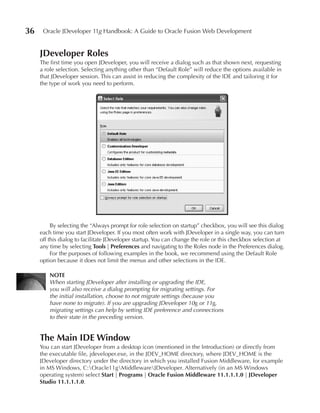
  • 679.
    634 Oracle JDeveloper 11g Handbook: A Guide to Oracle Fusion Web Development you can define using bind variables (described more in the “Named View Criteria Objects” section of Chapter 7). 1. Open the EmployeeSearch view object definition’s editor (double click its node or, if it is still open, click its tab in the editor) and click the Query tab. Click the “Create new view criteria” (green plus “+”) button in the View Criteria section to display the Create View Criteria dialog. 2. Fill in Criteria Name as “BasicEmployeeSearchCriteria.” 3. Click Add Item. A new node will be created in the Group hierarchy node. Select Attribute as “FirstName,” the Operator as “Contains,” and the Operand as “Bind Variable.” 4. Click New (green “+”) next to the Parameter pulldown, and in the Bind Variable dialog, enter the Name as “QueryFirstName.” Leave the default Type as “String.” Click OK. 5. In the Create View Criteria dialog, ensure that the Ignore Case checkbox is selected. The dialog will appear as follows: Additional Information: Notice that the settings you just made added a query predicate to the View Object Where Clause area. 6. Select the Group node. Repeat steps 3–5 for LastName using a Conjunction setting of “AND” and a bind variable of “QueryLastName.” 7. Select the Group node. Repeat steps 3–5 for Email using a Conjunction setting of “AND” and a bind variable of “QueryEmail.”
  • 680.
    Chapter 18: Sample Application: Search Page 635 8. Click Test to check the query. Click OK in the notification dialog; click OK in the Create View Criteria dialog. 9. Click Save All. 10. Run the application module again to test this named view criteria. Open the EmployeeSearch page. Click the Specify View Criteria (binoculars) button in the toolbar. 11. Move BasicEmployeeSearchCriteria to Selected and click Find. A Bind Variables dialog will appear where you can select a bind variable and assign a value. Select LastName and enter Value as “Z.” Click OK. The query should return only employees whose last names contain “Z.” 12. Close the tester window. What Did You Just Do? In this phase you set up ADF BC objects for the employee search and department edit page fragments. You also set up a named view criteria object that will present a subset of attributes to the user for querying purposes. Setting up the business services layer is generally the first major development step when developing an application with ADF. You then develop the View layer UI code that will allow the user to interact with data in the Business Services layer. As with any type of development, this process is iterative. That is, although you will make an attempt to be as complete as possible in the first stage of creating the Business Services layer, when working on View layer code, you will inevitably require a modification to the business services so you will return to that work. This phase also showed how you can use the Oracle Business Component Browser to test the Business Services code you’ve created. Frequent use of this testing tool will help you ensure that the code in this data layer is solid before moving on to using the data layer in the UI code. This browser is also useful when troubleshooting problems in an application. If you can run the tester successfully, the problem is likely somewhere in the View or Controller layer. If the same problem occurs with and without the View and Controller layer code, you can be pretty sure that the problem is somewhere in the Business Services layer. II. Create the Search Page The Model objects are now complete enough to create a user interface. The strategy you will use is to create a JSP page based on the template with some simple elements. You will then create task flows and page fragments for the employee search and hierarchy viewer displays. You will also create code that switches the view between these two fragments when the user clicks the appropriate navigation icon in the left-hand pane. This phase creates the search page with some title settings. 1. In the ViewController project follow the steps you used to create the templateTest.jspx page to test and create a JSF page in the public_html directory called “employeeSearch .jspx.” Additional Information: Start the New Gallery from the Web Content node. Be sure you create an XML document (.jspx), use the tuhraTemplate, and under Page Implementation, leave the default selection of “Do Not Automatically Expose UI Components in a Managed Bean.”
  • 681.
    636 Oracle JDeveloper 11g Handbook: A Guide to Oracle Fusion Web Development 2. Select the af:pageTemplate in the Structure window (under f:viewaf:document af:form) and in the Property Inspector fill in pageTitle as “Employee Search.” You will find the pageTitle property in the Other section of the Property Inspector. 3. Select af:document and fill in Title as “T.U.H.R.A.” This property value will become the browser window title for all pages. 4. From the ADF Faces page of the Component Palette, drop a Panel Splitter (Layout panel) into the content facet. Set the SplitterPosition as “140” and ensure that the Orientation is set to “horizontal.” Additional Information: The default value for the Orientation property of the af:panelSplitter is already “<default> horizontal” but setting the value explicitly has two benefits. First of all, developers can see exactly what you mean to do when you used the component and secondly, the Structure Window will show “af:panelSplitter - Horizontal, ” making it easier to locate this component and relate it to what you see in the visual page editor. 5. Drop a Panel Group Layout component into the first facet of the splitter. Set Layout to “vertical.” 6. Drop a Spacer into the af:panelGroupLayout and check that its Height is set to “10.” 7. Drop a Link (Common Components panel) into the af:panelGroupLayout. Set the Id as “searchLink” and clear the Text property. Additional Information: JDeveloper will automatically generate IDs for all JSF components that you add to the page. However, sometimes it is a good idea to override the generated defaults with more meaningful names so that you can remember what this component is for. 8. Repeat the preceding step using an Id of “orgLink,” dropping the new link after searchLink. 9. Drop a Panel Group Layout component into the first af:commandLink that is displayed in the Structure window. Select Layout as “vertical,” and Halign as “center,” and ensure that Valign is “middle.” Additional Information: You will want to put both an image and some text within this link component, so the af:panelGroupLayout is needed to contain and align them. 10. Drag “search.png” from the images directory under the ViewControllerWeb Content node and drop it into the af:panelGroupLayout component in the visual editor. Specify that the component is an ADF Faces Image. 11. Set ShortDesc for the image as “Search for Employees.” This text will appear as a tooltip (mouse rollover text). In the Style property category, Box (third) tab, set Width as “120.0px.” 12. Drop an Output Label component on the af:panelGroupLayout in the Structure window. It will be automatically added after the af:image. Set Value as “Search for Employees” and For as “searchLink.” Additional Information: The For property in this situation refers to the Id of the af:commandLink component. This helps screen reader software to understand that this is a textual description of the link. 13. You need another set of objects for the org chart link and image. The easiest way to repeat the effect of steps 9–13 is to copy to the clipboard the af:panelGroupLayout node under af:commandLink for the employee search image. Then select the second af:commandLink node and paste.
  • 682.
    Chapter 18: Sample Application: Search Page 637 14. Change the af:image Source to “/images/orgchart.png,” ShortDesc to “View by Department.” Change the af:outputLabel Value to “View by Department” and For to “orgLink.” 15. In the Structure window, expand the outer af:panelGroupLayout (under the first facet). Into its separator facet, drop a Spacer (Layout panel of the Component Palette) and set the spacer’s Height to “20.” Additional Information: Whatever you place within the separator facet of a af:panelGroupLayout will be repeated between every child component that is dropped into the layout container. 16. The af:panelSplitter nodes should appear in the Structure window as in this illustration: 17. Adjust the components if they do not match using drag-and-drop operations. Click Save All. What Did You Just Do? You just created a JSF page from the template. This page contains the navigational icon graphics in the left-hand pane and container components to hold the page fragments you will create next. III. Create the Employee Search Area Now you need to design the region that appears when the user clicks the top icon; this area will function as a basic Query-by-Example (QBE) search. Define the Search Task Flow and Page Fragment In this section, you diagram the task flow and create the page fragment from that task flow. 1. Select the ViewController project in the navigator. From the New Gallery, select an ADF Task Flow (Web TierJSF category) to display the Create Task Flow dialog. Specify File Name as “searchEmployees-flow.xml” and ensure that Create with Page Fragments is selected. Ensure that Create as a Bounded Task Flow is selected. Click OK. 2. Drop a View component from the Activities section of the Component Palette onto the diagram and change its name to “searchUI.”
  • 683.
    638 Oracle JDeveloper 11g Handbook: A Guide to Oracle Fusion Web Development 3. Double click searchUI to implement the task and add “fragments” (including the backslash) to the directory name (leaving the rest intact) and click OK. The visual editor will appear. Additional Information: The page fragments you are creating here do not need to use the tuhraTemplate template, as they will be embedded within a page that uses that template. 4. In the Data Controls panel (located as a panel within the Application Navigator), expand the nodes TuhraServiceDataControlEmployeeSearchNamed Criteria. Additional Information: Notice the “All Queriable Attributes” criteria that are available in the Data Controls panel hierarchy here. Every view object instance will have one of these, and as the name suggests, it would create a query form containing all of the attributes in the view object definition. TIP If the Data Controls panel is empty or seems not to have reflected recent changes remember that you can use the Refresh option on the right-click menu to force JDeveloper to update it. 5. Drag BasicEmployeeSearchCriteria onto the visual editor and select Query | ADF Query Panel with Table. 6. In the Edit Table Columns dialog, group-select (holding the ctrl key and selecting) the EmployeeId, DepartmentId, and JobId columns, and click the Delete (red “x”) button to delete them. 7. Select the Sorting and Row Selection checkboxes. 8. Move the JobTitle to appear after LastName using the up arrow button. 9. Group select the Email and PhoneNumber columns and click Group. This will add a node above these two columns. Change the group label to “Contact Information” by clicking into it and typing. The dialog should appear as follows:
  • 684.
    Chapter 18: Sample Application: Search Page 639 10. Click OK. Click Save All. 11. Click the document tab for employeeSearch.jspx to switch back to that page (or open it from the navigator). Select searchEmployees-flow under the Web Content Page Flows node in the Application Navigator. Drag it onto the second facet of the af:panelSplitter that you had previously added to that page, and select region from the context menu. You will see a ghosted version of the search page fragment now appear, embedded within the employeeSearch page. 12. Click Save All. 13. Select run from the right-click menu on the page to view the page. The browser should display a page like that shown in Figure 18-2. Try various searches using native search features like Match, Advanced, and Add Fields. 14. Close the browser. FIGurE 18-2. Search employees page
  • 685.
    640 Oracle JDeveloper 11g Handbook: A Guide to Oracle Fusion Web Development refine the Layout In this next section you will polish the user interface of the search screen and fix some UI problems that you may have noticed when running the application such as: ■ The search component takes up lots of space and has a generic title of “Employees.” ■ The results table does not fill the entire width and height of the screen. ■ The field labels show the attribute names, not user-friendly text. The following sections will address these issues. Compacting the Search Area You can very easily change the default title and layout used for the search area that you created through drag-and-drop using these steps: 1. Click the searchUI.jsff tab of the editor to display the page fragment (or reopen the file if you had closed it). 2. Select the Employees heading and type “Enter Search Criteria” to replace it. This changes the Text property of the af:panelHeader component to a more meaningful title. Additional Information: If you have trouble with this in-place editing procedure, select the component and change the Text property using the Property Inspector. 3. Expand af:panelHeader in the Structure window and select af:query. Set Id as “basicEmployeeSearchCriteriaQuery” and DisplayMode (in the Appearance section) as “compact.” Additional Information: The compact mode for the query component removes much of the extra chrome (decoration) for this component that you don’t need on this screen. You also set the Id property for this component as that is something you will be referring to later in this practice. TIP A long ID value is being used for clarity here; however, Oracle recommends that for optimal performance, component IDs should be seven characters or less in length. Stretching the results Table In this next set of steps you will enclose the results table in a stretch layout container and panel collection component. The af:panelCollection container component is interesting because it adds a range of functionality to any table or tree that it encloses including: ■ Providing a place to define table or tree specific menu choices ■ Offering the capability to undock the table or tree and expand it up to full-screen mode ■ Allowing the user to show, hide, and freeze table columns in the display ■ Stretching the table or tree inside of it to use all of the available space It is this latter geometry management behavior that is of the most interest here, but you will also add custom menu options to the af:panelCollection later on in the chapter.
  • 686.
    Chapter 18: Sample Application: Search Page 641 1. Select the af:table component in the Structure window and select Surround With from the right-click menu. Select Panel Collection and click OK. 2. Select the Id of the af:table component as “basicEmployeeSearchCriteriaQueryResult.” 3. The af:query component will by now be displaying an error (red “X” in the visual editor). Hold the mouse above the marker and you will see something like the following: Additional Information: The error indicator shows that the naming reference has been broken by the combination of adding the af:panelCollection component and changing the Id of the table. 4. Click the “X” indicator. The Property Inspector will outline the property containing the problem reference in the af:query component. In the Property Inspector select Edit from the pulldown next to the ResultComponentId field and navigate to the correct path (“::pc1:basicEmployeeSearchCriteriaQueryResult”). Click OK. The error state should be cleared. Additional Information: The “::” token denotes a path to the referenced component. 5. Click Save All. Additional Information: At this point, the results table still does not fill the width of the screen. This is because although the panel collection is now enclosing the table (and stretching it), the af:panelCollection itself is not being told to fill the available space. The solution for this problem is to add an af:panelStretchLayout component around the panel collection. It is easiest to modify existing layout containers like this in the Source tab of the editor window. 6. Click the Source tab in the editor for searchUI.jsff. Find the af:panelGroupLayout component under jsp:root. af:panelGroupLayout is the component that encloses everything within the page fragment. 7. Delete the tag “<af:panelGroupLayout layout="vertical" ...>” and type the following in its place: <af:panelStretchLayout topHeight="180px" id="psl1"> <f:facet name="top"> 8. Close the facet component after the af:panelHeader that encloses the query component (before the af:panelCollection tag). If you just type “</” JDeveloper will autocomplete the closing tag to create </f:facet>. Additional Information: If JDeveloper does not autocomplete or adds a different closing tag, you have started typing in the wrong place. 9. Add a line after the f:facet closing and before the af:panelCollection tag and type the following code: <f:facet name="center">
  • 687.
    642 Oracle JDeveloper 11g Handbook: A Guide to Oracle Fusion Web Development 10. Close this facet after the af:panelCollection closing tag. Then change the closing af:panelGroupLayout tag (the second line from the bottom of the file) to “af:panelStretchLayout.” Additional Information: The file should appear as in the following summary listing. (The line numbers are approximations and do not appear in the actual code.) 01: <?xml version='1.0' encoding='windows-1252'?> 02: <jsp:root xmls:jsp... ... 05: <af:panelStretchLayout topHeight="180px" id="psl1"> 06: <f:facet name="top"> 07: <af:panelHeader text="Enter Search Criteria" id="ph1"> ... 14: </af:panelHeader> 15: </f:facet> 16: <f:facet name="center"> 17: <af:panelCollection id="pc1"> ... 59: </af:panelCollection> 60: </f:facet> 61: </af:panelStretchLayout> 61: </jsp:root> 11. Click Save All, then run employeeSearch.jspx. Click Search to show data in the results table. The table fills the allotted space properly now. You can also stretch columns to the right to verify that the full width of the lower pane is available. Leave the browser open. 12. Back in JDeveloper, in the searchUI.jsff tab, select af:table and set ColumnStretching as “last.” This setting will cause the Department Name column to stretch to the right. Additional Information: You can see from this pulldown that the ColumnStretching property can be used to allocate any column, or add a blank one to expand and fill the spare space in the table. You can also set explicit widths on individual columns using the Width property of the af:column component. 13. Click Save All and then refresh the browser (or re-run the page if you had closed the browser) to see that this change caused the DepartmentName column to fill the remaining table width. Close the browser. TIP When making changes to a page where only the component tags have be altered and no data binding or ADF BC changes have been made, you will not actually have to re-run the application. Instead it will be sufficient to save the page file and then refresh the browser page to pick up the new version. Setting uI Hints You can set Model layer properties (UI Hints) to affect the UI layer. This section shows how to set properties on the view object definition, entity object definition, and view criteria levels. These labels will be inherited by both the search form and the table.
  • 688.
    Chapter 18: Sample Application: Search Page 643 1. In the Model project, open the Employees entity object definition (double click Employees under the ModelApplication Sourcestuhra.model.entities node). 2. In the Attributes tab of the Overview editor tab for the entity, select the FirstName attribute. In the Property Inspector UI Hints section (or tab), fill in Label as “First/Given Name” and Display Width as “50.” 3. Repeat the preceding step for other attributes in the Employees entity object definition as noted here: Attribute Label Display Width LastName Last Name/Surname 60 Email Email Address 40 PhoneNumber Phone No. 50 nOTE By default the Display Width property only affects the query fields, not the table columns, as the query fields are automatically wired to the entity UI hints whereas the table columns are not. The labels are connected using Expression Language to both the search fields and the column headers, so both parts of the screen automatically share the labels. 4. In the Departments entity DepartmentName attribute, set the Label as “Department” and Display Width as “80.” 5. In the Jobs entity JobTitle attribute, set the Label as “Job Title.” 6. Open the editor for the EmployeeSearch view object definition (under tuhra.model .queries) and find the view criteria BasicEmployeeSearchCriteria (on the Query tab). Click the “Edit selected view criteria” (pencil) button and on the UI Hints tab, set the Display Name property to “Query by Name.” Click OK. 7. In the searchUI.jsff Design tab, select af:column containing the Phone Number field in the table and set its Width (Appearance section) as “150.” Set Width for the column containing Job Title to “150” as well. TIP Remember that you can use the search field in the Property Inspector to find fields that match a particular name. 8. Click Save All. 9. Run the employeeSearch.jspx to view the label and width changes. Additional Information: This time, because you have changed the ADF BC model by adding UI hints, you need to re-run the application rather than just saving and refreshing the browser. 10. Close the browser.
  • 689.
    644 Oracle JDeveloper 11g Handbook: A Guide to Oracle Fusion Web Development Add an Export Capability to the result Set In this section, you add functionality that allows the user to copy the search result data into an Excel file. 1. Click the Design tab for searchUI.jsff if it is not already displayed. Click the menus facet of the results table in the visual editor to expand the Structure window nodes. In the Structure window the menus facet of the af:panelCollection should be selected. Drop a Menu (not Menu Item) component from the Component Palette (Common Components panel) into the menus facet. Set Text as “Export.” 2. Drop a Menu Item into the Export menu. Change Text to “Export to Excel.” 3. Drop an Export Collection Action Listener from the components Operations panel inside of the “Export to Excel” menu item. Set the ExportedId as “basicEmployeeSearchCriteriaQueryResult” (the ID of the af:table component) and select Type as “excelHTML” (the only option). Click OK. 4. In the properties for the af:exportCollectionActionListener set the Filename as “SearchResults” and Title as “TUHRA Employee Search Results.” If your browser is properly associated with Excel files, ADF Faces will automatically add the .xls extension to the file at runtime. 5. The export facility should only be available if a search has returned some results, so edit the af:commandMenuItem Disabled property (in the Behavior section) using the Expression Builder. Set the expression to “#{bindings.EmployeeSearch .estimatedRowCount < 1}.” Additional Information: The estimatedRowCount will be zero if no data is retrieved or if the query has not been performed. TIP The Disabled property is defined with a true/false dropdown list. To add a binding expression you will have to press the property menu (pulldown) icon to the right of the property in the Property Inspector. Select Expression Builder and then you will be able to enter (or construct) the binding expression. 6. Finally you need to cause the menu item to update when a query is performed. Set the PartialTriggers property to “::basicEmployeeSearchCriteriaQuery” to define that the expression is evaluated when a change is made to the query component. (Use the field pulldown Edit functionality if needed, but remember that the query component is now contained within the top facet of the af:panelStretchLayout.) 7. Click Save All. 8. Run the employeeSearch.jspx page. The Export | Export to Excel menu item should be disabled before you run a query or if no rows are returned for specific query criteria. 9. Try querying some records. The Export to Excel menu option should be enabled. Try this option to test the export feature. Additional Information: Notice that the tab label is set to “TUHRA Employee Search Results”—the Title property of the af:exportCollectionActionListener component. The column headings in the spreadsheet also match those on the screen.
  • 690.
    Chapter 18: Sample Application: Search Page 645 nOTE This functionality requires that you have set up a browser association with Excel data. This type of association is made automatically when you install a program that handles Excel data. With Excel 2007 you may receive a warning that the file type does not match the contents. You can ignore this message. 10. Close the spreadsheet and the browser. Add an Employee Details Popup In this application the user will be able to see all of the employee details from a right-click menu option and from the pulldown menu. You will implement this functionality using a popup window wired into the results table. 1. In the searchUI.jsff editor, expand the Structure window and locate the af:panelStretchLayout component under jsp:root. The bottom facet of this component is not being used, so it can hold the popup object. Set bottomHeight “0px” on the af:panelStretchLayout so that it does not allocate screen space for the components. 2. Drop a Popup (Common Components panel) into the bottom facet of the af:panelStretchLayout component. 3. Drop a Dialog inside the af:popup. Set Title as “Employee Detail”; set Type as “ok.” 4. If the popup is not shown in the visual editor yet, double click the af:popup component in the Structure window. 5. Drag and drop the EmployeeSearch view object instance from the Data Controls panel into the dialog as an ADF Read-only Form. Remove DepartmentId and JobId fields. Click OK to accept the Edit Form Fields dialog. 6. Now that the layout is complete, you can complete the wiring. Assign the af:popup Id a more meaningful value of “empDetailPopup” so that you easily can refer to it from another component. 7. In the Structure window, locate the af:panelCollection (under the center facet of the af:panelStretchLayout). Expand the Panel Collection facets node and drop a Menu Item component into the viewMenu facet. Set Text to “View Employee.” Additional Information: Menu items added to this facet of the af:panelCollection are automatically inserted into the existing view menu that it provides. 8. Drop a Show Popup Behavior component (Operations panel) into the new af:commandMenuItem and set PopupId as “::empDetailPopup” to point to the new popup. Select TriggerType as “action.” Leave the values for Align and AlignId as empty. Additional Information: If the Align property of the af:showPopupBehavior is not set, the popup will automatically be centered on the screen. 9. Now you will repeat part of this process for the right-click (context) menu. On the af:table component select Facets – Table | Context Menu from the right-click menu to display the contextMenu facet.
  • 691.
    646 Oracle JDeveloper 11g Handbook: A Guide to Oracle Fusion Web Development 10. Drop a Popup component (Common Components panel) into the contextMenu facet (for the popup menu); set the Id to “contextMenu.” 11. Drop a Menu component into the af:popup and a Menu Item into the af:menu. Set Text for the af:commandMenuItem as “View Employee.” 12. To implement the popup behavior, drop a Show Popup Behavior (Operations panel) into the View Employee menu item and set its PopupId as “:::empDetailPopup” (the path to the popup). If you use the edit option in the PopupId to locate the popup, remember that you placed it in the “bottom” facet of the af:panelStretchLayout. 13. Click Save All. 14. Run the employeeSearch.jspx page. Click Search to populate the query results table. Select an employee record by clicking a row. Note the name. Now select View | View Employee. The popup dialog should display with the read-only form view of the employee data you noted. Click OK. 15. On another employee record, select View Employee from the right-click menu. You might expect that the popup dialog should appear with data for that employee. However, if you examine the employee details closely, you will find that the data matches the first record that you selected. The reason for this is that the popup data is not being refreshed. Click OK. 16. Leave the browser open. In the searchUI.jsff page fragment, find the af:popup in the bottom facet of af:panelStretchLayout and set contentDelivery to “lazyUncached.” Additional Information: contentDelivery defines when data on the page are refreshed from the Model layer. The default value is “lazy,” which means that the contents will be refreshed only when the popup first displays. The value “lazyUncached” signifies that the data should not be stored between displays; the values will be refreshed each time. Another value, “immediate,” causes the popup to be loaded when the base page is loaded even before the popup is displayed. 17. Click Save All and refresh the browser. Test the popup and be sure it refreshes for each employee record. Additional Information: Also notice that you do not need to select the record before displaying the right-click menu. Pointing at a row and displaying the right-click menu is enough to change the context to that record. 18. Close the browser. Add an In-Process Indicator You may notice that when you run a search, nothing appears on the screen to indicate that processing is ongoing. This section shows how to add an indication to the user that some work is occurring. 1. Open the tuhraTemplate.jspx file (under ViewControllerWeb ContentWEB-INF templates). In the editor, click the Source tab. Expand the nodes in the Structure window. Select the af:group node above the Menu Bar as shown next.
  • 692.
    Chapter 18: Sample Application: Search Page 647 2. In the editor add an af:panelStretchLayout component and facet using the following two lines before the af:group: <af:panelStretchLayout endWidth="20" id="pt_psl2"> <f:facet name="center"> 3. If the end tag facet appears, cut it. Find the closing af:group tag and add the following four lines after it: </f:facet> <f:facet name="end"> </f:facet> </af:panelStretchLayout> Additional Information: These lines properly close the center facet (that now contains the af:group component) and create an empty “end” facet. TIP When the Source tab is in focus for a page or any other source file you can use the Reformat option on the right-click menu to format the code according to the preferences defined for that file type. This will fix the tag indenting in the editor making it easier to read. 4. Place the cursor between the open and close tags for the end facet tag and click Status Indicator in the Component Palette (Common Components panel). The Structure window will display nodes in this area as shown here.
  • 693.
    648 Oracle JDeveloper 11g Handbook: A Guide to Oracle Fusion Web Development 5. Click Save All. Run employeeSearch.jspx. Click Search and watch for the spinning “O” symbol in the top right-hand corner of the search area (above the Saved Search pulldown) as shown in the following screen snippet. 6. Close the browser. Status indicator What Did You Just Do? In this phase, you created the task flow and corresponding page fragment to contain the elements of the employee search area. This area leverages standard search capabilities written into the ADF Faces components, for example, Any and All designators. You also set up the table so that the user can export the result set to an Excel file. This is a very common user requirement and is easy to define in ADF Faces. This phase also gave you more practice with the ADF Faces container components such as af:panelStretchLayout and the ubiquitous af:panelGroupLayout. What Could You Do next? You could spend some time rearranging the fields in the search form. You could also add the employee image to the search results table by defining a column with an af:image component, which has a value based on a binding you need to add to the PageDef file for that page fragment. The next phase demonstrates how to add images to another view of the employees. IV. Create the Hierarchy Viewer Area The other function of the search page is to show a hierarchical view of the organization using the Data Visualization Tools (DVT) hierarchical viewer (HView) component. As shown in Figure 18-3, the department node will display the department name and manager name; the employee node will show the employee’s name, profile information, and picture. Set up Hierarchy node View Object Definitions This display requires view object definitions for the two nodes in the hierarchy: departments (with manager names) and employees. 1. In the Model project create a view object definition named “AllDepartmentsWithManagers” based on usages of the Departments entity (not updatable) and the Employees entity (not updatable but reference) (so that the name of the department’s manager can be shown). For clarity set the Alias of the Employees entity object usage to the value “Managers.” Ensure that the DeptMgrFkAssoc.Employees association is selected for the Employees entity usage. Additional Information: Start the view object definition dialog using the new View Object selection on the right-click menu for the tuhra.model.queries node.
  • 694.
    Chapter 18: Sample Application: Search Page 649 FIGurE 18-3. Organization tree display 2. When you reach the Attributes page of the Create View Object dialog, move the Managers attributes EmployeeId, FirstName, and LastName to the Selected area using the Add (“>”) button. Move all of the Departments attributes in the Selected area in the same way. Move the Departments attributes above the name attributes. TIP You can alternatively select the Departments node in the Available list and click “>” to move all of its attributes to the Selected list. 3. On the Query page, fill in Order By as “Departments.DEPARTMENT_NAME.” Notice that the WHERE clause has been filled in based on the existing association between Departments and Managers (Employees); it is defined as an outer join because the value of MANAGER_ID in DEPARTMENTS is optional. Finish the Create View Object dialog. 4. Repeat the steps to create a view object definition for “AllEmployees” based on an updatable usage of the Employees entity object definition and reference usages of the Images, ImageUsages, and Jobs entity object definitions. Navigate to the Attributes page. 5. Move to the right the following attributes in this order: from Employees: EmployeeId, FirstName, LastName, Email, PhoneNumber, JobId; from ImageUsages: AssociatedId, DefaultImage, ImageId, UsageType; from Images: Image, ImageId; from Jobs: JobId, JobTitle. 6. Click Next. On the Attribute Settings page of the wizard select the JobId1 attribute (from Jobs) in the Select Attribute: pulldown and change the Name to “JobsJobId.” Repeat for the ImageId1 attribute (from Images) setting the Name to “ImagesImageId.”
  • 695.
    650 Oracle JDeveloper 11g Handbook: A Guide to Oracle Fusion Web Development Additional Information: It is always a good idea to provide more specific names for these duplicate key attributes so that it is clear to the developer which entity definition is the source of the attribute. Return to the Attributes page and be sure these two attributes reference the proper entity objects. 7. Navigate to the Query page of the wizard. In the Where property, change the default text to conditions that join EMPLOYEES with IMAGES though IMAGE_USAGES (using a usage type of “E”), and also join EMPLOYEES to JOBS. Additional Information: The following code will accomplish this task: ImageUsages.IMAGE_ID = Images.IMAGE_ID(+) AND ImageUsages.ASSOCIATED_ID(+) = Employees.EMPLOYEE_ID AND ImageUsages.USAGE_TYPE(+) = 'E' AND Employees.JOB_ID = Jobs.JOB_ID 8. Fill in Order By as “Employees.LAST_NAME, Employees.FIRST_NAME.” Click Finish. 9. Create a view link definition in the tuhra.model.queries package called DepartmentsToEmployeesVL between AllDepartmentsWithManagers (source) and AllEmployees (destination) by selecting the EmpDeptFKAssoc association under each entity object and clicking Add. Click Next. Make sure the Generate Accessor: In View Object: AllDepartmentsWithManagers checkbox is selected. For clarity, change the default Accessor Name property from “AllEmployees” to “EmployeesInDepartment.” Click Finish. Additional Information: ADF BC will generate default names for accessors based upon the names of the view object definitions involved. In this case, the default name would be misleading to a programmer using the accessor in Java code because the default name implies that all employees are accessible. The new name you have provided for the accessor provides a more accurate description of what the accessor will be doing. 10. Open the TuhraService application module definition; in the Data Model tab add an instance of the AllDepartmentsWithManagers view object definition to the data model and name this instance “DepartmentTree.” Additional Information: Create this view object instance by selecting the AllDepartmentsWithManagers view object definition in the Available area, changing the New View Instance property to “DepartmentTree,” and clicking the Add Instance (“>”) button. 11. Also in the data model, add an instance of AllEmployees as a child instance of AllDepartmentsWithManagers under DepartmentTree calling the view object instance “EmployeesByDepartment.” Additional Information: To accomplish this step, select AllEmployees nested under AllDepartmentsWithManagers in the Available View Objects area. Then select DepartmentTree in the Data Model area, change the New View Instance name, and click Add Instance. 12. It is always a good idea to test all new view object definitions at the top level if possible. Therefore, also create an instance of the AllEmployees view object definition called “AllEmployeesTest” in the top level of the Data Model area. (Select TuhraService in the Data Model area before moving the view object definition.) Additional Information: This view object instance is only required for testing, and you will remove it afterward. The data model area of the application module definition editor should now appear as follows:
  • 696.
    Chapter 18: Sample Application: Search Page 651 13. Select run on the TuhraService application module definition node to run the Oracle Business Component Browser. Open the view link instance (DepartmentsToEmployeesVL1) to display the master-detail form. Scroll through records in the DepartmentTree (master) form to be sure the appropriate employees appear in the detail area. nOTE Some departments are not assigned any employees in the sample data. 14. Also open the AllEmployeesTest view object instance and scroll through its records to be sure the query is working properly. Close the components browser. Additional Information: As yet, all of the image attributes in this view object instance are empty. Later in the practice you will run a script to populate this information. 15. In the Data Model area, remove AllEmployeesTest (the top-level view object instance). The hierarchy viewer will use the employees view object instance that is a child of AllDepartmentsWithManagers. 16. Click Save All. Create the Hierarchy Task Flow and Page Fragment The Model layer is now set up for the hierarchy, so you can move over to the ViewController side. This section shows how to work with a DVT component, dvt:hierarchyViewer. 1. In the ViewController project, create an ADF bounded task flow called departmentTree-flow (in the WEB-INF directory). Like the searchEmployees-flow, this should use page fragments. 2. Drop a View component (Activities panel of the Component Palette) into the task flow editor and change the name to “departmentTree.”
  • 697.
    652 Oracle JDeveloper 11g Handbook: A Guide to Oracle Fusion Web Development 3. Double click the activity to create the page fragment. Specify the Directory as “<TUHRA_HOME>ViewControllerpublic_htmlfragments.” (Fill in the actual file system directory path for “<TUHRA_HOME>.”) Create it as a blank page. 4. In the Data Controls panel, select refresh from the right-click menu. The view object definitions that you just created should now appear (although you may need to expand some nodes). 5. Drag the DepartmentTree view object instance onto the page from the Data Controls panel, and drop it as a Hierarchy Viewer. 6. On the Component Gallery page, select Hierarchy Viewer Types as “Tree” and leave the default Quick Start Layouts selection (single page). Additional Information: The other Quick Start Layouts selection (multiple pages) defines zoom (drilldown) levels which this application does not use, however, these extra zoom levels can be defined manually as facets if required. 7. Click OK. The Create Hierarchy Viewer dialog will appear to allow you to specify the contents and zoom depth of each level of the hierarchy based on the data model. Select the DepartmentTree node, and in the Zoom 100% tab, ensure that only the following Node Attributes are included in this order: DepartmentName, FirstName, and LastName. All of these attributes can be defined as ADF Output Texts. Delete any other attributes. CAuTIOn The hierarchy viewer is a complex component and the exact attributes and components that are created by default with a drag-and-drop operation from the Data Controls panel may vary depending on the release of JDeveloper that you are using. 8. Select the EmployeesInDepartment checkbox in the Hierarchy area. In the Zoom 100% tab, set up the attribute list as the following attributes in this order: EmployeeId, FirstName, LastName, Email, PhoneNumber, JobTitle, and Image, in that order. Click the New (green “+”) button to add missing attributes. EmployeeId and Image should be defined as ADF Output Text, the other attributes should be defined as ADF OutputText w/Label. Click OK to create the hierarchy viewer. 9. Click Save All. Explore the Page The initial layout used by the department tree needs a bit of refinement. You are going to change the display so that it is a bit easier to read as in this illustration.
  • 698.
    Chapter 18: Sample Application: Search Page 653 Before proceeding with that work, it is useful to explore the objects that were just created. 1. Click the Bindings tab of departmentTree.jsff to view the binding summary. On the binding DepartmentTree, select Go to Declaration from the right-click menu. The PageDef file will open. 2. Click the Source tab. Notice that the highlighted DepartmentTreeIterator executable is referenced by the following entry in the bindings section: <tree IterBinding="DepartmentTreeIterator" id="DepartmentTree"> Additional Information: This code sets up a standard tree binding that points to the DepartmentTreeIterator iterator, which in turn queries the DepartmentTree view object instance. 3. Click the Source tab of the departmentTree.jsff file. Find the dvt:hierarchyViewer tag (around line 6). Additional Information: Notice that this element encloses a dvt:node component that refers to the view object instance (AllDepartmentsWithManagers) queried into that hierarchy node. It also encloses a second dvt:node component that refers to the query used in the next node level (AllEmployees). Each of these dvt:node elements contains a facet called “zoom100“ for the 100% zoom properties you entered in the hierarchy dialog. TIP You can easily display line numbers in the editor by selecting Toggle Line Numbers from the right-click menu on the editor left-hand gutter (margin). 4. Examine the elements within the 100% facets. You will see familiar component tags for panel group layouts and output text items that show attribute values. The DVT components wrap these familiar components into a hierarchy display. 5. You can now run the hierarchy in this default form and compare it to the intended result. Since much of the layout is generated at runtime, it will be useful to run the page fragment within a page to test it. You can reuse the templateTest.jspx file you created in Chapter 17. Additional Information: If you do not have this file, complete the steps in the Chapter 17 section “Test the Template.” 6. Open templateTest.jspx and remove the af:inputText item in the content facet. Drop the departmentTree-flow into the content facet and specify Region as the drop type. 7. Run templateTest.jspx. You will see a screen like that in Figure 18-4. Although you can use the pan and zoom tools in the control panel (accessed with the double arrow button on the top-left side of the screen), the data in the initial tree display is very small. Additional Information: The reason for this display is that the viewer needs to show all data in one screen. It would be better if you could restrict the diagram to one department at a time. TIP You may be able to use the mouse wheel to zoom in and out within the hierarchy viewer. 8. Close the browser.
  • 699.
    654 Oracle JDeveloper 11g Handbook: A Guide to Oracle Fusion Web Development FIGurE 18-4. Departments hierarchy viewer refine the Hierarchy Viewer As it stands, the hierarchy is showing too much information. Next, you will restrict the hierarchy viewer to only display data for one department at a time. 1. A view link can restrict the view to a single department without adding complexity to the query. Create a view object definition called DepartmentsList using the Departments entity definition. Specify attributes of DepartmentId and DepartmentName. Define an Order By of the department name (“Departments.DEPARTMENT_NAME”). 2. Create a view link definition called “DepartmentSelectionVL” between DepartmentsList (source) and the AllDepartmentsWithManagers (destination) using the DepartmentId as a link. Specify Cardinality as “1-1.” There is no need to worry about accessors in this case, so deselect all the accessor checkboxes. 3. Click Next and Finish. Edit the TuhraService application module definition and remove the DepartmentTree view object instance from the data model. (You need to remove EmployeesByDepartment first.)
  • 700.
    Chapter 18: Sample Application: Search Page 655 4. Create an instance of the DepartmentsList view object definition with the name “DepartmentSelector”; then move the “AllDepartmentsWithManagers via DepartmentSelectionVL” view object definition and name the instance “DepartmentTree.” Additional Information: Keeping the “DepartmentTree” name for this view object instance, you won’t need to change the page bindings that have already been created. 5. Add the child object definition “AllEmployees via DepartmentsToEmployeesVL” under DepartmentTree, calling the view object instance “EmployeesByDepartment” (again preserving the name you used previously). The Data Model area will now appear as follows: 6. Open the Source tab of the departmentTree.jsff editor. Add the following lines of code before the dvt:hierachyViewer tag (which appears at around line 6): <af:panelStretchLayout> <f:facet name="top"> </f:facet> <f:facet name="center"> 7. Under the closing dvt:hiearchyViewer tag (around line 93), add the following lines of code: </f:facet> </af:panelStretchLayout>
  • 701.
    656 Oracle JDeveloper 11g Handbook: A Guide to Oracle Fusion Web Development Additional Information: This code surrounds the entire display with an af:panelStretchLayout container and moves all hierarchy components to a center facet. It also adds an empty top facet, which you will use in the next step. The Structure window will now show nodes like the following: 8. Select Source | reformat from the right-click menu in the editor to fix the XML formatting. 9. Refresh the Data Controls panel and in the Structure Window drop the DepartmentSelector collection into the top facet of the new af:panelStretchLayout. Select navigation | ADF navigation List. In the Edit List Binding dialog, select Display Attribute as “DepartmentName.” Click OK. 10. Select the af:selectOneChoice (the dropdown) component in the Structure window (under af:panelStretchLayouttop facetaf:panelGroupLayout), and set Label as “Explore Department.” Check that the Id property is set to a default value of “nl1.” 11. On the dvt:hierarchyViewer component (in the center facet), set partialTriggers property (Behavior section) as “::nl1” so that the hierarchy object is refreshed when the list changes. Click Save All. CAuTIOn If the Property Inspector changes the partialTriggers property to “[::nl1]” with square brackets, remove the brackets in the source code. This is a bug in the older versions of the product. 12. Run templateTest.jspx. Select a department from the list, and the hierarchy view will only show that department with its employees. Try various selections from the pulldown. (Accounting, Executive, and IT departments, among others, should show employees.) 13. Zoom in using the control panel (accessed with the “>>” bar on the top-left side of the component), and you will see something like this for a department and employee node. 14. Close the browser.
  • 702.
    Chapter 18: Sample Application: Search Page 657 Improve the Department node Display To improve upon this display, the department name needs to be shown in boldface as a header and the full manager name should be displayed underneath on a single line. CAuTIOn The following steps explain how to make these changes by modifying the code. Although we’ve explained it as clearly as possible, if something doesn’t make complete sense along the way keep going and check your code against the code listing provided towards the end of this section. As we mentioned earlier in the chapter, the exact markup generated by the drag-and-drop operation for the dvt:hierachyViewer may change from release to release, so if you find that your example is significantly differing from the instructions then just jump ahead and reconcile your code with the completed listing. 1. In the Source tab for departmentTree.jsff, on the dvt:node component at the AllDepartmentsWithManagers level, change Height to “100” so that the department node box is shorter. 2. Locate the zoom100 facet for AllDepartmentsWithManagers (around line 26). The following steps refer to selecting code and changing properties in the Property Inspector. 3. Select the af:panelGroupLayout component directly under the zoom100 facet, and change Valign to “top” so the contents appear at the top of the hierarchy viewer box. Then add “background-color:#C0E4FD;border-color:#87CDFC;border-width:1;” to the end of the InlineStyle property to color the background of the boxes. Additional Information: Before adding the additional styles, add a semicolon to the end of the existing style string if one is not present. 4. Place the cursor inside the af:outputText tag for the DepartmentName attribute. In the Property Inspector, change the font-size value in the InlineStyle (Style section) to “18 px.” The complete inlineStyle value in the code should read: inlineStyle="font-weight:bold;font-size:18px;color:#383A47;" Additional Information: The DepartmentName value will show in a bold, 18-point font. If a font-family setting also appears, you can leave it as is. The order of the properties in this listing is not critical. For example, font-size can appear after color. 5. In the Structure window, if the DepartmentName node appears below the LastName or FirstName nodes, drag it above those nodes. This may require dragging it out of an af:panelFormLayout. Also drag FirstName into the same container as LastName. 6. In the Source tab, drop a Spacer (Layout panel) after the DepartmentName field and change the height to “4.” Drop a Separator after this and then another Spacer (unless a spacer already exists below the separator); set the second af:spacer height to “4” as well. Additional Information: You can alternatively drop these components into the page using the Structure window or visual editor.
  • 703.
    658 Oracle JDeveloper 11g Handbook: A Guide to Oracle Fusion Web Development TIP If you click a Component Palette component with the code editor active, JDeveloper will add it at the location of the cursor so you do not need to drag and drop. In this example, place the cursor after the <af:outputText /> tag and click the Spacer, Separator, and Spacer components in the Component Palette. 7. Click the Design tab to look at the effect of these changes. 8. Drop a Panel Label and Message (Common Components panel) under the last spacer, and set Label as “#{empty node.LastName?'No Manager Assigned':'Managed By'}.” This ternary expression will display “No Manager Assigned” if the LastName is NULL, which is the case in many of the records in the DEPARTMENTS table. 9. In the code editor remove any layouts such as af:panelFormLayout and af:panelLabelAndMessage that surround the FirstName and LastName fields (you may not have any of these layouts). Consolidate them into a single horizontal af:panelGroupLayout with a Layout set to “horizontal.” Additional Information: One way to accomplish this task is to drop a Panel Group Layout component below the af:panelLabelAndMessage component. Then drag the af:outputText components for FirstName and LastName into the af:panelGroupLayout. You could alternatively group the fields together and use the Surround With right-click menu option. 10. Group the FirstName and LastName fields together and remove the InlineStyle value. If there is an empty af:panelFormLayout component, delete it. If an extra spacer appears at the end of this structure, delete it, too. 11. Check that the code under the zoom100 node appears as follows. Although the inlineStyle property spans three lines in the listing, it should appear on a single line in the code editor. The Id property values are not critical as long as IDs are unique on the page. <af:panelGroupLayout inlineStyle= "width:100%;height:100%;padding:3px; background-color:#C0E4FD;border-color:#87CDFC; border-width:1;" layout="horizontal" valign="top" id="pgl1"> <af:panelGroupLayout layout="vertical" halign="center" inlineStyle="width:100%;" id="pgl2"> <af:outputText value="#{node.DepartmentName}" inlineStyle= "font-weight:bold;font-size:18px;color:#383A47;" id="ot6"/> <af:spacer width="10" height="4" id="s3"/> <af:separator id="s4"/> <af:spacer width="10" height="4" id="s5"/> <af:panelLabelAndMessage label= "#{empty node.LastName?'No Manager Assigned':'Managed By'}" id="plam6"/> <af:panelGroupLayout layout="horizontal" id="pgl6"> <af:outputText value="#{node.FirstName}" id="ot1"/> <af:outputText value="#{node.LastName}" id="ot2"/> </af:panelGroupLayout> </af:panelGroupLayout> </af:panelGroupLayout>
  • 704.
    Chapter 18: Sample Application: Search Page 659 12. Run templateTest.jspx. The department node box should now appear as follows: 13. Switch to a department that is not assigned a manager (such as Benefits) to check the message. Close the browser. Improve the Employee node Display You can now apply layout improvements to the employee node. You will be creating the following appearance: The layout for employees is a little more complex than that for departments because the node display contains an image. The code to implement this display is shown in the next code listing. All code is within the zoom100 facet of the AllEmployees node. After following the first three steps in this section, you can follow the rest of the steps or use any other technique to make your code match this listing. (Although the inlineStyle property spans three lines in the listing, it should appear on a single line in the code editor. Id values do not have to be the same but should be unique.) <af:panelGroupLayout inlineStyle= "width:100%;height:100%;padding:3px; background-color:#C0E4FD;border-color:#87CDFC; border-width:1;" layout="horizontal" valign="top" id="pgl3"> <af:panelGroupLayout layout="vertical" halign="center" inlineStyle="width:100%;" id="pgl4"> <af:outputText value="Employee #{node.EmployeeId}" id="ot3" inlineStyle= "font-weight:bold;font-size:18px;color:#383A47;"/> <af:spacer width="10" height="4" id="s1"/> <af:separator id="s2"/> <af:spacer width="10" height="4" id="s6"/> <af:panelGroupLayout id="pgl7" layout="horizontal"> <af:panelFormLayout id="pfl1"> <af:panelLabelAndMessage label="Name" id="plam4"> <af:outputText value="#{node.FirstName}" id="ot10"/> <af:outputText value="#{node.LastName}" id="ot7"/> </af:panelLabelAndMessage> <af:panelLabelAndMessage label="Email" id="plam2"> <af:outputText value="#{node.Email}" id="ot8"/>
  • 705.
    660 Oracle JDeveloper 11g Handbook: A Guide to Oracle Fusion Web Development </af:panelLabelAndMessage> <af:panelLabelAndMessage label="Phone No." id="plam5"> <af:outputText value="#{node.PhoneNumber}" id="ot4"/> </af:panelLabelAndMessage> <af:panelLabelAndMessage label="Title" id="plam1"> <af:outputText value="#{node.JobTitle}" id="ot9"/> </af:panelLabelAndMessage> </af:panelFormLayout> <af:image source="#{node.Image}" shortDesc="Picture of #{node.FirstName} #{node.LastName}" id="i1" inlineStyle="width:144px;height:144px;"/> </af:panelGroupLayout> </af:panelGroupLayout> </af:panelGroupLayout> 1. In the Structure window, select the dvt:node component for AllEmployees and set Height as “150” and Width as “300.” This change modifies the size of the employee node box. 2. For the af:panelGroupLayout component directly under the zoom100 facet tag, change Valign to “top.” 3. Add at the end of the InlineStyle property for the same af:panelGroupLayout component directly under the zoom100 facet, “background-color:#C0E4FD; border-color:#87CDFC; border-width:1;” to color the background of the boxes. Ensure that there is a semicolon between the existing style information and these extra values. 4. The remainder of the steps in this section demonstrate a technique for matching the code listing. If you want to try another method, you can make the code changes and skip to the last step for testing. 5. The best approach is to rebuild the node from scratch. Since you will need several container components around the display components, the changes are easiest to accomplish by moving the component tags into another editor, adding the container components, and pasting the component tags back into the containers. Expand the two outer af:panelGroupLayout components and select all nodes under them as shown here: 6. In the source code editor, cut (ctrl-x) those nodes and paste the code into a text editor outside of JDeveloper. 7. In JDeveloper, drop an Output Text component inside the inner af:panelGroupLayout component. Set Value as “Employee #{node.EmployeeId}” and InlineStyle to “font-weight: bold;font-size:18px;color:#383A47;” (including the semicolon).
  • 706.
    Chapter 18: Sample Application: Search Page 661 8. Drop a Spacer after that and set the height to “4.” Add a Separator, add another Spacer, and set the af:spacer Height as “4.” This will create the same heading line as you created for the department node box. 9. Drop a Panel Group Layout and set Layout as “horizontal.” Drop a Panel Form Layout inside that component. 10. In the editor holding the text you cut earlier, select each of the complete af:panelLabelAndMessage components (FirstName, LastName, Email, PhoneNumber and JobTitle) and their child tags and copy them into the new af:panelFormLayout (in the code editor). Additional Information: Depending on the version of JDeveloper you are using the FirstName af:outputText component may not be enclosed in an af:panelLabelAndMessage. This will not matter (see the next step). 11. In JDeveloper’s code editor, combine FirstName and LastName af:outputText components under one af:panelLabelAndMessage component, deleting the empty af:panelLabelAndMessage that is left behind, if any. Change the Label of the af:panelLabelAndMessage to “Name.” 12. Change the Label properties of the other af:panelLabelAndMessage components to “Email,” “Phone No.,” and “Title,” respectively (instead of the EL expressions). This explicit setting is required because of a limitation of the components. Clear the labelStyle and inlineStyle property for all af:panelLabelAndMessage components in the employee node and af:outputText items within them. 13. Drop an af:image into the af:panelGroupLayout after the af:panelFormLayout component; this image will appear on the right side of the node box. Set the Source as “#{node.Image},” ShortDesc as “Picture of #{node.FirstName} #{node.LastName},” and InlineStyle as “width:144px;height:144px;” (again, including the semicolon). 14. Copy the script import_employee_images.sql from the authors’ website (mentioned in the section “Websites for Sample Files” in the introduction) and place it in the <TUHRA_HOME>DatabaseSchemadatabaseTUHRA directory. Open the script in JDeveloper and run it using the HR_DB connection. This script creates references to images in the /images directory and assigns them to associated IMAGE_USAGES records for each EMPLOYEE. 15. For departmentTree.jsff, look in the Errors node of the Structure window and resolve any errors (red circles) such as duplicate Id properties that resulted from dropping components whose IDs were used by code in the external text editor. You do not need to spend time clearing the warnings (yellow triangles). 16. Cross check your code with the listing at the start of this section. As before, the actual Id property values are not critical. 17. Click Save All. Run templateTest.jspx. The employee box should look something like this illustration. 18. Close the browser and stop the application.
  • 707.
    662 Oracle JDeveloper 11g Handbook: A Guide to Oracle Fusion Web Development Plug the Hierarchy Viewer into the Page You have been testing changes to the departmentTree-flow in a separate page so far. Now that the functionality and appearance is refined and tested, you can integrate this fragment into the main search page. This section steps through that development process and also adds a mechanism for the user to switch between the criteria field search and the department tree browser using the images in the left-hand pane. 1. Open employeeSearch.jspx and delete the existing region in the second facet. 2. Now drop the searchEmployees-flow back into the same spot as before, but this time select Dynamic region. The Choose Managed Bean for Dynamic Scope dialog will appear; the managed bean provides the logic that identifies the content for this region. 3. Click New (green “+”) to add a managed bean. Set Bean Name as “searchScreenBB,” Class Name as “SearchScreenBean,” and Package as “tuhra.view.backing.” Click OK. Click OK. 4. The Edit Task Flow Binding dialog will appear; neither the search form nor the hierarchy viewer task flows use parameters, so click OK. 5. Open the SearchScreenBean.java file (under tuhra.view.backing). Notice that this bean is very simple; it just provides a getDynamicTaskFlowId() method to derive the ID of the flow for the region based on the name. 6. Click Save All. 7. Open the bindings file for the employeeSearch.jspx page (on the Bindings tab of the jspx file, click the Page Definition File link). Click the Source tab and notice that it contains a single taskflow element, which uses EL to access dynamicTaskFlowId the result of the getDynamicTaskFlowId() method. Additional Information: For a one-off solution, you could add if-else logic into the getDynamicTaskFlowId() method to switch between flows, but it is better to create a generic UI manager class to handle task flow needs like this. Write a uI Manager to Switch Page Fragments It is a good idea to use a single managed bean to manage all the flags that configure the UI but that do not need to be stored in the database. In this case, the bean needs to store the region that is currently selected in the search page. In this section, you’ll create a UIManager class to do this. It will be defined at a session-level scope and will contain a variable, searchScreenFocus, to store the selected region name. 1. In the ViewController project, create a Java class called “UIManager” in tuhra.view package. (In the New Gallery, select Java Class from the GeneralJava category and fill in Name and Package.) 2. Change the class to contain the following code (without the line number prefixes): 01: package tuhra.view; 02: 03: /** 04: * Class which manages persistent UI state 05: * for the application. 06: * Defined in the adfc-config.xml file as the
  • 708.
    Chapter 18: Sample Application: Search Page 663 07: * managed bean uiManager in session scope. 08: */ 09: public class UIManager implements Serializable{ 10: //This list could grow as we add more Pages / Screens 11: public enum Screen {EMPLOYEE_SEARCH, DEPARTMENT_TREE} 12: 13: //Store the current screen state 14: private Screen _searchScreenFocus = Screen.EMPLOYEE_SEARCH; 15: 16: /** 17: * Set the searchScreenFocus flag from a text 18: * version of the screen name 19: * @param focus String matching the enumeration value 20: */ 21: public void setSearchScreenFocus(String focus) { 22: this._searchScreenFocus = Screen.valueOf(focus); 23: } 24: 25: /** 26: * Set the searchScreenFocus flag from the enum value 27: * @param focus 28: */ 29: public void setSearchScreenFocus(UIManager.Screen focus){ 30: this._searchScreenFocus = focus; 31: } 32: 33: /** 34: * Return the searchScreenFocus as the enum constant 35: * @return 36: */ 37: public UIManager.Screen getSearchScreenFocus() { 38: return _searchScreenFocus; 39: } 40: } Additional Information: This code uses an enum (line 11) to define a group of constants; enums, which became available in JDK version 5.0, are more typesafe than conventional int (integer)–based constants. Also notice that the code contains an extra setSearchScreenFocus() method (line 21) that finds the enum from a string using valueOf() (line 22). This method allows you to set the focus by passing in the name (instead of the enum); this style of call is useful when you want to use af:setActionListener or af:setPropertyListener because they will not work directly with an enum argument. 3. Import the java.io.Serializable interface into the class. Additional Information: This will be stored in session state and as such may be migrated between nodes in an application server cluster. By using the Serializable interface you are telling the application server that it is alright to copy these UI settings between nodes on the cluster so that any of the servers can handle a request from a particular user of the application.
  • 709.
    664 Oracle JDeveloper 11g Handbook: A Guide to Oracle Fusion Web Development 4. You now need to make this bean known to the runtime. Open adfc-config (under Page Flows in the Application Navigator). On the Overview tab, select Managed Beans and add a bean (using the green “+”) and fill in Name as “uiState,” Class as “tuhra.view .UIManager,” and Scope as “session.” 5. Click Save All. 6. Update SearchScreenBean.java to read as in the following code listing (without the line numbers). 01: package tuhra.view.backing; 02: 03: import java.util.HashMap; 04: import oracle.adf.controller.TaskFlowId; 05: import tuhra.view.UIManager; 06: 07: /** 08: * Backing bean class for the main search screen used to 09: * manage which view is shown on that screen. 10: * Defined in the adfc-config.xml file as the managed bean 11: * searchScreenBB in backingBean scope. 12: * References the UI manager for a longer running state. 13: * @see tuhra.view.UIManager 14: */ 15: public class SearchScreenBean { 16: 17: // The following Map and static block defines the mapping 18: // between the focus flag held in the UIManager 19: // and a particular pageflow definition to 20: // swap into the region when that state is selected 21: 22: private static final HashMap<UIManager.Screen,String> _REGION_MAP; 23: static { 24: _REGION_MAP = new HashMap<UIManager.Screen,String>(2); 25: _REGION_MAP.put(UIManager.Screen.EMPLOYEE_SEARCH, 26: "/WEB-INF/searchEmployees-flow.xml#searchEmployees-flow"); 27: _REGION_MAP.put(UIManager.Screen.DEPARTMENT_TREE, 28: "/WEB-INF/departmentTree-flow.xml#departmentTree-flow"); 29: } 30: 31: // Store a reference to the state holder (this will be injected) 32: private UIManager _uiManager; 33: 34: public TaskFlowId getDynamicTaskFlowId(){ 35: return TaskFlowId.parse( 36: _REGION_MAP.get(_uiManager.getSearchScreenFocus())); 37: } 38: 39: /** 40: * Used to inject the UI Manager during the creation of this bean 41: * @see adfc-config.xml 42: * @param _uiManager 43: */ 44: public void setUiManager(UIManager _uiManager){ 45: this._uiManager = _uiManager; 46: } 47: }
  • 710.
    Chapter 18: Sample Application: Search Page 665 Additional Information: The HashMap _REGION_MAP is defined on line 22. It maps the screen focus to a particular region definition, which makes the actual selection of the region in the getDynamicTaskFlowId() method relatively simple. Since you have only two regions to swap, a HashMap is a bit of overkill (an if-else structure would suffice). However, if any more regions were needed, their names could be added to the HashMap static definition and getDynamicTaskFlowId() would remain the same. 7. Notice that you defined a setUiManager() method as part of the API for the SearchScreenBean. This is used to accept a reference to the UI manager that is being held in session scope. 8. To have JSF inject the UI manager value, switch back to the adfc-config.xml editor and locate the Managed Beans area on the Overview tab. TIP Be sure that the SearchScreenBean bean is set to a scope of “backingBean.” 9. Select the searchScreenBB bean and then click Add (green “+”) in the Managed Properties: searchScreenBB table. Set the managed property Name to “uiManager” (to match the setUiManager() method in the bean), the Class to tuhra.view.UIManager, and the Value to “#{uiState}.” 10. Now that the logic to switch the screens is in place, you can define how the UI will activate the change in searchScreenFocus values. You could of course use a custom method in SearchScreenBean, but using a af:setPropertyListener is simpler. In the employeeSearch.jspx file, locate the af:commandLink that surrounds the “Search for Employees” image. 11. Drop into the af:commandLink a Set Property Listener (Operations panel). Set From as “#{'EMPLOYEE_SEARCH'},” To as “#{uiState.searchScreenFocus},” and Type as “action.” Click OK. 12. Repeat the preceding step for the “View by Department” link. This time, fill in From as “#{'DEPARTMENT_TREE'}.” Additional Information: Both of these af:setPropertyListener tags will call the setSearchScreenFocus(String) method to determine which region should be loaded next. 13. Click Save All. 14. Run employeeSearch.jspx. Click each navigation link on the left-hand pane to be sure you can switch between employee and departments task flow displays. Additional Information: You can make this code a bit more efficient. Currently, clicking the links refreshes the entire page in the process. 15. Exit the browser. In employeeSearch.jspx, check that the two af:commandLink components are assigned an Id property (“searchLink” and “orgLink”). Additional Information: The Id properties must be set so that you can refer to them in the partialTriggers property.
  • 711.
    666 Oracle JDeveloper 11g Handbook: A Guide to Oracle Fusion Web Development 16. On each of the two af:commandLink components, set partialSubmit to “true.” This will activate a partial page refresh when the links are clicked. 17. On the af:region component (under the second facet), set the partialTriggers property on the af:region as “::searchLink ::orgLink” so that the region will refresh when those two components are activated. 18. Run employeeSearch.jspx. Now when you click the links, only the task flow region refreshes, not the entire page. What Did You Just Do? In this phase, you completed the search page by adding another task flow and associated page fragment for the hierarchy viewer. You gained some experience with visual layout and code editing of a DVT component, dvt:hierarchyViewer. You also wrote a generalized Java class to manage the switching of page fragments into the base page.
  • 712.
    Chapter 19 Sample Application: Edit Page 667
  • 713.
    668 Oracle JDeveloper 11g Handbook: A Guide to Oracle Fusion Web Development God has given you one face, and you make yourself another. —William Shakespeare (1564–1616) Hamlet, (II, 1, 1834) If I could write the beauty of your eyes And in fresh numbers number all your graces, The age to come would say, “This poet lies; Such heavenly touches ne’er touch’d earthly faces.” —William Shakespeare (1564–1616), Sonnet XVII I n this chapter, you will create a page fragment that allows the user to edit information about an employee. The practice builds on the results of the practice in Chapter 18 and demonstrates a number of techniques for working with ADF BC and ADF Faces. The practice covers a lot of ground and demonstrates many concepts you need to know when building an edit screen. The practice steps through the following phases: I. Set up the edit page and add LOVs ■ Create the edit page fragment ■ Add the department list of values ■ Add the job list of values ■ Add the manager list of values II. Refine the Salary field ■ Add validation to the Salary field ■ Fix the salary validation and change the salary format III. Refine the Commission field ■ Add validation to the Commission field ■ Change commission to a spin box ■ Change the commission updatable property ■ Clear the commission value for non-Sales employees IV. Refine the image field and the layout ■ Display the employee image ■ Rearrange the layout and modify some labels ■ Fix the forms and the field widths V. Create a popup for job history ■ Display the job history in a popup ■ Update the job history
  • 714.
    Chapter 19: Sample Application: Edit Page 669 VI. Apply final refinements ■ Define cascade delete functionality ■ Add the biography ■ Disable and enable the rich text editor ■ Refactor the getBindings( ) method ■ Display the manager name NOTe As mentioned for other chapters, if you did not complete the hands- on practice in Chapter 18, you can use as a starting point application files available on the websites mentioned in the “Websites for Sample Files” section of the Introduction. You can use the end-of-Chapter-18 application files to start work in this chapter. I. Set Up the edit Page and Add LOVs This phase creates the edit employee page fragment and sets up lists of values for the DepartmentId, JobId, and ManagerId fields. A list of values (LOV) offers a set of valid values from which the user selects. LOVs can appear as pulldowns or as popups where the user selects a value and the value is returned to the page. You usually supply data to the LOV using a read-only view object definition or a view object instance in a shared application module’s data model. For simplicity, this practice uses view object definitions. Create the edit Page Fragment This section adds a task flow and page fragment for the edit page starting with the application that you created in Chapters 17 and 18. Just as in the search page, the main content of the edit page will be located in a task flow containing page fragments. Therefore, the first thing to do is to build a basic bounded task flow for the edit form. 1. In the ViewController project, create an ADF task flow from the New Gallery (Web TierJSF category) and call it “editEmployee-flow.xml.” Be sure the Create with Page Fragments and Create as Bounded Task Flow checkboxes are selected and click OK. Additional Information: Notice that the new task flow appears twice in the navigator, under the directory that is specified in the dialog (WEB-INF by default) and in a separate node in the navigator called Page Flows. The Page Flows node is a virtual folder in the navigator that displays shortcuts to all of the task flows defined in the project. Opening the task flow from either place has the same effect. 2. In the Diagram page of the task flow, drop in a View activity from the Component Palette and name it “editEmployee.” As this is the first activity you have added to this task flow, it is automatically marked as the default activity (denoted by a green halo).
  • 715.
    670 Oracle JDeveloper 11g Handbook: A Guide to Oracle Fusion Web Development 3. Drop a Wildcard Control Flow Rule above editEmployee, leaving its name as the default value of “*” (matches any activity). Draw a Control Flow Case from the wildcard control flow rule to the editEmployee view and name it “refresh.” The editEmployee-flow.xml diagram should appear as follows: 4. Next, you need to think about what to display on the page fragment. First of all, you need a view object instance to populate the data fields from the base EMPLOYEES table. You can reuse the AllEmployees view object definition in this context. In the Model project, open the TuhraService application module editor (under tuhra.model.services). In the Data Model page, name an AllEmployees instance as “EditEmployee” and move it to the Selected area as a top-level view object instance. The Data Model area should appear as follows: 5. The edit UI also needs to display a little more information about the employee, such as their department, their compensation, and some audit information about when and by whom a record was created or changed. Edit the AllEmployees view object definition by double clicking that node in the tuhra.model.queries package of the Model project. Additional Information: As a developer, you will need to make the judgment about when to modify and reuse an existing view object definition and when you should just start over and create a specialized one. In this case it does not matter too much, as you are just adding a few extra attributes. However, in many cases you will want to create separate view object definitions to reduce the overhead of fetching more data than you really need. Alternatively, you could create a single view object definition with a declarative-mode query (explained in Chapter 7), which automatically defines the columns it fetches based on the UI requirements. 6. In the Overview tab of the view object editor, select the Attributes tab and click Add from Entity. From the Employees node in the Available pane, group select and shuttle the CommissionPct, CreatedBy, CreatedDate, DepartmentId, HireDate, ManagerId, ModifiedBy, ModifiedDate, and Salary attributes to the selected list. Click OK to close the Attributes dialog.
  • 716.
    Chapter 19: Sample Application: Edit Page 671 Additional Information: Because you are adding attributes to an existing View Object definition, this is a safe operation. If you need to remove attributes that are already in the definition, you need to exercise care that the attributes that you are about to remove are not referenced anywhere in existing bindings. 7. Click Save All. 8. In the editEmployee-flow, double click the editEmployee view activity and create a page fragment “editEmployee.jsff” in the fragments subdirectory under the ViewController project public-html directory (public_htmlfragmentseditEmployee.jsff). Leave the initial page layout as a blank page and specify that no managed bean will be created. 9. Refresh the Data Controls panel from the right-click menu, expand the nodes, and then drag and drop the new EditEmployee view object instance into the editEmployee.jsff page fragment as a FormsADF Form. 10. In the Edit Form Fields dialog, remove the following fields: ■ ImageId ■ AssociatedId ■ DefaultImage ■ ImagesImageId ■ UsageType ■ JobsJobId ■ JobTitle 11. Set the following attributes to be created as “ADF Output Text w/Label” components rather than the default components such as ADF Input Text w/Label or ADF Input Date w/Label: ■ EmployeeId ■ CreatedBy ■ CreatedDate ■ ModifiedBy ■ ModifiedDate 12. Set the Image attribute as an “ADF Output Text” component (without a label). You will change the type to an af:image later. 13. Notice that the attributes order in this dialog is dependent on the order in which the attributes were added to the view object. Reorder the attributes using the arrow buttons to match the following list (which we determined from a screen mockup in an earlier phase of the project): ■ EmployeeId ■ FirstName ■ LastName ■ Email ■ PhoneNumber ■ DepartmentId
  • 717.
    672 Oracle JDeveloper 11g Handbook: A Guide to Oracle Fusion Web Development ■ ManagerId ■ JobId ■ HireDate ■ Salary ■ CommissonPct ■ Image ■ CreatedBy ■ CreatedDate ■ ModifiedBy ■ ModifiedDate 14. Select the Include Navigation Controls and Include Submit Button checkboxes. Check that the Edit Form Fields dialog looks like this: 15. Click OK. At this point, you have a basic working data entry form. However, you need to make the interface a bit more user-friendly by adding LOVs for departments, jobs, and managers, and by improving the arrangement of fields. To see how the interface looks in its current state, open templateTest.jspx, remove the region from the content facet, and then drop the page flow (editEmployee-flow) into the content facet as a Region. 16. Run templateTest.jspx, and you should see something like the display in Figure 19-1. 17. Close the browser.
  • 718.
    Chapter 19: Sample Application: Edit Page 673 FIGURe 19-1. Default form layout for the EditEmployee fields NOTe Running the application will compile it. Before compiling, JDeveloper will, by default, save all modified files. You can change the automatic saving setting in the Preferences dialog’s Compiler page although we recommend leaving it as is. Add the Department List of Values The department ID can be loaded from a simple pulldown because the list of departments is small. This section develops this pulldown. 1. In the Model project’s tuhra.model.queries folder, create a view object definition called “DepartmentsLOV” based on a non-updatable usage of the Departments entity object definition. 2. In the Step 3 page, select the DepartmentId and DepartmentName attributes. 3. In the Step 5 page, fill in Order By as “Departments.DEPARTMENT_NAME” and click Finish.
  • 719.
    674 Oracle JDeveloper 11g Handbook: A Guide to Oracle Fusion Web Development 4. Open the AllEmployees view object definition in the editor and click the Attributes tab. Select the DepartmentId attribute. Expand the “List of Values: DepartmentId” section and click the “Add list of values” (green plus “+”) button to create an LOV. 5. In the Create List of Values dialog, leave the default name. Click the “Create new view accessor” (green plus “+”) button next to the List Data Source field. 6. Select DepartmentsLOV in the left-hand side. Set Name as “DepartmentsLOVAccessor” (changing from the default name of DepartmentsLOV1) and move it to the right-hand side. Additional Information: This action creates a view accessor, which provides programmatic navigation from the AllEmployees view rows to the row sets containing DepartmentLOV rows. 7. Click OK. Set the List Attribute as “DepartmentId.” This action automatically adds DepartmentId to the List Return Values area. 8. Click the UI Hints tab. Leave the Default List Type as “Choice List” (to specify a pulldown item) and, in the Display Attributes section, move “DepartmentName” to the Selected area. 9. In the Choice List Options section, select the “Labeled Item (First of List)” selection in the Include “No Selection” Item property and fill in the field next to it as “<No Department Selected>” rather than the default “<No Selection>.” Click OK. 10. Click Save All. 11. Run the TuhraService application module and double click the EditEmployee view object instance to open it. You should see a pulldown for the DepartmentId column that is supplied by the new LOV. This pulldown displays the department name based on settings you made in the LOV dialog. Click the “Insert a new row” (green plus “+” ) button to add a record. Notice that the default value is the first one in the list—the blank label you specified. Close the Business Component Browser. 12. In the editEmployee.jsff page fragment file, delete the DepartmentId field (above the ManagerId field). 13. In the Data Controls panel, refresh the view from the right-click menu and expand the EditEmployee collection. Drag the DepartmentId attribute to the previous location of the DepartmentId field. Select Single Selections | ADF Select One Choice. Additional Information: You may find it easier to drop the DepartmentId attribute in the correct location if you use the Structure window. 14. Run templateTest.jspx. The DepartmentId pulldown should appear as seen next. (You will modify the width of the pulldown later.) 15. Close the browser. Add the Job List of Values In this section, you will create a pulldown LOV for JobId. Since it is the same type of item, the process is identical to the process for departments. Therefore, the following steps are somewhat abbreviated.
  • 720.
    Chapter 19: Sample Application: Edit Page 675 1. Create a view object definition called JobsLOV based on a non-updatable usage of the Jobs entity object definition (deselect the Updatable checkbox). Select the JobId and JobTitle attributes. Order by “Jobs.JOB_TITLE.” Click Finish. Additional Information: Notice that you do not need LOV view object instances in the application module definition (TuhraService). This keeps the whole service interface and the data controls tree much simpler. 2. Select the JobId (not JobsJobId) attribute in the AllEmployees view object definition and define a list of values with a List Data Source (accessor) named “JobsLOVAccessor” using the new JobsLOV view object definition. 3. Specify JobId as the list attribute. On the UI Hints tab, ensure that the Default List Type is “Choice List” and move JobTitle to the Selected area for the Display Attributes section. Set the “No Selection” label as a “Labeled Item (First of List)” with the text “<Select a Job>.” Click OK. 4. Click Save All. 5. Return to the editEmployee page fragment, refresh the Data Controls panel and replace the af:inputText component for JobId by dragging JobId from the EditEmployee collection and by selecting an ADF Select One Choice (in the Single Selection pulldown menu). 6. Run templateTest.jspx. The JobId field should appear as in this snippet from the browser: 7. Close the browser. Add the Manager List of Values You want to allow the user to select the manager ID based on an LOV. The list of managers is too long (or you expect it to grow to be too long) for a pulldown. Therefore, you will create a popup LOV dialog to allow the user to search for a manager. In addition, the contents of this LOV will incorporate the following business rules: ■ Employees cannot manage themselves. ■ Employees can be managed only by other employees in the same department or in the Executive Department (ID of “90”). 1. In the Model project, create a view object definition, in the tuhra.model.queries package, called “FilteredManagerLOV” and using the option “Updatable access through entity objects.” Base this view object definition on a usage of the Employees entity object definition. Deselect the Updatable checkbox. 2. On the Attributes page, select the DepartmentId, EmployeeId, FirstName, and LastName attributes. On the Query page, define Order By as “Employees.FIRST_NAME,Employees .LAST_NAME.” Click Finish.
  • 721.
    676 Oracle JDeveloper 11g Handbook: A Guide to Oracle Fusion Web Development 3. Open the view object editor for FilteredManagerLOV if it is not open already and select the Query tab of the Overview editor. Additional Information: You need to add view criteria that filter the list based on two values: the EmployeeId of the current record (so that the current employee will not be displayed) and the DepartmentId of the current record (so only employees in that department or in Department 90 will be displayed). 4. In the Bind Variables section, click the “Create new bind variable” (green plus “+”) button to add a bind variable. Fill in Name as “CurrentEmployeeId” and Type as “Number.” Deselect the Required checkbox. Click OK. NOTe Be sure to define CurrentEmployeeId as non-required. 5. Repeat the preceding step to add another non-required Number bind variable called “CurrentDepartmentId.” 6. In the View Criteria section, click “Create new view criteria” (green plus “+”) button to display the Create View Criteria dialog. 7. Fill in Criteria Name as “FilteredManagerLOVCriteria” if it is not already present. Click Add Item to add a group and an initial item. Set Validation as “Required” and change values in the Criteria Item section to change the expression to “((EmployeeId <> :CurrentEmployeeId)).” Additional Information: To build this expression, select Attribute as “EmployeeId,” Operator as “Not equal to,” Operand as “Bind Variable,” and Parameter as “CurrentEmployeeId” as shown here:
  • 722.
    Chapter 19: Sample Application: Edit Page 677 8. You have defined the expression for the first business rule. To define the second business rule, select the top-level node (FilteredManagerLOVCriteria) and click Add Group. This action adds an “Or Group” by default. With the new group node selected, set the Conjunction as “AND.” 9. Click Add Item and define the expression “DepartmentId = 90” with a Validation of “Required.” (Operand should be “Literal” in this case.) 10. Select the “AND Group” node and click Add Item again. Define the additional expression “DepartmentId = :CurrentDepartmentId” (a bind variable operand in this case). Change Conjunction to “OR” because the employee can be managed by any employee in the executive department or in the same department as that employee. TIP The Parameter list in this dialog only contains existing bind variables. You can add bind variables in this dialog by clicking the New (green plus “+”) button in this dialog. 11. Set Validation to “Optional” because some employees are not assigned to departments. The Create View Criteria dialog should appear as follows: Additional Information: The declarations you enter in the Create View Criteria dialog are recorded as XML elements in the view object definition (XML) file. Therefore, it is useful to become familiar with entering view criteria using this dialog because apart from
  • 723.
    678 Oracle JDeveloper 11g Handbook: A Guide to Oracle Fusion Web Development editing the view object definition source code, there is no other practical way to enter declarative criteria conditions. It is of course possible to define view objects in expert mode where you directly have to enter all of the SQL for a view object. However, we recommend that you restrict your use of expert mode view objects to a minimum, as they are harder to maintain in the long run. In addition, expert mode view objects cannot be customized after deployment. 12. Click OK. Open the AllEmployees view object editor and select the ManagerId attribute. 13. Create a list of values. Add a List Data Source item, and select “FilteredManagerLOV.” Change the Name to “FilteredManagerLOVAccessor” and move it to the View Accessors area. The View Accessors dialog should now contain three accessors and look like this: 14. Select the FilteredManagerLOVAccessor in the right-hand pane of the shuttle and click Edit. The Edit View Accessor dialog will appear. Move the FilteredManagerLOVCriteria to the Selected area. 15. In the Bind Parameter Values section, set the Value field for the bind variables (by double clicking the field and typing) as follows: Parameter Value CurrentDepartmentId DepartmentId CurrentEmployeeId EmployeeId Additional Information: The Value field specifies that the bind variable value will be filled in with the AllEmployees record values at runtime. The dialog will appear as shown in the following illustration.
  • 724.
    Chapter 19: Sample Application: Edit Page 679 16. Click OK in the Edit View Accessor dialog. Click OK in the View Accessors dialog. 17. In the Create List of Values dialog, set the List Attribute to “EmployeeId.” This action should set the List Return Values field for View Attribute as “ManagerId” and for List Attribute as “EmployeeId.” 18. Click the UI Hints tab and set Default List Type as “Combo Box with List of Values.” Move FirstName and LastName to the Selected area of the Display Attributes section. 19. In the List Search section, select the Query List Automatically checkbox so that the list will be displayed when the LOV appears. The UI Hints page should look like this:
  • 725.
    680 Oracle JDeveloper 11g Handbook: A Guide to Oracle Fusion Web Development 20. Click OK and click Save All. 21. In the editEmployee.jsff page fragment, delete the ManagerId field, refresh the Data Controls panel and drop ManagerId from EditEmployee collection to above the JobId field selecting List Of Values | ADF LOV Choice List. Additional Information: The user interface of the ADF LOV Choice List provides a traditional data-entry-style code field where the user can enter the code value if they know it (in this example, the employee ID of the manager); alternatively, the user can select the code from the LOV. If you know users are unlikely to know the employee ID and the list of values is short, a pulldown (ADF Select One Choice, as you defined for DepartmentId and JobId) is a better option. The view criteria filtered list would work the same for a pulldown as it does for an ADF LOV Choice List. 22. One feature that is useful to enable for this kind of LOV is automatic validation of the user’s data entry. So if the user types in an invalid value into the field, the LOV will automatically launch. To define this behavior, select the ManagerId af:inputComboboxListOfValues in the visual editor and set the AutoSubmit property to “true.” 23. Run templateTest.jspx; the ManagerId should appear as follows: 24. Check that you can type a value into the ManagerId field because it is a combobox. When you display the pulldown, you will see a list of valid manager choices as follows: Additional Information: Notice at this stage that the list area that appears in the preceding illustration is really wider than is needed to display only the names of the manager. This is because the width of the list is defined by the overall width of the af:inputComboboxListOfValues component. We’ll show you how to fix this later on. 25. Look for the Search link that appears when you click the pulldown button. Selecting this link will cause a popup dialog to appear; this dialog allows the user to enter search conditions to find a valid value as is shown next.
  • 726.
    Chapter 19: Sample Application: Edit Page 681 26. Dismiss the popup, type in an invalid manager ID (for example, 1000), and press tab. The same search dialog will appear so that the user can find a valid manager. This feature that uses the LOV values to check the user input is sometimes called LOV validation. 27. Cancel the dialog. Close the browser. What Did You Just Do? In this phase, you created the page fragment you will use to supply the user with employee record editing functionality. The work flowed in the same way as that in Chapter 18, which is typical when working with ADF: you first set up view object instances that contain attributes for the data entry fields; you then drop the view object collection or attributes from the data controls onto a JSF JSP page (in this case, a JSF page fragment). The drag-and-drop operation from the Data Controls panel creates data input elements that are prebound to the Model layer business services. In addition it sets up standard defaults for properties that you may need. You then set up two different styles of LOVs for the fields that act as foreign keys to reference tables. Both styles contain lists of valid values queried from a table. The pulldown style uses the af:selectOneChoice component; in this page, you used this style for the DepartmentId and JobId attributes. The pulldown LOV displays a description that the user will recognize, and it stores the code value in the attribute. Pulldowns are good for lists that are small (for example, 50 or 60 choices). The advantage of this style is that the data domain consists of only valid options; therefore, you would not require additional validation on the UI side. The other style of LOV you created in this phase was the combobox LOV, which also shows a pulldown list of values but also allows the user to type in the code value. The ADF Faces Rich Client component af:inputComboboxListOfValues also offers a selection that displays
  • 727.
    682 Oracle JDeveloper 11g Handbook: A Guide to Oracle Fusion Web Development a search window. This window can be set up to appear if the user types in an invalid value (a value not in the list). Therefore, this component shares with the pulldown list the advantage of data validation. II. Refine the Salary Field This phase applies various user interface techniques to the Salary field to demonstrate how declarative validation can provide basic data validation functionality for values that the user types into fields. You can create declarative validation rules for many types of validation (comparison, range, regular expression, and so on, as introduced in various sections of Chapter 6) and use validation values from a fixed list that you code into the validation rule or from a dynamic list that is queried from a table. Declarative validation is a bit trickier when you need to use a dynamic value that is conditional to values in the current record. Knowing how to accomplish this type of validation can enable you to define metadata for a requirement that would otherwise require programmatic code. The more you can define behavior through metadata, the less reliant you are on a particular version of a technology or language. This phase shows how to set up declarative validation that is conditionally based on values from the current record. This phase also shows how to apply basic formatting properties to the Salary field. Add Validation to the Salary Field This section demonstrates how you can add validation to a field. A business rule states that the salary of the employee must be within the allowable range (the MIN_SALARY and MAX_SALARY values for that job in the JOBS table). This is one of those validation tasks that you would expect to have to write code to accomplish. However, in this case, you can define validation declaratively using a validation rule based on a view accessor (discussed in Chapters 6 and 7). 1. In the Model project, create a non-updatable view object definition called “SalaryValidator” based on a usage of the Jobs entity object definition. Additional Information: As a reminder, a non-updatable view object definition based on the usage of an entity object definition is defined by selecting “Updatable access through entity objects” on the Step 1 (Entity Objects) page, and then selecting an entity object on the Step 2 (Attributes) page and deselecting the Updatable checkbox. 2. Select all attributes and click Finish. In the view object editor for SalaryValidator, click the General tab, and expand the Tuning section. In the Retrieve from the Database section, select the “At Most One Row” radio button. You only need to retrieve one job record from the JOBS table to match the particular JobId in the employee record. 3. In the Query tab, Bind Variables section, add a bind variable called “JobIdToValidate.” Specify the Type as “String” and set it as not required. Click OK. 4. Also on the Query tab, create view criteria that set JobId equal to the new bind variable, JobIdToValidate. Deselect Ignore Case and set Validation to “Required.” Additional Information: Setting Validation to “Required” causes an exception to be thrown if a NULL value is passed in as the parameter. Deselecting Ignore Case eliminates uppercase conversions. Compare the value of View Object Where Clause value with Ignore Case checked and unchecked to see the difference. In this situation, the JobId is passed in from a valid list, so you do not need the uppercase conversion. Moreover, the query will be more efficient without the UPPER() function conversions.
  • 728.
    Chapter 19: Sample Application: Edit Page 683 5. The View Object Where Clause should contain “( (Jobs.JOB_ID = :JobIdToValidate) ).” Click OK. Save All and close all the editor windows (using the right-click menu option on any editor tab). 6. Up to now, you have (hopefully) been creating view object definitions in the queries package. You might want to take time now to refactor the set of view objects into subpackages for main, lov, and validation. You can accomplish this task most easily by group selecting view objects (for example, those with an LOV suffix) and using the Refactor | Move option from the right-click menu. Here is a sample arrangement: Additional Information: If spurious package nodes appear after refactoring, refresh the display or ignore them. They should disappear when you restart JDeveloper. 7. Next, you will create an accessor to the new validation view object from the JobId of the Employees record. Open the Employees entity object in the editor and click the View Accessors tab in the Overview tab of the editor. NOTe Earlier, you created view accessors in the context of view objects, but you could alternatively have created them in the base entity object so that they would be shared with any view objects based on that entity object. 8. Create a view accessor called “SalaryValidatorAccessor” that points to the new SalaryValidator view object. (Do not click OK.) 9. Staying in the View Accessors dialog, select SalaryValidatorAccessor in the View Accessors area and click Edit. If you clicked OK before this step, click the “Edit selected View accessor” (pencil) button. Additional Information: As you may recall, the Edit View Accessor dialog allows you to select the view criteria for the view object to limit the results of the view object query (in this case, you will limit results to the JobId that matches the current employee record). 10. Move SalaryValidatorCriteria to the Selected area and in the Bind Parameter Values section, set the JobIdToValidate Value as “JobId.” Additional Information: This setting declares that the query will use the JobId value in the current employee row to populate the bind variable (parameter); that bind variable will be used to query the JOBS table for the SalaryValidator view object. In this case, since the bind variable will contain a JobId value, only one row will be returned.
  • 729.
    684 Oracle JDeveloper 11g Handbook: A Guide to Oracle Fusion Web Development 11. Click OK, and OK to dismiss both dialogs. Click the Validators tab and expand the EmployeesAttributesSalary node. You will see one validation rule already added by the entity object creation labeled as “Database Constraint – Precision : (8,2).” 12. Select the Salary node in this tree and click “Create new validator” (green plus “+”). The “Add Validation Rule for: Salary” dialog will appear. 13. You might be tempted to use the built-in range validation rule to check that the value of Salary is between the MinSalary and MaxSalary attributes. However, range validation rules can only be defined using literal values, not with values from a query. Select Rule Type as “Compare” (if it is not already selected), set Operator as “GreaterOrEqualTo,” and set Compare With as “View Accessor Attribute.” 14. The SalaryValidatorAccessor will appear in the Select View Accessor Attribute area. Expand this node and select MinSalary. The dialog will appear as follows: 15. Click the Failure Handling tab and ensure that the Error radio button is selected. Additional Information: Notice the radio button Informational Warning. The ability to declare validation that raises only a warning (not a failure error) is a new feature with ADF 11g. 16. Fill in Message Text as follows (all on one line): The defined salary of {empSalary} falls below the minimum of {minSalary} defined for the {jobDescription} job. Additional Information: As you enter this text, the Token Message Exceptions section will be filled in to contain the message tokens in the text. Message tokens (or just “tokens”) are placeholders delimited with curly brackets, which will be replaced by values at runtime.
  • 730.
    Chapter 19: Sample Application: Edit Page 685 17. You need to define the source of data for each token. You can declare the source to be a name of an attribute or a fully qualified expression that refers to a value. In the Token Message Expressions section, fill in the Expressions column as follows: Message Token expression empSalary Salary minSalary SalaryValidatorAccessor.first().MinSalary jobDescription SalaryValidatorAccessor.first().JobTitle Additional Information: These expressions are actually using the Groovy scripting language and the last two use the view object accessor (SalaryValidatorAccessor); for the first (and only) row in the JOBS table (first()) that matches the JobId of the current employee record, these expressions will reference the values of the MinSalary, and JobDescription attributes, respectively. 18. Click OK. Click Save All. 19. Run the application module and open the EditEmployee view object instance node. The first row in the EditEmployee collection should be Employee 174 (Ellen Abel) with a Job of “Sales Representative.” Change the Salary value to 4000 and press tab. The following error should appear: “The defined salary of 11000 falls below the minimum of 6000 defined for the Sales Representative job.” Additional Information: That the message appears is correct, but the value of the “{empSalary}” is the value before you made the change (11000). This effect occurs because validation fires prior to setting the value of the Salary attribute. Since the validation stopped the value from being set, the old value is shown in the message. You need to access the value that failed the validation and you can use the special expression “newValue” to accomplish that access. NOTe In the Business Component Browser, the error message is prefixed with a string noting the Java exception type and the internal validation rule name. ADF Faces will remove this prefix at runtime so web application users will only see the message you have defined. 20. Dismiss the error dialog and close the Business Component Browser. Return to the Compare validation rule’s Failure Handling tab and change the Expression for the empSalary token from “Salary” to “newValue.” Run the application module and the error message should show something like, “The defined salary of 4000 falls below the minimum of 6000 defined for the Sales Representative job.” Set the salary back to “11000.” 21. Change the Job to “President,” which has a minimum salary of 20000. The record is now invalid, but no error message is raised because the validation rule fires only for a change in salary. The next section demonstrates how to fix this problem. 22. Close the Business Component Browser.
  • 731.
    686 Oracle JDeveloper 11g Handbook: A Guide to Oracle Fusion Web Development Fix the Salary Validation and Change the Salary Format You can use one of the following approaches to fix the problem that no validation error occurs when you change just the job value to cause an invalid combination of Job and MinSalary: ■ Add a dependency, which would automatically force the Salary value to clear when the Job changes. ■ Add the same validation to the JobId field as the salary field. (Chapter 6 explains more about cross-attribute validation and how to solve its potential problems.) ■ Move the validation to the Entity level. In this case it makes sense to move the validation to the Entity level. CAUTION Since you know that all declarative property values are written into XML code, you might be tempted to edit the XML source code to move the code that defines the declarative validation rule. We very strongly urge you to resist this temptation because the XML definitions for these two validation rules are slightly different and because the editor automatically handles message bundle files for you. We predict that, if you give in to this temptation, you are likely to spend more time troubleshooting and debugging problems in the XML code than you would spend using the declarative property editors. 1. In the Employees entity object editor, click the Validators tab within the Overview editor and select the Entity node, which will currently be empty. 2. Click “Create new validator” (green plus “+”) and recreate the Compare validation rule (as in the preceding section in steps 13-18). Select Salary as the attribute to validate and use “newValue” for the value of the empSalary token. 3. Remove the instance of the Compare validation rule on the Salary attribute (by selecting it and clicking the “Delete selected validator(s)” (red “x”) button. 4. Run the application module again; opening the EditEmployee view object instance. For Ellen Abel, change Salary to “4000” and move the cursor to another field. No error message will result because the validation rule is defined on the Entity (row) level. 5. Navigate to the next record. The error message will now appear but it will contain something like “Entity [oracle.jbo.Key[174 ]]” rather than the entered salary value. Additional Information: This reference appears because the validation is on the entity level, so the Groovy expression “newValue” now refers to the whole row. You can refine the Groovy expression in the error message substitution variable to “newValue.Salary” to refer to the Salary value within the row. 6. Close the browser. Return to the validation rule editor and change the Expression for empSalary to “newValue.Salary.”
  • 732.
    Chapter 19: Sample Application: Edit Page 687 7. Run the application module and change the salary to “4000.” The correct error should appear when you try to navigate to another record. Restore the Salary field to “11000.” Navigate to the next record to prove that the validation passes. Return to the Ellen Abel record. 8. Now it is time to test the validation when you change the Job value, remember that the minimum salary value directly relates to the JobId being passed in to the validating view object. On the Ellen Abel record, change the JobId to “President” and navigate to the next record. The error message does not appear. Additional Information: This problem occurs because the framework is optimized to trigger entity object validations only if a contributing attribute changes. In this case, the JobId is not defined as part of the validation, so just changing that does not force the validation event. Fortunately you can change this behavior. 9. Close the Business Component Browser. Edit the new entity level Compare validation rule and click the Validation Execution tab. Notice the Triggering Attributes section at the bottom. You can globally switch off the optimization effect by deselecting the “Execute only if one of the Selected Attributes has been changed” checkbox; in this case, you know that only JobId or Salary are triggering attributes, so just move JobId into the Selected Attributes list so that both are now listed. Click OK. 10. Run the application module to test that changing the Job to “President” and navigating to another record will raise the message. Close the Business Component Browser. 11. Now repeat the process to define an entity object–level Compare validation rule for the upper limit to Salary. This time use the “LessOrEqualTo” operator and the MaxSalary attribute from the SalaryValidatorAccessor object. Add JobId to the Selected Attributes in the Triggering Attributes section on the Validation Execution page. 12. On the Failure Handling page, define the error message as follows: The defined salary of {empSalary} exceeds the maximum of {maxSalary} defined for the {jobDescription} job. 13. Fill in the Expression column for the message tokens as follows: Message Token expression empSalary newValue.Salary maxSalary SalaryValidatorAccessor.first().MaxSalary jobDescription SalaryValidatorAccessor.first().JobTitle 14. Click OK. Run the application module and test the upper limit for a record. (For example, “15000” for the Sales Representative job title held by Ellen Abel). 15. Close the Business Component Browser. 16. The final cleanup task is to change a label and format mask to clarify that Salary is a currency field. Open the editEmployee.jsff page fragment and locate the Salary field in the Structure window. 17. Expand the Salary field node in the Structure window and select the af:convertNumber tag. In the Property Inspector, set Type as “currency” and Currency Code as “USD.”
  • 733.
    688 Oracle JDeveloper 11g Handbook: A Guide to Oracle Fusion Web Development 18. Run the templateTest.jspx page and notice the currency formatting. Change Ellen Abel’s Salary value to “4000” and click Next to cause the validation rule message to appear. You should see a validation error like the following: 19. Close the browser. NOTe If your application supports multiple currencies (U.S. dollars and UK pounds sterling, for example), instead of adding a formatter, you would instruct the user to enter the currency type in the value (and store the type in another column in the table). Alternatively, you could base the currency type label on an expression derived from the locale of the user. What Did You Just Do? In this phase, you created declarative comparison validation rules to check the Salary field based on the minimum and maximum values for the job as listed in the JOBS table. This demonstrated the technique of defining declarative validation rules that rely on a value from another table based on the value in the current record. This technique required setting up a view object accessor to retrieve related records in another table and then defining the declarative validation to use that related data. This phase showed how to add dynamic values to error messages using message tokens that the framework substitutes with values at runtime. You also defined currency formatting for the Salary field using the built-in currency type. III. Refine the Commission Field In this phase, you will add validation to the Commission field using a declarative range validation rule. The phase demonstrates how to add your own metadata to attributes using custom properties, and how to use those custom properties in messages as well as in component expressions. This phase also shows how to use the af:inputNumberSpinBox component to constrain values that the user enters. Then this phase explains how to set the ReadOnly property of an ADF Faces component dynamically and how to save and reset values using some Java code in a backing bean file. Add Validation to the Commission Field In this section, you will add a simple validation rule to restrict the commission value to between 0 percent and 50 percent. This section also shows how to set up and use custom properties for an entity object attribute. Custom properties offer a place where you can define
  • 734.
    Chapter 19: Sample Application: Edit Page 689 attribute metadata that is specific to your application. You can refer to them in various locations programmatically or declaratively. 1. Navigate to the Employees entity object definition’s editor and click the Validators tab in the Overview. Select the CommissionPct attribute and click the “Create new validator” (green plus “+”) to create a validation rule. 2. Select the following properties: Rule Type as “Range” Operator as “Between” Minimum Value as “0” Maximum Value as “0.5” 3. Click the Failure Handling tab and fill in Message Text as “{commFld} must be less than or equal to 50%.” (including the period). 4. In the Token Message Expressions section, set the Expression for commFld as “source.hints .CommissionPct.label.” Additional Information: This setting will print the label UI hint for the attribute in the message rather than using the name of the attribute or a hard-coded value. 5. Click OK. On the Attributes tab, select CommissionPct and in the Property Inspector, set Label (UI Hints section) as “Sales Commission.” 6. Click Save All. 7. Run the application module and open the EditEmployee node; you will see the Sales Commission label. Change the commission for Ellen Abel to “0.6” and press tab; the error message should include the Label property value (“Sales Commission”). Additional Information: Other attribute metadata is accessible in a similar way for messages (using Groovy expressions) and for setting properties of user interface components (using EL). For example, you could store the maximum percentage as a custom property of the CommissionPct attribute and then write a more complex validation rule that uses that custom property. In fact, that is a useful technique to show next. 8. Dismiss the error dialog. Close the Business Component Browser. 9. Double click the CommissionPct attribute to open the Edit Attribute dialog. Click the Custom Properties node. Enter Name as “MAX_ALLOWED_COMMISSION” and Value as “0.5.” Click Add. The new property will display under the buttons as shown here:
  • 735.
    690 Oracle JDeveloper 11g Handbook: A Guide to Oracle Fusion Web Development 10. Click OK. Now open the CommissionPct Range validation rule (from the Validator tab) and click the Failure Handling tab. Change “50%” in the message to “{maxPercent}%.” Set the Expression for the maxPercent token to the following Groovy expression. (Enter this all on one line.) new java.lang.Float( source.hints.CommissionPct.MAX_ALLOWED_COMMISSION ).value * 100 Additional Information: This is a slightly more complex Groovy expression that converts the String custom property to a float value and multiplies it by 100 to obtain a percentage for the error message. 11. Click OK. Click Yes in the confirmation dialog. 12. Run the application module and test the validation by entering a commission above 0.5 (50%). The message should display the custom property value. Additional Information: This technique of storing your own additional metadata with an attribute is really useful; for example, you might want to color certain fields differently or allow a user to customize certain fields. These custom properties on the attribute can be used to define the customizations centrally for all user interfaces. You can use custom properties with a common name (for example, “COLOR”) on multiple attributes, and refer to these property names from user interface components; this allows the components to dynamically discover attribute metadata. The value of defining custom properties is discussed further at www.avromroyfaderman.com/2008/07/the-power-of-properties. 13. Close the browser. Change Commission to a Spin Box Now that you have enabled a rule on the Commission attribute to set minimum and maximum values, you have another idea: the spin box control (shown next on the Sales Commission field) allows you to define minimum and maximum values; if you change the item to a spin box, the component will not allow entry of values that are outside the minimum and maximum. In this section, you change the Sales Commission field to a spin box to demonstrate how to change a component type and how the spin box works. Normally you would also want to enforce this type of business rule in your business components or database as well. Relying on the UI side alone to apply business rules validation is not a good idea for the following reasons: ■ You might want to expose this attribute through another application that does not have a user interface (for example, a file upload application). ■ It is easy for a hacker to bypass client-side validation so you must check the value on the business components side (and probably also on the database side). ■ Each application that works with the attribute must write program code for the same business rule validation. If an application developer somehow forgets to implement this validation, the resulting data could become corrupt.
  • 736.
    Chapter 19: Sample Application: Edit Page 691 1. Open editEmployee.jsff in the editor. On the CommissionPct field, select Convert from the right-click menu. In the Convert Input Text dialog, select Input Number Spinbox and click OK. In the Confirm Convert dialog click OK after reviewing the contents (that the MaximumLength attribute will be removed). Additional Information: You just changed the af:inputText component to a af:inputNumberSpinbox component. 2. Select the new af:inputNumberSpinBox and in the Property Inspector set Minimum (in the Data section) to “0.” 3. Use the Expression Builder on the Maximum property to set the value as “#{bindings .CommissionPct.hints.MAX_ALLOWED_COMMISSION}.” This value refers to the custom property you set up in the preceding section. 4. Set StepSize (the increment used when the user clicks the up or down buttons on the spin box) to “0.01.” 5. Expand the af:inputNumberSpinbox node in the Structure window and select the nested af:convertNumber component. Remove the Pattern value (Rules section) by selecting the Reset to Default option in the pulldown next to the field. 6. Change the Type of the converter to “percent.” 7. Now run templateTest.jspx. The page will not load. The following error should appear in the server console (in the Log window), although you may need to scroll up a bit to see it: “Sales Commission java.lang.ClassCastException: java.lang.String cannot be cast to java.lang.Number.” Additional Information: The problem is that a custom property like MAX_ALLOWED_ COMMISSION (that you set up to store the maximum commission value) is a String, and the Maximum property for the af:InputNumberSpinbox requires a Number. 8. Close the browser. 9. You can solve this problem in EL by causing an implicit conversion to a number. Change the bindings expression in the Maximum property to be prefixed with “0 + ” as follows: #{0 + bindings.CommissionPct.hints.MAX_ALLOWED_COMMISSION} Additional Information: You might want to add a comment to the code here to explain that EL will interpret “+” as an addition (not a concatenation) operator and will treat both operands as numbers. Comments in a JSF file can be entered as XML comments, as in the following comment: <!-- the maximum property adds 0 to perform a Number type conversion --> 10. Run the page again. The spin box should constrain the value to between 0% and 50% inclusive. 11. Leave the browser open and return to JDeveloper. Change the Commission Updatable Property This section shows how to make Commission updatable only when the Department is set to “Sales” (department ID of “80”). This might seem to be a trivial problem that you could solve
  • 737.
    692 Oracle JDeveloper 11g Handbook: A Guide to Oracle Fusion Web Development using Expression Language to set the ReadOnly property of the af:inputNumberSpinbox component. However, there are several twists, as the following steps demonstrate. 1. In the editEmployee.jsff page fragment file, navigate to the ReadOnly property (Behavior tab) of the af:inputNumberSpinbox and select Expression Builder from the property field pulldown. Set the value to “#{bindings.DepartmentId.inputValue != 80}” and click OK. Additional Information: By now, we think you know that this expression will return “false” if the value of the DepartmentId for the current record is not “80.” Setting ReadOnly to “false” means that the field will be editable. 2. Click Save All. Refresh the browser and navigate to an employee like Ellen Abel who works in Sales. The Sales Commission spin box will be disabled, although the DepartmentId is “80” (Sales). The following steps show why this property value is ignored. 3. Do not close the browser. In JDeveloper, drop an Output Text component anywhere on the page fragment and set the Value property to “#{bindings.DepartmentId.inputValue}.” Additional Information: This setting will display the value you are using in the expression. Displaying values in this way is a useful debugging technique. 4. Click Save All. Refresh the browser and you should see a value like “24,” not “80,” which you would expect for Sales. Additional Information: The inputValue used by a list binding is not the key value of the lookup; rather, it is an internal index value maintained by the list binding that refers to elements within the list. The list binding may actually be representing a compound primary key, but it still needs a single value to internally refer to the item in the list. The solution for this problem is to create a conventional attribute binding (in addition to the existing list binding) for DepartmentId so that you can derive the “real” value of the department. 5. Close the browser. In the page fragment editor, delete the af:outputText component you added for the preceding test. 6. Click the Bindings tab and in the Bindings section, click the “Create control binding” (green plus “+”) button. Select “attributeValues” to indicate that you want to create an attribute binding and click OK. 7. Select Data Source as “TuhraServiceDataControl.EditEmployee” and select the DepartmentId attribute. Click OK. This will create a binding called “DepartmentId1.” Additional Information: You now have a plain attribute binding (as opposed to a list binding) for which the inputValue will equal the real key for the Department (“80” for “Sales”). 8. In the Property Inspector for the binding, change Id to “ComparableDepartmentId.” 9. Click the Design tab and change the ReadOnly property of the CommissionPct field to the following: #{bindings.ComparableDepartmentId.inputValue != 80} Additional Information: You are now preforming the comparison with the real value of the department ID as exposed by the new attribute binding. 10. Run the test page; the “Loading” icon will stick and the page will not render. Now what?
  • 738.
    Chapter 19: Sample Application: Edit Page 693 11. Close the browser and return to JDeveloper. Something like the following error message will appear in the server console: errorjava.lang.IllegalArgumentException: Cannot convert 80 of type class oracle.jbo.domain.Number to class java.lang.Long Additional Information: Is this another casting exception? The good news is that the value is correct this time (80 is displayed in the error message). However, the attribute binding for DepartmentId returns an oracle.jbo.domain.Number (the attribute type) and the Expression Language framework expects a java.lang.Long. 12. Display the Javadoc for oracle.jbo.domain.Number. TIP The easiest way to display Javadoc for a class that is not used in the current file is to press alt-shift-minus and type in the class name. In this case, type “Number” into the search field in the Go to Javadoc dialog that appears. 13. Find the getValue() method and notice that it returns a double and that it may be used to retrieve the value in EL. That sounds promising, so close the Javadoc window, change the EL expression for the Read Only property to the following: #{bindings.ComparableDepartmentId.inputValue.value != 80} NOTe You may recall that an EL reference to “value” runs the getValue() method on the object for which it is defined. 14. Run the test page. Now the Commission field will be writable only for Sales employees. Navigate through some records and notice that the field is disabled for non-Sales employees. (It appears to be hidden because no values appear for employees who are not in the Sales department.) 15. Navigate to Ellen Abel and change the department. The commission field is still enabled, even though the department is no longer Sales. If you navigate to the next employee and back to Ellen Abel, the field is correctly disabled. You need to use PPR to force a change after the pulldown value changes. 16. Leave the browser open and return to JDeveloper. 17. In the page fragment file, select the DepartmentId field and note the Id property value that JDeveloper assigned (for example, “soc1”); set AutoSubmit as “true” so that changes to the field will cause a partial page submit. 18. Set the CommissionPct partialTriggers property to the ID of the DepartmentId item (“soc1”) so that the properties of this component will refresh when the DepartmentId changes. 19. Click Save All. Refresh the browser and change the department to and from Sales to be sure that the Commission field is disabled and enabled properly. 20. Close the browser and return to JDeveloper.
  • 739.
    694 Oracle JDeveloper 11g Handbook: A Guide to Oracle Fusion Web Development Clear the Commission Value for Non-Sales employees You may have already noticed this problem, although users would likely notice it if you did not: The act of disabling the Commission field will properly prevent the commission from being set when a new record is inserted, but it has a problem for updates of existing records that already have a commission set. For example, starting with an employee in Sales who does have a commission, moving that employee to a different department will disable the commission field but do nothing to remove the now invalid value (only employees in Sales can have commission set). This section shows how a bit of Java code can solve this problem. 1. In the Model project, open the Employees entity object definition in the editor. Click the Java tab. Click the “Edit java options” (pencil) button and select the Generate Entity Object Class checkbox. Be sure the Accessors checkbox is selected (the default). Click OK. 2. An EmployeesImpl.java Java file containing getter and setter methods for each attribute will now appear under the Employees entity object definition node in the navigator. Double click it in the navigator to open it in the editor. Notice that it extends our framework class, TuhraEntityImpl. 3. Find the public setDepartmentId() method in the code (double click the method name in the Structure window to navigate to it). 4. Write code to change the Commission to null if the DepartmentId changes to something other than “Sales” (“80”). Sample code follows with brief explanations in the line comments. (The line numbers do not appear in the code.) 01: public void setDepartmentId(Number value) { 02: // Define some variable names to make the code more readable 03: final Number changeToDepartment = value; 04: final Number sales = new Number(80); 05: 06: // First get the current value of the department so we can 07: // do something only if this value *was* Sales. 08: Number changeFromDepartment = getDepartmentId(); 09: 10: // Set the DepartmentId as usual. 11: setAttributeInternal(DEPARTMENTID, value); 12: 13: // If changing from Sales to something else then 14: // null out Commission. Check for null first to avoid an exception. 15: if (!(changeFromDepartment == null)) { 15: if (changeFromDepartment.equals(sales) && 16: !changeToDepartment.equals(sales)){ 17: setCommissionPct(null); 18: } 19: } 20: } NOTe Notice that the Sales department ID is written into the code. If this could change over time, or if other departments that require commissions could be added over time, you might want to query the commissionable departments from a view accessor instead of relying on values in the code.
  • 740.
    Chapter 19: Sample Application: Edit Page 695 5. Run the TuhraService application module and double click EditEmployee. Change the department of a Sales employee who has a commission. The Sales Commission value should be removed. Additional Information: There is another problem: if the user modifies the department by mistake and then wants to restore the commission value from the database, the user will need to reenter the value or requery the record. It would be nice to restore the previously saved Sales Commission value if the Department is restored to Sales. You could create a transient attribute in the entity object to store the original information that was queried from the database, and then restore that value if the department ID is restored to Sales. However, this is a pretty common requirement, so the framework offers a method, getPostedAttribute(), to serve this purpose. NOTe The getPostedAttribute() method provides functionality similar to the :OLD bind variable in an Oracle table trigger. For example, getPostedAttribute(DEPARTMENTID) will return the original database value in entity object code just as :OLD.DEPARTMENT_ID will return the same value in a row-level, update or delete trigger on the database table side. 6. Close the Business Component Browser. 7. Change the if structure (lines 15–18 in the preceding listing) as in the following code listing to handle the department changing to Sales. if (!(changeFromDepartment == null)) { if (changeFromDepartment.equals(sales) && !changeToDepartment.equals(sales)){ setCommissionPct(null); } else { if (!changeFromDepartment.equals(sales) && changeToDepartment.equals(sales)){ Number originalCommission = (Number)this.getPostedAttribute(COMMISSIONPCT); if (originalCommission == null){ originalCommission = new Number(0); } setCommissionPct(originalCommission); } } } Additional Information: Notice that this helps the user by entering a Sales Commission default value of zero if the department is Sales; this allows the spin box to work correctly without the user having to type “0” to initialize it. 8. Run the application module and change the department of a Sales employee; the commission will disappear as before. Then change the department back to Sales and the Sales Commission value should be restored. Close the tester.
  • 741.
    696 Oracle JDeveloper 11g Handbook: A Guide to Oracle Fusion Web Development 9. Another Sales Commission field enhancement is to display “N/A” for a non-Sales employee. This functionality can be implemented using a Switcher component and a ternary expression on the page. In the editEmployee.jsff editor, find the spin box component. Select Go to Source from the right-click menu on that component. Additional Information: The Source tab will be activated and the code block for the component selected. 10. Remove the nested f:validator subcomponent; it is not needed because the spin box prevents out of range data. 11. With the cursor in the spin box code block, the component node will be selected in the Structure window. In the Structure window, surround the spin box with an af:panelLabelAndMessage using the Surround With right-click menu option. Set the Label property to “#{bindings.CommissionPct.hints.label}” (to refer to the label UI hint); remove the Label property value from the spin box. 12. For the spin box component, set Simple (on the Appearance tab) as “true” to prevent the framework from displaying a default label for the spin box. NOTe Setting the “simple” property to “true” is useful when you embed one component such as an af:inputText inside another, such as af:panelLabelAndMessage or af:table. This setting suppresses the display of the nested component’s label. 13. In the code editor, surround the spin box with a switcher so the code appears as follows: <af:switcher defaultFacet="spinner" id="s1"> <f:facet name="spinner"> <af:inputNumberSpinbox ... </af:inputNumberSpinbox> </f:facet> <f:facet name="na"> </f:facet> </af:switcher> Additional Information: Enclose the full declaration of the spin box tag in place of the ellipses shown in this code listing. The empty “na” facet will contain the output text field containing “N/A.” We are showing how to edit the code because the Surround With Structure window option does not contain this component or other components whose contents must be within a facet such as af:panelStretchLayout. 14. In the “na” facet, drop an Output Text component; set Value to “N/A.” 15. In the Property Inspector for the switcher component, set FacetName to the following expression: #{empty bindings.CommissionPct.inputValue?'na':'spinner'} Additional Information: FacetName specifies the displayed facet within the af:switcher. The EL declares that if the Sales Commission is null, display the na facet (containing the af:outputText item); otherwise, display the spinner facet (containing the af:inputNumberSpinbox). Remember that even if there is a problem with the
  • 742.
    Chapter 19: Sample Application: Edit Page 697 data and a nonsalesperson has an amount in the Sales Commission field, the field will be read-only unless the employee is in Sales. Notice that you could also use the same expression to compare to department 80 in the switcher, but it is useful to see the EL empty operator, which evaluates if an attribute is null. 16. Check that the code appears as follows (although your Output Text Id property may vary: <af:switcher defaultFacet="spinner" facetName="#{empty bindings.CommissionPct.inputValue?'na':'spinner'}" id="s1"> <f:facet name="spinner"> <af:inputNumberSpinbox ... </af:inputNumberSpinbox> </f:facet> <f:facet name="na"> <af:outputText value="N/A” id="ot7"/> </f:facet> </af:switcher> 17. Run the test page and you should see the field displayed as “N/A” for non-Sales employees or a spin box for Sales employees. 18. Close the browser. What Did You Just Do? This phase showed how you could apply several useful techniques to the CommissionPct field: declarative validation for fixed maximum and minimum values, custom properties to store metadata specific to an attribute, the af:inputNumberSpinBox and af:switcher components, how to fix errors you might stumble upon with these frameworks, and entity code for setting and resetting the value of an attribute. IV. Refine the Image Field and the Layout You have added much functionality, validation, and user-friendliness to the form since you first dragged the collection onto the page. Now you can apply some other techniques to further enhance the screen. You will define the Image item to display the employee image instead of the image file name (as you did in Chapter 18). You will also set up some UI hints to make the field labels more user-friendly. Then you will set up multiple panels to display fields in a different number of columns. As we’ve mentioned, mastery of the various layout containers (panel components) is the secret to achieving the desired layout. This phase gives you some more practice with these layouts. Display the employee Image In this section, you will set up an image item to display a picture of the employee. The steps in this section are similar to those in the preceding chapter where you added an image item to the hierarchy viewer. 1. In the editor, Design tab, for the editEmployee.jsff page fragment, on the af:outputText for the image field use Go To Source from the right-click menu to select the component in the Source view. Edit the existing definition to use an af:image component instead and change the value property to be the source property, retaining the binding that the existing value is using.
  • 743.
    698 Oracle JDeveloper 11g Handbook: A Guide to Oracle Fusion Web Development 2. In the Property Inspector, or the code editor (your choice), set the following additional properties: ShortDesc as “Picture of #{bindings.FirstName.inputValue} #{bindings.LastName.inputValue}” (all on one line with a space between the expressions) InlineStyle as “border-style:inset; border-width:3px; border-color: rgb(181,231,255); height:180px; width:180px;” (again, all on one line but no spaces between lines) 3. Run the test page. Scroll through some records to be sure the image changes correctly. 4. Close the browser. Rearrange the Layout and Modify Some Labels The employee fields are still arranged in the default, single-column layout. In this section, you will split the information into multiple forms as a demonstration of how to align multiple, unrelated form layouts. The idea is to show the employee ID in a one-column layout, the other profile fields in a two-column layout, the biography spanning the whole fragment, and finally the audit information in a separate four-column region at the bottom of the page as shown in Figure 19-2. 1. In the editEmployee page fragment, find the af:panelFormLayout under jsp:root in the Structure window. On the af:panelFormLayout node, select Surround With from the right-click menu and select Panel Group Layout. Click OK. Set Layout as “vertical” in the Property Inspector for the Panel Group Layout. 2. For the one column EmployeeId region, in the Structure window, drop a Panel Form Layout component above the existing af:panelFormLayout. Using the Structure window, drag the af:panelLabelAndMessage component for the EmployeeId attribute into the new af:panelFormLayout container. 3. Add an af:panelHeader after the second af:panelFormLayout. Set Text as “Audit Information” and MessageType as “info” (to add the “info” icon to the right-hand side of the heading). 4. Group select the CreatedBy, CreatedDate, ModifiedBy, and ModifiedDate fields, drag them into the af:panelHeader, and surround them with a Panel Form Layout (using the Surround With right-click menu option). Sort these audit fields so that CreatedDate is first, then CreatedBy, ModifiedDate, and ModifiedBy. The main containers and the fields you just set up should appear as shown to the right in the Structure window. Additional Information: In this illustration, the second af:panelFormLayout component is collapsed to save space. It includes all fields not in the other two layout containers. 5. In the Structure window, move the Image field under the Phone Number field. 6. In Property Inspector for the second af:panelFormLayout, set MaxColumns as “2” and Rows as “6.”
  • 744.
    Chapter 19: Sample Application: Edit Page 699 FIGURe 19-2. Employee edit page 7. In the Property Inspector for the third af:panelFormLayout, set MaxColumns as “4” and Rows as “1.” 8. You set some of the UI Hint Label properties earlier, but some fields still require user- friendly prompts. In the Model project, open the Employees entity object definition’s editor and set the label UI hints for the attributes as follows: Attribute Label EmployeeId Employee No. HireDate Date Joined JobId Current Job ManagerId Line Manager DepartmentId Department CreatedBy Record entered by CreatedDate Entry date ModifiedBy Record last changed by ModifiedDate Last change date
  • 745.
    700 Oracle JDeveloper 11g Handbook: A Guide to Oracle Fusion Web Development Additional Information: As a reminder, to set UI hints you select the attribute in the Attributes page (or under the Attributes node of the Structure window) and navigate to the UI Hints tab in the Property Inspector. 9. Save all and run the templateTest.jspx page and you should see something like this: Additional Information: You may have noticed that the layout could still be improved; for example, the audit fields and the main fields do not line up because they are in different af:panelFormLayout containers. Also, the field widths are uneven, particularly the pulldowns. 10. Close the browser and return to JDeveloper. Fix the Forms and the Field Widths Now that you have set some layout properties in the Model layer and some in the View layer, you may be asking yourself, “Should the View layer or the Model layer be responsible for properties such as the field width and labels?” The sidebar, “Rule-of-Thumb for Setting Property Values,” addresses this question. Rule-of-Thumb for Setting Property Values The question of whether to set UI-oriented property values on the Model (entity object or view object definition) level or the View (component) level arises often when developing with these frameworks. A useful rule-of-thumb is that property values that are likely to serve most purposes should be defined on the entity object definition level. That way, all view object definitions and UI components based on that entity object definition will inherit the properties. You can then specialize (override) those properties, if needed, in the view object definition level. The view object definition can serve many UI components, so a single view object definition setting can affect many places in the UI. The last place to override these properties is on the UI component level.
  • 746.
    Chapter 19: Sample Application: Edit Page 701 Applying the rule-of-thumb, you decide that the width properties should be set on the user interface level. You have already set the attribute width properties on the Employees entity object definition level. If you change those properties again, other screens will be affected. You have also used the AllEmployees view object definition elsewhere, so making changes at that level could affect other pages. 1. Open the editEmployee.jsff page fragment in the editor. For the FirstName field, set columns as “30.” Repeat the setting for Last Name. For Email Address and Phone Number fields, set columns as “30.” Additional Information: You may have noticed that all pulldown fields are different widths. The default width for a pulldown is based on the widest value in the list. However, you can use the ContentStyle property to override the default width and make all lists the same size. The JobId field happens to contain the widest values so that width will be used for the other fields. TIP We determined the values of these widths with a bit of experimentation. When you are responsible for this type of experimentation, remember that you can leave the browser open and the application running while you make changes in JDeveloper. To check the results, save in JDeveloper and refresh the browser. 2. In the Property Inspector for the ManagerId field, set columns as “31,” which will emulate the width of the JobId field. 3. In the Property Inspector for JobId, set ContentStyle as “width:193px;.” Job will now be the same width as Manager. Additional Information: The ContentStyle and InlineStyle for a component have different effects, depending on the component it is being set for. In the case of the af:selectOneChoice component, setting the width in the InlineStyle would change the width of the whole component including the label. Setting ContentStyle, however, just sets the width of the list part of the component. The value we have arrived at here, 193 px (pixels), is again based on trial and error and the default size at which the browser draws the fonts. If the user changes the font size in the browser, things may not quite line up. 4. Repeat the ContentStyle setting for DepartmentId. For Salary and CommissionPct (the spin box component under the af:switcher component), set Columns as “15.” 5. It would also be nice to move the DepartmentId field to the right-hand column. It is currently positioned to the left because the af:panelFormLayout will fill in column order, not row order, and you only have 11 objects in the form. To do this, switch to the Structure window for the edit page fragment and drag a Panel Label And Message component from the Component Palette into the structure, after the af:image component. Clear out the Label property for this component. This component will act as a placeholder to move the other columns down (and across).
  • 747.
    702 Oracle JDeveloper 11g Handbook: A Guide to Oracle Fusion Web Development 6. Run the test page. (Refreshing the browser is not sufficient here.) The fields should now look fairly neat as shown next. 7. Notice that the EmployeeId prompt is outset from the fields immediately below it. This is caused by the field prompts being aligned differently across different af:panelFormLayout containers. 8. Do not close the browser. Select the first af:panelFormLayout that contains the employee ID field and set LabelWidth as “115.” 9. Set LabelWidth to “115” for the other two af:panelFormLayout components as well. NOTe You can also use the FieldWidth property on the af:panelFormLayout component to help align multiple columns across forms. This is helpful when you are trying to line up two or more multi-column forms. 10. Click Save All. Refresh in the browser. All left-hand column prompts should now align more closely as shown next.
  • 748.
    Chapter 19: Sample Application: Edit Page 703 NOTe If the alignment does not change, close the browser and rerun the page. 11. Close the browser. What Did You Just Do? This phase gave you more practice with manipulating image items. The next chapter will demonstrate some more techniques for images, including uploading them. This phase also demonstrated how to change field labels using UI hints. Finally, it showed how to set up the af:panelFormLayout elements to define a page containing a one-column layout, a two- column layout, and a four-column layout. This gave you some experience using various container components to create this display. V. Create a Popup for Job History When an employee changes jobs, the user selects the new job and saves the record. A database trigger fires on update of DEPARTMENT_ID or JOB_ID and writes a record to the JOB_HISTORY table so that analysis can be performed on all jobs held by all employees over time. This phase shows how to define a popup using another ADF Faces component: af:noteWindow. The popup will be displayed when the user holds the mouse over certain text on the screen. You will spend some time modifying the properties of a standard ADF Faces af:table component to change the layout. This phase also shows how to record the job history record using Model layer code. This piece of code demonstrates a number of concepts: how to retrieve data programmatically using an association, how to set up an object to hold information for a record in another table, and how to insert a record programmatically.
  • 749.
    704 Oracle JDeveloper 11g Handbook: A Guide to Oracle Fusion Web Development Display the Job History in a Popup In this section, you will add a rollover popup on the JobId field to display the previous jobs for the employee from the JOB_HISTORY table. Since much of this section repeats tasks you have already completed, some instructions are abbreviated. 1. In the Structure window for the edit page fragment, find the top-level af:panelGroupLayout and select Insert inside af:panelGroupLayout – vertical | ADF Faces from the right-click menu; select Popup. Additional Information: Be sure the Id property is set (for example, “p1”) and set ContentDelivery to “lazyUncached” because the user may scroll through many records. 2. On the new popup, select Insert inside af:popup and select a Note Window. Additional Information: A note window is a bit like a large tooltip that has no border and is useful for displaying supplemental read-only information. 3. In the Model project, create an entity object definition—JobHistory—to represent the JOB_HISTORY table; specify that the wizard generates a default view object definition (in the tuhra.model.queries.main package) called “AllJobHistory.” 4. In the editor for AllJobHistory, add usages of the Departments and Jobs entity object definitions and using the Add from Entity button on the Attributes page add the JobTitle and DepartmentName attributes to display descriptions to the code values, JobId and DepartmentId, respectively. 5. Order the view rows by JobHistory.START_DATE with the most recent job first. (That is, click the Edit SQL Query (pencil) button in the Query page and fill in Order By as “JobHistory.START_DATE DESC.”) 6. Create a view link definition called “EmployeeJobHistoryVL” in the tuhra.model .queries.main package. Define a relationship, with “1 to *” cardinality between AllEmployees (source) and AllJobHistory (destination). Additional Information: Some associations were automatically created when you created the JobHistory entity object. You should be able to find an association for the JobHistory to Employee relationship (JhistEmpFkAssoc) and use that as the basis for this view link. 7. In the TuhraService application module editor, add an instance of AllJobHistory with the name “EmployeeJobHistory” as a child of EditEmployee using an instance of this view link definition. The data model for the application module should now look like this:
  • 750.
    Chapter 19: Sample Application: Edit Page 705 8. Run the application module and double click the EmployeeJobHistoryVL1 view link in the navigator of the test client. This will display the Employee record and any associated job history records. Scroll through the records until you find an employee with some job history (hint: Employee 101, Neena Kochhar, should have two previous jobs recorded.) 9. Close the Business Component Browser. 10. Activate the editEmployee.jsff page fragment editor window. Refresh the Data Controls panel and locate EmployeeJobHistory under the EditEmployee collection in the Data Controls panel. Drop it into the note window as an ADF Read-only Table (with all checkboxes unselected). Specify the following attributes (in this order): ■ StartDate ■ EndDate ■ JobTitle ■ DepartmentName 11. On the af:table component, set emptyText as “No job history.” (Including the period.) 12. Finally, you need to provide a gesture (user action) to display the popup. In this case, you will add mouse-over text next to the Jobs pulldown. Click the JobId field in the Structure window. Surround the JobId field with a Panel Label and Message component. This container will allow you to maintain alignment within the form. 13. Move the Label property value from the Job pulldown (af:selectOneChoice) to the Label property of af:panelLabelAndMessage. (Be sure to remove the label from the Job pulldown.) 14. For the Job af:selectOneChoice component, set simple to “true” to prevent the component from displaying a default component label. 15. Be sure the Job af:selectOneChoice id property is set (for example, to “soc2”) and set the af:panelLabelAndMessage for property as that ID value (“soc2”). This setting ensures that any error messages or help topics relating to the pulldown are displayed at the af:panelLabelAndMessage component level. 16. Inside af:panelLabelAndMessage, surround the Job af:selectOneChoice with a Panel Group Layout, and set the af:panelGroupLayout Layout property as “horizontal.” 17. Drop a Spacer into the separator facet of the af:panelGroupLayout component. Set Width to “4.” 18. Drop an Output Text component onto the af:panelGroupLayout component after af:selectOneChoice, and set Value as “Past Jobs.” This component will display the text for the user to hover over. 19. Drop a Show Popup Behavior component (Operations panel) inside the new af:outputText item. Set the following properties: popupId as id of the popup (for example, “p1”) TriggerType as “mouseOver” Align as “endBefore” to specify where the popup will appear AlignId to “soc2” (the id value of the JobId pulldown)
  • 751.
    706 Oracle JDeveloper 11g Handbook: A Guide to Oracle Fusion Web Development 20. Notice that the AlignId value will be outlined in red, indicating an error. In the Structure window expand the Errors node at the top. You should see an error such as “Id soc2 referenced by alignId does not point to an ADF Faces component that sends a client component.” To fix this error, select the JobId (af:selectOneChoice) component and set the ClientComponent property as “true.” This signifies that the popup behavior can refer to this component ID; the error will disappear from the Structure window. Additional Information: The ClientComponent property forces the framework to create an object in the browser that can be referenced by JavaScript. You should only set this value to “true” when you need this capability. If the value is “false,” ADF can optimize the way the component is created in the rendered HTML for the page, reducing the size of the page markup and increasing performance. 21. Now run the test page. Navigate to a record for an employee who has job history records. Employees with an ID of 101, 102, 114, 176, 200, or 201 have job history records (101, 176, and 200 have two history records each). Hold the mouse cursor above the Past Jobs label. You should see something like the following (for employee 101): TIP Leave the browser open with the page loaded so that after you make a change to components in the layout and save the file, you can test the change by refreshing the browser. This technique may not work in situations where you are changing Model layer code, controller files, or bindings files. 22. Notice that displaying the history using a table component wastes some space and requires scrolling to see the values. As an optional challenge, try to adapt the table component and note window to produce the following result: Additional Information: The existing structure will work, but you will need to find formatting properties for the table and column components and add various items to remove the grid lines and banding and to stretch the table to the full width of the note window; to not display column headings; to combine the date fields; and to combine the job title and department name fields. The following hints may help you create this type of display:
  • 752.
    Chapter 19: Sample Application: Edit Page 707 ■ Use the table properties HorizontalGridVisible (“false”), VerticalGridVisible (“false”), ColumnStretching (“last”), and InlineStyle (“width:100%; height:100%; border- style:none;”). ■ Remove HeaderText from all columns. ■ Set the size of the af:noteWindow component explicitly by setting InlineStyle as “width:400px;height:80px;.” ■ Add components and combine the date components in a single column to match the Structure window snippet shown on the right. The af:spacer width is “4” and the af:column Width and MinimumWidth are “130.” (The “1” in the name of the af:spacer is the height, not the width.) ■ Change the column’s Width property if the data is truncated. NOTe ADF Faces requires all component ID properties to be unique within the same page. ■ Combine the job title and department name fields in a similar way to the date fields. The Structure window snippet for this new column is shown on the right. NOTe Remember that the code for all practices in this book is available on the websites noted in the ”Websites for Sample Files” section of the Introduction. 23. Close the browser and return to JDeveloper. Update the Job History Now that the job history is available on the page, it might be a good idea to actually load records into JOB_HISTORY as the user changes the job assigned to a particular employee. Of course, this kind of function could be carried out in a database trigger; in fact, the default HR schema contains an update trigger on employees (UPDATE_JOB_HISTORY) that records the job history. However, if you examine the UPDATE_JOB_HISTORY trigger carefully, you will see that it calls a procedure that sets the start date of a job to the hire date of the employee; this logic works for the first job change: the starting date of the history record is the hire date and the ending date of the history record is the date on which the job was changed. It does not work for the second and subsequent job changes as shown in the following table. This table assumes the Hire Date for the employee is “01-JUN-1997”and the initial job for the employee
  • 753.
    708 Oracle JDeveloper 11g Handbook: A Guide to Oracle Fusion Web Development is “FI_ACCOUNT.” The value in the End Date column is the date on which the change was made (SYSDATE). Job Trigger-Assigned Start Date Correct Start Date end Date FI_ACCOUNT 01-JUN-1997 01-JUN-1997 30-SEP-1997 AC_MGR 01-JUN-1997 30-SEP-1997 15-OCT-1997 PU_MAN 01-JUN-1997 15-OCT-1997 15-DEC-1997 This section demonstrates how to use some Java code in the Model layer to correct this logic. You would probably also correct the logic on the database trigger side to use the end date of the previous history record as the start date of the new history record. You need to write code that inserts information into the JOB_HISTORY table only if the value of JOB_ID changes. The following data is required for the history record: Column Value JOB_ID The JOB_ID value of the employee row before the change was made (the “old job”). START_DATE The day on which the employee changed to the old job. If this is the first job change, START_DATE will match the HIRE_DATE value of the EMPLOYEE record because the employee started the old job when she or he was hired. If this is a subsequent job change, START_DATE will match the END_DATE of the last job history record for that employee—the date the employee changed into the old job. END_DATE The day on which the employee left the old job; in other words, when the record changed. For simplicity, this practice assumes the employee record is updated with new job information on the same day as the job change occurred, in other words, today. EMPLOYEE_ID The ID of the employee record is copied to the history record to associate it with an employee. DEPARTMENT_ID The department ID of the employee record may be changed in the update, so you need to store the old value of the department ID. TIP It might help to remember that the JOB_HISTORY table contains information about jobs the employee held before the job documented in the EMPLOYEE record. 1. Open a SQL Worksheet window (double click the HR_DB connection node in the Application Resources panel, ConnectionDatabase node) and disable the existing trigger: ALTER TRIGGER update_job_history DISABLE 2. Close the SQL worksheet; there is no need to save the contents when prompted.
  • 754.
    Chapter 19: Sample Application: Edit Page 709 3. In the Model project, open the Employees entity object definition’s editor and navigate to the Java tab. Click the “Edit java options” (pencil) button to edit the Java classes for the entity object. Additional Information: You already created the EmployeesImpl class for this entity object to modify the behavior of the accessors. 4. In the Select Java Options dialog, select the Data Manipulation Methods checkbox (if it is not already selected) and click OK. This action generates methods such as doDML() that, as you may already know, submits inserts, updates, and deletes to the database. 5. Open EmployeesImpl.java and locate the doDML() method; this is a good method to use for job history functionality because it executes with insert, update, and delete operations to the table. Additional Information: Creating the JobHistory entity object definition automatically created some associations, one of which, JhistEmpFkAssoc, links the Employees to JobHistory. You can write code in doDML() that uses this association to navigate through the job history for that employee. The following steps add the code to this method in an incremental way so that you can understand the thought process used in building the code. 6. In the doDML() method, replace the existing contents with an if construct that detects an update operation. An example follows. (As usual, the line numbers should not appear in the code.) 01: if (operation == DML_UPDATE) { 02: //Remember to do the update to Employees 03: super.doDML(operation, e); 04: } else { 05: super.doDML(operation, e); 06: } Additional Information: You only need to insert a record in the case of an Employees record update. Line 01 uses a built-in constant to check that the operation is an update. This code just defines a place to perform some processing only for an update operation (before line 03). In all operations, you want the framework functionality to work on the employee record, so both if and else sections contain super.doDML() (lines 03 and 05, respectively). 7. You want to define the creation of a JobHistory record only if the JobId has been changed. The database trigger already contains this type of code; in Java, you add the following code before line 02 in the preceding code listing. String oldJobId = (String)getPostedAttribute(JOBID); if (!getJobId().equals(oldJobId)) { //Do our code here } Additional Information: You used getPostedAttribute() earlier to check the department ID for the commission field. Using this code, the old value of JobId is available as a local object (oldJobId). 8. Next you need the end date of the most recent job history entry for this employee. You can use the association JhistEmpFkAssoc to navigate the relevant job history records. Open the JobHistory entity object and select the Java tab. Generate the entity object class with accessors for use in subsequent code.
  • 755.
    710 Oracle JDeveloper 11g Handbook: A Guide to Oracle Fusion Web Development 9. You will now define an iterator that will allow access to the JobHistory records. The framework automatically retrieves the rows based on the association. Return to EmployeesImpl.java and add the following lines inside the if structure, replacing the comment line “//Do our code here:” //Get the set of JobHistory rows RowSet pastJobs = (RowSet) this.getJobHistory(); Additional Information: The problem with the iterator collection is that you only need the latest row, but you cannot assume a specific order for the records returned by the query. You could write code to loop through all records and compare their dates, but that technique could be inefficient if the association leads to a large number of rows. The framework offers a more efficient method: you can define a view object to use as a proxy and to populate the association rows. That view object can be defined with a specific ORDER BY clause. You already have such a view object with the correct order by property—AllJobHistory. 10. Open the JhistEmpFkAssoc association. Select the Tuning tab and in the Custom View Objects section, click the “Edit accessors” (pencil) button to edit the view object selection. Select the Use Custom View Object checkbox on the Destination Entity Object (JobHistory) side of the dialog. 11. In the Select Destination View Object list, select the AllJobHistory view object. Additional Information: This definition ensures that the first record retrieved from the association will be the most recent job history record for that employee (because the view object contains records ordered by START_DATE DESC). Naturally, the iterator may contain no rows if this is the first job change for the employee; in that situation, you will use the HireDate value from the current Employees record. The Custom Views dialog will look like this: 12. Click OK to close the dialog box. In the EmployeesImpl.java file, write code like the following to retrieve the first record from the iterator; place this code after the pastJobs declaration in the preceding code listing:
  • 756.
    Chapter 19: Sample Application: Edit Page 711 Date histStartDate; if (pastJobs.hasNext()) { JobHistoryImpl row = (JobHistoryImpl)pastJobs.next(); histStartDate = row.getEndDate(); } else { //No history rows - fall back to the hiredate histStartDate = getHireDate(); } 13. Now you have all the information required to construct a new history row. You need to add a call to create() for a new JobHistory record. You will then set the value for each attribute in that record. Lastly, you will call insertRow() for the JobHistory record. Additional Information: The next code listing shows the entire contents of the doDML() method, including the additions just described (shown in boldface), which you will need to add in the code editor. if (operation == DML_UPDATE) { String oldJobId = (String)getPostedAttribute(JOBID); if (!getJobId().equals(oldJobId)) { //Get the set of JobHistory rows RowIterator pastJobs = this.getJobHistory(); Date histStartDate; if (pastJobs.hasNext()) { JobHistoryImpl row = (JobHistoryImpl)pastJobs.next(); histStartDate = row.getEndDate(); } else { //No history rows - fall back to the hiredate histStartDate = getHireDate(); } //You now have everything to create the JobHistory row JobHistoryImpl newRow = (JobHistoryImpl)pastJobs.createRow(); newRow.setJobId(oldJobId); // the department may have been changed as part //of the same transaction so use the old version newRow.setDepartmentId((Number)getPostedAttribute(DEPARTMENTID)); newRow.setStartDate(histStartDate); newRow.setEndDate(new Date(Date.getCurrentDate())); //And add the new row to the history rowset pastJobs.insertRow(newRow); } //Remember to do the update to Employees super.doDML(operation, e); } else { super.doDML(operation, e); }
  • 757.
    712 Oracle JDeveloper 11g Handbook: A Guide to Oracle Fusion Web Development NOTe Notice that there is no need to set the EmployeeId value on the new Job History row because the association assigns the value automatically. 14. Run the application module and use the EmployeeJobHistoryVL1 page to update the job for one of the employee IDs mentioned before (employees with existing job history records, for example 101). Select Database | Commit and you will see a JOB_HISTORY record appear. Check that the history record has been added with the proper job and dates for that employee. TIP You can quickly navigate to a particular EmployeeId in the Business Component Browser by clicking the “Specify view criteria” (binoculars) button in the toolbar. Then just enter the ID, for example 101, into the EmployeeId field and click Find. 15. Try changing the job for the same employee again and selecting Database | Commit. You will receive an error message referring to the JHIST_DATE_INTERVAL constraint because the existing constraint specifies that the end date must be after the start date. (Click the Details button in the error message to view the full error.) Additional Information: Depending upon the business rules, this constraint may be accurate, but it is also within reason that the user could make a mistake, and the system should be able to handle this situation. In the latter situation, you could change the database constraint to be “end_date >= start_date” and also modify the primary key of the table (by adding a sequence-generated ID column, for example) because the current primary key (EMPLOYEE_ID, START_DATE) is not sufficient. Alternatively, you could adapt the doDML() code to update the existing history record if the iterator returned an end_date of today. (Database purists often frown on changing the values of history tables.) 16. Dismiss the error dialog. Close the Business Component Browser and click Save All. What Did You Just Do? You practiced techniques for using an af:noteWindow in an ADF Faces RC popup that is activated by a mouseover event. You also practiced modifying the default table display so the popup took up less screen real estate. You also wrote code that creates a record in the JOB_HISTORY table. One final note about the history record you created: although you tested submitting the record to the server (using the Submit button in the web browser page), you have not yet applied functionality to allow the user to commit the record (this will occur in the Chapter 20 hands-on practice). However, you can (and did) test the history functionality using the Business Component Browser, which offers a menu option to commit changes. What Could You Do Next? As mentioned in Chapter 1, we feel that table triggers offer the surest means for universally applying business rules validation and application functionality (such as creating history records). However, there is value in duplicating some functionality on the middle tier, application side. Programming the job history insert on the application side offers access to cached data without additional queries that the database might require. Also, it can offer faster performance because no database message round-trip is required.
  • 758.
    Chapter 19: Sample Application: Edit Page 713 If you were to provide the job history functionality on both the database side (so that it is not possible for any application to miss this requirement) and the application side, you would write a bypass to the table trigger code into the application. For example, the application code could set a database package variable (or set a transient value in a database view column that is not saved to a table) indicating that the history record has been or will be inserted (by the application code). The table trigger would then not insert another history record. CAUTION You need to be careful that the package variable setting (for a table trigger bypass) is made in the same transaction as the employee update because ADF BC provides connection pooling where users share the same database session. The best bet would be to set the variable in doDML() before the commit occurs. Then reset the variable after the commit. VI. Apply Final Refinements The edit page is nearly complete, but you will apply several other techniques to further refine its functionality. You want to declare that deleting an employee record will automatically delete the job history records. You also want to set up a region in which the user can write a biography of the employee. Biographies will be written to the BIOGRAPHIES table that you created in Chapter 17. You will use another ADF Faces RC component, af:richTextEditor, for the biography. The af:richTextEditor (Rich Text Editor) component allows the user to save formatting styles (such as boldface, italics, and bullets) as part of the text in an attribute. You will use some Java code to set a flag that stores whether the user may enter text into the Rich Text Editor component. This phase also demonstrates how to move reusable code from a specific backing bean to a superclass backing bean that shares its functionality with other backing beans. Finally, in this phase, you will add a display of the manager name under the combobox for the ManagerId attribute. This display will be refreshed whenever the value of the ManagerId field changes. Define Cascade Delete Functionality The relationship between the EMPLOYEES table and JOB_HISTORY is stronger than a plain association—it is actually a composition because the JOB_HISTORY rows have no meaning without a parent EMPLOYEE row. This section runs through a short set of steps to define this relationship so that if the user issues a delete operation to the Employees entity object, all related JobHistory rows will also be deleted. 1. Open the editor for the JhistEmpFKAssoc association and select the Relationship tab in the Overview view of the editor. 2. Expand the Behavior section and select the Composition Association checkbox. Then select Implement Cascade Delete. The section “Compositions” in Chapter 6 explains these settings. 3. Run the application module. The easiest way to test the cascade delete is to first create an employee record: Last Name/Surname as “Smith,” Email Address as “SMITH,” Current Job as “Accountant,” Department as “Accounting,” and Date Joined as “2009-10-15.” Commit this record (Database | Commit).
  • 759.
    714 Oracle JDeveloper 11g Handbook: A Guide to Oracle Fusion Web Development 4. Change the Current Job value and commit again. A job history record will appear. Now click the “Delete the current row” in the employee toolbar (not the job history toolbar). Commit. This action will be allowed. 5. Close the Business Component Browser. NOTe The default HR schema implements delete restrict behavior (defined as “no action”), not cascade delete behavior, in the database. The database delete rule will not conflict with the application cascade delete because the application code will delete the detail records (JOB_HISTORY) before the master record (EMPLOYEES). This would not be possible without the cascade delete setting in the view link definition. Add the Biography In this section, you will add the capability to write a biography for each employee. An employee can be profiled with one or no biography. We have decided to implement this in a highly normalized way and store biographies in a separate table so that we can show you how to edit rich text using the ADF Faces component, Rich Text Editor. You have already created the BIOGRAPHIES table to hold this description. 1. Use the Refactor menu options to move the associations now in the tuhra.model .entities package into a new package: tuhra.model.entities.assoc. 2. In the Model project, create an entity object definition based on the BIOGRAPHIES table called Biographies. Place it in the entities package. Do not click Finish yet. TIP To save time in the Create Entity Object wizard, you can type in (or select using Browse) the Schema Object field. The Name field above it will be filled in automatically. 3. In the second page of the Create Entity Object Wizard, click New to add a nondatabase attribute called “Locked.” You will use this transient attribute to control the UI and prevent accidental changes to the biography. Set the following properties: Type as “Boolean” (Default) Value as “true” Persistent unselected 4. Click OK. Move the Locked attribute so that it is third in the list (before the Biography attribute). 5. On the Step 3 page, set up the BioUpdatedDate attribute to be a history column with “modified on” as the type so that the framework will automatically manage the column value. Click Finish. Additional Information: JDeveloper will automatically generate an association between Employees and Biographies, BiographiesEmployeesFkAssoc, to represent the foreign key in the BIOGRAPHIES table.
  • 760.
    Chapter 19: Sample Application: Edit Page 715 6. Refactor the association to the assoc package. Additional Information: If a phantom node persists in the navigator, select another application and then reselect the tuhra2 application or ignore the node because it will clear when you reopen JDeveloper. 7. Open the editor for the association. In the Relationship tab, expand the Behavior section and select the Composition Association checkbox. Also select the Implement Cascade Delete and Update Top Level History Columns checkboxes. Additional Information: The latter setting ensures that the audit columns on the main employee record will also be changed when the Biographies detail record is updated. 8. Create an updatable view object definition in for Biographies called EmployeeBio (in tuhra.model.queries.main). Select all of the attributes. Click Finish. 9. Create a view link definition, EmployeeBioVL, in tuhra.model.queries.main with a relationship between AllEmployees (source) and EmployeeBio (destination) that is defined with a Cardinality of “1..0-1” and that uses the BiographiesEmployeesFkAssoc association. (Remember to click Add after selecting the association on both sides.) 10. In the application module definition, add an instance of the EmployeeBio view object definition (calling it ‘EmployeeBio”) as a child of EditEmployee via an instance of the new view link definition. Click Save All. 11. In the ViewController project, open the editor for the editEmployee page fragment. Drop an af:panelBox after the second af:panelFormLayout. 12. Set Text as “Biography” to specify the label. TIP You can edit label properties by overtyping the text in the visual editor. Sometimes this technique is faster than opening the Property Inspector or locating and changing the property in the source code editor. 13. Set InlineStyle of the af:panelBox component to “width:800px;” to specify the size of the container. 14. Refresh the Data Control panel (Refresh from the right-click menu). Expand to the EditEmployeeEmployeeBio node, drag the Biography attribute into the af:panelBox, and specify the item type as Texts | ADF Input Text (no label). This component provides basic text editing, but using another component can provide richer editing capabilities. 15. Select Convert from the right-click menu on the af:inputText component and change the tag to an af:richTextEditor. In the Structure window, remove the nested validator tag, which is not a valid child of the af:richTextEditor component. Additional Information: This component allows the user to format the text with simple styles such as bold, italic, underline, different fonts and colors, bullets, numbered lists, indents, and so on. 16. Set Rows as “10” and Columns as “140” (both on the Appearance tab). Set contentStyle to “width:100%;” (remembering that contentStyle is best with a trailing semicolon, “;”).
  • 761.
    716 Oracle JDeveloper 11g Handbook: A Guide to Oracle Fusion Web Development 17. From the Data Controls panel, drag the Create operation for EmployeeBio into the af:panelBox component above af:richTextEditor and specify ADF Button. This button will assist in testing the functionality. Click Save All. 18. Run the test page. Click Create to add a biography record and enter some text into the rich text field. Try the formatting features of this component. Click Submit. An error message box will appear with a stack of messages. You should see a message about “Cannot convert . . . of type class java.lang.String to class oracle.jbo.domain.ClobDomain.” Additional Information: This is a problem of using an ADF BC large object domain (such as ClobDomain) because the JSF components (Rich Text Editor) and the JSF runtime cannot automatically convert those types to types they can handle (like String). To work around this problem, you can build a basic converter. This will demonstrate a useful technique that can serve you in future work. 19. Close the browser. 20. Create a Java class in the ViewController project called “ClobConverter” and place it in the tuhra.view.converter package. Implement the javax.faces.convert .Converter interface. Click OK. 21. Notice that the following methods are required to implement this interface: ■ getAsObject() This method converts from the posted String type to another type (ClobDomain in this case). ■ getAsString() This method manages the conversion from the type (ClobDomain in this case) to a String so the value can be sent over HTTP. 22. Write getAsObject() as follows (you will need to import oracle.jbo.domain .ClobDomain): public Object getAsObject(FacesContext facesContext, UIComponent uIComponent, String string) { return new ClobDomain(string); } 23. Write getAsString() as follows: public String getAsString(FacesContext facesContext, UIComponent uIComponent, Object object) { return ((ClobDomain)object).toString(); } 24. The next step is to register this converter in faces-config.xml. Open the faces-config.xml file (under WEB-INF) and click the Overview tab. Click the Converters tab. 25. Click the Add (green plus “+”) button to add a converter; set For‑Class as “oracle.jbo .domain.ClobDomain” and Class as “tuhra.view.converter.ClobConverter.” Leave ID blank. This should fix the submit problem. 26. Next you will use the Locked attribute to enable and disable the rich text editor. Open the editor for the editEmployee page fragment and click the Bindings tab. 27. Select the Create operation binding and use the Property Inspector to change the Id to “CreateBio.” This change will help later in locating the function in the source code.
  • 762.
    Chapter 19: Sample Application: Edit Page 717 TIP If the Property Inspector does not automatically load after you select an item, wait for a couple of seconds, then try clicking another tab in the Property Inspector and click the tab you are working with to refresh the properties. 28. Click the “Create control binding” (green plus “+”) button in the Bindings area, and create an attributeValues binding for the Locked attribute (Data Source as “TuhraServiceDataControl.EmployeeBio). Click OK. 29. In the Design tab of the page, drag a Toolbar into the toolbar facet of the af:panelBox. 30. Drag a Toolbar Button into the Toolbar. Set Icon as the following expression (all on one line): #{(empty bindings.Locked.inputValue || bindings.Locked.inputValue ) ? '/images/locked.png': '/images/unlocked.png'} Additional Information: The ternary expression returns a locked image file name to the Icon property if the value of the Locked attribute is null or true; otherwise, it returns the unlocked image file name. 31. Set ShortDesc as the following expression (all on one line): #{(empty bindings.Locked.inputValue || bindings.Locked.inputValue ) ? 'Click to edit': 'Click to lock'} 32. Set the id property of the toolbar button as “lockIcon.” Remove the label in the Text property. 33. For the af:richTextEditor component, set PartialTriggers as “lockIcon” so that it will refresh when the toolbar button is clicked. 34. Also for the af:richTextEditor component, set ReadOnly as “#{bindings.Locked .inputValue}.” This setting specifies that the user will not be able to change the value in the field if Locked is “true.” The code you create next will toggle Locked between true and false. Disable and enable the Rich Text editor The next step adds a bit of code to the button to toggle the Locked attribute value and to create a biography record, if necessary. 1. Create a Java class in the tuhra.view.backing package. Call the class “EmployeeEditBean.” 2. Add the standard binding code to this new class (refer to Chapter 15 for an explanation), as in the following example: import oracle.binding.BindingContainer; import oracle.adf.model.BindingContext; ... public BindingContainer getBindings() { return BindingContext.getCurrent().getCurrentBindingsEntry(); }
  • 763.
    718 Oracle JDeveloper 11g Handbook: A Guide to Oracle Fusion Web Development 3. Open the editEmployee-flow task flow file and on the Overview tab, create a managed bean item called “employeeEditBB” using the new class (tuhra.view.backing .EmployeeEditBean); change the Scope to “view.” 4. In the page fragment file, double click the lower right-hand corner of the toolbar button (or select Create Method Binding for Action from the right-click menu) and associate the action with the employeeEditBB bean. Use the default action name for the backing bean method—“lockIcon_action.” Click OK. 5. Change the method code to the following: public String lockIcon_action() { // Access the Locked attribute binding AttributeBinding lockedBinding = (AttributeBinding)getBindings().getControlBinding( "Locked"); Boolean locked = false; if (lockedBinding != null) { //Get the current value of the transient attr locked = (Boolean)lockedBinding.getInputValue(); } //The attribute may be null if no detail record exists yet if (locked == null) { // Set a default value locked = true; // Create a Biographies record OperationBinding createBio = getBindings().getOperationBinding("CreateBio"); if (createBio != null) { createBio.execute(); } } //Toggle the locked state lockedBinding.setInputValue(!locked); return null; } 6. You will need to add the following imports: import oracle.binding.AttributeBinding; import oracle.binding.OperationBinding; 7. In the page fragment, ensure that the action property of the af:commandToolbarButton component explicitly includes the viewScope qualifier and reads as follows: #{viewScope.employeeEditBB.lockIcon_action} 8. Delete the Create button. You don’t need it anymore because the additional code will create a record.
  • 764.
    Chapter 19: Sample Application: Edit Page 719 9. Run the test page again. You should be able to click the lock button icon to toggle the state of the biography editor and to create a biography record. Also, click Submit after adding text to the editor to be sure the conversion error has been resolved. Additional Information: The Submit button submits the values to the server, but you have not written anything to save changes to the database yet. You will do that in Chapter 20. For now, you are testing whether the page mechanics work and values can be submitted to the server. 10. Close the browser. Refactor the getBindings() Method It is time to do a little refactoring. You just set up the employee edit managed bean to provide access to the bindings object. It seems like this might be a really useful function for many managed beans. In OO terms, the way to accomplish this would be to have all backing beans inherit from a common superclass. JDeveloper makes it easy to do this retroactively. 1. In the EmployeeEditBean.java editor, select Refactor | extract Superclass from the right- click menu. 2. In the Extract Superclass dialog, set Package Name as “tuhra.view.framework” to match the pattern you set up in the Model project. Set Class Name as “TuhraBackingBean.” 3. In the Members to Extract list, select the getBindings() checkbox. Select the Replace Usages checkbox. Click OK. 4. The newly created framework superclass will open. You will see the bindings code you created earlier. 5. Alter the declaration of the class to “public abstract class TuhraBackingBean,” to indicate to anyone reading this code that this class is not designed to be used directly. 6. Add Javadoc to the backing bean to indicate that the purpose of this framework class is to access the bindings programmatically. Additional Information: You can click the cursor in the class name and select Source | Add Javadoc Comments from the right click menu to add a Javadoc block. 7. In the editor for EmployeeEditBean.java, notice that the bindings-related methods have been stripped out and the class now extends the framework class. Add the following import if it does not exist: import tuhra.view.framework.TuhraBackingBean; 8. You will now have some imports in the class that are not needed anymore (for example, FacesContext), so select Organize Imports from the right-click menu in the code editor to clean up the imports. 9. Click Save All. Run the test page again if you want to check that the refactoring worked.
  • 765.
    720 Oracle JDeveloper 11g Handbook: A Guide to Oracle Fusion Web Development Display the Manager Name The LOV for the ManagerId field really needs to show the name of the manager as well as the Employee ID. This section implements this requirement. You can use this same technique to allow the user to input the name and use the AutoComplete capabilities of the LOV to select the correct ID. 1. In the Model project, edit the AllEmployees view object definition and move a second usage of the Employees entity object definition into the Selected area with Alias as “Manager.” Be sure the Association is “EmpManagerFkAssoc.ManagerIdEmployees.” 2. In the Attributes tab, click Add from Entity and move the FirstName and LastName attributes from the Manager usage. The EmployeeId of the Manager usage will be added automatically with an alias of “EmployeeId1.” 3. Click OK. In the Attributes section, add the prefix “Manager” to the new FirstName, LastName, and EmployeeId attributes. Remove the “1” suffixes, if they appear. Additional Information: You can rename an attribute by selecting Rename from the right-click menu on the attribute name in the Attributes page. 4. Select the ManagerId attribute in the view object and edit the LOV_ManagerId list of values that you created before. In the List Return Values area add mappings for ManagerFirstName and ManagerLastName as shown here: 5. Click OK. Now run the application module to be sure you can see the manager names and ID at the bottom of the EditEmployee screen for the first employee and that they change correctly when you use the Manager LOV to change it.
  • 766.
    Chapter 19: Sample Application: Edit Page 721 6. If you scroll through records you may notice that you are now seeing multiple records for each employee (each with a different image). What is going on here is that the WHERE clause for the AllEmployees view object definition was reset when you added the extra usage of the Employees entity object definition. Therefore, you need to restore the custom parts of the WHERE clause that you added in Chapter 18. Close the Business Component Browser. 7. In JDeveloper, switch to the Query tab in the view object editor and click the “Edit SQL Query” (pencil) button to edit the Query. Change the Where property to read as follows: ImageUsages.IMAGE_ID = Images.IMAGE_ID(+) AND ImageUsages.ASSOCIATED_ID(+) = Employees.EMPLOYEE_ID AND ImageUsages.USAGE_TYPE(+) = 'E' AND Employees.JOB_ID = Jobs.JOB_ID AND Employees.MANAGER_ID = Manager.EMPLOYEE_ID(+) 8. Test the application module again and be sure that scrolling through records works. Close the tester. 9. Edit the editEmployee page fragment and, using the Structure window, surround the ManagerId af:inputComboboxListofValues (combobox) with a Panel Label and Message component. Set Label as the value of the combobox Label property. For the combobox, remove Label value and set Simple to “true.” 10. Set the For property of the af:panelLabelAndMessage to the ID of the ManagerId combobox. 11. Select the combobox and surround it again with a Panel Group Layout component; set the af:panelGroupLayout Layout to “vertical.” 12. After the combobox in the af:panelGroupLayout component, insert an af:outputText component. 13. Refresh the Data Controls panel to include the changes you made in the Model project. 14. Click the Bindings tab of the editor and manually create attributeValues bindings based on the EditEmployee attributes ManagerFirstName and ManagerLastName. NOTe If you do not see these attributes in the pulldown, cancel the dialog and refresh the Data Controls panel (again). 15. For the af:outputText item you added, use the Expression Builder for the Value property to create the following expression representing the full name of the manager: #{bindings.ManagerFirstName} #{bindings.ManagerLastName} 16. The components for the ManagerId structure should appear as follows:
  • 767.
    722 Oracle JDeveloper 11g Handbook: A Guide to Oracle Fusion Web Development 17. Run the test page and notice that the manager name is now printed as shown next. Make a change in the LOV and check that the selected name is also loaded into the output text field. What Did You Just Do? In this phase, you enhanced the edit page fragment even more. You defined delete cascade functionality to delete the job history when an employee record is deleted. You also added an editor in which the user can record a biography for the employee. This technique demonstrated the functionality of the ADF Faces component, Rich Text Editor. You wrote some Java code to lock and unlock access to the item. You also practiced moving methods from a specific backing bean to a superclass backing bean. Finally, you added a display of the manager name to decode the manager ID.
  • 768.
    Chapter 20 Sample Application: The Image LOV Dialog 723
  • 769.
    724 Oracle JDeveloper 11g Handbook: A Guide to Oracle Fusion Web Development You pays your money and you takes your choice. —Punch v. 10, no. 16 (1846) T his chapter uses the application workspace and template created in Chapters 17 and the search and edit pages built in Chapters 18–19 to build a user interface that allows the user to change and manipulate employee images. This functionality involves the commonly used interface paradigms of passing control and data to and from a modal popup window and of accomplishing a linear task by stepping through a train (a wizard-style user interface explained in the “Trains” section of Chapter 11). NOTe As with all chapters in this part of the book, you can download the files representing the application as it will be at the end of the preceding chapter from the websites mentioned in the section “Websites for Sample Files” in the Introduction. The hands-on practice in this chapter sets up page fragments for the steps in the train and adds the capability to open the train in a modal popup and return data from the train to the primary application window. The practice steps through the following phases: I. Change how the business components handle image usages ■ Create an entity hierarchy for image usages ■ Use the entity hierarchy in a view object definition II. Create the popup dialog ■ Create a task flow for the dialog ■ Create a page template for the dialog ■ Create page fragments for the train stops ■ Wire the dialog to the edit page ■ Fix the popup behavior III. Implement the add image page ■ Lay out the form components ■ Create a backing bean for the add image page ■ Use the Image component to preview the uploaded image ■ Create a service method to add an image ■ Fix association posting behavior ■ Create an upload listener to copy the file and call the service method IV. Implement the set default image page ■ Lay out the form components ■ Create a backing bean for the set default image page
  • 770.
    Chapter 20: Sample Application: The Image LOV Dialog 725 ■ Add drag-and-drop capabilities ■ Create a service method to set the default image ■ Implement a drop listener to call the service method ■ Add commit functionality V. Integrate the edit page with the rest of the application ■ Create a link from the search page to the edit page ■ Parameterize the Edit Employee task flow ■ Restrict the EditEmployee view object instance’s query using the parameters ■ Pass parameters to the Edit Employee task flow Figure 20-1 shows the edit page as it will appear at the end of this chapter. Figures 20-2 and 20-3 show pages of the modal train. FIGure 20-1. The completed edit page
  • 771.
    726 Oracle JDeveloper 11g Handbook: A Guide to Oracle Fusion Web Development FIGure 20-2. The add image page FIGure 20-3. The set default image page
  • 772.
    Chapter 20: Sample Application: The Image LOV Dialog 727 I. Change How the Business Components Handle Image usages Before creating the new user interface, pause to reconsider the way the application currently handles image usages. When the view object definition AllEmployees was originally created, it used the following WHERE clause: WHERE ImageUsages.IMAGE_ID = Images.IMAGE_ID(+) AND ImageUsages.ASSOCIATED_ID(+) = Employees.EMPLOYEE_ID AND ImageUsages.USAGE_TYPE(+) = 'E' AND Employees.JOB_ID = Jobs.JOB_ID AND Employees.MANAGER_ID = Manager.EMPLOYEE_ID(+) There are two issues with this WHERE clause: ■ If an employee has more than one image, the query will return several rows for that employee. ■ The ImageUsages.ASSOCIATED_ID(+) = Employees.EMPLOYEE_ID AND ImageUsages.USAGE_TYPE(+) = 'E' conditions needed to be manually added (and maintained if changes are made) to restrict image usages to those for employees. In this phase, you will make the ImageUsages entity object definition polymorphic, with separate subtypes for employee and location image usages. Then you will change the way image usages are queried so as to solve the preceding two issues. TIp When following the practices in this book, in addition to relying on the sample files for this book mentioned before, we should reiterate that it is a good idea to back up the application directory when you get to a stage where a set of functionality is complete and working. Create an entity Hierarchy for Image usages In this section, you create two subtypes of the ImageUsages entity object definition: one for employee image usages, and one for location image usages. Then, you create an association between the Employees entity object definition and the employee subtype of ImageUsages. 1. In the Applications panel of the Navigator, under the “ModelApplication Sources” node, expand the tuhra.model.entities package and edit the ImageUsages entity object definition. 2. On the Attributes page of the editor, select UsageType to give it focus in the Property Inspector. 3. Check the Discriminator checkbox in the Type section of the Property Inspector and Save. Additional Information: When you make the ImageUsages entity object polymorphic, marking this attribute as a Discriminator will allow you to use the attribute’s value to determine which subtype of ImageUsages to instantiate. 4. Create an entity object definition in the tuhra.model.entities package.
  • 773.
    728 Oracle JDeveloper 11g Handbook: A Guide to Oracle Fusion Web Development 5. On Step 1 of the wizard, fill in the following fields: Name as “EmployeeImageUsages” Extends Entity as “tuhra.model.entities.ImageUsages” Schema Object as “IMAGE_USAGES” TIp If you browse for the entity to extend, the schema object will be automatically filled in for you. 6. On Step 2 of the wizard, click Override to open the Inherited Attributes to Override dialog. 7. Shuttle UsageType to the Selected list and click OK to close the dialog. 8. On Step 3 of the wizard, set the Default Value field for UsageType to “E” and click Finish. Additional Information: This will cause rows with a USAGE_TYPE value of “E” to be encapsulated in instances of this entity object definition. Moreover, view object instances that use this entity object definition will at runtime restrict their query collections to return only rows with a USAGE_TYPE of “E.” 9. Repeat Steps 4–8 to create an entity object definition named “LocationImageUsages,” with a UsageType default value of “L.” 10. Click Save All. 11. Create an association in the tuhra.model.entities.assoc package. 12. On Step 1 of the wizard, name the association “EmployeeImageUsagesAssoc.” 13. On Step 2 of the wizard, specify that this is a “1 to *” association with the EmployeeId attribute of Employees as the source attribute and the AssociatedId attribute of EmployeeImageUsages as the destination attribute, as shown here:
  • 774.
    Chapter 20: Sample Application: The Image LOV Dialog 729 14. Finally, check the tuhra.model.entities package and delete any extra Image Usage associations that you find there. The only ones you want are those defined in the assoc package. Additional Information: In some cases, JDeveloper is trying to be a little too helpful and will automatically generate associations that in this case you no longer need—because you have more explicit relationships defined than the ones that can be deduced from the database alone. 15. Click Save All. use the entity Hierarchy in a View Object Definition In this section, you will change the AllEmployees view object definition to use the EmployeeImageUsages entity object definition, rather than the ImageUsages entity object definition. Then, you will modify the AllEmployees’ query mode to the simple, easy-to-maintain declarative mode. Finally, you will change the way employee images are queried so that multiple images for a single employee will be handled gracefully. 1. Expand the tuhra.model.queries.main package and edit the AllEmployees view object definition. 2. On the Entity Objects page of the editor, remove the entity object usages of Images and ImageUsages. 3. Add a usage of EmployeeImageUsages, and confirm or set the following properties on it: Association as EmployeeImageUsagesAssoc.EmployeeImageUsages Source Usage as Employees Join Type as left outer join 4. Add a usage of Images, and confirm or set the following properties on it: Association as ImageUsagesImagesFkAssoc.Images Source Usage as EmployeeImageUsages Join Type as left outer join 5. On the Attributes page, click Add from Entity to open the Attributes dialog. 6. Add the Image attribute from the Images entity object definition. 7. Add the DefaultImage attribute from the EmployeeImageUsages entity object definition and click OK to close the Attributes dialog. 8. On the Query tab, check to see that the correct relationship has been generated in the SQL. Notice that there is no longer any reference to the UsageType in the WHERE clause, as this is now handled by the underlying polymorphic entity. Additional Information: The WHERE clause is getting relatively complex, and it will need to get more complex to solve the problem of employees with multiple image usages. Changing to declarative SQL mode will make the query easier to maintain by providing a structured form for the WHERE clause. 9. Click the Edit button to open the Edit Query: AllEmployees dialog. 10. Change the SQL Mode to “Declarative.” Additional Information: The complete query listing disappears, as shown in Figure 20-4, because the SELECT and FROM clauses will be generated at runtime from the attributes and
  • 775.
    730 Oracle JDeveloper 11g Handbook: A Guide to Oracle Fusion Web Development Edit button Switch query mode here FIGure 20-4. The Edit Query dialog in declarative mode entity object usages at runtime, as will the portion of the WHERE clause that implements the associations between the entity usages. This allows you to restrict maintenance to custom portions of the WHERE clause and the order by clause, and to use a declarative interface to edit those. 11. Click the Edit button to open the Criteria Definition dialog. 12. Select AllEmployeesWhereCriteria and press Add Item. 13. Set the following properties on the new item: Attribute as “DefaultImage” Operator as “Equal To” Operand as “Literal” Value as “Y” Uncheck Ignore Case Validation as “Required”
  • 776.
    Chapter 20: Sample Application: The Image LOV Dialog 731 Additional Information: The dialog should appear as shown here: 14. Select the Group node in the View Criteria tree, and click Add Item to create another item. Set the following properties on this item: Conjunction as “OR” Attribute as “DefaultImage” Operator as “Is blank” Uncheck Ignore Case Validation as “Required” Additional Information: “Is blank” is a generic way of testing for an empty value. On the Oracle database this will evaluate to “IS NULL”; however, on a different server it may cause different SQL specific to that server to be generated. This highlights an important feature of the declarative query mode: it adapts to the server being used rather than expecting a specific flavor of SQL. Additional Information: The view criteria object you have created restricts the query to return only rows containing the default image for the employee or no image at all, which supports employees with no images, thus preventing multiple employee images from translating into multiple AllEmployees rows. 15. Click OK to close the Criteria Definition dialog.
  • 777.
    732 Oracle JDeveloper 11g Handbook: A Guide to Oracle Fusion Web Development 16. Shuttle the LastName and FirstName to the Selected list in the Order By clause. 17. Click Save All. 18. Run the application module tester and double click the EditEmployee view object instance. You should see the DefaultImage attribute set to “Y” and the UsageType set to “E.” 19. Create a view object definition in the tuhra.model.queries.main package. Name this view object definition AllEmployeeImages. Additional Information: Previously, AllEmployees queried one row for every image an employee had (to a minimum of 1), which resulted in too many employee rows being queried. You have solved this problem by restricting the query of AllEmployees so that it only returns rows containing default images (or no image, for employees with no image). However, the user needs some way to access nondefault images for employees; you will use this view object definition to query these nondefault images. 20. On Page 2 of the wizard, add a usage of EmployeeImageUsages, followed by a usage of Images. Ensure that ImageUsagesImagesFkAssoc.Images is selected as the association end for the Images usage. Set the Join Type as “inner join.” 21. Make the Images usage updatable. 22. On Page 3 of the wizard, shuttle all attributes to the Selected list and click Finish. 23. In the tuhra.model.queries.main package, create a view link definition, called EmployeeImagesVL. Use a cardinality of 1..*, AllEmployees as the source view object definition, AllEmployeeImages as the destination view object definition, and EmployeeImageUsagesAssoc as the source and destination attributes. 24. In the tuhra.model.services package, open the TuhraService application module definition. 25. On the Data Model page of the application module editor, add an instance of the AllEmployeeImages view object definition as a detail of EditEmployee in the Data Model list. Call the instance AllEmployeeImages as well. CAuTION Be careful to add the instance as a detail of EditEmployee, not a detail of EmployeeSearch. 26. Click Save All. 27. Run TuhraService, and test EditEmployee and AllEmployeeImages instances to ensure that they are working properly. 28. In the ViewController project, run the templateTest page to ensure that the embedded edit screen still works correctly. What Did You Just Do? You just created two subtypes for the ImageUsages entity object definition, which each handle a different type of image usage. Then, you changed the AllEmployees view object definition to use the EmployeeImageUsages subtype and to put it in declarative mode, fixing its behavior and improving its maintainability. Finally, you created a separate view object definition to handle employee images, since fixing the behavior of AllEmployeesView required you to limit its query to default images only.
  • 778.
    Chapter 20: Sample Application: The Image LOV Dialog 733 II. Create the popup Dialog In this phase, you will create the dialog containing the train that allows the user to upload a new image and, optionally, choose a new default image for an employee. Create a Task Flow for the Dialog Since the dialog will contain a train of pages, it will require its own task flow definition, specialized to be a train. 1. In the ViewController project, create a new bounded ADF task flow, selecting the following options in the Create Task Flow dialog (and leaving all others as the default): File Name as “imageLOV-flow.xml” Create as Bounded Task Fow selected Create with Page Fragments selected Create Train selected 2. Select the “task-flow-definition - imageLOV-flow” node in the Structure pane. 3. In the Property Inspector, expand the Parameters panel and add an input parameter with the following values: name as “currentEmpId” class as “oracle.jbo.domain.Number” value as “#{pageFlowScope.currentEmpId}” required selected Additional Information: When this task flow is called from another task flow, that other task flow will be able to pass a Number value to this task flow as the parameter “currentEmpId.” This task flow will then store that parameter in the location #{pageFlowScope.currentEmpId} so that its activities can access it. 4. Drop two view activities onto the task flow diagram view, naming them “addImage” and “setDefaultImage.” Additional Information: Because this task flow is a train, JDeveloper automatically makes these view activities into train stops. It shows the order of the train with a dotted line, as shown here: 5. Add a task flow return activity onto the task flow. Name it “lovDone.” 6. In the Property Inspector, set the name of lovDone’s outcome to “refresh.” Additional Information: When the task flow returns, the calling task flow will follow a control flow case called “refresh.” 7. Add a wildcard control flow rule to the task flow. 8. Add a control flow case from the wildcard control flow rule to the task flow return activity. Name the case “finish.” 9. Click Save All.
  • 779.
    734 Oracle JDeveloper 11g Handbook: A Guide to Oracle Fusion Web Development Create a page Template for the Dialog Train pages in the TUHRA application should have a consistent look and feel, but that supplied by the tuhraTemplate.jspx is not appropriate for a train page. In this section, you will create a separate template that supports the tasks required by the train. 1. In the WEB-INF/templates directory under the Web Content folder, create a JSF page template using the New Gallery (in the Web Tier JSF category). Set the following properties in the dialog, but do not yet click OK: File Name as “tuhraTrainTemplate.jspx” Directory as your “ViewControllerpublic_htmlWEB-INFtemplates” Quickstart Layout as “One Column Header and Footer (Stretched), ” as shown here: 2. Add a facet definition named “trainContent,” with the description “Train content goes here.” 3. Add two attributes: pageUse and pageDescription. Both are of type String (the default). Mark both as required. 4. Click OK to create the template. 5. In the Structure pane, select the af:panelStretchLayout element. 6. In the Property Inspector, set the component’s inlineStyle property to “height:450px; width:600px;”.
  • 780.
    Chapter 20: Sample Application: The Image LOV Dialog 735 7. Drag a panelGroupLayout onto the “top” facet of the af:panelStretchLayout in the visual editor. 8. Using the Property Inspector, set the Layout of the panelGroupLayout to “vertical.” 9. Drop an Output Text into the panelGroupLayout, and set its value to “#{attrs.pageUse}.” Additional Information: Since pageUse was declared as an attribute of the template, pages that use the template will provide it as an attribute in the template’s XML tag. The expression #{attrs.pageUse} accesses the attribute value. 10. Set the outputText’s size attribute in the style section to “large.” 11. From the Common Components panel of the Component Palette, drop a Train after the output text. Additional Information: This component provides a visual indication of where the user is in the steps that make up the train process. 12. Set the value of the train to “#{controllerContext.currentViewPort.taskFlowContext. trainModel}.” Additional Information: This expression returns the train model corresponding to the current train stop. It will allow the train component to display all the stops in the train, with the current stop highlighted. 13. Drop a Spacer after the train and set its height to 6. 14. Drop an Output Text after the spacer and set its value to “#{attrs.pageDescription}.” 15. Drop a Separator component after the outputText to draw a horizontal line. 16. Drop another Panel Group Layout into the bottom facet of the Panel Stretch Layout, and set its layout to “vertical.” 17. Drop a Separator into this Panel Group Layout. 18. Drop a Spacer after the Separator, and set its height to 6. 19. Drop a Panel Group Layout after the Spacer (creating nested af:panelGroupLayout components). 20. Set the following properties on the new Panel Group Layout: Halign as “end” Layout as “horizontal.” 21. Drop a Train Button Bar into the new (inner) Panel Group Layout. TIp Remember that it may be easier to drop components onto the Structure pane than onto the visual editor. 22. Set the value of the Train Button Bar to “#{controllerContext.currentViewPort .taskFlowContext.trainModel}.” Additional Information: This will create a button bar displaying Previous and Next buttons, as appropriate, for each train stop. 23. Drop a Button after the Train Button Bar.
  • 781.
    736 Oracle JDeveloper 11g Handbook: A Guide to Oracle Fusion Web Development 24. Set the text of the button to “Finish” and its action to “finish.” Additional Information: This action refers to the wildcard control flow case that leads to the lovDone task flow return. This will allow users to leave the popup dialog from either train stop. 25. Drop a Facet Ref into the “center” facet of the Panel Stretch Layout, and select the Facet Name “trainContent.” 26. Click Save All. Create page Fragments for the Train Stops In this section, you will create page fragments for each of the stops in the train. 1. Re-open the imageLOV-flow.xml task flow. 2. Select the addImage view activity and set its Display Name property, in the Description area of the Train Stop panel, to “Upload a New Image.” Note that this is a different property than the Display Name property in the top-level Description panel. 3. Double click the view activity to open the Create New JSF Fragment dialog. 4. Append “fragmentsimageLOV” to the end of the Directory field. Do not change the rest of the path. 5. Select tuhraTrainTemplate from the Use Page Template pulldown, and click OK to generate the page. 6. In the Structure pane, note that there are two errors (and a warning) listed. The errors are the missing attributes that you specified in the page template’s definition. 7. In the Structure pane, select the af:pageTemplate node. 8. Use the Property Inspector to set the following properties: pageDescription as “In this page you can upload a new image to the system for use with this user.” pageUse as “Upload a New Image” 9. Re-open imageLOV-flow.xml. 10. Select the setDefaultImage view activity and set its Display Name property, in the Description area of the Train Stop panel, to “Default Employee Image.” 11. Repeat steps 3–7 for the setDefaultImage view activity. 12. Use the Property Inspector to set the following properties on the af:pageTemplate: pageDescription as “Use this page to define which of your images should be used as the default.” pageUse as “Default Employee Image” 13. Click Save All. Wire the Dialog to the edit page In this section, you will add a popup to the edit page that displays the dialog. Although the pages of the dialog are currently only stubs, this will allow you to test the task flow and template. 1. Open editEmployee.jsff (in the fragments folder in the Application Navigator).
  • 782.
    Chapter 20: Sample Application: The Image LOV Dialog 737 2. In the Structure pane, find the af:popup component. Additional Information: This is the component, created in Chapter 19, that displays an employee’s job history. 3. Drop another Popup directly after that component. 4. Set the Id of the popup to “imageLOV” and the ContentDelivery to “lazyUncached.” 5. Drop a dialog inside the popup, and set the following properties on the dialog: Title as “Manage Employee Images” TitleIconSource as “/images/user.png” Type as “none” Additional Information: The train pages you have created for the image LOV already have a Finish button, so there is no need to have the additional OK and Cancel buttons that the Dialog component can supply. Therefore, the Type of the dialog is set to none. 6. Drag the imageLovFlow.xml task flow from the Application Navigator into the dialog, and drop it as a region into the af:dialog. 7. When the Edit Task Flow Binding dialog appears, set the currentEmpId input parameter to “#{bindings.EmployeeId.inputValue.sequenceNumber}” and click OK. Additional Information: This is the parameter you defined in imageLOV-flow, in the section “Create a Task Flow for the Dialog.” The editEmployee page will pass the numeric value of EmployeeId into this parameter, which will store it on the page flow scope so that it can be accessed by activities and page fragments. 8. Select a non-popup node in the Structure window to return to the main view of editEmployee.jsff to switch focus back to the main part of the page. 9. Select the image. 10. As the popup LOV may be changing the default image of the employee, set the partialTriggers property for the image to point at the new popup using the value “imageLOV.” Additional Information: This will refresh the image once the popup has been accessed. 11. Next, from the right-click menu on the image, select Surround With and surround the image with a Panel Label and Message. 12. In the Property Inspector, clear the Label property. 13. Drop a Link into the “end” facet of the Panel Label and Message. 14. Set the Text attribute of the link to “Manage Images.” 15. Drop a Show Popup Behavior into the link. 16. Set the following properties on the Show Popup Behavior: PopupId as “imageLOV” TriggerType as “action” 17. Click Save All. 18. To test the popup functionality, run templateTest.jspx, which contains the editEmployee- flow task flow. 19. When the edit page opens, click Manage Images to open the popup dialog.
  • 783.
    738 Oracle JDeveloper 11g Handbook: A Guide to Oracle Fusion Web Development 20. Try the Next and Previous buttons to see the pages of the train. They are still without content, but you can see the layout, as shown here for the set default image page: Notice how you’re not seeing the whole of the header section. Because you based the train pages on a template, it is simple to go in and fix that. 21. Open the tuhraTrainTemplate file and select the top-level af:panelStretchLayout component in the Structure window. Change the TopHeight property to “100px.” 22. Click Save All and rerun the test page. The dialog will now look like this: 23. Press Finish in the popup and notice that although the content disappears, a small popup window is left behind that you have to close using the “x” button in the top right-hand corner. You will fix that problem next. 24. Close the browser. Fix the popup Behavior The reason that the popup is not being closed when you finish the train is that all the Finish button does is to end the imageLOV-flow; the popup has no idea that it’s no longer needed. To fix this behavior, you need to add a region listener to hide the popup when the task flow has completed.
  • 784.
    Chapter 20: Sample Application: The Image LOV Dialog 739 This same section will also fix a problem that you have not seen yet, the fact that if you invoke the popup for the second time in the same session, it will appear as empty without showing the train. 1. Delete the af:region containing the imageLOV-flow from within the af:dialog inside the popup. 2. Drag and drop the imageLOV-flow task flow into the af:dialog again, but this time drop it as a Dynamic Region. 3. In the Choose Managed Bean for Dynamic Region dialog, choose “employeeEditBB” from the dropdown list and click OK. 4. The Edit Task Flow Binding dialog will appear as it did last time that you created a region from this flow. Create a parameter and set the Name to “currentEmpId” and the Value to “#{bindings.EmployeeId.inputValue.sequenceNumber}.” Click OK. 5. Open the EmployeeEditBean class and add the following method (line numbers added for explanation): 01: public void navigationListener( 02: RegionNavigationEvent regionNavigationEvent) { 03: String newViewId = regionNavigationEvent.getNewViewId(); 04: if (newViewId == null) { 05: RichRegion region = (RichRegion)regionNavigationEvent.getSource(); 06: RichPopup popup = findParentPopup(region); 07: if (popup != null) { 08: hidePopup(popup); 09: } 10: } 11: } Additional Information: This method will contain syntax errors because it depends on classes that aren’t yet imported and methods which aren’t yet written. You will import the classes in the next step. This method goes through the following steps: ■ Lines 1–2 This listener is passed a RegionNavigationEvent event that provides information about the region that contains the task flow that is being ended. ■ Lines 3–4 Checks to see if this is the event raised comes from a Task Flow that is ended, and if that is the case, then the name of the region containing the flow is obtained. ■ Line 5 Retrieves the region holding the task flow. ■ Line 6 This call is to a method that you will create later in this section, findParentPopup(). You will implement this method to find the popup window, if any, containing the passed in component. ■ Line 8 This call is to a helper method, hidePopup(), which you will create shortly. This method will ensure that the popup is hidden when the request is completed. TIp This region navigation listener is generic enough to use in your own applications.
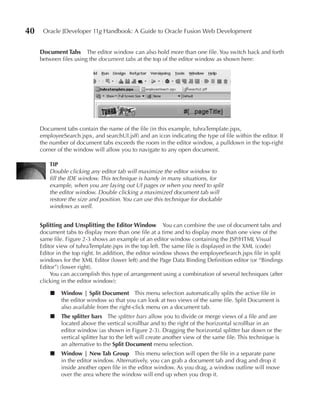
  • 785.
    740 Oracle JDeveloper 11g Handbook: A Guide to Oracle Fusion Web Development 6. Use import assistance to import the following classes: ■ oracle.adf.view.rich.event.RegionNavigationEvent ■ oracle.adf.view.rich.component.rich.fragment.RichRegion ■ oracle.adf.view.rich.component.rich.RichPopup 7. Using code assistance on the remaining syntax errors, generate stubs for the findParentPopup()and hidePopup() methods. 8. Implement the findParentPopup()as follows, using import assistance to import javax.faces.component.UIComponent when you are done: private RichPopup findParentPopup(UIComponent source) { UIComponent parent = source.getParent(); while (parent != null && !(parent instanceof RichPopup)) { parent = parent.getParent(); } return (RichPopup)parent; } Additional Information: This method iteratively walks up the JSF component hierarchy to find the popup component (if any) that contains the parameter source. 9. Implement the hidePopup() method as follows: 01: private void hidePopup(RichPopup popup) { 02: FacesContext context = FacesContext.getCurrentInstance(); 03: String popupId = popup.getClientId(context); 04: Service.getRenderKitService(context, 05: ExtendedRenderKitService.class).addScript(context, 06: "var popup = AdfPage.PAGE.findComponent('" + 07: popupId + 08: "'); popup.hide();"); 09: } Additional Information: This method will contain syntax errors because it depends on classes that aren’t yet imported. The code steps through the following operations: ■ Lines 2–3 retrieve the ID of the popup. An ID can be used to find a component and manipulate it on the server via Java, or, for components with Javascript objects generated on the client side, to manipulate the generated HTML on the client using the ADF Javascript API. Popup components always have client-side objects; to ensure generation of client side objects for other components, set the attribute value clientComponent="true" on the component. This comes with a significant performance cost, so do it only for components you need to manipulate through your own Javascript. ■ Lines 4–8 add the following line to the generated page’s Javascript code, in a location (outside of any method) which makes it execute immediately: var popup = AdfPage.PAGE.findComponent('<component_id>'); popup.hide();
  • 786.
    Chapter 20: Sample Application: The Image LOV Dialog 741 <component_id> is standing in for the component id retrieved in line 3. AdfPage and PAGE are Javascript objects created when ADF renders ADF faces pages; findComponent() is a Javascript function which returns a client-side object based on its component ID, and hide() is a Javascript function on client-side popup components. 10. Use import assistance to import the following classes: ■ javax.faces.context.FacesContext ■ org.apache.myfaces.trinidad.util.Service ■ org.apache.myfaces.trinidad.render.ExtendedRenderKitService 11. Open the editEmployee page fragment and locate the region used to host the imageLOV- flow. In the Other section of the Property Inspector, set the RegionNavigationListener property to the EL that evaluates to the listener code that you have just created, “#{viewScope.employeeEditBB.navigationListener}.” 12. Click Save All and run the templateTest page. Click Manage Images and step through the steps and finally press the Finish button. Notice that the popup window now completely closes. However, click Manage Images again and notice that now the popup dialog is displayed empty. You will fix that next. Additional Information: A popup is always present in the page, and opening and closing it is really just showing and hiding it. So when the popup is displayed for the second time, it is just showing the current contents, and of course, you had just ended the task flow, so it is now empty. 13. Open the EmployeeEditBean class, and locate the member variable “taskFlowId.” Use the refactor | rename option from the right-click menu to change the name of the variable to “_imageTaskFlowId.” 14. Create one more member variable in the class as follows: private String _selectedTaskFlowId = ""; Additional Information: One way to save resources in your application is to populate the region with a task flow only when it is visible. The selectedTaskFlowId variable will be used to hold the ID of the flow that is currently hosted within the dynamic region (either the imageLOV-flow or the empty flow). Notice that the selected flow is initially set to the null flow, represented by the default empty string. 15. Generate accessors (get and set) for the _selectedTaskFlowId variable using the right-click menu. 16. Generate a “get” accessor only for the _imageTaskFlowId variable. 17. Locate the getDynamicTaskFlowId() method in the class. This is the method that the dynamic region uses to decide which task flow to display. Now that you have two possible flows (imageLOV-flow and the null flow), you need to change this method to select the correct one. The value you will need is held in the _selectedTaskFlowId variable. Update the method to read as follows: public String getDynamicTaskFlowId() { return _selectedTaskFlowId; }
  • 787.
    742 Oracle JDeveloper 11g Handbook: A Guide to Oracle Fusion Web Development 18. Next you need to indicate which flow should be selected as the user opens and closes the popup. Open the editEmployee fragment and locate the popup containing the region in the Structure window. Select Insert inside af:popup | ADF Faces from the right-click menu and select “Set Property Listener” in the Insert ADF Faces Item dialog. 19. The Insert Set Property Listener dialog will display. Set From to “#{viewScope.employeeEditBB .imageTaskFlowId}.” Set To to “#{viewScope.employeeEditBB.selectedTaskFlowId}.” Set Type to “popupFetch.” Additional Information: When the popup is opened, you are copying the value for the imageLOV-flow into the selected flow for display in the region. The final step is to reset the region contents when the af:popup is closed; however, the popup close event is private to the browser and does not automatically call server-side code to allow you to reset the _selectedTaskFlowId, so next you will add a little JavaScript into the page to trigger the change of _selectedTaskFlowId on the server. 20. After the last af:popup tag in the editEmployee fragment add an af:resource component. Set the Type property to “javascript.” Additional Information: The af:resource component allows you to embed both JavaScript and CSS into your pages, either in-line as we are showing here, or as a reference to an external .js or .css file. Although we are using in-line code for simplicity, in production applications we generally recommend externalizing resources to separate files. 21. Switch to the source code editor view for the page and add the following JavaScript inside the resource tag: function popupClosedListener(event) { var source = event.getSource(); var popupId = source.getClientId(); var params = {}; params['popupId'] = popupId; var type = "serverPopupClosed"; var immediate = true; AdfCustomEvent.queue(source, type, params, immediate); } Additional Information: This script uses the ADF JavaScript API to execute a custom server-side event called “serverPopupClosed.” You will implement the handler for that event shortly. Specifying true as the last parameter to the method means that the custom event should trigger during the apply request values phase of the JSF lifecycle, just as specifying immediate="true" on a server-side component does. 22. Next, you need to wire the popupClosedListener() JavaScript method into the popup so that it is executed as the popup is closed. Select the second af:popup in the Structure window and select Insert inside af:popup | ADF Faces from the right-click menu. Then select “Client Listener” in the Insert ADF Faces Item dialog. Additional Information: The Client Listener component executes JavaScript methods in the browser. A Server Listener, which you will create next, executes a Java method on the server.
  • 788.
    Chapter 20: Sample Application: The Image LOV Dialog 743 23. Set the Method property of the Client Listener to “popupClosedListener” and the Type to “popupClosed.” 24. Repeat the insert process inside the af:popup, but this time insert an Server Listener. Set the Type to “serverPopupClosed” and click OK; then set the method as “#{viewScope .employeeEditBB.swapEmptyTaskFlow}.” The markup for the entire popup containing the imageLOV-flow will now read: <af:popup id="imageLOV" contentDelivery="lazyUncached" eventContext="launcher"> <af:dialog id="d1" title="Manage Employee Images" titleIconSource="/images/user.png" type="none"> <af:region value="#{bindings.dynamicRegion1.regionModel}" id="r1" regionNavigationListener= "#{viewScope.employeeEditBB.navigationListener}"/> </af:dialog> <af:setPropertyListener from="#{viewScope.employeeEditBB.imageTaskFlowId}" to="#{viewScope.employeeEditBB.selectedTaskFlowId}" type="popupFetch"/> <af:clientListener method="popupClosedListener" type="popupClosed"/> <af:serverListener type="serverPopupClosed" method="#{viewScope.employeeEditBB.swapEmptyTaskFlow}"/> </af:popup> 25. Finally you need to implement the swapEmptyTaskFlow() method that the af:serverListener is calling. This method basically resets the value of the selectedTaskFlowId variable to the null value so that the popup is empty when it is not displayed. Reopen EmployeeEditBean and create the method as follows: public void swapEmptyTaskFlow(ClientEvent event) { setSelectedTaskFlowId(""); // If event delivery set to immediate="true", // short-circuit to renderResponse. // Forcing an empty taskflow releases the bindings and view port. Boolean immediate = (Boolean)event.getParameters().get("immediate"); if (immediate != null && immediate) { FacesContext context = FacesContext.getCurrentInstance(); context.renderResponse(); } } 26. Import oracle.adf.view.rich.render.ClientEvent using import assistance. 27. Click Save All and run the templateTest page. Click Manage Images to show the popup. You should now find that the Finish button works as expected and the LOV is also correctly displayed if you open it for a second time. What Did You Just Do? You created a very basic prototype of the edit image functionality: A task flow train for image editing, a template for train stops, stubs of both of the train stops, and a popup dialog in which to run the task flow. You also spent some time integrating the task flow with the popup to ensure that the popup closes correctly and the contents are correctly reinitialized as you finish and restart the flow.
  • 789.
    744 Oracle JDeveloper 11g Handbook: A Guide to Oracle Fusion Web Development TIp For a more comprehensive version of the generic code for managing region in popup behavior, we recommend that you read the white paper “Embedding Regions inside PopUp Windows” by David Giammona, which you can find on the Oracle Technology Network. In the next sections, you will implement the train stops beyond the stub level. III. Implement the Add Image page In this phase, you will add details and functionality to the first of your two train stops: the add image page, which allows the user to select an image file from their local machine, upload it to the server’s file system, and create IMAGES and IMAGE_USAGES rows for it. NOTe In this application, the IMAGES table stores only an ID number and a relative path; the image file is stored on the application server’s file system. This decision was made to allow the application to run on an Oracle XE database. In a production application using a full- featured Oracle database, we would not recommend storing data (such as employee images) in the application server’s file system for reasons of reliability and scalability. Instead, we would recommend saving images to a more managed repository such as Oracle’s content database product or an interMedia datatype column in the database (Oracle XE does not support interMedia types). Lay Out the Form Components In this section, you will lay out the UI components for the add image page, although many of them will not be functional until a later section. 1. Open the addImage.jsff page fragment (fragmentsimageLOV) in the visual editor. 2. Drop a Panel Form Layout into the trainContent area of the page. 3. Drop an Input File component into the Panel Form Layout, and set the following properties on the component: Id as “upload” Label as “New image to upload” AutoSubmit as “true” Additional Information: This creates an input component into which a file name can be typed, or a Browse button used to open a file selection dialog to select a file name from the local (browser machine) file system. Because the autoSubmit attribute is true, as soon as a file is selected, or the field loses focus, the form data (including the contents of the file) will be sent to the server in a partial page request. 4. Drop an Image component after the Input File, specifying “Uploaded Image” as the ShortDesc in the Insert Image dialog. Leave the Source property empty for the moment.
  • 790.
    Chapter 20: Sample Application: The Image LOV Dialog 745 5. In the Property Inspector, set the following properties on the Image: InlineStyle as “width:180px; height:180px;” PartialTriggers as “upload” Additional Information: By setting “upload” as a partial trigger, you ensure that the image will be refreshed after the Input File component (with id=“upload”) sends its partial page request. 6. Click Save All. Create a Backing Bean for the Add Image page In this section, you will create a backing bean for the add image page. This bean will hold the uploaded file and will eventually execute the operation that will create the new AllEmployeeImages row for the new image. 1. Create a class in the tuhra.view.backing package, named ImageUploadBean and extending tuhra.view.framework.TuhraBackingBean. 2. Select Source | Implement Interface and make the class implement the java.io. Serializable interface. Additional Information: Classes for beans of scope longer than request or view need to implement Serializable, which is a marker interface that lets the JVM know that details of an instance of this class may be communicated or written to a stream in text form, allowing the content to be migrated between machines operating as a clustered application server. Because Serializable is a marker interface, implementing it does not require you to implement any methods. TIp You can also specify interfaces in the Create Java Class dialog by adding them to the Option Attributes list. 3. Re-open imageLOV-flow.xml, and switch to the Overview tab in the editor. Within the Overview editor select the Managed Beans tab on the left-hand side and then use the Add (green “+”) button to create a managed bean. 4. Specify the following properties in the table: Name as “imageUploadBB” Class as “tuhra.view.backing.ImageUploadBean” (searching for “ImageUploadBean” may be easier) Scope as “pageFlow” 5. Click Save All. use the Image Component to preview the uploaded Image In this section, you will use the managed bean created in the preceding section to store the uploaded image, and you will wire the Image component created in the earlier section “Lay Out the Form Components” to the uploaded image. 1. Re-open the ImageUploadBean class in the source editor.
  • 791.
    746 Oracle JDeveloper 11g Handbook: A Guide to Oracle Fusion Web Development 2. Add the following field declaration: private String _uploadedImageName = "/images/uploadPlaceholder.png"; 3. On the right-click menu for _uploadedImageName, select Generate Accessors. 4. When the Generate Accessors dialog opens, accept the defaults and click OK to create public getter and setter methods for the field. Additional Information: A public getter method allows the property to be accessed from a task flow activity or page; a public setter method allows the property’s value to be injected through a managed property or changed from a task flow activity or page. This will override the default value of “/images/uploadPlaceholder.png.” 5. Add the following field declaration: private UploadedFile _uploadedImageFile; 6. Press alt-enter to import the correct UploadedFile version (which is org.apache .myfaces.trinidad.model.UploadedFile). 7. Repeat steps 3–4 to create accessors for this field. 8. Re-open the addImage.jsff fragment and select the image. 9. In the Property Inspector, open the Expression Builder for the Rendered property, and set the expression to “#{! empty pageFlowScope.imageUploadBB.uploadedImageName}.” 10. Similarly, set the image’s Source property to “#{pageFlowScope.imageUploadBB .uploadedImageName}.” Additional Information: The Rendered and Source values you entered will ensure that the image isn’t displayed at all when the ImageUploadBB bean’s uploadedImageName is null, and that, when it does show, it always displays the image at the relative path specified by uploadedImageName’s value. 11. Select the af:inputFile component in the Structure window. 12. In the Behavior panel of the Property Inspector, open the pulldown list to the right of the ValueChangeListener component and select Edit. 13. In the Edit Property dialog, select the imageUploadBB bean, and click New beside the Method pulldown to create a method in the bean’s class. Name the method “fileUploadedListener,” and click OK twice to close both open dialogs. Additional Information: This creates a method stub for the method fileUploaded Listener(ValueChangeEvent), which will be called (with a parameter describing the value change) whenever the value of the af:inputFile component changes (by the user selecting a new file to upload). You will implement this method in the section “Create an Upload Listener to Call the Service Method.” 14. Open the ImageUploadBean class to ensure it looks like the following (except, possibly, for spacing and ordering of the fields, methods, constructor, and imports): package tuhra.view.backing; import java.io.Serializable; import javax.faces.event.ValueChangeEvent; import org.apache.myfaces.trinidad.model.UploadedFile; import tuhra.view.framework.TuhraBackingBean;
  • 792.
    Chapter 20: Sample Application: The Image LOV Dialog 747 public class ImageUploadBean extends TuhraBackingBean implements Serializable { private String _uploadedImageName = "/images/uploadPlaceholder.png"; private UploadedFile _uploadedImageFile; public ImageUploadBean() { } public void setUploadedImageName(String _uploadedImageName) { this._uploadedImageName = _uploadedImageName; } public String getUploadedImageName() { return _uploadedImageName; } public void setUploadedImageFile(UploadedFile _uploadedImageFile) { this._uploadedImageFile = _uploadedImageFile; } public UploadedFile getUploadedImageFile() { return _uploadedImageFile; } public void fileUploadedListener(ValueChangeEvent valueChangeEvent) { // Add event code here... } } 15. Make the class to ensure it compiles correctly. 16. Click Save All. Create a Service Method to Add an Image In this section, you will create an application module–level service method that will create a new image and image usage for a given employee number and image path. 1. In the tuhra.model.services package, double click the TuhraService application module definition to open it in an editor. 2. Select the Java tab, and click the “Edit java options” (pencil) button in the Java Classes section to open the Select Java Options dialog. 3. Select “Generate Application Module Class” and click OK to close the dialog. Additional Information: This generates an application module class, TuhraServiceImpl, for TuhraService. You will write the service method in this class. 4. In the tuhra.model.queries.main package, double click the AllEmployeeImages view object definition to open it in an editor. 5. Again select the Java tab, and click the Edit java options (pencil) button in the Java Classes section to open the Select Java Options dialog. 6. Select “Generate View Row Class,” leave “Include accessors” selected, and click OK. Additional Information: This generates a view row class, AllEmployeeImagesRowImpl, for AllEmployeeImages. This class contains typesafe getters and setters on it that you can call from the service method to access and change attributes.
  • 793.
    748 Oracle JDeveloper 11g Handbook: A Guide to Oracle Fusion Web Development 7. Repeat steps 4–6 for the AllEmployees view object definition. 8. Expand the TuhraService node, and double click TuhraServiceImpl to open it in a code editor. 9. Add the following method: public void createNewImageForEmployee(Number employeeId, String imageName) { AllEmployeesRowImpl empRow = getEmpRow(employeeId); if (empRow != null) { createAndInsertImage(empRow, imageName); getAllEmployeeImages().setAssociationConsistent(true); } } Additional Information: This will be the service method, but most of it is not implemented yet (which is part of the reason you will see syntax errors highlighted). Most of the work is factored into two methods that aren’t created yet: getEmpRow(), which returns an AllEmployees view row matching the passed-in employeeId, and createAndInsertImage(), which creates, initializes, and inserts an AllEmployeeImages view row. The call to getAllEmployeeImages() .setAssociationConsistent() allows the newly created row to show up in the AllEmployeeImages view object instance. For more information, see the sidebar, “View Link Consistency.” View Link Consistency View link consistency is a feature that allows view object instances with entity usages to immediately see rows based on new entity object instances as they get created. For example, suppose you create a row using EditEmployee. This would create an instance of the entity object definition Employees. View link consistency will allow that employee to appear as a row in EmployeeSearch (a different view object instance) without a database post and requery. For simple view object definitions with only one updatable entity, this happens automatically unless you make manual changes to your application module. However, by default, view object definitions with multiple updatable entities do not have instances with view link consistency. This is because, if an instance of each entity usage is created, it may not be clear how many new view rows to base on them (one row with both, or two separate view rows, one with each). However, in some cases, you are creating both entity object instances by creating a single view row appropriate to a particular view object instance. In that case, you can manually set view row consistency on the view object instance by passing a value of true to ViewObjectImpl.setAssociationConsistent(). 10. Use import assistance to import the AllEmployeesRowImpl class. 11. Add oracle.jbo.domain.Number manually to the import block of the class. Additional Information: This is to ensure that the Number type of the first parameter is interpreted as oracle.jbo.domain.Number rather than java.lang.Number.
  • 794.
    Chapter 20: Sample Application: The Image LOV Dialog 749 12. Click the red light bulb icon beside the call to getEmpRow(), and select “Create method getEmpRow” to generate a stub for that method. 13. Similarly, generate a stub for createAndInsertImage(). 14. Implement the getEmpRow() method as follows: private AllEmployeesRowImpl getEmpRow(Number employeeId) { AllEmployeesRowImpl empRow = null; TuhraViewObjectImpl empRows = this.getEditEmployee(); Key key = new Key(new Object[] {employeeId}); Row[] hits = empRows.findByKey(key, 1); if (hits.length > 0) { empRow = (AllEmployeesRowImpl)hits[0]; } return empRow; } Additional Information: This method creates a Key object based on the passed in employee ID (which forms the key for AllEmployees), and calls the method findByKey() to return an array of matching rows (in this case, because the key is complete, at most one row will match). It returns the matching row, if any, and returns null otherwise. 15. Using import assistance, import oracle.jbo.Key and oracle.jbo.Row. 16. Implement the createAndInsertImage() method as follows: private void createAndInsertImage(AllEmployeesRowImpl empRow, String imageName) { RowSet empImages = (RowSet) empRow.getAllEmployeeImages(); //Create an Image EntityDefImpl imageDef = EntityDefImpl.findDefObject("tuhra.model.entities.Images"); ImagesImpl newImage = (ImagesImpl)imageDef.createInstance2(getDBTransaction(),null); newImage.setImage(imageName); //Initalize the values for, and then Create an Image Usage //in the context of the current Employee row NameValuePairs initializeUsage = new NameValuePairs(); initializeUsage.setAttribute("ImageId", newImage.getImageId()); initializeUsage.setAttribute("DefaultImage", "N"); AllEmployeeImagesRowImpl newUsage = (AllEmployeeImagesRowImpl)empImages.createAndInitRow(initializeUsage); } Additional Information: This method retrieves the row set containing images that belong to the employee. Then, it creates a new image, setting its image (name) value in the process. Finally using the ID generated for the new image and a suitable value for the DefaultImage flag as initialization values, it creates a new usage row. The row iterator ensures that the foreign key attribute to AllEmployees is set correctly. 17. Use Import Assistance to import ■ oracle.jbo.server.EntityDefImpl ■ oracle.jbo.NameValuePairs ■ oracle.jbo.RowSet ■ tuhra.model.queries.main.AllEmployeeImagesRowImpl
  • 795.
    750 Oracle JDeveloper 11g Handbook: A Guide to Oracle Fusion Web Development 18. The ImagesImpl class is still missing and needs to be generated. In the tuhra.model .entities package, double click the Images entity object definition to open it in an editor. 19. Again select the Java tab, and click the Edit java options (pencil) button in the Java Classes section to open the Select Java Options dialog. 20. Select “Generate Entity Object Class,” leave “Accessors” selected in the Include section, and click OK. Additional Information: This generates an entity object class, ImagesImpl, which is needed by the createAndInsert() method in the application module class. In a later section, you will also need to add some code to this class to ensure that new images correctly propagate their primary key to any ImageUsages that use them. 21. Re-open TuhraServiceImpl, and use import assistance to import tuhra.model .entities.ImagesImpl. 22. Reopen the editor for TuhraService, and ensure that the Java page is displayed. 23. Click the “Edit application module client interface” (pencil) button beside the Client Interface section. Additional Information: This allows you to export methods, turning them into service methods that the client can use. For more information on service methods, see Chapter 8. 24. Shuttle “createNewImageForEmployee(Number,String):void” to the Selected list, and click OK to export the method. 25. Click Save All. 26. Run TuhraService to open an instance in the Business Component Browser. 27. In the Business Component Browser, double click the TuhraService top-level node to open it in a window, which will allow you to test its service method. The Business Components Browser screen will look like this:
  • 796.
    Chapter 20: Sample Application: The Image LOV Dialog 751 28. Enter the following parameters: oracle.jbo.domain.Number as “101” (the employeeID parameter) java.lang.String as “images/test.png” (the imageName parameter) 29. Click Execute to verify that the method executes correctly. 30. Still in the Business Component Browser, double click EmployeeImagesVL to open a master-detail view of AllEmployees and AllEmployeeImages. 31. Scroll the employees to employee number 101, and verify that the image and usage have been successfully inserted into the cache. 32. Close the Business Component Browser. Fix Association posting Behavior If, rather than closing the Business Component Browser, you had attempted to commit your changes, you would have noticed a problem. The ImageId attribute of Images, which is of type DBSequence, holds a temporary (negative) value before posting. The ImageId attribute of EmployeesImageUsages is keyed to this value through the association ImageUsageImagesFkAssoc. If you had posted the Images row, the negative value for its ImageId attribute would have been replaced by the actual sequence value, causing it to become out of synch with the new EmployeesImageUsages row. You will fix this problem in this section. 1. Generate an entity object class, with accessors, for the ImageUsages entity object definition. 2. Open the ImagesImpl class (under the Images entity object definition) and select the Source | Override Methods menu option. Use the checkbox to override the postChanges()method. 3. Edit the postChanges() method to read as follows: @Override public void postChanges(TransactionEvent e) { /* Only references if Image is NEW */ RowSet newImageUsagesBeforePost = null; if (getPostState() == STATUS_NEW) { // Store the rowset of imageUsages related // to this new image before calling super newImageUsagesBeforePost = (RowSet)getImageUsages(); } super.postChanges(e); if (newImageUsagesBeforePost != null) { adjustImageUsages(newImageUsagesBeforePost); } } 4. Use Import Assistance to import oracle.jbo.RowSet. 5. Implement the adjustImageUsages() method as follows: private void adjustImageUsages(RowSet newImageUsagesBeforePost) { Number newFkValue = getImageId().getSequenceNumber(); while (newImageUsagesBeforePost.hasNext()) { ImageUsagesImpl imageUsage =
  • 797.
    752 Oracle JDeveloper 11g Handbook: A Guide to Oracle Fusion Web Development (ImageUsagesImpl) newImageUsagesBeforePost.next(); imageUsage.setImageId(newFkValue); } } Additional Information: This method will have syntax errors, which you will fix in the next step. It processes the row set of image usages that was stored away in the modified postChanges() method. This list of rows is then processed and the newly allocated DBSequence key assigned to the image is set as the ImageId in each ImageUsages row. 6. Manually add oracle.jbo.domain.Number to the import block. 7. Open the ImageUsagesImpl class and select the Source | Override Methods menu option. Use the checkbox to override the postChanges()method. 8. Implement the postChanges() method as follows: @Override public void postChanges(TransactionEvent e) { ImagesImpl image = getImages(); if (STATUS_NEW == image.getPostState()) { image.postChanges(e); } super.postChanges(e); } Additional Information: If a particular ImageUsages entity object instance is associated with a new Images instance, this ensures that the Images instance is posted (and all its associated ImageUsages are updated) before the ImageUsages instance is posted. Create an upload Listener to Copy the File and Call the Service Method In this section, you will create a method in a managed bean to process uploaded image information and call the service method to insert the appropriate database rows. You will configure this method to fire whenever the user requests a file upload on the add image page. 1. In the ViewController project, find addImage.jsff and open it in an editor. 2. Switch to the Bindings view in the editor. 3. In the Bindings area, click the “Create control binding” (green plus “+”) button to open the Insert Item dialog. 4. Select methodAction and click OK. Additional Information: This will be a binding to the service method you created in the preceding section; it will allow the listener to invoke the service method. 5. The Create Action Binding dialog opens. Select TuhraServiceDataControl. Additional Information: Because the application module contains only one service method, the Operation will be prepopulated with that method. If you don’t see the method, close the dialog, refresh the Data Controls panel, and then try again. 6. Click OK to create an operation binding, createNewImageForEmployee, bound to the service method.
  • 798.
    Chapter 20: Sample Application: The Image LOV Dialog 753 7. Open tuhra.view.backing.ImageUploadBean. 8. Implement the fileUploadedListener() method as follows: public void fileUploadedListener(ValueChangeEvent valueChangeEvent) { UploadedFile file = (UploadedFile)valueChangeEvent.getNewValue(); if (file != null) { String fileName = file.getFilename(); setUploadedImageName("/images/" + fileName); copyFileToImagesDir(file); insertRows(); } } Additional Information: After retrieving the UploadedFile object from the event (that is, the user submitting a new file path for uploading), and setting the uploadedImageName field to match the relative path of the destination for the upload, this method calls two other methods that have not yet been defined, so all will show up as compile errors. copyFileToImagesDir() will actually handle the file upload, and insertRows() will call the service method to ensure that the new image and image usage rows are created. 9. Using code assistance, generate stubs for each of the nonexistent methods. Additional Information: You can click the red light bulb in the margin to generate the methods. 10. Implement the copyFileToImagesDir() method as follows (not including line numbers): 01: private void copyFileToImagesDir(UploadedFile file) { 02: ServletContext servletCtx = (ServletContext) 03: FacesContext.getCurrentInstance().getExternalContext().getContext(); 04: String imageDirPath = servletCtx.getRealPath("/images"); 05: try { 06: InputStream is = file.getInputStream(); 07: OutputStream os = 08: new FileOutputStream(imageDirPath + "/" + file.getFilename()); 09: int readData; 10: while ((readData = is.read()) != -1) { 11: os.write(readData); 12: } 13: is.close(); 14: os.close(); 15: } catch (IOException ex) { 16: ex.printStackTrace(); 17: } 18: } Additional Information: This method will contain many syntax errors, because many of the classes aren’t yet imported. You will import the classes in the next step. This method goes through the following steps: ■ Lines 1– 4 Find the real directory on the server that corresponds to the relative path “/images.” The file needs to be copied to that directory, so that the application, in the future, can access it through the relative path.
  • 799.
    754 Oracle JDeveloper 11g Handbook: A Guide to Oracle Fusion Web Development ■ Line 6 Opens an input stream for the uploaded image, through which its contents can be read. ■ Lines 7–8 Open an output stream for the target location, through which the contents of the new copy can be written. ■ Lines 10–12 Copy the image data from the input stream to the output stream. Input streams are read in chunks (the size can be configured, but that is not necessary for these relatively small images). These chunks are positive integers that encode segments of data. When the last data has been read, the next call to InputStream .read() will return a value of –1; when that happens, the loop terminates. JDeveloper will warn you about this line, because assignments inside conditional tests (in this case, readData = is.read()) are usually mistakes; generally, the developer meant to type the equality operator == instead of the assignment operator. However, in this case, the loop is using a little-used feature of the assignment operator: in addition to assigning the value of the expression on the right to the variable on the left, it returns that value; so, when is.read() evaluates to –1, readData = is.read() also evaluates to –1. ■ Lines 13–14 Close the input stream and output stream, releasing the file resources. ■ Lines 15–17 Deal with I/O exceptions such as the target location not being writable. In this simple application, they print a stack trace of the exception to the console. In a more sophisticated application, you might include validation such as whether the target file already exists, whether the file to upload is really an image, and whether it falls within a certain size limit. 11. Use import assistance to import the following classes: ■ javax.servlet.ServletContext ■ javax.faces.context.FacesContext ■ java.io.InputStream ■ java.io.OutputStream ■ java.io.FileOutputStream ■ java.io.IOException 12. Implement the insertRows() method as follows (not including line numbers): 01: private void insertRows() { 02: AdfFacesContext afctx = AdfFacesContext.getCurrentInstance(); 03: Map<String, Object> pfParams = afctx.getPageFlowScope(); 04: Number empId = (Number)pfParams.get("currentEmpId"); 05: OperationBinding insImage = 06: getBindings().getOperationBinding("createNewImageForEmployee"); 07: Map args = insImage.getParamsMap(); 08: args.put("employeeId", empId); 09: args.put("imageName", uploadedImageName); 10: insImage.execute(); 11: } Additional Information: This method will also contain syntax errors due to missing imports (you will import the classes in the next step). The method goes through the following process:
  • 800.
    Chapter 20: Sample Application: The Image LOV Dialog 755 ■ Lines 2–3 Retrieve the page flow scope. ■ Line 4 Retrieves the value of the page flow–scoped variable “currentEmpId.” In the section “Create a Task Flow for the Dialog,” you set this variable to be the parameter passed into the page flow. ■ Lines 5–6 Retrieve the operation binding called “createNewImageForEmployee” from the binding context. In steps 3–6 of this section, you created that binding for the service method createNewImageForEmployee(). ■ Line 7 Gets the map that holds parameters for the operation binding. ■ Lines 8–9 Set the parameters for the operation binding. ■ Line 10 Executes the operation, creating the AllEmployeeImages view row. 13. Use import assistance to import the following classes: ■ oracle.adf.view.rich.context.AdfFacesContext ■ java.util.Map ■ oracle.binding.OperationBinding 14. Manually import oracle.jbo.domain.Number. 15. Open templateTest.jspx in an editor. 16. In the Structure window, find and select the af:form component. 17. Set the UsesUpload property to “true.” Additional Information: For an upload component to work properly, the form containing it must have the attribute usesUpload="true". Since the form is at the JSP page level, rather than the fragment level, to see the popup behavior from the test page requires that you set the value on the test page’s form. When, later in this chapter, you hook the editEmployee fragment into the main application, you will need to repeat steps 15–17 for the correct application page. Before you can test the upload, you need to make a small configuration change to the application to make sure that the WebLogic application server allows you to upload the image into the running application. 18. In the ViewController project, open the New Gallery and create a WebLogic deployment descriptor (in the General Deployment Descriptors category). 19. In the Select Descriptor step of the Create WebLogic Deployment Descriptor Wizard select weblogic.xml as the descriptor type. Click Next. 20. Select 10.3 as the version of the descriptor and Finish the wizard. 21. The new weblogic.xml file will be created in the WEB-INF directory. Open it and switch to Source view. Replace the contents of the XML file with the following (note the xsi:schemaLocation entry should all be on one line): <?xml version = '1.0' encoding = 'windows-1252'?> <weblogic-web-app xmlns:xsi="http://www.w3.org/2001/XMLSchema-instance" xsi:schemaLocation= "http://www.bea.com/ns/weblogic/weblogic-web-app http://www.bea.com/ns/weblogic/weblogic-web-app/1.0/weblogic-web-app.xsd" xmlns="http://www.bea.com/ns/weblogic/weblogic-web-app"> <container-descriptor>
  • 801.
    756 Oracle JDeveloper 11g Handbook: A Guide to Oracle Fusion Web Development <show-archived-real-path-enabled>true</show-archived-real-path-enabled> </container-descriptor> </weblogic-web-app> Additional Information: The show-archived-real-path-enabled switch allows the call to getRealPath("/images") from the Servlet Context to return a suitable location for the image upload, even though the real image directory is packaged within a WAR file by the deploy process and is not directly writable. Without this switch, the call will return null and the upload will fail. 22. Run templateTest.jspx. 23. When the page appears, click “Manage Images.” 24. When the train loads, click Browse, find an image file on your local drive, and click OK. Additional Information: The image is now uploaded and will display. 25. Close the browser. What Did You Just Do? You implemented the functionality of the add image page, which included doing the following: ■ Creating file upload functionality, including a listener that reacts when a file is uploaded ■ Implementing an application module–level service method to create database rows to keep track of uploaded files ■ Implementing functionality to keep the new ImageUsages and Images rows in synch during and after posting to the database ■ Calling the service method from a managed bean What Could You Do Next? The functionality you created in the section, “Fix Association Posting Behavior” will work to keep ImageUsages and Images in synch after posting, but it is not a general solution to the problem of how to post new entities in non-composition associations that involve DBSequence attributes. Chapter 6, in the section “The DBSequence Domain,” contains a technique for doing this using a custom entity definition framework class. You could use the information there to implement a framework-level solution; if you do that, you will not need the code you added to ImagesImpl or ImageUsagesImpl. If you attempt this, remember that when you register a custom framework class after creating entity object definitions, you must “touch” each definition (such as by opening the Java Options dialog and immediately dismissing it by clicking “OK”) so that they will use the new class. IV. Implement the Set Default Image page In this phase, you will add details and functionality to the second train stop: the set default image page, which allows the user to select an image for the current employee and set it as the employee’s default image. Lay Out the Form Components In this section, you will lay out the UI components for the set default image page, although many of them will not be functional until a later section.
  • 802.
    Chapter 20: Sample Application: The Image LOV Dialog 757 1. Open the setDefaultImage.jsff page fragment in the visual editor. 2. Drop a Panel Group Layout into the trainContent area of the page, and set its Layout property to “vertical.” 3. Drop an Output Formatted into the Panel Group Layout. 4. Set the following properties on the Output Formatted component: StyleUsage as “instruction” Value as “Select the required picture for #{bindings.FirstName.inputValue} #{bindings.LastName.inputValue} and drag it onto the Default Picture target.” 5. In the Data Controls panel of the Application Navigator, drag TuhraServiceControl EditEmployeeFirstName after the af:outputFormatted component and drop it as an ADF Output Text. 6. Delete the ADF Output Text you just created. Additional Information: Steps 5–6 represent a shortcut to creating a binding: Bindings are created as side-effects of dragging elements from the Data Controls panel onto a page to create a UI component. When the component is deleted, the binding remains if there is more than one reference to it in the page. In this case, the Output Formatted created in steps 3–4 refers to the binding with the expression #{bindings.FirstName .inputValue}. 7. Repeat steps 5–6 for the LastName attribute. 8. Drag a Spacer from the Component Palette to after the Output Formatted, and set its Height to “5.” 9. Drop another Panel Group Layout after the spacer. 10. Set the following properties on the new (inner) Panel Group Layout: Layout as “horizontal” Halign as “center” InlineStyle as “height:260.0px;” 11. In the Data Controls panel, find the TuhraServiceDataControlEditEmployee AllEmployeeImages collection and drag it onto the inner Panel Group Layout. Drop it as an ADF Read-Only Table to open the Edit Table Columns dialog. 12. In the Edit Table Columns dialog, remove all columns except ImageId and Image and click OK to create the table. 13. Select the column containing ImageIds and delete it. Additional Information: Although you have deleted this column, it remains as an attribute in the underlying tree binding. This will allow you to access its value later, when you need to set the default image property. 14. Right click the remaining column and select Go to Source, to open the source editor with the column highlighted. 15. Find the af:outputText component inside the column, and change it to an af:image component like the following: <af:image source="#{row.Image}" id="availableImage" shortDesc="Available Image" inlineStyle="width:54px; height:54px;"/>
  • 803.
    758 Oracle JDeveloper 11g Handbook: A Guide to Oracle Fusion Web Development TIp Even when you are working in a code editor, you can use the Property Inspector to edit or add attributes. 16. In the af:column surrounding the image, remove the headerText attribute, set the column Width to “60.” 17. In the Structure window, select the af:table. Using the Property Inspector, set both the HorizontalGridVisible and VerticalGridVisible attributes to “false.” In the inlineStyle set the Width to “60px,” the Height to “250px,” and the Border Width to “0px.” 18. Return to the design view. The table should appear as follows: 19. In the Structure window, on the af:table - t1 node, click Insert after af:table - t1 | image from the right-click menu. Additional Information: Because of the layout of the page, dragging an image component from the Component Palette into the correct position is difficult; this is an easier option. 20. Set the image’s source as “/images/arrow.png”; you can leave the shortDesc attribute blank. 21. Drop a panel box after the new image, and set the following properties on the panel box: Text as “Drag Image Here” ShowDisclosure as “false” TIp To ensure that the panel box is directly after the image and still inside the inner panel group, you may find it easier to drop the panel box into the Structure pane rather than the visual editor. 22. Drag an image into the panel box, leaving its source and short description blank for now. 23. Set the Width and Height properties of the picture to 180px, via the inlineStyle property 24. Click Save All.
  • 804.
    Chapter 20: Sample Application: The Image LOV Dialog 759 Create a Backing Bean for the Set Default Image page In this section, you will create a backing bean for the set default image page. This bean will (in a later phase) hold the uploaded file and execute the operation that will create the new AllEmployeeImages row for the new image. 1. Create a class in the tuhra.view.backing package, named “DefaultImageSelectionBean” and extending tuhra.view.framework.TuhraBackingBean. 2. Make the class implement the java.io.Serializable interface. 3. Re-open imageLOV-flow.xml, and drag a managed bean from the Source Elements section of the Component Palette onto the task flow to open the Insert Managed Bean dialog. Additional Information: This technique is a shortcut to creating the same managed bean via the Overview panel of the editor. 4. Specify the following properties in the dialog: Managed Bean Name as “defaultImageSelectionBB” Managed Bean Class as “tuhra.view.backing.DefaultImageSelectionBean” Managed Bean Scope as “pageFlow” 5. Click Save All. Add Drag-and-Drop Capabilities In this section, you will use the managed bean created in the preceding section to store the path of the selected image, and will use this to enable drag-and-drop functionality. 1. Add a private String field to the class, as shown here: private String _selectedImage="/images/newDefaultPlaceholder.png"; 2. Create public getter and setter methods for the field using Generate Accessors on the right-click menu. 3. Return to setDefaultImage.jsff. 4. Select the image inside the panel box, and set its Source property to “#{pageFlowScope .defaultImageSelectionBB.selectedImage}.” TIp Using the Expression Builder may be easier than typing in the value. 5. From the Component Palette (Operations), drop a Collection Drag Source into the table. You may find this easiest if you drag onto the table in the Structure window. Additional Information: This specifies that the table is a potential source for drag-and- drop operations. 6. Set the following properties on the Collection Drag Source: Actions as “COPY” ModelName as “empImagesModel”
  • 805.
    760 Oracle JDeveloper 11g Handbook: A Guide to Oracle Fusion Web Development Additional Information: Setting the actions attribute to “COPY” ensures that, when the object is dropped, the event generated will have DnDEvent.COPY as its action, rather than prompting the user to choose an action (other possible actions include DnDEvent .MOVE and DnDEvent.LINK). The modelName attribute is referenced by the drop target; drop targets will only accept drops from drag sources with appropriate modelName values. 7. From the Component Palette, drop a Drop Target into the panel box (with the title Drag Image Here) to open the “Insert Drop Target” dialog. Additional Information: Any component containing a Drop Target will act as a target area for drag-and-drop, so this will make the entire panel box a target area. Notice that you only need to use an af:dropTarget, not an af:collectionDropTarget, as the target is a single component, not a collection-containing component such as a table. 8. Select Edit from the pulldown list beside the DropListener field in the Insert Drop Target dialog, to open the EditProperty: DropListener dialog. 9. Select defaultImageSelectionBB as the managed bean, and create a method, with “dragAndDropHandler” as the method name. Additional Information: This will create a method stub, DefaultImageSelectionBean. dragAndDropHandler(), which the application will call whenever an image is dropped onto the target area. 10. Click OK in each dialog, finishing by clicking OK in the Insert Drop Target dialog. The Insert Data Flavor dialog opens automatically. 11. Set the FlavorClass field to “org.apache.myfaces.trinidad.model.RowKeySet” and click OK. Additional Information: A RowKeySet represents one or more dragged rows (in this case, it will only be one row, because the table was not generated to support multiple row selection). TIp It may be easier to search for the class “RowKeySet” than to type the entire package-qualified name. 12. When the data flavor component is generated, use the Property Inspector to set its Discriminant property to “empImagesModel.” The af:dataFlavor component can be found nested within the af:dropTarget. Additional Information: This property references the modelName attribute set in Step 6, ensuring that other drag sources cannot be dropped on this target. 13. Click Save All. Create a Service Method to Set the Default Image In this section, you will create a view row–level service method that will unset the current default image (if any) and set a new image as the default. 1. In the Model project, in the tuhra.model.queries.main package, expand the AllEmployees view object definition node, and open the AllEmployeesRowImpl class in an editor.
  • 806.
    Chapter 20: Sample Application: The Image LOV Dialog 761 2. Add the following method: 01: public void defineDefaultImage(Number newDefaultImageId) { 02: Number oldDefaultImageId = 03: getImageId() == null ? null : getImageId().getSequenceNumber(); 04: if (newDefaultImageId != null && 05: !newDefaultImageId.equals(oldDefaultImageId)) { 06: RowSet imageRows = (RowSet) getAllEmployeeImages(); 07: AllEmployeeImagesRowImpl oldDefaultImageRow = 08: findImageUsagesRowByKey(imageRows, oldDefaultImageId); 09: AllEmployeeImagesRowImpl newDefaultImageRow = 10: findImageUsagesRowByKey(imageRows, newDefaultImageId); 11: if (newDefaultImageRow != null) { 12: newDefaultImageRow.setDefaultImage("Y"); 13: if (oldDefaultImageRow != null) { 14: oldDefaultImageRow.setDefaultImage("N"); 15: } 16: setEntity(3, newDefaultImageRow.getEmployeeImageUsages()); 17: setEntity(4, newDefaultImageRow.getImages()); 18: } 19: } 20: } Additional Information: Lines 8 and 10 will contain syntax errors, because they rely on a helper method you will create in the next step. The method executes the following steps: ■ Lines 2–3 determine the image ID of the current default image. ■ Lines 4–5 check whether a new default image has really been specified; if not, the method need do nothing. ■ Line 6 calls a view link accessor method to retrieve the AllEmployeeImages rows for this employee. For more information on view link accessor methods, see Chapter 7. ■ Lines 7–10 call a helper method that you will create in the next step. The method will find the old and new image rows (based on the old and new image IDs). The helper method will return null if the row is not found, that is, if the parameter is not an image ID for one of this employee’s images. ■ Line 11 checks to ensure that the new default image ID really did correspond to an image for this employee. ■ Lines 12–14 set the newly selected image to be the default and, if there was an old default image, set it to not be the default. ■ Lines 16–17 set the EmployeesImageUsages and Images entity object usages of the AllEmployees view row to point at the new default ImageUsages and Images entity object instances. Although when AllEmployees’ query was originally executed, the employee was joined to his or her default image, just marking a different image as default will not change the already-queried row. AllEmployeeImagesRowImpl .getEmployeeImageUsages() and AllEmployeeImagesRowImpl .getImages() retrieve the entity object instances from the AllEmployeeImages row, and ViewRowImpl.setEntity() sets the entity usage at the specified index to point to the entity object. (You can confirm that the EmployeesImageUsages usage is at index 3 and the Images usage is at index 4 by checking the automatically
  • 807.
    762 Oracle JDeveloper 11g Handbook: A Guide to Oracle Fusion Web Development generated methods AllEmployeesRowImpl.getEmployeeImageUsages() and AllEmployeesRowImpl.getImages().) 3. Implement the findImageUsagesRowByKey() method as follows: private AllEmployeeImagesRowImpl findImageUsagesRowByKey(RowSet imageRows, Number imageId) { AllEmployeeImagesRowImpl retRow = null; Key key = new Key(new Object[] { getEmployeeId().getSequenceNumber(), imageId, "E" }); Row[] hits = imageRows.findByKey(key, 1); if (hits.length > 0) { retRow = (AllEmployeeImagesRowImpl)hits[0]; } return retRow; } CAuTION The ordering of the elements in the array passed to the Key constructor assumes that the AssociatedId, ImageId, and UsageType attributes in the AllEmployeeImages view object definition are present in that order: with AssociatedId before ImageId, and ImageId before UsageType (they do not need to appear consecutively). Check and ensure this is the case; if not, either re-order the attributes in AllEmployeeImages to match this order, or re-order the elements in the array passed to the Key constructor to match the order that those attributes have in the view object definition. Additional Information: This method uses the EmployeeId of the current employee, the supplied ImageId, and the discriminator “E” (for employee image usages) to find a particular image row by its key. The method will have syntax errors because of the unimported Key class; you will rectify this in the next step. 4. Use Import Assistance to import oracle.jbo.Key. 5. Open the AllEmployees view object definition in the editor. 6. Select the Java tab, and click the Edit button for the Client Row Interface panel to open the Edit Client Row Interface dialog. 7. Shuttle the defineDefaultImage(Number):void method from the Available list to the Selected list. 8. Click OK to close the dialog. 9. Click Save All. Implement a Drop Listener to Call the Service Method In this section, you will implement the drop listener created in the section “Add Drag-and-Drop Capabilities.” This listener will analyze the drop event to discover the dragged image’s ID and path, display the selected image in the drop target, and call the service method created in the preceding section to set the dropped image as the new default for the employee. 1. In the ViewController project, find setDefaultImage.jsff and open it in an editor.
  • 808.
    Chapter 20: Sample Application: The Image LOV Dialog 763 2. Select the Bindings tab of the editor. 3. Click the “Create control binding” (green “+”) button in the Bindings list to open the Insert Item dialog. 4. Select methodAction and click OK to open the Create Action Binding dialog. 5. Select “EditEmployeeIterator” from the Select an Iterator pulldown list. Additional Information: JDeveloper automatically selects the view row–level service method defineDefaultImage(Number) for the Operation list, because it is the only exported method on the AllEmployees view object definition, at either the view object or view row level. 6. Click OK to close the dialog. Additional Information: This creates an operation binding, defineDefaultImage, bound to the service method. 7. Open tuhra.view.backing.DefaultImageSelectionBean, and find the dragAndDropHandler() method. Additional Information: This method stub was created when you created the Drop Target component in the section “Add Drag-and-Drop Capabilities.” 8. Implement the method as follows: 01: public DnDAction dragAndDropHandler(DropEvent dropEvent) { 02: FacesCtrlHierNodeBinding draggedNode = findDraggedNode(dropEvent); 03: if (draggedNode != null) { 04: String imageName = (String)draggedNode.getAttribute("Image"); 05: Number imageId = (Number)draggedNode.getAttribute("ImageId"); 06: if (imageId != null) { 07: _selectedImage = imageName; 08: defineDefaultImage(imageId); 09: return DnDAction.COPY; 10: } 11: } 12: return DnDAction.NONE; 13: } Additional Information: As before, this method will contain syntax errors until you import classes and generate helper methods. The method executes the following steps: ■ Line 2 Calls a helper method that you will implement in a later step, findDraggedNode(). This method will use information contained in the drop event to find the dragged row’s node binding. ■ Lines 4–5 Extract the image path and image ID from the node binding. ■ Line 7 Sets the field selectedImage, which is used as the source of the image to be displayed in the drop target area, to be the extracted image path. ■ Line 8 Calls a helper method that you will implement in a later step, defineDefaultImage(). This method will set parameters for and execute the defineDefaultImage operation binding. 9. Use import assistance to import oracle.adfinternal.view.faces.model.binding .FacesCtrlHierNodeBinding. 10. Manually import oracle.jbo.domain.Number.
  • 809.
    764 Oracle JDeveloper 11g Handbook: A Guide to Oracle Fusion Web Development 11. Use code assistance to generate stubs for the helper methods. 12. Implement the findDraggedNode() method as follows: 01: private FacesCtrlHierNodeBinding findDraggedNode(DropEvent dropEvent) { 02: FacesCtrlHierNodeBinding node = null; 03: Transferable transferable = dropEvent.getTransferable(); 04: DataFlavor<RowKeySet> rowKeySetFlavor = 05: DataFlavor.getDataFlavor(RowKeySet.class, "empImagesModel"); 06: RowKeySet rowKeySet = transferable.getData(rowKeySetFlavor); 07: if (rowKeySet != null) { 08: CollectionModel dragModel = transferable.getData(CollectionModel.class); 09: if (dragModel != null) { 10: Object currKey = rowKeySet.iterator().next(); 11: dragModel.setRowKey(currKey); 12: node = (FacesCtrlHierNodeBinding)dragModel.getRowData(); 13: } 14: } 15: return node; 16: } Additional Information: This method performs the following actions: ■ Line 3 Retrieves the drop event’s Transferable object, which encapsulates the thing dropped. ■ Lines 4–6 Retrieve the RowKeySet (encapsulating the dragged row or rows) from the Transferable object. The DataFlavor must be specified to handle cases where multiple drag sources could be dropped on the drop target. ■ Line 8 Retrieves the underlying data (encapsulated as a CollectionModel) from the RowKeySet. ■ Lines 10–11 Advance the collection model to its first row. Since, in this case, only one row can be dragged and dropped, this is guaranteed to be the correct row. ■ Line 12 Extracts the first row from the CollectionModel. ■ Line 15 Returns the dragged row’s data, or null if the data could not be found. 13. Use import assistance to import the following classes: ■ oracle.adf.view.rich.datatransfer.Transferable ■ oracle.adf.view.rich.datatransfer.DataFlavor ■ org.apache.myfaces.trinidad.model.RowKeySet ■ org.apache.myfaces.trinidad.model.CollectionModel 14. Implement the defineDefaultImage() method as follows: private void defineDefaultImage(Number imageId) { OperationBinding setDefault = getBindings().getOperationBinding("defineDefaultImage"); Map args = setDefault.getParamsMap(); args.put("newDefaultImageId", imageId); setDefault.execute(); } Additional Information: This method is very similar to the insertRows() method you created in step 12 of the section “Create an Upload Listener to Copy the File and Call the Service Method.”
  • 810.
    Chapter 20: Sample Application: The Image LOV Dialog 765 15. Import the appropriate classes, just as in step 13 of the section “Create an Upload Listener to Copy the File and Call the Service Method.” 16. Click Save All. 17. Run templateTest.jspx. 18. When the browser opens, click Manage Images to open the popup. 19. On the “Upload a New Image” train stop, upload an image from your computer and click Next. 20. On the Edit Default Image page, drag the picture into the “Drag Image Here” area. The dialog should appear like Figure 20-3 as shown at the start of this chapter. Additional Information: If you uploaded a different image when you last run the application, you can see that it is not available in the source table; only the images added in the preceding step will show. This is because the new Image and ImageUsages rows were never committed to the database. You will enable committing to the database in the following section. 21. Click Finish. 22. Close the browser. Add Commit Functionality In this section, you will remove the navigation buttons from the editEmployee page and add a way of committing your changes to the database: 1. Re-open the editEmployee.jsff fragment in the design editor. 2. Find the Panel Form Layout footer facet containing both the submit button and the af:panelGroupLayout that contains the four navigation buttons, and delete it. Additional Information: This application will not allow navigation between employees directly on the editEmployees page, and there is no reason to submit the form without attempting to commit it to the database. 3. Open the tuhraTemplate.jspx template. 4. Drag a new Menu from the Component Palette onto the menu bar, and set its Text property to “Action.” 5. In the Data Controls panel of the Application Navigator, expand TuhraServiceDataControl, and expand the Operations node beneath it. 6. Drag the Commit operation into the Action menu as an ADF menu item. 7. Set the following properties on the menu item: Text as “Save” Disabled as “<default> (false)” (use the “Reset to Default” option from the pulldown beside the property) 8. Click Save All. 9. Run templateTest.jspx. Continue through the train, adding an image and setting a default image, and click Finish. Note that all behavior is as expected.
  • 811.
    766 Oracle JDeveloper 11g Handbook: A Guide to Oracle Fusion Web Development What Did You Just Do? You implemented the functionality of the set default image page, which included doing the following: ■ Creating drag-and-drop functionality, including a listener that reacts to the drop event ■ Implementing a view row–level service method to manipulate the view row’s detail rows ■ Calling the service method from a managed bean ■ Adding database commit functionality to the global template What Could You Do Next? One possible next step would be to change the default drop target image so that, if the employee already had an existing default image, it would show the existing image. You could also enable single-selection in the table and turn the arrow on the page into an active component, where selecting a row and clicking the arrow would be equivalent to dragging the row onto the drop target. V. Integrate the edit page with the rest of the Application The Edit page is now complete. In this phase, you will create a connection between the Employee Search page and the edit page, allowing users to edit employees they have found. Create a Link from the Search page to the edit page In this section, you will create a JSF page to hold the Edit Employee fragment, and will implement the primary, unbounded control flow of the application. 1. Open the unbounded task flow adfc-config.xml. 2. Drag the page employeeSearch.jspx from the Application Navigator onto the task flow to create a view activity called “employeeSearch.” 3. Drag a wildcard control-flow rule onto the diagram. 4. Create a control-flow case from that rule to the employeeSearch activity. Call this control- flow case “search.” Additional Information: Specific control-flow cases between view activities will override the control-flow cases from a wildcard control flow rule, but this means that any action that does not trigger a specific control-flow case elsewhere will open the Employees Search page. 5. Drag a new view activity from the Component Palette onto the diagram, and name it employeeEdit. 6. Create a control-flow case from employeeSearch to employeeEdit, named “edit.” 7. Double click the employeeEdit view activity to implement the page. Use tuhraTemplate as the page template. 8. In the Structure window, find and select the af:form component.
  • 812.
    Chapter 20: Sample Application: The Image LOV Dialog 767 9. Set the component’s UsesUpload property to “true.” Additional Information: This is the same property as you set on the form inside templateTest.jspx in the section “Create an Upload Listener to Copy the File and Call the Service Method.” 10. Open the employeeSearch.jspx page. 11. In the Structure pane, find and select the af:panelSplitter component. 12. Press ctrl-c to copy the component and its subtree. 13. Return to the employeeEdit.jspx page. 14. Select the “content” facet and press ctrl-v to paste the component and its subtree. 15. Select the command link containing the “Search” image and label, and set its Action property to “search.” Additional Information: This action will fall back to the wildcard control flow rule and return the user to the Employee Search page. 16. Change the value property of the af:outputLabel that forms the label of the navigation icon so that it reads, “Return to Employee Search.” 17. Select the command link containing the “View By Department” image and label, and delete it. 18. Delete the region in the right-hand pane of the splitter. 19. Drop editEmployee-flow into the “second” facet as a region. 20. Open the searchEmployees-flow task flow. 21. From the Component Palette, drop a Parent Action activity onto the diagram, and name it “parentEdit.” Additional Information: This activity will allow an action in searchEmployees-flow to trigger navigation in the parent task flow, adfc-config. 22. Create a control flow case from searchUI to parentEdit, and name it “edit.” 23. Set the Parent Outcome property of the parentEdit activity to “edit.” Additional Information: This will cause adfc-config to follow the “edit” control flow case whenever searchEmployees-flow follows its own “edit” control flow case. 24. Open the searchUI.jsff page fragment. 25. Select the Export menu, and change its Text to “Actions.” 26. Drop a Menu Item into the menu, and set the following properties on it: Text as “Edit Employee” Action as “edit” 27. Expand the af:table and its contextMenu facet. Find the af:menu inside the af:popup underneath it. 28. Drop a Menu Item into the af:menu, and set its properties as in Step 26. 29. Click Save All. 30. Re-open the adfc-config task flow, and run the employeeSearch activity. 31. When the browser opens, run a search with no criteria.
  • 813.
    768 Oracle JDeveloper 11g Handbook: A Guide to Oracle Fusion Web Development 32. From David Austin’s row, select edit employee from the right-click menu. Additional Information: The edit page opens, as expected. However, the selected employee is not David Austin, but the first employee in the query results, Ellen Abel. This is because currently, there is no way to pass information about which employee to edit from one task flow to the other. 33. Close the browser. parameterize the edit employee Task Flow In order to specify a particular employee for the Edit Employee task flow to edit, you must parameterize the task flow to accept an employee ID. In this section, you will parameterize the task flow. 1. Open the editEmployee-flow task flow. 2. Select the Overview tab, and the Parameters tab within it. 3. Click the Add (green plus “+”) button beside the Input Parameter Definitions panel to add a parameter. 4. Name the parameter “employeeId” and accept the default Value (the place this parameter will be stored, which is #{pageFlowScope.employeeId}. 5. Click the Diagram tab. 6. From the Component Palette, drop a Router activity onto the diagram to the left of the existing editEmployee View activity, and name it “checkForExplicitID.” Additional Information: This router serves no direct purpose in the TUHRA application, because the application will always follow the same case from the router. It is presented as an example of how to add conditional routing to a task flow. 7. On the router, select Mark Activity | Default Activity from the right-click menu to make the router the starting activity of the task flow. 8. Reroute the “refresh” control flow case from the wildcard control flow rule so that it points to the router. 9. Create a control flow case from the router to the editEmployee view activity, and name it “currentUser.” 10. Set the router’s Default Outcome property to “currentUser.” 11. Using the Property Inspector, add a case to the router, and set the following properties on it: Expression as “#{!empty pageFlowScope.employeeId}” Outcome as “byId” Additional Information: The expression will evaluate to true when an ID has been passed to the task flow, which is always the case when the task flow is called within the TUHRA application. The outcome refers to a control flow case that you will create shortly. restrict the editemployee View Object Instance’s Query using the parameters In this section, you will create a service method to restrict an instance of the AllEmployees view object definition to contain one employee only. The service method will accept a single parameter, the employee ID, that you will pass in through the task flow.
  • 814.
    Chapter 20: Sample Application: The Image LOV Dialog 769 1. In the Model project, open the AllEmployees view object definition in an editor, and select the Query tab. 2. Click the “Create a new bind variable” (green plus “+”) button beside the Bind Variables panel (you may have to scroll down the editor to see this section) to open the Bind Variable dialog. 3. Set the following properties in the dialog (leave the others as their defaults), and click OK: Name as “RestrictEmployeeId” Type as “Number” Required as unchecked 4. Click the “Create new view criteria” (green “+” button) beside the View Criteria panel to open the Create View Criteria dialog. 5. Name the view criteria object “EmployeeByIdCriteria.” 6. Add an item, and set its properties as follows: Attribute as “EmployeeId” Operator as “Equal to” Operand as “Bind Variable” Parameter as “RestrictEmployeeId” Validation as “Required” 7. Click OK to create the view criteria object. 8. Run the TuhraService application module in the Model project to open the Business Component Browser. 9. When the Business Component Browser opens, double click EditEmployee to open it. 10. Click the Specify View Criteria (binoculars) button on the toolbar for the EditEmployee view object instance. 11. Shuttle EmployeeIdByCriteria from the Available list to the Selected list, and click Find. 12. When the Bind Variables dialog appears, set the value of the bind variable to 101 (the employee ID for Nina Kochhar) and click OK. Additional Information: Nina Kochhar’s record is the only one displayed. The view criteria object, together with the bind variable, restricted the query to include only the employee with ID 101. 13. Close the Business Component Browser. 14. Click the Java tab in the AllEmployees editor, and click the “Edit java options” (pencil) button in the Java Classes section to open the Select Java Options dialog. 15. Select “Generate View Object Class: AllEmployeesImpl” and “Include bind variable accessors.” Do not deselect any already-selected options. 16. Click OK to generate the view object class. 17. Open the newly created class, AllEmployeesImpl, in an editor. 18. Add the following static field to AllEmployeesImpl: private static final String EMPLOYEE_BY_ID_CRITERIA = "EmployeeByIdCriteria"; Additional Information: “AllEmployeesWhereCriteria” is the name of the default view criteria object created from AllEmployees’ declarative where clause. “EmployeeByIdCriteria” is the new named view criteria object you created.
  • 815.
    770 Oracle JDeveloper 11g Handbook: A Guide to Oracle Fusion Web Development 19. Add the following method to AllEmployeesImpl: public void queryEmployeeById(Number id) { if (id != null) { setApplyViewCriteriaName(EMPLOYEE_BY_ID_CRITERIA); setRestrictEmployeeId(id); executeQuery(); } } Additional Information: This method applies the named view criteria, sets the bind variable, and re-executes the query. 20. Return to the editor for the view object definition, and click the “Edit view client object interface” (pencil) button in the Client Interface section. 21. Expose the queryEmployeeById(Number) method and click OK. 22. In the View Controller project, return to the editEmployee-flow task flow. 23. In the Data Controls panel of the navigator, select refresh from the right-click menu. 24. Expand TuhraServiceDataControl EditEmployee. 25. Drag the queryEmployeeById(Number) operation onto the editEmployee-flow diagram. 26. Set the value of the parameter to #{pageFlowScope.employeeId} and click OK. Additional Information: This creates an operation binding for the service method, and creates a method call activity that will execute it with a parameter taken from the page flow scope. 27. Create a control flow case named “byId” from the router to the method call. 28. Create a control flow case from the method call to the editEmployee view activity. Accept the default name of “queryEmployeeById.” Additional Information: The method call activity will call a view-object level service method that will restrict the EditEmployee view object instance’s query to only the employee requested. 29. Click Save All. 30. Open templateTest.jspx in the editor. 31. Delete the region, and re-drag editEmployee-flow onto the page as a region. Additional Information: Because you have added a parameter to editEmployee-flow, a dialog opens asking you to specify the parameter value. 32. Specify the parameter value as 101 (the ID for Nina Kochhar) and click OK. 33. Click Save All. 34. Run templateTest.jspx. Additional Information: When the browser opens, you can see that Nina Kochhar, rather than Ellen Abel, is the employee displayed. pass parameters to the edit employee Task Flow In this section, you will complete the link between the search and edit pages by passing the appropriate parameter value between the task flows.
  • 816.
    Chapter 20: Sample Application: The Image LOV Dialog 771 1. Open the tuhra.view.UIManager Java class. 2. Introduce a new variable called _editEmployeeId and generate a getter and a setter for it. private long _editEmployeeId; 3. Re-open the searchUI.jsff page fragment in an editor. 4. Select the Actions menu. (Reminder you can find this inside the “menus” facet of the af:panelCollection surrounding the results table.) 5. In the Structure pane, expand the “af:menu - Actions” node and select the “af:commandMenuItem - Edit Employee” component. 6. Drag a Set Property Listener from the Component Palette onto the af:commandMenuItem to open the Insert Set Property Listener dialog. 7. Set the following properties for the listener, and click OK. From as “#{bindings.EmployeeId.inputValue.value}” To as “#{uiState.editEmployeeId}” Type as “action” Additional Information: The af:setPropertyListener is used here to copy the employee ID to a common known location that the region can read to pass the ID parameter. 8. Now open the bindings editor for the searchUI fragment and double click the EmployeeSearch tree binding. Shuttle the “EmployeeId” to the Display Attributes list to make it available in the binding context. Click OK and switch back to the Design view. 9. Repeat steps 4–5 for the “Edit Employee” menu item in the table’s context menu. This time use the expression “#{row.EmployeeId.value}” as the From value. 10. Open the employeeEdit.jspx page in the editor. 11. Delete the region from the page. You will find this in the second facet of the panelSplitter. 12. Drag the editEmployee-flow task flow into the “second” facet as a region to open the Edit Task Flow Binding dialog. 13. Set the task flow parameter’s value to #{uiState.editEmployeeId} and click OK. 14. Click Save All. 15. Run the employeeSearch.jspx page. 16. Search for employees, select an employee, and navigate to the edit page using either the context menu or the Actions menu. Additional Information: The correct employee is opened in the edit page. 17. Close the browser. What Did You Just Do? You created navigation between the search and edit components of the application. This involved adding action components in the search page fragments and edit page and to navigate back and forth, parameterizing the editEmployee-flow task flow, and adding set property listeners to extract the parameter from context in the search page.
  • 817.
  • 818.
    Chapter 21 Sample Application: Security 773
  • 819.
    774 Oracle JDeveloper 11g Handbook: A Guide to Oracle Fusion Web Development A white door in a hawthorn hedge– / Who lives through there? A sorcerer? A wicked witch / With serpents in her hair? . . . A queen with slippers made of ice? / I’d love to see. A white door in a hawthorn hedge– / I wish I had a key. —Richard Edwards (1949–), The Door T his chapter builds on the application you completed in Chapter 20 and implements authorization and authentication for the application. As shown in Figure 21-1, authorization for the TUHRA application is divided into four logical roles (represented by arrowed boxes): non-authenticated users (Public), the general user role (authenticated users without any specific privileges), the manager role, and the admin role. The application contains no hard-coded user names or group names; instead, these logical roles will be mapped to user and group names at runtime using WebLogic internal LDAP. TIp We recommend always implementing authorization for applications in terms of logical roles and using an identity store such as WebLogic internal LDAP or Oracle Internet Directory (OID) for runtime mapping of users to roles. Entry Point Fragments Pages Department Employee Hierarchy Public Contains Employee Search Query by Only available to managers Example Must be Contains authenticated Employee Edit Edit Employee Only available to admins Maintain Contains Jobs Maintain Ref.Data Maintain Regions Countries Maintain Departments FIGure 21-1. Access in the TUHRA application
  • 820.
    Chapter 21: Sample Application: Security 775 The hands-on practice in this chapter sets up security for the sample application, creates a login page, and restricts access to task flows, data, and UI elements based on authorization status. The practice steps through the following phases: I. Set up security for the application ■ Enable ADF security ■ Define application roles ■ Define a credential store for testing ■ Map application roles to credential store roles II. Implement authorization ■ Authorize access to pages ■ Create basic management functionality ■ Authorize access to task flows ■ Authorize access to UI components III. Implement custom login functionality ■ Implement a managed bean to handle login ■ Create the login popup ■ Create menu options to log in and log out ■ Implement a method to handle logout IV. Access information about the logged-in user ■ Create a view object definition to return user information ■ Display user information ■ Allow a user to edit his/her own records NOTe As mentioned throughout this part of the book, you can download a set of starting files for this chapter from the websites mentioned in the “Websites for Sample Files” section in the Introduction. I. Set up Security for the Application Before you can implement the specifics of authorization for the application, you must perform some setup. In this phase, you will enable ADF security and prepare a simple, XML-based identity store for testing purposes. enable ADF Security In this section, you will configure options for security in the TUHRA2 application. 1. With the TUHRA workspace open, select Application | Secure | Configure ADF Security to open the Configure ADF Security wizard. 2. On the first page, leave the default selection (“ADF Authentication and Authorization”).
  • 821.
    776 Oracle JDeveloper 11g Handbook: A Guide to Oracle Fusion Web Development 3. Click Next. On the “Select authentication type” page, select “Form-Based Authentication” and “Generate Default Pages.” Additional Information: The various Authentication Type options correspond to different ways of authenticating the user: ■ HTTp Basic Authentication uses the browser’s login functionality to send a user name and password in plain text across HTTP. This is not secure by modern standards but may be required to support certain very old browsers. However, given that ADF Faces only supports the more recent versions of the browsers, this option should never be used for an ADF page. ■ HTTp Digest Authentication uses the browser’s login functionality to send a user name and encrypted password across HTTP. The server does not decrypt the sent password; rather, the server executes the encryption process on the user’s real password and compares the results. ■ HTTpS Client Authentication issues an SSL certificate to the browser and requires it for future authentication. ■ Form-Based Authentication uses an HTML form, rather than browser functionality, to request user credentials. In a production environment, this type of authentication should only be used when the application is running in HTTPS mode. For more information about authentication types and their advantages and disadvantages, you can refer to books about application security, for example, Core Security Patterns by Christopher Steel, Ramesh Nagappan, and Ray Lai (Prentice Hall, 2005) and Enterprise Java Security by Marco Pistoia, Nataraj Nagaratnam, Larry Koved, and Anthony Nadalin (Addison-Wesley, 2004). 4. Click Next. On the “Enable automatic policy grants” page, leave the default (No Automatic Grants) and click Next. Additional Information: The other options automatically create a special testing role called “test-all,” with access to all pages and task flows in the application. While this can be useful for testing, you will set up your own security roles in the next section, so it is not necessary to create the test-role now. 5. On the “Specify authenticated welcome” page, select Redirect Upon Successful Authentication and set the welcome page to “/employeeSearch.jspx.” Additional Information: Upon successful authentication, this will send a browser redirect to reroute users to the search page. 6. Click Finish. When the Security Infrastructure Created dialog appears, click OK. 7. Click Save All. Additional Information: JDeveloper creates several files to implement security for the application: ■ login.html is the default login page created in step 3. ■ error.html is the default login error page created in step 3. ■ jazn-data.xml will store the security rules or permissions that you will create for the application, as well as providing a simple credential store for testing purposes. This file can be found in the Application Resources section of the Application Navigator, under DescriptorsMETA-INF.
  • 822.
    Chapter 21: Sample Application: Security 777 JDeveloper also updates the following files, which already exist: ■ web.xml Various security settings such as the selected authentication type and the name of the login and error pages have been added to this file. To view the changes, open the web.xml file and click the Security tab of the Overview editor. ■ weblogic.xml Recall that you had already defined this file to control some of the WebLogic behavior with respect to handling files for the image upload. If you look at this file now, you will see that a new section called “security-role-assignment” has been created. This section is used to map users (also called “principals” ) to roles in WebLogic. In this case it is used to map a generic principal called “user” to the WebLogic role “valid-users.” If you cross-reference with the web.xml file at this point, you will see the security role “valid-users” mentioned there as well; it has been automatically defined for you as a logical-application level role. ■ jps-config.xml This file defines the high-level configuration of ADF Security. JPS in this context stands for “Java Platform Security.” This file controls, among other things, where the credential store used for security is located. This file can be found in the Application Resources section of the Application Navigator, under DescriptorsMETA-INF. ■ adf-config.xml This is the general ADF configuration file (do not confuse it with the unbounded task flow definition file adfc-config.xml). The changes made here just indicate to ADF that security is now enabled and handled by JPS. This file can be found in the Application Resources section of the Application Navigator, under DescriptorsADF META-INF. Define Application roles In this section, you will define the logical security roles for the application. As noted in the introduction to this chapter, these roles are distinct from users and groups in your credential store. They are mapped to the store at runtime, allowing for easy change of permissions. 1. In the Application Resources panel of the Navigator, open jazn-data.xml, and select the Overview tab if it is not already selected. 2. Click Custom Policies to open the Edit JPS Identity & Policy Store dialog. Select the Application Policy Store node. 3. Click the New button to create an application security policy. Accept the default name, “tuhra2.” Additional Information: An application security policy is a collection of logical roles for an application and grants of portions of the application to these roles. In general, you will only have one application security policy per application. 4. In the tree, select the “Application Roles” node under tuhra2. 5. Click Add to open the Add Application Role dialog, and add a role named “user.” 6. Repeat step 5 to add roles named “manager” and “admin.” 7. Click OK to close the dialog. 8. Click Save All.
  • 823.
    778 Oracle JDeveloper 11g Handbook: A Guide to Oracle Fusion Web Development Define a Credential Store for Testing In addition to storing logical roles for an application, jazn-data.xml can be used as a simple credential store, including actual users and/or groups. When an application is deployed in a production environment, we do not recommend using jazn-data.xml as a credential store; rather, the roles within your application should be mapped to roles provided by an external credential store (such as an LDAP server) using runtime mappings created in the application’s Java EE container. However, we do recommend adding sample users and groups to jazn-data.xml for testing purposes within JDeveloper, and that is what you will do in this section. 1. In the editor for jazn-data.xml, click Users to re-open the Edit JPS Identity and Policy Store dialog, this time with the “Identity Storejazn.comUsers” node preselected. Additional Information: jazn.com is the default realm, or identity namespace, used by Oracle. 2. Select the Roles node in the tree. Additional Information: Roles created on this panel are not logical application roles, but rather the equivalent of roles or groups in the credential store. 3. Click Add to display the New Role dialog. 4. Name the role “cs_admin” (for “credential store administrator role”) and click OK. Additional Information: You could use identical role names for both the logical and credential store roles; however, you are using different role names here to help you to understand the mapping between the two. 5. Repeat steps 3–4 to create roles named “cs_manager” and “cs_user.” 6. Select the “Users” node under jazn.com. 7. Click Add to create a user in the credential store. 8. Set the following properties on the user and click OK: Name as “TFOX” Credentials as “welcome2tuhra” Additional Information: WebLogic requires passwords of at least eight characters. 9. Repeat steps 7–8 to create users named “NKOCHHAR” and “CDAVIES,” both with the password “welcome2tuhra.” 10. Without leaving the dialog, select the Identity Storejazn.comRoles node again. 11. Select the Member Users tab. 12. Select the cs_admin role. 13. Shuttle TFOX to the Selected list. 14. Repeat steps 12–13 to add NKOCHHAR to the cs_manager role and CDAVIES to the cs_user role. 15. Click OK to close the dialog. 17. Click Save All. 18. Open the Source tab and examine the code.
  • 824.
    Chapter 21: Sample Application: Security 779 Additional Information: The credential store is inside the jazn-realm element. A portion of the code is reproduced next. You may also see a guid element in your file, which is a unique global id for the user that WebLogic will automatically generate. <jazn-realm default="jazn.com"> <realm> <name>jazn.com</name> <users> <user> <name>TFOX</name> <credentials>{903}LJHErT4qy...WYKpkC0CpY=</credentials> </user> </users> <roles> <role> <name>cs_admin</name> <members> <member> <type>user</type> <name>TFOX</name> </member> </members> </role> </roles> </realm> </jazn-realm> Users, with their userid and encrypted credentials, are defined in user elements; roles are defined in role elements, with references to member users and member roles inside member elements. Map Application roles to Credential Store roles Now that you have created both application roles and a set of credential store roles for testing, you need to create a mapping between them. In a production application, the credential store is likely to be in a repository that is separate from the jazn-data.xml file, for example, the WebLogic LDAP repository or OID. However, for testing purposes, the same jazn-data.xml file can be used for storing both your credential store roles and application roles. Recall that you deliberately used different names for these so as to illustrate the mapping that is required. 1. Re-open the Overview tab in jazn-data.xml. 2. Click Application Roles. 3. Select the Member Roles tab. 4. Select the “user” role in the Application Roles list. 5. Shuttle all credential store roles to the Selected list. Additional Information: Any user with one of these roles in the credential store will automatically have the “user” application role. 6. Repeat steps 4–5 to make both cs_manager and cs_admin member roles of manager. 7. Repeat steps 4–5 to make cs_admin a member role of admin.
  • 825.
    780 Oracle JDeveloper 11g Handbook: A Guide to Oracle Fusion Web Development 8. Click OK to close the dialog. 9. Click Save All. What Did You Just Do? You set up the jazn-data.xml file to hold the following application metadata: ■ Application roles Collections of application privileges ■ A sample credential store Users and roles for testing purposes ■ Mappings Mappings between application roles and roles in the credential store II. Implement Authorization When you first enable ADF security on an application, no users have any permissions on the application at all. In this phase, you will re-open access to various parts of the application based on user roles. Authorize Access to pages In this section, you will open the search page to all users, including those who are not yet logged in, and will also open the edit page to all logged-in users. 1. Terminate the embedded WebLogic server (DefaultServer), if it’s running. 2. Run the employeeSearch.jspx page. 3. When the default login page appears, enter the following information and click Submit: Username as “NKOCHHAR” Password as “welcome2tuhra” Additional Information: An HTTP 500 error is displayed: oracle.adf.controller.security.AuthorizationException: ADFC-0619: Authorization check failed: '/employeeSearch.jspx' 'VIEW'. This is because you have not yet granted permission on the page to the public or to any group of which NKOCHHAR is a member. 4. Close the browser and terminate the default server. TIp When developing and testing security, it is always a good idea to close the browser after every run. This is because, if the browser is not entirely shut down (including all windows and any other applications that share session cookies with the browser), it may still regard the session as authenticated. In addition, if you have changed the credential store or permissions, you will need to re-deploy the application (by stopping and restarting it in JDeveloper) to copy the new values across. 5. Re-open the Overview tab of jazn-data.xml, if it isn’t already opened. 6. Select the Web Pages tab within the Overview page.
  • 826.
    Chapter 21: Sample Application: Security 781 Additional Information: You can declaratively authorize access to application resources in two different ways: by authorizing access to a particular ADF page definition file (on this tab), or by authorizing access to a bounded task flow (on the “Task Flows” tab). Authorizing access to a particular ADF page definition file allows access to whatever resource—a page, page fragment, method call activity, or template—uses that page definition. In general, the best practice is to authorize access to task flows rather than page definition files—this allows the same data-bound resource to be used in multiple task flows, with different authorization in each. However, this is not an option for resources embedded directly in the application’s unbounded task flow, such as employeeSearch.jspx, so you must define the authorization at the page level in this case. You will authorize resource access using the task flow method in the next section. 7. Select the employeeSearch page definition. 8. Click the “Add Application Role” (green plus “+”) button in the Granted To Roles column. 9. In the Select Roles dialog, select anonymous-role as shown in Figure 21-2, and click OK. Additional Information: In addition to the three application roles you defined in the phase “Set Up Security for the Application,” you will see two additional roles, anonymous-role and authenticated-role, as shown in Figure 21-2. These roles exist in any ADF Security-enabled application. Resources granted to anonymous-role can be accessed by any user, even a user who is not logged in. Resources granted to authenticated-role can be accessed by any logged-in user. Also, note that the right-most pane, as shown in Figure 21-3, contains a list entitled “actions”; for more information, see the sidebar “Authorized Actions.” 10. Repeat steps 7–9 to grant access to employeeEdit.jspx to the “user” application role. 11. Click Save All. FIGure 21-2. Selecting the anonymous-role for the employeeSearch page
  • 827.
    782 Oracle JDeveloper 11g Handbook: A Guide to Oracle Fusion Web Development FIGure 21-3. The anonymous-role defined for the employeeSearch page 12. Run employeeSearch.jspx. Additional Information: When the browser opens, you will see the template, the panelSplitter, and the images, as shown here:
  • 828.
    Chapter 21: Sample Application: Security 783 However, you will not see the expected fragment in the right-hand pane, because you have not yet authorized access to the bounded task flow searchEmployees-flow that should be running there. You will authorize access to searchEmployees-flow in the section “Authorize Access to Task Flows.” 13. Close the browser and terminate the server. Authorized Actions When you specify that a particular application role is authorized to access a page definition or task flow, you can specify up to five actions that role is authorized to perform on the page or the contents of the task flow: ■ View Selected by default, allows the role to access the page or task flow activities as designed by the developer. Note that this does not imply that the object is somehow read-only. The user can interact with the data on the page to make updates if the application allows that. ■ Customize Allows the role to perform runtime customizations to the page, changing its contents for all viewers, as a portal administrator might do to a portal. ■ edit Allows the role to make changes to the page using Oracle Composer, and automatically grants the Customize and Personalize actions. ■ Grant Allows the role to create authorizations for other roles to access the page or task flow at runtime. ■ personalize Allows the role to perform runtime personalization of the page, changing its contents for the logged-in user only, as a portal user might do to a user-customizable portal. Runtime customization, editing, grants, and personalization are a feature exposed by applications using Oracle WebCenter capabilities and beyond the scope of this book. Create Basic Management Functionality In this section, you will create a page, management.jspx. A complete implementation of the management.jspx page is included in the sample application. However, because implementing the page uses no techniques not already covered in Chapters 17–20, you will leave the page blank for the purposes of this practice. You are creating this page so that, in the following section, you can see a technique for authorizing access to top-level pages other than by creating authorizations for their page definitions. 1. Create a bounded task flow, management-flow.xml, deselecting Create with Page Fragments. Additional Information: Unlike the other bounded task flows in the application, which contain fragments and are used inside regions, management-flow.xml will contain only a single, top-level page and will be accessed from the unbounded task flow via a control flow case. 2. Drag a view activity from the Component Palette onto the flow. 3. Name the activity “management.” 4. Double-click the activity to open the Create JSF Page dialog.
  • 829.
    784 Oracle JDeveloper 11g Handbook: A Guide to Oracle Fusion Web Development 5. Base the page on the tuhraTemplate template and click OK. 6. Return to the task flow and drag a task flow return from the Component Palette to the diagram, and name it “returnToSearch.” 7. Create a control flow case named “search” from the management view activity to the task flow return activity. 8. Select the returnToSearch activity and set its Outcome: Name property to “search.” Additional Information: When the task flow returns, it will follow the wildcard control flow case in the unbounded task flow to return to employeeSearch.jspx. 9. Click Save All. 10. Open the application’s unbounded task flow, adfc-config.xml. 11. Drag management-flow from the Application Navigator onto the task flow diagram to create a task flow call activity. 12. Create a control flow case from the wildcard control flow rule to the task flow call activity, named “maintain.” 13. Open employeeSearch.jspx in the editor. 14. Select the second command link (View By Department) in the “first” facet of the af:panelSplitter. 15. Using the Structure window, copy the link, and paste a copy immediately after it. The Structure window should look like the following: 16. Set the following properties on the new command link: Id as “maintLink” Action as “maintain” PartialSubmit as “false” 17. Expand the link and af:panelGroupLayout inside it and select af:image.
  • 830.
    Chapter 21: Sample Application: Security 785 18. Set the following properties on the image: Source as “images/maintain.png” ShortDesc as “Maintenance” 19. Select the af:outputLabel. 20. Set the following properties on af:outputLabel: For as “maintLink” Value as “Maintenance” 21. Delete the af:setPropertyListener. 22. Click Save All. Authorize Access to Task Flows Although you have granted access to the application’s top-level pages, you also need to allow access to the task flows that run in regions of those pages. In addition, you need to allow access to the maintenance page you created in the previous section, which you can do by allowing access to its bounded task flow. In this section, you will implement authorization for the bounded task flows. 1. In the jazn-data.xml file’s editor Overview tab, click the Task Flows tab. 2. Select searchEmployees-flow. 3. Click the Add Application Role (green “+”) button, and authorize anonymous-role to access the task flow. 4. Repeat steps 2–3 to authorize anonymous-role to access the task flow departmentTree-flow. 5. Repeat steps 2–3 to authorize the “user” role to access editEmployee-flow and imageLOV-flow. 6. Repeat steps 2–3 to authorize the “admin” role to access management-flow. Additional Information: Instead of putting the management view activity directly in the application’s unbounded task flow, in the preceding section you created a bounded task flow to hold it. This allows you to authorize access to everything inside the flow in one operation, rather than having to control access to each activity within the flow individually. 7. Click Save All. 8. Run employeeSearch.jspx. Additional Information: This time, the expected UI appears, because anonymous users are authorized to access both the page and the task flows running in the “second” facet of the panelSplitter. 9. Perform a search, select an employee in the results table, and select edit employee from the right click menu you created on the table in Chapter 20. Additional Information: The default login page appears. This is because, although employeeSearch access was granted to anonymous-role, employeeEdit access is restricted to the user role. 10. Log in with the credentials “CDAVIES”/“welcome2tuhra.” Additional Information: The Edit Employee page appears, because CDAVIES has the “user” role, and that role has been authorized for the Edit Employee page and all of its internal task flows.
  • 831.
    786 Oracle JDeveloper 11g Handbook: A Guide to Oracle Fusion Web Development 11. Click the “Return to Employee Search” link to return to the search page. 12. Click the Maintenance link. Additional Information: A page containing a 500 – Internal Server Error will appear. This is because CDAVIES does not have the “admin” application role, which is required for access to the management task flow. 13. Close the browser and terminate the server. 14. Repeat steps 8–12, this time logging in using the credentials “TFOX”/“welcome2tuhra.” Additional Information: This time, when you click the Maintenance link, you will see the (empty except for the template components) Maintenance page. This is because TFOX has the required “admin” application role. 15. Close the browser and terminate the server. Authorize Access to uI Components When you attempted to access the Maintenance page when logged in as CDAVIES, you received an unfriendly error page. It would be better if the Maintenance link did not appear at all for users who did not have the required application role. In this section, you will hide that link from non- administrative users. You will also hide the command components that link to the Edit Employee page from anyone who is not a manager. The reason you are hiding those components, instead of restricting access to the Edit Employee page to managers, is that users with only the “user” role will, eventually, need to use the Edit Employee page to edit their own record. You will implement this in the section “Allow a User to Edit His/Her Own Records.” What an ordinary user will not be able to do is edit arbitrary records using command components on search results. 1. Re-open the employeeSearch.jspx page in an editor. 2. Select the maintLink command link. 3. Set the Rendered property of the link to “#{securityContext.taskflowViewable['/WEB-INF/ management-flow.xml#management-flow']}.” NOTe You’ll need to use the Expression Builder to set the property to a value other than “true,” “false,” or “default.” Additional Information: Here, securityContext is a JSF managed bean that ADF Security introduces at runtime to keep track of security information. Its taskflowViewable property is a Map from task flows to Boolean values, containing a value of true for task flows that the current authenticated user (or anonymous-role, for non-logged-in users) is allowed to access. The actual value that you test for in the taskflowViewable map is a compound value created from the name and location of the XML file containing the task flow— “/WEB-INF/management-flow.xml,” followed by the name of the task flow in that file— “ management-flow.” These values are separated by “#.” You could use the much simpler #{securityContext.userInRole['admin']}, which evaluates to true if the current user is in the “admin” application role, but that effectively creates a duplicate reference to the “admin” role: The management-flow task
  • 832.
    Chapter 21: Sample Application: Security 787 flow is restricted to members of that role, and the role name would also be hard-coded in the page. If you were later to decide to change authorization for management-flow, you would have to change both of these references. By using the more complex EL expression, you will cause ADF to render the link for anyone authorized to access its destination, whatever role or roles that may translate into in the future. 4. Run employeeSearch.jspx. Additional Information: The Maintenance link is not displayed, since the user is not yet authenticated, and management-flow is not viewable by anonymous-role. 5. Edit an employee’s record (to force a login), log in as CDAVIES, and return to the search page. Additional Information: The Maintenance link is still not displayed, since CDAVIES does not have the “admin” application role, which is required to view management-flow. 6. Close the browser. 7. Repeat steps 4–5, this time logging in as TFOX. Additional Information: This time, the Maintenance link is displayed. 8. Close the browser and terminate the server. 9. Open the searchUI.jsff page fragment in a visual editor. 10. In the Structure window, expand af:panelStretchLayout and its center facet to locate the af:panelCollection that surrounds the results table. In the menus facet of af:panelCollection, expand the Actions menu and select the Edit Employee command menu item. 11. Set the Rendered property on the item to “#{securityContext.userInRole['manager']}.” Additional Information: This uses the alternative way of checking who the user is as we mentioned earlier—in this case, checking against an absolute role name rather than against a permission to do something. Best practice is generally to use the taskflowViewable approach, but here this is not possible, because members of only the “user” role can access the control flow; they just cannot access it from this menu. 12. Expand the af:table inside the af:panelCollection and locate af:popup inside the table contextMenu facet. 13. Select the edit employee menu item nested under the popup’s menu. 14. Set the Rendered property on the item to “#{securityContext.userInRole['manager']}.” 15. Click Save All and test employeeSearch.jspx. Notice now that all of the edit links have disappeared, and there is no way to make them appear. You will fix this problem in the following phase. 16. Close the browser and terminate the server. What Did You Just Do? You implemented authorization for the application, exposing the search page to the public, restricting access to the Edit Employee page to authenticated users with the “user” role, and restricting access to the Management page to authenticated users with the “admin” role. Then, you hid the UI components that link to the Edit Employee and Management pages from users not authorized to access those pages. Unfortunately, this has the effect of rendering the pages completely inaccessible. By default, ADF only displays a login page when a non-authenticated user tries to access a resource requiring authentication. Because you hid the links to these resources from
  • 833.
    788 Oracle JDeveloper 11g Handbook: A Guide to Oracle Fusion Web Development non-authenticated users, there is now no way to trigger the display of the login page, so no way for the user to authenticate. You will fix this problem in the following phase by allowing any unauthenticated user to request authentication at any time. III. Implement Custom Login Functionality The default login form functionality provided by ADF is not appropriate for the TUHRA application. First, the default form does not have a look and feel consistent with the rest of the application. Also, and even more important, the default functionality does not provide any way for a user to trigger an authentication request, since all links to resources requiring authentication are hidden from users who are not already authenticated. In this phase, you will create a login popup that is better integrated into the application’s appearance and can be accessed by any unauthenticated user on demand. Implement a Managed Bean to Handle Login In this section, you will create a managed bean that will handle login attempts in a manner consistent with application behavior. For example, it will provide an in-context message to a user upon failed login, rather than relying on browser behavior to handle authentication errors. 1. In the ViewController project, create a Java class, tuhra.controller.LoginHandler. 2. Create two private fields: private String _username; private String _password; 3. Generate or create public accessors for both fields. 4. Add the following method to the class: 01: public String performLogin() { 02: byte[] pw = _password.getBytes(); 03: FacesContext ctx = FacesContext.getCurrentInstance(); 04: HttpServletRequest request = 05: (HttpServletRequest)ctx.getExternalContext().getRequest(); 06: CallbackHandler handler = new SimpleCallbackHandler(_username, pw); 07: try { 08: Subject mySubject = Authentication.login(handler); 09: ServletAuthentication.runAs(mySubject, request); 10: String loginUrl = "/adfAuthentication?success_url=/faces" + 11: ctx.getViewRoot().getViewId(); 12: HttpServletResponse response = 13: (HttpServletResponse)ctx.getExternalContext().getResponse(); 14: sendForward(request, response, loginUrl); 15: } catch (FailedLoginException fle) { 16: FacesMessage msg = new FacesMessage(FacesMessage.SEVERITY_ERROR, 17: "Incorrect Username or Password", 18: "An incorrect Username or Password" + 19: " was specified"); 20: ctx.addMessage(null, msg); 21: } catch (LoginException le) { 22: reportUnexpectedLoginError("LoginException", le); 23: } 24: return null; 25: }
  • 834.
    Chapter 21: Sample Application: Security 789 Additional Information: This is the method that will be called as an action when a user attempts to log in. The method performs the following tasks: ■ Lines 04–05 get an object encapsulating the HTTP request from FacesContext. ■ Line 06 creates a CallbackHandler, which is an object that retrieves information for security operations. A SimpleCallbackHandler allows security operations to retrieve the user name and password that were passed to its constructor; other CallbackHandler implementations can obtain the user name and password from another source. ■ Line 08 creates a Subject, which is an object that encapsulates credentials, from the information provided by CallbackHandler. ■ Line 09 attempts to log in the user issuing the request using the credentials that are encapsulated by Subject. ■ Lines 10–11 construct a URL to which to forward the user. The getViewId() method returns the path, from the context root, to the currently rendered page. So, if the line executes when the user is on the employeeSearch.jspx page, forwardURL will be set to “/adfAuthentication?success_url=/faces/employeesSearch.jspx.” ■ Lines 12–13 retrieve an object that encapsulates the HTTP response from FacesContext. ■ Line 14 calls a method, sendForward(), which you will implement later in this section to forward the user to the URL specified in Lines 11–12. ■ Lines 15–20 handles a FailedLoginException, which is the exception thrown when the credentials supplied are incorrect. The lines handle the exception by adding a new message to FacesContext. ■ Lines 21–22 handles a LoginException, which can be thrown by many different problems with a login, including not only incorrect credentials but also attempts to log in to a locked account or uses of an expired password. FailedLoginException is a subclass of LoginException, but since a FailedLoginException will be caught by Line 12, these lines will only be executed when there are login problems other than incorrect credentials. reportUnexpectedLoginError() is a method that you will implement later in this section to deal with miscellaneous problems with the login process. ■ Line 24 returns null so that the ADF controller will not attempt to follow a control flow case. 5. Import the following classes: ■ javax.faces.context.FacesContext ■ javax.servlet.http.HttpServletRequest ■ javax.security.auth.callback.CallbackHandler ■ weblogic.security.SimpleCallbackHandler ■ javax.security.auth.Subject ■ weblogic.security.services.Authentication ■ weblogic.servlet.security.ServletAuthentication
  • 835.
    790 Oracle JDeveloper 11g Handbook: A Guide to Oracle Fusion Web Development ■ javax.servlet.http.HttpServletResponse ■ javax.security.auth.login.FailedLoginException ■ javax.faces.application.FacesMessage ■ javax.security.auth.login.LoginException 6. Implement the sendForward() method as follows: 01: private void sendForward(HttpServletRequest request, 02: HttpServletResponse response, 03: String loginUrl) { 04: FacesContext ctx = FacesContext.getCurrentInstance(); 05: RequestDispatcher dispatcher = request 06: .getRequestDispatcher(loginUrl); 07: try { 08: dispatcher.forward(request, response); 09: } catch (ServletException se) { 10: reportUnexpectedLoginError("ServletException", se); 11: } catch (IOException ie) { 12: reportUnexpectedLoginError("IOException", ie); 13: } 14: ctx.responseComplete(); 15: } Additional Information: This method performs the following actions: ■ Line 05–06 create a RequestDispatcher, which forwards a response to a particular URI. ■ Line 08 uses the RequestDispatcher to forward the current HTTP response to the URL specified by loginUrl. ■ Lines 09–10 handles a ServletException, which is thrown when the resource at the RequestDispatcher’s target URI throws an exception. ■ Lines 11–12 handles an IOException, which is thrown when the request cannot be read or the response cannot be written to. ■ Line 14 marks the HTTP response as complete so that the browser can finish rendering it. 7. Import the following classes: ■ javax.servlet.RequestDispatcher ■ javax.servlet.ServletException ■ java.io.IOException 8. Implement the reportUnexpectedLoginError() method as follows: private void reportUnexpectedLoginError(String errType, Exception e){ FacesMessage msg = new FacesMessage(FacesMessage.SEVERITY_ERROR, "Unexpected Error During Login", "Unexpected Error during Login (" + errType + "), please consult logs for detail"); FacesContext.getCurrentInstance().addMessage(null, msg); e.printStackTrace(); } Additional Information: This method adds a summary error message to the FacesContext, and then prints the full stack trace of the exception to the console.
  • 836.
    Chapter 21: Sample Application: Security 791 9. Select Make from the right-click menu in the editor to compile the file. Open adfc-config .xml and select the Overview tab. 10. Add a managed bean with the following properties: Name as “login” Class as “tuhra.controller.LoginHandler” Scope as “request” 11. Click Save All. Create the Login popup In this section, you will create the custom login UI. This is not a separate page, but rather a popup that appears from within tuhraTemplate. 1. Open tuhraTemplate.jspx in a visual editor. 2. Select the Help menu defined in the menu bar for the page, and in the Structure window, select the af:group component containing the menu bar. 3. Drag a Popup into the group. 4. Set the Popup’s Id to “pt_loginPopup.” Additional Information: By convention, any object IDs assigned within a page template definition should be prefixed with “pt_.” This reduces the possibility of experiencing a duplicate component name in a page that uses that template. 5. Drop a Panel Window into the Popup, and set the following properties on the Panel Window: Modal as “true” Title as “Log In to TUHRA” TitleIconSource as “/images/key.png” 6. Drop a Panel Form Layout into the window. 7. Drop an Input Text item into the Panel Form Layout, and set the following properties: Label as “User Name” Value as “#{login.username}” 8. Drop another Input Text item after the first (but not into the footer facet), and set the following properties: Label as “Password” Value as “#{login.password}” Secret as “true” 9. Drop a Panel Group Layout into the footer facet of the form, and set the following properties: Layout as “horizontal” Halign as “end” 10. Drop a Spacer into the separator facet of the Panel Group Layout, and set its Width to 4. TIp Use the Structure window, not the visual editor, to find the separator facet.
  • 837.
    792 Oracle JDeveloper 11g Handbook: A Guide to Oracle Fusion Web Development 11. Drop a Button into the Panel Group Layout, and set the following properties: Text as “Log In” Action as “#{login.performLogin}” 12. Drop another Button into the Panel Group Layout, and set the following properties: Text as “Cancel” Immediate as “true” Additional Information: The popup should look like the following: Create Menu Options to Log In and Log Out In this section, you will create menu options to open the popup dialog and to log the user out. 1. In the Structure window, expand the af:menuBar that is a sibling of the popup. 2. Select Insert inside af:menu - Action | Group from the right-click menu on the Action menu component. 3. Still in the Structure window, drag the group so that it comes before the Save command menu item. 4. Drag a Menu Item into the af:group, and set the following properties on it: Text as “Log In” Rendered as “#{!securityContext.authenticated}” Additional Information: The authenticated property of the securityContext expression evaluates to true if the current user is authenticated; the Log In option will be rendered only if the user is not authenticated. 5. Drop a Show Popup Behavior into the Log In command menu item and set the following properties on it: PopupId as “pt_loginPopup” TriggerType as “action” 6. Drag another Menu Item into the group, and set the following properties on it: Text as “Log Out” Rendered as “#{securityContext.authenticated}” 7. Click Save All. 8. Run employeeSearch.jspx. 9. Expand the Action menu. Additional Information: The Action | Log In menu item is displayed, because the user is not yet logged in. The Log Out menu item is not displayed. 10. Select the Log In option to open the “Log In to TUHRA” popup.
  • 838.
    Chapter 21: Sample Application: Security 793 11. Enter “TFOX”/“welcome2tuhra” and click Log In. Additional Information: The Maintenance link is now displayed, because TFOX has access to it. 12. Select Action | Log Out from the menu bar inside the TUHRA application. Additional Information: The Log Out menu item is displayed (and the Log In menu item is not) because the user is logged in. However, selecting the Log Out menu item does nothing. You will implement logout in the following section. 13. Close the browser and terminate the server. Implement a Method to Handle Logout In this section, you will implement a method to log the user out, and edit the Log Out menu item to call it. 1. Open the LoginHandler class in an editor. 2. Add the following method to the class: public String performLogout() { FacesContext ctx = FacesContext.getCurrentInstance(); HttpServletRequest request = (HttpServletRequest)ctx.getExternalContext().getRequest(); HttpServletResponse response = (HttpServletResponse)ctx.getExternalContext().getResponse(); String logoutUrl = "/adfAuthentication?logout=true&end_url=/faces/employeeSearch"; sendForward(request, response, logoutUrl); return null; } Additional Information: This method forwards the user to the URL specified in the logoutUrl variable. The adfAuthentication resource will log the user out (because of the logout parameter) and forward the user to /faces/employeeSearch (because of the end_url parameter). 3. Re-open tuhraTemplate.jspx. 4. Find and select the Log Out menu item. 5. Set the Action of the item to “#{login.performLogout}.” 6. Click Save All. 7. Run employeeSearch.jspx, and retry the login and logout functionality. Additional Information: The Log Out menu item now logs the user out. 8. Close the browser and terminate the server. What Did You Just Do? You created a managed bean with methods to log the user in and out. You also created a popup containing a login screen, which calls the login method, and menu items to bring up the popup for non-authenticated users and log authenticated users out.
  • 839.
    794 Oracle JDeveloper 11g Handbook: A Guide to Oracle Fusion Web Development IV. Access Information about the Logged-In user The application already accesses certain information about the logged-in user—namely, whether the user has a particular role and whether the user is authorized to access a particular resource. In this phase, you will implement functionality that relies on other information about the user: displaying information about the user and allowing the user (even if not a manager) to edit his/her own records. Create a View Object Definition to return user Information In this section, you will create a view object definition that retrieves information about the logged-in user, and add an instance of it to the data model. 1. In the Model project, in the tuhra.model.queries.main package, open the Create View Object wizard. 2. On the Name page, name the view object definition “UserInfo.” 3. On the Entity Objects page, add a usage of the entity object definition Employees and deselect the Updatable checkbox. 4. On the Attributes page, select the following attributes: Email EmployeeId FirstName LastName 5. On the Query page, add the following WHERE clause: Employees.EMAIL = :AuthenticatedUserId 6. On the Bind Variables page, add a bind variable with the following properties and click Finish: Name as “AuthenticatedUserId” Type as “String” Value Type as “Expression” Value as “viewObject.DBTransaction.session.userPrincipalName” Additional Information: The value you specified is a Groovy expression, which calls the following methods on the view object and returns the result: geDBTransaction().getSession().getUserPrincipalName() This is the login ID (email) of the logged-in user. 7. Click Finish. In the editor for the UserInfo view object definition, in the General tab, expand the Tuning panel, and select “At Most One Row.” Additional Information: This ensures that no more than one row will be fetched from the database, but also makes it clear that you as a developer only ever expect a single row to match. 8. Add an instance of this view object definition, also called “UserInfo,” to TuhraService’s data model. 9. Click Save All.
  • 840.
    Chapter 21: Sample Application: Security 795 Display user Information In this section, you will add information about the logged-in user to the application pages. 1. In the ViewController project, refresh the Data Controls panel and then open tuhraTemplate.jspx. 2. Select the Bindings tab. 3. Create attributeValues bindings for the FirstName and LastName attributes of UserInfo. 4. Return to the Design tab. 5. Select the copyright notice in the footer of the page, then in the Structure window, select the horizontal Panel Group Layout that contains the vertical Panel Group Layout above that text. 6. In the Source tab, surround this with a Panel Stretch Layout, placing af:panelGroupLayout into the center facet of af:panelStretchLayout. 7. Generate an appropriate unique ID (using the yellow lightbulb in the line gutter) for af:panelStretchLayout and set its StartWidth property to 200px. The relevant code should now look like this: <af:panelStretchLayout id="pt_psl3" startWidth="200px"> <f:facet name="center"> <af:panelGroupLayout id="pt_pgl2" halign="end" layout="horizontal"> <af:panelGroupLayout id="pt_pgl4" layout="vertical"> <af:spacer width="230" height="8" id="pt_s2"/> <af:outputFormatted value="Copyright &amp;copy; TUHRA, Inc. All rights reserved." id="pt_of1" styleUsage="pageStamp" inlineStyle="text-align:right;width:230.0em;"/> </af:panelGroupLayout> </af:panelGroupLayout> </f:facet> </af:panelStretchLayout> 8. Add a start facet to the new Panel Stretch layout, drop a Panel Group Layout into the facet, and set the Panel Group Layout’s Layout property to “vertical.” 9. Drop a Spacer into the Panel Group Layout, and set the following properties: Height as 8 Width as 200 TIp If you are finding it hard to work with the visual editor for manipulating components in the Panel Stretch Layout in the Structure window, then select Design This Container from the right-click menu. The visual page editor will then zoom in to that part of the screen.
  • 841.
    796 Oracle JDeveloper 11g Handbook: A Guide to Oracle Fusion Web Development 10. Drop another Panel Group Layout after the new spacer, still inside the vertical af:panelGroupLayout component, and set its Layout property to “horizontal.” 11. Drop a Spacer inside this Panel Group Layout, and set its Width to “4.” 12. Drop a Switcher after the Spacer, and set the following properties on it: FacetName as “#{securityContext.authenticated?'loggedon':'loggedoff'}” DefaultFacet as “loggedoff” Additional Information: Depending on whether the user is authenticated, the switcher will display one of two facets, “loggedon” or “loggedoff.” If the call returns null, the switcher will display its default facet. 13. Select Insert inside af:switcher | Facet from the switcher’s right-click menu. 14. Name the facet “loggedoff.” 15. Drop an Output Formatted inside the facet, and set the following properties: Value as “[Not Connected]” StyleUsage as “pageStamp” 16. Repeat steps 12–14 to create a facet named “loggedon,” with an Output Formatted with the Value “[Connected as #{bindings.FirstName.inputValue} #{bindings.LastName .inputValue}].” The Structure window at this point will look like this (under jsp:root): 17. Click Save All. 18. Run employeeSearch.jspx. Additional Information: The text “[Not Connected]” should appear in the page footer, along with the copyright notice. 19. Log in as CDAVIES. Additional Information: The text “[Connected as Curtis Davies]” should appear in the page footer. 20. Close the browser and terminate the server.
  • 842.
    Chapter 21: Sample Application: Security 797 Allow a user to edit His/Her Own records In this section, you will add a menu item to the Action menu that will let users (even non-managers) edit their own information. 1. In tuhraTemplate.jspx, select the Action menu where you previously created the Log In and Log Out options. 2. Add a Menu Item to the af:group component inside the Action menu. 3. Set the following properties on the menu item: Text as “Edit My Information” Action as “edit” Disabled as “#{!securityContext.authenticated}” Additional Information: The “edit” control flow case points to editEmployee.jspx. By setting Disabled to #{!securityContext.authenticated}, rather than setting Rendered to #{securityContext.authenticated}, you gray out the item for non- authenticated users rather than hiding it entirely. 4. Select the Bindings tab. 5. Add an attributeValues binding for the EmployeeId attribute of UserInfo. 6. Reselect the Design tab. 7. Drop a Set Property Listener into the Edit My Information menu item and set the following properties: From as “#{bindings.EmployeeId.inputValue.value}” To as “#{uiState.editEmployeeId}” Type as “action” Additional Information: This sets the editEmployeeId that is used as a parameter to the editEmployee-flow task flow, to be the employee ID of the currently logged in user. That way, a user will always edit his or her own record if he or she open the Edit Employee page via this menu item (rather than from a search result as a manager). 8. Click Save All. 9. Run employeeSearch.jspx. 10. When the browser opens, expand the Action menu. Additional Information: The Edit My Information menu item appears but is disabled because you are not yet logged in. 11. Select Action | Log In and log in as CDAVIES. 12. Select Action | edit My Information. Additional Information: The Edit Employee page opens to CDAVIES’ record. 13. Close the browser. What Did You Just Do? You added functionality to the application to display the logged in user’s name and to allow the user (regardless of role) to access the Edit Employee page for his or her own record. The application is now complete, and in Chapter 22, you will deploy it.
  • 843.
    798 Oracle JDeveloper 11g Handbook: A Guide to Oracle Fusion Web Development What Could You Do Next? The Edit Employee page allows the user to edit too much information about him- or herself, including salary, hire date, and manager. You could set the readOnly attribute on these fields so that they can be edited only by a manager. More ambitiously, you could change the way the link from search results to the edit page is implemented. Rather than allowing any manager to edit any employee, you could change the functionality such that a user can edit an employee from a search result only if one of the following is true: ■ The user has the “admin” application role. ■ The user is in the employee’s management chain. The latter would most likely involve creating a service method to determine if one employee is in another’s management chain and passing the logged-in and selected employees’ IDs as parameters to the method.
  • 844.
    Chapter 22 Sample Application: Deployment 799
  • 845.
    800 Oracle JDeveloper 11g Handbook: A Guide to Oracle Fusion Web Development However beautiful the strategy, you should occasionally look at the results. —Winston Churchill (1874–1965) This is not the end. It is not even the beginning of the end. But it is, perhaps, the end of the beginning. —Winston Churchill (1874–1965), Nov. 10, 1942, Mansion House A fter you create the code for your application and debug it, you need to install it in a testing or production environment. The term deployment refers to the process of copying and installing the necessary application and configuration files into a specific server environment. During development, you should test your application in an environment that is as similar to the production environment as possible. Therefore, once development and unit testing of a phase of your application are complete, you will deploy the application to an environment that matches a production situation (for further testing). Your organization may also require other levels of testing (for user acceptance testing or volume testing) that may require additional preproduction deployments. After all testing is complete, you will deploy the application into the production environment. In this final chapter for the sample application, you will deploy the completed application to a standalone Oracle WebLogic instance, a Java EE container used for running Java web applications; although this process does not employ a full application server, it very closely emulates the process used for deployment to a full application server environment. Although in many organizations it is not the responsibility of the developer to finally deploy applications into production, it is nevertheless an essential step in the testing of the application before you hand it over to those who will perform the deployment. NOTe As mentioned throughout this part of the book, if you did not complete the preceding chapter successfully, you can download a version of the application in its state at the end of the previous chapter from the websites mentioned in the “Websites for Sample Files” section in the Introduction. For the purposes of this hands-on practice you will use the existing WebLogic software that is part of the JDeveloper installation and will proceed through the following steps: I. Set up a standalone WebLogic server for testing ■ Create and run a WebLogic domain ■ Run the Oracle WebLogic Server Administration Console
  • 846.
    Chapter 22: Sample Application: Deployment 801 II. Configure application-specific settings ■ Define database connection information ■ Set up users and groups III. Deploy the application ■ Deploy the application from JDeveloper ■ Deploy and install the application from an EAR file Deploying an application to a Java EE server requires collecting application files and supporting libraries into Java archive files (mentioned in Chapter 4), so before jumping into the hands-on practice, we need to start with a brief explanation of these files. NOTe Although ADF applications, in theory, are deployable to any Java EE–compliant server, the server must support JSF 1.2. Oracle WebLogic Server 10.3 and beyond fulfill this requirement. For the latest certification information contact Oracle support or refer to www.oracle.com/technology. Java Archive Files Java EE defines standards for file packages and locations as well as for standard configuration files expected by an application server that is Java EE–compliant. Using Java EE configuration and archive files, any Java EE–compliant server can find the proper files and process them in a standard way. The first step in deploying an application is gathering together potentially thousands of application and library files that are located in various directories. Java EE defines standard archive files, single files that house more than one file and directory. Tools such as JDeveloper help you assemble the files into these archives. The next step in deployment is to copy the archive file to the proper directory on the server. The server then expands the archive file into individual files. Each file contains one or more files in one or more directories. A single archive file can contain the equivalent of one or more file system directories (with nested subdirectories) and files. The JVM can access files inside an archive file in the same way as if they were located in a real file system directory. Any archive file can be viewed with an archive viewer (such as the Archive Viewer in JDeveloper) and manipulated with an archive file program (such as WinZip or 7-Zip). The Java archive files used for Java EE deployment are web application archive and enterprise application archive files. In addition, another archive, metadata application archive, is required for Metadata Services (MDS, discussed briefly in the Chapter 1 sidebar “The Importance of Metadata”) customizations. Web Application Archive (WAR) Also called “web archive,” a web application archive, or WAR, file is an archive file that contains all files required for the application’s runtime. The WAR file will contain all JSF files in your application with the directories set up in the ViewController project. The WAR file will also contain a number of files and directories inside a WEB-INF directory. These files are a combination of standard Java EE XML descriptor files (such as web.xml) and potentially library JAR files that support the application. The deployment process expands the WAR file into its component files and directories. A copy of the WAR file is kept in the project root directory. WAR files are named with a “war” extension.
  • 847.
    802 Oracle JDeveloper 11g Handbook: A Guide to Oracle Fusion Web Development TIp ADF applications depend on many individual JAR files which are installed as shared resources on the target application server. These libraries of shared JAR files are referenced from a common location and are not packaged within the WAR file. A list of these shared JAR files and the libraries that they are included in is available in the Oracle Fusion Middleware Administrator’s Guide 11g Release 1. enterprise Application Archive (eAR) Also called “enterprise archive,” an enterprise application archive, or EAR, file is an archive file used for standard Java EE deployments. It provides a single archive that contains all other archive and other files needed for an entire enterprise (many applications). The EAR file can contain one or more WAR files, JAR files, and EJB JAR files, as well as several deployment descriptor files. EAR files are named with an “ear” extension. Metadata Application Archive (MAR) The MAR file is an optional format that is not part of the Java EE standard and is specific to ADF based applications that contain metadata customizations. The MAR is essentially the same as an EAR file except that it contains all of the seeded MDS customizations for an application as well. The WebLogic container has special logic to correctly install applications in a MAR file and will both install the Java EE portion of the application and publish the MDS metadata to the metadata repository. In addition to WAR, EAR and MAR files, a deployment will likely include normal Java Archive (JAR) files, which contain supporting library code (and use a .jar file extension). NOTe Although some Java EE applications can be deployed as a simple WAR files without being embedded in an EAR, ADF applications will generally use the EAR or MAR files for deployment. I. Set Up a Standalone WebLogic Server for Testing Within your JDeveloper install, you already have all of the pieces required to set up a standalone WebLogic server for testing. When you run the TUHRA2 application from within JDeveloper, the IDE takes various shortcuts to speed up the runtime and so does not exactly emulate the final deployment environment with the Application Server. Therefore, this additional step to deploy to a standalone server is a valuable one because, if you’ve tested an EAR file by deploying it to a standalone server, the hand-off process for the final production environment will be smoother. NOTe You can read more information about the WebLogic Server in the online manual “Oracle Fusion Middleware Deploying Applications to Oracle WebLogic Server 11g Release 1 (10.3.1),” currently available at download.oracle.com/docs/cd/E12839_01/web.1111/e13702/toc.htm. TIp Links to specific on-line documents may change from time to time, however, you can always start from otn.oracle.com and click Documentation | Fusion Middleware on the shortcuts menu bar to get to the very latest documentation on WebLogic.
  • 848.
    Chapter 22: Sample Application: Deployment 803 Create and Run a WebLogic Domain When you set up a server environment in WebLogic, you need to create a WebLogic domain, one or more servers, all configured with a certain set of shared libraries. As shown in the following illustration: (a) a WebLogic Server (WLS) software installation on a single physical server machine may support multiple WLS domains configured for ADF, or (b) a single ADF WLS domain may be distributed across many physical servers, each having a WLS installation. WebLogic ADF Domain WebLogic SOA Domain Physical Server Machine 1 Manages ADF Managed SOA WebLogic WebLogic Server 1 WebLogic Admin Admin Server Server Manages Manages Manages Manages Manages Physical Server Physical Server Machine 2 Machine 3 Managed Managed Managed Managed WebLogic WebLogic WebLogic WebLogic Server 4 Server 5 Server 2 Server 3 Managed WebLogic Server 6 As a further twist, the architecture supports two kinds of servers: administration servers, used to control and monitor other servers but not intended to run applications, and managed servers, used to run applications. In a production domain there would generally be one administration server and many managed servers, to which applications would be deployed. For local testing purposes, it’s fine to just create a single administration (admin) server and use that server for deployment. This section starts with the final secured application that you created at the end of Chapter 21. The instructions in this section are based on the use of the command line rather than the Windows Start menu, although instead you can use the Windows Start menu options (in the Start | programs | Oracle Fusion Middleware 11.1.1.1.0 | WebLogic Server 11gR1 | Tools program group). In all cases the scripts mentioned will have two versions, a “.cmd” version for Windows and a “.sh” version for Unix/Linux. Use the version that applies to your platform and the appropriate path separator in your commands (“;” for Windows and “:” for Unix/Linux). 1. If JDeveloper is open, be sure to stop all server instances (default and application) using the Terminate (red box) button in the toolbar. (Stopping the default server will automatically stop any running application instances.)
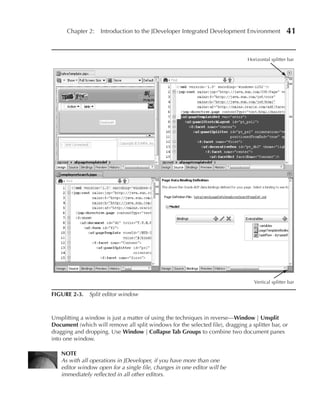
  • 849.
    804 Oracle JDeveloper 11g Handbook: A Guide to Oracle Fusion Web Development 2. Open a command shell (command-line) window and change (CD) to the directory into which you installed Oracle Fusion Middleware. In these examples, we use “FMW_HOME” to represent the directory into which you installed JDeveloper (for example, C:OracleMiddleware). Additional Information: In Windows, you can open a command-line window by selecting Start | Run, entering “CMD,” and clicking OK. 3. Change to the <FMW_HOME>jdevelopercommonbin directory and run the config .cmd script. The Oracle WebLogic Configuration Wizard will start. (You can alternatively run this utility using the Configuration Wizard selection in the Start menu program group mentioned earlier.) The following dialog will appear: 4. If no existing standalone domain exists, leave the Create a new WebLogic domain option selected and click Next. 5. The Select Domain Source page will appear with a list of possible products (libraries) to configure into the domain. Select the Oracle JRF checkbox and click Next. Additional Information: The Oracle JRF (Java Runtime Foundation) contains all of the shared JAR files used by ADF BC and ADFm; it also includes the ADF Faces components. 6. On the Specify Domain Name and Location page, set Domain name as “adf_test” and leave the Domain location as the default (for example, “<FMW_HOME>user_projects domains”). Click Next. 7. The Configure Administrator User and Password page will appear where you define the account used to manage the server. By convention the default user name used for the administrator is “weblogic,” and that default will work. Set User password and Confirm user password to “weblogic1” (the password must contain a number). Click Next.
  • 850.
    Chapter 22: Sample Application: Deployment 805 8. The Configure Server Start Mode and JDK page will appear. Ensure that the WebLogic Domain Startup Mode is set to “Development Mode,” and accept the default for JDK Selection, which should be the same JDK version with which you are running JDeveloper (for example, “1.6.0_11”). Click Next. 9. The Select Optional Configuration page will appear. You will not need any of these options, so just click Next. 10. The Configuration Summary page will appear as follows. Review the settings. You can return to earlier pages using the Previous buttons. 11. Once you have reviewed and confirmed the settings, click Create. The Creating Domain progress page will appear. 12. When the creation process completes, select the Start Admin Server checkbox in the lower-right corner of the dialog and click Done. The Configuration Wizard will exit, and another command-line window will open and display messages about the server startup. Wait for the message that ends with “<Server started in RUNNING mode>.” CAUTION For now, leave the server command-line window open so that the server will continue to run. Closing this window will stop the server. 13. The original command-line window from which you started the Configuration Wizard will return to a command-line prompt. Close this window (but not the server window).
  • 851.
    806 Oracle JDeveloper 11g Handbook: A Guide to Oracle Fusion Web Development TIp If you accidently close the server window, or forgot to start the server at the end of the Oracle WebLogic Configuration Wizard you can jump ahead to the sidebar “Starting the WebLogic Domain Server from the Command Line” for instructions on starting the server manually. This information will also help when you need to start the server outside of this hands-on practice. Run the Oracle WebLogic Server Administration Console Next you need to configure some key attributes to allow the TUHRA2 application to successfully deploy and run—specifically, connection information for the database and a list of valid users for the security that you added in Chapter 21. This configuration is performed using the Oracle WebLogic Server Application Console (“the console”). TIp A single WebLogic admin server can be used for multiple concurrently running server instances. If you want to set up multiple servers, you would fill in some of the Configuration Wizard screens to assign a unique port number to each server on a physical machine. The default port is 7001. 1. Open a web browser and navigate to the URL: http://localhost:7001/console. This will launch the WebLogic console application, which is installed into every administration server. You will see a message saying “Deploying application for /console”, then the following login screen will display.
  • 852.
    Chapter 22: Sample Application: Deployment 807 2. Log in to the console using the user name and password that you specified earlier (weblogic/weblogic1). The administration console page will then display as shown in Figure 22-1. Notice the domain name in the top right-hand corner (“Connected to”) area. What Did You Just Do? The configuration wizard that you ran in this phase creates a set of configuration files and scripts, which will start a WebLogic Server instance. This server is configured to use the default port: 7001, which is different from the port that is used when running within JDeveloper (port 7101), so you can safely use both the internal server and this new external testing server at the same time. The domain that you have created is set up with all of the libraries required to run an ADF application. In this phase, you also ran the console, the tool you will use for the rest of the configuration tasks. Before you run the console, you need to start the server. The steps in this phase ran the server from the Configuration Wizard. The next time you need to start the server, you will be using the command line batch file or shell script (or shortcut) as described in the sidebar “Starting the WebLogic Domain Server from the Command Line.” FIGURe 22-1. Oracle WebLogic Server Administration Console for the adf_test domain
  • 853.
    808 Oracle JDeveloper 11g Handbook: A Guide to Oracle Fusion Web Development Starting the WebLogic Domain Server from the Command Line The last step of the Oracle WebLogic Configuration Wizard allowed you to start the server (domain). If you are not running the wizard, you can manually start up the server using the following steps. If the server is running and you want to try these steps, press ctrl-c, then enter “Y” at the prompt to stop the server, and then close the command-line window. 1. From a new command-line window, navigate to the FMW_HOME directory and then navigate to the user_projectsdomainsadf_test. Notice that “adf_test” corresponds to the name and location of the domain that you created earlier. 2. At the command line, run the script startWebLogic.cmd (or .sh) script to start the server instance. As before, wait for the “Server started in RUNNING mode.” message. Leave this window open. Reconnect to the console as described earlier. 3. To stop the server you can run the corresponding stopWeblogic.cmd (or .sh) script in the adf_testbin directory rather than pressing ctrl-c in the server window. TIp As with any frequently used program, you will probably want to create a shortcut on your desktop for startWebLogic.cmd (Windows) or startWebLogic.sh (Unix or Linux). What Could You Do Next? You can also access the administration console for the default server in JDeveloper. Once JDeveloper starts the default server (after you run an application, for example), use the default server URL (http://localhost:7101/console) to start the console. The user name and default password are the same as those used in this practice (weblogic / weblogic1). II. Configure Application-Specific Settings The steps in the preceding phase centered around tasks you need to complete regardless of the application. This phase focuses on tasks that are more specific to an application, for example, database connection information and users and groups. Define Database Connection Information So far when you have run the TUHRA2 application from within JDeveloper, you have been using a user name and password defined by the HR_DB connection that was created in Chapter 17. In Chapter 18, you made an alteration to the ADF BC configuration “TUHRAServiceLocal” to make the application use the HR_DB connection information in a JDBC data source rather than as a hard-coded user name and password. This JDBC data source mechanism allows you to abstract the connection information and hold it separately from the application definition. Data sources are a named connection resource that the application asks the Application Server for rather than holding the connection information directly. This feature allows the application to remain unchanged as it is moved from server to server, for example, test to production. In this section you will define this data source in the adf_test WebLogic domain.
  • 854.
    Chapter 22: Sample Application: Deployment 809 1. Return to the WLS console (http://localhost:7001/console). In the Domain Structure (left- hand side) region expand the ServicesJDBC node and click the Data Sources node. The screen will change to look like Figure 22-2. Additional Information: The Multi Data Sources node in the services section is used when configuring a data source to work with an Oracle Real Application Clusters (RAC) database. The “Data Source Factories” page is used only for backward compatibility. 2. Click New (above the Data Sources table) to launch the Create a New JDBC Data Sources wizard, which you will use to create a data source. On the first page of the wizard, set the values as follows: Field Value purpose Name TuhraDS A name that identifies this resource in the console. JNDI Name jdbc/HR_DBDS The name that is used to look up the connection. This value matches the value defined in the ADF BC configuration without the java:comp/env prefix. Database Type Oracle This is the default; it assumes you’re accessing an Oracle database. Database Driver Oracle’s Driver (Thin) The correct driver for a local XE or local for Service Connections Oracle 11g database installation. Do not select the “Thin XA” driver. 3. Click Next. On the next page leave all options as their defaults and click Next. 4. Fill in the fields on this page as in the following table to define the core connection information. The following values are based on a default Oracle XE database installed on the local machine; adapt these if you are using a different database type. Field Value purpose Database Name XE The SID or service name of the database (“XE” for Oracle XE and “ORCL” for an 11g install, by default). Host Name localhost This setting will loop back to your local machine; alternatively use the database machine’s host name, if any. Port 1521 The default port for an Oracle database. Database User Name hr The schema owner as set up in Chapter 17. Password hr Use the password for hr on your system. Confirm Password hr The same as the password.
  • 855.
    810 Oracle JDeveloper 11g Handbook: A Guide to Oracle Fusion Web Development FIGURe 22-2. Summary of JDBC Data Sources page of the console 5. Click Next. The screen will change slightly adding fields at the bottom, one of which, Test Table Name, allows you to enter a sample SQL statement (one is entered by default) for testing purposes. 6. Be sure your database is started and click the Test Configuration button to check that the database is accessible. A green “Connection test succeeded” message will appear near the top of the screen if the connection is correctly defined and the database is reachable. Additional Information: If the connection fails, cross-check the settings on all pages with the settings in the preceding steps and with the HR_DB database connection information in JDeveloper. 7. Click Next to display the Select Targets page. At this point, you need to activate the data source for the administration server. Select the AdminServer checkbox. Additional Information: If you miss this step or need to deactivate the data source later, you can click the data source link after displaying the list of data sources, select the Targets tab, select (or deselect) the target server, and click Save. 8. Click Finish. The wizard will set up the data source and return you to the Data Sources list, which now contains TuhraDS.
  • 856.
    Chapter 22: Sample Application: Deployment 811 Set Up Users and Groups The next configuration task is to configure the WebLogic server’s LDAP service for the users and roles that TUHRA2 needs. When you run the application from within the IDE, JDeveloper takes care of this for you, but running on a standalone server requires some setup steps. 1. In the WebLogic console’s Domain Structure navigator area, click Security Realms to display a single predefined realm called “myrealm.” Click myrealm. NOTe Remember that a realm in security is just a namespace. It does not matter that the realm you are using here is different from the one you used in Chapter 21 (jazn.com). 2. Click the Users and Groups tab in the “Settings for myrealm” page and click New to define each of the application users (CDAVIES, NKOCHHAR, and TFOX, all with passwords of “welcome2tuhra”). The screen should appear as in Figure 22-3. Additional Information: Feel free to add descriptions (as shown in Figure 22-3) and create extra users as well, as long as you assign them to the correct groups, as you will do for the main users in the next steps. FIGURe 22-3. Users and Groups tab of the Security Realm page
  • 857.
    812 Oracle JDeveloper 11g Handbook: A Guide to Oracle Fusion Web Development 3. Click the Groups subtab. 4. Click New on the Groups table to add a group called “cs_admin” that will represent the application’s admin group. Provide a suitable description. Click OK. Additional Information: Naming the server group differently from the application’s logical roles helps illustrate the kind of mapping that will often have to take place when using existing credential stores such as Oracle Internet Directory (OID). Each of the server’s LDAP credential store groups will correspond to one of the local server groups you set up when testing security from within JDeveloper. 5. Repeat the preceding step to define groups for cs_manager and cs_user. Provide a suitable description for each group. 6. Click the Users subtab. 7. Click CDAVIES to display the “Settings for CDAVIES” page. Click the Groups subtab. Shuttle “cs_user” from Available to Chosen. The screen will contain the following areas: 8. Click Save. Click the “Users and Groups” link in the breadcrumb area (above the title “Settings for myrealm”). 9. Repeat the preceding two steps to assign NKOCHHAR to the cs_manager group and TFOX to the cs_admin group. 10. Click Home (under the WLS Server banner at the top of the page) to display the main console page. What Did You Just Do? In this phase you have carried out some essential configuration work. First, you ran the Oracle WebLogic Server Application Console, where you can perform configuration and administrative tasks for the server instance. You defined a JDBC data source for the application to use for its database connections. Then you created a set of groups and test users in the internal LDAP server provided by Oracle WebLogic so that security in the deployed application can be tested. You also assigned users to groups.
  • 858.
    Chapter 22: Sample Application: Deployment 813 III. Deploy the Application Now that the server is set up, you can deploy the TUHRA2 application to it. This section will actually explain two alternative forms of deployment: deployment directly from JDeveloper, which you would use to test the deployment on a local WebLogic Server instance, and deployment using an EAR file, which is the technique that you or an administrator would usually use to roll out an application into a full application server environment. NOTe If you have been using an earlier version of ADF security, you may be familiar with the concept of having to manually migrate security permissions from the application jazn-data.xml file into the application server. One of the big improvements you will see in this version of the framework is that this permission deployment is now handled by the direct deployment from JDeveloper. Deploy the Application from JDeveloper JDeveloper makes the process of deploying to either a local or a remote WebLogic server, a relatively easy, point-and-click task. 1. In JDeveloper, with the TUHRA2 application open in the Application Navigator (in its state as of the end of Chapter 21), display the project properties for the ViewController project (by double clicking the ViewController node). On the Java EE Application page, ensure that Java EE Web Application Name and Java EE Web Context Root are both set to “tuhra2.” 2. Click OK. 3. Click the application menu for TUHRA2 shown in the following illustration: Application menu
  • 859.
    814 Oracle JDeveloper 11g Handbook: A Guide to Oracle Fusion Web Development 4. Select Application Properties (also available from Application | Application properties), and in the Deployment page ensure that the Application Policies checkbox is selected and the Auto Generate and Synchronize weblogic-jdbc.xml Descriptors During Deployment, Credentials, and Users and Groups checkbox are unselected as shown here: Additional Information: You have already explicitly defined the database connection, credentials, users, and groups on the server side and do not need to move those items. CAUTION If you fail to deselect the Auto Generate and Synchronize weblogic- jdbc.xml Descriptors During Deployment option the final deployment from an EAR file in Phase III will fail. This is because this option embeds a separate data source definition for the application with the EAR file but cannot embed the password for it (the password has to be encrypted after installation onto the target WebLogic server). It is possible to complete this data source definition from the WebLogic console after installation; however, because you have already defined a global data source it is much simpler to avoid the whole problem by not generating the extra application level data source. Note, that you will need to re-select the Auto Generate and Synchronize weblogic- jdbc.xml Descriptors During Deployment option if you want to run the application again in the embedded server.
  • 860.
    Chapter 22: Sample Application: Deployment 815 5. Click OK to dismiss the dialog. 6. Be sure the WebLogic server is running from the preceding phase. If it is not, return to the sidebar “Starting the WebLogic Domain Server from the Command Line” in Phase I and start the server. 7. From the Application menu, select Deploy | tuhra2_application1 | to | New Connection. The Create Application Server Connection dialog will appear as shown here: 8. Set the Connection Name as “TestingServer.” Leave the Connection Type as “WebLogic 10.3.” Click Next. 9. On the Authentication page, provide the user name and password, which you used to log in to the WebLogic console for the adf_test domain (weblogic/weblogic1). Click Next. 10. On the Configuration page, leave all of the defaults except for setting the WLS Domain value to the name of your domain, “adf_test.” Click Next. 11. Click Test Connection and wait for the test to complete. All of the tests should succeed. Click Finish. Additional Information: In the future, you will be able to select this connection from the Deploy menu option without having to step through this connection wizard. 12. The deployment will proceed, and you will see messages appear in the Log window. TIp If more than one server is defined for the domain that you are deploying to, an additional popup dialog allows you to select the target server. 13. When the process is complete, the Log window will display “Deployment finished.”
  • 861.
    816 Oracle JDeveloper 11g Handbook: A Guide to Oracle Fusion Web Development 14. Open the Application Server Navigator (View | Application Server Navigator). Expand the Application ServersTestingServer deployments node to view all deployed applications as shown here with the TUHRA2 deployment highlighted: TIp The right-click menu on a deployed application node allows you to undeploy the application. 15. Test the deployed application by opening a browser window and entering the URL http://localhost:7001/tuhra2/faces/employeeSearch into the browser location field. Additional Information: The Employee Search page will appear. Alternatively, you could test the login.html page (from Chapter 21) to confirm that the login works in this server arrangement. 16. Test various application functions and close the browser when you are finished testing. exploring the eAR File As mentioned earlier in this chapter, an EAR file is the standard deployment unit for Java EE applications; it contains all the bits of the application that have to be deployed except for the connection information and security setup, which are held in the server. The EAR file created by this process was created, copied to the server, and deployed automatically by the JDeveloper deployment process. However, you can open and examine the contents of this file using the following steps: 1. In JDeveloper, look in the Deployment log window for a message about the EAR file that was created (“Wrote Enterprise Application Module to…”). Notice the file system location for the EAR file. Select File | Open and navigate to that deploy directory under TUHRA_HOME.
  • 862.
    Chapter 22: Sample Application: Deployment 817 Additional Information: The deploy directory is parallel to the Model and ViewController directories. You will see two nodes for the one TUHRA2_application1.ear file. One node (displayed as a file icon) allows you to open the EAR as a file; the other node (displayed as a directory icon with a “?”) allows you to look inside the EAR file and select one or more files. TIp You can copy the file system location from the Log window and paste it into the Open dialog instead of navigating through the file system. 2. Select the version of the EAR file that displays as a file (page with lines) icon and click Open. The list of EAR file contents should open in the Archive Viewer. The list of files in the EAR file is mostly configuration files and the WAR file, tuhra2_ViewController_ webapp1.war. 3. Double click the WAR file to examine its contents. You should see familiar files as you browse this list, for example, Model project files that are required for the application, library JAR files, and ViewController files (JSF files and images). 4. You can open any of these files in an editor or viewer window by double clicking the file name. Close the Archive Viewer when you are finished browsing. Deploy and Install the Application from an eAR file Although the approach of deploying the application directly from JDeveloper will work successfully for both local and remote application servers, many organizations would prefer that their developers not directly update production servers. In these cases the developer will need to create an EAR file of the application to hand over to the administrator for deployment. Most Java EE application servers (with exceptions such as Apache Tomcat, which is not a complete Java Enterprise Edition application server) understand how to automatically install an EAR file. The process of deployment directly from JDeveloper that we explained in the previous section is really just automating the process of packaging the EAR file, copying it to the target server machine, and triggering the installation. However, since most administrators will use manual deployment steps, we will run through that technique in this section. Although you’ve already created the EAR file as part of the JDeveloper deployment steps before, the following creates it again to demonstrate the steps. If you are in charge of deployment to the production application server, you can use these steps to practice the production deployment steps on a standalone local server. 1. Starting from the JDeveloper Application Navigator open the application menu, and select Deploy | tuhra2_Application1 | to eAR File. By default this will package the application into an EAR and copy it to the deploy subdirectory underneath the application directory root. You will see “Deployment finished” in the Log window when the process completes. Additional Information: You would then pass this EAR file to the application server administrator, who would deploy the application to the server, but the following steps demonstrate the process of deployment using the WebLogic console in your standalone WebLogic server.
  • 863.
    818 Oracle JDeveloper 11g Handbook: A Guide to Oracle Fusion Web Development 2. Next, log in to the WebLogic console (http://localhost:7001/console) using the user name/ password you set up (weblogic/weblogic1). From the Domain Structure tree on the left- hand side of the screen, click Deployments. 3. Browse the list of the deployed applications until you find tuhra2_application1 that you deployed from JDeveloper as shown here: 4. Select the checkbox next to this deployment and click Delete to remove it. NOTe This step just demonstrates how to remove a deployment, but it is not really necessary. You could choose instead to update the deployment. 5. Click the Install button in the Deployments table. This will launch the Install Application Assistant, the first screen of which will allow you to navigate to and select the EAR file for the application (tuhra2_application1.ear) from your local disk. 6. Find the file (as mentioned before, the name is provided at the end of the Log window messages in a line starting with “Wrote Enterprise Application Module to”). Select the radio button next to the file name and click Next. 7. On this page, leave the default option of “Install this deployment as an application” selected and click Next. 8. On this page, leave all of the options as default and click Finish. The “Summary of Deployments” page will display. 9. Scroll to the page containing tuhra2_application1 to confirm that the State is “Active” and Health is “OK.” 10. Open a new browser session and connect to the application as before (http:// localhost:7001/tuhra2/faces/employeeSearch). Test the application. 11. Close the browser and stop the server using the stopWeblogic script or by pressing ctrl-c and closing the server’s command-line window.
  • 864.
    Chapter 22: Sample Application: Deployment 819 What Did You Just Do? In the final section of this chapter, we showed how to deploy the application you developed into a standalone instance of WebLogic. In the process of doing this you used both automated deployment from JDeveloper as well as the more manual process using the console to deploy an EAR file. As mentioned, you would only need to deploy an application once, but this phase showed both methods to give you experience with the processes. When deploying directly from JDeveloper, you also migrated the permissions used by ADF to secure bindings and task flows. The manual migration of these permissions is also discussed in some detail in the JDeveloper online help if you need to understand the steps in more detail. This concludes the work to create a sample application that demonstrates many of the techniques you will use in real application development. Be sure to continue study of ADF Fusion web development concepts in the websites and reference materials we’ve mentioned throughout the book and stay tuned for future developments and enhancements to JDeveloper.
  • 865.
  • 866.
    Index Symbols action bindings, 524–532 collection operations, 525–529 : (component tree delimiter), 445 data-control level operations, # (pound sign), 532 524–525 #{backingBeanScope...} prefix, 377 defined, 493 #{pageFlowScope...} prefix, 376 manually creating, 529–530 #{viewScope...} prefix, 377 operations with parameters, 531–532 $ (dollar sign), 532 overview of, 524 * (Wildcard activity), 389, 433 in UI, 530–531 action handlers, JSF, 25 action listener methods, JSF events, 318 A Action property About dialog, Help menu, 54 action binding, 525 acceptance, characteristics of good button components, 318, 435 frameworks, 21 Action pulldown, Property Inspector, 360–361 access control ActionListener interface, 318 authorizing to pages, 780–783 ActionListener property, af:commandButton, authorizing to task flows, 785–786 435, 530–531 authorizing to UI components, 786–788 activation, of application module instances, 284 access keys active data, BAM, 17 functionality of, 349 activities interface design considerations, 573 creating data-bound, 485–486 testing login page navigation, 351 of task flow components. See task flow AccessKey property, 349 components accessorIterator type, 541 Activity Diagram, 98, 571 accessors activity diagram, UML, 53, 98 association accessors, 180–181, 253 Add files, to Subversion repository, 59 entity attribute accessors, 171 add image page generating, 759 creating backing bean for, 745 query bind parameter accessors, 236 creating service method for, 747–751 view accessors, 277–279 fixing association posting behavior of, view attribute accessors, 236 751–752 view link accessors, 266–267 illustration of, 726 821
  • 867.
    822 Oracle JDeveloper 11g Handbook: A Guide to Oracle Fusion Web Development add image page (continued) entity object definitions and associations, implementing upload listener for editing, 188–190 processing image, 752–756 Java EE design patterns in, 148–149 laying out form components for, 744–745 object relationships in, 152 Add Validation Rule button, 192 vs. open-source frameworks, 148–151 addMessage( ) method, 360, 370 overview of, 148 ADF (Application Development Framework) supporting components, 164–166 authorizing access to pages, 780–783 view link definitions, 160–161 bindings. See bindings, ADF view object definitions, 157–159 bindings, advanced. See bindings, adf-config.xml, 66, 777 advanced ADF ADF Controller (ADFc) characteristics of good frameworks, 20–22 defined, 372 choosing technologies, 23–24 rules, 149 Data panel, 408–410 task flow feature. See task flow Data window, 91–93 ADF Faces, 413–452 database integration, 27–29 10g. See Trinidad Declarative Debugger, 317 AJAX functionality, 126 designing security, 578 atomic components, 433–440 enabling security, 775–777 as better than its predecessors, 416 overview of, 22–23 built-in domains and, 185 reasons to use JDeveloper, 29–31 components, managing geometry in, 572 Smart Data window, 91–93 components, styling, 449–451 source code for, 21 creating new project, 331 Structure panel, 408–409 data bindings. See bindings, advanced ADF Task flow Diagrammer, 100, 571, 574–575 Data Visualization Tools, 440–445 UI technology, 24–27 defined, 14 UIX (User Interface XML), 416–417 drop options for. See “drop as” options ADF BC (Business Components) for collections application module definitions, 162–164 Fusion page design, 575 associations, 156 history of, 416 business logic framework, 15, 149–150 HTML and, 323 in Business Tier of Java EE, 108 layout containers, 323 changing image handling, 727 messages, 324 creating application module definitions, overview of, 323, 414 272–273 page layout, 25 creating entity object definitions and partial page rendering, hands-on-practice, associations from, 187–188 418–421 creating view link definitions, 267 partial page rendering, understanding, 417 creating view object definitions, 245 properties, 324 database integration using, 27, 29–30 resources on, 451–452 database orientation of, 150–151 reviewing new JSF file, 339 declarative development using, 12 Rich Text Editor, 714–719 deployment flexibility of, 150 screen layout design, 344–345 designing, 576–579 styling, 347, 446–451 diagramming/visualizing, 166–167 tag libraries, 115, 323–324 editing application module definitions understanding, 414–415 in, 274 use of term in this book, 311 editing view link definitions, 268 using HTML render kit, 132, 321, 415–416 editing view object definitions, 247–248 ADF Faces, achieving perfect layout, 421–433 entity object definitions, 153–155 facets, 421 entity object definitions and associations, hands-on-practice, 427–429 creating, 187–188 nesting layout containers, 426–427 overview of, 421
  • 868.
    Index 823 understanding layout containers, 422–426 hierarchical design for screen layout, using component properties to align 344–345 fields, 429–432 JSF file, 338 using Quick Start Layouts, 432–433 resolving warnings in Structure window, ADF Faces RC (Rich Client) 11g. See ADF Faces 342–344 ADF Faces Rich Client Demonstration, 452 af:group component ADF Learning Center, Oracle, xxxiii adding in-process indicator, 646–647 ADFc (ADF Controller) creating login popup, 791 defined, 372 creating menu options to log in and log rules, 149 out, 792 task flow feature. See Task flow customizing tree labels, 521 adfc-config.xml file, 585–587 af:image component, 521 application entries in, 584–585 af:inputComboboxListOfValues component, as unbounded task flow, 389–390, 576 481, 513, 514 creating managed bean entry in, 390 af:inputDate component, 435, 450, 459 creating task flow definition, 373–374 af:inputListOfValues component, 480–481, 513 defining page flow, 574 af:inputText component example of creating link, 766–777 adding visual components to page, ADFm (ADF Model), 455–487 347–349 binding containers in, 457–458 as atomic component, 433–434 creating data-bound activities, 485–486 field alignment using, 430 creating data-bound pages, 464–485 setting up drag-and-drop behavior, 438 data binding files, 486–487 af:iterator component, 493, 522 data controls in, 457 af:menu component, 426, 621, 645, 792 defined, 22–23 af:menuBar component, 425, 621, 792 overriding and adding to life cycle, af:messages, 324 548–553 af:outputText component overview of, 456 adding JSF components to home page, providing default/dynamic properties 356–358 for UI controls, 458–464 adding visual components, 350 rules in, 149 ADF read-only table using, 476 understanding, 456–457 as atomic component, 435 writing code using, 559–562 examining JSF file, 353 admin role, authorization and, 774 setting styles for JSF, 358 administration servers, as WebLogic servers, 803 af:pageTempateDef component, 438 af: prefix, 323, 416 af:panelBorderLayout container, 321–322, 424 af:attributeDragSource component, 438, 521 af:panelFormLayout component af:attributeDropTarget component, 439–440 adding to JSF page, 347–350, 355 af:commandButton component examining JSF file, 352–353 adding to page, 350, 355 implementing tab order, 427–429 as atomic component, 435 overview of, 422 defined, 347 properties and alignment in, 425 defining navigation for, 360–362 using component properties to align field, examining JSF file, 353 429–432 setting properties, 359 af:panelGroupLayout component af:dialog component, 426, 621–622 expanding to align components, 425 af:document tag, 338–339, 342–343 nesting, 427 af:forEach component, 438, 476, 522 overview of, 422–423 af:form tag setting drag-and-drop behavior, 438–439 adding visual components to page, af:panelHeader component 347–350 adding components to login page, 344–345 defined, 425 adding layout containers to JSF project, 345–346
  • 869.
    824 Oracle JDeveloper 11g Handbook: A Guide to Oracle Fusion Web Development af:panelHeader component (continued) af:treetable component, 479 adding to JSF home page, 355 af:validateRegExp component, 438 adding visual components to page, 348 agility, of Fusion Architecture frameworks, 12 using component properties to align AJAX (Asynchronous JavaScript and XML) field, 430 creating PPR, 418–421 af:panelHeader tag defined, 25–26 adding JSF components to home page, 355 JSF compatibility of, 26–27 adding layout containers, 347 modern user interfaces requiring, 24 adding visual components, 348 overview of, 125–126 changing ADF Navigation List resources on, 127 properties, 474 steps for using, 126–127 defined, 344–345 alignment setting styles for JSF components, 358 using component properties for field, using component properties to align 429–432 field, 430 using layout containers, 422–425 af:panelHeaderLayout component, 422 using spacers for field, 427–429 af:panelLabelAndMessage component, 419, alt text, interface design, 573 426, 435 alternate keys af:panelSplitter component, 423–424 entity object definition, 185–186 af:panelStretchLayout component, 424–425, 445 finding rows by, 295 af:popup component, 426 performing lookups with, 186 af:query component view object definition, 245 “drop-as” options for named criteria, always option, binding executables, 546 481–482 Apache Ant, running, 51 Find operation on collection vs., 526 Apache Struts framework using searchRegion executable, 544 defined, 18 af:quickQuery component, 544 Struts Page Flow Modeler, 100 af:region, 395–396 tooling and, 20–21 af:resource component, 742 Apache Trinidad, 14, 25 af:SelectBooleanCheckbox, 535 APIs (application programming interfaces), af:selectInputDate component, 480 of good frameworks, 20 af:selectManyCheckbox, 472 applets, 113–114 af:selectManyChoice, 471–472 application clients, Java EE, 111–114 af:selectManyListbox, 472 application configuration file. See faces-config af:selectManyShuttle component, 435, 473 .xml file af:selectOneChoice component, 435, 506 application configuration resource file. af:SelectOneListbox, 506 See faces-config.xml file af:SelectOneRadio, 506 Application Console, WLS (WebLogic Server), af:separator component, 435 806–808 af:setClientListener component, 318 application design, principles of, 565–582 af:showPopupBehavior component, 438 achieving common look and feel, 572–573 af:spacer component, 358, 427–429 ADF BC design, 576–579 af:spinBox. See spin box business requirements, 569 af:table component creating custom skin, 581–582 “drop as” options for collections, 475 declarative components, 573–574 setting master drill-down feature, 445 page templates, 573 tree binding, 516 reusability, 573 understanding, 478 sample application. See application using table bindings, 524 design, sample af:template tag, 573 setting standard for scrolling and screen af:toolbar component, 426 resolution, 572 af:train component, 397–401 system design tools and SDLC, 569–571 af:trainButtonBar, 399–400 task flows, 574
  • 870.
    Index 825 typical Fusion page design, 575–576 tasks performed by, 74 user interface, 574–575 viewing application elements, 601 using framework buffer classes, 579–581 Application Package Prefix, 600 using Java packages, 581 application programming interfaces (APIs), using JSF and only JSF, 581 of good frameworks, 20 application design, sample Application Resources panel, Application application, 584–587 Navigator, 66–68 application templates, 587–590 application roles, 777, 779–780 auditing and code analysis, 594–596 application scope, JSF, 341 database, 582–584 application-scoped shared application module overview of, 582 instances, 279 source control system, 590–593 application servers unit testing, 593–594 deploying/installing application from EAR Application Development Framework. See ADF file, 817–819 (Application Development Framework) Web Tier and, 108 application directory, HTTP, 120 Application Template area, 601 Application menu, 48–49 application workspace application module classes, 269–270, 299–305 creating, 599–602 application module client interfaces, 288, overview of, 35 289–291 ApplicationModuleImpl class, 581 application module cookie, 283 applications application module definition classes, 270–271 applets, 113–114 application module definitions business requirements and design activation, 283 process, 569 ADF BC object relationships, 162 concept of, 34, 63 creating, 271–273 creating, 330–334 editing, 273–274 deploying. See deployment editing or creating configurations for, design principles. See application design, 275–277 principles of; application design, sample overview of, 162–164 Java, 112–113 understanding, 268–271 Java EE Web, 114–118 application module instances in JDeveloper, 599 implementing data model, 271 Projects panel, 63 managing transactional state, 282–284 ApplyValidation property, attribute bindings, 498 overview of, 162–163 architecture model, Java EE, 108–110 passivation, 284 archive files, Java, 801–802 pooling (recycling), 283–284 ARIS tool, 570 recycling, 268 Assign File Accelerator submenu, Window shared, 277 menu, 54 understanding, 268–271 associations, 176–182 Application Navigator, 62–67 accessors, 180–181, 253 Application Resources panel, 66 ADF BC object relationships, 156 changed file indicator, 66 and view object definitions, 252–253, Data Controls panel, 67 261–262 defined, 62 and the DBSequence domain, 221–228, finding files, 66 751–752 overview of, 62–63 cardinality, 177–179 Projects panel, 63–65 compositions and, 181–182, 713 Recently Opened Files panel, 67 creating, 186–188, 728 Application Overview window creating view link definitions based on, defined, 62 263–264 overview of, 72 creating view link instances on-the-fly, panel techniques, 73 303–304
  • 871.
    826 Oracle JDeveloper 11g Handbook: A Guide to Oracle Fusion Web Development associations (continued) Range validation rule, 197 editing, 188–190 Regular Expression validation rule, 197–198 normal SQL mode queries, 252–253 Rule Definition tab, 192–193 overview of, 176–177 Script Expression validation rule, 198 in polymorphic entity object Validation Execution tab, 193–194 definitions, 232 attribute node, Data Controls panel, 466 source and destination attributes, attribute property, attribute bindings, 497 179–180 attribute value bindings, 493 Asynchronous JavaScript and XML. See AJAX attributes (Asynchronous JavaScript and XML) Boolean binding, 534 atomic components, ADF Faces, 433–440 calculation, 217–220 defined, 415 control hints, 458–462 in Operations panel of Components defaulting, 215–217 Palette, 438–440 “drop as” options for, 480–481 validators, 437–438 dynamic list binding, 501 converters, 437 editing individual, 190 attachments, navigation diagrams, 574 entity. See entity attributes attribute bindings foreign key relationship, 177–178 advanced properties, 498 getting and setting value of bound, 561 manually creating, 497 HTML tags, 133–135 overview of, 495–497 JavaScript, 137 table bindings vs., 522 model-driven LOVs, 511–512 Attribute Editor NamedData element, 532 adding validation rules, 192 object type domain, 185 attribute defaulting, 216–217 ordering in table binding, 523 editing individual attribute settings, 190 source and destination (for associations), preventing users from changing attribute 179–180 values, 192 source and destination (for view link specifying attribute scale and precision, 192 definitions), 263–264 specifying mandatory attributes, 191 tree binding, 517 attribute-level validation, 190–206 view. See view attributes adding to setter methods, 202–204 Attributes page, business logic unit, 230 in ADF BC validation cycle, 212–213 AttrNames element, navigation list binding, 507 creating validation domains, 204–206 Audit <filename>, Build menu, 51 overview of, 190–191 auditing tool, 95, 594–596 preventing users from changing authentication values, 192 managed bean for handling login, 788–791 specifying mandatory attributes, 191 types of, 776 specifying scale and precision, 192 authorization attribute-level validation rules logical roles, 774 business logic groups and, 230 management functionality for, 783–785 Compare validation rule, 195 page access, 780–783 considerations for, 192 task flow access, 785–786 creating custom, 198–202 UI component access, 786–788 defined, 192 Auto-Extend button, in Property Inspector, 79 entity-level vs., 208–209 Auto Submit attribute control hint, 460 Failure Handling tab, 194 AutoSubmit property, 417, 420 Length validation rule, 195 Available Attributes list, Create Table Binding List validation rule, 196 dialog, 523 Method validation rule, 196–197 Available Classes list, 358
  • 872.
    Index 827 B binding containers in ADF Model layer, 456–457 Back button choosing, 562 managing with save points, 403 messaging between, 556–559 overview of, 404 overview of, 457–458 problems with, 356 page definition files defining, 486 back-end servlets, 115 of scoped action bindings, 529–530 backing bean (Login.java) files Binding Context, ADFm, 409–411, 456–457 adding navigation to application, 362 Binding property, JSF, 561 creating for add image page, 745 bindings, ADF, 490–564 creating JSF pages, 336–337 action. See action bindings examining code/contents of, 340–344 attribute bindings, 495–498 examining for JSF login page, 354 Boolean bindings, 534–535 faces-config.xml file registering, 339–340 cleaning up, 492 not always needed, 364–465 creating data-bound activities, 485–486 overview of, 315 creating data-bound pages. See pages, refactoring, 719 creating data-bound removing automatic updates from, 354 customizing error handling, 553–554 scope settings for, 341 data visualization types, 493–494 backing bean scope, ADF, 341, 377, 419 editing, 491–492 BAM (Business Activity Monitoring) service, 17 executables, 494 bar graphs, 441–445 executing methods and operations, 562–563 Base Data Source list, 507, 534 files involved in, 486–487 Basic authentication, HTTP, 776 generic types, 492–493 BC4J. See ADF BC (Business Components) hierarchy viewer, 654 beans, Java list. See list bindings about, 315 LOV. See LOV (list of values) bindings adding drag-and-drop to set default image method bindings, 532–534 page, 759–760 overriding and adding to ADF Model life creating backing bean for add image cycle, 548–553 page, 745 overview of, 490–491 creating backing bean for set default table bindings, 522–524 image page, 759 tree. See tree bindings creating managed beans for handling understanding contextual events, 555–559 login, 788–791 understanding executables. See creating upload listener for copy file and executables calling service methods, 752–756 understanding iterators, 538–541 JSF at runtime and, 314 understanding parameters, 554–555 previewing uploaded image, 745–747 writing code using ADFm, 559–562 refactoring, 719 Bindings editor tab, editor window, 39 beforeCommit( ) method, entity object class Bindings panel validation, 212 controlling execution order of executables behaviors, adding to compositions, 182 in, 546–547 Bind Action Property dialog, 361, 560 creating page executable bindings in, 543 bind variables creating taskFlow executable bindings constructing WHERE clause or query in, 543 with, 261 displaying attribute bindings in, 495 including in view object definition query, displaying iterator types in, 540–541 259–260 populating PageDef parameters, 554 modifying queries by naming, 297 Bindings tab, visual editor Bind to ADF Control button, Property creating attribute bindings, 497 Inspector, 80 editing iterators, 539 bind variables, control hints for view object, 462 viewing and editing bindings, 491
  • 873.
    828 Oracle JDeveloper 11g Handbook: A Guide to Oracle Fusion Web Development Binds attribute, 535 Business Components from Tables wizard, 630 BLAF (Browser Look and Feel), 448, 614 business domain, specifying, 169–232 blafplus-medium skin, 446–447 ADF BC validation cycle, 212–215 blafplus-rich skin, 446–447, 614 associations. See associations BluePrints, Java EE, 110–111, 148 attribute calculation, 217–220 Bookmark property, view activity, 381 attribute defaulting, 215–217 bookmarking attribute-level validation. See attribute- Navigate menu, 50 level validation view activity properties, 381 built-in domains, 184–185 books, on Oracle Fusion Middleware, xliii entity-level validation. See entity-level Boolean bindings, 493, 534–535 validation Both query execution mode, 260–261 entity object definitions. See entity object BottomWidth property, af:panelStretchLayout, 424 definitions bounded task flows entity object definitions/associations, calling parent action activity, 394 creating, 186–188 exiting with task flow return activities, 394 entity object definitions/associations, marking activity as Exception Handler, editing, 188–190 394–395 entity object instances. See entity object overview of, 390–391 instances parameters, 391–392 polymorphic business rules, 228–232 passing parameters into, 392–393 synchronizing with database defaulting returning data from, 393–394 and calculation, 220–228 using pages vs. fragments, 395–396 business logic. See also validation boxes, adding to JSF page template, 617–620 ADF BC framework, 149–150 BPEL (Business Process Execution Language) Fusion Architecture concepts, 15 compensation concept, 14 groups, 12, 165, 228–229 defined, 8 units, 165, 229–230 Human Workflow processes vs., 8 Business Process Architect tool, 570 overview of, 570 Business Process Execution Language. See BPEL SOA orchestration process, 7, 16 (Business Process Execution Language) BPM (Business Process Management) Studio Business Process Management (BPM) Studio tool, 570 tool, 570 BPM (Business Process Modeler), 8–9 Business Process Modeler (BPM), 8–9 BPMN (Business Process Modeling Notation), 8 Business Process Modeling Notation (BPMN), 8 branching business requirements, application design source control strategy, 591 process, 569 in trains, 401 business rules. See also validation breadcrumbs, Code Editor, 85 entity attribute accessors providing, 173 breakpoints, 91–92, 407 implementing ADF BC, 577–578 Browser Look and Feel (BLAF), 448, 614 in Java EE application layers, 149–150 buffer classes, framework, 579–581 thick database vs. SOA architecture, 10–11 Build menu, 51 business services built-in operations, Data Controls panel, 466 ADF implementation of, See ADF BC Business Activity Monitoring (BAM) (Business Components) service, 17 rules, 149 Business Component Browser testing code for, 635 error message format, 685 Business Tier, Java EE, 109–110 opening service instances, 750–751 button bindings, 534–535 testing Business Services code, 635 buttons business components, ADF. See ADF BC for action bindings. See action bindings (Business Components) adding to page, 348–350, 355
  • 874.
    Index 829 ADF navigation, 474 entity definition, 173–174 bypassing train model, 401 entity object, 171–173 creating PPR with ADF Faces, 419 framework buffer, 579–581 problems with Back and Refresh, 356 object orientation in Java, 132 object type domain, 185 view definition, 237 C view object, 235–236 view row, 236–237 C++, Java evolving from, 129 Classes window, debugger, 92 cache Clean <project_name>, Build menu, 51 creating and deleting rows from, 296–297 ClickListener, graphs, 445 Fusion Architecture framework, 12 client authentication, HTTP, 776 navigating through, 295 client interfaces, 288–290 calculations Client Listener, 742 attribute, 217–220 client service methods, 286. See also custom defined, 216 service methods in extended entity object definitions, Client Tier, Java EE 231–232 applets, 113 synchronizing with database defaulting overview of, 108 and, 220–228 web clients, 114–118 calendar Close option af:inputDate displaying, 435 editor window, 42 vertical axis of Gantt chart as, 470 File menu, 46 cardinality, 177–179 closures, Groovy, 142 cascade delete, 713–714 .cmd extension, 803 Cascading Style Sheets. See CSS (Cascading code Style Sheets) adding around task flows, 404–407 CASE (computer-aided software engineering) commenting. See Toggle Line Comments, tools, 569–571 in the source menu cases, Router activity, 384 compiling PL/SQL, 86–87 categories, binding, 492–494 completion, Code Editor, 82 Category control hint, 460 comparisons. See Compare With cells, ADF Pivot tables, 377 submenu change indicators Fusion using least amount of possible, 11 Application Navigator, 66 generating/organizing with JDeveloper, 34 entity object definitions, 283 generating with UML diagrams, 98 ChangeEventPolicy property, iterator Java EE styles, application clients, 112–114 execution, 540 Java EE styles, overview of, 111 Check for Updates, Help menu, 54, 57 Java EE styles, Web clients, 114–118 checkboxes, rendering, 471, 472 organization of Java, 131 Choice List, LOV control hints, 463–464 refactoring, 49 Class diagram, UML, 571 thick database vs. SOA architecture, 10–11 class libraries, ADF Faces, 415 train flow, 400 class selectors, CSS, 138 writing using ADFm, 559–562 classes code assistance, syntax errors, 740 application module, 269–270 code auditing tool, 95, 594–596 application module definition, 270–271 Code Editor creating Model framework superclasses, breadcrumbs, 85 612–613 Code Insight and Tag Insight, 83–84 custom framework. See custom Code Templates, 82–83 framework classes CSS editing with, 88–89 editing custom entity, 189 defined, 62 editing custom view, 248–249 editing custom entity classes, 189 entity collection, 174
  • 875.
    830 Oracle JDeveloper 11g Handbook: A Guide to Oracle Fusion Web Development Code Editor (continued) Common Components panel, Component Palette End Tag completion, 82 adding atomic components, 433–434 extended paste in, 81 adding layout containers, 425–426 Import Assistance, 85 adding visual components, 347–350 JavaScript editing with, 89–90 Common Object Request Broker Architecture overview of, 81–82 (CORBA), 7 Quick Javadoc, 85 communication, 6–7. See also web showing syntax errors in Structure communication window, 75–76 communication protocols, 118. See also HTTP syntax error highlighting, 86 (Hypertext Transfer Protocol) toggling line numbers on/off in, 332 Compare dialog, 48 working with PL/SQL, 86–87 Compare menu, 52–53 XML editing with, 140 Compare validation rule, 195, 209 Code Insight property, 83–84, 369 Compare With submenu Code Snippets panel, My Components page, 78 File menu, 47–48 Code Templates, 78, 82–83 from the right-click menu, xli Collapse Tab Groups, 41 compensation, 14 collection criteria, Data Controls panel, 466 compiling PL/SQL code, 86–87 collection definition files, data binding, 486 completion insight, 84 collection operations, action bindings, 525–529 Component Palette collection return values, 485 adding components to JSF login page. See collectionModel attribute, tree binding, 516–517 JSF login page, adding components collections. See “drop as” options for collections adding components to JSF page, 347–350, Collections validation rule, 209 355–356 color ADF Faces tag names, 416 database diagrams, 605 Common Components panel of. See editing CSS files, 88 Common Components panel, column datatypes, 183–184 Component Palette Columns property creating application module definitions, adding visual components, 348 272–273 af:panelFormLayout, 428 creating entity object definitions and af:panelGroupLayout, 427 associations from, 187–188 Combo Box control, 463–464 creating PPR with ADF Faces, 418 comments creating view link definitions from, 267 backing bean file, 354 creating view object definitions from, 245 removing automatic backing bean defined, 62 updates, 354 diagramming JSF page flow, 334 reviewing new JSF file, 339 Layout panel of, 422–423 Toggle Line Comments, in Source menu, 52 Operations panel of, 436–437 commission field, edit page application overview of, 77–78 adding validation, 688–690 Panel Splitter, 618, 636 changing commission to a spin box, positioning, 345 690–691 Status indicator in, 647 changing commission updatable property, Task flow components. See Task flow 691–693 components clearing for non-sales employees, 694–697 Task flow Editor and, 374–375 COMMIT for UML diagram, 97 adding to set default image page, 765–766 component tree (UI tree), 315 data-control level operations, 525 components task flow transaction behavior, 403 adding to JSF home page, 355–356 Commit Working Copy, to Subversion repository, ADF business. See ADF BC (Business 58–59 Components)
  • 876.
    Index 831 ADF Faces, 323–324 entity attributes vs. view attributes, 460 defined, 25 property sets, 461–462 HTML created by JSF, 352 types of, 458–459 Java EE architecture model, 108 Control Hints tab, model-driven LOVs, 511 managing geometry within ADF Faces, 572 Control Type control hint, 459, 468–469 nesting using facets, 321 Controller overview of, 320 integration with JSF View tag libraries, 312 task flow. See task flow components MVC design pattern, 111 viewing reference information, 349 rules in ADF, 149 composite, SOA, 8 conversions, JSF life cycle, 316 compositions, creating associations as, converter attribute, bounded task flow 176–177, 713 parameters, 392 computer-aided software engineering (CASE) converter components, JSF life cycle, 316 tools, 570–571 Converter parameter, URL view activity, Concurrent Versions System (CVS), 56–57 386–388 configuration data. See metadata converters, as atomic components, 436–437 (configuration data) cookies, HTTP, 121–122 Configuration tab, Create List of Values dialog, copy and paste, Structure window, 425 279–280 copyright text, aligning, 625–626 configurations, application module, 275–277 CORBA (Common Object Request Broker Configure Palette, Tools menu, 53 Architecture), 6–7 connections Core tab libraries, ADF Faces, 323–324 Application Resources panel, 66 Core tag library, JSF, 320 database. See database connections CPU Profile tool, 94 defining in Resource Palette vs. Create Action Binding dialog, 529, 533 Application Resources panel, 68 Create ADF Menu Model, 389–390 Fusion Architecture scalability and, 12 Create Application Module wizard, 273, 274 JDBC data source, 276, 808 Create as Bounded Task flow, 390, 395–396 stateless, in HTTP communication, 121 Create Association Wizard, 188 consistency, importance of UI consistency, 598 Create Business Components from Tables wizard containers, compositions and, 182 application module definitions, 271 containers, deploying ADF BC to, 150 entity object definitions and containers, binding. See binding containers associations, 186 containers, layout. See layout containers view link definitions, 267 containers, runtime. See Web Tier view object definitions, 245 content area, JSF page templates, 623 Create Default Data Model Components wizard, Content Style property, components, 450 267, 272 contentDelivery attribute, 690 Create Domain wizard, 204–205, 206 Contents tab, Help Center, 56 Create Entity Object Wizard, 155 context (right-click) menus, 46 attribute defaulting, 216–217 context root, HTTP, 120 editing entity object definitions and context sensitivity associations, 189 finding Help, 55 editing individual attribute settings, 190 of menus, 46 overview of, 188 contextual events, 555–559 preventing users from changing attribute Control Flow Cases, 378, 388 values, 192 control-flow, wildcard, 670, 766 specifying attribute scale and precision, 192 control hints specifying mandatory attributes, 191 defined, 458 Create Generic Application dialog, 330–334, 600 lists of values, 462–464 Create Generic Project dialog, 602 viewing object bind variables, 462 Create JSF Page dialog control hints, attributes, 458–462 JSF page template, 615–616 creating localizable, 460–461 JSF pages for login/home pages, 336–340
  • 877.
    832 Oracle JDeveloper 11g Handbook: A Guide to Oracle Fusion Web Development Create JSF Page dialog (continued) Cue Cards, Help menu, 54–55 PPR with ADF Faces, 418 currency formats, 688 using Quick Start Layouts, 432 custom data services. See services, custom data Create List of Values dialog custom framework classes Configuration tab, 279–280 for application module definitions, 270–271 overview of, 279 for entity object definitions, 174–176, UI Hints tab, 280–281 222–224 Create New Business Logic Group button, 228 overview of, 174–176 Create New JSF Fragment dialog, 736 for view object definitions, 237 Create New Validator button, 192–193 view object definition, editing, 248–249 Create operation, 528 custom method, Data Controls panel, 466 Create Table Binding dialog, 522–523 <custom methods> operation, 527 Create Task flow dialog, 398, 401 custom properties, entity attributes, 688–689 Create View Criteria dialog, 634 custom service methods Create View Link wizard, 267 adding to client interfaces, 289–290 Create View Object wizard criteria for, 287 building bar graph, 441–442 cross-query or transaction-level, 299–305 editing view object definitions, 248 defined, 286 specifying view object query, 250 exposing on client interfaces, 288 static view object definitions, 281–282 query-level. See query-level service view object definitions, 246–247 methods Create with Page Fragments, 395–396 single-row, 290–292 createAndInitRow( ) method, 296 types of diagrams, 286 CreateInsert operation, 528 custom validation rules, 198–202, 211–212 createInsertRow operation, 526 CustomInputHandler property, attribute createRow( ) method, 296 bindings, 498 createRow operation, 526 customization, Fusion Architecture frameworks createViewLink( ) method, 303 and, 12 createViewLinkBetweenViewObjects( ) customizer property, searchRegion method, 304 executable, 545 createViewObject( ) method, 301 CVS (Concurrent Versions System), 56–57 createViewObjectFromQueryClauses( ) method, 301–302 createWithParams operation, 526, 528–529, D 531–532 Data Binding Registry editor, 487 creating files. See New Gallery data bound methods, calling, 383 credential store, 778–779 data control definition files, data binding, 486 Criteria Definition dialog, 730–731 data-control level operations, action bindings, criteria property, searchRegion executable, 545 524–525 cross-attribute validation, 686 data control node, Data Controls panel, 465 cross-entity relationships, 180–181 Data Control Scope, 402–403 cross-platform interfaces, designing, 324–325 data controls, ADFm, 456–457 cross-query service methods, 299–305 Data Controls panel CSS (Cascading Style Sheets) adding components, 344 ADF Faces, 446–448 building bar graphs, 442 custom skins, 448 classes of components in, 480 editing in Code Editor, 88–89 creating data-bound activities using, files, 137 485–486 JSF components, 358–359 defined, 67 reasons for developing, 312 “drop as” options for attributes, 480–481 resources, 138–139 “drop as” options for collection criteria, 481 selectors (styles), 138–139
  • 878.
    Index 833 “drop as” options. See “drop as” options Database Navigator operation node subtrees in, 484–485 defined, 62 structure of, 464–466 defining global connections, 604 using with pages, 466–467 documentation, 103 Data Definition Language (DDL), 612 overview of, 100–101 data, Fusion Architecture concepts, 15 SQL Worksheet, 101–103 Data Manipulation Language (DML), 154 working with PL/SQL, 86–87 Data Mapping section, dynamic list binding, 501 database query execution mode, 260 data models, assembling, 233–284 database tables, entity object definitions application module definitions and and, 153 instances, 268–271 databases application module instances managing ADF BC orientation towards, 150–151 transactional state, 282–284 ADF integration with, 27–29 creating application module definitions, business requirements and design 271–273, 275–277 process, 569 creating view link definitions, 267 creating database diagram, 603–606 creating view object definitions, 246–247 Database Navigator functionality, 100–103 editing application module definitions, designing sample application, 582–584 273–277 generating objects with UML diagrams, 98 editing view link definitions, 268 modifying database diagram, 606–610 editing view object definitions, 247–249 writing data with persistent view how view attributes work, 238–245 attributes, 243 overview of, 234 DataBindings.cpx file, 487, 491–492 specifying view object queries. See view DataControl property, data-control level action object definition queries binding, 525 using view object definitions as LOVs, datatypes 277–282 mapping SQL types to Java types, 154 view link definitions and instances, view attribute, 245 263–267 Dates submenu, 480 view object definitions, instances and DBSequence domain, 221–228 view rows, 234–237 creating custom entity definition data models, in application module framework class, 222–224 definitions, 162 creating custom entity object framework Data panel, ADF, 408–410 class, 224–228 data services. See services, custom data overview of, 221 Data Source posting order and, 221–222 as connection resource, 808 DBSequenceAttr( ) method, 224 defining for WebLogic domain, 808–810 DCOM (Distributed Common Object Model), 6–7 for operations with parameters, 532 DDL (Data Definition Language), 612 providing values for dynamic lists, 499–502 Debug button, debugger, 93 Data Source property, attribute bindings, 496 debug messages, Log window, 80 Data Value, dynamic list binding, 501 debugging, 407 data visualization binding types, 493–494 declarative property values, 686 Data Visualization Tools. See DVT (Data defined, 62 Visualization Tools) hands-on practices, xl–xlii Data window, ADF, 91–93 Help for, 51–52 database-centric approaches, business rules, JavaScript, 89–90 577–578 overview of, 90–91 database connections PL/SQL code, 87, 93 configuring for deployment, 808–810 running debugger, 93 importing, 101 task flows, 407–411 in JDeveloper 10g vs.11g, 604 using initializer, 405–406 setting up, 100–101 windows, 92–93
  • 879.
    834 Oracle JDeveloper 11g Handbook: A Guide to Oracle Fusion Web Development decision points, 98 deploying application from JDeveloper, declarative components, application design, 813–817 573–574 deploying/installing application from EAR Declarative Debugger, ADF, 317 file, 817–819 declarative development Java archive files and, 801–802 ADF BC emphasizing, 30 overview of, 800–801 in Fusion Architecture frameworks, setting up users and groups for, 811–812 11–12 descriptor settings, Application Resources in good frameworks, 20 panel, 66 declarative mode, SQL queries, 729–730 design declarative property values, 686 principles of application. See application declarative SQL mode, 254–257, 266 design, principles of Decorative Box, 618 sample application. See application def keyword, 142 design, sample Default Activity, bounded task flows, 391 design patterns. See UI patterns and templates, Default Data Model Components wizard, 245, sample application 271–272 design patterns, Java Default List Type dropdown, types of controls, 463 ADF BC implementing, 148–149 default-outcome property, Router activity, frameworks evolving from, 17–18 384–385 MVC as, 110–111 Default Project Properties, Application menu, 49 overview of, 110 Default Role option, JDeveloper, 36 sources of information on, 17 default row set iterator, 292–293 Design tab, editor window, 39 defaulting design-time, framework component, 19 attribute, 216–217 desktop applications, Java EE, 111 data during record creation, 528–529 destination accessor, 180–181, 266 defined, 215–216 destination entity object definitions, 176, in extended entity object definitions, 179–180 231–232 destination view object definitions, 263–264, 267 synchronizing with database, 220–228 Development Mode, WebLogic Domain Startup DefaultQuickSearchAttrName property, Modes, 805 searchRegion executable, 545 Diagram menu, 53, 98 Defer Execution to Transaction Level button, 207 diagrams. See also modelers and diagrammers deferred entity-level validation, 214–215 creating database, 603–606 deferred option, execution order of modifying database, 606–610 executables, 546 page flow, 334–336 Define Business Logic Group dialog, 228–229 Diagrams node, Preferences dialog, 98 definitions, object definitions vs. object Digest authentication, HTTP, 776 instances, 153 direct line style, 335 Delete directories File menu, 46 creating application, 600 SQL statement, 154 creating for images, 617 department hierarchy page. See hierarchy directory separators, for Windows and viewer, sample application Unix/Linux, 803 department LOVs, 673–674 Display Attribute dropdown list, dynamic list Deploy submenu, Build menu, 51 binding, 501 deployment Display Attribute list, navigation list binding, 507 ADF BC flexibility, 150 display attributes, LOV control hints, 463–464 configuring application using WebLogic display devices, reasons for developing JSF, 312 Server Application Console, 806–808 Display Height control hint, 459 creating/running WebLogic domain, Display Hint, 458 803–806 Display Label column, Edit Form Fields defining database connections, 808–810 dialog, 469
  • 880.
    Index 835 display-name property, trains, 398 “drop as” options Display Width control hint, 459 attributes, 480–481 Distributed Common Object Model (DCOM), for collections, 467–483 6–7 forms, 468–469 DML (Data Manipulation Language), 154 Gantt charts, 469–470 DNS (Domain Name System), 123 gauges, 470 dockable windows geographic maps, 470 arranging, 42 graphs, 470 displaying, 44 hierarchy viewer, 471 docking and floating, 42–43 Master-Detail, 471 merging into same space, 44 multiple selections, 471–473 minimizing, 44 named view criteria, 481–483 overview of, 42 navigation, 474 toolbar, 46 operations, 483–485 Document Object Model (DOM), JavaScript, 137 overview of, 467–468 document tabs, 40, 42 single selection, 474–475 Document Type Definitions (DTDs), 140 tables, 475–478 documentation tree-style, 479 framework, 22 Drop Target field, drag-and-drop behavior, 439 navigation diagrams, 574 dropdown lists, rendering with checkbox doDML(), example of supplementing, 709–711 options, 471 DOM (Document Object Model), JavaScript, 137 DTDs (Document Type Definitions), 140 Domain Name System (DNS) server, 123 DTSupportsMRU property, list bindings, 506 domain names, translating into IP addresses, duplicating, objects, 348 123. See also DNS (Domain Name System) DVT (Data Visualization Tools). See also domains hierarchy viewer, sample application ADF BC, 164–165 data visualization binding types, 493–494 built-in, 184–185 defined, 323 creating/running WebLogic domain, hands-on-practice, 441–445 803–806 HView component, 648 object type, 185–186 types of, 440–441 validation, 204–206 .dvt prefix, 323 drag-and-drop. See also “drop as” options, for Dynamic Help, Help menu, 54–55 operations dynamic list bindings, 499–502 adding visual components to page, 348 dynamic queries, 259–261 for attribute bindings, 495–497 Dynamic Regions, task flows, 395–396 in Code Editor, 82 Dynamic tab, Help Center, 56 for collections. See “drop as” options, dynamic tables, “drop as” options for, 476 for collections components for, 438–439 for correcting operations, 346 E for floating dockable windows, 42–43 EAR (enterprise application archive), 802, implementing drop listener, 762–765 816–819 for list bindings. See list bindings EBS (E-Business Suite) application, Oracle, 416 for operations, 483–485 Edit Action Binding dialog, 486 resizing window inside IDE frame, 39 Edit Attribute Binding dialog, 496, 531–532 setting default image page, 759–760 Edit Business Components Configuration dialog, setting up behavior, 438–439 275–277 Structure window supporting, 76 Edit Client Interface dialog, 289–290 for UML diagram objects, 97 Edit Component Definition button, 80 Drag Source field, 438–439 Edit Employee, 768–770 drill-down feature, master, 444–445 Edit Expression dialog, 218–219
  • 881.
    836 Oracle JDeveloper 11g Handbook: A Guide to Oracle Fusion Web Development Edit Form Fields dialog Edit Table Columns dialog, 476–478 creating edit page fragment, 671 Edit Tree Binding dialog Edit Table Columns dialog vs., 478 defining tree bindings, 515 overview of, 468–470 Enable Filtering checkbox, 522 edit image. See image editing for master-detail relationships, 518–519 Edit List Binding dialog Edit View Criteria dialog, 510–511 dynamic list bindings, 499–502 Edit Visual Properties dialog, 605 fixed list bindings, 503–504 editing list bindings, 498–499 application module definitions, 273–274 lists in user interface, 506–507 data bindings, 491–492 model-driven lists, 504–505 entity object definitions and associations, navigation list bindings, 507 188–190 Edit List Binding Editor iterators, 538–539 “drop as” options for multiple selections, method bindings, 533 471–473 own records, 796–798 “drop as” options for navigation, 474 queries in declarative SQL mode, 256–257 Edit menu, 48, 346 queries in expert SQL mode, 258–259 Edit Offline Database dialog, 607 queries in normal SQL mode, 253 edit page, sample application, using Code Editor. See Code Editor adding biography, 714–717 using Structure window, 75 adding department list of values, 673–674 view link definitions, 268 adding job list of values, 674–675 view object definitions, 247–249 adding manager list of values, 675–681 editor gutter, 50 adding validation to commission field, editor tabs, editor window, 39–40 688–690 editor window adding validation to salary field, 682–685 closing, 42 changing commission to a spin box, displaying, 39 690–691 document tabs, 40 changing commission updatable property, editing application module definitions 691–693 in, 274 clearing commission field for non-sales editing view link definitions in, 268 employees, 694–697 editing view object definitions, 248 creating job history popup, 703 editor tabs, 39–40 creating link from search page to edit overview of, 39 page, 766–767 selecting text to search for in, 49–50 creating page fragment for, 669–673 splitting and unsplitting, 40–41 defining cascade delete functionality, toolbar, 46 713–714 viewing page in Preview tab, 350 displaying employee images, 697–698 EIS (Enterprise Information System) Tier, displaying job history in popup, 704–707 Java EE, 109 displaying manager name, 720–722 EJB container. See Java EE containers enabling/disabling rich text editor, EJBs (Enterprise JavaBeans) 717–719 ADF BC vs., 148 fixing forms and field widths, 700–703 in Business Tier of Java EE, 108 fixing validation and changing salary database integration using JPA and, 27–28 format, 686–688 implementing version 3.0, 27–29 overview of, 668–669 EL (Expression Language) rearranging layout, 698–700 accessing binding containers, 458 refactoring getBindings( ) method, 719 accessing message bundles, 368–370 updating job history, 707–713 debugging with, 93, 411 wiring popup dialog to, 736–738 overview of, 140–141 Edit Query Dialog, 250–251, 730 ReadOnly property, 692 Edit Resource Bundle, 49 reading, example of, 357
  • 882.
    Index 837 for table bindings, 517 persistent and transient, 182–183 viewing user changes to data, 530 primary key and alternate key attributes, writing code using ADFm, 559–560 185–186 elements (tags), XML, 139 specifying control hints for, 460 email addresses, adding Regular Expression type mappings for, 183–184 Validation Rule, 197 validation, See attribute-level validation employee edit page. See edit page, sample working with built-in domains, 184–185 application entity collection classes, 174 employee images, displaying, 697–698 entity definition classes, 173–174 employee records, searching entity-derived view attributes, 244–245 adding export capability to search area, entity hierarchy 644–645 creating for image usage, 727–729 adding in-process indicator, 646–648 using in view object definitions, adding popup for employee details, 729–732 645–646 entity-level validation, 206–212 compacting search area, 640 attribute-level rules, 208–209 creating employee view object Collection rule, 209 definitions, 632–633 custom rules, 211–212 creating search page, 635–637 deferred process, 214–215 defining named view criteria, 633–635 in entity object class, 211–212 defining task flow and page fragments, implementing, 206–207 637–639 Key Exists rule, 209–210 plugging hierarchy viewer into search nondeferred process, 213–214 page, 662 overview of, 207 refining layout for, 640 Unique Key rule, 210 setting UI Hints, 642–643 Validation Execution tab for rules, 194, setting up entity object definitions, 630–632 207–208 stretching results table, 640–642 entity object classes, 171–173, 211–212 Enable/disable Auto-Extend button, Property entity object definitions Inspector, 79 attribute-level validation. See attribute- Enable Filtering checkbox, Edit Tree Binding level validation dialog, 522 change indicators of, 283 enabled attribute, action bindings in UI, 530 creating, 727 encapsulation, Java, 131 creating associations. See associations encryption, HTTPS, 123 custom framework classes, 174–176 End Tag completion, Code Editor, 82 database tables and, 153 enter key and registering property values, 350 defined, 170 Enterprise Information System (EIS) Tier, editing associations and, 188–190 Java EE, 109 entity collection classes, 174 Enterprise JavaBeans, see EJBs (Enterprise entity definition classes, 173–174 JavaBeans) entity object classes, 171–173 Enterprise Service Bus (ESB), 8, 16 how entity attributes work, 182–186 enterprise application archive (EAR), 802, overview of, 153–155 816–819 polymorphic, 231–232 entities, HTTP communication, 121 referencing from view object entity attribute accessors, 171–173 definitions, 158 entity attributes setting up for employee search page, creating UI hints, 165–166 630–632 cross-attribute validation, 686 synchronizing with database defaulting in entity object definition, 153 and calculation, 220–228 how they work, 182 viewing object definitions, 246 object type domains, 185 XML metadata in, 170–171
  • 883.
    838 Oracle JDeveloper 11g Handbook: A Guide to Oracle Fusion Web Development entity object instances handling postback, 548 creating associations. See associations invokeAction executable, 541–542 creating custom framework classes, page executable, 544 174–176 refining execution with RefreshCondition, defined, 170 547–554 entity collection classes and, 173 searchRegion executable, 544–545 entity definition classes and, 173 shuttleRegion executable, 545 of entity object classes, 171 taskFlow executable, 542–544 synchronizing with database defaulting why iterators are called, 539 and calculation, 220–228 Execute at Entity level button, 207 Entity Relationship Diagram (ERD) diagrams, execute( ) method, calling methods, 562–563 177–179 Execute operation, 526, 529–530 entity usages, 261–262 “Execute Statement” button, SQL Worksheet, 102 EntityCache class, 174–176 executeQuery( ) method, 298 EntityDefImpl class, 173–174 executeWithParams operation, 526, 531–532 EntityImpl class execution, iterator, 540 customizing entity-level validation rules, expert SQL mode 210–211 how WHERE clause is created for, 265–266 entity object class validation, 212 specifying view object definition query, entity object classes, 171–173 257–259 framework buffer classes for, 579–581 using intersection tables without, 243 overriding methods in, 173 export capability, search page application, entry points, sample application design, 585 644–645 ERD (Entity Relationship Diagram) diagrams, Expression Builder dialog, 356–359 177–179 Expression Language. See EL (Expression error handling, customizing, 553–554 Language) error messages expressions. See also EL (Expression Language) adding layout container to JSF home in PageDef file, 532 page, 355 used for train model, 398 Business Component Browser format, 685 Extended Paste, Code Editor, 81 in Log window, 443 extensibility, XML, 139 replacing using message bundle for JSF, 366 Extensible Markup Language. See XML testing login page, 351 (Extensible Markup Language) error.html, 776 extensions errors, operation binding, 563 advantages of JSF, 373 ESB (Enterprise Service Bus), 8, 16 affecting options in New Gallery, 68–69 escalation processing, 6 setting up framework, 580–581 evaluation, ternary expressions, 518 External Tools, 54, 83 event broker, ESB as, 8 event consumers, 557–558 event producers, 557 F events f1 key (tag help), 349, 452 ADF BC emphasizing, 30 f5 key (Run Script), 102 af:commandButton, 435 f8 key (SQL History), 102 contextual, 555–559 f9 key (Execute Statement), 102 JavaScript, 136–137 faces-config.xml file JSF, 25, 312, 318 adfc-config.xml file analogous to, 374 navigation and validation, 359 creating JSF pages, 337 Excel, copying search results into, 644–645 diagramming JSF page flow, 334–336 Exception Handler activity, 394, 404 generating, 331 executables, 541–548 overview of, 332 controlling execution order, 546–547 registering backing beans, 339–340 defined, 494
  • 884.
    Index 839 reviewing in newly created JSF file, findByKey( ) method, rows, 294–295 339–340 findParameter( ) method, PageDef file, 562 viewing help for code elements in, 339 findviewobject( ) method, data model, 300 Faces Servlet, 314–317 Firefox Web Developer Toolbar, 121 FacesContext memory area, 314, 316, 360 First operation, 526 facet drop zones, 321 fixed list binding, 503–504 facets fixed-outcome property, method call activity, 384 ADF Faces containers offering, 347 floating windows, dockable windows, 42–43 ADF Faces layouts using, 421 foreign key constraints, 156, 177, 209–210 nesting JSF components using, 321–322 foreign key relationships Failure Handling tab, validation, 194 cardinality and, 177–178 Failure Message field, validation, 194 compositions, 181–182 false value, ternary expressions, 518 creating view link definitions, 267 fault-in, triggering for view attributes, 240–241 form-based authentication, HTTP, 776 Favorites panel, My Components page, 77 form tag, HTML, 135 Favorites tab, Help Center, 56 Form type control hint, 459 Field Order control hint, 459 Format control hint, 459 fields Format Type control hint, 458 af:panelFormLayout, 422 formatting source code, 52 aligning with component properties, forms 429–432 components for add image page, 744–745 creating custom entity definition drop options for collections, 468–469 framework class, 222–224 fixing on employee edit page application, fixing widths on employee edit page 700–703 application, 700–703 forwarding, 380 FieldWidth property, af:panelFormLayout, fragment-based task flows, 395 430–432 fragments, creating popup dialog page, 736 file comparisons, 47–48, 52–53 framework buffer classes, 579–581 File menu, 46–48, 67 frameworks file name and path, 82 ADF. See ADF (Application Development File Summary area, Application Overview, 72 Framework) files anatomy of, 18–19 creating JSF page, 615–617 characteristics of good, 20–22 CSS, 137 evolution of, 310 data binding, 486–487 meta-frameworks, 18 finding in Application Navigator, 66 overview of, 17–18 Fill Color, Edit Visual Properties dialog, 605 Freeze View button, Property Inspector, 79 Filter Attribute dropdown list, Edit Tree Binding from-action property, Control Flow Cases, 388 dialog, 522 FROM clause Filter Value field, Edit Tree Binding dialog, 522 queries in declarative SQL mode, 254 Filtered Table, ADF, 483 queries in normal SQL mode, 250–251 filtering, 298–299, 483 from-value, view activities, 380 finalizers, 405–407 fully qualified name Find Application Files, Application menu, 48, 66 of an ADF Faces component, 445 Find in Files option, Search menu, 50, 66 in JavaScript, 137 Find mode function keys, in JDeveloper’s IDE. See collections, 526 keyboard shortcuts iterators and, 538 Fusion Applications Find operation, scoped action bindings, 529–530 ADF and. See ADF (Application Find option, Search menu, 49–50 Development Framework) Find property field button, Property Inspector, 80 architecture. See Fusion Architecture FindBugs tool, 595–596 definition of, 4–5 findByAltKey( ) method, rows, 294 Middleware, 4–5
  • 885.
    840 Oracle JDeveloper 11g Handbook: A Guide to Oracle Fusion Web Development Fusion Applications (continued) Go To submenu, Window menu, 54 overview of, 4–5 granularity, service, 9 using JDeveloper to create, 34 graph bindings, 494 Fusion Architecture graphs application page design principles, building bar, 441–445 575–576 as Data Visualization Tools, 440 business logic, 15 drop options for collections, 470 defined, 5 Groovy expressions evolving from traditional model, 13–14 calculating attribute values, 218–219 origins of, 5–12 calculating default values, 216–217 SOA tier, 15–17 in Failure Message tab, 194 view, 14–15 features of, 141–142 Fusion Web Application, 418–421 resources, 143 f:view, 316 in Script Expression Validation Rule, 198 in Validation Execution tab, 193–194 groups G setting up for deployment, 811–812 view criteria object, 254 Gantt bindings, 494 Gantt charts, 440, 469–470 gauge bindings, 494 H gauges, 440, 470 Generate ADF Binding code, Bind Action hands-on practices Property dialog, 560 database for, xl Generic Application option, 330–334 debugging, xl generic binding types, 492–493 JDeveloper version for, xxxviii Generic Bindings list, Insert Item dialog, 505 success with, xl–xlii Geographic maps hardware, Java EE tiers and server, 109–110 as Data Visualization Tools, 440 headers, HTTP request, 120 drop options for collections, 470 headers, HTTP response, 121 map theme binding, 494 Heap window, debugger, 92 GET method, HTTP, 122 height getAttribute( ) method, 171 Display Height control hint, 459 getBindings( ) method, 560–563, 719 Height property, components, 428 getDBSeqAssocs( ) method, 223–224 Help getDynamicTaskFlowId( ) method, 396 code elements, 339 getPasswordField( ) method, 362 Component Palette, 77 getter methods menu, 54 attribute calculation, 219–220 Property Inspector, 80 attribute value bindings, 561–562 tag libraries, 436 custom entity definition framework class, visual components, 426 222–224 Help Center entity attribute accessors, 171 ADF Faces components, 451 generating accessors, 741 debugger information in, 51 managed beans and JSF-oriented files, using JDeveloper, 55–56 317–318 Help Favorites, Help menu, 54, 55 query bind variable accessors, 236 hidePopup( ), 740 .getTransaction( ) method, 305 hierarchical data, tree bindings with, 518 Go to Binding, 491 hierarchical design, 344–345 Go To Declaration option, 50 hierarchical viewer (HView) component, 648 Go To Java Type option, 50 hierarchy Go to Page Definition, 491 department. See hierarchy viewer, sample Go to Recent Files option, Navigate menu, application 50, 67 navigating records or record sets, 628
  • 886.
    Index 841 hierarchy viewer HTTP request as Data Visualization Tool, 440 header and message body, 120 drop options for collections, 471 JSF at runtime, 314 hierarchy viewer, sample application JSF life cycle, 314–317 defining task flow and page fragments, overview of, 118 651–652 request line, 119 exploring the page, 652–654 servlets for, 115 improving department node display, steps in web-application round trip, 657–659 123–124 improving employee node display, 659–661 HTTP response overview of, 628–629 JSF at runtime, 314 plugging hierarchy viewer into employee JSF life cycle, 314–317 search page, 662 overview of, 118, 120–122 refining hierarchy, 654–656 servlets for, 115 setting up hierarchy node view object steps in web-application round trip, definitions, 648–651 123–124 writing UI manager for switching page HTTP servlets, 115 fragments, 662–666 HTTP Session API, 122 hints attribute, tree binding, 517 HTTPD (HTTP daemon), 123 history HTTPS (HTTP Secure), 7, 123 ADF Faces, 416–417 human interaction, SOA tier technologies designing sample application, 592–593 for, 15–16 SQL History, 102 Human Workflow Service, SOA, 8, 16 version, 60 HView (hierarchical viewer) component, 648 History editor tab, editor window, 39, 60 Hypertext Markup Language. See HTML History menu, 53 (Hypertext Markup Language) home page,first application, 327–370 Hypertext Transfer Protocol. See HTTP host, HTTP communication, 120 (Hypertext Transfer Protocol) HR schema, sample application database design, 582–584 HTML (Hypertext Markup Language) I ADF Faces and, 323, 416 Id property controls for web clients, 115 adding visual components, 349–350 fixing effects of rendered layout, 625 af:CommandButton component, 359 form tag, 135 attribute bindings, 496 for JSF components, 352–354 backing bean file, 354 JSF HTML tag library, 320–321 creating PPR with ADF Faces, 420 JSP/HTML Visual Editor for, 94–95 setting Username field for JSF home overview of, 132–134 page, 357 reasons for developing JSF, 311–312 identity stores, 774 resources, 135 IDEs (integrated development environments) tags, attributes, and tag hierarchy, 133–135 Java, 34 HTML render kit, 132, 415–416 look and feel, 45 HTML tag library, 320 in web development, 128 HTTP (Hypertext Transfer Protocol) ifNeeded option, execution order of binding authentication, 776 executables, 547 GET and POST methods, 122 image editing, sample application HTTP requests, 119–120 creating page fragments for popup, 736 HTTP response, 120–122 creating page template for popup, 734–736 overview of, 118–119 creating task flow for popup, 733 SOA using, 7 fixing popup behavior, 738–744 steps in web-application round trip, integrating task flow with popup, 736–738 123–124
  • 887.
    842 Oracle JDeveloper 11g Handbook: A Guide to Oracle Fusion Web Development image field, employee edit page integrated development environments (IDEs) displaying employee images, 697–698 Java, 34 fixing forms and field widths, 700–703 in web development, 128 overview of, 697 Integrated WLS Server, 350–352 rearranging layout and modifying labels, interatorExecute operation, 526 698–700 interface Image LOV dialog, sample application, client, 288–290 724–771 designing cross-platform, 324–325 images. See also add image page; set default user. See UI (user interface) image page interMedia domains, 184–185 changing how business components internal LDAP, WebLogic, 774 handle, 727 internationalizing, with message bundles, creating directory for, 617 365–366, 369–370 creating entity hierarchy for, 727–729 intersection entity object definition, 179 previewing uploaded image, 745–747 intersection tables, 243, 266 ImageUsages, sample application data invokeAction executable, 541–542, 547 creating entity hierarchy for, 727–729 IP addresses, translating domain names into, 123 fixing association posting behavior, Is blank, testing empty values, 731 751–752 isEmpty( ) method, List interface API, 563 using entity hierarchy in a view object isolated property, Data Control Scope, 402 definition, 729–732 items, view criteria object, 254–256 immediate, value of contentDelivery, 646 iterative phase approach, SDLC, 569 immediate property, JSF validations, 316 Iterator type, 541 Impl class, 579–581 iterators import assistance, 85, 740–741 binding types vs., 494 Import menu option, File menu, 47 controlling execution of, 540 In memory query execution mode, 260 creating table bindings, 523 in-process indicator, adding, 646–648 defined, 494 Include Navigation Controls checkbox, defining for tree bindings, 514–515 forms, 469 editing, 538–539 Include Search Region field, UI Hints tab, 513 as executables, 539 Include Submit Button checkbox, forms, 469 navigation list bindings constrained by, 507 inheritance, 129 operations with parameters, 532 initial request, JSF processing, 316 RangeSize property, 539–540 initializers, task flow, 405–407 scoped action bindings, 529–530 InlineStyle property specifying with Data Source for attribute af:panelFormLayout, 430 bindings, 496–497 af:panelHeaderLayout, 422 types of, 540–541 components, 449–450 understanding, 538 Input Parameters name column, 392–393 IterBinding property, methodAction binding, 534 Input Text component creating PPR with ADF Faces, 418 “drop-as” options for Text menu, 481 J generic binding types serving, 492–493 Java Input Text with of Values, Default List Type archive files, 801–802 dropdown, 463 calculating default values in, 217 Insert Item dialog, 505 code organization in, 131 INSERT, SQL statement, 154 Groovy vs., 142 insertRow( ) method, rows, 296 help for code elements, 339 Inspector window, debugger, 93 IDEs, 34 InstanceName property, data-control level JDeveloper written in, 34 action binding, 525 object orientation, 131–132 instances, object definitions vs. object, 151
  • 888.
    Index 843 overview of, 129–130 debugging, 89–90 packages, 581 editing in Code Editor, 89–90 resources, 132 events, 136–137 Java applications, 112–113 executing custom server-side event Java Community Process. See JCP (Java with, 742 Community Process) overview of, 135–136 Java Development Kit (JDK), 129 page objects and attributes, 137 Java EE containers partial page rendering using, 417 deploying ADF BC to, 150 resources, 137 overview of, 110 JavaServer Faces. See JSF (JavaServer Faces) Java EE (Java Platform, Enterprise Edition) JavaServer Pages. See JSP (JavaServer Pages) ADF BC implementing Java design JavaServer Pages Standard Tag Language (JSTL), patterns, 148–149 140–141 applets, 113–114 jazn-data.xml, 776, 778–780 application client coding style, 112 jbo.validation.threshold property, 215 application servers, 817 JCP (Java Community Process) architecture model for, 108–110 ADF Model layer, 23 BluePrints and design patterns, 110–111 defined, 310 calculating attribute value using, 219 Groovy developed by, 141 code styles, 111 JSF specifications, 313 configuration and archive files, 801 overview of, 107 designing security using, 578 JDBC Data Sources wizard, 809 evolution of, 310 JDBC (Java Database Connectivity) Java applications and, 112–113 accessing database with, 27, 109 JSF, 117–118 ADF BC advantages over, 148 JSP, 116–117 connection setup, 100–101 online references, 107 connection type, application module overview of, 106–107 configurations, 275–276 problem with knowledge of, xxxii data source, 276, 808–810 server.xml and web.xml, 125 JDeveloper IDE, 33–60 servlets, 115–116 as Java application, 113 Tutorial, 107 deploying application from, 813–817 web clients, 114–115 information about, xxxiii Java ME (Java Platform, Micro Edition), 107 installing, xxxviii–xxxix Java Persistence API. See JPA (Java Persistence API) loading faster, 45 Java Platform, Enterprise Edition. See Java EE main menu bar. See menu bar, (Java Platform, Enterprise Edition) JDeveloper Java Platform, Micro Edition (ME), 107 main toolbar, 45 Java Platform, Standard Edition (SE), 107 main windows. See main window, Java Runtime Environment (JRE), 108 JDeveloper Java SE (Java Platform, Standard Edition), 107 overview of, 34–35 Java Server Pages. See JSP (JavaServer Pages) reasons to use, 29–31 Java Source Editor, 39 roles, 36 Java Specification Request (JSR), 107 solution to Java EE knowledge problem, Java UI Visual Editor, 39, 94 xxxii–xxxiii Java Virtual Machine (JVM), 108 source code version control, 56–60 Java Web Start, 114 starting, 36 JavaBeans, 314–315 system requirements for, xxxix Javadoc, displaying main, 85 tools. See tools Javadoc <filename>, Build menu, 51 using Help Center, 55–56 JavaScript wizards and editors for writing/ AJAX adding to web communication, 126 maintaining XML, 140 business rules enforced by, 149–150 written in Java, 34
  • 889.
    844 Oracle JDeveloper 11g Handbook: A Guide to Oracle Fusion Web Development JDEV_HOME directory, 36 designing page flow in, 334–336 JDK (Java Development Kit), 129 overview of, 100 job history using for page flow sketch, 574 creating job history popup on employee JSF-oriented files, 317–320 edit page, 703 JSF page template displaying in popup, 704–707 adding boxes and panels, 617–620 updating on employee edit page, 707–713 creating file for, 615–617 jobs, adding job LOVs to edit page, 674–675 creating page template for popups, JPA (Java Persistence API), 27–28 734–736 .jpr extension, 589 defining named content area, 623 jps-config.xml, 777 defining menus and popups, 621–623 JRE (Java Runtime Environment), 108 fixing copyright text for, 625–626 JSDebug option, JavaScript, 90 testing, 623–625 JSF Core tag library, 320 .jsf extension, 395 JSF home page, first application, 327–370 JSFpages, 766 JSF (JavaServer Faces) .jsp files, 320 adapted for EL, 141 JSP/HTML Visual Editor ADF Faces compliancy with, 416 adding layout containers to JSF project, 346 AJAX compatibility with, 26–27 defined, 62 application design using only, 581 overview of, 94–95 characteristics of, 25–26 supporting facets in components, 321–322 controller problem in, 372–373 JSP (JavaServer Pages) core UI, 14 coding JSF inside, 313–314 creating page for PPR, 418–421 creating employee search page, 635–637 defined, 24 documents, 319–320 drop options for collections. See “drop as” expression language. See EL (Expression options for collections Language) HTML render kit for, 132 improving servlet technology, 116–117 HTML tag library, 320 JSF developed from, 311–312 JSF JSP file, 319 overview of, 116–117, 319 life cycle. See life cycles page template for, 598 overview of, 117–118 translation, 117 page template for JSP files, 598 using JSP documents vs., 320 skills needed for developing, 129 .jspx files, 320, 336–337 user interface technology and, 24 JSR (Java Specification Request), 107 JSF (JavaServer Faces), basics, 310–326 JSTL (JavaServer Pages Standard Tag Language), additional information about, 325–326 140–141 components, 320–324 JUnit tool, 594 designing cross-platform interfaces, JVM (Java Virtual Machine), 108 324–325 .jws files, 599 JSF-oriented files, 317–320 overview of, 310–311 reasons for developing, 311–312 K runtime architecture, 313–317 key assignment scheme, 45, 48 understanding, 313 key attributes, view object definition, 245 JSF (JavaServer Faces), first application, Key Exists validation rule, entity-level, 209–210 327–370 key objects, 294 JSF login page, first application,327–370 keyboard shortcuts JSF Navigation Diagrammer Code Editor, 81 creating JSF pages as .jspx files, 340 Edit menu, 48 creating JSF pages in, 336–337 list of, 46 defined, 571 reassigning, 45, 48
  • 890.
    Index 845 L life cycles adding messages in FacesContext memory Label Text control hint, 458, 469 area to JSF, 360 labels overriding and adding to ADFm, 548–553 adding visual components, 349–351 setting breakpoints in ADFc and JSF, 409 customizing tree, 520–521 system development life cycle (SDLC) modifying employee edit page, 698–700 process, 569–571 Labels attribute, tree binding, 517 working with JSF, 314–317 LabelWidth property, af:panelFormLayout, 430 Lifecycle class, JSF, 314–317 languages light-client applications, Java EE, 111 internationalizing with message bundles, line numbers, toggling, 332 365–366, 369–370 lines, drawing connecting, 335 web development, 128, 130 links, search to edit pages, 766–767 Last operation, 527 List Attribute, dynamic list binding, 501 layout list attributes, LOVs, 463, 511–512 achieving perfect. See ADF Faces, list bindings, 498–508 achieving perfect layout advanced Property Inspector options, database diagrams, 605–606 505–506 department node display in hierarchy creating from Binding panel, 505 viewer, 657–659 defined, 493 designing screen, 344 dynamic, 499–502 employee edit page, 698–700 fixed, 503–504 employee node display in hierarchy model-driven, 504–505 viewer, 659–661 navigation, 507–508 employee search page, 636, 640–643 navigation subtype of, 505 fixing alignment of copyright text, 625–626 overview of, 498–499 using Quick Start Layout, 616–617 in user interface, 506 layout components. See layout containers List Box, Default List Type dropdown, 463 layout containers, ADF Faces, 422–426 List Data Source, List of Values editor, 511–512 adding to JSF home page, 355–356 list of values. See LOVs (list of values) adding to JSF login page, 345–347 List of Values editor, 511–513 designing screen layout with, 344 list search, LOV control hints, 464 in Common Components panel, 425–426 List validation rule, attributes, 196 defined, 415 listboxes, rendering, 472 developing JSF, 312 listeners in Layout panel of Component Palette, 422–425 drop, 762–765 mastering for perfect layout, 323 HTTP web server, 123 nesting, 426–427 JSF event, 25 using Quick Start Layouts, 432–433 region, 738–744 Layout panel, Component Palette, 422–423 task flow activity, 407 Layout property upload, 752–756 af:outputText, 435 ListIter property, list bindings, 506 af:panelGroupLayout, 422–423, 427 ListOperMode property, list bindings, 505 af:selectManyCheckbox, 472 LOB domains, creating in ADF Faces, 185 lazy, value of contentDelivery, 646 local history option, 592–593 lazy initialization, 219–220, 223 localizable attribute control hints, 460–461 lazyUncached, value of contentDelivery, 646 location, SOA and, 5–6 LDAP locking modes, 276, 282 service for user and group roles, 811–812 Log window WebLogic internal, 774 debugger, 92 Length validation rule, attributes, 195 defined, 62 libraries, deploying ADF BC to, 150 displaying syntax errors in, 86
  • 891.
    846 Oracle JDeveloper 11g Handbook: A Guide to Oracle Fusion Web Development Log window (continued) M navigating through messages in, 50 overview of, 80 main menu bar. See JDeveloper IDE, main positioning Component Palette in same menu bar area as, 345 main window, JDeveloper, 37–45 logged-in user, 794–798 customizing, 44–45 login page, first application, 327–370 dockable windows, 42–44 login editor window, 39–42 adding navigation to application, 362–363 monitor resolution, 37–38 creating JSP page for. See JSF login page overview of, 36–37 creating menu options, 792–793 Make commands, Build menu, 51 creating popup, 791–792 Manage Configurations dialog, 275–277 managed beans for handling, 788–791 Manage Libraries, Tools menu, 53 loginButton_action( ) method, sample Manage Templates, Application menu, 49 application, 369 Manage Working Sets, 64–65 login.html, implementing security, 776 managed beans logo, adding JSF page template, 618–619 calling methods, 383 logout, in the sample application, 792–793 configuring code using ADFm, 559–561 look-and-feel creating JSF pages, 336–337 achieving common, 572–573 creating PPR with ADF Faces, 418–419 application design principles, 581–582 faces-config.xml file registering, 339–340 changing default ADF Faces styles, 347 handling login, 788–791 customizing main IDE window, 45 JSF-oriented files and, 317–318 defining CSS files for, 88–89 overview of, 315 defining custom skins, 448 refactoring, 719 importance of UI consistency, 598 task flows and, 373–377 using Oracle Browser Look and Feel, managed servers, 803 448, 614 management.jspx page, 783–785 working with ADF Faces, 446–448 managers, sample application lookup table, sample application database adding manager LOVs to edit page, design, 582 675–681 lookups, with primary or alternate key adding name to edit page, 720–722 attributes, 186 authorization and role of, 774 loops, validation, 214–215 mandatory attributes, 191 LOV (list of values) bindings, 508–514 Mandatory setting, Create Domain wizard, 205 defined, 493 many-to-many relationships model-driven, 509–513 cardinality and, 178–179 overview of, 508–509 as complex associations, 156 user interfaces for, 513–514 creating WHERE clause for normal LOVs (list of values) or expert SQL mode, 265 adding department LOVs to edit page, defined, 178 673–674 source and destination attributes in, adding job LOVs to edit page, 674–675 179–180 adding manager LOVs to edit page, map theme bindings, 494 675–681 mappings af:inputDate displaying, 435 entity object attributes, 183–184 control hints for, 462–464 in expert SQL mode, 258 defined, 493 MAR (metadata application archive), 802 displaying manager name on edit page, Master-Details, drop options for collections, 471 720–722 master drill-down feature, 444–445 “drop-as” options for attributes, 480–481 MaxColumns property, af:panelFormLayout, 425 overview of, 669 Maximum length property, visual using view object instances as, 277–282 components, 348
  • 892.
    Index 847 MBeans (managed beans), 315. See also importance of, 19 managed beans XML. See XML metadata MDS (Metadata Services), 12, 19 Metadata Services (MDS), 12, 19 Mediator, 8, 15–16 method bindings memory defined, 493 filtering rows in, 298–299 editing, 533–534 persistent view attributes conserving, overview of, 532–533 242–243 method call activity, 377, 382–384 Memory Profile tool, 94 Method property, view activity, 381 menu bar, JDeveloper, 46–54 Method validation rule, attributes, 196–197 Application menu, 48–49 methodAction binding, 533 Build menu, 51 methodIterator type, 541 Compare menu, 52–53 methods debug options, 51 “drop as” options for operations, 483 Diagram menu, 53 HTTP, 122 Edit menu, 48 service. See service methods File menu, 46–48 writing code using ADFm, 559–563 Help menu, 54 middleware, 4–5 History menu, 53 migrating settings, 36 Navigate menu, 50–51 minimizing overview of, 46 Application Overview panels, 73 Refactor menu, 49 dockable windows, 44 Run menu, 51 model-driven list binding, 504–505 Search menu, 49–50 model-driven LOVs, 507–513 Source menu, 52 Model, in MVC design pattern, 110 Tools menu, 53–54 Model layer Versioning menu, 53 selecting components as data View menu, 48 controls, 344 Window menu, 54 setting property values, 700 menu model creation, unbounded task flows, Model project 389–390 containing application business logic, 599 menus. See also menu bar, JDeveloper creating Model framework superclasses, defining for JSF page template, 621–623 612–613 options for log in/log out, 792–793 setting up in sample application, 600–602 merging dockable windows, 44 Model-View-Controller. See MVC (Model-View- message body, HTTP request, 120 Controller) message body, HTTP response, 121 ModelBundle.properties, 461 message bundles, 324, 365–366 modelers and diagrammers, 95–100 Message Token column, Failure Message tab Activity Diagram, 98 in validation, 194 ADF Task flow Diagrammer, 100 messages creating UML diagram, 96–98 adding in FaceContext, 360 defined, 62 ADF Faces, 324 JSF Navigation Diagrammer, 100 centralizing in JSF, 365 Struts Page Flow Modeler, 100 displaying error messages for required types of diagrams, 95–96 values, 360 XML Schema Editor, 99 MessageType property, af:panelHeaderLayout, 422 monitor resolution meta-frameworks, 18. See also ADF (Application JDeveloper IDE, 36–37 Development Framework) setting standard for, 572 metadata application archive (MAR), 802 monitoring metadata (configuration data) with policy evaluation, 16 and ADF BC, 151 SOA applications, 16 framework component, 18 using Business Activity Monitoring, 17
  • 893.
    848 Oracle JDeveloper 11g Handbook: A Guide to Oracle Fusion Web Development Monitors window, debugger, 92 “drop as” options for ADF forms, 469, Most Recently Used (MRU) options, dynamic 574–575 list binding, 501–502, 506 drop options for collections, 474 mouse, for zoom in/out, 653 hierarchies, 628 MRU (Most Recently Used) options, dynamic problem with JSF, 372–373 list binding, 501–502, 506 shortcuts to binding information, 491–492 Multiple Selections, drop options for task flow, 406 collections, 471–473 testing login page fields, 351 MVC (Model-View-Controller) through cache, 295 ADF core technologies, 22 typical Fusion page design, 575 controller function in. See ADFc using JSF Navigation Diagrammer, 100 (ADF Controller) navigation cases, 334–335 design pattern used in ADF and navigation list, ADF, 474 JDeveloper, 110–111 navigationList bindings Fusion Architecture based on, 11 defined, 493 My Components page, Component Palette, navigation list subtype and, 505 77–78 overview of, 507–508 MyFaces, 313, 321, 416 Navigator Display Options menu, 64 navigators defined, 62 N types of. See tools nested collection node, Data Controls panel, name attribute, bounded task flow 465–466 parameters, 392 nested layout containers Name parameter, URL view activity, 386 within af:panelHeaderLayout, 422 Name property overview of, 426–427 af:inputText component, 438 setting Inline Style properties for, 450 task flow return activities, 394 nesting named content area, JSF page template, 623 adding to tree binding, 518 Named Criteria, “drop-as” options for collection, finding nested application module 481–482 instances, 299–300 named view criteria, 298–299 never option, execution order of executables, 547 defining for employee search page, Never radio button, entity object defintion, 192 633–635 New Application dialog, 587–588 filtering rows in memory using, 298–299 New Entity Attribute dialog, 218 modifying queries by switching, 298 New Gallery specifying, 260 creating entity object definitions and specifying query execution modes, 260 associations from, 186–187 NamedData element, 532, 534 creating view object definitions from, 245 namespaces, XML schema, 140 creation dialogs, 71 naming conventions defined, 62 ADF Faces tags, 416 overview of, 68–69 bind parameters, 297 wizards, 70–71 classes, 172 New <object> option, 86 default components, 346 New option, File menu, 46–47 entity object classes, 171 New pulldown, Application Overview panel, 73 for invokeAction executable, 542 New Tab Group, splitting editor window, 40 JSF page components, 334 New View button, Property Inspector, 79 task flow components, 378 New View option, View menu, 74 viewvariables, 379 Next, binding operation, 527 Navigate menu, 50–51 Next Set, binding operation, 527 navigation No Selection Item dropdown list, dynamic list adding to JSF application, 359–363 binding, 501 diagramming JSF page flow, 334–336
  • 894.
    Index 849 nodeDefinition elements, tree binding, 515, 535 MyFaces, 313 nondeferred entity-level validation, 213–214 Oracle Technology Network, 54 none value, ChangeEventPolicy property, 540 Online Transaction Processing (OLTP), 8, 628 normal SQL mode OO (object orientation), in Java, 131–132 how WHERE clause is created for, 265–266 Open option, File menu specifying view object definition query, defined, 46–47 250–253 displaying editor window, 39 NOT NULL constraint, specifying, 191 opening files not part of any application, 64 notes, navigation diagrams, 574 Open-source frameworks, ADF BC vs., 148–151 NullValueFlag property, dynamic list binding, 502 opening, JDeveloper IDE, 330 NullValueFlag property, list bindings, 506 operations NullValueId attribute, dynamic list binding, action bindings connecting UI element 501–502 to, 524 NullValueId property, list bindings, 506 collection, 525–528 Number attribute, DBSequence, 221–222 data-control level, 524–525 numerical constants, 525–527 defined, 524 “drop as” options for, 483–485 executing, 562–563 O with parameters, 531–532 Operations panel, Components Palette O/R (object-relational) mapping atomic components in, 436–440 ADF BC providing, 148 Export Collection Action Listener, 644 choices for database integration, 27 Set Property Listener, 665 Java objects to database entities, 153 Show Popup Behavior component, 622, meta-frameworks and, 18 645–646, 705 Oracle EJB 3.0 using, 29 operators, viewing criteria, 254–255 overview of, 17–18 optimistic locking, 276, 282–283 selecting for database integration, 29–30 Optional option, view criteria item, 256 object orientation (OO), in Java, 131–132 Oracle object relationships, ADF BC, 152 BLAF (Browser Look and Feel), 614 object type domains, 185 Business Component Browser, 635 objects, definitions vs. instances, 151 choosing design tool, 571 OC4J, 110 investment in ADF BC, 151 offline database, edit dialog, 607 TopLink, 29 OID (Oracle Internet Directory), 774, 779 WebCenter product, 15 ojaudit program, 594 Oracle ADF Learning Center, xxxiii OLTP (Online Transaction Processing), 8, 628 Oracle Containers for Java EE (OC4J), 110 ON DELETE CASCADE, compositions, 181–182 Oracle Designer, 569–570 one-to-many relationships Oracle Forms, 416 ADF BC associations, 178 Oracle Fusion cardinality and, 178 applications. See Fusion applications source and destination attributes, 179–180 architecture. See Fusion Architecture one-to-one cardinalities, 177–178 Middleware, See middleware one-to-one relationships, 178–179 Oracle Internet Directory (OID), 774, 779 online references Oracle SQL Developer Data Modeler, 570 ADF Faces, 451–452 Oracle SQL Developer, 101, 570 ADF Model layer as extension to J2EE, 23 Oracle Technology Network (OTN) website, altering skins of ADF Faces, 347 xxxiii, 54, 452 extensions for version control systems, Oracle WebLogic Server. See WLS (WebLogic 56–57 Server) Java EE, 107 orchestration Java Persistence API, 28 SOA, 7, 16 JavaServer Faces, 325–326 tools, 570
  • 895.
    850 Oracle JDeveloper 11g Handbook: A Guide to Oracle Fusion Web Development ORDER BY clauses PageDef file declarative SQL mode, 256 accessing parameters, 562 expert SQL mode, 257 attribute bindings, 495–498 normal SQL mode, 253 cleaning up bindings, 492 organization hierarchy. See hierarchy viewer, controlling execution order of sample application executables, 546–547 orthogonal line style, 335 creating dynamic list binding, 502 OTN (Oracle Technology Network) website, data-control level action binding in, 525 54, 452 defining fixed lists in, 503–504 outcome property editing data bindings, 491–492 branching in trains, 401 editing iterators in, 538–539 calling code in train flow, 400 expressions in, 532 Parent Action activity, 394 files located in, 486 Output Text component overview of, 395–396 creating PPR with ADF Faces, 419 parameters, 554–555 “drop-as” options for Text menu, 481 role in ADF applications, 491 generic binding types serving, 492–493 pageFlow scope, task flow, 375–376, 406 overriding methods pages on EntityCache class, 174 vs. fragments, task flows, 395–396 on EntityImpl class, 173 JavaScript, 137 on ViewObjectImpl class, 236 JSF technology for layout, 25 on ViewRowImpl class, 236–237 using Data Controls panel with, 466–467 writing code using ADFm, 563 pages, creating data-bound Overview Editor, Task flow, 375–376, 398 “drop as” options for collections, 467–483 Overview tab, Create Generic Application “drop as” options for operations, 483–485 dialog, 333 overview of, 464–466 using Data Controls panel, 466–467 panel boxes, adding to add image page, 758 P Panel Form Layout component, 355 Panel Header component, 345, 355 packages, Java, 581 Panel Splitter, 618, 636 page access, 780–783 panels page definition files, data binding, 486 adding to JSF page template, 617–620 page executable, 544 Application Overview, 73 page flow scope, ADF, 341 parameter insight, Code Insight, 84 page flows parameters controller. See ADFc (ADF Controller) accessing PageDef file, 562 diagramming, 100 bounded task flow, 391–394 diagramming JSF, 334–336 designing for page templates, 573 user interface design, 574–575 “drop as” options for operations, 483 page fragments method call activity, 384 creating for edit page, 669–673 operations with, 531–532 creating for popup dialog, 736 PageDef file, 554–555 debugging, 410 passing to Edit Employee task flow, defined, 373 770–771 for employee search page, 637–639 restricting EditEmployee view object in fragment-based task flows, 395 instance’s query, 768–770 for hierarchy viewer, 651–652 service methods and, 287 writing UI manager for switching, 662–666 task flow, 768 Page implementation, Create JSF Page dialog, 337 taskFlow executable, 543–544 Page Parameters, view activities, 380–381 URL view activity, 386–388 page postback, 316, 548 parametersMap property, taskFlow binding, 544 page templates, for sample application, 615–626, Parent Action activity, bounded task flows, 394 734–736
  • 896.
    Index 851 parent-outcome property, Parent Action popups activity, 394 adding employee details to employee partial page rendering (PPR) search page, 645–646 hands-on-practice, 418–421 af:showPopupBehavior, 438 understanding, 417, 540 defining for JSF page template, PartialSubmit property, partial page rendering, 417 621–623 PartialTriggers property, partial page rendering, displaying job history in, 703–707 417, 420 POST method, HTTP, 122 pass-by-value checkbox, 393 postback, 316, 548 passivation, of application module instances, 284 postChanges( ) method, 224–225 passwords postFirst( ) method, 226 adding navigation to application, 362–363 posting order testing login page, 351 controlling with custom entity definition path file, 82 framework class, 222–224 Pattern property, converters, 436–437 controlling with custom entity object Pending Changes window, 59 framework class, 224–228 performance. See monitoring importance of in DBSequence, permissions, roles, 777 221–222 persistent cookies, HTTP, 121 PPR (partial page rendering) persistent entity attributes, 182–183, 216–217 hands-on-practice, 418–421 persistent view attributes understanding, 417 advantages of, 242–243 ppr value, ChangeEventPolicy property, 540 expert SQL mode and, 257–258 precision overview of, 238–240 attribute-level validation, 192, 195 triggering fault-in, 240–241 creating validation domains, 205 updatability of, 245 preferences pessimistic locking, 276, 282 class naming conventions, 172 phone numbers (US), 197 Code Editor, 81–83 Pivot tables, ADF, 377, 440 Code Templates, 82–83 PivotTable bindings, 494 customizing main IDE window, 45 PL/SQL Diagrams node, 98 debugging, 93 Log window settings, 80 thick database vs. SOA architecture, 10–11 setting profile to match examples using inside SQL-only view object, 244 in book, 342 working with, 86–87 Shortcut Keys node, 46 Plain Old Java Objects (POJOs), 27–28 Preferences dialog, 45 platform, Java EE, 106 prepareDetails( ) method, posting order, 226 platform, JDeveloper as, 31 prepareModel option, execution order of Plug-in HTML Converter, 53 executables, 547 point solutions, frameworks not confined to, 18 prepareModelIfNeeded option, execution order POJOs, See Plain Old Java Objects of executables, 547 policy evaluation, SOA for, 16 Preview in Browser option, 350–352 polyline line style, 335 Preview tab, CSS files, 89 polymorphic business rules, 228–232 Preview tab, editor window, 350 polymorphism, in Java, 131–132 Previous operation, 527 poplist, in user interface, 506 Previous Set operation, 527 popup dialog primary key attributes creating page template, 615–626, creating validation domains, 205 734–736 entity object definition, 185–186 creating task flows, 733 view object definition’s key vs., 245 hiding when task flow completed, printed book resources 738–744 ADF Controller APIs, 407 wiring to edit page, 736–738 Design patterns, 17
  • 897.
    852 Oracle JDeveloper 11g Handbook: A Guide to Oracle Fusion Web Development printed book resources (continued) Q JSF information, 326 Oracle WebCenter product, 15 QBE (Query-by-Example) searches, 469, 637 SOA technologies, 9 queries. See also view object definition queries privileges, debugging PL/SQL, 93 execution modes, 260 process flow, business requirements and limiting with view link instances, 161 design, 569 SQL queries, 234, 729–730 processClick( ) method, graphs, 445 and view object definitions, 157 processQuery attribute, tree binding, 517 query bind variable accessors, 236 Productivity with Choice motto, xxxii Query Builder, 102 programmatic view object definitions, 234 query collections, 271 programming model, JSF technology, 25 query-level service methods, 292–299 progressBar binding, 494 creating and deleting rows, 296–297 projects filtering rows, 298–299 concept of, 34, 63 modifying queries, 297–298 creating in New Gallery, 69 navigating through cache, 295 creating new, 330–334, 602 retrieving view rows, 292–295 workspaces containing one or more, 599 Query List Automatically checkbox, UI Hints Projects panel, Application Navigator, 63–65 tab of List of Values editor, 513 properties Query Panel, ADF, 481–482 ADF Faces component, 324–325 Query Panel with Table, ADF, 482 advanced options for list bindings, Query Panel with Tree Table, ADF, 482 505–506 query parameters, HTTP, 120 af:inputText, 433–434 queryDescriptor attribute, tree binding, 517 af:panelHeaderLayout, 422 queryPerformed property, 545 aligning fields with component, Quick Javadoc, 85, 339 429–432 Quick Query Panel, ADF, 482 attribute bindings, 496–498 Quick Query Panel with Table, ADF, 482 attribute scale and precision, 192 Quick Query Panel with Tree Table, data-control level action binding, 525 ADF, 483 editing CSS files, 88 Quick Start Layout box, 616–617 ppr partial page rendering, 417 Quick Start Layouts, 432–433, 443 iterator execution, 540 for JSF home page components, 358–359 R mandatory attribute, 191 Radio Group, Default List Type dropdown, operations, 79–80 463–464 polymorphic attribute, 230 Range validation rule, attributes, 197 pressing enter key after typing, 350 rangeSet attribute, tree binding, 517 rule-of-thumb for setting, 700 rangeSize attribute, tree binding, 517 searchRegion executable, 545 RangeSize property, iterators, 539–540 task flow view activity, 379–382 rangeStart attribute, tree binding, 517 UML diagram, 97 re-entry, behavior of task flows, 404 ViewController project, 613–614 read-only dynamic table, ADF, 476 viewing information about component, 349 read-only entity objects, 244–245 visual component, 348–350 read-only form, ADF, 469 Property Inspector window, 62, 78–79 read-only table, ADF, 483 property sets, 165–166, 461–462 read-only tables, 476 protocols, communication, 118 read-only view object definitions, 244 Publish Diagram item, 53 ReadOnly property, Expression language, 692 pulldown, 435. See also af:selectOneChoice Rebuild commands, Build menu, 51 component Recently Opened Files panel, Application push value, ChangeEventPolicy property, 540 Navigator, 67
  • 898.
    Index 853 Recently Used panel, My Components render kits, JSF page, 78 for HTML clients, 321 records overview of, 26 allowing users to edit own, 796–798 understanding, 313 defaulting data when creating, 528–529 renderModel option, 547 recycle threshold, 284 renderModelIfNeeded option, 547 recycling, application modules, 268 Reopen menu item, File menu, 47, 67 redirect property, view activities, 380 repository, Subversion, 57–60 reentry property, task flow return activity, 404 request line, HTTP, 119 Refactor menu request scope, JSF, 341 overview of, 49 Required option, view criteria, 256 renaming arguments, 343 Required property renaming class files, 47 af:inputText, 433–434 refactoring, getBindings( ) method, 719 visual components, 348 reference entity usages, 261–262 RequiredMessageDetail property reference implementation (RI) libraries, 313, adding visual components, 348 320–321 af:inputText, 435 referenced pool size, 276–277, 284 testing login page, 351 Reformat, in the Source menu, 52 RequiresModeUpdate property, data-control Refresh button, problems with, 356 level action binding, 525 Refresh property, 546–547 resizing panels, Application Overview, 73 RefreshAfter option, 547 resizing windows, 39, 71 RefreshAfter property, 547 resolution RefreshCondition property, 546 application design principles, 572 refreshing JDeveloper monitor, 36–37 controlling execution order of executables, screen size pulldown to view 546–548 layout, 325 user interface, 561–562 resource bundles. See message bundles working copy, 59 Resource Palette, 62, 67–68 region navigation listener, 738–744 ResourceBundle, 369 Region option, fragment-based task flows, 395 resources registration copying from Resource Palette, 68 custom framework classes, 176 creating in Application Resources panel, of file to application, 339 66–67 Regular Expression validation rule, 197–198 supplemental information. See online relational viewpoint, creating databases, 27 references; printed book resources relationships resources, web development languages cardinality, 177–179 AJAX, 127 sample application database design, 582 CSS, 138–139 Remote Method Invocation (RMI), 286 Expression language, 141 remote reusable services, 6–7 Groovy, 143 remove( ) method HTML, 135 deleting rows from cache, 297 Java language, 132 removing view link instances, 305 JavaScript, 137 removing view object instances from Restore from Revision option, History data model, 302 menu, 53 removeCurrentRow( ) method, 297 resultComponentId property, ADF Query Panel removeCurrentRow binding operation, 526 with Table, 482 removeRowWithKey binding operation, 527 results, employee search, 640–642, 644 Rename option, File menu, 47 Return Value Definitions, 393–394 Render in Mobile Device checkbox, Create JSF return-value property, method call activity, 383 Page dialog, 336 return values, Collection, 485
  • 899.
    854 Oracle JDeveloper 11g Handbook: A Guide to Oracle Fusion Web Development reusability S application design principles, 573–574 Page Parameters and, 381 salary field, of sample application edit page, problem with JSF navigation, 373 682–685, 686–688 SOA and, 5–7 sample applications. See application design, task flow templates, 401 sample; applications, sample reverse WHERE clause, view link SQL, 264–265 Save options, File menu, 46–47 RI (reference implementation) libraries, 313, Save Point Restore, 377–378 320–321 save points, 403, 404 Rich Text Editor, 714–719 scalability right-click (context) menus, 46 Fusion Architecture frameworks and, 12 RMI (Remote Method Invocation), 286 good frameworks and, 21 roles scale application, defining, 777 attribute-level validation, 192, 195 application, mapping to credential store creating validation domains, 205 roles, 779–780 SCM (source control system), 590–593. See also authorization and, 774 VCS (version control system) authorizing access to task flows, defined, 56 785–786 designing sample application, 590–593 authorizing access to UI components, Versioning menu for, 53 786–788 scope setting, bean instance, 341 defining credential store roles, 778–779 scoped action bindings, 529–530 JDeveloper, 36 scopes, JSF, 341, 374–377 ROLLBACK, 403, 525 screens Root Data Source dropdown, tree bindings, 514 application design principles for Router activity, 377, 384–385 resolution, 572 row currency, 538 JSF technology, 25 row iterators, 294 Script Expression validation rule, 198 row-level service methods, 290–292 scriptlets row matches, 298–299 Java, 311 row set iterator, 293 JSP embedding, 117 rows scripts creating and deleting from view cache, altering database with, 610 296–297 in web development, 128 filtering in memory, 298–299 scrolling, 572 RowSet return value, operations, 485 SDK (Software Development Kit), Java EE, 129 Rule Definition tab, validation rule dialogs, SDLC (system development life cycle) process, 192–193 569–571 rules SDO (Service Data Objects), 15 attribute-level validation. See attribute- Search field, Preferences dialog, 45 level validation rules search forms, ADF, 469 entity-level validation. See entity-level Search, Help Center, 55 validation search list view object, model-driven LOVs, Rules Engine, 8, 16 510–511 Run menu, 51, 87 Search menu, 49–50, 66 runtime search page, sample application customizing JSF for, 317 adding export capability, 644–645 framework component, 19 adding in-process indicator, 646–648 how WHERE clause works at, 264–265 adding popup for employee details, JSF architecture, 313–317 645–646 manipulating metadata at, 19 compacting search area, 640
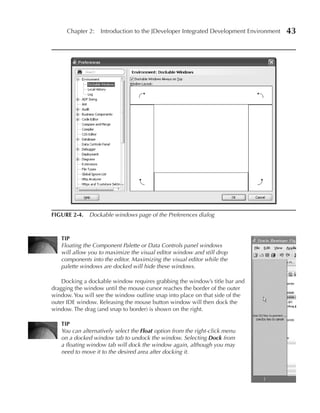
  • 900.
    Index 855 creating employee view object Select Multiple, dynamic list binding, 501 definitions, 632–633 SELECT statements. See also queries creating link to edit page from, 766–767 creating with Query Builder, 102 creating search page, 635–637 SQL, 154 defining named view criteria, 633–635 SQL-only view object definitions using, 244 defining task flow and page fragments, Select Text Resource dialog, 460–461 637–639 Selected Classes list, 358 overview of, 628–629 Selected State value, Boolean bindings, 534 plugging hierarchy viewer into, 662 Selectively Required option, view criteria refining layout for, 640 item, 256 setting UI Hints, 642–643 SelectOneChoice component, 492–493 setting up entity object definitions, 630–632 selectors (styles), 138–139, 358–359 stretching results table, 640–642 Selenium unit testing, 593 searchByLocation( ) method, method Sequence diagram, UML, 571 bindings, 533 sequential property, train stops, 399, 401 searchRegion binding executable, 544–545 Serializable class, beans, 745 secondary row set iterator, 293 Server Listener, 742–743 Secret property, passwords, 350–351 servers Secure Sockets Layer (SSL), in HTTPS, 123 Java EE tiers, 109–110 security Web Tier and, 108 designing, 578–579 WebLogic, 803 enabling ADF, 775–777 server.xml, 125 Fusion Architecture frameworks and, 12 service abstraction layer, ESB as, 8 JSF technology, 26 Service Data Objects (SDO), 15 roles. See roles Service Granularity, 9 task flows as main unit of, 575 service methods Security Realms, WebLogic domains, 811 creating for setting default image, 760–762 security, sample application creating service method for adding allowing users to edit own records, 796–798 images, 747–751 authorizing access to pages, 780–783 drop listener for calling, 762–765 authorizing access to task flows, 785–786 restricting EditEmployee view object authorizing access to UI components, instance’s query, 768–770 786–788 Service-Oriented Architecture. See SOA creating login popup, 791–792 (Service-Oriented Architecture) creating menu options for log in/log out, services 792–793 business requirements and design defining application roles, 777 process, 569 defining credential store for testing, design tools, 570 778–779 mistakes when using SOA, 9 displaying user information, 795–796 services, custom data, 285–305 enabling ADF security, 775–777 criteria for service methods, 287 implementing managed bean for login, exposing methods as service methods, 788–791 288–290 implementing method for logout, 793 implementing cross-query or transaction- management functionality for, 783–785 level methods, 299–305 mapping application roles to credential implementing query-level methods, store roles, 779–780 292–299 overview of, 774–775 implementing single-row methods, returning user information with view 290–292 object definition, 794 overview of, 286 SELECT clause servlets, 116–117, 126 declarative SQL mode, 254 session ID, cookies used by, 122 normal SQL mode, 250–251 session scope, JSF, 341
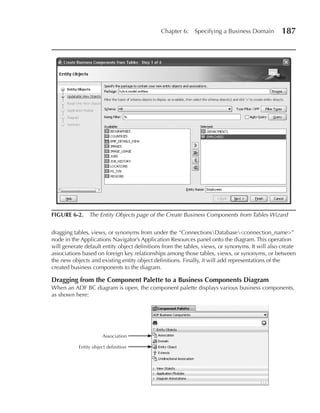
  • 901.
    856 Oracle JDeveloper 11g Handbook: A Guide to Oracle Fusion Web Development session-scoped shared application module Size property, af:panelHeaderLayout, 422 instances, 278, 283–284 skins (look-and-feel definitions) set default image page application design principles, 581–582 adding commit functionality to, 765–766 customizing main IDE window, 45 adding drag-and-drop to, 759–760 declaring application, 614 creating backing bean for, 759 defining CSS files for, 88–89 creating service method for setting default defining custom, 448 image, 760–762 using Oracle Browser Look and Feel illustration of, 726 (BLAF), 448 implementing drop listener for, 762–765 working with ADF Faces, 347, 446–448 laying out form components for, 756–758 skip property, train stops, 399–401 setApplyViewCriteriaName( ) method, named slider binding, 494 view criteria, 298 Smart Data window, ADF, 91–93 setApplyViewCriteriaNames( ) method, named SOA (Service-Oriented Architecture) view criteria, 298 key technologies, 7–8 setAttribute( ) method, entity attribute mistakes when using, 9–10 accessors, 171 reasons for success of, 7 setAttributeInternal( ) method, validation, rise of, 5–7 202–204 thick database architecture vs., 10–12 setCurrentRowWithKey binding operation, 527 SOA tier, 15–17 setCurrentRowWithKeyValue binding social features, of user interface, 15 operation, 527 software configuration management. See SCM setInputValue( ) method, attributes, 561 (source control system) setQueryMode( ) method, filtering rows Software Development Kit (SDK), Java EE, 129 in memory, 298–299 sorting, in Structure window, 76 setter methods source accessor, 180–181, 266 adding attribute-level validation to, 202–204 source code attribute value bindings, 561–562 in JDeveloper, 56–60 entity attribute accessors, 171 reordering using drag-and-drop, 76 generating accessors, 741 reviewing new JSF file, 338–339 generating for query bind variable version control in JDeveloper, 56–60 accessors, 236 source code editor window, 39, 53 managed beans and JSF-oriented files, source control system. See SCM 317–318 (source control system) preventing users from changing attribute source entity object definitions, 176, 179–180 values, 192 Source menu, 52 triggering attribute recalculation in, 220 source view object definitions, 263–264, 267 .sh scripts, 803 Spacer component, 355 shared application module instances spin box, 690–691 application-scoped, 279 Split Document, 40 managing transactional state, 282–284 splitter bar, 40, 423–424 overview of, 278 splitting windows, 40, 54 pooling, 283–284 SQL session-scoped, 278 calculating attribute value, 219 shared (default) property, Data Control Scope, 403 cause of injection attacks, 261 ShortDesc property, 349–351 mapping datatypes to Java types, 154 shuttle controls, 435, 473 view link definitions and, 264–266 shuttleRegion binding executable, 545 SQL History, 102 simple skins, 446–448 SQL-only view attributes, 241–242, 245 single-row service methods, 290–292 SQL-only view object definitions Single Selections creating view link definitions, 267 drop options for attributes, 480–481 creating view object instances drop options for collections, 474–475 on-the-fly, 302
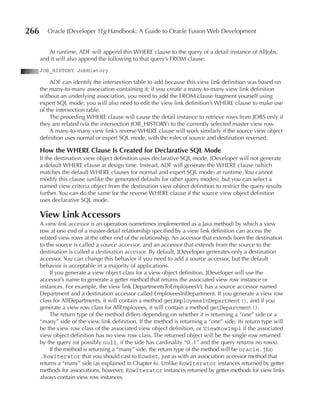
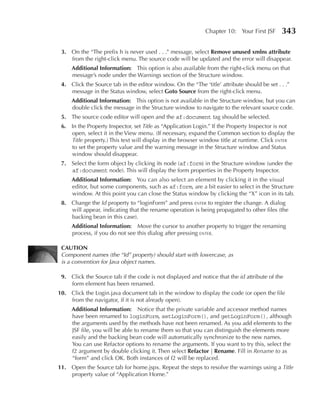
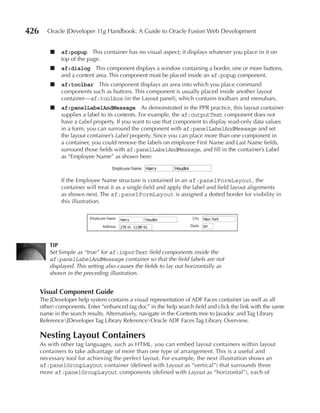
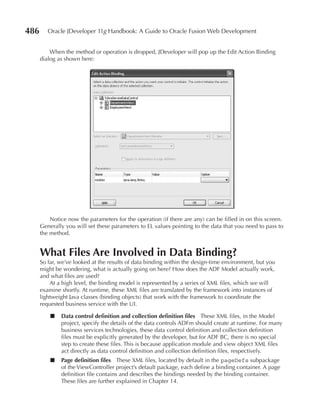
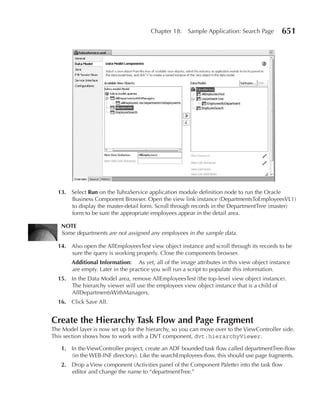
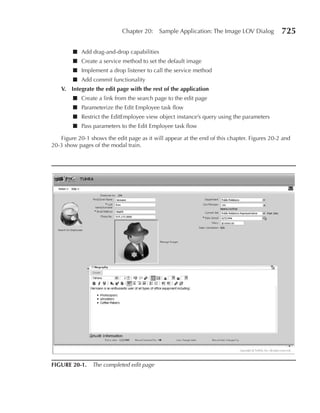
  • 902.
    Index 857 overview of, 244 subflows, for train stops, 401 using expert SQL mode, 257 Submit button, 438, 469 SQL*Plus, 54, 102 Subversion SQL queries, 234, 729–730 adding files, 59 SQL statements, 154, 159 committing files, 58–59 SQL Worksheet, 53, 101–103 designing sample application, 590–593 SQL Developer, Oracle, 570 refreshing working copy, 59 SSL (Secure Sockets Layer), in HTTPS, 123 state overlay icons, 60 Stack window, debugger, 92 working with, 57–58 standards, for look and feel of web pages, 598 superclasses, 612–613 startup support, frameworks, 21 monitor resolution, 37–38 supportsTransactions property, data-control level overview of, 36–37 operations, 525 reducing number of features loaded swim lanes, modeling activities within, 98 at, 45 Swing applications, bindings for, 494 StartWidth property, af:panelStretchLayout, 424 synchronizing, with database defaulting and state management, HTTP response, 121 calculation, 220–228 state overlay icons, 60, 66 syntax errors stateless connections, HTTP, 121 Code Editor highlighting, 82, 86 static view object definitions, 234, 281–282 Structure window showing, 75–76 StaticList property, list bindings, 506 system design tools, application design Status Indicator, Component Palette, 647 principles, 569–571 status line, HTTP response, 121 system development life cycle. See SDLC Status window, 342–344 (system development life cycle) process storyboards, UI design, 574 system development life cycle (SDLC) process, string values, formatting, 438 569–571 Structure panel, ADF, 408–409 Structure window adding layout containers to JSF project T in, 345–347 T-List, in user interface, 506 copying and pasting components in, 425 tab order defined, 62 af:panelFormLayout, 422 diagramming page flow for JSF in, 335 af:panelGroupLayout, 427 dropping components on, 735 implementing with nested layout examining HTML tag hierarchy, 352 containers, 427–430 hierarchical design layout in, 345 using component properties to align field, JSF JSP file using, 319 429–432 overview of, 74–76 table bindings, 493, 522–524 resolving warnings in, 342–344 Table of Contents, Help menu, 54, 55 Struts tables JSF applications not requiring, 319 displaying Boolean bindings in, 535 Page Flow Modeler, 100 sample application database design, 582 Style Class property, components, 450–451 tables, database, 153 styles tables, drop options for collections component, 449–451 about af:table, 478 for default ADF Faces, 347, 446–448 ADF Pivot Table, 477 JDeveloper line, 335 ADF Read-Only Dynamic Table, 476 JSF component, 358–359 ADF Read-Only Table, 476 styles, CSS. See CSS (Cascading Style Sheets) ADF Table, 475 styles, Java EE code ADF Tree Table, 479 application clients, 112–114 Edit Table Columns dialog, 476–478 overview of, 111 named criteria, 482 Web clients, 114–118
  • 903.
    858 Oracle JDeveloper 11g Handbook: A Guide to Oracle Fusion Web Development Tag Insight, Code Editor, 83–84 Team Productivity Center (TPC), 60 tag libraries technologies accessing help page, 436 adding to applications and projects, 331 ADF Faces, 115, 323–324, 415 choosing ADF, 23–24 JSF, 117–118 JDeveloper, 31 JSP, 117 key SOA, 7–8 tagging, source control strategies, 591 technology scope, 331 tags, HTML, 133–135 templates. See also UI patterns and templates, tags, XML, 139–140 sample application; page templates, for TargetIterator attribute, Edit Tree Binding sample application dialog, 520 af:pageTempateDef for page, 438 Task flow, 371–411 application design principles, 573 adding code around, 404–407 Code Editor/Code Templates, 82–83 application design principles, 574 creating page templates, 615–626, 734–736 authorizing access to, 785–786 designing sample application, 587–590 controlling re-entry behavior, 404 implementing standards for look and creating definition file for, 373–374 feel, 598 creating for popup dialog, 733 JSF page. See JSF page template creating, more options, 397–402 page executable related to, 544 debugging, 407–411 task flow, 401–402 defining Data Control Scope for, 402–403 ternary expressions (Expression Language), 518 for employee search page, 637–639 testing hiding popup when completed, 738–744 deployment and, 800 for hierarchy viewer, sample application, JSF page template, 623–625 651–652 login page with added components, managed beans and, 374–377 350–352 modeling, 100 validation and navigation logic, 363–365 pages vs. fragments in, 395–396 Text property parameterizing Edit Employee task flow, af:CommandButton component, 359 sample application, 768 af:panelHeaderLayout, 422 passing to Edit Employee task flow, creating PPR with ADF Faces, 419 sample application, 770–771 text resource, creating localizable attribute transaction management using, 403–404 control hints, 461 types of, 389–395 TextAndAccessKey property, af:CommandButton typical Fusion page design, 575–576 component, 359 understanding, 372–373 Texts menu, 480–481 task flow Call Activity, 377, 385 The Ultimate Human Resources Application task flow components, 377–389 (TUHRA), 568. See also application design, control flow cases, 388 sample method call activity, 382–384 themes overview of, 377–378 creating with geographic maps, 470 router activity, 384–385 map theme binding, 494 task flow Call Activity, 385 thick client applications, Java EE, 111 URL view activity, 385–388 thick database architecture, 10–11 view activity, 378–382 thin-client applications, Java EE, 111 wildcard control flow rule, 389 Threads window, debugger, 92 Task Flow Diagrammer, ADF, 100, 571, 574–575 Thumbnail window, UML diagram, 97 Task Flow Editor, 374–375, 391, 405–406 tiers, Java EE architecture model, 108–110 task flow reentry property, Back button, 404 Tip of the Day, Help menu, 54 task flow return activities, 394, 404 title bar, Application Overview panels, 73 taskFlow executables, 542–544 Title property, Structure window, 343 taskFlowId property, taskFlow executable, 543 .tld (tag library descriptor) files, JSP pages, 117
  • 904.
    Index 859 to-string property, method call activity, 384 Transaction.commit( ) method, 305 to-value, Page Parameters section of view Transaction.rollback( ) method, 305 activities, 380 transactions, committing or rolling back, 305 Toggle Line Comments, in Source menu, 52 transformation, ESB for, 8 Toggle Line Numbers, 332 transient entity attributes, 182–183, 217–220 Token Message Expressions table, 194 transient view attributes, 244, 245 toolbars troubleshooting. See debugging IDE main, 46 tree bindings, 514–522 Projects panel, 64–65 adding artificial levels into tree, 521–522 Property Inspector, 79–80 customizing tree labels, 520–521 tools defined, 493 Application Navigator, 62–67 with hierarchical data, 518–520 Application Overview, 72–74 node filtering, 522 Code Editor, 81–90 overview of, 514–517 Component Palette, 77–78 treeTable binding, 522 Database Navigator, 100–103 tree view, 649. See also hierarchy viewer, debugger, 90–94 sample application good frameworks and, 20–21 treeModel attribute, tree labels, 520 JSP/HTML visual editor, 94–95 trees Log Window, 80 drop options for, 479 modelers and diagrammers, 95–100 drop options for Named Criteria, 482–483 New Gallery, 68–71 treeTable binding, 522 Property Inspector, 78–80 Trinidad, 14, 416 Resource Palette, 67–68 true value, ternary expressions, 518 Structure window, 74–76 TUHRA (The Ultimate Human Resources Tools menu, 53–54 Application), 568. See also application tooltips design, sample Component Palette icons, 77 type selector, CSS, 138 components, 348 typesafe, entity attribute accessors as, 171–173 ToolTip Text control hint, 458 top-level collection node, Data Controls panel, 465 U top-level view object instances, 271 UDDI (Universal Description, Discovery, and TopLink, 29 Integration) standard, SOA, 7 TopWidth property, af:panelStretchLayout, 424 UI components TPC (Team Productivity Center), 60 for add image page, 744–745 tracing, debugger using, 91 authorizing access to, 786–788 TrackQueryPerformed property, searchRegion developing JSF, 311–312 executable, 545 for set default image page, 756–758 train-stop property, train stops, 399–400 UI Debug tool, 95 trains UI Hints branching in, 401 control hints for LOVs, 462–463 bypassing train model, 401 creating LOVs, 280–281 calling code in train flow, 400 creating with entity attributes and view controlling train stop availability, 398–399 attributes, 165 designating task flows as, 398 setting for employee search page, 642–643 understanding, 397–398 setting up for LOV, 513 view activities used as, 382 UI patterns and templates, sample application transaction management, Task flow, 403–404 adding boxes and panels to page, 617–620 Transaction property, Behavior page of Task flow altering database based on changes to Overview, 403 diagram, 610–612 transactional state, managing, 282–284
  • 905.
    860 Oracle JDeveloper 11g Handbook: A Guide to Oracle Fusion Web Development UI patterns and templates, sample application uniqueness (continued) entity-level validation rule enforcing, 210 creating database diagram, 603–606 specifying mandatory attributes, 191 creating file for JSF page template, 615–617 Unit Name field, business logic units, 230 creating Model framework superclasses, unit testing, 593–594, 800 612–613 Universal Description, Discovery, and declaring application skin, 614 Integration (UDDI) standard, SOA, 7 defining menus and popups, 621–623 universal selector, CSS, 138 defining named content area of JSF page Unix/Linux, directory separators for, 803 template, 623 Unmark Activity, bounded task flows, 391 fixing copyright text, 625–626 Unselected State value, Boolean bindings, 534 modifying database diagram, 606–610 unsplitting overview of, 598–599 document windows, 54 preparing application workspace, 599–602 editor window, 41 preparing database for, 602 UPDATE, SQL statement, 154 setting up ViewController properties, updates 613–614 key attribute, 222–228 testing JSF page template, 623–625 reference entity usages and, 261–262 UI (user interface) refreshing working copy, 59 action bindings in, 530–531 removing automatic backing bean, 354 ADF technology, 24–27 Task flow template automatic, 401 application design considerations, view attribute, 244–245 572–575 upgrades, migrating settings for, 36 binding to back-end business services. upload listener, 745–747, 752–756 See ADFm (ADF Model) uploaded images, implementing, 752–756 client, 288–290 URIs, in HTTP communication, 120 coding binding container to, 562 URL parameters property, view activity, 381 creating custom login, 791–792 URL rewriting, 122 debugging Task flows ADF Structure URL View Activity, 377, 385–388 panel, 408 URLs (Uniform Resource Locators) designing cross-platform, 324–325 in HTTP communication, 120 Fusion Architecture view, 14–15 size limitations for browsers, 122 for list bindings, 506 Use Case diagram, UML, 571 for LOV bindings, 513–514 user interface. See UI (user interface) providing default/dynamic properties User Interface XML (UIX), ADF, 416 for controls, 458–464 user role, 774 refreshing, 561–562 Username field thick database vs. SOA technology, 10–11 setting for JSF home page, 357 using page templates for, 402 testing JSF login page, 351 UIManager class, 662–666 users UIX (User Interface XML), ADF, 416–417 acceptance of framework in community UML diagrams of, 21 creating, 96–98 allowingto edit own records, 796–798 creating entity object definitions and displaying information about, 795–796 associations on, 186–187 returning information about, 794 relationship cardinality in, 177–179 setting up for deployment, 811–812 types of, 571 visualizing ADF business components, 166–167 V UML (Unified Modeling Language) tools, 569–571 validate( ) method, validation domains, 206 unbounded task flows, 389–390, 576 validateEntity( ) method Undo option, Edit menu, 346 entity object class validation, 211–212 Unique Key validation rule, 210 overriding for entity-level validation, 232
  • 906.
    Index 861 validateValue( ) method VCS (version control system) customizing attribute-level validation adding files, 59 rules, 200–202 committing files, 58–59 customizing entity-level validation rules, displaying state overlay icons, 60 210–211 refreshing working copy, 59 validation for source code in JDeveloper, 56–57 adding to JSF application, 359–363 Team Productivity Center, 60 ADF BC, 577–578 version history and version compare, 60 ADF BC emphasis on, 30 Version Navigator, 60 attribute-level. See attribute-level Versioning menu for, 53 validation working with subversion, 57–58 developing JSP documents for, 320 version control system. See VCS (version entity-level. See entity-level validation control system) extended entity object definition, 231–232 version information, Help menu for, 54 JSF life cycle, 316 Version Navigator, 60 polymorphic business logic group, 230 Versioning menu, 53 rules, ADF BC, 165 view accessors, 277–279, 281 view criteria item, 256 view activity, 378–382 XML syntax, 86 bookmarking, 381 validation, edit page application calling code in train flow, 400 adding to commission field, 688–690 creating, 378–379 adding to salary field, 682–685 creating bounded task flows for trains, 398 fixing, and changing salary format, 686–688 defined, 377 Validation Execution tab, 193–194, 207–208 Page Parameters section, 380–381 validation loops, 214–215 redirect property, 380 validators. See also attribute-level validation train stops, 382 rules view attributes, 238–245 as atomic components, 437–438 adding to view object definition, 670–671 entity object definitions, 192–193 editing individual settings, 249 using message bundles to code, 366 entity-derived, 244 Value Binding column, Edit Form Fields key and alternate key attributes, 245 dialog, 469 LOV, 279–281 Value parameter, URL View Activity, 386 persistent, 238–240, 242–243 Value property specifying control hints for, 165–166, 460 af:inputText component, 438 SQL-only, 241–242 displaying error messages, 360 SQL-only view object definitions, 244 Expression Builder dialog for, 356–358 transient, 244 passing parameters into bounded task triggering fault-in, 240–241 flow, 392–393 types of, 245 values view object definitions and, 157 attribute defaulting, 216–217 view criteria objects, 254. See also named attribute-level validation rules for, view criteria 195–200 view definition classes, 237 built-in domain, 185 View, in MVC design pattern, 111 preventing users from changing view link accessors, 266–267 attribute, 192 view link consistency, 748 of task flow Reentry property, 404 view link definitions of Transaction property, 403 ADF BC object relationships, 160 using page parameters to pass, 380–381 creating, 267 validation domain, 205 editing, 268 var attribute, tree binding, 516 overview of, 160–161 variableIterator type, 541 understanding, 263–267
  • 907.
    862 Oracle JDeveloper 11g Handbook: A Guide to Oracle Fusion Web Development view link instances implementing data model for application adding to application module definition’s module instances, 271 data model, 273 modifying queries and filtering rows ADF BC object relationships and, 160 within, 297–299 in application module instances, 162 overview of, 158 creating and removing, 302–305 persistent view attributes and, 242–243 understanding, 263–267 understanding, 234–237 View menu, 48, 67, 352 using as LOVs, 277–282 view object attributes, 304 view object-level service methods, writing, 236 view object bind variables, 462 view row classes, 236–237, 290–292 view object classes, 235–236. See also query- view row client interfaces, 288–290 level service methods view rows view object client interfaces ADF BC object relationships, 158 adding service methods to, 289–290 creating, 240, 262 implementing query-level service deleting, 263 methods. See query-level service implementing query-level methods, methods 292–295 overview of, 288 implementing single-row methods, view object definition queries, 249–261 290–292 declarative SQL mode, 254–257 service method for adding images, dynamic queries, 259–261 747–751 expert SQL mode, 257–259 understanding, 234–237 normal SQL mode, 250–253 view scope, 341, 376–377 overview of, 249–250 viewable attribute, tree binding, 517 view object definitions ViewDefImpl class, 237 adding attributes to, 670–671 ViewObjectImpl class ADF BC object relationships and, 157 customizing framework classes for view AllEmployees, sample application, 727 object definitions, 237 creating, 246–247 framework buffer classes for, 581 creating for employee search page, implementing query-level methods. 632–633 See query-level service methods editing, 247–249 modifying queries by switching named overview of, 157–159 view criteria, 297 returning user information with, 794 view object classes and, 235–236 setting up for hierarchy page, 648–651 ViewPorts SQL-only, 244 debugging task flows ADF Structure understanding, 234–237 panel, 408 using as LOVs, 277–282 debugging task flows in ADF Data using entity hierarchy in, 729–732 panel, 409 view accessors based on, 277 overview of, 396 view link consistency, 748 ViewRowImpl class, 236–237, 581 view link definitions representing views relationships of, 160 of CSS selectors, 89 view object instances debugging task flows in ADF Data creating, 235–236 panel, 410 creating and removing dynamically, Fusion Architecture, 14–15 300–302 rule-of-thumb for setting property creating on-the-fly, 302 values, 700 editing in application module Structure window, 76 definition, 274 virtual directory, HTTP communication, 120 finding in data model, 299–300 visual components, adding to JSF pages, 347–350, 355–356
  • 908.
    Index 863 visual editors languages needed for, 128, 130 defined, 94 skills needed for JSF, 129 dropping components on, 735 XML, 139–140 Java UI Visual Editor, 39 WEB-INF node, ViewController project, 331 JSP/HTML Visual Editor, 94–95 web module deployment descriptor. See web .xml (web module deployment descriptor) web pages, standards for look and feel, 598 W web references (resources). See online references WAR (web application archive), 801 web server listener port (8080), HTTP, 120 Watches window, debugger, 92 web servers, Web Tier and, 108 waterfall approach, SDLC, 569 web service methods, 286 Web 2.0, AJAX and, 126 web services, deploying ADF BC as, 150 web application archive (WAR), 801 Web Services Description Language. See WSDL Web Application Deployment Descriptor Editor, (Web Services Description Language) 333–334 Web Tier, 108–110, 313–314 web browsers. See also Back button Web Tier container. See Java EE containers ADF Faces requirements, 417 WebLogic Server (WLS) applications in Java EE model, 111 administration servers, 803 Back button problem in, 356, 403–404 Application Console, 806–808 closing after each run when testing creating and running, 803–806 security, 780 data sources for, 808–810 JDeveloper setup, 329 Java EE tiers and, 110LDAP service for JSF requirements, 329 user and group roles, 811–812 Refresh button problem in, 356 servers, 800, 813 URL size limitations, 122 WebLogic domain server, starting from viewing appearance of page, 350–352 command line, 808 Web clients, Java EE WebLogic Server Application Console, defined, 111 806–808 JSF, 117–118 WebLogic LDAP, 774, 779 JSP, 116–117 WebLogic Server. See WLS (WebLogic Server) overview of, 114–115 weblogic.xml, 777 servlets, 115–116 web.xml (web module deployment descriptor) web communication, 122 creating web project with JSF, 332–334 AJAX and, 125–127 Java EE descriptor files in HTTP GET and POST methods, 122 requests, 125 HTTP and, 118–119 JSF-oriented files and, 317–318 HTTP requests, 119–120 updating for security, 777 HTTP response, 120–122 well-formed code, 319–320 HTTPS (HTTP Secure), 123 WHERE clause overview of, 118 AllEmployees view object definition, 727 web-application round trips, 123–124 changing view object instance, 261 web containers. See Java EE containers filtering rows in memory, 298 Web Content node, ViewController project, 331 queries in declarative SQL mode, 254–256 web development queries in normal SQL mode, 251–252 CSS, 137–139 view link SQL, 264–266 experience in, 128–129 width, Display Width control hint, 459 Expression language, 140–141 wildcard, control-flow, 670, 766 Groovy, 141–143 Rules, 378, 389 HTML, 133–135 Window menu, 54 Java language, 129–132 Windows, directory separators for, 803 JavaScript, 135–137 wireless displays, support for, 365
  • 909.
    864 Oracle JDeveloper 11g Handbook: A Guide to Oracle Fusion Web Development WLS, See WebLogic Server entity object definitions, 170–171 Working Sets button, Projects toolbar, 64–65 JDeveloper wizards and editors for, 140 workspaces using, 18 overview of application workspace, 35 view object definitions, 235 preparing application workspace, 599–602 XML schema WSDL (Web Services Description Language), defined, 99 7, 571 extensibility of, 139 WYSIWYG principle, default ADF Faces, 446 stored in DTDs, 140 XML Schema diagram, 571 XML Schema Editor, 99 X XMLHttpRequest object, AJAX, 126 XPath Search, Search menu, 50 XML Editor, 333 XML (Extensible Markup Language) data binding files, 486–487 Z method binding in PageDef file, 533–534 overview of, 139–140 Zoom partial page rendering using, 417 changing size of database diagrams, 606 tags, 139–140 UML diagram, 97 validating syntax of, 86 using mouse wheel for, 653 XML metadata application modules, 268–269 entity definition classes, 173–174
  • 912.
    FREE SUBSCRIPTION GET YOUR TO ORACLEMAGAZINE Oracle Magazine is essential gear for today’s information technology professionals. Stay informed and increase your productivity with every issue of Oracle Magazine. Inside each free bimonthly issue you’ll get: If there are other Oracle users at your location who would like to receive their own subscription to Three easy ways to subscribe: Oracle Magazine, please photo- copy this form and pass it along. 1 Web oracle.com/oraclemagazine 2 Fax +1.847.763.9638 3 Mail P.O. Box 1263, Skokie, IL 60076-8263 Copyright © 2008, Oracle and/or its affiliates. All rights reserved. Oracle is a registered trademark of Oracle Corporation and/or its affiliates. Other names may be trademarks of their respective owners.
  • 913.
    Want your ownFREE subscription? To receive a free subscription to Oracle Magazine, you must fill out the entire card, sign it, and date it (incomplete cards cannot be processed or acknowledged). You can also fax your application to +1.847.763.9638. Or subscribe at our Web site at oracle.com/oraclemagazine Yes, please send me a FREE subscription Oracle Magazine. No. From time to time, Oracle Publishing allows our partners exclusive access to our e-mail addresses for special promo- tions and announcements. To be included in this program, x please check this circle. If you do not wish to be included, you signature (required) date will only receive notices about your subscription via e-mail. name title Oracle Publishing allows sharing of our postal mailing list with selected third parties. If you prefer your mailing address not to company e-mail address be included in this program, please check this circle. If at any time you would like to be removed from either mailing list, please contact Customer Service at +1.847 .763.9635 or send an e-mail to oracle@halldata.com. street/p.o. box If you opt in to the sharing of information, Oracle may also provide you with e-mail related to Oracle products, services, and events. If you want to completely unsubscribe from any e-mail communication from Oracle, please send an e-mail to: city/state/zip or postal code telephone unsubscribe@oracle-mail.com with the following in the subject line: REMOVE [your e-mail address]. For complete information on Oracle Publishing’s privacy practices, please visit oracle.com/html/privacy/html country fax Would you like to receive your free subscription in digital format instead of print if it becomes available? Yes No YOU MUST ANSWER ALL 10 QUESTIONS BELOW. 1 WHAT IS THE PRIMARY BUSINESS ACTIVITY 3 WHAT IS YOUR CURRENT PRIMARY OPERATING o 18 Minicomputer o 05 Hibernate o 17 SQL OF YOUR FIRM AT THIS LOCATION? (check PLATFORM (check all that apply) o 19 Intel x86(32) o 06 J++/J# o 18 Visual Basic one only) o 20 Intel x86(64) o 07 Java o 98 Other o 01 Digital Equipment Corp UNIX/VAX/VMS o 21 Network Computer o 08 JSP o 01 Aerospace and Defense Manufacturing o 02 HP UNIX o 22 Symmetric Multiprocessing o 09 .NET o 02 Application Service Provider o 03 IBM AIX o 23 Workstation Services o 10 Perl o 03 Automotive Manufacturing o 04 IBM UNIX o 04 Chemicals o 05 Linux (Red Hat) SERVICES o 11 PHP o 05 Media and Entertainment o 06 Linux (SUSE) o 24 Consulting o 12 PL/SQL o 06 Construction/Engineering o 07 Linux (Oracle Enterprise) o 25 Education/Training o 07 Consumer Sector/Consumer Packaged o 08 Linux (other) o 26 Maintenance 10 WHAT ORACLE PRODUCTS ARE IN USE AT YOUR Goods o 09 Macintosh o 27 Online Database SITE? (check all that apply) o 08 Education o 10 MVS o 28 Support o 09 Financial Services/Insurance o 11 Netware o 29 Technology-Based Training ORACLE DATABASE o 10 Health Care o 12 Network Computing o 30 Other o 01 Oracle Database 11g o 11 High Technology Manufacturing, OEM o 13 SCO UNIX 99 o None of the Above o 02 Oracle Database 10 g o 12 Industrial Manufacturing o 14 Sun Solaris/SunOS o 03 Oracle9 i Database o 13 Independent Software Vendor o 15 Windows o 04 Oracle Embedded Database o 14 Life Sciences (biotech, pharmaceuticals) o 16 Other UNIX 6 WHAT IS YOUR COMPANY’S SIZE? (Oracle Lite, Times Ten, Berkeley DB) o 15 Natural Resources o 98 Other (check one only) o 05 Other Oracle Database Release o 16 Oil and Gas 99 o None of the Above 01 More than 25,000 Employees o ORACLE FUSION MIDDLEWARE o 17 Professional Services o 02 10,001 to 25,000 Employees o 06 Oracle Application Server o 18 Public Sector (government) o 03 5,001 to 10,000 Employees o 07 Oracle Portal o 19 Research 4 DO YOU EVALUATE, SPECIFY, RECOMMEND, OR AUTHORIZE THE PURCHASE OF ANY OF o 04 1,001 to 5,000 Employees o 08 Oracle Enterprise Manager o 20 Retail/Wholesale/Distribution o 05 101 to 1,000 Employees o 09 Oracle BPEL Process Manager o 21 Systems Integrator, VAR/VAD THE FOLLOWING? (check all that apply) o 06 Fewer than 100 Employees o 10 Oracle Identity Management o 22 Telecommunications o 01 Hardware o 11 Oracle SOA Suite o 23 Travel and Transportation o 02 Business Applications (ERP, CRM, etc.) o 12 Oracle Data Hubs o 24 Utilities (electric, gas, sanitation, water) o 03 Application Development Tools 7 DURING THE NEXT 12 MONTHS, HOW MUCH o 98 Other Business and Services _________ o 04 Database Products DO YOU ANTICIPATE YOUR ORGANIZATION ORACLE DEVELOPMENT TOOLS o 05 Internet or Intranet Products WILL SPEND ON COMPUTER HARDWARE, o 13 Oracle JDeveloper o 06 Other Software SOFTWARE, PERIPHERALS, AND SERVICES FOR o 14 Oracle Forms 2 WHICH OF THE FOLLOWING BEST DESCRIBES o 07 Middleware Products YOUR LOCATION? (check one only) o 15 Oracle Reports YOUR PRIMARY JOB FUNCTION? 99 o None of the Above o 16 Oracle Designer (check one only) o 01 Less than $10,000 o 17 Oracle Discoverer o 02 $10,000 to $49,999 o 18 Oracle BI Beans CORPORATE MANAGEMENT/STAFF 03 $50,000 to $99,999 5 IN YOUR JOB, DO YOU USE OR PLAN TO PUR- o o 19 Oracle Warehouse Builder o 01 Executive Management (President, Chair, 04 $100,000 to $499,999 CHASE ANY OF THE FOLLOWING PRODUCTS? o o 20 Oracle WebCenter CEO, CFO, Owner, Partner, Principal) 05 $500,000 to $999,999 (check all that apply) o o 21 Oracle Application Express o 02 Finance/Administrative Management o 06 $1,000,000 and Over (VP/Director/ Manager/Controller, SOFTWARE ORACLE APPLICATIONS Purchasing, Administration) o 01 CAD/CAE/CAM o 22 Oracle E-Business Suite o 03 Sales/Marketing Management o 02 Collaboration Software 8 WHAT IS YOUR COMPANY’S YEARLY SALES o 23 PeopleSoft Enterprise (VP/Director/Manager) o 03 Communications REVENUE? (check one only) o 24 JD Edwards EnterpriseOne o 04 Computer Systems/Operations o 04 Database Management o 25 JD Edwards World Management o 05 File Management o 01 $500, 000, 000 and above o 26 Oracle Fusion (CIO/VP/Director/Manager MIS/IS/IT, Ops) o 06 Finance o 02 $100, 000, 000 to $500, 000, 000 o 27 Hyperion IS/IT STAFF o 07 Java o 03 $50, 000, 000 to $100, 000, 000 o 28 Siebel CRM o 05 Application Development/Programming o 08 Multimedia Authoring o 04 $5, 000, 000 to $50, 000, 000 Management ORACLE SERVICES o 09 Networking o 05 $1, 000, 000 to $5, 000, 000 o 28 Oracle E-Business Suite On Demand o 06 Application Development/Programming o 10 Programming o 29 Oracle Technology On Demand Staff o 11 Project Management o 30 Siebel CRM On Demand o 07 Consulting o 12 Scientific and Engineering 9 WHAT LANGUAGES AND FRAMEWORKS DO o 31 Oracle Consulting o 08 DBA/Systems Administrator o 13 Systems Management YOU USE? (check all that apply) o 32 Oracle Education o 09 Education/Training o 14 Workflow o 33 Oracle Support o 10 Technical Support Director/Manager o 01 Ajax o 13 Python HARDWARE o 98 Other o 11 Other Technical Management/Staff o 02 C o 14 Ruby/Rails o 98 Other o 15 Macintosh 99 o None of the Above 03 C++ 15 Spring 08014004 o o o 16 Mainframe o 04 C# o 16 Struts o 17 Massively Parallel Processing