Photoshop Techniques
             Part I
   Selection & Interpretation

      Gordon Osmundson
How the Eye Sees


P Very high exposure latitude
P Ability to see into shadows
P A large part of the human brain is devoted to
  analyzing input from the eyes and from this
  constructing a three dimensional reality
P This ability also allows us to recognize the
  content of photographs
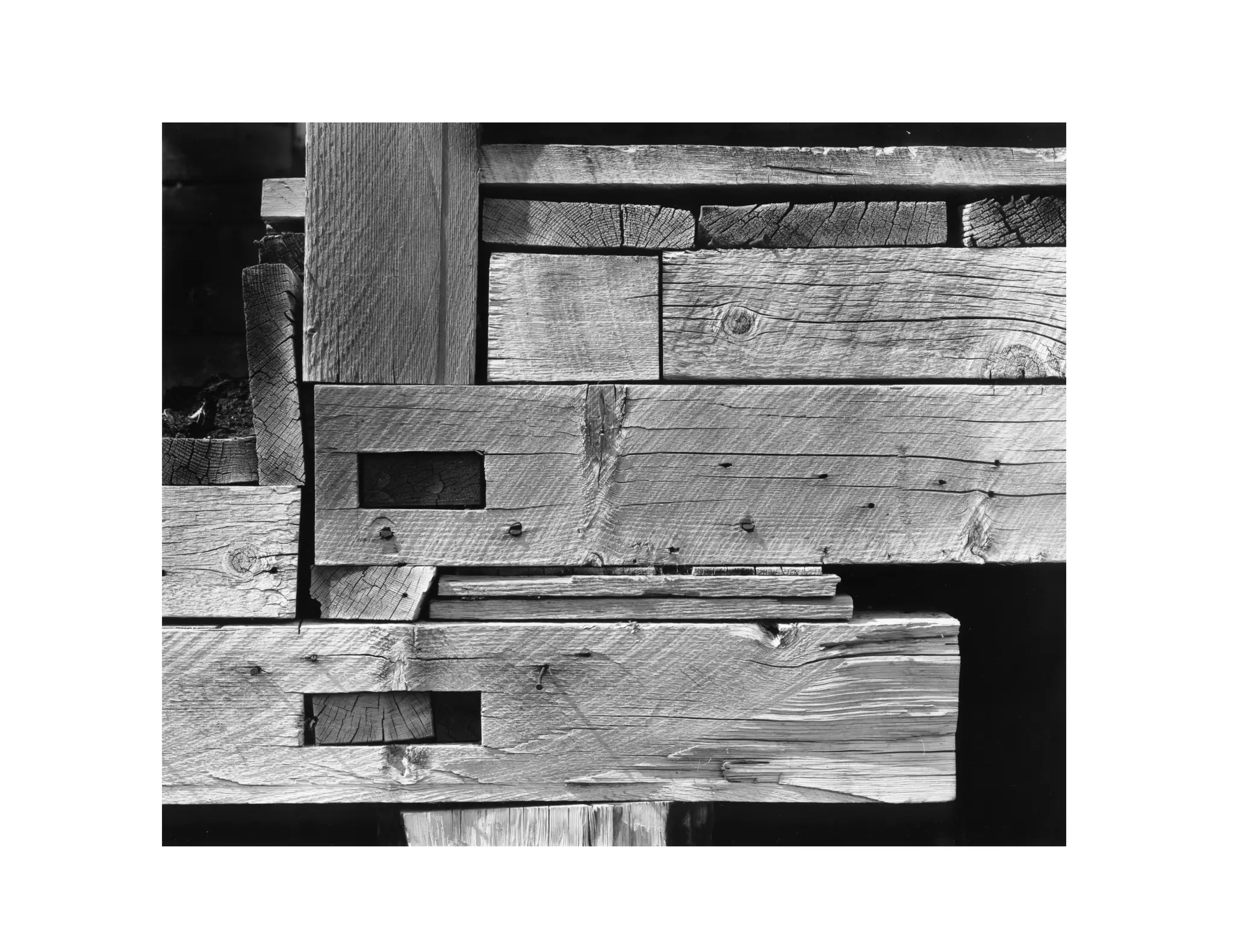
Two Kinds of Black


P The Color Black
P The Absence of Light Black
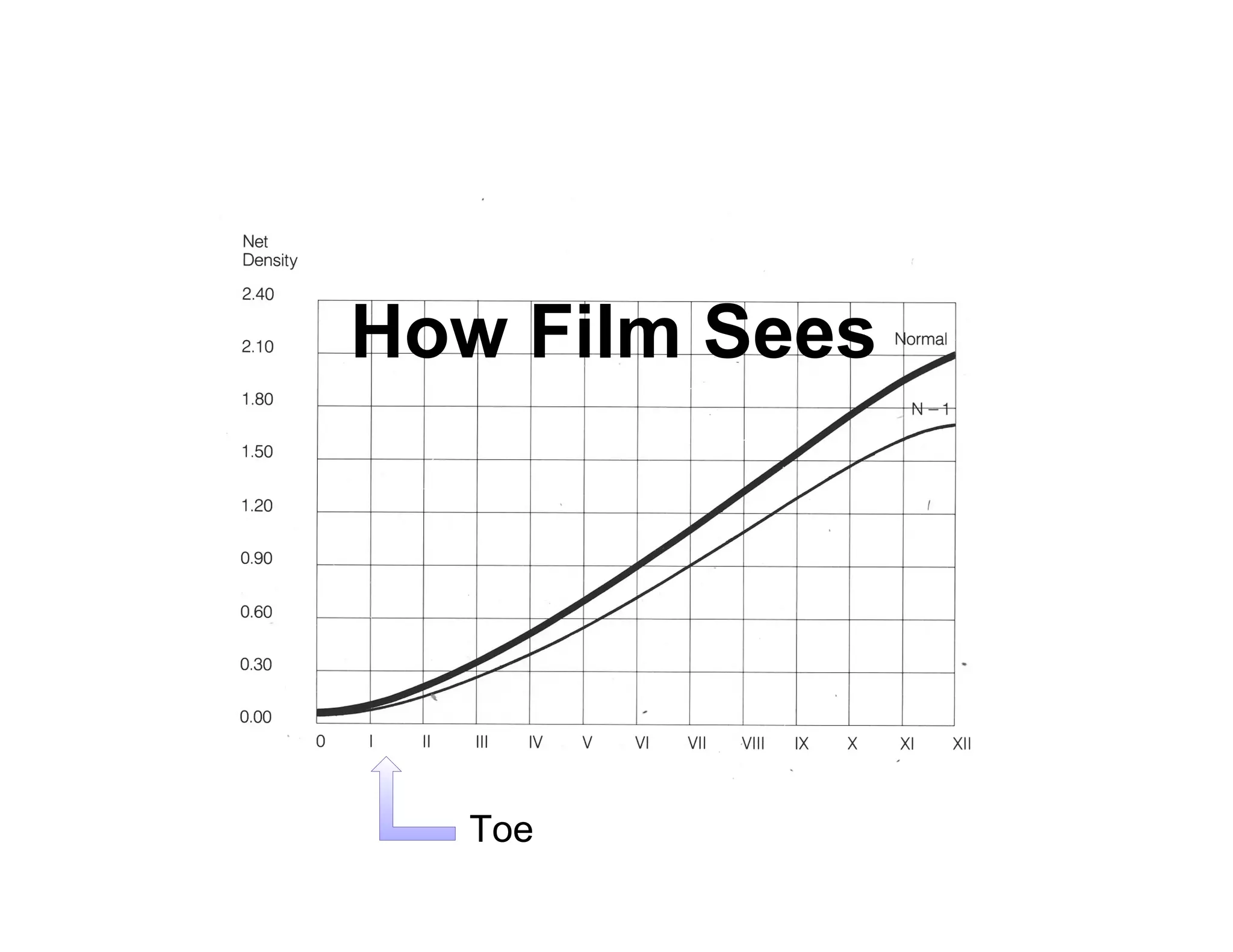
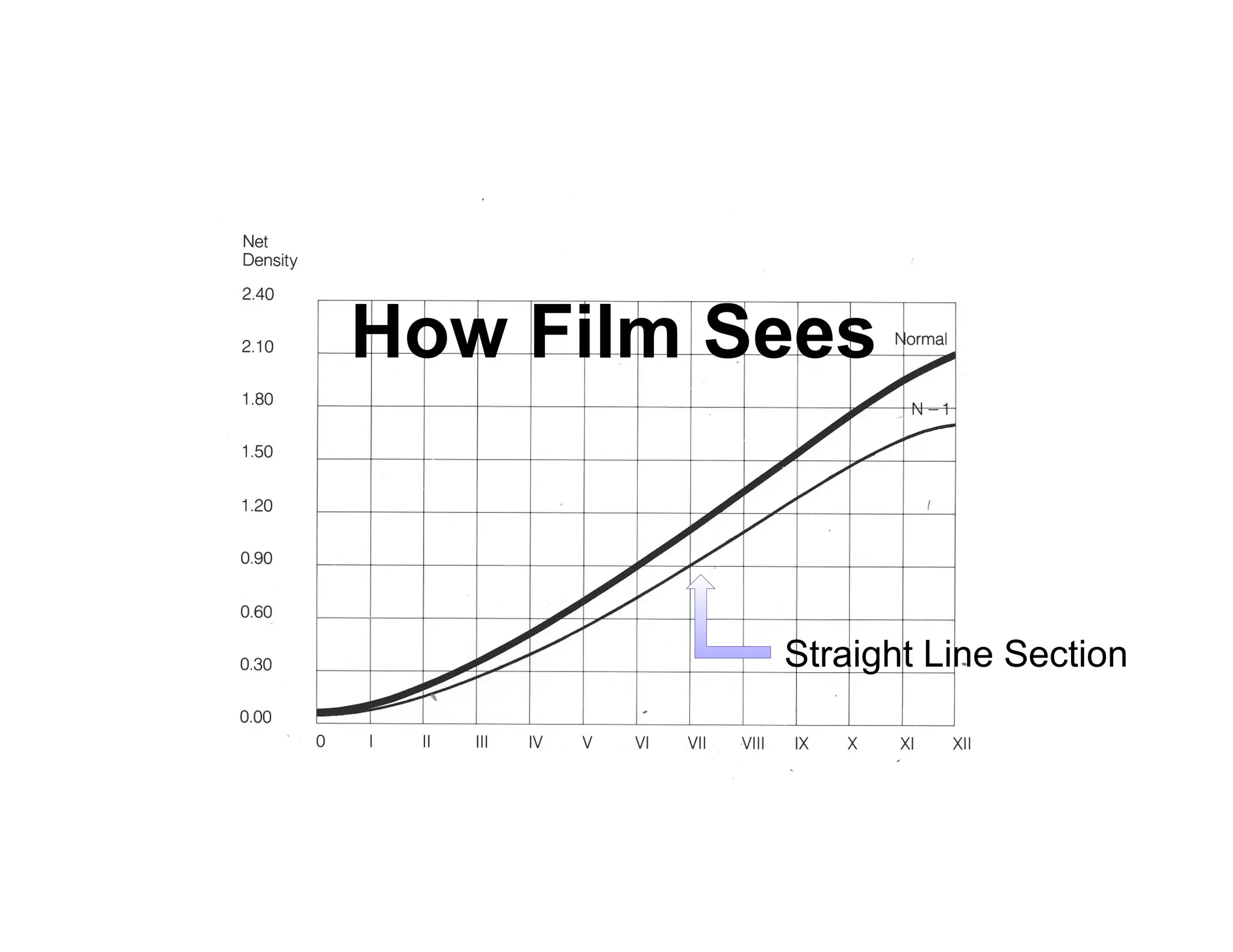
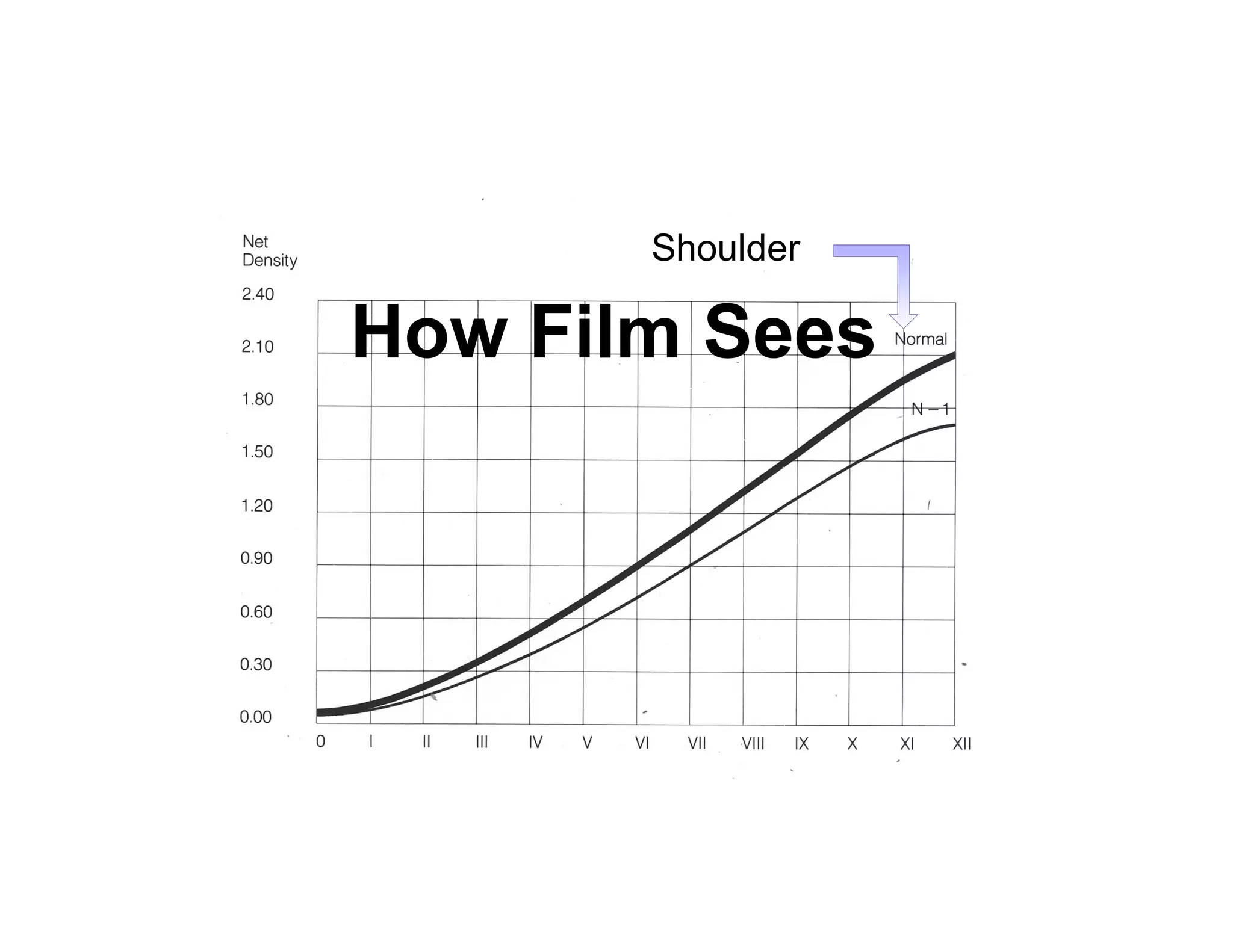
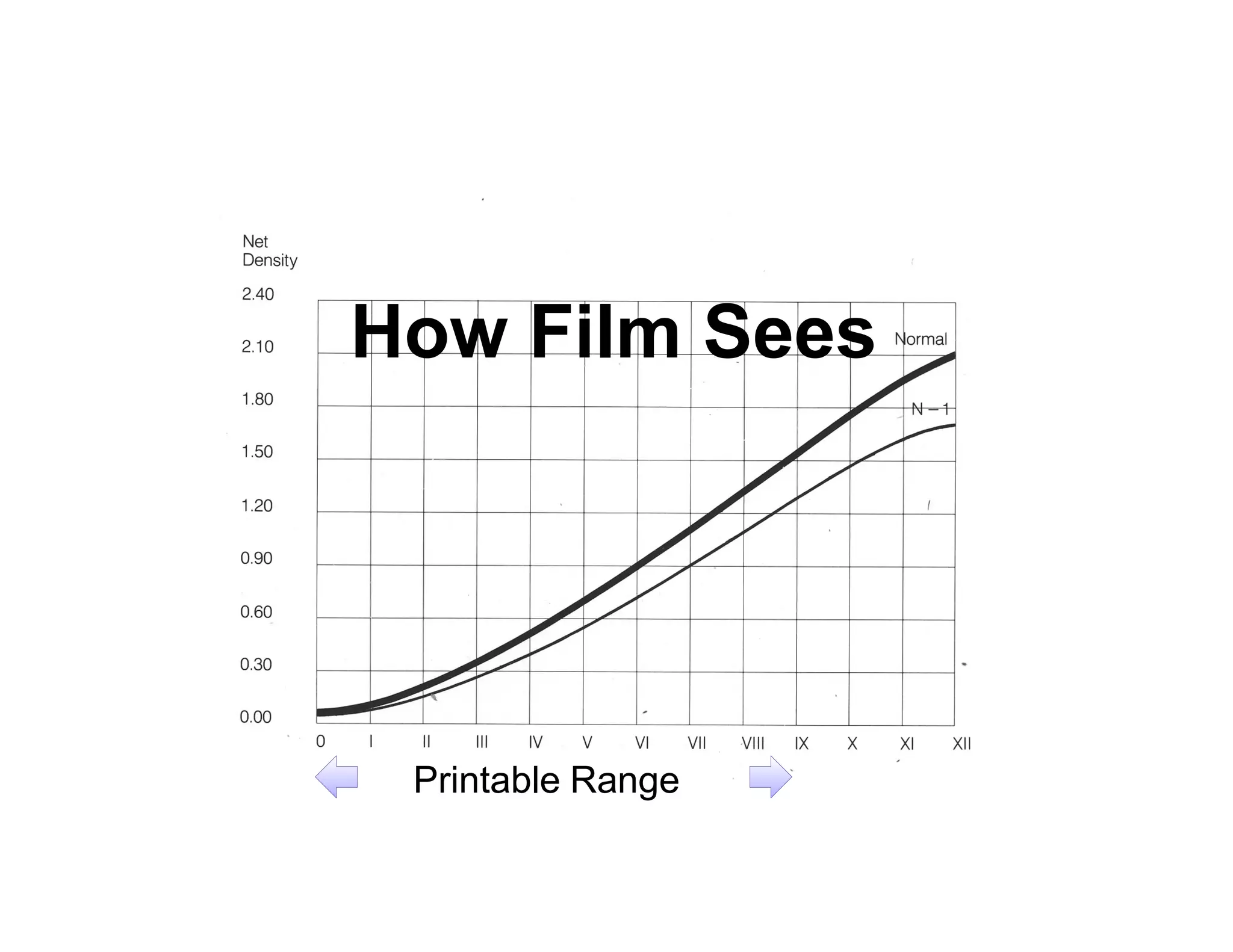
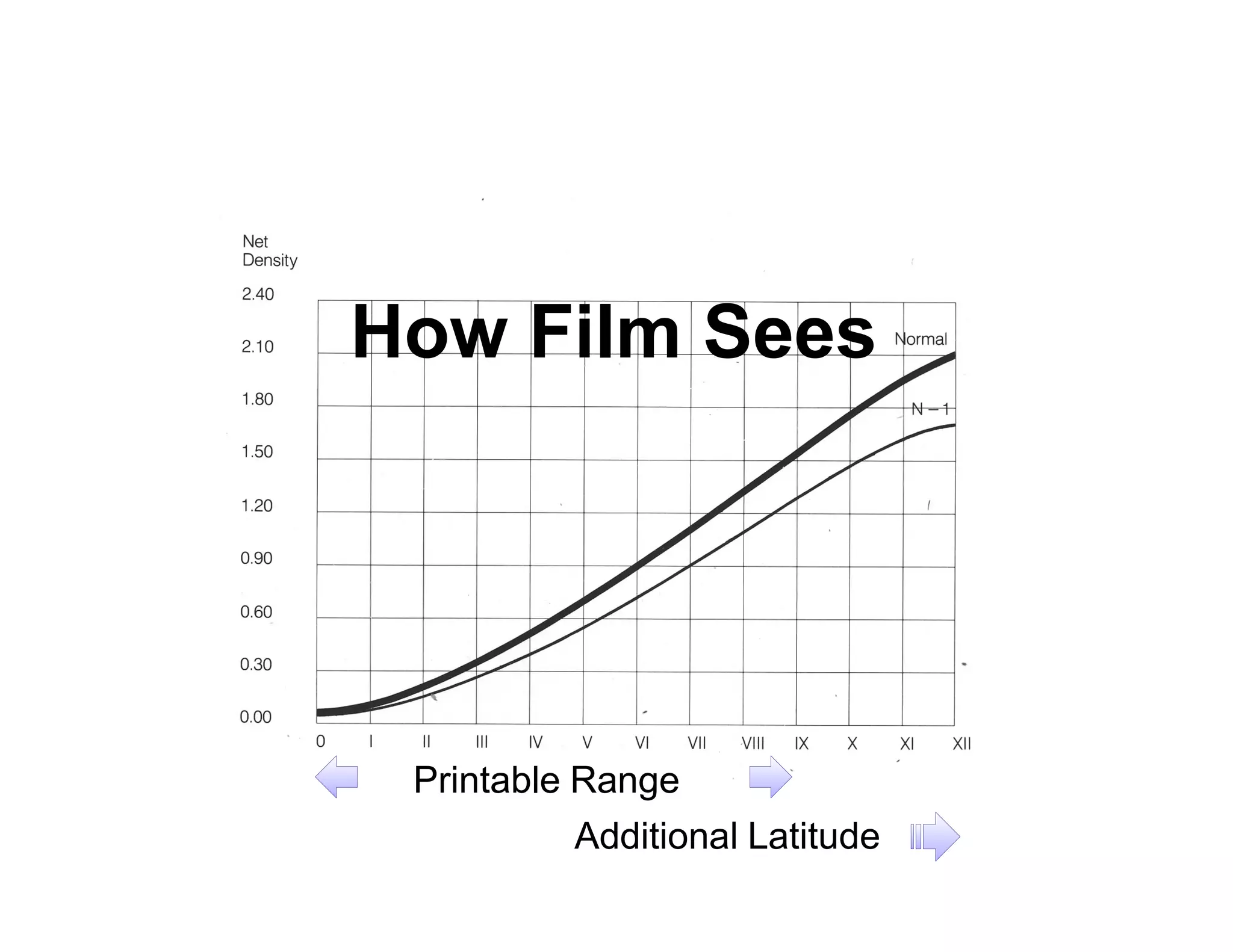
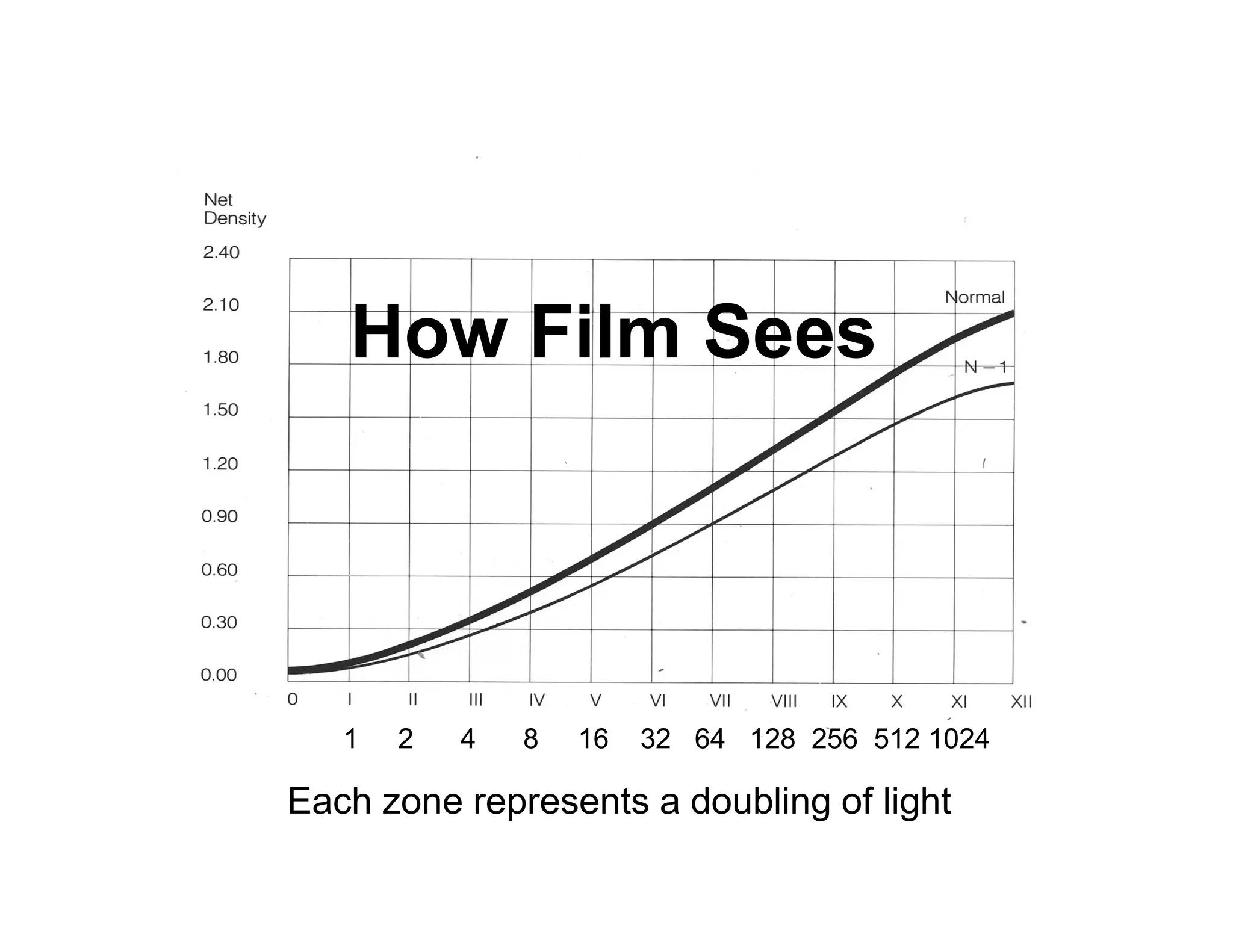
How Film Sees
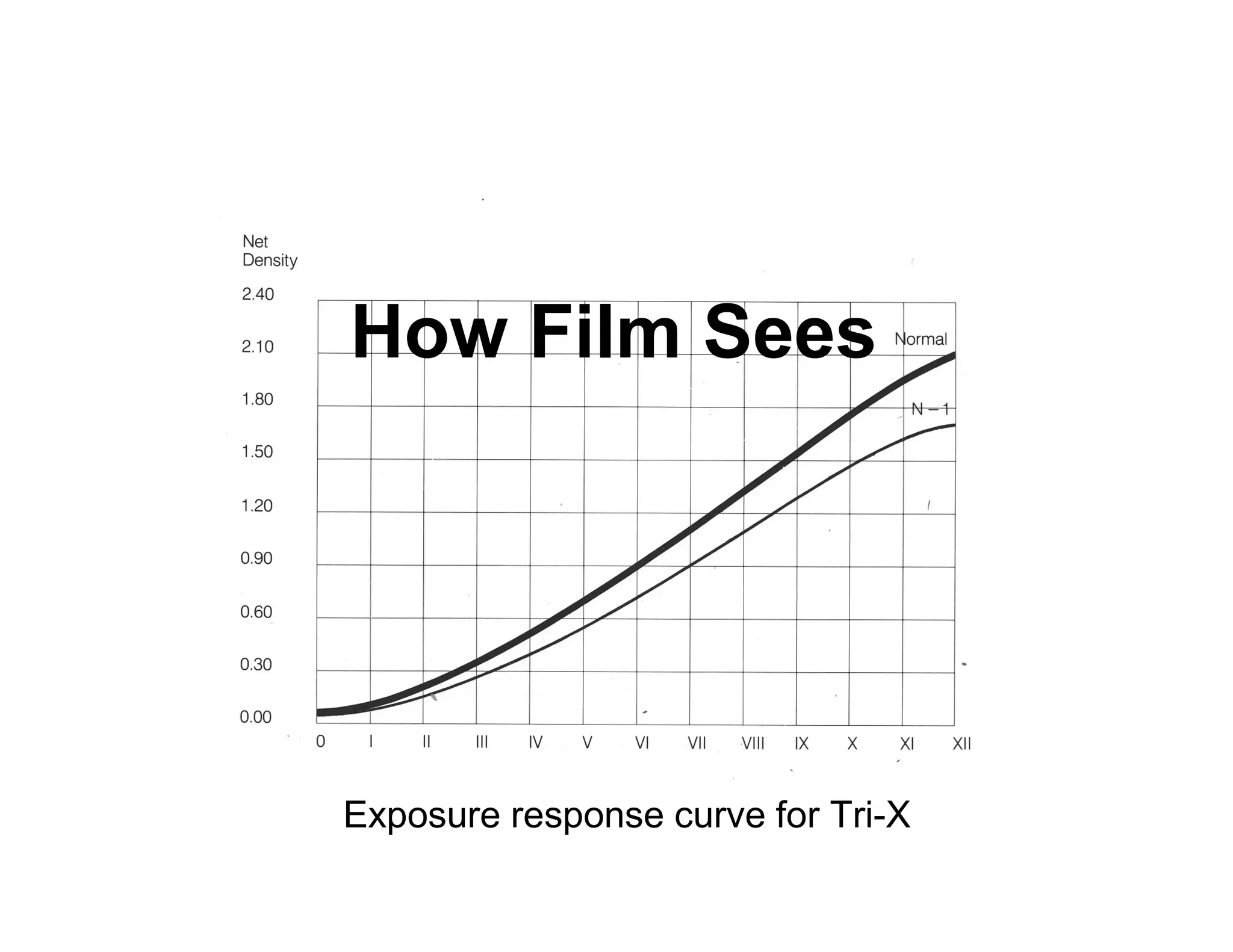
How Film Sees


Exposure response curve for Tri-X
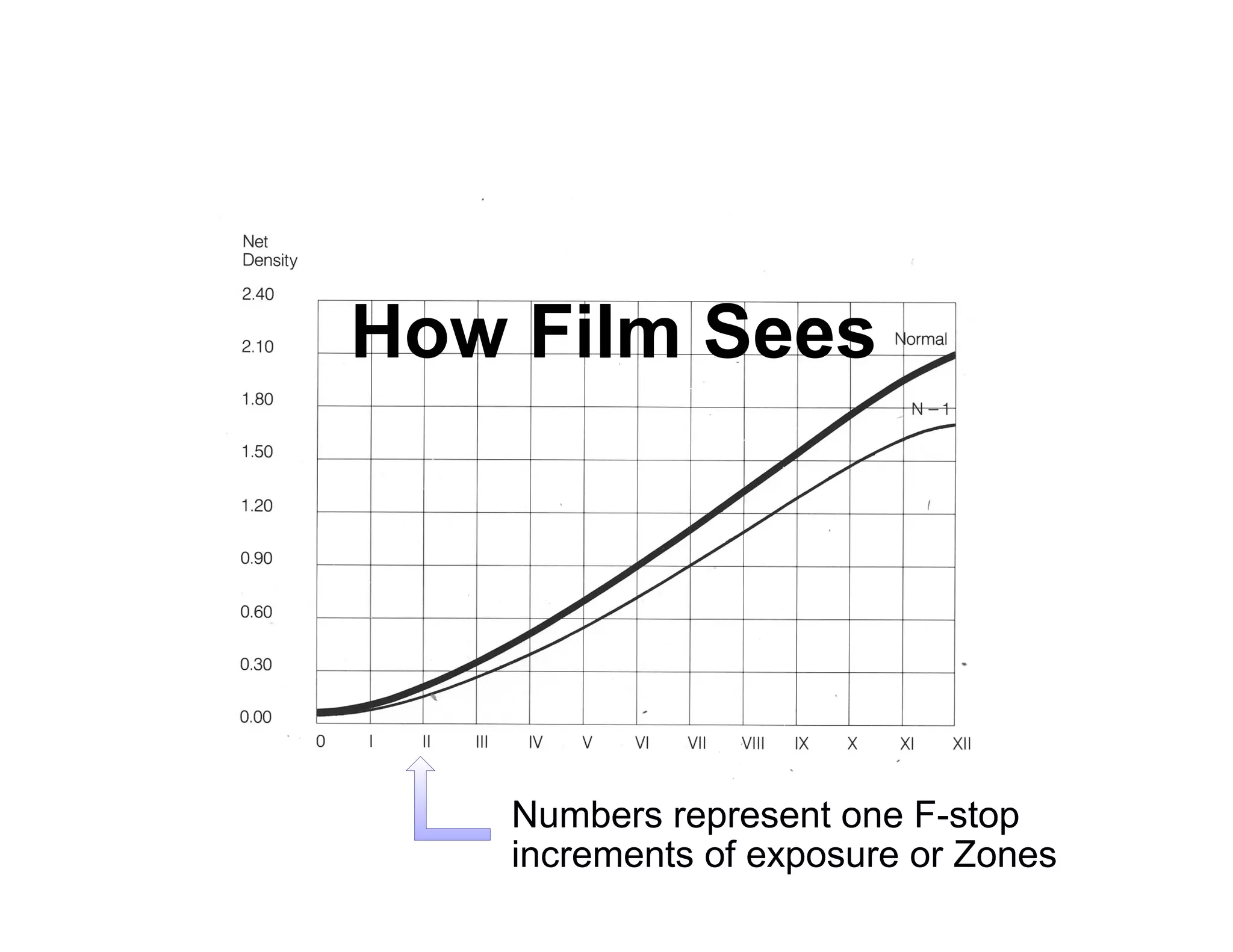
How Film Sees


   Numbers represent one F-stop
   increments of exposure or Zones
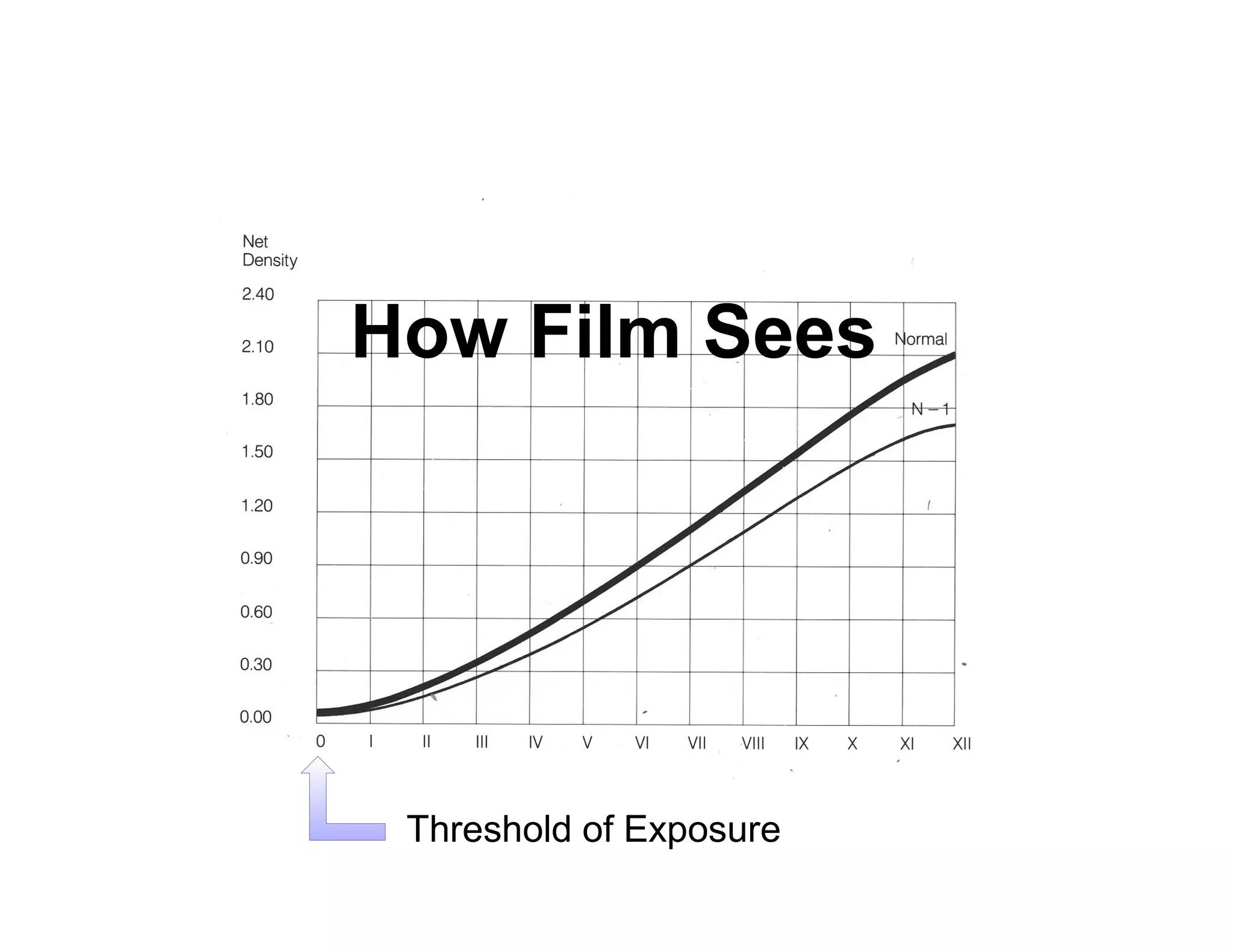
How Film Sees


 Threshold of Exposure
How Film Sees


  Toe
How Film Sees


          Straight Line Section
Shoulder

How Film Sees
How Film Sees


 Printable Range
How Film Sees


 Printable Range
           Additional Latitude
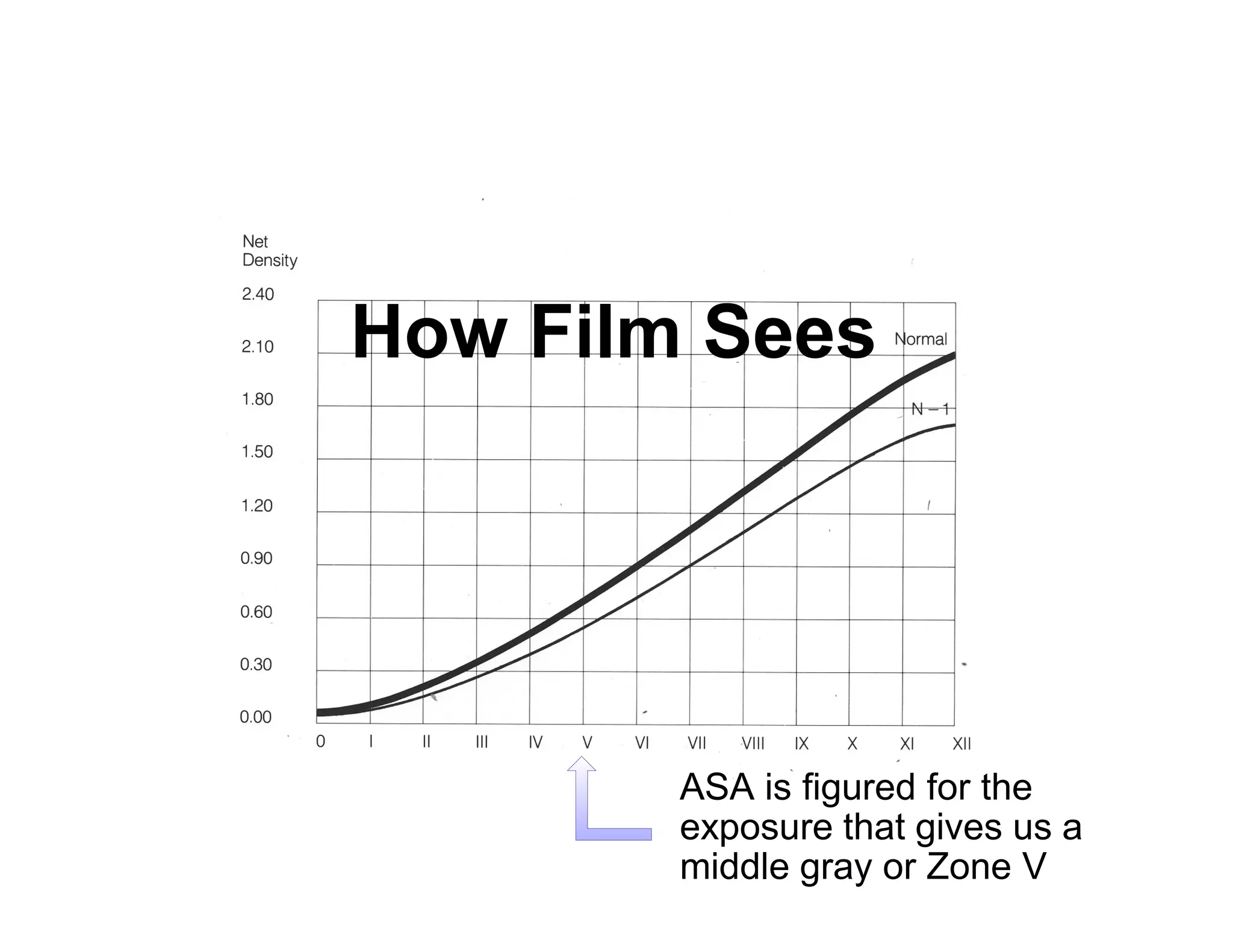
How Film Sees


        ASA is figured for the
        exposure that gives us a
        middle gray or Zone V
The Old Adage


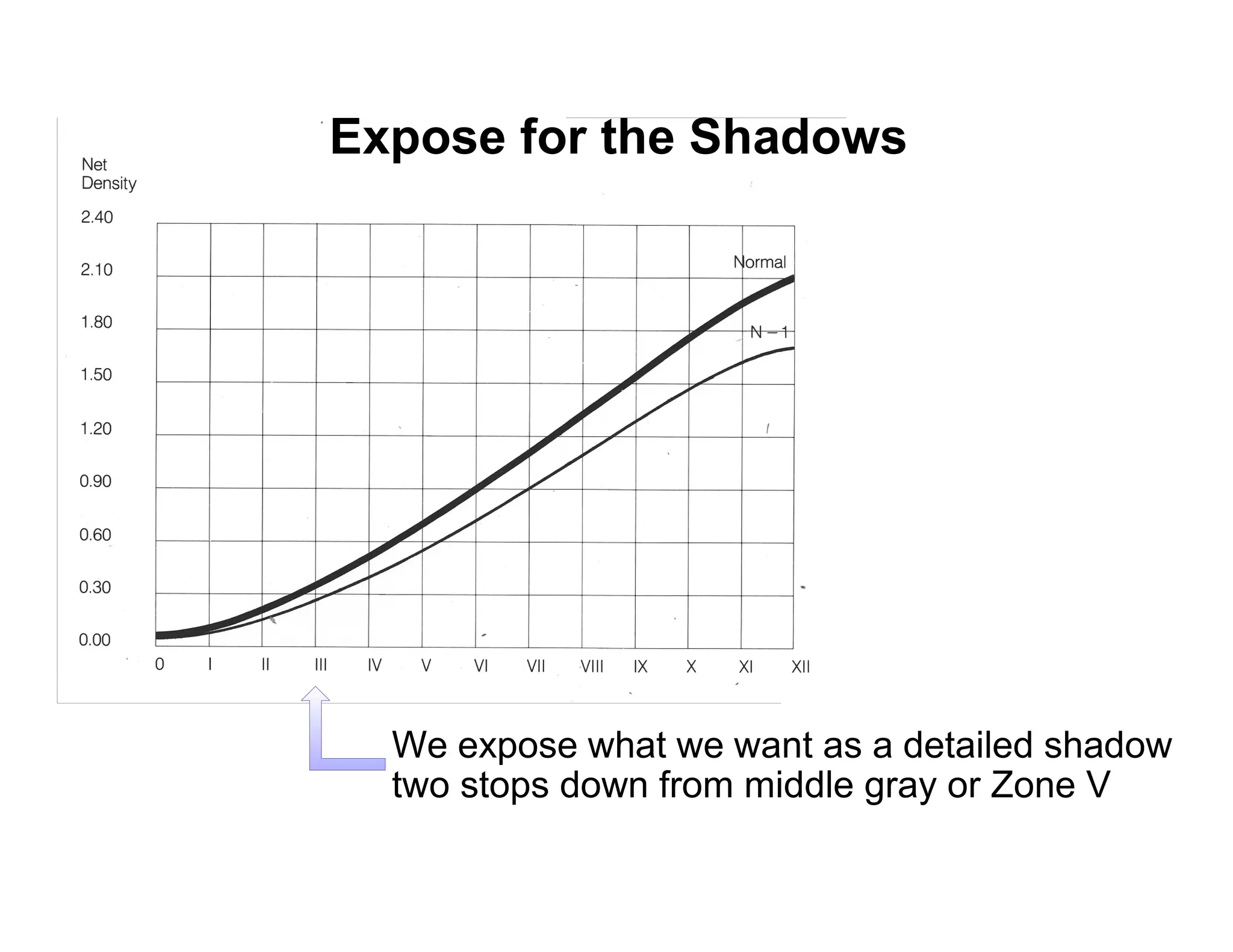
Expose for the Shadows
Develop for the Highlights
But just how do you do that?
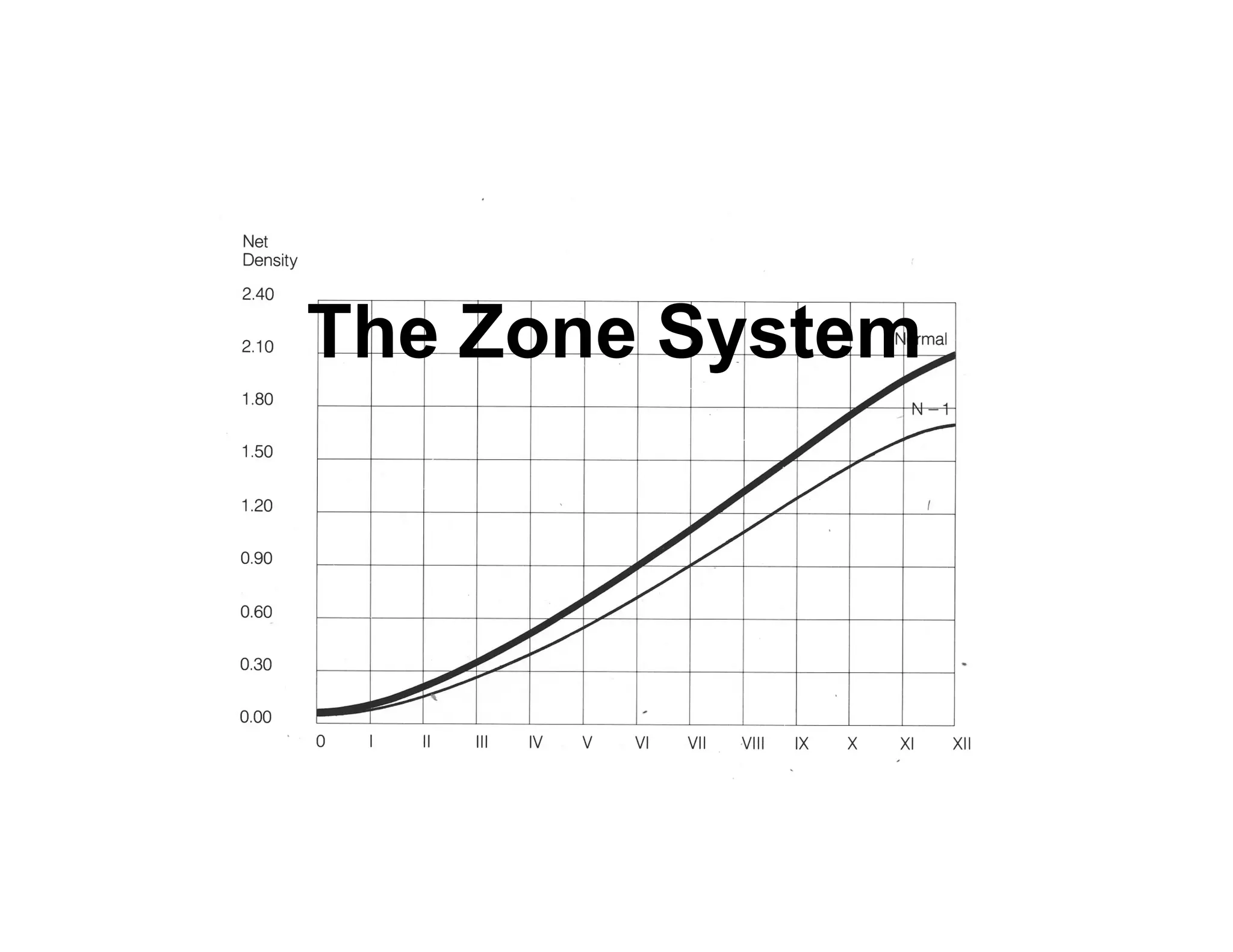
The Zone System
Or how to expose for the shadows
  and develop for the highlights
The Zone System
Expose for the Shadows


  We expose what we want as a detailed shadow
  two stops down from middle gray or Zone V
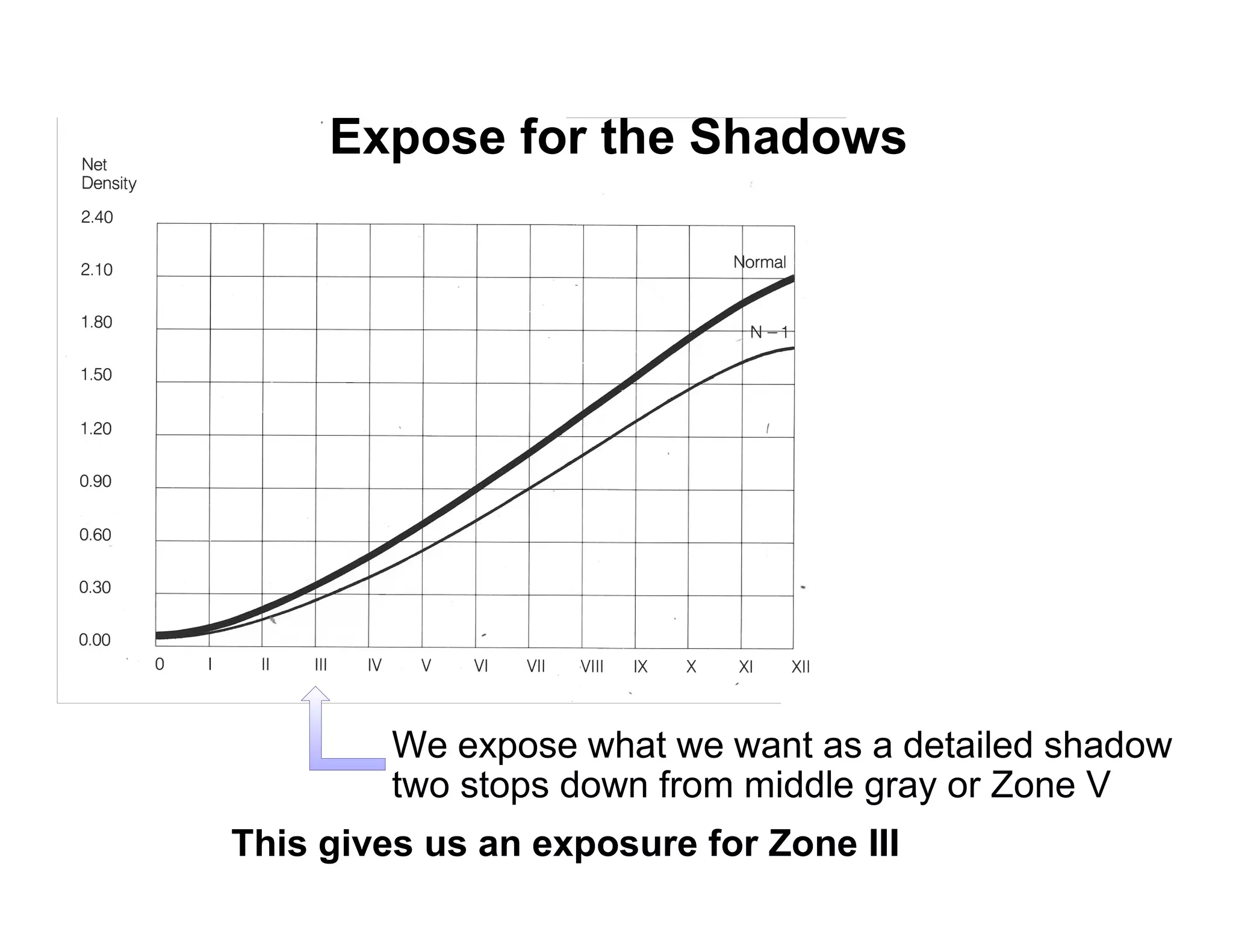
Expose for the Shadows


         We expose what we want as a detailed shadow
         two stops down from middle gray or Zone V
This gives us an exposure for Zone III
Note that I use a
one degree spot
meter to determine
these exposures
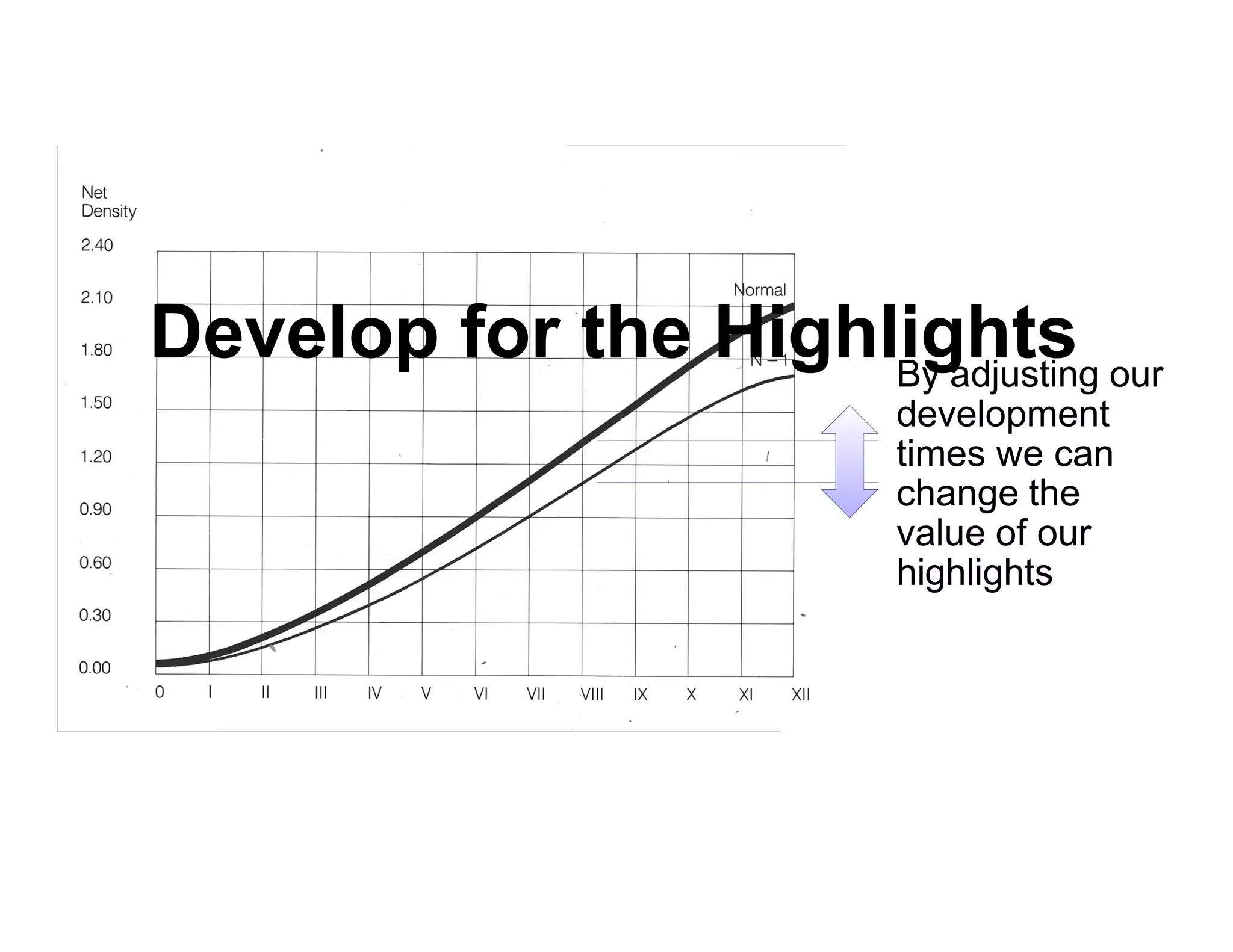
Develop for the Highlights our
                     By adjusting
                        development
                        times we can
                        change the
                        value of our
                        highlights
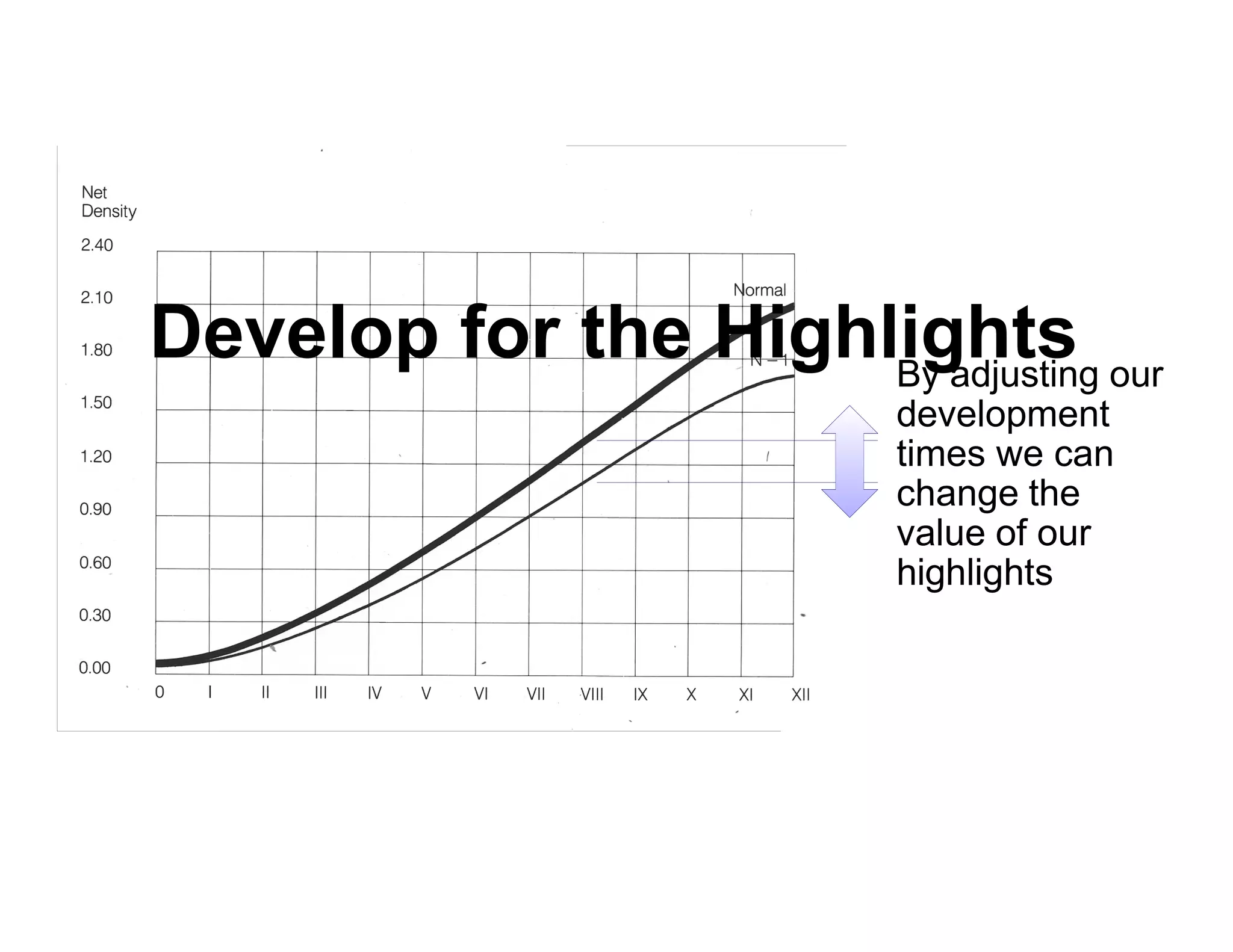
Develop for the Highlights our
                     By adjusting
                        development
                        times we can
                        change the
                        value of our
                        highlights
Develop for the Highlights


P Typically we would want to move our
  highlights up or down, plus or minus to keep
  a detailed highlight in Zone VII
P If we have, say, a five stop difference
  between our shadows and highlights and we
  want it to be four stops we give Normal
  Minus One (N-1) development.
P If we had a three stop difference and wanted
  four we would give N+1 development, etc.
P You need to run tests of your camera, lens,
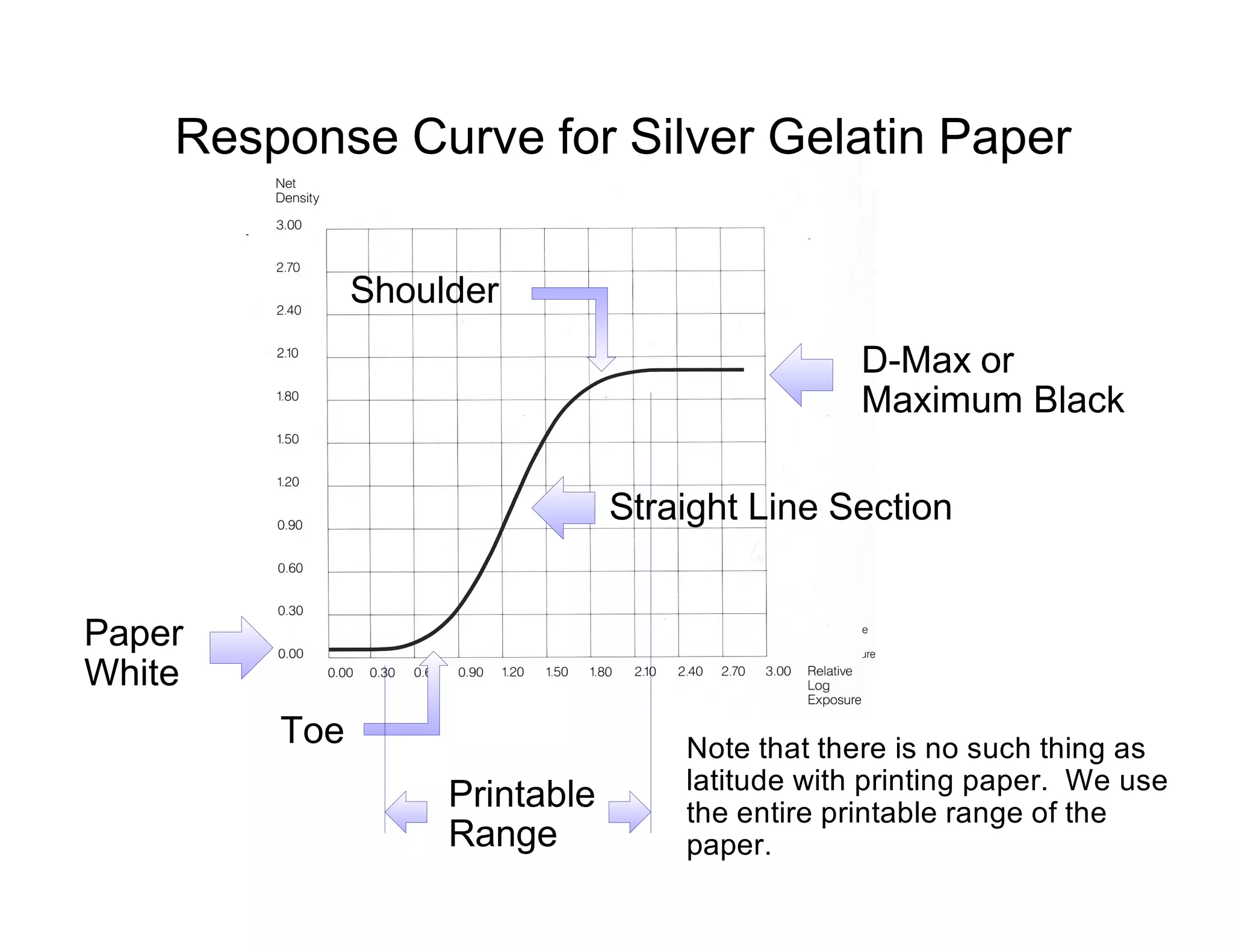
Response Curve for Silver Gelatin Paper

              Shoulder
                                                D-Max or
                                                Maximum Black

                               Straight Line Section


Paper
White
        Toe                        Note that there is no such thing as
                                   latitude with printing paper. We use
                   Printable       the entire printable range of the
                   Range           paper.
How Film Sees


   1   2   4   8   16   32 64 128 256 512 1024

Each zone represents a doubling of light
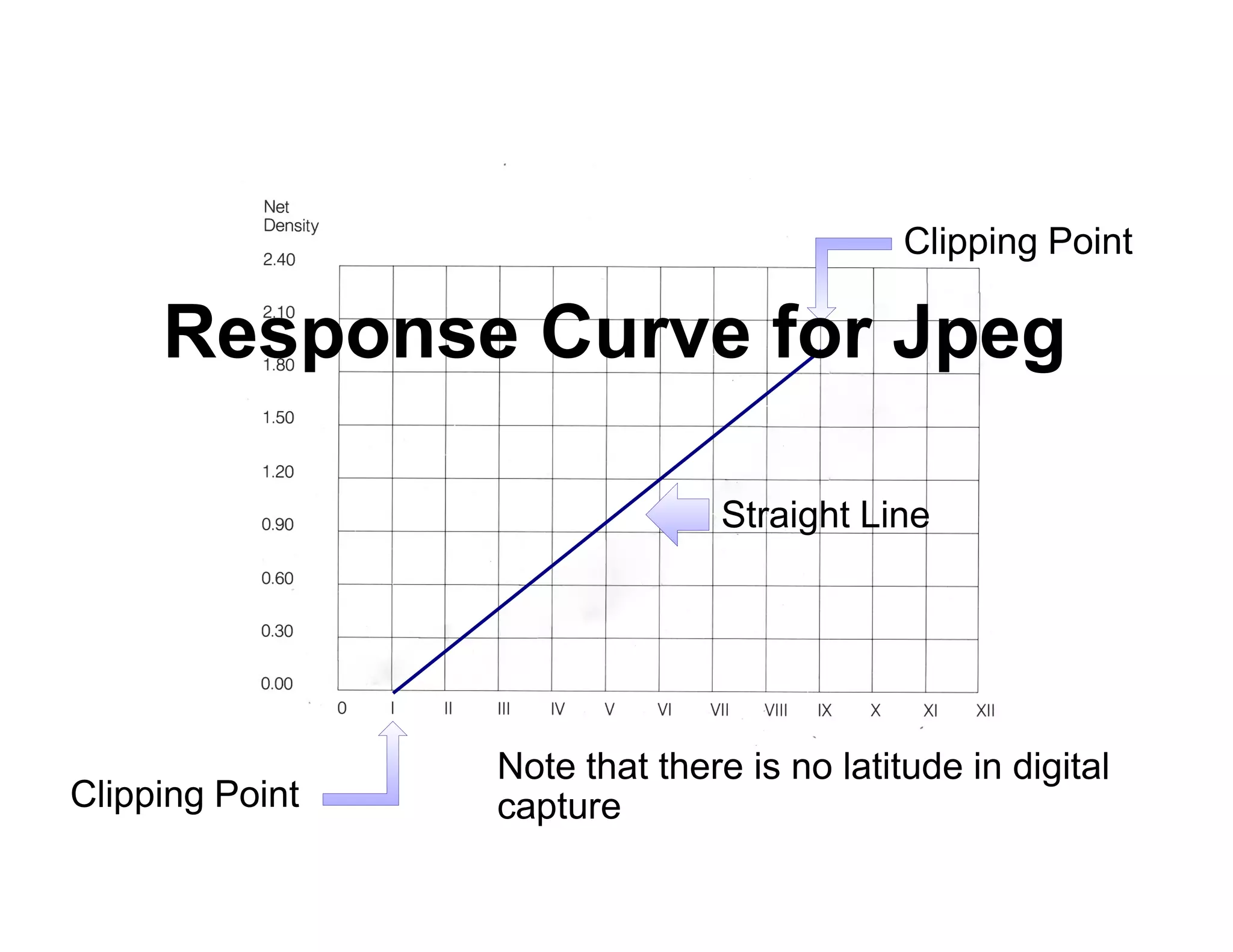
Clipping Point

     Response Curve for Jpeg

                               Straight Line


                 Note that there is no latitude in digital
Clipping Point   capture
A Bit about Bits and bytes


P Commuter machine language is binary, that
  is it is based on Zero and One giving two
  possible states, 0 and 1. This is known as a
  bit.
P With two bits we have four states; 0-0, 0-1, 1-
  0 and 1,1
P With three bits we have eight states; 0-0-0,
  0-0-1, 0-1-0, 1-0-0, 0-1-1, 1-0-1, 1-1-0 and 1-
  1-1
P With four bits we have 16 states, etc.
A Bit about Bits and bytes
                  8 Bit vs. 16 Bit


P An 8-bit gray tone Jpeg has 256 shades of
  Gray
P A 16-bit gray tone Tiff file has 65536 shades
  of Gray
P The 16-bit file takes up only twice the storage
  space of an 8-bit file, but has 256 times as
  much information
P 256 Shades of gray actually produces a
  pretty good print and is fine for use on the
  web
Camera RAW
Response Curve for CameraClipping Point

            RAW
                 Jpeg


                        Camera RAW


Clipping Point
Translation of Camera RAW


P The typical digital camera uses 12 bit
  capture, that is they have 4,096 shades of
  gray.
P Some newer high end digital cameras use 14
  bit capture or 16,384 shades of gray.
P The camera’s microprocessor converts
  camera RAW’s curve into a straight line 8 bit
  jpeg.
P Photoshop does the same thing, but it also
  allows you to convert to a 16 bit TIFF file,
Histograms
A graphical representation of the tonal distribution in
                  a digital image
Using the Histogram in Camera


P Use the histogram to insure that you are not
  clipping your image.
P The higher end cameras will give you a
  histogram on the viewing screen and others
  can be set to display a histogram of the
  image that you just took.
P In either case adjust your exposure + or - so
  that you are not clipping either the shadows
  or highlights.
P It is common to have clouds or bright
What I do
                   Digital Capture


P For digital capture, to minimize digital noise, I
  set may camera to a ASA of 80 or 100 and
  always shoot in camera RAW.
P I then convert these files into 16 bitt TIFF
  files.
P I process the color images in Photoshop and
  save them.
P I then convert them to B&W and further
  process them and save the results as a new
  B&W Tiff file.
What I do
                 Scanned Negatives


P I scan my 4x5 negatives with an Epson 4990
  desktop scanner set at 1200 dpi to create a
  16 bit Tiff file. You can see the film’s grain in
  these scans.
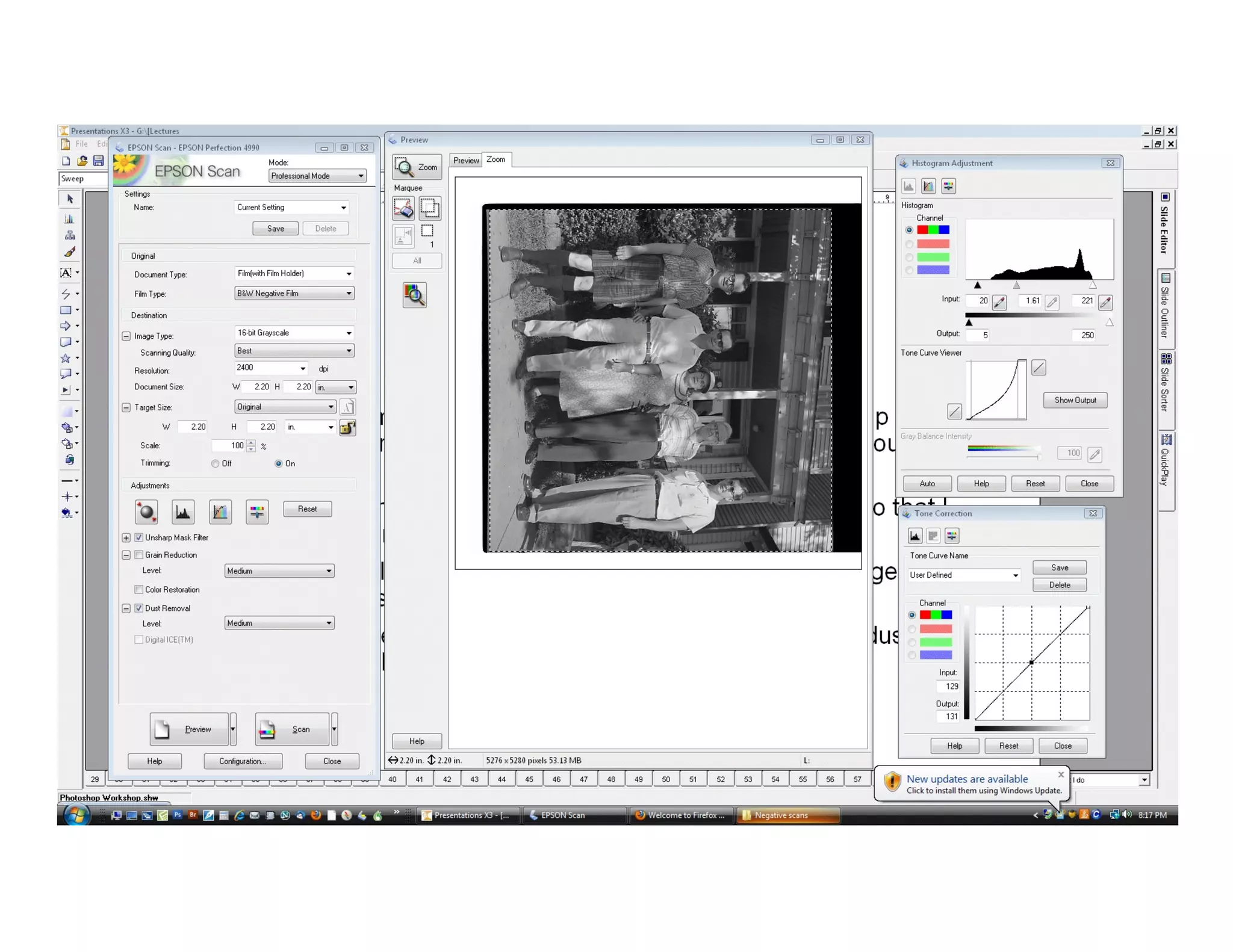
P Using the scanner’s histogram, I adjust each
  scan so that I get the maximum contrast
  possible without clipping.
P I may also use the tone correction feature if
  the image appears unusually dark or light.
P Other settings I use are the unsharp mask
What I do
                 Scanned Slides


P I scan my 35mm slides with an Epson 4990
  desktop scanner set at 4800 dpi to create a
  16 bit Tiff file.
P Using the scanner’s histogram, I adjust each
  scan so that I get the maximum contrast
  possible without clipping.
P I may also use the tone correction feature if
  the image appears unusually dark or light.
P Other setting I use are the unsharp mask
  filter and dust removal.
Now into Photoshop
   First step is to rotate (if needed), trim, align, correct
       perspective, clean and sharpen our images.

P Rotate the image if vertical or horizontal
  alignment needs to be changed. [Image >
  Rotate Canvas> . . . ]
P Trim anything extraneous in the scan by
  selecting the desired area using the
  Rectangular Marque Tool.
P Use [Edit > Copy] to save. Open a new file
  [File > New], select OK in the diolog box,
  Paste your selection into the new window.
  [Edit > Paste]<Crosshead 8444>
Aligment


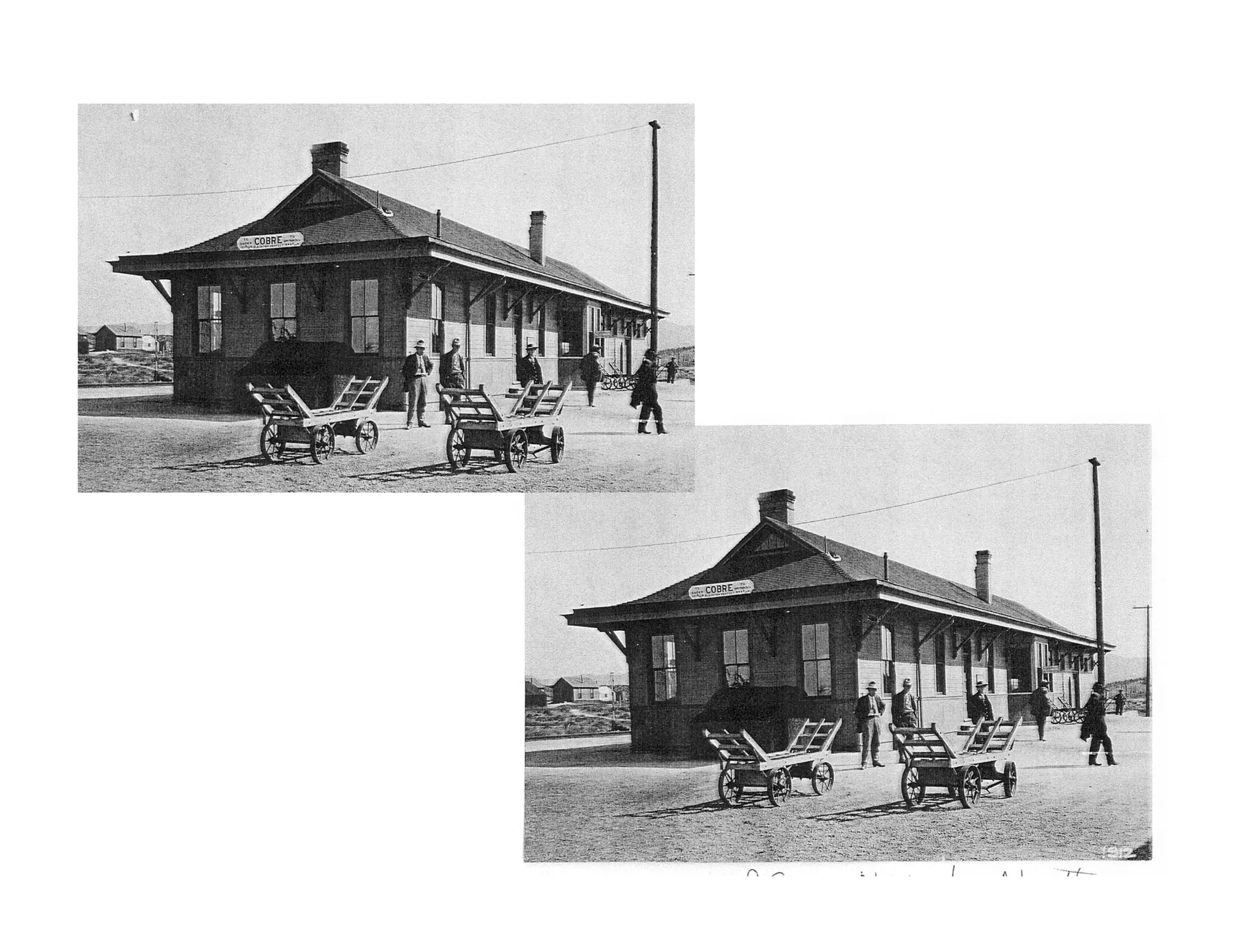
P One of the reasons that I like to use a view
  camera is that it allows you to control
  aligment & perspective in camera. Very
  useful in the days of the traditional darkroom,
  but still nice to do even with Photoshop.
P Many hand held images can benifit from
  aligment & perspective correction. <Cobre
  Photo>
P Turn on Grid. [View > Show > Grid]
P Select All. [Select > All]
Perspective


P If the horizon is in the center of the image,
  there should be no need for perspective
  adjustments.
P If the camera was pointed up (or down) there
  will be vertical perspective convergence.
P To correct, turn on Grid. [View > Show >
  Grid]
P Select All. [Select > All]
P Now pick a vertical line at or near the edge of
Perspective, Cont.


P If important items in your composition fall off
  the edge of the image as you adjust
  perspective, the canvas size my need to be
  enlarged.
P To enlarge the canvas, select Enlarge
  canvas. [Image > Canvas Size]
P Adjust Box size by inserting new dimensions.
P Click OK.
P We will look at how to repair any left over
Perspective Continued


  P To enlage the canvas select Enlarge canvas.
    [Image > Canvas Size]
  P Delete bottom arrow in dialog box.
  P Adjust note size by
Also, you willBox that there inserting new dimensions.
is some vertical distortion
  P Click OK.
when you adjust the
perspective. You can fix [Select > All]
  P Now Select All. this
by stretching the image at the
  P This distort to adjust the aspect ratio. [Edit >
top.Use also requires
changing the canvas size.
    Transform > Distort]
  P Pull the top to adjust the aspect ratio.
Fixing Flaws
               Cleaning, with the Healing Brush


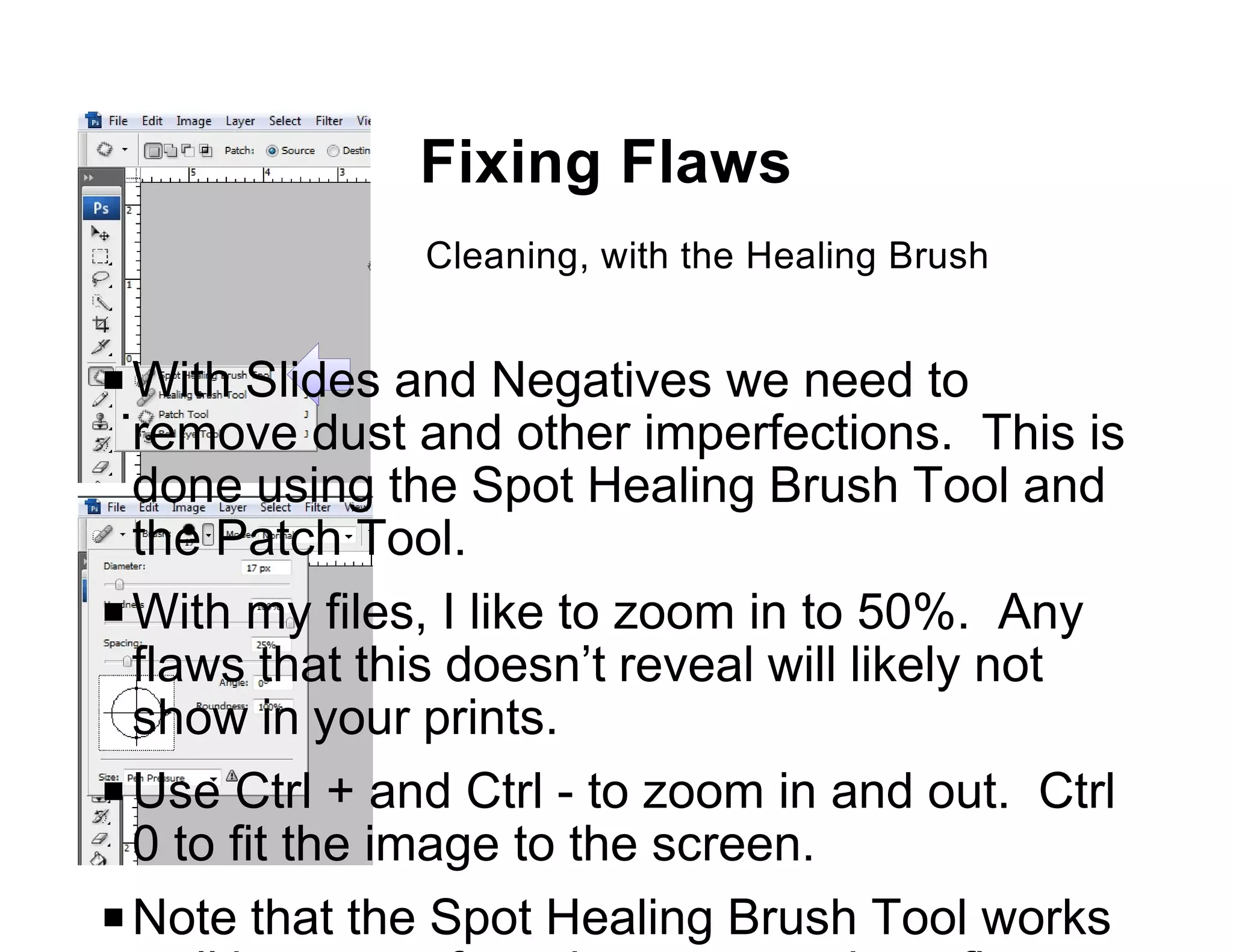
P With Slides and Negatives we need to
  remove dust and other imperfections. This is
  done using the Spot Healing Brush Tool and
  the Patch Tool.
P With my files, I like to zoom in to 50%. Any
  flaws that this doesn’t reveal will likely not
  show in your prints.
P Use Ctrl + and Ctrl - to zoom in and out. Ctrl
  0 to fit the image to the screen.
P Note that the Spot Healing Brush Tool works
Fixing Flaws
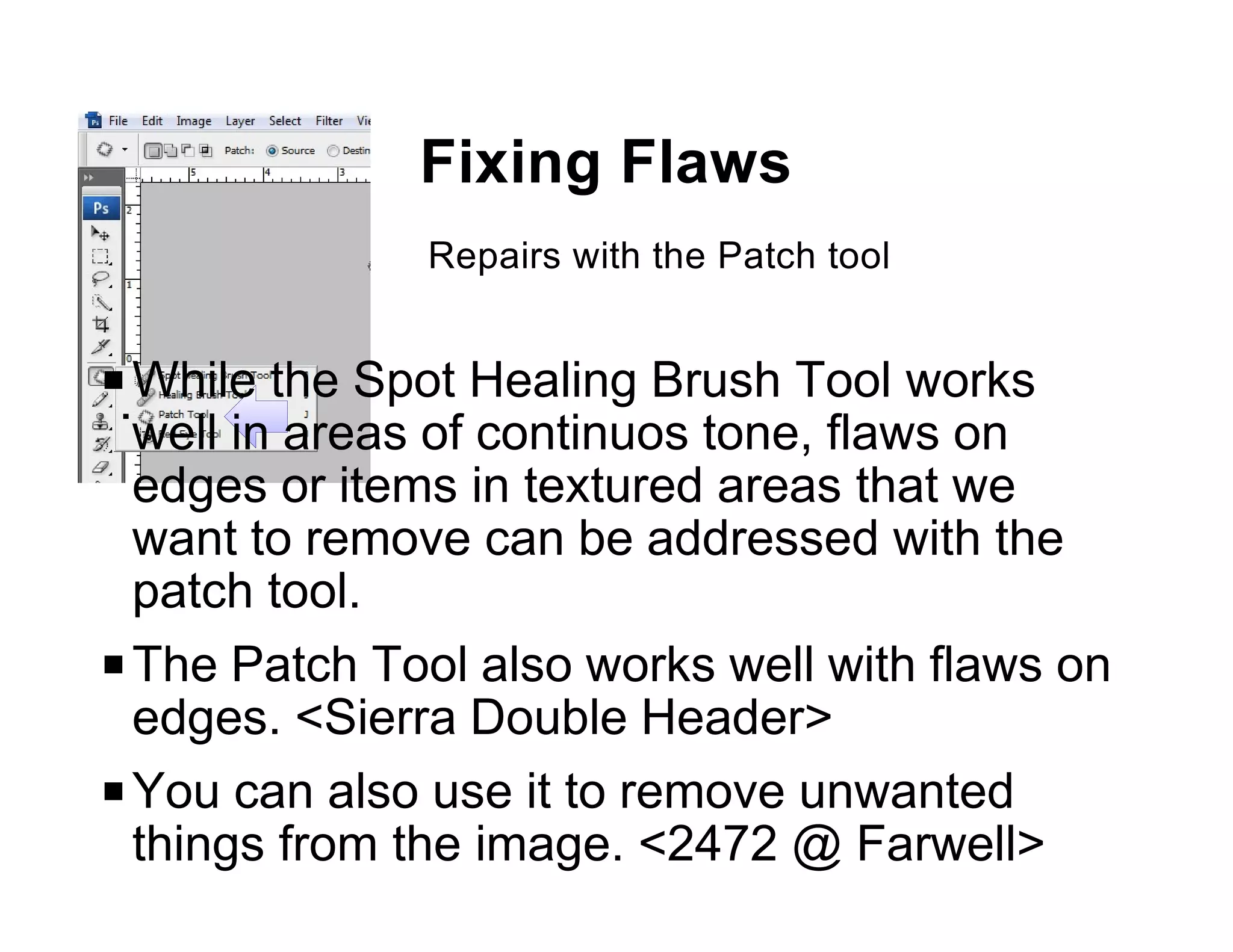
              Repairs with the Patch tool


P While the Spot Healing Brush Tool works
  well in areas of continuos tone, flaws on
  edges or items in textured areas that we
  want to remove can be addressed with the
  patch tool.
P The Patch Tool also works well with flaws on
  edges. <Sierra Double Header>
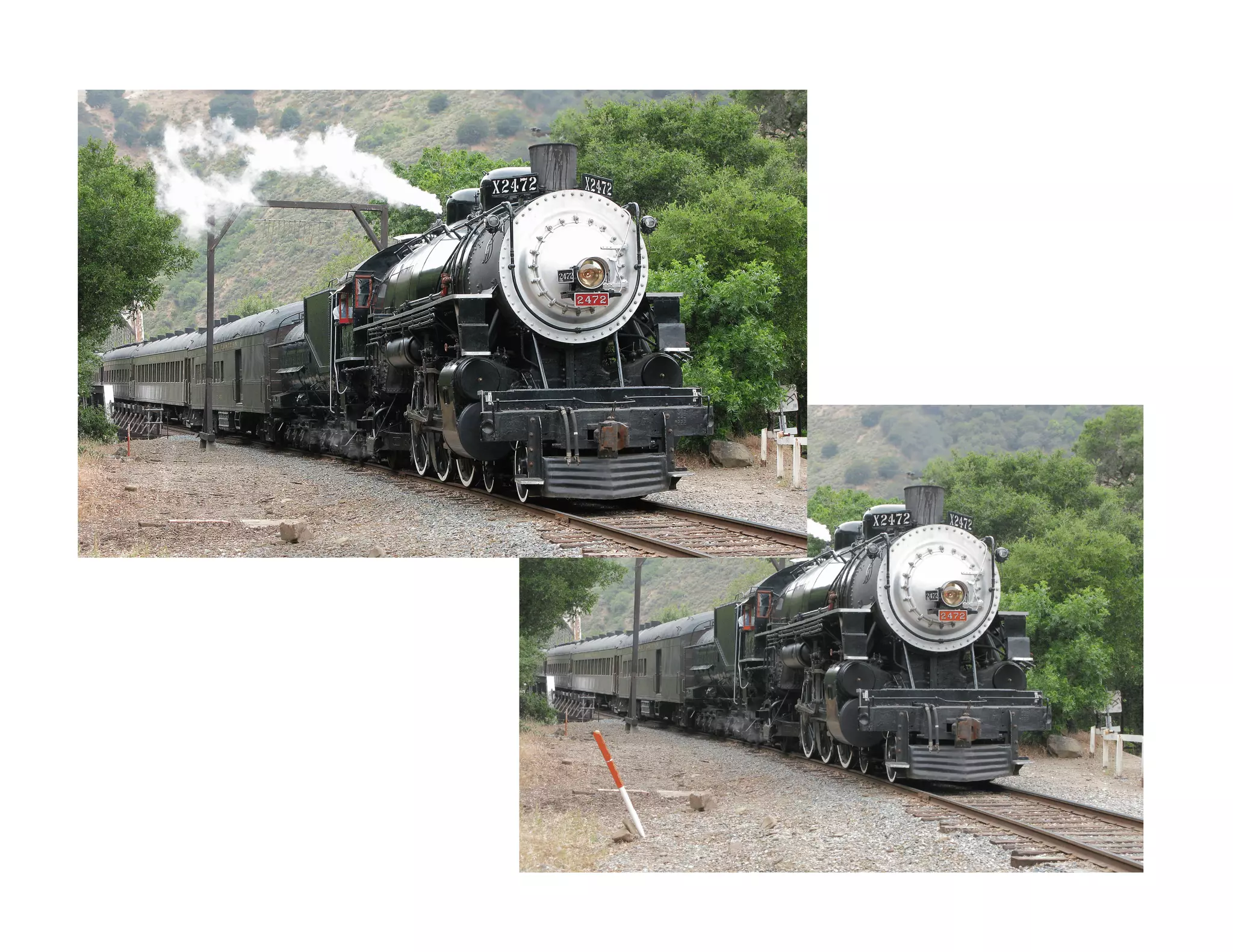
P You can also use it to remove unwanted
  things from the image. <2472 @ Farwell>
Sharpening


P Almost every image can benefit from some
  sharpening.
P I found that scanned prints were not quite as
  sharp as the originals, but with sharpening
  they were sharper.
P Sharpening works by detecting edges and
  increasing the contrast at the edge.
P Some people sharpen specifically for the size
  of the print, but I haven’t found this
  necessary.
Sharpening, cont.


P Photoshop offers several sharpening tools.
  The one I use most is called unsharp
  masking. [Filter > Sharpen > Unsharp Mask]
P With the size files that I like to work with,
  settings of 50 to 100 in Amount seem to work
  well with most images. I leave Radius at 1
  and Threshhold at 0.
P If your image is slightly out of focus, it can
  sometimes be made acceptable by using a
  higher number in Amount.
Conclusion to Part I
              Before we take a break . . .


P So far, except for cropping, we haven’t really
  done anything to interpret our images.
P What we have done is really all pretty
  mechanical.
P At this point I like to save my file in a folder
  for Cleaned, Cropped, Rotated, Sharpened
  and Corrected images.
P We’ve done a lot of work and may want to
  come back to this point if we later want to
  change, improve, whatever our later
End of Part One

Photoshop Techniques Part I

  • 1.
    Photoshop Techniques Part I Selection & Interpretation Gordon Osmundson
  • 2.
    How the EyeSees P Very high exposure latitude P Ability to see into shadows P A large part of the human brain is devoted to analyzing input from the eyes and from this constructing a three dimensional reality P This ability also allows us to recognize the content of photographs
  • 3.
    Two Kinds ofBlack P The Color Black P The Absence of Light Black
  • 5.
  • 6.
    How Film Sees Exposureresponse curve for Tri-X
  • 7.
    How Film Sees Numbers represent one F-stop increments of exposure or Zones
  • 8.
    How Film Sees Threshold of Exposure
  • 9.
  • 10.
    How Film Sees Straight Line Section
  • 11.
  • 12.
    How Film Sees Printable Range
  • 13.
    How Film Sees Printable Range Additional Latitude
  • 14.
    How Film Sees ASA is figured for the exposure that gives us a middle gray or Zone V
  • 15.
    The Old Adage Exposefor the Shadows Develop for the Highlights But just how do you do that?
  • 16.
    The Zone System Orhow to expose for the shadows and develop for the highlights
  • 17.
  • 18.
    Expose for theShadows We expose what we want as a detailed shadow two stops down from middle gray or Zone V
  • 19.
    Expose for theShadows We expose what we want as a detailed shadow two stops down from middle gray or Zone V This gives us an exposure for Zone III
  • 20.
    Note that Iuse a one degree spot meter to determine these exposures
  • 21.
    Develop for theHighlights our By adjusting development times we can change the value of our highlights
  • 22.
    Develop for theHighlights our By adjusting development times we can change the value of our highlights
  • 23.
    Develop for theHighlights P Typically we would want to move our highlights up or down, plus or minus to keep a detailed highlight in Zone VII P If we have, say, a five stop difference between our shadows and highlights and we want it to be four stops we give Normal Minus One (N-1) development. P If we had a three stop difference and wanted four we would give N+1 development, etc. P You need to run tests of your camera, lens,
  • 24.
    Response Curve forSilver Gelatin Paper Shoulder D-Max or Maximum Black Straight Line Section Paper White Toe Note that there is no such thing as latitude with printing paper. We use Printable the entire printable range of the Range paper.
  • 25.
    How Film Sees 1 2 4 8 16 32 64 128 256 512 1024 Each zone represents a doubling of light
  • 26.
    Clipping Point Response Curve for Jpeg Straight Line Note that there is no latitude in digital Clipping Point capture
  • 27.
    A Bit aboutBits and bytes P Commuter machine language is binary, that is it is based on Zero and One giving two possible states, 0 and 1. This is known as a bit. P With two bits we have four states; 0-0, 0-1, 1- 0 and 1,1 P With three bits we have eight states; 0-0-0, 0-0-1, 0-1-0, 1-0-0, 0-1-1, 1-0-1, 1-1-0 and 1- 1-1 P With four bits we have 16 states, etc.
  • 28.
    A Bit aboutBits and bytes
  • 29.
    A Bit aboutBits and bytes 8 Bit vs. 16 Bit P An 8-bit gray tone Jpeg has 256 shades of Gray P A 16-bit gray tone Tiff file has 65536 shades of Gray P The 16-bit file takes up only twice the storage space of an 8-bit file, but has 256 times as much information P 256 Shades of gray actually produces a pretty good print and is fine for use on the web
  • 30.
  • 31.
    Response Curve forCameraClipping Point RAW Jpeg Camera RAW Clipping Point
  • 32.
    Translation of CameraRAW P The typical digital camera uses 12 bit capture, that is they have 4,096 shades of gray. P Some newer high end digital cameras use 14 bit capture or 16,384 shades of gray. P The camera’s microprocessor converts camera RAW’s curve into a straight line 8 bit jpeg. P Photoshop does the same thing, but it also allows you to convert to a 16 bit TIFF file,
  • 33.
    Histograms A graphical representationof the tonal distribution in a digital image
  • 35.
    Using the Histogramin Camera P Use the histogram to insure that you are not clipping your image. P The higher end cameras will give you a histogram on the viewing screen and others can be set to display a histogram of the image that you just took. P In either case adjust your exposure + or - so that you are not clipping either the shadows or highlights. P It is common to have clouds or bright
  • 36.
    What I do Digital Capture P For digital capture, to minimize digital noise, I set may camera to a ASA of 80 or 100 and always shoot in camera RAW. P I then convert these files into 16 bitt TIFF files. P I process the color images in Photoshop and save them. P I then convert them to B&W and further process them and save the results as a new B&W Tiff file.
  • 37.
    What I do Scanned Negatives P I scan my 4x5 negatives with an Epson 4990 desktop scanner set at 1200 dpi to create a 16 bit Tiff file. You can see the film’s grain in these scans. P Using the scanner’s histogram, I adjust each scan so that I get the maximum contrast possible without clipping. P I may also use the tone correction feature if the image appears unusually dark or light. P Other settings I use are the unsharp mask
  • 39.
    What I do Scanned Slides P I scan my 35mm slides with an Epson 4990 desktop scanner set at 4800 dpi to create a 16 bit Tiff file. P Using the scanner’s histogram, I adjust each scan so that I get the maximum contrast possible without clipping. P I may also use the tone correction feature if the image appears unusually dark or light. P Other setting I use are the unsharp mask filter and dust removal.
  • 40.
    Now into Photoshop First step is to rotate (if needed), trim, align, correct perspective, clean and sharpen our images. P Rotate the image if vertical or horizontal alignment needs to be changed. [Image > Rotate Canvas> . . . ] P Trim anything extraneous in the scan by selecting the desired area using the Rectangular Marque Tool. P Use [Edit > Copy] to save. Open a new file [File > New], select OK in the diolog box, Paste your selection into the new window. [Edit > Paste]<Crosshead 8444>
  • 41.
    Aligment P One ofthe reasons that I like to use a view camera is that it allows you to control aligment & perspective in camera. Very useful in the days of the traditional darkroom, but still nice to do even with Photoshop. P Many hand held images can benifit from aligment & perspective correction. <Cobre Photo> P Turn on Grid. [View > Show > Grid] P Select All. [Select > All]
  • 43.
    Perspective P If thehorizon is in the center of the image, there should be no need for perspective adjustments. P If the camera was pointed up (or down) there will be vertical perspective convergence. P To correct, turn on Grid. [View > Show > Grid] P Select All. [Select > All] P Now pick a vertical line at or near the edge of
  • 44.
    Perspective, Cont. P Ifimportant items in your composition fall off the edge of the image as you adjust perspective, the canvas size my need to be enlarged. P To enlarge the canvas, select Enlarge canvas. [Image > Canvas Size] P Adjust Box size by inserting new dimensions. P Click OK. P We will look at how to repair any left over
  • 45.
    Perspective Continued P To enlage the canvas select Enlarge canvas. [Image > Canvas Size] P Delete bottom arrow in dialog box. P Adjust note size by Also, you willBox that there inserting new dimensions. is some vertical distortion P Click OK. when you adjust the perspective. You can fix [Select > All] P Now Select All. this by stretching the image at the P This distort to adjust the aspect ratio. [Edit > top.Use also requires changing the canvas size. Transform > Distort] P Pull the top to adjust the aspect ratio.
  • 47.
    Fixing Flaws Cleaning, with the Healing Brush P With Slides and Negatives we need to remove dust and other imperfections. This is done using the Spot Healing Brush Tool and the Patch Tool. P With my files, I like to zoom in to 50%. Any flaws that this doesn’t reveal will likely not show in your prints. P Use Ctrl + and Ctrl - to zoom in and out. Ctrl 0 to fit the image to the screen. P Note that the Spot Healing Brush Tool works
  • 48.
    Fixing Flaws Repairs with the Patch tool P While the Spot Healing Brush Tool works well in areas of continuos tone, flaws on edges or items in textured areas that we want to remove can be addressed with the patch tool. P The Patch Tool also works well with flaws on edges. <Sierra Double Header> P You can also use it to remove unwanted things from the image. <2472 @ Farwell>
  • 50.
    Sharpening P Almost everyimage can benefit from some sharpening. P I found that scanned prints were not quite as sharp as the originals, but with sharpening they were sharper. P Sharpening works by detecting edges and increasing the contrast at the edge. P Some people sharpen specifically for the size of the print, but I haven’t found this necessary.
  • 51.
    Sharpening, cont. P Photoshopoffers several sharpening tools. The one I use most is called unsharp masking. [Filter > Sharpen > Unsharp Mask] P With the size files that I like to work with, settings of 50 to 100 in Amount seem to work well with most images. I leave Radius at 1 and Threshhold at 0. P If your image is slightly out of focus, it can sometimes be made acceptable by using a higher number in Amount.
  • 52.
    Conclusion to PartI Before we take a break . . . P So far, except for cropping, we haven’t really done anything to interpret our images. P What we have done is really all pretty mechanical. P At this point I like to save my file in a folder for Cleaned, Cropped, Rotated, Sharpened and Corrected images. P We’ve done a lot of work and may want to come back to this point if we later want to change, improve, whatever our later
  • 53.