

Page Object From the Ground Up
Joseph Beale
02/07/2017
Agenda
1. Prepare the Environment
2.Build Automated Test using Watir
3.Convert to Page Object
4.Final Test Run
5.Q&A and Fun Time
But first...
Could I have a volunteer from the audience?
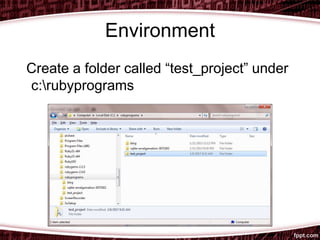
Environment
Create a folder called “test_project” under
c:rubyprograms
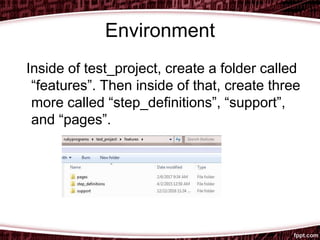
Environment
Inside of test_project, create a folder called
“features”. Then inside of that, create three
more called “step_definitions”, “support”,
and “pages”.
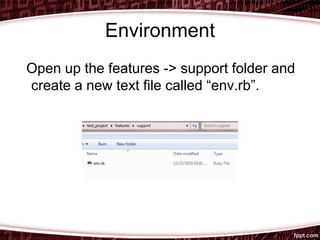
Environment
Open up the features -> support folder and
create a new text file called “env.rb”.
Environment
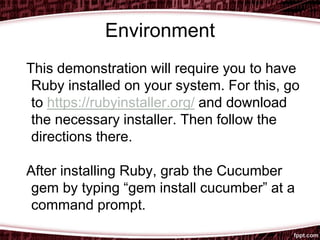
This demonstration will require you to have
Ruby installed on your system. For this, go
to https://rubyinstaller.org/ and download
the necessary installer. Then follow the
directions there.
After installing Ruby, grab the Cucumber
gem by typing “gem install cucumber” at a
command prompt.
Environment
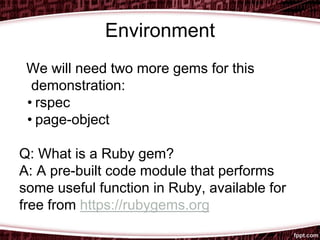
We will need two more gems for this
demonstration:
• rspec
• page-object
Q: What is a Ruby gem?
A: A pre-built code module that performs
some useful function in Ruby, available for
free from https://rubygems.org
Environment
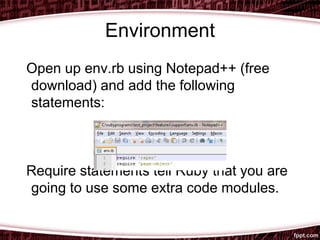
Open up env.rb using Notepad++ (free
download) and add the following
statements:
Require statements tell Ruby that you are
going to use some extra code modules.
Build
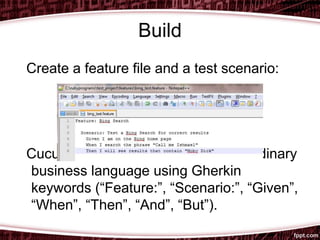
Create a feature file and a test scenario:
Cucumber scenarios are written in ordinary
business language using Gherkin
keywords (“Feature:”, “Scenario:”, “Given”,
“When”, “Then”, “And”, “But”).
Build
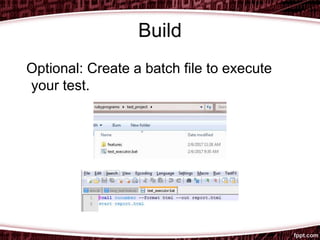
Optional: Create a batch file to execute
your test.
Build
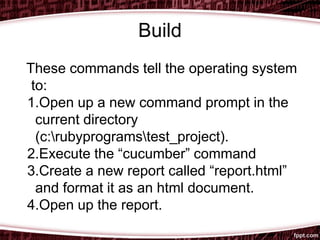
These commands tell the operating system
to:
1.Open up a new command prompt in the
current directory
(c:rubyprogramstest_project).
2.Execute the “cucumber” command
3.Create a new report called “report.html”
and format it as an html document.
4.Open up the report.
Build
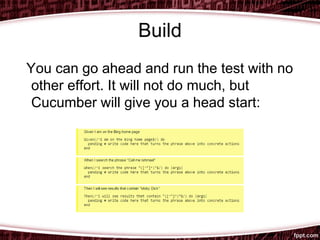
You can go ahead and run the test with no
other effort. It will not do much, but
Cucumber will give you a head start:
Build
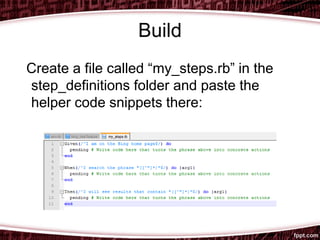
Create a file called “my_steps.rb” in the
step_definitions folder and paste the
helper code snippets there:
Build
First step:
Given I am on the Bing home page
To satisfy this step, we need to open a
browser and navigate to the Bing home
page.
How do we do this in Ruby?
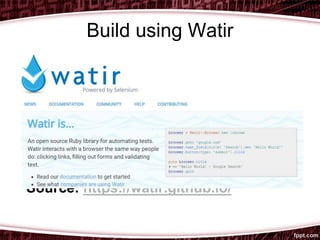
Build using Watir
Source: https://watir.github.io/
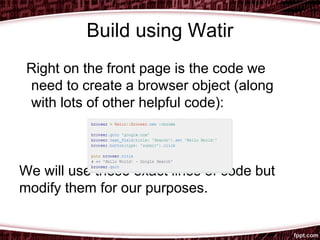
Build using Watir
Right on the front page is the code we
need to create a browser object (along
with lots of other helpful code):
We will use these exact lines of code but
modify them for our purposes.
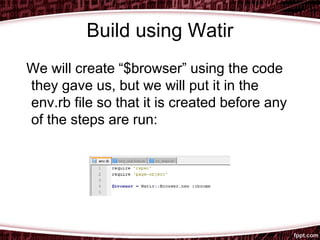
Build using Watir
We will create “$browser” using the code
they gave us, but we will put it in the
env.rb file so that it is created before any
of the steps are run:
Build using Watir
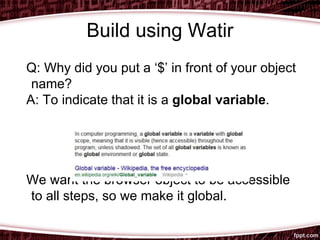
Q: Why did you put a ‘$’ in front of your object
name?
A: To indicate that it is a global variable.
We want the browser object to be accessible
to all steps, so we make it global.
Build using Watir
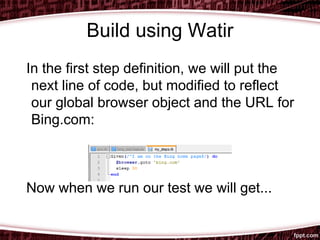
In the first step definition, we will put the
next line of code, but modified to reflect
our global browser object and the URL for
Bing.com:
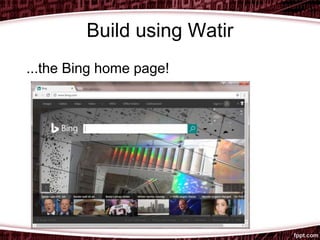
Now when we run our test we will get...
Build using Watir
...the Bing home page!
Build using Watir
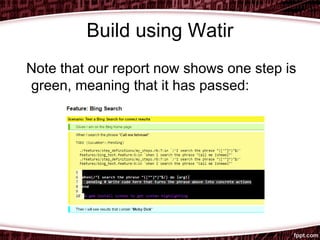
Note that our report now shows one step is
green, meaning that it has passed:
Build using Watir
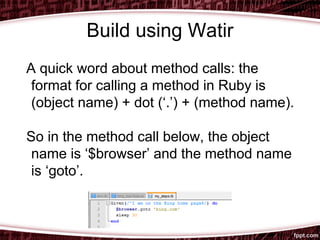
A quick word about method calls: the
format for calling a method in Ruby is
(object name) + dot (‘.’) + (method name).
So in the method call below, the object
name is ‘$browser’ and the method name
is ‘goto’.
Build using Watir
The ‘goto’ method is just one of the pre-
defined methods inside of the Watir::Browser
class. The method takes one argument: a
URL (because it needs to know where to “go
to”).
Arguments can be passed either inside of
parentheses or alongside a method call. So
in the previous example we could have said:
$browser.goto(‘bing.com’)
Build using Watir
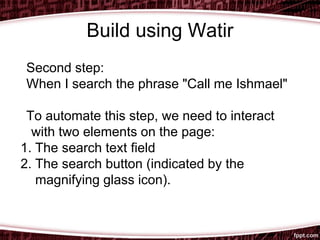
Second step:
When I search the phrase "Call me Ishmael"
To automate this step, we need to interact
with two elements on the page:
1. The search text field
2. The search button (indicated by the
magnifying glass icon).
Build using Watir
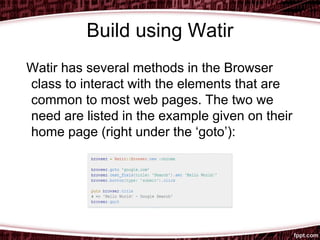
Watir has several methods in the Browser
class to interact with the elements that are
common to most web pages. The two we
need are listed in the example given on their
home page (right under the ‘goto’):
Build using Watir
To interact with the two search elements, we
will use the ‘text_field’ and ‘button’ methods.
These two methods each take one argument:
a locator as indicated by the syntax (locator:
‘unique_identifier’).
For example:
$browser.text_field(id: ‘my_id’).set ‘my text’
$browser.button(id: ‘my_button’).click
Build using Watir
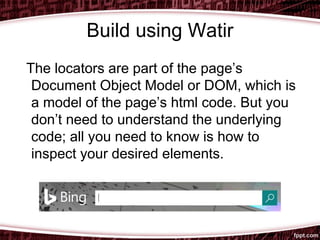
The locators are part of the page’s
Document Object Model or DOM, which is
a model of the page’s html code. But you
don’t need to understand the underlying
code; all you need to know is how to
inspect your desired elements.
Build using Watir
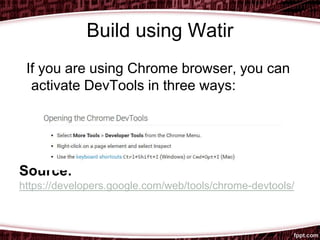
If you are using Chrome browser, you can
activate DevTools in three ways:
Source:
https://developers.google.com/web/tools/chrome-devtools/
Build using Watir
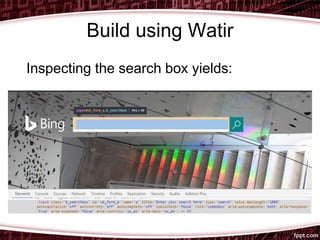
Inspecting the search box yields:
Build using Watir
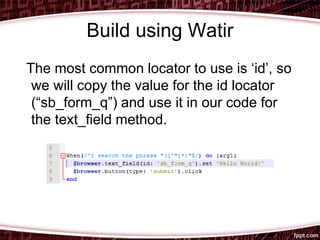
The most common locator to use is ‘id’, so
we will copy the value for the id locator
(“sb_form_q”) and use it in our code for
the text_field method.
Build using Watir
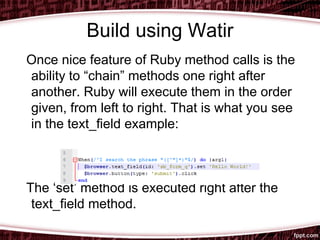
Once nice feature of Ruby method calls is the
ability to “chain” methods one right after
another. Ruby will execute them in the order
given, from left to right. That is what you see
in the text_field example:
The ‘set’ method is executed right after the
text_field method.
Build using Watir
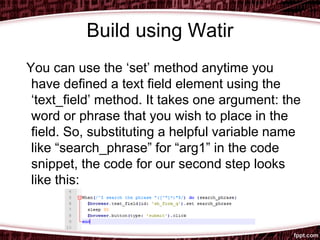
You can use the ‘set’ method anytime you
have defined a text field element using the
‘text_field’ method. It takes one argument: the
word or phrase that you wish to place in the
field. So, substituting a helpful variable name
like “search_phrase” for “arg1” in the code
snippet, the code for our second step looks
like this:
Build using Watir
Q: Where does the value for
“search_phrase” come from?
A: It is passed into the code from the
Gherkin step using a capture group.
This cryptic bit of code "([^"]*)" grabs
whatever is between the double-quotes
and throws it into my given variable.
Build using Watir
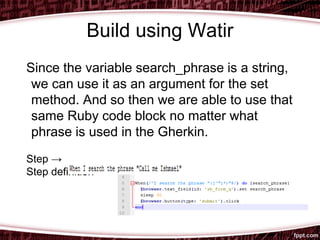
Since the variable search_phrase is a string,
we can use it as an argument for the set
method. And so then we are able to use that
same Ruby code block no matter what
phrase is used in the Gherkin.
Step →
Step definition →
Build using Watir
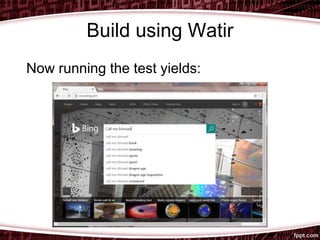
Now running the test yields:
For the button element, we’ll do it exactly
like we did the text field except that
instead of using the set method we will
need to find a method that will click the
button. The method name in this case is -
surprise! - click. From the Watir site:
browser.button(type: 'submit').click
Build using Watir
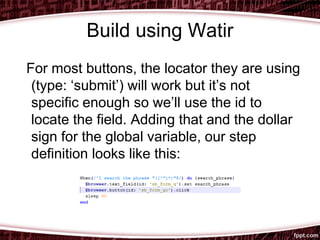
For most buttons, the locator they are using
(type: ‘submit’) will work but it’s not
specific enough so we’ll use the id to
locate the field. Adding that and the dollar
sign for the global variable, our step
definition looks like this:
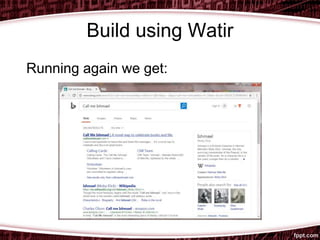
Build using Watir
Running again we get:
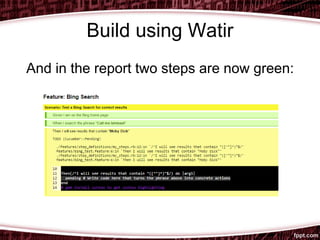
Build using Watir
And in the report two steps are now green:
Build using Watir
Third step:
Then I will see results that contain “Moby
Dick”
Somehow we need to get our code to
examine the result page and check to see
if our phrase “Moby Dick” is found
anywhere. This is where the RSpec gem
comes in handy.
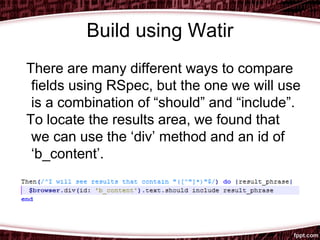
Build using Watir
There are many different ways to compare
fields using RSpec, but the one we will use
is a combination of “should” and “include”.
To locate the results area, we found that
we can use the ‘div’ method and an id of
‘b_content’.
Build using Watir
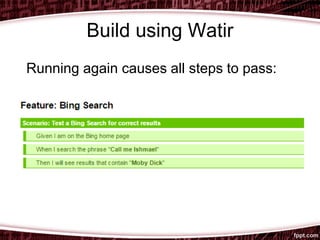
Running again causes all steps to pass:
Why Page Object
The Problem: If you have multiple tests or
even multiple steps that use the same
page elements, it’s tedious to keep having
to locate them by id again and again.
The Solution: Store all of the attributes for
any given page in one place, assign them
labels, and then in your steps simply refer
to the pages and the labels.
Convert to Page Object
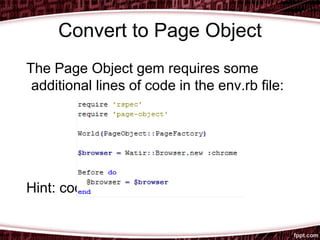
The Page Object gem requires some
additional lines of code in the env.rb file:
Hint: code it and forget it.
Convert to Page Object
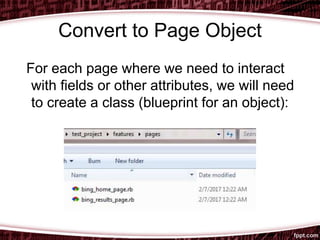
For each page where we need to interact
with fields or other attributes, we will need
to create a class (blueprint for an object):
Convert to Page Object
When we create a class to represent a
page, we are creating a situation where
the attributes of the page are already
defined and they are just waiting for the
page object to be instantiated by creating
a new instance of the class. Once that is
done, the user has access to all of the
attribute methods.
Convert to Page Object
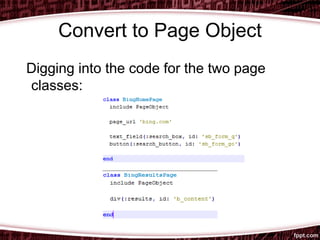
Digging into the code for the two page
classes:
Convert to Page Object
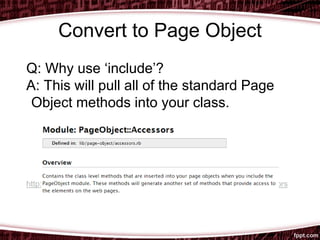
Q: Why use ‘include’?
A: This will pull all of the standard Page
Object methods into your class.
http://www.rubydoc.info/github/cheezy/page-object/PageObject/Accessors
Convert to Page Object
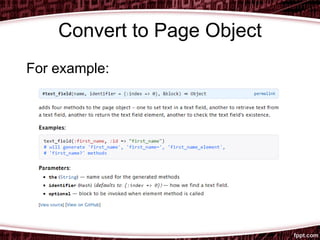
For example:
Convert to Page Object
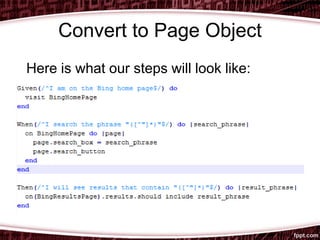
Here is what our steps will look like:
Convert to Page Object
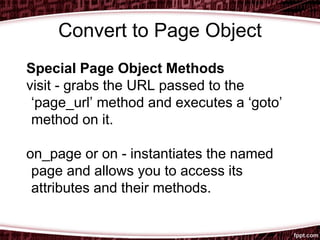
Special Page Object Methods
visit - grabs the URL passed to the
‘page_url’ method and executes a ‘goto’
method on it.
on_page or on - instantiates the named
page and allows you to access its
attributes and their methods.
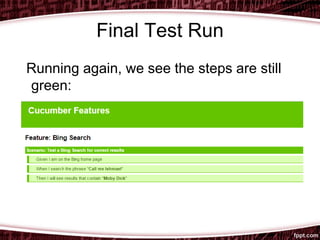
Final Test Run
Running again, we see the steps are still
green:
Questions/Answers
Does anyone have a question?
Let’s Stay In Touch
Contact me:
joseph.beale92@gmail.com
Connect with me on LinkedIn:
www.linkedin.com/in/JosephBealeQA
Follow me on Twitter: @JosephBealeQA

Page object from the ground up by Joe Beale

  • 1.
    Page Object Fromthe Ground Up Joseph Beale 02/07/2017
  • 2.
    Agenda 1. Prepare theEnvironment 2.Build Automated Test using Watir 3.Convert to Page Object 4.Final Test Run 5.Q&A and Fun Time
  • 3.
    But first... Could Ihave a volunteer from the audience?
  • 4.
    Environment Create a foldercalled “test_project” under c:rubyprograms
  • 5.
    Environment Inside of test_project,create a folder called “features”. Then inside of that, create three more called “step_definitions”, “support”, and “pages”.
  • 6.
    Environment Open up thefeatures -> support folder and create a new text file called “env.rb”.
  • 7.
    Environment This demonstration willrequire you to have Ruby installed on your system. For this, go to https://rubyinstaller.org/ and download the necessary installer. Then follow the directions there. After installing Ruby, grab the Cucumber gem by typing “gem install cucumber” at a command prompt.
  • 8.
    Environment We will needtwo more gems for this demonstration: • rspec • page-object Q: What is a Ruby gem? A: A pre-built code module that performs some useful function in Ruby, available for free from https://rubygems.org
  • 9.
    Environment Open up env.rbusing Notepad++ (free download) and add the following statements: Require statements tell Ruby that you are going to use some extra code modules.
  • 10.
    Build Create a featurefile and a test scenario: Cucumber scenarios are written in ordinary business language using Gherkin keywords (“Feature:”, “Scenario:”, “Given”, “When”, “Then”, “And”, “But”).
  • 11.
    Build Optional: Create abatch file to execute your test.
  • 12.
    Build These commands tellthe operating system to: 1.Open up a new command prompt in the current directory (c:rubyprogramstest_project). 2.Execute the “cucumber” command 3.Create a new report called “report.html” and format it as an html document. 4.Open up the report.
  • 13.
    Build You can goahead and run the test with no other effort. It will not do much, but Cucumber will give you a head start:
  • 14.
    Build Create a filecalled “my_steps.rb” in the step_definitions folder and paste the helper code snippets there:
  • 15.
    Build First step: Given Iam on the Bing home page To satisfy this step, we need to open a browser and navigate to the Bing home page. How do we do this in Ruby?
  • 16.
    Build using Watir Source:https://watir.github.io/
  • 17.
    Build using Watir Righton the front page is the code we need to create a browser object (along with lots of other helpful code): We will use these exact lines of code but modify them for our purposes.
  • 18.
    Build using Watir Wewill create “$browser” using the code they gave us, but we will put it in the env.rb file so that it is created before any of the steps are run:
  • 19.
    Build using Watir Q:Why did you put a ‘$’ in front of your object name? A: To indicate that it is a global variable. We want the browser object to be accessible to all steps, so we make it global.
  • 20.
    Build using Watir Inthe first step definition, we will put the next line of code, but modified to reflect our global browser object and the URL for Bing.com: Now when we run our test we will get...
  • 21.
    Build using Watir ...theBing home page!
  • 22.
    Build using Watir Notethat our report now shows one step is green, meaning that it has passed:
  • 23.
    Build using Watir Aquick word about method calls: the format for calling a method in Ruby is (object name) + dot (‘.’) + (method name). So in the method call below, the object name is ‘$browser’ and the method name is ‘goto’.
  • 24.
    Build using Watir The‘goto’ method is just one of the pre- defined methods inside of the Watir::Browser class. The method takes one argument: a URL (because it needs to know where to “go to”). Arguments can be passed either inside of parentheses or alongside a method call. So in the previous example we could have said: $browser.goto(‘bing.com’)
  • 25.
    Build using Watir Secondstep: When I search the phrase "Call me Ishmael" To automate this step, we need to interact with two elements on the page: 1. The search text field 2. The search button (indicated by the magnifying glass icon).
  • 26.
    Build using Watir Watirhas several methods in the Browser class to interact with the elements that are common to most web pages. The two we need are listed in the example given on their home page (right under the ‘goto’):
  • 27.
    Build using Watir Tointeract with the two search elements, we will use the ‘text_field’ and ‘button’ methods. These two methods each take one argument: a locator as indicated by the syntax (locator: ‘unique_identifier’). For example: $browser.text_field(id: ‘my_id’).set ‘my text’ $browser.button(id: ‘my_button’).click
  • 28.
    Build using Watir Thelocators are part of the page’s Document Object Model or DOM, which is a model of the page’s html code. But you don’t need to understand the underlying code; all you need to know is how to inspect your desired elements.
  • 29.
    Build using Watir Ifyou are using Chrome browser, you can activate DevTools in three ways: Source: https://developers.google.com/web/tools/chrome-devtools/
  • 30.
    Build using Watir Inspectingthe search box yields:
  • 31.
    Build using Watir Themost common locator to use is ‘id’, so we will copy the value for the id locator (“sb_form_q”) and use it in our code for the text_field method.
  • 32.
    Build using Watir Oncenice feature of Ruby method calls is the ability to “chain” methods one right after another. Ruby will execute them in the order given, from left to right. That is what you see in the text_field example: The ‘set’ method is executed right after the text_field method.
  • 33.
    Build using Watir Youcan use the ‘set’ method anytime you have defined a text field element using the ‘text_field’ method. It takes one argument: the word or phrase that you wish to place in the field. So, substituting a helpful variable name like “search_phrase” for “arg1” in the code snippet, the code for our second step looks like this:
  • 34.
    Build using Watir Q:Where does the value for “search_phrase” come from? A: It is passed into the code from the Gherkin step using a capture group. This cryptic bit of code "([^"]*)" grabs whatever is between the double-quotes and throws it into my given variable.
  • 35.
    Build using Watir Sincethe variable search_phrase is a string, we can use it as an argument for the set method. And so then we are able to use that same Ruby code block no matter what phrase is used in the Gherkin. Step → Step definition →
  • 36.
    Build using Watir Nowrunning the test yields:
  • 37.
    For the buttonelement, we’ll do it exactly like we did the text field except that instead of using the set method we will need to find a method that will click the button. The method name in this case is - surprise! - click. From the Watir site: browser.button(type: 'submit').click
  • 38.
    Build using Watir Formost buttons, the locator they are using (type: ‘submit’) will work but it’s not specific enough so we’ll use the id to locate the field. Adding that and the dollar sign for the global variable, our step definition looks like this:
  • 39.
  • 40.
    Build using Watir Andin the report two steps are now green:
  • 41.
    Build using Watir Thirdstep: Then I will see results that contain “Moby Dick” Somehow we need to get our code to examine the result page and check to see if our phrase “Moby Dick” is found anywhere. This is where the RSpec gem comes in handy.
  • 42.
    Build using Watir Thereare many different ways to compare fields using RSpec, but the one we will use is a combination of “should” and “include”. To locate the results area, we found that we can use the ‘div’ method and an id of ‘b_content’.
  • 43.
    Build using Watir Runningagain causes all steps to pass:
  • 44.
    Why Page Object TheProblem: If you have multiple tests or even multiple steps that use the same page elements, it’s tedious to keep having to locate them by id again and again. The Solution: Store all of the attributes for any given page in one place, assign them labels, and then in your steps simply refer to the pages and the labels.
  • 45.
    Convert to PageObject The Page Object gem requires some additional lines of code in the env.rb file: Hint: code it and forget it.
  • 46.
    Convert to PageObject For each page where we need to interact with fields or other attributes, we will need to create a class (blueprint for an object):
  • 47.
    Convert to PageObject When we create a class to represent a page, we are creating a situation where the attributes of the page are already defined and they are just waiting for the page object to be instantiated by creating a new instance of the class. Once that is done, the user has access to all of the attribute methods.
  • 48.
    Convert to PageObject Digging into the code for the two page classes:
  • 49.
    Convert to PageObject Q: Why use ‘include’? A: This will pull all of the standard Page Object methods into your class. http://www.rubydoc.info/github/cheezy/page-object/PageObject/Accessors
  • 50.
    Convert to PageObject For example:
  • 51.
    Convert to PageObject Here is what our steps will look like:
  • 52.
    Convert to PageObject Special Page Object Methods visit - grabs the URL passed to the ‘page_url’ method and executes a ‘goto’ method on it. on_page or on - instantiates the named page and allows you to access its attributes and their methods.
  • 53.
    Final Test Run Runningagain, we see the steps are still green:
  • 54.
  • 55.
    Let’s Stay InTouch Contact me: joseph.beale92@gmail.com Connect with me on LinkedIn: www.linkedin.com/in/JosephBealeQA Follow me on Twitter: @JosephBealeQA