Oracle Endeca Installation
MDEX, Presentation API, Platform Services, Tools & Frameworks, CAS
- Keyur Shah (http://www.linkedin.com/in/keyurkshah)
Java JDK 1.7 (Installer)

b

Application Server (e.g. WebLogic) (Installer)

c

ATG Web Commerce 10.2 (Installer)

d

ATG Web Commerce Reference Store for 10.2 (Installer)

e

Endeca MDEX Engine 6.4.1 (Installer)

f

Presentation API folder (Unzip & Copy to Endeca folder)

g

Endeca Platform Services 6.1.3 (Installer)

h

Endeca Tools & Frameworks 3.1.2 (Unzip & copy to Endeca
folder)

i

Endeca Content Acquisition System 3.1.2 (Installer)

j

Oracle Database Express Edition 11g R2 (Installer)

k

Notepad++ or some tool for XML viewing/modification

l

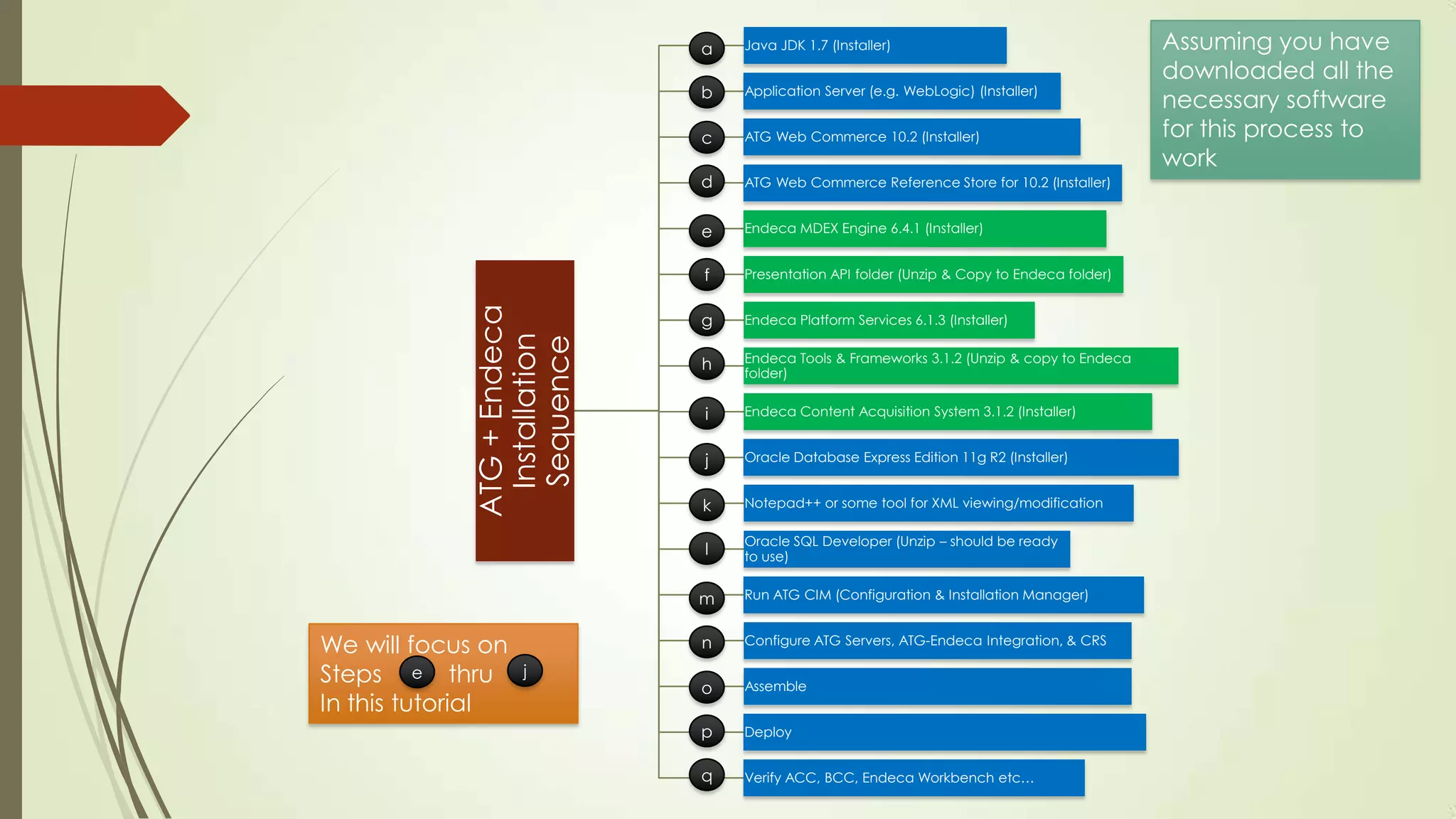
ATG + Endeca
Installation
Sequence

a

Oracle SQL Developer (Unzip – should be ready
to use)

m

We will focus on
Steps e thru
In this tutorial

n
j

Run ATG CIM (Configuration & Installation Manager)
Configure ATG Servers, ATG-Endeca Integration, & CRS

o

Assemble

p

Deploy

q

Verify ACC, BCC, Endeca Workbench etc…

Assuming you have
downloaded all the
necessary software
for this process to
work
MDEX

Oracle Endeca MDEX – Installation
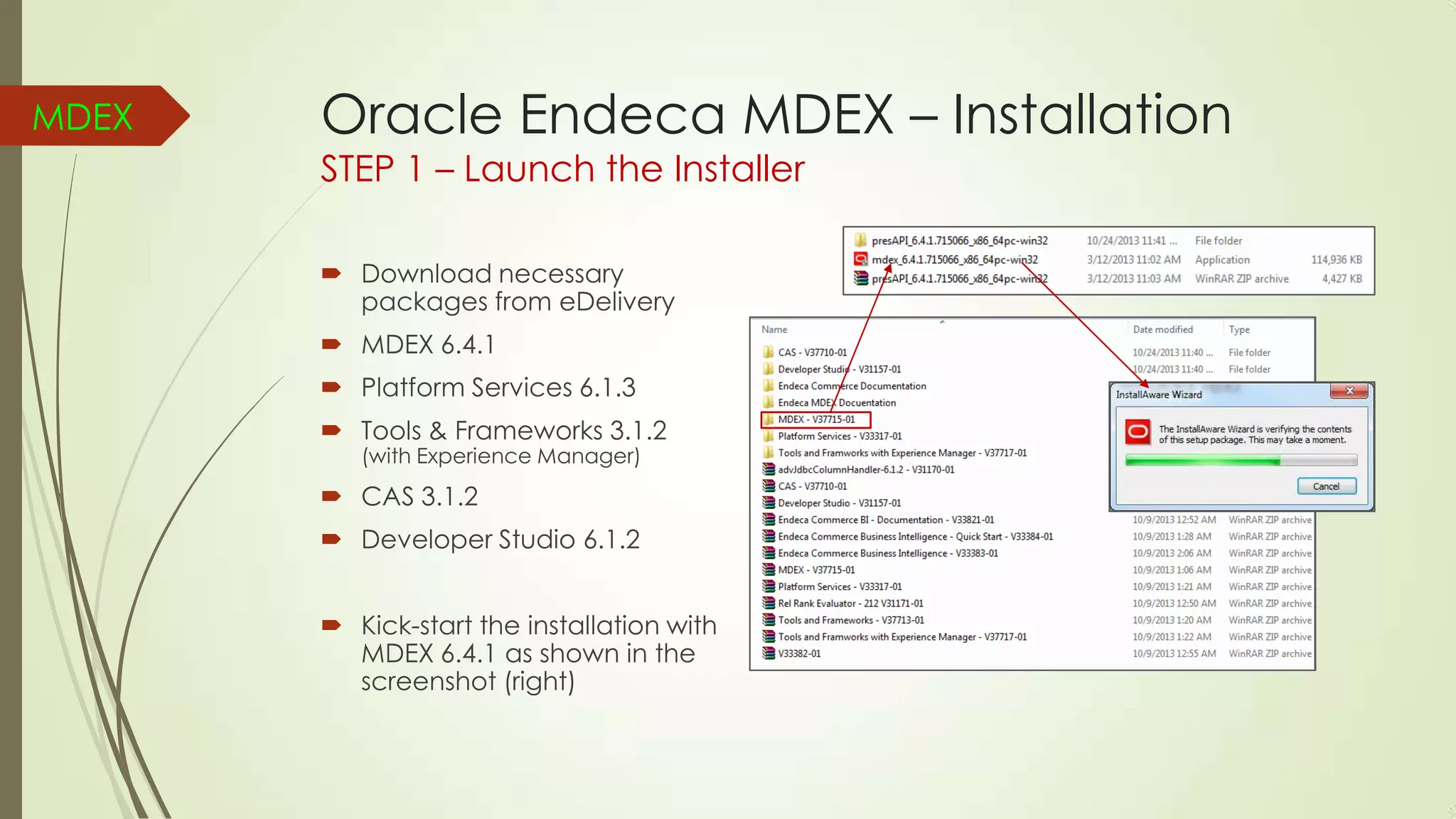
STEP 1 – Launch the Installer
 Download necessary
packages from eDelivery
 MDEX 6.4.1
 Platform Services 6.1.3
 Tools & Frameworks 3.1.2
(with Experience Manager)

 CAS 3.1.2
 Developer Studio 6.1.2
 Kick-start the installation with
MDEX 6.4.1 as shown in the
screenshot (right)
MDEX

Oracle Endeca MDEX – Installation
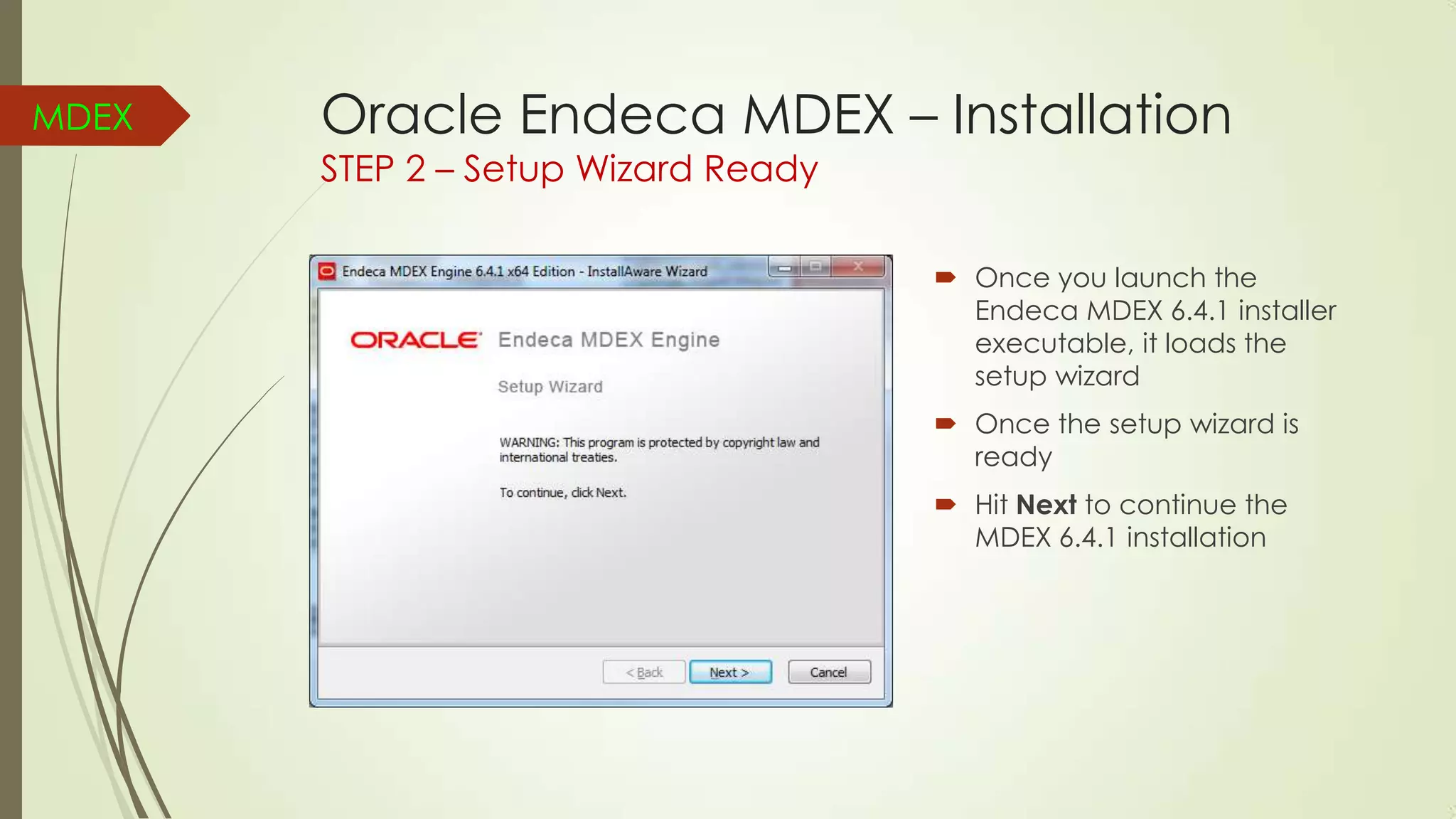
STEP 2 – Setup Wizard Ready

 Once you launch the
Endeca MDEX 6.4.1 installer
executable, it loads the
setup wizard
 Once the setup wizard is
ready
 Hit Next to continue the
MDEX 6.4.1 installation
MDEX

Oracle Endeca MDEX – Installation
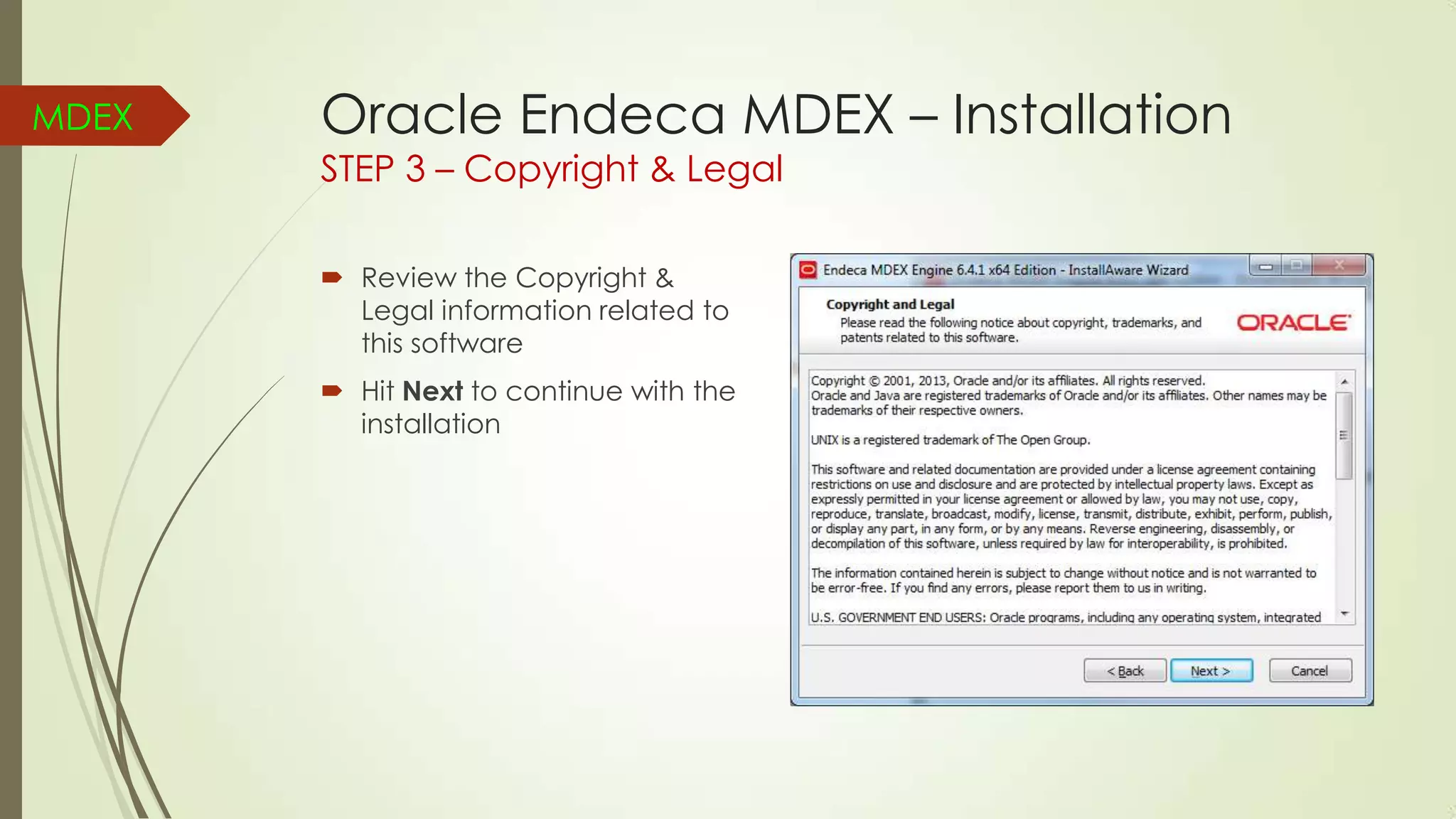
STEP 3 – Copyright & Legal
 Review the Copyright &
Legal information related to
this software
 Hit Next to continue with the
installation
MDEX

Oracle Endeca MDEX – Installation
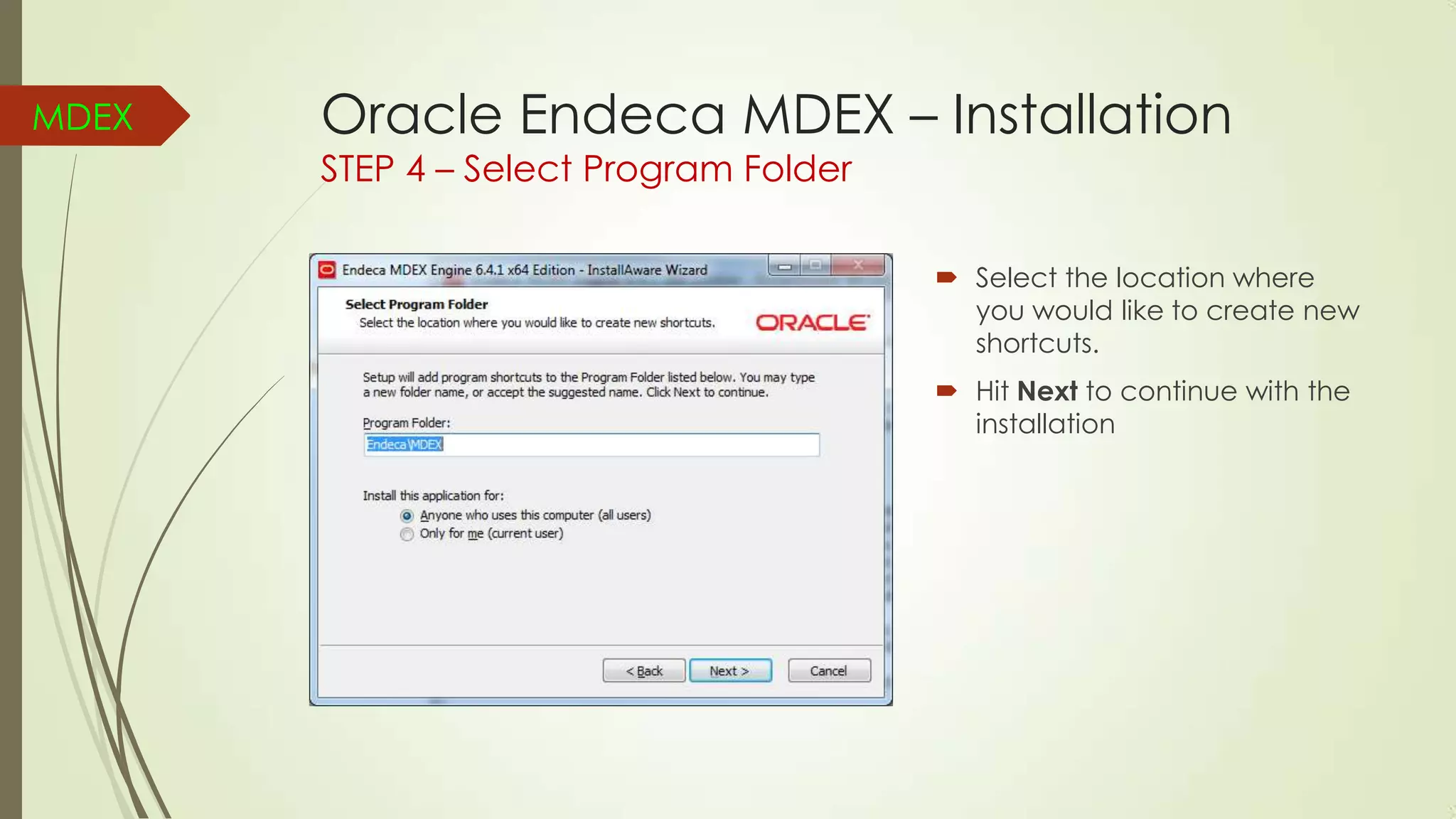
STEP 4 – Select Program Folder

 Select the location where
you would like to create new
shortcuts.
 Hit Next to continue with the
installation
MDEX

Oracle Endeca MDEX – Installation
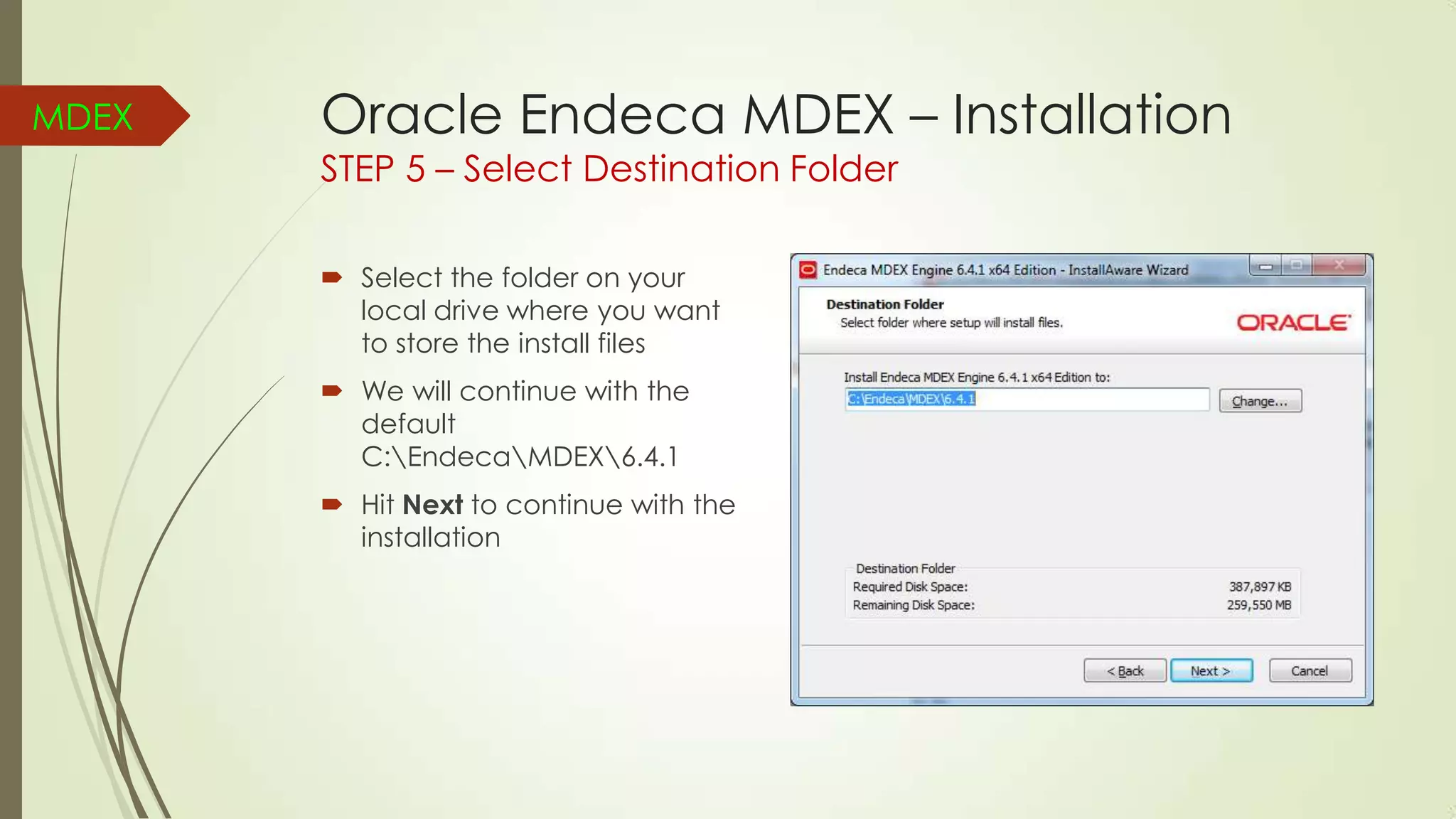
STEP 5 – Select Destination Folder
 Select the folder on your
local drive where you want
to store the install files
 We will continue with the
default
C:EndecaMDEX6.4.1
 Hit Next to continue with the
installation
MDEX

Oracle Endeca MDEX – Installation
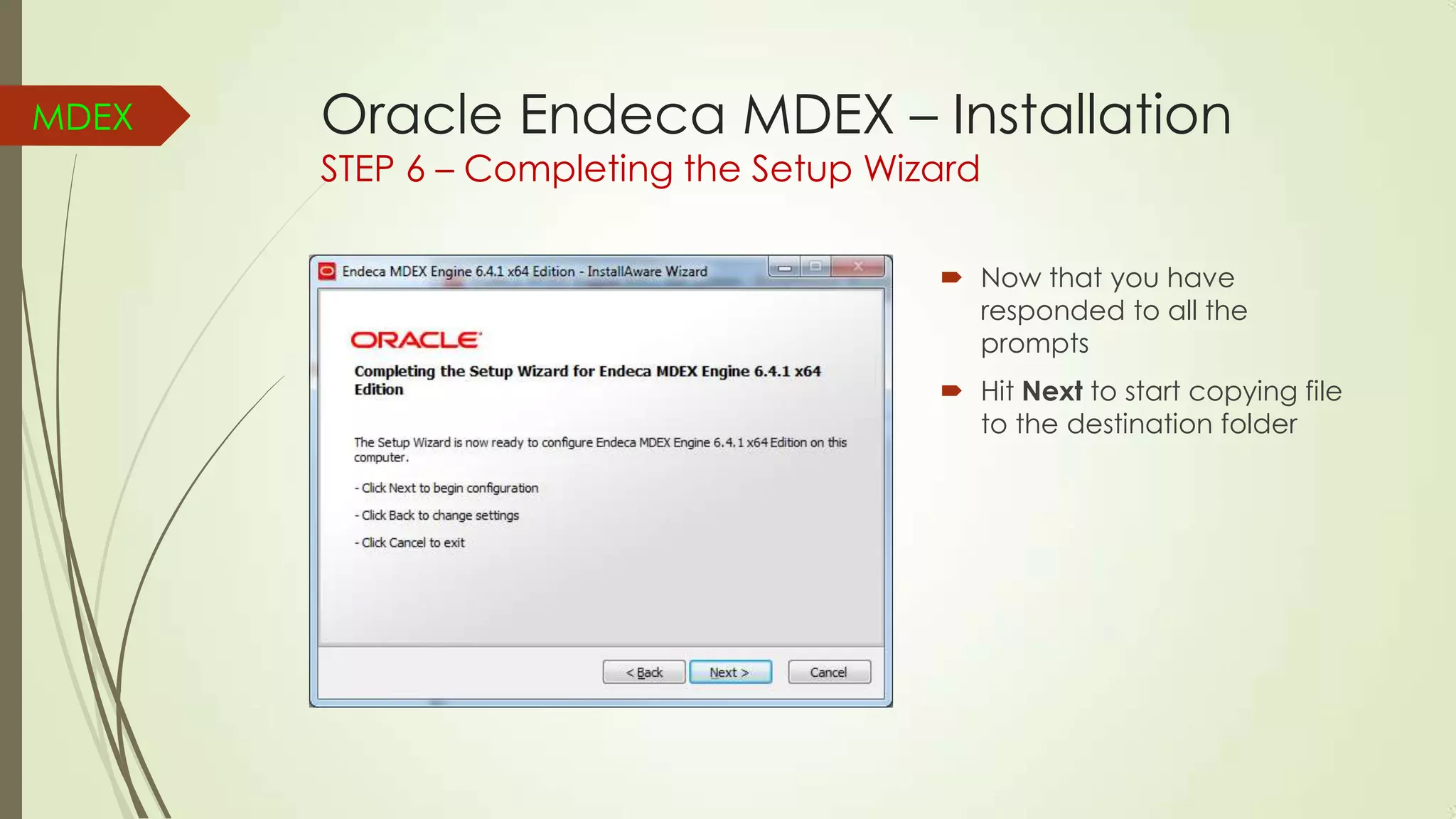
STEP 6 – Completing the Setup Wizard

 Now that you have
responded to all the
prompts
 Hit Next to start copying file
to the destination folder
MDEX

Oracle Endeca MDEX – Installation
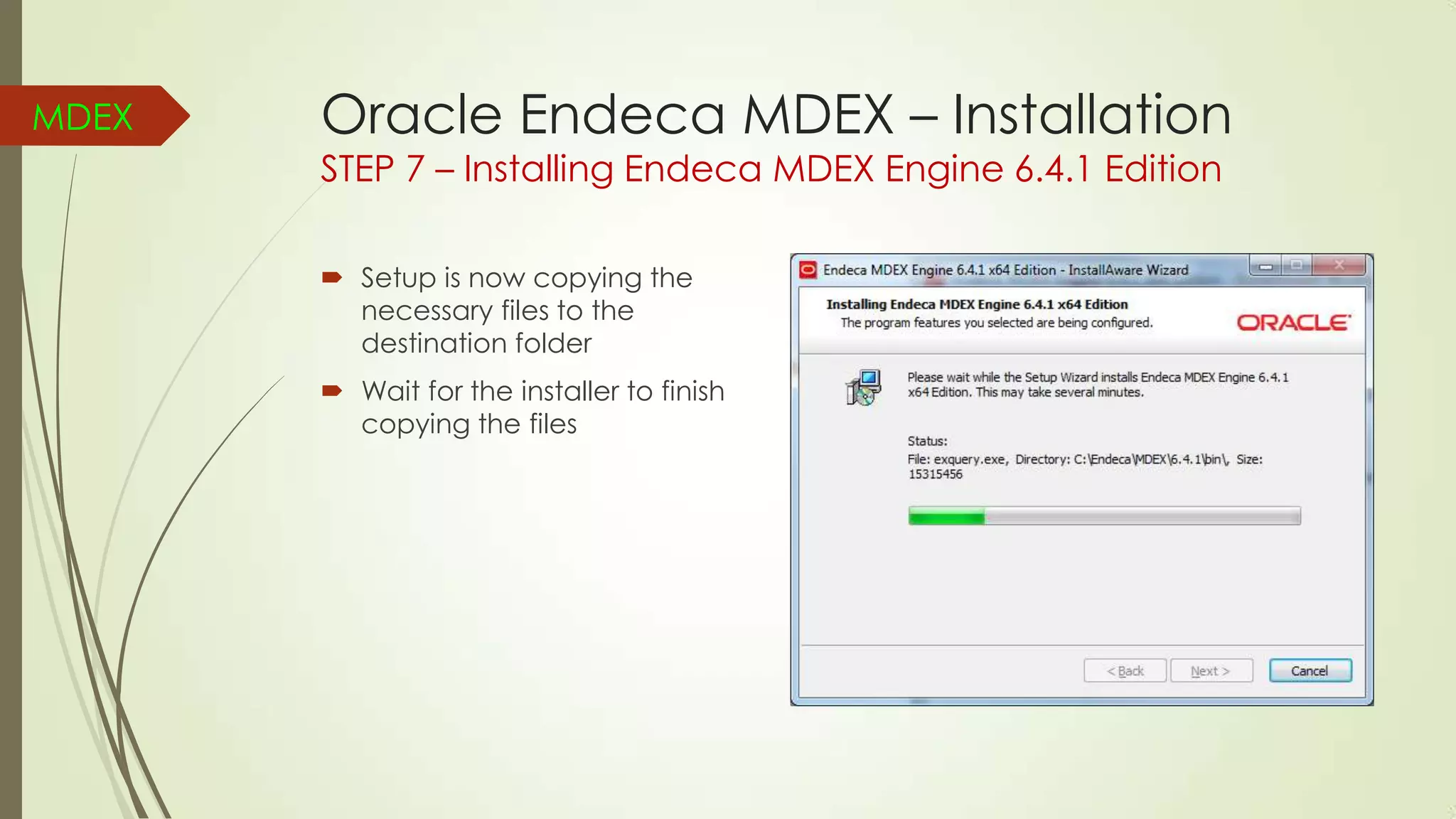
STEP 7 – Installing Endeca MDEX Engine 6.4.1 Edition
 Setup is now copying the
necessary files to the
destination folder
 Wait for the installer to finish
copying the files
MDEX

Oracle Endeca MDEX – Installation
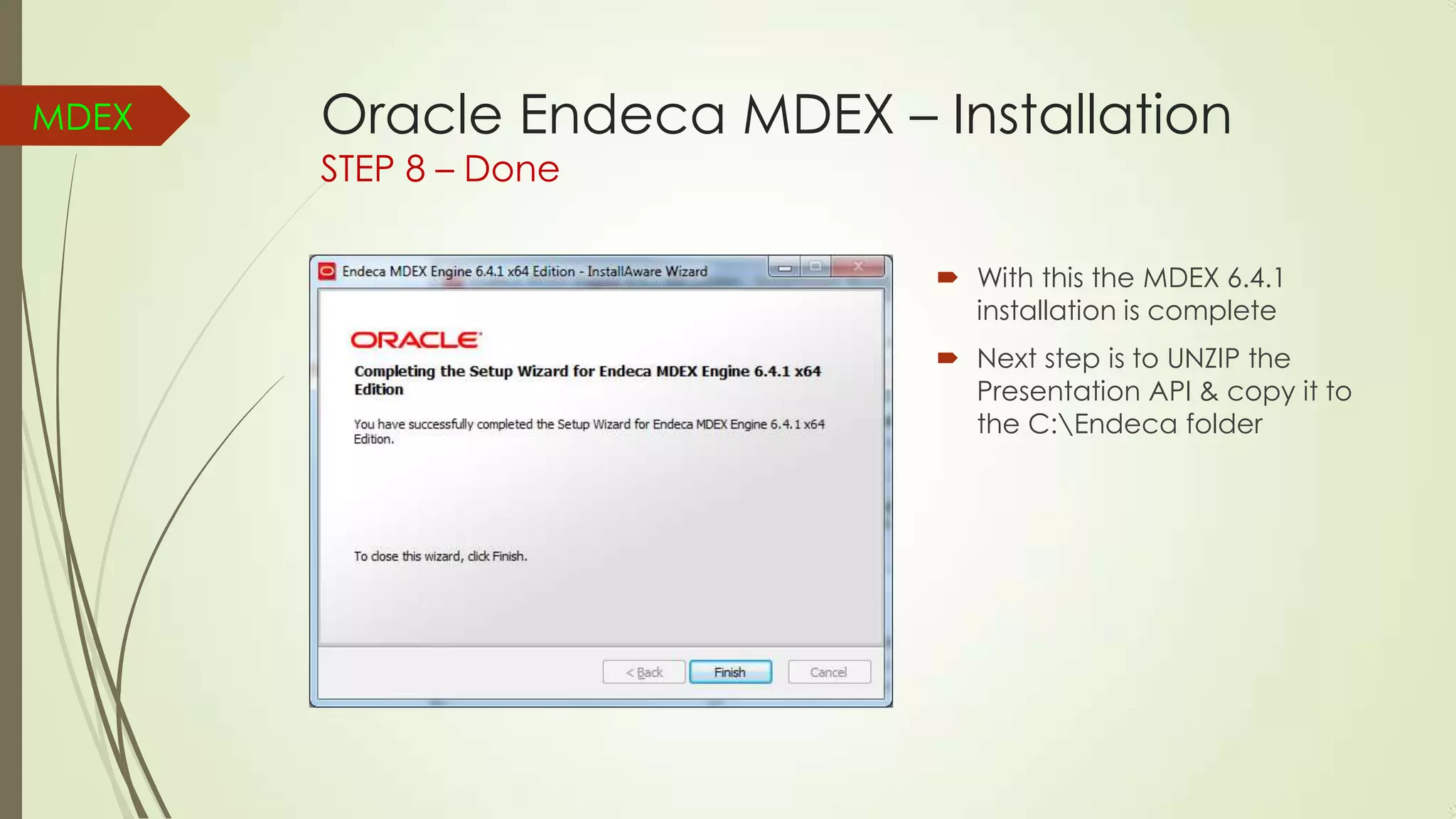
STEP 8 – Done

 With this the MDEX 6.4.1
installation is complete
 Next step is to UNZIP the
Presentation API & copy it to
the C:Endeca folder
Presentation
API

Presentation – API
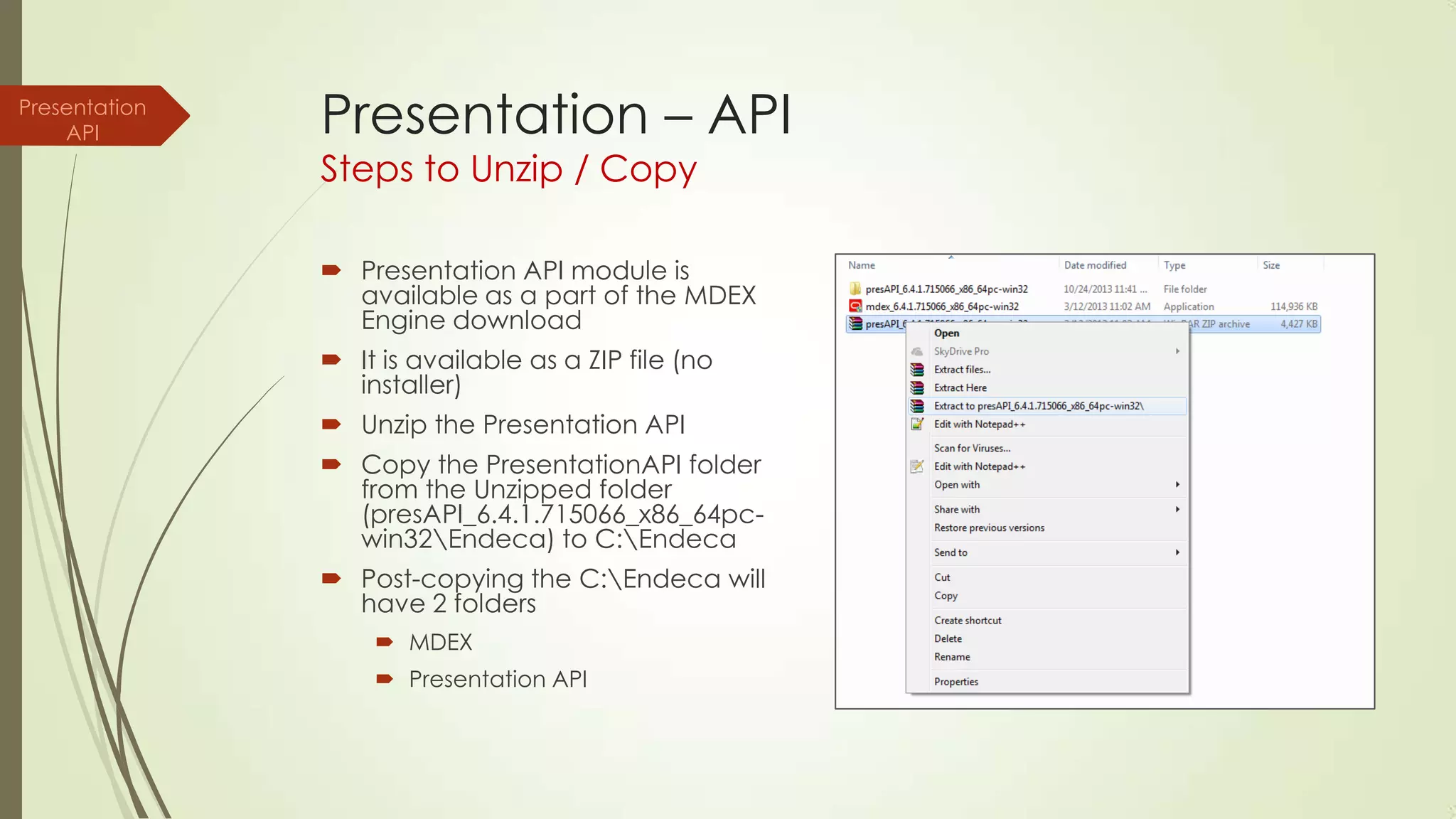
Steps to Unzip / Copy

 Presentation API module is
available as a part of the MDEX
Engine download
 It is available as a ZIP file (no
installer)
 Unzip the Presentation API

 Copy the PresentationAPI folder
from the Unzipped folder
(presAPI_6.4.1.715066_x86_64pcwin32Endeca) to C:Endeca
 Post-copying the C:Endeca will
have 2 folders
 MDEX
 Presentation API
Platform
Services

Oracle Endeca Platform Services Installation
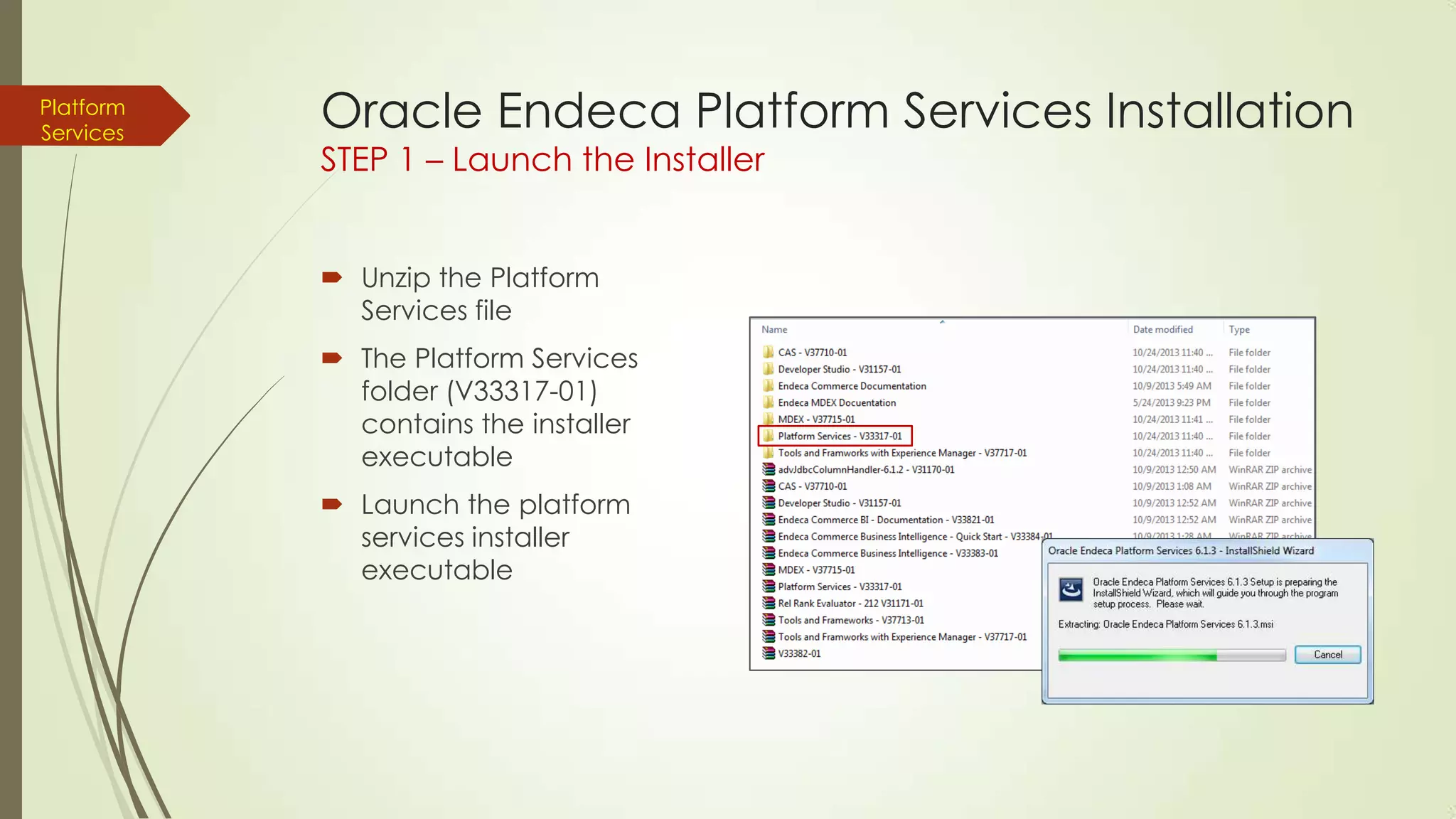
STEP 1 – Launch the Installer
 Unzip the Platform
Services file
 The Platform Services
folder (V33317-01)
contains the installer
executable
 Launch the platform
services installer
executable
Platform
Services

Oracle Endeca Platform Services Installation
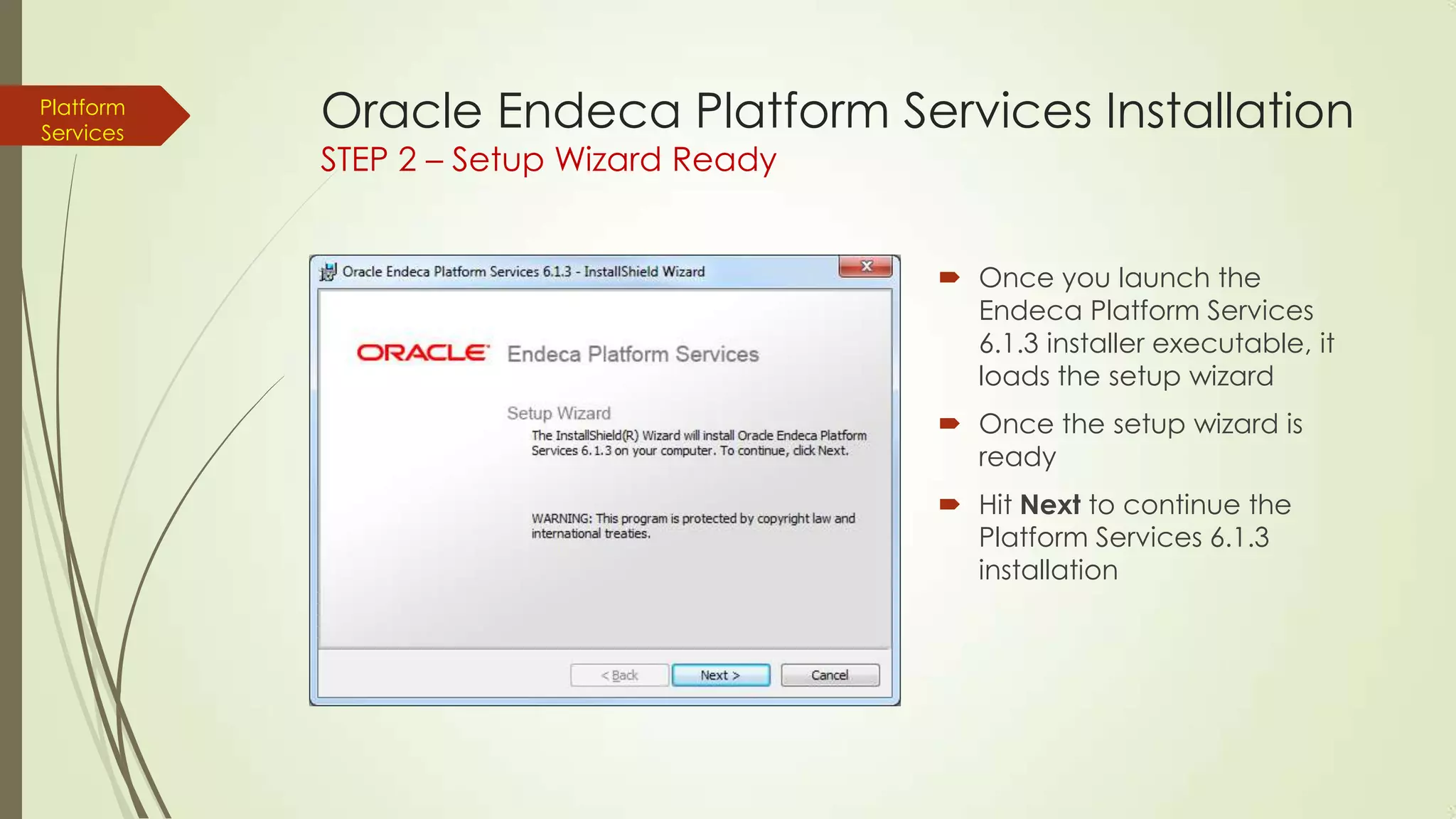
STEP 2 – Setup Wizard Ready

 Once you launch the
Endeca Platform Services
6.1.3 installer executable, it
loads the setup wizard
 Once the setup wizard is
ready
 Hit Next to continue the
Platform Services 6.1.3
installation
Platform
Services

Oracle Endeca Platform Services Installation
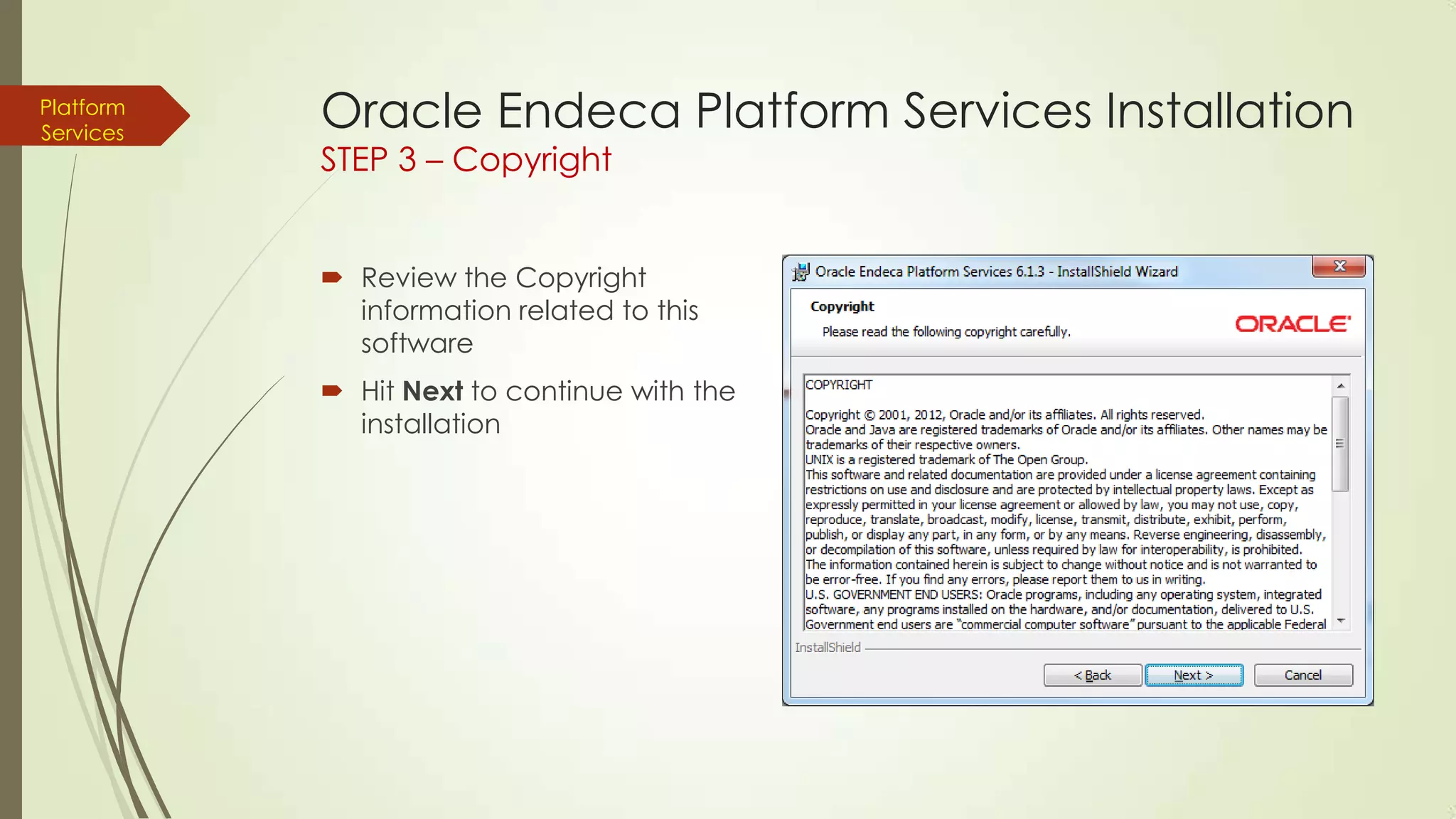
STEP 3 – Copyright

 Review the Copyright
information related to this
software
 Hit Next to continue with the
installation
Platform
Services

Oracle Endeca Platform Services Installation
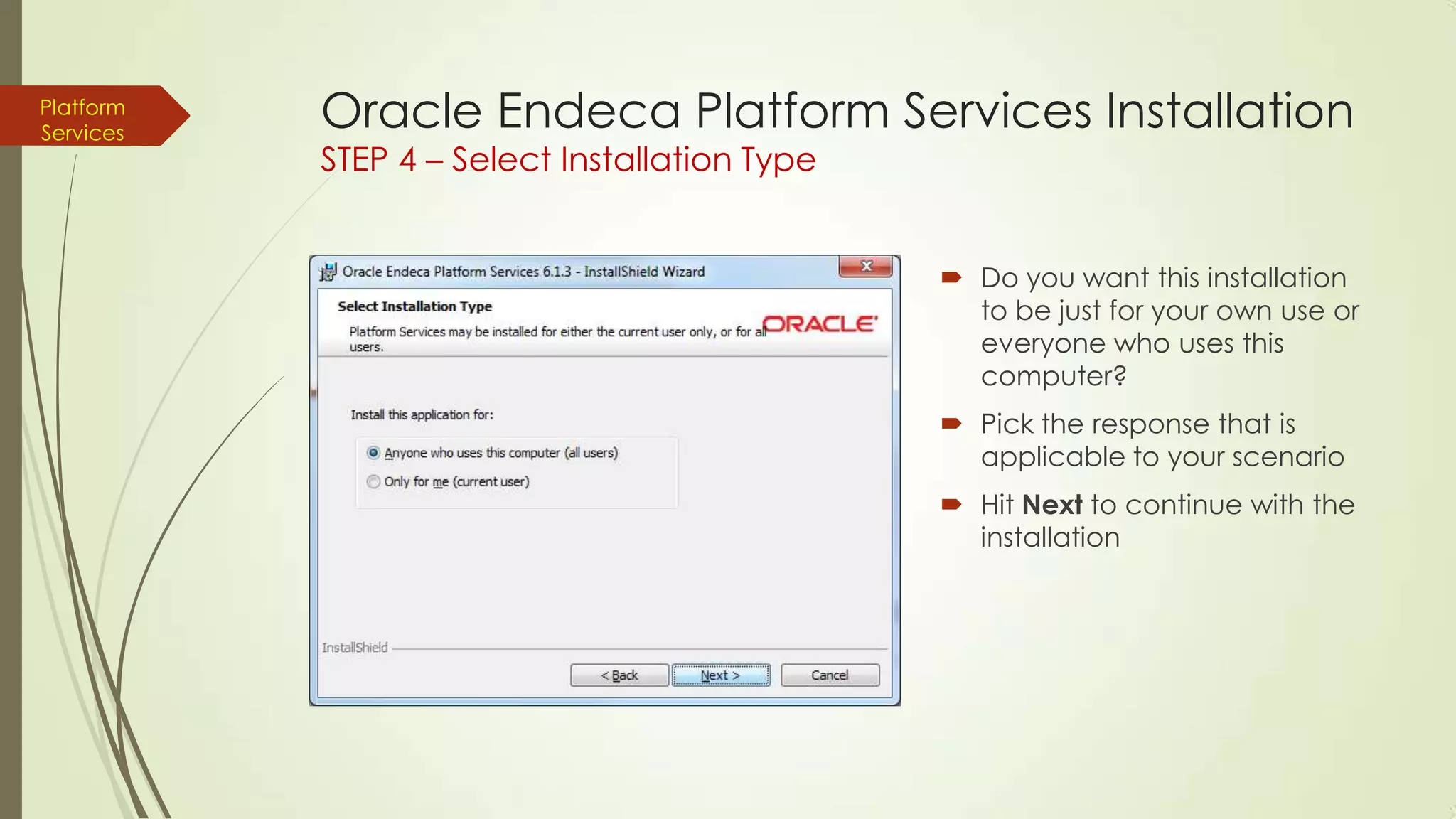
STEP 4 – Select Installation Type

 Do you want this installation
to be just for your own use or
everyone who uses this
computer?
 Pick the response that is
applicable to your scenario
 Hit Next to continue with the
installation
Platform
Services

Oracle Endeca Platform Services Installation
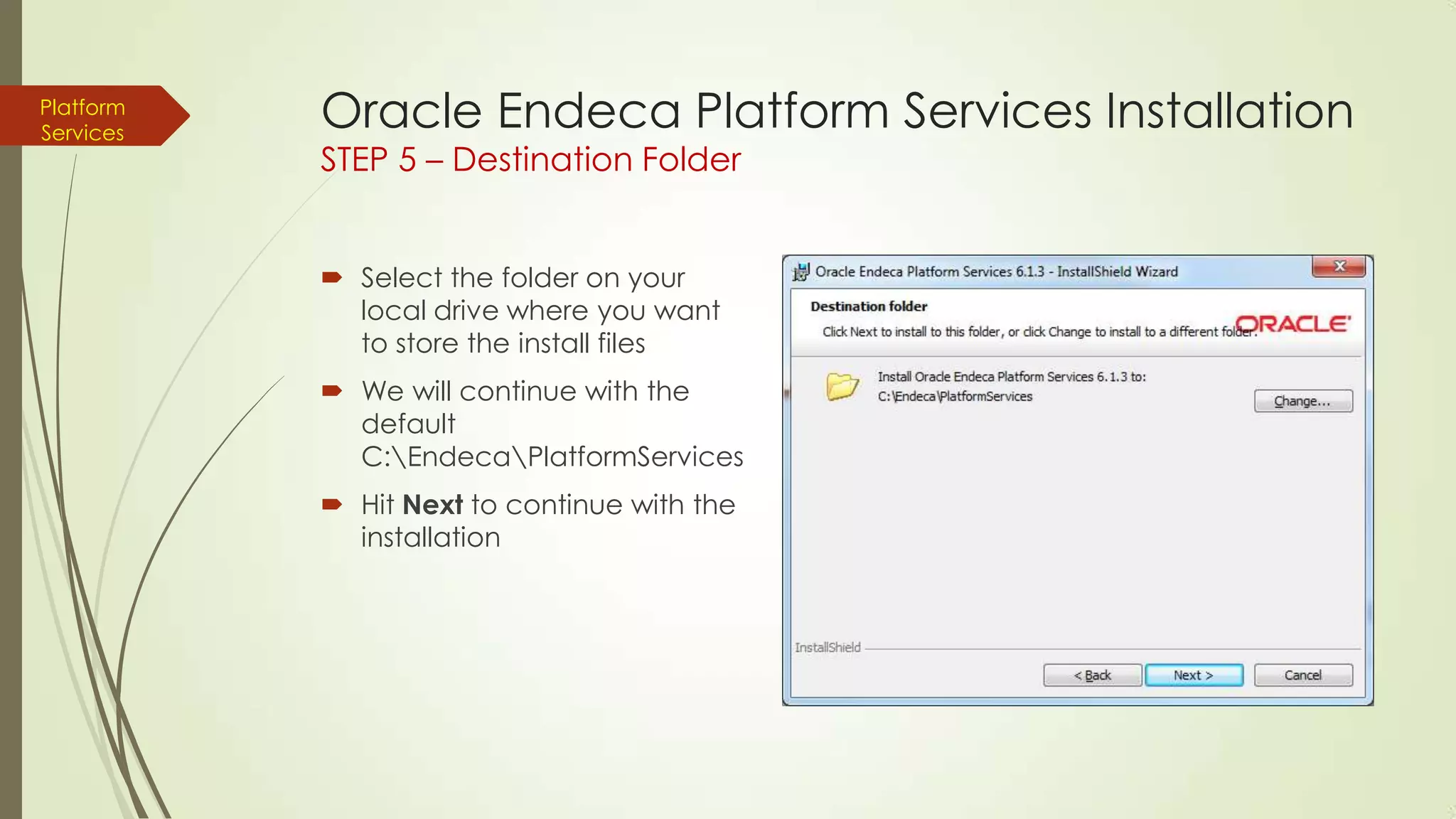
STEP 5 – Destination Folder
 Select the folder on your
local drive where you want
to store the install files
 We will continue with the
default
C:EndecaPlatformServices
 Hit Next to continue with the
installation
Platform
Services

Oracle Endeca Platform Services Installation
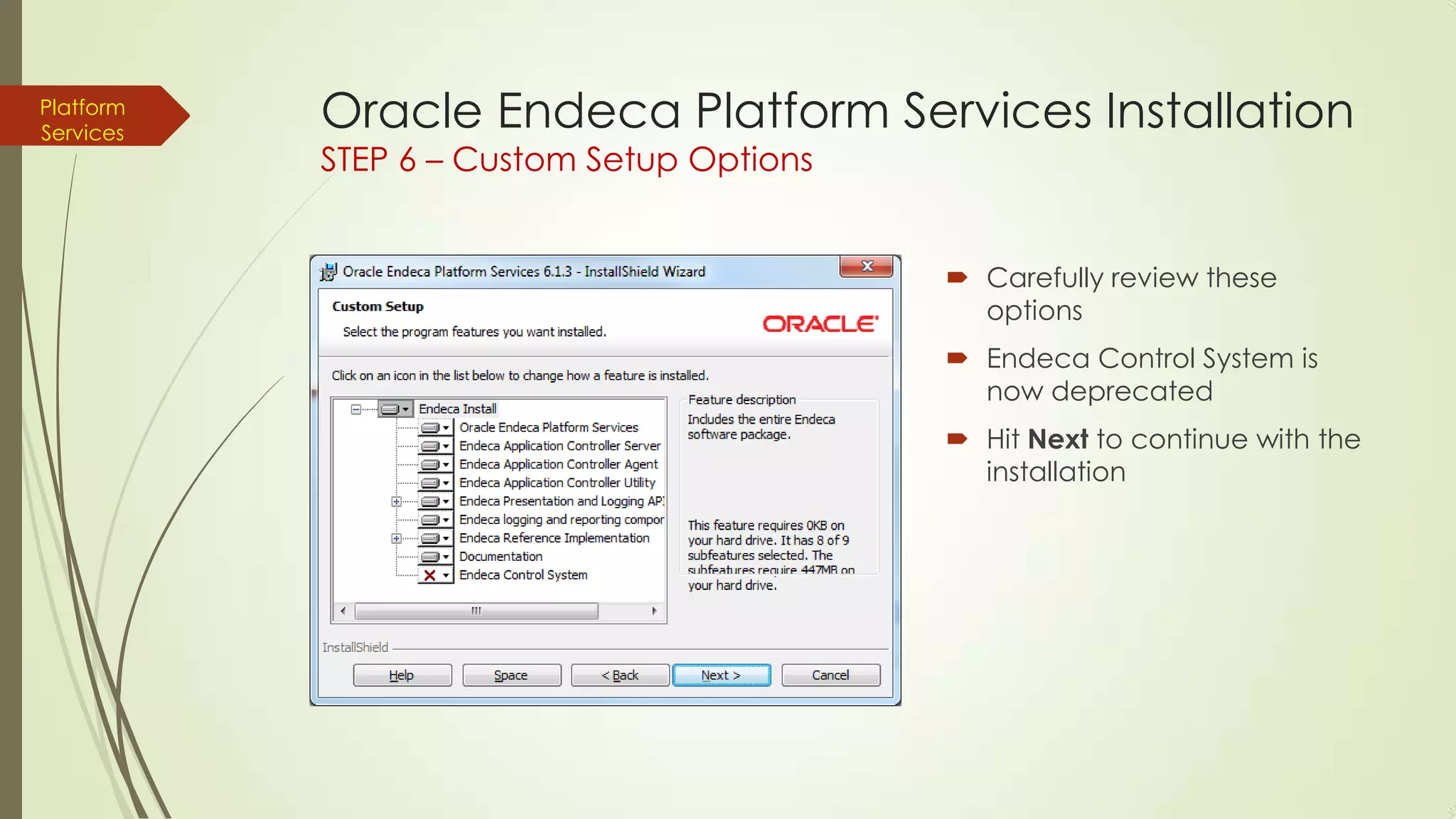
STEP 6 – Custom Setup Options

 Carefully review these
options
 Endeca Control System is
now deprecated
 Hit Next to continue with the
installation
Platform
Services

Oracle Endeca Platform Services Installation
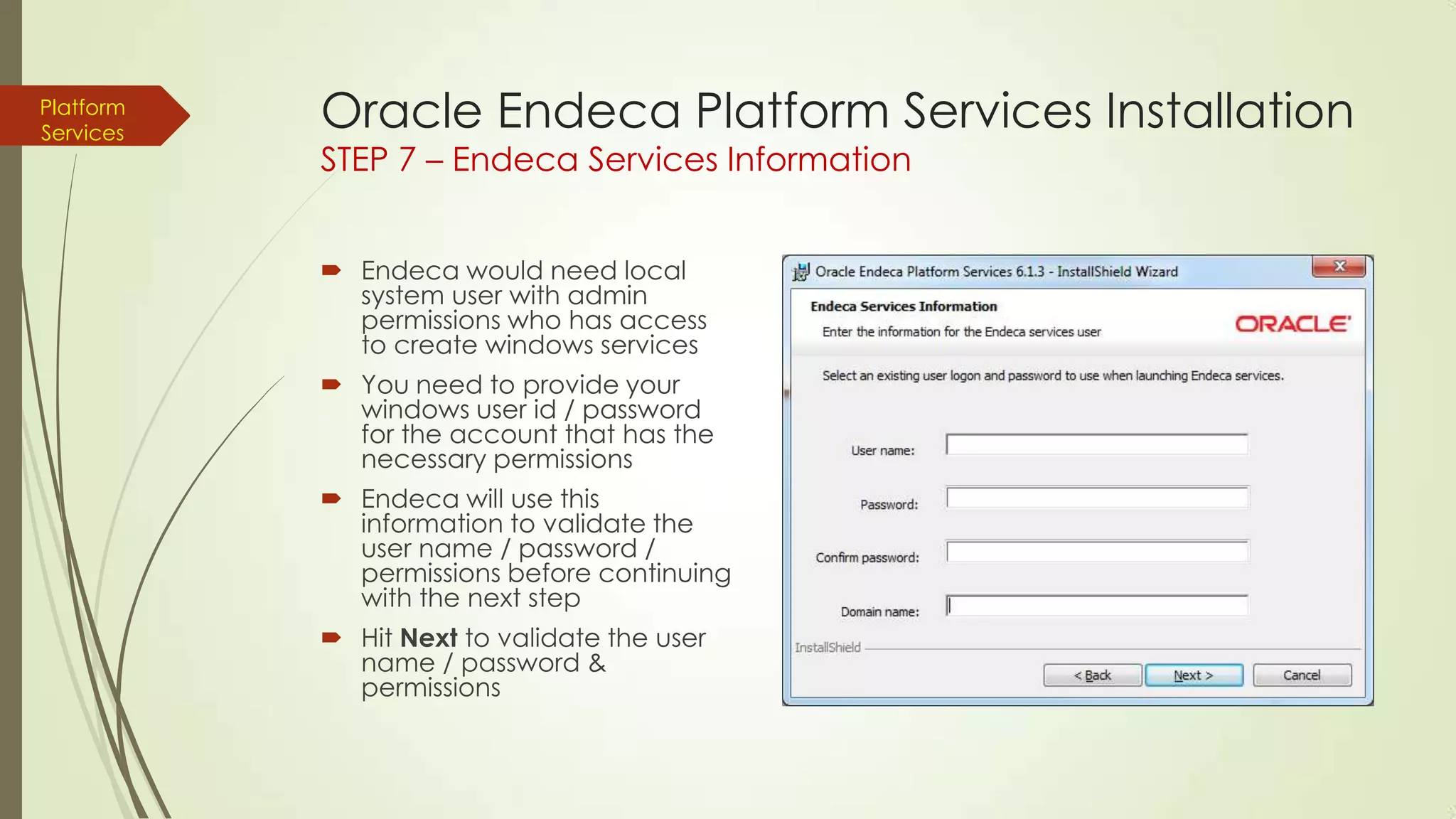
STEP 7 – Endeca Services Information
 Endeca would need local
system user with admin
permissions who has access
to create windows services
 You need to provide your
windows user id / password
for the account that has the
necessary permissions
 Endeca will use this
information to validate the
user name / password /
permissions before continuing
with the next step
 Hit Next to validate the user
name / password &
permissions
Platform
Services

Oracle Endeca Platform Services Installation
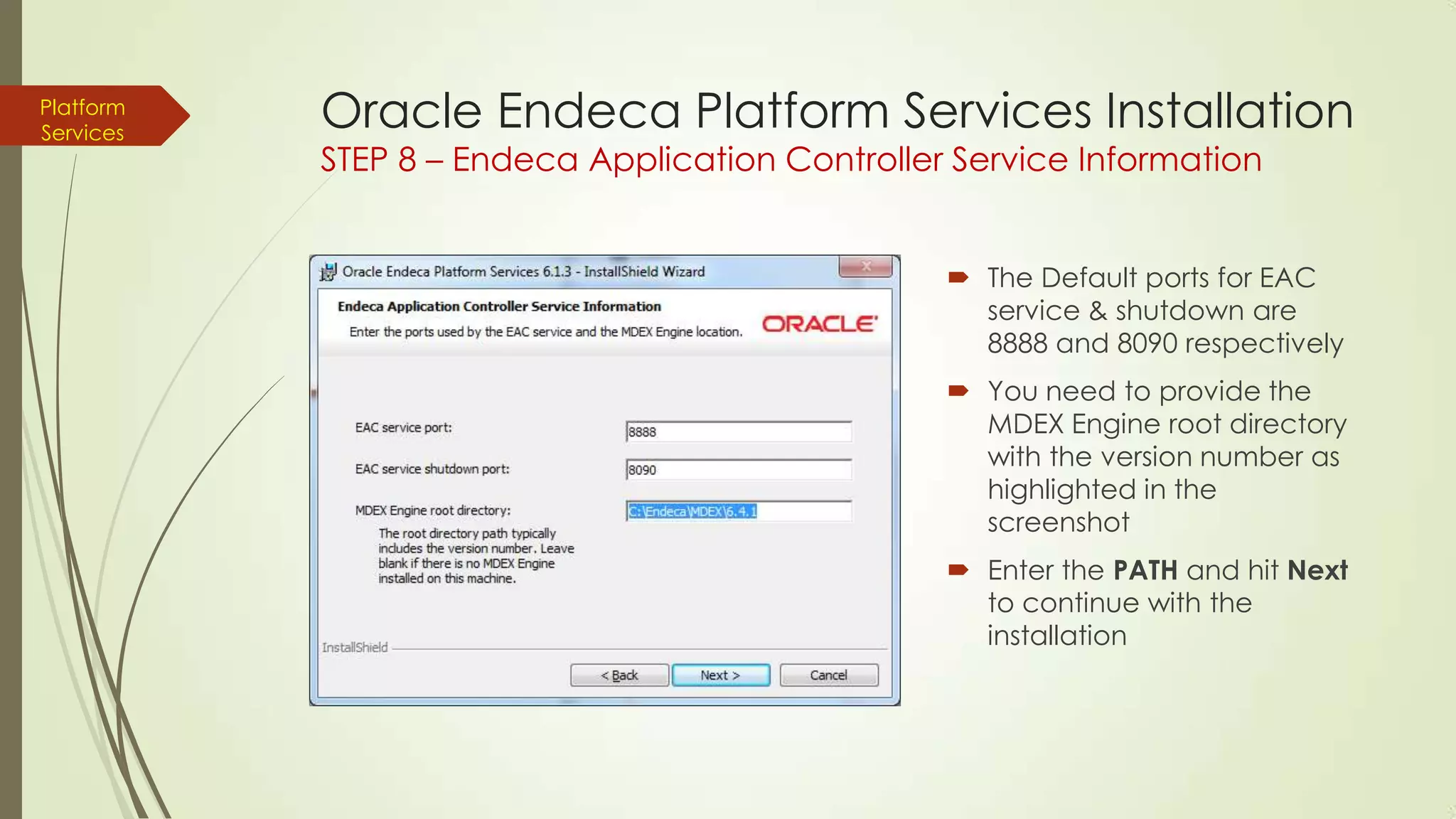
STEP 8 – Endeca Application Controller Service Information

 The Default ports for EAC
service & shutdown are
8888 and 8090 respectively
 You need to provide the
MDEX Engine root directory
with the version number as
highlighted in the
screenshot
 Enter the PATH and hit Next
to continue with the
installation
Platform
Services

Oracle Endeca Platform Services Installation
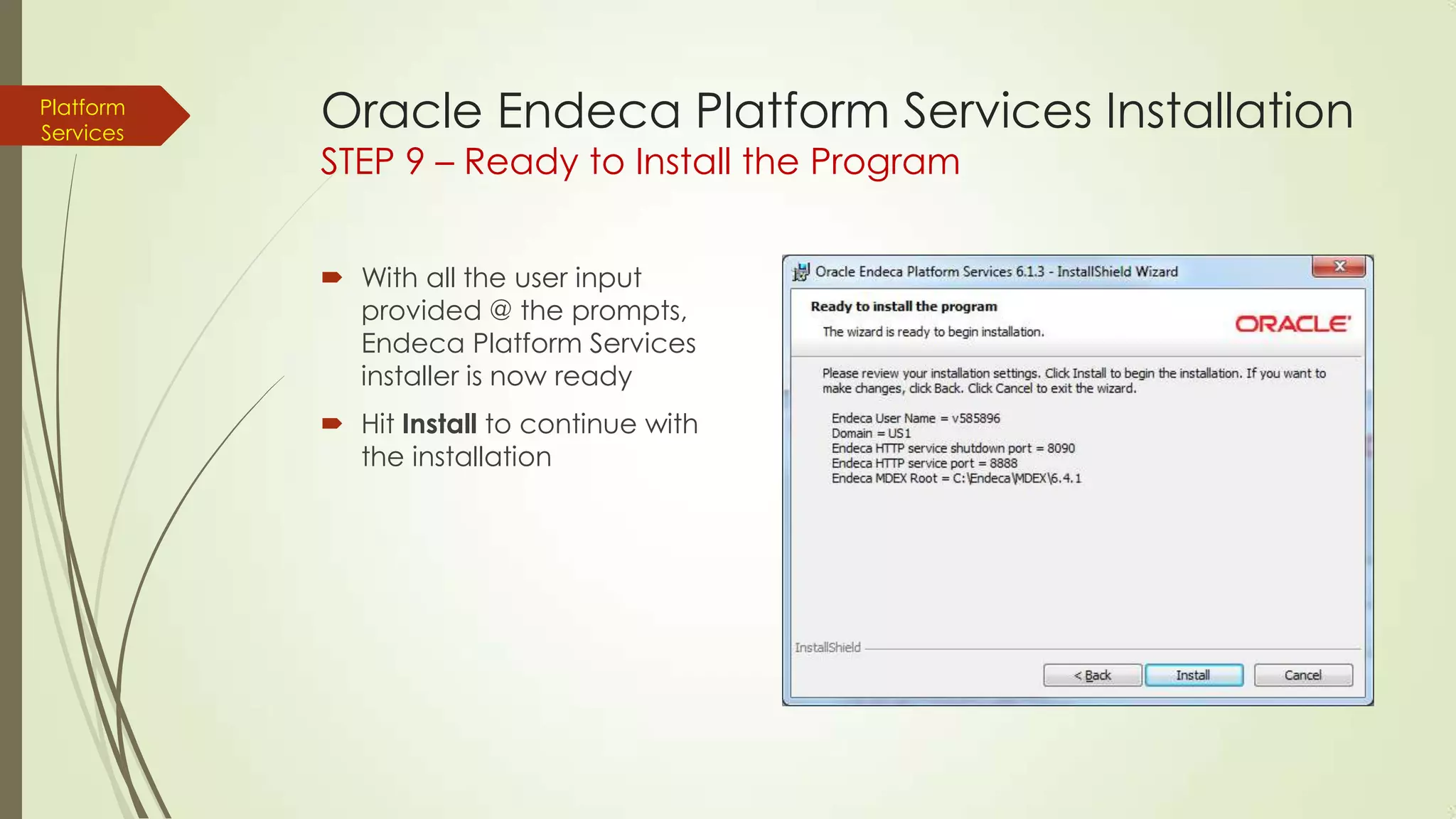
STEP 9 – Ready to Install the Program
 With all the user input
provided @ the prompts,
Endeca Platform Services
installer is now ready
 Hit Install to continue with
the installation
Platform
Services

Oracle Endeca Platform Services Installation
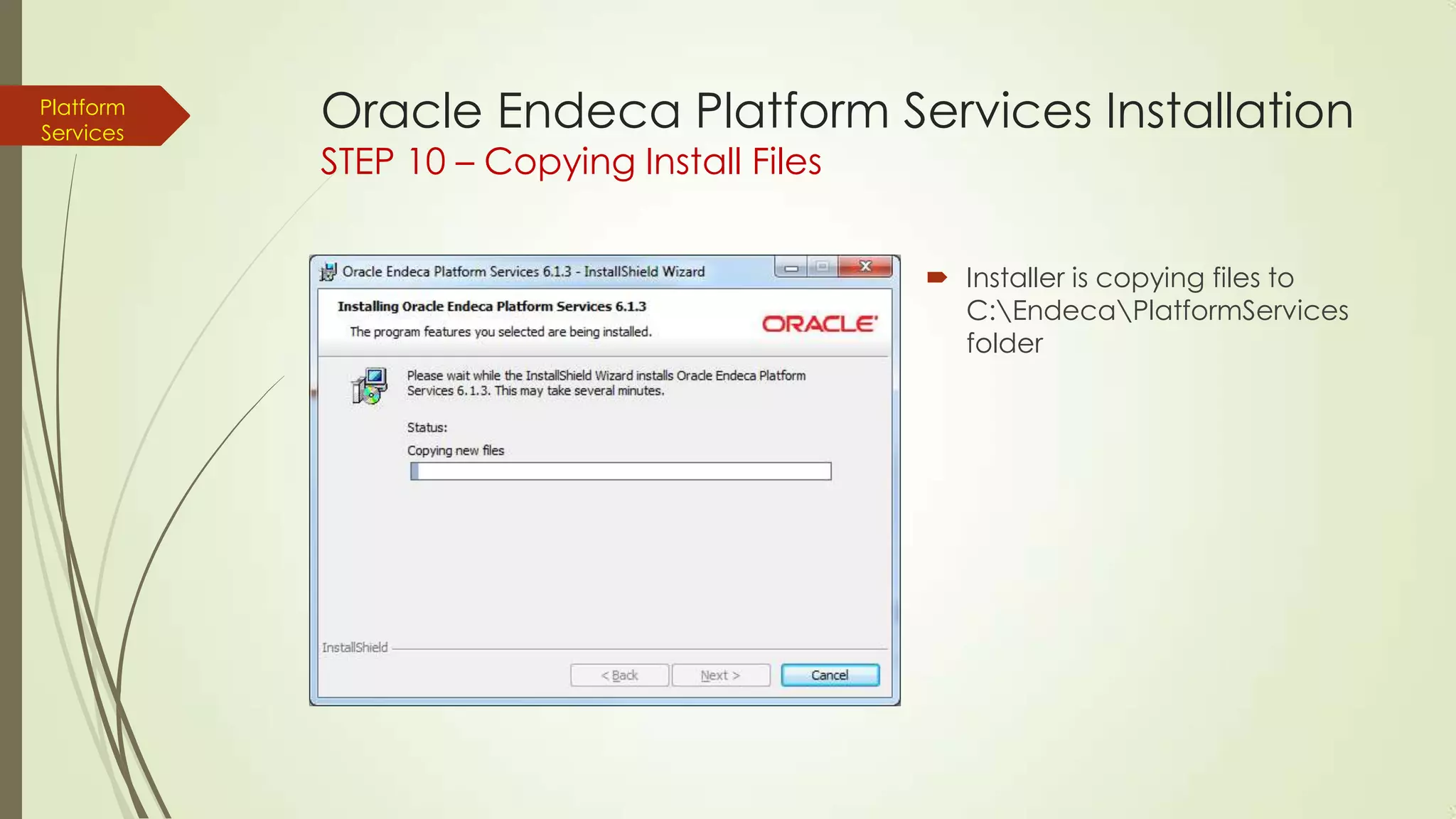
STEP 10 – Copying Install Files

 Installer is copying files to
C:EndecaPlatformServices
folder
Platform
Services

Oracle Endeca Platform Services Installation
STEP 11 – Installation Complete
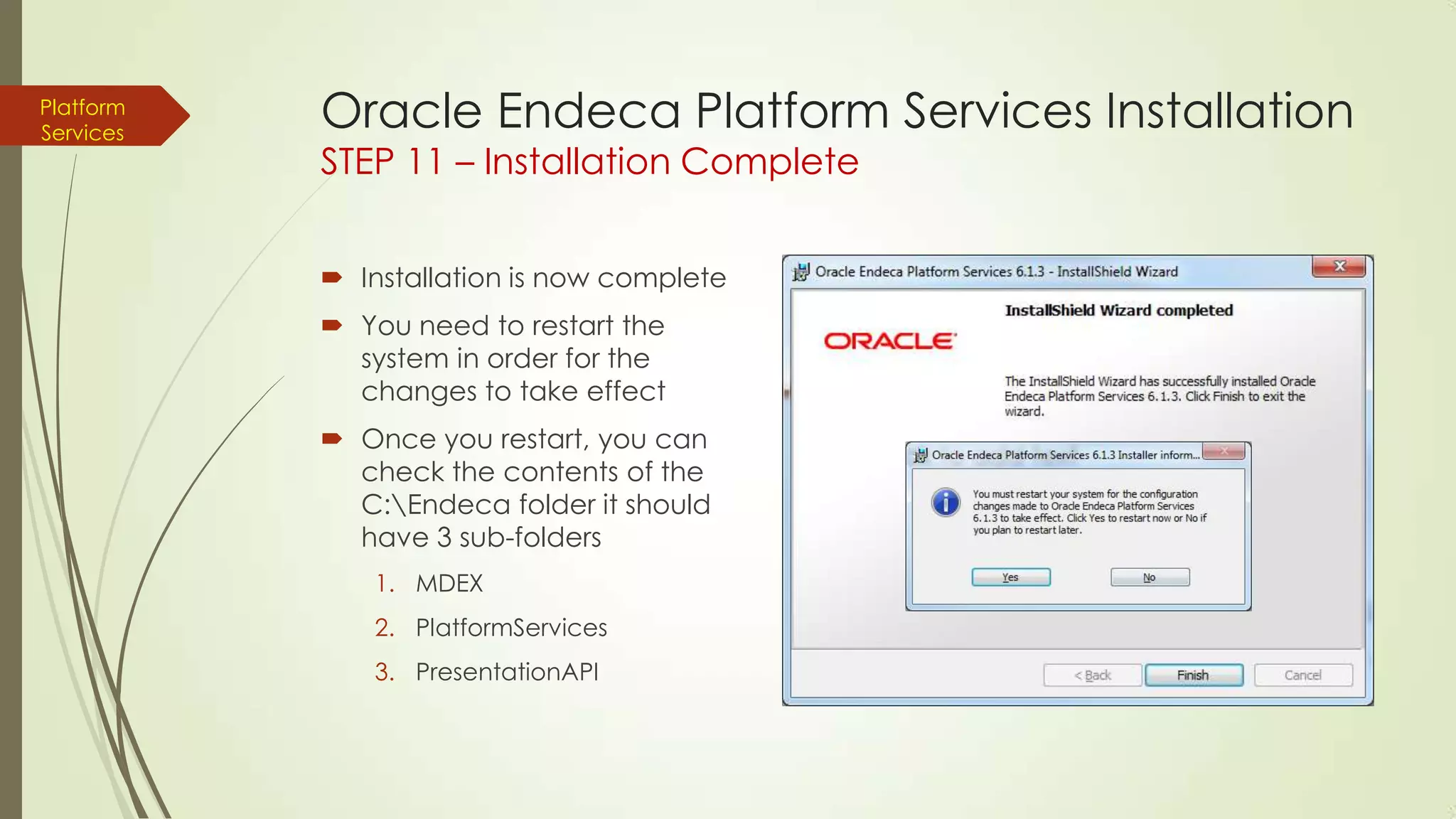
 Installation is now complete
 You need to restart the
system in order for the
changes to take effect
 Once you restart, you can
check the contents of the
C:Endeca folder it should
have 3 sub-folders
1. MDEX
2. PlatformServices

3. PresentationAPI
Tools &
Frameworks

Oracle Endeca Tools and Frameworks
Unzip & Copy

 Oracle Endeca Tools & Frameworks enable dynamic
presentation of content across all channels
 There are 2 versions of Tools & Frameworks
 Tools & Frameworks version for Guided Search
 Tools & Frameworks version with Experience Manager

 We are going to Unzip the version that says “Tools and
Frameworks with Experience manager”
 Both the packages contain – Workbench, Assembler, Tools
Service, Deployment Template, and the Discover Electronic
Reference Application
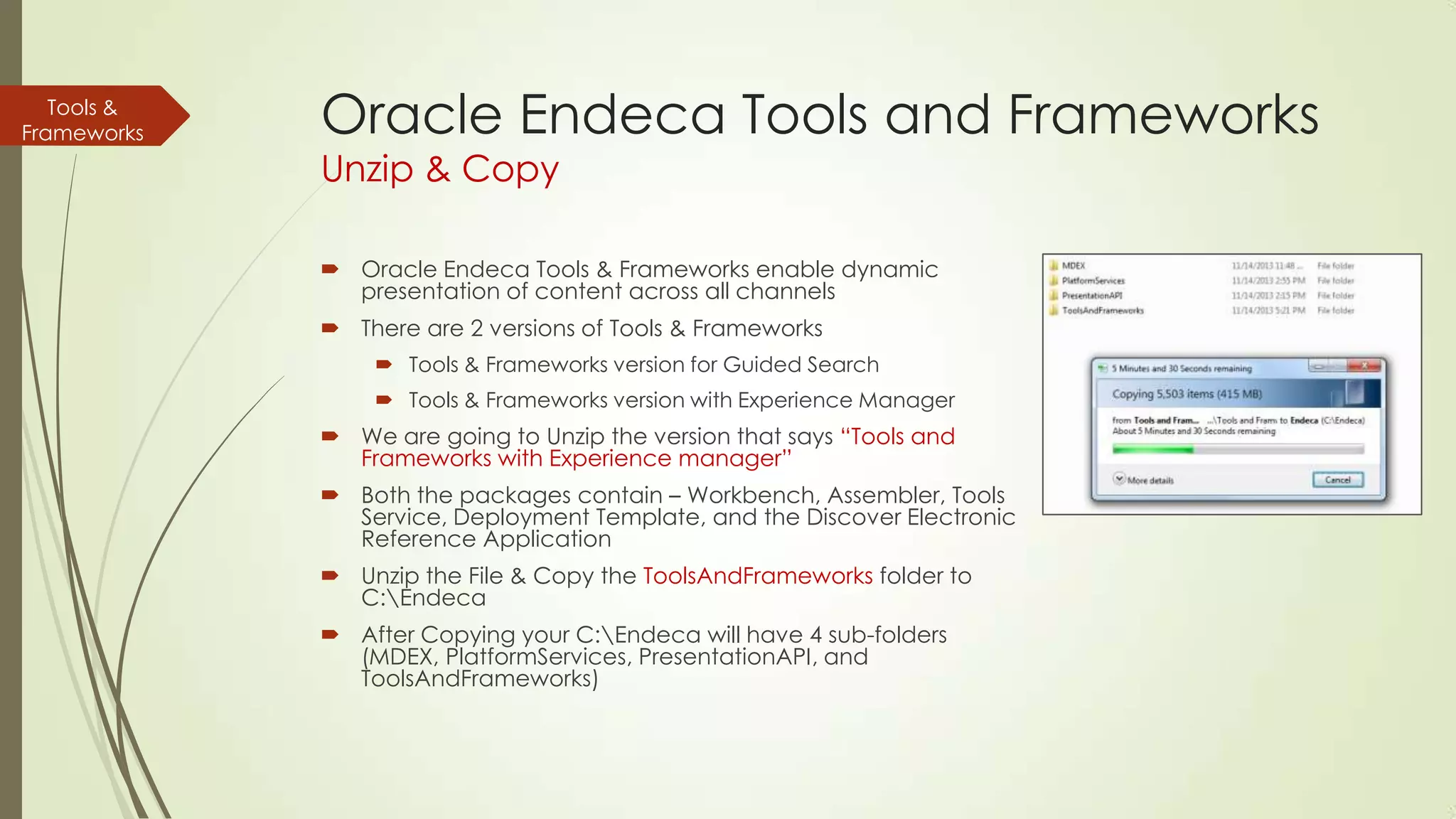
 Unzip the File & Copy the ToolsAndFrameworks folder to
C:Endeca
 After Copying your C:Endeca will have 4 sub-folders
(MDEX, PlatformServices, PresentationAPI, and
ToolsAndFrameworks)
Oracle Endeca Tools and Frameworks
Install Windows Service

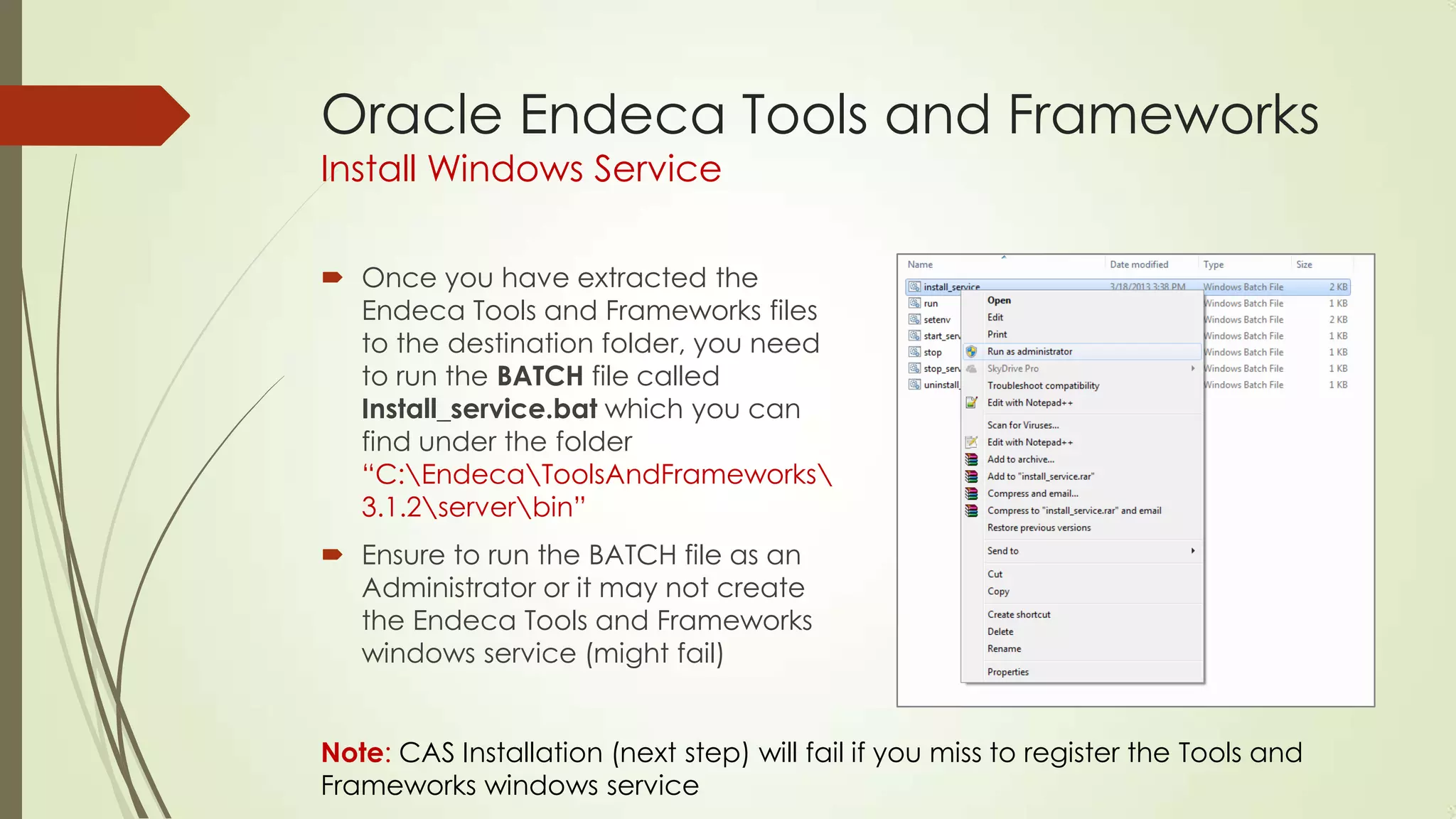
 Once you have extracted the
Endeca Tools and Frameworks files
to the destination folder, you need
to run the BATCH file called
Install_service.bat which you can
find under the folder
“C:EndecaToolsAndFrameworks
3.1.2serverbin”
 Ensure to run the BATCH file as an
Administrator or it may not create
the Endeca Tools and Frameworks
windows service (might fail)

Note: CAS Installation (next step) will fail if you miss to register the Tools and
Frameworks windows service
CAS

Oracle Endeca Content Acquisition System
Step 1 – Launch the Installer

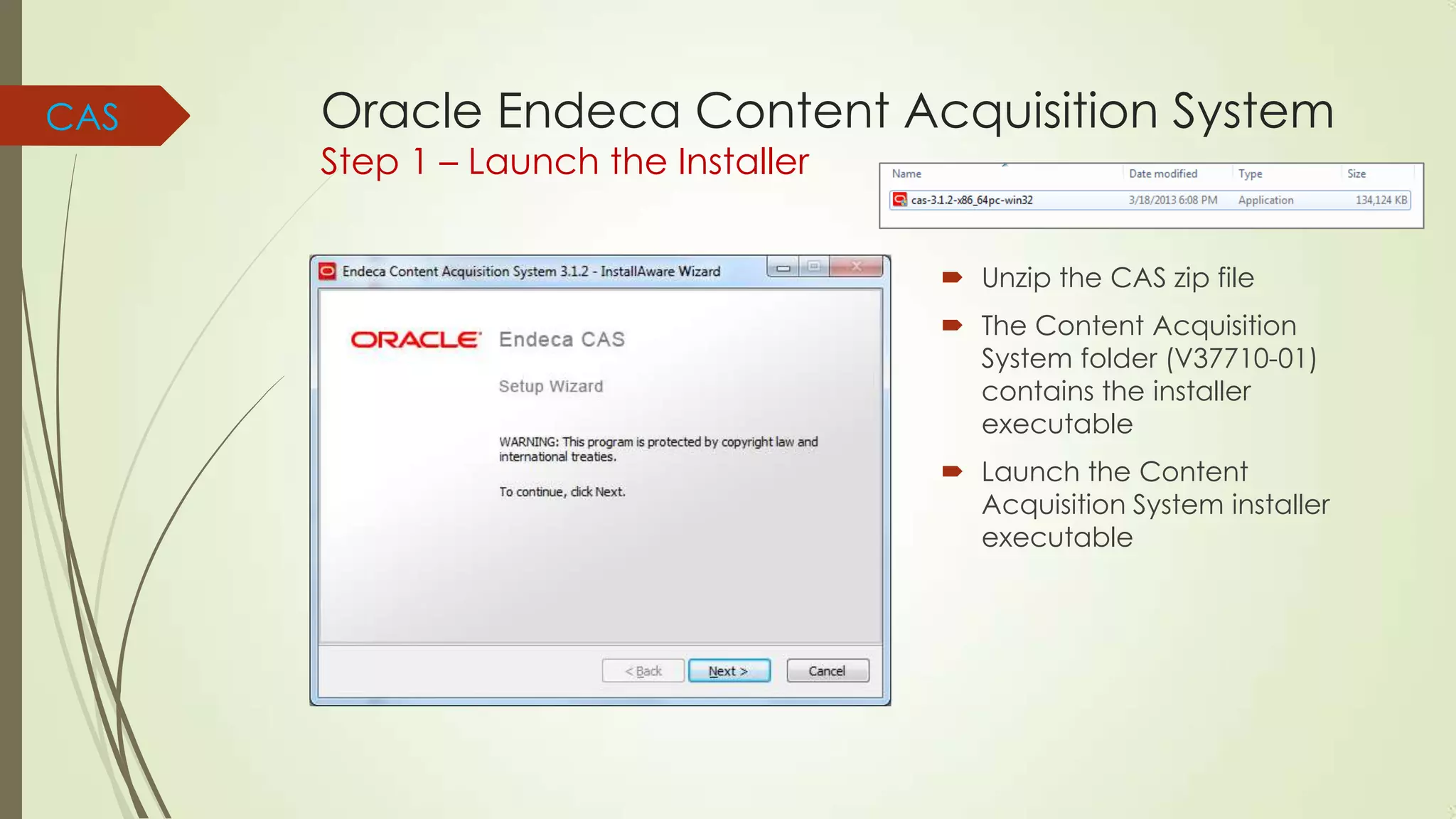
 Unzip the CAS zip file
 The Content Acquisition
System folder (V37710-01)
contains the installer
executable

 Launch the Content
Acquisition System installer
executable
CAS

Oracle Endeca Content Acquisition System
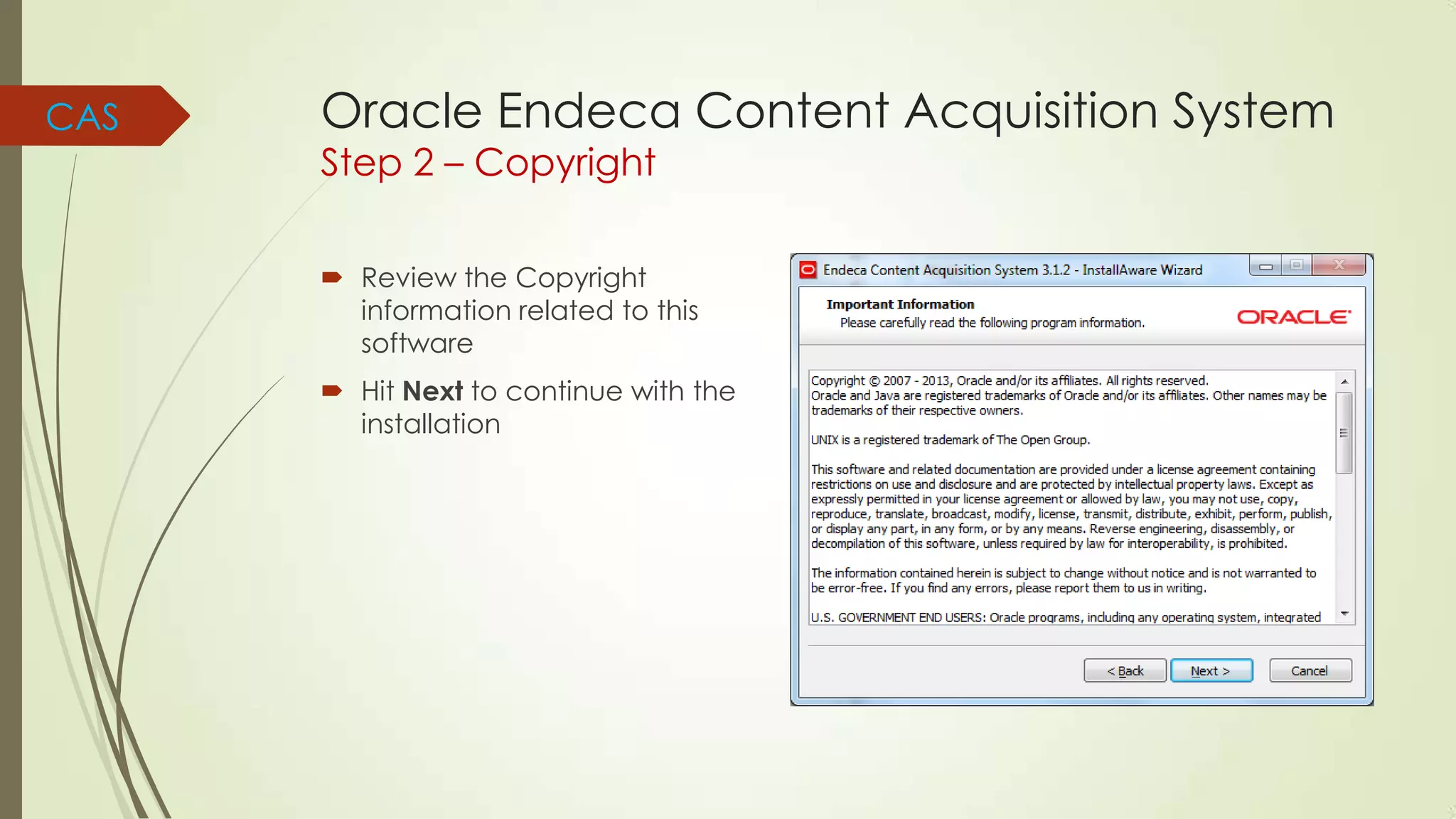
Step 2 – Copyright

 Review the Copyright
information related to this
software
 Hit Next to continue with the
installation
CAS

Oracle Endeca Content Acquisition System
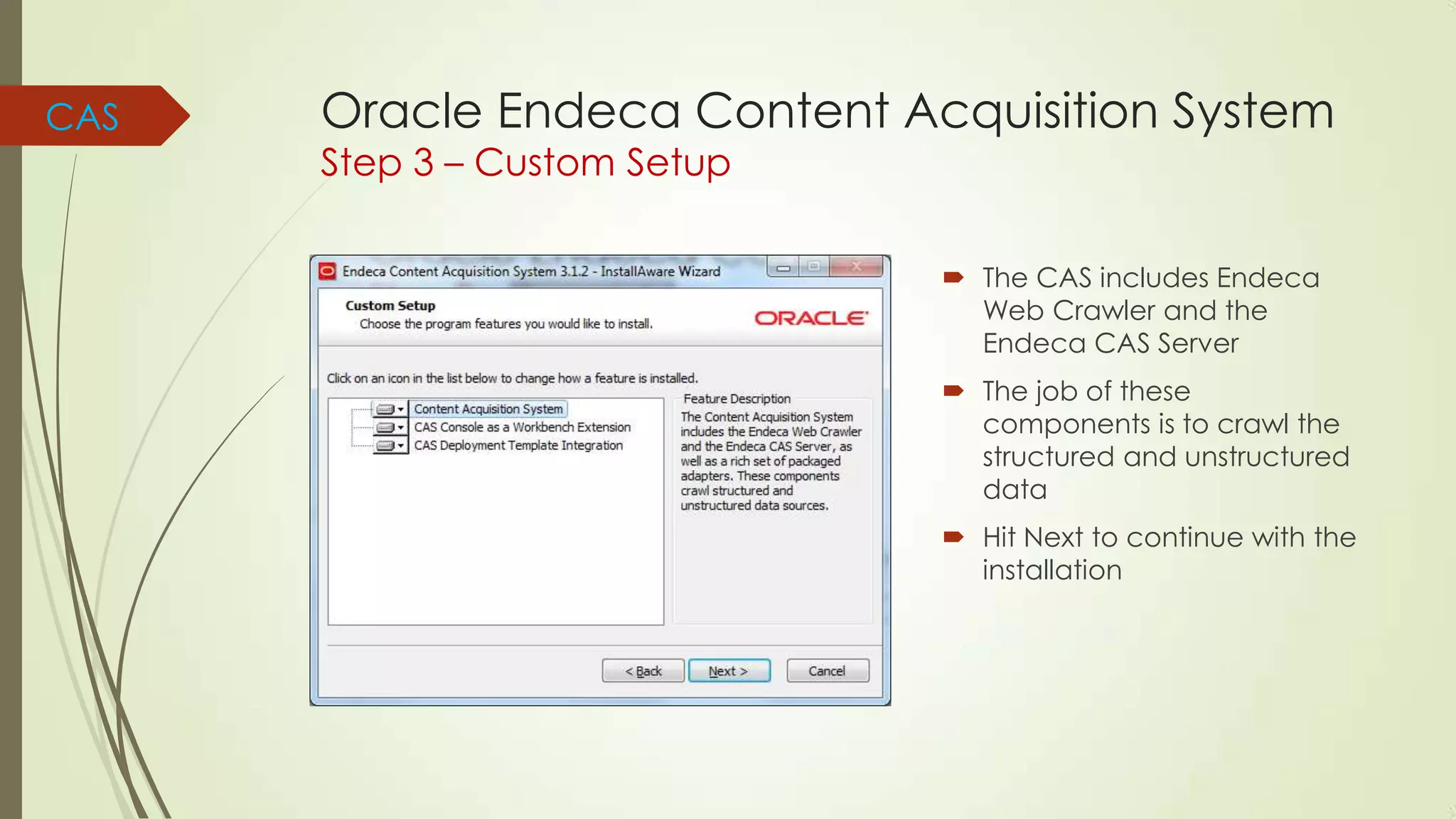
Step 3 – Custom Setup

 The CAS includes Endeca
Web Crawler and the
Endeca CAS Server
 The job of these
components is to crawl the
structured and unstructured
data
 Hit Next to continue with the
installation
CAS

Oracle Endeca Content Acquisition System
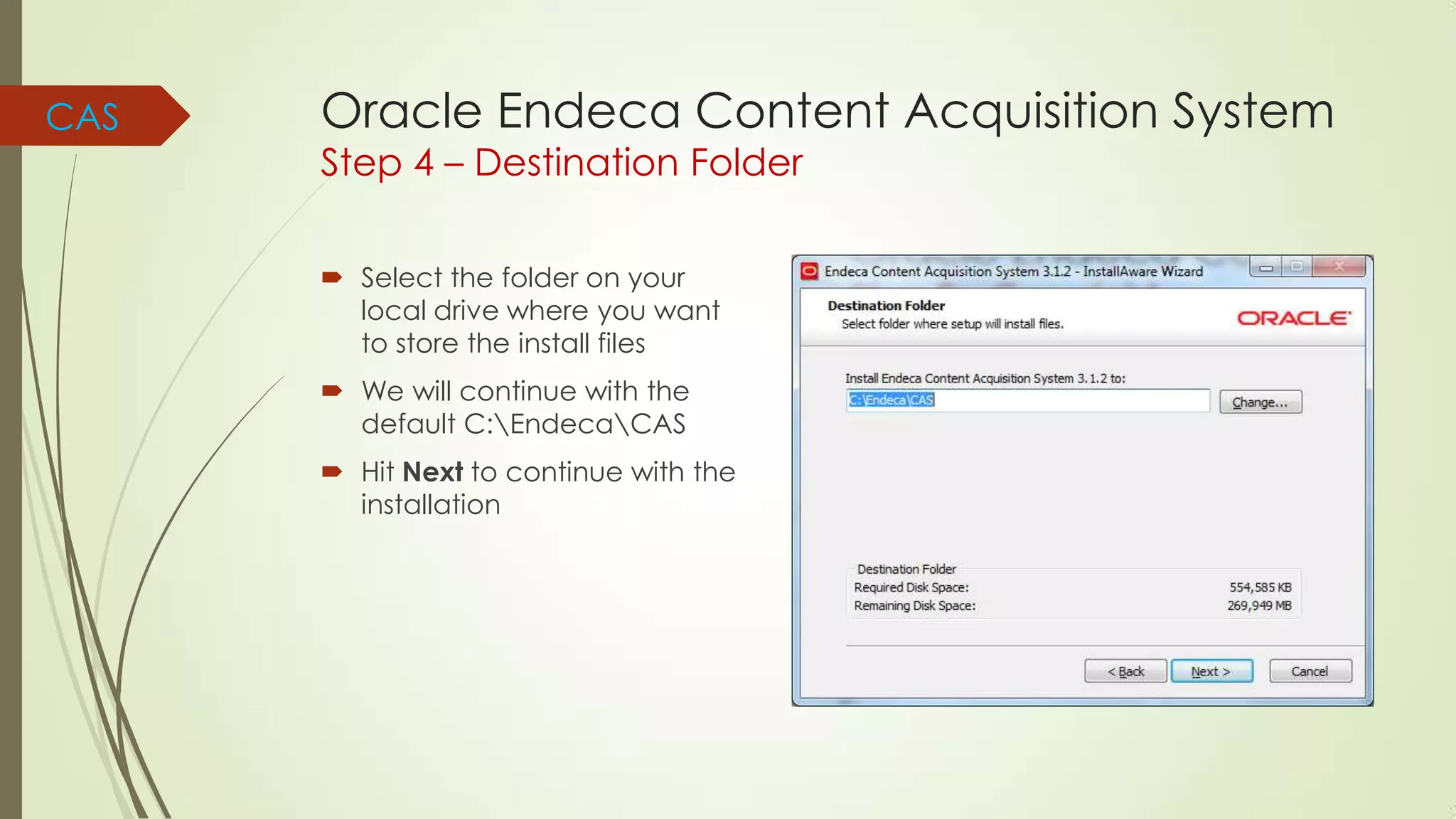
Step 4 – Destination Folder
 Select the folder on your
local drive where you want
to store the install files
 We will continue with the
default C:EndecaCAS

 Hit Next to continue with the
installation
CAS

Oracle Endeca Content Acquisition System
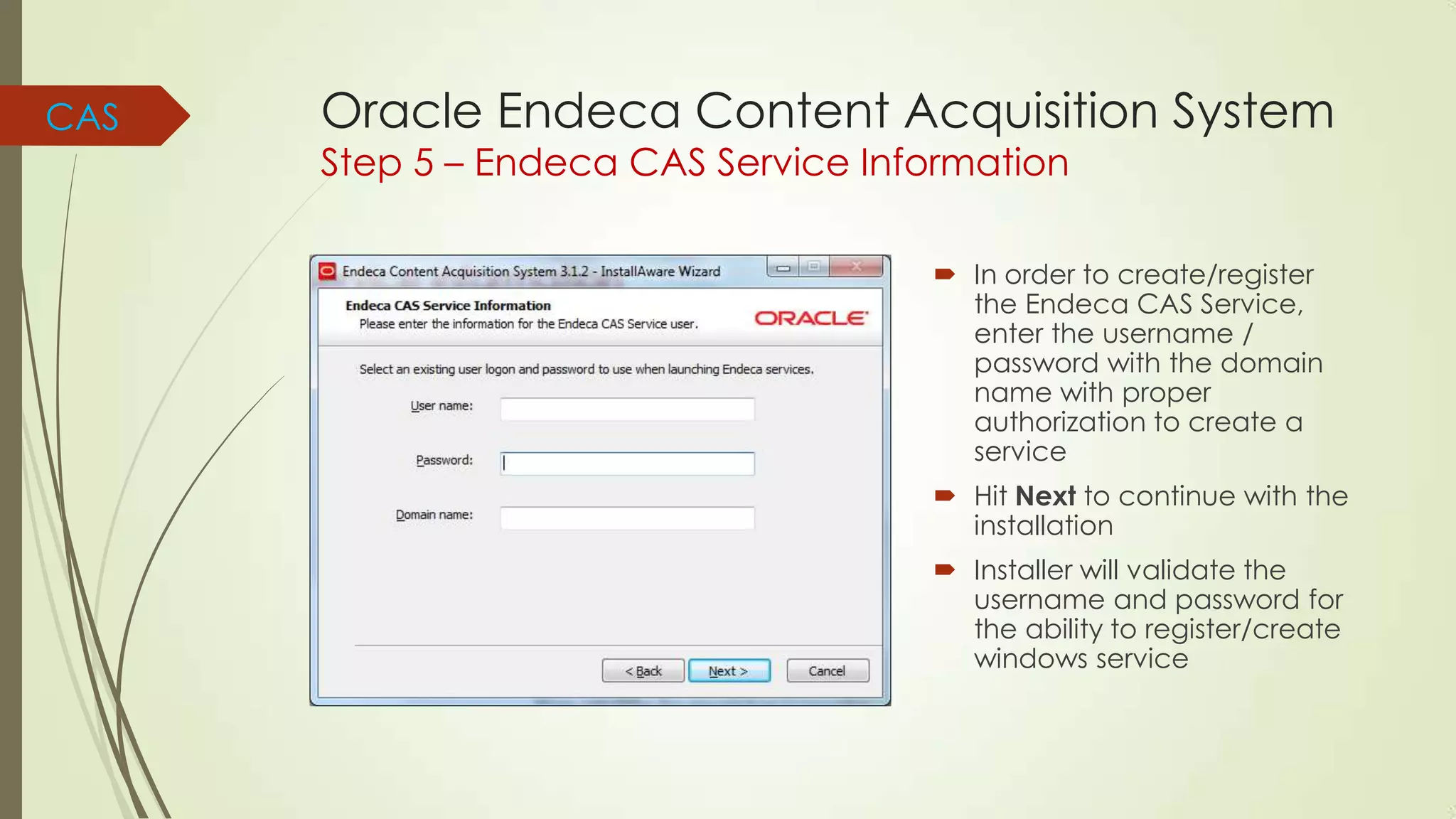
Step 5 – Endeca CAS Service Information

 In order to create/register
the Endeca CAS Service,
enter the username /
password with the domain
name with proper
authorization to create a
service
 Hit Next to continue with the
installation
 Installer will validate the
username and password for
the ability to register/create
windows service
CAS

Oracle Endeca Content Acquisition System
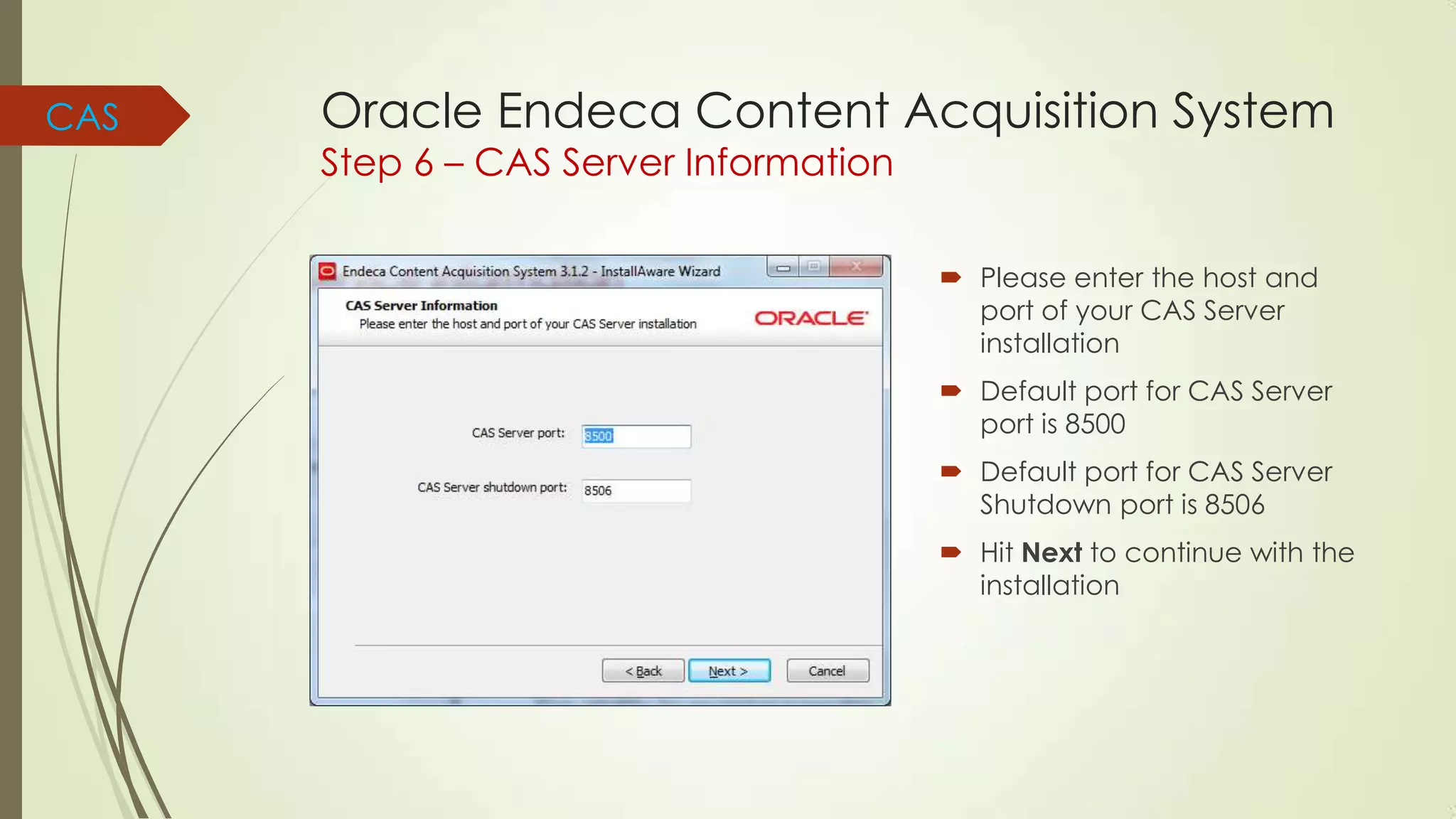
Step 6 – CAS Server Information

 Please enter the host and
port of your CAS Server
installation
 Default port for CAS Server
port is 8500

 Default port for CAS Server
Shutdown port is 8506
 Hit Next to continue with the
installation
CAS

Oracle Endeca Content Acquisition System
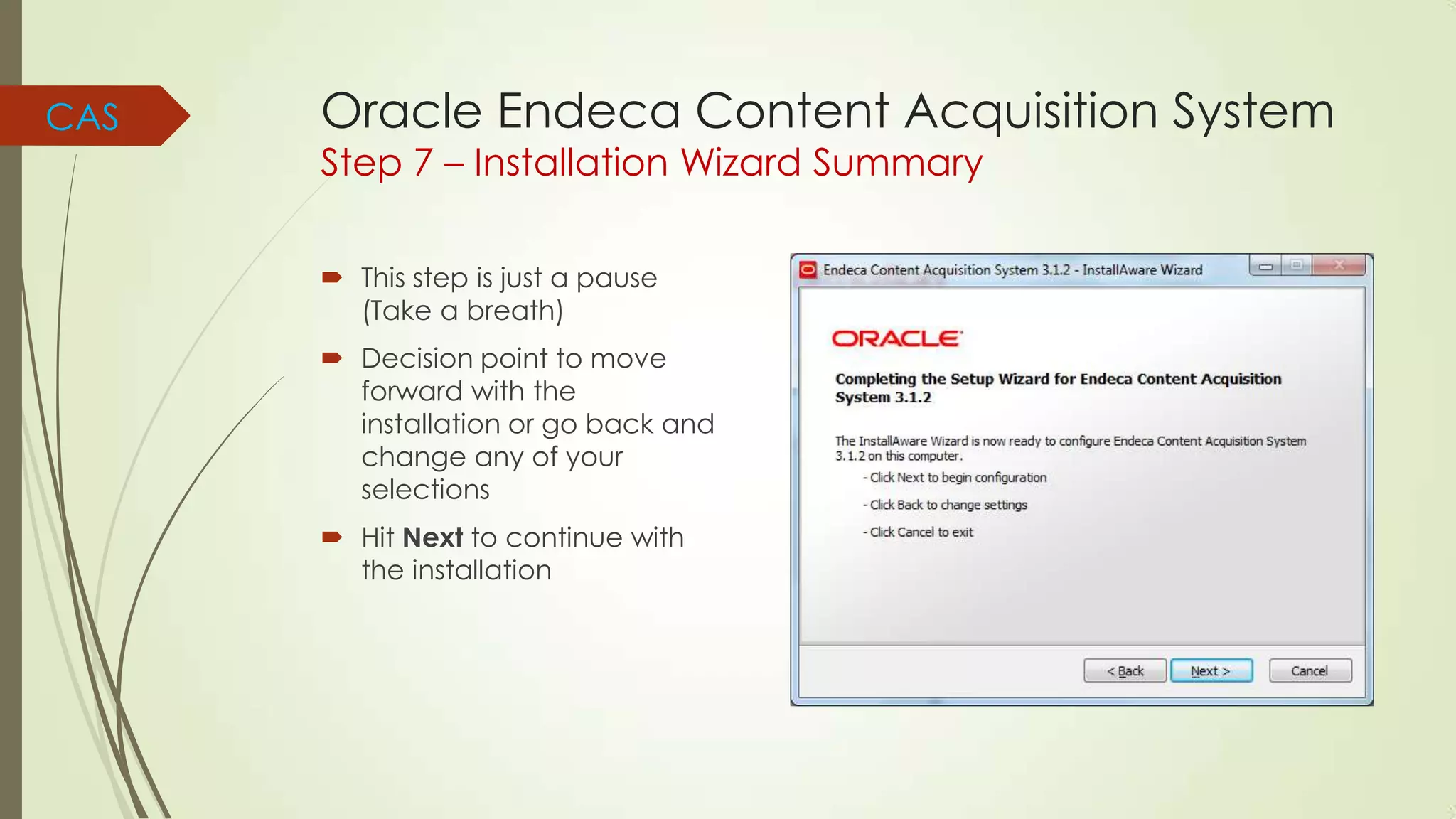
Step 7 – Installation Wizard Summary
 This step is just a pause
(Take a breath)
 Decision point to move
forward with the
installation or go back and
change any of your
selections
 Hit Next to continue with
the installation
CAS

Oracle Endeca Content Acquisition System
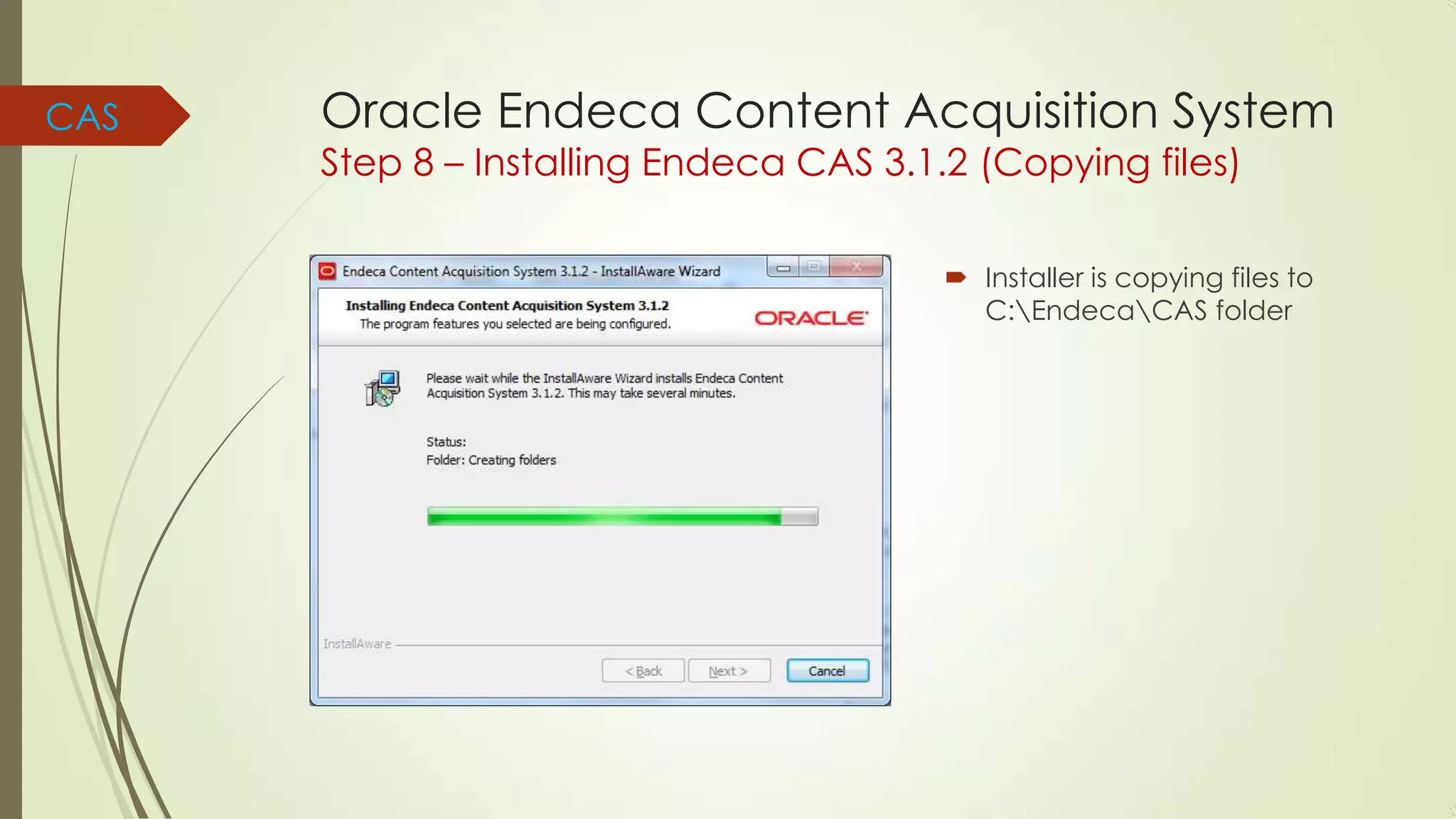
Step 8 – Installing Endeca CAS 3.1.2 (Copying files)

 Installer is copying files to
C:EndecaCAS folder
CAS

Oracle Endeca Content Acquisition System
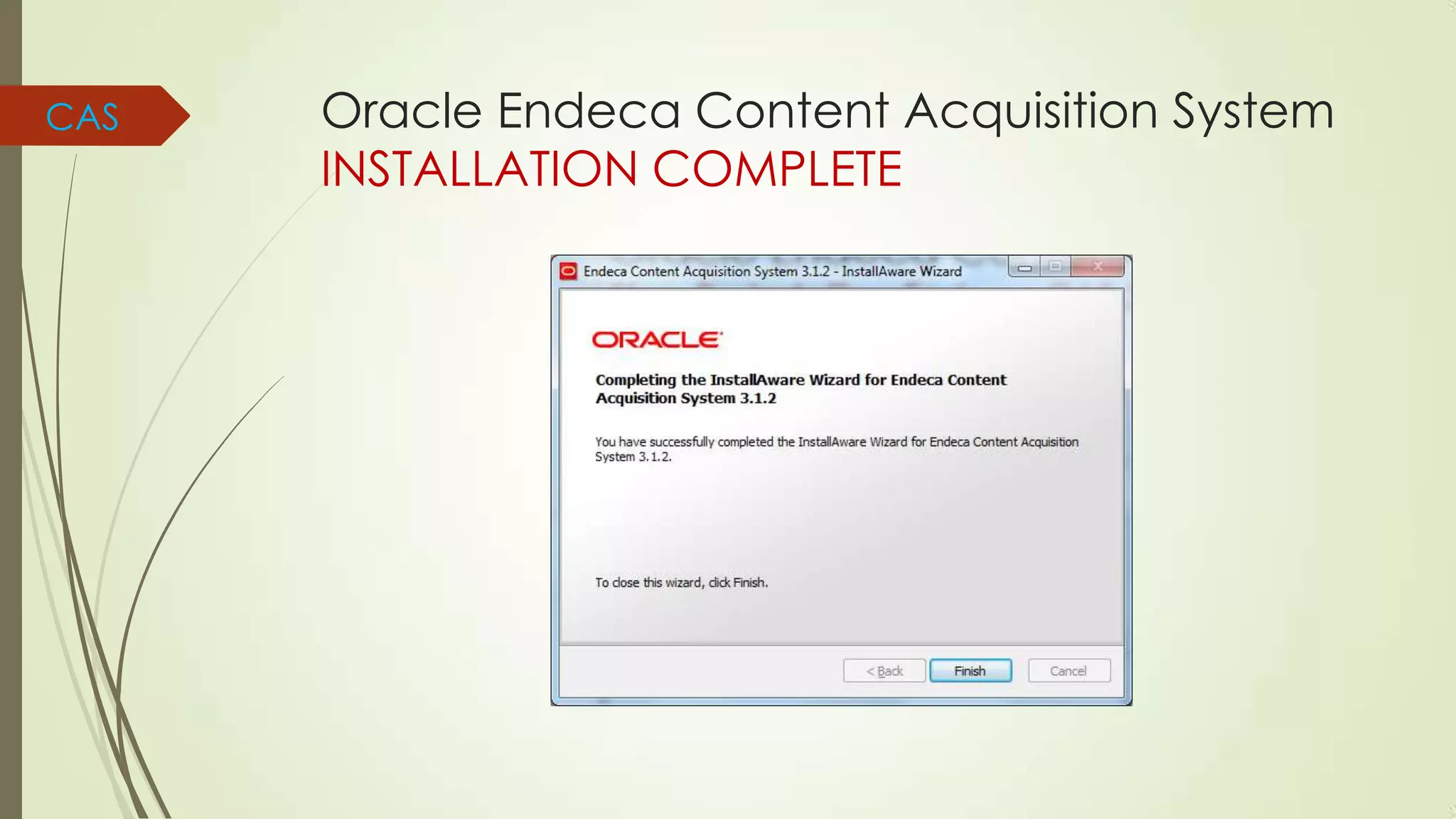
INSTALLATION COMPLETE
Questions?
 Contact me @ http://www.linkedin.com/in/keyurkshah

We will cover DEPLOYMENT TEMPLATE & SAMPLE
application in separate post
Thank you

Oracle Endeca Commerce - Installation Guide

  • 1.
    Oracle Endeca Installation MDEX,Presentation API, Platform Services, Tools & Frameworks, CAS - Keyur Shah (http://www.linkedin.com/in/keyurkshah)
  • 2.
    Java JDK 1.7(Installer) b Application Server (e.g. WebLogic) (Installer) c ATG Web Commerce 10.2 (Installer) d ATG Web Commerce Reference Store for 10.2 (Installer) e Endeca MDEX Engine 6.4.1 (Installer) f Presentation API folder (Unzip & Copy to Endeca folder) g Endeca Platform Services 6.1.3 (Installer) h Endeca Tools & Frameworks 3.1.2 (Unzip & copy to Endeca folder) i Endeca Content Acquisition System 3.1.2 (Installer) j Oracle Database Express Edition 11g R2 (Installer) k Notepad++ or some tool for XML viewing/modification l ATG + Endeca Installation Sequence a Oracle SQL Developer (Unzip – should be ready to use) m We will focus on Steps e thru In this tutorial n j Run ATG CIM (Configuration & Installation Manager) Configure ATG Servers, ATG-Endeca Integration, & CRS o Assemble p Deploy q Verify ACC, BCC, Endeca Workbench etc… Assuming you have downloaded all the necessary software for this process to work
  • 3.
    MDEX Oracle Endeca MDEX– Installation STEP 1 – Launch the Installer  Download necessary packages from eDelivery  MDEX 6.4.1  Platform Services 6.1.3  Tools & Frameworks 3.1.2 (with Experience Manager)  CAS 3.1.2  Developer Studio 6.1.2  Kick-start the installation with MDEX 6.4.1 as shown in the screenshot (right)
  • 4.
    MDEX Oracle Endeca MDEX– Installation STEP 2 – Setup Wizard Ready  Once you launch the Endeca MDEX 6.4.1 installer executable, it loads the setup wizard  Once the setup wizard is ready  Hit Next to continue the MDEX 6.4.1 installation
  • 5.
    MDEX Oracle Endeca MDEX– Installation STEP 3 – Copyright & Legal  Review the Copyright & Legal information related to this software  Hit Next to continue with the installation
  • 6.
    MDEX Oracle Endeca MDEX– Installation STEP 4 – Select Program Folder  Select the location where you would like to create new shortcuts.  Hit Next to continue with the installation
  • 7.
    MDEX Oracle Endeca MDEX– Installation STEP 5 – Select Destination Folder  Select the folder on your local drive where you want to store the install files  We will continue with the default C:EndecaMDEX6.4.1  Hit Next to continue with the installation
  • 8.
    MDEX Oracle Endeca MDEX– Installation STEP 6 – Completing the Setup Wizard  Now that you have responded to all the prompts  Hit Next to start copying file to the destination folder
  • 9.
    MDEX Oracle Endeca MDEX– Installation STEP 7 – Installing Endeca MDEX Engine 6.4.1 Edition  Setup is now copying the necessary files to the destination folder  Wait for the installer to finish copying the files
  • 10.
    MDEX Oracle Endeca MDEX– Installation STEP 8 – Done  With this the MDEX 6.4.1 installation is complete  Next step is to UNZIP the Presentation API & copy it to the C:Endeca folder
  • 11.
    Presentation API Presentation – API Stepsto Unzip / Copy  Presentation API module is available as a part of the MDEX Engine download  It is available as a ZIP file (no installer)  Unzip the Presentation API  Copy the PresentationAPI folder from the Unzipped folder (presAPI_6.4.1.715066_x86_64pcwin32Endeca) to C:Endeca  Post-copying the C:Endeca will have 2 folders  MDEX  Presentation API
  • 12.
    Platform Services Oracle Endeca PlatformServices Installation STEP 1 – Launch the Installer  Unzip the Platform Services file  The Platform Services folder (V33317-01) contains the installer executable  Launch the platform services installer executable
  • 13.
    Platform Services Oracle Endeca PlatformServices Installation STEP 2 – Setup Wizard Ready  Once you launch the Endeca Platform Services 6.1.3 installer executable, it loads the setup wizard  Once the setup wizard is ready  Hit Next to continue the Platform Services 6.1.3 installation
  • 14.
    Platform Services Oracle Endeca PlatformServices Installation STEP 3 – Copyright  Review the Copyright information related to this software  Hit Next to continue with the installation
  • 15.
    Platform Services Oracle Endeca PlatformServices Installation STEP 4 – Select Installation Type  Do you want this installation to be just for your own use or everyone who uses this computer?  Pick the response that is applicable to your scenario  Hit Next to continue with the installation
  • 16.
    Platform Services Oracle Endeca PlatformServices Installation STEP 5 – Destination Folder  Select the folder on your local drive where you want to store the install files  We will continue with the default C:EndecaPlatformServices  Hit Next to continue with the installation
  • 17.
    Platform Services Oracle Endeca PlatformServices Installation STEP 6 – Custom Setup Options  Carefully review these options  Endeca Control System is now deprecated  Hit Next to continue with the installation
  • 18.
    Platform Services Oracle Endeca PlatformServices Installation STEP 7 – Endeca Services Information  Endeca would need local system user with admin permissions who has access to create windows services  You need to provide your windows user id / password for the account that has the necessary permissions  Endeca will use this information to validate the user name / password / permissions before continuing with the next step  Hit Next to validate the user name / password & permissions
  • 19.
    Platform Services Oracle Endeca PlatformServices Installation STEP 8 – Endeca Application Controller Service Information  The Default ports for EAC service & shutdown are 8888 and 8090 respectively  You need to provide the MDEX Engine root directory with the version number as highlighted in the screenshot  Enter the PATH and hit Next to continue with the installation
  • 20.
    Platform Services Oracle Endeca PlatformServices Installation STEP 9 – Ready to Install the Program  With all the user input provided @ the prompts, Endeca Platform Services installer is now ready  Hit Install to continue with the installation
  • 21.
    Platform Services Oracle Endeca PlatformServices Installation STEP 10 – Copying Install Files  Installer is copying files to C:EndecaPlatformServices folder
  • 22.
    Platform Services Oracle Endeca PlatformServices Installation STEP 11 – Installation Complete  Installation is now complete  You need to restart the system in order for the changes to take effect  Once you restart, you can check the contents of the C:Endeca folder it should have 3 sub-folders 1. MDEX 2. PlatformServices 3. PresentationAPI
  • 23.
    Tools & Frameworks Oracle EndecaTools and Frameworks Unzip & Copy  Oracle Endeca Tools & Frameworks enable dynamic presentation of content across all channels  There are 2 versions of Tools & Frameworks  Tools & Frameworks version for Guided Search  Tools & Frameworks version with Experience Manager  We are going to Unzip the version that says “Tools and Frameworks with Experience manager”  Both the packages contain – Workbench, Assembler, Tools Service, Deployment Template, and the Discover Electronic Reference Application  Unzip the File & Copy the ToolsAndFrameworks folder to C:Endeca  After Copying your C:Endeca will have 4 sub-folders (MDEX, PlatformServices, PresentationAPI, and ToolsAndFrameworks)
  • 24.
    Oracle Endeca Toolsand Frameworks Install Windows Service  Once you have extracted the Endeca Tools and Frameworks files to the destination folder, you need to run the BATCH file called Install_service.bat which you can find under the folder “C:EndecaToolsAndFrameworks 3.1.2serverbin”  Ensure to run the BATCH file as an Administrator or it may not create the Endeca Tools and Frameworks windows service (might fail) Note: CAS Installation (next step) will fail if you miss to register the Tools and Frameworks windows service
  • 25.
    CAS Oracle Endeca ContentAcquisition System Step 1 – Launch the Installer  Unzip the CAS zip file  The Content Acquisition System folder (V37710-01) contains the installer executable  Launch the Content Acquisition System installer executable
  • 26.
    CAS Oracle Endeca ContentAcquisition System Step 2 – Copyright  Review the Copyright information related to this software  Hit Next to continue with the installation
  • 27.
    CAS Oracle Endeca ContentAcquisition System Step 3 – Custom Setup  The CAS includes Endeca Web Crawler and the Endeca CAS Server  The job of these components is to crawl the structured and unstructured data  Hit Next to continue with the installation
  • 28.
    CAS Oracle Endeca ContentAcquisition System Step 4 – Destination Folder  Select the folder on your local drive where you want to store the install files  We will continue with the default C:EndecaCAS  Hit Next to continue with the installation
  • 29.
    CAS Oracle Endeca ContentAcquisition System Step 5 – Endeca CAS Service Information  In order to create/register the Endeca CAS Service, enter the username / password with the domain name with proper authorization to create a service  Hit Next to continue with the installation  Installer will validate the username and password for the ability to register/create windows service
  • 30.
    CAS Oracle Endeca ContentAcquisition System Step 6 – CAS Server Information  Please enter the host and port of your CAS Server installation  Default port for CAS Server port is 8500  Default port for CAS Server Shutdown port is 8506  Hit Next to continue with the installation
  • 31.
    CAS Oracle Endeca ContentAcquisition System Step 7 – Installation Wizard Summary  This step is just a pause (Take a breath)  Decision point to move forward with the installation or go back and change any of your selections  Hit Next to continue with the installation
  • 32.
    CAS Oracle Endeca ContentAcquisition System Step 8 – Installing Endeca CAS 3.1.2 (Copying files)  Installer is copying files to C:EndecaCAS folder
  • 33.
    CAS Oracle Endeca ContentAcquisition System INSTALLATION COMPLETE
  • 34.
    Questions?  Contact me@ http://www.linkedin.com/in/keyurkshah We will cover DEPLOYMENT TEMPLATE & SAMPLE application in separate post Thank you