Oracle® Fusion Middleware
Installation Guide for Oracle Data Integrator
11g Release 1 (11.1.1)
E16453-03


November 2011
Oracle Fusion Middleware Installation Guide for Oracle Data Integrator 11g Release 1 (11.1.1)

E16453-03

Copyright © 2011, Oracle and/or its affiliates. All rights reserved.

Primary Author: Lisa Jamen

This software and related documentation are provided under a license agreement containing restrictions on
use and disclosure and are protected by intellectual property laws. Except as expressly permitted in your
license agreement or allowed by law, you may not use, copy, reproduce, translate, broadcast, modify, license,
transmit, distribute, exhibit, perform, publish, or display any part, in any form, or by any means. Reverse
engineering, disassembly, or decompilation of this software, unless required by law for interoperability, is
prohibited.

The information contained herein is subject to change without notice and is not warranted to be error-free. If
you find any errors, please report them to us in writing.

IIf this is software or related documentation that is delivered to the U.S. Government or anyone licensing it
on behalf of the U.S. Government, the following notice is applicable:

U.S. GOVERNMENT RIGHTS Programs, software, databases, and related documentation and technical data
delivered to U.S. Government customers are "commercial computer software" or "commercial technical data"
pursuant to the applicable Federal Acquisition Regulation and agency-specific supplemental regulations. As
such, the use, duplication, disclosure, modification, and adaptation shall be subject to the restrictions and
license terms set forth in the applicable Government contract, and, to the extent applicable by the terms of
the Government contract, the additional rights set forth in FAR 52.227-19, Commercial Computer Software
License (December 2007). Oracle USA, Inc., 500 Oracle Parkway, Redwood City, CA 94065.

This software or hardware is developed for general use in a variety of information management
applications. It is not developed or intended for use in any inherently dangerous applications, including
applications that may create a risk of personal injury. If you use this software or hardware in dangerous
applications, then you shall be responsible to take all appropriate fail-safe, backup, redundancy, and other
measures to ensure its safe use. Oracle Corporation and its affiliates disclaim any liability for any damages
caused by use of this software or hardware in dangerous applications.

Oracle is a registered trademark of Oracle Corporation and/or its affiliates. Other names may be trademarks
of their respective owners.

This software and documentation may provide access to or information on content, products, and services
from third parties. Oracle Corporation and its affiliates are not responsible for and expressly disclaim all
warranties of any kind with respect to third-party content, products, and services. Oracle Corporation and
its affiliates will not be responsible for any loss, costs, or damages incurred due to your access to or use of
third-party content, products, or services.
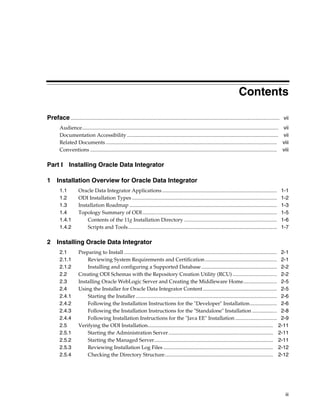
Contents

Preface ................................................................................................................................................................ vii
        Audience...................................................................................................................................................... vii
        Documentation Accessibility .................................................................................................................... vii
        Related Documents ................................................................................................................................... viii
        Conventions ............................................................................................................................................... viii

Part I         Installing Oracle Data Integrator

1 Installation Overview for Oracle Data Integrator
        1.1           Oracle Data Integrator Applications ........................................................................................                    1-1
        1.2           ODI Installation Types ...............................................................................................................          1-2
        1.3           Installation Roadmap .................................................................................................................          1-3
        1.4           Topology Summary of ODI .......................................................................................................                 1-5
        1.4.1             Contents of the 11g Installation Directory .......................................................................                          1-6
        1.4.2             Scripts and Tools..................................................................................................................         1-7

2 Installing Oracle Data Integrator
        2.1           Preparing to Install ..................................................................................................................... 2-1
        2.1.1             Reviewing System Requirements and Certification ....................................................... 2-1
        2.1.2             Installing and configuring a Supported Database .......................................................... 2-2
        2.2           Creating ODI Schemas with the Repository Creation Utility (RCU) .................................. 2-2
        2.3           Installing Oracle WebLogic Server and Creating the Middleware Home.......................... 2-5
        2.4           Using the Installer for Oracle Data Integrator Content......................................................... 2-5
        2.4.1             Starting the Installer ............................................................................................................ 2-6
        2.4.2             Following the Installation Instructions for the "Developer" Installation..................... 2-6
        2.4.3             Following the Installation Instructions for the "Standalone" Installation ................... 2-8
        2.4.4             Following Installation Instructions for the "Java EE" Installation ................................ 2-9
        2.5           Verifying the ODI Installation................................................................................................ 2-11
        2.5.1             Starting the Administration Server ................................................................................ 2-11
        2.5.2             Starting the Managed Server........................................................................................... 2-11
        2.5.3             Reviewing Installation Log Files .................................................................................... 2-12
        2.5.4             Checking the Directory Structure................................................................................... 2-12


                                                                                                                                                                         iii
3 Configuring Oracle Data Integrator
     3.1     Configuring a WebLogic Domain ............................................................................................ 3-1
     3.2     Configuring ODI Studio, Repositories, and the Standalone Agent..................................... 3-4
     3.2.1      Adding Additional Drivers and Open Tools................................................................... 3-4
     3.2.2      Creating Repositories Manually ....................................................................................... 3-4
     3.2.3      Connecting to Existing Repositories Manually ............................................................... 3-5
     3.2.4      Changing the Language Used in ODI Studio.................................................................. 3-5
     3.2.5      Configuring the Standalone Agent Manually ................................................................. 3-5
     3.2.6      Starting the Standalone Agent ........................................................................................... 3-7
     3.3     Configuring Java EE Components............................................................................................ 3-7
     3.3.1      Declaring the Java EE Agent in Topology........................................................................ 3-8
     3.3.2      Generating Java EE Agent Template ................................................................................ 3-8
     3.3.3      Adding Credential Store Entries ....................................................................................... 3-8
     3.3.3.1        Credential Store Entries for the Java EE Agent ........................................................ 3-9
     3.3.3.2        Credential Store Entries for the Oracle Enterprise Manager.................................. 3-9
     3.3.4      Configuring ODI Console Connections......................................................................... 3-10
     3.3.5      Configuring Oracle Enterprise Manager with ODI Plugin ........................................ 3-11

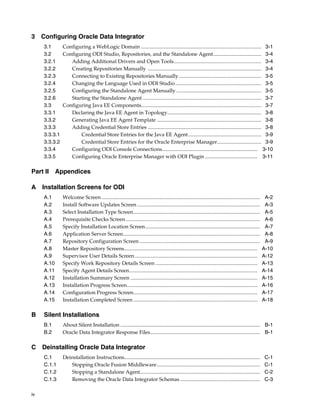
Part II Appendices

A Installation Screens for ODI
     A.1        Welcome Screen .........................................................................................................................    A-2
     A.2        Install Software Updates Screen ..............................................................................................              A-3
     A.3        Select Installation Type Screen.................................................................................................            A-5
     A.4        Prerequisite Checks Screen.......................................................................................................           A-6
     A.5        Specify Installation Location Screen........................................................................................                A-7
     A.6        Application Server Screen.........................................................................................................          A-8
     A.7        Repository Configuration Screen ............................................................................................                A-9
     A.8        Master Repository Screens......................................................................................................            A-10
     A.9        Supervisor User Details Screen ..............................................................................................              A-12
     A.10       Specify Work Repository Details Screen ..............................................................................                      A-13
     A.11       Specify Agent Details Screen..................................................................................................             A-14
     A.12       Installation Summary Screen .................................................................................................              A-15
     A.13       Installation Progress Screen....................................................................................................           A-16
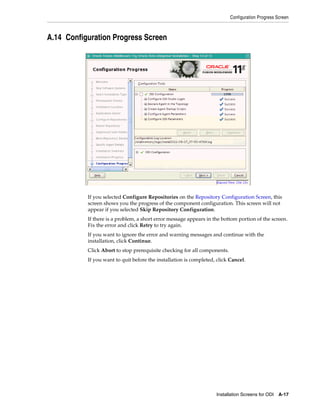
     A.14       Configuration Progress Screen...............................................................................................               A-17
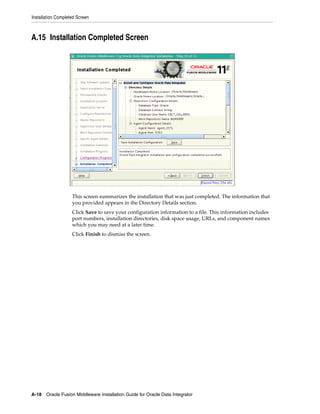
     A.15       Installation Completed Screen ...............................................................................................              A-18

B    Silent Installations
     B.1        About Silent Installation ........................................................................................................... B-1
     B.2        Oracle Data Integrator Response Files.................................................................................... B-1

C Deinstalling Oracle Data Integrator
     C.1        Deinstallation Instructions........................................................................................................        C-1
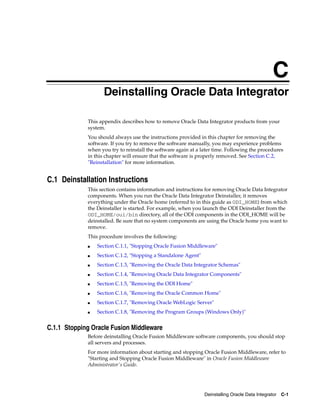
     C.1.1         Stopping Oracle Fusion Middleware...............................................................................                        C-1
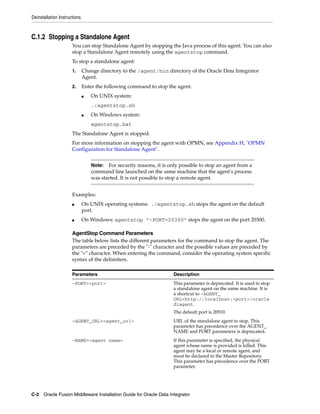
     C.1.2         Stopping a Standalone Agent............................................................................................                 C-2
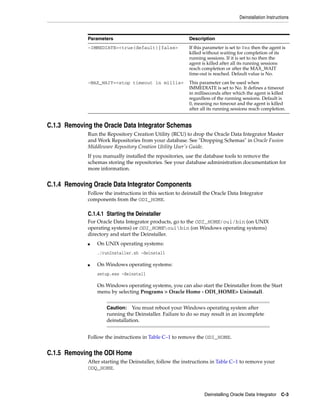
     C.1.3         Removing the Oracle Data Integrator Schemas .............................................................                               C-3

iv
C.1.4       Removing Oracle Data Integrator Components.............................................................                                     C-3
    C.1.4.1         Starting the Deinstaller ...............................................................................................                C-3
    C.1.5       Removing the ODI Home..................................................................................................                     C-3
    C.1.6       Removing the Oracle Common Home ............................................................................                                C-4
    C.1.7       Removing Oracle WebLogic Server .................................................................................                           C-4
    C.1.8       Removing the Program Groups (Windows Only) .........................................................                                        C-5
    C.2     Reinstallation ..............................................................................................................................   C-5

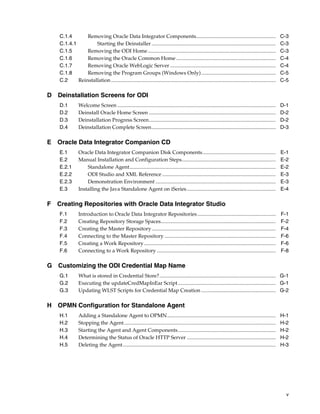
D Deinstallation Screens for ODI
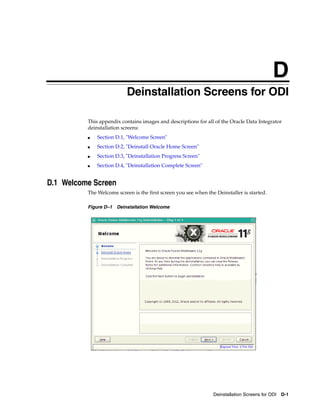
    D.1         Welcome Screen .........................................................................................................................    D-1
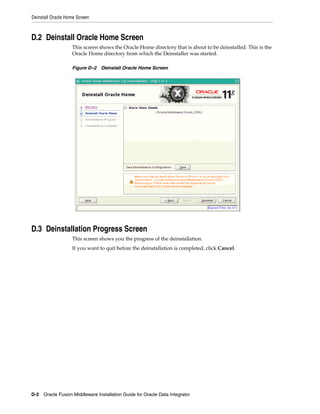
    D.2         Deinstall Oracle Home Screen .................................................................................................              D-2
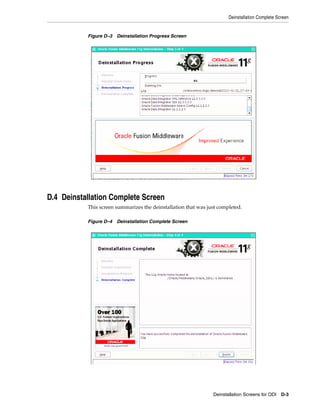
    D.3         Deinstallation Progress Screen.................................................................................................             D-2
    D.4         Deinstallation Complete Screen...............................................................................................               D-3

E Oracle Data Integrator Companion CD
    E.1         Oracle Data Integrator Companion Disk Components........................................................                                    E-1
    E.2         Manual Installation and Configuration Steps........................................................................                         E-2
    E.2.1           Standalone Agent................................................................................................................        E-2
    E.2.2           ODI Studio and XML Reference .......................................................................................                    E-3
    E.2.3           Demonstration Environment ............................................................................................                  E-3
    E.3         Installing the Java Standalone Agent on iSeries ....................................................................                        E-4

F Creating Repositories with Oracle Data Integrator Studio
    F.1         Introduction to Oracle Data Integrator Repositories ............................................................                            F-1
    F.2         Creating Repository Storage Spaces........................................................................................                  F-2
    F.3         Creating the Master Repository ...............................................................................................              F-4
    F.4         Connecting to the Master Repository .....................................................................................                   F-6
    F.5         Creating a Work Repository.....................................................................................................             F-6
    F.6         Connecting to a Work Repository ...........................................................................................                 F-8

G Customizing the ODI Credential Map Name
    G.1         What is stored in Credential Store?......................................................................................... G-1
    G.2         Executing the updateCredMapInEar Script........................................................................... G-1
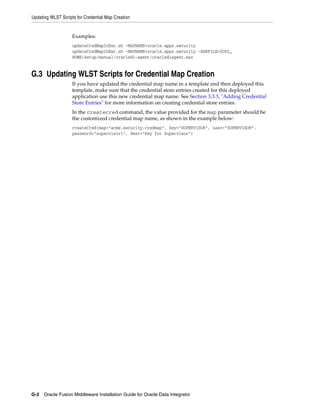
    G.3         Updating WLST Scripts for Credential Map Creation ......................................................... G-2

H OPMN Configuration for Standalone Agent
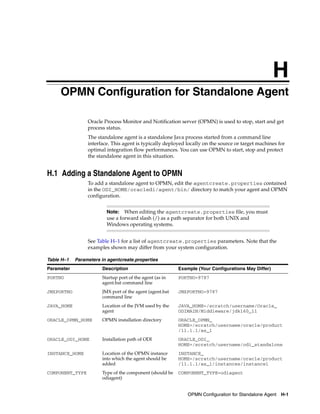
    H.1         Adding a Standalone Agent to OPMN ...................................................................................                       H-1
    H.2         Stopping the Agent ....................................................................................................................     H-2
    H.3         Starting the Agent and Agent Components...........................................................................                          H-2
    H.4         Determining the Status of Oracle HTTP Server ....................................................................                           H-2
    H.5         Deleting the Agent .....................................................................................................................    H-3


                                                                                                                                                              v
vi
Preface

           This guide provides information and instructions for installing, configuring, and
           troubleshooting Oracle Data Integrator and Oracle Data Profiling and Oracle Data
           Quality for Oracle Data Integrator.
           ■   Audience
           ■   Documentation Accessibility
           ■   Related Documents
           ■   Conventions


Audience
           This guide is intended for administrators who are responsible for installing and
           configuring components of Oracle Data Integrator. It is assumed that readers are
           comfortable running some system administration operations, such as creating users
           and groups, adding users to groups, and installing operating system patches on the
           computer where your products will be installed. Users in UNIX systems who are
           installing need root access to run some scripts.


Documentation Accessibility
           For information about Oracle's commitment to accessibility, visit the Oracle
           Accessibility Program website at
           http://www.oracle.com/pls/topic/lookup?ctx=acc&id=docacc.

           Accessibility of Code Examples in Documentation
           Screen readers may not always correctly read the code examples in this document. The
           conventions for writing code require that closing braces should appear on an
           otherwise empty line; however, some screen readers may not always read a line of text
           that consists solely of a bracket or brace.

           Accessibility of Links to External Web Sites in Documentation
           This documentation may contain links to Web sites of other companies or
           organizations that Oracle does not own or control. Oracle neither evaluates nor makes
           any representations regarding the accessibility of these Web sites.

           Access to Oracle Support
           Oracle customers have access to electronic support through My Oracle Support. For
           information, visit
           http://www.oracle.com/pls/topic/lookup?ctx=acc&id=info or visit

                                                                                                vii
http://www.oracle.com/pls/topic/lookup?ctx=acc&id=trs if you are
          hearing impaired.


Related Documents
          For more information, see the following manuals:
          ■    Oracle Fusion Middleware Installation Planning Guide
          ■    Oracle Fusion Middleware Developer's Guide for Oracle Data Integrator
          ■    Oracle Fusion Middleware Upgrade Guide for Oracle Data Integrator
          ■    Oracle Fusion Middleware Connectivity and Knowledge Modules Guide for Oracle Data
               Integrator
          ■    Oracle Fusion Middleware Knowledge Module Developer's Guide for Oracle Data
               Integrator
          ■    Oracle Fusion Middleware Application Adapters Guide for Oracle Data Integrator
          ■    Oracle Fusion Middleware Installation Guide for Oracle Data Profiling and Oracle Data
               Quality for ODI
          ■    Oracle Fusion Middleware Upgrade Guide for Oracle Data Profiling and Oracle Data
               Quality for ODI


Conventions
          The following text conventions are used in this document:

          Convention            Meaning
          boldface              Boldface type indicates graphical user interface elements associated
                                with an action, or terms defined in text or the glossary.
          italic                Italic type indicates book titles, emphasis, or placeholder variables for
                                which you supply particular values.
          monospace             Monospace type indicates commands within a paragraph, URLs, code
                                in examples, text that appears on the screen, or text that you enter.


viii
Part I
       Part I   Installing Oracle Data Integrator

Part I contains the following chapters:
■   Chapter 1, "Installation Overview for Oracle Data Integrator"
■   Chapter 2, "Installing Oracle Data Integrator"
■   Chapter 3, "Configuring Oracle Data Integrator"
1
                Installation Overview for Oracle Data
                1


                                           Integrator

            This chapter provides an overview of the Oracle Data Integrator (ODI) installation
            process including a description of the installable components, pre and post-installation
            tasks, and process flow.
            The chapter includes the following topics:
            ■       Section 1.1, "Oracle Data Integrator Applications"
            ■       Section 1.2, "ODI Installation Types"
            ■       Section 1.3, "Installation Roadmap"
            ■       Section 1.4, "Topology Summary of ODI"


1.1 Oracle Data Integrator Applications
            Oracle Data Integrator includes the following applications:
            ■       Oracle Data Integrator Repository
                    The Oracle Data Integrator Repository is composed of a Master Repository and
                    one or more Work Repositories. Objects developed or configured through the user
                    interfaces are stored in these repositories.
            ■       Oracle Data Integrator Studio
                    Oracle Data Integrator Studio is used for administering the infrastructure (security
                    and topology), reverse-engineering the metadata, developing projects, scheduling,
                    operating and monitoring executions.
            ■       Oracle Data Integrator Standalone Agent
                    The Standalone Agent is the run-time component of Oracle Data Integrator that
                    executes the integration flows. It runs in a Java Virtual Machine and can be
                    deployed where needed to run the flows.


                        Note:  The ODI Standalone Agent includes command line scripts for
                        managing scenarios and sessions and encoding passwords. For more
                        information see Section 1.4.2.


            ■       Java EE Components
                    These components can be deployed in an application server. These include:


                                                          Installation Overview for Oracle Data Integrator   1-1
ODI Installation Types


                         –   Oracle Enterprise Manager Plugin for ODI and the Oracle Enterprise Manager
                             Fusion Middleware Control
                             Oracle Enterprise Manager Fusion Middleware Control, with the Oracle
                             Enterprise Manager plugin for ODI, can be used to monitor ODI resources
                             (agents, repositories, ODI Console instances) and see their status, activities
                             and notification. You must have both the Oracle Enterprise Manager Fusion
                             Middleware Control and the Oracle Enterprise Manager Plugin for ODI
                             deployed to monitor the ODI infrastructure.
                         –   Public (SDK) Web Services
                             ODI comes with several run-time web services. These include the "Public Web
                             Service" and the "Agent Web Service".
                             *     The Public Web Service is used for web service calls that do not involve an
                                   agent (listing contexts). The Public Web Service connects to the repository
                                   to retrieve a list of context and scenarios. This web service is deployed in a
                                   Java EE application server.
                             *     The Agent Web Service commands the Oracle Data Integrator Agent to
                                   start and monitor a scenario. Note that this web service is built into the
                                   Java EE or Standalone Agent.
                         –   Oracle Data Integrator Console
                             This component is a web interface for run-time, monitoring and metadata
                             browsing operations. It also contains an extension integrated into the Fusion
                             Middleware Control. Oracle Data Integrator components can be monitored as
                             a domain using this extension.
                         –   Java EE Agent
                             Java EE Agent is the Java EE version of the run-time component of Oracle
                             Data Integrator. The Java EE agent provides the same features as the
                             standalone agent, but can also benefit from the features of an application
                             server.


1.2 ODI Installation Types
                     The Oracle Data Integrator installer provides three installation options:
                     ■   Developer
                         The Developer installation includes the ODI Studio and the Oracle Data Integrator
                         Software Development Kit (SDK).
                         Note that the Developer installation does not include the Standalone Agent or the
                         scripts for managing sessions or scenarios from the command line. If a Standalone
                         Agent will be needed, choose the Standalone install type in addition to the
                         Developer install type.
                     ■   Standalone
                         The Standalone installation includes an Oracle Data Integrator standalone agent.
                     ■   Java EE
                         The Java EE installation includes the Java EE agent, Oracle Data Integrator
                         Console, and Public Web Services.
                     See Section 2.4, "Using the Installer for Oracle Data Integrator Content" for more
                     information about installing the different ODI installation types.


1-2 Oracle Fusion Middleware Installation Guide for Oracle Data Integrator
Installation Roadmap


1.3 Installation Roadmap
           The process of installing and configuring Oracle Data Integrator includes these
           high-level tasks:
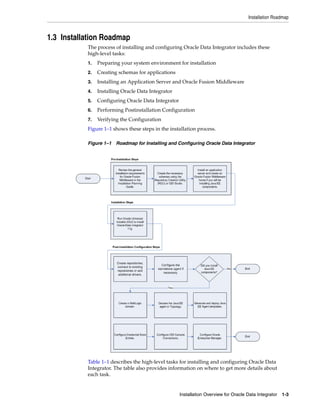
           1.   Preparing your system environment for installation
           2.   Creating schemas for applications
           3.   Installing an Application Server and Oracle Fusion Middleware
           4.   Installing Oracle Data Integrator
           5.   Configuring Oracle Data Integrator
           6.   Performing Postinstallation Configuration
           7.   Verifying the Configuration
           Figure 1–1 shows these steps in the installation process.

           Figure 1–1 Roadmap for Installing and Configuring Oracle Data Integrator


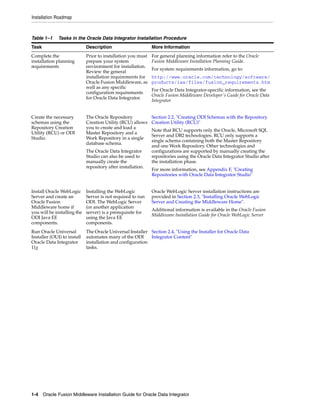
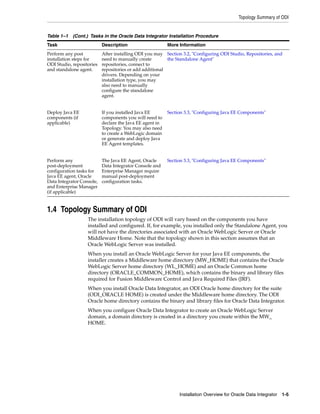
           Table 1–1 describes the high-level tasks for installing and configuring Oracle Data
           Integrator. The table also provides information on where to get more details about
           each task.


                                                     Installation Overview for Oracle Data Integrator   1-3
Installation Roadmap


Table 1–1     Tasks in the Oracle Data Integrator Installation Procedure
Task                         Description                      More Information
Complete the                 Prior to installation you must   For general planning information refer to the Oracle
installation planning        prepare your system              Fusion Middleware Installation Planning Guide.
requirements                 environment for installation.
                                                              For system requirements information, go to:
                             Review the general
                             installation requirements for    http://www.oracle.com/technology/software/
                             Oracle Fusion Middleware, as     products/ias/files/fusion_requirements.htm
                             well as any specific
                                                              For Oracle Data Integrator-specific information, see the
                             configuration requirements
                                                              Oracle Fusion Middleware Developer's Guide for Oracle Data
                             for Oracle Data Integrator.
                                                              Integrator


Create the necessary         The Oracle Repository            Section 2.2, "Creating ODI Schemas with the Repository
schemas using the            Creation Utility (RCU) allows    Creation Utility (RCU)"
Repository Creation          you to create and load a
                                                              Note that RCU supports only the Oracle, Microsoft SQL
Utility (RCU) or ODI         Master Repository and a
                                                              Server and DB2 technologies. RCU only supports a
Studio.                      Work Repository in a single
                                                              single schema containing both the Master Repository
                             database schema.
                                                              and one Work Repository. Other technologies and
                             The Oracle Data Integrator       configurations are supported by manually creating the
                             Studio can also be used to       repositories using the Oracle Data Integrator Studio after
                             manually create the              the installation phase.
                             repository after installation.
                                                              For more information, see Appendix F, "Creating
                                                              Repositories with Oracle Data Integrator Studio"


Install Oracle WebLogic      Installing the WebLogic          Oracle WebLogic Server installation instructions are
Server and create an         Server is not required to run    provided in Section 2.3, "Installing Oracle WebLogic
Oracle Fusion                ODI. The WebLogic Server         Server and Creating the Middleware Home".
Middleware home if           (or another application
                                                              Additional information is available in the Oracle Fusion
you will be installing the   server) is a prerequisite for
                                                              Middleware Installation Guide for Oracle WebLogic Server
ODI Java EE                  using the Java EE
components.                  components.
Run Oracle Universal         The Oracle Universal Installer Section 2.4, "Using the Installer for Oracle Data
Installer (OUI) to install   automates many of the ODI      Integrator Content"
Oracle Data Integrator       installation and configuration
11g                          tasks.


1-4 Oracle Fusion Middleware Installation Guide for Oracle Data Integrator
Topology Summary of ODI


Table 1–1 (Cont.) Tasks in the Oracle Data Integrator Installation Procedure
Task                       Description                    More Information
Perform any post           After installing ODI you may Section 3.2, "Configuring ODI Studio, Repositories, and
installation steps for     need to manually create        the Standalone Agent"
ODI Studio, repositories   repositories, connect to
and standalone agent.      repositories or add additional
                           drivers. Depending on your
                           installation type, you may
                           also need to manually
                           configure the standalone
                           agent.


Deploy Java EE             If you installed Java EE       Section 3.3, "Configuring Java EE Components"
components (if             components you will need to
applicable)                declare the Java EE agent in
                           Topology. You may also need
                           to create a WebLogic domain
                           or generate and deploy Java
                           EE Agent templates.


Perform any                The Java EE Agent, Oracle      Section 3.3, "Configuring Java EE Components"
post-deployment            Data Integrator Console and
configuration tasks for    Enterprise Manager require
Java EE agent, Oracle      manual post-deployment
Data Integrator Console,   configuration tasks.
and Enterprise Manager
(if applicable)


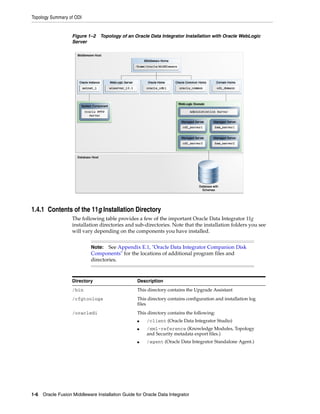
1.4 Topology Summary of ODI
                   The installation topology of ODI will vary based on the components you have
                   installed and configured. If, for example, you installed only the Standalone Agent, you
                   will not have the directories associated with an Oracle WebLogic Server or Oracle
                   Middleware Home. Note that the topology shown in this section assumes that an
                   Oracle WebLogic Server was installed.
                   When you install an Oracle WebLogic Server for your Java EE components, the
                   installer creates a Middleware home directory (MW_HOME) that contains the Oracle
                   WebLogic Server home directory (WL_HOME) and an Oracle Common home
                   directory (ORACLE_COMMON_HOME), which contains the binary and library files
                   required for Fusion Middleware Control and Java Required Files (JRF).
                   When you install Oracle Data Integrator, an ODI Oracle home directory for the suite
                   (ODI_ORACLE HOME) is created under the Middleware home directory. The ODI
                   Oracle home directory contains the binary and library files for Oracle Data Integrator.
                   When you configure Oracle Data Integrator to create an Oracle WebLogic Server
                   domain, a domain directory is created in a directory you create within the MW_
                   HOME.


                                                               Installation Overview for Oracle Data Integrator   1-5
Topology Summary of ODI


                   Figure 1–2 Topology of an Oracle Data Integrator Installation with Oracle WebLogic
                   Server


1.4.1 Contents of the 11g Installation Directory
                   The following table provides a few of the important Oracle Data Integrator 11g
                   installation directories and sub-directories. Note that the installation folders you see
                   will vary depending on the components you have installed.


                           Note:   See Appendix E.1, "Oracle Data Integrator Companion Disk
                           Components" for the locations of additional program files and
                           directories.


                   Directory                     Description
                   /bin                          This directory contains the Upgrade Assistant
                   /cfgtoologs                   This directory contains configuration and installation log
                                                 files
                   /oracledi                     This directory contains the following:
                                                 ■    /client (Oracle Data Integrator Studio)
                                                 ■    /xml-reference (Knowledge Modules, Topology
                                                      and Security metadata export files.)
                                                 ■    /agent (Oracle Data Integrator Standalone Agent.)


1-6 Oracle Fusion Middleware Installation Guide for Oracle Data Integrator
Topology Summary of ODI


              Directory                    Description
              /oracledi/agent              This folder also includes other directories:
                                           ■    /bin (Command line scripts for managing the agent,
                                                scenarios and sessions. The scripts are listed in
                                                Section 1.4.2.)
                                           ■    /drivers (drivers for the Oracle Data Integrator
                                                Standalone Agent.)
              /oracledi.common             This directory contains some of the libraries and files shared
                                           by Oracle Data Integrator components.
              /oracledi.sdk                This directory contains the ODI Public API. Note that the
                                           libraries of this API are necessary for the run-time agent.
              /setup                       This directory contains components that can be manually
                                           installed.
              /odi_misc                    This directory contains some core libraries shared by the
                                           Oracle Data Integrator components. Drivers shipped with
                                           the product are in this folder.


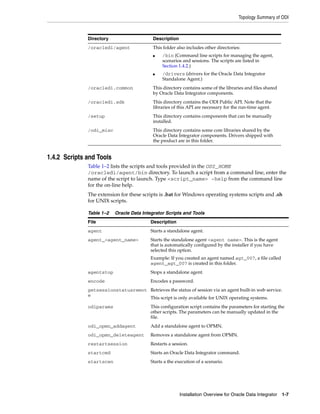
1.4.2 Scripts and Tools
              Table 1–2 lists the scripts and tools provided in the ODI_HOME
              /oracledi/agent/bin directory. To launch a script from a command line, enter the
              name of the script to launch. Type <script_name> -help from the command line
              for the on-line help.
              The extension for these scripts is .bat for Windows operating systems scripts and .sh
              for UNIX scripts.

              Table 1–2   Oracle Data Integrator Scripts and Tools
              File                        Description
              agent                       Starts a standalone agent.
              agent_<agent_name>          Starts the standalone agent <agent name>. This is the agent
                                          that is automatically configured by the installer if you have
                                          selected this option.
                                          Example: If you created an agent named agt_007, a file called
                                          agent_agt_007 is created in this folder.
              agentstop                   Stops a standalone agent.
              encode                      Encodes a password.
              getsessionstatusremot Retrieves the status of session via an agent built-in web service.
              e
                                    This script is only available for UNIX operating systems.
              odiparams                   This configuration script contains the parameters for starting the
                                          other scripts. The parameters can be manually updated in the
                                          file.
              odi_opmn_addagent           Add a standalone agent to OPMN.
              odi_opmn_deleteagent        Removes a standalone agent from OPMN.
              restartsession              Restarts a session.
              startcmd                    Starts an Oracle Data Integrator command.
              startscen                   Starts a the execution of a scenario.


                                                         Installation Overview for Oracle Data Integrator   1-7
Topology Summary of ODI


                   Table 1–2 (Cont.) Oracle Data Integrator Scripts and Tools
                   File                         Description
                   startscenremote              Starts a scenario on a remote agent on its web service.
                                                This script is only available for UNIX operating systems.
                   restartloadplan              Restarts a load plan instance.
                   startloadplan                Starts a load plan.
                   stoploadplan                 Stops a load plan instance execution.
                   stopsession                  Stops a session execution.


1-8 Oracle Fusion Middleware Installation Guide for Oracle Data Integrator
2
                          Installing Oracle Data Integrator
                          2


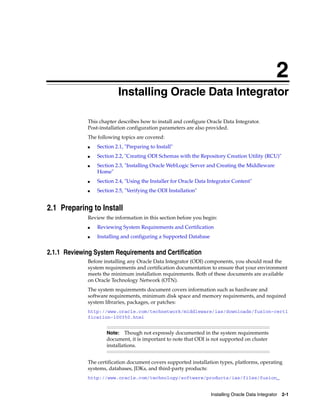
             This chapter describes how to install and configure Oracle Data Integrator.
             Post-installation configuration parameters are also provided.
             The following topics are covered:
             ■   Section 2.1, "Preparing to Install"
             ■   Section 2.2, "Creating ODI Schemas with the Repository Creation Utility (RCU)"
             ■   Section 2.3, "Installing Oracle WebLogic Server and Creating the Middleware
                 Home"
             ■   Section 2.4, "Using the Installer for Oracle Data Integrator Content"
             ■   Section 2.5, "Verifying the ODI Installation"


2.1 Preparing to Install
             Review the information in this section before you begin:
             ■   Reviewing System Requirements and Certification
             ■   Installing and configuring a Supported Database


2.1.1 Reviewing System Requirements and Certification
             Before installing any Oracle Data Integrator (ODI) components, you should read the
             system requirements and certification documentation to ensure that your environment
             meets the minimum installation requirements. Both of these documents are available
             on Oracle Technology Network (OTN).
             The system requirements document covers information such as hardware and
             software requirements, minimum disk space and memory requirements, and required
             system libraries, packages, or patches:
             http://www.oracle.com/technetwork/middleware/ias/downloads/fusion-certi
             fication-100350.html


                     Note:    Though not expressly documented in the system requirements
                     document, it is important to note that ODI is not supported on cluster
                     installations.


             The certification document covers supported installation types, platforms, operating
             systems, databases, JDKs, and third-party products:
             http://www.oracle.com/technology/software/products/ias/files/fusion_


                                                                   Installing Oracle Data Integrator 2-1
Creating ODI Schemas with the Repository Creation Utility (RCU)


                    certification.html


2.1.2 Installing and configuring a Supported Database
                    For the latest information about supported databases, visit the following URL:
                    http://www.oracle.com/technology/software/products/ias/files/fus
                    ion_certification.html


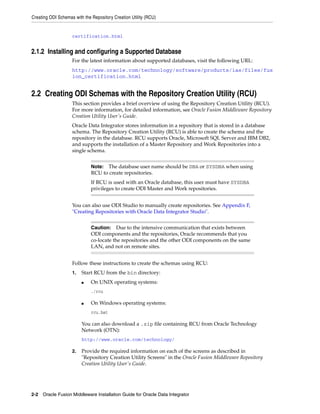
2.2 Creating ODI Schemas with the Repository Creation Utility (RCU)
                    This section provides a brief overview of using the Repository Creation Utility (RCU).
                    For more information, for detailed information, see Oracle Fusion Middleware Repository
                    Creation Utility User's Guide.
                    Oracle Data Integrator stores information in a repository that is stored in a database
                    schema. The Repository Creation Utility (RCU) is able to create the schema and the
                    repository in the database. RCU supports Oracle, Microsoft SQL Server and IBM DB2,
                    and supports the installation of a Master Repository and Work Repositories into a
                    single schema.


                              Note: The database user name should be DBA or SYSDBA when using
                              RCU to create repositories.
                              If RCU is used with an Oracle database, this user must have SYSDBA
                              privileges to create ODI Master and Work repositories.


                    You can also use ODI Studio to manually create repositories. See Appendix F,
                    "Creating Repositories with Oracle Data Integrator Studio".


                              Caution: Due to the intensive communication that exists between
                              ODI components and the repositories, Oracle recommends that you
                              co-locate the repositories and the other ODI components on the same
                              LAN, and not on remote sites.


                    Follow these instructions to create the schemas using RCU:
                    1.   Start RCU from the bin directory:
                         ■    On UNIX operating systems:
                              ./rcu

                         ■    On Windows operating systems:
                              rcu.bat

                         You can also download a .zip file containing RCU from Oracle Technology
                         Network (OTN):
                         http://www.oracle.com/technology/

                    2.   Provide the required information on each of the screens as described in
                         "Repository Creation Utility Screens" in the Oracle Fusion Middleware Repository
                         Creation Utility User's Guide.


2-2 Oracle Fusion Middleware Installation Guide for Oracle Data Integrator
Creating ODI Schemas with the Repository Creation Utility (RCU)


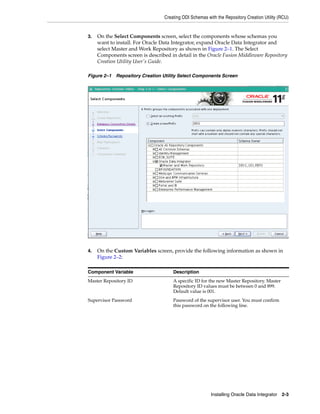
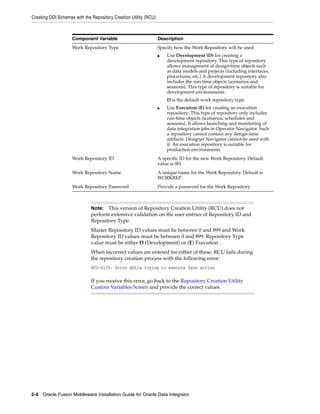
3.   On the Select Components screen, select the components whose schemas you
     want to install. For Oracle Data Integrator, expand Oracle Data Integrator and
     select Master and Work Repository as shown in Figure 2–1. The Select
     Components screen is described in detail in the Oracle Fusion Middleware Repository
     Creation Utility User's Guide.

Figure 2–1 Repository Creation Utility Select Components Screen


4.   On the Custom Variables screen, provide the following information as shown in
     Figure 2–2:

Component Variable                    Description
Master Repository ID                  A specific ID for the new Master Repository. Master
                                      Repository ID values must be between 0 and 899.
                                      Default value is 001.
Supervisor Password                   Password of the supervisor user. You must confirm
                                      this password on the following line.


                                                         Installing Oracle Data Integrator 2-3
Creating ODI Schemas with the Repository Creation Utility (RCU)


                    Component Variable                            Description
                    Work Repository Type                          Specify how the Work Repository will be used:
                                                                  ■   Use Development (D) for creating a
                                                                      development repository. This type of repository
                                                                      allows management of design-time objects such
                                                                      as data models and projects (including interfaces,
                                                                      procedures, etc.) A development repository also
                                                                      includes the run-time objects (scenarios and
                                                                      sessions). This type of repository is suitable for
                                                                      development environments.
                                                                      D is the default work repository type.
                                                                  ■   Use Execution (E) for creating an execution
                                                                      repository: This type of repository only includes
                                                                      run-time objects (scenarios, schedules and
                                                                      sessions). It allows launching and monitoring of
                                                                      data integration jobs in Operator Navigator. Such
                                                                      a repository cannot contain any design-time
                                                                      artifacts. Designer Navigator cannot be used with
                                                                      it. An execution repository is suitable for
                                                                      production environments.
                    Work Repository ID                            A specific ID for the new Work Repository. Default
                                                                  value is 001.
                    Work Repository Name                          A unique name for the Work Repository. Default is
                                                                  WORKREP.
                    Work Repository Password                      Provide a password for the Work Repository.


                              Note:  This version of Repository Creation Utility (RCU) does not
                              perform extensive validation on the user entries of Repository ID and
                              Repository Type.
                              Master Repository ID values must be between 0 and 899 and Work
                              Repository ID values must be between 0 and 899. Repository Type
                              value must be either D (Development) or (E) Execution .
                              When incorrect values are entered for either of these, RCU fails during
                              the repository creation process with the following error:
                              RCU-6135: Error while trying to execute Java action

                              If you receive this error, go back to the Repository Creation Utility
                              Custom Variables Screen and provide the correct values.


2-4 Oracle Fusion Middleware Installation Guide for Oracle Data Integrator
Using the Installer for Oracle Data Integrator Content


            Figure 2–2 Repository Creation Utility Custom Variables Screen


            5.   Click Next to continue through the remaining screens as described in "Repository
                 Creation Utility Screens" in the Oracle Fusion Middleware Repository Creation Utility
                 User's Guide.


2.3 Installing Oracle WebLogic Server and Creating the Middleware Home
            The Oracle Data Integrator Java EE components require an Oracle WebLogic Server on
            your system. If you want to use Oracle Data Service Integrator in a Java EE
            deployment, you must install and configure the Oracle WebLogic server.
            For information on installing the Oracle WebLogic Server, see "Preparing for
            Installation" and "Running the Installation Program in Graphical Mode" in the Oracle
            Fusion Middleware Installation Guide for Oracle WebLogic Server.


2.4 Using the Installer for Oracle Data Integrator Content
            This section contains information and instructions for installing Oracle Data
            Integrator:
            ■    Section 2.4.1, "Starting the Installer"
            ■    Section 2.4.2, "Following the Installation Instructions for the "Developer"
                 Installation"
            ■    Section 2.4.3, "Following the Installation Instructions for the "Standalone"
                 Installation"
            ■    Section 2.4.4, "Following Installation Instructions for the "Java EE" Installation"
            ■    Section 2.5, "Verifying the ODI Installation"


                                                                       Installing Oracle Data Integrator 2-5
Using the Installer for Oracle Data Integrator Content


                               Note: If you are installing on a UNIX system for the first time, you
                               may be asked to run the ORACLE_HOME/oracleRoot.sh script as
                               root user to create all of the necessary installation directories.


2.4.1 Starting the Installer
                     The Oracle Universal Installer requires a Java Development Kit (JDK) which provides
                     the Java run-time environment (JRE) and tools for compiling and debugging Java
                     applications. You must specify the directory that contains the software for the Sun JDK
                     if it is installed with your software.

                               Tip: If you installed Oracle WebLogic Server (Section 2.3, "Installing
                               Oracle WebLogic Server and Creating the Middleware Home"), a JRE
                               was installed on your system. You can use this location (the location of
                               the JRE directory) to start the installer.
                               On UNIX operating systems, the default location for the JRE is MW_
                               HOME/jdk16x, where MW_HOME is the Middleware Home directory
                               and jdk1.6_x is the complete filename of the installed JDK.
                               On Windows operating systems, the default location for the JRE is
                               MW_HOMEjdk16x, where MW_HOME is the Middleware Home
                               directory and jdk1.6_x is the complete filename of the installed JDK.
                               On 64-bit platforms, the JRE location is the JAVA_HOME you used to
                               install Oracle WebLogic Server.
                               For more information, refer to Oracle Fusion Middleware Installation
                               Guide for Oracle WebLogic Server.

                     To start the installer, navigate to the installation directory (/Disk1) on your local
                     machine and run the following command:
                     ■    On UNIX operating systems:
                          ./runInstaller -jreLoc JRE_LOCATION

                     ■    On Windows operating systems:
                          setup.exe -jreLoc JRE_LOCATION
                     You must specify the absolute path to your JRE_LOCATION; relative paths will not
                     work. Also note that there should be no spaces in the JDK path as shown in the
                     example below:
                          C:Progra~1Javajrockit-jdk1.6.0_24-R28.2.0-4.0.1


                               Note:   The minimum JDK required for Oracle Data Integrator is JDK
                               1.6. Refer to the Oracle Fusion Middleware Certification
                               documentation to see the JDKs supported for your system:
                               http://www.oracle.com/technology/software/products/ias/fi
                               les/fusion_certification.html


2.4.2 Following the Installation Instructions for the "Developer" Installation
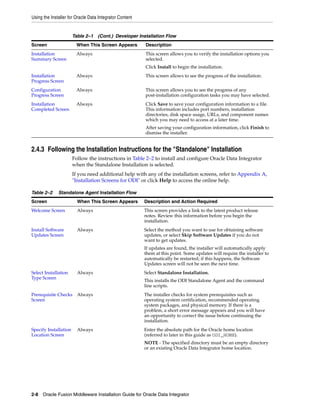
                     Follow the instructions in Table 2–1 to install and configure Oracle Data Integrator
                     when the Developer Installation is selected.


2-6 Oracle Fusion Middleware Installation Guide for Oracle Data Integrator
Using the Installer for Oracle Data Integrator Content


                       If you need additional help with any of the installation screens, refer to Appendix A,
                       "Installation Screens for ODI" or click Help to access the online help.

                       Table 2–1   Developer Installation Flow
Screen                  When This Screen Appears          Description
Welcome Screen          Always                            This screen provides a link to the latest product release
                                                          notes. Review this information before you begin the
                                                          installation.
Install Software        Always                            Select the method you want to use for obtaining software
Updates Screen                                            updates, or select Skip Software Updates if you do not
                                                          want to get updates.
                                                          If updates are found, the installer will automatically apply
                                                          them at this point. Some updates will require the installer to
                                                          automatically be restarted; if this happens, the Software
                                                          Updates screen will not be seen the next time.
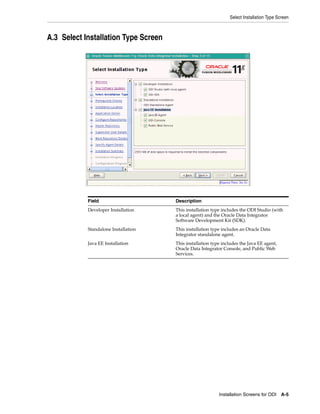
Select Installation     Always                            Select Developer Installation.
Type Screen
                                                          By default, ODI Studio (with local agent) is selected. Oracle
                                                          recommends that you also select the ODI SDK with the
                                                          Developer Installation.
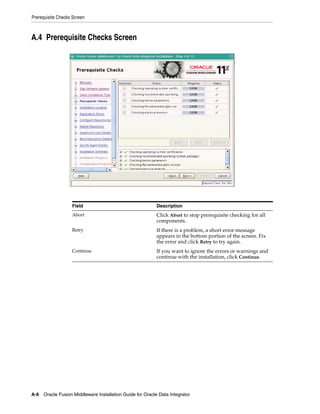
Prerequisite Checks Always                                The installer checks for system prerequisites such as
Screen                                                    operating system certification, recommended operating
                                                          system packages, and physical memory. If there is a
                                                          problem, a short error message appears and you will have
                                                          an opportunity to correct the issue before continuing the
                                                          installation.
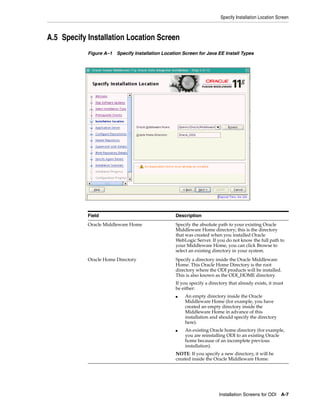
Specify Installation    Always                            This screen allows you to specify the absolute path for the
Location Screen                                           Oracle home location (referred to later in this guide as ODI_
                                                          HOME).
                                                          NOTE - The specified directory must be an empty directory
                                                          or an existing Oracle Data Integrator home location.
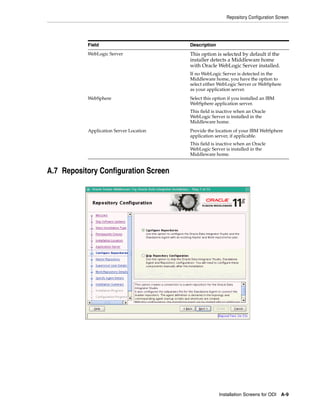
Repository              Always                            This screen allows you to select whether you want to
Configuration                                             configure the Oracle Data Integrator Studio and the
Screen                                                    Standalone Agent with an existing Master and Work
                                                          Repository pair.
                                                          NOTE - If you choose to Skip Repository Configuration,
                                                          you will have to configure the Oracle Data Integrator
                                                          Studio and Standalone Agent manually as described in
                                                          Section 3.2.
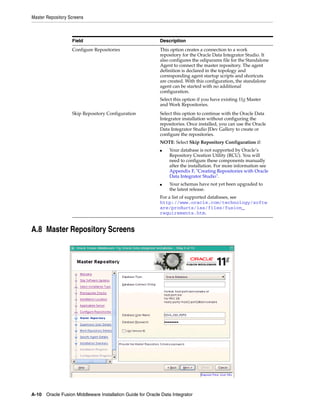
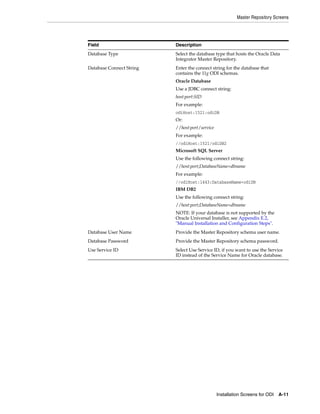
Master Repository       Only if Configure with            This screen allows you to specify the connection string to
Screens                 existing Master and Work          the database that hosts the Master Repository and the
                        Repositories is selected on the   database user name and password
                        Repository Configuration
                        Screen.
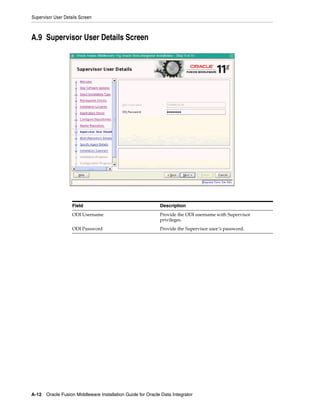
Supervisor User         Only if Configure with            This screen allows you to specify the password for the ODI
Details Screen          existing Master and Work          SUPERVISOR user.
                        Repositories is selected on the
                        Repository Configuration
                        Screen.
Specify Work            Only if Configure with            This screen allows you to select an existing Work
Repository Details      existing Master and Work          Repository from the list.
Screen                  Repositories is selected on the
                        Repository Configuration
                        Screen.


                                                                                    Installing Oracle Data Integrator 2-7
Using the Installer for Oracle Data Integrator Content


                       Table 2–1 (Cont.) Developer Installation Flow
Screen                  When This Screen Appears         Description
Installation            Always                           This screen allows you to verify the installation options you
Summary Screen                                           selected.
                                                         Click Install to begin the installation.
Installation            Always                           This screen allows to see the progress of the installation.
Progress Screen
Configuration           Always                           This screen allows you to see the progress of any
Progress Screen                                          post-installation configuration tasks you may have selected.
Installation            Always                           Click Save to save your configuration information to a file.
Completed Screen                                         This information includes port numbers, installation
                                                         directories, disk space usage, URLs, and component names
                                                         which you may need to access at a later time.
                                                         After saving your configuration information, click Finish to
                                                         dismiss the installer.


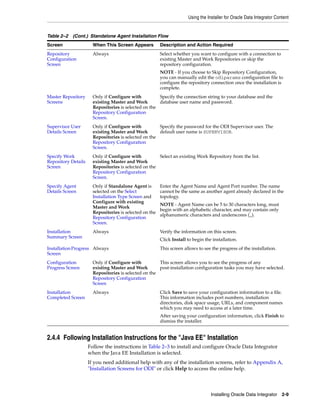
2.4.3 Following the Installation Instructions for the "Standalone" Installation
                       Follow the instructions in Table 2–2 to install and configure Oracle Data Integrator
                       when the Standalone Installation is selected.
                       If you need additional help with any of the installation screens, refer to Appendix A,
                       "Installation Screens for ODI" or click Help to access the online help.

Table 2–2     Standalone Agent Installation Flow
Screen                   When This Screen Appears        Description and Action Required
Welcome Screen           Always                          This screen provides a link to the latest product release
                                                         notes. Review this information before you begin the
                                                         installation.
Install Software         Always                          Select the method you want to use for obtaining software
Updates Screen                                           updates, or select Skip Software Updates if you do not
                                                         want to get updates.
                                                         If updates are found, the installer will automatically apply
                                                         them at this point. Some updates will require the installer to
                                                         automatically be restarted; if this happens, the Software
                                                         Updates screen will not be seen the next time.
Select Installation      Always                          Select Standalone Installation.
Type Screen
                                                         This installs the ODI Standalone Agent and the command
                                                         line scripts.
Prerequisite Checks Always                               The installer checks for system prerequisites such as
Screen                                                   operating system certification, recommended operating
                                                         system packages, and physical memory. If there is a
                                                         problem, a short error message appears and you will have
                                                         an opportunity to correct the issue before continuing the
                                                         installation.
Specify Installation     Always                          Enter the absolute path for the Oracle home location
Location Screen                                          (referred to later in this guide as ODI_HOME).
                                                         NOTE - The specified directory must be an empty directory
                                                         or an existing Oracle Data Integrator home location.


2-8 Oracle Fusion Middleware Installation Guide for Oracle Data Integrator
Using the Installer for Oracle Data Integrator Content


Table 2–2 (Cont.) Standalone Agent Installation Flow
Screen                 When This Screen Appears          Description and Action Required
Repository             Always                            Select whether you want to configure with a connection to
Configuration                                            existing Master and Work Repositories or skip the
Screen                                                   repository configuration.
                                                         NOTE - If you choose to Skip Repository Configuration,
                                                         you can manually edit the odiparams configuration file to
                                                         configure the repository connection once the installation is
                                                         complete.
Master Repository      Only if Configure with          Specify the connection string to your database and the
Screens                existing Master and Work        database user name and password.
                       Repositories is selected on the
                       Repository Configuration
                       Screen.
Supervisor User        Only if Configure with          Specify the password for the ODI Supervisor user. The
Details Screen         existing Master and Work        default user name is SUPERVISOR.
                       Repositories is selected on the
                       Repository Configuration
                       Screen.
Specify Work           Only if Configure with          Select an existing Work Repository from the list.
Repository Details     existing Master and Work
Screen                 Repositories is selected on the
                       Repository Configuration
                       Screen.
Specify Agent          Only if Standalone Agent is       Enter the Agent Name and Agent Port number. The name
Details Screen         selected on the Select            cannot be the same as another agent already declared in the
                       Installation Type Screen and      topology.
                       Configure with existing
                                                         NOTE - Agent Name can be 5 to 30 characters long, must
                       Master and Work
                                                         begin with an alphabetic character, and may contain only
                       Repositories is selected on the
                                                         alphanumeric characters and underscores (_).
                       Repository Configuration
                       Screen.
Installation           Always                            Verify the information on this screen.
Summary Screen
                                                         Click Install to begin the installation.
Installation Progress Always                             This screen allows to see the progress of the installation.
Screen
Configuration          Only if Configure with          This screen allows you to see the progress of any
Progress Screen        existing Master and Work        post-installation configuration tasks you may have selected.
                       Repositories is selected on the
                       Repository Configuration
                       Screen
Installation           Always                            Click Save to save your configuration information to a file.
Completed Screen                                         This information includes port numbers, installation
                                                         directories, disk space usage, URLs, and component names
                                                         which you may need to access at a later time.
                                                         After saving your configuration information, click Finish to
                                                         dismiss the installer.


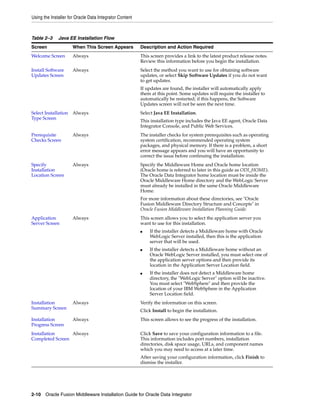
2.4.4 Following Installation Instructions for the "Java EE" Installation
                     Follow the instructions in Table 2–3 to install and configure Oracle Data Integrator
                     when the Java EE Installation is selected.
                     If you need additional help with any of the installation screens, refer to Appendix A,
                     "Installation Screens for ODI" or click Help to access the online help.


                                                                                   Installing Oracle Data Integrator 2-9
Using the Installer for Oracle Data Integrator Content


Table 2–3     Java EE Installation Flow
Screen                When This Screen Appears           Description and Action Required
Welcome Screen        Always                             This screen provides a link to the latest product release notes.
                                                         Review this information before you begin the installation.
Install Software      Always                             Select the method you want to use for obtaining software
Updates Screen                                           updates, or select Skip Software Updates if you do not want
                                                         to get updates.
                                                         If updates are found, the installer will automatically apply
                                                         them at this point. Some updates will require the installer to
                                                         automatically be restarted; if this happens, the Software
                                                         Updates screen will not be seen the next time.
Select Installation Always                               Select Java EE Installation.
Type Screen
                                                         This installation type includes the Java EE agent, Oracle Data
                                                         Integrator Console, and Public Web Services.
Prerequisite          Always                             The installer checks for system prerequisites such as operating
Checks Screen                                            system certification, recommended operating system
                                                         packages, and physical memory. If there is a problem, a short
                                                         error message appears and you will have an opportunity to
                                                         correct the issue before continuing the installation.
Specify               Always                             Specify the Middleware Home and Oracle home location
Installation                                             (Oracle home is referred to later in this guide as ODI_HOME).
Location Screen                                          The Oracle Data Integrator home location must be inside the
                                                         Oracle Middleware Home directory and the WebLogic Server
                                                         must already be installed in the same Oracle Middleware
                                                         Home.
                                                         For more information about these directories, see "Oracle
                                                         Fusion Middleware Directory Structure and Concepts" in
                                                         Oracle Fusion Middleware Installation Planning Guide.
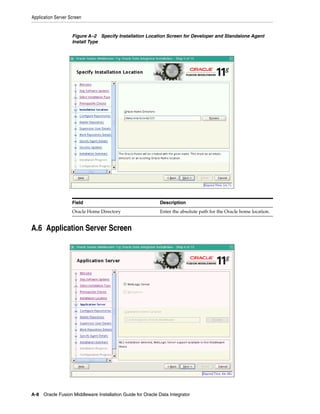
Application           Always                             This screen allows you to select the application server you
Server Screen                                            want to use for this installation.
                                                         ■   If the installer detects a Middleware home with Oracle
                                                             WebLogic Server installed, then this is the application
                                                             server that will be used.
                                                         ■   If the installer detects a Middleware home without an
                                                             Oracle WebLogic Server installed, you must select one of
                                                             the application server options and then provide its
                                                             location in the Application Server Location field.
                                                         ■   If the installer does not detect a Middleware home
                                                             directory, the "WebLogic Server" option will be inactive.
                                                             You must select "WebSphere" and then provide the
                                                             location of your IBM WebSphere in the Application
                                                             Server Location field.
Installation          Always                             Verify the information on this screen.
Summary Screen
                                                         Click Install to begin the installation.
Installation          Always                             This screen allows to see the progress of the installation.
Progress Screen
Installation     Always                                  Click Save to save your configuration information to a file.
Completed Screen                                         This information includes port numbers, installation
                                                         directories, disk space usage, URLs, and component names
                                                         which you may need to access at a later time.
                                                         After saving your configuration information, click Finish to
                                                         dismiss the installer.


2-10 Oracle Fusion Middleware Installation Guide for Oracle Data Integrator
Verifying the ODI Installation


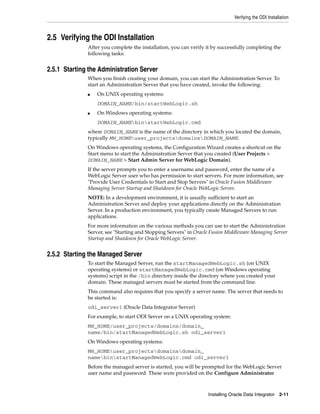
2.5 Verifying the ODI Installation
              After you complete the installation, you can verify it by successfully completing the
              following tasks:


2.5.1 Starting the Administration Server
              When you finish creating your domain, you can start the Administration Server. To
              start an Administration Server that you have created, invoke the following:
              ■   On UNIX operating systems:
                  DOMAIN_NAME/bin/startWebLogic.sh
              ■   On Windows operating systems:
                  DOMAIN_NAMEbinstartWebLogic.cmd
              where DOMAIN_NAME is the name of the directory in which you located the domain,
              typically MW_HOMEuser_projectsdomainsDOMAIN_NAME.
              On Windows operating systems, the Configuration Wizard creates a shortcut on the
              Start menu to start the Administration Server that you created (User Projects >
              DOMAIN_NAME > Start Admin Server for WebLogic Domain).
              If the server prompts you to enter a username and password, enter the name of a
              WebLogic Server user who has permission to start servers. For more information, see
              "Provide User Credentials to Start and Stop Servers" in Oracle Fusion Middleware
              Managing Server Startup and Shutdown for Oracle WebLogic Server.
              NOTE: In a development environment, it is usually sufficient to start an
              Administration Server and deploy your applications directly on the Administration
              Server. In a production environment, you typically create Managed Servers to run
              applications.
              For more information on the various methods you can use to start the Administration
              Server, see "Starting and Stopping Servers" in Oracle Fusion Middleware Managing Server
              Startup and Shutdown for Oracle WebLogic Server.


2.5.2 Starting the Managed Server
              To start the Managed Server, run the startManagedWebLogic.sh (on UNIX
              operating systems) or startManagedWebLogic.cmd (on Windows operating
              systems) script in the /bin directory inside the directory where you created your
              domain. These managed servers must be started from the command line.
              This command also requires that you specify a server name. The server that needs to
              be started is:
              odi_server1 (Oracle Data Integrator Server)
              For example, to start ODI Server on a UNIX operating system:
              MW_HOME/user_projects/domains/domain_
              name/bin/startManagedWebLogic.sh odi_server1
              On Windows operating systems:
              MW_HOMEuser_projectsdomainsdomain_
              namebinstartManagedWebLogic.cmd odi_server1
              Before the managed server is started, you will be prompted for the WebLogic Server
              user name and password. These were provided on the Configure Administrator


                                                                   Installing Oracle Data Integrator 2-11
Verifying the ODI Installation


                      Username and Password Screen in the Configuration Wizard. See Oracle Fusion
                      Middleware Creating Domains Using the Configuration Wizard for more information.


2.5.3 Reviewing Installation Log Files
                      The installer writes logs files to the OraInventory/log directory (on UNIX
                      operating systems) or Oracle_Inventory_Locationlogs (on Windows
                      operating systems) directory. On UNIX systems, if you do not know the location of
                      your Oracle Inventory directory, you can find it in the oraInst.loc file in the
                      following directories (default locations):
                      ■    Linux: <ODI_HOME>/oraInst.loc
                      ■    HP-UX and Solaris: <ODI_HOME>/oraInst.loc
                      ■    Windows operating systems: C:Program FilesOracleInventorylogs


2.5.4 Checking the Directory Structure
                      The contents of your ODI installation vary based on the options you selected during
                      the installation. The primary directories are listed in Section 1.4.1, "Contents of the 11g
                      Installation Directory". Review the directories to ensure that all of the components
                      were installed correctly.


2-12 Oracle Fusion Middleware Installation Guide for Oracle Data Integrator
3
                    Configuring Oracle Data Integrator
                    3


           After the installation is complete, you may need to configure one or more of the
           following components before using certain features of Oracle Data Integrator:
           ■    Section 3.1, "Configuring a WebLogic Domain"
           ■    Section 3.2, "Configuring ODI Studio, Repositories, and the Standalone Agent"
           ■    Section 3.3, "Configuring Java EE Components"


3.1 Configuring a WebLogic Domain
           You must configure managed servers in your ODI domain to work with the Oracle
           Data Integrator Java EE components. The Oracle Fusion Middleware Configuration
           Wizard can be used to automate many of these tasks. Once the domain has been
           configured, see "Verifying the ODI Installation" to verify that the domain has been
           properly configured.


                        Note:   If ODI will be used in a clustered or high availability
                        configuration, see "High Availability for Oracle Data Integrator" in the
                        Oracle Fusion Middleware High Availability Guide for additional
                        configuration information.


           To start the Configuration Wizard in graphical mode from a Windows command
           prompt or on UNIX systems:
           1.   Log in to the system on which the product is installed.
           2.   Open an MS-DOS command prompt window (on Windows operating systems) or
                a command shell (on UNIX operating systems).
           3.   Go to the following directory:
                ■       On UNIX operating systems:
                        ODI_HOME/common/bin
                ■       On Windows operating systems:
                        ODI_HOMEcommonbin
           4.   Execute the following command:
                ■       On UNIX operating systems:
                        sh config.sh
                ■       On Windows operating systems:


                                                                   Configuring Oracle Data Integrator 3-1
Configuring a WebLogic Domain


                            config.cmd
                   5.   Provide the required information on the Oracle Fusion Middleware Configuration
                        Wizard as described in Oracle Fusion Middleware Creating Domains Using the
                        Configuration Wizard.
                        The Select Domain Source screen shown in Figure 3–1 lists the ODI-specific
                        components that may be configured based on your installation. You may also
                        choose to Extend an Existing Domain with Oracle Data Integrator components.
                        When you extend an existing domain, only those products which have not been
                        configured in the domain will be available.


                            Caution: You must deploy the ODI Agent Libraries Template in a
                            domain before deploying the ODI Dynamic Agent Template.
                            You will only have to deploy the Agent Libraries once in each domain.
                            The Configuration Wizard will automatically recognize that the
                            template has been deployed and then you can deploy any number of
                            Dynamic Agent Templates in the domain.
                            For more information on the ODI templates, see the Oracle Fusion
                            Middleware Domain Template Reference.


                   Figure 3–1 Fusion Middleware Configuration Wizard Select Domain Source Screen


                   Oracle Data Integrator Products                  Dependency
                   Oracle Enterprise Manager Plugin for ODI         Oracle Enterprise Manager must be installed
                                                                    in the same domain.
                   Oracle Data Integrator SDK Web Services          Oracle JRF
                   Oracle Data Integrator Console                   Oracle JRF


3-2 Oracle Fusion Middleware Installation Guide for Oracle Data Integrator
Configuring a WebLogic Domain


Oracle Data Integrator Products               Dependency
Oracle Data Integrator Agent                  Oracle JRF, Deployed Agent Libraries
Oracle Data Integrator Agent Libraries        Oracle JRF
Oracle Data Integrator SDK Shared Library     Oracle JRF
Template
                                              NOTE: The version for the template is
                                              11.1.1.0. The template version does not
                                              change for patchset releases.


        Note:  If ODI Java EE components were installed, they automatically
        appear in the Oracle Fusion Middleware Configuration Wizard when
        launched to create a new domain. If dependencies exist, they are
        managed by the Oracle Fusion Middleware Configuration Wizard
        automatically.


You must configure managed servers in your ODI domain to work with the Oracle
Data Integrator Java EE components as shown in Figure 3–2. If you plan to use Oracle
Enterprise Manager console to manage your ODI domain, use the default listening
port of 8001. Listening ports other than 8001 will not load correctly from the Enterprise
Manager Console.

Figure 3–2 ODI Managed Server Configuration


For more information on creating and configuring a WebLogic domain, see Oracle
Fusion Middleware Creating Domains Using the Configuration Wizard.


                                                    Configuring Oracle Data Integrator 3-3
Configuring ODI Studio, Repositories, and the Standalone Agent


3.2 Configuring ODI Studio, Repositories, and the Standalone Agent
                    The following manual steps may be required for specific component installations:
                    ■    Section 3.2.1, "Adding Additional Drivers and Open Tools"
                    ■    Section 3.2.2, "Creating Repositories Manually"
                    ■    Section 3.2.3, "Connecting to Existing Repositories Manually"
                    ■    Section 3.2.4, "Changing the Language Used in ODI Studio"
                    ■    Section 3.2.5, "Configuring the Standalone Agent Manually"
                    ■    Section 3.2.6, "Starting the Standalone Agent"


3.2.1 Adding Additional Drivers and Open Tools
                    ODI installation includes a set of DataDirect drivers for the following technologies:
                    Oracle, Hypersonic SQL, SQL Server, Sybase ASE, and DB2 UDB. If additional drivers
                    and open tools are needed, they must be added to the Standalone Agent and the ODI
                    Studio in the following directories:
                    ■    On UNIX/Linux operating systems:
                         $HOME/.odi/oracledi/userlib
                         This folder contains the additional_path.txt file that allows you to declare
                         additional files or folders outside of the /userlib directory from which the ODI
                         Studio acquires its libraries and drivers. Note that this folder is created after you
                         launch ODI Studio for the first time.
                         Standalone Agent
                         ODI_HOME/oracledi/agent/drivers/
                    ■    On Windows operating systems:
                          %APPDATA%odioraclediuserlib
                         %APPDATA% is the Windows Application Data directory for the user (usually
                         C:Documents and Settings<user>Application Data). Note that this folder is
                         created after you launch ODI Studio for the first time.
                         Standalone Agent
                         ODI_HOMEoraclediagentdrivers


                              Note:   The ODI 11g installation does not include JDBC drivers for the
                              PostgreSQL database. To use PostgreSQL, you must download
                              postgresql-8.4-701.jdbc4.jar from
                              http://jdbc.postgresql.org/download.html and then
                              follow the instructions above.


3.2.2 Creating Repositories Manually
                    If repository creation was not possible through RCU, due to unsupported technology
                    or repository topology, use ODI Studio to create and configure repositories.
                    For detailed instructions see Appendix F, "Creating Repositories with Oracle Data
                    Integrator Studio".


3-4 Oracle Fusion Middleware Installation Guide for Oracle Data Integrator
Configuring ODI Studio, Repositories, and the Standalone Agent


3.2.3 Connecting to Existing Repositories Manually
              If the repository connections were not configured during installation, use ODI Studio
              to create the connections to the repositories.
              For detailed instructions see Appendix F, "Creating Repositories with Oracle Data
              Integrator Studio".


3.2.4 Changing the Language Used in ODI Studio
              You can change the language that is used by ODI Studio by editing the odi.conf file
              as described below:
              1.   Open the odi.conf file for editing. The file is located in the following directory:
                   ODI_HOMEstudiooracledi-studiooraclediclientodibin
              2.   Add the following lines to the odi.conf file. (Note that this example shows the
                   modification for US English):
                   AddVMOption -Duser.language=en
                   AddVMOption -Duser.region=US
              Make sure that you have installed the appropriate system fonts to support your
              language change if necessary.


                       Note:    If you are changing the language to Japanese, use LANG=ja_
                       JP.usjis instead of LANG=ja_JP.utf8 to avoid issues with truncating
                       text.


3.2.5 Configuring the Standalone Agent Manually
              During the Standalone Agent installation, the agent is pre-configured to connect to the
              existing repository. If the Skip Repository Configuration option was selected on the
              Repository Configuration screen, then the agent is installed but not configured.


                       See Also: Appendix H, "OPMN Configuration for Standalone
                       Agent".


              1.   Connect to the Master Repository and define a physical agent in the topology for
                   the standalone agent, with the following information:
                   ■   Name - Name of the physical agent.
                   ■   Host - Name of the host where the standalone agent will be started.
                   ■   Port - Port on this host where the standalone agent will be started. Provide a
                       port number between 1024 and 65535 that is not currently being used by any
                       other Oracle home. This port defaults to 20910.
                   ■   Web Application Context: oraclediagent (This parameter cannot be
                       changed for a standalone agent.)


                       See Also: For detailed instruction on declaring an agent in the
                       topology, refer to "Creating a Physical Agent" in Oracle Fusion
                       Middleware Developer's Guide for Oracle Data Integrator.


                                                                     Configuring Oracle Data Integrator 3-5
Configuring ODI Studio, Repositories, and the Standalone Agent


                    2.   Configure the agent manually by editing the odiparams.bat/sh file to point to
                         the correct repository. The odiparams file is pre-configured if you installed your
                         standalone agent using Oracle Universal Installer and selected to configure a
                         repository connection during installation. See Table 3–1 for the list of these
                         parameters.

                    Table 3–1     Repository Connection Information
                    Parameter                                    Description
                    ODI_MASTER_DRIVER                            JDBC driver used to connect the Master Repository.
                    ODI_MASTER_URL                               JDBC URL used to connect the Master Repository.
                    ODI_MASTER_USER                              Database account used to connect the Master
                                                                 Repository.
                    ODI_MASTER_ENCODED_PASS                      Database account password. The password must be
                                                                 encoded with the encode.[sh|bat]
                                                                 <password> command.
                    ODI_SECU_WORK_REP                            Name of the Work Repository to connect to. This
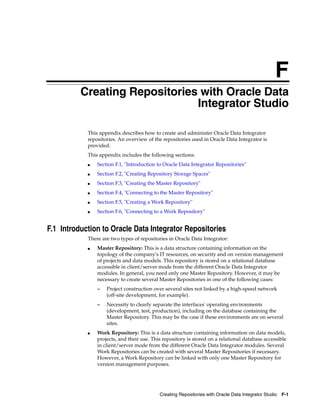
                                                                 Work Repository is the default repository into which
                                                                 the scenarios are started.
                    ODI_SUPERVISOR                               Name of an ODI supervisor user. This Supervisor
                                                                 user is used by the agent to connect the Master
                                                                 Repository.
                    ODI_SUPERVISOR_ENCODED_PASS                  This user’s password. The password must be
                                                                 encoded with the encode.[sh|bat]
                                                                 <password> command.
                    ODI_USER                                     Name of an ODI user used to start scenarios. This
                                                                 user’s credentials are used when starting a scenario
                                                                 from a command line.
                    ODI_ENCODED_PASS                             This ODI user password
                    ODI_CONNECTION_RETRY_COUNT                   The number of retries to establish the connection in
                                                                 the event that a repository connection fails. If set to
                                                                 0, no retry will be performed. Default is 10.
                                                                 NOTE: The RETRY parameters allow the agent to
                                                                 continue sessions if the repository fails and is
                                                                 temporarily unavailable. This scenario applies
                                                                 primarily to Oracle RAC configurations.
                    ODI_CONNECTION_RETRY_DELAY                   Time in milliseconds between repository connection
                                                                 retries. Default is 1000.


                         The following example shows a modified odiparams.bat/sh file:
                         ODI_MASTER_DRIVER=oracle.jdbc.driver.OracleDriver
                         ODI_MASTER_URL=jdbc:oracle:thin:@ours:1521:ORA9
                         ODI_MASTER_USER=ODI_11G
                         ODI_MASTER_ENCODED_PASS=gxfpqkz074jeaCpL4XSEFzxoj8E0p
                         ODI_SECU_WORK_REP=WORKREP
                         ODI_SUPERVISOR=SUPERVISOR
                         ODI_SUPERVISOR_ENCODED_PASS=fJya.vR5kvNcu9TtV,jVZEt


                              See Also: For more information on how to work with a standalone
                              agent, a Java EE agent and how to handle load balancing, see
                              "Managing Agents" in the Oracle Fusion Middleware Developer's Guide
                              for Oracle Data Integrator.


3-6 Oracle Fusion Middleware Installation Guide for Oracle Data Integrator
Configuring Java EE Components


3.2.6 Starting the Standalone Agent
              Once the standalone agent has been defined in Topology, it can be started and used to
              execute scenarios on predefined schedules or on demand.
              To launch a standalone agent:
              1.   Change directory to the /agent/bin directory of the Oracle Data Integrator
                   Agent.
              2.   Enter the following command to start the agent.
                   ■   On UNIX system:
                       ./agent
                   ■   On Windows system:
                       agent.bat

              Agent Configuration Parameters
              Table 3–2 lists the different parameters that allow the agent to be configured. The
              parameters are prefixed by the "-" character and the possible values are preceded by
              the "=" character. When entering the command, consider the operating system specific
              syntax of the delimiters.

              Table 3–2    Agent Configuration Parameters
              Parameters                 Description
              -PORT=<port>               Port on which the agent is listening. Default value is 20910. This
                                         port should exactly match the port specified in the physical
                                         agent definition in the topology.
              -NAME=<agent name>         This is the name of the physical agent used. This name should
                                         match the name of the physical agent as defined in the topology.
                                         If this parameter is not specified, the agent starts with the
                                         default name OracleDIAgent.
              -JMXPORT=<jmx_port>        JMX agent port number. The agent listens on this port for JMX
                                         request to provide its metrics. Default value is the listening port
                                         + 1000. For example, if <port>=20910 then <jmx_
                                         port>=21910.


              For example, on UNIX, the following command launches the standalone agent
              declared in the repository as agent_001 on the port 20300.
              ./agent.sh -PORT=20300 -NAME=agent_001


                       WARNING: On Windows platforms, it is necessary to "delimit" the
                       command arguments containing "=" signs or spaces, by using
                       double quotes. For example:
                       agent.bat "-PORT=20300" "-NAME=agent_001"


3.3 Configuring Java EE Components
              This section provides post-installation steps for Java EE Agent, Oracle Data Integrator
              Console and Oracle Enterprise Manager.


                                                                    Configuring Oracle Data Integrator 3-7
Configuring Java EE Components


                   After deploying the Oracle Data Integrator templates, the following steps must be
                   performed before starting the Java EE Agent, Oracle Data Integrator Console and
                   Oracle Enterprise Manager applications deployed in WebLogic Server.


3.3.1 Declaring the Java EE Agent in Topology
                   All Java EE components are pre-configured in default templates. The default Java EE
                   agent has a template, but the agent is not declared in the repository. Therefore, the
                   agent must be configured in the repository.
                   1.   In Topology Navigation, connect to the Master Repository and declare the Java EE
                        agent and provide the following:
                        ■   Name - Name of the physical agent.
                            Caution: If you use the default Java EE agent, then you must create an agent
                            called OracleDIAgent (case sensitive). In addition, if you use the default
                            agent created during the Java EE install, you do not have to create a new
                            template. See "Managing Agents" in the Oracle Fusion Middleware Developer's
                            Guide for Oracle Data Integrator for more information.
                        ■   Host - Name of the host where the Java EE agent will be started.
                        ■   Port: Port number of the WLS Server where the Java EE agent is deployed.
                        ■   Protocol: Protocol to use for the agent connection. Possible values are http or
                            https. Default is http.
                        ■   Web Application Context: Default value is oraclediagent. The web
                            application context should match the name set when deploying the agent
                            template.
                   For detailed instructions on declaring the Java EE agent in Topology, see "Managing
                   Agents" in the Oracle Fusion Middleware Developer's Guide for Oracle Data Integrator.


3.3.2 Generating Java EE Agent Template
                   A Java EE agent template can be generated from the ODI Studio. This is required to
                   bundle the agent code with extra drivers with the source or target and Work or Master
                   datasources declared in the Topology. For more information on datasource declaration,
                   deployment and template generation in ODI Studio, see "Java EE Agent" in the Oracle
                   Fusion Middleware Developer's Guide for Oracle Data Integrator.


                            Note:   Default templates contain the following datasources for
                            connecting the repositories: jdbc/odiMasterRepository and
                            jdbc/odiWorkRepository. These JNDI names are referred to in the
                            default Run-time Agent or Oracle Data Integrator Console templates.
                            If you use a generated agent template, the datasources included in this
                            template will be those declared in the topology for this agent. This
                            template will also optionally contain the driver files.


3.3.3 Adding Credential Store Entries
                   The Oracle Data Integrator usernames and passwords required by the Java EE
                   components to connect the repositories are not stored in ODI Configuration files. This
                   information is stored in the Application Server credential store. When they need to
                   authenticate to the repository, the ODI Java EE components refer to credential store
                   entries, identified by a map named by default "oracle.odi.credmap" and a key.


3-8 Oracle Fusion Middleware Installation Guide for Oracle Data Integrator
Configuring Java EE Components


         CAUTION: Modifications to the credential store entries are only
         required when the ODI Console and Oracle Enterprise Manager are
         deployed in one domain and the agent is deployed in another domain.


3.3.3.1 Credential Store Entries for the Java EE Agent
The Java EE agent requires a single key storing the login and password for a user that
will be used to connect the repositories. The key is the Supervisor Key value provided
when creating the agent (this key is SUPERVISOR in the default agent template) and
the user and password values must be a valid user name and password pair for a user
with Supervisor privileges.
For example, if you use the default template and have created a repository with a
SUPERVISOR user, you should create a key using the following WLST command:
1.   Navigate to the ODI_HOME/common/bin directory.
     Note that you must use WLST from this directory when using Oracle Data
     Integrator. The default WLST script provided with the Oracle WebLogic Server
     will not work. For more information on using WLST commands, see Oracle Fusion
     Middleware WebLogic Scripting Tool Command Reference.
2.   Launch wlst.
     ■   On UNIX operating systems:
         ./wlst.sh

     ■   On Windows operating systems:
         wlst.cmd

3.   Execute the following WLST command substituting your usernames and
     passwords:
     connect('weblogic','welcome1','t3://localhost:7001')
     createCred(map="oracle.odi.credmap", key="SUPERVISOR", user="SUPERVISOR",
     password="supervisor1", desc="Key for Supervisor")
     disconnect()


3.3.3.2 Credential Store Entries for the Oracle Enterprise Manager
Oracle Enterprise Manager requires an ODI Supervisor key to connect the agents
deployed on a domain and manage them. This key is similar to the key created for the
Java EE Agent.
In addition to this key, Oracle Enterprise Manager requires a second key containing
the username and password of a WebLogic administrator for each domain into which
ODI Java EE Agents are deployed and must to be managed.
The second key is named after the domain, and contains a valid WebLogic
administrator username and password.
For example, if you use the default template and have it deployed within a domain
called based domain with the WebLogic administrator called WebLogic, you can create
the keys using the following WLST commands:
createCred(map="oracle.odi.credmap", key="SUPERVISOR", user="SUPERVISOR",
password="******", desc="Key for Supervisor")

createCred(map="oracle.odi.credmap", key="base_domain", user="weblogic",


                                                  Configuring Oracle Data Integrator 3-9
Configuring Java EE Components


                   password="*******", desc="Username and password for base_domain")

                   Example Scenario:
                   1.   Three agents OdiAgent1, OdiAgent2 and OdiAgent3 are defined as physical
                        agents in the topology.
                   2.   OdiAgent1 and OdiAgent2 are Java EE agents and OdiAgent3 is a Standalone
                        agent.
                   3.   OdiAgent1 is deployed on a WLS domain with the name agent_1_domain and
                        OdiAgent2 is deployed on a WLS domain with the name agent_2_domain. Both
                        domains use a WebLogic user as their administrator.
                   4.   A user called SUPERVISOR is declared in the Master Repository, and
                        SUPERVISOR is specified as the Supervisor Key value when creating the Java EE
                        agent templates.
                   The following sequence of WLST commands creates the appropriate entries:
                   createCred(map="oracle.odi.credmap", key="SUPERVISOR", user="SUPERVISOR",
                   password="SUPERVISOR", desc="Key for Supervisor")

                   createCred(map="oracle.odi.credmap", key="agent_1_domain", user="weblogic",
                   password="*****", desc="Username and password for agent_1_domain")

                   createCred(map="oracle.odi.credmap", key="agent_2_domain", user="weblogic",
                   password="*****", desc="Username and password for agent_2_domain")

                   Once the credential maps are created, you can start the Java EE components. Agents
                   are fully functional, but Oracle Data Integrator Console and Oracle Enterprise
                   Manager may need extra configuration. See "Configuring ODI Console Connections"
                   and "Configuring Oracle Enterprise Manager with ODI Plugin" for more information.
                   For more information on Oracle Data Integrator JEE configuration options, see "High
                   Availability for Oracle Data Integrator" in the Oracle Fusion Middleware High Availability
                   Guide.


3.3.4 Configuring ODI Console Connections
                   The Oracle Data Integrator Console template is created (by default) with two
                   connections aliases:
                   ■    Work Repository connects a Work Repository after the two default datasources
                        jdbc/odiMasterRepository and jdbc/odiWorkRepository.
                   ■    Master Repository connects a Master Repository after the default datasource
                        jdbc/odiMasterRepository.
                   If more repository connections are required, either to access these repositories from
                   ODI Console or to monitor them from Oracle Enterprise Manager, add the connections
                   from the ODI Console interface.
                   To add new connections to ODI Console:
                   1.   Start the Oracle Data Integrator Console application.
                   2.   Open the Management tab. Connect to ODI Console (with an existing repository
                        connection) as a user who has supervisor privileges. Select the Management tab.
                        If you have not yet configured a connection, a link to the Management tab appears
                        at the top right corner of the login screen.


3-10 Oracle Fusion Middleware Installation Guide for Oracle Data Integrator
Configuring Java EE Components


              3.   Navigate to the Repository Connections node in the Management Navigation
                   tab.
              4.   Click Create in the Navigation tab toolbar. A Create Repository Connection
                   dialog for this object appears.
              5.   Provide the values for the repository connection:
                   ■   Connection Alias: Name of the connection that will appear on the Login page.
                   ■   Master JNDI URL: JNDI URL of the datasource to connect the master
                       repository database.
                       For example: jdbc/odiMasterRepository
                   ■   Supervisor User Name: Name of the Oracle Data Integrator user with
                       Supervisor privileges that Oracle Data Integrator Console will use to connect
                       to the repository. This user's password must be declared in the WebLogic
                       Server Credential Store.
                   ■   Work JNDI URL: JNDI URL of the datasource to connect the work repository
                       database. If no value is given in this field, the repository connection will allow
                       connection to the master only, and the Navigation will be limited to Topology
                       information.
                   ■   JNDI URL: Check this option if you want to use the Environment Naming
                       Context (ENC). When this option is checked, Oracle Data Integrator Console
                       automatically prefixes the data source name with the string
                       java:comp/env/ to identify it in the application server's JNDI directory.
                       Note that the JNDI Standard is not supported by Oracle WebLogic Server or
                       for global data sources.
                       For example: jdbc/odiWorkRepository
                   ■   Default: Check this option if you want this Repository Connection to be
                       selected by default on the login page.
              6.   Click Save. The new Repository Connection appears in the Management
                   Navigation tab.
              See "Performing Administrative Operations" in the Oracle Fusion Middleware
              Developer's Guide for Oracle Data Integrator for more information about creating
              repository connections.


3.3.5 Configuring Oracle Enterprise Manager with ODI Plugin
              To use Oracle Enterprise Manager with the Oracle Data Integrator Console, and your
              agent resides in a separate domain, you must first create the appropriate Credential
              Store Entries for Oracle Enterprise Manager as described in Section 3.3.3.
              Domain discovery is performed with the following process:
              1.   Oracle Enterprise Manager finds the Oracle Data Integrator Console configuration
                   file storing the Repository Connection (repositories.xml) in the location specified
                   in the configuration file DOMAIN_
                   HOME/config/oracledi/config.properties.
              2.   Oracle Enterprise Manager parses the repository connections declared in Oracle
                   Data Integrator Console, tries to connect all the masters and retrieves their status
                   and list of agents. Even if an agent or repository is down, it will appear in the
                   Oracle Enterprise Manager.


                                                                  Configuring Oracle Data Integrator 3-11
Configuring Java EE Components


                   3.   Any agent on the domain will appear in the domain with its status and will start
                        posting notifications (if started).
                   NOTE: If you want Oracle Enterprise Manager to drill down into Oracle Data
                   Integrator Console using a different URL than the one detected by Oracle Enterprise
                   Manager, you will need to reconfigure this in Oracle Enterprise Manager.
                   Reconfiguration is not mandatory but may be needed when using a firewall for HTTP
                   load balancing to Oracle Data Integrator Console.
                   For more information on using Oracle Enterprise Manager, see the Oracle Fusion
                   Middleware Administrator's Guide.


3-12 Oracle Fusion Middleware Installation Guide for Oracle Data Integrator
Part II
                                                        Part II   Appendices

Part 2 contains the following appendices:
■   Appendix A, "Installation Screens for ODI"
■   Appendix B, "Silent Installations"
■   Appendix C, "Deinstalling Oracle Data Integrator"
■   Appendix D, "Deinstallation Screens for ODI"
■   Appendix E, "Oracle Data Integrator Companion CD"
■   Appendix F, "Creating Repositories with Oracle Data Integrator Studio"
■   Appendix G, "Customizing the ODI Credential Map Name"
■   Appendix H, "OPMN Configuration for Standalone Agent"
A
                       Installation Screens for ODI
                       A


This appendix contains images and descriptions for all of the Oracle Data Integrator
installation screens and post-installation configuration screens:
■   Section A.1, "Welcome Screen"
■   Section A.2, "Install Software Updates Screen"
■   Section A.3, "Select Installation Type Screen"
■   Section A.4, "Prerequisite Checks Screen"
■   Section A.5, "Specify Installation Location Screen"
■   Section A.6, "Application Server Screen"
■   Section A.7, "Repository Configuration Screen"
■   Section A.8, "Master Repository Screens"
■   Section A.9, "Supervisor User Details Screen"
■   Section A.10, "Specify Work Repository Details Screen"
■   Section A.11, "Specify Agent Details Screen"
■   Section A.12, "Installation Summary Screen"
■   Section A.13, "Installation Progress Screen"
■   Section A.14, "Configuration Progress Screen"
■   Section A.15, "Installation Completed Screen"


                                                          Installation Screens for ODI A-1
Welcome Screen


A.1 Welcome Screen


                   The Welcome screen is displayed each time you start the installer. Review the Release
                   Notes before you install for important information about the installation.
                   Before continuing, make sure that you have created the necessary schemas for the
                   products you want to install, and that you have also installed and configured
                   WebLogic Server. For more information, refer to Section 2.1, "Preparing to Install".


A-2 Oracle Fusion Middleware Installation Guide for Oracle Data Integrator
Install Software Updates Screen


A.2 Install Software Updates Screen


           Field                   Description
           Skip Software Updates   Select this option to skip this screen. The installer will not
                                   check for updates that might be applicable to the current
                                   product installation.


                                                                 Installation Screens for ODI A-3
Install Software Updates Screen


                    Field                           Description
                    Search My Oracle Support for    If you have a My Oracle Support account, then select this
                    Updates                         option to have the installer automatically search My Oracle
                                                    Support for software updates that apply to the software
                                                    products are about to install.
                                                    Enter your My Oracle Support account name and
                                                    password, and then click Search For Updates. The installer
                                                    automatically downloads applicable software updates from
                                                    My Oracle Support.
                                                    Before you search for update, you can test your login
                                                    credentials and the connection to My Oracle Support by
                                                    clicking Test Connection. Click Proxy Settings to configure a
                                                    proxy server if one is required:


                    Search Local Directory for      Select this option if you already downloaded the latest
                    Updates                         software updates and you want the installer to search a
                                                    local directory for updates applicable to the products you
                                                    are about to install.


A-4 Oracle Fusion Middleware Installation Guide for Oracle Data Integrator
Select Installation Type Screen


A.3 Select Installation Type Screen


            Field                     Description
            Developer Installation    This installation type includes the ODI Studio (with
                                      a local agent) and the Oracle Data Integrator
                                      Software Development Kit (SDK).
            Standalone Installation   This installation type includes an Oracle Data
                                      Integrator standalone agent.
            Java EE Installation      This installation type includes the Java EE agent,
                                      Oracle Data Integrator Console, and Public Web
                                      Services.


                                                           Installation Screens for ODI A-5
Prerequisite Checks Screen


A.4 Prerequisite Checks Screen


                   Field                                  Description
                   Abort                                  Click Abort to stop prerequisite checking for all
                                                          components.
                   Retry                                  If there is a problem, a short error message
                                                          appears in the bottom portion of the screen. Fix
                                                          the error and click Retry to try again.
                   Continue                               If you want to ignore the errors or warnings and
                                                          continue with the installation, click Continue.


A-6 Oracle Fusion Middleware Installation Guide for Oracle Data Integrator
Specify Installation Location Screen


A.5 Specify Installation Location Screen
            Figure A–1 Specify Installation Location Screen for Java EE Install Types


            Field                                 Description
            Oracle Middleware Home                Specify the absolute path to your existing Oracle
                                                  Middleware Home directory; this is the directory
                                                  that was created when you installed Oracle
                                                  WebLogic Server. If you do not know the full path to
                                                  your Middleware Home, you can click Browse to
                                                  select an existing directory in your system.
            Oracle Home Directory                 Specify a directory inside the Oracle Middleware
                                                  Home. This Oracle Home Directory is the root
                                                  directory where the ODI products will be installed.
                                                  This is also known as the ODI_HOME directory.
                                                  If you specify a directory that already exists, it must
                                                  be either:
                                                  ■   An empty directory inside the Oracle
                                                      Middleware Home (for example, you have
                                                      created an empty directory inside the
                                                      Middleware Home in advance of this
                                                      installation and should specify the directory
                                                      here).
                                                  ■   An existing Oracle home directory (for example,
                                                      you are reinstalling ODI to an existing Oracle
                                                      home because of an incomplete previous
                                                      installation).
                                                  NOTE: If you specify a new directory, it will be
                                                  created inside the Oracle Middleware Home.


                                                                        Installation Screens for ODI A-7
Application Server Screen


                    Figure A–2 Specify Installation Location Screen for Developer and Standalone Agent
                    Install Type


                    Field                                   Description
                    Oracle Home Directory                   Enter the absolute path for the Oracle home location.


A.6 Application Server Screen


A-8 Oracle Fusion Middleware Installation Guide for Oracle Data Integrator
Repository Configuration Screen


           Field                         Description
           WebLogic Server               This option is selected by default if the
                                         installer detects a Middleware home
                                         with Oracle WebLogic Server installed.
                                         If no WebLogic Server is detected in the
                                         Middleware home, you have the option to
                                         select either WebLogic Server or WebSphere
                                         as your application server.
           WebSphere                     Select this option if you installed an IBM
                                         WebSphere application server.
                                         This field is inactive when an Oracle
                                         WebLogic Server is installed in the
                                         Middleware home.
           Application Server Location   Provide the location of your IBM WebSphere
                                         application server, if applicable.
                                         This field is inactive when an Oracle
                                         WebLogic Server is installed in the
                                         Middleware home.


A.7 Repository Configuration Screen


                                                       Installation Screens for ODI A-9
Master Repository Screens


                   Field                                   Description
                   Configure Repositories                  This option creates a connection to a work
                                                           repository for the Oracle Data Integrator Studio. It
                                                           also configures the odiparams file for the Standalone
                                                           Agent to connect the master repository. The agent
                                                           definition is declared in the topology and
                                                           corresponding agent startup scripts and shortcuts
                                                           are created. With this configuration, the standalone
                                                           agent can be started with no additional
                                                           configuration.
                                                           Select this option if you have existing 11g Master
                                                           and Work Repositories.
                   Skip Repository Configuration           Select this option to continue with the Oracle Data
                                                           Integrator installation without configuring the
                                                           repositories. Once installed, you can use the Oracle
                                                           Data Integrator Studio JDev Gallery to create or
                                                           configure the repositories.
                                                           NOTE: Select Skip Repository Configuration if:
                                                           ■    Your database is not supported by Oracle’s
                                                                Repository Creation Utility (RCU). You will
                                                                need to configure these components manually
                                                                after the installation. For more information see
                                                                Appendix F, "Creating Repositories with Oracle
                                                                Data Integrator Studio".
                                                           ■    Your schemas have not yet been upgraded to
                                                                the latest release.
                                                           For a list of supported databases, see
                                                           http://www.oracle.com/technology/softw
                                                           are/products/ias/files/fusion_
                                                           requirements.htm.


A.8 Master Repository Screens


A-10 Oracle Fusion Middleware Installation Guide for Oracle Data Integrator
Master Repository Screens


Field                     Description
Database Type             Select the database type that hosts the Oracle Data
                          Integrator Master Repository.
Database Connect String   Enter the connect string for the database that
                          contains the 11g ODI schemas.
                          Oracle Database
                          Use a JDBC connect string:
                          host:port:SID
                          For example:
                          odiHost:1521:odiDB
                          Or:
                          //host:port/service
                          For example:
                          //odiHost:1521/odiDB2
                          Microsoft SQL Server
                          Use the following connect string:
                          //host:port;DatabaseName=dbname
                          For example:
                          //odiHost:1443;DatabaseName=odiDB
                          IBM DB2
                          Use the following connect string:
                          //host:port;DatabaseName=dbname
                          NOTE: If your database is not supported by the
                          Oracle Universal Installer, see Appendix E.2,
                          "Manual Installation and Configuration Steps".
Database User Name        Provide the Master Repository schema user name.
Database Password         Provide the Master Repository schema password.
Use Service ID            Select Use Service ID, if you want to use the Service
                          ID instead of the Service Name for Oracle database.


                                                Installation Screens for ODI   A-11
Supervisor User Details Screen


A.9 Supervisor User Details Screen


                    Field                                  Description
                    ODI Username                           Provide the ODI username with Supervisor
                                                           privileges.
                    ODI Password                           Provide the Supervisor user’s password.


A-12 Oracle Fusion Middleware Installation Guide for Oracle Data Integrator
Specify Work Repository Details Screen


A.10 Specify Work Repository Details Screen


           Field                     Description
           Select Work Repository    Select the Oracle Data Integrator Work Repository
                                     from the drop-down list.


                                                        Installation Screens for ODI   A-13
Specify Agent Details Screen


A.11 Specify Agent Details Screen


                    Field                                  Description
                    Agent Name                             Provide a name for the standalone or local agent.
                    Agent Port                             Provide a port number between 1024 and 65535 that
                                                           is not currently being used by any other Oracle
                                                           home. This port defaults to 20910.


A-14 Oracle Fusion Middleware Installation Guide for Oracle Data Integrator
Installation Summary Screen


A.12 Installation Summary Screen


           Review the information on this screen, and click Install to begin the installation. The
           operations summarized on this page will be performed when you click Install.
           If you want to make any changes to the configuration before starting the installation,
           use the navigation pane and select the topic you want to edit.
           If you want to save this configuration to a text file, click Save. This file can be used
           later if you choose to perform the same installation from the command line. See
           Appendix B, "Silent Installations" for more information.


                                                                      Installation Screens for ODI    A-15
Installation Progress Screen


A.13 Installation Progress Screen


                     This screen shows you the progress of the installation.
                     If you want to quit before the installation is completed, click Cancel. Doing so will
                     result in a partial installation; the portion of the software that was installed on your
                     system before you click Cancel will remain on your system, and you will have to
                     remove it manually.


A-16 Oracle Fusion Middleware Installation Guide for Oracle Data Integrator
Configuration Progress Screen


A.14 Configuration Progress Screen


           If you selected Configure Repositories on the Repository Configuration Screen, this
           screen shows you the progress of the component configuration. This screen will not
           appear if you selected Skip Repository Configuration.
           If there is a problem, a short error message appears in the bottom portion of the screen.
           Fix the error and click Retry to try again.
           If you want to ignore the error and warning messages and continue with the
           installation, click Continue.
           Click Abort to stop prerequisite checking for all components.
           If you want to quit before the installation is completed, click Cancel.


                                                                    Installation Screens for ODI   A-17
Installation Completed Screen


A.15 Installation Completed Screen


                    This screen summarizes the installation that was just completed. The information that
                    you provided appears in the Directory Details section.
                    Click Save to save your configuration information to a file. This information includes
                    port numbers, installation directories, disk space usage, URLs, and component names
                    which you may need at a later time.
                    Click Finish to dismiss the screen.


A-18 Oracle Fusion Middleware Installation Guide for Oracle Data Integrator
B
                                                           Silent Installations

            This appendix describes how to perform a silent installation of Oracle Data Integrator.
            ■   Section B.1, "About Silent Installation"
            ■   Section B.2, "Oracle Data Integrator Response Files"


B.1 About Silent Installation
            Oracle Data Integrator allows you to configure existing response file templates to
            perform silent installations. For general information about silent installation and
            deinstallation, refer to "Silent Installation and Deinstallation" in Oracle Fusion
            Middleware Installation Planning Guide.


B.2 Oracle Data Integrator Response Files
            Oracle recommends creating your response file by first running the install GUI, then
            clicking Save on the Installation Summary Screen. You will be prompted for a name
            and location where you want to create this response file. After it is created, you can use
            it exactly as-is to replicate the installation on other systems, or modify it as needed.
            The response file can be used to install the Oracle Data Integrator software only. You
            will still need to run the Oracle Fusion Middleware Configuration Wizard separately
            to create or extend your WebLogic domain and configure Oracle Data Integrator
            products. For more information, see Section 3.1, "Configuring a WebLogic Domain".
            The following response file templates are provided in the Disk1/stage/Response
            (on UNIX operating systems) or Disk1stageResponse (on Windows operating
            systems) directory on the installation CD-ROM.


            Response File Template              Description
            developerPlatformConfigureE         This is the template response file that should be used if
            xistingRepository.rsp               you are installing ODI Studio (with a local agent) or the
                                                Oracle Data Integrator Software Development Kit
                                                (SDK) and you want to configure existing Master and
                                                Work Repositories.
                                                This template provides the functional equivalent of
                                                using the GUI and selecting the Developer Installation
                                                option on the Specify Installation Location Screen and
                                                the Configure with existing Master and Work
                                                Repositories on the Repository Configuration Screen.


                                                                                  Silent Installations   B-1
Oracle Data Integrator Response Files


                    Response File Template               Description
                    developerPlatformSkipReposi          This is the template response file that should be used if
                    tory.rsp                             you are installing ODI Studio (with a local agent) or the
                                                         Oracle Data Integrator Software Development Kit
                                                         (SDK) and you do not want to the configure the ODI
                                                         Master and Work Repositories.
                                                         This template provides the functional equivalent of
                                                         using the GUI and selecting the Developer Installation
                                                         option on the Specify Installation Location Screen and
                                                         the Skip Repository Configuration on the Repository
                                                         Configuration Screen.
                    j2eePlatformConfigureExisti          This is the template response file that should be used if
                    ngRepository_wls.rsp                 you are installing the Java EE components (which
                                                         includes the Java EE agent, Oracle Data Integrator
                                                         Console, and Public Web Services) on an Oracle
                                                         WebLogic Server and you want to configure existing
                                                         Master and Work Repositories.
                                                         This template provides the functional equivalent of
                                                         using the GUI and selecting the Java EE Installation
                                                         option on the Specify Installation Location Screen and
                                                         the Configure with existing Master and Work
                                                         Repositories on the Repository Configuration Screen.
                    j2eePlatformConfigureExisti          This is the template response file that should be used if
                    ngRepository_was.rsp                 you are installing the Java EE components (which
                                                         includes the Java EE agent, Oracle Data Integrator
                                                         Console, and Public Web Services) on an IBM
                                                         WebSphere Server and you want to configure existing
                                                         Master and Work Repositories.
                                                         This template provides the functional equivalent of
                                                         using the GUI and selecting the Java EE Installation
                                                         option on the Specify Installation Location Screen and
                                                         the Configure with existing Master and Work
                                                         Repositories on the Repository Configuration Screen.
                    j2eePlatformSkipRepository_          This is the template response file that should be used if
                    wls.rsp                              you are installing the Java EE components (which
                                                         includes the Java EE agent, Oracle Data Integrator
                                                         Console, and Public Web Services) on an Oracle
                                                         WebLogic Server and you do not want to configure
                                                         repositories.
                                                         This template provides the functional equivalent of
                                                         using the GUI and selecting the Java EE Installation
                                                         option on the Specify Installation Location Screen and
                                                         the Skip Repository Configuration on the Repository
                                                         Configuration Screen.
                    j2eePlatformSkipRepository_          This is the template response file that should be used if
                    was.rsp                              you are installing the Java EE components (which
                                                         includes the Java EE agent, Oracle Data Integrator
                                                         Console, and Public Web Services) on an IBM
                                                         WebSphere Server and you do not want to configure
                                                         repositories.
                                                         This template provides the functional equivalent of
                                                         using the GUI and selecting the Java EE Installation
                                                         option on the Specify Installation Location Screen and
                                                         the Skip Repository Configuration on the Repository
                                                         Configuration Screen.


B-2 Oracle Fusion Middleware Installation Guide for Oracle Data Integrator
Oracle Data Integrator Response Files


Response File Template        Description
standalonePlatformConfigure   This is the template response file that should be used if
ExistingRepository.rsp        you are installing the ODI Standalone agent and you
                              want to configure existing Master and Work
                              Repositories.
                              This template provides the functional equivalent of
                              using the GUI and selecting the Standalone
                              Installation and Configure with existing Master and
                              Work Repositories on the Repository Configuration
                              Screen.
standalonePlatformSkipRepos   This is the template response file that should be used if
itory.rsp                     you are installing the ODI Standalone agent and you do
                              not want to configure existing Master and Work
                              Repositories.
                              This template provides the functional equivalent of
                              using the GUI and selecting the Standalone
                              Installation and Skip Repository Configuration on the
                              Repository Configuration Screen.
deinstall_oh.rsp              This is the template response file that should be used if
                              you want to deinstall an existing Oracle Home.


                                                                Silent Installations   B-3
Oracle Data Integrator Response Files


B-4 Oracle Fusion Middleware Installation Guide for Oracle Data Integrator
C
                   CDeinstalling Oracle Data Integrator

             This appendix describes how to remove Oracle Data Integrator products from your
             system.
             You should always use the instructions provided in this chapter for removing the
             software. If you try to remove the software manually, you may experience problems
             when you try to reinstall the software again at a later time. Following the procedures
             in this chapter will ensure that the software is properly removed. See Section C.2,
             "Reinstallation" for more information.


C.1 Deinstallation Instructions
             This section contains information and instructions for removing Oracle Data Integrator
             components. When you run the Oracle Data Integrator Deinstaller, it removes
             everything under the Oracle home (referred to in this guide as ODI_HOME) from which
             the Deinstaller is started. For example, when you launch the ODI Deinstaller from the
             ODI_HOME/oui/bin directory, all of the ODI components in the ODI_HOME will be
             deinstalled. Be sure that no system components are using the Oracle home you want to
             remove.
             This procedure involves the following:
             ■   Section C.1.1, "Stopping Oracle Fusion Middleware"
             ■   Section C.1.2, "Stopping a Standalone Agent"
             ■   Section C.1.3, "Removing the Oracle Data Integrator Schemas"
             ■   Section C.1.4, "Removing Oracle Data Integrator Components"
             ■   Section C.1.5, "Removing the ODI Home"
             ■   Section C.1.6, "Removing the Oracle Common Home"
             ■   Section C.1.7, "Removing Oracle WebLogic Server"
             ■   Section C.1.8, "Removing the Program Groups (Windows Only)"


C.1.1 Stopping Oracle Fusion Middleware
             Before deinstalling Oracle Fusion Middleware software components, you should stop
             all servers and processes.
             For more information about starting and stopping Oracle Fusion Middleware, refer to
             "Starting and Stopping Oracle Fusion Middleware" in Oracle Fusion Middleware
             Administrator's Guide.


                                                                Deinstalling Oracle Data Integrator   C-1
Deinstallation Instructions


C.1.2 Stopping a Standalone Agent
                      You can stop Standalone Agent by stopping the Java process of this agent. You can also
                      stop a Standalone Agent remotely using the agentstop command.
                      To stop a standalone agent:
                      1.      Change directory to the /agent/bin directory of the Oracle Data Integrator
                              Agent.
                      2.      Enter the following command to stop the agent.
                              ■   On UNIX system:
                                  ./agentstop.sh
                              ■   On Windows system:
                                  agentstop.bat
                      The Standalone Agent is stopped.
                      For more information on stopping the agent with OPMN, see Appendix H, "OPMN
                      Configuration for Standalone Agent".


                                  Note:  For security reasons, it is only possible to stop an agent from a
                                  command line launched on the same machine that the agent's process
                                  was started. It is not possible to stop a remote agent.


                      Examples:
                      ■       On UNIX operating systems: ./agentstop.sh stops the agent on the default
                              port.
                      ■       On Windows: agentstop "-PORT=20300" stops the agent on the port 20300.

                      AgentStop Command Parameters
                      The table below lists the different parameters for the command to stop the agent. The
                      parameters are preceded by the "-" character and the possible values are preceded by
                      the "=" character. When entering the command, consider the operating system specific
                      syntax of the delimiters.

                      Parameters                                      Description
                      -PORT=<port>                                    This parameter is deprecated. It is used to stop
                                                                      a standalone agent on the same machine. It is
                                                                      a shortcut to -AGENT_
                                                                      URL=http://localhost:<port>/oracle
                                                                      diagent.
                                                                      The default port is 20910.
                      -AGENT_URL=<agent_url>                          URL of the standalone agent to stop. This
                                                                      parameter has precedence over the AGENT_
                                                                      NAME and PORT parameters is deprecated.
                      -NAME=<agent name>                              If this parameter is specified, the physical
                                                                      agent whose name is provided is killed. This
                                                                      agent may be a local or remote agent, and
                                                                      must be declared in the Master Repository.
                                                                      This parameter has precedence over the PORT
                                                                      parameter.


C-2 Oracle Fusion Middleware Installation Guide for Oracle Data Integrator
Deinstallation Instructions


             Parameters                                   Description
             -IMMEDIATE=<true(default)|false>             If this parameter is set to Yes then the agent is
                                                          killed without waiting for completion of its
                                                          running sessions. If it is set to no then the
                                                          agent is killed after all its running sessions
                                                          reach completion or after the MAX_WAIT
                                                          time-out is reached. Default value is No.
             -MAX_WAIT=<stop timeout in millis>           This parameter can be used when
                                                          IMMEDIATE is set to No. It defines a timeout
                                                          in milliseconds after which the agent is killed
                                                          regardless of the running sessions. Default is
                                                          0, meaning no timeout and the agent is killed
                                                          after all its running sessions reach completion.


C.1.3 Removing the Oracle Data Integrator Schemas
             Run the Repository Creation Utility (RCU) to drop the Oracle Data Integrator Master
             and Work Repositories from your database. See "Dropping Schemas" in Oracle Fusion
             Middleware Repository Creation Utility User's Guide.
             If you manually installed the repositories, use the database tools to remove the
             schemas storing the repositories. See your database administration documentation for
             more information.


C.1.4 Removing Oracle Data Integrator Components
             Follow the instructions in this section to deinstall the Oracle Data Integrator
             components from the ODI_HOME.

             C.1.4.1 Starting the Deinstaller
             For Oracle Data Integrator products, go to the ODI_HOME/oui/bin (on UNIX
             operating systems) or ODI_HOMEouibin (on Windows operating systems)
             directory and start the Deinstaller.
             ■   On UNIX operating systems:
                 ./runInstaller.sh -deinstall

             ■   On Windows operating systems:
                 setup.exe -deinstall

                 On Windows operating systems, you can also start the Deinstaller from the Start
                 menu by selecting Programs > Oracle Home - ODI_HOME> Uninstall.


                     Caution: You must reboot your Windows operating system after
                     running the Deinstaller. Failure to do so may result in an incomplete
                     deinstallation.


             Follow the instructions in Table C–1 to remove the ODI_HOME.


C.1.5 Removing the ODI Home
             After starting the Deinstaller, follow the instructions in Table C–1 to remove your
             ODQ_HOME.


                                                                 Deinstalling Oracle Data Integrator     C-3
Deinstallation Instructions


                      Table C–1   Removing Your Oracle Data Integrator Home
                      Number      Screen                             Description and Action Required
                      1           Welcome Screen                     Click Next to continue.
                      2           Deinstall Oracle Home Screen       Select Deinstall Oracle Home.
                                                                     Verify the Oracle home directory that is
                                                                     about the be deinstalled.
                                                                     Click Deinstall to continue.
                      3           Deinstallation Progress Screen     This screen shows the progress and status
                                                                     of the deinstallation.
                      4           Deinstallation Complete Screen     Click Finish to dismiss the screen.


C.1.6 Removing the Oracle Common Home
                      This section describes how to remove the Oracle Fusion Middleware home’s
                      /oracle_common directory. This directory contains its own Deinstaller in /oui/bin
                      (on UNIX operating systems) or ouibin (on Windows operating systems), just like
                      any other Oracle home directory.
                      To start the Deinstaller, navigate to the MW_HOME/oracle_common/oui/bin (on
                      UNIX operating systems) or MW_HOMEoracle_commonouibin (on Windows
                      operating systems) directory and start the Deinstaller.
                      The Deinstaller requires the location of a Java Runtime Environment (JRE) on your
                      system. When you installed Oracle WebLogic Server, a JRE was installed on your
                      system. You can use this location (the location of the JRE directory) to start the
                      installer. The default location for the JRE is MW_HOME/jdk160 (on UNIX operating
                      systems) or MW_HOMEjdk160 (on Windows operating systems), where MW_HOME is
                      the Oracle Fusion Middleware Home directory.
                      On 64-bit platforms, the JRE location is the JAVA_HOME you used to install Oracle
                      WebLogic Server.
                      On UNIX operating systems:
                      ./runInstaller -deinstall -jreLoc [JRE_LOCATION]

                      On Windows operating systems:
                      setup.exe -deinstall -jreLoc [JRE_LOCATION]

                      You must specify the absolute path to your JRE_LOCATION; relative paths will not
                      work.
                      After the Deinstaller is started, follow the instructions in Table C–1 to remove the
                      Oracle Common home.


C.1.7 Removing Oracle WebLogic Server
                      Refer to "Uninstalling the Software" in Oracle Fusion Middleware Installation Guide for
                      Oracle WebLogic Server for instructions on how to remove Oracle WebLogic Server.
                      After you have removed the Oracle WebLogic Server, you must manually remove the
                      Oracle Fusion Middleware home directory. For example, if your Oracle Fusion
                      Middleware home directory was /home/Oracle/Middleware on a UNIX operating
                      system:
                      > cd /home/Oracle
                      > rm -rf Middleware


C-4 Oracle Fusion Middleware Installation Guide for Oracle Data Integrator
Reinstallation


             On a Windows operating system, if your Middleware home directory was
             C:OracleMiddleware, use a file manager window and navigate to the
             C:Oracle directory, then right-click the Oracle Fusion Middleware folder and
             select Delete.


C.1.8 Removing the Program Groups (Windows Only)
             On Windows operating systems, you must also manually remove the program groups
             from the Start MenuPrograms folder. As an example (the folder names and
             program group names on your system may be different), you might remove the
             following from C:Documents and SettingsAll UsersStart
             MenuPrograms:
             ■    Oracle Fusion Middleware 11.1.1.n.n
             ■    Oracle Data Integrator 11g - Home1
             ■    Oracle WebLogic


                      Note: You should reboot your computer after you have finished
                      removing all of your programs to ensure proper cleanup.


C.2 Reinstallation
             The installer does not allow reinstallation of Oracle Data Integrator in a directory that
             already contains an Oracle instance. To reinstall Oracle Data Integrator in the same
             directory as before, you must:
             1.   Follow the instructions in Section C.1.4, "Removing Oracle Data Integrator
                  Components" to remove all Oracle Data Integrator components from the ODI_
                  HOME directory.
             2.   Follow the instructions in Chapter 2, "Installing Oracle Data Integrator" to reinstall
                  the software.


                                                                  Deinstalling Oracle Data Integrator   C-5
Reinstallation


C-6 Oracle Fusion Middleware Installation Guide for Oracle Data Integrator
D
                          DDeinstallation Screens for ODI

          This appendix contains images and descriptions for all of the Oracle Data Integrator
          deinstallation screens:
          ■   Section D.1, "Welcome Screen"
          ■   Section D.2, "Deinstall Oracle Home Screen"
          ■   Section D.3, "Deinstallation Progress Screen"
          ■   Section D.4, "Deinstallation Complete Screen"


D.1 Welcome Screen
          The Welcome screen is the first screen you see when the Deinstaller is started.

          Figure D–1 Deinstallation Welcome


                                                                 Deinstallation Screens for ODI D-1
Deinstall Oracle Home Screen


D.2 Deinstall Oracle Home Screen
                   This screen shows the Oracle Home directory that is about to be deinstalled. This is the
                   Oracle Home directory from which the Deinstaller was started.

                   Figure D–2 Deinstall Oracle Home Screen


D.3 Deinstallation Progress Screen
                   This screen shows you the progress of the deinstallation.
                   If you want to quit before the deinstallation is completed, click Cancel.


D-2 Oracle Fusion Middleware Installation Guide for Oracle Data Integrator
Deinstallation Complete Screen


           Figure D–3 Deinstallation Progress Screen


D.4 Deinstallation Complete Screen
           This screen summarizes the deinstallation that was just completed.

           Figure D–4 Deinstallation Complete Screen


                                                                Deinstallation Screens for ODI D-3
Deinstallation Complete Screen


D-4 Oracle Fusion Middleware Installation Guide for Oracle Data Integrator
E
             Oracle Data Integrator Companion CD
             E


                 This appendix describes the components that are provided on the Oracle Data
                 Integrator Companion disk and instructions for manual installation.
                 ■   Section E.1, "Oracle Data Integrator Companion Disk Components"
                 ■   Section E.2, "Manual Installation and Configuration Steps"
                 ■   Section E.3, "Installing the Java Standalone Agent on iSeries"


E.1 Oracle Data Integrator Companion Disk Components
                 Table E–1 provides the location and description of the components that are provided
                 on the Oracle Data Integrator companion disk. These components must be manually
                 installed.

                 Table E–1   Directory Structure of the Oracle Data Integrator Companion Installation Disk
Directory                         Description
/agent_standalone                 This folder contains the manual installation files for the ODI Standalone
                                  Agent in oracledi-agent-standalone.zip.
/demo                             This folder contains demonstration files and samples in
                                  oracledi-demo.zip.
                                  NOTE: Demonstration files and samples are NOT installed with the Oracle
                                  Data Integrator GUI installer. To use the demonstration files, you must
                                  install them manually.
/misc/cdc-iseries                 This folder contains the manual installation files for the ODI CDC for
                                  AS/400.
/misc/biee-lineage                This folder that contains the Oracle Business Intelligence Enterprise Edition
                                  (OBIEE) and Oracle Data Integrator (ODI) metadata to build
                                  report-to-source data lineage wizard.
                                  For more information on this component's installation, see "Oracle Business
                                  Intelligence Enterprise Edition Data Lineage" in the Oracle Fusion
                                  Middleware Connectivity and Knowledge Modules Guide for Oracle Data
                                  Integrator.


                                                                   Oracle Data Integrator Companion CD E-1
Manual Installation and Configuration Steps


                     Table E–1    (Cont.) Directory Structure of the Oracle Data Integrator Companion
Directory                                Description
/misc/jde_world                          This folder contains the following JD Edwards (JDE) World program files:
                                         ■    JDEWorldJDBC.jar
                                              This JDE World JDBC driver file must be in the userlib or driver folder.
                                         ■    WorldBase.jar
                                              This jar file must be in the userlib or driver folder.
                                         ■    config.xml
                                              This configuration file must be in the ODI_HOME/odi/bin folder.
                                         ■    jdeworld_example.properties
                                              This properties file is a template that you can make use of if you are
                                              using the JDE_SECURITY_FILE option in the IKM JDE World Control
                                              Append.
/sdk                                     This folder contains the manual installation files for ODI SDK Component
                                         in oracledi-sdk.zip.
/studio                                  This folder contains the manual installation files for ODI Studio in
                                         oracledi-studio.zip.
/xml-reference                           This folder contains oracledi-xml-reference.zip which provides the
                                         technologies, actions and knowledge modules that can be imported into
                                         ODI.


E.2 Manual Installation and Configuration Steps
                     This section provides information on manually installing and configuring the
                     components provided on the Oracle Data Integrator Companion disk.
                     Before performing the manual installation of the ODI components, create a directory
                     on your disk that will be the ODI_HOME. For example, create a folder named
                     c:oracleodi11g on Windows operating systems.


                              Note:    Oracle Data Integrator Components requires a Java Virtual
                              Machine (JVM) to run. Make sure that a supported Java environment
                              is set up on your machine prior to installing Oracle Data Integrator.
                              For a list of supported platforms, see the Oracle Fusion Middleware
                              certification documents at
                              http://www.oracle.com/technology/software/products/i
                              as/files/fusion_certification.html.


E.2.1 Standalone Agent
                     To manually install the ODI Standalone Agent, do the following:
                     1.   Unzip the oracledi-agent-standalone.zip file located in the target ODI_
                          HOME directory.
                     2.   Manually configure odiparams.bat (for Windows operating systems) or the
                          odiparams.sh (for UNIX operating systems) as described in Table 3–1,
                          " Repository Connection Information".
                     3.   Set the JAVA_HOME or ODI_JAVA_HOME environment to the path of the JVM
                          directory where the /bin directory resides.
                          For example:


E-2 Oracle Fusion Middleware Installation Guide for Oracle Data Integrator
Manual Installation and Configuration Steps


                  setenv JAVA_HOME/usr/local/java

                  NOTE: The JVM that you point to must be a supported version. For a list of
                  certified JVM versions, see
                  http://www.oracle.com/technology/software/products/ias/files/
                  fusion_certification.html.

                      Tip: If you installed Oracle WebLogic Server, a JRE was installed on
                      your system. You can use this location (the location of the JRE
                      directory) to start the installer. The default location for the JRE is MW_
                      HOME/jdk16x (on UNIX operating systems) or MW_HOMEjdk16x
                      (on Windows operating systems), where MW_HOME is the Middleware
                      Home directory.
                      On 64-bit platforms, the JRE location is the JAVA_HOME you used to
                      install Oracle WebLogic Server.
                      For more information, refer to Oracle Fusion Middleware Installation
                      Guide for Oracle WebLogic Server.

             4.   Configure the Standalone Agent in the topology as described in Section 3.2.5.
             5.   Start the Standalone Agent as described in Section 3.2.6.


E.2.2 ODI Studio and XML Reference
             To manually install the ODI Studio and XML Reference, do the following:
             1.   Unzip oracledi-studio.zip in the ODI_HOME directory.
             2.   Unzip oracledi-xml-reference.zip in the ODI_HOME directory.
             3.   Start ODI Studio.
                  ■   On UNIX operating systems:
                      ODI_HOME/oracledi/client/odi.sh
                  ■   On Windows operating systems:
                      ODI_HOMEoraclediclientodi.exe
             4.   When ODI Studio starts for the first time, it prompts you for location of the Java
                  Virtual Machine. Provide the location of the JVM. Once you have provided the
                  JVM location, Oracle Data Integrator Studio starts.


E.2.3 Demonstration Environment
             The demonstration (demo) environment should be installed with an existing
             installation that includes the ODI Studio component.
             To manually install the Demonstration environment, do the following:
             1.   Unzip oracledi-demo.zip in the ODI_HOME folder.
             2.   Set the JAVA_HOME or ODI_JAVA_HOME property to the path of the JVM directory
                  where the /bin directory resides. For a list of certified JVM versions, see
                  http://www.oracle.com/technology/software/products/ias/files/
                  fusion_certification.html.
                  For example:
                  setenv JAVA_HOME /usr/local/java/bin


                                                               Oracle Data Integrator Companion CD E-3
Installing the Java Standalone Agent on iSeries


                               Tip: If you installed Oracle WebLogic Server, a JRE was installed on
                               your system. You can use this location (the location of the JRE
                               directory) to start the installer. The default location for the JRE is MW_
                               HOME/jdk16x (on UNIX operating systems) or MW_HOMEjdk16x
                               (on Windows operating systems), where MW_HOME is the Middleware
                               Home directory.
                               On 64-bit platforms, the JRE location is the JAVA_HOME you used to
                               install Oracle WebLogic Server.
                               For more information, refer to Oracle Fusion Middleware Installation
                               Guide for Oracle WebLogic Server.

                     3.   To start ODI Demonstration Environment:
                          ■    On UNIX operating systems launch the following script:
                               ODI_HOME/oracledi/demo/bin/startdemo.sh
                          ■    On Windows operating systems launch the following script:
                               ODI_HOMEoracledidemobinstartdemo.bat
                     4.   To stop ODI Demonstration Environment:
                          ■    On UNIX operating systems launch the following script:
                               ODI_HOME/oracledi/demo/bin/stopdemo.sh
                          ■    On Windows operating systems launch the following script:
                               ODI_HOMEoracledidemobinstopdemo.bat
                     The demonstration environment is used in the Oracle Data Integrator tutorials
                     available on Oracle Technology Network.


E.3 Installing the Java Standalone Agent on iSeries
                     The Standalone Agent can be deployed on iSeries systems. This deployment enables
                     you to start run-time agents and manage sessions using the iSeries server machine.
                     To manually install the ODI Standalone Agent on iSeries, do the following:
                     1.   Create a temporary TEMP_ODI_HOME directory on a client machine.
                     2.   Unzip the oracledi-agent-standalone.zip file in this TEMP_ODI_HOME
                          directory. Optionally, add additional drivers and open tools as described in
                          Section 3.2.1.
                     3.   Manually configure odiparams.sh as described in Table 3–1, " Repository
                          Connection Information".
                     4.   Configure the agent in the topology as described in Section 3.2.5.
                     5.   Using QShell (QSH), create a folder for the Standalone Agent in your iSeries
                          system. This folder will be your ODI_HOME.
                     6.   Transfer the content of the TEMP_ODI_HOME folder to this ODI_HOME folder using
                          FTP.
                     7.   Use the UNIX operating system scripts located in the ODI_
                          HOME/oracledi/agent/bin directory for starting your agents or managing
                          your sessions. See Table 1–2, " Oracle Data Integrator Scripts and Tools" for a
                          description of these scripts.


E-4 Oracle Fusion Middleware Installation Guide for Oracle Data Integrator
F
         FCreating Repositories with Oracle Data
                               Integrator Studio

             This appendix describes how to create and administer Oracle Data Integrator
             repositories. An overview of the repositories used in Oracle Data Integrator is
             provided.
             This appendix includes the following sections:
             ■   Section F.1, "Introduction to Oracle Data Integrator Repositories"
             ■   Section F.2, "Creating Repository Storage Spaces"
             ■   Section F.3, "Creating the Master Repository"
             ■   Section F.4, "Connecting to the Master Repository"
             ■   Section F.5, "Creating a Work Repository"
             ■   Section F.6, "Connecting to a Work Repository"


F.1 Introduction to Oracle Data Integrator Repositories
             There are two types of repositories in Oracle Data Integrator:
             ■   Master Repository: This is a data structure containing information on the
                 topology of the company's IT resources, on security and on version management
                 of projects and data models. This repository is stored on a relational database
                 accessible in client/server mode from the different Oracle Data Integrator
                 modules. In general, you need only one Master Repository. However, it may be
                 necessary to create several Master Repositories in one of the following cases:
                 –   Project construction over several sites not linked by a high-speed network
                     (off-site development, for example).
                 –   Necessity to clearly separate the interfaces' operating environments
                     (development, test, production), including on the database containing the
                     Master Repository. This may be the case if these environments are on several
                     sites.
             ■   Work Repository: This is a data structure containing information on data models,
                 projects, and their use. This repository is stored on a relational database accessible
                 in client/server mode from the different Oracle Data Integrator modules. Several
                 Work Repositories can be created with several Master Repositories if necessary.
                 However, a Work Repository can be linked with only one Master Repository for
                 version management purposes.
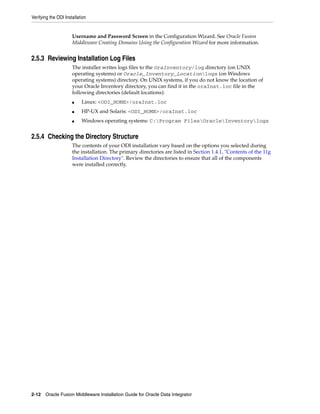


                                             Creating Repositories with Oracle Data Integrator Studio F-1
Creating Repository Storage Spaces


                   The standard method for creating repositories is using Repository Creation Utility
                   (RCU). RCU automatically manages storage space as well as repository creation.
                   However, if you want to create the repositories manually, it is possible to manually
                   create and configure the repositories.
                   The steps needed to create and configure repositories are detailed in the following
                   sections:
                   ■    Section F.2, "Creating Repository Storage Spaces"
                   ■    Section F.3, "Creating the Master Repository"
                   ■    Section F.4, "Connecting to the Master Repository"
                   ■    Section F.5, "Creating a Work Repository"
                   ■    Section F.6, "Connecting to a Work Repository"


                             Note:   Oracle recommends that you regularly perform the following
                             maintenance operations: purge the execution logs in order to reduce
                             the Work Repository size, and back up the Oracle Data Integrator
                             repositories on the database.


                   Advanced actions for administering repositories are detailed in "Advanced Actions for
                   Administering Repositories" in the Oracle Fusion Middleware Developer's Guide for Oracle
                   Data Integrator.


F.2 Creating Repository Storage Spaces
                   Oracle Data Integrator repositories can be installed on database engines supported by
                   Oracle Fusion Middleware 11g. For the latest list of supported databases versions as
                   well as the requirements for each database, see:
                   http://www.oracle.com/technology/software/products/ias/files/fus
                   ion_certification.html
                   For each database that will contain a repository, a storage space must be created.


                             Caution: Oracle recommends that you store repositories in a
                             different space from where your application data is kept (for example
                             in a different schema for an Oracle database, or in a different database
                             for Sybase or Microsoft SQL Server).


                   Your Master Repository can be stored in the same schema as one of your Work
                   Repositories. A schema can only have one Master Repository and you cannot create
                   two different Work Repositories in the same schema.
                   The examples in the following table are supplied as a guide:


F-2 Oracle Fusion Middleware Installation Guide for Oracle Data Integrator
Creating Repository Storage Spaces


Technology            Steps to follow
Oracle                Create a schema to host the Master Repository and a schema to host the
                      Work Repository.
                      The schemas are created by executing the following SQL commands for
                      each of the odim and odiw schemas:
                      Master Repository:
                      SQL> create user MY_SCHEMA identified by MY_PASS
                             default tablespace MY_TBS
                             temporary tablespace MY_TEMP;
                      SQL> grant connect, resource to MY_SCHEMA;

                      Work Repository:
                      SQL> create user MY_SCHEMA identified by MY_PASS
                             default tablespace MY_TBS
                             temporary tablespace MY_TEMP;
                      SQL> grant connect, resource to MY_SCHEMA;
                      SQL> grant execute on dbms_lock to MY_SCHEMA;
                                       Note that the Work Repository database user
                                       requires the grant execute privilege on
                                       dbms_lock for the Work Repository schema.


                      Where:
                      MY_SCHEMA corresponds to the name of the schema you want to
                      create such as odim for the Master Repository and odiw for the Work
                      Repository, for example.
                      MY_PASS corresponds to the password you have given to the default
                      tablespace <MY_TBS>. This is the Oracle tablespace where the data will
                      be stored.
                      MY_TEMP is the temporary default tablespace.
Microsoft SQL Server Create a database db_odim to host the Master Repository and a
or Sybase ASE        database db_odiw to host the Work Repository. Create two logins,
                     odim and odiw, that contain these databases by default.
                      Use Enterprise Manager to create the two databases db_odim and db_
                      odiw.
                      NOTE: It is recommended that you configure the Microsoft SQL Server
                      databases storing repository information with a case-sensitive collation.
                      This enables reverse-engineering and allows you to create multiples
                      objects with the same name but a different case (for example:
                      tablename and TableName).
                      Use Query Analyzer or I-SQL to launch the following commands:
                      CREATE LOGIN mylogin
                           WITH PASSWORD = 'mypass',
                           DEFAULT_DATABASE = defaultbase,
                           DEFAULT_LANGUAGE = us_english;
                      USE defaultbase;
                      CREATE USER dbo FOR LOGIN mylogin;
                      GO
                      Where:
                      mylogin corresponds to odim or odiw.
                      mypass corresponds to a password for these logins.
                      defaultbase corresponds to db_odim and db_odiw respectively.


                                 Creating Repositories with Oracle Data Integrator Studio F-3
Creating the Master Repository


                    Technology                Steps to follow
                    DB2/400                   Create a library odim to host the Master Repository and a library odiw to
                                              host the Work Repository. Create two users odim and odiw who have
                                              these libraries by default.
                                              Master and work repository users should be granted access to
                                              tablespaces with at least 16k pagesize. The database must have
                                              temporary tablespace of at least 16k.
                                              Use the following commands to se the pagesize:
                                              CREATE LARGE TABLESPACE ODI16 PAGESIZE 16 K             MANAGED BY
                                              AUTOMATIC STORAGE ;

                                              GRANT USE OF TABLESPACE ODI16 TO USER ODIREPOS;
                                              Note: The libraries must be created in the form of SQL collections.
                    MySQL                     If you are using MySQL (release 5.5.14 or higher) to setup a repository,
                                              and the database charset is set to utf8, you will need to add the
                                              following parameters to the repository’s jdbc URL to operate
                                              non-ASCII data correctly in Oracle Data Integrator Studio:
                                              useUnicode=yes&characterEncoding=UTF-8


F.3 Creating the Master Repository
                    Creating the Master Repository creates an empty repository structure and seeds
                    metadata (for example, technology definitions, or built-in security profiles) into this
                    repository structure.
                    To create the Master Repository:
                    1.   Open the New Gallery by choosing File > New.
                    2.   In the New Gallery, in the Categories tree, select ODI.
                    3.   Select from the Items list the Master Repository Creation Wizard.
                    4.   Click OK.
                         The Master Repository Creation wizard opens.
                    5.   Specify the Database Connection parameters as follows:
                         ■       Technology: From the list, select the technology that will host your Master
                                 Repository. Default is Oracle.
                         ■       JDBC Driver: The driver used to access the technology, that will host the
                                 repository.
                         ■       JDBC URL: The URL used to establish the JDBC connection to the database.
                                 Note that the parameters JDBC Driver and URL are synchronized and the
                                 default values are technology dependant.
                         ■       User: The user ID / login of the owner of the tables (for example, odim).
                         ■       Password: This user's password.
                         ■       DBA User: Enter the Database Administrator user ID.
                         ■       DBA Password: Enter the DBA’s password.
                    6.   Specify the Repository Configuration parameters as follows:
                         ■       ID: Enter a specific ID for the new repository, other than the default 0.


F-4 Oracle Fusion Middleware Installation Guide for Oracle Data Integrator
Creating the Master Repository


         Note:   Oracle recommends that this ID is unique and not used for any
         other Master Repository, as it affects imports and exports between
         repositories. For more information, see "Exporting/Importing" in the
         Oracle Fusion Middleware Developer's Guide for Oracle Data Integrator.


7.   Click Test to test the connection to your Master Repository.
     The Information dialog opens and informs you whether the connection has been
     established. If the connection fails, fix the connection to your Master Repository
     before moving to next step.
8.   Click Next.
9.   Do one of the following:
     ■   Select Use ODI Authentication to manage users using ODI’s internal security
         system and enter the following supervisor login information:

Properties            Description
Supervisor User       User name of the ODI supervisor.
Supervisor Password This user’s password
Confirm Password      This user’s password


     ■   Select Use External Authentication to use an external enterprise identity store,
         such as Oracle Internet Directory, to manage user authentication and enter the
         following supervisor login information:

Properties            Description
Supervisor User       User name of the ODI supervisor
Supervisor Password This user’s password


         Note:   In order to use the external authentication option, ODI Studio
         has to be configured for external authentication. See "Setting Up
         External Authentication" in Oracle Fusion Middleware Developer's Guide
         for Oracle Data Integrator for more information and restart ODI Studio.


10. Click Next.

11. Specify the password storage details:

     ■   Select Internal Password Storage if you want to store passwords in the Oracle
         Data Integrator Master Repository
     ■   Select External Password Storage if you want to use JPS Credential Store
         Framework (CSF) to store the data server and context passwords in a remote
         credential store. Indicate the MBean Server Parameters to access the
         credential store. Refer to "Managing the Security in Oracle Data Integrator" in
         Oracle Fusion Middleware Developer's Guide for Oracle Data Integrator for more
         information.
12. In the Master Repository Creation Wizard click Finish to validate your entries.


                                Creating Repositories with Oracle Data Integrator Studio F-5
Connecting to the Master Repository


                    Oracle Data Integrator begins creating your Master Repository. You can follow the
                    procedure on your Messages – Log. To test your Master Repository, refer to Section F.4,
                    "Connecting to the Master Repository".


F.4 Connecting to the Master Repository
                    To connect to the Master repository:
                    1.   Open the New Gallery by choosing File > New.
                    2.   In the New Gallery, in the Categories tree, select ODI.
                    3.   Select from the Items list Create a New ODI Repository Login.
                    4.   Click OK.
                         The Repository Connection Information dialog appears.
                    5.   Specify the Oracle Data Integrator connection details as follows:
                         ■   Login name: A connection alias (for example: Repository)
                             The connection alias is used to connect to the Master Repositories and then to
                             create the Work Repository as described in Section F.5.
                         ■   User: The ODI supervisor user name you have defined when creating the
                             Master Repository or an ODI user name you have defined in the Security
                             Navigator after having created the Master Repository.
                         ■   Password: The ODI supervisor password you have defined when creating the
                             Master Repository or an ODI user password you have defined in the Security
                             Navigator after having created the Master Repository.
                    6.   Specify the Database Connection (Master Repository) details as follows:
                         ■   User: Database user ID/login of the schema (database, library) that contains
                             the ODI Master Repository.
                         ■   Password: This user's password.
                         ■   Driver List: Select the driver required to connect to the DBMS supporting the
                             Master Repository you have just created from the drop-down list.
                         ■   Driver Name: The complete driver name.
                         ■   URL: The URL used to establish the JDBC connection to the database hosting
                             the repository.
                    7.   Click Test to check that the connection is working.
                    8.   Click OK to validate your entries.


F.5 Creating a Work Repository
                    Several Work Repositories can be designated with several Master Repositories if
                    necessary. However, a Work Repository can be linked with only one Master Repository
                    for version management purposes.
                    To launch a Work Repository creation:
                    1.   In the Topology Navigator, go to the Repositories panel.
                    2.   Right-click the Work Repositories node and select New Work Repository.
                         The Create Work Repository Wizard opens.


F-6 Oracle Fusion Middleware Installation Guide for Oracle Data Integrator
Creating a Work Repository


3.   Specify the Oracle Data Integrator Work Repository connection details as follows:
     ■   Technology: Choose the technology of the server to host your Work
         Repository. Default is Oracle.
     ■   JDBC Driver: The driver used to access the technology, that will host the
         repository.
     ■   JDBC URL: The complete path of the data server to host the Work Repository.
         Note that the parameters JDBC Driver and URL are synchronized and the
         default values are technology dependant
     ■   User: User ID / login of the owner of the tables you are going to create and
         host of the Work Repository.
     ■   Password: This user's password.
4.   Click Test to verify that the connection is working.
5.   Click Next.
     Oracle Data Integrator verifies whether a Work Repository already exists on the
     connection specified in Step 3:
     ■   If an existing Work Repository is detected on this connection, the next steps
         will consist of attaching the Work Repository to the Master Repository. Refer
         to "Attaching and Deleting a Work Repository" in Oracle Fusion Middleware
         Developer's Guide for Oracle Data Integrator for further instructions.
     ■   If no Work Repository is detected on this connection, a new Work Repository
         is created. Continue with the creation of a new Work Repository and provide
         the Work Repository details in following step.
6.   Specify the Oracle Data Integrator Work Repository properties:
     ■   ID: A specific ID for the new repository, rather than the default 0.


         Note:   Oracle recommends that this ID is unique and not used for any
         other Master Repository, as it affects imports and exports between
         repositories. For more information, see "Exporting/Importing" in the
         Oracle Fusion Middleware Developer's Guide for Oracle Data Integrator.


     ■   Name: Give a unique name to your Work Repository (for example:
         DEVWORKREP1).
     ■   Password: Enter the password for the Work Repository.
     ■   Type: Select the type for the Work Repository:
         –   Development: This type of repository allows management of design-time
             objects such as data models and projects (including interfaces, procedures,
             etc). A development repository includes also the run-time objects
             (scenarios and sessions). This type of repository is suitable for
             development environments.
         –   Execution: This type of repository only includes run-time objects
             (scenarios, schedules and sessions). It allows launching and monitoring of
             data integration jobs in Operator Navigator. Such a repository cannot
             contain any design-time artifacts. Designer Navigator cannot be used with
             it. An execution repository is suitable for production environments.
7.   Click Finish.


                                Creating Repositories with Oracle Data Integrator Studio F-7
Connecting to a Work Repository


                    8.   The Create Work Repository login dialog opens. If you want to create a login for
                         the Work Repository, click Yes and you will be asked to enter the Login Name in a
                         new dialog. If you do not want to create a Work Repository login, click No.
                    9.   Click Save in the toolbar.
                    For more information, refer to Section F.6, "Connecting to a Work Repository".


F.6 Connecting to a Work Repository
                    To connect to an existing Work Repository and launch Designer Navigator:
                    1.   Open the New Gallery by choosing File > New.
                    2.   In the New Gallery, in the Categories tree, select ODI.
                    3.   Select from the Items list Create a New ODI Repository Login.
                    4.   Click OK.
                         The Repository Connection Information dialog opens.
                    5.   Specify the Oracle Data Integrator connection details as follows:
                         ■   Login name: A connection alias (for example: Repository)
                             The connection alias is used to connect to the Work Repositories and then to
                             create the Master Repository as described in Section F.4.
                         ■   User: The ODI supervisor user name you have defined when creating the
                             Master Repository or an ODI user name you have defined in the Security
                             Navigator after having created the Master Repository.
                         ■   Password: The ODI supervisor password you have defined when creating the
                             Master Repository or an ODI user password you have defined in the Security
                             Navigator after having created the Master Repository.
                    6.   Specify the Database Connection (Master Repository) details as follows:
                         ■   User: Database user ID/login of the schema (database, library) that contains
                             the ODI Master Repository.
                         ■   Password: This user's password.
                         ■   Driver List: Select the driver required to connect to the DBMS supporting the
                             Master Repository you have just created from the drop-down list.
                         ■   Driver Name: The complete driver name.
                         ■   URL: The URL used to establish the JDBC connection to the database hosting
                             the repository.
                    7.   Click Test to verify that the connection is working.
                    8.   Select Work Repository and specify the Work Repository details as follows:
                         ■   Work repository name: The name you gave your Work Repository in the
                             previous step (WorkRep1 in the example). You can display the list of Work
                             Repositories available in your Master Repository by clicking on the button to
                             the right of this field.
                    9.   Click OK to validate your entries.


F-8 Oracle Fusion Middleware Installation Guide for Oracle Data Integrator
G
   Customizing the ODI Credential Map Name
   G


            The Oracle Data Integrator Java EE Agent and Oracle Data Integrator Console use a
            credential map to store usernames and passwords. The default credential map name is
            oracle.odi.credmap. In rare situations, ODI users may need to change the default
            to a different credential map name for the ODI Java EE Agent and ODI Console.


G.1 What is stored in Credential Store?
            ODI runtime uses credential store for the ODI Java EE Agent and ODI Console.
            ■   ODI Java EE Agent boot AppId and Password
            ■   ODI Console boot AppId and Password
            In most usage scenarios, ODI uses the credential map name oracle.odi.credmap.
            In certain environments, however, the credential map name is decided at a global level
            and all components are required to use that credential map name. For example, an
            Oracle Fusion Middleware application may use the oracle.apps.security
            credential map name instead of the standard oracle.odi.credmap. In this case, the
            credential map name needs to be customized for the environment.


G.2 Executing the updateCredMapInEar Script
            You can modify the credential map name specified in the Oracle Data Integrator
            templates by running the script updateCredMapInEar.[sh|bat]. If you execute the
            script with the -EARFILE parameter, you are able to modify a specific ear file and
            update the default credential map. You must execute this script before creating and
            deploying ODI Java EE Agent ear and before deploying ODI Console ear to a
            WebLogic Domain. After executing this script, all generated ODI Java EE Agent ears
            will carry the changed credential map name.
            Usage:
            updateCredMapInEar.sh -MAPNAME=<credential_map_name>
            [-EARFILE=<ear_file_to_update>
            Where:
            ■   MAPNAME: User supplied credential map name.
            ■   EARFILE: This is optional parameter. If specified, the credential map inside the
                specified ear file will be modified.
            If not specified, the credential map name in the default templates for ODI Java EE
            Agent (oraclediagent.ear) and ODI Console (odiconsole.ear) will be
            modified.


                                                      Customizing the ODI Credential Map Name      G-1
Updating WLST Scripts for Credential Map Creation


                    Examples:
                    updateCredMapInEar.sh -MAPNAME=oracle.apps.security
                    updateCredMapInEar.sh -MAPNAME=oracle.apps.security -EARFILE=$ODI_
                    HOME/setup/manual/oracledi-agent/oraclediagent.ear


G.3 Updating WLST Scripts for Credential Map Creation
                    If you have updated the credential map name in a template and then deployed this
                    template, make sure that the credential store entries created for this deployed
                    application use this new credential map name. See Section 3.3.3, "Adding Credential
                    Store Entries" for more information on creating credential store entries.
                    In the createcred command, the value provided for the map parameter should be
                    the customized credential map name, as shown in the example below:
                    createCred(map="acme.security.credmap", key="SUPERVISOR", user="SUPERVISOR",
                    password="supervisor1", desc="Key for Supervisor")


G-2 Oracle Fusion Middleware Installation Guide for Oracle Data Integrator
H
    HOPMN Configuration for Standalone Agent

                 Oracle Process Monitor and Notification server (OPMN) is used to stop, start and get
                 process status.
                 The standalone agent is a standalone Java process started from a command line
                 interface. This agent is typically deployed locally on the source or target machines for
                 optimal integration flow performances. You can use OPMN to start, stop and protect
                 the standalone agent in this situation.


H.1 Adding a Standalone Agent to OPMN
                 To add a standalone agent to OPMN, edit the agentcreate.properties contained
                 in the ODI_HOME/oracledi/agent/bin/ directory to match your agent and OPMN
                 configuration.


                         Note:   When editing the agentcreate.properties file, you must
                         use a forward slash (/) as a path separator for both UNIX and
                         Windows operating systems.


                 See Table H–1 for a list of agentcreate.properties parameters. Note that the
                 examples shown may differ from your system configuration.

Table H–1   Parameters in agentcreate.properties
Parameter              Description                        Example (Your Configurations May Differ)
PORTNO                 Startup port of the agent (as in   PORTNO=9787
                       agent.bat command line
JMXPORTNO              JMX port of the agent (agent.bat   JMXPORTNO=9787
                       command line
JAVA_HOME              Location of the JVM used by the    JAVA_HOME=/scratch/username/Oracle_
                       agent                              ODIMAIN/Middleware/jdk160_11
ORACLE_OPMN_HOME       OPMN installation directory        ORACLE_OPMN_
                                                          HOME=/scratch/username/oracle/product
                                                          /11.1.1/as_1
ORACLE_ODI_HOME        Installation path of ODI           ORACLE_ODI_
                                                          HOME=/scratch/username/odi_standalone
INSTANCE_HOME          Location of the OPMN instance      INSTANCE_
                       into which the agent should be     HOME=/scratch/username/oracle/product
                       added                              /11.1.1/as_1/instances/instance1
COMPONENT_TYPE         Type of the component (should be   COMPONENT_TYPE=odiagent
                       odiagent)


                                                              OPMN Configuration for Standalone Agent   H-1
Stopping the Agent


Table H–1 (Cont.) Parameters in agentcreate.properties
Parameter                  Description                          Example (Your Configurations May Differ)
COMPONENT_NAME             Name of the agent to add. This       COMPONENT_NAME=INTERFACE
                           will be its identification in OPMN
ODI_MASTER_DRIVER          JDBC driver used to connect the      ODI_MASTER_
                           Master Repository.                   DRIVER=oracle.jdbc.OracleDriver
ODI_MASTER_URL             JDBC URL used to connect the         ODI_MASTER_
                           Master Repository.                   URL=jdbc:oracle:thin:adc6260039:1521:
                                                                orcl
ODI_MASTER_USER            Database account used to connect     ODI_MASTER_USER=SUPERVISOR
                           the Master Repository.
ODI_MASTER_                Database account password. The   ODI_MASTER_ENCODED_
ENCODED_PASS               password must be encoded with    PASS=hpfatLEoMR6zAK3T1PoP5LXDS
                           the "encode.[sh|bat] <password>"
                           command.
ODI_SECU_WORK_REPO Name of the Work Repository to               ODI_SECU_WORK_REPO=WORKREP
                   connect. This Work Repository
                   must be attached to the master
                   repository.
ODI_SUPERVISOR_            OracleDI supervisor user          ODI_SUPERVISOR_ENCODED_
ENCODED_PASS               password. The password must be PASS=hpfatLEoMR6zAK3T1PoP5LXDS
                           encoded with the "encode.[sh|bat]
                           <password>" command.


                     Run the following script to add this agent to the OPMN configuration.
                     For UNIX operating systems:
                     ODI_HOME/oracledi/agent/bin/odi_opmn_addagent.sh

                     For Windows operating systems:
                     ODI_HOME/oracledi/agent/bin/odi_opmn_addagent.bat


H.2 Stopping the Agent
                     To stop all agent components in an Oracle instance using opmnctl
                     opmnctl stopproc process-type= odiagent
                     To stop a specific agent component, such as odiagent1, using opmnctl
                     opmnctl stopproc ias-component= odiagent1


H.3 Starting the Agent and Agent Components
                     To start all agent components in an Oracle instance using opmnctl:
                     opmnctl startproc process-type= odiagent
                     To start a specific agent component, such as odiagent1, using opmnctl:
                     opmnctl startproc ias-component=odiagent1


H.4 Determining the Status of Oracle HTTP Server
                     You can determine the status of Oracle HTTP Server using opmnctl:

H-2 Oracle Fusion Middleware Installation Guide for Oracle Data Integrator
Deleting the Agent


           opmnctl status


H.5 Deleting the Agent
           Run the following script to delete this agent from the OPMN configuration.
           For UNIX operating systems:
           ODI_HOME/oracledi/agent/bin/odi_opmn_deleteagent.sh

           For Windows operating systems:
           ODI_HOME/oracledi/agent/bin/odi_opmn_deleteagent.bat


                                                     OPMN Configuration for Standalone Agent   H-3
Deleting the Agent


H-4 Oracle Fusion Middleware Installation Guide for Oracle Data Integrator

Odi installation guide

  • 1.
    Oracle® Fusion Middleware InstallationGuide for Oracle Data Integrator 11g Release 1 (11.1.1) E16453-03 November 2011
  • 2.
    Oracle Fusion MiddlewareInstallation Guide for Oracle Data Integrator 11g Release 1 (11.1.1) E16453-03 Copyright © 2011, Oracle and/or its affiliates. All rights reserved. Primary Author: Lisa Jamen This software and related documentation are provided under a license agreement containing restrictions on use and disclosure and are protected by intellectual property laws. Except as expressly permitted in your license agreement or allowed by law, you may not use, copy, reproduce, translate, broadcast, modify, license, transmit, distribute, exhibit, perform, publish, or display any part, in any form, or by any means. Reverse engineering, disassembly, or decompilation of this software, unless required by law for interoperability, is prohibited. The information contained herein is subject to change without notice and is not warranted to be error-free. If you find any errors, please report them to us in writing. IIf this is software or related documentation that is delivered to the U.S. Government or anyone licensing it on behalf of the U.S. Government, the following notice is applicable: U.S. GOVERNMENT RIGHTS Programs, software, databases, and related documentation and technical data delivered to U.S. Government customers are "commercial computer software" or "commercial technical data" pursuant to the applicable Federal Acquisition Regulation and agency-specific supplemental regulations. As such, the use, duplication, disclosure, modification, and adaptation shall be subject to the restrictions and license terms set forth in the applicable Government contract, and, to the extent applicable by the terms of the Government contract, the additional rights set forth in FAR 52.227-19, Commercial Computer Software License (December 2007). Oracle USA, Inc., 500 Oracle Parkway, Redwood City, CA 94065. This software or hardware is developed for general use in a variety of information management applications. It is not developed or intended for use in any inherently dangerous applications, including applications that may create a risk of personal injury. If you use this software or hardware in dangerous applications, then you shall be responsible to take all appropriate fail-safe, backup, redundancy, and other measures to ensure its safe use. Oracle Corporation and its affiliates disclaim any liability for any damages caused by use of this software or hardware in dangerous applications. Oracle is a registered trademark of Oracle Corporation and/or its affiliates. Other names may be trademarks of their respective owners. This software and documentation may provide access to or information on content, products, and services from third parties. Oracle Corporation and its affiliates are not responsible for and expressly disclaim all warranties of any kind with respect to third-party content, products, and services. Oracle Corporation and its affiliates will not be responsible for any loss, costs, or damages incurred due to your access to or use of third-party content, products, or services.
  • 3.
    Contents Preface ................................................................................................................................................................ vii Audience...................................................................................................................................................... vii Documentation Accessibility .................................................................................................................... vii Related Documents ................................................................................................................................... viii Conventions ............................................................................................................................................... viii Part I Installing Oracle Data Integrator 1 Installation Overview for Oracle Data Integrator 1.1 Oracle Data Integrator Applications ........................................................................................ 1-1 1.2 ODI Installation Types ............................................................................................................... 1-2 1.3 Installation Roadmap ................................................................................................................. 1-3 1.4 Topology Summary of ODI ....................................................................................................... 1-5 1.4.1 Contents of the 11g Installation Directory ....................................................................... 1-6 1.4.2 Scripts and Tools.................................................................................................................. 1-7 2 Installing Oracle Data Integrator 2.1 Preparing to Install ..................................................................................................................... 2-1 2.1.1 Reviewing System Requirements and Certification ....................................................... 2-1 2.1.2 Installing and configuring a Supported Database .......................................................... 2-2 2.2 Creating ODI Schemas with the Repository Creation Utility (RCU) .................................. 2-2 2.3 Installing Oracle WebLogic Server and Creating the Middleware Home.......................... 2-5 2.4 Using the Installer for Oracle Data Integrator Content......................................................... 2-5 2.4.1 Starting the Installer ............................................................................................................ 2-6 2.4.2 Following the Installation Instructions for the "Developer" Installation..................... 2-6 2.4.3 Following the Installation Instructions for the "Standalone" Installation ................... 2-8 2.4.4 Following Installation Instructions for the "Java EE" Installation ................................ 2-9 2.5 Verifying the ODI Installation................................................................................................ 2-11 2.5.1 Starting the Administration Server ................................................................................ 2-11 2.5.2 Starting the Managed Server........................................................................................... 2-11 2.5.3 Reviewing Installation Log Files .................................................................................... 2-12 2.5.4 Checking the Directory Structure................................................................................... 2-12 iii
  • 4.
    3 Configuring OracleData Integrator 3.1 Configuring a WebLogic Domain ............................................................................................ 3-1 3.2 Configuring ODI Studio, Repositories, and the Standalone Agent..................................... 3-4 3.2.1 Adding Additional Drivers and Open Tools................................................................... 3-4 3.2.2 Creating Repositories Manually ....................................................................................... 3-4 3.2.3 Connecting to Existing Repositories Manually ............................................................... 3-5 3.2.4 Changing the Language Used in ODI Studio.................................................................. 3-5 3.2.5 Configuring the Standalone Agent Manually ................................................................. 3-5 3.2.6 Starting the Standalone Agent ........................................................................................... 3-7 3.3 Configuring Java EE Components............................................................................................ 3-7 3.3.1 Declaring the Java EE Agent in Topology........................................................................ 3-8 3.3.2 Generating Java EE Agent Template ................................................................................ 3-8 3.3.3 Adding Credential Store Entries ....................................................................................... 3-8 3.3.3.1 Credential Store Entries for the Java EE Agent ........................................................ 3-9 3.3.3.2 Credential Store Entries for the Oracle Enterprise Manager.................................. 3-9 3.3.4 Configuring ODI Console Connections......................................................................... 3-10 3.3.5 Configuring Oracle Enterprise Manager with ODI Plugin ........................................ 3-11 Part II Appendices A Installation Screens for ODI A.1 Welcome Screen ......................................................................................................................... A-2 A.2 Install Software Updates Screen .............................................................................................. A-3 A.3 Select Installation Type Screen................................................................................................. A-5 A.4 Prerequisite Checks Screen....................................................................................................... A-6 A.5 Specify Installation Location Screen........................................................................................ A-7 A.6 Application Server Screen......................................................................................................... A-8 A.7 Repository Configuration Screen ............................................................................................ A-9 A.8 Master Repository Screens...................................................................................................... A-10 A.9 Supervisor User Details Screen .............................................................................................. A-12 A.10 Specify Work Repository Details Screen .............................................................................. A-13 A.11 Specify Agent Details Screen.................................................................................................. A-14 A.12 Installation Summary Screen ................................................................................................. A-15 A.13 Installation Progress Screen.................................................................................................... A-16 A.14 Configuration Progress Screen............................................................................................... A-17 A.15 Installation Completed Screen ............................................................................................... A-18 B Silent Installations B.1 About Silent Installation ........................................................................................................... B-1 B.2 Oracle Data Integrator Response Files.................................................................................... B-1 C Deinstalling Oracle Data Integrator C.1 Deinstallation Instructions........................................................................................................ C-1 C.1.1 Stopping Oracle Fusion Middleware............................................................................... C-1 C.1.2 Stopping a Standalone Agent............................................................................................ C-2 C.1.3 Removing the Oracle Data Integrator Schemas ............................................................. C-3 iv
  • 5.
    C.1.4 Removing Oracle Data Integrator Components............................................................. C-3 C.1.4.1 Starting the Deinstaller ............................................................................................... C-3 C.1.5 Removing the ODI Home.................................................................................................. C-3 C.1.6 Removing the Oracle Common Home ............................................................................ C-4 C.1.7 Removing Oracle WebLogic Server ................................................................................. C-4 C.1.8 Removing the Program Groups (Windows Only) ......................................................... C-5 C.2 Reinstallation .............................................................................................................................. C-5 D Deinstallation Screens for ODI D.1 Welcome Screen ......................................................................................................................... D-1 D.2 Deinstall Oracle Home Screen ................................................................................................. D-2 D.3 Deinstallation Progress Screen................................................................................................. D-2 D.4 Deinstallation Complete Screen............................................................................................... D-3 E Oracle Data Integrator Companion CD E.1 Oracle Data Integrator Companion Disk Components........................................................ E-1 E.2 Manual Installation and Configuration Steps........................................................................ E-2 E.2.1 Standalone Agent................................................................................................................ E-2 E.2.2 ODI Studio and XML Reference ....................................................................................... E-3 E.2.3 Demonstration Environment ............................................................................................ E-3 E.3 Installing the Java Standalone Agent on iSeries .................................................................... E-4 F Creating Repositories with Oracle Data Integrator Studio F.1 Introduction to Oracle Data Integrator Repositories ............................................................ F-1 F.2 Creating Repository Storage Spaces........................................................................................ F-2 F.3 Creating the Master Repository ............................................................................................... F-4 F.4 Connecting to the Master Repository ..................................................................................... F-6 F.5 Creating a Work Repository..................................................................................................... F-6 F.6 Connecting to a Work Repository ........................................................................................... F-8 G Customizing the ODI Credential Map Name G.1 What is stored in Credential Store?......................................................................................... G-1 G.2 Executing the updateCredMapInEar Script........................................................................... G-1 G.3 Updating WLST Scripts for Credential Map Creation ......................................................... G-2 H OPMN Configuration for Standalone Agent H.1 Adding a Standalone Agent to OPMN ................................................................................... H-1 H.2 Stopping the Agent .................................................................................................................... H-2 H.3 Starting the Agent and Agent Components........................................................................... H-2 H.4 Determining the Status of Oracle HTTP Server .................................................................... H-2 H.5 Deleting the Agent ..................................................................................................................... H-3 v
  • 6.
  • 7.
    Preface This guide provides information and instructions for installing, configuring, and troubleshooting Oracle Data Integrator and Oracle Data Profiling and Oracle Data Quality for Oracle Data Integrator. ■ Audience ■ Documentation Accessibility ■ Related Documents ■ Conventions Audience This guide is intended for administrators who are responsible for installing and configuring components of Oracle Data Integrator. It is assumed that readers are comfortable running some system administration operations, such as creating users and groups, adding users to groups, and installing operating system patches on the computer where your products will be installed. Users in UNIX systems who are installing need root access to run some scripts. Documentation Accessibility For information about Oracle's commitment to accessibility, visit the Oracle Accessibility Program website at http://www.oracle.com/pls/topic/lookup?ctx=acc&id=docacc. Accessibility of Code Examples in Documentation Screen readers may not always correctly read the code examples in this document. The conventions for writing code require that closing braces should appear on an otherwise empty line; however, some screen readers may not always read a line of text that consists solely of a bracket or brace. Accessibility of Links to External Web Sites in Documentation This documentation may contain links to Web sites of other companies or organizations that Oracle does not own or control. Oracle neither evaluates nor makes any representations regarding the accessibility of these Web sites. Access to Oracle Support Oracle customers have access to electronic support through My Oracle Support. For information, visit http://www.oracle.com/pls/topic/lookup?ctx=acc&id=info or visit vii
  • 8.
    http://www.oracle.com/pls/topic/lookup?ctx=acc&id=trs if youare hearing impaired. Related Documents For more information, see the following manuals: ■ Oracle Fusion Middleware Installation Planning Guide ■ Oracle Fusion Middleware Developer's Guide for Oracle Data Integrator ■ Oracle Fusion Middleware Upgrade Guide for Oracle Data Integrator ■ Oracle Fusion Middleware Connectivity and Knowledge Modules Guide for Oracle Data Integrator ■ Oracle Fusion Middleware Knowledge Module Developer's Guide for Oracle Data Integrator ■ Oracle Fusion Middleware Application Adapters Guide for Oracle Data Integrator ■ Oracle Fusion Middleware Installation Guide for Oracle Data Profiling and Oracle Data Quality for ODI ■ Oracle Fusion Middleware Upgrade Guide for Oracle Data Profiling and Oracle Data Quality for ODI Conventions The following text conventions are used in this document: Convention Meaning boldface Boldface type indicates graphical user interface elements associated with an action, or terms defined in text or the glossary. italic Italic type indicates book titles, emphasis, or placeholder variables for which you supply particular values. monospace Monospace type indicates commands within a paragraph, URLs, code in examples, text that appears on the screen, or text that you enter. viii
  • 9.
    Part I Part I Installing Oracle Data Integrator Part I contains the following chapters: ■ Chapter 1, "Installation Overview for Oracle Data Integrator" ■ Chapter 2, "Installing Oracle Data Integrator" ■ Chapter 3, "Configuring Oracle Data Integrator"
  • 11.
    1 Installation Overview for Oracle Data 1 Integrator This chapter provides an overview of the Oracle Data Integrator (ODI) installation process including a description of the installable components, pre and post-installation tasks, and process flow. The chapter includes the following topics: ■ Section 1.1, "Oracle Data Integrator Applications" ■ Section 1.2, "ODI Installation Types" ■ Section 1.3, "Installation Roadmap" ■ Section 1.4, "Topology Summary of ODI" 1.1 Oracle Data Integrator Applications Oracle Data Integrator includes the following applications: ■ Oracle Data Integrator Repository The Oracle Data Integrator Repository is composed of a Master Repository and one or more Work Repositories. Objects developed or configured through the user interfaces are stored in these repositories. ■ Oracle Data Integrator Studio Oracle Data Integrator Studio is used for administering the infrastructure (security and topology), reverse-engineering the metadata, developing projects, scheduling, operating and monitoring executions. ■ Oracle Data Integrator Standalone Agent The Standalone Agent is the run-time component of Oracle Data Integrator that executes the integration flows. It runs in a Java Virtual Machine and can be deployed where needed to run the flows. Note: The ODI Standalone Agent includes command line scripts for managing scenarios and sessions and encoding passwords. For more information see Section 1.4.2. ■ Java EE Components These components can be deployed in an application server. These include: Installation Overview for Oracle Data Integrator 1-1
  • 12.
    ODI Installation Types – Oracle Enterprise Manager Plugin for ODI and the Oracle Enterprise Manager Fusion Middleware Control Oracle Enterprise Manager Fusion Middleware Control, with the Oracle Enterprise Manager plugin for ODI, can be used to monitor ODI resources (agents, repositories, ODI Console instances) and see their status, activities and notification. You must have both the Oracle Enterprise Manager Fusion Middleware Control and the Oracle Enterprise Manager Plugin for ODI deployed to monitor the ODI infrastructure. – Public (SDK) Web Services ODI comes with several run-time web services. These include the "Public Web Service" and the "Agent Web Service". * The Public Web Service is used for web service calls that do not involve an agent (listing contexts). The Public Web Service connects to the repository to retrieve a list of context and scenarios. This web service is deployed in a Java EE application server. * The Agent Web Service commands the Oracle Data Integrator Agent to start and monitor a scenario. Note that this web service is built into the Java EE or Standalone Agent. – Oracle Data Integrator Console This component is a web interface for run-time, monitoring and metadata browsing operations. It also contains an extension integrated into the Fusion Middleware Control. Oracle Data Integrator components can be monitored as a domain using this extension. – Java EE Agent Java EE Agent is the Java EE version of the run-time component of Oracle Data Integrator. The Java EE agent provides the same features as the standalone agent, but can also benefit from the features of an application server. 1.2 ODI Installation Types The Oracle Data Integrator installer provides three installation options: ■ Developer The Developer installation includes the ODI Studio and the Oracle Data Integrator Software Development Kit (SDK). Note that the Developer installation does not include the Standalone Agent or the scripts for managing sessions or scenarios from the command line. If a Standalone Agent will be needed, choose the Standalone install type in addition to the Developer install type. ■ Standalone The Standalone installation includes an Oracle Data Integrator standalone agent. ■ Java EE The Java EE installation includes the Java EE agent, Oracle Data Integrator Console, and Public Web Services. See Section 2.4, "Using the Installer for Oracle Data Integrator Content" for more information about installing the different ODI installation types. 1-2 Oracle Fusion Middleware Installation Guide for Oracle Data Integrator
  • 13.
    Installation Roadmap 1.3 InstallationRoadmap The process of installing and configuring Oracle Data Integrator includes these high-level tasks: 1. Preparing your system environment for installation 2. Creating schemas for applications 3. Installing an Application Server and Oracle Fusion Middleware 4. Installing Oracle Data Integrator 5. Configuring Oracle Data Integrator 6. Performing Postinstallation Configuration 7. Verifying the Configuration Figure 1–1 shows these steps in the installation process. Figure 1–1 Roadmap for Installing and Configuring Oracle Data Integrator Table 1–1 describes the high-level tasks for installing and configuring Oracle Data Integrator. The table also provides information on where to get more details about each task. Installation Overview for Oracle Data Integrator 1-3
  • 14.
    Installation Roadmap Table 1–1 Tasks in the Oracle Data Integrator Installation Procedure Task Description More Information Complete the Prior to installation you must For general planning information refer to the Oracle installation planning prepare your system Fusion Middleware Installation Planning Guide. requirements environment for installation. For system requirements information, go to: Review the general installation requirements for http://www.oracle.com/technology/software/ Oracle Fusion Middleware, as products/ias/files/fusion_requirements.htm well as any specific For Oracle Data Integrator-specific information, see the configuration requirements Oracle Fusion Middleware Developer's Guide for Oracle Data for Oracle Data Integrator. Integrator Create the necessary The Oracle Repository Section 2.2, "Creating ODI Schemas with the Repository schemas using the Creation Utility (RCU) allows Creation Utility (RCU)" Repository Creation you to create and load a Note that RCU supports only the Oracle, Microsoft SQL Utility (RCU) or ODI Master Repository and a Server and DB2 technologies. RCU only supports a Studio. Work Repository in a single single schema containing both the Master Repository database schema. and one Work Repository. Other technologies and The Oracle Data Integrator configurations are supported by manually creating the Studio can also be used to repositories using the Oracle Data Integrator Studio after manually create the the installation phase. repository after installation. For more information, see Appendix F, "Creating Repositories with Oracle Data Integrator Studio" Install Oracle WebLogic Installing the WebLogic Oracle WebLogic Server installation instructions are Server and create an Server is not required to run provided in Section 2.3, "Installing Oracle WebLogic Oracle Fusion ODI. The WebLogic Server Server and Creating the Middleware Home". Middleware home if (or another application Additional information is available in the Oracle Fusion you will be installing the server) is a prerequisite for Middleware Installation Guide for Oracle WebLogic Server ODI Java EE using the Java EE components. components. Run Oracle Universal The Oracle Universal Installer Section 2.4, "Using the Installer for Oracle Data Installer (OUI) to install automates many of the ODI Integrator Content" Oracle Data Integrator installation and configuration 11g tasks. 1-4 Oracle Fusion Middleware Installation Guide for Oracle Data Integrator
  • 15.
    Topology Summary ofODI Table 1–1 (Cont.) Tasks in the Oracle Data Integrator Installation Procedure Task Description More Information Perform any post After installing ODI you may Section 3.2, "Configuring ODI Studio, Repositories, and installation steps for need to manually create the Standalone Agent" ODI Studio, repositories repositories, connect to and standalone agent. repositories or add additional drivers. Depending on your installation type, you may also need to manually configure the standalone agent. Deploy Java EE If you installed Java EE Section 3.3, "Configuring Java EE Components" components (if components you will need to applicable) declare the Java EE agent in Topology. You may also need to create a WebLogic domain or generate and deploy Java EE Agent templates. Perform any The Java EE Agent, Oracle Section 3.3, "Configuring Java EE Components" post-deployment Data Integrator Console and configuration tasks for Enterprise Manager require Java EE agent, Oracle manual post-deployment Data Integrator Console, configuration tasks. and Enterprise Manager (if applicable) 1.4 Topology Summary of ODI The installation topology of ODI will vary based on the components you have installed and configured. If, for example, you installed only the Standalone Agent, you will not have the directories associated with an Oracle WebLogic Server or Oracle Middleware Home. Note that the topology shown in this section assumes that an Oracle WebLogic Server was installed. When you install an Oracle WebLogic Server for your Java EE components, the installer creates a Middleware home directory (MW_HOME) that contains the Oracle WebLogic Server home directory (WL_HOME) and an Oracle Common home directory (ORACLE_COMMON_HOME), which contains the binary and library files required for Fusion Middleware Control and Java Required Files (JRF). When you install Oracle Data Integrator, an ODI Oracle home directory for the suite (ODI_ORACLE HOME) is created under the Middleware home directory. The ODI Oracle home directory contains the binary and library files for Oracle Data Integrator. When you configure Oracle Data Integrator to create an Oracle WebLogic Server domain, a domain directory is created in a directory you create within the MW_ HOME. Installation Overview for Oracle Data Integrator 1-5
  • 16.
    Topology Summary ofODI Figure 1–2 Topology of an Oracle Data Integrator Installation with Oracle WebLogic Server 1.4.1 Contents of the 11g Installation Directory The following table provides a few of the important Oracle Data Integrator 11g installation directories and sub-directories. Note that the installation folders you see will vary depending on the components you have installed. Note: See Appendix E.1, "Oracle Data Integrator Companion Disk Components" for the locations of additional program files and directories. Directory Description /bin This directory contains the Upgrade Assistant /cfgtoologs This directory contains configuration and installation log files /oracledi This directory contains the following: ■ /client (Oracle Data Integrator Studio) ■ /xml-reference (Knowledge Modules, Topology and Security metadata export files.) ■ /agent (Oracle Data Integrator Standalone Agent.) 1-6 Oracle Fusion Middleware Installation Guide for Oracle Data Integrator
  • 17.
    Topology Summary ofODI Directory Description /oracledi/agent This folder also includes other directories: ■ /bin (Command line scripts for managing the agent, scenarios and sessions. The scripts are listed in Section 1.4.2.) ■ /drivers (drivers for the Oracle Data Integrator Standalone Agent.) /oracledi.common This directory contains some of the libraries and files shared by Oracle Data Integrator components. /oracledi.sdk This directory contains the ODI Public API. Note that the libraries of this API are necessary for the run-time agent. /setup This directory contains components that can be manually installed. /odi_misc This directory contains some core libraries shared by the Oracle Data Integrator components. Drivers shipped with the product are in this folder. 1.4.2 Scripts and Tools Table 1–2 lists the scripts and tools provided in the ODI_HOME /oracledi/agent/bin directory. To launch a script from a command line, enter the name of the script to launch. Type <script_name> -help from the command line for the on-line help. The extension for these scripts is .bat for Windows operating systems scripts and .sh for UNIX scripts. Table 1–2 Oracle Data Integrator Scripts and Tools File Description agent Starts a standalone agent. agent_<agent_name> Starts the standalone agent <agent name>. This is the agent that is automatically configured by the installer if you have selected this option. Example: If you created an agent named agt_007, a file called agent_agt_007 is created in this folder. agentstop Stops a standalone agent. encode Encodes a password. getsessionstatusremot Retrieves the status of session via an agent built-in web service. e This script is only available for UNIX operating systems. odiparams This configuration script contains the parameters for starting the other scripts. The parameters can be manually updated in the file. odi_opmn_addagent Add a standalone agent to OPMN. odi_opmn_deleteagent Removes a standalone agent from OPMN. restartsession Restarts a session. startcmd Starts an Oracle Data Integrator command. startscen Starts a the execution of a scenario. Installation Overview for Oracle Data Integrator 1-7
  • 18.
    Topology Summary ofODI Table 1–2 (Cont.) Oracle Data Integrator Scripts and Tools File Description startscenremote Starts a scenario on a remote agent on its web service. This script is only available for UNIX operating systems. restartloadplan Restarts a load plan instance. startloadplan Starts a load plan. stoploadplan Stops a load plan instance execution. stopsession Stops a session execution. 1-8 Oracle Fusion Middleware Installation Guide for Oracle Data Integrator
  • 19.
    2 Installing Oracle Data Integrator 2 This chapter describes how to install and configure Oracle Data Integrator. Post-installation configuration parameters are also provided. The following topics are covered: ■ Section 2.1, "Preparing to Install" ■ Section 2.2, "Creating ODI Schemas with the Repository Creation Utility (RCU)" ■ Section 2.3, "Installing Oracle WebLogic Server and Creating the Middleware Home" ■ Section 2.4, "Using the Installer for Oracle Data Integrator Content" ■ Section 2.5, "Verifying the ODI Installation" 2.1 Preparing to Install Review the information in this section before you begin: ■ Reviewing System Requirements and Certification ■ Installing and configuring a Supported Database 2.1.1 Reviewing System Requirements and Certification Before installing any Oracle Data Integrator (ODI) components, you should read the system requirements and certification documentation to ensure that your environment meets the minimum installation requirements. Both of these documents are available on Oracle Technology Network (OTN). The system requirements document covers information such as hardware and software requirements, minimum disk space and memory requirements, and required system libraries, packages, or patches: http://www.oracle.com/technetwork/middleware/ias/downloads/fusion-certi fication-100350.html Note: Though not expressly documented in the system requirements document, it is important to note that ODI is not supported on cluster installations. The certification document covers supported installation types, platforms, operating systems, databases, JDKs, and third-party products: http://www.oracle.com/technology/software/products/ias/files/fusion_ Installing Oracle Data Integrator 2-1
  • 20.
    Creating ODI Schemaswith the Repository Creation Utility (RCU) certification.html 2.1.2 Installing and configuring a Supported Database For the latest information about supported databases, visit the following URL: http://www.oracle.com/technology/software/products/ias/files/fus ion_certification.html 2.2 Creating ODI Schemas with the Repository Creation Utility (RCU) This section provides a brief overview of using the Repository Creation Utility (RCU). For more information, for detailed information, see Oracle Fusion Middleware Repository Creation Utility User's Guide. Oracle Data Integrator stores information in a repository that is stored in a database schema. The Repository Creation Utility (RCU) is able to create the schema and the repository in the database. RCU supports Oracle, Microsoft SQL Server and IBM DB2, and supports the installation of a Master Repository and Work Repositories into a single schema. Note: The database user name should be DBA or SYSDBA when using RCU to create repositories. If RCU is used with an Oracle database, this user must have SYSDBA privileges to create ODI Master and Work repositories. You can also use ODI Studio to manually create repositories. See Appendix F, "Creating Repositories with Oracle Data Integrator Studio". Caution: Due to the intensive communication that exists between ODI components and the repositories, Oracle recommends that you co-locate the repositories and the other ODI components on the same LAN, and not on remote sites. Follow these instructions to create the schemas using RCU: 1. Start RCU from the bin directory: ■ On UNIX operating systems: ./rcu ■ On Windows operating systems: rcu.bat You can also download a .zip file containing RCU from Oracle Technology Network (OTN): http://www.oracle.com/technology/ 2. Provide the required information on each of the screens as described in "Repository Creation Utility Screens" in the Oracle Fusion Middleware Repository Creation Utility User's Guide. 2-2 Oracle Fusion Middleware Installation Guide for Oracle Data Integrator
  • 21.
    Creating ODI Schemaswith the Repository Creation Utility (RCU) 3. On the Select Components screen, select the components whose schemas you want to install. For Oracle Data Integrator, expand Oracle Data Integrator and select Master and Work Repository as shown in Figure 2–1. The Select Components screen is described in detail in the Oracle Fusion Middleware Repository Creation Utility User's Guide. Figure 2–1 Repository Creation Utility Select Components Screen 4. On the Custom Variables screen, provide the following information as shown in Figure 2–2: Component Variable Description Master Repository ID A specific ID for the new Master Repository. Master Repository ID values must be between 0 and 899. Default value is 001. Supervisor Password Password of the supervisor user. You must confirm this password on the following line. Installing Oracle Data Integrator 2-3
  • 22.
    Creating ODI Schemaswith the Repository Creation Utility (RCU) Component Variable Description Work Repository Type Specify how the Work Repository will be used: ■ Use Development (D) for creating a development repository. This type of repository allows management of design-time objects such as data models and projects (including interfaces, procedures, etc.) A development repository also includes the run-time objects (scenarios and sessions). This type of repository is suitable for development environments. D is the default work repository type. ■ Use Execution (E) for creating an execution repository: This type of repository only includes run-time objects (scenarios, schedules and sessions). It allows launching and monitoring of data integration jobs in Operator Navigator. Such a repository cannot contain any design-time artifacts. Designer Navigator cannot be used with it. An execution repository is suitable for production environments. Work Repository ID A specific ID for the new Work Repository. Default value is 001. Work Repository Name A unique name for the Work Repository. Default is WORKREP. Work Repository Password Provide a password for the Work Repository. Note: This version of Repository Creation Utility (RCU) does not perform extensive validation on the user entries of Repository ID and Repository Type. Master Repository ID values must be between 0 and 899 and Work Repository ID values must be between 0 and 899. Repository Type value must be either D (Development) or (E) Execution . When incorrect values are entered for either of these, RCU fails during the repository creation process with the following error: RCU-6135: Error while trying to execute Java action If you receive this error, go back to the Repository Creation Utility Custom Variables Screen and provide the correct values. 2-4 Oracle Fusion Middleware Installation Guide for Oracle Data Integrator
  • 23.
    Using the Installerfor Oracle Data Integrator Content Figure 2–2 Repository Creation Utility Custom Variables Screen 5. Click Next to continue through the remaining screens as described in "Repository Creation Utility Screens" in the Oracle Fusion Middleware Repository Creation Utility User's Guide. 2.3 Installing Oracle WebLogic Server and Creating the Middleware Home The Oracle Data Integrator Java EE components require an Oracle WebLogic Server on your system. If you want to use Oracle Data Service Integrator in a Java EE deployment, you must install and configure the Oracle WebLogic server. For information on installing the Oracle WebLogic Server, see "Preparing for Installation" and "Running the Installation Program in Graphical Mode" in the Oracle Fusion Middleware Installation Guide for Oracle WebLogic Server. 2.4 Using the Installer for Oracle Data Integrator Content This section contains information and instructions for installing Oracle Data Integrator: ■ Section 2.4.1, "Starting the Installer" ■ Section 2.4.2, "Following the Installation Instructions for the "Developer" Installation" ■ Section 2.4.3, "Following the Installation Instructions for the "Standalone" Installation" ■ Section 2.4.4, "Following Installation Instructions for the "Java EE" Installation" ■ Section 2.5, "Verifying the ODI Installation" Installing Oracle Data Integrator 2-5
  • 24.
    Using the Installerfor Oracle Data Integrator Content Note: If you are installing on a UNIX system for the first time, you may be asked to run the ORACLE_HOME/oracleRoot.sh script as root user to create all of the necessary installation directories. 2.4.1 Starting the Installer The Oracle Universal Installer requires a Java Development Kit (JDK) which provides the Java run-time environment (JRE) and tools for compiling and debugging Java applications. You must specify the directory that contains the software for the Sun JDK if it is installed with your software. Tip: If you installed Oracle WebLogic Server (Section 2.3, "Installing Oracle WebLogic Server and Creating the Middleware Home"), a JRE was installed on your system. You can use this location (the location of the JRE directory) to start the installer. On UNIX operating systems, the default location for the JRE is MW_ HOME/jdk16x, where MW_HOME is the Middleware Home directory and jdk1.6_x is the complete filename of the installed JDK. On Windows operating systems, the default location for the JRE is MW_HOMEjdk16x, where MW_HOME is the Middleware Home directory and jdk1.6_x is the complete filename of the installed JDK. On 64-bit platforms, the JRE location is the JAVA_HOME you used to install Oracle WebLogic Server. For more information, refer to Oracle Fusion Middleware Installation Guide for Oracle WebLogic Server. To start the installer, navigate to the installation directory (/Disk1) on your local machine and run the following command: ■ On UNIX operating systems: ./runInstaller -jreLoc JRE_LOCATION ■ On Windows operating systems: setup.exe -jreLoc JRE_LOCATION You must specify the absolute path to your JRE_LOCATION; relative paths will not work. Also note that there should be no spaces in the JDK path as shown in the example below: C:Progra~1Javajrockit-jdk1.6.0_24-R28.2.0-4.0.1 Note: The minimum JDK required for Oracle Data Integrator is JDK 1.6. Refer to the Oracle Fusion Middleware Certification documentation to see the JDKs supported for your system: http://www.oracle.com/technology/software/products/ias/fi les/fusion_certification.html 2.4.2 Following the Installation Instructions for the "Developer" Installation Follow the instructions in Table 2–1 to install and configure Oracle Data Integrator when the Developer Installation is selected. 2-6 Oracle Fusion Middleware Installation Guide for Oracle Data Integrator
  • 25.
    Using the Installerfor Oracle Data Integrator Content If you need additional help with any of the installation screens, refer to Appendix A, "Installation Screens for ODI" or click Help to access the online help. Table 2–1 Developer Installation Flow Screen When This Screen Appears Description Welcome Screen Always This screen provides a link to the latest product release notes. Review this information before you begin the installation. Install Software Always Select the method you want to use for obtaining software Updates Screen updates, or select Skip Software Updates if you do not want to get updates. If updates are found, the installer will automatically apply them at this point. Some updates will require the installer to automatically be restarted; if this happens, the Software Updates screen will not be seen the next time. Select Installation Always Select Developer Installation. Type Screen By default, ODI Studio (with local agent) is selected. Oracle recommends that you also select the ODI SDK with the Developer Installation. Prerequisite Checks Always The installer checks for system prerequisites such as Screen operating system certification, recommended operating system packages, and physical memory. If there is a problem, a short error message appears and you will have an opportunity to correct the issue before continuing the installation. Specify Installation Always This screen allows you to specify the absolute path for the Location Screen Oracle home location (referred to later in this guide as ODI_ HOME). NOTE - The specified directory must be an empty directory or an existing Oracle Data Integrator home location. Repository Always This screen allows you to select whether you want to Configuration configure the Oracle Data Integrator Studio and the Screen Standalone Agent with an existing Master and Work Repository pair. NOTE - If you choose to Skip Repository Configuration, you will have to configure the Oracle Data Integrator Studio and Standalone Agent manually as described in Section 3.2. Master Repository Only if Configure with This screen allows you to specify the connection string to Screens existing Master and Work the database that hosts the Master Repository and the Repositories is selected on the database user name and password Repository Configuration Screen. Supervisor User Only if Configure with This screen allows you to specify the password for the ODI Details Screen existing Master and Work SUPERVISOR user. Repositories is selected on the Repository Configuration Screen. Specify Work Only if Configure with This screen allows you to select an existing Work Repository Details existing Master and Work Repository from the list. Screen Repositories is selected on the Repository Configuration Screen. Installing Oracle Data Integrator 2-7
  • 26.
    Using the Installerfor Oracle Data Integrator Content Table 2–1 (Cont.) Developer Installation Flow Screen When This Screen Appears Description Installation Always This screen allows you to verify the installation options you Summary Screen selected. Click Install to begin the installation. Installation Always This screen allows to see the progress of the installation. Progress Screen Configuration Always This screen allows you to see the progress of any Progress Screen post-installation configuration tasks you may have selected. Installation Always Click Save to save your configuration information to a file. Completed Screen This information includes port numbers, installation directories, disk space usage, URLs, and component names which you may need to access at a later time. After saving your configuration information, click Finish to dismiss the installer. 2.4.3 Following the Installation Instructions for the "Standalone" Installation Follow the instructions in Table 2–2 to install and configure Oracle Data Integrator when the Standalone Installation is selected. If you need additional help with any of the installation screens, refer to Appendix A, "Installation Screens for ODI" or click Help to access the online help. Table 2–2 Standalone Agent Installation Flow Screen When This Screen Appears Description and Action Required Welcome Screen Always This screen provides a link to the latest product release notes. Review this information before you begin the installation. Install Software Always Select the method you want to use for obtaining software Updates Screen updates, or select Skip Software Updates if you do not want to get updates. If updates are found, the installer will automatically apply them at this point. Some updates will require the installer to automatically be restarted; if this happens, the Software Updates screen will not be seen the next time. Select Installation Always Select Standalone Installation. Type Screen This installs the ODI Standalone Agent and the command line scripts. Prerequisite Checks Always The installer checks for system prerequisites such as Screen operating system certification, recommended operating system packages, and physical memory. If there is a problem, a short error message appears and you will have an opportunity to correct the issue before continuing the installation. Specify Installation Always Enter the absolute path for the Oracle home location Location Screen (referred to later in this guide as ODI_HOME). NOTE - The specified directory must be an empty directory or an existing Oracle Data Integrator home location. 2-8 Oracle Fusion Middleware Installation Guide for Oracle Data Integrator
  • 27.
    Using the Installerfor Oracle Data Integrator Content Table 2–2 (Cont.) Standalone Agent Installation Flow Screen When This Screen Appears Description and Action Required Repository Always Select whether you want to configure with a connection to Configuration existing Master and Work Repositories or skip the Screen repository configuration. NOTE - If you choose to Skip Repository Configuration, you can manually edit the odiparams configuration file to configure the repository connection once the installation is complete. Master Repository Only if Configure with Specify the connection string to your database and the Screens existing Master and Work database user name and password. Repositories is selected on the Repository Configuration Screen. Supervisor User Only if Configure with Specify the password for the ODI Supervisor user. The Details Screen existing Master and Work default user name is SUPERVISOR. Repositories is selected on the Repository Configuration Screen. Specify Work Only if Configure with Select an existing Work Repository from the list. Repository Details existing Master and Work Screen Repositories is selected on the Repository Configuration Screen. Specify Agent Only if Standalone Agent is Enter the Agent Name and Agent Port number. The name Details Screen selected on the Select cannot be the same as another agent already declared in the Installation Type Screen and topology. Configure with existing NOTE - Agent Name can be 5 to 30 characters long, must Master and Work begin with an alphabetic character, and may contain only Repositories is selected on the alphanumeric characters and underscores (_). Repository Configuration Screen. Installation Always Verify the information on this screen. Summary Screen Click Install to begin the installation. Installation Progress Always This screen allows to see the progress of the installation. Screen Configuration Only if Configure with This screen allows you to see the progress of any Progress Screen existing Master and Work post-installation configuration tasks you may have selected. Repositories is selected on the Repository Configuration Screen Installation Always Click Save to save your configuration information to a file. Completed Screen This information includes port numbers, installation directories, disk space usage, URLs, and component names which you may need to access at a later time. After saving your configuration information, click Finish to dismiss the installer. 2.4.4 Following Installation Instructions for the "Java EE" Installation Follow the instructions in Table 2–3 to install and configure Oracle Data Integrator when the Java EE Installation is selected. If you need additional help with any of the installation screens, refer to Appendix A, "Installation Screens for ODI" or click Help to access the online help. Installing Oracle Data Integrator 2-9
  • 28.
    Using the Installerfor Oracle Data Integrator Content Table 2–3 Java EE Installation Flow Screen When This Screen Appears Description and Action Required Welcome Screen Always This screen provides a link to the latest product release notes. Review this information before you begin the installation. Install Software Always Select the method you want to use for obtaining software Updates Screen updates, or select Skip Software Updates if you do not want to get updates. If updates are found, the installer will automatically apply them at this point. Some updates will require the installer to automatically be restarted; if this happens, the Software Updates screen will not be seen the next time. Select Installation Always Select Java EE Installation. Type Screen This installation type includes the Java EE agent, Oracle Data Integrator Console, and Public Web Services. Prerequisite Always The installer checks for system prerequisites such as operating Checks Screen system certification, recommended operating system packages, and physical memory. If there is a problem, a short error message appears and you will have an opportunity to correct the issue before continuing the installation. Specify Always Specify the Middleware Home and Oracle home location Installation (Oracle home is referred to later in this guide as ODI_HOME). Location Screen The Oracle Data Integrator home location must be inside the Oracle Middleware Home directory and the WebLogic Server must already be installed in the same Oracle Middleware Home. For more information about these directories, see "Oracle Fusion Middleware Directory Structure and Concepts" in Oracle Fusion Middleware Installation Planning Guide. Application Always This screen allows you to select the application server you Server Screen want to use for this installation. ■ If the installer detects a Middleware home with Oracle WebLogic Server installed, then this is the application server that will be used. ■ If the installer detects a Middleware home without an Oracle WebLogic Server installed, you must select one of the application server options and then provide its location in the Application Server Location field. ■ If the installer does not detect a Middleware home directory, the "WebLogic Server" option will be inactive. You must select "WebSphere" and then provide the location of your IBM WebSphere in the Application Server Location field. Installation Always Verify the information on this screen. Summary Screen Click Install to begin the installation. Installation Always This screen allows to see the progress of the installation. Progress Screen Installation Always Click Save to save your configuration information to a file. Completed Screen This information includes port numbers, installation directories, disk space usage, URLs, and component names which you may need to access at a later time. After saving your configuration information, click Finish to dismiss the installer. 2-10 Oracle Fusion Middleware Installation Guide for Oracle Data Integrator
  • 29.
    Verifying the ODIInstallation 2.5 Verifying the ODI Installation After you complete the installation, you can verify it by successfully completing the following tasks: 2.5.1 Starting the Administration Server When you finish creating your domain, you can start the Administration Server. To start an Administration Server that you have created, invoke the following: ■ On UNIX operating systems: DOMAIN_NAME/bin/startWebLogic.sh ■ On Windows operating systems: DOMAIN_NAMEbinstartWebLogic.cmd where DOMAIN_NAME is the name of the directory in which you located the domain, typically MW_HOMEuser_projectsdomainsDOMAIN_NAME. On Windows operating systems, the Configuration Wizard creates a shortcut on the Start menu to start the Administration Server that you created (User Projects > DOMAIN_NAME > Start Admin Server for WebLogic Domain). If the server prompts you to enter a username and password, enter the name of a WebLogic Server user who has permission to start servers. For more information, see "Provide User Credentials to Start and Stop Servers" in Oracle Fusion Middleware Managing Server Startup and Shutdown for Oracle WebLogic Server. NOTE: In a development environment, it is usually sufficient to start an Administration Server and deploy your applications directly on the Administration Server. In a production environment, you typically create Managed Servers to run applications. For more information on the various methods you can use to start the Administration Server, see "Starting and Stopping Servers" in Oracle Fusion Middleware Managing Server Startup and Shutdown for Oracle WebLogic Server. 2.5.2 Starting the Managed Server To start the Managed Server, run the startManagedWebLogic.sh (on UNIX operating systems) or startManagedWebLogic.cmd (on Windows operating systems) script in the /bin directory inside the directory where you created your domain. These managed servers must be started from the command line. This command also requires that you specify a server name. The server that needs to be started is: odi_server1 (Oracle Data Integrator Server) For example, to start ODI Server on a UNIX operating system: MW_HOME/user_projects/domains/domain_ name/bin/startManagedWebLogic.sh odi_server1 On Windows operating systems: MW_HOMEuser_projectsdomainsdomain_ namebinstartManagedWebLogic.cmd odi_server1 Before the managed server is started, you will be prompted for the WebLogic Server user name and password. These were provided on the Configure Administrator Installing Oracle Data Integrator 2-11
  • 30.
    Verifying the ODIInstallation Username and Password Screen in the Configuration Wizard. See Oracle Fusion Middleware Creating Domains Using the Configuration Wizard for more information. 2.5.3 Reviewing Installation Log Files The installer writes logs files to the OraInventory/log directory (on UNIX operating systems) or Oracle_Inventory_Locationlogs (on Windows operating systems) directory. On UNIX systems, if you do not know the location of your Oracle Inventory directory, you can find it in the oraInst.loc file in the following directories (default locations): ■ Linux: <ODI_HOME>/oraInst.loc ■ HP-UX and Solaris: <ODI_HOME>/oraInst.loc ■ Windows operating systems: C:Program FilesOracleInventorylogs 2.5.4 Checking the Directory Structure The contents of your ODI installation vary based on the options you selected during the installation. The primary directories are listed in Section 1.4.1, "Contents of the 11g Installation Directory". Review the directories to ensure that all of the components were installed correctly. 2-12 Oracle Fusion Middleware Installation Guide for Oracle Data Integrator
  • 31.
    3 Configuring Oracle Data Integrator 3 After the installation is complete, you may need to configure one or more of the following components before using certain features of Oracle Data Integrator: ■ Section 3.1, "Configuring a WebLogic Domain" ■ Section 3.2, "Configuring ODI Studio, Repositories, and the Standalone Agent" ■ Section 3.3, "Configuring Java EE Components" 3.1 Configuring a WebLogic Domain You must configure managed servers in your ODI domain to work with the Oracle Data Integrator Java EE components. The Oracle Fusion Middleware Configuration Wizard can be used to automate many of these tasks. Once the domain has been configured, see "Verifying the ODI Installation" to verify that the domain has been properly configured. Note: If ODI will be used in a clustered or high availability configuration, see "High Availability for Oracle Data Integrator" in the Oracle Fusion Middleware High Availability Guide for additional configuration information. To start the Configuration Wizard in graphical mode from a Windows command prompt or on UNIX systems: 1. Log in to the system on which the product is installed. 2. Open an MS-DOS command prompt window (on Windows operating systems) or a command shell (on UNIX operating systems). 3. Go to the following directory: ■ On UNIX operating systems: ODI_HOME/common/bin ■ On Windows operating systems: ODI_HOMEcommonbin 4. Execute the following command: ■ On UNIX operating systems: sh config.sh ■ On Windows operating systems: Configuring Oracle Data Integrator 3-1
  • 32.
    Configuring a WebLogicDomain config.cmd 5. Provide the required information on the Oracle Fusion Middleware Configuration Wizard as described in Oracle Fusion Middleware Creating Domains Using the Configuration Wizard. The Select Domain Source screen shown in Figure 3–1 lists the ODI-specific components that may be configured based on your installation. You may also choose to Extend an Existing Domain with Oracle Data Integrator components. When you extend an existing domain, only those products which have not been configured in the domain will be available. Caution: You must deploy the ODI Agent Libraries Template in a domain before deploying the ODI Dynamic Agent Template. You will only have to deploy the Agent Libraries once in each domain. The Configuration Wizard will automatically recognize that the template has been deployed and then you can deploy any number of Dynamic Agent Templates in the domain. For more information on the ODI templates, see the Oracle Fusion Middleware Domain Template Reference. Figure 3–1 Fusion Middleware Configuration Wizard Select Domain Source Screen Oracle Data Integrator Products Dependency Oracle Enterprise Manager Plugin for ODI Oracle Enterprise Manager must be installed in the same domain. Oracle Data Integrator SDK Web Services Oracle JRF Oracle Data Integrator Console Oracle JRF 3-2 Oracle Fusion Middleware Installation Guide for Oracle Data Integrator
  • 33.
    Configuring a WebLogicDomain Oracle Data Integrator Products Dependency Oracle Data Integrator Agent Oracle JRF, Deployed Agent Libraries Oracle Data Integrator Agent Libraries Oracle JRF Oracle Data Integrator SDK Shared Library Oracle JRF Template NOTE: The version for the template is 11.1.1.0. The template version does not change for patchset releases. Note: If ODI Java EE components were installed, they automatically appear in the Oracle Fusion Middleware Configuration Wizard when launched to create a new domain. If dependencies exist, they are managed by the Oracle Fusion Middleware Configuration Wizard automatically. You must configure managed servers in your ODI domain to work with the Oracle Data Integrator Java EE components as shown in Figure 3–2. If you plan to use Oracle Enterprise Manager console to manage your ODI domain, use the default listening port of 8001. Listening ports other than 8001 will not load correctly from the Enterprise Manager Console. Figure 3–2 ODI Managed Server Configuration For more information on creating and configuring a WebLogic domain, see Oracle Fusion Middleware Creating Domains Using the Configuration Wizard. Configuring Oracle Data Integrator 3-3
  • 34.
    Configuring ODI Studio,Repositories, and the Standalone Agent 3.2 Configuring ODI Studio, Repositories, and the Standalone Agent The following manual steps may be required for specific component installations: ■ Section 3.2.1, "Adding Additional Drivers and Open Tools" ■ Section 3.2.2, "Creating Repositories Manually" ■ Section 3.2.3, "Connecting to Existing Repositories Manually" ■ Section 3.2.4, "Changing the Language Used in ODI Studio" ■ Section 3.2.5, "Configuring the Standalone Agent Manually" ■ Section 3.2.6, "Starting the Standalone Agent" 3.2.1 Adding Additional Drivers and Open Tools ODI installation includes a set of DataDirect drivers for the following technologies: Oracle, Hypersonic SQL, SQL Server, Sybase ASE, and DB2 UDB. If additional drivers and open tools are needed, they must be added to the Standalone Agent and the ODI Studio in the following directories: ■ On UNIX/Linux operating systems: $HOME/.odi/oracledi/userlib This folder contains the additional_path.txt file that allows you to declare additional files or folders outside of the /userlib directory from which the ODI Studio acquires its libraries and drivers. Note that this folder is created after you launch ODI Studio for the first time. Standalone Agent ODI_HOME/oracledi/agent/drivers/ ■ On Windows operating systems: %APPDATA%odioraclediuserlib %APPDATA% is the Windows Application Data directory for the user (usually C:Documents and Settings<user>Application Data). Note that this folder is created after you launch ODI Studio for the first time. Standalone Agent ODI_HOMEoraclediagentdrivers Note: The ODI 11g installation does not include JDBC drivers for the PostgreSQL database. To use PostgreSQL, you must download postgresql-8.4-701.jdbc4.jar from http://jdbc.postgresql.org/download.html and then follow the instructions above. 3.2.2 Creating Repositories Manually If repository creation was not possible through RCU, due to unsupported technology or repository topology, use ODI Studio to create and configure repositories. For detailed instructions see Appendix F, "Creating Repositories with Oracle Data Integrator Studio". 3-4 Oracle Fusion Middleware Installation Guide for Oracle Data Integrator
  • 35.
    Configuring ODI Studio,Repositories, and the Standalone Agent 3.2.3 Connecting to Existing Repositories Manually If the repository connections were not configured during installation, use ODI Studio to create the connections to the repositories. For detailed instructions see Appendix F, "Creating Repositories with Oracle Data Integrator Studio". 3.2.4 Changing the Language Used in ODI Studio You can change the language that is used by ODI Studio by editing the odi.conf file as described below: 1. Open the odi.conf file for editing. The file is located in the following directory: ODI_HOMEstudiooracledi-studiooraclediclientodibin 2. Add the following lines to the odi.conf file. (Note that this example shows the modification for US English): AddVMOption -Duser.language=en AddVMOption -Duser.region=US Make sure that you have installed the appropriate system fonts to support your language change if necessary. Note: If you are changing the language to Japanese, use LANG=ja_ JP.usjis instead of LANG=ja_JP.utf8 to avoid issues with truncating text. 3.2.5 Configuring the Standalone Agent Manually During the Standalone Agent installation, the agent is pre-configured to connect to the existing repository. If the Skip Repository Configuration option was selected on the Repository Configuration screen, then the agent is installed but not configured. See Also: Appendix H, "OPMN Configuration for Standalone Agent". 1. Connect to the Master Repository and define a physical agent in the topology for the standalone agent, with the following information: ■ Name - Name of the physical agent. ■ Host - Name of the host where the standalone agent will be started. ■ Port - Port on this host where the standalone agent will be started. Provide a port number between 1024 and 65535 that is not currently being used by any other Oracle home. This port defaults to 20910. ■ Web Application Context: oraclediagent (This parameter cannot be changed for a standalone agent.) See Also: For detailed instruction on declaring an agent in the topology, refer to "Creating a Physical Agent" in Oracle Fusion Middleware Developer's Guide for Oracle Data Integrator. Configuring Oracle Data Integrator 3-5
  • 36.
    Configuring ODI Studio,Repositories, and the Standalone Agent 2. Configure the agent manually by editing the odiparams.bat/sh file to point to the correct repository. The odiparams file is pre-configured if you installed your standalone agent using Oracle Universal Installer and selected to configure a repository connection during installation. See Table 3–1 for the list of these parameters. Table 3–1 Repository Connection Information Parameter Description ODI_MASTER_DRIVER JDBC driver used to connect the Master Repository. ODI_MASTER_URL JDBC URL used to connect the Master Repository. ODI_MASTER_USER Database account used to connect the Master Repository. ODI_MASTER_ENCODED_PASS Database account password. The password must be encoded with the encode.[sh|bat] <password> command. ODI_SECU_WORK_REP Name of the Work Repository to connect to. This Work Repository is the default repository into which the scenarios are started. ODI_SUPERVISOR Name of an ODI supervisor user. This Supervisor user is used by the agent to connect the Master Repository. ODI_SUPERVISOR_ENCODED_PASS This user’s password. The password must be encoded with the encode.[sh|bat] <password> command. ODI_USER Name of an ODI user used to start scenarios. This user’s credentials are used when starting a scenario from a command line. ODI_ENCODED_PASS This ODI user password ODI_CONNECTION_RETRY_COUNT The number of retries to establish the connection in the event that a repository connection fails. If set to 0, no retry will be performed. Default is 10. NOTE: The RETRY parameters allow the agent to continue sessions if the repository fails and is temporarily unavailable. This scenario applies primarily to Oracle RAC configurations. ODI_CONNECTION_RETRY_DELAY Time in milliseconds between repository connection retries. Default is 1000. The following example shows a modified odiparams.bat/sh file: ODI_MASTER_DRIVER=oracle.jdbc.driver.OracleDriver ODI_MASTER_URL=jdbc:oracle:thin:@ours:1521:ORA9 ODI_MASTER_USER=ODI_11G ODI_MASTER_ENCODED_PASS=gxfpqkz074jeaCpL4XSEFzxoj8E0p ODI_SECU_WORK_REP=WORKREP ODI_SUPERVISOR=SUPERVISOR ODI_SUPERVISOR_ENCODED_PASS=fJya.vR5kvNcu9TtV,jVZEt See Also: For more information on how to work with a standalone agent, a Java EE agent and how to handle load balancing, see "Managing Agents" in the Oracle Fusion Middleware Developer's Guide for Oracle Data Integrator. 3-6 Oracle Fusion Middleware Installation Guide for Oracle Data Integrator
  • 37.
    Configuring Java EEComponents 3.2.6 Starting the Standalone Agent Once the standalone agent has been defined in Topology, it can be started and used to execute scenarios on predefined schedules or on demand. To launch a standalone agent: 1. Change directory to the /agent/bin directory of the Oracle Data Integrator Agent. 2. Enter the following command to start the agent. ■ On UNIX system: ./agent ■ On Windows system: agent.bat Agent Configuration Parameters Table 3–2 lists the different parameters that allow the agent to be configured. The parameters are prefixed by the "-" character and the possible values are preceded by the "=" character. When entering the command, consider the operating system specific syntax of the delimiters. Table 3–2 Agent Configuration Parameters Parameters Description -PORT=<port> Port on which the agent is listening. Default value is 20910. This port should exactly match the port specified in the physical agent definition in the topology. -NAME=<agent name> This is the name of the physical agent used. This name should match the name of the physical agent as defined in the topology. If this parameter is not specified, the agent starts with the default name OracleDIAgent. -JMXPORT=<jmx_port> JMX agent port number. The agent listens on this port for JMX request to provide its metrics. Default value is the listening port + 1000. For example, if <port>=20910 then <jmx_ port>=21910. For example, on UNIX, the following command launches the standalone agent declared in the repository as agent_001 on the port 20300. ./agent.sh -PORT=20300 -NAME=agent_001 WARNING: On Windows platforms, it is necessary to "delimit" the command arguments containing "=" signs or spaces, by using double quotes. For example: agent.bat "-PORT=20300" "-NAME=agent_001" 3.3 Configuring Java EE Components This section provides post-installation steps for Java EE Agent, Oracle Data Integrator Console and Oracle Enterprise Manager. Configuring Oracle Data Integrator 3-7
  • 38.
    Configuring Java EEComponents After deploying the Oracle Data Integrator templates, the following steps must be performed before starting the Java EE Agent, Oracle Data Integrator Console and Oracle Enterprise Manager applications deployed in WebLogic Server. 3.3.1 Declaring the Java EE Agent in Topology All Java EE components are pre-configured in default templates. The default Java EE agent has a template, but the agent is not declared in the repository. Therefore, the agent must be configured in the repository. 1. In Topology Navigation, connect to the Master Repository and declare the Java EE agent and provide the following: ■ Name - Name of the physical agent. Caution: If you use the default Java EE agent, then you must create an agent called OracleDIAgent (case sensitive). In addition, if you use the default agent created during the Java EE install, you do not have to create a new template. See "Managing Agents" in the Oracle Fusion Middleware Developer's Guide for Oracle Data Integrator for more information. ■ Host - Name of the host where the Java EE agent will be started. ■ Port: Port number of the WLS Server where the Java EE agent is deployed. ■ Protocol: Protocol to use for the agent connection. Possible values are http or https. Default is http. ■ Web Application Context: Default value is oraclediagent. The web application context should match the name set when deploying the agent template. For detailed instructions on declaring the Java EE agent in Topology, see "Managing Agents" in the Oracle Fusion Middleware Developer's Guide for Oracle Data Integrator. 3.3.2 Generating Java EE Agent Template A Java EE agent template can be generated from the ODI Studio. This is required to bundle the agent code with extra drivers with the source or target and Work or Master datasources declared in the Topology. For more information on datasource declaration, deployment and template generation in ODI Studio, see "Java EE Agent" in the Oracle Fusion Middleware Developer's Guide for Oracle Data Integrator. Note: Default templates contain the following datasources for connecting the repositories: jdbc/odiMasterRepository and jdbc/odiWorkRepository. These JNDI names are referred to in the default Run-time Agent or Oracle Data Integrator Console templates. If you use a generated agent template, the datasources included in this template will be those declared in the topology for this agent. This template will also optionally contain the driver files. 3.3.3 Adding Credential Store Entries The Oracle Data Integrator usernames and passwords required by the Java EE components to connect the repositories are not stored in ODI Configuration files. This information is stored in the Application Server credential store. When they need to authenticate to the repository, the ODI Java EE components refer to credential store entries, identified by a map named by default "oracle.odi.credmap" and a key. 3-8 Oracle Fusion Middleware Installation Guide for Oracle Data Integrator
  • 39.
    Configuring Java EEComponents CAUTION: Modifications to the credential store entries are only required when the ODI Console and Oracle Enterprise Manager are deployed in one domain and the agent is deployed in another domain. 3.3.3.1 Credential Store Entries for the Java EE Agent The Java EE agent requires a single key storing the login and password for a user that will be used to connect the repositories. The key is the Supervisor Key value provided when creating the agent (this key is SUPERVISOR in the default agent template) and the user and password values must be a valid user name and password pair for a user with Supervisor privileges. For example, if you use the default template and have created a repository with a SUPERVISOR user, you should create a key using the following WLST command: 1. Navigate to the ODI_HOME/common/bin directory. Note that you must use WLST from this directory when using Oracle Data Integrator. The default WLST script provided with the Oracle WebLogic Server will not work. For more information on using WLST commands, see Oracle Fusion Middleware WebLogic Scripting Tool Command Reference. 2. Launch wlst. ■ On UNIX operating systems: ./wlst.sh ■ On Windows operating systems: wlst.cmd 3. Execute the following WLST command substituting your usernames and passwords: connect('weblogic','welcome1','t3://localhost:7001') createCred(map="oracle.odi.credmap", key="SUPERVISOR", user="SUPERVISOR", password="supervisor1", desc="Key for Supervisor") disconnect() 3.3.3.2 Credential Store Entries for the Oracle Enterprise Manager Oracle Enterprise Manager requires an ODI Supervisor key to connect the agents deployed on a domain and manage them. This key is similar to the key created for the Java EE Agent. In addition to this key, Oracle Enterprise Manager requires a second key containing the username and password of a WebLogic administrator for each domain into which ODI Java EE Agents are deployed and must to be managed. The second key is named after the domain, and contains a valid WebLogic administrator username and password. For example, if you use the default template and have it deployed within a domain called based domain with the WebLogic administrator called WebLogic, you can create the keys using the following WLST commands: createCred(map="oracle.odi.credmap", key="SUPERVISOR", user="SUPERVISOR", password="******", desc="Key for Supervisor") createCred(map="oracle.odi.credmap", key="base_domain", user="weblogic", Configuring Oracle Data Integrator 3-9
  • 40.
    Configuring Java EEComponents password="*******", desc="Username and password for base_domain") Example Scenario: 1. Three agents OdiAgent1, OdiAgent2 and OdiAgent3 are defined as physical agents in the topology. 2. OdiAgent1 and OdiAgent2 are Java EE agents and OdiAgent3 is a Standalone agent. 3. OdiAgent1 is deployed on a WLS domain with the name agent_1_domain and OdiAgent2 is deployed on a WLS domain with the name agent_2_domain. Both domains use a WebLogic user as their administrator. 4. A user called SUPERVISOR is declared in the Master Repository, and SUPERVISOR is specified as the Supervisor Key value when creating the Java EE agent templates. The following sequence of WLST commands creates the appropriate entries: createCred(map="oracle.odi.credmap", key="SUPERVISOR", user="SUPERVISOR", password="SUPERVISOR", desc="Key for Supervisor") createCred(map="oracle.odi.credmap", key="agent_1_domain", user="weblogic", password="*****", desc="Username and password for agent_1_domain") createCred(map="oracle.odi.credmap", key="agent_2_domain", user="weblogic", password="*****", desc="Username and password for agent_2_domain") Once the credential maps are created, you can start the Java EE components. Agents are fully functional, but Oracle Data Integrator Console and Oracle Enterprise Manager may need extra configuration. See "Configuring ODI Console Connections" and "Configuring Oracle Enterprise Manager with ODI Plugin" for more information. For more information on Oracle Data Integrator JEE configuration options, see "High Availability for Oracle Data Integrator" in the Oracle Fusion Middleware High Availability Guide. 3.3.4 Configuring ODI Console Connections The Oracle Data Integrator Console template is created (by default) with two connections aliases: ■ Work Repository connects a Work Repository after the two default datasources jdbc/odiMasterRepository and jdbc/odiWorkRepository. ■ Master Repository connects a Master Repository after the default datasource jdbc/odiMasterRepository. If more repository connections are required, either to access these repositories from ODI Console or to monitor them from Oracle Enterprise Manager, add the connections from the ODI Console interface. To add new connections to ODI Console: 1. Start the Oracle Data Integrator Console application. 2. Open the Management tab. Connect to ODI Console (with an existing repository connection) as a user who has supervisor privileges. Select the Management tab. If you have not yet configured a connection, a link to the Management tab appears at the top right corner of the login screen. 3-10 Oracle Fusion Middleware Installation Guide for Oracle Data Integrator
  • 41.
    Configuring Java EEComponents 3. Navigate to the Repository Connections node in the Management Navigation tab. 4. Click Create in the Navigation tab toolbar. A Create Repository Connection dialog for this object appears. 5. Provide the values for the repository connection: ■ Connection Alias: Name of the connection that will appear on the Login page. ■ Master JNDI URL: JNDI URL of the datasource to connect the master repository database. For example: jdbc/odiMasterRepository ■ Supervisor User Name: Name of the Oracle Data Integrator user with Supervisor privileges that Oracle Data Integrator Console will use to connect to the repository. This user's password must be declared in the WebLogic Server Credential Store. ■ Work JNDI URL: JNDI URL of the datasource to connect the work repository database. If no value is given in this field, the repository connection will allow connection to the master only, and the Navigation will be limited to Topology information. ■ JNDI URL: Check this option if you want to use the Environment Naming Context (ENC). When this option is checked, Oracle Data Integrator Console automatically prefixes the data source name with the string java:comp/env/ to identify it in the application server's JNDI directory. Note that the JNDI Standard is not supported by Oracle WebLogic Server or for global data sources. For example: jdbc/odiWorkRepository ■ Default: Check this option if you want this Repository Connection to be selected by default on the login page. 6. Click Save. The new Repository Connection appears in the Management Navigation tab. See "Performing Administrative Operations" in the Oracle Fusion Middleware Developer's Guide for Oracle Data Integrator for more information about creating repository connections. 3.3.5 Configuring Oracle Enterprise Manager with ODI Plugin To use Oracle Enterprise Manager with the Oracle Data Integrator Console, and your agent resides in a separate domain, you must first create the appropriate Credential Store Entries for Oracle Enterprise Manager as described in Section 3.3.3. Domain discovery is performed with the following process: 1. Oracle Enterprise Manager finds the Oracle Data Integrator Console configuration file storing the Repository Connection (repositories.xml) in the location specified in the configuration file DOMAIN_ HOME/config/oracledi/config.properties. 2. Oracle Enterprise Manager parses the repository connections declared in Oracle Data Integrator Console, tries to connect all the masters and retrieves their status and list of agents. Even if an agent or repository is down, it will appear in the Oracle Enterprise Manager. Configuring Oracle Data Integrator 3-11
  • 42.
    Configuring Java EEComponents 3. Any agent on the domain will appear in the domain with its status and will start posting notifications (if started). NOTE: If you want Oracle Enterprise Manager to drill down into Oracle Data Integrator Console using a different URL than the one detected by Oracle Enterprise Manager, you will need to reconfigure this in Oracle Enterprise Manager. Reconfiguration is not mandatory but may be needed when using a firewall for HTTP load balancing to Oracle Data Integrator Console. For more information on using Oracle Enterprise Manager, see the Oracle Fusion Middleware Administrator's Guide. 3-12 Oracle Fusion Middleware Installation Guide for Oracle Data Integrator
  • 43.
    Part II Part II Appendices Part 2 contains the following appendices: ■ Appendix A, "Installation Screens for ODI" ■ Appendix B, "Silent Installations" ■ Appendix C, "Deinstalling Oracle Data Integrator" ■ Appendix D, "Deinstallation Screens for ODI" ■ Appendix E, "Oracle Data Integrator Companion CD" ■ Appendix F, "Creating Repositories with Oracle Data Integrator Studio" ■ Appendix G, "Customizing the ODI Credential Map Name" ■ Appendix H, "OPMN Configuration for Standalone Agent"
  • 45.
    A Installation Screens for ODI A This appendix contains images and descriptions for all of the Oracle Data Integrator installation screens and post-installation configuration screens: ■ Section A.1, "Welcome Screen" ■ Section A.2, "Install Software Updates Screen" ■ Section A.3, "Select Installation Type Screen" ■ Section A.4, "Prerequisite Checks Screen" ■ Section A.5, "Specify Installation Location Screen" ■ Section A.6, "Application Server Screen" ■ Section A.7, "Repository Configuration Screen" ■ Section A.8, "Master Repository Screens" ■ Section A.9, "Supervisor User Details Screen" ■ Section A.10, "Specify Work Repository Details Screen" ■ Section A.11, "Specify Agent Details Screen" ■ Section A.12, "Installation Summary Screen" ■ Section A.13, "Installation Progress Screen" ■ Section A.14, "Configuration Progress Screen" ■ Section A.15, "Installation Completed Screen" Installation Screens for ODI A-1
  • 46.
    Welcome Screen A.1 WelcomeScreen The Welcome screen is displayed each time you start the installer. Review the Release Notes before you install for important information about the installation. Before continuing, make sure that you have created the necessary schemas for the products you want to install, and that you have also installed and configured WebLogic Server. For more information, refer to Section 2.1, "Preparing to Install". A-2 Oracle Fusion Middleware Installation Guide for Oracle Data Integrator
  • 47.
    Install Software UpdatesScreen A.2 Install Software Updates Screen Field Description Skip Software Updates Select this option to skip this screen. The installer will not check for updates that might be applicable to the current product installation. Installation Screens for ODI A-3
  • 48.
    Install Software UpdatesScreen Field Description Search My Oracle Support for If you have a My Oracle Support account, then select this Updates option to have the installer automatically search My Oracle Support for software updates that apply to the software products are about to install. Enter your My Oracle Support account name and password, and then click Search For Updates. The installer automatically downloads applicable software updates from My Oracle Support. Before you search for update, you can test your login credentials and the connection to My Oracle Support by clicking Test Connection. Click Proxy Settings to configure a proxy server if one is required: Search Local Directory for Select this option if you already downloaded the latest Updates software updates and you want the installer to search a local directory for updates applicable to the products you are about to install. A-4 Oracle Fusion Middleware Installation Guide for Oracle Data Integrator
  • 49.
    Select Installation TypeScreen A.3 Select Installation Type Screen Field Description Developer Installation This installation type includes the ODI Studio (with a local agent) and the Oracle Data Integrator Software Development Kit (SDK). Standalone Installation This installation type includes an Oracle Data Integrator standalone agent. Java EE Installation This installation type includes the Java EE agent, Oracle Data Integrator Console, and Public Web Services. Installation Screens for ODI A-5
  • 50.
    Prerequisite Checks Screen A.4Prerequisite Checks Screen Field Description Abort Click Abort to stop prerequisite checking for all components. Retry If there is a problem, a short error message appears in the bottom portion of the screen. Fix the error and click Retry to try again. Continue If you want to ignore the errors or warnings and continue with the installation, click Continue. A-6 Oracle Fusion Middleware Installation Guide for Oracle Data Integrator
  • 51.
    Specify Installation LocationScreen A.5 Specify Installation Location Screen Figure A–1 Specify Installation Location Screen for Java EE Install Types Field Description Oracle Middleware Home Specify the absolute path to your existing Oracle Middleware Home directory; this is the directory that was created when you installed Oracle WebLogic Server. If you do not know the full path to your Middleware Home, you can click Browse to select an existing directory in your system. Oracle Home Directory Specify a directory inside the Oracle Middleware Home. This Oracle Home Directory is the root directory where the ODI products will be installed. This is also known as the ODI_HOME directory. If you specify a directory that already exists, it must be either: ■ An empty directory inside the Oracle Middleware Home (for example, you have created an empty directory inside the Middleware Home in advance of this installation and should specify the directory here). ■ An existing Oracle home directory (for example, you are reinstalling ODI to an existing Oracle home because of an incomplete previous installation). NOTE: If you specify a new directory, it will be created inside the Oracle Middleware Home. Installation Screens for ODI A-7
  • 52.
    Application Server Screen Figure A–2 Specify Installation Location Screen for Developer and Standalone Agent Install Type Field Description Oracle Home Directory Enter the absolute path for the Oracle home location. A.6 Application Server Screen A-8 Oracle Fusion Middleware Installation Guide for Oracle Data Integrator
  • 53.
    Repository Configuration Screen Field Description WebLogic Server This option is selected by default if the installer detects a Middleware home with Oracle WebLogic Server installed. If no WebLogic Server is detected in the Middleware home, you have the option to select either WebLogic Server or WebSphere as your application server. WebSphere Select this option if you installed an IBM WebSphere application server. This field is inactive when an Oracle WebLogic Server is installed in the Middleware home. Application Server Location Provide the location of your IBM WebSphere application server, if applicable. This field is inactive when an Oracle WebLogic Server is installed in the Middleware home. A.7 Repository Configuration Screen Installation Screens for ODI A-9
  • 54.
    Master Repository Screens Field Description Configure Repositories This option creates a connection to a work repository for the Oracle Data Integrator Studio. It also configures the odiparams file for the Standalone Agent to connect the master repository. The agent definition is declared in the topology and corresponding agent startup scripts and shortcuts are created. With this configuration, the standalone agent can be started with no additional configuration. Select this option if you have existing 11g Master and Work Repositories. Skip Repository Configuration Select this option to continue with the Oracle Data Integrator installation without configuring the repositories. Once installed, you can use the Oracle Data Integrator Studio JDev Gallery to create or configure the repositories. NOTE: Select Skip Repository Configuration if: ■ Your database is not supported by Oracle’s Repository Creation Utility (RCU). You will need to configure these components manually after the installation. For more information see Appendix F, "Creating Repositories with Oracle Data Integrator Studio". ■ Your schemas have not yet been upgraded to the latest release. For a list of supported databases, see http://www.oracle.com/technology/softw are/products/ias/files/fusion_ requirements.htm. A.8 Master Repository Screens A-10 Oracle Fusion Middleware Installation Guide for Oracle Data Integrator
  • 55.
    Master Repository Screens Field Description Database Type Select the database type that hosts the Oracle Data Integrator Master Repository. Database Connect String Enter the connect string for the database that contains the 11g ODI schemas. Oracle Database Use a JDBC connect string: host:port:SID For example: odiHost:1521:odiDB Or: //host:port/service For example: //odiHost:1521/odiDB2 Microsoft SQL Server Use the following connect string: //host:port;DatabaseName=dbname For example: //odiHost:1443;DatabaseName=odiDB IBM DB2 Use the following connect string: //host:port;DatabaseName=dbname NOTE: If your database is not supported by the Oracle Universal Installer, see Appendix E.2, "Manual Installation and Configuration Steps". Database User Name Provide the Master Repository schema user name. Database Password Provide the Master Repository schema password. Use Service ID Select Use Service ID, if you want to use the Service ID instead of the Service Name for Oracle database. Installation Screens for ODI A-11
  • 56.
    Supervisor User DetailsScreen A.9 Supervisor User Details Screen Field Description ODI Username Provide the ODI username with Supervisor privileges. ODI Password Provide the Supervisor user’s password. A-12 Oracle Fusion Middleware Installation Guide for Oracle Data Integrator
  • 57.
    Specify Work RepositoryDetails Screen A.10 Specify Work Repository Details Screen Field Description Select Work Repository Select the Oracle Data Integrator Work Repository from the drop-down list. Installation Screens for ODI A-13
  • 58.
    Specify Agent DetailsScreen A.11 Specify Agent Details Screen Field Description Agent Name Provide a name for the standalone or local agent. Agent Port Provide a port number between 1024 and 65535 that is not currently being used by any other Oracle home. This port defaults to 20910. A-14 Oracle Fusion Middleware Installation Guide for Oracle Data Integrator
  • 59.
    Installation Summary Screen A.12Installation Summary Screen Review the information on this screen, and click Install to begin the installation. The operations summarized on this page will be performed when you click Install. If you want to make any changes to the configuration before starting the installation, use the navigation pane and select the topic you want to edit. If you want to save this configuration to a text file, click Save. This file can be used later if you choose to perform the same installation from the command line. See Appendix B, "Silent Installations" for more information. Installation Screens for ODI A-15
  • 60.
    Installation Progress Screen A.13Installation Progress Screen This screen shows you the progress of the installation. If you want to quit before the installation is completed, click Cancel. Doing so will result in a partial installation; the portion of the software that was installed on your system before you click Cancel will remain on your system, and you will have to remove it manually. A-16 Oracle Fusion Middleware Installation Guide for Oracle Data Integrator
  • 61.
    Configuration Progress Screen A.14Configuration Progress Screen If you selected Configure Repositories on the Repository Configuration Screen, this screen shows you the progress of the component configuration. This screen will not appear if you selected Skip Repository Configuration. If there is a problem, a short error message appears in the bottom portion of the screen. Fix the error and click Retry to try again. If you want to ignore the error and warning messages and continue with the installation, click Continue. Click Abort to stop prerequisite checking for all components. If you want to quit before the installation is completed, click Cancel. Installation Screens for ODI A-17
  • 62.
    Installation Completed Screen A.15Installation Completed Screen This screen summarizes the installation that was just completed. The information that you provided appears in the Directory Details section. Click Save to save your configuration information to a file. This information includes port numbers, installation directories, disk space usage, URLs, and component names which you may need at a later time. Click Finish to dismiss the screen. A-18 Oracle Fusion Middleware Installation Guide for Oracle Data Integrator
  • 63.
    B Silent Installations This appendix describes how to perform a silent installation of Oracle Data Integrator. ■ Section B.1, "About Silent Installation" ■ Section B.2, "Oracle Data Integrator Response Files" B.1 About Silent Installation Oracle Data Integrator allows you to configure existing response file templates to perform silent installations. For general information about silent installation and deinstallation, refer to "Silent Installation and Deinstallation" in Oracle Fusion Middleware Installation Planning Guide. B.2 Oracle Data Integrator Response Files Oracle recommends creating your response file by first running the install GUI, then clicking Save on the Installation Summary Screen. You will be prompted for a name and location where you want to create this response file. After it is created, you can use it exactly as-is to replicate the installation on other systems, or modify it as needed. The response file can be used to install the Oracle Data Integrator software only. You will still need to run the Oracle Fusion Middleware Configuration Wizard separately to create or extend your WebLogic domain and configure Oracle Data Integrator products. For more information, see Section 3.1, "Configuring a WebLogic Domain". The following response file templates are provided in the Disk1/stage/Response (on UNIX operating systems) or Disk1stageResponse (on Windows operating systems) directory on the installation CD-ROM. Response File Template Description developerPlatformConfigureE This is the template response file that should be used if xistingRepository.rsp you are installing ODI Studio (with a local agent) or the Oracle Data Integrator Software Development Kit (SDK) and you want to configure existing Master and Work Repositories. This template provides the functional equivalent of using the GUI and selecting the Developer Installation option on the Specify Installation Location Screen and the Configure with existing Master and Work Repositories on the Repository Configuration Screen. Silent Installations B-1
  • 64.
    Oracle Data IntegratorResponse Files Response File Template Description developerPlatformSkipReposi This is the template response file that should be used if tory.rsp you are installing ODI Studio (with a local agent) or the Oracle Data Integrator Software Development Kit (SDK) and you do not want to the configure the ODI Master and Work Repositories. This template provides the functional equivalent of using the GUI and selecting the Developer Installation option on the Specify Installation Location Screen and the Skip Repository Configuration on the Repository Configuration Screen. j2eePlatformConfigureExisti This is the template response file that should be used if ngRepository_wls.rsp you are installing the Java EE components (which includes the Java EE agent, Oracle Data Integrator Console, and Public Web Services) on an Oracle WebLogic Server and you want to configure existing Master and Work Repositories. This template provides the functional equivalent of using the GUI and selecting the Java EE Installation option on the Specify Installation Location Screen and the Configure with existing Master and Work Repositories on the Repository Configuration Screen. j2eePlatformConfigureExisti This is the template response file that should be used if ngRepository_was.rsp you are installing the Java EE components (which includes the Java EE agent, Oracle Data Integrator Console, and Public Web Services) on an IBM WebSphere Server and you want to configure existing Master and Work Repositories. This template provides the functional equivalent of using the GUI and selecting the Java EE Installation option on the Specify Installation Location Screen and the Configure with existing Master and Work Repositories on the Repository Configuration Screen. j2eePlatformSkipRepository_ This is the template response file that should be used if wls.rsp you are installing the Java EE components (which includes the Java EE agent, Oracle Data Integrator Console, and Public Web Services) on an Oracle WebLogic Server and you do not want to configure repositories. This template provides the functional equivalent of using the GUI and selecting the Java EE Installation option on the Specify Installation Location Screen and the Skip Repository Configuration on the Repository Configuration Screen. j2eePlatformSkipRepository_ This is the template response file that should be used if was.rsp you are installing the Java EE components (which includes the Java EE agent, Oracle Data Integrator Console, and Public Web Services) on an IBM WebSphere Server and you do not want to configure repositories. This template provides the functional equivalent of using the GUI and selecting the Java EE Installation option on the Specify Installation Location Screen and the Skip Repository Configuration on the Repository Configuration Screen. B-2 Oracle Fusion Middleware Installation Guide for Oracle Data Integrator
  • 65.
    Oracle Data IntegratorResponse Files Response File Template Description standalonePlatformConfigure This is the template response file that should be used if ExistingRepository.rsp you are installing the ODI Standalone agent and you want to configure existing Master and Work Repositories. This template provides the functional equivalent of using the GUI and selecting the Standalone Installation and Configure with existing Master and Work Repositories on the Repository Configuration Screen. standalonePlatformSkipRepos This is the template response file that should be used if itory.rsp you are installing the ODI Standalone agent and you do not want to configure existing Master and Work Repositories. This template provides the functional equivalent of using the GUI and selecting the Standalone Installation and Skip Repository Configuration on the Repository Configuration Screen. deinstall_oh.rsp This is the template response file that should be used if you want to deinstall an existing Oracle Home. Silent Installations B-3
  • 66.
    Oracle Data IntegratorResponse Files B-4 Oracle Fusion Middleware Installation Guide for Oracle Data Integrator
  • 67.
    C CDeinstalling Oracle Data Integrator This appendix describes how to remove Oracle Data Integrator products from your system. You should always use the instructions provided in this chapter for removing the software. If you try to remove the software manually, you may experience problems when you try to reinstall the software again at a later time. Following the procedures in this chapter will ensure that the software is properly removed. See Section C.2, "Reinstallation" for more information. C.1 Deinstallation Instructions This section contains information and instructions for removing Oracle Data Integrator components. When you run the Oracle Data Integrator Deinstaller, it removes everything under the Oracle home (referred to in this guide as ODI_HOME) from which the Deinstaller is started. For example, when you launch the ODI Deinstaller from the ODI_HOME/oui/bin directory, all of the ODI components in the ODI_HOME will be deinstalled. Be sure that no system components are using the Oracle home you want to remove. This procedure involves the following: ■ Section C.1.1, "Stopping Oracle Fusion Middleware" ■ Section C.1.2, "Stopping a Standalone Agent" ■ Section C.1.3, "Removing the Oracle Data Integrator Schemas" ■ Section C.1.4, "Removing Oracle Data Integrator Components" ■ Section C.1.5, "Removing the ODI Home" ■ Section C.1.6, "Removing the Oracle Common Home" ■ Section C.1.7, "Removing Oracle WebLogic Server" ■ Section C.1.8, "Removing the Program Groups (Windows Only)" C.1.1 Stopping Oracle Fusion Middleware Before deinstalling Oracle Fusion Middleware software components, you should stop all servers and processes. For more information about starting and stopping Oracle Fusion Middleware, refer to "Starting and Stopping Oracle Fusion Middleware" in Oracle Fusion Middleware Administrator's Guide. Deinstalling Oracle Data Integrator C-1
  • 68.
    Deinstallation Instructions C.1.2 Stoppinga Standalone Agent You can stop Standalone Agent by stopping the Java process of this agent. You can also stop a Standalone Agent remotely using the agentstop command. To stop a standalone agent: 1. Change directory to the /agent/bin directory of the Oracle Data Integrator Agent. 2. Enter the following command to stop the agent. ■ On UNIX system: ./agentstop.sh ■ On Windows system: agentstop.bat The Standalone Agent is stopped. For more information on stopping the agent with OPMN, see Appendix H, "OPMN Configuration for Standalone Agent". Note: For security reasons, it is only possible to stop an agent from a command line launched on the same machine that the agent's process was started. It is not possible to stop a remote agent. Examples: ■ On UNIX operating systems: ./agentstop.sh stops the agent on the default port. ■ On Windows: agentstop "-PORT=20300" stops the agent on the port 20300. AgentStop Command Parameters The table below lists the different parameters for the command to stop the agent. The parameters are preceded by the "-" character and the possible values are preceded by the "=" character. When entering the command, consider the operating system specific syntax of the delimiters. Parameters Description -PORT=<port> This parameter is deprecated. It is used to stop a standalone agent on the same machine. It is a shortcut to -AGENT_ URL=http://localhost:<port>/oracle diagent. The default port is 20910. -AGENT_URL=<agent_url> URL of the standalone agent to stop. This parameter has precedence over the AGENT_ NAME and PORT parameters is deprecated. -NAME=<agent name> If this parameter is specified, the physical agent whose name is provided is killed. This agent may be a local or remote agent, and must be declared in the Master Repository. This parameter has precedence over the PORT parameter. C-2 Oracle Fusion Middleware Installation Guide for Oracle Data Integrator
  • 69.
    Deinstallation Instructions Parameters Description -IMMEDIATE=<true(default)|false> If this parameter is set to Yes then the agent is killed without waiting for completion of its running sessions. If it is set to no then the agent is killed after all its running sessions reach completion or after the MAX_WAIT time-out is reached. Default value is No. -MAX_WAIT=<stop timeout in millis> This parameter can be used when IMMEDIATE is set to No. It defines a timeout in milliseconds after which the agent is killed regardless of the running sessions. Default is 0, meaning no timeout and the agent is killed after all its running sessions reach completion. C.1.3 Removing the Oracle Data Integrator Schemas Run the Repository Creation Utility (RCU) to drop the Oracle Data Integrator Master and Work Repositories from your database. See "Dropping Schemas" in Oracle Fusion Middleware Repository Creation Utility User's Guide. If you manually installed the repositories, use the database tools to remove the schemas storing the repositories. See your database administration documentation for more information. C.1.4 Removing Oracle Data Integrator Components Follow the instructions in this section to deinstall the Oracle Data Integrator components from the ODI_HOME. C.1.4.1 Starting the Deinstaller For Oracle Data Integrator products, go to the ODI_HOME/oui/bin (on UNIX operating systems) or ODI_HOMEouibin (on Windows operating systems) directory and start the Deinstaller. ■ On UNIX operating systems: ./runInstaller.sh -deinstall ■ On Windows operating systems: setup.exe -deinstall On Windows operating systems, you can also start the Deinstaller from the Start menu by selecting Programs > Oracle Home - ODI_HOME> Uninstall. Caution: You must reboot your Windows operating system after running the Deinstaller. Failure to do so may result in an incomplete deinstallation. Follow the instructions in Table C–1 to remove the ODI_HOME. C.1.5 Removing the ODI Home After starting the Deinstaller, follow the instructions in Table C–1 to remove your ODQ_HOME. Deinstalling Oracle Data Integrator C-3
  • 70.
    Deinstallation Instructions Table C–1 Removing Your Oracle Data Integrator Home Number Screen Description and Action Required 1 Welcome Screen Click Next to continue. 2 Deinstall Oracle Home Screen Select Deinstall Oracle Home. Verify the Oracle home directory that is about the be deinstalled. Click Deinstall to continue. 3 Deinstallation Progress Screen This screen shows the progress and status of the deinstallation. 4 Deinstallation Complete Screen Click Finish to dismiss the screen. C.1.6 Removing the Oracle Common Home This section describes how to remove the Oracle Fusion Middleware home’s /oracle_common directory. This directory contains its own Deinstaller in /oui/bin (on UNIX operating systems) or ouibin (on Windows operating systems), just like any other Oracle home directory. To start the Deinstaller, navigate to the MW_HOME/oracle_common/oui/bin (on UNIX operating systems) or MW_HOMEoracle_commonouibin (on Windows operating systems) directory and start the Deinstaller. The Deinstaller requires the location of a Java Runtime Environment (JRE) on your system. When you installed Oracle WebLogic Server, a JRE was installed on your system. You can use this location (the location of the JRE directory) to start the installer. The default location for the JRE is MW_HOME/jdk160 (on UNIX operating systems) or MW_HOMEjdk160 (on Windows operating systems), where MW_HOME is the Oracle Fusion Middleware Home directory. On 64-bit platforms, the JRE location is the JAVA_HOME you used to install Oracle WebLogic Server. On UNIX operating systems: ./runInstaller -deinstall -jreLoc [JRE_LOCATION] On Windows operating systems: setup.exe -deinstall -jreLoc [JRE_LOCATION] You must specify the absolute path to your JRE_LOCATION; relative paths will not work. After the Deinstaller is started, follow the instructions in Table C–1 to remove the Oracle Common home. C.1.7 Removing Oracle WebLogic Server Refer to "Uninstalling the Software" in Oracle Fusion Middleware Installation Guide for Oracle WebLogic Server for instructions on how to remove Oracle WebLogic Server. After you have removed the Oracle WebLogic Server, you must manually remove the Oracle Fusion Middleware home directory. For example, if your Oracle Fusion Middleware home directory was /home/Oracle/Middleware on a UNIX operating system: > cd /home/Oracle > rm -rf Middleware C-4 Oracle Fusion Middleware Installation Guide for Oracle Data Integrator
  • 71.
    Reinstallation On a Windows operating system, if your Middleware home directory was C:OracleMiddleware, use a file manager window and navigate to the C:Oracle directory, then right-click the Oracle Fusion Middleware folder and select Delete. C.1.8 Removing the Program Groups (Windows Only) On Windows operating systems, you must also manually remove the program groups from the Start MenuPrograms folder. As an example (the folder names and program group names on your system may be different), you might remove the following from C:Documents and SettingsAll UsersStart MenuPrograms: ■ Oracle Fusion Middleware 11.1.1.n.n ■ Oracle Data Integrator 11g - Home1 ■ Oracle WebLogic Note: You should reboot your computer after you have finished removing all of your programs to ensure proper cleanup. C.2 Reinstallation The installer does not allow reinstallation of Oracle Data Integrator in a directory that already contains an Oracle instance. To reinstall Oracle Data Integrator in the same directory as before, you must: 1. Follow the instructions in Section C.1.4, "Removing Oracle Data Integrator Components" to remove all Oracle Data Integrator components from the ODI_ HOME directory. 2. Follow the instructions in Chapter 2, "Installing Oracle Data Integrator" to reinstall the software. Deinstalling Oracle Data Integrator C-5
  • 72.
    Reinstallation C-6 Oracle FusionMiddleware Installation Guide for Oracle Data Integrator
  • 73.
    D DDeinstallation Screens for ODI This appendix contains images and descriptions for all of the Oracle Data Integrator deinstallation screens: ■ Section D.1, "Welcome Screen" ■ Section D.2, "Deinstall Oracle Home Screen" ■ Section D.3, "Deinstallation Progress Screen" ■ Section D.4, "Deinstallation Complete Screen" D.1 Welcome Screen The Welcome screen is the first screen you see when the Deinstaller is started. Figure D–1 Deinstallation Welcome Deinstallation Screens for ODI D-1
  • 74.
    Deinstall Oracle HomeScreen D.2 Deinstall Oracle Home Screen This screen shows the Oracle Home directory that is about to be deinstalled. This is the Oracle Home directory from which the Deinstaller was started. Figure D–2 Deinstall Oracle Home Screen D.3 Deinstallation Progress Screen This screen shows you the progress of the deinstallation. If you want to quit before the deinstallation is completed, click Cancel. D-2 Oracle Fusion Middleware Installation Guide for Oracle Data Integrator
  • 75.
    Deinstallation Complete Screen Figure D–3 Deinstallation Progress Screen D.4 Deinstallation Complete Screen This screen summarizes the deinstallation that was just completed. Figure D–4 Deinstallation Complete Screen Deinstallation Screens for ODI D-3
  • 76.
    Deinstallation Complete Screen D-4Oracle Fusion Middleware Installation Guide for Oracle Data Integrator
  • 77.
    E Oracle Data Integrator Companion CD E This appendix describes the components that are provided on the Oracle Data Integrator Companion disk and instructions for manual installation. ■ Section E.1, "Oracle Data Integrator Companion Disk Components" ■ Section E.2, "Manual Installation and Configuration Steps" ■ Section E.3, "Installing the Java Standalone Agent on iSeries" E.1 Oracle Data Integrator Companion Disk Components Table E–1 provides the location and description of the components that are provided on the Oracle Data Integrator companion disk. These components must be manually installed. Table E–1 Directory Structure of the Oracle Data Integrator Companion Installation Disk Directory Description /agent_standalone This folder contains the manual installation files for the ODI Standalone Agent in oracledi-agent-standalone.zip. /demo This folder contains demonstration files and samples in oracledi-demo.zip. NOTE: Demonstration files and samples are NOT installed with the Oracle Data Integrator GUI installer. To use the demonstration files, you must install them manually. /misc/cdc-iseries This folder contains the manual installation files for the ODI CDC for AS/400. /misc/biee-lineage This folder that contains the Oracle Business Intelligence Enterprise Edition (OBIEE) and Oracle Data Integrator (ODI) metadata to build report-to-source data lineage wizard. For more information on this component's installation, see "Oracle Business Intelligence Enterprise Edition Data Lineage" in the Oracle Fusion Middleware Connectivity and Knowledge Modules Guide for Oracle Data Integrator. Oracle Data Integrator Companion CD E-1
  • 78.
    Manual Installation andConfiguration Steps Table E–1 (Cont.) Directory Structure of the Oracle Data Integrator Companion Directory Description /misc/jde_world This folder contains the following JD Edwards (JDE) World program files: ■ JDEWorldJDBC.jar This JDE World JDBC driver file must be in the userlib or driver folder. ■ WorldBase.jar This jar file must be in the userlib or driver folder. ■ config.xml This configuration file must be in the ODI_HOME/odi/bin folder. ■ jdeworld_example.properties This properties file is a template that you can make use of if you are using the JDE_SECURITY_FILE option in the IKM JDE World Control Append. /sdk This folder contains the manual installation files for ODI SDK Component in oracledi-sdk.zip. /studio This folder contains the manual installation files for ODI Studio in oracledi-studio.zip. /xml-reference This folder contains oracledi-xml-reference.zip which provides the technologies, actions and knowledge modules that can be imported into ODI. E.2 Manual Installation and Configuration Steps This section provides information on manually installing and configuring the components provided on the Oracle Data Integrator Companion disk. Before performing the manual installation of the ODI components, create a directory on your disk that will be the ODI_HOME. For example, create a folder named c:oracleodi11g on Windows operating systems. Note: Oracle Data Integrator Components requires a Java Virtual Machine (JVM) to run. Make sure that a supported Java environment is set up on your machine prior to installing Oracle Data Integrator. For a list of supported platforms, see the Oracle Fusion Middleware certification documents at http://www.oracle.com/technology/software/products/i as/files/fusion_certification.html. E.2.1 Standalone Agent To manually install the ODI Standalone Agent, do the following: 1. Unzip the oracledi-agent-standalone.zip file located in the target ODI_ HOME directory. 2. Manually configure odiparams.bat (for Windows operating systems) or the odiparams.sh (for UNIX operating systems) as described in Table 3–1, " Repository Connection Information". 3. Set the JAVA_HOME or ODI_JAVA_HOME environment to the path of the JVM directory where the /bin directory resides. For example: E-2 Oracle Fusion Middleware Installation Guide for Oracle Data Integrator
  • 79.
    Manual Installation andConfiguration Steps setenv JAVA_HOME/usr/local/java NOTE: The JVM that you point to must be a supported version. For a list of certified JVM versions, see http://www.oracle.com/technology/software/products/ias/files/ fusion_certification.html. Tip: If you installed Oracle WebLogic Server, a JRE was installed on your system. You can use this location (the location of the JRE directory) to start the installer. The default location for the JRE is MW_ HOME/jdk16x (on UNIX operating systems) or MW_HOMEjdk16x (on Windows operating systems), where MW_HOME is the Middleware Home directory. On 64-bit platforms, the JRE location is the JAVA_HOME you used to install Oracle WebLogic Server. For more information, refer to Oracle Fusion Middleware Installation Guide for Oracle WebLogic Server. 4. Configure the Standalone Agent in the topology as described in Section 3.2.5. 5. Start the Standalone Agent as described in Section 3.2.6. E.2.2 ODI Studio and XML Reference To manually install the ODI Studio and XML Reference, do the following: 1. Unzip oracledi-studio.zip in the ODI_HOME directory. 2. Unzip oracledi-xml-reference.zip in the ODI_HOME directory. 3. Start ODI Studio. ■ On UNIX operating systems: ODI_HOME/oracledi/client/odi.sh ■ On Windows operating systems: ODI_HOMEoraclediclientodi.exe 4. When ODI Studio starts for the first time, it prompts you for location of the Java Virtual Machine. Provide the location of the JVM. Once you have provided the JVM location, Oracle Data Integrator Studio starts. E.2.3 Demonstration Environment The demonstration (demo) environment should be installed with an existing installation that includes the ODI Studio component. To manually install the Demonstration environment, do the following: 1. Unzip oracledi-demo.zip in the ODI_HOME folder. 2. Set the JAVA_HOME or ODI_JAVA_HOME property to the path of the JVM directory where the /bin directory resides. For a list of certified JVM versions, see http://www.oracle.com/technology/software/products/ias/files/ fusion_certification.html. For example: setenv JAVA_HOME /usr/local/java/bin Oracle Data Integrator Companion CD E-3
  • 80.
    Installing the JavaStandalone Agent on iSeries Tip: If you installed Oracle WebLogic Server, a JRE was installed on your system. You can use this location (the location of the JRE directory) to start the installer. The default location for the JRE is MW_ HOME/jdk16x (on UNIX operating systems) or MW_HOMEjdk16x (on Windows operating systems), where MW_HOME is the Middleware Home directory. On 64-bit platforms, the JRE location is the JAVA_HOME you used to install Oracle WebLogic Server. For more information, refer to Oracle Fusion Middleware Installation Guide for Oracle WebLogic Server. 3. To start ODI Demonstration Environment: ■ On UNIX operating systems launch the following script: ODI_HOME/oracledi/demo/bin/startdemo.sh ■ On Windows operating systems launch the following script: ODI_HOMEoracledidemobinstartdemo.bat 4. To stop ODI Demonstration Environment: ■ On UNIX operating systems launch the following script: ODI_HOME/oracledi/demo/bin/stopdemo.sh ■ On Windows operating systems launch the following script: ODI_HOMEoracledidemobinstopdemo.bat The demonstration environment is used in the Oracle Data Integrator tutorials available on Oracle Technology Network. E.3 Installing the Java Standalone Agent on iSeries The Standalone Agent can be deployed on iSeries systems. This deployment enables you to start run-time agents and manage sessions using the iSeries server machine. To manually install the ODI Standalone Agent on iSeries, do the following: 1. Create a temporary TEMP_ODI_HOME directory on a client machine. 2. Unzip the oracledi-agent-standalone.zip file in this TEMP_ODI_HOME directory. Optionally, add additional drivers and open tools as described in Section 3.2.1. 3. Manually configure odiparams.sh as described in Table 3–1, " Repository Connection Information". 4. Configure the agent in the topology as described in Section 3.2.5. 5. Using QShell (QSH), create a folder for the Standalone Agent in your iSeries system. This folder will be your ODI_HOME. 6. Transfer the content of the TEMP_ODI_HOME folder to this ODI_HOME folder using FTP. 7. Use the UNIX operating system scripts located in the ODI_ HOME/oracledi/agent/bin directory for starting your agents or managing your sessions. See Table 1–2, " Oracle Data Integrator Scripts and Tools" for a description of these scripts. E-4 Oracle Fusion Middleware Installation Guide for Oracle Data Integrator
  • 81.
    F FCreating Repositories with Oracle Data Integrator Studio This appendix describes how to create and administer Oracle Data Integrator repositories. An overview of the repositories used in Oracle Data Integrator is provided. This appendix includes the following sections: ■ Section F.1, "Introduction to Oracle Data Integrator Repositories" ■ Section F.2, "Creating Repository Storage Spaces" ■ Section F.3, "Creating the Master Repository" ■ Section F.4, "Connecting to the Master Repository" ■ Section F.5, "Creating a Work Repository" ■ Section F.6, "Connecting to a Work Repository" F.1 Introduction to Oracle Data Integrator Repositories There are two types of repositories in Oracle Data Integrator: ■ Master Repository: This is a data structure containing information on the topology of the company's IT resources, on security and on version management of projects and data models. This repository is stored on a relational database accessible in client/server mode from the different Oracle Data Integrator modules. In general, you need only one Master Repository. However, it may be necessary to create several Master Repositories in one of the following cases: – Project construction over several sites not linked by a high-speed network (off-site development, for example). – Necessity to clearly separate the interfaces' operating environments (development, test, production), including on the database containing the Master Repository. This may be the case if these environments are on several sites. ■ Work Repository: This is a data structure containing information on data models, projects, and their use. This repository is stored on a relational database accessible in client/server mode from the different Oracle Data Integrator modules. Several Work Repositories can be created with several Master Repositories if necessary. However, a Work Repository can be linked with only one Master Repository for version management purposes. Creating Repositories with Oracle Data Integrator Studio F-1
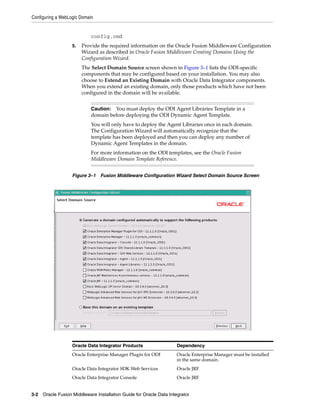
  • 82.
    Creating Repository StorageSpaces The standard method for creating repositories is using Repository Creation Utility (RCU). RCU automatically manages storage space as well as repository creation. However, if you want to create the repositories manually, it is possible to manually create and configure the repositories. The steps needed to create and configure repositories are detailed in the following sections: ■ Section F.2, "Creating Repository Storage Spaces" ■ Section F.3, "Creating the Master Repository" ■ Section F.4, "Connecting to the Master Repository" ■ Section F.5, "Creating a Work Repository" ■ Section F.6, "Connecting to a Work Repository" Note: Oracle recommends that you regularly perform the following maintenance operations: purge the execution logs in order to reduce the Work Repository size, and back up the Oracle Data Integrator repositories on the database. Advanced actions for administering repositories are detailed in "Advanced Actions for Administering Repositories" in the Oracle Fusion Middleware Developer's Guide for Oracle Data Integrator. F.2 Creating Repository Storage Spaces Oracle Data Integrator repositories can be installed on database engines supported by Oracle Fusion Middleware 11g. For the latest list of supported databases versions as well as the requirements for each database, see: http://www.oracle.com/technology/software/products/ias/files/fus ion_certification.html For each database that will contain a repository, a storage space must be created. Caution: Oracle recommends that you store repositories in a different space from where your application data is kept (for example in a different schema for an Oracle database, or in a different database for Sybase or Microsoft SQL Server). Your Master Repository can be stored in the same schema as one of your Work Repositories. A schema can only have one Master Repository and you cannot create two different Work Repositories in the same schema. The examples in the following table are supplied as a guide: F-2 Oracle Fusion Middleware Installation Guide for Oracle Data Integrator
  • 83.
    Creating Repository StorageSpaces Technology Steps to follow Oracle Create a schema to host the Master Repository and a schema to host the Work Repository. The schemas are created by executing the following SQL commands for each of the odim and odiw schemas: Master Repository: SQL> create user MY_SCHEMA identified by MY_PASS default tablespace MY_TBS temporary tablespace MY_TEMP; SQL> grant connect, resource to MY_SCHEMA; Work Repository: SQL> create user MY_SCHEMA identified by MY_PASS default tablespace MY_TBS temporary tablespace MY_TEMP; SQL> grant connect, resource to MY_SCHEMA; SQL> grant execute on dbms_lock to MY_SCHEMA; Note that the Work Repository database user requires the grant execute privilege on dbms_lock for the Work Repository schema. Where: MY_SCHEMA corresponds to the name of the schema you want to create such as odim for the Master Repository and odiw for the Work Repository, for example. MY_PASS corresponds to the password you have given to the default tablespace <MY_TBS>. This is the Oracle tablespace where the data will be stored. MY_TEMP is the temporary default tablespace. Microsoft SQL Server Create a database db_odim to host the Master Repository and a or Sybase ASE database db_odiw to host the Work Repository. Create two logins, odim and odiw, that contain these databases by default. Use Enterprise Manager to create the two databases db_odim and db_ odiw. NOTE: It is recommended that you configure the Microsoft SQL Server databases storing repository information with a case-sensitive collation. This enables reverse-engineering and allows you to create multiples objects with the same name but a different case (for example: tablename and TableName). Use Query Analyzer or I-SQL to launch the following commands: CREATE LOGIN mylogin WITH PASSWORD = 'mypass', DEFAULT_DATABASE = defaultbase, DEFAULT_LANGUAGE = us_english; USE defaultbase; CREATE USER dbo FOR LOGIN mylogin; GO Where: mylogin corresponds to odim or odiw. mypass corresponds to a password for these logins. defaultbase corresponds to db_odim and db_odiw respectively. Creating Repositories with Oracle Data Integrator Studio F-3
  • 84.
    Creating the MasterRepository Technology Steps to follow DB2/400 Create a library odim to host the Master Repository and a library odiw to host the Work Repository. Create two users odim and odiw who have these libraries by default. Master and work repository users should be granted access to tablespaces with at least 16k pagesize. The database must have temporary tablespace of at least 16k. Use the following commands to se the pagesize: CREATE LARGE TABLESPACE ODI16 PAGESIZE 16 K MANAGED BY AUTOMATIC STORAGE ; GRANT USE OF TABLESPACE ODI16 TO USER ODIREPOS; Note: The libraries must be created in the form of SQL collections. MySQL If you are using MySQL (release 5.5.14 or higher) to setup a repository, and the database charset is set to utf8, you will need to add the following parameters to the repository’s jdbc URL to operate non-ASCII data correctly in Oracle Data Integrator Studio: useUnicode=yes&characterEncoding=UTF-8 F.3 Creating the Master Repository Creating the Master Repository creates an empty repository structure and seeds metadata (for example, technology definitions, or built-in security profiles) into this repository structure. To create the Master Repository: 1. Open the New Gallery by choosing File > New. 2. In the New Gallery, in the Categories tree, select ODI. 3. Select from the Items list the Master Repository Creation Wizard. 4. Click OK. The Master Repository Creation wizard opens. 5. Specify the Database Connection parameters as follows: ■ Technology: From the list, select the technology that will host your Master Repository. Default is Oracle. ■ JDBC Driver: The driver used to access the technology, that will host the repository. ■ JDBC URL: The URL used to establish the JDBC connection to the database. Note that the parameters JDBC Driver and URL are synchronized and the default values are technology dependant. ■ User: The user ID / login of the owner of the tables (for example, odim). ■ Password: This user's password. ■ DBA User: Enter the Database Administrator user ID. ■ DBA Password: Enter the DBA’s password. 6. Specify the Repository Configuration parameters as follows: ■ ID: Enter a specific ID for the new repository, other than the default 0. F-4 Oracle Fusion Middleware Installation Guide for Oracle Data Integrator
  • 85.
    Creating the MasterRepository Note: Oracle recommends that this ID is unique and not used for any other Master Repository, as it affects imports and exports between repositories. For more information, see "Exporting/Importing" in the Oracle Fusion Middleware Developer's Guide for Oracle Data Integrator. 7. Click Test to test the connection to your Master Repository. The Information dialog opens and informs you whether the connection has been established. If the connection fails, fix the connection to your Master Repository before moving to next step. 8. Click Next. 9. Do one of the following: ■ Select Use ODI Authentication to manage users using ODI’s internal security system and enter the following supervisor login information: Properties Description Supervisor User User name of the ODI supervisor. Supervisor Password This user’s password Confirm Password This user’s password ■ Select Use External Authentication to use an external enterprise identity store, such as Oracle Internet Directory, to manage user authentication and enter the following supervisor login information: Properties Description Supervisor User User name of the ODI supervisor Supervisor Password This user’s password Note: In order to use the external authentication option, ODI Studio has to be configured for external authentication. See "Setting Up External Authentication" in Oracle Fusion Middleware Developer's Guide for Oracle Data Integrator for more information and restart ODI Studio. 10. Click Next. 11. Specify the password storage details: ■ Select Internal Password Storage if you want to store passwords in the Oracle Data Integrator Master Repository ■ Select External Password Storage if you want to use JPS Credential Store Framework (CSF) to store the data server and context passwords in a remote credential store. Indicate the MBean Server Parameters to access the credential store. Refer to "Managing the Security in Oracle Data Integrator" in Oracle Fusion Middleware Developer's Guide for Oracle Data Integrator for more information. 12. In the Master Repository Creation Wizard click Finish to validate your entries. Creating Repositories with Oracle Data Integrator Studio F-5
  • 86.
    Connecting to theMaster Repository Oracle Data Integrator begins creating your Master Repository. You can follow the procedure on your Messages – Log. To test your Master Repository, refer to Section F.4, "Connecting to the Master Repository". F.4 Connecting to the Master Repository To connect to the Master repository: 1. Open the New Gallery by choosing File > New. 2. In the New Gallery, in the Categories tree, select ODI. 3. Select from the Items list Create a New ODI Repository Login. 4. Click OK. The Repository Connection Information dialog appears. 5. Specify the Oracle Data Integrator connection details as follows: ■ Login name: A connection alias (for example: Repository) The connection alias is used to connect to the Master Repositories and then to create the Work Repository as described in Section F.5. ■ User: The ODI supervisor user name you have defined when creating the Master Repository or an ODI user name you have defined in the Security Navigator after having created the Master Repository. ■ Password: The ODI supervisor password you have defined when creating the Master Repository or an ODI user password you have defined in the Security Navigator after having created the Master Repository. 6. Specify the Database Connection (Master Repository) details as follows: ■ User: Database user ID/login of the schema (database, library) that contains the ODI Master Repository. ■ Password: This user's password. ■ Driver List: Select the driver required to connect to the DBMS supporting the Master Repository you have just created from the drop-down list. ■ Driver Name: The complete driver name. ■ URL: The URL used to establish the JDBC connection to the database hosting the repository. 7. Click Test to check that the connection is working. 8. Click OK to validate your entries. F.5 Creating a Work Repository Several Work Repositories can be designated with several Master Repositories if necessary. However, a Work Repository can be linked with only one Master Repository for version management purposes. To launch a Work Repository creation: 1. In the Topology Navigator, go to the Repositories panel. 2. Right-click the Work Repositories node and select New Work Repository. The Create Work Repository Wizard opens. F-6 Oracle Fusion Middleware Installation Guide for Oracle Data Integrator
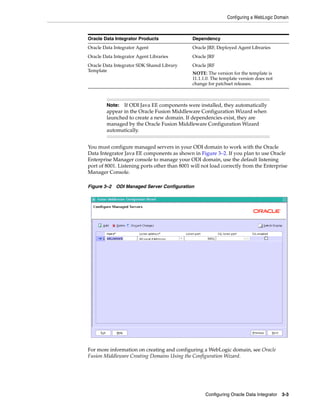
  • 87.
    Creating a WorkRepository 3. Specify the Oracle Data Integrator Work Repository connection details as follows: ■ Technology: Choose the technology of the server to host your Work Repository. Default is Oracle. ■ JDBC Driver: The driver used to access the technology, that will host the repository. ■ JDBC URL: The complete path of the data server to host the Work Repository. Note that the parameters JDBC Driver and URL are synchronized and the default values are technology dependant ■ User: User ID / login of the owner of the tables you are going to create and host of the Work Repository. ■ Password: This user's password. 4. Click Test to verify that the connection is working. 5. Click Next. Oracle Data Integrator verifies whether a Work Repository already exists on the connection specified in Step 3: ■ If an existing Work Repository is detected on this connection, the next steps will consist of attaching the Work Repository to the Master Repository. Refer to "Attaching and Deleting a Work Repository" in Oracle Fusion Middleware Developer's Guide for Oracle Data Integrator for further instructions. ■ If no Work Repository is detected on this connection, a new Work Repository is created. Continue with the creation of a new Work Repository and provide the Work Repository details in following step. 6. Specify the Oracle Data Integrator Work Repository properties: ■ ID: A specific ID for the new repository, rather than the default 0. Note: Oracle recommends that this ID is unique and not used for any other Master Repository, as it affects imports and exports between repositories. For more information, see "Exporting/Importing" in the Oracle Fusion Middleware Developer's Guide for Oracle Data Integrator. ■ Name: Give a unique name to your Work Repository (for example: DEVWORKREP1). ■ Password: Enter the password for the Work Repository. ■ Type: Select the type for the Work Repository: – Development: This type of repository allows management of design-time objects such as data models and projects (including interfaces, procedures, etc). A development repository includes also the run-time objects (scenarios and sessions). This type of repository is suitable for development environments. – Execution: This type of repository only includes run-time objects (scenarios, schedules and sessions). It allows launching and monitoring of data integration jobs in Operator Navigator. Such a repository cannot contain any design-time artifacts. Designer Navigator cannot be used with it. An execution repository is suitable for production environments. 7. Click Finish. Creating Repositories with Oracle Data Integrator Studio F-7
  • 88.
    Connecting to aWork Repository 8. The Create Work Repository login dialog opens. If you want to create a login for the Work Repository, click Yes and you will be asked to enter the Login Name in a new dialog. If you do not want to create a Work Repository login, click No. 9. Click Save in the toolbar. For more information, refer to Section F.6, "Connecting to a Work Repository". F.6 Connecting to a Work Repository To connect to an existing Work Repository and launch Designer Navigator: 1. Open the New Gallery by choosing File > New. 2. In the New Gallery, in the Categories tree, select ODI. 3. Select from the Items list Create a New ODI Repository Login. 4. Click OK. The Repository Connection Information dialog opens. 5. Specify the Oracle Data Integrator connection details as follows: ■ Login name: A connection alias (for example: Repository) The connection alias is used to connect to the Work Repositories and then to create the Master Repository as described in Section F.4. ■ User: The ODI supervisor user name you have defined when creating the Master Repository or an ODI user name you have defined in the Security Navigator after having created the Master Repository. ■ Password: The ODI supervisor password you have defined when creating the Master Repository or an ODI user password you have defined in the Security Navigator after having created the Master Repository. 6. Specify the Database Connection (Master Repository) details as follows: ■ User: Database user ID/login of the schema (database, library) that contains the ODI Master Repository. ■ Password: This user's password. ■ Driver List: Select the driver required to connect to the DBMS supporting the Master Repository you have just created from the drop-down list. ■ Driver Name: The complete driver name. ■ URL: The URL used to establish the JDBC connection to the database hosting the repository. 7. Click Test to verify that the connection is working. 8. Select Work Repository and specify the Work Repository details as follows: ■ Work repository name: The name you gave your Work Repository in the previous step (WorkRep1 in the example). You can display the list of Work Repositories available in your Master Repository by clicking on the button to the right of this field. 9. Click OK to validate your entries. F-8 Oracle Fusion Middleware Installation Guide for Oracle Data Integrator
  • 89.
    G Customizing the ODI Credential Map Name G The Oracle Data Integrator Java EE Agent and Oracle Data Integrator Console use a credential map to store usernames and passwords. The default credential map name is oracle.odi.credmap. In rare situations, ODI users may need to change the default to a different credential map name for the ODI Java EE Agent and ODI Console. G.1 What is stored in Credential Store? ODI runtime uses credential store for the ODI Java EE Agent and ODI Console. ■ ODI Java EE Agent boot AppId and Password ■ ODI Console boot AppId and Password In most usage scenarios, ODI uses the credential map name oracle.odi.credmap. In certain environments, however, the credential map name is decided at a global level and all components are required to use that credential map name. For example, an Oracle Fusion Middleware application may use the oracle.apps.security credential map name instead of the standard oracle.odi.credmap. In this case, the credential map name needs to be customized for the environment. G.2 Executing the updateCredMapInEar Script You can modify the credential map name specified in the Oracle Data Integrator templates by running the script updateCredMapInEar.[sh|bat]. If you execute the script with the -EARFILE parameter, you are able to modify a specific ear file and update the default credential map. You must execute this script before creating and deploying ODI Java EE Agent ear and before deploying ODI Console ear to a WebLogic Domain. After executing this script, all generated ODI Java EE Agent ears will carry the changed credential map name. Usage: updateCredMapInEar.sh -MAPNAME=<credential_map_name> [-EARFILE=<ear_file_to_update> Where: ■ MAPNAME: User supplied credential map name. ■ EARFILE: This is optional parameter. If specified, the credential map inside the specified ear file will be modified. If not specified, the credential map name in the default templates for ODI Java EE Agent (oraclediagent.ear) and ODI Console (odiconsole.ear) will be modified. Customizing the ODI Credential Map Name G-1
  • 90.
    Updating WLST Scriptsfor Credential Map Creation Examples: updateCredMapInEar.sh -MAPNAME=oracle.apps.security updateCredMapInEar.sh -MAPNAME=oracle.apps.security -EARFILE=$ODI_ HOME/setup/manual/oracledi-agent/oraclediagent.ear G.3 Updating WLST Scripts for Credential Map Creation If you have updated the credential map name in a template and then deployed this template, make sure that the credential store entries created for this deployed application use this new credential map name. See Section 3.3.3, "Adding Credential Store Entries" for more information on creating credential store entries. In the createcred command, the value provided for the map parameter should be the customized credential map name, as shown in the example below: createCred(map="acme.security.credmap", key="SUPERVISOR", user="SUPERVISOR", password="supervisor1", desc="Key for Supervisor") G-2 Oracle Fusion Middleware Installation Guide for Oracle Data Integrator
  • 91.
    H HOPMN Configuration for Standalone Agent Oracle Process Monitor and Notification server (OPMN) is used to stop, start and get process status. The standalone agent is a standalone Java process started from a command line interface. This agent is typically deployed locally on the source or target machines for optimal integration flow performances. You can use OPMN to start, stop and protect the standalone agent in this situation. H.1 Adding a Standalone Agent to OPMN To add a standalone agent to OPMN, edit the agentcreate.properties contained in the ODI_HOME/oracledi/agent/bin/ directory to match your agent and OPMN configuration. Note: When editing the agentcreate.properties file, you must use a forward slash (/) as a path separator for both UNIX and Windows operating systems. See Table H–1 for a list of agentcreate.properties parameters. Note that the examples shown may differ from your system configuration. Table H–1 Parameters in agentcreate.properties Parameter Description Example (Your Configurations May Differ) PORTNO Startup port of the agent (as in PORTNO=9787 agent.bat command line JMXPORTNO JMX port of the agent (agent.bat JMXPORTNO=9787 command line JAVA_HOME Location of the JVM used by the JAVA_HOME=/scratch/username/Oracle_ agent ODIMAIN/Middleware/jdk160_11 ORACLE_OPMN_HOME OPMN installation directory ORACLE_OPMN_ HOME=/scratch/username/oracle/product /11.1.1/as_1 ORACLE_ODI_HOME Installation path of ODI ORACLE_ODI_ HOME=/scratch/username/odi_standalone INSTANCE_HOME Location of the OPMN instance INSTANCE_ into which the agent should be HOME=/scratch/username/oracle/product added /11.1.1/as_1/instances/instance1 COMPONENT_TYPE Type of the component (should be COMPONENT_TYPE=odiagent odiagent) OPMN Configuration for Standalone Agent H-1
  • 92.
    Stopping the Agent TableH–1 (Cont.) Parameters in agentcreate.properties Parameter Description Example (Your Configurations May Differ) COMPONENT_NAME Name of the agent to add. This COMPONENT_NAME=INTERFACE will be its identification in OPMN ODI_MASTER_DRIVER JDBC driver used to connect the ODI_MASTER_ Master Repository. DRIVER=oracle.jdbc.OracleDriver ODI_MASTER_URL JDBC URL used to connect the ODI_MASTER_ Master Repository. URL=jdbc:oracle:thin:adc6260039:1521: orcl ODI_MASTER_USER Database account used to connect ODI_MASTER_USER=SUPERVISOR the Master Repository. ODI_MASTER_ Database account password. The ODI_MASTER_ENCODED_ ENCODED_PASS password must be encoded with PASS=hpfatLEoMR6zAK3T1PoP5LXDS the "encode.[sh|bat] <password>" command. ODI_SECU_WORK_REPO Name of the Work Repository to ODI_SECU_WORK_REPO=WORKREP connect. This Work Repository must be attached to the master repository. ODI_SUPERVISOR_ OracleDI supervisor user ODI_SUPERVISOR_ENCODED_ ENCODED_PASS password. The password must be PASS=hpfatLEoMR6zAK3T1PoP5LXDS encoded with the "encode.[sh|bat] <password>" command. Run the following script to add this agent to the OPMN configuration. For UNIX operating systems: ODI_HOME/oracledi/agent/bin/odi_opmn_addagent.sh For Windows operating systems: ODI_HOME/oracledi/agent/bin/odi_opmn_addagent.bat H.2 Stopping the Agent To stop all agent components in an Oracle instance using opmnctl opmnctl stopproc process-type= odiagent To stop a specific agent component, such as odiagent1, using opmnctl opmnctl stopproc ias-component= odiagent1 H.3 Starting the Agent and Agent Components To start all agent components in an Oracle instance using opmnctl: opmnctl startproc process-type= odiagent To start a specific agent component, such as odiagent1, using opmnctl: opmnctl startproc ias-component=odiagent1 H.4 Determining the Status of Oracle HTTP Server You can determine the status of Oracle HTTP Server using opmnctl: H-2 Oracle Fusion Middleware Installation Guide for Oracle Data Integrator
  • 93.
    Deleting the Agent opmnctl status H.5 Deleting the Agent Run the following script to delete this agent from the OPMN configuration. For UNIX operating systems: ODI_HOME/oracledi/agent/bin/odi_opmn_deleteagent.sh For Windows operating systems: ODI_HOME/oracledi/agent/bin/odi_opmn_deleteagent.bat OPMN Configuration for Standalone Agent H-3
  • 94.
    Deleting the Agent H-4Oracle Fusion Middleware Installation Guide for Oracle Data Integrator