Oracle Discoverer Reports via BSS Presented by: Khalid M. Tariq,  Supervisor, Student Records Systems Higher Colleges of Technology March 21, 2007 Course ID 1313
Objectives By the end of this presentation, you will be able to: Understand how Management Reports were deployed in BSS at HCT Design and deploy EUL in Oracle Discoverer Build and deploy reports in Oracle Discoverer
Agenda Introduction to HCT Why Oracle Discoverer ? How to create an EUL in Discoverer How to Build Reports using EUL in Discoverer  How HCT Deployed Discoverer Reports in BSS Sample Reports in BSS
Part # 1 Introduction to Higher Colleges of Technology and History of Management Reporting
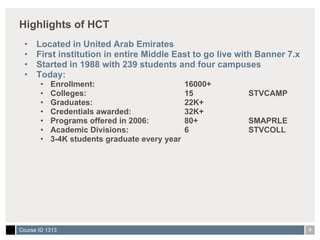
Highlights of HCT Located in United Arab Emirates First institution in entire Middle East to go live with Banner 7.x Started in 1988 with 239 students and four campuses Today:  Enrollment:  16000+ Colleges:  15 STVCAMP Graduates:  22K+ Credentials awarded:  32K+  Programs offered in 2006:  80+ SMAPRLE Academic Divisions:  6 STVCOLL 3-4K students graduate every year
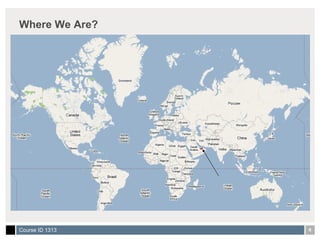
Where We Are?
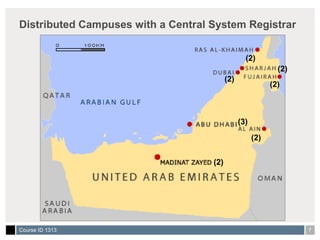
Distributed Campuses with a Central System Registrar (2) (2) (3) (2) (2) (2) (2)
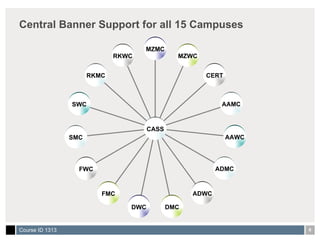
Central Banner Support for all 15 Campuses  RKWC RKMC SWC SMC FWC FMC DWC DMC ADWC ADMC AAWC AAMC CERT MZWC MZMC CASS
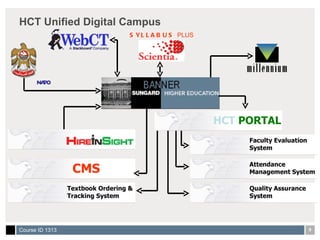
HCT Unified Digital Campus SYLLABUS  PLUS CMS Textbook Ordering &  Tracking System Quality Assurance  System Attendance  Management System Faculty Evaluation System HCT   PORTAL NAPO
Reporting in HCT before using Oracle Discoverer QPROD A separate database for reporting called QPROD with materialized views  Accessible to people with Access or SQL knowledge Database is refreshed at the end of every day (one day old data) Not feasible for the 10+ directors at HCT BPROD 80+ reports (designed in Oracle Reports) available in for users Reports require Oracle account Require Navigation skills in INB Not feasible for 10+ directors at HCT
Catalyst for Change In 2006, HCT Vice Chancellor showed interest in getting dynamic reports on enrollment levels across different campuses. Our Solution:  Oracle Discoverer
Why we Opted for Oracle Discoverer? Free  with Oracle Developer Suite and Application Server Hides the complex relationships of the Banner tables and enables you to build End-User Layer (EUL) End users can simply drag and drop fields to generate ad-hoc reports Supports graphical reports  Supports drill-down reports based on graphs or data sheets If you have Oracle Portal, you can deploy reports from Discoverer as Portlets (equivalent of Channels in Luminus or WebParts in SharePoint)
Part # 2 Basic Concepts about Discoverer
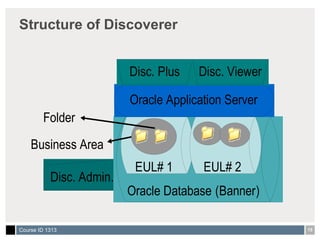
Components of Discoverer Discoverer Administrator: Comes with Oracle Developer Suite Used to create, administer and maintain EUL Discoverer Plus:  Comes with Oracle Application Server Web-enabled Used to create reports Discoverer Viewer:  Comes with Oracle Application Server Web enabled Used to view reports
Structure of Discoverer
End User Layer A metadata layer that hides the complexity of Banner tables and translates database fields into business intelligence items so that users can understand them and create ad hoc reports without any knowledge of SQL EUL is created as a schema and owned by a single user.  Business Area A business Area is a set of related folders (tables) to encapsulate a common business area. Such as “College Admissions” can be a Business Area.
Folders Tables and views from database are represented as folders in the Business Area There are three types of folders: Simple Folders Map to database tables or views Complex Folders Created by grouping multiple simple folders Custom Folders Are created using SQL statements select spriden_id ID, spriden_first_name||spriden_last_name NAME, from spriden where  spriden_change_ind is NULL
Overview of Creating and Managing EUL  DBA is responsible for creating and managing EUL. An EUL must be created before creating a Business Area  Public and Private End User Layers Public EUL : Each database can have one or more public EULs to which all users have access. Most systems need only one public EUL. Private EUL : Each database can have one or more private EULs. Users can access a private EUL only if they have been granted authority by the owner of the private EUL.
Part # 3 How create an End User Layer and Business Area in Discoverer
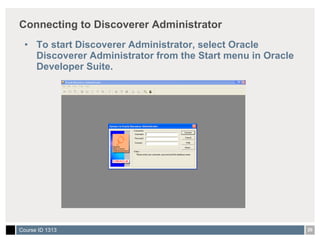
Connecting to Discoverer Administrator To start Discoverer Administrator, select Oracle Discoverer Administrator from the Start menu in Oracle Developer Suite.
Creating the Initial EUL The first time you connect to Discoverer Administrator, you are prompted to create an EUL. The steps for creating the initial EUL are as follows: Step #1 When prompted to create an EUL, click Yes. The EUL Manager dialog box is displayed with the Create an EUL option selected.
Creating the Initial EUL Step #2 Select Create an EUL in the EUL Manager dialog box. The Create EUL Manager dialog box is displayed.
Creating the Initial EUL Step #3 Click Finish in the Create EUL dialog box. If you select a user different from the one you logged in as, then the password box will be enabled to enter the password associated with that user.
Creating the Initial EUL Step #4 Discoverer displays a message when the EUL is created. Click OK to dismiss the message.
Creating the Initial EUL Step #5 After creating the EUL, Discoverer prompts you to install the tutorial data. You can choose to install the tutorial now or at a later time.
Creating the Initial EUL Step #6 As a final step, Discoverer prompts you to connect to the EUL that you just created. You can click Yes to reconnect as the new EUL owner, or you can click No to continue working in the current database connection.
Business Area A Business Area is a logical set of folders that share a common business theme. For eg: Registration, Admissions, Academic History. They are important for the end user because they are visible and provide the starting point for building a query. Users can see folders in a business area only if they have database access to the tables referenced in the folders. IT department is responsible for selecting the tables and views to include in the business area and for deciding how these tables and views are best presented in folders that have meaning for the end user.
Designing a Business Area: Example Objective:  Student Detail Report  which contains 4 fields namely  Student ID, Name, Campus and Gender Create a business area called  Student_Details  in Discoverer Administrator Before creating the business area,  start by identifying the set of tables  that you want your end users to have access to in Discoverer Plus. In our scenario, the data for the Student Detail report should be taken from  3 tables namely SPRIDEN, SPBPERS and SGBSTDN . The fields Student ID and the Name of the report is taken from SPRIDEN. The Campus is taken from SGBSTDN and the Gender is taken from SPBPERS.
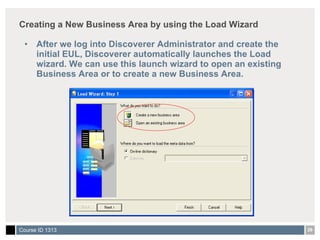
Creating a New Business Area by using the Load Wizard After we log into Discoverer Administrator and create the initial EUL, Discoverer automatically launches the Load wizard. We can use this launch wizard to open an existing Business Area or to create a new Business Area.
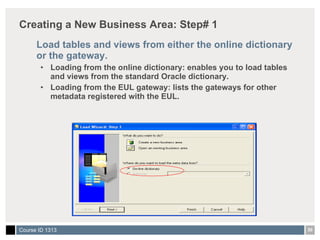
Creating a New Business Area: Step# 1 Load tables and views from either the online dictionary or the gateway. Loading from the online dictionary: enables you to load tables and views from the standard Oracle dictionary. Loading from the EUL gateway: lists the gateways for other metadata registered with the EUL.
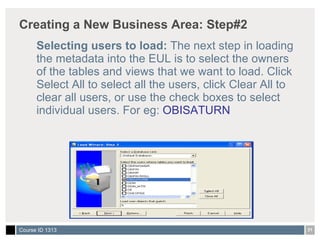
Creating a New Business Area: Step#2 Selecting users to load:  The next step in loading the metadata into the EUL is to select the owners of the tables and views that we want to load. Click Select All to select all the users, click Clear All to clear all users, or use the check boxes to select individual users. For eg:  OBISATURN
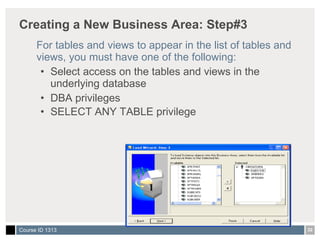
Creating a New Business Area: Step#3 For tables and views to appear in the list of tables and views, you must have one of the following: Select access on the tables and views in the underlying database DBA privileges SELECT ANY TABLE privilege
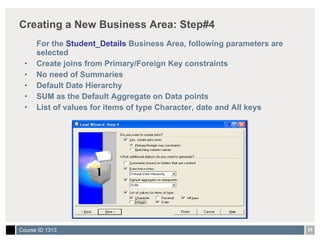
Creating a New Business Area: Step#4 For the  Student_Details  Business Area, following parameters are selected Create joins from Primary/Foreign Key constraints No need of Summaries Default Date Hierarchy SUM as the Default Aggregate on Data points List of values for items of type Character, date and All keys
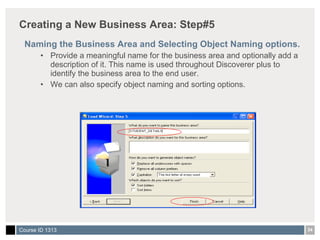
Creating a New Business Area: Step#5 Naming the Business Area and Selecting Object Naming options. Provide a meaningful name for the business area and optionally add a description of it. This name is used throughout Discoverer plus to identify the business area to the end user. We can also specify object naming and sorting options.
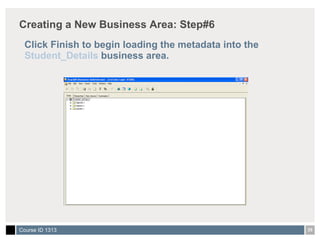
Creating a New Business Area: Step#6 Click Finish to begin loading the metadata into the  Student_Details  business area.
Part # 4 How to Build Reports using Business Area in Discoverer
Discoverer Plus OracleAS  Discoverer Plus  is used to create, view, and edit the workbooks over the Internet or intranet. We have created  Student_Details  Business Area in Administrator and made it available in Discoverer Plus. Using this Student_Details Business Area, we can create a  Student Details report  in Discoverer Plus. Follow the steps in the coming slides for creating Student Details Report.
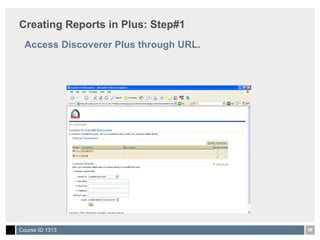
Creating Reports in Plus: Step#1 Access Discoverer Plus through URL.
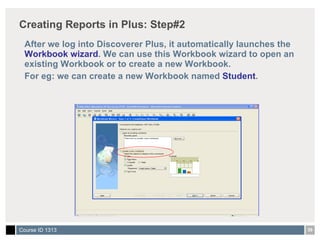
Creating Reports in Plus: Step#2 After we log into Discoverer Plus, it automatically launches the  Workbook wizard . We can use this Workbook wizard to open an existing Workbook or to create a new Workbook.  For eg: we can create a new Workbook named  Student .
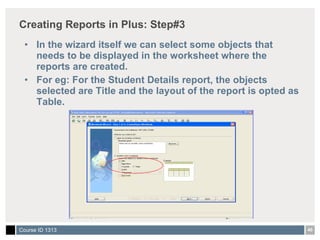
Creating Reports in Plus: Step#3 In the wizard itself we can select some objects that needs to be displayed in the worksheet where the reports are created. For eg: For the Student Details report, the objects selected are Title and the layout of the report is opted as Table.
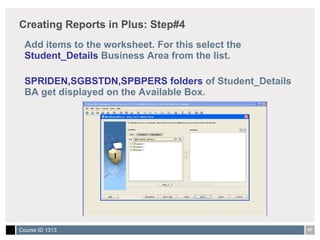
Creating Reports in Plus: Step#4 Add items to the worksheet. For this select the  Student_Details  Business Area from the list. SPRIDEN,SGBSTDN,SPBPERS folders  of Student_Details BA get displayed on the Available Box.
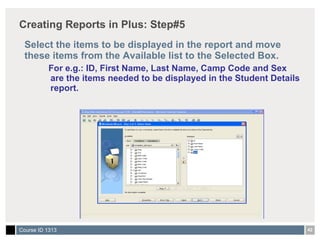
Creating Reports in Plus: Step#5 Select the items to be displayed in the report and move these items from the Available list to the Selected Box. For e.g.: ID, First Name, Last Name, Camp Code and Sex are the items needed to be displayed in the Student Details report.
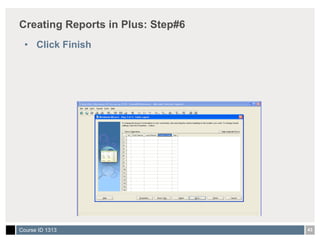
Creating Reports in Plus: Step#6 Click Finish
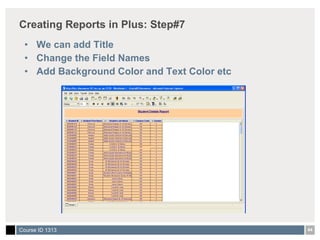
Creating Reports in Plus: Step#7 We can add Title Change the Field Names Add Background Color and Text Color etc
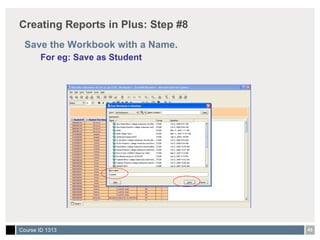
Creating Reports in Plus: Step #8 Save the Workbook with a Name. For eg: Save as Student
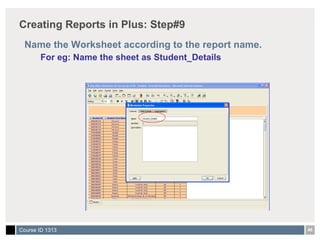
Creating Reports in Plus: Step#9 Name the Worksheet according to the report name. For eg: Name the sheet as Student_Details
Part # 5 How HCT Deployed Discoverer Reports in BSS
History of Reporting using Discoverer In 2006, HCT Vice Chancellor showed interest in getting dynamic reports on enrollment levels across different campuses. Phase I: The best possible solution with out purchasing any extra software: Oracle Discoverer Reports A Report was made available to VC and all directors which displayed graphical data directly from production system (not one day old data)
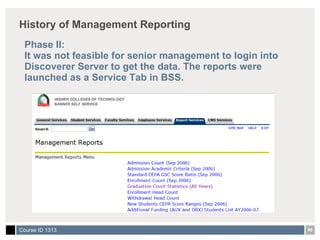
History of Management Reporting Phase II: It was not feasible for senior management to login into Discoverer Server to get the data. The reports were launched as a Service Tab in BSS.
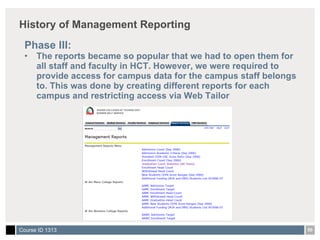
History of Management Reporting Phase III: The reports became so popular that we had to open them for all staff and faculty in HCT. However, we were required to provide access for campus data for the campus staff belongs to. This was done by creating different reports for each campus and restricting access via Web Tailor
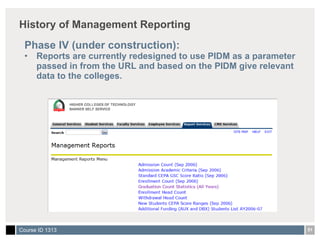
History of Management Reporting Phase IV (under construction): Reports are currently redesigned to use PIDM as a parameter passed in from the URL and based on the PIDM give relevant data to the colleges.
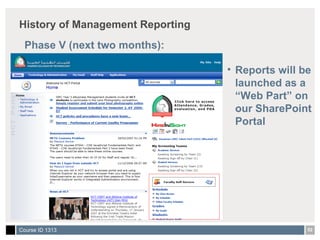
History of Management Reporting Phase V (next two months): Reports will be launched as a “Web Part” on our SharePoint Portal
 
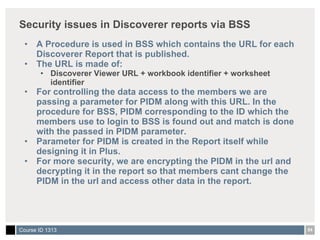
Security issues in Discoverer reports via BSS  A Procedure is used in BSS which contains the URL for each Discoverer Report that is published.  The URL is made of: Discoverer Viewer URL + workbook identifier + worksheet identifier For controlling the data access to the members we are passing a parameter for PIDM along with this URL. In the procedure for BSS, PIDM corresponding to the ID which the members use to login to BSS is found out and match is done with the passed in PIDM parameter. Parameter for PIDM is created in the Report itself while designing it in Plus. For more security, we are encrypting the PIDM in the url and decrypting it in the report so that members cant change the PIDM in the url and access other data in the report.
Part # 6 Sample HCT Reports
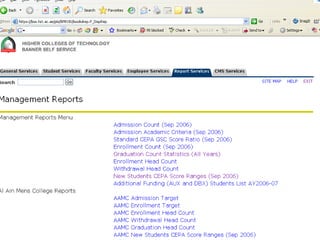
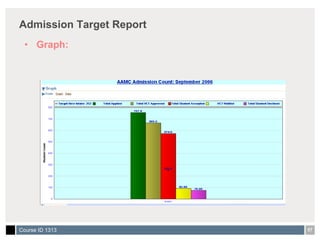
BSS Management Reports Banner Self Service makes available a series of reports to the HCT community giving general statistical information about: Students Admission Enrollment/Withdrawal Head Count Graduation Statistics Each Campus Management can view information related to their Campus from these Reports made available in BSS .
Admission Target Report Graph:
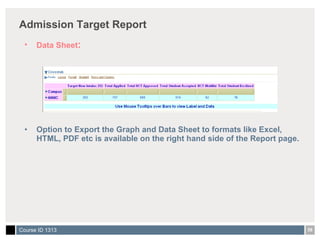
Admission Target Report Data Sheet : Option to Export the Graph and Data Sheet to formats like Excel, HTML, PDF etc is available on the right hand side of the Report page.
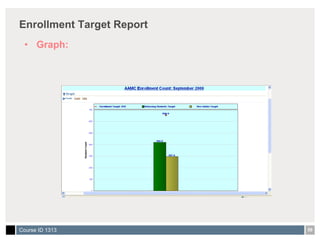
Enrollment Target Report Graph:
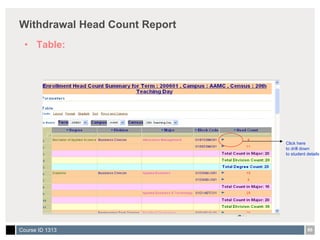
Withdrawal Head Count Report Table: Click here to drill down to student details
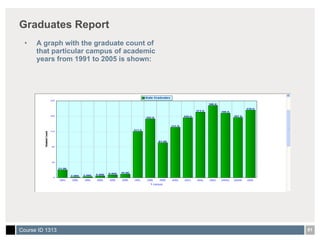
Graduates Report A graph with the graduate count of that particular campus of academic years from 1991 to 2005 is shown:
Thank you and email if you need help! Khalid M. Tariq Supervisor, Student Record Systems Higher Colleges of Technology Abu Dhabi, UAE [email_address]   http://www.hct.ac.ae   Please complete the online class  evaluation form Course ID 1313 SunGard, the SunGard logo, Banner, Campus Pipeline, Luminis, PowerCAMPUS, Matrix, and Plus are trademarks or registered trademarks of SunGard Data Systems Inc. or its subsidiaries in the U.S. and other countries. Third-party names and marks referenced herein are trademarks or registered trademarks of their respective owners. © 2006 SunGard.  All rights reserved.

Oracle Discoverer Reports via BSS

  • 1.
    Oracle Discoverer Reportsvia BSS Presented by: Khalid M. Tariq, Supervisor, Student Records Systems Higher Colleges of Technology March 21, 2007 Course ID 1313
  • 2.
    Objectives By theend of this presentation, you will be able to: Understand how Management Reports were deployed in BSS at HCT Design and deploy EUL in Oracle Discoverer Build and deploy reports in Oracle Discoverer
  • 3.
    Agenda Introduction toHCT Why Oracle Discoverer ? How to create an EUL in Discoverer How to Build Reports using EUL in Discoverer How HCT Deployed Discoverer Reports in BSS Sample Reports in BSS
  • 4.
    Part # 1Introduction to Higher Colleges of Technology and History of Management Reporting
  • 5.
    Highlights of HCTLocated in United Arab Emirates First institution in entire Middle East to go live with Banner 7.x Started in 1988 with 239 students and four campuses Today: Enrollment: 16000+ Colleges: 15 STVCAMP Graduates: 22K+ Credentials awarded: 32K+ Programs offered in 2006: 80+ SMAPRLE Academic Divisions: 6 STVCOLL 3-4K students graduate every year
  • 6.
  • 7.
    Distributed Campuses witha Central System Registrar (2) (2) (3) (2) (2) (2) (2)
  • 8.
    Central Banner Supportfor all 15 Campuses RKWC RKMC SWC SMC FWC FMC DWC DMC ADWC ADMC AAWC AAMC CERT MZWC MZMC CASS
  • 9.
    HCT Unified DigitalCampus SYLLABUS PLUS CMS Textbook Ordering & Tracking System Quality Assurance System Attendance Management System Faculty Evaluation System HCT PORTAL NAPO
  • 10.
    Reporting in HCTbefore using Oracle Discoverer QPROD A separate database for reporting called QPROD with materialized views Accessible to people with Access or SQL knowledge Database is refreshed at the end of every day (one day old data) Not feasible for the 10+ directors at HCT BPROD 80+ reports (designed in Oracle Reports) available in for users Reports require Oracle account Require Navigation skills in INB Not feasible for 10+ directors at HCT
  • 11.
    Catalyst for ChangeIn 2006, HCT Vice Chancellor showed interest in getting dynamic reports on enrollment levels across different campuses. Our Solution: Oracle Discoverer
  • 12.
    Why we Optedfor Oracle Discoverer? Free with Oracle Developer Suite and Application Server Hides the complex relationships of the Banner tables and enables you to build End-User Layer (EUL) End users can simply drag and drop fields to generate ad-hoc reports Supports graphical reports Supports drill-down reports based on graphs or data sheets If you have Oracle Portal, you can deploy reports from Discoverer as Portlets (equivalent of Channels in Luminus or WebParts in SharePoint)
  • 13.
    Part # 2Basic Concepts about Discoverer
  • 14.
    Components of DiscovererDiscoverer Administrator: Comes with Oracle Developer Suite Used to create, administer and maintain EUL Discoverer Plus: Comes with Oracle Application Server Web-enabled Used to create reports Discoverer Viewer: Comes with Oracle Application Server Web enabled Used to view reports
  • 15.
  • 16.
    End User LayerA metadata layer that hides the complexity of Banner tables and translates database fields into business intelligence items so that users can understand them and create ad hoc reports without any knowledge of SQL EUL is created as a schema and owned by a single user. Business Area A business Area is a set of related folders (tables) to encapsulate a common business area. Such as “College Admissions” can be a Business Area.
  • 17.
    Folders Tables andviews from database are represented as folders in the Business Area There are three types of folders: Simple Folders Map to database tables or views Complex Folders Created by grouping multiple simple folders Custom Folders Are created using SQL statements select spriden_id ID, spriden_first_name||spriden_last_name NAME, from spriden where spriden_change_ind is NULL
  • 18.
    Overview of Creatingand Managing EUL DBA is responsible for creating and managing EUL. An EUL must be created before creating a Business Area Public and Private End User Layers Public EUL : Each database can have one or more public EULs to which all users have access. Most systems need only one public EUL. Private EUL : Each database can have one or more private EULs. Users can access a private EUL only if they have been granted authority by the owner of the private EUL.
  • 19.
    Part # 3How create an End User Layer and Business Area in Discoverer
  • 20.
    Connecting to DiscovererAdministrator To start Discoverer Administrator, select Oracle Discoverer Administrator from the Start menu in Oracle Developer Suite.
  • 21.
    Creating the InitialEUL The first time you connect to Discoverer Administrator, you are prompted to create an EUL. The steps for creating the initial EUL are as follows: Step #1 When prompted to create an EUL, click Yes. The EUL Manager dialog box is displayed with the Create an EUL option selected.
  • 22.
    Creating the InitialEUL Step #2 Select Create an EUL in the EUL Manager dialog box. The Create EUL Manager dialog box is displayed.
  • 23.
    Creating the InitialEUL Step #3 Click Finish in the Create EUL dialog box. If you select a user different from the one you logged in as, then the password box will be enabled to enter the password associated with that user.
  • 24.
    Creating the InitialEUL Step #4 Discoverer displays a message when the EUL is created. Click OK to dismiss the message.
  • 25.
    Creating the InitialEUL Step #5 After creating the EUL, Discoverer prompts you to install the tutorial data. You can choose to install the tutorial now or at a later time.
  • 26.
    Creating the InitialEUL Step #6 As a final step, Discoverer prompts you to connect to the EUL that you just created. You can click Yes to reconnect as the new EUL owner, or you can click No to continue working in the current database connection.
  • 27.
    Business Area ABusiness Area is a logical set of folders that share a common business theme. For eg: Registration, Admissions, Academic History. They are important for the end user because they are visible and provide the starting point for building a query. Users can see folders in a business area only if they have database access to the tables referenced in the folders. IT department is responsible for selecting the tables and views to include in the business area and for deciding how these tables and views are best presented in folders that have meaning for the end user.
  • 28.
    Designing a BusinessArea: Example Objective: Student Detail Report which contains 4 fields namely Student ID, Name, Campus and Gender Create a business area called Student_Details in Discoverer Administrator Before creating the business area, start by identifying the set of tables that you want your end users to have access to in Discoverer Plus. In our scenario, the data for the Student Detail report should be taken from 3 tables namely SPRIDEN, SPBPERS and SGBSTDN . The fields Student ID and the Name of the report is taken from SPRIDEN. The Campus is taken from SGBSTDN and the Gender is taken from SPBPERS.
  • 29.
    Creating a NewBusiness Area by using the Load Wizard After we log into Discoverer Administrator and create the initial EUL, Discoverer automatically launches the Load wizard. We can use this launch wizard to open an existing Business Area or to create a new Business Area.
  • 30.
    Creating a NewBusiness Area: Step# 1 Load tables and views from either the online dictionary or the gateway. Loading from the online dictionary: enables you to load tables and views from the standard Oracle dictionary. Loading from the EUL gateway: lists the gateways for other metadata registered with the EUL.
  • 31.
    Creating a NewBusiness Area: Step#2 Selecting users to load: The next step in loading the metadata into the EUL is to select the owners of the tables and views that we want to load. Click Select All to select all the users, click Clear All to clear all users, or use the check boxes to select individual users. For eg: OBISATURN
  • 32.
    Creating a NewBusiness Area: Step#3 For tables and views to appear in the list of tables and views, you must have one of the following: Select access on the tables and views in the underlying database DBA privileges SELECT ANY TABLE privilege
  • 33.
    Creating a NewBusiness Area: Step#4 For the Student_Details Business Area, following parameters are selected Create joins from Primary/Foreign Key constraints No need of Summaries Default Date Hierarchy SUM as the Default Aggregate on Data points List of values for items of type Character, date and All keys
  • 34.
    Creating a NewBusiness Area: Step#5 Naming the Business Area and Selecting Object Naming options. Provide a meaningful name for the business area and optionally add a description of it. This name is used throughout Discoverer plus to identify the business area to the end user. We can also specify object naming and sorting options.
  • 35.
    Creating a NewBusiness Area: Step#6 Click Finish to begin loading the metadata into the Student_Details business area.
  • 36.
    Part # 4How to Build Reports using Business Area in Discoverer
  • 37.
    Discoverer Plus OracleAS Discoverer Plus is used to create, view, and edit the workbooks over the Internet or intranet. We have created Student_Details Business Area in Administrator and made it available in Discoverer Plus. Using this Student_Details Business Area, we can create a Student Details report in Discoverer Plus. Follow the steps in the coming slides for creating Student Details Report.
  • 38.
    Creating Reports inPlus: Step#1 Access Discoverer Plus through URL.
  • 39.
    Creating Reports inPlus: Step#2 After we log into Discoverer Plus, it automatically launches the Workbook wizard . We can use this Workbook wizard to open an existing Workbook or to create a new Workbook. For eg: we can create a new Workbook named Student .
  • 40.
    Creating Reports inPlus: Step#3 In the wizard itself we can select some objects that needs to be displayed in the worksheet where the reports are created. For eg: For the Student Details report, the objects selected are Title and the layout of the report is opted as Table.
  • 41.
    Creating Reports inPlus: Step#4 Add items to the worksheet. For this select the Student_Details Business Area from the list. SPRIDEN,SGBSTDN,SPBPERS folders of Student_Details BA get displayed on the Available Box.
  • 42.
    Creating Reports inPlus: Step#5 Select the items to be displayed in the report and move these items from the Available list to the Selected Box. For e.g.: ID, First Name, Last Name, Camp Code and Sex are the items needed to be displayed in the Student Details report.
  • 43.
    Creating Reports inPlus: Step#6 Click Finish
  • 44.
    Creating Reports inPlus: Step#7 We can add Title Change the Field Names Add Background Color and Text Color etc
  • 45.
    Creating Reports inPlus: Step #8 Save the Workbook with a Name. For eg: Save as Student
  • 46.
    Creating Reports inPlus: Step#9 Name the Worksheet according to the report name. For eg: Name the sheet as Student_Details
  • 47.
    Part # 5How HCT Deployed Discoverer Reports in BSS
  • 48.
    History of Reportingusing Discoverer In 2006, HCT Vice Chancellor showed interest in getting dynamic reports on enrollment levels across different campuses. Phase I: The best possible solution with out purchasing any extra software: Oracle Discoverer Reports A Report was made available to VC and all directors which displayed graphical data directly from production system (not one day old data)
  • 49.
    History of ManagementReporting Phase II: It was not feasible for senior management to login into Discoverer Server to get the data. The reports were launched as a Service Tab in BSS.
  • 50.
    History of ManagementReporting Phase III: The reports became so popular that we had to open them for all staff and faculty in HCT. However, we were required to provide access for campus data for the campus staff belongs to. This was done by creating different reports for each campus and restricting access via Web Tailor
  • 51.
    History of ManagementReporting Phase IV (under construction): Reports are currently redesigned to use PIDM as a parameter passed in from the URL and based on the PIDM give relevant data to the colleges.
  • 52.
    History of ManagementReporting Phase V (next two months): Reports will be launched as a “Web Part” on our SharePoint Portal
  • 53.
  • 54.
    Security issues inDiscoverer reports via BSS A Procedure is used in BSS which contains the URL for each Discoverer Report that is published. The URL is made of: Discoverer Viewer URL + workbook identifier + worksheet identifier For controlling the data access to the members we are passing a parameter for PIDM along with this URL. In the procedure for BSS, PIDM corresponding to the ID which the members use to login to BSS is found out and match is done with the passed in PIDM parameter. Parameter for PIDM is created in the Report itself while designing it in Plus. For more security, we are encrypting the PIDM in the url and decrypting it in the report so that members cant change the PIDM in the url and access other data in the report.
  • 55.
    Part # 6Sample HCT Reports
  • 56.
    BSS Management ReportsBanner Self Service makes available a series of reports to the HCT community giving general statistical information about: Students Admission Enrollment/Withdrawal Head Count Graduation Statistics Each Campus Management can view information related to their Campus from these Reports made available in BSS .
  • 57.
  • 58.
    Admission Target ReportData Sheet : Option to Export the Graph and Data Sheet to formats like Excel, HTML, PDF etc is available on the right hand side of the Report page.
  • 59.
  • 60.
    Withdrawal Head CountReport Table: Click here to drill down to student details
  • 61.
    Graduates Report Agraph with the graduate count of that particular campus of academic years from 1991 to 2005 is shown:
  • 62.
    Thank you andemail if you need help! Khalid M. Tariq Supervisor, Student Record Systems Higher Colleges of Technology Abu Dhabi, UAE [email_address] http://www.hct.ac.ae Please complete the online class evaluation form Course ID 1313 SunGard, the SunGard logo, Banner, Campus Pipeline, Luminis, PowerCAMPUS, Matrix, and Plus are trademarks or registered trademarks of SunGard Data Systems Inc. or its subsidiaries in the U.S. and other countries. Third-party names and marks referenced herein are trademarks or registered trademarks of their respective owners. © 2006 SunGard. All rights reserved.

Editor's Notes

  • #10 `
  • #34 Select additional parameters to customize the data load. They are: Creating Joins: provides options for creating joins. Selecting the “Primary/foreign key constraints” option retains the data model from the database. Selecting the “Matching column names” option creates joins between two tables with identical column names. Generating Summaries: provides the option to let Discoverer generate summaries after the load process. Selecting this option slows the Bulk Load process, but improves the performance of the queries. Generating Date Hierarchies: provides options to generate date hierarchies by using the chosen date hierarchy. Default Aggregation on Data Points: Provides options to select default aggregation for items that are data points. SUM is chosen by default. Creating a List of Values: provides options to generate a list of values for items of type character, decimal, integer and date. LOVs are created from the values in the associated database column and are generated at runtime.