Creating LOVs and Editors
Objectives After completing this lesson, you should be able to do the following: Describe LOVs and editors Design, create, and associate LOVs with text items in a form module Create editors and associate them with text items in a form module
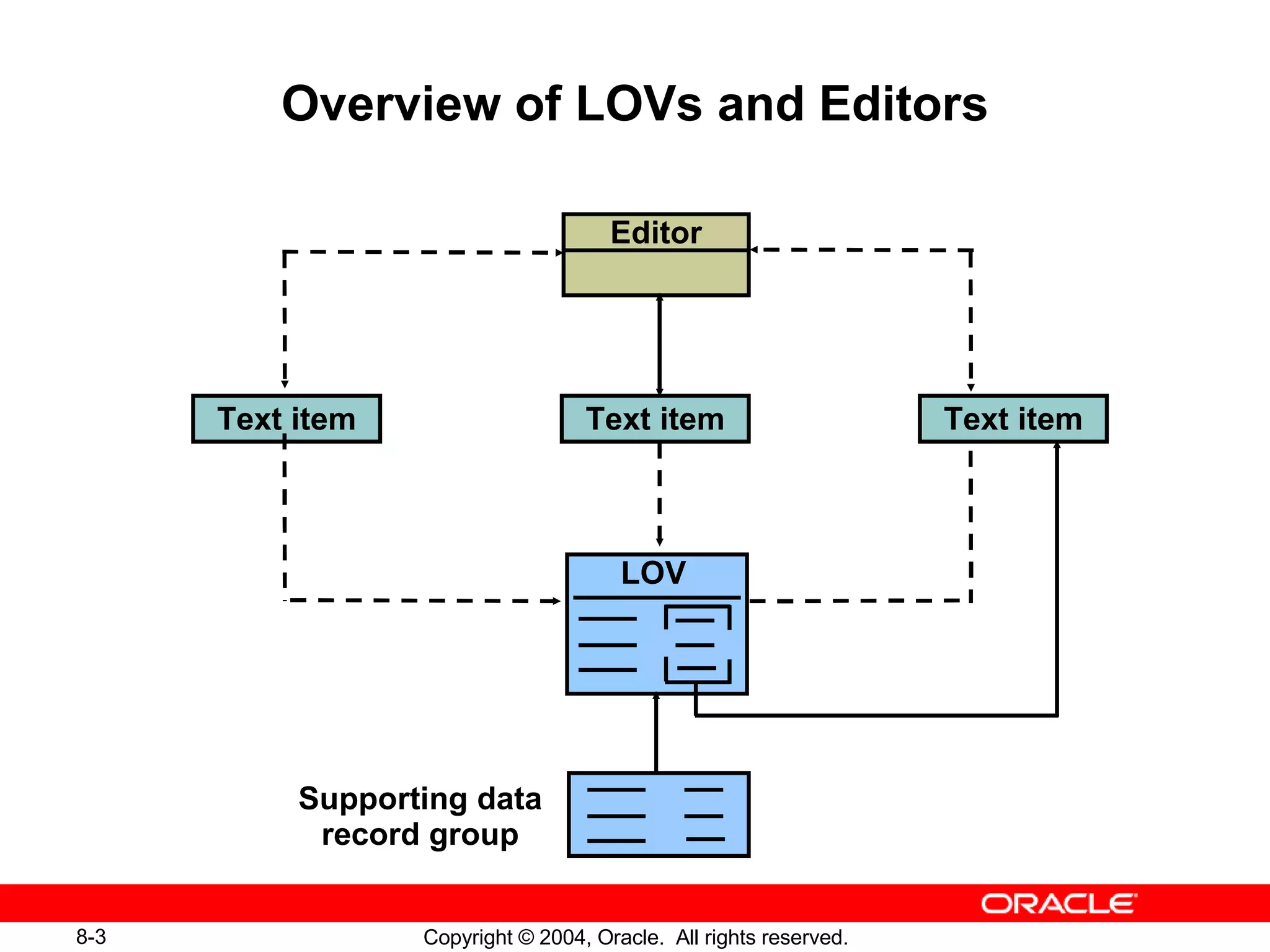
Overview of LOVs and Editors Text item Editor Text item Text item LOV Supporting data record group
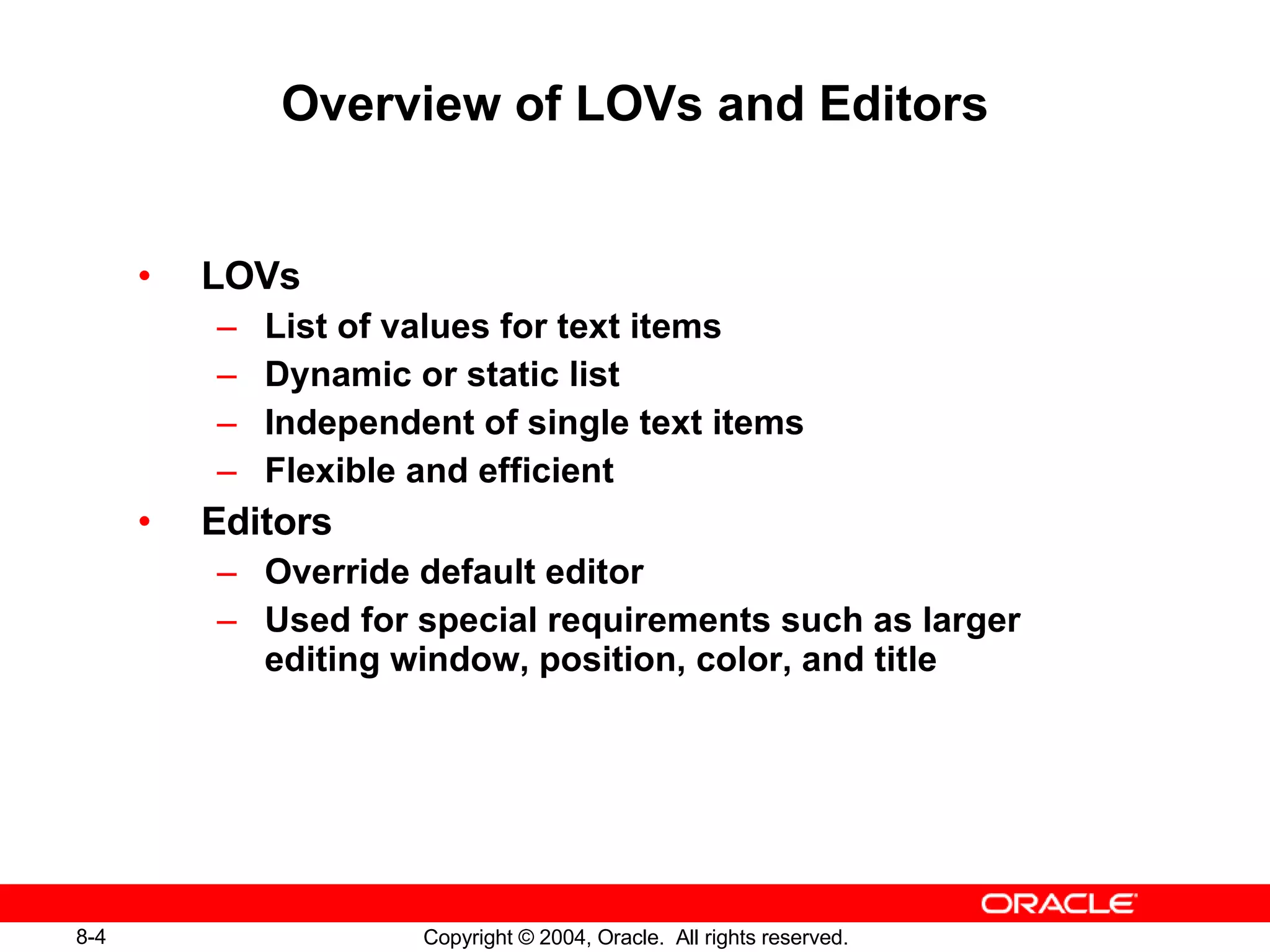
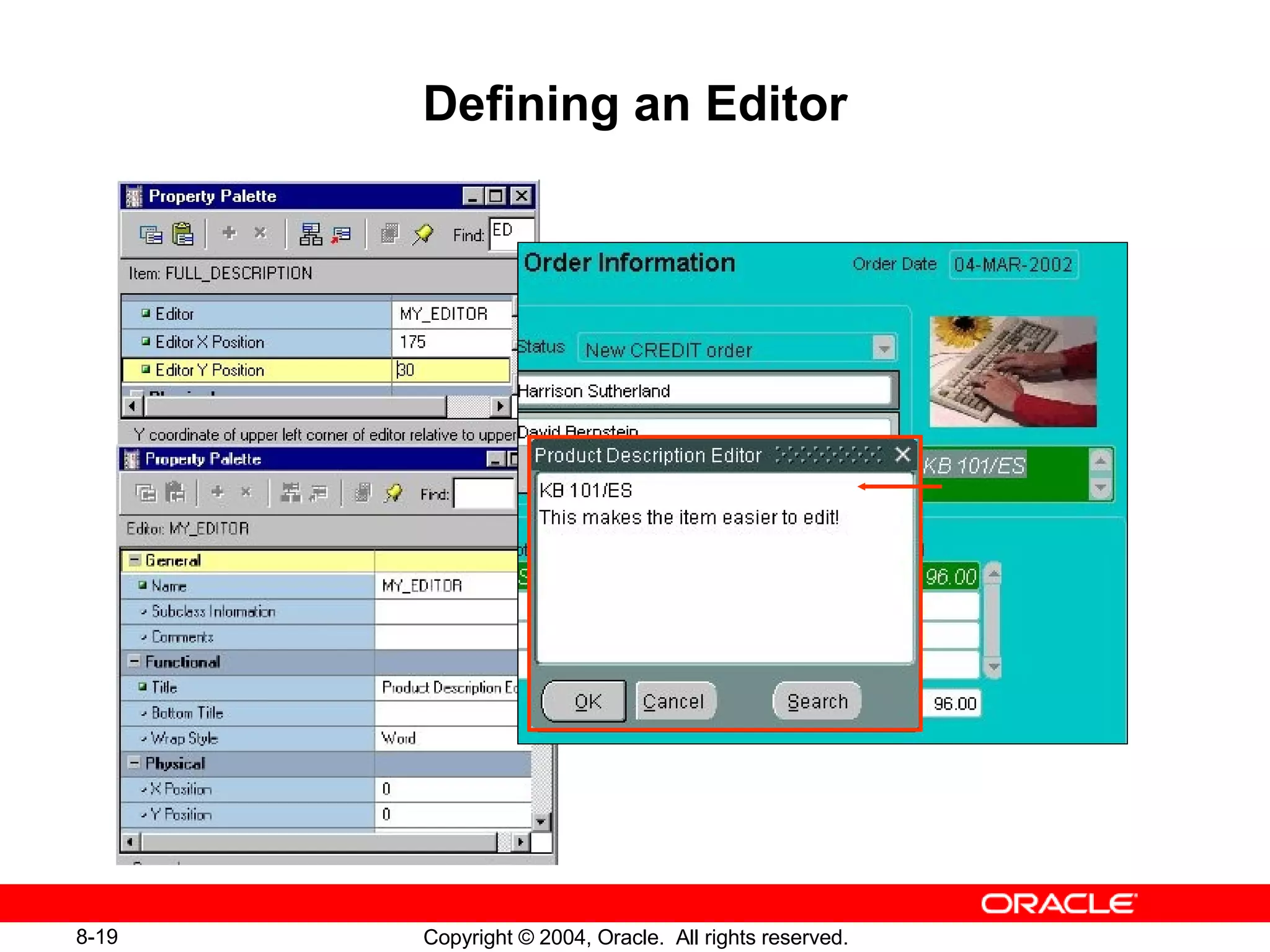
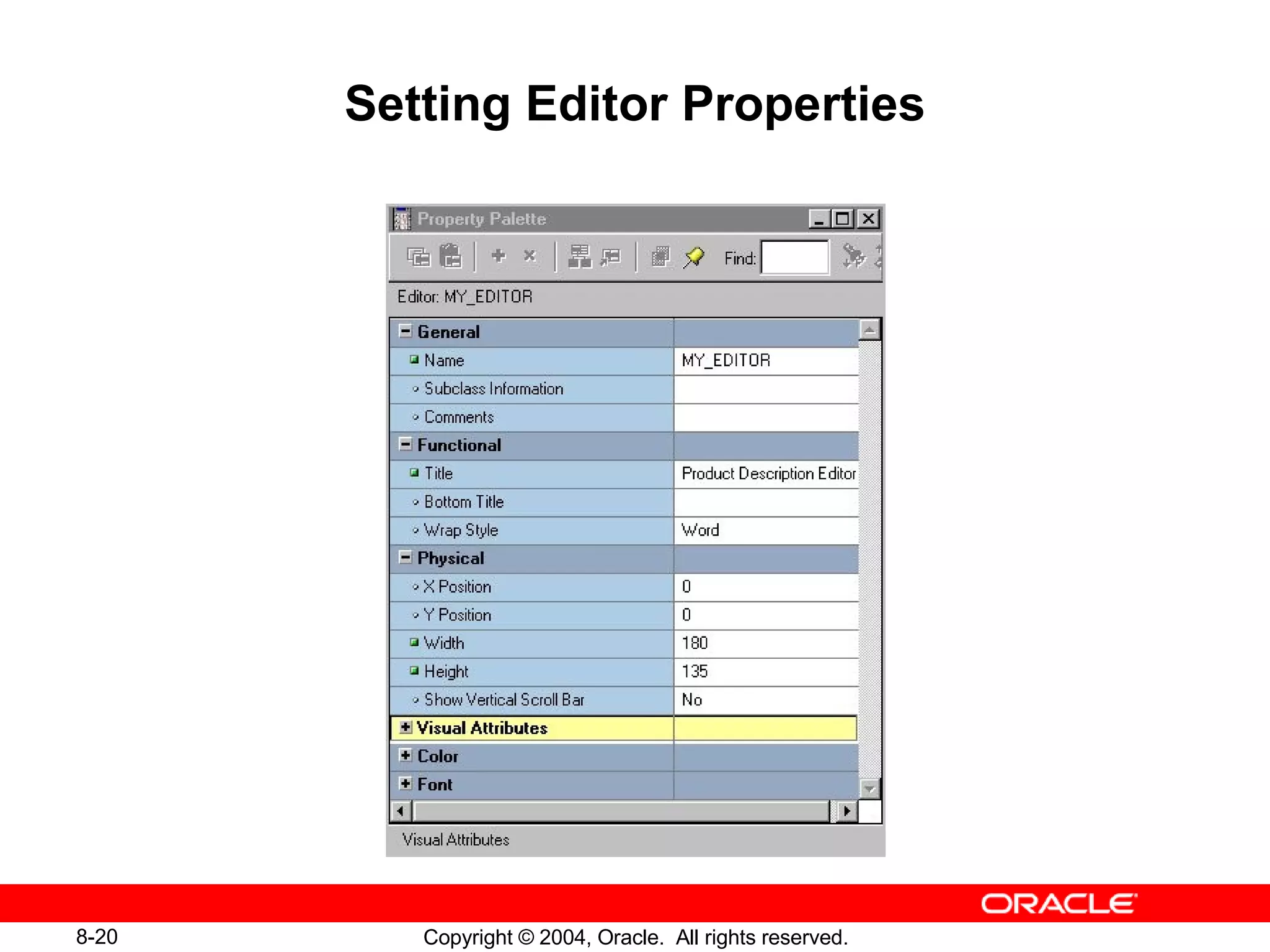
Overview of LOVs and Editors LOVs List of values for text items Dynamic or static list Independent of single text items Flexible and efficient Editors Override default editor Used for special requirements such as larger editing window, position, color, and title
 
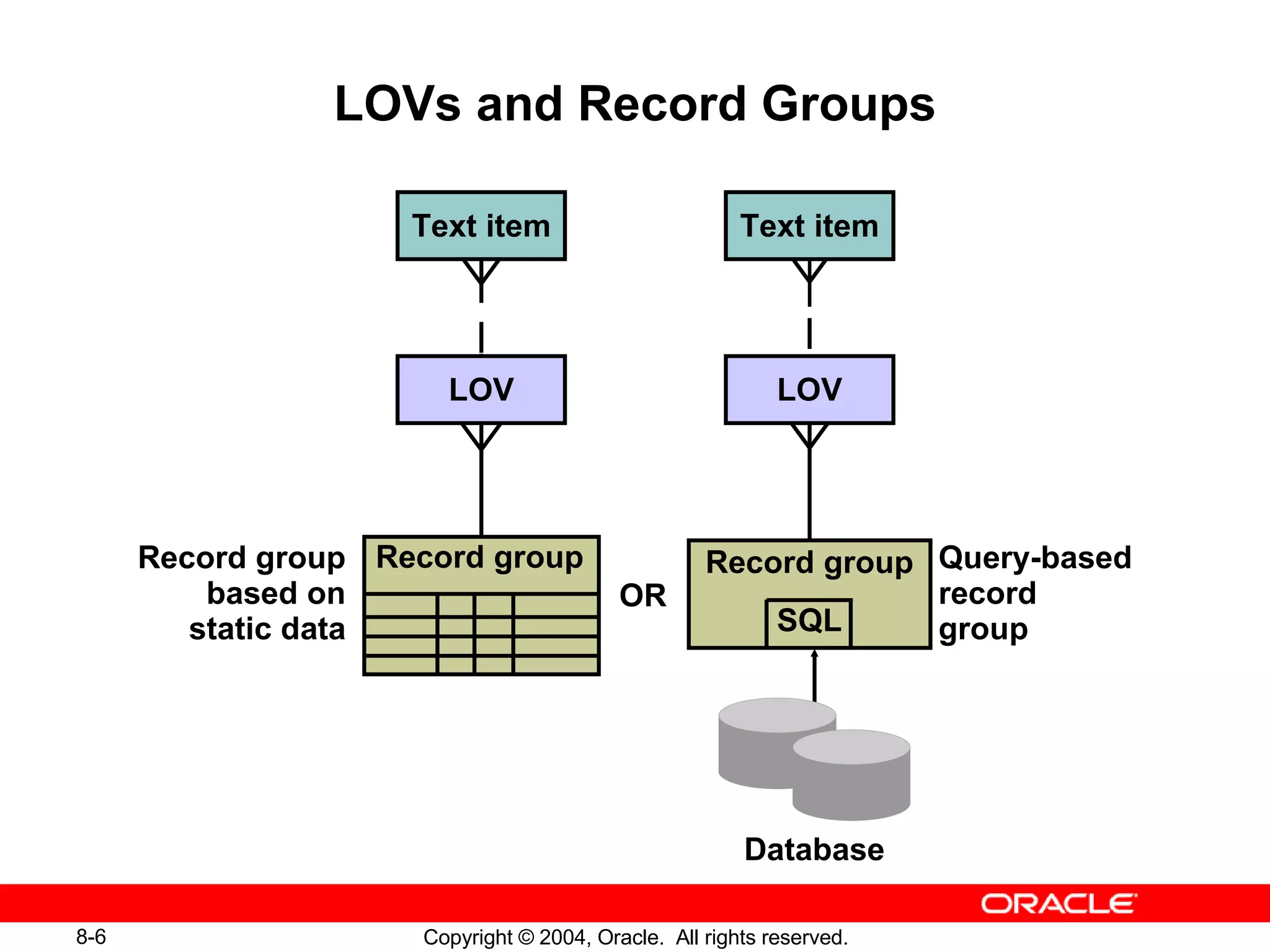
LOVs and Record Groups Text item LOV Text item LOV Database Record group Record group based on static data Query-based record group OR SQL Record group
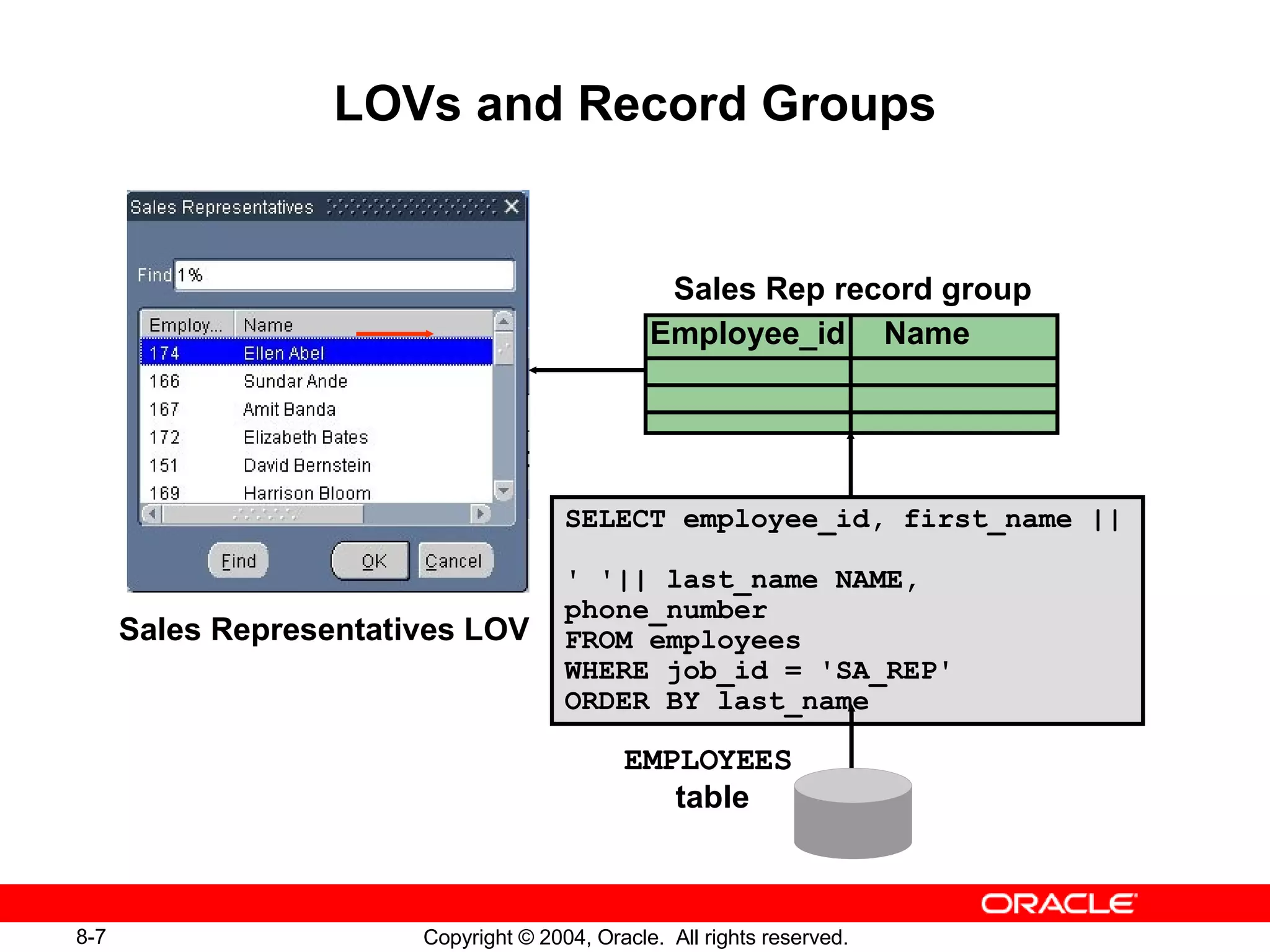
LOVs and Record Groups EMPLOYEES   table SELECT employee_id, first_name ||  ' '|| last_name NAME, phone_number FROM employees WHERE job_id = 'SA_REP' ORDER BY last_name Employee_id Name Sales Rep record group Sales Representatives LOV
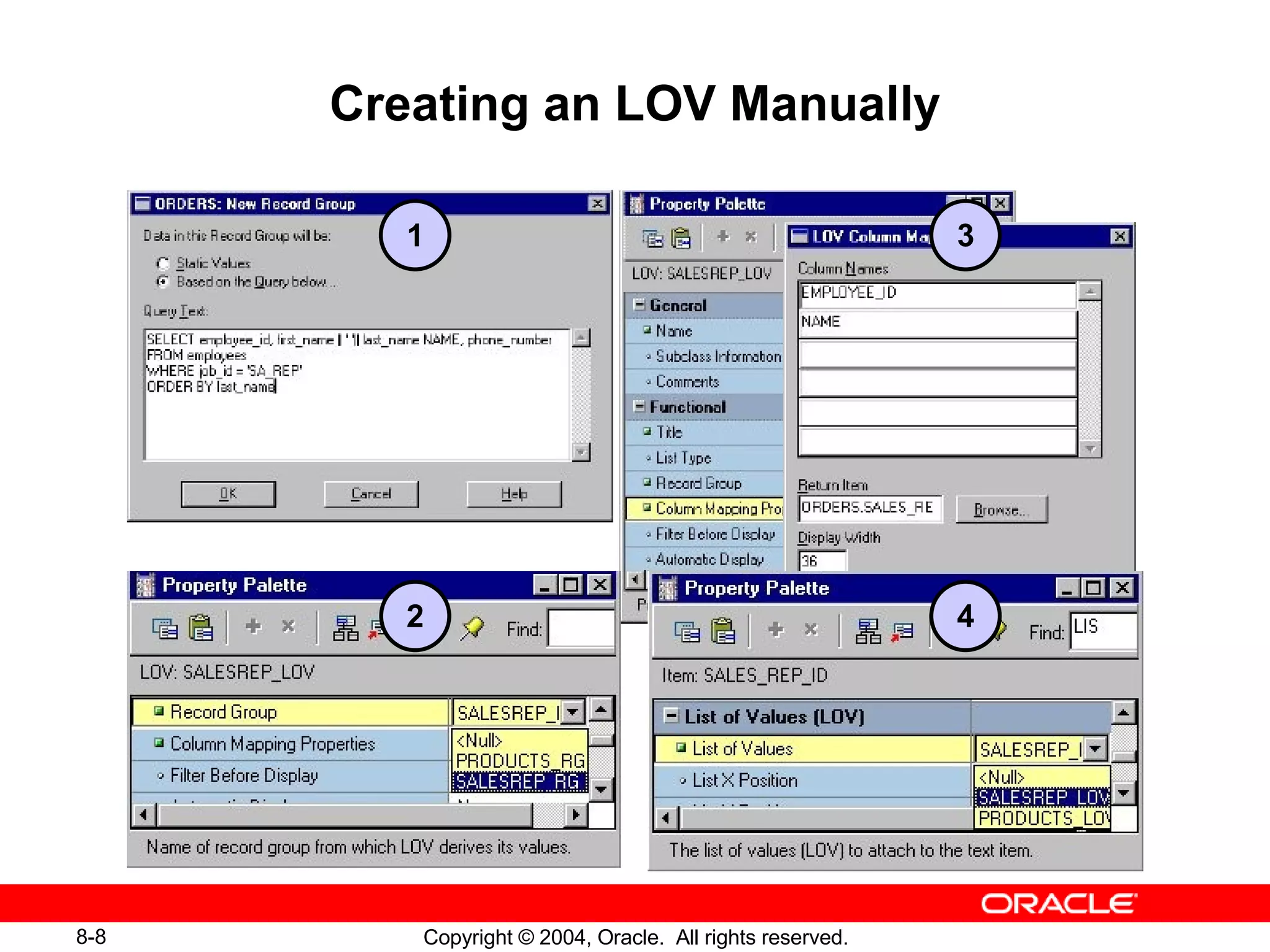
Creating an LOV Manually 1 2 3 4
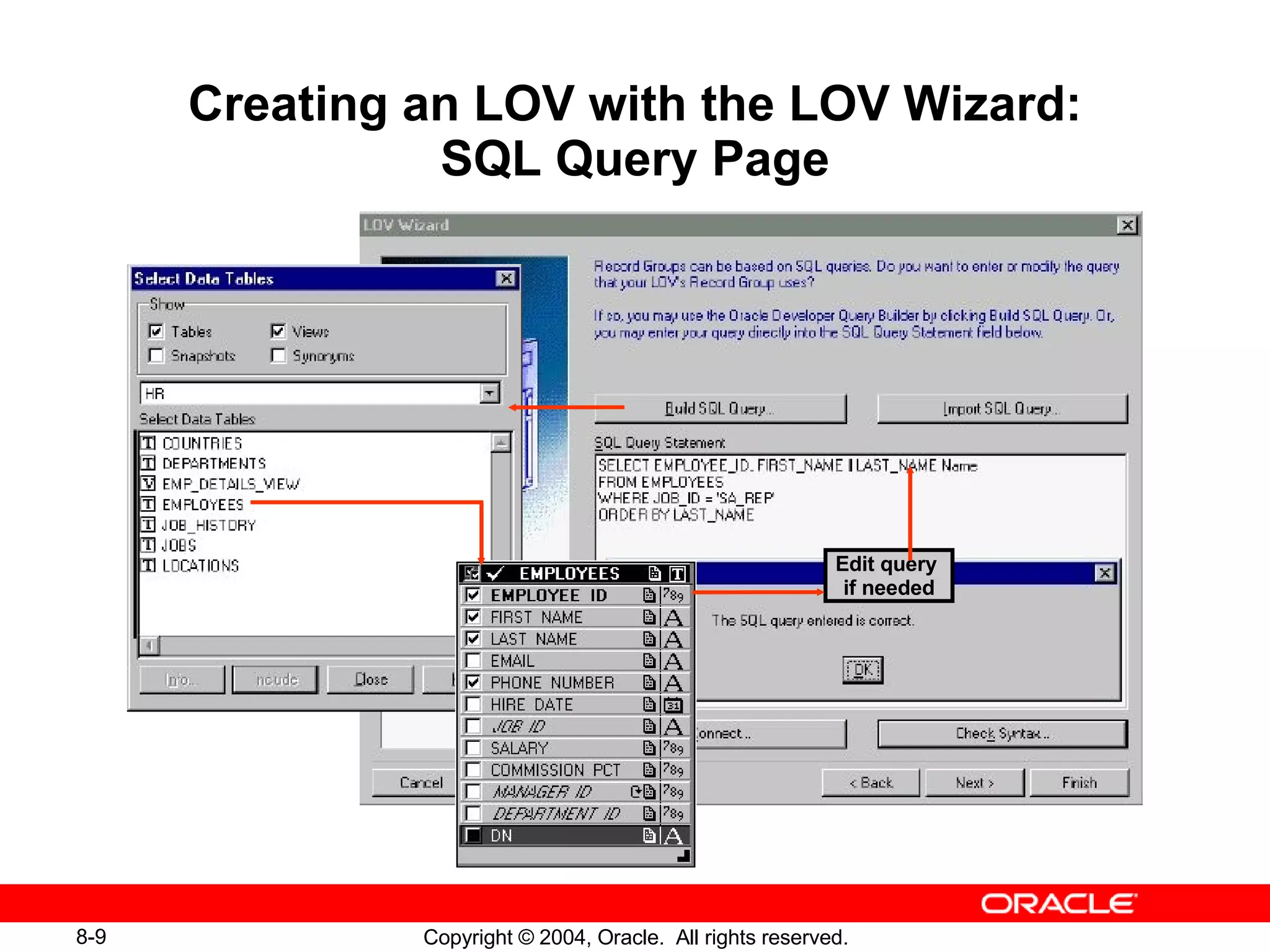
Creating an LOV with the LOV Wizard: SQL Query Page Edit query  if needed
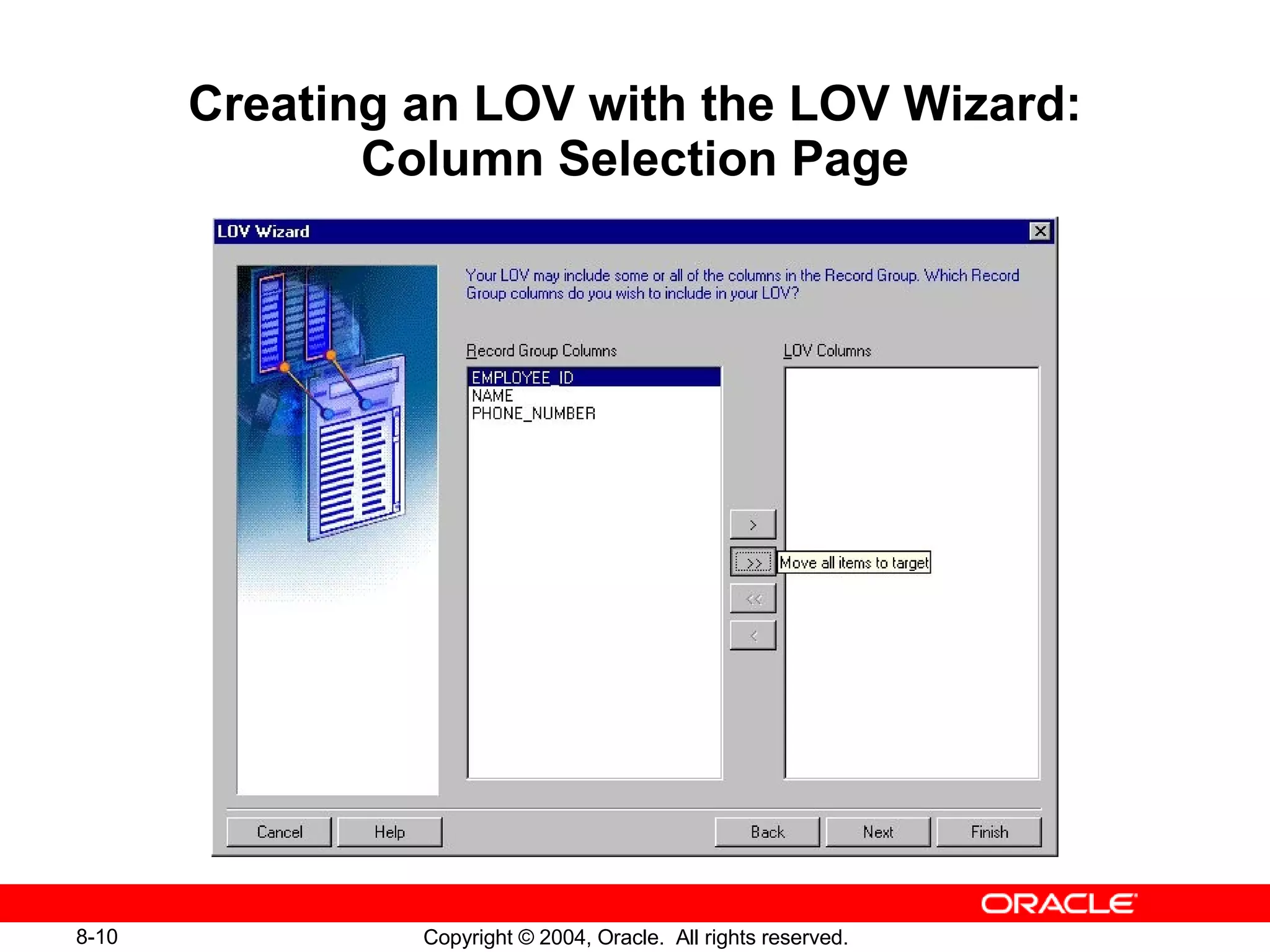
Creating an LOV with the LOV Wizard: Column Selection Page
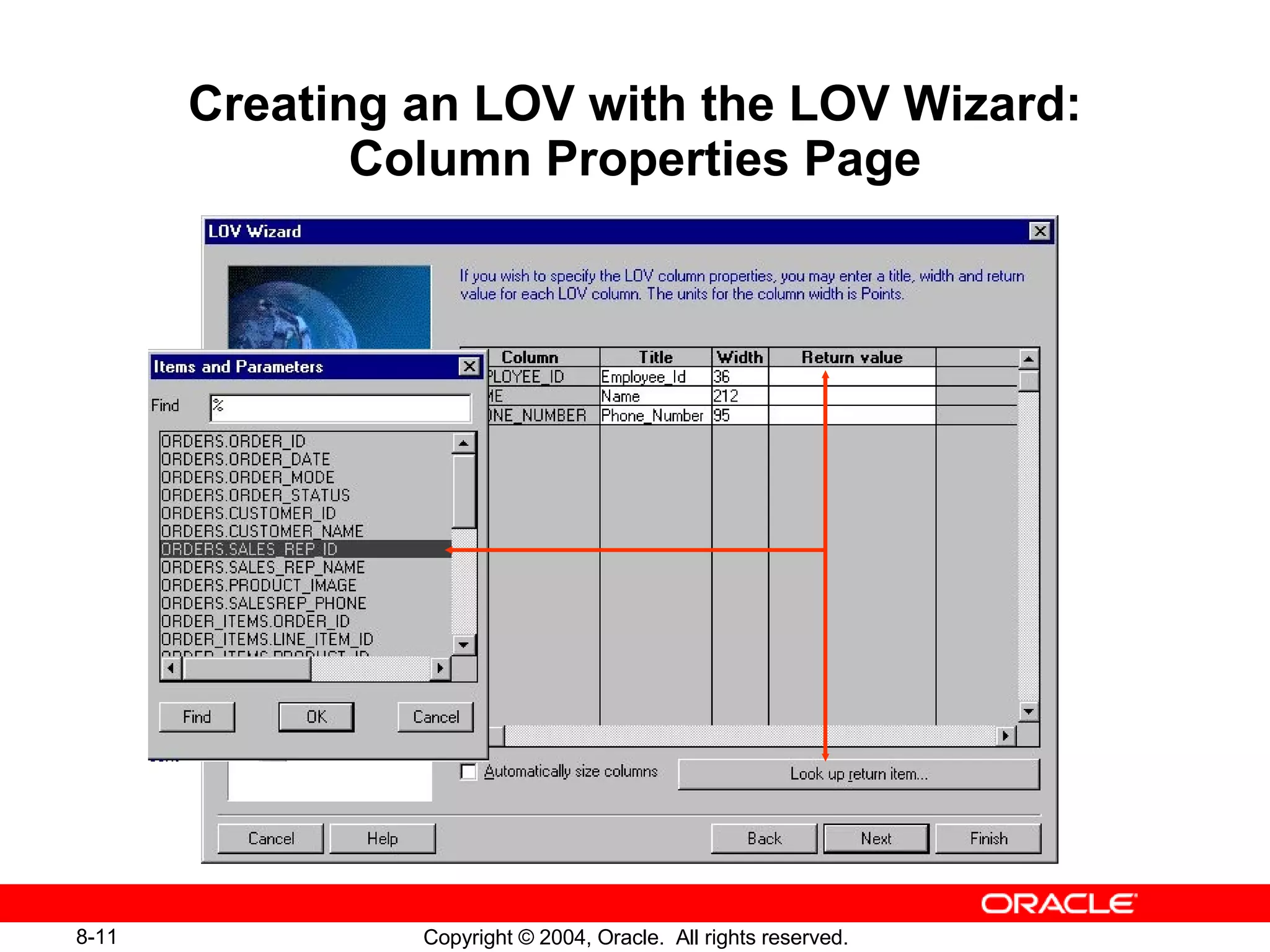
Creating an LOV with the LOV Wizard: Column Properties Page
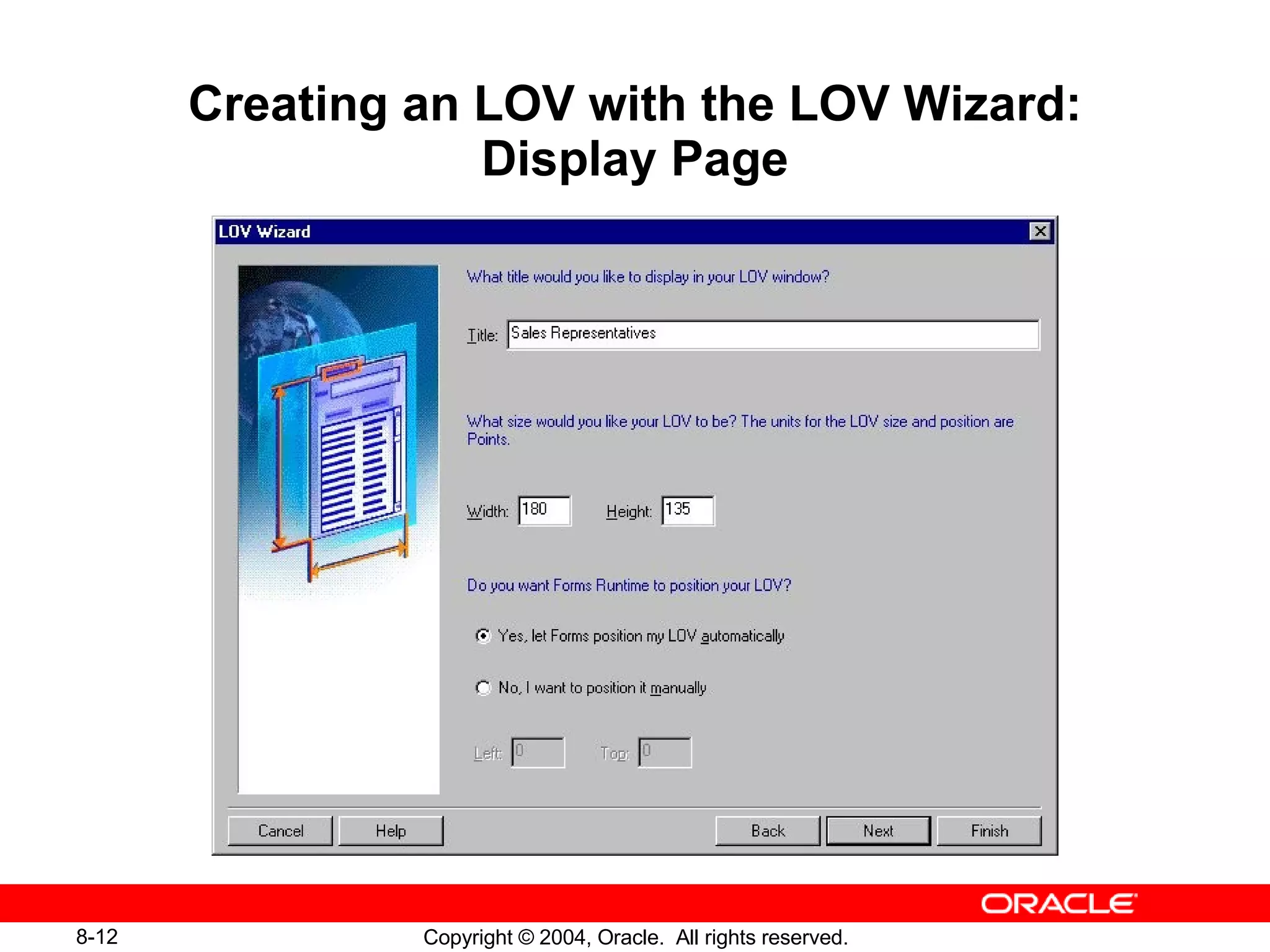
Creating an LOV with the LOV Wizard: Display Page
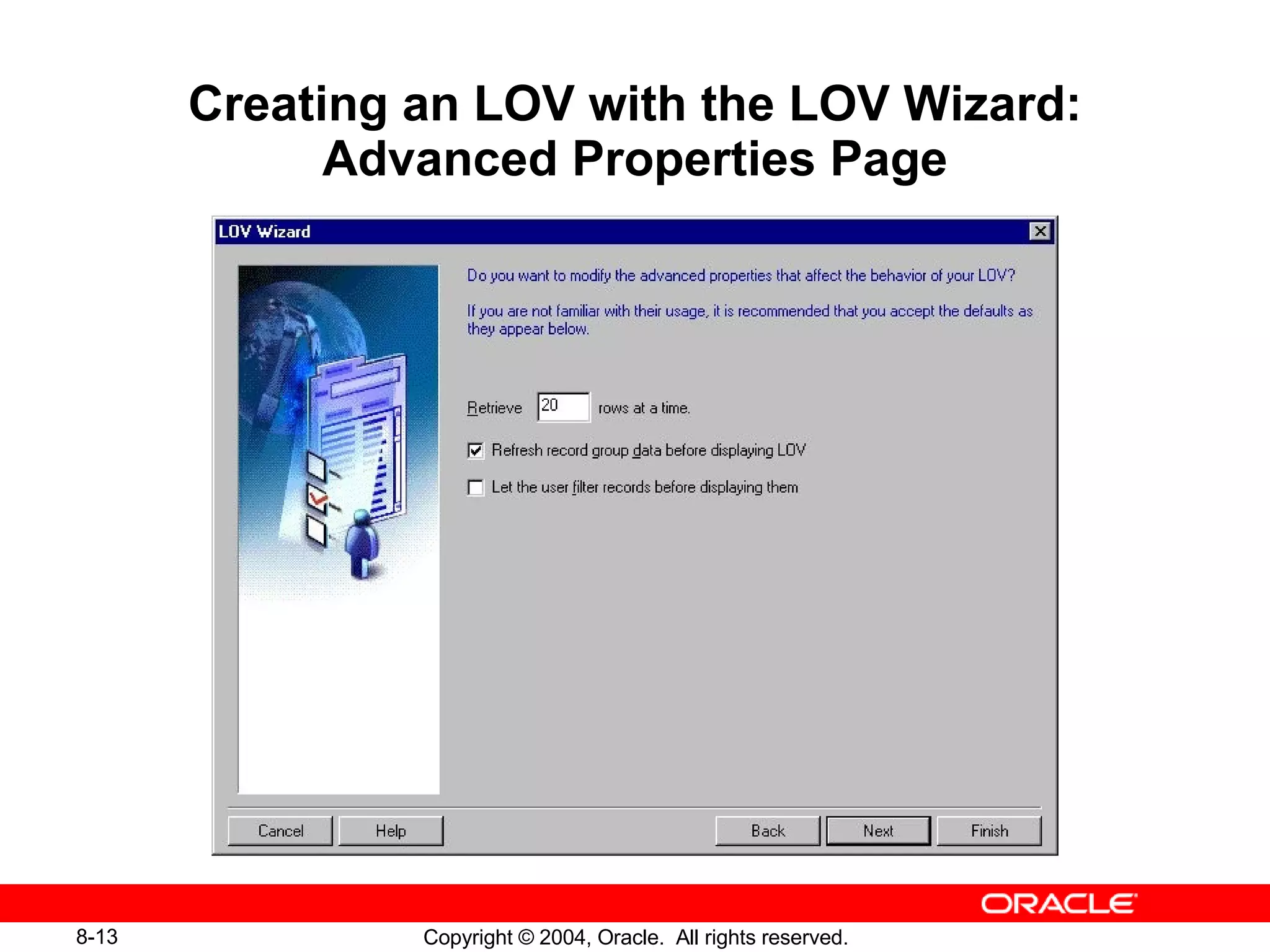
Creating an LOV with the LOV Wizard: Advanced Properties Page
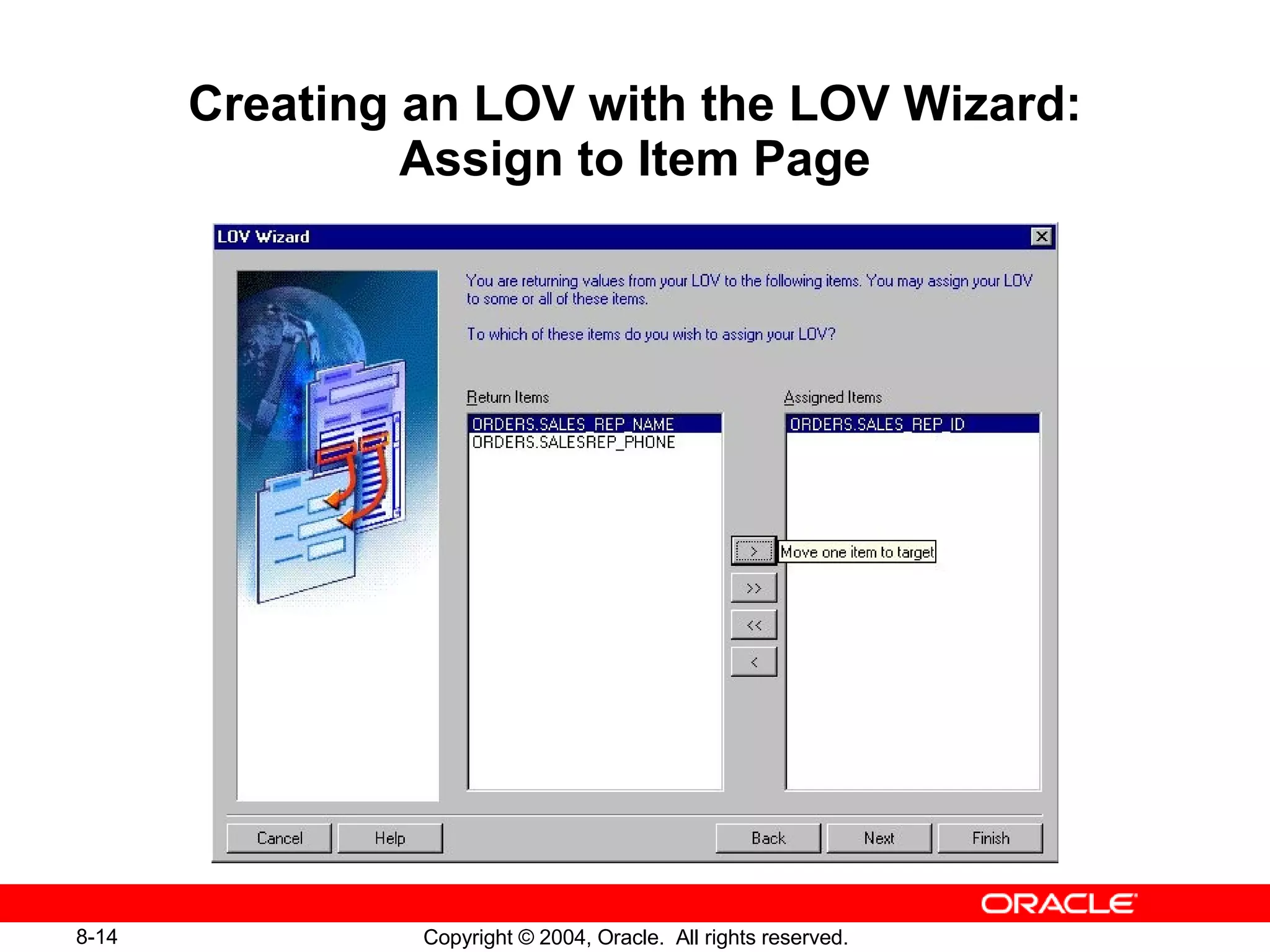
Creating an LOV with the LOV Wizard: Assign to Item Page
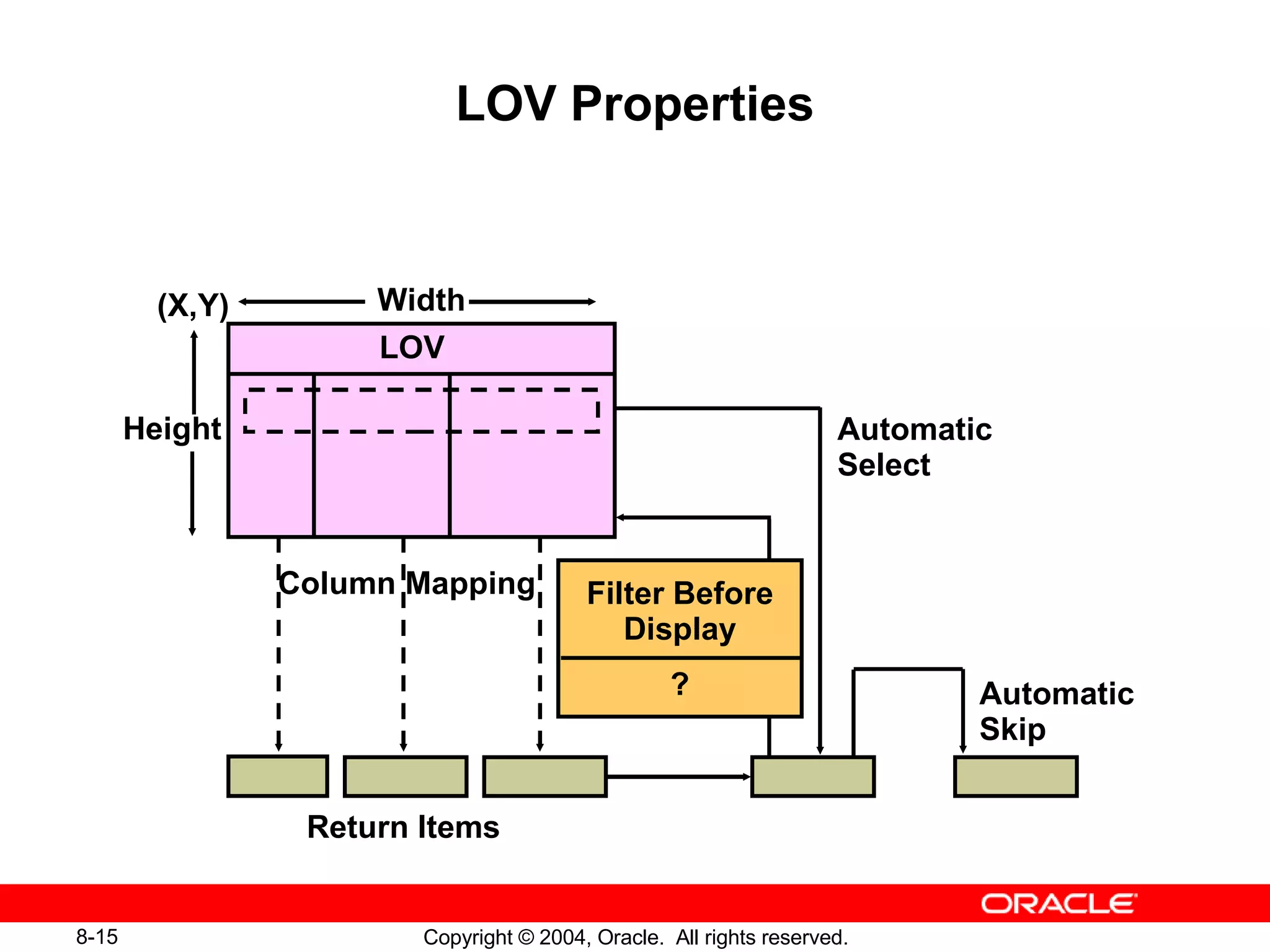
LOV Properties Filter Before Display ? (X,Y) Automatic Select Automatic Skip Width Height LOV Column Mapping Return Items
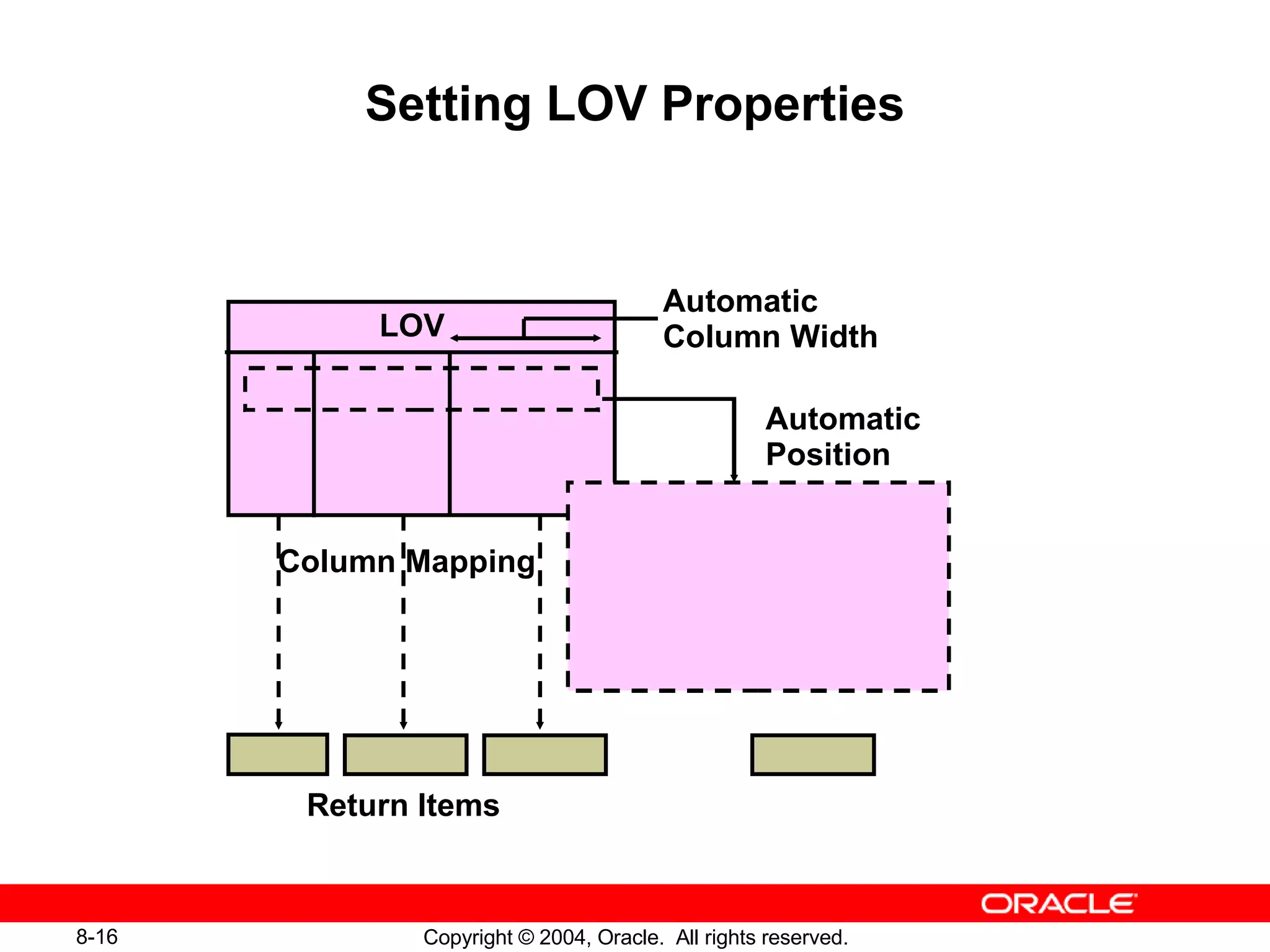
Setting LOV Properties LOV Column Mapping Automatic Position Automatic Column Width Return Items
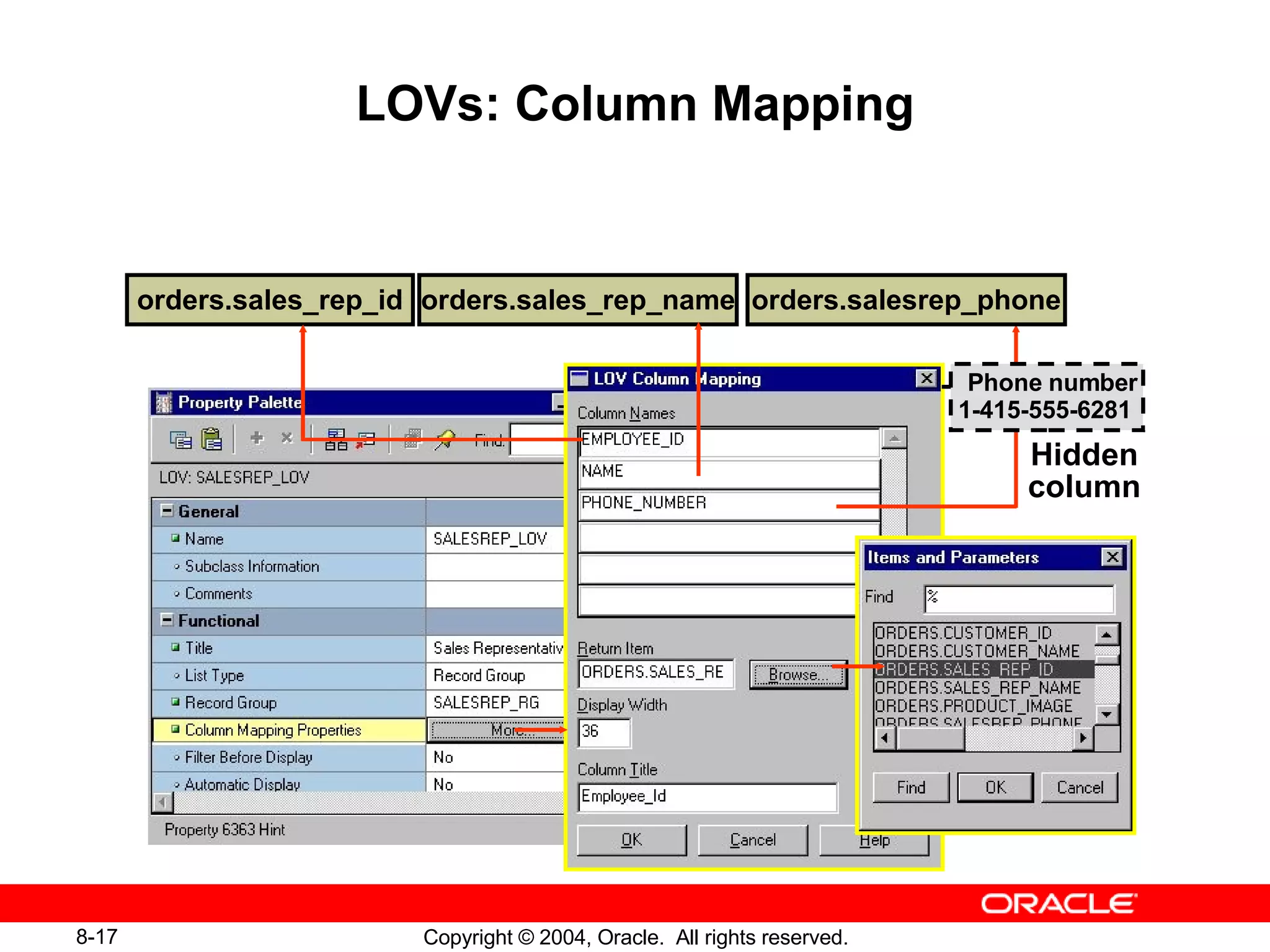
LOVs: Column Mapping Employee_id orders.sales_rep_id orders.sales_rep_name orders.salesrep_phone Hidden column Phone number 1-415-555-6281
 
Defining an Editor
Setting Editor Properties
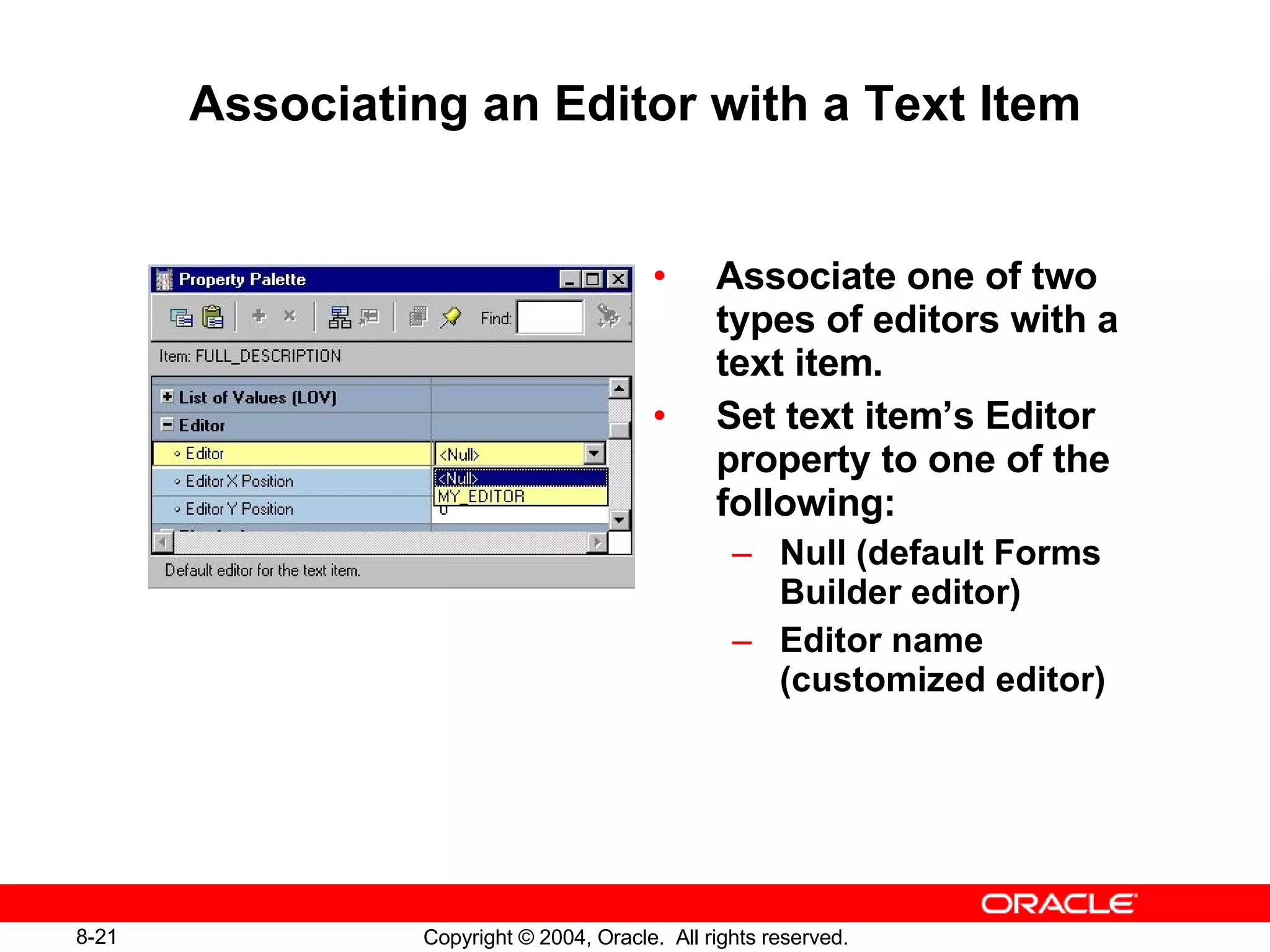
Associating an Editor with a Text Item Associate one of two types of editors with a text item. Set text item’s Editor property to one of the following: Null (default Forms Builder editor) Editor name (customized editor)
Summary In this lesson, you should have learned that: An LOV is a scrollable pop-up window that enables a user to pick the value of an item from a multicolumn dynamic list The easiest way to design, create, and associate LOVs with text items is to use the LOV Wizard An Editor is a separate window that enables the user to view multiple lines of a text item simultaneously, search and replace text in it, and modify the text You create editors in the Object Navigator and associate them with text items in the item's Property Palette
Practice 8 Overview This practice covers the following topics: Creating an LOV and attaching the LOV to a text item Creating an Editor and attaching it to a text item
 

Oracle 10g Forms Lesson 8

  • 1.
  • 2.
    Objectives After completingthis lesson, you should be able to do the following: Describe LOVs and editors Design, create, and associate LOVs with text items in a form module Create editors and associate them with text items in a form module
  • 3.
    Overview of LOVsand Editors Text item Editor Text item Text item LOV Supporting data record group
  • 4.
    Overview of LOVsand Editors LOVs List of values for text items Dynamic or static list Independent of single text items Flexible and efficient Editors Override default editor Used for special requirements such as larger editing window, position, color, and title
  • 5.
  • 6.
    LOVs and RecordGroups Text item LOV Text item LOV Database Record group Record group based on static data Query-based record group OR SQL Record group
  • 7.
    LOVs and RecordGroups EMPLOYEES table SELECT employee_id, first_name || ' '|| last_name NAME, phone_number FROM employees WHERE job_id = 'SA_REP' ORDER BY last_name Employee_id Name Sales Rep record group Sales Representatives LOV
  • 8.
    Creating an LOVManually 1 2 3 4
  • 9.
    Creating an LOVwith the LOV Wizard: SQL Query Page Edit query if needed
  • 10.
    Creating an LOVwith the LOV Wizard: Column Selection Page
  • 11.
    Creating an LOVwith the LOV Wizard: Column Properties Page
  • 12.
    Creating an LOVwith the LOV Wizard: Display Page
  • 13.
    Creating an LOVwith the LOV Wizard: Advanced Properties Page
  • 14.
    Creating an LOVwith the LOV Wizard: Assign to Item Page
  • 15.
    LOV Properties FilterBefore Display ? (X,Y) Automatic Select Automatic Skip Width Height LOV Column Mapping Return Items
  • 16.
    Setting LOV PropertiesLOV Column Mapping Automatic Position Automatic Column Width Return Items
  • 17.
    LOVs: Column MappingEmployee_id orders.sales_rep_id orders.sales_rep_name orders.salesrep_phone Hidden column Phone number 1-415-555-6281
  • 18.
  • 19.
  • 20.
  • 21.
    Associating an Editorwith a Text Item Associate one of two types of editors with a text item. Set text item’s Editor property to one of the following: Null (default Forms Builder editor) Editor name (customized editor)
  • 22.
    Summary In thislesson, you should have learned that: An LOV is a scrollable pop-up window that enables a user to pick the value of an item from a multicolumn dynamic list The easiest way to design, create, and associate LOVs with text items is to use the LOV Wizard An Editor is a separate window that enables the user to view multiple lines of a text item simultaneously, search and replace text in it, and modify the text You create editors in the Object Navigator and associate them with text items in the item's Property Palette
  • 23.
    Practice 8 OverviewThis practice covers the following topics: Creating an LOV and attaching the LOV to a text item Creating an Editor and attaching it to a text item
  • 24.